Samsung Ä·ÄÚ´õ °£´Ü¼³¸í¼� (D30) VP D31 20041129081649000 D30 Quick Guide
User Manual: Samsung VP-D31 Samsung VP-D31 user manual - User Manual (ver.5.0) - ENGLISH, CHINESE (ANDORRA, UTD.ARAB.EMIR., ARMENIA, CHINA, GERMANY, DENMARK, SPAIN, FRANCE, UNITED KINGDOM, GREECE, HONG KONG, IRAN, ITALY, LEBANON, NETHERLANDS, POLAND, PORTUGAL, RUSSIAN FED., SWEDEN, SINGAPORE, UK
Open the PDF directly: View PDF  .
.
Page Count: 7

Getting to Know Your Camcorder ..........2
Notes and Safety Instructions....................3
Getting to Know Your Camcorder ..........4
Tape Playback .....................................5
Basic Recording............................................6
Maintenance .......................................6
Digital Video Camcorder
VP-D30(i)/D31(i)/D33(i)/D34(i)/D39(i)
Troubleshooting ..................................7
*Samsung Electronics’ Internet Home Page
United Kingdom http://www.samsungelectronics.co.uk
ƒ∑ƒ⁄¥ı ∞£¥‹º≥∏̺≠ (D30) 10/8/04 3:28 PM Page 1

Getting to Know Your Camcorder
2
Digital data transfer function with IEEE1394
By incorporating the IEEE 1394 (i.LINK™ : i.LINK is a serial data transfer protocol
and interconnectivity system, used to transmit DV data) high speed data transport
port, both moving and still images can be transferred to a PC, making it possible to
produce or edit various images. (VP-D30/D31/D33/D34/D39 is not able to receive
digital data from another DV Device)
USB interface for digital image data transfer
(VP-D31(i)/D33(i)/D34(i)/D39(i) only)
You can transfer images to a PC using the USB interface without an add-on card.
PHOTO
The PHOTO function lets you capture an object as a still along with sound,
while in Camera mode.
800x Digital zoom
Allows you to magnify an image up to 800 times its original size.
Colour TFT LCD
A high-resolution colour TFT LCD gives you clean, sharp images as well as
the ability to review your recordings immediately.
Digital Image Stabilizer (DIS)
The DIS compensates for any handshake, reducing unstable images
particularly at high magnification.
Various digital effects
The DSE (Digital Special Effects) allows you to give your films a special look
by adding various special effects.
Back Light Compensation (BLC)
The BLC function compensates for the bright background behind a subject
you're recording.
Program AE
The Program AE enables you to alter the shutter speed and aperture to suit
the type of scene/action to be filmed.
NIGHT CAPTURE
The NIGHT CAPTURE function enables you to record a subject in a dark
place.
Digital Still Camera function (VP-D33(i)/D34(i)/D39(i) only)
■
Using Memory Stick, you can easily record and playback standard still images.
■
You can transfer standard still images on the Memory Stick to your PC using
the USB interface.
MPEG Recording (VP-D33(i)/D34(i)/D39(i) only)
MPEG recording makes it possible to record video onto a Memory Stick.
ƒ∑ƒ⁄¥ı ∞£¥‹º≥∏̺≠ (D30) 10/8/04 3:28 PM Page 2
Notes and Safety Instructions
3
Television programs, video tapes, DVD titles, films, and other program materials may be
copyrighted.
Unauthorized copying of copyrighted material may be against the law.
1. A sudden rise in atmospheric temperature may cause condensation to form inside the
camcorder.
for example:
- When you move the camcorder from a cold location to a warm location (e.g. from
outside to inside during winter.)
- When you move the camcorder from a cool location to a hot location (e.g. from inside
to outside during the summer.)
2. If the (DEW) protection feature is activated, leave the camcorder for at least two
hours in a dry, warm room with the cassette compartment opened and the battery pack
removed.
1. Do not leave the camcorder exposed to high temperature (above 60°C or 140°F).
For example, in a parked car in the sun or exposed to direct sunlight.
2. Do not let the camcorder get wet.
Keep the camcorder away from rain, sea water, and any other form of moisture.
If the camcorder gets wet, it may get damaged.
Sometimes a malfunction due to exposure to liquids cannot be repaired.
- Make sure that the battery pack is fully charged
before starting to record.
- To preserve battery power, keep your camcorder
turned off when you are not operating it.
- If your camcorder is in CAM mode, and it is left in
STBY mode without being operated for more
than 5 minutes with a tape installed, it will
automatically turn itself off to protect against
unnecessary battery discharge.
- Make sure that the battery pack is fitted firmly into place.
Dropping the battery pack may damage it.
- A brand new battery pack is not charged.
Before using the battery pack, you need to charge it completely.
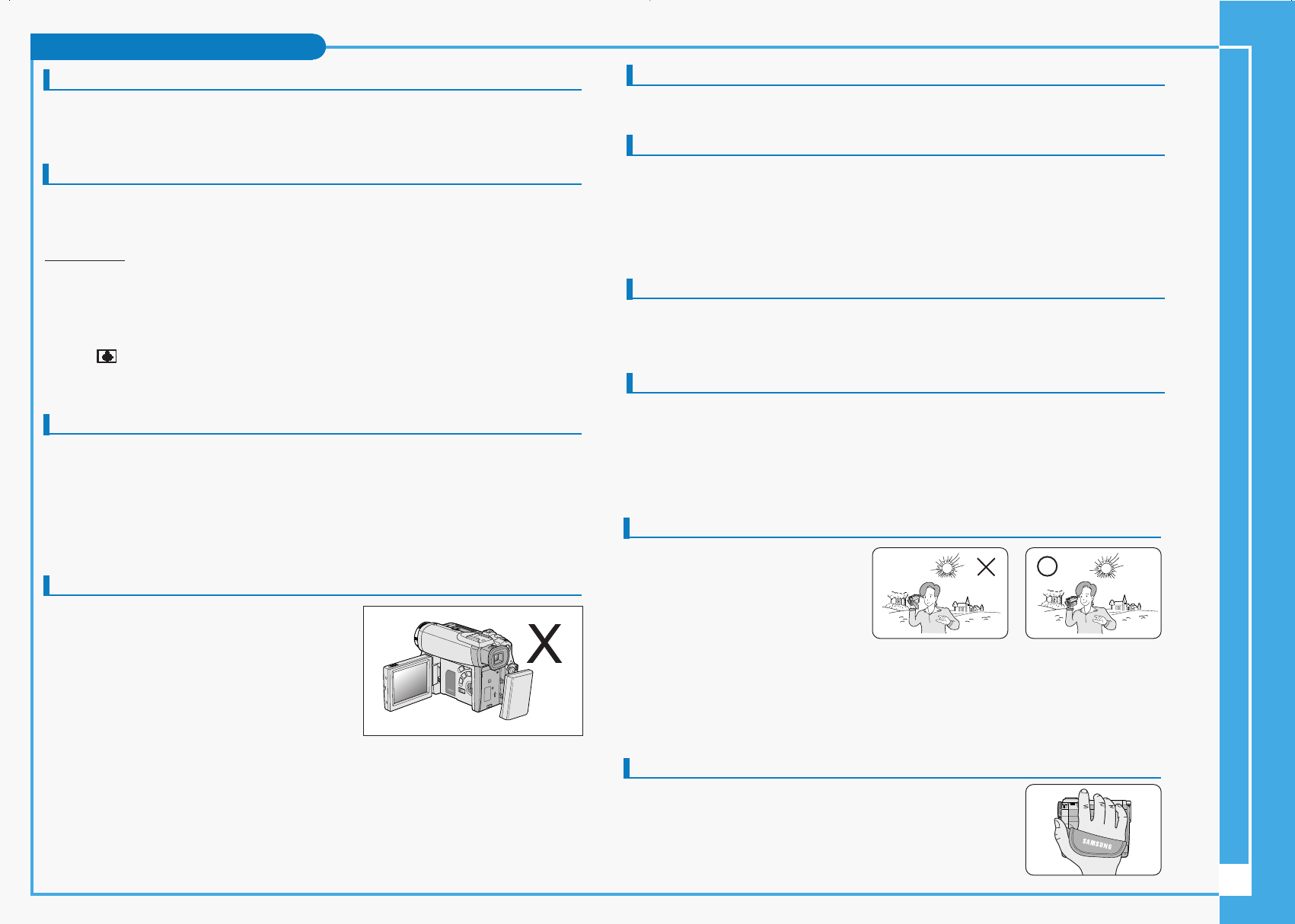
- It is a good idea to use the viewfinder rather than the LCD when making a long
recordings, because the LCD uses up more battery power.
Notices regarding COPYRIGHT (VP-D30i/D31i/D33i/D34i/D39i only)
Notes regarding moisture condensation
Notes regarding CAMCORDER
Notes regarding the battery pack
* When the battery reaches the end of its life, please contact your local dealer.
The batteries have to be dealt with as chemical waste.
- To ensure normal recording and a clear picture, clean the video heads regularly. If a
square block-shape distorts playback,
or only a blue screen is displayed, the video heads may be dirty. If this happens, clean
the video heads with a dry type cleaning cassette.
- Do not use a wet-type cleaning cassette. It may damage the video heads.
- Do not film with the camera lens pointing directly at the sun.
Direct sunlight can damage the CCD(Charge Coupled Device).
1. Do not position the camcorder such that the viewfinder is pointing towards the sun.
Direct sunlight can damage the inside of the viewfinder. Be careful when placing the
camcorder under sunlight or near a window exposed to sunlight.
2. Do not pick up the camcorder from the viewfinder.
3. Over pulling of the viewfinder may damage it.
1. The LCD display has been
manufactured using high precision
tech- nology. However, there may
be tiny dots (red, blue or green in
colour) that appear on the LCD
display.
These dots are normal and do not affect the recorded picture in any way.
2. When you use the LCD display under direct sunlight or outdoors, it maybe difficult to
see the picture clearly.
If this occurs, we recommend using the viewfinder.
3. Direct sunlight can damage the LCD monitor.
- To ensure a steady picture during filming, check that the hand
strap is properly adjusted.
- Do not force your hand into the hand strap as you could
damage it.
Notes regarding the battery pack
Notes regarding the Video Head Cleaning
Note regarding the LENS
Notes regarding electronic viewfinder
Notes regarding ‘Record’ or ‘Playback’ using the LCD
Notes regarding the hand strap
ƒ∑ƒ⁄¥ı ∞£¥‹º≥∏̺≠ (D30) 10/8/04 3:28 PM Page 3
Getting to Know Your Camcorder
4
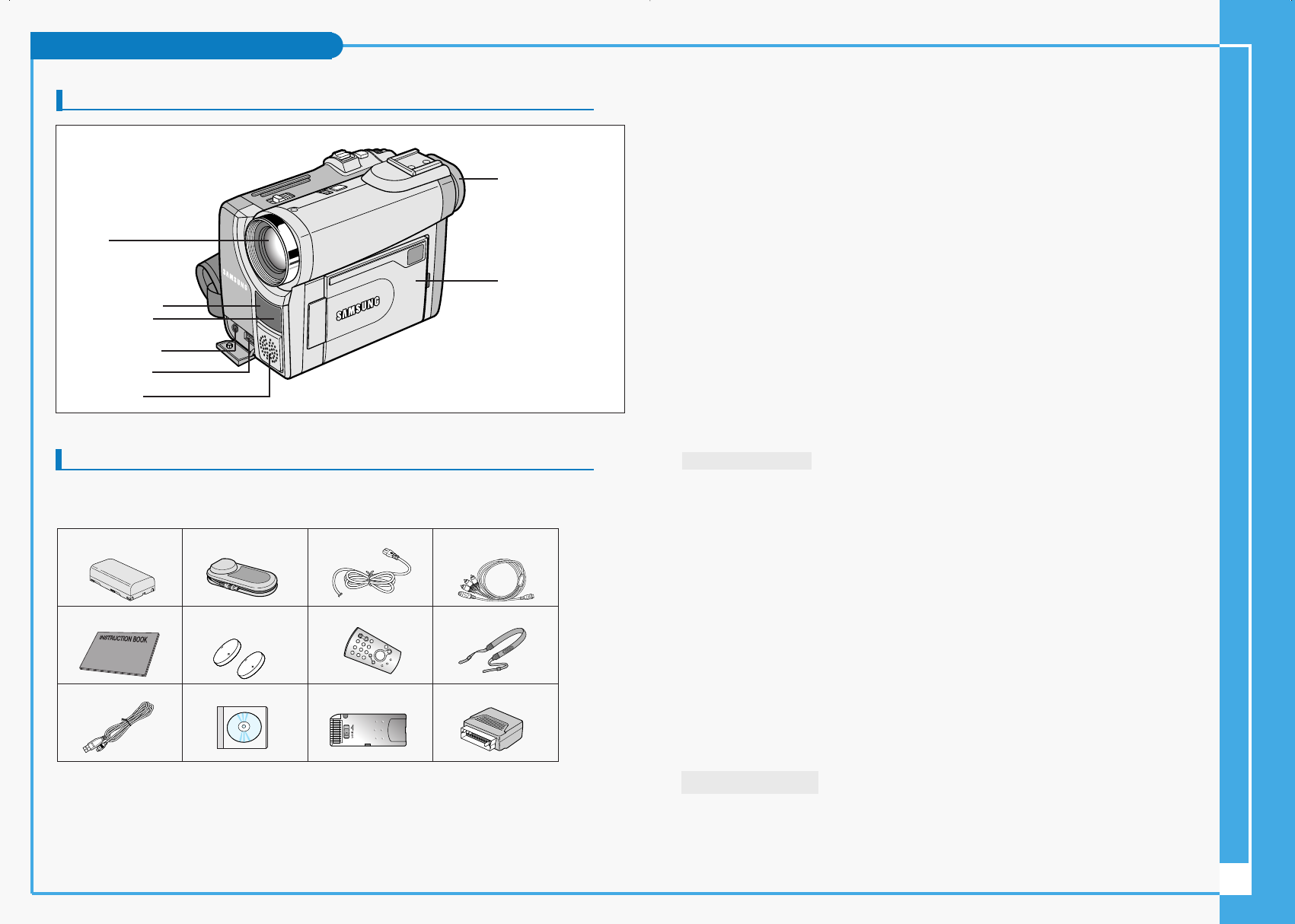
Front & Left View
1. Lens
2. Remote Sensor
3. Infrared Light (see page 66)
4. External MIC in
5. Multi-AV Jack (see page 69)
6. Internal MIC
7. View Finder (see page 32)
8. TFT LCD Monitor (see page 31)
1. Lens
2. Remote Sensor
3. Infrared Light
4. External MIC in
5. Multi-AV Jack
6. Internal MIC
7. View Finder
8. TFT LCD Monitor
Basic Accessories
1. Lithium Ion Battery pack
2. AC Power Adapter
3. AC Cord
4. Multi-AV Cable (AUDIO/VIDEO/S-VIDEO)
5. Instruction Book
6. Lithium batteries for Remote Control and Clock.
(TYPE: CR2025, 2 EA)
7. Remote Control
8. Shoulder strap
9. USB cable (VP-D31(i)/D33(i)/D34(i)/D39(i) only)
10. Software CD (VP-D31(i)/D33(i)/D34(i)/D39(i) only)
11. Memory Stick (VP-D34(i)/D39(i) only)
Optional Accessory
12. Scart adapter
1. Lithium Ion Battery pack 4. Multi-AV Cable
(AUDIO/VIDEO/S-VIDEO)
7. Remote Control
10. Software CD
3. AC cord
6. Lithium batteries (2EA)
(CR2025, 2 EA)
5. Instruction Book
9. USB cable
2. AC Power Adapter
8. Shoulder strap
11. Memory Stick
Accessories Supplied with camcorder
Make sure that the following basic accessories are supplied with your digital video
camera.
12. Scart adapter (Option)
ƒ∑ƒ⁄¥ı ∞£¥‹º≥∏̺≠ (D30) 10/8/04 3:28 PM Page 4
Getting to Know Your Camcorder
5
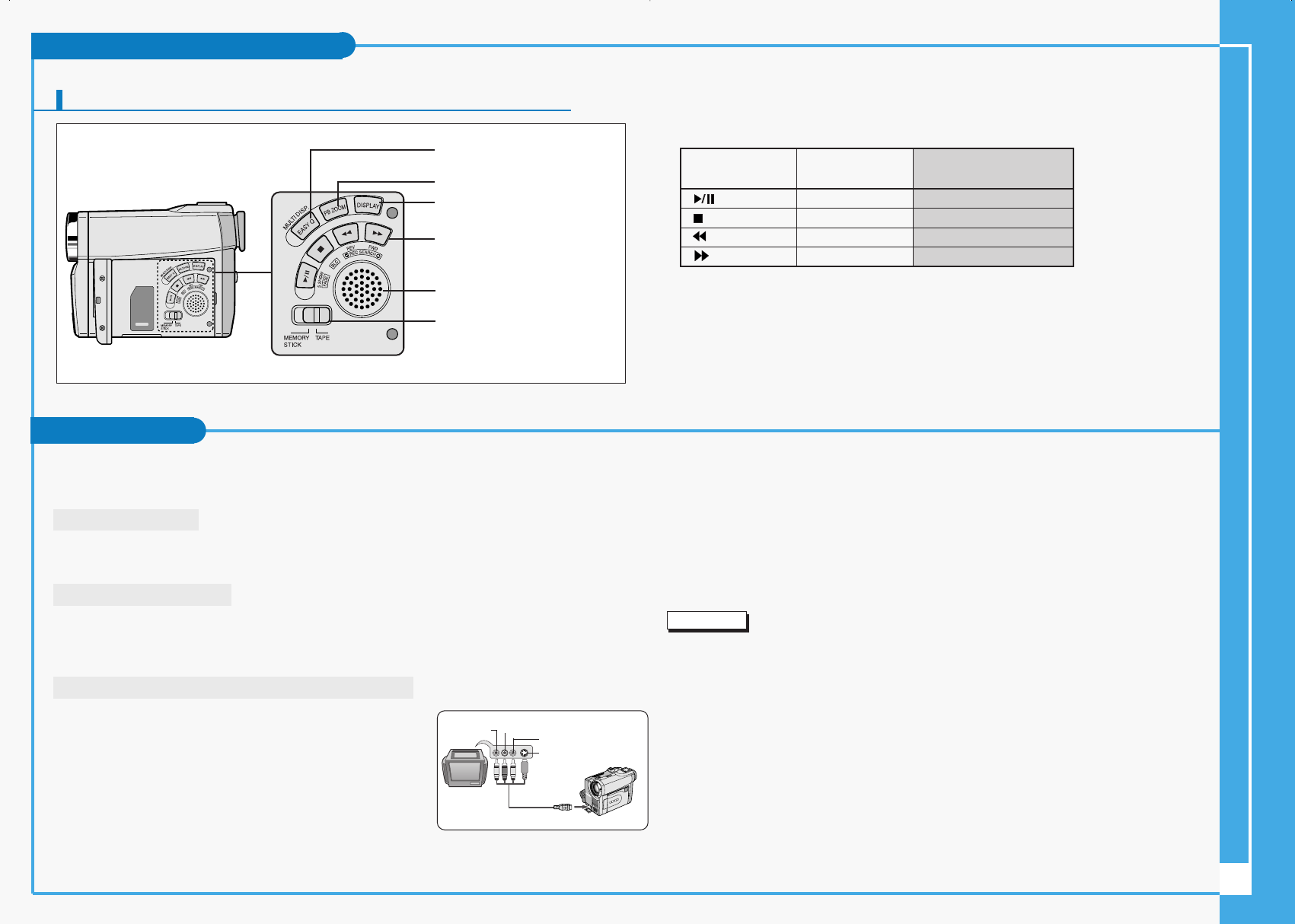
Left Side View
2. EASY.Q Button (CAM) / MULTI DISP. (M.PLAY)
3. PB ZOOM
4. DISPLAY
5. Speaker
6. Mode Switch (TAPE/MEMORY STICK)
1. Function buttons
PLAYER CAMERA M.PLAY
(VP-D33(i)/D34(i)/D39(i) only)
: (PLAY/STILL) FADE (see page 62) SLIDE SHOW (see page 88)
: (STOP) BLC (see page 61) -
: (REW) REC SEARCH – REV (see page 88)
: (FF) REC SEARCH + FWD (see page 88)
3. PB ZOOM (see page 75)
2. EASY.Q (see page 59)/
MULTI DISP. (see page 89)
1. Function buttons
4. DISPLAY (see page 19)
5. Speaker
6. Mode Switch (see page 23)
(TAPE/MEMORY STICK)
(VP-D33(i)/D34(i)/D39(i) only)
Tape Playback
✤ The playback function works in PLAYER mode only.
Playback on the LCD
✤ It is practical to view a tape using the LCD when in a car or outdoors.
Playback on a TV monitor
✤ To play back a tape, the television must have a compatible colour system.
✤ We recommend that you use the AC Power Adapter as the power source for the camcorder.
Connecting to a TV which has Audio/Video input jacks
1. Connect the camcorder and TV with the Multi-AV cable.
■The yellow plug : Video
■The white plug : Audio(L)
■The red plug : Audio(R) - STEREO only
- If you connect to a monaural TV or VCR, connect the
yellow plug (Video) to the video input of the TV or
VCR and the white plug (Audio L) to the audio input
of the TV or VCR.
✤ You may use the SCART adapter (optional).
Camcorder
A/V OUT
Video input-
Yellow
Audio input
(left)-White Audio input
(right)-Red
TV
S-VIDEO input
2. Set the power switch on the camcorder to PLAYER mode.
3. Turn on the TV and set the TV/VIDEO selector on the TV to VIDEO.
■Refer to the TV or VCR user’s manual.
4. Play the tape back.
Notes
■You may use the S-VIDEO plug to obtain better quality pictures if you have a S-VIDEO
connector on your TV.
■Even if you use a S-VIDEO plug, you need to connect an audio cable.
■If you connect the cable to the Multi-AV Jack, you will not hear sound from the speakers.
ƒ∑ƒ⁄¥ı ∞£¥‹º≥∏̺≠ (D30) 10/8/04 3:28 PM Page 5
6
Basic Recording
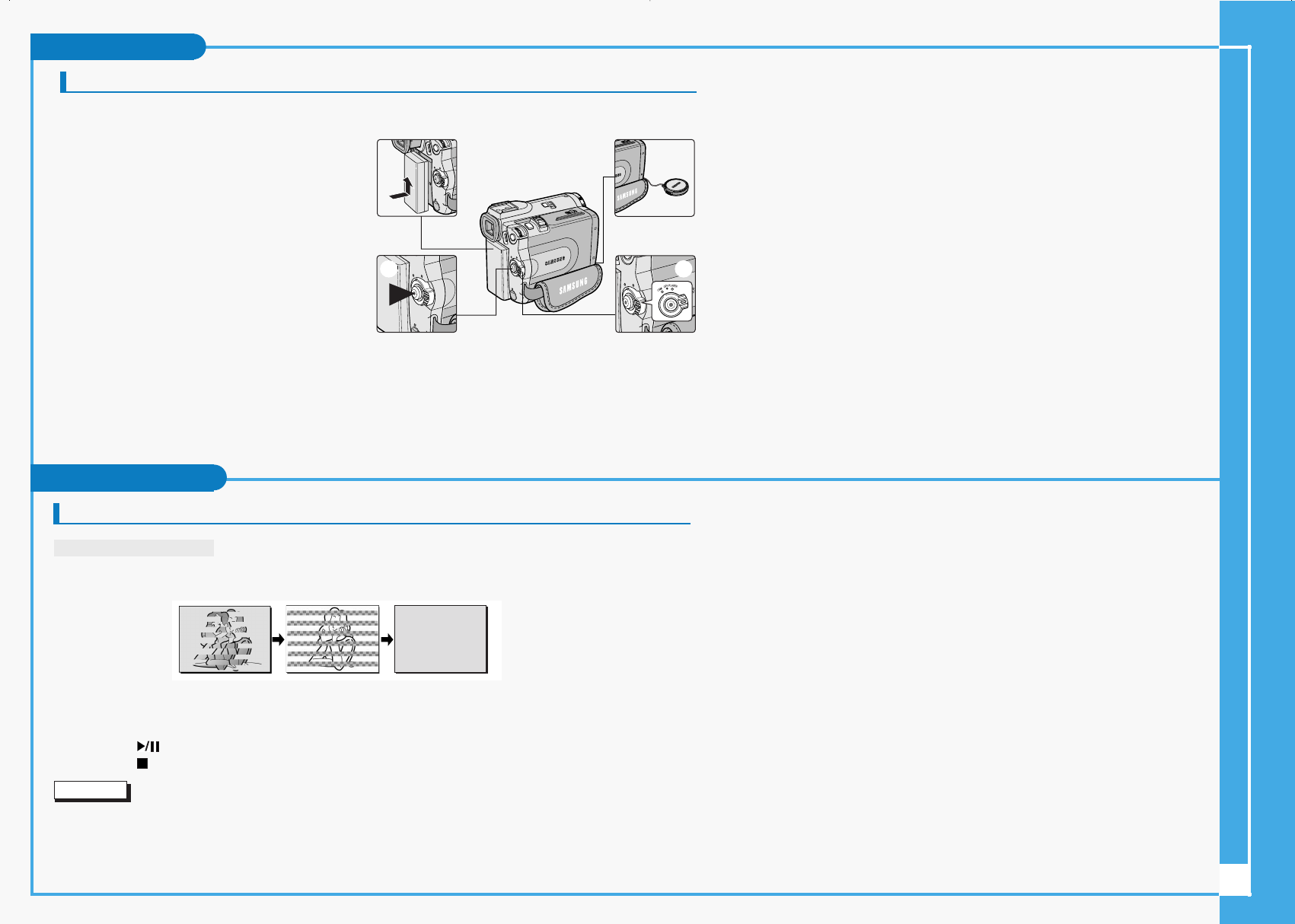
Making your First Recording
1. Connect a Power source to the camcorder. (see page 23)
(A battery pack or a AC power adapter)
■Insert a cassette. (see page 27)
2. Remove the LENS CAP.
3. Set the power switch to the CAM position.
■Open the LCD monitor.
■Set the mode switch to the TAPE position.
(VP-D33(i)/D34(i)/D39(i) only)
Make sure that STBY is displayed.
■If the protection tab of the cassette is open,
STOP and PROTECTION! will be displayed.
■Make sure the image you want to record
appears in the LCD monitor or viewfinder.
■Make sure the battery level indicates that there is enough remaining power for your expected
recording time.
4. To start recording, press the START/STOP button.
■REC is displayed in the LCD.
To stop recording, press the START/STOP button again.
■STBY is displayed in the LCD.
4 3
2
1
Maintenance
Cleaning and Maintaining the Camcorder
Cleaning the Video Heads
To ensure normal recording and clear pictures, clean the video heads
when the playback pictures display square block-shaped noise or distortion,or a blue screen appears.
1. Set the power switch to PLAYER mode.
2. Insert the cleaning tape.
3. Press the (PLAY/STILL) button.
4. Press the (STOP) button after 10 seconds.
Notes
■Check the quality of the picture using a videocassette.
If the picture quality has not improved, repeat the operation.
If the problem continues, contact your local authorized service center.
■Clean the video heads with a dry type cassette cleaner.
ƒ∑ƒ⁄¥ı ∞£¥‹º≥∏̺≠ (D30) 10/8/04 3:28 PM Page 6

7
Troubleshooting
Troubleshooting
✤Before contacting a Samsung authorized service centre, perform the following simple checks.
They may save you the time and expense of an unnecessary call.
Self Diagnosis Display
Moisture Condensation
✤If the camcorder is brought directly from a cold place to a warm place, moisture may condense inside the camcorder,
on the surface of the tape, or on the lens. In this condition, the tape may stick to the head drum and be damaged or the
unit may not operate correctly.
To prevent possible damage under these circumstances, the camcorder is fitted with a moisture sensor.
✤If there is moisture inside the camcorder, (DEW) is displayed. If this happens, none of the functions except cassette
ejection will work. Open the cassette compartment and remove the battery.
Leave the camcorder for at least two hours in a dry warm room.
slow
slow
no
slow
slow
slow
slow
the battery pack is almost discharged. Change to a charged one.
When the remaining time on the tape
is about 2 minutes Prepare a new one.
the tape reached its end. Change to a new one.
there is no tape in camcorder. Insert a tape.
the tape is record protected. If you want to record, release
the protection.
moisture condensation has formed in
the camcorder. see below.
the camcorder has some mechanical
fault. 1. Eject the tape.
2. Set to OFF.
3. Detach the battery.
4. Reattach the battery.
* If unresolved contact your
local service representative.
TAPE END!
TAPE END!
TAPE!
PROTECTION!
....D
L
C
R
Display Blinking Informs that... Action
Troubleshooting
slow There no Memory stick in the
camcorder. Insert a Memory Stick.
MEMORY STICK!
slow There is not enough memory
to record.
Change to a new Memory
Stick. Erase recorded image.
MEMORY FULL!
slow There are no images recorded
on the Memory Stick. Record new images.
NO STORED
PHOTO! or
NO STORED
MPEG4!
slow The Memory Stick is record
protected.
Release the write protect tab
on the Memory Stick.
WRITE
PROTECT!
slow When you try to delete to
protected image. Cancel the protect of image.
PROTECT!
slow The camera can not playback.
Format a Memory Stick or
insert Memory Stick recorded
on this camcorder.
READ ERROR!
slow The camera can not record. Format a Memory Stick or
change to a new Memory Stick.
WRITE ERROR!
slow The Memory Stick needs to
format. Format a Memory Stick.
NOT
FORMATTED!
slow When progressing FILE
DELETE. Wait until Delete has finished.
NOW DELETE...
slow When progressing MEMORY
FORMAT.
Wait until formatting has
finished.
NOW FORMAT...
slow When progressing FILE COPY. Wait until copying has
finished.
NOW COPY...
Display Blinking Informs that... Action
Self Diagnosis Display in M.REC/M.PLAY mode (VP-D33(i)/D34(i)/D39(i) only)
ƒ∑ƒ⁄¥ı ∞£¥‹º≥∏̺≠ (D30) 10/8/04 3:28 PM Page 7
