Samsung DVD V6700 User Manual DVD/VCR Manuals And Guides L0705217
SAMSUNG DVD/VCR Combo Manual L0705217 SAMSUNG DVD/VCR Combo Owner's Manual, SAMSUNG DVD/VCR Combo installation guides
User Manual: Samsung DVD-V6700 DVD-V6700 SAMSUNG DVD/VCR - Manuals and Guides View the owners manual for your SAMSUNG DVD/VCR #DVDV6700. Home:Electronics Parts:Samsung Parts:Samsung DVD/VCR Manual
Open the PDF directly: View PDF  .
.
Page Count: 83
==_ _===
Jd"b _"6"_ 66 cb 6
I SAFETY INSTRUCTIONS I
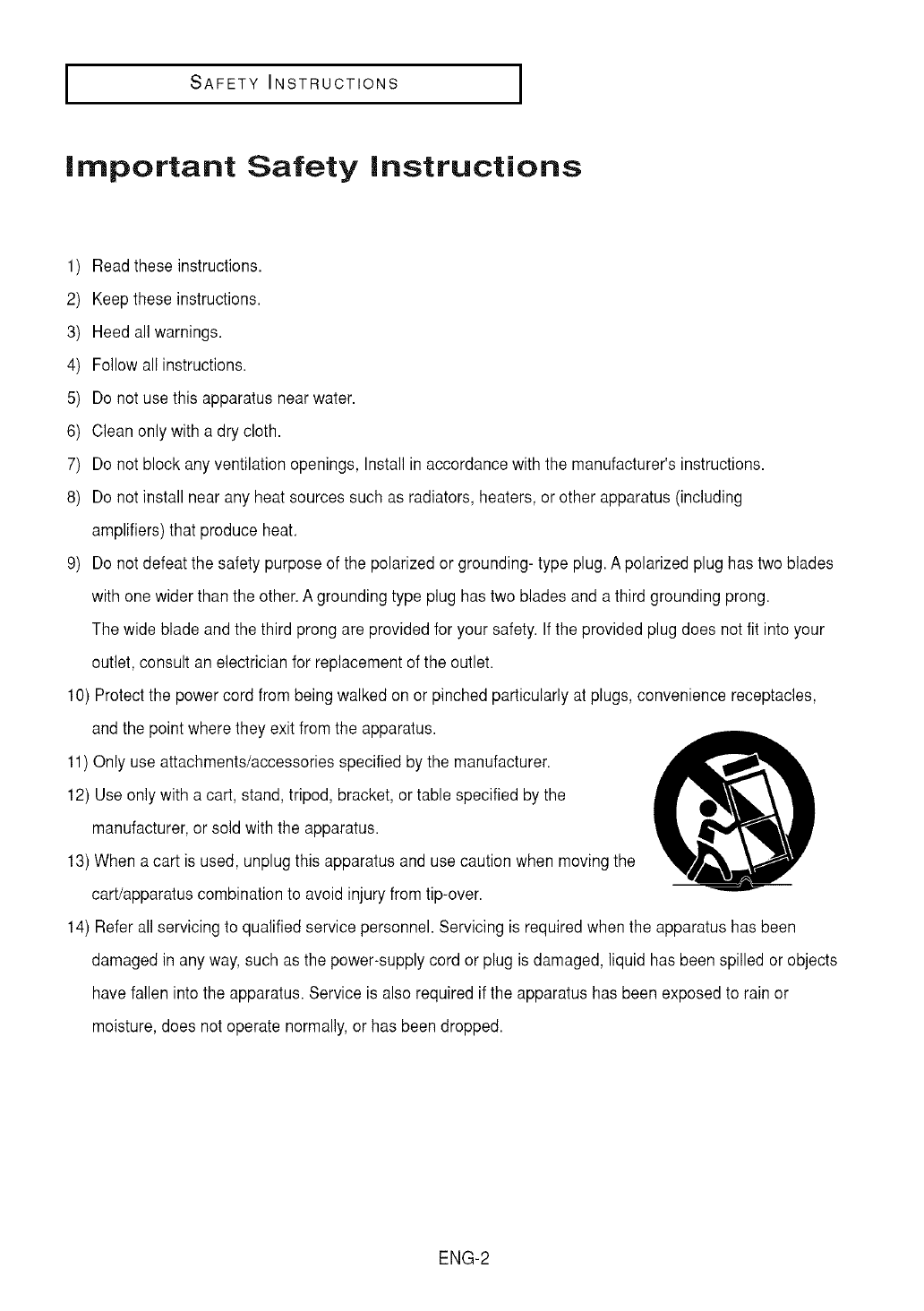
Important Safety Instructions
1) Read these instructions.
2) Keep these instructions.
3) Heed all warnings.
4) Follow all instructions.
5) Do not use this apparatusnear water.
6) Clean only with a dry cloth.
7) Do not block any ventilation openings, Install in accordancewith the manufacturer's instructions.
8) Do not install near any heat sources such as radiators, heaters, or other apparatus(including
amplifiers) that produce heat.
9) Do not defeat the safety purpose of the polarized or grounding- type plug. A polarized plug has two blades
with one wider than the other.A grounding type plug has two blades and a third grounding prong.
The wide blade and the third prong are provided for your safety. Ifthe provided plug does not fit into your
outlet, consult an electrician for replacement of the outlet.
10) Protectthe power cord from being walked on or pinched particularly at plugs, convenience receptacles,
and the point where they exit fromthe apparatus.
11) Only use attachments/accessoriesspecified by the manufacturer.
12) Use only with a cart, stand, tripod, bracket, or table specified by the
manufacturer,or sold withthe apparatus.
13)When a cart is used, unplugthis apparatus and use caution when moving the
cart/apparatus combination to avoid injury from tip-over.
14) Refer all servicing to qualified service personnel. Servicing is requiredwhen the apparatus has been
damaged in any way, such as the power-supply cord or plug is damaged, liquid has been spilled or objects
have fallen into the apparatus. Service is also required if the apparatus has been exposedto rain or
moisture, does not operate normally,or has beendropped.
ENG-2
I SAFETY INSTRUCTIONS
Precautions
I
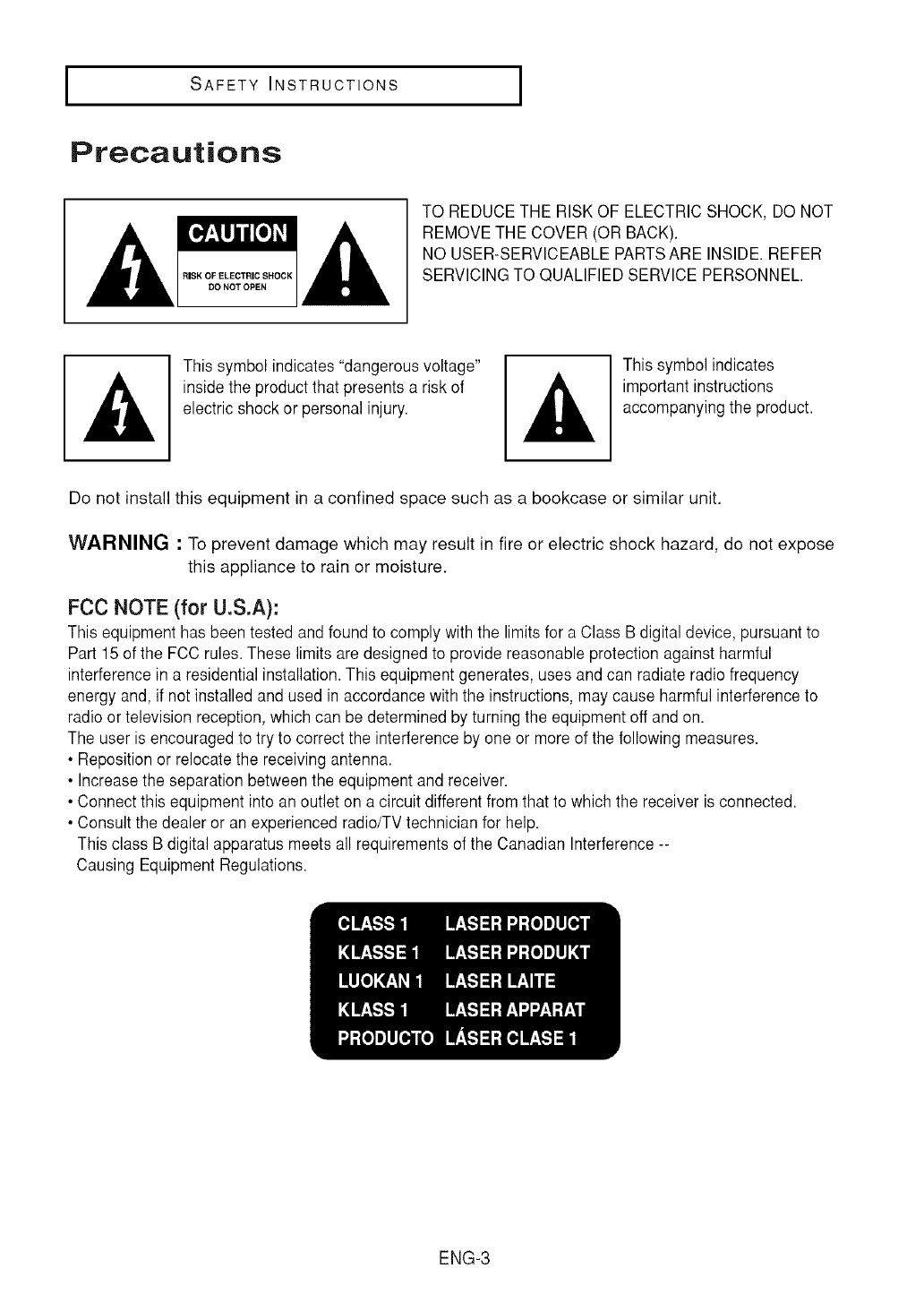
RISK OF ELECTRIC SHOCK
DO NOT OPEN
TO REDUCE THE RISK OF ELECTRIC SHOCK, DO NOT
REMOVETHE COVER (OR BACK).
NO USER-SERVICEABLE PARTSARE INSIDE. REFER
SERVICING TO QUALIFIED SERVICE PERSONNEL.
This symbol indicates "dangerous voltage"
inside the product that presents a risk of
electric shock or personal injury.
This symbol indicates
important instructions
accompanyingthe product.
Do not install this equipment in a confined space such as a bookcase or similar unit.
WARNING :To prevent damage which may result in fire or electric shock hazard, do not expose
this appliance to rain or moisture.
FCC NOTE (for UoS.A):
This equipment has been tested and found to comply with the limits for a Class B digital device, pursuant to
Part 15of the FCC rules.These limits are designed to provide reasonable protection against harmful
interference in a residential installation.This equipment generates, uses and can radiate radio frequency
energy and, if not installed andused in accordancewith the instructions,may cause harmful interferenceto
radioor television reception,which can be determinedby turning the equipmentoff and on.
The user is encouraged to try to correct the interference by one or more of the following measures.
• Reposition or relocatethe receivingantenna.
• Increasethe separation betweenthe equipmentand receiver.
• Connectthis equipment intoan outlet on a circuit differentfrom that to which the receiver isconnected.
• Consult the dealer or an experienced radio/TVtechnician for help.
This class B digital apparatus meets all requirements of the Canadian Interference--
Causing EquipmentRegulations.
ENG-3
[SAFETY INSTRUCTIONS J
CAUTION
THIS PRODUCT UTILIZES A LASER. USE OF CONTROLS OR ADJUSTMENTS OR
PERFORMANCE OF PROCEDURES OTHER THAN THOSE SPECIFIED HEREIN MAY RESULT
IN HAZARDOUS RADIATION EXPOSURE. DO NOT OPEN COVER AND DO NOT REPAIR
YOURSELF. REFER SERVICING TO QUALIFIED PERSONNEL.
Note:
• This unit can be used only where the power supply isAC 120V, 60Hz. It cannot be used
elsewhere.
• This DVD player is designed and manufactured to respond to the Region Management
Information.
If the Region number of a DVD disc does not correspond to the Region number of this DVD player,
the DVD player cannot play the disc.
• The product unit accompanying this user manual is licensed under certain intellectual property
rights of certain third parties. In particular, this product is licensed under the following US patents:
5,060,220 5,457,669 5,561,649 5,705,762 5,987,417 6,043,912 6,222,983 6,272,096 6,377,524
6,377,531 6,385,587 6,389,570 6,408,408 6,466,532 6,473,736 6,477,501 6,480,829 6,556,520
6,556,521 6,556,522 6,578,163 6,594,208 6,631,110 6,658,588 6,674,697 6,674,957 6,687,455
6,697,307 6,707,985 6,721,243 6,721,493 6,728,474 6,741,535 6,744,713 6,744,972 6,765,853
6,765,853 6,771,890 6,771,891 6 775,465 6,778,755 6,788,629 6,788,630 6,795,637 6,810,201
6,862,256 6,868,054 6,894,963 6,937,552.
This license is limited to private non-commercial use by end-user consumers for licensed contents.
No rights are granted for commercial use. The license does not cover any product unit other than
this product unit and the license does not extend to any unlicensed product unit or process
conforming to ISO/IEC 11172-3 or ISO/IEC 13818-3 used or sold in combination with this product
unit.
The license only covers the use of this product unit to encode and/or decode audio files conforming
to the ISO/IEC 11172-3 or ISO/IEC 13818-3. No rights are granted under this license for product
features or functions that do not conform to the ISO/IEC 11172-3 or ISO/IEC 13818-3.
Handling Cautions
• Beforeconnecting othercomponents to this player, be sureto turn them all off.
• Do not movethe player while a disc is being played, or the disc may be scratched or broken, and the
player's internal parts may be damaged.
• Do not puta flower vase filledwith water or any small metal objects on the player.
• Be careful not to putyour hand intothe disc tray.
• Do not placeanything otherthan the disc inthe disc tray.
• Exterior interference such as lightning and static electricity can affect normal operation of this player.
Ifthis occurs, turn the player off and on againwith the POWERbutton, or disconnect and then reconnect
the AC power cord to the AC power outlet. The player will operate normally.
• Be sure to removethe disc and turn offthe player after use.
• Disconnect the AC power cord from the AC outlet when you don't intend to use the player for long
periods of time.
• Cleanthe disc by wiping in a straightline from the inside to the outside of the disc.
Disc Storage
Becareful not to harm the disc because the data on these discs is highly vulnerable to the environment.
• Do not keep under direct sunlight.
• Keep in a cool ventilated area.
• Store vertically.
• Keep in a clean protectionjacket.
Maintenance of Cabinet
For safety reasons, be sure to disconnect the AC power cord from the AC outlet.
• Do not use benzene, thinner,or other solventsfor cleaning.
• Wipe the cabinet with a soft cloth.
ENG-4
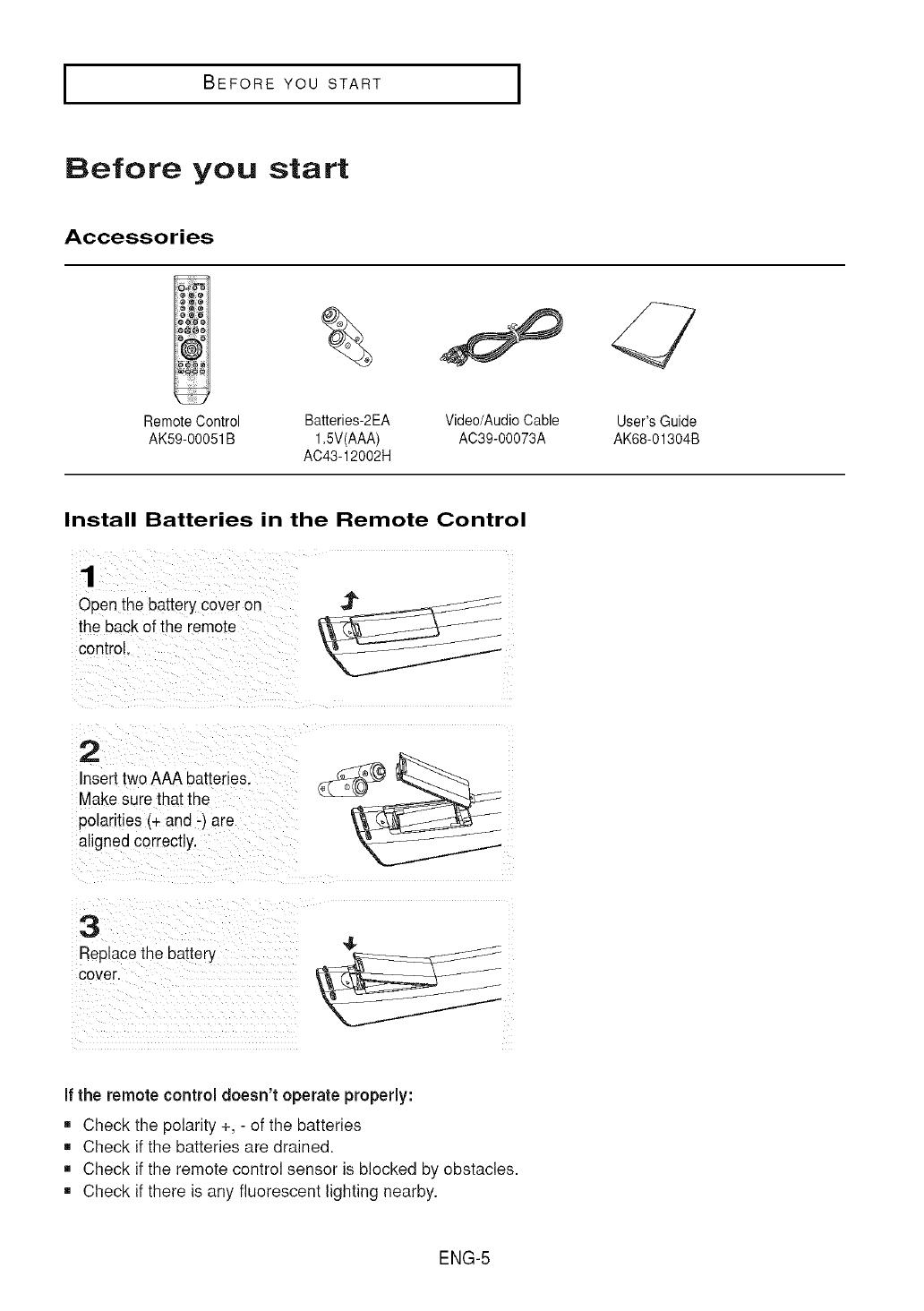
BEFORE YOU START [
Before you start
Accessories
Remote Control Batteries-2EA Video/Audio Cable
AK59-00051B 1.5V(AAA) AC39-00073A
AC43-12002H
User's Guide
AK68-01304B
Install Batteries in the Remote Control
1
Openthe battery cover on _t_
the back of the remote
control
• •
Insert twoAAA batteries.
Makesure that the
polarities (+ and -) are
alignedcorrectly.
3
Replacethe battery
cover.
If the remote control doesn't operate properly:
=, Check the polarity +, - of the batteries
=, Check if the batteries are drained.
=, Check if the remote control sensor is blocked by obstacles.
=, Check if there is any fluorescent lighting nearby.
ENG-5
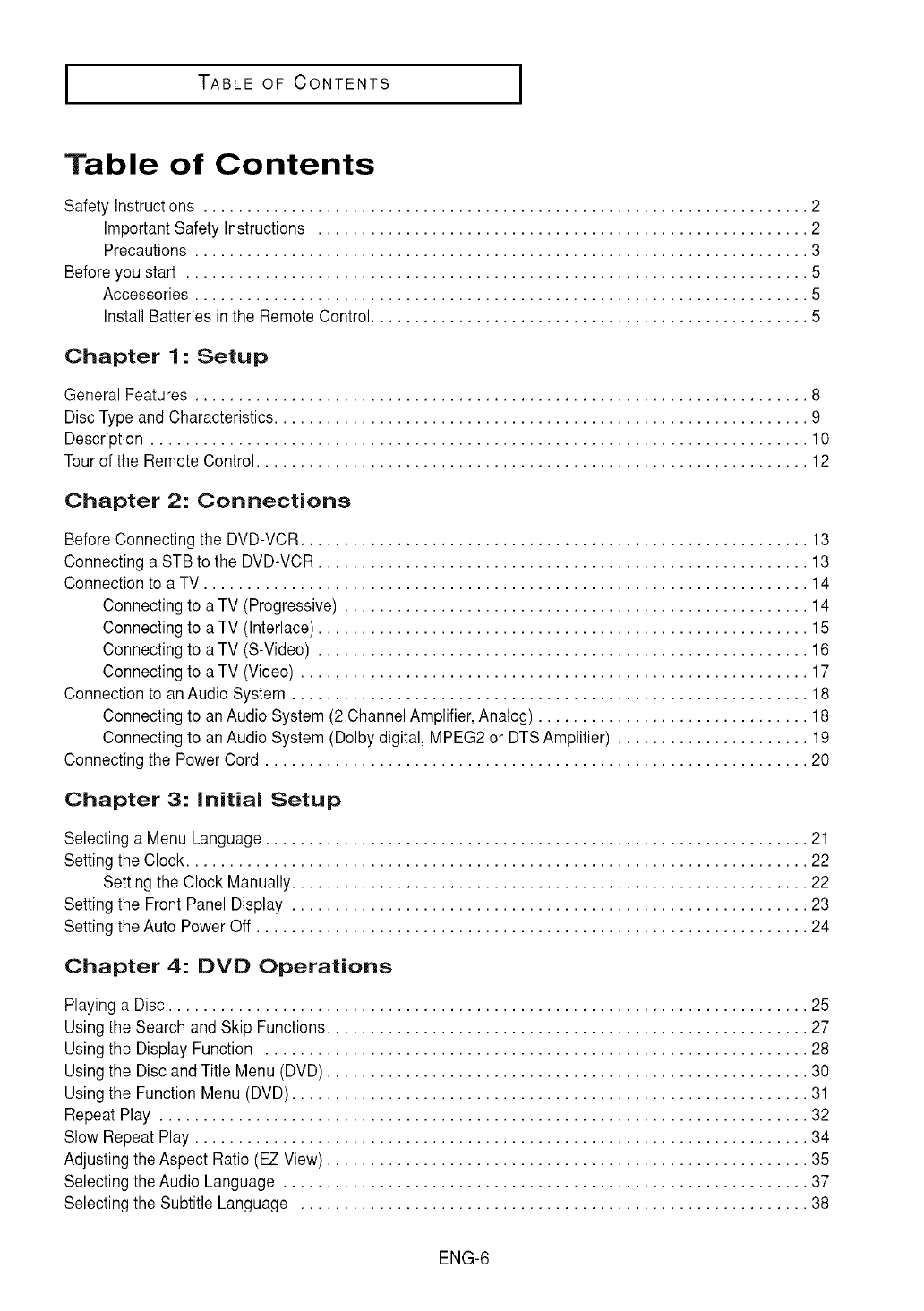
TABLE OF CONTENTS J
Table of Contents
Safety Instructions ..................................................................... 2
ImportantSafety Instructions ........................................................ 2
Precautions ...................................................................... 3
Before you start ....................................................................... 5
Accessories ...................................................................... 5
Install Batteries in the Remote Control.................................................. 5
Chapter 1: Setup
General Features ...................................................................... 8
Disc Type and Characteristics............................................................. 9
Description ........................................................................... 10
Tour of the Remote Control............................................................... 12
Chapter 2: Connections
Before Connecting the DVD-VCR.......................................................... 13
Connecting a STB to the DVD-VCR........................................................ 13
Connectionto a TV ..................................................................... 14
Connecting to a TV (Progressive) ..................................................... 14
Connecting to a TV (Interlace)........................................................ 15
Connecting to a TV (S-Video) ........................................................ 16
Connecting to a TV (Video) .......................................................... 17
Connectionto anAudio System ........................................................... 18
Connecting to an Audio System (2 ChannelAmplifier,Analog) ............................... 18
Connecting to an Audio System (Dolbydigital, MPEG2 or DTSAmplifier) ...................... 19
Connectingthe Power Cord .............................................................. 20
Chapter 3: initial Setup
Selectinga Menu Language.............................................................. 21
Settingthe Clock ....................................................................... 22
Setting the Clock Manually........................................................... 22
Settingthe Front Panel Display ........................................................... 23
Settingthe Auto Power Off ............................................................... 24
Chapter 4: DVD Operations
Playing a Disc ......................................................................... 25
Usingthe Search and Skip Functions....................................................... 27
Usingthe Display Function .............................................................. 28
Usingthe Disc and Title Menu (DVD) ....................................................... 30
Usingthe Function Menu (DVD) ........................................................... 31
Repeat Play .......................................................................... 32
Slow Repeat Play ...................................................................... 34
Adjusting the Aspect Ratio (EZ View) ....................................................... 35
Selectingthe Audio Language ............................................................ 37
Selectingthe Subtitle Language .......................................................... 38
ENG-6
I TABLE OF CONTENTS I
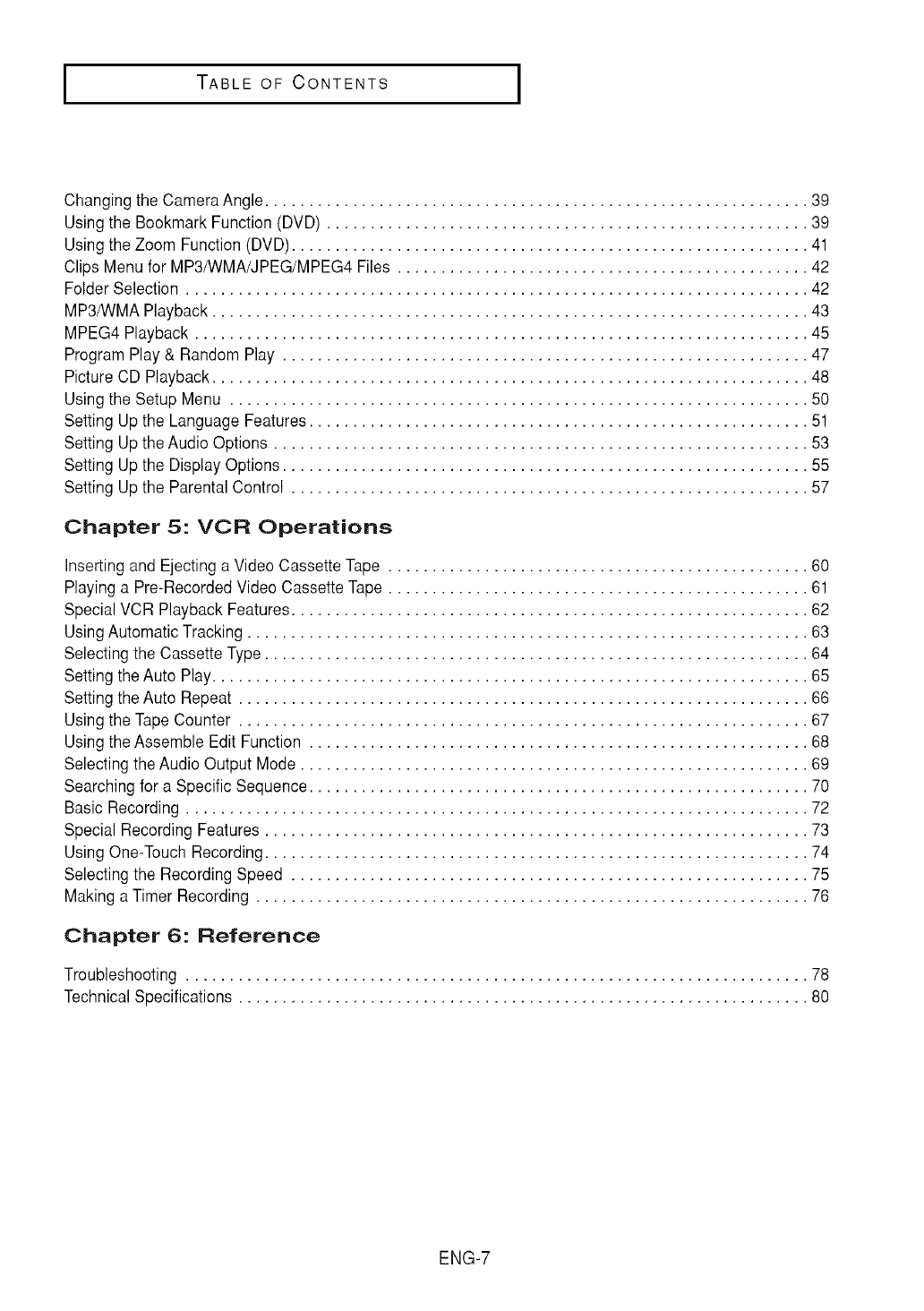
Changing the CameraAngle.............................................................. 39
Usingthe Bookmark Function (DVD) ....................................................... 39
Usingthe Zoom Function (DVD)........................................................... 41
Clips Menu for MP3/WMA/JPEG/MPEG4Files ............................................... 42
Folder Selection ....................................................................... 42
MP3/WMAPlayback .................................................................... 43
MPEG4 Playback ...................................................................... 45
Program Play & Random Play ............................................................ 47
PictureCD Playback.................................................................... 48
Usingthe Setup Menu .................................................................. 50
Setting Up the Language Features ......................................................... 51
Setting Up the Audio Options ............................................................. 53
Setting Up the Display Options ............................................................ 55
Setting Up the Parental Control ........................................................... 57
Chapter 5: VCR Operations
Inserting and Ejecting a Video Cassette Tape ................................................ 60
Playing a Pre-RecordedVideo Cassette Tape ................................................ 61
Special VCR Playback Features........................................................... 62
UsingAutomaticTracking ................................................................ 63
Selectingthe Cassette Type .............................................................. 64
Settingthe Auto Play.................................................................... 65
Settingthe Auto Repeat ................................................................. 66
Usingthe Tape Counter ................................................................. 67
Usingthe Assemble Edit Function ......................................................... 68
Selectingthe Audio Output Mode .......................................................... 69
Searching for a Specific Sequence ......................................................... 70
Basic Recording ....................................................................... 72
Special Recording Features .............................................................. 73
Using One-TouchRecording.............................................................. 74
Selectingthe Recording Speed ........................................................... 75
Making a Timer Recording ............................................................... 76
Chapter 6: Reference
Troubleshooting ....................................................................... 78
Technical Specifications ................................................................. 80
ENG-7
SETUP
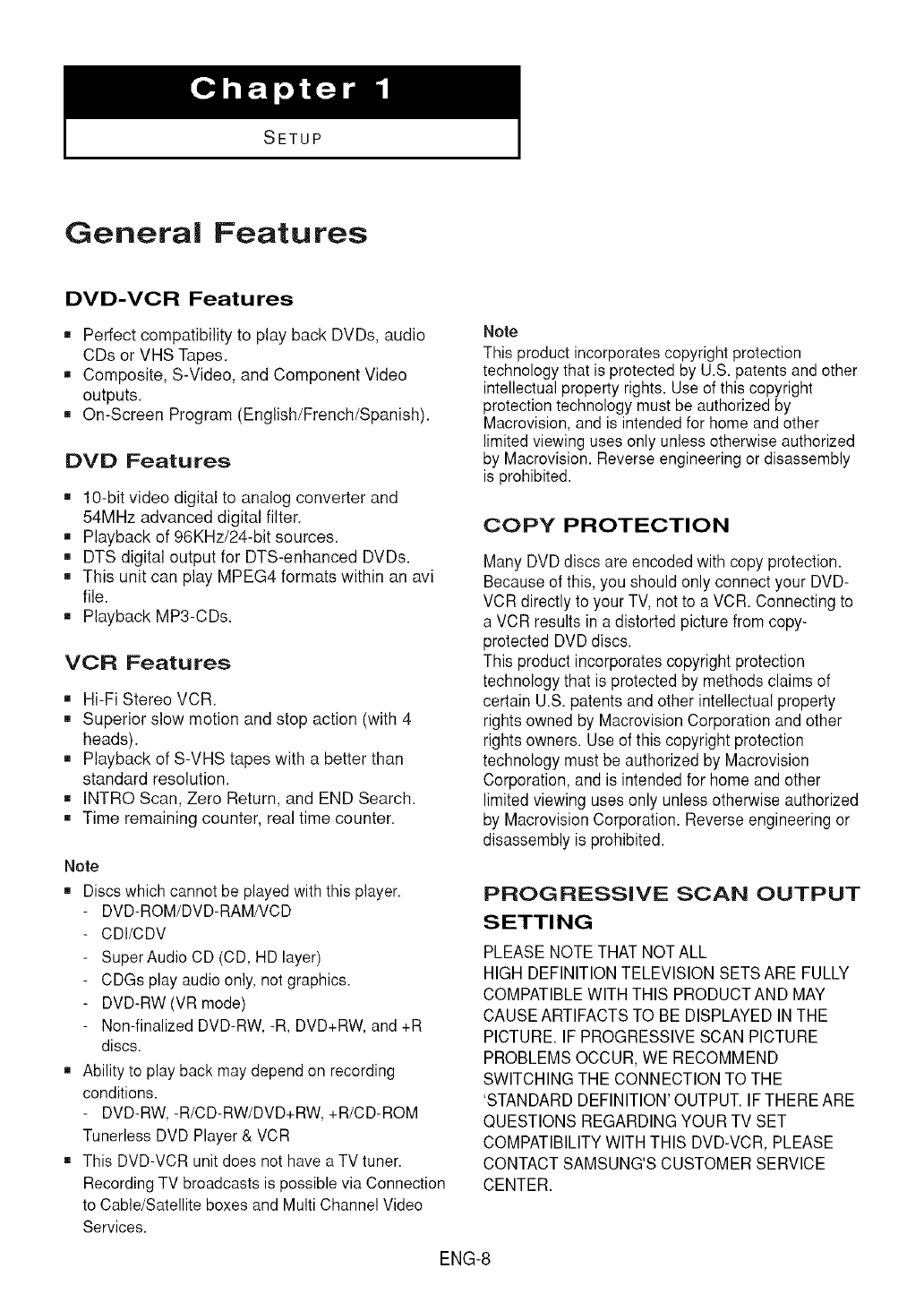
General Features
DVD-VCR Features
,, Perfect compatibility to play back DVDs, audio
CDs or VHS Tapes.
,, Composite, S-Video, and Component Video
outputs.
m On-Screen Program (English/French/Spanish).
OVO Features
,, 10-bit video digital to analog converter and
54MHz advanced digital filter.
,, Playback of 96KHz/24-bit sources.
,, DTS digital output for DTS-enhanced DVDs.
,, This unit can play MPEG4 formats within an avi
file.
Playback MP3-CDs.
VCR Features
,, Hi-Fi Stereo VCR.
,, Superior slow motion and stop action (with 4
heads).
,, Playback of S-VHS tapes with a better than
standard resolution.
,, INTRO Scan, Zero Return, and END Search.
,, Time remaining counter, real time counter.
Note
m Discs which cannot be played with this player.
DVD-ROM/DVD-RAM/VCD
CDI/CDV
Super Audio CD (CD, HD layer)
CDGs play audio only, not graphics.
DVD-RW (VR mode)
Non-finalized DVD-RW, -R, DVD+RW, and +R
discs.
m Ability to play back may depend on recording
conditions.
- DVD-RW, -R/CD-RW/DVD+RW, +R/CD-ROM
Tunerless DVD Player & VCR
m This DVD-VCR unit does not have a TV tuner.
Recording TV broadcasts is possible via Connection
to Cable/Satellite boxes and Multi Channel Video
Services.
Note
This product incorporates copyright protection
technology that is protected by U.S. patents and other
intellectual property rights. Use of this copyright
protection technology must be authorized by
Macrovision, and is intended for home and other
limited viewing uses only unless otherwise authorized
by Macrovision. Reverse engineering or disassembly
is prohibited.
COPY PROTECTION
Many DVDdiscs are encoded with copy protection.
Becauseof this, you should only connect your DVD-
VCR directly to your TV, not to a VCR. Connecting to
a VCR results in a distorted picture from copy-
protected DVD discs.
This product incorporates copyright protection
technology that is protected by methods claims of
certain U.S. patents and other intellectual property
rightsowned by MacrovisionCorporation and other
rightsowners. Use of this copyright protection
technology must be authorizedby Macrovision
Corporation, and is intended for home and other
limitedviewing usesonly unless otherwise authorized
by Macrovision Corporation. Reverse engineering or
disassembly is prohibited.
PROGRESSIVE SCAN OUTPUT
SETTI N G
PLEASE NOTETHAT NOTALL
HIGH DEFINITIONTELEVISION SETS ARE FULLY
COMPATIBLEWITH THIS PRODUCTAND MAY
CAUSE ARTIFACTSTO BE DISPLAYED INTHE
PICTURE. IF PROGRESSIVESCAN PICTURE
PROBLEMSOCCUR, WE RECOMMEND
SWITCHING THE CONNECTIONTO THE
'STANDARD DEFINITION'OUTPUT. IFTHERE ARE
QUESTIONS REGARDING YOUR TV SET
COMPATIBILITYWITHTHIS DVD-VCR, PLEASE
CONTACT SAMSUNG'SCUSTOMER SERVICE
CENTER.
ENG-8
I SETUP I
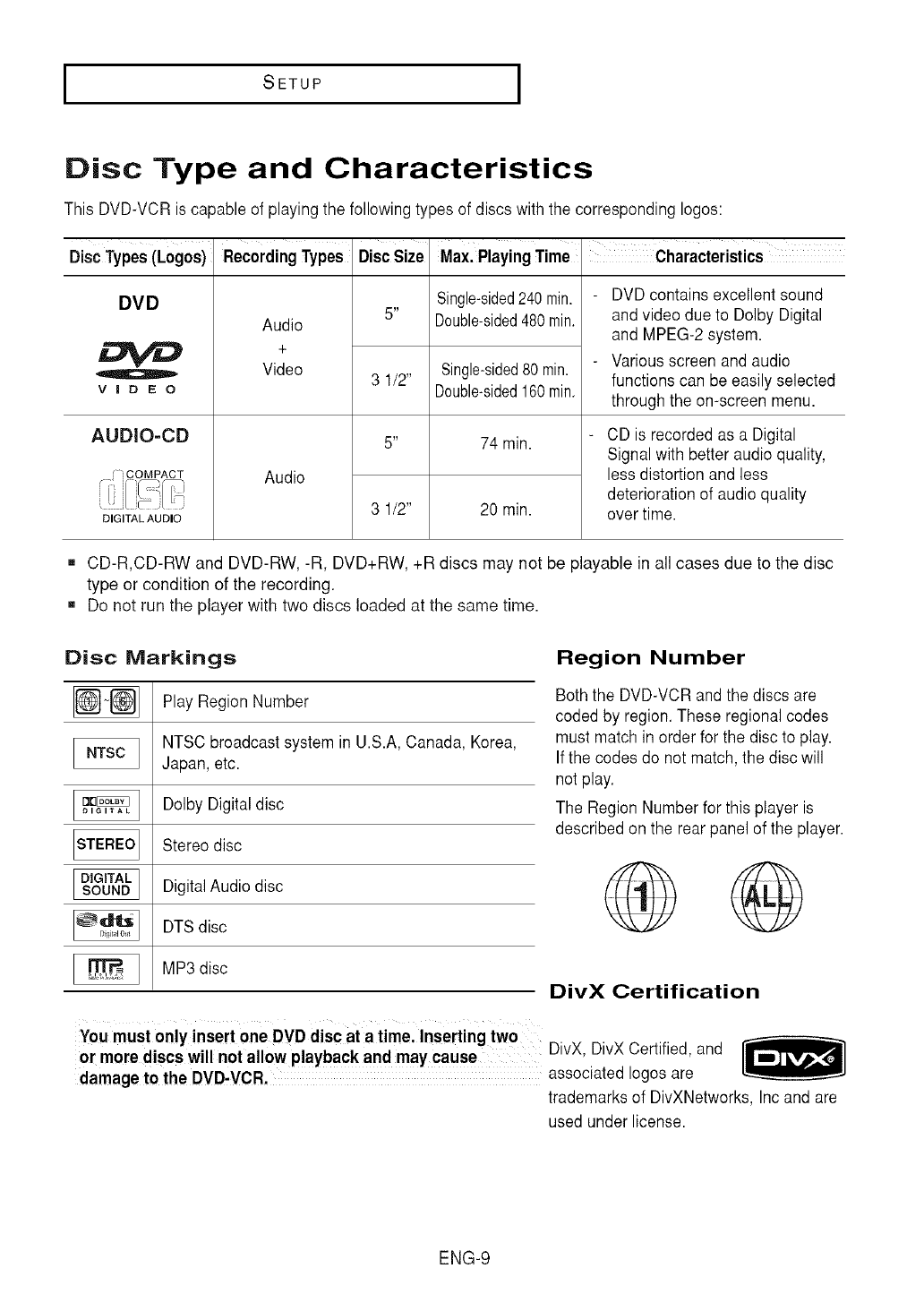
Disc Type and Characteristics
This DVD-VCR is capable of playing the followingtypes of discs with the corresponding Iogos:
DiscTypes(Logos)
DVD
VIDEO
AUDIO=CD
DIGITAL AUDIO
RecordingTypes
Audio
+
Video
Audio
DiscSize
5 _
3 1/2"
5 _
3 1/2"
MaxlPlayingTime
Single-sided240min.
Double-sided480min.
Single-sided80min.
Double-sided160min.
74 min.
20 min.
Characteristics
DVD contains excellent sound
and video due to Dolby Digital
and MPEG-2 system.
Various screen and audio
functions can be easily selected
through the on-screen menu.
CD is recorded as a Digital
Signal with better audio quality,
less distortion and less
deterioration of audio quality
over time.
,, CD-R,CD-RW and DVD-RW, -R, DVD+RW, +R discs may not be playable in all cases due to the disc
type or condition of the recording.
,, Do not run the player with two discs loaded at the same time.
Disc Markings Region Number
Play Region Number
NTSC broadcast system in U.S.A,Canada, Korea,
Japan, etc.
Dolby Digitaldisc
Stereo disc
DigitalAudio disc
DTSdisc
MP3 disc
Both the DVD-VCR and the discs are
coded by region. These regionalcodes
must match in order for the disc to play.
If the codes do not match, the disc will
not play.
The Region Number for this player is
describedon the rear panel of the player.
DivX Certification
You must only insert one DVD disc ata time, Inserting two
or morediscs will notallow playback and may cause DivX, DivX Certified, and
damage to the DVD,VCR. associated logesare
trademarks of DivXNetworks,Inc and are
used under license.
ENG-9
I SETUP I
Description
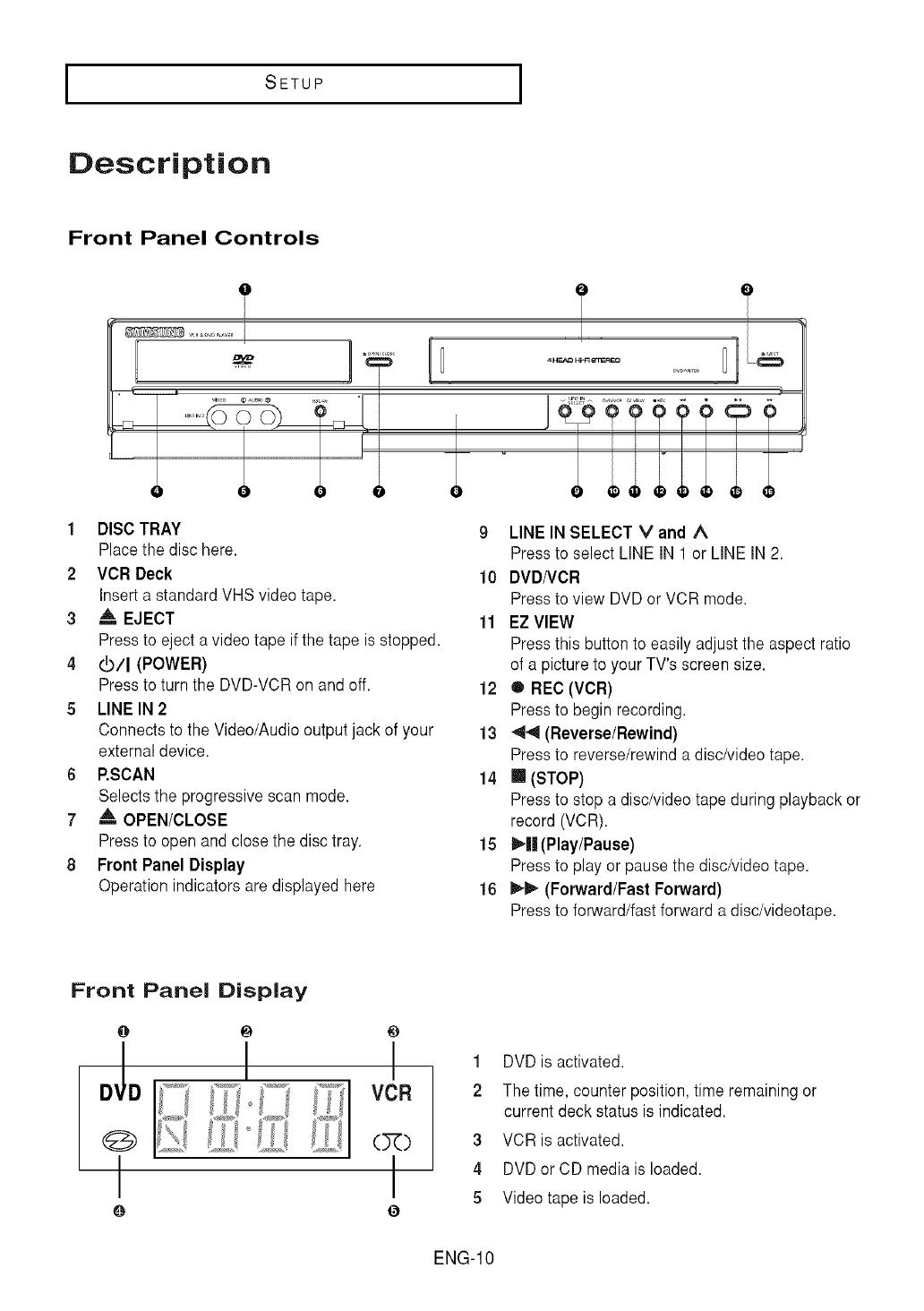
Front Panel Controls
1
2
3
4
5
6
7
8
O
m
!
OO
DISC TRAY
Place the disc here•
VCR Deck
Insert a standardVHS video tape.
A, EJECT
9 LINE IN SELECT rand ^
Pressto select LINE IN 1 or LINE IN 2.
10 DVD/VCR
Pressto view DVD or VCR mode.
11 EZ VIEW
Press to eject a video tape if the tape is stopped.
cb/I (POWER)
Press to turn the DVD-VCR on and off.
LINE IN 2
Connectsto the Video/Audio output jack of your
externaldevice.
P.SCAN
Selects the progressive scan mode.
A, OPEN/CLOSE
Press to open and close the disc tray.
Front Panel Display
Operation indicators are displayed here
Pressthis button to easily adjust the aspect ratio
of a pictureto your TV's screen size.
12 ® REC(VCR)
Pressto begin recording.
13 414 (Reverse/Rewind)
Pressto reverse/rewinda disc/video tape.
14 [] (STOP)
Pressto stop a disc/video tape during playback or
record (VCR).
15 _||(Play/Pause)
Pressto play or pause the disc/videotape.
16 _ (Forward/Fast Forward)
Pressto forward/fast forward a disc/videotape.
Front Panel Display
i I
I I
0 0
1 DVD is activated.
2 The time, counter position, time remaining or
current deck status is indicated.
3 VCR is activated.
4 DVDor CD media is loaded.
5 Videotape is loaded.
ENG-10
I SETUP I
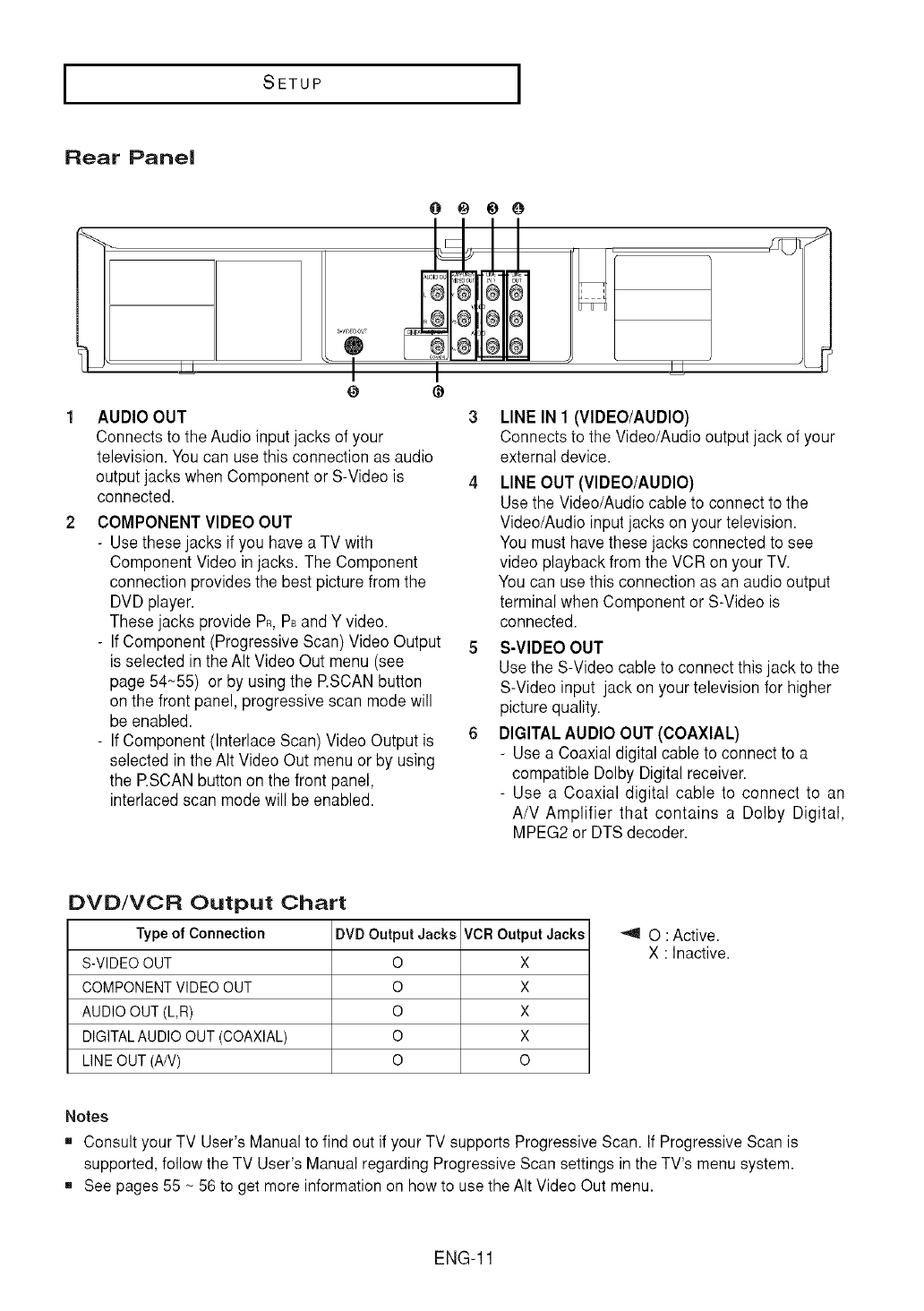
Rear Panel
0@ _ 0
®
I
I
@
i_-oout
®®®®
,@d' '@@
_0
!
!
T
AUDIO OUT 3
Connects to the Audio input jacks of your
television. Youcan use this connection as audio
output jacks when Component or S-Video is 4
connected.
COMPONENT VIDEO OUT
- Use these jacks if you have a TV with
Component Video in jacks. The Component
connection provides the best picture from the
DVD player.
These jacks provide PR,PBandY video.
-IfComponent (Progressive Scan) Video Output
is selected in the AItVideo Out menu (see
page 54~55) or by using the RSCAN button
on the front panel, progressive scan mode will
be enabled.
-IfComponent (Interlace Scan) Video Output is
selected inthe Air Video Out menu or by using
the RSCAN button on the front panel,
interlaced scan mode will be enabled.
LINE IN 1(VIDEO/AUDIO)
Connectsto the Video/Audio output jack of your
external device.
LINE OUT (VIDEO/AUDIO)
Use the Video/Audio cable to connect to the
Video/Audio input jacks on your television.
Youmust have these jacks connected to see
video playback from the VCR on your TV.
Youcan use this connection as an audiooutput
terminal when Component or S-Video is
connected.
S-VIDEO OUT
Use the S-Video cable to connect this jack to the
S-Video input jack on your television for higher
picture quality.
DIGITALAUDIO OUT (COAXIAL)
- Use a Coaxial digital cable to connect to a
compatible Dolby Digitalreceiver.
-Use a Coaxial digital cable to connect to an
A/V Amplifier that contains a Dolby Digital,
MPEG2 or DTSdecoder.
DVD/VCR Output Chart
Type of Connection DVD Output Jacks VCR Output Jacks
S-VIDEO OUT O X
COMPONENT VIDEO OUT O X
AUDIO OUT (L,R) O X
DIGITAL AUDIO OUT (COAXIAL) O X
LINE OUT (A/V) O O
_41 O • Active.
X Inactive.
Notes
m Consult your TV User's Manual to find out if your TV supports Progressive Scan. If Progressive Scan is
supported, follow the TV User's Manual regarding Progressive Scan settings in the TV's menu system.
m See pages 55 ~ 56 to get more information on how to use the AIt Video Out menu.
ENG-11
ISETUP I
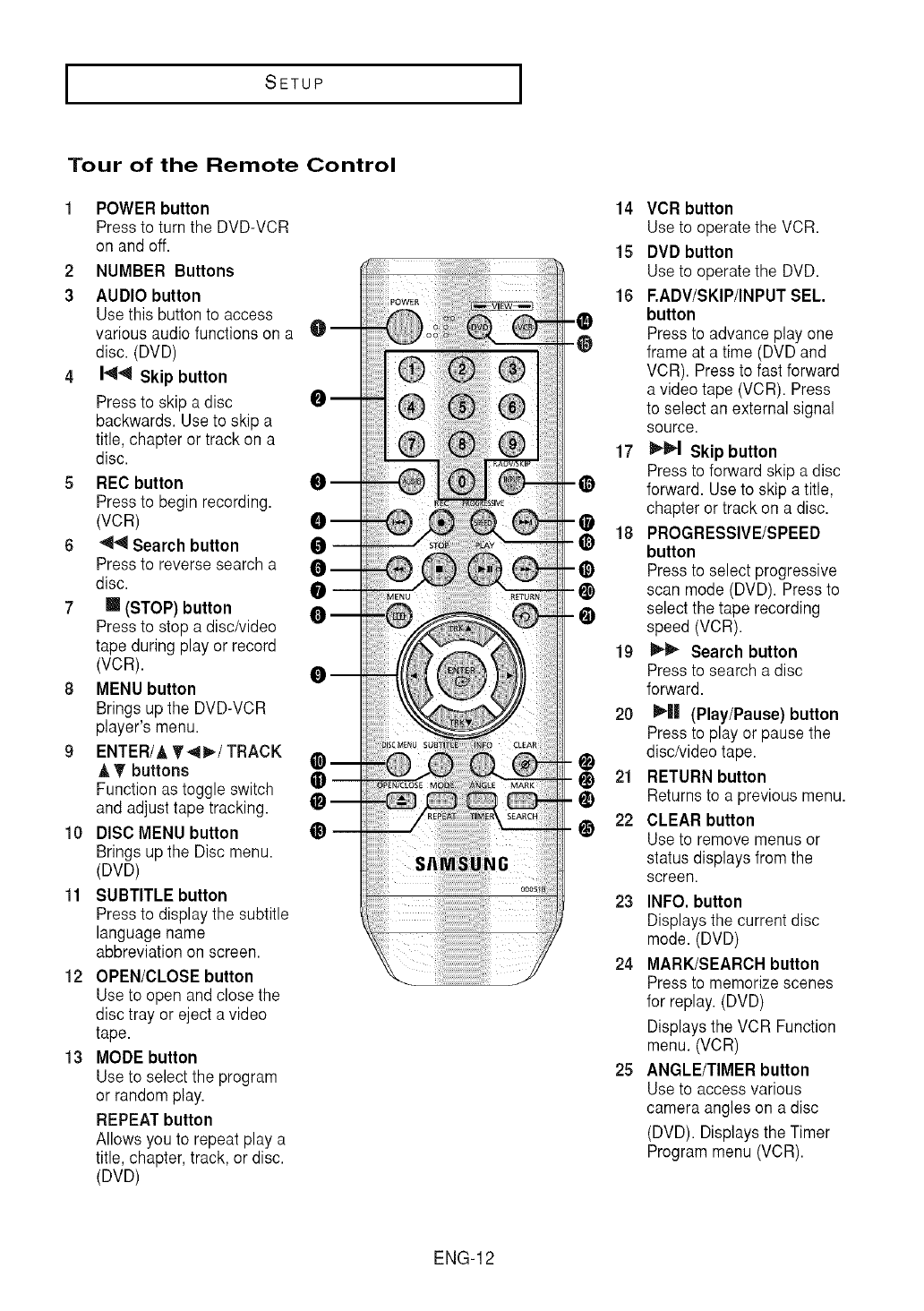
Tour of the Remote Control
1POWERbutton
Pressto turn the DVD-VCR
on and off.
2 NUMBER Buttons
3 AUDIO button
Usethis buttonto access
various audio functions on a O--
disc. (DVD)
4I_ Skip button
Pressto skip a disc O m
backwards. Useto skip a
title, chapter or track on a
disc.
5REC button _--
Pressto begin recording.
(VCR) O --
64_1 Search button
Pressto reverse search a •
disc. O __
7 [] (STOP) button _
Pressto stop a disc/video
tape during play or record
(VCR). _ __
8MENU button
Brings up the DVD-VCR
player's menu.
9ENTER/& _'_/ TRACK
A T buttons @
Function as toggle switch
and adjusttape tracking. O --
10 DISC MENU button @ --
Brings up the Disc menu.
(DVD)
11 SUBTITLE button
Pressto display the subtitle
languagename
abbreviation on screen.
12 OPEN/CLOSE button
Useto open andclose the
disc tray or eject a video
tape.
13 MODEbutton
Useto select the program
or random play.
REPEATbutton
Allows you to repeat play a
title, chapter, track, or disc.
(DVD)
18
O
@
19
®
14 VCR button
Use to operate the VCR.
15 DVD button
Use to operate the DVD.
16 RADV/SKIP/INPUT SEL.
button
Pressto advance play one
frame at a time (DVD and
VCR). Press to fast forward
a video tape (VCR). Press
to select an external signal
source.
17 _ Skip button
Pressto forward skip a disc
forward. Use to skip a title,
chapter or track on a disc.
PROGRESSIVE/SPEED
button
Pressto select progressive
scan mode (DVD). Press to
select the tape recording
speed (VCR).
I_ Search button
Pressto search a disc
forward.
20 ll_-|| (Play/Pause) button
Pressto play or pause the
disc/video tape.
21 RETURN button
Returns to a previous menu.
22 CLEAR button
Use to remove menusor
status displays from the
screen.
23 INFO. button
Displaysthe current disc
mode. (DVD)
24 MARK/SEARCHbutton
Pressto memorize scenes
for replay.(DVD)
Displaysthe VCR Function
menu. (VCR)
25 ANGLE/TIMER button
Use to access various
camera angles on a disc
(DVD). Displaysthe Timer
Program menu (VCR).
ENG-12
CONNECTIONS
Before Connecting the DVD=VCR
Always turn off the DVD-VCR,TV, and other components before you connect or disconnect any cables.
Refer to the user's manualof the additionalcomponents (such as a TV) you are connectingfor more
information on those particularcomponents.
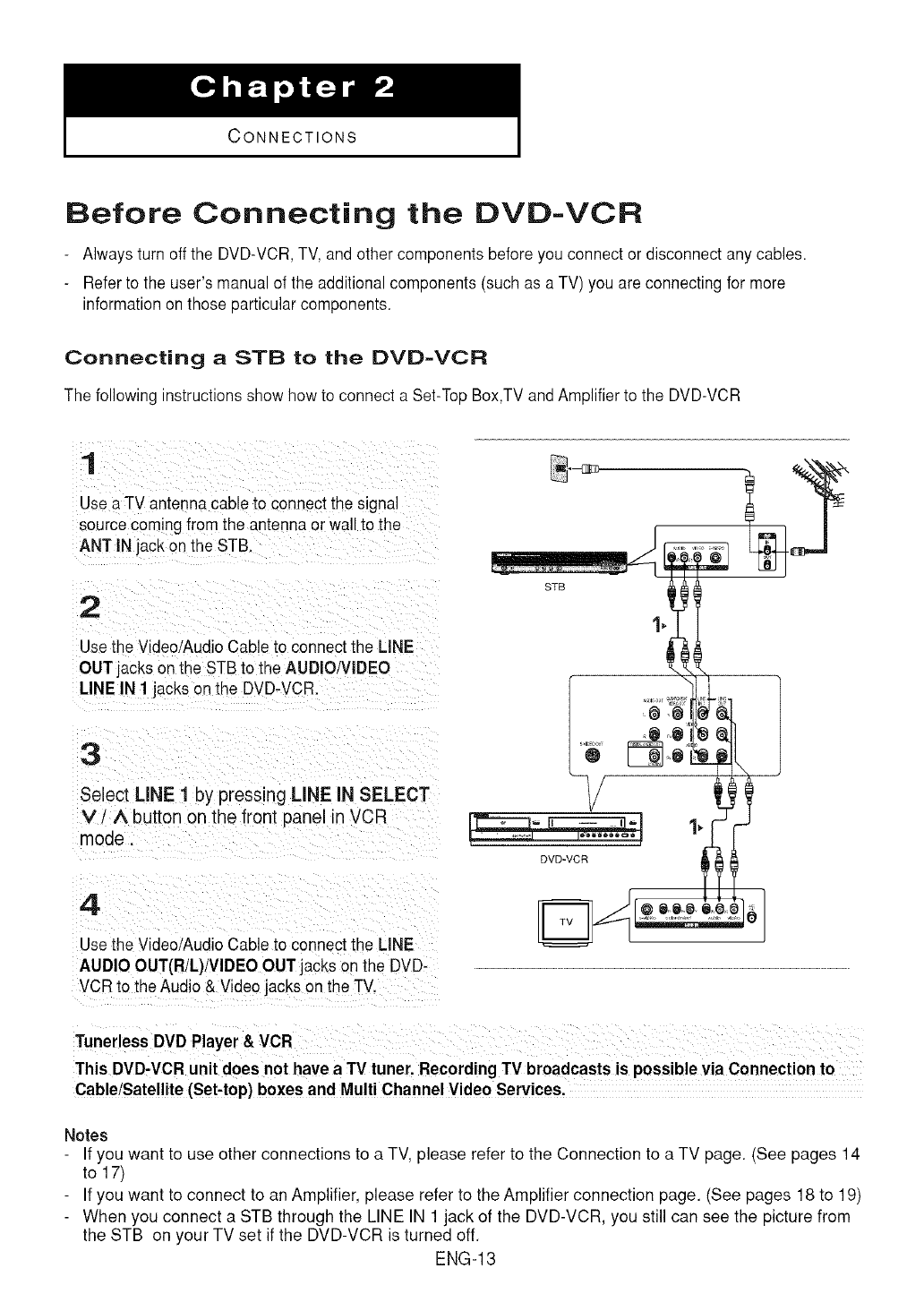
Connecting a STB to the DVD-VCR
The following instructions show how to connect a Set-TopBox,TV and Amplifier to the DVD-VCR
1
Use a TV antenna cable to connectthe signa
source comingfrom the antenna or wall to the
ANT IN jack on the STB.
2
Use the Video/Audio Cable to connect the LiNE
OUTjacks onthe STB to the AUDIO!VIDEO
LINE IN 1 jacks on the DVD-VCR.
3
Select LiNE 1 by pressing LINE IN SELECT
V, A button on the front panel in VCR
mode.
4
Use the Video/Audio Cable to connect the LINE
AUDIO OUT(R/L)/VlDEO OUT jacks on the DVD-
VCR to the Audio & Video jacks on the TV.
Tunertess DVD Player& VCR
This DVD-VCRunit does not have a TV tuner. RecordingTV broadcasts is possible via Connection to
Cable/Satellite (Set-top) boxesand Multi Channel Video Services.
Notes
If you want to use other connections to a TV, please refer to the Connection to a TV page. (See pages 14
to 17)
If you want to connect to an Amplifier, please refer to the Amplifier connection page. (See pages 18 to 19)
When you connect a STB through the LINE IN 1 jack of the DVD-VCR, you still can see the picture from
the STB on your TV set if the DVD-VCR is turned off.
ENG-13
ICONNECTIONS I
Connection to a TV
The following shows examples of connections commonly used to connect the DVD-VCRwith aTV and other
components.
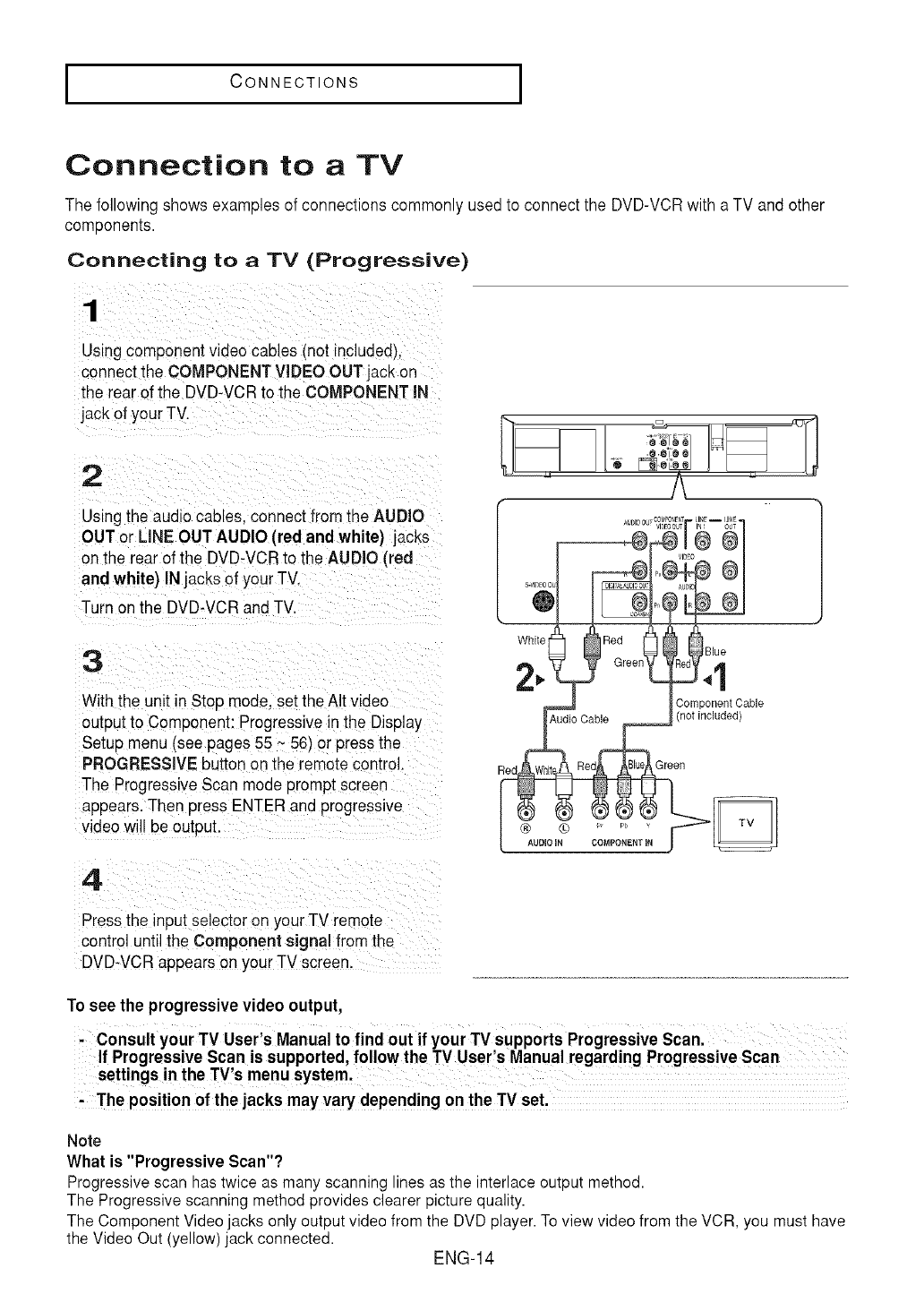
Connecting to a TV (Progressive)
Usingcomponent video cables cnot includedJ.
connect the COMPONENT VIDEO OUT lack on
the rear of the DVD-VCRto the COMPONENT IN
jack of your TV.
2
Usingtne audio cables connect from [he AUDIO
OUT or LINE OUT AUDIO (red and white) jacks
on the rear of the DVD-VCRto the AUDIO (red
and white) INjacks of your TV.
Turn on the DVD-VCRand TV.
3
Withthe unit in Stop mode. set the AItvideo
outputto Component: Progressive in the Display
Setup menu (see pages 55 _ 561or press the
PROGRESSIVEbutton on the remotecontrol.
The ProgressiveScan mode promptscreen
appears.Then press ENTER ant orogresswe
video will be output,
4
j/
......®I
S.Vl_OcL AU_D
o
ComPonent Cable
dio Cable /noi mcluaea
Pressthe input selector on your TV remote
control until the Component signal from the
DVD-VCRappears on your TV screen
To see the progressive video output,
,consult your Tv User s Manual tOfind out if your TV supports Progressive Scan.
The p0siti0n of the Jacksmay vary depending on the TV set,
Note
What is "Progressive Scan"?
Progressive scan has twice as many scanning lines as the interlace output method.
The Progressive scanning method provides clearer picture quality.
The Component Video jacks only output video from the DVD player. To view video from the VCR, you must have
the Video Out (yellow) jack connected.
ENG-14
ICONNECTIONS I
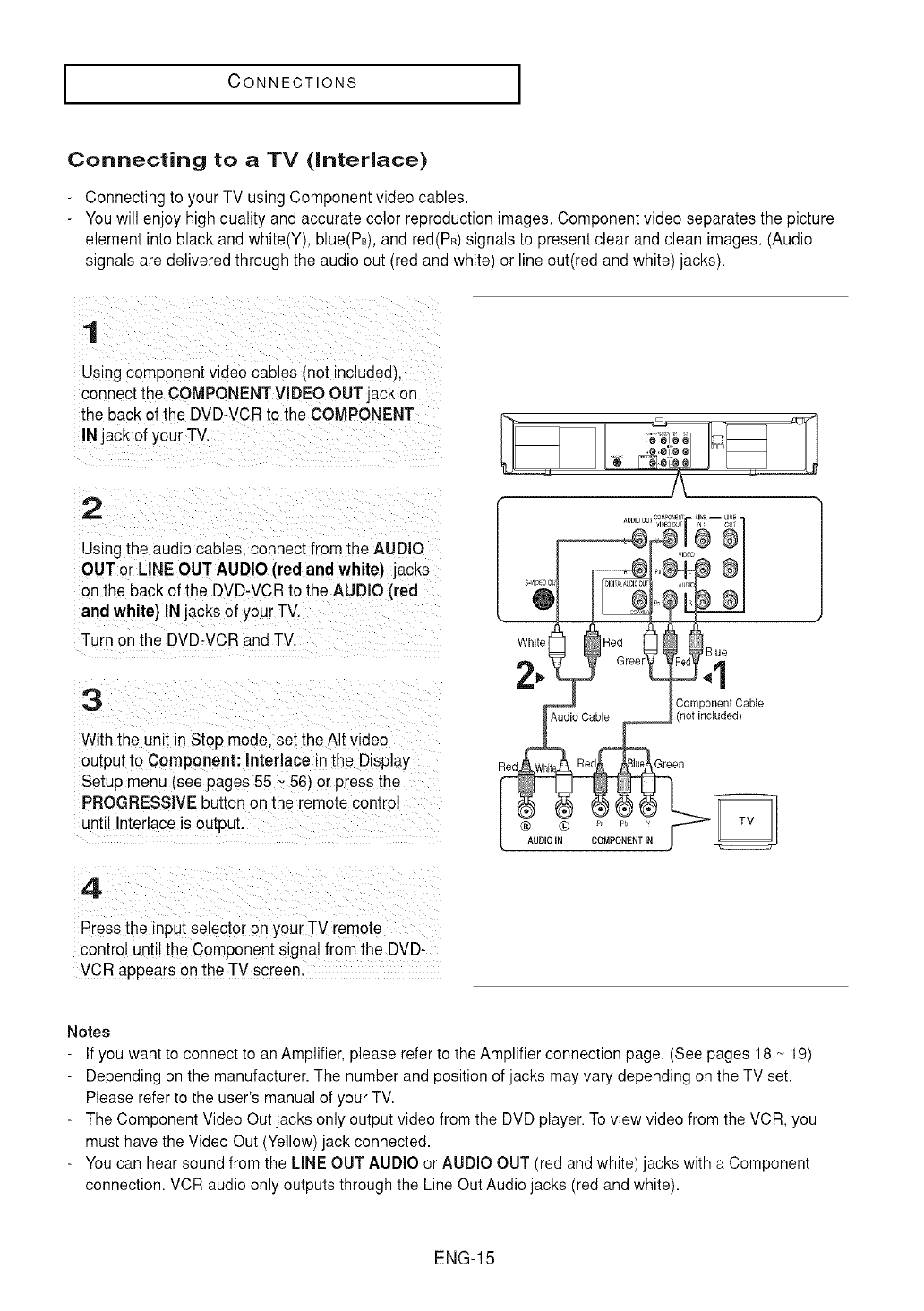
Connecting to a TV (interlace)
-Connecting to your TV using Component video cables.
-You will enjoy high quality and accurate color reproductionimages. Component video separates the picture
element into black and white(Y), blue(PB),and red(PR)signals to present clear and clean images. (Audio
signals are delivered through the audio out (redand white) or line out(red and white) jacks).
1
Usingcomponent video cables (not indudeuL
connect the COMPONENT VIDEO OUT laCkon
the back of the DVD-VCRto the COMPONENT
INjack of yourTV.
2
Usingthe audio cables connect from the AUDIO
OUT or LINE OUT AUDIO (redand white) jacks
on the back of the DVD-VCRto the AUDIO (red
and white) INjacks of your TV.
Turn on the DVD-VCR and TV,
3
With the unit in Stop mode. set the AIt video
output :o Component: Interlace inthe Display
Setup menu/see pages 55 ~56) or press the
PROGRESSIVEbutton on the remote control
until Interlaceis output.
4
Dressthe input selector on your TV remote
control until the Component signal from the DVD-
VCR appears on the TV screen.
White _Red __
2_. Gree
Component Cable
(not included)
Notes
If you want to connect to an Amplifier, please refer to the Amplifier connection page. (See pages 18 ~ 19)
Depending on the manufacturer. The number and position of jacks may vary depending on the TV set.
Please refer to the user's manual of your TV.
- The Component Video Out jacks only output video from the DVD player. To view video from the VOR, you
must have the Video Out (Yellow) jack connected.
- You can hear sound from the LINE OUT AUDIO or AUDIO OUT (red and white)jacks with a Component
connection. VCR audio only outputs through the Line Out Audio jacks (red and white).
ENG-15
ICONNECTIONS I
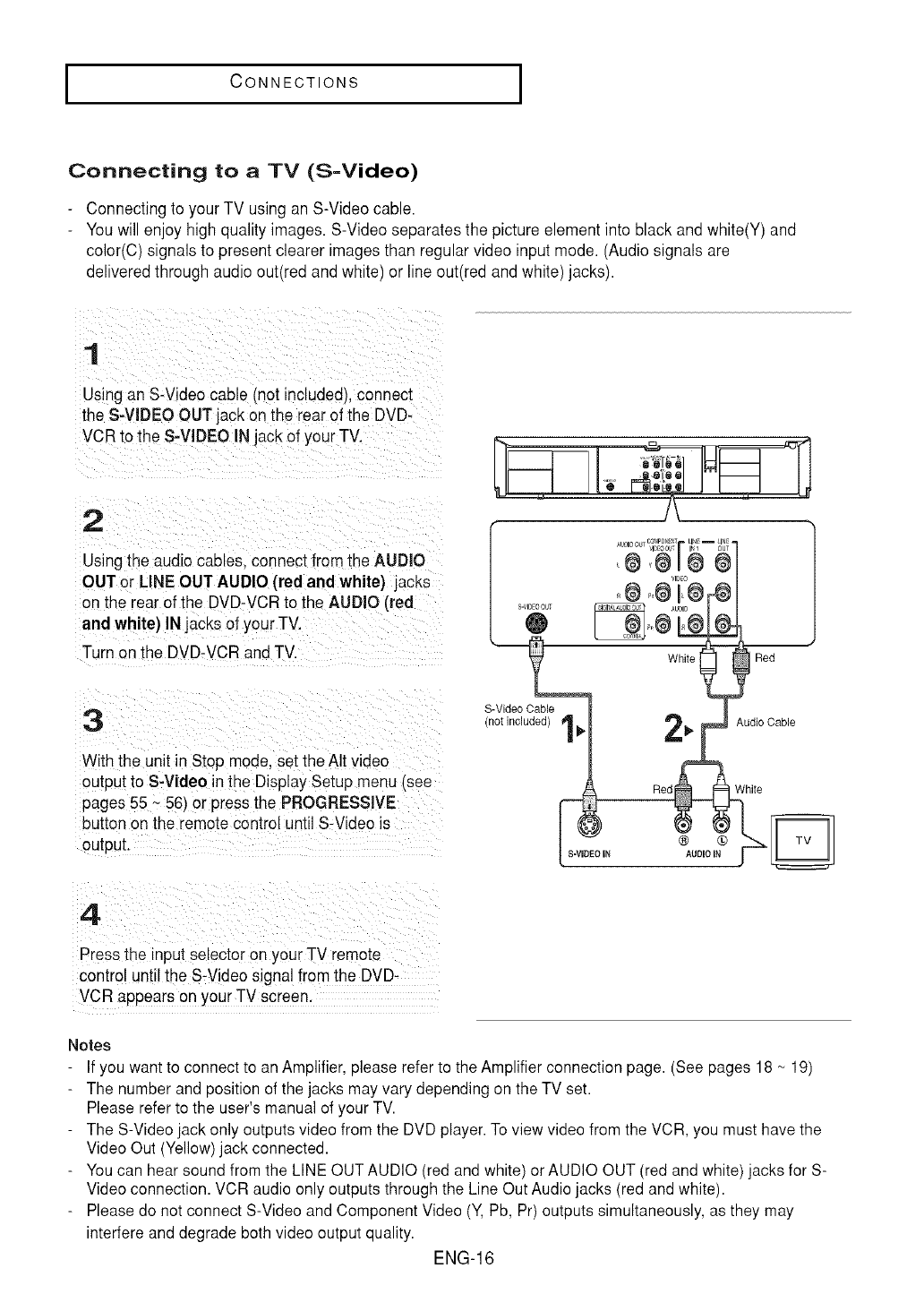
Connecting to a TV (S=Video)
Connecting to your TV using an S-Video cable.
Youwill enjoy high quality images. S-Videoseparates the picture element into black and white(Y) and
color(C) signals to present clearer imagesthan regular video input mode. (Audiosignals are
delivered through audio out(red and white) or line out(red and white) jacks).
1
Using an S-Video cable (not included_,connect
the S-VIDEO OUT jack onthe rear of the DVD-
VCRto the S-VIDEO INjack of your TV.
2
Using the audio cables, connect from the AUDIO
OUT or LINE OUTAUDIO (redand white) _acKs
on the rear of the DVD-VCRto the AUDIO (red
and white) IN jacks of your TV.
Turn on the DVD-VCR andTV.
3
Withthe unit in Stop mode.set the AItvideo
outputto S-Video in the Display Setup menu Isee
pages 55 _ 56) or pressthe PROGRESSIVE
button onthe remote control until S-Video is
output
I S-VIDEOOU_
®
S-Video Cable
(not included) |
White Red
4
Press the input selector on your TV remote
control until the S-Videosignal from the DVD-
VCR appears on your TV screen.
Notes
If you want to connect to an Amplifier, please refer to the Amplifier connection page. (See pages 18 ~ 19)
The number and position of the jacks may vary depending on the TV set.
Please refer to the user's manual of your TV.
The S-Video jack only outputs video from the DVD player. To view video from the VOR, you must have the
Video Out (Yellow) jack connected.
You can hear sound from the LINE OUT AUDIO (red and white) or AUDIO OUT (red and white)jacks for S-
Video connection. VCR audio only outputs through the Line Out Audio jacks (red and white).
Please do not connect S-Video and Component Video (Y, Pb, Pr) outputs simultaneously, as they may
interfere and degrade both video output quality.
ENG-16
ICONNECTIONS I
Connecting to a TV (Video)
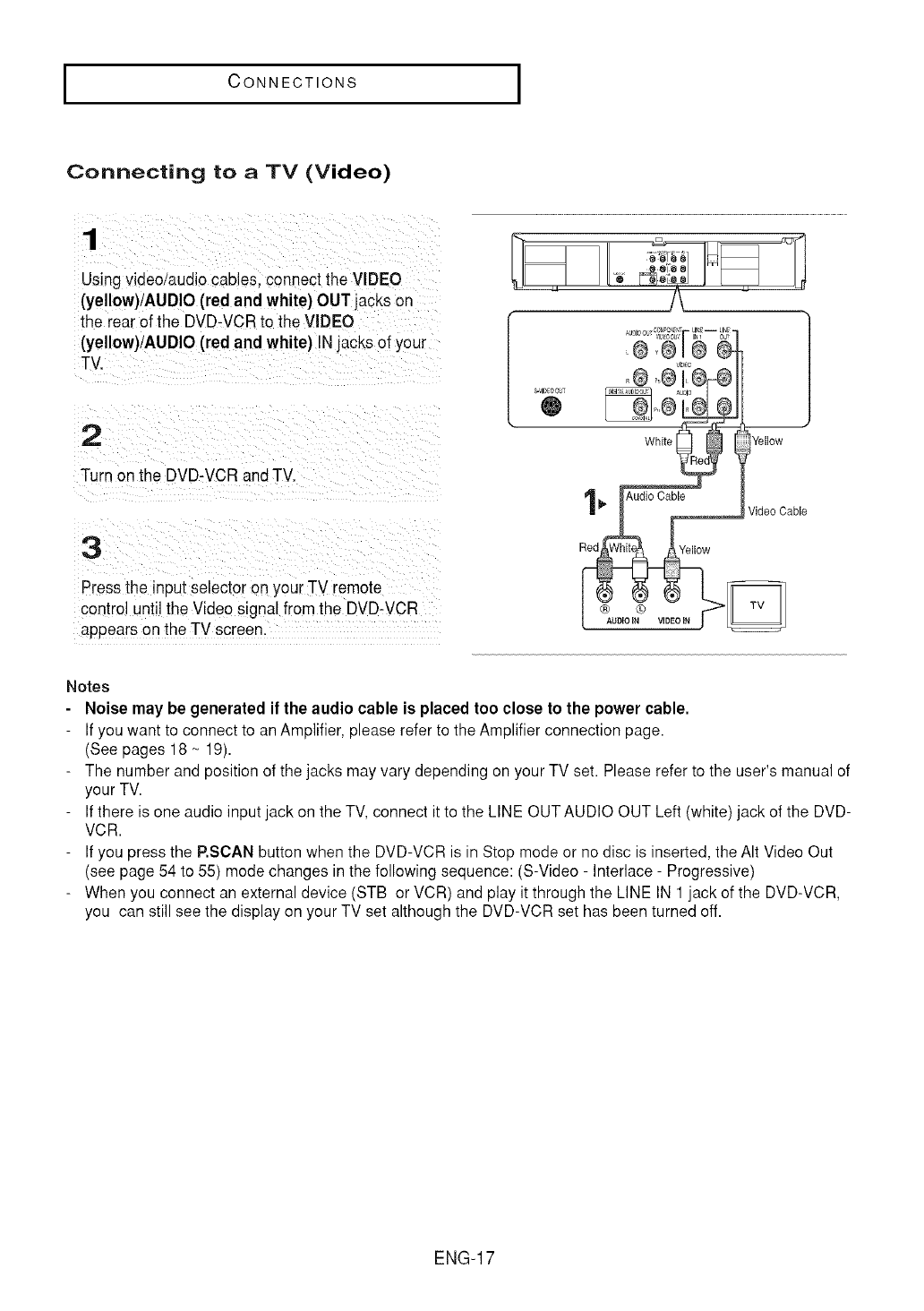
Usingvideo/audio cables, connect the VIDEO
(yellow)/AUDIO (red and white) OUT lacks on
the rear of the DVD-VCRto the VIDEO
(yellow)/AUDIO (red and white) INjacks of your
TV.
2
Turn on the DVD-VCR and TV.
3
Pressthe input selector on your TV remote
control until the Video signal fromthe DVD-VCR
apuears on the TV screen.
4:'°°
@
I Yellow
1 _" I Audi° Cable /ideo Cable
Notes
Noise may be generated if the audio cable is placed too close to the power cable.
If you want to connect to an Amplifier, please refer to the Amplifier connection page.
(See pages 18 ~ 19).
The number and position of the jacks may vary depending on your TV set. Please refer to the user's manual of
your TV.
If there is one audio input jack on the TV, connect it to the LINE OUT AUDIO OUT Left (white) jack of the DVD-
VCR.
If you press the P.SCAN button when the DVD-VCR is in Stop mode or no disc is inserted, the AIt Video Out
(see page 54 to 55) mode changes in the following sequence: (S-Video - Interlace- Progressive)
When you connect an external device (STB or VCR) and play it through the LINE IN 1 jack of the DVD-VCR,
you can still see the display on your TV set although the DVD-VCR set has been turned off.
ENG-17
ICONNECTIONS I
Connection to an Audio System
Connecting to an Audio System (2 Channel Amplifier, Analog)
1
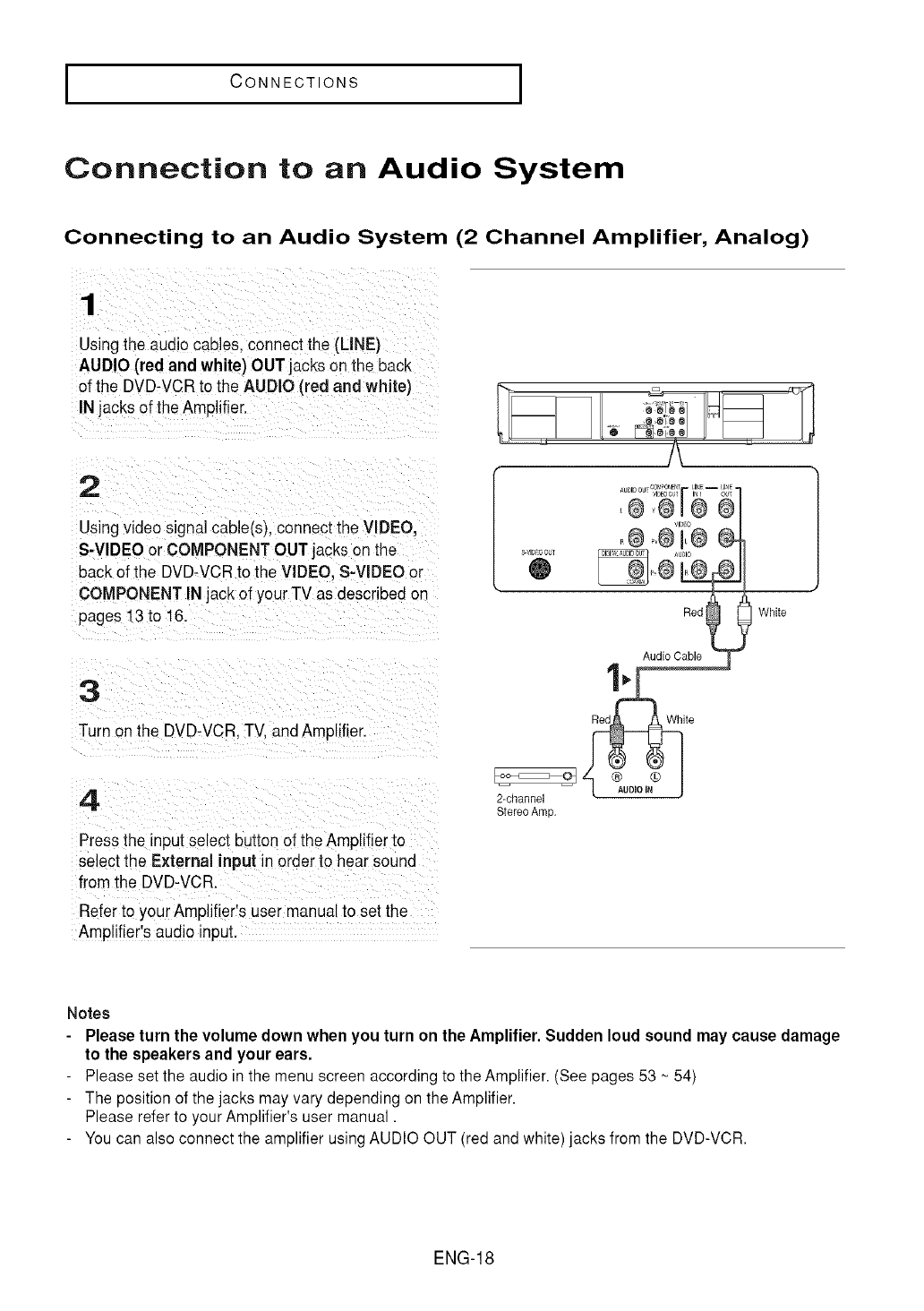
Using theaudio cables, connect the (LINE)
AUDIO(red and white) OUTjacks onthe back
of the DVD-VCR to the AUDIO (red and white)
IN lacks of the Amplifier.
2
Usingvideo signal cable(s), connect the VIDEO,
S-VlDEOor COMPONENT OUTjaCKSon the
back of the DVD-VCR to the VIDEO, S-VlB EOor
COMPONENT INjack of your TV as described on
pages 13to 16.
3
Turn on the DVD-VCR.TV. andAmplifier.
4
Pressthe input select button of the Amplifier to
select the External input in orderto hear sound
from the DVD-VCR.
Referto your Amplifier's user manualto set the
Amplifier's audio input.
Mw
Red White
Audio Cable
_ite
2-channel
Stereo Amp.
Notes
- Please turn the volume down when you turn on the Amplifier. Sudden loud sound may cause damage
to the speakers and your ears.
- Please set the audio in the menu screen according to the Amplifier. (See pages 53 ~ 54)
- The position of the jacks may vary depending on the Amplifier.
Please refer to your Amplifier's user manual.
- You can also connect the amplifier using AUDIO OUT (red and white) jacks from the DVD-VCR.
ENG-18
ICONNECTIONS I
Connecting to an Audio System (Dolby digital, MPEG2 or DTS
Amplifier)
1
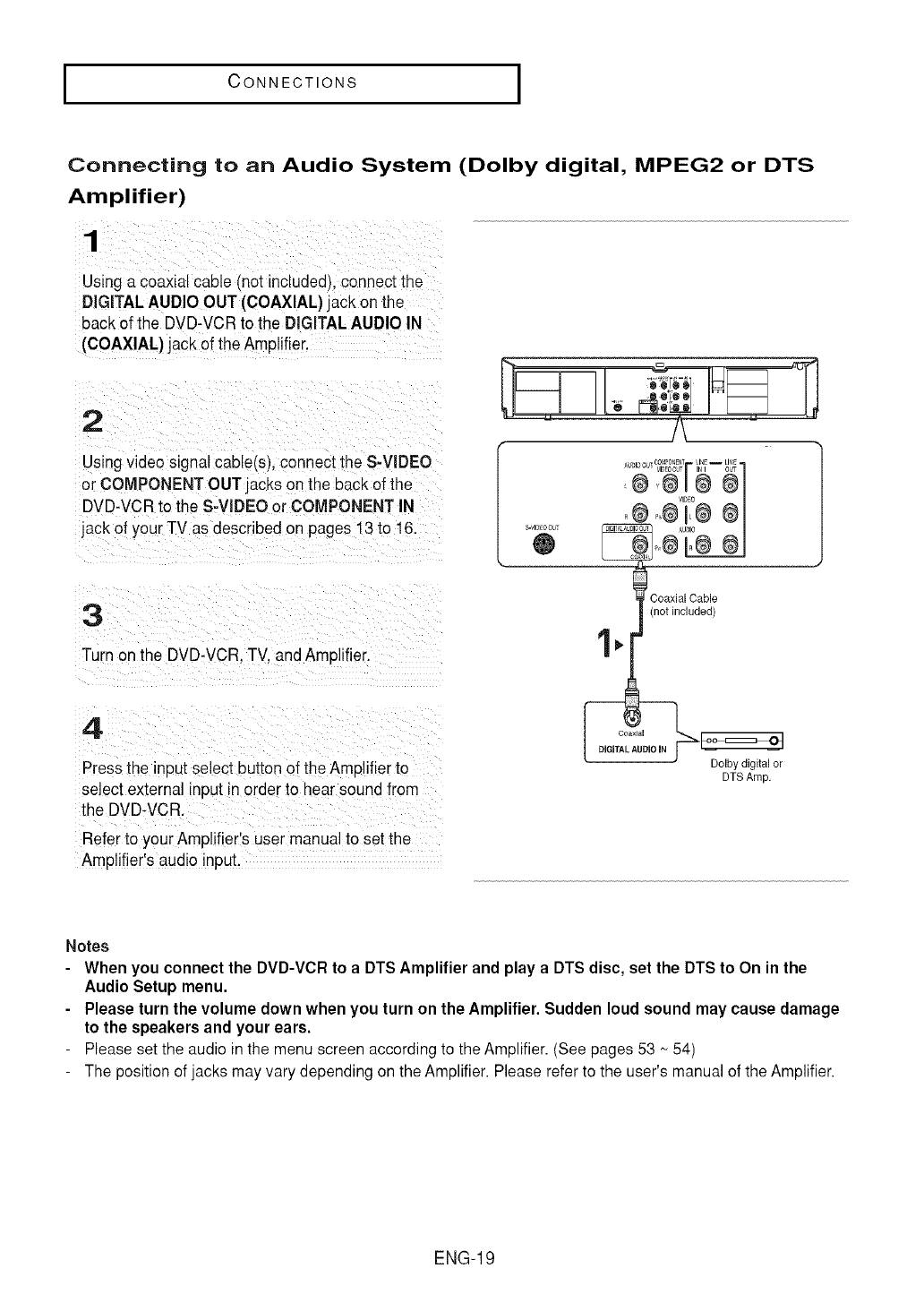
Using a coaxial cable mot included connect the
DIGITALAUDIO OUT (COAXIAL) jack onthe
backof the DVD-VCRto the DIGITALAUDIO IN
(COAXIAL). ack of the Amplifier.
2
Usingvideo signal cable(s_,connect the S-VIDEO
or COMPONENT OUT acks on the back of the
DVD-VCRto the S-VlDEO or COMPONENT IN
jack of your TV as described on pages 13to 16.
3
Turn on the DVD-VCR.TV. and Amolifier.
AUI}D ou- O0_P_ENT IE = lINE =
VIDEO
s-vIo o o_'
@AUOIO
Coaxial Cable
(not included)
4
Pressthe input select buttonof the Amplifierto
select externa input in order to hear sound from
the DVD-VCR.
Referto your Amplifier s user manual to setthe
Amolifier'saudio input.
coaxial
AU
Dolby digital or
DTS Amp.
Notes
When you connect the DVD-VCR to a DTS Amplifier and play a DTS disc, set the DTS to On in the
Audio Setup menu.
Please turn the volume down when you turn on the Amplifier. Sudden loud sound may cause damage
to the speakers and your ears.
Please set the audio in the menu screen according to the Amplifier. (See pages 53 - 54)
The position of jacks may vary depending on the Amplifier. Please refer to the user's manual of the Amplifier.
ENG-19
ICONNECTIONS I
Connecting the Power Cord
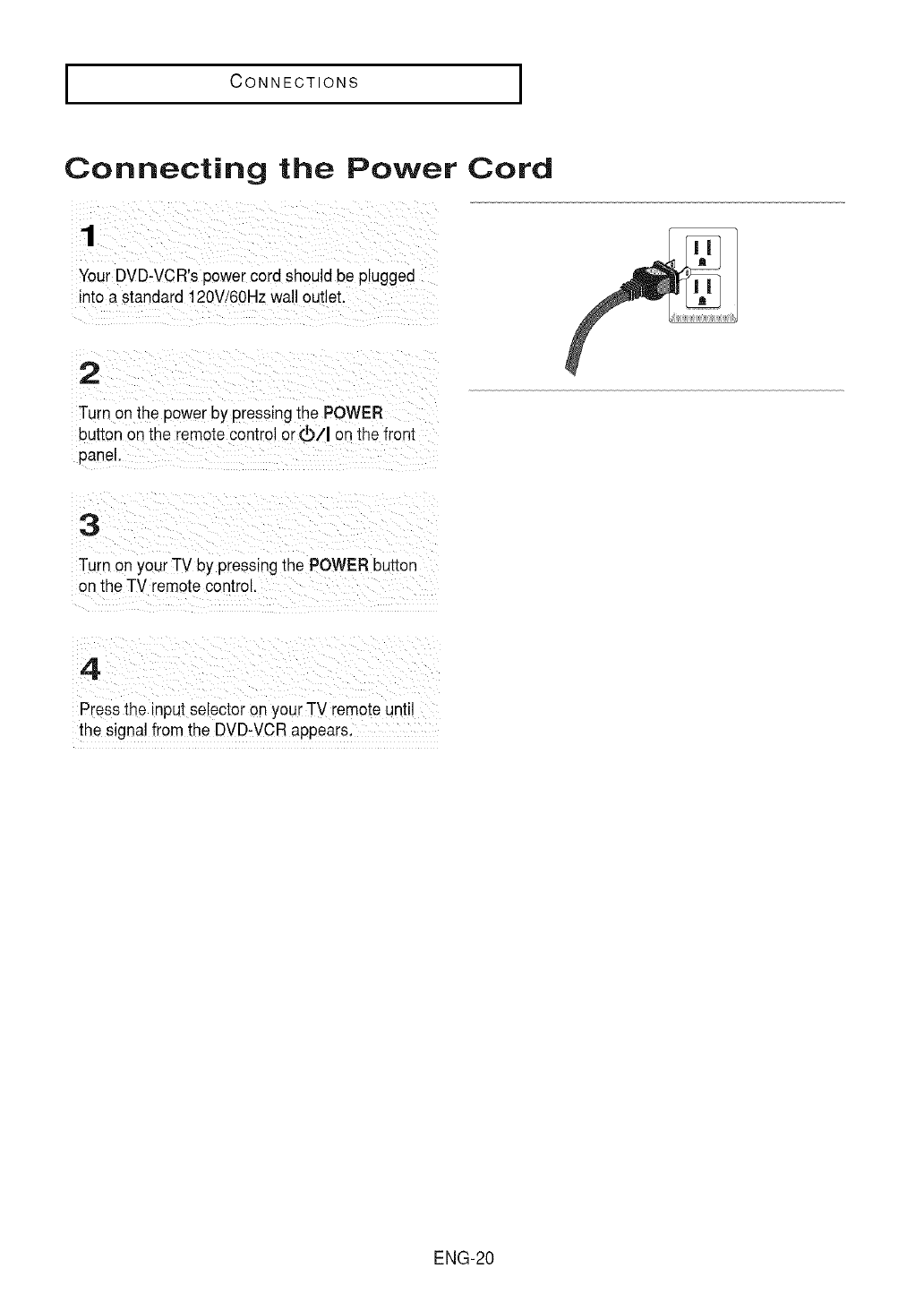
Your DVD-VCR's powercord should be plugged
into a standard 120V/6OHzwall outlet.
Turn on the power by pressing the POWER
button on the remote control o[_Zl on the front
panel.
Turn on your TV by pressing the POWER button
on the TV remote control.
Press the input selector onyour -ry remoteuntil
the signal from the DVD:VCR appears,
ENG-20
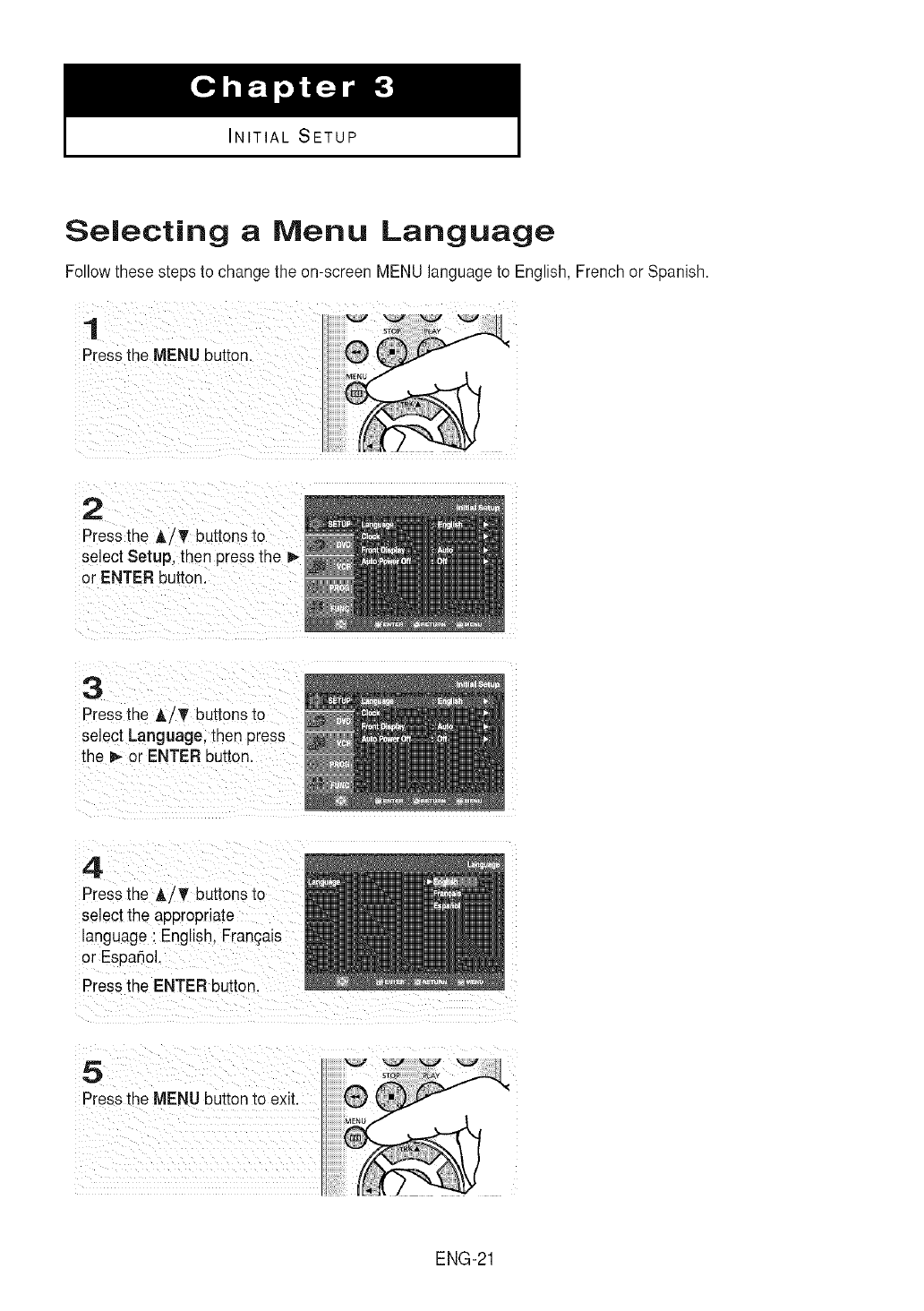
INITIAL SETUP
Selecting aMenu Language
Follow these steps to change the on-screen MENU language to English, French or Spanish.
1
Pressthe MENU button.
2
Press the A/T buttons to
select Setup, then press the P-
or ENTER button.
3
Pressthe AiT buttons to
select Language, then press
the _ or ENTER button.
Press the J,Z_Fbuttons to
select the appropriate
language :English, I:ran£;aiS
ENG-21
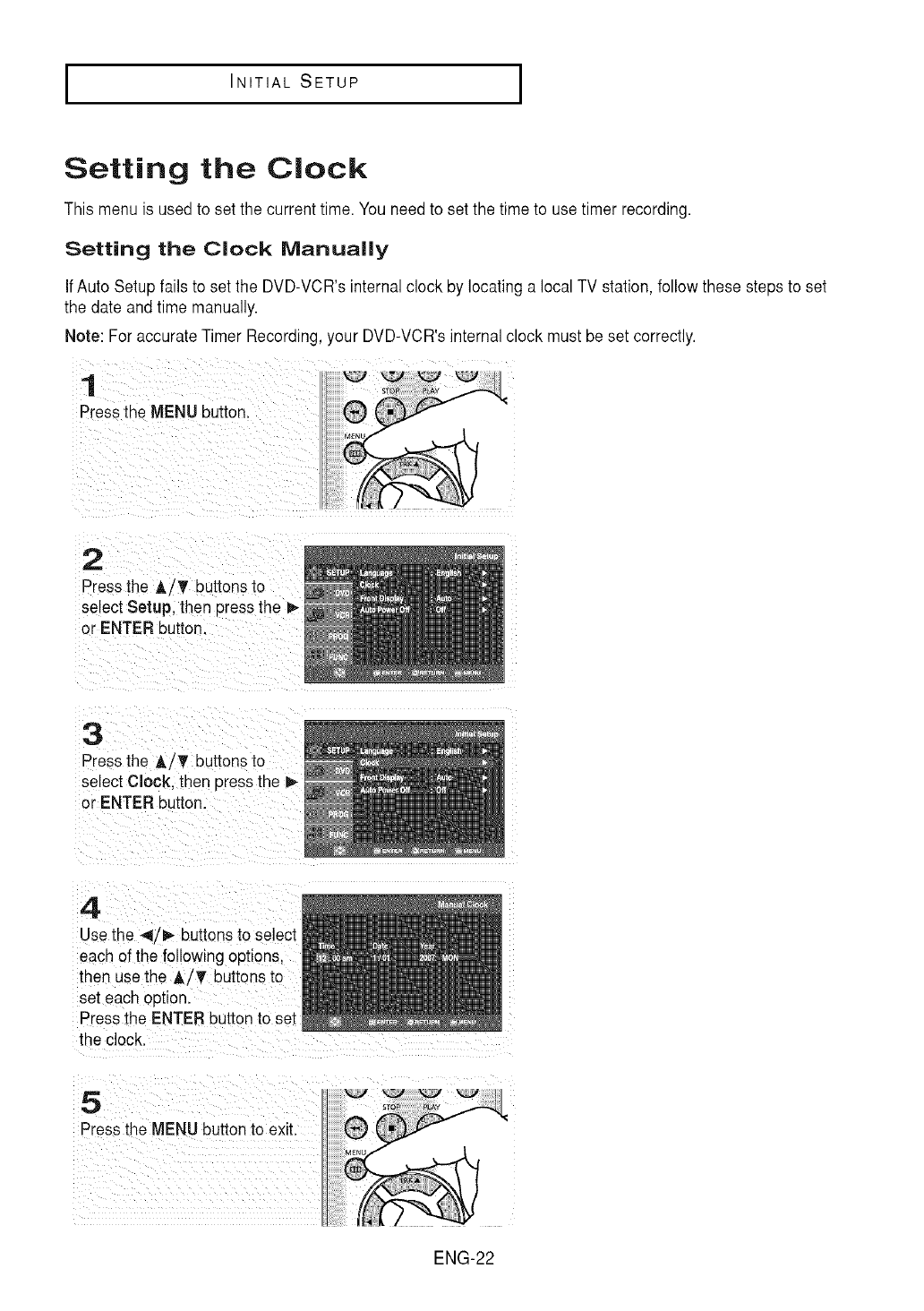
I INITIAL SETUP I
Setting the Clock
This menu is used to setthe current time. You needto set the time to use timer recording.
Setting the Clock Manually
IfAuto Setup fails to set the DVD-VCR's internalclock by locating a local TV station,follow these steps to set
the date and time manually.
Note: For accurate Timer Recording, your DVD-VCR's internal clock must be set correctly.
1
Press the MENU buEon
2
Pressthe A iT buitons to
select Setup, then press the
or ENTER button.
3
Pressthe A/T buttons to
select Clock. then pressthe _-
or ENTER button.
4
Use the _/_ buttons to select
each of the following options.
then use the A/_' buttons to
sel each option.
Press the ENTER button to set
the clock.
5
Pressthe MENU buttonto exit.
ENG-22
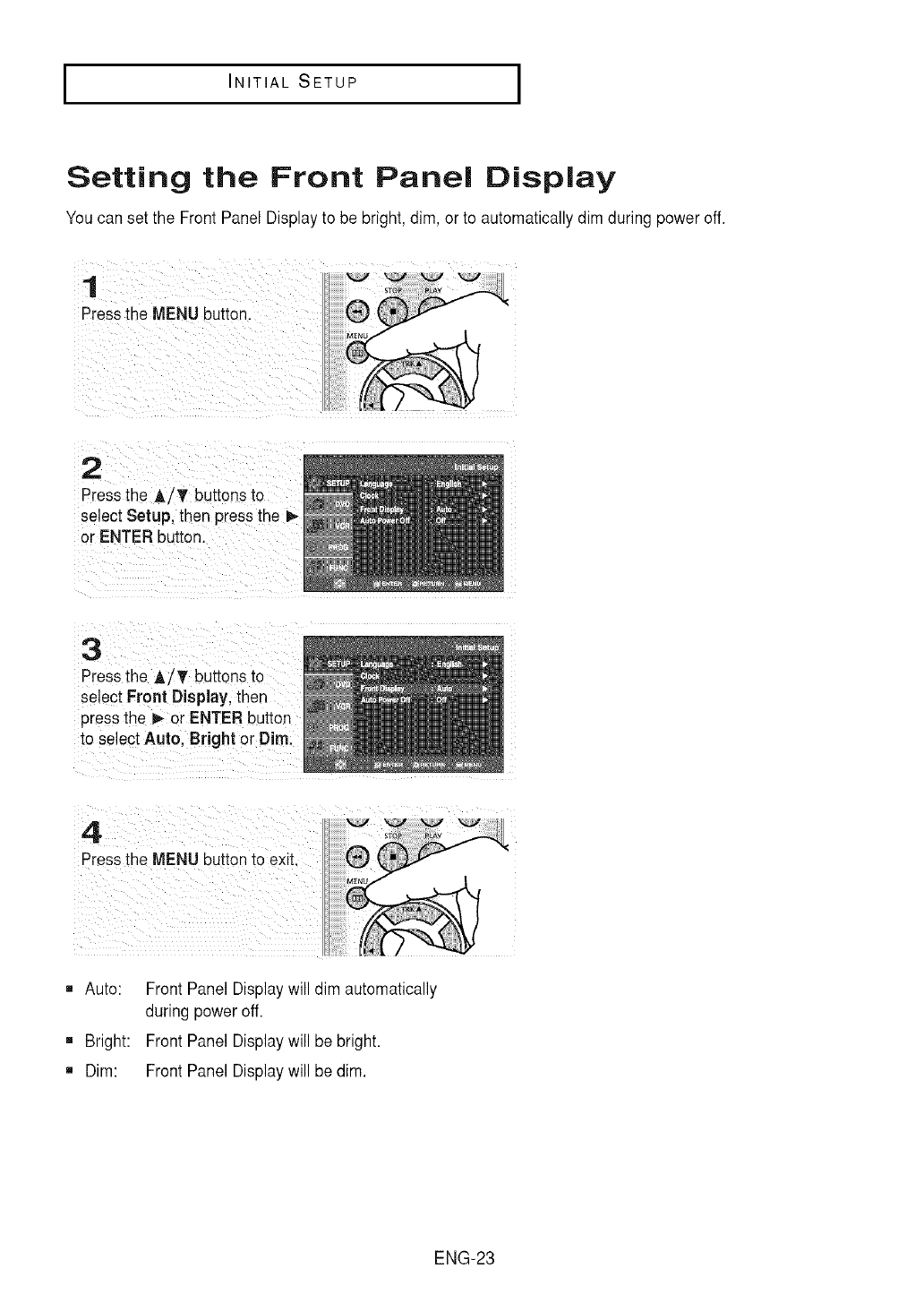
IINITIAL SETUP I
Setting the Front Panel Display
You can set the Front Panel Display to be bright,dim, or to automatically dim during power off.
1
Pressthe MENU button.
2
Pressthe A/T buttons to
select Setup, then pressthe I_
or ENTER buhon.
3
Pressthe A/T buttons to
select Front Display.then
press the _ or ENTER button
to select Auto, Bright or Dim.
4
Pressthe MENU button to exit.
• Auto:
m Bright:
Dim:
Front Panel Displaywill dim automatically
during power off.
Front Panel Displaywill be bright.
Front Panel Displaywill be dim.
ENG-23
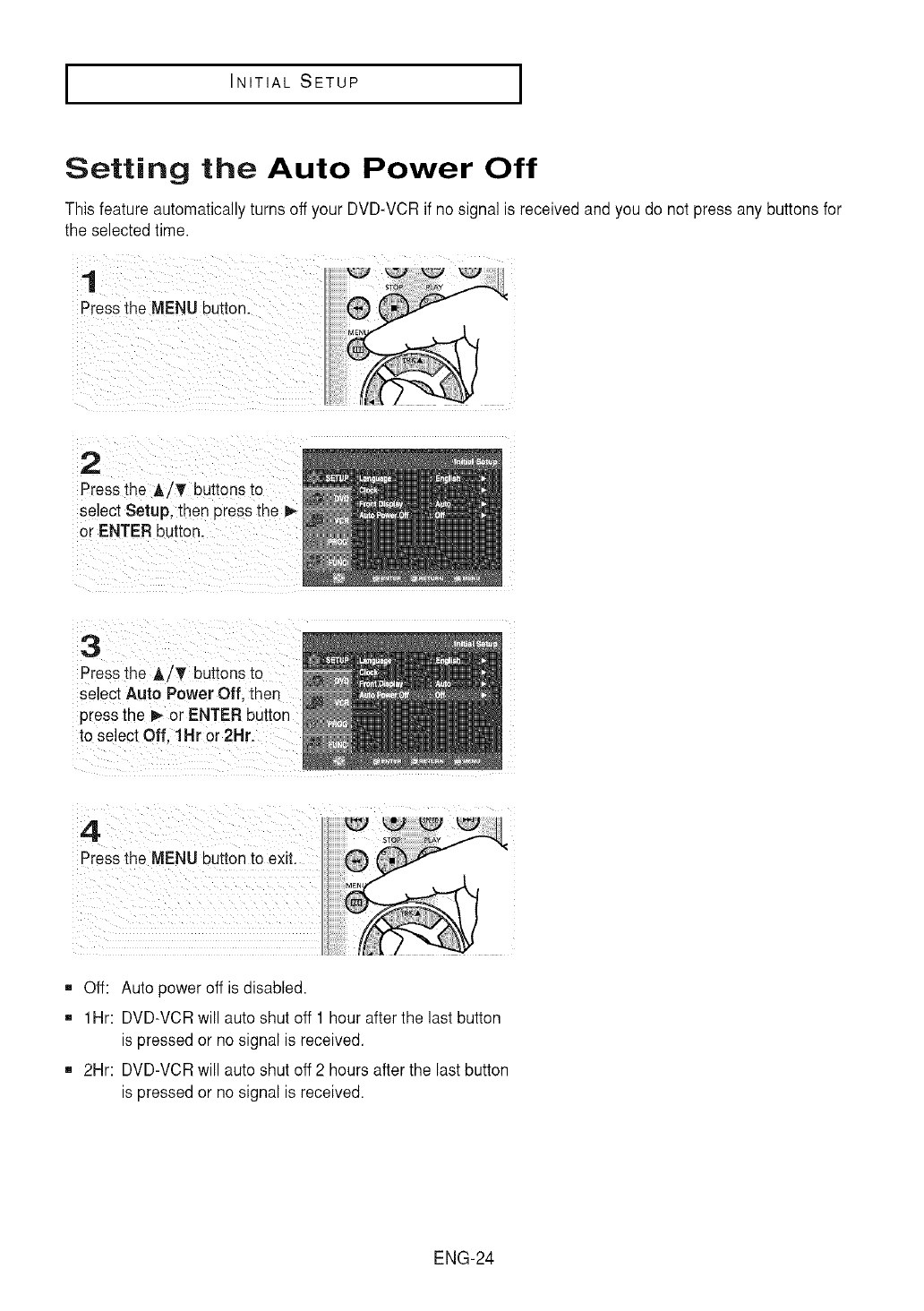
IINITIAL SETUP I
Setting the Auto Power Off
This feature automatically turns off your DVD-VCRif no signal is received and you do not press anybuttons for
the selected time.
,4
PressiheMENUbut!on:
..........
Press the A/_' buttons to
select Setup, then press the_
or ENTER button.
Press the AiT buttons to
Select Auto Power Offi then
press the !_ or ENTER button
to select Off, 1Hr or 2Hr.
,, Off: Auto power off is disabled.
,, 1Hr: DVD-VCRwill auto shut off 1 hour afterthe last button
is pressed or no signal is received.
,, 2Hr: DVD-VCRwill auto shut off 2 hours after the last button
is pressed or no signal is received.
ENG-24
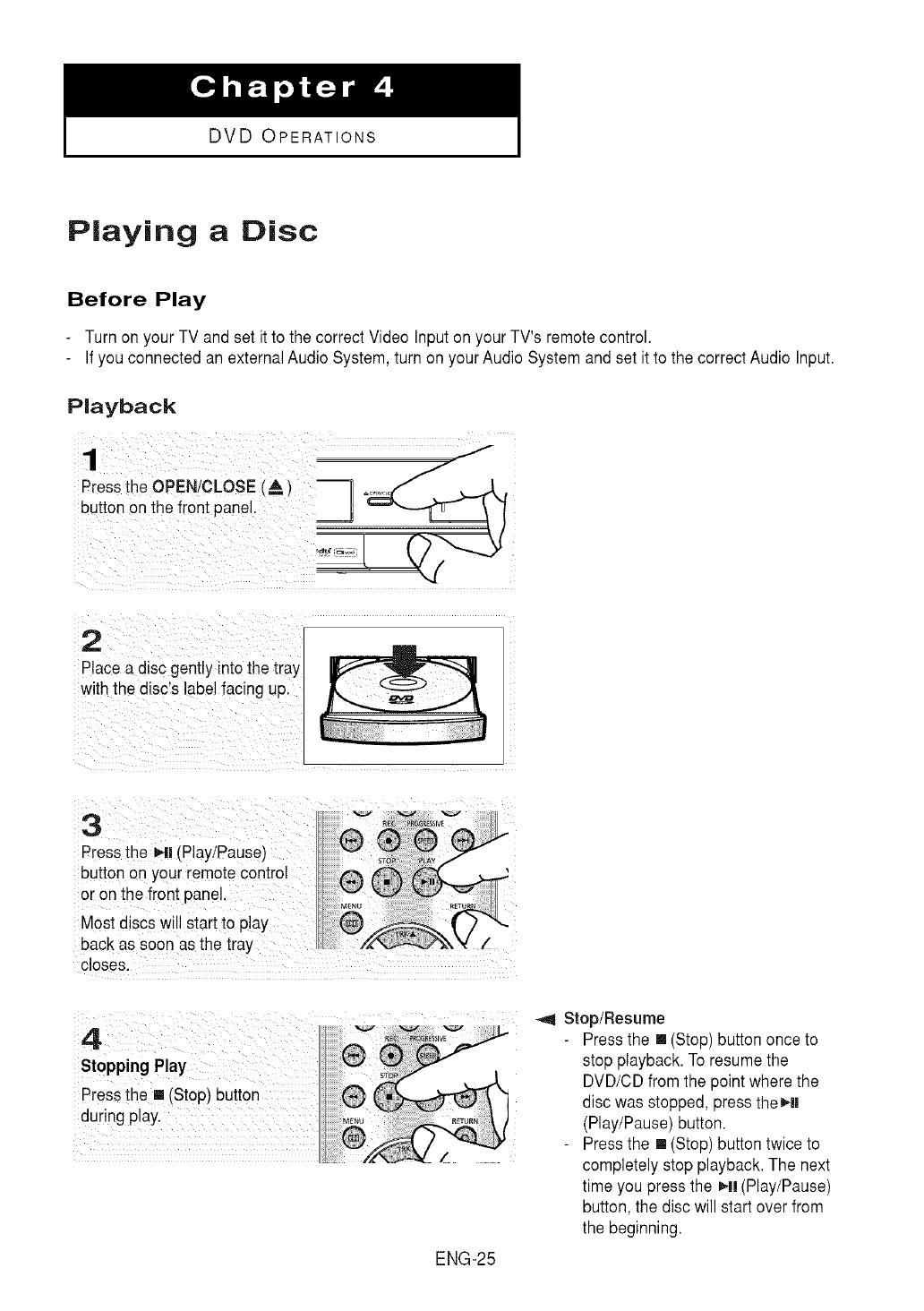
DVD OPERATIONS
Playing aDisc
Before Play
Turn on your TV and set it to the correct Video Input on your TV's remote control.
Ifyou connected an externalAudio System, turn on your Audio System and set it to the correct Audio Input.
Playback
1
Pressthe OPEN/CLOSE (A
button on the front panel.
jJ
2
Placea disc gently into the tray
with the disc's label facing up.
Stop/Resume
4- Press the [] (Stop) button once to
St'oPp ng P ay stop playback. To resumethe
ii iiiiiiii!
PreSS them (StoP)bitt0n discDVD/ODwasstopped,fr°mthe pointpressWheretheH,the
du!ing P!ay_ (Play/Pause) button.
III t_j - Press the [] (Stop) button twice to
completely stop playback.The next
time you press the HI (Play/Pause)
button, the disc will start over from
the beginning.
ENG-25
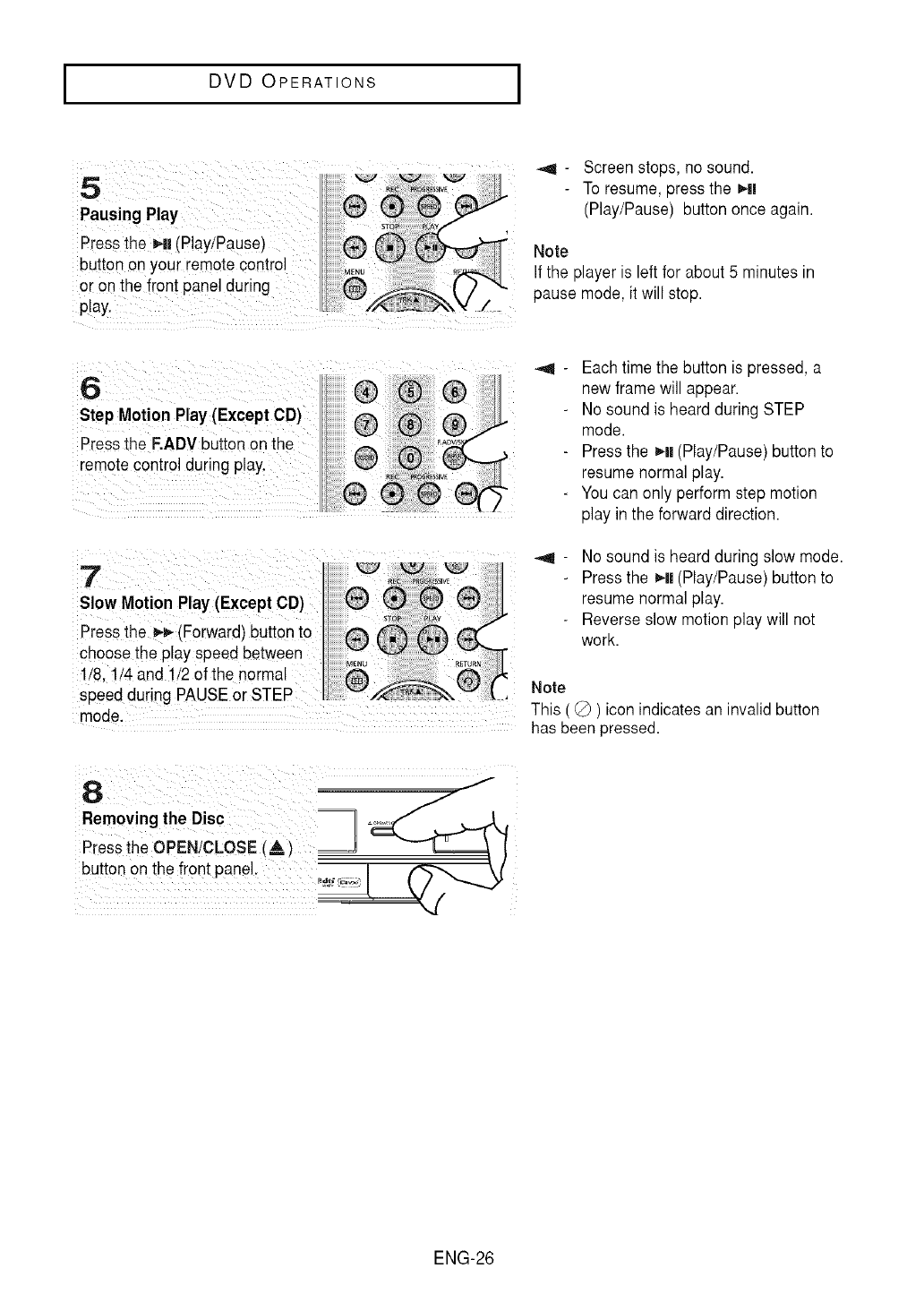
I DVD OPERATIONS I
.......
Pressthe _| (P!ay/Pause)
button on you[remote control
or onthe front panel durin
play.
_41 - Screen stops, no sound.
To resume, press the _11
(Play/Pause) button once again.
Note
Ifthe player is left for about 5 minutes in
pause mode, it will stop.
_1 - Each time the button is pressed, a
new frame will appean
No sound is heardduring STEP
mode.
Pressthe _ll (Play/Pause) buttonto
resumenormal play.
- You can only perform step motion
play in the forward direction.
SlowMotion Play(Except CD)
Pressthe _(Forward) button to
choose the playspeed between
1/8,1/4 and !/2 of thenormal
speed during PAUSEor STEP..........
mode. .............
No sound is heardduring slow mode.
Pressthe _11(Play/Pause) buttonto
resumenormal play.
Reverse slow motion play will not
work.
Note
This (_) ) icon indicates an invalid button
has been pressed.
ENG-26
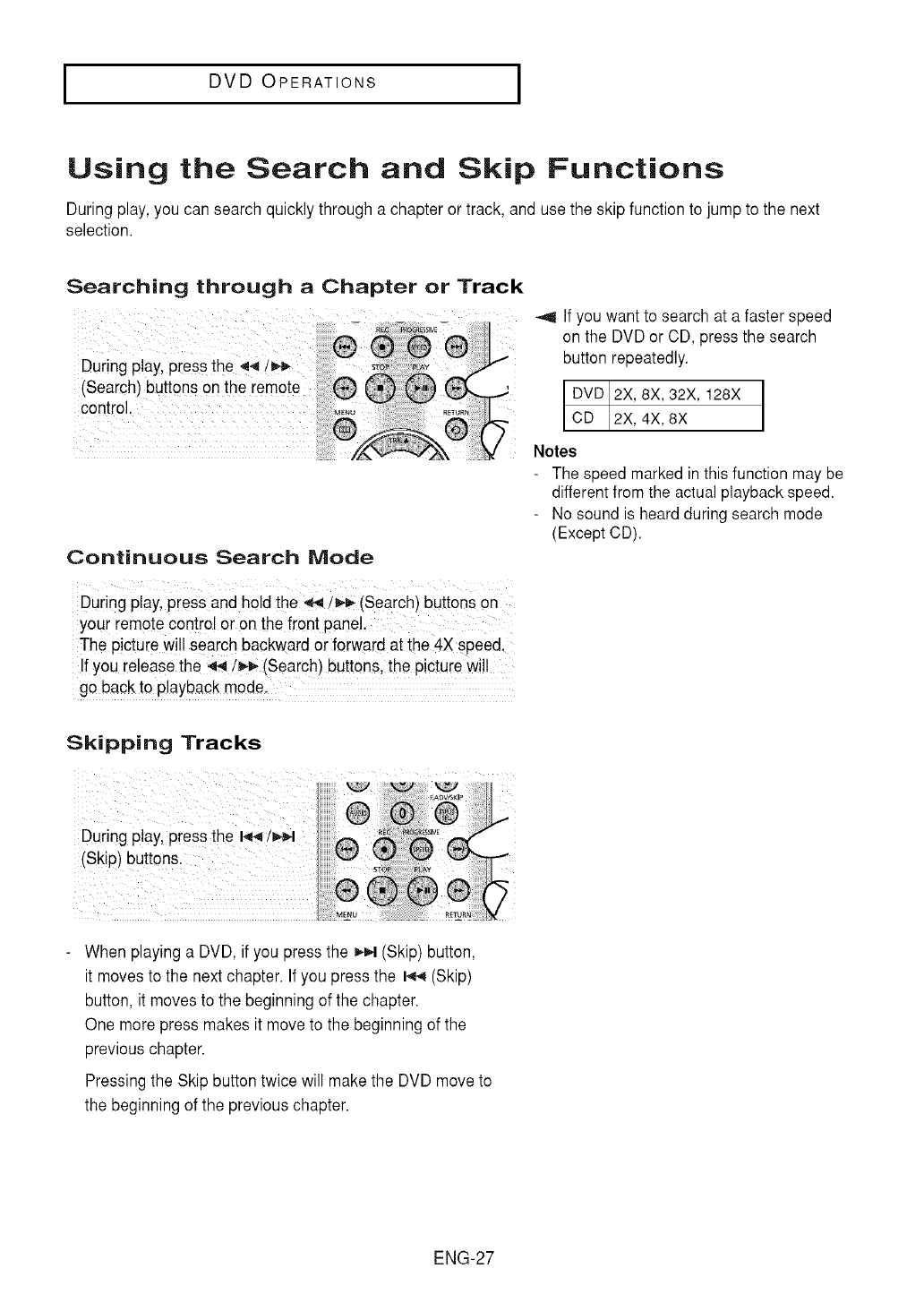
I DVD OPERATIONS I
Using the Search and Skip Functions
During play, youcan search quickly through a chapteror track, and use the skip function to jump to the next
selection.
Searching through a Chapter or Track
"' on"yoUthewantDVDort°searchOD,pressatafasterthesearchSpeed
During play press the ,q-_/_ _ button repeatedly.
(search) buttons onthe remote
control. 8x, 32x, 128x
Noteslc_ 2X,4X,8X
- The speed marked inthis function may be
differentfrom the actual playback speed.
- No sound is heardduring search mode
(Except CD).
Continuous Search Mode
During p!ay,press and he!dthe _/_"_" (Search) buttons on:
your remote control or on the front panel,
The picture wi!lsearch backward orforward at the 4Xspeed.
!f you re!easethe 4,_/_,- (Search) buttons, the picturewi!!
go backto playback mode.
Skipping Tracks
During play, press the I,,_/_,_
(Skip)button&
When playing a DVD, if you press the _ (Skip)button,
it moves to the next chapter. Ifyou press the I_ (Skip)
button, it moves to the beginningof the chapter.
One more press makes it moveto the beginning of the
previous chapter.
Pressingthe Skip button twice will make the DVD move to
the beginning of the previous chapter.
ENG-27
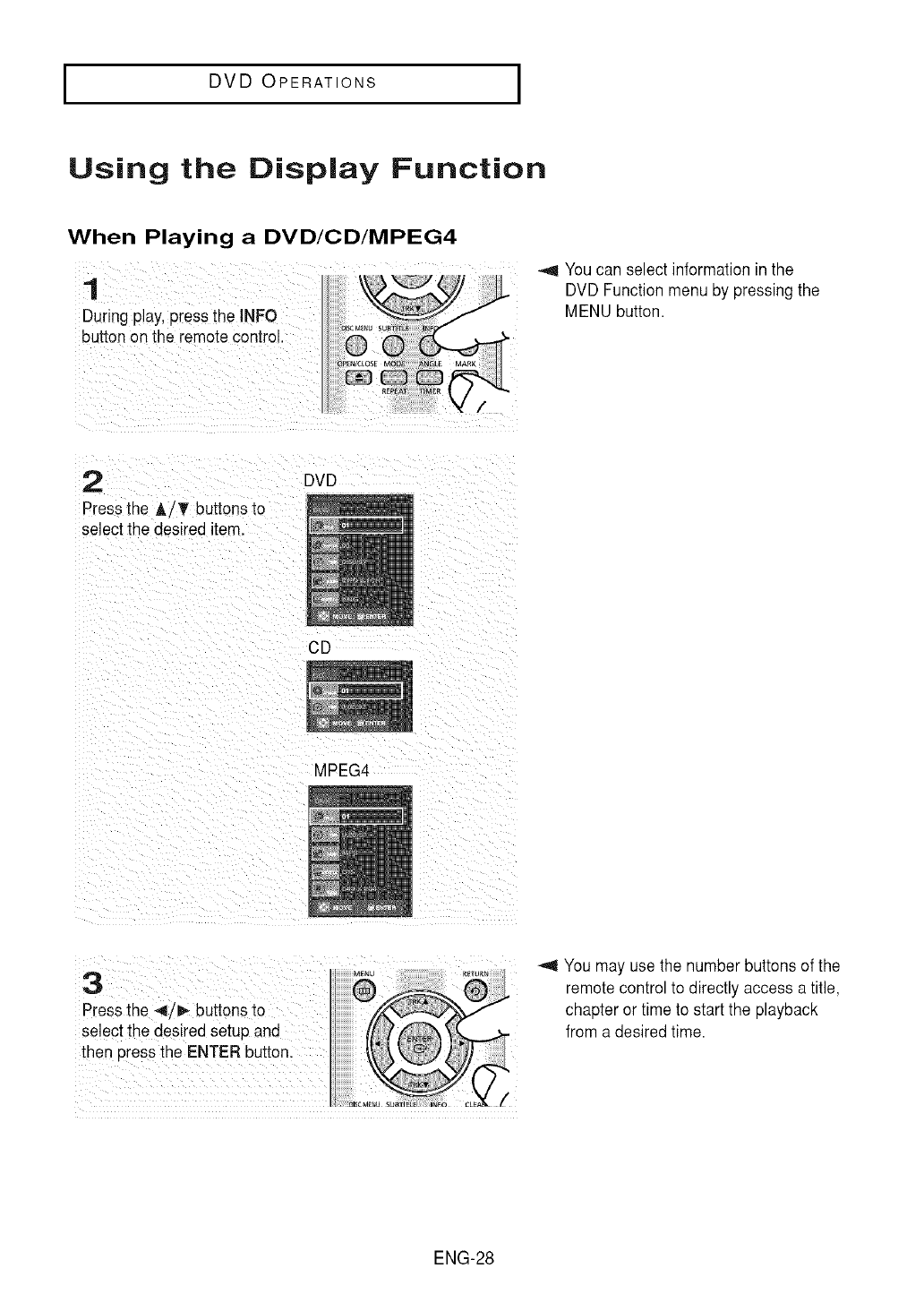
I DVD OPERATIONS I
Using the Display Function
When Playing a DVD/CD/MPEG4
1
Dunng play, pressthe INFO
buttonon the remotecontrol.
_91Youcan select information in the
DVD Function menu by pressing the
MENU button.
2
Pressthe A i'V buttons to
select the desired item.
DVD
CD
MPEG4
select the desired setup and
then press the ENTER button.
You may use the number buttons of the
remotecontrol to directly access a title,
chapter or time to start the playback
from a desired time.
ENG-28
I DVD OPERATIONS I
4
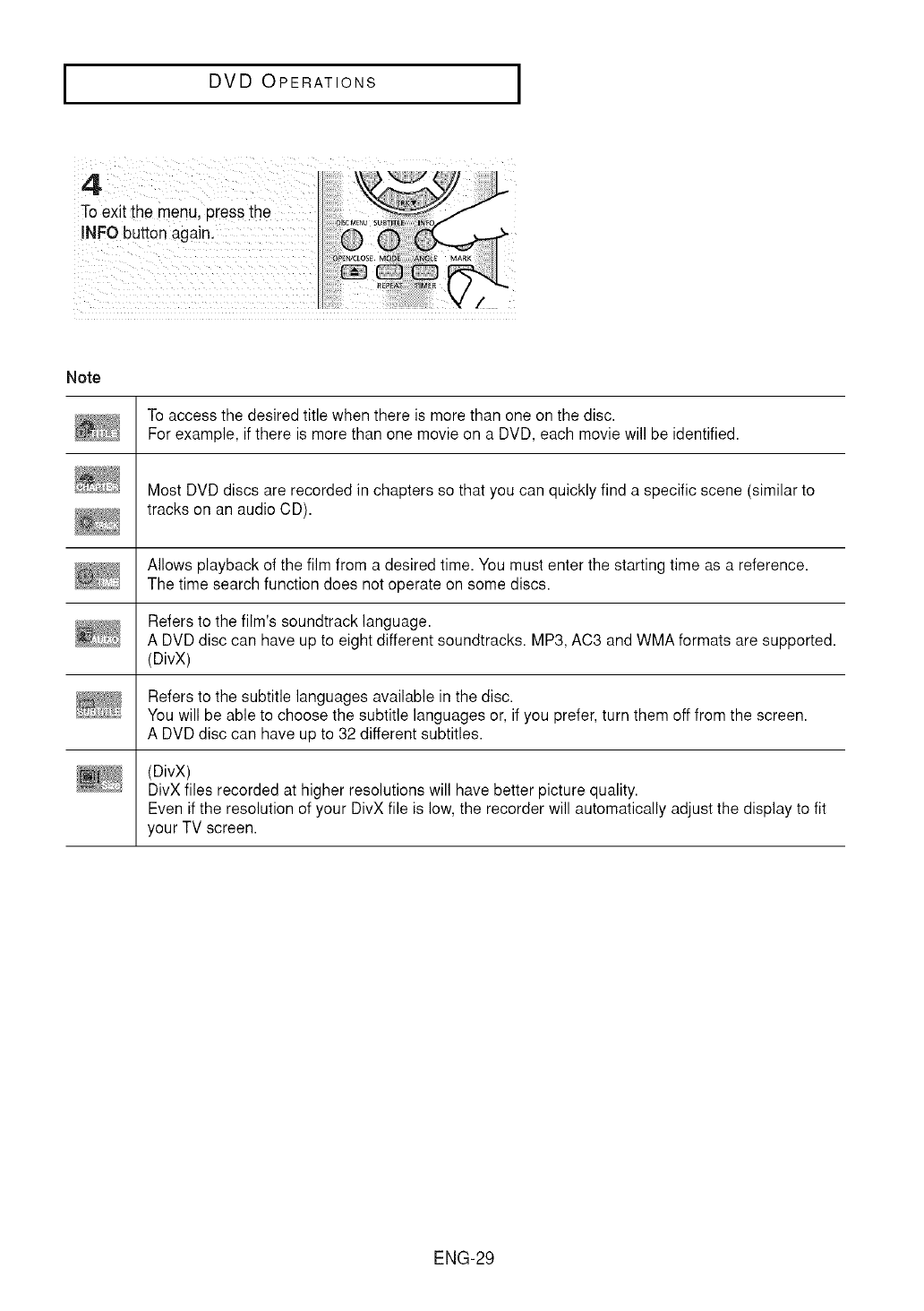
To exit the menu, press the
INFO button again.
Note
To access the desired title when there is more than one on the disc.
For example, if there is more than one movie on a DVD, each movie will be identified.
Most DVD discs are recorded in chapters so that you can quickly find a specific scene (similar to
tracks on an audio CD).
Allows playback of the film from a desired time. You must enter the starting time as a reference.
The time search function does not operate on some discs.
Refers to the film's soundtrack language.
A DVD disc can have up to eight different soundtracks. MP3, AC3 and WMA formats are supported.
(DivX)
Refers to the subtitle languages available in the disc.
You will be able to choose the subtitle languages or, if you prefer, turn them off from the screen.
A DVD disc can have up to 32 different subtitles.
(DivX)
DivX files recorded at higher resolutions will have better picture quality.
Even if the resolution of your DivX file is low, the recorder will automatically adjust the display to fit
your TV screen.
ENG-29
I DVD OPERATIONS I
Using the Disc and Title Menu (DVD)
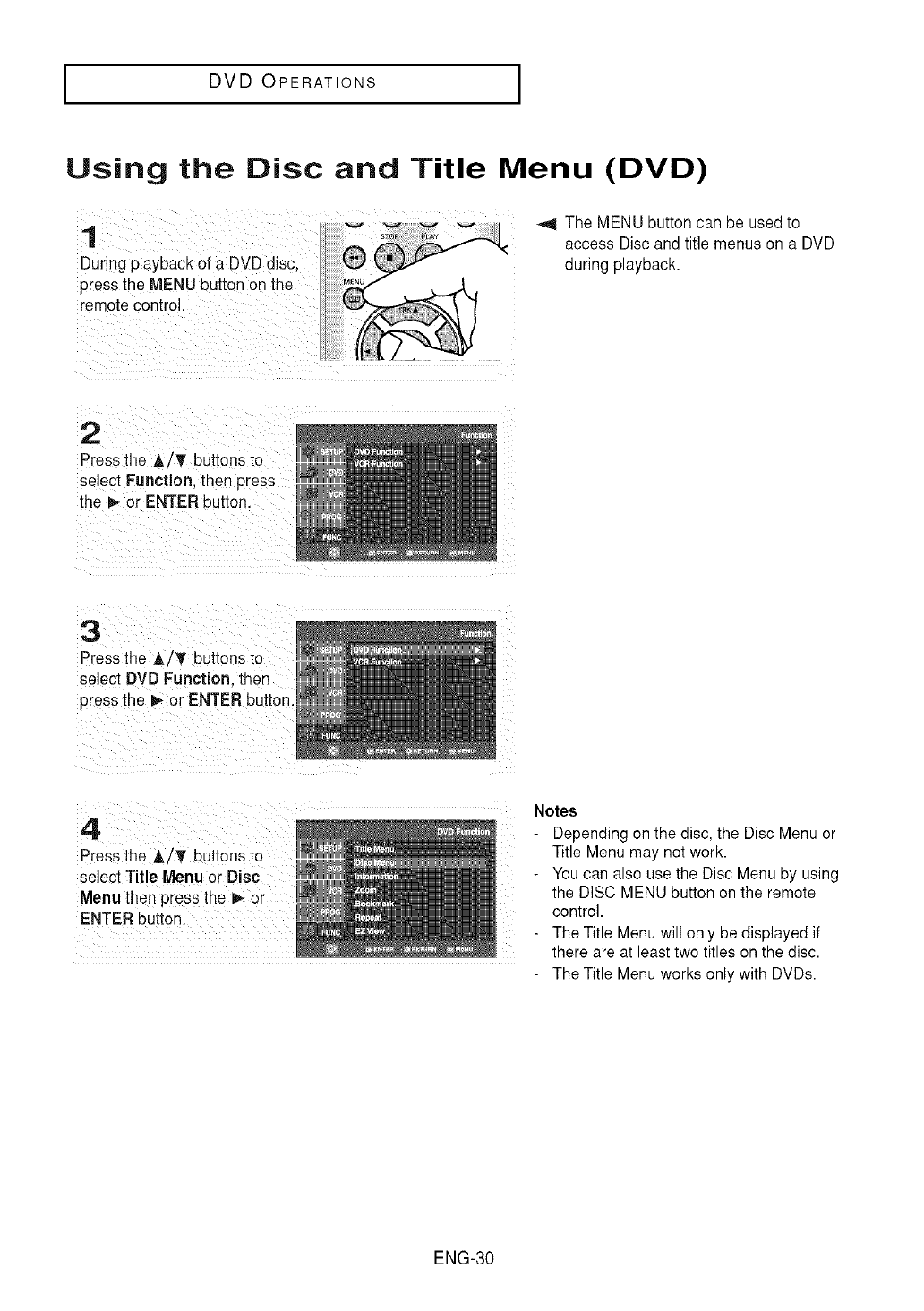
During playback of aDVD disc
press the MENU button on the
remote control.
_,_ The MENU button can be used to
access Disc and title menus on a DVD
during playback.
Press the A/T buttons to
select Function, then press
the _ or ENTER button.
Pressthe A!T buttonsto
select DVD Function, then
press the _ or ENTER button,
Pressthe A/T buttons to
select Title Menu orDisc
Menu then press the_o r
ENTER button.
Notes
Depending on the disc, the Disc Menu or
Title Menu may not work.
- You can also use the Disc Menu by using
the DISC MENU button on the remote
control.
- The Title Menu will only be displayed if
there are at least two titles on the disc.
- The Title Menu works only with DVDs.
ENG-30
I DVD OPERATIONS I
Using the Function Menu (DVD)
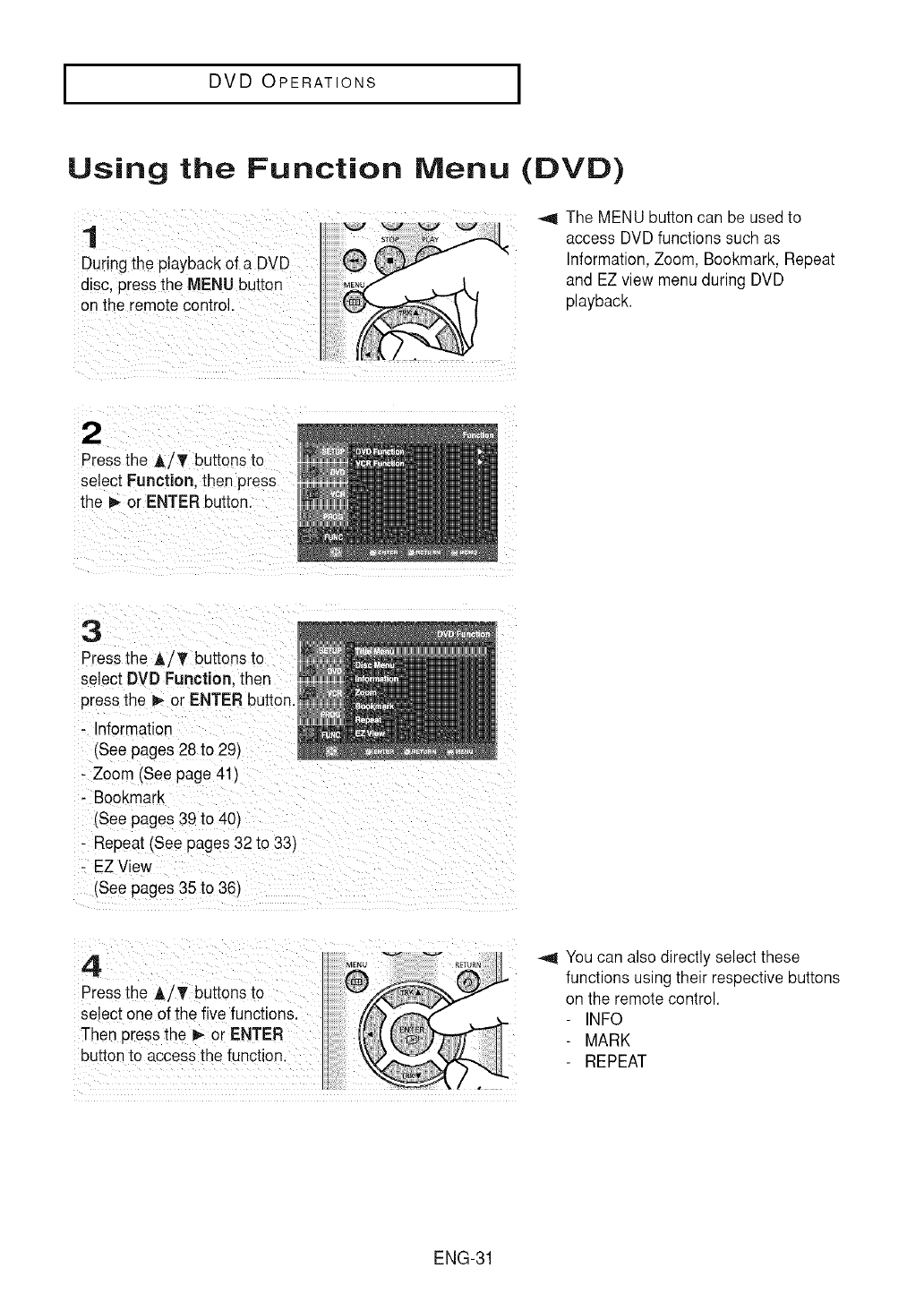
_,_ The MENU button can be used to
access DVD functions such as
Information, Zoom, Bookmark, Repeat
and EZ view menu during DVD
playback.
Press the _/_' buttons to
select Function, then press
the I_ or ENTER button.
Pressthe A/_' buttons to
select DVD Functionl then
_Z0om (See page 41)
i Repeat (See pages 32 to 33)
EZ View
(see pages 35 to 36)
Pressthe Ai buttonsto
select one of the five functions.
Then press the i_ or ENTER
button to accessthe function.
_41You can also directly select these
functions using their respective buttons
on the remotecontrol.
INFO
-MARK
-REPEAT
ENG-31
I DVD OPERATIONS I
Repeat Play
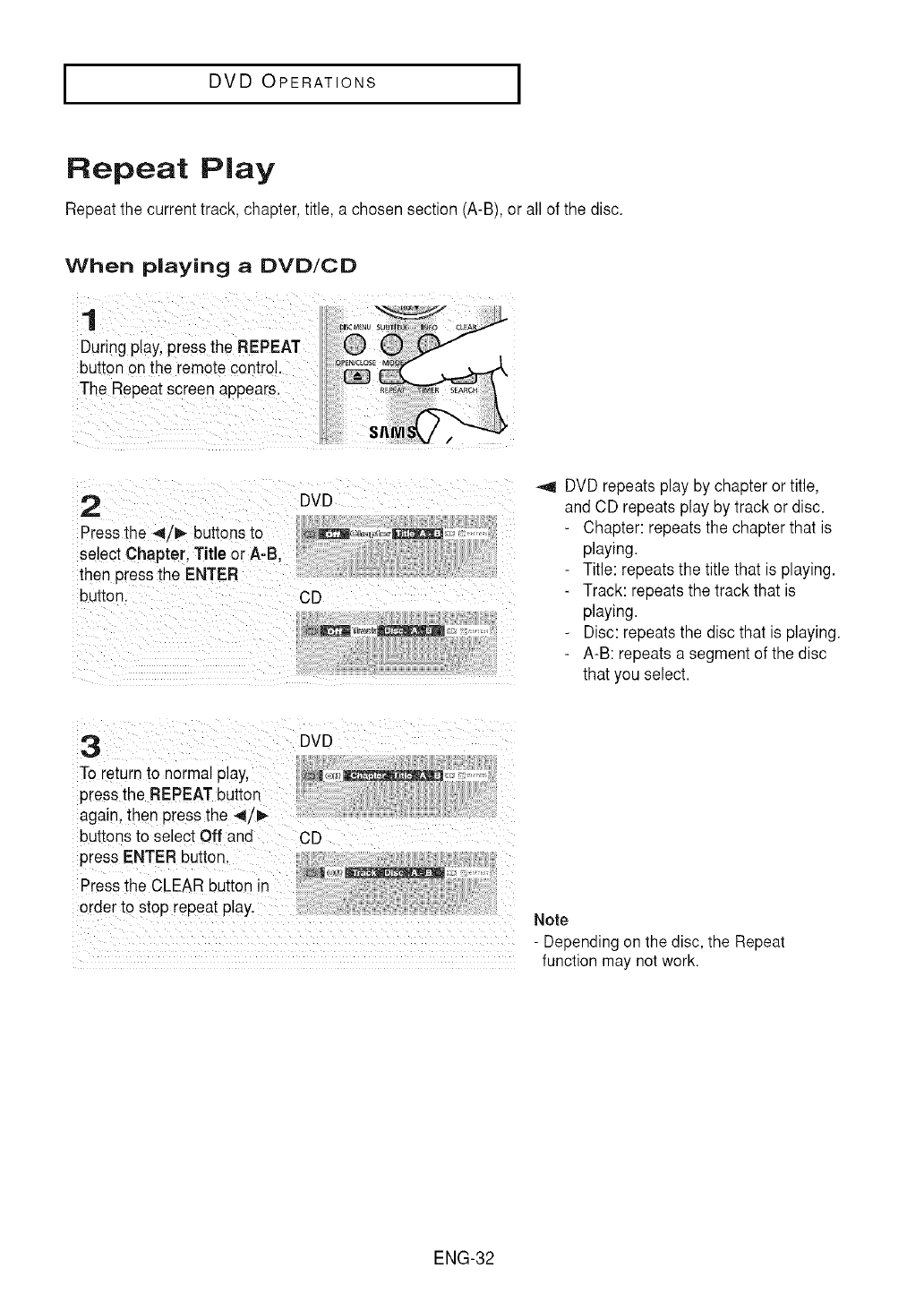
Repeat the current track, chapter, title, a chosen section (A-B), or all of the disc.
When playing aDVD/CD
DVD
2
Press the _1/1_buttons to
select Chapter, Title orA-B,
then press the ENTER
DVD repeats play by chapter or title,
and CD repeats play by track or disc.
Chapter: repeatsthe chapter that is
playing.
Title: repeatsthe title that is playing.
Track: repeats the track that is
playing.
Disc:repeats the disc that is playing.
A-B: repeats a segment of the disc
that you select.
press ENTER button.
Pressthe CLEAR button in
order to stop repeat pla_ Note
- Depending on the disc, the Repeat
function may not work.
ENG-32
I DVD OPERATIONS I
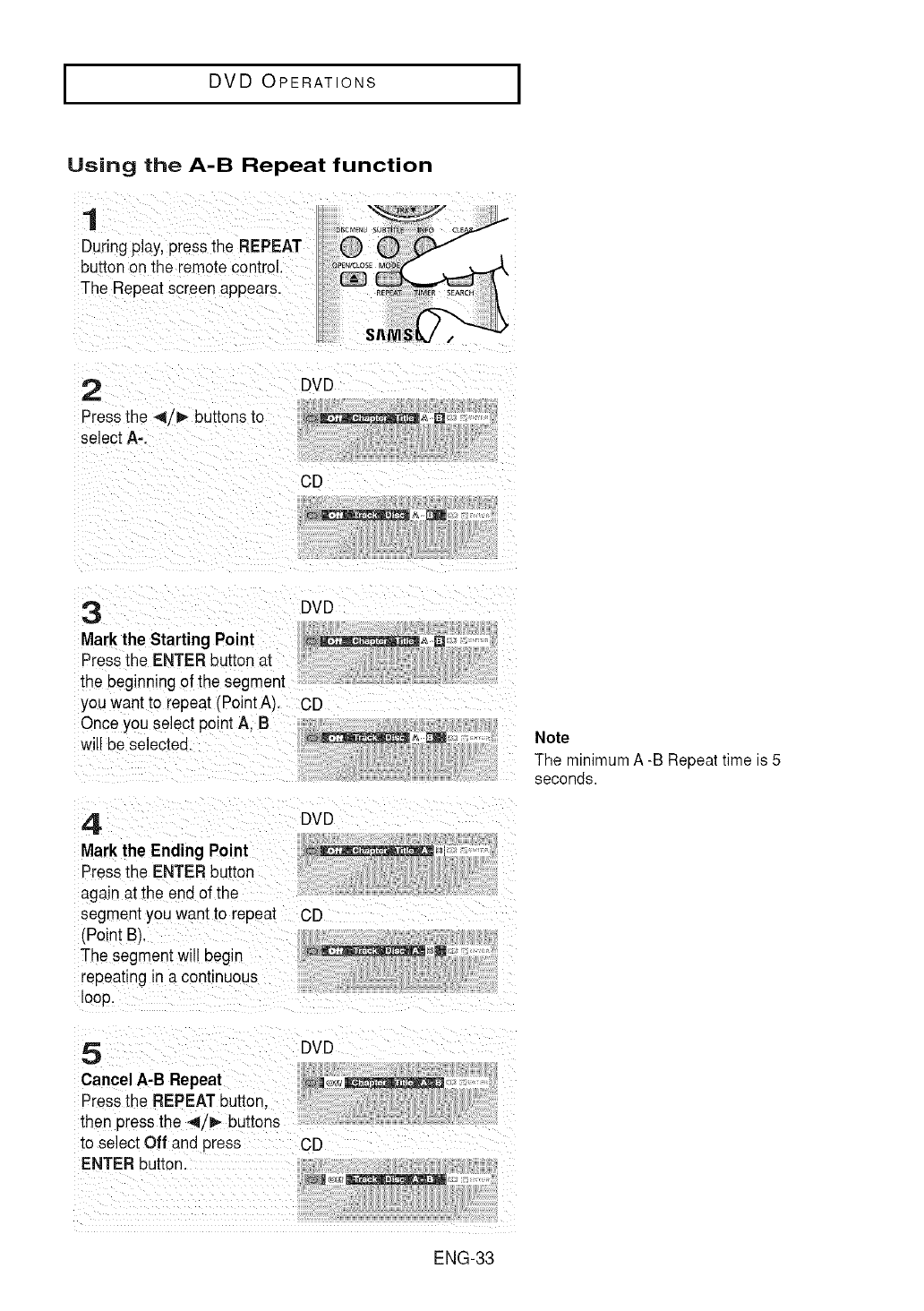
Using the A-B Repeat function
1
Duringplay, press the REPEAT
button on the remote control
The Repeatscreen appears.
ISCMau_
sn_
2 DVD
Press the 4/1_ buttons to @_E:_J,.,_
select A-.
CD
DVD
Markthe Starting Point ___._ Q
Pressthe ENTER button at
the beginningof the segment
you want to repeat (Point A). CD
Once you select point A. B
will be selected _ J_:_3_,- _:1
4
Markthe Ending Point
Press!meENTER button
again at the end of the
segment you want to repeat
(Point BI
The segment will begin
"epeating_na continuous
OOO,
DVD
CD
Note
The minimum A -B Repeat time is 5
seconds.
5 DVD
Cancel A-B Repea_ _J_o_,,_z_l_
Pressthe REPEATbutton.
then pressthe 4/1_ buttons
to select Off and press CD
ENTER button.
ENG-33
I DVD OPERATIONS I
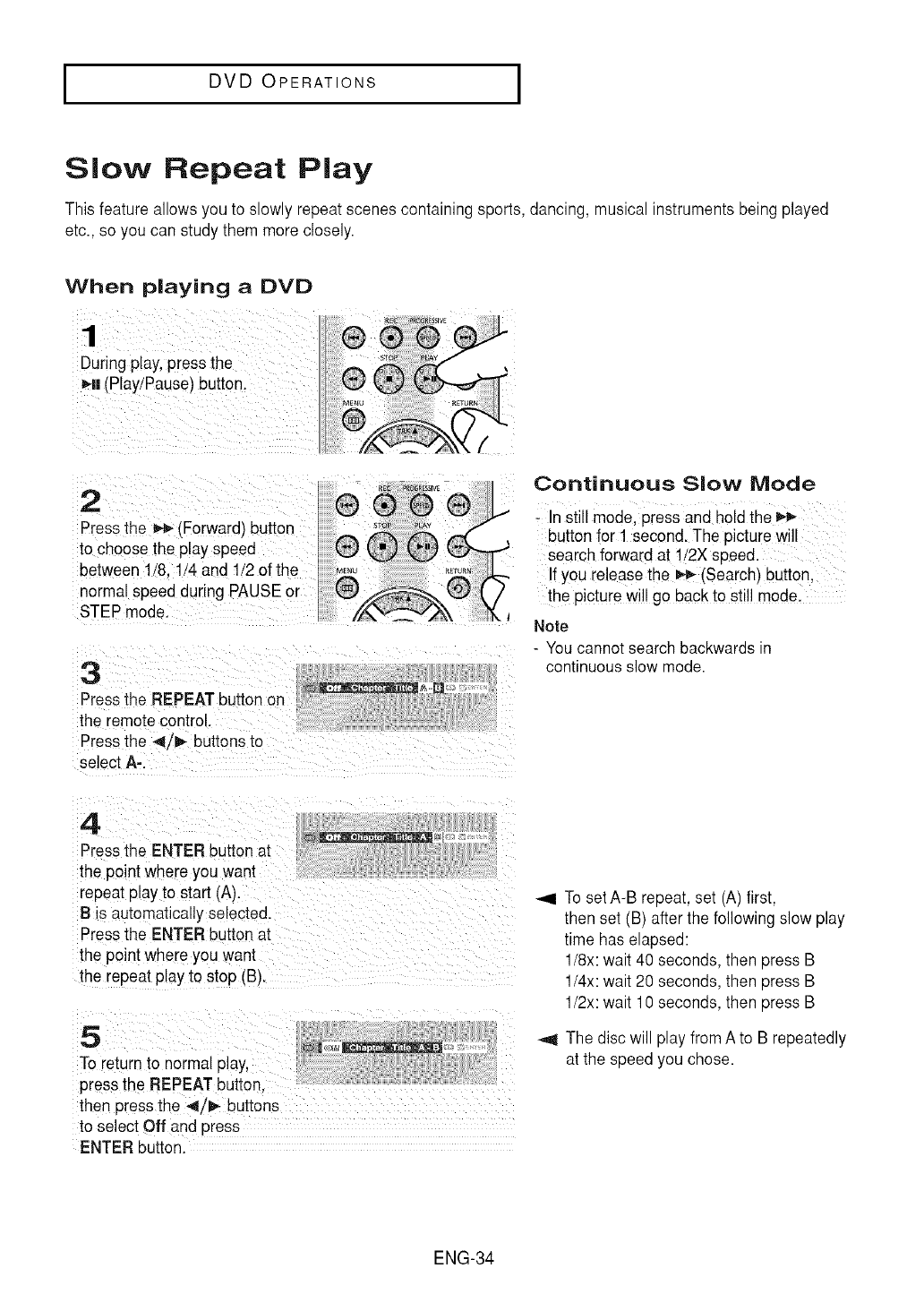
Slow Repeat Play
This feature allows you to slowly repeat scenes containing sports, dancing, musical instruments being played
etc., so you can study them more closely.
When playing aDVD
1
During play,press the
Hi (Play/Pause} button.
2
Pressthe _ _Forwardl3utton
to choose the play speed
between 1/8.1/4 and 1/2 of the
normal speed during PAUSEor
STEP mode.
3
Pressthe REPEAT button on
the remote control.
Pressthe 4/1_ buttons to
select A-.
Continuous Slow Mode
- In still mode, press and hold the
buttonfor 1 second. The picture will
search forward at 1/2X speed.
If you release the _ CSearch'_button,
the picture will go back to still mode.
Note
- You cannot search backwards in
continuous slow mode.
4
repeat playto start (A).
B is automatically se ected.
Pressthe ENTER button at
the point where you want
the repeat play to stop (B
5 _ {,_I_l_l_
TOreturn to normal 3lay,
press the REPEAT button.
then press the 4/1_ buttons
to select Off and press
ENTER button.
_1 To set A-B repeal, set (Ap first,
[hen set (B after the following slow play
time has etapseo:
1/8x: watt 40 seconds, then press B
1/4x: watt 20 seconds, then press B
1/2x: watt 10 seconds, then press B
_11The disc wil #ay fromA to B repeatedly
at the sDeedyou cnose.
ENG-34
I DVD OPERATIONS I
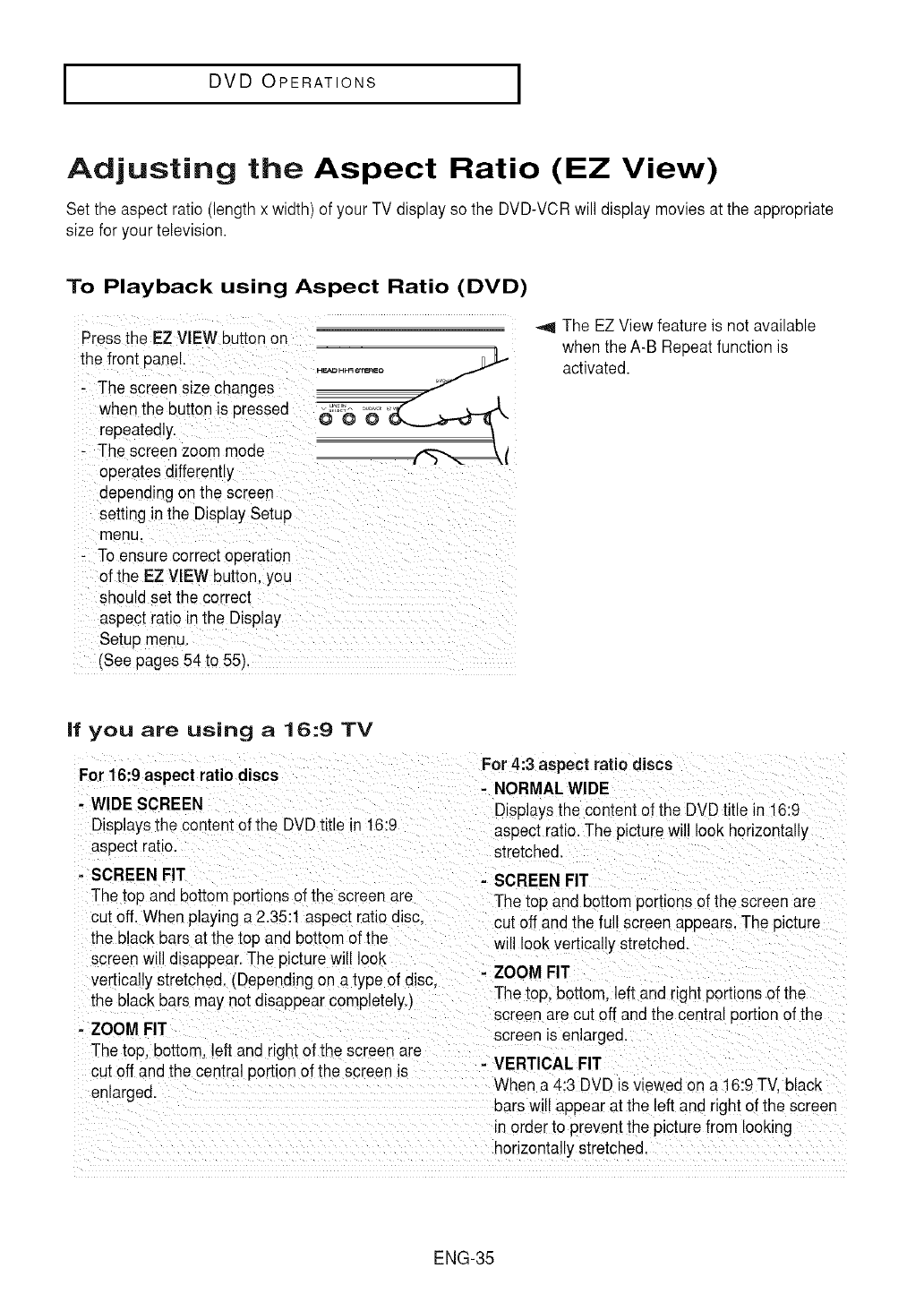
Adjusting the Aspect Ratio (EZ View)
Set the aspect ratio (length x width) of yourTV display so the DVD-VCRwill display movies at the appropriate
size for your television.
To Playback using Aspect Ratio (DVD)
ii ::if ¸ L: i
Press the EZ VIEW buttonon
the front Pane. ......
The spreen size changes ..
when the button is pressed d_'_ o_ ,_
repeatedly.
The screen zoom mode ,"_",<_l
operates differently ....
depending on the screen
setting in the Display Setup
menu.
ensure correct operation
of the EZ VIEW button, you
Shouldset the correct
aspect iatio inthe Display
Setup menu,
(See pages 54 to 55),
The EZ View feature is not available
when the A-B Repeat function is
activated.
If you are usin 9 a 16:9 TV
For 16:9 aspect ratio discs
- WIDE SCREEN
Displaysthe content of the DVDtitle in 16:9
aspect ratio.
-SCREEN FIT
The top and bottom portions of the screen are
cut off. When playing a 2.35:1 aspect ratio disc.
the black bars at the top and bottom of the
screen will disappear.The picture will look
vertically stretched. (Depending on a type of disc.
the black bars may not disappear completely.)
- ZOOM FIT
The top. bottom, left and right of the screen are
cut off and the central portion of the screen is
enlarged.
For 4:3 aspect ratio discs
- NORMALWIDE
Displaysthe contentof the DVDtitle in 16:9
aspect ratio.The picturewill look horizontally
stretched
- SCREEN FIT
Thetop and bottom portions of the screen are
cut off anc the full screen appears. The picture
will look vertically stretched.
- ZOOM FIT
The top, bottom, left and right peruons of the
screen are cut off and the central portion of the
screen is enlarged.
- VERTICAL FIT
When a 4:3 DVD isviewed on a 16:9 TV. black
barswill appear at the left and right of the screen
rnorderto preventthe picture from looking
horizontally stretched.
ENG-35
I DVD OPERATIONS I
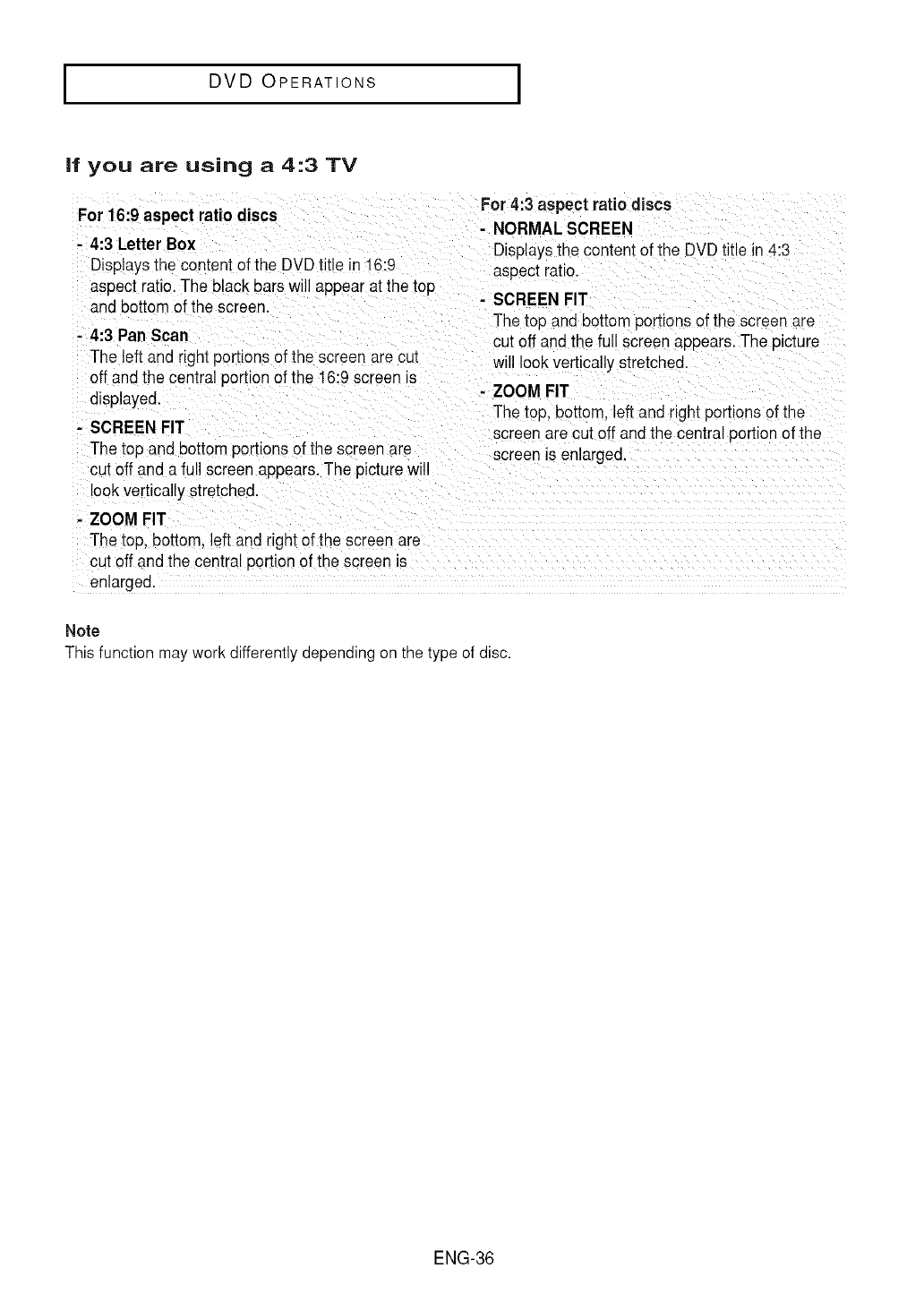
If you are using a 4:3 TV
For 16:9 aspect ratio discs
- 4:3 Letter Box
Displaysthe contenI of the DVDtitle in 16:9
aspect ratio.The black bars will appear at the top
and bottom of the screen.
-4:3 Pan Scan
The left and right portions of the screen are cut
off and the central portion of the 16:9 screen is
displayed.
- SCREEN FIT
The top and bottom portions of the screen are
cut off and a full screen appears.The picturewill
look vertically stretched.
For 4:3 aspect ratio discs
- NORMAL SCREEN
Displaysthe content of the DVDtitle in 4:3
aspect ratio.
- SCREEN FIT
The top and bottom portions of the screen are
cut off and the full screen appears.The picture
will look vertically stretched.
- ZOOM FIT
The top, bottom, left and right oomons of the
screen are cut off andthe central portion of the
screen is enlarged.
- ZOOM FIT
The top, bottom, left and right ofthe screen are
cut off and the central portion of the screen is
enlarged.
Note
This function may work differently depending on the type of disc.
ENG-36
I DVD OPERATIONS I
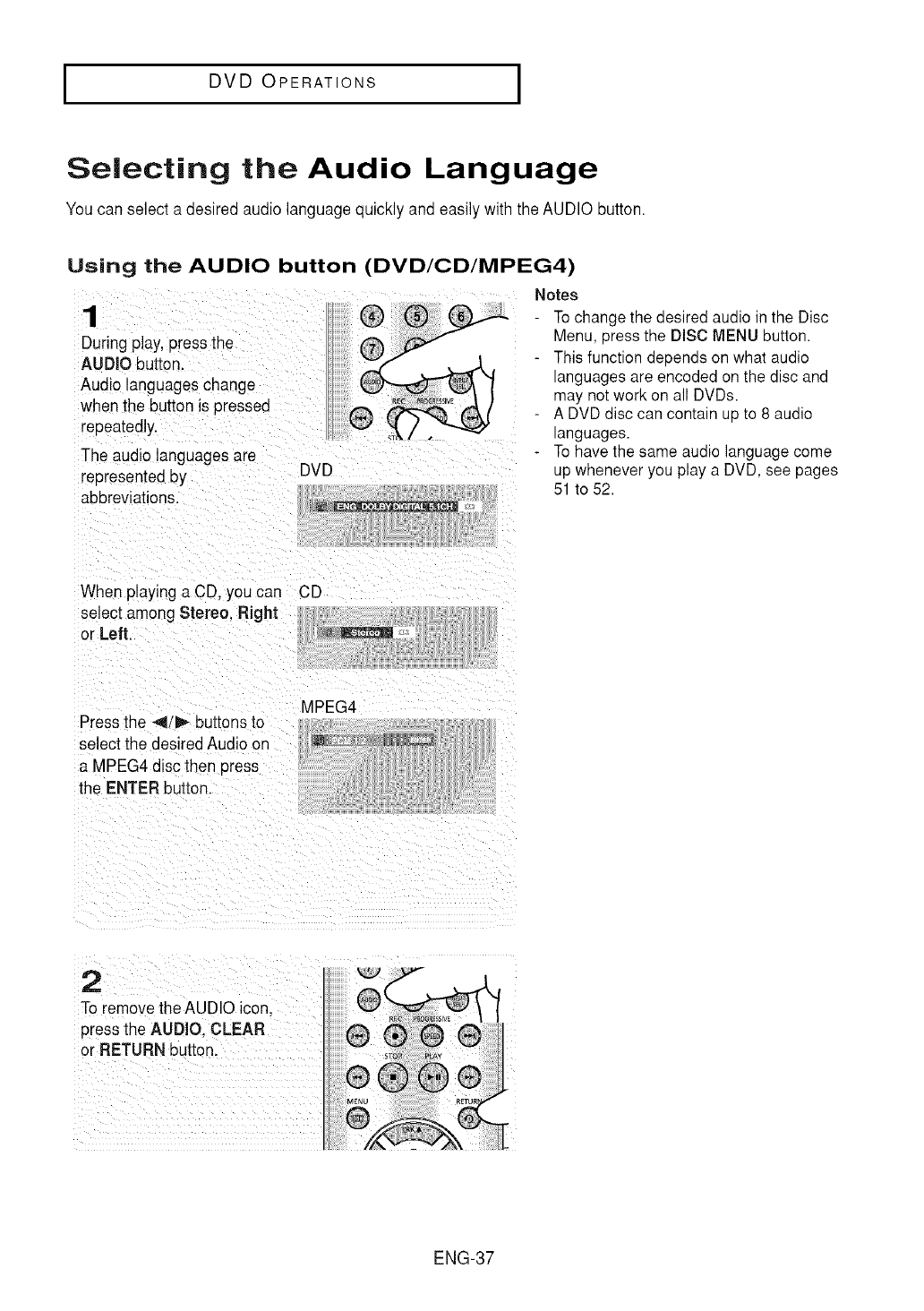
Selecting the Audio Language
You can select adesired audio language quickly and easily with the AUDIO button.
Using the AUDIO button (DVD/CD/MPEG4)
Notes
1
Duringplay, press the
AUDIO button.
Audio languages change
when the button is pressed
"epeatedly.
The audiolanguages are
"epresentedby
abbreviations.
DVD
To change the desired audio in the Disc
Menu, press the DISC MENU button.
This function depends on what audio
languages are encoded on the disc and
may not work on all DVDs.
A DVD disc can contain up to 8 audio
languages.
To have the same audio language come
up whenever you play a DVD, see pages
51 to 52.
When playing a CD, you can CD
select among Stereo. Right
or Left. _
Press the 4, I_ buttons to
select the desired Audio on
a MPEG4 discthen press
the ENTER button.
MPEG4
ENG-37
I DVD OPERATIONS I
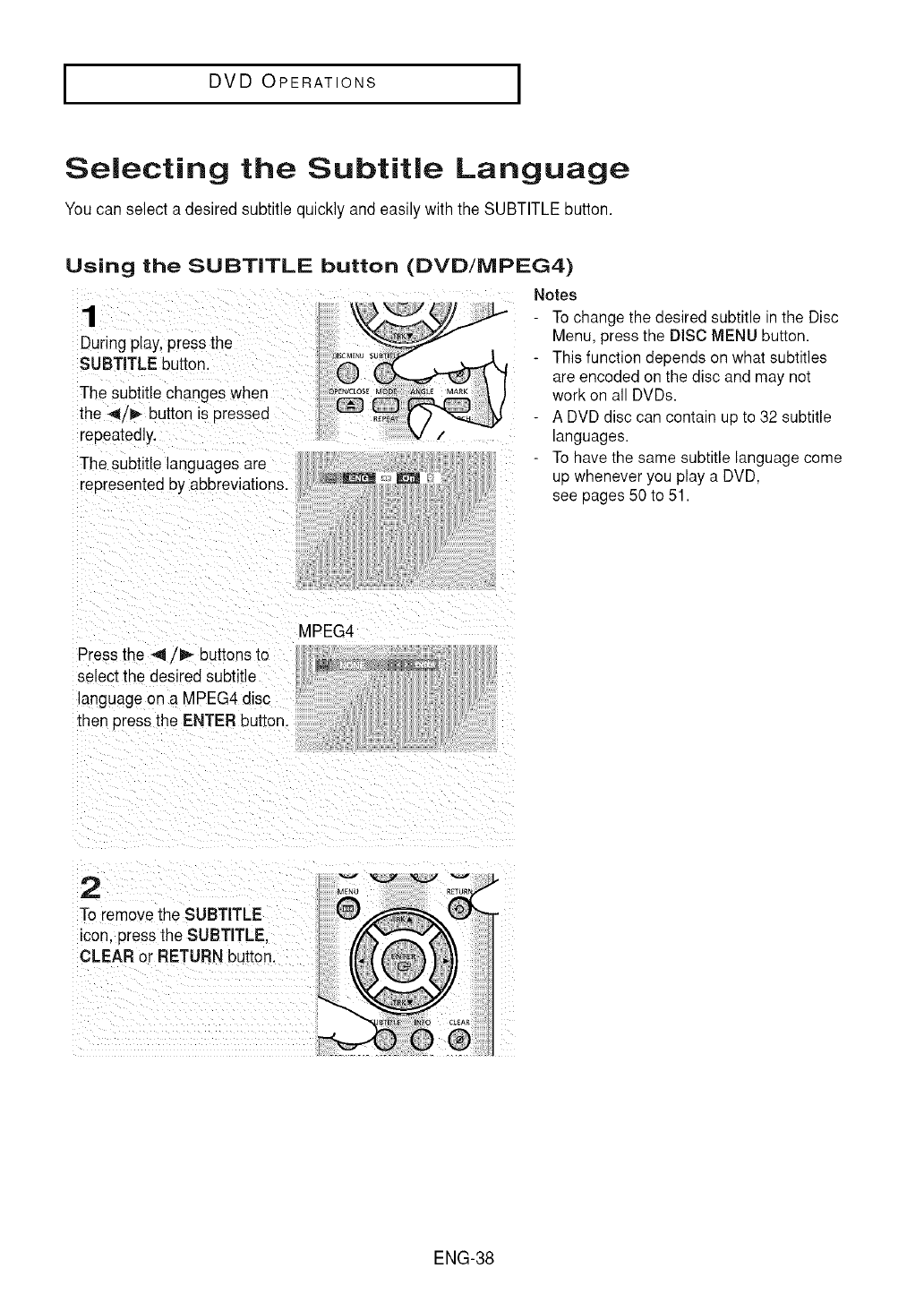
Selecting the Subtitle Language
Youcan select a desired subtitle quickly and easily with the SUBTITLE button.
Using the SUBTITLE button (DVD/MPEG4)
Notes
1
During play,press the
SUBTITLE button.
The subtitle changes when
the _/1_ button )s pressed
repeatedly.
The subtitle languages are
represented by abbreviations.
- To change the desired subtitle in the Disc
Menu, press the DiSC MENU button.
- This function depends on what subtitles
are encoded on the disc and may not
work on all DVDs.
- A DVD disc can contain up to 32 subtitle
languages.
- To have the same subtitle language come
up whenever you play a DVD,
see pages 50 to 51.
Press the 4/1_ buttons to
selectthe desired subtitle
language on a MPEG4 disc
then pressthe ENTER button.
MPEG4
2
To remove the SUBTITLE
)con,press the SUBTITLE.
CLEAR or RETLIRN button.
ENG-38
I DVD OPERATIONS I
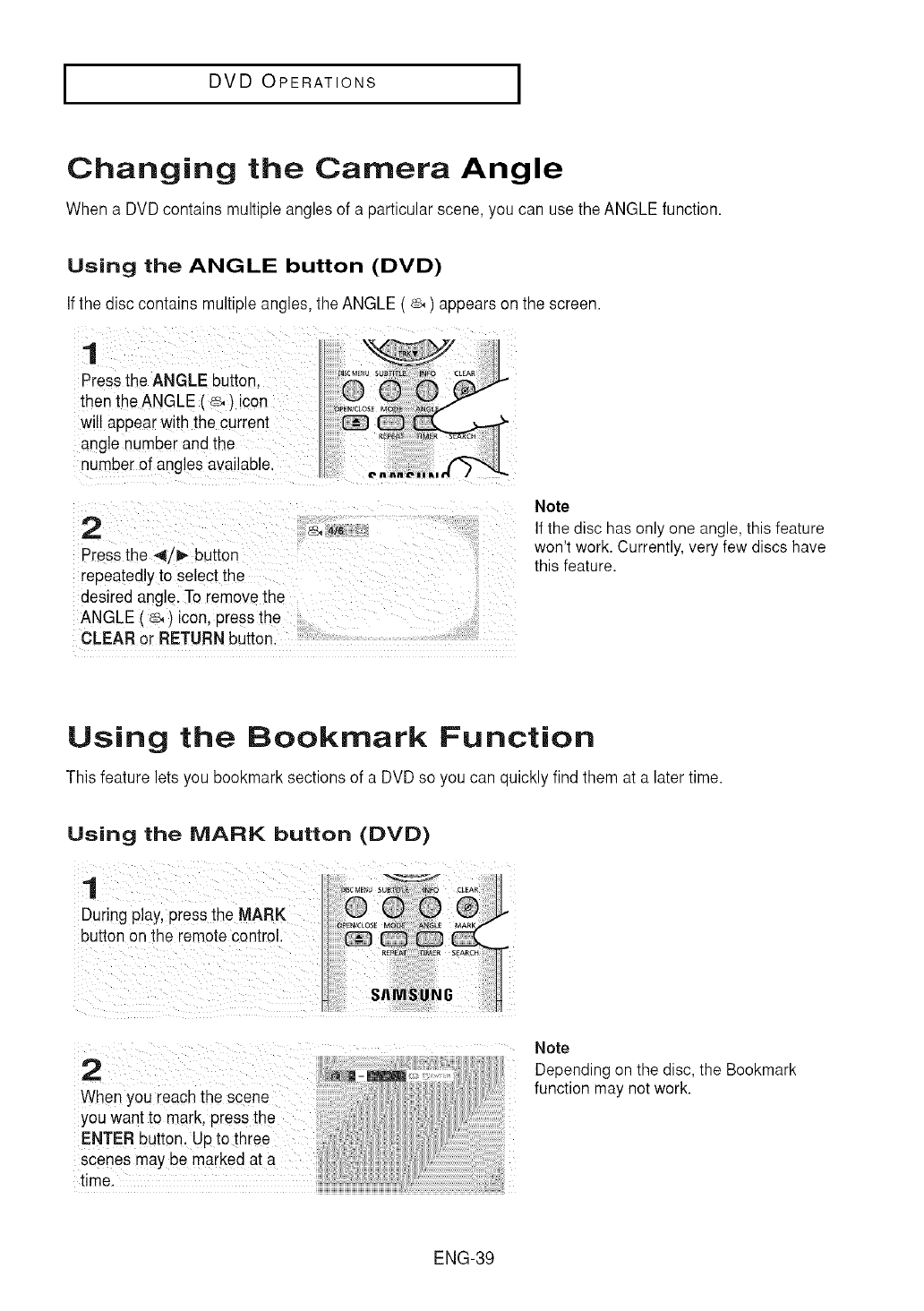
Changing the Camera Angle
When a DVD contains multipleangles of a particular scene, you can use the ANGLE function.
Using the ANGLE button (DVD)
If the disc contains multipleangles, the ANGLE ( _ ) appears on the screen.
1
Pressthe ANGLE button.
then the ANGLE ( _ / icon
will appearwith the current
angle number and the
qumberof angles available.
2
Pressthe 4/_,- button
"epeatedlyto select the
desired angle To removethe
ANGLE ( _ ) icon, press the
CLEAR or RETURN button.
¸'4/8
Note
If the disc has only one angle, this feature
won't work. Currently, very few discs have
this feature.
Using the Bookmark Function
This feature lets you bookmark sections of a DVDso you can quickly find them at a later time.
Using the MARK button (DVD)
Note
Depending on the disc, the Bookmark
When you reach the scene function may not work.
you want to mark, press the
ENTER button. Up to three
Scenes may be marked at a
time
ENG-39
I DVD OPERATIONS I
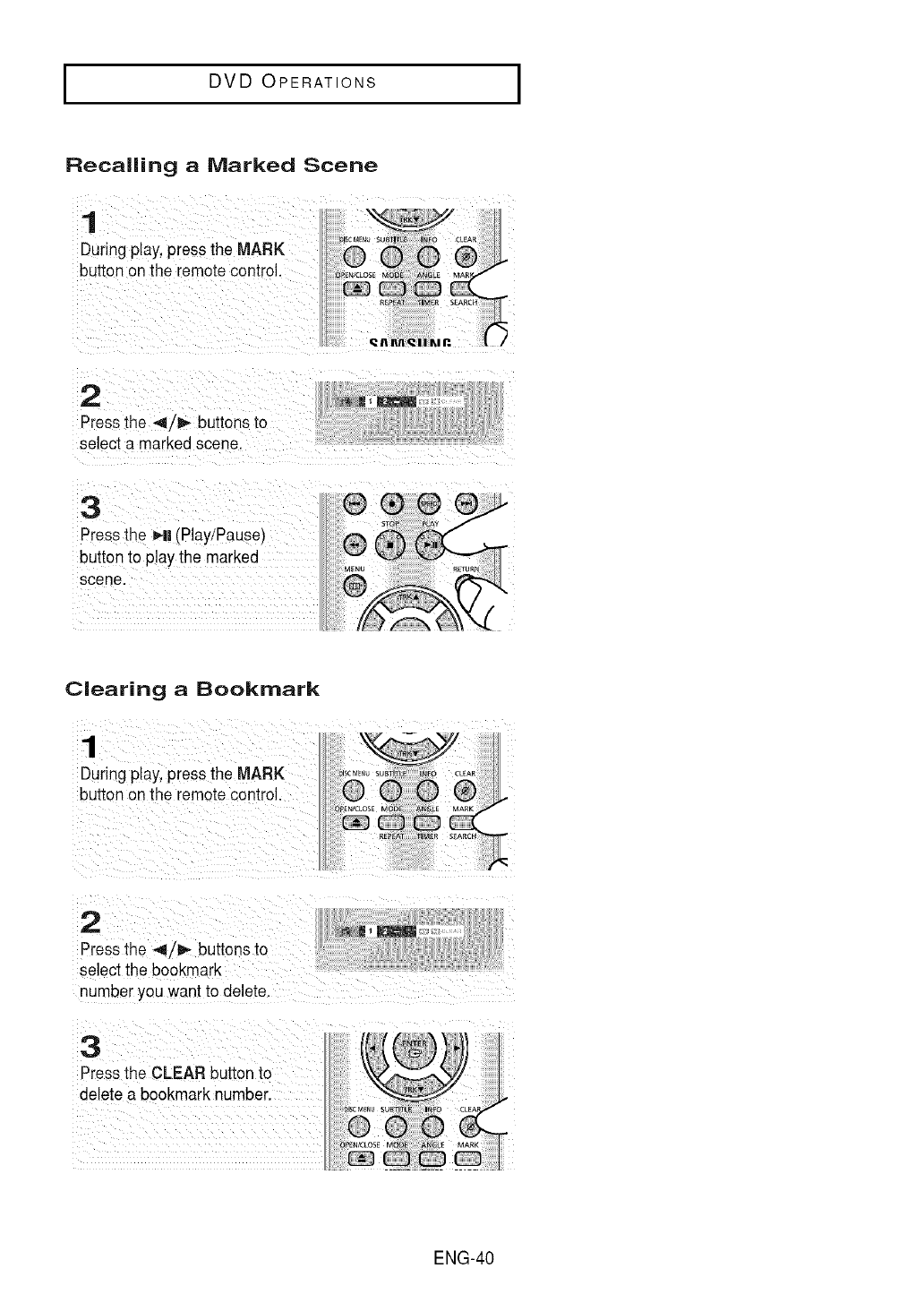
Recalling aMarked Scene
1
During play:press the MARK
_t_ononthoremotoCon_ro,,
Press the _,1!(Play!Pause)
button to p!ay the marked
scene.
Clearing aBookmark
1
During play,press the MARK
button on the remotecontrol.
2
Pressthe 4/_ buttons to
select the bookmark
number you want to delete,
3
Pressthe CLEAR button to
delete a bookmark number.
ENG-40
I DVD OPERATIONS I
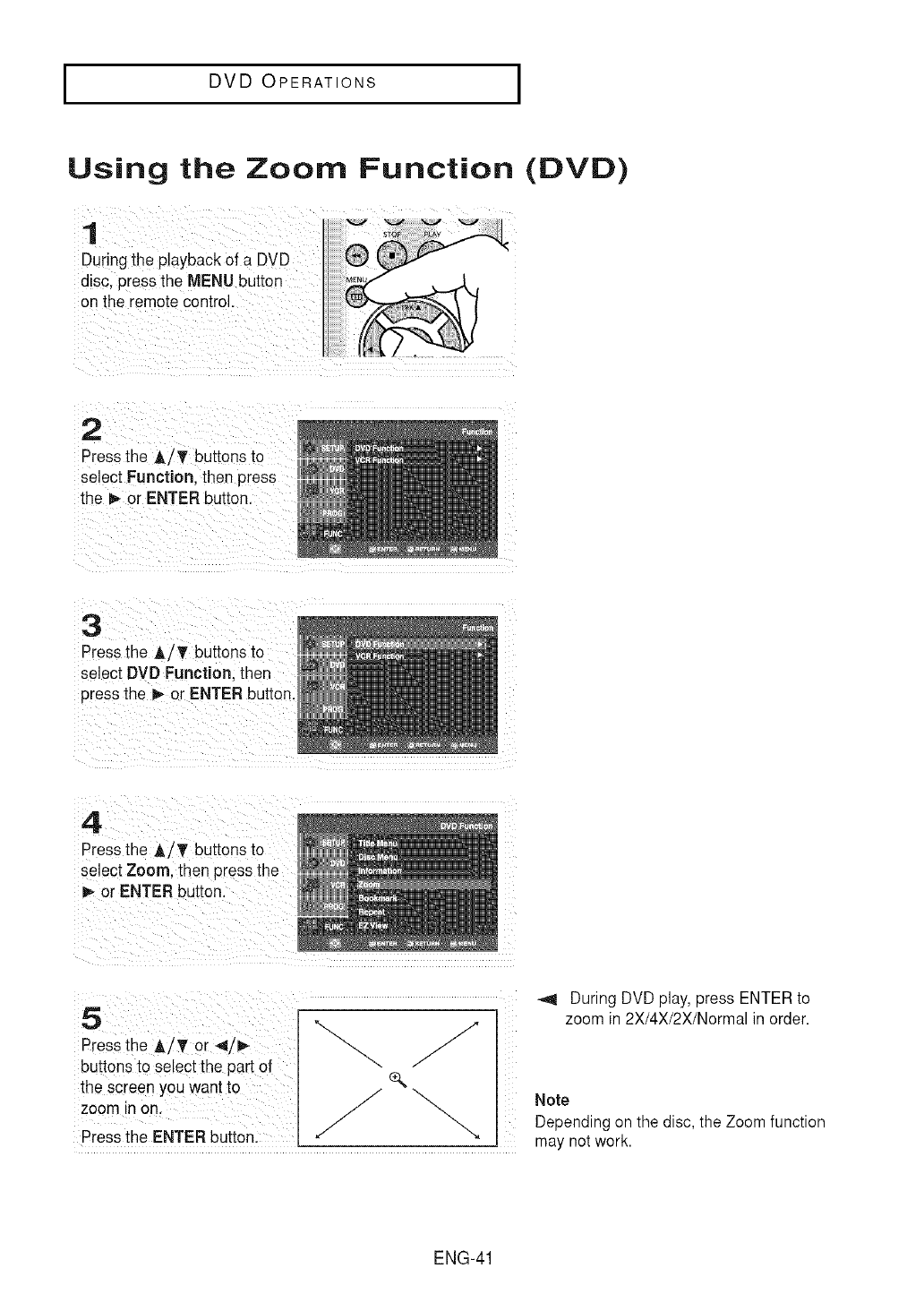
Using the Zoom Function (DVD)
1
Duringthe playback of a DVD
disc. press the MENU button
on the remote control.
2
Pressthe AiT buttons to
select Function.then press
the _ or ENTER button.
3
Pressthe A/T buttons to
seJectDVD Function.then
press the _ or ENTER button
4
Pressthe A/T buttons to
select Zoom. then Dressthe
_- or ENTER button.
5
Pressthe ,_/T or 4/1_
buttons to select the part of
the screen you want to
zoom in on.
Pressthe ENTER button
'x e,,
-_1 During DVDplay, press ENTER to
zoom in 2X/4X/2X/Normal in order.
Note
Depending on the disc, the Zoom function
may not work.
ENG-41
I DVD OPERATIONS I
Clips Menu for MP3/WMA/JPEG/MPEG4 Files
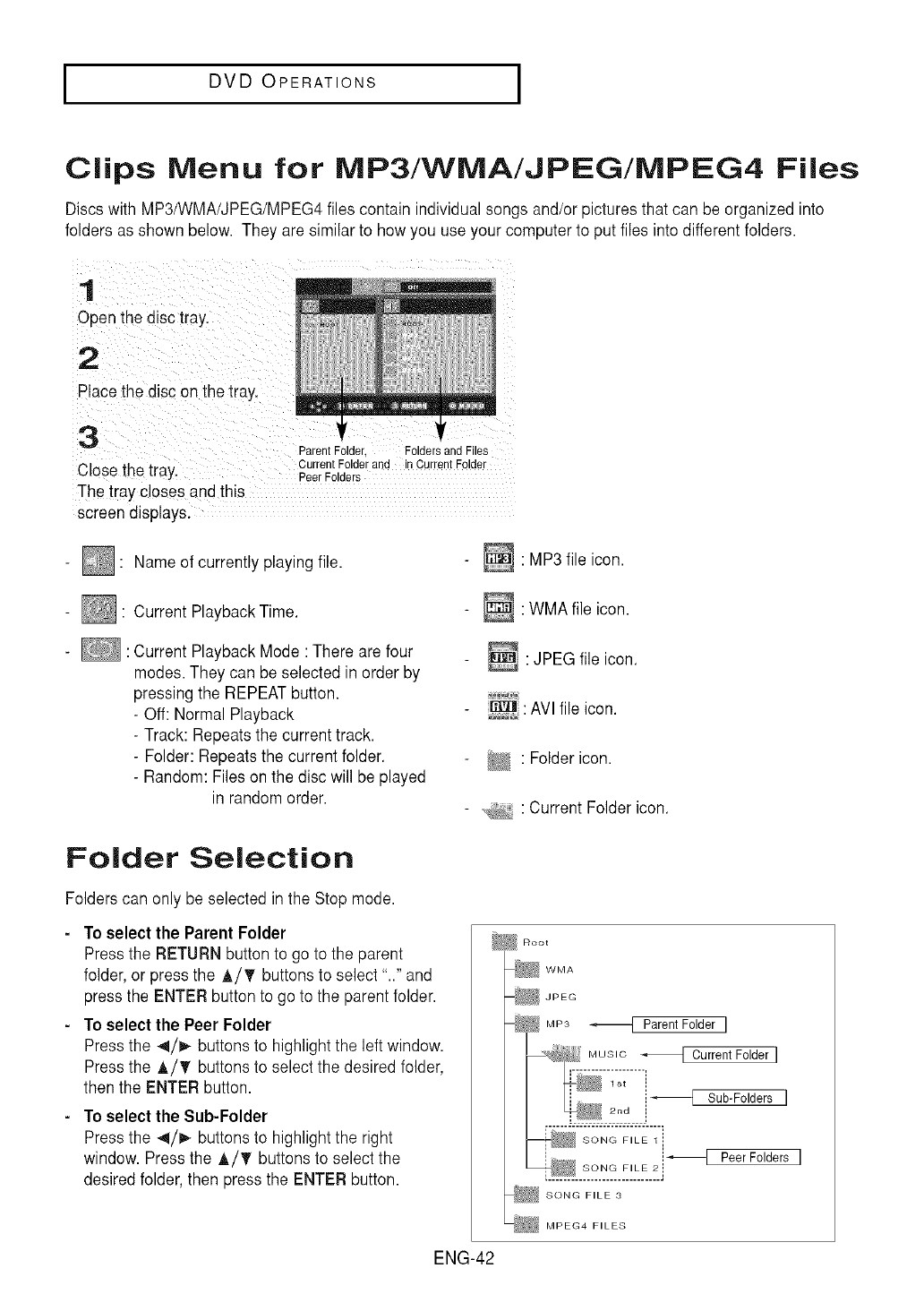
Discs with MP3/WMA/JPEG/MPEG4files contain individual songs and/or pictures that can be organized into
folders as shown below• They are similar to how you use tour computer to put files into different folders.
1
Open the disc tray.
2
Place the disc on the tray
tt
Parent Folder, Folders and Files
Close the tray. Current Folder and in Current Folder
Peer Folders
The tray closes and th_s
screen displays.
- I_ Nameof currently playing file•
-_ : Current PlaybackTime.
-: Current Playback Mode : There are four
modes•They can be selected in order by
pressing the REPEATbutton.
-Off: Normal Playback
-Track: Repeats the current track•
-Folder: Repeats the current folder.
-Random: Files on the disc will be played
in random order•
•MP3 file icon.
•WMA file icon.
•JPEG file icon.
o_ : AVI file icon.
• Folder icon.
•Current Folder icon.
Folder Selection
Folders can only be selected in the Stop mode•
- To select the Parent Folder
Pressthe RETURN buttonto go to the parent
folder, or press the A/T buttons to select ".." and
pressthe ENTER button to go to the parent folder.
- To select the Peer Folder
Pressthe 4/1_ buttons to highlight the left window•
Pressthe A!T buttons to select the desired folder,
then the ENTER button•
To select the Sub-Folder
Pressthe 4/_- buttons to highlight the right
window. Pressthe A/T buttons to select the
desired folder,then press the ENTER button.
WMA
JPEG
MP3 _1 Parent Folder I
MNStC _ Current Folder I
i
SONG FILE 1 !!
I Peer Folders I
SONG FILE 3
..EO4F,.E
ENG-42
I DVD OPERATIONS I
MP3/WMA Playback
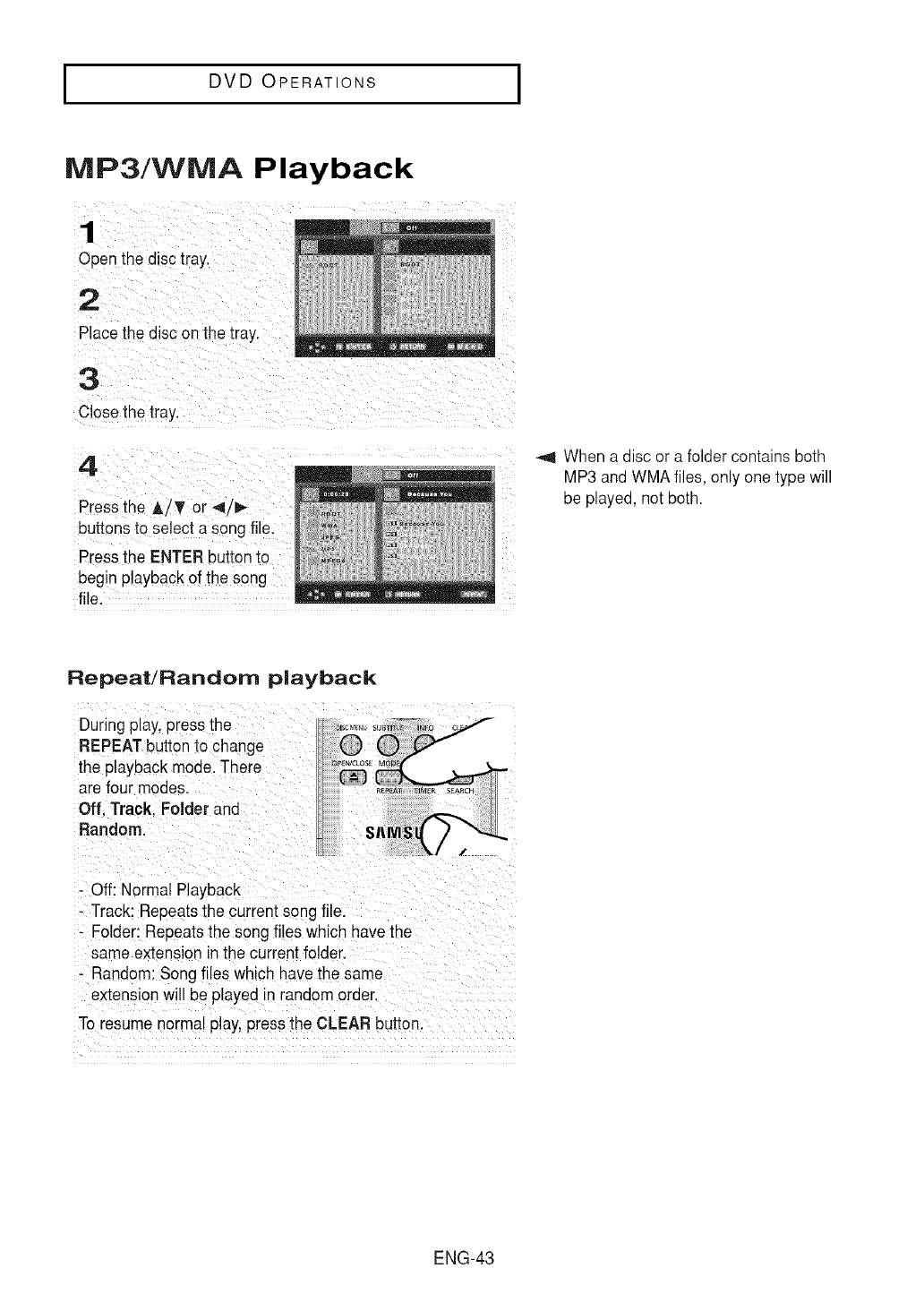
PlaCe the disc en the iray:
buttons to select a song file:
Pressthe ENTER buttonto
begin Playbackof the song
file.
When a disc or a folder contains both
MP3 and WMA files, only one type will
be played, not both.
Repeat/Random playback
During play, pressthe
REPEATbutton to change
the playback mode.There
arefour modes.
Off. Track. Folder and
Random.
_, SU_T FO c
N/CLOSE
S
- Off: Normal Playback
- Track: Repeatsthe current song file.
- Folder: Repeats the song files which have the
same extension in the current folder.
- Random: Song files which aave the same
extension will be played in random order.
To resume normal play,press the CLEAR button
ENG-43
I DVD OPERATIONS I
CD-R MP3/WMA files
When you record MP3 or WMA files on a CD-R,
please refer to the following.
-Your MP3 or WMA files should be ISO 9660 or
JOLIET format.
ISO 9660 format anaJoliet MP3 or WMAfiles are
compatible with Microsoft's DOS and Windows.
and withApple's Mac.This format is the most
widely used.
- When namingyour MP3 or WMA files, do not
exceed 8 characters, and enter ".mp3, .wma"
as the file extension.
General name format : Title.mp3. or Title.wma.
When composing your title, make sure that you
use 8 characters or less. have no spaces in the
name. ana avoid the use of special characters
including: (.,/,\,=,+).
-Use a decompression transfer rate of at least
128 Kbps when recording MP3 files.
The sound quality of MP3 files basically depends
on the rate of compression/decompressionyou
choose. Getting CD audio sound requires an
analog/digital sampling rate.that is conversion to
MP3 format, of at least 128 Kbpsand up to 160
-Usea decompression transfer rate of at least
64Kbps when recording WMA files.
-he sound quality of WMA files basically depends
on the rate of compression/decompression you
choose.
Getting CD audio souqdrequires an analog/digital
sampling rate. that is a conversion to WMAformat
of at least 64Kbps and up to 192Kbps.
Conversely.files with decompression rates below
64Kbps or over 192Kbps will not be played
properly.
-Donot try recording copyright protected MP3
files.
Certain "secured" files are encrypted and code
protectedto prevent illegal copying.These files
areof the following types:Windows MediaTM
[registered trade markof Microsoft Inc_and
SDMITM [registered trade mark of The SDMI
Foundation}.You cannot copy such files.
-Important:
The above recommendationscannot betaken as
a guaranteethat the DVD-VCRwill play MP3
recordings,or as an assurance of sound quality.
Kbps. However,choosing higher rates, like 192 You should note that certain technologies and
Kbps or more, only rarely give better sound methods for MP3 file recording on CD-Rs prevent
quality. Conversely,files with decompression rates optimal playback of these files on your DVD-VCR
below 128 Kbps will not be played properly. (degradedsound quality and in some cases.
inabilityof the player to readthe files).
- This unit can play a maximum of 3000 files and
300 folders per disc.
ENG-44
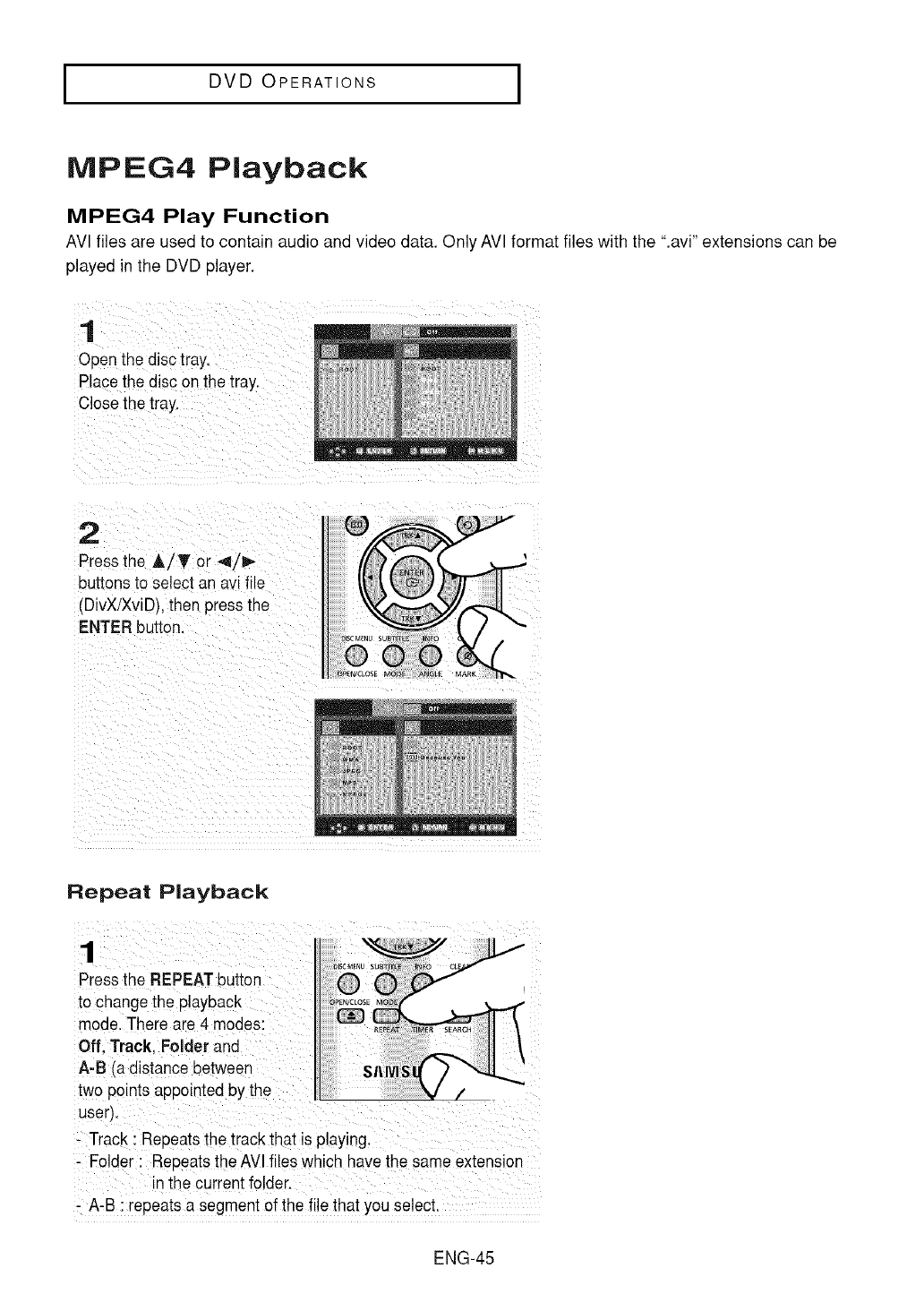
I DVD OPERATIONS I
MPEG4 Playback
MPEG4 Play Function
AVI files are used to contain audio and video data. Only AVI format files with the ".avi" extensions can be
played in the DVD player.
Open the disc tray.
Place the disc on the tray.
Closethe tray.
2
Pressthe A/T or 4/!_
buttons to select an avi file
(DivX/XviD),then pressthe
ENTER button.
Repeat Playback
: Folder : Repeatsthe AVl files which have the same extension
- A-a :repeats a segment 0fthe !lie that you select.
ENG-45
I DVD OPERATIONS I
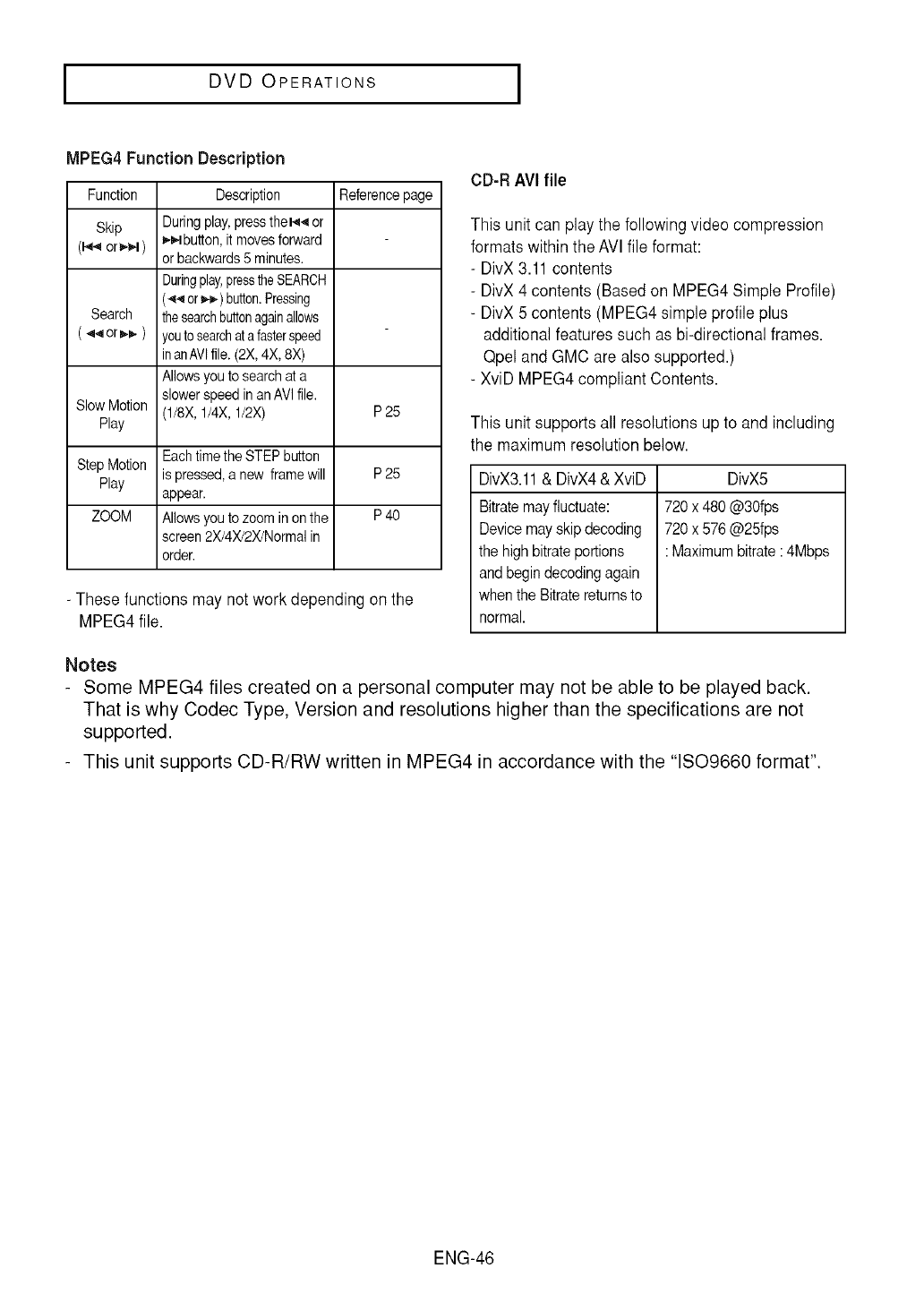
MPEG4 Function Description
Function
Skip
(_4 orbs4)
SlowMotion
Play
Description
During play, press the_._ or
_button, it moves forward
or backwards 5 minutes.
Duringplay,pressthe SEARCH
(_ or _) button.Pressing
the searchbuttonagainallows
/outo searchat a fasterspeed
in anAVl file. (2X, 4X, 8X)
Allows you to search at a
slower speed in an AVl file.
(1/8X, 1/4X, 1/2X) P 25
Step Motion P 25
Play
ZOOM P 40
Each time the STEP button
is pressed, a new frame will
appear.
Allows you to zoom in on the
screen 2X/4X/2X/Normal in
order.
Reference page
-These functions may not work depending on the
MPEG4 file.
CD-R AVIfile
This unit can play the following video compression
formats within the AVl file format:
-DivX 3.11 contents
-DivX 4 contents (Based on MPEG4 Simple Profile)
- DivX 5 contents (MPEG4 simple profile plus
additional features such as bi-directional frames.
Qpel and GMC are also supported.)
- XviD MPEG4 compliant Contents.
This unit supports all resolutions up to and including
the maximum resolution below.
DivX3.11 & DivX4 & XviD
Bitrate mayfluctuate:
Device may skip decoding
the high bitrateportions
and begin decoding again
when the Bitrate returnsto
normal.
DivX5
720 x 480 @30fps
720 x576 @25fps
: Maximum bitrate :4Mbps
Notes
Some MPEG4 files created on a personal computer may not be able to be played back.
That is why Codec Type, Version and resolutions higher than the specifications are not
supported.
This unit supports CD-R/RW written in MPEG4 in accordance with the "1SO9660 format".
ENG-46
I DVD OPERATIONS I
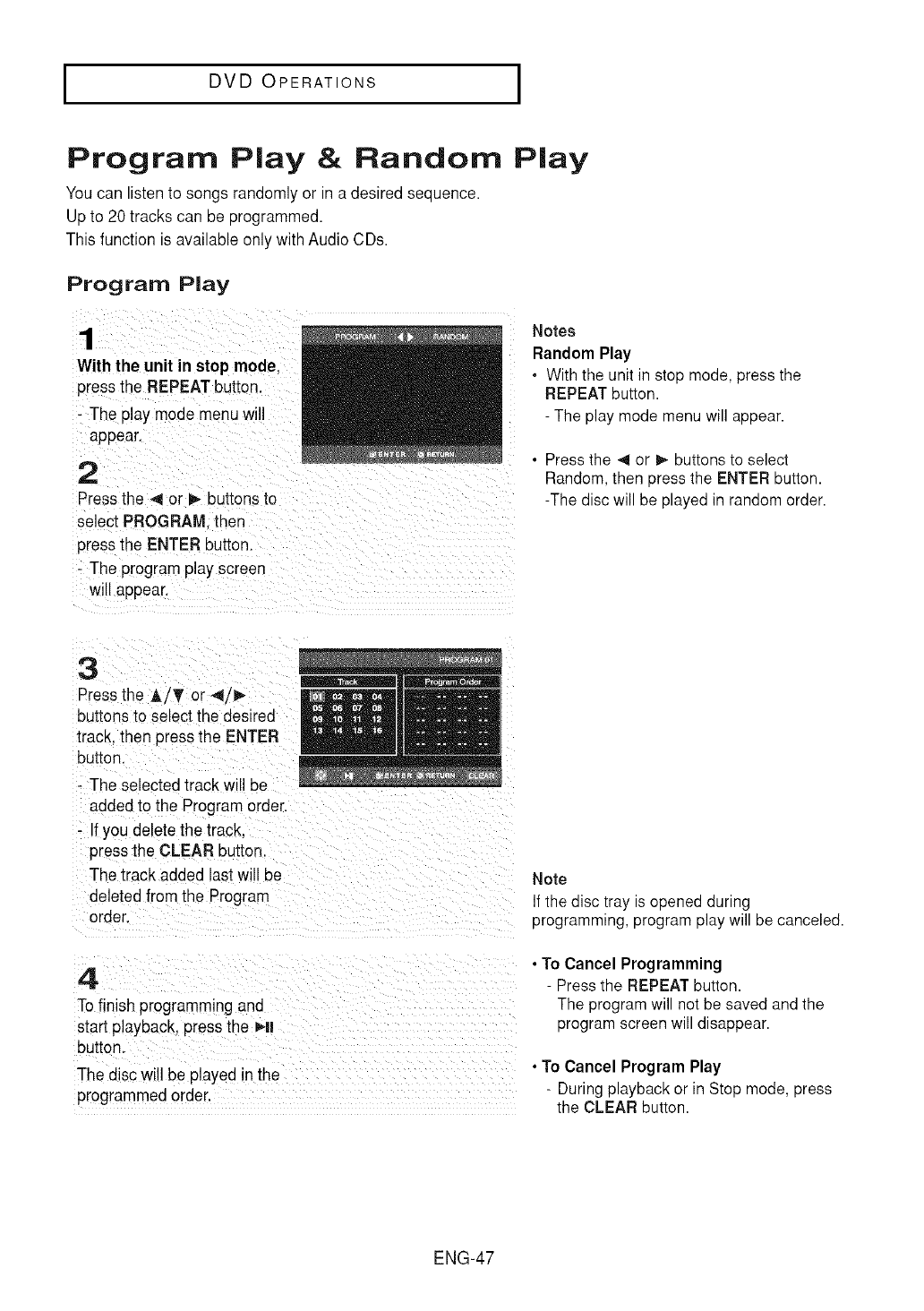
Program Play &Random Play
You can listento songs randomlyor in a desired sequence.
Up to 20 tracks can be programmed.
This function is available only withAudio CDs.
Program Play
1
With the unit in stop mode.
pressthe REPEATbutton
- The play mode menu will
appear.
2
Pressthe 4 or _ buttons to
select PROGRAM.then
pressthe ENTER button.
-The program play screen
will appear.
Notes
Random Play
•With the unit in stop mode, press the
REPEAT button.
- The play mode menu will appear.
• Press the 41 or I_ buttons to select
Random, then press the ENTER button.
-The disc will be played in random order.
3
Pressthe &/T or 4/_-
buttons to select the desired
track, then press the ENTER
button.
- The selected track will be
addedto the Program order.
- If you delete the track.
press the CLEAR button
The track added last will be
deleted from the Program
order.
4
To finish programmingand
start playback, press the HI
button.
The disc will be played in the
programmedorder.
Note
If the disc tray is opened during
programming, program play will be canceled.
• To Cancel Programming
- Press the REPEAT button.
The program will not be saved and the
program screen will disappear.
• To Cancel Program Play
- During playback or in Stop mode, press
the CLEAR button.
ENG-47
I DVD OPERATIONS I
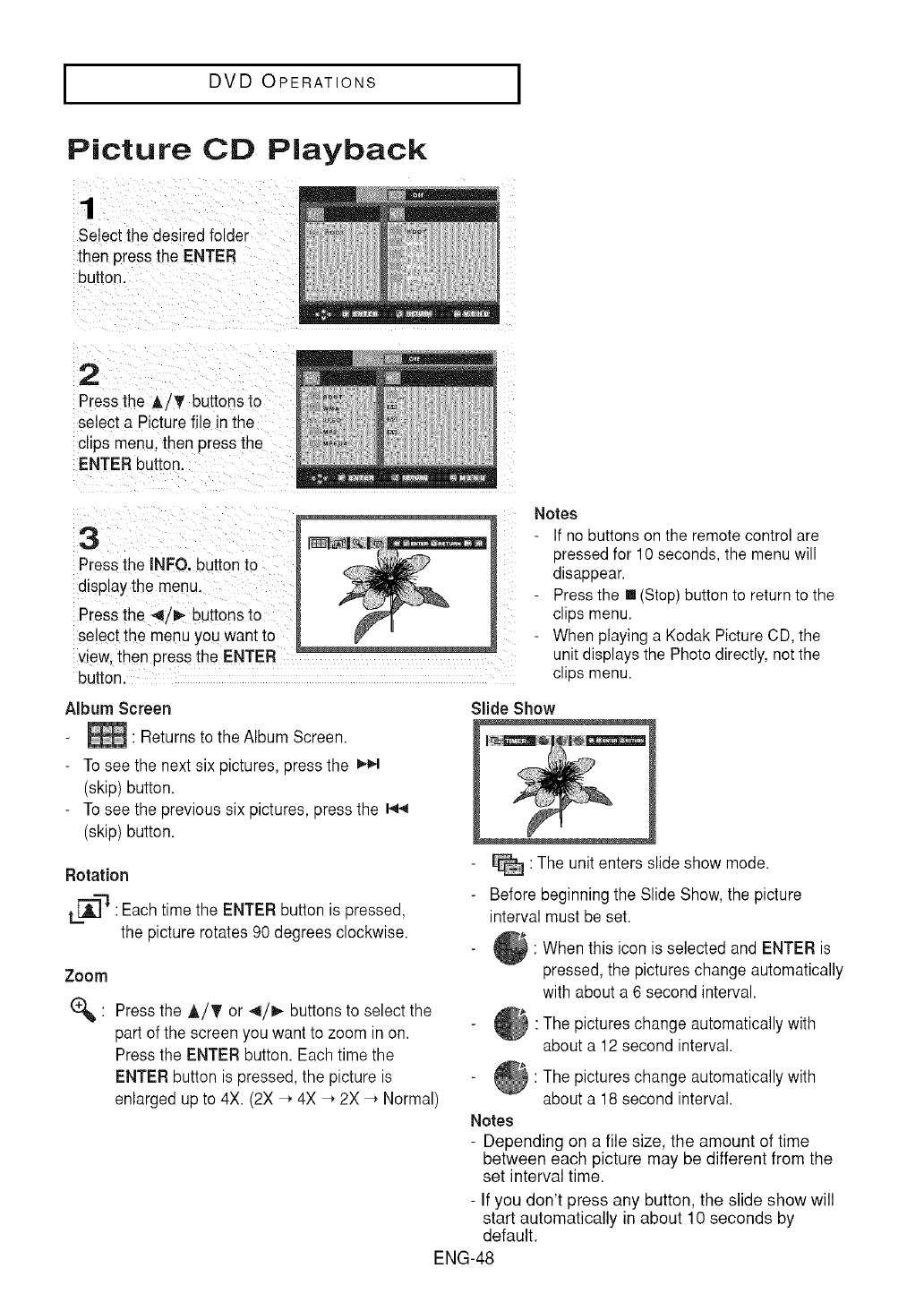
Picture CD Playback
1
Select the desired folder
then press the ENTER
button
2
Pressthe A/T buttons to
select a Picturefile in the
clips menu.then press the
ENTER button.
3
Pressthe INFO. button to
display the menu.
Pressthe 4/i_ buttons to
select the menuyou want to
view. then press the ENTER
button.
Notes
If no buttons on the remote control are
pressed for 10 seconds, the menu will
disappear.
Press the [] (Stop) button to return to the
clips menu.
When playing a Kodak Picture CD, the
unit displays the Photo directly, not the
clips menu.
Album Screen
_ Returns to the Album Screen.
To see the next six pictures, press the
(skip)button.
To see the previous six pictures, press the t-q4
(skip)button.
Rotation
L_"q: Each time the ENTER button is pressed,
the picture rotates 90 degrees clockwise.
Zoom
(_ : Pressthe A!T or 4/_- buttons to select the
part of the screen you want to zoom in on.
Pressthe ENTER button. Each time the
ENTER button is pressed, the picture is
enlarged up to 4X. (2X _ 4X _ 2X _ Normal)
Slide Show
: The unit enters slide show mode.
-Before beginningthe Slide Show, the picture
interval must be set.
: When this icon is selected and ENTER is
pressed, the pictures change automatically
with about a 6 second interval.
: The pictures change automatically with
about a 12 second interval.
: The pictures change automatically with
about a 18 second interval.
Notes
- Depending on a file size, the amount of time
between each picture may be different from the
set interval time.
- If you don't press any button, the slide show will
start automatically in about 10 seconds by
default,
ENG-48
I DVD OPERATIONS I
CD-R JPEG Discs
- Only files with the '.jpg" and ".JPG" extensions can be played.
- Ifthe disc is notfinalized, it will take longerto start playing and not all of the recorded files maybe played.
- Only CD-R discs with JPEG files in ISO 9660 or Joliet format can be played.
- The name of the JPEG file may not be longerthan 8 characters and should contain no blank spaces or
special characters (. /= +).
- Only a consecutivelywritten multi-session disc can be played. Ifthere is a blank segment inthe multi-
session disc. the disc can be played only Jp to the blank segmem,
- A maximumof 3000 images can be stored on a single CD.
- Kodak Picture CDs are recommenaed.
- When playing a Kodak Picture CD. only the JPEG files inthe pictures folder can be played.
- Kodak Picture CD: The JPEG files in the pictures foldercan be played automatically.
- Konica Picture CD: If you want to see the Picture. select the JPEG files from the clips menu.
- Fuji PictureCD: Ifyou want to see the Picture, select the JPEG files in the clips menu.
- QSS Picture CD: The unit may not play a QSS Picture CD.
- Ifthe number of files on one Disc is over 3000. only the first 3000 JPEG files can be played.
- f the number of folders on one Disc is over 300. only JPEG files in the first 300 folders can be played.
ENG-49
I DVD OPERATIONS I
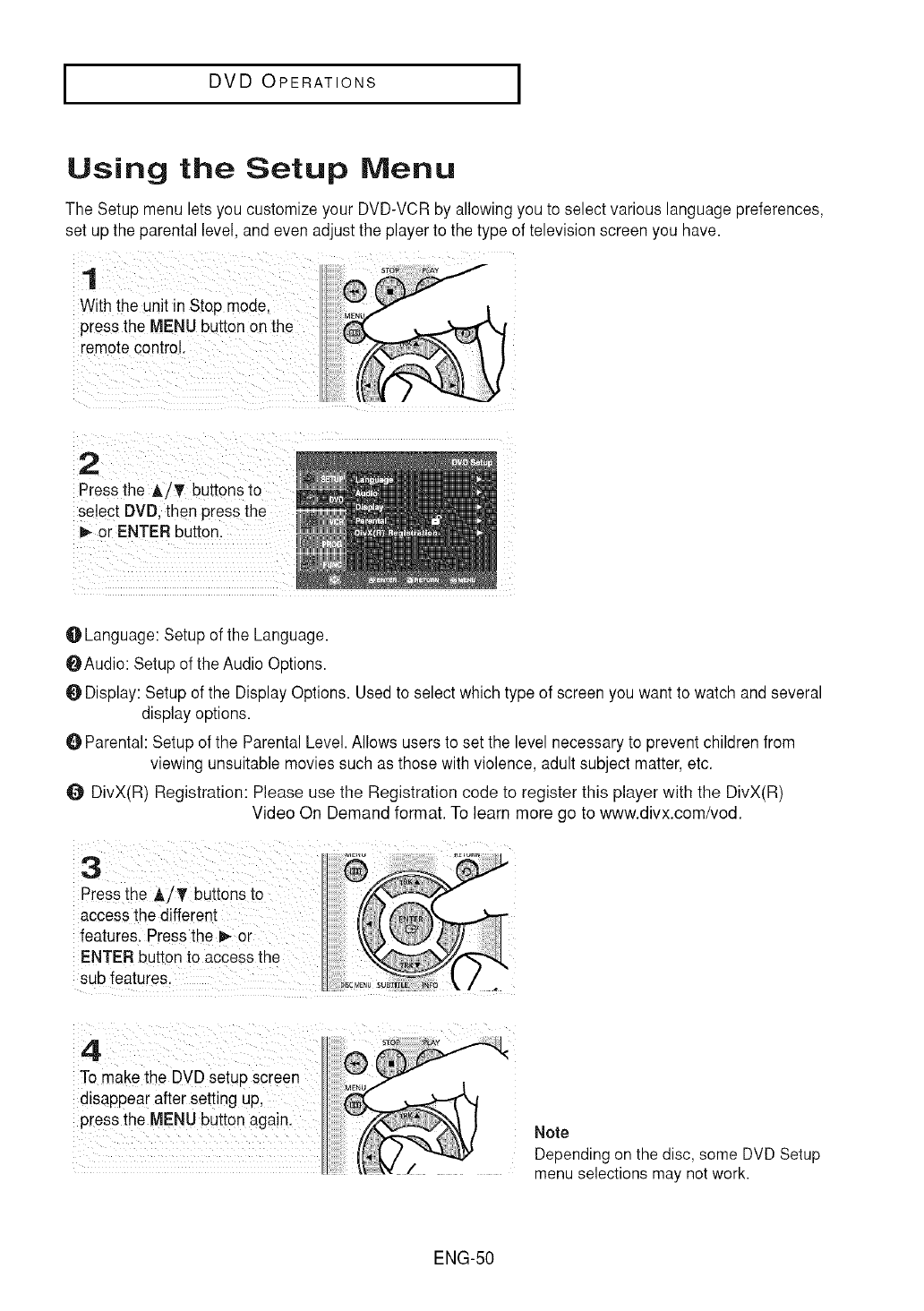
Using the Setup Menu
The Setup menu letsyou customize your DVD-VCRby allowing you to select various languagepreferences,
set up the parental level, and even adjust the player to the type of television screen you have.
1
With the unit in Stop mode,
press the MENU button on the
remotecontrol.
2
Pressthe A/¥ buttons to
select DVD. then press the
_- or ENTER button.
O Language: Setup of the Language.
OAudio: Setup of the Audio Options.
O Display: Setup of the Display Options. Used to select which type of screenyou want to watch and several
display options.
Parental: Setup of the Parental Level.Allows users to set the level necessaryto prevent children from
viewing unsuitable movies such as those with violence, adult subject matter,etc.
O DivX(R) Registration: Please use the Registration code to register this player with the DivX(R)
Video On Demand format. To learn more go to www.divx.com/vod.
Note
Depending on the disc, some DVD Setup
menu selections may not work.
ENG-50
I DVD OPERATIONS I
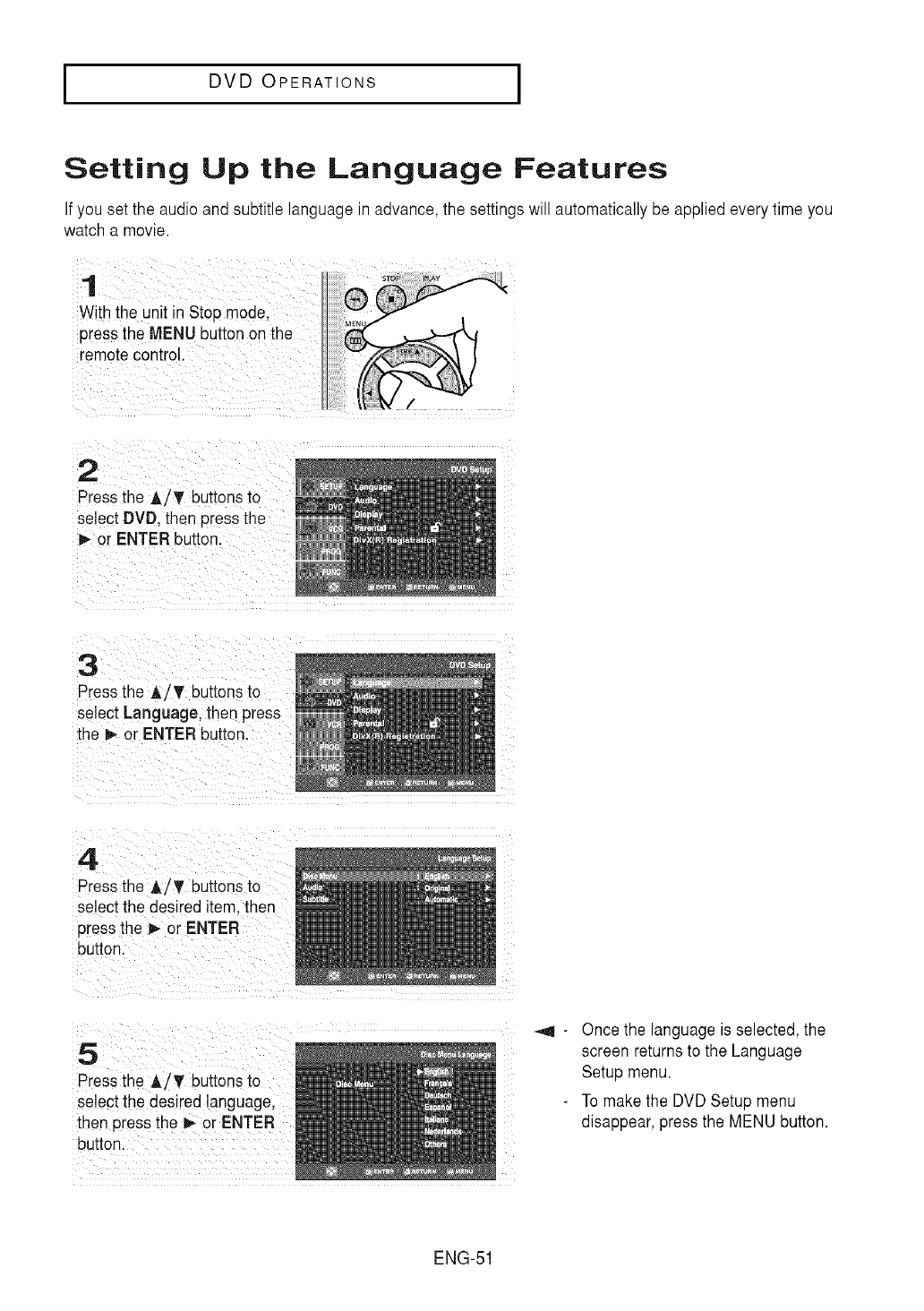
Setting Up the Language Features
If you set the audio and subtitle language in advance, the settings will automaticallybe applied every time you
watch a movie.
1
With the unit in Stop mode.
press the MENU buttonon the
remote control.
2
Pressthe A/T buttonsto
select DVD. then 3ressthe
or ENTER button.
3
Pressthe A iT buttonsto
select Language,then oress
the _ or ENTER button.
4
Pressthe &iT buttonsto
select the desired item. then
press the _ or ENTER
button.
•
Pressthe A/T buttonsto
select the desired language,
then pressthe I_ or ENTER
button.
_ql -Once the language is selected, the
screen returns to the Language
Setup menu.
- To make the DVD Setup menu
disappear, pressthe MENU button.
ENG-51
I DVD OPERATIONS I
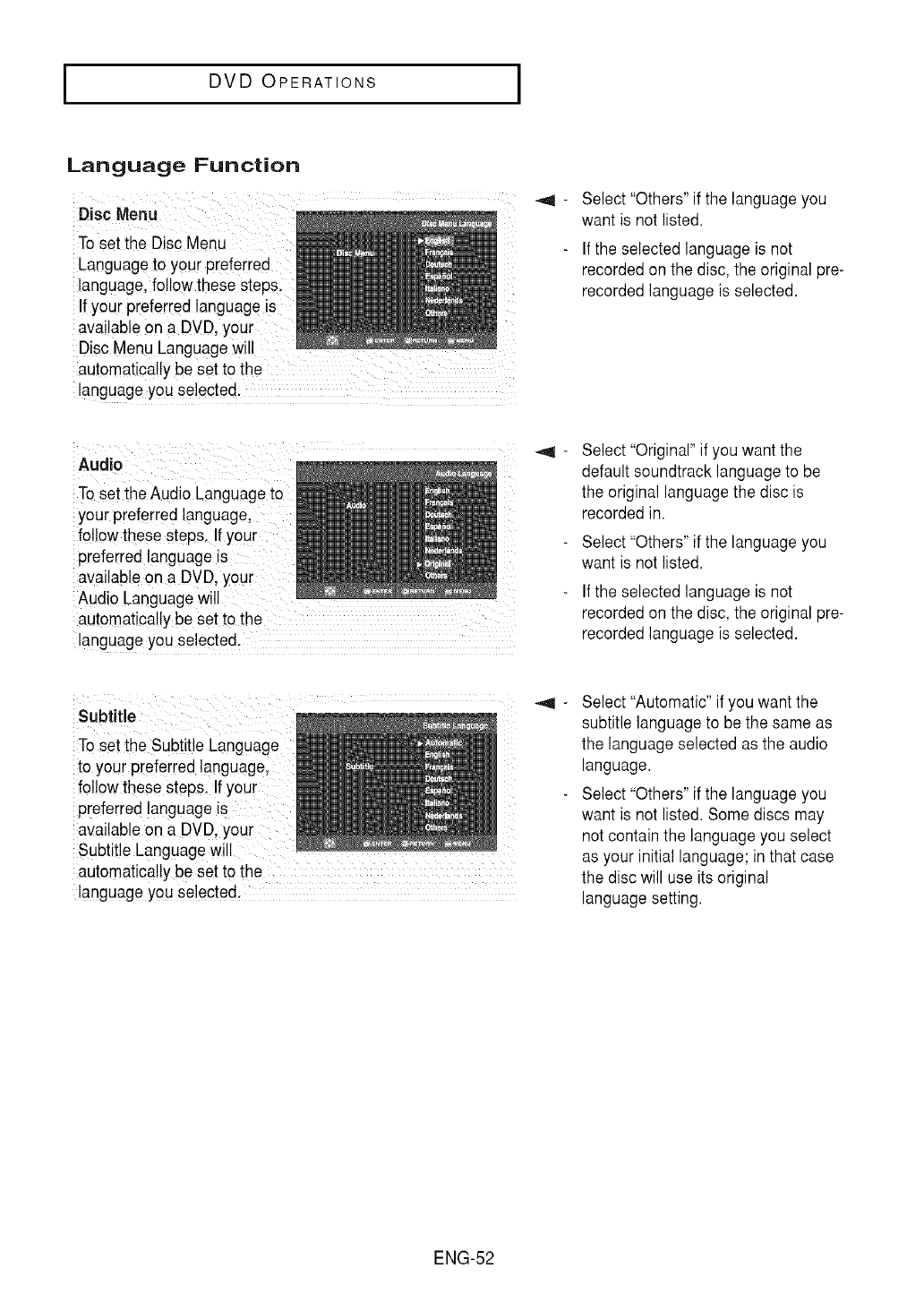
Language Function
To set the Disc Menu
Language to your preferred
language, follow these steps.
If your preferred language is
available on a DVD, your
Disc Menu Languagewill
automatically be set to the
languageYOUse!ected,
Select"Others" if the language you
want is not listed.
If the selected language is not
recorded on the disc, the original pre-
recorded language is selected.
Auaio
To set the Audio Languageto
your preferred language,
follow these step& !f your
preferred languageis
available Ona DVD, your
Audio Languagewill
automatically be set tOthe
languageyou selecte&
Select"Original" if you want the
default soundtrack language to be
the original language the disc is
recorded in.
Select"Others" if the language you
want is not listed.
If the selected language is not
recorded on the disc, the original pre-
recorded language is selected.
subtitle
To set the Subtitle Language
to your preferred language,
follow these steps,If your
preferred language is
available on a DVD, your
Subtitle Languagewill
automatically be set to the
languageyou se!ecte&
Select"Automatic" if you want the
subtitle languageto be the same as
the language selected as the audio
language.
Select"Others" if the language you
want is not listed. Some discs may
not contain the language you select
as your initial language; in that case
the disc will use its original
languagesetting.
ENG-52
I DVD OPERATIONS I
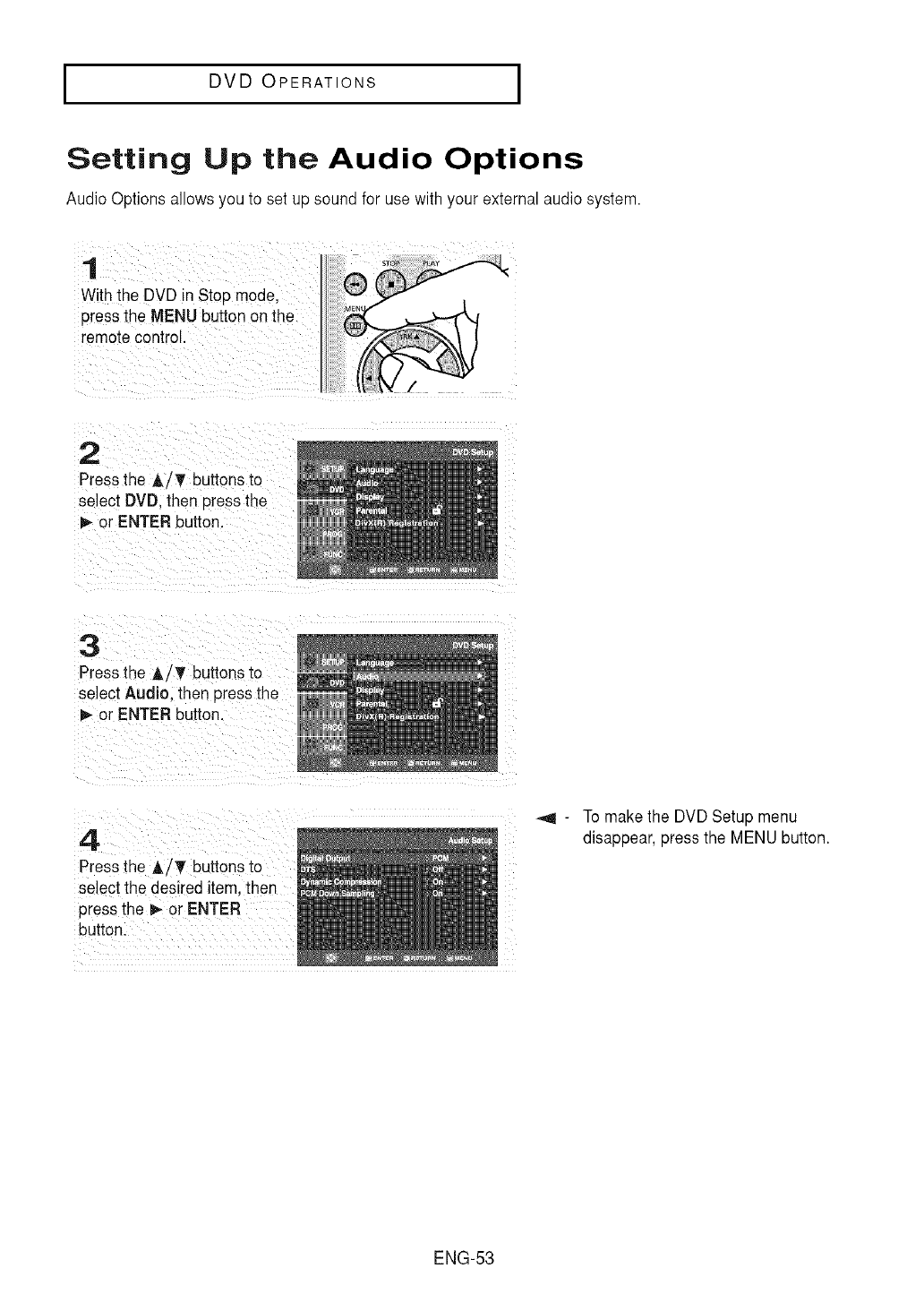
Setting Up the Audio Options
Audio Options allows you to set up sound for use with your external audio system.
1
With the DVD in Stop mode,
3ressthe MENU button on the
remole control.
2
Pressthe A/T buttons to
select DVD. then pressthe
D,-or ENTER button.
3
Pressthe A/¥ buttons to
select Audio. then press the
or ENTER button.
4
Press the A/'V' buttons to
select the desired item tnen
pressthe _ or ENTER
button.
To make the DVD Setup menu
disappear,press the MENU button.
ENG-53
I DVD OPERATIONS I
Audio Options
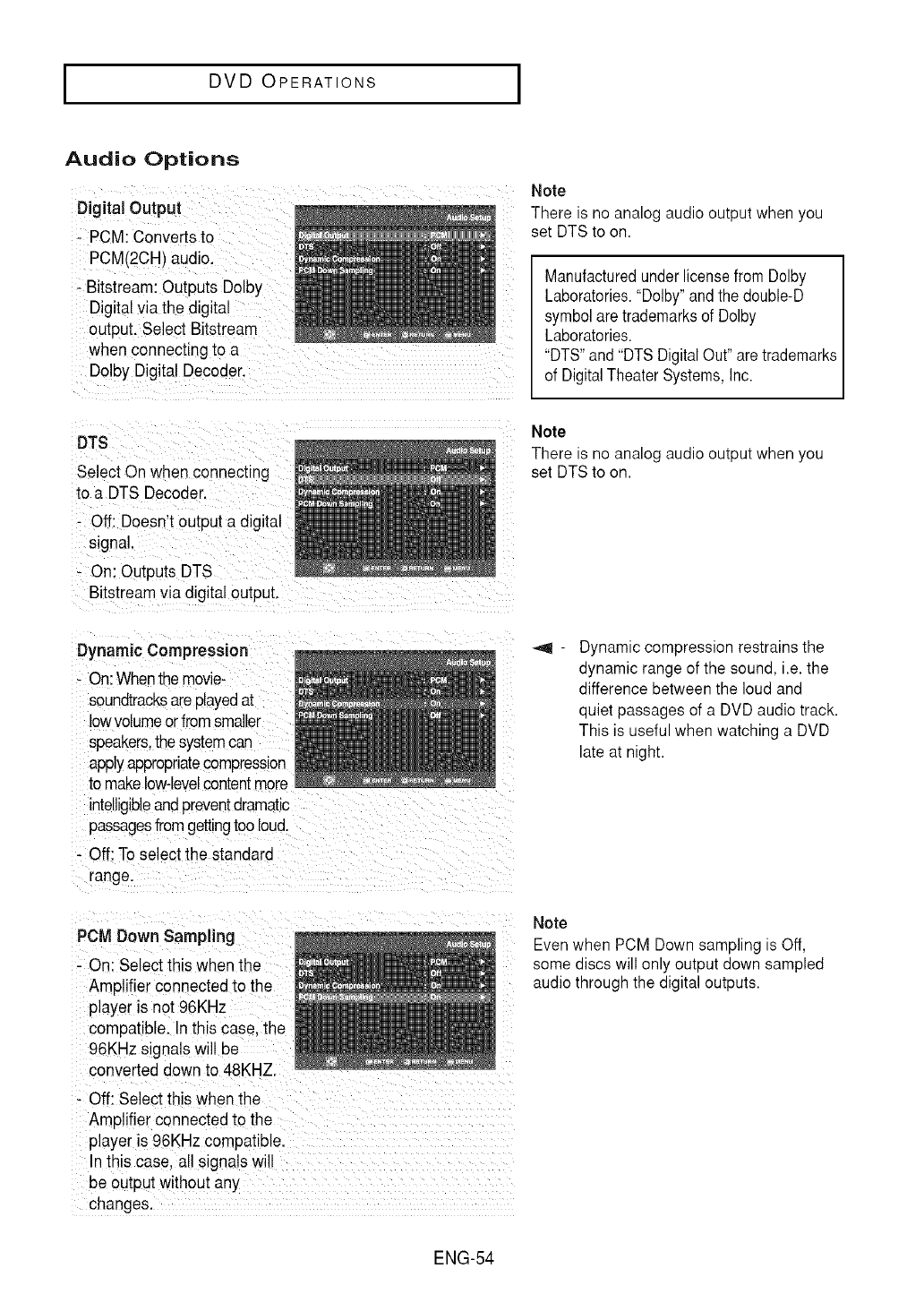
Digital Output
- PCM: Converts to
PCM(2CH/audio.
- Bitstream: Outputs Dolby
Digitalvia the digital
output. Select Bitstream
when connecting to a
Dolby Digital Decoder.
Note
There is no analog audio output when you
set DTS to on.
Manufacturedunderlicensefrom Dolby
Laboratories."Dolby"andthe double-D
symbolare trademarksof Dolby
Laboratories.
"DTS"and "DTSDigitalOut" aretrademarks
of DigitalTheaterSystems,Inc.
DTS
Select On when connecting
to a DTS Decoder.
- Off: Doesn't output a digital
signa
- On: Outputs DTS
Bitstreamvia digital output
Note
There is no analog audio output when you
set DTS to on.
Dynamic Compression
- On:Whenthemovie-
soundtracksareplayedat
lowvolumeorfromsmaller
speakers,thesystemcan
applyappropriatecompression
to makelow-levelcontent"nora
ntelligibleandpreventdramatic
passagesfromgettingtoo loud.
- Off: To select the standard
"ange.
PCM Down Sampling
- On: Select this when the
Amplifier connected to the
player is not 96KHz
compatible. In this case, the
96KHz signals will be
converted down to 48KHZ.
- Off: Select this when the
Amplifier connected to the
player is 96KHz compatible.
n this case, all signals wi
be outputwithout any
changes.
Dynamic compression restrains the
dynamic range of the sound, i.e. the
difference between the loud and
quiet passages of a DVD audio track.
This is useful when watching a DVD
late at night.
Note
Even when PCM Down sampling is Off,
some discs will only output down sampled
audio through the digital outputs.
ENG-54
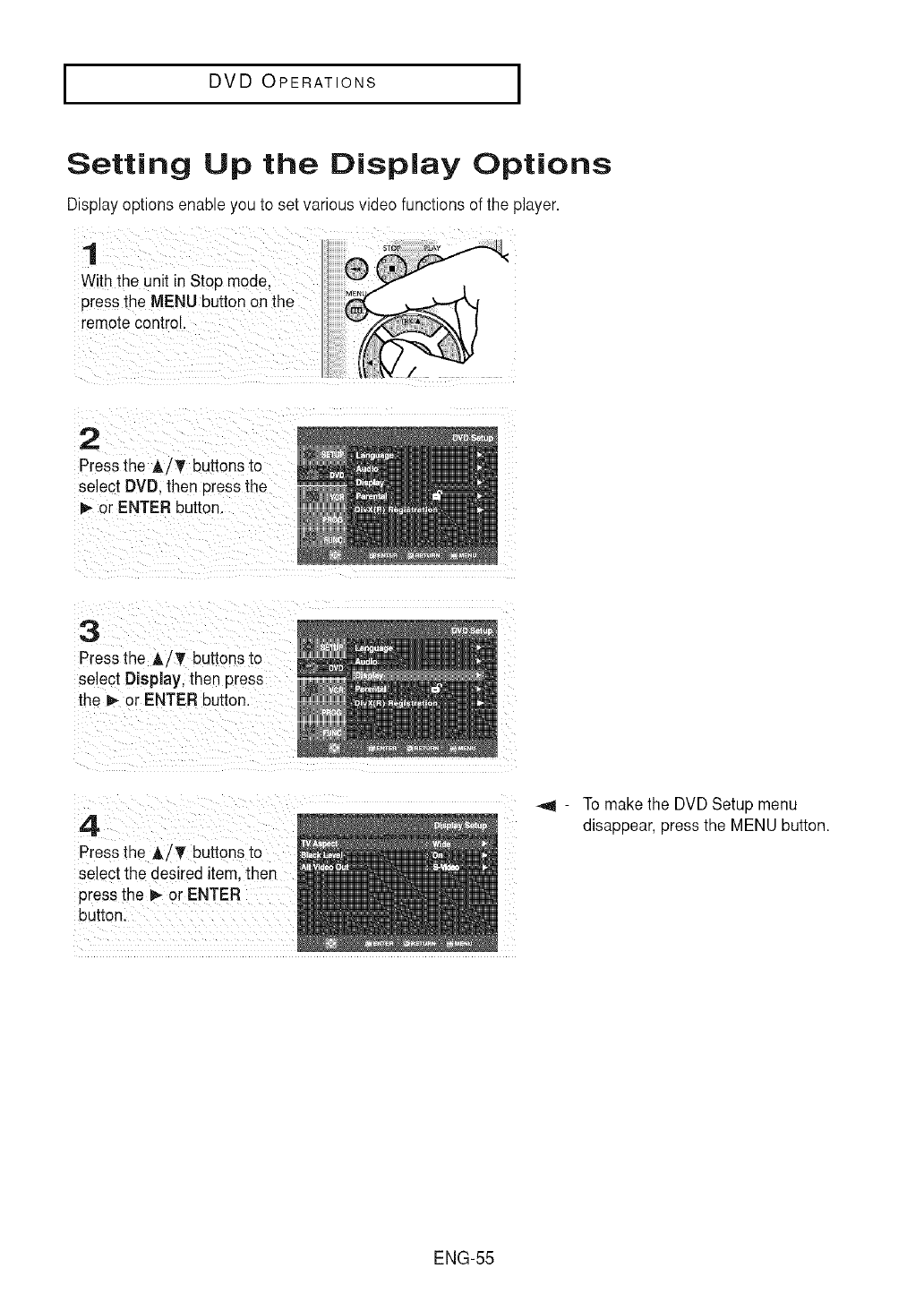
I DVD OPERATIONS I
Setting Up the Display Options
Display options enable you to set various video functions of the player.
1
With the unit in Stop mode.
3ressthe MENU button on the
remotecontrol.
2
Press the ,A/T buttons to
select DVD. then pressthe
or ENTER button.
S
Press the A/T buttons to
select Display, then press
the _ or ENTER button
4
Press the A/_' buttons to
select the desired item tnen
pressthe _ or ENTER
button.
To make the DVD Setup menu
disappear,press the MENU button.
ENG-55
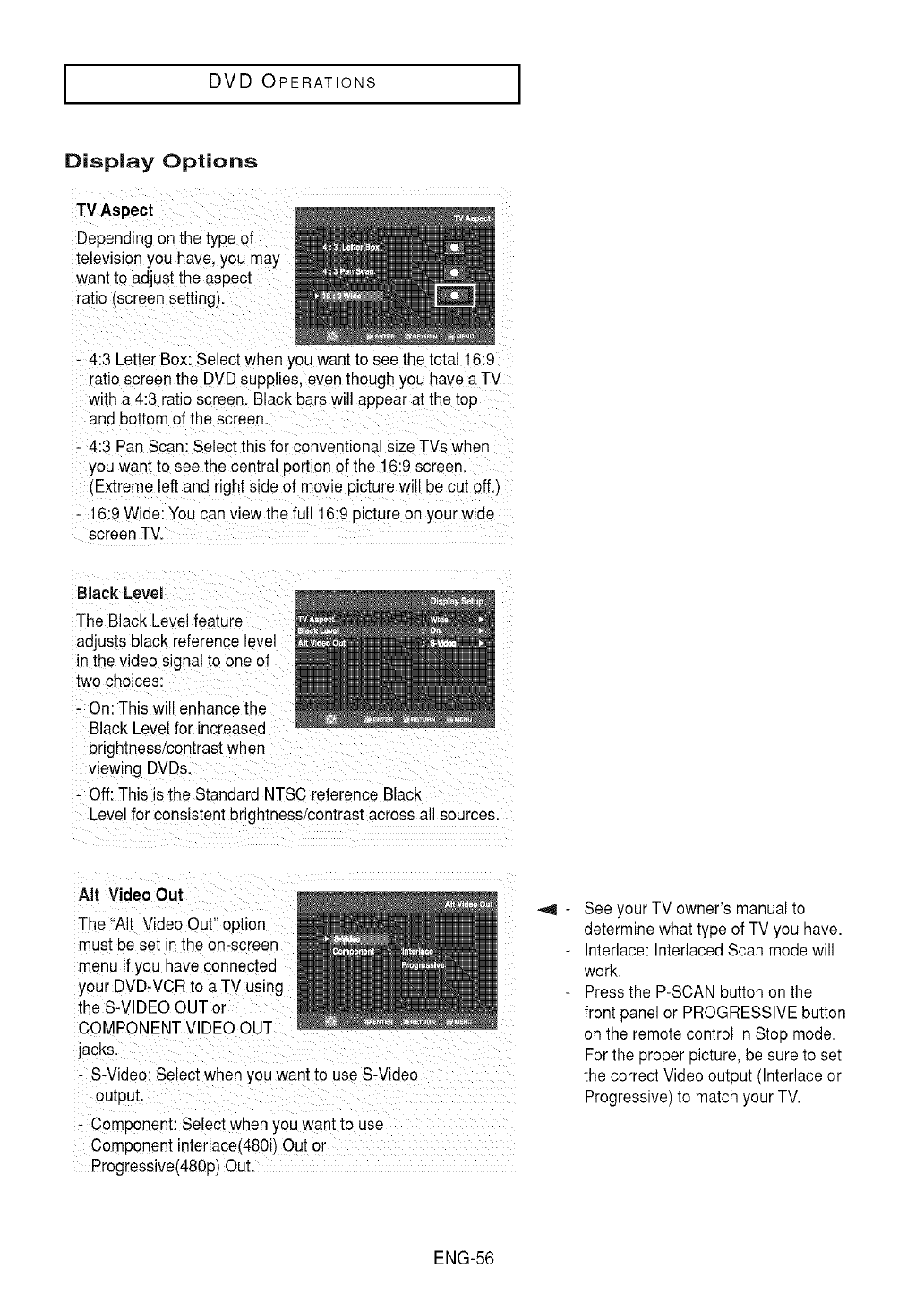
I DVD OPERATIONS I
Display Options
TV Aspect
Depending onthe type of
television you have,you
want to adjust the aspect
ratio (screen setting).
- 4:3 LetterBox: Select when you wantto see the total 16:9
ratio screen the DVDSupplies,even though you have aTV
with a 4:3 ratio screen Black bars will appear at the top
bottom of the screen:
-4:3 Panscan: Select this for conventional size TVs when
you want to see the central portion of the 1619screen,
(Extreme !eft and right side of moviepicturewi!! becut off,)
! 6:9 Wide:You can view the full ! 6:9 picture on your wide
screen TV.
Black Level
The Black Level feature
adjusts black reference level
in the video signal to one of
two choices:
On: This will enhance the
Black Level
brightness!contrastwhen
viewing DVDs:
Off: This is the Standard NTSC reference Black
Level for c0nsistent brightness/contrast across all sources.
Air Video Out
The "AIt Video 0ut:! option
must be set in the on-screen
menu if you have connected
your DVD-VCRto aTV using
the S-VIDEO OUTor
COMPONENTVIDEO OUT
J .......
- S-Video: Select when you want to use S-Video
:Component: Select when you want to use
Component interlace(480i)Out or
Progressive(480p)Out,
See your TV owner's manual to
determinewhat type of TV you have.
Interlace: Interlaced Scan mode will
work.
Press the P-SCAN buttonon the
front panel or PROGRESSIVEbutton
on the remote control in Stop mode.
For the proper picture, be sure to set
the correct Video output (Interlace or
Progressive)to match your TV.
ENG-56
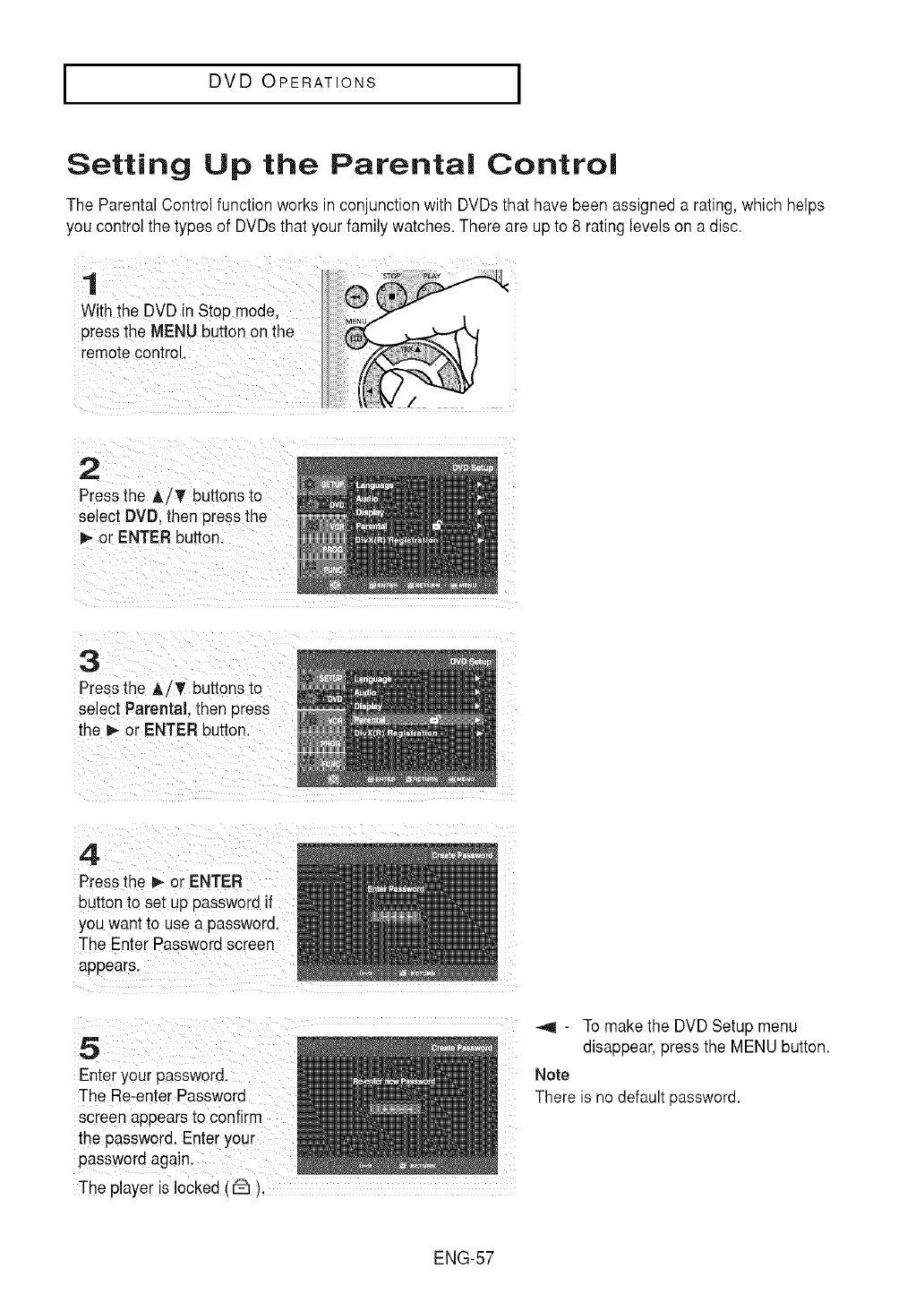
I DVD OPERATIONS I
Setting Up the Parental Control
The Parental Control function works in conjunction with DVDs that have been assigned a rating, which helps
you control the types of DVDs that your family watches. There are up to 8 rating levels on adisc.
1
With the DVD in Stoo mode.
Dressthe MENU button on the
remotecontrol.
2
Press the A/T buttons [o
select DVD. then pressthe
or ENTER button.
3
Pressthe A/T buttons _o
select Parental. then _ss
the I_ or ENTER button
4
Pressthe t_ or ENTER
buttonto set up password if
you want to use a password.
The Enter Password screen
appears.
5
Enter your password.
The Re-enter Password
screen appearsto confirm
the password. Enteryour
password again.
The player is locked (€-_).
_,4 -To make the DVD Setup menu
disappear,press the MENU button.
Note
There is no default password.
ENG-57
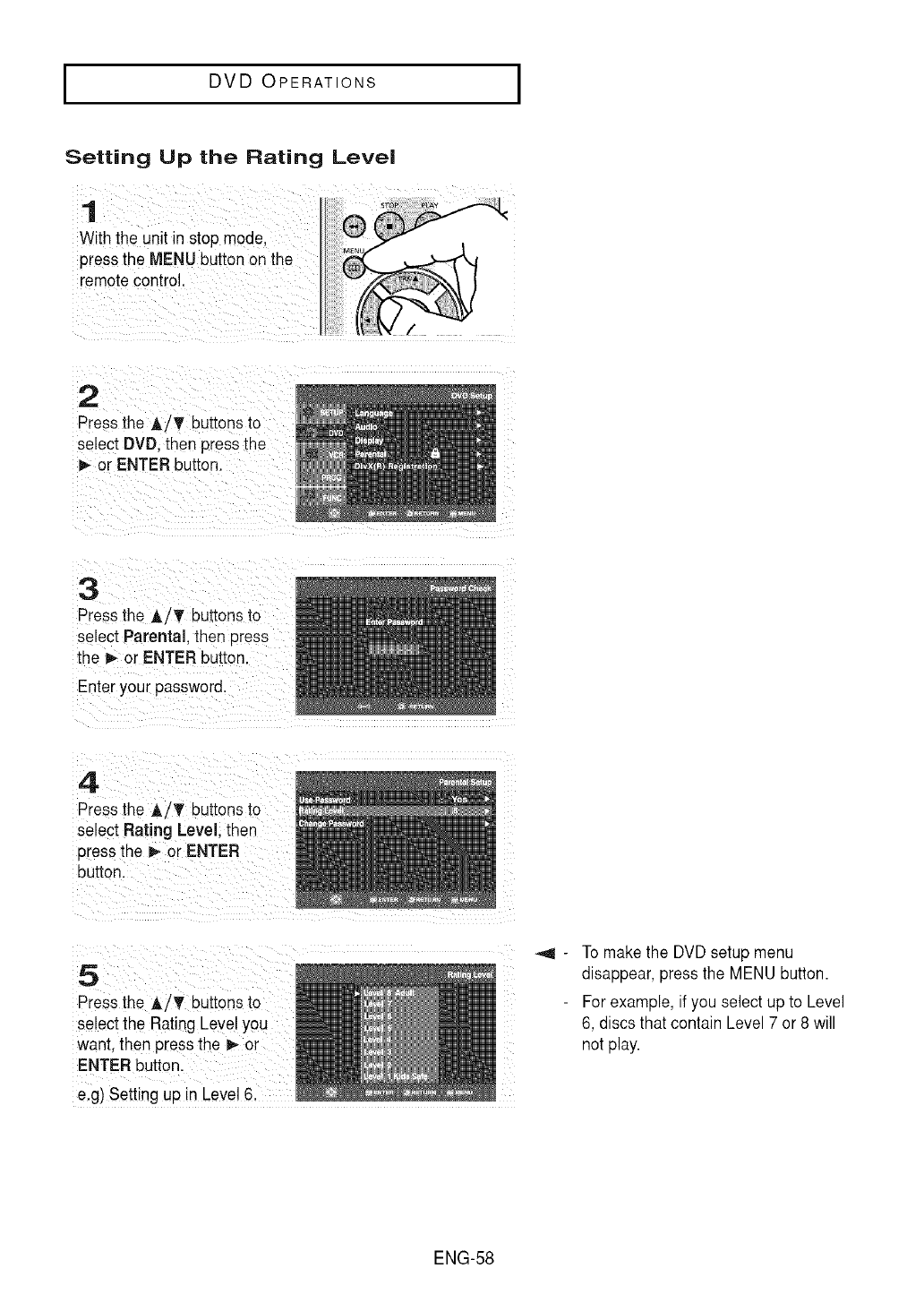
I DVD OPERATIONS I
Setting Up the Rating Level
1
With the unit in stop mode,
press the MENU button on the
remote control.
2
Press the A/T buttons to
select DVD. then pressthe
or ENTER button.
3
Press the AiT buttons to
select Parental.then press
the _ or ENTER button.
Enter your password.
Press the h,iT buttons tO
se!ect Rating Level; then
p[ess the I_ or ENTER
Press the AiT buttonsto
select the Rating Leve!you
want, then press the l_o[
ENTER button.
elg) setting up in Level 6.
To make the DVD setup menu
disappear, pressthe MENU button.
For example, if you select up to Level
6, discs that contain Level 7 or 8 will
not play.
ENG-58
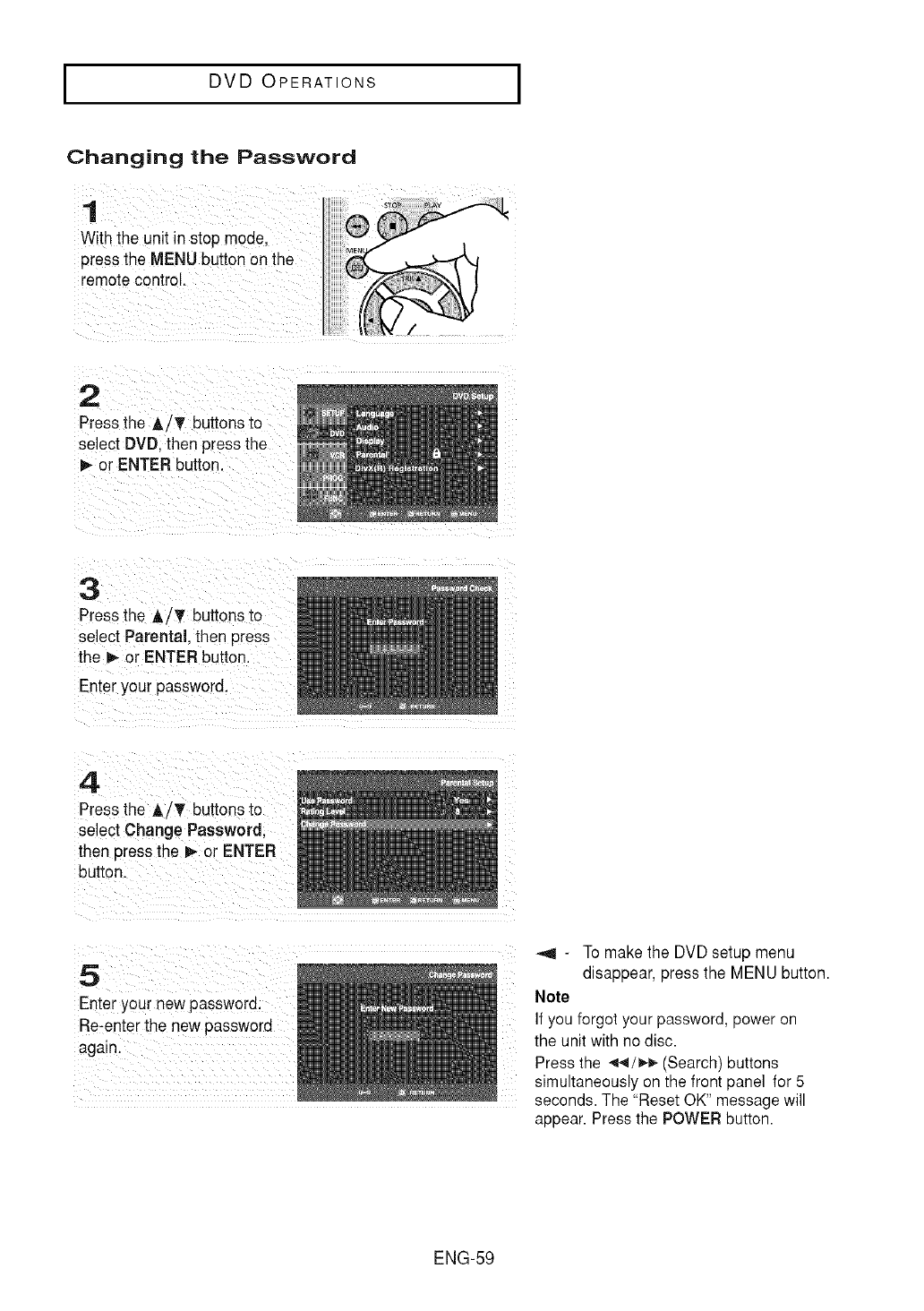
I DVD OPERATIONS I
Changing the Password
1
With the unit in stop mode.
press the MENU button on the
"emotecontrol.
2
Pressthe &/T buttons to
select DVD. then press the
I_ or ENTER button.
3
Pressthe A/T buttons to
select Parental. then press
the _- or ENTER button
Enter your password.
4
Pressthe A/T buttons to
select Change Password
then Dressthe _- or ENTER
button.
5
Enter your new password.
Re-enterthe new password
again.
_,q -To make the DVD setup menu
disappear, press the MENU button.
Note
If you forgot your password, power on
the unit with no disc.
Press the _,.,I/_-_ (Search) buttons
simultaneously on the front panel for 5
seconds. The "Reset OK" message will
appear. Press the POWER button.
ENG-59
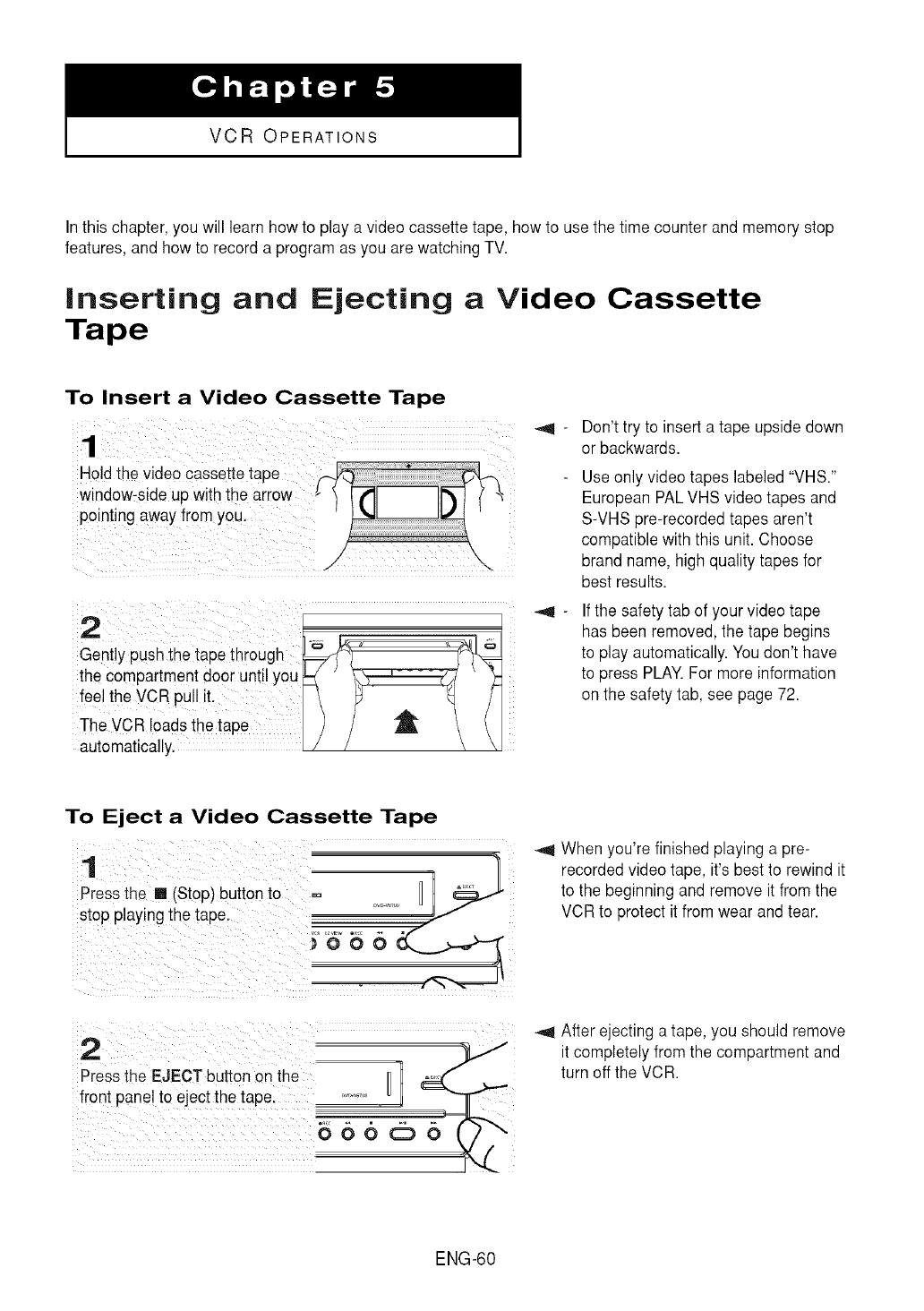
VCR OPERATIONS
In this chapter, you will learn how to play a video cassette tape, how to use the time counter and memory stop
features, and how to record a program as you are watching TV.
Inserting and Ejecting a Video Cassette
Tape
To Insert a Video Cassette Tape
Gentiy push the taPe thr0Ugh _ '"_
the cornpa[tment doorunti!you_ '_ '
feel the VCR pull it. }_ ._ _ /
) / t t
automatically. / / \ \
Don't try to inserta tape upside down
or backwards.
Useonly video tapes labeled "VHS."
European PALVHS video tapes and
S-VHS pre-recorded tapes aren't
compatible with this unit. Choose
brand name, high quality tapes for
best results.
Ifthe safetytab of your video tape
has been removed, the tape begins
to play automatically.You don't have
to press PLAY.For more information
on the safety tab, see page 72.
To Eject a Video Cassette Tape
1
Pressthe [] (Stop) button to
stop playing the tape. f
_666_
When you're finished playing a pre-
recorded video tape, it's best to rewind it
to the beginning and remove it from the
VCR to protect it from wear and tear.
2
Pressthe EJECT button on the
front panel to eject the tape.
After ejecting a tape, you should remove
it completelyfrom the compartment and
turn off the VCR.
ENG-60
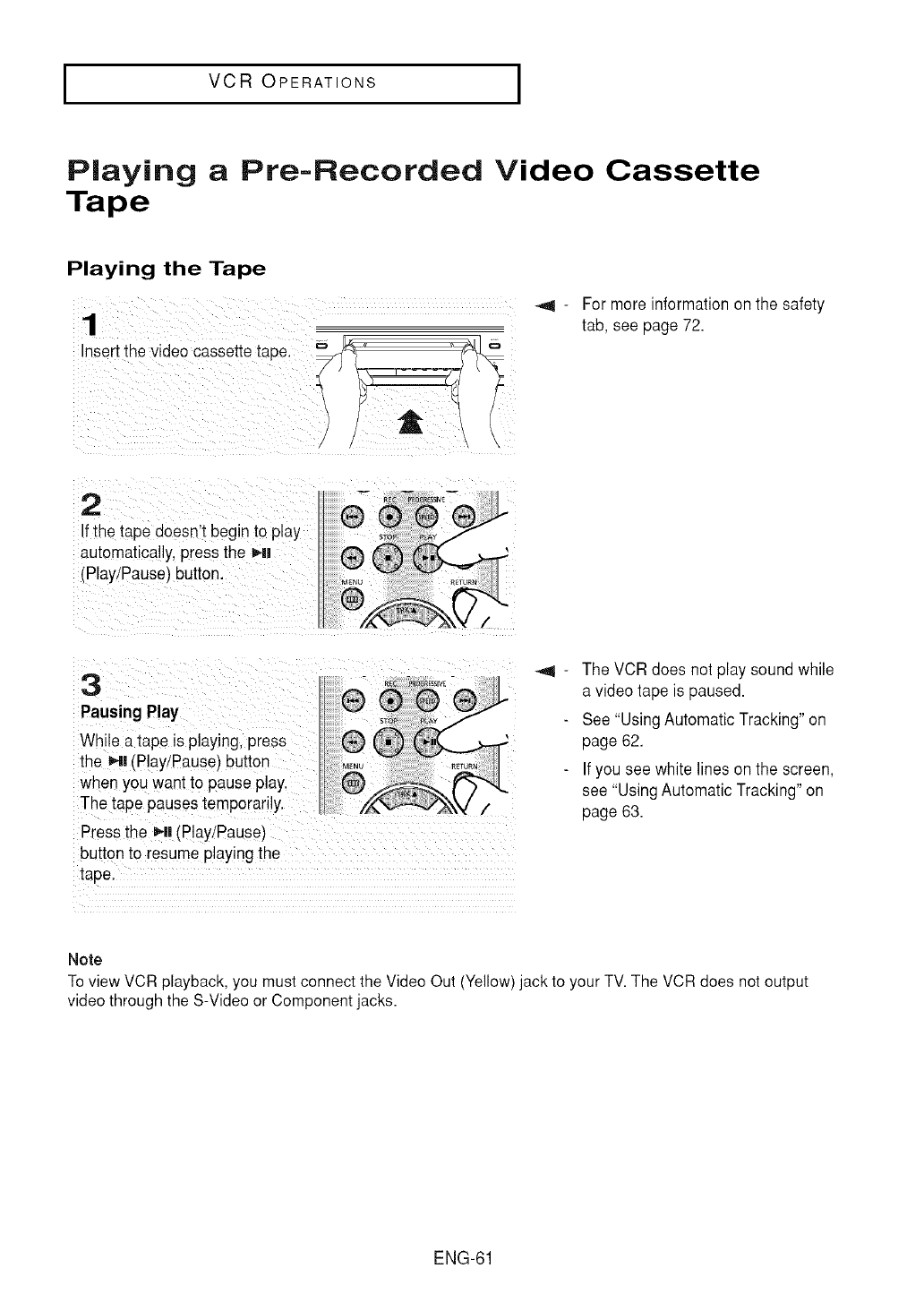
IVCR OPERATIONS I
Playing a Pre-Recorded Video Cassette
Tape
Playing the Tape
1-For more information on the safety
tab, see page 72.
t
2
f the tape doesn't begin to play
automatically, Dressthe H|
(Play/Pause_button.
3
PausingPlay
While a tape is playing, press
the Hi (Play/Pause) button
when you want to pause play.
The tape pausestemporarily,
Pressthe HI IPlay!Pause
button to resume playing the
tape.
The VCR does not play sound while
a video tape is paused.
See "UsingAutomatic Tracking"on
page 62.
If you see white lines on the screen,
see "Using AutomaticTracking" on
page 63.
Note
To view VCR playback, you must connect the Video Out (Yellow) jack to your TV. The VCR does not output
video through the S-Video or Component jacks.
ENG-61
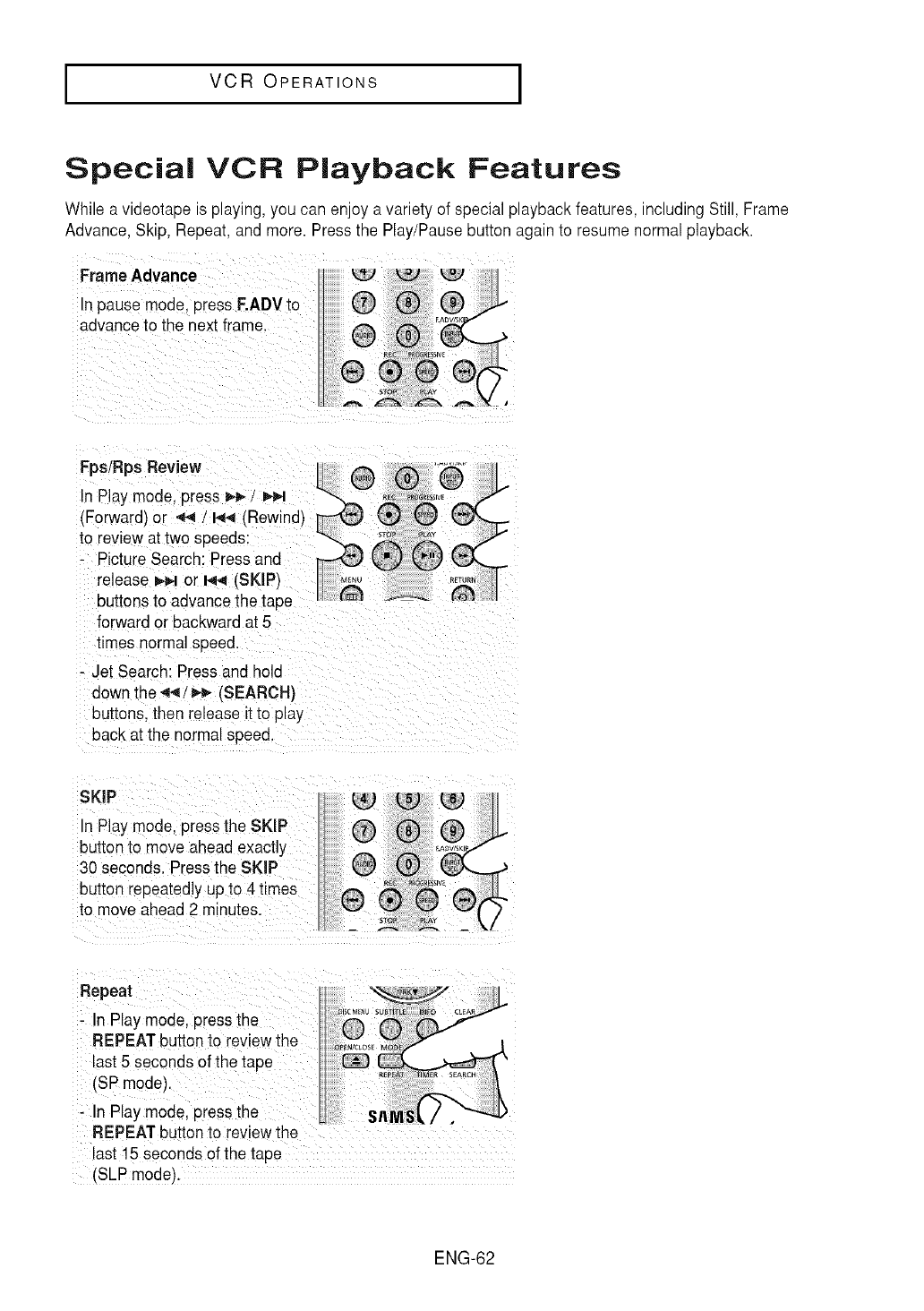
IVCR OPERATIONS I
Special VCR Playback Features
While a videotape is playing,you can enjoy a variety of specialplayback features, including Still, Frame
Advance, Skip, Repeat, and more. Pressthe Play/Pause button againto resume normal playback.
Frame Advanc_
In pause mode. press F,ADVto
advance to the next frame.
Fps/Rps Review
In Play mode, press _- /_ -_.
fForward) or _ /I_ IRewind}
to review at two speeds:
PictureSearch: Press and
release _ or I-4.,1ISKIP_
buttons to advance the tape
forward or backward at 5
times normal speed.
- Jet Search: Pressand hold
down the '_/_-_ (SEARCH}
buttons, the_ release it to pla_,
back at the normal speed
SKiP
In Play mode, pressthe SKIP
button to move ahead exachy
30 seconds. Pressthe SKiP
button repeatedlyup to 4 times
to move ahead 2 minutes.
Repeat
InPlaymodelpressthe
REPEAT button to reviewthe
last 5 seconds of the tape
-In Play mode, press the
REPEAT button to reviewthe
last 15 seconds 0f the tape
(SLP mode):
ENG-62
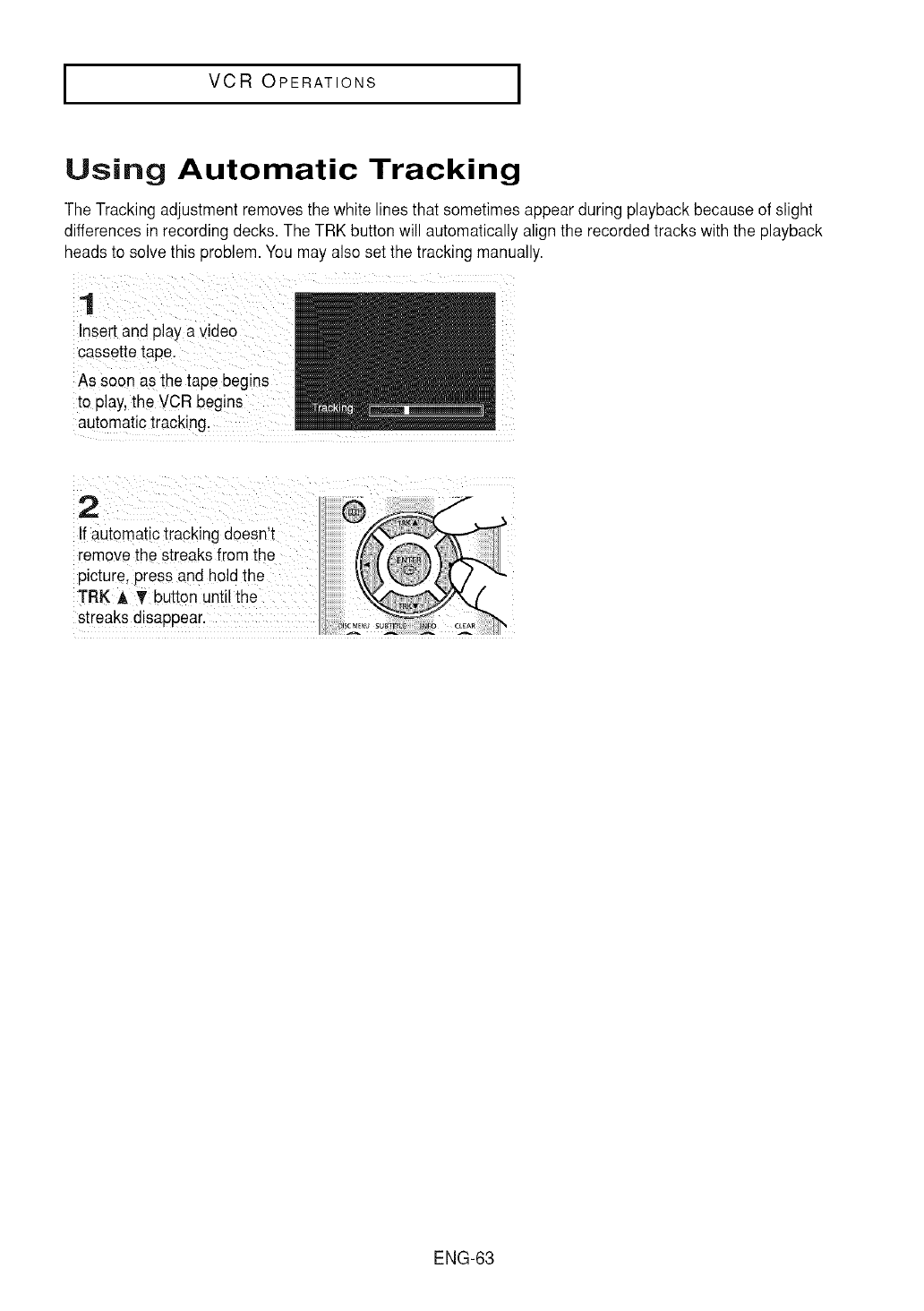
IVCR OPERATIONS I
Using Automatic Tracking
The Tracking adjustment removes the white lines that sometimes appear during playback because of slight
differencesin recording decks. The TRK button will automatically alignthe recordedtracks with the playback
heads to solve this problem. You may also set the tracking manually.
•
Insert and play a video
cassette tape.
As soon as the tape begins
to play.the VCR begins
automatic tracking.
If automatic tracking doesnlt
remove the streaksfrom the
picture; press and hold the
TRK J, _ button until the
streaks disappear. ,,
ENG-63
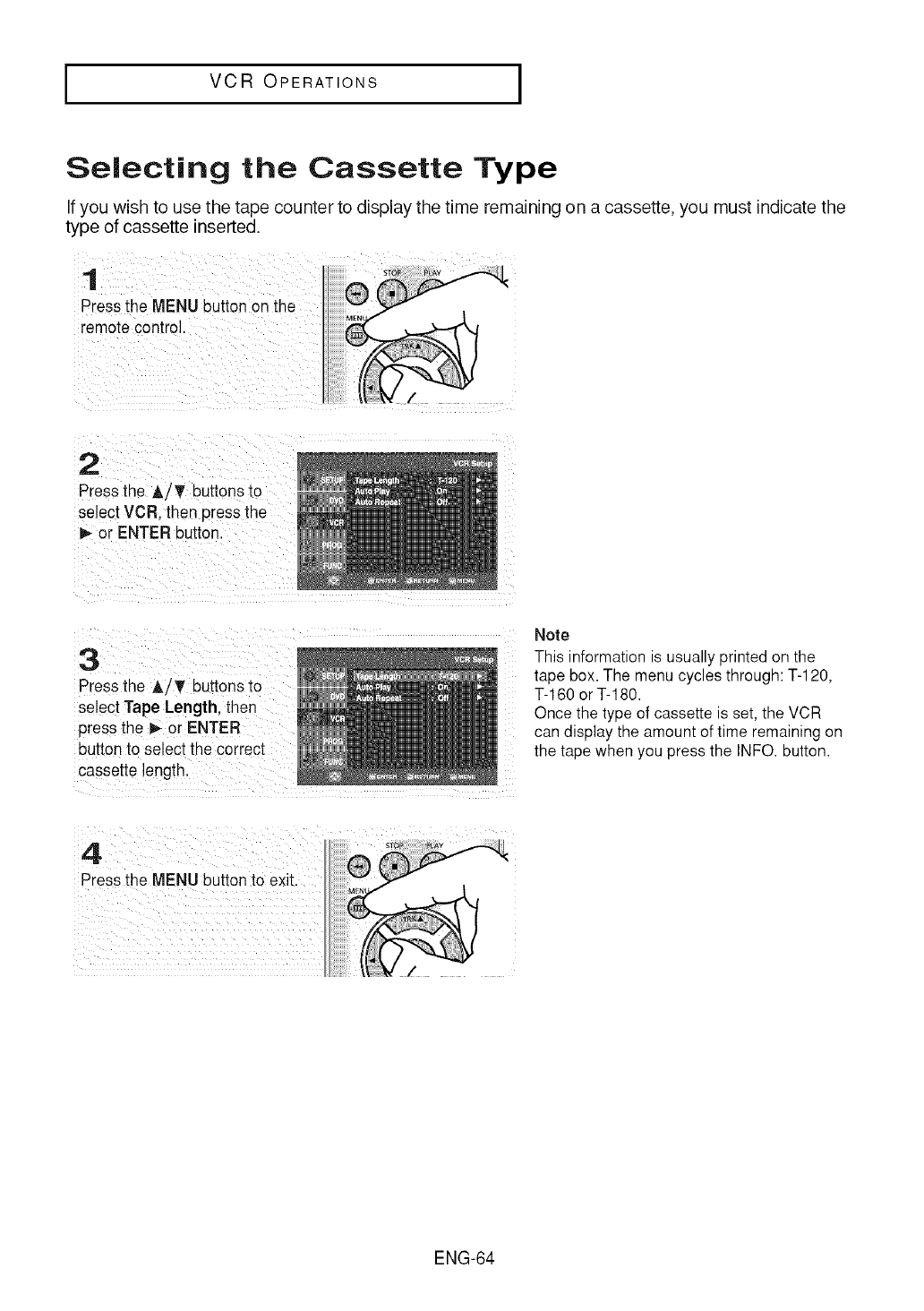
IVCR OPERATIONS I
Selecting the Cassette Type
If you wish to use the tape counter to display the time remaining on a cassette, you must indicate the
type of cassette inserted.
1
Pressthe MENU button on the
remote control,
2
Pressthe A/T buttons to
select VCR. then press the
or ENTER button.
3
Pressthe A/T buttons to
select Tape Length, then
pressthe _ or ENTER
buttonto select the correct
cassette length.
Note
This information is usually printed on the
tape box. The menu cycles through: T-120,
T-160 or T-180.
Once the type of cassette is set, the VCR
can display the amount of time remaining on
the tape when you press the INFO. button.
ENG-64
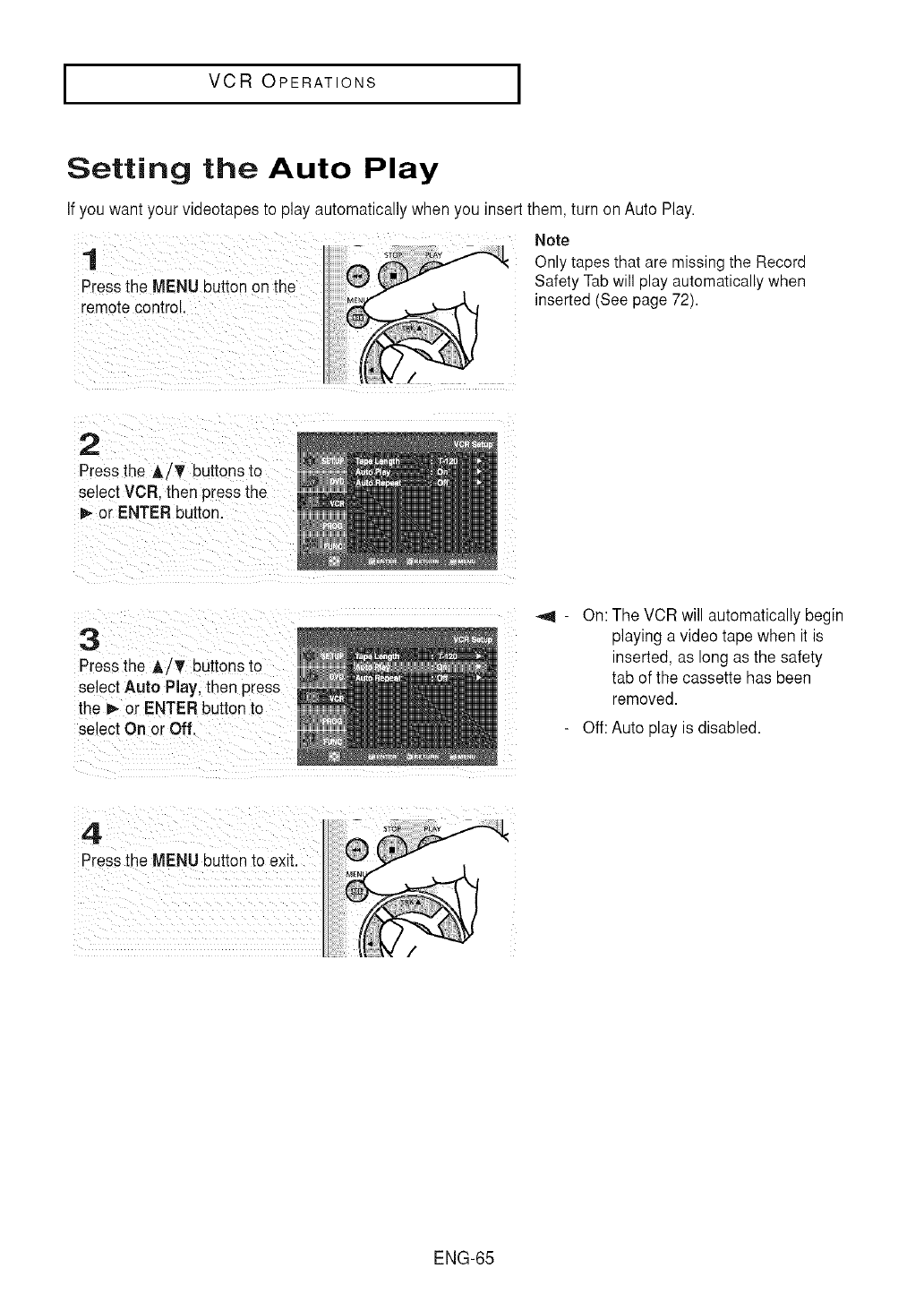
IVCR OPERATIONS I
Setting the Auto Play
If you want your videotapes to play automatically when you insert them, turn on Auto Play.
1
Pressthe MENU button on the
"emotecontrol.
Note
Only tapes that are missing the Record
Safety Tab will play automatically when
inserted (See page 72).
2
Pressthe A/T buttonsto
select VCR. then press the
or ENTER button.
3
Pressthe A/T buttons to
select Auto Play, then press
the i_ or ENTER button to
select On or Off,
On: The VCR will automatically begin
playing a video tape when it is
inserted, as long as the safety
tab of the cassette has been
removed.
Off: Auto play is disabled.
ENG-65
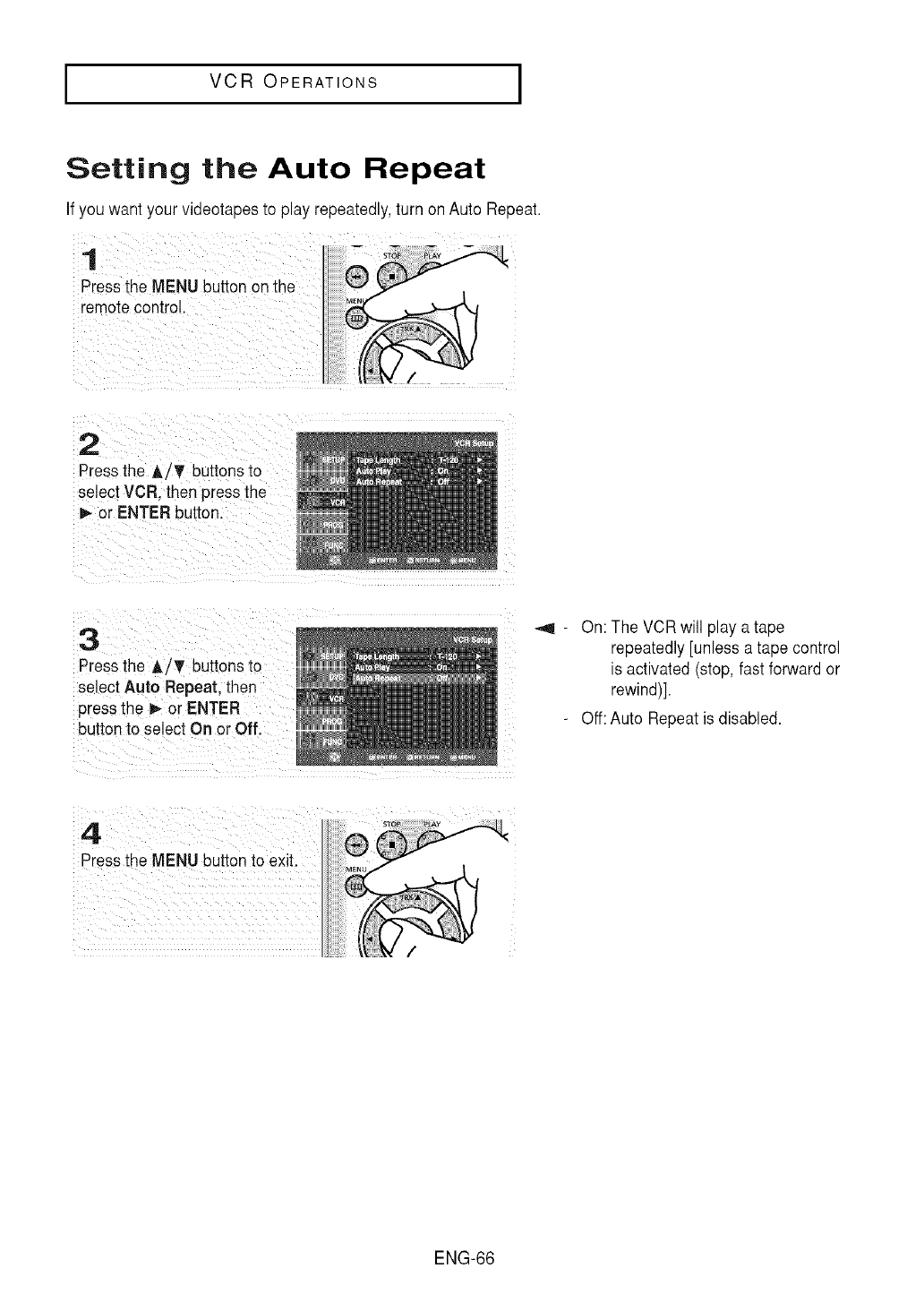
IVCR OPERATIONS I
Setting the Auto Repeat
If you want your videotapes to play repeatedly,turn on Auto Repeat.
1
Pressthe MENU button on the
remotecontrol.
2
Pressthe A/¥ buttons to
select VCR. then press the
P, or ENTER button.
3
Pressthe A/T buttons to
select Auto Repeat. then
)ressthe _ or ENTER
button to select On or Off.
- On: The VCR will play a tape
repeatedly [unless a tape control
is activated (stop, fast forward or
rewind)].
-Off: Auto Repeatis disabled.
ENG-66
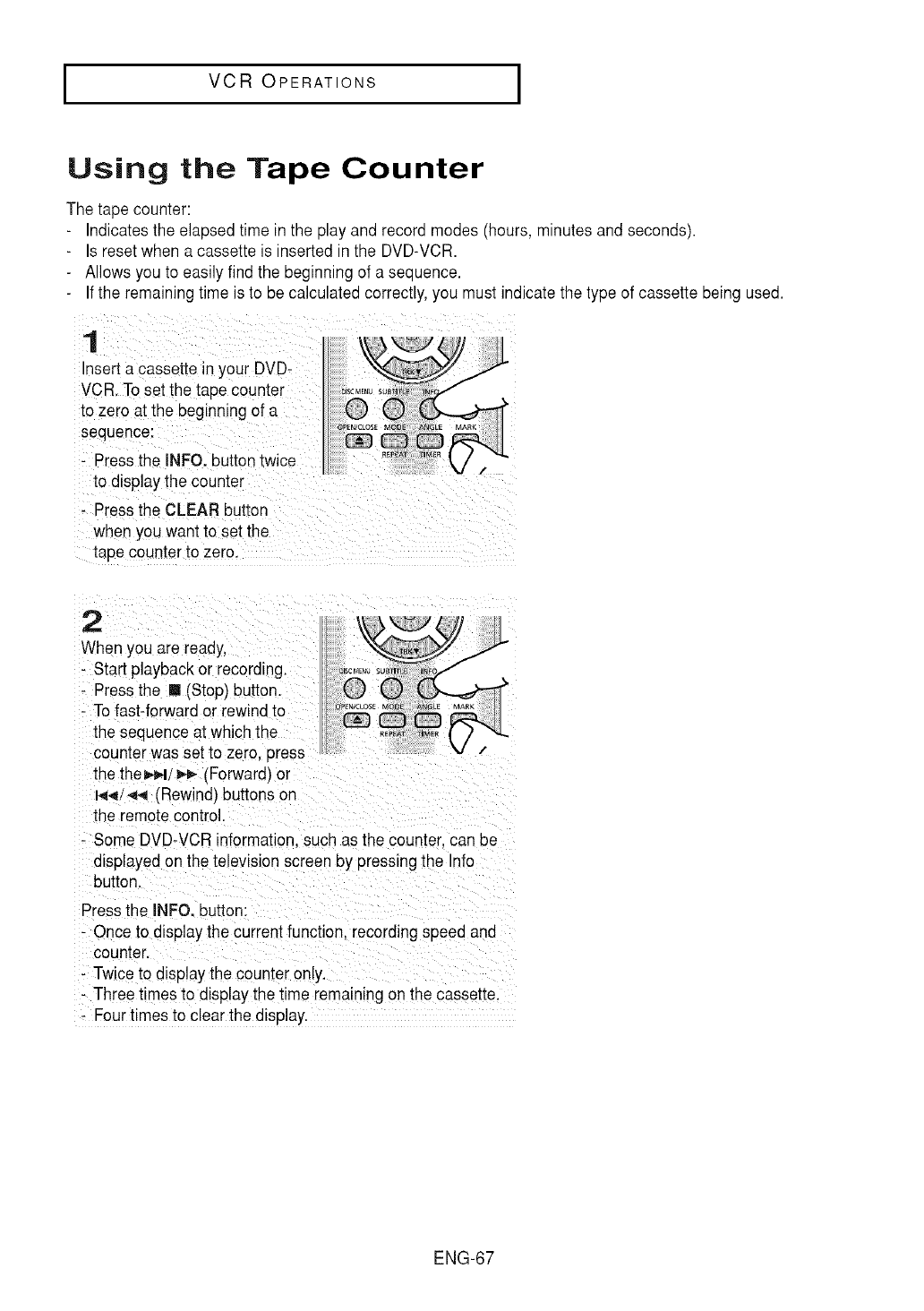
IVCR OPERATIONS I
Using the Tape Counter
The tape counter:
Indicatesthe elapsed time in the play and record modes (hours,minutes and seconds).
Is resetwhen a cassette is inserted in the DVD-VCR.
-Allows you to easily find the beginning of a sequence.
Ifthe remaining time is to be calculated correctly, you must indicate the type of cassette being used.
2
When _/ouare ready.
- Star[ playback or recording.
- Press the [] (Stop) button.
- To fast-forward or rewind to
the sequence at which the
counter was set to zero, press ....
the the _,,-I/_- (Forward')or
1_4/_ (Rewind'Jbuttons on
the remote contro
- Some DVD-VCRinformation, such as the counter, can be
displayed on the television screen by pressing the Info
button.
Pressthe INFO. button:
- Once to display the current function, recording speed and
counter.
- Twice to displaythe counter only.
- Three times to display the time remaining on the cassette.
- Four times to clear the display.
ENG-67
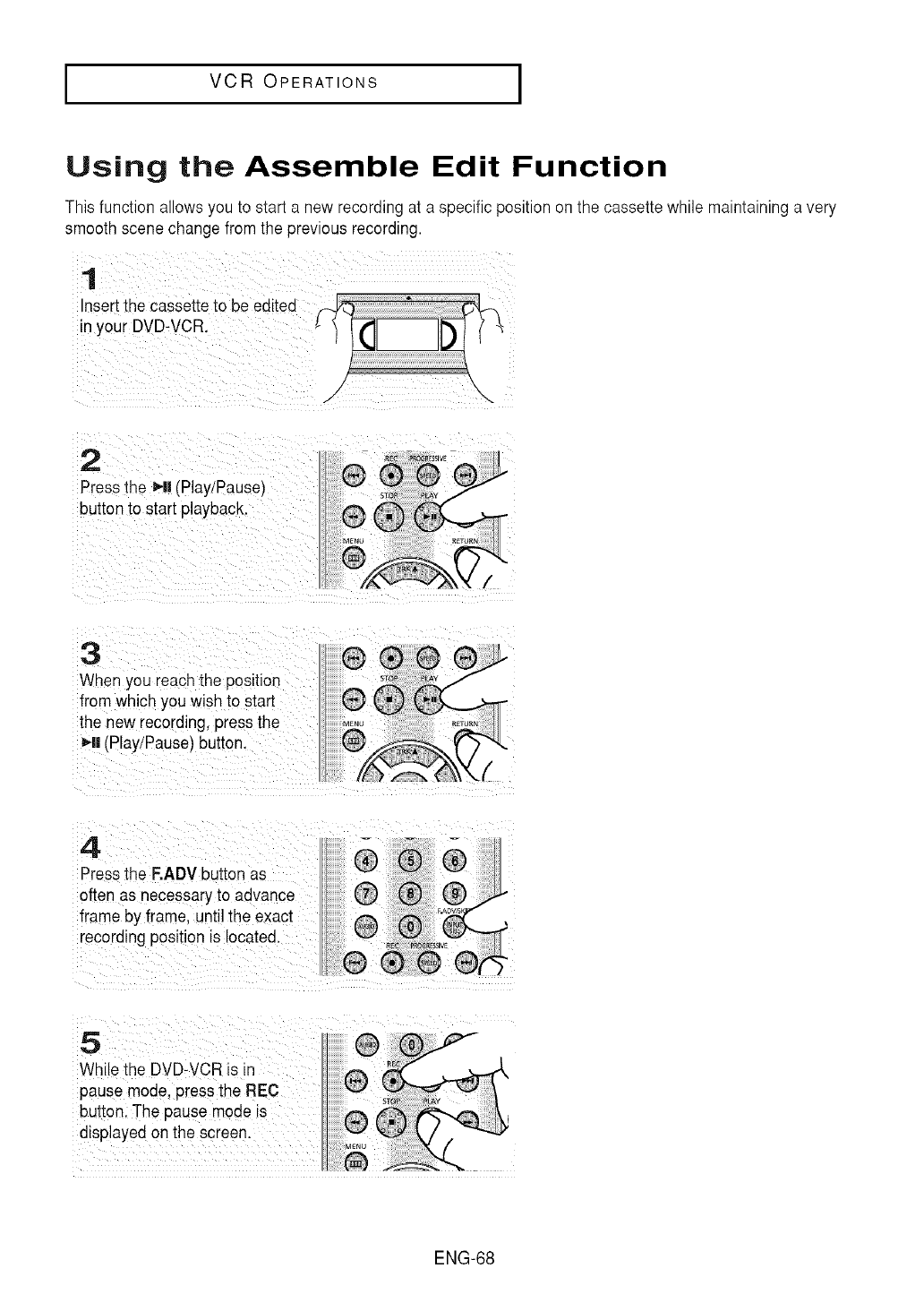
IVCR OPERATIONS I
Using the Assemble Edit Function
This function allows you to start a new recording ata specific position onthe cassette while maintaining a very
smooth scene change from the previous recording.
1
Insert the cassette to be editee
in your DVD-VCR
/\
J -...
2
Press the _,ll IPlay/Pause)
button to start playback.
3
When you reachthe position
from which you wish to start
the new recording, pressthe
_1|(Play/Pause) button.
4
Pressthe F,ADV button as
often as necessaryto advance
frame by frame, until the exact
recording position is located.
While the DVDWCR is in
pause mode, press the REC
button, The pause mode is
displayed on the screen.
ENG-68
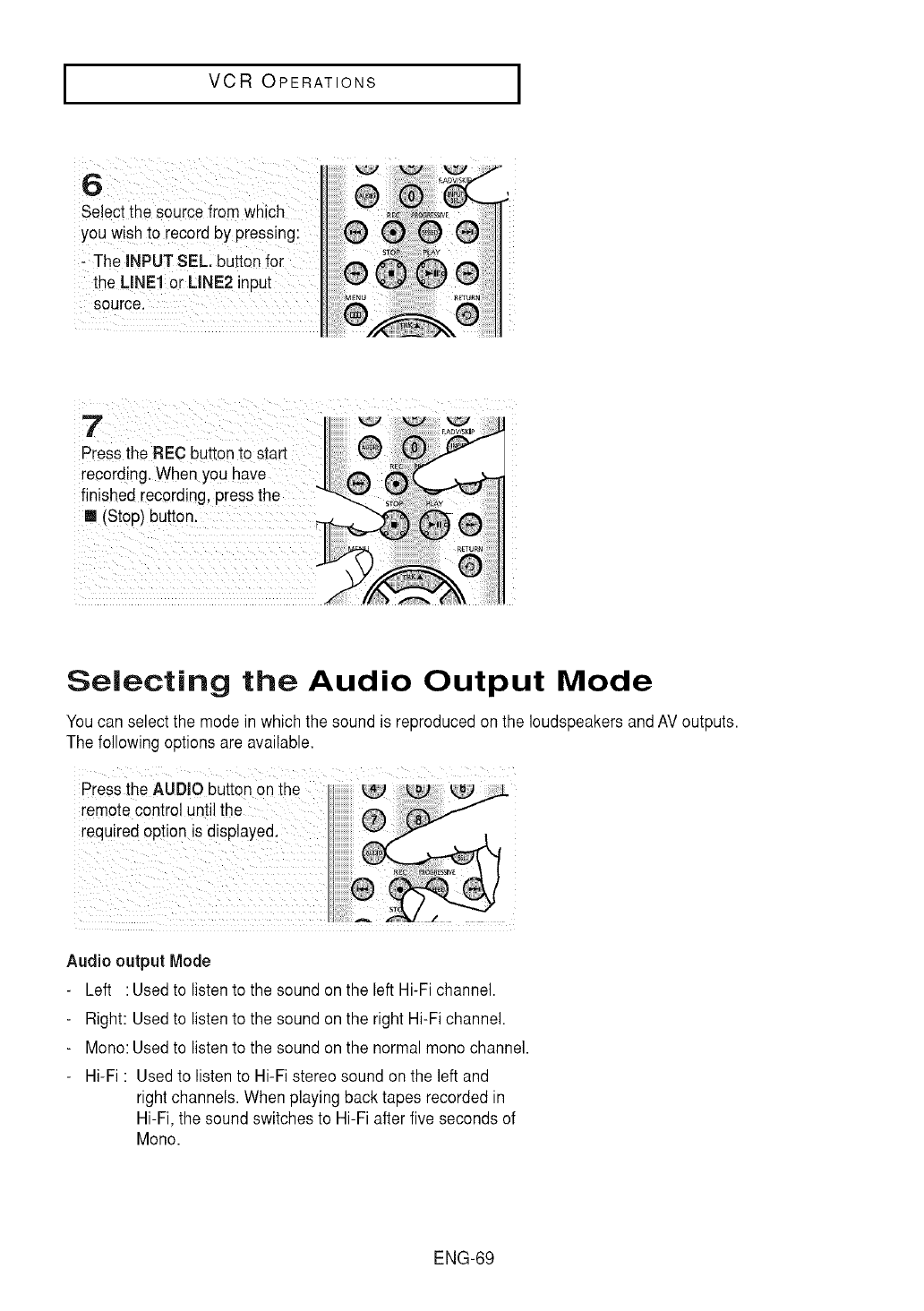
IVCR OPERATIONS I
6
Select the source from which
youwish to record by pressing:
The INPUT SEL button
the LINE! or UNE2 input
source.
Press the REC button to start
record ng. When you have ..
finished recording, press the
m (Stop) button.
Selecting the Audio Output Mode
Youcan select the mode in which the sound is reproduced on the loudspeakers and AVoutputs.
The following options are available.
Audio output Mode
- Left : Usedto listento the sound on the left Hi-Fi channel.
- Right: Usedto listento the sound on the right Hi-Fichannel.
- Mono:Usedto listento the sound on the normal mono channel.
-Hi-Fi : Used to listen to Hi-Fi stereo sound onthe left and
right channels. When playing back tapes recorded in
Hi-Fi, the sound switches to Hi-Fi after five seconds of
Mono.
ENG-69
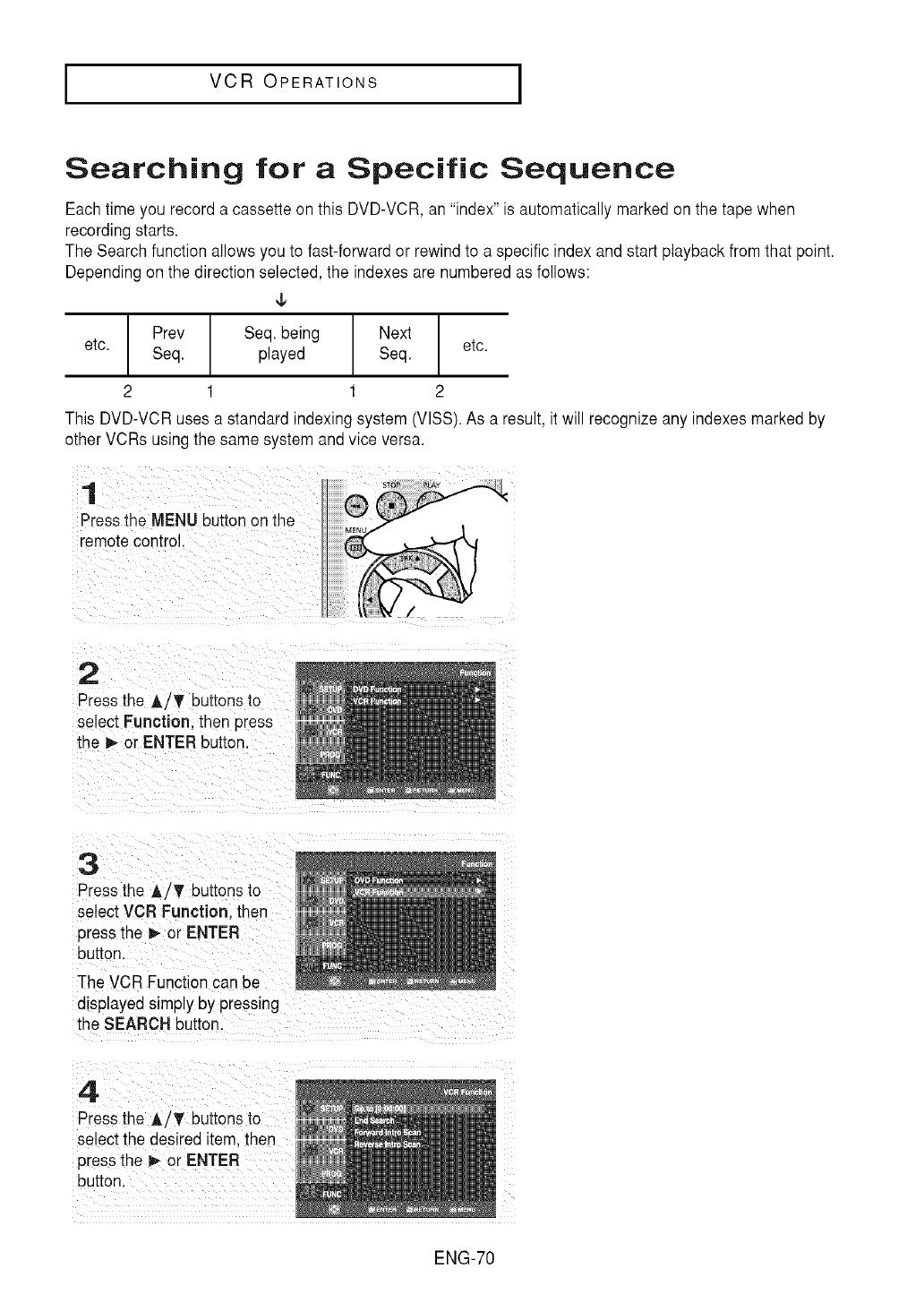
IVCR OPERATIONS I
Searching for a Specific Sequence
Each time you record a cassette on this DVD-VCR, an "index" is automaticallymarked onthe tape when
recording starts.
The Search function allows you to fast-forward or rewind to a specific index and start playback from that point.
Depending on the direction selected, the indexes are numbered as follows:
¢
Prey Seq. being Next
etc. Seq. played Seq. etc.
2 1 1 2
This DVD-VCRuses a standard indexing system (VlSS). As a result, it will recognize any indexes marked by
other VCRs using the same system and vice versa.
1
Pressthe MENU buttcqon the
remote control.
2
Press the A/_' buttons to
select Function. then pre
the _- or ENTER button.
3
Press the _/T buttons to
select VCR Function. then
press the _ or ENTER
button.
The VCR Function can be
displayedsimply by pressing
the SEARCH button.
4
Pressthe A/T buttons to
select the desired item. then
press the _ or ENTER
button.
ENG-70
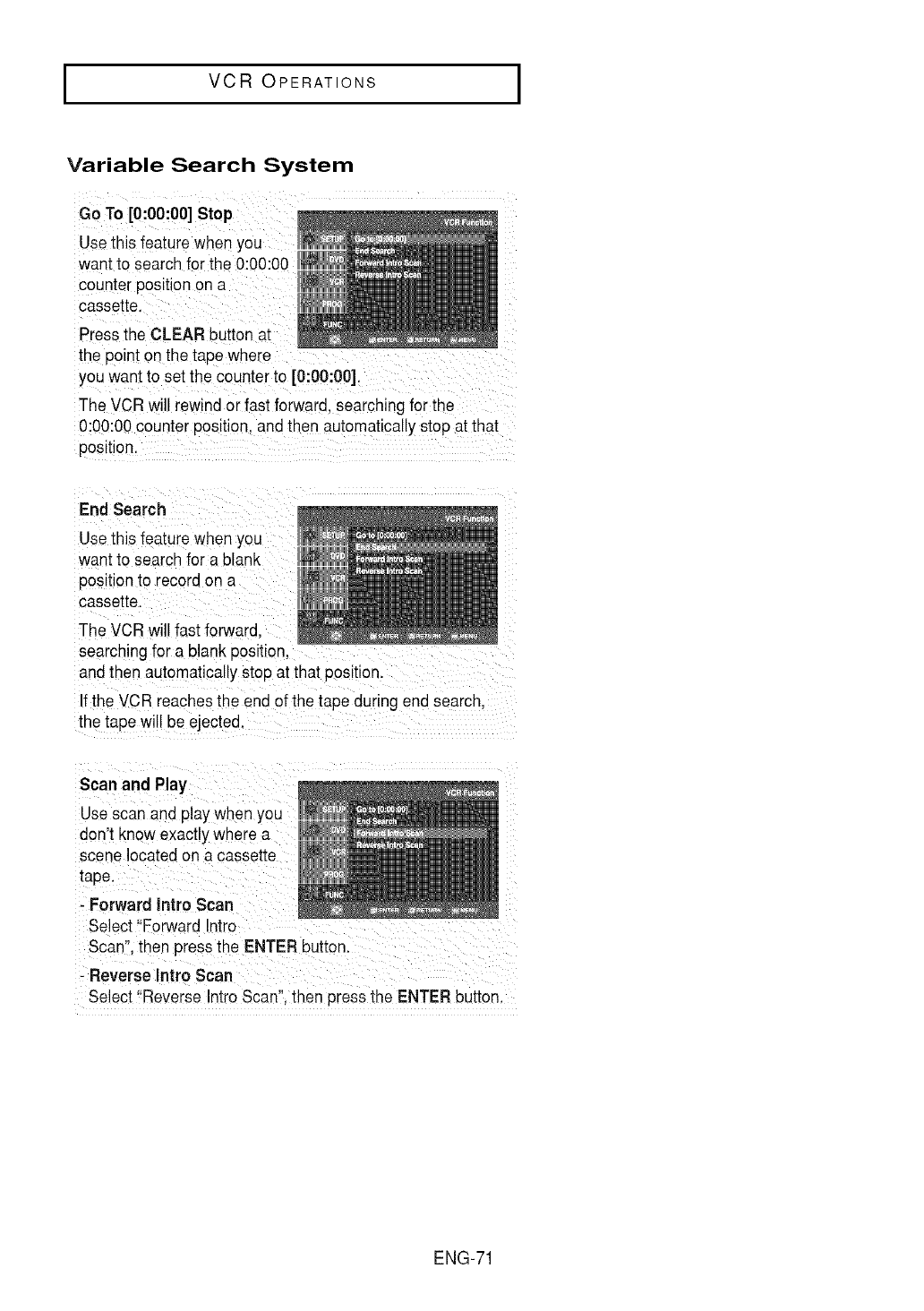
IVCR OPERATIONS I
Variable Search System
Go To [0:00:00]Stop
Usethis featurewhen you
want to searchfor the 0:00:00
counter position on a
cassette.
Pressthe CLEAR button at
the point on the tape where
you want to set the counter to [0:00:00].
The VCR will rewind or fast forward, searching for the
0:00:00 counter position, and then automatically stop at that
position.
End Search
Usethis feature when you
want to searchfor a blank
positionto record on a
cassette.
The VCRwill fast forward.
searching for a blank
andthen automatically stop at that oosition.
If the VCR reachesthe end of the tape during end search
the tape will be ejected.
Scan and Play
Usescan and play when you
don't know exactlywhere a
scene located on a cassette
tape.
-Forward Intro Scan
Select "Forward Intro
Scan". then pressthe ENTER button.
- Reverse Intro Scan
Select "Reverse Intro Scan".then press the ENTER button.
ENG-71
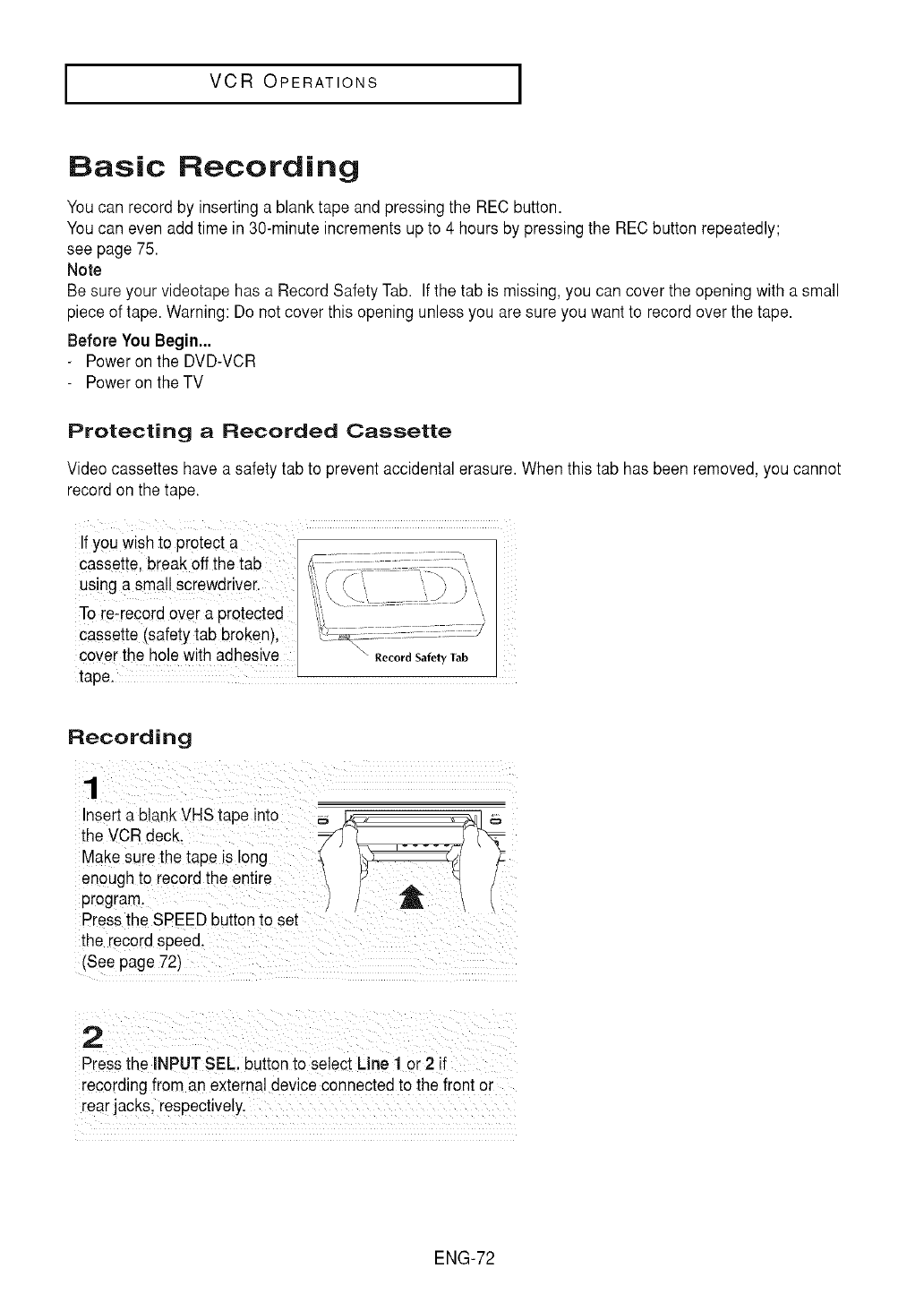
IVCR OPERATIONS I
Basic Recording
Youcan record by inserting a blank tape and pressing the RECbutton.
Youcan even add time in 30-minute incrementsup to 4 hours by pressing the REC button repeatedly;
see page 75.
Note
Be sure your videotape has a Record Safety Tab. If the tab is missing,you can cover the opening with a small
piece of tape. Warning: Do not cover this opening unless you are sure you want to record over the tape.
Before You Begin...
Power on the DVD-VCR
Power on the TV
Protecting aRecorded Cassette
Video cassettes have a safety tab to preventaccidental erasure. When this tab has been removed,you cannot
record on the tape.
If YOUwish to protect a
cassette, break off the tab
using a small screwdriver.
To reTrecordover a protected
cassette (safetytab broken),
cover the hole with adhesive
tape.
Recording
Insert a blank VHS tape into _ £_,, ,_1 _,
the VCR deck. '_' ['_
Makesure the tape is long _ _,__ _:
enough to Fecordthe entire \/v A _
program. / / _i[ /
Pressthe SPEED buttonto set
Press the iNPUT SEL: button to select Line 1 or 2 if
recording from an external device connected to the front or
rear jacksl respective!y.
ENG-72
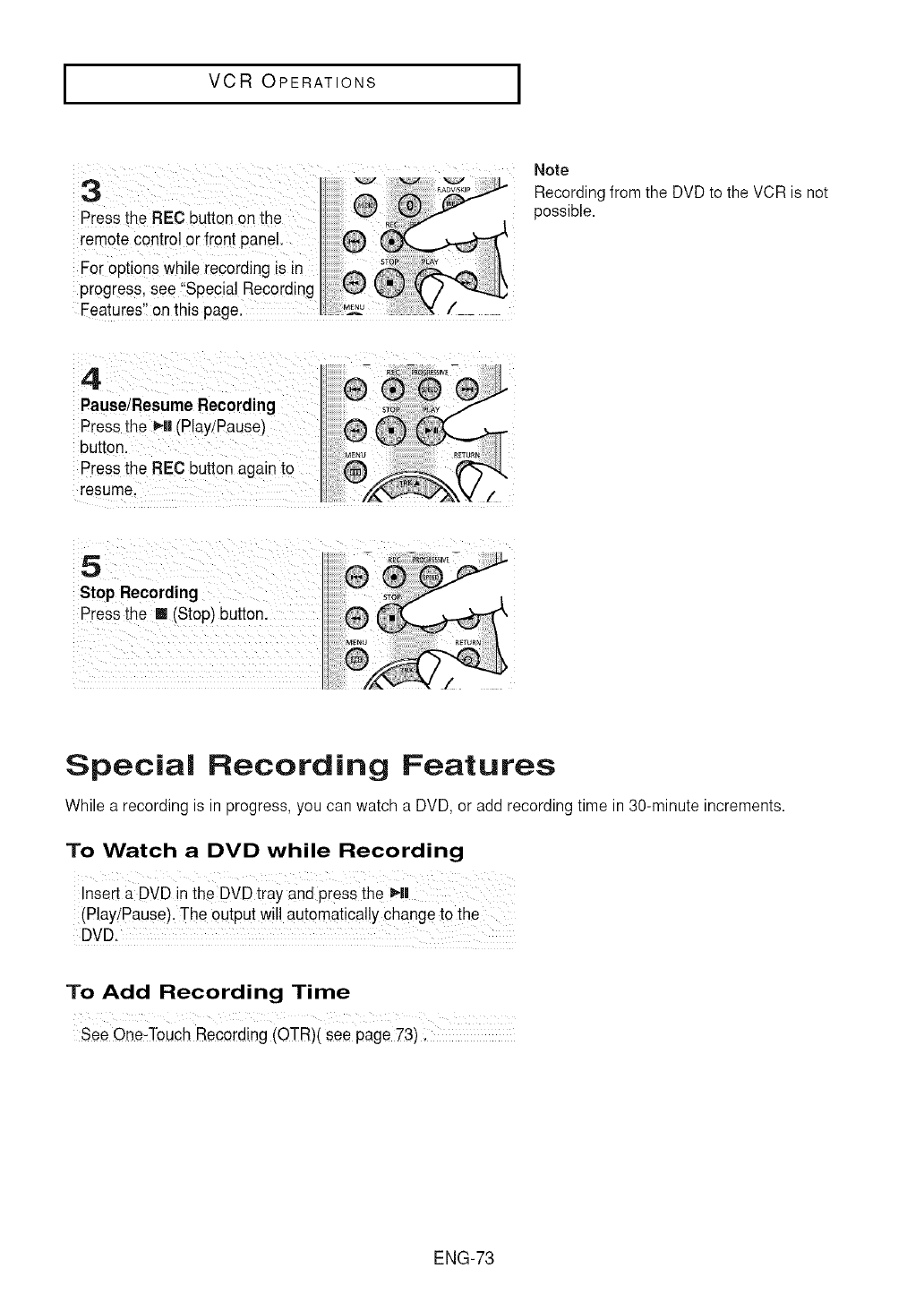
IVCR OPERATIONS I
Note
Recording from the DVD to the VCR is not
possible.
Special Recording Features
While a recording is in progress, you can watch a DVD, or add recording time in 30-minute increments.
To Watch a DVD while Recording
Insert a DVD in the DVD tray and press the _.|1
(Play!Pause).The output wi!! automatically change to the
DVD.
To Add Recording Time
See One,Touch Recording (OTR)( see page 73) i
ENG-73
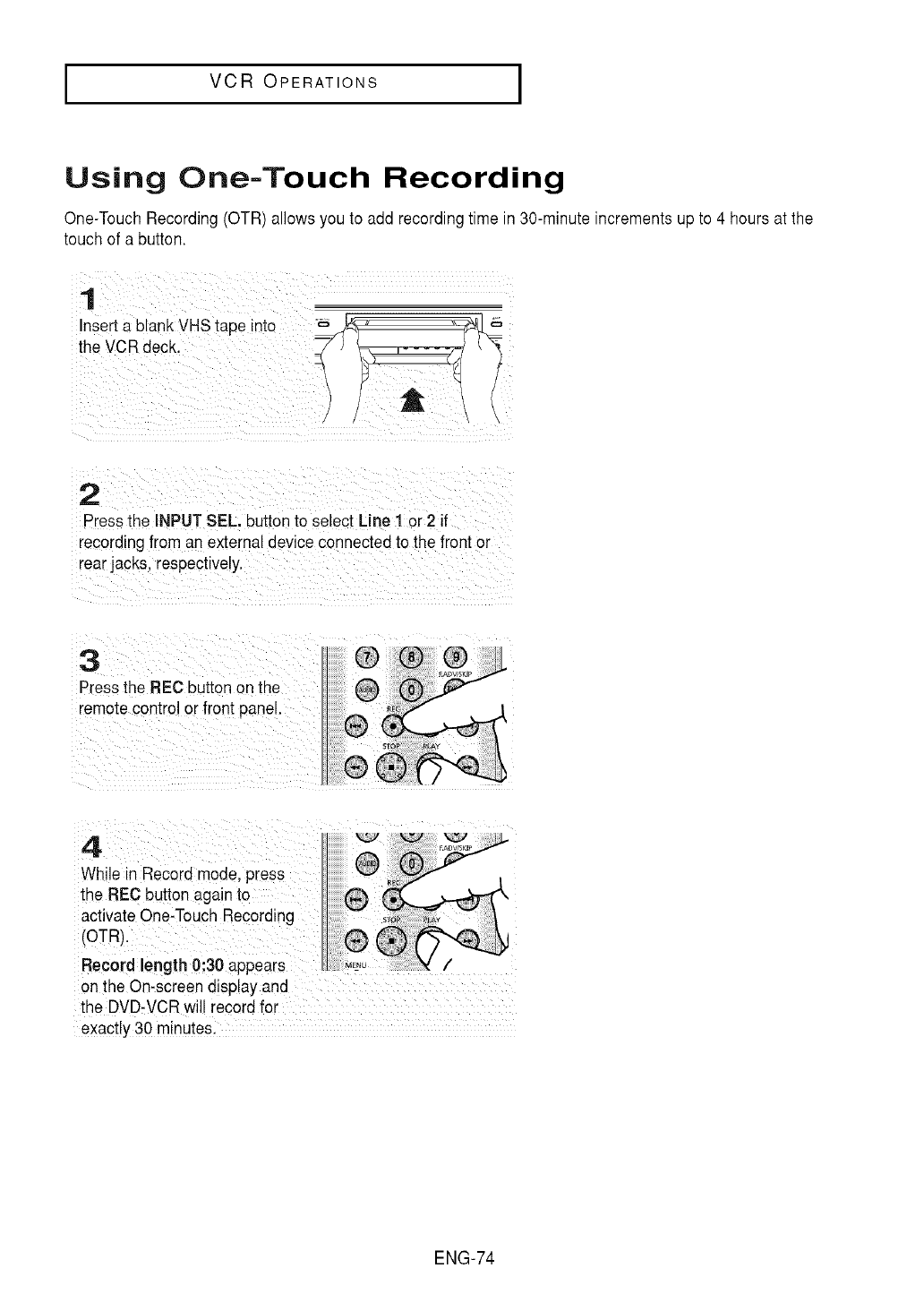
IVCR OPERATIONS I
Using One-Touch Recording
One-TouchRecording(OTR) allows you to add recording time in 30-minute increments up to 4 hours at the
touch of a button.
Press the INPUT SEL button to select Line 1or 2 if
record ng from an externaldevice connected to the front or
on the On-screendisplay and ::
the DVD:VCR will record for
eXactly30 minutesl
ENG-74
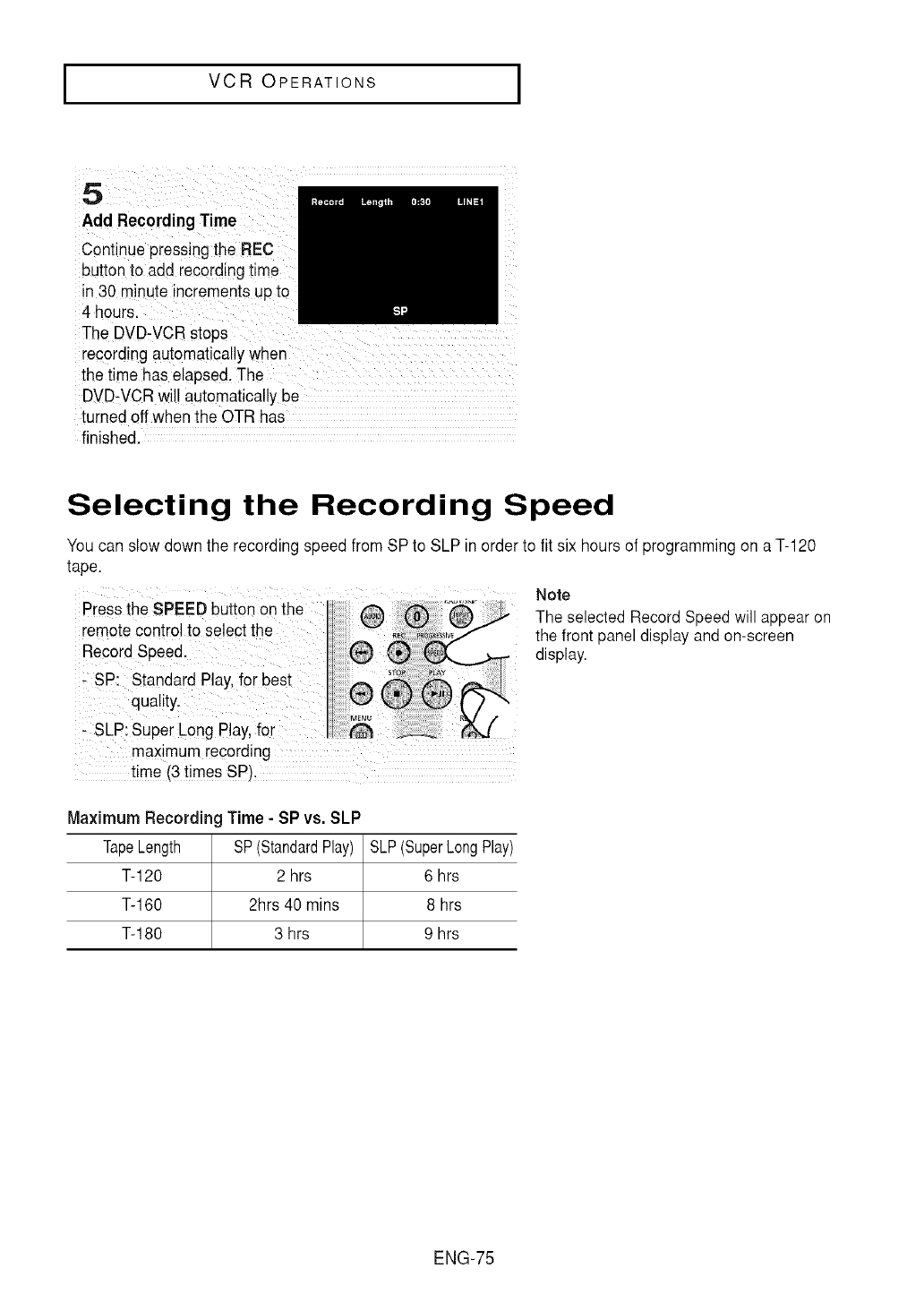
IVCR OPERATIONS I
5
Add Recording Time
Continue pressing the REC
buttonto add recordingtime
in 30 minute incrementsup to
4 hours.
The DVD-VCR stops
recording automaticallywhen
the time has elapsed.The
DVD-VCRwill automatically be
turned offwhen the OTR has
finished.
Selecting the Recording Speed
You can slow down the recordingspeed from SP to SLP in order to fit six hours ofprogramming on a T-120
tape.
Press the SPEED button onthe _"Ji
remotecontroI tOselect the
Rec0[d Speed. (_
i sP:StondordRay,,0rbest
quality.
SLP:sUpeiLeng P ay;for
maximum recording
time (3times SP),
Note
The selected Record Speed will appear on
the front panel display and on-screen
display.
Maximum Recording Time - SP vs. SLP
TapeLength SP(StandardPlay)
T-120 2 hrs
T-160 2hrs 40 mins
T-180 3 hrs
SLP(SuperLongPlay)
6 hrs
8 hrs
9 hrs
ENG-75
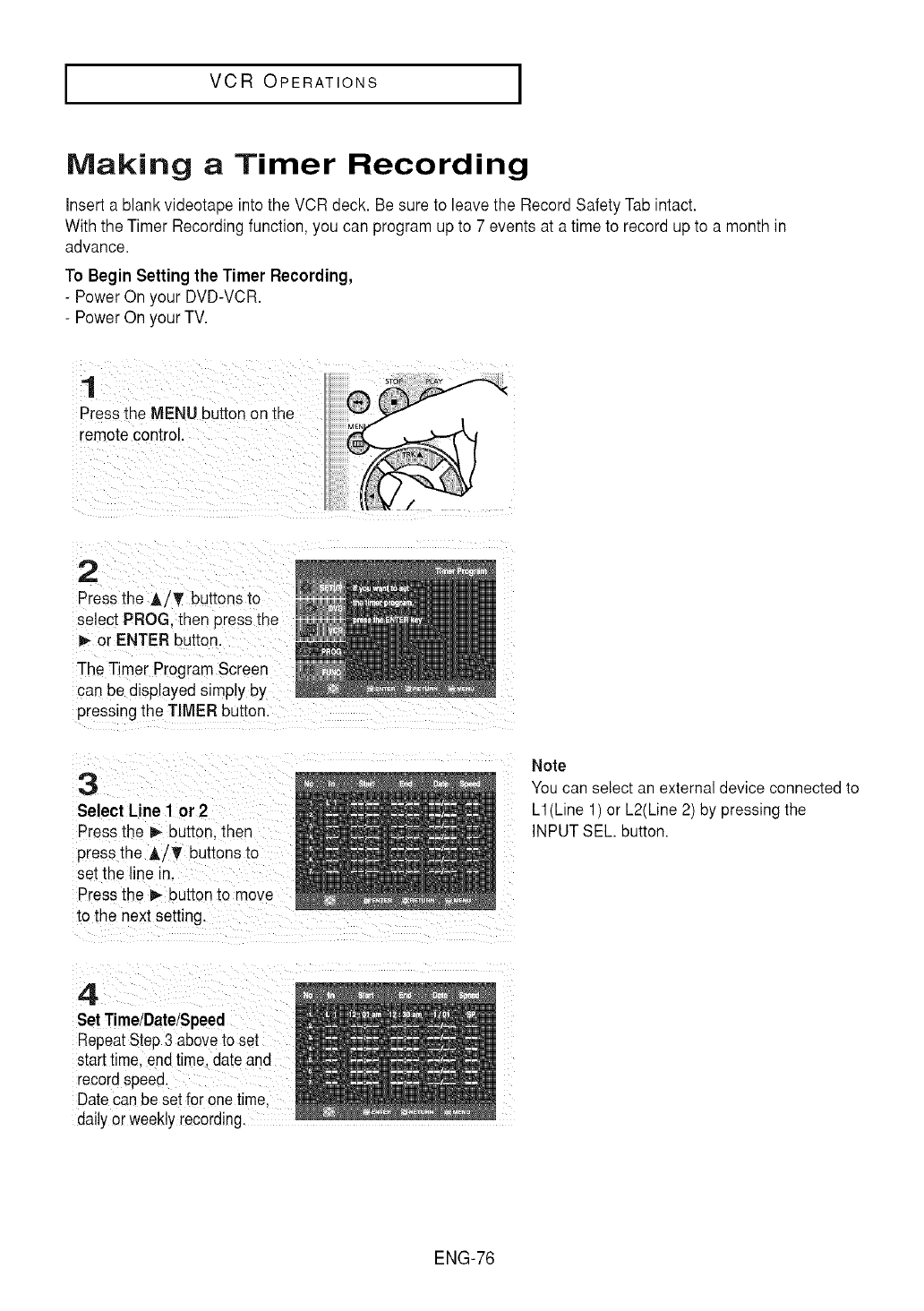
IVCR OPERATIONS I
Making a Timer Recording
insert a blank videotape into the VCR deck. Be sureto leave the Record Safety Tab intact.
With the Timer Recordingfunction, you can program up to 7 events at a time to record up to a month in
advance.
To Begin Setting the Timer Recording,
-Power On your DVD-VCR.
-Power On your TV.
1
Press the MENU button on the
remote control.
2
Pressthe A/T buttons to
select PROG.then press the
or ENTER button.
The Timer Program Screen
can be displayed simply by
pressingthe TIMER button.
3
Select Line 1or 2
Pressthe _ button then
pressthe _/T buttons to
set the line in.
Pressthe _- buttonto move
to the next setting.
Note
You can select an external device connected to
L1(Line 1) or L2(Line 2) by pressing the
INPUT SEE button.
4
SetTime/Date/Speed
RepeatStep3 aboveto set
starttime. endtime.date and
recordspeed.
Datecanbe setfor onetime.
dailyor weeklyrecording.
ENG-76
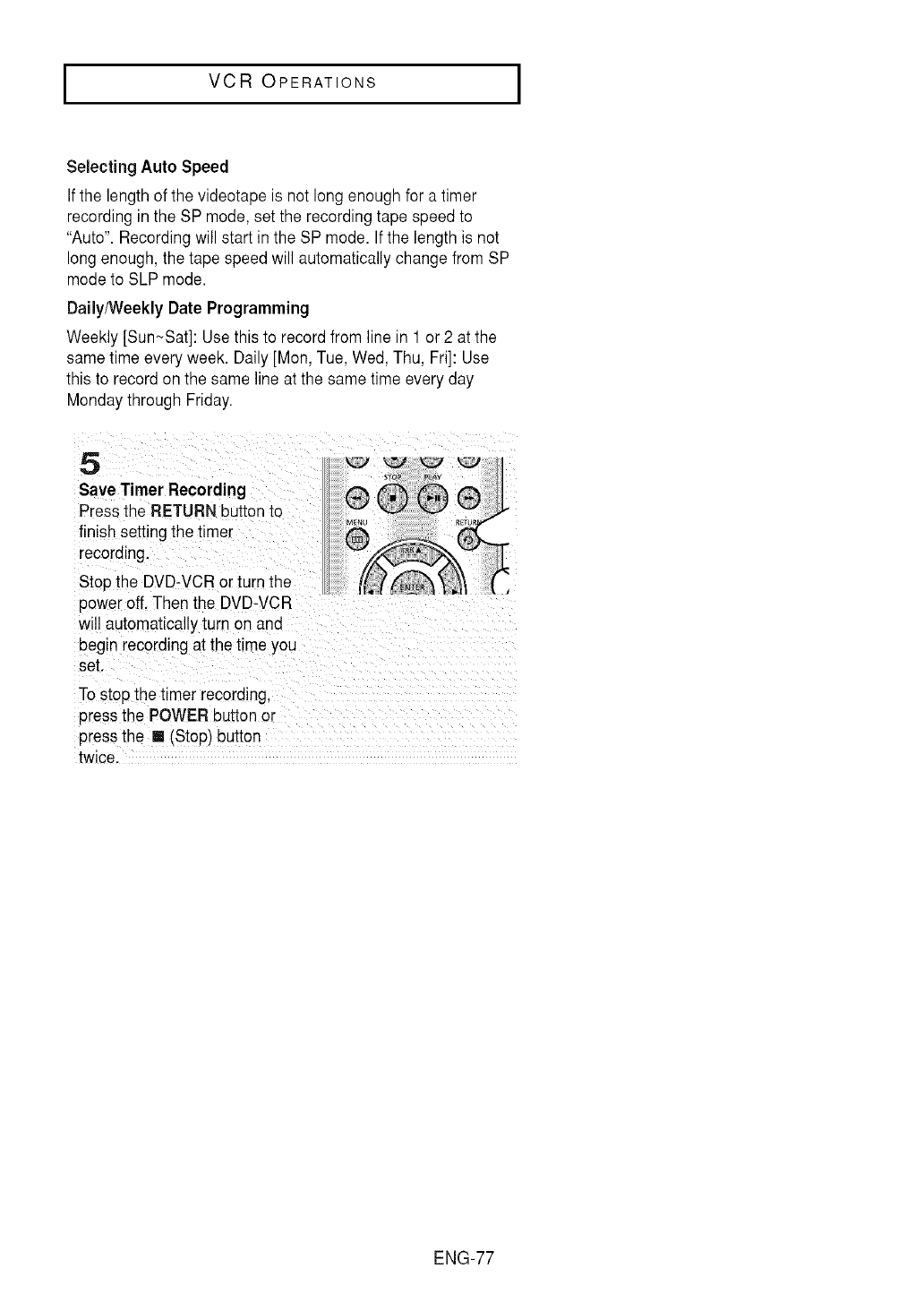
IVCR OPERATIONS I
Selecting Auto Speed
Ifthe length of the videotape is not long enough for a timer
recording in the SP mode,set the recording tape speed to
"Auto". Recording will start in the SP mode. Ifthe length is not
long enough, the tape speed will automaticallychange from SP
mode to SLP mode.
Daily/Weekly Date Programming
Weekly [Sun~Sat]: Usethis to record from line in 1 or 2 at the
same time every week. Daily [Mon, Tue, Wed, Thu, Fri]: Use
this to record on the same line at the sametime every day
Monday through Friday.
5
Save Timer Recording
Pressthe RETURN button to
finish setting the timer
recording.
Stop the DVD-VCRor Turnthe
power off, Then the DVD-VCR
will automaticallyturn on and
beg_nrecording at the time you
set.
To stop the timer recording
pressthe POWER buttonor
pressthe [] (Stop outton
twice,
ENG-77
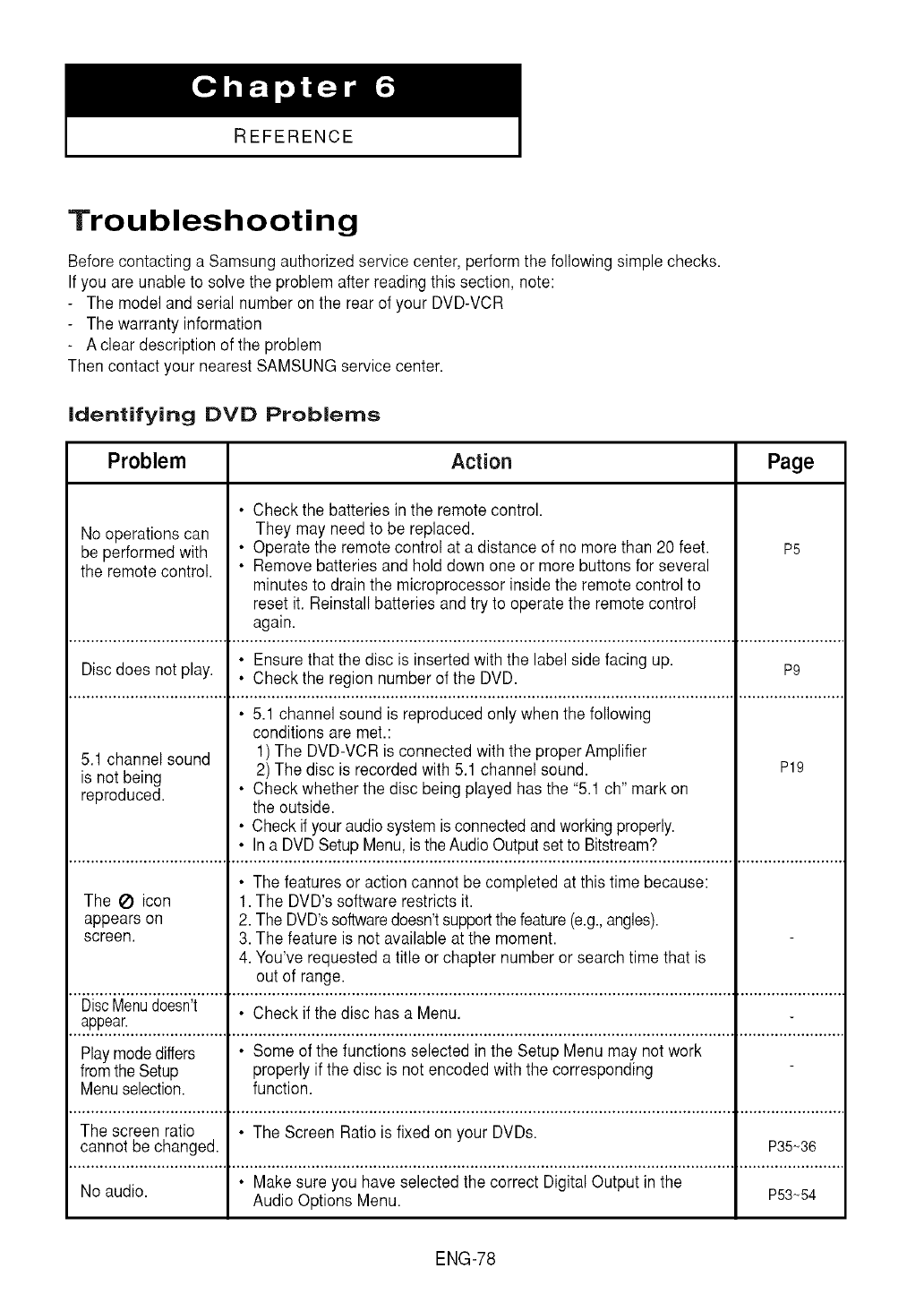
REFERENCE
Troubleshooting
Before contacting a Samsung authorized service center, performthe following simple checks.
If you are unableto solve the problem after reading this section, note:
The model and serial number onthe rear of your DVD-VCR
The warranty information
-A clear description of the problem
Then contact your nearest SAMSUNG service center.
Identifying DVD Problems
Problem Action Page
• Check the batteries in the remote control.
No operationscan They may need to be replaced.
be performed with • Operate the remote control at a distance of no more than 20 feet. P5
the remotecontrol. • Remove batteries and hold down one or more buttons for several
minutes to drain the microprocessorinside the remote control to
reset it. Reinstall batteries and try to operate the remote control
again.
• Ensure that the disc is insertedwith the label side facing up. P9
Disc does not play. • Check the region number of the DVD.
• 5.1 channel sound is reproduced only when the following
conditions are met.:
5.1 channel sound 1) The DVD-VCRis connected withthe proper Amplifier
is not being 2) The disc is recorded with 5.1 channel sound. P19
reproduced. • Check whether the disc being played has the "5.1 ch" mark on
the outside.
• Check if your audiosystem is connected andworkingproperly.
• In a DVDSetup Menu,is theAudio Outputset to Bitstream?
• The features or action cannot be completed at this time because:
The _ icon 1. The DVD's software restricts it.
appears on 2. The DVD'ssoftwaredoesn'tsupportthe feature(e.g.,angles).
screen. 3. The feature is not availableat the moment.
4. You've requested a title or chapter number or search time that is
out of range.
DiscMenudoesn't • Check if the disc has a Menu.
appear.
Playmodediffers • Some of the functions selected in the Setup Menu may not work
fromthe Setup properly if the disc is not encodedwith the corresponding
Menuselection, function.
The screen ratio • The Screen Ratiois fixed on your DVDs.
cannot be changed. P35~36
• Make sure you have selected the correct Digital Output in the
No audio. Audio Options Menu. P53_54
ENG-78
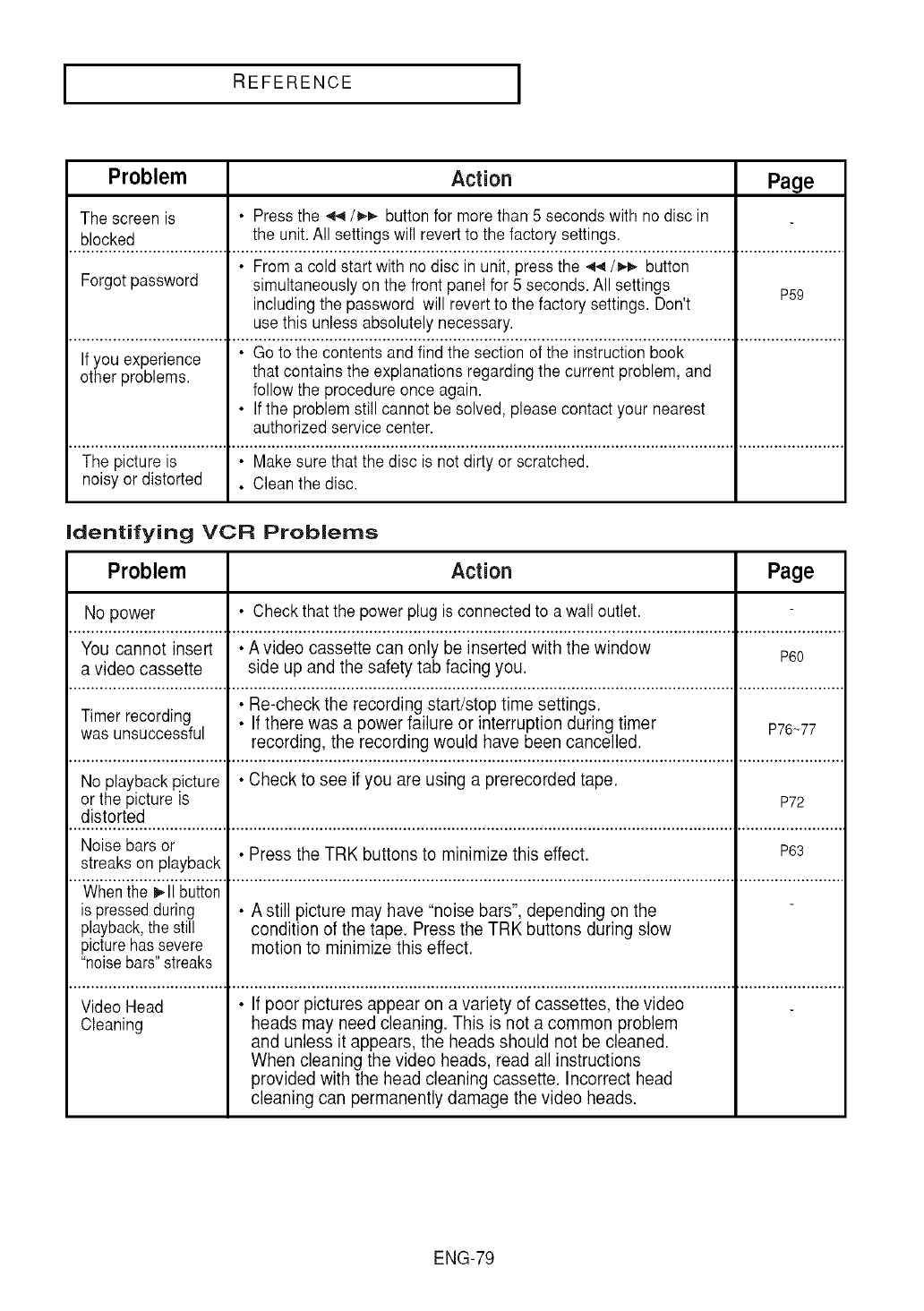
I REFERENCE I
Problem Action Page
The screen is •Press the .q4/_-_ button for more than 5 seconds with no disc in
blocked the unit.All settings will revertto the factory settings.
• From a cold start with no disc in unit, press the ._4/_,_ button
Forgot password simultaneously on the front panel for 5 seconds.All settings P59
including the password will revertto the factory settings. Don't
use this unless absolutely necessary.
......................................,_"G'o""t'o"i't_'e"conienis'a ncl'iind"iI_e"s'e'ct'ion'oi"i'he'insiruciion"1_'o'o'1<"..................................
If you experience
other problems, that contains the explanations regarding the current problem, and
follow the procedure once again.
• If the problem still cannot be solved, please contact your nearest
authorized service center.
The picture is • Make sure that the disc is not dirty or scratched.
noisyor distorted • Clean the disc.
Identifying VCR Problems
Problem Action Page
No power • Check that the power plug is connected to awall outlet.
You cannot insert • A video cassette can only be inserted with the window P60
a video cassette side up and the safety tab facing you.
Timer recording • Re-check the recording start/stop time settings.
• If there was a power failure or interruption during timer P76_77
was unsuccessful recording, the recording would have been cancelled.
No playback p.icture • Check to see if you are using a prerecorded tape.
or the picture Is P72
distorted
Noise bars or • Press the TRK buttons to minimize this effect. P63
streaks on playback
Whenthe I_11button
is pressedduring • A still picture may have "noise bars", depending on the
playback,the still condition of the tape. Press the TRK buttons during slow
picturehas severe motion to minimize this effect.
"noisebars"streaks
Video Head • If poor pictures appear on a variety of cassettes, the video
Cleaning heads may need cleaning. This is not a common problem
and unless it appears, the heads should not be cleaned.
When cleaning the video heads, read all instructions
provided with the head cleaning cassette. Incorrect head
cleaning can permanently damage the video heads.
ENG-79
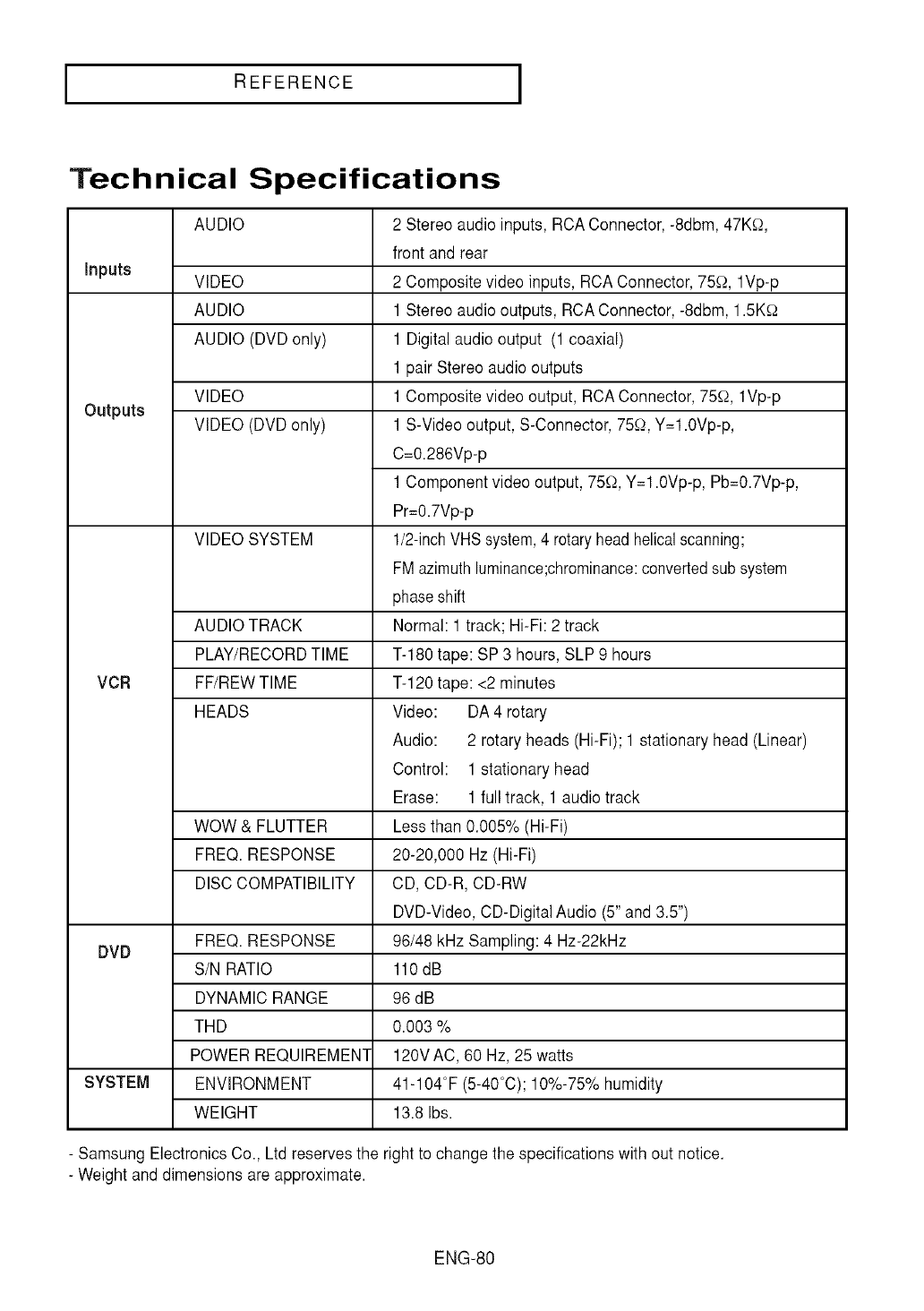
I REFERENCE I
Technical Specifications
AUDIO 2 Stereo audio inputs, RCAConnector,-8dbm, 47KO,
front and rear
VIDEO 2 Composite video inputs, RCAConnector,75_2,lVp-p
AUDIO 1Stereo audio outputs, RCA Connector,-8dbm, 1.5K_2
AUDIO (DVD only) 1 Digital audiooutput (1 coaxial)
1pair Stereo audio outputs
VIDEO 1Composite video output, RCAConnector,75_2,lVp-p
VIDEO (DVDonly) 1S-Video output, S-Connector,750, Y=1.0Vp-p,
C=0.286Vp-p
1Component video output, 75_2,Y=1.0Vp-p, Pb=0.7Vp-p,
Pr=0.7Vp-p
VIDEO SYSTEM 1/2-inchVHS system,4 rotaryheadhelicalscanning;
FMazimuthluminance;chrominance:convertedsub system
phaseshift
Normal: 1 track; Hi-Fi: 2 track
T-180 tape: SP 3 hours, SLP 9 hours
T-120 tape: <2 minutes
inputs
Outputs
AUDIO TRACK
PLAY/RECORDTIME
VCR FF/REWTIME
HEADS Video: DA 4 rotary
Audio: 2 rotary heads (Hi-Fi); 1 stationary head (Linear)
Control: 1 stationary head
Erase: 1 full track, 1audio track
WOW & FLUTTER Less than 0.005% (Hi-Fi)
FREQ. RESPONSE 20-20,000 Hz (Hi-Fi)
DISC COMPATIBILITY CD, CD-R, CD-RW
DVD-Video, CD-DigitalAudio (5" and 3.5")
FREQ. RESPONSE 96/48 kHz Sampling: 4 Hz-22kHz
DVD S/N RATIO 110dB
DYNAMIC RANGE 96 dB
THD 0.003 %
POWER REQUIREMENT 120VAC, 60 Hz, 25 watts
SYSTEM ENVIRONMENT 41-104I (5-40%); 10%-75% humidity
WEIGHT 13.8 Ibs.
- Samsung ElectronicsCo., Ltd reserves the right to change the specifications with out notice.
- Weight and dimensions are approximate.
ENG-80
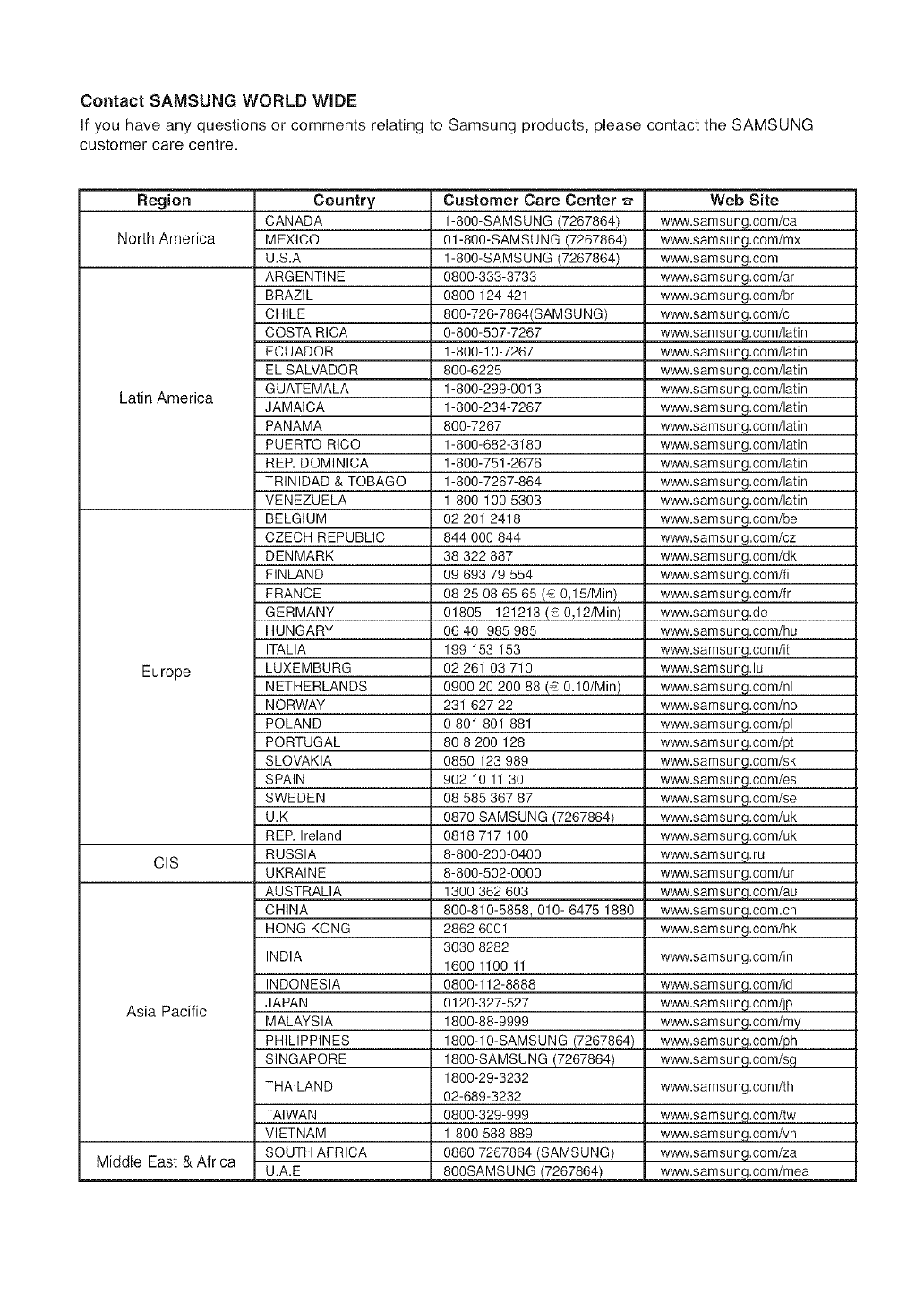
Contact SAIVISUNG WORLD WiDE
if you have any questions or comments relating to Samsung products, please contact the SAMSUNG
customer care centre.
Region
North America
Latin America
Europe
cIS
Asia Pacific
Middle East & Africa
Country
CANADA
MEXICO
U.S.A
ARGENTINE
BRAZIL
CHILE
COSTA RICA
ECUADOR
EL SALVADOR
GUATEMALA
JAMAICA
PANAMA
PUERTO RICO
REP. DOMINICA
TRINIDAD & TOBAGO
VENEZUELA
BELGIUM
CZECH REPUBLIC
DENMARK
FINLAND
FRANCE
GERMANY
HUNGARY
ITALIA
LUXEMBURG
NETHERLANDS
NORWAY
POLAND
PORTUGAL
SLOVAKIA
SPAIN
SWEDEN
U.K
REP. Ireland
RUSSIA
UKRAINE
AUSTRALIA
CHINA
HONG KONG
INDIA
INDONESIA
JAPAN
MALAYSIA
PHILIPPINES
SINGAPORE
THAILAND
TAIWAN
VIETNAM
SOUTH AFRICA
U.A.E
Customer Care Center
1-800-SAMSUNG (7267864)
01-800-SAMSUNG (7267864)
1-80O-SAMSUNG (7267864)
0800-333-3733
0800-124-421
800-726-7864(SAMSU NG)
0-800-507-7267
1-800-10-7267
800-6225
1-800-299-0013
1-800-234-7267
800-7267
1-800-682-3180
1-800-751-2676
1-800-7267-864
1-800-100-5303
02 201 2418
844 000 844
38 322 887
09 693 79 554
08 25 08 65 65 (_ 0,15/Min)
01805 - 121213 (C 0,12/Min)
06 40 985 985
199 153 153
02 261 03 710
0900 20 200 88 (C 0.10/Min)
231 627 22
0 801 801 881
80 8 200 128
0850 123 989
902 10 11 30
08 585 367 87
0870 SAMSUNG (7267864)
0818 717 100
8-800-200-0400
8-800-502-0000
1300 362 603
800-810-5858 010- 6475 1880
2862 6001
3030 8282
1600 1100 11
0800-112-8888
0120-327-527
1800-88-9999
1800-10-SAMSUNG (7267864)
1800-SAMSUNG (7267864)
1800-29-3232
02-689-3232
0800-329-999
1 800 588 889
0860 7267864 (SAMSUNG)
800SAMSUNG (7267864)
Web Site
www.samsung.com/ca
www.samsung.com/mx
www.samsung.com
www.samsung.com/ar
www.samsung.com/br
www.samsung.oom/cI
www.sam sung.com/latin
www.sam sung.com/latin
www.sam sung.com/latin
www.samsung.com/latin
www.sam sung.com/latin
www.samsung.com/latin
www.sam sung.com/latin
www.sam sung.com/latin
www.sam sung.com/latin
www.sam sung.com/latin
www.samsung.com/be
www.samsung.com/cz
www.samsung.com/dk
www.samsung.com/fi
www.samsung.com/fr
www.samsung.de
www.samsung.com/hu
www.samsung.com/it
www.samsung.lu
www.samsung.com/nl
www.samsung.com/no
www.samsung.com/pl
www.samsung.com/pt
www.samsung.com/sk
www.samsung.com/es
www.samsung.com/se
www.samsunq.com/uk
www.samsung.com/uk
www.samsung.ru
www.samsung.oom/ur
www.samsunq.oom/au
ig.
www.samsung.com/hk
www.samsung.com/in
www.samsunq.com/id
www.samsung.com/jp
www.samsung.com/my
www.samsung.com/ph
www.samsung.com/sg
www.samsung.com/th
www.samsung.com/tw
www.samsung.com/vn
www.samsung.com/za
www.samsung.oom/mea
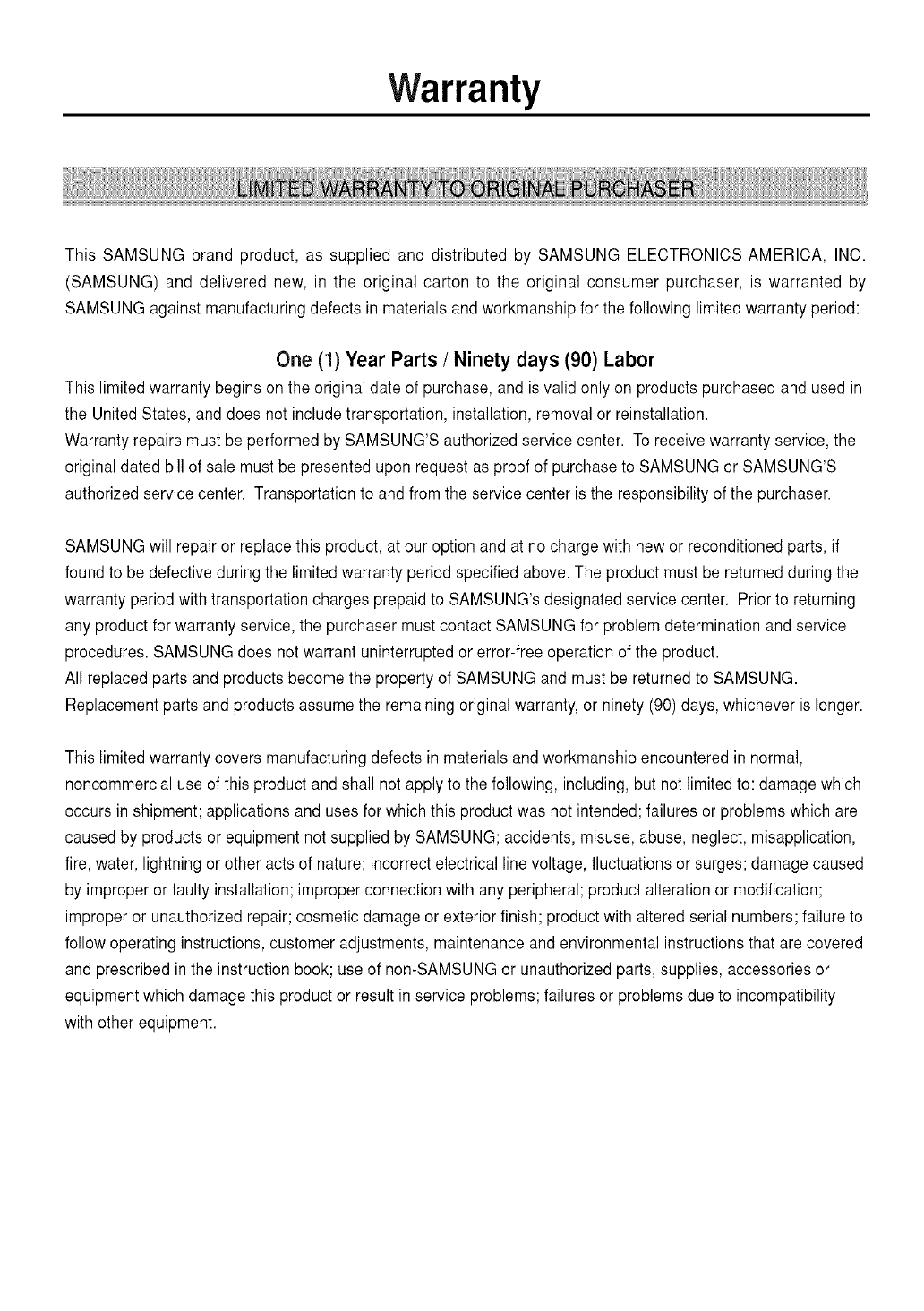
Warranty
This SAMSUNG brand product, as supplied and distributed by SAMSUNG ELECTRONICS AMERICA, INC.
(SAMSUNG) and delivered new, in the original carton to the original consumer purchaser, is warranted by
SAMSUNG against manufacturing defects in materials and workmanshipfor the following limited warranty period:
One (1) Year Parts /Ninety days (90) Labor
This limited warranty begins on the original date of purchase, and is valid only on products purchased and used in
the United States, and does not include transportation, installation, removal or reinstallation.
Warranty repairs must be performed by SAMSUNG'S authorized service center. To receivewarranty service, the
original dated bill of sale must be presented upon request as proof of purchaseto SAMSUNG or SAMSUNG'S
authorized service center. Transportation to and from the service center is the responsibilityof the purchaser.
SAMSUNG will repair or replace this product, at our option and at no charge with new or reconditionedparts, if
found to be defectiveduring the limitedwarranty period specified above.The product must be returned during the
warranty periodwith transportation charges prepaid to SAMSUNG'sdesignated service center. Priorto returning
any product for warranty service, the purchaser must contact SAMSUNG for problem determination and service
procedures. SAMSUNG does not warrant uninterrupted or error-free operation of the product.
All replaced parts and products become the property of SAMSUNG and must be returned to SAMSUNG.
Replacement parts and products assume the remaining original warranty,or ninety (90) days, whichever is longer.
This limited warranty covers manufacturing defects in materials andworkmanship encountered in normal,
noncommercial use of this product and shall not apply to the following, including,but not limited to: damage which
occurs in shipment; applications and uses for which this productwas not intended; failures or problemswhich are
caused by products or equipmentnot supplied by SAMSUNG;accidents, misuse, abuse, neglect, misapplication,
fire, water, lightning or other acts of nature; incorrect electrical line voltage, fluctuations or surges; damage caused
by improper or faulty installation; improper connection with any peripheral; product alteration or modification;
improper or unauthorized repair; cosmetic damage or exterior finish; productwith altered serial numbers; failure to
follow operating instructions,customer adjustments, maintenance and environmental instructions that are covered
and prescribed in the instruction book; use of non-SAMSUNGor unauthorized parts, supplies, accessories or
equipment which damage this product or result in service problems; failures or problemsdue to incompatibility
with other equipment.
ContactSAMSUNGWORLDWIDE
IfyouhaveanyquestionsorcommentsrelatingtoSamsungproducts,
pleasecontacttheSAMSUNGcustomercarecenter.
1-800-SAMSUNG(7267864)/www.samsung.com
Samsung Electronics America, Inc.
105 Challenger Road
Ridgefield Park, NJ 07660-0511
1-800-SAMSUNG (7267864)
www.samsung.com
AK68-01304B(01)
