Samsung Ht Sk6 Users Manual
HT-SK6 to the manual 881dfb42-5aea-f9a4-f92a-eb6561c3ac55
2015-01-23
: Samsung Samsung-Ht-Sk6-Users-Manual-282946 samsung-ht-sk6-users-manual-282946 samsung pdf
Open the PDF directly: View PDF  .
.
Page Count: 52
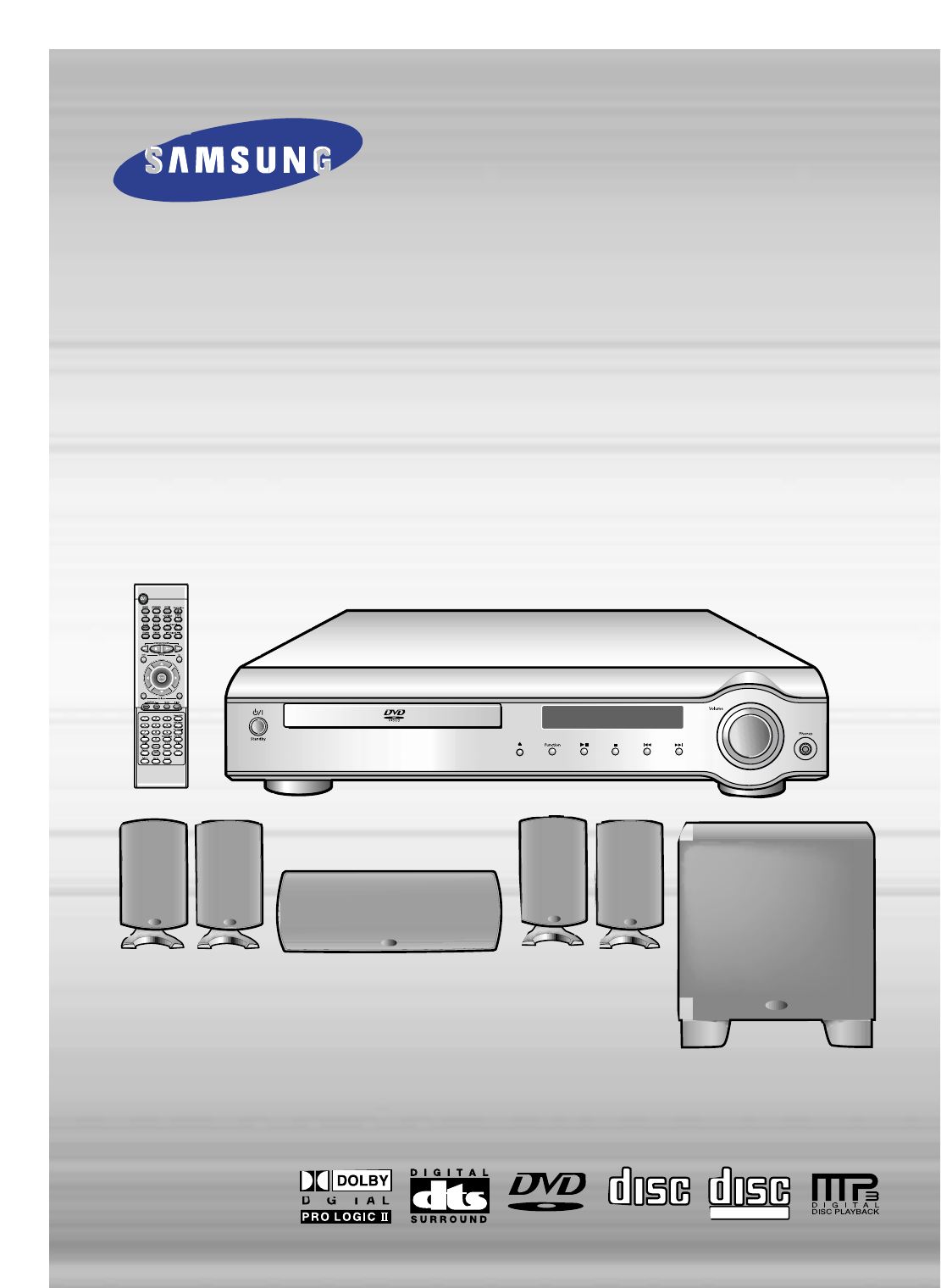
DIGITAL HOME
THEATER SYSTEM
HT-SK6
V I D E O
COMPACT
DIGITAL AUDIO
COMPACT
DIGITAL VIDEO
Instruction Manual
AH68-01241Q
SAMSUNG ELECTRONICS AMERICA, INC.
SERVICE DIVISION
400 Valley Road, Suite 201
Mount Arlington, NJ 07856
1-800-SAMSUNG (1-800-726-7864)
www.samsungusa.com
Safety Warnings
1
CLASS 1 LASER PRODUCT
This Compact Disc player is classified as a CLASS 1
LASER product.
Use of controls, adjustments or performance of
procedures other than those specified herein may result
in hazardous radiation exposure.
CAUTION-INVISIBLE LASER RADIATION WHEN OPEN
AND INTERLOCKS DEFEATED, AVOID
EXPOSURE TO BEAM.
This symbol indicates that dangerous voltage which can cause electric shock is present inside
this unit.
This symbol alerts you to important operating and maintenance instructions accompanying
the unit.
WARNING: To reduce the risk of fire or electric shock, do not expose this appliance to rain or moisture.
CAUTION: TO PREVENT ELECTRIC SHOCK, MATCH WIDE BLADE OF PLUG TO WIDE SLOT, FULLY
INSERT.
CLASS 1 LASER PRODUCT
KLASSE 1 LASER PRODUKT
LUOKAN 1 LASER LAITE
KLASS 1 LASER APPARAT
PRODUCTO LASER CLASE 1
RISK OF ELECTRIC SHOCK.
DO NOT OPEN
CAUTION:
TO REDUCE THE RISK OF ELECTRIC
SHOCK, DO NOT REMOVE REAR COVER.
NO USER SERVICEABLE PARTS INSIDE.
REFER SERVICING TO QUALIFIED
SERVICE PERSONNEL.
CAUTION
Note to CATV system installer :
This reminder is provided to call the CATV system
installer’s attention to Section 820~40 of the NEC
which provides guidelines for proper grounding and,
in particular, specifies that the cable ground shall be
connected to the grounding system of the building,
as close to the point of cable entry as practical
Precautions
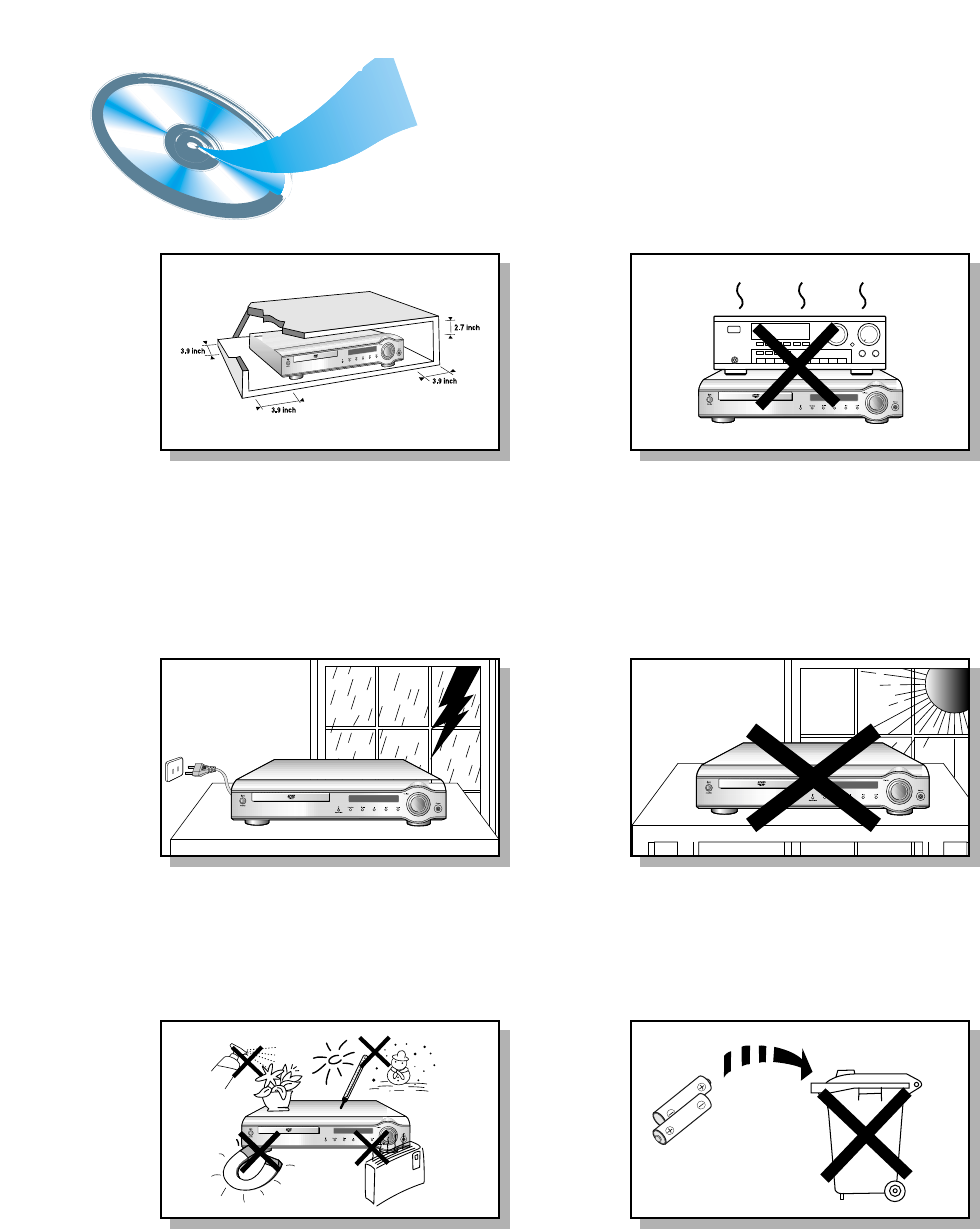
Ensure that the AC power supply in your house complies with the identification sticker located on the back of your player. Install your player
horizontally, on a suitable base (furniture), with enough space around it for ventilation (3~4inches). Make sure the ventilation slots are not
covered. Do not stack anything on top of the player. Do not place the player on amplifiers or other equipment which may become hot.
Before moving the player, ensure the disc tray is empty. This player is designed for continuous use. Switching off the DVD player to the stand-by
mode does not disconnect the electrical supply. In order to disconnect the player completely from the power supply, remove the main plug from
the wall outlet, especially when left unused for a long period of time.
Protect the player from moisture(i.e. vases) , and excess heat(e.g.fireplace) or
equipment creating strong magnetic or electric fields (i.e.speakers...).
Disconnect the power cable from the AC supply if the player malfunctions.
Your player is not intended for industrial use.
Use of this product is for personal use only.
Condensation may occur if your player or disc have been stored in cold
temperatures.
If transporting the player during the winter, wait approximately 2 hours until
the unit has reached room temperature before using.
Phones
During thunderstorms, disconnect AC main plug from the wall
outlet.
Voltage peaks due to lightning could damage the unit.
Do not expose the unit to direct sun radiation or other heat
sources.
This could lead to overheating and malfunction of the unit.
The battery used with this product contain chemicals that are
harmful to the environment.
Do not dispose of batteries in the general household trash.
2

Safety Instructions
3
READ INSTRUCTIONS
All the safety and operating instructions should be
read before the appliance is operated.
RETAIN INSTRUCTIONS
The safety and operating instructions should be
retained for future reference.
HEED WARNINGS
All warnings on the appliance and in the operating
instructions should be adhered to.
FOLLOW INSTRUCTIONS
All operating and use instructions should be
followed.
WATER AND MOISTURE
Do not use this video product near water-
for example, near a bathtub, wash bowl,
kitchen sink, or laundry tub, in a wet basement,
or near a swimming pool, and the like.
OVERLOADING
Do not overload wall outlets and extension cords as
this can result in the risk of fire
or electric shock.
VENTILATION
Slots and openings in the cabinet are provided
for ventilation and to ensure reliable operation of the
video product and to protect it from overheating
these openings must not be blocked or covered.
The openings should never be blocked
by placing the video product on a bed, sofa, rug, or
other similar surface. This video product
should never be placed near or over a radiator or
heat register.
This video product should not be placed
in a built-in installation such as a bookcase
or rack unless proper ventilation is provided
or the manufacturer's instructions have been
followed.
POWER CORD PROTECTION
Power-supply cords should be routed so that
they are not likely to be walked on or pinched
by items placed upon or against them paying
particular attention to cords at plugs,
convenience receptacles, and the point where
they exit from the appliance.
CLEANING
Unplug this video product from the wall outlet
before cleaning. Do not use liquid cleaners
or aerosol cleaners. Use a damp cloth for cleaning.
LIGHTNING
For added protection of this video product
receiver during a lightning storm, or when
it is left unattended and unused for long
periods of time, unplug it from the wall outlet
and disconnect the antenna or cable system.
This will prevent damage to the video product
due to lightning and power-line surges.
OBJECT AND LIQUID ENTRY
Never push objects of any kind into this
product through openings as they may touch
dangerous voltage points or short-out parts
that could result in a fire or electric shock.
Never spill liquid of any kind on the video
product.
ACCESSORIES
Do not place this video product on an unstable cart,
stand, tripod, bracket, or table.
The video product may fall, causing serious injury to
a child or adult, and serious damage
to the appliance.
Use only with a cart, stand, tripod, bracket,
or table recommended by the manufacturer,
or sold with the video product. Any mounting
of the appliance should follow the manufacturer's
instructions and should use a mounting accessory
recommended by the manufacturer.
CART
An appliance and cart combination should be moved
with care. Quick stops, excessive force, and uneven
surfaces may cause the appliance and cart
combination to overturn.
POWER SOURCES
This video product should be operated only from the
type of power source indicated
on the marking label. If you are not sure
of the type of supply to your home, consult your
appliance dealer or local power company.
For video products intended to be operated from
battery power, or other sources, refer
to the operating instructions.
4
POWER LINES
An outside antenna system should not be located in
the vicinity of overhead power lines or other electric
light or power circuits,
or where it can fall into such power lines
or circuits. When installing an outside antenna
system, extreme care should be taken to keep from
touching such power lines or circuits as contact with
them might be fatal.
POLARIZATION
This video product is equipped with a polarized
alternating current line plug (a plug having one blade
wider than the other.) This plug will fit into the power
outlet only one way.
This is a safety feature. If you are unable
to insert the plug fully into the outlet, try reversing
the
plug. If the plug should still fail to fit, contact your
electrician to replace your obsolete outlet. Do not
defeat the safety purpose of the polarized plug.
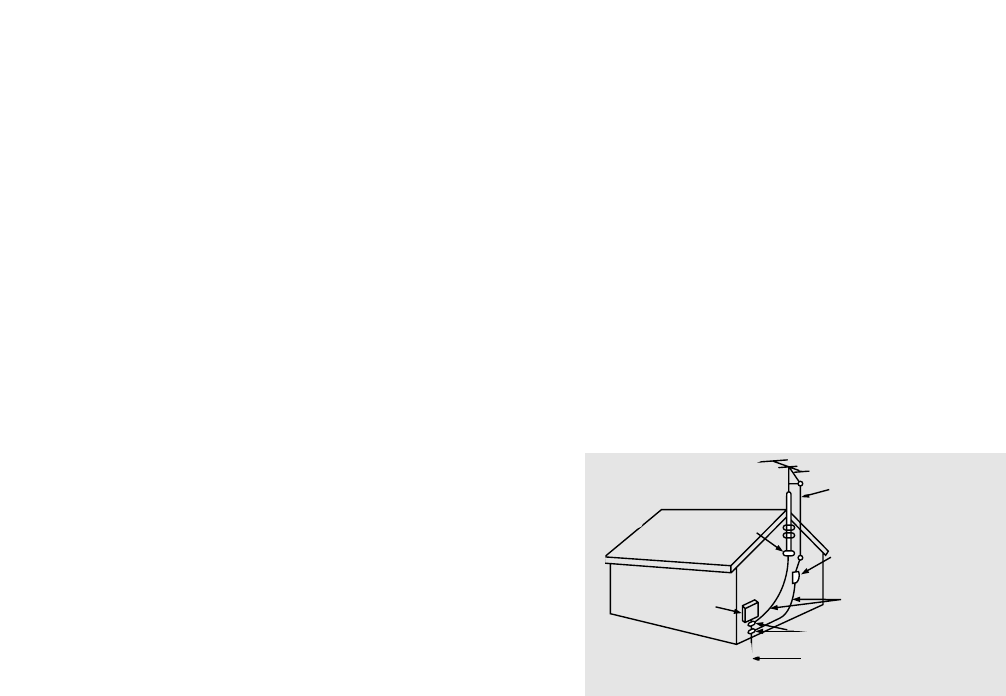
OUTDOOR ANTENNA GROUNDING
•If an outside antenna is connected to the
antenna terminal, be sure the antenna system
is grounded so as to provide some protection
against voltage surges and built-up static
charges.
•In the U.S.A section 810 of the National
Electrical Code, ANSI/NFPA No. 70-1984,
provides information with respect to proper
grounding of the mast and supporting
structure, grounding of the lead-in wire
to an antenna discharge unit, size of grounding
conductors location of antenna discharge unit,
connection to grounding electrodes, and
requirements for the grounding electrode.
See the figure below.
ATTACHMENTS
Do not use attachments not recommended
by the video product manufacturer as they may
cause hazards.
SERVICING
•Do not attempt to service this product yourself
as opening or removing covers may expose
you to dangerous voltage or other hazards.
•
Refer all servicing to qualified service personnel.
REPLACEMENT PARTS
When replacement parts are required, be sure the
service technician has used replacement parts
specified by the manufacturer or having the same
characteristics as the original part. Unauthorized
substitutions may result in fire, electric shock or other
hazards.
SAFETY CHECK
Upon completion of any service or repairs
to this video product, ask the service technician to
perform safety checks to determine that the video
product is in proper operating condition.
DAMAGE REQUIRING SERVICE
Unplug this video product from the wall outlet
and
refer servicing to qualified service personnel
under the
following conditions.
a.
When the power-supply cord or plug is damaged.
b. If liquid has been spilled, or objects have
fallen into the video product.
c. If the video product has been exposed to rain
or water
d.
If the video product does not operate normally
by following the operating instructions.
Adjust only those controls that are covered
by the operating instructions as an improper
adjustment of other controls may result
in damage and will often require extensive
work by a qualified technician to restore
the video product to its normal operation.
e. If the video product has been dropped
or the cabinet has been damaged.
f. When the video product exhibits a distinct
change in performance - this indicates
a need for service.
HEAT
This video unit should be situated away from heat
sources such as radiators, stoves, or other products
(including amplifiers) that produce heat.
ANTENNA
LEAD IN WIRE
ANTENNA
DISCHARGE UNIT
(NEC SECTION. 810-20)
GROUNDING CONDUCTORS
(NEC SECTION 810-21)
GROUND CLAMPS
POWER SERVICE GROUNDING
ELECTRODE SYSTEM
(NEC ART 250, PART H)
GROUND
CLAMP
ELECTRIC
SERVICE
EQUIPMENT
DVD (Digital Versatile Disc) offers fantastic audio and video, thanks to Dolby
Digital surround sound and MPEG-2 video compression technology. Now you can
enjoy these realistic effects in the home, as if you were in a movie theater or concert
hall.
V I D E O
DVD players and the discs are coded by region. These regional codes must match in
order for the disc to play. If the codes do not match, the disc will not play.
The Region Number for this player is given on the rear panel of the player.
(Your DVD player will only play DVDs that are labeled with identical region codes.)
1 6
~
5
Copy Protection
• Many DVD discs are encoded with copy protection. Because of this, you should only connect your
DVD player directly to your TV, not to a VCR. Connecting to a VCR results in a distorted picture
from copy-protected DVD discs.
• This product incorporates copyright protection technology that is protected by methods claims of certain
U.S. patents and other intellectual property rights owned by Macrovision Corporation and other rights
owners. Use of this copyright protection technology must be authorized by Macrovision Corporation, and
is intended for home and other limited viewing uses only unless otherwise authorized by Macrovision
Corporation. Reverse engineering or disassembly is prohibited.
• LD, CD-G, CD-I, CD-ROM and DVD-ROM cannot be played on this player.
If such discs are played, a "WRONG DISC FORMAT" message appears on the TV screen.
• DVD discs purchased abroad may not play on this player.
If such discs are played, a "WRONG REGION CODE" message appears on the TV screen.
Do not use the following types of disc!
6
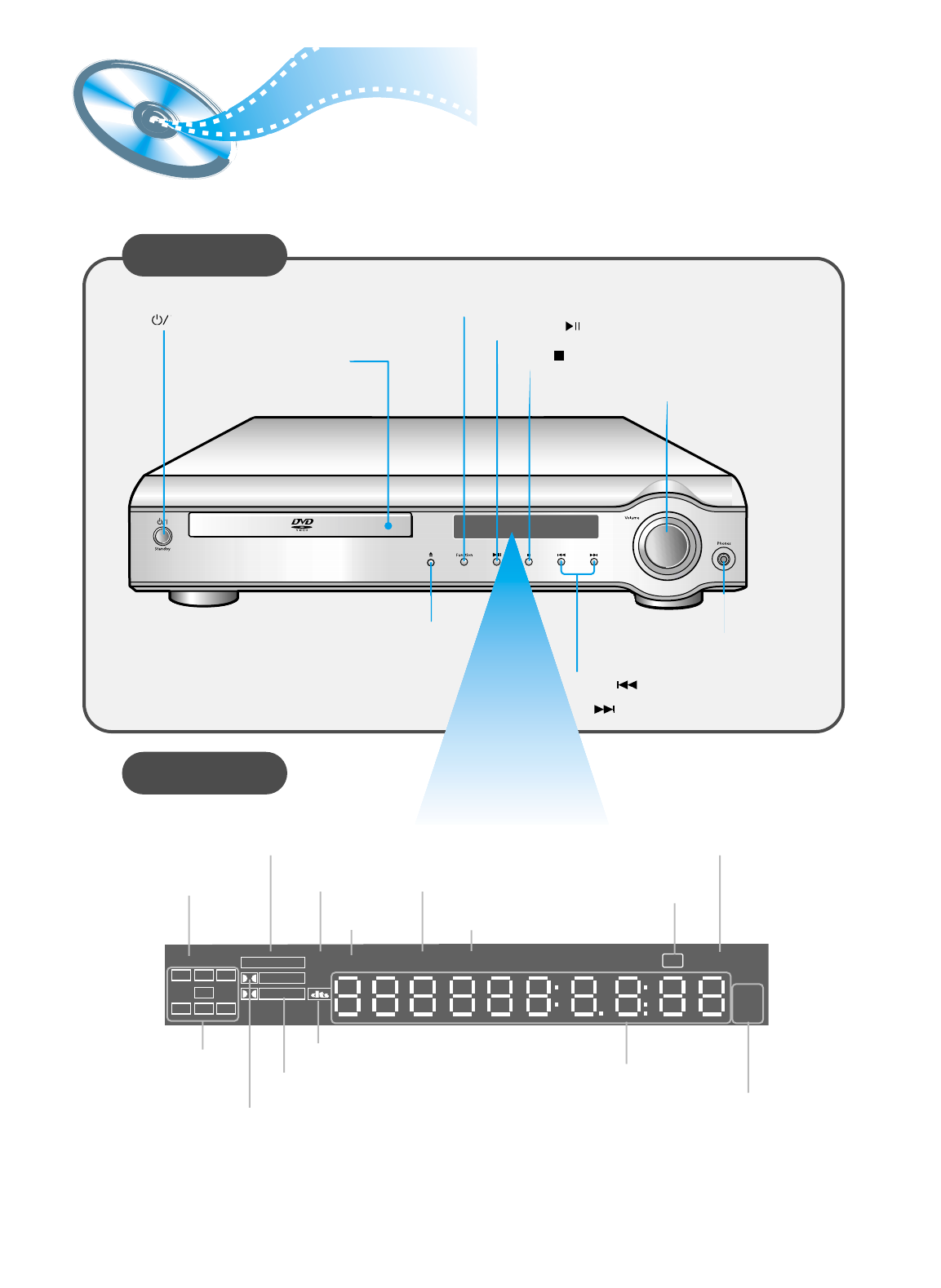
Contents
PREPARATION CONNECTIONS
OPERATION SETUP
MISCELLANEOUS
RADIO OPERATION
Safety Warnings
Precautions
Safety Instructions
Description
Remote Control
CHAPTER 1.
PREPARATION
1
2
3
7
9
Setting up the Language Features
System Setup
Speaker Setup
To set up Speaker Balance
Creating Realistic Sound Fields
Dolby Pro Logic II decoder
DSP (Digital Signal Processor) Modes
To increase Effect level
Adjusting DSP Sound Parameters
CHAPTER 4.
SETUP
32
33
35
37
38
39
41
42
42
Troubleshooting
Cautions on Handling and Storing Discs
Disc Type and Protection
Specifications
Warranty
CHAPTER 6.
MISCELLANEOUS
45
47
48
49
50
Listening to the Radio
Presetting stations
CHAPTER 5.
RADIO OPERATION
43
44
Connecting the Speakers
Connect Video to TV
Connecting the FM and AM(MW/LW) Antennas
AUX Connections
Before Using the DVD Player
Controlling a TV with the Remote
Connecting your System to the Power Supply
P.SCAN(Progressive Scan) Function
11
13
14
15
16
17
17
18
CHAPTER 2.
CONNECTIONS
DVD Playback
MP3-CD Playback
Forward/Reverse Searching
Slow Playback/Checking the Remaining Time
Repeat Playback
Using Disc Menu/Title
Selecting the Audio Language/Subtitle Language
Zoom/Angle Functions
Program Playback
Sleep/D.R.C Function
Listening on headphones
19
21
23
24
25
26
27
28
29
31
31
CHAPTER 3.
OPERATION
7
Description
Front Panel
Display
Volume control
Play/Pause ( ) button
Stop ( ) button
Power ( ) button
Headphone Jack
Open/Close button
Disc Tray
Function button
Tuning Down & Skip ( ) buttons
Tuning Up & Skip ( ) buttons
TITLE
indicator
DTS Disc indicator
PRO LOGIC indicator
PRO LOGIC
LINEAR PCMP . SCAN DSP TITLE PBC PRGM ST TUNED
kHZ
MHZ
LCR
LS
LFE
SRS
D I G I T A L
STEREO indicator
DSP
indicator PBC indicator
RADIO
FREQUENCY
indicator
PROGRAM
indicator
System Status Display
SPEAKER
indicator DOLBY DIGITAL indicator
TUNER indicator
LINEAR PCM
indicator
P.SCAN
indicator
PREPARATION
8
Remote Control
(AH59-01101F) Audio Cable (AH39-40001U)
Video Cable (AH39-40001V)
Audio Cable (AH39-40001V)
Subwoofer only
Front/Center Speaker Cord 3EA
(AH39-00375B)
Rear Speaker Cord 2EA (AH39-00375C)
User's Manual
(AH68-01241Q)
FM Antenna
(AH42-00004A)
AM Antenna
(AH42-20001P)
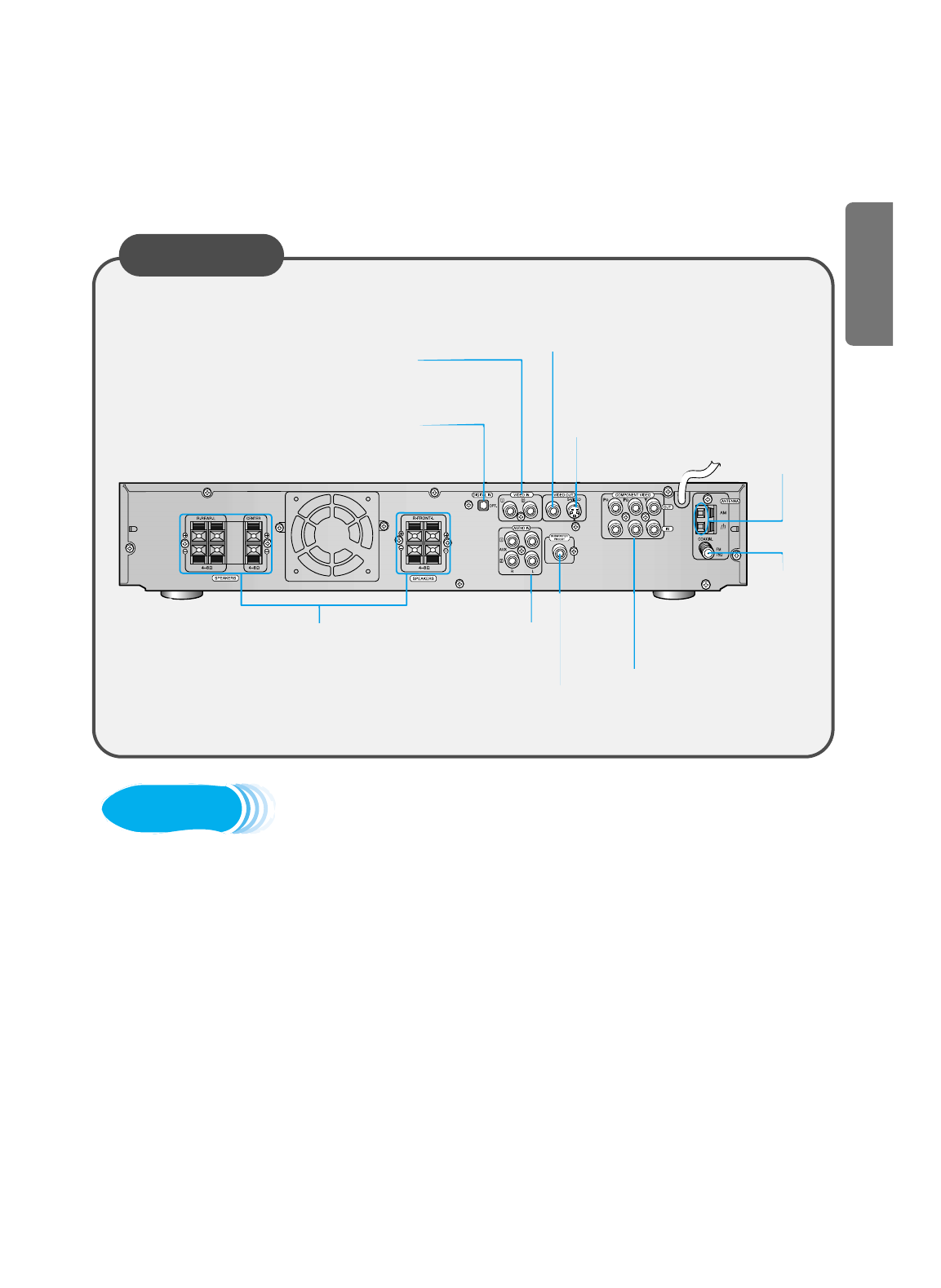
Rear Panel
5.1 Channel Speaker
Output Terminals FM Antenna
Connector
External Digital Component Input
Connector
Use this to connect external equipment
capable of digital output.
External Video Component
Input Connectors
External Audio
Component Input
Connector
Video Output Connector
Connect the TV's video input jacks (VIDEO
IN) to the VIDEO OUT connector.
COMPONENT VIDEO
OUTPUT/INPUT jacks
Connect a TV with component
video inputs to these jacks.
Subwoofer Preout
Connector
S-Video Output Connector
If the TV is equipped with an S-Video input
connector (S-VIDEO IN), connect it to the
player's S-Video output jack.
AM Antenna
Connector
Accessories
Remote Control Unit
9
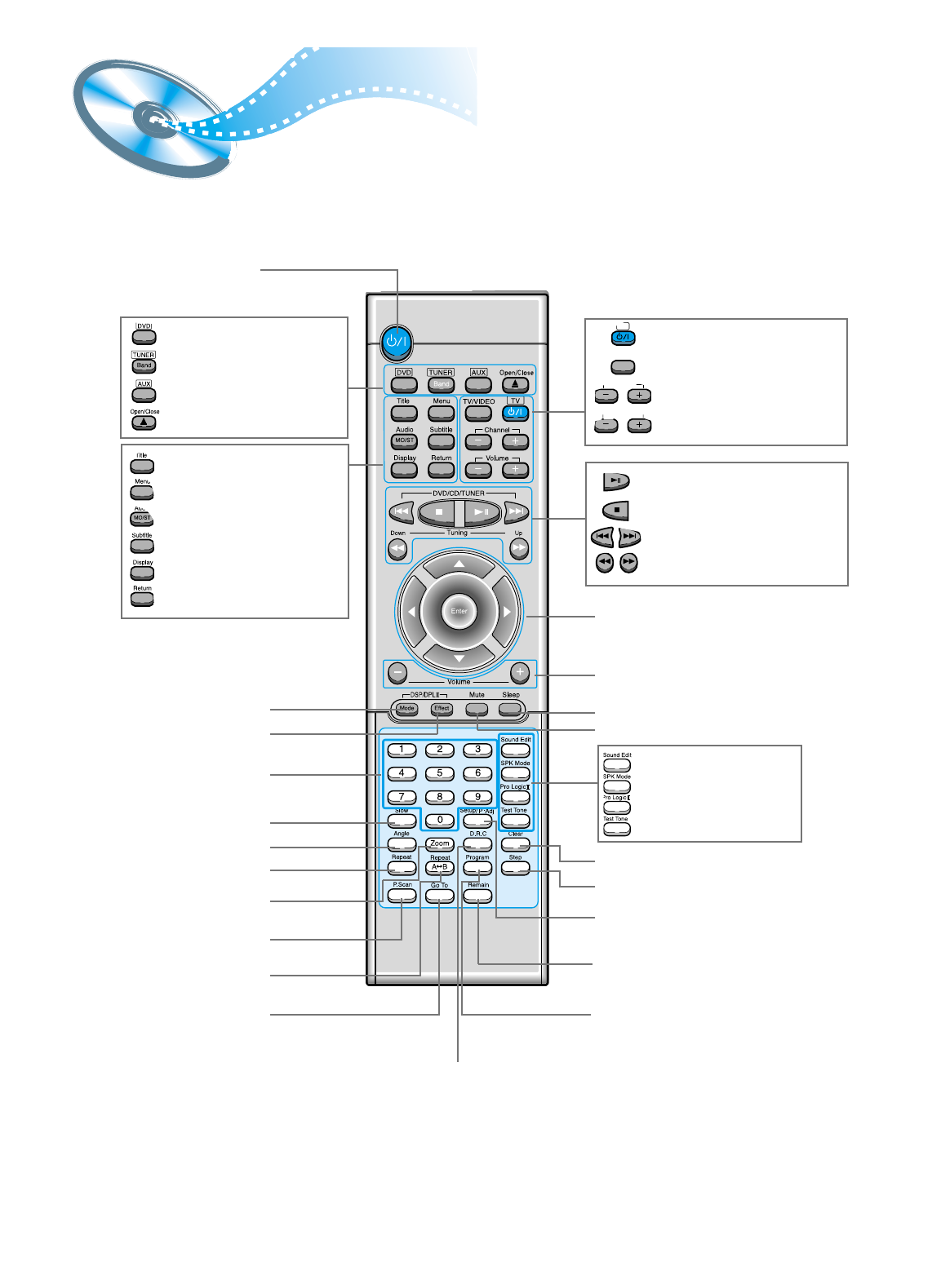
DVD POWER button
DSP/DPL II Mode button
DSP/DPL II Effect button
Number(0~9) buttons
Slow button
Angle button
Repeat button
Zoom button
P.Scan button
Repeat A↔B button
Go To button
TV Power button
TV/VIDEO button
TV Channel Selection button
TV Volume Control button
Volume
TV
Channel
TV/VIDEO
DVD button
TUNER button
AUX button
Open/Close button
Title button
Menu button
Audio MO/ST(mono/stereo) button
Subtitle button
Display button
Return button
Mute button
Clear button
Volume Control buttons
Speaker output volume control
Play/Pause button
Stop button
Tuning Preset/CD Skip button
Tuning Up/Down/CD Search button
Sleep button
Direction/Enter button
Step button
Setup/P.Scan Adjust button
Remain button
Program button
Sound Edit button
SPK Mode button
Pro Logic II button
Test Tone button
D.R.C button
PREPARATION
10
30
30
7~10m
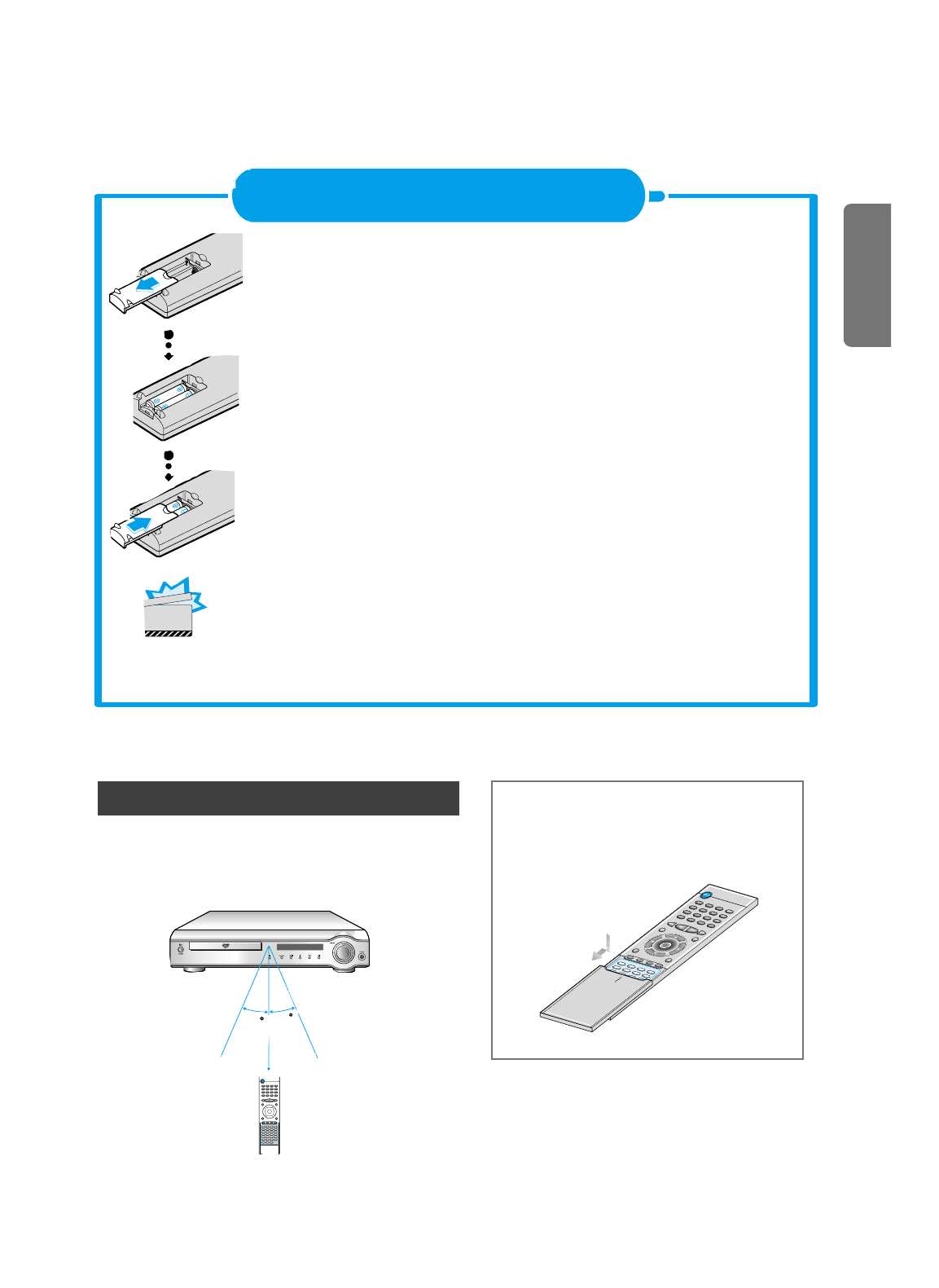
Remove the battery cover on the back of the remote by pressing
down and sliding the cover in the direction of the arrow.
Insert Remote Batteries
Range of Operation of the Remote Control
1
Insert two 1.5V AAA batteries, paying attention to the correct polarities (+
and –).
2
Replace the battery cover.
3
The remote control can be used up to approximately
23 feet/7 meters in a straight line. It can also be
operated at a horizontal angle of up to 30°from the
remote control sensor.
Follow these precautions to avoid leaking or cracking cells:
• Place batteries in the remote control so they match the polarity:(+) to (+)and (–)to (–).
• Use the correct type of batteries.Batteries that look similar may differ in voltage.
• Always replace both batteries at the same time.
• Do not expose batteries to heat or flame.
CAUTION
To open the remote control cover,
push the top of the cover, then slide
downward.
11
Connecting the Speakers
Connect the supplied speaker system using the supplied speaker cords.
- Make all connections with the power turned off to the unit to protect the speakers.
Subwoofer
Left front
speaker
Left rear
speaker Right rear
speaker
Right front
speaker
Center speaker
Check the location of the terminals on the main unit and on the rear of the
speakers before connecting the Front, Rear, and Center Speakers.
- Connect the red cord to the red(+)terminal and the black cord to the black(-) terminal.
- Make sure the positive (+) and negative (-) speaker wires are not mixed.
1
Use the supplied audio cord to connect the SUBWOOFER PREOUT on the
rear of the main unit to the LINE IN on the rear of the speaker.
2
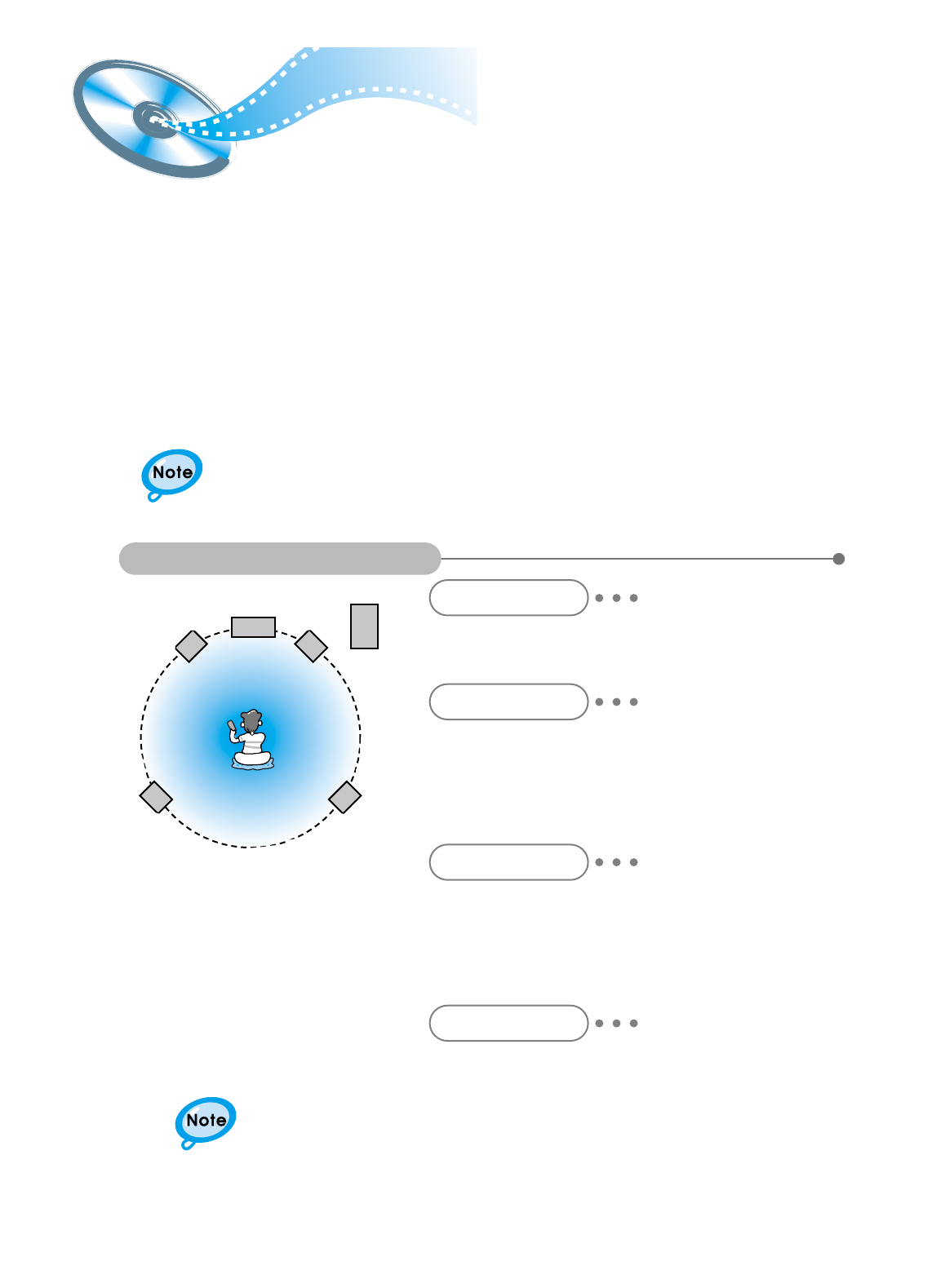
Ideal Speaker Placement
Front Speakers
Center Speaker
Rear Speakers
Subwoofer Speaker
Set the front speakers so that their tweeters (high-range) are
aligned at about ear level and at a horizontal angle of 45°to the
prime listening position.
Ideally the center speaker should be positioned with its top
surface flush with the front speakers. However, you may place
the speaker either on top or near the bottom of your TV set.
Vibration caused by the center speaker can disrupt the picture
if it is placed directly on the television. Put the center speaker
on a rack or shelf.
Place the subwoofer on the floor near the TV or mount it
on a rack, free from vibration and instability.
Set the rear speakers further back, parallel to the walls,
at 60 to 90 centimeters (2 to 3 feet) above prime listening
position ear level.
If the space behind the listening position is insufficient
(i.e., too close to the wall), place the rear speakers facing
each other on either side.
• After installation is complete, tie up or taping down long, loose electrical cords.
•Please refer to the KLIPSCH Operation Manual for details on using the speakers.
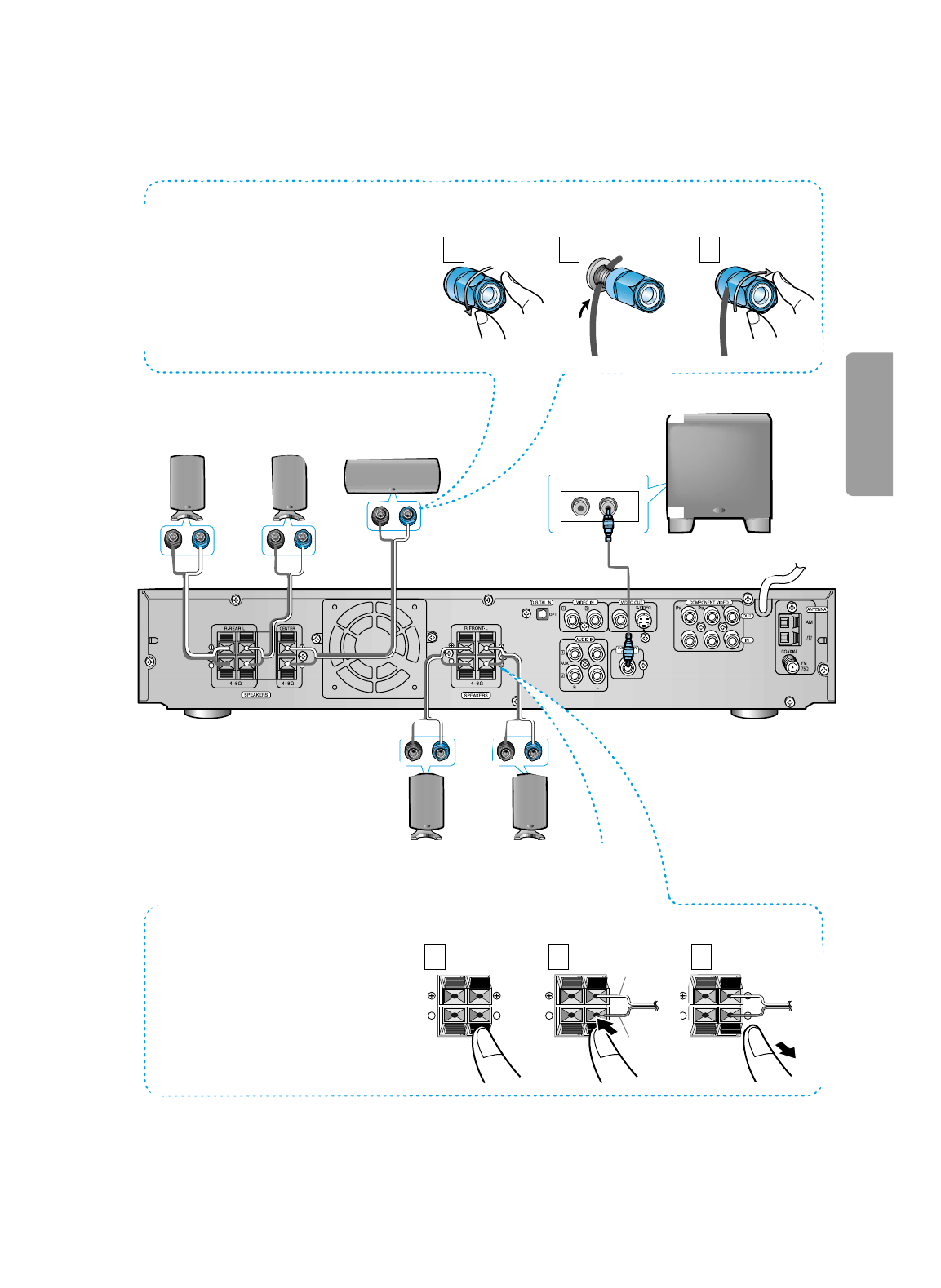
Right rear speaker
Right front speaker Left front speaker
Left rear speaker
Subwoofer
LINE IN
L/LFER
(—) (+)(—) (+)
(—) (+)
(—) (+) (—) (+)
Center speaker
Press and hold the
terminal tab.
1
Insert the speaker cord.
2
Release your finger.
3
1 2 3
12
CONNECTIONS
Red
Black
Audio Cable (supplied)
Loosen the speaker terminal by
turning it counterclockwise.
1
Insert the speaker wire into
the terminal.
2
Tighten the speaker terminal
by turning it clockwise.
3
1 2 3
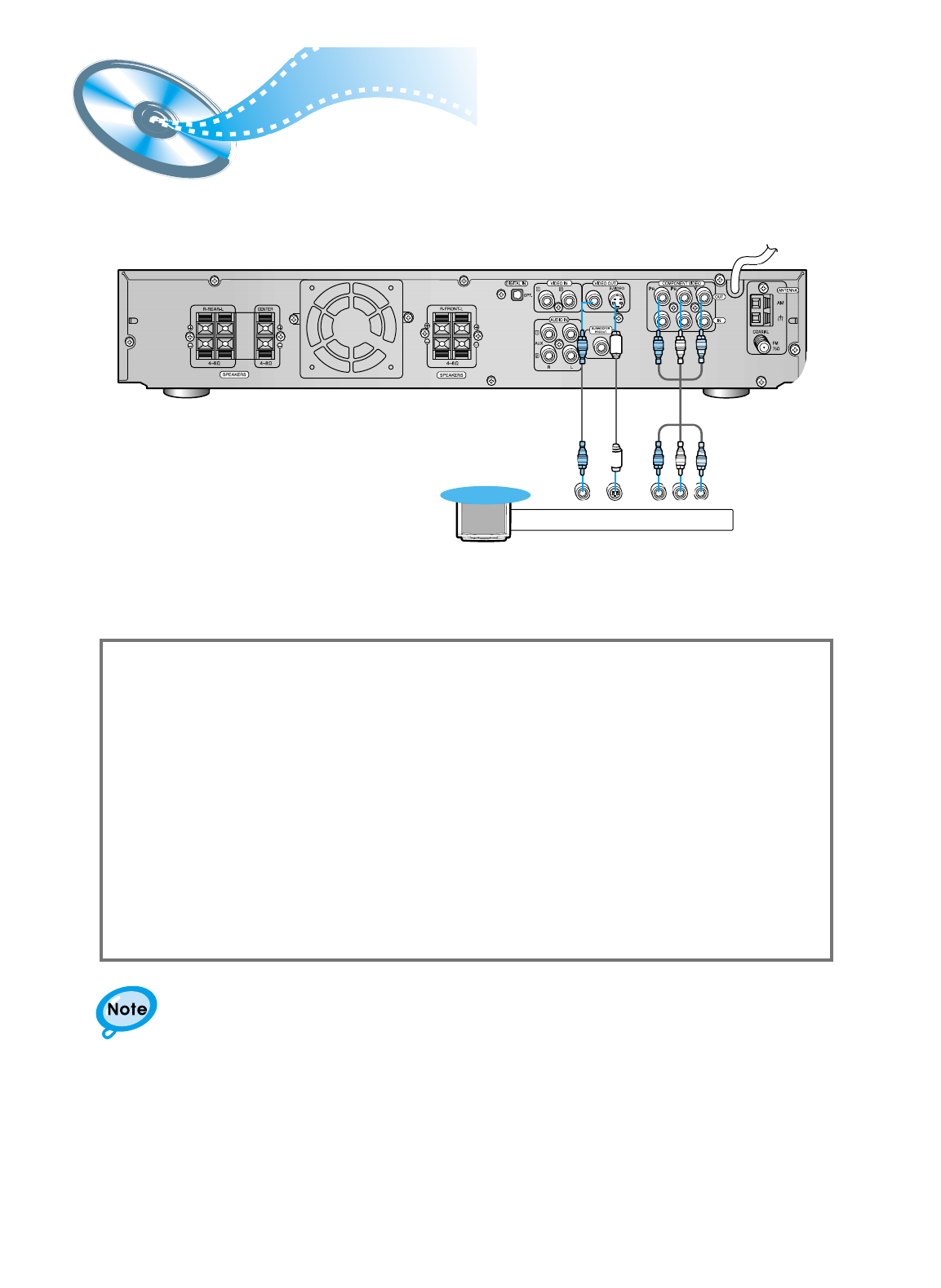
Connect Video to TV
13
Composite Video (Good Quality)
Connect the supplied video cable from the VIDEO OUT jack on the back panel of the
system to the VIDEO IN jack on your television.
S-Video (Better Quality)
If you television is equipped with an S-Video input, connect an S-Video cable (not supplied)
from the S-VIDEO OUT jack on the back panel of the system to the S-VIDEO IN jack on
your television.
Component Video (Best Quality)
If your television is equipped with Component Video inputs, connect a component video
cable (not supplied) from the Pr, Pb and Y jacks on the back panel of the system to the
corresponding jacks on your television.
Composite
Video Component
Video
S-Video
TV
• When the Progressive scan mode is selected, the VIDEO and S-VIDEO outputs do not feed
any signals. See page 18 to select Progressive Scan.
* Depending on your TV, Component Video input connectors may be marked as DVD Video input connectors.
14
CONNECTIONS
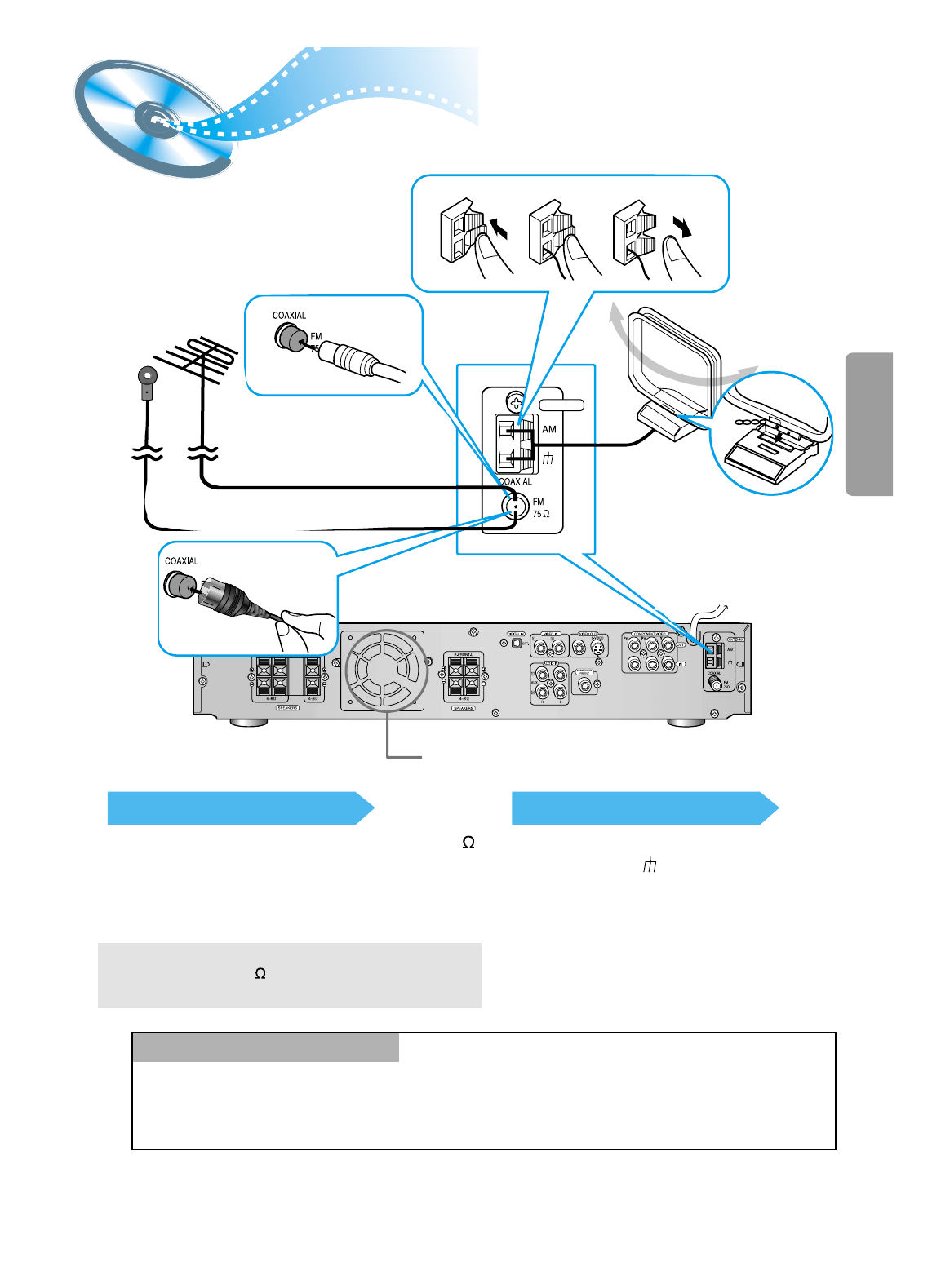
FM antenna connection
1. Connect the FM antenna supplied to the FM 75
COAXIAL terminal as temporary measure.
2. Slowly move the antenna wire around until you
find a location where reception is good, then
fasten it to a wall or other rigid surface.
•
If reception is poor, connect an outdoor antenna.
Before attaching a 75 coaxial cable (with a standard
type connector), disconnect the supplied FM antenna.
AM(MW/LW) antenna connection
1. Connect the AM loop antenna supplied
to the AM and terminals.
2. If reception is poor, connect an outdoor
single vinyl-covered wire to the AM
terminal. (Keep the AM loop antenna
connected).
Connecting the FM and AM
(
MW/LW
)
Antennas
A cooling fan is mounted on the rear panel of the center unit to
prevent abnormal temperature inside the center unit, thus assuring
normal operation. The cooling fan automatically starts rotating to
supply external cool air to the inside of the center unit when the
internal temperature exceeds the specified limit.
For safety, observe the following carefully.
• Make sure there is good ventilation around the center unit. Poor
ventilation could overheat and cause damage.
• DO NOT block the cooling fan and the ventilation openings or
holes. (If they are blocked by a newspaper or cloth, etc., the heat
may not be able to escape.)
Snap the tabs on the loop into the
slots of the base to assemble the
AM loop antenna.
Cooling fan (See “About Cooling Fan” below.)
ANTENNA
123
If FM reception is poor,
connect an outdoor FM antenna
(not supplied).
FM Antenna (supplied)
AM Loop Antenna
(supplied)
If AM reception is
poor, connect an
outdoor AM
antenna(not
supplied).
(About the cooling fan)
15
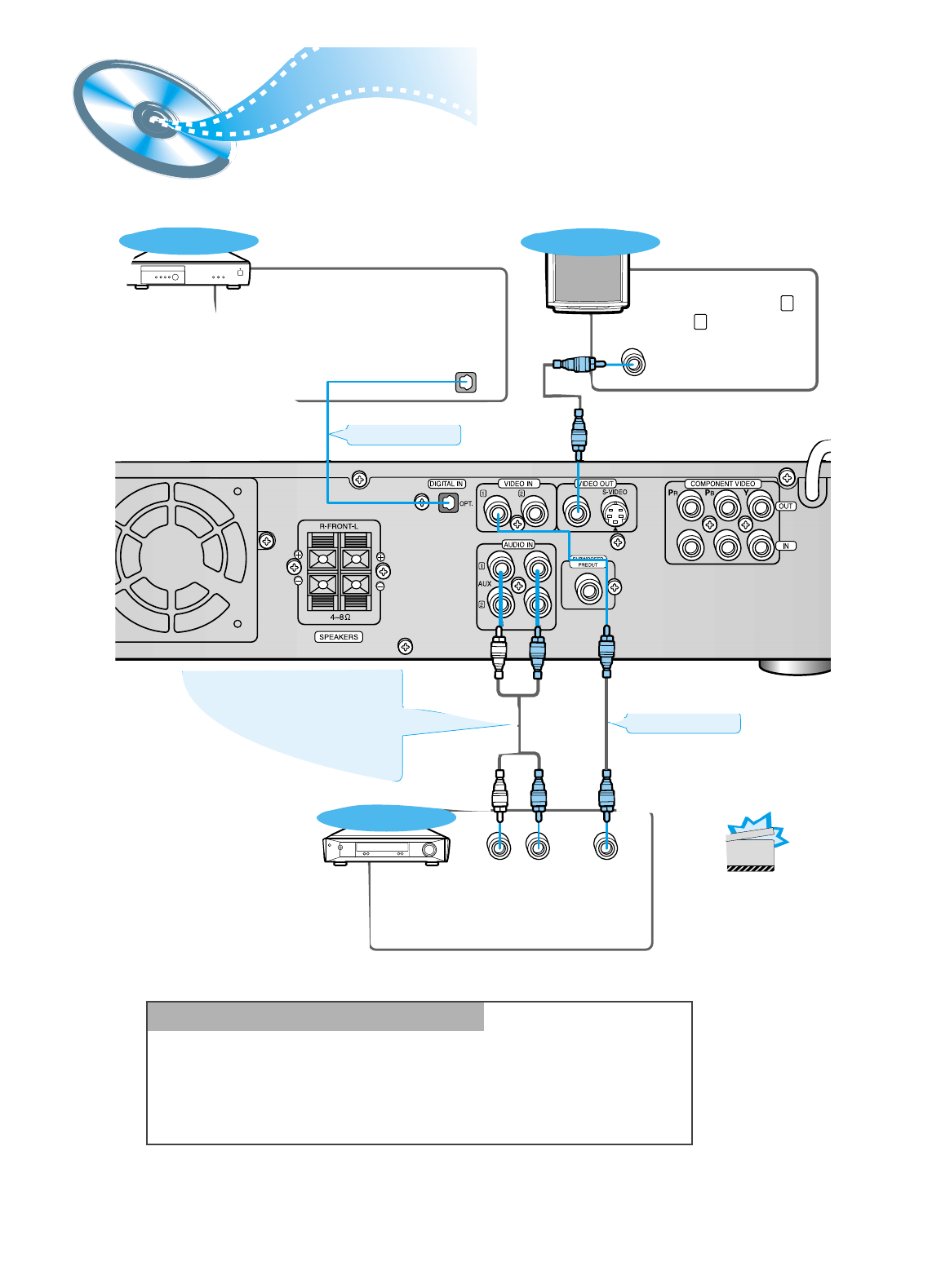
AUX Connections
LR
DIGITAL OUT
VIDEO OUT
VIDEO IN
External Digital
Components
External Analog
Components
Audio Cable (Red/White)
If the external analog
component has only one
output jack, you may connect
either L or R.
For connection to external
equipment with digital output.
Example: CD recorders, MD (Mini Disc) D/A
converters or other components equipped
with digital output jacks
Connect to external equipment with
analog output.
Example: VCR, TV, etc.
• Always connect the video and
audio connection cables to the
equivalent colored jack.
Press AUX on the remote control to select DIGITAL IN, AUX1, or AUX2.
Press Function on the main unit to select DIGITAL IN, AUX1, or AUX2.
• Each time the button is pressed the mode switches as follows: FM ➞AM ➞DVD ➞
DIGITAL IN ➞AUX 1 ➞AUX 2.
To Play External Digital/Analog Equipment
Optical Cable
(not supplied)
Video Cable
To view pictures from
external input (AUX 1 ,
AUX 2 ), first connect
the VIDEO IN jack and
then connect the VIDEO
OUT jack.
TV
CAUTION
CONNECTIONS
16
• The “WAIT” message that appears on the display for about 4~5 seconds when turning on
the power or selecting a DVD function indicates a stabilization period for optimizing the
condition of your DVD player. While the message is being displayed, other buttons
remain inactive.
• When the power is not turned on, press down the Stop ( ) button on the main unit for
over 5 seconds.
The product will be initialized to its optimum state.
• Some operational features such as the Speaker mode, Test tone, Volume, etc.
will not be displayed on the TV screen.
Before Using the DVD Player
Your DVD player is capable of playing DVD, VCD, and CD discs.
User instructions may vary depending on the type of disc. Read the instructions
carefully before use.
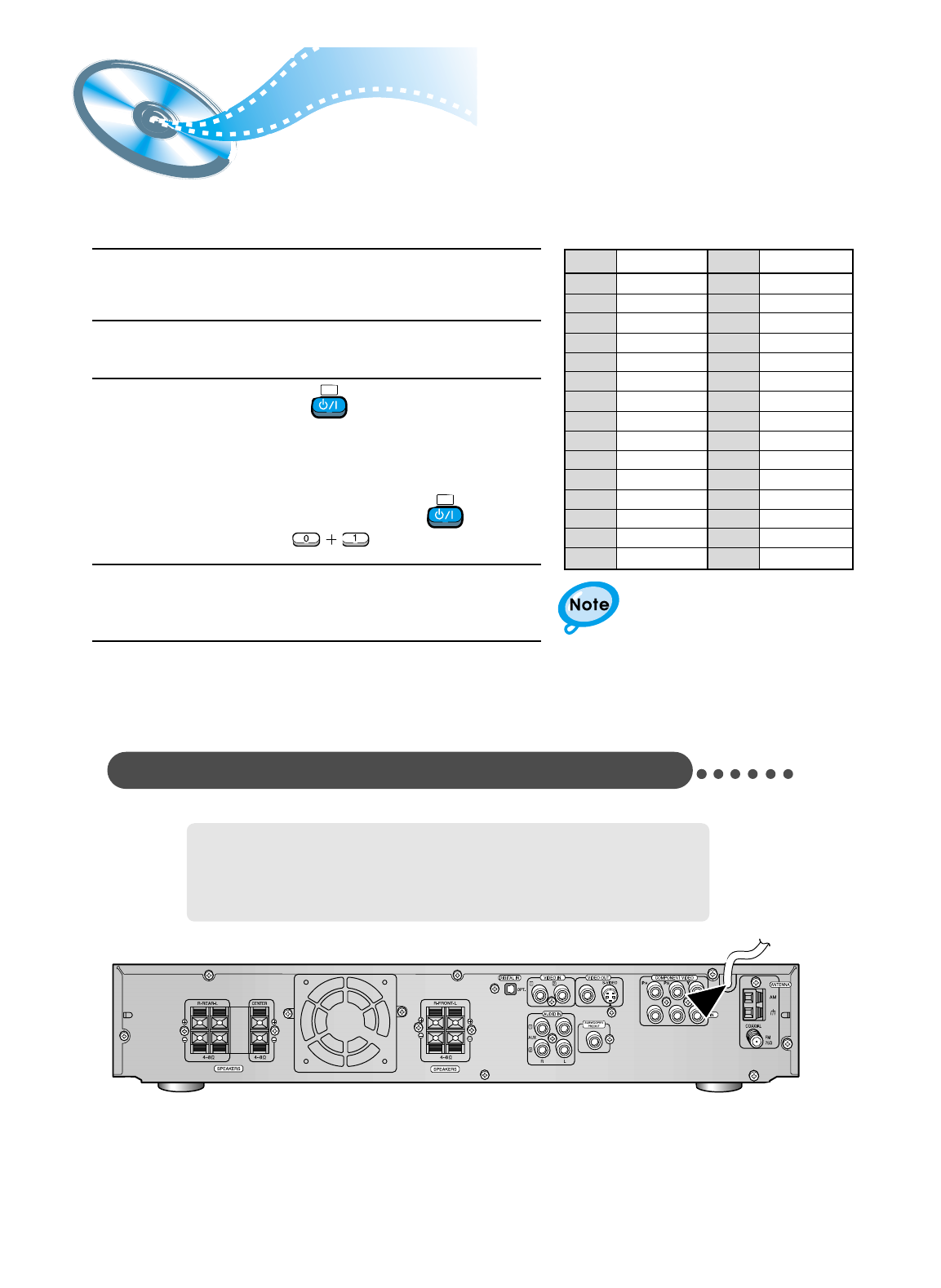
TV TV/VIDEO DVD
Prepa-
rations
before
use
Turn on the power
to your DVD player
and TV.
1
Select a video mode by
pressing the TV/VIDEO
button.
2
Press the DVD button
to select the DVD input
function.
3
TV Broadcast System
• This device is designed to work with the NTSC video format.
• For normal playback, the video format a DVD disc is recorded in must
coincide with your TV's video format.
17
Controlling a TV with the Remote
You can operate your TV by adjusting the DVD remote signal .
•
If there is more than one code listed in the table,
enter one at a time to determine which code works.
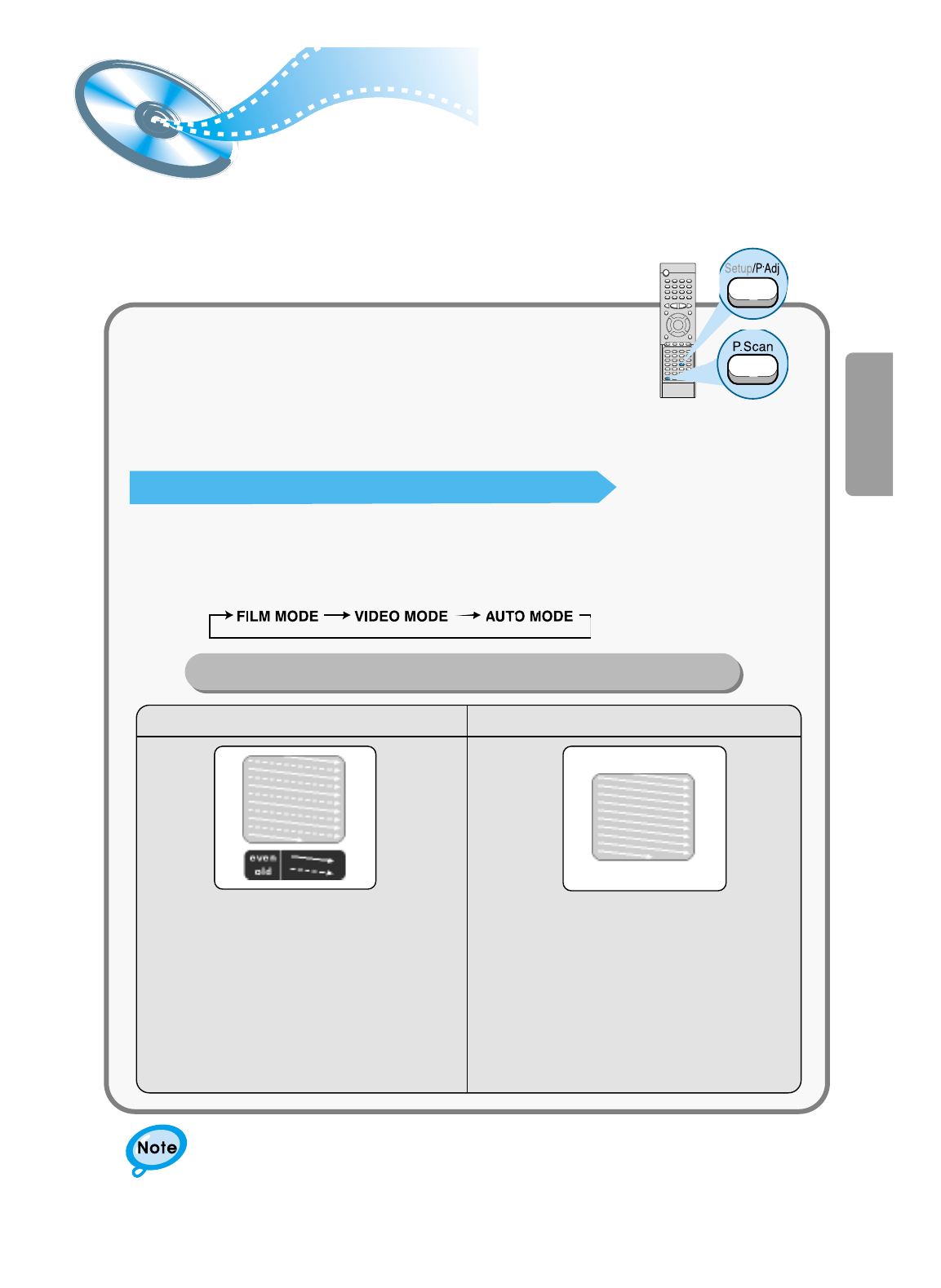
1Turn on the TV.
2Point the DVD’s remote at the TV.
•
The remote may not be able to
control every model TV of the
brands listed.
4If the TV turns off, setup is complete.
3While holding the button down, enter the
code for your brand.
TV
example : For SAMSUNG 1TVs
While holding down the button,
enter .
TV
Code Code
01
02
03
04
05
06
07
08
09
10
11
12
13
14
15
SAMSUNG 1
SHARP 2
SONY
MAGNAVOX
SANYO 1
LG 2
RCA
LG 1
TOSHIBA
HITACHI
JVC
PANASONIC 1
MITSUBISHI 2
SAMSUNG 2
SAMSUNG 3
SHARP 1
ZENITH
LG 3
DAEWOO 8
SANYO 2
EMERSON
SHARP 3
SAMSUNG 4
MATSUSHITA
NOBLEX
TELEFUNKEN
NEWSAN
LOEWE
RCA2
16
17
18
19
20
21
22
23
24
25
26
27
28
29
Brand Brand
Connecting your System to the Power Supply
The AC Cord must be plugged into an appropriate socket.
Before plugging your system into an AC outlet, you must check the voltage.
1. Plug the AC Cord on the rear of the system into an appropriate outlet.
2. Press the On/Standby button to switch your DVD Player system on.
CONNECTIONS
18
Unlike a regular Interlace Scan in which two fields of picture information are alternated to
create the entire picture (odd scan lines, then even scan lines), Progressive Scan uses
one field of information (all lines displayed in one pass) to create a clear and detailed
picture without visible scan lines. To enjoy a progressive scan video, connect a TV or
monitor that supports a progressive scan input to this device.
P.SCAN(Progressive Scan) Function
While the player is in the Stop mode, hold the P.SCAN
button down for longer than 1 second.
• The selection switches back and forth between "P.SCAN" and "I.SCAN"
each time the button is held down for a minimum of 1 second.
• The previous mode is indicated in the display first, followed by the
selected mode in about a second.
Press the Setup/P.Adj button. (Play mode only)
• Each time the Setup/P.Adj button is pressed, the following appears on the TV screen:
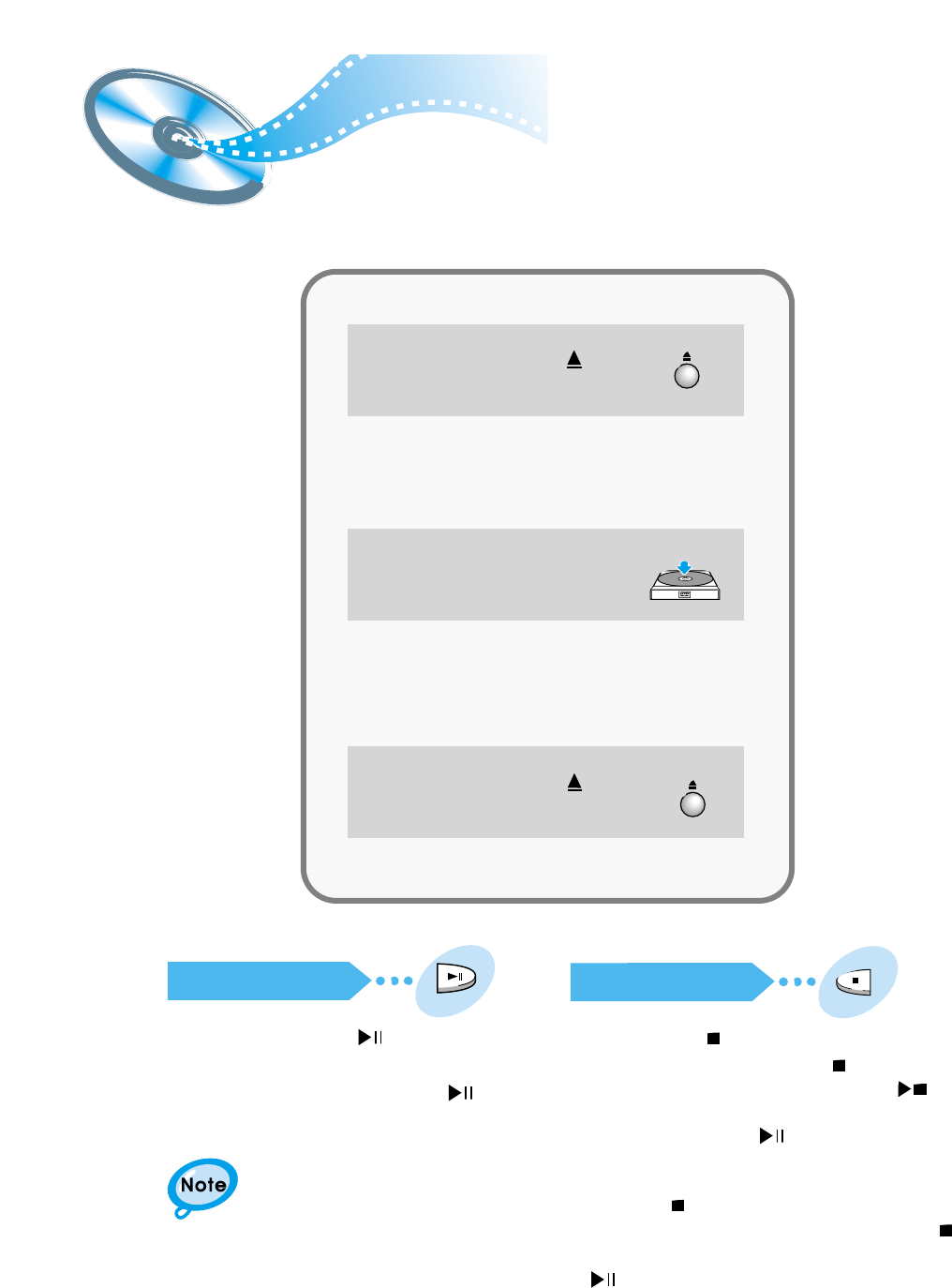
In interlaced-scan video, a frame consists of two
interlaced fields (odd and even), where each field
contains every other horizontal line in the frame.
The odd field of alternating lines is displayed first, and
then the even field is displayed to fill in the alternating
gaps left by the odd field to form a single frame.
One frame, displayed every 1/30th of a second, contains
two interfaced fields, thus a total of 60 fields are
displayed every 1/60th of a second each.
The interlaced scanning method is intended for capturing
a still object.
Interlaced Scan (1 FRAME = 2 FIELDS)
The progressive scanning method scans one full frame of
video consecutively down the screen, line by line.
As opposed to the interlaced scanning process by which a
video image is drawn in a series of passes, you get an
entire image drawn at one time.
The progressive scanning method is desirable for dealing
with moving objects. A camera that has the ability to
capture moving objects is called a "full frame shutter
camera".
Progressive Scan (FULL FRAME)
What is Progressive (or Non-Interlaced) Scanning?
•This function works only on TVs equipped with component video inputs (Y, Pr, Pb) that
support Progressive Video. (It does not work on TVs with conventional component inputs,
i.e., non-progressive scan TVs.)
•Depending on the brand and model of your TV, this function may not work.
P.Scan Adj (Progressive Scan Adjusting)
This function allows you to optimize the picture quality when it becomes poor due to screen distortion or
discs containing erroneous data.
DVD Playback
19
Depending on the disc, the initial disc
information screen may look different
from disc to disc.
Pausing Playback
Press the Play/Pause ( ) button during
playback.
• To resume, press the Play/Pause ( )
button again.
Stopping Playback
Press the Stop ( ) button during playback.
•During playback, when the Stop ( )button is pressed,
the position is stored in the memory, and STOP is
shown on the display.
When the Play/Pause ( ) button or Return button is
pressed subsequently , playback resumes from the
position at which it was stopped.
•If the Stop ( ) button is pressed a second time, the
resume play memory function is canceled, and
STOP is shown on the display. When the Play/Pause
( )button is pressed, playback starts from the
beginning.
Press the Open/Close( ) button
to open the disc tray.
1
• Place a disc gently into the tray with the
disc’s label facing up.
Insert a disc.
2
V I D E O
• Playback starts automatically.
Press the Open/Close( ) button
again to close the disc tray.
3
OPERATION
20
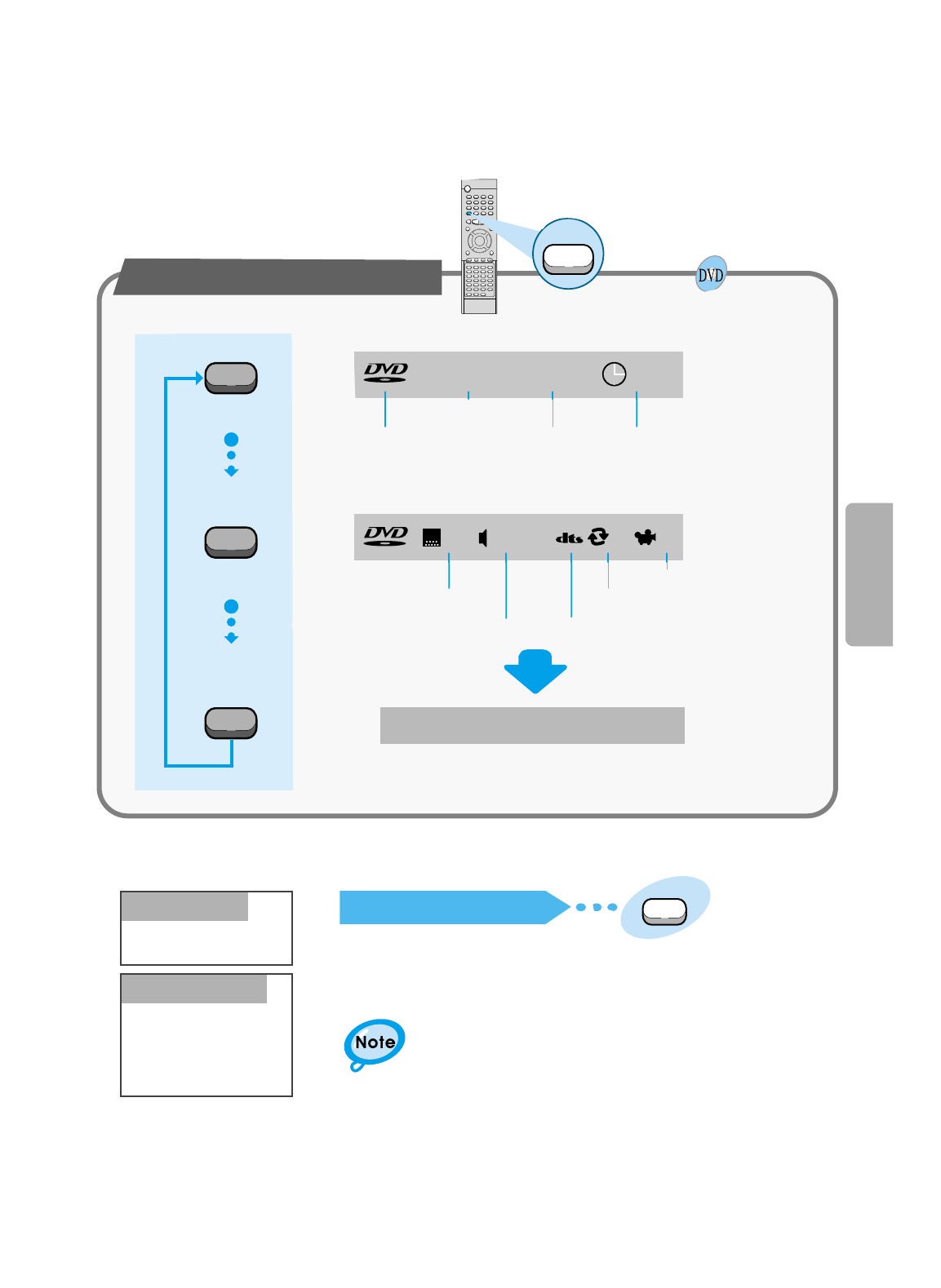
Press the Display button on the remote.
If the player is left for more than 3 minutes
in pause mode, it will stop.
The On-Screen Display disappears.
Using the On-Screen Display
Display
Display
Display
Display
V I D E O 1/2 1/8 00:00:00
TC
V I D E O ENG ENG OFF1/3 1/1
DVD indicator TITLE indicator TITLE ELAPSED
indicator
CHAPTER indicator
ANGLE indicator
REPEAT indicator
DISC TYPE indicator
AUDIO LANGUAGE
indicator
SUBTITLE LANGUAGE
indicator
Turning the sound off temporarily?
What is a Title?
What is a Chapter?
Press the Mute button during playback.
•This operation may be useful when you need
to greet guests or answer the telephone.
A movie contained in a
DVD disc.
Each Title on a DVD
disc is divided into
several smaller sections
called "chapters".
Mute
MP3-CD Playback
21
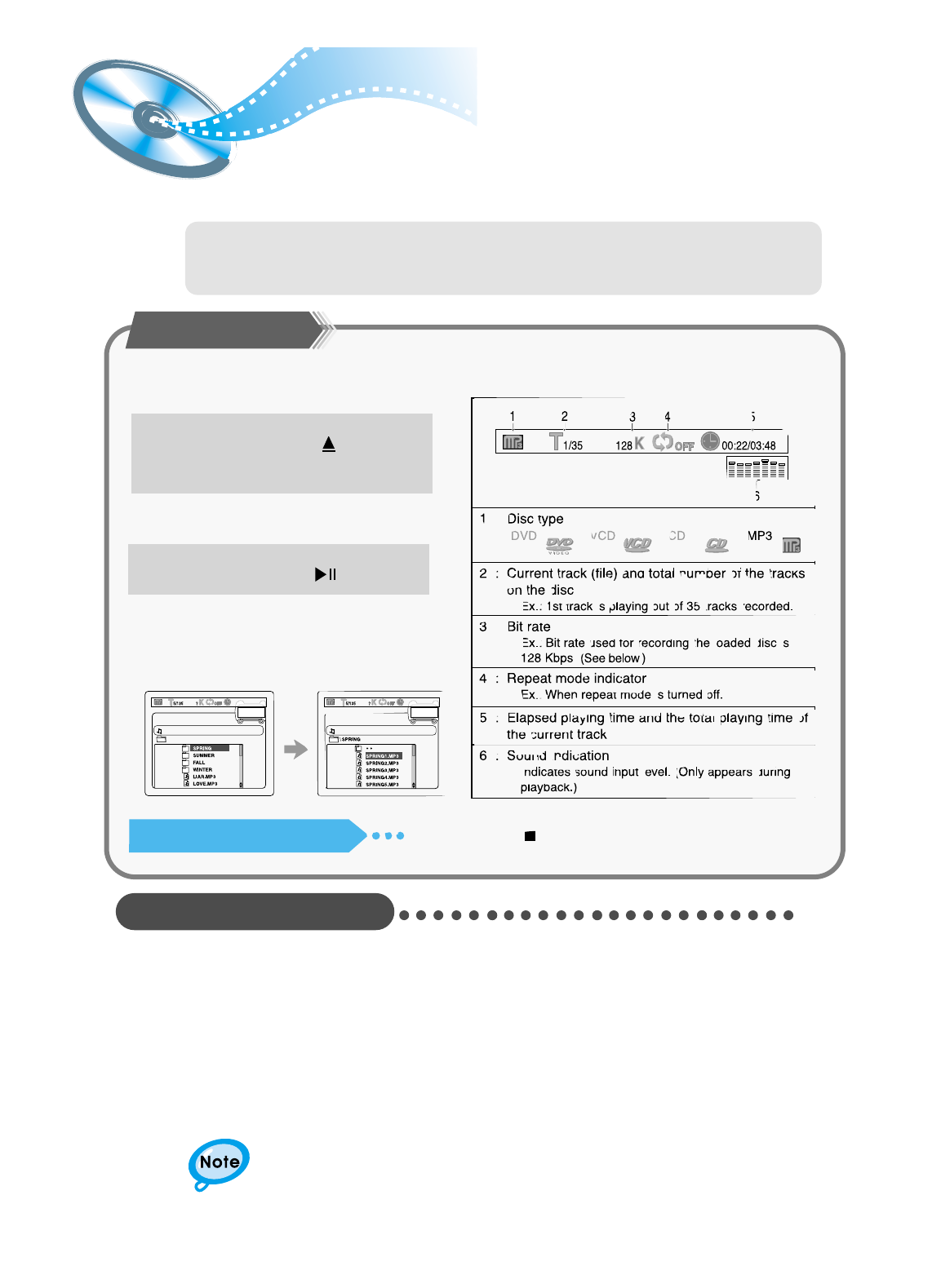
This system has a built-in MP3 decoder.
You can play back MP3 tracks (files)recorded on CD-Rs, CD-RWs, and CD-ROMs.
• It is recommended you turn on your TV when playing back an MP3-CD.
Starting Playback
Press the Open/Close( ) button
to load a disc.
1
• After detecting the disc, playback starts.
• The on-screen bar and the contents
recorded on the MP3-CD will be shown
on the TV if it is turned on.
Press the Play/Pause( ) button.
2
To stop during playback Press the Stop ( ) button.
What is MP3?
MP3 is an abbreviation of Motion Picture Experts Group (or MPEG) Audio Layer 3.
MP3 is simply a file format with a data compression ratio of 1:10 (128 Kbps*). That means,by using
MP3 format, one CD-R or CD-RW can contain 10 times as much data volume as a regular CD.
CD-R MP3 DISC
• Only CD-R discs with MP3 files in ISO 9660 or Joliet format can be played.
• The file name of the MP3 file may not be longer than 8 characters and should contain no blank spaces or special
characters.
• Use discs recorded with a compression/decompression data rate greater than 128Kbps.
• Only files with the ".mp3" and ".MP3" extensions can be played.
• Only a consecutively written Multisession disc can be played. If there is a blank segment in the Multisession disc,
the disc can be played only up to the blank segment.
• If the disc is not closed, it will take longer to begin playback and not all of the recorded files may be played.
• For files encoded in Variable Bit Rate (VBR) format, i.e. files encoded in both low bit rate and high bit rate (e.g.,
32Kbps ~ 320Kbps), the sound may skip during playback.
Depending on the recording mode, some MP3-CDs cannot be played.
OPERATION
22
Turn on your TV when playing back an MP3 disc.
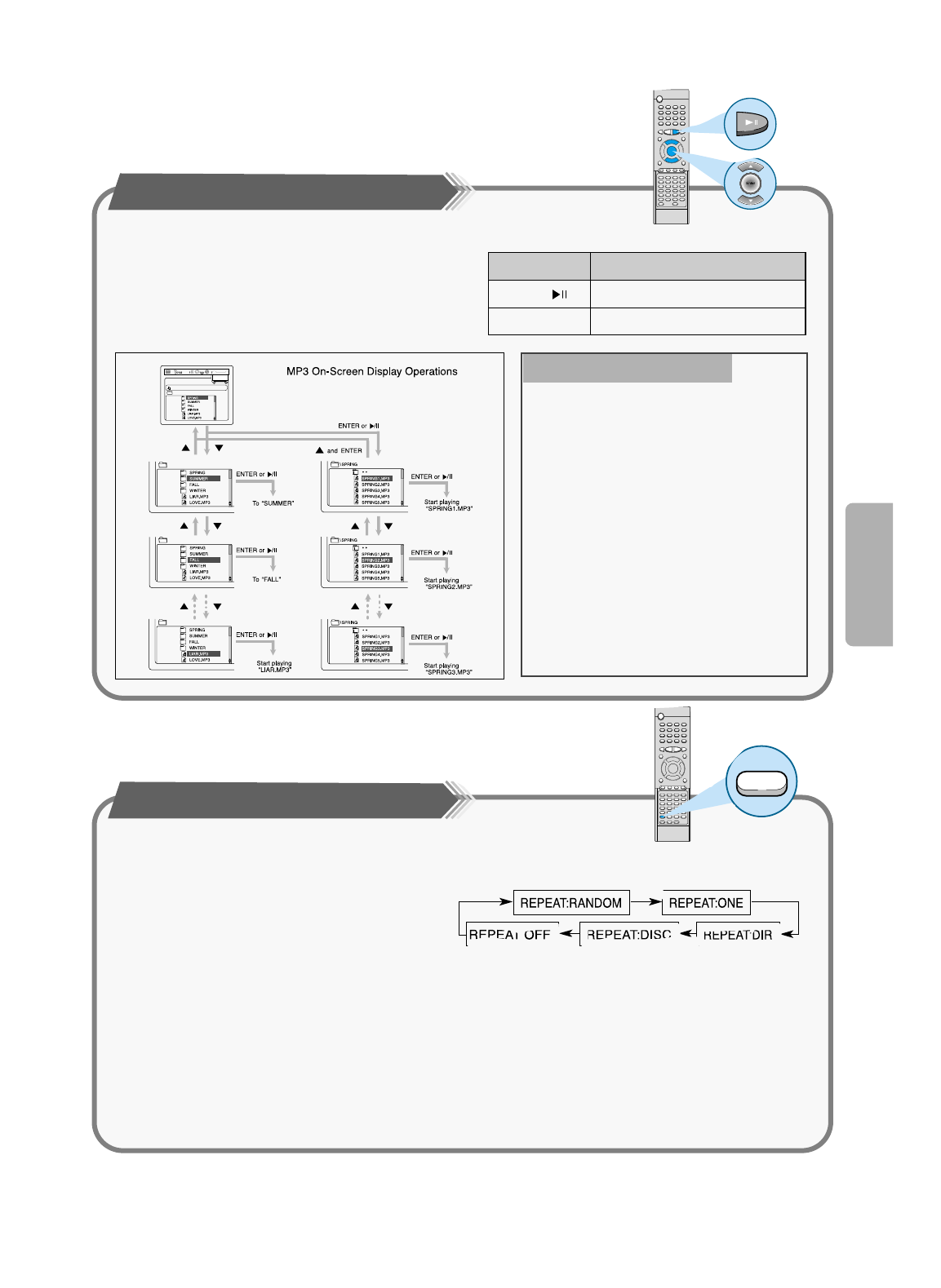
Operations Using the On-Screen Display
When the loaded MP3 disc is recognized, the following
on-screen display appears on the TV screen.
(The contents of this on-screen display vary according to
the disc — the way MP3 tracks were recorded on the
disc.)
Button To do
ENTER, Start playback or go into a directory.
▲ / ▼ Select a track or directory.
On an MP3 disc, Repeat A↔B cannot be used.
You can enjoy only repeat play.
Repeating Playback
• Each time you press the button, repeat mode
changes as follows:
Press the REPEAT button.
The indication corresponding to the selected mode
appears on the TV screen.
REPEAT:RANDOM
:
All tracks recorded on the disc will be played once in random order.
REPEAT:ONE
: Current track will be repeated.
REPEAT:DIR
: Tracks in the current directory will be repeated.
REPEAT:DISC
: All tracks on the disc will be repeated.
REPEAT OFF
: Repeat play is canceled.(Normal play is resumed.)
•Your DVD player can also play CD-R and CD-
RW discs recorded in digital audio format.
When recording your own CD-R or CD-RW
discs, make sure that the recording session is
properly terminated, or they will not be
playable. (Depending on disc properties and
recording quality, some CD-R/RW may not be
playable.)
•CD-RW has a lower reflection rate than CD-R
media and consequently it will take a longer to
read CD-R discs.
•CD-RW discs recorded at high speed tend to
be difficult for the DVD player to read. If the
recording speed for the CD-RW disc is not
predetermined, write it at low speed.
CD-R/RW playback compatibility
Repeat
Forward/Reverse Searching
23
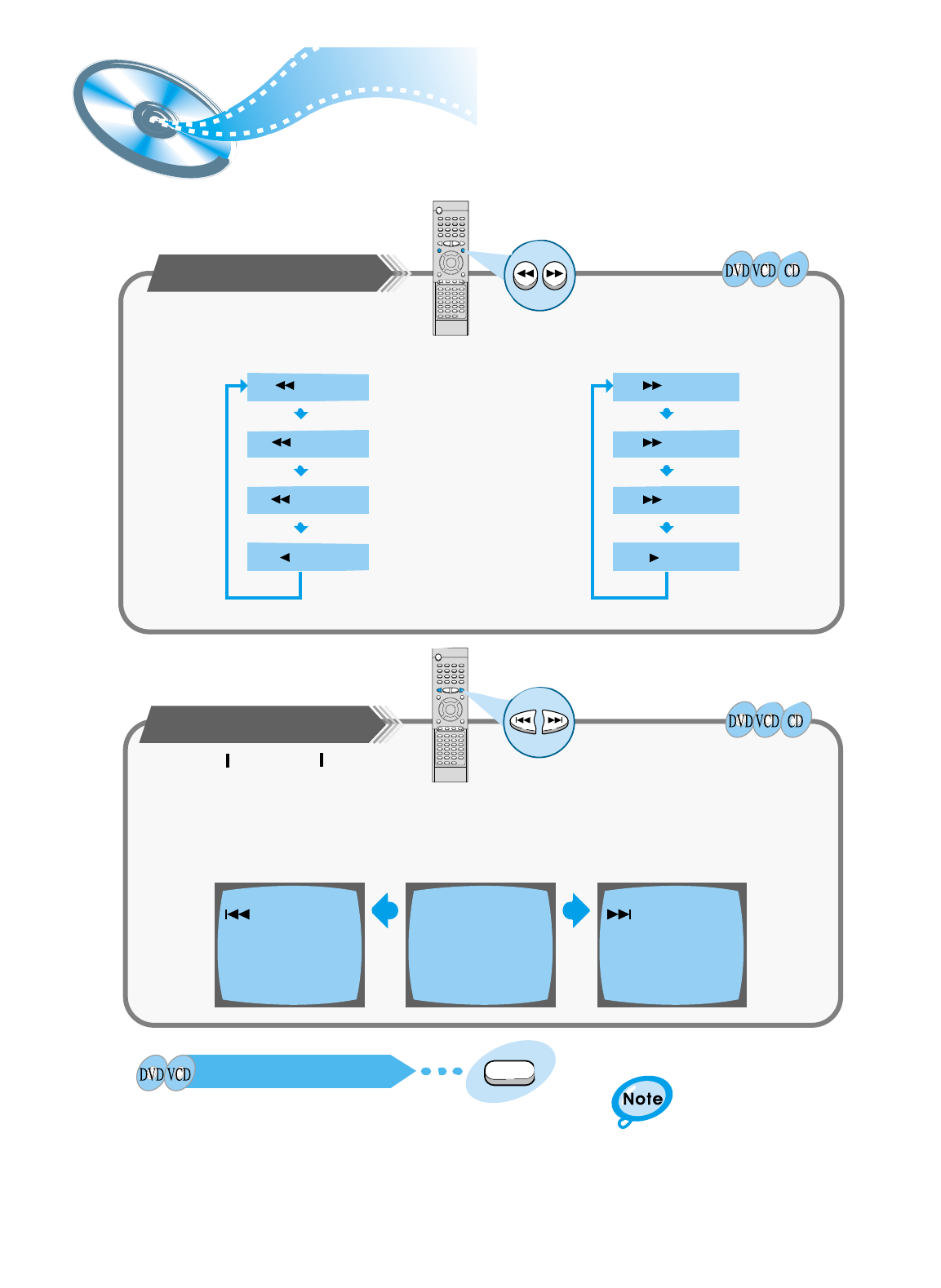
Multi-Speed Playback
X 2
X 4
X 8
PLAY
X 2
X 4
X 8
PLAY
Each time the button is pressed Each time the button is pressed
Skipping through a Chapter
SEARCH SEARCH
• Each time the button is pressed during playback, it moves to the next
or previous chapter and plays it.
Playing Frame by Frame
• The picture moves forward one frame each time the button is pressed.
Step
Press the and button.
Press the and button.
Press the Step button.
During playback, you can search quickly through a chapter or track for a specific scene
or tune.
No sound is heard during
high-speed playback, slow
playback, and step motion.
▲
▲
▲
▲
▲
▲▲
▲
▲
▲
▲
▲
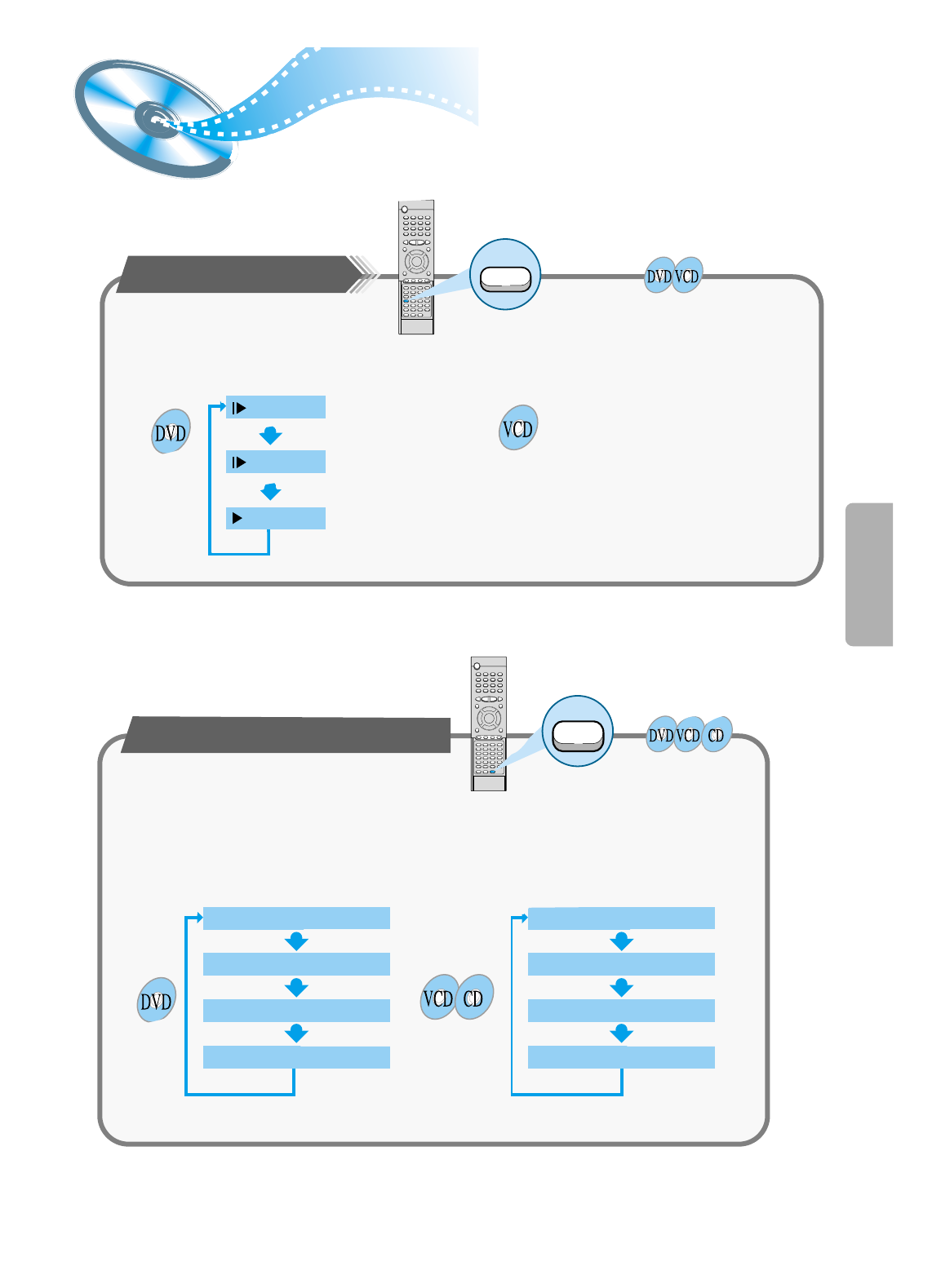
Slow Playback/Checking the
Remaining Time
24
OPERATION
Playing Slowly
SLOW 1/2
SLOW 1/4
PLAY
Each time the Slow button is pressed
• For checking the total and remaining time of a
title or chapter being played.
The slow playback speed changes
and the selections (1/2X, 1/4X, 1/8X,
1/16X and normal play) are repeated.
Checking the Remaining Time
REMAIN TIME : CHAPTER
REMAIN TIME : TITLE
CHAPTER TIME
TITLE TIME
REMAIN TIME : DISC
REMAIN TIME : TRACK
DISC TIME
TRACK TIME
Each time the Remain button is pressed
Slow
Remain
Press the Slow button.
Press the Remain button.
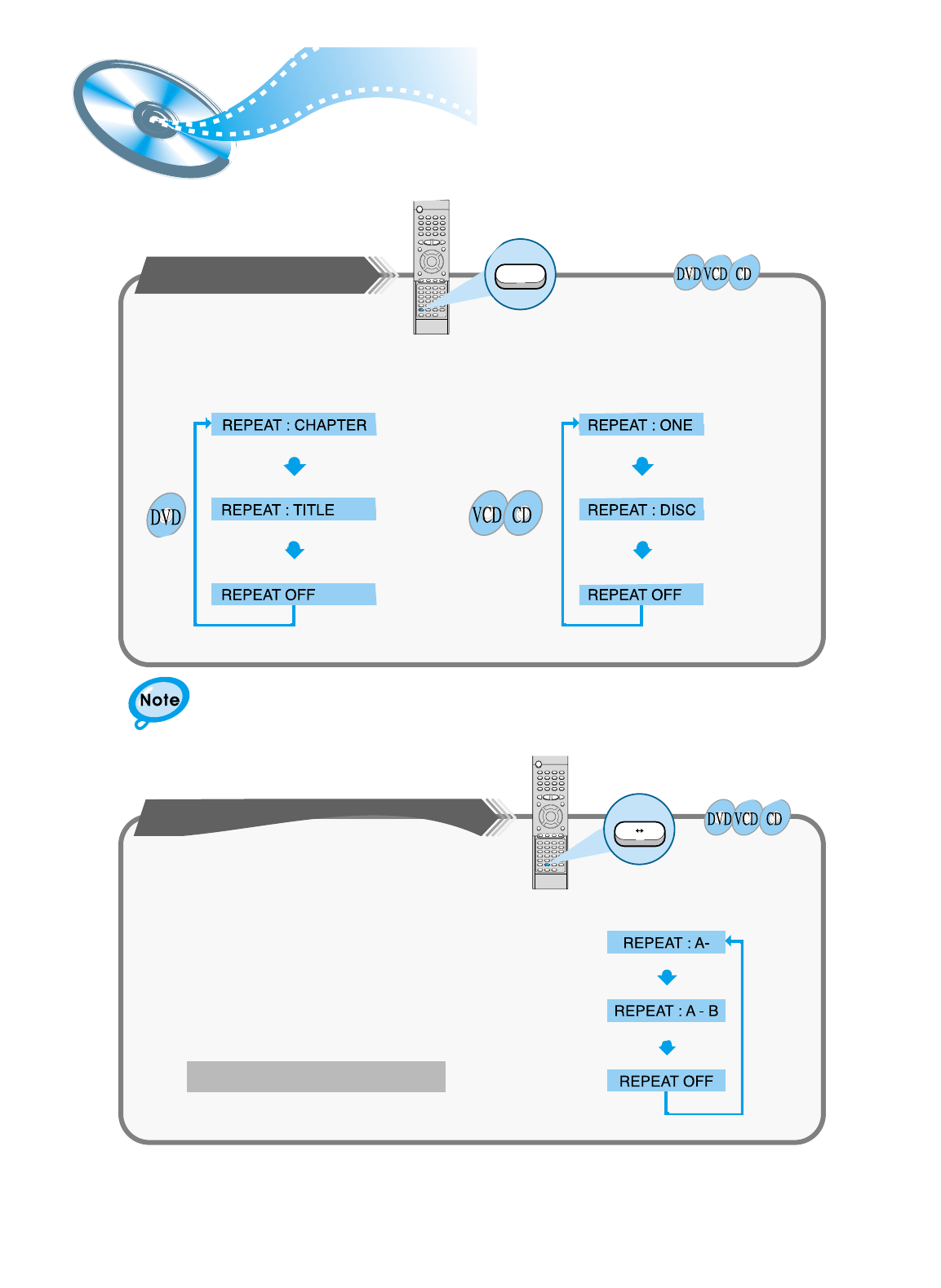
Repeat Playback
25
Playing Repeatedly
Each time the Repeat button is pressed
Repeat playback allows you to repeat a chapter, title, or track.
A↔B Repeat Playback
Press the Repeat A<–>B button again.
1
2
Repeat
A B
Repeat
Press the Repeat button.
• Repeat playback operation is not possible with version 2.0 VCD discs if PBC is turned on.
To operate this feature, press the MENU button, and then select "PBC OFF".
Press the Repeat A↔B button at the
beginning (A) of the segment you want to
review.
Press the Repeat A↔B button again at
the end (B) of the segment you want to
review.
• The segment will begin repeating.
To return to normal playback
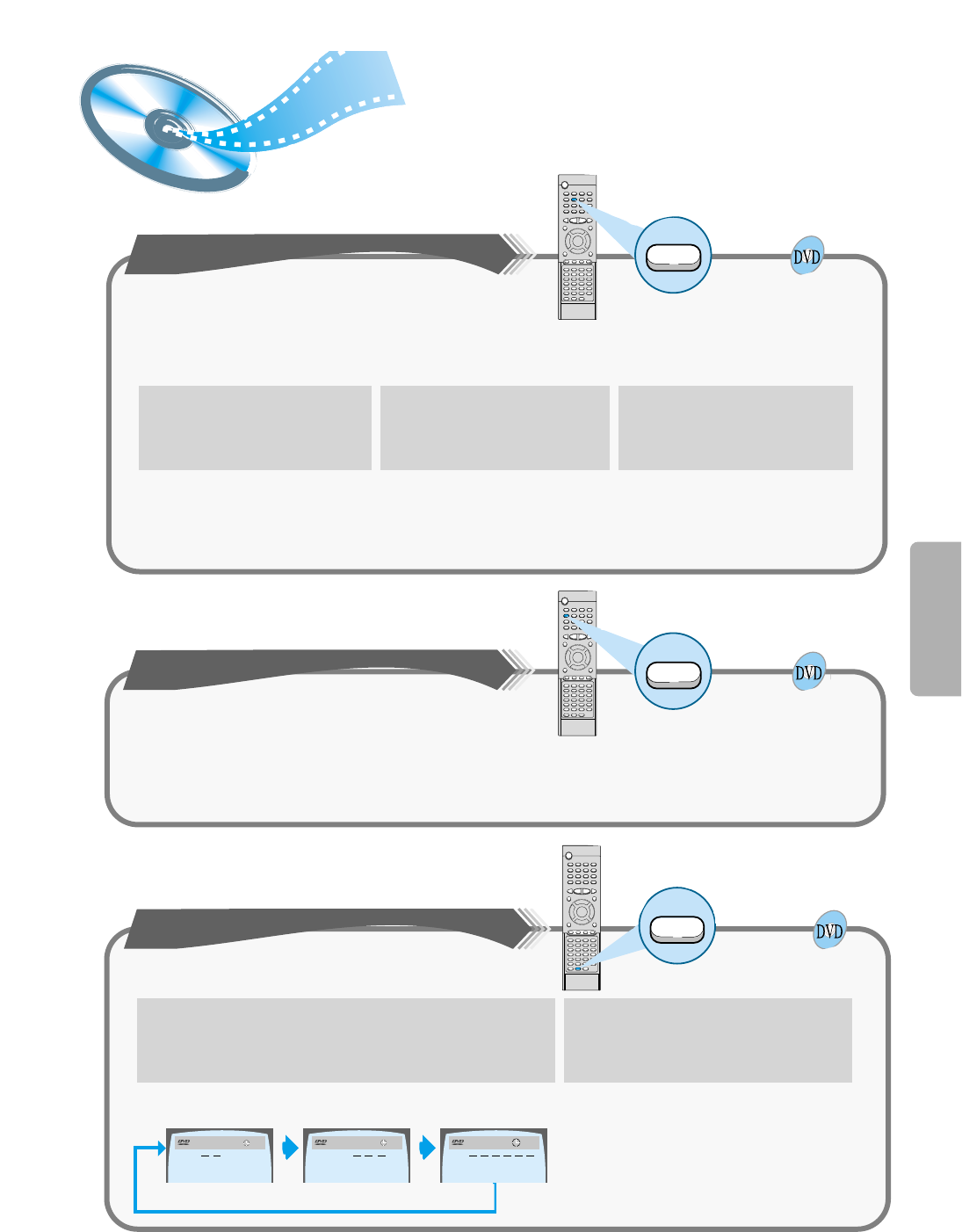
Using Disc Menu/Title
26
OPERATION
Title
To Select the Disc Menu
Press the Menu button during
playback.
1Use the Up/Down (▲ / ▼ ) or
Left/Right( / ) button to
access the different features.
Press the Enter button.
2
• The selected item will play.
• The Menu Screen appears.
• When playing VCD version
2.0, you can operate it using
PBC On/Off function.
3
Menu
You can use the menus for the audio language,
subtitle language, profile, etc. DVD menu contents
differ from disc to disc.
For DVDs containing multiple titles, you can
view the title of each movie.
Depending on the disc, this function may either
not work at all, or may work differently.
Using the Title Menu
▲
▲
TITLE
V I D E O 1/2 1/8 00:00:00
TC
CHAPTER
V I D E O 1/2 1/8 00:00:00
TC
TIME
V I D E O 1/2 1/8 00:00:00
TC
::
To move directly to a title, chapter, or time
• Each the buttons are pressed the desired
scene is located and then played.
• Depending on the disc, the Title function
may not work.
•
Each time the button is pressed, it repeats as shown below.
Press the Go To button.
1
Press Number(0~9) buttons or the
Left/Right ( / ) button.
2
Go To
▲
▲
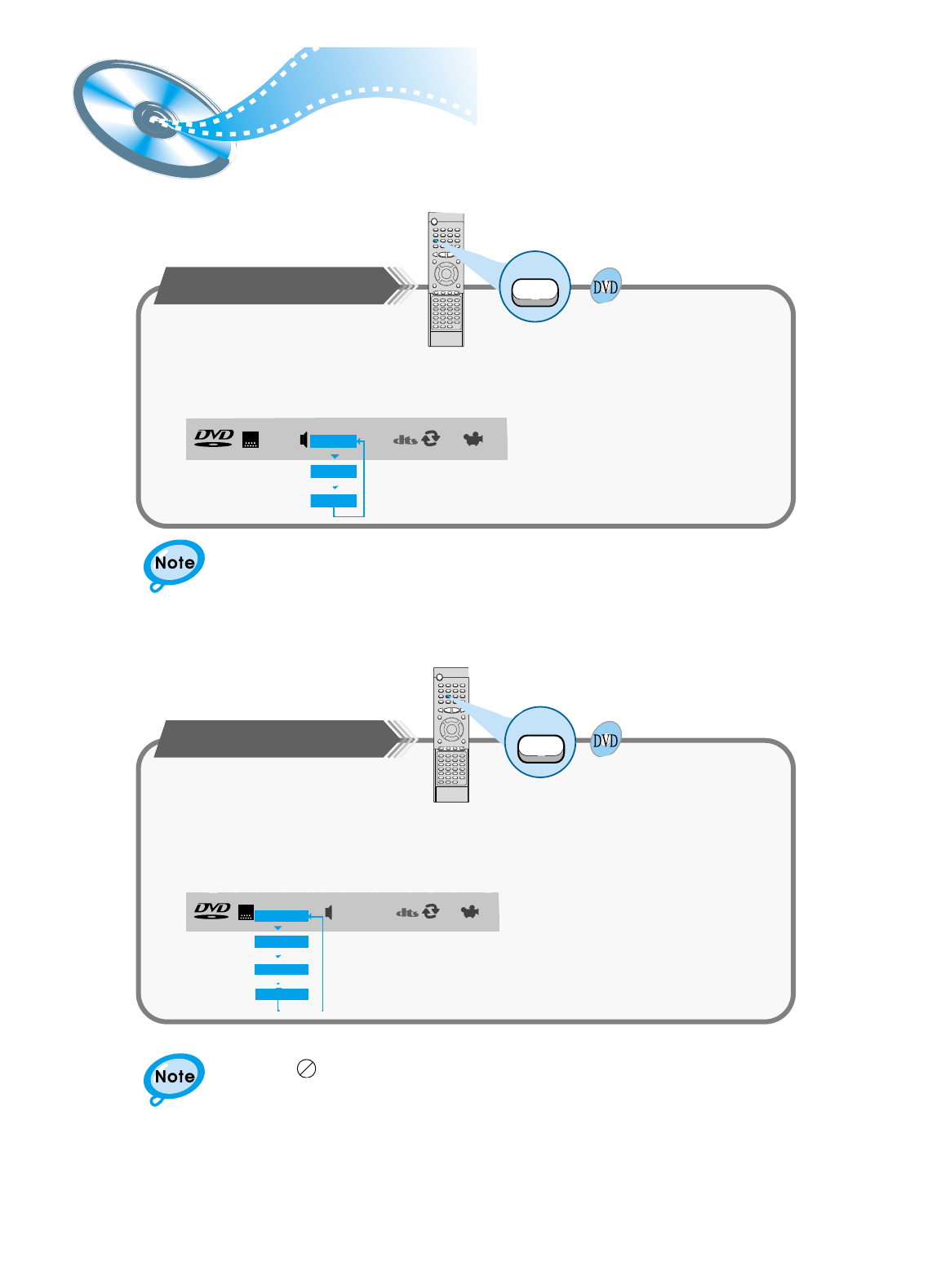
• Depending on the disc, DTS or DIGITAL PRO LOGIC can be selected.
27
Selecting the Audio Language/Subtitle Language
Selecting the Audio Language
V I D E O OFF 1/1
ENGENG
SPA
FRE
1/3
2/3
3/3
• Depending on the number of languages recorded on a DVD disc, a different audio language
(ENGLISH, SPANISH, FRENCH, etc.) is selected each time the button is pressed.
Selecting the Subtitle Language
V I D E O OFF1/1 1/1
SPA
ENG
FRE
OFF
ENG
1/3
2/3
3/3
• Depending on the number of languages recorded on a DVD disc, a different subtitle
language (ENGLISH, SPANISH, FRENCH etc.) is selected each time the button is
pressed.
• To make the subtitles disappear, select "OFF".
Audio
MO/ST
Subtitle
Press the Audio button.
Press the Subtitle button.
• If the word INVALID appears on the TV screen while buttons are being
operated, that operation is not possible with that particular disc.
• Depending on the disc, the audio or subtitle language function may not work.
OPERATION
28
OFF 1/3
2/3
3/3
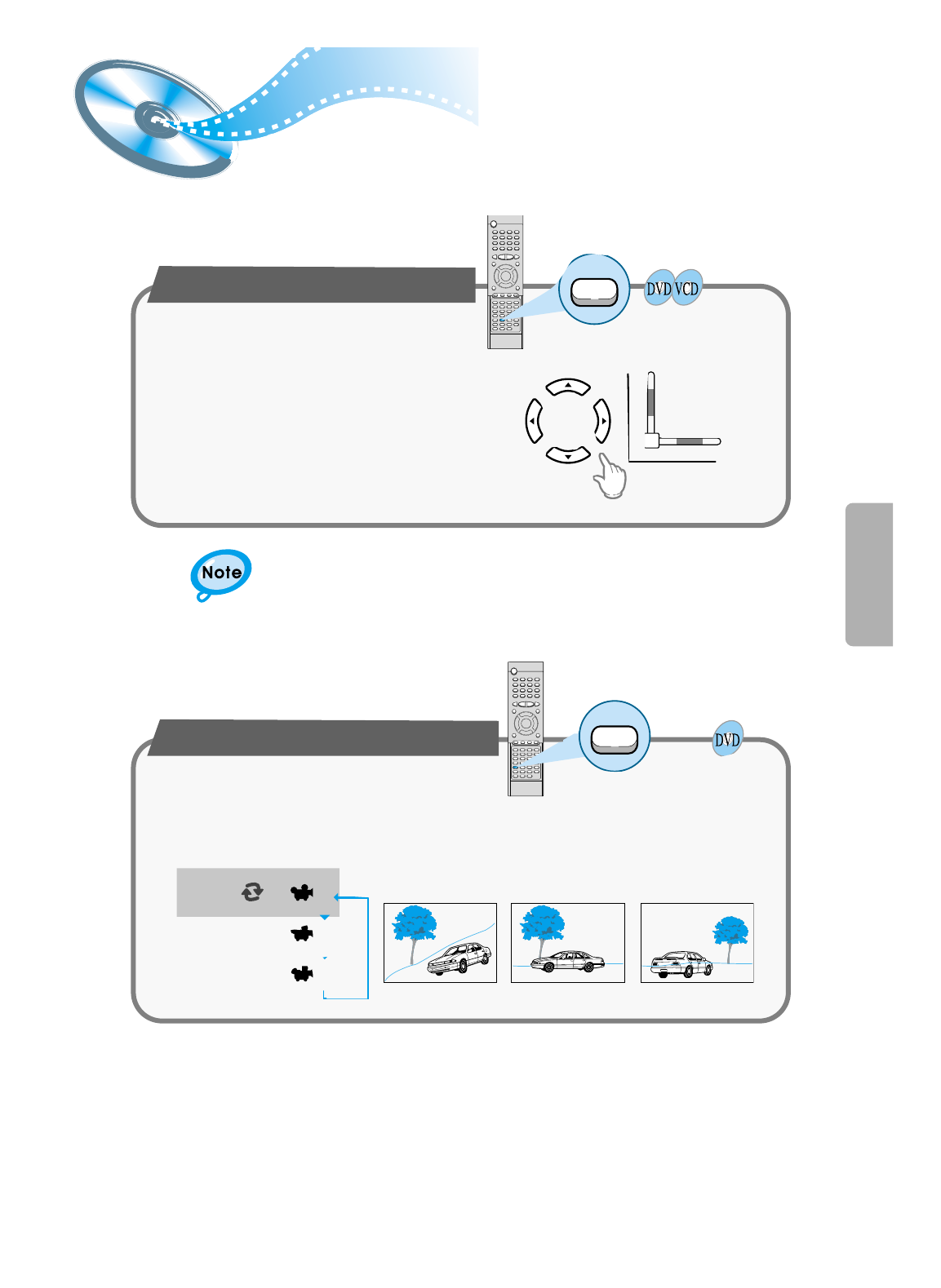
To enlarge an image
• Images can be enlarged 2x and 4x.
• During DVD playback, press the Zoom button
to zoom in 2X/4X/normal, in that order.
• Press
/ / ▲ / ▼to move the enlarged
portion you want to watch.
• This function only works with discs on which multiple angles have been recorded.
• During playback, press the Angle button to select the desired angle: 1/3, 2/3, 3/3,
normal, in that order.
Selecting the desired Screen Angle
Zoom/Angle Functions
2
Zoom
Angle
Press the Zoom button.
Press the Angle button.
• Only 2X zoom operation is possible during VCD playback.
▲
▲
Program Playback
29
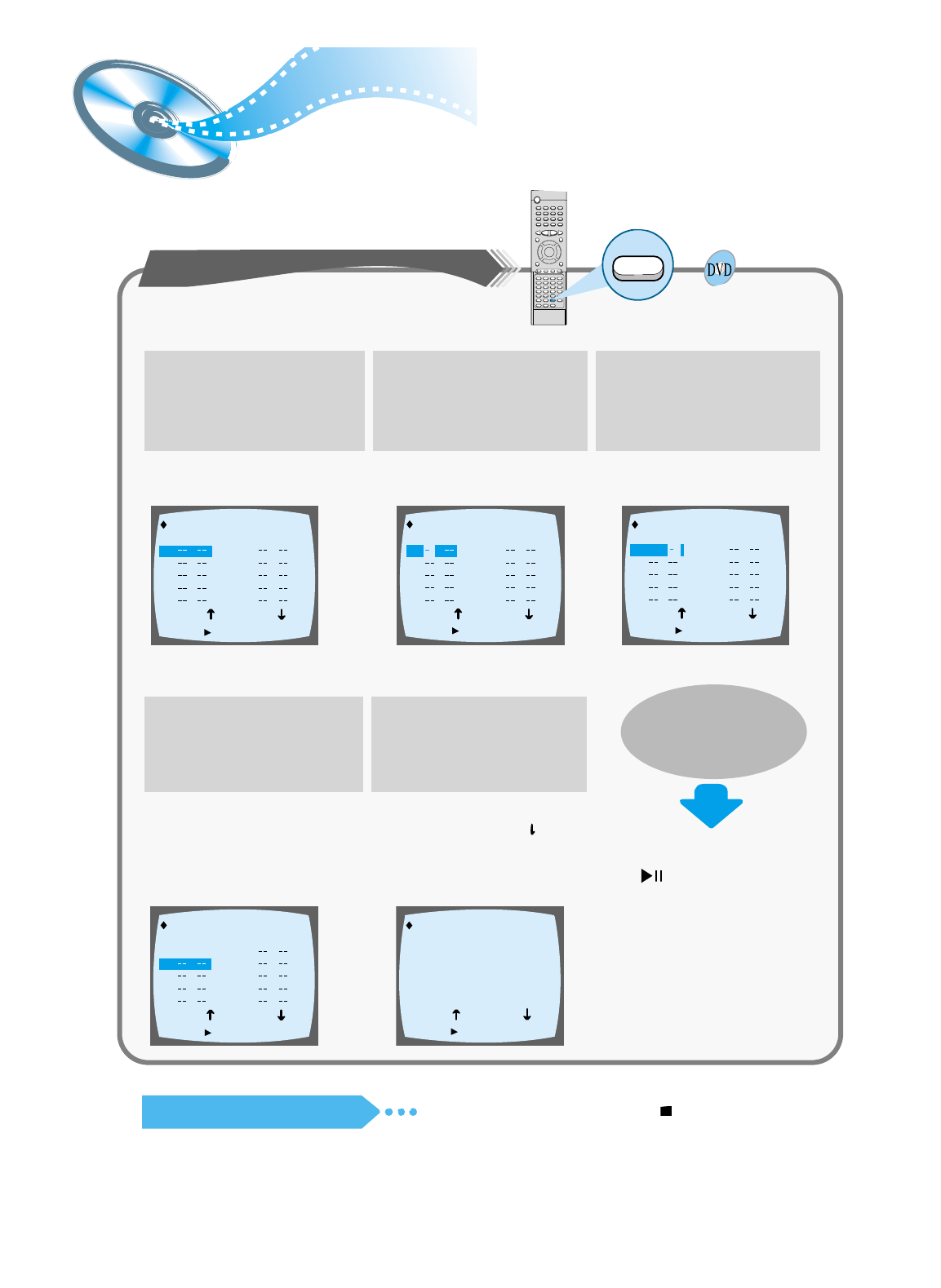
To Program Tracks in a particular order
To Leave the Programming Mode
PROGRAM MENU SELECT : ENTER
TITLE CHAPT
PREVIOUS NEXT
TITLE CHAPT
2
3
4
5
6
7
8
9
10
1
PLAY : FINISH : PROGRAM
TITLE CHAPT
PREVIOUS NEXT
TITLE CHAPT
2
1
3
4
5
6
7
8
9
10
1
PROGRAM MENU SELECT : ENTER
FINISH : PROGRAM
PLAY :
TITLE CHAPT
PREVIOUS NEXT
TITLE CHAPT
2
3
4
5
6
7
8
9
10
1 2
1
PROGRAM MENU SELECT : ENTER
FINISH : PROGRAM
PLAY :
TITLE CHAPT
PREVIOUS NEXT
TITLE CHAPT
3
4
5
6
7
8
9
10
1 1 2
2
PROGRAM MENU SELECT : ENTER
FINISH : PROGRAM
PLAY :
TITLE CHAPT
PREVIOUS NEXT
TITLE CHAPT
2
3
4
5
6
7
8
9
10
1 2
1
2
1
7
1
3
2
4
2
1
4
2
6
4
3
5
5
2
1
PROGRAM MENU SELECT : ENTER
FINISH : PROGRAM
PLAY :
Press the Program button.
1
Press the Enter button, then
use the Number buttons to
select the desired title.
23
•
You can also use the Up/Down/
Left/Right ( / /
▲
/
▼
) button.
Press the Enter button, then use
the Number buttons to select the
desired chapter.
Press the Enter button.
4
At this time, you can continue
programming if you want to.
5
•
When programming more than
10 tracks, select and
then press the Enter button.
The program selection screen
where you can program up to
10 additional tracks appears.
• The selected track number is
programmed and the cursor
moves to the next number.
To Playback the
Tracks in
Programmed Order
Press the Play/Pause
( ) button.
Press either the Program or Stop ( ) button.
• You can also use the Up/Down/
Left/Right
( / /
▲
/
▼
)
button.
EXT
Program
Use this function with video and music CDs to play the tracks in a particular order.
▲
▲
▲
▲
OPERATION
30
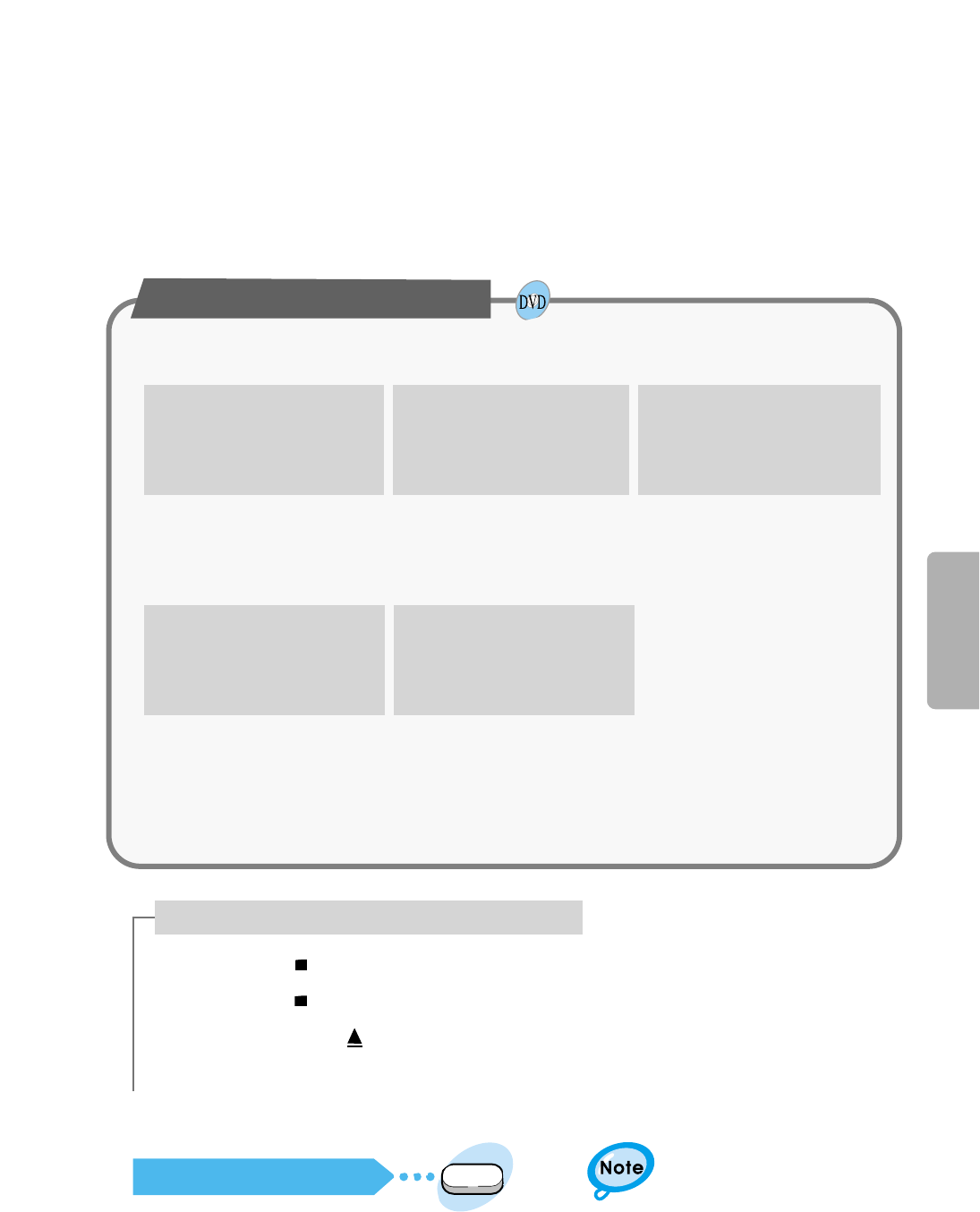
• Press the Stop ( ) button twice during playback.
• Press the Stop ( ) button once when in the Stop mode.
• Press the Open/Close ( ) button on the main unit.
The disc tray will open and then close.
The program will then be deleted.
To Change the Program
Press the Up/Down (▲ / ▼ )
button to select the track
number to be changed.
123
• The cursor moves to the next
number when the Enter button
is pressed again.
Press the Enter button.
4
Repeat steps 1-4 above to
change the program.
5
•
The cursor moves to the
number below.
You can program or change
particular tracks for VCD or CD
discs in the same manner.
• You can also use the Left/Right
( / ) button.
To delete the entire Program
When you have entered a
wrong number
Clear
Press the Clear button.
• When you want to delete a selection during
programming, select the track (or chapter, or title) to be
deleted and then press the Clear button.
Press the Enter button to
select the title or chapter to be
changed.
Press the Clear button and
then press the Number
buttons.
▲
▲
31
Sleep/D.R.C Function
To set up Sleep
•
Each time the button is pressed the selection
toggles as follows: SLEEP 10
➔
SLEEP 20
➔
SLEEP 30
➔
SLEEP 60
➔
SLEEP 90
➔
SLEEP 120
➔
SLEEP 150
➔
OFF.
•
Press the Sleep button.
The remaining time for the selected Sleep time is displayed on the front panel.
•
Pressing the button once again changes the Sleep time from the last setting.
Sleep
Press the Sleep button.
What is the
Sleep function?
You can set the sleep time so that
the unit powers off automatically
after a preset period of time.
To Review Sleep Setting
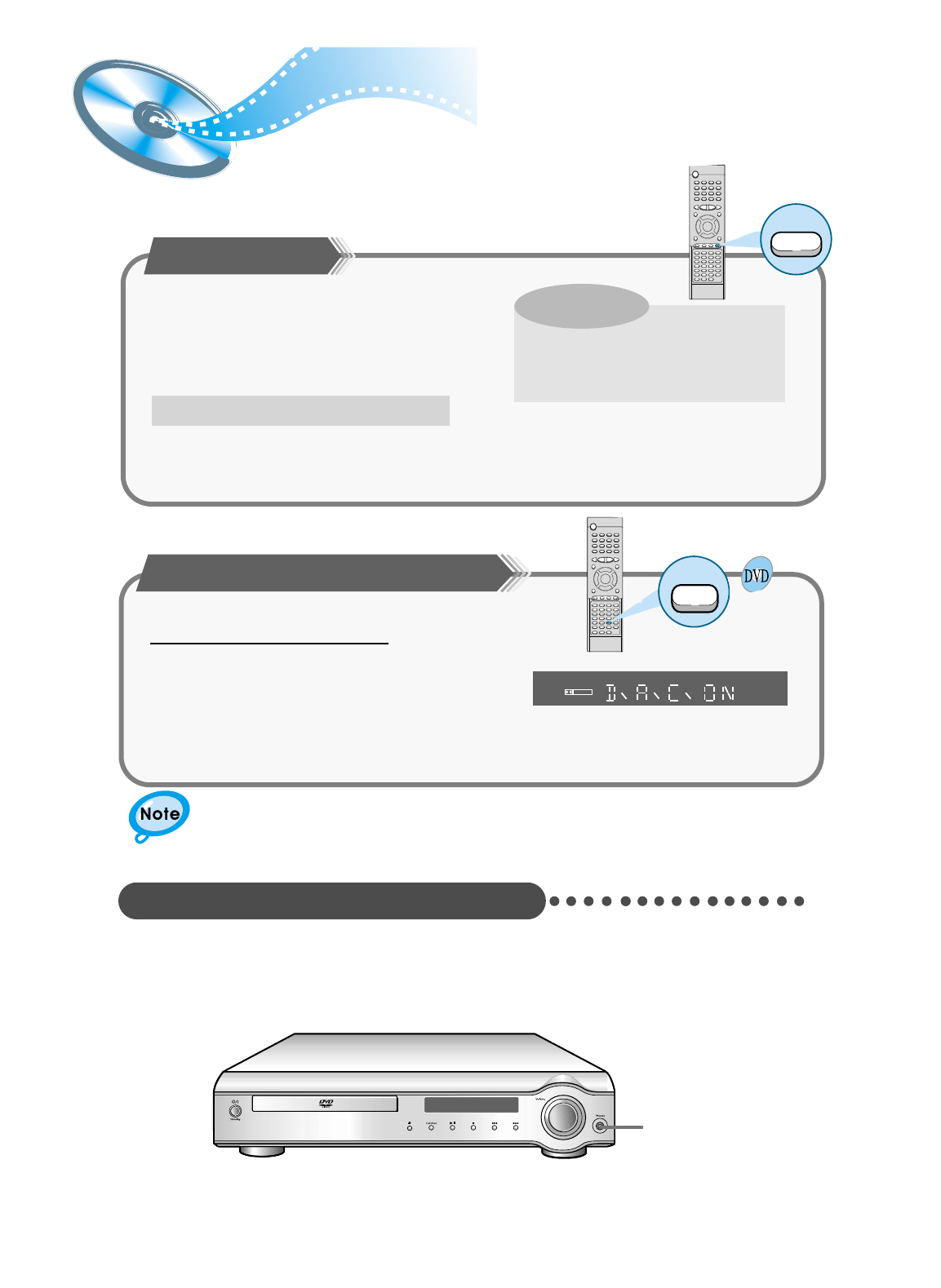
Activating Dynamic Range Compression
D.R.C
You can enjoy a powerful sound even at a low volume level by compressing the
dynamic range (difference between the maximum and minimum sounds).
From the remote control ONLY:
Press the D.R.C button.
• Each time you press the button,the dynamic range
compression mode alternates between on and off.
Select “D.R.C.ON ” while watching the DVD at night.
(You can obtain a powerful sound at a low volume.)
• This function takes effect only when Dolby Digital or
DTS Digital Surround is activated.
• When the Stop button is pressed, DRC is switched to Off.
Use headphones (not supplied) for private listening pleasure.
Connect the headphones to the HEADPHONE jack of the front panel.
• No sound is produced from the speakers.
• To prevent hearing damage, do not raise the volume level excessively when using headphones.
HEADPHONE jack
Listening on headphones
D I G I T A L
OPERATION SETUP
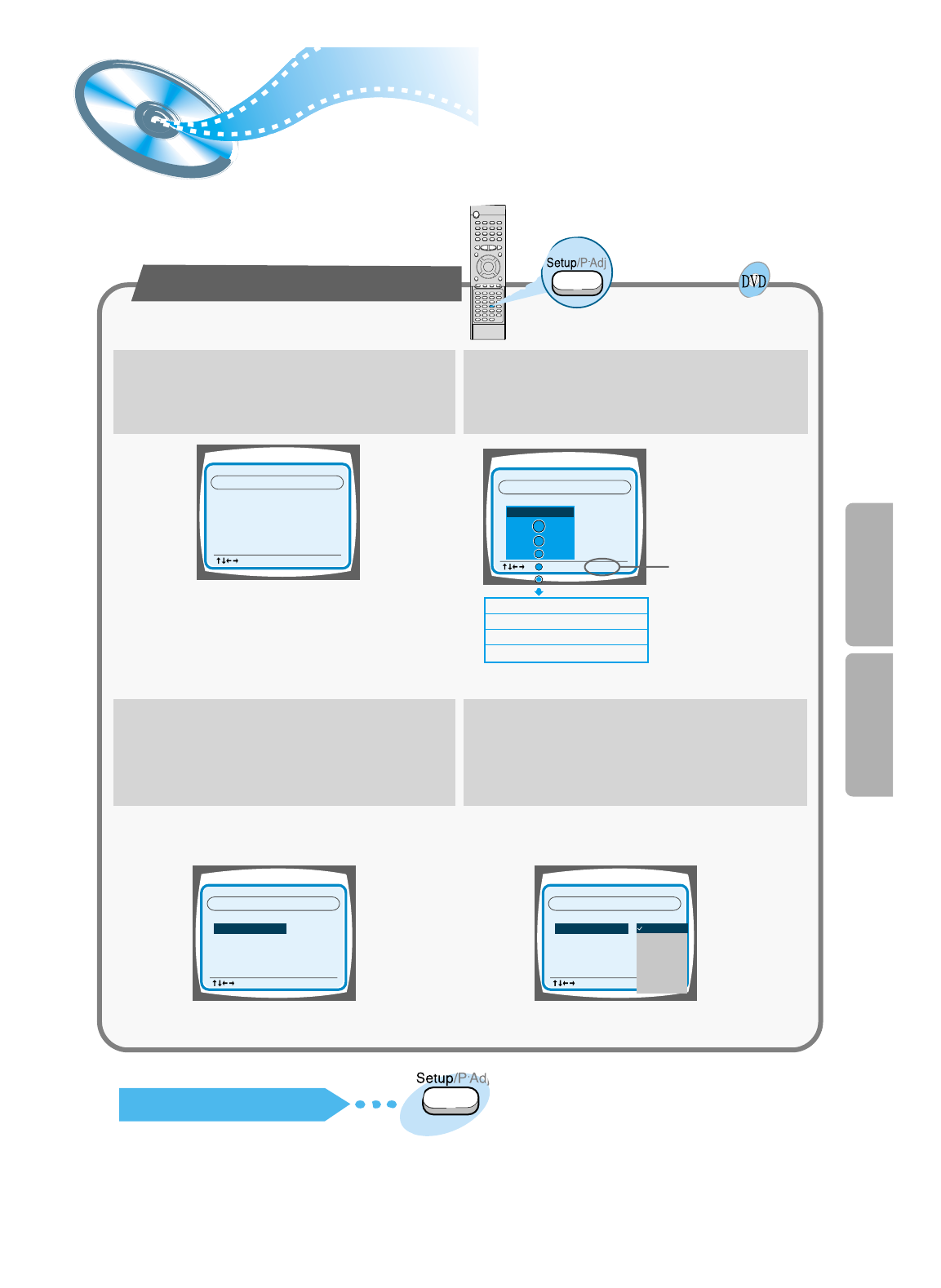
Setting up the Language Features
Using the DVD player's Setup function, you can customize the Menu
Language, Subtitle Language, and Disc Menu Language.
To set up the language feature
12
ENGLISH
CHINESE
CHINESE
CHINESE
OSD LANGUAGE
SYSTEM
AUDIO
SUBTITLE
MENU LANGUAGE
LANGUAGES
: Move Setup : Exit
AUDIO
SUBTITLE
OSD LANGUAGE
MENU LANGUAGE
AUDIO
SUBTITLE
OSD LANGUAGE
MENU LANGUAGE
: Move Setup : Exit
ENGLISH
CHINESE
CHINESE
CHI NESE
SYSTEM LANGUAGES
MENU LANGUAGE
: Move Setup : Exit
ENGLISH
CHINESE
CHINESE
OSD LANGUAGE
SYSTEM
AUDIO
SUBTITLE
LANGUAGES
ENGLISH
CHINESE
FRENCH
GERMAN
JAPANESE
MENU LANGUAGE
: Move Setup : Exit
ENGLISH
ENGLISH
CHINESE
CHINESE
OSD LANGUAGE
SYSTEM
AUDIO
SUBTITLE
LANGUAGES
(PLAYER MENU LANGUAGE)
(AUDIO LANGUAGE)
(SUBTITLE LANGUAGE)
(DISC MENU LANGUAGE)
If the Setup/P.Adj button is
pressed during the
language setup, it returns to
the stop mode again.
34
Press the Setup/P.Adj button from the stop
mode.
To End the Language Features Setup
• Press the Setup/P.Adj button again.
Press the Up/Down ( ▲ / ▼ ) button to select
the desired item.
Press the Enter button or Right ( ) button. Press the Up/Down ( ▲ / ▼ ) button to select
the desired language and then press the Enter
button.
▲
32
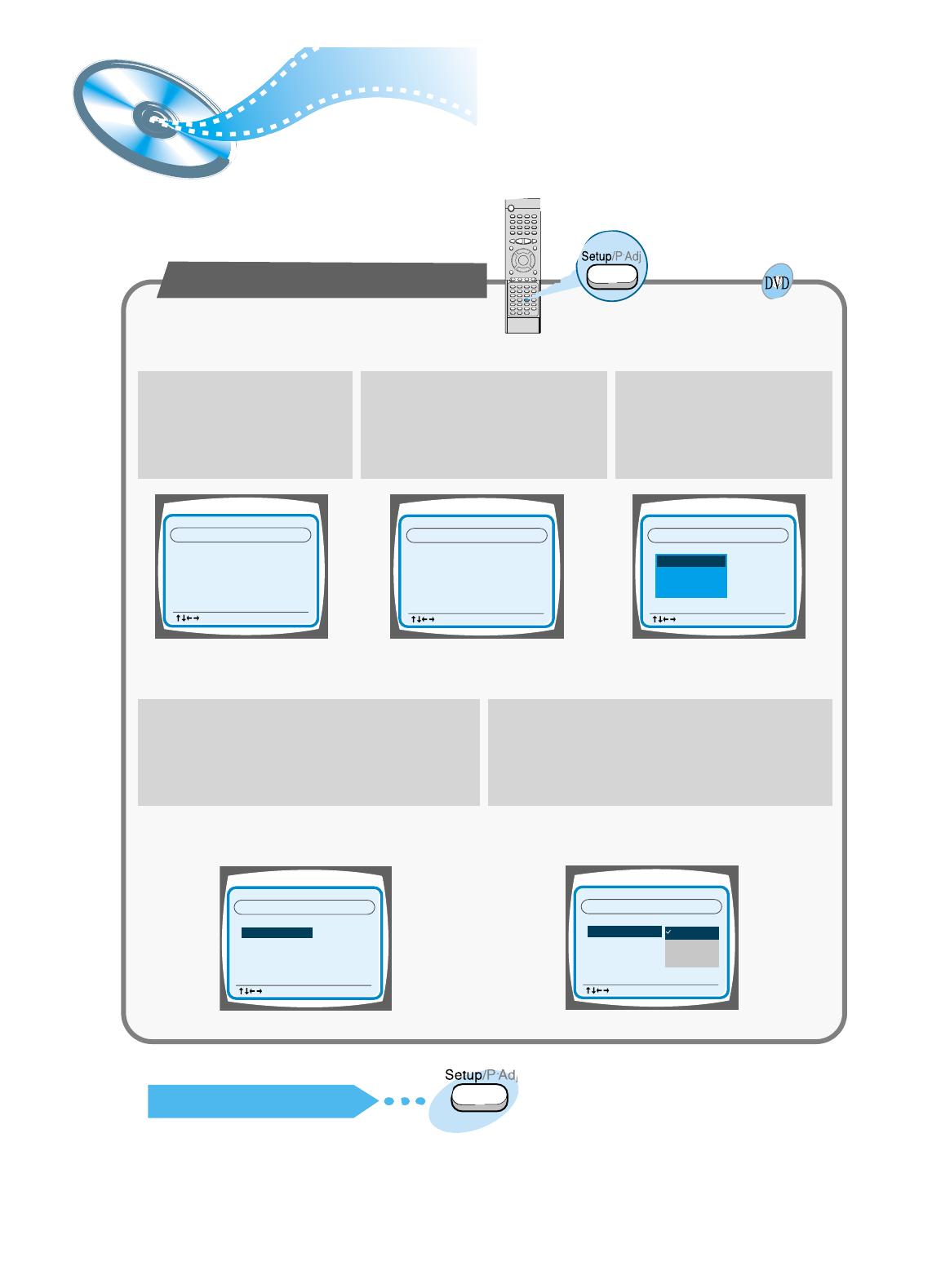
You can use the DVD player's Setup function to select the TV screen ratio,
rating limit, or digital output mode.
33
System Setup
ENGLISH
CHINESE
CHINESE
CHINESE
OSD LANGUAGE
SYSTEM
AUDIO
SUBTITLE
MENU LANGUAGE
LANGUAGES
: Move Setup : Exit
4:3 LB
OFF
BITSTREAM
OUTPUT
DIGITAL
TV SCREEN
RATING LEVEL
: Move Setup : Exit
LANGUAGES SYSTEM
4:3 LB
OFF
RATING LEVEL
BITSTREAM
OUTPUT
DIGITAL
: Move Setup : Exit
LANGUAGES SYSTEM
TV SCREEN
4:3 LB
OFF
RATING LEVEL
OUTPUT
DIGITAL
TV SCREEN
4:3 PS
16:9
4:3 LB
: Move Setup : Exit
LANGUAGES SYSTEM
OFF
RATING LEVEL
BITSTREAM
OUTPUT
DIGITAL
TV SCREEN
: Move Setup : Exit
LANGUAGES SYSTEM
4:3 LB
Press the Up/Down ( ▲ / ▼ ) button
to select the
desired sub-item
and then press the Enter
button.
45
From the stop mode, press
the Setup/P.Adj button.
1
Press the Left/Right ( / )
button to select the system. Press the Up/Down ( ▲ / ▼ )
button to select the desired
item.
23
To End the System Setup
• Press the Setup/P.Adj button again.
To Set up the System
Press the Enter button or Right ( ) button.
▲
▲
▲
SETUP
4:3 LB
OFF
RATING LEVEL
OUTPUT
DIGITAL
TV SCREEN
4:3 PS
16:9
4:3 LB
: Move Setup : Exit
LANGUAGES SYSTEM
34
4:3 LB
OFF
BITSTREAM
OUTPUT
DIGITAL
TV SCREEN
RATING LEVEL
: Move Setup : Exit
LANGUAGES SYSTEM
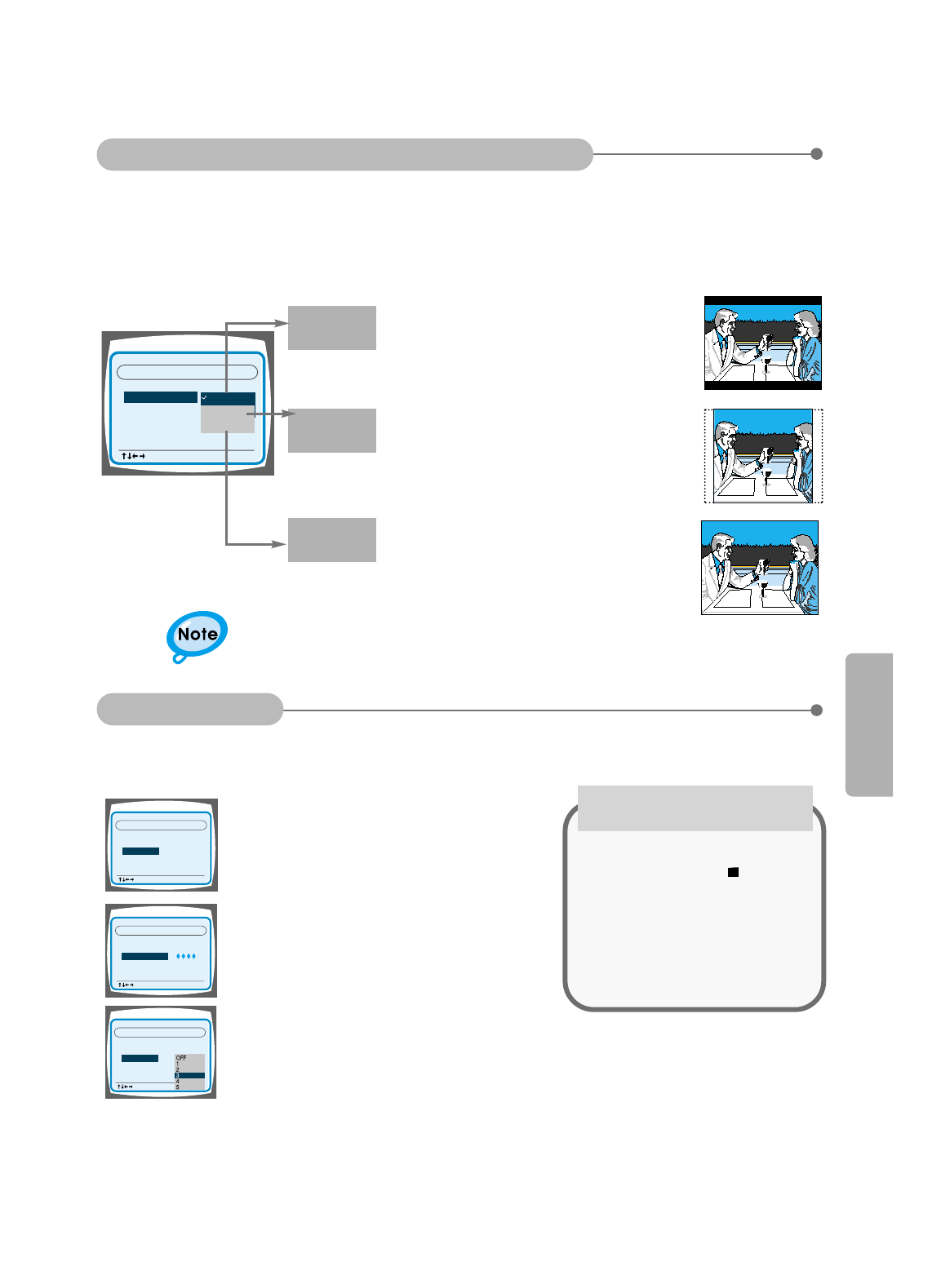
The Rating Level function works in conjunction with DVDs which have been assigned
a rating, to help control the types of DVDs that your family watches.
1. Select RATING LEVEL, then press the
Enter button.
4:3 LB
BITSTREAM
OUTPUT
DIGITAL
TV SCREEN
RATING LEVEL
: Move Setup : Exit
LANGUAGES SYSTEM
2. Use the number(0~9) buttons to input
a 4-digit password.
• The player’s password is set to "7890" by
default.
OUTPUT
DIGITAL
TV SCREEN
RATING LEVEL
: Move Setup : Exit
LANGUAGES SYSTEM
4:3 LB
3. Use the Up/Down (▲ / ▼ )button to select either RATING LEVEL or
NEW PASSWORD, and then press the Enter button.
• There are up to 8 rating levels on a disc.
• If LEVEL 6 is selected, a disc which contains rating LEVEL 7 and above cannot
be played.
• If you select NEW PASSWORD, the screen changes and enables you to enter
the new password.
RATING LEVEL
While the player is in the stop
mode, hold the Stop ( ) button
down on the main unit for more than
5 seconds.
• "INITIAL" appears on the display and
all default settings will return to
Factory Preset.
• Press the Power button.
When the rating level
password has been forgotten
The horizontal to vertical screen size ratio of conventional TVs is 4:3, while that of wide screen and high
definition TVs is 16:9. This ratio is called the aspect ratio. When playing DVDs recorded in different screen
size, you should adjust the aspect ratio to fit your TV or monitor.
✱ For a standard TV, select either "4:3LB" or "4:3PS" option according to
personal preference. Select "16:9" if you have a wide screen TV.
: Select this to play a 16:9 picture in the
letter box mode on a conventional TV.
•Black bars will appear at the top and bottom of the
screen.
: Select this to play a 16:9 picture in the pan
& scan mode on a conventional TV.
•You can see the central portion of the screen only
(with the sides of the 16:9 picture cut off).
: Select this to view a 16:9 picture in the
full-screen mode on your wide screen TV.
•You can enjoy the wide screen aspect.
4:3PS
(4:3 Pan&Scan)
4:3LB
(4:3 Letterbox)
16:9
Adjusting the TV Aspect Ratio (Screen Size)
• If a DVD is in the 4:3 ratio, you cannot view it in wide screen.
• Since DVD discs are recorded in various image formats, they will look different
depending on the software, the type of TV, and the TV aspect ratio setting.
Speaker Setup
35
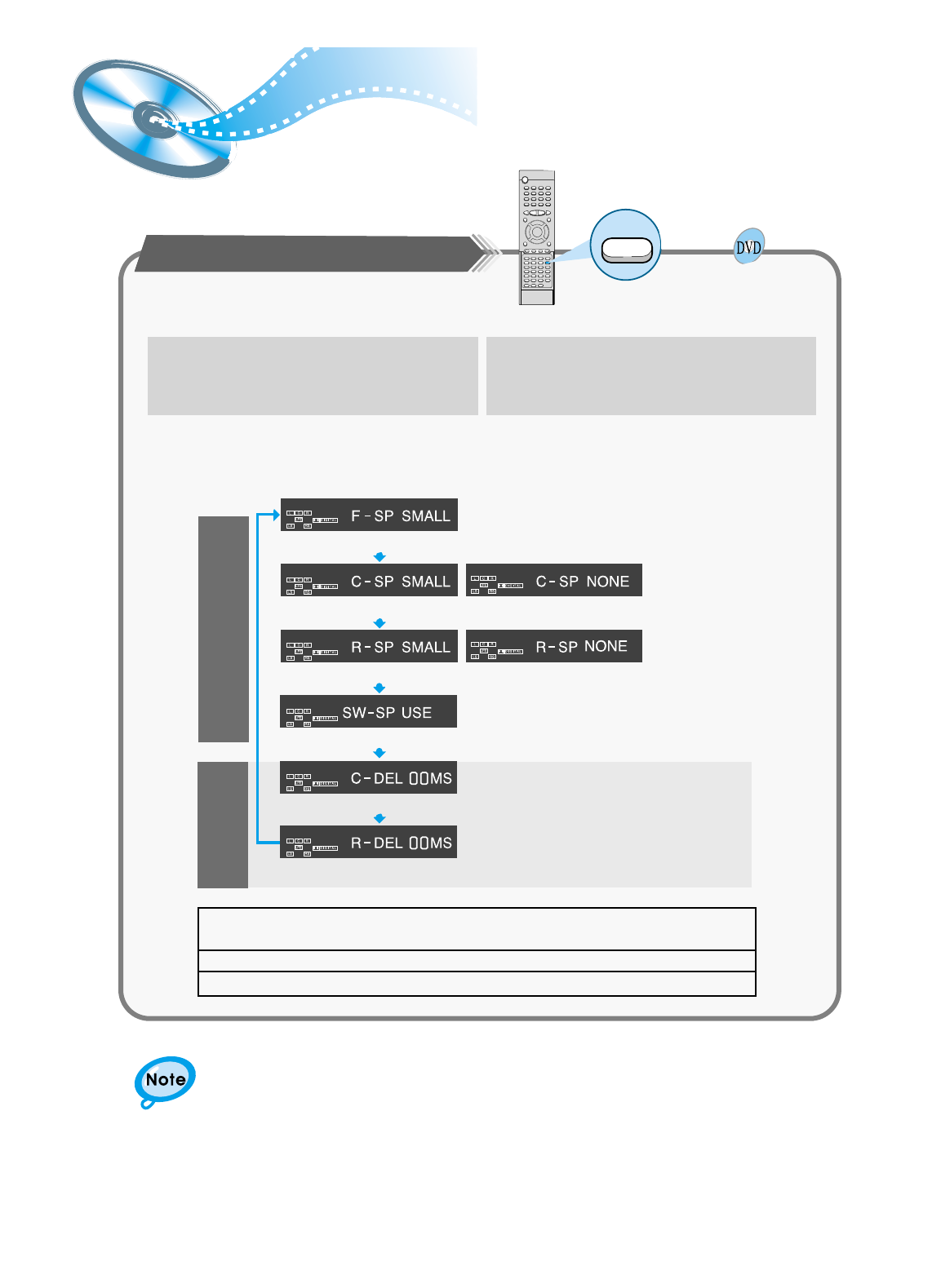
Setting up Speaker Mode and Delay Time
•
Each time the button is pressed, a different mode selection is
displayed on the front panel display as shown below.
SPK Mode
The display changes depending on the current audio output mode
(DSP, PRO LOGIC, 3-STEREO, STEREO, etc.).
S
p
e
a
k
e
r
M
o
d
e
Delay
Time
Front speaker: Small
Center speaker: Small
Rear speaker: Small
Subwoofer: Use
Center Speaker Delay Time
Rear Speaker Delay Time
Center speaker: Not Used
Rear speaker: Not Used
Setting up Delay Time from 00~05ms
Setting up Delay Time from 00~15ms
1
Press the Left/Right ( / ) button to select
the desired item.
Press the SPK Mode button.
▲
▲
2
•SMALL: When this setting is selected, low frequencies of below 200 Hz are assigned to
the subwoofer only.
•USE: Select when using speakers.
•NONE: Select this when no speakers are installed.
SETUP
36
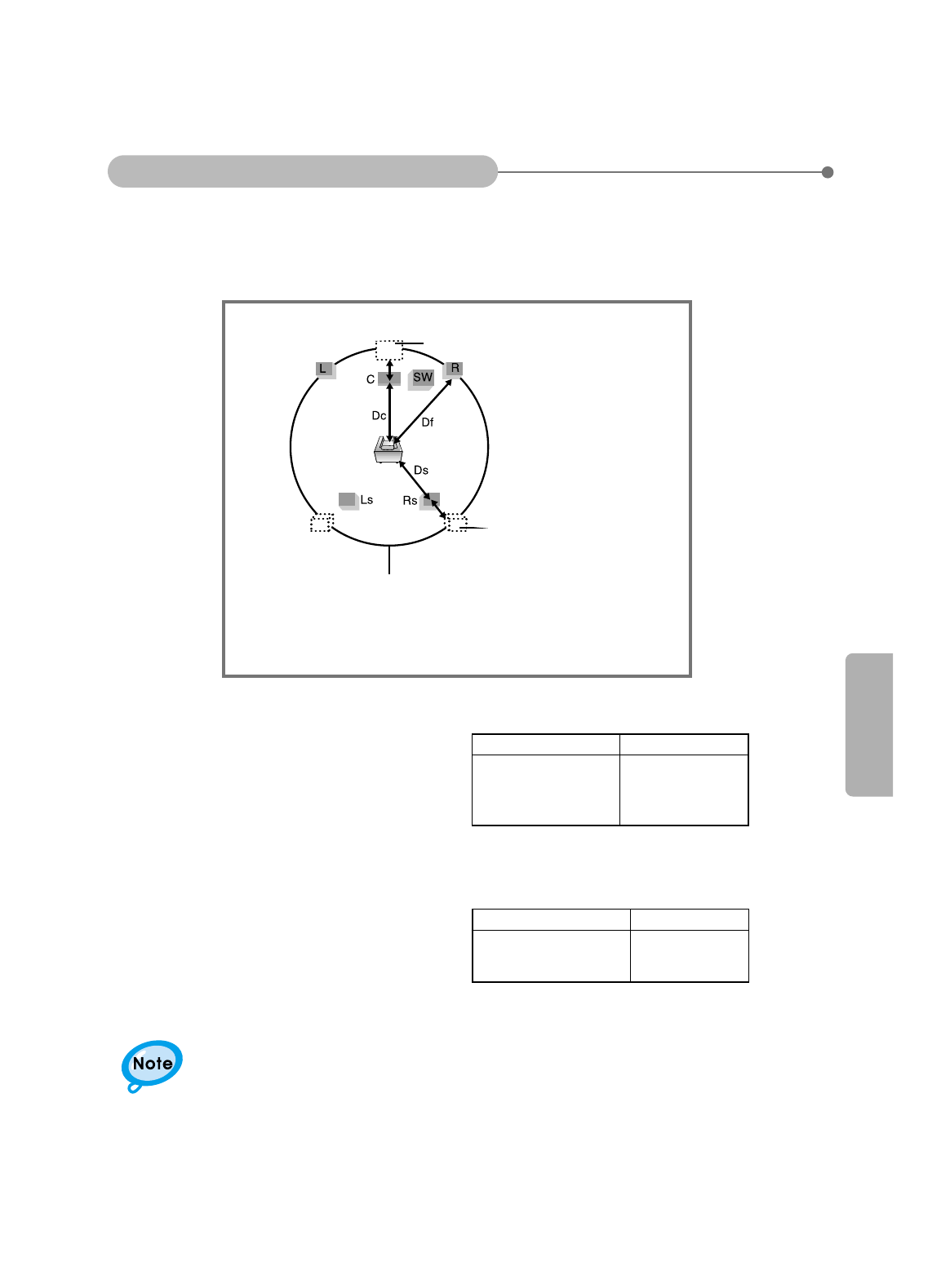
Speaker delay time setting is a professional sound volume adjustment method for audio
enthusiast. For home use, refer to "Setting up the Ideal Speaker Positions" on page 11
to install speakers in appropriate locations.
5.3 ms
10.6 ms
15.9 ms
Df: The distance from FRONT SPEAKER
Dc: The distance from CENTER SPEAKER
Ds: The distance from SURROUND SPEAKER
• Setting REAR (SURROUND) SPEAKERS
If the distance of Df is equal to the distance of Ds
in the figure, set the mode as 0ms. Otherwise,
change the setting according to the table.
• Setting CENTER SPEAKER
If the distance of Dc is equal to or longer than the
distance of Df in the figure, set the mode as 0ms.
Otherwise, change the setting according to the
table.
When 5.1CH Surround Sound is played, you can enjoy the best sound if the distance between you and each
speaker is the same. Since the sounds arrive at the listening position at different times depending on the placement
of speakers, you can adjust this difference by adding a delay effect to the sound of the Center Speaker and
Surround Speakers.
Setting up the Speaker Delay Time
Delay Time
Ideal CENTER SPEAKER placement
Distance between Ds and Dc
Distance between Df and Dc Delay Time
1.3 ms
2.6 ms
3.9 ms
5.3 ms
20 Inches
40 Inches
5 feet
6 feet 6.6 inches
6 feet 6.6 inches
13 feet 3.3 inches
20 feet
It is desirable to place all speakers within this circle.
Ideal SURROUND
SPEAKER placement
37
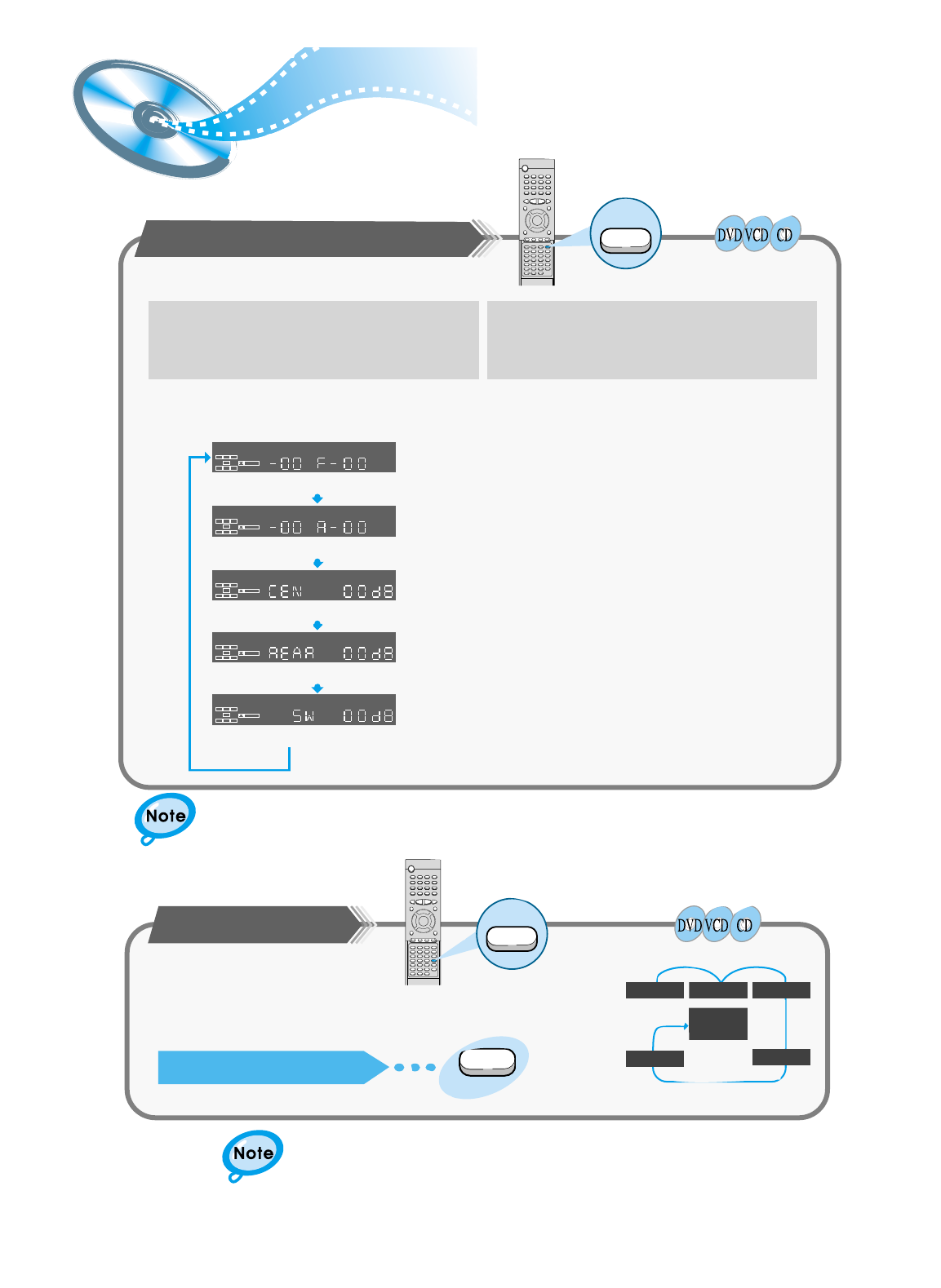
To set up Speaker Balance
To set up Speaker Balance
LCR
LS
LFE
SRS
D I G I T A L
LCR
LS
LFE
SRS
D I G I T A L
LCR
LS
LFE
SRS
D I G I T A L
LCR
LS
LFE
SRS
D I G I T A L
LCR
LS
LFE
SRS
D I G I T A L
1Use the Left/Right ( / ) button to raise or
lower the output level of the chosen
speaker(s).
Example: 5.1CH Sound Setup
OFF, range of –6 ~ 0
OFF, range of –6 ~ 0
range of –6 ~ –00 ~ +6
range of –6 ~ –00 ~ +6
range of –6 ~ –00 ~ +6
Front Speakers: L level, R level
Rear Speakers: L level, R level
Center Speaker
Rear Speakers
Subwoofer Speaker
Sound Edit
Press the Sound Edit button. Each time the
button is pressed, the selection switches as
shown below.
▲
▲
2
The display changes depending on the current audio output
mode (DSP, PRO LOGIC, 3-STEREO, STEREO, etc.).
While in DSP or PRO LOGIC mode, TEST TONE may
operate differently for VCDs or CDs.
Speaker Setting Methods
• The test signal will be sent to the Left Front ➞ Center ➞ Right
Front ➞ Right Rear ➞ Left Rear ➞ Subwoofer in that order.
Test Tone
Press the Test Tone button.
To End the Speaker Setup
Test Tone
• Press the Test Tone button again.
L
LS RS
C
SUB
WOOFER
R
SETUP
38
Creating Realistic Sound Fields
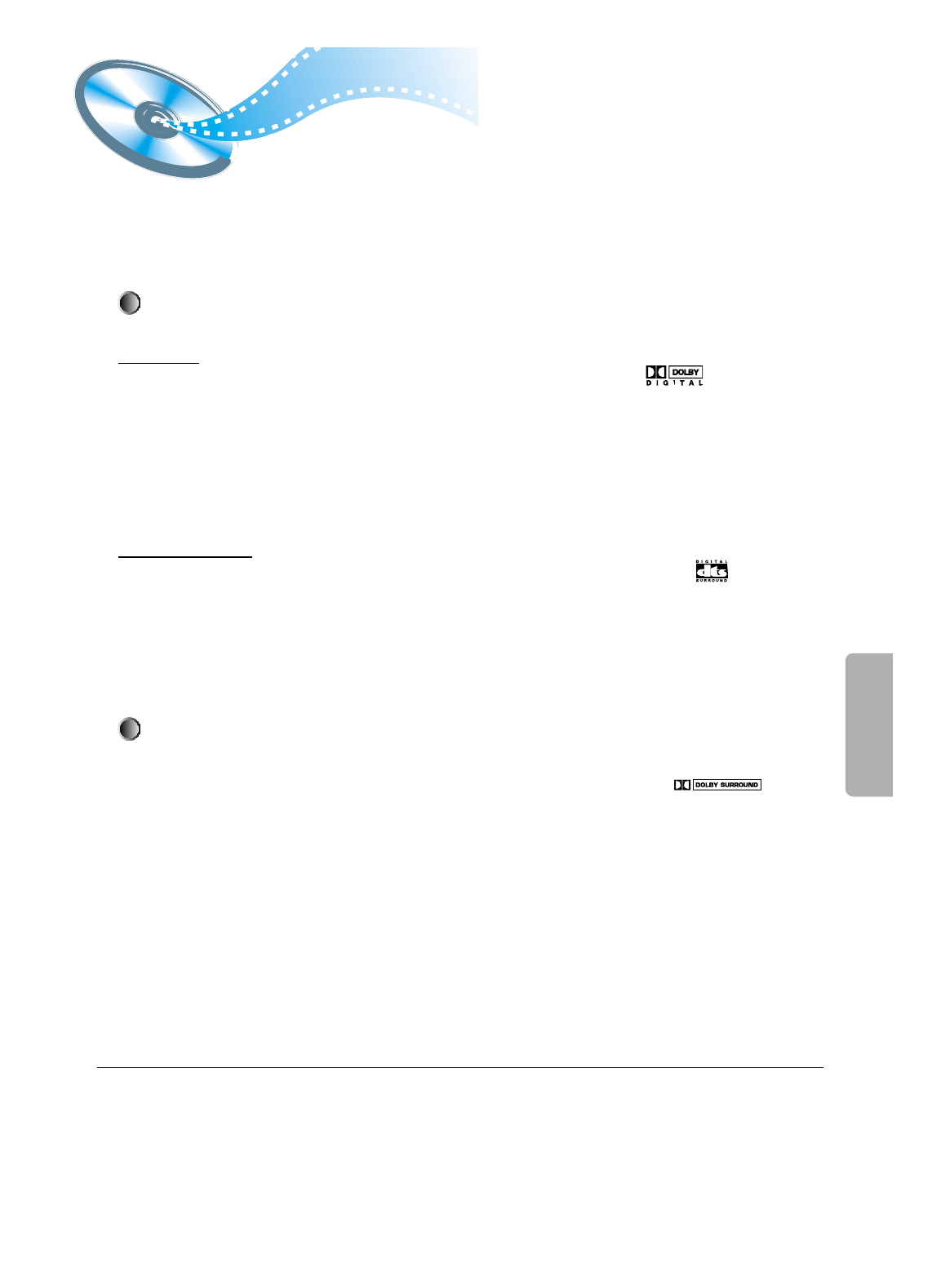
You can use the following surround modes to reproduce a realistic sound field.
• Digital Multichannel Surround —Dolby Digital and DTS Digital Surround
• Dolby Pro Logic II
Dolby Digital and DTS Digital Surround
To enjoy surround effectively, all the speakers need to be connected and activated.
Dolby Digital
Used to reproduce multichannel sound tracks of the software encoded with Dolby Digital ( ).
Dolby Digital encoding method (discrete 5.1 channel digital audio format)records and digitally compresses the left front
channel,right front channel,center channel,left rear channel,right rear channel,and Subwoofer channel signals (total 6 channels,but
the Sub channel is counted as channel 0.1).
In addition,Dolby Digital enables stereo rear sounds,and sets the cutoff frequency of the rear treble at 20 kHz,compared to 7 kHz
for Dolby Pro Logic.These facts result in better sound quality than Dolby Pro Logic.
When the system detects Dolby Digital signals,the DOLBY DIGITAL indicator lights up on the display.
DTS Digital Surround
Used to reproduce multichannel sound tracks of the software encoded with DTS Digital Surround ( ).
DTS Digital Surround is another discrete 5.1 channel digital audio format available on CD,LD,and DVD software.
Compared to Dolby Digital,audio compression rate is relatively low.
This fact allows DTS Digital Surround format to add breadth and depth to the reproduced sounds.As a result,DTS Digital
Surround features natural,solid and clear sound.
When the system detects DTS Digital Surround signals, the DTS indicator lights up on the display.
Dolby Pro Logic II
• Dolby Pro-Logic II is a new multi-channel playback format developed by Dolby Laboratories using feedback logic
steering technology and offering improvements over conventional Dolby Pro Logic circuits.
• Dolby Pro Logic II can be used to decode not only sources recorded in Dolby Surround ( ) but also
regular stereo sources into five channels (front left, front right, center, surround left and surround right) to achieve
surround sound.
• Whereas with conventional Dolby Pro Logic the surround channel playback frequency band was limited, Dolby Pro
Logic II offers a wider band range.
In addition, the surround channels were monaural (the surround left and right channels were the same) with previous
Dolby Pro Logic, but with Dolby Pro Logic II they are stereo.
* Sources recorded in Dolby Surround
These are sources in which three or more channels of surround have been recorded as two channels of signals
using Dolby Surround encoding technology.
Dolby Surround is used for the sound tracks of movies recorded on DVDs, LDs and video cassettes to be played on
stereo VCRs, as well as for the stereo broadcast signals of FM radio, TV, satellite broadcasts and cable TV.
Decoding these signals with Dolby Pro Logic makes it possible to achieve multi-channel surround playback.
The signals can also be played on ordinary stereo equipment, in which case they provide normal stereo sound.
Manufactured under license from Dolby Laboratories. “Dolby,”
“Pro Logic,” and the double-D symbol are trademarks of Dolby
Laboratories. Confidential Unpublished Works. ©1992–1997
Dolby Laboratories, Inc. All rights reserved.
Manufactured under license from Digital Theater Systems, Inc.
US Pat. No. 5,451,942 and other world-wide patents issued
and pending. “DTS” and “DTS Digital Surround” are
trademarks of Digital Theater Systems, Inc. ©1996 Digital
Theater Systems, Inc. All rights reserved.
39
23
Press the Pro Logic II button. Press the DSP/DPL II Mode button.
1
Press the Function button on the front panel to select the desired function.
• Each time the Pro Logic II button is pressed.
• Select from FM ➞ AM ➞ DVD ➞ DIGITAL IN ➞ AUX 1 ➞ AUX 2.
• Each time the DSP/DPL II Mode button is pressed.
PRO LOGIC
LR
LR
PRO LOGIC
LR
PRO LOGIC
LR
PRO LOGIC
LR
PRO LOGIC
LR
PRO LOGIC II : Left, Center, Right,
Subwoofer and
Surround(Left, Right)
Channels
STEREO : Left, Right and Subwoofer Channels
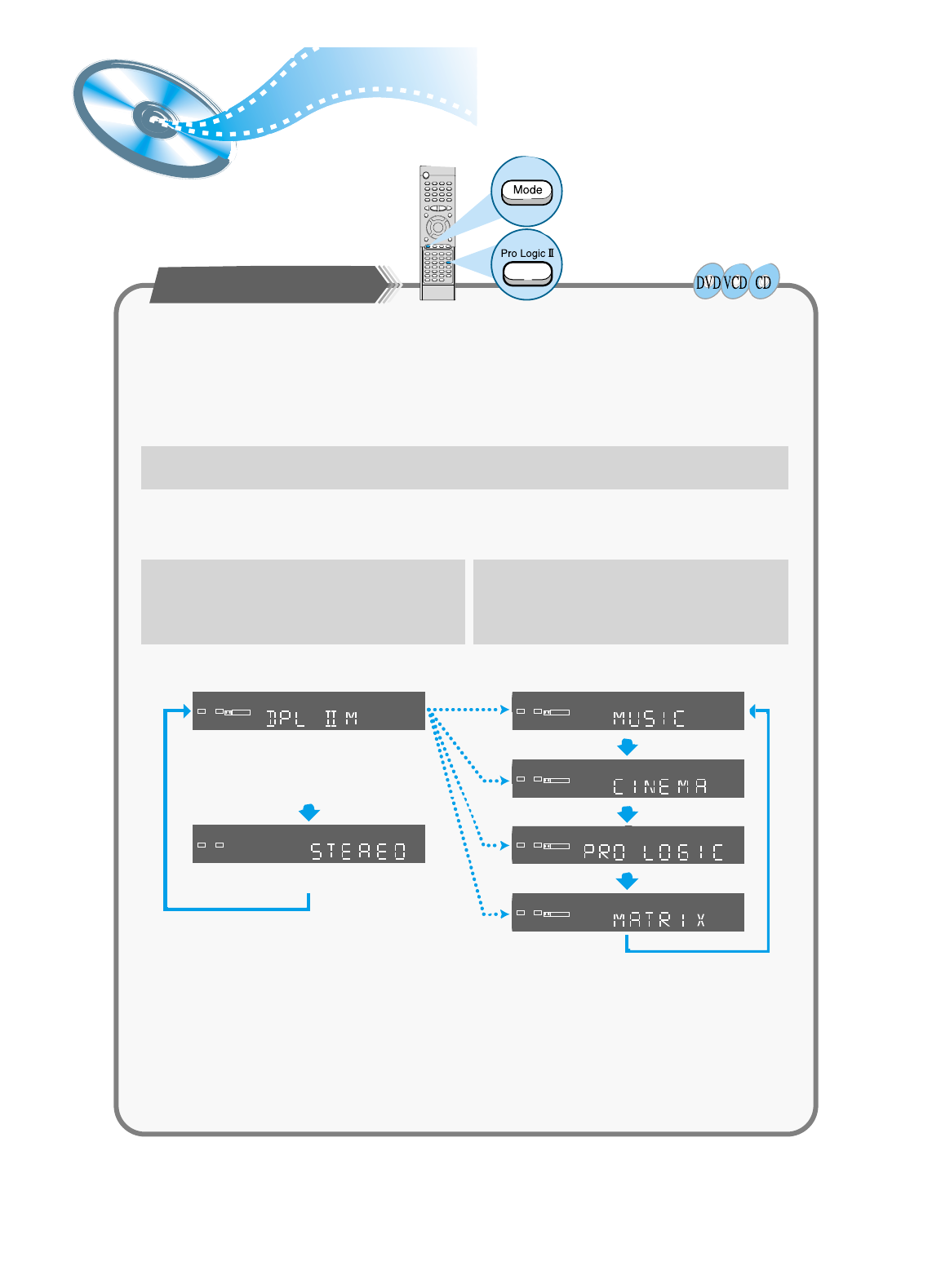
Dolby Pro Logic II decoder
Dolby Pro Logic II is a new format for playing multichannel audio signals that offers improvements over
conventional Dolby Pro Logic. It can be used to decode not only sources recorded in Dolby Surround, but
also regular stereo sources into five channels (front left/right, center and surround left/right). In addition,
various parameters can be set according to the type of source and the contents, so you can adjust the
sound field with greater precision.
Pro Logic II Mode
Select one of the modes (“Music”, “Cinema”, “Pro Logic” or “MATRIX”).
•
The Music mode is recommended when listening to CDs or watching DVDs with mostly
musical content.
•
The Cinema mode is best when watching movies.
•
The Pro Logic mode offers the same surround processing as original Pro Logic and is
best used when the source contents are not of optimum quality.
•
The Matrix mode is useful for when the audio is mono.
Dolby Pro Logic II
SETUP
40
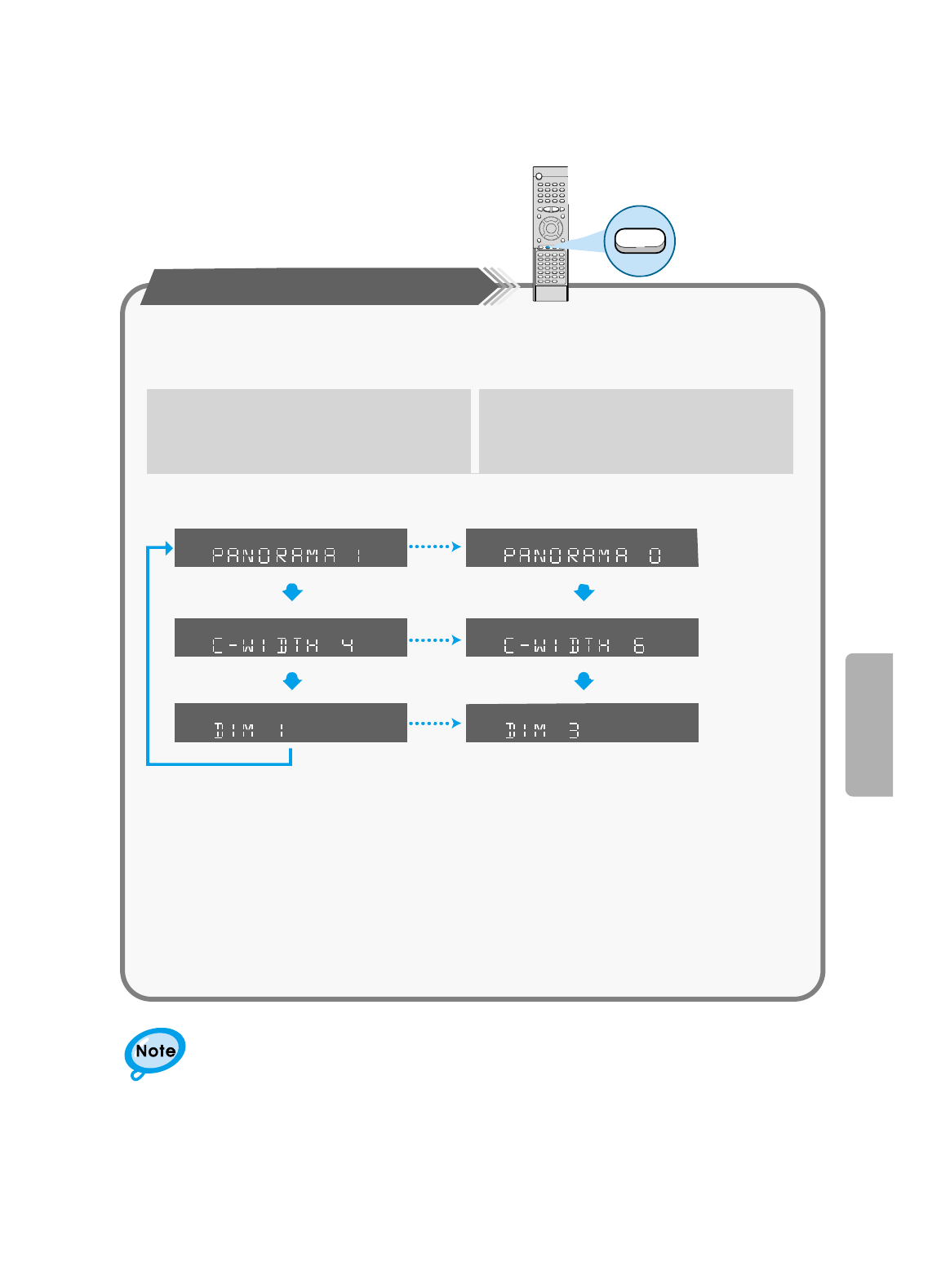
Dolby Pro Logic II Effect Function
Effect
•
When playing a DVD encoded in two or more channels, DOLBY PRO LOGIC II mode
cannot be selected.
•
Panorama Mode
This mode extends the front stereo image to include the surround speakers for an
exciting “wraparound” effect with side wall imaging.
•
Center Width Control
This control adjusts the center image so it may be heard only from the center speaker;
only from the left/right speakers as a phantom image; or from all three front speakers to
varying degrees.
•
Dimension Control
This control gradually adjusts the soundfield either towards the front or towards the rear.
• Each time the DSP/DPL II Effect button is pressed.
This function works only in the DPL II M (Dolby Pro Logic II Music) Mode.
12
Press the DSP/DPL II Effect button.
Select “0” or “1”
The control can
be set in 8 steps
from 0 to 7.
The control can
be set in 7 steps
from 0 to 6.
Use the Left/Right ( / ) button to make
adjustments.
▲
▲
DSP
(Digital Signal Processor)
Modes
41
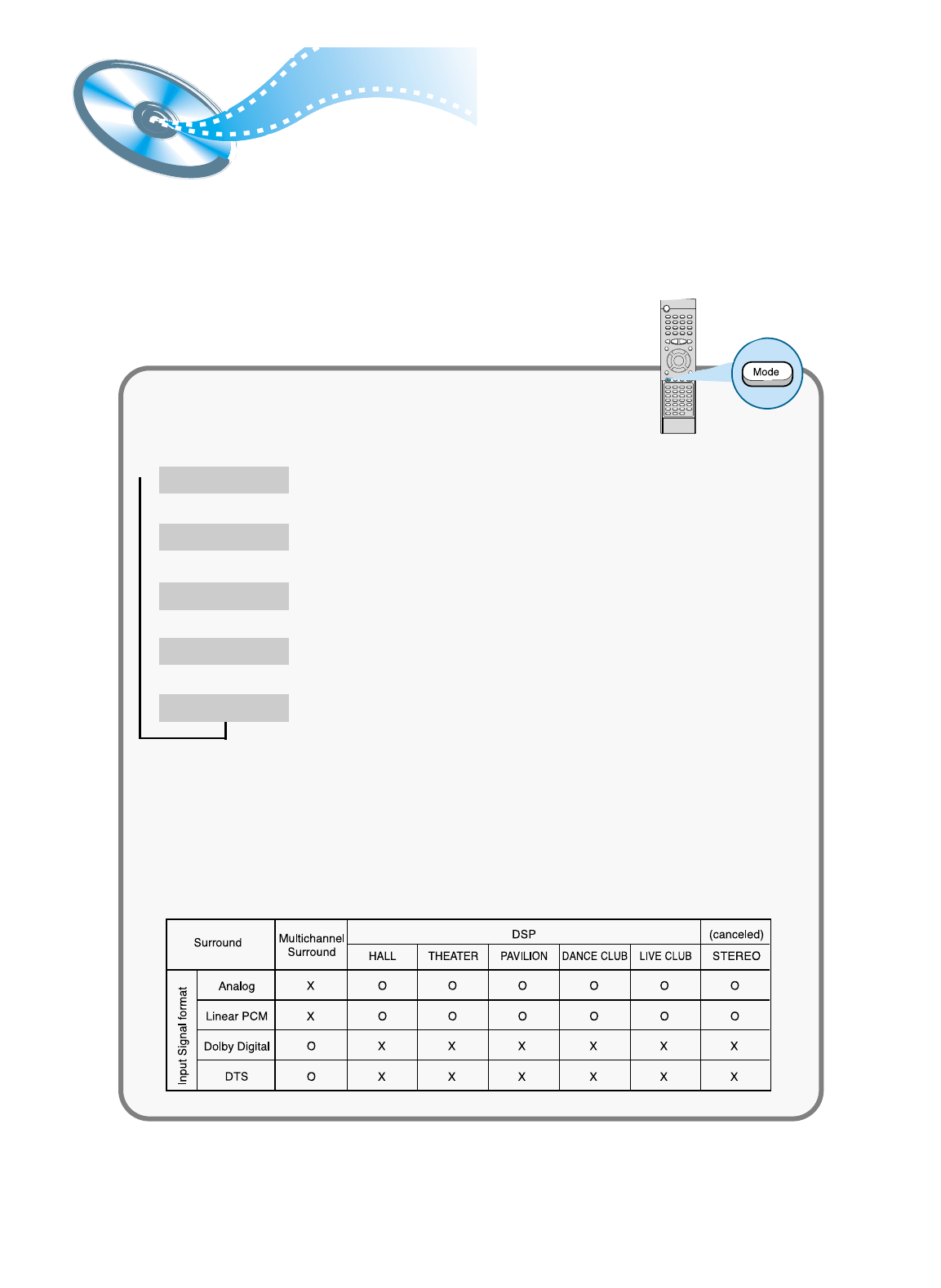
DSP modes have been designed to simulate different acoustic environments.
The sound heard in a hall, theater, pavilion, dance club, or live club consists of direct
and indirect sound —early reflections and reflections from behind.
Direct sounds reach the listener directly without any reflection.
Indirect sounds are delayed by the distance of the ceiling and walls.
These indirect sounds are an important element of the acoustic surround effect.
•
The following DSP modes are provided with this unit:
•
These DSP modes can be used to add acoustic surround effects while reproducing
stereo analog or linear PCM digital signals.
•
When one of the DSP modes is selected,the DSP indicator lights up on the display.
Press the DSP/DPLII Mode button.
DSP modes available according to the input signal format
O : Possible, X : Not possible
Provides a clear vocal and simulates the feeling of a concert hall.HALL
Simulates the feeling of a theater.
THEATER
Simulates the spacious feeling of a pavilion with a high ceiling.PAVILION
Simulates the sound of a dance club with a throbbing bass beat.
DANCE CLUB
Simulates the feeling of a live music club with a low ceiling.
➠➠➠➠
➠
LIVE CLUB
•
This function works only in the STEREO Mode.
SETUP
42
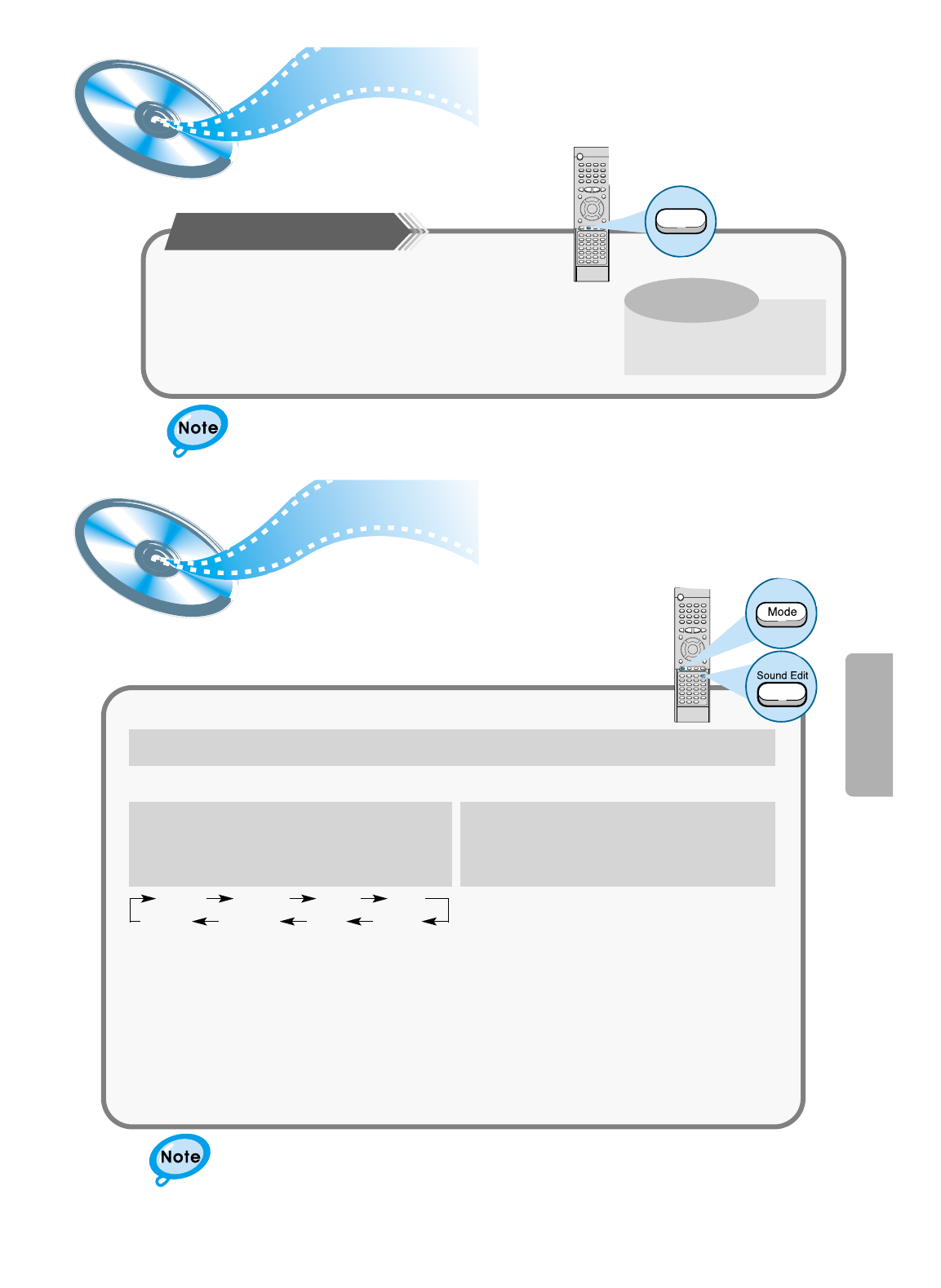
To increase Effect level
Adjusting DSP Sound Parameters
You can fine-adjust DSP modes more minutely by changing
three parameters—room, liveness, and reverberation.
To increase Effect level
• The effect level can be set in steps from 1 to 4 EFFECT1 ➔
EFFECT2 ➔EFFECT3 ➔OFF(DEFAULT).
Each time the button is pressed the selection moves to the next
effect.
• The higher the number, the stronger the DSP surround effect will be.
Effect
Press the DSP/DPL II Effect button.
What is a Effect?
This sets the strength of
the DSP mode.
• This function works only in the DSP Mode.
• This function works only in the DSP Mode.
23
Press the Sound Edit button.
• Each time you press the button, the
indication on the display changes as follows:
1
Press the DSP/DPL II Mode button.
Press the Left/Right ( / ) button to
adjust the DSP sound parameter.
▲
▲
ROOM :
To adjust the resonance based on the room size.
The larger this value is, the more effective the
resonance is (from 04 to 16 by 2 steps).
LIVE (Liveness) : To adjust the liveness. The larger this
value is, the more liveness is obtained
(from 04 to 16 by 2 steps).
REVERB (Reverberation)
: To adjust the reverberation time
of the sound (from 0.0 msec to
1.6 msec by 0.2 msec steps).
00 F 00 00 R 00 REAR SW
Normal
indication
(canceled)
REVERB
LIVE ROOM
43
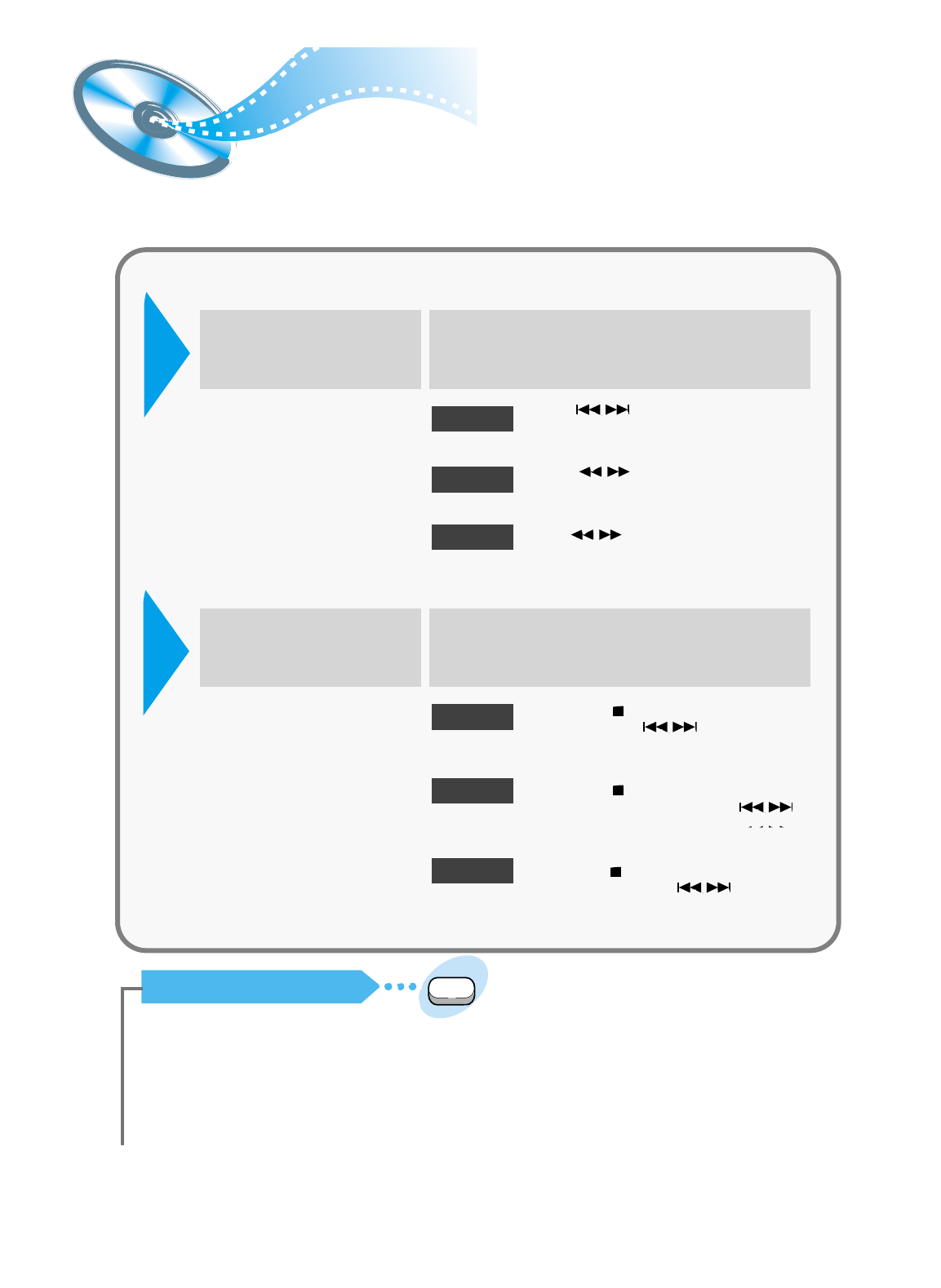
When the button is pressed, a preset
broadcast station is selected.
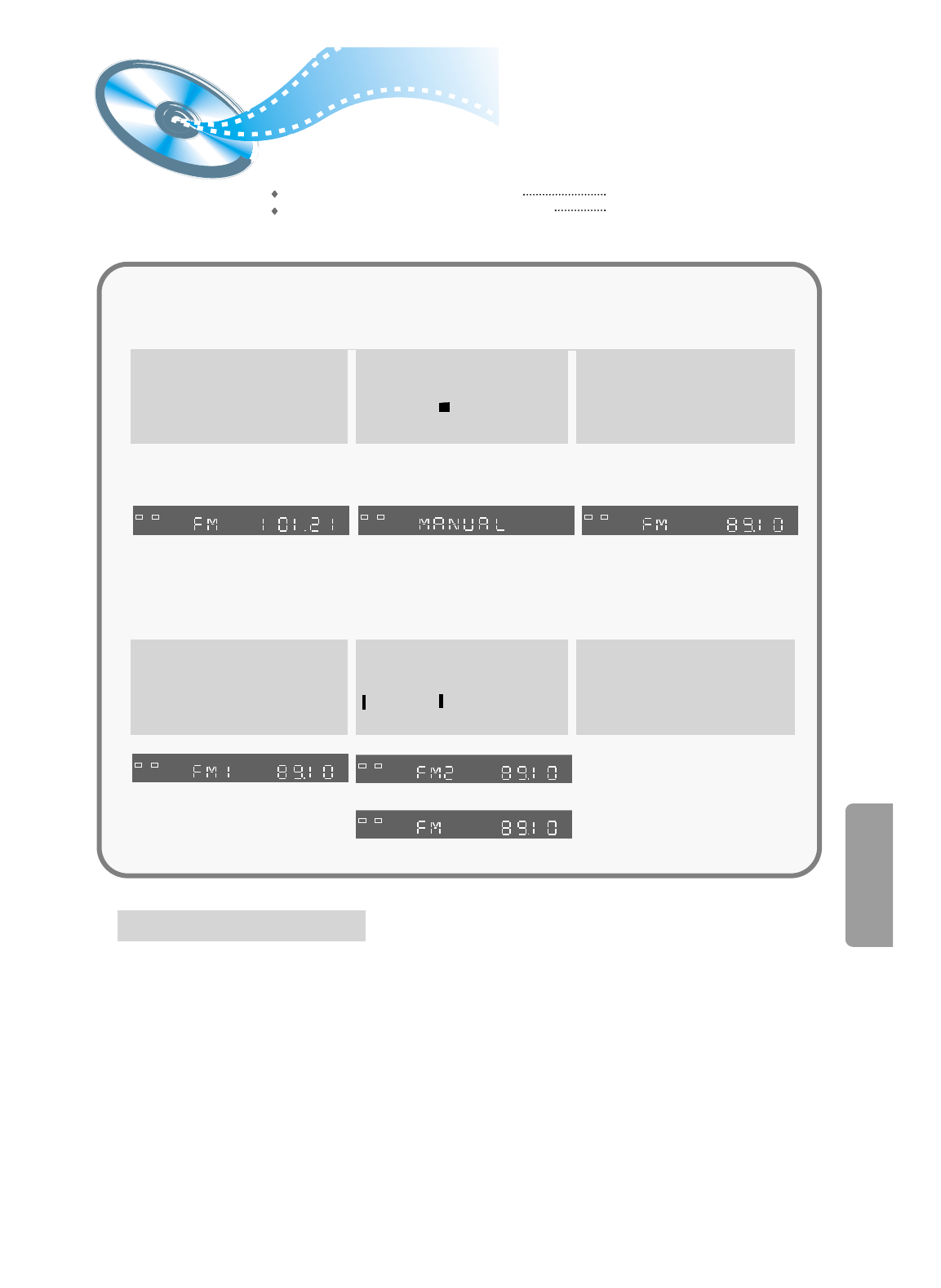
Hold in the button. Automatic searching
begins, and then stops when a station is tuned in.
Press the button to tune to the chosen
station. The frequency changes incrementally in either
direction each time the corresponding button is pressed.
Listening to the Radio
Auto Station 1
Auto Station 2
Manual Station
Press the Tuner(Band)
button.
1
Select a broadcast station.
2
• The selection toggles back
and forth between "FM" and
"AM" each time the
Tuner(Band) button is
pressed.
Press the MO/ST button. (FM only)
•
The selection toggles back and forth between “STEREO” and “MONO”
each time the MO/ST button is pressed.
•
In a poor reception areas, select Mono mode for a clear, interference-free
broadcast.
To Listen in Mono/Stereo
Audio
MO/ST
Remote
Control
Unit
Press the Stop ( ) button to select the PRESET
mode. Then press the button to select a
station stored in the preset. See the instructions on the
next page to preset stations.
Press the Stop ( ) button to select the MANUAL
mode on the front panel. Then hold in the
button to make the unit begin automatically searching for
broadcast stations.
Press the Stop ( ) button to select the MANUAL mode
on the front panel. Press the button to tune
to the desired station. The frequency changes
incrementally in either direction each time the
corresponding button is pressed.
Auto Station 1
Auto Station 2
Manual Station
1
Select a broadcast station.
2
Main
Unit
Press the Function button to
select the desired band (FM,
AM).
You can listen to the chosen band (FM, AM broadcast stations) by using either the
automatic or manual tuning operation.
RADIO OPERATION
44
Presetting stations
See the previous page.
To tune in a preset station
Example: Presetting FM 89.1 in the memory
MH
Z
LR
PRGM
MH
Z
LR
PRGM
MH
Z
LR
MH
Z
LR
LR
MH
Z
LR
Press the Tuner(Band) button
and select the FM band.
Select MANUAL by pressing
the Stop ( ) button on the
main unit.
1
Use the and
button to tune to 89.1
2
• The selection toggles back and forth between “FM” and “AM”
each time the Tuner(Band) button is pressed.
3
456
Press the Program button on
the remote control, FM1 will
flash. If you want to save 89.1
to FM1, press Program again.
To preset other stations,
follow steps 1~5 again.
If you want to save 89.1 to another
preset location(FM2~FM15), press
or , then press
Program to save it to that location.
▲
▲
▲
▲
▲
▲
▲
▲
You can store up to:
15 FM stations
15 AM stations • FM Frequency Modulation
• AM(MW) Medium Wave
Troubleshooting
45
• Is the disc installed with the label side facing up?
• Is the power cord plugged securely into the power outlet?
• Turn off the power to the unit by pressing the Power ( ) button
and turn it back on.
• Check the region number of the DVD.
• DVD discs purchased abroad may not be playable.
• This player cannot play CD-ROMs, DVD-ROMs, etc.
• Check the rating level of the DVD.
• Check whether the disc has any scratch marks or is deformed.
The disc tray does not
open.
Disc does not play.
Playback does not start
immediately when the
Play/Pause button is pressed.
• No sound is heard during high-speed playback, slow playback,
and step motion playback modes.
• Are the speakers properly connected? Is the speaker Setup
correctly customized?
• Is the disc severely damaged?
The disc may be dirty. Wipe off fingerprints or dirt.
No sound is produced.
• Was the player moved suddenly from a cold place to a warm one?
When condensation forms inside the player, remove the disc
and let the player stand for 1 or 2 hours with the power on.
(You can use the player after the condensation disappears.)
Picture does not appear; sound
is not produced; the disc tray
opens 2-5 seconds later.
• Are the speaker cables loose?
• Is there any dirt or debris at the end of the speaker connector?
Sound quality is
irregular.
• When listening to a CD or radio, sound is output to the front
speakers only (L/R). Select the “PRO LOGIC” option by pressing
the Pro Logic button on the remote control unit to use all six
speakers.
• Check whether your DVD disc is 5.1 CH compatible.
Sound can be heard only
from a few speakers and
not all six.
• Does the disc being played show the “Dolby Digital 5.1CH” mark ?
5.1-channel sound is reproduced only if the disc is recorded with
5.1 channel sound.
• Is the DVD player connected to the proper speakers?
Dolby Digital 5.1 Channel
Surround Sound is not
being reproduced.
Problem Check
MISCELLANEOUS
46
• Is the TV power turned on?
• Are the video cables properly connected?
• Is it the player in PAUSE mode?
• Is there any dirt on the disc, or is the disc damaged?
• It may not be possible to play some DVD discs due to poor
manufacture.
• When a dark scene changes to a bright scene during playback, the
screen may flicker vertically. Some disturbance is normal.
• The disc revolves but no
picture appears.
• Picture shows interference
and quality is poor.
• Is the remote control being used within the appropriate distance
and angle of operation for the unit?
• Are there any obstacles between the remote control unit and the
remote control sensor?
• Are the batteries dead? Is it time to replace the batteries with new
ones?
Remote control unit does
not operate.
• The audio or subtitle language features does not operate with
DVDs that do not include multiple audio or subtitle languages.
Audio or subtitle language
does not operate.
•Is the remote control being used within the appropriate distance
and angle of operation for the unit?
•Are the batteries dead?
•Does the disc have a Menu?
The Menu button is
pressed but the Menu
screen does not appear.
• While the player is in the stop mode, hold the Stop ( ) button
down on the main unit for over 5 seconds."INITIAL" appears on the
display and all settings will return to the Factory Preset condition.
The RESET function erases all settings; do not use this
function unless necessary.
The system is
malfunctioning (the
system does not work or
no sound).
• Is the antenna installed properly?
• When the antenna's input signal is weak, install an external FM
antenna in an area with good reception quality.
The desired radio station
cannot be tuned in.
Problem Check
• You can play 16:9 wide DVDs in 16:9 WIDE mode, 4:3 LETTER
BOX mode or 4:3 PAN-SCAN mode; but 4:3 encoded DVDs only
show in 4:3 ratio. Refer to the DVD disc jacket and then select the
appropriate function.
The screen ratio cannot
be changed.
47
Cautions on Handling and Storing Discs
Small scratches on the disc may reduce sound and picture quality or cause breaks
in playback. Be especially careful not to scratch discs when handling them.
Handling and Storing Discs
When you get fingerprints or dirt on the
disc, clean it with a mild detergent diluted
in water and wipe with a soft cloth.
•
When cleaning, wipe gently from the inside to the
outside of the disc.
Disc Storage
Condensation may form if warm air comes into
contact with cold parts inside the player. When
condensation forms inside the player, the
player may not operate correctly. If this occurs,
remove the disc and let the player stand for 1
or 2 hours with the power on.
•
Do not allow the discs to become contaminated
with dirt.
•
Do not load cracked discs or discs that are
scratched.
Do not keep in direct
sunlight Keep in a clean
Protection jacket.
Store vertically.
Keep in a cool
ventilated area
MISCELLANEOUS
48
Disc Type and Protection
COMPACT
DIGITAL VIDEO
V I D E O
COMPACT
DIGITAL AUDIO
Marks
Audio + Video
DVD
VIDEO-CD
AUDIO-CD
5 inch
Approx. 240 min. (Single-sided)
Approx. 480 min. (Double-sided)
Approx. 80 min. (Single-sided)
Approx. 160 min. (Double-sided)
74 min.
20 min.
74 min.
20 min.
3 1/2 inch
5 inch
3 1/2 inch
5 inch
3 1/2 inch
Audio + Video
Audio
Dolby Digital
disc
DTS Disc
Digital Audio
disc Stereo disc MP3 disc
NTSC broadcast
system in USA,
Canada, Japan,
South Korea, etc..
Recording
Types
Disc Types Disc Size Max. Playing Time
Usable Discs
49
Specifications
Power Consumption
Weight
Dimensions (W x H x D)
Operating Temperature Range
Operating Humidity Range
Usable Sensitivity
S/N Ratio
Distortion
Usable Sensitivity
S/N Ratio
Distortion
Component Video
Composite Video
Component Video
S-VIDEO
Front speaker output
Center speaker output
Rear speaker output
Frequency range
S/N Ratio
Channel separation
Input sensitivity
G
E
N
E
R
A
L
T
U
N
E
R
F
M
T
U
N
E
R
A
M
VIDEO
INPUT
O
U
T
P
U
T
V
I
D
E
O
A
M
P
L
I
F
I
E
R
170W
18.30 Ib
17 x 3 x 14 inches
41°F ~ 95°F
10% ~ 75%
10dB
60dB
0.5%
54dB
40dB
2%
Y:1.0Vp-p(75Ωload), Pr:0.70Vp-p(75Ωload)
Pb:0.70Vp-p(75Ωload)
1.0Vp-p(75Ωload)
Y:1.0Vp-p(75Ωload)
Pr:0.70Vp-p(75Ωload)
Pb:0.70Vp-p(75Ωload)
Luminance Signal: 1.0Vp-p(75Ωload)
Color Signal: 0.286Vp-p(75Ωload)
100W x 2(4Ω) / 75W x 2(8Ω), Distortion 10%
100W (4Ω) / 75W (8Ω), Distortion 10%
100W x 2(4Ω) / 75W x 2(8Ω), Distortion 10%
20Hz~20KHz
75dB
50dB
(AUX)500mV

50
MISCELLANEOUS
SAMSUNG DVD PLAYER
LIMITED WARRANTY TO ORIGINAL PURCHASER
This SAMSUNG brand product, as supplied and distributed by Samsung Electronics America, Inc. (SAMSUNG) and delivered new, in the original
carton to the original consumer purchaser, is warranted by SAMSUNG against manufacturing defects in materials and workmanship for a limited
warranty period of:
One (1) Year Parts and Labor*
(*90 Days Parts and Labor for Commercial Use)
This limited warranty begins on the original date of purchase, and is valid only on products purchased and used in the United States. To receive
warranty service, the purchaser must contact SAMSUNG for problem determination and service procedures. Warranty service can only be
performed by a SAMSUNG authorized service center. The original dated bill of sale must be presented upon request as proof of purchase to
SAMSUNG or SAMSUNG's authorized service center. Transportation of the product to and from the service center is the responsibility of the
purchaser.
SAMSUNG will repair or replace this product, at our option and at no charge as stipulated herein, with new or reconditioned parts or products if
found to be defective during the limited warranty period specified above. All replaced parts and products become the property of SAMSUNG and
must be returned to SAMSUNG. Replacement parts and products assume the remaining original warranty, or ninety (90) days, whichever is
longer.
SAMSUNG’s obligations with respect to software products distributed by SAMSUNG under the SAMSUNG brand name are set forth in the
applicable end user license agreement. Non-SAMSUNG hardware and software products, if provided, are on an “AS IS” basis. Non-SAMSUNG
manufacturers, suppliers, publishers, and service providers may provide their own warranties.
This limited warranty covers manufacturing defects in materials and workmanship encountered in normal, and except to the extent otherwise
expressly provided for in this statement, noncommercial use of this product, and shall not apply to the following, including, but not limited to:
damage which occurs in shipment; delivery and installation; applications and uses for which this product was not intended; altered product or
serial numbers; cosmetic damage or exterior finish; accidents, abuse, neglect, fire, water, lightning or other acts of nature; use of products,
equipment, systems, utilities, services, parts, supplies, accessories, applications, installations, repairs, external wiring or connectors not supplied
and authorized by SAMSUNG, or which damage this product or result in service problems; incorrect electrical line voltage, fluctuations and surges;
customer adjustments and failure to follow operating instructions, cleaning, maintenance and environmental instructions that are covered and
prescribed in the instruction book; product removal or reinstallation; reception problems and distortion related to noise, echo, interference or other
signal transmission and delivery problems. SAMSUNG does not warrant uninterrupted or error-free operation of the product.
THERE ARE NO EXPRESS WARRANTIES OTHER THAN THOSE LISTED AND DESCRIBED ABOVE, AND NO WARRANTIES WHETHER
EXPRESS OR IMPLIED, INCLUDING, BUT NOT LIMITED TO, ANY IMPLIED WARRANTIES OF MERCHANTABILITY OR FITNESS FOR A
PARTICULAR PURPOSE, SHALL APPLY AFTER THE EXPRESS WARRANTY PERIODS STATED ABOVE, AND NO OTHER EXPRESS
WARRANTY OR GUARANTY GIVEN BY ANY PERSON, FIRM OR CORPORATION WITH RESPECT TO THIS PRODUCT SHALL BE BINDING
ON SAMSUNG. SAMSUNG SHALL NOT BE LIABLE FOR LOSS OF REVENUE OR PROFITS, FAILURE TO REALIZE SAVINGS OR OTHER
BENEFITS, OR ANY OTHER SPECIAL, INCIDENTAL OR CONSEQUENTIAL DAMAGES CAUSED BY THE USE, MISUSE OR INABILITY TO
USE THIS PRODUCT, REGARDLESS OF THE LEGAL THEORY ON WHICH THE CLAIM IS BASED, AND EVEN IF SAMSUNG HAS BEEN
ADVISED OF THE POSSIBILITY OF SUCH DAMAGES. NOR SHALL RECOVERY OF ANY KIND AGAINST SAMSUNG BE GREATER IN
AMOUNT THAN THE PURCHASE PRICE OF THE PRODUCT SOLD BY SAMSUNG AND CAUSING THE ALLEGED DAMAGE. WITHOUT
LIMITING THE FOREGOING, PURCHASER ASSUMES ALL RISK AND LIABILITY FOR LOSS, DAMAGE OR INJURY TO PURCHASER AND
PURCHASER’S PROPERTY AND TO OTHERS AND THEIR PROPERTY ARISING OUT OF THE USE, MISUSE OR INABILITY TO USE THIS
PRODUCT SOLD BY SAMSUNG NOT CAUSED DIRECTLY BY THE NEGLIGENCE OF SAMSUNG. THIS LIMITED WARRANTY SHALL NOT
EXTEND TO ANYONE OTHER THAN THE ORIGINAL PURCHASER OF THIS PRODUCT, IS NONTRANSFERABLE AND STATES YOUR
EXCLUSIVE REMEDY.
Some states do not allow limitations on how long an implied warranty lasts, or the exclusion or limitation of incidental or consequential damages,
so the above limitations or exclusions may not apply to you. This warranty gives you specific legal rights, and you may also have other rights
which vary from state to state.
To obtain warranty hardware service, please contact SAMSUNG at:
SAMSUNG CUSTOMER CARE CENTER
400 Valley Road, Suite 201, Mt. Arlington, NJ 07856, Tel: 973-601-6000, Fax: 973-601-6001
1-800-SAMSUNG (1-800-726-7864) and www.SAMSUNGUSA.com
