Samsung L110 Users Manual L110_Ver5.0
L110 - User Manual L110_English Free User Guide for Samsung Camera, Manual - page2
2015-08-20
: Samsung Samsung-L110-Users-Manual-794566 samsung-l110-users-manual-794566 samsung pdf
Open the PDF directly: View PDF  .
.
Page Count: 103 [warning: Documents this large are best viewed by clicking the View PDF Link!]
1
If you use a card reader to copy the images on the memory card to your
PC, the images could be damaged. When transferring the images taken
with the camera to your PC, be sure to use the supplied USB cable to
connect the camera to your PC. Please note that the manufacturer takes
no responsibility for loss or damage of images on the memory card due to
the use of a card reader.
Thank you for buying a Samsung Digital Camera.
Prior to using this camera, please read the user manual thoroughly.
When you require After Sales service, please bring the camera and the
cause of the camera malfunction (such as battery, Memory card etc.) to
the A/S centre.
Please check that the camera is operating properly prior to when you
intend to use it (e.g. for a trip or an important event) to avoid disappointment.
Samsung takes no responsibility for any loss or damage that may result
from camera malfunction.
Keep this manual in a safe place.
The contents and illustrations of this manual are subject to change without
prior notice for upgrading the camera functions.
K Microsoft Windows and Windows logo are registered trademarks of
Microsoft Corporation incorporated in the United States and/or other
countries.
K All brand and product names appearing in this manual are registered
trademarks of their respective companies.
x
x
x
x
x
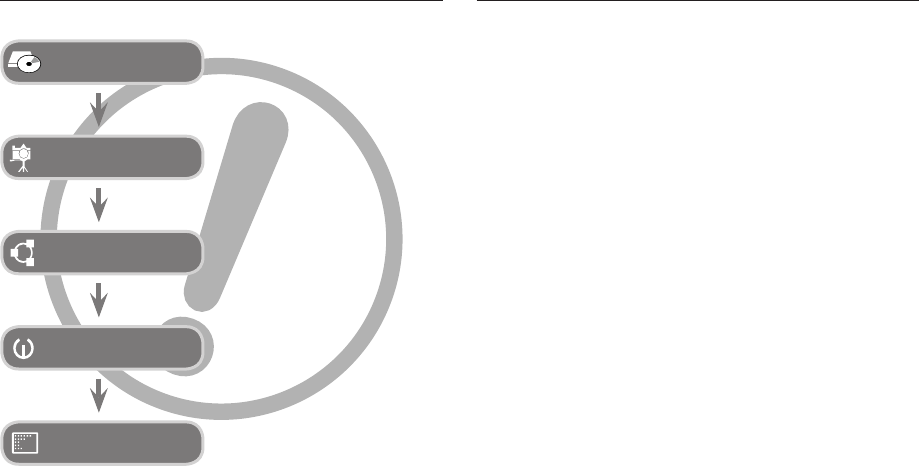
Getting to Know your cameraInstructions
Use this camera in the following order.
Before connecting the camera to a PC,
via the USB cable, you will need to set
up the camera driver. Install the camera
driver that is contained in Application
software CD-ROM. (p.79)
Set up the camera drive
Take a picture. (p.20)
Take a picture
Insert the supplied USB cable into the
PC’s USB port and the camera’s USB
connection terminal. (p.82)
Insert the USB cable
Check the camera’s power. If the power
is turned off, preset the camera button
to turn it on.
Check the camera’s
power
Open Windows EXPLORER and
search for [Removable Disk]. (p.83)
Check [Removable Disk]

2
WARNING indicates a potentially hazardous situation which, if not avoided,
could result in death or serious injury.
Do not use the fl ash in close proximity to people or animals. Positioning
the fl ash too close to your subject’s eyes may cause eyesight damage.
For safety reasons keep this product and accessories out of reach of
children or animals to prevent accidents e.g.:
- Swallowing battery or small camera accessories. If an accident should
occur, please consult a doctor immediately.
- There is the possibility of injury from the camera’s moving parts.
Battery and camera may become hot during prolonged use and it may
result in camera malfunction. Should this be the case, allow the camera to
sit idle for a few minutes to allow it time to cool.
Do not leave this camera in places subject to extremely high temperatures,
such as a sealed vehicle, direct sunlight or other places of extremes in
temperature. Exposure to extreme temperatures may adversely affect the
camera’s internal components and could cause a fi re.
When in use, do not cover the camera or Charger. This may cause heat
to build up and distort the camera body or cause a fi re. Always use the
camera and its accessories in a well-ventilated area.
x
x
x
x
x
WarningDanger
DANGER indicates an imminently hazardous situation which, if not avoided,
will result in death or serious injury.
Do not attempt to modify this camera in any way. To do so may result in
fi re, injury, electric shock or severe damage to you or your camera. internal
inspection, maintenance and repairs should only be carried out by your
dealer or Samsung Camera Service centre.
Please do not use this product in close proximity to fl ammable or explosive
gases, as this could increase the risk of explosion.
Should any form of liquid or a foreign object enter the camera, do not use
it. Switch off the camera, and then disconnect the power source. You must
contact your dealer or Samsung Camera Service centre. Do not continue
to use the camera as this may cause a fi re or electric shock.
Do not insert or drop metallic or infl ammable foreign objects into the
camera through access points e.g. the memory card slot and battery
chamber. This may cause a fi re or electric shock.
Do not operate this camera with wet hands. This could pose a risk of
electric shock.
x
x
x
x
x

3
CAUTION indicates a potentially hazardous situation which, if not avoided,
may result in a minor or moderate injury.
Leaking, overheating, or damaged battery could result in fi re or injury.
- Use battery with the correct specifi cation for the camera.
- Do not short circuit, heat or dispose of battery in fi re.
- Do not insert the battery with the polarities reversed.
Remove the battery when not planning to use the camera for a long
period of time. Otherwise the battery may leak corrosive electrolyte and
permanently damage the camera’s components.
Do not fi re the fl ash while it is in contact with hands or objects. Do not
touch the fl ash after using it continuously. It may cause burns.
Do not move the camera while it is switched on, if you are using the AC
Charger. After use, always switch off the camera before unplugging the
cable from the wall socket. Then make sure that any connector cords
or cables to other devices are disconnected before moving the camera.
Failure to do so may damage the cords or cables and cause a fi re or
electric shock.
Take care not to touch the lens or lens cover to avoid taking an unclear
image and possibly causing camera malfunction.
Avoid obstructing the lens or the fl ash when you capture an image.
Before inserting any cables or AC adapter, check the directions and do not
insert by force. It may cause breakage of cable or camera.
Credit cards may be demagnetized if left near case. Avoid leaving
magnetic strip cards near the case.
It is highly likely to result in computer malfunctions when the 20 pin
connector is connected to the USB port of a PC. Never connect the 20 pin
connector to USB port of a PC.
x
x
x
x
x
x
x
x
x
Caution Content
READY
RECORDING
7 System chart
7 Included items
7 Optional Items
8 Identifi cation of features
8 Front & Top
9 Back
10 Bottom
10 5 Function button
11 Self-timer lamp
11 Camera Status Lamp
11 Mode icon
12 Connecting to a Power Source
15 Inserting the battery
15 Inserting the memory card
16 Instructions on how to use the memory card
18 When Using the Camera for the First Time
18 Setting up the Language
18 Setting up the date, time and date type
19 LCD monitor indicator in recording mode
20 Starting the recording mode
20 How to use the AUTO mode
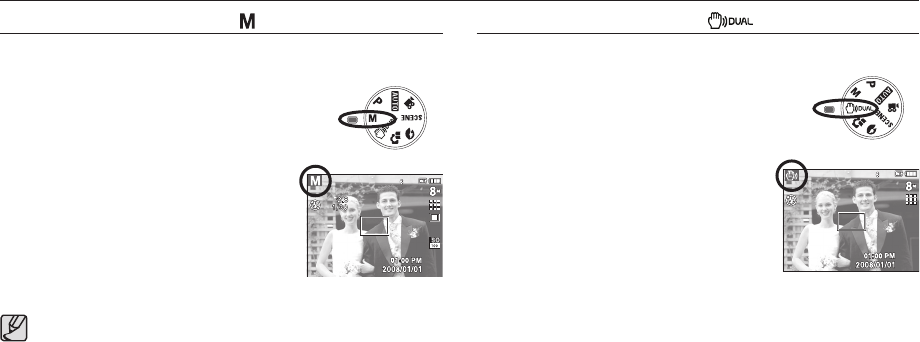
20 How to use the PROGRAM mode
21 How to use the MANUAL mode
21 How to use the DUAL IS mode
22 Using the PHOTO HELP GUIDE mode
23 How to use the PORTRAIT mode

4
40 Metering
40 Drive mode
41 ISO
41 White balance
42 Exposure compensation
43 Setting up the recording function using the LCD
monitor
43 How to use the menu
44 Focus Area
46 ACB
47 Voice Memo
47 Voice Recording
48 Recording the movie without voice
48 SCENE mode
49 Starting play mode
49 Playing back a still image
49 Playing back a movie
50 Movie capture function
50 Playing back a recorded voice
51 Playing back a voice memo
51 LCD monitor Indicator in play back mode
52 Setting up the play back function using the camera
buttons
52 Thumbnail / Enlargement button
53 Info / Up button
54 Play & Pause / Down button
54 Left / Right / Menu / OK button
Content
PLAY
23 How to use the SCENE modes
24 How to use the MOVIE mode
24 Recording the movie without sound
24 Pausing while recording a movie (Successive
Recording)
25 Things to Watch Out for When Taking Pictures
26 Setting up the recording function using the camera
buttons
26 POWER button
26 SHUTTER button
26 ZOOM W / T button
28 Function Description / Info / Up button
28 Macro / Down button
30 Focus lock
30 Flash / Left button
32 Self-timer / Right button
34 MENU / OK button
34 OIS(Optical Image Stabilization)
35 E (Effect) button
36 E (Effect) button : Colour
37 E (Effect) button : Sharpness
37 E (Effect) button : Contrast
37 E (Effect) button : Saturation
38 Fn button
38 How to use the Fn menu
39 Size
39 Quality / Frame rate

5
54 Printer button
55 Delete button
55 E (Effect) button : Resize
56 E (Effect) button : Rotating an image
57 E (Effect) button : Colour
57 E (Effect) button : Image editing
58 ACB
58 Red eye Removal
58 Brightness control
58 Contrast control
58 Saturation control
59 Setting up the play back function using the LCD
monitor
60 Multi slide show
60 Start the multi slide show
61 Selecting Images
61 Confi gure multi slide show effects
62 Setting play interval
62 Setting Background Music
62 Playback
62 Voice memo
63 Protecting images
63 Deleting images
64 DPOF
66 Copy To Card
67 PictBridge
68 PictBridge : Picture Selection
68 PictBridge : Print Setting
69 PictBridge : Reset
69 Sound menu
70 Sound
70 Volume
70 Start up sound
70 Shutter sound
70 Beep Sound
70 AF sound
70 Self Portrait
71 Setup menu
72 DISPLAY
72 LANGUAGE
72 Setting up the Date / Time / Date type
73 Start up image
73 LCD brightness
73 Quick view
73 LCD save
74 SETTINGS
74 Formatting a memory
74 Initialisation
75 File name
75 Imprinting the recording date
76 Auto power off
76 Selecting Video out type
77 Auto Focus lamp
Content
SETUP

6
78 Software Notes
78 System Requirements
79 About the software
80 Setting up the application software
82 Starting PC mode
85 Removing the removable disk
86 Setting up the USB Driver for MAC
86 Using the USB Driver for MAC
86 Removing the USB Driver for Windows 98SE
87 Samsung Master
90 Specifi cations
93 Important notes
95 Warning indicator
96 Before contacting a service centre
98 FAQ
Content
SOFTWARE
APPENDIX
7
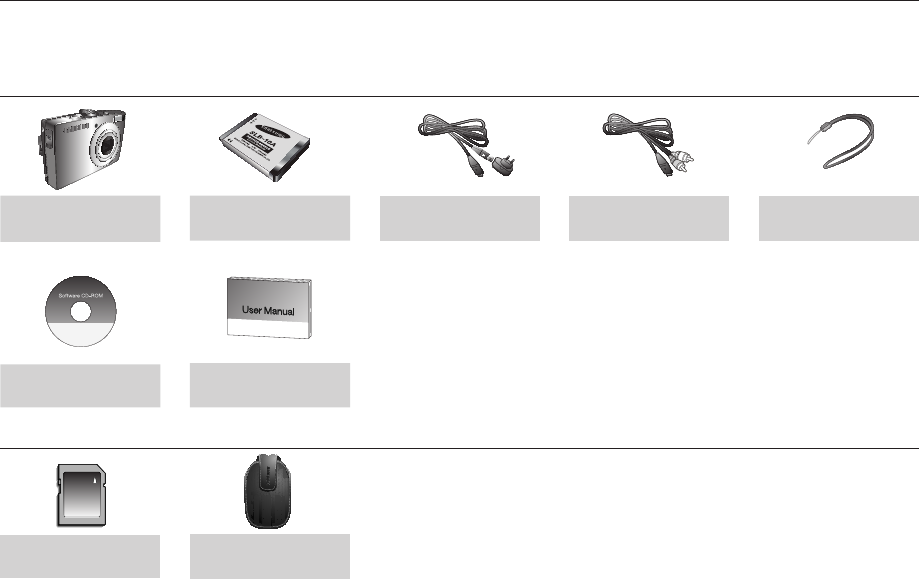
Included items
Camera
Software CD
Camera case
Rechargeable battery
(SLB-10A)
User manual,
Product warranty
SD/SDHC/MMC
memory card (see p.15)
Optional Items
Please check that you have the correct contents before using this product. The contents can vary depending on the sales region. To buy the optional equipment,
contact your nearest Samsung dealer or Samsung service centre.
System chart
AV cable Camera strap
USB cable (SUC-C3)
AC adapter (SAC-47)
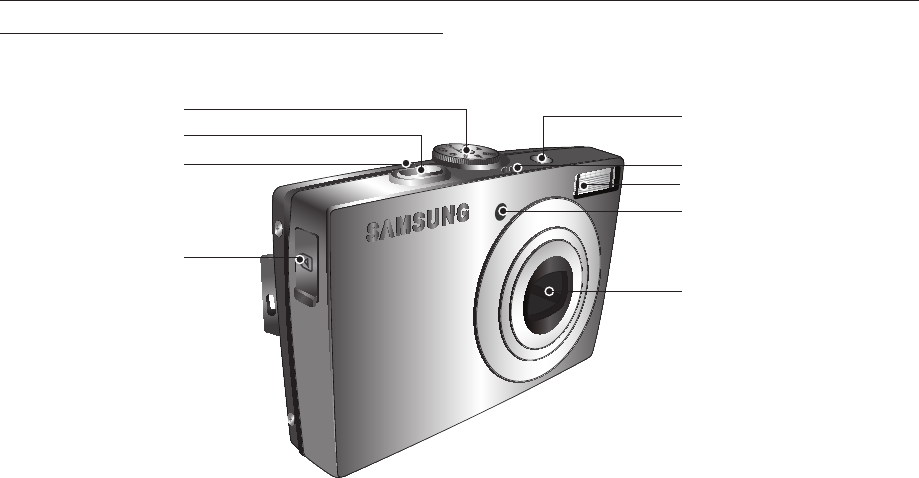
8
Power button
Speaker
Flash
AF sensor/Self-timer lamp
Lens/ Lens cover
Mode dial
Shutter button
Microphone
USB / AV connection
terminal
Front & Top
Identifi cation of features
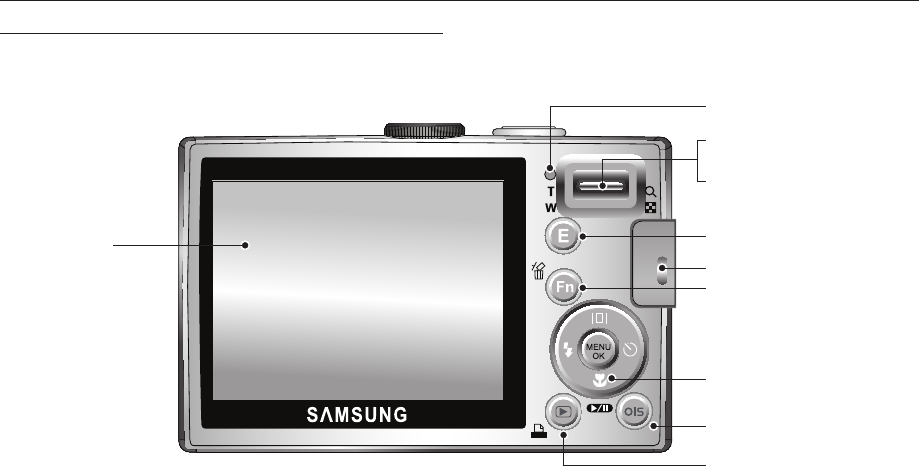
9
Camera status lamp
Zoom T button (Digital zoom)
Zoom W button (Thumbnail)
E (Effect) button
Eyelet for camera strap
Fn/Delete button
5-function button
OIS (Optical Image Stabilization) button
Play mode/Print button
LCD monitor
Back
Identifi cation of features
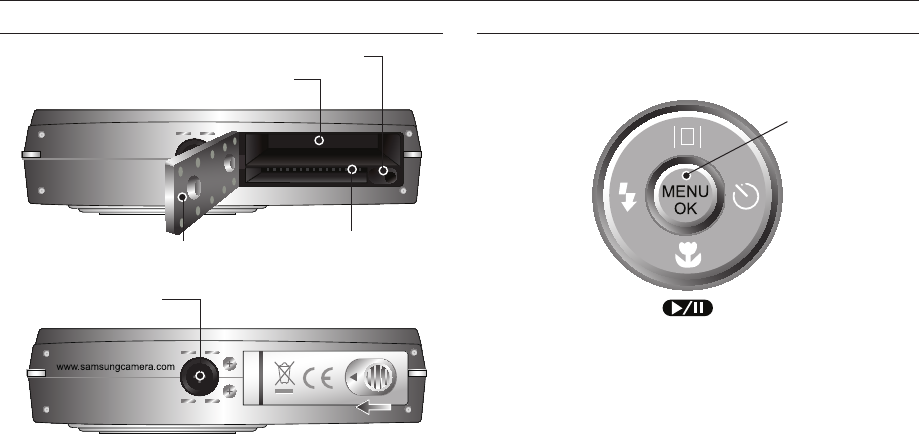
www.samsungcamera.com
10
Bottom 5 Function button
Battery holder
Battery chamber
Battery chamber cover Memory card slot
Tripod socket
Function Description /
Information / Up button
Flash /
Left button
MENU/OK button
Self-timer /
Right button
Macro / Down button
Play & Pause button
Identifi cation of features
K To open the battery chamber cover, slide it in the direction shown above.
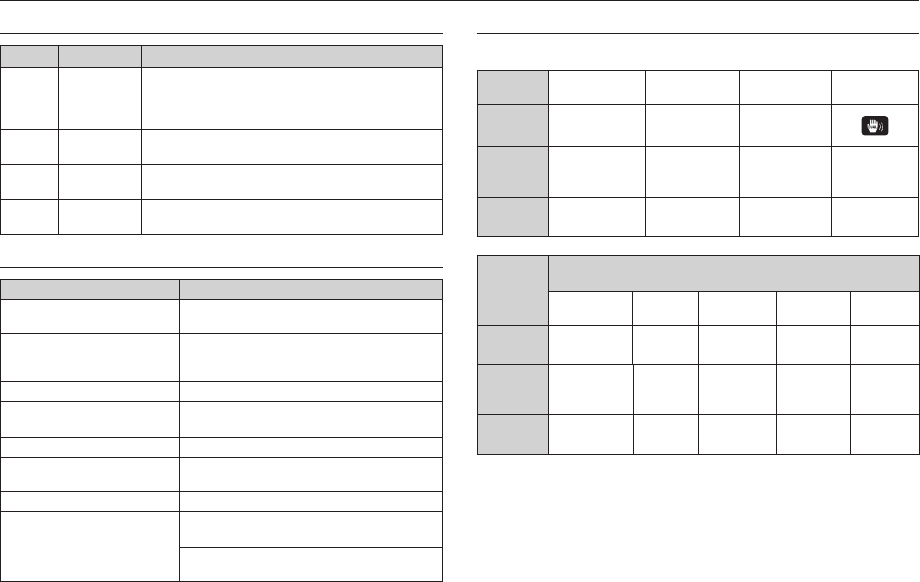
11
Identifi cation of features
Self-timer lamp
Icon Status Description
Blinking
For the fi rst 8 seconds, the lamp blinks at 1 second
intervals.
For the fi nal 2 seconds, the lamp blinks quickly at
0.25-second intervals.
Blinking For the 2 seconds, the lamp blinks quickly at
0.25-second intervals.
Blinking A picture will be taken after about 10 seconds and 2
seconds later a second picture will be taken
Blinking After pressing the Shutter button, the image is taken
in accordance with the subject’s movement.
Camera Status Lamp
Status Description
Power on The lamp turns on and off when the camera is
ready to take a picture
After taking a picture The lamp blinks while saving the image data
and turns off when the camera is ready to
take a picture
When fl ash battery is charging The lamp blinks
When the USB cable is
inserted to a PC The lamp lights up (LCD monitor turns off
after initializing the device)
Transmitting Data with a PC The lamp blinks (LCD monitor turns off)
When the USB cable is
inserted to a printer The lamp is off
When the printer is printing The lamp blinks
When the AF activates
The lamp turns on
(The camera focuses on the subject)
The lamp blinks
(The camera doesn’t focus on the subject)
MODE
Scene(
)
Nightscene Children Landscape Close up Text
ICON
MODE Sunset Dawn Backlight Firework Beach &
Snow
ICON
Refer to page 20~24 for more information about the camera mode setting.
MODE Auto Program Manual DUAL IS
ICON
MODE Photo Help
Guide Portrait Scene Movie
ICON
Mode icon
12
Conditions
Connecting to a Power Source
You should use the rechargeable battery
SLB-10A
SLB-10A supplied with the camera.
Be sure to charge the battery before using the camera.
SLB-10A rechargeable battery Specifi cation
Model SLB-10A
Type Lithium Ion
Capacity 1,050mAh
Voltage 3.7V
Charging time(When the camera is turned off) Approx. 180 MIN
Important information about battery usage.
When the camera is not used, turn off the camera power.
Please remove the battery if the camera will not be used for long
periods. Batteries can lose power over time and are prone to
leaking if kept inside the camera.
Low temperatures (below 0°C) can affect the performance of the
battery and you may experience reduced battery life.
Batteries will usually recover at normal temperatures.
During extended use of the camera, the camera body may become
warm. This is perfectly normal.
x
x
x
x
x
Number of images and battery life : Using the SLB-10A
Still image Movie
Battery life Number of images Recording time
Approx. 110 MIN Approx. 220 shots Approx. 120 MIN
Using the fully charged battery,
Auto mode, 8M image size
Fine image quality, Shot to shot
interval: 30Sec. Changing the
zoom position between the Wide
and the Tele after every shot.
Using the fl ash on every second
shot. Using the camera for 5
minutes and then Powering it off
for 1 minute.
Using the fully charged
battery
640x480 image size
30fps frame rate
K These fi gures are measured under Samsung’s standard conditions and
shooting conditions and may vary depending on the user’s methods.
KThese fi gures are measured under OIS shooting condition.
13
Connecting to a Power Source
You can charge the rechargeable battery
SLB-10A
SLB-10A by using the SAC-47 KIT
which consists of the AC adapter (SAC-47) and the USB cable (SUC-C3).
When the SAC-47 and SUC-C3 are combined, they can be used as an AC
cable.
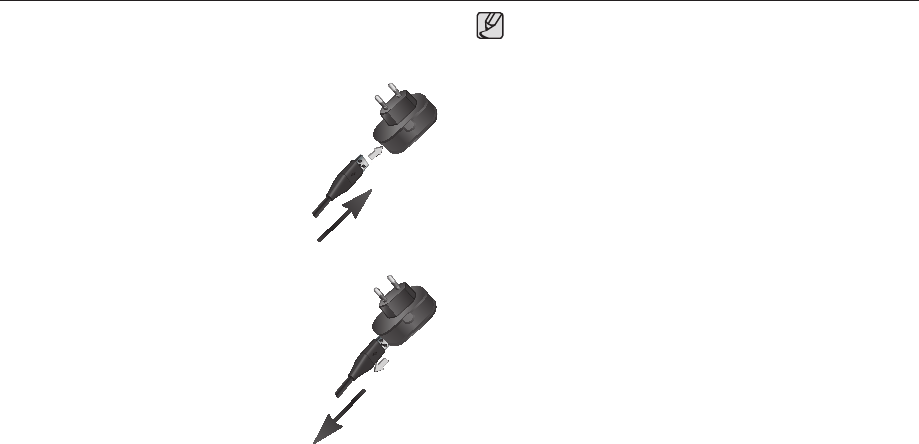
Using an AC cable
: Connect the AC adapter(SAC-47) to the
USB cable. It can be used as a power
cable.
x
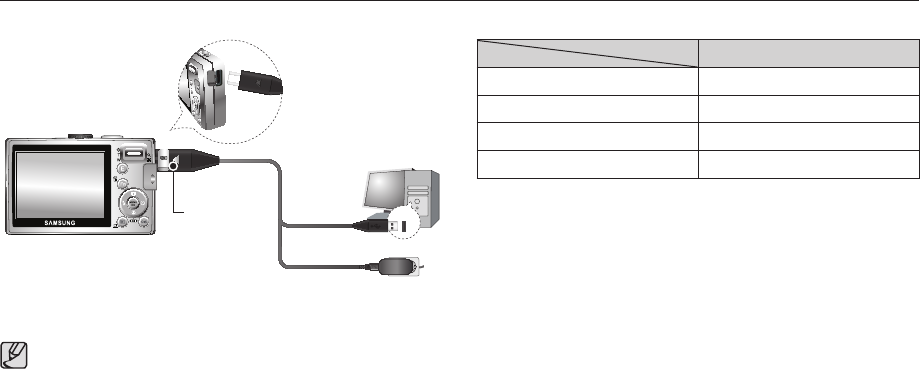
Using a USB cable
: Remove the AC adapter (SAC-47).
You can download stored images to your
PC (p.82) or supply the power to your
camera through the USB cable (SUC-C3).
x
Important information about USB cable usage.
Use a USB cable (SUC-C3) with the correct specifi cation.
If the camera is connected to the PC through a USB hub: connect
the camera directly to the PC.
the camera and other devices are connected to the PC at the same
time : remove other device.
If the USB cable is connected to a port located on the front of the
PC : remove the cable and connect it to a port located on the back
of the PC.
If the USB port of the PC doesn’t meet the Power output
standard(4.2V, 400mA), the camera may not be charged.
x
x
x
x
x
14
Connecting to a Power Source
How to charge the rechargeable battery (SLB-10A)
Charging LED
Before inserting any cables or AC adapter, check the directions
and do not insert using force. It may cause breakage of cable or
camera.
If the charging LED of the AC Charger does not turn on or blink
after inserting the rechargeable battery, please check whether the
battery is inserted correctly.
If you charge the battery with the camera power on, the battery
can’t charge fully. Turn the camera off while charging the battery.
x
x
x
Charging LED of the AC Adapter
Charging LED
Being Charged Red LED is on
Charging is complete Green LED is on
Charging error Red LED is off or blinking
Being discharged Orange coloured LED is on
- If you insert the fully discharged battery to charge it, do not turn on the
camera at the same time. The camera may not be turned on because
of the low battery capacity. Charge the battery for more than 10 minutes
before using the camera.
- Do not use the fl ash frequently or take a movie with the fully discharged
battery charged for a short time. Even if the charger is inserted, the
camera power may be turned off because the rechargeable battery is
discharged again.
www.samsungcamera.com
www.samsungcamera.com
15
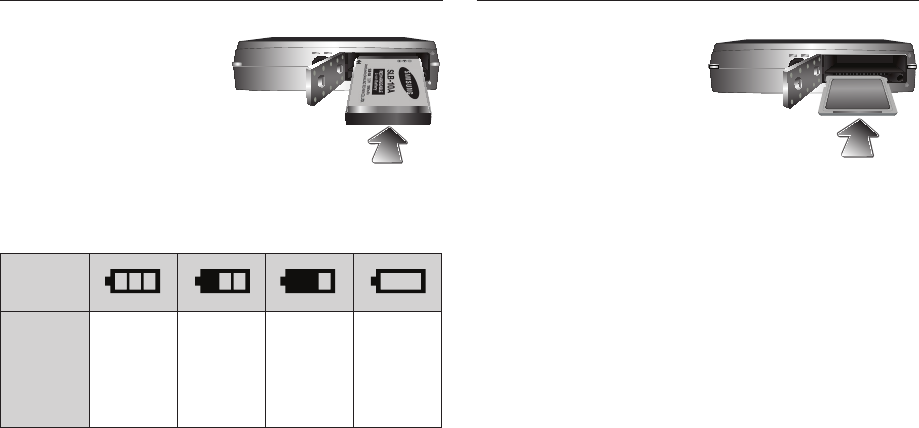
Inserting the battery
Insert the battery as shown
- If the camera does not turn on after
you have inserted battery, please
check whether the battery is inserted
with the correct polarity (+ / -).
- When the battery chamber cover
is opened, do not force it. This
may cause damage to the battery
chamber cover.
Inserting the memory card
Insert the memory card as shown.
- Turn off the camera’s power before
inserting the memory card.
- Have the front of the memory
card facing toward the back of the
camera (LCD monitor) and the card
pins toward the front of the camera
(Lens).
- Do not insert the memory card the wrong way round.
Doing so may damage the memory card slot.
There are 4 indicators for battery condition that are displayed on the LCD
monitor.
Battery
indicator
Battery
status
The battery is
fully charged
Low battery
capacity
(Prepare to
recharge or
use spare
battery)
Low battery
capacity
(Prepare to
recharge or
use spare
battery)
Battery empty
(Recharge
or use spare
battery)

16
Instructions on how to use the memory card
Be sure to format the memory card (see p.74) if you are using a newly
purchased memory card for the fi rst time, if it contains data that the
camera cannot recognise, or if it contains images captured with a different
camera.
Turn off the camera power whenever the memory card is being inserted
or removed.
Repeated use of the memory card will eventually reduce the memory
card’s performance. Should this be the case, you will need to purchase a
new memory card. Wear and tear on the memory card is not covered by
the Samsung warranty.
The memory card is an electronic precision device.
Do not bend, drop or subject the memory card to any heavy impact.
Do not store the memory card in an environment with strong electronic or
magnetic fi elds, e.g. near loud speakers or TV receivers.
Please do not use or store in an environment where there are extremes in
temperature.
Do not allow the memory card to become dirty or to come into contact with
any liquid. Should this happen, clean the memory card with a soft cloth.
Please keep the memory card in its case when not in use.
During and after periods of extended use, you may notice that the memory
card is warm. This is perfectly normal.
Do not use a memory card that is used in another digital camera. To
use the memory card in this camera, format the memory card using this
camera.
Do not use a memory card formatted by another digital camera or memory
card reader.
x
x
x
x
x
x
x
x
x
x
x
If the memory card is subjected to any of the following, the recorded data
may become corrupted :
- When the memory card is used incorrectly.
- If the power is switched off or the memory card is removed while
recording, deleting (formatting) or reading.
Samsung cannot be held responsible for lost data.
It is advisable to copy important data onto other media as back-up e.g.
fl oppy disks, hard disks, CD etc.
If there is insuffi cient memory available :
A [Memory Full!] message will appear and the camera will not operate.
To optimise the amount of memory in the camera, replace the memory
card or delete unnecessary images stored on the memory card.
x
x
x
x
Don’t remove the memory card when the camera status lamp is
blinking as this may cause damage to data in the memory card.
x
17
Instructions on how to use the memory card
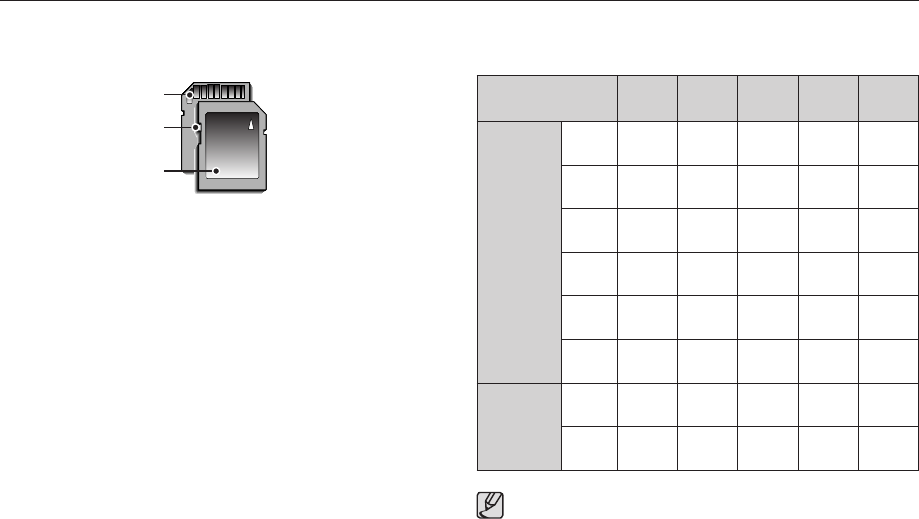
The camera can use SD/ SDHC Memory Cards and MMC (Multi Media
Cards).
Card pins
Write protect switch
Label
[SD (Secure Digital) memory card]
The SD/ SDHC memory card has a write protect switch that prevents
image fi les from being deleted or formatted. By sliding the switch to the
bottom of the SD memory card, the data will be protected. By sliding
the switch to the top of the SD memory card, the data protection will be
cancelled.
Slide the switch to the top of the SD memory card before taking a picture.
x
x
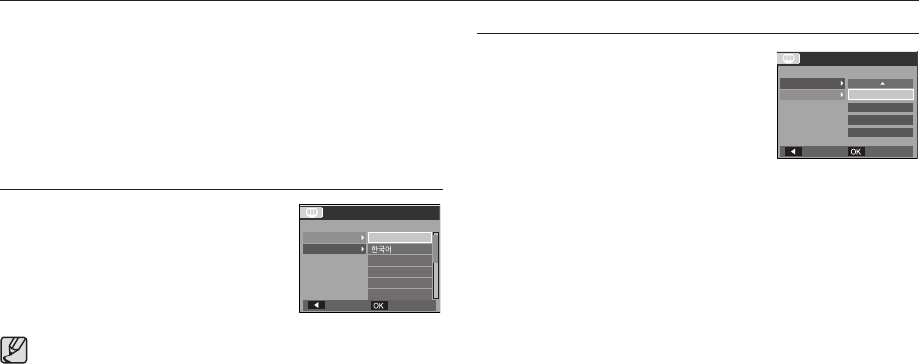
When using a 256MB MMC memory, the specifi ed shooting capacity will
be as follows. These fi gures are approximate as image capacities can be
affected by variables such as subject matter and memory card type.
Recorded
image size
Super
Fine Fine Normal 30FPS 15FPS
Still image
About
64 About
117 About
171 --
About
71 About
135 About
192 --
About
84 About
157 About
220 --
About
100 About
186 About
256 --
About
150 About
269 About
372 --
About
459 About
822 About
868 --
Movie
---
About
2'02" About
4'05"
---
About
7'39" About
13'15"
The recording times can be changed by the zoom operation.
x
The zoom button doesn’t function during the movie recording.
x
18
When Using the Camera for the First Time
Charge the rechargeable battery fully before using the camera for the fi rst
time.
When the camera is turned on for the fi rst time, a menu will be displayed
to set date / time and language in the LCD monitor. This menu will not
be displayed after setting up. Set up the date / time and language before
using this camera.
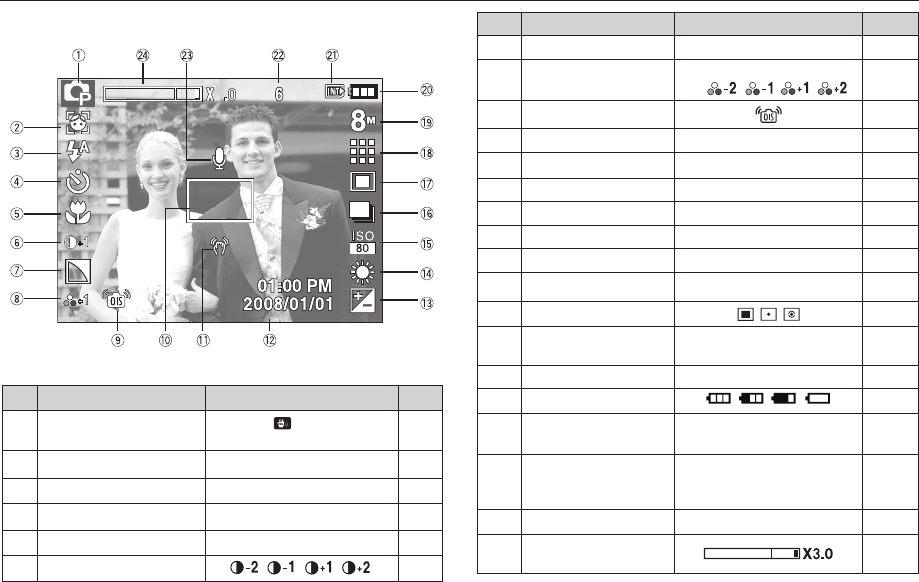
Setting up the Language
1. Select the [Language] menu by pressing
the UP/ DOWN button and press the
RIGHT button.
2. Select the desired sub menu by pressing
the UP / DOWN button and press the OK
button.
x
x
You can select one of 22 languages. These are listed below :
- English, Korean, French, German, Spanish, Italian, S.Chinese,
T.Chinese, Japanese, Russian, Portuguese, Dutch, Danish,
Swedish, Finnish, Thai, Bahasa (Malay/ Indonesian), Arabic,
Czech, Polish, Hungarian and Turkish.
Even if the camera is restarted, the language setting will be
maintained.
x
x
Setting up the date, time and date type
1. Select the [Date&Time] menu by pressing
the UP/ DOWN button and press the
RIGHT button.
2. Select the desired sub menu by pressing
the UP/ DOWN/ LEFT/ RIGHT button and
press the OK button.
RIGHT button : Selects WORLD TIME/
YEAR/MONTH/DAY/HOUR/MINUTE/DATE TYPE
LEFT button : Moves the cursor to the [Date&Time] main menu if the
cursor is at the fi rst item of the date and time setup. In
all other instances, the cursor will be shifted to the left of
its current position.
UP/ DOWN button : Changes the value of each item.
DISPLAY
FRANÇAIS
DEUTSCH
ESPAÑOL
ITALIANO
ENGLISH
Language
Date&Time
Back Set
DISPLAY
London
13:00
yyyy/mm/dd
Language
Date&Time
Back Set
08/01/01
19
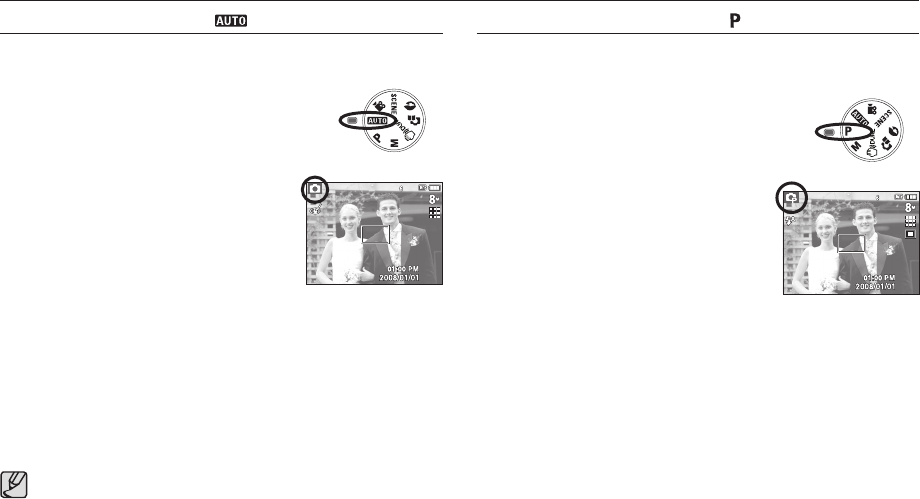
LCD monitor indicator in recording mode
The LCD monitor displays information about the shooting functions and
selections.
[Image & Full Status]
No. Description Icons Page
1 Recording mode
p.20
2
Face Detection / Self Portrait
-
/
p.44
3 Flash
p.30
4 Self-timer
p.32
5 Macro
p.28
6 Contrast p.37
No. Description Icons Page
7 Sharpness
p.37
8 Color / Saturation
p.36/37
9 OIS p.34
10 Auto Focus Frame
p.45
11 Camera shake Warning
p.25
12 Date / Time 2008/01/01 01:00 PM p.72
13 Exposure compensation
p.42
14 White Balance
p.41
15 ISO
p.41
16 Drive mode
p.40
17 Metering p.40
18 Image Quality /
Frame Rate
/
p.39
19 Image Size
p.39
20 Battery p.15
21 Memory card icon /
Internal memory icon
/
-
22 Number of available
shots remaining /
Remaining time 6/00:00:00 p.17
23 Voice Memo/Mic. Off
/
p.47/48
24
Optical / Digital Zoom bar
/Digital Zoom rate
p.26
/
20
Starting the recording mode
How to use the AUTO mode ( )
Please select this mode for quick and easy picture taking with minimal
user interaction.
1. Insert the batteries (p.15). Insert the batteries taking
note of the polarity (+ / -).
2. Insert the memory card (p.15). As this camera
has a 10MB internal memory, you do not need
to insert the memory card. If the memory card is
not inserted, an image will be stored in
the internal memory. If the memory card
is inserted, an image will be stored on the
memory card.
3. Close the battery chamber cover.
4. Press the power button to turn on the camera.
(If the date/ time that is displayed on the LCD monitor is incorrect, reset
the date/ time before taking a picture.)
5. Select the AUTO mode by rotating the mode dial.
6. Point the camera towards the subject and compose the image by
using the LCD monitor.
7. Press the shutter button to capture an image.
If the auto focus frame turns to red when you press the shutter
button down half way, it means that the camera cannot focus on the
subject. Should this be the case, the camera is unable to capture
an image clearly.
Avoid obstructing the lens or the fl ash when you capture an image.
x
x
How to use the PROGRAM mode ( )
Selecting the automatic mode will confi gure the camera with optimal
settings. You can still manually confi gure all functions except the aperture
value and shutter speed.
1. Select the PROGRAM mode by rotating the mode dial.
2. Press the Fn button to confi gure advanced
functions such as Image Size (p.39),
Quality (p.39), Metering (p.40), Drive mode
(p.40), ISO (p.41), White Balance (p.41),
Exposure Compensation(p.42).
21
How to use the DUAL IS mode ( )
This mode will reduce the effect of camera shake and help you to get a
well-exposed image operating both OIS and DIS function.
1. Select the DUAL IS mode by rotating the
Mode dial.
2. Point the camera towards the subject and
compose the image by using the LCD monitor.
3. Press the shutter button to capture an
image.
Things to watch out for using the DUAL IS mode
- The digital zoom will not operate in the DUAL IS
mode.
- If the lighting conditions are brighter than
fl uorescent lighting, the DUAL IS will not activate.
- If the lighting conditions are darker than fl uorescent lighting, camera
shake warning indicator () will be displayed. For best results only
take pictures in situations where the camera shake warning indicator
() is not displayed.
- If the subject is moving, the captured image may be blurred.
- Avoid moving the camera while the [Capturing!] message is displayed
to achieve a better result.
- As the DUAL IS uses the camera’s digital signal processor, it may take
a little longer for the camera to process and save the images.
- If the image size is (
) or (
), the DUAL IS mode can't be selected.
How to use the MANUAL mode ( )
You can manually confi gure all functions, aperture value and shutter
speed.
1. Select the MANUAL mode by rotating the mode
dial.
2. Press the Fn button and menu for the shutter
speed and aperture value will be
displayed.
Up / Down button : changes aperture
value
Left / Right button : changes shutter
speed.
3. Press the Fn button twice and take an
image.
Smaller Aperture values make the object sharp but blur the
background. Larger Aperture values make both the object and
background sharp.
High Shutter speeds can capture a moving object in a still image
as if the object is not moving. Low Shutter speeds can capture a
moving object with an ‘active’ effect.
x
x
Starting the recording mode
22
Pressing the
Left/Right button
Pressing the Left/
Right button
Pressing the
MENU button
Pressing the shutter button
Pressing the Right button
Pressing the Up/Down button
[Function that can be used when focusing is diffi cult]
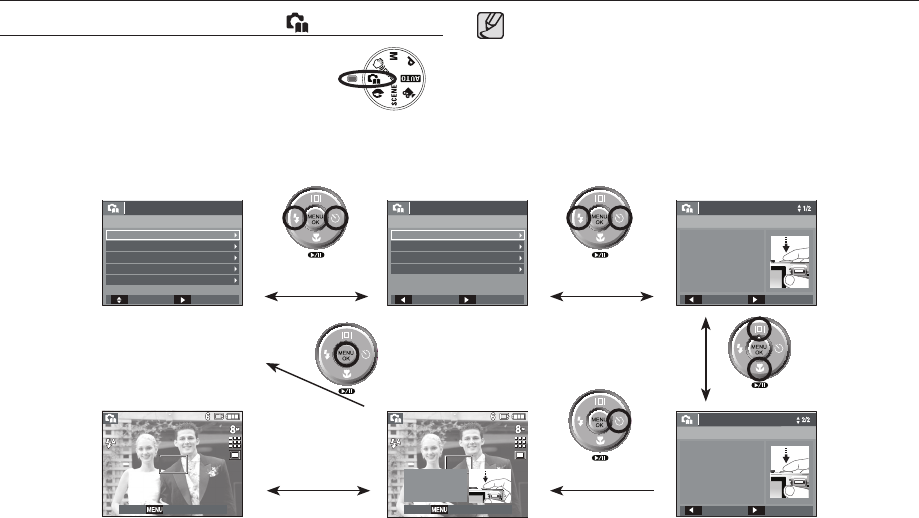
Using the PHOTO HELP GUIDE mode ( )
Helps the user learn the correct picture taking method
and includes solutions for potential problems that may
occur. This also enables the user to practice the best
way to take the pictures.
Available functions of the photo help guide
Features to use when the image is out of focus
Features to counter camera shake
Features to use in low light conditions
Features to use when adjusting brightness
Features to use when adjusting colours
x
x
x
x
x
Starting the recording mode
Move Next
PHOTO HELP GUIDE
Features to use when the image is out of focus
Features to counter camera shake
Features to use in low light conditions
Features to use when adjusting brightness
Features to use when adjusting colours
Back Next
Features to use when the image is out of focus
Back Practice
Back Practice
Half press shutter button to focus
To focus on a subject 80cm or more away
To focus on a subject less than 80 cm away
Half press shutter button to focus
When focusing is successful,
fully press the shutter button to
shoot. If focusing fails, half
press the button again.
Practice begins
when you press the
shutter.
Guide list Guide list
To focus on people’s faces
Focusing status can be
checked by half-pressing
shutter button
- Green: Focusing successful
- Red: Focusing failed
Half press shutter button to focus
23
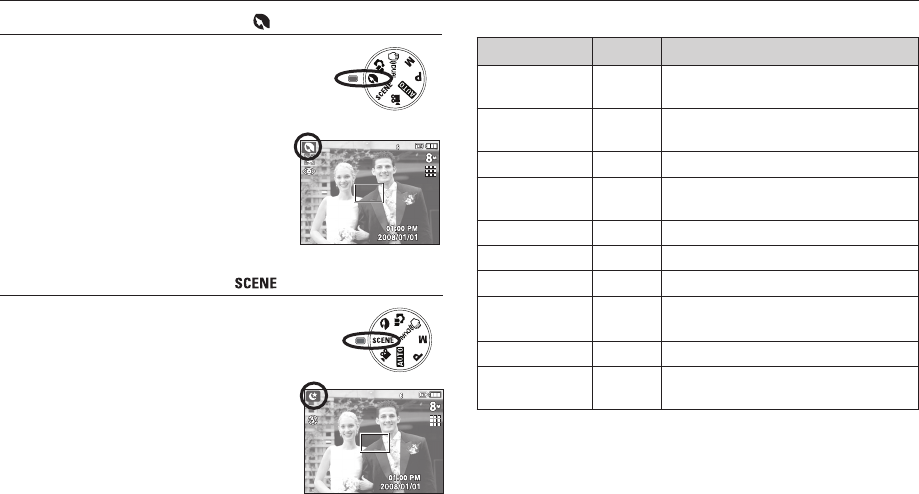
How to use the PORTRAIT mode ( )
Please select this mode for quick and easy portraits.
1. Select the portrait mode by rotating the mode dial.
2. Press the shutter button to capture an image.
How to use the SCENE modes ( )
Use the menu to easily confi gure optimal settings
for a variety of shooting situations.
1. Select the Scene mode by rotating the
Mode dial.
2. Point the camera towards the subject and
compose the image by using the LCD monitor.
3. Press the shutter button to capture an image.
The scene modes are listed below.
Mode Icon Description
Nightscene
Use this for shooting still images at night or
in other dark conditions.
Children
To take a picture of fast moving objects, for
example, children.
Landscape
To take pictures of distant scenery.
Close Up
Close-up shooting for small objects such
as plants and insects.
Text
Use this mode to shoot a document.
Sunset
For taking pictures of sunsets.
Dawn
Daybreak scenes.
Backlight
Portraits without shadows caused by
backlight.
Firework
Firework scenes.
Beach & Snow
For ocean, lake, beach and snowscape
scenes.
Starting the recording mode
24
Starting the recording mode
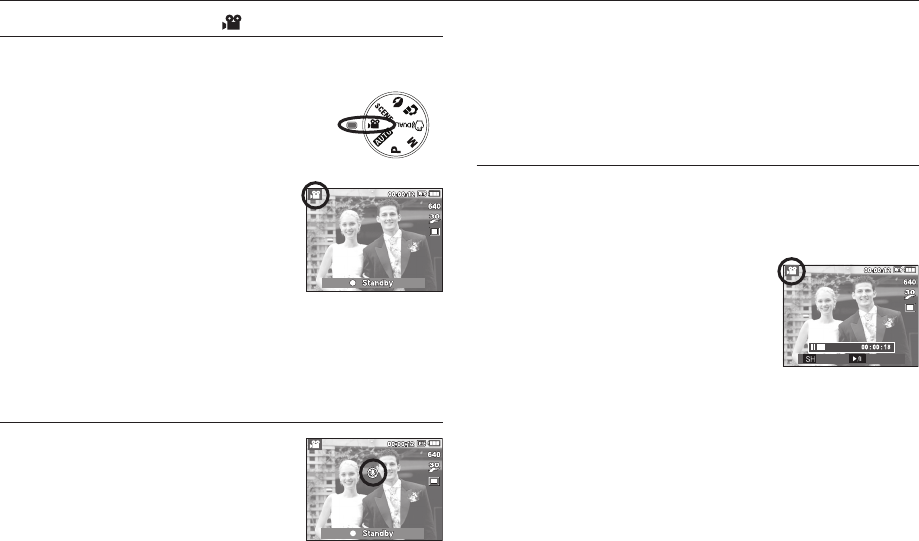
How to use the MOVIE mode ( )
A movie can be recorded for as long as the available recording time of the
memory capacity allows.
1. Select the Movie mode by rotating the Mode dial.
2. Point the camera towards the subject and
compose the image by using the LCD monitor.
3. Press the shutter button once and movies
are recorded for as long as the available
recording time allows. Movies will still be
recorded if the shutter button is released.
If you wish to stop recording, press the
shutter button again.
K Image size and type are listed below.
- Image size : 640x480, 320x240
(Selectable)
- Movie fi le type : AVI (MJPEG)
- Frame Rate : 30FPS, 15FPS
Recording the movie without sound
You can record the movie without sound.
Steps from 1-3 are the same as those for
MOVIE mode.
4. Press the Menu button.
5. Select the [RECORDING] menu by pressing the Left / Right button.
6. Press the Down button to select the [Voice Mute] menu and press the
Right button.
7. Select the [On] menu by pressing the Up / Down button.
8. Press the OK button. You can record a movie without sound.
Pausing while recording a movie (Successive Recording)
This camera allows you to temporarily stop during unwanted scenes, while
recording a movie. Using this function, you can record your favourite scenes
into a movie without having to create multiple movies.
Using Successive Recording
Steps from 1-2 are the same as those for
MOVIE mode.
3. Point the camera towards the subject and
compose the image by using the LCD
monitor. Press the shutter button and
movies are recorded for as long as the
available recording time. Movies will still be recorded if the shutter
button is released.
4. Press the Pause button (
) to pause recording.
5. Press the Pause button (
) again to resume the recording.
6. If you wish to stop recording, press the shutter button again.
Stop REC
25
Things to Watch Out for When Taking Pictures
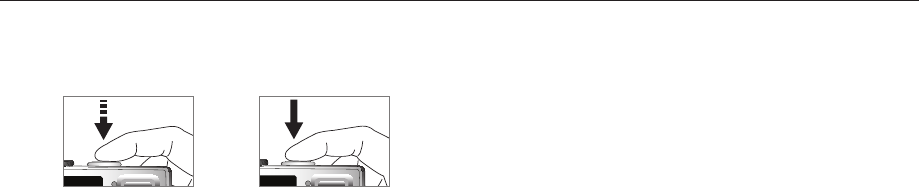
Pressing the shutter button down half way.
Lightly press the shutter button to confi rm focus and fl ash battery charge.
Press the shutter button all way down to take the picture.
x
[Lightly press the shutter button] [Press the shutter button]
The available memory capacity may vary depending on shooting
conditions and camera settings.
When the Flash Off or Slow synchro mode is selected in a low lighting
condition, the camera shake warning indicator () may appear on the
LCD monitor. In this case, use a tripod, support the camera on a solid
surface or change to fl ash shot mode.
Shooting against the light : Please do not take pictures against the sun.
Doing so may make the picture dark. To take
a picture against the light, please use the
[BACKLIGHT] in the scene shooting mode
(see page 23), fi ll-in fl ash (see page 31),
spot metering (see page 40), or exposure
compensation (see page 42).
Avoid obstructing the lens or the fl ash when you capture an image.
Compose the image by using the LCD monitor.
x
x
x
x
x
Under certain conditions the auto focus system may not perform as
expected.
- When photographing a subject that has little contrast.
- If the subject is highly refl ective or shiny.
- If the subject is moving at high speed.
- When there is strong refl ected light, or when the background is very
bright.
- When the subject matter has only horizontal lines or the subject is very
narrow (such as a stick or fl agpole).
- When the surroundings are dark.
x
26
Setting up the recording function using the camera buttons
The recording mode function can be set up by using the camera buttons.
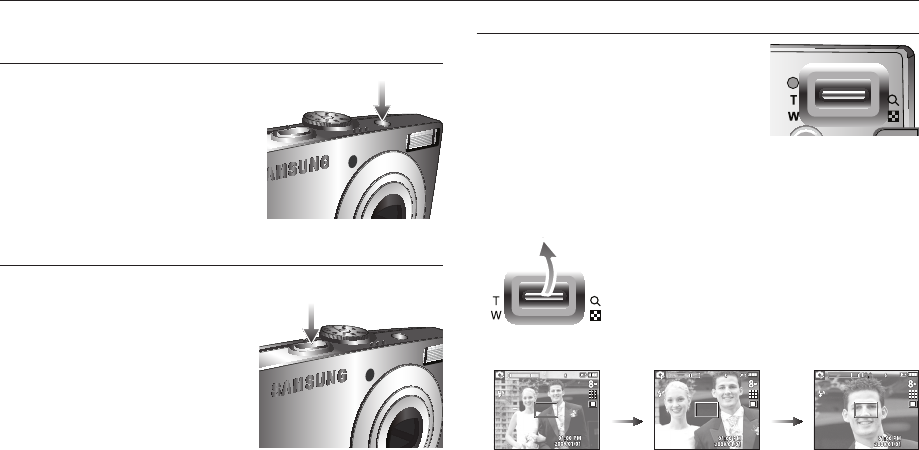
POWER button
Used for turning the camera’s power on / off.
If there is no operation during the specifi ed
time, the camera’s power will be turned off
automatically to save battery life.
Refer to page 76 for more information
about the auto power off function.
SHUTTER button
Used for taking an image or recording voice in the RECORDING mode.
In MOVIE mode
Pressing the shutter button down fully
starts the process for recording a movie.
Press the shutter button once and the
movie is recorded for as long as the
available recording time in the memory
allows. If you wish to stop recording,
press the shutter button again.
In STILL IMAGE mode
Pressing the shutter button down halfway activates the autofocus and
checks the condition of the fl ash. Pressing the shutter button down fully
takes and stores the image. If you select voice memo recording, the
recording will start after the camera has fi nished storing the image data for
10 seconds.
x
x
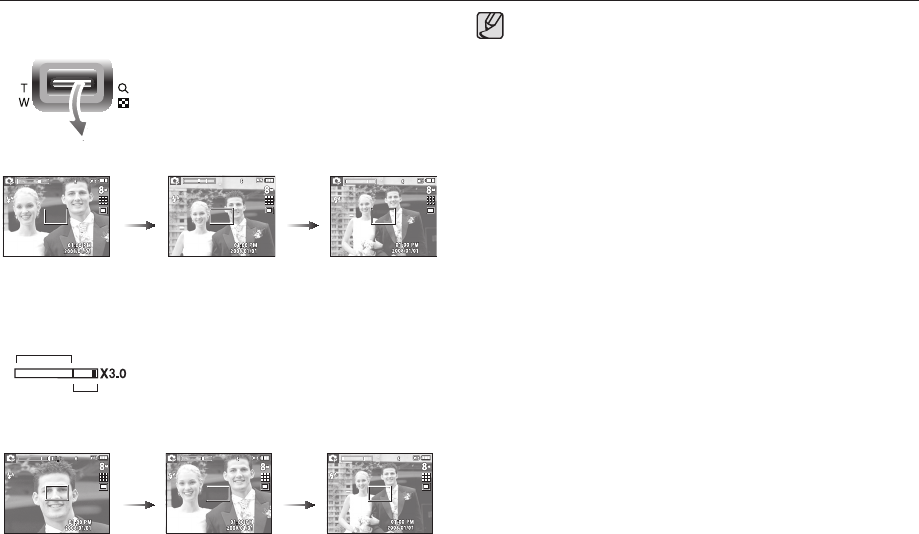
ZOOM W / T button
If the menu is not displayed, this button works as
the OPTICAL ZOOM or DIGITAL ZOOM button.
This camera has a 3X optical zoom and a 3X
digital zoom function.
Using both will offer a total zoom ratio of 9X.
TELE Zoom
Optical zoom TELE : Pressing the ZOOM T button. This will zoom into the
subject i.e. the subject will appear to be closer.
Digital zoom TELE : When the maximum (3X) optical zoom is selected,
pressing the ZOOM T button activates the digital
zoom software. Releasing ZOOM T button stops
the digital zooming at the required setting. Once the
maximum digital zoom (3X) is achieved, pressing the
ZOOM T button will have no effect.
Pressing
the ZOOM
T button
Pressing
the ZOOM
T button
[WIDE zoom] [TELE zoom] [Digital zoom 3.0X]
27
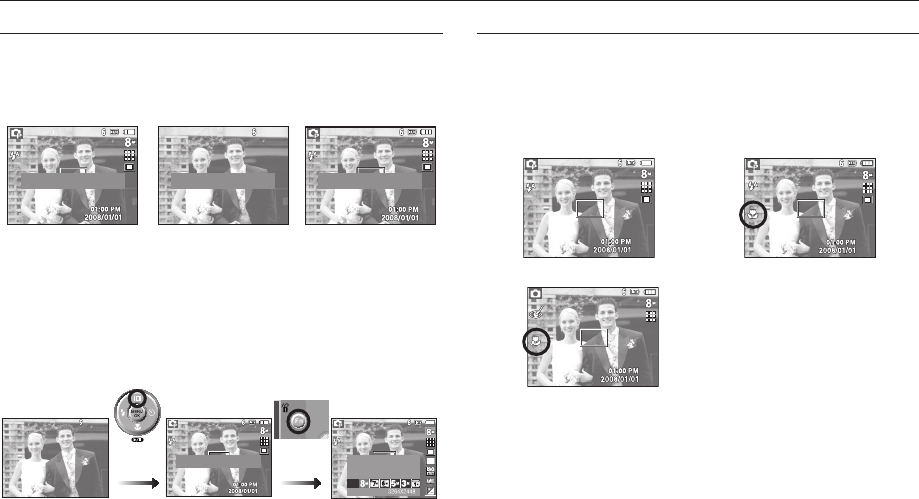
WIDE Zoom
Optical zoom WIDE : Pressing the ZOOM W button. This will zoom out
from the subject i.e. the subject will appear further
away. Pressing the ZOOM W button continuously
will set the camera to its minimum zoom setting i.e.
the subject appears at its furthest from the camera.
Pressing
the ZOOM
W button
Pressing
the ZOOM
W button
Digital zoom WIDE : When the digital zoom is in operation, pressing the
ZOOM W button will reduce the digital zooming
in steps. Releasing ZOOM W button stops digital
zooming. Pressing the ZOOM W button will reduce
the digital zoom and then it will continue to reduce
the optical zoom until the minimum setting is
reached.
Pressing
the ZOOM
W button
Pressing
the ZOOM
W button
[Digital zoom 3.0X]
Images taken using the digital zoom may take a little longer for the
camera to process. Allow time for this to take place.
If the Zoom buttons are being pressed during the Movie shots, the
voice will not be recorded.
You may notice a decrease in image quality when using the digital
zoom.
To view a clearer digital zoom image, press the shutter button
halfway at the maximum optical zoom position and press the zoom
T button again.
The digital zoom can’t be activated in some Scene modes
(Nightscene, Children, Text, Close up, Firework), DUAL IS mode,
movie mode and Face Detection.
Take care not to touch the lens to avoid taking an unclear image
and possibly causing camera malfunction. If the image is dim, turn
the camera power off and on again to modify the lens position.
Take care not to press the lens as this may cause a camera
malfunction.
When the camera is turned on, take care not to touch the camera’s
moving lens parts as this may cause the resulting image to be dim
and unclear.
Take care not to touch the lens when operating the zoom button.
x
x
x
x
x
x
x
x
x
Optical zoom
Digital zoom
Setting up the recording function using the camera buttons
[TELE zoom] [WIDE zoom]
[TELE zoom] [Optical zoom 2X] [WIDE zoom]
28
Pressing the
Fn button
Function Description / Info (
) / Up button
While the menu is showing, the Up button operates as a direction button.
If the menu screen does not appear, information or function descriptions for
the current shooting mode can be accessed through the LCD monitor by
pressing the Function description/ Information (
) button.
Function description
When pressing the Function description button on the information screen
mode, detailed descriptions of the functions can be viewed.
The function description can be cancelled by pressing the Function
description button again.
Macro (
) / Down button
While the menu is showing, press the DOWN button to move from the main
menu to a sub menu, or to move down the sub menu. When the menu is
not showing, you can use the MACRO (
) / DOWN button to take macro
pictures.
The distance ranges are shown below. Press the Macro button until the
desired macro mode indicator appears on the LCD monitor.
[Auto Focus]
[Auto Macro (
)]
[Macro (
)]
[Shooting screen] [Information screen] [Function description
screen]
[Example of Function description]
Pressing
the Function
description
button
Setting up the recording function using the camera buttons
Display desciption for each feature.Display the basic information.
Display every piece of information
about shooting.
Display desciption for each feature. Set the photo size.
SIZE
29
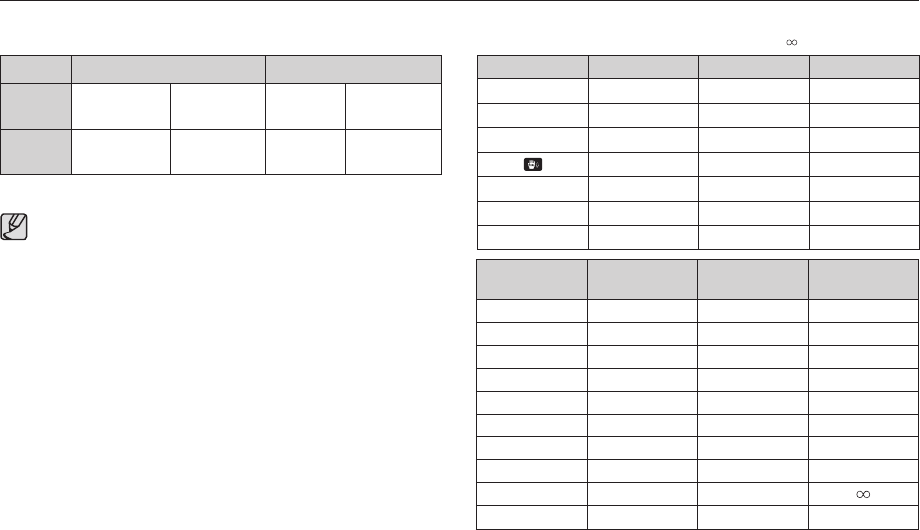
Types of focus mode and focus range (W : Wide, T : Tele)
(Unit: cm)
When the macro mode is selected, be particularly careful to avoid
camera shake.
When you take a picture within 20cm (Wide zoom) or 50cm
(Tele zoom) in the Macro mode, select the FLASH OFF mode.
When you take a picture within the 10cm macro range, the
auto-focus on the camera will take longer to set the correct focus
distance.
x
x
x
Available focusing method, by recording mode
( O : Selectable, : Infi nity focus range)
Mode Auto macro Macro Normal
O-O
-OO
-OO
O-O
-OO
--
O
-OO
Mode Auto (
) Program (
)
Focus
Type
Auto macro
()Normal Macro
()Normal
Focus
range
W : 5~Infi nity
T : 50~Infi nity W : 80~Infi nity
T : 80~Infi nity W : 5~80
T : 50~80 W : 80~Infi nity
T : 80~Infi nity
Scene Mode
(
)Auto macro Macro Normal
--
O
--
O
--
O
-O-
O--
--
O
--
O
--
O
--
--
O
Setting up the recording function using the camera buttons
30
[Selecting the Auto fl ash]
Focus lock
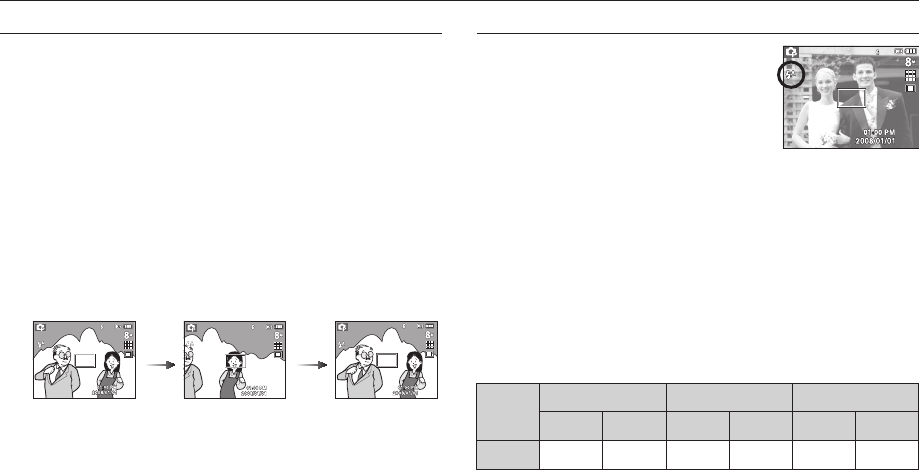
To focus on a subject not positioned in the centre of the picture, use the focus
lock function.
Using the Focus Lock
1. Ensure the subject is in the centre of the autofocus frame.
2. Press the SHUTTER button halfway. When the green auto focus frame
lights up, it means the camera is focused on the subject. To avoid taking
an unwanted picture, be careful not to press the shutter button all the
way down.
3. With the SHUTTER button still pressed down only halfway, move
the camera to recompose your picture as desired, and then press
the SHUTTER button completely to take the picture. If you release
your fi nger from the SHUTTER button, the focus lock function will be
cancelled.
1. The image to be
captured.
2. Press the
SHUTTER button
halfway and focus
on the subject.
3. Recompose
the picture and
fully depress the
SHUTTER button.
Flash (
) / Left button
When the menu is displayed on the LCD monitor,
pressing the LEFT button makes the cursor shift
to the left tab.
When the menu is not displayed on the LCD
monitor, the LEFT button operates as the FLASH
button.
Selecting the fl ash mode
1. Press the Mode button to select a RECORDING mode with the
exception of the Movie mode or the DUAL IS mode.
2. Press the Flash button until the desired fl ash mode indicator is
displayed on the LCD monitor.
3. A fl ash mode indicator will be displayed on the LCD monitor.
Use the correct fl ash to suit the environment.
Flash range
(Unit: m)
ISO Normal Macro Auto macro
WIDE TELE WIDE TELE WIDE TELE
AUTO 0.8 ~ 4.7 0.8 ~ 2.5 0.2 ~ 0.8 0.5 ~ 0.8 0.2 ~ 4.7 0.5 ~ 2.5
Setting up the recording function using the camera buttons
31
If you press the shutter button after selecting the Auto, Fill-in, Slow
synchro fl ash, the fi rst fl ash fi res to check the shooting condition
(Flash range and Power ratio of fl ash).
Do not move the camera until the second fl ash fi res.
Using the fl ash frequently will reduce the life of the battery.
Under normal operating conditions the re-charging time for the
fl ash is usually within 4 seconds. If the battery is weak, the charging
time will be longer.
In the DUAL IS mode, Landscape, Close up, Text, Sunset, Dawn,
Firework scene modes and the Movie mode, the fl ash function will
not operate.
Take photographs within the fl ash range.
The image quality is not guaranteed if the subject is too close or
highly refl ective.
When taking an image in poorly lit conditions with the fl ash, there
may be a white speck in the captured image. The speck is caused
by the fl ash light refl ecting off atmospheric dust.
x
x
x
x
x
x
x
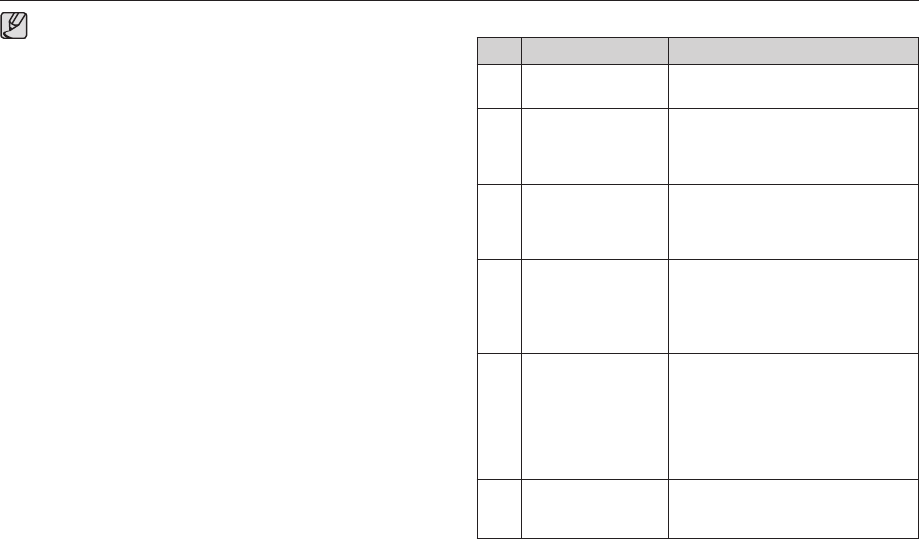
Flash mode indicator
Icon Flash mode Description
Auto fl ash If the subject or background is dark, the
camera fl ash will operate automatically.
Auto &
Red eye reduction
If a subject or background is dark, the
camera fl ash will work automatically and
will reduce the red-eye effect by using the
red-eye reduction function.
Fill in fl ash
The fl ash fi res regardless of the available
light. The intensity of the fl ash will be
automatically controlled to suit the
prevailing conditions.
Slow synchro
The fl ash operates with a slow shutter
speed to obtain a balanced correct
exposure. In poor lighting conditions the
camera shake warning indicator
() will display on the LCD monitor.
Flash off
The fl ash does not fi re.
Select this mode when capturing images
in a place or situation where fl ash
photography is prohibited. When you
capture an image in poorly lit conditions,
the camera shake warning indicator
() will appear on the LCD monitor.
Red-eye reduction When a shot with “red eye” is detected,
this mode will reduce the red-eye effect
automatically.
Setting up the recording function using the camera buttons
32
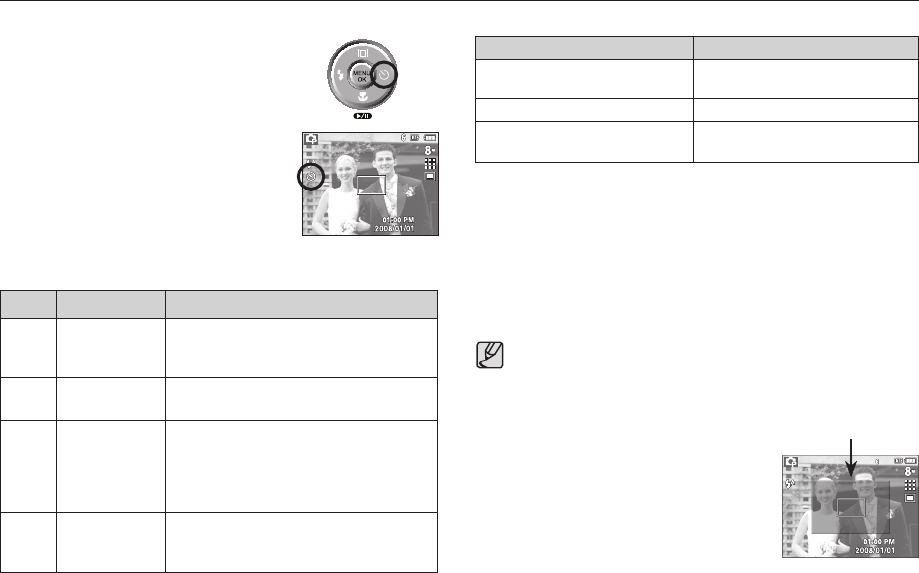
Self-timer () / Right button
When the menu is displayed on the LCD monitor, pressing the Right button
makes the cursor shift to the right tab.
When the menu is not displayed on the LCD monitor, the RIGHT button
operates as the Self-timer () button. This function is used when the
photographer would also like to be in the picture.
If you operate the Self-timer button during the self-timer operation,
the self-timer function is cancelled.
Use a tripod to prevent the camera from shaking.
In Movie mode, only the 10SEC self-timer will work.
If [Motion Timer] is set, [Self Portrait] cannot be selected.
x
x
x
x
Setting up the recording function using the camera buttons
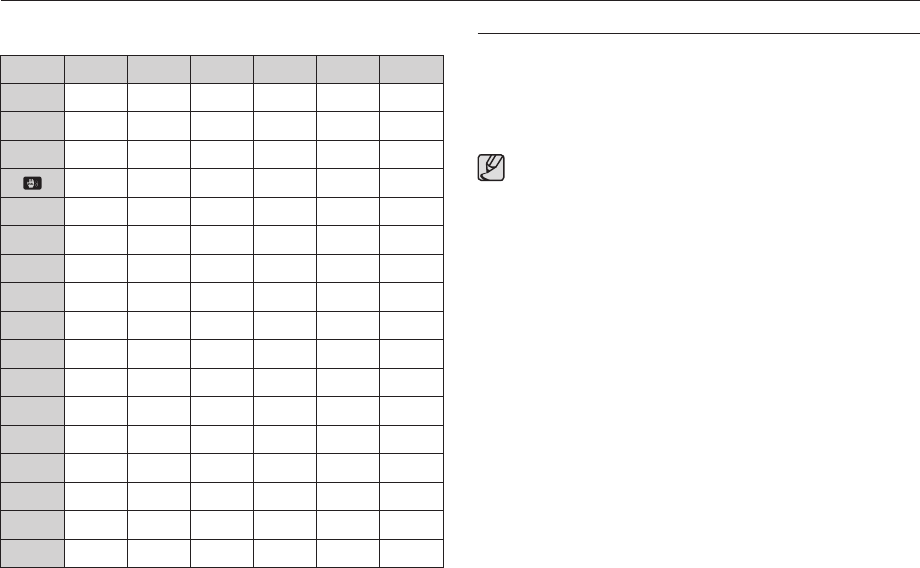
Available fl ash mode, by recording mode
( O : Selectable)
Mode
OO OO
OOOOOO
OO
O
OOOOOO
OO O
O
OO O
O OO
O
O
O
O
O
O
O
O
33
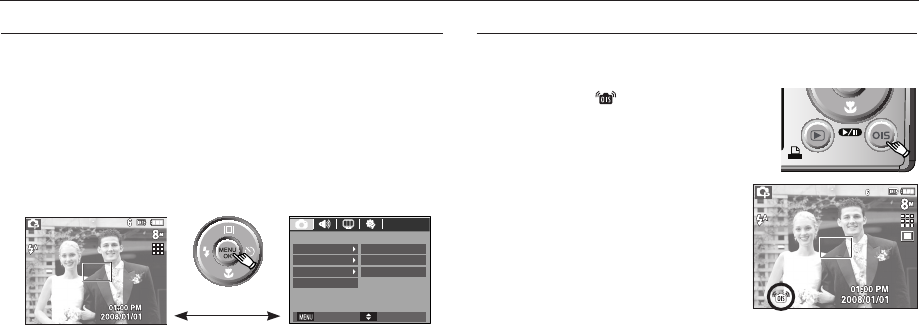
Selecting the self-timer
1. Rotate the Mode dial to select a desired
RECORDING mode.
2.
Press the SELF-TIMER () / RIGHT button
until the desired mode indicator appears on the
LCD monitor. A 10 second, 2 second, Double
self-timer or Motion timer icon appears on
the LCD monitor.
3. When you press the SHUTTER button, the
picture will be taken after the specifi ed time
has elapsed.
Motion Timer
Motion Icon & Self-timer lamp
Pressing the Shutter button after
setting the Motion Timer Blink (1 second interval)
Detecting the subject’s movement Blink (0.25 second interval)
No movement is detected Turn on and the image is taken after
2 seconds
The Motion Timer fl ows are as followings. (Movie mode excluded)
Selecting the Motion Timer J Pressing the Shutter button J
Confi rming the composition (Within 6 sec.)*1 J Starting the detection
(Swing your hands fully)*2 J Stopping the detection (Do not move)
J Taking an image (after 2 sec.)
*1. The camera detects the subject’s movement 6 seconds after pressing
the Shutter button, so confi rm the composition within 6 seconds.
*2. Move your body or hands fully.
In the following cases, the Motion Timer may not operate.
The focus distance is over 3m.
The exposure is too bright or dark
In backlight conditions.
The movement is insignifi cant
The movement is detected beyond the
center part (50%) of the sensor where
the movement is recognized.
If the camera doesn`t sense any
movement for 30 seconds, or the
camera doesn’t sense stillness after
sensing movement.
x
x
x
x
x
x
The detection range of
Motion Timer
[Selecting the 10 SEC self-timer]
Setting up the recording function using the camera buttons
Self-timer mode indicator
Icon Mode Description
10SEC self-timer
Suhvvlqj#wkh#vkxwwhu#exwwrq#zloo#doorz#dq#
lqwhuydo#ri#43#vhfrqgv#ehiruh#wkh#lpdjh#
lv#wdnhq1
2SEC self-timer Pressing the shutter button will allow an interval
of 2 seconds before the image is taken.
Double self-timer
A picture will be taken after about 10 seconds
and 2 seconds later a second picture will be
taken. When using the fl ash, the 2-second
self-timer may be delayed for longer than 2
seconds depending on the fl ash charging time.
Motion Timer The camera detects the subject’s movement 6
seconds after pressing the Shutter button, and
the picture is taken when the movement stops.
34
The OIS function reduces blurring caused by camera shake when
pressing the shutter button.
41#
Press the OIS( ) button in the selectable
mode.
2. The OIS icon will be displayed on the left
side.
3. Press the shutter button halfway. The
shutter speed and aperture value will be
displayed on the LCD monitor. Also this
camera activates the stabilizing function.
4. Press the shutter button fully to take a
picture.
䮝#OIS function may not work suffi ciently in the following cases.
- To take pictures of a moving subject
- To take pictures with higher digital zoom values
- When camera shake is beyond the camera-shake correction range
- The slower the shutter speed, the lower the camera-shake correction
performance.
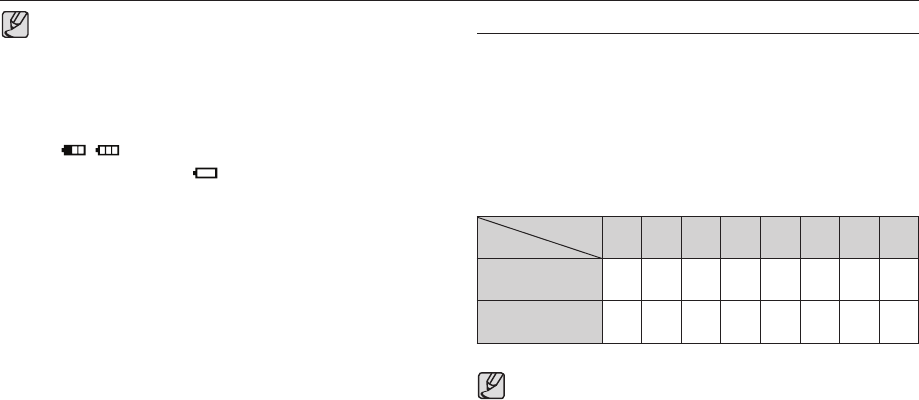
MENU / OK button
MENU button
- When you press the MENU button, a menu related to each camera
mode will be displayed on the LCD monitor. Pressing it again will return
the LCD to the initial display.
- A menu option can be displayed when the following are selected :
MOVIE and STILL IMAGE(AUTO, PROGRAM, MANUAL,
DUAL IS,
PORTRAIT and SCENE) mode. There is no menu available when the
VOICE RECORDING mode is selected.
[Pressing the MENU button]
[Menu off] [Menu on]
OK button
- When the menu is displayed on the LCD monitor, this button is used for
shifting the cursor to the sub menu or for confi rming data.
Setting up the recording function using the camera buttons
OIS(Optical Image Stabilization)
RECORDING
Focus Area
Voice Memo
Voice Recording
Center AF
Move
Exit
OffACB
Off
35
E (Effect) button
It is possible to add special effects to your images by using this button.
- Still image mode : You can select the colour and image adjust menu. In
the Auto mode, you can select the [COLOR] menu
only.
- Movie mode : You can select the colour menu.
Available Effects, by recording mode
( O : Selectable)
This button will not operate in DUAL IS, Voice recording mode and
some scene modes (Nightscene, Text, Sunset, Dawn, Backlight,
Fireworks, Beach&Snow).
Even if the camera is turned off, the effect setting will be preserved.
To cancel the special effect, select
sub menu in the Colour
menu and select the
sub menu in the Image Adjust menu.
x
x
x
Setting up the recording function using the camera buttons
Colour (
)OOOOOOOO
Image Adjust (
)OO
If you operate OIS function using a tripod, the image can be blurred
by the vibration of the sensor of the OIS. Turn off the OIS function
when you use a tripod.
If the camera is subjected to an impact it can shake the LCD
monitor. If this happens, turn the camera off and then on again. It
should then function properly.
Operate the OIS function when the battery is effi ciently charged
(, ).
If the low battery level ( ) is showing, OIS can still be set but
will not work
It is recommended that you don`t use the OIS function in the Macro
mode.
If the OIS function is set when recording video, the function sounds
of the OIS may be recorded.
x
x
x
x
x
x
36
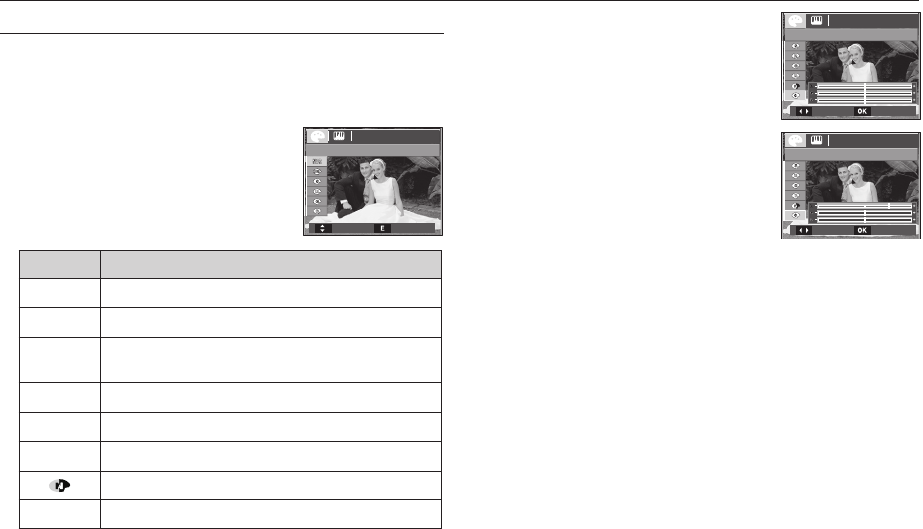
Custom colour : You can change the R (Red),
G (Green) and B (Blue) values
of the image.
- Up/Down button : Selects R, G, B
- Left/Right button : Changes the values
K In the Auto mode, the Custom Color can’t be selected.
By using the camera’s digital processor, it is possible to add special effects to
your images
Press the E button in an available recording mode.
Color Description
No effect is added to the image.
Captured images will be stored in black and white.
Captured images will be stored in a sepia tone
(a gradient of yellowish brown colours).
Captured images will be stored in a red tone.
Captured images will be stored in a green tone.
Captured images will be stored in a blue tone.
Saves the image in negative mode.
Captured image will be saved in set RGB tone.
1. Select a desired sub menu by pressing the
Up/Down button and press the OK button.
2. Press the shutter button to capture an image.
E (Effect) button : Colour
Setting up the recording function using the camera buttons
Custom Color
Move Set
Custom Color
Move Set
COLOR
Move Exit
37
E (Effect) button : Sharpness
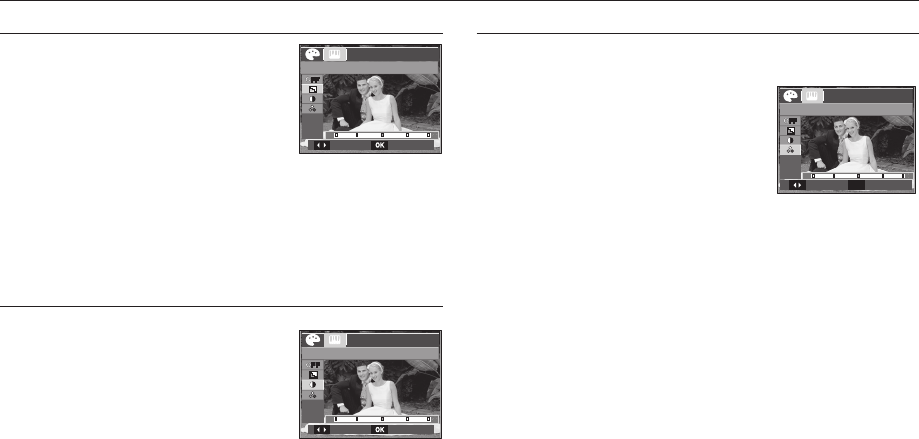
You can adjust the sharpness of the picture
you are about to take. You cannot check the
sharpness effect on the LCD monitor before
you take a picture, because this function is
applied only when the captured image is
stored on the memory.
1. Press the E button and select
[Sharpness](
) by pressing the Up/Down button.
2. Change the Sharpness value by pressing the Left/Right button.
3. Press the OK button and the value will be saved. Take a picture
pressing the Shutter button.
E (Effect) button : Contrast
You can change the contrast of the image.
1. Press the E button and select [Contrast](
)
by pressing the Up/Down button.
2. Change the Contrast value by pressing the
Left/Right button.
3. Press the OK button and the value will be
saved. Take a picture pressing the Shutter
button.
Setting up the recording function using the camera buttons
E (Effect) button : Saturation
By using the camera’s digital processor, it is possible to add special effects
to your images
1. Press the E button and select
[Saturation](
) by pressing the Up/Down
button.
2. Change the Saturation value by pressing
the Left/Right button.
3. Press the OK button and the value will be
saved. Take a picture pressing the Shutter button.
OK
Move Set
Move Set
Sharpness
Contrast
Saturation
Move Set
38
Fn button
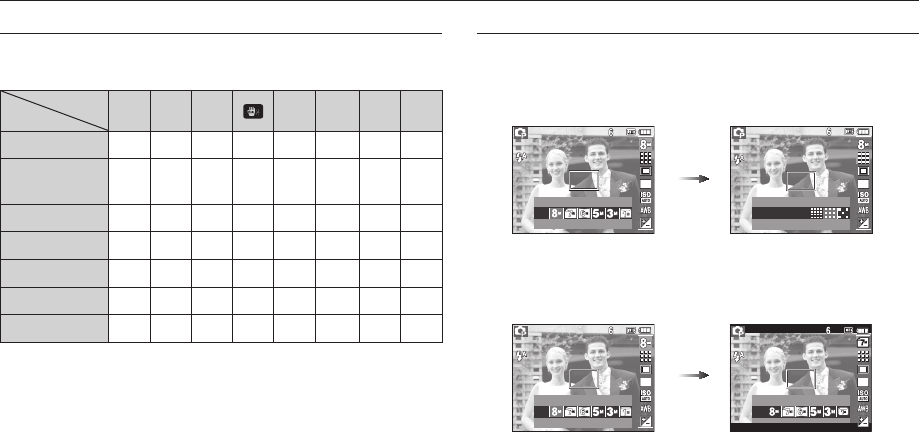
You can use the Fn button to set the following menus.
( O : Selectable)
Page
Size OOOOO O O
p.39
Quality
/Frame rate OOOOO O O
p.39
Metering OOO O
p.40
Drive OO O
*1 p.40
ISO OO p.41
White Balance OOO O
p.41
EV OO O
p.42
*1. This menu is only available in the Children scene mode (
).
Setting up the recording function using the camera buttons
How to use the Fn menu
1. Press the Fn button in an available mode.
2. Select a desired menu by pressing the Up / Down button. And then a
sub menu will be displayed at the bottom left of the LCD monitor.
Up / Down
button
3. Select a desired menu by pressing the Left / Right button and then
press the OK button.
Left / Right
button
3264X2448 3264X2176
3264X2448
SIZE QUALITY
Fine
SIZESIZE
39
Setting up the recording function using the camera buttons
Size
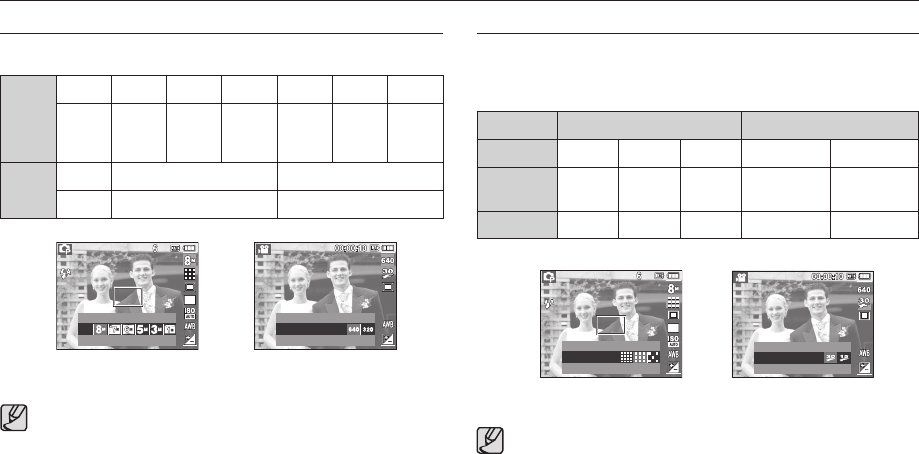
You can select the image size appropriate for your application.
[STILL IMAGE mode] [MOVIE mode]
The higher the resolution, the lower the number of shots available
because high resolution images require more memory.
x
Still
image
mode
Icon
Size 3264
x
2448
3264
x
2176
3264
x
1836
2592
x
1944
2048
x
1536
1024
x
768
Movie
mode
Icon
Size 640 x 480 320 x 240
Quality / Frame rate
You can select the compression ratio appropriate for your application of
the captured images. The higher the compression ratio, the lower the
picture quality.
[ STILL IMAGE mode ] [ MOVIE mode ]
This fi le format complies with the DCF (Design rule for Camera File
system).
JPEG (Joint Photographic Experts Group) :
JPEG is the image compression standard developed by the Joint
Photographic Experts Group. This type of compression is most
commonly used for compressing photos and graphics because it
can compress the fi les effi ciently.
x
x
Mode STILL IMAGE mode MOVIE mode
Icon
Sub menu Super
Fine Fine Normal 30FPS 15FPS
File Format jpeg jpeg jpeg avi avi
3264X2448 640X480
SIZE SIZE
QUALITY
Fine
FRAME RATE
30fps
40
Metering
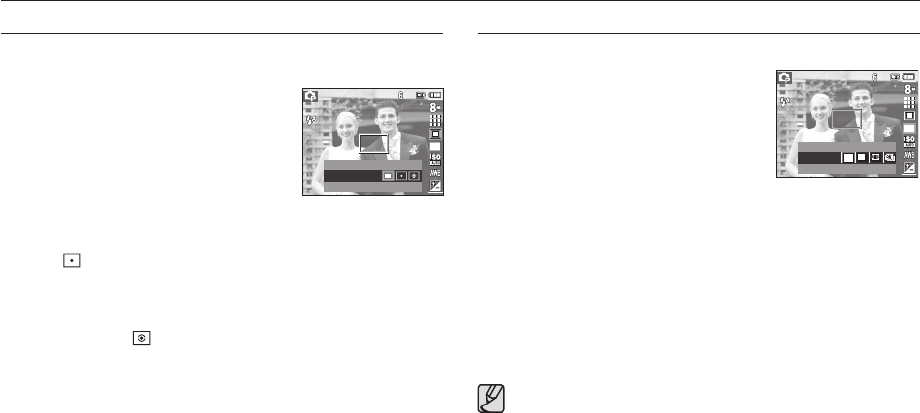
If you cannot obtain suitable exposure conditions, you can change the
metering method to take brighter pictures.
[Multi] (
) : Exposure will be
calculated based
on an average
of the available
light in the image
area. However, the
calculation will be
biased towards the centre of the image area.
This is suitable for general use.
[Spot] ( ) : Only the rectangular area in the centre of the
LCD monitor will be metered for light. This
is suitable when the subject in the centre is
exposed correctly, regardless of the back lighting.
[Center Weighted] ( ) : Exposure will be calculated based on an average
of the available light in the image area. However,
the calculation will be biased towards the centre
of the image area. This is suitable for taking a
picture of small objects like fl owers or insects.
K If the subject is not the centre of the focus area, do not use the spot
metering as this may result in an exposure error. In this circumstance, it
is better to use exposure compensation.
Setting up the recording function using the camera buttons
Drive mode
You can select continuous shot, and AEB (Auto Exposure Bracketing).
[Single] (
) : Take one picture only.
[Continuous] (
) : Images will be taken
continuously until
the shutter button is
released.
[AEB] (
) : Take three pictures
in a series in different exposures: standard
exposure (0.0EV), short exposure (-1/3EV) and
over exposure (+1/3EV).
Use this function when you cannot determine the
exposure value of subject.
[Motion Capture] (
) : This takes 6 shots per second, and for max 5
seconds, when the shutter is pressed and held
down. The maximum number of shots is 30 and
the image size is fi xed as VGA.
High resolution and picture quality increases fi le saving time, which
increases stand-by time.
If the [Continuous], [AEB] or [Motion Capture] sub menu is
selected, the fl ash will be automatically switched off.
If less than 3 pictures are available in the memory, the [AEB]
shooting is not available.
It is best to use a tripod for the [AEB] shooting as the time to save
each image fi le is longer and blurring caused by camera shake
may occur.
If less than 30 pictures are available in the memory, the
[Motion Capture] shooting is not available.
x
x
x
x
x
METERING
Multi
DRIVE
Single
41
Setting up the recording function using the camera buttons
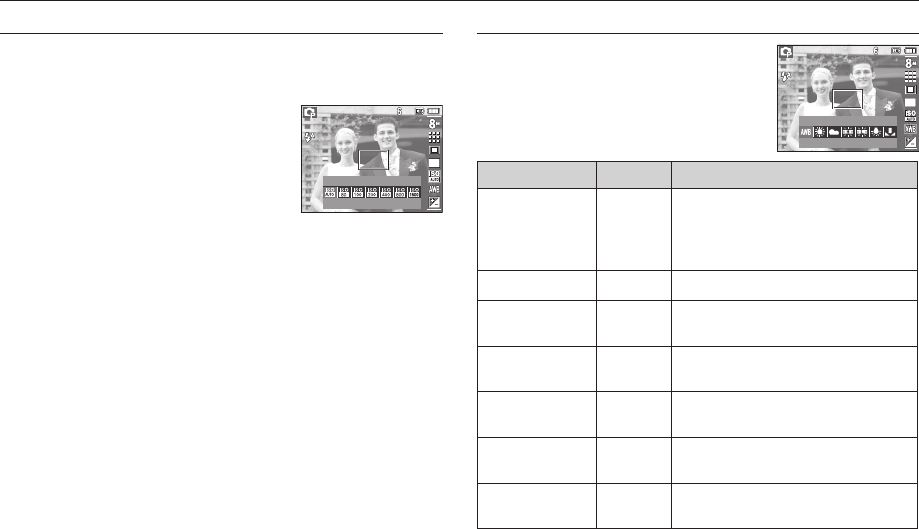
ISO
You can select the ISO sensitivity when taking pictures.
The speed or specifi c light-sensitivity of a camera is rated by ISO
numbers.
[Auto] (
) : The camera’s sensitivity is
automatically changed by
variables such as lighting value
or subject brightness.
[ISO 80, 100, 200, 400, 800, 1600]
(
) :
You can increase the shutter speed while
the same amount of light is present, by increasing the ISO sensitivity.
However, the image may be saturated with light.
The higher the ISO value, the higher the camera’s sensitivity to light
and therefore the greater its capacity to take pictures in dark conditions.
However, the noise level in the image will increase as the ISO value
increases, making the image appear coarse.
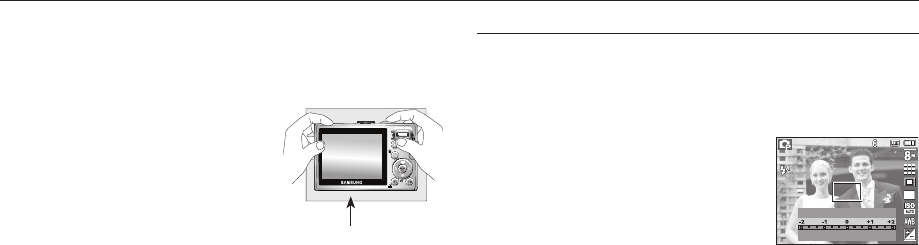
White balance
The white balance control allows you to adjust
the colours to appear more natural.
KDifferent lighting conditions may cause a colour cast on your images.
Mode Icon Description
The camera automatically selects the
appropriate white balance settings,
depending on the prevailing lighting
conditions.
Daylight
For taking images outside.
Cloudy
For taking images under a cloudy and
overcast sky.
Fluorescent_H
For shooting under daylight types of
three-way fl uorescent lighting.
Fluorescent_L
Shooting under white fl uorescent
lighting.
Tungsten
For shooting under tungsten (standard
light bulb) lighting.
Custom Set
Allows the user to set the white balance
according to the shooting conditions.
Auto WB
ISO
Auto
WHITE BALANCE
Auto WB
42
Using the Custom White Balance
White balance settings may vary slightly depending on the shooting
environment. You can select the most appropriate white balance setting for
a given shooting environment by setting up the custom white balance.
1. Select the CUSTOM (
) menu of the
White Balance and place a sheet of
white paper in front of the camera so
that the LCD monitor shows only white.
2. MENU/OK button : selects previous
custom white
balance.
Shutter button : saves new custom
white balance.
The custom white balance value will be applied, starting with the next
picture you take.
The user confi gured white balance will be remain effective until it is
overwritten.
x
x
White Paper
Setting up the recording function using the camera buttons
Exposure compensation
This camera automatically adjusts the exposure according to the ambient
lighting conditions.
However, you can adjust exposure value by using [EV] menu.
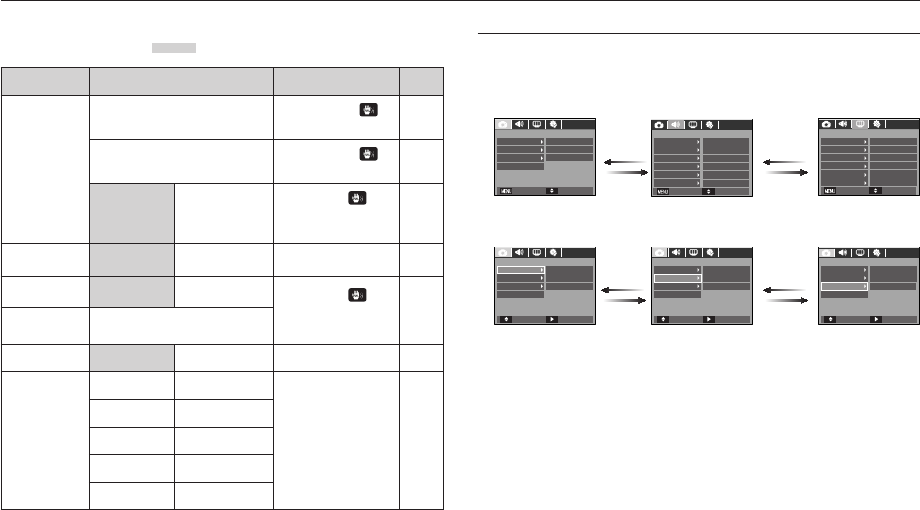
Compensating Exposure
1. Press the Fn button, and then use the UP
and DOWN buttons to select the exposure
compensation icon (
).
The exposure compensation menu bar will
appear as shown.
2. Use the LEFT and RIGHT buttons to set
the desired exposure compensation factor.
3. Press the Fn button again. The value you set will be saved and the
Exposure Compensation setup mode will close.
If you change the exposure value, the exposure indicator (
) will be
displayed on the bottom of the LCD monitor.
K A negative exposure compensation value reduces the exposure.
Note that a positive exposure compensation value increases the
exposure and the LCD monitor will appear white or you may not get
good pictures.
EV
43
You can use the menu on the LCD monitor to set up recording functions.
The items indicated by are default settings.
Menu Sub menu Available mode Page
Focus Area
Face Detection
p.44
Self Portrait
p.45
Center AF Multi AF
p.45
~p.46
ACB Off On
p.46
Voice Memo Off On
p.47
~p.48
Voice Record -
Voice Mute Off On
p.48
Scene mode
Nightscene Children
p.48
Landscape Close up
Text Sunset
Dawn Backlight
Firework Beach & Snow
K Menus are subject to change without prior notice.
Press the
LEFT or
RIGHT button.
Press the
LEFT or
RIGHT button.
Press the
UP or
DOWN button.
Press the
UP or
DOWN button.
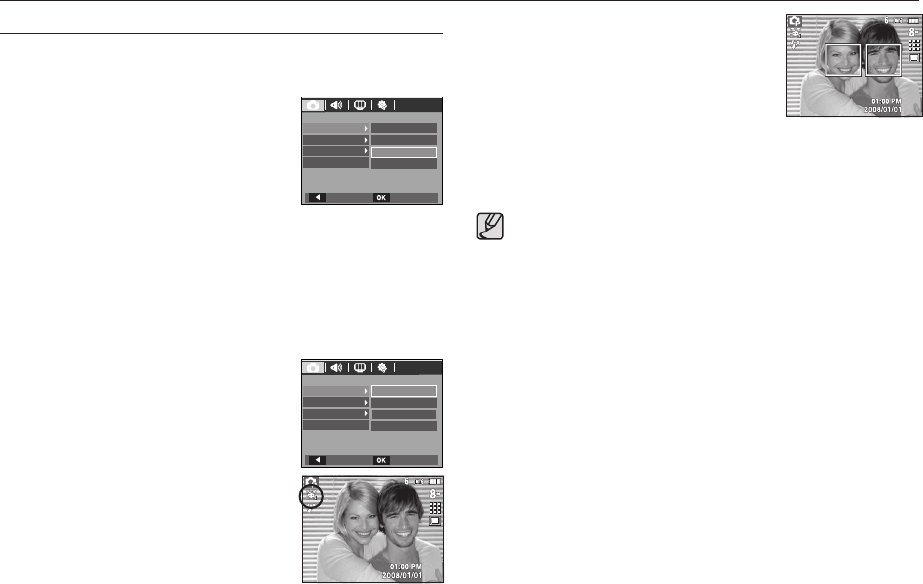
How to use the menu
1. Turn on the camera and press the MENU button. A menu for each camera
mode appears.
2. Use the LEFT and RIGHT buttons to navigate through the menus.
3. Use the UP and DOWN buttons to select a sub menu.
4. Select a sub menu, and then the value you set will be saved.
Press the MENU button and the menu will disappear.
Setting up the recording function using the LCD monitor
RECORDING
ACB
Center AF
Off
Voice Memo
Focus Area
Off
Voice record
Exit Move
SOUND
Start Sound
MediumVolume
Off
Shutter Sound Sound 1
Sound 1Beep Sound
AF Sound On
Exit Move
DISPLAY
Date&Time
ENGLISHLanguage
Start Image
LCD Bright
Quick View
LCD Save
08/01/01
Off
Normal
0.5sec
Off
RECORDING
ACB
Center AFFocus Area
Off
Voice record
Voice Memo Off
Move Change
RECORDING
Move Change
RECORDING
Move Change
Self Portrait On
Exit Move
ACB
Center AFFocus Area
Off
Voice record
Voice Memo Off
ACB
Center AFFocus Area
Off
Voice record
Voice Memo Off
44
Setting up the recording function using the LCD monitor
Focus Area
You can select your preferred Focus Area according to the shooting
conditions.
1. Press the Menu button in the selectable mode.
2. Select the [RECORDING] menu by pressing
the Left/Right button.
3. Select the [Focus Area] menu by pressing the
Up/Down button. Then press the Right button
again.
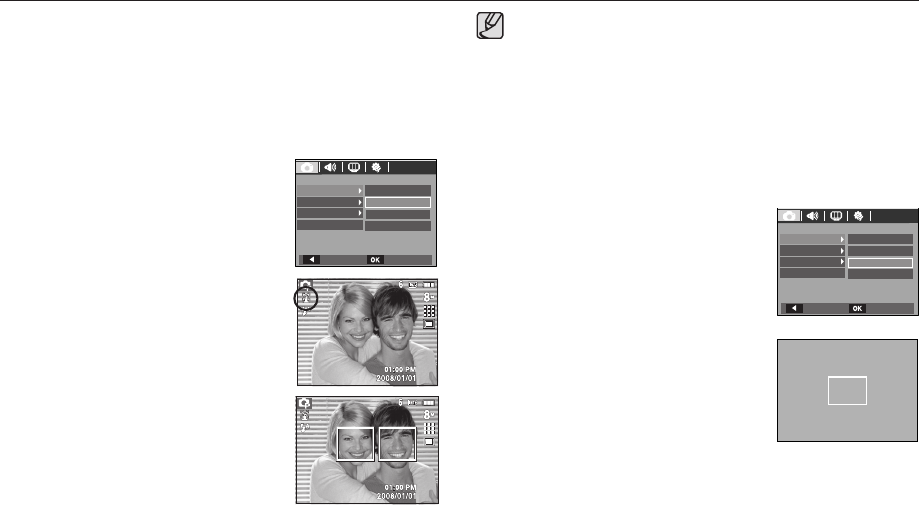
Face Detection
2. Press the OK button. The Face Detection icon
will be displayed on the left side of the LCD
monitor
This mode detects the face of the subject automatically and then sets the
focus and exposure. Select this mode for quick and easy portraits.
䮝#Selectable modes : Auto, Program, Manual, DUAL IS, Photo Help Guide,
Portrait, Children, Beach & Snow
1. Select the [Face Detection] submenu by
pressing the Up/Down button.
This function can detect up to 9 people.
When the camera recognises many people at the same time, it will
focus on the nearest person.
The Digital zoom is not activated in this mode.
The face detection does not work when setting the effect mode.
When the camera detects a target face, the white colour focus
frame will be displayed over the target face and the gray colour
focus frame appears over the remaining faces(up to 8). Press the
shutter button halfway down to focus on the face and the white
focus frame turns green.(Total 9)
Return to previous AF mode if face detection failed.
In some conditions this function cannot work properly.
- When a person wears dark glasses or some part of the face is
hidden.
- When the person being photographed does not look at the
camera.
The maximum available Face Detection range is 2.5m(Wide).
The nearer the subject, the faster the camera can recognize the
subject.
x
x
x
x
x
x
x
x
x
3. The size and position of the auto focus frame
is set on the face of the subject automatically.
4. Press the shutter button halfway. The focus frame turns to green when
the focus is activated.
5. Press the shutter button fully to take a picture.
RECORDING
Focus Area
Center AF
ACB
Multi AF
Voice Memo
Back Set
Voice Record
Self Portrait
Face Detection
RECORDING
Focus Area
Center AF
ACB
Multi AF
Voice Memo
Back Set
Voice Record
Self Portrait
Face Detection
45
Setting up the recording function using the LCD monitor
Self Portrait
When taking self-portraits, it automatically detects the subject`s face
resulting in faster and more convenient self-portraits.
䮝# Selectable modes : Auto, Program, Manual, DUAL IS, Photo Help
Guide, Portrait, Beach & Snow
1. Select the [Self Portrait] submenu by
pressing the Up/Down button.
2. Press the OK button. The Self Portrait icon
will be displayed on the left side of the LCD
monitor.
3. For self-portraits, point the camera
lens towards the face of the subject. It
automatically detects the subject`s face, and
will make a sound to confi rm this.
4. Start shooting by pressing the shutter
button.
[Center AF]
When locating the face in the center of the screen, it repeatedly
emits a faster sound unlike the sounds that are emitted when the
face is not in the center.
The guiding sound can be set using the sound setting menu.(See
p.69)
If [Self Portrait] is set, it is fi xed to Macro focus.
If [Self Portrait] is set, [Motion Timer] cannot be selected.
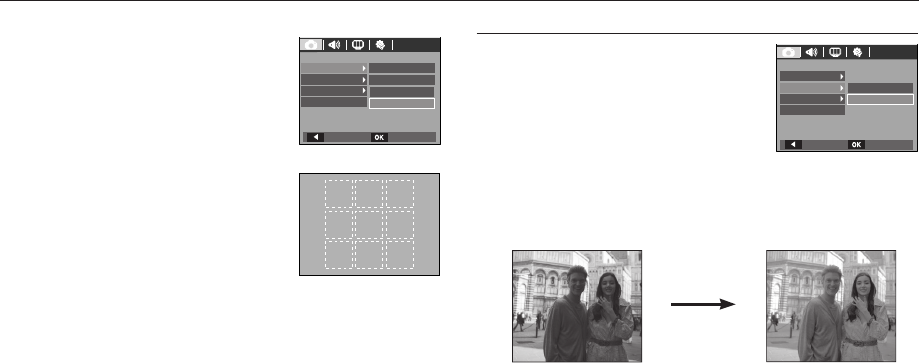
Center AF
1. Select the [Center AF] submenu by
pressing the Up/Down button.
2. Press the OK button. The rectangular
area in the center of the LCD monitor
will be focused.
x
x
x
x
RECORDING
Focus Area
Center AF
ACB
Multi AF
Voice Memo
Back Set
Voice Record
Self Portrait
Face Detection
RECORDING
Focus Area
Center AF
ACB
Multi AF
Voice Memo
Back Set
Voice Record
Self Portrait
Face Detection
46
Setting up the recording function using the LCD monitor
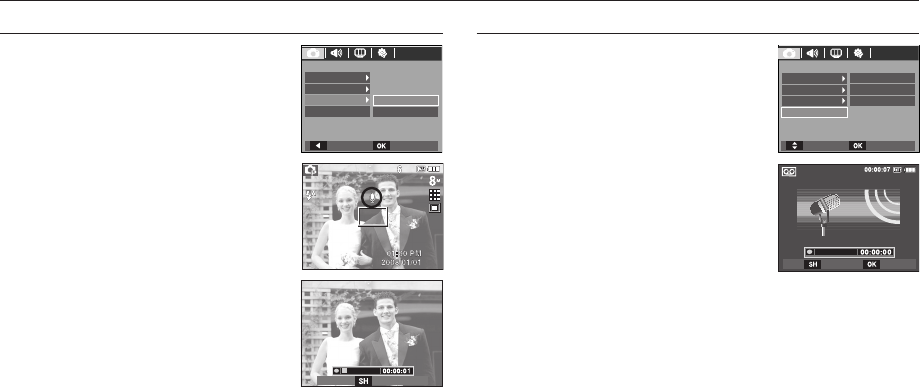
ACB
ACB(Auto Contrast Balance) adjusts the
contrast automatically. When taking photos in an
environment with big exposure differences i.e.
backlight or contrast, this function adjusts the
brightness automatically and allows the subject to
be photographed clearly.
[Off] : cancels ACB function.
[On] : adjusts the contrast automatically.
K When using the AUTO, PROGRAM, PORTRAIT mode, the ACB function
will operate. In Auto and Portrait mode, the ACB function always operates.
K When the ACB function is selected, you only can select ISO AUTO, 80,
100 and 200.
[ACB Off] [ACB On]
Multi AF
1. Select the [Multi AF] submenu by pressing
the Up/Down button.
2. Press the OK button. This camera selects
all the available AF points within the 9 AF
points as shown.
䮝 When the camera focuses on the subject, the auto focus frame turns to
green. When the camera doesn`t focus on the subject, the auto focus
frame turns to red.
[Multi AF]
RECORDING
Focus Area
Center AF
ACB
Multi AF
Voice Memo
Back Set
Voice Record
Self Portrait
Face Detection RECORDING
Focus Area
Off
ACB
On
Voice Memo
Back Set
Voice Record
47
Voice Memo
You can add your voice-over to a stored still
image. (Max. 10 sec.)
- If the voice memo indicator is displayed on
the LCD monitor, the setting is completed.
- Press the shutter button and take a
picture.
The picture is stored on the memory card.
- Voice memo will be recorded for ten
seconds from the moment the picture
is stored. In the middle of the sound
recording, pressing the shutter button will
stop the voice memo.
Setting up the recording function using the LCD monitor
Voice Recording
A voice can be recorded for as long as the
available recording time (Max. 10 hour) allows.
Press the shutter button to record a voice.
- Press the shutter button once and the
voice can be recorded for as long as the
available recording time (max:10 hour)
allows. The recording time will be displayed
on the LCD monitor. The voice will still be
recorded if the shutter button is released.
- If you wish to stop recording, press the shutter button again.
- File type : *.wav
[Voice recording mode]
RECORDING
ACB
Focus Area
Voice Memo
Voice Record
Off
Back Set
On
Stop
RECORDING
Center AF
Voice Memo
ACB On
Move Set
Voice Record
Off
REC Exit
Focus Area
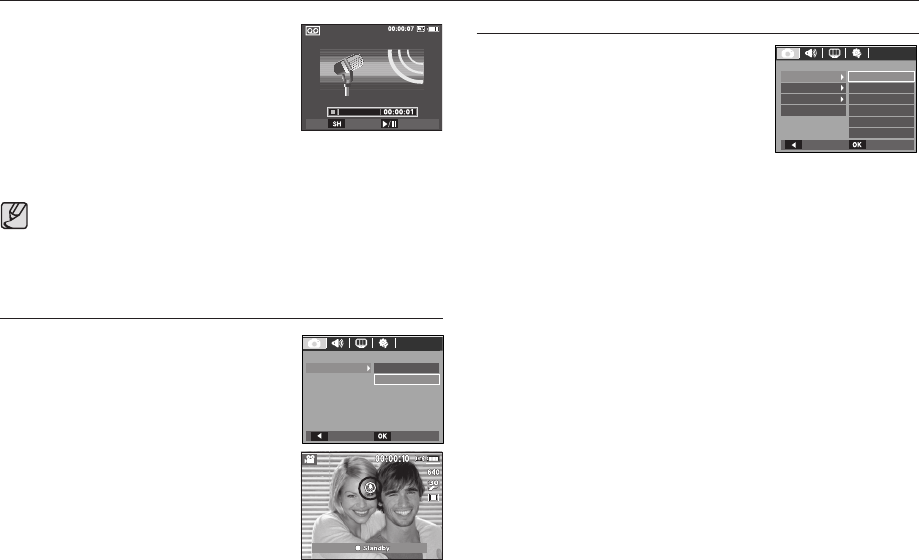
48
[Voice recording mode]
Pausing while recording a voice
Using this function, you can record your favourite
voice clips into a voice recording fi le without having
to create multiple voice recording fi les.
1. Press the Pause button () to pause
recording.
2. Press the Pause button () again to
resume the recording.
3. If you wish to stop recording, press the shutter button again.
A distance of 40cm between you and the camera (microphone) is
the best distance to record sound.
If the camera power is turned off while the voice recording is
paused, the voice recording is cancelled.
x
x
Recording the movie without voice
You can record the movie without a voice.
Select [On] of [Voice Mute] menu in the Movie
mode. (
) icon will appear on the LCD monitor.
Press the Shutter button and a movie without
voice will record for as long as the memory
capacity allows.
Setting up the recording function using the LCD monitor
SCENE mode
Use the menu to easily confi gure optimal
settings for a variety of shooting situations.
Press the MENU button and select a desired
sub menu.
K Refer to page 23 for more information.
[SCENE Mode Menu]
Stop REC
RECORDING
Voice Mute Off
On
Back Set
Scene
RECORDING
Landscape
Focus Area
Close up
Voice Memo
Back Set
Tex t
Voice Record
Sunset
Nightscene
Children
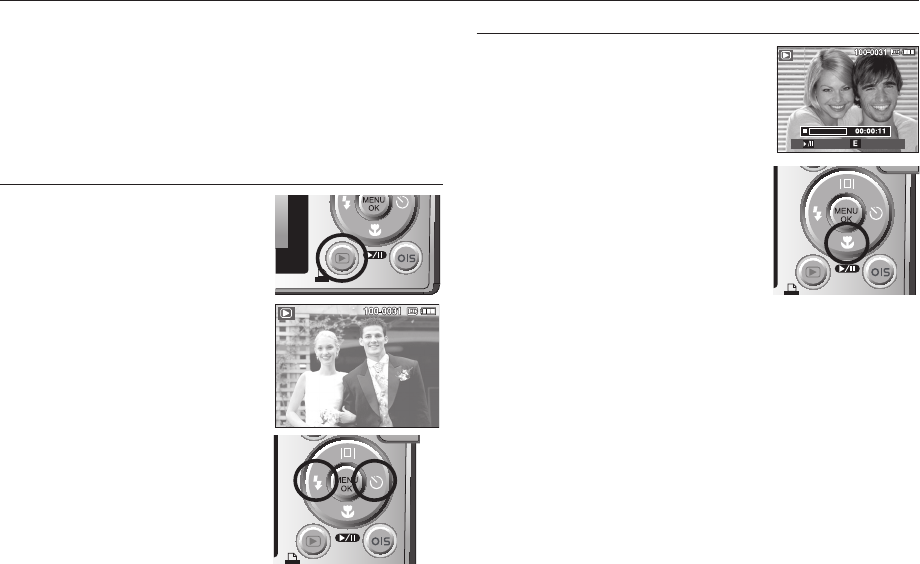
49
Turn the camera on and select Play mode by pressing the play mode button
(
). The camera can now play back the images stored in the memory.
If the memory card is inserted in the camera, all the camera functions apply
only to the memory card.
If the memory card is not inserted in the camera, all the camera functions
apply only to the internal memory.
Playing back a still image
1. Select the PLAY mode by pressing the
play mode button (
).
2. The last image stored on the memory
is displayed on the LCD monitor.
3. Select an image that you want to view
by pressing the Left / Right button.
K Press and hold the Left or Right
button to play back the images quickly.
Starting play mode
⡖ↇ# 㛾ᬞ⽋#
Playing back a movie
1. Select the recorded movie that you want to
play back by using the Left/Right button.
2. Press the play & pause button (
) to
play back a movie fi le.
- To pause a movie fi le while playing it
back, press the play & pause button
(
) again.
- Pressing the play & pause button
(
) again will cause the movie
fi le to restart.
- To rewind the movie while it is playing,
press the Left (REW)button. To fast
forward the movie, press the Right
(FF)button.
- To stop playback of the movie, press the play & pause button
(
), and then press the Left or Right button.
Play Capture
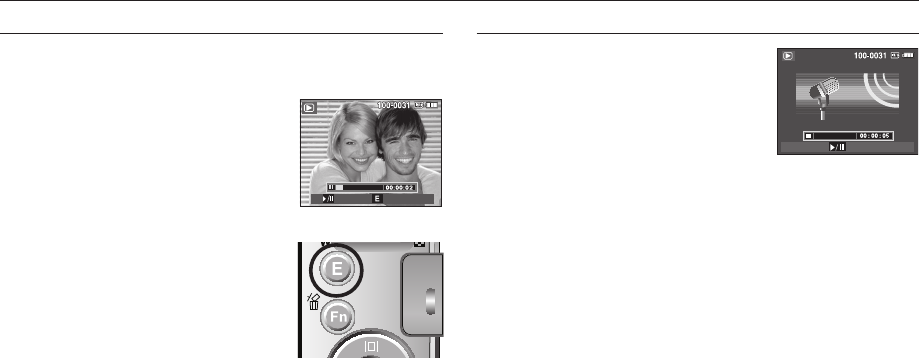
50
Starting play mode
[Paused]
[Press the E button]
Movie capture function
You can capture still images from the movie.
How to capture the movie
1. Press the Play / Pause button (
)
while playing the movie. Then press the
E button.
2. The paused movie is saved in a new fi le
name.
K The captured movie fi le is the same size as
the original movie (640x480, 320x240).
K When you press the E button at the beginning
of the movie, the fi rst frame of the movie will
be saved as a still image.
Playing back a recorded voice
1. Select the recorded voice that you want to
play back by using the Left/Right button.
2. Press the play & pause button (
) to
play back a recorded voice fi le.
- To pause a recorded voice fi le, while
playing it back, press the play & pause
button (
) again.
- To resume playback of the voice fi le, press the play & pause button
- To rewind the voice fi le while it is playing, press the Left
(REW)button.
To fast forward the voice fi le, press the Right (FF)button.
- To stop playback of the voice memo, press the play & pause button
and then press the MENU/OK button.
Play Capture
Play
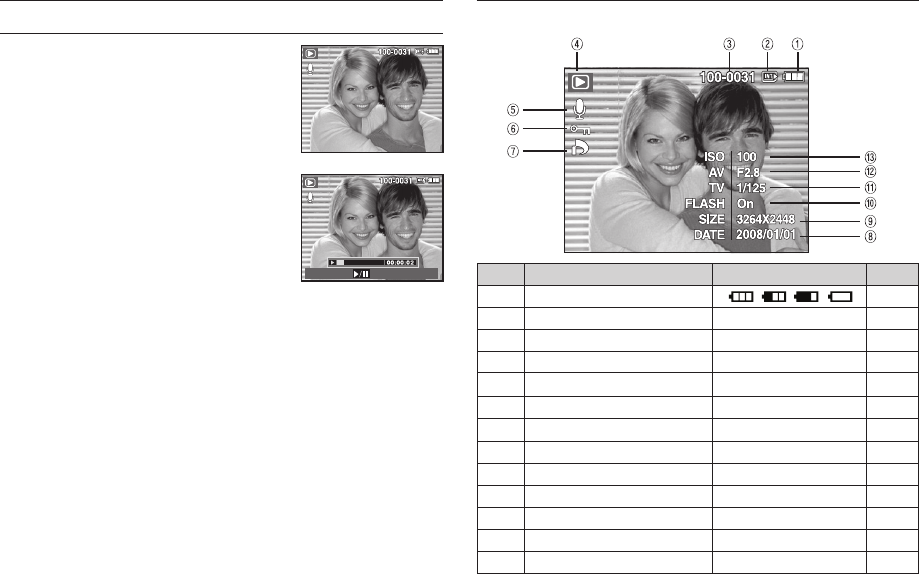
51
LCD monitor Indicator in play back mode
The LCD monitor displays shooting information about the displayed image.
No. Description Icon Page
1Battery p.15
2Memory card indicator
/
-
3Folder name & File name 100-0031 p.75
4Playback mode
p.49
5Voice Memo
p.62
6Protect
p.63
7DPOF
p.64
8Recording date 2008/01/01 p.72
9Image size 3264x2448 ~ 320x240 p.39
10 Flash On/Off p.30
11 Shutter speed 8 ~ 1/1,500 p.21
12 Aperture value F2.8 ~ F16.4 p.21
13 ISO 80 ~ 1600 p.41
Starting play mode
Playing back a voice memo
1. Select a still image that has the voice
memo.
2. Press the play & pause button (
) to
play back the voice memo.
- To pause the voice memo, while playing
it back, press the play & pause button
(
) again.
- To resume playback of the voice memo,
press the Down button.
Pause
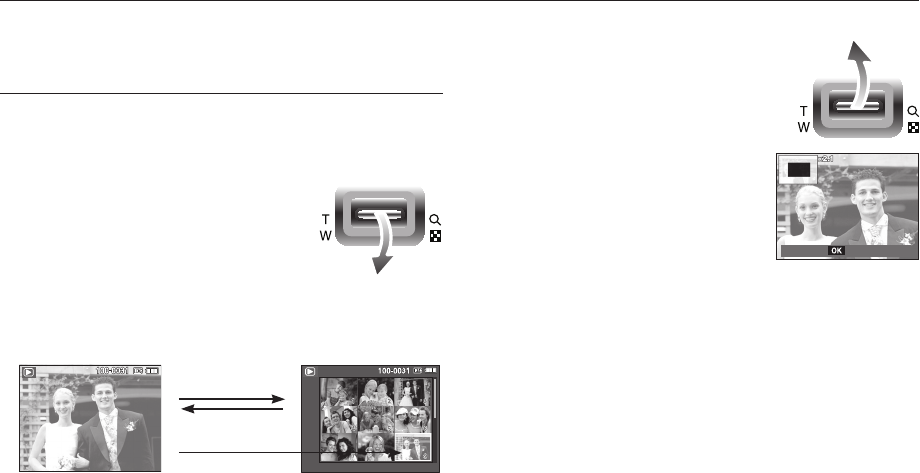
52
In Play mode, you can use the buttons on the camera to conveniently set up
the Play mode functions.
Thumbnail (
) / Enlargement () button
You can view multiple pictures, enlarge a selected picture, and crop and save
a selected area of an image.
Thumbnail display
1. While an image is displayed on full screen,
press the thumbnail button.
2. The thumbnail display will highlight the
image that had been showing at the time the
thumbnail mode was selected.
3. Press the 5 function button to move to a
desired image.
4. To view an image separately, press the enlargement button.
Pressing the thumbnail
button (
)
Pressing the enlargement
button (
)
Highlighted image
[Highlighted image] [Thumbnail display mode]
Setting up the play back function using the camera buttons
Image enlargement
1. Select an image that you want to enlarge and
press the enlargement button.
2. Different parts of the image can be viewed by
pressing the 5 function button.
3. Pressing the thumbnail button will zoom back
to the original full sized image.
- You can tell whether the image displayed
is an enlarged view by checking the image
enlargement indicator shown at the top
left of the LCD monitor. (If the image is not
an enlarged view, the indicator will not be
displayed.) You can also check the area of
enlargement.
- Movies and WAV fi les can’t be enlarged.
- If an image is enlarged, a loss of quality may occur.
Trim
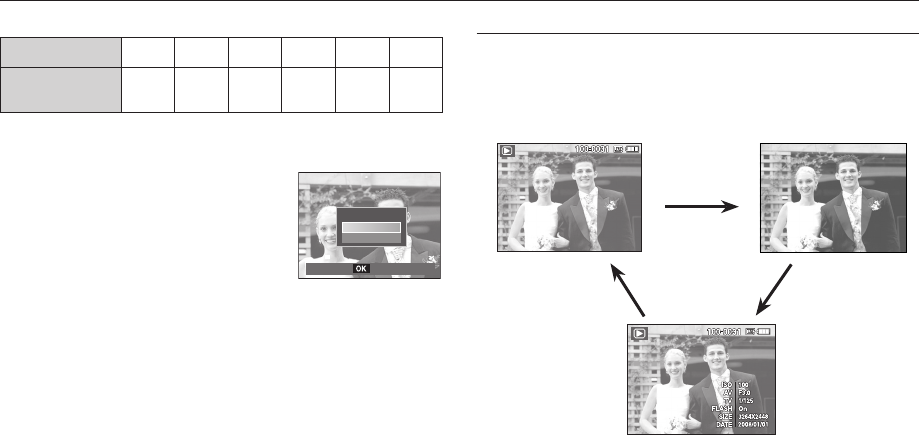
53
Info (
) / Up button
When the menu is displayed on the LCD monitor, the UP button operates as
a direction button.
When the menu is not displayed on the LCD monitor, pressing the Info button
will display image information on the LCD monitor.
Info (
) button
Info (
) button Info (
) button
Setting up the play back function using the camera buttons
The maximum enlargement rate in proportion to the image size
Image size
Maximum
enlargement X10.2 X9.1 X8.5 X8.1 X6.4 X3.2
Trimming : You can extract part of the image that you want and save it
separately.
1. Select an image that you want to enlarge and
press the enlargement button.
Press the MENU/OK button and a message
will be displayed.
2. Select a desired sub menu by pressing the
Up / Down button and press the OK button.
- [No] : The trimming menu will disappear.
- [Yes] : The trimmed image will be saved as a new fi le name, and
appear on the LCD monitor.
K If there is not enough memory space to save the trimmed image, the
image can’t be trimmed.
Trimming?
No
Ye s
Confirm
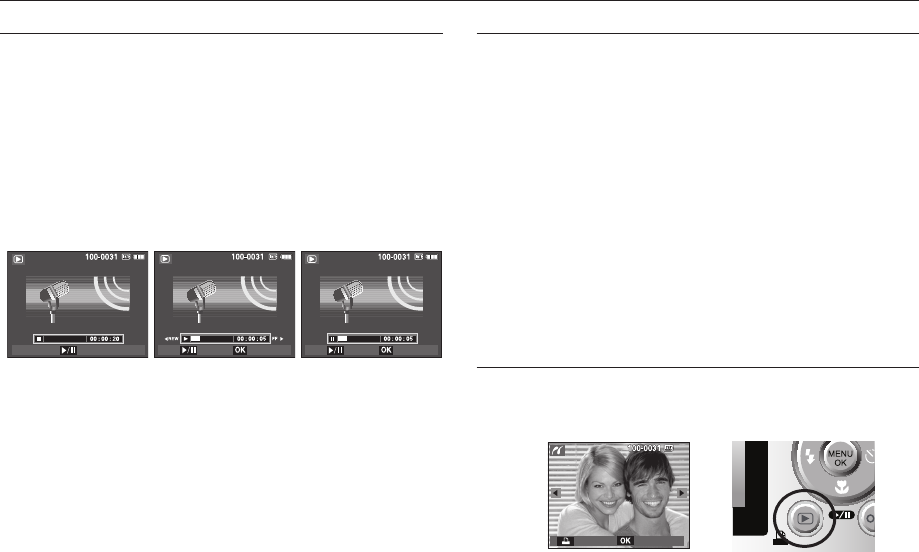
54
Setting up the play back function using the camera buttons
Play & Pause (
) / Down button
In Play mode, the play & pause (
) / down button works as follows:
- If the menu is displayed
Press the DOWN button to move from the main menu to a sub menu,
or to move down the sub menu cursor.
- If a still image with a voice memo, a voice fi le, or a movie is playing
In Stop mode : Plays a still image with a voice memo, a voice fi le,
or a movie.
During playback : Temporarily stops playback.
In Pause mode : Resumes playback
x
x
x
[ Voice recording is stopped ] [ Voice recording is playing ] [ Voice recording is paused ]
Left / Right / Menu / OK button
LEFT / RIGHT / MENU / OK buttons activate the following.
- LEFT button : While the menu is showing, the LEFT button operates
as a direction button. While the menu is not showing,
press the LEFT button to select the previous image.
- RIGHT button : While the menu is showing, the RIGHT button operates
as a direction button. While the menu is not showing,
press the RIGHT button to select the next image.
- MENU button : When you press the MENU button, the play mode
menu will be displayed on the LCD monitor. Pressing it
again will return the LCD to the initial display.
- OK button : When the menu is displayed on the LCD monitor, the
OK button is used for confi rming data that is changed
by using the 5 function button.
Printer (
) button
When the camera is connected to a PictBridge printer, you can print images
by pressing the Printer button.
Pause Stop StopPlay
Play
Print Menu
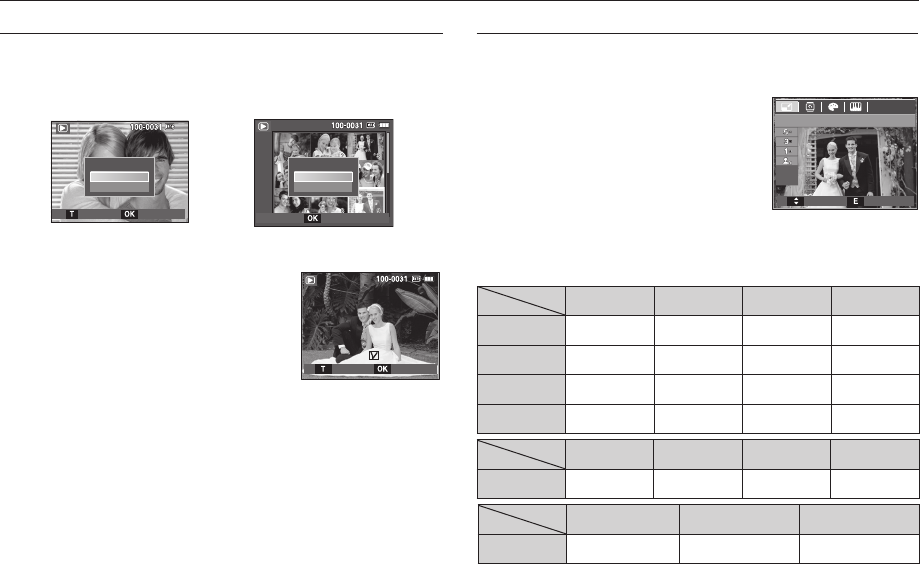
Prev
Prev
Next
Next
55
E (Effect) button : Resize
Change the resolution (size) of pictures taken. Select [Start image] (
) to
save an image to be the start-up image.
1. Press the play mode button and press the
E button.
2. Press the Left / Right button and select
the [RESIZE] (
) menu tab.
3. Select a desired sub menu by pressing
the Up / Down button and press the OK
button.
Image Resize Types
(z: Selectable)
zzzz
zzz
zz
z
zzz
zz
Setting up the play back function using the camera buttons
Delete (
) button
This deletes images stored on the memory card.
1. Select an image that you want to delete by pressing the Left / Right
button and press the DELETE () button.
[Single Image] [Thumbnail Image]
2. To delete images, press the T button.
- Left/Right button : Selects images
- T button : checks for deletion
- OK button : confi rm the selection
3. Select the sub menu values by pressing the Up / Down button and
then press the OK button.
- If [No] is selected : cancels “Delete Image”.
- If [Yes] is selected : deletes the selected images.
RESIZE
Move Exit
Delete?
No
Ye s
Delete?
No
Ye s
ConfirmSelect
DeleteSelect
Confirm
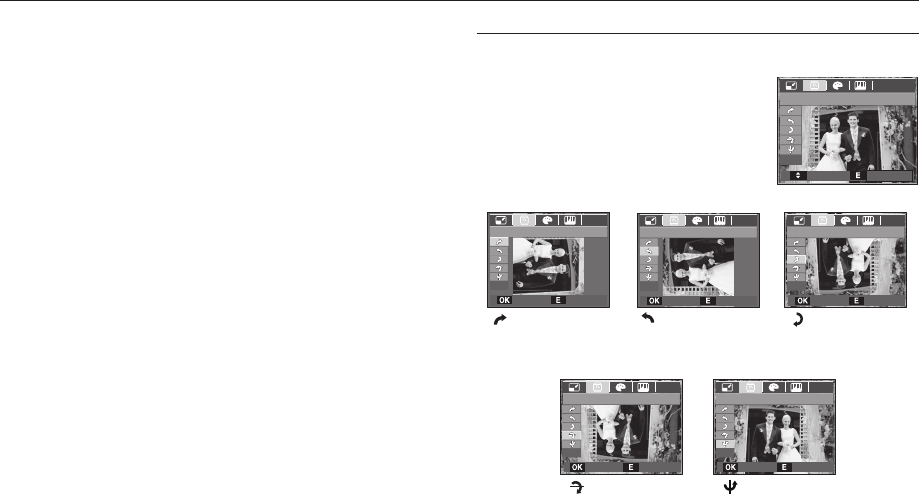
56
Setting up the play back function using the camera buttons
- A large sized image can be made smaller, but not vice versa.
- Only JPEG images can be resized. Movie (AVI), Voice recording (WAV)
fi les can’t be resized.
- You can change the resolution of only those fi les compressed in the
JPEG 4:2:2 format.
- The resized image will have a new fi le name.
The [Start Image] (
) image is stored not on the memory card but on
the internal memory.
- If a new user image is saved, one of the two user images will be
deleted in order.
- If the memory capacity is insuffi cient to store the resized image, a
[Memory Full!] message will appear on the LCD monitor and the
resized image can’t be stored.
E (Effect) button : Rotating an image
You can rotate the stored images by various degrees.
1. Press the play mode button and press the
E button.
2. Press the LEFT / RIGHT button and select
the [ROTATE] (
) menu tab.
3. Select a desired sub menu by pressing the
UP / DOWN button.
[ :
Right 90˚]
: Rotate picture in a
clock-wise direction
[ : Left 90˚]
: Rotate picture in a counter-
clock-wise direction
[ :
180˚]
: Rotate picture 180
degrees
[ : Horizontal]
: Rotate picture horizontally
[ :Vertical]
: Rotate picture vertically
K If you display the rotated image on the LCD monitor, empty spaces may
appear to the left and right of the image.
ROTATE
Right 90˚ Left 90˚ 180˚
Horizontal Vertical
Move Exit
Set Back Set Back
Set Back
Set Back Set Back
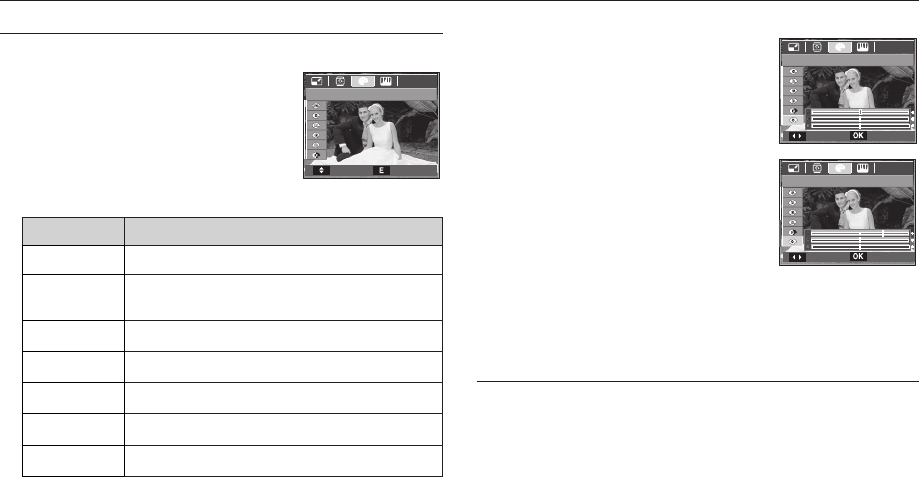
57
E (Effect) button : Image editing
Custom colour
You can change the R (Red), G (Green) and
B (Blue) values of the image.
- OK button : Save the changed
value of Custom Color
- Up / Down button : Selects R, G, B
- Left / Right button : Change the values
1. Press the play back button and press the E button.
2. Select (
) menu tab by pressing the Left/Right button.
Setting up the play back function using the camera buttons
It is possible to add colour effects to your images by using this button.
1. Press the play mode button and press the
E button.
2. Select (
) menu tab by pressing the
Left / Right button .
3. Select a desired sub menu by pressing
the Up / Down button and press the OK
button.
Colour Description
Captured images will be stored in black and white.
Captured images will be stored in a sepia tone
(a gradient of yellowish brown colours).
Captured images will be stored in a red tone.
Captured images will be stored in a green tone.
Captured images will be stored in a blue tone.
Saves the image in negative mode.
Captured images will be stored in set RGB tone.
4. The changed image is saved as a new fi le name.
E (Effect) button : Colour
Custom Color
Custom Color
Move Set
Move Set
COLOR
Move Exit
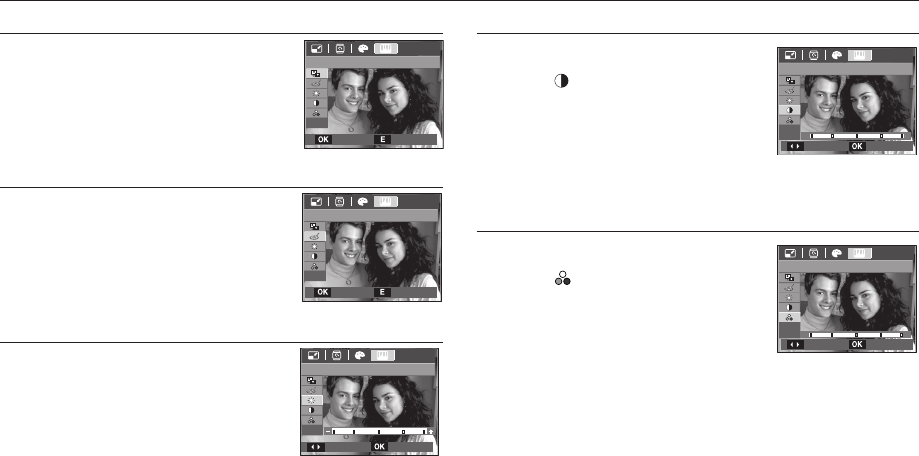
58
Setting up the play back function using the camera buttons
Red eye Removal
Red eye effect can be removed from the captured
image.
1. Select () by pressing the Up/Down
button and press the OK button.
2. The image is saved as a new fi le name.
Brightness control
You can change the brightness of the image.
1. Select (
) by pressing the Up/Down
button and a bar for selecting the
brightness will be displayed.
2. Change the brightness by pressing the
Left/Right button.
3. Press the OK button and the image will be saved as a new fi le name.
ACB
ACB(Auto Contrast Balance) is to adjust the
contrast automatically.
1. Select (
) by pressing the Up/Down
button and press the OK button.
2. The image is saved as a new fi le name.
Contrast control
You can change the contrast of the image.
1. Select ( ) by pressing the Up/Down button
and a bar for selecting the contrast will be
displayed.
2. Change the contrast by pressing the Left/
Right button.
3. Press the OK button and the image will be saved as a new fi le name.
Saturation control
You can change the saturation of the image.
1. Select ( ) by pressing the Up/Down
button and a bar for selecting the saturation
will be displayed.
2. Change the saturation by pressing the
Left/Right button.
3. Press the OK button and the image will be saved as a new fi le name.
ACB
Set Back
Brightness
Move Set
Red Eye Fix
Set Back
Contrast
Move Set
Saturation
Move Set
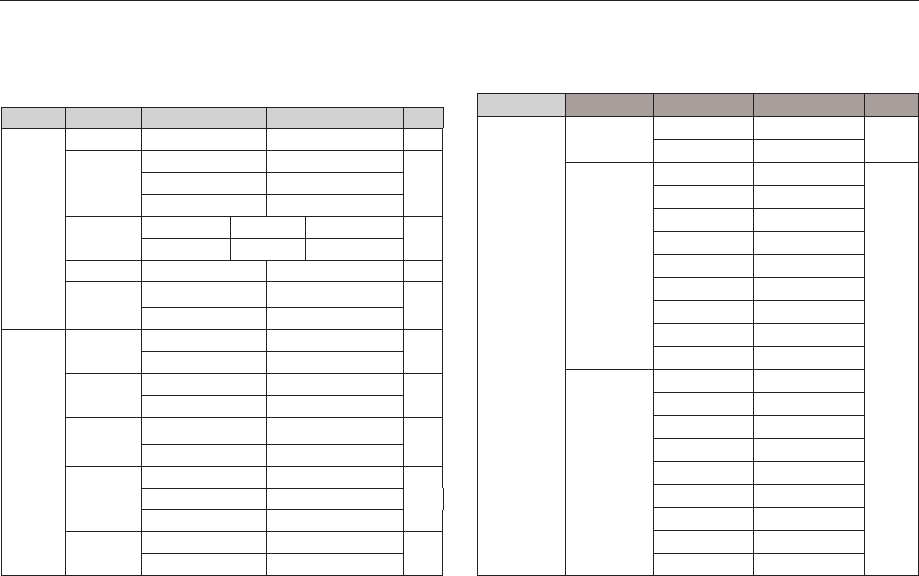
59
Menu Tab Main Menu Sub Menu Secondary Menu Page
Images One Pic - p.68
All Pics -
Size
Auto -
p.68
PostCard -
Card -
4X6 -
L-
2L -
Letter -
A4 -
A3 -
Layout
Auto -
Full -
1-
2-
4-
8-
9-
16 -
Index -
This menu is available while the camera is connected to a PictBridge
supporting printer (direct connection to the camera, sold separately) with a
USB cable.
Setting up the play back function using the LCD monitor
PLAY mode functions can be changed by using the LCD monitor.
In the PLAY mode, pressing the MENU button displays the menu on the LCD
monitor. The menus you can set up in Play mode are as follows. To capture
an image after setting up the play menu, press the PLAY mode button or
shutter button.
Menu Tab Main Menu Sub Menu Secondary Menu Page
MULTI
SLIDE
SHOW
()
Show
Play / Repeat Play
-p.60
Images
All -
p.61Date -
Select -
Effect Off Basic Classic p.61
Memories Rhythmic Delight
Interval 1, 3, 5, 10 sec - p.62
Music Off Panorama p.62
First Smile Remembrance
PLAY
BACK
()
Voice Memo Off - p.62
On -
Protect Select - p.63
All Lock / Unlock
Delete Select - p.63
All
No / Yes
DPOF
Standard
Select / All Pics / Cancel
p.64Index
No / Yes
Size
Select / All Pics / Cancel
Copy To
Card
No - p.66
Ye s -
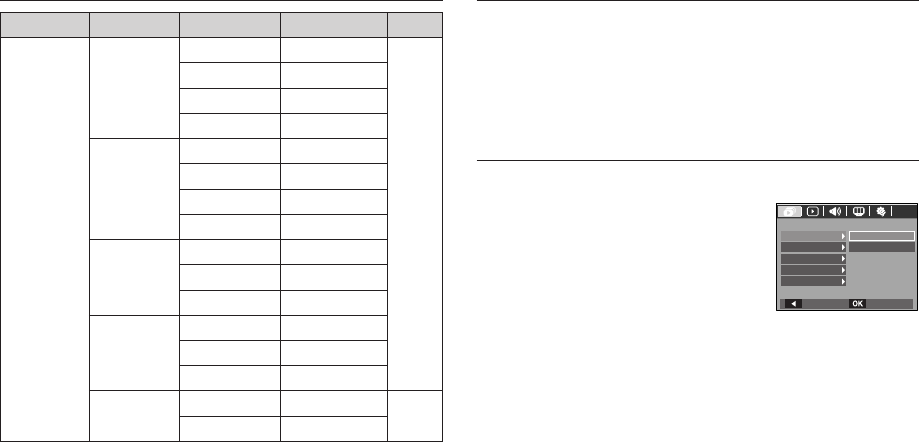
60
Setting up the play back function using the LCD monitor
Menu Tab Main Menu Sub Menu Secondary Menu Page
Type
Auto -
p.68
Plain -
Photo -
FastPhoto -
Quality
Auto -
Draft -
Normal -
Fine -
Date Print
Auto -
Off -
On -
File Name
Auto -
Off -
On -
Reset No - p.69
Ye s -
K Menus are subject to change without prior notice.
Images can be displayed continuously at pre-set intervals. You can view the
slide show by connecting the camera to an external monitor.
1. Press the play mode button and press the menu button.
2. Press the LEFT / RIGHT button and select the [MULTI SLIDE SHOW]
(
) menu tab.
Start the multi slide show
The multi slide show can start only in the [Show] menu.
1. Use the Up / Down buttons to select the
[Show] menu and press the Right button.
2. Select a desired sub menu by pressing the
Up / Down button.
[Play] : The multi slide show is
closed after one cycle.
[Repeat Play] : The multi slide show is repeated until cancelled.
3. Press the OK button and the multi slide show will be started.
- To pause the multi slide shown while playing it back, press the play
& pause(
) button again.
- Pressing the play & pause(
) button again will cause the multi
slide show restart.
- To stop playback of the multi slide show, press the play & pause
(
) button, and then press the MENU / OK button.
Multi slide show (
)
MULTI SLIDE SHOW
Play
Repeat Play
Show
Images
Effect
Interval
Back Set
Music
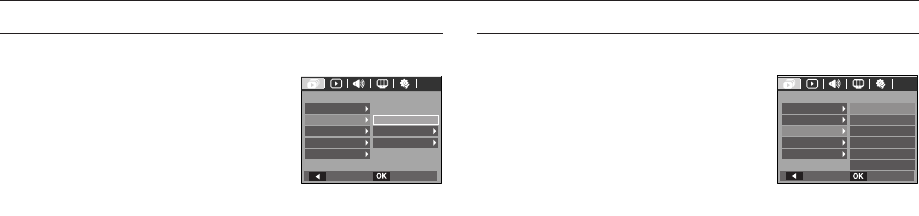
61
Confi gure multi slide show effects
Unique screen effects can be used for the multi slide show.
1. Select the [Effect] sub menu by pressing
the UP / DOWN button and press the
RIGHT button.
2. Use the Up / Down button to select the
type of effect.
[Off] : No effect.
[Basic] : Fade In/Out effect is added and the Images are displayed
at set intervals.
[Classic] : You can add noise to the image to give a classic feel.
[Memories] : Scratches are added to give an old movie effect.
[Rhythmic] : Images are displayed with a special effect.
[Delight] : Images are displayed with a special effect.
3. Press the OK button to confi rm the setting.
Selecting Images
You can select image to view
1. Use the Up / Down buttons to select the
[Image] menu and press the Right button.
2. Select a desired sub menu by pressing the
Up / Down button.
[All] : All images saved in the Memory
are played back.
[Date] : Images taken in a specifi ed date are played back.
Press the Right button and choose the date.
[Select] : Play only the selected images. If you press the Right button,
you can select the desired images to play back. The selected
image can be saved as [Select1], [Select2] and [Select3]. If
you save the selected image with the [New Select] command,
it will be saved as [Select1]. But when a new image is saved
again using [New Select], the former image which had been
saved as [Select1] will be saved as [Select2] automatically.
You can change and cancel the images which were saved as
[Select1], [Select2] and [Select3].
3. Press the OK button and the settings are saved.
4. Select [Play] or [Repeat Play] in the [Show] menu to start the multi slide
show.
Multi slide show (
)
Back Set
MULTI SLIDE SHOW
Show
Images
Effect
Interval
Classic
Memories
Rhythmic
Delight
Basic
Music
Off
Back Set
Show
Images
Effect
Interval
MULTI SLIDE SHOW
All
Date
Select
Music
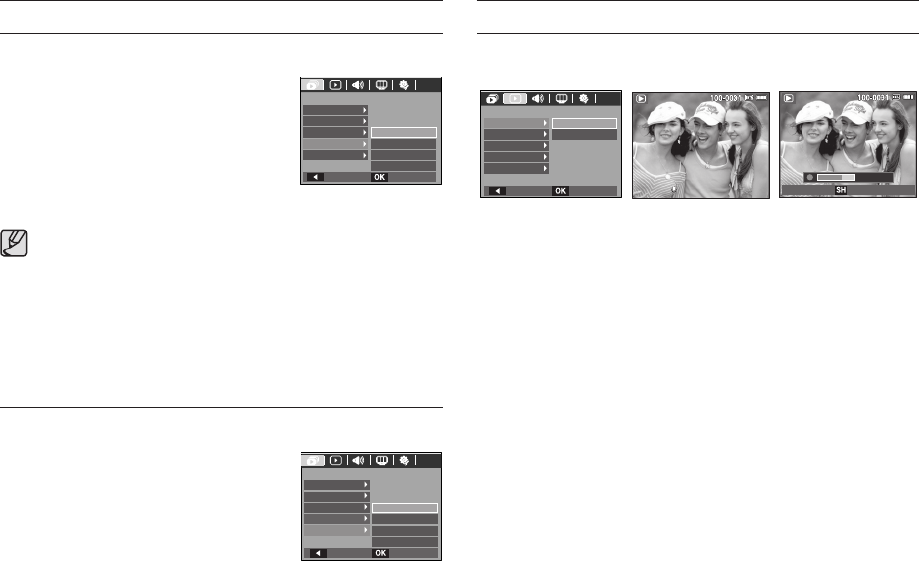
00:00:05
Start
Start
:
:
Shutter
Shutter
62
Multi slide show (
)
Setting play interval
Set the multi slide show play interval.
1. Select the [Interval] sub menu by pressing
the UP / DOWN button and press the
RIGHT button.
2. Use the Up / Down buttons to select the
desired interval.
3. Press the OK button to save the
confi guration.
The loading time depends on the image size and quality.
While the multi slide show is playing, only the fi rst frame of a
MOVIE fi le is displayed.
While the multi slide show is playing, the voice recording fi le will not
be displayed.
The interval menu functions in the [Off], [Basic] and [Classic] menu
only.
x
x
x
x
Setting Background Music
Set the multi slide show music.
1. Select the [Music] sub menu by pressing
the UP / DOWN button and press the
RIGHT button.
2. Use the Up / Down buttons to select the
desired Music.
3. Press the OK button to save the
confi guration.
Playback (
)
Voice memo
You can add your voice to a stored still image.
[Voice memo menu] [Ready for recording] [Voice is recording]
- Press the shutter button to take a picture. The images are saved on the
memory. After saving the image, the voice will record for 10 seconds.
- To stop the recording, press the shutter button.
MULTI SLIDE SHOW
Show
Images
Effect
Interval
Music
1sec
Back Set
3sec
5sec
10sec
MULTI SLIDE SHOW
Show
Images
Effect
Interval
Music
Off
Back Set
Panorama
First Smile
Remembrance
PLAYBACK
On
OffVoice Memo
Protect
Delete
DPOF
Copy to Card
Back Set Stop
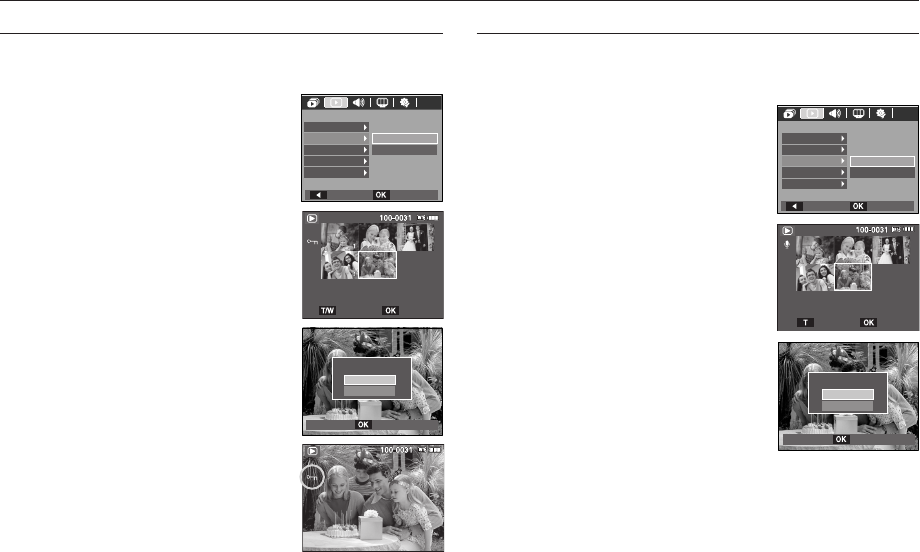
63
Deleting images
This deletes images stored on the memory. If the memory card is inserted,
images on the memory card are deleted. Otherwise, images in the internal
memory are deleted.
1. Press the Up / Down button and select the
[Delete] menu tab. And then press the Right
button.
2. Select a desired sub menu by pressing
the UP / DOWN button and press the OK
button.
[Select] : Selection window for an image to
be deleted is displayed.
- Up/ Down/ Left/ Right : Select an image
- Zoom T Button : Select the image for
deletion. ( V mark)
- OK Button :
Press the OK button to display
the confi rmation message.
Select the [Yes] menu and
press the OK button to delete
V marked images.
[All] : Displays confi rmation window. Select the
[Yes] menu and press the OK button to
delete all unprotected images. If there aren’t
protected images, all the images are deleted
and a [No Image!] message will appear.
3. After deletion, the screen will be changed to the play mode screen.
Protecting images
This is used to protect specifi c shots from being accidentally erased (Lock).
It also unprotects images that have been previously protected (Unlock).
1. Press the Up / Down button and select
the [Protect] menu tab. And then press the
Right button.
2. Select a desired sub menu by pressing
the UP / DOWN button and press the OK
button.
[Select ] : Selection window for an image
to be protected / released is
displayed.
- Up / Down / Left / Right : Select an
image
- Zoom W / T Button : Protect / release
the image
- OK button : Your changes will be saved
and the menu will disappear.
[All] : Protect / release all saved images
- If you protect an image, the protect
icon (
) will be displayed on the LCD
monitor.
(An unprotected image has no indicator)
- An image in LOCK mode will be
protected from the [Delete] functions, but
will NOT be protected from the [Format]
function.
Playback (
)
Voice Memo
Protect
Delete
DPOF
Copy To Card
Back Set
PLAYBACK
All
Select
Delete
Select
Delete All?
No
Ye s
Comfirm
All
Voice memo
Protect
Delete
DPOF
Copy To Card
Back Set
PLAYBACK
Select
Unlock Set
Protect All?
Unlock
Lock
Confirm
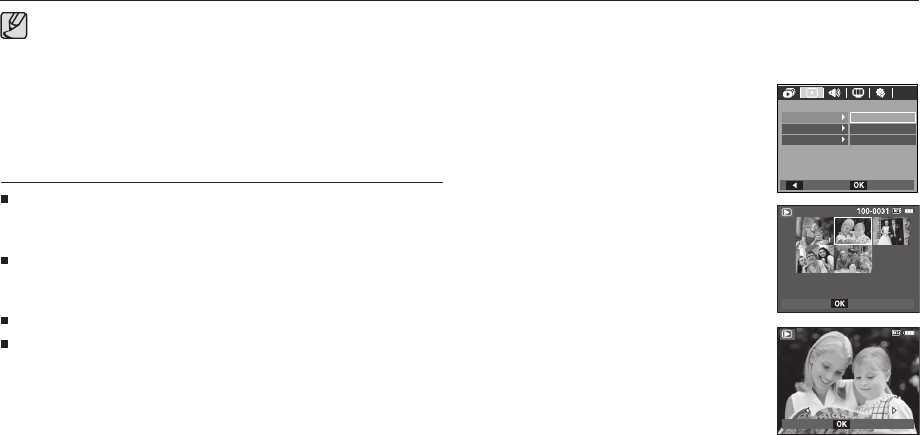
64
Playback (
)
DPOF
DPOF(Digital Print Order Format) allows you to embed printing
information on your memory card’s MISC folder. Select the pictures to be
printed and how many prints to make.
The DPOF indicator will appear on the LCD monitor when an image that
has DPOF information plays back. Images can then be printed on DPOF
printers, or at an increasing number of photo labs.
This function is not available for Movies and Voice recording fi les.
When the wide angle image is printed as a wide angle print, 8% of the left
and right side of the image might not be printed. Check that your printer
can support the wide angle image when you print the image. When you
print the image at a photo lab, request that the image is printed as a wide
angle image. (Some photo labs may not support the wide angle size print.)
Of all the fi les stored in the memory card, the unprotected fi les
in the DCIM subfolder will be deleted. Remember that this will
permanently delete unprotected images. Important shots should
be stored on a computer before deletion takes place. The startup
image is stored in the camera’s internal memory (i.e., not on the
memory card) and it will not be deleted even if you delete all fi les
on the memory card.
x
Standard
This function allows you to embed printing quantity information on a stored
image.
1. Press the Up / Down button and select
the [DPOF] menu tab. And then press the
Right button.
2. Press the Right button again and
[Standard] sub menu will display.
3. Select a desired sub menu by pressing
the Up / Down button and press the OK
button.
[Select] : Selection window for an image to
print is displayed.
- Up / Down / Left / Right : Select an
image to
print.
- Zoom W / T Button : Select the number
of prints.
[All Pics] : Confi gure number of prints for all
pictures except movie and voice
fi les.
- W / T button : Select a number of prints
[Cancel] : Cancel the print setup.
4. Press the OK button to confi rm the setting.
If an image carries DPOF instructions, the DPOF indicator () will
show.
Back Set
Standard
PLAYBACK
Size
All Pics
Cancel
Select
Index
Set
Set
W
W
00 Images
00 Images
T
T
W
00 Images
T
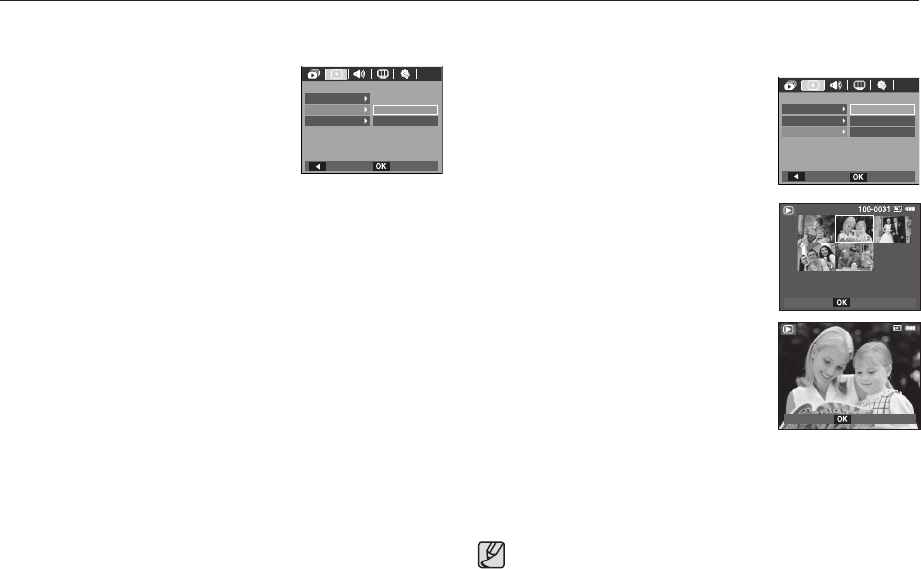
65
Print size
You can specify the print size when printing images stored on the memory
card. The [Size] menu is available only for DPOF 1.1 compatible printers.
1. Press the Up / Down button and select the
[DPOF] menu tab. And then press the Right
button.
2. Press the Right button again and select the
[Size]. Sub menu will display.
3. Select a desired sub menu by pressing the
UP / DOWN button and press the OK button.
[Select] : Selection window to change
the printed size of the image is
displayed.
- Up / Down / Left / Right : Select an
image.
- Zoom W / T Button : Change the print
size.
- OK button : Your changes will be saved
and the menu will disappear.
[All Pics] : Change print size of all saved
images.
- W / T button : Select a print size.
- OK button : Confi rm the changed setting.
[Cancel] : Cancel all of the print size settings.
K DPOF [Size] secondary menu : Cancel, 3X5, 4X6, 5X7, 8X10
Depending on the manufacturer and print model, cancelling the
printing may take a little longer for the printer to process.
x
Playback (
)
Index
Images (except for movies and voice fi le) are printed as index type.
1. Press the Up / Down button and select
the [DPOF] menu tab. And then press the
Right button.
2. Press the Right button again and [Index]
sub menu will display.
3. Select a desired sub menu by pressing the
UP / DOWN button.
If [No] is selected : Cancel the index print setting.
If [Yes] is selected : The image will be printed in index format.
4. Press the OK button to confi rm the setting.
Set
W
W
Cancel
Cancel
T
T
Set
Back Set
Standard
PLAYBACK
Size Cancel
All Pics
Select
Index
W
Cancel
T
Back Set
Standard
PLAYBACK
Size
No
Ye s
Index

66
Playback (
)
Copy To Card
This enables you to copy image fi les, movies and voice recording fi les to the
memory card.
1. Select the [Copy To Card] menu tab by
pressing the Up / Down button. And then
press the Right button.
2. Select a desired sub menu by pressing
the UP/ DOWN button and press the OK
button.
- [No] : Cancels “Copy to Card”.
- [Yes] : All images, movies and voice recording fi les saved in the
internal memory are copied to the memory card after the
[Processing!] message is displayed. After copying has been
completed, the screen will return to play mode.
[Copy To Card] will not be selected without inserting a memory card.
If there is not enough space available in the memory card to copy
saved images in the internal memory (10 MB), the [Copy To Card]
command will copy only some of the images and display [Memory
Full!] message. Then the system will return to the playback mode.
Please be sure to delete any unnecessary fi les to free up space
before inserting the memory card into the camera.
When you move the images that are stored in the internal memory
by doing [Copy To Card] to the card, the next number of fi le names
will be created in the card to avoid duplication of the fi le name.
- When the [Reset] of the [File] setup menu is set : The copied fi le
names start from after the last stored fi le name.
- When the [Series] of the [File] setup menu is set : The copied
fi le names start from after the last captured fi le name. After
completing [Copy To Card], the last stored image of the last
copied folder is displayed on the LCD monitor.
x
x
x
PLAYBACK
DPOF
Copy To Card
Ye s
No
Voice Memo
Protect
Delete
Back Set
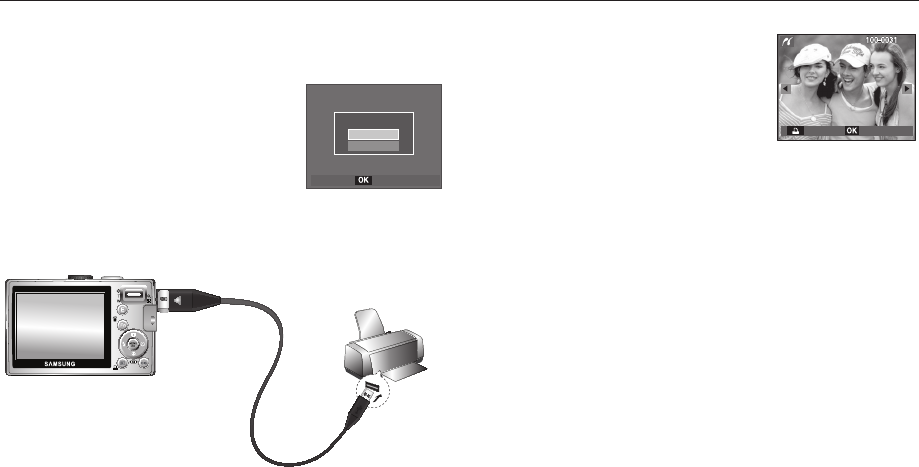
67
Easy printing
When you connect the camera to printer in the
Play back mode, you can print a picture easily.
- Pressing the Left / Right button :
Selects a previous / next image.
- Pressing the printer (
) button :
Currently displayed image will be printed
with the printer’s default setting.
PictBridge
You can use the USB cable to connect this camera to a printer that supports
PictBridge (sold separately) and print the stored images directly.
Movies and voice fi les cannot be printed.
Setting up the camera for connection to
the printer
1. Connect the camera and printer with USB
cable.
2. Select the [Printer] menu by pressing Up /
Down button and press the OK button.
Connecting the Camera to a Printer
K If the [USB] menu is set to the [Computer], you cannot connect a
Pictbridge compatible printer to the camera through USB cable with
[Connecting Computer] message. In this case, remove the cable and
repeat steps 1 and 2.
MenuPrint
Select USB
Computer
Printer
Confirm
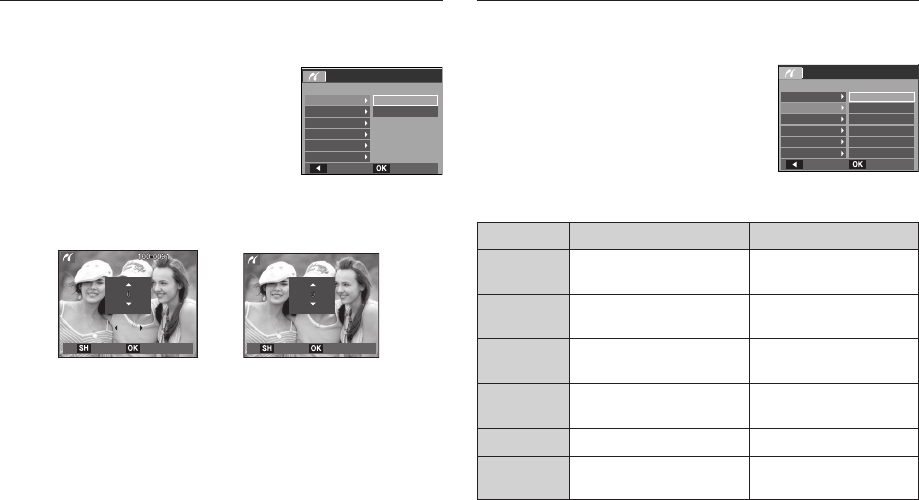
#
#
Suhy#
Suhy#
Qh{w
Qh{w
68
PictBridge : Picture Selection
You can select images you want to print.
Setting the Number of Copies to Print
1. Press the Menu button and the PictBridge
menu will be displayed.
2. Use the Up / Down buttons to select the
[Images] menu and press the Right button.
3. Use the Up / Down buttons to select
a desired sub menu and press the OK
button.
- Select [One Pic] or [All Pics]. A screen where you can set the
number of copies to print will appear as shown below.
[When [One Pic] is selected] [When [All Pics] is selected]
4. Press the Print (
) button and images will be printed.
- Press the Up / Down button to select the number of prints.
- When [One Pic] is selected : Use the Left / Right button to select
another picture. After selecting another
picture, select the number of prints for
another picture.
- After setting the number of prints, press the OK button to save.
- Press the Shutter button to return to the menu without setting the
number of prints.
PictBridge : Print Setting
You can select the Paper Size, Print Layout, Paper Type, Print Quality, Date
Print, and File Name Print menus for printed pictures.
1. Press the Menu button and the PictBridge
menu will be displayed.
2. Use the Up / Down buttons to select the
desired menu, and then press the Right
button.
3. Use the Up / Down buttons to select the
desired sub menu value, and then press
the OK button.
Menu Function Sub menu
Size Set the size of the printing
paper Auto, PostCard, Card, 4×6,
L, 2L, Letter, A4, A3
Layout Set the number of pictures to
be printed on a sheet of paper Auto, Full,
1, 2, 4, 8, 9, 16, Index
Type Set the quality of the printing
paper Auto, Plain, Photo,
FastPhoto
Quality Set the quality of the picture to
be printed Auto, Draft, Normal, Fine
Date Print Set whether to print the date Auto, Off, On
File Name Set whether to print the fi le
name Auto, Off, On
K Some menu options are not supported on all printers.
If not supported, the menus are still displayed in the LCD, but are not
selectable.
Back Set
Pictbridge
All Pics
One PicImages
Size
Layout
Typ e
Quality
Date Print
Exit Set Exit Set
Pictbridge
PostCard
AutoImages
Size
Layout
Type
Quality
Date Print
Back Set
Card
4X6
L
2L
#
#
Suhy#
Suhy#
Qh{w
Qh{w
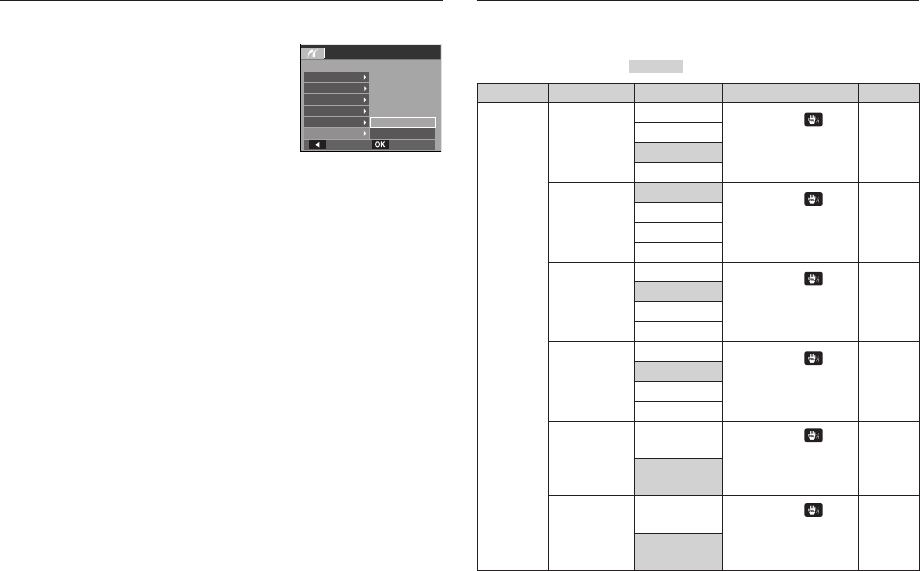
69
Sound menu
In this mode, you can set up sound settings. You can use the setup menu in
all camera modes, except Voice Recording mode.
The items indicated by are default settings.
Mode Menu Sub Menu Available mode Page
(SOUND)
Volume
Off
p.70
Low
Medium
High
Start Sound
Off
p.70
Sound 1
Sound 2
Sound 3
Shutter Sound
Off
p.70
Sound 1
Sound 2
Sound 3
Beep Sound
Off
p.70
Sound 1
Sound 2
Sound 3
AF Sound
Off
p.70
On
Self Portrait
Off
p.70
On
PictBridge : Reset
Initialises user-changed confi gurations.
1. Use the Up / Down buttons to select the
[Reset] menu tab. And then press the
Right button.
2. Use the Up / Down buttons to select the
desired sub menu value, and then press
the OK button.
If [No] is selected : Settings will not be
reset.
If [Yes] is selected : All print and image settings will be reset.
K Default print setting varies depending on the printer manufacturer.
For your printer’s default setting, refer to the user’s guide that came with
your printer.
Pictbridge
Layout
Type
Quality
Date Print
File Name
Reset
Back Set
Ye s
No
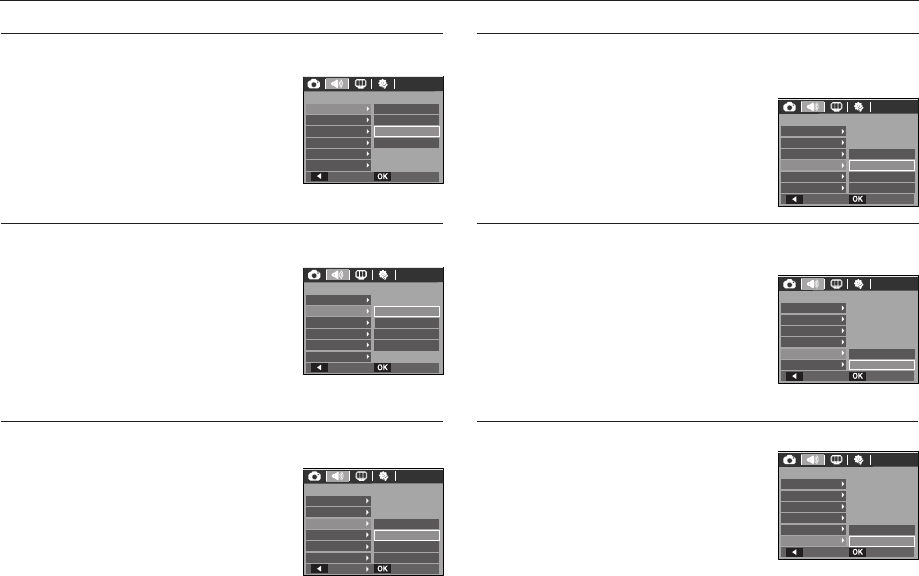
70
Sound ()
Volume
You can select a volume of start up sound, shutter sound, beep sound and
AF sound.
- [Volume] sub menu : [Off], [Low], [Medium],
[High]
Start up sound
You can select the sound that is activated whenever the camera is turned on.
- [Start Sound] sub menu : [Off], [Sound 1],
[Sound 2],
[Sound 3]
Shutter sound
You can select the shutter sound.
- [Shutter sound] sub menu : [Off], [Sound 1],
[Sound 2],
[Sound 3]
Beep Sound
If you set sound to ON, various sounds will be activated for camera startup,
when buttons are pressed, so that you can be aware of the camera operation
status.
- [Beep Sound] sub menu :
[Off], [Sound 1],
[Sound 2], [Sound 3]
AF sound
If you set AF sound to ON, AF sound will be activated when a subject is
focused so that you can be aware of the camera operation status.
- [AF sound] sub menu : [Off], [On]
Self Portrait
This occurs when it automatically detects the subject’s face when taking a
self-portrait.
- Self-portraits can be set by using the [Off]
and [On] menu.
OffVolume
Low
Shutter Sound
Beep Sound
AF Sound
Back Set
SOUND
Start Sound
Medium
High
Volume
Shutter Sound
Off
Beep Sound
AF Sound
Sound 1
Sound 2
Back Set
Sound 3
SOUND
Start Sound
SOUND
Start Sound
Off
Volume
Shutter Sound
Beep Sound
AF Sound
Sound 1
Sound 2
Back Set
Sound 3
Self Portrait
Self Portrait
Self Portrait
SOUND
Start Sound
Off
Volume
Shutter Sound
Beep Sound
AF Sound
Sound 1
Sound 2
Back Set
Sound 3
SOUND
Start Sound
Volume
Shutter Sound
Beep Sound
AF Sound Off
Back Set
On
SOUND
Start Sound
Volume
Shutter Sound
Beep Sound
AF Sound
Self Portrait
Back Set
Off
On
Self Portrait
Self Portrait
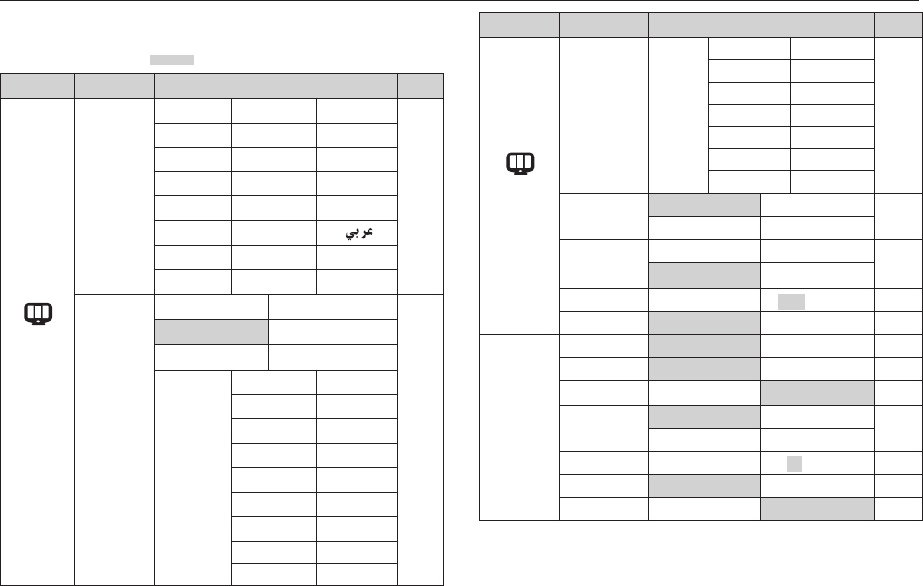
71
Menu tab Main menu Sub menu Page
(DISPLAY)
Date & Time World
time
Wellington, Auckland
Samoa, Midway
p.72
Honolulu, Hawaii
Alaska
LA, San Francisco
Denver, Phoenix
Chicago, Dallas New York, Miami
Caracas, La Paz
Newfoundland
Buenos Aires Mid-Atlantic
Cape Verde -
Start Image Off Logo p.73
User Image -
LCD Bright Auto Dark p.73
Normal Bright
Quick View Off 0.5, 1, 3 sec p.73
LCD Save Off On p.73
(SETTINGS)
Format No Yes p.74
Reset No Yes p.74
File Reset Series p.75
Imprint Off Date p.75
Date&Time -
Power Off Off 1, 3, 5, 10 min p.76
Video Out NTSC PAL p.76
AF Lamp Off On p.77
K Menus are subject to change without prior notice.
Setup menu
In this mode, you can set up basic settings. You can use the setup menu in all
camera modes, except Voice Recording mode.
The items indicated by are default settings.
Menu tab Main menu Sub menu Page
(DISPLAY)
Language
ENGLISH ֝ઘ FRANÇAIS
p.72
DEUTSCH ESPAÑOL ITALIANO
ㅔԧЁ᭛ 㐕储Ё᭛ ᣣᧄ⺆
ɊɍɋɋɄɂɃ PORTUGUÊS DUTCH
DANSK SVENSKA SUOMI
ϣιτ BAHASA
Čeština POLSKI Magyar
Türkçe
Date & Time
08/01/01 13:00
p.72
yyyy/mm/dd Off
dd/mm/yyyy mm/dd/yyyy
World
time
London
Rome,Paris,Berlin
Athens, Helsinki
Moscow
Teheran
Abu Dhabi
Kabul
Tashkent
Mumbai, New Delhi Kathmandu
Almaty
Yangon
Bangkok, Jakarta Beijing, Hong Kong
Seoul, Tokyo
Darwin, Adelaide
Guam, Sydney Okhotsk
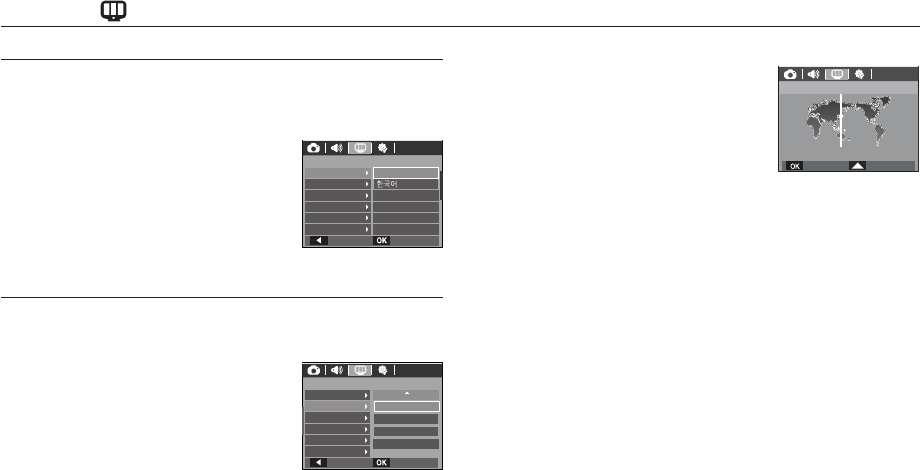
72
LANGUAGE
There is a choice of languages that can be displayed on the LCD monitor.
Even if the battery is removed and inserted again, the language setting will
be preserved.
- LANGUAGE sub menu
: English, Korean, French, German,
Spanish, Italian, S.Chinese, T.Chinese,
Japanese, Russian, Portuguese, Dutch,
Danish, Swedish, Finnish, Thai, Bahasa
(Malay / Indonesian), Arabic, Czech,
Polish, Hungarian and Turkish.
Setting up the Date / Time / Date type
You can change the date and time that will be displayed on the captured
images and set up the date type.
- Setting Date/ Time & Selecting Date
Format
RIGHT button : Selects the world time/
year/ month/day/hour/
minute and date type.
LEFT button : Moves the cursor to the
[Date&Time] main menu
if the cursor is at the fi rst item of the date and time
setup. In all other cases, the cursor will be shifted to the
left of its current position.
UP and DOWN buttons : Changes the setting value
- Date type : [yyyy/mm/dd], [Off], [dd/mm/yyyy], [mm/dd/yyyy]
DISPLAY ( )
World Time
- Available cities
: London, Cape Verde, Mid-Atlantic, Buenos
Aires, Newfoundland, Caracas, La Paz,
NewYork, Miami, Chicago, Dallas, Denver,
Phoenix, LA, San Francisco, Alaska,
Honolulu, Hawaii, Samoa, Midway,
Wellington, Auckland, Okhotsk, Guam,
Sydney, Darwin, Adelaide, Seoul, Tokyo,
Beijing, Hong Kong, Bangkok, Jakarta, Yangon, Almaty, Kathmandu,
Mumbai, New Delhi, Tashkent, Kabul, Abu Dhabi, Teheran, Moscow,
Athens, Helsinki, Rome, Paris, Berlin
DISPLAY
ENGLISH
FRANÇAIS
DEUTSCH
ESPAÑOL
ITALIANO
Language
Date&Time
Start Image
LCD Bright
Quick View
LCD Save
Back Set
Language
Date&Time
Start Image
LCD Bright
Quick View
LCD Save
Back Set
DISPLAY
yyyy/mm/dd
13:00
08/01/01
London
DISPLAY
Seoul, Tokyo
Confirm DST
2008/01/01 01:00PM
[GMT +09:00]
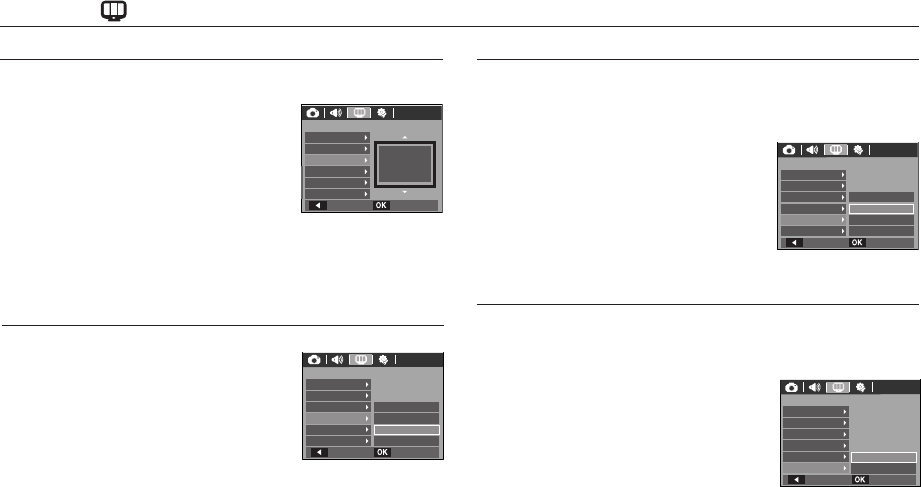
Off
73
Quick view
If you enable Quick View before capturing an image, you can view the image
you just captured on the LCD monitor for the duration set in the [Quick View]
setup. Quick view is possible only with still images.
- Sub menus
[Off] : The quick view function
can’t be activated.
[0.5, 1, 3 sec] : The captured image is
briefl y displayed during the
selected time.
LCD save
If you set the [LCD save] to On and the camera isn’t operated during the
specifi ed time, the LCD monitor will be turned off automatically.
- Sub menus
[Off]
: The LCD monitor will not be turned
off.
[On]
: If the camera isn’t operated during
the specifi ed time (about 30 SEC.),
the camera power will be idle
(Camera status lamp:Blinking)
automatically.
K You can’t set the [LCD save] menu of Playback Mode.
Start up image
You can select the image that is fi rst displayed on the LCD monitor whenever
the camera is turned on.
- Sub menus : [Off], [LOGO], [User Image]
- Use a saved image for the start-up image
with the [Start Image] in the [RESIZE]
menu in the play mode.
- The start-up image will not be deleted by
[Delete] or [Format] menu.
- The User images will be deleted by [Reset] menu.
LCD brightness
You can adjust the LCD brightness.
- Sub menus : [Auto], [Dark], [Normal],
[Bright]
DISPLAY ( )
Off
1sec
3sec
0.5sec
Back Set
DISPLAY
Language
Date & Time
Start Image
LCD Bright
Quick View
LCD Save
Back Set
On
Off
Language
Date & Time
Start Image
LCD Bright
Quick View
LCD Save
DISPLAY
DISPLAY
Language
Date & Time
Start Image
LCD Bright
Quick View
Back Set
LCD Save
Back
Language
Date & Time
Start Image
LCD Bright
Quick View
LCD Save
Set
DISPLAY
Bright
Dark
Normal
Auto
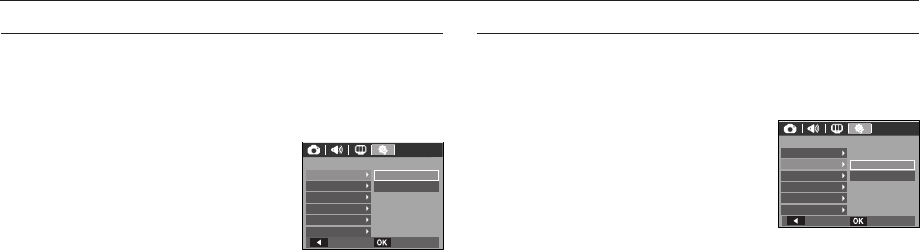
74
Formatting a memory
This is used for formatting the memory. If you run [Format] on the memory, all
images, including the protected images, will be deleted. Be sure to download
important images to your PC before formatting the memory.
- Sub menus
[No]
: The memory will not be formatted.
[Yes] : A window is displayed to confi rm the
selection. Select the [Yes] menu. A
[Processing!] message appears and
the memory will be formatted. If you
run FORMAT in Play mode, a [No
Image!] message will appear.
Be sure to run [Format] on the following types of memory card.
- A new memory card, or an unformatted memory card
- A memory card that has a fi le this camera can’t recognise or one that
has been taken from another camera.
- Always format the memory card using this camera. If you insert a
memory card that has been formatted using other cameras, memory
card readers, or PCs, you will get a [Card Error!] message.
SETTINGS (
)
Initialisation
All camera menu and function settings will be restored to their default values.
However, values for DATE / TIME, LANGUAGE, and VIDEO OUT will not be
changed.
- Sub menus
[No]
: Settings will not be restored to their
defaults.
[Yes] : A window to confi rm the selection
will be displayed. Select the [Yes]
menu and all settings will be restored
to their defaults.
Back Set
Ye s
No
SETTINGS
Reset
Format
File
Power Off
Video Out
Imprint
Back Set
Ye s
No
SETTINGS
Reset
Format
File
Power Off
Video Out
Imprint
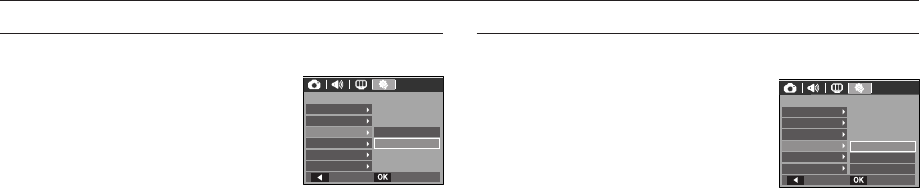
75
Imprinting the recording date
There is an option to include DATE / TIME on still images.
- Sub menus
[Off] : The DATE & TIME will not
be imprinted on the image
fi le.
[Date] : Only the DATE will be
imprinted on the image fi le.
[Date&Time] : The DATE & TIME will be imprinted on the image fi le.
K The Date & Time are imprinted at the bottom right side of the still image.
K The imprint function is applied only to still images.
K Depending on the manufacturer and print mode, the date printed on an
image may not be printed correctly.
SETTINGS (
)
File name
This function allows the user to select the fi le naming format.
[Reset] : After using the reset function, the next
fi le name will be set from 0001 even
after formatting, deleting all or inserting
a new memory card.
[Series] : New fi les are named using numbers
that follow the previous sequence, even
when a new memory card is used, or
after formatting, or after deleting all pictures.
- The fi rst stored folder name is 100SSCAM, and the fi rst fi le name
SDC10001.
- File names are assigned sequentially from SDC10001,
SDC10002 ~ SDC19999.
- The folder number is assigned sequentially from 100 to 999 as follows:
100SSCAM, 101SSCAM ~ 999SSCAM.
- Maximum number of fi les in a folder is 9999.
- The fi les used with the memory card conform to the DCF (Design rule
for Camera File systems) format. If you change the image fi le name,
the image may not play back.
Back Set
Date
Date&Time
Off
SETTINGS
Reset
Format
File
Power Off
Video Out
Imprint
SETTINGS
Reset
Reset
Format
Series
File
Power Off
Video Out
Imprint
Back Set
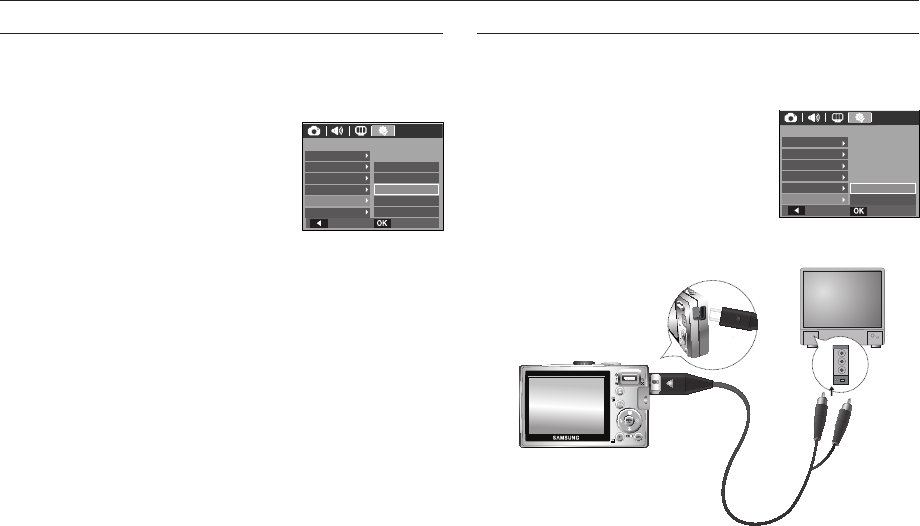
76
SETTINGS (
)
Auto power off
This function switches the camera off after a set amount of time in order to
prevent unnecessary battery drainage.
- Sub menus
[Off] : The power off function
will not operate.
[1, 3, 5, 10 min] : The power will turn off
automatically if not used
for the period of time
specifi ed.
- After replacing the battery, the power off
setting will be preserved.
- Note that the automatic power off function will not operate if the camera
is in the PC / Printer mode, multi slide show, playing back a voice
recording and playing back a movie.
Selecting Video out type
The Movie output signal from the camera can be NTSC or PAL.
Your choice of output will be governed by the type of device (monitor or TV,
etc.) to which the camera is connected. PAL mode can support only BDGHI.
Connecting to an external monitor
When the camera is connected to an external
monitor, the image and menus on the LCD
monitor will be visible on the external monitor
and the LCD monitor of the camera.
Yellow - Video
White - Sound
5min
10min
Off
Back Set
3min
1min
SETTINGS
Reset
Format
File
Power Off
Video Out
Imprint
Back Set
NTSC
PAL
SETTINGS
Reset
Format
File
Power Off
Video Out
Imprint

77
Auto Focus lamp
You can turn on and off the Auto Focus lamp.
- Sub menus
[Off] : The AF lamp will not light up in low
light conditions.
[On] : The AF lamp will light up in low light
conditions.
- NTSC : U.S.A, Canada, Japan, South Korea, Taiwan, Mexico.
- PAL : Australia, Austria, Belgium, China, Denmark, Finland,
Germany, U.K., Holland, Italy, Kuwait, Malaysia, New Zealand,
Singapore, Spain, Sweden, Switzerland, Thailand, Norway.
- When using a TV as an external monitor, you will need to select the
external or AV channel of the TV.
- There will be a digital noise on the external monitor, but it is not a
malfunction.
- If the image is not in the centre of the screen, use the TV controls to
centre it.
- When the camera is connected to an external monitor, some parts of the
image may not be displayed.
SETTINGS (
)
Back Set
SETTINGS
On
Off
Reset
File
Imprint
Power Off
Video Out
AF Lamp

78
Software Notes
Please ensure that you read the instruction manual carefully before use.
- The attached software is a camera driver and image editing software tool
for Windows.
- Under no circumstances should all or part of either the software or the
user manual be reproduced.
- Copyrights for software are licensed only for use with a camera.
- In the unlikely event of a manufacturing fault, we will repair or exchange
your camera.
We cannot, however, be held responsible in any way for damage caused
by inappropriate use.
- Using a Hand-made PC or a PC and OS that has not been guaranteed by
the manufacturer is not covered by the Samsung warranty.
- Before reading this manual, you should have a basic knowledge of
computers and O/S (Operating Systems).
System Requirements
For Windows For Macintosh
PC with processor better than
Pentium II 450MHz
(Pentium 800MHz recommended)
Power Mac G3 or later
Windows 98SE/2000/ME/XP/Vista Mac OS 10.0 ~ 10.4
Minimum 128MB RAM
(Over 512MB recommended)
200MB of available hard disk space
(Over 1GB recommend)
Minimum 64MB RAM
110MB of available hard-
disk space
USB port USB port
CD-ROM drive CD-ROM drive
1024x768 pixels, 16bit color display
compatible monitor
(24bit color display recommended)
MicroSoft DirectX 9.0C
MPlayer (For movie)
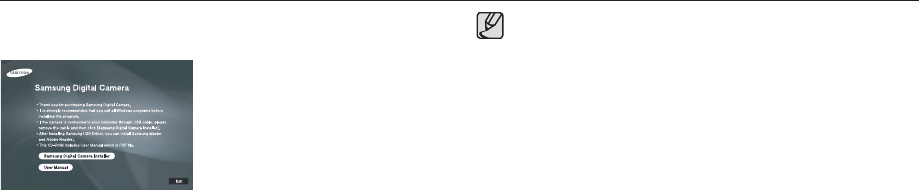
79
Be sure to check the system requirements before installing the
driver.
You should allow 5 ~ 10 seconds for running the automatic setup
program according to the capability of your computer. If the frame
does not appear, run the [Windows Explorer] and select
[Installer.exe] in the CD-ROM Drive root directory.
x
x
About the software
After inserting the CD-ROM provided with this camera into the CD-ROM
drive, the following window should automatically run.
Before connecting the camera to the PC,
you should fi rst install the camera driver.
Camera driver : This enables images to transfer between the camera and
PC.
This camera uses the USB Storage Driver as the camera driver. You
can use the camera as a USB card reader. After installing the driver
and connecting this camera to the PC, you can fi nd [Removable Disk]
in [Windows Explorer] or [My computer]. A USB Storage Driver is
provided only for Windows. A USB Driver for MAC is not included with the
Application CD. You can use the camera with Mac OS 10.0~10.4.
Samsung Master : This is the all-in-one multi media software solution.
You can download, view, edit and save your digital images and movies
with this software. This software is only compatible with Windows.
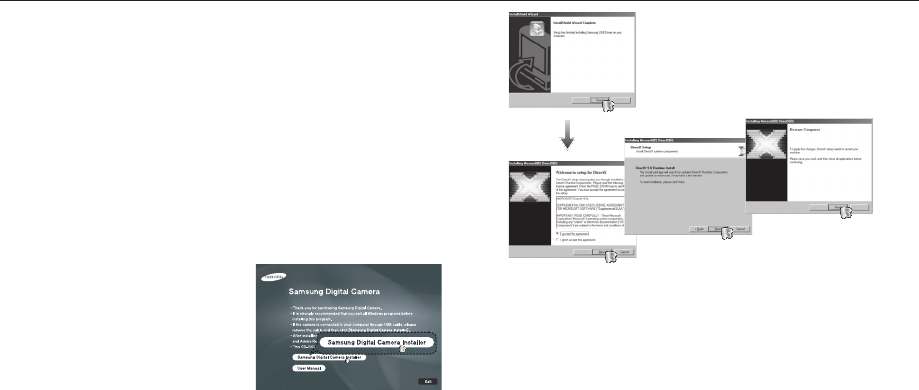
80
Setting up the application software
To use this camera with a PC, install the application software fi rst.
After this has been done, the stored images in the camera can be moved to
the PC and can be edited by an image editing program.
You can visit the Samsung web-site through the internet.
http: // www.samsungcamera.com : English
http: // www.samsungcamera.co.kr : Korean
1. The auto run frame will be displayed.
Click the [Samsung Digital Camera
Installer] menu in the Auto run frame.
2. Install the camera driver, DirectX, Samsung Master and Adobe Reader
by selecting a button shown on the monitor. If a latest version of DirectX
was installed on your computer, DirectX may not be installed.
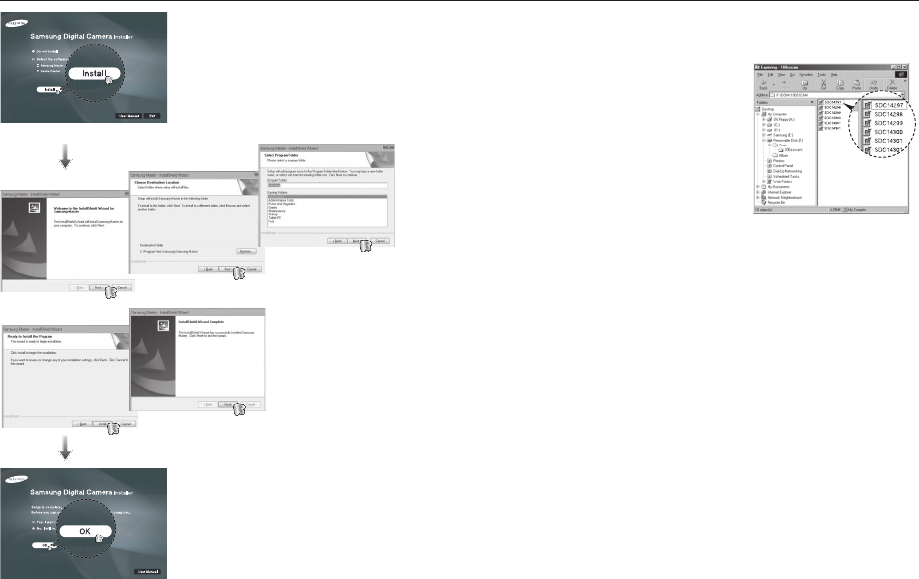
81
3. After restarting the computer, connect the PC to the camera with the
USB cable.
4. Turn the camera power on.
The [Found New Hardware Wizard] will
open and the computer will recognise
the camera.
K If your OS is Windows XP/ Vista, an
image viewer program will open.
If the download window of Samsung
Master opens after starting Samsung
Master, the camera driver was set up successfully.
Setting up the application software
82
If you have installed the camera driver, the [Found New Hardware
Wizard] may not open.
On a Windows 98SE system, the Found New Hardware Wizard
dialog box opens and a window asking you to select a driver fi le
may appear. In this case, specify “USB Driver” in the CD supplied.
PDF documents of the user manual are included in the Software
CD-ROM supplied with this camera. Search the PDF fi les with
Windows explorer.
Before opening the PDF fi les, you must install the Adobe Reader
included in the Software CD-ROM.
To install the Adobe Reader 6.0.1 correctly, Internet Explorer 5.01
or later has to be installed. Visit “www.microsoft.com” and upgrade
the Internet Explorer.
x
x
x
x
Setting up the application software Starting PC mode
If you connect the USB cable to a USB port on your PC and then turn on the
power, the camera will automatically switch to “computer connection mode”.
In this mode, you can download stored images to your PC through the USB
cable.
Camera settings for connection
1. Turn on the camera
2. Connect the camera and computer with the
supplied USB cable.
3. Turn on the computer. The camera and
computer are connected.
4. External device selection menu will be
displayed on the LCD monitor.
5. Select the [Computer] by pressing the Up /
Down button and press the OK button.
Select USB
Computer
Printer
Confirm
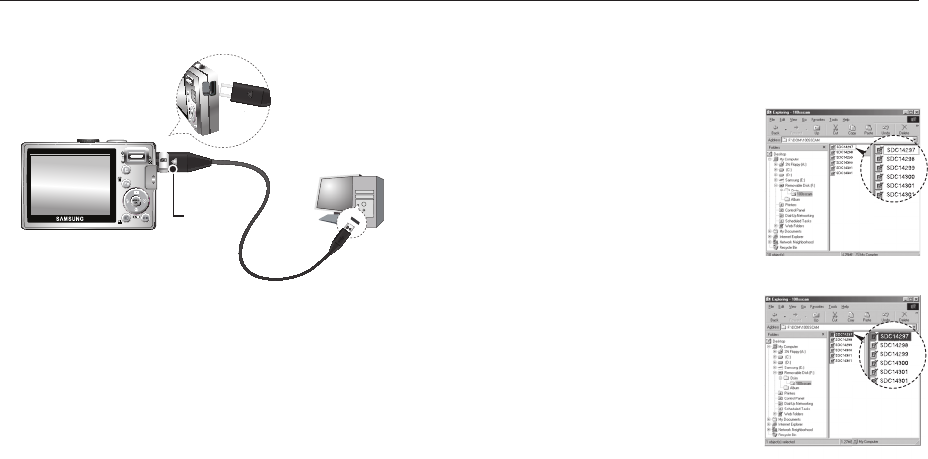
83
Downloading stored images
You can download the still images stored on the camera to your PC’s hard
disk and print them or use a photo editing software to edit them.
1. Connect the camera to your PC with the USB cable.
2. On your computer’s desktop display, select
[My computer] and double click [Removable
Disk#䮫#DCIM#䮫#100SSCAM].
The image fi les will then be displayed.
3. Select an image and press the right mouse
button.
Connecting the camera to a PC
K If you selected [Printer] in Step 5, when you connect the camera to
your computer, the [Connecting Printer] message will appear and the
connection will not be established.
In this case, disconnect the USB cable, and then follow the procedure
from Step 2 onwards.
Disconnecting the camera and PC
Refer to page 85 (Removing the removable disk).
Charging LED
Starting PC mode
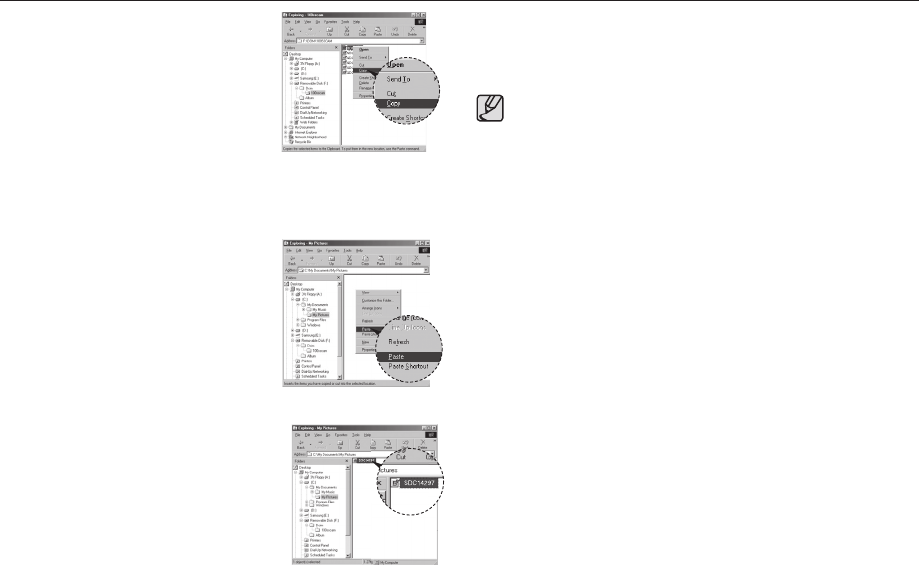
84
4. A pop-up menu will open.
Click the [Cut] or [Copy] menu.
- [Cut] : cuts a selected fi le.
- [Copy] : copies fi les.
5. Click a folder where you want to paste the fi le.
6. Press the right mouse button and a
pop-up menu will open. Click [Paste].
7. An image fi le is transferred from the
camera to your PC.
Starting PC mode
- By using [Samsung Master], you can see the stored images in the
memory directly on the PC monitor and you can copy or move the
image fi les.
We recommend that you should copy the images to the PC to view
them. Opening images directly from the removable disk may be
subject to unexpected disconnection.
When you upload a fi le that is not taken by this camera to the
Removable Disk, the [File Error!] message will be displayed on
the LCD monitor in the PLAY mode, and nothing is displayed in
THUMBNAIL mode.
x
x
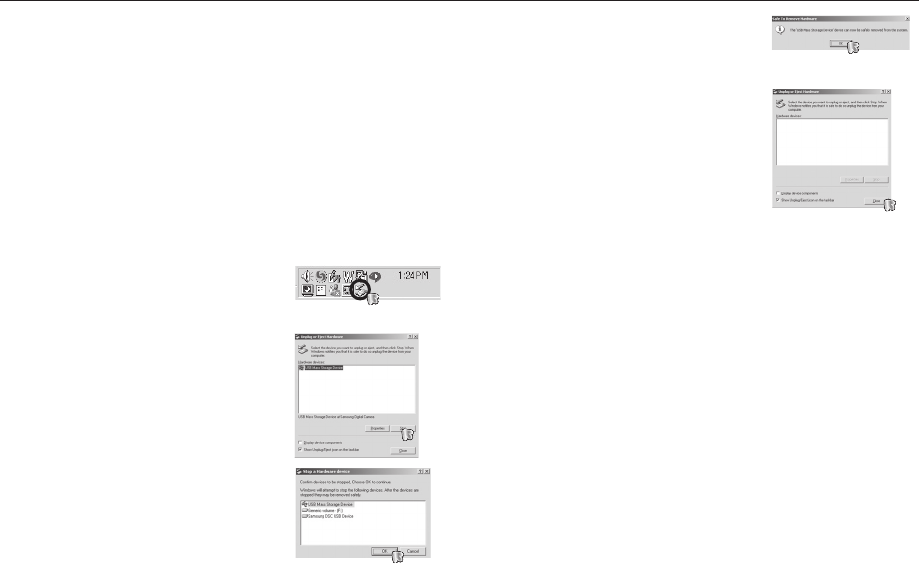
85
5. A [Safe to Remove Hardware] window will
open. Click the [OK] button.
6. A [Unplug or Eject Hardware] window
will open. Click the [Close] button and the
removable disk will be removed safely.
7. Unplug the USB cable.
Windows 98SE
1. Check whether the camera and PC are transferring a fi le.
If the camera status lamp blinks, please wait until the lamp has fi nished
blinking and is constantly on.
2. Unplug the USB cable.
Windows 2000/ME/XP/Vista
(The illustrations may differ from those shown depending on the Windows
O/S.)
1. Check whether the camera and PC are transferring a fi le.
If the camera status lamp blinks, please wait until the lamp has fi nished
blinking and is constantly on.
2. Double-click the [Unplug or Eject
Hardware] icon on the task bar.
3. The [Unplug or Eject Hardware] window
will open. Select the [USB Mass Storage
Device] and click the [Stop] button.
4. The [Stop a Hardware device] window will
open. Select the [USB Mass Storage Device]
and click the [OK] button.
Removing the removable disk
[Double-click!]
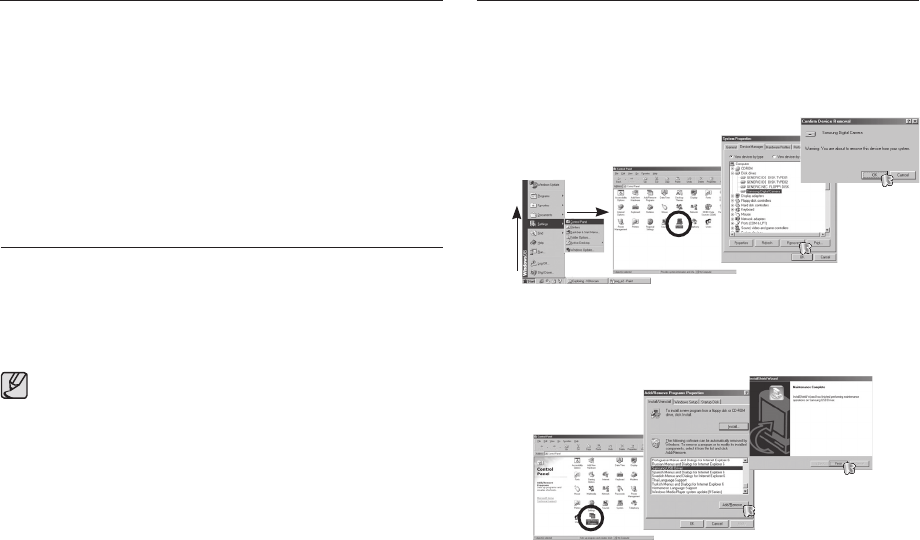
86
Setting up the USB Driver for MAC
1. A USB Driver for MAC is not included with the software CD as MAC OS
supports the camera driver.
2. Check the MAC OS version during start-up.
This camera is compatible with MAC OS 10.0 ~ 10.4.
3. Connect the camera to the Macintosh and turn the camera power on.
4. A new icon will be displayed on the desktop after connecting the
camera to the MAC.
Using the USB Driver for MAC
1. Double click a new icon on the desktop and the folder in the memory
will be displayed.
2. Select an image fi le and copy or move it to MAC.
For Mac OS 10.0 or later : First complete uploading from
computer to camera and then remove
the removable disk with the Extract
command.
x
Removing the USB Driver for Windows 98SE
To remove the USB driver, refer to the process shown below.
1. Connect the camera to your PC and turn them on.
2. Check whether the Removable Disk is on the [My Computer].
3. Remove the [Samsung Digital Camera] on the Device manager.
4 Disconnect the USB cable.
5. Remove the [Samsung USB Driver] on the Add/Remove Programs
Properties.
6. Uninstallation is complete.
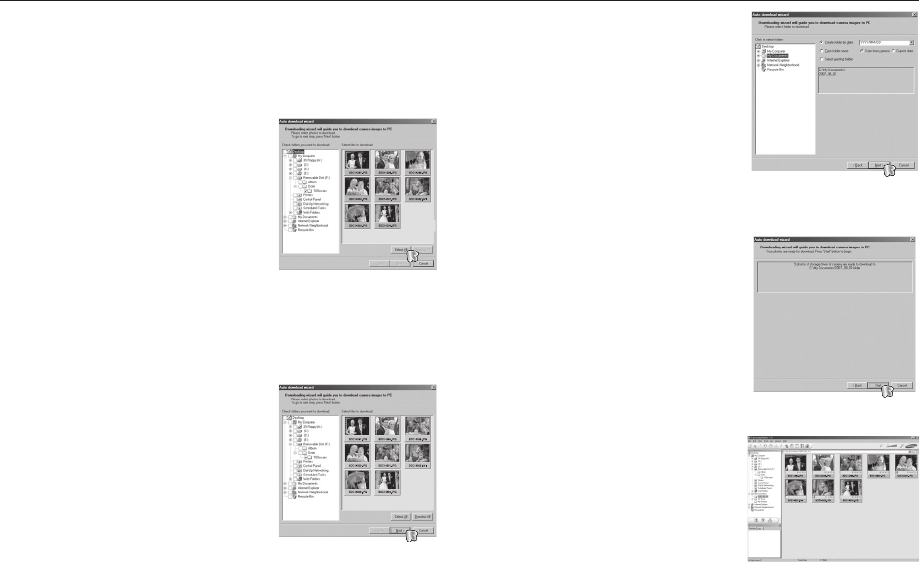
87
4. Select a destination and make a folder
to save downloaded images and
folders.
- Folder names can be made in
order of date and images will be
downloaded.
- Folder name will be made as
you want and images will be
downloaded.
- After selecting a folder that was made before, images will be
downloaded.
5. Click [Next >] button.
6. A window will open as shown alongside.
The destination of the selected folder will
be displayed on the upper side of the
window.
Click the [Start] button to download the
images.
7. Downloaded images will be displayed.
You can download, view, edit and save your images and movies with this
software. This software is only compatible with Windows.
To start the program, click [Start 䮫 Programs 䮫#Samsung 䮫
Samsung Master 䮫 Samsung Master].
Downloading images
1. Connect the camera to your PC.
2. A window for downloading images
will be displayed after connecting the
camera to your PC.
- To download the captured images,
select the [Select All] button.
- Select desired folder in the window
and click the [Select All] button. You can save captured images and
selected folder.
- If you click the [Cancel] button, downloading will be cancelled.
3. Click [Next >] button.
Samsung Master
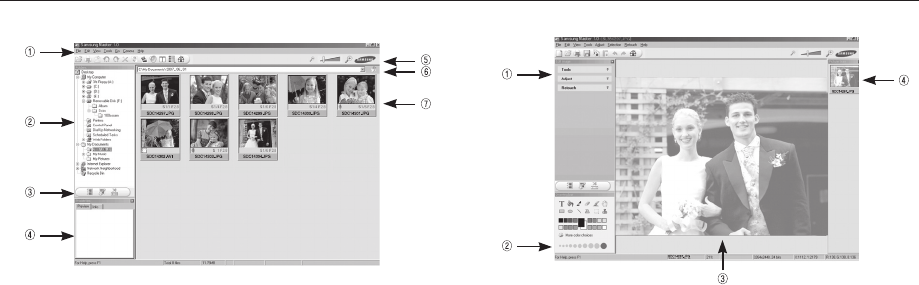
88
Image viewer : You can view the stored images.
- Image viewer functions are listed below.
1 Menu bar : You can select menus. File, Edit, View, Tools, Change
functions, Auto download, help, etc.
2 Image selection window : You can select the desired images in this
window.
3 Media type selection menu :
You can select image viewer, image edit
and movie edit functions in this menu.
4 Preview window : You can preview an image or a movie and check
the multi media information.
5 Zoom bar : You can change preview size.
6 Folder display window : You can see the folder location of the
selected image.
7 Image display window : Images of the selected folder are displayed.
K Refer to the [Help] menu in Samsung Master for further information.
Samsung Master
Image edit : You can edit the still image.
- Image edit functions are listed below.
1 Edit menu : You can select the following menus.
[Tools] : You can resize or crop the selected image. See the [Help]
menu.
[Adjust] : You can modify image quality. See the [Help] menu.
[Retouch] : You can change image or insert effects on the image.
See the [Help] menu.
2 Drawing tools : Tools for editing an image.
3 Image display window : A selected image is displayed in this
window.
4 Preview window : You can preview the changed image.
K A still image edited with Samsung Master can’t be played back on the
camera.
K Refer to the [Help] menu in Samsung Master for further information.
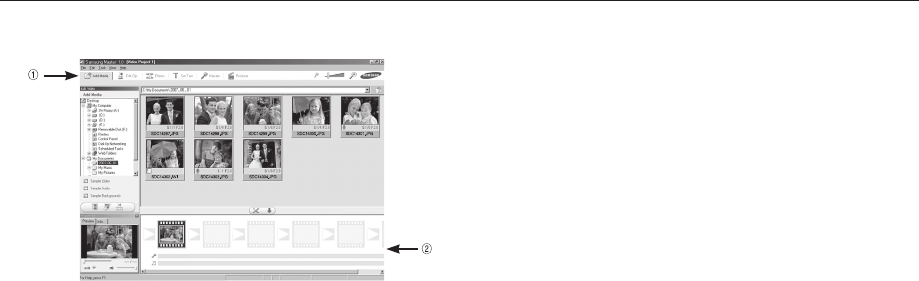
89
K Some movies that were compressed with a codec that is not
compatible with the Samsung Master.
K Refer to the [Help] menu in Samsung Master for further information.
- Movie edit functions are listed below.
1 Edit menu : You can select the following menus.
[Add Media] : You can add other media elements to a movie.
[Edit Clip] : You can change the brightness, contrast, colour and
saturation.
[Effects] : You can insert an effect.
[Set Text] : You can insert texts.
[Narrate] : You can insert a narration.
[Produce] : You can save the edited multi media as a new fi le
name.
* You can select AVI, Windows media (wmv) and
Windows media (asf) fi le types.
2 Frame display window : You can insert multi media in this window.
Movie edit : You can get the still image, movie, narration, music fi les
together in a movie.
Samsung Master
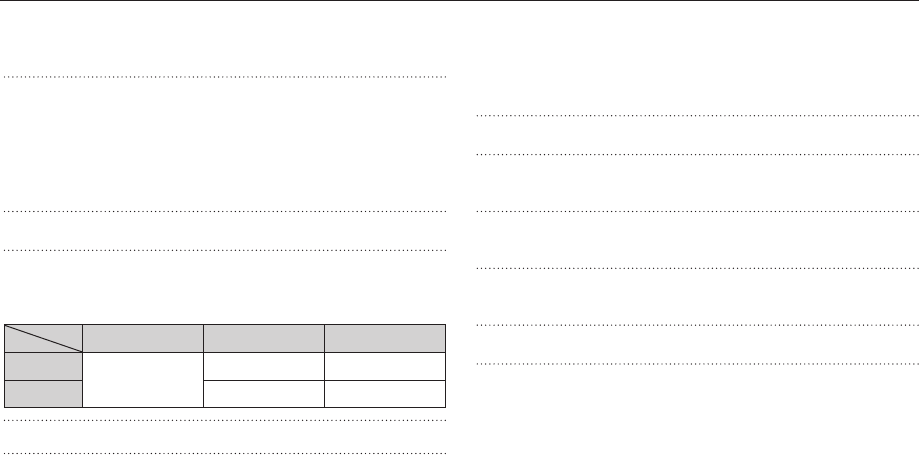
90
Specifi cations
Image Sensor - Type : 1/2.5” CCD
- Effective Pixel : Approx. 8.2 Mega-pixel
- Total Pixel : Approx. 8.3 Mega-pixel
Lens - Focal Length : SAMSUNG Lens f = 6.2 ~ 18.6mm
(35mm fi lm equivalent : 37 ~ 111mm)
- F No. : F 2.8(W) ~ F 5.2(T)
- Digital Zoom : x Still Image mode : 1.0X ~ 3.0X
xPlay mode : 1.0X ~ 10.2X
(depends on image size)
LCD Monitor - 2.5” color TFT LCD (230,000 dots)
Focusing - Type : TTL auto focus (Multi-AF, Center-AF, Face
Detection AF)
- Range
Normal Macro Auto macro
Wide 80cm ~Infi nity 5cm ~ 80cm 5cm ~ Infi nity
Tele 50cm ~ 80cm 50cm ~ Infi nity
Shutter - Speed : 1 ~ 1/1,500 sec. (Manual : 8 ~ 1/1,500 sec.)
Exposure - Control : Program AE
- Metering : Multi, Spot, Center Weighted
- Compensation : ±2EV (1/3EV steps)
- ISO : Auto, 80, 100, 200, 400, 800, 1600
Flash - Modes : Auto, Auto & Red-eye reduction, Fill-in fl ash,
Slow sync, Flash off, Red-eye Fix
- Range : Wide : 0.2m ~ 4.7m,
Tele : 0.5m ~ 2.5m(ISO AUTO)
- Recharging Time : Approx. 4 sec
Sharpness - -2, -1, 0, +1, +2
Color Effect - Normal, B&W, Sepia, Red, Blue, Green, Negative,
Custom Color
White Balance - Auto, Daylight, Cloudy, Fluorescent_H, Fluorescent_L,
Tungsten, Custom
Voice Recording - Voice Recording (max. 10 hours)
- Voice Memo in Still Image (max. 10 sec.)
Date Imprinting - Date, Date & Time, Off (user selectable)
Shooting - Still Image
• Mode : Auto, Program, Manual, DUAL IS,
Photo Help Guide, Scene, Portrait
• Scene : Nightscene, Children, Landscape, Close up,
Text, Sunset, Dawn, Backlight, Firework,
Beach & Snow
• Shooting : Single, Continuous, AEB, Motion Capture
• Self-timer : 10 sec., 2 sec., Double, Motion Timer
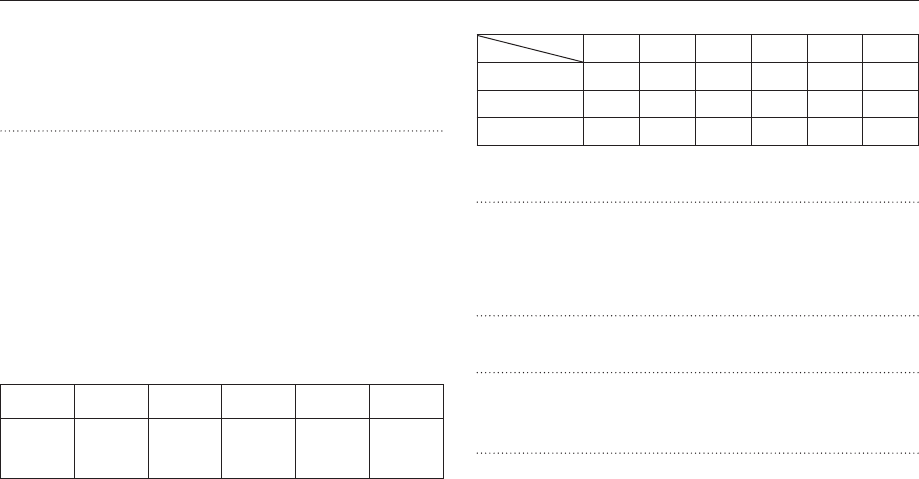
91
- Capacity (256 MB Size)
Super Fine 64 71 84 100 150 459
Fine 117 135 157 186 269 822
Normal 171 192 220 256 372 868
K These fi gures are measured under Samsung standard conditions and
may vary depending on shooting conditions and camera settings.
“E” Button - Effect : Color, Image Adjust (Sharpness, Contrast,
Saturation)
- Editing : Resize, Rotate, Color, Image Adjust (ACB,
Red Eye Fix, Brightness, Contrast,
Saturation)
Image Play - Type : Single image, Thumbnails, Multi Slide show,
Movie
Interface - Digital output connector : USB 2.0 High Speed
- Audio : Mono
- Video output : NTSC, PAL (user selectable)
Power Source - Rechargeable battery : SLB-10A, 3.7V (1,050mAh)
- Adaptor : SAC-47 (DC 4.2V, 400mA)
Specifi cations
- Movie
• With Audio or without Audio
K The maximum memory capacity of continuous
movie is 2 hours.
• Size : 640x480, 320x240
• Frame rate : 30 fps, 15 fps
Storage - Media
• Internal memory : 10MB fl ash memory
• External Memory (Optional)
: SD (up to 2GB guaranteed)
SDHC Card (up to 4GB guaranteed)
MMC Plus (up to 2GB)
- File Format
• Still Image : JPEG (DCF), EXIF 2.2, DPOF 1.1,
PictBridge 1.0
• Movie : AVI (MJPEG)
• Audio : WAV
- Image Size
3264
X
2448
3264
X
2176
3264
X
1836
2592
X
1944
2048
X
1536
1024
X
768

92
Dimensions (WxHxD)
- 87.7 X 56.3 X 20mm (excluding protrusions)
Weight - 114.5g (without batteries and card)
Operating Temperature
- 0 ~ 40°C
Operating Humidity
- 5 ~ 85%
Software - Samsung Master, Adobe Reader
K Specifi cations are subject to change without prior notice.
K All trademarks are the property of their respective owners.
Specifi cations

93
Important notes
Be sure to observe the following precautions!
This unit contains precision electronic components. Do not use or store
this unit in the following locations.
- Areas exposed to extremes of temperature and humidity.
- Areas exposed to dust and dirt.
- Areas exposed to direct sunlight or the inside of a vehicle in hot
weather.
- Environments where there is high magnetism or excessive vibration.
- Areas with high explosives or highly fl ammable materials.
Do not leave this camera in places subject to dust, chemicals (like
naphthalene and mothballs), high temperature and high humidity.
Keep this camera with silica gel in a hermetically sealed box when not
planning to use the camera for a long period of time
Sand can be particularly troublesome to cameras.
- Do not let sand get inside the camera when using it on beaches,
coastal dunes, or other sandy areas.
- Doing so may result in failure or may permanently render the camera
unusable.
x
x
x
Handling the camera
- Never drop the camera or subject it to severe shocks or vibrations.
- Protect the large size LCD monitor from an impact. When the camera
is not in use keep it in the camera case.
- Avoid obstructing the lens or the fl ash when you capture an image.
- This camera is not waterproof.
To avoid dangerous electrical shocks, never hold or operate the camera
with wet hands.
- If you use this camera in wet places, such as beach or pool, do not let
water or sand get inside the camera. Doing so may result in failure or
may permanently damage the unit.
x

94
Important notes
Extremes in temperature may cause problems.
- If the camera is taken from a cold to a warm and humid environment,
condensation can form on the delicate electronic circuitry. If this occurs,
turn the camera off and wait for at least 1 hour until all moisture has
dispersed. Moisture build up can also occur on the memory card. If this
happens, turn off the camera and remove the memory card. Wait until
the moisture has dispersed.
Caution on Using the Lens
- If the lens is subjected to direct sunlight, it could result in the
discoloration and deterioration of the image sensor.
- Take care not to get fi ngerprints or foreign substances on the surface of
the lens.
If the digital camera is not used for a long period, an electric discharge can
occur. It is a good idea to remove the battery and the memory card if you
do not intend using the camera for an extended period of time.
If the camera is exposed to an electronic interference, it will turn itself off to
protect the memory card.
Camera Maintenance
- Use a soft brush (available from photo stores) to gently clean the lens
and LCD assemblies. If this does not work, lens-cleaning paper with
lens cleaning fl uid can be used.
Clean the camera body with a soft cloth. Do not allow this camera to
come into contact with solvent materials such as benzol, insecticide,
thinners etc. This may damage the body shell of the camera and also
affect its performance. Rough handling can damage the LCD monitor.
Take care to avoid damage and keep the camera in its protective carry
case at all times when not in use.
x
x
x
x
x
Do not attempt to disassemble or modify the camera.
Under certain conditions, static electricity can cause the fl ash unit to fi re.
This is not harmful to the camera and is not a malfunction.
When images are uploaded or downloaded, the data transfer may be
affected by static electricity. In this case, disconnect and re-connect the
USB cable before trying the transfer again.
Before an important event or going on a trip, you should check the camera
condition.
- Take a picture for testing the camera condition and prepare extra
battery.
- Samsung cannot be held responsible for camera malfunctions.
x
x
x
x

95
Warning indicator
There are several warnings that may appear on the LCD display.
[ Card Error !]
Memory card error
o Turn off the camera power and turn it on again
o Insert the memory card again
o Insert and format the memory card (p.74)
[ Card Locked! ]
The memory card is locked
oSD/SDHC memory card : Slide the write protect switch to the top of the
memory card
[ No Card! ]
A memory card is not inserted
oInsert the memory card again
oTurn off the camera power and turn it on again
[ No Image! ]
There are no images stored on the memory
oTake images
oInsert a memory card that is holding some images
x
x
x
x
[ File Error! ]
File error
oDelete the fi le.
Memory card error
oContact a camera service centre.
[ Low Battery! ]
There is low battery capacity
oInsert fresh batteries.
[ Low Light! ]
When taking pictures in dark places
oTake pictures in Flash Photography mode.
x
x
x
x

96
Before contacting a service centre
Camera does not take images when pressing the Shutter button
There is insuffi cient memory capacity
oDelete unnecessary image fi les
The memory card has not been formatted
oFormat the memory card (p.74)
The memory card is exhausted
oInsert a new memory card
The memory card is locked
oRefer to [Card Locked!] error message
The camera’s power is off
oTurn the camera power on
The battery is exhausted
oInsert fresh batteries (p.15)
Battery is inserted incorrectly with the polarities reversed.
oInsert the battery according to the polarity marks (+, -)
The camera suddenly stops working while in use
The camera stopped due to a malfunction
oRemove /re-insert battery and switch the camera on
The images are unclear
A picture was taken of the subject without setting an appropriate
macro mode
oSelect an appropriate macro mode to take a clear image.
Taking a picture beyond the fl ash range
oTake a picture within the fl ash range
The lens is smudged or dirty
oClean the lens
x
x
x
x
x
x
x
x
x
x
x
Please check the following
The camera doesn’t switch on
There is low battery capacity
oInsert fresh batteries. (p.15)
Battery is inserted incorrectly with the polarities reversed.
oInsert the battery according to the polarity marks (+, -).
The camera power ceases while in use
The battery is exhausted
oInsert fresh batteries.
The Camera is turned off automatically
oTurn on the camera power again.
Battery power quickly drains
The Camera is being used in low temperatures
oKeep the camera in warm conditions (i.e. inside a coat or jacket) and
only remove it in order to take images.
x
x
x
x
x

97
Images are too bright
Exposure is excessive
oReset exposure compensation
No image on external monitor
The external monitor has not been connected properly with
the camera
oCheck the connection cables
There are incorrect fi les in the memory card
oInsert a memory card that has correct fi les
When using the PC’s explorer, the [Removable Disk] fi le does not show
Cable connection is incorrect
oCheck the connection
The camera is off
oTurn the camera on
The operating system is not Windows 98SE, 2000, ME, XP, Vista / Mac
OS 10.0 - 10.4. Alternatively the PC does not support USB
o Install Windows 98SE, 2000, ME, XP, Vista / Mac OS 10.0 - 10.4 to PC
that supports USB
The camera driver is not installed
oInstall a [USB Storage Driver]
x
x
x
x
x
x
x
The fl ash does not fi re
Flash off mode has been selected
oDis-engage fl ash off mode
The camera mode can’t use the fl ash
oRefer to the FLASH instruction (p.30)
Incorrect date and time is displayed
The date and time have been set incorrectly or the camera has adopted
the default settings
oReset the date and time correctly
The camera buttons do not operate
Camera malfunction
oRemove/re-insert battery and switch the camera on
A card error has occurred while the memory card is in the camera.
Incorrect memory card format
oRe-format the memory card
The images don’t play back
Incorrect fi le name (Violation of DCF format)
oDo not change the image fi le name
Colour of image is different to the original scene
White balance or effect setting is incorrect
oSelect appropriate White balance and effect
x
x
x
x
x
x
x
Before contacting a service centre

98
Case 6 When I open the Device Manager (by clicking Start
(Settings) Control Panel (Performance and Maintenance)
System (Hardware) Device Manager), there are Unknown
Devices or Other Devices entries with a yellow question
mark(?) beside them or devices with an exclamation mark(!)
beside them.
o Right-click on the entry with the question (?) or exclamation
(!) mark and select “Remove”. Restart the PC and connect
the camera again. For Windows 98SE PC, remove the
camera driver also, restart the PC, and then reinstall the
camera driver.
Case 7 In some security programs (Norton Anti Virus, V3, etc.), the
computer may not recognise the camera as a removable disk.
oStop the security programs and connect the camera to the
computer. Refer to the security program instructions about
how to temporarily disable the program.
Case 8 The camera is connected to the USB port located on the
front of the computer.
o When the camera is connected to the USB port located on
the front of the computer, the computer may not recognise
the camera. Connect the camera to the USB port located on
the back of the computer.
FAQ
Please check the following if the USB connection malfunctions.
Case 1 USB cable is not connected or it is not the supplied USB
cable.
o Connect the supplied USB cable.
Case 2 The camera is not recognised by your PC. Sometimes, the
camera may appear under [Unknown Devices] in Device
Manager.
o Install the camera driver correctly.
Turn off the camera, remove the USB cable, plug in the USB
cable again, and then turn on the camera.
Case 3 There is an unexpected error during fi le transfer.
oTurn the camera power off and on again. Transfer the fi le
again.
Case 4 When using the USB hub.
o There may be a problem in connecting the camera to the
PC through the USB hub if the PC and the hub are not
compatible. Wherever possible, connect the camera to the
PC directly.
Case 5 Are other USB cables connected to the PC?
o The camera may malfunction when it is connected to the
PC at the same time as another USB cable. In this case,
disconnect the other USB cable, and connect only one USB
cable to the camera.
99
When the movie doesn’t play back on the PC
K When the movie recorded by the camera doesn’t play back on the PC, the
causes are mostly due to the codec installed on the PC.
When the DirectX 9.0 or later is not installed
→ Install the DirectX 9.0 or later
1) Insert the CD provided with the camera
2) Run the windows explorer and select the [CD-ROM drive:\ USB Driver\
DirectX 9.0] folder and click the DXSETUP.exe fi le.
The DirectX will be installed. Visit the following site for downloading the
DirectX.http://www.microsoft.com/directx
If a PC (Windows 98SE) stops responding while the camera and PC are
connected repeatedly
→ If a PC (Windows 98SE) is turned on for a long time and the camera is
connected repeatedly, the PC may not recognise the camera.
In this case, re-start the PC.
If a PC connected with the camera stops responding while Windows is
starting.
→ In this case, disconnect the PC and the camera and Windows will start.
If the problem happens continuously, set the Legacy USB Support to
disable and re-start the PC. The Legacy USB Support is in the BIOS
setup menu. (The BIOS setup menu differs from the PC manufacturers
and some BIOS menus don’t have Legacy USB Support) If you can’t
change the menu by yourself, contact to the PC manufacturer or BIOS
manufacturer.
If the movie can’t be deleted, or the removable disk can’t be extracted or
an error message displays during the fi le transfer.
→ If you install only the Samsung Master, the problems mentioned above
occasionally happen.
- Close the Samsung Master program by clicking the Samsung
Master icon on the Taskbar.
- Install all the application programs included in the software CD.
FAQ Correct Disposal of This Product
Correct Disposal of This Product (Waste Electrical & Electronic
Equipment)
(Applicable in the European Union and other European countries
with separate collection systems) This marking shown on the
product or its literature, indicates that it should not be disposed of
with other household wastes at the end of its working life.
To prevent possible harm to the environment or human health from
uncontrolled waste disposal, please separate this from other types of waste
and recycle it responsibly to promote the sustainable re-use of material
resources. Household users should contact either the retailer where they
purchased this product, or their local government offi ce, for details of where
and how they can take this item for environmentally safe recycling. Business
users should contact their supplier and check the terms and conditions of the
purchase contract.
This product should not be mixed with other commercial waste for disposal.
Samsung Eco-mark
It is Samsung’s own symbol mark is used to effectively
communicate Samsung’s environmental friendly product
activities to the consumers. The mark represents
Samsung’s continuous effort on development of
environmental conscious products.
100
FCC notice
NOTE :
This equipment has been tested and found to comply with the limits for
a Class B digital device, pursuant to part 15 of the FCC Rules. These
limits are designed to provide reasonable protection against harmful
interference in a residential installation.
This equipment generates, uses and can radiate radio frequency
energy and, if not installed and used in accordance with the
instructions, may cause harmful interference to radio communications.
However, there is no guarantee that interference will not occur in a
particular installation. If this equipment does cause harmful interference
to radio or television reception, which can be determined by turning
the equipment off and on, the user is encouraged to try to correct the
interference by one or more of the following measures:
- Reorient or relocate the receiving antenna.
- Increase the distance between the equipment and receiver.
- Connect the equipment to an outlet on a circuit different to that to
which the receiver is connected.
- Consult the dealer or an experienced radio/TV technician for help.
CAUTION :
Changes or modifi cations not expressly approved by the manufacturer
responsible for compliance could void the user’s authority to operate
the equipment.
Declaration of Conformity
Trade Name : SAMSUNG DIGITAL IMAGING CO., LTD.
Model No. : SAMSUNG L110
Responsible Party : SAMSUNG ELECTRONICS AMERICA INC.
Address : 105 Challenger Road Ridgefi eld Park NJ
Telephone No. : 1-800-SAMSUNG(726-7864)
This device complies with Part 15 of the FCC Rules. Operation is
subject to the following two conditions: (1) This device may not cause
harmful interference, and (2) this device must accept any interference
received, including interference that may cause undesired operation.
Correct disposal of batteries in this product
Correct disposal of batteries in this product (Applicable in the
European Union and other European countries with separate
battery return systems.)
This marking on the battery, manual or packaging indicates that the batteries
in this product should not be disposed of with other household waste at
the end of their working life. Where marked, the chemical symbols Hg, Cd
or Pb indicate that the battery contains mercury, cadmium or lead above
the reference levels in EC Directive 2006/66. If batteries are not properly
disposed of, these substances can cause harm to human health or the
environment.
To protect natural resources and to promote material reuse, please separate
batteries from other types of waste and recycle them through your local, free
battery return system.
The rechargeable battery incorporated in this product is not user replaceable.
For information on its replacement, please contact your service provider.

101
MEMO