Samsung Nx10 Users Manual NX10_Ver1.3
Samsung-Nx-10-Users-Manual-277560 samsung-nx-10-users-manual-277560
NX-series to the manual 62119006-c2ae-4afc-b8e6-0d5cc1070c45
NX10 - User Manual NX10_English Free User Guide for Samsung Camera, Manual - page2
2015-08-20
: Samsung Samsung-Nx10-Users-Manual-794612 samsung-nx10-users-manual-794612 samsung pdf
Open the PDF directly: View PDF  .
.
Page Count: 128 [warning: Documents this large are best viewed by clicking the View PDF Link!]
2
Health and safety information
Always comply with the following precautions and usage tips to avoid dangerous situations and ensure peak
performance of your camera.
Warning—situations that could cause injury to
yourself or others
Caution—situations that could cause damage to
your camera or other equipment
Note—notes, usage tips, or additional
information
Do not use your camera near flammable or
explosive gases and liquids
Do not use your camera near fuels, combustibles,
or flammable chemicals. Do not store or carry
flammable liquids, gases, or explosive materials in the
same compartment as the camera or its accessories.
Keep your camera away from small children and
pets
Keep your camera and all accessories out of the reach
of small children and animals. Small parts may cause
choking or serious injury if swallowed. Moving parts and
accessories may present physical dangers as well.
Prevent damage to subjects’ eyesight
Do not use the flash in close proximity (closer than
1 m/3 ft) to people or animals. Using the flash too
close to your subject’s eyes can cause temporary or
permanent damage.
Handle and dispose of batteries and chargers
with care
Use only Samsung-approved batteries and
chargers. Incompatible batteries and chargers can
cause serious injuries or damage to your camera.
Never dispose of batteries in a fire. Follow all local
regulations when disposing of used batteries.
Never place batteries or cameras on or in heating
devices, such as microwave ovens, stoves, or
radiators. Batteries may explode when overheated.
Handle and store your camera carefully and
sensibly
Do not allow your camera to get wet—liquids can
cause serious damage. Do not handle your camera
with wet hands. Water damage to your camera can
void your manufacturer’s warranty.
•
•
•
•
Safety warnings Safety warnings
Safety precautions Safety precautions
3
Do not expose the camera to direct sunlight or
high temperatures for an extended period of
time. Prolonged exposure to sunlight or extreme
temperatures can cause permanent damage to your
camera’s internal components.
Avoid using or storing your camera in dusty, dirty,
humid, or poorly-ventilated areas to prevent damage
to moving parts and internal components.
Remove the batteries from your camera when storing
it for an extended period of time. Installed batteries
may leak or corrode over time and cause serious
damage to your camera.
Protect your camera from sand and dirt when using it
on beaches or in other similar areas.
Protect your camera from impact, shock, bending, or
press of heavy goods when you connect either cable
or power code. It may damage your camera or cable
or cause by electric shock or fire.
Exercise caution when connecting cables or adaptors
and installing batteries and memory cards. Forcing
the connectors, improperly connecting cables, or
improperly installing batteries and memory cards can
damage ports, connectors, and accessories.
Do not insert foreign objects into any of your
camera’s compartments, slots, or access points.
Damage due to improper use may not be covered by
your warranty.
Do not use broken power cord, plug, or wall-outlet. It
may cause by electric shock or fire.
Protect batteries, chargers, and memory cards
from damage
Avoid exposing batteries or memory cards to very
cold or very hot temperatures (below 0º C/32º F or
above 40º C/104º F). Extreme temperatures can
reduce the charging capacity of your batteries and
can cause memory cards to malfunction.
Prevent batteries from making contact with metal
objects, as this can create a connection between
the + and – terminals of your battery and lead to
•
•
•
•
•
•
•
•
•
•
temporary or permanent battery damage.
Prevent memory cards from making contact with
liquids, dirt, or foreign substances. If dirty, wipe the
memory card clean with a soft cloth before inserting
in your camera.
Turn off the camera when inserting or removing the
memory card.
Do not bend, drop, or subject memory cards to
heavy impact or pressure.
Do not use memory cards that have been formatted
by other cameras or by a computer. Reformat the
memory card with your camera.
Never use a damaged charger, battery, or memory
card.
Use only Samsung-approved accessories
Using incompatible accessories may damage your
camera, cause injury, or void your warranty.
Protect your camera’s lens
Do not expose the lens to direct sunlight, as this may
discolor the image sensor or cause it to malfunction.
Protect your lens from fingerprints and scratches. Clean
your lens with a soft, clean, debris-free lens cloth.
Allow only qualified personnel to service your
camera
Do not allow unqualified personnel to service the
camera or attempt to service the camera yourself. Any
damage that results from unqualified service is not
covered by your warranty.
Ensure maximum battery and charger life
Overcharging batteries may shorten battery life. After
•
•
•
•
•
•
•
•
Important usage information Important usage information
4
charging is finished, disconnect the cable from your
camera.
Over time, unused batteries will discharge and must
be recharged before use.
Disconnect chargers from power sources when not
in use.
Use batteries only for their intended purpose.
Exercise caution when using the camera in
humid environments
When transferring the camera from a cold environment
to a warm and humid one, condensation can form on
the delicate electronic circuitry and memory card. In
this situation, wait for at least 1 hour until all moisture
has evaporated before using the camera.
Check that the camera is operating properly
before use
The manufacturer takes no responsibility for any
loss of files or damage that may result from camera
malfunction or improper use.
Copyright information
Microsoft Windows and the Windows logo are
registered trademarks of the Microsoft Corporation.
HDMI, the HDMI logo and the term "High Definition
Multimedia Interface" are trademarks or registered
trademarks of HDMI Licencing LLC.
QuickTime® and QuickTime® logo are trademarks
or registered trademarks of Apple Computer, Inc.,
used under licence.
•
•
•
•
•
•
Organization of the user manual
Basic functions 12
Learn about your camera’s layout, icons, and
basic functions for shooting.
Basic shooting 38
Learn how to take a photo by selecting a
mode and how to record a video.
Extended shooting functions 50
Learn about the options you can set in
shooting mode. By using the shooting options,
you can enjoy more customized pictures and
movies.
Playback/Editing 78
Learn how to play back photos, videos, and
edit photos or videos. Also, learn how to
connect your camera to your computer, photo
printer, TV, or HDTV.
Camera settings menu 102
The camera use environment can be set to a
desired state by using the setup menu.
Appendixes 109
Refer to settings, error messages,
specifications, and maintenance tips.
Camera specifications or contents of this manual
may be changed without prior notice due to
upgrade of camera functions.
For Open Source License information, refer to the
“OpenSourceInfo.pdf” in the provided CD-ROM.
•
•
5
Indications used in this manual
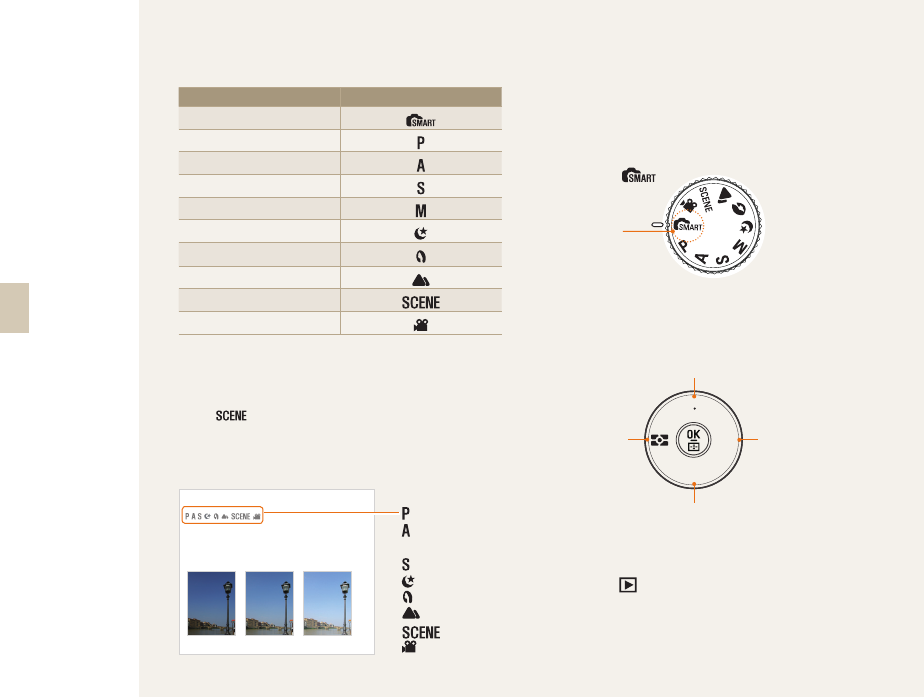
Shooting mode Marking
Smart Auto
Program
Aperture Priority
Shutter Speed Priority
Manual
Night
Portrait
Landscape
Scene
Movie
Shooting mode explanation shown next to the title
This shows that the functions explained can only be
selected from within the shooting mode. In the case
of the mode, this corresponds to only part of
the scene.
Ex) Adjusting exposure (brightness)
The diagram below illustrates the shooting mode dial
on the camera body.
To select a shooting mode, you rotate the dial until
the mode you want lines up with the hash mark on
the camera.
The diagram below shows the status has been
changed to ( ).
Directional Keys in the User's Manual
When explaining the steps needed for navigating the
menu, the up, down, left and right directional arrows
are shown below.
Ex) Executing the 'Play' mode
The user can check saved pictures and movies.
1 Press [ ]
• Show most recently saved files.
2
Check the following pictures sequentially by
using [
X
].
Adjusting the exposure (brightness)
The images can be taken bright or dark according to the
amount of light. In this case, appropriate adjustment can
be made by controlling the amount of light entered into
the lens.
S
Applying -
S
0
S
Applying +
(Program),
(Aperture
priority),
(Shutter priority),
(Night),
(Portrait),
(Landscape),
(Scene), or
(Movie) mode.
Currently
selected
shooting
mode
AF MF
WB
ISO
[
S
]
[
T
]
[
X
][
W
]
6
Menu display used in this manual
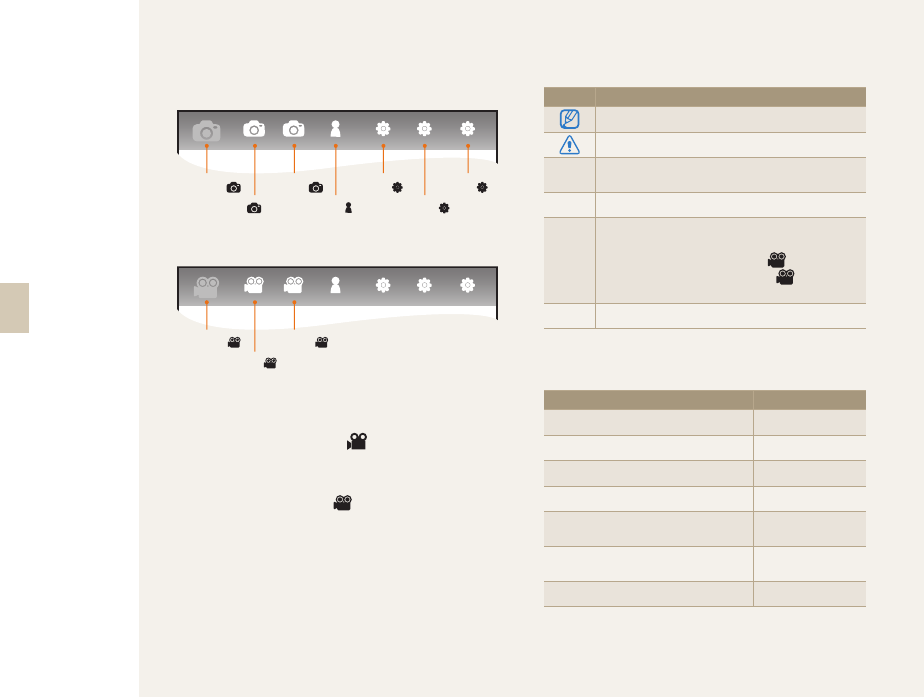
Menu display of the photo shooting mode
Menu display of the movie shooting mode
Ex) Setting the image quality of movie file
1 Set the mode dial to .
2 Press [MENU].
3 Select Shooting1 (1) → Quality.
4 Select a desired image quality.
Icons used in this manual
Symbol Explanation
Additional information about the function
Safety warnings and precautions
[ ] Indicates a camera button, for example:
[Shutter] represents the shutter button.
( ) Shows the reference page
→
Display when selecting a menu or option within
the step
Example: Select
Shooting 1 (1)
→ Quality.
(represents select
Shooting 1 (1)
, and then
Quality)
*Comment explaining symbols
Abbreviations used in this manual
Abbreviations Explanation
AF (Auto Focus) Auto focus
BKT (Bracketing)
Bracketing
DPOF (Digital Print Order Format) Printing order mark
EV (Exposure Value) Exposure value
OIS (Optical Image Stabilization)Optical image
stabilization
ISO (International Standard for color
negative film) Film sensitivity
WB (White Balance) White balance
12 3 1 1 2 3
Shooting 1(
1
)
Shooting 2(
2
)
Shooting 3(
3
)
User setup (
1
)
Setting 1(
1
)
Setting 2(
2
)
Setting 3(
3
)
12 3 1 1 2 3
Shooting 1(
1
)
Shooting 2(
2
)
Shooting 3(
3
)
7
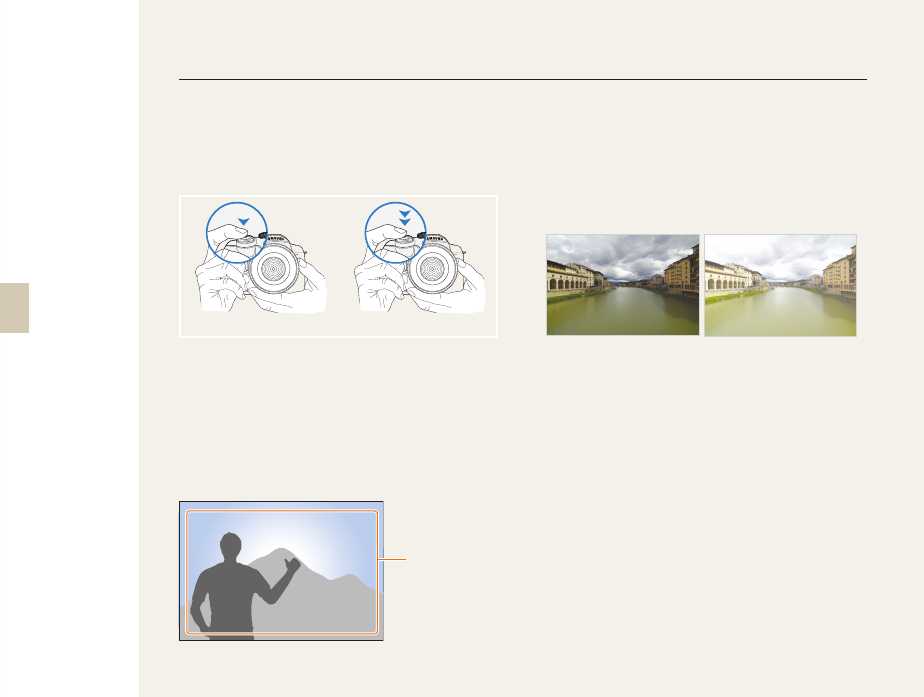
Pressing the shutter
Half-press [Shutter]: press the shutter halfway
down
Press [Shutter]: press the shutter all the way down
Half-press [Shutter] Press [Shutter]
Subject, background, and composition
Subject: the main object of a scene, such as a
person, animal, or still life
Background: the objects around the subject
Composition: the combination of a subject and
background
SubjectSubject
BackgroundBackground
CompositionComposition
•
•
•
•
•
Exposure (Brightness)
The amount of light that enters your camera
determines the exposure. You can alter the exposure
with shutter speed, aperture value, and ISO speed.
By altering the exposure, your photos will be darker
or lighter.
Normal exposure Overexposure (too bright)
Expressions used in this manual
8
Viewing files by category in
Smart Album
f
81
Deleting all files on the
memory card
f
83
Viewing files as a slide show
f
84
Viewing files on a TV or HDTV
f
92
Connecting your camera to a
computer
f
93
Adjusting sound and volume
f
104
Adjusting the brightness of the
display
f
104
Changing the display language
f
104
Setting the date and time
f
106
Formatting the memory card
f
105
Troubleshooting
f
115
•
•
•
•
•
•
•
•
•
•
•
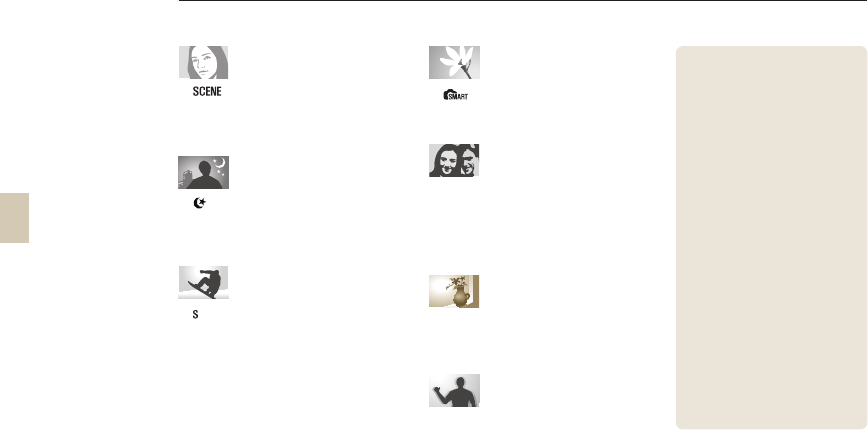
Taking photos of people
mode
→
Beauty Shot
f
47
Red-eye reduction
f
56
Face Detection AF
f
64
•
•
•
Taking photos at night or in
the dark
mode
f
45
Flash setting options
f
55
ISO speed setting
f
59
•
•
•
Taking action photos
mode
f
42
Continuous, Burst shooting
f
73
•
•
Taking photos of text, insects,
or flowers
mode
→
Close-up shot
f
39
Using the White Balance
f
68
•
•
Adjusting the exposure
(brightness)
ISO speed setting
f
59
Adjusting exposure
f
66
Metering
f
67
BRK(Bracketing)
f
74
•
•
•
•
Applying a different effect
Picture Wizard
f
75
Photo Style
f
88
•
•
Reducing camera shake
Optical Image Stabilization (OIS)
f
35
•
Quick reference

9
Contents
Basic functions .................................................... 12
Unpacking ................................................................. 13
Title and role of each part .......................................... 14
Diopter adjustment dial/eye-cup/Status lamp ........... 16
Description for each part of the lens ......................... 17
Preparations before shooting .................................... 18
Charging the battery ................................................. 18
Installing the battery .................................................. 19
Installing the memory card ....................................... 20
Mounting/dismounting the lens ................................ 21
Connecting the strap ................................................ 22
Turning on the power and initialization ...................... 23
Icons ........................................................................ 25
Option/menu selection method ................................. 26
Using the dial ............................................................ 26
Using [Fn] ................................................................. 27
Setting the display and sound ................................... 28
Changing the display type ........................................ 28
Setting user display .................................................. 29
Setting the sound ..................................................... 29
Setting the screen display ........................................ 30
Simple picture-taking method ................................... 31
Tips for getting a clearer photo.................................. 32
Holding your camera correctly .................................. 32
Image stabilization .................................................... 32
Half-pressing the shutter button ............................... 32
Getting your subject in focus .................................... 33
Setting the automatic/manual focus function ............ 34
Zooming ................................................................... 34
Optical Image Stabilization (OIS) ............................... 35
Using the OIS in the menu option ............................ 36
Depth preview .......................................................... 37
Basic shooting ..................................................... 38
Using the Smart Auto mode ...................................... 39
Using the Program mode .......................................... 40
Using the Aperture Priority, Shutter Priority,
or Manual mode ........................................................ 41
Using the Aperture Priority mode .............................. 41
Aperture value .......................................................... 41
Using the Shutter Priority mode ................................ 42
Shutter speed ........................................................... 42
Using the Manual mode ........................................... 43
Using the Night/Portrait/Landscape mode ................ 45
Using the night mode ............................................... 45
Using the portrait mode ............................................ 45
Using the landscape mode ....................................... 45
Using the Scene mode .............................................. 46
Using the Beauty Shot mode .................................. 47
Recording a Movie .................................................... 48
Setting the aperture value ......................................... 48
To fade out the screen ............................................. 48
Using the Wind Cut .................................................. 49

10
Contents
Extended shooting functions ............................... 50
Setting the resolution and quality .............................. 51
Setting a resolution ................................................... 51
Setting the image quality of the picture ..................... 52
Setting the quality of movie....................................... 52
Noise reduction ........................................................ 53
Using the timer function ............................................ 54
Setting the timer function .......................................... 54
Taking a picture in a dark place ................................. 55
Using the flash popup button ................................... 55
Setting the flash option ............................................. 55
Using the red-eye fix function ................................... 56
1st Curtain, 2nd Curtain ........................................... 56
Adjusting the amount of flash light ............................ 57
Using an external flash unit (purchased separately) .. 58
Adjusting the ISO sensitivity ...................................... 59
Focusing methods .................................................... 60
Changing the Focusing methods .............................. 60
AF Priority ................................................................. 60
Using the AF assist light ........................................... 61
Changing the focus area .......................................... 61
Setting the focus of the selected area ...................... 62
Setting the MF Assist................................................ 63
Face detection .......................................................... 64
Normal face detection .............................................. 64
Self-portrait face detection ....................................... 65
Brightness and color adjustment of picture ............... 66
Adjusting the exposure (brightness) .......................... 66
Exposure adjustment................................................ 66
Changing the brightness measurement method ....... 67
Setting the white balance ......................................... 68
Color space .............................................................. 71
Smart range ............................................................. 72
Changing the shooting method ................................. 73
Successive shooting method and timer setup .......... 73
Detailed bracket setup ............................................. 74
Special effect/photo retouching ................................ 75
Picture wizard ........................................................... 75
Key Mapping ............................................................. 77
Setting the Key Mapping .......................................... 77

11
Contents
Playback/Editing .................................................. 78
Play (picture/movie) ................................................... 79
Viewing pictures in the play mode ............................ 79
View files in the smart album by category ................. 81
Converting into the thumbnail view ........................... 81
File protection ........................................................... 82
Deleting a file ............................................................ 82
Enlargement/reduction ............................................. 84
View a movie ............................................................ 85
Picture editing ........................................................... 87
Changing the resolution ............................................ 87
Rotating .................................................................... 87
Red-eye fix ............................................................... 88
Adjusting the backlight ............................................. 88
Picture style .............................................................. 88
Face retouching........................................................ 88
Setting the print info (DPOF) ..................................... 89
Viewing files on a TV or HDTV ................................... 91
Transferring files to your computer ............................ 93
For Windows users ................................................... 93
For Mac users .......................................................... 96
Using Samsung Master ............................................ 97
Using the Samsung RAW Converter ......................... 98
Correcting the exposure ........................................... 99
Handling the JPEG/TIFF files as you edit RAW files
.. 100
Saving the RAW files into JPEG or TIFF format ...... 100
Printing photos with a photo printer (PictBridge) ..... 101
Camera settings menu .......................................102
Camera settings menu ............................................ 103
Sound .................................................................... 104
Display.................................................................... 104
Normal setup 1 ....................................................... 105
Normal setup 2 ....................................................... 106
Normal setup 3 ....................................................... 107
Appendixes ........................................................ 109
Error messages ....................................................... 110
Camera maintenance .............................................. 111
Cleaning your camera............................................. 111
About memory cards .............................................. 112
About the battery.................................................... 113
Before contacting a service center .......................... 115
Camera specifications ............................................. 118
Lens specifications .................................................. 122
Accessories (optional items) .................................... 123
Index ....................................................................... 125

Basic functions
Learn about your camera’s layout, icons, and basic functions for
shooting.
Unpacking …………………………………………………13
Title and role of each part ………………………………14
Preparations before shooting ……………………………18
Turning on the power and initialization …………………23
Option/menu selection method …………………………26
Setting the display and sound ……………………………28
Simple picture-taking method ……………………………31
Tips for getting a clearer photo …………………………32
13
Unpacking
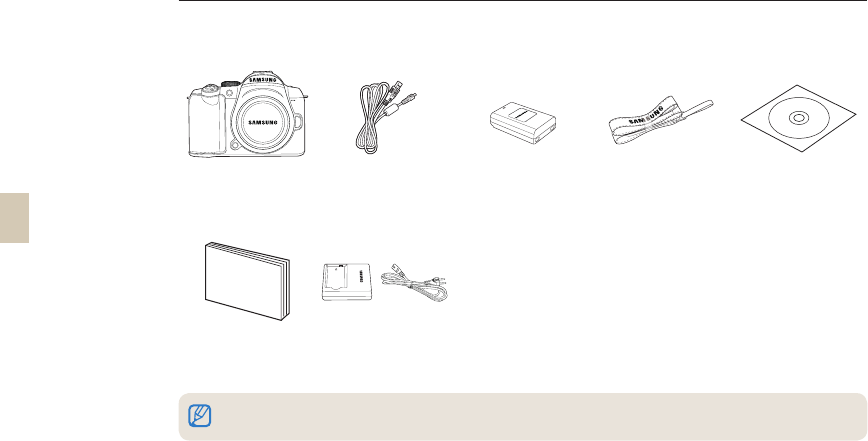
Check your product box for the following items.
Camera (Body cap,
eye-cup, Hot-shoe
cover included)
USB cable Battery Strap
Software installation
CD (including user's
manual)
Quick Start Manual Charger/AC power
cable
The actual components or optional parts may differ from the illustrations above.
For information about optional items, see “Accessories (optional items).” (p. 123)
14
Title and role of each part
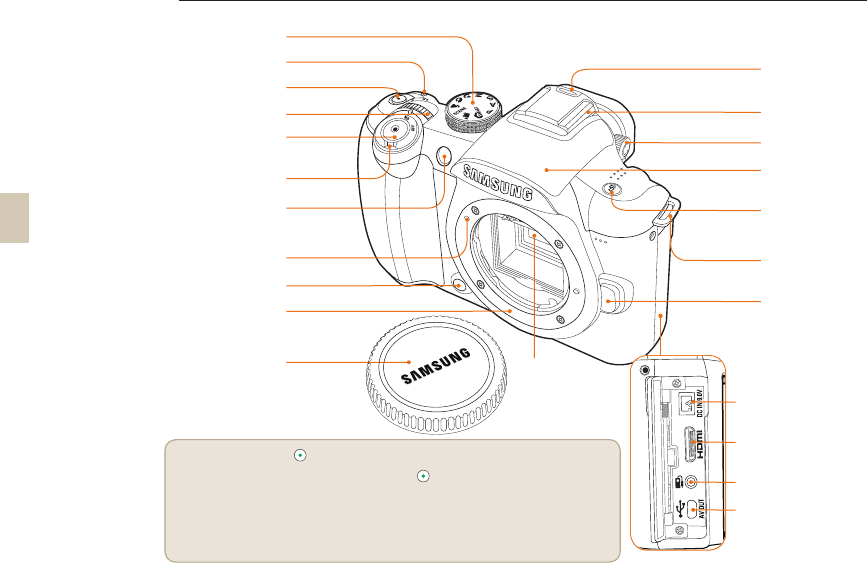
Mode dial (p. 5)
AF-assist light
/timer lamp (p. 61)
Power switch (p. 23)
Lens mount index
(p. 21)
Hot-shoe
cover (p. 58)
Strap holder
(p. 22)
Built-in flash
(p. 55)
Dial (p. 26)
Shutter button (p. 7)
Lens removal
button (p. 21)
Lens mount (p. 21)
Flash button
(p. 55)
Depth preview button
(p. 37)
Hot-shoe (p. 58)
Green button*
Drive mode button
(p. 73)
Diopter adjustment
dial (p. 16)
* Use the green button [ ].
The following setup values are initialized if the button is pushed once in the standby state
for shooting.
Program shift / Detailed setup of picture wizard / Fine tuning of white balance / Color Temp.
setting value / Adjusting the colors of screen menu / Timer / Flash EV / When selecting or setting
AF, shift the changed focus area to the center / Bracketing setup
Body cap (p. 21)
DC-IN port
HDMI port (p. 92)
Shutter release
connection port
USB/AV OUT Port
(p. 94)
Image Sensor
15
Title and role of each part
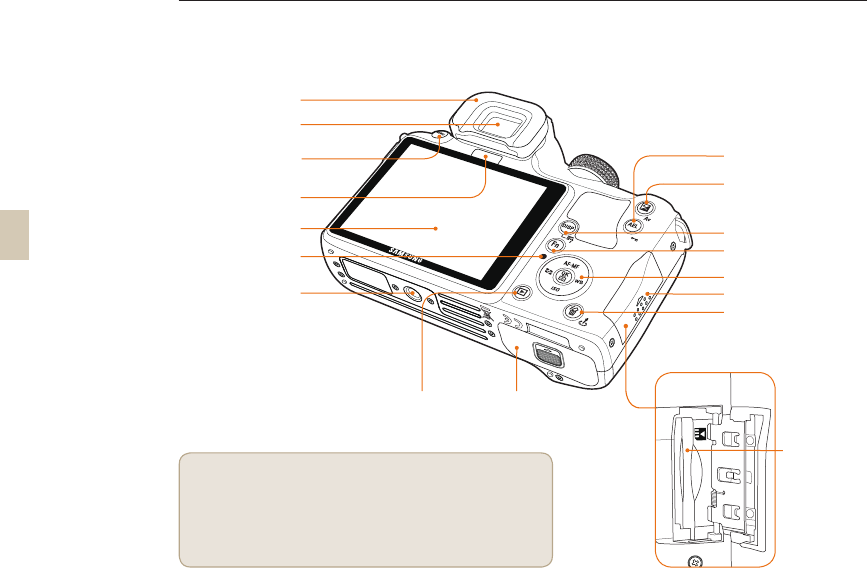
AEL button (p. 77)
EV button (p. 43)
Eye-cup (p. 16)
Display
Viewfinder
Eye sensor*
DISP button (p. 28)
Function(Fn) button (p. 27)
Direction key (p. 5)
Delete/Picture wizard
button (p. 82)
Battery chamber
cover (p. 19)
Playback
button (p. 79)
Tripod mount
* Use of eye sensor
This product will automatically convert to EVF when the users try
to use the view-finder (EVF) by operating the eye sensor in Auto
Select mode and all the information will be shown on the view-
finder. Do not cover the eye sensor with your hands or materials.
Memory card
slot
Status lamp (p. 16)
Memory card cover
MENU button (p. 26)
16
Title and role of each part
Diopter adjustment dial/Eye-cup/
Status lamp
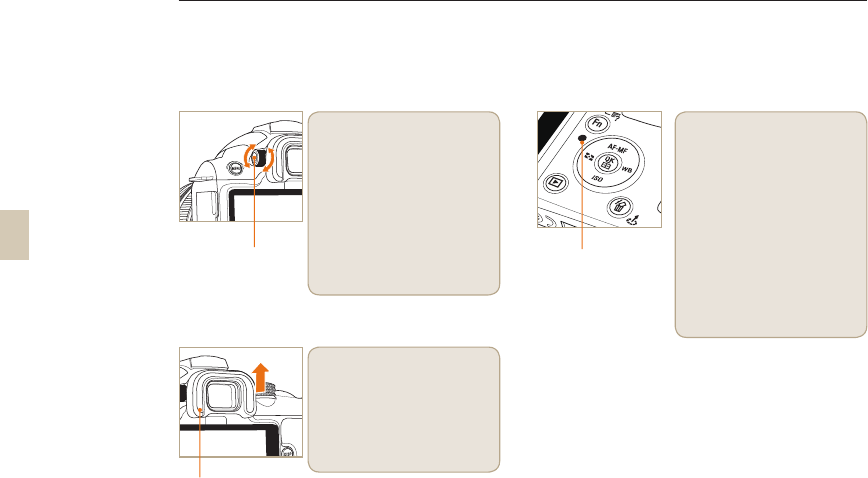
Use of Diopter adjustment dial
It is possible to adjust the
viewfinder appropriate for the
eyesight of user.
If the image is not shown clearly
through the viewfinder, move
the eyesight adjustment dial in
the left/right direction to have a
clear view.
Eye-cup
Removal of Eye-cup
When the camera is shipped,
the eyecup is attached to the
viewfinder. Push the Eye-cup
up as shown in the figure for
removal.
Eyesight
adjustment dial
Status lamp
In the case of saving a picture or
shooting a movie, this shows the
operating status of the camera by
blinking the status indicator lamp
• Blinking: When saving photos,
recording movies, being read by
a computer or printer.
• Steady: When there is no data
transfer or when connecting to a
computer or printer is complete.
Status lamp
17
Title and role of each part
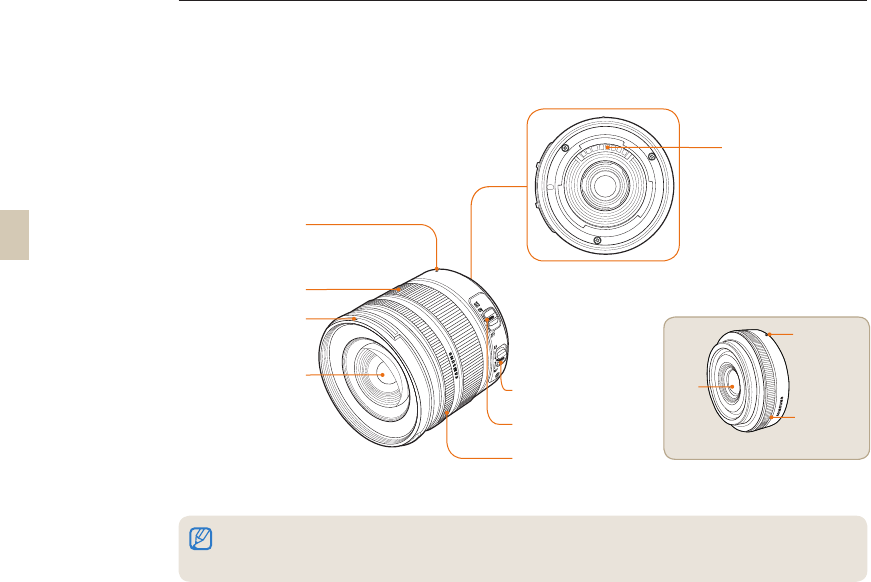
Description for each part of the lens
When purchasing the lens separately, please contact a Samsung service center to verify the compatibility of the camera an lens.
This information in this user manual is based on the SAMSUNG 18-55mm F3.5-5.6 OIS lens. Please refer to the lens user manual
for more information about the lens.
•
•
Lens
contacts
Lens hood
mount
Zoom ring
Lens mount
connecting
point
OIS switch
(p. 35)
AF/MF switch
(p. 34)
Focus ring
(p. 33)
Lens
[SAMSUNG 18-55mm F3.5-5.6 OIS]
[SAMSUNG 30mm F2]
Focus ring
Lens
Lens mount
connecting
point
18
Preparations before shooting
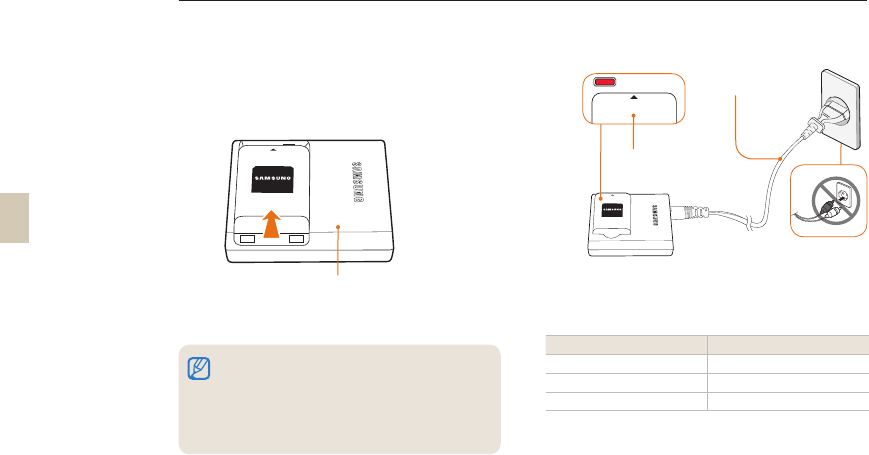
Charging the battery
Please charge the battery fully before using this
product.
Please make the connections as in the following figure.
Color of charge lamp Charging status
Red Charging
Green Fully charged
Turned off, or Yellow Charging error
To remove the battery from the charger, lift slightly in
the direction of the arrow.
Please use designated charger or batteries for proper
use. SAMSUNG is not responsible for any accident
that may occur from using a product other than
designated.
•
•
INSERT
1
2
INSERT
AC power code
CHARGE
INSERT
Charging lamp
Charger
19
Preparations before shooting
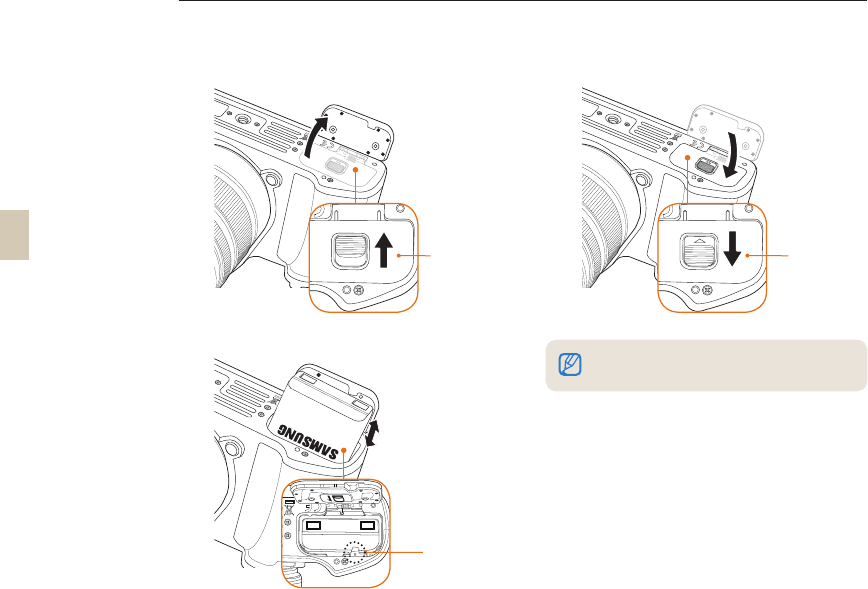
Installing the battery
When taking out the battery, pull down slightly on the
lock lever. You can then remove the battery.
2
Lock lever
1
Open by
pushing in the
direction of the
arrow
3
Close by
pushing down
in the direction
of the arrow.
20
Preparations before shooting
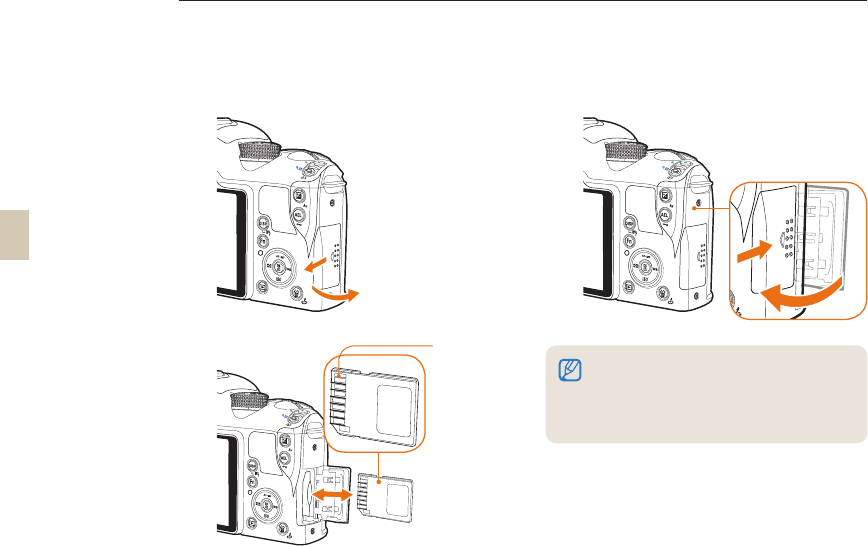
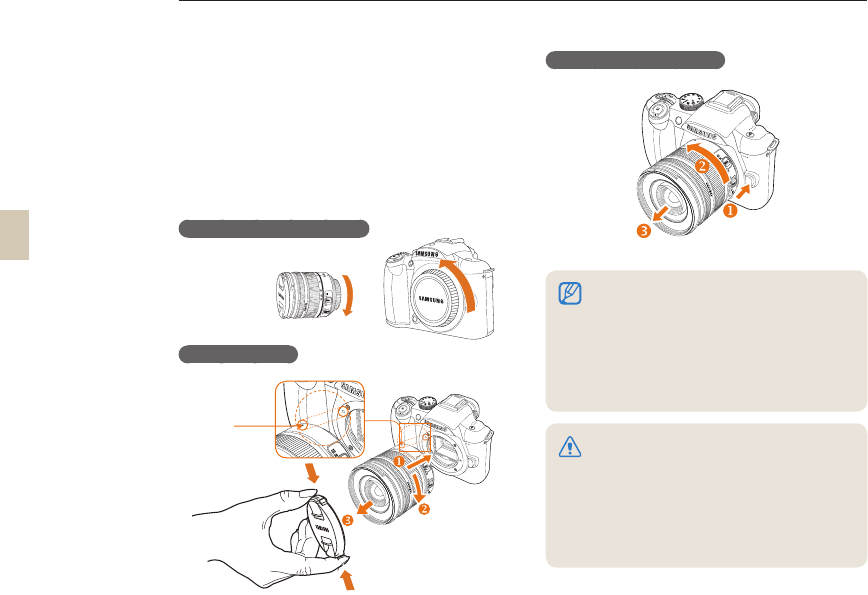
Installing the memory card
To remove the memory card, push the card slightly in
the direction of insertion.
Please do not remove the memory card or battery
while the status indicator lamp is blinking. It may
cause loss of data or product damage.
•
•
1 3
2
After checking
the direction of
metal terminal,
you can insert
the memory
card.
21
Preparations before shooting
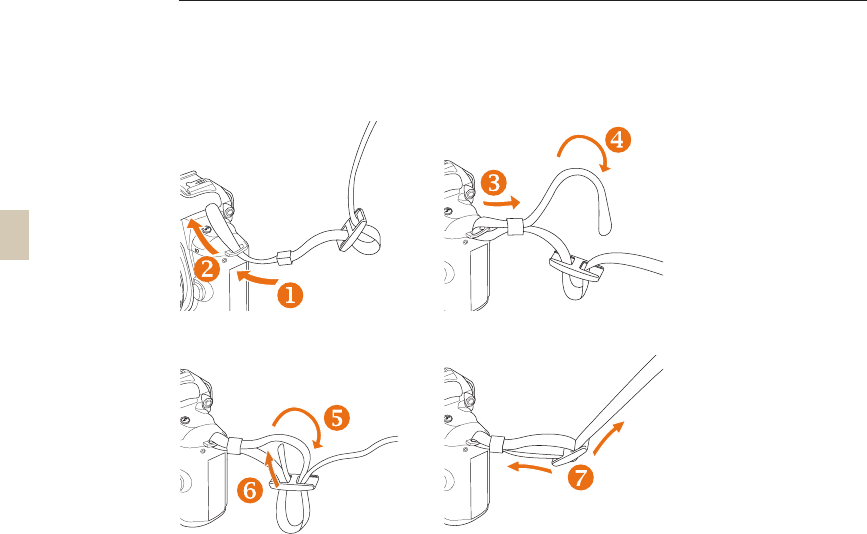
Mounting/dismounting the lens
Please remove the lens mount cover and body cap
prior to the installation of lens.
After matching the lens mount index (red) of camera
body with the point (red) of lens mount, join the lens by
turning the lens clockwise until it clicks. When removing
the lens, turn the lens counter clockwise while holding
down the lens dismount button.
Before mounting the lens
Lens mounting
Dismounting the lens
Mounting or dismounting the lens while the
camera is powered off is desirable to ensure the
stable operation of the lens.
SAMSUNG is not responsible for any accident,
damage, or trouble caused by using other
company's lens.
The body cap protects the product from
scratches or dust when you transport it.
•
•
•
Change lenses in a clean, low dust environment.
Foreign particles inside the body or lens of the
camera can cause the camera to malfunction.
When mounting the lens, please do not touch
the inner part of the camera with your finger.
Dust or foreign particles inside the camera can
affect image quality or cause the camera to
malfunction.
•
•
Lens mount
connecting
point
22
Preparations before shooting
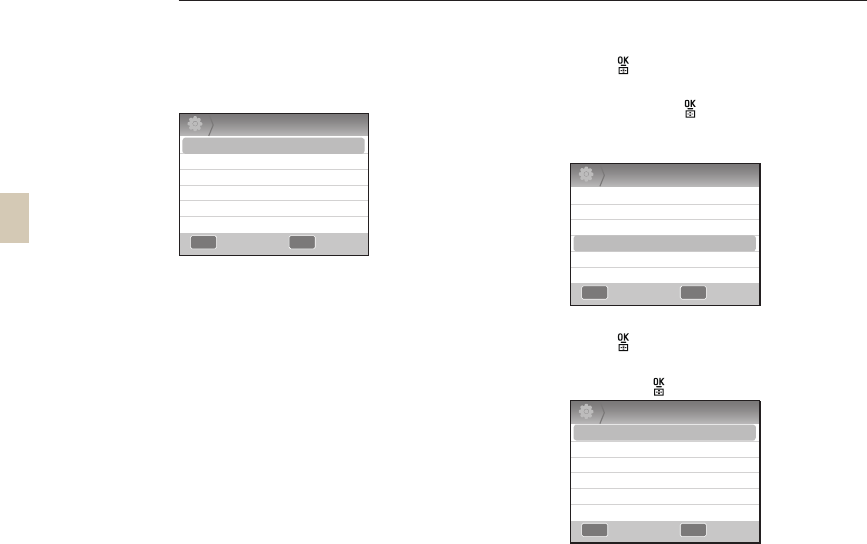
Connecting the strap
Connecting the strap to the camera body so you can carry the camera easily.
23
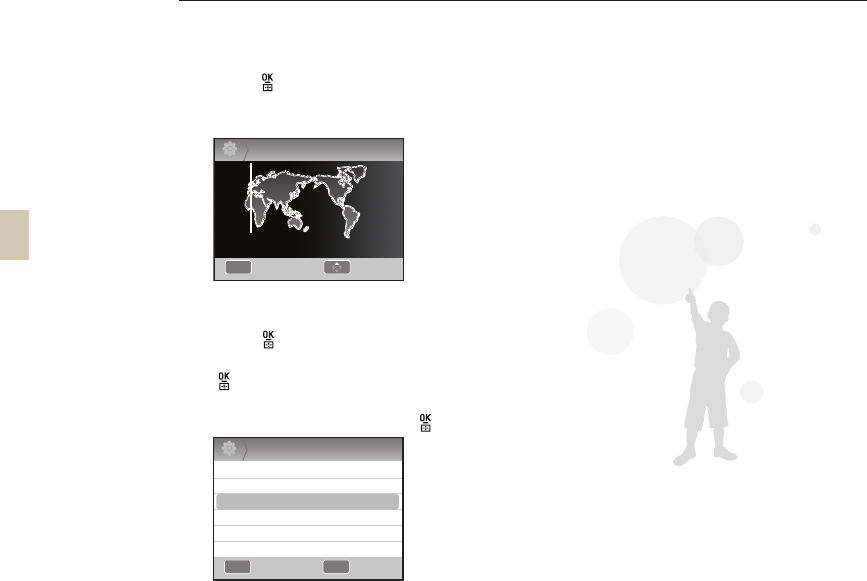
Turning on the power and initialization
When turning the power on/off, please set the power
switch to ON/OFF.
When you turn on the camera for the first time, the
camera may ask you to set the language and date.
1 Press [T] to select Language, and then
press [ ].
2 Press [S/T/W/X] to select a language,
and then press [ ].
• The screen appears in the language you
selected.
3 Press [S/T] to select Date, and then
press [].
4 Press [S/T/W/X] to set the date, and
then press [ ].
MENU OK
2
Date
Time Zone
Time
Language
2010 1 1
00 : 00
English
Date & Time
MENU OK
2
Date
Time Zone
Time
Language
2010 1 1
00 : 00
English
Date & Time
MENU OK
2
Date
Time Zone
Time
Language
2010 1 1
00 : 00
English
Date & Time
Exit Change
Exit Change
Exit Change
24
5 Press [T] to select Time Zone and then
press [ ].
6 Select a desired world time zone by
pressing [W/X].
7 To set daylight saving time, press [S].
Press [S] again to disable.
8 Press [ ] to save.
9
Press [T] to select Time, and then press
[].
10 Set desired time by pressing
[S/T/W/X], and then press [ ].
11 Press [MENU] to finish setting.
MENU OK
2
Date
Time Zone
Time
Language
2010 1 1
00 : 00
English
Date & Time
Exit Change
MENU
2
Time Zone
London
[GMT +00:00] 2010/01/01 01:10 AM
DSTBack
Turning on the power and initialization
25
Turning on the power and initialization
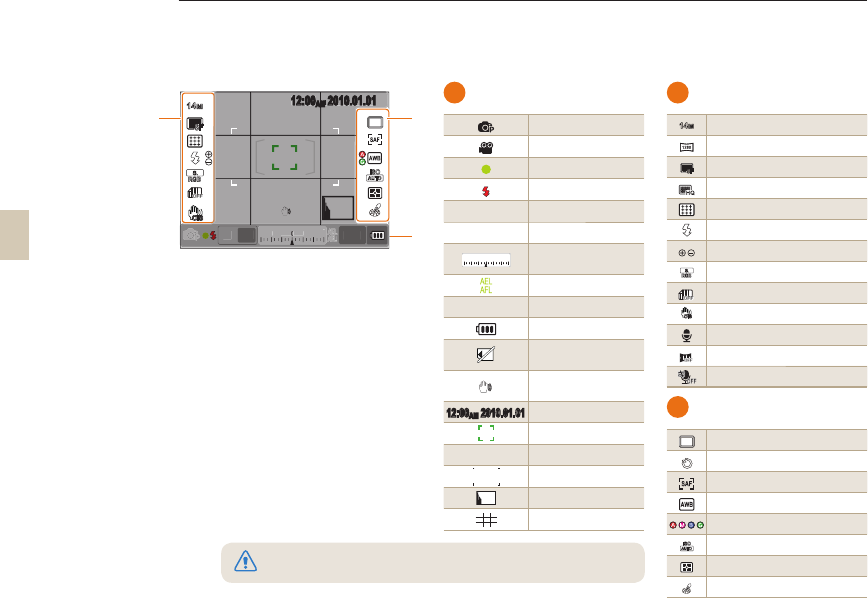
A
Information display
Shooting mode
Movie shooting mode
Focus checking
Flash
15
Shutter speed
F3.5
Aperture value
3
-+
223110
Adjusted value of
exposure
AEL/AFL setting
0001
Possible no. of shots
Battery information
Displays no-insertion
of memory card
Warning of camera
shake
12:00AM 2010.01.01
Time, date and year info
Focus indicator
ମGGଯ Spot metering area
AF zone
Histogram
Grid display
B
Shooting option display(left)
14
M
Size
Movie size
SF
Image quality
Movie quality
Focus area
Flash
Flash light adjustment
RGB
Color space
Smart range
OIS
OIS
Voice recording
Fader
Wind Cut
C
Shooting option display(right)
Drive mode
Timer
AF mode
White balance
White balance adjustment
ISO
ISO
Metering option
Picture wizard
The display shows the icons for the currently selected option.
3
-+
223110
15 F3.5 0001
A
C
AEL
AFL
12:00AM 2010.01.01
14
M
SF
RGB
ISO
B
3
-
+
2
2
3
11
0
1
5
F3
.
5
0001
A
A
E
AE
L
EL
AF
AF
F
AF
L
FL
12:00
1
2
:
00
0
0
AM
A
A
AM
M
A
M
2010.01.01
2010.01.01
2
0
1
0
.
0
1
.
0
1
OIS
Icons
All the details shown on the view finder will appear identically on the display.
By using the live view function, the user can take a picture conveniently without having to look through the viewfinder.
The icons shown on the screen are for when the OIS and AF/MF switches on the lens are in use.
26
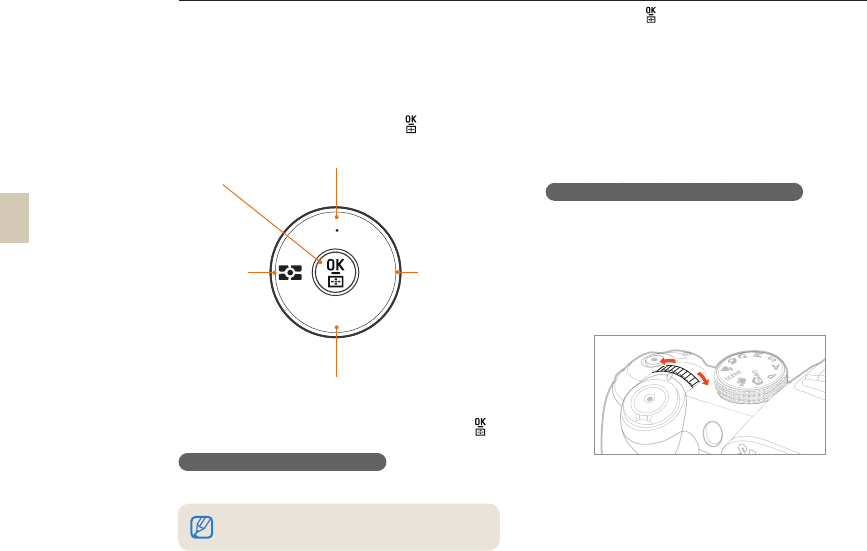
1 Press [MENU] in the Shooting mode.
2 You can select a desired option or menu
by pressing [S/T/W/X] or [].
3
To save a selected option or menu, press [ ].
Return to the previous screen.
To return to the previous menu screen, press [MENU].
Using the dial
The user may change the menu setting's value by either
using the dial or move the menu screen to a desired
direction. For example when taking a picture in the
shutter speed priority mode, this allows you to quickly
adjust the desired shutter speed.
Example. Using the dial in the S mode
1 Set the Mode dial to S.
2 Adjust the shutter speed by turning the
dial.
• The camera sets aperture value
automatically according to the shutter
speed you set.
Option/menu selection method
After pressing [MENU], you can select an option or menu by pressing [S/T] or [ ].
The user can return to the state of shooting by pressing
[Shutter].
AF MF
WB
ISO
AF/MF setting, Menu navigation (
S
)
ISO setting, Menu navigation (
T
)
White balance
setting, Menu
navigation (
X
)
Metering
method
setting,
Menu
navigation
(
W
)
OK button,
Setting Selection AF
27
Using [Fn]
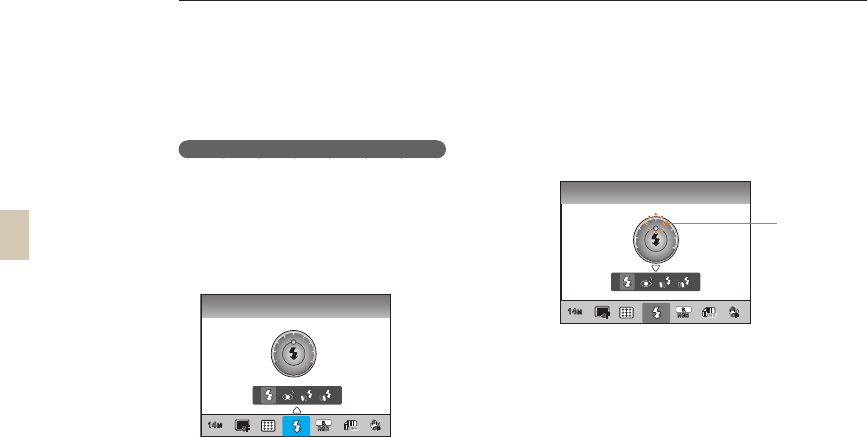
By pressing the [Fn] function button, you can easily access
major functions such as Quality, Size, AF area, Flash, Color
Space, Smart Range, and OIS.
Example. Flash setting in the P mode
1 Set the Mode dial to P.
2 Press the [Fn] button on the body of
camera.
3 Select Flash using the
[
W/X
]
or dial.
4 Press [S].
5 Set the flash menu option using the [W/X]
or dial.
6 Press [S].
7 Set the flash intensity using the [W/X] or
dial.
• You can adjust the intensity of the flash by
±2 levels.
8 Align your subject in the frame and half-
press [Shutter] to focus.
9 Press [Shutter] to take a photo.
Option/menu selection method
Fill in
-2
-1 +1
+2
0
14
M
SF
RGB
Displays the
level of flash
intensity
adjustment
OIS
Flash
14
M
SF
RGB
OIS
-2
-1 +1
+2
0
28
Setting the display and sound
Learn how to change basic display and sound settings according to your preferences.
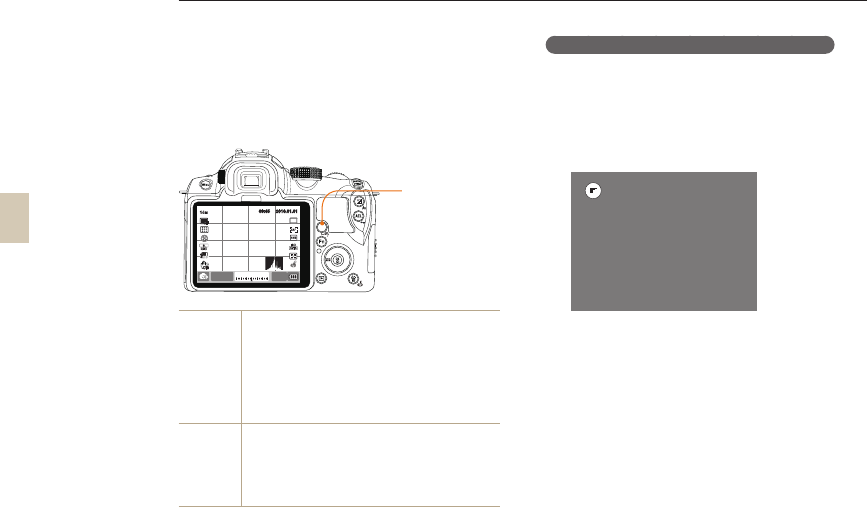
Changing the display type
You can select the icons and options the camera
displays in the Shooting and Play modes by selecting a
Display Type.
Press [DISP] repeatedly.
Shooting
mode
Display all the shooting information except for
User Display setting values.
Display all the shooting modes set by user. (p. 29)
Hide all the information except for shooting
mode, shutter speed, aperture value, exposure,
number of available shots, and battery
information.
•
•
•
Playback
mode
Display the shooting meta information.
Display the RGB histogram, currently selected
histogram option, and date set.
Display shutter speed, aperture value, ISO, file in
play, and total number of files saved.
•
•
•
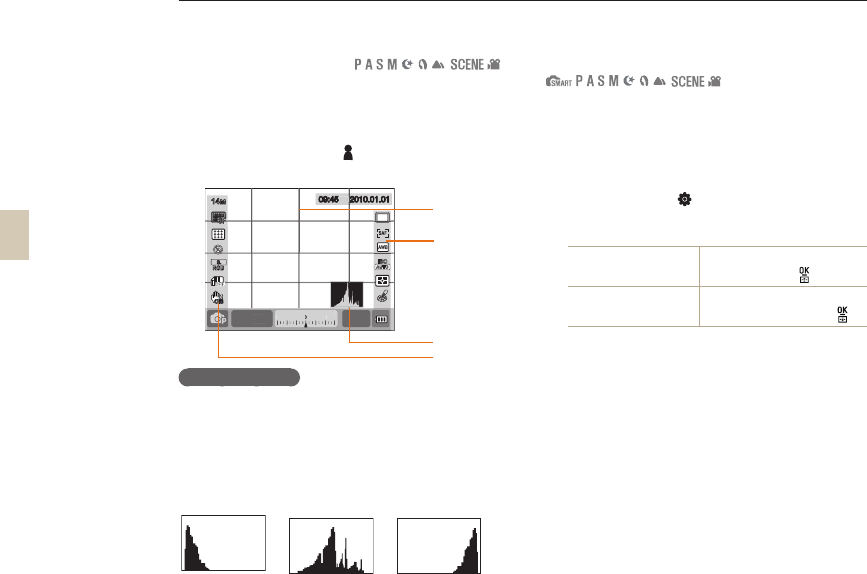
Viewing the function descriptions of menu
1 In the Shooting mode, press [MENU].
2 Select a menu option.
• Press and hold [DISP]. The function
descriptions of the menu appears on the
screen.
?
Resolution and H/V ratio of images can be set.
Photo Size
3
-+
223110
14
M
SF
RGB
ISO
20 F3.7 0001
09:45 2010.01.01
DISP
AF - MF
WB
ISO
DISP button
OIS
29
Setting the display and sound
Setting user display
You can add or remove shooting information from the
display.
1 Press [MENU] in the shooting mode.
2 Select User setup ( 1) → User Display
→ an option.
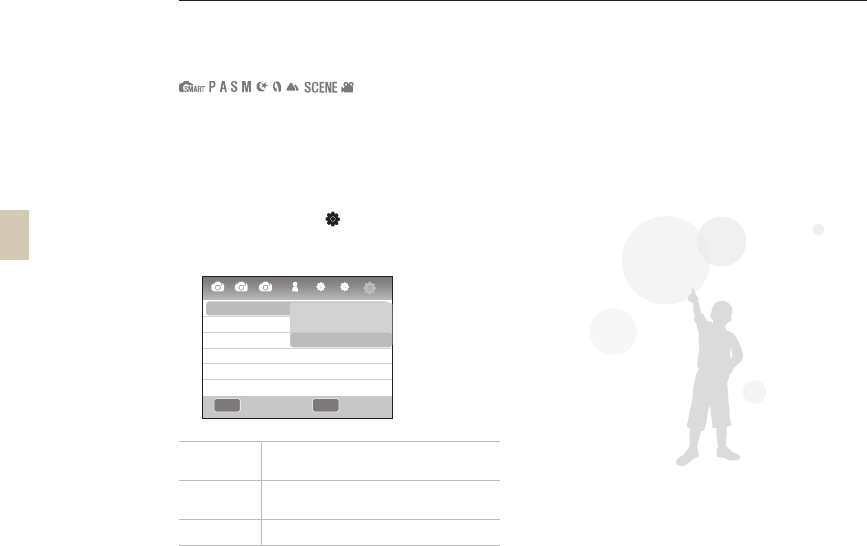
About histogram
A histogram is a graph that shows the brightness
distribution of picture. This represents a dark picture
if the graph is inclined to the left and if the graph is
leaning to the right, this represents a bright picture. The
height of graph is related to the color information and
the graph gets higher if a specific color is distributed
more.
▲
Insufficient exposure
▲
Balanced exposure
▲
Excessive exposure
Setting the sound
You can set the sound the camera makes when you
press the OK button.
1 In Shooting or Playback mode, press
[MENU].
2 Select Setup2(2) → Sound → System
Volume → an option.
Off The camera makes no sound
when you press [].
Low, Medium, High The camera makes a signal
sound when you press [].
3 Press [MENU] to return to the previous
mode.
3
-+
223110
14
M
RGB
20 F3.7 0001
09:45 2010.01.01
Icon
2010.01.01
2
010 01
0
1
0
.
0
01
1
.
0
5
09:45
0
09
:
4
5
1
SF
3
-
+
2
2
3
11
0
20
F3
.7 0001
14
M
RGB
F
F
F
S
S
S
S
S
S
F
F
F
S
S
S
S
Histogram
Grid
Icon
ISO
OIS
30
MENU OK
3
1 2 1 1 2
Display Select
Video Out
Anynet+ (HDMI-CEC)
HDMI Size
Firmware Update
Auto
NTSC
On
Auto
3
Auto Select
Main Display
EVF
Back Set
Setting the display and sound
Setting the screen display
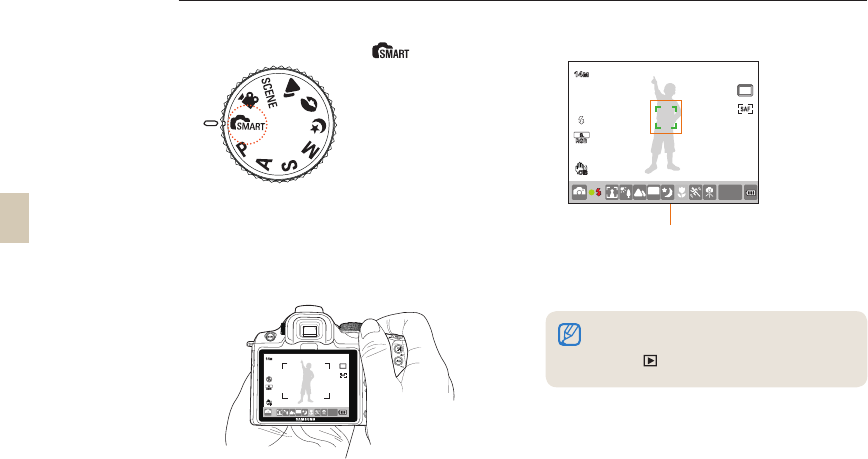
The screen display can be set according to the user’s
convenience.
1 In Shooting or Playback mode, press
[MENU].
2 Select Setting 3 ( 3) → Display Select
3 Select a desired option.
Auto Select Convert between Main Display and EVF by
eye sensor
Main Display The screen will be shown only through
Main Display
EVF The screen will be shown only through EVF
31
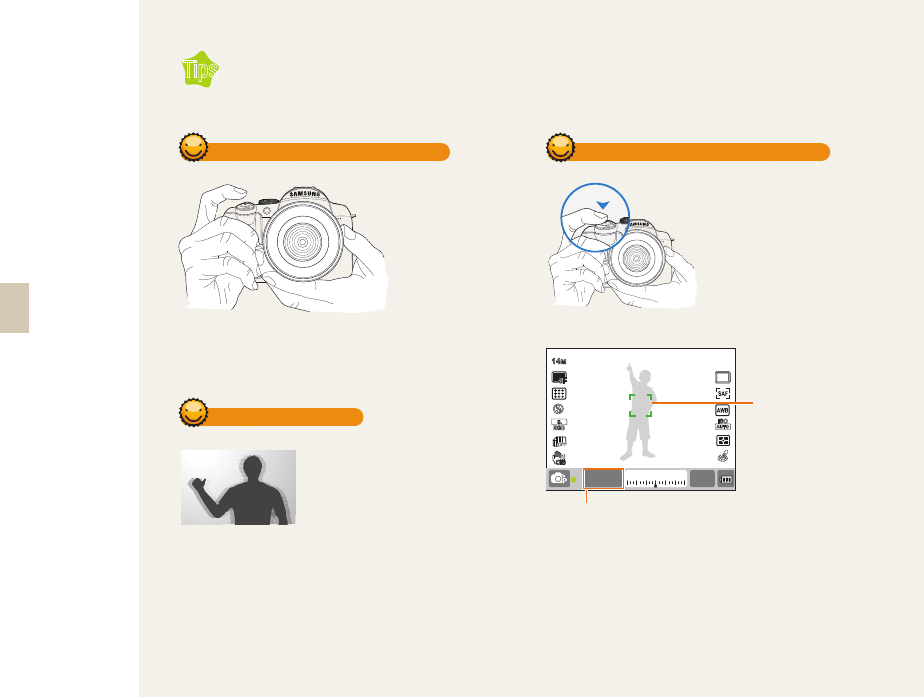
1 Rotate the mode dial to .
2 Align your subject in the frame.
All the details shown on the view finder will
appear identically on the display.
3 Half-press [Shutter] to focus.
4 Press [Shutter] to take a photo.
Simple picture-taking method
Using the Smart Auto mode, you can take a picture easily with minimum setup.
• Please refer to the "Tips for getting a clearer
photo" (p. 32) to take a clear picture.
• Press [ ] to see the saved images on the
screen.
● Green: Focus is set.
● Red: Focus is not set.
14
M
RGB
SMART
WHITE
0001
OIS
14
M
SMART
RGB
WHITE
SMART
0001
OIS
32
Holding your camera correctly
Please make sure
that your hand,
hair, and strap do
not interfere with
the lens or flash.
Image stabilization
Half-pressing the shutter button
In order to check in
advance whether the
focus of composition is set
appropriately, please use
the half-shutter function. If
you press the shutter half-
way down, the focus and
exposure will be adjusted
automatically.
In order to check in
advance whether the
focus of composition is set
appropriately, please use
the half-shutter function. If
you press the shutter half-
way down, the focus and
exposure will be adjusted
automatically.
Tips for getting a clearer photo
Shows the shutter
speed and aperture
value being set.
Focus frame
If green, take
the picture by
pressing the
[Shutter].
If red, either
change the
composition or
adjust the focus
again since the
focus is not
correctly set.
•
•
To avoid the blurring effect of
camera shake, set the optical
Image Stabilization (OIS)
function. (p.35)
•
3
-+
223110
14
M
SF
RGB
ISO
125 F3.5 0001
OIS
33
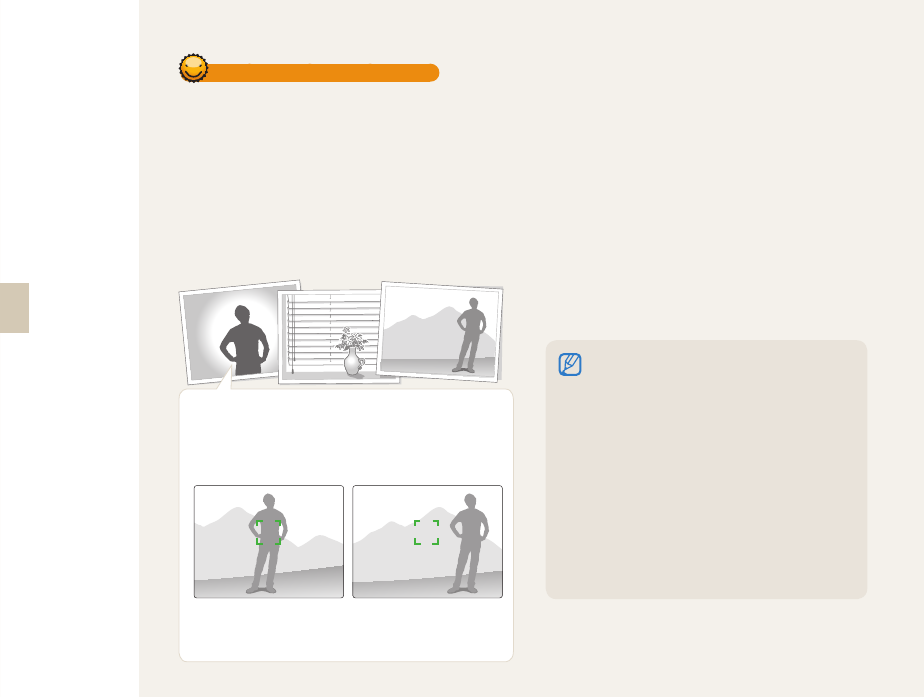
Under the following circumstances, it may be difficult to
get your subject in focus when:
When the color contrast is not clear
(When someone is wearing clothes similar in color to the background)
When the subject is in front of a strong backlight
When the subject generates strong reflected light
When there is a horizontally repeated line pattern (window blinds, etc.)
When the subject is not located in the center
When there is a flat white wall behind the subject which does not have
specific patterns.
When there is a fast moving subject.
When the subject is too close to the camera.
•
•
•
•
•
•
•
•
Using the manual focus
If the auto focus function does not operate normally
due to the environmental factors, your can set the lens
to Manual Focus (MF) and adjust the focus manually.
When the lens’ focus method is set to Manual Focus
(MF), this function helps focus the subject by expanding
the screen automatically. If the focus is adjusted by
using the expanded image, the focus can be adjusted
more accurately. (p. 63)
Getting your subject in focus
Please try to use the focus lock function.
Adjust the focus by using the half-shutter function where the
camera can focus easily. Then, simply press the [Shutter]
button after moving the camera to a desired composition. Keep
pressing and holding down the half-shutter until you actually
make a photo shot.
Under the half-shutter state, press the [AEL] button of the
camera to fix the exposure value and focus information at the
same time according to the setting. To cancel the function, press
the [AEL] button once more. (p. 77)
• Use the [AF/MF] control switch on the lens to
switch the camera to manual focus.
• If the lens doesn't have an AF/MF switch you
may be able to select Manual Focus in the AF
mode menu.
• The availability of this option differs, depending
on the lens you are using.
• When you adjust the focus manually, the picture
may appear blurred if you don't set the focus
accurately. Take pictures after setting the focus
accurately.
• When using the manual focus function,
the AF Area is not available to use.
• In the movie shooting mode, you can not set
the focus by using the expanded image.
34
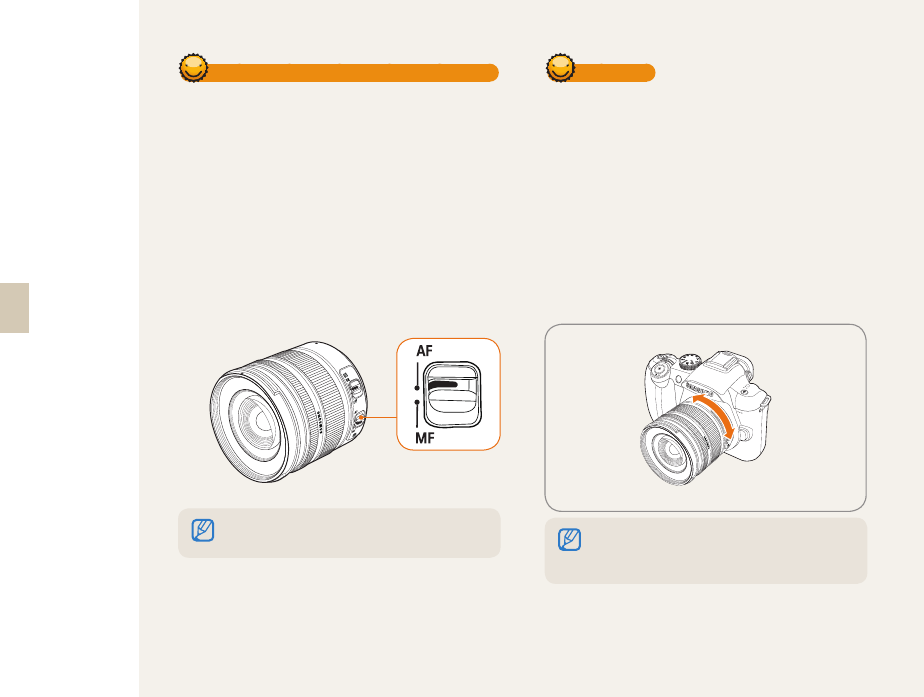
Setting the automatic/manual focus function
You can set the camera to adjust focus automatically
or manually by using the AF/MF switch on the side of
the lens.
1 Using automatic focus
Set the AF/MF switch of the lens to AF.
The focus adjusts automatically when you
press the shutter button half way down.
2 Using manual focus
Set the AF/MF switch of the lens to MF.
You can adjust the focus manually by
turning the focus ring.
Zooming
Using the zoom ring, you can enlarge (telephoto angle)
or reduce (wide angle) the size of an image by changing
the focal length value of the camera lens.
Adjust the image to the desired size, and then take a
picture.
1 Check the focus, and then turn the zoom ring
to the left/right.
x The focal length of the lens changes and the
subject appears enlarged or reduced.
2 Half-press [Shutter] to focus.
3 Press [Shutter] to take a photo.
Since the focus can change slightly when you zoom in or
out, we recommend you adjust the focus again prior to
taking a picture.
Some lens models do not have the AF/MF switch. Please
consider this when purchasing a lens. (p.60)
35
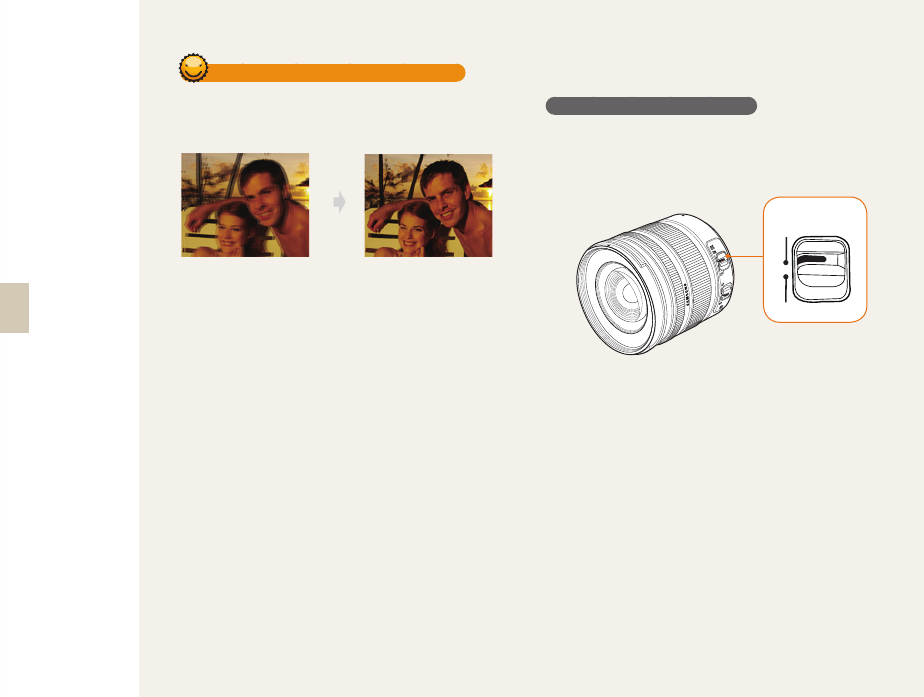
Optical Image Stabilization (OIS)
Use the optical image stabilization (OIS) function when
taking pictures to minimize camera shake and improve
focus.
▲ Before applying OIS ▲ After applying OIS
Using the OIS switch of lens
The OIS function can be used only in the case that the
lens in use has the OIS function.
To use this function, please set [OIS] to ON.
ON
OIS
OFF
36
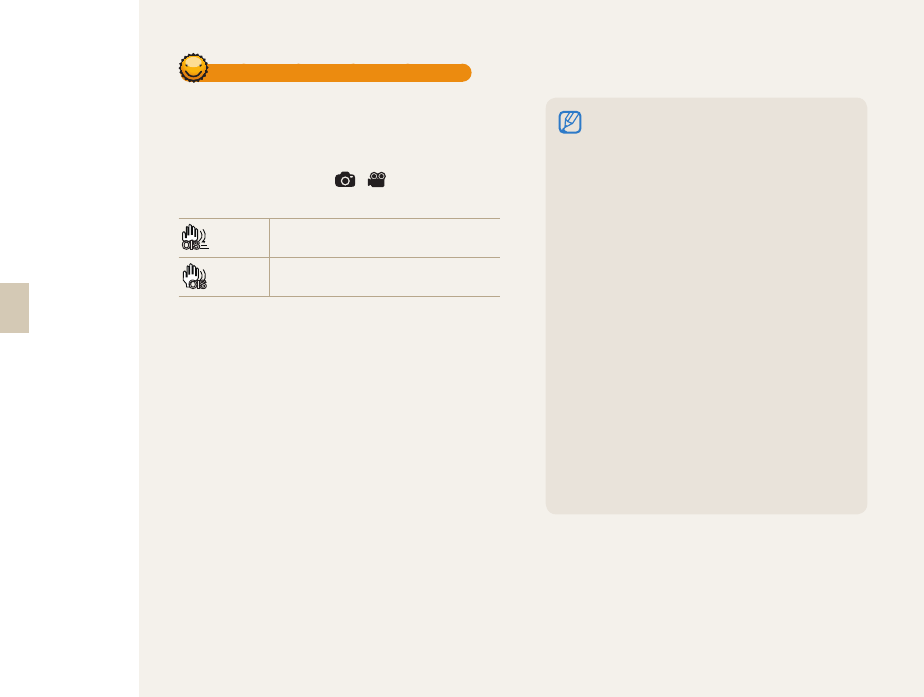
Using the OIS in the menu option
After setting the OIS switch, select the OIS function in
the menu option
1 In Shooting mode, press [MENU].
2 Select Shooting3 (3/3) → OIS →
an option.
OIS
Mode 1 The OIS function is applied only when
pressing the shutter in full or half.
OIS
Mode 2 The OIS function is always applied.
The OIS function may not work well in the following
situations:
When you take a picture while tracing a moving
object
When a big vibration occurs beyond the range of
stabilization
When the shutter speed is too slow due to a
circumstance like night shooting
When the battery capacity is not sufficient
When you are shooting a close-up shot
When you use a tripod, please disable the OIS
function since the image can be shaken due to the
vibration of OIS function.
If the camera is struck or dropped while you are
taking a picture, the display can be impaired. If this
occurs, turn the camera off and then on, and the
camera should operate normally again.
Since the battery consumption can increase along
with the use of OIS function, it is recommended to
use the function only if needed.
To set the OIS function by using the menu, set
[OIS] of lens to ON. This function may not operate
depending on the lens model.
The function can be set directly by pressing [Fn] in
the shooting mode.
•
-
-
-
-
-
•
•
•
•
•
37
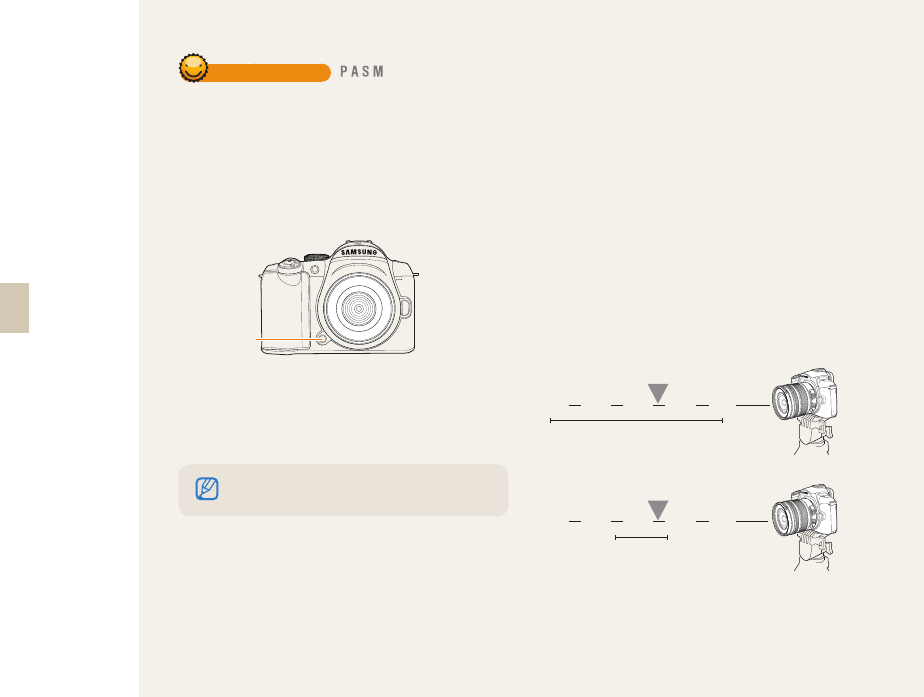
Depth preview
When you are not using the depth preview function, you can only see the subject through the camera in the condition of
the maximum aperture (minimum f-number) in the shooting mode.
Use the Depth of Field Preview function before taking a picture to view the depth of field of the scene as it looks with
the lens set to its current f-stop number.
1 Press the [Depth Preview] in the Shooting
mode.
2 You can check the depth of field result
actually taken through the display and
viewfinder.
What is the depth of field?
When you focus on a specific subject, there is a range
in which objects closer and further away are all in focus.
This focused range is called the depth of field.
The wider the wide-angle lens, the higher the aperture
value, the greater the depth of field.
For example, the aperture stop, f 11 is higher than f 2.8.
Current position of the subject
Current position of the subject
10 meters 6 meters 4 meters 2 meters 1 meters
10 meters 6 meters 4 meters 2 meters 1 meters
S This refer to an appropriate range of
focus when the depth of field is deep.
S This refer to an appropriate range of
focus when the depth of field is shallow.
You can set the function of a button differently by using the
Key Mapping menu option. (p. 77)
Depth
preview
button

Basic shooting
Learn how to take a photo by selecting a mode and how to record a video.
Using the Smart Auto mode ………………………… 39
Using the Program mode …………………………… 40
Using the Aperture Priority, Shutter Priority,
or Manual mode ……………………………………… 41
Using the Night/Portrait/Landscapee mode ……… 45
Using the Scene mode ……………………………… 46
Recording a Movie …………………………………… 48
39
Using the Smart Auto mode
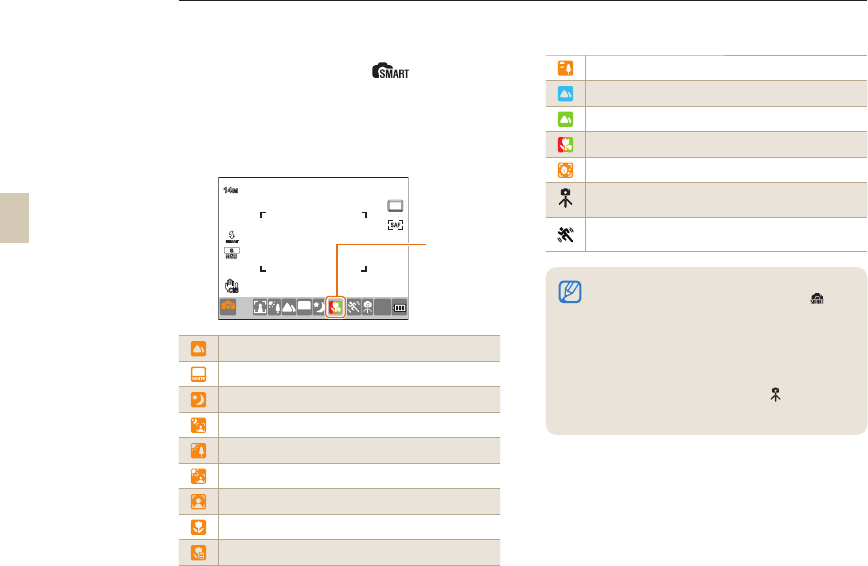
The smart auto mode allows taking pictures under an optimized condition since the camera recognizes various
photographing conditions automatically. Therefore, even a beginner can use the camera easily.
1 Rotate the mode dial to .
2 Align your subject in the frame.
• The camera automatically detects the type
of scene and displays the corresponding
scene icon in the display.
Outdoor landscape shot
Highly bright background shot
Night landscape shot
Outdoor portrait shot at night
Backlight landscape shot without a man
Portrait shot under backlight
Portrait shot
Close-up shot
Close-up character shot
Sunset shot
Blue sky shot
Nature shot such as forest and leaves
Close-up shot for the subject with various colors
Close-up portrait shot
With the camera on a tripod, a shot of a subject
that does not move for a period of time.
Shot of fast moving subject or subject that moves
frequently.
3 Half-press [Shutter] to focus.
4 Press [Shutter] to take a photo.
If the camera does not detect a type of scene, it
takes pictures with the basic settings of the mode.
Even if it detcts a face, the camera may not select
portrait mode because of the orientation and
brightness of the face.
The camera may not recognize a scene because of
adverse photograph conditions such as bad lighting,
camera shake, and subject distance.
The camera may not recognize the mode, even
if the camera is on a tripod, depending on the
movement of the subject.
•
•
•
•
The camera
displays the scene
icon corresponding
to the scene it
detects.
14
M
SMARTSMART
RGB
WHITE
14
M
SMART
0001
OIS
40
Using the Program mode
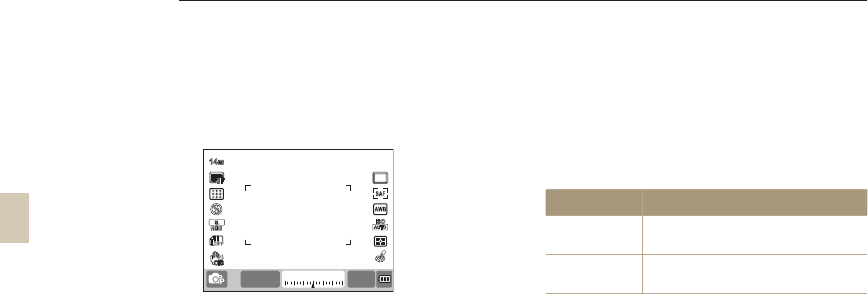
In the program mode, the camera automatically adjusts the shutter speed and aperture value to maintain the correct
exposure.
1 Rotate the mode dial to P.
2 Set options.
• For a list of options, refer to “Extended
shooting functions.”(p. 50)
3 Align your subject in the frame and half-
press [Shutter] to focus.
4 Press [Shutter] to take a photo.
What is the program shift method?
If this function is used, desired shutter speed and
aperture value can be selected while maintaining the
same brightness. The shutter speed and aperture value
are changed as in the following rules.
The available aperture numbers for exposure setting is
different depending on the lens model.
Dial direction Changing the exposure value
Left Decreased shutter speed + increased
aperture
Right Increased shutter speed + decreased
aperture
3
-+
223110
14
M
SF
RGB
ISO
15 F3.5 0001
OIS
41
Using the Aperture Priority, Shutter Priority, or Manual mode
By using the aperture value of adjusting light volume and shutter speed, you can take pictures of desired exposure.
As for the shooting modes that allows adjusting the aperture value and shutter speed, there are the aperture priority
mode, shutter speed priority mode, and manual mode.
Using the Aperture Priority mode
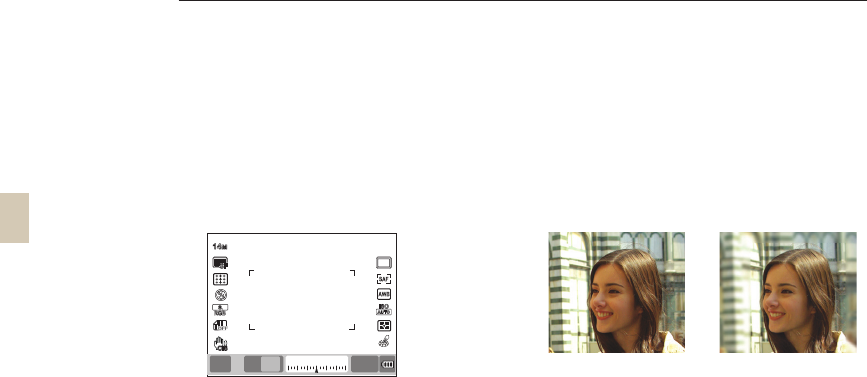
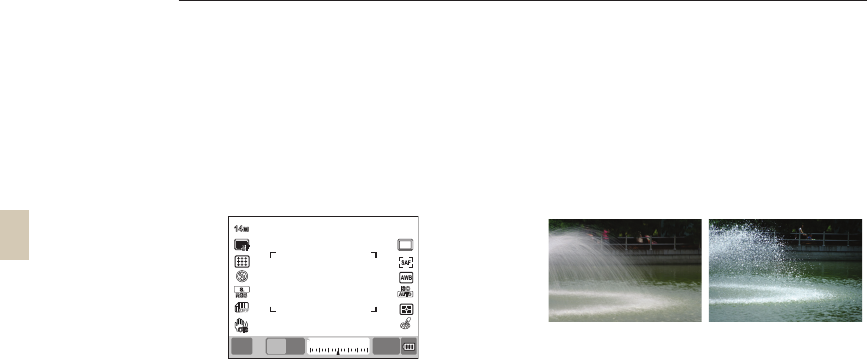
The Aperture Priority mode lets you to set the aperture
value manually while the camera automatically selects
an appropriate shutter speed.
1 Rotate the Mode dial to A.
2 Rotate the dial to adjust the aperture
value.
3 Set options.
• For a list of options, refer to “Extended
shooting functions.”(p. 50)
4 Align your subject in the frame and half-
press [Shutter] to focus.
5 Press [Shutter] to take a photo.
Aperture value
The aperture value of a lens can be adjusted to control
the amount of light reaching the image sensor. When
opening the aperture (reduce the aperture value),
objects closer and further away than the focused
subject will be out of focus. When closing the aperture
(increase the aperture value), the range in focus
expands forward and backward.
▲ Increased aperture
value (narrower opening)
▲ Reduced aperture
value (wider opening)
3
-+
223110
14
M
20 F3.5 0001
SF
RGB
ISO
A
OIS
F4
42
Using the Shutter Priority mode
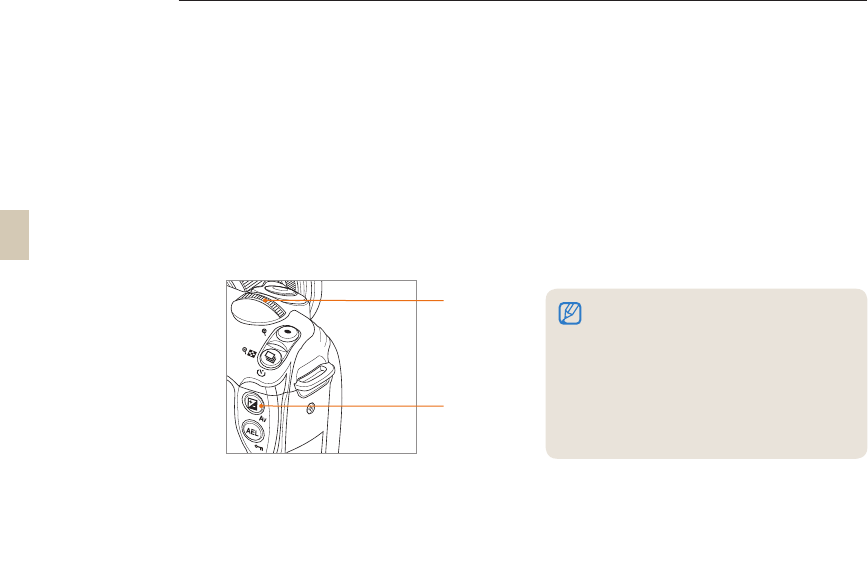
The Shutter Priority mode lets you set the shutter speed
manually while the camera automatically selects an
appropriate aperture value.
1 Rotate the Mode dial to S.
2 Rotate the dial to adjust the shutter
speed.
3 Set options.
• For a list of options, refer to “Extended
shooting functions.”(p. 50)
4 Align your subject in the frame and half-
press [Shutter] to focus.
5 Press [Shutter] to take a photo.
Shutter speed
Shutter speed is the length of time the shutter is open.
You can creat many interesting effects by adjusting the
shutter speed. A low shutter speed blurs motion on the
image. You can feel the speed in the picture when the
low shutter speed is used for a shot.
A fast shutter speed is essential for capturing the
movement. A faster shutter speed froze the subject in
its movement.
▲ Slow shutter speed ▲ Fast shutter speed
Using the Aperture Priority, Shutter Priority, or Manual mode
3
-+
223110
14
M
SF
RGB
ISO
0001
S
250 F3.7
OIS
43
Using the Manual mode
In the manual mode, you can take pictures by setting
various shot options directly including the shutter speed
and aperture value.
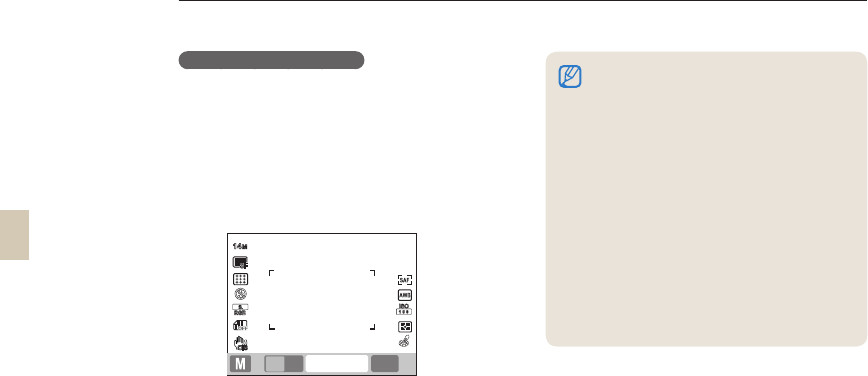
1 Rotate the Mode dial to M.
2 Rotate the dial to adjust the shutter
speed.
3 Rotate the dial to adjust the aperture value
while press and hold the [EV].
4 Set desired shooting options.
• For a list of options, refer to “Extended
shooting functions.”(p. 50)
5 Align your subject in the frame and half-
press [Shutter] to focus.
6 Press [Shutter] to take a photo.
Using the Aperture Priority, Shutter Priority, or Manual mode
EV button
Dial
In the P (Program), S (Shutter Priority), or A (Aperture
Priority) modes, when a value appears in red, it is
outside the range of values that produces good
pictures.
P mode: Shutter speed and aperture value can
appear in red.
S mode: Shutter speed can appear in red.
A mode: Aperture value can appear in red.
The camera can not set the ISO speed automatically
in the M (manual) mode.
•
•
44
Using the bulb exposure
By using the bulb exposure, you can set the shutter
speed as long as you want.
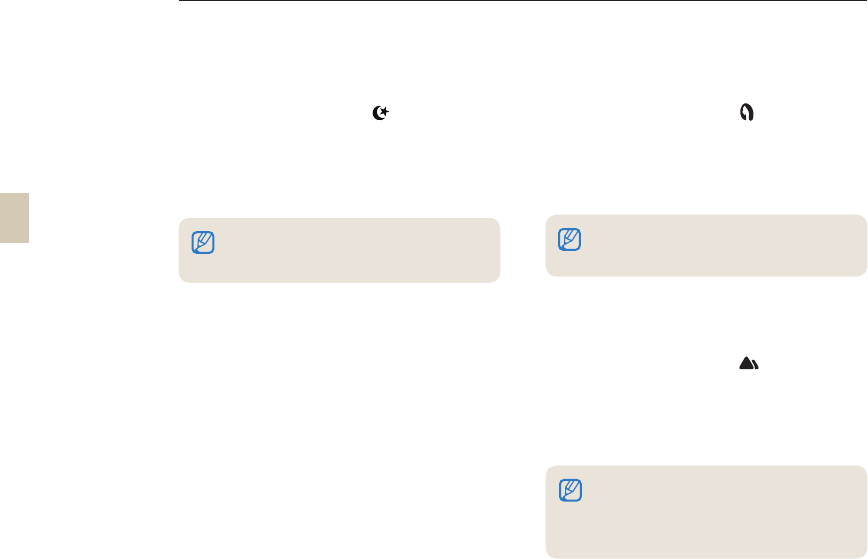
1 Rotate the Mode dial to M.
2 Rotate the dial and set the shutter speed
to Bulb.
• Bulb exposure indication appears next to
the shutter speed of 30"(seconds).
3 To adjust the aperture value, press and
hold the [EV] while rotating the dial.
4 Align your subject in the frame and half-
press [Shutter] to focus.
5 Press [Shutter] to take a photo.
• The exposure time continues until you
finish holding the [Shutter]. Press and
hold the [Shutter] for desired time. As
soon as you finish holding the [Shutter],
the shooting is complete.
Using the Aperture Priority, Shutter Priority, or Manual mode
To improve image stability in the Bulb Exposure
mode, we recommend you use a reliable tripod or
shutter release (purchased separately).
With long exposures, the time the camera takes
to save images gets longer as well. This is not a
problem with the product and you do not need to
replace the battery.
Before using Bulb Exposure to take long exposures,
we recommend you fully charging the battery.
When you use Bulb Exposure to take long exposures,
visual noise can occur. To control visual noise, we
recommend you turn the Noise Reduction function
on. The Noise Reduction function operates when the
shutter exposure exceeds 1 seconds.
When you use Bulb Exposure, the Successive
Shooting function is unavailable.
When you use Bulb Exposure, you can not set the
ISO Speed to AUTO.
•
•
•
•
•
•
14
M
SF
RGB
ISO
0173
Bulb F3.5
00'00''
OIS
45
Using the night mode
Night mode provides the optimal exposure settings for
dark or night time environments.
1 Rotate the Mode dial to .
2 Align your subject in the frame and half-
press [Shutter] to focus.
3 Press [Shutter] to take a photo.
Using the portrait mode
In Portrait mode, the camera automatically sets optimal
portrait shot settings.
1 Rotate the Mode dial to .
2 Align your subject in the frame and half-
press [Shutter] to focus.
3 Press [Shutter] to take a photo.
Using the landscape mode
Landscape mode provides the optimal exposure and
focus settings for natural landscapes.
1 Rotate the mode dial to .
2 Align your subject in the frame and half-
press [Shutter] to focus.
3 Press [Shutter] to take a photo.
Using the Night/Portrait/Landscape mode
When you use Night mode, we recommended you
also use a tripod, shutter release, or Timer function
(purchased separately) to minimize camera shake.
In the portrait mode, the focus area is automatically
set to the face as it is set to the Face Detection
AF mode automatically.
In the landscape mode, the camera adjusts shutter
speed automatically according to the aperture
value.
We recommend you use a tripod in case the
camera selects a slow shutter speed setting.
46
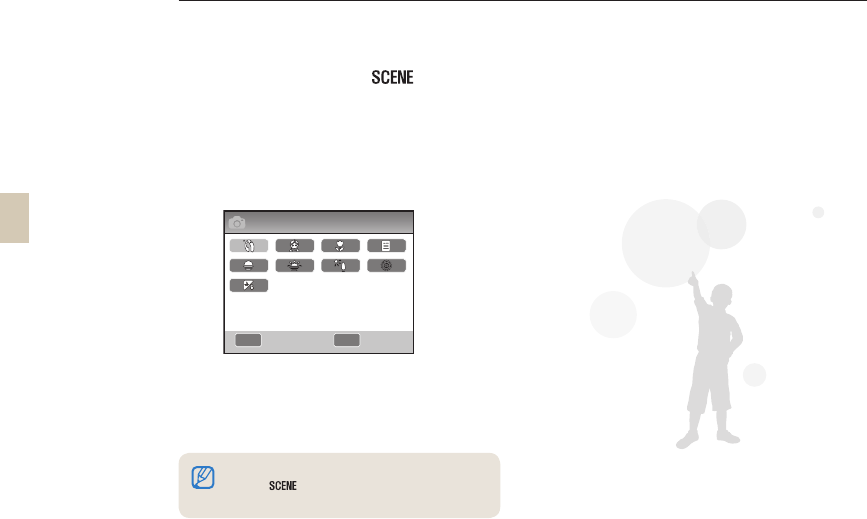
1 Rotate the Mode dial to .
2 Select a scene.
x Press [MENU] to select a scene. You can
select a desired scene.
x For the Beauty Shot mode, see “Using the
Beauty Shot mode.”
3 Align your subject in the frame and half-
press [Shutter] to focus.
4 Press [Shutter] to take a photo.
If you have the camera set to Standby mode and the Mode
dial set to , you can directly select a desired scene by
pressing [Fn].
Using the Scene mode
Since an appropriate option is set in advance by the scene, the shot can be taken conveniently by selecting a scene
appropriate for the situation.
MENU OK
1
Beauty Shot
Back Set

47
Using the Beauty Shot mode
In the beauty shot mode, you can take pictures with
options that make faces appear smooth and blemish-
free.
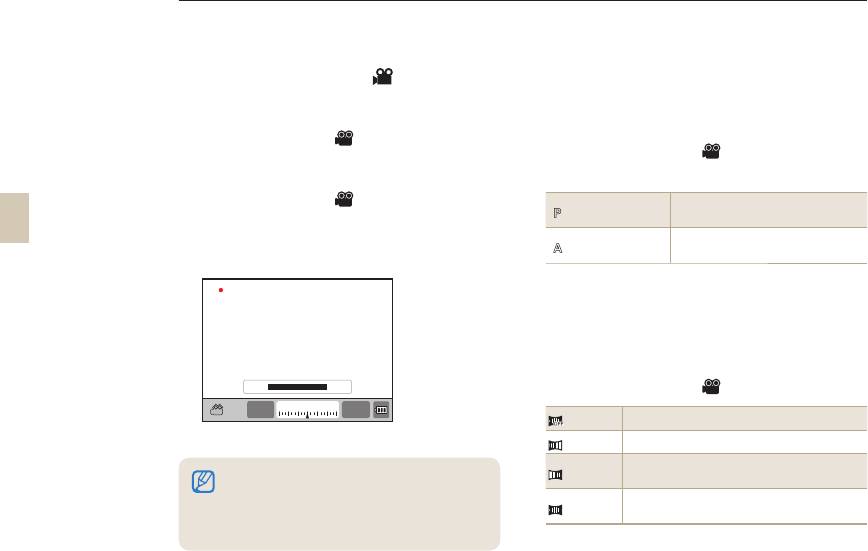
1 Rotate the Mode dial to .
2 Press [MENU].
3 Select Shooting1 ( 1) → SCENE →
Beauty Shot.
4 Select Shooting3 ( 3) → Face Tone.
5 Set options.
x Select a higher setting to make skin tone
appear lighter.
6 Select Shooting3 ( 3) → Face
Retouch.
7 Set options.
x Select a higher setting to make skin tone
appear lighter.
8 Align your subject in the frame and half-
press [Shutter] to focus.
9 Press [Shutter] to take a photo.
MENU OK
3
1 2 1 1 2 3
Face Tone
Face Retouch
Level 1
In the Beauty Shot mode, AF area is set to Face
Detection AF or Self-Portrait AF.
Using the Scene mode
MENU OK
3
1 2 1 1 2 3
Face Tone
Face Retouch
Level 1
Level 2
Level 3
Back Set
Back Set
Level 1
Level 2
Level 3
48
Recording a Movie
In the movie shooting mode, you can shoot videos in High Definition quality (1280x720). You can continue recording
movies up to 25 minutes. The recorded video is saved as an H.264 (MPEG-4.AVC) file.
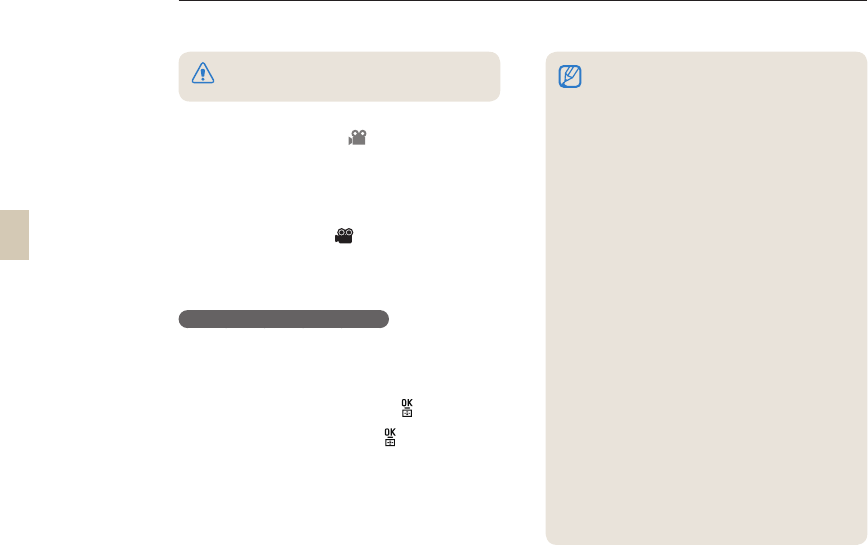
1 Rotate the Mode dial to .
2 Press [MENU].
3 Select Shooting1 ( 1) → Quality.
4 Set options.
5 Select Shooting3 ( 3) → Voice.
6 Select whether to record sound.
7 Press [Shutter] to start recording.
8 Press [Shutter] again to stop recording.
Setting the aperture value
You can set the aperture value when shooting a movie.
1 In Shooting mode, press [MENU].
2 Select Shooting1 ( 1) → Movie AE
Mode → an option.
P
Program The aperture value is adjusted
automatically.
A
Aperture Priority Set the aperture value by using the
dial before taking the movie.
To fade out the screen
You can make the movie screen darker or brighter
gradually in recording by using the fader function.
1 In Shooting mode, press [MENU].
2 Select Shooting3 ( 3) → Fader.
Off Fader function not used
In Scene gradually fades in when recording starts.
Out Scene gradually fades out when recording
ends
In-Out The fader function is applied at the start and end
of the scene.
Movie frame speed is fixed at 30 fps (30 frames/sec).
While shooting a movie, push the [Depth Preview]
button once to activate the AF function and once
again to cancel the function. This function may not
work depending on the lens you are using.
•
•
REC
WWaWX 01:00
3
-+
223110
F3.5 01:00
49
Recording a Movie
Using the Wind Cut
Use the wind noise removal function to remove some
surrounding noise in addition to the wind noise.
1 In the Shooting mode, press [MENU].
2 Select Shooting3 ( 3) → Wind Cut →
an option.
Pause while recording a movie
By using the pause function, you can shoot only
desired scenes into one file without generating several
movie files.
To pause during the recording, press [].
To continue on recording, press [] again.•
H.264 (MPEG-4 part10/AVC) is the latest video
coding format established in 2003 collaboratively by
ISO-IEC and ITU-T. Since this format uses a high
compression rate, more data can be saved in less
memory space.
If you use a slow writing memory card, your movie's
recording can be interrupted because the card can
not process data at the rate the video is being shot.
If this occurs, replace the card with a faster memory
card or reduce the image size.
If you have the image stabilizer option on when
shooting a movie, the camera may record the image
stabilizer sound.
When the size of a movie file exceeds 4GB, the
camera automatically stops recording. If this occurs,
continue the movie by starting a new movie file.
When formatting a memory card, always format using
this camera. If you format on another camera or a
PC, you can cause a change in the capacity of the
card or make it incompatible with your camera.
If you remove the camera lens while recording a movie,
the recording will be interrupted. Do not change the lens
while recording.
While you shoot a movie, the camera can record
the sounds of the zoom mechanism working and
the sounds the camera makes when you press the
buttons.
If you change the shooting angle of the camera
suddenly while shooting a movie, the camera may not
be able to record images accurately. We recommend
using a tripod when shooting a movie. In this way, you
can minimize camera shake.
In the Movie Shooting mode, the camera supports only
the Multi AF function. You can not use any other focus
area setting functions, such as Face Detection AF.
•
•
•
•
•
•
•
•
•
When you use the Fader function, it may takes longer
to save images.
•

Extended shooting
functions
Learn about the options you can set in shooting mode.
By using the shooting options, you can enjoy more customized pictures
and movies.
Setting the resolution and quality …………………… 51
Using the timer function ……………………………… 54
Taking a picture in the dark place …………………… 55
Focusing methods …………………………………… 60
Face detection ………………………………………… 64
Brightness and color adjustment of picture ………… 66
Changing the shooting method ……………………… 73
Special effect/photo retouching ……………………… 75
Key Mapping …………………………………………… 77
51
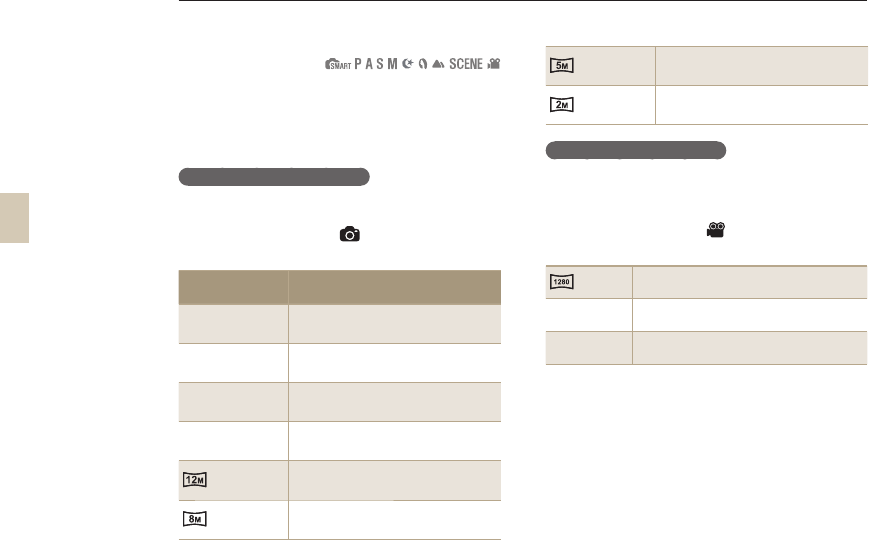
Setting a resolution
To capture the high level of detail and excellent image
quality in your picture or video, it is a good idea to
set the resolution to the highest setting. The main
drawback is that the file size becomes relatively big.
Setting picture resolution
1 In Shooting mode, press [MENU].
2 Select Shooting 1 (1) → Photo Size →
an option.
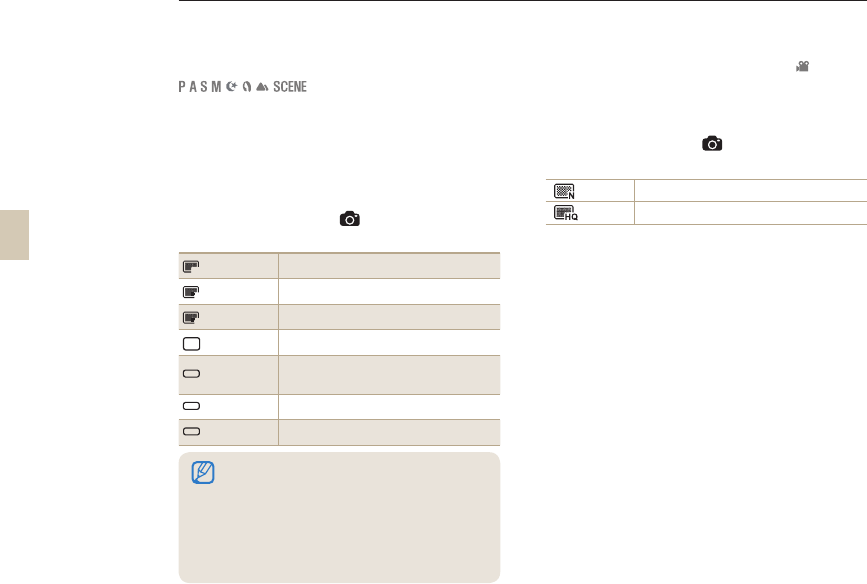
Picture size
(display ratio) Proper use
14M
4592 x 3056
(3:2)
For printing photos on A1 size
prints
10M
3872 x 2592
(3:2)
For printing photos on A2 size
prints
6M
3008 x 2000
(3:2)
For printing photos on A3 size
prints
2M
1920 x 1280
(3:2)
For printing photos on A5 size
prints
4592 x 2584
(16:9)
When outputting to HDTV (16:9)
or printing A1 size prints.
3872 x 2176
(16:9)
When outputting to HDTV (16:9)
or printing A3 size prints.
3008 x 1688
(16:9)
When outputting to HDTV (16:9)
or printing A4 size prints
1920 x 1080
(16:9)
When outputting to HDTV (16:9)
or printing A5 size prints.
Setting video resolution
1 Press [MENU] in the Video Shooting
mode.
2 Select Shooting 1 (1) → Movie Size →
an option.
1280
(16:9) When outputting to HDTV
640 640
(4:3) When outputting to normal TV
320 320
(4:3) When uploading and using on the web
Setting the resolution and quality
You can also set the Resolution function by pressing [Fn] in the shooting mode.
52
Setting the image quality of a picture
The camera saves pictures in either in the JPEG or RAW
format.
The compression ratio is reduced as the image quality
gets better. It is necessary to increase the file size to have
a better quality picture.
1 In Shooting mode, press [MENU].
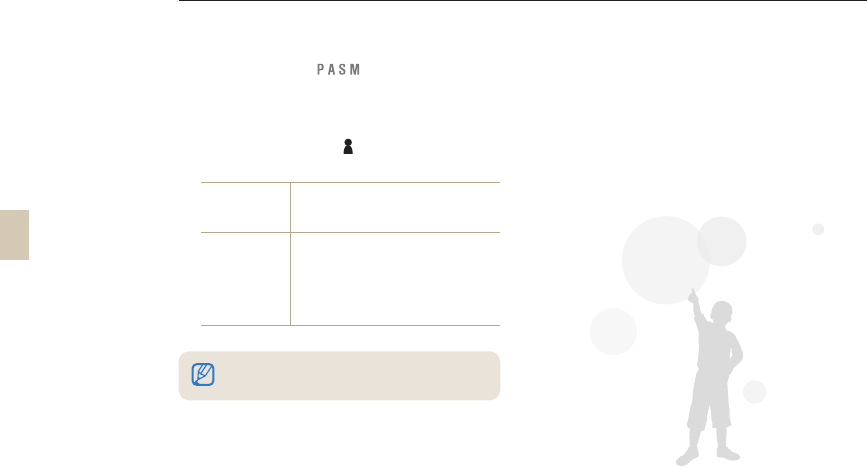
2 Select Shooting 1 (1) → Quality → an
option.
SF
Super Fine
Set to super fine quality
F
Fine
Set to fine quality
N
Normal
Set to normal quality
RAW
RAW
Save in the RAW file format
RAW
S.FINE
S.Fine+RAW
Save super-fine image and RAW file at the
same time
RAW
FINE
Fine+RAW
Save fine image and RAW file at the same time
RAW
NORMAL
Normal+RAW
Save normal image and RAW file at the same time
Setting the quality of a movie
The camera saves movies in normal or high quality.
1 In the Shooting mode, press [MENU].
2 Select Shooting1 (1) → Quality → an
option.
Normal Set normal quality
HQ Set high quality
• The camera saves RAW fi le format images without
data loss and only in the 14M (4592 x 3056) photo
size. Although settings for white balance, contrast,
saturation, and sharpness, etc. are not reflected
in the image, they are saved as information. If you
want to save the RAW data into an image fi le format
such as JPEG or TIFF, use the provided software
(SAMSUNG RAW Converter). RAW fi les have an
"SRW" extension. (For example: “SAM_9999.SRW”)
Setting the resolution and quality
You can also set the Quality function by pressing [Fn] in the shooting mode.
53
Noise reduction
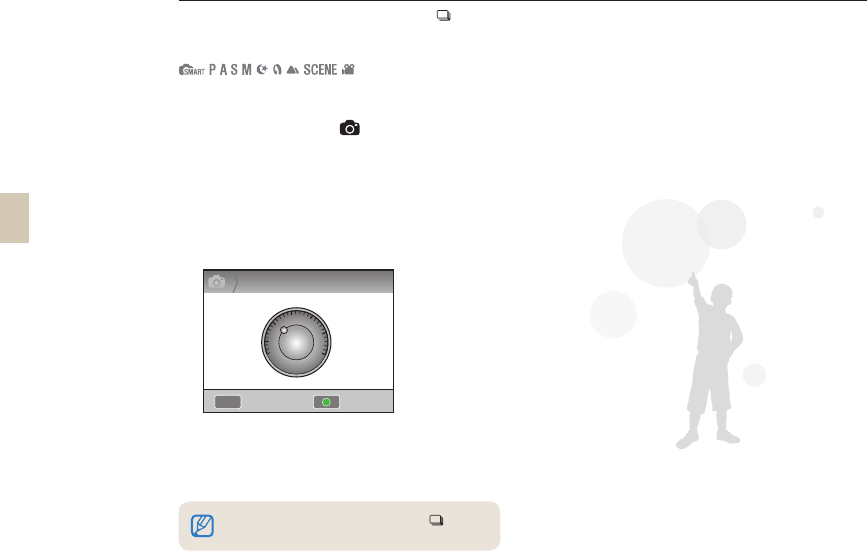
This function can be set to reduce the noise in pictures.
1 In the Shooting mode, press [MENU].
2 Select User setup (1) → Noise
Reduction → an option.
High ISO NR
This function reduces noise that
may occur when you set a high-
speed ISO (3200).
Long Term
NR
This function reduces noise when
you set the camera for a long
exposure (over 1 seconds). It
requires additional processing
time equal to the shutter speed
you used to take the picture.
Setting the resolution and quality
When the Noise reduction function is disabled,
there might be a noise in the recorded picture.
54
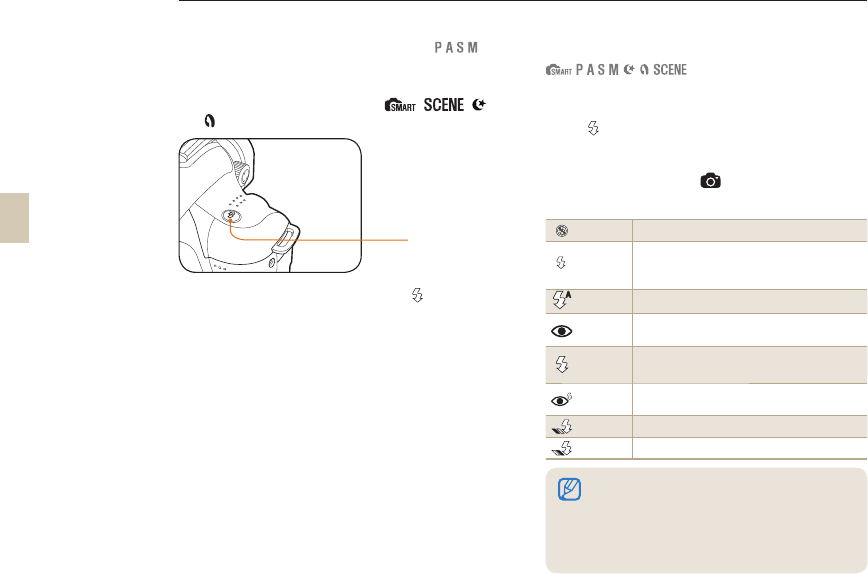
Setting the timer function
1 In the Shooting mode, press [MENU].
2 Select Shooting 2 (2) → Drive.
3 Press [Fn] after selecting Timer.
4 Select the operation time by rotating the
dial or pressing [W / X].
• You can select the timer setting pressing
of 2 ~ 30 seconds.
5 The shot is taken automatically after the
time being set has passed by pressing
[Shutter].
Using the timer function
The function can be set directly by pressing [ ] in the shooting mode.
To cancel the self timer function, press [ ] one
more time, or press [Shutter].
MENU
2Timer
Reset
10
2
30
Back
55
Using the flash popup button
The flash operates when you pop-up the built-in flash
by pressing the flash button. When the flash is closed,
it will not burst out the light and the , , ,
and modes support automatic popup and flash light.
1 In the Shooting mode, press [ ].
2 Align your subject in the frame and half-
press [Shutter] to focus.
3 Press [Shutter] to take a photo.
• Even if you have opened the flash using
the 'Flash' button, the flash will not work if
you have the Flash Option in the menu set
to Off.
Setting the flash option
If a picture is taken in a dark place, the picture may
appear to be dark since the light source is not sufficient.
Press [] to pop up the flash.
1 In the Shooting mode, press [MENU].
2 Select Shooting 2 (2) → Flash →
an option.
Off The flash light doesn't operate.
SMART
Smart Flash
The camera automatically adjusts the brightness of the
flash according to the amount of light in the surrounding
environment.
Auto The flash light operates automatically in the dark place.
Auto+Red The flash light operates automatically and prevents the
red-eye effect.
Fill in • The flash operates whenever you take a picture.
• The brightness of the flash is automatically controlled.
Fill-in Red The flash operates whenever you take a picture and
prevents the red-eye effect.
1st Curtain The flash operates immediately after the shutter opens.
2nd Curtain The flash operates just before the shutter closes.
• You can take a better picture if the subject is
located within the operational range of the flash.
(Refer to the Guide Number in “Specification,”)
• You can set the auto flash option for external
flashes on the NX-series models only.
• The flash options available differ, depending on
the shooting modes.
Flash button
Taking a picture in a dark place
The function can be set directly by pressing [Fn] in the shooting mode.
56
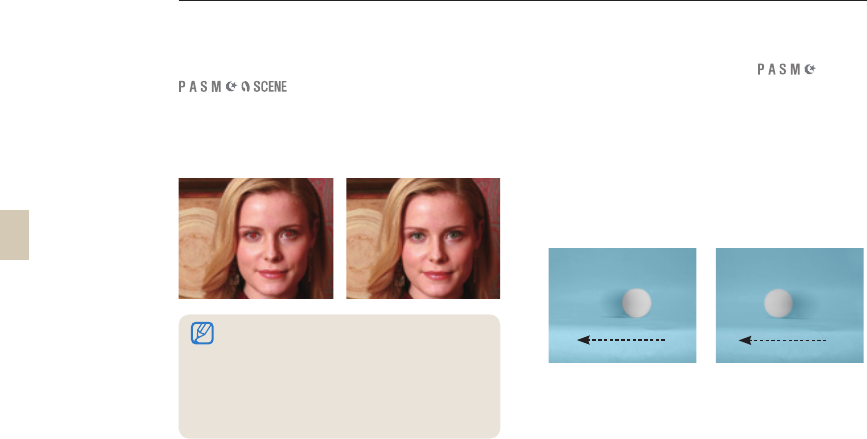
Using the red-eye fix function
When you take a portrait using the flash, the bright
burst of light can cause the red-eye effect. To prevent
the red eye effect, set the flash option to Auto+Red or
Fill-in Red.
1st Curtain, 2nd Curtain
The following images were obtained by taking the
pictures of straight-moving subject along with the
respective options of 1st Curtain and 2nd Curtain. In
case of using the 1st Curtain flash function, the front
part of action is remained clearly since the flash will
burst light immediately upon shutter opening. Since the
flash bursts the light at a later time when having used
the 2nd Curtain option, the picture expresses the last
image of the subject clearly.
Ball moving direction Ball moving direction
S
Use of early 1st
Curtain option
S
Use of 2nd Curtain
option
Taking a picture in a dark place
• When you set the red-eye fix function, the
camera prevents red-eye by emitting a
preliminary flash prior to the brighter flash it
emits when capturing the image.
• When the subject is moving or is far away from
the camera at the time of the preliminary flash,
the function may not function well.
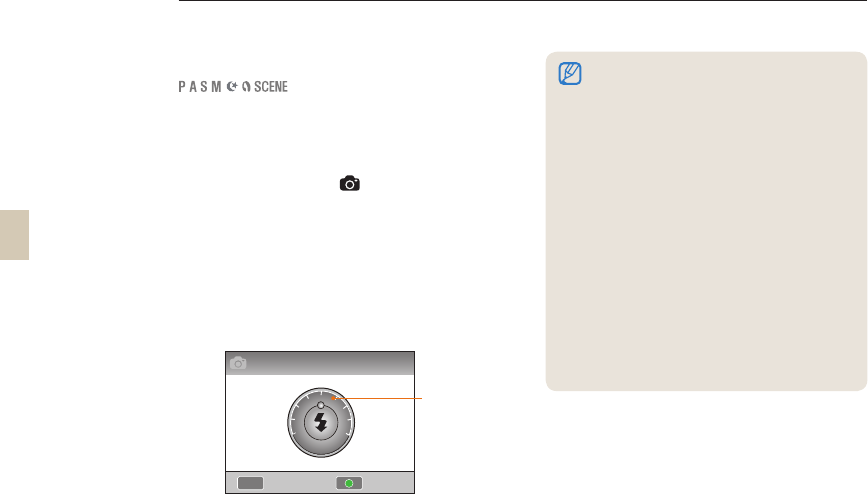
57
Adjusting the amount of flash light
When setting a flash option, you can adjust the
brightness of the flash.
1 In the Shooting mode, press [MENU].
2 Select Shooting 2 (2) → Flash.
3 Press the [Fn] button after selecting a
desired item.
4 Adjust the brightness of the fl ash by
rotating the dial or pressing [W / X].
• You can adjust flash brightness by ±2
levels.
Taking a picture in a dark place
• If the subject is too close, the ISO sensitivity is
high, or the exposure value is too large or small,
the adjustment effect will be reduced.
• The Flash Brightness Adjustment function is not
available in some shooting modes.
• If an external flash unit has a flash control
function, the light control value of the external
flash is applied when you connect it to the
camera.
• If the distance from the subject is quite close
when taking images by using the built-in flash,
part of the images may appear dark as the lens
is interfered with the flash light. Please check
the distance between camera and subject when
taking pictures. The distance interfered with
flash light may vary by the type of lens in use.
• If you've installed a lens hood, the hood can
block light from the built-in flash. Please remove
the lens hood when using the built-in flash.
MENU
1
Display
the level of
flash light
adjustment
-2
-1 +1
+2
0
Flash Exposure Value
ResetBack
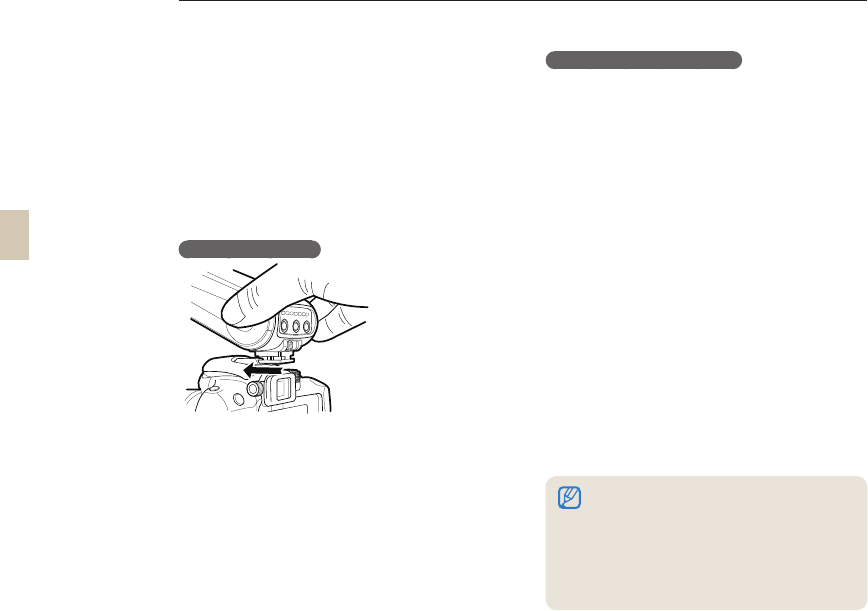
58
Using an external flash unit
(purchased separately)
You can use the A-TTL auto flash mode when you
attach an external flash unit (SEF20A or SEF42A) to the
camera.
This section of the user manual was prepared based on
the model SEF20A flash.
For more details about the external flash units, see the
flash units user’s manual.
Installing the flash
1 Install the external flash after removing the
hot shoe cover.
2 Turn on the external flash.
• The burst mode of external flash is set to
the TTL auto mode.
3 Make sure the external flash is fully
charged, and then start shooting.
The available flash modes
The flash modes available are determined by the
camera lens or camera exposure mode you are using.
1
Smart Flash Mode
•
The camera automatically adjusts the brightness
of the flash according to amount of light in the
surrounding environment.
2
Auto
•
The flash operates automatically in dim or dark
light.
3
Auto + Red
•
The flash operates automatically in dim or dark
light and prevents the red-eye effect.
4
Fill in
•
The flash operates whenever you take a picture
and its brightness is controlled automatically.
5
Fill-in Red
•
Always operates the flash light, and prevents the
red-eye effect.
6
1st Curtain
•
The flash operates immediately after the shutter
opens.
7
2nd Curtain
•
The flash operates just before the shutter closes.
Taking a picture in a dark place
• Only a flash device manufactured for the NX series
automatically adjusts the brightness of the flash.
To enjoy the auto mode functions, please use the
flash manufactured for NX models. Although the
flash fires without the battery being fully charged, we
recommend using the flash only after you charge the
battery fully.
• If an external flash unit has a flash control function,
the light control value of the external flash is applied
when you connect it to the camera.
59
Adjusting the ISO sensitivity
The ISO sensitivity, as the film sensitivity established
by the international standards organization (ISO),
represents the degree of reaction when camera
receives light. Since it reacts more sensitively with
greater ISO value, a natural shot can be obtained in a
dark place by raising the ISO value. This reduces the
degree of camera shaking with faster shutter speed.
1 In the Shooting mode, [MENU].
2 Select Shooting 1 (1) → ISO →
an option.
Taking a picture in a dark place
• The higher the ISO speed you select, the more
visual noise you may get.
• When the noise reduction function is used, the
noise caused by the high-sensitive ISO(3200)
can be reduced.
• The available ISO setting options may differ
depending on the Shooting mode.
• You can set the ISO directly by pressing [ISO] in
the Shooting mode.
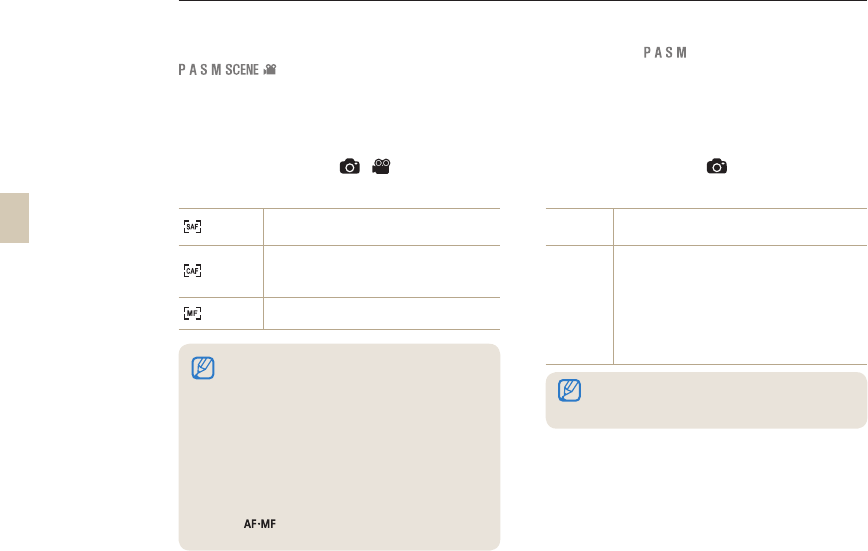
60
Focusing methods
Changing the Focusing methods
You can select a focusing method appropriate to the
subject you are photographing.
1 In the Shooting mode, press [MENU].
2 Select Shooting 2 (2/2) → AF Mode
→ an option.
Single AF When you press [Shutter] half way down, the
focus fixes in one position.
Continuous
AF
When you hold the [Shutter] half-way down, the
focus adjusts continually as the subject changes
position.
Manual
Focus Adjust the focus manually by turning the focus ring.
AF Priority
When you use the AF focusing function, the AF Priority
function prevents the shutter from firing if the focus is
not appropriately set.
1 In the Shooting mode, press [MENU].
2 Select Shooting 2 (2) → AF Priority →
an option.
Off Camera takes a shot regardless of the
focus.
On
The camera takes a shot only if the focus
is set correctly when you press the shutter
button. Even if the focus is set correctly
when you press the shutter half way, the
camera will not take the shot if the focus
is not set correctly when you press the
shutter button fully.
• If your lens has an [AF/MF] switch, you can set the lens to
MF and adjust the focus manually.
• If there is no AF/MF switch on the lens, you can switch to
manual focus by selecting Manual Focus in the AF mode
menu.
• The selectable option may differ according to the lens in
use.
• When adjusting the focus manually, the picture may appear
blurred if you don't set the focus accurately. Please take a
picture after setting the focus accurately. (p. 32).
• You can also set the AF/MF function directly by pressing
[] on top of the directional button while in Shooting
mode.
Even with AF Priority on, the Continuous and the
Burst Shot options let the shutter fire whether the
focus is set correctly or not.
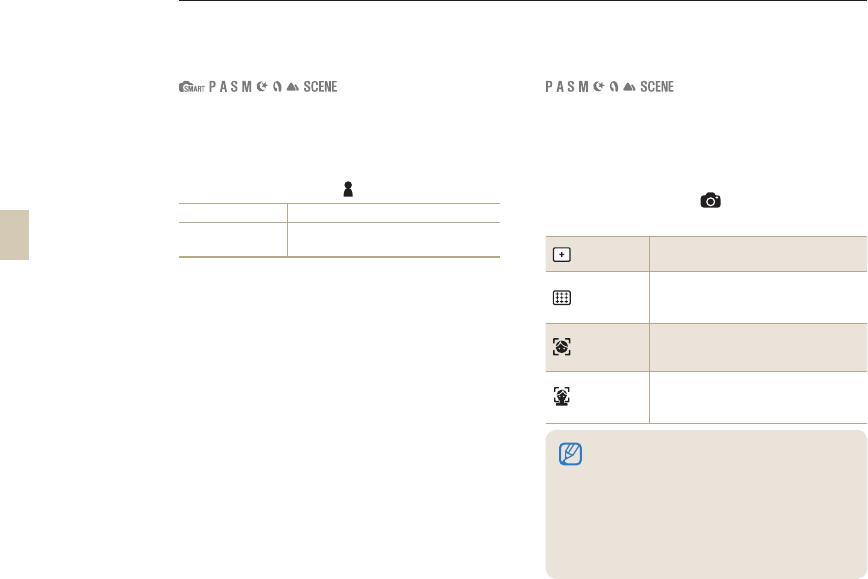
61
Focusing methods
Using the AF assist light
The auto focus functions more accurately in dark
places when the AF assist light is on.
1 In the Shooting mode, press [MENU].
2 Select User setup ( 1) → AF Lamp.
Off AF assist light not used
On AF assist light turns on when light
is not sufficient.
Changing the focus area
The AF Area function changes the positions of the
focus area or areas and can give you clearer, sharper
pictures.
1 In the Shooting mode, press [MENU].
2 Select Shooting 2 (2) → AF Area → an
option.
Selection
AF
Sets the focus appropriately for an
area you have selected.
Multi AF
Displays a green rectangle in all
the Face places where focus is set
correctly.
Face
Detection
AF
Shows the areas that the focus is
correctly set in the display.
Self-
Portrait AF
When the sound effect is heard at the
time of self-shot, you can check the
position of the subject’s face.
• The available options may differ by Shooting
mode.
• When you set the AF/MF switch on the lens to
MF, you can not change the AF area using the
Shooting menu.
• When you select the Multi AF function, the AF
areas that are in focus appear in green.
• You can select this function directly by pressing
[Fn] in the Shooting mode.
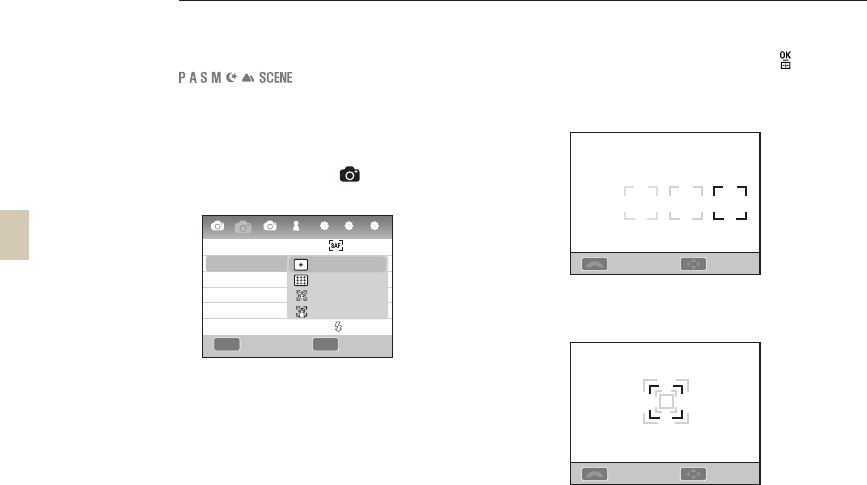
62
Setting the focus of the selected area
In the shooting composition, a shot may be taken by
setting the focus to the area desired by user.
1 In the Shooting mode, press [MENU].
2 Select Shooting 2 (2) → AF Area →
Selection AF.
3 Press [MENU] to return to the previous
mode.
4 In the Shooting mode, press [ ].
5 Press [S/T/W/X] to move the focus
area.
6 Adjust the size of focus area by using the
dial.
7 Align your subject in the frame and half-
press [Shutter] to focus.
8 Press [Shutter] to take a photo.
Focusing methods
AF Zoom Move
AF Zoom Move
MENU OK
2
1 1 1 2 3
AF Mode
AF Area
AF Priority
MF Assist
Drive
Flash
3
Back Set
Selection AF
Multi AF
Face Detection AF
Self-Portrait AF
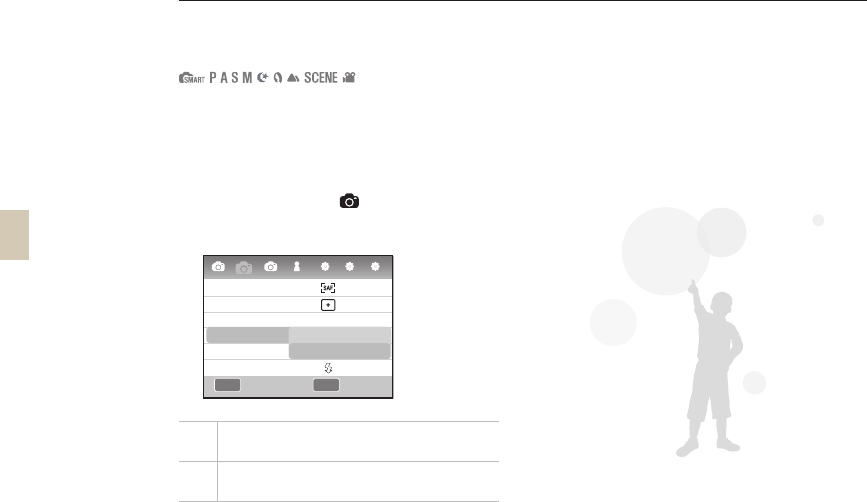
63
Focusing methods
Setting the MF Assist
When the lens’ focus method is set to Manual Focus
(MF), this function helps focus the subject by expanding
the screen automatically.
1 Set the focus method to Manual Focus.
2 Select Shooting 2 ( 2) → MF Assist
3 Select a desired option.
Off Do not enlarge the subject on screen when it is
in Manual focus mode.
On Enlarge the subject on screen when you adjust
the focus in Manual focus mode
MENU OK
2
1 1 1 2 3
AF Mode
AF Area
AF Priority
MF Assist
Drive
Flash
3
On
Off
On
Back Set
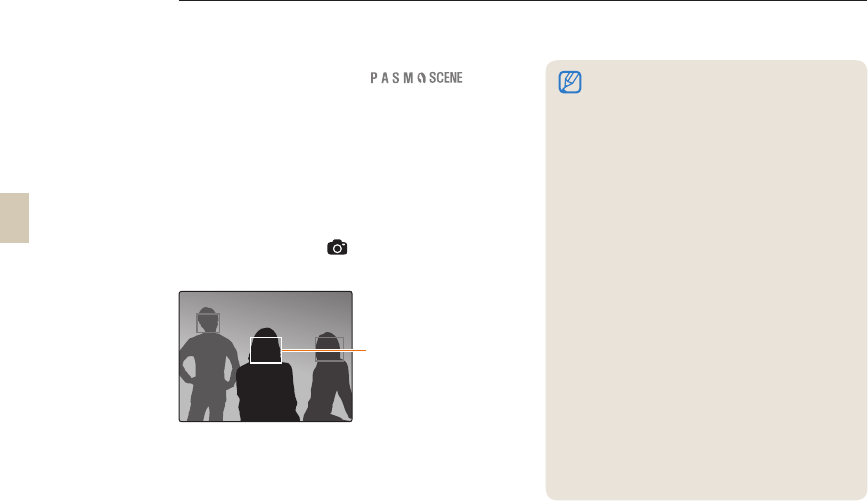
64
Face detection
When you use the Face Detection AF function, you can set the focus around a person's face when taking a portrait
shot. This function can also be useful when shooting a self-portrait.
Normal face detection
When you use the Face Detection AF option, the
camera sets the auto focus based on the faces in the
frame.
When the shooting composition is set, the camera
automatically detects as many as 10 faces and sets the
focus and exposure.
1 In the Shooting mode, press [MENU].
2
Select Shooting 2 (
2
) → AF Area →
Face Detection AF.
• Face detection may not be effective when.
- The subject is too far away
- The light is too bright or dark
- The subject is not facing the camera
- When part of the face is hidden by an object
like sunglasses.
- Part of the subject's face is hidden by
sunglasses or similar objects
- The subject makes a large facial expression
- The light or backlight on the subject's face is
not uniform
• Depending on the Picture Wizard option, the
camera may not recognize the subject’s face
• The options available may differ depending on
the shooting mode.
• This function is not available if you have selected
such options as Manual Focus and Selection
AF.
• The face detection function works faster when
the camera is closer to the subject.
• When you use the Face Detection AF option,
the white focus area is automatically set to
focus.
The focus frame is
shown by white for
the closest face and
by gray for the rest of
faces.
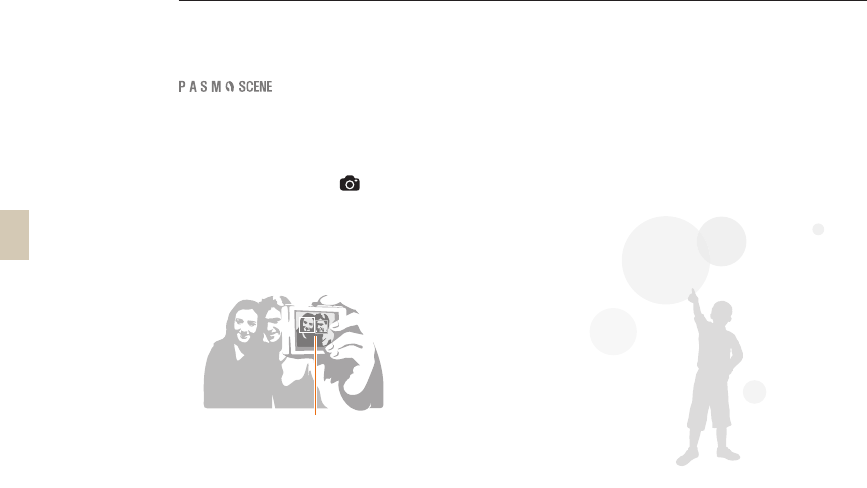
65
Self-portrait face detection
With Self-Portrait AF on, the camera chirps rapidly
when your face is in focus.
1 In the Shooting mode, press [MENU].
2 Select Shooting 2 (2) → AF Area →
Self-Portrait AF.
3 Press [Shutter] if having an info sound of
shooting.
Check the focus of the subject in Shooting mode
Face detection
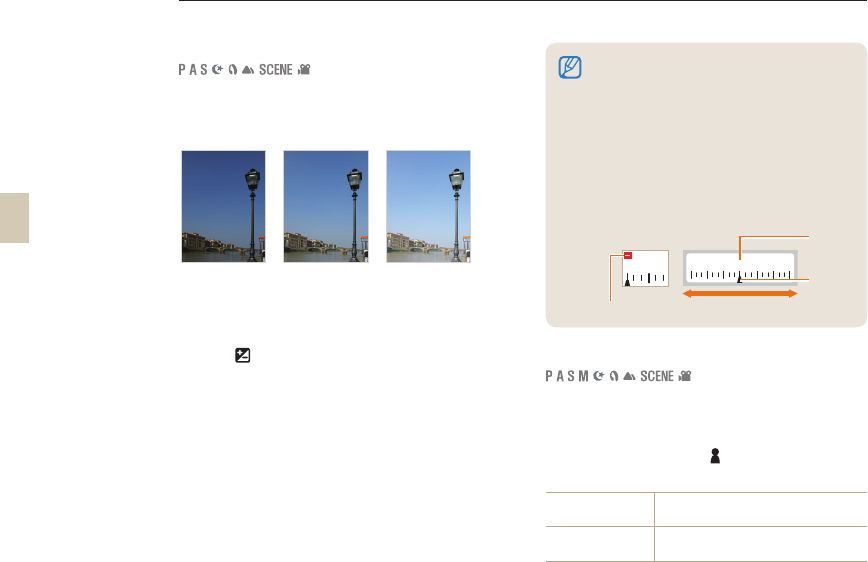
66
Brightness and color adjustment of picture
Adjusting the exposure (brightness)
The images can be taken bright or dark according to the
amount of light. In this case, appropriate adjustment can
be made by controlling the amount of light entered into
the lens.
S
Applying -
S
0
S
Applying +
1 Check the accurate focus of subject in the
shooting mode
2 To adjust the exposure value, hold down
the [ ] button, and then rotate the dial.
• The adjustment value of exposure can be
checked from the viewfinder and display.
3 Press the [Shutter] button to take a
picture.
Exposure adjustment
You can set the size of the exposure adjustment.
1 In the Shooting mode, press [MENU].
2 Select User setup (1) → EV Step →
an option.
1/3 Change the exposure level by 1/3
step.
1/2 Change the exposure level by 1/2
step.
•
When fixing and using the exposure value being
set, it may be excessively bright or dark according
to the shooting environment. Please take a picture
by adjusting the exposure value appropriate for the
shooting environment.
• When it is difficult to judge an appropriate value
of exposure, please set the detailed setting
of AE BKT (successive shots of exposure
increase/decrease). This takes 3 pictures
successively, including one step darker one and
one step brighter one (p. 73).
• The camera displays the exposure warning in red for
each step beyond the ±3 range.
Standard
exposure
index
Exposure level
display
Decreased exposure
(Darker)
Increased exposure
(Brighter)
3+- 223110
Exposure warning
32
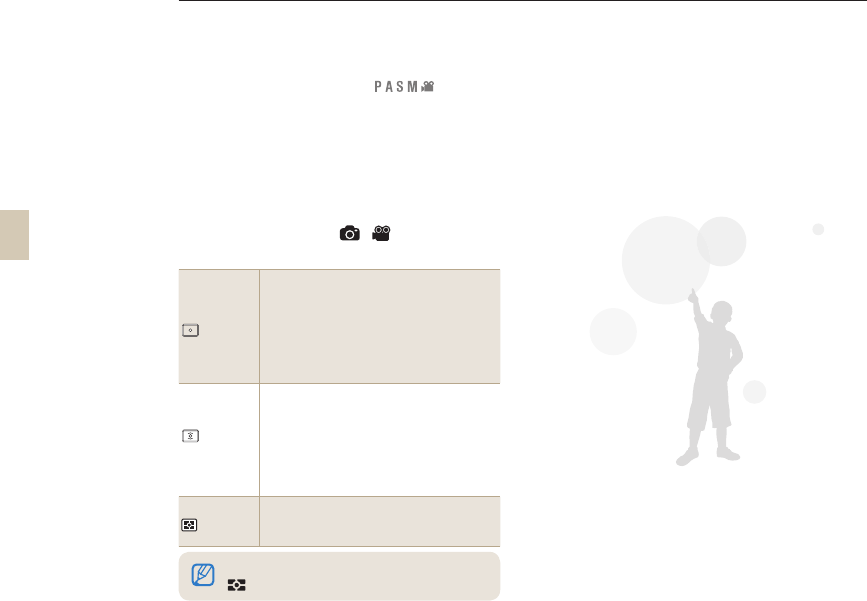
67
Changing the brightness
measurement method
If the composition of image is set, the camera measures the
amount of light.
At this time, the brightness and overall mood of the
picture may vary depending on how the measurement
is made.
1 In the Shooting mode, press [MENU].
2 Select Shooting 3 (3/3) → Metering
→ an option.
Spot
• Calculate the amount of light in the
center.
• This is suitable when taking a portrait
shot where there is a strong backlight.
• When the subject is not located in the
center of the display, the subject can
appear to be too bright or too dark.
Center-
weighted
• This calculates the amount of light
in the center portion of the shot and
averages the result over the entire
image.
• This is suitable when the area of the
subject is large when compared to the
overall composition of the picture.
Multi
• Calculate the amount of light in
multiple areas.
• Suitable for normal pictures.
Brightness and color adjustment of picture
The function can be set directly by pressing
[] in the shooting mode.
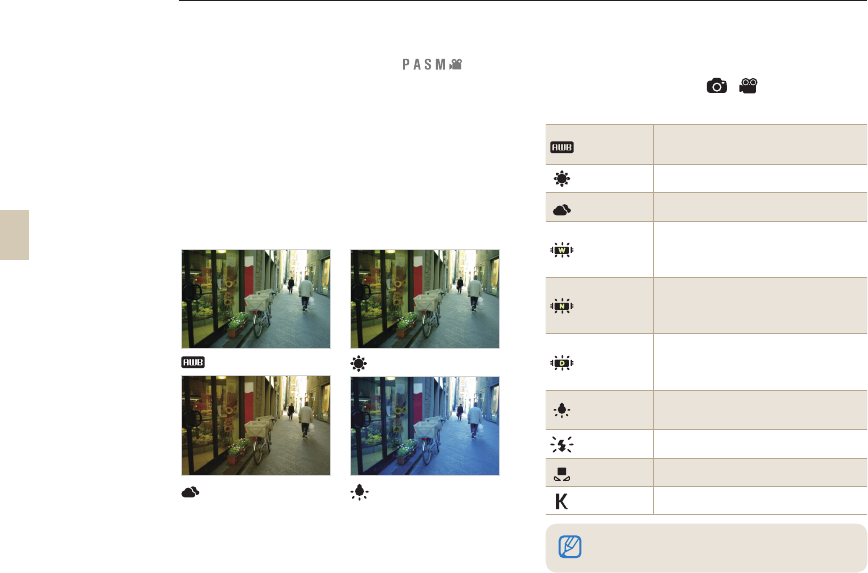
68
Setting the white balance
Different light sources will affect the resulting color of
your picture. To take a picture with colors close to
what is seen with our own eyes, please select the white
balance appropriate for the light source or manually
adjust the color temperature desired.
In case of a light source that is difficult to take in to
effect, the shot can be taken by adjusting the white
balance manually according to the picture-taking
situation.
Auto Daylight
Cloudy Incandescent bulb
1 In the Shooting mode, press [MENU].
2 Select Shooting 1 (1/1) → White
Balance → an option.
Auto WB The camera automatically selects the optimal
white balance settings.
Daylight For shooting outdoors on a clear day.
Cloudy For shooting outdoors on a cloudy day.
Fluorescent
White
Daylight, fluorescent lamp, suitable especially
for the white fluorescent light with the color
temperature of about 4200K
Fluorescent
NW
Daylight, fluorescent lamp, suitable especially
for the daylight fluorescent lighting with the
color temperature of about 5,000K
Fluorescent
Daylight
Daylight, fluorescent lamp, suitable especially
for the daylight-like fluorescent lighting with the
color temperature of about 6,500K
Tungsten For shooting under halogen lamps and
standard, incandescent bulbs.
Flash WB Suitable when using the built-in flash light.
Custom Set To create a custom white ballance setting.
Color Temp. To set the color temperature manually.
Brightness and color adjustment of picture
The function can be set directly by pressing [WB] in
the shooting mode.
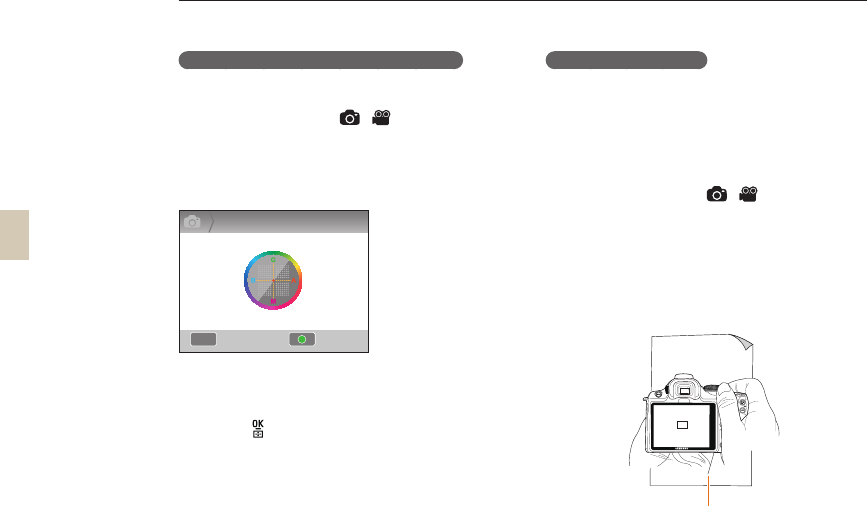
69
Fine adjustment of the white balance
1 In the Shooting mode, press [MENU].
2 Select Shooting 1 (1/1) → White
Balance.
3 Select a White Balance option, and then
press [Fn].
4 Adjust a desired white balance by using
the dial or [S/T/W/X].
5 Press [ ] to save.
User setup method
If the shot is taken after setting the composition of
white paper, filled in full frame, an appropriate white
balance value is set according to the measured light
source.
1 In the Shooting mode, press [MENU].
2 Select Shooting 1 (1/1) → White
Balance.
3 Select Custom Set, and then press [Fn].
4 After setting the composition to show only
the white paper, press [Shutter].
Brightness and color adjustment of picture
White paper
MENU
1
WB Adjust
G: Green
A: Amber
M: Magenta
B: Blue
•
•
•
•
ResetBack
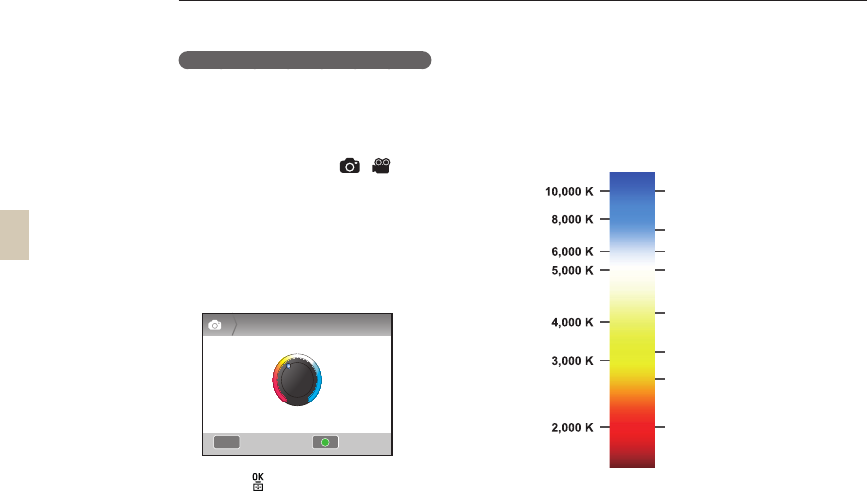
70
Adjusting the color temperature
You can change the white balance by adjusting the
color temperature.
1 In the Shooting mode, press [MENU].
2 Select Shooting 1 (1/1) → White
Balance.
3 Select the Color Temp. option, and then
press [Fn].
4 Set desired color temperature by rotating
the dial or pressing [W/X].
5 Press [ ] to save.
What is color temperature?
Color temperature refers to the temperature that has
expressed the color change of light in the absolute
temperature (K). This can express cold sense with the
rising color temperature and warm sense with the falling
color temperature.
Clear sky
Fluorescent_H
Cloudy
Daylight
Fluorescent_L
Halogen lamp
Incandescent bulb
Candle light
Brightness and color adjustment of picture
MENU
K Adjust
1
5500
K
ResetBack
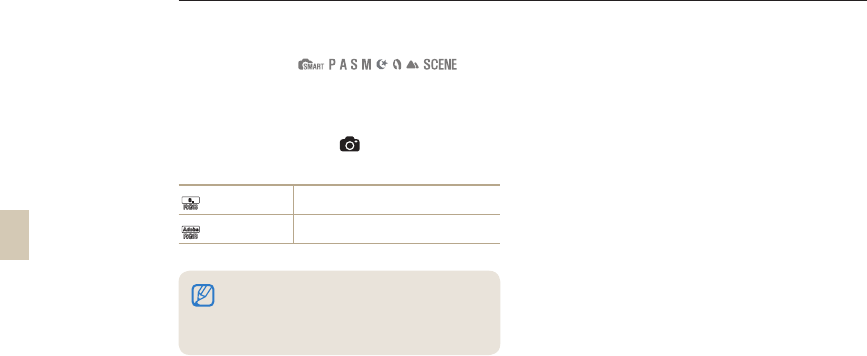
71
Color space
You can set the color space the camera uses.
1 Press [MENU] in the shooting mode.
2 Select Shooting 1 (1) → Color Space
→ an option.
RGB
sRGB Set the color space to sRGB.
RGB
Adobe RGB Set the color space to Adobe RGB.
What is color space?
The image In/Output devices such as digital
camera, monitor and printer hold different ranges of
reproducing each color.
The possible range of color reproduction is referred to
as color space. Several standards of color space are
fixed for each device. This camera support sRGB and
Adobe RGB. sRGB is diversely used in the devices
like computer. It is recommended to use sRGB for
regular images. sRGB standards for International
standard of color space established by the IEC
(International Electrotechnical Commission).
This is defined from color space for PC monitors and
is also used as the standard color space for Exif.
Adobe RGB is the color space recommended by
Adobe Systems, Inc. for commercial printing and
has wider range of color reproduction than sRGB.
Adobe RGB covers most of the color range so colors
only available when printed are not lost when editing
images from a computer. When image is opened by
non-compatible software, the colors look lighter.
Brightness and color adjustment of picture
• When you set the color space to Adobe RGB, the
camera saves picture files in the "_SAMXXXX.JPG"
format.
• You can set the Color Space function directly by
pressing [Fn] in the Shooting mode.
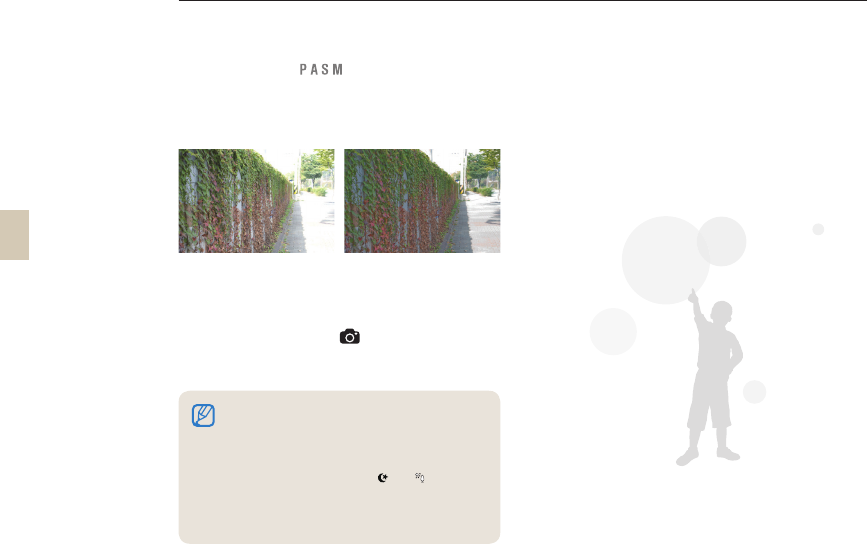
72
Smart range
Smart Range automatically corrects for the loss of
bright detail that can occur due to shading differences
in the picture.
▲ Canceling smart range ▲ Use of smart range
1 In the Shooting mode, press [MENU].
2 Select Shooting 3 (3) → Smart Range
→ an option.
• When you turn on Smart Range, you cannot
select the ISO 100 option.
• The Smart range function is not available in
some shooting modes, and it may automatically
operate while you use the and shooting
options.
• You can set the Smart Range function directly
by pressing [Fn] in the Shooting mode.
Brightness and color adjustment of picture
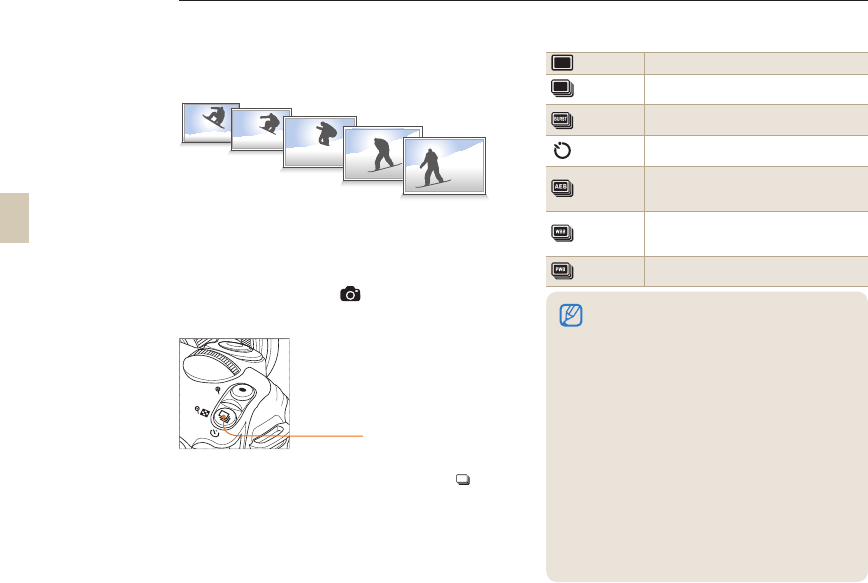
73
Changing the shooting method
It can be difficult to take a picture of a fast moving object, a quick facial expression, or the rapid motion of a person. In
this case, please select the successive shooting option appropriate for the situation.
Successive shooting method and
timer setup
You can select the successive shooting option
appropriate for the situation.
1 In the Shooting mode, press [MENU].
2 Select Shooting 2 (2) → Drive →
an option.
You can set this option directly by pressing the [ ] in
the Shooting mode.
Single
Take one photo shot whenever you press the shutter.
Continuous
Take shots successively while pressing and
holding down the shutter, possible to take 3 shots per second
Burst
Press the shutter button and the camera takes up to 30
shots in a row.
Timer
Press the shutter button and the camera takes a picture within 2
to 30 seconds. (in increments of 1 second).
AE BKT
When you press the shutter, the camera takes 3 consecutive
shots: the original, one a step darker, and one a step lighter.
WB BKT
When the shutter is pressed the camera will take 3 consecutive
shots, the original and 2 more with different white balance
settings.
P Wiz BKT
When the shutter is pressed, the camera will take 3 consecutive
shots; all three will have different picture wizard settings.
• The options may differ depending on the Shooting
mode.
• The WB BKT and P Wiz BKT functions correct the
image after you take the shot.
• If you set the photo quality to the RAW format, you can
not use the bracketing options (WB BKT, P Wiz BKT).
• When you select the Burst shooting option, you can not
select the image size, and the image quality is fixed at
1472x976. Also, when you are shooting using the Burst
option, the camera can take longer to save the images.
• With the Burst shooting option, the camera can not
save images in the RAW file format. Also, you can not
set the ISO to 100.
• Both the built-in and external flash do not fire when you
use the Burst shooting option.
• The shutter speed can be set to 1/30 Sec or faster when
the Burst shooting option is in use.
• This product supports Burst Shooting mode which
takes up to 30 shots per second. The images taken in
Burst Shooting can be saved with a little bit enlarged
size.
Drive mode button
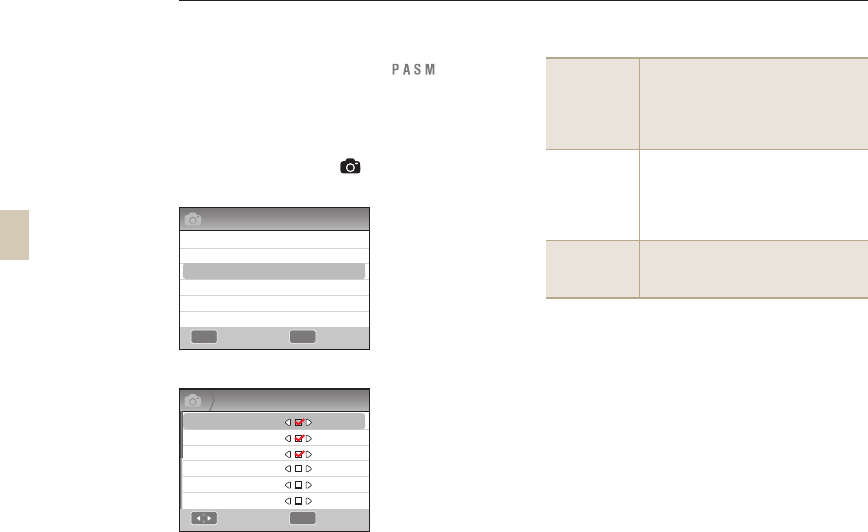
74
Detailed bracket setup
The details for the exposure, white balance and picture
wizard of bracket shot can be set.
1 Press [MENU] in the shooting mode.
2 Select Shooting 3 (3) → BKT Set →
an option.
3 Select the detailed options.
AE BKT Set
When using the exposure BKT function,
this allows setting the image shot
sequence and exposure interval.
BKT Order: Set the shooting orders
BKT Area: Set the exposure steps
WB BKT Set
When using the WB BKT function, this
allows setting the adjusted interval of
white balance value.
Example) MG-/+3 adjusts the Magenta
value of 3 steps minus or plus.
P Wiz BKT Set
When using the picture wizard BKT
function, this allows setting the shot
order.
MENU OK
3
BKT Set
AE BKT Set
WB BKT Set
P Wiz BKT Set
AB -/+3
Changing the shooting method
Exit Change
OK
3
P Wiz BKT Set
Standard
Vivid
Portrait
Landscape
Forest
Retro
Select Set
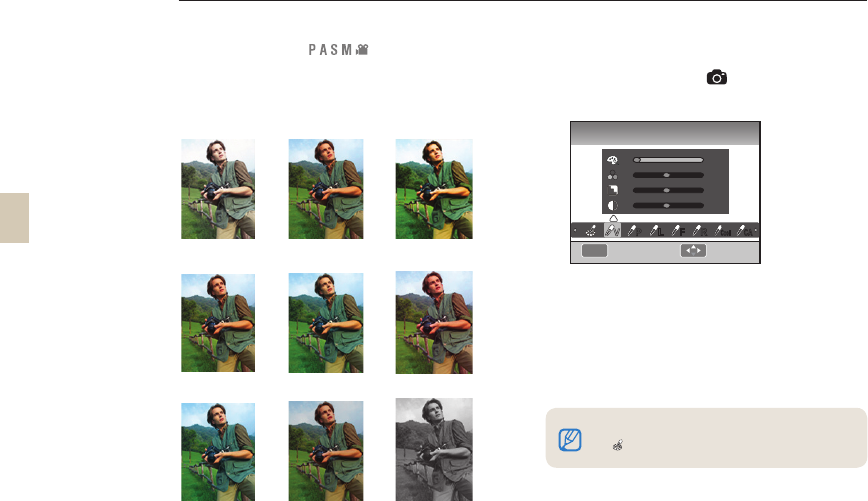
75
Special effect/photo retouching
Picture wizard
The Picture Wizard function lets you select various
looks and emotional moods for your pictures.
T Example
Standard Vivid Portrait
Landscape Forest Retro
Cool Calm Classic
1 In the Shooting mode, press [MENU].
2 Select Shooting 1 (1) → Picture
Wizard → an option.
3 Adjust the detailed items of picture wizard
that were selected by using
[S/T/W/X]
.
• You can control the color, saturation,
sharpness, and contrast.
4 Set to a desired value.
• The option can be set directly by pressing the
[] button of camera in the shooting mode.
MENU
Vivid
PLR
Cool
F
CA
Color
■
0
0
0
V
Saturation
Sharpness
Contrast
Exit Move
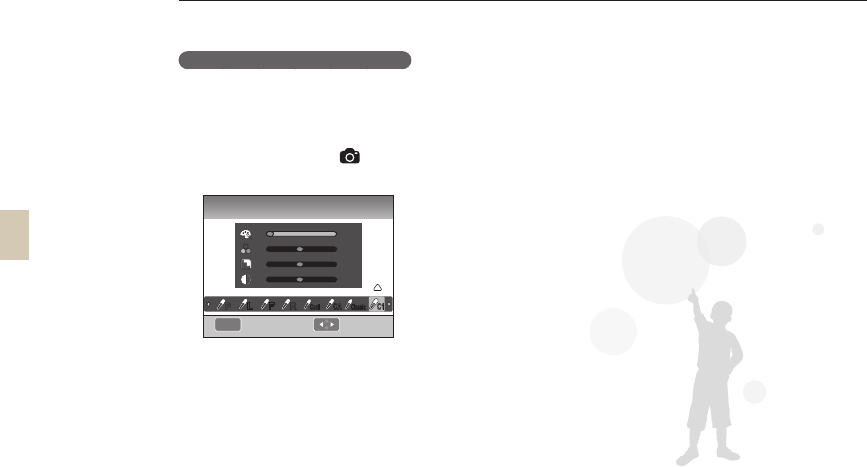
76
Special effect/photo retouching
Custom picture wizard setup
You can choose the customize options and then save
images in 3 different ways.
1 In the Shooting mode, press [MENU].
2 Select Shooting 1 (1) → Picture
Wizard → Custom → an option.
3 Adjust the Picture Wizard value by using
[S/T/W/X]
• You can control the color, saturation,
sharpness, and contrast.
4 Set to a desired value.
MENU
Custom1
PLF R
CA
Cool
C1
Color
■
0
0
0
Saturation
Sharpness
Contrast
Exit Move
Classic
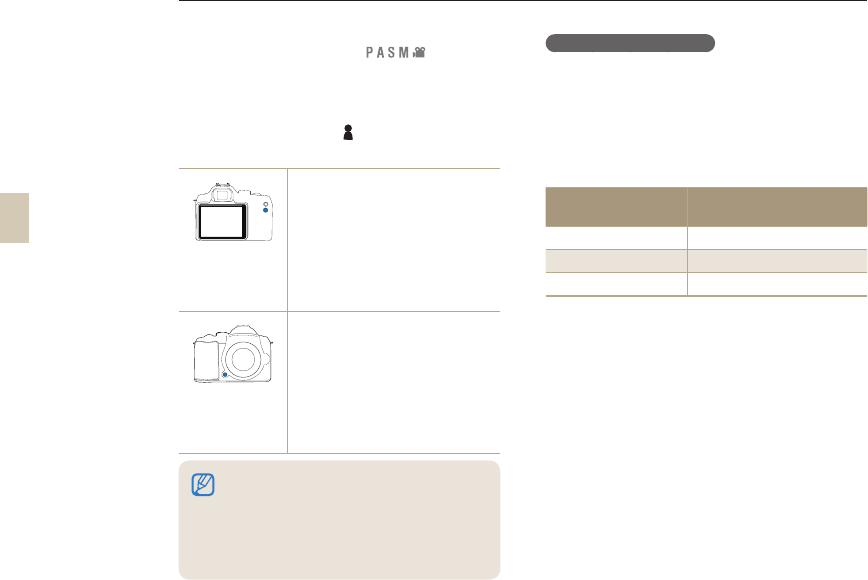
77
Key Mapping
Setting Key Mapping
The function of camera button can be changed.
1 In the Shooting mode, press [MENU].
2 Select User setup ( 1) → Key Mapping
→ an option.
AEL
You can choose among three
settings for the [AEL] button:
- AEL, which executes the auto
exposure lock function.
- AFL, which executes the auto
focus lock function.
- AEL + AFL, which executes the
auto exposure and focus lock
functions together.
Preview
You can chose between two settings
for the Depth Preview button:
- One-Touch WB which executes
the Custom White Balance
function.
- Optical Preview which executes
the Depth of Field Preview
function for the current aperture
value.
What is AEL function?
The auto exposure lock (AEL) and auto focus lock (AFL)
functions of the camera are the functions that maintain the
settings until the shooting is completed by remembering the
exposure value and focus when pushing the [AEL] button of
camera.
Reaction of the half-shutter release when the AEL button
is set to the following status.
Status of AEL setting Reaction of the half-shutter
release
AEL
Auto focus
AFL Exposure lock
AEL+AFL None
• While shooting a movie, push the [Depth
Preview] button once to activate the AF
function and once again to cancel the function.
• Refer to the “Depth Preview” function. (p. 37)
• The function of AEL button cannot be changed
in the M(manual) mode.

Playback/Editing
Learn how to play back and edit photos/videos. Also, learn how to
connect your camera to your computer, photo printer, TV, or HDTV.
Play (picture/movie) …………………………………… 79
Picture editing ………………………………………… 87
Viewing files on a TV or HDTV ………………………… 91
Transferring files to your computer ………………… 93
Using the Samsung RAW Converter ………………… 98
Printing photos with a photo printer (PictBridge) ………… 101
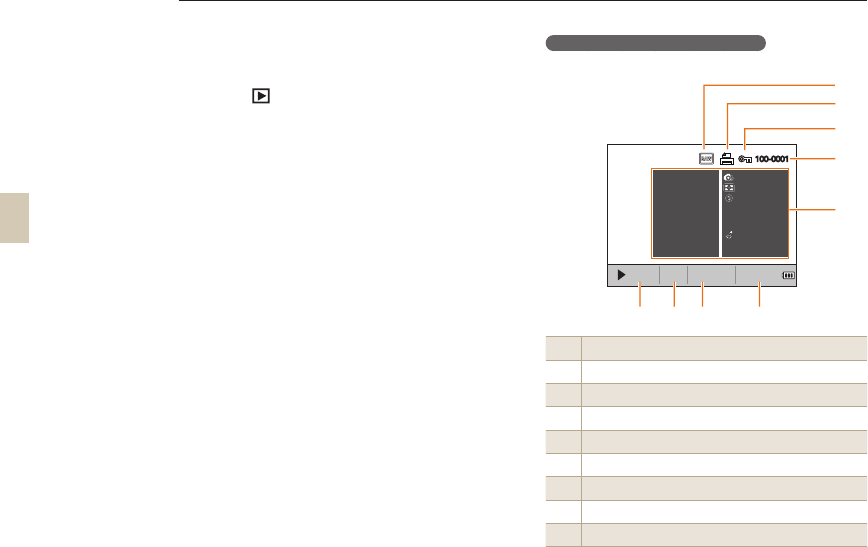
79
Viewing pictures in the play mode
You can view saved pictures and movies.
1 Press [ ]
• Shows most recently saved file.
2 View the pictures sequentially using
[W/X].
• When the playback screen is selected
more than once, the last shown picture
or movie is selected to be shown during
playback.
Photo playback information screens
The display information appears by pressing [DISP] in
the play mode.
1RAW file indicator
2File that includes development info
3Protected file indicator
4File no.
5Meta value of picture
6Shutter speed info
7Aperture value
8ISO setup value info
9
File playing/total no. of files stored/battery information
Play (picture/movie)
00004/00009
1/250 F5.1 100
ISO
100-0001
Mode
Metering
Flash
Focal Length
White balance
EVC
Picture wizard
Picture size
Date
4
5
67
8 9
3
2
18mm
AWB
0.0
4592 X 3056
2010.01.01
RAW
1
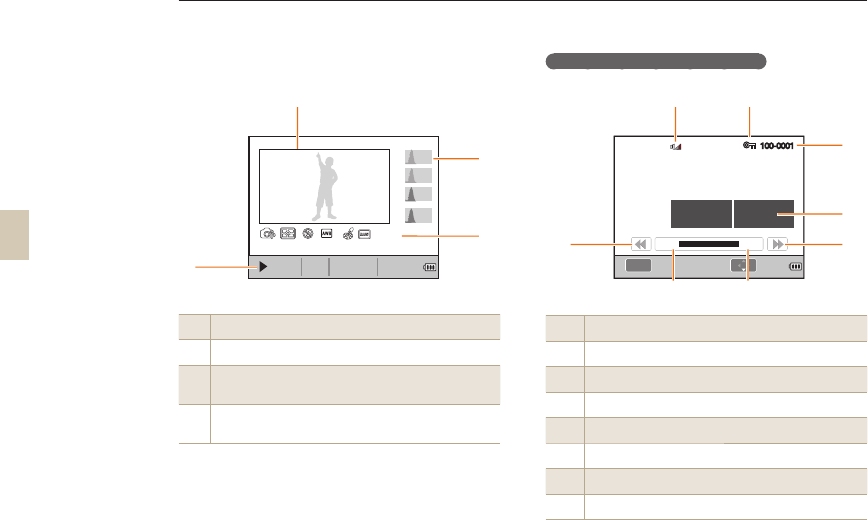
80
1Shot image
2RGB histogram
3Shooting mode, metering, flash, white balance,
picture wizard, focal length
4Shutter speed, aperture value, ISO, selected
file/total number of files/ battery information
Movie playback information screen
1Volume control display
2Protected file
3File no.
4Meta value of movie
5Fast forward
6Total play time of selected file
7Current play time
8
Rewind
Play (picture/movie)
OK
WWaWW WXaWW
100-0001
1280 X 720
2010.01.01
Video size
Date
3
4
1
7 6
58
2
00004/00009
1/40 F3.5 100
ISO
0.0 4592 X 3056 2010.01.01
R
G
B
1
2
3
4
Y
18mm
RAW
Play
Capture
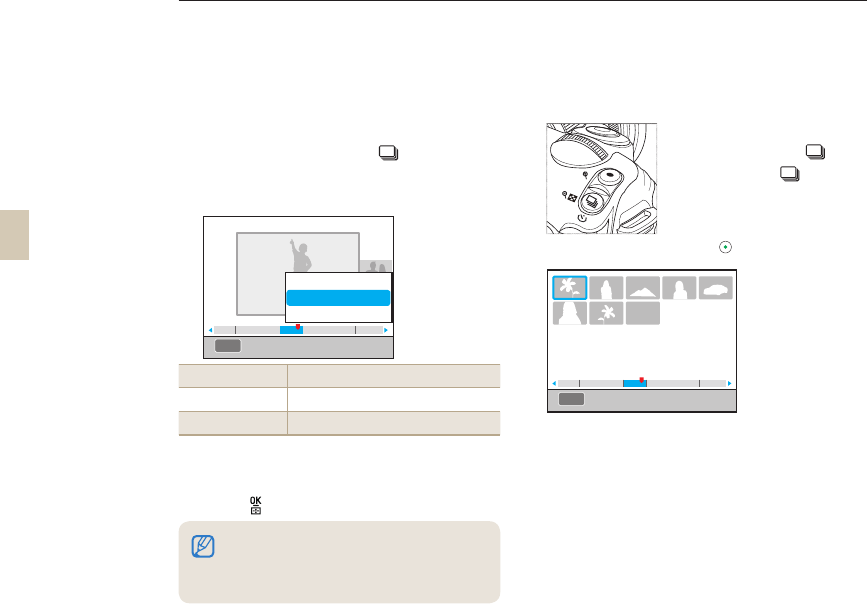
81
View files in the smart album by
category
The files can be classified and shown by the file, date
(day), date (week), and type.
1 In Playback mode, press [ ].
2 Press [MENU].
3 Select a desired playback method.
Type Classify by the saved file form
Date Classify by date recorded.
Week Classify by week recorded.
4 You can view items by turning the dial or
pressing [W/X].
5 Press [ ] to return to the previous function.
Converting to the thumbnail view
Since several files can be shown on one display, files
can be searched quickly.
To have a thumbnail view
of 9 images, press [ ] two
times, or press [ ] three
times to have a thumbnail
view of 20 images.
(Press [ ] to cancel)
Play (picture/movie)
When you start Smart Album or change the filter method,
the time it takes for the camera to classify and display
files depends on the number of files saved. Please wait a
until Smart Album appears.
MENU 2010. 1. 1
225319 25 19
MENU 2010. 1. 1
225319 25 19
Type
Date
Week
Filter
Filter
82
File protection
You can protect files from accidental deletion.
1 Press [AEL] in the play mode.
2 appears on the display.
3 Press [AEL] to cancel.
Deleting a file
Files can be selected and deleted in the play mode.
The function can be set by pressing [MENU] in the
playback mode.
Deleting one picture
You can delete only one picture by selecting a desired
file.
1 After selecting the file to be deleted in the
play mode, press [].
2 From the popup window, select Yes.
Deleting selected file
1 After selecting the file to be deleted in the
play mode, press [].
2 From the popup window, select Multiple
Delete.
3 After selecting a file to be deleted, press
[].
• To cancel your selection, press [ ] again.
4 Press [ ].
5 From the popup window, select Yes.
Play (picture/movie)
83
Deleting all files
All the files saved in the memory card can be deleted
at once.
1 In Playback mode, press [MENU].
2 Select Playback [ ] → Delete → All.
3 From the popup window, select Yes.
Auto rotate
Show the pictures taken in the vertical frame by rotating
them automatically while in playing.
1 In Playback mode, press [MENU].
2 Select Playback [ ] → Auto Rotate →
On.
High Light
This informs the excessively bright part from the image
taken.
1 In Playback mode, press [MENU].
2 Select Playback [ ] → High Light →
On.
Play (picture/movie)
If the photo shot is taken when the direction of the
camera was aimed at the bottom, the direction of the
image can be different in the playback mode.
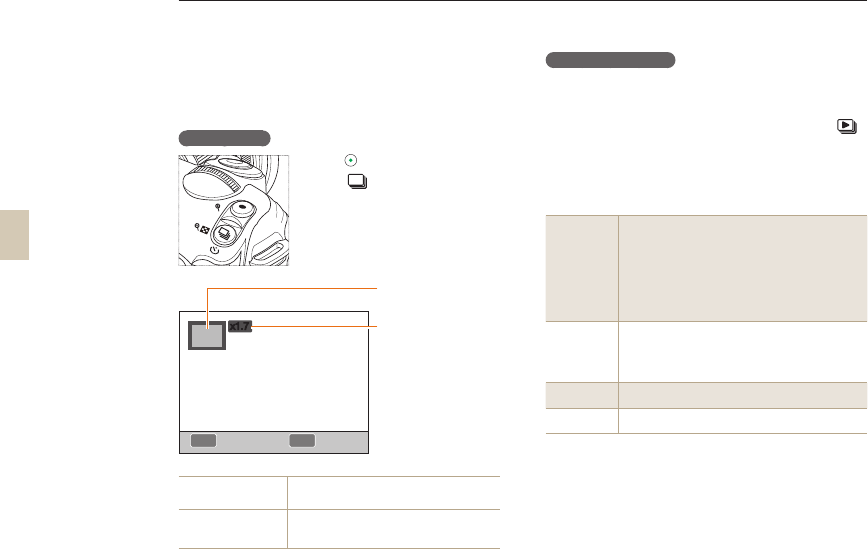
84
Enlargement/reduction
A picture can be enlarged when searching in play
mode.
Enlargement
Press [ ] to enlarge.
(Press [ ] to reduce)
Move enlargement
on screen Press [
///
].
Trim the enlarged
image
Press the [Fn] button to select a
portion of the image to be cut.
See the slide show
Pictures can be shown in a slide show by applying
various effects and music.
1 In Playback mode, press [MENU] → [ ].
2 Select a desired option.
• To play without selecting an option, go to
step 4.
Images
Select the pictures you want in the slide show.
• All : Include all the saved pictures in the
slide show.
• Date : Include pictures taken on a specific
date in the slide show.
• Select :
Select pictures and see them in the
slide show
Effect
• Select the transition effects between
pictures.
• In order not to use the changing effect,
select the off option.
Interval
• Select the scene changing time
Music
Execute the background music
Play (picture/movie)
FnOK
x1.7
Magnified part
Magnification
(The maximum
magnification may
differ by resolution)
Full Image Trim
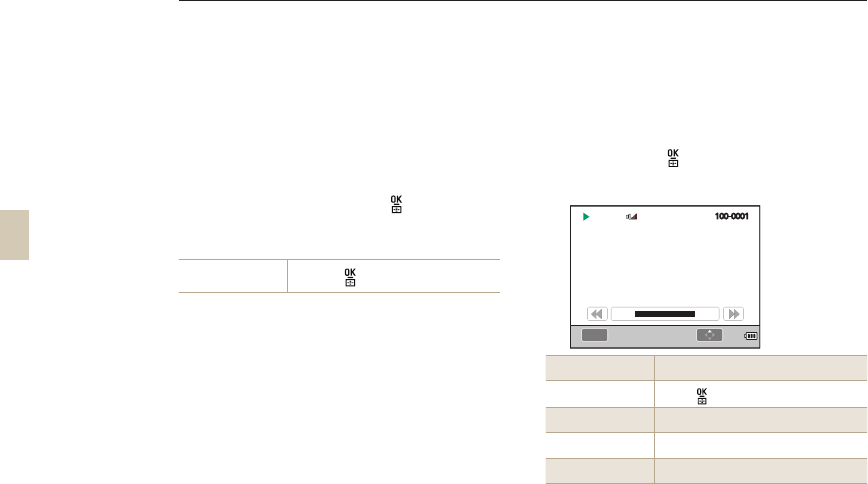
85
3 Set to a desired option.
4 Select Slide Show → Play.
•
To play the slide show repeatedly, please
select the repeat option.
5 Watch the slide show.
•
To stop slide show, press [ ] and then
press [
/
].
Pause/Play Press the [ ] button.
View a movie
While a movie is being played back, you are able to
select and cut a desired part of the scene.
1 After selecting a desired movie in the play
mode, press [ ].
2 Enjoy movie.
Rewind Press [
]
Pause/Play Press [ ].
Fast rewind Press [
]
Volume control Turn the dial to the left/right
Stop Press [
]
Play (picture/movie)
OK
WWaW[
PLAY
WXaWW
WXaWW
100-0001
Pause Stop
86
Capturing a picture
You can capture a frame of the movie as a picture while
playing back the movie.
1 Press [ ] in the play mode.
2 Press [ ] while playing a movie.
3 Press [T] in the pause state.
Cutting part of a movie
1 Press [ ] in the play mode.
2 Select the start point to cut by pressing
[] → [ ] while playing a movie.
3 Select the end point of cutting by pressing
[] → [ ].
4 From the popup window, press Yes.
Play (picture/movie)
• The resolution of the captured image is the
same as the movie resolution.
• The captured file is saved as a separate file
under a new file name.
• The cut file is saved by using a different file
name.
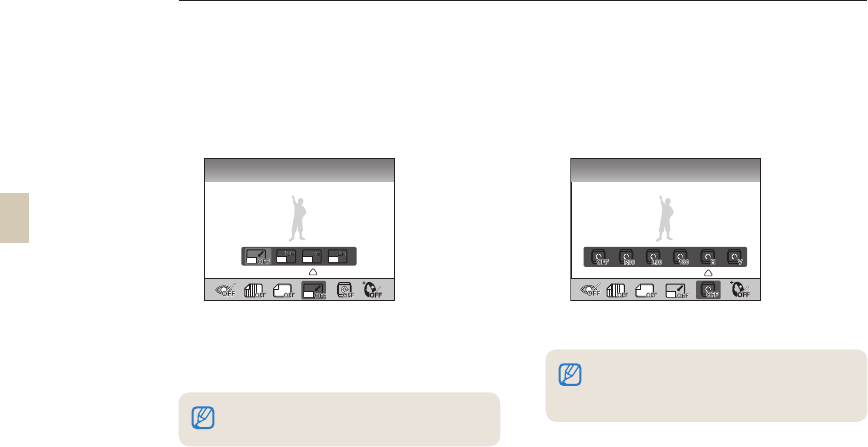
87
Picture editing
Pictures can be edited in various ways by using the edit menu. The function can be set directly by pressing [Fn] in the
shooting mode.
Changing the resolution
1 After selecting a desired picture in the play
mode, press [MENU].
2 Select Image Edit → Resize.
3 Select desired image resolution.
• The edited file is saved by using the
different file name.
Rotating
1 After selecting a desired picture in the play
mode, press [MENU].
2 Select Image Edit → Rotate.
3 Select a desired rotation state
• The resolution to be changed will be limited
according to the resolution of original picture.
Depending on the size of the picture, when you
rotate the original, the new file may be smaller
compared to the original.
RotateResize
88
Red-eye fix
1 After selecting a desired picture in the play
mode, press [MENU].
2 Select Playback [ ] → Image Edit →
Red-eye Fix.
Adjusting the backlight
1 After selecting a desired picture in the play
mode, press [MENU].
2 Select Playback [ ] → Image Edit →
Backlight.
Picture style
Selecting picture style allows you to express various
moods of emotion in your picture.
1 After selecting a desired picture in the play
mode, press [MENU].
2 Select Playback [ ] → Image Edit →
Photo Style Selector.
3 Set to a desired option.
Face retouching
1 After selecting a desired picture in the play
mode, press [MENU].
2 Select Playback [ ] → Image Edit →
Face Retouch.
3 Set to a desired option.
• The level of face retouch gets better as the
value becomes larger.
Picture editing
89
Setting the print info (DPOF)
The size and number of copies to be printed can be
designated for the picture.
Since the designated information is saved in the MISC
folder of memory card, it is convenient to print the
designated size and number of copies while using the
pictures of designated info simply by taking the memory
card to a digital printing shop.
1 Press [MENU] → Playback [ ] → DPOF
→ Standard in the playback mode.
2 Select a desired option.
Select Printing selected pictures
All Printing all
Reset
Initializing the standard print option
3 When having made the selections, press
[Fn] after selecting the picture and
number of copies to be printed by using
the dial.
• When having selected all, press [/] to
select the number of copies to be printed
and then, press [].
• The print info you enter can only be used for the
digital printer or digital picture printing shop that
supports the digital print order format (DPOF).
• For pictures with a wide resolution, the left and
right portion of the image may not be printed.
When placing a print order, identify the wide
resolution pictures.
• The DPOF option is not available for RAW
formatted images and the movie files.
Picture editing
90
4 Select [MENU] → DPOF → SIZE in the
playback mode.
5 Select an option.
Select Select desired print size according to the
picture.
All Select the print size of all the pictures
saved in the memory card.
Reset
Initializing the print size option
6 When having selected the select option,
select the picture to be printed and press
[Fn] after selecting the print size by using
the dial.
• When having selected all, press [/]
and select the print size. Then, select the
print size and press [ ].
Index printing
1 Press [MENU] → Playback [ ] → DPOF
→ Index in the playback mode.
2 From the popup window, press Yes.
Picture editing
The designated print size can only be applied onto
the DPOF1.1 compatible printer.
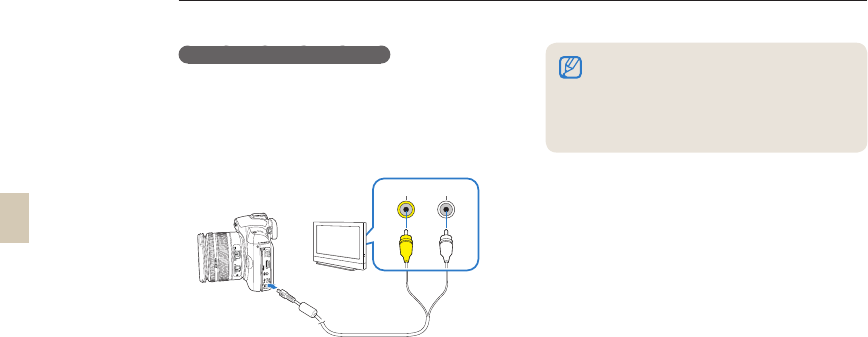
91
Viewing files on a TV or HDTV
Play back photos or videos by connecting your camera to a TV using the provided A/V cable.
Viewing files on a regular TV
1 Select a video signal output according to
your country or region. (p. 107)
2 Connect the TV and the camera using the
A/V cable.
3 Make sure the TV and camera are turned
on and select the video output mode of
TV.
4 View the videos and pictures using the
buttons of camera body.
On some TVs, digital noise may occur or part of an
image may not appear.
Images may not appear centered on the TV screen
depending on your TV settings.
You cannot capture photos or videos while the
camera is connected to a TV.
•
•
•
Video Audio
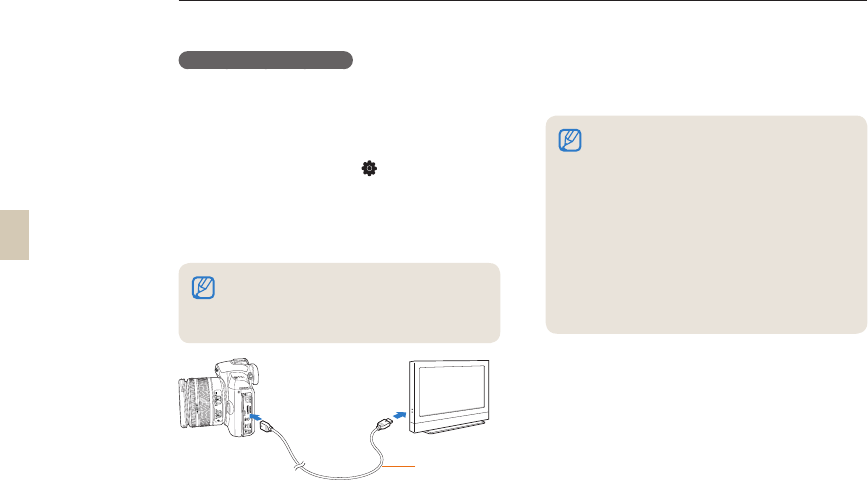
92
Viewing files on an HDTV
1 Select a video signal output according to
your country or region. (p. 107)
2 In Shooting or Playback mode, select
[MENU] → Setting 3 (
3
) → HDMI Size
→ an option.
3 Connect the HDTV and the camera using
the HDMI cable.
4 Make sure the HDTV and camera are turned
on and select the HDMI mode of TV.
• The HDTV screen shows the same display
of the camera.
5 View the videos and pictures using the
buttons of camera body.
When using the HDMi cable, the user can
connect the camera to an HDTV using the
Anynet+(CEC) method. The Anynet+(CEC)
functions allows you to control connected
devices using the TV remote control.
In the case that the HDTV supports
Anynet+(CEC), the power of the TV is
automatically turned on when used in conjunction
with the caemra.
When connected to an HDTV by an HDMI cable,
the camera can not take a pictures or movies.
When connected to an HDTV, some playback
functions may not be available.
•
•
•
•
Viewing files on a TV or HDTV
HDMI cable
If both A/V and HDMI cables are connected at the
same time, the HDMI cable has the highest priority.
We recommend you disconnect the A/V cable for
better playback.
93
Transferring files to your computer
For Windows users
Transfer files by connecting your camera to your PC.
Installing programs
Hardware and software requirements
Item Requirements
CPU Pentium III 500 MHz or better
(Pentium III 800 MHz or better
recommended)
RAM 256 MB or more (512 MB or more
recommended)
OS Windows 2000/XP/Vista
Hard disk
capacity
250 MB or more (1 GB or more
recommended)
Others USB port
CD-ROM drive
1024 x 768 pixels, 16-bit color display
compatible monitor (24-bit color
display recommended)
Microsoft Direct X 9.0c or later
•
•
•
•
Programs contained on the CD
Program Purpose
Samsung Master Edit photos and videos.
QuickTime Player 7.6 View videos (H.264 (MPEG-
4.AVC) files) on a PC.
Samsung RAW
Converter
Convert RAW files into the
desired file format.
Adobe Reader View the user manual.
Using a self-assembled PC or a PC and OS that are
not supported may void your warranty.
The programs may not work properly on 64-bit
Edition of Windows XP and Vista.
•
•
Requirements for QuickTime Player 7.6
Intel Pentium 4, 3.2 GHz or higher/AMD Athlon™
64FX, 2.6 GHz or higher
Windows XP service pack2 or Vista
Minimum 512 MB RAM (1 GB and above
recommended)
nVIDIA Geforce 7600GT or higher/ATI X1600 series
or higer recommended
•
•
•
•
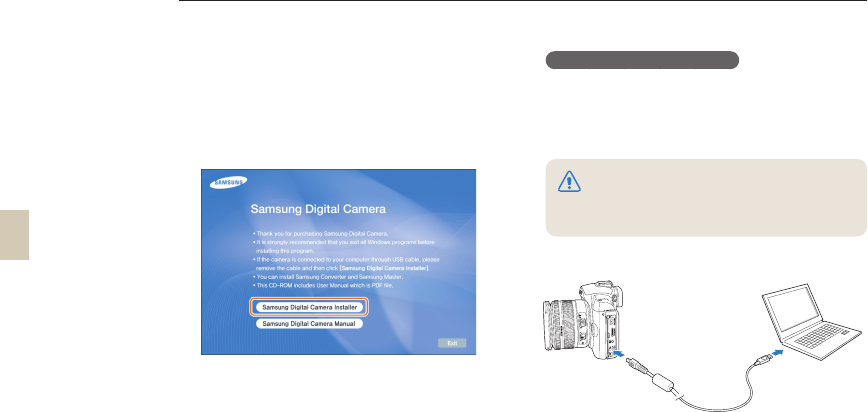
94
1 Insert the installation CD in a compatible CD-
ROM drive.
2 When the setup screen is displayed, click
Samsung Digital Camera Installer to start
installation.
3 Select programs to install, and follow the
onscreen instructions.
4 Click Exit to complete the installation, and then
restart your computer.
Transferring files to your PC
When you connect the camera to your PC, the PC
recognizes the camera as a removable drive.
1 Connect your camera to your PC with the USB
cable.
You must plug the end of the cable with the correct
connection plug into your camera. If the cable is reversed, it
may damage your files. The manufacturer is not responsible
for any loss of data.
Transferring files to your computer
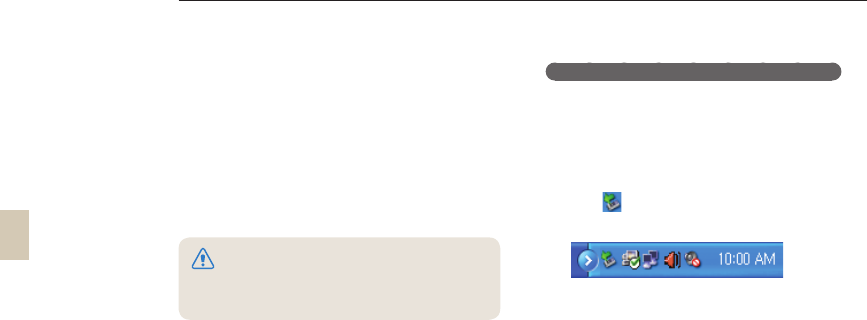
95
2 Turn on the camera.
• In the popup window, select Computer.
3 On your PC, select My Computer →
Removable Disk → DCIM → "XXXPHOTO," or
select "XXX_MMDD" folder.
4 Select the files you want, and then drag or save
them to your PC.
Disconnecting the camera (for Windows XP)
The way to disconnect the USB cable for Windows
2000 and Vista is similar.
1 It the status lamp on your camera is blinking, it
means the data transfer is in progress. Please
wait until the status lamp stops blinking.
2 Click on the tool bar at the bottom right of
your PC screen.
3 Click the pop-up message.
4 Remove the USB cable.
Transferring files to your computer
If the Folder Type is set to Date, the folder name
appears as "XXX_MMDD."
For example, if shot at January 1st, the folder name
appears as "101_0101."
•
•
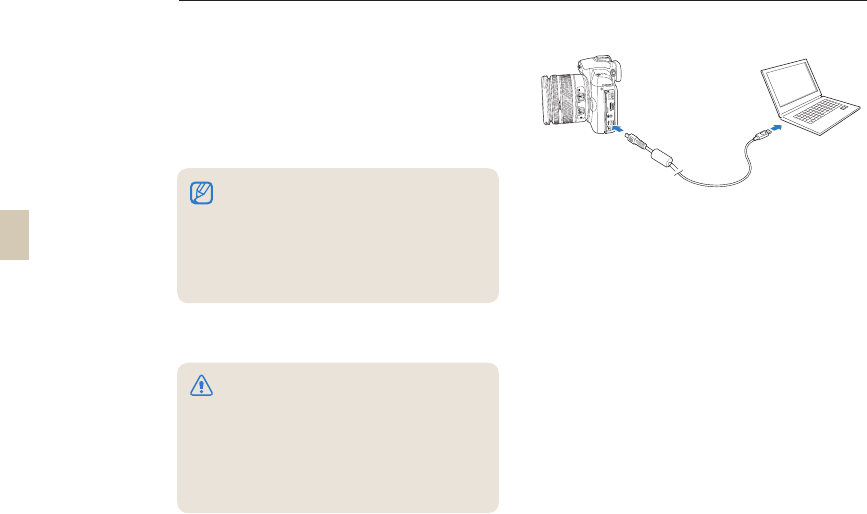
96
For Mac users
When you connect the camera to a Macintosh
computer, the computer recognizes the camera
automatically. You can transfer files directly from
the camera to the computer without installing any
programs.
1 Connect your camera to a Macintosh computer
with the USB cable.
2 Turn on the camera.
In the popup window, select Computer.
3 Double-click the removable disk icon.
4 Transfer photos or videos to the computer.
•
When using the USB cable, make sure to match the plugs
on the cable to the USB jacks on the camera and computer.
If the cable is reversed, it may damage your files. The
manufacturer is not responsible for any loss of data.
Please use only the accessories that SAMSUNG
provides. The manufacturer takes no responsibility for
any loss of files or damage that may result from the
use of other manufacturer’s product.
•
•
Requirements for QuickTime Player 7.6
1.8 GHz Power Mac G5/1.83 GHz Intel Core Duo
or higher
Mac OS X version 10.4.10 or later
Minimum 256 MB RAM (1 GB and above
recommended)
64 MB or greater video card
•
•
•
•
Transferring files to your computer
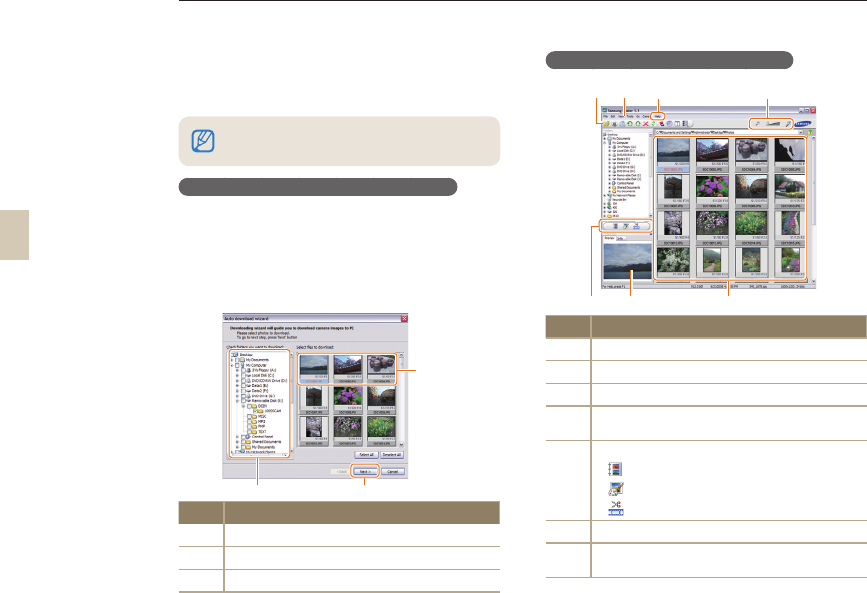
97
Using Samsung Master
You can download files or edit photos or videos
stored on your PC. For details, see the Help menu.
Downloading files using Samsung Master
When you connect the camera to the PC, a window
for downloading files automatically appears.
1 Select the files you want to download.
2 Click Next, and then follow the onscreen
instructions.
No. Description
Select a location for downloaded files.
Click to download the selected files.
Thumbnails of files. Click an image to download.
Using the Samsung Master Interface
No. Description
Toolbar
Menus
Click for more information about the program.
Click to enlarge or reduce the thumbnails in
the list.
Change the mode.
: View mode
: Edit mode for photos
: Edit mode for videos
•
•
•
Preview information about the selected file.
The photos in the folder you selected. Double-
click to switch to full-screen view.
This program does not support the editing of video
files (H.264 (MPEG-4. AVC)) on the camera.
Transferring files to your computer
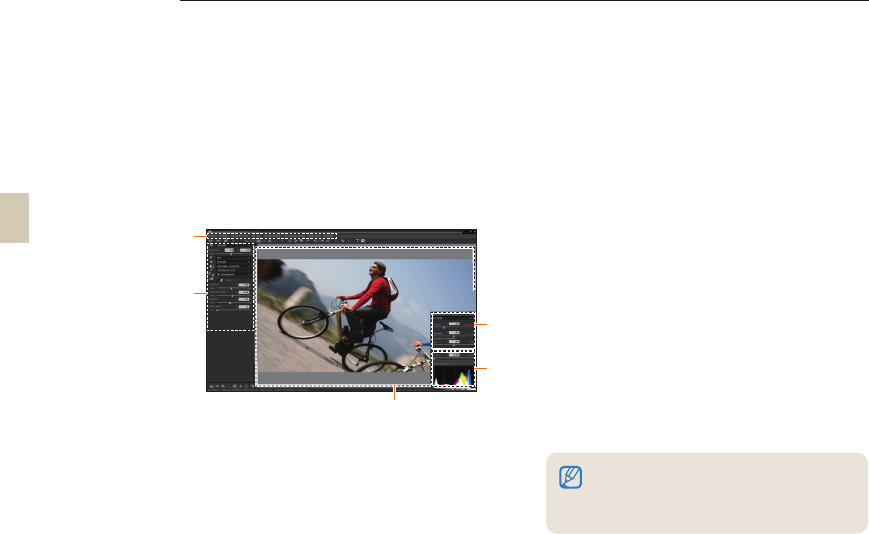
98
Using the Samsung RAW Converter
Using the Samsung RAW Converter, you can
develop RAW files after editing them as you like. You
can also edit JPEG or TIFF files in the same way you
edit the RAW files. This software is only compatible
with Windows XP and Vista.
To start the program, click [Start → All Programs
→ Samsung RAW Converter → Samsung RAW
Converter]
Editing the RAW files
Image edit functions are listed below.
Ì
Menu bar
Í
Image editing tools
[Exposure bias]: Compensates the exposure
value.
[White balance]: Adjusts the white balance value.
[Color]: Adjusts the color of the image.
[Tone]: Changes the color tone.
[Sharpness/Noise reduction]:
Adjusts the sharpness.
[Development]: Previewing is available for the
final output.
Highlight controller
Adjusts the saturation and highlights of the
selected image.
Histogram
Displays the color layers of the selected image.
Preview window
Displays the selected image.
•
②
①
⑤
③
④
Refer to the [Help] menu in the Samsung RAW
Converter for further information.
You can download the Samsung RAW Converter
program for Macintosh from the Samsung website.
•
•
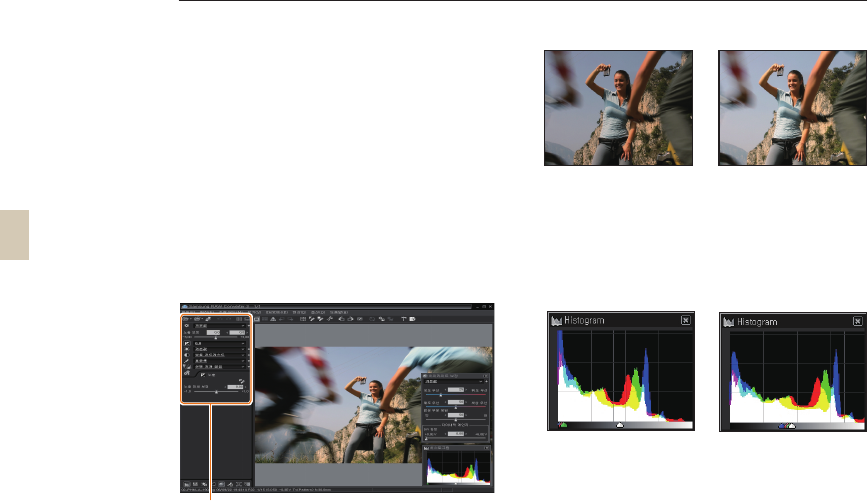
99
Using the Samsung RAW Converter
Correcting the exposure
The main feature of the Samsung RAW Converter is
that you can keep the best quality of the images as
you make changes to the RAW files while editing.
After making changes to the brightness or contrast,
you can still obtain the same result no matter which
you change first. The following images show how
you can change the exposure on an image using the
Samsung RAW Converter.
You can adjust the exposure by using the menu
option as shown in the picture below. You can see the results of the exposure adjustment
in the histograms below:
▲ Original image
P Mode, Aperture:
f = 8,
Shutter Speed:
1/15sec, ISO = 100
▲ Changed image
after correcting the
exposure.
▲ Original image ▲ Changed image
after correcting the
exposure.
Menu option for
adjusting the
exposure.
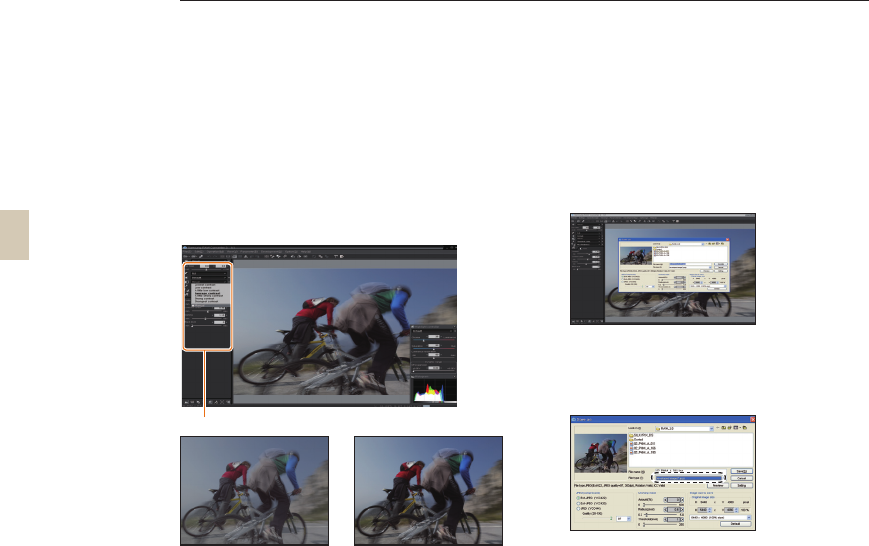
100
Using the Samsung RAW Converter
Handling the JPEG/TIFF files as you
edit RAW files
Using the Samsung RAW Converter, you can edit
JPEG/TIFF files in the same way you edit RAW files.
You can adjust the white balance, sharpness, and
reducing the noise is also available. The following
images show how to change the contrast on a TIFF
image using the Samsung RAW Converter.
You can adjust the contrast by using the menu
option as shown in the picture.
Saving the RAW files in JPEG or TIFF
format
You can save the RAW files in JPEG or TIFF format
using the Samsung RAW Converter.
1. Choose the image you want to edit, and then
select [File(F)] → [Development...].
2. Select the type of file as JPEG or TIFF and then
click [Save(S)].
- The selected file is saved as JPEG or TIFF
format.
▲
Original image P Mode,
Aperture: f = 8, Shutter
Speed: 1/15sec, ISO = 100
▲
Changed image after
correcting the contrast.
Menu option for adjusting the contrast
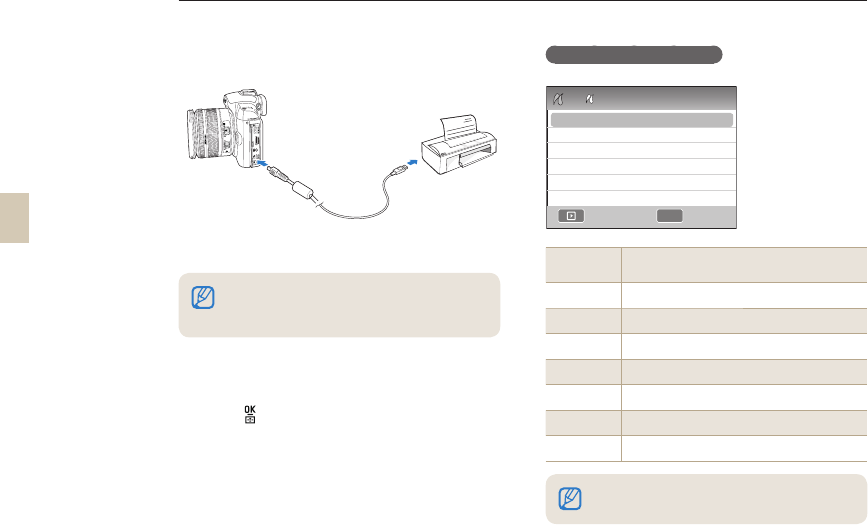
101
Printing photos with a photo printer (PictBridge)
Print photos with a PictBridge-compatible printer by connecting your camera directly to the printer.
1 With the printer on, connect your camera to the
printer with a USB cable.
2 Turn on your camera.
Select Printer in the popup window.
3 Press [W/X] to select a photo.
Press [
MENU
] to set printing options.
4 Press [ ] to print.
•
•
Configuring print settings
Images Select whether to print the current photo
or all photos.
Size Specify the size of the print.
Layout Create thumbnail prints.
Type Select the type of paper.
Quality Set the printing quality.
Date Set to print the date.
File Name Set to print the name of the file.
Reset Reset the print options.
If your printer has the mass storage feature, you
must first set the USB mode to Printer in the settings
menu.
•
Some options are not supported by some printers.
MENU
ExitPrint
2
1
Images
Size
Layout
Type
Quality
Date
One Photo
Auto
Auto
Auto
Auto
Auto

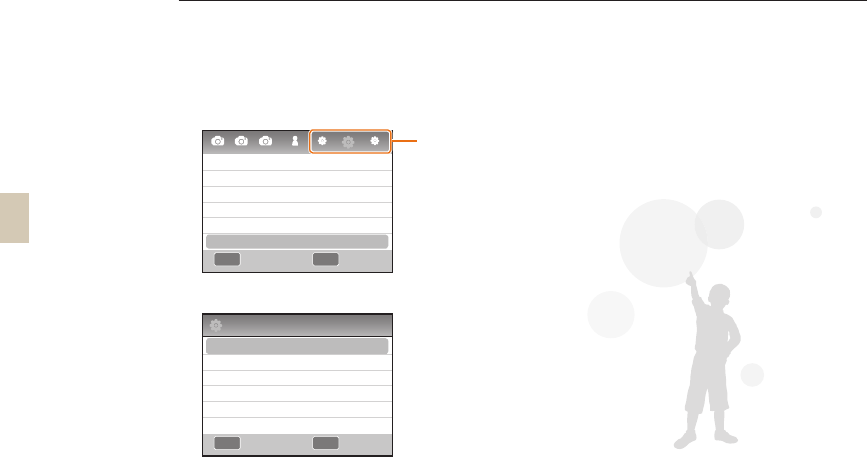
103
1 Press [MENU] in the shooting or play
mode.
2 Select a desired setup menu
3
Select a desired item
4 Press [MENU] to return to the previous
mode.
Camera settings menu
You can set the camera use environment using the setup menu.
MENU OK
2
1 2 1 1 3
Quickview
Display Adjust
Display Save
Power Save
Date&Time
Sound
1sec
3min
1min
3
Setup menu
items
MENU OK
2
Sound
System Volume
AF Sound
Button Sound
Medium
On
On
Exit Change
Exit Change
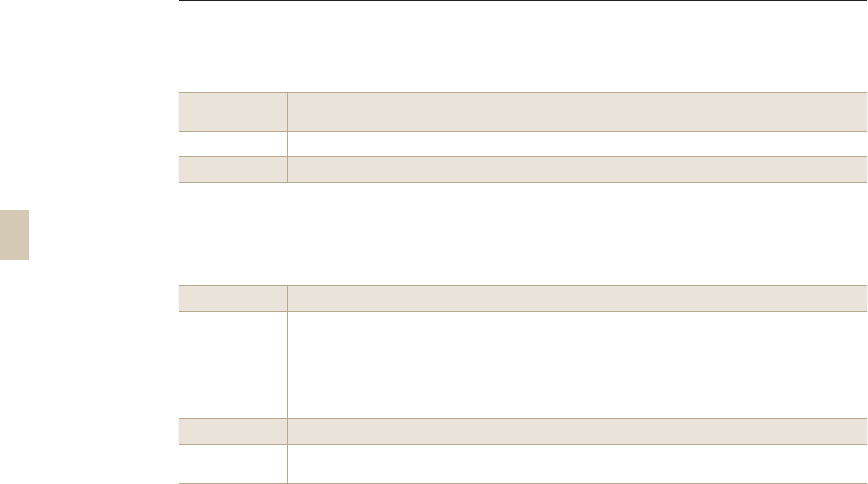
104
Sound
System Volume You can set the camera use environment using the setup menu.
(Off, Low, Medium*, High)
AF Sound Sets the sound the camera makes in AF mode on or off. (Off, On*)
Button Sound Sets the sound the camera makes when you press buttons on or off. (Off, On*)
Display
Language Select the language the camera shows on the display.
Display Adjust
Adjust the display brightness, auto brightness setting, or display color.
Display Brightness: You can adjust the display brightness using the [S/T] to one of five
brightness levels.
Auto Brightness: Adjust the brightness of screen.
Display Color: Depending on whether the user uses the screen or the viewfinder, the display
color can be adjusted by using the [S/T/W/X].
Display Save Sets the display off time. (Off, 0.5min*, 1min, 3min, 5min, 10min)
Quickview This allows setting the quick view (view immediately upon a shot) time.
(Off, 1sec*, 3sec, 5sec, Hold)
Camera settings menu
* Default value
* Default value
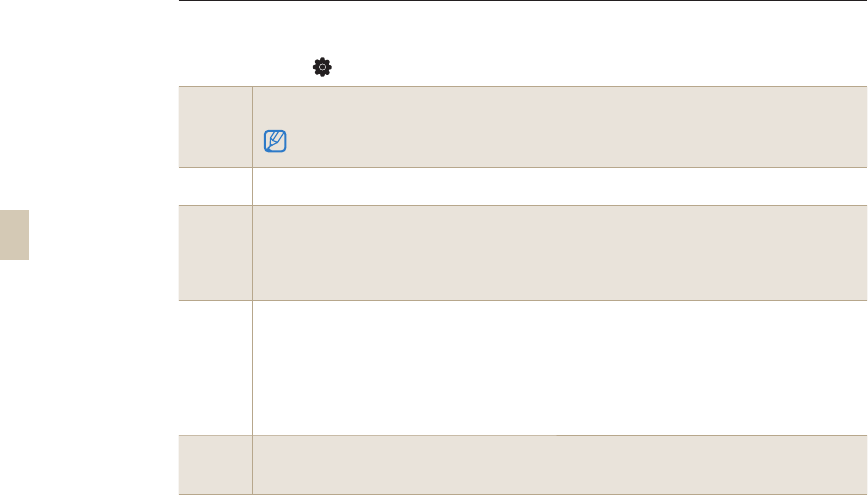
105
Normal setup 1( 1)
Format
This formats the memory card (deleting all the files including protected files).
(Yes, No*)
Error can occur if using a card formatted by another brand of camera, memory card reader or computer.
Please use the card after formatting it from the camera.
Reset This resets the setup menu and shooting options. (The date, time, language, and video output value
are kept.) (Yes, No*)
File Name
This sets the method of designating filename.
Standard* : SAM_XXXX.JPG(sRGB)/_SAMXXXX.JPG(Adobe RGB)
Date : MMDDXXXX.JPG(sRGB)/_MDDXXXX.JPG(Adobe RGB, Jan. ~ Sep.)/
_ADDXXXX.JPG(Adobe RGB, indicating A for Oct, B for Nov, C for Dec)
For example, the image taken by setting Jan 01 sRGB is saved in "0101xxxx.jpg".
File
Number
This sets the method of designating file number. (Series*, Reset)
• The folder name that has taken pictures for the first time becomes 100PHOTO and the filename
will be SAM_0001 (when the color space is sRGB).
• File name numbers are increased by 1 from SAM_0001 to SAM_9999.
• Folder numbers are increased by 1 from 100PHOTO to 999PHOTO.
• The maximum number of files that can be saved in one folder is 9999.
• File names are assigned according to DCF (Design rule for Camera File system) specifications.
• If you change a file name (for example, on a computer), the camera will not be able to play the file.
Folder
Type
This sets the type of folder.
Standard* : XXXPHOTO
Date : XXX_MMDD
* Default value
Camera settings menu
106
Power
Save
This sets the power turned off automatically if not being used for a while. (0.5 min, 1min*, 3min,
5min, 10min, 30min)
• The camera retains the power-off time setting even if you replace the battery.
• Power Save may not work if the camera is connected to a computer, TV, or printer, playing a slide show or
movie.
Date &
Time
This sets the date and time.
(Type, Date, Time Zone, Time, Imprint)
• Only the date is shown on the lower right side of the picture in play.
•
When printing a picture, the date may not be printed appropriately from certain manufacturer or printer model.
Camera settings menu
* Default value
Normal setup 2( 2)
107
* Default value
Display
Select
Auto Select*:
Convert between Main Display and EVF by eye sensor
Main Display: The screen will be shown only through Main Display
EVF: The screen will be shown only through EVF
Sensor
Cleaning
Sensor Cleaning: Removes the dust of sensor when executing this menu
Start Up Action: If set, the dust of sensor is removed whenever turning on the power. (On, Off*)
Because this product uses interchangeable lenses, the sensor can get dust on it when you change lenses.
This can lead to dust particles appearing in the pictures you take. We recommend that you do not change
lenses when you are in a particularly dusty area. Also, make sure to attach the lens cap to the lens when not
using it.
Video Out
Select the video output signal appropriate for your country when connecting the camera to an
external video device such as a monitor or TV.
NTSC* : US, Canada, Japan, Korea, Taiwan, Mexico, etc.
PAL (supporting only the BDGHI method) : Australia, Austria, Belgium, China, Holland, Finland,
Germany, England, Italy, Kuwait, Malaysia, New Zealand, Singapore, Spain, Sweden, Switzerland,
Thailand, Norway, etc.
Anynet+
(HDMI-
CEC)
When you connect the camera to an HDTV that supports Anynet+ (HDMI-CEC), you can control the
play function of the camera with the TV remote controller (p. 90).
On* : You can control the play function of camera with the TV remote controller.
Off : You can NOT control the play function of camera with the TV remote controller.
Camera settings menu
Normal setup 3( 3)
108
Camera settings menu
HDMI Size
The resolution on an HDTV can be changed when using an HDMI cable.
(In case of NTSC method : Auto*, 1080i, 720p, 480p
(In case of PAL method : Auto*, 1080i, 720p, 576p)
If the connected HDTV does not support the selected resolution, you select, the camera sets the resolution
one level lower.
Firmware
Update
Displays the firmware version of the camera body and lens, and upgrades the firmware.
Body Firmware: Upgrades the firmware of the camera body.
Lens Firmware: Upgrades the firmware of the lens.
• You can download firmware upgrades from www.samsungimaging.co.kr or www.samsung.com.
• You can not run a firmware upgrade without a fully charged the battery. Recharge the battery fully before
running a firmware upgrade or attach the adaptor to provide power (optional).
• After upgrading the firmware, the user customized options are reset to the default value.
(The date, time, language, and video output values are kept.)

Appendixes
Refer to error messages, specifications, and maintenance tips.
Error messages ……………………………………… 110
Camera maintenance ………………………………… 111
Before contacting a service center …………………… 115
Camera specifications ………………………………… 118
Lens specifications …………………………………… 122
Accessories (optional items) ………………………… 123
Index …………………………………………………… 125
110
Error message Suggested remedies
Card Error Turn off your camera, and then turn it on
again.
Remove your memory card, and then insert
it again.
Format your memory card. (p. 105)
•
•
•
Card Locked Unlock the memory card.
DCF Full Error File names do not match the DCF standard.
Transfer the files on the memory card to your
computer and format the card. (p. 105)
File Error Delete the damaged file or contact a service
center.
Low Battery Insert a charged battery or recharge the battery.
Memory Full Delete unnecessary files or insert a new memory
card.
No Image File Take photos or insert a memory card that has
some photos.
Check the lens. Check whether dust or foreign substances
between Lens contacts and Lens mount index.
Remove either dust or foreign substances if dirt
or foreign substances are appeared. Please be
care for avoid getting dirt foreign substances
inside the camera.
Error 00 Turn off the camera, remove the lens, and then
mount the lens again.
Error 01/02 Turn off the camera, remove the battery, and
then insert it again.
Error messages
When the following error messages appear, try these remedies.
111
Cleaning your camera
Camera lens and display
Use a blower brush to remove dust and wipe the lens
gently with a soft cloth. If any dust remains, apply
lens cleaning liquid to a piece of lens cleaning paper
and wipe gently.
About dust in the image sensor
Depending on the different shooting conditions,
dust may appear in the photo images because
the image sensor can be exposed to the external
environment. This is not a problem of the product,
and the exposure to dust can occur in everyday use
of camera.
For example, replacing the lens may get dust in the
camera’s image sensor. This product has the sensor
cleaning function that removes the dust of sensor
when executing this menu. (P. 107)
Dust in the image sensor may remain after executing
the sensor cleaning function. In that case, please
contact to the service center. When using the dust
blower, do not insert the blower through the lens
mount, the camera may malfunction.
Camera body
Wipe gently with a soft, dry cloth.
Camera maintenance
Never use benzene, thinners, or alcohol to clean the
device. These solutions can damage the camera or
cause it to malfunction.
•
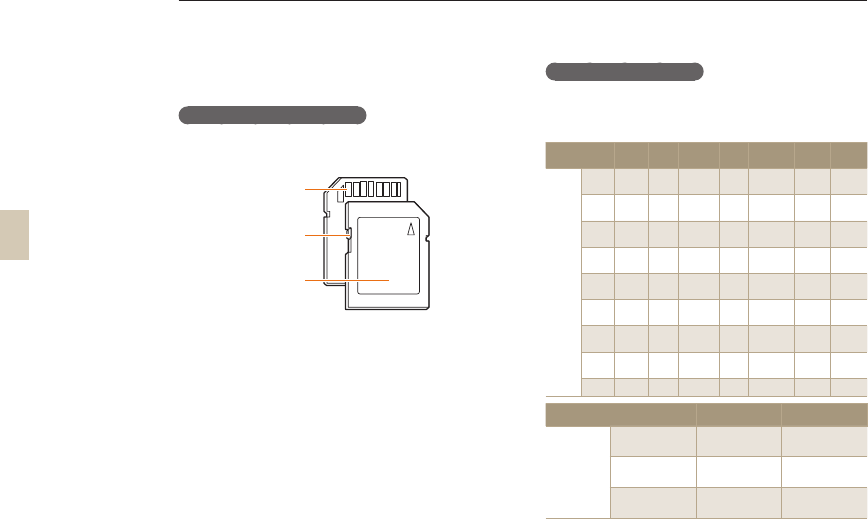
112
About memory cards
Memory cards you can use
You can use SD (Secure Digital) and SDHC (Secure
Digital High Capacity) memory cards.
Terminal
Label (front)
Write-protect switch
You can prevent files from being deleted by using the
write-protect switch on the SD or SDHC card. Slide
the switch down to lock or slide it up to unlock. Lock
the card to prevent deletions. Unlock the card when
shooting.
Memory card capacity
The memory capacity may vary depending on the
scenes you shoot or the shooting conditions. These
capacities are based on a 1GB SD card:
Size Super
Fine Fine Normal
RAW RAW+SF RAW+F RAW+N
Photos
14M
(3:2) 142 278 408 35 28 31 32
10M
(3:2) 197 382 724 - 32 34 36
6M
(3:2) 322 615 1128 - 36 38 39
2M
(3:2) 738 1334 2238 - 41 42 43
12M
(16:9) 168 328 630 - 30 33 35
8M
(16:9) 234 454 860 - 34 36 37
5M
(16:9) 381 727 1334 - 38 39 40
2M
(16:9) 872 1573 2638 - 42 43 43
Burst 1201 2092 3320 - - - -
Size HQ Normal
*Movies
(30fps)
1280
(16:9) Approx. 15mins Approx. 22mins
640
(4:3) Approx. 44mins Approx. 66mins
320
(4:3) Approx. 145mins Approx. 210mins
* The time available for recording may differ if you use the
zoom. Several movies were recorded in succession to
determine the total recording time.
Camera maintenance
113
About the battery
Use only Samsung-approved batteries.
Battery specifications
Mode BP1310
Type Lithium-ion battery
Cell capacity 1300 mAh
Voltage 7.4 V
Charging time
(When fully discharged) Approx. 150 min
Battery life
Shooting mode Number of photos
Photos Approx. 200 min/Approx. 400
photos
Videos Approx. 130 min
The figures above are measured by Samsung’s standards and
may differ depending on actual usage.
The shooting time may change depending on the shooting
environment and shot intervals.
Several videos were recorded in succession to determine the
total recording time.
•
•
•
Camera maintenance
114
Notes about charging the battery
If the charging indicator light does not light, make sure that
the battery is inserted correctly.
If the indicator light blinks in red or does not illuminate,
reconnect the adaptor cable, or remove the battery and
insert it again.
If you charge the battery when it is warm, the indicator
light may turn orange. Charging will start when the battery
cools down.
When using the battery, please keep the following guidelines.
Failure to follow these guidleline may cause excessive
heat, fire, or explosion.
If the battery is bulging or distorted, contact a Samsung
service center. It may present a physical danger.
It may present physical dangers.
Use only the recommended battery charger.
Do not place the product close to any high temperature
source.
Do not insert the product into a microwave.
Do not place the product inside a car during the summer.
Do not place the product in a hot, humid environment.
Do not place the camera on a carpet, comforter, or
electronic mattress for a long time.
Do not leave the product turned on where there is little or
no air circulation.
Do not let accessories like necklaces, coins, keys,
watches, etc., come in contact with the battery chamber.
Use Advanced Lithium Batteries with a guarantee from
the manufacturing company.
•
•
•
-
-
-
-
-
-
-
-
-
-
-
-
Do not disassemble the battery or perforate the battery
with a pin.
Do not subject the battery or camera to high pressure.
Do not drop or strike the camera or battery, or subject
either to rough handling or sudden shocks.
Do not expose the battery or camera to temperatures
over 60ºC (140ºF) degree.
Do not expose the product to water or humidity.
Battery shall not be exposed to excessive heat such as
sunshine, fire or the like.
Guidelines of disposal
Follow the disposal instructions and properly dispose
of the used battery.
Do not dispose of the battery by throwing it in a fire.
Disposal instructions may differ depending on your
country or specifi c region.
Follow the disposal instructions of your country,
state, etc.
Guideline of recharging the battery.
Do not recharge the battery using a method that
differs from the method detailed in this users manual.
Failure to follow these instruction may cause a fire or
explosion.
-
-
-
-
-
-
-
-
-
-
-
Camera maintenance
115
Before contacting a service center
If you are having trouble with your camera, try these troubleshooting procedures before contacting a service
center. If you have attempted the troubleshooting solution and are still having problems with your device, contact
your local dealer or authorized Samsung service center.
Situation Suggested remedies
Cannot turn on the camera
Make sure that the battery is inserted.
Make sure that the battery is inserted correctly.
Charge the battery.
•
•
•
The power turns off suddenly
Charge the battery.
Your camera may be in Power save mode. (p. 106)
The power automatically turns off to preven the camera from malfunctoning in the case
that the unit overheats.
•
•
•
The camera is losing battery
power quickly
The battery may lose power more quickly in low temperatures (below 0° C). Keep the
battery warm by putting it into your pocket.
Using the flash or recording videos depletes the battery quickly. Recharge if needed.
The ability of a Lithium battery to hold a charge dimishes over time. If your battery
looses its charge rapidly on a regular basis, purchase a new battery.
•
•
•
Cannot take photos
There is no space on the memory card. Delete unnecessary files or insert a new card.
Format the memory card. (p. 105)
The memory card is defective. Get a new memory card.
The memory card is locked. Unlock the card. (p. 112)
Make sure that the camera is switched on.
Charge the battery.
Make sure that the batte ry is inserted correctly.
When you use the AF Priority function, you cannot take a picture without adjusting
the focus on the subject correctly. Disable the AF Priority function, or set the focus
accurately.
•
•
•
•
•
•
•
•
The camera freezes Remove the battery, and then insert it again.
The flash does not work The flash option may be set to Off. (p. 55)
You cannot use the flash in the mode, or some modes.
•
•
The flash fires unexpectedly The flash may fire due to static electricity.
This is not a malfunction of the camera.
116
Before contacting a service center
Situation Suggested remedies
The date and time are
incorrect Set the date and time in the Setting2 (
2
) menu.
The display or buttons do
not work
Remove the battery, and then insert it again.
The memory card has an error The memory card has not been reset. Format the card. (p. 105)
Cannot play back files
If you change the name of a file, your camera may not may be able to play the file (the
name of the file should meet the DCF standard). If you encounter this situation, play back
files on your computer.
The photo is blurry
If the subject is out of focus, the photo may be blurry. Make a change to the shooting
condition.
If the camera is shaken while shooting, the photo may be blurry. Use a tripod to avoid
camera shake.
Make sure that the lens is clean. If not, clean the lens. (p. 111)
•
•
•
The colors in the photo do not
match the actual scene
An incorrect white balance can create unrealistic color. Select the proper white balance
option to suit the light source. (p. 68)
The photo is too bright
Your photo is overexposed.
Adjust the exposure value. (p. 66)
Adjust the aperture value or the shutter speed. (p. 41)
Turn off the flash. (p. 55)
Adjust the ISO speed. (p. 59)
•
•
•
•
The photo is too dark
Your photo is underexposed.
Adjust the exposure value.
Adjust the aperture value or the shutter speed.
Turn on the flash.
Adjust the ISO speed.
•
•
•
•
The photo is distorted The wide-angle lens may distort the image. This is a normal feature of the wide-angle lens.
117
Before contacting a service center
Situation Suggested remedies
The TV does not display your
photos
Make sure that the camera is correctly connected to the TV with the A/V and HDMI
cable.
Make sure that your memory card contains photos.
•
•
Your computer does not
recognize your camera
Make sure that the USB cable is connected correctly.
Make sure that your camera is switched on.
Make sure that you are using a supported operating system.
•
•
•
Your computer disconnects the
camera while transferring files
The file transmission may be interrupted by static electricity. Disconnect the USB cable,
and then connect it again.
Your computer cannot play
videos
The codec installed in your computer may not be compatible with the video files you want
to play. Use QuickTime
®
Player or install Codec Pack Full.
Using QuickTime
®
Player 7.6
1. Install QuickTime
®
Player 7.6 which supports MP4 (H.264 (MPEG-4.AVC)).
2. Play videos using QuickTime
®
Player.
Using Codec Pack Full
1. Install the latest version of Codec Pack Full.
2. Play videos using the media player (Media Player Classic or Windows Media Player
11 recommended).
Install QuickTime
®
Player 7.6 or K-Lite Codec Pack Full on Windows XP SP2 or later.
Depending on your computer environment, the video playback may be intermittent.
•
•
•
•
118
Camera specifications
Specification
Image
Sensor
Type CMOS
Sensor size 23.4×15.6mm
Effective Pixel Approx. 14.6 Mega-pixels
Total Pixel Approx. 15.1 Mega-pixels
Color Filter RGB primary color filter
Lens Mount Samsung NX Mount
Usable Lens Samsung Lenses
Image
Stabilization
Type Lens Shift (depends on
Lens)
Dust
Reduction
Type Super sonic drive
Display Type AMOLED
Size 3.0”
Resolution VGA (640x480) 614k dots
(PenTile).
Live view Field of view : Approx.
100%
Specification
Viewfinder Type EVF
Resolution VGA (640x480) 921k dots
equiv.
Field of View Approx. 100%
Magnification Approx. 0.86x (APS-C,
50mm, -1m-1)
Eyepoint About 20.2mm
Diopter
Adjustment
Approx. -4.0 ~ +2.0m-1
Focusing Type Contrast AF
Focusing point Selection : 1point (Free
selection)
Multi : Normal 15points,
Close Up 35points
Face Detection : Max.
10faces
Modes Single AF, Continuous AF,
MF
AF-assist lamp Yes (Green LED)
Shutter Type Electronically controlled
vertical-run focal plane
shutter
Speed Auto:1/4000sec. ~ 30sec.
Manual:1/4000sec. ~
30sec. (1/3EV or 1/2EV
step)
Bulb (Limit time : 8 min)
119
Camera specifications
Specification
Exposure Metering
System
TTL 247 (19x13) Block
segment
Metering : Multi, Center-
weighted, Spot
Metering range : EV0 ~ 18
(ISO100·30mm F2.0)
Compensation ±3 EV (1/2EV, 1/3EV step)
AE Lock AEL button
ISO Equivalent Auto, 100, 200, 400, 800,
1600, 3200 (1EV step)
Drive Mode Modes Single, Continuous, Burst,
Self-timer, Bracket (AE, WB,
PW)
Continuous JPEG : 3fps up to 10shots,
Burst mode : 30fps,
30shots by 1 released
RAW : 3fps up to 3shots
Bracket Auto Exposure Bracket
(±3EV), White Balance
Bracket (±3step), Picture
Wizard Bracket (Selectable
3modes)
Self-timer 2-30sec. (1sec. step)
Remote
controller
Wired : SR9NX01 (Optional)
Specification
Flash Type TTL Auto Pop-up flash
Modes Smart Flash, Auto, Auto +
Red-eye reduction, Fill-in,
Fill-in + Red-eye reduction,
1st Curtain, 2nd Curtain, OFF
Guide Number 11 (at ISO 100)
Angle of View
Coverage
28mm wide-angle
(Equivalent to 35mm)
Sync. Speed Less than 1/180sec.
Flash
Compensation
-2 - +2EV (0.5EV step)
External Flash Samsung External Flash
available (SEF42A,
SEF20A) (optional)
Synchro
(Flash
attachment)
Hot Shoe
White
Balance
Modes Auto, Daylight, Cloudy,
Fluorescent (W, N, D),
Tungsten, Flash, Custom,
K(Manual)
Micro
adjustment
Each 7steps in Amber /
Blue / Green / Magenta axis
Picture
Wizard
Modes Standard, Vivid, Portrait,
Landscape, Forest, Retro,
Cool, Calm, Classic,
Custom (1-3)
Parameter Contrast, Sharpness,
Saturation, Color tone
120
Camera specifications
Specification
Shooting Modes Smart Auto, Program,
Shutter Priority AE, Aperture
Priority AE, Manual, Night,
Portrait, Landscape, Scene,
Movie
Scene Mode Beauty shot, Children,
Close Up, Text, Sunset,
Dawn, Backlight, Fireworks,
Beach & Snow
Image Size JPEG (3:2):
14M (4592x3056),
10M (3872x2592),
6M (3008x2000),
2M (1920x1280),
1.4M (1472x976):
Burst mode only
JPEG (16:9):
12M (4592x2584),
8M (3872x2176),
5M (3008x1688),
2M (1920x1080)
RAW: 14M (4592x3056)
Quality Super fine , Fine, Normal
RAW Format SRW
Color Space sRGB, Adobe RGB
Specification
Movie Format MP4 (H.264)
Compression Movie : H.264 , Sound :
AAC
Movie Clip With Audio or without Audio
(user selectable, recording
time : 25 minutes)
Image size 1280x720 , 640x480 ,
320x240
Frame rate 30fps
Sound Mono Sound
Movie Editing Still Image Capture, Time
Trimming
Image Play Type Single image, Thumbnails
(3/9/20 images), Slide
show, Movie
Highlight
Warning
Available
Editing Red eye fix, Back light
comp., Photo Style Selector,
Resize, Rotate, Face
Retouch
Photo Style
Selector
Soft, Vivid, Forest, Autumn,
Misty, Gloomy, Classic
121
Camera specifications
Specification
Storage Media External memory
card(optional): SD card
(up to 4GB guaranteed),
SDHC card (up to 8GB
guaranteed)
File Format RAW (SRW), JPEG (EXIF
2.21), DCF, DPOF 1.1,
PictBridge 1.0
Capacity
(1GB)
14M : RAW 35
14M : Super Fine 142, Fine
278, Normal 408
10M : Super Fine 197, Fine
382, Normal 724
6M : Super Fine 322, Fine
615, Normal 1128
2M : Super Fine 738, Fine
1334, Normal 2238
Burst (1.4M) : Super Fine
1201, Fine 2092, Normal
3320
12M(W) : Super Fine 168,
Fine 328, Normal 630
8M(W) : Super Fine 234, Fine
454, Normal 860
5M(W) : Super Fine 381, Fine
727, Normal 1334
2M(W) : Super Fine 872, Fine
1573, Normal 2638
Movie : 1280x720 : High
Quality 15min., Normal 22min.
640x480 : High Quality
44min., Normal 66min.
320x240 : High Quality
145min., Normal 210min.
※ These figures are
measured under the
Samsung standard
Specification
Direct Printing PictBridge
Interface Digital Output
Connector
USB 2.0 (HI-SPEED)
Video output NTSC, PAL (user selectable)
HDMI 1.3 : (1080i, 720P,
576P / 480P)
External
Release
Yes
DC power input
connector
DC 9.0V, 1.5A (100 ~ 240V)
Power
Source
Type
Rechargeable battery :
BP1310 (1300mAh)
Charger: BC1310
AC Adaptor : AD9NX01
(Optional)
* Included battery may vary
depending on sales region
Physical
Specifica-
tion
Dimensions
(WxHxD)
123×87×39.8mm
(excluding the projecting
parts of the camera)
Weight 353g (without batteries and
card)
Operating
Temperature
0 ~ 40 °C
Operating
Humidity
5 ~ 85%
Software
Application
Samsung Master, Samsung
RAW Converter, QuickTime
Player 7.6
* Specifications are subject to change without prior notice
* All trademarks are the property of their respective owners
122
The lens provided may differ by the model.
Lens specifications
Lens Name SAMSUNG 30mm F2 SAMSUNG 18-55mm
F3.5-5.6 OIS SAMSUNG 50-200mm
F4-5.6 ED OIS
Focal Length 30mm (equivalent to
46.2mm in 35mm format)
18 - 55mm (equivalent to
27.7-84.7mm in 35mm
format)
50 - 200mm (equivalent to
77-308mm in 35mm format)
Elements in Groups 5 elements in 5 groups
(1 Aspherical lens included) 12 elements in 9 groups
(1 Aspherical lens included)
17 elements in 13 groups
(2 Extra-low Dispersion lens
included)
Angle of View 50.2° 75.9°- 28.7° 31.4°- 8.0°
Aperture F2 (Min. F22), (Number of
Blades : 7 , Circular Aperture
Diaphragm)
F3.5 - 5.6 (Min. F22),
(Number of Blades : 7 ,
Circular Aperture Diaphragm)
F4 - 5.6 (Min. F22), (Number
of Blades : 7 , Circular
Aperture Diaphragm)
Mount Type Samsung NX Mount Samsung NX Mount Samsung NX Mount
Optical Image Stabilizer No Yes Yes
Minimum Focus Distance 0.25m ~ Ğ0.28m ~ Ğ0.98m ~ Ğ
Maximum Magnification Approx. 0.16X Approx. 0.22X Approx. 0.2X
Lens Hood Optional Included Included
Filter Size 43mm 58mm 52mm
Max. Diameter x Length 61.5 x 21.5mm 63 x 65.1mm 70 x 100.5mm
Weight Approx. 85g (without hood) Approx. 198g (without hood) Approx. 417g (without hood)
Operating Temperature 0 ~ 40°C 0 ~ 40°C 0 ~ 40°C
Operating Humidity 5 ~ 85% 5 ~ 85% 5 ~ 85%
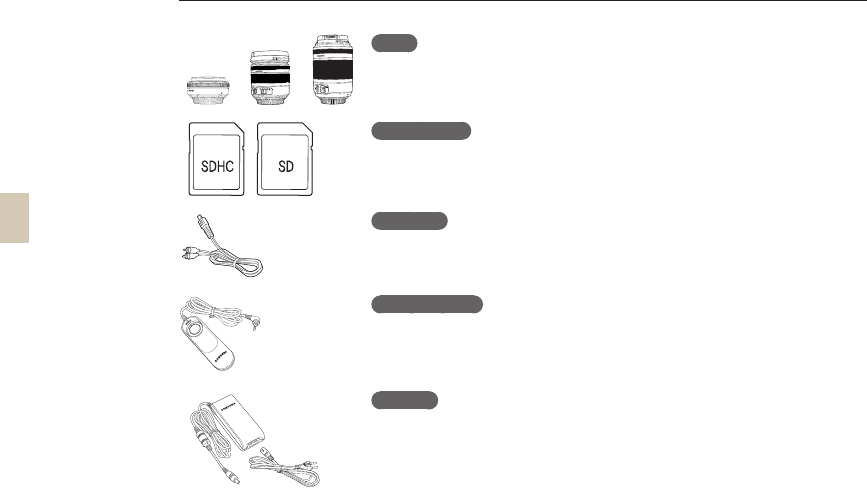
123
Accessories (optional items)
Lens
Make better pictures with a 30mm, 18-55mm, or 50-200mm lens made exclusively
for the Samsung NX-series camera.
Memory card
In this camera, the memory cards such as SD (Secure Digital) and SDHC (Secure
Digital High Capacity) may be used.
A/V cable
The camera can be connected to an external device by using an A/V cable.
Shutter release
This product minimizes the possible shaking of camera when taking pictures by using
a tripod or taking pictures at a low shutter speed.
Adaptor
The power needed in the camera can be supplied by connecting to a power socket
using this adaptor.
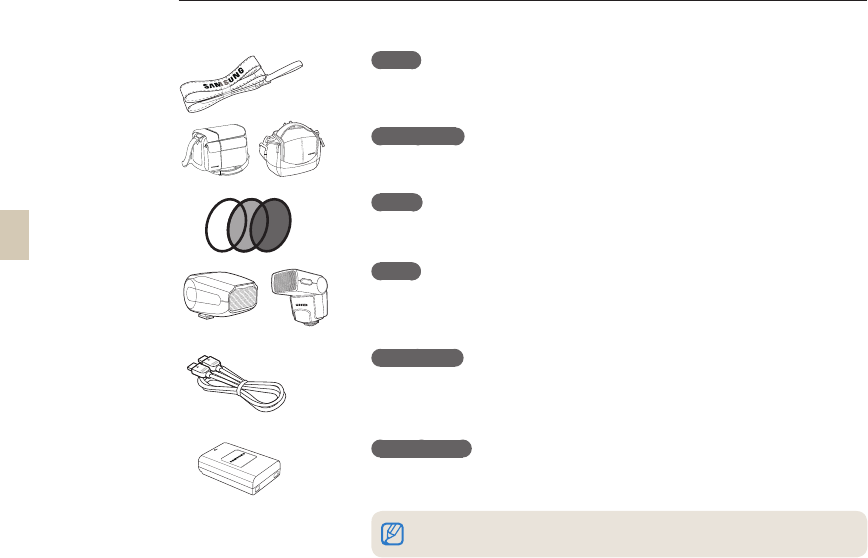
124
Accessories(optional items)
Strap
Straps can be purchased separately.
Camera bag
Camera bag can be purchased separately.
Filter
Optional filters can be purchased and attached to the lens.
Flash
Optional flash(SEF20A or SEF42A) can be purchased for your various shooting
experience.
HDMI Cable
You can view high-quality and uncompressed photos or videos on an HDMI (High
Definition Multimedia Interface) using the optional HDMI cable.
Battery pack
Battery pack can be purchased separately.
The image of components or optional parts can differ from that of the actual products.
Please refer to the user's manual of the optional items.

125
Index
A
Adjusting exposure 5
Automatic focus 34
Aperture priority mode 41
Aperture value 41
AF Priority 60
AF assist light 61
AE BKT 73
AEL function 77
AF Sound 104
Anynet+ 107
Appendixes 109
Accessories (optional items) 123
B
Background 7
Bulb exposure 44
Bracket setup 74
Backlight adjustment 88
Button sound 104
Battery 18, 115
C
Composition 7
Close-up 39
Continuous AF 60
Center-weighted metering 67
Color temperature 70
Color space 71
Changing the shooting method 73
Continuous shooting 73
Camera maintenance 111
Camera specifications 120
D
Direction keys 5
Diopter adjustment dial 16
Display type 28
Depth of field 37
Depth Preview 37
Deleting a file 82
Display 104
Date&Time 106
E
Eye sensor 15
Eye-cup 16
EV button 43
External flash 58
Error message 110
F
Fn 27
Flash popup button 55
Focusing methods 60
Face detection 64
File protection 82
Face retouching 88
Format 105
File name 105
File number 105
Folder type 105
Firmware update 108
H
Half-shutter 32
HDTV 92
HDMI Size 108
I
ISO sensitivity 59
Icons 25
Image stabilization 32
Index printing 90
J
JPEG 100
K
Key mapping 77
L
Lens 17
Landscape mode 45
Language 104
Lens specifications 122
M
Mounting/dismounting the lens 21
Manual focus 34
Manual mode 43
Multi AF 61
Multi-metering 67
Mac users 96
Memory card 112

126
N
Night mode 45
Noise reduction 53
O
Option/menu selection method 26
OIS 35
P
Program mode 40
Portrait mode 45
P Wiz BKT 73
Picture wizard 75
Playback 79
Picture editing 87
Picture style 88
Print info 89
Photo printer 101
PictBridge 101
Power save 106
Q
Quality 52
QuickTime player 93
Quickview 104
R
Recording a movie 48
Resolution 51
Red-eye reduction 56
Rotating 87
Red-eye fix 88
Regular TV 91
RAW 100
Reset 105
S
Shooting mode 5
Subject 7
Status lamp 16
Strap 22
Sound 29
Smart Auto mode 39
Shutter Priority mode 42
Shutter speed 42
Scene mode 46
Setting the flash option 55
Single AF 60
Selection AF 61
Self-portrait face detection 65
Spot metering 67
Smart range 72
Shooting method 73
Smart album 81
Slide show 84
Samsung Master 97
Samsung Raw Converter 98
System volume 104
Sensor cleaning 107
T
Title and role of each part 14
Turning on the power 23
Tips 32
Timer 54
Thumbnail view 81
U
Unpacking 13
Using the dial 26
User display 29
V
View a movie 85
Video Out 107
W
Wind Cut 49
White balance 68
Windows users 93
WB BKT 73
Z
Zoom 34
1st Curtain 56
2nd Curtain 56
Index
Correct Disposal of This Product
(Waste Electrical & Electronic Equipment)
(Applicable in the European Union and other European
countries with separate collection systems)
This marking on the product, accessories or literature indicates that
the product and its electronic accessories (e.g. charger, headset,
USB cable) should not be disposed of with other household waste
at the end of their working life. To prevent possible harm to the
environment or human health from uncontrolled waste disposal,
please separate these items from other types of waste and recycle
them responsibly to promote the sustainable reuse of material
resources. Household users should contact either the retailer
where they purchased this product, or their local government
office, for details of where and how they can take these items for
environmentally safe recycling. Business users should contact
their supplier and check the terms and conditions of the purchase
contract. This product and its electronic accessories should not be
mixed with other commercial wastes for disposal.
Correct disposal of batteries in this product
(Applicable in the European Union and other European
countries with separate battery return systems)
This marking on the battery, manual or packaging indicates that
the batteries in this product should not be disposed of with other
household waste at the end of their working life. Where marked, the
chemical symbols Hg, Cd or Pb indicate that the battery contains
mercury, cadmium or lead above the reference levels in EC Directive
2006/66. If batteries are not properly disposed of, these substances
can cause harm to human health or the environment.
To protect natural resources and to promote material reuse, please
separate batteries from other types of waste and recycle them
through your local, free battery return system.
This Class [B] digital apparatus complies with Canadian ICES-003.
Samsung Eco-mark
It is Samsung’s own symbol mark is used to
effectively communicate Samsung’s environmental
friendly product activities to the consumers. The
mark represents Samsung’s continuous effort on
development of environmental conscious products.
Please refer to the warranty that came with your product or visit our website
http://www.samsungimaging.com for after-sales service or inquiries.
