Samsung Flat Panel Television Ta950 Users Manual SyncMaster T27A950 Monitor User Guide Operating Instructions
TA950 to the manual c4fb034f-5be3-4a44-ad22-e23dde7e5a6f
2015-01-23
: Samsung Samsung-Samsung-Flat-Panel-Television-Ta950-Users-Manual-279800 samsung-samsung-flat-panel-television-ta950-users-manual-279800 samsung pdf
Open the PDF directly: View PDF  .
.
Page Count: 76

LED TV MONITOR
user manual
Thank you for purchasing this Samsung product.
To receive more complete service, please register
your product at
www.samsung.com/register
(MFM TV)
imagine the possibilities
TA950
2
English
Figures and illustrations in this User Manual are provided for reference only and may differ from actual product appearance.
Product design and specifications may be changed without notice.
Still image warning
Avoid displaying still images (like jpeg picture files) or still image element (like TV programme logo, panorama or 4:3 image format, stock or news bar at
screen bottom etc.) on the screen. Constant displaying of still picture can cause ghosting of screen, which will affect image quality. To reduce risk of this
effect, please follow below recommendations:
• Avoid displaying the same TV channel for long periods.
• Always try do display any image on full screen, use TV set picture format menu for best possible match.
• Reduce brightness and contrast values to minimum required to achieve desired picture quality, exceeded values may speed up the burnout process.
• Frequently use all TV features designed to reduce image retention and screen burnout, refer to proper user manual section for details.
Securing the Installation Space
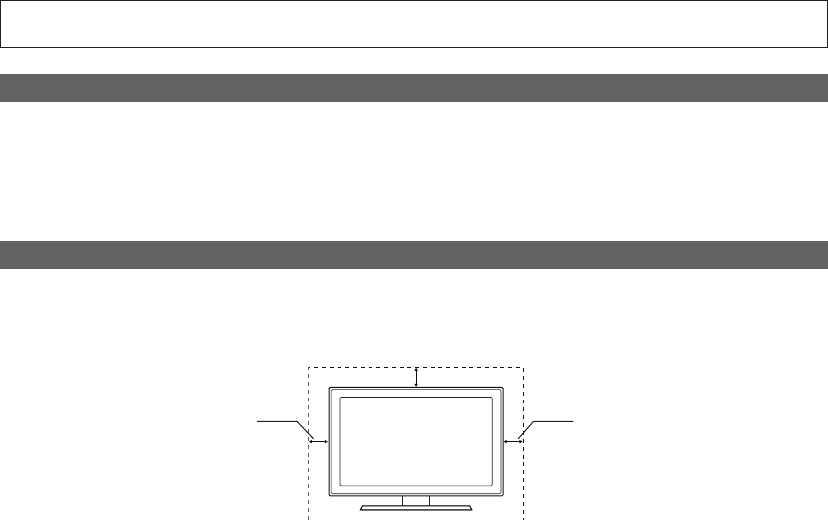
Keep the required distances between the product and other objects (e.g. walls) to ensure proper ventilation.
Failing to do so may result in fire or a problem with the product due to an increase in the internal temperature.
Install the product so the required distances shown in the figure are kept.
✎
The appearance may differ depending on the product.
10 cm
10 cm
10 cm

3
Contents
ENGLISH
English
Check the Symbol!
t
This function can be used by
pressing the TOOLS button on the
remote control.
Note Step by Step Guide
TOOLS
Contents
Other Information
67
67 Analogue Channel Teletext Feature
68 Assembling the Cables
68 Anti-theft Kensington Lock
69 Troubleshooting
74 Specifications
75 Index
Advanced Features
46
46 Getting Started with Smart Hub
51 Using the Smart Hub
62 About AllShare™
63 Anynet+
Basic Features
23
23 How to Navigate Menus
23 Using the INFO button (Now & Next guide)
23 Using the Channel Menu
27 Channel Menu
28 Picture Menu
34 Sound Menu
36 Network Menu
40 System Menu
44 Support Menu
Connections
14
14 Connecting to an Antenna
14 Plug & Play (Initial Setup)
15 Connecting to an AV Device
17 Connecting to an Audio Device
18 Connecting to a PC
20 Changing the Input Source
21 Network Connection
Getting Started
4
4 Safety Precautions
11 Accessories
12 Viewing the Control Panel
13 Viewing the Remote Control

4
Getting Started
English
Safety Precautions
Icons used for safety precautions
WARNING Failing to follow the precautions marked with this sign may result in a serious injury or
even a fatality.
CAUTION Failing to follow the precautions marked with this sign may result in a personal injury or
property damage.
Do not perform.
Must be followed.
CAUTION
RISK OF ELECTRIC SHOCK DO NOT OPEN
CAUTION: TO REDUCE THE RISK OF ELECTRIC SHOCK, DO NOT REMOVE
COVER (OR BACK). THERE ARE NO USER SERVICEABLE PARTS INSIDE.
REFER ALL SERVICING TO QUALIFIED PERSONNEL.
This symbol indicates that high voltage is
present inside. It is dangerous to make any kind
of contact with any internal part of this product.
This symbol alerts you that important literature
concerning operation and maintenance has
been included with this product.
¦Power Related
✎
The following images are for your reference and may differ depending on models and countries.
Warning
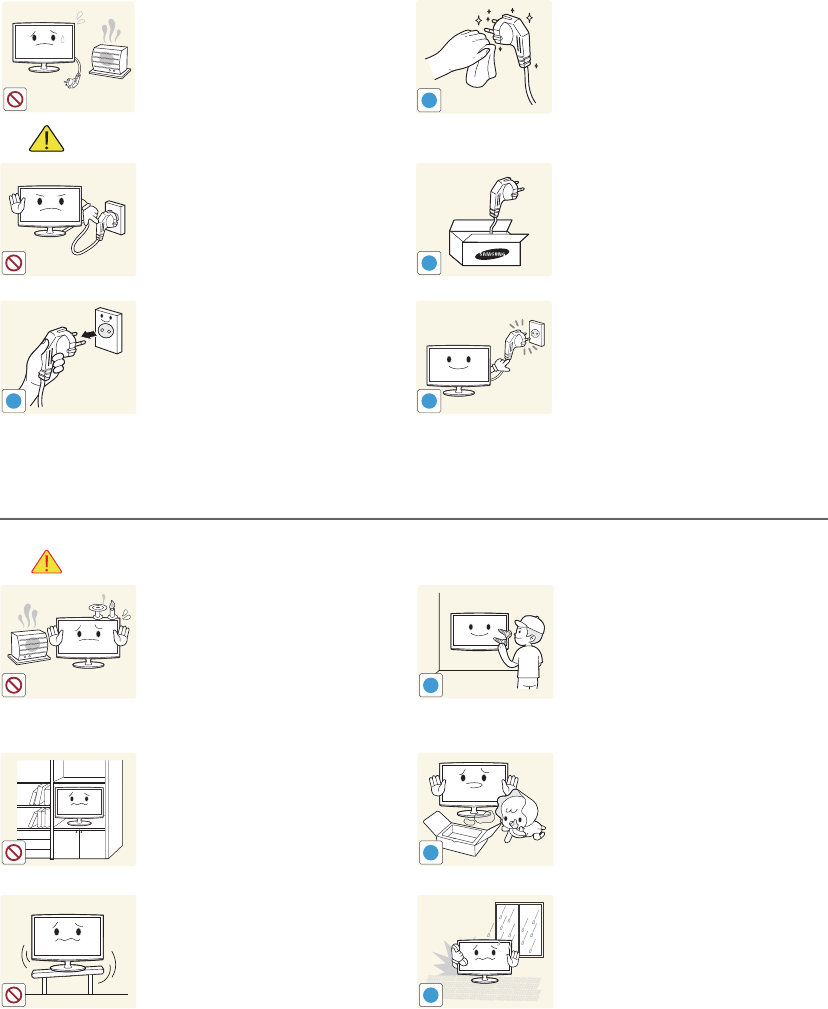
Avoid using a damaged power cord or
plug or a loose power outlet.
yOtherwise, it may result in electric
shock or fire.
Avoid connecting multiple electric
appliances to a single wall outlet.
yOtherwise, it may result in fire due
to overheating of the wall outlet.
Avoid plugging in or unplugging the
power supply with wet hands.
yOtherwise, it may result in electric
shock.
!
Plug the power plug in firmly.
yOtherwise, it may result in fire.
!
Make sure to connect the power cord
to a grounded wall outlet (for insulation
class 1 equipment only).
yOtherwise, it may result in electric
shock or injury.
Avoid bending or twisting the power
cord excessively and avoid placing
heavy objects on the cord.
yOtherwise, it may result in electric
shock or fire due to a damaged
power cord.
Getting Started
5
Getting Started
English
Keep the power cord and the product
away from a heater.
yOtherwise, it may result in electric
shock or fire.
!
If the pins of the power plug or the
wall outlet are covered in dust, clean it
using a dry cloth.
yOtherwise, it may result in fire.
Caution
Avoid unplugging the power plug while
the product is operating.
yOtherwise, it may damage the
product due to electric shock.
!
Make sure to use only the power cord
supplied by our company. In addition,
do not use the power cord of another
electric appliance.
yOtherwise, it may result in electric
shock or fire.
!
When unplugging the power plug from
the wall outlet, make sure to hold it by
the plug and not by the cord.
yOtherwise, it may result in electric
shock or fire.
!
Connect the power plug to a wall outlet
that can be easily reached.
yWhen a problem occurs with the
product, you must unplug the
power plug to cut the power off
completely. You cannot cut the
power off completely using only
the power button on the product.
¦Installation Related
Warning
Avoid placing burning candles,
mosquitorepellentor cigarettes on the
product.
yOtherwise, it may result in fire.
!
Ask an installation engineer or relevant
company to install the product onto
the wall.
yOtherwise, it may result in injury.
yMake sure to use the specified
wall mount.
Avoid installing the product in a badly-
ventilated location such as inside a
bookshelf or closet.
yOtherwise, it may result in fire due
to internal over-heating.
!
Keep the plastic bags used to pack
the product away from children.
yIf children place the plastic
bags over their heads, they may
suffocate.
Avoid installing the product in a
location that is unstable or exposed
to excessive vibration such as on an
unstable or slanted shelf.
yThe product may fall and this may
result in damage to the product or
injury.
yIf you use the product in a location
exposed to excessive vibrations,
it may result in a problem with the
product or fire.
!
Avoid installing the product in a
location exposed to dust, moisture
(sauna), oil, smoke or water (rain
drops) and installing it within a vehicle.
yThis may result in electric shock
or fire.
6
Getting Started
English
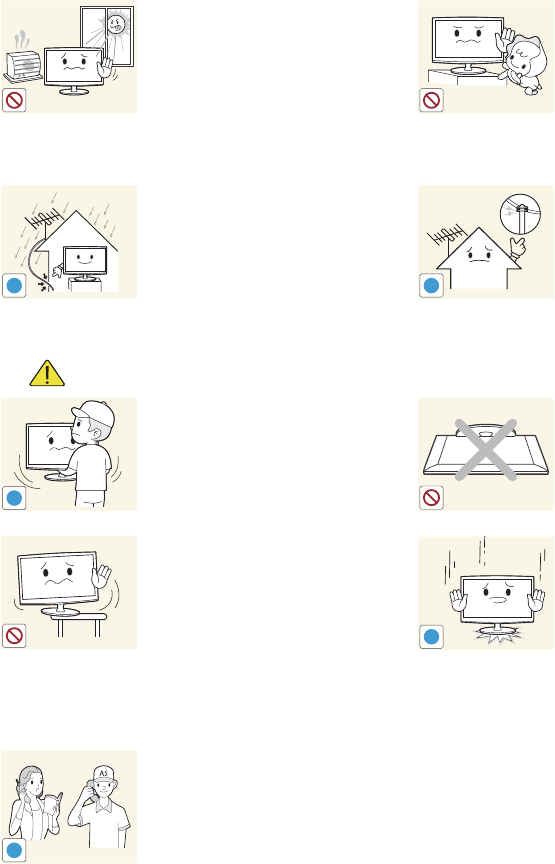
Avoid installing the product in a location
exposed to direct sunlight and installing
the product near a heat source such as
a fireplace or heater.
yThis may shorten the product life
cycle or cause fire.
Avoid installing the product where
children may reach it.
yIf a child touches the product,
the product may fall and this may
result in injury.
ySince the front part is heavier,
install the product on a flat and
stable surface.
!
Bend the outdoor antenna cable
downwards at the location where it
comes in the house so that rainwater
does not flow in.
yIf rainwater enters the product, it
may result in electric shock or fire.
!
Install the antenna far away from any
high voltage cables.
yIf the antenna touches or falls onto
a high voltage cable, it may result
in electric shock or fire.
Caution
!
Do not let the product drop while
moving it.
yThis may result in a problem with
the product or injury.
Do not place the product face down
on the floor.
yThis may damage the panel of the
product.
When installing the product on a
console or shelf, make sure that the
front of the product does not protrude
out of the console or shelf.
yOtherwise, this may cause the
product to fall off and result in a
malfunction or injury.
yMake sure to use a cabinet or shelf
suitable to the size of the product.
!
When putting the product down,
handle it gently.
yOtherwise, it may result in a
problem with the product or injury.
SAMSUNG
!
If the product is installed in a location
where the operating conditions vary
considerably, a serious quality problem
may occur due to the surrounding
environment. In this case, install the
product only after consulting one of our
service engineers about the matter.
yPlaces exposed to microscopic
dust, chemicals, too high or low
temperature, high humidity, airports
or stations where the product is
continuously used.
7
Getting Started
English
¦Cleaning Related
Warning
!
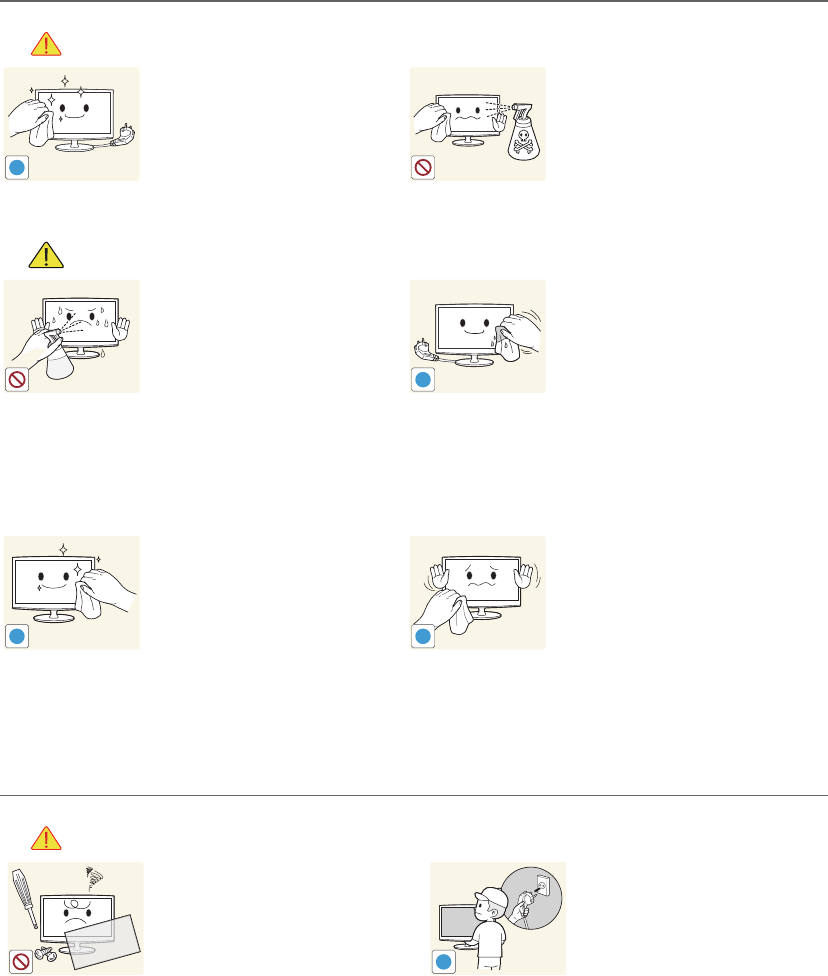
Before cleaning the product, unplug
the power cord.
yOtherwise, it may result in
electric shock or fire.
When cleaning the product, do not
spray water directly over the product
parts.
yMake sure that water does not
enter the product.
yOtherwise, it may result in fire,
electric shock or a problem with
the product.
Caution
Avoid spraying cleansing agent
directly onto the product.
yThis may result in discoloration
or cracking of the exterior of the
product or the panel coming off.
!
When cleaning the product, disconnect
the power cord and clean the product
with the supplied cleaning cloth.
yAvoid using chemicals such as
wax, benzene, alcohol, thinner,
mosquito-repellent, fragrance,
lubrication or cleansing agent when
cleaning the product.
This may result in the exterior
being deformed or the print being
removed.
!
If you can't get the product clean
with just the supplied cloth, use a
soft, damp cloth with a "monitor-
exclusive cleansing agent" and wipe
the product with it.
yIf no monitor-exclusive cleansing
agent is available, dilute a
cleansing agent with water at a
ratio of 1:10 before cleaning the
product.
!
Since the exterior of the product is
easily scratched, be sure to use the
supplied cleansing cloth.
¦Usage Related
Warning
Since a high voltage runs through the
product, never disassemble, repair or
modify the product yourself.
yOtherwise, it may result in fire or
electric shock.
yIf the product needs to be fixed,
contact a service centre.
!
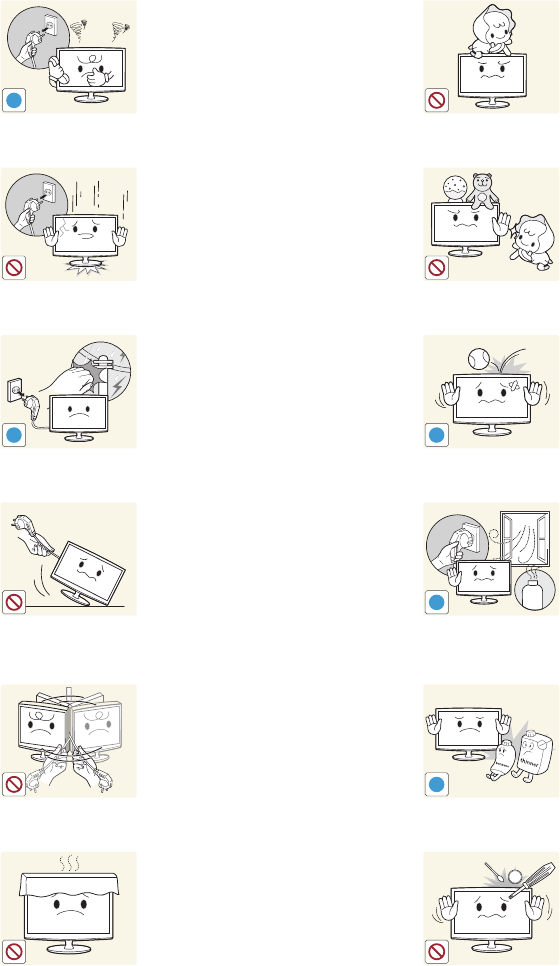
To move the product, turn the power
off and unplug the power cord, the
antenna cable and any other wires
connected to the product.
yOtherwise, it may result in
electric shock or fire due to the
damaged power cord.
8
Getting Started
English
!
If the product generates a strange
noise, a burning smell, or smoke,
unplug the power plug immediately and
contact a service centre.
yOtherwise, it may result in electric
shock or fire.
Avoid letting children hang or climb
onto the product.
yOtherwise, it may result in the
product falling and this may
result in injury or death.
If you drop the product or the case
is damaged, turn the power off and
unplug the power cord. Contact a
service centre.
yOtherwise, it may result in fire or
electric shock.
Avoid placing objects such as toys
and cookies on top of the product.
yIf a child hangs over the product
to grab an object, the object
or the product may fall and
this may result in injury or even
death.
!
When thunder or lighting occurs,
unplug the power cord and under no
circumstance touch the antenna cable
as this is dangerous.
yOtherwise, it may result in electric
shock or fire.
!
Avoid dropping an object over the
product or cause impact to the
product.
yOtherwise, it may result in
electric shock or fire.
Avoid moving the product by pulling the
power cord or antenna cable.
yOtherwise, it may result in electric
shock, fire or a problem with the
product due to damage to the
cable.
!
GAS
When a gas leak occurs, do not
touch the product or the power plug
and ventilate immediately.
yA spark may result in an
explosion or fire.
yDuring a thunder or lighting
storm, do not touch the power
cord or antenna cable.
Avoid lifting up or moving the product
by holding only the power cord or
signal cable.
yOtherwise, it may result in electric
shock, fire or a problem with the
product due to damage to the
cable.
!
Avoid using or placing inflammable
spray or objects near the product.
yThis may result in an explosion
or fire.
Take care not to block the vent by a
table cloth or curtain.
yOtherwise, it may result in fire due
to internal overheating.
100
Avoid inserting metal objects such
as a chopsticks, coins or hairpins, or
inflammable objects into the product
(the vents, ports, etc).
yIf water or substances enters
the product, turn the power
off, unplug the power cord and
contact a service centre.
yOtherwise, it may result in a
problem with the product,
electric shock or fire.
9
Getting Started
English
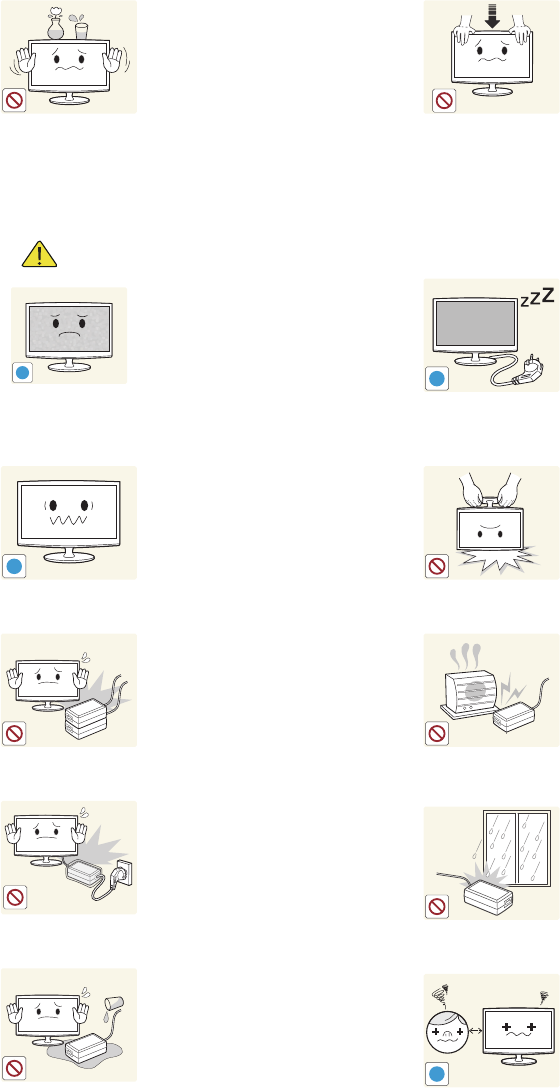
Avoid placing a liquid container such as
a vase, flowerpot, beverage, cosmetics
or drugs, or a metal object over the
product.
yIf water or substances enter the
product, turn the power off, unplug
the power cord and contact a
service centre.
yOtherwise, it may result in a
problem with the product, electric
shock or fire.
Do not press down hard on the
product. The product may become
deformed or damaged.
Caution
!
Displaying a still image for a long time
may create a persistent image or stain
on the screen.
yIf you do not use the product for
a long time, use the power-saving
mode or set the screensaver to the
moving picture mode.
-_-
!
When not using the product for
a long time such as leaving your
home, unplug the power cord from
the wall outlet.
yOtherwise, it may cause dust
accumulation and result in fire
caused by overheating or short
circuit or result in an electric
shock.
!
Set the appropriate resolution and
frequency for the product.
yOtherwise, it may result in eye
strain.
Avoid turning the product upside
down or move the product holding
only the stand.
yThis may cause the product to
fall, resulting in damage to the
product or injury.
Do not place the adapter on top of
another adapter.
yOtherwise, it may result in fire.
Keep power adaptor away from any
other heat source.
yOtherwise, it may result in fire.
Remove the vinyl cover of the adapter
before using the adaptor.
yOtherwise, it may result in fire.
Always keep power adaptor in well-
ventilated area.
Be careful that adaptor should not be
in contact with water and therefore not
be wet.
yThis may cause a malfunction,
electric shock or fire. Do not
use adaptor by the waterside or
outside particularly when it rains
or snows. Be careful that adaptor
should not be wet while cleaning
floor with water.
!
Watching the product from too
close a distance continuously may
damage your eyesight.
10
Getting Started
English
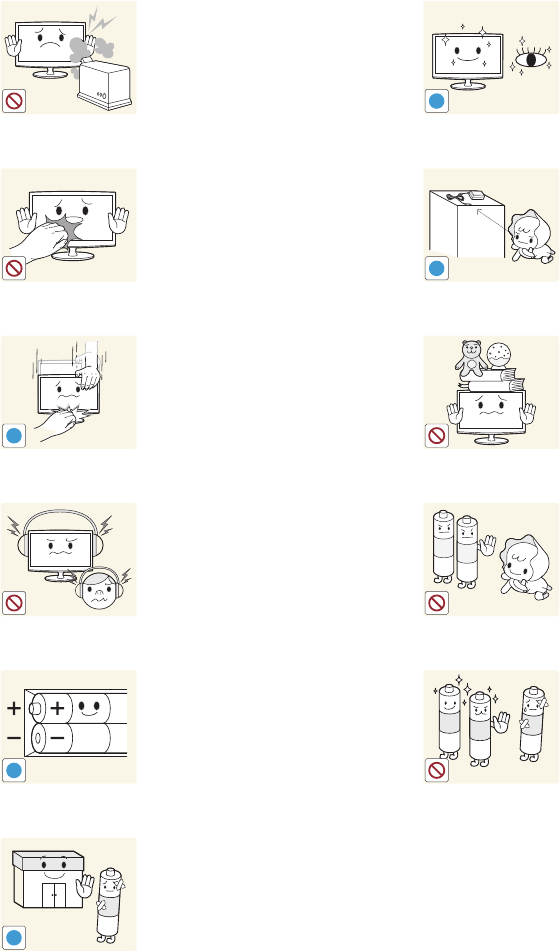
Avoid using a humidifier or cooker near
the product.
yOtherwise, it may result in electric
shock or fire.
!
It is important to give your eyes
some rest (5 minutes every hour)
when viewing the product screen for
long periods of time.
yThis will alleviate any eye strain.
Since the display panel is hot after
using it for a long time, do not touch
the product.
!
Keep the small accessories in a
location out of the reach of children.
!
Take care when adjusting the angle of
the product or the height of the stand.
yIf your hand or finger is caught, you
may be injured.
yIf the product is tilted excessively,
the product may fall and this may
result in injury.
Avoid placing a heavy object over
the product.
yOtherwise, it may result in a
problem with the product or
injury.
When using headphones or earphones,
do not turn the volume too high.
yHaving the sound too loud may
damage your hearing.
Be careful that children do not place
the batteries in their mouths when
removed from the remote control.
Place the battery in a location that
children or infants cannot reach.
yIf children have had the battery
in their mouths, consult your
doctor immediately.
!
When replacing the batteries, insert
them with right polarity (+, -).
yOtherwise, the battery may
become damaged or it may cause
fire, personal injury or damage due
to leakage of the internal liquid.
Use only specified standard
batteries. Do not use new and used
batteries together.
yThis may cause a battery to
break or leak and may cause
fire, injury, or contamination
(damage).
!
The batteries (and rechargeable
batteries) are not ordinary refuse
and must be returned for recycling
purposes. The customer is responsible
for returning the used or rechargeable
batteries for recycling.
yThe customer can return used or
rechargeable batteries to a nearby
public recycling centre or to a store
selling the same type of the battery
or rechargeable battery.

11
Getting Started
English
Accessories
✎
Please make sure the following items are included with your TV. If any items are missing, contact your dealer.
✎
The items’ colours and shapes may vary depending on the models.
✎
Cables not included in the package contents can be purchased separately.
✎
Check if there is no accessory hidden behind packing materials when you open the box.
yRemote Control & Batteries (AAA x 2)
yWarranty Card / Safety Guide (Not available in some locations)
yCable Holder
yCleaning Cloth
yPower Cord / DC-Adapter
yUser Manual yQuick Setup Guide y3D Active Glasses &
Battery(CR2025) 1EA / User Manual
yHDMI Cable yAV/Component Adapter yStereo Cable
✎
For best cable connection to this product, be sure to use cables with a maximum thickness as below:
yMaximum thickness - 0.55 inches (14mm)
12
Getting Started
English
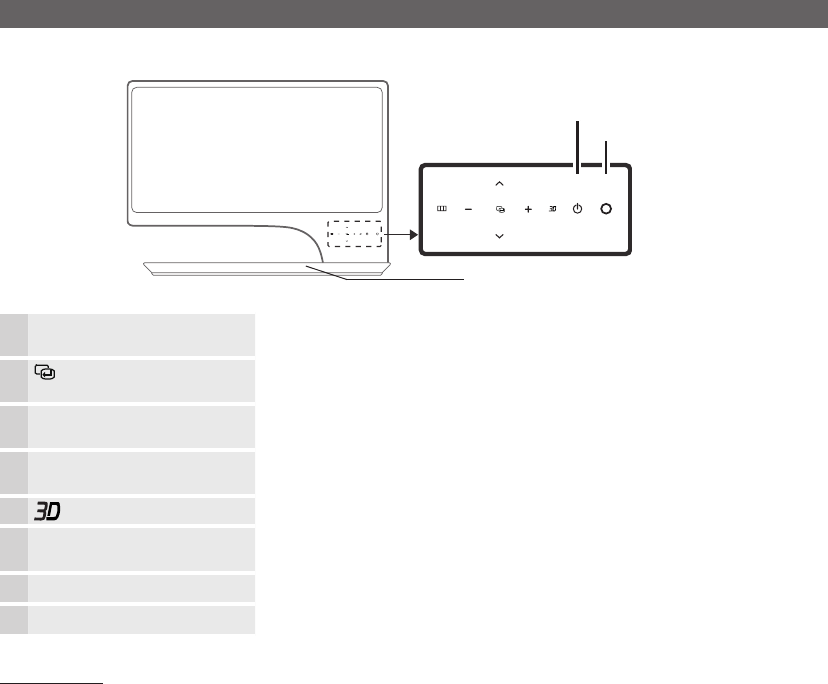
Viewing the Control Panel
✎
The product colour and shape may vary depending on the model.
Remote control sensor
Speakers
Power Indicator
m
(Menu) Displays an on-screen menu, the OSD (on screen display) of your TV’s
features.
(Source) Toggles between all the available input sources. In the on-screen menu, use
this button as you would use the ENTER
E
button on the remote control.
o
(Volume) Adjusts the volume. In the OSD, use the w and v buttons as you would
use the l and r buttons on the remote control.
k
(Channel) Changes the channels. In the OSD, use the
<
and
>
buttons as you
would use the ▲ and ▼ buttons on the remote control.
Turns the 3D image on or off.
P
(Power)
Power Indicator
Turns the TV on or off.
Blinks and turns off when the power is on and lights up in standby mode.
Remote control sensor Aim the remote control towards this spot on the TV.
Speakers -
Standby mode
Do not leave your TV in standby mode for long periods of time (when you are away on a holiday, for example). A small amount
of electric power is still consumed even when the power button is turned off. It is best to unplug the power cord.
13
Getting Started
English
Viewing the Remote Control
✎
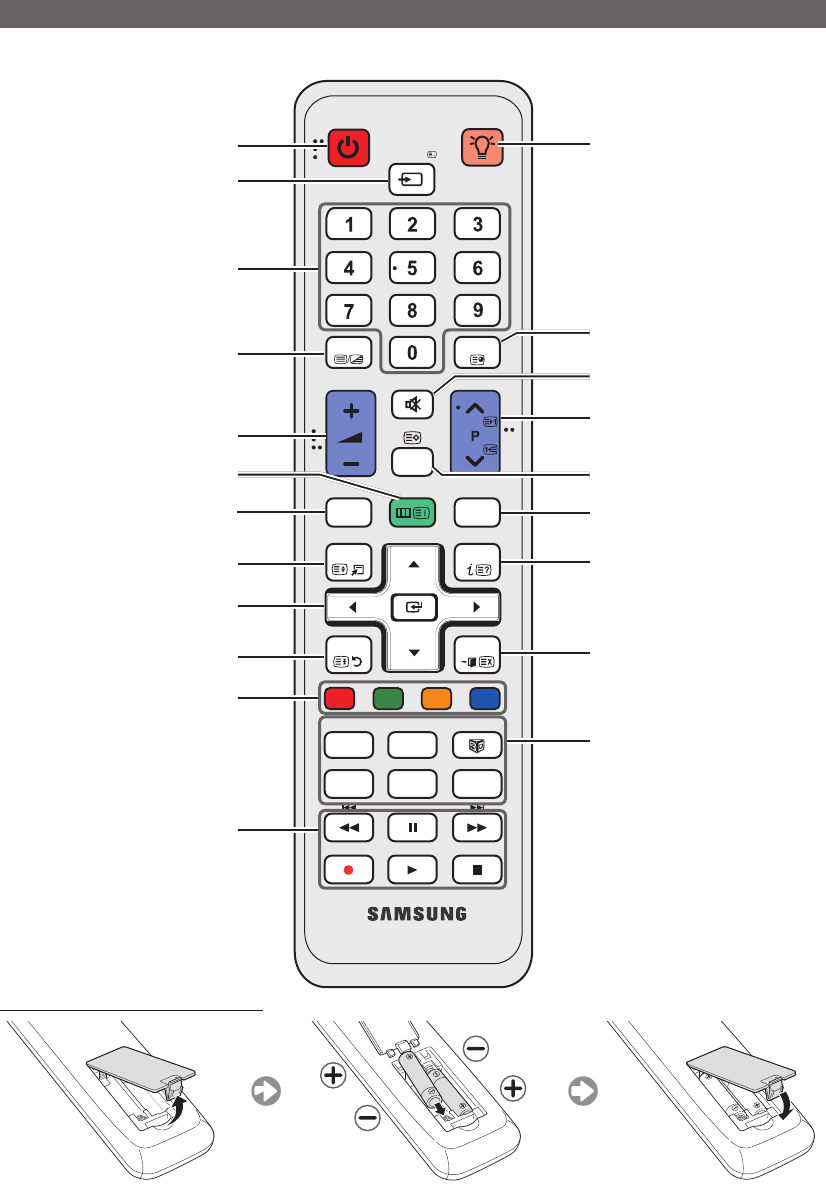
This is a special remote control for the visually impaired persons and has Braille points on the Power, Channel and
Volume buttons.
Installing batteries (Battery size: AAA)
CH LIST
MUTE
POWER ON/OFF
PRE-CH
MENU
TOOLS
RETURN
E-MANUAL
P.SIZE
AD/SUBT.
EXIT
INFO
TTX/MIX
AB C D
SOCIAL
SEARCH
GUIDE
SOURCE
AA59-00445A
HUB
TV
SMART
Turns the TV on and off.
Displays and selects the available video
sources.
Turns the remote control light on or
off. When on, the buttons become
illuminated for a moment when pressed.
(Using the remote control with this button
set to on will reduce the battery usage
time.)
Returns to the previous channel.
Cuts off the sound temporarily.
Changes channels.
Displays channel lists on the screen
(p. 24).
Displays the EPG (Electronic Programme
Guide) (p. 23).
Displays information on the TV screen.
Exits the on-screen menu.
Have direct access to channels.
Adjusts the volume.
Alternately select Teletext ON, Double,
Mix or OFF.
Displays the main on-screen menu.
Quickly select frequently used functions.
Link to various application services.
Returns to the previous menu.
Selects the on-screen menu items and
changes the values seen on the menu.
These buttons are for the Channel List,
SMART HUB menu, etc.
Use these buttons in SMART HUB and
Anynet+ modes. (p. 46, 63).
SOCIAL TV: Connect to Social TV
application.
SEARCH: Support to recommendation
search word and search function.
W
: Sets the video, which provided with
3D signal. (p. 29).
E-MANUAL: Not Available.
P.SIZE: Selects the Picture Size (p . 28).
AD/SUBT.: Turns the audio description
on and off (not available in some
locations) (p . 35). / Displays digital
subtitles (p . 42).

14
English
Connections
Connecting to an Antenna
When the TV is initially powered on, basic settings proceed automatically.
✎
Preset: Connecting the mains and antenna.
Plug & Play (Initial Setup)
When the TV is initially powered on, a sequence of on-screen prompts will assist in configuring basic settings. Press the
POWER
P
button. Plug & Play is available only when the Input Source is set to TV.
✎
Before turning on the TV, make sure the antenna cable is connected.
1Wired/Wireless network
connection
Set up your network connection. Press the ENTER
E
button to start.
2Setting up the Network Set up your network connection. Press the ENTER
E
button to start. If you do not
know your network set up information or want to set to it later, select Skip. You can
set up the network connection later using the Network menu.
3Selecting the usage mode Press the ◄ or ► button, then press the ENTER
E
button.
Select the Home Use mode. Store Demo mode is for retail environments. To
return the unit’s settings from Store Demo to Home Use (standard): Press the
volume button on the TV. When you see the volume OSD, press and hold MENU
for 5 sec.
yStore Demo is only for shop display. If you select it, several functions are not
able to use. Please select Home Use when you watch at home.
4Select Country Press the ▲ or ▼ button, then press the ENTER
E
button.
Select the appropriate country.
5Setting the Clock Mode Set the Clock Mode automatically or manually.
yAuto: Allows you to select a time zone.
✎
Press the ▲ or ▼ button to highlight the time zone for your local area.
Press the ENTER
E
button. (Australia only)
yManual: Allows you to manually set the current date and time.
6Selecting search options for auto
tuning
Select the channel source to memorise among Digital & Analogue / Digital /
Analogue.
✎
Press the ENTER
E
button at any time to interrupt the memorisation
process.
7Enjoy your TV. If you want to watch a broadcast programme, select Close. If you want to enjoy
the Smart Hub, select the Smart Hub.
If You Want to Reset This Feature...
Select System - Plug & Play (Initial Setup). Enter your 4 digit PIN number. The default PIN number is “0-0-0-0". If you want to
change the PIN number, use the Change PIN function.
You should do Plug & Play (MENU → System) again at home although you did in shop.
✎
If you forget the PIN code, press the remote control buttons in the following sequence in Standby mode, which resets
the PIN to “0-0-0-0”: POWER (off) → MUTE → 8 → 2 → 4 → POWER (on).
Connections
ANT IN
DC 14V
Cable
ANT OUT
Power Input
15
English
Connections
Connecting to an AV Device
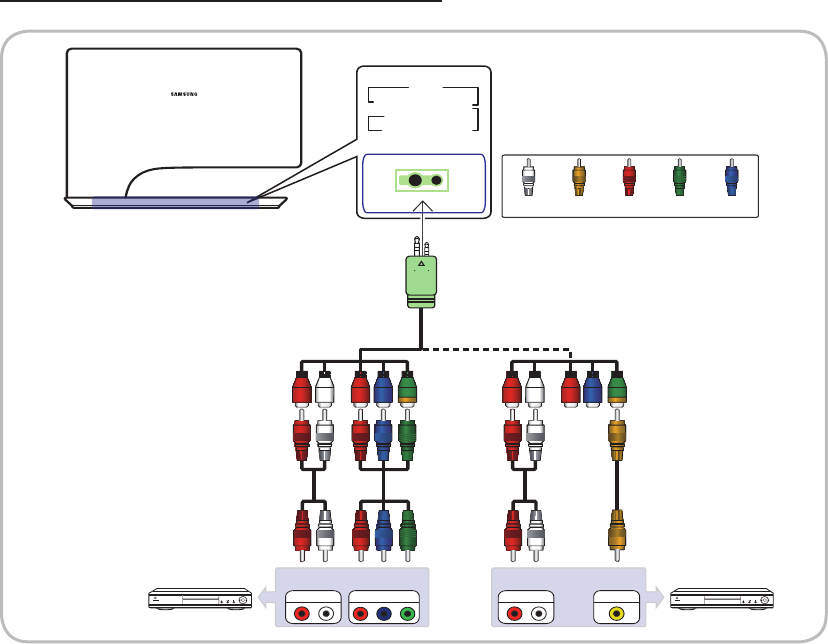
Connection using an HDMI or HDMI/DVI cable
Available devices: DVD, Blu-ray player, HD cable box, HD STB (Set-Top-Box) satellite receiver, VCR
✎
HDMI IN 1 (DVI), 2 (ARC) / DVI AUDIO IN
x
Connecting the product to a digital device using an HDMI cable will improve the picture and sound quality.
x
The HDMI cable does not require an additional audio cable as it supports digital video and audio signals.
– A digital device that is not compatible with HDMI output can be connected using an HDMI/DVI cable and an audio
cable.
x
The picture may not display normally (if at all) or the audio may not work if an external device that uses an older
version of HDMI mode is connected to the TV. If such a problem occurs, ask the manufacturer of the external device
about the HDMI version and, if out of date, request an upgrade.
x
Be sure to use an HDMI cable with a thickness of 14 mm or less.
x
Be sure to purchase a certified HDMI cable. Otherwise, the picture may not display or a connection error may occur.
✎
This TV supports the 3D and ARC (Audio Return Channel) functions. Note that the ARC function is only available
when a cable is connected to the HDMI IN 2 (ARC) port.
x
The ARC function can be used to output digital sound via the HDMI IN 2 (ARC) port and is only available when the
TV is connected to an audio receiver that is compatible with the ARC function.
x
Default Edit Name of HDMI IN 1 (DVI) terminal of this model is DVI PC for PC connection. When connecting to a AV
device such as DVD or Blu-ray, it is required to change the Edit Name to the name of the connected device. (p. 20)
RW
R
W
HDMI OUT
AUDIO OUT DVI OUT
DVI
AUDIO IN
2(ARC)
1(DVI)
White
Red
Device Device
16
English
Connections
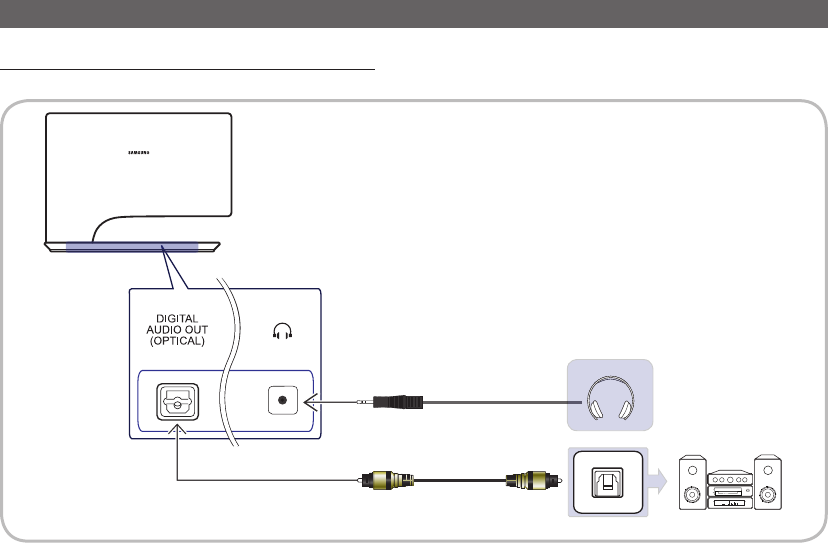
Using a Component (up to 1080p) or an Audio/Video (480i only)
Available devices: DVD, Blu-ray player, HD cable box, HD STB (Set-Top-Box) satellite receiver, VCR
✎
When connecting to AV IN, the colour of the AV IN [VIDEO] jack (green) will not match the video cable (yellow).
✎
To obtain the best picture quality, the Component connection is recommended over the A/V connection.
BR G Y
Y
R W
BR GYW
R W
R W
R WBR G
AV IN
VIDEO
Y P
B R
PAUDIO
COMPONENT IN
Device VCR / DVD
Device
RedWhite Yellow BlueGreen
COMPONENT OUT VIDEO OUTAUDIO OUT AUDIO OUT
17
English
Connections
Connecting to an Audio Device
Using an Optical (Digital) or a Headphone Connection
Available devices: digital audio system, amplifier, DVD home theatre, PC
✎
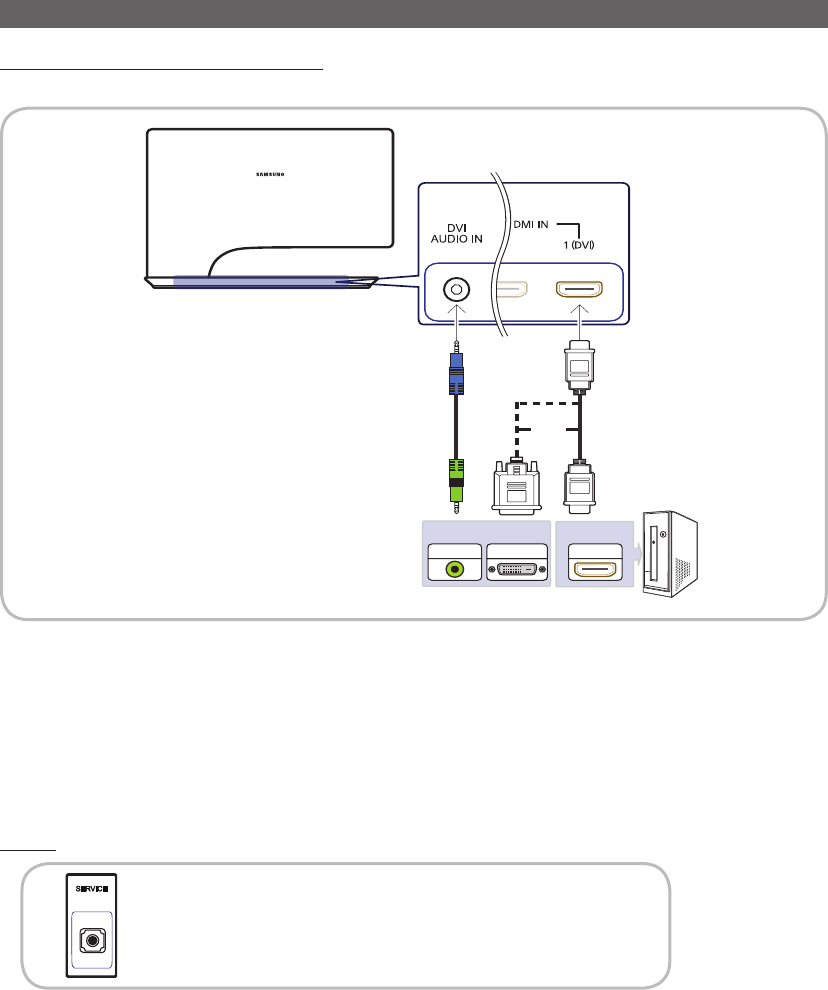
DIGITAL AUDIO OUT (OPTICAL)
x
When a Digital Audio System is connected to the DIGITAL AUDIO OUT (OPTICAL) jack, decrease the volume of
both the TV and the system.
x
5.1 CH (channel) audio is available when the TV is connected to an external device supporting 5.1 CH.
x
When the receiver (home theatre) is set to on, you can hear sound output from the TV’s optical jack. When the TV
is receiving a DTV signal, the TV will send 5.1 CH sound to the home theatre receiver. When the source is a digital
component such as a DVD / Blu-ray player / cable box / STB (Set-Top-Box) satellite receiver and is connected to the
TV via HDMI, only 2 CH audio will be heard from the home theatre receiver. If you want to hear 5.1 CH audio, connect
the digital audio out jack from your DVD / Blu-ray player / cable box / STB satellite receiver directly to an amplifier or
home theatre.
✎
Headphones
H
: You can connect your headphones to the headphones output on your set. While the headphones are
connected, the sound from the built-in speakers will be disabled.
x
Sound function may be restricted when connecting headphones to the TV.
x
Headphone volume and TV volume are adjusted separately.
Digital audio system
OPTICAL
18
English
Connections
Connecting to a PC
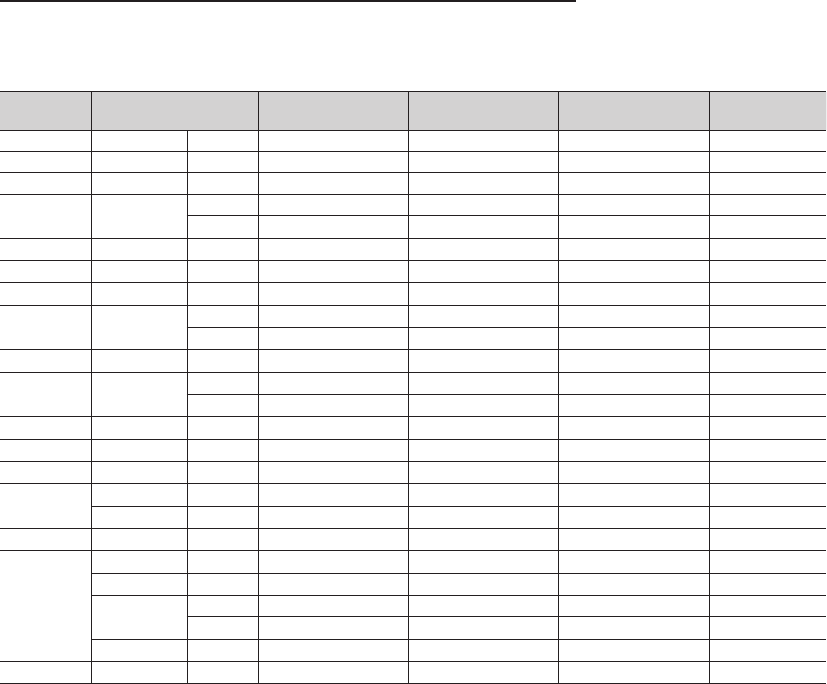
Connection using an HDMI or HDMI/DVI cable
✎
Connecting through the HDMI cable may not be supported depending on the PC.
✎
A PC should be connected via the HDMI IN 1 (DVI) port.
✎
If a non-standard video format is selected, the TV may not operate normally.
✎
The interlaced scan mode is not supported.
✎
This product offers a game driver (SyncMaster 3D Game Launcher (TriDef 3D)) that allows you to play PC games with
dynamic 3D images. Install the SyncMaster 3D Game Launcher (TriDef 3D) software provided on a CD.
x
After installing the software, you can enjoy the 3D effect by using the 3D function on this product.
x
For details about how to use SyncMaster 3D Game Launcher (TriDef 3D), refer to the "Online Help" for the
software.
SERVICE
P
B
P
R
Connector for service only.
HDMI OUT
HDMI IN
AUDIO OUT DVI OUT
or
19
English
Connections
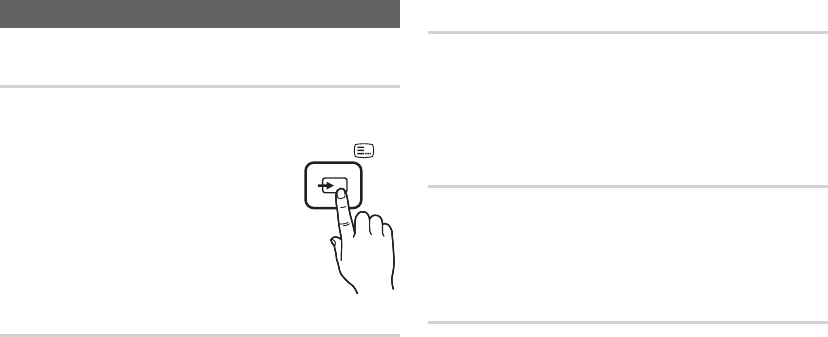
Compatible PC resolutions (when the PC is connected to the HDMI IN 1 (DVI) port)
If a signal that belongs to one of the following standard signal modes is transmitted from the PC, the TV screen will
automatically be adjusted. If a signal outside of the standard signal modes is transmitted from the PC, the TV screen may go
blank and only the power indicator may turn on. To resolve this issue, adjust the resolution according to the following table,
referring to the user guide for the graphics card.
Mode Resolution Horizontal Frequency
(KHz)
Vertical Frequency
(Hz)
Pixel Clock Frequency
(MHz)
Sync Polarity
(H / V)
IBM 640 x 350 70Hz 31.469 70.086 25.175 +/-
VESA DMT 640 x 480 60Hz 31.469 59.940 25.175 -/-
MAC 640 x 480 67Hz 35.000 66.667 30.240 -/-
VESA DMT 640 x 480 72Hz 37.861 72.809 31.500 -/-
75Hz 37.500 75.000 31.500 -/-
IBM 720 x 400 70Hz 31.469 70.087 28.322 -/+
VESA DMT 800 x 600 56Hz 35.156 56.250 36.000 +/+
VESA DMT 800 x 600 60Hz 37.879 60.317 40.000 +/+
VESA DMT 800 x 600 72Hz 48.077 72.188 50.000 +/+
75Hz 46.875 75.000 49.500 +/+
MAC 832 x 624 75Hz 49.726 74.551 57.284 -/-
VESA DMT 1024 x 768 60Hz 48.363 60.004 65.000 -/-
70Hz 56.476 70.069 75.000 -/-
VESA DMT 1024 x 768 75Hz 60.023 75.029 78.750 +/+
VESA DMT 1152 x 864 75Hz 67.500 75.000 108.000 +/+
MAC 1152 x 870 75Hz 68.681 75.062 100.000 -/-
VESA DMT 1280 x 800 60Hz 49.702 59.810 83.500 -/+
1280 x 960 60Hz 60.000 60.000 108.000 +/+
VESA DMT 1280 x 1024 60Hz 63.981 60.020 108.000 +/+
VESA DMT
1280 x 1024 75Hz 79.976 75.025 135.000 +/+
1360 x 768 60Hz 47.712 60.015 85.500 +/+
1440 x 900 60Hz 55.935 59.887 106.500 -/+
75Hz 70.635 74.984 136.750 -/+
1680 x 1050 60Hz 65.290 59.954 146.250 -/+
VESA DMT 1920 x 1080 60Hz 67.500 60.000 148.500 +/+
✎
The above display settings table observes the IBM/VESA requirements and has been prepared based on an analogue
input source.
✎
The optimum display resolution is 1920x1080@60Hz. The optimum Timing mode is a vertical resolution of 60 Hz.
20
English
Connections
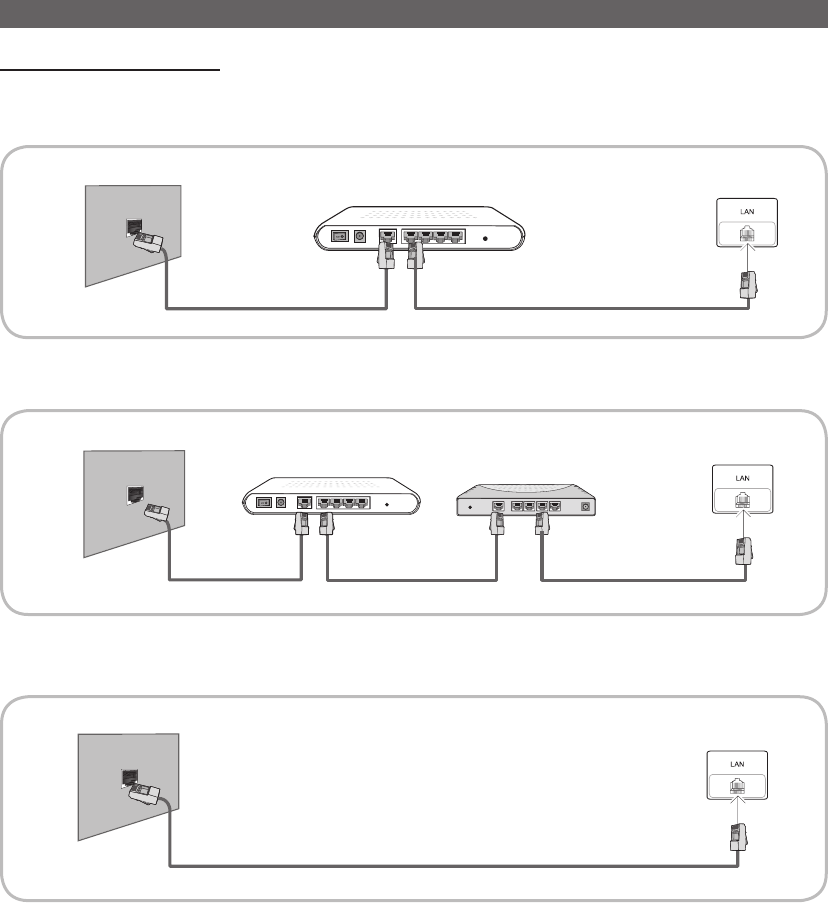
Changing the Input Source
Source
O
SOURCE → ENTER
E
Use to select TV or an external input
sources such as a DVD / Blu-ray player /
cable box / STB satellite receiver.
■TV / HDMI1/DVI / HDMI2 / AV /
Component / USB / AllShare
✎
In the Source, connected inputs
will be highlighted.
Edit Name
O
SOURCE → TOOLS → Edit Name
In the Source, press the TOOLS button, and then you can
set an external input sources name you want.
■VCR / DVD / Cable STB / Satellite STB / PVR STB /
AV Receiver / Game / Camcorder / PC / DVI PC /
DVI Devices / TV / IPTV / Blu-ray / HD DVD / DMA:
Name the device connected to the input jacks to make
your input source selection easier
✎
When connecting a PC to the HDMI IN 1(DVI) port with
HDMI cable, you should set the TV to PC mode under
Edit Name.
✎
When connecting a PC to the HDMI IN 1(DVI) port with
HDMI to DVI cable, you should set the TV to DVI PC
mode under Edit Name.
✎
When connecting an AV devices to the HDMI IN 1(DVI)
port with HDMI to DVI cable, you should set the TV to
DVI Devices mode under Edit Name.
Edit Favourites
O
SOURCE → TOOLS → Edit Favourites
In the Source, press the TOOLS button to select
Edit Favourites. You can set an external input source to
Favourites.
Information
O
SOURCE → TOOLS → Information
You can see detailed information about the selected external
device.
Refresh
O
SOURCE → TOOLS → Refresh
In the Source, If the external devices are not displayed,
press the TOOLS button to select Refresh. Search for
connected devices.
SOURCE
21
English
Connections
Network Connection
Connecting to a Wired Network
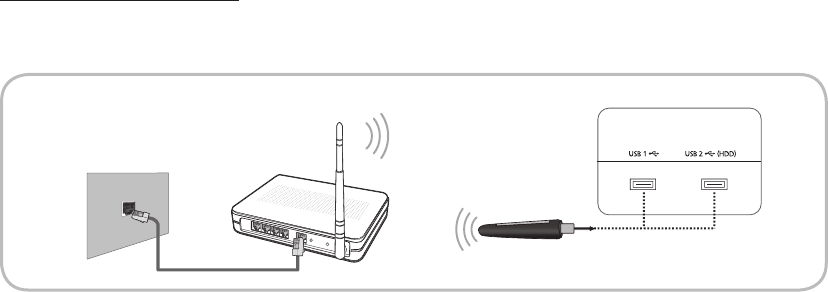
You can attach your TV to your LAN using cable in three ways:
yYou can attach your TV to your LAN by connecting the LAN port on the back of your TV to an external modem using a
LAN cable. See the diagram below.
yYou can attach your TV to your LAN by connecting the LAN port on the back of your TV to a IP Sharer which is connected
to an external modem. Use LAN cable for the connection. See the diagram below.
yDepending on how your network is configured, you may be able to attach your TV to your LAN by connecting the LAN
port on the back of your TV directly to a network wall outlet using a LAN cable. See the diagram below. Note that the wall
outlet is attached to a modem or router elsewhere in your house.
yIf you have a Dynamic Network, you should use an ADSL modem or router that supports Dynamic Host Configuration
Protocol (DHCP). Modems and routers that support DHCP automatically provide the IP address, subnet mask, gateway,
and DNS values your TV needs to access the Internet so you do not have to enter them manually. Most home networks
are Dynamic Networks. Some networks require a Static IP address. If your network requires a Static IP address, you must
enter the IP address, subnet mask, gateway, and DNS values manually on your TV’s Cable Setup Screen when you set
up the network connection. To get the IP address, subnet mask, gateway, and DNS values, contact your Internet Service
Provider (ISP). If you have a Windows computer, you can also get these values through your computer.
✎
You can use ADSL modems that support DHCP if your network requires a Static IP address. ADSL modems that
support DHCP also let you use Static IP addresses.
✎
It is not supported when the network speed is under 10 Mbps.
The Modem Port on the Wall TV Rear
LAN Cable
Modem Cable
External Modem
(ADSL / VDSL / Cable TV)
The LAN Port on the Wall
TV Rear
LAN Cable
The LAN Port on the Wall
TV Rear
LAN Cable LAN CableModem Cable
External Modem
(ADSL / VDSL / Cable TV) IP Sharer
(having DHCP server)
22
English
Connections
Connecting to a Wireless Network
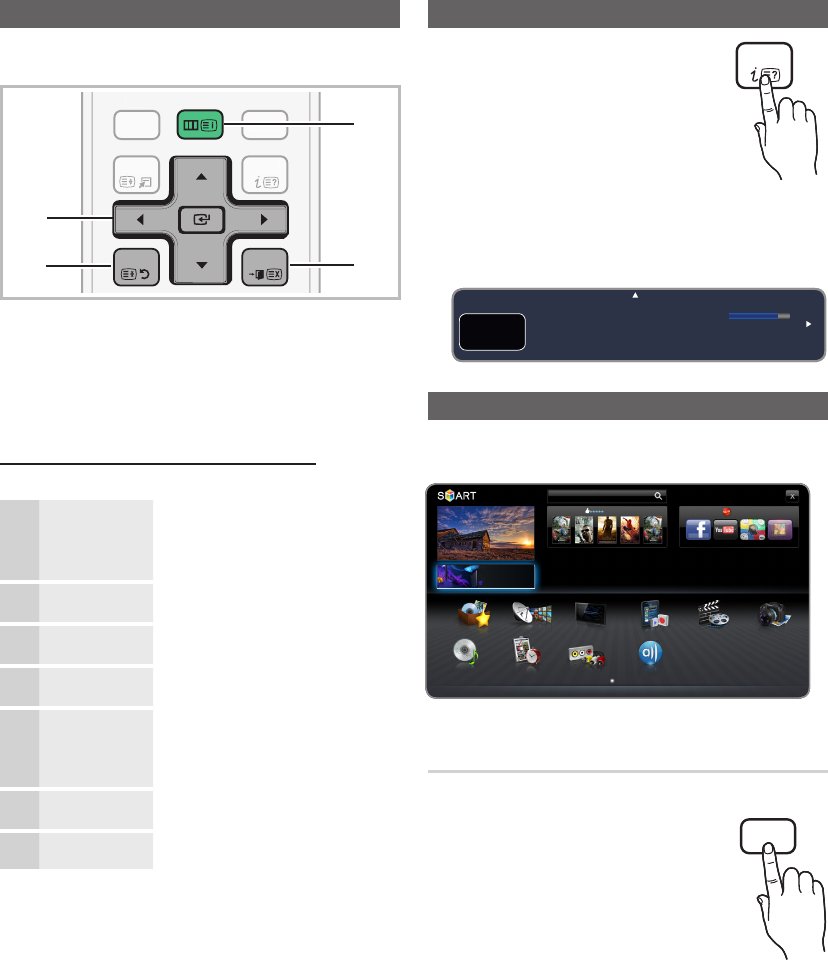
To connect your TV to your network wireless, you need a wireless router or modem and a Samsung Wireless LAN adapter
(WIS09ABGN, WIS09ABGN2, WIS10ABGN-sold separately), which you connect to your TV’s back or side panel USB port.
See the illustration below.
Samsung’s Wireless LAN adapter is sold separately and is offered by selected retailers, Ecommerce sites and Samsungparts.
com. Samsung’s Wireless LAN adapter supports the IEEE 802.11a/b/g and n communication protocols. Samsung
recommends using IEEE 802.11n. When you play video over a IEEE 802.11b/g connection, the video may not play smoothly.
✎
NOTE
x
You must use the “Samsung Wireless LAN adapter" (WIS09ABGN, WIS09ABGN2, WIS10ABGN) to use a wireless
network.
x
Samsung Wireless LAN adapter and The USB extension Cable are sold separately and are offered by select retailers,
Ecommerce sites and Samsungparts.com.
x
To use a wireless network, your TV must be connected to a wireless IP sharer (either a router or a modem). If the
wireless IP sharer supports DHCP, your TV can use a DHCP or static IP address to connect to the wireless network.
x
Select a channel for the wireless IP sharer that is not currently being used. If the channel set for the wireless IP sharer
is currently being used by another device nearby, this will result in interference and communication failure.
x
If you apply a security system other than the systems listed below, it will not work with the TV.
✎
If Pure High-throughput (Greenfield) 802.11n mode is selected and the Encryption type is set to WEP, TKIP or
TKIP AES (WPS2Mixed) for your wireless router, Samsung TVs will not support a connection in compliance with
new Wi-Fi certification specifications.
x
If your wireless router supports WPS (Wi-Fi Protected Setup), you can connect to the network via PBC (Push Button
Configuration) or PIN (Personal Identification Number). WPS will automatically configure the SSID and WPA key in
either mode.
x
If your router, modem, or device is not certified, it may not connect to the TV via the “Samsung Wireless LAN
adapter.”
x
Connection Methods: You can setup the wireless network connection on five ways.
– Auto Setup (Using the Auto Network Search function)
– Manual Setup
– WPS (PBC)
– One Foot Connection
– Plug & Access
x
The TV may not recognize the Samsung Wireless LAN adapter if you connect it to the TV with a USB hub or USB
extension cable other than the cable supplied with the TV.
The LAN Port on the Wall
LAN Cable
Wireless IP Sharer
(AP having DHCP Server)
TV Rear
Samsung Wireless LAN Adapter
23
English
Basic Features
How to Navigate Menus
Before using the TV, follow the steps below to learn how to
navigate the menu and select and adjust different functions.
C
H LI
S
T
MU
T
E
P
OWER
SOU
RC
E
PRE-
C
H
TOOL
S
A
D
P
.SIZ
E
S
UBT
.
DUA
L
I
NF
O
T
TX
/
MI
X
A
B
C
D
INTERNE
T
MEDIA.P
GUID
E
O
N/OF
F
f
-
g
@
T
V
3
4
2
1
S
MART
MENU
RETURN
EXIT
HUB
1 ENTER
E
/ Direction button: Move the cursor and
select an item. Confirm the setting.
2 RETURN button: Returns to the previous menu.
3 MENU button: Displays the main on-screen menu.
4 EXIT button: Exits the on-screen menu.
How to Operate the OSD (On Screen Display)
The access step may differ depending on the selected menu.
1MENU
m
The main menu options appear on
the screen:
Picture, Sound, Channel,
Network, System, Support.
2▲ / ▼Select an icon with the ▲ or ▼
button.
3ENTER
E
Press ENTER
E
to access the
sub-menu.
4▲ / ▼Select the desired submenu with
the ▲ or ▼ button.
5◄ / ►
Adjust the value of an item with the
◄ or ► button. The adjustment in
the OSD may differ depending on
the selected menu.
6ENTER
E
Press ENTER
E
to complete the
configuration.
7EXIT
e
Press EXIT.
Using the INFO button (Now & Next guide)
The display identifies the current channel
and the status of certain audio-video
settings.
The Now & Next guide shows daily TV
programme information for each channel
according to the broadcasting time.
yScroll
l
,
r
to view
information for a desired
programme while watching the current channel.
yScroll
u
,
d
to view information for other channels. If
you want to move to the currently selected channel,
press the ENTER
E
button.
Using the Channel Menu
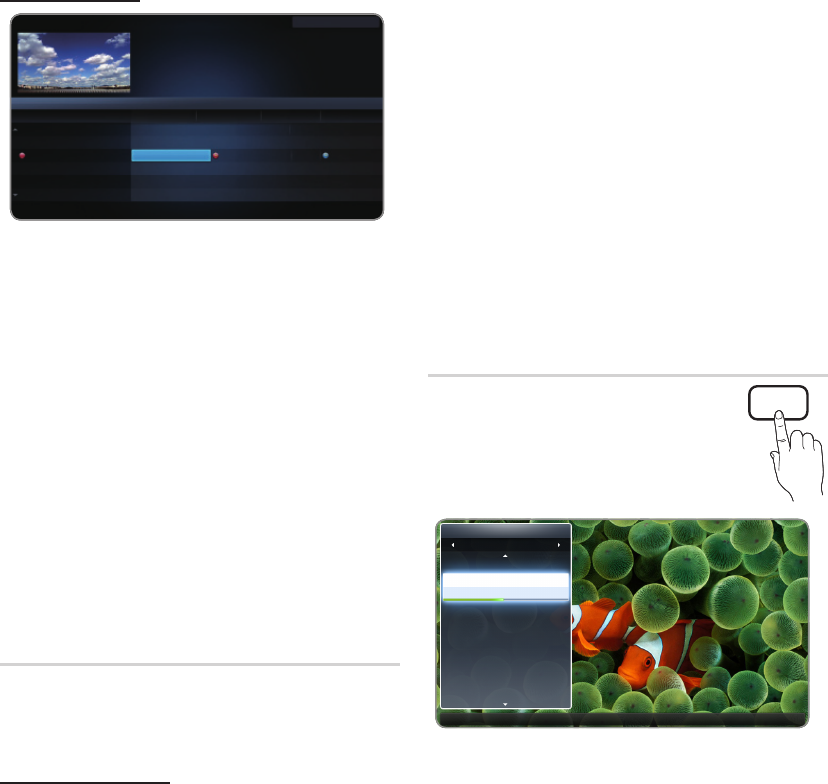
Press the SMART HUB button to select the menu you want
to use. Each screen will be displayed.
Guide
O
SMART HUB → Guide → ENTER
E
(depending on the country)
The EPG (Electronic Programme Guide)
information is provided by broadcasters.
Using programme schedules provided by
broadcasters, you can specify programmes
you want to watch in advance so that
the channel automatically changes to
the selected programme channel at the
specified time. Programme entries may appear blank or out
of date depending on a channel status.
✎
In New Zealand, if Digital Text is set to Enable, the
EPG (Electronic Programme Guide) will work.
Basic Features
Karl der GroBe (2/3)
a
Information
5:46 Sun 2 May
4:45 - 6:20
arte
DTV Air
15
Spielm Frankreich / Italien 1994 “Karl der GroBe” war der Wegbereiter
Europas, Der abenteuerliche dreiteilige Fernsehlm widmet sich dem ...
*
INFO
GUIDE
• The displayed image may differ depending on the model.
HUB
Search
Your Video Samsung Apps
Real Reality
세계최초 Full HD
3D LED
Connetc to the Internet and enjoy a variety of contents through Smart Hub.
This feature may not be available in some countries.
For some of the countries listed, local language characters might not be display properly.
Favourites Channel Guide Recorded TV Videos Photos
Music Schedule Man... Source
a
Login
b
Sort by
{
Edit Mode
}
Settings
AllShare
24
English
Basic Features
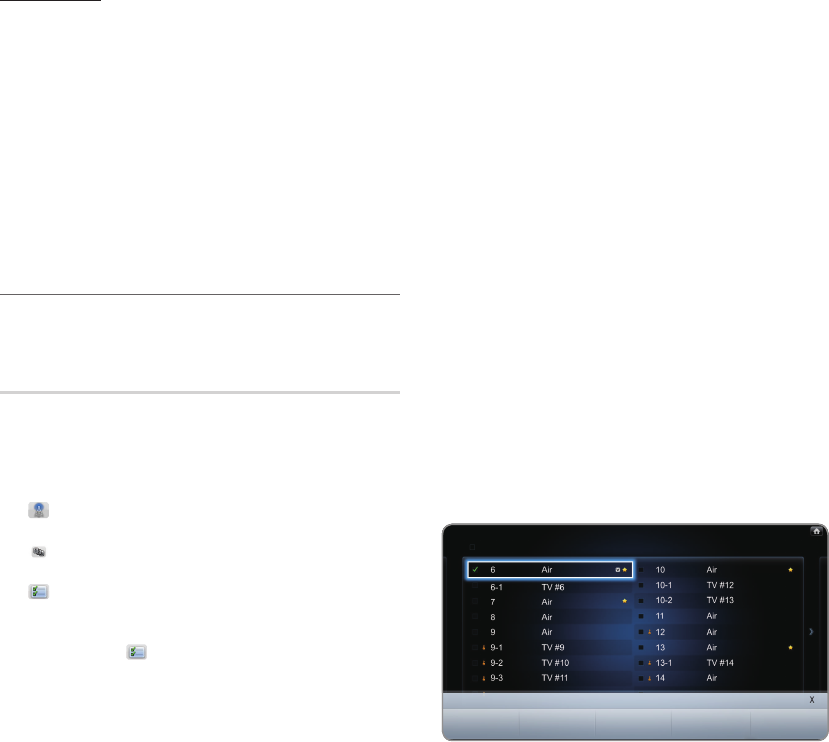
Using Channel View
y
a
Red (Sche. Mgr) : Displays the Schedule Manager.
y
b
Green (-24 Hours): Viewing the list of programmes to
be broadcasted before 24 hours.
y
{
Yellow (+24 Hours): Viewing the list of programmes to
be broadcasted after 24 hours.
y
}
Blue (Ch. Mode): Select the type of channels you
want to display on the Channel View window.
y
`
(Information): Displays details of the selected
programme.
y
k
(Page): Move to next or previous page.
y
E
(Watch / Schedule)
– When selecting the current programme, you can
watch the selected programme.
– When selecting the future programme, you can
reserve to watch the selected programme. To cancel
the schedule, press the ENTER
E
button again and
select Cancel Schedules.
Schedule Manager
O
SMART HUB → Schedule Manager → ENTER
E
You can view, modify or delete a channel you have reserved
to watch.
Using the Timer Viewing
You can set a desired channel to be displayed automatically
at the intended time. Set the current time first to use this
function.
1. On the Smart Hub screen, press the ENTER
E
button
to select Schedule Manager. The Schedule Manager
screen will be displayed.
2. Press the ENTER
E
button to add programme to
schedule manually. A pop up screen will appear. Press
the
l
or
r
button to select Timer Viewing.
3. Press the
l
/
r
/
u
/
d
buttons to set the Antenna,
Channel, Repeat, Date or Start Time.
yAntenna: Select the desired antenna source.
yChannel: Select the desired channel.
yRepeat: Select Once, Manual, Sat~Sun, Mon~Fri
or Everyday to set at your convenience. If you select
Manual, you can set the day you want.
✎
The
c
mark indicates the date you've selected.
yDate: you can set desired date.
✎
It is available when you select Once in Repeat.
yStart Time: You can set start time you want.
✎
Only memorised channels can be reserved.
✎
On the Information screen, you can change or
cancel a reserved information.
x
Cancel Schedules: Cancel a show you have
reserved to watch.
x
Edit: Change a show you have reserved to
watch.
x
Return: Return to the previous screen.
Channel List
You can view all the channel searched.
O
When you press the CH LIST button on
the remote control, Channel List screen
will be displayed at once.
✎
Using the operation buttons with the Channel List.
xa
Red (Antenna): Switches to Air or Cable.
x{
Yellow (Programme View / Channel View):
Displays the programme when digital channel is
selected. Returns to the channel view.
xl
r
(Ch. Mode / Channel): Move to the type of
channels you want to display on the Channel List
screen. (All, TV, Radio, Data/Other, Analogue,
Favourites 1 - 5)
xE
(Watch): Watches the channel you select.
xk
(Page): Move to next or previous page.
• The displayed image may differ depending on the model.
Channel List
All
6-1 TV#6
7 TV 7
a
3 Air
23 TV#6
33 TV#6
32 TV#6
a
9Air
a
11 Air
a
Antenna
{
Programme View
L
Ch. Mode
E
Watch
k
Page
CH LIST
• The displayed image may differ depending on the model.
DTV Air 05.1 Globo HD
TELA QUENTE (HD)
10:05 pm - 12:10 pm
10
DESVENTURAS EM SERIE (HD)
a
Sche. Mgr
b
-24 Hours
{
+24 Hours
}
Ch. Mode
`
Information
k
Page
E
Watch
Today 10:00pm
Guide Fri, 1 Jan 2:10 am
Channel View - All Channels
Programmes resume at 06:00
Home and...
No Information
QVC Selection
No Information
04.1 Discovery
05.1 DiscoveryH&L
05.2 ve
05.3 price-drop.tv
05.4 QVC
05.5 R4DTT
Tine Team
Fiv...No Information Dark Angel
American Chopper
10:30pm 11:00pm 11:30pm
25
English
Basic Features
How to use Timer Viewing in Channel List (digital
channels only)
When you set the Timer Viewing in Channel List, you can
only set the programme in Programme View.
1. Press the CH LIST button, then select a desired digital
channel.
2. Press the
{
(Programme View) button.
3. Press the
u
/
d
buttons to select the desired
programme, then press the
E
(Information) button.
4. Select Timer Viewing, then press the ENTER
E
button
when done.
✎
If you want to cancel Timer Viewing, follow steps 1
through 3. Select Cancel Schedules.
¦Using the Channel
O
SMART HUB → Channel → ENTER
E
Channel
Delete channels or set favourites channels and use the
programme guide for digital broadcasts. Select a channel
in the All Channels, TV, Radio and Data/Other screen.
Change the antenna, or channel settings using the menus in
the top right corner of the screen.
y Antenna: Toggles among Air or Cable. The option
may differ depending on country.
y Sort: Sorting By Channel Number or By Channel
Name.
y Edit Mode: Deletes channels assigned to
Favourites. Refer to “Using the Favourite Channels” for
details on how to assign a channel to Favourite.
1. Select the Edit Mode icon on the upper right of
your screen, and then press the ENTER
E
button.
2. Press the
l
/
r
/
u
/
d
buttons to select a channel
as a Favourite, and then press ENTER
E
. A check
appears to the left of the channel.
✎
You can select more than one channel.
✎
Pressing ENTER
E
again deselects the channel.
3. Select Edit Favourites at the bottom of your
screen, and then press ENTER
E
button. The Edit
Favourites pop-up appears.
4. Highlight a group on the Favourites list, and then
press ENTER
E
.
✎
The Edit Favourites screen has five groups
(Favourites 1, Favourites 2, etc.). You can add a
Favourite channel to any one of the groups. Select
a group using the up and down arrows on your
remote.
5. Select OK, press ENTER
E
, and then press
ENTER
E
again.
yUsing Edit Mode to Delete a Channel from the
Channel List.
1. Select the Edit Mode icon on the upper right of
your screen, and then press the ENTER
E
button.
2. Press the
l
/
r
/
u
/
d
buttons to select a
channel, and then press ENTER
E
. A check
appears to the left of the channel.
✎
You can select more than one channel.
✎
Pressing ENTER
E
again deselects the channel.
3. Select Delete at the bottom of your screen, and
then press ENTER
E
. A pop-up appears asking if
you want to delete the item.
4. Select OK, press ENTER
E
, and then press
ENTER
E
again. The channel is deleted from the
Channel List.
ySelect All: Select all the channels or deselect all the
selected channels in the Channel menu.
Channel All Channels
Selected item : 0
Select All
Edit Mode
Edit Favourites
Edit Channel Number
Lock Unlock Delete

26
English
Basic Features
Using the TOOLS button with the Channel
yUpcoming Programme (digital channels only): View
details on the programme being aired on a selected
digital channel.
yEdit Favourites: Set channels you watch frequently as
favourites.
1. Select the Edit Favourites, then press the
ENTER
E
button.
2 Press the ENTER
E
button to select Favourites
1 - 5, then press the OK button.
✎
One favourite channel can be added in several of
favourite channels among Favourites 1 - 5.
yLock / Unlock: Lock a channel so that the channel
cannot be selected and viewed.
✎
This function is available only when the Channel
Lock is set to On.
✎
The PIN input screen appears. Enter your 4-digit
PIN, the default of which is “0-0-0-0”. Change the
PIN using the Change PIN option.
yEdit Channel Name (analogue channels only): Assign
your own channel name.
yEdit Channel Number: Edit the number by pressing the
number buttons desired.
✎
Some area may not be able to support Edit
Channel Name and Edit Channel Number
function.
yDelete: Delete a channel to display the channels you
want.
Channel Status Display Icons
Icons Operations
a
An analogue channel.
c
A channel selected.
F
A channel set as a Favourites 1-5.
\
A locked channel.
)
A reserved programme.
¦Using the favourite Channels
O
SMART HUB → Favourites → ENTER
E
Shows all favourite channels.
View all of your favourite channels. If you want to change
the favourite group among Favourites 1-5, move the cursor
to group name. And then press the ENTER
E
button to
change the group you want.
✎
The “
F
” symbol wil be displayed and the channel will
be set as a favourite.
How to assign a channel to favourite (in Channel)
1. On the Channel screen, select a channel and press
the TOOLS button.
✎
If you want to add mulitple channels, use the
Edit Mode menu in the top right corner of the
Channel screen.
2. Add or delete a channel in the favourite groups you
want among 1, 2, 3, 4 and 5.
✎
One or more groups can be selected.
✎
The
c
mark appears to the left of the selected
files.
3. After you have changed the settings, the channel list
for each group can be viewed in favourite channels.
27
English
Basic Features
Channel Menu
¦Retuning Channels
O
MENU
m
→ Channel → ENTER
E
Antenna (Air / Cable)
(depending on the country)
Before your television can begin memorizing the available
channels, you must specify the type of signal source that is
connected to the TV.
Country
You can change the country. The PIN input screen appears.
Enter your 4 digit PIN number.
Auto Tuning
✎
Automatically allocated programme numbers may not
correspond to actual or desired programme numbers.
If a channel is locked using the Channel Lock function,
the PIN input window appears.
■Digital & Analogue / Digital / Analogue: Select the
channel source to memorise.
Manual Tuning
Scans for a channel manually and stores in the TV.
✎
If a channel is locked using the Channel Lock function,
the PIN input window appears.
■Digital Channel Tuning: Scans for a digital channel.
1. Press the
u
/
d
/
l
/
r
button to select New.
2. Set the Channel, Frequency and Bandwidth.
✎
Bandwidth is not supported in Austraila.
3. Press the
d
button to select Search. When
scanning has finnished, a channel is updated in the
channel list.
■Analogue Channel Tuning: Scans for a analogue
channel.
1. Press the
u
/
d
/
l
/
r
button to select New.
2. Set the Programme, Colour System, Sound
System, Channel and Search.
3. Press the
d
button to select Store. When scanning
has finished, a channel is updated in the channel list.
✎
Channel mode
x
P (programme mode): When tuning is complete,
the broadcasting stations in your area have been
assigned to position numbers from P0 to P99. You
can select a channel by entering the position number
in this mode.
x
C (aerial channel mode) / S (cable channel mode):
These two modes allow you to select a channel
by entering the assigned number for each aerial
broadcasting station or cable channel.
Transfer Channel List
(depending on the country)
The PIN input screen appears. Enter your 4 digit PIN number.
Imports or exports the channel map. You should connect a
USB storage to use this function.
■Import from USB: Import channel list from USB.
■Export to USB: Export channel list to USB. this function
is available when USB is connected.
Edit Channel Number (Disable / Enable)
(New Zealand only)
Edit the number by pressing the number buttons desired.
Fine Tune
(analogue channels only)
If the reception is clear, you do not have to fine tune the
channel, as this is done automatically during the search and
store operation. If the signal is weak or distorted, fine tune
the channel manually. Scroll to the left or right until the image
is clear.
✎
Settings are applied to the channel you’re currently
watching.
✎
Fine tuned channels that have been saved are marked
with an asterisk “*” on the right-hand side of the
channel number in the channel banner
✎
To reset the fine-tuning, select Reset.
28
English
Basic Features
P.SIZE
Picture Menu
¦Changing the Preset Picture Mode
O
MENU
m
→ Picture → Picture Mode → ENTER
E
Picture Mode
t
Select your preferred picture type.
✎
In HDMI1/DVI mode (when a PC is connected), Picture
Mode can be set to Standard or Entertain only.
■Dynamic: Suitable for a bright room.
■Standard: Suitable for a normal environment.
■Natural: Suitable for reducing eye strain.
■Movie: Suitable for watching movies in a dark room.
■Entertain: Suitable for watching movies and games.
✎
Available in HDMI1/DVI mode (when a PC is
connected) only.
¦Adjusting Picture Settings
O
MENU
m
→ Picture → ENTER
E
Samsung MagicAngle
This feature allows you to see optimal screen quality
according to your viewing position. When viewing the screen
at an angle from below, above or the side of the product,
by setting the appropriate mode for each position you can
obtain a similar picture quality as viewing the screen directly
from the front.
■Off: Select when viewing from the front position.
Lean back mode: Select when viewing from a slightly
lower position.
Standing Mode: Select when viewing from the upper
position.
■Mode (1-10): Determines the amount of adjustment.
Numbers closer to 10 are best for lower viewing
positions.
✎
When Samsung MagicAngle is set to Lean back
mode or Standing Mode, Gamma is not available.
Backlight / Contrast / Brightness /
Sharpness / Colour / Tint (G/R)
Your television has several setting options for picture quality
control.
✎
NOTE
x
In analogue TV, AV modes of the PAL system, the
Tint (G/R) function is not available.
x
In HDMI1/DVI mode (when a PC is connected), only
Backlight, Contrast, Brightness and Sharpness
are available for adjustment.
x
Settings can be adjusted and stored for each
external device connected to the TV.
Screen Adjustment
■Picture Size: Your cable box / satellite
receiver may have its own set of screen
sizes as well. However, we highly
recommend you use 16:9 mode most
of the time.
Auto Wide (New Zealand, Singapore
only): Automatically adjusts the picture
size to the 16:9 aspect ratio.
16:9: Sets the picture to 16:9 wide mode.
Wide Zoom: Magnifies the picture size more than 4:3.
✎
Adjusts the Position by using
u
,
d
buttons.
Zoom: Magnifies the 16:9 wide pictures vertically to fit
the screen size.
✎
Adjusts the Zoom or Position by using
u
,
d
button.
4:3: Sets the picture to basic (4:3) mode.
✎
Do not watch in 4:3 format for a long time. Traces
of borders displayed on the left, right and centre
of the screen may cause image retention (screen
burn) which are not covered by the warranty.
Screen Fit: Displays the full image without any cut-off
when HDMI (720p / 1080i / 1080p) or Component
(1080i / 1080p) signals are inputted.
✎
Adjusts the Position by using
u
/
d
/
l
/
r
button.
Smart View 1: Reduces the 16:9 picture by 50%.
Smart View 2: Reduces the 16:9 picture by 75%.
✎
Smart View 1, Smart View 2 is enabled only in
HDMI mode.
✎
The picture size can vary depending on the input
resolution when content is played using Videos
under Media contents or Smart Hub.

29
English
Basic Features
✎
NOTE
x
Depending on the input source, the picture size
options may vary.
x
The available items may differ depending on the
selected mode.
x
In HDMI1/DVI mode (when a PC is connected), 16:9
and 4:3 modes are available.
x
Settings can be adjusted and stored for each
external device connected to an input on the TV.
x
If you use the Screen Fit function with HDMI 720p
input, 1 line will be cut at the top, bottom, left and
right as in the overscan function.
x
When Double (
à
, Œ) mode has been set in PIP,
the picture size cannot be set.
Input Source Picture Size
ATV, AV,
Component (480i, 480p) Auto Wide, 16:9, Zoom, 4:3
HDMI (720p, 1080i, 1080p) Smart View 1
DTV (1080i),
HDMI (720p, 1080i, 1080p) Smart View 2
DTV (1080i),
Component (1080i, 1080p),
HDMI (720p, 1080i, 1080p)
16:9, 4:3,
Wide Zoom, Screen Fit
HDMI1/DVI
(when a PC is connected) 16:9, 4:3
■4:3 Screen Size (16:9 / Wide Zoom / Zoom / 4:3)
: (New Zealand, Singapore only) Available only when
picture size is set to Auto Wide. You can determine
the desired picture size at the 4:3 WSS (Wide Screen
Service) size or the original size.
✎
Not available in HDMI/DVI, Component or HDMI
mode.
¦Using the 3D function
O
MENU
m
→ Picture → 3D →ENTER
E
IMPORTANT HEALTH AND SAFETY INFORMATION FOR
3D PICTURES.
Read and understand the following safety information before
using the TV’s 3D function.
[
WARNING
ySome viewers may experience dizziness, nausea, or
headache when viewing 3D video. If this occurs, stop
viewing 3D TV immediately, take off the 3D glasses, and
rest.
yWatching 3D video for an extended period of time may
cause eye fatigue. If eye fatigue occurs, stop viewing 3D
TV immediately, take off the 3D glasses, and rest.
yChildren need to be checked frequently by adults when
using the 3D function. If your child shows any symptom
such as eye fatigue, headache, dizziness, or nausea,
have the child stop watching 3D TV immediately and
rest.
yDo not use the 3D Active Glasses for other purposes
(such as general eyeglasses, sunglasses, protective
goggles, etc.)
yDo not use the 3D function or 3D glasses while moving.
You may trip or fall and become injured.
3D
This feature allows you to view 3D content
such as 3D broadcasts or movies. You
can view 3D content using (SyncMaster-
dedicated) Samsung 3D glasses.
✎
You can purchase SyncMaster-
dedicated 3D glasses (model name:
SSG-M3750CR) separately. Contact
the dealer you purchased the product from for details
about purchasing the 3D glasses.
✎
The product may not be compatible with 3D glasses
other than the model specified above.
✎
Power off the 3D glasses when not in use. Otherwise,
the battery lifespan will decrease.
W
30
English
Basic Features
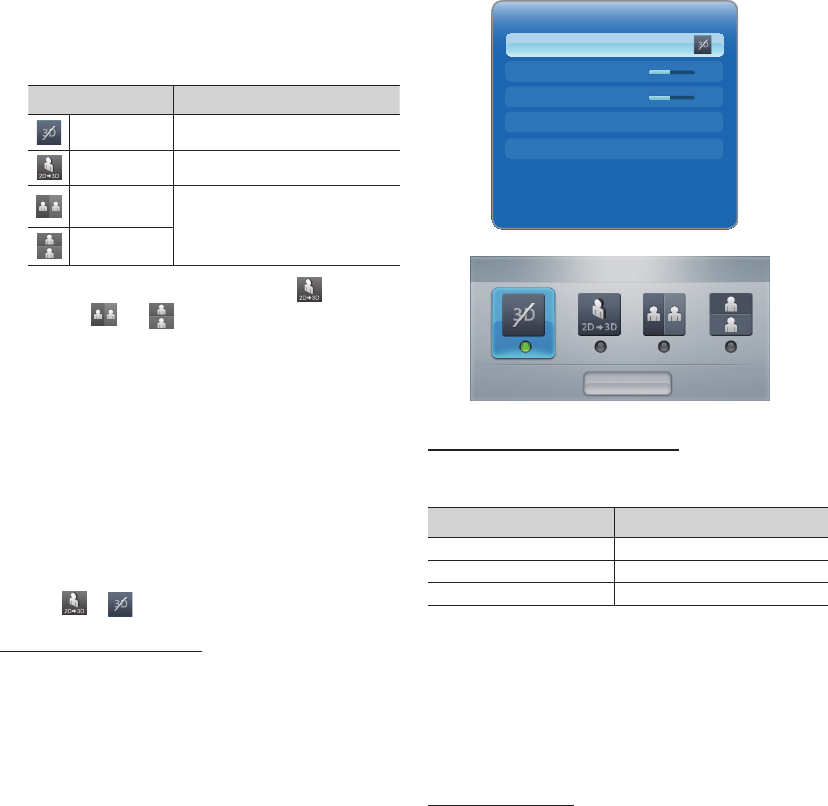
y3D Mode: Select the 3D input format.
✎
Put on the 3D glasses, and select a 3D mode that
offers the best 3D effect from the following 3D
modes under 3D Mode.
3D Mode Functions
Off Turns the 3D function off.
2D → 3D Changes a 2D image to 3D.
Left / Right Displays the left and right
images overlapping each other
to allow you to experience the
3D effect.
Top & Bottom
✎
Some file formats may not support .
✎
The and
modes are only available when
a PC is connected via the HDMI IN 1 (DVI) port
or when the resolution of the content from a DTV
broadcast, a source device connected via the
HDMI port, or a USB storage device connected is
720p, 1080i or 1080p.
y3D Perspective (-5 ~ +5): Adjust overall 3D perspective
of on-screen image.
yDepth (1~10): Adjust overall depth.
yL/R Change (L/R Image / R/L Image): Swap the left
and right pictures.
y3D → 2D (Off / On): Displays the image for the left eye
only.
✎
This function is deactivated when 3D Mode set to
or .
How to watch the 3D images
Some 3D Mode may not be available depending on the
format of the image source.
✎
To watch in 3D, wear 3D Active Glasses and press the
power button on the glasses.
To select a 3D mode, follow these steps:
1. MENU button →
u
/
d
button → Picture →
ENTER
E
2.
u
/
d
button → 3D → ENTER
E
3.
u
/
d
button → 3D Mode → ENTER
E
4. ◄ / ►
button → Select a mode from 3D Mode.
Standard HDMI-compatible formats
✎
The 3D formats listed below are recommended by the
HDMI association and must be supported by 3D TVs.
Source signal format Standard HDMI 1.4 3D
1920x1080p @24Hz 1920x2205p @24Hz
1280x720p @60Hz 1820x1470p @60Hz
1280x720p @50Hz 1280x1470p @50Hz
✎
For the Standard HDMI 3D format with 24Hz, the TV is
optimized as follows:
x
To optimize the resolution of a video: Select Off,
Clear or Standard in Motion Plus mode.
x
To view a natural video without shaking: Select
Smooth or configure Custom in Motion Plus mode.
Resolution compatible with PC input (connected via the
HDMI IN 1 (DVI) port)
PC input is optimized for video in 1920 x 1080 resolution.
Videos with a resolution other than 1920 x 1080 will not be
viewable in 3D or full screen mode.
3D Mode
Close
3D
3D Mode
3D Perspective
Depth
L/R Change
3D → 2D
0
5
L/R Image
Off
• The displayed image may differ depending on the model.
31
English
Basic Features
Playing a 3D Game on a PC
First, install the SyncMaster 3D Game Launcher (TriDef
3D) software.
✎
SyncMaster 3D Game Launcher (TriDef 3D) is a
game driver that allows you to play PC games in 3D.
1. Set your monitor as the default monitor for the PC.
2. Install the SyncMaster 3D Game Launcher (TriDef 3D)
software provided on a CD.
– Follow the instructions displayed on the screen.
– You can also download the programme from www.
tridef.com/syncmaster and install it.
3. Select Start -> All Programs -> TriDef 3D, and run
SyncMaster 3D Game Launcher (TriDef 3D).
4. Press the "Search" button. Compatible games will be
added to SyncMaster 3D Game Launcher (TriDef 3D).
You can also add gamesusing the following methods.
– Drag the shortcut icon or execution file of a game
on the desktop into the SyncMaster 3D Game
Launcher (TriDef 3D) window.
– Go to "File" and select "Add Games…"
5. Activate the 3D function on the product, and enjoy the
game wearing the 3D Active Glasses.
6. Play the game wearing 3D glasses.
✎
Refer to the user guide for the 3D glasses for
details about how to use 3D glasses.
✎
NOTE
x
For details about how to use TriDef 3D Games
for SyncMaster, see "Online Help" provided in the
TriDef 3D Games for SyncMaster programme.
x
Refer to "Online Help" for PC system requirements
and details about how to use SyncMaster 3D Game
Launcher (TriDef 3D).
x
A game whose system requirements exceed the PC
cannot be started.
x
The minimum PC system requirements may vary
depending on the 3D game.
x
For details, refer to the home page or user guide for
the 3D game you want to play.
x
SyncMaster 3D Game Launcher (TriDef 3D) does
not support PCs that are based on Macintosh or
Linux operating systems.
x
Further Information
– For further details about TriDef 3D Games for
SyncMaster (TriDef 3D), contact DDD USA Inc.
(www.tridef.com).
– For further details about the product, contact
Samsung Electronics.
TriDef® 3D and all related indicia are trademarks of
DDD Group PLC. © 2010 All Rights Reserved.
Precautions when viewing 3D video
✎
NOTE
x
The 3D effect may be experienced differently
depending on the viewer. You may not notice the 3D
effect at all if you have a prescription for one eye that
is very different from the other eye.
x
When viewing a 3D video under a fluorescent lamp
or 3-wavelength lamp, you may notice a small
amount of screen flickering.
x
Interference may cause the 3D glasses to
malfunction if there is any other 3D product or
electromagnetic device (a microwave or a device
that uses 2.4 Ghz-bandwidth frequency such as
an Internet router) turned on nearby. Even if the 3D
function works properly, it is best to remove other
electromagnetic devices or wireless communications
devices nearby.
x
Visually-sensitive viewers may notice a slight screen
flickering when viewing bright images in 50 Hz 3D
video.
x
As the TV turns on, the left and right sides of 3D
pictures may overlap more than usual. It may take
time until the picture quality is optimized.
x
3D Mode will automatically deactivate when the
channel or input source is changed or when Smart
Hub is accessed.
x
The PIP function is not available when a 3D video is
playing.
x
The Picture icon under Smart Hub will only be
enabled in
mode.
x
Some Picture functions are disabled in 3D mode.
Before using 3D function...
✎
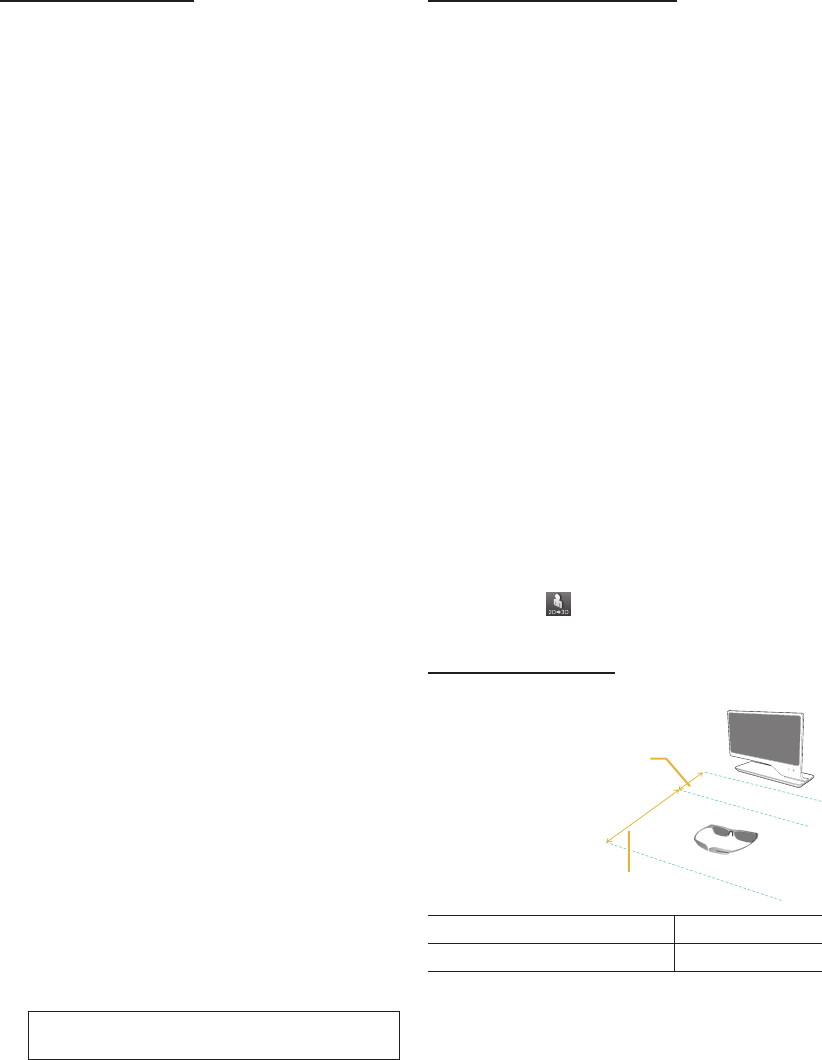
Recommended 3D operating distance
Recommended viewing distance 2~6m (6 to 19.5 ft)
Recommended pairing distance 2~6m (6 to 19.5 ft)
✎
NOTE
x
3D mode is automatically disabled in following cases:
when changing a channel or the input source, or
accessing My Contents or Smart Hub.
x
Some Picture functions are disabled in 3D mode.
x
PIP is not supported in 3D mode.
50cm
2~6m
Recommended pairing distance
Recommended viewing distance
32
English
Basic Features
¦Changing the Picture Options
Advanced Settings
O
MENU
m
→ Picture → Advanced Settings →
ENTER
E
(Advanced Settings are available in Standard / Movie
mode)
You can adjust the detailed setting for the screen including
colour and contrast.
✎
In HDMI1/DVI mode (when a PC is connected), only
Gamma and White Balance are available.
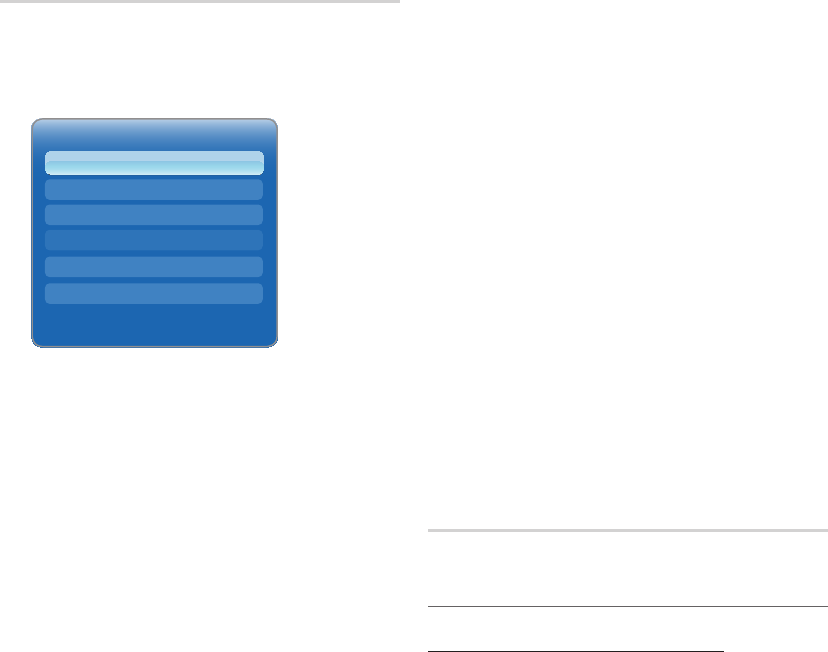
■Black Tone (Off / Dark / Darker / Darkest): Select the
black level to adjust the screen depth.
■Dynamic Contrast (Off / Low / Medium / High): Adjust
the screen contrast.
■Shadow Detail (-2~+2): Increase the brightness of dark
images.
■Gamma: Adjust the primary colour intensity.
■Expert Pattern (Off / Pattern1 / Pattern2): By running
the Expert Pattern function, the picture can be
calibrated without a generator or filter. If the OSD menu
disappears or a menu other than the Picture menu is
opened, the calibration is saved and the Expert Pattern
window disappears.
✎
While the Expert Pattern is running, sound is not
outputted.
✎
Only enabled on DTV, Component / HDMI models.
■RGB Only Mode (Off / Red / Green / Blue): Displays
the Red, Green and Blue colour for making fine
adjustments to the hue and saturation.
■Colour Space (Auto / Native / Custom): Adjust the
range of colours available to create the image.
✎
To adjust Colour, Red, Green, Blue and Reset,
set Colour Space to Custom.
■White Balance: Adjust the colour temperature for a
more natural picture.
R-Offset / G-Offset / B-Offset: Adjust each colour’s
(red, green, blue) darkness.
R-Gain / G-Gain / B-Gain: Adjust each colour’s (red,
green, blue) brightness.
Reset: Resets the White Balance to it’s default settings.
■10p White Balance (Off / On): Controls the white
balance in 10 point interval by adjusting the red, green,
and blue brightness.
✎
Available when the Picture Mode is set to Movie
and when the external input is set to all input.
✎
Some external devices may not support this
function.
Interval: Select interval to adjust.
Red: Adjust the red level.
Green: Adjust the green level.
Blue: Adjust the blue level.
Reset: Resets the 10p White Balance to its default
settings.
■Flesh Tone: Emphasize pink “Flesh Tone.”
■Edge Enhancement (Off / On): Emphasize object
boundaries.
■Motion Lighting (Off / On): Reduce power consumption
by brightness control.
✎
3D is not supported.
Advanced Settings
Off
Medium
-2
0
Off
Off
Native
Black Tone
Dynamic Contrast
Shadow Detail
Gamma
Expert Pattern
RGB Only Mode
Colour Space
33
English
Basic Features
Picture Options
O
MENU
m
→ Picture → Picture Options
→ ENTER
E
✎
In HDMI1/DVI mode (when a PC is connected), only
Colour Tone is available.
■Colour Tone (Cool / Standard / Warm1 / Warm2)
✎
Warm1 or Warm2 will be deactivated when the
Picture Mode is Dynamic.
✎
Settings can be adjusted and stored for each
external device connected to an input on the TV.
■Digital Noise Filter (Off / Low / Medium / High / Auto
/ Auto Visualisation): If the broadcast signal received
by your TV is weak, you can activate the Digital Noise
Filter feature to reduce any static and ghosting that may
appear on the screen.
✎
When the signal is weak, try other options until the
best picture is displayed.
Auto Visualisation: When changing analogue channels,
displays signal strength.
✎
Only available for analogue channels.
✎
When bar is green, you are receiving the best
possible signal.
■MPEG Noise Filter (Off / Low / Medium / High /
Auto): Reduces MPEG noise to provide improved
picture quality.
✎
Not available in HDMI1/DVI mode (when a PC is
connected).
■HDMI Black Level (Normal / Low): Selects the black
level on the screen to adjust the screen depth.
✎
Available only in HDMI mode.
■Film Mode (Off / Auto1 / Auto2): Sets the TV to
automatically sense and process film signals from all
sources and adjust the picture for optimum quality.
✎
Available in TV, AV, COMPONENT
(480i / 1080i) and HDMI (480i / 1080i).
■Motion Plus (Off / Clear / Standard / Smooth /
Custom / Demo): Removes drag from fast scenes with
a lot of movement to provide a clearer picture.
✎
The Info screen on your TV displays the resolution
and frequency of the incoming signal (60Hz),
but not the frequency the TV is generating for
the image it is displaying by using Motion Plus
function.
✎
If noise occurs on the screen, please set up the
Motion Plus to Off. If Motion Plus is Custom,
you can set up the Blur Reduction, Judder
Reduction or Reset manually.
✎
If Motion Plus is Demo, you can compare the
difference of on and off modes.
Blur Reduction: Adjusts the blur reduction level from
video sources.
Judder Reduction: Adjusts the judder reduction level
from video sources when playing films.
Reset: Reset the custom settings.
Reset Picture (Yes / No)
Resets your current picture mode to its default settings.
¦Setting up the TV with Your PC
Using Your TV as a Computer (PC) Display
Setting Up Your PC Software (Based on Windows XP)
Depending on the version of Windows and the video card,
the actual screens on your PC may differ in which case the
same basic set-up information will almost always be applied.
(If not, contact your computer manufacturer or Samsung
Dealer.)
1. Click on “Control Panel” on the Windows start menu.
2. Click on “Appearance and Themes” in the “Control
Panel” window and a display dialog-box will appear.
3. Click on “Display” and a display dialog box will appear.
4. Navigate to the “Settings” tab on the display dialog-box.
x
The correct size setting (resolution)
– [Optimum : 1920 X 1080 pixels]
x
If a vertical-frequency option exists on your display
settings dialog box, the correct value is “60” or “60
Hz”. Otherwise, just click “OK” and exit the dialog
box.
Picture Options
Standard
Auto
Auto
Normal
Off
Standard
Colour Tone
Digital Noise Filter
MPEG Noise Filter
HDMI Black Level
Film Mode
Motion Plus
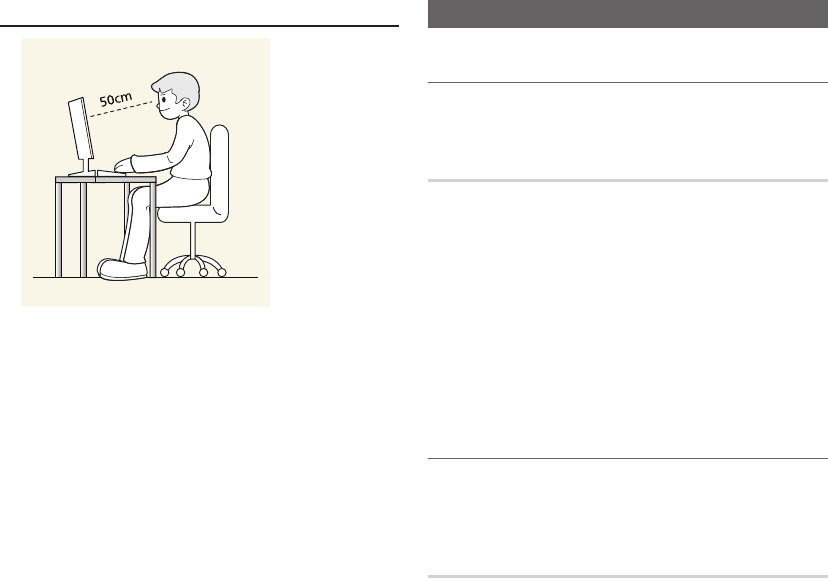
34
English
Basic Features
Maintaining the Correct Posture when Using this Product
Maintain the correct posture when using this product.
yStraighten your back.
yKeep a distance of 45~50 cm (15~19 inches) from your
eyes to the screen. Look down at the screen and face
the screen forwards.
yAdjust the angle of the product so that light is not
reflected onto the screen.
yKeep your elbow at a right angle and keep your arm
level with the back of your hand.
yKeep your elbow at a right angle.
yPlace your heels flat on the ground while keeping your
knees at an angle of 90 degrees or higher and maintain
the position of your arm so that your arm is below your
heart.
Sound Menu
¦Changing the Preset Sound Mode
O
MENU
m
→ Sound → Sound Mode → ENTER
E
Sound Mode
t
■Standard: Selects the normal sound mode.
■Music: Emphasizes music over voices.
■Movie: Provides the best sound for movies.
■Clear Voice: Emphasizes voices over other sounds.
■Amplify: Increase the intensity of high-frequency sound
to allow a better listening experience for the hearing
impaired.
✎
If Speaker Select is set to External Speaker, Sound
Mode is disabled.
¦Adjusting Sound Settings
O
MENU
m
→ Sound → Sound Effect →
ENTER
E
Sound Effect
(standard sound mode only)
✎
If Speaker Select is set to External Speaker, Sound
Effect is disabled.
■SRS TruSurround HD (Off / On)
t
This function provides a virtual 5.1 channel surround
sound experience through a pair of speakers using
HRTF (Head Related Transfer Function) technology.
■SRS TruDialog (Off / On)
This function allows you to increase the intensity of a
voice over background music or sound effects so that
dialog can be heard more clearly.
■SRS CS Headphone (Off / On) : You can hear virtual
5.1ch surround sound over the headphones.
■Equalizer
Adjusts the sound balance, bass and treble for the left
and right speakers as required.
– Balance L/R: Adjusts the balance between the right
and left speaker.
– 100Hz / 300Hz / 1kHz / 3kHz / 10kHz (Bandwidth
Adjustment): Adjusts the level of specific bandwidth
frequencies.
– Reset: Resets the equalizer to its default settings.
35
English
Basic Features
¦Sound Systems, Etc.
O
MENU
m
→ Sound → ENTER
E
3D Audio (Off / Low / Medium / High)
3D audio technology provides the immersive sound
corresponding to the pop-up effect of 3D video by audio
depth control in perspective.
✎
Available in only when watching 3D image.
Broadcast Audio Options
(digital channels only)
■Audio Language
t
Change the default value for audio languages.
✎
The available language may differ depending on
the broadcast.
■Audio Format
When sound is emitted from both the main speaker and
the audio receiver, a sound echo may occur due to the
decoding speed difference between the main speaker
and the audio receiver. In this case, use the TV Speaker
function.
✎
Audio Format option may differ depending on
the broadcast. 5.1ch Dolby digital sound is only
available when connecting an external speaker
through an optical cable.
■Audio Description
(not available in all locations)
This function handles the Audio
Stream for the AD (Audio Description)
which is sent along with the Main
audio from the broadcaster.
✎
Audio Description (Off / On):
Turn the audio description
function on or off.
✎
Volume: Adjust the audio description volume.
Additional Settings
(digital channels only)
■DTV Audio Level (MPEG / HE-AAC): This function
allows you to reduce the disparity of a voice signal
(which is one of the signals received during a digital TV
broadcast) to a desired level.
✎
According to the type of broadcast signal, MPEG
/ HE-AAC can be adjusted between -10dB and
0dB.
✎
To increase or decrease the volume, adjust
between the range 0 and -10 respectively.
■SPDIF Output: SPDIF (Sony Philips Digital InterFace)
is used to provide digital sound, reducing interference
going to speakers and various digital devices such as a
DVD player.
– Audio Format: You can select the Digital Audio
output (SPDIF) format.
✎
The available Digital Audio output (SPDIF) format
may differ depending on the input source.
– Audio Delay: Correct audio-video sync problems,
when watching TV or video, and when listening to
digital audio output using an external device such as
an AV receiver (0ms ~ 250ms).
■Dolby Digital Comp (Line / RF): This function minimizes
signal disparity between a dolby digital signal and a
voice signal (i.e. MPEG Audio, HE-AAC, ATV Sound).
✎
Select Line to obtain dynamic sound, and RF
to reduce the difference between loud and soft
sounds at night time.
– Line: Set the output level for signals greater or less
than -31dB (reference) to either -20dB or -31dB.
– RF: Set the output level for signals greater or less
than -20dB (reference) to either -10dB or -20dB.
Speaker Settings
■Speaker Select (External Speaker / TV Speaker): A
sound echo may occur due to a difference in decoding
speed between the main speaker and the audio receiver.
In this case, set the TV to External Speaker.
✎
When Speaker Select is set to External
Speaker, the volume and MUTE buttons will not
operate and the sound settings will be limited.
✎
When Speaker Select is set to External
Speaker.
x
TV Speaker: Off, External Speaker: On
✎
When Speaker Select is set to TV Speaker.
x
TV Speaker: On, External Speaker: On
✎
If there is no video signal, both speakers will be
mute.
■Auto Volume (Off / Normal / Night): To equalize the
volume level on each channel, set to Normal.
Night: This mode provides an improved sound
experience compared to Normal mode, making almost
no noise. It is useful at night.
Reset Sound (Yes / No)
Reset all sound settings to the factory defaults.
AD/SUBT.
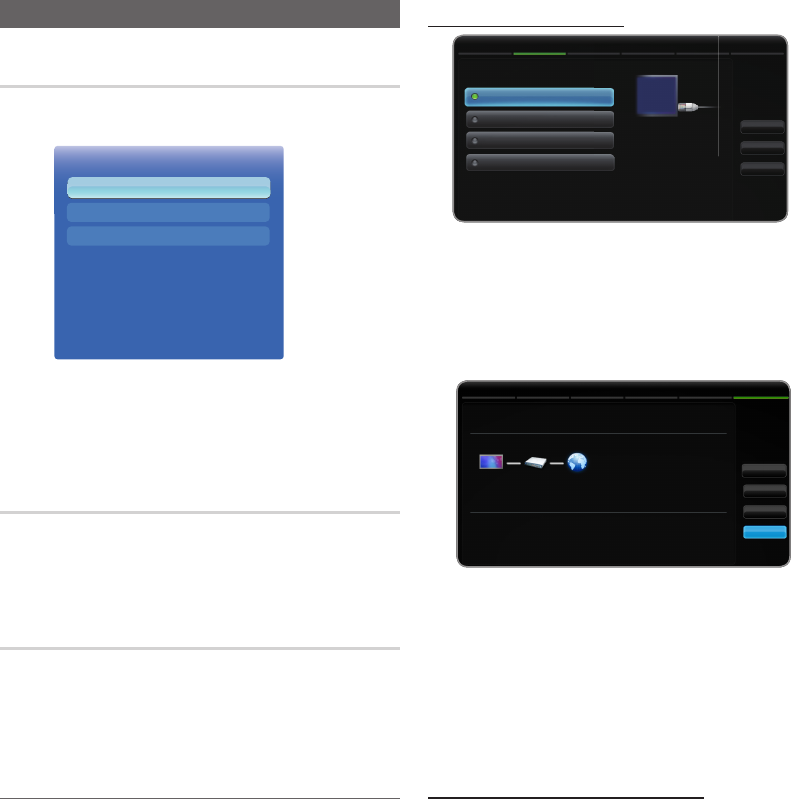
36
English
Basic Features
Network Menu
Network Settings
O
MENU
m
→ Network→ Network Settings →
ENTER
E
Set the network connection to use various Internet services
such as Smart Hub, AllShare and perform software
upgrades.
Network Status
O
MENU
m
→ Network→ Network Status →
ENTER
E
You can check the current network and Internet status.
AllShare Settings
O
MENU
m
→ Network→ AllShare Settings →
ENTER
E
Selects whether to use the call arrivals text message
contents, and schedules set on the network.
¦Wired
□Network Settings (Auto)
Use the automatic Network Settings when connecting your
TV to a network that supports DHCP. To set up your TV’s
cable network connection automatically, follow these steps:
How to set up automatically
1. Go to Network Settings screen.
To enter it, follow the directions of Network Settings.
2. Select the Wireless (general).
3. The network test screen appears, and network setting is
done.
✎
If it fails to set automatically, check the connection of
LAN port.
✎
If you cannot find network connection values or if you
want to set connection manually, set it to Manual. Refer
to following “How to set up manually”.
□Network Settings (Manual)
Use the Manual Network Setup when connecting your TV to
a network that requires a Static IP address.
Getting the Network Connection Values
To get the Network connection values on most Windows
computers, follow these steps:
1. Right click the Network icon on the bottom right of the
screen.
2. In the pop-up menu that appears, click Status.
3. On the dialog that appears, click the Support tab.
4. On the Support Tab, click the Details button. The
Network connection values are displayed.
x
The displayed image may differ depending on the model.
Network Settings
Select a network connection type.
Wired
Wireless (general)
WPS(PBC)
Previous
Next
Cancel
One Foot Connection
Connect to the network using
a LAN cable. Please make sure
that the LAN cable is connected.
Network
Network Settings
Network Status
AllShare Settings
• The displayed image may differ depending on the model.
Retry
IP Setting
OK
Network Settings
Wireless network and Internet connection settings completed.
Internet is connected successfully.
If you have a problem with using Internet Service, contact your Internet
service provider.
MAC Address 00:12:fb:2b:56:4d
IP Address 192.168.11.4
Subnet Mask 255.255.255.0
Gareway 192.168.11.1
DNS Server 192.168.11.1
Previous
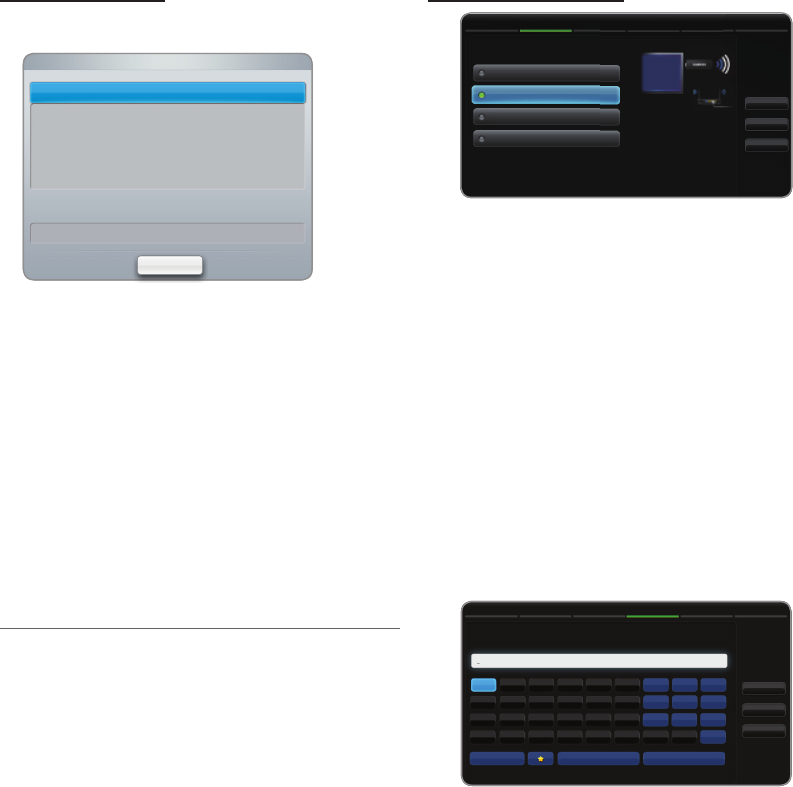
37
English
Basic Features
How to set up manually
To set up your TV’s cable network connection manually,
follow these steps:
1. Follow Steps 1 through 2 in the “How to set up
automatically” procedure.
2. Select the IP Settings on network test screen.
3. Set IP Mode to Manual.
4. Press the
d
button on your remote to go to the IP
Address.
5. Enter the IP Address, Subnet Mask, Gateway, and
DNS Server values. Use the number buttons on your
remote to enter numbers and the arrow buttons to move
from one entry field to another.
6. When done, select the OK.
7. The network test screen appears, and network setting is
done.
¦Wireless
□Network Settings (Auto)
Most wireless networks have an optional security system
that requires devices that access the network to transmit
an encrypted security code called an Access or Security
Key. The Security Key is based on a Pass Phrase, typically
a word or a series of letters and numbers of a specified
length you were asked to enter when you set up security for
your wireless network. If you use this method of setting up
the network connection, and have a Security Key for your
wireless network, you will have to enter the Pass Phrase
during the setup process.
How to set up automatically
1. Go to Network Settings screen. To enter it, follow the
directions of Network Settings.
2. Select the Wireless (general).
3. The Network function searches for available wireless
networks. When done, it displays a list of the available
networks.
4. In the list of networks, press the
u
or
d
button to
select a network, and then press the ENTER
E
button.
✎
If the wireless router is set to Hidden (Invisible),
you have to select Add Network and enter the
correct Network Name (SSID) and Security key
to establish the connection.
5. If the Security screen pop-up appears, go to step 6.
If you select the wireless router which does not have
security, go to step 7.
6. If the wireless router has security, enter the Security
key(Security or PIN), then select Next.
✎
When you enter the Security key(Security or
PIN), use ▲ / ▼ / ◄ / ► buttons on your remote
to select number/characters.
✎
You should be able to find the Pass Phrase on
one of the set up screens you used to set up your
router or modem.
7. The network connection screen appears, and network
setting is done.
✎
If it fails to set Security key(Security or PIN),
select Reset or IP Settings.
✎
If you want to set connection manually, select the
IP Settings. Refer to following “How to set up
manually”.
Network Settings
Enter security key.
a/A Delete Space
Previous
Next
Cancel
a b c d e f 1 2 3
g h i j k l 4 5 6
m n o p q r 7 8 9
s t u v w x y z 0
Network Settings
Select a network connection type.
Wired
Wireless (general)
WPS(PBC)
One Foot Connection
Set up a wireless network by
selecting your wireless router.
You may need to enter a
security key depending on the
settings of the wireless router.
Previous
Next
Cancel
x
The displayed image may differ depending on the model.
IP Mode
DNS Mode
Manual
Manual
IP Settings
IP Address
Subnet Mask
Gateway
0 . 0 . 0 . 0
0 . 0 . 0 . 0
0 . 0 . 0 . 0
OK
DNS Server 0 . 0 . 0 . 0
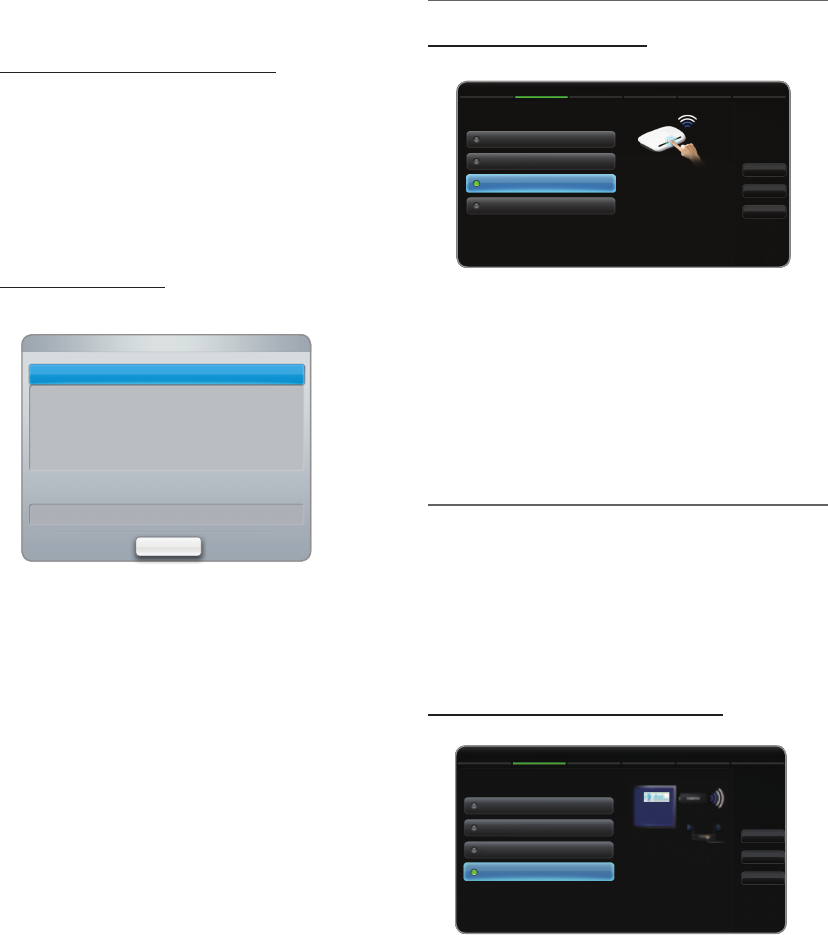
38
English
Basic Features
□Network Settings (Manual)
Use the Manual Network Setup when connecting your TV to
a network that requires a Static IP address.
Getting the Network Connection Values
To get the Network connection values on most Windows
computers, follow these steps:
1. Right click the Network icon on the bottom right of the
screen.
2. In the pop-up menu that appears, click Status.
3. On the dialog that appears, click the Support tab.
4. On the Support Tab, click the Details button. The
Network connection values are displayed.
How to set up manually
To set up your TV’s cable network connection manually,
follow these steps:
1. Follow Steps 1 through 2 in the “How to set up
automatically” procedure.
2. Select the IP Settings on network test screen.
3. Set IP Mode to Manual.
4. Press the
d
button on your remote to go to the first
entry field.
5. Enter the IP Address, Subnet Mask, Gateway, and
DNS Server values. Use the number buttons on your
remote to enter numbers and the arrow buttons to move
from one entry field to another.
6. When done, select the OK.
7. The network connection screen appears, and network
setting is done.
¦WPS(PBC)
How to set up using WPS(PBC)
If your router has a WPS(PBC) button, follow these steps:
1. Go to Network Settings screen. To enter it, follow the
directions of Network Settings.
2. Select the WPS(PBC).
3. Press the WPS(PBC) button on your router within 2
minutes. Your TV automatically acquires all the network
setting values it needs and connects to your network.
4. The network test screen appears, and network setting is
done.
¦One Foot Connection
The One Foot Connection make you easy to connect
samsung TV and samsung wireless router by placing
samsung wireless router within 1 foot(25cm) from samsung
TV. If your wireless router does not support One Foot
Connection, you must connect using one of the other
methods.
✎
You can check for equipment that supports One Foot
Connection on www.samsung.com
How to set up using One Foot Connection
Turn on the power of wireless router and TV.
1. Go to Network Setting screen. To enter it, follow the
directions of Network Setting.
2. Select the One Foot Connection.
Network Settings
Select a network connection type.
Wired
Wireless(general)
WPS(PBC)
Previous
Next
Cancel
One Foot Connection
Connect to the wireless
network automatically if your
access point supports One
Foot Connection. Select this
connection type after placing
the access point within 10
inches (25 cm) of your product.
Network Settings
Select a network connection type.
Wired
Wireless (general)
WPS (PBC)
Previous
Next
Cancel
One Foot Connection
Connect to wireless router
easily by pressing the
WPS(PBC) button. Choose this
if your Wireless router supports
push button configuration
(PBC).
IP Mode
DNS Mode
Manual
Manual
IP Settings
IP Address
Subnet Mask
Gateway
0 . 0 . 0 . 0
0 . 0 . 0 . 0
0 . 0 . 0 . 0
OK
DNS Server 0 . 0 . 0 . 0

39
English
Basic Features
3. Place the wireless router in parallel with the Samsung
Wireless LAN adapter giving a gap no larger than 25cm.
✎
If One Foot Connection does not connect your
TV to your Router, a pop-up window appears on
the screen notifying you of the failure. If you want
to try using One Foot Connection again, reset
the wireless router, disconnect the Samsung
Wireless LAN adapter and then try again from
Step 1. You can also choose one of the other
connection setup methods.
4. The network connection screen appears, and network
setting is done.
5. Place the wireless router in a desired location.
✎
If the wireless router settings change or you install
a new wireless router, you must perform the One
Foot Connection procedure again, beginning
from Step 1.
¦Plug & Access
Plug & Access function make you easy to connect samsung
TV and samsung wireless router by using USB memory stick.
If your wireless router does not support Plug & Access, you
must connect using one of the other methods.
✎
You can check for equipment that supports Plug &
Access on www.samsung.com.
How to set up using Plug & Access function
Turn on the power of wireless router and TV.
1. Insert USB memory stick into our Samsung wireless
router and checking wireless router’s LED status
(Blinking → On).
2. Then take USB memory out and insert it into Samsung
TV.
3. Wait until the connection is automatically established.
✎
If Plug & Access does not connect your TV to
your wireless router a pop-up window appears
on the screen notifying you of the failure. If you
want to try using Plug & Access again, reset the
wireless router disconnect the Samsung Wireless
LAN adapter and then try again from Step 1. You
can also choose one of the other connection
setup methods.
4. The network connection screen appears, and network
setting is done.
5. Place the wireless router in a desired location.
✎
If the wireless router settings change or you install
a new wireless router you must perform the Plug
& Access procedure again, beginning from Step
1.
Priority QOS
Samsung wireless Router is optimized HD AV
streaming for Samsung DTV
This is our product’s distinctive function.
Samsung wireless Router can be connected with many
devices, such as laptop, mobile phone, BD player etc.
In case of connecting Samsung TV to Samsung
wireless Router while other devices are connected,
Samsung wireless Router will give Samsung TV a
priority connection than other devices.
This function ensures the best streaming contents and
throughput speed.
yMake your TV faster by giving priority bandwidth to
your TV (on/off optional).
yBy giving priority to Samsung TVs, enjoy HD
content without buffering.
yConnection speed may vary based on the network
environment.
¦Ad-Hoc Network Setup
You can connect to a mobile device supporting Ad-hoc
without an wireless router through the “Samsung Wireless
LAN adapter”. When connected to a mobile device, you can
use files on the device or connect to the Internet using the
AllShare or Multimedia function.
How to set up using WPS(PBC)
1. Go to Network Settings screen. (MENU
m
→ Network
→ Network Settings → ENTER
E
).
2. Select Wireless (General), and press ENTER
E
, then
press ENTER
E
again.
3. Select Ad hoc. The message “Ad hoc service
supports a direct connection with Wi-Fi compatible
devices like a cell phone or PC. The existing network
system may have limited functionality. Do you want
to change the network connection?” is displayed.
4. Select OK, and press ENTER
E
. The TV searches for
the mobile device.
5. When the TV finishes searching for mobile devices, input
the generated Network Name (SSID) and Security Key
into the device you want to connect.
✎
If network does not operate normally, check the
Network Name (SSID) and Security key again. An
incorrect Security key may cause a malfunction.
✎
If a device is connected once, it is displayed in the
Network Setting list. When you connect to it again, you
can find it in the List.
40
English
Basic Features
If Your TV Fails to Connect to the Internet
Your TV may not be able to connect to the Internet
because your ISP has permanently registered the
MAC address (a unique identifying number) of your
PC or modem, which it then authenticates each time
you connect to the Internet as a way of preventing
unauthorized access. As your TV has a different MAC
address, your ISP can not authenticate its MAC address,
and your TV can not connect.
To resolve this problem, ask your ISP about the
procedures required to connect devices other than a PC
(such as your TV) to the Internet.
If your Internet service provider requires an ID or password
to connect to the Internet, your TV may not be able to
connect to the Internet. If this is the case, you must enter
your ID or password when connecting to the Internet.
The internet connection may fail because of a firewall
problem. If this is the case, contact your Internet service
provider.
If you cannot connect to the Internet even after you have
followed the procedures suggested by your Internet
service provider, please contact a Samsung Electronics
dealer or customer service centre.
System Menu
¦Setting the Time
O
MENU
m
→ System → Time → ENTER
E
Time
■Clock: Setting the clock is for using various timer
features of the TV.
O
The current time will appear every time you press
the INFO button.
✎
If you disconnect the power cord, you have to set
the clock again.
Clock Mode (Auto / Manual)
x
Auto: Set the current time automatically using the
time from a digital channel.
✎
The antenna must be connected in order to set
the time automatically.
x
Manual: Set the current time manually.
✎
Depending on the broadcast station and signal,
the auto time set up may not be correct. In this
case, set the time manually.
Clock Set: Set the Date and Time.
✎
Available only when Clock Mode is set to
Manual.
✎
You can set the Date and Time directly by
pressing the number buttons on the remote
control.
Time Zone (Australia only): Set the time zone to GMT.
✎
This function is only available when the Clock
Mode is set to Auto.
Using the Sleep Timer
■Sleep Timer
t
: Automatically shuts off the TV
after a preset period of time. (30, 60, 90, 120, 150 and
180 minutes).
✎
To cancel Sleep Timer, select Off.
41
English
Basic Features
Setting the On / Off Timer
■On Timer 1 / On Timer 2 / On Timer 3: Three different
on timer settings can be made. You must set the clock
first.
Setup: Select Off, Once, Everyday, Mon~Fri,
Mon~Sat, Sat~Sun or Manual to set at your
convenience. If you select Manual, you can set up the
day you want to activate the timer.
✎
The
c
mark indicates the date you've selected.
Time: Set the hour and minute.
Volume: Set the desired volume level.
Source: Select TV or USB content to be played when
the TV is turned on automatically. (USB can be selected
only when a USB device is connected to the TV)
Antenna (when the Source is set to TV): Select the
desired antenna source.
Channel (when the Source is set to TV): Select the
desired channel.
Music / Photo (when the Source is set to USB): Select
a folder in the USB device containing music or photo
files to be played when the TV is turned on automatically.
✎
NOTE
x
If there is no music file on the USB device or the
folder containing a music file is not selected, the
Timer function does not operate correctly.
x
When there is only one photo file in the USB,
the Slide Show will not play.
x
If a folder name is too long, the folder cannot be
selected.
x
Each USB you use is assigned its own folder.
When using more than one of the same type of
USB, make sure the folders assigned to each
USB have different names.
x
It is recommended that you use a USB memory
stick and a multi card reader when using On
Timer. The On Timer function may not work
with USB devices with a built-in battery, MP3
players, or PMPs made by some manufacturers
because these devices take a long time to be
recognized.
■Off Timer 1 / Off Timer 2 / Off Timer 3: Three different
off timer settings can be made. You must set the clock
first.
Setup: Select Off, Once, Everyday, Mon~Fri,
Mon~Sat, Sat~Sun or Manual to set at your
convenience. If you select Manual, you can set up the
day you want to activate the timer.
✎
The
c
mark indicates the date you've selected.
Time: Set the hour and minute.
¦Economical Solutions
O
MENU
m
→ System → Eco Solution → ENTER
E
Eco Solution
■Energy Saving (Off / Low / Medium / High / Picture
Off)
t
: This adjusts the brightness of the TV
in order to reduce power consumption. If you select
Picture Off, the screen is turned off, but the sound
remains on. Press any button except volume button to
turn on the screen.
■No-Signal Power Off (Off / 15 min / 30 min / 60 min):
To avoid unnecessary energy consumption, set how long
you want the TV to remain on if it’s not receiving a signal.
✎
Disabled when a PC connected to the HDMI1/DVI
port is in power-saving mode.
■Auto Power Off (Off / On): Saves power by turning TV
off automatically when no user operation is received for
4 hours.
Setup Off
Sun Mon Tue Wed Thu Fri Sat
On Timer 1
Time
Volume
Source
Antenna
Channel
4:00
20
TV
ATV
1
Close
Setup Off
Sun Mon Tue Wed Thu Fri Sat
Off Timer 1
Time 4:00
Close
42
English
Basic Features
¦Locking Programmes
O
MENU
m
→ System → Security → ENTER
E
Security
✎
The PIN input screen appears before the setup screen.
■Channel Lock (Off / On): Lock channels in Channel
Manager, to prevent unauthorized users, such as
children, from watching unsuitable programme.
✎
Available only when the input Source is set to TV.
■Program Rating Lock (depending on the country):
Prevent unauthorized users, such as children, from
watching unsuitable programme with a user-defined
4-digit PIN code. If selected channel is locked, the “
\
”
symbol will be displayed.
Allow All: Unlock All TV ratings.
■Change PIN: The Change PIN screen will appear.
Choose any 4 digits for your PIN and enter them.
Change your personal ID number required to set up
the TV. Re-enter the same 4 digits. When the Confirm
screen disappears, your PIN has been memorised.
How to watch a restricted channel
If the TV is tuned to a restricted channel, the Program
Rating Lock will block it. The screen will go blank
and the following message will appear: This channel is
blocked by Program Rating Lock. Please enter the PIN
to unblock.
✎
If you forget the PIN, press the remote-control
buttons in the following sequence, which resets
the pin to “0-0-0-0:” POWER (off) → MUTE → 8
→ 2 → 4 → POWER (on)
¦Other Features
O
MENU
m
→ System → ENTER
E
Language
■Teletext Language: Set a desired language for teletext.
✎
English is the default in cases where the selected
language is unavailable in the broadcast.
■Preference (Primary Audio Language / Secondary
Audio Language / Primary Subtitle Language /
Secondary Subtitle Language / Primary Teletext
Language / Secondary Teletext Language): Select
a language, which will be the default language when a
channel is selected.
✎
The Teletext Language menu may not be
displayed in countries that do not support TTX.
Subtitle
Use this menu to set the Subtitle mode.
■Subtitle (Off / On): Switches subtitles
on or off.
■Subtitle Mode (Normal / Hearing
Impaired): Sets the subtitle mode.
■Subtitle Language: Sets the subtitle
language.
✎
If the programme you are watching does
not support the Hearing Impaired function,
Preferred automatically activates even if the
Hearing Impaired mode is selected.
✎
English is the default in cases where the selected
language is unavailable in the broadcast.
Digital Text (Disable / Enable)
(New Zealand only)
If the programme broadcasts with digital text, this feature is
enabled.
Auto Protection Time
■Off / 2 hours / 4 hours / 8 hours / 10 hours: If the
screen remains idle with a still image for a certain period
of time defined by the user, the screen saver is activated
to prevent the formation of ghost images on the screen.
AD/SUBT.
43
English
Basic Features
General
■Max. Power Saving (Off / On): Turns off the TV to
reduce power consumption after the PC has been left
idle for a specified period of time.
✎
Available only when the HDMI1/DVI port is
connected to a PC.
■Game Mode (Off / On): When connecting to a game
console such as PlayStation™ or Xbox™, you can enjoy
a more realistic gaming experience by selecting game
mode.
✎
NOTE
x
Precautions and limitations for game mode
– To disconnect the game console and connect
another external device, set Game Mode to Off in
the setup menu.
– If you display the TV menu in Game Mode, the
screen shakes slightly.
x
Game Mode is not available in TV mode or
HDMI1/DVI mode (when a PC is connected).
x
After connecting the game console, set Game Mode
to On. Unfortunately, you may notice reduced picture
quality.
x
If Game Mode is On:
– Picture mode is set to Standard and Sound mode
is set to Movie.
■BD Wise (Off / On): Provides the optimal picture quality
for Samsung DVD, Blu-ray and Home Theatre products
which support BD Wise. When BD Wise is turned On,
the picture mode is automatically changed to the optimal
resolution.
✎
Available when connecting Samsung products
that support BD Wise through a HDMI cable.
■Boot Logo (Off / On): Display Samsung logo when the
TV is turned on.
■TV Name: Sets the TV name so you can find it easily on
a mobile device.
✎
If you select User Input, you can type on the TV
using the OSK (On Screen Keyboard).
Anynet+
t
For details on set up options, refer to the "Anynet+ (HDMI-
CEC)" instructions. (p. 63)
DivX® Video On Demand
Shows the registration code authorized for the TV. If you
connect to the DivX web site and register, you can download
the VOD registration file. If you play the VOD registration
using Media contents, the registration is completed.
✎
For more information on DivX® VOD, visit “http://vod.
divx.com”.
Network Remote Control (Off / On)
Turn on/off or give permission to Samsung mobile phones
devices. You must have a Samsung Mobile phone/ device
which supports Wireless Remote Control. For more details,
refer to each device’s manual.
¦Picture In Picture (PIP)
O
MENU
m
→ System → PIP → ENTER
E
PIP
t
You can watch the TV tuner and one external video source
simultaneously. PIP (Picture-in-Picture) does not function in
the same mode.
✎
NOTE
x
For PIP sound, refer to the Sound Select
instructions.
x
If you turn the TV off while watching in PIP mode, the
PIP window will disappear.
x
You may notice that the picture in the PIP window
becomes slightly unnatural when you use the main
screen to view a game or karaoke.
x
While SMART HUB is in operation the PIP function
cannot be used.
x
PIP is not available in 3D mode.
x
PIP settings
Main picture Sub picture
Component, HDMI1/DVI,
HDMI2 TV
■PIP (Off / On): Activate or deactivate the PIP function.
■Channel: Select the channel for the sub-screen.
■Size (
Õ
/
Ã
/
À
/
Œ
): Select a size for the sub-
picture.
■Position (
Ã
/
–
/
—
/
œ
): Select a position for the
sub-picture.
✎
In Double (
À
/
Œ
) mode, Position cannot be
selected.
■Sound Select (Main / Sub): You can choose the
desired sound (Main / Sub) in PIP mode.
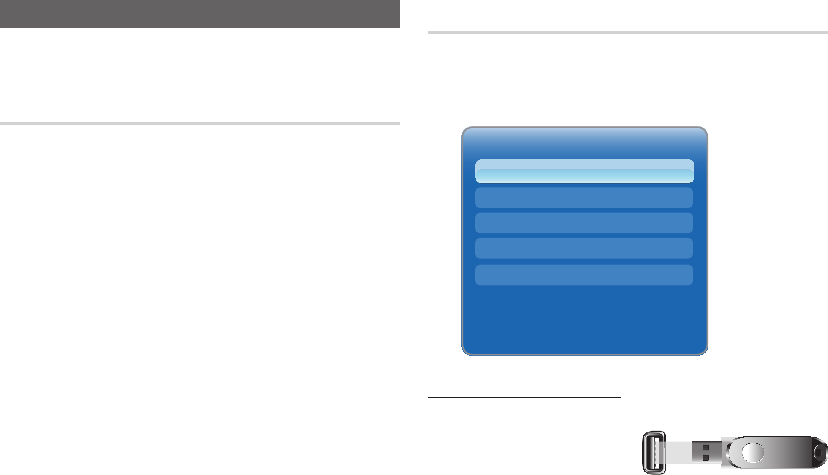
44
English
Basic Features
Support Menu
O
MENU
m
→ Support → ENTER
E
Self Diagnosis
✎
Self Diagnosis might take few seconds, this is part of
the normal operation of the TV
■Picture Test (Yes / No): Use to check for
picture problems.
Yes: If the test pattern does not appear or there is
noise in the test pattern, select Yes. There may be a
problem with the TV. Contact Samsung’s Call Centre for
assistance.
No: If the test pattern is properly displayed, select No.
There may be a problem with your external equipment.
Please check your connections. If the problem persists,
refer to the external device’s user manual.
■Sound Test (Yes / No): Use the built-in melody sound to
check for sound problems.
✎
If you hear no sound from the TV’s speakers,
before performing the sound test, make sure
Speaker Select is set to TV Speaker in the
Sound menu.
✎
The melody will be heard during the test even if
Speaker Select is set to External Speaker or the
sound is muted by pressing the MUTE button.
Yes: If you can hear sound only from one speaker or not
at all during the sound test, select Yes. There may be a
problem with the TV. Contact Samsung’s Call Centre for
assistance.
No: If you can hear sound from the speakers, select No.
There may be a problem with your external equipment.
Please check your connections. If the problem persists,
refer to the external device’s user manual.
■Signal Information: (digital channels only) An HD
channel’s reception quality is either perfect or the
channels are unavailable. Adjust your antenna to
increase signal strength.
■Troubleshooting: If the TV seems to have a problem,
refer to this description.
✎
If none of these troubleshooting tips apply, contact
the Samsung customer service centre.
Software Upgrade
Software Upgrade can be performed via a broadcasting
signal or by network connection or downloading the latest
firmware from “www.samsung.com,” to a USB memory
device.
Installing the Latest Version
■By USB: Insert a USB
drive containing the
firmware upgrade file,
downloaded from
“www.samsung.com”.
Please be careful not
to disconnect the power or remove the USB drive until
upgrades are complete. The TV will be turned off and
on automatically after completing the firmware upgrade.
When software is upgraded, video and audio settings
you have made will return to their default settings. We
advise you to write down your settings so that you can
easily reset them after the upgrade.
■By Online: Upgrade the software using the Internet.
✎
First, configure your network. For detailed
procedures on using the Network Setup, refer to
the “Network Connection” instructions.
✎
If the internet connection doesn’t operate properly,
the connection may be broken. Please retry
downloading. If the problem persists, download by
USB and upgrade.
TV Rear
USB Drive
Software Upgrade
By USB
By Online
By Channel
Alternative Software
Standby Mode Upgrade 2hours later

45
English
Basic Features
■By Channel: Upgrade the software using the
broadcasting signal.
✎
If the function is selected during the software
transmission period, software will be automatically
searched and downloaded.
✎
The time required to download the software is
determined by the signal status.
■Alternative Software (backup): Displays the software
version downloaded through By Online. During the
software upgrading, When the Upgrade will discontinue
from last step, this function be activated.
■Standby Mode Upgrade (Off / 1 hour later / 2 hours
later / 00:00 / 02:00 / 12:00 / 14:00): A manual upgrade
will be automatically performed at selected time.
Since the power of the unit is turned on internally, the
screen may be turned on slightly for the product. This
phenomenon may continue for more than 1 hour until
the software upgrade is complete.
Contact Samsung
View this information when your TV does not work properly
or when you want to upgrade the software. You can find
information regarding our call centres, and how to download
products and software.
Smart Hub
Smart Hub lets you connect to the Internet and enjoy variety
of Internet and multimedia contents.
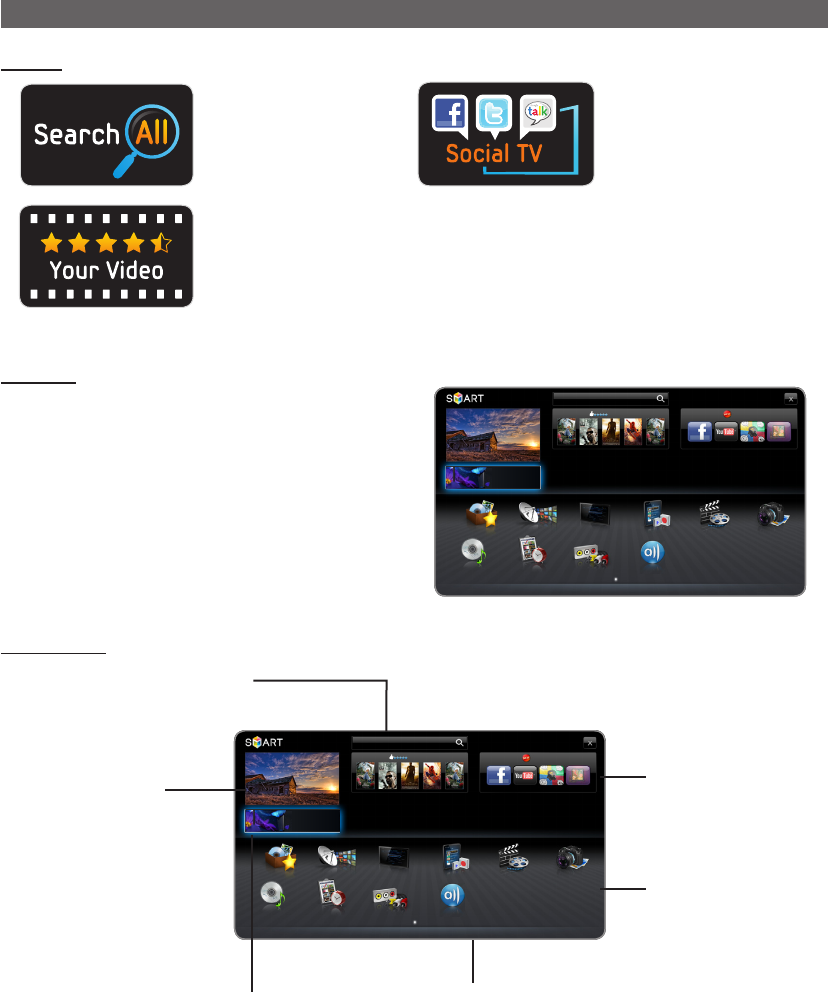
46
English
Advanced FeaturesAdvanced Features
Getting Started with Smart Hub
Features
Search All
Easily search and access
content from diverse sources
(e.g. applications, Your
Video, AllShare).
Social TV
Share your TV viewing
experience with your friends
via social networking service
(SNS).
Your Video
Enjoy your movie watching
with a customized
video on demand (VOD)
recommendation service.
yThis feature is limited to
certain regions
Smart Hub
Smart Hub brings useful and entertaining contents and services
directly from the web to your TV.
The Gateway to all content integrated in one place
yIt’s all integrated to guide you to easier and diverse
entertainment choices.
yControl your entertainment life with easy and simple user
friendly UI.
yAccess to diverse Apps that are adding up every day.
yCustomize your TV, by App grouping & sorting to your taste.
Screen Display
HUB
Search
Your Video Samsung Apps
Real Reality
세계최초 Full HD
3D LED
Connetc to the Internet and enjoy a variety of contents through Smart Hub
This feature may not be available in some countries
For some of the countries listed, local language characters might not be display properly
Favourites Channel Guide Recorded TV Videos Photos
Music Schedule Man... Source
a
Login
b
Sort by
{
Edit Mode
}
Settings
You can search for various types of content
that can be used on your TV. Enter a keyword
to search for media, various applications, or
online information that you can use on the TV.
TV Screen: Displays
the current channel.
Information: Displays notices, new
applications, and advertisements
brought to you by Samsung product
introductions.
Samsung Apps : You can
download various for pay or
free-of-charge application
services.
Installed Applications
list: Displays the installed
applications in the TV.
Controls:
•
a
Red (Login / Logout): To log in to Smart Hub.
•
b
Green (Sort by): To sort the applications by category.
•
{
Yellow (Edit Mode): You can edit the applications (such
as move, making folder).
•
}
Blue (Settings): Edit and configure applications and
Smart Hub settings.
✎
The colour buttons may work differently depending on the
application.
HUB
Search
Your Video Samsung Apps
Real Reality
세계최초 Full HD
3D LED
yThe displayed image may differ depending on the
model.
Connetc to the Internet and enjoy a variety of contents through Smart Hub
This feature may not be available in some countries
For some of the countries listed, local language characters might not be display properly
Favourites Channel Guide Recorded TV Videos Photos
Music Schedule Man... Source
a
Login
b
Sort by
{
Edit Mode
}
Settings
AllShare
AllShare
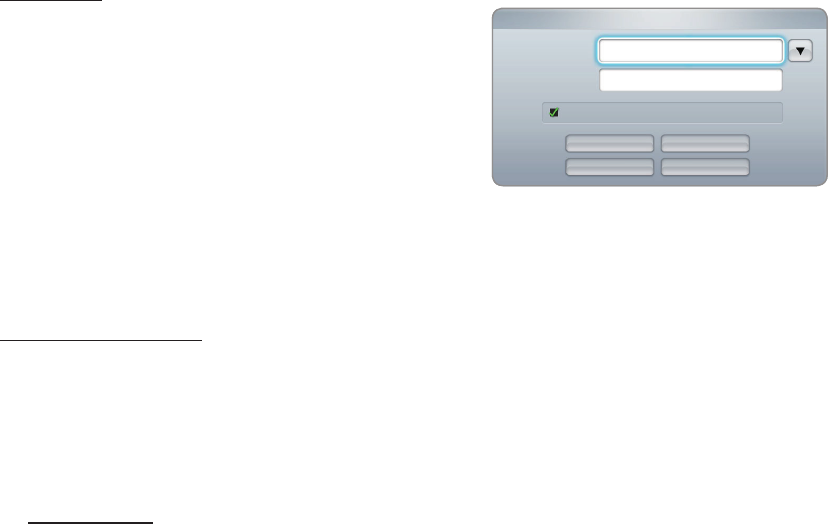
47
English
Advanced Features
✎
NOTE
x
Configure the network setting before using Smart Hub. For more information, refer to Network Settings.
x
Unsupported fonts within the provider’s content will not display normally.
x
Slow responses and/or interruptions may occur, depending on your network conditions.
x
Depending on the region, English may be the only language supported for application services.
x
This feature is not available in some locations.
x
If you experience a problem using a application, please contact the content provider.
x
According to circumstances of the contents provider, an application’s updates or the application itself may be
discontinued.
x
Depending on your country’s regulations, some applications may have limited service or not be supported.
Account Login
For an application with multiple accounts, select
^
to access the
different accounts.
✎
For a more enjoyable application experience, register and log in to
your account.
✎
For instructions on creating an account, refer to “How to create an
Smart TV ID”.
1. Press the Red button in the Smart Hub home page.
2. Select
^
by pressing the
u
/
d
/
l
/
r
button. The account list
appears.
✎
If you want to create an account, select Create Account then the create account OSD window will appear.
3. Select the desired Smart TV ID, and the press the ENTER
E
button.
4. After selecting Smart TV ID, enter the Password using the remote control.
✎
When login succeeds, Smart TV ID will be displayed on the screen.
How to create a Smart TV ID
Before creating a Smart TV ID, you should download the application first on the Samsung Apps.
1. Press the Red (
a
) button. The Login screen appears.
2. Select Create Account. The Create Account screen will appear.
3. Press the ENTER
E
button to enter a new Smart TV ID. The Keypad screen will appear.
4. Using the keypad screen, enter a Smart TV ID.
✎
A Smart TV ID must be created in “sample@sample.com” form.
Using the Keypad
Pressing the TTX/MIX button on the remote while you are using the Screen Keypad enables you to change the text fields
to lower case, capitalized case, upper case, numbers and icons.
Using the Green
b
button on the remote control to change the input mode. (T9/ ABC)
You can change the language by using the TOOLS button.
You can use this Screen Keypad in a several Smart Hub applications.
Method 1: Here is how to input characters using keypad of ABC type.
4-1. For example, suppose that you want to input “105Chang”.
4-2. Press the TTX/MIX button on the remote 3 times to change the input mode from lower case to numbers.
4-3. Press the 1, 0 and 5 button in numerical order.
4-4. Press the TTX/MIX button on the remote 4 times to change the input mode from numbers to upper case.
4-5. Press the 2 button on the remote 3 times to input C.
4-6. Press the TTX/MIX button on the remote 3 times to change the input mode from upper case to lower case.
4-7. Press buttons on the remote to input the rest of “Chang”. When done, press the ENTER
E
button.
Login
Smart TV ID Press [Enter]
Press [Enter]
Remember my Smart TV ID and password
Password
Login
Create Account
Forgot password
Cancel
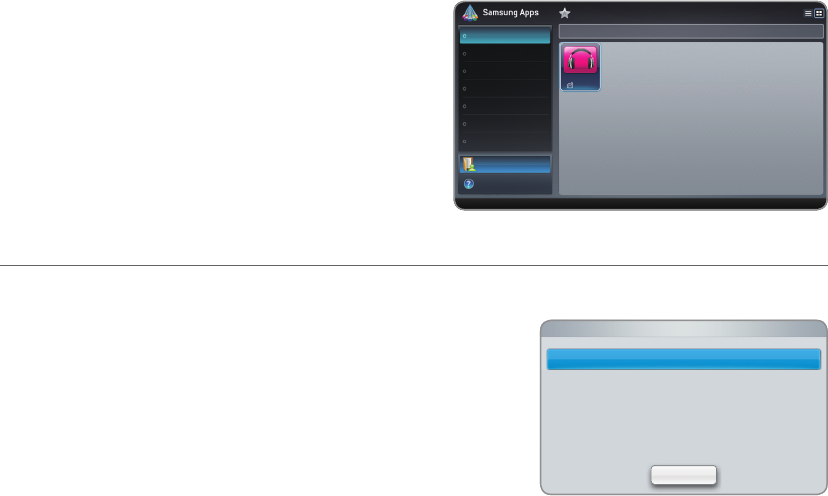
48
English
Advanced Features
Method 2: Using the Keypad of T9 type.
4-1. For example, suppose that you want to input “105Chang”.
4-2. Press the TTX/MIX button on the remote 3 times to change the input mode from lower case to numbers.
4-3. Press the 1, 0 and 5 button in numerical order.
4-4. Press the TTX/MIX button on the remote 3 times to change the input mode from numbers to capitalized case.
4-5. Press numbers in sequence: 2, 4, 2, 6, 4. A window will appear displaying a list of words that can be entered using
the selected numbers. Select "chang" from the list.
✎
If "Chang" cannot be found in the list, select + to creat your own dictionary. Add your own word to your dictionary.
5. Using the remote control, enter the Password.
yPassword must be 6~12 words.
yYou can delete the entered character using the PRE-CH button.
yUsing the
�
(REW) or
µ
(FF) button, you can select icon you want to enter in icon keypad screen.
6. Account created. You can use the services provided by all users of your Samsung TV with a single login by linking the
users’ account to the TV ID. If you want to register a service site ID, select Register. Service Site list will appear on the
screen.
✎
If you want to register service later, select Register
Later.
7. Select Register of the Service Site you want, then press the
ENTER
E
button.
8. Using number buttons, enter your application site ID and
password. When done, select OK.
9. Registered successfully. If you add another service site, select
Yes. then press the ENTER
E
button, go to step 7.
10. When completed, select OK. Then press the ENTER
E
button.
¦Setting up Smart Hub
■Settings
Configure Smart Hub settings from this screen.
Highlight Settings using the
u
and
d
buttons and press the ENTER
E
button.
yAccount Management
Register Service Account: Register login information for service sites.
Change Password: Change account password.
Remove from TV Account List: Delete an account from the list of
accounts.
Deactivate Account: Withdraw membership from Smart Hub.
yService Manager
Ticker Autorun: You can set Ticker Autorun to come on when powering on the TV.
✎
The Ticker application provides useful News, Weather, and Stock Market information. The Ticker application on
Smart Hub must be downloaded to use this feature.
✎
Depending on your country, Ticker application may have a different service or not be supported.
Settings
Close
Account Management
Service Manager
Reset
Properties
You Tube
a
Login
b
List View
R
Return
What’s New?
My Account
Video
Game
Lifestyle
Sports
Information
Other
Help
Welecome to Samsung Apps! More apps are in store for you enjoy.
Free
YouTube
TV store Test User002
What's New?

49
English
Advanced Features
Channel Bound Service (Off / On): Some channels support applications as an Internet data service, allowing you to
access the Internet service while watching TV.
✎
Only available if supported by the broadcaster
yReset: Resets Smart Hub settings to factory default settings. If you want reset Smart Hub, Enter password.
yProperties
More: Display information about Smart Hub.
Terms of Service Agreement: Display the Terms of Service Agreement.
¦Using the Smart Hub service
■Samsung Apps
Samsung Apps is a store for downloading applications to be used on Samsung TV/AV equipment.
Users can enjoy a variety of contents such as videos, music, photos, games, useful information etc. using the downloaded
applications.
Additional applications will be available in the future.
✎
Using the colour buttons with the Samsung Apps.
y
a
Red (Login): To log in to the internet service.
y
b
Green (List View / Thumbnail View): To change the view mode.
y
}
Blue (Sort by): To sort the applications by Recommended, Most downloaded, Most recent or Name.
yR (Return): Moves to previous menu.
Using the Samsung Apps by category
The following categories are available:
yWhat’s New?: Displays newly registered applications.
yVideo: Displays various video media such as movies, TV shows and short length videos.
yGame: Displays various games such as sudoku and chess.
ySports: Displays various sports media such as match information, images and short length video.
yLifestyle: Includes various lifestyle media services such as music, personal photo management tools and social
networking such as Facebook and Twitter.
yInformation: Includes various information services such as news, stocks and weather.
yOther: Includes other miscellaneous services.
yMy Account: Displays the application list and your cyber cash balance.
✎
Starting in the middle of 2010 (US and Korea only), you can purchase cyber-cash for buying applications through
tv.samsung.com.
yHelp: If you have questions about Smart Hub, check this section first.
[Legal Statement]
Due to the various capabilities of products featuring the Samsung Smart Hub - Content Service, as well as limitations in the
available content, certain features, applications, and services may not be available on all devices or in all territories. Some
features on Smart Hub may also require additional peripheral devices or membership fees that are sold separately. Please
visit http://www.samsung.com for more information on specific device information and content availability. The services and
availability of content through Smart Hub are subject to change from time to time without prior notice.

50
English
Advanced Features
¦Troubleshooting for SMART HUB
Problem Possible Solution
Some application contents
only appear in English. How
can I change the language?
The Application content language may be different from the application user
interface language.
The ability to change the language depends on the service provider.
Some application services do
not work.
Check with the service provider.
Refer to the help website for application service provider information.
When a network error occurs, I
can only use the setting menu.
If network connection doesn’t work, your service might be limited, as all functions
except the setting menu are needed to connect to the internet.
All content and services accessible through this device belong to third parties and are protected by copyright, patent,
trademark and/or other intellectual property laws. Such content and services are provided solely for your personal
noncommercial use. You may not use any content or services in a manner that has not been authorized by the content
owner or service provider. Without limiting the foregoing, unless expressly authorized by the applicable content owner or
service provider, you may not modify, copy, republish, upload, post, transmit, translate, sell, create derivative works, exploit,
or distribute in any manner or medium any content or services displayed through this device.
YOU EXPRESSLY ACKNOWLEDGE AND AGREE THAT USE OF THE DEVICE IS AT YOUR SOLE RISK AND THAT THE
ENTIRE RISK AS TO SATISFACTORY QUALITY, PERFORMANCE AND ACCURACY IS WITH YOU. THE DEVICE AND
ALL THIRD PARTY CONTENT AND SERVICES ARE PROVIDED “AS IS” WITHOUT WARRANTY OF ANY KIND, EITHER
EXPRESS OR IMPLIED. SAMSUNG EXPRESSLY DISCLAIMS ALL WARRANTIES AND CONDITIONS WITH RESPECT TO
THE DEVICE AND ANY CONTENT AND SERVICES, EITHER EXPRESS OR, IMPLIED, INCLUDING BUT NOT LIMITED
TO, WARRANTIES OF MERCHANTABILITY, OF SATISFACTORY QUALITY, FITNESS FOR A PARTICULAR PURPOSE, OF
ACCURACY, OF QUIET ENJOYMENT, AND NON-INFRINGEMENT OF THIRD PARTY RIGHTS. SAMSUNG DOES NOT
GUARANTEE THE ACCURACY, VALIDITY, TIMELINESS, LEGALITY, OR COMPLETENESS OF ANY CONTENT OR SERVICE
MADE AVAILABLE THROUGH THIS DEVICE AND DOES NOT WARRANT THAT THE DEVICE, CONTENT OR SERVICES
WILL MEET YOUR REQUIREMENTS, OR THAT OPERATION OF THE DEVICE OR SERVICES WILL BE UNINTERRUPTED
OR ERROR-FREE.
UNDER NO CIRCUMSTANCES, INCLUDING NEGLIGENCE, SHALL SAMSUNG BE LIABLE, WHETHER IN CONTRACT
OR TORT, FOR ANY DIRECT, INDIRECT, INCIDENTAL, SPECIAL OR CONSEQUENTIAL DAMAGES, ATTORNEY FEES,
EXPENSES, OR ANY OTHER DAMAGES ARISING OUT OF, OR IN CONNECTION WITH, ANY INFORMATION CONTAINED
IN, OR AS A RESULT OF THE USE OF THE DEVICE, OR ANY CONTENT OR SERVICE ACCESSED BY YOU OR ANY
THIRD PARTY, EVEN IF ADVISED OF THE POSSIBILITY OF SUCH DAMAGES.
Third party services may be changed, suspended, removed, terminated or interrupted, or access may be disabled at any
time, without notice, and Samsung makes no representation or warranty that any content or service will remain available for
any period of time. Content and services are transmitted by third parties by means of networks and transmission facilities
over which Samsung has no control. Without limiting the generality of this disclaimer, Samsung expressly disclaims any
responsibility or liability for any change, interruption, disabling, removal of or suspension of any content or service made
available through this device. Samsung may impose limits on the use of or access to certain services or content, in any case
and without notice or liability.
Samsung is neither responsible nor liable for customer service related to the content and services. Any question or request
for service relating to the content or services should be made directly to the respective content and service providers.
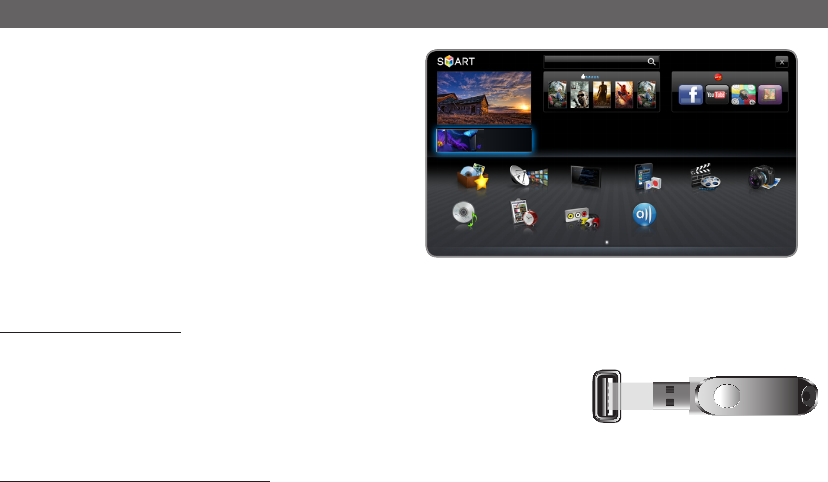
51
English
Advanced Features
Using the Smart Hub
Enjoy photos, music and/or movie files saved on a USB
Mass Storage Class (MSC) device.
1. Press the SMART HUB button.
2. Press the
d
or
u
button to select desired menu
(Videos, Photos, Music), then press the ENTER
E
button.
Connecting a USB Device
1. Turn on your TV.
2. Connect a USB device containing recorded TV, photo, music and/or movie
files to the USB 1, USB 2 (HDD) port on the back or side panel of the TV.
3. When USB is connected to the TV, popup window appears. Then you can
select New device connected
Connecting to the PC through network
You can play pictures, music and videos saved on your PC through a network connection in the AllShare mode.
1. For more information on how to configure your network, refer to “Network Connection”.
x
You are recommended to locate both TV and PC in same subnet. The first 3 parts of the subnet address of the TV
and the PC IP addresses should be the same and only the last part (the host address) should be changed. (e.g. IP
Address: 123.456.789.**)
2. Using a LAN cable, connect between the external modem and the PC onto which the AllShare PC Software programme
will be installed.
x
You can connect the TV to the PC directly without connecting it through a Sharer (Router).
✎
Functions that are not supported when connecting to a PC through a network:
x
The Background Music and Background Music Setting functions.
x
Sorting files by preference in the Photos, Music, and Videos folders.
x
The
�
(REW) or
µ
(FF) button while a movie is playing.
✎
DivX DRM, Multi-audio, embedded captions are not supported.
✎
AllShare PC Software should be permitted by the firewall programme on your PC.
✎
When you use media contents mode through a network connection, depending on the functions of the provided
server:
x
The sorting method may vary.
x
The Scene Search function may not be supported.
x
The Resume, which resumes playing of a video, may not be supported.
– The Resume function does not support multiple users. (It will have only memorised the point where the most
recent user stopped playing.)
x
The
l
or
r
button may not work depending on the content information.
✎
You may experience file stuttering while playing a video in media contents through a network connection.
TV Rear
USB Drive
HUB
Search
Your Video Samsung Apps
Real Reality
세계최초 Full HD
3D LED
yThe displayed image may differ depending on the
model.
Connetc to the Internet and enjoy a variety of contents through Smart Hub
This feature may not be available in some countries
For some of the countries listed, local language characters might not be display properly
Favourites Channel Guide Recorded TV Videos Photos
Music Schedule Man... Source
a
Login
b
Sort by
{
Edit Mode
}
Settings
AllShare

52
English
Advanced Features
Before using media contents functions...
✎
It might not work properly with unlicenced multimedia files.
✎
Need-to-Know List before using media contents
x
MTP (Media Transfer Protocol) is not supported.
x
The file system supports FAT16, FAT32 and NTFS. Note that the supported maximum file size is 2GB for FAT16 and
4GB for FAT32.
x
Certain types of USB Digital camera and audio devices may not be compatible with this TV.
x
Media contents only supports USB Mass Storage Class (MSC) devices. MSC is a Mass Storage Class Bulk-Only
Transport device. Examples of MSC are Thumb drives, Flash Card Readers and USB HDD (USB HUB are not
supported). Devices should be connected directly to the TV’s USB port.
x
Before connecting your device to the TV, please back up your files to prevent them from damage or loss of data.
SAMSUNG is not responsible for any data file damage or data loss.
x
Connect a USB HDD to the dedicated USB 2 (HDD) port.
x
Do not disconnect the USB device while it is loading.
x
The higher the resolution of the image, the longer it takes to display on the screen.
x
The maximum supported JPEG resolution is 15360X8640 pixels.
x
For unsupported or corrupted files, the “Not Supported File Format” message is displayed.
x
If the files are sorted by Folder View, up to 1000 files can be displayed in each folder.
x
MP3 files with DRM that have been downloaded from a non-free site cannot be played. Digital Rights Management
(DRM) is a technology that supports the creation, distribution and management of the content in an integrated and
comprehensive way, including the protection of the rights and interests of the content providers, the prevention of the
illegal copying of contents, as well as managing billings and settlements.
x
If more than 2 PTP devices are connected, you can only use one at a time.
x
If more than two MSC devices are connected, some of them may not be recognized. A USB device that requires high
power (more than 500mA or 5V) may not be supported.
x
If an over-power warning message is displayed while you are connecting or using a USB device, the device may not
be recognized or may malfunction.
x
If the TV has been no input during time set in Auto Protection Time, the Screensaver will run.
x
The power-saving mode of some external hard disk drives may be released automatically when connected to the TV.
x
If a USB extension cable is used, the USB device may not be recognized or the files on the device may not be read.
x
If a USB device connected to the TV is not recognized, the list of files on the device is corrupted or a file in the list is
not played, connect the USB device to the PC, format the device and check the connection.
x
If a file deleted from the PC is still found when media contents is run, use the “Empty the Recycle Bin” function on the
PC to permanently delete the file.
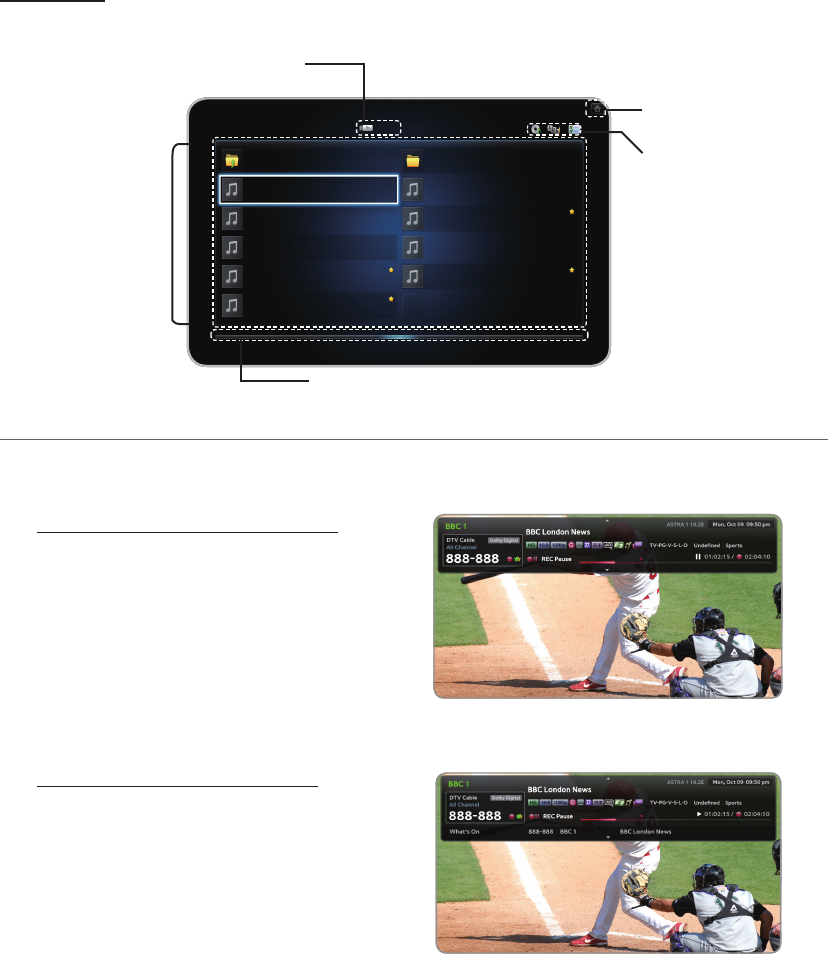
53
English
Advanced Features
Screen Display
Move to the file you desired using the
u
/
d
/
l
/
r
buttons and then press the ENTER
E
or
(Play) button. The file is
played.
¦Recorded TV
■Timeshift Function
You can pause a live TV or start watching the TV programme from the beginning point you started Timeshift function.
Start Timeshift function with PAUSE button
1. When you are watching a TV channel, press the
∑
(PAUSE) button.
2. The image of TV programme will be paused, and
then Timeshift bar will appear. Live TV is displayed
on the left side of Timeshift bar.
Start Timeshift fuction with PLAY button
1. When you are watching a TV channel, press the
∂
(PLAY) button.
2. The Timeshift function starts and the Timeshift bar
will appear. Live TV is displayed on the left side of
Timeshift bar.
I Love Music
Ming
Music_1
No Singer
Music_2
No Singer
Music_3
No Singer
Music_4
No Singer
Music_6
No Singer
Music_5
No Singer
Sweet Candy
Music_7
No Singer
Music_8
No Singer
Music_9
No Singer
SUM
Music Home: Return to content home
Change Contents / Device:
Changes the content type or
connected device.
Sorting: Displays sorting
standard. Sorting standard
is different depending on the
contents.
Edit Mode: Select and play
multiple files or assign them to My
Playlist. This function is available
only for Music.
Page bar: Moves to another page containing a list of files.
Device name: Displays a connected
device name.
File List Section: You can
conrm the les and groups
that is sorted by each
category.
yThe displayed image may differ depending on the
model.
yThe displayed image may differ depending on the
model.
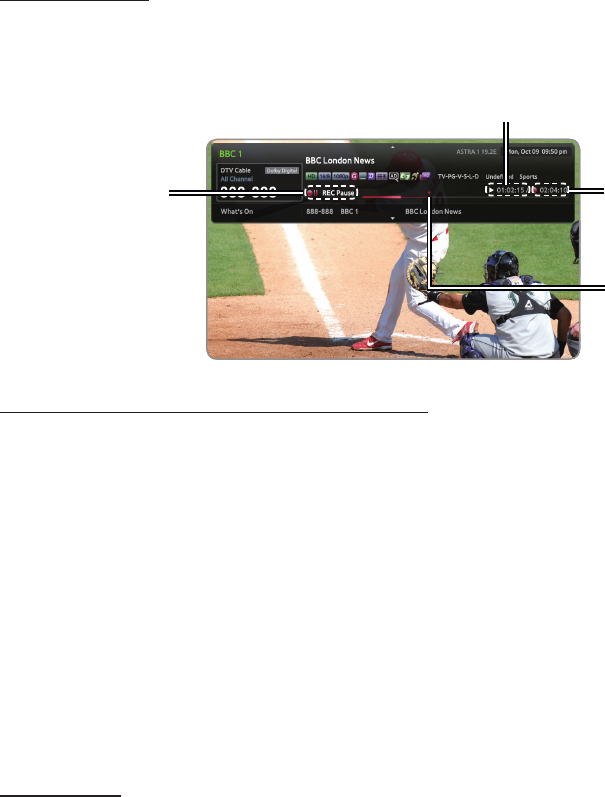
54
English
Advanced Features
Timeshift information
You can see current information about Timeshift function.
1. Press the ENTER
E
button on your remote while Timeshift function is enabled.
2. Timeshift bar appears as below.
yTimeshift Screen
Playback control button during Timeshift function is enabled.
x
Each time press the SEARCH (
�
,
μ
) button, the playback speed change as follows. (
�
1
�
2 → ·····
�
6
�
7
/
μ
1
μ
2 → ·····
μ
6
μ
7)
xl
button: Jump to – 20 sec from current position
xr
button: Jump to + 20 sec from current position
x
(PAUSE) button : Pause the scene while keeping Timeshift operation.
– In pause (
) mode, press the SEARCH (
�
,
μ
) button. If you press the SEARCH (
�
,
μ
) button, the
playback speed is reduced to (ƒ)1/8 (ƒ)1/4 (ƒ)1/2 / („)1/8 („)1/4 („)1/2.
x∫
(STOP) button : If you are watching the past scene, playback point will jump to the same scene with Live TV. If
you are watching the same scene with Live TV, the Timeshift function will be stopped.
x
In pause mode, press the PAUSE (∑)button. Each time the PAUSE (∑) button is pressed, a new frame will be
appear.
x
To return to nomal speed playback, press the PLAY (
r
) button.
✎
NOTE
x
The product does not play sound in Stop mode.
x
Stop motion operates only in the forward direction.
To stop Timeshift
1. If Timeshift bar is not in ∑ (PAUSE) or PAST mode, press
(STOP) button.
2. Select YES button and press ENTER
E
button to stop Timeshift.
3. If the Timshift bar is in ∑ (PAUSE) or PAST mode, Timeshift mode will be changed into Live TV when you press
(STOP) button first time.
To use the recording or Timeshift function, the connected USB device must be available for recording. Device format is
recommended to use USB HDD.
✎
During the Device formatting, do not disconnect the device while formatting is in progress. If you format the device,
all files will be deleted.
✎
Before formatting your device to the TV, please back up your files to prevent them from damage or loss of data.
SAMSUNG is not responsible for any data file damage or data loss.
Shows recorded time by
Timeshift function.
Shows progress bar.
Mode Display : Shows
current states of Timeshift
function. The past icon
appears when current
scene is the previous
Shows current playback point.
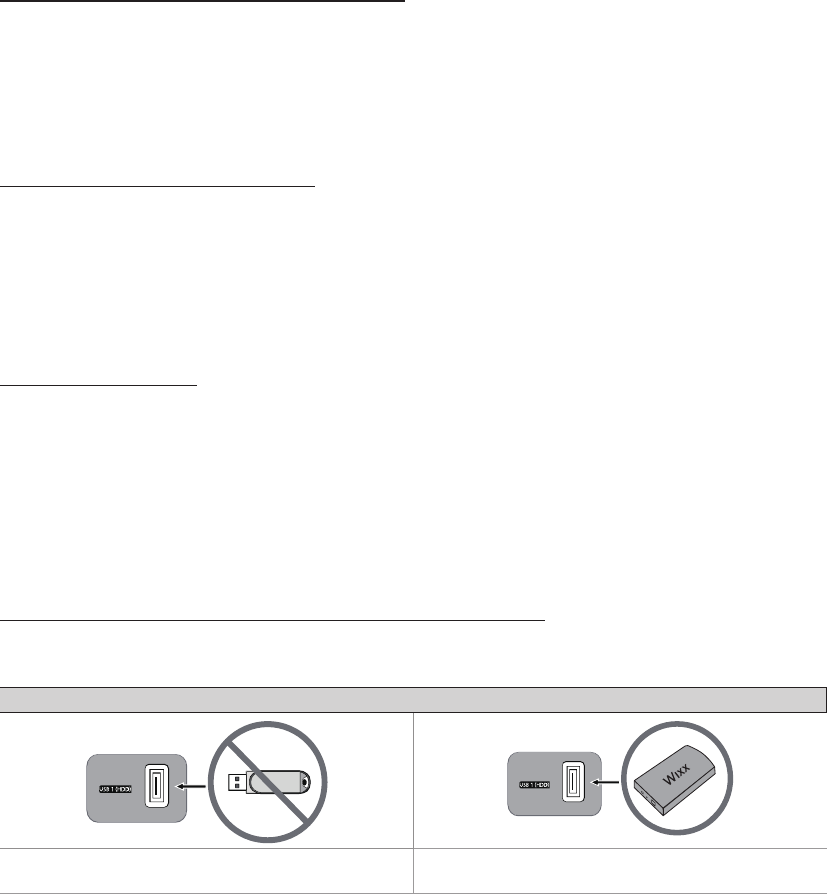
55
English
Advanced Features
■Timer Recording (in Schedule Manager)
O
SMART HUB → Schedule Manager → ENTER
E
Allows you to make a reservation to record a programme scheduled for broadcast. Set the current time first to use this
function.
Using the Timer Recording function (digital channels only)
1. Press the ENTER
E
button to select Schedule Manager. The Schedule Manager screen will be displayed.
2. Press the ENTER
E
button to add manual booking. A pop up screen will appear.
3. Press the
l
or
r
button to select the Timer Recording.
✎
We recommend using a USB HDD with at least 5 400 rpm, but a USB HDD of RAID type is not supported.
✎
A USB storage device cannot record until it completes the Device Performance Test.
4. Press the
l
/
r
/
u
/
d
buttons to set the Antenna, Channel, Repeat, Start Time or End Time.
To record a current broadcasting programme
Allows you to record a programme currently being broadcasted.
Set the current time first to use this function.
1. When you watch a broadcast programme, press the
(REC) button on the remote to record. A pop up window will
appear.
✎
We recommend using a USB HDD with at least 5 400 rpm, but a USB HDD of RAID type is not supported.
✎
A USB storage device cannot record until it completes the Device Performance Test.
2. Select Length to set up the recording time, and then select OK.
Using the Timeshift function
If you missed a live broadcast, you can see from the recorded broadcast using this feature.
1. When you watch a broadcast programme, press the
(Play) button on the remote to start the Timeshift function.
2. If you want to stop the Timeshift function, press the
(Stop) button on the remote.
✎
NOTE
x
The Timeshift mode operates for a maximum of 90 minutes.
x
After the Timeshift mode function has run for the maximum time, the time information will be fixed to “00:00:00.”
x
The Timeshift function is not supported for analogue channels.
x
The Timeshift functions are disabled for channels locked with Channel Lock.
Connect a USB device before using the Timeshift and Recorded TV functions.
[ Recorded videos are DRM (digital rights management) protected and cannot be played on a PC or other TVs. Note that
files saved on the TV cannot be used after the main board is changed.
Connecting a USB device
Do not use a USB memory stick. We do not support a USB
memory stick.
We recommend using a USB HDD with at least 5 400 rpm,
but a USB HDD of RAID type is not supported.

56
English
Advanced Features
✎
NOTE
x
To use the Timeshift mode or the Recorded TV function, a connected USB device must be execute the Device
Format function to proper form for recording.
– During the device formatting, do not disconnect the device while formatting is in progress. If you format the device, all
files will be deleted.
– Before formatting your device to the tv, please back up your files to prevent them from damage or loss of data.
SAMSUNG is not responsible for any data file damage or data loss.
x
Recorded videos are DRM (digital rights managements) protected and cannot be played on a PC or other TVs. Note
that files saved on the TV cannot be used after the main board is changed.
x
If the 10M free memory space limit of the USB storage device is reached, the current recording process will be
closed.
x
We recommend using a USB HDD with at least 5 400 rpm, but a USB HDD of RAID type is not supported.
x
The availability of both recording and the Timeshift function may differ depending on picture quality and the free
space on the hard disk drive.
x
Note that if you have paused the recording the TV will automatically resume playback.
x
If the 5% free memory space limit of the USB storage device is reached, the current recording process will be closed.
x
When recording is performed by both the PVR (Personal Video Recorder) function and a device that supports the
HDMI-CEC feature, recording by the PVR function takes precedence.
x
During a playback or the Timeshift, the picture will be displayed according to the display settings of the TV.
x
If you change the input source during recording, the screen will go blank until the change is completed.
x
If the USB device has failed the Device Performance Test, the USB device must go through the Device Format and
Device Performance Test again before you record with the Guide or Channel.
x
The Timeshift functions can only be used with a USB storage device that completed the Device Performance Test.
x
If you attempt the recording or Timeshift function with a device that did not have the Device Performance Test, the
function will not start.
x
If you press (REC) on the remote control while the Channel screen is being displayed or record with Timer
Recording, the TV may start or stop recording 1 or 2 seconds later than you intended due to the time needed to
process the command.
x
If a USB device dedicated to recording is connected, existing Timeshift or recording files that were saved abnormally
will automatically be deleted.
x
If you switch to external input mode during recording, the recording will continue but the (REC) button will be
disabled.
x
If any function that turns off the TV (Sleep Timer, Off timer, etc.) is set for a time that conflicts with recording, the TV
will be turned off once the recording is complete.
Playing Recorded TV Programme
1. Press the
l
/
r
/
u
/
d
button to select the desired file in the file list.
2. Press the ENTER
E
button or
(Play) button.
yThe selected file is displayed on the top with its playing time.
yDuring playing the recorded TV programme, you can search using the
l
and
r
button.
yYou can use
(REW) and
µ
(FF) buttons during playback.
Device Management
Manage external devices. You can manage options such as device format, checking device, Device performance test and
default device.
yDevice format: Format the device.
yChecking device: Checks for errors on the device.
yDevice Performance Test: Test the recording performance of the device.
yDefault Recording Device: Select default recording device.
yDevice Information: Show the device information
– Device Type, Device Name, Used Space, Available Space, Recordable Time, Total Space, Progress bar.
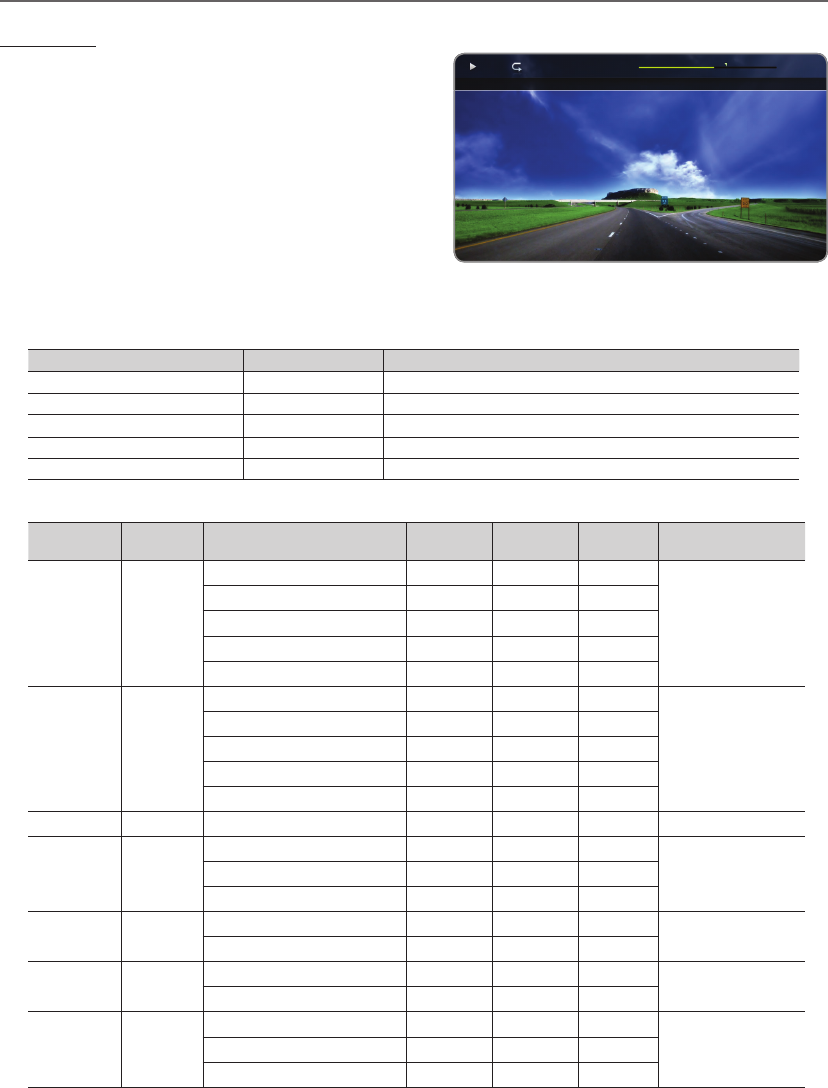
57
English
Advanced Features
¦Videos
Playing Video
1. Press the
l
/
r
/
u
/
d
button to select the desired file in the
file list.
2. Press the ENTER
E
button or
(Play) button.
x
The selected file is displayed on the top with its playing
time.
x
If video time information is unknown, play time and
progress bar are not displayed.
x
During playing the video, you can search using the
l
and
r
button.
x
You can use
(REW) and
µ
(FF) buttons during
playback.
✎
In this mode, you can enjoy movie clips contained on a Game, but you cannot play the Game itself.
ySupported Subtitle Formats
Name File extension Format
MPEG-4 time-based text .txt XML
SAMI .smi HTML
SubRip .srt string-based
SubViewer .sub string-based
Micro DVD .sub or .txt string-based
ySupported Video Formats
File Extension Container Video Codec Resolution Frame rate
(fps)
Bit rate
(Mbps) Audio Codec
*.avi
*.mkv
AVI
MKV
DivX 3.11 / 4.x / 5.1 / 6.0 1920x1080 6 ~ 30 8
MP3 / AC3 / LPCM /
ADPCM / DTS Core
XviD 1920x1080 6 ~ 30 8
H.264 BP / MP / HP 1920x1080 6 ~ 30 25
MPEG4 SP / ASP 1920x1080 6 ~ 30 8
Motion JPEG 1920x1080 6 ~ 30 8
*.asf ASF
DivX 3.11 / 4.x / 5.1 / 6.0 1920x1080 6 ~ 30 8
MP3 / AC3 / LPCM /
ADPCM / WMA
XviD 1920x1080 6 ~ 30 8
H.264 BP / MP / HP 1920x1080 6 ~ 30 25
MPEG4 SP / ASP 1920x1080 6 ~ 30 8
Motion JPEG 800x600 6 ~ 30 8
*.wmv ASF Window Media Video v9 1920x1080 6 ~ 30 25 WMA
*.mp4 MP4
H.264 BP / MP / HP 1920x1080 6 ~ 30 25
MP3 / ADPCM / AACMPEG4 SP / ASP 1920x1080 6 ~ 30 8
XVID 1920x1080 6 ~ 30 8
*.3gp 3GPP H.264 BP / MP / HP 1920x1080 6 ~ 30 25 ADPCM / AAC / HE-
AAC
MPEG4 SP / ASP 1920x1080 6 ~ 30 8
*.vro VRO
VOB
MPEG1 352x288 24 / 25 / 30 30 AC3 / MPEG / LPCM
MPEG2 1920x1080 24 / 25 / 30 30
*.mpg
*.mpeg PS
MPEG1 352x288 24 / 25 / 30 30
AC3 / MPEG / LPCM
/ AAC
MPEG2 1920x1080 24 / 25 / 30 30
H.264 1920x1080 6 ~ 30 25
1:02:15 / 2:04:10
1:02:15 / 2:04:10 3/15

58
English
Advanced Features
*.ts
*.tp
*.trp
TS
MPEG2 1920x1080 24 / 25 / 30 30
AC3 / AAC / MP3 / DD+
/ HE-AAC
H.264 1920x1080 6 ~ 30 25
VC1 1920x1080 6 ~ 30 25
Other Restrictions
✎
NOTE
x
If there are problems with the contents of a codec, the codec will not be supported.
x
If the information for a Container is incorrect and the file is in error, the Container will not be able to play
correctly.
x
Sound or video may not work if the contents have a standard bitrate/frame rate above the compatible Frame/sec
listed in the table above.
x
If the Index Table is in error, the Seek (Jump) function is not supported.
x
You may experience file stuttering while playing a video through a network connection.
Video Decoder Audio Decoder
• Supports up to H.264, Level 4.1
• H.264 FMO / ASO / RS, VC1 SP / MP / AP L4 and AVCHD are not
supported.
• XVID, MPEG4 SP, ASP:
– Below 1280 x 720: 60 frame max
– Above 1280 x 720: 30 frame max
• GMC 2 over is not supported.
• Supports up to WMA 7, 8, 9, STD
• WMA 9 PRO does not support 2 channel excess multi channel
or lossless audio.
• WMA sampling rate 22050Hz mono is not supported.
¦Playing movie file continuously (Resume Play)
If you exit the playing Videos function, it can be played later from the point where it was stopped.
✎
The Resume function does not support multiple users. (It will have only memorised the point where the most recent
user stopped playing.)
1. Select the movie file you want to play continuously by pressing the
l
or
r
button to select it from the file list section.
2. Press the
(Play) / ENTER
E
button.
✎
A triangle icon will appear on the progress bar when the playback starts.
3. Press the TOOLS button, and then select Resume. The Movie will begin to play from where it was stopped.
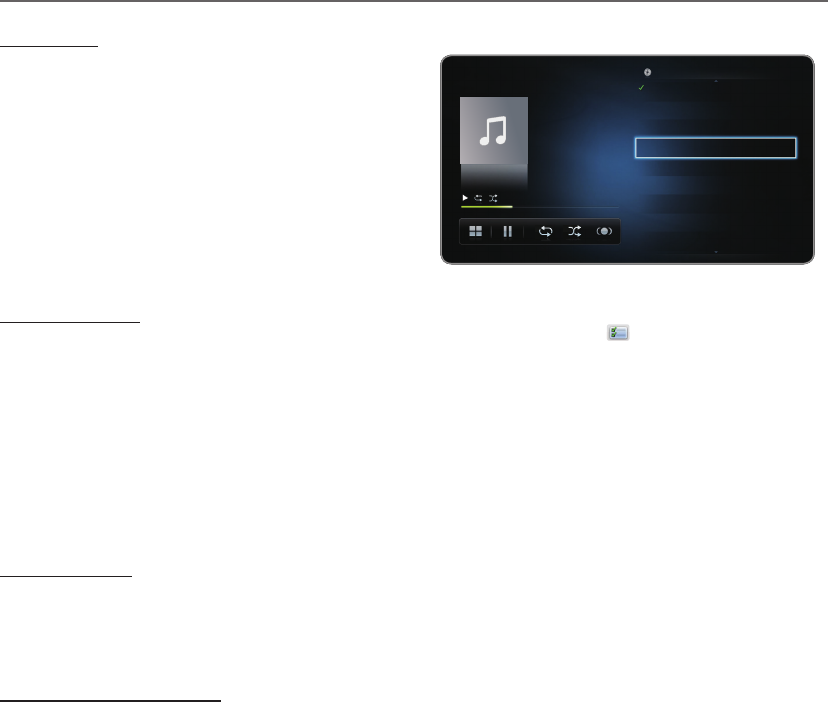
59
English
Advanced Features
¦Music
Playing Music
1. Press the
l
/
r
/
u
/
d
button to select the desired music
file in the file list.
2. Press the ENTER
E
button or
(Play) button.
x
During playing the music, you can search using the
(FF) and
µ
(REW) button.
✎
Only displays the files with MP3 and PCM file
extension. Other file extensions are not displayed, even
if they are saved on the same USB device.
✎
If the sound is abnormal when playing MP3 files, adjust
the Equalizer in the Sound menu. (An over-modulated
MP3 file may cause a sound problem.)
Creating My Playlist
1. On the Music screen in the Smart Hub menu, press the
l
/
r
/
u
/
d
button to select Edit Mode, and then press
the ENTER
E
button.
2. Press the
l
/
r
/
u
/
d
button to select the tracks you want to add and press the ENTER
E
button.
✎
The
c
mark appears to the left of the selected files.
✎
To select all the files in the current page, select Select All at the top.
3. Press the
l
/
r
/
u
/
d
button to select Add to My Playlist.
✎
Note that selecting My Playlist Initialize will return My Playlist to the default playlist.
4. Press the ENTER
E
button. The message Selected items added to My Playlist. is displayed.
5. The newly created or updated playlist will be in the main Music page.
Playing My Playlist
Select the My Playlist folder and it will play automatically. Press the
u
or
d
button to select a different music file within the
play list.
✎
To delete a file from My Playlist, select the recycle bin icon next to the file you want to delete by using the direction
buttons.
Playing the selected music files
1. On the Music screen in the Smart Hub menu, press the
l
/
r
/
u
/
d
button to select Edit Mode, and then press the
ENTER
E
button.
2. Press the
l
/
r
/
u
/
d
button to select the desired music file in the file list, and then ENTER
E
button.
✎
NOTE
x
The check box mark appears to the left of the selected files.
x
To select all the files in the current page, select Select All at the top.
x
To cancel a selection, press the ENTER
E
button again.
3. Press the
l
/
r
/
u
/
d
button to select Play. The selected music files will be play.
Ming
Love
R&B
2011-01-01
tag
1.2MB
Music_1
No Singer
I Love You
Ming
Music_3
No Singer
Music_2
No Singer
Music_4
No Singer
Music_5
No Singer
Music_6
No Singer
Music_7
No Singer
Music_8
No Singer
I Love You
01:01/03:12
Music
Playlist 13/30
60
English
Advanced Features
¦Photos
Viewing a Photo (or Slide Show)
1. Press the
l
/
r
/
u
/
d
button to select the desired photo in
the file list.
2. Press the ENTER
E
button.
x
When you press the
(Play) button in the file list, slide
show will be started immediately.
x
All files in the file list section will be displayed in the slide
show.
x
During the slide show, all files in the file list will be
displayed in order.
✎
Music files can be automatically played during the Slide
Show if the Background Music is set to On.
✎
The Background Music Setting cannot be changed until the BGM has finished loading.
¦Smart Hub - Additional Function
Sorting the file list
To sort files in the file list, select the Sorting by using the
l
/
r
/
u
/
d
button. And then press the ENTER
E
button.
Category Operations Recorded
TV Videos Music Photos
Default Default is sorted by Title without Group
>
Folder View Displays the whole folder. You can view the file name and thumbnail by
selecting the folder.
>>>
Title Sorts and displays the file title in Symbol/Number/Alphabet/Special order.
> > > >
Latest Date Sorts and shows files by the latest date.
> > >
Earliest Date Sorts and shows files by the earliest date.
> > >
Artist Sorts the music file by artist in alphabetical order.
>
Album Sorts the music file by album in alphabetical order.
>
Genre Sorts music files by the genre.
>
Monthly Sorts and shows photo files by month.
>
Weekly Sorts the recorded les by week.
>
Channel Sorts the recorded les by channel name.
>
Normal Friends.jpg 1024 X 768 2011/01/03
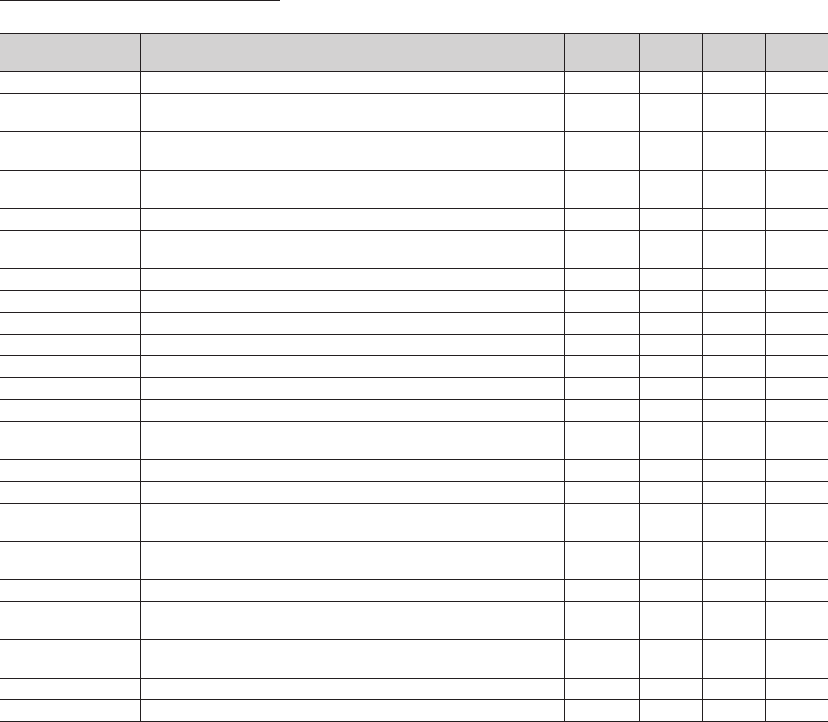
61
English
Advanced Features
Videos/Music/Photos Play Option menu
The following functions are enabled during playback.
Category Operations Recorded
TV Videos Music Photos
List Return to the file list.
> > > >
Resume / Play
continuosly
A movie file will begin to play from where it was stopped.
> >
Play / Pause You can start or pause a video or music file. Alternatively, the
(Play) or
(Pause) button on the remote can be used.
> >
Set Section Repeat You can set up the function to repeat some section. You can also watch
some section you want to.
>
Edit Favourites Set files you watch frequently as favourites.
>
Scene Search You can use the Scene Search function during playback to view or start a
movie from the scene of your choice.
> >
Title Search You can move directly to another Title.
> >
Time Search You can search the movie using
l
and
r
buttons at intervals of 1 minute.
> >
Repeat Mode You can play movie and music files repeatedly.
> > >
Shuffle Mode You can play the music sequentially or randomly.
>
Picture Size You can adjust the picture size to your preference.
>
Sound Mode You can change the Sound Mode.
> > > >
Picture Mode You can change the Picture Mode.
> > >
Subtitle You can view a subtitle. You can select a specific language if the subtitle file
contains multiple languages.
> >
Previous / Next Go to previous / next photo file.
>
Subtitle Setting Displays the Subtitle Setting. You can set up a subtitle option.
> >
Start Slide Show /
Stop Slide Show
You can start or stop a slide show. Alternatively, the
or
button on
the remote can be used.
>
Slide Show Speed You can select the slide show speed during the slide show. Alternatively, the
or
μ
button on the remote can be used.
>
Slide Show Effect You can set various slide show effects.
>
Background Music
On / Off
You can start or stop a background music.
>
Background Music
Setting
You can set and select background music when watching a photo file or
slide show.
>
Zoom You can zoom into images in full screen mode.
>
Rotate You can rotate images.
>
✎
Pressing the INFO button while a device name is selected will display information about the selected device name.
✎
Pressing the INFO button while a file is selected will display information about the selected file.

62
English
Advanced Features
About AllShare™
AllShare™ connects your TV and compatible Samsung
mobile phones/ devices through a network. On your TV,
you can view call arrivals, SMS messages and schedules
set on your mobile phones. In addition, you can play media
contents including videos, photos and music saved on your
mobile phones or the other devices (such as your PC) by
controlling them on the TV via the network. Additionally, you
can use your TV for browsing web pages in your mobile
phones.
✎
For more information, visit “www.samsung.com” or
contact the Samsung call centre. Mobile devices may
need additional software installation. For details, refer to
each device’s user’s guide.
¦Setting Up AllShare™
O
MENU → Network → AllShare Settings →
ENTER
E
AllShare Settings
■Media (On / Off):
Enables or disables the
media function. When
the media function is
on, Media contents play
can be controlled by a
mobile phone or other
devices that support
DLNA DMC.
Media
Shows a list of mobile phones or connected devices which
have been set up with this TV for using the Media function.
✎
The Media function is available in all devices which
support DLNA DMC.
yAllowed / Denied: Allows/Blocks the the devices.
yDelete: Deletes the devices from the list.
✎
This function only deletes the name of the device
from the list. If the deleted device is turned on or
tries to connect to the TV, it may appear on the
list again.
Using the Media Function
An alarm window appears informing the user that the media
contents (videos, photos, music) sent from a mobile phone
will be displayed on your TV. The contents are played
automatically 3 seconds after the alarm window appears.
If you press the RETURN or EXIT button when the alarm
window appears, the media contents are not played.
✎
NOTE
x
If the media function executes for the first time,
the warning popup window appears. Press the
ENTER
E
button to select Allow, then you can use
Media function on that device.
x
To turn off the media contents transmission from
the mobile phone, set Media to Off in the AllShare
Settings.
x
Contents may not be played on your TV depending
on their resolution and format.
x
The ENTER
E
and
l
/
r
buttons may not work
depending on the type of media content.
x
Using the mobile device, you can control the media
playing. For details, refer to each mobile’s user’s
guide.
AllShare Settings
Media
yThe displayed image may differ
depending on the model.

63
English
Advanced Features
Anynet+
What is Anynet+?
t
Anynet+ is a function that enables you to control all connected Samsung devices that support Anynet+ with your Samsung
TV’s remote. The Anynet+ system can be used only with Samsung devices that have the Anynet+ feature. To be sure your
Samsung device has this feature, check if there is an Anynet+ logo on it.
yYou can only control Anynet+ devices using the TV remote control, not the buttons on the TV.
yThe TV remote control may not work under certain conditions. If this occurs, reselect the Anynet+ device.
yThe Anynet+ functions do not operate with other manufacturers’ products.
yFor the method of connecting external devices, refer to the supported user manual.
To connect to Home Theatre
1. Connect the HDMI IN (1(DVI), 2(ARC)) jack on the TV and the HDMI OUT jack of the corresponding Anynet+ device using
an HDMI cable.
2. Connect the HDMI IN jack of the home theatre and the HDMI OUT jack of the corresponding Anynet+ device using an
HDMI cable.
✎
NOTE
x
Connect the Optical cable between the DIGITAL AUDIO OUT (OPTICAL) jack on your TV and the Digital Audio Input
on the Home Theatre.
x
When following the connection above, the Optical jack only outputs 2 channel audio. You will only hear sound from
the Home Theatre’s Front, Left and Right speakers and the subwoofer. If you want to hear 5.1 channel audio, connect
the DIGITAL AUDIO OUT (OPTICAL) jack on the DVD / Satellite Box (i.e. Anynet Device 1 or 2) directly to the
Amplifier or Home Theatre, not the TV.
x
You can connect only one Home Theatre.
x
You can connect an Anynet+ device using the HDMI cable. Some HDMI cables may not support Anynet+ functions.
x
Anynet+ works when the AV device supporting Anynet+ is in the standby or on status.
x
Anynet+ supports up to 12 AV devices in total. Note that you can connect up to 3 devices of the same type.
HDMI OUT
HDMI OUT
HDMI IN
Digital Audio Input HDMI OUT
HDMI IN
DVI
AUDIO IN
2(ARC) 1(DVI)
Home Theatre
Anynet+
Device 2
Anynet+
Device 1
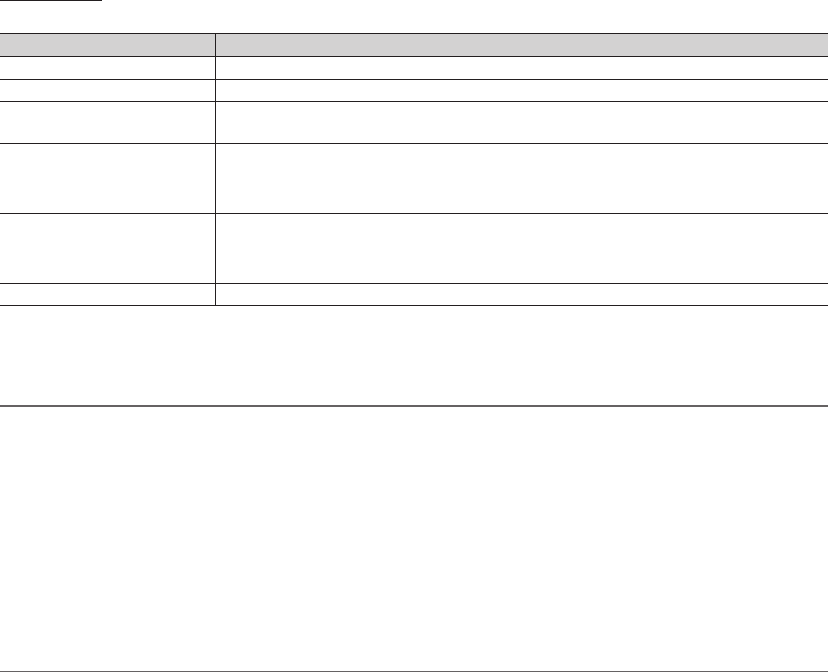
64
English
Advanced Features
Anynet+ Menu
The Anynet+ menu changes depending on the type and status of the Anynet+ devices connected to the TV.
Anynet+ Menu Description
View TV Changes Anynet+ mode to TV broadcast mode.
Device List Shows the Anynet+ device list.
(device_name) MENU Shows the connected device menus. E.g. If a DVD recorder is connected, the disc menu of
the DVD recorder will appear.
(device_name) TOOLS Shows the tools menu of the connected device. E.g. If a DVD recorder is connected, the
play menu of the DVD recorder will appear.
✎
Depending on the device, this menu may not be available.
(device_name) Title Menu Shows the title menu of the connected device. E.g. If a DVD recorder is connected, the title
menu of the DVD recorder will appear.
✎
Depending on the device, this menu may not be available.
Receiver Sound is played through the receiver.
If more than one recording device is connected, they are displayed as (*recorder) and if only one recording device is
connected, it will be represented as (*device_name).
¦Setting Up Anynet+
O
MENU
m
→ System → Anynet+ (HDMI-CEC) → ENTER
E
■Anynet+ (HDMI-CEC) (Off / On)
To use the Anynet+ Function, Anynet+ (HDMI-CEC) must be set to On.
✎
When the Anynet+ (HDMI-CEC) function is disabled, all the Anynet+ related operations are deactivated.
■Auto Turn Off (No / Yes): Setting an Anynet+ Device to turn off automatically when the TV is turned off.
✎
If Auto Turn Off is set to Yes, running external devices will turn off at the same time as the TV powers off.
However, a device may not turn off if recording is in progress.
✎
May not be enabled depending on the device.
¦Switching between Anynet+ Devices
1. Press the TOOLS button to select Anynet+ (HDMI-CEC). And then press the ENTER
E
button to select Device List.
✎
If you cannot find a device you want, select Refresh to refresh the list.
2. Select a device and press the ENTER
E
button. You can switch to the selected device.
✎
The Device List menu will only appear when you set Anynet+ (HDMI-CEC) to On in the System menu.
x
Switching to the selected device may take up to 2 minutes. You cannot cancel the operation during the switching
operation.
x
If you have selected external input mode by pressing the SOURCE button, you cannot use the Anynet+ function.
Make sure to switch to an Anynet+ device by using the Device List.

65
English
Advanced Features
¦Listening through a Receiver
You can listen to sound through a receiver (i.e Home Theatre) instead of the TV Speaker.
1. Select Receiver and set to On.
2. Press the EXIT button to exit.
✎
If your receiver supports audio only, it may not appear in the device list.
✎
The receiver will work when you have properly connected the optical in jack of the receiver to the DIGITAL AUDIO
OUT (OPTICAL) jack of the TV.
✎
When the receiver (i.e Home Theatre) is set to On, you can hear sound output from the TV’s Optical jack. When the
TV is displaying a DTV (aerial) signal, the TV will send out 5.1 channel sound to the receiver. When the source is a
digital component such as a DVD and is connected to the TV via HDMI, only 2 channel sound will be heard from
the receiver.
Using the ARC function
You can listen to sound through a receiver connected using an HDMI cable without the need for a separate optical cable.
1. Select Receiver and set to On.
2. Press the EXIT button to exit.
✎
To use the ARC function, a receiver which supports the HDMI-CEC and ARC features must be connected to the HDMI
IN 2 (ARC) port.
✎
To disable the ARC function, set the Receiver to Off. Even if the TV transmits the ARC signal continuously, the receiver
will be blocked from receiving the signal.

66
English
Advanced Features
¦Troubleshooting for Anynet+
Problem Possible Solution
Anynet+ does not work. • Check if the device is an Anynet+ device. The Anynet+ system supports Anynet+ devices only.
• Only one receiver (home theatre) can be connected.
• Check if the Anynet+ device power cord is properly connected.
• Check the Anynet+ device’s Video/Audio/HDMI cable connections.
• Check whether Anynet+ (HDMI-CEC) is set to On in the Anynet+ setup menu.
• Check whether the TV remote control is in TV mode.
• Check whether the remote control is Anynet+ compatible.
• Anynet+ doesn’t work in certain situations. (Searching channels, operating Smart Hub or Plug & Play (initial
setup), etc.)
• When connecting or removing the HDMI cable, please make sure to search devices again or turn your TV off
and on again.
• Check if the Anynet+ Function of Anynet+ device is set on.
I want to start Anynet+. • Check if the Anynet+ device is properly connected to the TV and check if the Anynet+ (HDMI-CEC) is set to
On in the Anynet+ Setup menu.
• Press the TOOLS button to display the Anynet+ menu and select a menu you want.
I want to exit Anynet+. • Select View TV in the Anynet+ menu.
• Press the SOURCE button on the TV remote control and select a device other than Anynet+ devices.
• Press
<
P
>
, and PRE-CH to change the TV mode. (Note that the channel button operates only when a
tuner-embedded Anynet+ device is not connected.)
The message “Connecting to
Anynet+ device...” appears on the
screen.
• You cannot use the remote control when you are configuring Anynet+ or switching to a view mode.
• Use the remote control when the Anynet+ setting or switching to view mode is complete.
The Anynet+ device does not play. • You cannot use the play function when Plug & Play (Initial setup) is in progress.
The connected device is not
displayed.
• Check whether or not the device supports Anynet+ functions.
• Check whether or not the HDMI cable is properly connected.
• Check whether Anynet+ (HDMI-CEC) is set to On in the Anynet+ setup menu.
• Search Anynet+ devices again.
• You can connect an Anynet+ device using the HDMI cable only. Some HDMI cables may not support Anynet+
functions.
• If connection is terminated because there has been a power interruption or the HDMI cable has been
disconnected, please repeat the device scan.
The TV sound is not output
through the receiver.
• Connect the optical cable between TV and the receiver.
• The ARC function enables digital output of sound using the HDMI IN 2 (ARC) port and can only be operated
when the TV is connected to an audio receiver that supports the ARC function.
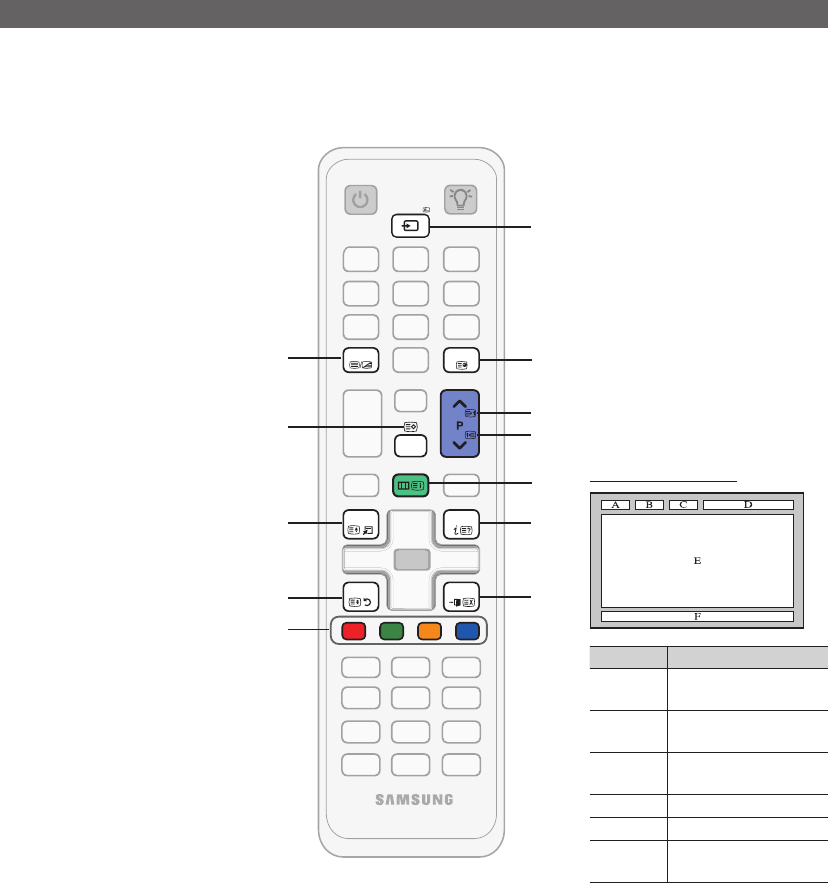
67
English
Other Information
Analogue Channel Teletext Feature
The index page of the Teletext service gives you information on how to use the service. For Teletext information to be displayed
correctly, channel reception must be stable. Otherwise, information may be missing or some pages may not be displayed.
✎
You can change Teletext pages by pressing the numeric buttons on the remote control.
1
/
(Teletext on/mix/off):
Activates the Teletext mode for the
current channel. Press the button
twice to overlap the Teletext mode
with the current broadcasting
screen. Press it one more time to
exit teletext.
2
8
(store): Stores the Teletext
pages.
3
4
(size): Displays the teletext
on the upper half of the screen in
double-size. To move the text to
the lower half of the screen, press
it again. For normal display, press
it once again.
4
9
(hold): Holds the display at
the current page, in the case that
there are several secondary pages
that follow automaticially. To undo,
press it again.
5Colour buttons (red, green, yellow,
blue): If the FASTEXT system
is used by the broadcasting
company, the different topics on
a Teletext page are colour-coded
and can be selected by pressing
the coloured buttons. Press the
colour corresponding to the topic
of your choice. A new colour-
coded page is displayed. Items
can be selected in the same way.
To display the previous or next
page, press the corresponding
coloured button.
6
0
(mode): Selects the Teletext
mode (LIST/ FLOF).
If pressed during LIST mode,
switches the mode to List save
mode. In List save mode, you can
save a Teletext page into a list
using the
8
(store) button.
7
1
(sub-page): Displays the
available sub-page.
8
2
(page up): Displays the next
Teletext page.
9
3
(page down): Displays the
previous Teletext page.
0
6
(index): Displays the index
(contents) page at any time while
you are viewing Teletext.
!
5
(reveal): Displays the hidden
text (answers to quiz games, for
example). To display the normal
screen, press it again.
@
7
(cancel): Shrinks the Teletext
display to overlap with the current
broadcast.
Typical Teletext page
Part Contents
ASelected page
number.
BBroadcasting channel
identity.
CCurrent page number
or search indications.
DDate and time.
EText.
FStatus information.
FASTEXT information.
CH LIST
MENU
TOOLS
RETURN
EXIT
INFO
TTX/MIX
A B C D
6
7
8
9
!
@
0
1
3
2
4
5
G
PRE-CH
SOURCE
Other Information

68
English
Other Information
Assembling the Cables
Use the Cable Holder to hide the cables behind the stand.
✎
The colour and the appearance may differ depending on the product, and the specifications are subject to change
without prior notice to improve the performance.
Anti-theft Kensington Lock
The Kensington Lock is not supplied by Samsung. It is a device used to physically
fix the system when using it in a public place. The appearance and locking method
may differ from the illustration depending on the manufacturer. Refer to the manual
provided with the Kensington Lock for additional information on proper use.
✎
Please find a “
K
” icon on the rear of the TV. A kensington slot is beside the “
K
”
icon.
To lock the product, follow these steps:
1. Wrap the Kensington lock cable around a large, stationary object such as desk
or chair.
2. Slide the end of the cable with the lock attached through the looped end of the
Kensington lock cable.
3. Insert the locking device into the Kensington slot on the product (1).
4. Lock the lock.
✎
These are general instructions. For exact instructions, see the User manual supplied with the locking device.
✎
The locking device has to be purchased separately.
✎
The location of the Kensington slot may be different depending on the TV model.
yThe displayed image may differ
depending on the model.
1
<Optional>
<TV Rear>

69
English
Other Information
Troubleshooting
If you have any questions about the TV, first refer to this list. If none of these troubleshooting tips apply, please visit “www.
samsung.com,” then click on Support, or contact the call centre listed on the back-cover of this manual.
Issues Solutions and Explanations
PC Connection
A Mode Not Supported message
appears.
• Set your PC’s output resolution and frequency so they match the resolutions supported by the TV (p. 19).
PC is always shown on the source list,
even if a PC is not connected.
• This is normal; “PC” is always shown on the source list, regardless of whether a PC is connected.
The video is OK but there is no audio. • If you are using a HDMI connection, check the audio output setting on your PC.
Picture Quality First of all, please perform the Picture Test and confirm that your TV is properly displaying test image.
(go to MENU - Support - Self Diagnosis - Picture Test) (p. 44)
If the test image is properly displayed, the poor picture may caused by the source or signal.
The TV image does not look as good as it
did in the store.
• If you have an analogue cable/set top box, upgrade to a digital set top box. Use HDMI or Component
cables to deliver HD (high definition) picture quality.
• Cable/Satellite subscribers: Try HD stations from the channel line up.
• Antenna connection: Try HD stations after performing Auto programme.
✎
Many HD channels are up scaled from SD(Standard Definition) contents.
• Adjust the Cable/Set top box video output resolution to 1080i or 720p.
• Make sure you are watching the TV at the minimum recommended distance based on the size and
definition of the signal.
The picture is distorted: macro block error,
small block, dots, pixelization
• Compression of video contents may cause picture distortion especially in fast moving pictures such
as sports and action movies.
• Low signal level or bad quality can cause picture distortion. This is not a TV issue.
• Mobile phones used close to the TV (cca up to 1m) may cause noise in picture on analogue and
digital TV.
Colour is wrong or missing. • If you’re using a component connection, make sure the component cables are connected to the
correct jacks. Incorrect or loose connections may cause colour problems or a blank screen.
There is poor colour or brightness. • Adjust the Picture options in the TV menu. (go to Picture Mode / Colour / Brightness / Sharpness)
(p. 28)
• Adjust Energy Saving option in the TV menu. (go to MENU - System - Eco Solution - Energy
Saving) (p. 41)
• Try resetting the picture to view the default picture settings. (go to MENU - Picture - Reset Picture)
(p. 33)
There is a dotted line on the edge of the
screen.
• If the picture size is set to Screen Fit, change it to 16:9 (p. 28).
• Change cable/set top box resolution.
The picture is black and white. • If you are using an AV composite input, connect the video cable (yellow) to the Green jack of
component input 1 on the TV.
When changing channels, the picture
freezes or is distorted or delayed.
• If connected with a cable box, please try to reset the cable box. Reconnect the AC cord and wait until
the cable box reboots. It may take up to 20 minutes.
• Set the output resolution of the cable box to 1080i or 720p.
3D
The 3D Active Glasses are not working
correctly
• Make sure the glasses are turned on.
• The 3D Active Glasses may not work properly if there is any other 3D product or electronic devices
turned on near the glasses or TV.
• If there is a problem, keep other electronic devices as far away as possible from the 3D Active
Glasses.
The screen seems to flicker slightly when
you watch 3D images.
• You may notice a small amount of screen flickering when watching 3D images under a fluorescent
lamp (50Hz ~ 60Hz), a 3 wavelength lamp, or a strobe light. If this occures, dim the light or turn it off
entirely.
The 3D images don’t look quite right. • The ideal viewing distance is three times or more the height of the screen.
• We also recommend sitting with viewer’s eyes on a level with the screen
The batteries in the 3D glasses don’t last • Turn off 3D glasses while not using them. If you leave 3D glasses on, battery lifespan is shortened
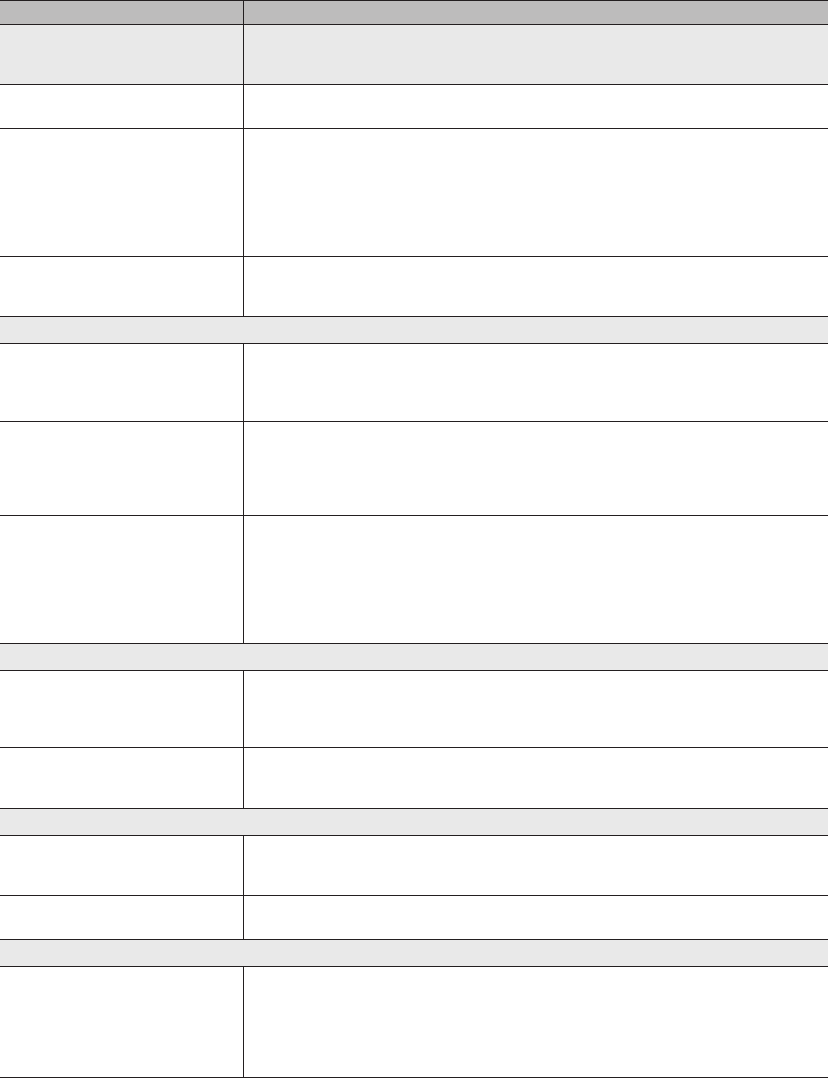
70
English
Other Information
Issues Solutions and Explanations
Sound Quality First of all, please perform the Sound Test to confirm that your TV audio is properly operating.
(go to MENU - Support - Self Diagnosis - Sound Test) (p. 44)
If the audio is OK, the sound problem may caused by the source or signal.
There is no sound or the sound is too low
at maximum volume.
• Please check the volume the of external device connected to your TV.
The picture is good but there is no sound. • Set the Speaker Select option to TV Speaker in the sound menu (p. 35).
• If you are using an external device, make sure the audio cables are connected to the correct audio
input jacks on the TV.
• If you are using an external device, check the device’s audio output option (ex. you may need to
change your cable box’s audio option to HDMI when you have a HDMI connected to your TV).
• If you are using a DVI to HDMI cable, a separate audio cable is required.
• If your TV has a headphone jack, make sure there is nothing plugged into it.
The speakers are making an inappropriate
noise.
• Check the cable connections. Make sure a video cable is not connected to an audio input.
• For antenna or cable connections, check the signal strength. Low signal level may cause sound
distortion.
No Picture, No Video
The TV won’t turn on. • Make sure the AC power cord is securely plugged in to the wall outlet and the TV.
• Make sure the wall outlet is working.
• Try pressing the POWER button on the TV to make sure the problem is not the remote. If the TV turns
on, refer to “The remote control does not work” below.
The TV turns off automatically. • Ensure the Sleep Timer is set to Off in the System menu (p. 40).
• If your PC is connected to the TV, check your PC power settings.
• Make sure the AC power cord is plugged in securely to the wall outlet and the TV.
• When watching TV from an antenna or cable connection, the TV will turn off after 10 ~ 15 minutes if
there is no signal.
There is no picture/Video. • Check cable connections (remove and reconnect all cables connected to the TV and external
devices).
• Set your external devices’ (Cable/Set top Box, DVD, Blu-ray etc) video outputs to match the
connections to the TV input. For example, if an external device’s output is HDMI, it should be connect
to an HDMI input on the TV.
• Make sure your connected devices are powered on.
• Be sure to select the TV’s correct source by pressing the SOURCE button on the TV remote.
RF(Cable/Antenna) Connection
The TV is not receiving all channels. • Make sure the Antenna cable is connected securely.
• Please try Plug & Play (Initial setup) to add available channels to the channel list. Go to MENU -
System - Plug & Play (Initial setup) and wait for all available channels to be stored (p. 14).
• Verify the Antenna is positioned correctly.
The picture is distorted: macro block error
small block, dots, pixelization
• Compression of video contents may cause picture distortion, especially with fast moving pictures
such as sports and action movies.
• A low signal can cause picture distortion. This is not a TV issue.
Network Connection
The wireless network connection failed. • The Samsung Wireless USB dongle is required to use a wireless network.
• Make sure the Network Connection is set to Wireless.
• Make sure the TV is connected to a wireless IP sharer (router).
Software Upgrade over the network fails. • Run Network Test in the Network menu to confirm the connection.
• If you have the latest Software (SW) version, the SW upgrade will not proceed.
Recording / Timeshift
The USB device is not recognized or a
Device Format, Checking Device or
Device Performance Test fails.
• See the manual for the USB device to check that the USB device supports recording.
• If the USB device has a lock, ensure it is off.
• Check that the USB device can be formatted when connected to the PC. Connect the USB to the TV
and format it. (Formatting may fail intermittently.)
• If a Device Performance Test or formatting failed, it means that there is a problem with the USB
hardware or the performance of the USB hardware is too low.
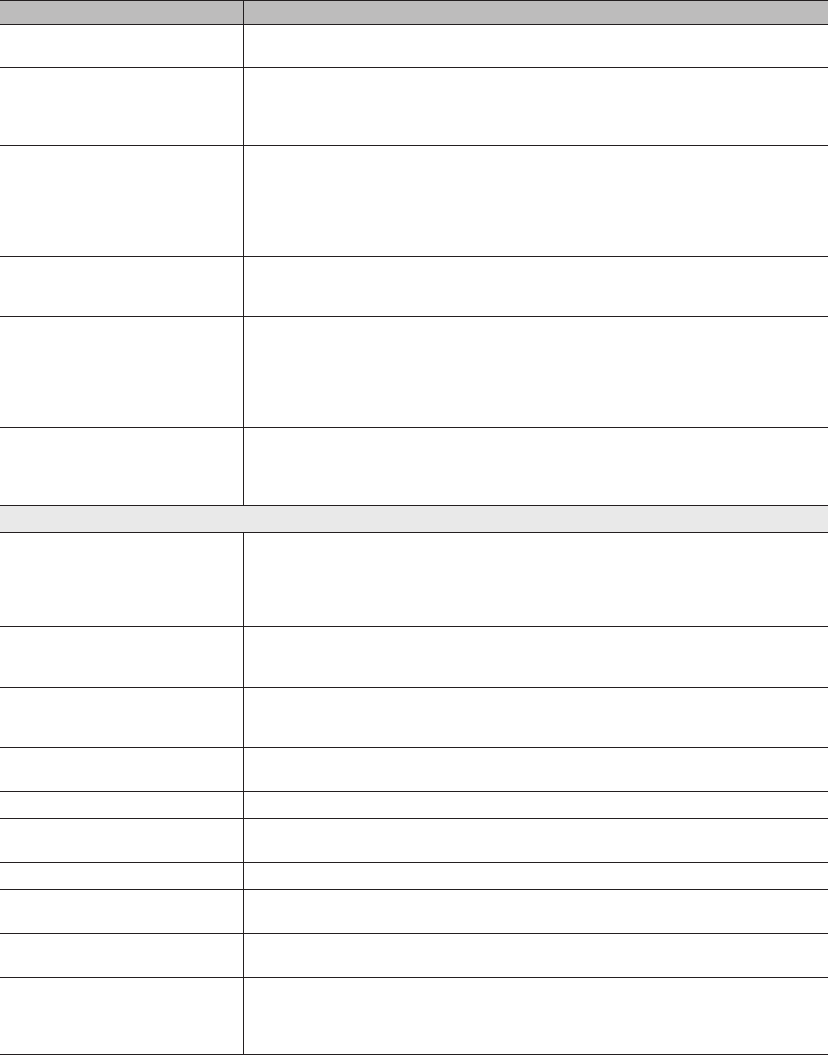
71
English
Other Information
Issues Solutions and Explanations
A message prompts me to format a USB
device that has been working well.
• If the USB device has a lock, ensure it is off.
• Recover the USB device using the recovery function in Checking Device.
The recording function does not work. • Check that a USB device is connected.
• Check that the channel is a recordable digital channel.
• If the signal is weak or does not exist, the recording function will automatically be closed.
• The TV will not record if the USB device has no free memory space. Check that this is not the case.
Timeshift Mode does not work. • Check that a USB device is connected.
• Radio channels and analogue broadcasts are not supported.
• Data broadcast channels are not supported.
• If the signal is weak or does not exist, the Timeshift Mode function will automatically be closed.
• Timeshift Mode cannot be performed if the USB device has no free memory space. Check that this
is not the case.
A message indicates a performance test
failure, and the recording and Timeshift
Mode functions do not work.
• These problems may occur if you use a low-performance USB device that does not support
recording. We recommend using a USB HDD with at least 5 400 rpm, but a USB HDD of RAID type
is not supported.
A scheduled recording has failed. • A scheduled recording is disabled for certain operations (formatting, performance test, error checking,
deleting) that access the file system of a USB device.
• If there is no USB device connected, the TV will not record even if the scheduled time is reached.
• The TV will not record if the USB device has no free memory space. Check that this is not the case.
• If you record a channel locked with Program Rating Lock , the PIN input window will appear when
you try to play back the recording.
Several recording devices are connected
but the TV stopped recording.
• If multiple recording devices are connected and the device set as Default Recording Device has no
free memory space, the recording function will be closed. Attempt recording again. The device with
the most free memory space will automatically be set as Default Recording Device and the TV will
start recording.
Others
The picture won’t display in full screen. • HD channels will have black bars on either side of the screen when displaying up scaled SD (4:3)
contents.
• Black bars on the top and bottom will appear during movies that have aspect ratios different from
your TV.
• Adjust the picture size options on your external device or TV to full screen.
The remote control does not work. • Replace the remote control batteries with the poles (+/–) in the right direction.
• Clean the sensor’s transmission window on the remote.
• Try pointing the remote directly at the TV from 5~6 feet away.
The cable/set top box remote control
doesn’t turn the TV on or off, or adjust the
volume.
• Programme the Cable/Set top box remote control to operate the TV. Refer to the Cable/Set user
manual for the SAMSUNG TV code.
A Mode Not Supported message
appears.
• Check the supported resolution of the TV, and adjust the external device’s output resolution
accordingly (p. 19).
There is a plastic smell from the TV. • This smell is normal and will dissipate over time.
The TV Signal Information is unavailable
in the Self Diagnostic Test menu.
• This function is only available with digital channels from an Antenna / RF/Coax connection (p. 44).
The TV is tilted to the side. • Remove the base stand from the TV and reassemble it.
There are difficulties assembling the stand
base.
• Make sure the TV is placed on a flat surface. If you can not remove the screws from the TV, use a
magnetized screw driver.
The channel menu is greyed out.
(unavailable)
• The Channel menu is only available when the TV source is selected.
Your settings are lost after 30 minutes or
every time the TV is turned off.
• If the TV is in the Store Demo mode, it will reset audio and picture settings every 30 minutes. Change
the settings from Store Demo mode to Home Use mode in the Plug & Play (Initial setup) procedure.
Press the SOURCE button to select TV mode, and go to MENU → System → Plug & Play (Initial
setup) → ENTER
E
(p. 14).

72
English
Other Information
Issues Solutions and Explanations
You have intermittent loss of audio or
video.
• Check the cable connections and reconnect them.
• Loss of audio or video can be caused by using overly rigid or thick cables. Make sure the cables are
flexible enough for long term use. If mounting the TV to the wall, we recommend using cables with 90
degree connectors.
You see small particles when you look
closely at the edge of the frame of the TV.
• This is part of the product’s design and is not a defect.
The PIP menu is not available. • PIP functionality is only available when you are using a HDMI, PC or components source (p. 43).
The message “Scramble signal” or “Weak
Signal/No Signal” appears.
• If you are using a CAM CARD (CI/CI+), check that it is installed into the common interface slot.
• If there is still a problem, pull the CAM CARD out of the TV and insert it into the slot again.
You turned the TV off 45 minutes ago, and
it turned on again.
• It is normal. The TV operates the OTA (Over The Aerial) function itself to upgrade firmware
downloaded whilst your watching TV.
There are recurrent picture/sound issues. • Check and change the signal/source.
A reaction may occur between the rubber
cushion pads on the base stand and the
top finish of some furniture.
• To prevent this, use felt pads on any surface of the TV that comes in direct contact with furniture.
✎
This panel uses a panel consisting of sub pixels which require sophisticated technology to produce. However, there may
be a few bright or dark pixels on the screen. These pixels will have no impact on the performance of the product.
¦Storage and Maintenance
✎
If you attached some stickers on the TV screen, it remains some debris after removing the sticker. Please clean it to
watch TV.
Do not spray water or a cleaning agent directly onto the
product. Any liquid that goes into the product may cause a
failure, fire, or electric shock.
Clean the product with a soft cloth dapped in a small amount
of water.
20°
20°
73
English
Other Information
¦Licence
TheaterSound HD, SRS and symbol are trademarks of SRS Labs, Inc.
TheaterSound HD technology is incorporated under license form SRS Lab, Inc.
Manufactured under licence from Dolby Laboratories. Dolby and the double-D symbol are
trademarks of Dolby Laboratories.
Manufactured under licence under U.S. Patent #’s: 5,451,942; 5,956,674; 5,974,380; 5,978,762;
6,487,535 & other U.S. and worldwide patents issued & pending. DTS and the Symbol are
registered trademarks. & DTS 2.0+ Digital Out and the DTS logos are trademarks of DTS, Inc.
Product Includes software. © DTS, Inc. All Rights Reserved.
DivX Certified® to play DivX® video up to HD 1080p, including premium content.
DivX®, DivX Certified® and associated logos are trademarks of DivX, Inc. and are used under
license.
ABOUT DIVX VIDEO: DivX® is a digital video format created by DivX, Inc. This is an official DivX Certified® device that plays DivX video. Visit www.
divx.com for more information and software tools to convert your files into DivX video.
ABOUT DIVX VIDEO-ON-DEMAND: This DivX Certified® device must be registered in order to play purchased DivX Video-on-Demand (VOD) movies.
To obtain your registration code, locate the DivX VOD section in your device setup menu. Go to vod.divx.com for more information on how to
complete your registration.
Covered by one or more of the following U.S. patents : 7,295,673; 7,460,668; 7,515,710; 7,519,274
Open source licence notice
In the case of using open source software, Open Source licence are available on the product menu.
Open Source Licence Notice is written only English.
74
English
Other Information
Specifications
Environmental
considerations
Operating Temperature : 50°F ~ 104°F (10°C ~ 40°C)
Humidity : 10 % ~ 80 %, non-condensing
Storage Temperature : -4°F ~ 113°F (-20°C ~ 45°C)
Humidity : 5 % ~ 95 %, non-condensing
Tilt -1°(±1°) ~ 20°(±1°)
Model Name T27A950
Screen Size (Diagonal) 27 inches(68cm)
Display Resolution 1920x1080@60Hz
Sound(Output) 7W × 2
Dimensions (WxHxD) 621.0 ×474.0 ×185.5 mm
Weight 6.5 kg
✎
NOTE
x
Design and specifications are subject to change without prior notice.
x
For information about power supply, and more about power consumption, refer to the label attached to the product.
x
Some models may not be available for purchase depending on the region.
x
If there is no power cut-off switch, the power consumption is "0" only when the power cord is disconnected.
x
DPM(Display Power Management) Function does not work if you used in conjunction with the HDMI IN 1 (DVI) port
of this product.

75
English
Other Information
A
Accessories 11
Advanced Settings 32
Amplify 34
Anynet+ 63
Audio Description 35
Auto Volume 35
B
Background Music 60
Balance L/R 34
Batteries 13
Black Tone 32
Brightness 28
C
Cable Holder 68
Change PIN 42
Channel 25
Channel List 24
Channel Menu 27
Cleaning Related 7
Clock 40
Colour Tone 33
Component 16
Connecting to an Antenna 14
Connecting to an Audio Device 17
Connecting to an AV Device 15
Connecting to a PC 18
D
DIGITAL AUDIO OUT 63
DivX® VOD 43
Dynamic 28
Dynamic Contrast 32
E
Edit Name 20
Energy Saving 41
EPG(Electronic Programme Guide) 23
Equalizer 34
External Speaker 35
F
Film Mode 33
Fine Tune 27
Flesh Tone 32
H
HDMI 63
Headphones 17
Home Theatre 63
I
Installation Related 5
Installation Space 2
L
Language 42
Licence 73
M
Music 59
N
Navigate 23
Now & Next guide 23
O
Off Timer 41
On Timer 41
Optimal resolution 19
P
Photos 60
Picture Options 33
PIP (Picture in Picture) 43
Plug & Play 14
Power Related 4
R
Remote Control 13
RGB Only Mode 32
S
Safety Precautions 4
Samsung MagicAngle 28
Self Diagnosis 44
Sharpness 28
Signal Information 44
Sleep Timer 40
Slide Show 60
SMART HUB 46
Software Upgrade 44
Source 20
Speaker Select 35
Specifications 74
Standby mode 12
Subtitle 42
Symbol 3
T
TOOLS 3
Troubleshooting 69
TV Speaker 35
U
Usage Related 7
USB Drive 51
Using the Channel Menu 23
V
VCR 16
Videos 57
Volume 12, 13, 35
Index
Contact SAMSUNG WORLDWIDE
If you have any questions or comments relating to Samsung products, please contact the SAMSUNG customer care centre.
Country Customer Care Centre Web Site
AUSTRALIA 1300 362 603 www.samsung.com
NEW ZEALAND 0800 SAMSUNG (0800 726 786) www.samsung.com
SINGAPORE 1800-SAMSUNG (726-7864) www.samsung.com
© 2011 Samsung Electronics Co., Ltd. All rights reserved. BN46-00078B-02
