Samsung Wb690 Users Manual WB690_V1.0
WB690 - User Manual WB690_English Free User Guide for Samsung Camera, Manual - page4
2015-08-20
: Samsung Samsung-Wb690-Users-Manual-794870 samsung-wb690-users-manual-794870 samsung pdf
Open the PDF directly: View PDF  .
.
Page Count: 130 [warning: Documents this large are best viewed by clicking the View PDF Link!]
- Health and safety information
- Basic troubleshooting
- Quick reference
- Contents
- Basic functions
- Extended functions
- Shooting options
- Playback/Editing
- Settings
- Appendixes

1
Keep your camera away from small children and pets.
Keep your camera and all accessories out of the reach of small
children and animals. Small parts may cause choking or serious
injury if swallowed. Moving parts and accessories may present
physical dangers as well.
Do not expose the camera to direct sunlight or high
temperatures for an extended period of time.
Prolonged exposure to sunlight or extreme temperatures can
cause permanent damage to your camera’s internal components.
Avoid covering the camera or charger with blankets or clothes.
The camera may overheat, which may distort the camera or
cause a fire.
If liquid or foreign objects enter your camera, immediately
disconnect all power sources, such as the battery or charger,
and then contact a Samsung service center.
Health and safety information
Always comply with the following precautions and usage tips to avoid dangerous situations and ensure peak performance of your camera.
Warning—situations that could cause injury to yourself or
others
Do not disassemble or attempt to repair your camera.
This may result in electric shock or damage to the camera.
Do not use your camera near flammable or explosive gases and
liquids.
This may cause a fire or explosion.
Do not insert flammable materials into the camera or store these
materials near the camera.
This may cause a fire or electric shock.
Do not handle your camera with wet hands.
This may result in electric shock.
Prevent damage to subjects’ eyesight.
Do not use the flash in close proximity (closer than 1 m/3 ft) to
people or animals. If you use the flash too close to your subject’s
eyes, this can cause temporary or permanent eyesight damage.
2
Caution—situations that could cause damage to your camera
or other equipment
Remove the batteries from your camera when storing it for an
extended period of time.
Installed batteries may leak or corrode over time and cause
serious damage to your camera.
Use only authentic, manufacturer-recommended, Lithium-ion
replacement batteries. Do not damage or heat the battery.
Inauthentic, damaged, or heated batteries may cause a fire or
personal injury.
Use only Samsung-approved batteries, chargers, cables and
accessories.
• Using unauthorized batteries, chargers, cables or accessories
can cause batteries to explode, damage your camera, or cause
injury.
• Samsung is not responsible for damage or injuries caused by
unapproved batteries, chargers, cables or accessories.
Use the battery only for its intended purpose.
Misusing the battery may cause a fire or electric shock.
Do not touch the flash while it fires.
The flash is very hot when fired and may burn your skin.
When you use AC charger, turn off the camera before you
disconnect the power to the AC charger.
Failing to do so may result in fire or electric shock.
Disconnect the charger from the wall socket when not in use.
Failing to do so may result in fire or electric shock.
Do not use a damaged power supply cord, plug, or loose outlet
when you charge batteries.
This may cause a fire or electric shock.
Do not allow the AC charger to come in contact with the +/-
terminals on the battery.
This may cause a fire or electric shock.
Do not force the camera’s parts or apply pressure to the
camera.
This may cause your camera to malfunction.
Health and safety information

3
Health and safety information
Exercise caution when you connect cables or adapters and
install batteries and memory cards.
If you force the connectors, improperly connect cables, or
improperly install batteries and memory cards, you can damage
ports, connectors, and accessories.
Keep cards with magnetic strips away from the camera case.
Information stored on the card may be damaged or erased.
Never use a damaged charger, battery, or memory card.
This may result in electric shock or camera malfunction or cause
a fire.
Check that the camera is operating properly before use.
The manufacturer takes no responsibility for any loss of files or
damage that may result from camera malfunction or improper
use.
You must plug the end of the cable with the indicator light (▲)
into your camera.
If the cable is reversed, it may damage your files. The
manufacturer is not responsible for any loss of data.
4
Copyright information
• Microsoft Windows and the Windows logo are
registered trademarks of the Microsoft Corporation.
• Mac is a registered trademark of the Apple Corporation.
• HDMI, the HDMI logo and the term "High Definition
Multimedia Interface" are trademarks or registered
trademarks of HDMI Licensing LLC.
• Trademarks and trade names used in this manual are
the property of their respective owners.
• Camera specifications or contents of this manual may
be changed without prior notice due to upgrade of
camera functions.
• You are not allowed to reuse or distribute any part of
this manual without prior permission.
• For Open Source License information, refer to the
‘OpenSourceInfo.pdf’ in the provided CD-ROM.
Outline of the User Manual
Basic functions 12
Learn about your camera’s layout, icons, and basic
functions for shooting.
Extended functions 31
Learn how to capture a photo, record a video, and
voice memo by selecting a mode.
Shooting options 45
Learn how to set the options in Shooting mode.
Playback/Editing 71
Learn how to play back photos, videos, or voice
memos and edit photos or videos. Also, learn how to
connect your camera to your computer, photo printer,
TV, or HDTV.
Settings 96
Refer to options to configure your camera’s settings.
Appendixes 102
Get information about error messages, specifications,
and maintenance.
5
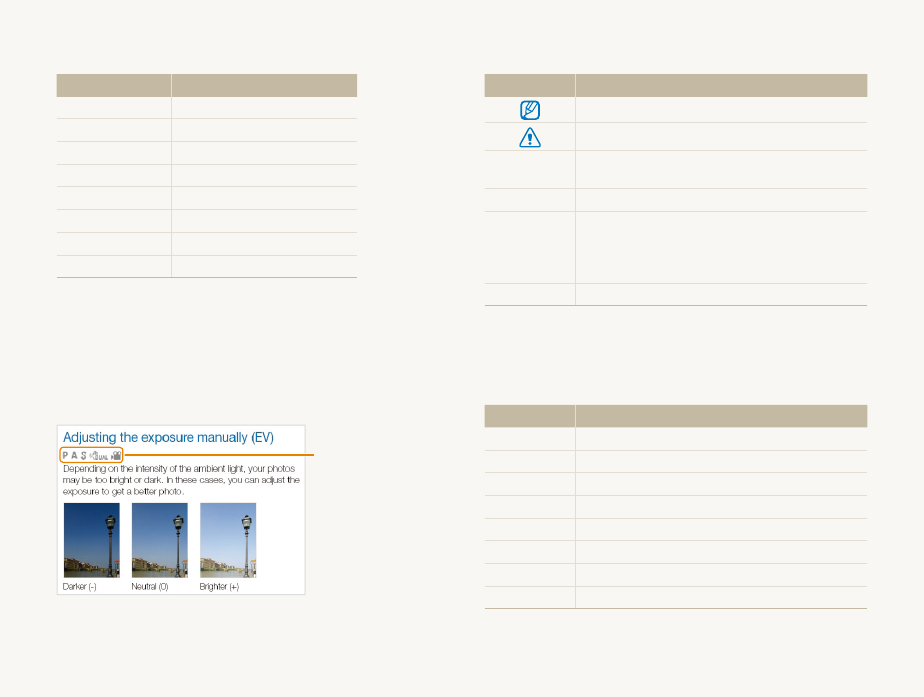
Indicators used in this manual
Shooting mode Indicator
Smart Auto
S
Program
Ò
Aperture Priority
A
Shutter Priority
h
Manual
M
DUAL IS
d
Scene
s
Movie
v
Shooting mode icons
These icons appear in the text when a function is available in
a mode. See the example below.
Note: The s mode may not support functions for all scenes.
For example:
Available in Program,
Aperture Priority,
Shutter Priority,
DUAL IS, and Movie
modes
Icons used in this manual
Icon Function
Additional information
Safety warnings and precautions
[] Camera buttons. For example, [Shutter] represents
the shutter button.
() Page number of related information
The order of options or menus you must select to
perform a step; for example: Select
a
Photo
Size (represents Select
a
, and then select Photo
Size).
*Annotation
Abbreviations used in this manual
Abbreviation Definition
AEB Auto Exposure Bracket
AF Auto Focus
DIS Digital Image Stabilization
DPOF Digital Print Order Format
EV Exposure Value
ISO International Organization for Standardization
OIS Optical Image Stabilization
WB White Balance
6
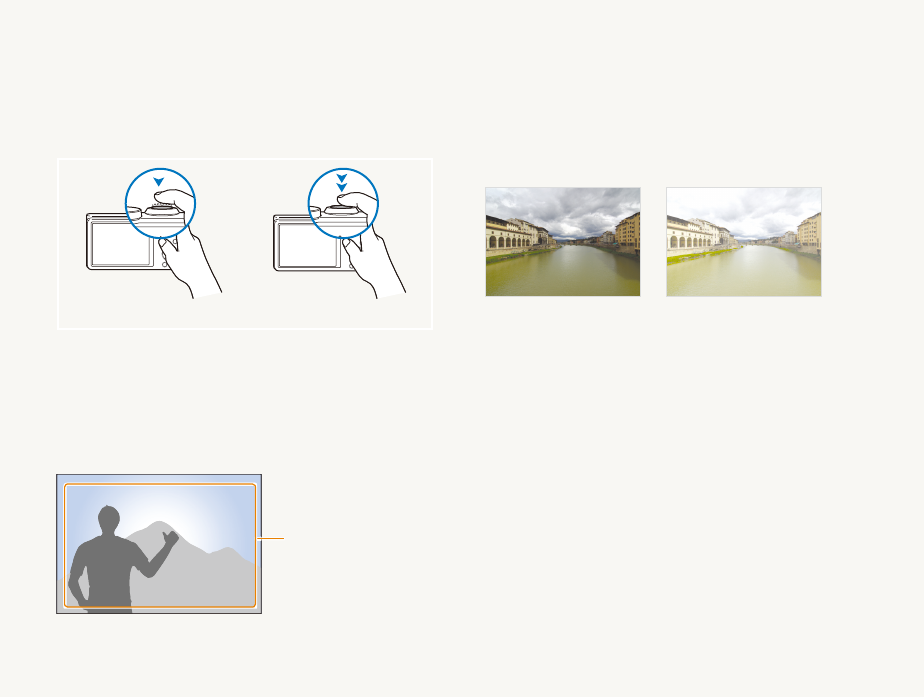
Pressing the shutter
• Half-press [Shutter]: press the shutter halfway down
• Press [Shutter]: press the shutter all the way down
Half-press [Shutter] Press [Shutter]
Subject, background, and composition
• Subject: the main object in a scene, such as a person, animal,
or still life
• Background: the objects around the subject
• Composition: the combination of a subject and background
Composition
Background
Subject
Exposure (Brightness)
The amount of light that enters your camera determines the
exposure. You can alter the exposure with shutter speed,
aperture value, and ISO sensitivity. By altering the exposure, your
photos will be darker or lighter.
Normal exposure Overexposure (too bright)
Expressions used in this manual
7
Basic troubleshooting
Learn to solve common problems by setting shooting options.
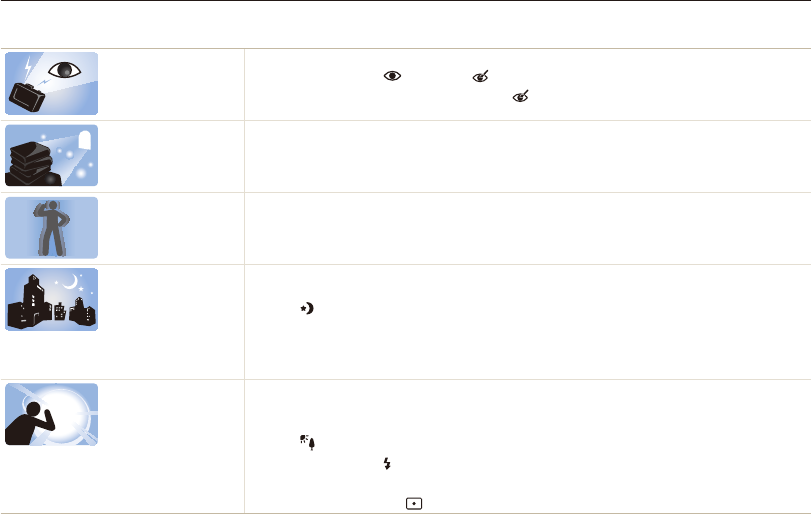
The subject’s eyes
appear red.
Red eye occurs when the subject's eyes reflect light from the camera flash.
•
Set the flash option to Red-eye or Red-eye Fix. (p. 49)
•
If the photo has already been captured, select Red-eye Fix in the edit menu. (p. 84)
Photos have dust
spots.
If dust particles are present in the air, you may capture them in photos when you use the flash.
•
Turn off the flash or avoid capturing photos in a dusty place.
•
Set ISO sensitivity options. (p. 51)
Photos are blurred. Blurring can occur if you capture photos in low light conditions or hold the camera incorrectly.
•
Use the OIS function or half-press [Shutter] to ensure the subject is focused. (p. 29)
•
Use the
d
mode. (p. 40)
Photos are blurred
when shooting at
night.
As the camera tries to let in more light, the shutter speed slows. This can make it difficult to hold the
camera steady long enough to take a clear picture and may result in camera shake.
•
Select Night in
s
mode. (p. 34)
•
Turn on the flash. (p. 49)
•
Set ISO sensitivity options. (p. 51)
•
Use a tripod to prevent your camera from shaking.
Subjects come out
too dark because of
backlighting.
When the light source is behind the subject or when there is a high contrast between light and dark
areas, the subject may appear too dark.
•
Avoid shooting toward the sun.
•
Select Backlight in
s
mode. (p. 34)
•
Set the flash option to Fill in. (p. 49)
•
Adjust the exposure. (p. 61)
•
Set the metering option to Spot if a bright subject is in the center of the frame. (p. 62)
8
Quick reference
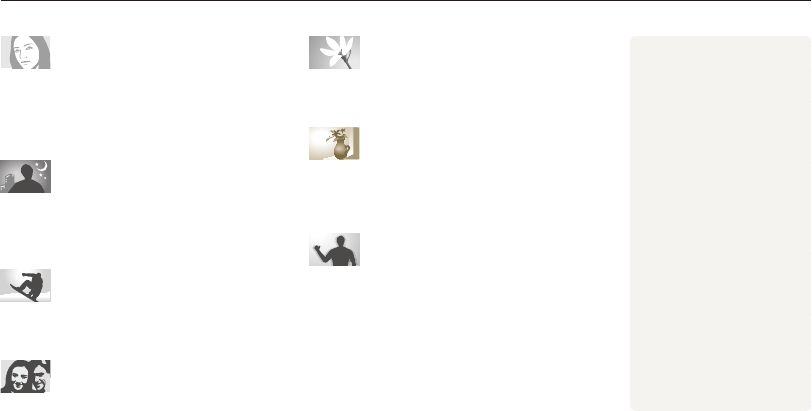
Capturing photos of people
• s
mode > Beauty Shot
f
34
•
Red-eye/Red-eye Fix (to prevent or correct red-eye)
f
49
•
Face Detection
f
56
Capturing photos at night or in the
dark
• s
mode > Night, Dawn, Sunset
f
34
•
Flash options
f
49
•
ISO sensitivity (to adjust the sensitivity to light)
f
51
Capturing action photos
• h
mode
f
38
•
Continuous, Motion Capture
f
66
Adjusting the exposure (brightness)
•
ISO sensitivity (to adjust the sensitivity to light)
f
51
•
EV (to adjust exposure)
f
61
•
Metering
f
62
•
AEB (to capture 3 photos of the same scene with
different exposures)
f
66
Capturing photos of text, insects, or
flowers
• s
mode > Text
f
34
•
Macro
f
52
Applying effects to photos
•
Smart Filter effects
f
67
•
Image Adjust (to adjust Contrast, Sharpness, or
Saturation)
f
70
Reducing camera shake
•
Optical Image Stabilization (OIS)
f
28
• d
mode
f
40
•
Viewing files by category in
Smart Album
f
74
•
Viewing files as thumbnails
f
75
•
Deleting all files on the
memory card
f
76
•
Viewing files as a slide show
f
78
•
Viewing files on a TV or HDTV
f
87
•
Connecting your camera to a
computer
f
89
•
Adjusting sound and volume
f
98
•
Adjusting the brightness of
the display
f
99
•
Changing the display
language
f
99
•
Setting the date and time
f
99
•
Before contacting a service
center
f
112

9
Contents
Extended functions
.......................................................... 31
Using the Smart Auto mode ........................................ 32
Using the Scene mode ................................................ 34
Using the Beauty Shot mode ....................................... 34
Using the Program mode ............................................ 36
Using the Aperture Priority, Shutter Priority, or
Manual mode ............................................................... 37
Using the Aperture Priority mode .................................. 38
Using the Shutter Priority mode .................................... 38
Using the Manual mode .............................................. 39
Using the DUAL IS mode ............................................ 40
Using the Movie mode ................................................ 41
Using the Smart Scene Detection mode ...................... 43
Recording voice memos ............................................. 44
Recording a voice memo ............................................ 44
Adding a voice memo to a photo ................................. 44
Basic functions
................................................................. 12
Unpacking ................................................................... 13
Camera layout ............................................................. 14
Inserting the battery and memory card ....................... 16
Charging the battery and turning on your camera ...... 17
Charging the battery ................................................... 17
Turning on your camera .............................................. 17
Performing the initial setup ......................................... 18
Learning icons ............................................................. 20
Selecting options or menus ........................................ 21
Setting the display and sound .................................... 23
Setting the display type ............................................... 23
Setting the sound ....................................................... 24
Setting the user button ............................................... 24
Capturing photos ......................................................... 25
Zooming .................................................................... 26
Reducing camera shake (OIS) ..................................... 28
Tips for getting a clearer photo ................................... 29

10
Contents
Shooting options
.............................................................. 45
Selecting a resolution and quality ............................... 46
Selecting a resolution .................................................. 46
Selecting image quality ............................................... 47
Using the timer ............................................................ 48
Shooting in the dark .................................................... 49
Preventing red-eye ..................................................... 49
Using the flash ........................................................... 49
Adjusting the ISO sensitivity ......................................... 51
Changing the camera’s focus ..................................... 52
Using macro .............................................................. 52
Using auto focus ........................................................ 52
Focusing on a selected area ....................................... 54
Using tracking auto focus ............................................ 54
Adjusting the focus area .............................................. 55
Using Face Detection .................................................. 56
Detecting faces .......................................................... 56
Capturing a self portrait shot ....................................... 57
Capturing a smile shot ................................................ 57
Detecting eye blinking ................................................. 58
Using Smart Face Recognition .................................... 58
Registering faces as your favorites (My Star) ................. 59
Adjusting brightness and color ................................... 61
Adjusting the exposure manually (EV) ........................... 61
Changing the metering option ...................................... 62
Selecting a light source (White balance) ........................ 63
Using drive modes ...................................................... 66
Applying effects/Adjusting images .............................. 67
Applying Smart Filter effects ........................................ 67
Adjusting your photos ................................................. 70

11
Contents
Playback/Editing
............................................................... 71
Viewing photos or videos in Playback mode .............. 72
Starting Playback mode .............................................. 72
Viewing photos .......................................................... 77
Playing a video ........................................................... 79
Playing a voice memo ................................................. 80
Editing a photo ............................................................ 82
Resizing photos ......................................................... 82
Rotating a photo ......................................................... 82
Applying Smart Filter effects ........................................ 83
Adjusting your photos ................................................. 84
Creating a print order (DPOF) ....................................... 86
Viewing files on a TV or HDTV ..................................... 87
Transferring files to your Windows computer ............. 89
Transferring files with Intelli-studio ................................. 90
Transferring files by connecting the camera as a
removable disk ........................................................... 92
Disconnecting the camera (for Windows XP) ................. 93
Transferring files to your Mac computer ..................... 94
Printing photos with a PictBridge photo printer ......... 95
Settings
............................................................................. 96
Settings menu ............................................................. 97
Accessing the settings menu ...................................... 97
Sound ....................................................................... 98
Display ...................................................................... 98
Settings ..................................................................... 99
Appendixes
..................................................................... 102
Error messages ......................................................... 103
Camera maintenance ................................................ 104
Cleaning your camera ............................................... 104
Using or storing the camera ...................................... 105
About memory cards ................................................ 106
About the battery ...................................................... 108
Before contacting a service center ........................... 112
Camera specifications ............................................... 115
Glossary ..................................................................... 119
FCC notice ................................................................. 124
Index .......................................................................... 125

Unpacking
………………………………… 13
Camera layout
……………………………… 14
Inserting the battery and memory card
… 16
Charging the battery and turning on
your camera
………………………………… 17
Charging the battery
……………………… 17
Turning on your camera
………………… 17
Performing the initial setup
……………… 18
Learning icons
……………………………… 20
Selecting options or menus
……………… 21
Setting the display and sound
…………… 23
Setting the display type
…………………… 23
Setting the sound
………………………… 24
Setting the user button
…………………… 24
Capturing photos
………………………… 25
Zooming
………………………………… 26
Reducing camera shake (OIS)
…………… 28
Tips for getting a clearer photo
…………… 29
Basic functions
Learn about your camera’s layout, icons, and basic functions for shooting.
Basic functions
13
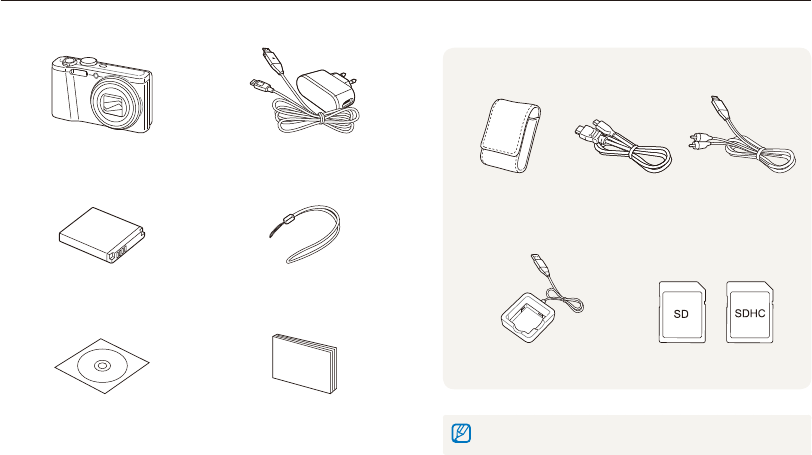
Unpacking
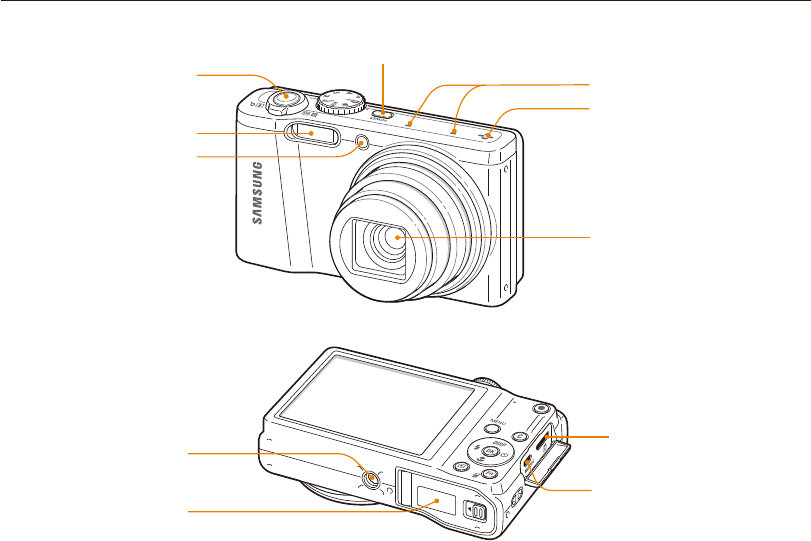
The following items are included in your product box.
Camera AC adapter/
USB cable
Rechargeable battery Strap
User Manual CD-ROM Quick Start Manual
Optional accessories. Not included.
Camera case HDMI cable A/V cable
Battery charger Memory card
The illustrations may differ slightly from the items shipped with your product.
Basic functions
14
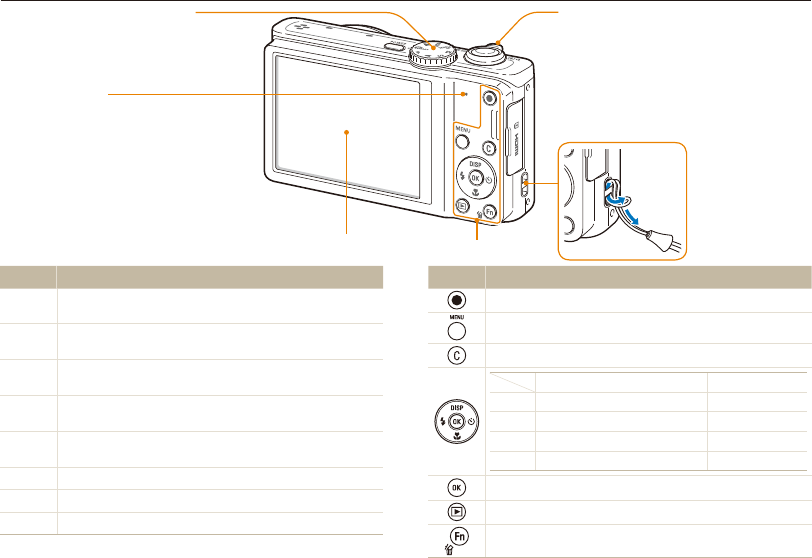
USB and A/V port
Accepts USB cable and A/V cable
HDMI port
Accepts HDMI cable
Camera layout
Before you start, familiarize yourself with your camera’s parts and their functions.
Battery chamber cover
Insert a memory card and battery
Tripod mount
Speaker
Shutter button
POWER button
AF-assist light/Timer lamp
Flash
Lens
Microphone
Basic functions
15
Camera layout
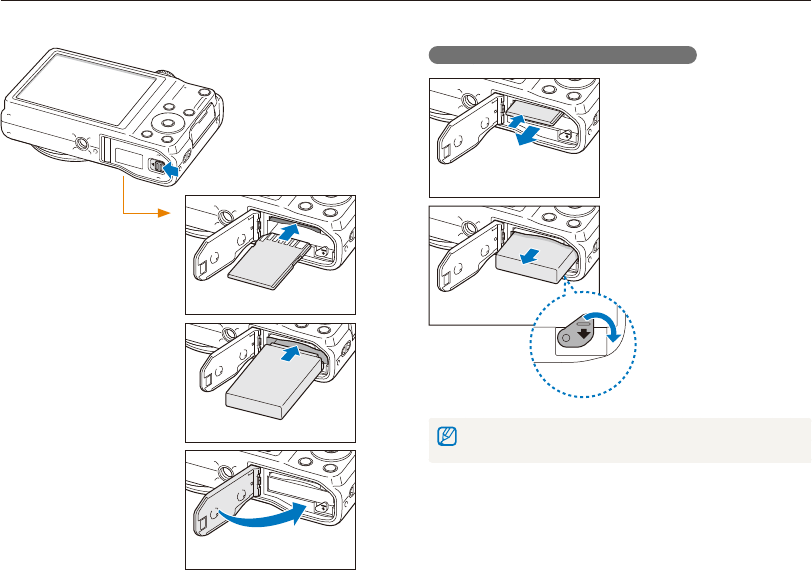
Status lamp
•
Blinking: When the camera is saving
a photo or video, being read by a
computer or printer, or out of focus
•
Steady: When the camera is
connecting to a computer or in focus
Zoom button
•
In Shooting mode: Zoom in or out
•
In Playback mode: Zoom in on part of a photo
or view files as thumbnails, or adjust volume
•
When selecting an option: Adjust defined
settings
Display
Attaching the strap
Icon Description
S
Smart Auto: Capture a photo with a scene mode selected
automatically by the camera.
Ò
Program: Capture a photo by setting options except the shutter
speed and aperture value which the camera sets automatically.
A
Aperture Priority: The camera selects a shutter speed based on
the aperture value you have set manually.
h
Shutter Priority: The camera selects an aperture value based on
the shutter speed you have set manually.
M
Manual: Adjust various camera settings including shutter speed and
aperture value.
d
DUAL IS: Capture a photo with options that reduce camera shake.
s
Scene: Capture a photo with options preset for a specific scene.
v
Movie: Customize settings to record a video.
Button Description
Start recording a video.
Access options or menus.
Access an option that you have selected. (p. 24)
Basic functions Other functions
D
Change the display option. Move up
c
Change the macro option. Move down
F
Change the flash option. Move left
t
Change the timer option. Move right
Confirm the highlighted option or menu.
Enter Playback mode.
•
Access options in Shooting mode.
•
Delete files in Playback mode.
Mode dial
(see the left table below)
x
y
(see the right table below)
Basic functions
16
Inserting the battery and memory card
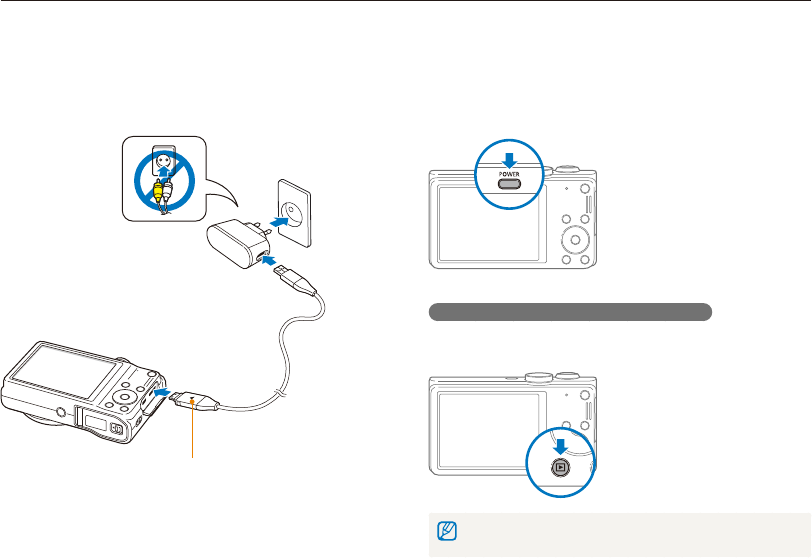
Learn how to insert the battery and an optional memory card into the camera.
Removing the battery and memory card
Memory card
Push the card gently until
it disengages from the
camera, and then pull it
out of the slot.
Rechargeable
battery
Battery lock
Slide the lock down to
release the battery.
You can use the internal memory for temporary storage if a memory card is
not inserted.
Insert a memory card
with the gold-colored
contacts facing up.
Memory card
Insert the battery with
the Samsung logo facing
up.
Rechargeable battery
Basic functions
17
Charging the battery and turning on your camera
Turning on your camera
Press [POWER] to turn your camera on or off.
• The initial setup screen appears when you turn on the camera
for the first time. (p. 18)
Turning on your camera in Playback mode
Press [P]. The camera turns on and immediately accesses
Playback mode.
If you turn on your camera by pressing and holding [
P
] for about 5 seconds,
the camera does not emit any sounds.
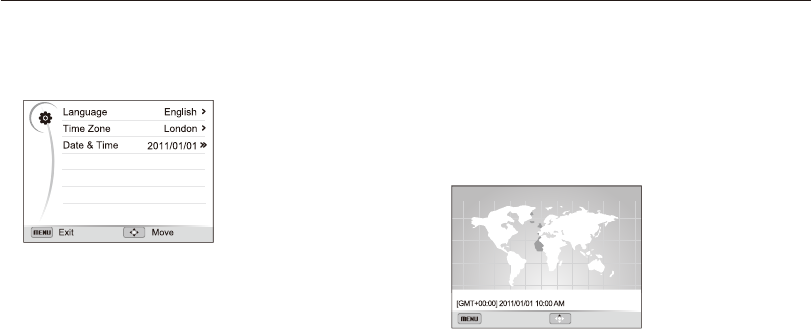
Charging the battery
Before you use the camera for the first time, you must charge the
battery. Attach the USB cable to the AC adapter, and then plug
the end of cable with the indicator light into your camera.
Indicator light
•
Red: Charging
•
Orange: Error
•
Green: Fully charged
Basic functions
18
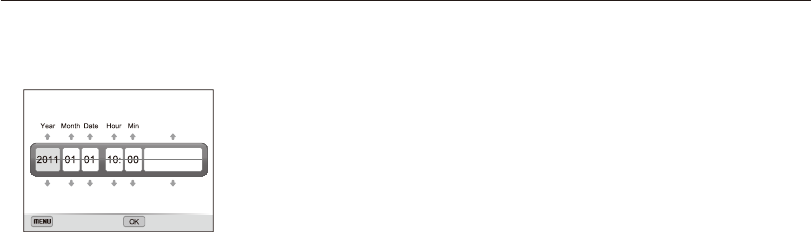
Performing the initial setup
When the initial setup screen appears, follow the steps below to configure the camera’s basic settings.
4
Press [
D
/
c
] to select Home, and then press [
o
].
•
When you travel to another country, select Visit, and then
select a new time zone.
5
Press [
F
] or [
t
] to select a time zone, and then press
[
o
].
•
To set daylight-savings time, press [
D
].
Back DST
Time Zone
London
1
Press [
t
] to select Language, and then press [
t
] or
[
o
].
2
Press [
D
/
c
/
F
/
t
] to select a language, and then
press [
o
].
3
Press [
c
] to select Time Zone, and then press [
t
] or
[
o
].
Basic functions
19
Performing the initial setup
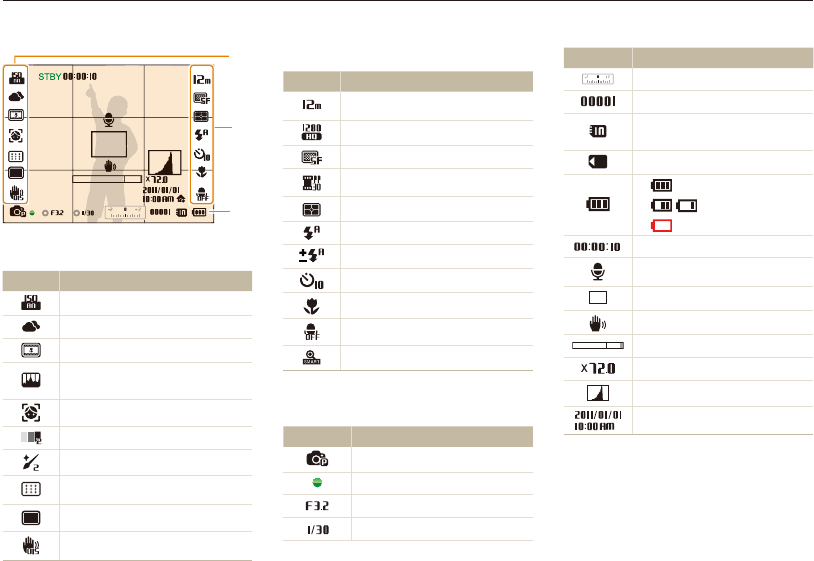
6
Press [
F
] [
c
] to select Date & Time, and then press
[
t
] or [
o
].
Exit Set
Date & Time
Off
7
Press [
F
] or [
t
] to select an item.
8
Press [
D
] or [
c
] to set the date and time or select a
date format, and then press [
o
].
9
Press [
m
] to switch to Shooting mode.
Basic functions
20
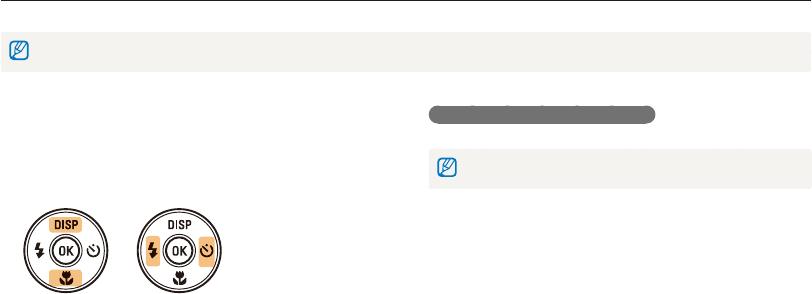
Icon Description
Exposure value
Available number of photos
Memory card not inserted
(Internal memory)
Memory card inserted
•
: Fully charged
•
: Partially charged
•
: Empty (Recharge)
Available recording time
Voice memo
Auto focus frame
Camera shake
Zoom indicator
Zoom ratio
Histogram (p. 23)
Current time and date
Learning icons
The icons the camera displays on the screen change according to the mode you select or the options you set.
2
Shooting options (right)
Icon Description
Photo resolution
Video resolution
Photo quality
Frame rate
Metering
Flash
Flash intensity
Timer
Auto focus option
Microphone muted
Smart zoom on
3
Shooting information
Icon Description
Shooting mode
Focus
Aperture value
Shutter speed
1
Shooting options (left)
Icon Description
ISO sensitivity
White Balance
Smart filter
Image adjustment (contrast,
sharpness, and saturation)
Face detection
Face tone
Face retouch
Focus area
Drive type
Optical Image Stabilization (OIS)
2
1
3
Basic functions
21
Selecting options or menus
You can select options by pressing [m], and then pressing [D/c/F/t], or [o].
You can also access shooting options by pressing [
f
], but some options may not be available.
Going back to the previous menu
Press [m] again to go back to the previous menu.
Half-press [Shutter] to return to Shooting mode.
1
In Shooting mode, press [
m
].
2
Select an option or menu.
•
To move up or down, press [
D
/
c
].
•
To move left or right, press [
F
/
t
].
3
Press [
o
] to confirm the highlighted option or menu.
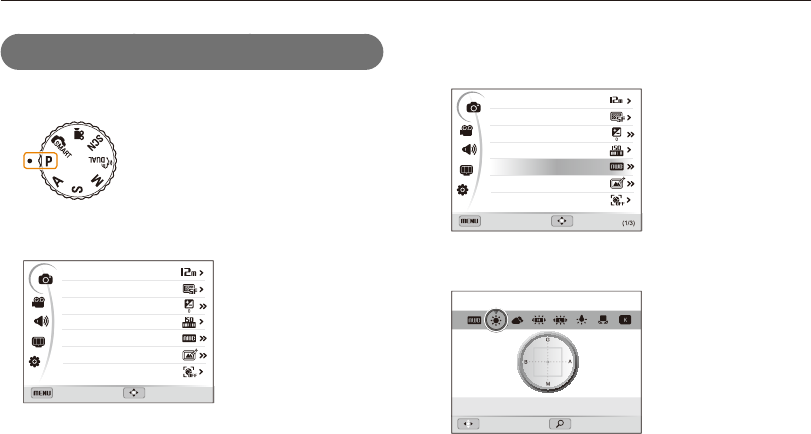
Basic functions
22
Selecting options or menus
4
Press [
D
/
c
] to select White Balance, and then
press [
t
] or [
o
].
Photo Size
Quality
EV
ISO
White Balance
Smart Filter
Face Detection
Exit Move
5
Press [
F
/
t
] to select a White Balance option.
Move Adjust
White Balance : Daylight
6
Press [
o
] to save your settings.
7
Press [
m
] to return to Shooting mode.
For example, to select a White Balance option
in Program mode:
1
Rotate the mode dial to
Ò
.
2
Press [
m
].
Exit Move
Photo Size
Quality
EV
ISO
White Balance
Smart Filter
Face Detection
3
Press [
D
/
c
] to select
a
, and then press [
t
] or
[
o
].
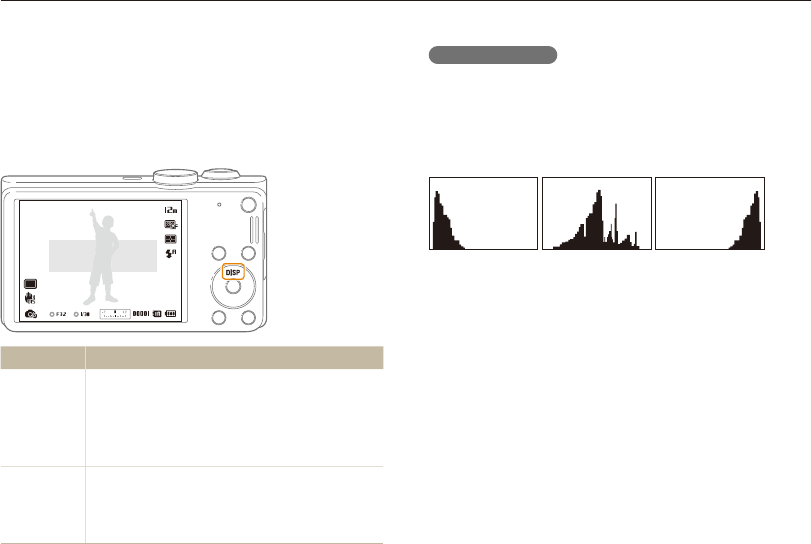
Basic functions
23
Setting the display and sound
Learn how to change the basic display information, sound settings, and user button settings.
About histograms
A histogram is a graph that illustrates how light is distributed
in your photo. If the histogram has a high peak on the left, the
photo is underexposed and will appear dark. A peak on the
right of the graph means that the photo is overexposed and will
appear washed out. The height of the peaks is related to color
information. The more of a particular color, the taller the peak.
S
Under-exposed
S
Well-exposed
S
Over-exposed
Setting the display type
You can select a display type for the Shooting or Playback mode.
Each type displays different shooting or playback information.
See the table below
Press [
D
] repeatedly to change the display type.
Show all photographic
information.
Mode Display Type Choices
Shooting
•
Hide all information about shooting.
•
Hide information about shooting, except the
information on the bottom line.
•
Display all information about shooting.
•
Display histogram.
Playback
•
Hide all information about the current file.
•
Display all information about the current file.
•
Display information about the current file, except
the shooting settings and histogram.
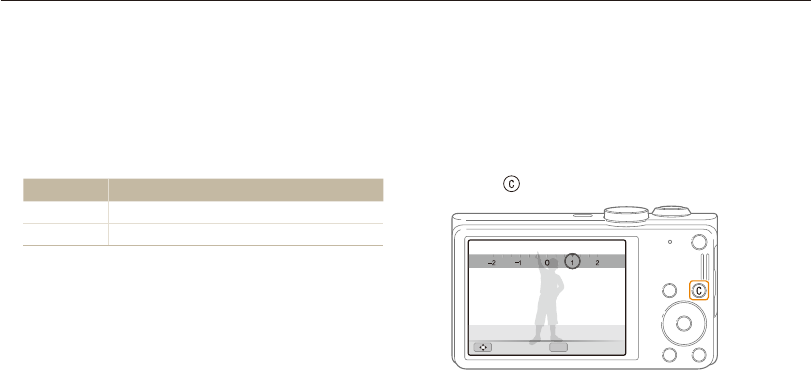
Basic functions
24
Setting the display and sound
Setting the sound
Set the sound your camera emits when you perform functions.
1
In Shooting or Playback mode, press [
m
].
2
Select
U
Beep Sound.
3
Select an option.
Option Description
Off The camera does not emit any sounds.
1/2/3 The camera emits sounds.
Setting the user button
You can directly access an option by setting the user button.
1
In Shooting mode, press [
m
].
2
Select
a
Custom Set.
3
Select an option. (EV, ISO, White Balance)
•
Press to adjust the settings of the option.
OK
Move Set
EV : 1
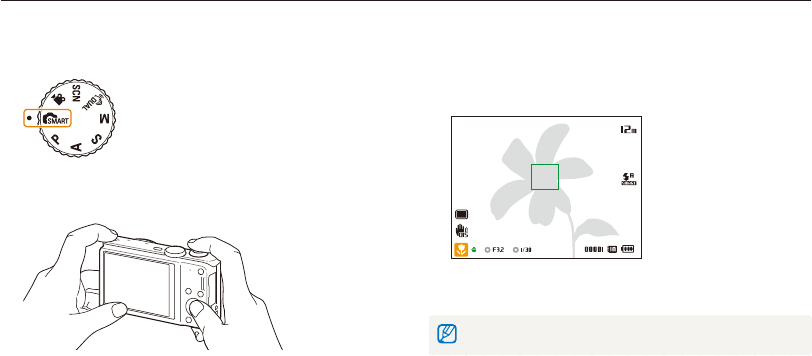
Basic functions
25
Capturing photos
Learn how to capture photos easily and quickly in Smart Auto mode.
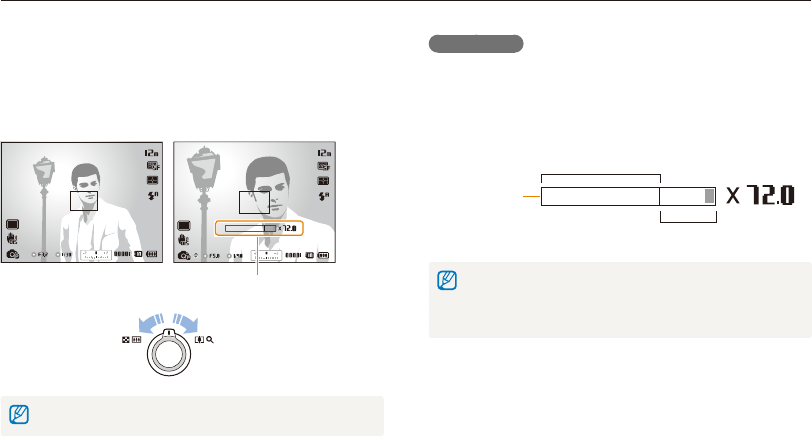
3
Half-press [Shutter] to focus.
•
A green frame means the subject is in focus.
•
A red frame means the subject is out of focus.
4
Press [Shutter] to capture a photo.
See page 29 for tips to get clearer photos.
1
Rotate the mode dial to
S
.
2
Align your subject in the frame.
Basic functions
26
Capturing photos
Digital zoom
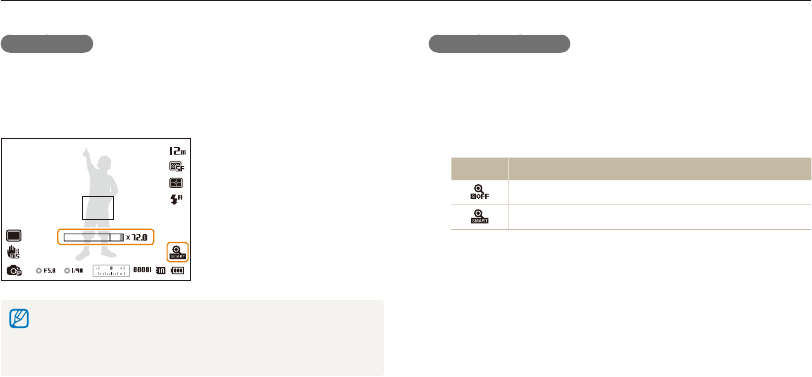
The Digital zoom is supported by default in Shooting mode. If you
zoom in on a subject in Shooting mode and the zoom indicator
is in the digital range, your camera is using the Digital zoom. By
using both the Optical zoom and Digital zoom, you can zoom in
up to 72 times.
Optical range
Digital range
Zoom indicator
•
The Digital zoom is not available with the Face detection option, Smart
Filter effect, Tracking AF option, Drive option, or Manual Focus.
•
If you capture a photo with the Digital zoom, the photo quality may be
lower than normal.
ÒAhMs
Zooming
You can capture close-up photos by adjusting the zoom. Your
camera has an 18X Optical zoom and 4X Digital zoom. You can
also use a 24X Smart zoom and 3X Digital zoom to zoom in on a
subject with less quality deterioration.
Zoom out Zoom in
Zoom ratio
The available zoom ratio for videos differs from the photo zoom ratio.
Basic functions
27
Capturing photos
Smart zoom
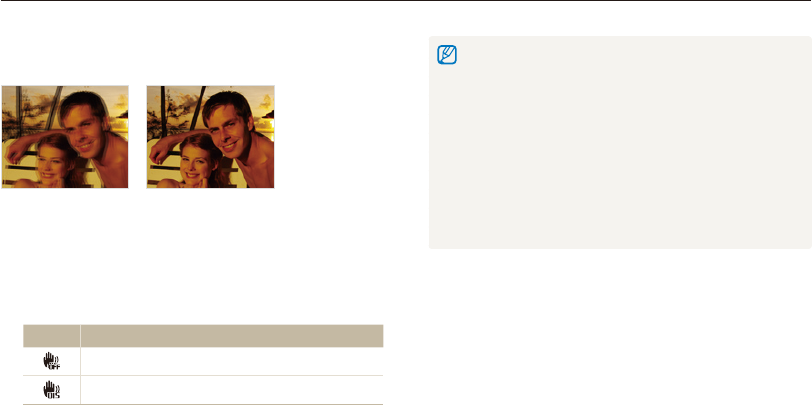
Smart zoom lets you zoom in a subject without less picture quality
degradation than when you use the Optical zoom and Digital
zoom. By using both the Smart zoom and Digital zoom, you can
zoom in up to 72 times.
•
Smart zoom is not available with the Face detection option, Smart
Filter effect, Tracking AF option, Drive option, or Manual Focus.
•
If you capture a photo with the Smart zoom, the photo quality may be
lower than normal.
ÒAhM
Setting Smart zoom
1
In Shooting mode, press [
m
].
2
Select
a
Smart Zoom.
3
Select an option.
Icon Description
Off: The Smart zoom is deactivated.
On: The Smart zoom is activated.
Basic functions
28
Capturing photos
Reducing camera shake (OIS)
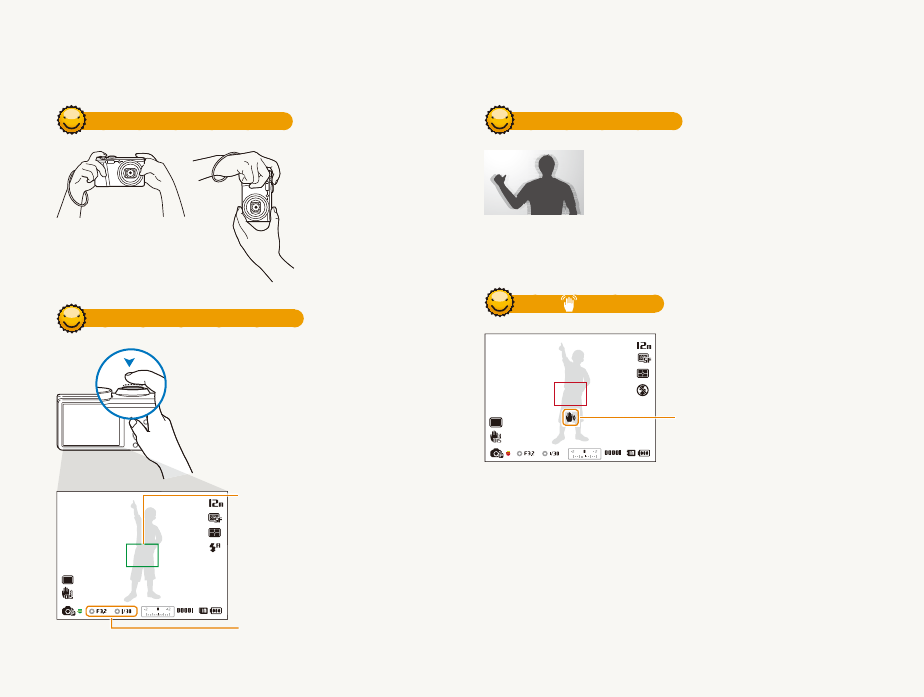
Reduce camera shake optically in Shooting mode.
Before correction After correction
1
In Shooting mode, press [
m
].
2
Select
a
or
V
OIS.
3
Select an option.
Icon Description
Off: OIS is deactivated.
On: OIS is activated.
ÒAhMsv •
OIS may not function properly when:
- you move your camera to follow a moving subject
- you use the Digital zoom
- there is too much camera shake
- the shutter speed is slow (for example, when you capture night
scenes)
- the battery is low
- you capture a close-up shot
•
If you use the OIS function with a tripod, your images may be blurred
by the vibration of the OIS sensor. Deactivate the OIS function when
you use a tripod.
•
If the camera is hit or dropped, the display will be blurry. If this occurs,
turn off the camera, and then turn it on again.
Basic functions
29
Holding your camera correctly
Ensure nothing is
blocking the lens.
Half-pressing the shutter button
Half-press [Shutter] and adjust the
focus. The camera adjusts the focus and
exposure automatically.
The camera sets the aperture value
and shutter speed automatically.
Focus frame
•
Press [Shutter] to capture the photo
if the focus frame appears in green.
•
Change the composition and
half-press [Shutter] again if the
focus frame appears in red.
Reducing camera shake
•
Set the Optical Image Stabilization option to
reduce camera shake optically. (p. 28)
•
Select the
d
mode to reduce camera shake
both optically and digitally. (p. 40)
When is displayed
Camera shake
When you shoot in the dark, avoid setting the flash option to Slow
Sync or Off. The aperture remains open longer and it may be harder to
hold the camera steady long enough to take a clear picture.
•
Use a tripod or set the flash option to Fill in. (p. 49)
•
Set ISO sensitivity options. (p. 51)
Tips for getting a clearer photo
Basic functions
30
Preventing your subject from being out of focus
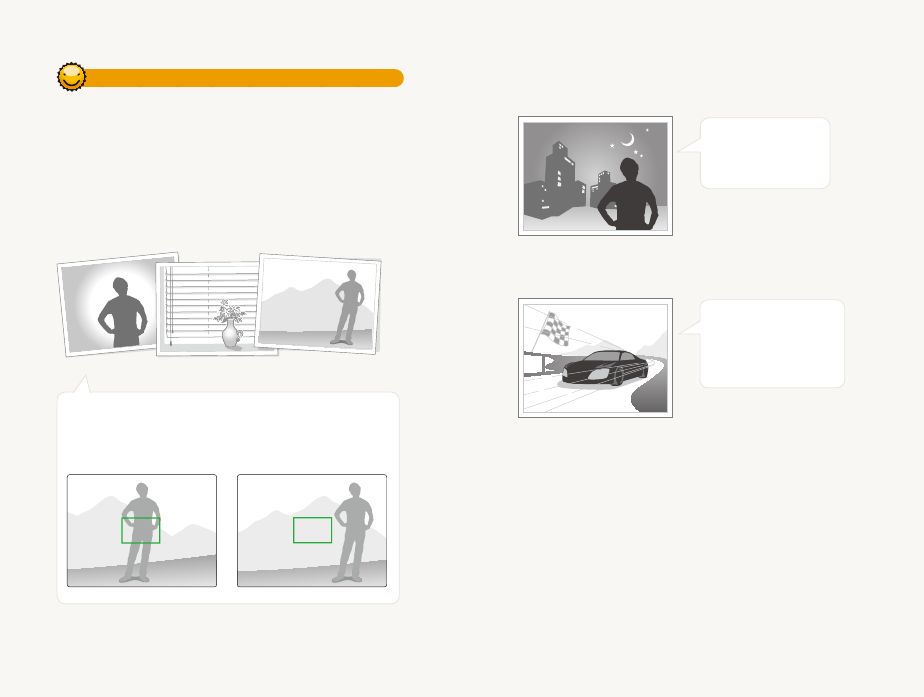
It may be difficult to get your subject in focus when:
-
there is little contrast between the subject and background (for
example, when your subject is wearing clothing that is similar in color
to the background)
-
the light source behind the subject is too bright
-
the subject is shiny or reflective
-
the subject includes horizontal patterns, such as blinds
-
the subject is not positioned in the center of the frame
Using the focus lock
Half-press [Shutter] to focus. When the subject is in focus,
you can reposition the frame to change the composition.
When you are ready, press [Shutter] to capture your photo.
•
When you capture photos in low light
Turn on the flash.
(p. 49)
•
When subjects are moving rapidly
Use the Continuous
or Motion Capture
function. (p. 66)

Extended functions
Learn how to capture a photo, record a video, and voice memo by selecting a mode.
Using the Smart Auto mode
……………… 32
Using the Scene mode
…………………… 34
Using the Beauty Shot mode
…………… 34
Using the Program mode
………………… 36
Using the Aperture Priority,
Shutter Priority, or Manual mode
………… 37
Using the Aperture Priority mode
………… 38
Using the Shutter Priority mode
………… 38
Using the Manual mode
………………… 39
Using the DUAL IS mode
………………… 40
Using the Movie mode
…………………… 41
Using the Smart Scene Detection mode
… 43
Recording voice memos
………………… 44
Recording a voice memo
………………… 44
Adding a voice memo to a photo
………… 44
Extended functions
32
Using the Smart Auto mode
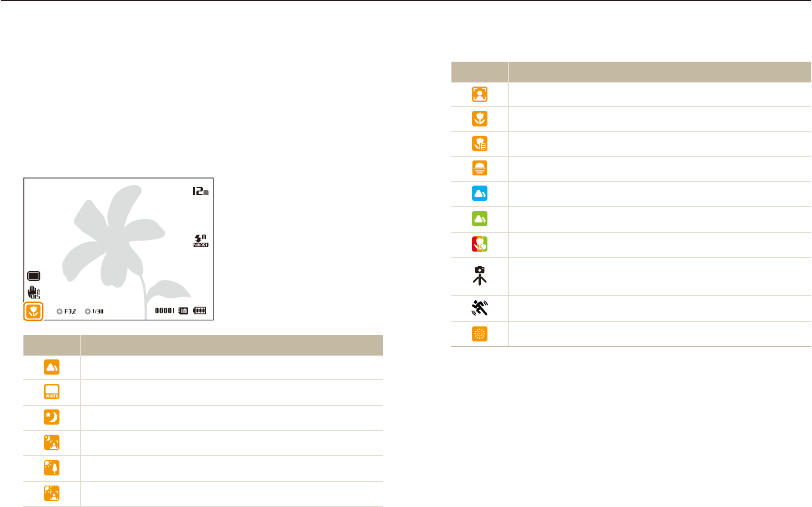
In Smart Auto mode, your camera automatically chooses the appropriate camera settings based on the type of scene it detects.
The Smart Auto mode is helpful if you are not familiar with the camera settings for various scenes.
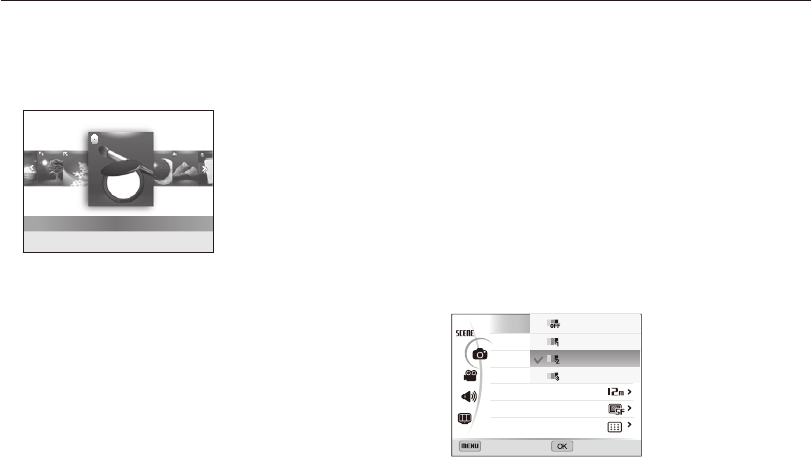
Icon Description
Portraits
Close-up photos of objects
Close-up photos of text
Sunsets
Clear skies
Forested areas
Close-up photos of colorful subjects
Camera is stabilized or on a tripod (when shooting in
the dark)
Actively moving subjects
Fireworks (when using a tripod)
3
Half-press [Shutter] to focus.
•
In several scenes, the camera automatically captures a photo
when you half-press [Shutter].
4
Press [Shutter] to capture the photo.
1
Rotate the mode dial to
S
.
2
Align your subject in the frame.
•
The camera automatically selects a scene. An appropriate
scene icon appears at the bottom left of the screen.
The icons are listed below.
Icon Description
Landscapes
Scenes with bright white backgrounds
Landscapes at night (when the flash is off)
Portraits at night
Landscapes with backlighting
Portraits with backlighting

Extended functions
33
Using the Smart Auto mode
•
If the camera does not recognize an appropriate scene mode, it uses
the default settings for the
S
mode.
•
Even if it detects a face, the camera may not select a portrait mode
depending on the subject's position or lighting.
•
The camera may not select the correct scene depending on the
shooting conditions, such as camera shake, lighting, or distance to
the subject.
•
Even if you use a tripod, the camera may not detect the mode if
the subject is moving.
•
In
S
mode, the camera consumes more battery power, because
it changes settings often to select appropriate scenes.
Extended functions
34
Using the Scene mode
In Scene mode, you can capture a photo with options that are preset for a specific scene.
Using the Beauty Shot mode
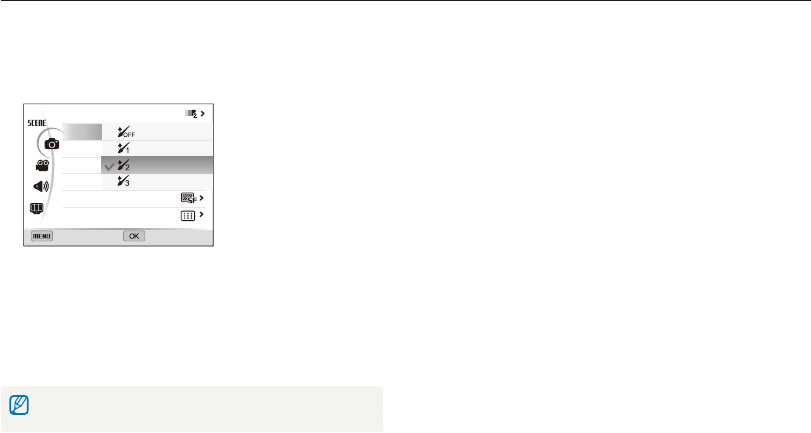
In Beauty Shot mode, you can capture a portrait with options to
hide facial imperfections.
1
Rotate the mode dial to
s
.
2
Select Beauty Shot.
3
Press [
m
].
4
Select
a
Face Tone.
5
Select an option.
•
For example, increase the face tone setting to make skin
appear lighter.
Back Set
Face Tone
Face Retouch
Face Detection
Smart FR Edit
Photo Size
Quality
Focus Area
Off
Level 1
Level 2
Level 3
6
Select Face Retouch.
1
Rotate the mode dial to
s
.
2
Select a scene.
Beauty Shot
•
To change a scene mode, press [
m
], and then select
N
. You can select any of the scenes listed.
•
For the Beauty Shot mode, see "Using the Beauty Shot
mode" in the next column.
3
Align your subject in the frame, and then half-press
[Shutter] to focus.
4
Press [Shutter] to capture the photo.
Extended functions
35
Using the Scene mode
7
Select an option.
•
For example, increase the face retouch setting to hide more
imperfections.
Back Set
Face Tone
Face Retouch
Face Detection
Smart FR Edit
Photo Size
Quality
Focus Area
Off
Level 1
Level 2
Level 3
8
Press [
m
] to return to Shooting mode.
9
Align your subject in the frame, and then half-press
[Shutter] to focus.
10
Press [Shutter] to capture the photo.
When you use the Beauty Shot mode, the focus distance will be set to Auto
Macro.
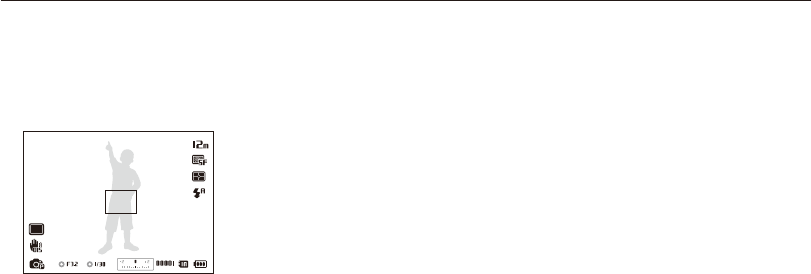
Extended functions
36
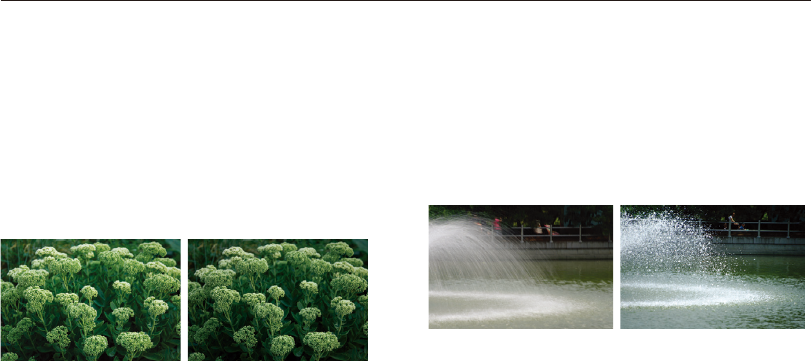
Using the Program mode
In Program mode, you can set most options, except the shutter speed and aperture value, which the camera sets automatically.
1
Rotate the mode dial to
Ò
.
2
Set the desired options. (For a list of options, refer to
page 45.)
3
Align your subject in the frame, and then half-press
[Shutter] to focus.
4
Press [Shutter] to capture the photo.
Extended functions
37
Using the Aperture Priority, Shutter Priority, or Manual mode
Adjust the aperture value or shutter speed to control the exposure of your photos. You can use these options in the Aperture Priority,
Shutter Priority, and Manual modes.
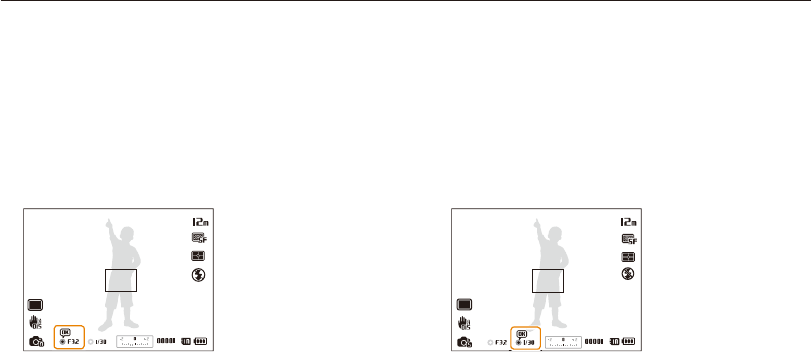
Shutter speed
Shutter speed, which is an important factor in the brightness of a
photo, refers to the amount of time it takes to open and close the
shutter. A slow shutter speed allows more time to let light in.
All things being equal, photos are brighter, but fast moving
objects tend to blur. On the other hand, a fast shutter speed
allows less time to let light in. Photos are darker, but objects in
motion are captured more clearly.
S
Slow shutter speed
S
Fast shutter speed
Aperture value
The aperture is a hole that lets light into the camera. The aperture
housing contains thin, metal plates that open and close, widening
or narrowing the aperture, and controlling the amount of light that
enters the camera. The size of the aperture is closely related to
the brightness of a photo: the larger the aperture, the brighter the
photo; the smaller the aperture, the darker the photo.
Note that the larger the aperture value, the smaller the aperture
size. For example, an aperture set to 5.6 is larger than an
aperture set to 11.
S
Small aperture value (The size
of the aperture is large.)
S
Large aperture value (The size
of the aperture is small.)
Extended functions
38
Using the Aperture Priority, Shutter Priority, or Manual mode
Using the Shutter Priority mode
The Shutter Priority mode allows you to set the shutter speed
manually while the camera automatically selects an appropriate
aperture value.
1
Rotate the mode dial to
h
.
2
Press [
o
] [
D
/
c
] to adjust the shutter speed.
•
See page 37 for more information about the shutter speed.
3
Set options. (For a list of options, refer to “Shooting
options.”)
4
Align your subject in the frame, and then half-press
[Shutter] to focus.
5
Press [Shutter] to capture the photo.
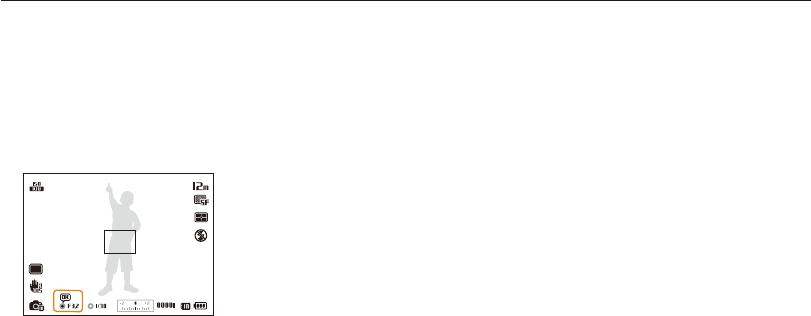
Using the Aperture Priority mode
The Aperture Priority mode allows you to set the aperture value
manually while the camera automatically selects an appropriate
shutter speed.
1
Rotate the mode dial to
A
.
2
Press [
o
] [
D
/
c
] to adjust the aperture value.
•
See page 37 for more information about the aperture value.
3
Set options. (For a list of options, refer to “Shooting
options.”)
4
Align your subject in the frame, and then half-press
[Shutter] to focus.
5
Press [Shutter] to capture the photo.
Extended functions
39
Using the Aperture Priority, Shutter Priority, or Manual mode
4
Set options. (For a list of options, refer to “Shooting
options.”)
5
Align your subject in the frame, and then half-press
[Shutter] to focus.
6
Press [Shutter] to capture the photo.
Using the Manual mode
The Manual mode allows you to adjust both the aperture value
and the shutter speed manually.
1
Rotate the mode dial to
M
.
2
Press [
o
] to select the aperture value or shutter speed.
3
Press [
D
/
c
] to adjust the aperture value or shutter
speed.
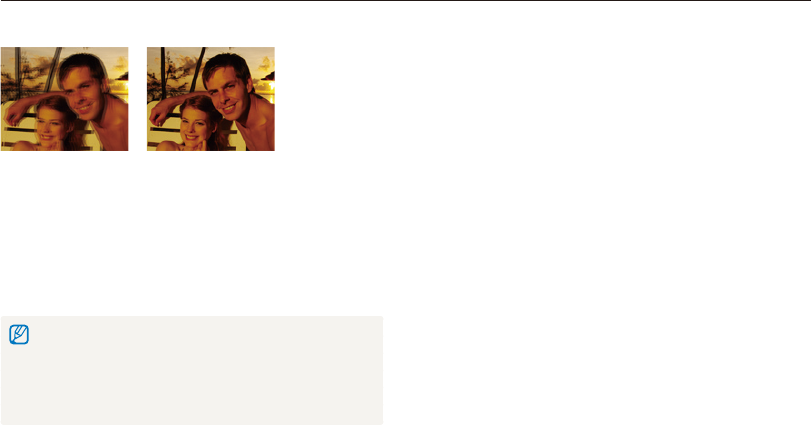
Extended functions
40
Using the DUAL IS mode
Reduce camera shake and prevent blurred photos with Optical and Digital Image Stabilization functions.
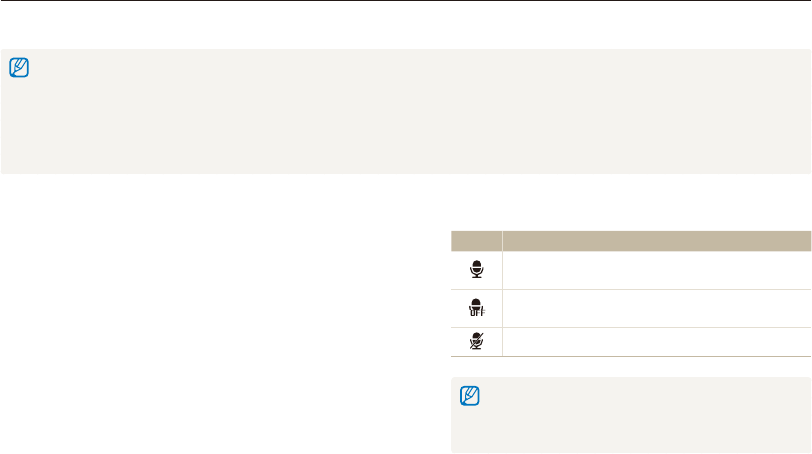
Before correction After correction
1
Rotate the mode dial to
d
.
2
Align your subject in the frame, and then half-press
[Shutter] to focus.
3
Press [Shutter] to take the photo.
•
The Digital zoom and Smart zoom are not available in
d
mode.
•
The camera will correct photos optically only when the light source is
brighter than fluorescent light.
•
If your subject is moving rapidly, the photo may be blurry.
•
Set the Optical Image Stabilization option to reduce camera shake in
different shooting modes. (p. 28)
Extended functions
41
Using the Movie mode
In Movie mode, you can customize settings to record high-definition videos of up to 20 minutes in length. The camera saves recorded
videos as MP4 (H.264) files.
•
H.264 (MPEG-4 part10/AVC) is a high-compression video format established by the international standard organizations ISO-IEC and ITU-T.
•
Some memory cards may not support high definition recording. In this case, set a lower resolution.
•
Memory cards with slow writing speeds will not support high-resolution videos and high-speed videos. To record high-resolution or high-speed videos, use memory
cards with faster writing speeds.
•
If you activate the OIS function while recording a video, the camera may record the operating sound of the OIS function.
•
If you use the zoom function when recording a video, the camera may record the noise of the zoom operating. To decrease zoom noise, use the Sound Alive
function. See Steps 5 and 6 below.
6
Select a Sound Alive option.
Icon Description
Sound Alive On: Turn on the Sound Alive function to
reduce the zoom noise.
Sound Alive Off: Turn off the Sound Alive function to
record the zoom noise.
Mute: Do not record sounds.
•
Do not block the microphone when you use the Sound Alive
function.
•
Recordings made with Sound Alive may differ from actual
sounds.
1
Rotate the mode dial to
v
.
2
Press [
m
].
3
Select
V
Frame Rate.
4
Select a frame rate (the number of frames per second).
•
As the frame rate increases, action appears more natural, but
the file size also increases.
5
Select Voice.
Extended functions
42
Using the Movie mode
7
Set desired options. (For a list of options, refer to
page 45.)
8
Press (Video recording) to start recording.
9
Press (Video recording) again to stop recording.
•
You can start recording a video in any mode by pressing (Video
recording) without having to rotate the mode dial to
v
.
•
You can capture a photo in Movie mode by pressing [Shutter].
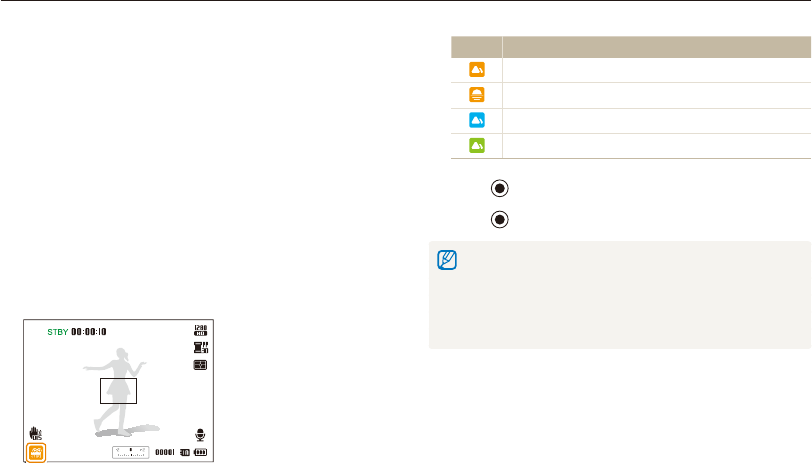
Pause recording
The camera allows you to temporarily pause a video while
recording. With this function, you can record separate scenes as
a single video.
OK : Pause
• Press [o] to pause while recording.
• Press [o] to resume.
Extended functions
43
Using the Movie mode
Using the Smart Scene Detection mode
In Smart Scene Detection mode, your camera automatically
chooses the appropriate camera settings based on the scene it
has detected.
1
Rotate the mode dial to
v
.
2
In Shooting mode, press [
m
].
3
Select
V
Smart Scene Detection On.
4
Press [
m
] to return to Shooting mode.
5
Align your subject in the frame.
•
The camera automatically selects a scene. An appropriate
scene icon will appear at the bottom left of the screen.
Icon Description
Landscapes
Sunsets
Clear skies
Forested areas
6
Press (Video recording) to start recording.
7
Press (Video recording) again to stop recording.
•
If the camera does not recognize an appropriate scene mode, it uses
the default settings for the Smart Scene Detection mode.
•
The camera may not select the correct scene depending on the
shooting conditions, such as camera shake, lighting, and distance to
the subject.
•
Smart Filter effects are not available in Smart Scene Detection mode.
Extended functions
44
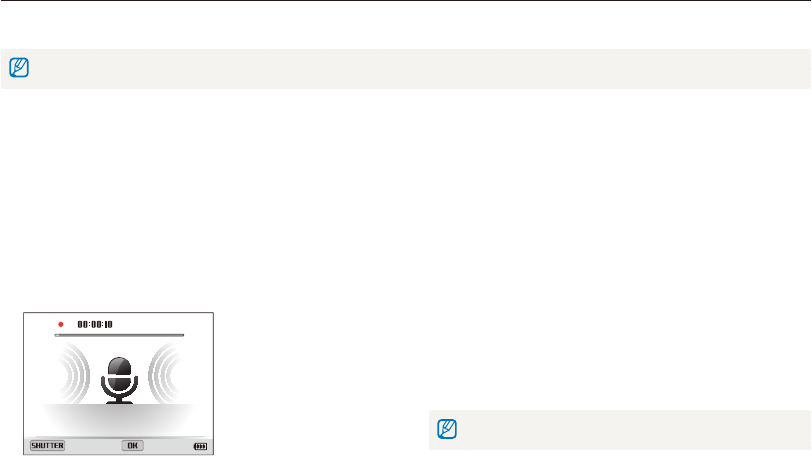
Recording a voice memo
1
In Shooting mode, press [
m
].
2
Select
a
Voice Record.
3
Press [Shutter].
•
Press [
o
] to pause or press [
o
] to resume.
•
Each memo can be up to 10 hours long if memory is
available.
Stop Pause
4
Press [Shutter] again to stop recording.
•
Press [Shutter] again to record a new voice memo.
5
Press [
m
] to return to Shooting mode.
Adding a voice memo to a photo
1
In Shooting mode, press [
m
].
2
Select
a
Voice Memo.
3
Press [
m
] to return to Shooting mode.
4
Align your subject in the frame, and then capture a
photo.
•
The camera begins to record a voice memo right after you
capture the photo.
5
Record a short voice memo (10 seconds maximum).
•
Press [Shutter] to stop recording a voice memo before the
10 seconds are up.
You cannot add voice memos to photos in the Drive mode.
Recording voice memos
Learn how to record a voice memo that you can play back later. You can also add a voice memo to a photo to remind you of shooting
conditions.
You will get the best sound quality when you speak 16 in (40 cm) away from the camera.
ÒAhMds

Selecting a resolution and quality
………… 46
Selecting a resolution
…………………… 46
Selecting image quality
…………………… 47
Using the timer
……………………………… 48
Shooting in the dark
……………………… 49
Preventing red-eye
……………………… 49
Using the flash
…………………………… 49
Adjusting the ISO sensitivity
……………… 51
Changing the camera’s focus
…………… 52
Using macro
……………………………… 52
Using auto focus
………………………… 52
Focusing on a selected area
……………… 54
Using tracking auto focus
………………… 54
Adjusting the focus area
………………… 55
Using Face Detection
……………………… 56
Detecting faces
…………………………… 56
Capturing a self portrait shot
…………… 57
Capturing a smile shot
…………………… 57
Detecting eye blinking
…………………… 58
Using Smart Face Recognition
…………… 58
Registering faces as your favorites
(My Star)
………………………………… 59
Adjusting brightness and color
…………… 61
Adjusting the exposure manually (EV)
…… 61
Changing the metering option
…………… 62
Selecting a light source (White balance)
… 63
Using drive modes
………………………… 66
Applying effects/Adjusting images
……… 67
Applying Smart Filter effects
……………… 67
Adjusting your photos
…………………… 70
Shooting options
Learn how to set the options in Shooting mode.
Shooting options
46
Selecting a resolution and quality
Learn how to change the image resolution and quality settings.
Setting the video resolution
1
In Shooting mode, press [
m
].
2
Select
V
Movie Size.
3
Select an option.
Icon Description
1280 X 720 HQ: Play back high-quality files on an HDTV.
1280 X 720: Play back on an HDTV.
640 X 480: Play back on an analog TV.
320 X 240: Post on a web page.
If a memory card is not inserted, the camera supports only and .
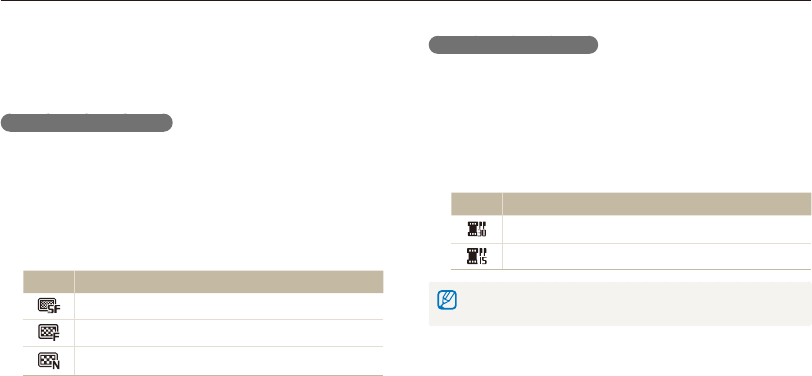
Selecting a resolution
As you increase the resolution, your photo or video will include
more pixels, so it can be printed on larger paper or displayed on
a larger screen. When you use a high resolution, the file size will
also increase.
Setting the photo resolution
1
In Shooting mode, press [
m
].
2
Select
a
Photo Size.
3
Select an option.
Icon Description
4000 X 3000: Print on an A1 paper.
4000 X 2664: Print on an A1 paper in wide ratio (3:2).
3648 X 2736: Print on an A2 paper.
4000 X 2248: Print on an A2 paper in panorama ratio
(16:9) or play back on an HDTV.
3264 X 2448: Print on an A3 paper.
2592 X 1944: Print on an A4 paper.
1920 X 1080: Print on an A5 paper in panorama ratio
(16:9) or play back on an HDTV.
1024 X 768: Attach to an email.
SÒAhMds
SÒAhMdsv
Shooting options
47
Selecting a resolution and quality
Selecting image quality
Set the photo and video quality settings. Higher image quality
settings will result in larger file sizes.
Setting the photo quality
The camera compresses and saves the photos you capture in
the JPEG format.
1
In Shooting mode, press [
m
].
2
Select
a
Quality.
3
Select an option.
Icon Description
Super Fine: Capture photos in super high quality.
Fine: Capture photos in high quality.
Normal: Capture photos in normal quality.
ÒAhMds
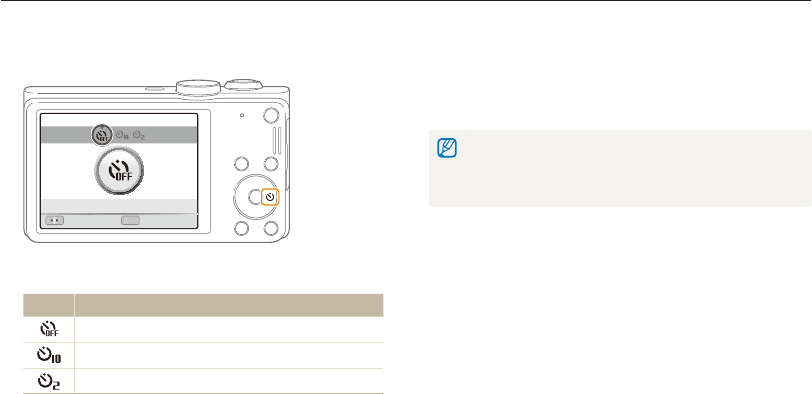
Setting the video quality
The camera compresses and saves the videos you record in the
MP4 (H.264) format.
1
In Shooting mode, press [
m
].
2
Select
V
Frame Rate.
3
Select an option.
Icon Description
30 FPS: Record 30 frames per second.
15 FPS: Record 15 frames per second.
As the frame rate increases, action appears more natural, but the file size also
increases
v
Shooting options
48
Using the timer
Learn how to set the timer to delay shooting.
SÒAhMdsv
3
Press [Shutter] to start the timer.
•
The AF-assist light/timer lamp blinks. The camera will
automatically capture a photo after the specified time has
elapsed.
•
Press [Shutter] to cancel the timer.
•
Depending on the timer option, some Face Detection options are not
available.
•
The timer options are not available if you set Drive options.
1
In Shooting mode, press [
t
].
OK
O
K
Move Set
Timer : Off
2
Select an option.
Icon Description
Off: The timer is not active.
10 Sec: Capture a photo after a 10-second delay.
2 Sec: Capture a photo after a 2-second delay.
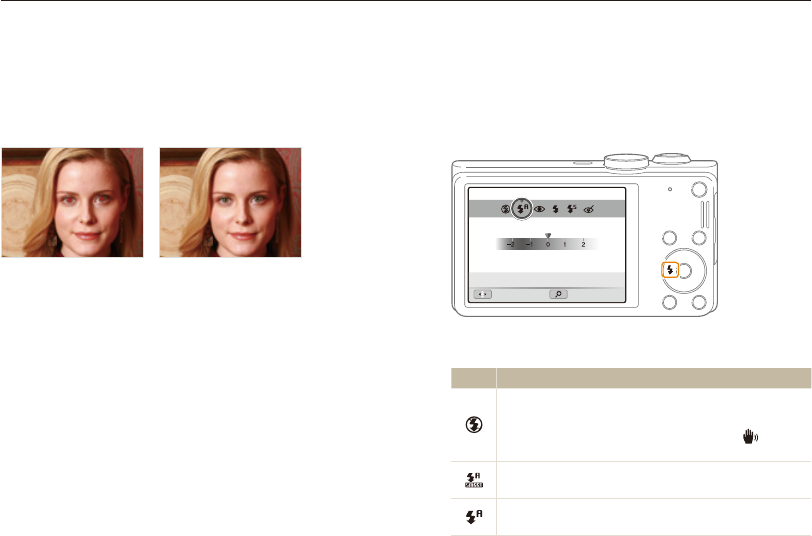
Shooting options
49
Shooting in the dark
Learn how to capture photos at night or in low light conditions.
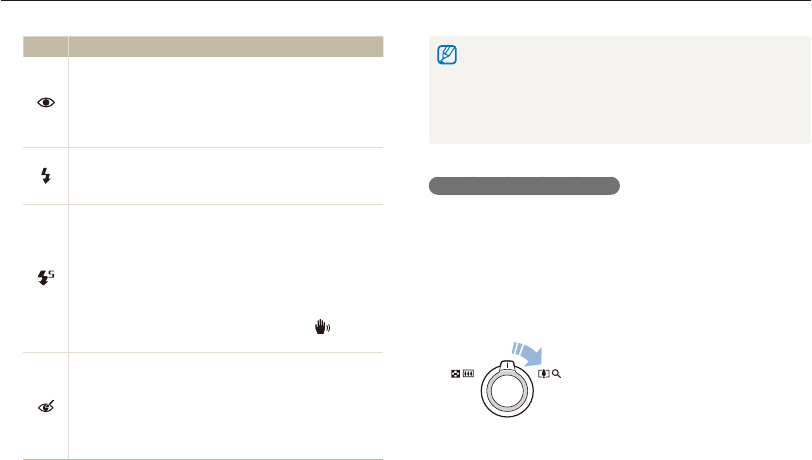
Using the flash
Use the flash when you capture photos in the dark or when you
need more light in your photos.
1
In Shooting mode, press [
F
].
Move Adjust
Flash : Auto
2
Select an option.
Icon Description
Off:
•
The flash will not fire.
•
The camera will display the shake warning when
you are shooting in low light.
Auto: The camera will select a proper flash setting for
the scene it detects in Smart Auto mode.
Auto: The flash will fire automatically when the subject or
background is dark.
SÒAhMs
Preventing red-eye
If the flash fires when you capture a photo of a person in the dark,
a red glow may appear in the person’s eyes. To prevent this,
select Red-eye or Red-eye Fix. Refer to flash options in “Using
the flash.”
Òs
Shooting options
50
Shooting in the dark
•
Flash options are not available if you set Drive options or select
Self-Portrait or Blink Detection.
•
Make sure that your subjects are within the recommended distance
from the flash. (p. 116)
•
If light from the flash is reflected or there is a substantial amount of
dust in the air, tiny spots may appear in your photo.
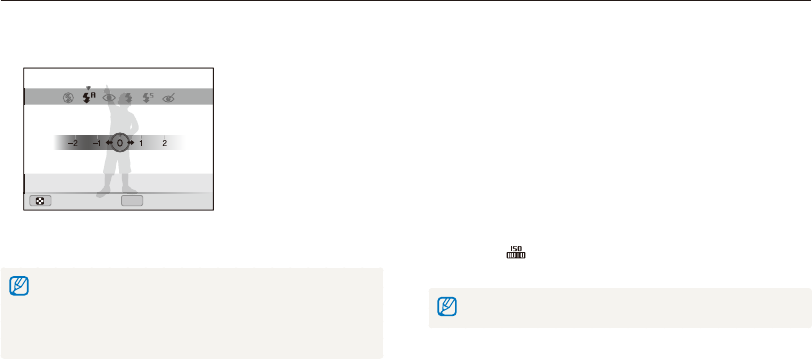
Adjusting the flash intensity
Adjust the flash intensity to avoid over-exposed or under-exposed
photos.
1
In Shooting mode, press [
F
].
2
Scroll to an option.
3
Rotate [Zoom] to the right.
Icon Description
Red-eye:
•
The flash will fire twice when the subject or
background is dark to reduce the red-eye effect.
•
There is an interval between the 2 bursts of the flash.
Do not move until the flash fires a second time.
Fill in:
•
The flash always fires.
•
The camera automatically adjusts light intensity.
Slow Sync:
•
The flash fires and the shutter stays open longer.
•
This option is recommended when you want to
capture ambient light to reveal more details in the
background.
•
Use a tripod to prevent your photos from blurring.
•
The camera will display the shake warning when
you are shooting in low light.
Red-eye Fix:
•
The flash fires when the subject or background is
dark and the camera corrects red-eyes through its
advanced software analysis.
•
There is an interval between the 2 bursts of the flash.
Do not move until the flash fires a second time.
Available options may differ depending on the shooting conditions.
Shooting options
51
Shooting in the dark
4
Press [
F
/
t
] to adjust the intensity.
OK
Back Set
Flash : Auto
5
Press [
o
] to save your settings.
•
Adjusting the flash intensity may not be effective if:
- the subject is too close to the camera
- you set a high ISO sensitivity
- the exposure value is too big or too small
•
In some shooting modes, you cannot use this function.
Adjusting the ISO sensitivity
The ISO sensitivity is the measure of a film’s sensitivity to light as
defined by the International Organization for Standardization (ISO).
The higher ISO sensitivity you select, the more sensitive to light
your camera becomes. With a higher ISO sensitivity, you can get
a better photo without using the flash.
1
In Shooting mode, press [
m
].
2
Select
a
ISO.
3
Select an option.
•
Select to use an appropriate ISO sensitivity based on the
brightness of the subject and lighting.
Higher ISO sensitivities may result in more image noise.
ÒAhM
Shooting options
52
Changing the camera’s focus
Learn how to adjust the camera’s focus to suit the subject and the shooting conditions.
Using auto focus
To capture sharp photos, select the appropriate focus option
according to your distance from the subject.
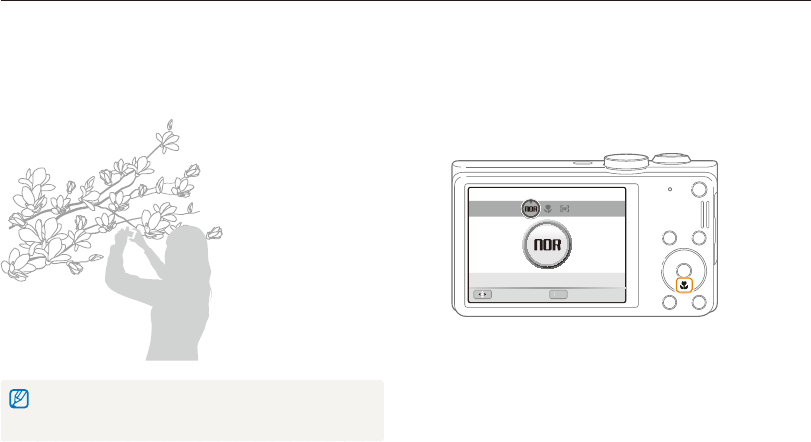
1
In Shooting mode, press [
c
].
OK
O
K
Move Set
Focus : Normal (AF)
ÒAhMdv
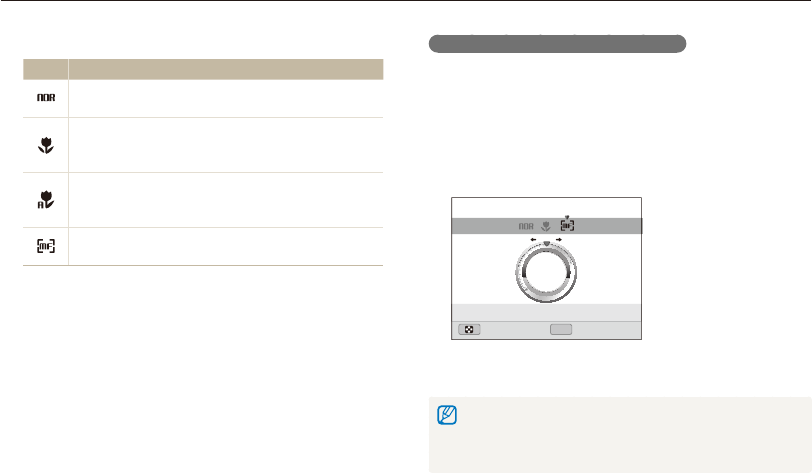
Using macro
Use macro to capture close-up photos of subjects, such as
flowers or insects.
•
Try to hold the camera firmly to prevent blurry photos.
•
Turn off the flash if the distance to the subject is less than 16 in
(40 cm).
ÒAhMdv
Shooting options
53
Changing the camera’s focus
Adjusting the focus distance manually
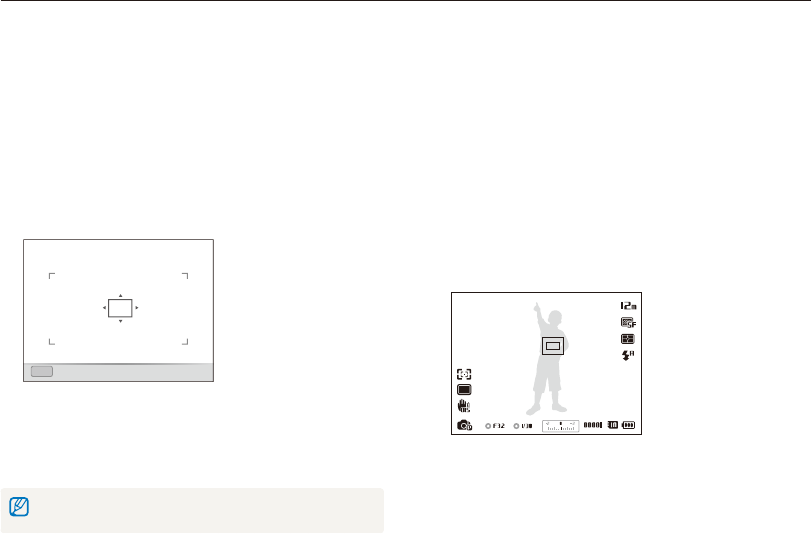
1
In Shooting mode, press [
c
].
2
Scroll to Manual Focus.
3
Rotate [Zoom] to the right.
4
Press [
F
/
t
] to adjust the focus distance.
OK
Back Set
Focus : Manual Focus
5
Press [
o
] to save your settings.
•
When you adjust the focus distance manually and the subject is out of
focus, the photo may become blurry.
•
If you use this function, you cannot set focus area options and Face
Detection options.
ÒAhMd
2
Select an option.
Icon Description
Normal (AF): Focus on a subject farther than 32 in.
(80 cm) (137 in. [350 cm] when you use the zoom).
Macro: Manually focus on a subject that is 2-32 in.
(5-80 cm) from the camera (70-137 in. [180-350 cm]
when you use the zoom).
Auto Macro: Focus on a subject farther than 2 in.
(5 cm) (farther than 70 in. [180 cm] away when you use
the zoom).
Manual Focus: Focus on a subject by adjusting the
focus distance manually. (p. 53)
Available options may differ depending on the shooting conditions.
Shooting options
54
Changing the camera’s focus
Using tracking auto focus
Tracking AF allows you to track and auto focus on your subject,
even when you are moving.
1
In Shooting mode, press [
m
].
2
Select
a
Focus Area Tracking AF.
3
Press [
m
] to return to Shooting mode.
4
Focus on the subject you want to track, and then press
[
o
].
•
A focus frame appears on the subject and follows the subject
as you move the camera.
•
The white frame means that your camera is tracking the
subject.
•
When you half-press [Shutter], the green frame means that
your subject is in focus.
ÒAhMd
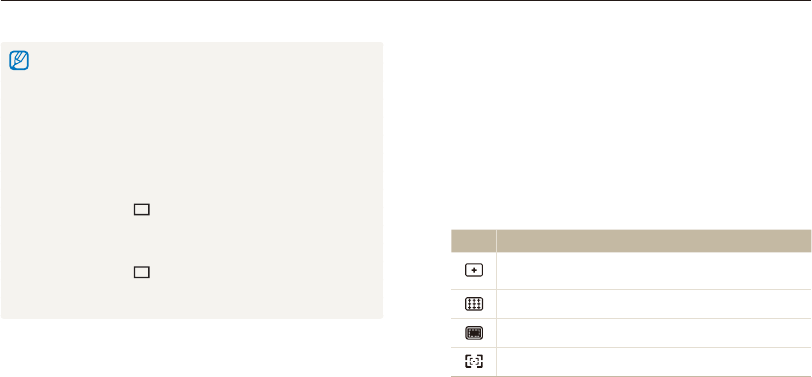
Focusing on a selected area
You can focus on an area that you have selected.
1
In Shooting mode, press [
m
].
2
Select
a
Focus Area Selection AF.
3
Press [
m
] to return to Shooting mode.
4
Press [
o
] [
D
/
c
/
F
/
t
] to move the frame to a
desired area.
OK
Set
5
Press [
o
].
6
Press [Shutter] to capture the photo.
•
Press [
o
] to change the focus area.
If you use this function, you cannot set Face Detection options, Drive options,
and Smart Filter effects.
ÒAhMd
Shooting options
55
Changing the camera’s focus
•
If you do not select a focus area, the focus frame will appear in the
center of the screen.
•
Tracking a subject may fail when:
- the subject is too small
- the subject moves excessively
- the subject is backlit or you are shooting in a dark place
- colors or patterns on the subject and the background are the same
- the subject includes horizontal patterns, such as blinds
- the camera shakes excessively
•
When tracking a subject fails, the focus frame will appear as a white
single-line frame ( ).
•
If the camera fails to track the subject, you must reselect the subject
to track.
•
If the camera fails to focus, the focus frame will change to a red
single-line frame ( ).
•
If you use this function, you cannot set Face Detection options, Drive
options, and Smart Filter effects.
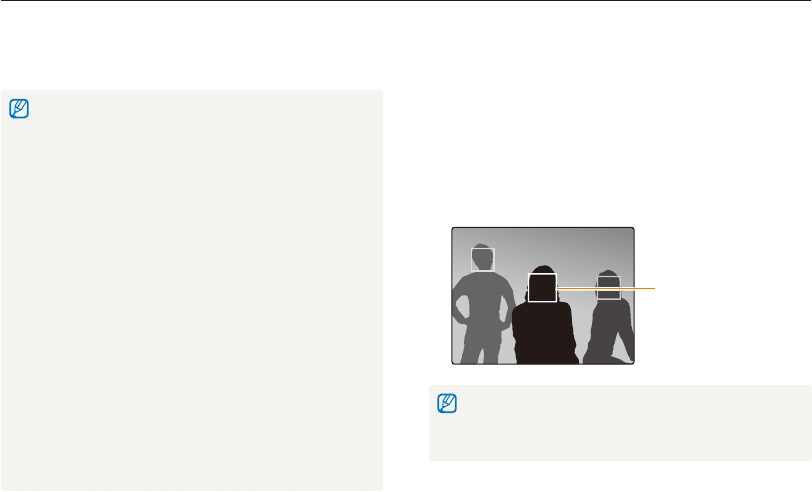
Adjusting the focus area
In addition to Selection AF and Multi AF, you can also use the
Center AF and Multi-AF functions to change the focus area.
Choose the appropriate focus area function according to your
subject's location in the scene.
1
In Shooting mode, press [
m
].
2
Select
a
Focus Area.
3
Select an option.
Icon Description
Center AF: Focus on the center of the frame (suitable
when subjects are located at or near the center).
Multi AF: Focus on one or more of 9 possible areas.
Selection AF: Focus on the area that you select. (p. 54)
Tracking AF: Focus on and track the subject. (p. 54)
Available shooting options may differ depending on the shooting mode.
ÒAhMds
Shooting options
56
Using Face Detection
If you use Face Detection options, your camera can automatically detect a human face. When you focus on a human face, the camera
adjusts the exposure automatically. Use Blink Detection to detect closed eyes or Smile Shot to capture a smiling face. You can also use
Smart Face Recognition to register faces and prioritize the focus on them.
ÒAhMds
Detecting faces
Your camera automatically detects up to 10 human faces in one
scene.
1
In Shooting mode, press [
m
].
2
Select
a
Face Detection Normal.
The nearest face appears in
a white focus frame and the
rest of the faces appear in
gray focus frames.
•
The closer you are to the subjects, the quicker your camera will detect
faces.
•
If you have set Drive options, the camera may not register detected
faces.
•
When your camera detects a face, it tracks the detected face
automatically.
•
Face Detection may not be effective when:
- the subject is far from the camera (The focus frame will appear
orange for the Smile Shot and Blink Detection.)
- it is too bright or too dark
- the subject is not facing the camera
- the subject is wearing sunglasses or a mask
- the subject’s facial expression changes drastically
- the subject is backlit or the lighting conditions are unstable
•
Face Detection is not available when you set Smart Filter effects,
Selection AF, Tracking AF, or Manual Focus.
•
Depending on the shooting options you selected, available Face
Detection options may differ.
•
Depending on the Face Detection options you selected, the timer
function may not be available or available Timer options may differ.
•
Depending on the Face Detection options you selected, some Drive
options are not available.
•
When you capture photos of detected faces, they will be registered
in the face list.
•
You can view registered faces in order of priority in Playback mode.
(p. 73) Even though faces are registered successfully, they may not be
classified in Playback mode.
•
A face detected in Shooting mode may not appear in the face list or
Smart Album.
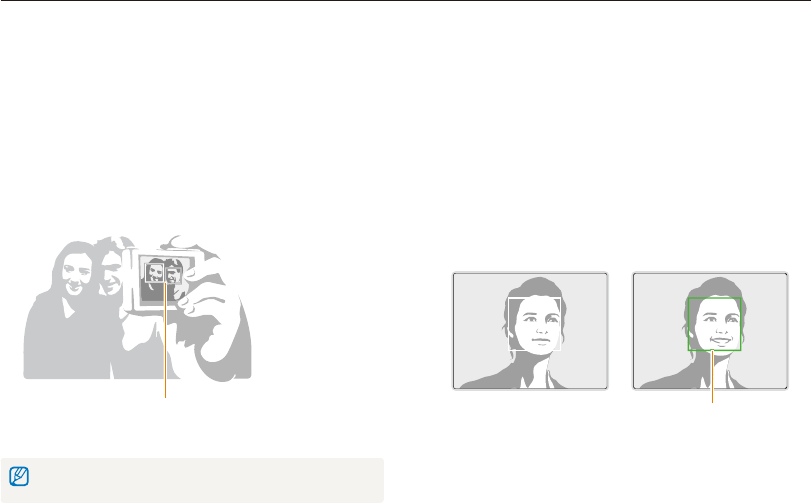
Shooting options
57
Using Face Detection
Capturing a self portrait shot
Capture photos of yourself. The camera sets the focus distance
to close-up, and then emits a beep when ready.
1
In Shooting mode, press [
m
].
2
Select
a
Face Detection Self-Portrait.
3
Press [
m
] to return to Shooting mode.
4
When you hear a quick beep, press [Shutter].
When faces are located in the center,
the camera beeps rapidly.
If you turn Volume off in the sound settings, the camera will not emit a beep.
(p. 98)
Capturing a smile shot
The camera automatically releases the shutter when it detects a
smiling face.
1
In Shooting mode, press [
m
].
2
Select
a
Face Detection Smile Shot.
3
Press [
m
] to return to Shooting mode.
4
Compose your shot.
•
The camera automatically releases the shutter when it detects
a smiling face.
When your subject smiles
broadly, your camera can detect
the smile more easily.
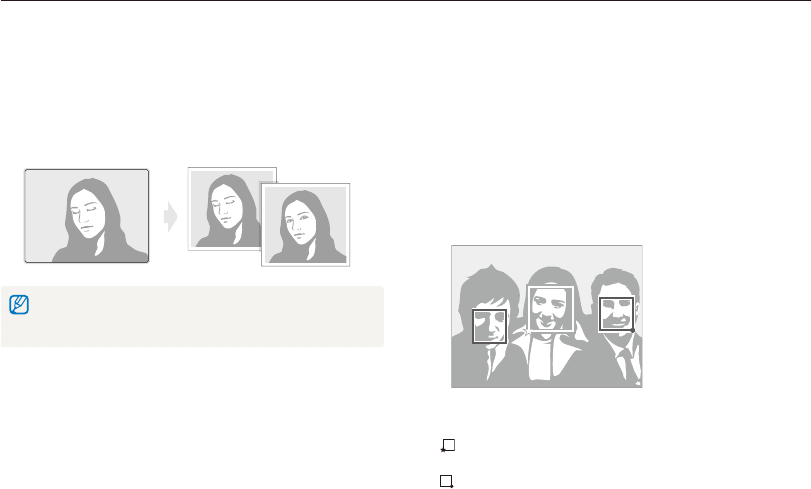
Shooting options
58
Using Face Detection
Using Smart Face Recognition
The camera automatically registers faces that you frequently
photograph. The Smart Face Recognition feature will
automatically prioritize the focus on those faces and on favorite
faces. The Smart Face Recognition feature is available only when
you use a memory card.
1
In Shooting mode, press [
m
].
2
Select
a
Face Detection Smart Face
Recognition.
The nearest face appears in a white focus frame and the rest of
the faces appear in gray focus frames.
• : Faces that you have registered as favorites. (To register
faces as favorites, refer to page 59.)
• : Faces that the camera has automatically registered.
Detecting eye blinking
If your camera detects closed eyes, it will automatically capture
2 photos in succession.
1
In Shooting mode, press [
m
].
2
Select
a
Face Detection Blink Detection.
•
Hold your camera still while “Capturing” is displayed on the screen.
•
If Blink Detection fails, the “Picture taken with eyes closed.”
message appears. Capture another photo.
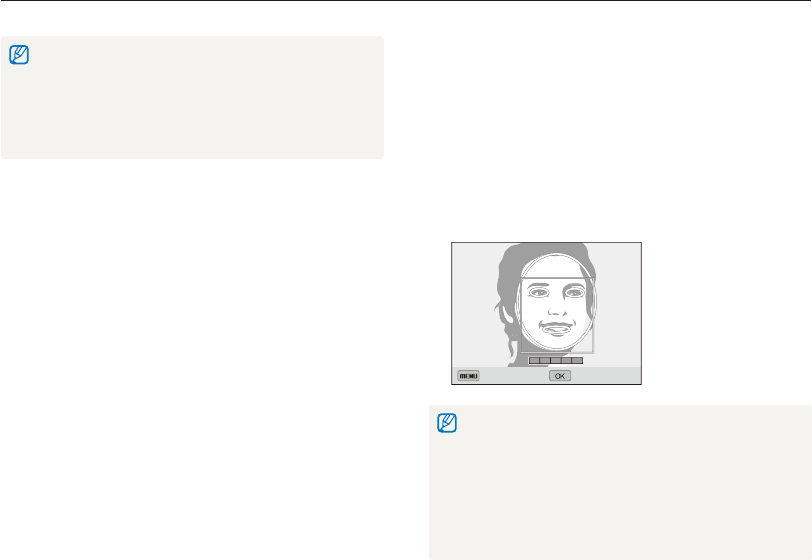
Shooting options
59
Using Face Detection
Registering faces as your favorites (My Star)
You can register your favorite faces to prioritize the focus and
exposure on those faces. This feature is available only when you
use a memory card.
1
In Shooting mode, press [
m
].
2
Select
a
Smart FR Edit My Star.
3
Align your subject’s face with the oval guideline, and then
press [Shutter] to register the face.
Back Set
•
If the subject’s face is not aligned with the oval guideline, the white
frame will not appear.
•
Capture photos of one person at a time when registering faces.
•
Capture 5 photos the subject’s face for best results: one each from
the front, left, right, above, and below.
•
When capturing photos from the left, right, above, and below, instruct
the subject not to turn his or her face more than 30 degrees.
•
You can register a face even if you capture only one photo of the
subject's face.
•
The camera may recognize and register faces incorrectly depending
on lighting conditions, drastic changes in the subject's pose or face,
and whether or not the subject is wearing glasses.
•
The camera can automatically register up to 12 faces. If the camera
recognizes a new face when 12 faces have already been registered, it
will replace the lowest priority face with the new one.
•
The camera can detect up to 5 favorite faces in one scene.

Shooting options
60
Using Face Detection
4
When you are finished capturing the photos, the face list
appears.
•
Your favorite faces are indicated with a on the face list.
•
You can register up to 8 favorite faces.
•
The flash will not fire when you register a favorite face.
•
If you register the same face twice, you can delete one of the faces
in the face list.
Viewing your favorite faces
1
In Shooting mode, press [
m
].
2
Select
a
Smart FR Edit Face List.
•
To change the ranking of your favorite faces, press [
f
], and then
select Edit Ranking. (p. 73)
•
To delete a favorite face, press [
f
], and then select Delete. (p. 74)
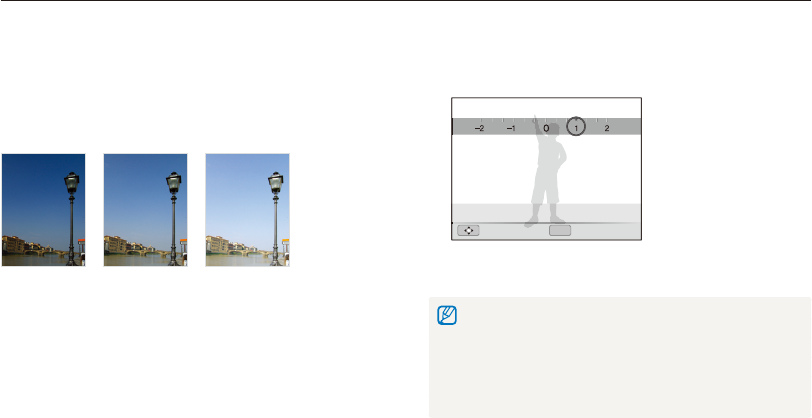
Shooting options
61
Adjusting brightness and color
Learn how to adjust the brightness and color for better image quality.
3
Select a value to adjust the exposure.
•
The photo will be brighter as the exposure value increases.
OK
Move Set
EV : 1
4
Press [
o
] to save your settings.
•
Once you adjust the exposure, the setting will be stored automatically.
You may need to change the exposure value later to avoid
overexposure or underexposure.
•
If you cannot decide on an appropriate exposure, select AEB
(Auto Exposure Bracket). The camera will capture 3 consecutive
photos, each with a different exposure: normal, underexposed, and
overexposed. (p. 66)
Adjusting the exposure manually (EV)
Depending on the intensity of the ambient light, your photos
may be too bright or dark. In these cases, you can adjust the
exposure to get a better photo.
Darker (-) Neutral (0) Brighter (+)
1
In Shooting mode, press [
m
].
2
Select
a
or
V
EV.
ÒAhdv
Shooting options
62
Adjusting brightness and color
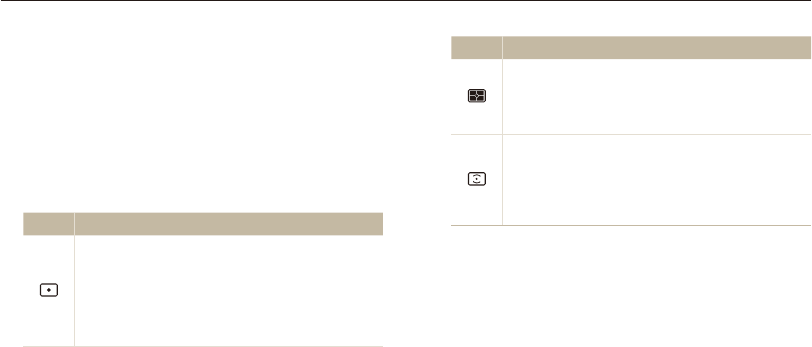
Icon Description
Multi:
•
Your camera divides the frame into several areas,
and then measures the light intensity of each area.
•
Suitable for general photos.
Center-weighted:
•
Your camera averages the meter reading of the entire
frame with emphasis placed on the center.
•
Suitable for photos with subjects in the center of the
frame.
Changing the metering option
The metering mode refers to the way in which a camera
measures the quantity of light. The brightness and lighting of your
photos will vary depending on the metering mode you select.
1
In Shooting mode, press [
m
].
2
Select
a
or
V
Metering.
3
Select an option.
Icon Description
Spot:
•
Your camera measures only the light intensity at the
very center of the frame.
•
If a subject is not in the center of the frame, your
photo may be improperly exposed.
•
Suitable for a subject with backlighting.
ÒAhMdv
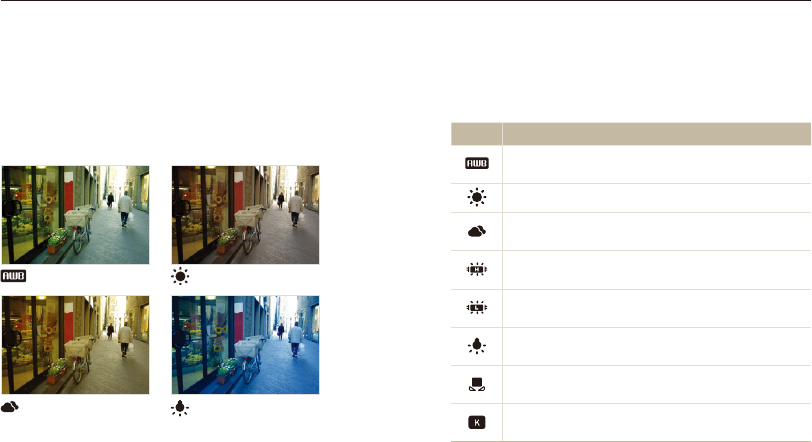
Shooting options
63
Adjusting brightness and color
Selecting a light source (White balance)
The color of your photo depends on the type and quality of the
light source. If you want the color of your photo to be realistic,
select a White Balance setting that is appropriate for the lighting
conditions, such as Auto WB, Daylight, Cloudy, or Tungsten.
Auto WB Daylight
Cloudy Tungsten
ÒAhMdv
1
In Shooting mode, press [
m
].
2
Select
a
or
V
White Balance.
3
Select an option.
Icon Description
Auto WB: Automatically set the White Balance based
on the lighting conditions.
Daylight: For outdoor photos on a sunny day.
Cloudy: For outdoor photos on a cloudy day or in
shadows.
Fluorescent_H: For shooting under a daylight
fluorescent or 3-way fluorescent light.
Fluorescent_L: For shooting under white fluorescent
light.
Tungsten: For shooting indoor photos under
incandescent bulbs or halogen lamps.
Custom Set: Use White Balance settings that you
defined. (p. 64)
Color Temp.: Adjust the color temperature of the light
source. (p. 65)
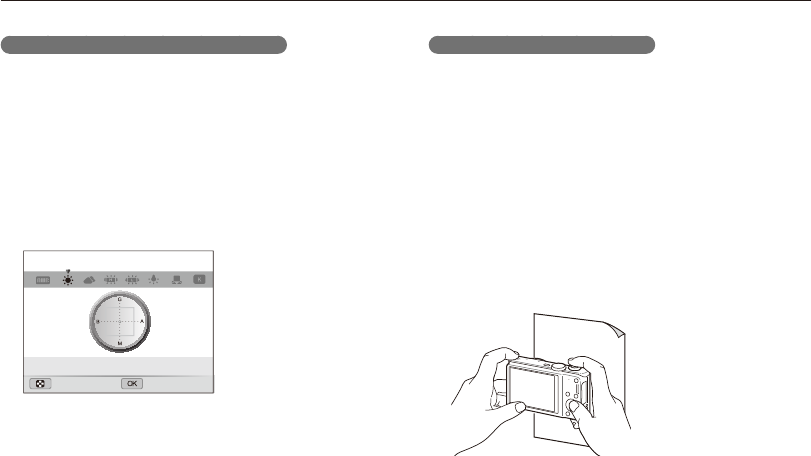
Shooting options
64
Adjusting brightness and color
Customizing preset White Balance options
1
In Shooting mode, press [
m
].
2
Select
a
or
V
White Balance.
3
Scroll to a desired option.
4
Rotate [Zoom] to the right.
5
Press [
D
/
c
/
F
/
t
] to adjust the value on the
coordinates.
•
G: Green
•
A: Amber
•
M: Magenta
•
B: Blue
Back Set
White Balance : Daylight
6
Press [
o
] to save your settings.
Defining your own White Balance
You can create a customized the White Balance by capturing a
photo of a white surface, such as a piece of paper, under the
lighting conditions in which you intend to capture a photo. The
White Balance feature will help you to match the colors in your
photo with the actual scene.
1
In Shooting mode, press [
m
].
2
Select
a
or
V
White Balance.
3
Scroll to Custom Set.
4
Aim the lens at a piece of white paper, and then press
[Shutter].
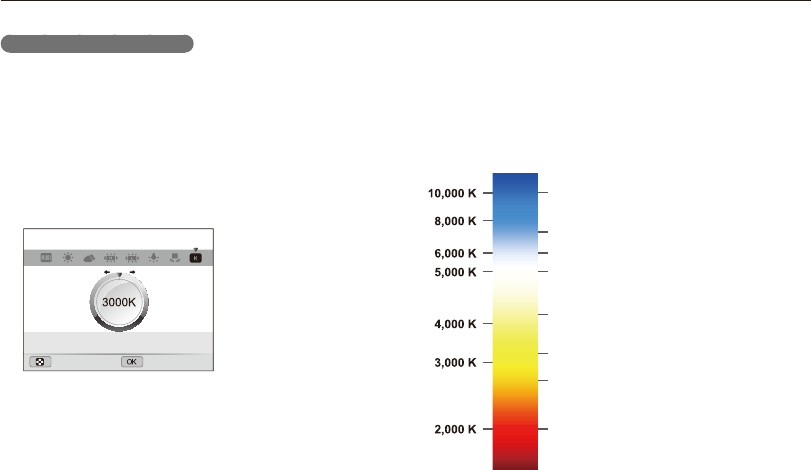
Shooting options
65
Adjusting brightness and color
Adjusting color temperature
1
In Shooting mode, press [
m
].
2
Select
a
or
V
White Balance.
3
Scroll to Color Temp.
4
Rotate [Zoom] to the right.
5
Press [
F
/
t
] to adjust the color temperature.
Back Set
White Balance : Color Temp.
6
Press [
o
] to save your settings.
Color temperature
Color temperature is a measurement in degrees Kelvin that
indicates the hue of a specific type of light source. As the color
temperature increases, the color distribution becomes cooler.
Alternatively, as the color temperature decreases, the color
distribution becomes warmer.
Clear sky
Fluorescent_H
Cloudy
Daylight
Fluorescent_L
Halogen lamp
Tungsten
Candle light
Cool
Warm
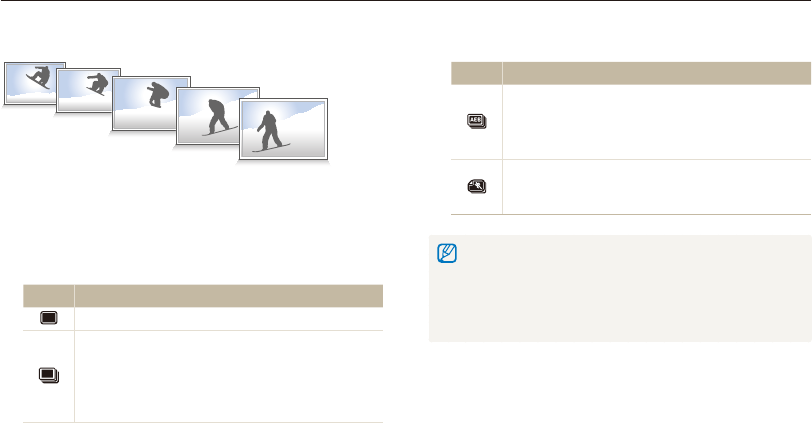
Shooting options
66
Using drive modes
It can be difficult to capture photos of fast-moving subjects or capture natural facial expressions and gestures of your subjects in photos. In
these cases, select one of the Drive modes to capture multiple photos rapidly.
ÒAhM
Icon Description
AEB:
•
Capture 3 consecutive photos, each with a different
exposure: normal, underexposed, and overexposed.
•
Use a tripod to prevent blurry photos.
Motion Capture: While you are pressing [Shutter], the
camera captures VGA photos (5 photos per second;
maximum of 30 photos).
•
You can use the flash, timer, and Smart Filter options only when you
select Single.
•
When you select Motion Capture, your camera will set the resolution
to VGA and set the ISO sensitivity to Auto.
•
Depending on the Face Detection option you selected, some Drive
options may not be available.
1
In Shooting mode, press [
m
].
2
Select
a
Drive.
3
Select an option.
Icon Description
Single: Capture a single photo.
Continuous:
•
While you are pressing [Shutter], the camera
continuously captures photos.
•
The maximum number of photos depends on the
capacity of your memory card.
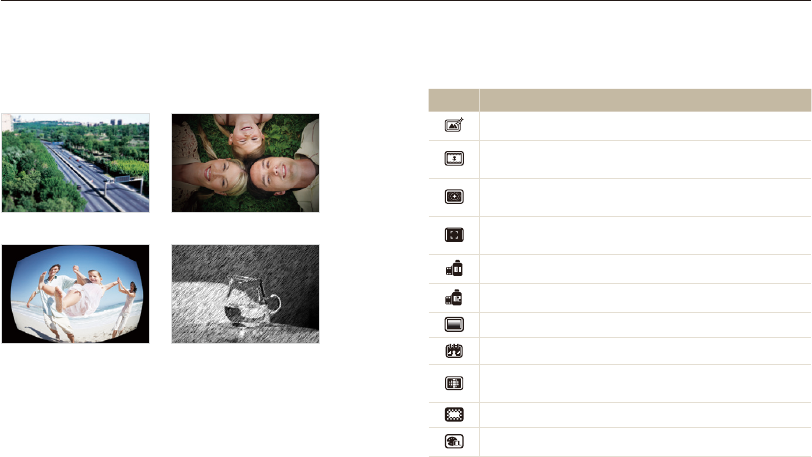
Shooting options
67
Applying effects/Adjusting images
Available filters in Program, Aperture Priority, Shutter Priority,
and Manual modes
Icon Description
Off: No effect
Miniature: Apply a tilt-shift effect to make the subject
appear in miniature.
Vignetting: Apply the retro-looking colors, high contrast,
and strong vignette effect of Lomo cameras.
Soft-Focus: Hide facial imperfections or apply dreamy
effects.
Old Film 1: Apply a vintage film effect 1.
Old Film 2: Apply a vintage film effect 2.
Half Tone Dot: Apply a halftone effect.
Sketch: Apply a pen sketch effect.
Fish-eye: Blacken the edges of the frame and distort
objects to imitate the visual effect of a fisheye lens.
Defog: Make image clearer.
Classic: Apply a black and white effect.
Applying Smart Filter effects
Apply various filter effects to your photos and videos to create
unique images.
Miniature Vignetting
Fish-eye Sketch
1
In Shooting mode, press [
m
].
2
Select
a
or
V
Smart Filter.
3
Select an effect.
ÒAhMv
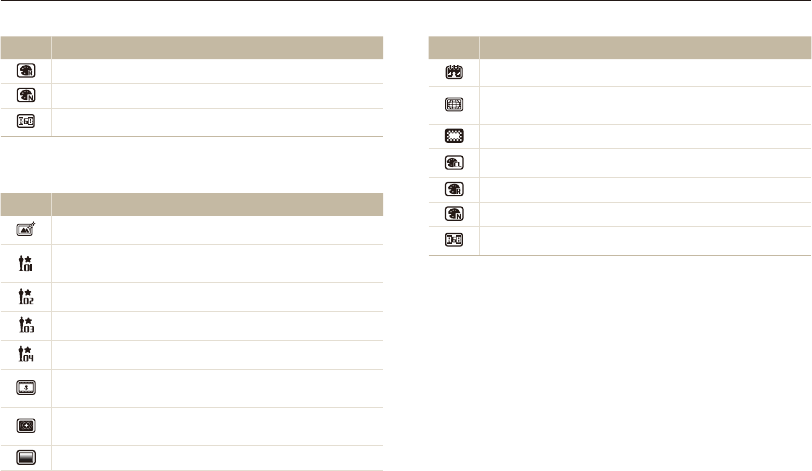
Shooting options
68
Applying effects/Adjusting images
Icon Description
Retro: Apply a sepia tone effect.
Negative: Apply a negative film effect.
Custom RGB: Customize a color value.
Available filters in Movie mode
Icon Description
Off: No effect
Palette Effect 1: Create a vivid look with sharp contrast
and strong color.
Palette Effect 2: Make scenes clean and clear.
Palette Effect 3: Apply a soft brown tone.
Palette Effect 4: Create a cold and monotone effect.
Miniature: Apply a tilt-shift effect to make the subject
appear in miniature.
Vignetting: Apply the retro-looking colors, high contrast,
and strong vignette effect of Lomo cameras.
Half Tone Dot: Apply a halftone effect.
Icon Description
Sketch: Apply a pen sketch effect.
Fish-eye: Distort close objects to imitate the visual effect of
a fisheye lens.
Defog: Make image clearer.
Classic: Apply a black and white effect.
Retro: Apply a sepia tone effect.
Negative: Apply a negative film effect.
Custom RGB: Customize a color value.
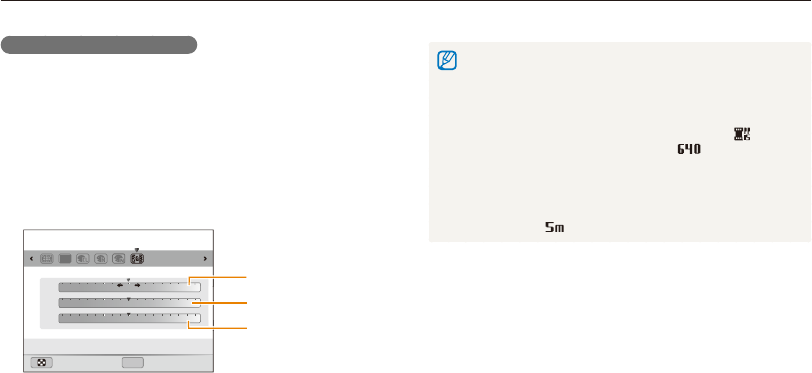
Shooting options
69
Applying effects/Adjusting images
Defining your own RGB tone
1
In Shooting mode, press [
m
].
2
Select
a
or
V
Smart Filter.
3
Scroll to Custom RGB.
4
Rotate [Zoom] to the right.
5
Select a color (R: Red, G: Green, B: Blue).
R
G
B
OK
Back Set
Smart Filter : Custom RGB
R: Red
G: Green
B: Blue
6
Select an option.
7
Press [
o
] to save your settings.
•
If you select Miniature when you are recording a video, the speed of
the video will increase.
•
If you select Miniature when you are recording a video, the camera
will not record sound.
•
If you select Miniature, Vignetting, Half Tone Dot, Sketch,
Fish-eye, or Defog, the recording speed will be set to and the
recording resolution will be set to less than .
•
If you set Smart Filter effects, you cannot set Face Recognition
options, Image Adjustment options, Drive options, Tracking AF, or
Selection AF.
•
If you select Sketch when you capture a photo, the photo resolution
will change to and below.
Shooting options
70
Applying effects/Adjusting images
Saturation Description
-Decrease the saturation.
+Increase the saturation.
•
Select 0 if you do not want to apply any effects (suitable for printing).
•
If you set adjustment functions, you cannot use Smart Filter options.
Adjusting your photos
Adjust the sharpness, saturation, or contrast of your photos.
1
In Shooting mode, press [
m
].
2
Select
a
Image Adjust.
3
Select an option.
•
Contrast
•
Sharpness
•
Saturation
4
Adjust each value.
Contrast Description
-Decrease the color and brightness.
+Increase the color and brightness.
Sharpness Description
-Soften the edges on your photos (suitable for
editing the photos on your computer).
+
Sharpen the edges to improve the clarity of your
photos. This may also increase the noise in your
photos.
ÒAhM

Viewing photos or videos in
Playback mode
…………………………… 72
Starting Playback mode
………………… 72
Viewing photos
…………………………… 77
Playing a video
…………………………… 79
Playing a voice memo
…………………… 80
Editing a photo
……………………………… 82
Resizing photos
…………………………… 82
Rotating a photo
………………………… 82
Applying Smart Filter effects
……………… 83
Adjusting your photos
…………………… 84
Creating a print order (DPOF)
…………… 86
Viewing files on a TV or HDTV
…………… 87
Transferring files to your
Windows computer
………………………… 89
Transferring files with Intelli-studio
………… 90
Transferring files by connecting
the camera as a removable disk
………… 92
Disconnecting the camera
(for Windows XP)
………………………… 93
Transferring files to your Mac computer
… 94
Printing photos with a
PictBridge photo printer
…………………… 95
Playback/Editing
Learn how to play back photos, videos, or voice memos and edit photos or videos.
Also, learn how to connect your camera to your computer, photo printer, TV, or HDTV.
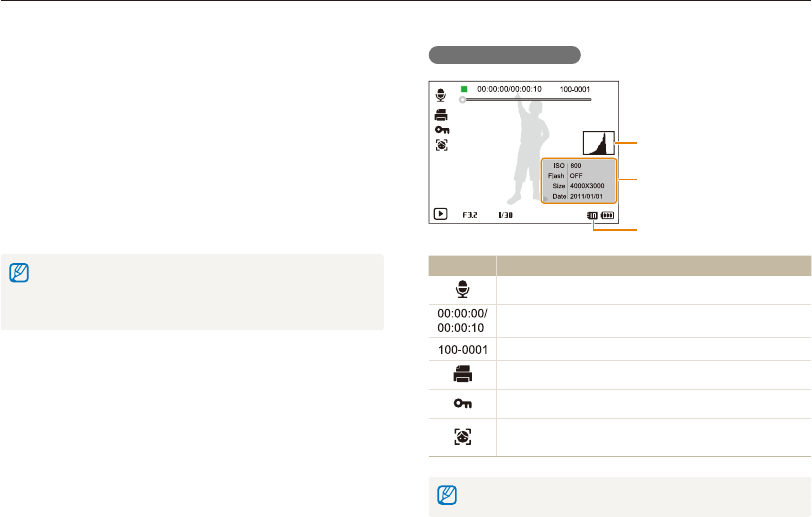
Playback/Editing
72
Viewing photos or videos in Playback mode
Learn how to play back photos, videos, or voice memos and how to manage files.
Photo file information
File Information
Histogram
Memory in use
OK : Play
Icon Description
Photo includes a voice memo
Current playback time/Voice memo length
Folder name – File name
Print order has been set (DPOF)
Protected file
Photo includes a registered face (available only when you
use a memory card)
To display file information on the screen, press [
D
].
Starting Playback mode
View photos or play videos and voice memos stored in your
camera.
1
Press [
P
].
•
The most recent file will be displayed.
•
If the camera is off, it will turn on and display the most recent
file.
2
Press [
F
/
t
] to scroll through files.
•
Press and hold [
F
/
t
] to scroll through files quickly.
•
If you want to view files stored in the internal memory, remove your
memory card.
•
The camera will not properly play back files of unsupported sizes or
files that were captured with other cameras.
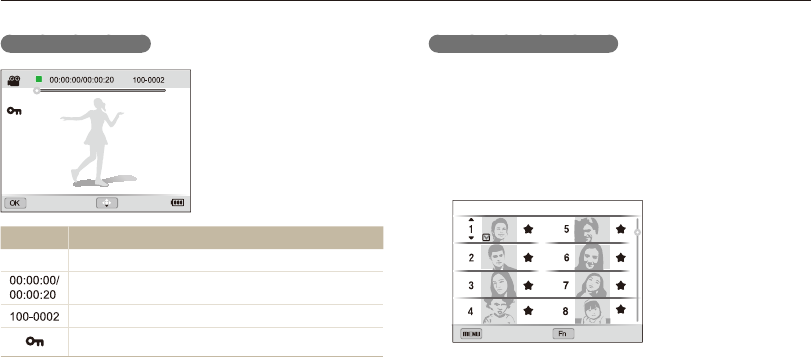
Playback/Editing
73
Viewing photos or videos in Playback mode
Ranking your favorite faces
You can rank your favorite faces. The favorite face feature is
available only when you insert a memory card into the camera.
1
In Playback mode, press [
m
].
2
Select
L
Face List Edit Edit Ranking.
3
Select a face from the list, and then press [
o
].
SetBack
Face List
4
Press [
D
/
c
] to change the ranking of the face, and
then press [
f
].
Video file information
Play Capture
Icon Description
V
Video file
Current playback time/Video length
Folder name–File name
Protected file
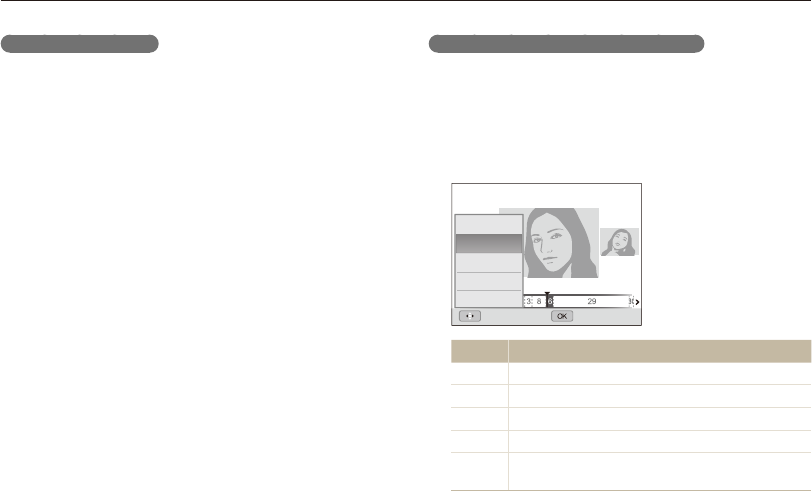
Playback/Editing
74
Viewing photos or videos in Playback mode
Viewing files by category in Smart Album
View files by category, such as date, face, or file type.
1
In Playback mode, rotate [Zoom] to the left.
2
Press [
m
].
3
Select a category.
Type
Date
Color
Week
Face
Back Set
Option Description
Type View files by the file type.
Date View files by the date they were saved.
Color View files by the dominant color of the image.
Week View files by the day of the week they were saved.
Face View files by recognized faces and favorite faces.
(Up to 20 people)
Deleting favorite faces
You can delete your favorite faces. The favorite face feature is
available only when you insert a memory card into the camera.
1
In Playback mode, press [
m
].
2
Select
L
Face List Edit Delete.
3
Select a face, and then press [
o
].
4
Press [
f
].
5
When the pop-up message appears, select Yes.
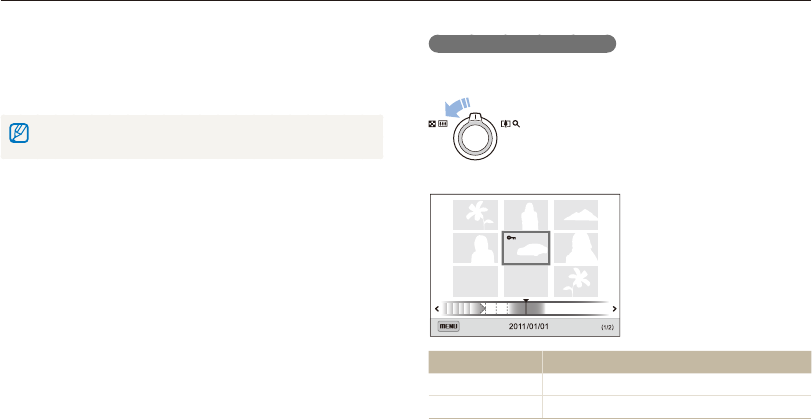
Playback/Editing
75
Viewing photos or videos in Playback mode
Viewing files as thumbnails
Scan thumbnails of files.
In Playback mode, rotate [Zoom] to the left to view
thumbnails (3 at a time). Rotate [Zoom] to the left
once or twice more to display more thumbnails (9 or
20 at a time). Rotate [Zoom] to the right to return to
the previous view.
14 25 11
Filter
To Description
Scroll through files Press [
D
/
c
/
F
/
t
].
Delete files Press [
f
], and then select Yes.
4
Press [
F
/
t
] to scroll through files.
•
Press and hold [
F
/
t
] to scroll through files quickly.
5
Press [
o
] to return to the normal view.
It may take some time for the camera to open Smart Album, change the
category, or reorganize files.
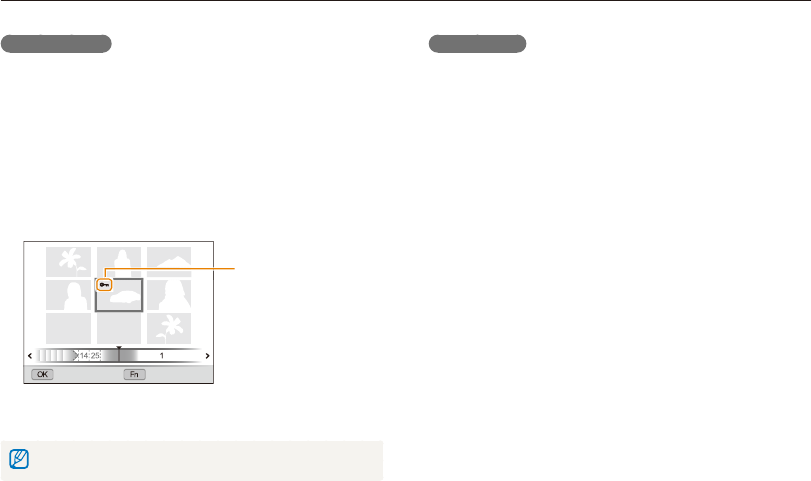
Playback/Editing
76
Viewing photos or videos in Playback mode
Protecting files
Protect your files from accidental deletion.
1
In Playback mode, press [
m
].
2
Select
L
Protect Select.
•
To protect all files, select All Lock.
3
Scroll to the file you want to protect, and then press
[
o
].
•
Press [
o
] again to cancel your selection.
Select Set
Protected file
4
Press [
f
].
You cannot delete or rotate a protected file.
Deleting files
Select files to delete in Playback mode.
Deleting a single file
You can select one file, and then delete it.
1
In Playback mode, select a file, and then press [
f
].
2
When the pop-up message appears, select Yes.
Deleting multiple files
You can select multiple files, and then delete them at once.
1
In Playback mode, press [
f
].
2
When the pop-up message appears, select Multiple
Delete.
•
You can also delete multiple files in Playback mode by
pressing [
m
], and then selecting
L
Delete
Select.
3
Scroll to each file you want to delete, and then press
[
o
].
•
Press [
o
] again to cancel your selection.
4
Press [
f
].
5
When the pop-up message appears, select Yes.
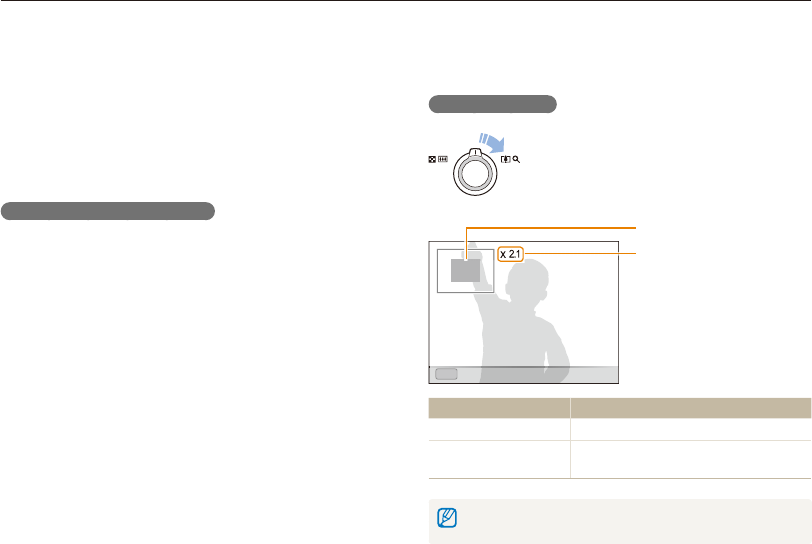
Playback/Editing
77
Viewing photos or videos in Playback mode
Viewing photos
Enlarge part of a photo or view photos as a slide show.
Enlarging a photo
In Playback mode, rotate [Zoom] to the right to
enlarge a portion of the photo. Rotate [Zoom] to the
left to zoom out.
OK
OK
Enlarged area
Zoom ratio (The maximum
zoom ratio differs depending
on the photo resolution.)
Trim
To Description
Move the enlarged area Press [
D
/
c
/
F
/
t
].
Trim the enlarged photo Press [
o
], and then select Yes. (It will be
saved as a new file).
When you view photos that were captured by another camera, the zoom
ratio may differ.
Deleting all files
You can select all files, and then delete them at once.
1
In Playback mode, press [
m
].
2
Select
L
Delete All.
3
When the pop-up message appears, select Yes.
Copying files to a memory card
Copy files from the internal memory to a memory card.
1
In Playback mode, press [
m
].
2
Select
L
Copy to Card.
3
Select Yes.
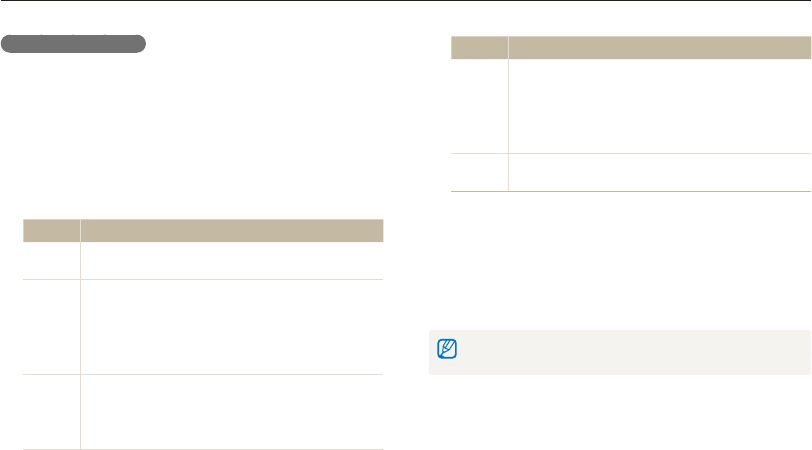
Playback/Editing
78
Viewing photos or videos in Playback mode
Option Description
Effect
•
Set a scene change effect between photos. (Off*,
Calm, Shine, Relax, Lively, Sweet)
•
Select Off to cancel effects.
•
When you use the Effect option, the interval
between photos will be set to 3 seconds.
Music Set background audio. (Off*, Mist, Drops, Muse,
Trip, Fall)
4
Select Start Play.
•
Select Repeat to loop the slide show.
5
View the slide show.
•
Press [
o
] to pause the slide show.
•
Press [
o
] again to resume the slide show.
Press [
o
], and then press [
F
/
t
] to stop the slide show and return to
Playback mode.
Playing a slide show
Apply effects and audio to a slide show of your photos. The slide
show function does not work for videos or voice memos.
1
In Playback mode, press [
m
].
2
Select
W
.
3
Select a slide show effect option.
•
Skip to step 4 to start a slide show with no effects.
* Default
Option Description
Start Set whether or not to repeat the slide show. (Play,
Repeat)
Images
Set the photos you want to view as a slide show.
•
All*: View all photos in a slide show.
•
Select: View selected photos in a slide show.
•
Date: View photos captured on a specific date in
a slide show.
Interval
•
Set the interval between photos. (1 sec*, 3 sec,
5 sec, 10 sec)
•
You must set the Effect option to Off to set the
interval.
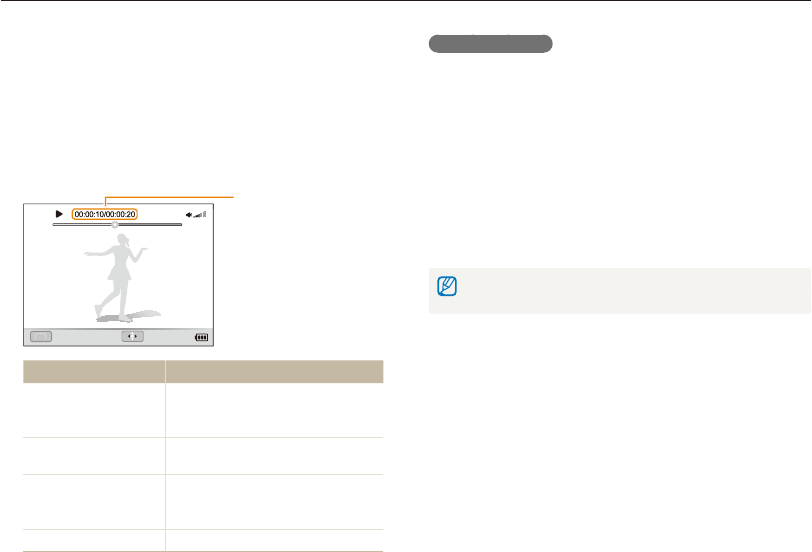
Playback/Editing
79
Viewing photos or videos in Playback mode
Trimming a video
1
While viewing a video, press [
o
] at the point where you
want the trimming to begin.
2
Rotate [Zoom] to the right, and then press [
o
].
3
Press [
o
] at the point where you want the trimming to
end.
4
Rotate [Zoom] to the right.
5
When the pop-up message appears, select Yes.
•
The original video should be at least 10 seconds long.
•
The camera will save the edited video as a new file.
Playing a video
In Playback mode, you can view a video, and then capture or trim
parts of the playing video. You can save the captured or trimmed
segments as new files.
1
In Playback mode, select a video, and then press [
o
].
2
View the video.
Current playback time/
Video length
OK
O
K
Pause REW/FF
To Description
Scan backward
Press [
F
]. Each time you press [
F
],
you change the scan speed in this
order: 2X, 4X, 8X.
Pause or resume
playback Press [
o
].
Scan forward
Press [
t
]. Each time you press [
t
],
you change the scan speed in this
order: 2X, 4X, 8X.
Adjust the volume level Rotate [Zoom] to the left or right.
Playback/Editing
80
Viewing photos or videos in Playback mode
Capturing an image from video
1
While viewing a video, press [
o
] at the point where you
want to capture an image.
2
Press [
c
].
•
The resolution of the captured image will be the same as the original
video.
•
The captured image is saved as a new file.
Playing a voice memo
Listening to a voice memo
1
In Playback mode, select a voice memo, and then press
[
o
].
2
Listen to the voice memo.
To Description
Scan backward Press [
F
].
Pause or resume
playback Press [
o
].
Scan forward Press [
t
].
Stop playback Press [
c
].
Adjust the volume level Rotate [Zoom] to the left or right.

Playback/Editing
81
Viewing photos or videos in Playback mode
Adding a voice memo to a photo
1
In Playback mode, select a photo, and then press
[
m
].
2
Select
L
Voice Memo On.
3
Press [Shutter] to record a short voice memo.
•
Maximum recording time is 10 seconds.
•
Press [Shutter] to stop recording a voice memo.
Playing voice memos that are attached to photos
1
In Playback mode, select a photo that includes a voice
memo, and then press [
o
].
2
Listen to a voice memo.
•
Press [
o
] to pause playback.
•
Press [
o
] to resume playback.
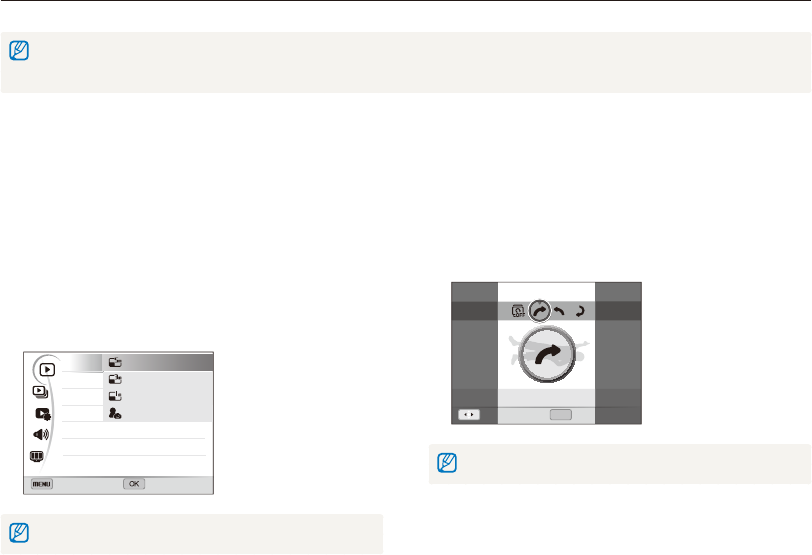
Playback/Editing
82
Editing a photo
Learn how to edit photos.
•
The camera will save edited photos as new files. When you rotate a picture, the camera overwrites the original file.
•
When you edit photos, the camera will automatically convert them to a lower resolution. Photos that you rotate or resize manually are not automatically converted to
a lower resolution.
Rotating a photo
1
In Playback mode, select a photo, and then press
[
m
].
2
Select
E
Rotate.
3
Select an option.
OK
Move Set
Rotate : Right 90˚
The camera will overwrite the original file.
Resizing photos
Change the size of a photo and save it as a new file. You can set
a photo to be displayed when the camera turns on.
1
In Playback mode, select a photo, and then press
[
m
].
2
Select
E
Resize.
3
Select an option.
•
Select Start Image to save the photo as a start image.
(p. 98)
Back Set
Resize
Rotate
Smart Filter
Image Adjust
2592 X 1944
1984 X 1488
1024 X 768
Start Image
Available resize options differ depending on the original size of the photo.
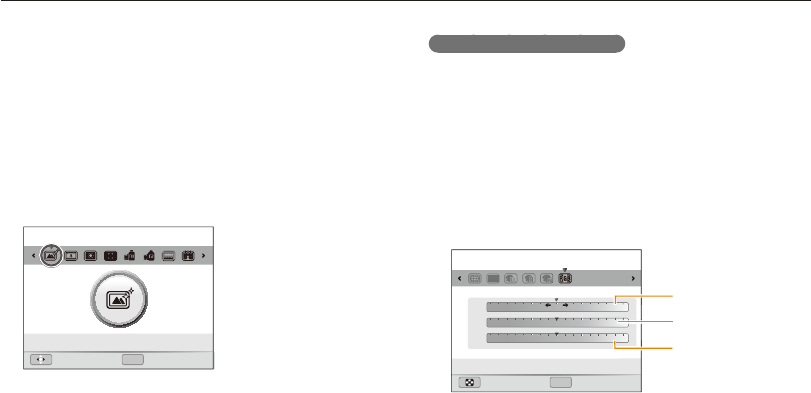
Playback/Editing
83
Editing a photo
Applying Smart Filter effects
Apply special effects to your photos.
1
In Playback mode, select a photo, and then press
[
m
].
2
Select
E
Smart Filter.
3
Select an effect.
•
To see available filter options, refer to page 67.
OK
Move Set
Smart Filter : Off
Defining your own RGB tone
1
In Playback mode, select a photo, and then press
[
m
].
2
Select
E
Smart Filter.
3
Scroll to Custom RGB.
4
Rotate [Zoom] to the right.
5
Select a color (R: Red, G: Green, B: Blue).
R
G
B
OK
Back Set
Smart Filter : Custom RGB
R: Red
G: Green
B: Blue
6
Adjust the amount of the selected color.
7
Press [
o
] to save your settings.

Playback/Editing
84
Editing a photo
Retouching faces
1
In Playback mode, select a photo, and then press
[
m
].
2
Select
E
Image Adjust Face Retouch.
3
Rotate [Zoom] to the right.
4
Press [
F
/
t
] to adjust the skin tone.
•
As the number increases, the skin tone becomes brighter.
5
Press [
o
] to save your settings.
Adjusting your photos
Learn how to correct the red-eye effect, adjust the skin tone, and
adjust the brightness, contrast, or saturation. The camera will
save an edited photo as a new file, but may convert it to a lower
resolution.
Removing red-eye
1
In Playback mode, select a photo, and then press
[
m
].
2
Select
E
Image Adjust Red-eye Fix.
3
Press [
o
] to save your settings.
Playback/Editing
85
Editing a photo
Adjusting brightness, contrast, or saturation
1
In Playback mode, select a photo, and then press
[
m
].
2
Select
E
Image Adjust.
3
Select an adjusting option.
Icon Description
Brightness
Contrast
Saturation
4
Rotate [Zoom] to the right.
5
Press [
F
/
t
] to adjust the option.
6
Press [
o
] to save your settings.
Adding noise to the photo
1
In Playback mode, select a photo, and then press
[
m
].
2
Select
E
Image Adjust Add Noise.
3
Press [
o
] to save.

Playback/Editing
86
Editing a photo
Creating a print order (DPOF)
Select photos to print and save print options in the Digital Print
Order Format (DPOF). This information is saved in the MISC
folder on your memory card for convenient printing on DPOF-
compatible printers.
1
In Playback mode, press [
m
].
2
Select
L
DPOF Standard Select.
•
Select All to print all photos.
3
Scroll to a photo you want to print, rotate [Zoom] to the
left or right to select the number of copies, and then
press [
f
].
•
If you select All, press [
D
/
c
] to select the number of
copies, and then press [
o
].
4
Press [
m
].
5
Select
L
DPOF Size Select.
•
Select All to choose the print size for all photos.
6
Scroll to a photo you want to print, rotate [Zoom] to the
left or right to select the print size, and then press [
f
].
•
If you select All, press [
D
/
c
] to select the print size, and
then press [
o
].
Printing photos as thumbnails
Print photos as thumbnails to check all the photos at once.
1
In Playback mode, press [
m
].
2
Select
L
DPOF Index.
3
When the pop-up message appears, select Yes.
•
You can take the memory card to a print shop that supports DPOF
(Digital Print Order Format) or you can print photos directly through a
DPOF-compatible printer at home.
•
Photos with dimensions that are wider than the paper may be cut off
on the left and right edges. Ensure that your photo dimensions are
compatible with the paper you select.
•
You cannot set DPOF options for photos stored in the internal
memory.
•
If you specify the print size, you can print photos only with
DPOF 1.1-compatible printers.
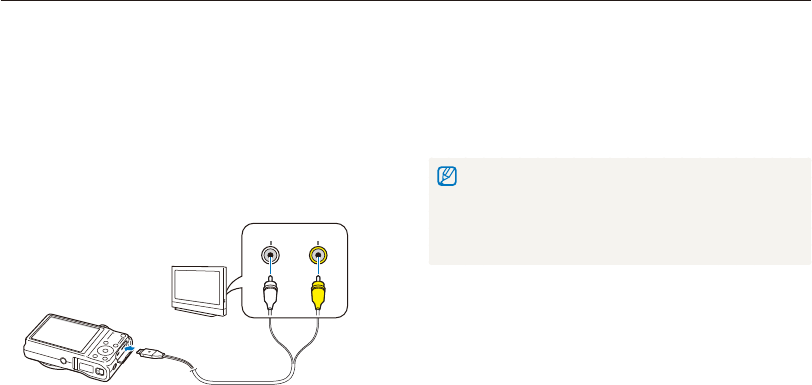
Playback/Editing
87
Viewing files on a TV or HDTV
Play back photos or videos by connecting your camera to a TV with the A/V cable.
6
Turn on your TV, and then select the A/V video souce
with the TV remote control.
7
Turn on your camera, and then press [
P
].
8
View photos or play videos using the camera buttons.
•
Depending on the TV model, you may see some digital noise or part
of an image may not appear.
•
Images may not be centered on the TV screen depending on your
TV settings.
•
You can capture photos or record videos while the camera is
connected to a TV.
1
In Shooting or Playback mode, press [
m
].
2
Select
n
Video Out.
3
Select the video signal output for your country or region.
(p. 101)
4
Turn off your camera and TV.
5
Connect your camera to your TV with the A/V cable.
Video
Audio
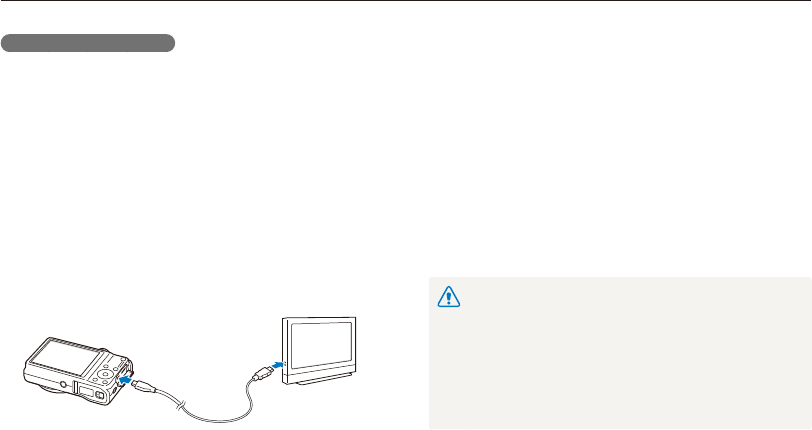
Playback/Editing
88
Viewing files on a TV or HDTV
6
Turn on your camera.
•
If you have an Anynet+ compatible Samsung HDTV, and you
have turned the Anynet+ function on in your camera, the
HDTV turns on automatically and displays the camera screen,
and the camera automatically enters Playback mode.
•
If you turn Anynet+ off in your camera, the HDTV does not turn
on automatically.
•
If you don't have Anynet+ on your TV or Anynet+ is turned off
in your camera, turn on your TV, and then select the HDMI
source on your TV using your TV's remote control.
7
View files using the buttons on your camera or a remote
control of your HDTV.
•
If your HDTV supports the Anynet+(CEC) profile, turn Anynet+ on in
the camera’s settings menu (p. 101) to control the camera and TV with
the TV’s remote control.
•
Anynet+ lets you control all connected Samsung A/V devices with the
TV remote control.
•
The time it takes for the camera to connect to your HDTV may vary
with the type of SD or SDHC card you use. A faster SD or SDHC card
will not necessarily result in a faster HDMI transfer, because the main
function of the card is to improve transfer rate during shooting.
Viewing files on an HDTV
You can view high-quality and uncompressed photos or videos
on an HDTV using the optional HDMI cable. HDMI (High Definition
Multimedia Interface) is supported by most HDTVs. For details,
see the HDMI Kit manual.
1
In Shooting or Playback mode, press [
m
].
2
Select
n
HDMI Size.
3
Select an HDMI resolution. (p. 101)
4
Turn off your camera and HDTV.
5
Connect your camera to your HDTV using the optional
HDMI cable.
Playback/Editing
89
Transferring files to your Windows computer
Transfer files to your Windows computer, edit them with Intelli-studio, and upload them to the web.
•
The requirements are recommendation only. Intelli-studio may not work
properly even when the computer meets the requirements, depending
on the condition of your computer.
•
If your computer does not meet the requirements, videos may not play
correctly or it may take longer to edit videos.
•
Install DirectX 9.0c or above before you use Intelli-studio.
•
Your computer must be running Windows XP, Windows Vista, or
Windows 7 for you to connect the camera as a removable disk.
The manufacturer is not responsible for any damage that results from using
unqualified computers such as a computer you assembled yourself.
Requirements
Item Requirements
CPU Intel Pentium 4, 3.2 GHz or higher/
AMD Athlon™ FX 2.6 GHz or higher
RAM Minimum 512 MB RAM (1 GB or more recommended)
OS Windows XP SP2, Windows Vista, or Windows 7
(32-bit editions)
Hard disk
capacity 250 MB or more (1 GB and above recommended)
Others
•
CD-ROM drive
•
1024 X 768 pixels, 16-bit color display compatible
monitor (1280 X 1024 pixels, 32-bit color display
recommended)
•
USB 2.0 port
•
nVIDIA Geforce 7600GT or higher/
ATI X1600 series or higher
•
Microsoft DirectX 9.0c or higher
* The programs may not work properly on 64-bit editions of Windows XP,
Windows Vista, and Windows 7.
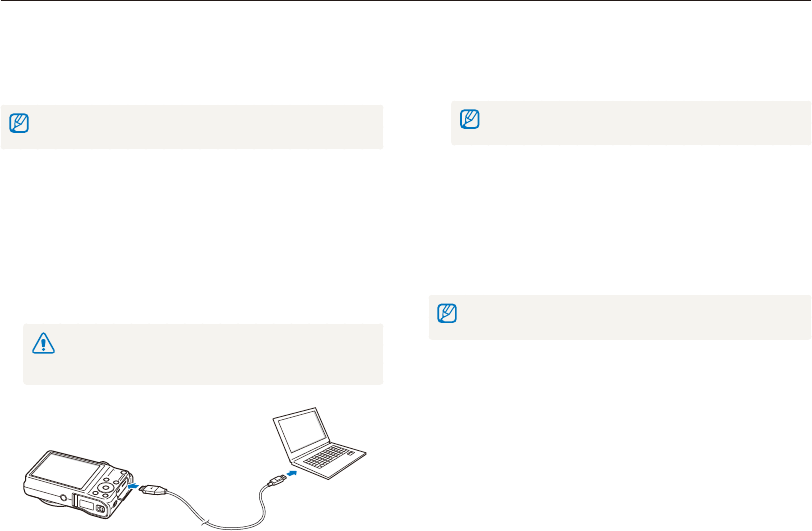
Playback/Editing
90
Transferring files to your Windows computer
5
Turn on the camera.
•
The computer recognizes the camera automatically and
Intelli-studio launches automatically.
If you set the USB option to Select, select Computer in the pop-up
window.
6
Select a destination folder on your computer, and then
select Yes.
•
New files stored on the camera will automatically transfer to
the selected folder.
•
If your camera has no new files, the pop-up window for saving
new files will not appear.
For Windows Vista and Windows 7, select Run iStudio.exe from the Auto
Play window to start Intelli-studio.
Transferring files with Intelli-studio
Intelli-studio will start automatically when you connect the camera
to your computer with the USB cable.
The battery will charge while the camera is connected to a computer with the
USB cable.
1
In Shooting or Playback mode, press [
m
].
2
Select
n
PC Software On.
3
Turn off the camera.
4
Connect the camera to your computer with the USB
cable.
You must plug the end of the cable with the indicator light (
S
) into
your camera. If the cable is reversed, it may damage your files. The
manufacturer is not responsible for any loss of data.
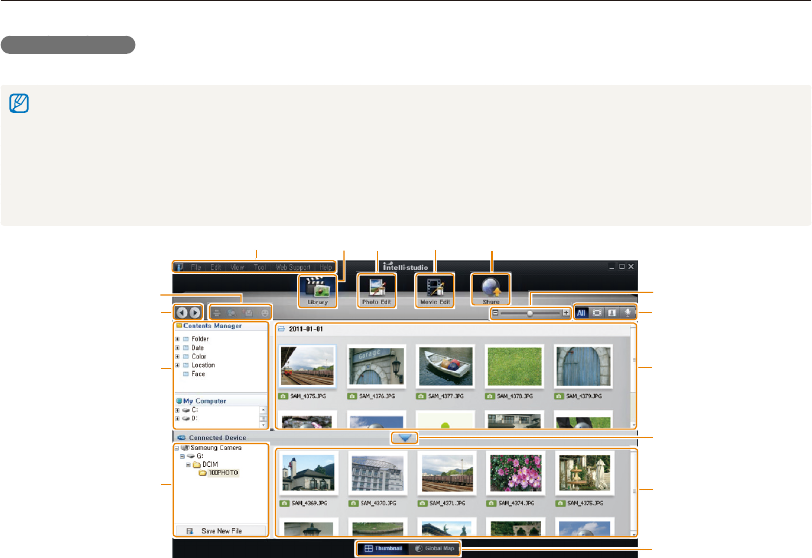
Playback/Editing
91
Transferring files to your Windows computer
Using Intelli-studio
Intelli-studio is a built-in program that allows you to play back and edit files. For details, select Help Help from the program toolbar.
•
To enjoy more features, such as creating slide shows with templates, install the full version of Intelli-studio by selecting Web Support Update Intelli-studio
Start Update from the program toolbar.
•
You can update the firmware of your camera by selecting Web Support Upgrade firmware for the connected device from the program toolbar.
•
If you install Intelli-studio on your computer, the program will launch more quickly. To install the program, select Tool Install Intelli-studio on PC.
•
You cannot edit files directly on the camera. Transfer files to a folder on your computer before editing.
•
Intelli-studio supports the following formats:
- Videos: MP4 (Video: H.264, Audio: AAC), WMV (WMV 7/8/9), AVI (MJPEG)
- Photos: JPG, GIF, BMP, PNG, TIFF
543
6
9
0
!
8
%
@
#
$
12
7
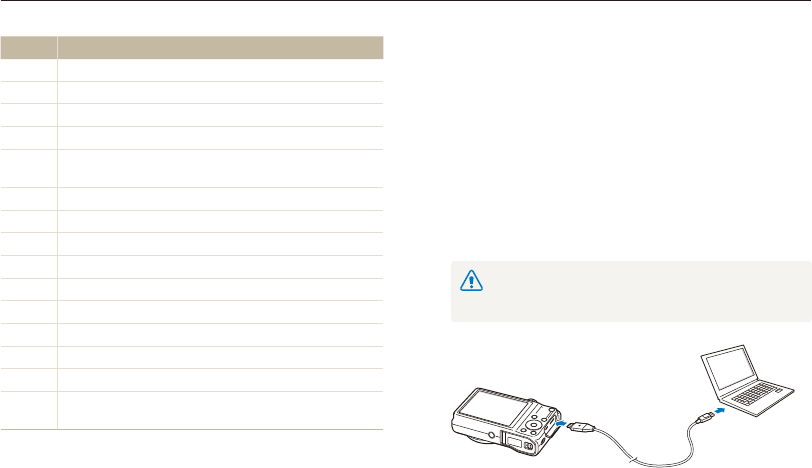
Playback/Editing
92
Transferring files to your Windows computer
No. Description
1
Open menus.
2
Display files in the selected folder.
3
Switch to the Photo edit mode.
4
Switch to the Video edit mode.
5
Switch to the Sharing mode (to send files by email or
upload files to websites, such as Flickr or YouTube).
6
Enlarge or reduce the thumbnails in the list.
7
Select a file type.
8
View files in the selected folder on your computer.
9
Show or hide files on the connected camera.
0
View files in the selected folder on the camera.
!
View files as thumbnails or on a map.
@
Browse folders stored on the camera.
#
Browse folders stored on your computer.
$
Move to the previous or next folder.
%
Print files, view files on a map, store files in My Folder, or
register faces.
Transferring files by connecting the camera
as a removable disk
Connect the camera to your computer as a removable disk.
1
In Shooting or Playback mode, press [
m
].
2
Select
n
PC Software Off.
3
Turn off the camera.
4
Connect the camera to your computer with the USB
cable.
You must plug the end of the cable with the indicator light (
S
) into
your camera. If the cable is reversed, it may damage your files. The
manufacturer is not responsible for any loss of data.
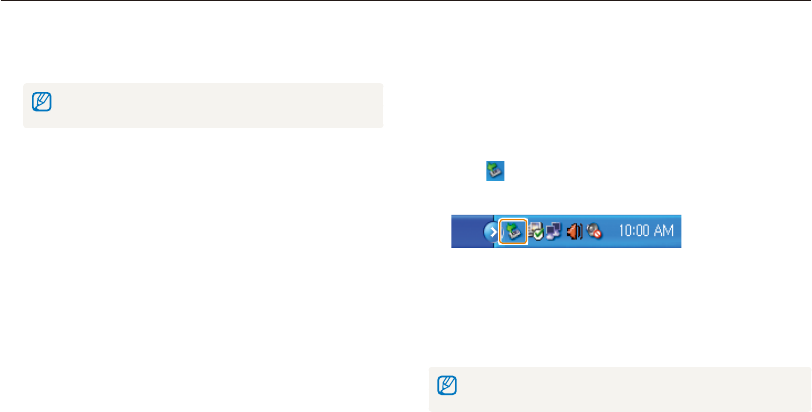
Playback/Editing
93
Transferring files to your Windows computer
Disconnecting the camera (for Windows XP)
With Windows Vista and Windows 7, the methods for
disconnecting the camera are similar.
1
If the status lamp on your camera is blinking, wait until
it stops.
2
Click on the tool bar at the bottom right of your
computer screen.
3
Click the pop-up message.
4
Click the message box indicating safely removed.
5
Remove the USB cable.
The camera may not disconnect safely while Intelli-studio is running. End the
program before disconnecting the camera.
5
Turn on the camera.
•
The computer recognizes the camera automatically.
If you set the USB option to Select, select Computer in the pop-up
window.
6
On your computer, select My Computer
Removable Disk DCIM 100PHOTO.
7
Drag or save files to your computer.
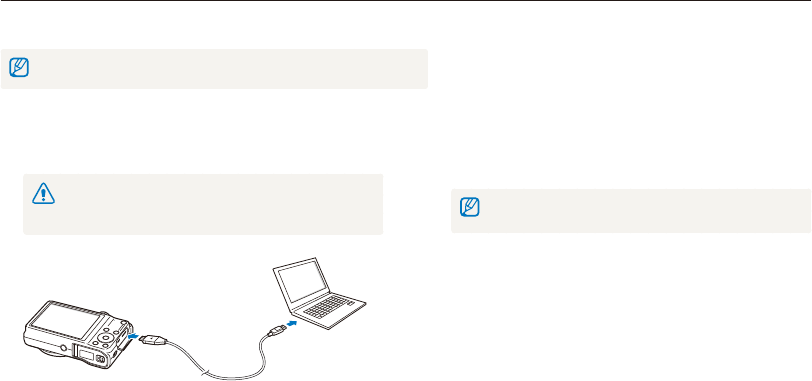
Playback/Editing
94
Transferring files to your Mac computer
When you connect the camera to a Macintosh computer, the computer will automatically recognize the device. You can transfer files directly
from the camera to the computer without installing any programs.
Mac OS 10.4 or later is supported.
2
Turn on the camera.
•
The computer recognizes the camera automatically and
displays a removable disk icon.
If you set the USB option to Select, select Computer in the pop-up
window.
3
Double-click the removable disk icon.
4
Drag or save files to your computer.
1
Connect your camera to a Macintosh computer with the
USB cable.
You must plug the end of the cable with the indicator light (
S
) into
your camera. If the cable is reversed, it may damage your files. The
manufacturer is not responsible for any loss of data.
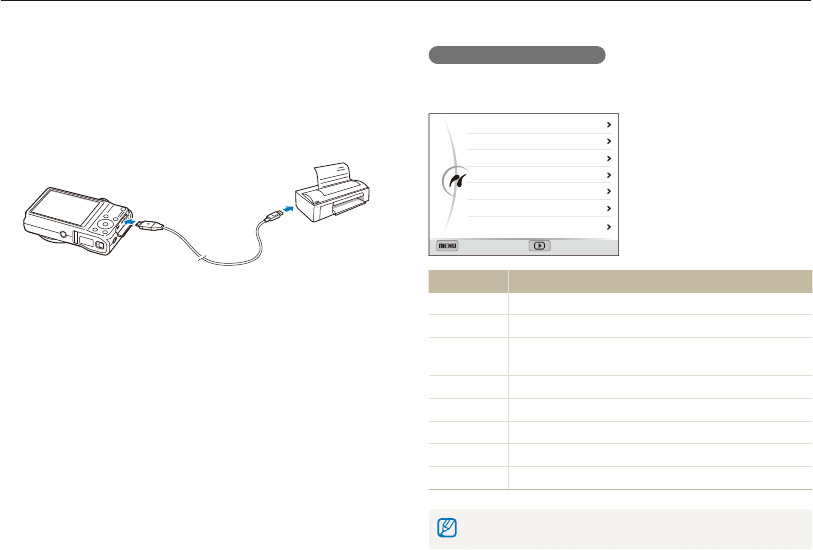
Playback/Editing
95
Printing photos with a PictBridge photo printer
Print photos with a PictBridge-compatible printer by connecting your camera directly to the printer.
Configuring print settings
Press [
m
] to configure print settings.
Images
Size
Layout
Type
Quality
Date
File Name
One Photo
Auto
Auto
Auto
Auto
Auto
Auto
Exit Print
Option Description
Images Select whether to print the current photo or all photos.
Size Set the print size.
Layout Set the number of photos to be printed on a single
sheet of paper.
Type Set the type of paper.
Quality Set the print quality.
Date Set to print the date.
File Name Set to print the file name.
Reset Reset settings to their default values.
Some options may not be supported by some printers.
1
In Shooting or Playback mode, press [
m
].
2
Select
n
USB Printer.
3
Turn on the printer, and then connect your camera to the
printer with the USB cable.
4
If the camera is off, press [POWER] or [
P
] to turn it on.
•
The printer recognizes the camera automatically.
5
Press [
F
/
t
] to select a file to print.
•
Press [
m
] to set printing options. See “Configuring print
settings.”
6
Press [
o
] to print.
•
Printing starts. Press [
F
] to cancel printing.

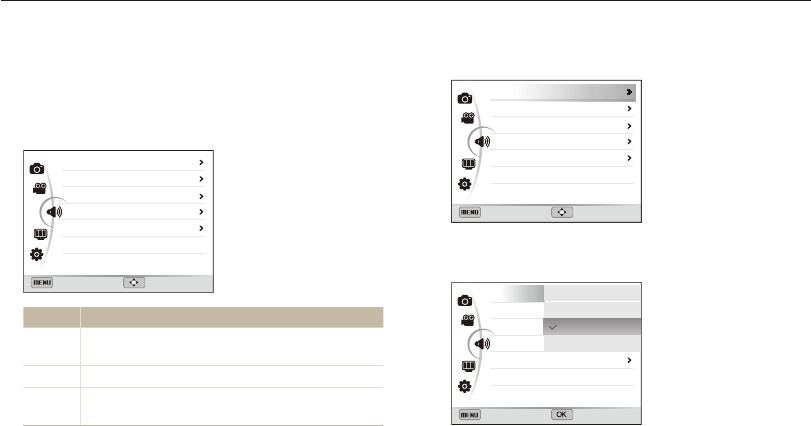
Settings
97
Settings menu
Learn to configure your camera's settings.
3
Select an item.
Exit Move
Medium
Off
1
1
On
Volume
Start Sound
Shutter Sound
Beep Sound
AF Sound
4
Select an option.
Back Set
Volume
Start Sound
Shutter Sound
Beep Sound
AF Sound
Off
Low
Medium
High
On
5
Press [
m
] to return to the previous screen.
Accessing the settings menu
1
In Shooting or Playback mode, press [
m
].
2
Select a menu.
Exit Move
Medium
Off
1
1
On
Volume
Start Sound
Shutter Sound
Beep Sound
AF Sound
Option Description
U
Sound: Set various camera sounds and the volume.
(p. 98)
Y
Display: Customize the display settings. (p. 98)
n
Settings: Customize the settings for the camera
system. (p. 99)
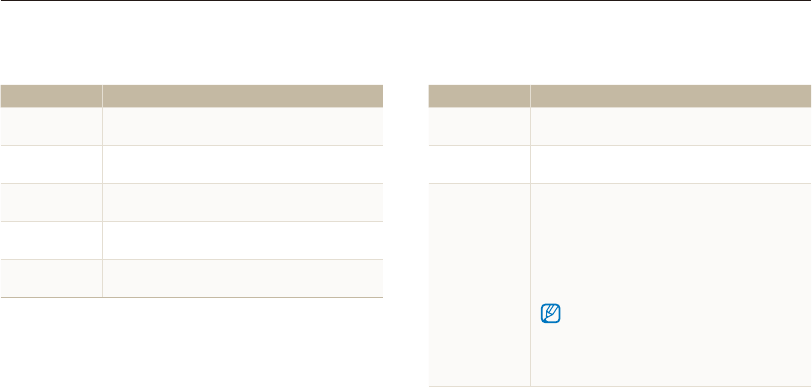
Settings
98
Settings menu
Sound
* Default
Item Description
Volume Set the volume of any sound. (Off, Low,
Medium*, High)
Start Sound Set the sound the camera emits when you turn on
your camera. (Off*, 1, 2, 3)
Shutter Sound Set the sound the camera emits when you press
the shutter button. (Off, 1*, 2, 3)
Beep Sound Set the sound the camera emits when you press
the buttons or switch modes. (Off, 1*, 2, 3)
AF Sound Set to emit a sound when you half-press the
shutter button. (Off, On*)
Display
* Default
Item Description
Function
Description
Display a brief description of an option or menu.
(Off, On*)
Grid Line Select a guide to help you compose a scene.
(Off*, 3 X 3, 2 X 2, +, X)
Start Image
Set a start image to display when the camera
turns on.
•
Off*: Display no start image.
•
Logo: Display a default image stored in the
internal memory.
•
User Image: Display a custom image. (p. 82)
•
The camera will save only one user image in the
internal memory at a time.
•
If you select a new photo as a user image or
reset your camera, the camera will delete the
current image.
Settings
99
Settings menu
Item Description
Display
Brightness
Adjust the brightness of the screen. (Auto*, Dark,
Normal, Bright)
Normal is fixed in Playback mode even if you have
selected Auto.
Quick View
Set the duration for reviewing a captured image
before returning to the Shooting mode. (Off,
0.5 sec*, 1 sec, 3 sec)
Power Save
If you perform no operations for 30 seconds, the
camera automatically switches to Power save
mode. (Off*, On)
•
In Power save mode, press any button other
than [POWER] to resume using the camera.
•
Even if you do not set the Power save mode,
the screen will dim 30 seconds after the last
operation to save power.
Settings
* Default
Item Description
Format
Format the internal memory and the memory card
(formatting will delete all files, including protected
files). (No, Yes)
Errors can occur if you use a memory card formatted by
another brand of camera, a memory card reader, or a
computer. Please format memory cards in the camera
before using them to capture photos.
Reset
Reset menus and shooting options (date and time,
language, and video output settings will not be
reset). (No, Yes)
Language Set a language for the display text.
Time Zone
Set the time zone for your location. When you
travel to another country, select Visit, and then
select the appropriate time zone. (Home*, Visit)
Date & Time Set the date, time, and a date format. (Off*,
YYYY/MM/DD, MM/DD/YYYY, DD/MM/YYYY)
* Default
Settings
100
Settings menu
Item Description
File No.
Specify how to name files.
•
Reset: Set the file number to start from 0001
when you insert a new memory card, format a
memory card, or delete all files.
•
Series*: Set the file number to resume from
the previous file number when you insert a new
memory card, format a memory card, or delete
all files.
•
The default name of the first folder is 100PHOTO
and the default name of the first file is
SAM_0001.
•
The file number increases one at a time from
SAM_0001 to SAM_9999.
•
The folder number increases one at a time from
100PHOTO to 999PHOTO.
•
The maximum number of files that can be stored
in one folder is 1000.
•
The camera defines file names according to
the Design rule for Camera File system (DCF)
standard. If you intentionally change file names,
the camera may not play back the files.
Item Description
Imprint
Set whether or not to display the date and time on
captured photos. (Off*, Date, Date & Time)
•
The date and time will be displayed on the
bottom right corner of the photo.
•
Some printer models may not print the date and
time properly.
•
If you select Text in
s
mode, the camera will
not display the date and time.
Auto Power Off
Set the camera to automatically turn off when you
perform no operations for a specified period. (Off,
1 min, 3 min*, 5 min, 10 min)
•
Your settings will not change when you replace
the battery.
•
The camera will not automatically turn off when
the camera is connected to a computer or printer,
when you are playing a slide show or videos, and
when you are recording a voice memo.
* Default* Default
Settings
101
Settings menu
Item Description
Video Out
Set the video signal output for your region.
•
NTSC*: USA, Canada, Japan, Korea, Taiwan,
Mexico
•
PAL (supports only BDGHI): Australia, Austria,
Belgium, China, Denmark, England, Finland,
Germany, Italy, Kuwait, Malaysia, Netherlands,
New Zealand, Norway, Singapore, Spain,
Sweden, Switzerland, Thailand
AF Lamp Set a light to automatically turn on in dark places
to help you focus. (Off, On*)
Anynet+ (HDMI-
CEC)
Turn on to control the camera with a TV remote
control when you connect it to an HDTV that
supports the Anynet+(CEC) profile.
•
Off: View files without using an HDTV remote
control.
•
On*: Control the camera with an HDTV remote
control.
Item Description
HDMI Size
Set the resolution of photos when the camera
plays back files on an HDTV via the HDMI cable.
(NTSC: 1080i*, 720p, 480p/ PAL: 1080i*, 720p,
576p)
•
If the HDTV does not support the selected
resolution, the HDTV automatically selects the
next lower resolution.
•
If you select 480p or 576p, the playback menus
and Smart Album will not be available when you
connect the camera to a TV.
USB
Select the mode to use when you connect the
camera to a computer or printer with a USB cable.
•
Computer*: Connect your camera to a
computer for transferring files.
•
Printer: Connect your camera to a printer for
printing files.
•
Select: Manually select the USB mode when
you connect your camera to a device.
PC Software Set Intelli-studio to launch automatically when you
connect your camera to your computer. (Off, On*)
* Default * Default

Error messages
……………………………………… 103
Camera maintenance
………………………………… 104
Cleaning your camera
……………………………… 104
Using or storing the camera
………………………… 105
About memory cards
……………………………… 106
About the battery
…………………………………… 108
Before contacting a service center
………………… 112
Camera specifications
……………………………… 115
Glossary
……………………………………………… 119
FCC notice
…………………………………………… 124
Index
…………………………………………………… 125
Appendixes
Get information about error messages, specifications, and
maintenance.
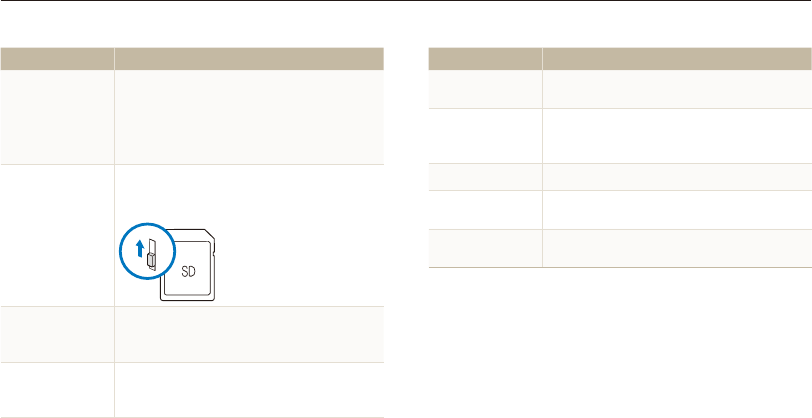
Appendixes
103
Error messages
When the following error messages appear, try these remedies.
Error message Suggested remedies
File Error Delete the damaged file or contact a service
center.
File system not
supported.
Your camera does not support the FAT file
structure of the inserted memory card. Format
the memory card on the camera.
Low Battery Insert a charged battery or recharge the battery.
Memory Full Delete unnecessary files or insert a new memory
card.
No Image File Capture photos or insert a memory card that
contains some photos.
Error message Suggested remedies
Card Error
•
Turn off your camera, and then turn it on
again.
•
Remove your memory card, and then insert
it again.
•
Format your memory card.
Card Locked
You can lock an SD or SDHC card to prevent
files from being deleted. Unlock the card when
shooting.
Card not
supported.
The inserted memory card is not supported by
your camera. Insert a SD or SDHC memory
card.
DCF Full Error
File names do not match the DCF standard.
Transfer the files on the memory card to your
computer, and then format the card.
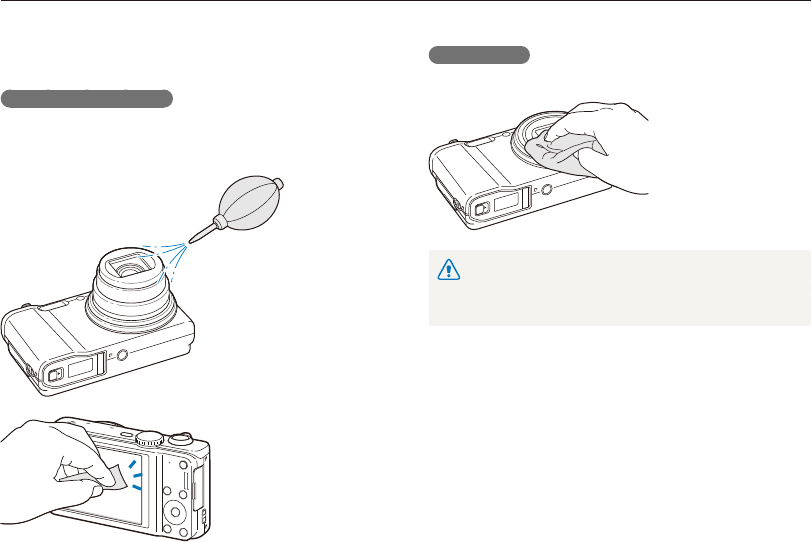
Appendixes
104
Camera maintenance
Camera body
Wipe gently with a soft, dry cloth.
•
Never use benzene, thinners, or alcohol to clean the device. These
solutions can damage the camera or cause it to malfunction.
•
Do not press on the lens cover or use a blower brush on the lens
cover.
Cleaning your camera
Camera lens and display
Use a blower brush to remove dust and wipe the lens gently with
a soft cloth. If any dust remains, apply lens cleaning liquid to a
piece of lens cleaning paper and wipe gently.

Appendixes
105
Camera maintenance
Using on beaches or shores
• Protect your camera from sand and dirt when you use it on
beaches or in other similar areas.
• Your camera is not waterproof. Do not handle the battery,
adapter, or memory card with wet hands. Operating the camera
with wet hands may cause damage to your camera.
Storing for extended period of time
• When you store the camera for an extended period, place it in a
sealed container with an absorbent material, such as silica gel.
• Remove the batteries from your camera when storing it for an
extended period. Installed batteries may leak or corrode over
time and cause serious damage to your camera.
• Over time, unused batteries will discharge and must be
recharged before use.
Using the camera with caution in humid environments
When you transfer the camera from a cold environment to a warm
one, condensation can form on the lens or internal components
of the camera. In this situation, turn off the camera and wait for at
least 1 hour. If condensation forms on the memory card, remove
the memory card from the camera and wait until all moisture has
evaporated before reinserting it.
Using or storing the camera
Inappropriate places to use or store the camera
• Avoid exposing the camera to very cold or very hot
temperatures.
• Avoid using your camera in areas with extremely high humidity,
or where the humidity changes drastically.
• Avoid exposing the camera to direct sunlight and storing it in
hot, poorly-ventilated areas, such as in a car during summer
time.
• Protect your camera and the display from impact, rough
handling, and excessive vibration to avoid serious damage.
• Avoid using or storing your camera in dusty, dirty, humid, or
poorly-ventilated areas to prevent damage to moving parts and
internal components.
• Do not use your camera near fuels, combustibles, or flammable
chemicals. Do not store or carry flammable liquids, gases, or
explosive materials in the same compartment as the camera or
its accessories.
• Do not store the camera where there are mothballs.
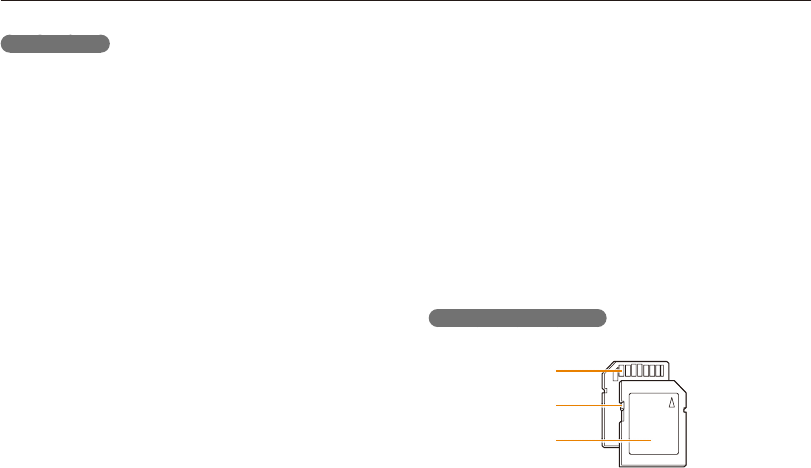
Appendixes
106
Camera maintenance
• Paint or metal on the outside of the camera may cause
allergies, itchy skin, eczema, or swelling for people with
sensitive skin. If you experience any of these symptoms, stop
using the camera immediately and consult a doctor.
• Do not insert foreign objects into any of your camera’s
compartments, slots, or access points. Damage due to
improper use may not be covered by your warranty.
• Do not allow unqualified personnel to service the camera or
attempt to service the camera yourself. Any damage that results
from unqualified service is not covered by your warranty.
About memory cards
Supported memory cards
Your camera supports SD or SDHC memory cards.
Terminal
Write-protect switch
Label (front)
You can prevent files from being deleted by using the
write-protect switch on an SD or SDHC card. Slide the switch
down to lock or slide it up to unlock. Unlock the card when
capturing photos and videos.
Other cautions
• Do not swing your camera by the strap. This may cause injury
to yourself or others or damage to your camera.
• Do not paint your camera, as paint can clog moving parts and
prevent proper operation.
• Turn off the camera when not using it.
• Your camera consists of delicate parts. Avoid impacts to the
camera.
• Protect the display from external force by keeping it in the case
when not in use. Protect the camera from scratches by keeping
it away from sand, sharp implements, or loose change.
• Do not expose the lens to direct sunlight, as this may discolor
the image sensor or cause it to malfunction.
• Protect your lens from fingerprints and scratches. Clean your
lens with a soft, clean, debris-free lens cloth.
• The camera may turn off if impacted from the outside. This is to
protect the memory card. Turn on the camera to use it again.
• While you use the camera, it may heat up. This is normal and
should not affect your camera’s lifespan or performance.
• When you use the camera in low temperatures, it may take
some time to turn on, the color of the display may be changed
temporarily, or after-images may appear. These conditions are
not malfunctions and they will correct themselves when the
camera is returned to normal temperatures.
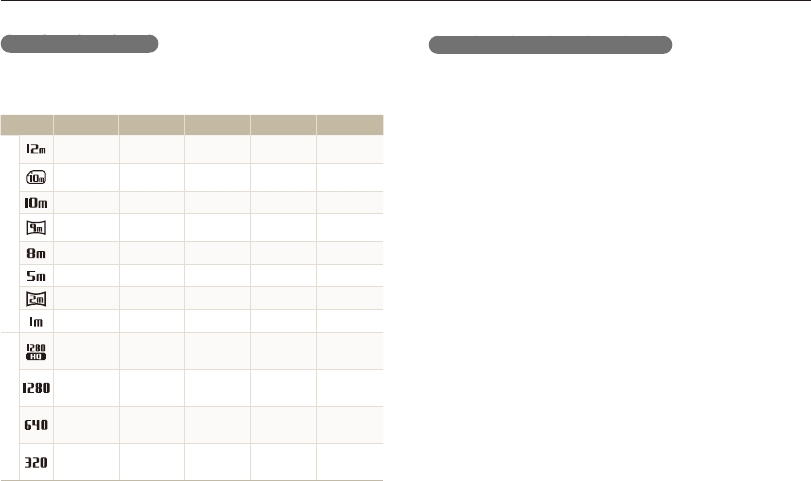
Appendixes
107
Camera maintenance
Memory card capacity
The memory capacity may differ depending on shooting scenes
or shooting conditions. These capacities are based on a 1 GB
SD card:
Size Super Fine Fine Normal 30 FPS 15 FPS
P
h
o
t
o
s
163 240 315 - -
187 275 358 - -
194 285 372 - -
217 318 414 - -
240 351 455 - -
369 531 682 - -
802 1103 1358 - -
1676 2115 2433 - -
*
V
i
d
e
o
s
---
Approx.
12' 04"
Approx.
21' 57''
---
Approx.
16' 33"
Approx.
23' 55"
---
Approx.
32' 40"
Approx.
49' 28''
---
Approx.
70' 03"
Approx.
101' 43"
* Available recording time may vary if you use the zoom. Several videos were
recorded in succession to determine the total recording time.
Cautions when using memory cards
• Insert a memory card in the correct direction. Inserting a
memory card in the wrong direction may damage your camera
and memory card.
• Do not use memory cards that have been formatted by other
cameras or by a computer. Reformat the memory card with
your camera.
• Turn off the camera when you insert or remove the memory
card.
• Do not remove the memory card or turn off your camera while
the lamp is blinking, as this may damage your data.
• When the lifespan of a memory card has expired, you cannot
store any more photos on the card. Use a new memory card.
• Do not bend, drop, or subject memory cards to heavy impact
or pressure.
• Avoid using or storing memory cards near strong magnetic
fields.
• Avoid using or keeping memory cards in areas with high
temperature, high humidity, or corrosive substances.
• Prevent memory cards from making contact with liquids, dirt, or
foreign substances. If dirty, wipe the memory card clean with a
soft cloth before you insert the memory card in your camera.
• Do not allow liquids, dirt, or foreign substances to come in
contact with memory cards or the memory card slot. Doing so
may cause memory cards or the camera to malfunction.
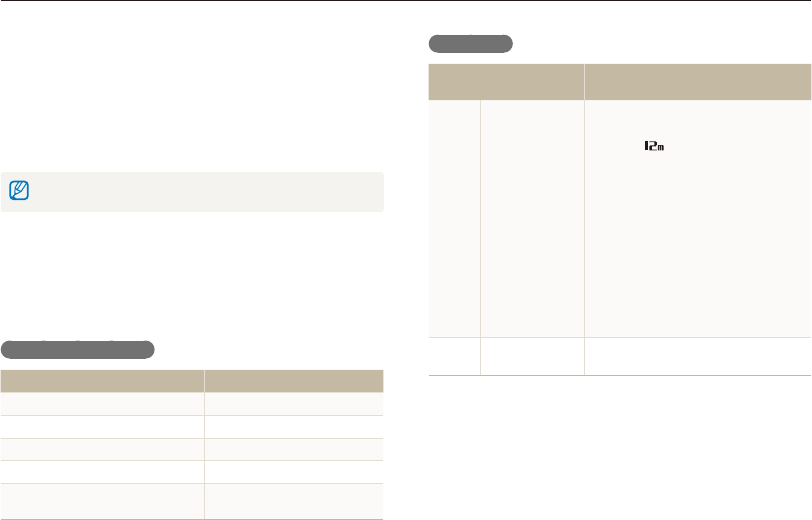
Appendixes
108
Camera maintenance
Battery life
Average shooting time/
Number of photos
Test conditions (when the battery is fully
charged)
Photos
Approximately
110 min/
Approximately
220 photos
The battery life was measured under
the following conditions: in
Ò
mode, in
darkness, resolution, Fine quality,
OIS on.
1. Set the flash option to Fill in, take a
single shot, and zoom in or out.
2. Set the flash option to Off, take a
single shot, and zoom in or out.
3. Perform steps 1 and 2 for
30 seconds and repeat for 5 minutes.
Then turn off the camera for 1 minute.
4. Repeat steps 1 to 3.
Videos Approximately
100 min
Record videos at 1280 X 720 HQ
resolution and 30 FPS.
•
The figures above are measured by Samsung’s standards. Your results may
differ, depending on your actual usage.
•
Several videos were recorded in succession to determine the total recording
time.
• When you carry a memory card, use a case to protect the card
from electrostatic discharges.
• Transfer important data to other media, such as a hard disk,
CD, or DVD.
• When you use the camera for an extended period, the memory
card may become warm. This is normal and does not indicate
a malfunction.
The manufacturer is not responsible for any loss of data.
About the battery
Use only Samsung-approved batteries.
Battery specifications
Specification Description
Model SLB-10A
Type Lithium-ion battery
Cell capacity 1050 mAh
Voltage 3.7 V
Charging time* (when the camera is
switched off) Approximately 150 min
* Charging the battery by connecting it to a computer may take longer.

Appendixes
109
Camera maintenance
Cautions about using the battery
Protect batteries, chargers, and memory cards from
damage
Prevent batteries from making contact with metal objects, as this
can create a connection between the + and – terminals of your
battery and lead to temporary or permanent battery damage and
may cause a fire or electric shock.
Notes about charging the battery
• If the indicator light is off, make sure that the battery is inserted
correctly.
• If the camera is on while charging, the battery may not fully
charge. Turn off the camera before charging the battery.
• Do not use your camera when you charge the battery. This may
cause a fire or electric shock.
• Do not pull the power supply cord to disconnect the plug from
the power outlet, as this may cause a fire or electric shock.
• Let the battery charge for at least 10 minutes before turning on
the camera.
• If you connect the camera to an external power source while
the battery is depleted, using some high energy-consuming
functions will cause the camera to turn off. To use the camera
normally, recharge the battery.
Low battery message
When the battery has fully discharged, the battery icon will turn
red and the "Low Battery" message will appear.
Notes about using the battery
• Avoid exposing batteries or memory cards to very cold or very
hot temperatures (below 0 ºC/32 ºF or above 40 ºC/104 ºF).
Extreme temperatures can reduce the charging capacity of your
batteries and can cause memory cards to malfunction.
• When you use the camera for an extended period, the area
around the battery chamber may become warm. This does not
affect the normal use of the camera.
• Do not pull the power supply cord to disconnect the plug from
the power outlet, as this may cause a fire or electric shock.
• In temperatures below 0 ºC/32 ºF, battery capacity and battery
life may decrease.
• Battery capacity may decrease in low temperatures but will
return to normal in milder temperatures.

Appendixes
110
Camera maintenance
Handling and disposing of batteries and chargers
with care
• Never dispose of batteries in a fire. Follow all local regulations
when you dispose of used batteries.
• Never place batteries or cameras on or in heating devices,
such as microwave ovens, stoves, or radiators. Batteries may
explode when they are overheated.
• Using the flash or recording videos depletes the battery quickly.
Charge the battery until the indicator light turns green.
• If the indicator light blinks in orange or does not illuminate,
reconnect the cable, or remove the battery and insert it again.
• If you charge the battery when the cable is overheated or the
temperature is too high, the indicator light may turn orange.
Charging will start when the battery cools down.
• Overcharging batteries may shorten battery life. After charging is
finished, disconnect the cable from your camera.
• Do not bend or place heavy objects on the AC cable. Doing so
may damage the cable.
Notes about charging with a computer connected
• Use only the provided USB cable.
• The battery may not charge when:
-
you use a USB hub
-
other USB devices are connected to your computer
-
you connect the cable to the port on the front side of your
computer
-
the USB port of your computer does not support the power output
standard (5 V, 500 mA)

Appendixes
111
Camera maintenance
Personal injury or death can occur if the battery is
handled carelessly or improperly. For your safety,
follow these instructions for proper battery handling:
•
The battery can ignite or explode if not handled properly. If
you notice any deformities, cracks, or other abnormalities
in the battery, immediately discontinue use of the battery
and contact a service center.
•
Use only authentic, manufacturer-recommend battery
chargers and adapters and charge the battery only by the
methods described in this user manual.
•
Do not place the battery near heating devices or expose
it to excessively warm environments, such as the inside
of an enclosed car in the summertime.
•
Do not place the battery in a microwave oven.
•
Avoid storing or using the battery in hot, humid places,
such as spas or shower enclosures.
•
Do not rest the device on flammable surfaces, such as
bedding, carpets, or electric blankets for a prolonged
period.
•
When the device is switched on, do not leave it in any
confined space for a prolonged period.
•
Do not allow battery terminals to come in contact with
metallic objects, such as necklaces, coins, keys, or
watches.
•
Use only authentic, manufacturer-recommended, Lithium-
ion replacement batteries.
•
Do not disassemble or puncture the battery with any
sharp object.
•
Avoid exposing the battery to high pressure or crushing
forces.
•
Avoid exposing the battery to major impacts, such as
dropping it from high places.
•
Do not expose the battery to temperatures of 60 °C
(140 °F) or above.
•
Do not allow the battery to come in contact with moisture
or liquids.
•
Do not expose the battery to sources of excessive heat
such as sunshine, fire or the like.
Disposal guidelines
•
Dispose of the battery with care.
•
Do not dispose of the battery in a fire.
•
Disposal regulations may differ by country or region.
Dispose of the battery in accordance with all local and
federal regulations.
Guidelines for charging the battery
Charge the battery only by the method described in
this user manual. The battery can ignite or explode if
not charged properly.
Appendixes
112
Before contacting a service center
If you are having trouble with your camera, try these troubleshooting procedures before you contact a service center. If you have attempted
the suggested remedy and are still having problems with your device, contact your local dealer or service center.
When you leave your camera at a service center, be sure to also leave the other components that may have contributed to the malfunction, such as the memory card and battery.
Situation Suggested remedies
Cannot capture photos
•
There is no space on the memory card.
Delete unnecessary files or insert a new
card.
•
Format the memory card.
•
The memory card is defective. Get a new
memory card.
•
Make sure that the camera is switched
on.
•
Charge the battery.
•
Make sure that the battery is inserted
correctly.
The camera freezes Remove the battery and insert it again.
The camera heats up
While you use the camera, it may heat up.
This is normal and should not affect your
camera’s lifespan or performance.
The flash does not
work
•
The flash option may be set to
Off. (p. 49)
•
You cannot use the flash in some modes.
Situation Suggested remedies
Cannot turn on the
camera
•
Ensure that the battery is inserted.
•
Ensure that the battery is inserted
correctly. (p. 16)
•
Charge the battery.
The power turns off
suddenly
•
Charge the battery.
•
Your camera may be in Power save
mode. (p. 99)
•
The camera may turn off to prevent the
memory card from being damaged due
to an impact. Turn on your camera again.
The camera is losing
battery power quickly
•
The battery may lose power more quickly
in low temperatures (below 0 °C/32 ºF).
Keep the battery warm by putting it into
your pocket.
•
Using the flash or recording videos
depletes the battery quickly. Recharge
if needed.
•
Batteries are consumable parts that must
be replaced over time. Get a new battery
if the battery life is diminishing quickly.
Appendixes
113
Before contacting a service center
Situation Suggested remedies
The flash fires
unexpectedly
The flash may fire due to static electricity.
The camera is not malfunctioning.
The date and time are
incorrect
Set the date and time in the display settings.
(p. 99)
The display or buttons
do not work Remove the battery, and then insert it again.
The camera display
responds poorly
If you use your camera at very low
temperatures, it may cause the camera
screen to malfunction or discolor. For better
performance of your camera screen, use
your camera in moderate temperatures.
The memory card has
an error
•
Turn off your camera, and then turn it
on again.
•
Remove your memory card, and then
insert it again.
•
Format your memory card.
See “Cautions when using memory cards”
for more detail. (p. 107)
Cannot play back files
If you change the name of a file, your
camera may not play the file (the name of
the file should meet the DCF standard). If
you encounter this situation, play back the
files on your computer.
Situation Suggested remedies
The photo is blurry
•
Make sure that the focus option you set
is suitable for close-up shots. (p. 52)
•
Make sure that the lens is clean. If not,
clean the lens. (p. 104)
•
Make sure that the subject is within range
of the flash. (p. 116)
The colors in the photo
do not match the actual
scene
An incorrect White Balance can create
unrealistic color. Select the proper White
Balance option to suit the light source.
(p. 63)
The photo is too bright
Your photo is overexposed.
•
Turn off the flash. (p. 49)
•
Adjust the ISO sensitivity. (p. 51)
•
Adjust the exposure value. (p. 61)
The photo is too dark
Your photo is underexposed.
•
Turn on the flash. (p. 49)
•
Adjust the ISO sensitivity. (p. 51)
•
Adjust the exposure value. (p. 61)

Appendixes
114
Before contacting a service center
Situation Suggested remedies
The TV does not
display your photos
•
Make sure that the camera is correctly
connected to the TV with the A/V cable.
•
Make sure that your memory card
contains photos.
Your computer does
not recognize your
camera
•
Make sure that the USB cable is
connected correctly.
•
Make sure that your camera is switched
on.
•
Make sure that you are using a supported
operating system.
Your computer
disconnects the
camera while
transferring files
The file transmission may be interrupted by
static electricity. Disconnect the USB cable
and connect it again.
Your computer cannot
play videos
Videos may not play on some video player
programs. To play video files captured with
your camera, install and use the Intelli-studio
program on your computer. (p. 90)
Situation Suggested remedies
Intelli-studio is not
functioning properly
•
End Intelli-studio and restart the program.
•
You cannot use Intelli-studio on
Macintosh computers.
•
Make sure that PC Software is set to
On in the settings menu. (p. 101)
•
Depending on your computer's
specifications and environment, the
program may not launch automatically. In
this case, click Start My Computer
Intelli-studio iStudio.exe on your
computer.
Appendixes
115
Camera specifications
Range
Wide (W) Tele (T)
Normal (AF) 80 cm-infinity 350 cm-infinity
Macro 5 cm-80 cm 180 cm-350 cm
Auto Macro 5 cm-infinity 180 cm-infinity
Manual Focus 5 cm-infinity 180 cm-infinity
Shutter speed
•
Auto: 1/8 - 1/2,000 sec.
•
Program: 1 - 1/2,000 sec.
•
Manual: 16 - 1/2,000 sec.
•
Night: 8 - 1/2,000 sec.
•
Fireworks: 2 sec.
Exposure
Control Program AE, Manual Aperture Adjustment
Metering Multi, Spot, Center-weighted, Face Detection
Compensation ±2EV (1/3 EV Step)
ISO equivalent Auto, ISO 80, ISO 100, ISO 200, ISO 400, ISO 800,
ISO 1600, ISO 3200
Image sensor
Type 1/2.33" (Approximately 7.76 mm) CCD
Effective pixels Approximately 12 mega-pixels
Total pixels Approximately 16.4 mega-pixels
Lens
Focal length Schneider-KREUZNACH Lens f = 4.0 mm-72.0 mm
(35 mm film equivalent : 24-432 mm)
F-stop range F3.2 (W)-F5.8 (T)
Digital zoom
•
Still image mode: 1.0X-18.0X
(Optical zoom X Digital zoom: 72.0X,
Smart zoom X Digital zoom: 72.0X)
•
Playback mode: 1.0X-8.4X
Display
Type TFT LCD
Feature 3.0" (7.62 cm) QVGA (230K)
Focusing
Type
TTL auto focus (Multi AF, Center AF, Selection AF,
Manual Focus, Face Detection AF, Tracking AF,
Smart Face Recognition AF)
Appendixes
116
Camera specifications
Flash
Mode Auto, Red-eye, Fill in, Slow Sync, Off, Red-eye Fix
Range
•
Wide: 0.3 m-3.6 m (ISO Auto)
•
Tele: 0.5 m-2 m (ISO Auto)
Recharging time Approximately 4 sec.
Shake reduction
DUAL IS [Optical Image Stabilization (OIS) + Digital Image Stabilization (DIS)]
Effect
Photo Shooting
mode
•
Smart Filter: Off, Miniature, Vignetting, Soft-Focus,
Old Film 1, Old Film 2, Half Tone Dot, Sketch,
Fish-eye, Defog, Classic, Retro, Negative,
Custom RGB
•
Image Adjust: Sharpness, Contrast, Saturation
Video Shooting
mode
Smart Filter: Off, Palette Effect 1, Palette Effect 2,
Palette Effect 3, Palette Effect 4, Miniature, Vignetting,
Half Tone Dot, Sketch, Fish-eye, Defog, Classic,
Retro, Negative, Custom RGB
White Balance
Auto WB, Daylight, Cloudy, Fluorescent_H, Fluorescent_L, Tungsten,
Custom Set, Color Temp.
Date Imprinting
Date & Time, Date, Off
Shooting
Photos
•
Modes: Smart Auto (Portrait, Night Portrait,
Backlight Portrait, Night, Backlight, Landscape,
White, Natural Green, Blue Sky, Sunset, Macro,
Macro text, Macro Color, Tripod, Action, Fireworks),
Program, Aperture Priority, Shutter Priority, Manual,
DUAL IS, Scene (Beauty Shot, Night, Landscape,
Text, Sunset, Dawn, Backlight, Beach & Snow),
Movie
•
Drive: Single, Continuous, Motion Capture, AEB
•
Timer: 10 Sec, 2 Sec
Videos
•
Modes: Smart Scene Detection (Landscape,
Blue Sky, Natural Green, Sunset), Movie
•
Format: MP4 (H.264) (Max recording time: 20 min)
•
Size: 1280 X 720 HQ Fine, 1280 X 720 Normal,
640 X 480 Normal, 320 X 240 Normal
•
Frame Rate: 30 FPS, 15 FPS
•
Sound Alive: Sound Alive On, Sound Alive Off,
Mute
•
OIS: On, Off
•
Video editing (embedded): Pause during recording,
Still image capture, Time trimming
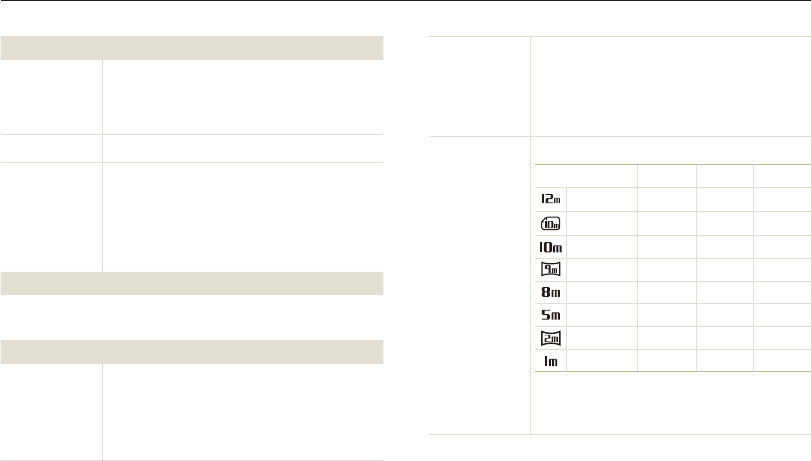
Appendixes
117
Camera specifications
Playback
Type
Single image, Thumbnails, Multi Slide Show with
Music and Effect, Movie clip, Smart Album*
* Smart Album category: Type, Date, Color, Week,
Face
Edit Resize, Rotate, Image Adjust, Smart Filter, Trim
Effect
•
Image Adjust: Red-eye Fix, Face Retouch,
Brightness, Contrast, Saturation, Add Noise
•
Smart Filter: Off, Miniature, Vignetting, Soft-Focus,
Old Film 1, Old Film 2, Half Tone Dot, Sketch,
Fish-eye, Defog, Classic, Retro, Negative,
Custom RGB
Voice recording
•
Voice Recording (Maximum 10 hours)
•
Voice Memo in a photo (Maximum 10 sec.)
Storage
Media
•
Internal memory: Approximately 23 MB
•
External memory (Optional): SD card (up to 4 GB
guaranteed), SDHC card (up to 8 GB guaranteed)
Internal memory capacity may not match these
specifications.
File format
•
DCF, EXIF 2.21, DPOF 1.1, PictBridge 1.0
•
Still Image: JPEG (DCF)
•
Movie Clip: MP4 (Video: MPEG-4.AVC/H.264,
Audio: AAC)
•
Audio file: WAV
Image size
For 1 GB SD: Number of photos
Super Fine Fine Normal
4000 X 3000 163 240 315
4000 X 2664 187 275 358
3648 X 2736 194 285 372
4000 X 2248 217 318 414
3264 X 2448 240 351 455
2592 X 1944 369 531 682
1920 X 1080 802 1103 1358
1024 X 768 1676 2115 2433
These figures are measured under Samsung’s
standard conditions. Your results may vary depending
on the shooting conditions and camera settings.

Appendixes
118
Camera specifications
Interface
Digital output
connector USB 2.0
Audio input/output Internal speaker (Mono), Microphone (Stereo)
Video output
•
A/V: NTSC, PAL (selectable)
•
HDMI 1.4: NTSC, PAL (selectable)
DC power input
connector 20 pin, 4.4 V
Power source
Rechargeable
battery Lithium-ion battery (SLB-10A, 1050 mAh)
The power source may differ depending on your region.
Dimensions (W X H X D)
105.0 X 58.9 X 24.9 mm (4.13 X 2.32 X .98 in.) (without protrusions)
Weight
200 g (7.025 oz.) (without battery and memory card)
Operating Temperature
0-40 °C (32-104 °F)
Operating Humidity
5-85 %
Software
Intelli-studio
Specifications may change without notice to improve performance.

Appendixes
119
Glossary
DCF (Design rule for Camera File system)
A specification to define a file format and file system for digital
cameras created by the Japan Electronics and Information
Technology Industries Association (JEITA).
Depth of field
The distance between the nearest and farthest points that can
be acceptably focused in a photograph. Depth of field varies with
lens aperture, focal length, and distance from the camera to the
subject. Selecting a smaller aperture, for example, will increase
the depth of field and blur the background of a composition.
Digital zoom
A feature that artificially increases the amount of zoom available
with a zoom lens (Optical zoom). When using the Digital zoom,
the image quality will deteriorate as the magnification increases.
DPOF (Digital Print Order Format)
A format for writing printing information, such as selected images
and number of prints, on a memory card. DPOF-compatible
printers, sometimes available at photo shops, can read the
information from the card for convenient printing.
AEB (Auto Exposure Bracket)
This feature automatically captures several images at different
exposures to help you capture a properly-exposed image.
AF (Auto Focus)
A system that automatically focuses the camera lens on the
subject. Your camera uses the contrast to focus automatically.
Aperture
The aperture controls the amount of light that reaches the
camera’s sensor.
Camera shake (Blur)
If the camera is moved while the shutter is open, the entire image
may appear blurred. This occurs more often when the shutter
speed is slow. Prevent camera shake by raising the sensitivity,
using the flash, or using a faster shutter speed. Alternately, use a
tripod, the DIS or OIS function to stabilize the camera.
Composition
Composition in photography means arranging objects in a photo.
Usually, abiding by the rule of thirds leads to a good composition.

Appendixes
120
Glossary
Focal length
The distance from the middle of the lens to its focal point (in
millimeters). Longer focal lengths result in narrower angles of view
and the subject is magnified. Shorter focal lengths result in wider
angles of view.
Histogram
A graphical representation of the brightness of an image. The
horizontal axis represents the brightness and the vertical axis
represents the number of pixels. High points at the left (too dark)
and right (too bright) on the histogram indicate a photo that is
improperly exposed.
H.264/MPEG-4
A high-compression video format established by international
standard organizations ISO-IEC and ITU-T. This codec is capable
of providing good video quality at low bit rates developed by the
Joint Video Team (JVT).
Image sensor
The physical part of a digital camera that contains a photosite for
each pixel in the image. Each photosite records the brightness of
the light that strikes it during an exposure. Common sensor types
are CCD (Charge-coupled Device) and CMOS (Complementary
Metal Oxide Semiconductor).
EV (Exposure Value)
All the combinations of the camera’s shutter speed and lens
aperture that result in the same exposure.
EV Compensation
This feature allows you to quickly adjust the exposure value
measured by the camera, in limited increments, to improve the
exposure of your photos. Set the EV compensation to -1.0 EV to
adjust the value one step darker and 1.0 EV to one step brighter.
Exif (Exchangeable Image File Format)
A specification to define an image file format for digital cameras
created by the Japan Electronic Industries Development
Association (JEIDA).
Exposure
The amount of light allowed to reach the camera’s sensor.
Exposure is controlled by a combination of the shutter speed, the
aperture value, and ISO sensitivity.
Flash
A speed light that helps to create adequate exposure in low-light
conditions.

Appendixes
121
Glossary
Metering
The metering refers to the way in which the camera measures the
quantity of light to set the exposure.
MJPEG (Motion JPEG)
A video format which is compressed as a JPEG image.
Noise
Misinterpreted pixels in a digital image that may appear as
misplaced or random, bright pixels. Noise usually occurs when
photos are shot with a high sensitivity or when a sensitivity is
automatically set in a dark place.
Optical zoom
This is a general zoom which can enlarge images with a lens and
does not deteriorate quality of images.
Quality
An expression of the rate of compression used in a digital image.
Higher quality images have a lower rate of compression, which
usually results in a larger file size.
ISO sensitivity
The sensitivity of the camera to light, based on the equivalent film
speed used in a film camera. At higher ISO sensitivity settings,
the camera uses a higher shutter speed, which can reduce blur
caused by camera shake and low light. However, images with
high sensitivity are more susceptible to noise.
JPEG (Joint Photographic Experts Group)
A lossy method of compression for digital images. JPEG images
are compressed to reduce their overall file size with minimal
deterioration of the image resolution.
LCD (Liquid Crystal Display)
A visual display commonly used in consumer electronics. This
display needs a separate backlight, such as CCFL or LED, to
reproduce colors.
Macro
This feature allows you to capture close-up photos of very small
objects. When using the macro feature, the camera can maintain
a sharp focus on small objects at a near life-size ratio (1:1).

Appendixes
122
Glossary
Resolution
The number of pixels present in a digital image. High resolution
images contain more pixels and typically show more detail than
low resolution images.
Shutter speed
Shutter speed refers to the amount of time it takes to open and
close the shutter, and it is an important factor in the brightness of
a photo, as it controls the amount of light which passes through
the aperture before it reaches the image sensor. A fast shutter
speed allows less time to let light in and the photo becomes
darker and more easily freezes subjects in motion.
Vignetting
A reduction of an image’s brightness or saturation at the periphery
(outer edges) compared to the center of the image. Vignetting
can draw interest to subjects positioned in the center of an
image.
White balance (color balance)
An adjustment of the intensities of colors (typically the primary
colors red, green, and blue), in an image. The goal of adjusting
the white balance, or color balance, is to correctly render the
colors in an image.
Appendixes
123
Correct Disposal of This Product
(Waste Electrical & Electronic Equipment)
(Applicable in the European Union and other European
countries with separate collection systems)
This marking on the product, accessories or literature indicates that
the product and its electronic accessories (e.g. charger, headset, USB
cable) should not be disposed of with other household waste at the
end of their working life. To prevent possible harm to the environment
or human health from uncontrolled waste disposal, please separate
these items from other types of waste and recycle them responsibly to
promote the sustainable reuse of material resources. Household users
should contact either the retailer where they purchased this product,
or their local government office, for details of where and how they can
take these items for environmentally safe recycling. Business users
should contact their supplier and check the terms and conditions of the
purchase contract. This product and its electronic accessories should
not be mixed with other commercial wastes for disposal.
PlanetFirst represents Samsung Electronics'
commitment to sustainable development and social
responsibility through eco-driven business and
management activities.
Correct disposal of batteries in this product
(Applicable in the European Union and other European
countries with separate battery return systems)
This marking on the battery, manual or packaging indicates that
the batteries in this product should not be disposed of with other
household waste at the end of their working life. Where marked, the
chemical symbols Hg, Cd or Pb indicate that the battery contains
mercury, cadmium or lead above the reference levels in EC Directive
2006/66. If batteries are not properly disposed of, these substances
can cause harm to human health or the environment.
To protect natural resources and to promote material reuse, please
separate batteries from other types of waste and recycle them through
your local, free battery return system.
This Class [B] digital apparatus complies with Canadian
ICES-003.
Dispose unwanted electronics through an approved recycler.
To find the nearest recycling location, go to our website:
www.samsung.com/recyclingdirect Or call, (877) 278 - 0799
Appendixes
124
FCC notice
•
NOTE:
This equipment has been tested and found to comply with the
limits for a Class B digital device, pursuant to part 15 of the
FCC Rules. These limits are designed to provide reasonable
protection against harmful interference in a residential installation.
This equipment generates, uses and can radiate radio
frequency energy and, if not installed and used in accordance
with the instructions, may cause harmful interference to radio
communications. However, there is no guarantee that interference
will not occur in a particular installation. If this equipment does
cause harmful interference to radio or television reception, which
can be determined by turning the equipment off and on, the user
is encouraged to try to correct the interference by one or more of
the following measures:
- Reorientate, or relocate, the receiving antenna.
- Increase the distance between the equipment and receiver.
- Connect the equipment into an outlet on a circuit different from
that to which the receiver is connected.
- Consult the dealer or an experienced radio / TV technician for
help.
•
CAUTION:
Changes or modifications not expressly approved by the
manufacturer responsible for compliance could void the user’s
authority to operate the equipment.
•
Declaration of Conformity
Trade Name : Samsung Electronics America, Inc.
Model No. : Samsung WB700
Responsible Party : Samsung Electronics America, Inc.
Address : 85 Challenger Road, Ridgefield Park,
NJ 07660
Telephone No. : 1-800-SAMSUNG (726-7864)
This device complies with Part 15 of the FCC Rules.
Operation is subject to the following two conditions:
(1) This device may not cause harmful interference, and (2)
this device must accept any interference received, including
interference that may cause undesired operation.

Appendixes
125
Index
A
AF-assist light
location 14
settings 101
AF Lamp 101
AF Sound 98
Anynet+ 101
Aperture Priority mode 38
Aperture value 37
Auto Exposure Bracket
(AEB) 66
A/V port 14
B
Battery
caution 109
charging 17
inserting 16
Beauty Shot mode 34
Blink Detection 58
Brightness
Playback mode 85
Shooting mode 61
C
Camera maintenance 104
Camera specifications 115
Capturing an image from
video 80
Charging 17
Cleaning
camera body 104
display 104
lens 104
Connecting to a computer
Mac 94
Windows 89
Contrast
Playback mode 85
Shooting mode 70
D
Date & Time 99
Deleting files 76
Digital Print Order Format
(DOF) 86
Digital zoom 26
Disconnecting the camera 93
Display brightness 99
Display type 23
Drive modes
Auto Exposure Bracket 66
Continuous 66
Motion Capture 66
DUAL IS mode 40
E
Editing photos 82
Editing videos
capturing 80
trimming 79
Enlarging 77
Error messages 103
Exposure 61
F
Face Detection 56
Flash
Auto 49
Fill in 50
intensity 50
Off 49
Red-eye 50
Red-eye Fix 50
Slow Sync 50

Appendixes
126
Index
Focus area
Center AF 55
Multi AF 55
Selection AF 55
Tracking AF 55
Formatting 99
Function button 15
G
Grid Line 98
H
Half-press shutter 29
HDMI Size 101
HDTV 88
I
Icons
Playback mode 72
Shooting mode 20
Image Adjustment
Add Noise 85
Brightness
Playback mode 85
Shooting mode 61
Contrast
Playback mode 85
Shooting mode 70
Red-eye 84
Saturation
Playback mode 85
Shooting mode 70
Sharpness 70
Image quality 47
Imprint 100
Intelli-studio 91
ISO sensitivity 51
L
Language settings 99
M
Macro
Auto Macro 53
Macro 53
Manual Focus 53
Manual mode 39
Memory card
Caution 107
Insert 16
Menu button 15
Metering
Center-weighted 62
Multi 62
Spot 62
Mode dial 15
Motion Capture 66
Movie mode 41
My star
cancelling 74
ranking 73
registering 59
O
Optical Image Stabilization
(OIS) 28
Optional accessories 13
P
PictBridge 95
Playback button 15
Playback mode 72
Power button 14
Power save mode 99
Printing photos 95
Program mode 36
Protecting files 76
Q
Quick view 99

Appendixes
127
Transferring files
Mac 94
Windows 89
Tripod mount 14
U
Unpacking 13
USB port 14
User button 24
V
Video
playing 79
shooting 41
Video out 101
Viewing files
Slide show 78
Smart Album 74
Thumbnails 75
TV 87
Smart Filter
Playback mode 83
Shooting mode 67
Smart Scene Detection
mode 43
Smart zoom 27
Smile Shot 57
Sound settings 24
Start image 98
Status lamp 15
T
Thumbnails 75
Timer
Shooting mode 48
Timer lamp 14
Time settings 18
Time zone settings 18, 99
Service center 112
Settings 99
Sharpness 70
Shooting portraits
Beauty Shot mode 34
Blink Detection 58
Face Detection 56
Red-eye 50
Red-eye fix 50
Self portrait 57
Smart Face Recognition 58
Smile Shot 57
Shutter button 14
Shutter Priority mode 38
Slide show 78
Smart Album 74
Smart Auto mode 32
Smart Face Recognition 58
R
Red-eye
Playback mode 84
Shooting mode 49
Reset 99
Resolution
Playback mode 82
Shooting mode 46
Retouching faces
Playback mode 84
Shooting mode 34
Rotating 82
S
Saturation
Playback mode 85
Shooting mode 70
Scene mode 34
Self portrait 57
Index