Samsung Yepp Yp 30Sh Users Manual
YP-30SH to the manual 072ce05d-6a0e-49b2-bab7-d2840f02c89b
2015-01-23
: Samsung Samsung-Yepp-Yp-30Sh-Users-Manual-281310 samsung-yepp-yp-30sh-users-manual-281310 samsung pdf
Open the PDF directly: View PDF  .
.
Page Count: 30
AH68-00972A (Rev 1.5)
http://www.samsungyepp.com
Miniature Design
D.I.Y. Support
Backlight Support
Real Time Clock
Voice Recording
High Speed USB
128MB/64MB of Built-in Memory
Samsung Electronics America Inc.
105 Challenger Road, Ridgefield Park, N.J. 07660
SERVICE DIVISION
TEL: 1-800-SAMSUNG (1-800-726-7864)
YP-30SH (128MB)
YP-30S (64MB)
Cover-Quark-Rio-128 2/15/02 10:03 AM Page 2
23
Contents
Preparations
Basic Usage
Additional Usage
Connection to Computer
Features ............................................................................................................4
Components ....................................................................................................5
Location of Controls ..........................................................................................6
Inserting the Battery ..........................................................................................7
Software Usage
Appendix
Setting up Options ..........................................................................................32
Copying Files to yepp (PC)..............................................................................34
Copying Files to yepp (Mac)............................................................................36
Deleting Files (PC) ..........................................................................................38
Deleting Files (Mac) ........................................................................................39
Making MP3 flies from an Audio CD................................................................40
Formatting........................................................................................................42
Uploading Files (PC)........................................................................................43
Uploading Files (Mac)......................................................................................44
Rearranging Files.............................................................................................45
Description of Buttons......................................................................................46
MENU Table ....................................................................................................48
Customer Support
Precautions......................................................................................................50
Troubleshooting ..............................................................................................51
Security............................................................................................................52
Specifications ..................................................................................................53
Safety Information............................................................................................54
Warranty ..........................................................................................................56
Listening to Music with yepp..............................................................................8
Setting up Volume/Hold Functions ..................................................................9
Changing Modes..............................................................................................10
Recording Voice ..............................................................................................11
Searching for Music/Voice Files ......................................................................12
Loop Repeating ..............................................................................................14
Setting up Menu ..............................................................................................15
Repeating Tracks ............................................................................................16
Setting up EQ ..............................................................................................17
Managing Files (Deleting/Formatting)..............................................................18
Customizing Options (Setting) ........................................................................20
Installing Software (PC) ..................................................................................24
Installing Software (Mac) ................................................................................26
Connecting to Computer..................................................................................28
Manual Installation of USB Driver....................................................................30
YP-30S-Rioport-128 2/15/02 9:51 AM Page 2
5
4
Components
Features
CD quality sound
Miniature Design
Convenient small and light design Real Time Clock
Automatic Clock Setting (Refer to p.25)
Voice Recording
Voice files are not supported by
Macintosh. (Refer to pages 11, 43 and 44)
High Speed USB
Fast Downloading Speed
MAX. 7Mbps
Backlight Support
D.I.Y. Support
Logo Embellishment (Refer to p.21)
Changeable LCD Fonts (Refer to p.25)
Adjustable Scroll Speed (Refer to p.23)
Adjustable Contrast (Refer to p.23)
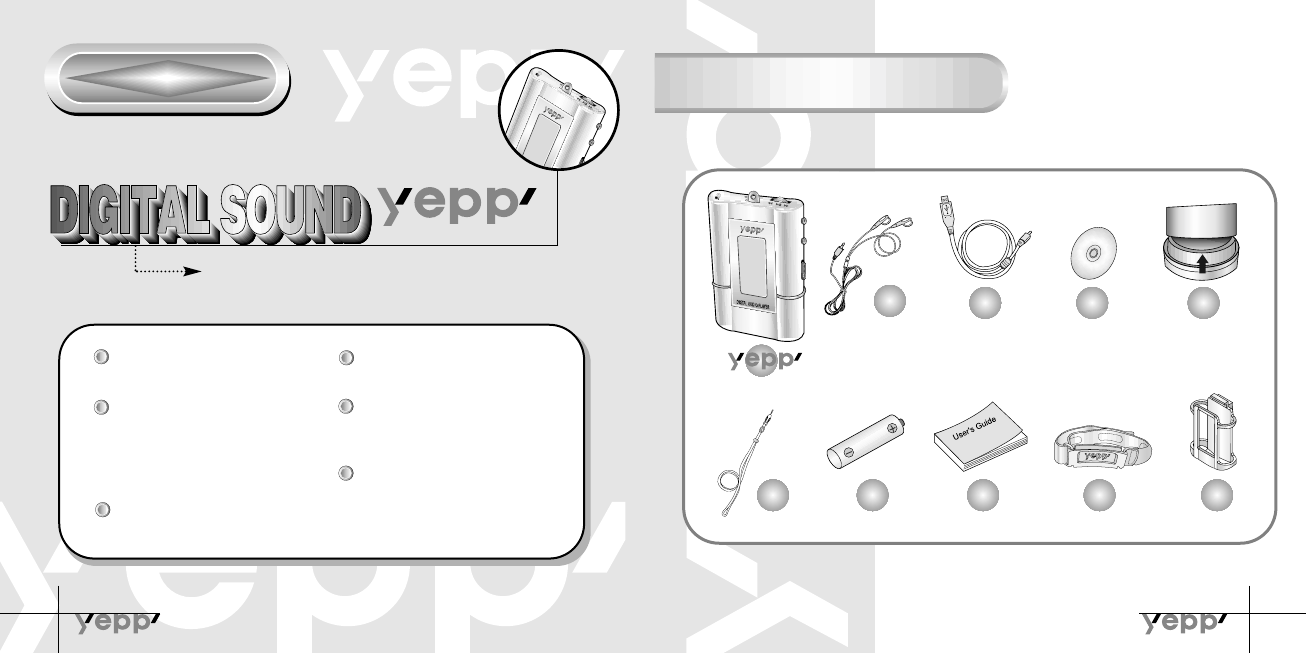
Player
Earphones
Neck Strap One Battery
(1.5V AAA type) User’s Guide
D
i
g
i
t
a
l
A
u
d
i
o
P
l
a
y
e
r
Arm Band Belt Clip
USB Cable Installation
CD
Pull the packing foam on
the bottom in the direction
of the arrow to remove the
installation CD.
NN
NNoo
oott
ttii
iicc
ccee
ee
::
::
To attach or remove the yepp from the Belt clip, use a coin to
open the screw to loosen the hook on the back of clip.
YP-30S-Rioport-128 2/15/02 9:51 AM Page 4
7
6
Location of Controls
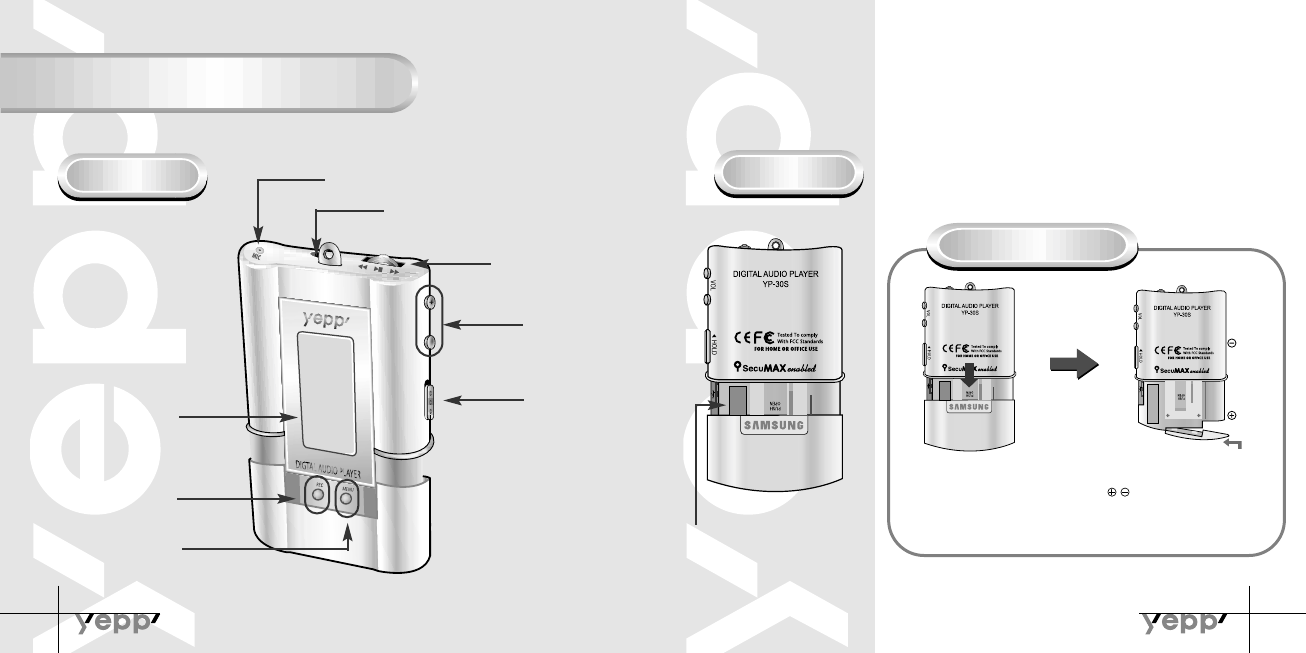
Front Rear
Microphone
Earphones Jack
Play/Stop/Pause/
Forward/Backward
Button
Volume
Display
Voice Recording Button
MENU/Mode/Loop
Repeating Button
Hold
USB Cable
Connection Port
Inserting the Battery
After sliding the cover in the direction
of the arrow, open the cover by
pressing "PUSH OPEN".
Open the battery cover and insert the
AAA battery following proper polarity
( , ) . Push the battery cover in
the direction of the arrow to close it.
Slide the cover back onto the unit
and press “PUSH OPEN” to close it.
NN
NNoo
oott
ttii
iicc
ccee
ee
::
::
Do not place heavy objects on the cover.
NN
NNoo
oott
ttee
ee
::
::
Please peel the tape off the
Display after unpacking the unit.
YP-30S-Rioport-128 2/15/02 9:52 AM Page 6
9
8
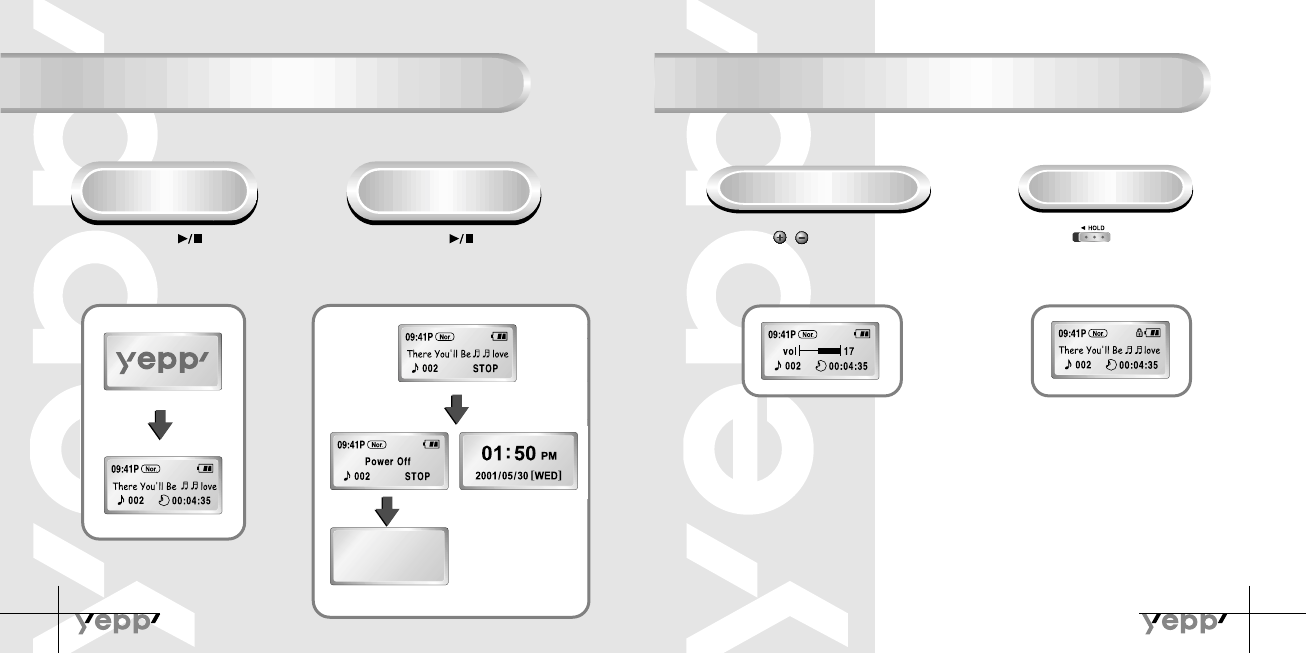
Listening to Music with yepp
Setting up Volume / Hold Functions
First, insert a battery and connect the earphones to the player.
Playing Music
(Power On) Stopping Music
(Power Off/Sleep)
When you press the button, the yepp
logo appears and a music/voice file is
played.
Adjusting the Volume
Press the / button on the side to
adjust the volume while playing.
HOLD Function
Slide the switch on the side
in the direction of the arrow to change to
HOLD mode.
NN
NNoo
oott
ttee
ee
::
::
Both Power Off and Sleep modes
can be set in the MENU
mode.(refer to P.23) Power Off mode. Sleep mode.
NN
NNoo
oott
ttee
ee
::
::
Volume ranges from 00 to 30.
● Press to adjust step by step.
● Press and hold to adjust continuously.
NN
NNoo
oott
ttii
iicc
ccee
ee
::
::
Under Hold mode, no buttons work.
When you press the button while playing,
the music stops. If no buttons are pressed
within 5 seconds, the yepp automatically enters
Power Off or Sleep mode.
YP-30S-Rioport-128 2/15/02 9:52 AM Page 8
11
10
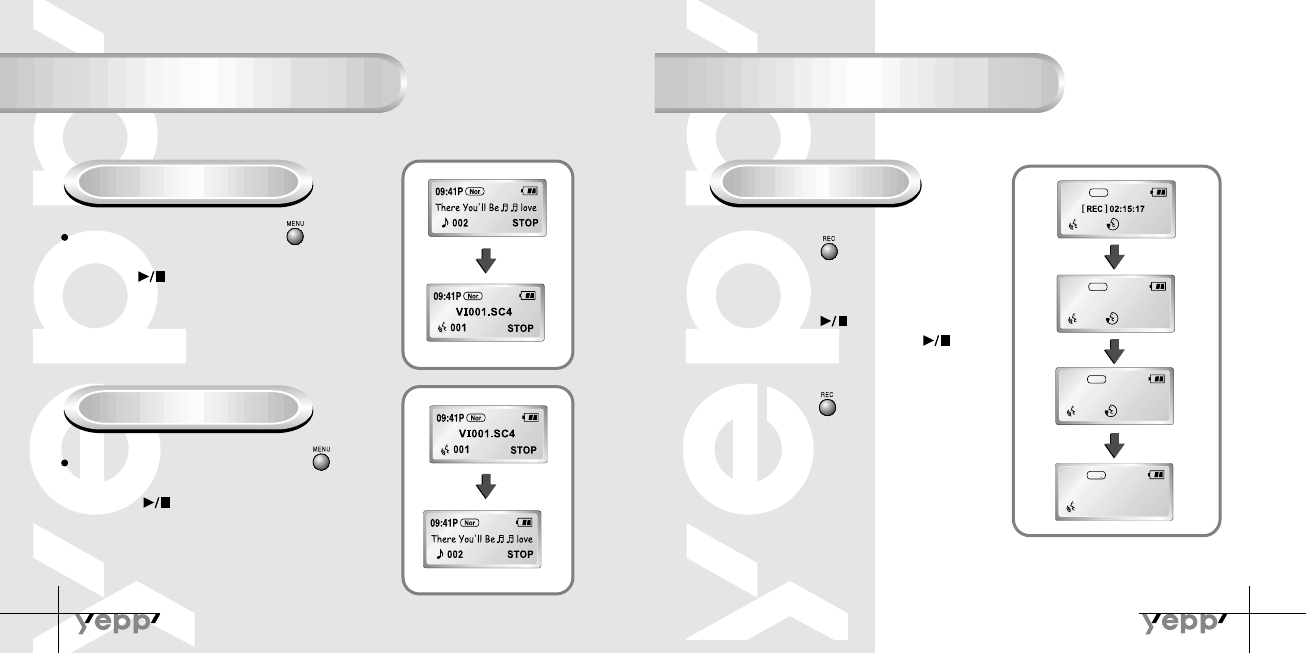
Changing Modes Recording Voice
Changing to Voice Mode To Record Voice
To stop playing music, press the
button to change to voice mode.
Press the button to play voice files.
Press the button to begin
recording voice.
Changing to Music Mode
To stop playing voice files, press the
button to change to music mode.
Press the button to play.
09:41
002 00:00:00
Nor
VI002. SC4
09:41
002 00:00:35
Nor
Record Pause
09:41
002 00:00:35
Nor
VI002. SC4
09:41
002 STOP
Nor
1
Press the button to pause
while recording. Press the
button again to resume recording.
2
Press the button to stop
recording. A new voice file is
created.
3
NN
NNoo
oott
ttii
iicc
ccee
ee
::
::
Recording is done in the order of VI001,VI002..…
● When memory is full, recording stops automatically.
(The available time is displayed on the right when recording begins.)
● When recording voice, make sure to record for longer than 5 seconds.
YP-30S-Rioport-128 2/15/02 9:52 AM Page 10
13
12
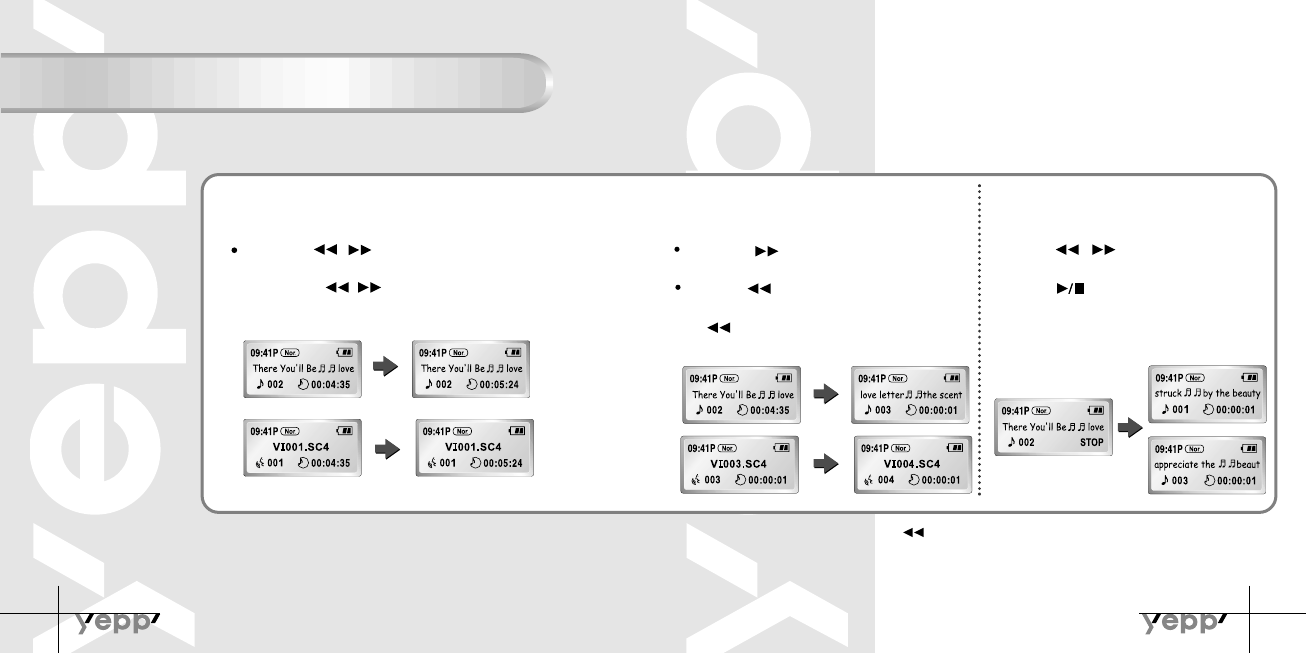
Searching for Music/Voice Files
Searching for Specific Parts in a
Track
Press the / button for longer than 1 second
while playing to find the part you want to listen to.
Release the / button to resume playing.
Searching for Music/Voice Files
in PLAY mode
Press the button while playing to
advance to the next track.
Press the button within 5 seconds from the
start of the track to play the previous track. Press
the button 5 seconds after the start of the
track to play the beginning of the current track.
Searching for Music/Voice Files
in STOP mode
Press the / button in STOP mode to
skip to the previous or next track.
Press the button to play.
NN
NNoo
oott
ttii
iicc
ccee
ee
::
::
There’s no sound while searching for specific parts in a voice file
NN
NNoo
oott
ttee
ee
::
::
● With VBR files, pressing the button within 5 seconds from the start may not result in
the previous track playing.
● With VBR files, the actual running time may differ from that of the player display.
● VBR(Variable Bit Rate) file: MP3 file whose compression rate changes when played.
YP-30S-Rioport-128 2/15/02 9:52 AM Page 12
15
14
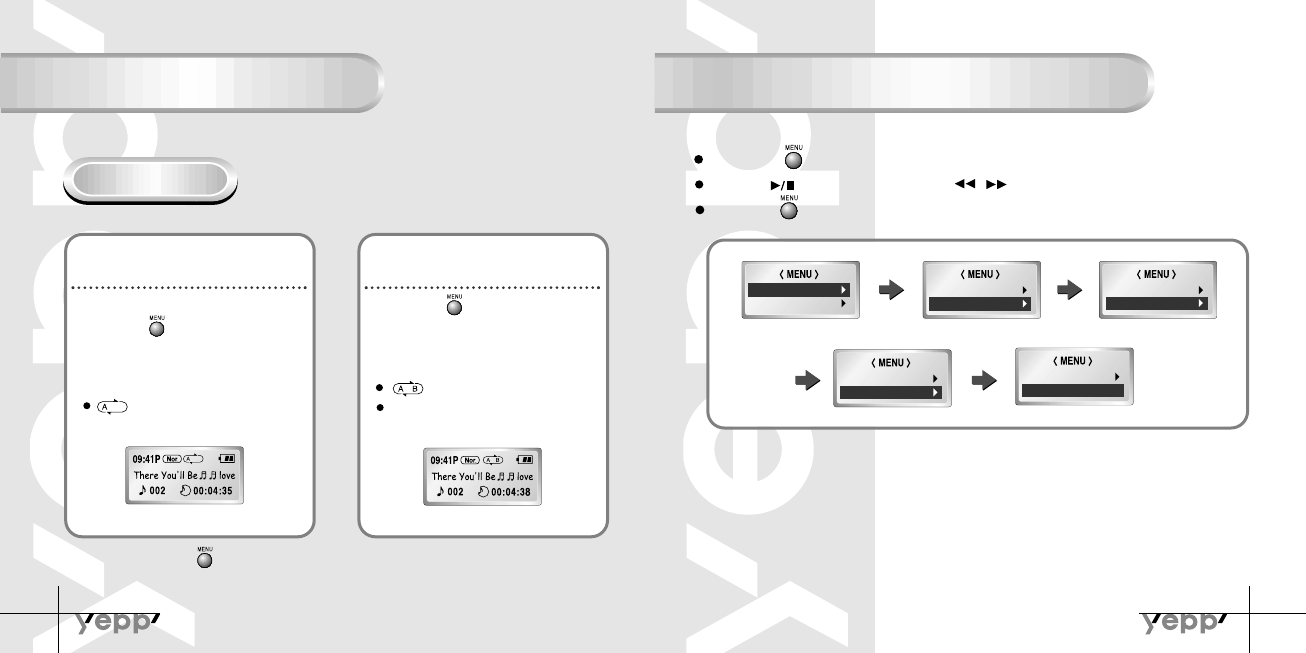
Loop Repeating Setting up MENU
Loop Function
Starting Point
While playing music/voice files,
press the button at the
beginning of the loop you want
to set.
flickers in the display.
Ending Point
Press the button at the end of
the loop.
appears in the display screen.
The loop is played repeatedly.
● Play mode : To select track repeating mode.
● Equalizer : To use equalizer function
● File : To delete or format music/voice files.
● Setting : To change the basic setup options of the display.
● Exit menu : To exit MENU
Press the button for longer than 2 seconds to switch to MENU mode.
Use the button to select and the / button to move.
Press the button one more time to cancel the MENU mode.
2. Equalizer
1. Play mode 1. Play mode
2. Equalizer 2. Equalizer
3. File
3. File
4. Setting
4. Setting
5. Exit menu
NN
NNoo
oott
ttee
ee
::
::
Press the button to cancel the loop
NN
NNoo
oott
ttee
ee
::
::
● In MENU, Go up can be used to exit the current setting.
● In MENU mode, no input for 10 seconds will cancel the mode.
(Refer to P. 16~23)
YP-30S-Rioport-128 2/15/02 9:53 AM Page 14
17
16
Repeating Tracks
Setting up EQ
Track Repeating Function
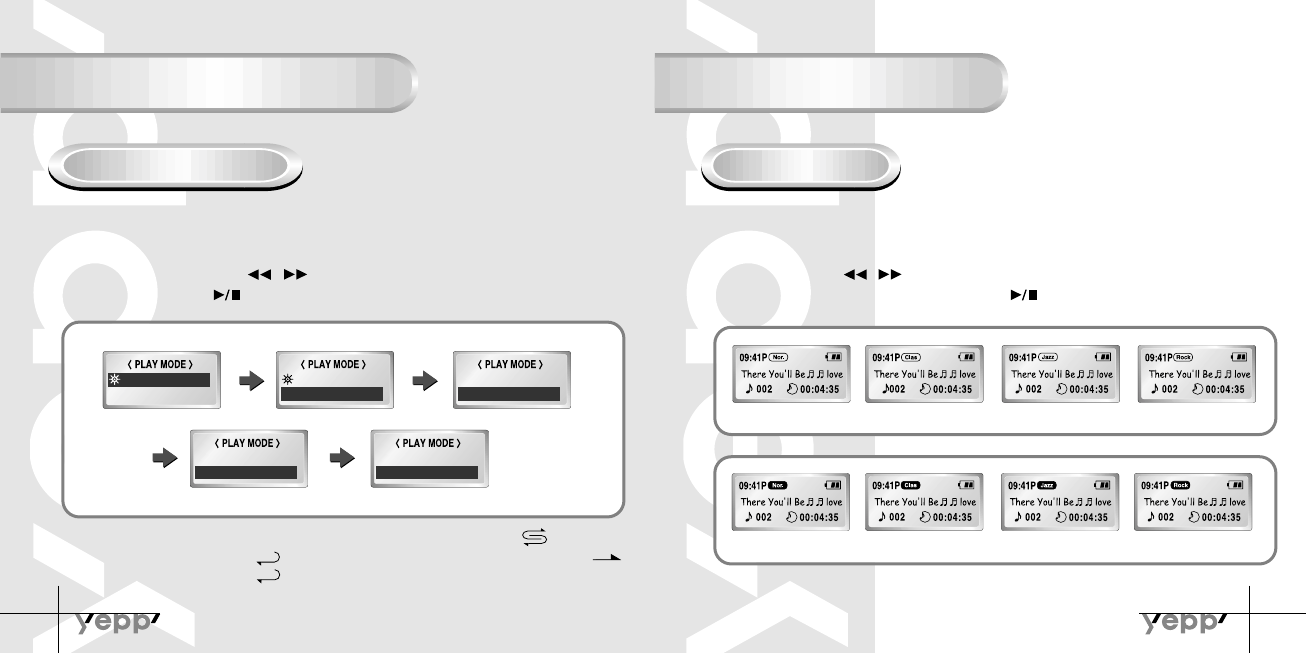
In MENU, select 1.Play mode.
1
In PLAY MODE, use the / button to move to the Repeat mode you
want and press the button to select.
2
EQ Function
In MENU, select 2. Equalizer.
1
In EQ, use the / button to move to the setting you
want (out of the 8 settings) and press the button to select.
2
2. Repeat one
Normal Normal
2. Repeat one 2. Repeat one
3. Repeat all
3. Repeat all
4. Shuffle
4. Shuffle
5. lntro
● Normal: To play all the tracks in order one time.
● Repeat one: To repeat one track.
● Repeat all: To repeat all tracks.
● Shuffle: To play tracks at random.
● Intro: T o play the first 10 seconds of each track.
One
All
Intro
Normal Classic Jazz Rock
Normal-DBB Classic-DBB Jazz-DBB Rock-DBB
NN
NNoo
oott
ttee
ee
::
::
● DBB is for Dynamic Bass Booster, which enhances bass response.
YP-30S-Rioport-128 2/15/02 9:53 AM Page 16
19
18
Managing Files
Deleting
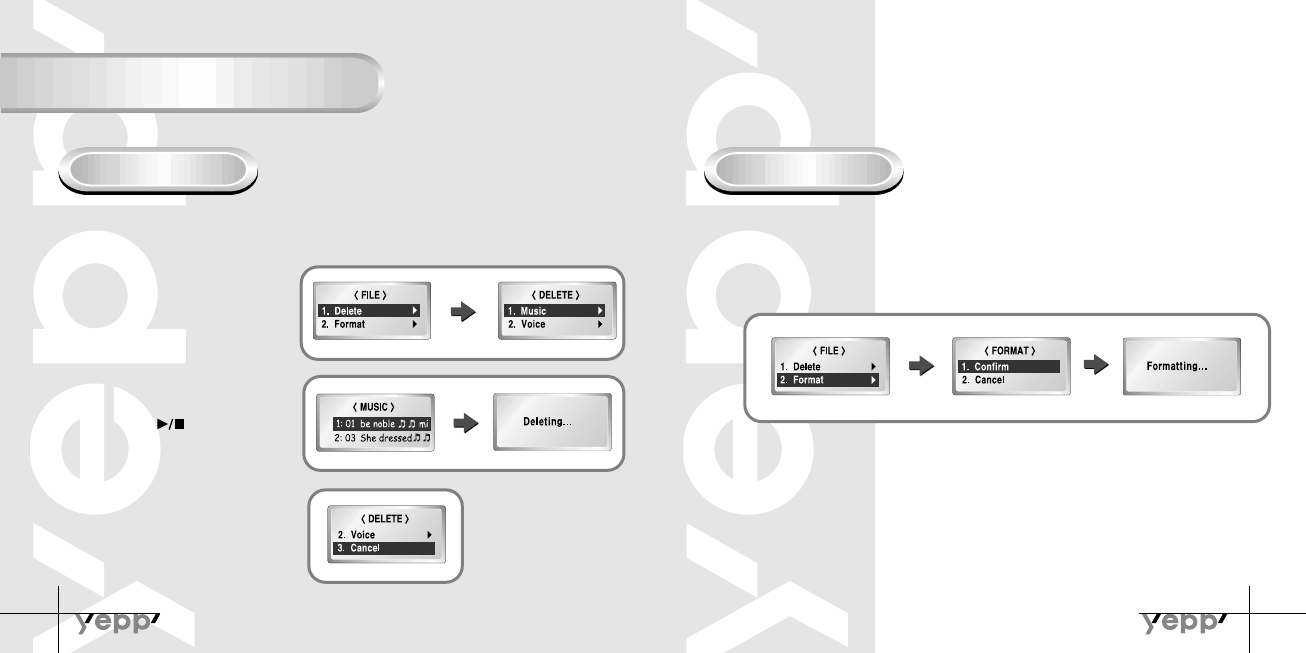
In MENU, select 3. File
1
In File, select Delete and the
mode the target file is in.
(Music or Voice)
2
Move to the file to delete and
press the button to select.
The file is deleted.
3
Formatting
In MENU, select 3. File
1
In File, select Format ➞ Confirm.
Select Cancel to exit the mode.
2
Select Cancel to exit the mode.
4
NN
NNoo
oott
ttee
ee
::
::
●You can also format in yepp Explorer and Audio Manager.
●All files will be deleted when formatting the built-in memory.
YP-30S-Rioport-128 2/15/02 9:53 AM Page 18
21
20
Customizing Options
Setting Function
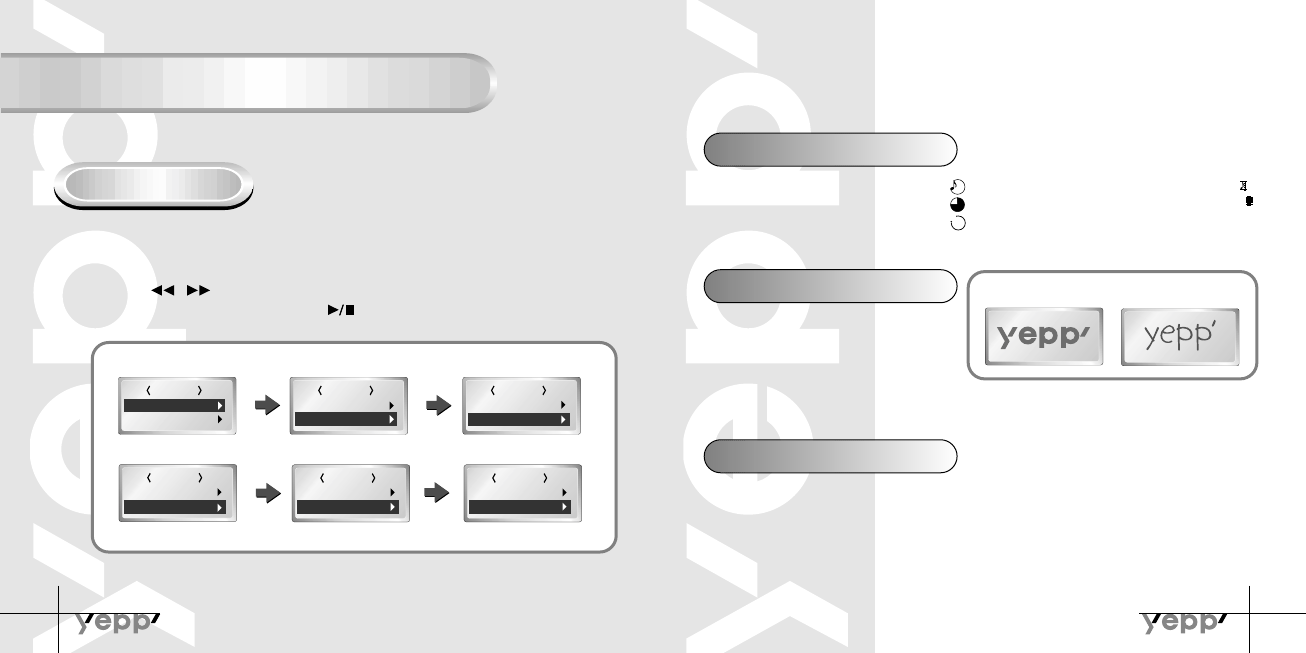
In MENU, select 4. Setting
1
Use the / button to move to the function you want to change
and select the function by using the button.
2
2. Time
SETTING
1. Display
SETTING
2. Time
3. Backlight
SETTING
4. Scroll speed
5. Contrast
SETTING
5. Contrast
6. Sleep mode
SETTING
3. Backlight
4. Scroll speed
SETTING
1. Display
2. Time
Display ➞ 1. Information
● Play time: displays current play time
● Remain time: displays remaining play time
● Total time: displays total play time
Display ➞ 2. Logo
● Default: "yepp" logo
● User define: displays user-defined logo
● None: displays no logo.
Display ➞ 3. Time
● 12Hours: Displays the time in the 12 hour setting
● 24Hours: Displays the time in the 24 hour setting
● Compression: displays compression rate
● Free memory: displays remaining memory
128
Kbps
32
MB FREE
Default Setting ex) User defined setting
NN
NNoo
oott
ttee
ee
::
::
yepp homepage (http://www.samsungyepp.com) offers a program to edit
the user defined logo. You can download from SUPPORT.
You can’t use yepp logo Editor on Mac.
YP-30S-Rioport-128 2/15/02 9:53 AM Page 20
23
22
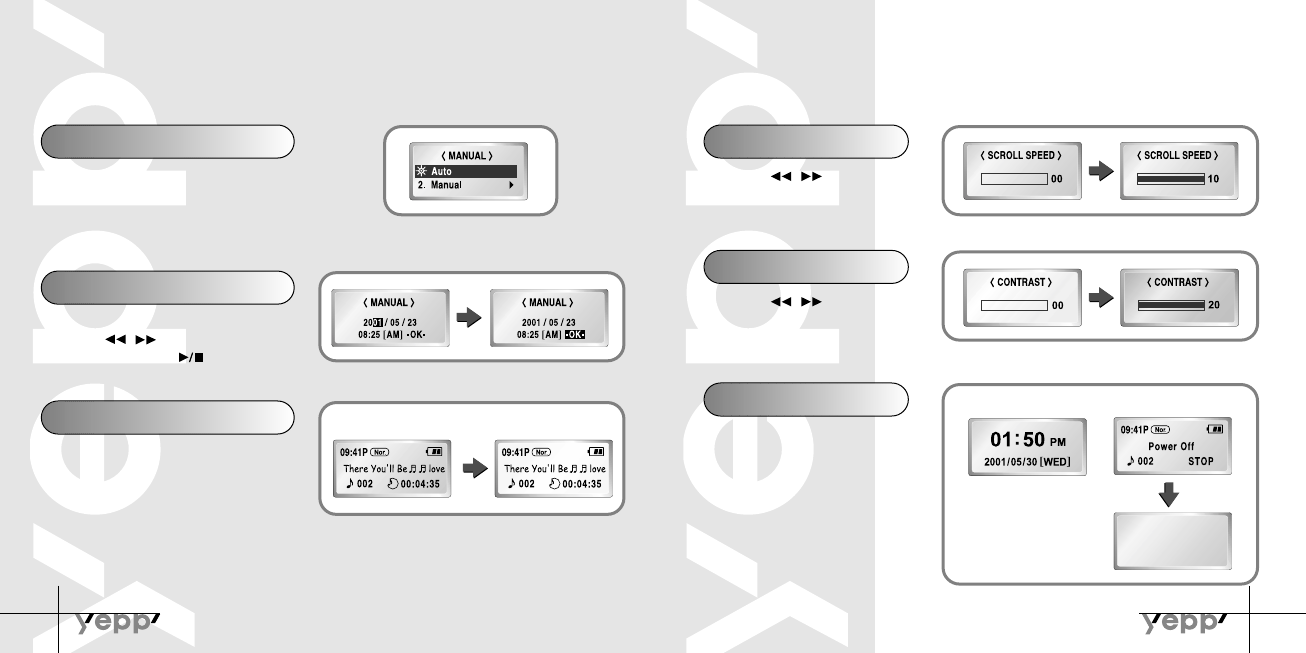
Time ➞ 1. Auto
● Automatic time setting
● How to set up:
Set time in PC ➝ Set yepp as Auto ➝ Connect to PC ➝
Execute yepp Explorer
● You can’t use automatic time setting function in yepp Audio Manager
Scroll speed
Press the / button to set
the scroll speed.
Time ➞ 2. Manual
● Manual time setting
Press the / button to change Year, Date
and Time and press the button to select.
Backlight
● Button: Backlight is "ON" when button is pressed
● Auto: Backlight is "ON" according to the current
time (06 p.m. ~ 07 a.m.)
● Never: No backlight.
❈ Select Never to save battery power.
● On: Setting Sleep mode
● Off: Setting Power Off mode
❈ Select Power Off mode to save battery
power.
Contrast
Press the / button to set
the contrast.
Sleep mode
Button Setting
On Off
YP-30S-Rioport-128 2/15/02 9:53 AM Page 22
25
24
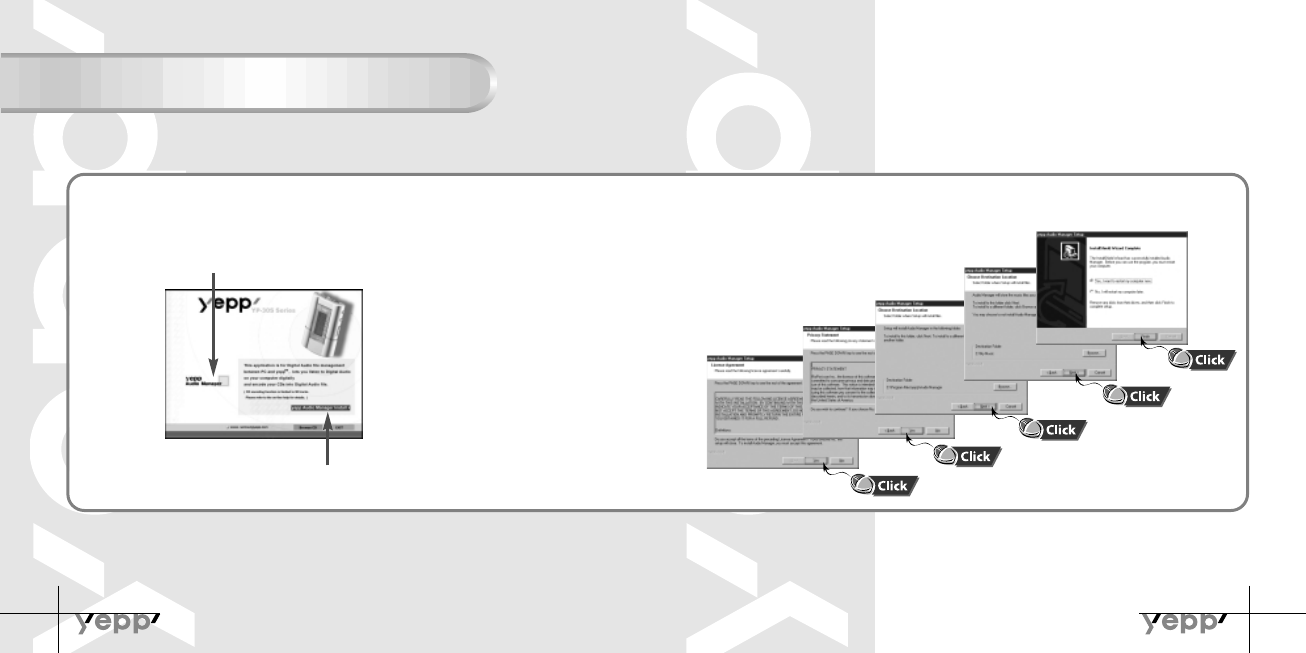
Installing Software (PC)
Insert the Installation CD into your CD-ROM drive.
Click on yepp Audio Manager.
1
Click [Next] in the series of windows that appear.
3
If Rioport Manager is already installed on your PC, remove the existing Rioport Audio
Manager first before making a new installation.
NN
NNoo
oott
ttee
ee
::
::
How to delete the yepp Audio Manager
●
Start ➝ Settings ➝ ControlPanel ➝ Add/Remove Programs ➝ Select the yepp Audio Manager
Add/Remove ➝ Remove ➝ [OK]
Click on yepp Audio Manager install
2
Additional Features
- Fonts Downloading
- Auto Clock Setting
- Logo Editing
You need to download yepp Explorer and Logo Editor for the additional
features, Please visit http://www.samsungyepp.com for more information.
YP-30S-Rioport-128 2/15/02 9:53 AM Page 24
27
26
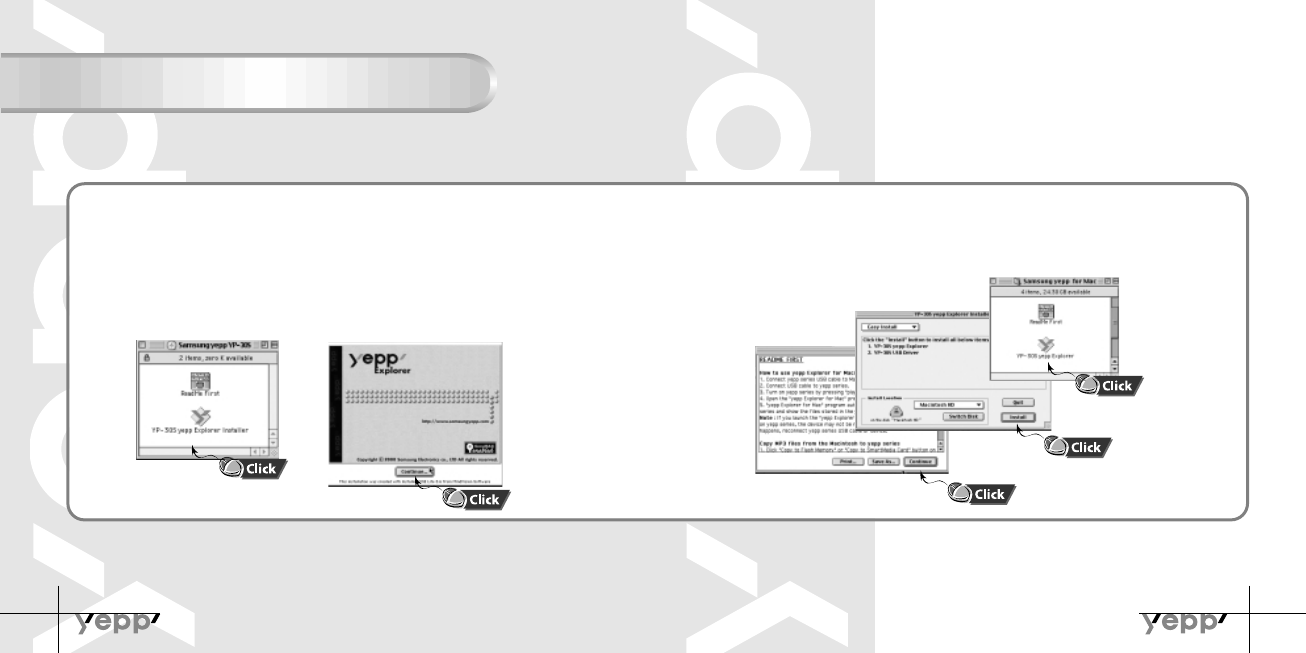
Installing Software (Mac)
Insert the Installation CD into your CD-ROM drive.
●
It operates with only MAC OS 8.6~9.1 only.
Select the installation icon as shown in the picture
●
Double-Click on YP-30S yepp Explorer Installer.
1
Click [Continue] in the series of windows that appear.
2▼ yepp Explorer folder
yepp Explorer is executed
When installation is completed,
yepp Explorer is created in
Mac.
YP-30S-Rioport-128 2/15/02 9:54 AM Page 26
28
Connecting to Computer
29
System Requirements.
●
Pentium 133MHz or over
●
Windows 98/ME/2000/XP
●
Mac (8.6~9.1)
●
20MB of available hard disk space
●
CD-ROM drive
(double speed or greater)
●
USB port supported
●
VGA graphic
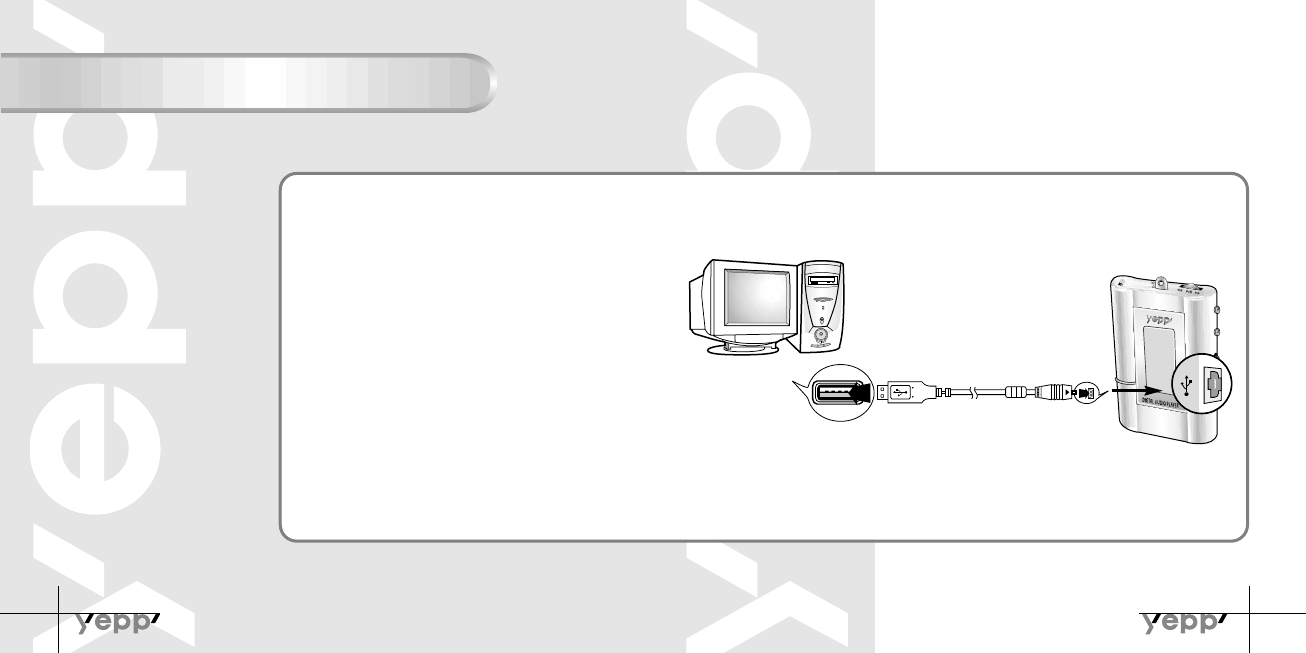
Plug one end of the USB cable into the
USB port on the back of a computer.
1
Slide down the bottom cover of yepp player
to plug the other end of the USB cable
into the USB port on the right side at the
bottom.
2
NN
NNoo
oott
ttee
ee
::
::
● Before connecting to the computer, make sure to
install yepp Audio Manager. If “Add New Hardware
Wizard” appears, press the [Cancel] button and
install yepp Audio Manager.
● If USB driver is not installed automatically, refer to
page 30.
NN
NNoo
oott
ttee
ee
::
::
The computer may temporary malfunction if you unplug the USB cable from the
computer while the yepp Audio Manager is initiating or executing a command.
USB connect cable
YP-30S-Rioport-128 2/15/02 9:54 AM Page 28
31
30
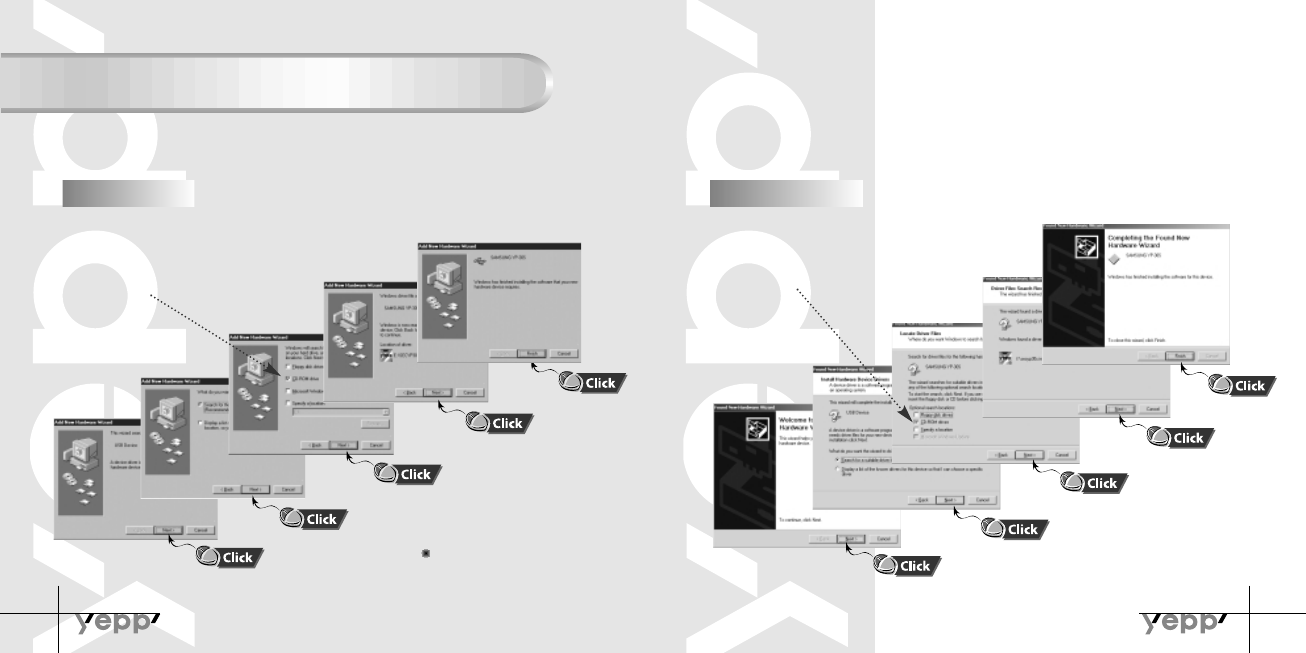
Manual Installation of USB Driver
Click [Next] button in the series of windows that appear. Click [Next] button in the series of windows that appear.
Insert installation CD and
select drive.
Insert installation CD and
select drive.
To complete the installation
process, reboot the system.
1
In Windows 98
2
In Windows 2000
If the USB driver does not install automatically, connect yepp to PC to install the driver
manually (How to check USB driver: refer to 33 page)
YP-30S-Rioport-128 2/15/02 9:54 AM Page 30
32
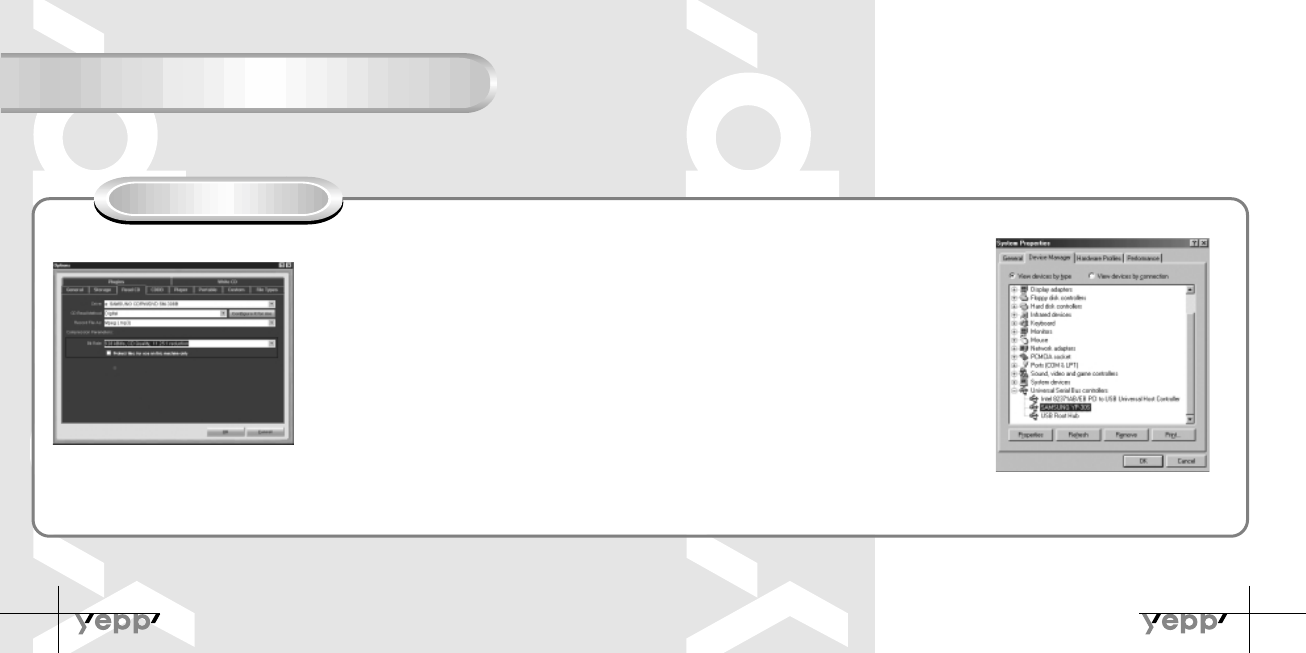
Setting Options Function
33
PC (yepp Audio Manager)
●Click on the yepp Audio Manager ➝ View ➝ Options...
➝ Read CD ➝ Record File AS Mpeg (mp3)
➝Set the Bit Rate ➝ Press [OK]
●Click on the yepp Audio Manager ➝ View ➝ Options...
➝ Portable ➝ Set the Bit Rate ➝ Set the yepp
YP-30S on Device ➝ Press [OK]
NN
NNoo
oott
ttee
ee
::
::
How to check USB driver
"Turning on the power of yepp"➝ "Connecting
yepp to PC"
-USB driver is installed with a message
saying that it is searching for a new device.
If USB driver is not installed, try one more
time after rebooting the PC.
(If USB driver is not installed at the second
attempt, contact your PC manufacturer.)
When USB driver is installed, "SAMSUNG
YP-30S" will appear in [System Properties]
➝ [Device Manager] as shown in the picture
on the right.
YP-30S-Rioport-128 2/15/02 9:54 AM Page 32
34
Copying Files to yepp (PC)
35
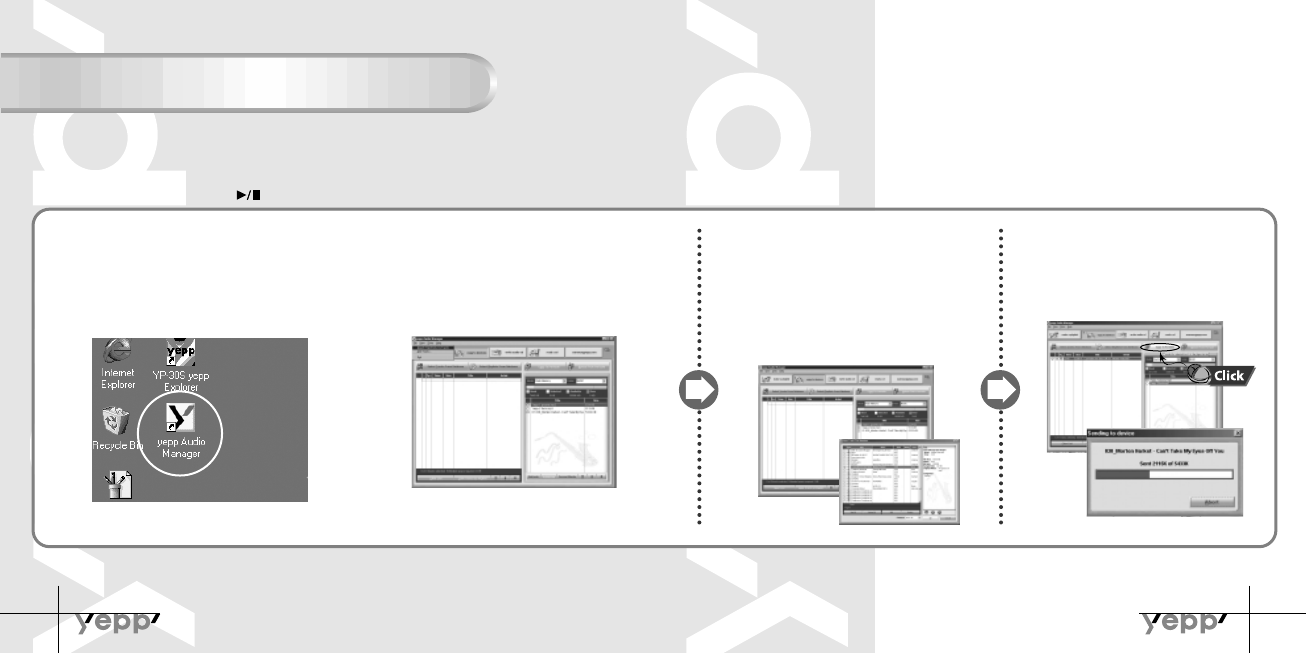
Before copying files, connect yepp to PC.
When in Sleep mode, press the button to make sure the power is on and then proceed.
Double-click “yepp Audio Manager”.
1
Click on the “Search Hard Disks for
Tracks”/ “AddTracks...” and save the
music files that you want on the
database.
2
Select ’Copy to devices’ ➝“Select
Tracks From Database”/ “Select
Playlists From Database”.
● Check the music file to send and click on the
“OK” button.
● If the YP-30S memory capacity is insufficient, a
warning message will pop up.
3
Click on “Copy to Portable”
● Then the file is transferred.
4
NN
NNoo
oott
ttee
ee
::
::
● An 128Kbps file uses about 1MB of memory per minute.
● Directories are divided according to file extensions(.mp3,.sc4...).
Open the directory to check the saved file.
YP-30S-Rioport-128 2/15/02 9:54 AM Page 34
36
Copying Files to yepp (Mac)
37
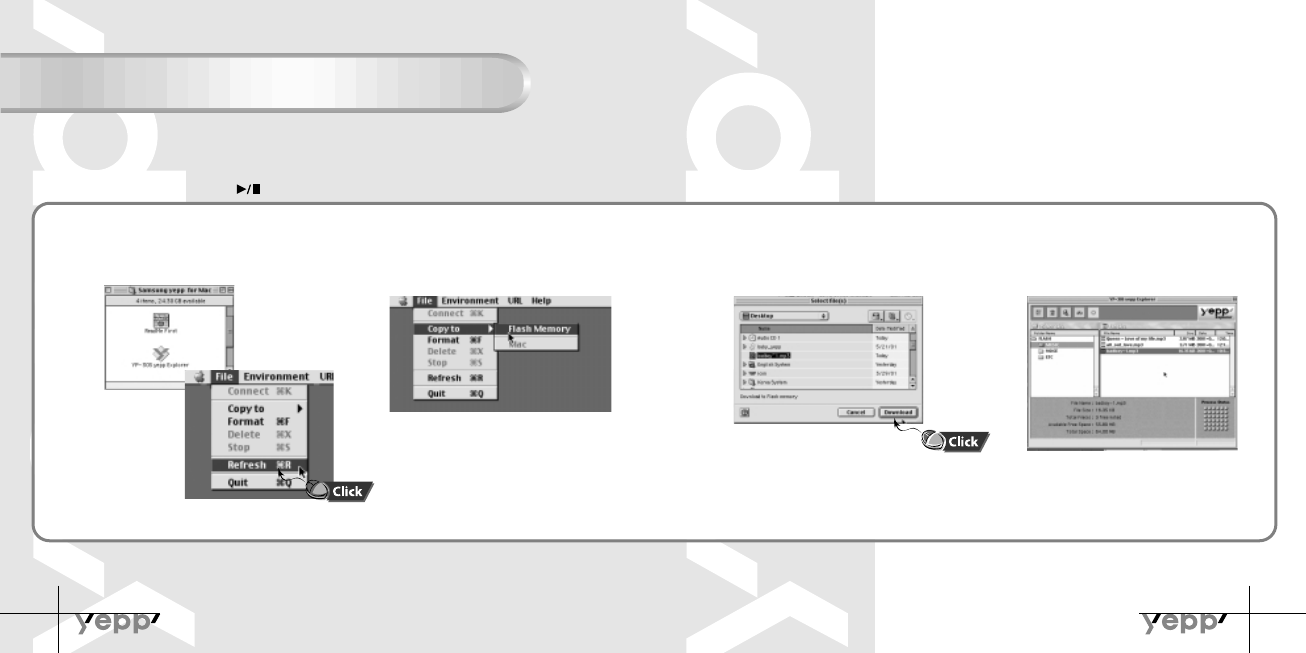
Before copying files, connect yepp to Mac.
When in Sleep mode, press the button to make sure the power is on and then proceed.
Run yepp Explorer.
1
Select [File]
➝ [
Copy to]
➝
[
Flash Memory].
2
Select files to copy.
3
Files are saved. Now you can unplug
the USB cable from Mac and listen to
music using yepp.
4
NN
NNoo
oott
ttee
ee
::
::
● An 128Kbps file uses about 1MB of memory per minute.
● Directories are divided according to file extensions(.mp3,.sc4...).
Open the directory to check the saved file.
NN
NNoo
oott
ttee
ee
::
::
You can select the font you want before copying.
Select [Environment]
➝[
Font].
YP-30S-Rioport-128 2/15/02 9:54 AM Page 36
38
Deleting Files (PC)
39
Deleting Files (Mac)
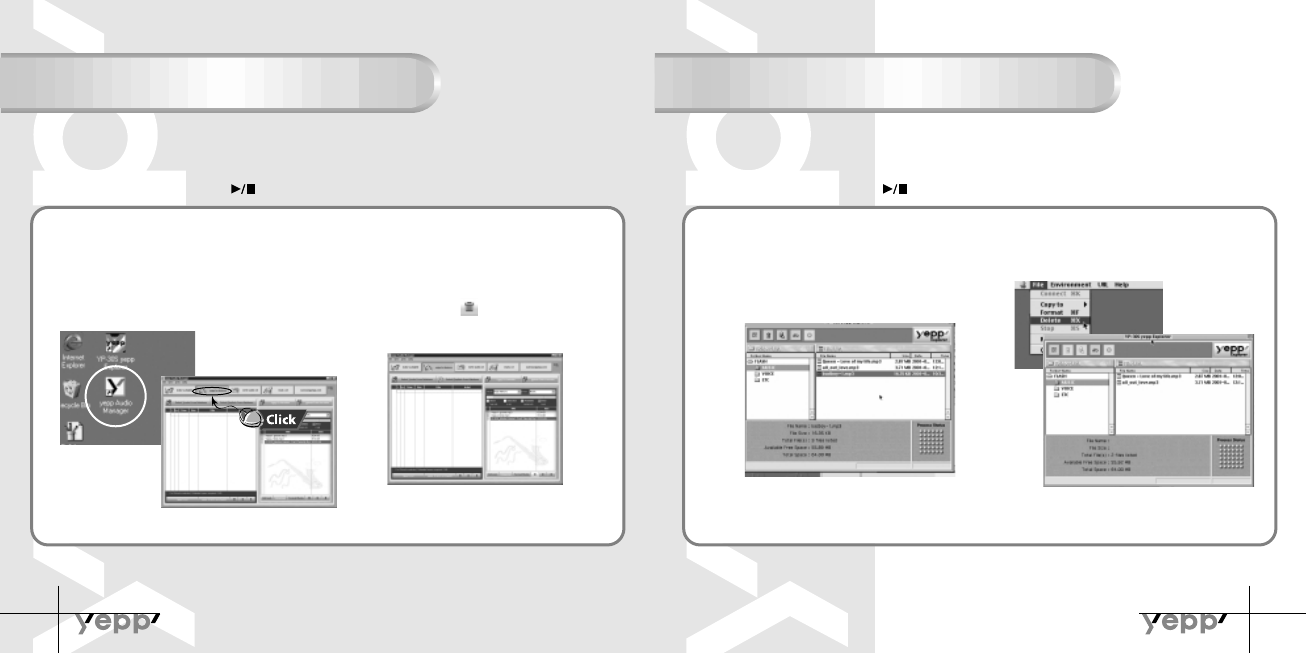
Before deleting files, connect yepp to PC.
When in Sleep mode, press the button to make sure the power is on and then proceed. Before deleting files, connect yepp to Mac.
When in Sleep mode, press the button to make sure the power is on and then proceed.
Double click the yepp Audio Manager.
1
Select [Copy to devices].
2
Select the file to delete.
3
Press the ( ) icon.
4
Run yepp Explorer
1
Select files to delete.
2
Click [File]
➝[Delete].
3
YP-30S-Rioport-128 2/15/02 9:54 AM Page 38
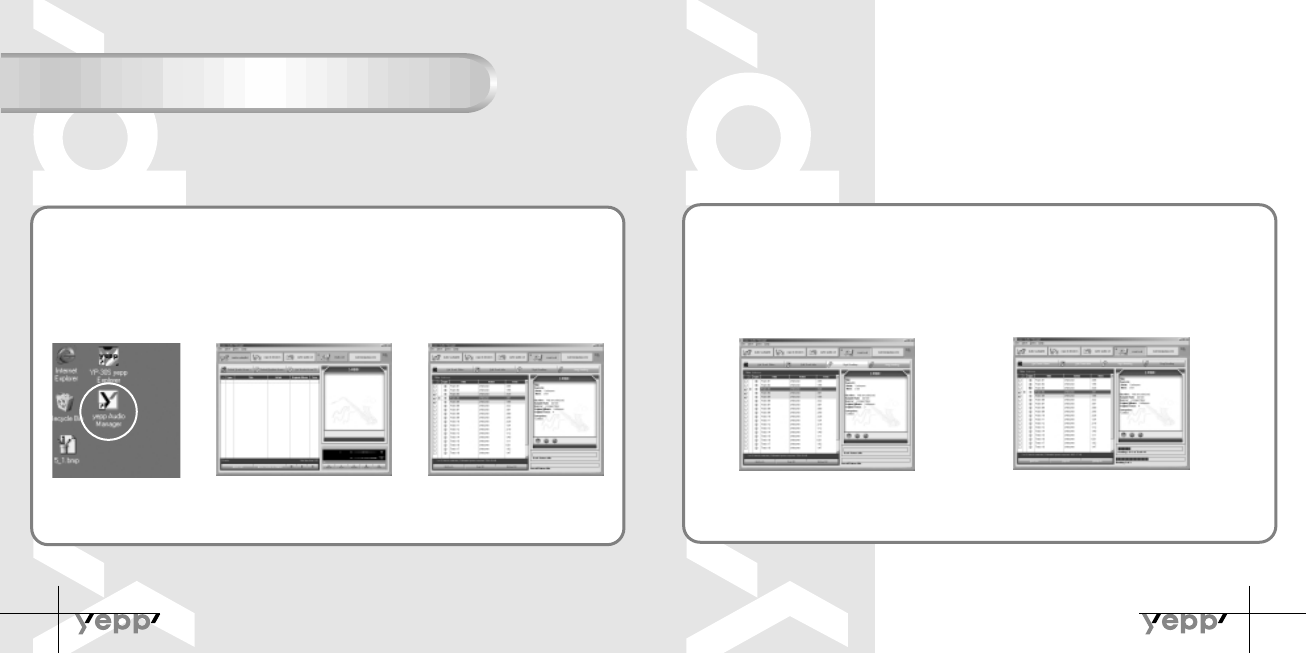
40
Making MP3 files from an Audio CD
41
Make sure to install the software yepp Audio Manager on PC before making an MP3 file.
Refer to page 24 for how to install the software.
Implement the yepp
Audio Manager.
● Double click the yepp Audio
Manager.
1
Insert the audio CD
into the CD-ROM drive.
● Press the “read a CD” button to see
CD information.
2
Select songs to
convert into an MP3
file.
3
NN
NNoo
oott
ttee
ee
::
::
Make sure to connect yepp to PC and refresh before
conducting a format.
Press the “Start Reading” button.
● Conversion status is indicated on the right
bottom of the picture.
4
File converting status will be
displayed.
● “Options” function should be set first to select the file
format. (Refer to page 34)
5
NN
NNoo
oott
ttee
ee
::
::
The stored file can be found in the Track Directory, which
is set View
➝ Options... ➝Storage.
YP-30S-Rioport-128 2/15/02 9:54 AM Page 40
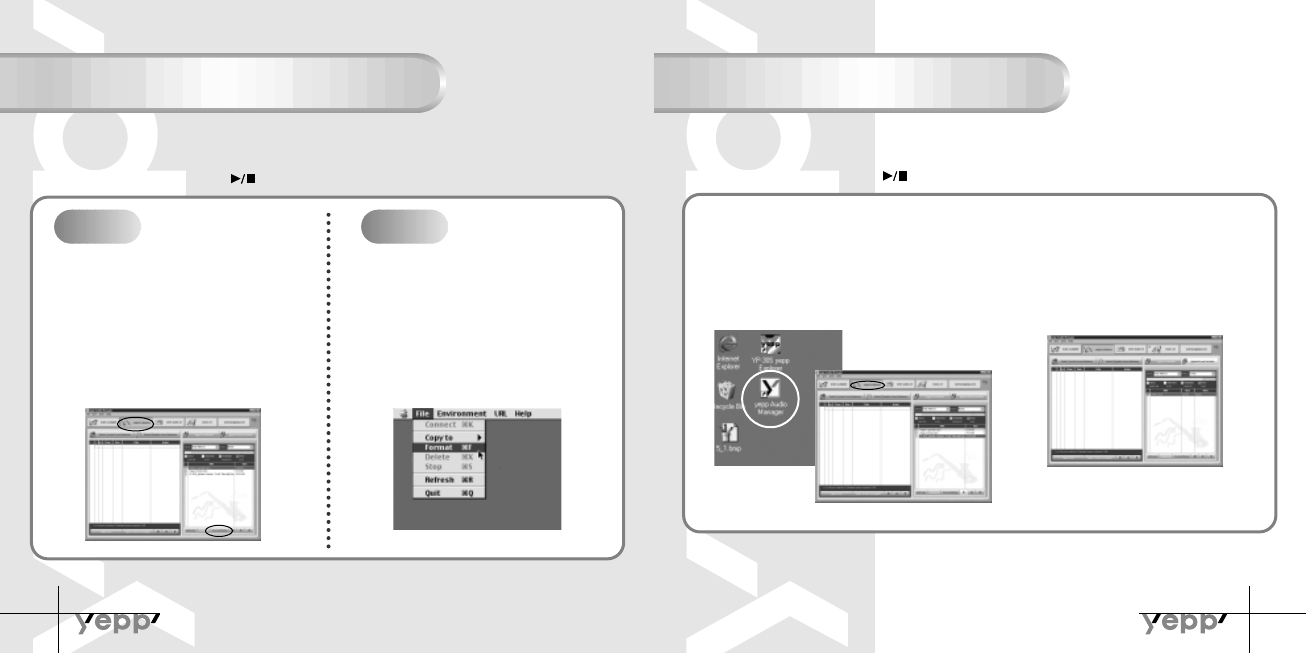
42 43
Uploading Files (PC)
Before uploading files, connect yepp to PC.
When in Sleep mode, press the button to make sure the power is on and then proceed.
Double click the yepp Audio Manager.
1
Select [Copy to devices].
2
On the right side window, select the file
that you’d like to transfer to PC (check).
● Click on the “Upload From Portable”.
3
NN
NNoo
oott
ttee
ee
::
::
● You cannot transfer music files back from the yepp to the PC (due to copyright protection).
● Voice Files recorded on the player are converted into WAV when they are stored on PC.
Formatting
Before formatting, connect yepp to computer.
When in Sleep mode, press the button to make sure the power is on and then proceed.
Run yepp Explorer
1
Implement the yepp Audio Manager.
● Double click yepp Audio Manager icon.
1
Select [Copy to devices].
2
Click on the “Format Media”
3
Click [File]
➝[Format].
2
NN
NNoo
oott
ttee
ee
::
::
All files will be deleted when formatting bulit-in memory. (PC)
Make sure to connect yepp to PC and refresh before conducting a format. (Mac)
PC Mac
YP-30S-Rioport-128 2/15/02 9:54 AM Page 42
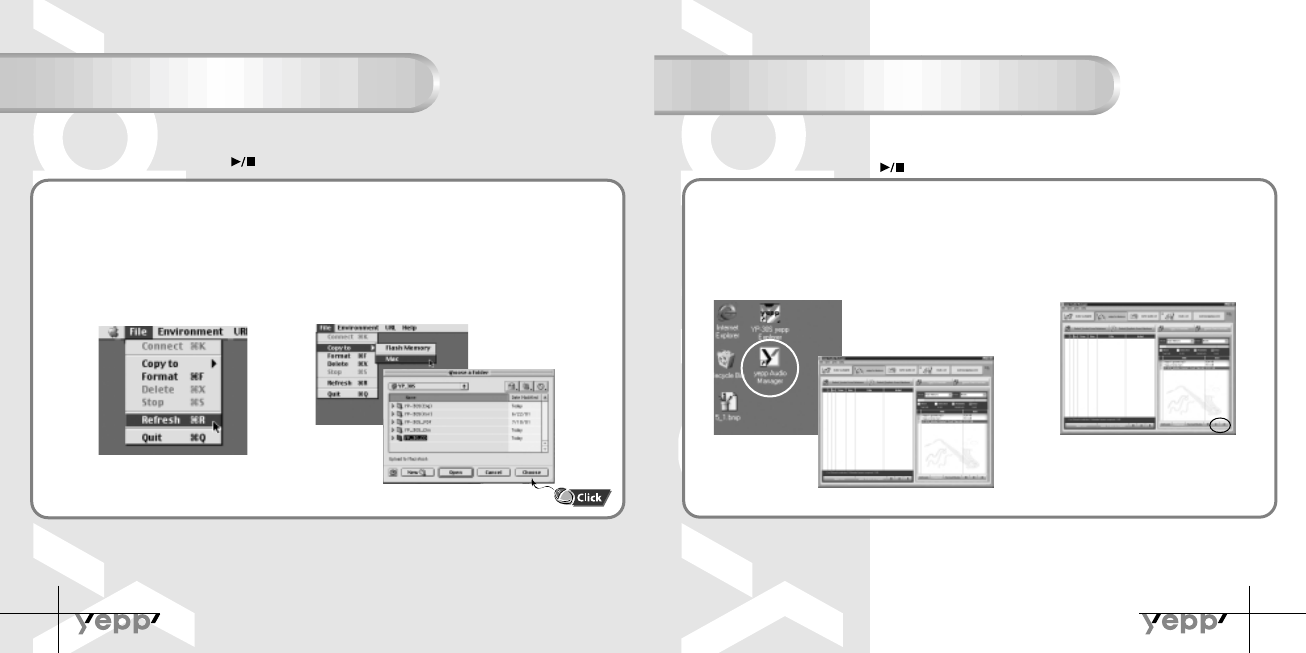
44 45
Rearranging Files
Before rearranging files, connect yepp to PC.
When in Sleep mode, press the button to make sure the power is on and then proceed.
1
Double click the yepp Audio Manager.
2
Select the file to relocate.
Press the button to
move the file.
3
Uploading Files (Mac)
Before uploading files, connect yepp to Mac.
When in Sleep mode, press the button to make sure the power is on and then proceed.
Run yepp Explorer
1
Select [File]
➝[
Refresh].
2
Select files to save in Mac and click
[File]
➝[
Copy to]
➝[
Mac].
3
NN
NNoo
oott
ttii
iicc
ccee
ee
::
::
● Voice files are not supported on the Mac.
NN
NNoo
oott
ttee
ee
::
::
● File transfer between directories (Music, Voice) is not allowed.
● On Mac, drag and drop the selected file where you wish it to be.
M◗
YP-30S-Rioport-128 2/15/02 9:54 AM Page 44
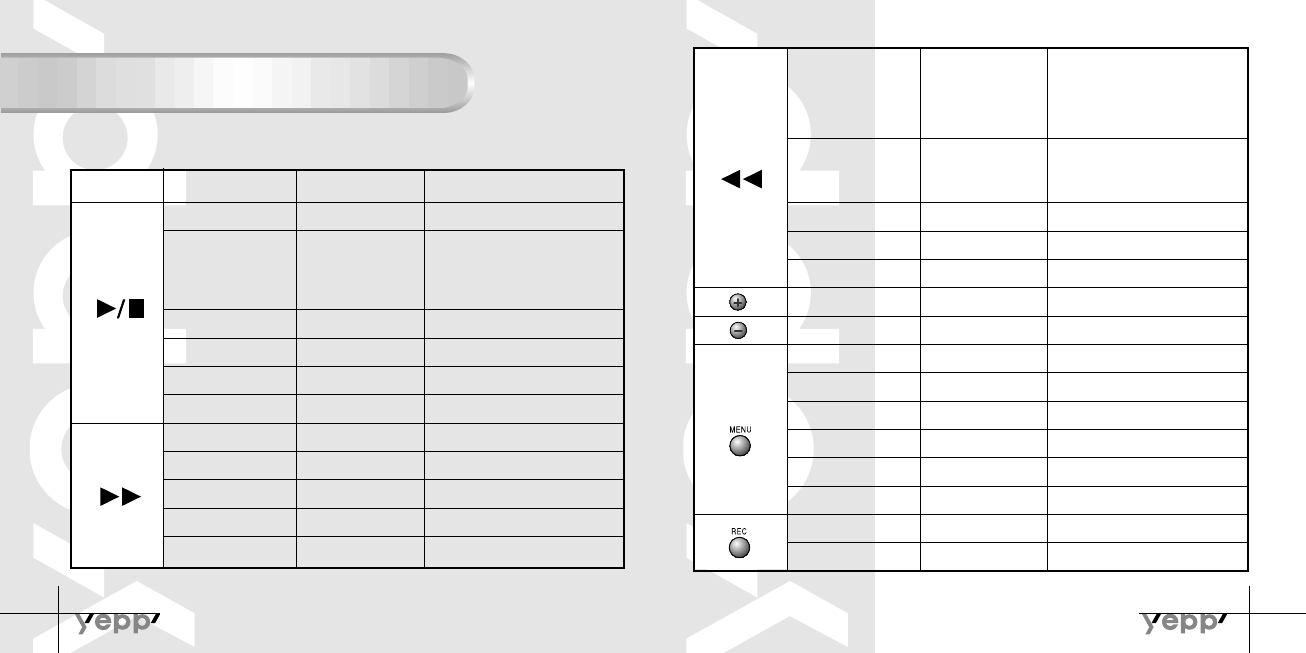
46
Description of Buttons
47
BUTTON STATUS
Power Off
Play
Selection
Pause
Resume recording
Cancels Intro and continues playing track
Play the next track
Fast forward in the current track
Skip to the next track
Move upward
Increase
Power On, and play
Stop(When no button is pressed for
5 seconds, yepp enters Power off
mode or Sleep mode)
MENU Mode
Voice Recording
Voice Recording Pause
Intro Play
Play
Play
Less than 1 Second
Longer than 1 Second
Longer than 1 Second
Skips to the previous track
Move downward
Decrease
Volume increase
Volume decrease
Set the starting point for loop function
Loop mode
Cancel loop mode
Changing modes (music↔voice)
Enter MENU
Exiting MENU
Voice recording
Stop voice recording
Fast reverse search in the
current track.
Longer than 2 Seconds
Stop
MENU Mode
(MENU) Clock Setting
RESPONSE
Play Less than 1 Second
Within 5 seconds from the start of the
track: Plays the previous track
After 5 seconds from the start: Plays
the beginning of the current track.
Less than 1 Second
Less than 1 Second
Less than 1 Second
Less than 1 Second
Play
Stop
MENU Mode
(MENU) Clock Setting
Play or Stop Mode
Play or Stop Mode
Play
During Loop Setting
Loop Mode
Stop
Play or Stop Mode
MENU Mode
Play or Stop Mode
Voice Recording
PRESSING LENGTH
YP-30S-Rioport-128 2/15/02 9:54 AM Page 46
49
48
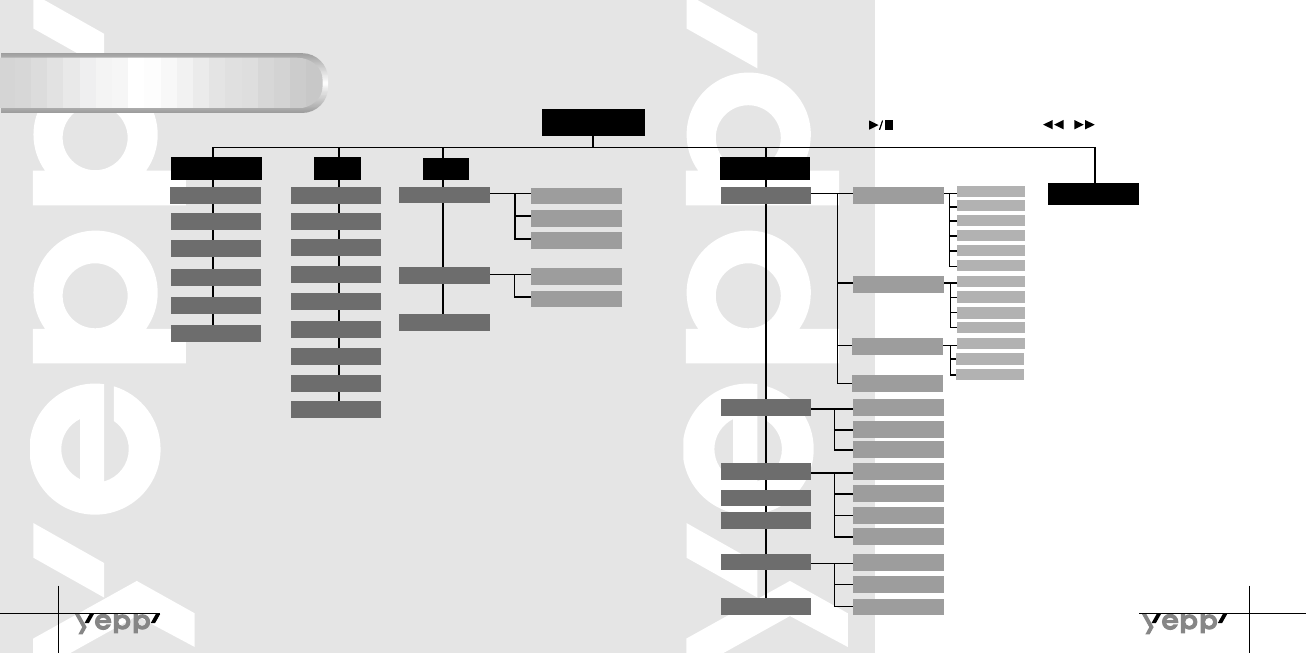
MENU Table
MENU
Play mode Setting
Exit menu
EQ File
Normal
Repeat one
Repeat all
Shuffle
Intro
Go up
Go up
Normal Delete Music
Voice
Display
Time
Information
Auto
Manual
Go up
Go up
Backlight
Scroll speed
Contrast
Sleep mode
Go up
Button
On
Off
Auto
Never
Go up
Play time
Remain time
Total time
Compression
Free memory
Go up
Default
User define
None
Logo
Confirm
Cancel
Cancel
Format
Go up
Classic
Jazz
Rock
Normal-DBB
Classic-DBB
Jazz-DBB
Rock-DBB
12 Hours
24 Hours
Go up
Go up
TimeTime
TimeGo up
Select with the button and move with the / button.
YP-30S-Rioport-128 2/15/02 9:54 AM Page 48
50
Precautions
51
Troubleshooting
1. Do not drop or put weight on the unit.
2. Do not get water on the unit
● If it got wet, remove the battery, dry it with towel and contact a
service center.
Software does not work.
● Refer to page 28.(computer environment) Backlight does not work.
● Check the backlight setup.
● When the battery power is low, the backlight
will go out.
yepp does not work and the LCD displays nothing.
● Check the battery capacity
● Check to see if the battery is inserted correctly ( )
The buttons do not work.
● Check to see if HOLD switch is set.
In PLAY mode, music is not played after
pressing the PLAY button
● Check to see if MP3 files are saved in the built-in memory.
MP3 files cannot be downloaded.
●
Check to see if the driver is installed correctly in the computer.
● Check the connection between yepp and computer.
3.Keep out of humid, hot or magnetic places.
4.Do not clean it with thinner, alcohol or benzene.
yepp keeps being turned off.
● In Stop mode, the power is automatically
turned off after five seconds.
● Check to see if there are files saved in it.
Something’s wrong with play time displayed
during Play mode.
● Check to see if it is playing VBR(Variable Bit Rate) files.
VBR files are not fully supported.
LCD window is dark
● Check Contrast
Strange letters are displayed
● Check the font set up.
YP-30S-Rioport-128 2/15/02 9:54 AM Page 50
52
Security
53
Specifications
What is SecuMax? Internet Site
To listen to MP3 files encoded with SecuMAX, you must download the
key file from the internet and register it on the yepp TM Explorer.
You can get legal MP3 files from a growing number of internet sites.
With the increasing amount of digital multimedia
content, the content providers became concerned with
the ease in which the content could be copied and
distributed in violation of their copyrights. This matter
required the system called SecuMAX for protecting
copyrighted music and for using legal content
conveniently.
It is the reason SecuMAX has been developed.
● SecuMAX protects the copyrighted music against
infringement.
● SecuMAX can be adapted to various types of digital
contents.
For further details on SecuMAX, please visit
www. samsungyepp.com
● www.cddb.com
Music CD-related data is
provided through the internet
from the CDDBTM Music CD
Database.
Copyright 1998 CDDB Inc.
All rights reserved.
NN
NNoo
oott
ttee
ee
::
::
Model
Processor
Memory capacity
Voltage
Battery
Dimensions/Weight
Case
File Transfer Speed
Noise Ratio
Earphones Jack Output Power
Output Frequency Range
Operating Temperature range
YP-30
18MHz, 20bit RISC
128MB/64MB of Built-in memory
1.5V
One AAA / Lasting 5 hours (Alkaline battery)
44 ✕ 65 ✕ 14.5 mm/34g (1.73" ✕ 2.56" ✕ 0.57"/1.2 oz. without a battery
Aluminum/Plastic
Maximum 7Mbps
85dB with 20kHz LPF
5mW @ 16 Ω
20Hz~20kHz
-5 ~ +35˚C (23 ~ 95F)
Information in this document is subject to change without notice.
YP-30S-Rioport-128 2/15/02 9:54 AM Page 52
55
54
Safety Information
FCC Part 15: This equipment has been tested and found to comply
with the limits for a Class B digital device, pursuant to Part 15 of the
FCC Rules. These limits are designed to provide reasonable
protection against harmful interference in a residential installation.
This equipment generates, uses, and can radiate radio frequency
energy and, if not installed and used in accordance with the
instructions, may cause harmful interference to radio communications.
However, this notice is not a guarantee that interference will not occur
in a particular installaion. If this equipment does cause harmful
interference to radio or television reception, which can be detemined
by turning the equipment off and on, the user is encouraged to try one
or more of the following measures:
Any changes or modifications not expressly
approved by the grantee of this device could
void the user’s authority to operate the device.
Name: Samsung Electronics Co., Ltd
Address: 416, Maetan-3Dong, Paldal-Gu, Suwon
City, Kyungki-Do, Korea 442-742
declares under its sole responsibility that the product
Trade Name: Samsung Electronics Co., Ltd
Model Number: YP-30S
has been tested according to the FCC/CISPR22/95
requirements for Class B devices and found
compliant with the following standards
This product conforms to the following
Council Directive:
● Directive 89/336/EEC, 92/31/EEC(EMC)
●Reorient or relocate the receiving antenna.
●Increase the distance between the equipment and receiver.
●Connect the equipment to an outlet on a circuit different from that
to which the receiver is connected.
●
Consult the dealer or an experienced radio/TV technician.
Modifications
Compliance
Declaration of Conformity
EMI/EMC: AnSI C63.4 1992, FCC Part 15 Subpart B
This device complies with part 15 of the FCC Rules.
Operation is subject to the following two conditions:
1. This device may not cause harmful interference, and
2. This device must accept any interference received, including
interference that may cause undesirable operation.
Party Responsible for Product Compliance
Samsung Electronics America
QA Lab.
3351 Michelson Dr. Suite #290
Irvine, CA92612
Tel : 949-975-7302
YP-30S-Rioport-128 2/15/02 9:54 AM Page 54
56
Warranty
57
Samsung warrants this product as free of
defects in material, design and workmanship
for the period of twelve(12) months from the
original date of purchase.
If during the period of warranty this product proves
defective under normal use and service, you should
return the product to the retailer from whom it was
originally purchased. The liability of Samsung and
its appointed maintenance company is limited to
the cost of repair and/or replacement of the unit
under warranty.
Return of the product for defective reasons should
be to the original purchaser, however Samsung
Authorized Dealers and Authorized Service Centers
will comply with the warranty on the terms issued to
purchasers in the country concerned, for further
information relating to the Authorized Service
Centers contact.
1-800-SAMSUNG (1-800-726-7864)
www.samsungyepp.com
WARRANTY CONDITIONS:
1. The warranty is only valid when the warranty card is
properly completed, and upon presentation of the proof of
purchase consisting of original invoice or sales slip
confirmation, indicating the date of purchase, dealers
name, model, serial No. and product number.
Samsung reserves the right to refuse warranty service if
this information has been removed or changed after the
original purchase of the product from the dealer.
2. Samsung's obligations are to the repair of the defective
part, and at its discretion, replacement of the product
(service exchange unit).
3.Warranty repairs must be carried out by an Authorized
Samsung Dealer/Service Center. No reimbursement will
be made for repairs carried out by non Samsung Centers,
and warranty coverage will not be valid for any repairs or
damage caused by such repairs.
4. Repair or replacement under the terms of this warranty
does not give right to extension to or a new starting of the
period of warranty. Repair or direct replacement under the
terms of this warranty may be fulfilled with functionally
equivalent service exchange units.
5. The warranty is not applicable in cases other than
defects in material, design and workmanship. The
warranty does not cover the following:
◆Periodic checks, maintenance, repair and replacement
of parts due to normal wear and tear.
◆Abuse or misuse, including but not solely limited to the
failure to use this product for its normal purposed or in
accordance with Samsung's instructions usage and
maintenance.
◆The product has been used in conjunction with
accessories not approved by Samsung for use with this
product.
◆Failure of the product arising from incorrect installation
or use not consistent with technical or safety standards
in current force, or failure to comply with product
manual instructions.
◆Accidents, Acts of God or any cause beyond the
control of Samsung caused by lightning, water, fire, public
disturbances and improper
ventilation.
◆Unauthorized modifications carried out for the product
to comply with local or national technical standards in
countries for which the Samsung product was not
originally designed.
◆Repairs performed by non-authorized service centers
such as opening of the product by a non-authorized
person.
◆The model, serial No. and product number on the
product has been altered, deleted, removed or made
illegible.
6. This warranty does not affect the consumers statutory
rights nor the consumers rights against the dealer from
their purchase/sales agreement.
YP-30S-Rioport-128 2/15/02 9:54 AM Page 56
59
58
THERE ARE NO EXPRESS WARRANTIES OTHER
THAN THOSE LISTED AND DESCRIBED ABOVE, AND
NO WARRANTIES WHETHER EXPRESS OR
IMPLIED,INCLUDING, BUT NOT LIMITED TO, ANY
IMPLIED WARRANTIES OF MERCHANTABILITY OR
FITNESS FOR A PARTICULAR PURPOSE, SHALL
APPLY AFTER THE EXPRESS WARRANTY PERIODS
STATED ABOVE, AND NO OTHER EXPRESS
WARRANTY OR GUARANTY GIVEN BY ANY PERSON,
FIRM OR CORPORATION WITH RESPECT TO THIS
PRODUCT SHALL BE BINDING ON SAMSUNG,
SAMSUNG SHALL NOT BE LIABLE FOR LOSS OF
REVENUE OR PROFITS,FAILURE TO REALIZE
SAVINGS OR OTHER BENEFITS, OR ANY OTHER
SPECIAL, INCIDENTAL OR CONSEQUENTIAL
DAMAGES CAUSED BY THE USE, MISUSE OR
INABILITY TO USE THIS PRODUCT, REGARDLESS OF
THE LEGAL THEORY ON WHICH THE CLAIM IS
BASED, AND EVEN IF SAMSUNG HAS BEEN ADVISED
OF THE POSSIBILITY OF SUCH DAMAGES. NOR
SHALL RECOVERY OF ANY KIND AGAINST
SAMSUNG BE GREATER IN AMOUNT THAN THE
PURCHASE PRICE OF THE PRODUCT SOLD BY
SAMSUNG AND CAUSING THE ALLEGED DAMAGE.
WITHOUT LIMITING THE FOREGOING, PURCHASER
ASSUMES ALL RISK AND LIABILITY FOR LOSS,
DAMAGE OR INJURY TO PURCHASER AND
PURCHASER’S PROPERTY AND TO OTHERS AND
THEIR PROPERTY ARISING OUT OF THE USE,
MISUSE OR INABILITY TO USE THIS PRODUCT SOLD
BY SAMSUNG NOT CAUSED DIRECTLY BY THE
NEGLIGENCE OF SAMSUNG. THIS LIMITED
WARRANTY SHALL NOT EXTEND TO ANYONE
OTHER THAN THE ORIGINAL PURCHASER OF THIS
PRODUCT, IS NONTRANSFERABLE AND STATES
YOUR EXCLUSIVE REMEDY.
Some states do not allow limitations on how long an
implied warranty lasts, or the exclusion or limitation
of incidental or consequential damages, so the
above limitations or exclusions may not apply to
you. This warranty gives you specific legal rights,
and you may also have other rights which vary from
state to state.
This product is for personal use only, and is only for
use in compliance with the limitations of copyright
and other laws.
To obtain warranty service, please contact
SAMSUNG at:
Samsung Electronics America, Inc.
400 Valley Road, Suite 201 Mount Arlington, NJ
07856
Tel: (973) 601-6000, Fax: (973) 601-6001
1-800-SAMSUNG (1-800-726-7864)
www.samsungyepp.com
081299
YP-30S-Rioport-128 2/15/02 9:54 AM Page 58
