Samsung Yp Z5 Users Manual
Samsung-Yp-Z5-User-Guide-796026 samsung-yp-z5-user-guide-796026
YP-Z5 to the manual fafeae70-7933-4f24-4d1e-24dba671d636
YP-Z5 - User Guide YPZ5-USA-ENGLISH-0.0 Free User Guide for Samsung Player, Manual
2015-01-23
: Samsung Samsung-Yp-Z5-Users-Manual-281392 samsung-yp-z5-users-manual-281392 samsung pdf
Open the PDF directly: View PDF  .
.
Page Count: 60

For Your Safety
Read this manual carefully to ensure proper use of the product and
to avoid any danger or physical damage.
2
WARNING
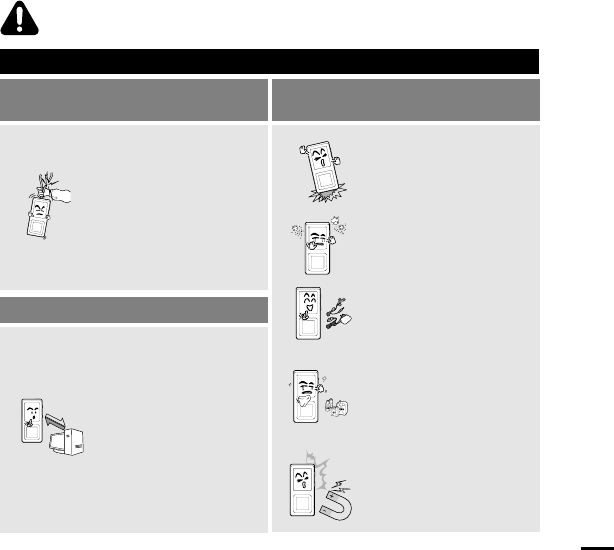
Product Use
Improper use can result in explosion,
fire or electric shock. Take care to avoid physical damage.
Do not disassemble, repair
or modify this product on
your own.
Do not get the product wet
or drop it in water.
If the product gets wet,
do not switch it on.
Contact a Service Center.
Do not place the product in
damp, dusty or sooty areas,
as it could result in fire or
electric shock.
Avoid using your product at
high volume levels, as it may
result in permanent hearing
damage. If you experience
ringing in your ears while
using the earphone, remove
the earphone immediately
and lower the volume.
Do not leave the product in
areas above 35°C(95°F)
(such as a sauna or inside
a parked car).
During the summer the
temperature inside a car may
rise up to 80°C(176°F).
Take care not to tangle the
earphone cable around your
arms or neighboring objects
while driving, working out or
walking, as it could result in
a car accident or other
injuries.
Failing to heed the product instructions may cause serious injury.
Chapter 1. Preparation
3
CAUTION
Product Use
Take care to avoid product malfunction
and physical damage.
Management of Important Data
Avoid malfunction
When wearing the product
around your neck, take
care not to exert excessive
force on the neck string.
Be sure to backup
important data.
Please be aware that we claim no
responsibility for damage from data
loss due to breakdown, repair or
other causes.
Failure to follow all instructions lead to physical injuries or damage to the product.
Do not cause excessive
impact on the product by
dropping it. Do not place
heavy objects on top of the
product.
Prevent any foreign
particles or dust from
entering into the product.
Always use the accessories
provided by or approved by
Samsung.
Do not spray water on the
product. Never clean the
product with chemical
substances such as
benzene or thinner, as it may
cause fire, electric shock or
deteriorate the surface.
Do not place the product
near magnetic objects, as it
may cause a malfunction.

Contents
4
Chapter 1. Preparation
Checking the Product and
Accessories .................................................7
Checking the Accessories ...........................7
Components ................................................8
Screen Display Information .......................10
Button Functions .......................................11
Charging the battery ...............................13
Basic Use ...................................................14
Chapter 2. Connecting to a PC
Connecting to a PC ..................................18
Transferring Music to your Player.........19
Chapter 3. Listening to Music
Listening to Music....................................22
Transferring Playlists from WMP10.......25
To Play a Playlist.......................................27
Shuffle Play (Random Repeat)...............28
Checking the Music Information ...........30
Chapter 4. Picture Viewing
Picture Viewing..........................................32
Picture Enlarging/Slideshow Viewing...33
Safety Precautions ....................................2
Contents ......................................................4

5
Chapter 5. Setup
Setup ...........................................................35
Audio Setup ..............................................35
Display Setup.............................................36
Slideshow Setup .......................................37
Repeat Setup.............................................38
Timer Setup ...............................................39
Language Setup ........................................40
Reset .........................................................41
Checking the System Infomation...............42
Chapter 6.
Troubleshooting & Appendix
System Reset.............................................44
To Upgrade Firmware ..............................45
Troubleshooting........................................47
Menu Tree ..................................................50
Product Specifications ............................51
License........................................................52
Safety Information ....................................54
Warranty .....................................................56

Chapter 1. Preparation
Checking the Product and
Accessories .................................................7
Charging the battery ...............................13
Basic Use ...................................................14

Chapter 1. Preparation
Checking the Product and Accessories
7
Checking the Accessories
The following diagrams are a guide and
may differ slightly from the actual product
appearance.
Checking the Product and Accessories
Player Earphones USB Cable
Easy Start CD
AH30-00086D(White) AH39-00783B AH80-00131A
AH30-00087D(Black)
Easy Start CD Overview
What is Easy Start CD?
■
The Easy Start CD provides a simple way for you to get started using a PlaysForSureTM‚ portable music device
by quickly and easily installing any necessary software needed including Windows Media Player 10 and support
for online music stores. This CD will also show you how to rip CDs, download new music from an online store,
manage your music with Windows Media Player 10 and take it with you on your new portable music device.
What is PlaysForSure?
■PlaysForSure is a logo and testing program that ensures content compatibility of online music stores and
portable music devices. When you see the PlaysForSure logo on the product box of a music device, you
know it will work with content from the widest range of online stores and services that also carry this
logo.
■
Design of accessories is subject to change for the purpose of improvement, without notice.
8
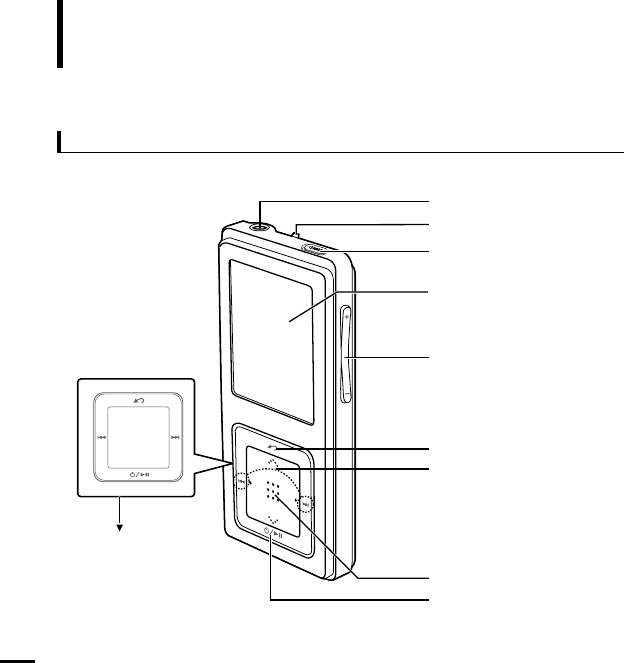
Components
Checking the Product and Accessories
Front, Right Side and Top
Earphone Connection Port
Neck String Hole
Lock Switch
Screen Display
Volume Control Button
Back Button
Move Track/Quick Search Button
Outer Ring
Touch Pad/Select Button
Power & Play/Pause Button
Chapter 1. Preparation
Checking the Product and Accessories
9
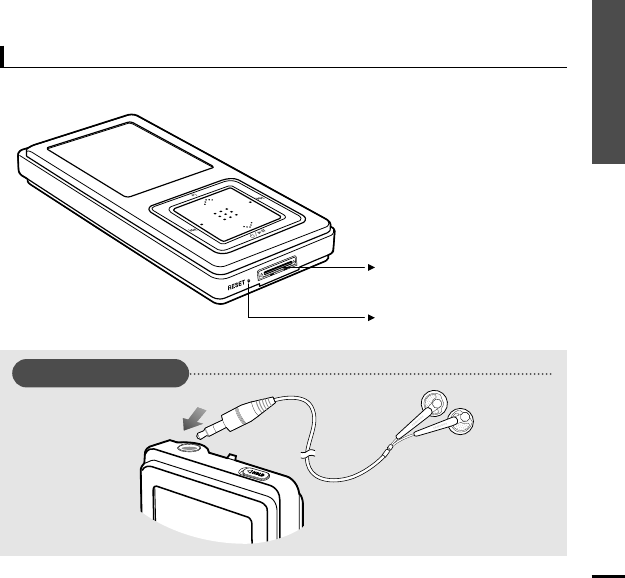
Bottom
Power/USB Connection Port
Reset Button
Earphone Connection
√ Top
Earphones
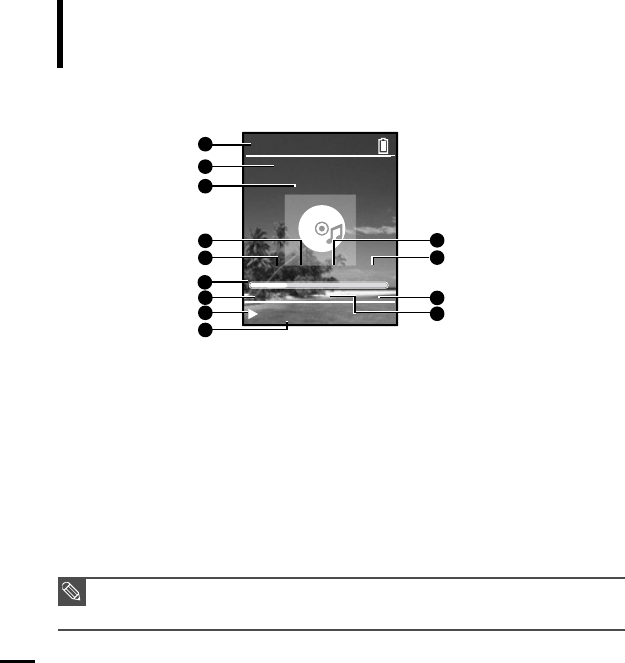
0:49 2/2 1:36
MP3 DNSe STR REP
Rising Sun
Samsung MP3
Samsung
2:10 AM
Screen Display Information
Checking the Product and Accessories
10
1Current Time Display
3Album Display
2Album Title Display
43D Sound Displays
5File Type Display
(MP3, WMA etc)
6Play Status Bar
7Play Time Display
8Play/Pause Display
10 Street Mode Display
9Music Title Display
11 Repeat Play Display
12 Total Play Time Display
13 Current Music Number/
Total Number Display
NOTE
■ The screen pictures are for illustration purposes only. The actual screen may differ.
1
2
3
4
5
6
7
8
10
11
12
13
9
Chapter 1. Preparation
Checking the Product and Accessories
11
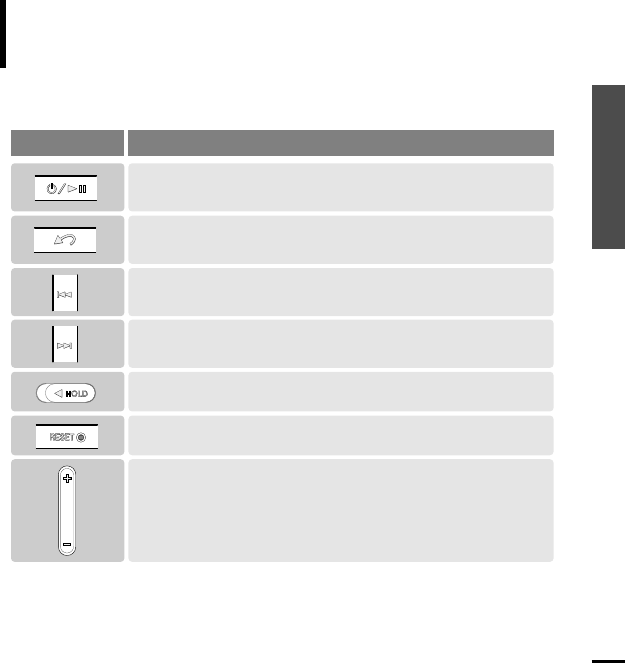
Button Functions
Checking the Product and Accessories
■ Long press for power on/off.
■ Short press for play/pause.
■
Long press to scan to a point on the current track.
■
Short press to move to the previous track or to play the current track from the start.
■
Long press to scan to a point on the current track.
■
Short press to move to the next track.
■
Push in the direction of the arrow to lock the button functions.
■
Press with a pointed object to reset.
■
Long press to move to the Menu screen.
■
Short press to move to the previous screen.
Buttons Functions and Use
■ Press to reduce/increase the volume.
12
Button Functions (Continued)
Checking the Product and Accessories
■
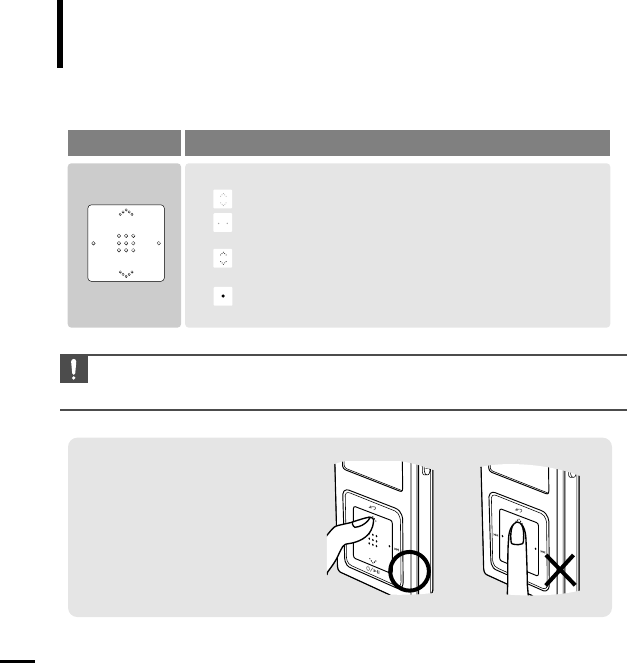
Moving up, down, left and right and Function Selection
Tap on the top or bottom side to move up or down by one selection.
Tap on
the left or right side to move left or right by one selection
(Picture mode).
Tap and hold on top or bottom side to move up or down
continuously.
Press the center of the Touchpad to select the function and move to
the next screen.
Buttons Functions and Use
CAUTION
■ Do not use any sharp object other than your fingers to operate the touchpad. Otherwise, touchpad
may be damaged.
✽
The touchpad works better when
pressed lightly with a fingertip.
Chapter 1. Preparation
Checking the Product and Accessories/Charging the battery
13
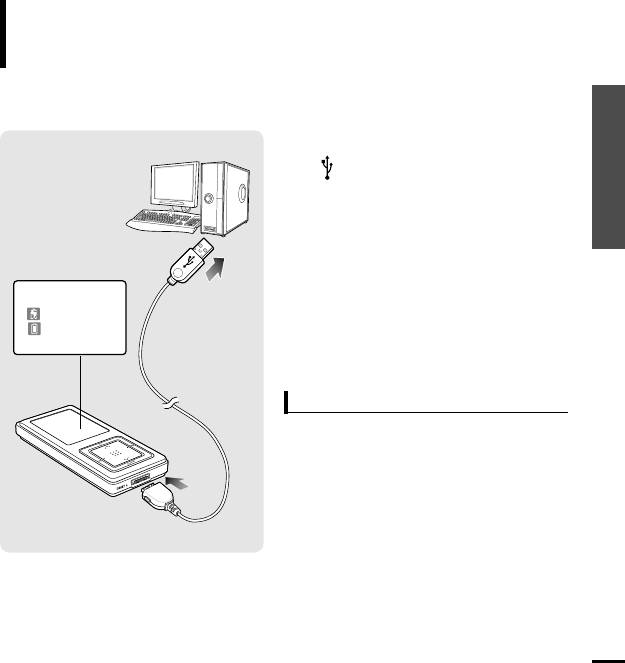
Charging the battery
Fully charge the battery before using the player for the first
time or when the it has not been used for a while.
1
Connect the USB cable to the USB port
( ) on your PC.
Screen Display
■
Recharging
■
(Green) Recharge
Complete
2
Connect the other end of the USB
cable to the
Power/USB Connection
Port
on bottom of the player.
■
<Connected> appears on the screen dis-
play of the player.
■
When connected with the USB cable, it takes
about 4 hours for a full charge although this
may vary depending on the PC environment.
Battery Use
■
Recharge and store within the temperature range
of 5
°C
~35
°C(
40
°F
~95
°F
).
■
Do not overcharge (longer than 12 hours).
Excessive charging or discharging may shorten
the battery’s life.
■
Battery life naturally shortens slowly over time as
it is a consumable item.
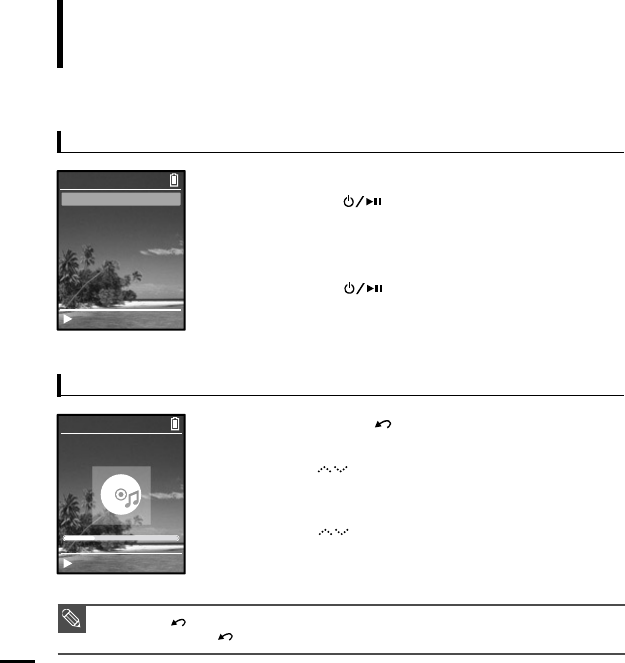
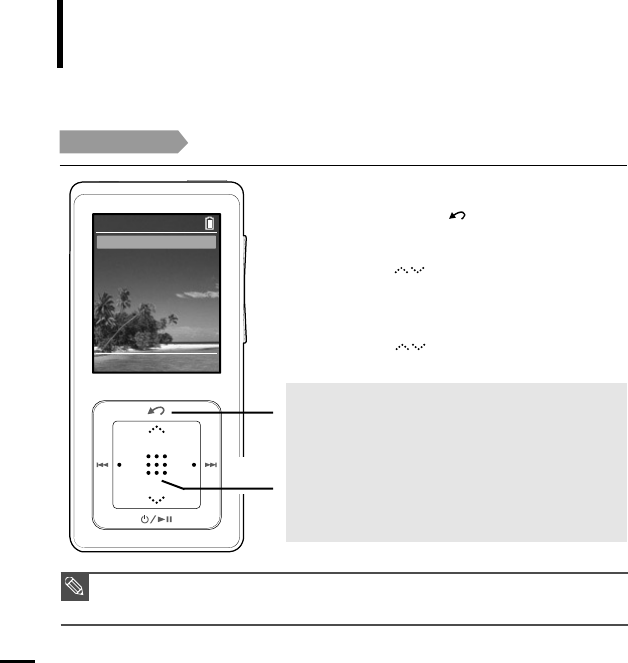
■ Press the [ ] button to move to the previous screen.
■ Press and hold the [ ] button to move to the Menu screen.
Basic Use
14
Turning the Power On & Off
Playing Music
Turning the Power On
Press and hold the [ ] button
■Power is turned on.
Turning the Power Off
Press and hold the [ ] button
■Power is turned off.
■Power is automatically turned off when none of the buttons have been
pressed for a preset period of time (Default: 1 minute) in the pause mode.
1
Press and hold the [ ] button to move to the Menu
screen.
2
Tab on the [ ] to select <Music>, then press the
[Touch Pad].
■
The Music Menu will appear.
3
Tab on the [ ] to select a music file of your choice.
4
Press the [Touch Pad].
■The music file will begin playing.
NOTE
Music
Pictures
Playlists
Shuffle All
Settings
Now Playing
Samsung MP3
Samsung
MP3 DNSe STR REP
0:49 2/2 1:36
2:10 AM
2:10 AM
Rising Sun
Rising Sun
Chapter 1. Preparation
Basic Use
15
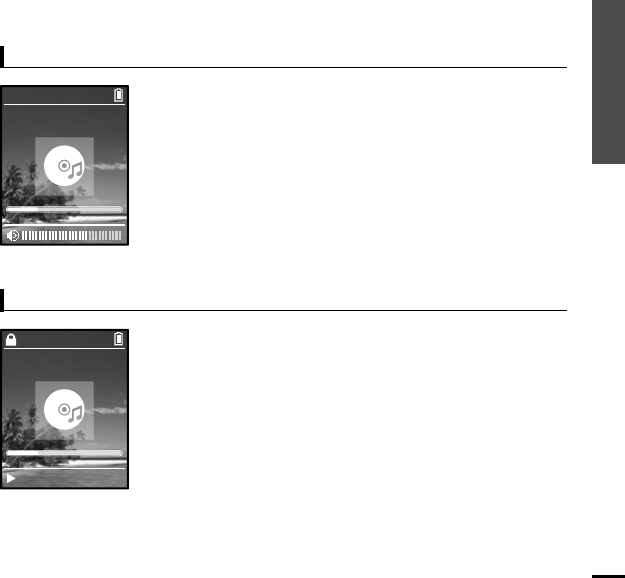
Volume Control
Lock Function
Press the [ + , - ] button on the side of the unit.
■The Volume Status Bar will appear.
■Press the + button to increase the volume or the – button to decrease it.
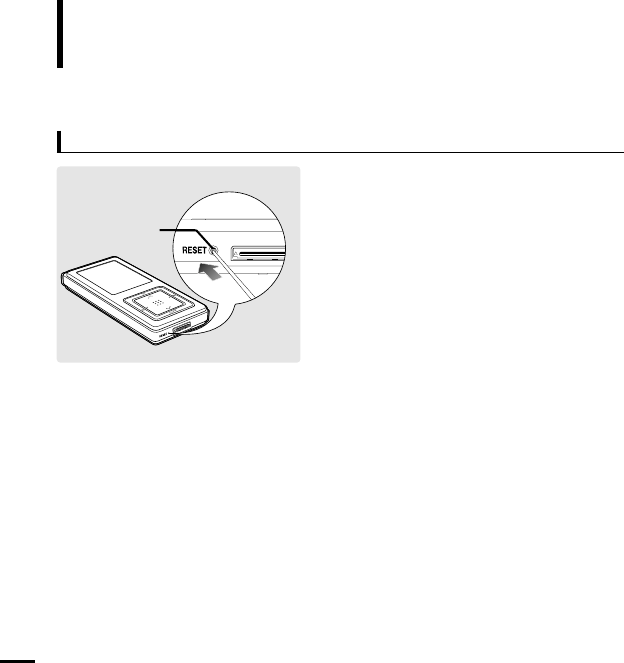
In Hold mode, all buttons are disabled. This function is useful
when you are walking or jogging.
1
Push the [HOLD] button on the top of the unit in the
direction of the arrow.
2
Push the [HOLD] button in the opposite direction of the
arrow to release the Lock function.
Samsung MP3
Samsung
MP3 DNSe STR REP
0:49 2/2 1:36
2:10 AM
Samsung MP3
Samsung
MP3 DNSe STR REP
0:49 2/2 1:36
2:10 AM
Rising Sun
Basic Use (Continued)
16
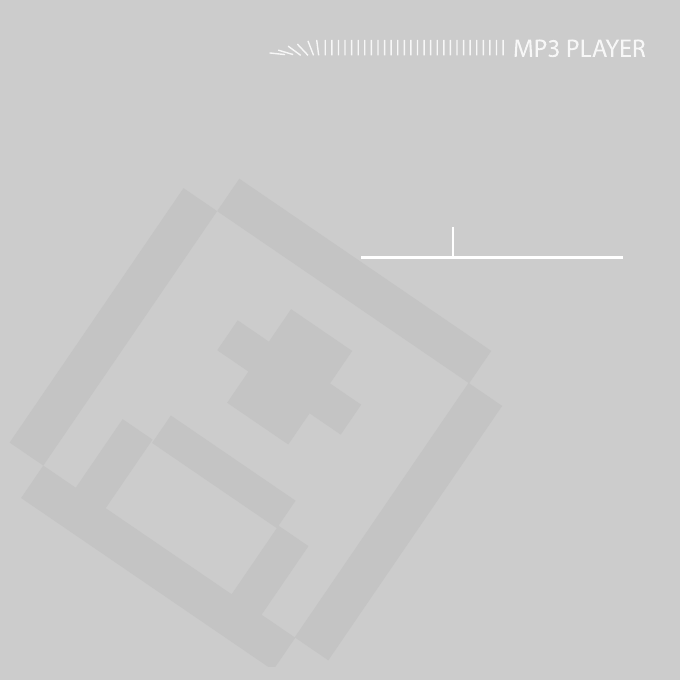
If a product malfunction occurs, you can
re-initialize the system by pressing the Reset
button.
√
P44
Reset Function
Reset Button
Chapter 2. Connecting to a PC
Connecting to a PC ..................................18
Transferring Music to your Player.........19
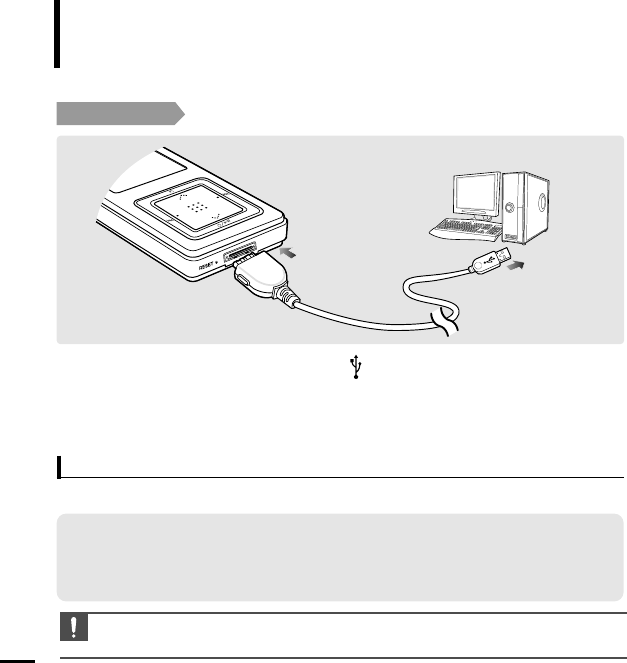
Connecting to a PC
18
Before you start!
Use the USB Cable provided when connecting the product to a PC.
1
Connect the USB cable to the USB port ( ) on your PC.
2
Connect the other end of the USB cable to the
Power/USB Connection Port
on
bottom of the player.
■
<Connected> appears on the screen display of the player.
For use in conjunction with a PC, the following is required:
■ Pentium 300MHz or higher ■ USB Port 2.0 only
■ Windows XP Service Pack 1 or higher ■ DirectX 9.0 or higher
■ 100MB of free hard disc space ■ Windows Media Player 10.0 or higher
■ CD Rom Drive (2X or higher)
PC Requirements
CAUTION
■
If you connect the player through a USB hub, the connection may be unstable. Please connect the
player to the computer directly.
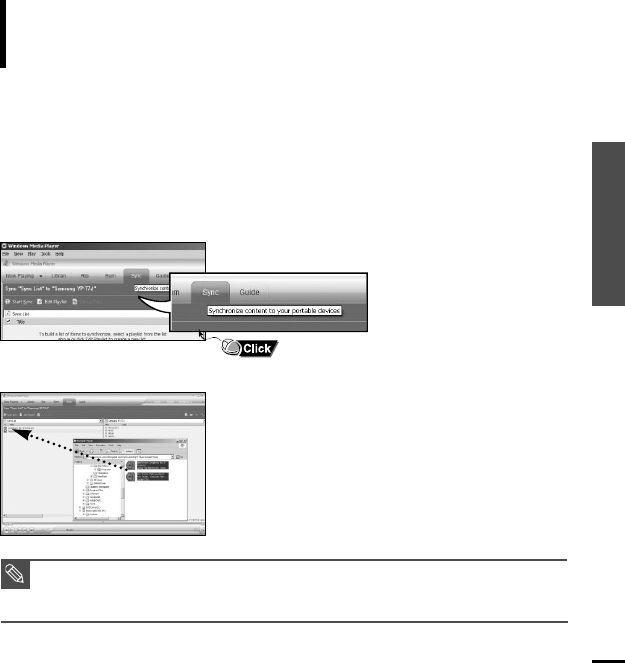
1
Run Windows Media Player10.
■
Select [Start]
→
[Programs]
→
[Windows Media Player] on the Desktop.
3
When the [Sync] window appears, select the
file you want to transfer to the player, drag and
drop it to the left [Sync List] window.
2
Select [Sync] at the top of the screen.
Chapter 2. Connecting to a PC
Preparation
19
NOTE
■
For an in-depth tutorial on how to transfer music files, refer to the Easy Start CD that comes with
the product
Transferring Music to your Player
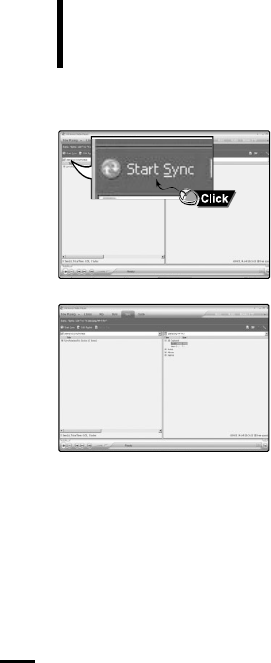
20
Transferring Music to your Player (Continued)
4
Make sure the music files you want to
download are checked, and then press
[Start Sync] at the top of the screen.
■[Synchronized to Device] message will appear on the
left window. The downloaded files will appear in the
right window under Music folder.
5
You can check the transferred
file in the right window.
Chapter 3. Listening to Music
Listening to Music....................................22
Transferring Playlists from WMP10.......25
To Play a Playlist.......................................27
Shuffle Play (Random Repeat)...............28
Checking the Music Information ...........30
■
Before you start!
Transfer the music file of your choice from your PC to the player.
22
Listening to Music
Listening to Music
Before you start!
Connect the earphones, then switch on the player, and check the battery.
E.g. Playing by Artist
1
1
2,3
Press and hold the [ ] button to move to the
Menu screen.
3
Tab on the [ ] to select <Artists>,
then press the [Touch Pad].
2
Tab on the [ ] to select <Music>, then press
the [Touch Pad].
■
The Music Menu will appear.
Music Menu
■
<Artists> : To play by artist
■
<Albums> : To play by album
■
<Genres> : To play by genre
■
<Composers> : To play by composer
■
<Playlists> : To play by Playlist
■
<Shuffle> : To play continuously in random order
■
<All Songs> : To play in numeric or alphabetical order
NOTE
■ The music files compatible with the player are MP3, WMA, Secure WMA.
■ MP1 or MP2 files which only have a changed extension to MP3, may not play on the player.
■ A file without an ID3 Tag (music information) is displayed as [unknown].
Artists
Albums
Genres
Composers
Playlists
Shuffle
All Songs
Music
Welcome
Chapter 3. Listening to Music
Listening to Music
23
To Pause
4
4,5
Tab on the [ ] to select an artist, then press
the [Touch Pad].
■
The albums for the artist will appear.
5
Tab on the [ ] to select an album, then
press the [Touch Pad].
■
The music files for the selected album will appear.
6
Tab on the [ ] to select a music file to play,
then press the [Touch Pad].
■
The music will start playing.
■
The Play Screen can be changed by pressing the
[Touch Pad].
NOTE
■ Power is automatically turned off when none of the buttons have been pressed for a preset period of
time (changes depending on settings shown on page 37) in the pause mode.
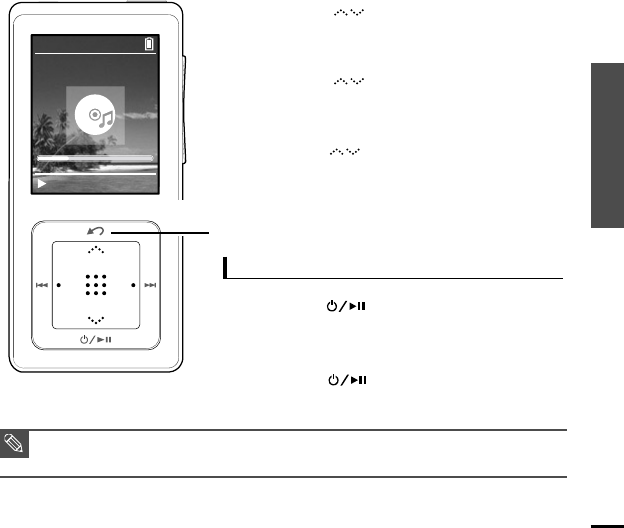
1
Press the [ ] button while the music is
playing.
■
The music playback will be paused.
2
Press the [ ] button again.
■
The music will play from the point where it stopped.
Samsung MP3
Samsung
MP3 DNSe STR REP
0:49 2/2 1:36
2:10 AM
Rising Sun
24
Listening to Music (Continued)
Listening to Music
To search within a track
To Play from the beginning of the current track
1
Press and hold the [
lœœ
] or [
√√l
] button while the selected track is playing.
■
It searches to the beginning or the end of the track.
Press the [
lœœ
] button after 10 seconds of play.
■
The current track starts playing from the beginning.
To play the previous/next track
Press the [
lœœ
] button within 10 seconds of play.
■
The previous track will start playing.
Press the [
√√l
] button.
■
The next track will start playing.
2
Release the button at the point you wish to start.
■
It starts playing from the point you release the button.
CAUTION
■ When playing VBR files, the previous track may not play even if you press the [
lœœ
] button within 10
seconds of the play.
NOTE
■ Press the [
lœœ
] button within 10 seconds of play to move to the previous track.
Chapter 3. Listening to Music
Listening to Music/
Transferring Playlists from WMP10
25
Transferring Playlists from WMP10
Listening to Music
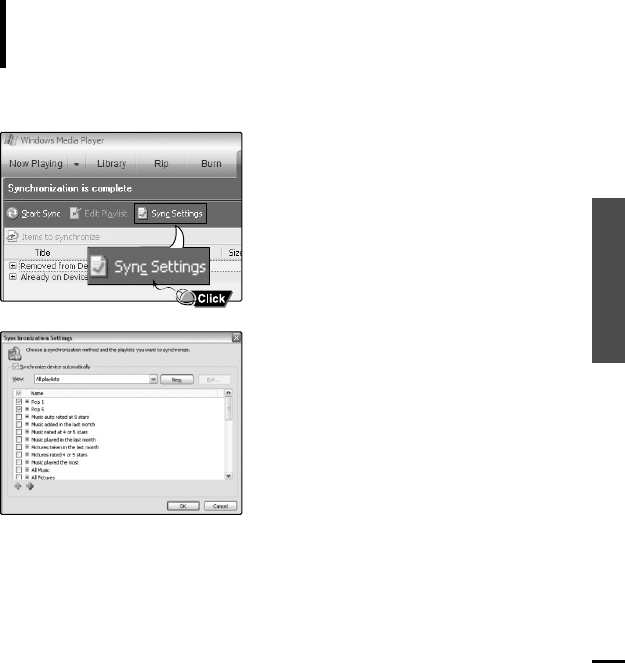
1
To transfer playlists from WMP10, click
on “Sync Settings” in the WMP10 menu
on your PC.
2
Select the playlists you want to sync
(transfer) to your player.
Transferring Playlists from WMP10 (Continued)
Listening to Music
26
Pop 1
Pop 5
Playlists
Welcome
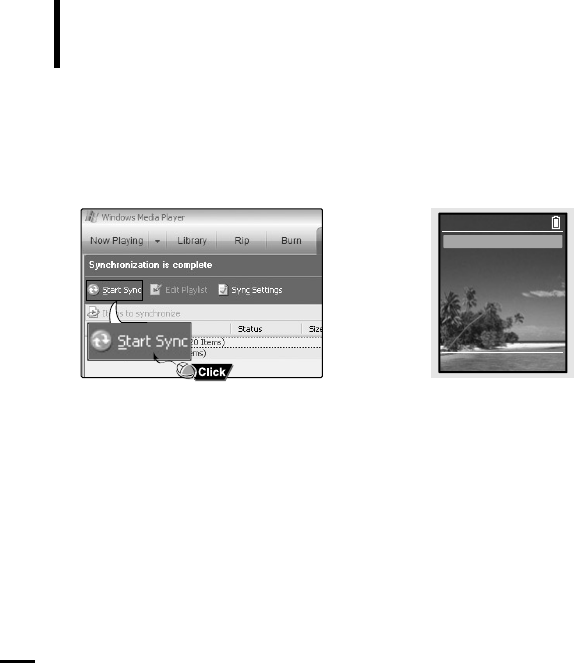
3
Click on Start Sync in the WMP10 menu.The Playlists will be transferred to your
player and will appear in the Playlists menu.
√
Chapter 3. Listening to Music
Transferring Playlists from WMP10/
To Play a Playlist
27
To Play a Playlist
Make your own Playlist by genre or artist.
Listening to Music
1
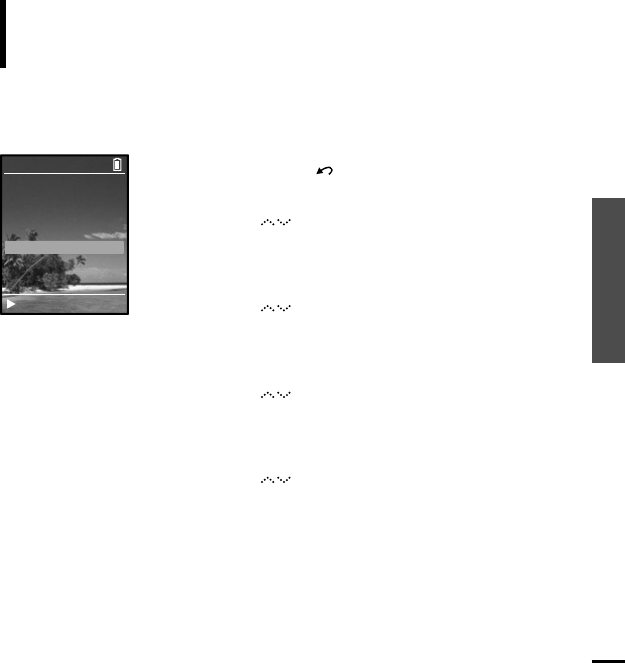
Press and hold the [ ] button to move to the Menu screen.
Playlists transmitted from Windows Media Player 10 are displayed in the <Playlist> menu.
Please refer to WMP10 for transferring Playlists.
2
Tab on the [ ] to select <Music>, then press the
[Touch Pad].
■
The Music Menu will appear.
3
Tab on the [ ] to select <Playlists>, then press the
[Touch Pad].
■
The Playlist(s) will appear.
4
Tab on the [ ] to select the <Playlist> of your choice,
then press the [Touch Pad].
■
The music files saved in the selected Playlist will appear.
5
Tab on the [ ] to select a music file to play, then press
the [Touch Pad].
■
The music file will start playing.
Artists
Albums
Genres
Composers
Playlists
Shuffle
All Songs
Music
Rising Sun
28
Shuffle Play (Random Repeat)
Listening to Music
Shuffle Play All Music
2
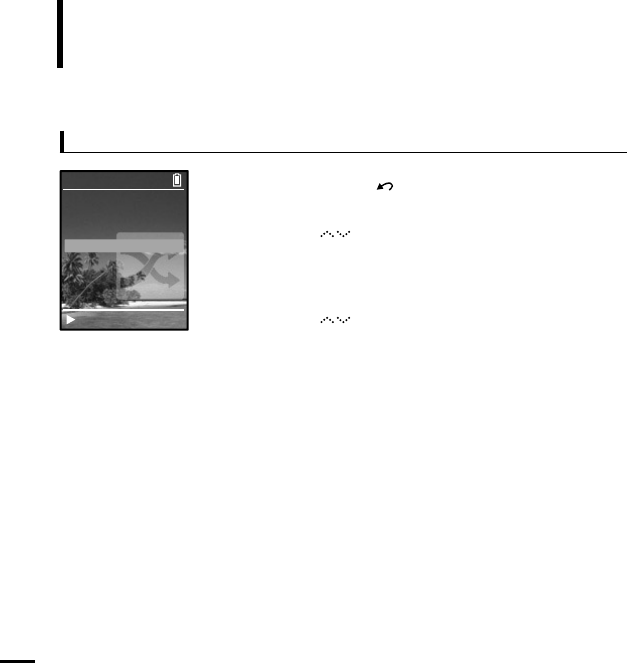
Tab on the [ ] to select <Shuffle All>, then press the
[Touch Pad].
■
Music files will appear.
3
Tab on the [ ] to select a music file to play, then press
the [Touch Pad].
■
The file selected, then all music files contained on the player will
start playing in random order.
1
Press and hold the [ ] button to move to the Menu screen.
Music
Pictures
Playlists
Shuffle All
Settings
Now Playing
2:10 AM
Rising Sun
Chapter 3. Listening to Music
Shuffle Play (Random Repeat)
29
Shuffle Play by Type
E.g. Shuffle Play by Artist
2
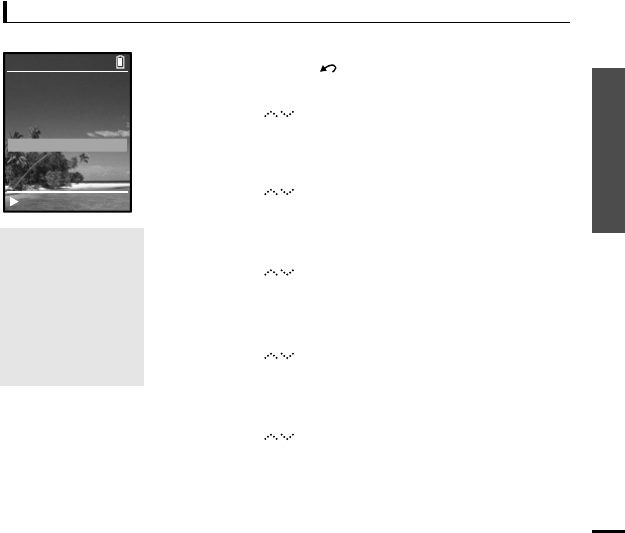
Tab on the [ ] to select <Music>, then press the
[Touch Pad].
■
The Music Menu will appear.
3
Tab on the [ ] to select <Shuffle>, then press the
[Touch Pad].
■
The Shuffle Menu will appear.
4
Tab on the [ ] to select <Artists>, then press the
[Touch Pad].
■
Artist list will appear.
5
Tab on the [ ] to select an artist, then press the
[Touch Pad].
■
The music files for the selected artist will appear in random order.
6
Tab on the [ ] to select a music file to play, then press
the [Touch Pad].
■
The music files under that particular <Artist> will start playing
continuously in random order.
Shuffle Menu
■ <Artists> : To play by artist
■ <Albums> : To play by album
■ <Genres> : To play by genre
■ <Composers> : To play by
composer
■ <Playlists> : To play by Playlist
■
<Shuffle> : To play continuously
at random
■ <All Songs> : To play in
numeric or alphabetical order
1
Press and hold the [ ] button to move to the Menu screen.
Artists
Albums
Genres
Composers
Playlists
All Songs
Shuffle
Rising Sun
30
Checking the Music Information
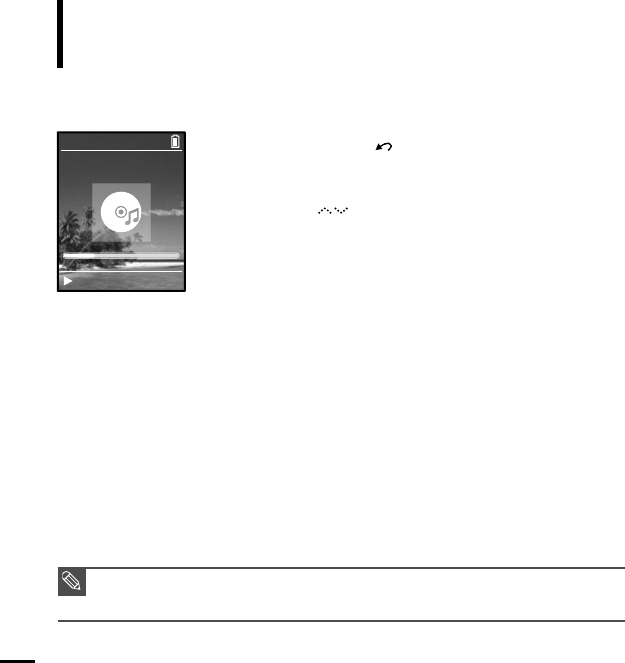
You can move to the Music Info screen to
check the music currently playing.
Listening to Music
2
Tab on the [ ] to select <Now Playing>, then press the
[Touch Pad].
■
The music information screen for the track currently playing will
appear.
1
Press and hold the [ ] button to move to the Menu screen.
NOTE
■ Pressing [Touch Pad] will cycle through various Now Playing screens.
Samsung MP3
Samsung
MP3 DNSe STR REP
0:49 2/2 1:36
2:10 AM
Rising Sun

Chapter 4. Picture Viewing
Picture Viewing..........................................32
Picture Enlarging/Slideshow Viewing...33
■
Before you start!
Transfer picture files to the player using WMP10. For further details,
refer to WMP10 software's Help section.
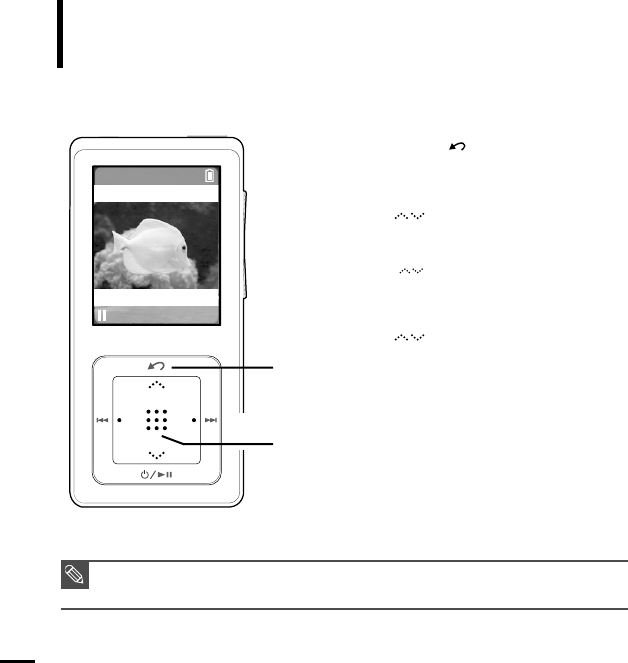
Picture Viewing
Picture Viewing
1
1
2,3
Press and hold the [ ] button to move to the
Menu screen.
3
Tab on the [ ] to select the picture file of
your choice, then press the [Touch Pad].
■
The selected file will appear.
■
Large pictures may take longer to display.
2
Tab on the [ ] to select <Pictures>,
then press the [Touch Pad].
■
The Picture Folder list will appear.
Tab on the [ ] to select a folder, then press the
[Touch Pad] to display the pictures.
NOTE
■ Press the [ lœœ √√l ] button while viewing a picture to display the previous or next picture.
■ Press and hold the [Touch Pad] button while viewing a picture to make it the background of the player.
32
2:10 AM
Chapter 4. Picture Viewing
Picture Viewing/Picture
Enlarging/Slideshow Viewing
33
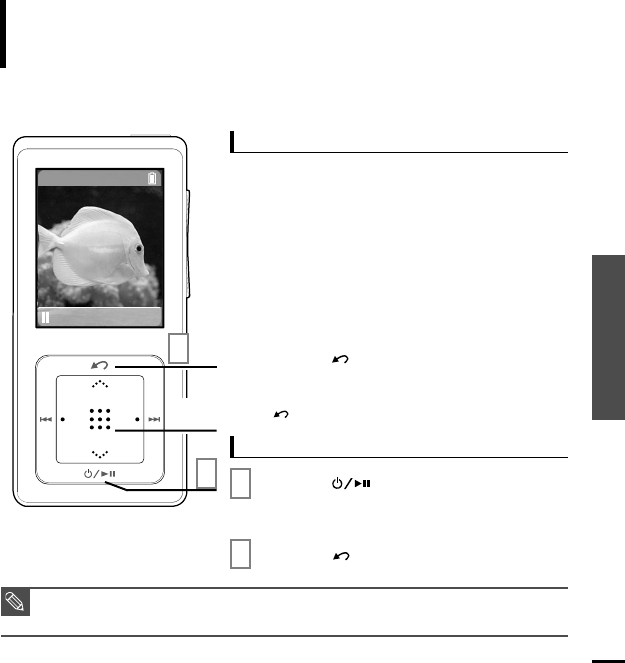
Picture Enlarging/Slideshow Viewing
Photo Viewing
1
2,3
1
Press the [Touch Pad] in the Picture Viewing
mode.
■
The picture will be gradually enlarged (2x/3x/4x) each
time the [Touch Pad] is pressed.
3
Press the [ ] button to cancel the
enlargement.
■
The picture will be gradually downsized each time the
[ ] button is pressed.
2
Touch the [Touch Pad] lightly and slide
up,down,left or right to move around the
enlarged picture.
■
You can move to the area of your choice.
1,2
Picture Enlarging
1
Press the [ ] button in Picture Viewing
mode.
■
The slideshow will start.
2
Press the [ ] button to stop the slideshow.
Slideshow Viewing
NOTE
■ Please refer to P37 for set the Start Time or interval of the Slideshow.
2:10 AM

Chapter 5. Setup
Setup ...........................................................35
Audio Setup ..............................................35
Display Setup.............................................36
Slideshow Setup .......................................37
Repeat Setup.............................................38
Timer Setup ...............................................39
Language Setup ........................................40
Reset .........................................................41
Checking the System Infomation...............42
Chapter 5. Setup Audio Setup
35
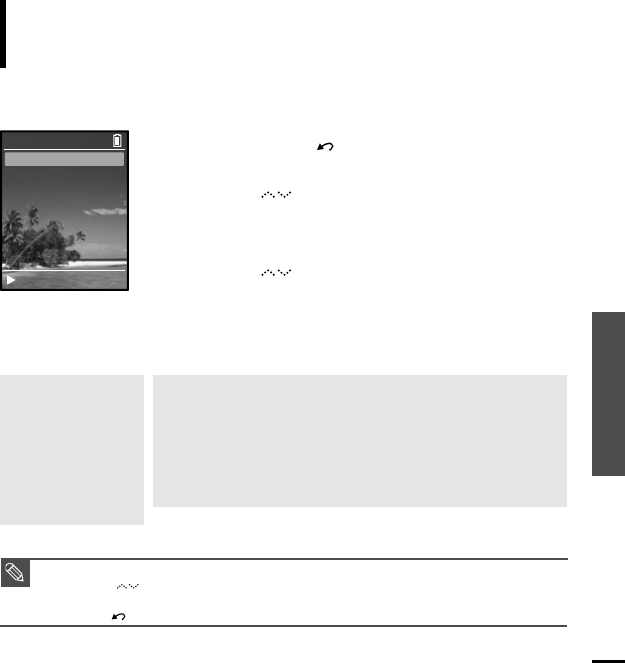
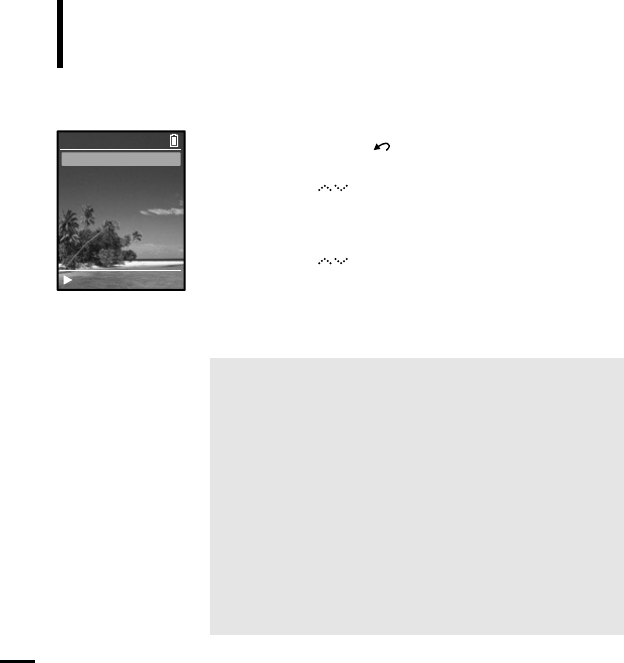
Audio Setup You can set detail functions and button sounds for music play.
Setup
2
Tab on the [ ] to select <Settings>, then press the
[Touch Pad].
■
The Settings screen will appear.
3
Tab on the [ ] to select <Audio>, then press the [Touch
Pad].
■
The Sound Settings Menu will appear.
4
Use the [Touch Pad] to select and set the desired functions.
■
<DNSe> : You can select a suitable sound for each music genre.
Select one from <Normal> <3D-Club> <3D-Stage>
<3D-Studio> <Ballad> <Classical> <Jazz> <Dance> <House>
<R & B> or <Rock>.
■
<Street Mode>: Enables clear sound quality outdoors.
Select either <Off> or <On>.
■
<Key Beep>: Enables button sounds. Select either <Off> or <On>.
NOTE
Button functions for Setup
■ Tab on the [ ] to move up or down in the current Menu.
■ Press the [Touch Pad] to select a Menu and save.
■ Press the [ ] button to move to the previous screen.
1
Press and hold the [ ] button to move to the Menu screen.
What is DNSe?
■ DNSe is a sound effect
function for MP3 players
developed by Samsung and
consists of 3D and Street
modes. The 3D adds a
stereophonic sound effect to
the music and the Street
mode provides an automatic
volume control function that
amplifies quiet sounds in
noisy street environments.
DNSe
Street Mode On
Key Beep On
Audio
Rising Sun
36
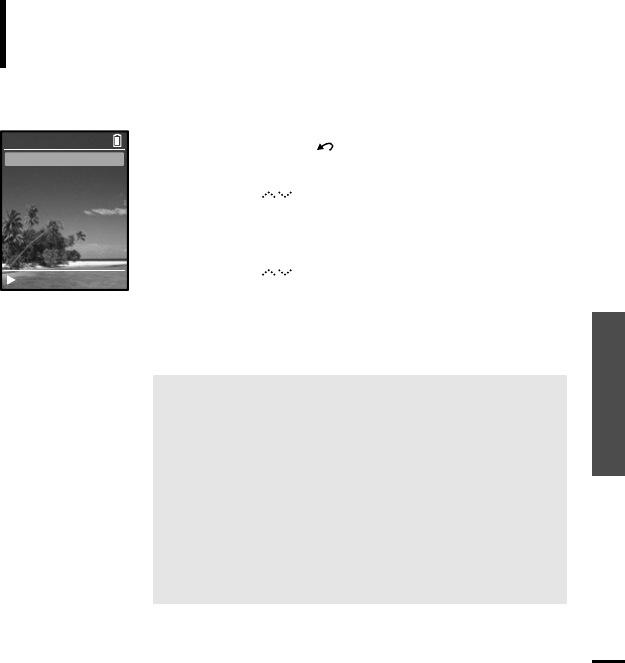
Display Setup You can adjust the brightness and the turn-off time for the screen display.
Setup
2
Tab on the [ ] to select <Settings>, then press the
[Touch Pad].
■
The Settings screen will appear.
3
Tab on the [ ] to select <Display>, then press the
[Touch Pad].
■
The Display Setup Menu will appear.
4
Use the [Touch Pad] to select and set the desired functions.
■ <Brightness> :You can adjust the brightness for the screen display.
Tab on the left side of the [Touch Pad] to darken, or on the
right side of the [Touch Pad] to brighten.
■ <Dim(Batt)> :
When running on battery power, the screen display will darken if
none of the buttons have been pressed for a preset period of time.
Select either <-- (Always On)> <15s> <30s> <60s> or <120s>.
■
<Off(Batt)> : When running on battery power, the screen display will be
automatically turned off if none of the buttons have been
pressed for a preset period of time.
Select either <-- (Always On)> <15s> <30s> <60s> or <120s>.
■
<Dim(USB)> : When connected via USB, the screen display will dim if none
of the buttons have been pressed for a preset period of time.
Select either <-- (Always On)> <15s> <30s> <60s> or <120s>.
■
<Off(USB)> : When connected via USB, the screen display will be automatically
turned off if none of the buttons have been pressed for a preset
period of time.
Select either <-- (Always On)> <15s> <30s> <60s> or <120s>.
1
Press and hold the [ ] button to move to the Menu screen.
Brightness
Dim (Batt) 15s
Off (Batt) 60s
Dim (USB) 60s
Off (USB) 120s
Display
Rising Sun
Chapter 5. Setup Display Setup/
Slideshow Setup
37
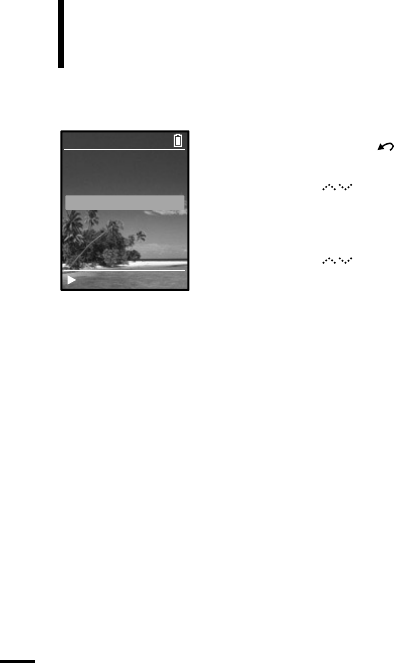
Slideshow Setup You can set the Start Time or interval of the slideshow.
Setup
2
Tab on the [ ] to select <Settings>, then press the
[Touch Pad].
■
The Settings screen will appear.
3
Tab on the [ ] to select <Slideshow>, then press the
[Touch Pad].
■
The Slideshow Setup Menu will appear.
4
Use the [Touch Pad] to select and set the desired functions.
■<Start(Batt)> : When running on battery power, you can set the start
time of the slideshow after the Menu and function screen
disappears.
Select either <Off> <1m> <5m> <10m> or <15m>.
■< Start(USB)> : When connected via USB, you can set the start time
of the slideshow after the Menu and function screen
disappears.
Select either <Off> <1m> <5m> <10m> or <15m>.
■<Slide Time> : You can set the interval for the slideshow.
Select either <2s> <5s> <15s> <30s> or <60s>.
■<Shuffle> : All picture files contained on the player will start viewing
in random order.
Select either <Off> or <On>.
1
Press and hold the [ ] button to move to the Menu screen.
Start (Batt) Off
Start (USB) Off
Slide Time 2s
Shuffle Off
Slideshow
Rising Sun
38
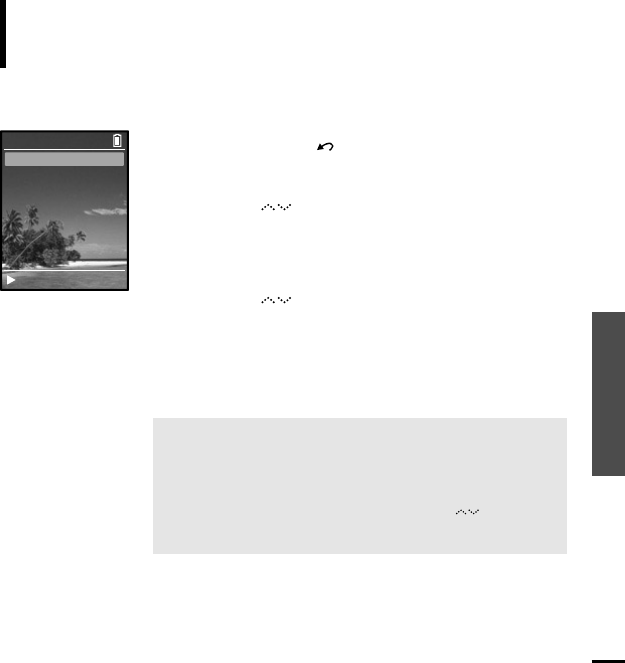
Repeat Setup
Setup
2
Tab on the [ ] to select <Settings>, then press the
[Touch Pad].
■
The Settings screen will appear.
3
Tab on the [ ] to select <Repeat>.
1
Press and hold the [ ] button to move to the Menu screen.
4
Press the [Touch Pad] to select the desired play mode.
■
You can select <Off> (Cancel Repeat) <One> (Single Track Repeat) or
<All> (Repeat All).
Audio
Display
Slideshow
Repeat Off
Time
Language
Reset Settings
System Info
Settings
Rising Sun
Chapter 5. Setup Repeat Setup/
Timer Setup
39
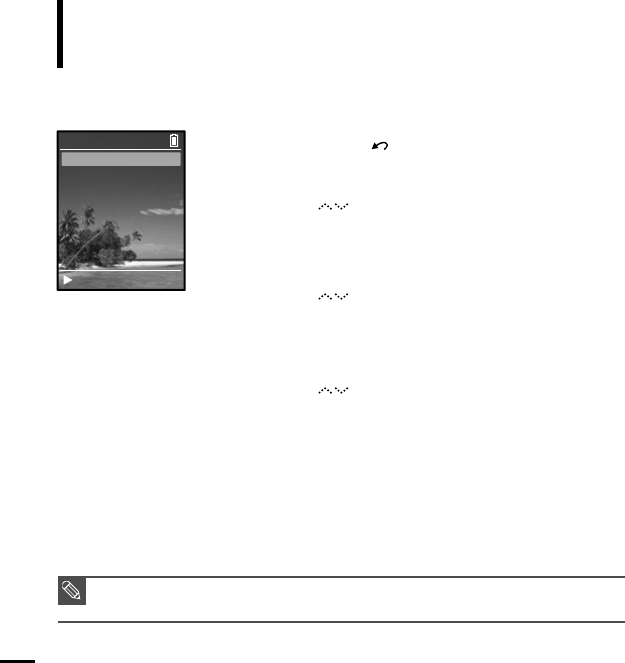
Timer Setup
Setup
2
Tab on the [ ] to select <Settings>, then press the
[Touch Pad].
■
The Settings screen will appear.
3
Tab on the [ ] to select <Time>, then press the [Touch
Pad].
■
The Time Setup Menu will appear.
4
Use the [Touch Pad] to select and set the desired functions.
1
Press and hold the [ ] button to move to the Menu screen.
■<Sleep Timer> :
You can set the power to turn off automatically after a
preset period of time.
The player will automatically
turn off after the time you set. Select either <Off>
<90m> <60m> <45m> <30m> or <15m>.
■<Set Time> :
You can set the current time. Press the [Touch Pad] to move to
<Hour, Minute, AM/PM>, then tap on the [ ] to set the
time. Press the [Touch Pad] after setup is complete.
Sleep Timer Off
Set Time
Time
Rising Sun
40
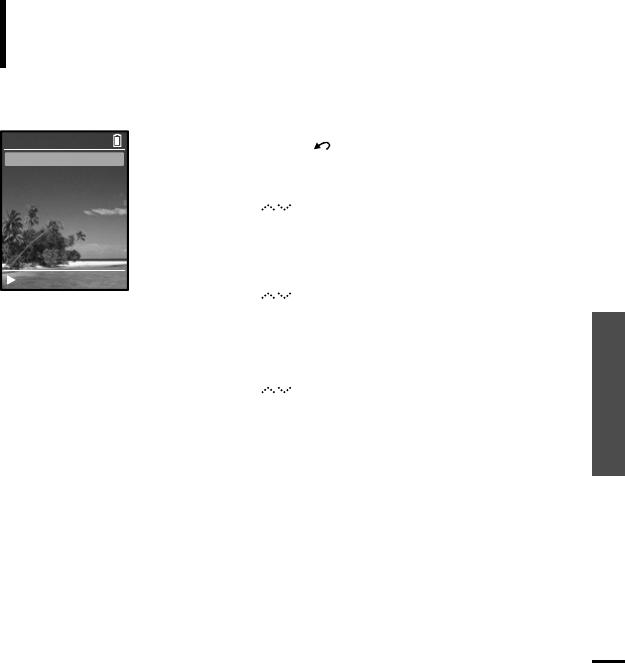
Language Setup
Setup
1
Press and hold the [ ] button to move to the Menu screen.
2
Tab on the [ ] to select <Settings>, then press the
[Touch Pad].
■
The Settings screen will appear.
3
Tab on the [ ] to select <Language>, then press the
[Touch Pad].
■
The Language Settings screen will appear.
4
Tab on the [ ] to select a language of your choice, then
press the [Touch Pad].
■
The language of your choice is set and you are returned to the
previous screen. Select either <English>, <Deutsch>, <Español>
or <Français>.
NOTE
■ The supported languages can be changed or added.
English
Deutsch
Español
Français
Language
Rising Sun
Chapter 5. Setup Language Setup/
Reset
41
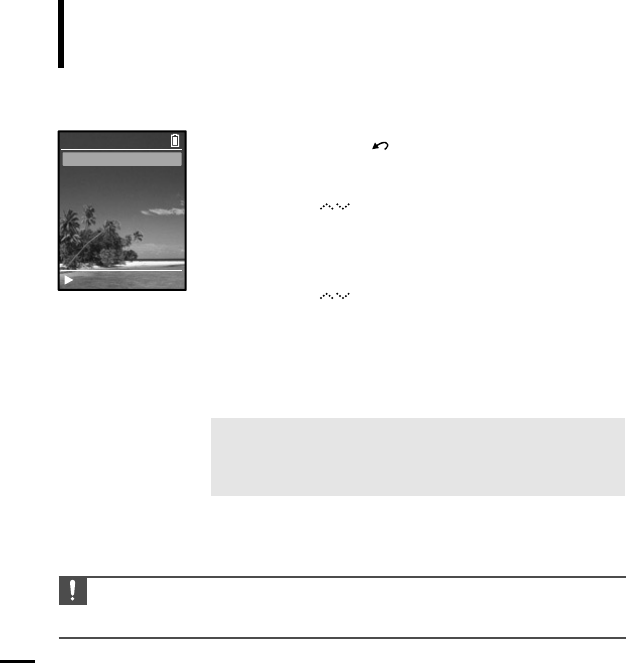
Reset You can reset all settings to the default value.
Setup
1
Press and hold the [ ] button to move to the Menu screen.
2
Tab on the [ ] to select <Settings>, then press the
[Touch Pad].
■
The Settings screen will appear.
3
Tab on the [ ] to select <Reset Settings>, then press the
[Touch Pad].
■
The Reset Confirm screen will appear.
4
Tab on the [ ] to select either <Cancel> or <Reset>,
then press the [Touch Pad].
■
Select <Cancel> to maintain the previous setup.
■
Select <Reset> to re-initialize the setup.
Cancel
Reset
Reset
Rising Sun
42
Checking the System Infomation
You can check the memory, product
version and copyright information.
Setup
1
Press and hold the [ ] button to move to the Menu screen.
2
Tab on the [ ] to select <Settings>, then press the
[Touch Pad].
■
The Settings screen will appear.
3
Tab on the [ ] to select <System Info>, then press the
[Touch Pad].
■
The System Info screen will appear.
4
Check the necessary information with the [Touch Pad].
CAUTING
■
Regarding the Built-In Memory
The actual built-in memory available is slightly less than indicated as the internal firmware uses
a portion of the memory.
■
<Capacity> : You can check the total memory, memory available,
total number of songs, albums or artists information.
■
<Version> : You can check the firmware version.
■
<About> : You can check the copyright information.
Capacity
Version
About
System Info
Rising Sun
Chapter 6. Troubleshooting & Appendix
System Reset.............................................44
To Upgrade Firmware ..............................45
Troubleshooting........................................47
Menu Tree ..................................................50
Product Specifications ............................51
License........................................................52
Safety Information ....................................54
Warranty .....................................................56
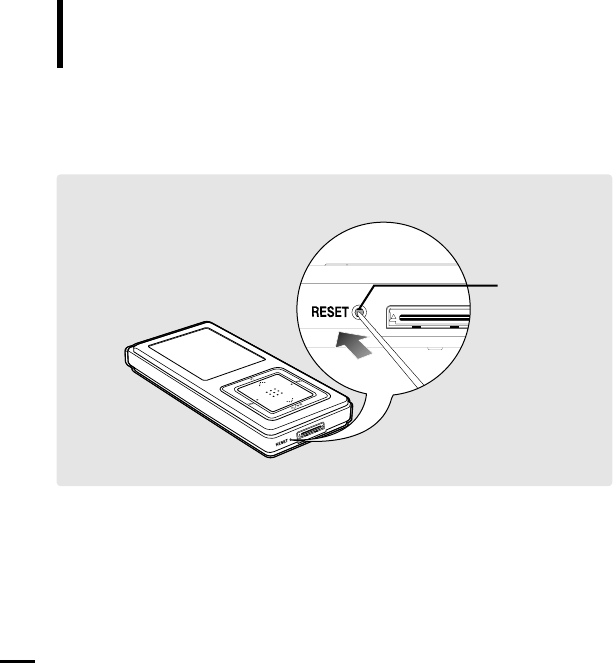
System Reset
Reset Button
Press the Reset Button at the bottom of the product with a pointed object such as
a safety clip.
■
The system will be initialized.
■
The Reset function will not delete data stored in the built-in memory.
If a product malfunction occurs, you can re-initialize the system by pressing the
Reset button.
44

Chapter 6. Troubleshooting & Appendix
System Reset/
To Upgrade Firmware
45
To Upgrade Firmware
1
Connect to http://www.samsung.com, select [SUPPORT]
→
[DOWNLOAD CENTER]
and then select your product.
Future upgrades may be available for this player to enhance performance and
compatibility.
2
When the product page appears, select [Firmware] below the model name to
download the latest firmware.
3
Uncompress the downloaded file in a folder.
■
DAT file will be displayed.
4
Connect the player to your PC with the USB cable.
5
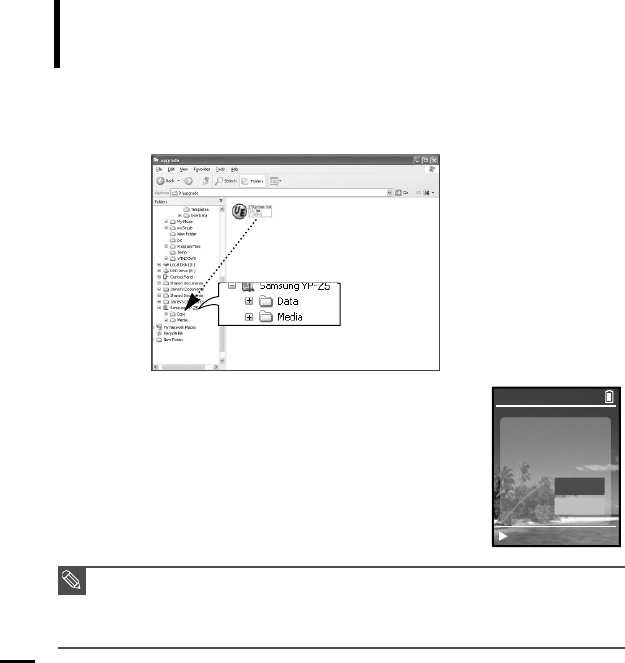
Right click on the Start button, then choose Explore to Open Windows
Explorer on your PC.
■
[Samsung YP-Z5] is displayed in Windows Explorer.
To Upgrade Firmware (Continued)
46
6
Select the uncompressed files and drag-and-drop it into [Samsung YP-Z5]
→
[Data].
7
After disconnecting the USB Cable, the upgrade screen will
appear.
Select [Upgrade] to upgrade firmware upgrade.
8
Connect the player to your PC with the USB cable.
■
The firmware will be upgraded. It will take 1 minute or so.
NOTE
■
Check the battery charge status of the player. If the battery is not sufficiently charged, the firmware
will not be upgraded.
■
Please ensure that there is at least 30MB of unused space on the device when starting the upgrade
procedure.
Upgrade to
new software?
Upgrade
Cancel
Info
Welcome

Chapter 6. Troubleshooting & Appendix
To Upgrade Firmware/
Troubleshooting
47
Troubleshooting
If a malfunction is experienced, check the following.If the problem
persists,contact Samsung Customer Service at 1-800-SAMSUNG.
Power will not turn on.
Buttons do not work.
The screen will not turn on.
Power is turning off.
Problem Check points & Troubleshooting
■
Power will not turn on if the batteries are fully discharged.
Recharge the batteries and turn the power on again.
■
Check if the [HOLD] switch is in the œ HOLD position.
■
Check if you pressed the right button, then press again.
■
Press the Reset Button.
■
If you had set <Off(Batt)> or <Off(USB)> in <Settings> in the
<Display> Menu, the screen may look very dim.
Press a button to turn on the screen.
■
The screen may not be visible under direct sunlight.
The power is automatically turned off when the battery is fully
discharged. Recharge the battery.
Battery life differs from
the Manual.
■
The battery life shortens slowly over time as it is a consumable
item.
■
Product life may be shortened when left for extended periods in
low or high temperatures.

48
Playing is disabled.
File upload is disabled.
Files or Data are Missing.
Abnormal Play Time
Display during Play.
Problem Check points & Troubleshooting
■
Check if the available file has been saved in the memory.
■
Check if the music file is damaged.
■
Check if there is enough battery power.
■
Check if the USB cable is securely connected.
Reconnect if necessary.
■
Check if the memory is full.
■
Press the Reset button.
Check if the USB cable has been disconnected during file or data
transmission. If this is the case, it may cause serious damage not
only to files/data but also to the product.You have to be extra
cautious as Samsung is not held responsible for data loss.
Check if the file is in VBR (Variable Bit Rate) format.
Abnormal Display
of File Name.
Move to <Settings>
→
<Language> in the Menu screen and set
an appropriate language.
Troubleshooting
(Continued)

Chapter 6. Troubleshooting & Appendix
Troubleshooting
49
Program Malfunction
Connection to a PC is
disabled.
Problem Check points & Troubleshooting
Please check if the PC requirements are met.
Press <Start> on the toolbar of your PC to run Windows Update.
Select Key Updates and Service Packs, then update all.
Reboot the PC and reconnect.
The product is hot.
Heat may be generated during recharging. This has no effect on
the product life or functions.
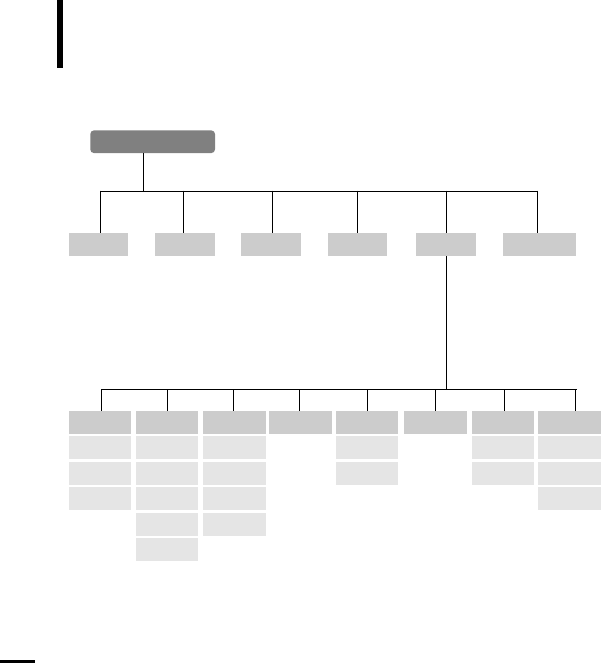
50
Audio Slideshow
Repeat Time Language
Reset Settings
Cancel
Reset
System Info
Capacity
Version
About
Sleep Timer
set Time
Display
Brightness
Dim(Batt)
Off(Batt)
Dim(USB) Shuffle
Off(USB)
Start(Batt)
Start(USB)
Slide Time
DNSe
Street Mode
Key Beep
Music
Menu Select Screen
PicturesPlaylistsShuffle AllSettingsNow Playing
Menu Tree
You can quickly view the menu structure.

Chapter 6. Troubleshooting & Appendix
Menu Tree/
Product Specifications
51
Product Specifications
Model Name
Power
Built-in Battery Power
Earphone Output
Output Frequency Range
Noise Ratio
Play Time
File Transmission Speed
Temperature Range for
Operation
Case
Weight
Dimension
(WxHxD)
File Compatibility
YP-Z5
3.7V (Li-Polymer Rechargeable)
820 mAh
AUDIO: MPEG1/2/2.5 Layer3(8kbps~320kbps, 8kHz~48kHz), MPEG1
Layer2(32kbps~384kbps, 32kHz, 44.1kHz, 48kHz),
WMA(8kbps~192kbps,8kHz~44.1kHz)
IMAGE: JPEG(ISO/IEC 10918-1/Annex F-Sequential DCT-based
mode of operation)
20 mW(16Ω)
20Hz~20KHz
92 dB with 20kHz LPF(based on 1KHz 0 dB)
35 hours of music play (LCD Off, Volume 27)
Max 40 Mbps
5~35
°C
(23~95°F)
Aluminum
1.98
oz
(inc. battery)
2GB : 1.66 X 3.54 X 0.45
inches
4GB : 1.66 X 3.54 X 0.48
inches
●
The contents of this Manual are subject to change without prior notice for further
improvement.

52
License
The product unit accompanying this user manual is licensed under certain intellectual
property rights of certain third parties. In particular, this product is licensed under the
following US patents : 5,991,715, 5,740,317, 4,972,484, 5,214,678, 5,323,396,
5,539,829, 5,606,618, 5,530,655, 5,777,992, 6,289,308, 5,610,985, 5,481,643,
5,544,247, 5,960,037, 6,023,490, 5,878,080, and under US Published Patent Application
No. 2001-44713-A1.
This license is limited to private non-commercial use by end-user consumers for licensed
contents. No rights are granted for commercial use. The license does not cover any
product unit other than this product unit and the license does not extend to any unli-censed
product unit or process conforming to ISO/IEC 11172-3 or ISO/IEC 13818-3 used
or sold in combination with this product unit. The license only covers the use of this
product unit to encode and/or decode audio files conforming to the ISO/IEC 11172-3 or
ISO/IEC 13818-3. No rights are granted under this license for product features or func-tions
that do not conform to the ISO/IEC 11172-3 or ISO/IEC 13818-3.
User Interface by Iventor, Inc.
Copyright (C) 2006, All rights reserved.

Memo
Safety Information
54
If this equipment does cause harmful interference
to radio or television reception, which can be
determined by turning the equipment off and on,
the user is encouraged to try to correct the
interference by one or more of the following
measures:
◆Reorient or relocate the receiving antenna.
◆Increase the separation between the equipment
and receiver.
◆Connect the equipment to an outlet on a circuit
different from that to which the receiver is
connected.
◆Consult the dealer or an experienced radio/TV
technician for help.
FCC
This device complies with part 15 of the FCC
Rules. Operation is subject to the following two
conditions:
(1) This device may not cause harmful
interference, and (2) this device must accept any
interference received, including interference that
may cause undesired operation.
Caution: Any changes or modifications in
construction of this device which are not
expressly approved by the party responsible for
compliance could void the user’s authority to
operate the equipment
Note: This equipment has been tested and
found to comply with the limits for a Class B
digital device, pursuant to part 15 of the FCC
Rules. These limits are designed to provide
reasonable protection against harmful
interference in a
residential installation. This equipment
generates, uses and can radiate radio frquency
energy and, if not installed and used in
accordance with the instructions, may cause
harmful interference to radio communications,
However, there is no guarantee that interference
will not occur in a particular installation.

Chapter 6. Troubleshooting & Appendix
Safety Information
55
FCC
Any changes or modifications not expressly
approved by the grantee of this device could
void the user’s authority to operate the device.
Compliance
This product conforms to the following
Council Directive:
◆Directive 89/336/EEC, 92/31/EEC(EMC)
Declaration of Conformity
Name: Samsung Electronics Co., Ltd
Address: 416, Maetan-3Dong, Paldal-Gu, Suwon
City, Kyungki-Do, Korea 442-742
declares under its sole responsibility that the
product
Trade Name: Samsung Electronics Co., Ltd
Model Number: YP-Z5
has been tested according to the
FCC/CISPR22/95 requirements for Class B
devices and found compliant with the following
standards
EMI/EMC: AnSI C63.4 1992, FCC Part 15
Subpart B
This device complies with part 15 of the FCC
Rules.
Operation is subject to the following two
conditions:
1.This device may not cause harmful
interference, and
2.This device must accept any interference
received, including interference that may
cause undesirable operation.
Party Responsible for Product Compliance
Samsung Electronics America
QA Lab.
3351 Michelson Dr. Suite #290
Irvine, CA92612
Warranty
56
Samsung warrants this product as free of
defects in material, design and workmanship
for a period of twelve(12) months from the
original date of purchase.
If during the period of warranty this product
proves defective under normal use and service,
you should return the product to the retailer
from whom it was originally purchased. The
liability of Samsung and its appointed
maintenance company is limited to the cost of
repair and/or replacement of the unit under
warranty.
Return of the product for defective reasons
should be to the original purchaser; however,
Samsung Authorized Dealers and Authorized
Service Centers will comply with the warranty
on the terms issued to purchasers in the
country concerned. For further information
relating to the Authorized Service Centers
contact;
1-800-SAMSUNG (1-800-726-7864)
www.samsung.com
WARRANTY CONDITIONS:
1.The warranty is only valid when the warranty card
is properly completed, and upon presentation of the
proof of purchase consisting of original invoice or
sales slip confirmation, indicating the date of
purchase, dealer’s name, model, serial No. and
product number.
Samsung reserves the right to refuse warranty
service if this information has been removed or
changed after the original purchase of the product
from the dealer.
2.Samsung's obligations are to the repair of the
defective part, and at its discretion, replacement of
the product (service exchange unit).
3.Warranty repairs must be carried out by an
Authorized Samsung Dealer/Service Center. No
reimbursement will be made for repairs carried out by
non Samsung Centers, and warranty coverage will
not be valid for any repairs or damage caused by
such repairs.
4.Repair or replacement under the terms of this
warranty does not give right to extension to or a new
starting of the period of warranty. Repair or direct
replacement under the terms of this warranty may be
fulfilled with functionally equivalent service exchange
units.

Chapter 6. Troubleshooting & Appendix
Warranty
57
5. The warranty is not applicable in cases other
than defects in material, design and
workmanship. The warranty does not cover the
following:
◆Periodic checks, maintenance, repair and
replacement of parts due to normal wear and
tear.
◆Abuse or misuse, including but not solely
limited to the failure to use this product for its
normal purposed or in accordance with
Samsung's instructions usage and maintenance.
◆Use of the product in conjunction with
accessories not approved by Samsung for use
with this product.
◆Failure of the product arising from incorrect
installationor use not consistent with technical or
safety standardsin current force, or failure to
comply with productmanual instructions.
◆Accidents, Acts of God or any cause beyond
the control of Samsung caused by lightning,
water, fire, public disturbances and improper
ventilation.
◆Unauthorized modifications carried out for the
product to comply with local or national technical
standards in countries for which the Samsung
product was not originally designed.
◆Repairs performed by non-authorized service
centers such as opening of the product by a non-
authorized person.
◆The model, serial No. and product number on
the product has been altered, deleted, removed
or made illegible.
6. This warranty does not affect the consumer’s
statutory rights nor the consumers rights against
the dealer from their purchase/sales agreement.
Warranty
58
THERE ARE NO EXPRESS WARRANTIES
OTHER THAN THOSE LISTED AND
DESCRIBED ABOVE, AND NO WARRANTIES
WHETHER EXPRESS OR IMPLIED, INCLUDING
,
BUT NOT LIMITED TO, ANY
IMPLIED
WARRANTIES OF MERCHANTABILITY
OR
FITNESS FOR A PARTICULAR PURPOSE,
SHALL APPLY AFTER THE EXPRESS WARRANTY
PERIODS STATED ABOVE, AND NO OTHER
EXPRESS WARRANTY OR GUARANTY GIVEN
BY ANY PERSON, FIRM OR
CORPORATION WITH RESPECT TO THIS
PRODUCT
SHALL BE BINDING ON SAMSUNG,
SAMSUNG
SHALL NOT BE LIABLE FOR LOSS
OF REVENUE OR PROFITS,FAILURE
TO
REALIZE SAVINGS OR OTHER BENEFITS,
OR
ANY OTHER SPECIAL, INCIDENTAL OR
CONSEQUENTIAL DAMAGES CAUSED BY THE
USE, MISUSE OR INABILITY TO USE THIS
PRODUCT, REGARDLESS OF THE LEGAL
THEORY ON WHICH THE CLAIM IS BASED,
AND EVEN IF SAMSUNG HAS BEEN ADVISED
OF THE POSSIBILITY OF SUCH DAMAGES.
NOR SHALL RECOVERY OF ANY KIND
AGAINST SAMSUNG BE GREATER IN AMOUNT
THAN THE PURCHASE PRICE OF THE
PRODUCT SOLD BY SAMSUNG AND
CAUSING THE ALLEGED DAMAGE.
WITHOUT LIMITING THE FOREGOING,
PURCHASER
ASSUMES ALL RISK AND LIABILITY FOR LOSS,
DAMAGE OR INJURY TO PURCHASER AND
PURCHASER’S PROPERTY AND TO OTHERS
AND THEIR PROPERTY ARISING OUT OF THE
USE, MISUSE OR INABILITY TO USE THIS
PRODUCT SOLD BY SAMSUNG
NOT CAUSED
DIRECTLY BY THE NEGLIGENCE
OF SAMSUNG.
THIS LIMITED WARRANTY SHALL NOT EXTEND
TO ANYONE OTHER THAN THE ORIGINAL
PURCHASER OF THIS PRODUCT, IS
NONTRANSFERABLE AND STATES YOUR
EXCLUSIVE REMEDY.
Some states do not allow limitations on how long an
implied warranty lasts, or the exclusion or limitation of
incidental or consequential damages, so the above
limitations or exclusions may not apply to you.
This warranty gives you specific legal rights, and you may
also have other rights which vary from state to state.
This product is for personal use only, and is only for use in
compliance with the limitations of copyright and other laws.
To obtain warranty service, please contact SAMSUNG at:
Samsung Electronics America, Inc. 400 Valley Road, Suite
201 Mount Arlington, NJ 07856
1-800-SAMSUNG (1-800-726-7864) www.samsung.com
081299
If you have any questions or comments relating to Samsung products,
please contact the SAMSUNG customer care center.
Samsung Electronics America, Inc.
1-800-SAMSUNG (7267864)
www.samsung.com