Samzuk Technology Development Co FTAN20AA 20 Channel Intercom User Manual FTAN20AA DRAFT x

Guangdong Samzuk Technology Development Co,Ltd 20 Channel Intercom FTAN20AA DRAFT x

User manual

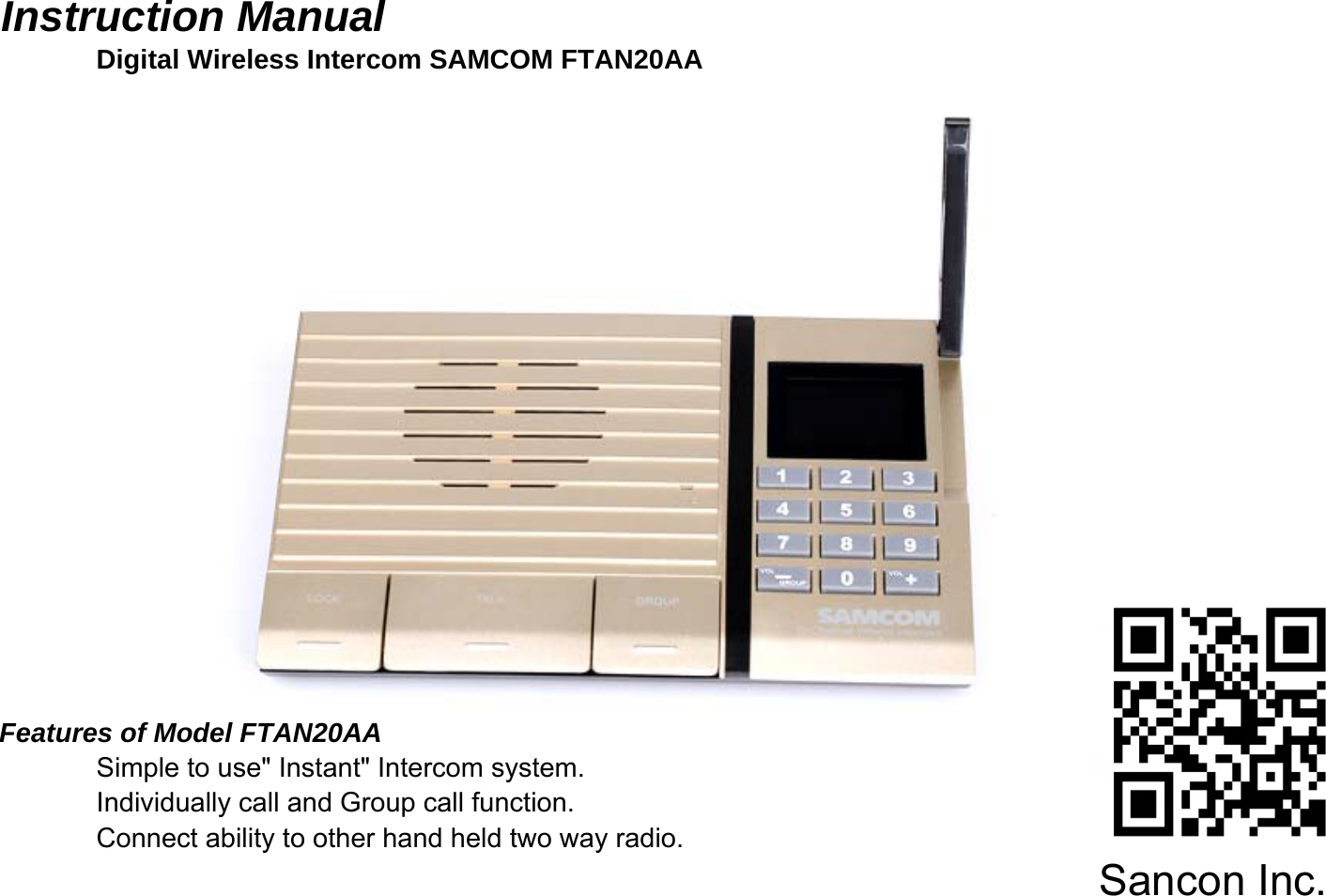
Instruction Manual Digital Wireless Intercom SAMCOM FTAN20AAFeatures of Model FTAN20AASimple to use" Instant" Intercom system.Individually call and Group call function.Connect ability to other hand held two way radio.Sancon Inc.
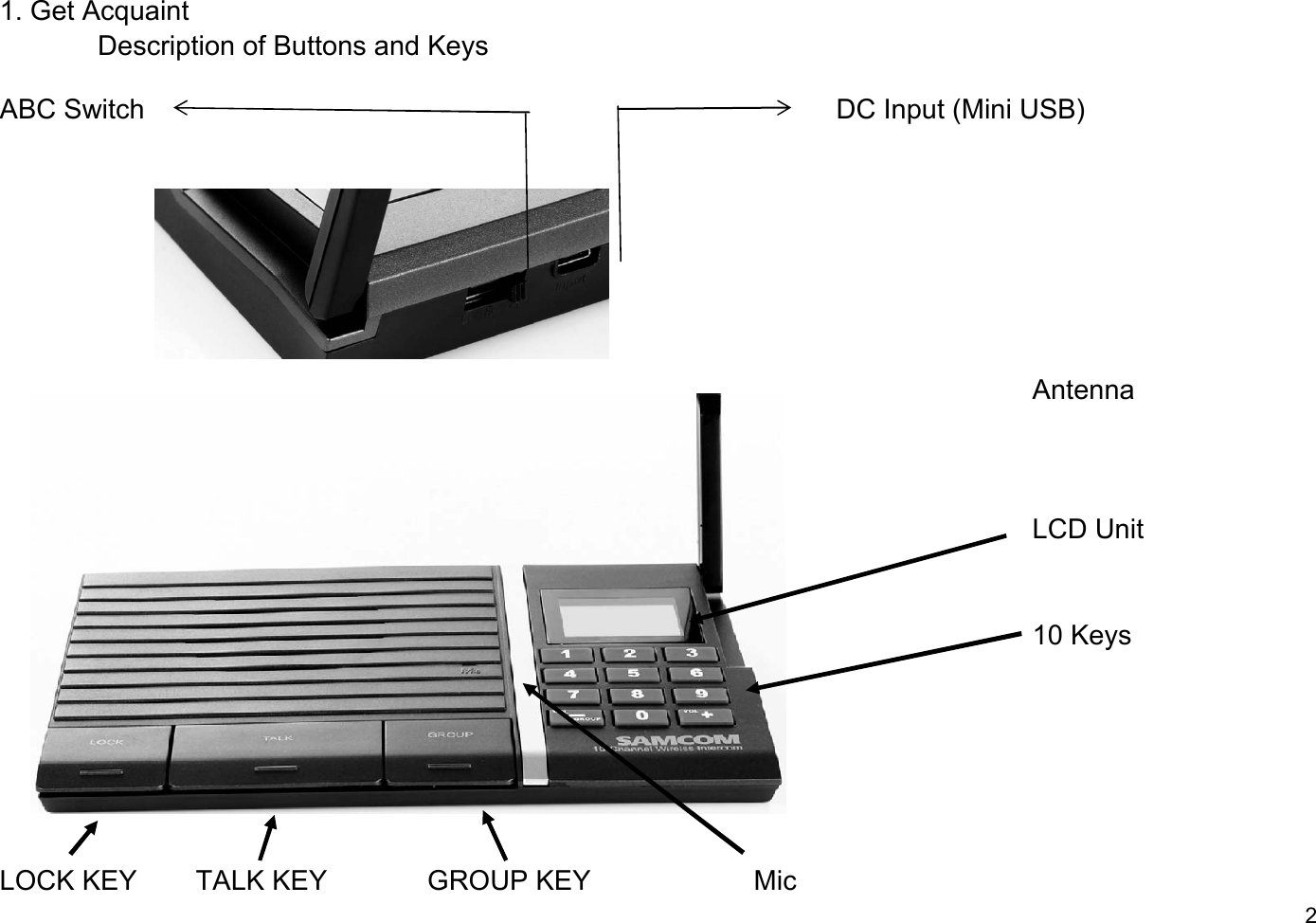
1. Get AcquaintDescription of Buttons and KeysABC Switch DC Input (Mini USB)AntennaLCD Unit10 Keys LOCK KEY TALK KEY GROUP KEY Mic2
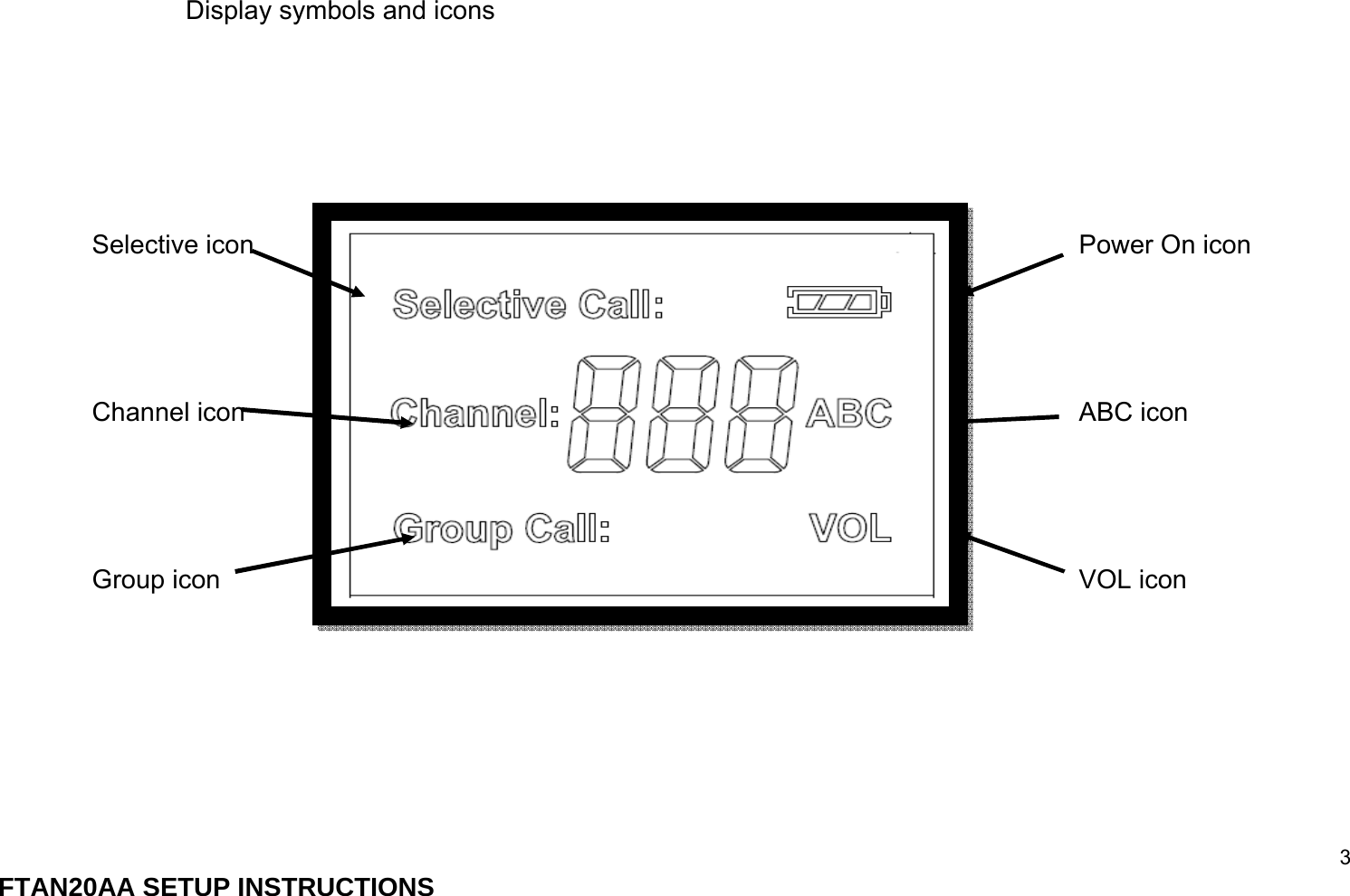
Display symbols and iconsSelective icon Power On iconChannel icon ABC iconGroup icon VOL icon3FTAN20AA SETUP INSTRUCTIONS
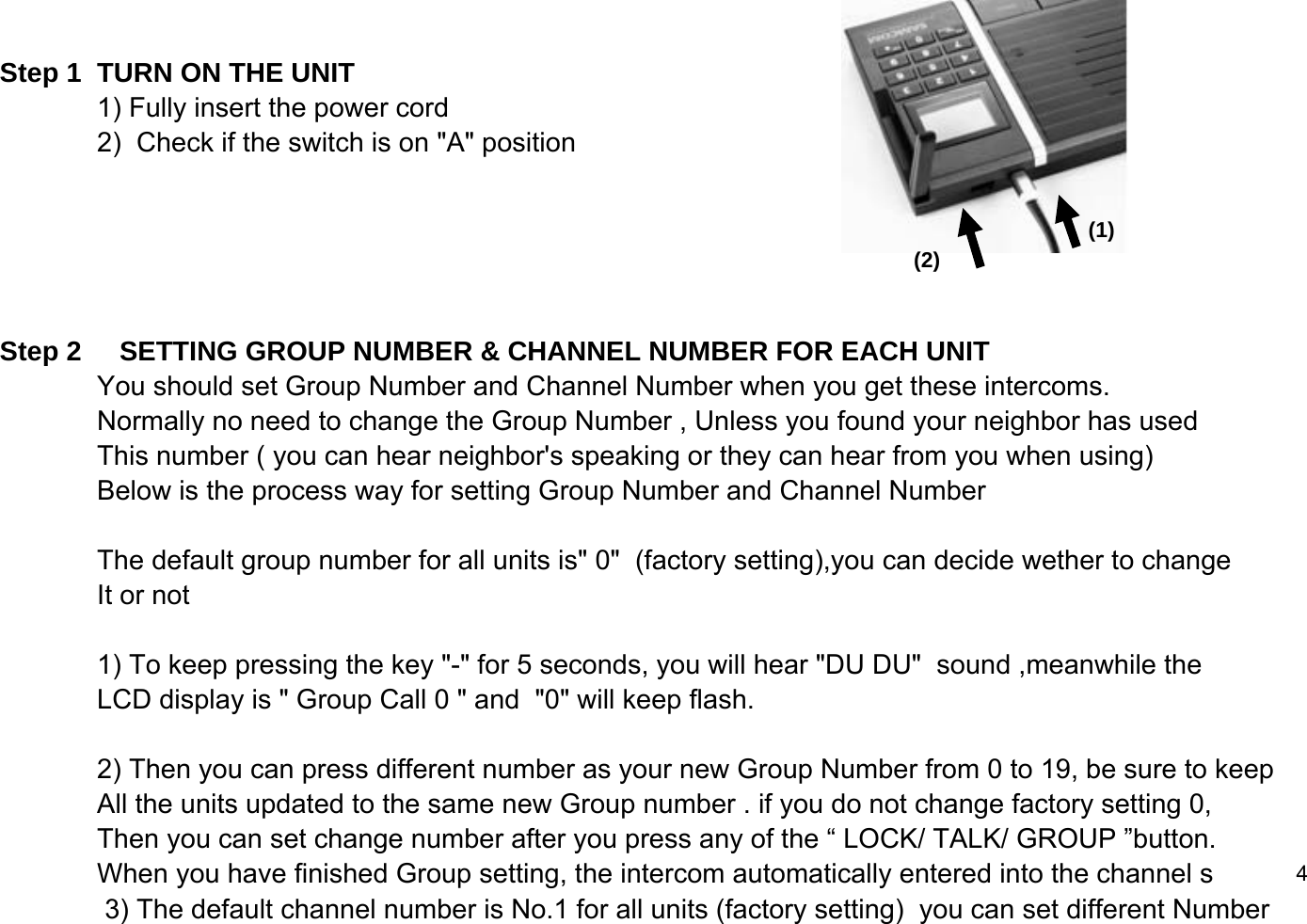
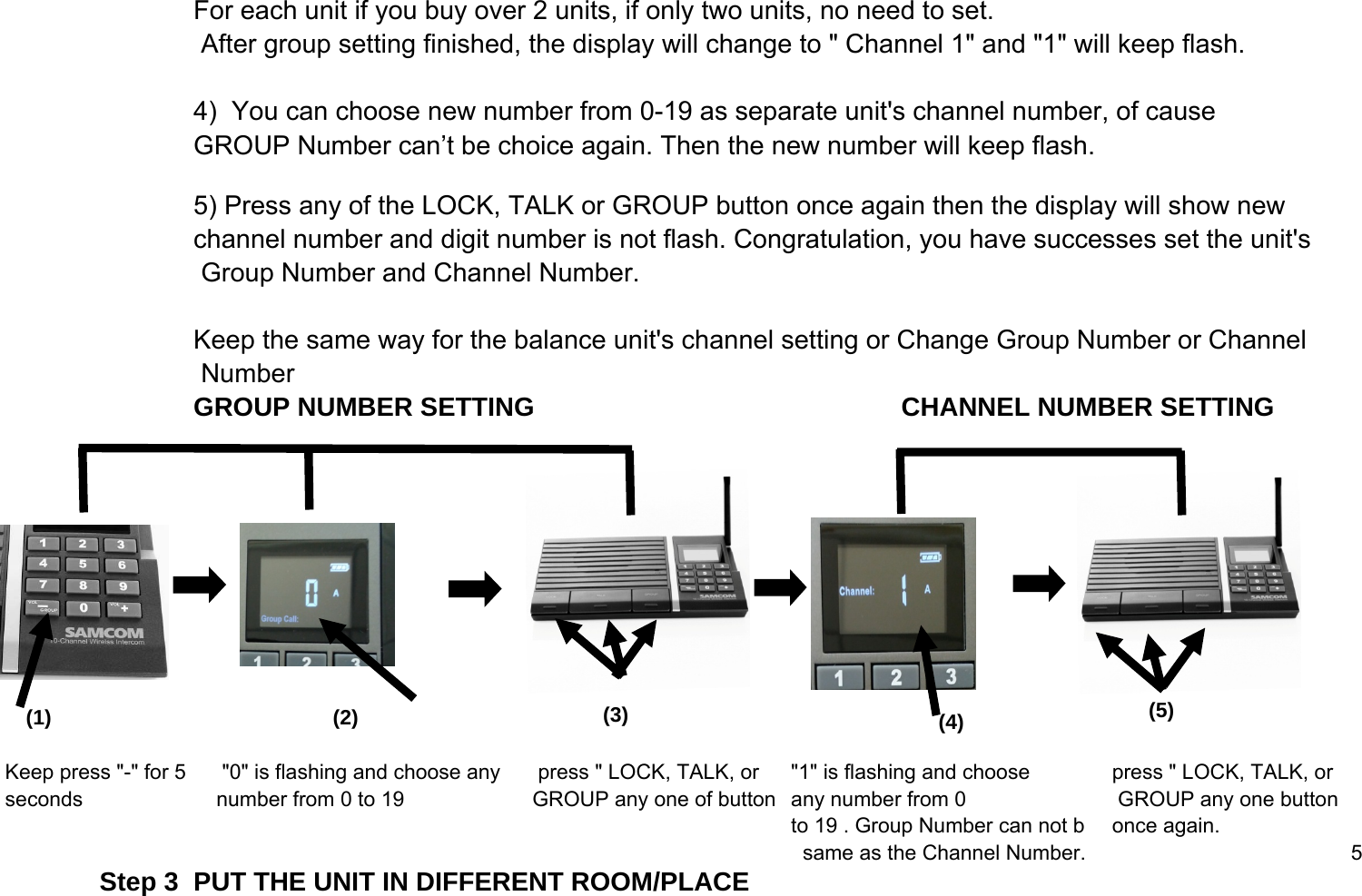
Step 1  TURN ON THE UNIT 1) Fully insert the power cord2)  Check if the switch is on "A" position     Step 2     SETTING GROUP NUMBER & CHANNEL NUMBER FOR EACH UNIT You should set Group Number and Channel Number when you get these intercoms.Normally no need to change the Group Number , Unless you found your neighbor has used This number ( you can hear neighbor's speaking or they can hear from you when using)Below is the process way for setting Group Number and Channel NumberThe default group number for all units is" 0"  (factory setting),you can decide wether to change It or not 1) To keep pressing the key "-" for 5 seconds, you will hear "DU DU"  sound ,meanwhile theLCD display is " Group Call 0 " and  "0" will keep flash. 2) Then you can press different number as your new Group Number from 0 to 19, be sure to keepAll the units updated to the same new Group number . if you do not change factory setting 0,Then you can set change number after you press any of the “ LOCK/ TALK/ GROUP ”button.When you have finished Group setting, the intercom automatically entered into the channel s 4              3) The default channel number is No.1 for all units (factory setting)  you can set different Number (1)(2)
             For each unit if you buy over 2 units, if only two units, no need to set. After group setting finished, the display will change to " Channel 1" and "1" will keep flash. 4)  You can choose new number from 0-19 as separate unit's channel number, of cause GROUP Number can’t be choice again. Then the new number will keep flash.5) Press any of the LOCK, TALK or GROUP button once again then the display will show new channel number and digit number is not flash. Congratulation, you have successes set the unit's Group Number and Channel Number.Keep the same way for the balance unit's channel setting or Change Group Number or Channel NumberGROUP NUMBER SETTING CHANNEL NUMBER SETTINGKeep press "-" for 5      "0" is flashing and choose any       press " LOCK, TALK, or  "1" is flashing and choose      press " LOCK, TALK, orseconds     number from 0 to 19      GROUP any one of button any number from 0      GROUP any one buttonto 19 . Group Number can not b    once again.  same as the Channel Number. 5Step 3  PUT THE UNIT IN DIFFERENT ROOM/PLACE(1) (2) (3) (4) (5)
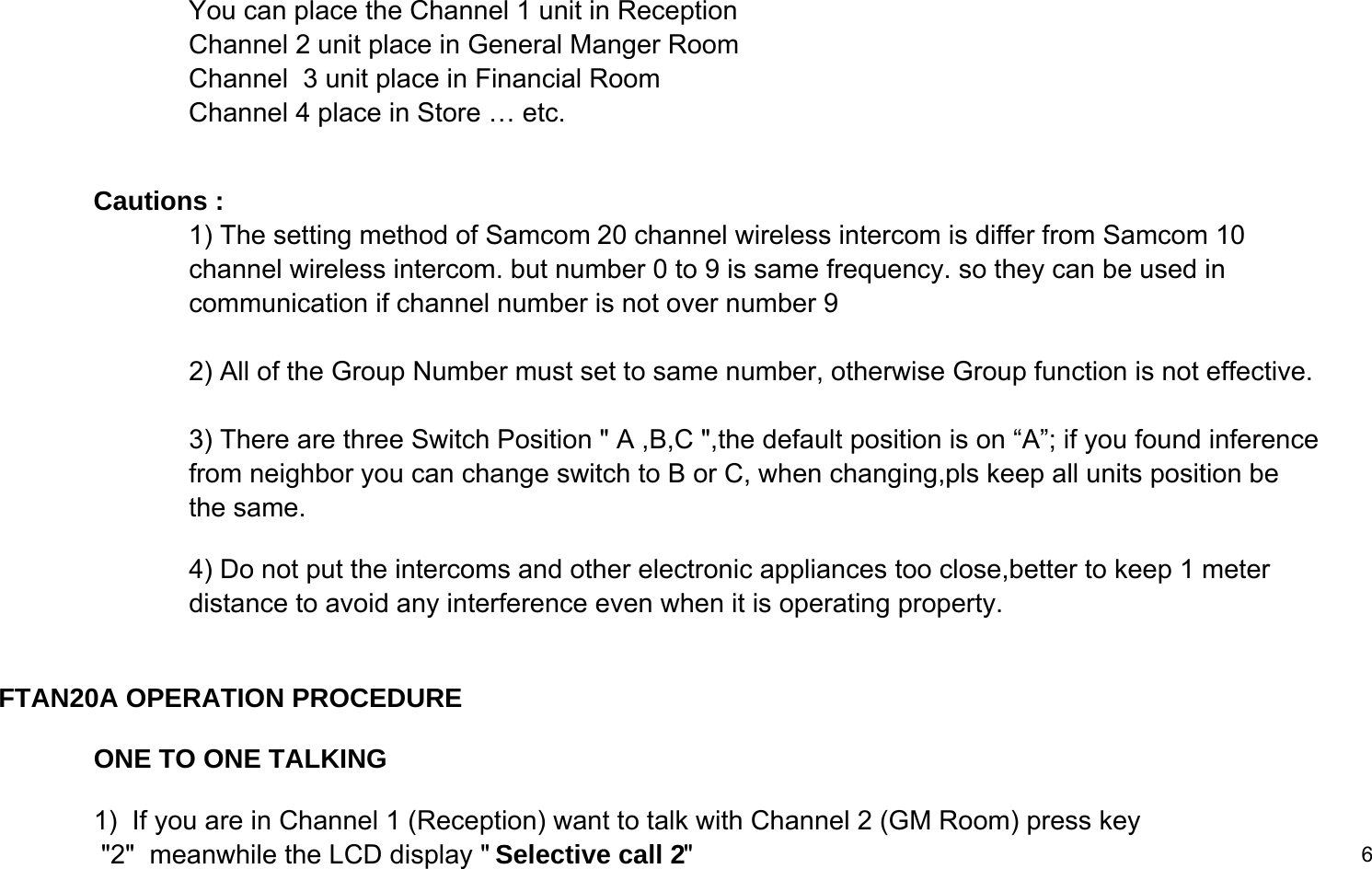
You can place the Channel 1 unit in Reception Channel 2 unit place in General Manger RoomChannel  3 unit place in Financial Room Channel 4 place in Store … etc.Cautions :1) The setting method of Samcom 20 channel wireless intercom is differ from Samcom 10channel wireless intercom. but number 0 to 9 is same frequency. so they can be used in communication if channel number is not over number 9 2) All of the Group Number must set to same number, otherwise Group function is not effective.3) There are three Switch Position " A ,B,C ",the default position is on “A”; if you found inference from neighbor you can change switch to B or C, when changing,pls keep all units position be  the same.4) Do not put the intercoms and other electronic appliances too close,better to keep 1 meter distance to avoid any interference even when it is operating property. FTAN20A OPERATION PROCEDUREONE TO ONE TALKING1)  If you are in Channel 1 (Reception) want to talk with Channel 2 (GM Room) press key "2"  meanwhile the LCD display " Selective call 2"6
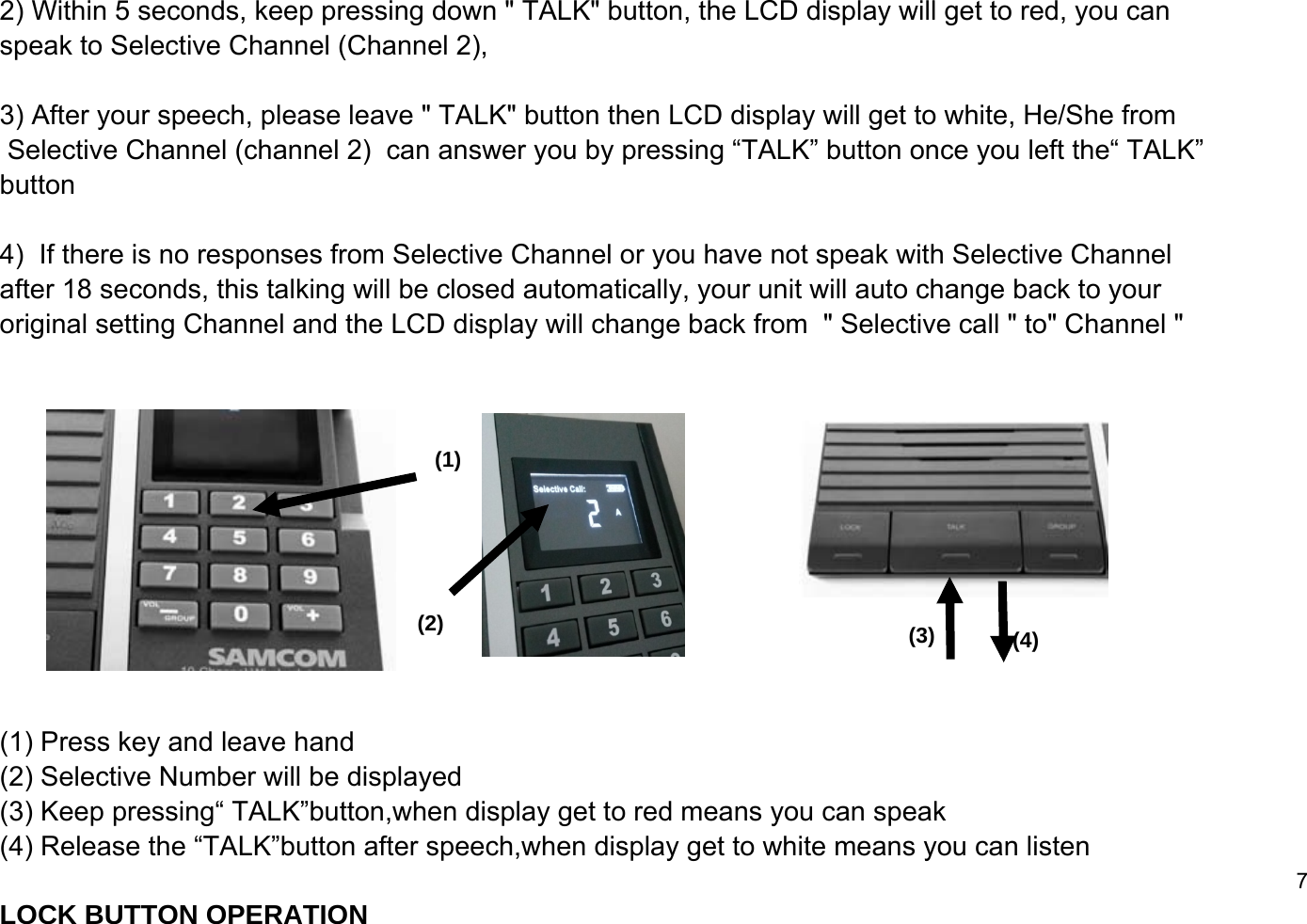
2) Within 5 seconds, keep pressing down " TALK" button, the LCD display will get to red, you can speak to Selective Channel (Channel 2),3) After your speech, please leave " TALK" button then LCD display will get to white, He/She from Selective Channel (channel 2)  can answer you by pressing “TALK” button once you left the“ TALK” button  4)  If there is no responses from Selective Channel or you have not speak with Selective Channel after 18 seconds, this talking will be closed automatically, your unit will auto change back to your original setting Channel and the LCD display will change back from  " Selective call " to" Channel " (1) Press key and leave hand(2) Selective Number will be displayed(3) Keep pressing“ TALK”button,when display get to red means you can speak (4) Release the “TALK”button after speech,when display get to white means you can listen7LOCK BUTTON OPERATION(1)(2) (3) (4)
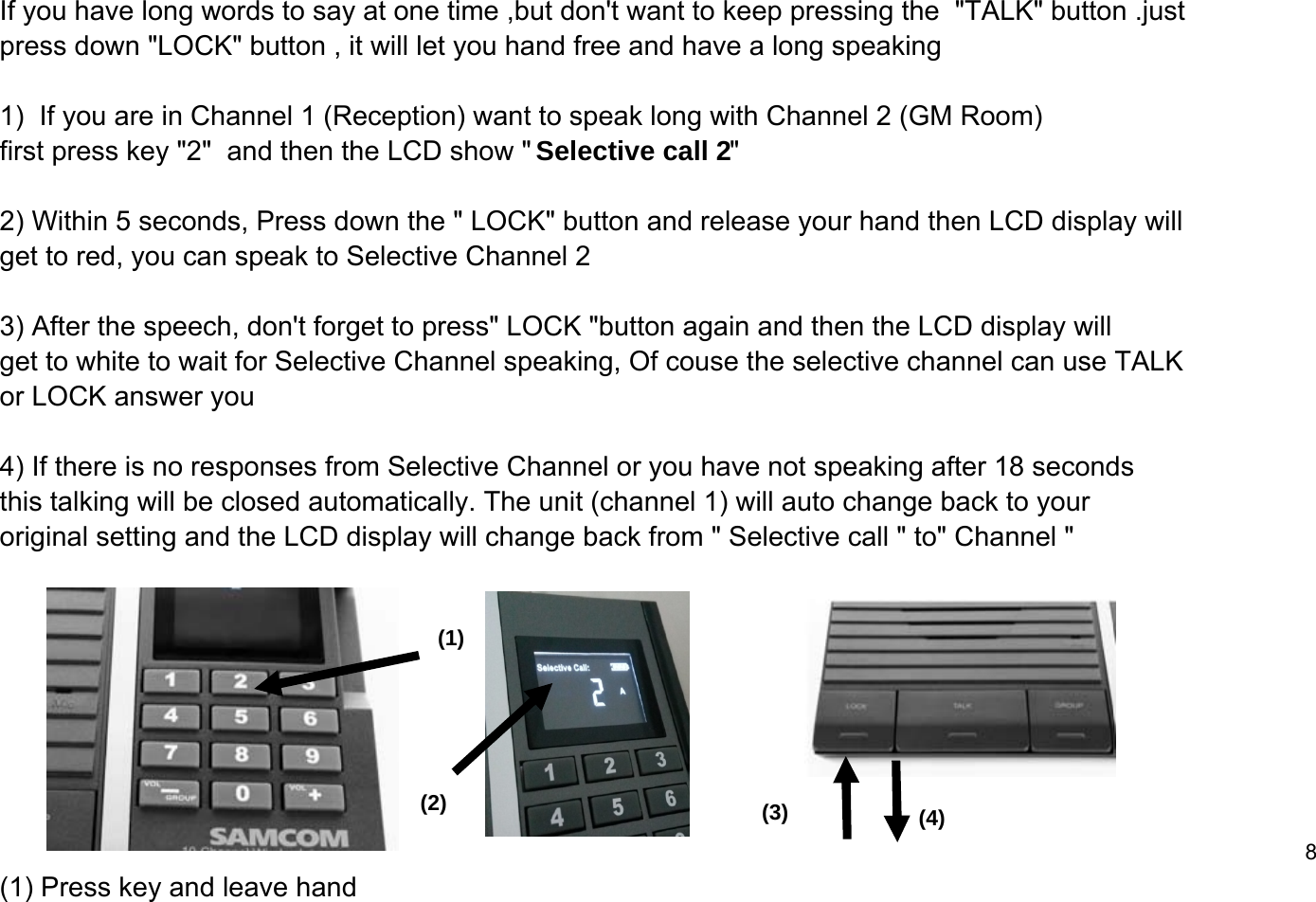
If you have long words to say at one time ,but don't want to keep pressing the  "TALK" button .just press down "LOCK" button , it will let you hand free and have a long speaking1)  If you are in Channel 1 (Reception) want to speak long with Channel 2 (GM Room)first press key "2"  and then the LCD show " Selective call 2"2) Within 5 seconds, Press down the " LOCK" button and release your hand then LCD display will   get to red, you can speak to Selective Channel 2 3) After the speech, don't forget to press" LOCK "button again and then the LCD display will get to white to wait for Selective Channel speaking, Of couse the selective channel can use TALKor LOCK answer you4) If there is no responses from Selective Channel or you have not speaking after 18 seconds this talking will be closed automatically. The unit (channel 1) will auto change back to your original setting and the LCD display will change back from " Selective call " to" Channel " 8(1) Press key and leave hand(1)(2) (3) (4)
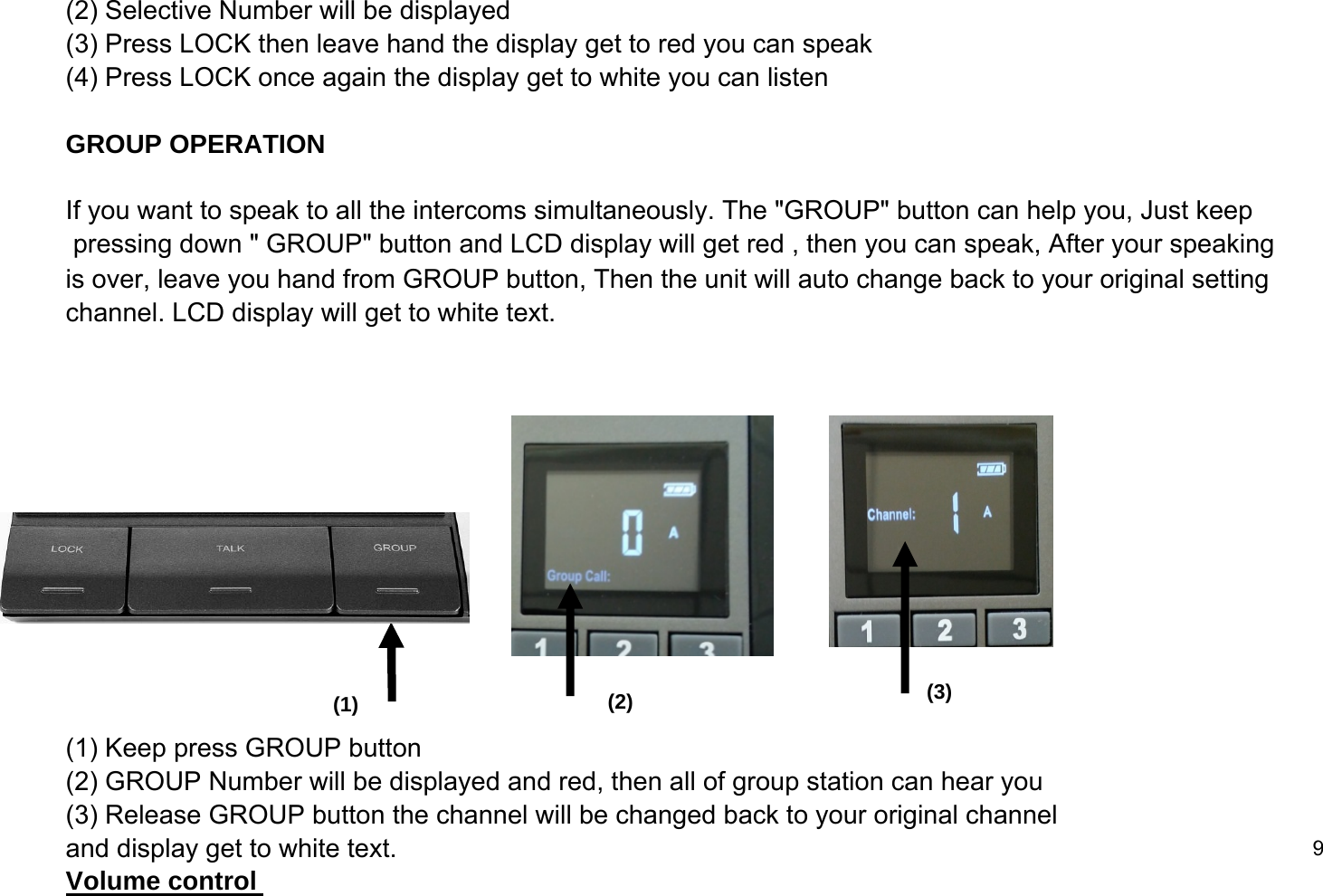
(2) Selective Number will be displayed(3) Press LOCK then leave hand the display get to red you can speak (4) Press LOCK once again the display get to white you can listenGROUP OPERATIONIf you want to speak to all the intercoms simultaneously. The "GROUP" button can help you, Just keep pressing down " GROUP" button and LCD display will get red , then you can speak, After your speaking is over, leave you hand from GROUP button, Then the unit will auto change back to your original setting channel. LCD display will get to white text. (1) Keep press GROUP button (2) GROUP Number will be displayed and red, then all of group station can hear you(3) Release GROUP button the channel will be changed back to your original channel and display get to white text. 9Volume control (1) (2) (3)
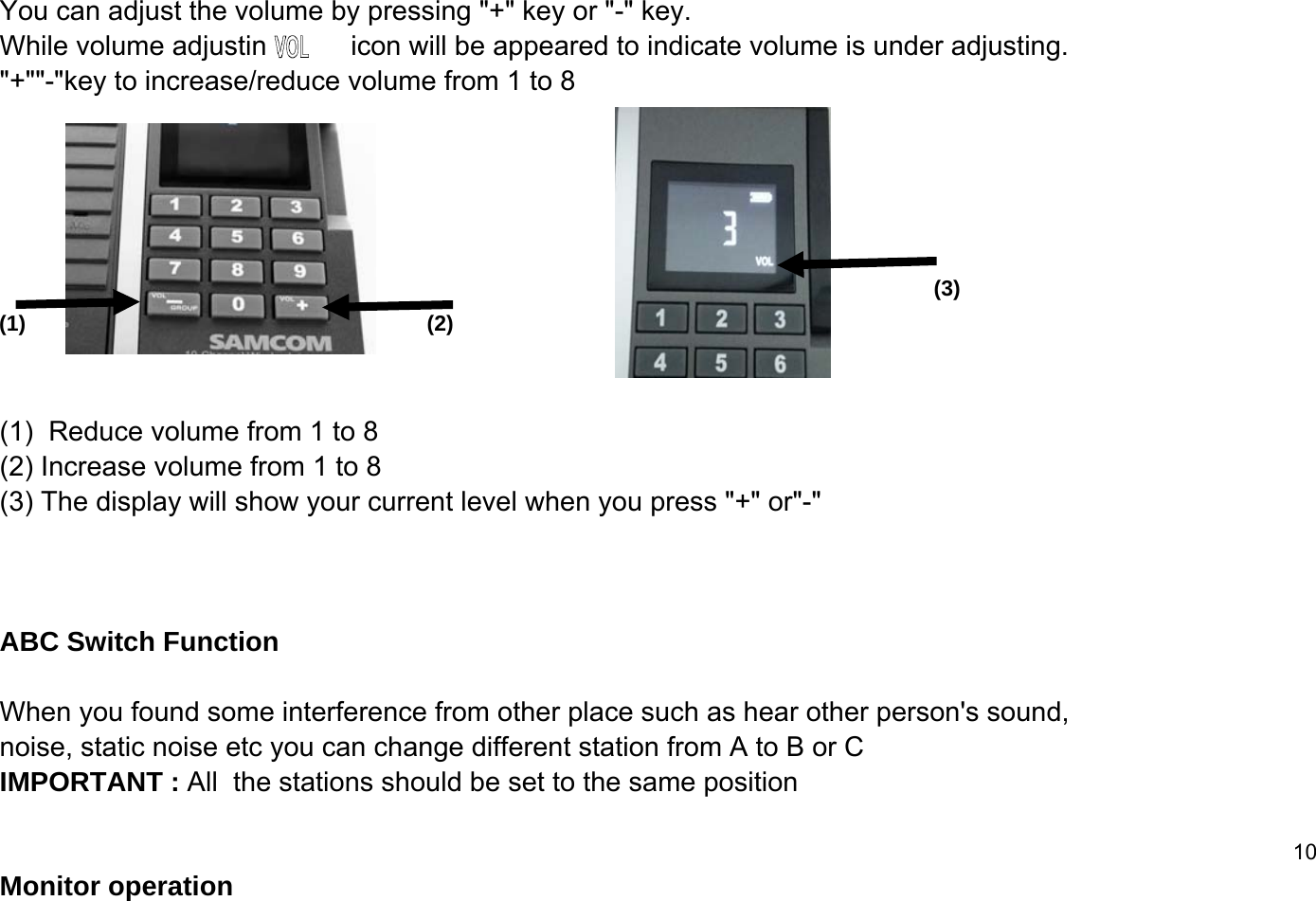
You can adjust the volume by pressing "+" key or "-" key. While volume adjusting         icon will be appeared to indicate volume is under adjusting."+""-"key to increase/reduce volume from 1 to 8(1)  Reduce volume from 1 to 8 (2) Increase volume from 1 to 8 (3) The display will show your current level when you press "+" or"-"ABC Switch FunctionWhen you found some interference from other place such as hear other person's sound, noise, static noise etc you can change different station from A to B or C IMPORTANT : All  the stations should be set to the same position10Monitor operation (1) (2)(3)
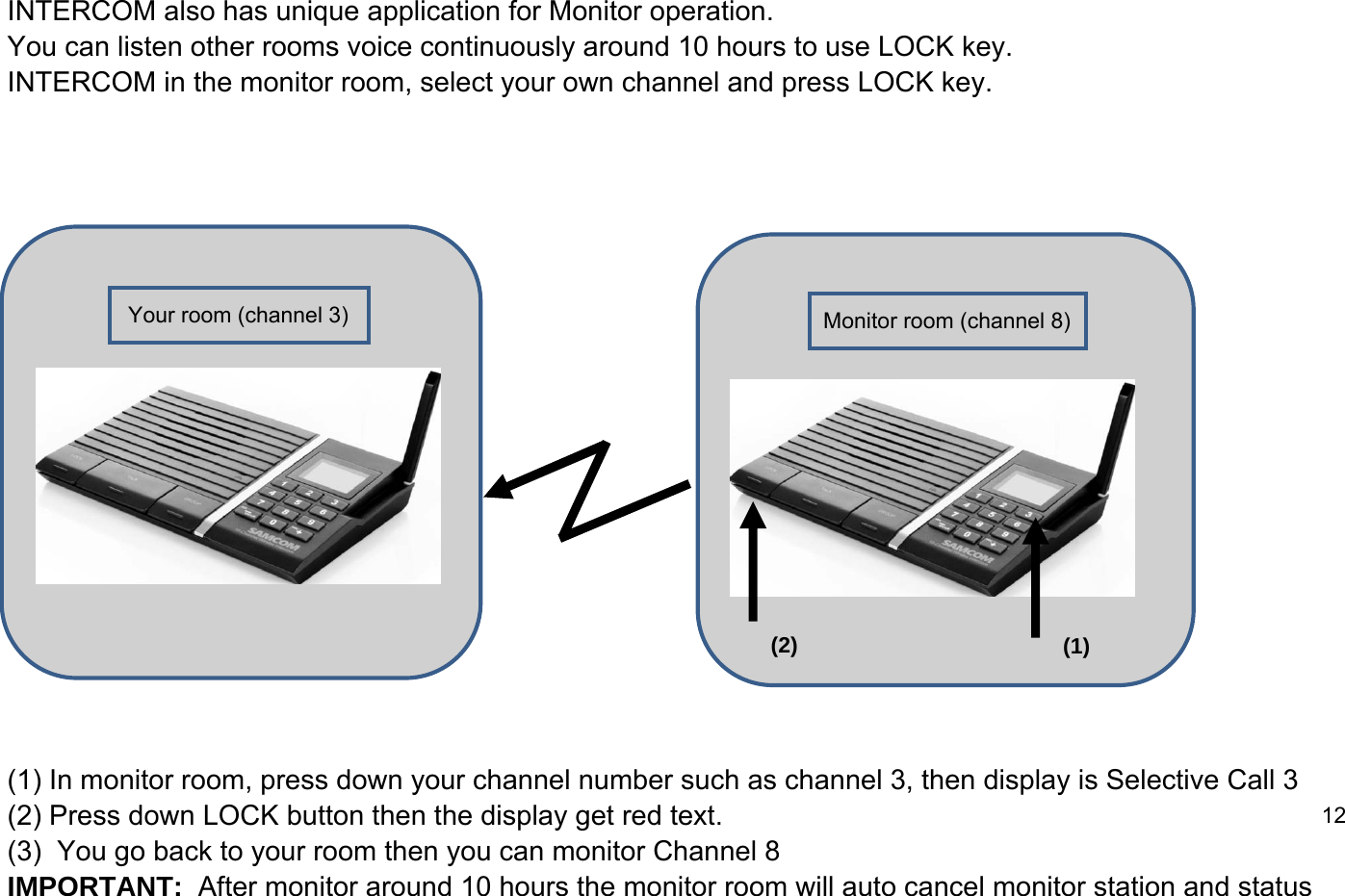
INTERCOM also has unique application for Monitor operation.You can listen other rooms voice continuously around 10 hours to use LOCK key.INTERCOM in the monitor room, select your own channel and press LOCK key.(1) In monitor room, press down your channel number such as channel 3, then display is Selective Call 3(2) Press down LOCK button then the display get red text. 12(3)  You go back to your room then you can monitor Channel 8IMPORTANT:  After monitor around 10 hours the monitor room will auto cancel monitor station and statusYour room (channel 3) Monitor room (channel 8)(1)(2)
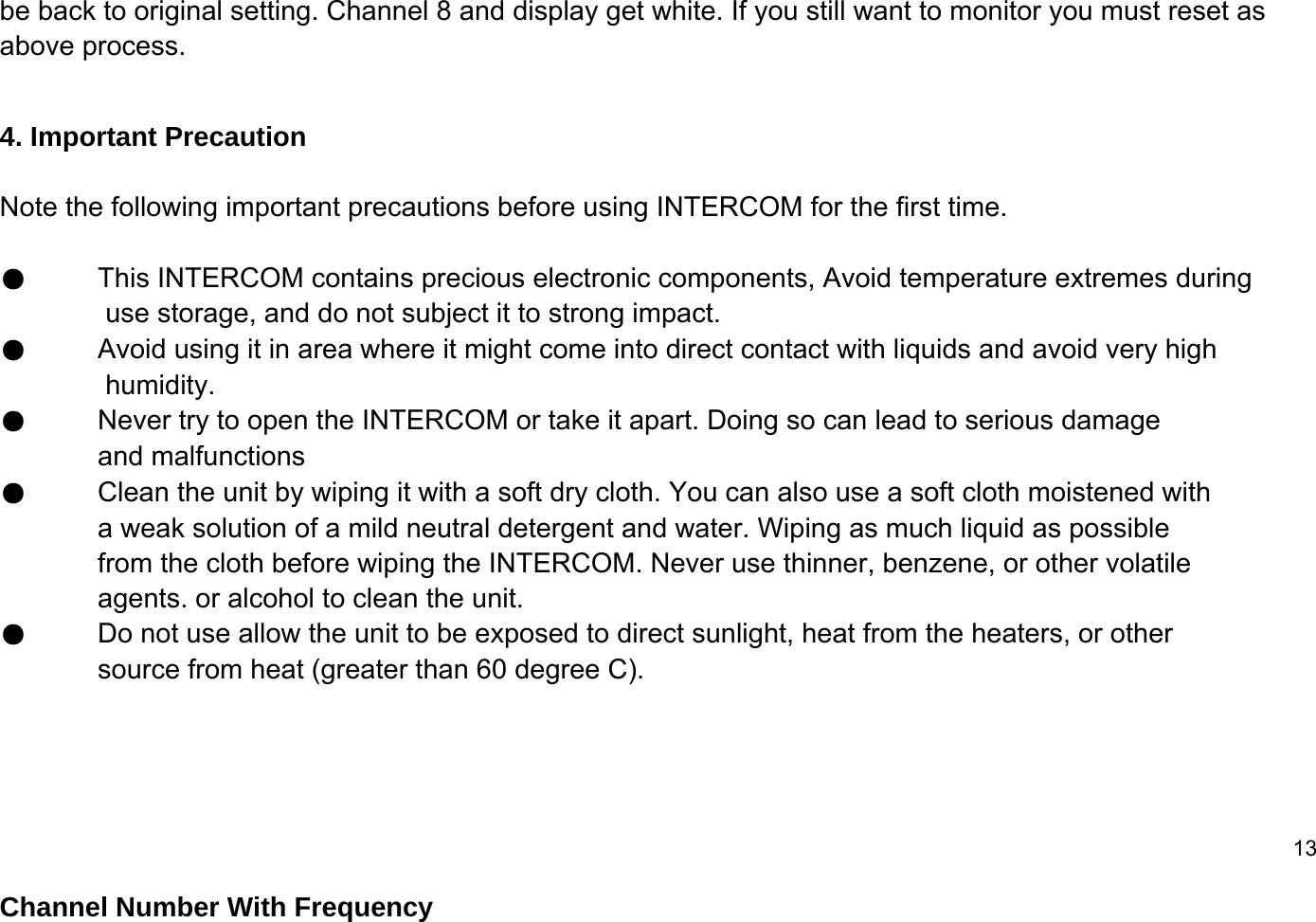
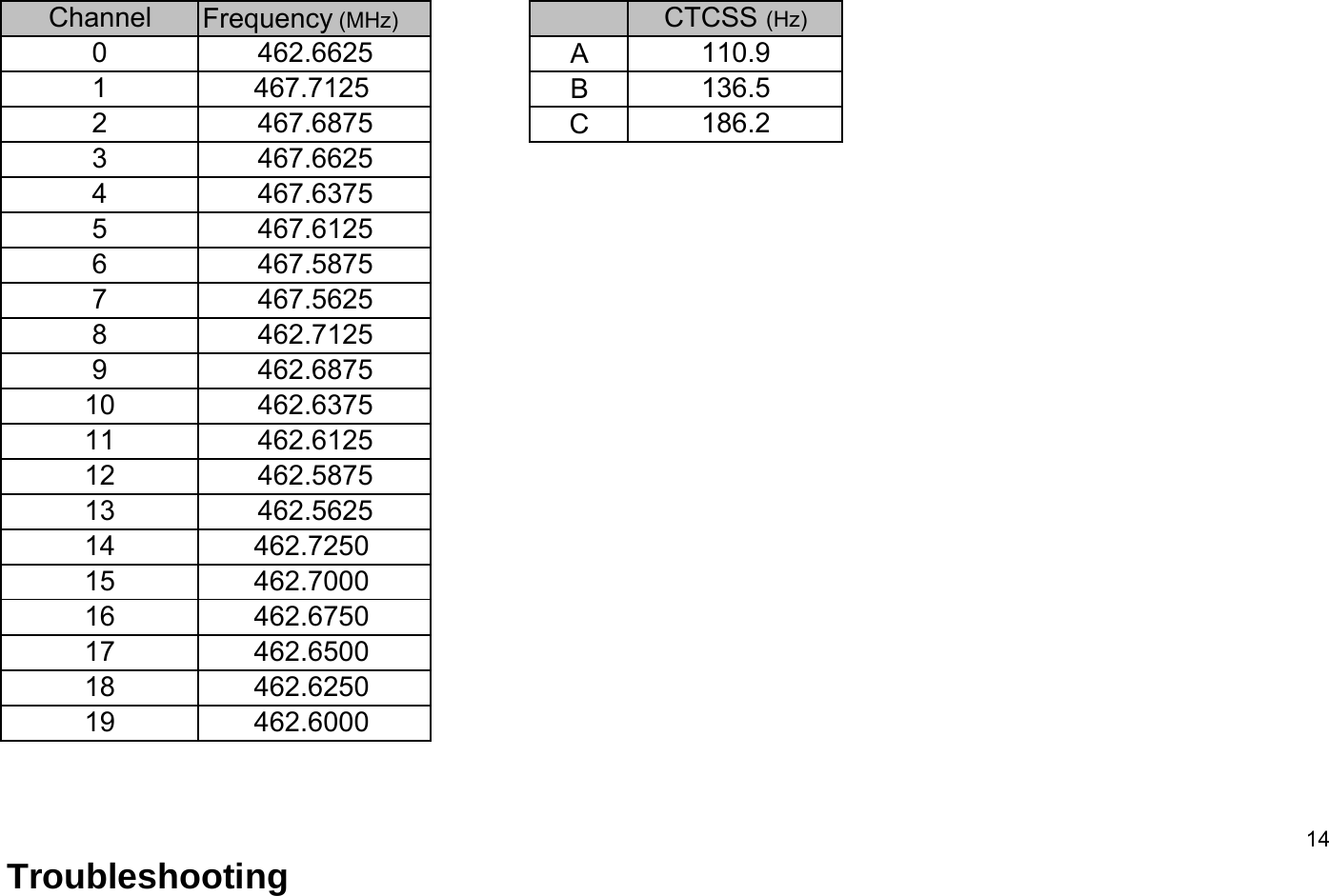
be back to original setting. Channel 8 and display get white. If you still want to monitor you must reset as above process.4. Important Precaution Note the following important precautions before using INTERCOM for the first time.●This INTERCOM contains precious electronic components, Avoid temperature extremes during use storage, and do not subject it to strong impact. ●Avoid using it in area where it might come into direct contact with liquids and avoid very high humidity.●Never try to open the INTERCOM or take it apart. Doing so can lead to serious damage  and malfunctions●Clean the unit by wiping it with a soft dry cloth. You can also use a soft cloth moistened with a weak solution of a mild neutral detergent and water. Wiping as much liquid as possible from the cloth before wiping the INTERCOM. Never use thinner, benzene, or other volatile agents. or alcohol to clean the unit.●Do not use allow the unit to be exposed to direct sunlight, heat from the heaters, or other source from heat (greater than 60 degree C).13Channel Number With Frequency
Frequency (MHz)ABC14Troubleshooting 11CTCSS (Hz)110.9136.5186.2462.72505876467.5625109462.6000462.6375462.6125462.6250462.5875462.5625121314467.6125467.58751234Channel462.6875467.6875467.7125467.6625467.6375462.6625462.712501516171819462.7000462.6750462.6500
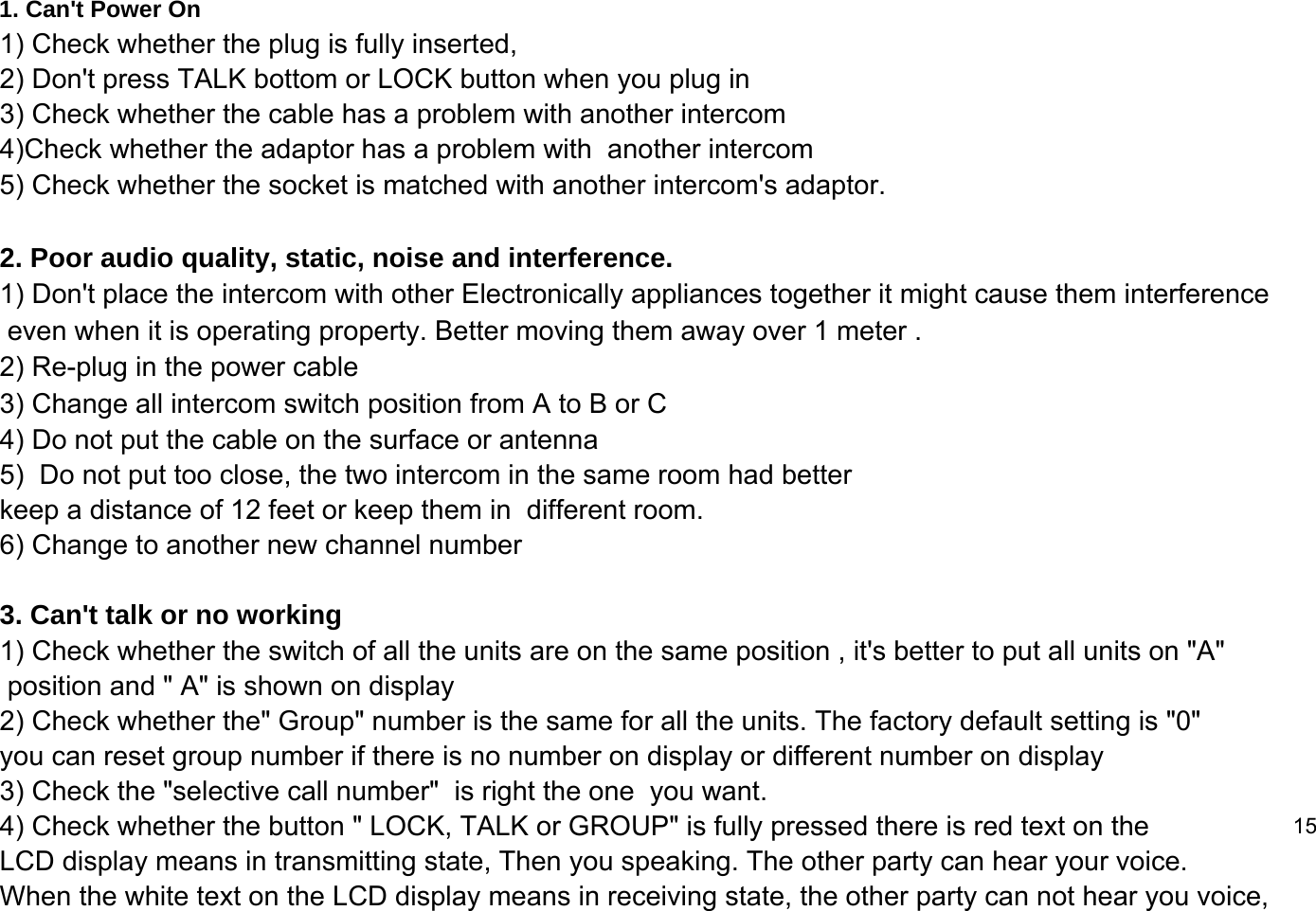
1. Can't Power On1) Check whether the plug is fully inserted, 2) Don't press TALK bottom or LOCK button when you plug in3) Check whether the cable has a problem with another intercom4)Check whether the adaptor has a problem with  another intercom5) Check whether the socket is matched with another intercom's adaptor.2. Poor audio quality, static, noise and interference.1) Don't place the intercom with other Electronically appliances together it might cause them interference even when it is operating property. Better moving them away over 1 meter .2) Re-plug in the power cable 3) Change all intercom switch position from A to B or C4) Do not put the cable on the surface or antenna 5)  Do not put too close, the two intercom in the same room had better  keep a distance of 12 feet or keep them in  different room.  6) Change to another new channel number 3. Can't talk or no working 1) Check whether the switch of all the units are on the same position , it's better to put all units on "A"  position and " A" is shown on display 2) Check whether the" Group" number is the same for all the units. The factory default setting is "0"  you can reset group number if there is no number on display or different number on display 3) Check the "selective call number"  is right the one  you want.4) Check whether the button " LOCK, TALK or GROUP" is fully pressed there is red text on the  15LCD display means in transmitting state, Then you speaking. The other party can hear your voice.When the white text on the LCD display means in receiving state, the other party can not hear you voice,
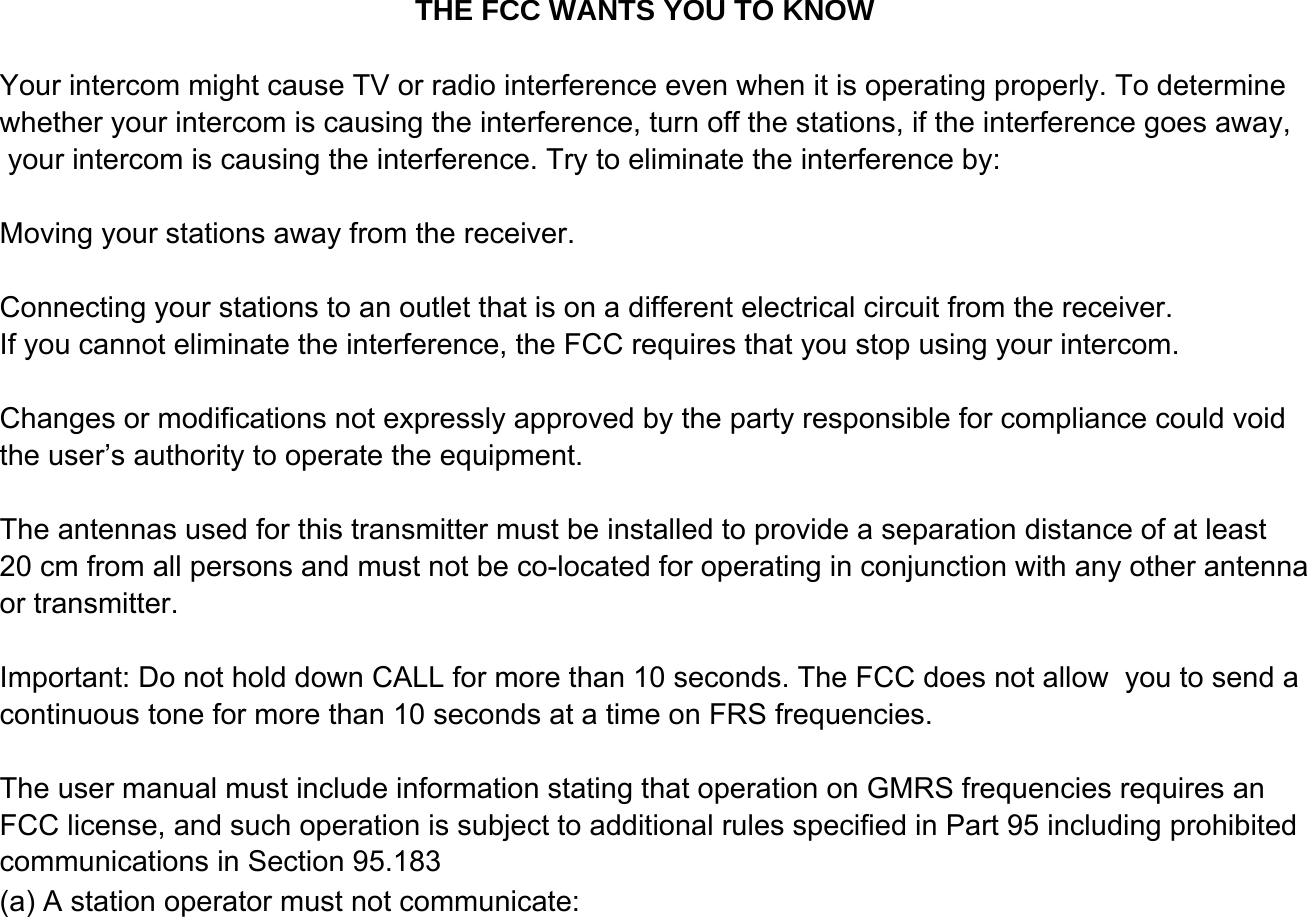
Your intercom might cause TV or radio interference even when it is operating properly. To determine whether your intercom is causing the interference, turn off the stations, if the interference goes away, your intercom is causing the interference. Try to eliminate the interference by:Moving your stations away from the receiver.Connecting your stations to an outlet that is on a different electrical circuit from the receiver.If you cannot eliminate the interference, the FCC requires that you stop using your intercom.Changes or modifications not expressly approved by the party responsible for compliance could void the user’s authority to operate the equipment. The antennas used for this transmitter must be installed to provide a separation distance of at least 20 cm from all persons and must not be co-located for operating in conjunction with any other antenna or transmitter.Important: Do not hold down CALL for more than 10 seconds. The FCC does not allow  you to send a continuous tone for more than 10 seconds at a time on FRS frequencies.The user manual must include information stating that operation on GMRS frequencies requires an (a) A station operator must not communicate:FCC license, and such operation is subject to additional rules specified in Part 95 including prohibitedcommunications in Section 95.183THE FCC WANTS YOU TO KNOW
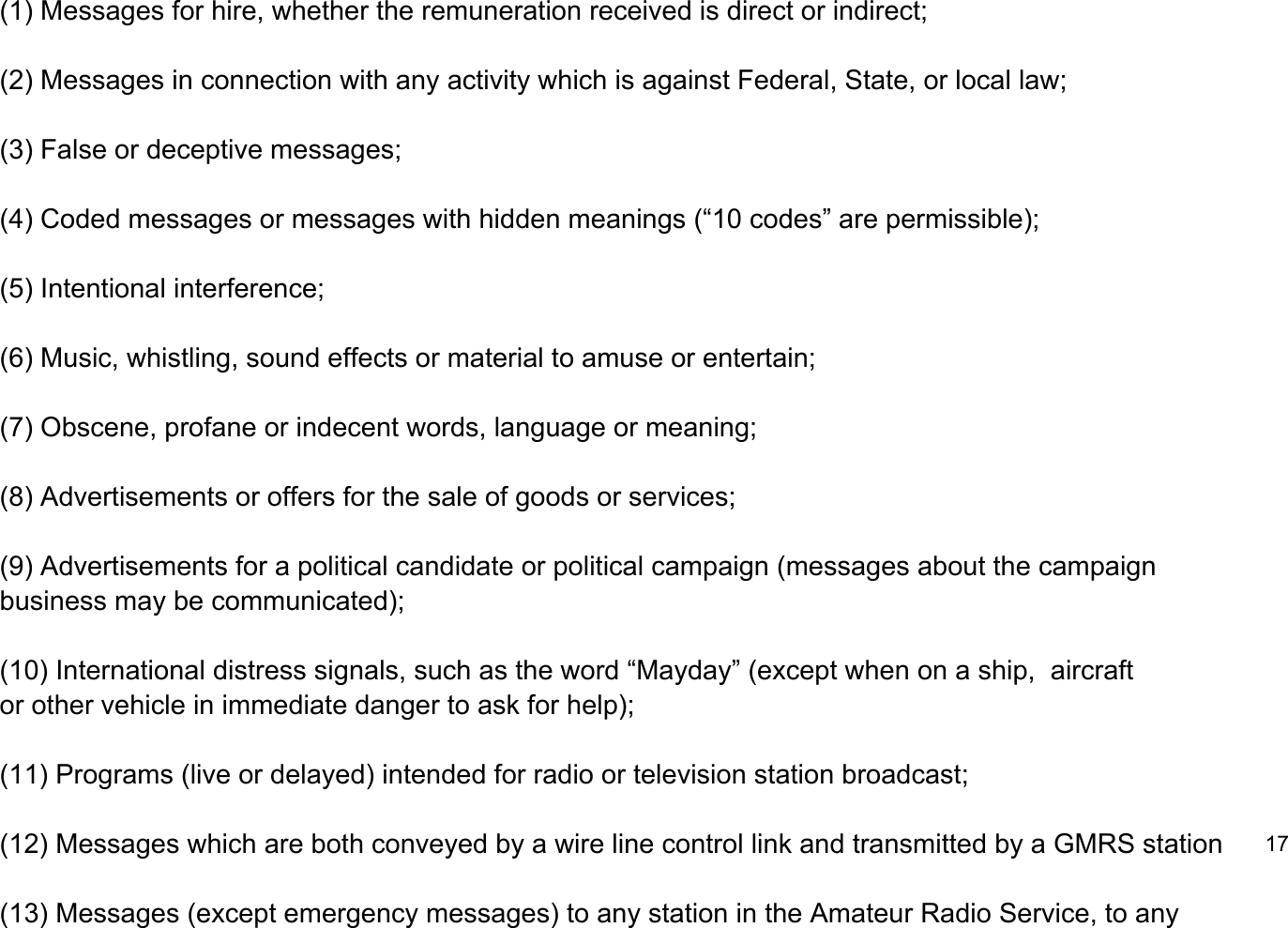
(1) Messages for hire, whether the remuneration received is direct or indirect;(2) Messages in connection with any activity which is against Federal, State, or local law;(3) False or deceptive messages;(4) Coded messages or messages with hidden meanings (“10 codes” are permissible);(5) Intentional interference;(6) Music, whistling, sound effects or material to amuse or entertain;(7) Obscene, profane or indecent words, language or meaning;(8) Advertisements or offers for the sale of goods or services;(9) Advertisements for a political candidate or political campaign (messages about the campaign business may be communicated);(10) International distress signals, such as the word “Mayday” (except when on a ship,  aircraft or other vehicle in immediate danger to ask for help);(11) Programs (live or delayed) intended for radio or television station broadcast;(12) Messages which are both conveyed by a wire line control link and transmitted by a GMRS station17(13) Messages (except emergency messages) to any station in the Amateur Radio Service, to any
unauthorized station, or to any foreign station;(14) Continuous or uninterrupted transmissions, except for communications involving the immediate safety of life or property;(15) Messages for public address systems. not transmit any communications to customers of the telephone answering service.18FCC Licensing Information:This radio operates on General Mobile Radio Service (GMRS) frequencies and is subject to the Rules and Regulations of Federal Communication Commission (FCC). The FCCrequires that all operators using GMRS frequencies must obtain a radio license beforeoperating their equipment.(b) A station operator in a GMRS system licensed to a telephone answering service must

Navigation menu