Sang Fei Consumer Communications CTS307 GSM/WCDMA digital mobile phone User Manual S307 ENG Book

Shenzhen Sang Fei Consumer Communications Co., Ltd. GSM/WCDMA digital mobile phone S307 ENG Book

User Manual

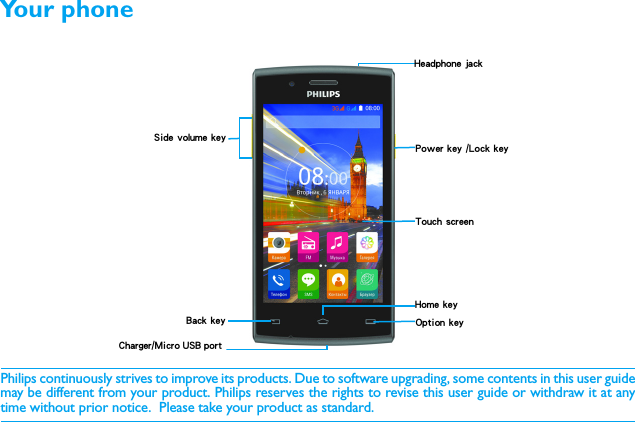
Philips continuously strives to improve its products. Due to software upgrading, some contents in this user guidemay be different from your product. Philips reserves the rights to revise this user guide or withdraw it at anytime without prior notice.  Please take your product as standard.Touch screenSide volume keyHome keyOption key Back keyPower key /Lock keyHeadphone jackCharger/Micro USB port Your phone
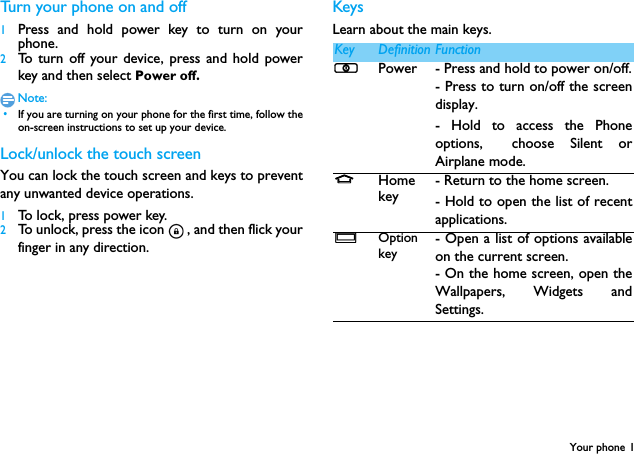
Your phone 1Turn your phone on and off1Press and hold power key to turn on yourphone.2To turn off your device, press and hold powerkey and then select Power off.Note: •If you are turning on your phone for the first time, follow theon-screen instructions to set up your device.Lock/unlock the touch screenYou can lock the touch screen and keys to preventany unwanted device operations.1To lock, press power key.2To unlock, press the icon , and then flick yourfinger in any direction.KeysLearn about the main keys.mKey Definition FunctionPPower - Press and hold to power on/off.- Press to turn on/off the screendisplay.- Hold to access the Phoneoptions, choose Silent orAirplane mode.MHome key- Return to the home screen.- Hold to open the list of recentapplications.OOption key- Open a list of options availableon the current screen.- On the home screen, open theWallpapers, Widgets andSettings.
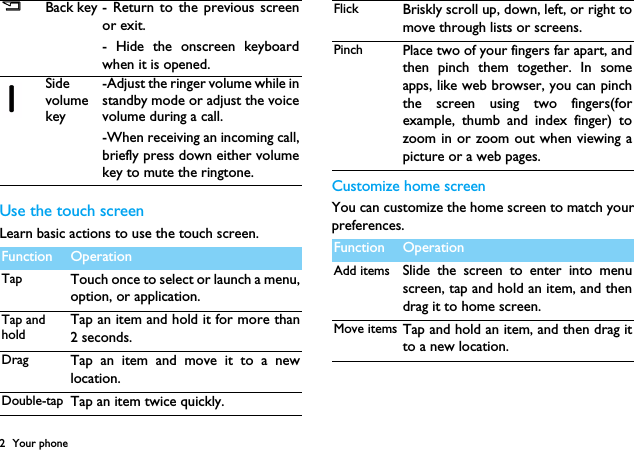
2 Your phoneUse the touch screenLearn basic actions to use the touch screen.Customize home screenYou can customize the home screen to match yourpreferences.BBack key - Return to the previous screenor exit.- Hide the onscreen keyboardwhen it is opened.Side volume key-Adjust the ringer volume while instandby mode or adjust the voicevolume during a call.-When receiving an incoming call,briefly press down either volumekey to mute the ringtone.Function OperationTap Touch once to select or launch a menu,option, or application.Tap and holdTap an item and hold it for more than2 seconds.Drag Tap an item and move it to a newlocation.Double-tap Tap an item twice quickly.Flick Briskly scroll up, down, left, or right tomove through lists or screens.Pinch Place two of your fingers far apart, andthen pinch them together. In someapps, like web browser, you can pinchthe screen using two fingers(forexample, thumb and index finger) tozoom in or zoom out when viewing apicture or a web pages.Function OperationAdd items Slide the screen to enter into menuscreen, tap and hold an item, and thendrag it to home screen.Move items Tap and hold an item, and then drag itto a new location.
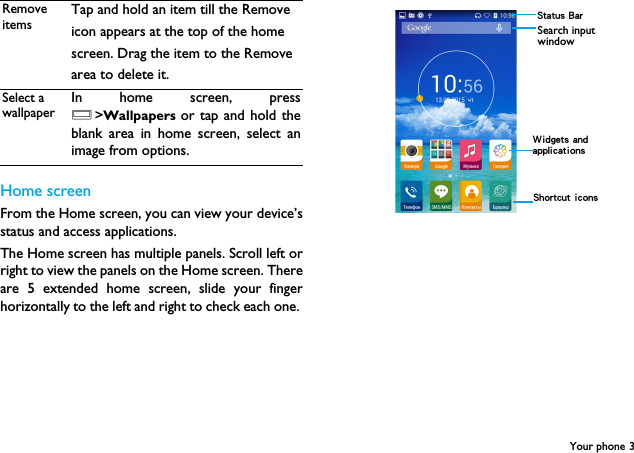
Your phone 3Home screenFrom the Home screen, you can view your device’sstatus and access applications.The Home screen has multiple panels. Scroll left orright to view the panels on the Home screen. Thereare 5 extended home screen, slide your fingerhorizontally to the left and right to check each one. Remove itemsTap and hold an item till the Removeicon appears at the top of the homescreen. Drag the item to the Removearea to delete it.Select a wallpaperIn home screen, pressO>Wallpapers  or tap and hold theblank area in home screen, select animage from options. Status BarShortcut iconsSearch input window Widgets and applications
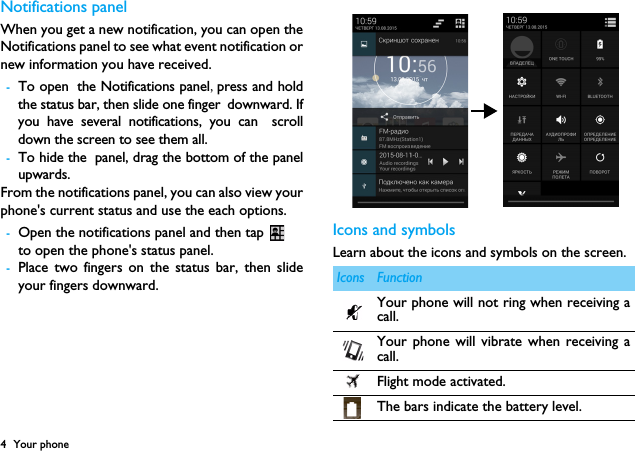
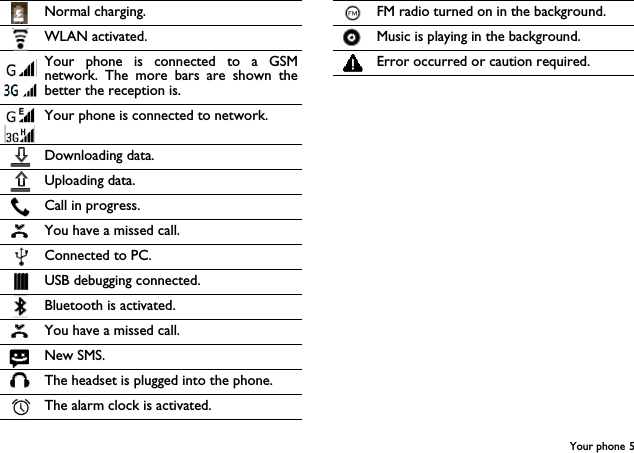
4 Your phoneNotifications panelWhen you get a new notification, you can open theNotifications panel to see what event notification ornew information you have received. -To open the Notifications panel,press and holdthe status bar, then slide one finger downward. Ifyou have several notifications, you can scrolldown the screen to see them all. -To hide the panel, drag the bottom of the panelupwards.From the notifications panel, you can also view yourphone's current status and use the each options.-Open the notifications panel and then tap to open the phone's status panel.-Place two fingers on the status bar, then slideyour fingers downward.Icons and symbolsLearn about the icons and symbols on the screen.Icons FunctionYour phone will not ring when receiving acall. Your phone will vibrate when receiving acall.Flight mode activated.The bars indicate the battery level.
Your phone 5Normal charging.WLAN activated.Your phone is connected to a GSMnetwork. The more bars are shown thebetter the reception is.Your phone is connected to network.Downloading data.Uploading data.Call in progress.You have a missed call.Connected to PC.USB debugging connected.Bluetooth is activated.You have a missed call.New SMS.The headset is plugged into the phone.The alarm clock is activated.FM radio turned on in the background.Music is playing in the background.Error occurred or caution required.
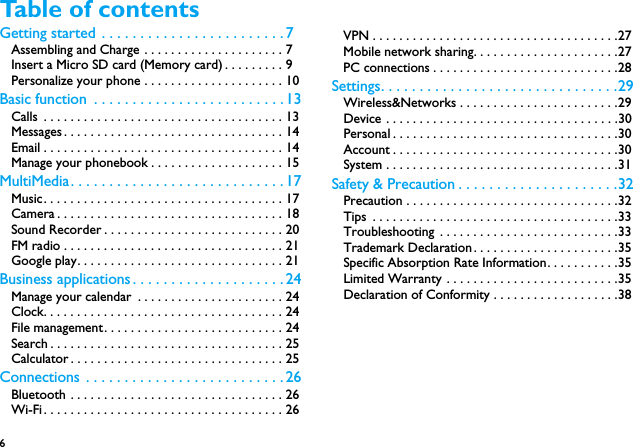
6 Table of contentsGetting started . . . . . . . . . . . . . . . . . . . . . . . . 7Assembling and Charge . . . . . . . . . . . . . . . . . . . . . 7Insert a Micro SD card (Memory card) . . . . . . . . . 9Personalize your phone . . . . . . . . . . . . . . . . . . . . . 10Basic function  . . . . . . . . . . . . . . . . . . . . . . . . . 13Calls  . . . . . . . . . . . . . . . . . . . . . . . . . . . . . . . . . . . . 13Messages . . . . . . . . . . . . . . . . . . . . . . . . . . . . . . . . . 14Email . . . . . . . . . . . . . . . . . . . . . . . . . . . . . . . . . . . . 14Manage your phonebook . . . . . . . . . . . . . . . . . . . . 15MultiMedia. . . . . . . . . . . . . . . . . . . . . . . . . . . . 17Music. . . . . . . . . . . . . . . . . . . . . . . . . . . . . . . . . . . . 17Camera . . . . . . . . . . . . . . . . . . . . . . . . . . . . . . . . . . 18Sound Recorder . . . . . . . . . . . . . . . . . . . . . . . . . . . 20FM radio . . . . . . . . . . . . . . . . . . . . . . . . . . . . . . . . . 21Google play. . . . . . . . . . . . . . . . . . . . . . . . . . . . . . . 21Business applications . . . . . . . . . . . . . . . . . . . .24Manage your calendar  . . . . . . . . . . . . . . . . . . . . . . 24Clock. . . . . . . . . . . . . . . . . . . . . . . . . . . . . . . . . . . . 24File management. . . . . . . . . . . . . . . . . . . . . . . . . . . 24Search . . . . . . . . . . . . . . . . . . . . . . . . . . . . . . . . . . . 25Calculator . . . . . . . . . . . . . . . . . . . . . . . . . . . . . . . . 25Connections . . . . . . . . . . . . . . . . . . . . . . . . . . 26Bluetooth . . . . . . . . . . . . . . . . . . . . . . . . . . . . . . . . 26Wi-Fi. . . . . . . . . . . . . . . . . . . . . . . . . . . . . . . . . . . . 26VPN . . . . . . . . . . . . . . . . . . . . . . . . . . . . . . . . . . . . .27Mobile network sharing. . . . . . . . . . . . . . . . . . . . . .27PC connections . . . . . . . . . . . . . . . . . . . . . . . . . . . .28Settings. . . . . . . . . . . . . . . . . . . . . . . . . . . . . . .29Wireless&Networks . . . . . . . . . . . . . . . . . . . . . . . .29Device . . . . . . . . . . . . . . . . . . . . . . . . . . . . . . . . . . .30Personal . . . . . . . . . . . . . . . . . . . . . . . . . . . . . . . . . .30Account . . . . . . . . . . . . . . . . . . . . . . . . . . . . . . . . . .30System . . . . . . . . . . . . . . . . . . . . . . . . . . . . . . . . . . .31Safety & Precaution . . . . . . . . . . . . . . . . . . . . .32Precaution . . . . . . . . . . . . . . . . . . . . . . . . . . . . . . . .32Tips  . . . . . . . . . . . . . . . . . . . . . . . . . . . . . . . . . . . . .33Troubleshooting . . . . . . . . . . . . . . . . . . . . . . . . . . .33Trademark Declaration. . . . . . . . . . . . . . . . . . . . . .35Specific Absorption Rate Information. . . . . . . . . . .35Limited Warranty . . . . . . . . . . . . . . . . . . . . . . . . . .35Declaration of Conformity . . . . . . . . . . . . . . . . . . .38
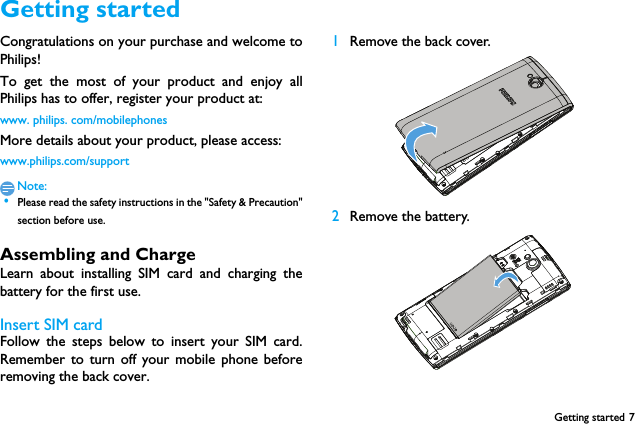
Getting started 7Getting startedCongratulations on your purchase and welcome toPhilips!To get the most of your product and enjoy allPhilips has to offer, register your product at:www. philips. com/mobilephonesMore details about your product, please access:www.philips.com/supportNote: •Please read the safety instructions in the "Safety & Precaution"section before use. Assembling and ChargeLearn about installing SIM card and charging thebattery for the first use.Insert SIM cardFollow the steps below to insert your SIM card.Remember to turn off your mobile phone beforeremoving the back cover. 1Remove the back cover.  2Remove the battery.
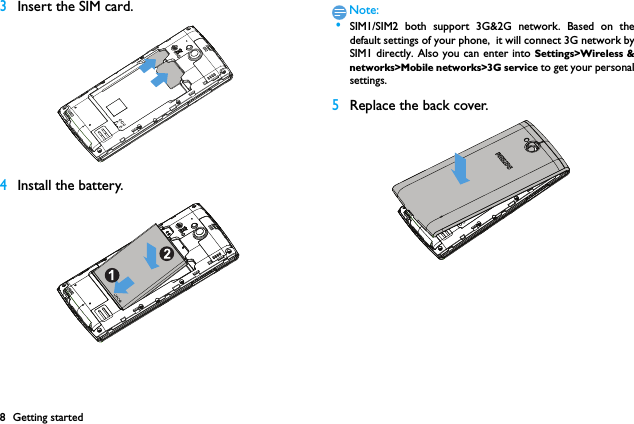
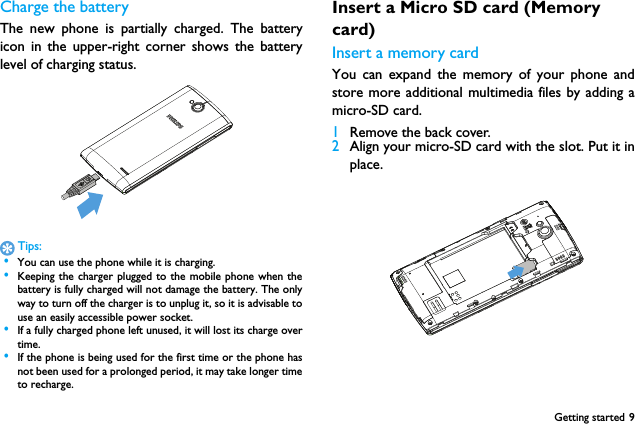
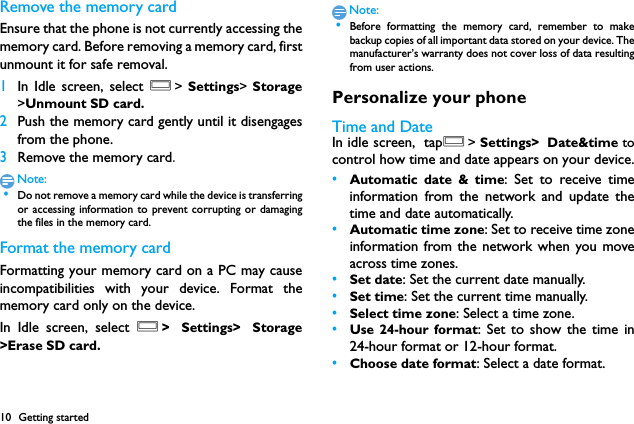
8 Getting started3Insert the SIM card.4Install the battery.Note: •SIM1/SIM2 both support 3G&2G network. Based on thedefault settings of your phone,  it will connect 3G network bySIM1 directly. Also you can enter into Settings>Wireless &networks>Mobile networks>3G service to get your personalsettings.5Replace the back cover.
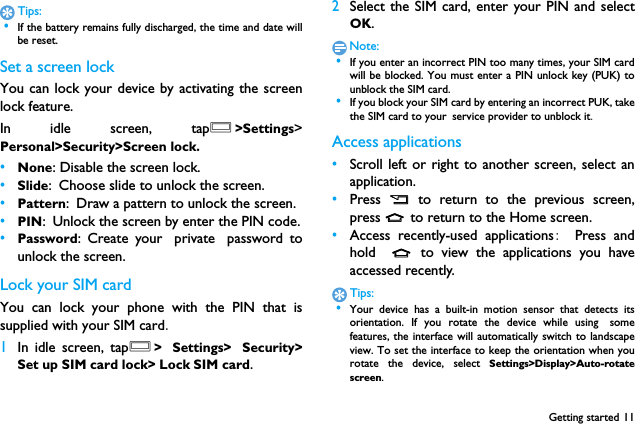
Getting started 9Charge the batteryThe new phone is partially charged. The batteryicon in the upper-right corner shows the batterylevel of charging status.Tips: •You can use the phone while it is charging. •Keeping the charger plugged to the mobile phone when thebattery is fully charged will not damage the battery. The onlyway to turn off the charger is to unplug it, so it is advisable touse an easily accessible power socket.  •If a fully charged phone left unused, it will lost its charge overtime. •If the phone is being used for the first time or the phone hasnot been used for a prolonged period, it may take longer timeto recharge.Insert a Micro SD card (Memory card)Insert a memory cardYou can expand the memory of your phone andstore more additional multimedia files by adding amicro-SD card.1Remove the back cover.2Align your micro-SD card with the slot. Put it inplace.
10 Getting startedRemove the memory cardEnsure that the phone is not currently accessing thememory card. Before removing a memory card, firstunmount it for safe removal.1In Idle screen, select O> Settings>  Storage>Unmount SD card.2Push the memory card gently until it disengagesfrom the phone.3Remove the memory card.Note: •Do not remove a memory card while the device is transferringor accessing information to prevent corrupting or damagingthe files in the memory card.Format the memory cardFormatting your memory card on a PC may causeincompatibilities with your device. Format thememory card only on the device.In Idle screen, select O> Settings> Storage>Erase SD card.Note: •Before formatting the memory card, remember to makebackup copies of all important data stored on your device. Themanufacturer’s warranty does not cover loss of data resultingfrom user actions.Personalize your phoneTime and DateIn idle screen, tapO> Settings> Date&time tocontrol how time and date appears on your device.•Automatic date & time: Set to receive timeinformation from the network and update thetime and date automatically.•Automatic time zone: Set to receive time zoneinformation from the network when you moveacross time zones.•Set date: Set the current date manually.•Set time: Set the current time manually.•Select time zone: Select a time zone.•Use 24-hour format: Set to show the time in24-hour format or 12-hour format.•Choose date format: Select a date format.
Getting started 11Tips: •If the battery remains fully discharged, the time and date willbe reset.Set a screen lockYou can lock your device by activating the screenlock feature. In idle screen, tapO>Settings>Personal>Security>Screen lock.•None: Disable the screen lock.•Slide: Choose slide to unlock the screen.•Pattern: Draw a pattern to unlock the screen.•PIN: Unlock the screen by enter the PIN code.•Password: Create your private password tounlock the screen.Lock your SIM cardYou can lock your phone with the PIN that issupplied with your SIM card.1In idle screen, tapO> Settings> Security>Set up SIM card lock> Lock SIM card.2Select the SIM card, enter your PIN and selectOK.Note: •If you enter an incorrect PIN too many times, your SIM cardwill be blocked. You must enter a PIN unlock key (PUK) tounblock the SIM card. •If you block your SIM card by entering an incorrect PUK, takethe SIM card to your service provider to unblock it.Access applications•Scroll left or right to another screen, select anapplication.•Press  B  to return to the previous screen,press M to return to the Home screen.•Access recently-used applications:  Press andhold  M to view the applications you haveaccessed recently. Tips: •Your device has a built-in motion sensor that detects itsorientation. If you rotate the device while using somefeatures, the interface will automatically switch to landscapeview. To set the interface to keep the orientation when yourotate the device, select Settings>Display>Auto-rotatescreen.
12 Getting startedManage applicationslearn about how to view the running apps, and •In idle screen, tap O>Settings>Apps.•Tap  Running, you can view all the running apps,tap this app to enter it, you can tap Stop tochoose stop running.•Tap   Downloaded, you can view all thedownloaded apps, tap this app to enter it, youcan check the detailed information of this app,tap Uninstall to choose unloading it.•Tap   SD card, you can view the appsdownloaded on the SD card, you can choose tomove these apps to the phone.
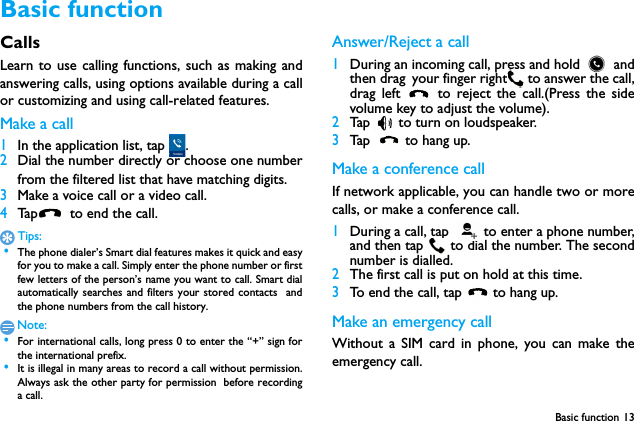
Basic function 13Basic functionCallsLearn to use calling functions, such as making andanswering calls, using options available during a callor customizing and using call-related features.Make a call 1In the application list, tap  .2Dial the number directly or choose one numberfrom the filtered list that have matching digits.3Make a voice call or a video call.4Tap   to end the call.Tips: •The phone dialer’s Smart dial features makes it quick and easyfor you to make a call. Simply enter the phone number or firstfew letters of the person’s name you want to call. Smart dialautomatically searches and filters your stored contacts  andthe phone numbers from the call history.Note: •For international calls, long press 0 to enter the “+” sign forthe international prefix. •It is illegal in many areas to record a call without permission.Always ask the other party for permission before recordinga call.Answer/Reject a call1During an incoming call, press and hold   andthen drag your finger right  to answer the call,drag left   to reject the call.(Press the sidevolume key to adjust the volume).2Tap   to turn on loudspeaker.3Tap   to hang up.Make a conference callIf network applicable, you can handle two or morecalls, or make a conference call.1During a call, tap  to enter a phone number,and then tap  to dial the number. The secondnumber is dialled.2The first call is put on hold at this time.3To end the call, tap  to hang up.Make an emergency callWithout a SIM card in phone, you can make theemergency call.
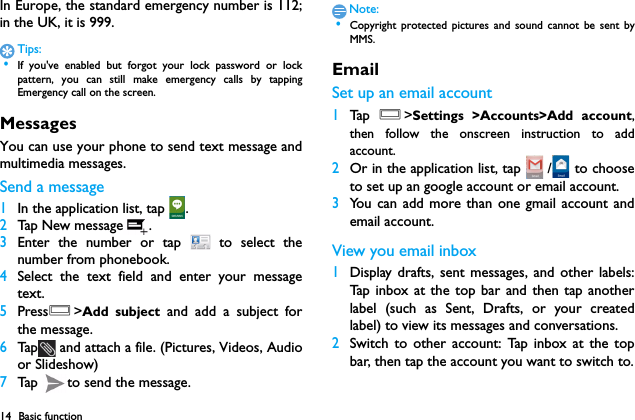
14 Basic functionIn Europe, the standard emergency number is 112;in the UK, it is 999.Tips: •If you've enabled but forgot your lock password or lockpattern, you can still make emergency calls by tappingEmergency call on the screen.MessagesYou can use your phone to send text message andmultimedia messages.Send a message1In the application list, tap  .2Tap New message .3Enter the number or tap   to select thenumber from phonebook.4Select the text field and enter your messagetext.5PressO>Add subject and add a subject forthe message.6Tap  and attach a file. (Pictures, Videos, Audioor Slideshow)7Tap  to send the message.Note: •Copyright protected pictures and sound cannot be sent byMMS.EmailSet up an email account1Ta p  O>Settings >Accounts>Add account,then follow the onscreen instruction to addaccount.2Or in the application list, tap   /  to chooseto set up an google account or email account.3You can add more than one gmail account andemail account.View you email inbox1Display drafts, sent messages, and other labels:Tap inbox at the top bar and then tap anotherlabel (such as Sent, Drafts, or your createdlabel) to view its messages and conversations.2Switch to other account: Tap inbox at the topbar, then tap the account you want to switch to.
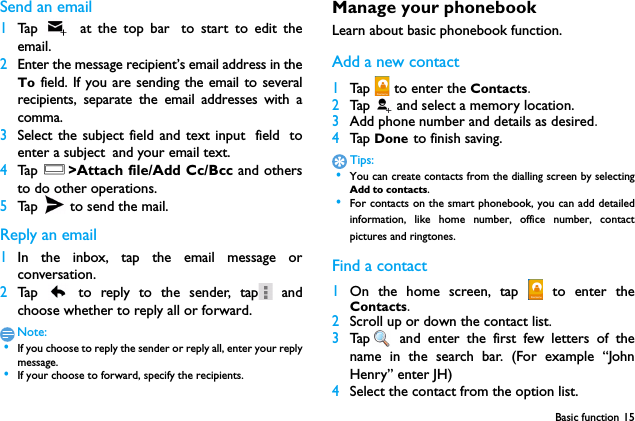
Basic function 15Send an email1Ta p   at the top bar to start to edit theemail.2Enter the message recipient’s email address in theTo field. If you are sending the email to severalrecipients, separate the email addresses with acomma.3Select the subject field and text input field toenter a subject and your email text.4Ta p  O>Attach file/Add Cc/Bcc and othersto do other operations.5Tap   to send the mail.Reply an email1In the inbox, tap the email message orconversation.2Tap   to reply to the sender, tap  andchoose whether to reply all or forward.Note: •If you choose to reply the sender or reply all, enter your replymessage. •If your choose to forward, specify the recipients.Manage your phonebookLearn about basic phonebook function.Add a new contact1Tap   to enter the Contacts.2Tap    and select a memory location.3Add phone number and details as desired.4Tap  Done to finish saving.Tips: •You can create contacts from the dialling screen by selectingAdd to contacts. •For contacts on the smart phonebook, you can add detailedinformation, like home number, office number, contactpictures and ringtones.Find a contact1On the home screen, tap   to enter theContacts.2Scroll up or down the contact list.3Tap  and enter the first few letters of thename in the search bar. (For example “JohnHenry” enter JH)4Select the contact from the option list.
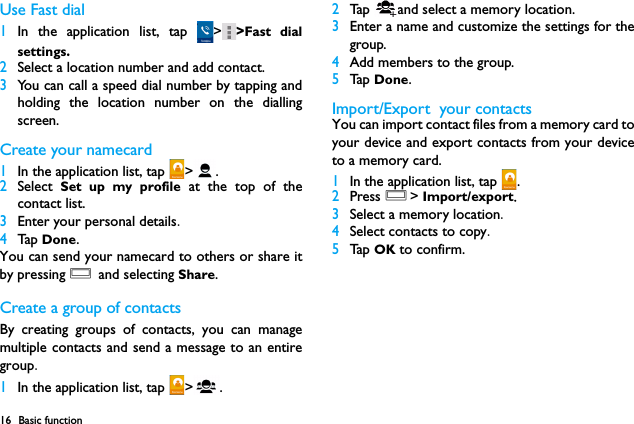
16 Basic functionUse Fast dial1In the application list, tap  > >Fast dialsettings.2Select a location number and add contact.3You can call a speed dial number by tapping andholding the location number on the diallingscreen.Create your namecard1In the application list, tap  > .2Select  Set up my profile at the top of thecontact list.3Enter your personal details.4Tap  Done.You can send your namecard to others or share itby pressing O and selecting Share.Create a group of contactsBy creating groups of contacts, you can managemultiple contacts and send a message to an entiregroup.1In the application list, tap  > .2Tap  and select a memory location.3Enter a name and customize the settings for thegroup.4Add members to the group.5Ta p  Done.Import/Export  your contactsYou can import contact files from a memory card toyour device and export contacts from your deviceto a memory card.1In the application list, tap  .2Press O> Import/export.3Select a memory location.4Select contacts to copy.5Ta p  OK to confirm.
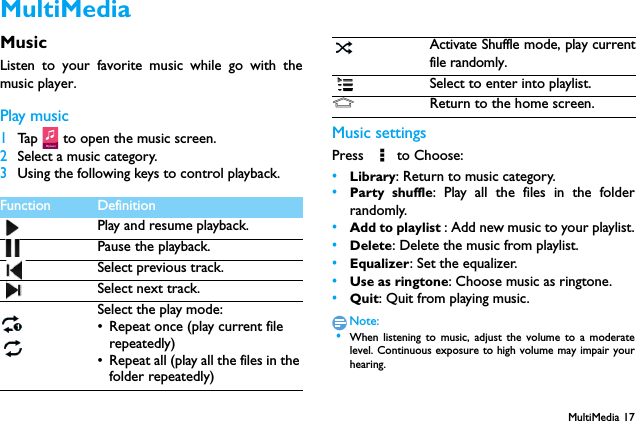
MultiMedia 17MultiMediaMusicListen to your favorite music while go with themusic player.Play music1Ta p  tto open the music screen.2Select a music category.3Using the following keys to control playback.Music settingsPress  to Choose:•Library: Return to music category.•Party shuffle: Play all the files in the folderrandomly.•Add to playlist : Add new music to your playlist.•Delete: Delete the music from playlist.•Equalizer: Set the equalizer.•Use as ringtone: Choose music as ringtone.•Quit: Quit from playing music.Note: •When listening to music, adjust the volume to a moderatelevel. Continuous exposure to high volume may impair yourhearing.Function DefinitionPlay and resume playback.Pause the playback.Select previous track.Select next track.Select the play mode:• Repeat once (play current file repeatedly)• Repeat all (play all the files in the folder repeatedly)Activate Shuffle mode, play currentfile randomly.Select to enter into playlist.MReturn to the home screen.
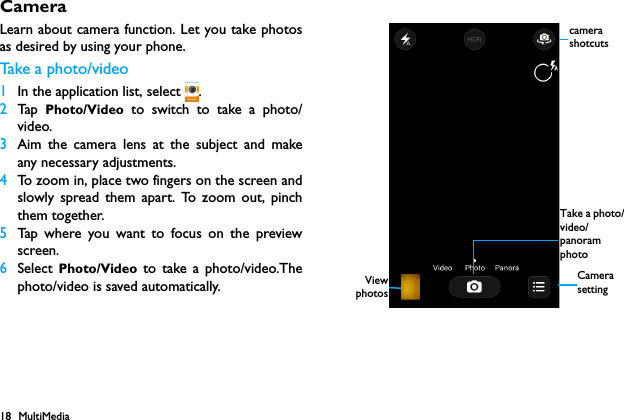
18 MultiMediaCameraLearn about camera function. Let you take photosas desired by using your phone.Take  a  p h o t o / v i d e o1In the application list, select  .2Tap   Photo/Video to switch to take a photo/video.3Aim the camera lens at the subject and makeany necessary adjustments.4To zoom in, place two fingers on the screen andslowly spread them apart. To zoom out, pinchthem together.5Tap where you want to focus on the previewscreen.6Select Photo/Video to take a photo/video.Thephoto/video is saved automatically. ViewphotosCamera settingTake a photo/video/panoram photocamera shotcuts
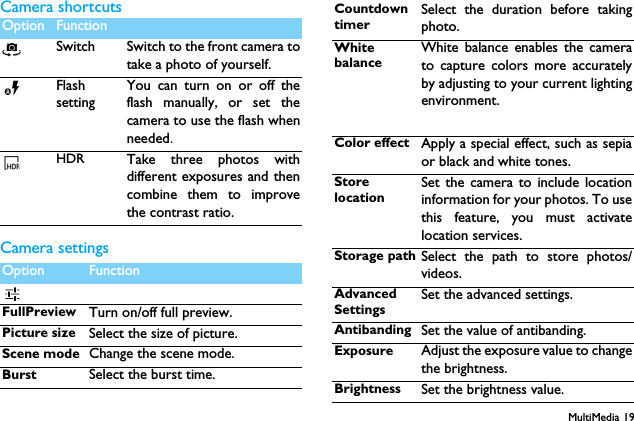
MultiMedia 19Camera shortcutsCamera settingsOption FunctionSwitch Switch to the front camera totake a photo of yourself.FlashsettingYou can turn on or off theflash manually, or set thecamera to use the flash whenneeded.HDR Take three photos withdifferent exposures and thencombine them to improvethe contrast ratio.Option FunctionFullPreview Turn on/off full preview.Picture size Select the size of picture.Scene mode Change the scene mode.Burst Select the burst time.Countdown timerSelect the duration before takingphoto.White balanceWhite balance enables the camerato capture colors more accuratelyby adjusting to your current lightingenvironment.Color effect Apply a special effect, such as sepiaor black and white tones.Store locationSet the camera to include locationinformation for your photos. To usethis feature, you must activatelocation services.Storage path Select the path to store photos/videos.Advanced SettingsSet the advanced settings.Antibanding Set the value of antibanding.Exposure Adjust the exposure value to changethe brightness.Brightness Set the brightness value.
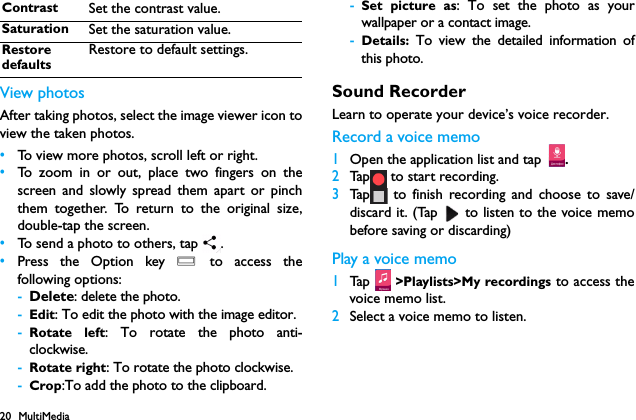
20 MultiMediaView photosAfter taking photos, select the image viewer icon toview the taken photos.•To view more photos, scroll left or right.•To zoom in or out, place two fingers on thescreen and slowly spread them apart or pinchthem together. To return to the original size,double-tap the screen.•To send a photo to others, tap  .•Press the Option key O to access thefollowing options:-Delete: delete the photo.-Edit: To edit the photo with the image editor.-Rotate left: To rotate the photo anti-clockwise.-Rotate right: To rotate the photo clockwise.-Crop:To add the photo to the clipboard.-Set picture as: To set the photo as yourwallpaper or a contact image.-Details:  To view the detailed information ofthis photo.Sound RecorderLearn to operate your device’s voice recorder.Record a voice memo1Open the application list and tap .2Tap  to start recording.3Tap  to finish recording and choose to save/discard it. (Tap   to listen to the voice memobefore saving or discarding)Play a voice memo1Tap  >Playlists>My recordings to access thevoice memo list.2Select a voice memo to listen.Contrast Set the contrast value.Saturation Set the saturation value.Restore defaultsRestore to default settings.
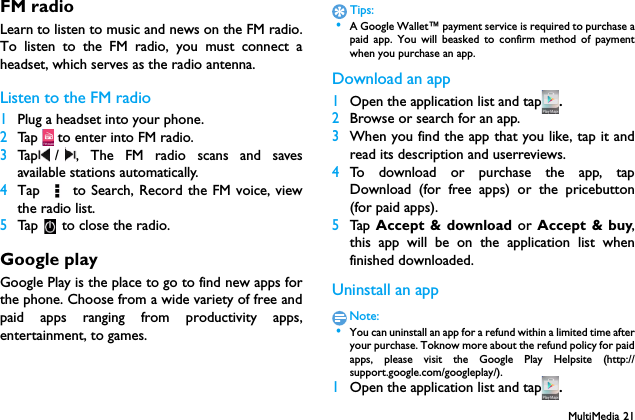
MultiMedia 21FM radioLearn to listen to music and news on the FM radio.To listen to the FM radio, you must connect aheadset, which serves as the radio antenna.Listen to the FM radio1Plug a headset into your phone.2Tap   to enter into FM radio.3Tap / , The FM radio scans and savesavailable stations automatically.4Tap   to Search, Record the FM voice, viewthe radio list.5Tap   to close the radio.Google playGoogle Play is the place to go to find new apps forthe phone. Choose from a wide variety of free andpaid apps ranging from productivity apps,entertainment, to games.Tips: •A Google Wallet™ payment service is required to purchase apaid app. You will beasked to confirm method of paymentwhen you purchase an app.Download an app1Open the application list and tap .2Browse or search for an app.3When you find the app that you like, tap it andread its description and userreviews.4To download or purchase the app, tapDownload (for free apps) or the pricebutton(for paid apps).5Tap   Accept & download or Accept & buy,this app will be on the application list whenfinished downloaded.Uninstall an appNote: •You can uninstall an app for a refund within a limited time afteryour purchase. Toknow more about the refund policy for paidapps, please visit the Google Play Helpsite (http://support.google.com/googleplay/).1Open the application list and tap .
22 MultiMedia2Tap   O>My apps, tap the app you want touninstall, and then tap Uninstall.3If you need help or have questions about GooglePlay, tap O> Help.
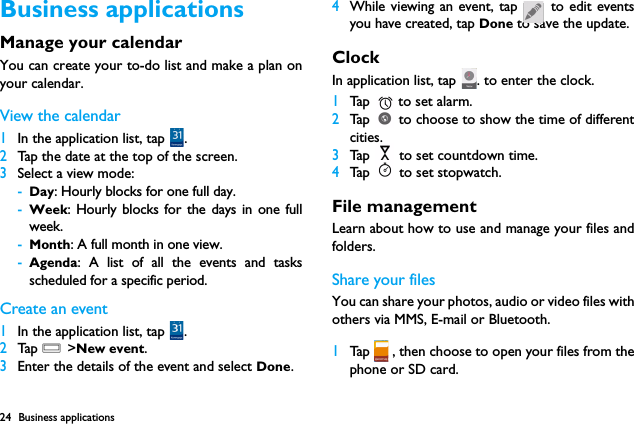
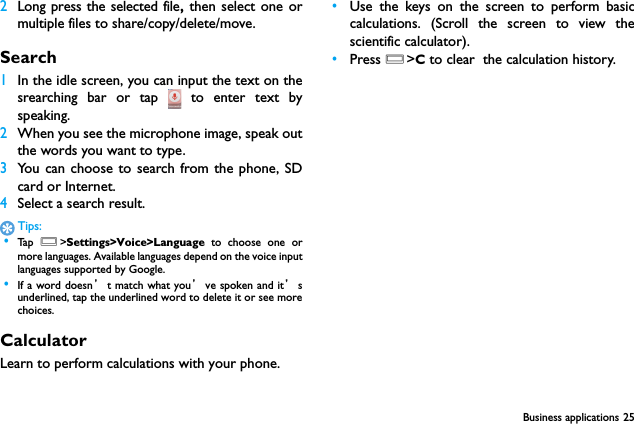
24 Business applicationsBusiness applicationsManage your calendarYou can create your to-do list and make a plan onyour calendar.View the calendar1In the application list, tap  . 2Tap the date at the top of the screen.3Select a view mode:-Day: Hourly blocks for one full day.-Week: Hourly blocks for the days in one fullweek.-Month: A full month in one view.-Agenda: A list of all the events and tasksscheduled for a specific period.Create an event1In the application list, tap  . 2Tap  O >New event.3Enter the details of the event and select Done.4While viewing an event, tap   to edit eventsyou have created, tap Done to save the update.Clock In application list, tap  . to enter the clock. 1Tap   to set alarm.2Tap   to choose to show the time of differentcities.3Tap   to set countdown time.4Tap   to set stopwatch.File managementLearn about how to use and manage your files andfolders.Share your filesYou can share your photos, audio or video files withothers via MMS, E-mail or Bluetooth.1Tap   , then choose to open your files from thephone or SD card.
Business applications 252Long press the selected file, then select one ormultiple files to share/copy/delete/move.Search1In the idle screen, you can input the text on thesrearching bar or tap   to enter text byspeaking.2When you see the microphone image, speak outthe words you want to type.3You can choose to search from the phone, SDcard or Internet.4Select a search result.Tips: •Ta p   O>Settings>Voice>Language to choose one ormore languages. Available languages depend on the voice inputlanguages supported by Google. •If a word doesn’t match what you’ve spoken and it’sunderlined, tap the underlined word to delete it or see morechoices.CalculatorLearn to perform calculations with your phone.•Use the keys on the screen to perform basiccalculations. (Scroll the screen to view thescientific calculator).•Press O>C to clear  the calculation history.
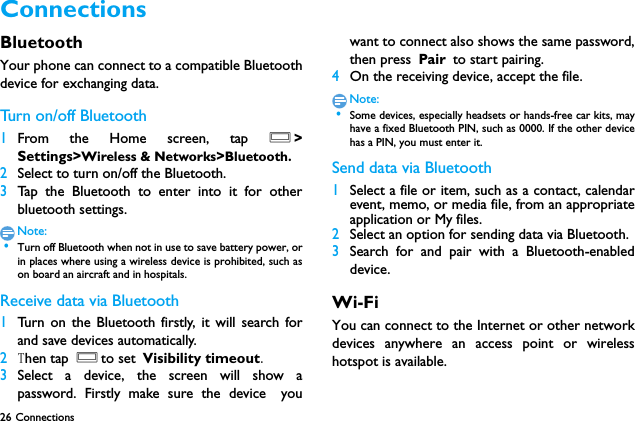
26 Connections Connections BluetoothYour phone can connect to a compatible Bluetoothdevice for exchanging data.Tur n  on / o ff  B l uet o oth1From the Home screen, tap O>Settings>Wireless & Networks>Bluetooth.2Select to turn on/off the Bluetooth.3Tap the Bluetooth to enter into it for otherbluetooth settings.Note: •Turn off Bluetooth when not in use to save battery power, orin places where using a wireless device is prohibited, such ason board an aircraft and in hospitals.Receive data via Bluetooth1Turn on the Bluetooth firstly, it will search forand save devices automatically. 2Then tap Oto set Visibility timeout.3Select a device, the screen will show apassword. Firstly make sure the device youwant to connect also shows the same password,then press Pair to start pairing.4On the receiving device, accept the file.Note: •Some devices, especially headsets or hands-free car kits, mayhave a fixed Bluetooth PIN, such as 0000. If the other devicehas a PIN, you must enter it.Send data via Bluetooth1Select a file or item, such as a contact, calendarevent, memo, or media file, from an appropriateapplication or My files.2Select an option for sending data via Bluetooth.3Search for and pair with a Bluetooth-enableddevice. Wi-FiYou can connect to the Internet or other networkdevices anywhere an access point or wirelesshotspot is available.
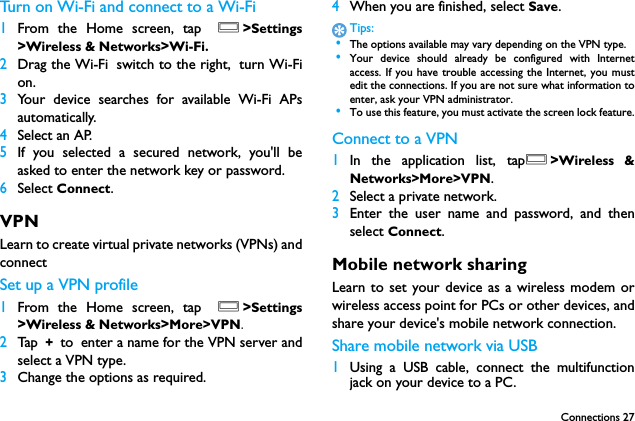
Connections 27Turn on Wi-Fi and connect to a Wi-Fi 1From the Home screen, tap O>Settings>Wireless & Networks>Wi-Fi.2Drag the Wi-Fi switch to the right, turn Wi-Fion.3Your device searches for available Wi-Fi APsautomatically.4Select an AP.5If you selected a secured network, you'll beasked to enter the network key or password.6Select Connect.VPNLearn to create virtual private networks (VPNs) andconnectSet up a VPN profile1From the Home screen, tap O>Settings>Wireless & Networks>More>VPN.2Tap  + to enter a name for the VPN server andselect a VPN type.3Change the options as required.4When you are finished, select Save.Tips: •The options available may vary depending on the VPN type. •Your device should already be configured with Internetaccess. If you have trouble accessing the Internet, you mustedit the connections. If you are not sure what information toenter, ask your VPN administrator. •To use this feature, you must activate the screen lock feature.Connect to a VPN1In the application list, tapO>Wireless &Networks>More>VPN.2Select a private network.3Enter the user name and password, and thenselect Connect.Mobile network sharingLearn to set your device as a wireless modem orwireless access point for PCs or other devices, andshare your device's mobile network connection.Share mobile network via USB1Using a USB cable, connect the multifunctionjack on your device to a PC.
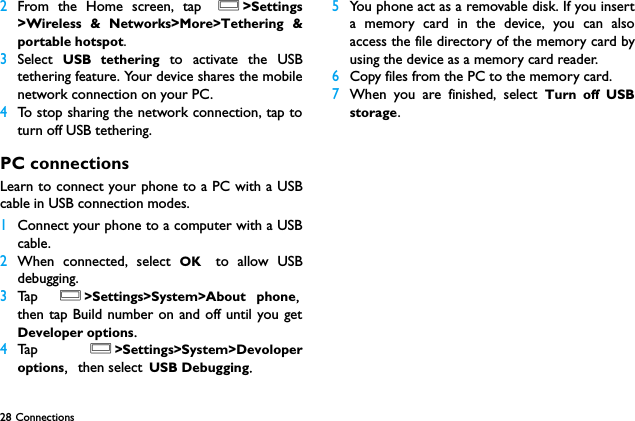
28 Connections 2From the Home screen, tap O>Settings>Wireless & Networks>More>Tethering &portable hotspot.3Select  USB tethering to activate the USBtethering feature. Your device shares the mobilenetwork connection on your PC.4To stop sharing the network connection, tap toturn off USB tethering.PC connectionsLearn to connect your phone to a PC with a USBcable in USB connection modes.1Connect your phone to a computer with a USBcable.2When connected, select OK to allow USBdebugging.3Ta p  O>Settings>System>About phone,then tap Build number on and off until you getDeveloper options. 4Ta p  O>Settings>System>Devoloperoptions, then select USB Debugging.5You phone act as a removable disk. If you inserta memory card in the device, you can alsoaccess the file directory of the memory card byusing the device as a memory card reader.6Copy files from the PC to the memory card.7When you are finished, select Turn off USBstorage.
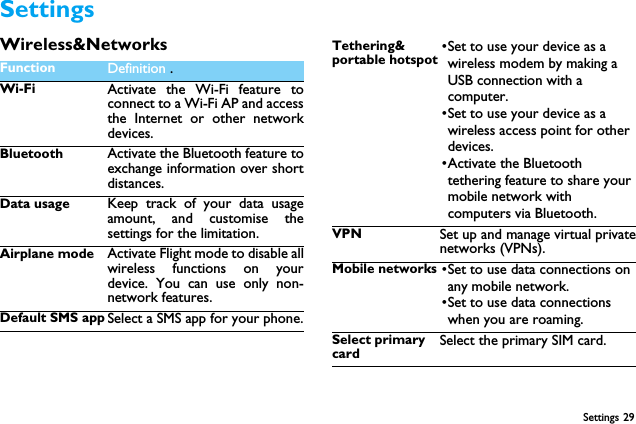
Settings 29SettingsWireless&NetworksFunction Definition .Wi-Fi Activate the Wi-Fi feature toconnect to a Wi-Fi AP and accessthe Internet or other networkdevices.Bluetooth Activate the Bluetooth feature toexchange information over shortdistances.Data usage Keep track of your data usageamount, and customise thesettings for the limitation.Airplane mode Activate Flight mode to disable allwireless functions on yourdevice. You can use only non-network features.Default SMS app Select a SMS app for your phone.Tethering& portable hotspot•Set to use your device as a wireless modem by making a USB connection with a computer.•Set to use your device as a wireless access point for other devices.•Activate the Bluetooth tethering feature to share your mobile network with computers via Bluetooth.VPN Set up and manage virtual privatenetworks (VPNs).Mobile networks •Set to use data connections on any mobile network.•Set to use data connections when you are roaming.Select primary cardSelect the primary SIM card.
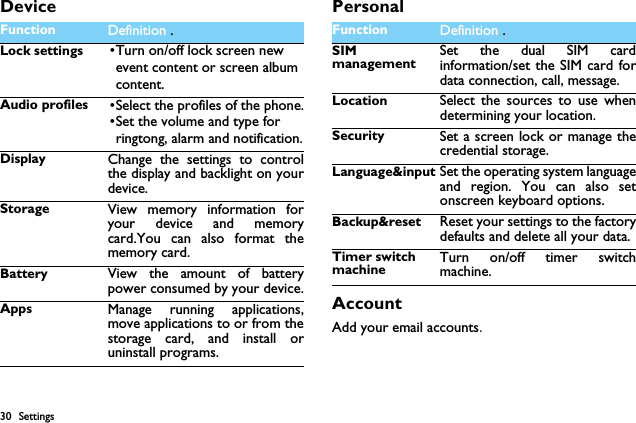
30 SettingsDevice PersonalAccountAdd your email accounts.Function Definition .Lock settings •Turn on/off lock screen new event content or screen album content.Audio profiles •Select the profiles of the phone.•Set the volume and type for ringtong, alarm and notification.Display Change the settings to controlthe display and backlight on yourdevice.Storage View memory information foryour device and memorycard.You can also format thememory card.Battery View the amount of batterypower consumed by your device.Apps Manage running applications,move applications to or from thestorage card, and install oruninstall programs.Function Definition .SIM managementSet the dual SIM cardinformation/set the SIM card fordata connection, call, message.Location Select the sources to use whendetermining your location.Security Set a screen lock or manage thecredential storage.Language&input Set the operating system languageand region. You can also setonscreen keyboard options.Backup&reset Reset your settings to the factorydefaults and delete all your data.Timer switch machineTurn on/off timer switchmachine.
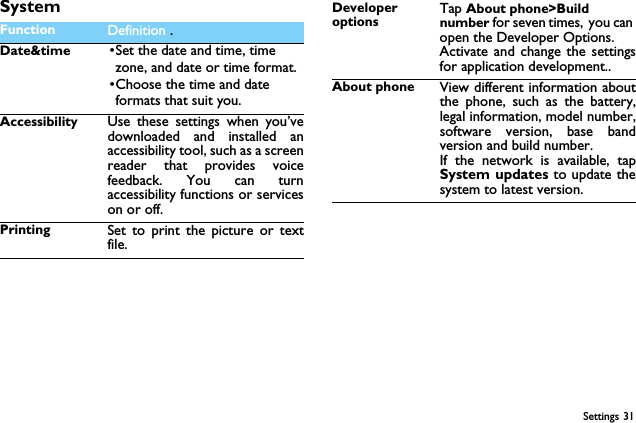
Settings 31SystemFunction Definition .Date&time •Set the date and time, time zone, and date or time format.•Choose the time and date formats that suit you.Accessibility Use these settings when you’vedownloaded and installed anaccessibility tool, such as a screenreader that provides voicefeedback. You can turnaccessibility functions or serviceson or off.Printing Set to print the picture or textfile.Developer optionsTap About phone>Build number for seven times, you can open the Developer Options.Activate and change the settingsfor application development..About phone View different information aboutthe phone, such as the battery,legal information, model number,software version, base bandversion and build number.If the network is available, tapSystem updates to update thesystem to latest version.
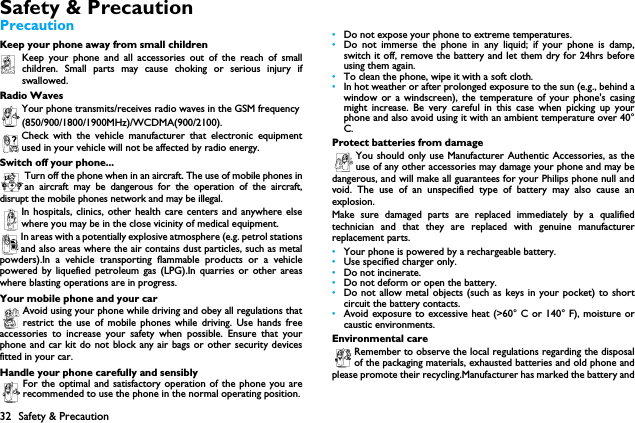
32 Safety & PrecautionSafety & PrecautionPrecautionKeep your phone away from small childrenKeep your phone and all accessories out of the reach of smallchildren. Small parts may cause choking or serious injury ifswallowed.Radio WavesYour phone transmits/receives radio waves in the GSM frequency(850/900/1800/1900MHz)/WCDMA(900/2100).Check with the vehicle manufacturer that electronic equipmentused in your vehicle will not be affected by radio energy.Switch off your phone...Turn off the phone when in an aircraft. The use of mobile phones inan aircraft may be dangerous for the operation of the aircraft,disrupt the mobile phones network and may be illegal.In hospitals, clinics, other health care centers and anywhere elsewhere you may be in the close vicinity of medical equipment.In areas with a potentially explosive atmosphere (e.g. petrol stationsand also areas where the air contains dust particles, such as metalpowders).In a vehicle transporting flammable products or a vehiclepowered by liquefied petroleum gas (LPG).In quarries or other areaswhere blasting operations are in progress.Your mobile phone and your carAvoid using your phone while driving and obey all regulations thatrestrict the use of mobile phones while driving. Use hands freeaccessories to increase your safety when possible. Ensure that yourphone and car kit do not block any air bags or other security devicesfitted in your car.Handle your phone carefully and sensiblyFor the optimal and satisfactory operation of the phone you arerecommended to use the phone in the normal operating position.•Do not expose your phone to extreme temperatures.•Do not immerse the phone in any liquid; if your phone is damp,switch it off, remove the battery and let them dry for 24hrs beforeusing them again.•To clean the phone, wipe it with a soft cloth.•In hot weather or after prolonged exposure to the sun (e.g., behind awindow or a windscreen), the temperature of your phone's casingmight increase. Be very careful in this case when picking up yourphone and also avoid using it with an ambient temperature over 40°C.Protect batteries from damageYou should only use Manufacturer Authentic Accessories, as theuse of any other accessories may damage your phone and may bedangerous, and will make all guarantees for your Philips phone null andvoid. The use of an unspecified type of battery may also cause anexplosion.Make sure damaged parts are replaced immediately by a qualifiedtechnician and that they are replaced with genuine manufacturerreplacement parts.•Your phone is powered by a rechargeable battery.•Use specified charger only.•Do not incinerate.•Do not deform or open the battery.•Do not allow metal objects (such as keys in your pocket) to shortcircuit the battery contacts.•Avoid exposure to excessive heat (>60° C or 140° F), moisture orcaustic environments.Environmental careRemember to observe the local regulations regarding the disposalof the packaging materials, exhausted batteries and old phone andplease promote their recycling.Manufacturer has marked the battery and
Safety & Precaution 33packaging with standard symbols designed to promote the recycling andappropriate disposal of your eventual waste.:The labeled packaging material is recyclable.:A financial contribution has been made to the associated nationalpackaging recovery and recycling system.:The plastic material is recyclable (also identifies the type of plastic).Hearing ProtectionWhen listening to music, adjust the volume to a moderatelevel. Continuous exposure to high volume may impair your hearing.it is recommended to keep it away from your body and head at least15mm during operation.WEEE Marking in the DFU: “Information to the Consumer”Disposal of your old productYour product is designed and manufactured with high quality materialsand components, which can be recycled and reused. When this crossed-out wheeled bin symbol is attached to aproduct it means the product is covered by the EuropeanDirective 2002/96/ECPlease inform yourself about the local separate collection systemfor electrical and electronic products.Please act according to your local rules and do not dispose of your oldproducts with your normal household waste. The correct disposal ofyour old product will help prevent potential negative consequences forthe environment and human health.This device may contain commodities, technology or software subject toexport laws and regulations from the US and other countries. Diversioncontrary to law is prohibited.TipsPacemakersIf you have a pacemaker:•Always keep the phone more than 15 cm from your pacemakerwhen the phone is switched on, in order to avoid potentialinterference.•Do not carry the phone in a breast pocket.•Use the ear opposite to the pacemaker to minimize the potentialinterference.•Switch off your phone if you suspect that interference is taking place.Hearing aidsIf you are a user of a hearing aid, consult your physician and hearing aidmanufacturer to learn whether your particular device is susceptible tocellular phone interference.How to prolong the battery life of your phone To have your mobile phone function properly, sufficient battery poweris important. For the power-saving purpose, do the following, ifapplicable:•Turn off the Bluetooth function of your phone. •Set the backlight level and duration of your phone to a low value. •Turn on the auto keypad lock, turn off the key sounds, tap vibration,or vibration alerts. •Establish GPRS connection when needed. Otherwise, your phonewill keep searching for GPRS connection, and drain your batterypower. •Turn off your phone if there is no coverage. Otherwise, the phonewill keep searching for network, and drain your battery power. TroubleshootingThe phone does not switch onRemove/reinstall the battery. Then charge the phone until the batteryicon stops scrolling. Unplug the charger and try to switch the mobile on.The display shows BLOCKED when you switch on the phoneSomebody tried to use your phone but didn’t know the PIN code northe unblocking code (PUK). Contact your service provider.
34 Safety & PrecautionThe display shows IMSI failureThis problem is related to your subscription. Contact your operator.Your phone doesn’t return to idle screenLong press the hang-up key or switch off the phone, check that the SIMcard and the battery are installed correctly and switch it on again.The network symbol is not displayedThe network connection is lost. Either you are in a radio shadow (in atunnel or between tall buildings) or you are outside the networkcoverage area. Try from another place, try to reconnect to the network(especially when abroad), check that the antenna is in place if your mobilehas an external antenna, or contact your network operator forassistance/information.The display doesn’t respond (or the display responds slowly) to key pressesThe display responds more slowly at very low temperatures. This isnormal and does not affect the operation of the phone. Take the phoneto a warmer place and try again. In other cases please contact yourphone supplier.Your battery seems to over heatYou might be using a charger that was not intended for use with yourphone. Make sure you always use the manufacturer authentic accessoryshipped with your phone.Your phone doesn’t display the phone numbers of incoming callsThis feature is network and subscription dependent. If the networkdoesn’t send the caller’s number, the phone will display Call 1 orWithheld instead. Contact your operator for detailed information onthis subject.You can’t send text messagesSome networks don’t allow message exchanges with other networks.First check that you have entered the number of your SMS centre, orcontact your operator for detailed information on this subject.You can’t receive and/or store JPEG picturesA picture may not be accepted by your mobile phone if it is too large, ifits name is too long, or if it doesn’t have the correct file format.You feel that you have missed some callsCheck your call divert options.When charging, the battery icon shows no bar and the outline is flashingOnly charge the battery in an environment where the temperature doesnot go below 0°C (32°F) or above 50°C (113°F).In other cases please contact your phone supplier.The display shows SIM failureCheck that the SIM card has been inserted correctly. If the problempersists, your SIM card may be damaged. Contact your operator.When attempting to use a feature in the menu, the display shows NOT ALLOWEDSome features are network dependent. They are only available,therefore, if the network or your subscription supports them. Contactyour operator for detailed information on this subject.The display shows INSERT YOUR SIM CARDCheck that the SIM card has been inserted correctly. If the problempersists, your SIM card may be damaged. Contact your operator.The autonomy of your phone seems lower than indicated on the user guideThe autonomy is linked to your settings (e.g., ringer volume, backlightduration) and the features you use. To increase the autonomy, andwhenever possible, you must deactivate features you do not use.Your phone doesn’t work well in your carA car contains many metallic parts that absorb electromagnetic waveswhich can affect the phone’s performance. A car kit is available toprovide you with an external antenna and enables you to make andreceive phone calls without handling the handset.
Safety & Precaution 35Note: •Check with the local authorities whether or not you are allowed touse the phone while driving.Your phone is not chargingIf the battery is completely flat, it might take several minutes of pre-charge (up to 5 minutes in some cases) before the charging icon isdisplayed on the screen.The picture captured with the phone camera is not clearMake sure that the camera lens on both sides is clean.Trademark DeclarationFCC ComplianceThis device complies with part 15 of the FCC Rules. Operation is subjectto the condition that this device does not cause harmful interference.Caution: Changes or modifications not expressly approved by themanufacturer could void the user’s authority to operate the equipment.Note: This equipment has been tested and found to comply with thelimits for a Class B digital device, pursuant to part 15 of the FCC Rules.These limits are designed to provide reasonable protection againstharmful interference in a residential installation. This equipmentgenerates, uses and can radiate radio frequency energy and, if notinstalled and used in accordance with the instructions, may cause harmfulinterference to radio communications. However, there is no guaranteethat interference will not occur in a particular installation. If thisequipment does cause harmful interference to radio or televisionreception, which can be determined by turning the equipment off and on,the user is encouraged to try to correct the interference by one or moreof the following measures:—Reorient or relocate the receiving antenna.—Increase the separation between the equipment and receiver.—Connect the equipment into an outlet on a circuit different from thatto which the receiver is connected.—Consult the dealer or an experienced radio/ TV technician for help.This device complies with Part 15 of the FCC Rules. Operation is subjectto the following two conditions: •This device may not cause harmful interference. •This device must accept any interference received, includinginterference that may cause undesired operation.Health and safety informationRadio Frequency (RF) EnergyThis model phone meets the government’s requirements for exposureto radio waves.This phone is designed and manufactured not to exceed the emissionlimits for exposure to radio frequency (RF) energy set by the FederalCommunications Commission of the U.S. Government:The exposure standard for wireless mobile phones employs a unit ofmeasurement known as the Specific Absorption Rate, or SAR.  The SARlimit set by the FCC is 1.6W/kg. Tests for SAR are conducted usingstandard operating positions accepted by the FCC with the phonetransmitting at its highest certified power level in all tested frequencybands.  Although the SAR is determined at the highest certified powerlevel, the actual SAR level of the phone while operating can be well belowAndroid Android is a trademark of Google, Inc.Bluetooth™ Bluetooth™ is a trade-mark owned bytelefonaktiebolaget L M Ericsson, Sweden and licensedto Philips.Philips PHILIPS and PHILIPS’ Shield Emblem are registeredtrademarks of Koninklijke Philips N.V. manufactured byShenzhen Sang Fei Consumer Communications Co.,Ltd.  Under license from Koninklijke Philips N.V..
36 Safety & Precautionthe maximum value.  This is because the phone is designed to operate atmultiple power levels so as to use only the poser required to reach thenetwork.  In general, the closer you are to a wireless base stationantenna, the lower the power output.The highest SAR value for the model phone as reported to the FCC when  tested  for use  at  the  ear  is  0.75  W/kg  and  when  worn  on  the body, as  described  in  this  user  guide,  is  1.21  W/kg  (Body-worn measurements differ  among  phone  models,  depending  upon  available enhancements and FCC requirements).While there may be differences between the SAR levels of variousphones and at various positions, they all meet the governmentrequirement.The FCC has granted an Equipment Authorization for this model phonewith all reported SAR levels evaluated as in compliance with the FCC RFexposure guidelines.  SAR information on this model phone is on file withthe FCC and can be found under the Display Grant section of http://www.fcc.gov/oet/fccid after searching on FCC ID: VQRCTS307For body worn operation, this phone has been tested and meets the FCCRF exposure guidelines for use with an accessory that contains no metaland the positions the handset a minimum of 1 cm from the body.  Use ofother enhancements may not ensure compliance with FCC RF exposureguidelines.  If you do not use a body-worn accessory and are not holdingthe phone at the ear, position the handset a minimum of 1 cm from yourbody when the phone is switched on.

Navigation menu