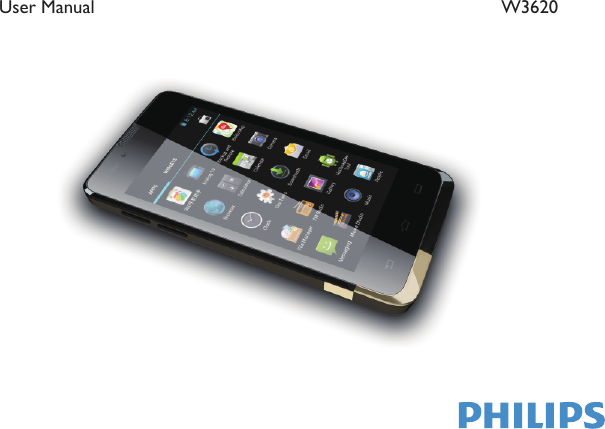
Sang Fei Consumer Communications CTW3620 Philips W3620 User Manual

Shenzhen Sang Fei Consumer Communications Co., Ltd. Philips W3620 Users Manual

User manual

      User Manual                                                                              W3620
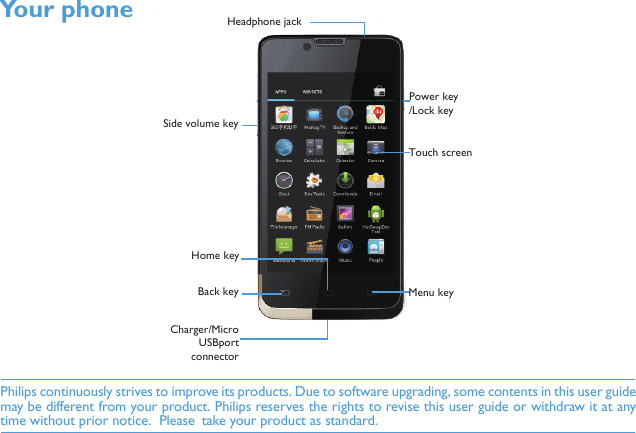
Philips continuously strives to improve its products. Due to software upgrading, some contents in this user guidemay be different from your product. Philips reserves the rights to revise this user guide or withdraw it at anytime without prior notice.  Please  take your product as standard.Your phone Touch screenBack keySide volume keyCharger/MicroUSBportconnectorPower key/Lock keyHome keyMenu keyHeadphone jack
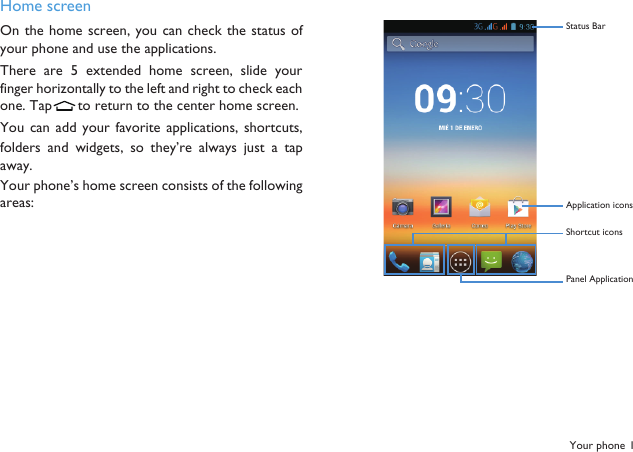
Your phone 1Home screenOn the home screen, you can check the status ofyour phone and use the applications. There  are 5 extended home  screen,  slide  yourfinger horizontally to the left and right to check eachone. Tap  to return to the center home screen.You  can add  your  favorite  applications,  shortcuts,folders and  widgets,  so  they’re  always just  a  tapaway.Your phone’s home screen consists of the followingareas:Status BarApplication icons Shortcut icons Panel Application
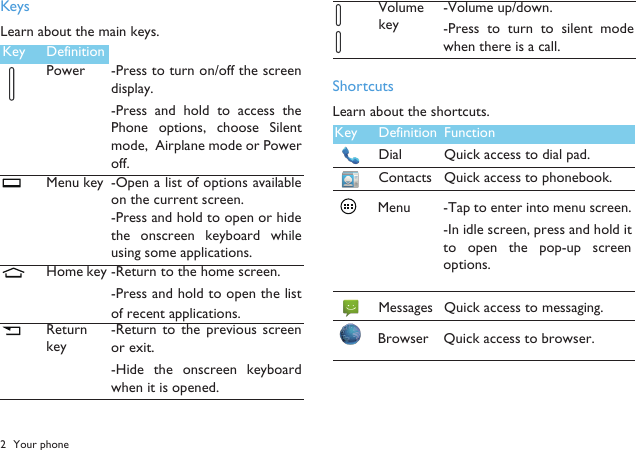
2 Your phoneKeysLearn about the main keys.ShortcutsLearn about the shortcuts.Key Definition FunctionPower -Press to turn on/off the screendisplay.-Press  and  hold to access thePhone options,  choose  Silentmode,  Airplane mode or Poweroff.Menu key-Open a list of options availableon the current screen.-Press and hold to open or hidethe onscreen keyboard  whileusing some applications. Home key-Return to the home screen.-Press and hold to open the listof recent applications.Return key-Return  to  the  previous  screenor exit.-Hide  the  onscreen keyboardwhen it is opened.Key Definition FunctionMessages Quick access to messaging.Dial Quick access to dial pad.ContactsQuick access to phonebook.Menu-Tap to enter into menu screen.-In idle screen, press and hold itto  open  the  pop-up  screenoptions.Volume key-Volume up/down.-Press  to  turn  to  silent  modewhen there is a call.Browser  Quick access to browser.
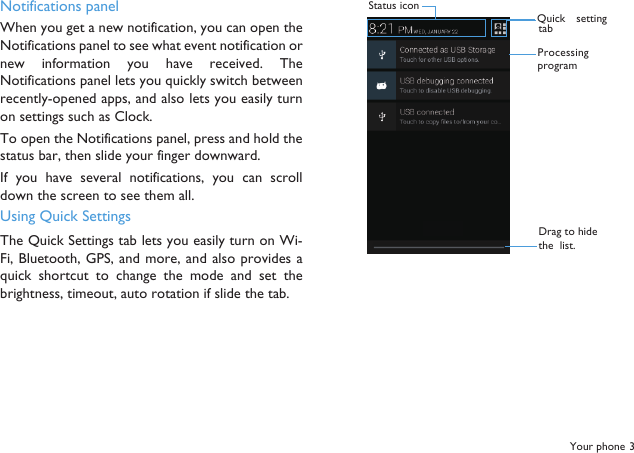
Your phone 3Notifications panelWhen you get a new notification, you can open theNotifications panel to see what event notification ornew  information  you  have received.  TheNotifications panel lets you quickly switch betweenrecently-opened apps, and also lets you easily turnon settings such as Clock.To open the Notifications panel, press and hold thestatus bar, then slide your finger downward.If you  have several  notifications,  you  can scrolldown the screen to see them all.Using Quick SettingsThe Quick Settings tab lets you easily turn on Wi-Fi, Bluetooth, GPS, and more, and also provides  aquick  shortcut  to change  the mode  and  set  thebrightness, timeout, auto rotation if slide the tab.Status iconProcessingprogramDrag to hide the  list.Quick  settingtab
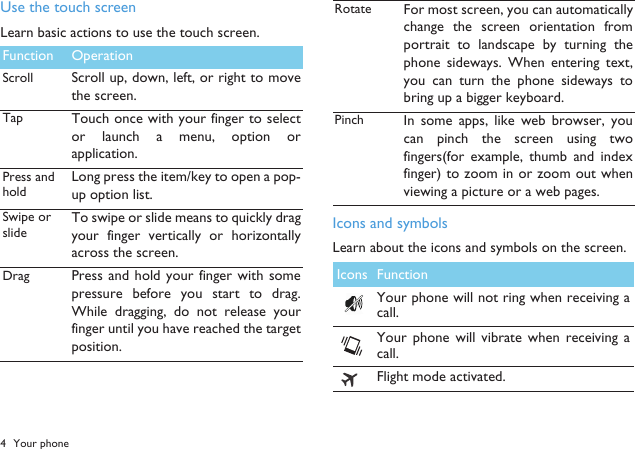
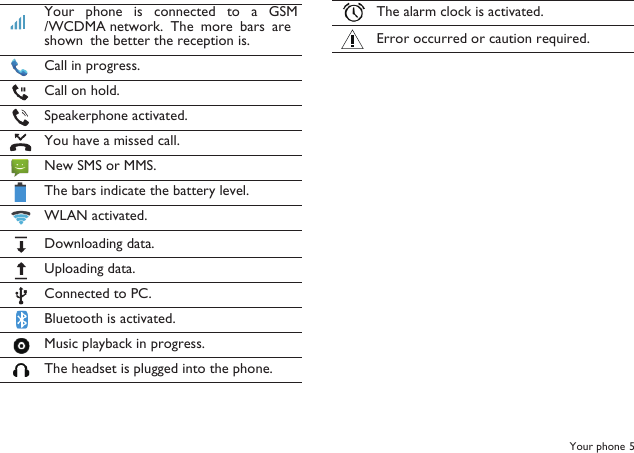
4 Your phoneUse the touch screenLearn basic actions to use the touch screen.Icons and symbolsLearn about the icons and symbols on the screen.Function OperationScrollScroll up, down, left, or right to movethe screen.TapTouch once with your finger to selector launch  a  menu,  option  orapplication.Press and holdLong press the item/key to open a pop-up option list. Swipe or slideTo swipe or slide means to quickly dragyour  finger  vertically  or  horizontallyacross the screen.Drag Press and hold your finger  with somepressure before  you  start to  drag.While  dragging,  do  not  release  yourfinger until you have reached the targetposition.Rotate For most screen, you can automaticallychange the screen  orientation fromportrait to  landscape by turning  thephone  sideways.  When entering text,you  can turn the  phone sideways  tobring up a bigger keyboard.Pinch In  some  apps,  like  web  browser,  youcan  pinch  the  screen  using  twofingers(for  example,  thumb  and  indexfinger) to zoom in or zoom out whenviewing a picture or a web pages.Icons FunctionYour phone will not ring when receiving acall. Your  phone  will  vibrate  when receiving  acall.Flight mode activated.
Your phone 5Your  phone  is  connected  to  a  GSM/WCDMA network.  The  more bars  areshown  the better the reception is.Call in progress.Call on hold.Speakerphone activated.You have a missed call.New SMS or MMS.The bars indicate the battery level.WLAN activated.Downloading data.Uploading data.Connected to PC.Bluetooth is activated.Music playback in progress.The headset is plugged into the phone.The alarm clock is activated.Error occurred or caution required.
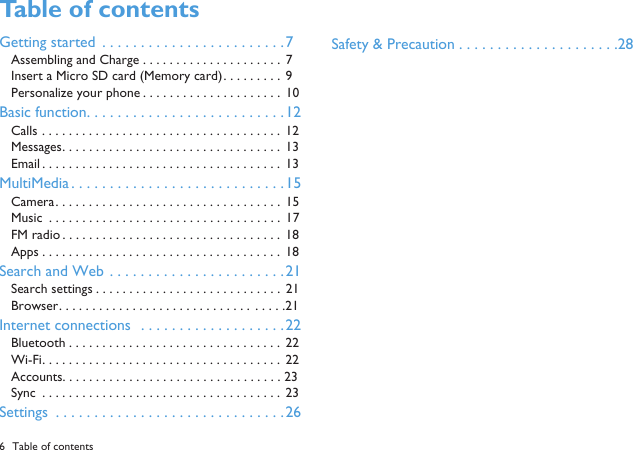
6 Table of contentsTable of contents Getting started  . . . . . . . . . . . . . . . . . . . . . . . .7Assembling and Charge . . . . . . . . . . . . . . . . . . . . .  7Insert a Micro SD card (Memory card). . . . . . . . .  9Personalize your phone . . . . . . . . . . . . . . . . . . . . .  10Basic function. . . . . . . . . . . . . . . . . . . . . . . . . .12Calls . . . . . . . . . . . . . . . . . . . . . . . . . . . . . . . . . . . .  12Messages. . . . . . . . . . . . . . . . . . . . . . . . . . . . . . . . .  13Email . . . . . . . . . . . . . . . . . . . . . . . . . . . . . . . . . . . .  13MultiMedia . . . . . . . . . . . . . . . . . . . . . . . . . . . .15Camera. . . . . . . . . . . . . . . . . . . . . . . . . . . . . . . . . .  15Music  . . . . . . . . . . . . . . . . . . . . . . . . . . . . . . . . . . .  17FM radio . . . . . . . . . . . . . . . . . . . . . . . . . . . . . . . . .  18Apps . . . . . . . . . . . . . . . . . . . . . . . . . . . . . . . . . . . . 18Search and Web . . . . . . . . . . . . . . . . . . . . . . .21Search settings . . . . . . . . . . . . . . . . . . . . . . . . . . . .  21Browser. . . . . . . . . . . . . . . . . . . . . . . . . . . . .  . . . . .21Internet connections  . . . . . . . . . . . . . . . . . . .22Bluetooth . . . . . . . . . . . . . . . . . . . . . . . . . . . . . . . . 22Wi-Fi. . . . . . . . . . . . . . . . . . . . . . . . . . . . . . . . . . . .  22Accounts. . . . . . . . . . . . . . . . . . . . . . . . . . . . . . . . . 23Sync  . . . . . . . . . . . . . . . . . . . . . . . . . . . . . . . . . . . .  23Settings  . . . . . . . . . . . . . . . . . . . . . . . . . . . . . .26Safety & Precaution . . . . . . . . . . . . . . . . . . . . .28
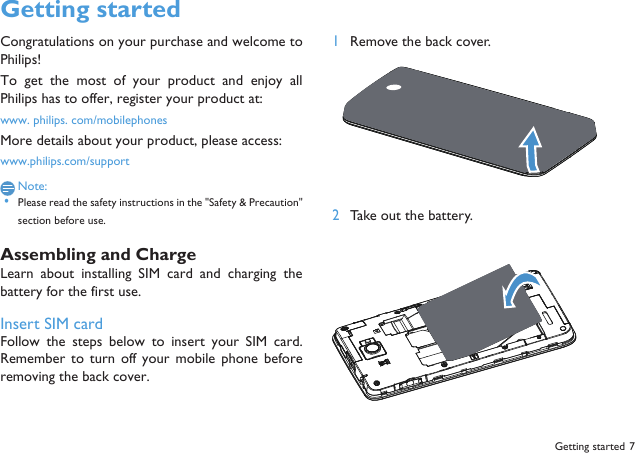
Getting started 7Getting startedCongratulations on your purchase and welcome toPhilips!To  get  the most  of  your  product  and  enjoy  allPhilips has to offer, register your product at:www. philips. com/mobilephonesMore details about your product, please access:www.philips.com/supportNote: •Please read the safety instructions in the "Safety & Precaution"section before use. Assembling and ChargeLearn  about installing SIM card and  charging  thebattery for the first use.Insert SIM cardFollow  the  steps  below  to  insert  your  SIM  card.Remember to turn off your  mobile  phone beforeremoving the back cover. 1Remove the back cover.  2Take out the battery.
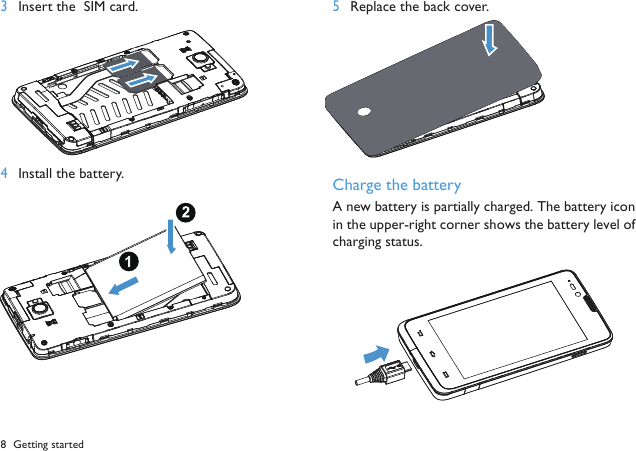
8 Getting started3Insert the  SIM card. 4Install the battery.5Replace the back cover. Charge the batteryA new battery is partially charged. The battery iconin the upper-right corner shows the battery level ofcharging status.
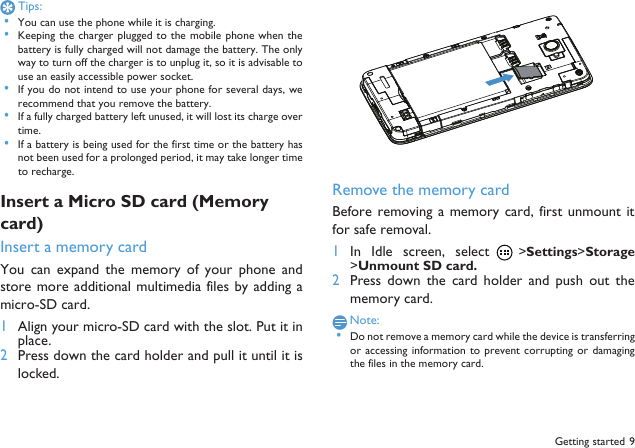
 Getting started 9Tips: •You can use the phone while it is charging. •Keeping the  charger plugged to the mobile  phone when thebattery is fully charged will not damage the battery. The onlyway to turn off the charger is to unplug it, so it is advisable touse an easily accessible power socket.  •If you do not intend to use your phone for several days, werecommend that you remove the battery. •If a fully charged battery left unused, it will lost its charge overtime. •If a battery is being used for the first time or the battery hasnot been used for a prolonged period, it may take longer timeto recharge.Insert a Micro SD card (Memory card)Insert a memory cardYou  can  expand  the memory  of  your phone  andstore more additional multimedia files by adding amicro-SD card. 1Align your micro-SD card with the slot. Put it inplace.2Press down the card holder and pull it until it islocked.Remove the memory cardBefore removing a  memory card,  first unmount itfor safe removal.1In  Idle  screen,  select  >Settings>Storage>Unmount SD card.2Press  down  the  card  holder  and  push  out  thememory card.Note: •Do not remove a memory card while the device is transferringor accessing information  to prevent corrupting  or  damagingthe files in the memory card.
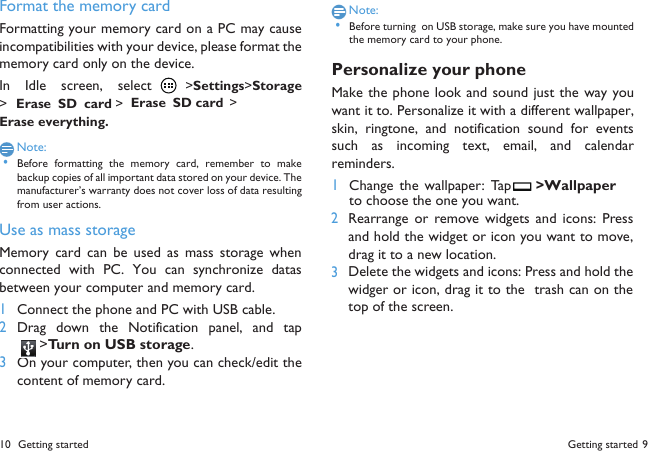
Getting started 9 10 Getting startedFormat the memory cardFormatting your memory card on a PC may causeincompatibilities with your device, please format thememory card only on the device.In  Idle  screen,  select  >Settings>Storage>Erase  SD  card >Erase  SD card >Erase everything.Note: •Before  formatting  the  memory card,  remember  to  makebackup copies of all important data stored on your device. Themanufacturer’s warranty does not cover loss of data resultingfrom user actions.Use as mass storageMemory card  can be used  as mass storage  whenconnected  with  PC.  You  can  synchronize  datasbetween your computer and memory card.1Connect the phone and PC with USB cable.2Drag  down  the  Notification  panel,  and  tap>Turn on USB storage.3On your computer, then you can check/edit thecontent of memory card.Note: •Before turning  on USB storage, make sure you have mountedthe memory card to your phone.Personalize your phoneMake the phone look and sound just the way youwant it to. Personalize it with a different wallpaper,skin,  ringtone,  and  notification  sound  for  eventssuch  as  incoming  text,  email,  and  calendarreminders.1Change the wallpaper:  Tap  >Wallpaperto choose the one you want.23Rearrange or  remove widgets  and  icons:  Pressand hold the widget or icon you want to move,drag it to a new location.Delete the widgets and icons: Press and hold thewidger or icon, drag it to the  trash can on thetop of the screen.
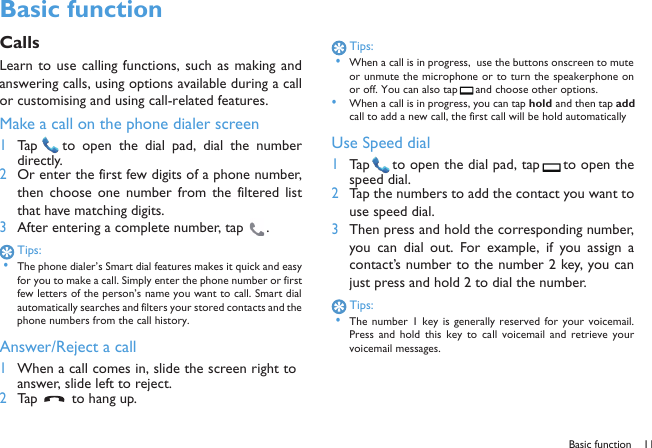
Basic function 11 Basic functionCallsLearn to use calling functions, such as making andanswering calls, using options available during a callor customising and using call-related features.Make a call on the phone dialer screen1Tap   to open the  dial pad,  dial  the  numberdirectly.2Or enter the first few digits of a phone number,then choose one  number  from the  filtered  listthat have matching digits.3After entering a complete number, tap  .Tips: •The phone dialer’s Smart dial features makes it quick and easyfor you to make a call. Simply enter the phone number or firstfew letters of the person’s name you want to call. Smart dialautomatically searches and filters your stored contacts and thephone numbers from the call history.Answer/Reject a call1When a call comes in, slide the screen right toanswer, slide left to reject.2Tap   to hang up.Tips: •When a call is in progress,  use the buttons onscreen to muteor unmute the microphone or to turn the speakerphone onor off. You can also tap  and choose other options.•When a call is in progress, you can tap hold and then tap addcall to add a new call, the first call will be hold automaticallyUse Speed dial1Tap  to open the dial pad, tap  to open thespeed dial.2Tap the numbers to add the contact you want touse speed dial.3Then press and hold the corresponding number,you  can  dial  out.  For  example,  if  you  assign  acontact’s number to the number 2 key, you canjust press and hold 2 to dial the number.Tips: •The number  1  key  is generally reserved  for your  voicemail.Press  and  hold  this  key  to  call  voicemail  and retrieve  yourvoicemail messages.
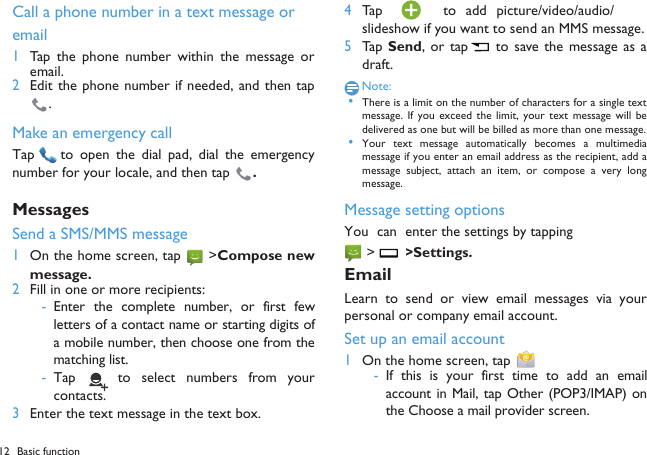
12 Basic function  Call a phone number in a text message or  email1Tap  the  phone number  within the message  oremail.2Edit the phone number if needed, and then tap.Make an emergency callTap   to open the  dial  pad,  dial the emergencynumber for your locale, and then tap  .MessagesSend a SMS/MMS message1On the home screen, tap  >Compose newmessage.2Fill in one or more recipients:-Enter the complete  number, or first fewletters of a contact name or starting digits ofa mobile number, then choose one from thematching list.-Tap    to  select  numbers  from  yourcontacts.3Enter the text message in the text box.4Tap    to  add  picture/video/audio/slideshow if you want to send an MMS message.5Tap Send,  or tap  to save  the  message as  adraft.Note: •There is a limit on the number of characters for a single textmessage.  If  you  exceed  the  limit,  your  text  message  will  bedelivered as one but will be billed as more than one message. •Your  text  message  automatically  becomes  a  multimediamessage if you enter an email address as the recipient, add amessage  subject, attach an  item,  or  compose  a  very longmessage.Message setting optionsYou  can enter the settings by tapping  >  >Settings. EmailLearn to  send  or view  email  messages  via  yourpersonal or company email account.Set up an email account1On the home screen, tap   -If  this  is your first time  to  add an emailaccount in Mail, tap Other (POP3/IMAP) onthe Choose a mail provider screen.
 -If you’ve already added  an  email account  inMail, then tap  >More > New account. Ifthe  Choose  a  mail  provider screen  isdisplayed, tap Other (POP3/IMAP).2Enter the email address and password for youremail account and then tap Next.3If the account type you want to set up is not inthe phone  database,  you’ll  be asked  to  entermore details.4Enter  the  account  name  and  your  name  andthen tap Finish setup.Note: •When you are finished setting up the email account, the emailmessages are downloaded to your device. •Consult  your  mail service provider  for  the mail  serverconfiguration.CalendarUse the Calendar  app to schedule your events,meetings,  and appointments. 1Sign in to your Google Account so you’ll be ableto sync the  Calendar  app  with  your  GoogleCalendar  online.  You  can  add  multiple  GoogleAccounts.Basic function 13
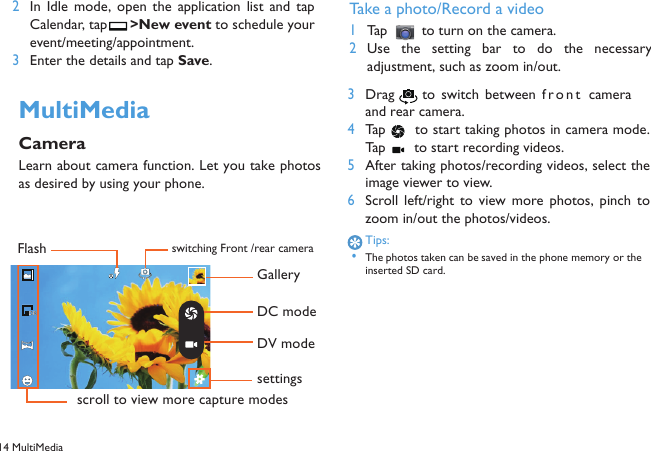
14 MultiMedia  2In  Idle  mode,  open  the  application  list  and  tapCalendar, tap  >New event to schedule yourevent/meeting/appointment.3Enter the details and tap Save.MultiMediaCameraLearn about camera function. Let you take photosas desired by using your phone.Take a photo/Record a video1Tap   to turn on the camera.2Use the  setting  bar  to  do  the  necessaryadjustment, such as zoom in/out.3Drag  to  switch between front cameraand rear camera.4Tap   to start taking photos in camera mode.Tap   to start recording videos.5After taking photos/recording videos, select theimage viewer to view.6Scroll  left/right  to  view  more  photos,  pinch  tozoom in/out the photos/videos.Tips: •The photos taken can be saved in the phone memory or the inserted SD card.switching Front /rear cameraFlashscroll to view more capture modesGalleryDC modeDV modesettings
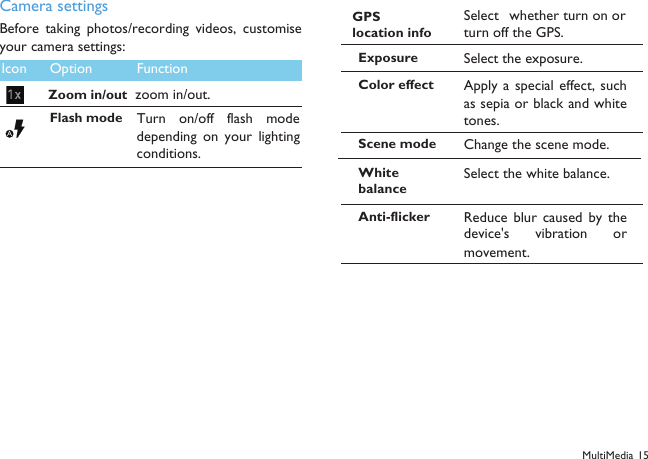
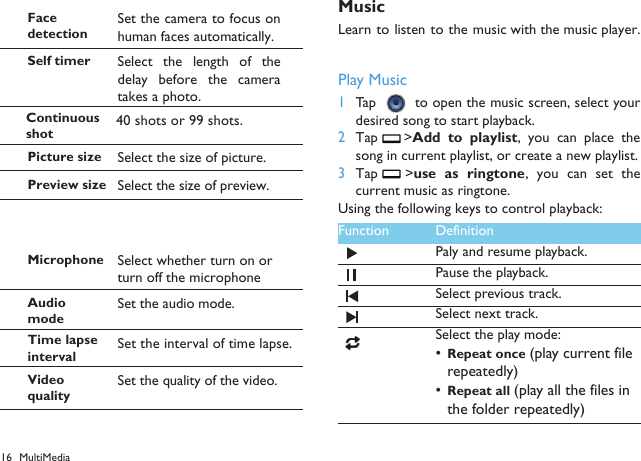
Camera settingsBefore  taking photos/recording  videos,  customiseyour camera settings:Icon Option FunctionZoom in/outzoom in/out.Flash mode Turn  on/off  flash  modedepending  on  your  lightingconditions.AGPS location infoSelect whether turn on orturn off the GPS.Exposure Select the exposure.Anti-flickerReduce blur  caused by thedevice's vibration  ormovement.Scene mode Change the scene mode.Color effectApply a  special effect,  suchas sepia or black and whitetones.White balanceSelect the white balance.MultiMedia 15
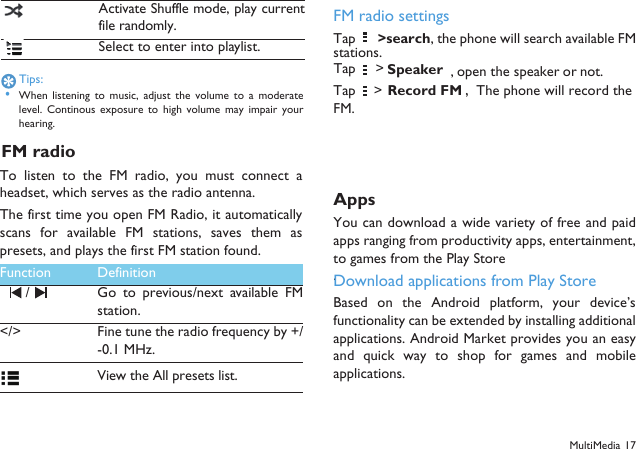
16 MultiMediaMusicLearn to listen to the music with the music player. Play Music1Tap  to open the music screen, select yourdesired song to start playback.2Tap  >Add  to  playlist,  you  can  place  thesong in current playlist, or create a new playlist.3Tap  >use as ringtone,  you  can set thecurrent music as ringtone.Using the following keys to control playback:Function DefinitionPaly and resume playback.Pause the playback.Select previous track.Select next track.Select the play mode:•Repeat once (play current file repeatedly)•Repeat all (play all the files in the folder repeatedly)Self timer Select the  length  of  thedelay before the cameratakes a photo.Face detectionSet the camera to focus onhuman faces automatically.Continuousshot40 shots or 99 shots.Picture size Select the size of picture.Preview size Select the size of preview. AudiomodeSet the audio mode.Microphone Select whether turn on or turn off the microphoneTime lapseintervalSet the interval of time lapse.VideoqualitySet the quality of the video.
MultiMedia 17Tips: •When listening  to  music,  adjust  the  volume  to  a  moderatelevel.  Continous exposure  to  high  volume may impair yourhearing.FM radioTo  listen  to  the  FM  radio,  you  must  connect  aheadset, which serves as the radio antenna.The first time you open FM Radio, it automaticallyscans  for  available  FM stations,  saves  them  aspresets, and plays the first FM station found.FM radio settings>Apps You can download a wide variety of free and paidapps ranging from productivity apps, entertainment,to games from the Play Store . Download applications from Play Store Based  on  the Android  platform, your  device’sfunctionality can be extended by installing additionalapplications. Android Market provides you an easyand  quick  way  to  shop  for  games  and  mobileapplications.Activate Shuffle mode, play currentfile randomly.Select to enter into playlist.Function Definition/ Go  to  previous/next  available  FMstation.</> Fine tune the radio frequency by +/-0.1 MHz.View the All presets list.Tap  Speaker ,open the speaker or not.Tap  >Record FM,FM.The phone will record theTap  >search, the phone will search available FMstations.
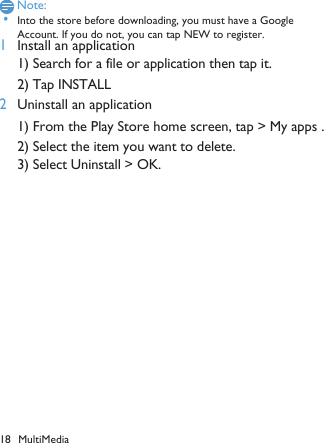
18 MultiMediaNote: •Into the store before downloading, you must have a Google Account. If you do not, you can tap NEW to register. 1Install an application 1) Search for a file or application then tap it. 2) Tap INSTALL1) From the Play Store home screen, tap > My apps .2) Select the item you want to delete. 3) Select Uninstall > OK.2Uninstall an application
Download files from the webWhen you download files or web applications fromthe web, your device saves them in your phonememory or a memory card.Note: •Files you download from the web can include viruses that willdamage your device. To lessen your risk, only download filesfrom sources you trust. •Some media files include Digital Rights Management to protectcopyrights.  This  protection  may prevent  you  fromdownloading, copying, modifying, or transferring some files.1Download files from the web-In Idle  mode, open the application  list  andselect Internet.-Search for a file or application and downloadit.Note: •To install applications downloaded from websites other thanAndroid  Market,  you  must  select Settings  >Applications>Unknown sources >OK.2Synchronise dataYou can synchronise data with various web serversand  back up or restore  your  data.  Once thesynchronisation  is  completed,  your device  staysconnected to the web. If any change is made on theweb, the updated information will appear on yourdevice and will automatically begin synchronisation,and vice versa.Tips: •This feature may be unavailable depending on your region orservice provider.3Set up a server account-In Idle  mode, open the application  list  andselect  Settings>Accounts.Safety & Precaution 19
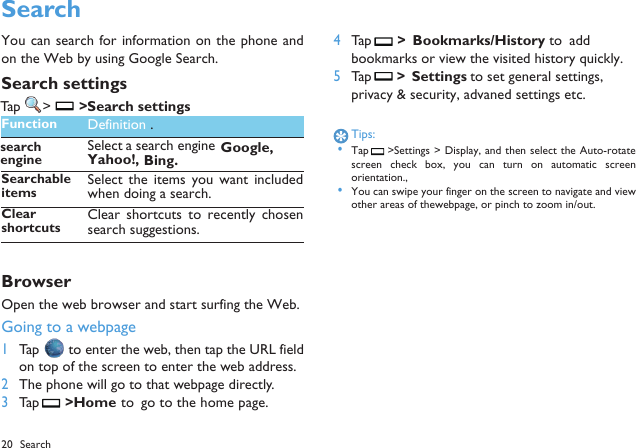
20 Search SearchYou can search for information on the phone andon the Web by using Google Search.Search settingsTap  > >Search settings.BrowserOpen the web browser and start surfing the Web.Going to a webpage1Tap   to enter the web, then tap the URL fieldon top of the screen to enter the web address.2The phone will go to that webpage directly.3Tap  >Home  to  go to the home page.4Tap  >  Bookmarks/History  to  add bookmarks or view the visited history quickly.5Tap  >  Settings to set general settings, privacy & security, advaned settings etc.Tips: •Tap  >Settings > Display, and then select the Auto-rotatescreen  check  box,  you  can  turn on automatic  screenorientation., •You can swipe your finger on the screen to navigate and viewother areas of thewebpage, or pinch to zoom in/out.Function Definition .search Select a search engine Google,Yahoo!,Bing.SearchableitemsSelect  the  items  you  want  includedwhen doing a search.Clear shortcutsClear shortcuts to recently  chosensearch suggestions.engine
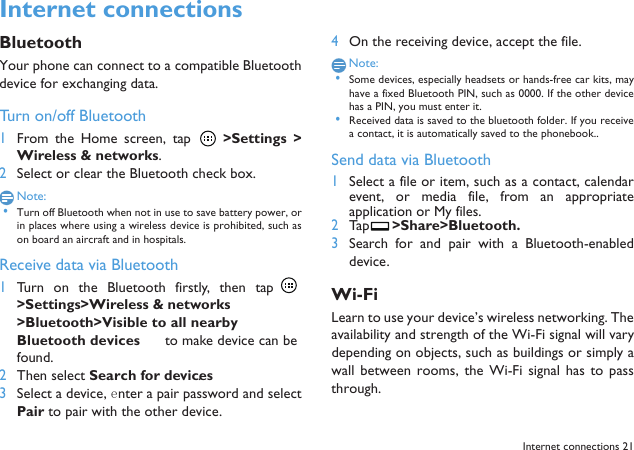
 Internet connections 21Internet connections BluetoothYour phone can connect to a compatible Bluetoothdevice for exchanging data.Turn on/off Bluetooth1From the Home  screen,  tap    >Settings  >Wireless & networks.2Select or clear the Bluetooth check box.Note: •Turn off Bluetooth when not in use to save battery power, orin places where using a wireless device is prohibited, such ason board an aircraft and in hospitals.Receive data via Bluetooth1Turn  on  the  Bluetooth  firstly,  then  tap >Settings>Wireless & networks>Bluetooth>Visible to all nearby Bluetooth devices to make device can befound. 2Then select Search for devices.3Select a device, enter a pair password and selectPair to pair with the other device.4On the receiving device, accept the file.Note: •Some devices, especially headsets or hands-free car kits, mayhave a fixed Bluetooth PIN, such as 0000. If the other devicehas a PIN, you must enter it. •Received data is saved to the bluetooth folder. If you receivea contact, it is automatically saved to the phonebook..Send data via Bluetooth1Select a file or item, such as a contact, calendarevent,  or  media  file,  from  an  appropriateapplication or My files.2Tap  >Share>Bluetooth.3Search  for  and  pair  with  a  Bluetooth-enableddevice. Wi-FiLearn to use your device’s wireless networking. Theavailability and strength of the Wi-Fi signal will varydepending on objects, such as buildings or simply awall  between rooms,  the  Wi-Fi  signal  has to  passthrough.
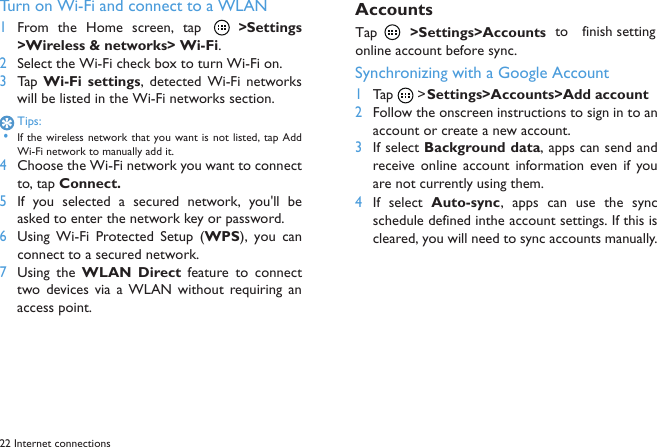
22 Internet connectionsTurn on Wi-Fi and connect to a WLAN 1From the Home  screen,  tap    >Settings>Wireless & networks> Wi-Fi.2Select the Wi-Fi check box to turn Wi-Fi on.3Tap  Wi-Fi  settings,  detected Wi-Fi networkswill be listed in the Wi-Fi networks section.Tips: •If the wireless network that  you want is not listed, tap AddWi-Fi network to manually add it.4Choose the Wi-Fi network you want to connectto, tap Connect.5If  you  selected  a  secured  network,  you'll  beasked to enter the network key or password.6Using  Wi-Fi  Protected  Setup  (WPS),  you  canconnect to a secured network.7Using  the WLAN  Direct  feature  to  connecttwo devices via a  WLAN without  requiring  anaccess point.AccountsTap  >Settings>Accounts to  finish settingonline account before sync.Synchronizing with a Google Account1Tap  > Settings>Accounts>Add account2Follow the onscreen instructions to sign in to anaccount or create a new account.3If select Background data, apps can send andreceive  online  account  information  even  if  youare not currently using them.4If  select  Auto-sync,  apps  can  use  the  syncschedule defined inthe account settings. If this iscleared, you will need to sync accounts manually.
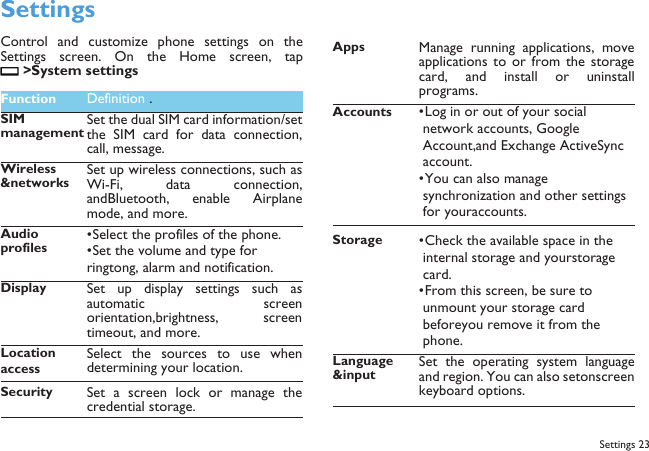
 SettingsControl  and  customize  phone  settings  on  theSettings  screen. On the Home  screen,  tap>System settings.Function Definition .SIMmanagementSet the dual SIM card information/setthe  SIM  card  for  data connection,call, message.Wireless &networksSet up wireless connections, such asWi-Fi,  data connection,andBluetooth,  enable  Airplanemode, and more.Audio profiles•Select the profiles of the phone.•Set the volume and type for ringtong, alarm and notification.Display Set up  display settings such  asautomatic  screenorientation,brightness,  screentimeout, and more.LocationaccessSelect  the sources  to  use  whendetermining your location.Security Set  a  screen  lock  or  manage  thecredential storage.AppsManage running applications,  moveapplications  to  or  from  the  storagecard,  and  install  or  uninstallprograms.Accounts   •Log in or out of your social  network accounts, Google  Account,and Exchange ActiveSync  account.•You can also manage  synchronization and other settings  for youraccounts.Storage •Check the available space in the  internal storage and yourstorage  card.•From this screen, be sure to  unmount your storage card  beforeyou remove it from the  phone.Language &inputSet  the  operating  system  languageand region. You can also setonscreenkeyboard options.Settings 23
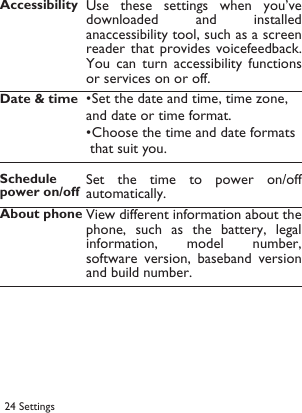
24 Settings Accessibility Use  these  settings  when you’vedownloaded  and  installedanaccessibility tool, such as a screenreader that  provides voicefeedback.You  can  turn  accessibility  functionsor services on or off.Date & time•Set the date and time, time zone, and date or time format.•Choose the time and date formats  that suit you.Schedule power on/offSet the time  to  power  on/offautomatically.About phone View different information about thephone, such  as the battery,  legalinformation,  model  number,software  version,  baseband versionand build number.
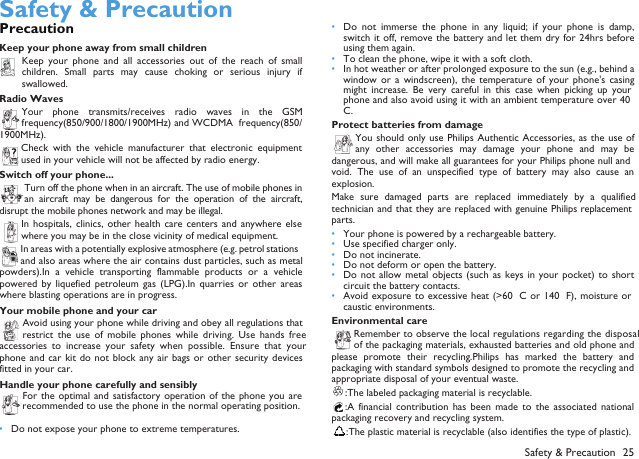
 Safety & PrecautionPrecautionKeep your phone away from small childrenKeep  your  phone  and  all  accessories  out  of  the  reach  of  smallchildren.  Small  parts  may  cause  choking  or  serious  injury  ifswallowed.Radio WavesYour  phone  transmits/receives  radio  waves  in  the  GSMfrequency(850/900/1800/1900MHz) and WCDMA  frequency(850/1900MHz).Check  with  the  vehicle  manufacturer that  electronic  equipmentused in your vehicle will not be affected by radio energy.Switch off your phone...Turn off the phone when in an aircraft. The use of mobile phones inan  aircraft  may  be  dangerous  for the operation  of  the  aircraft,disrupt the mobile phones network and may be illegal.In hospitals, clinics, other health care centers and anywhere elsewhere you may be in the close vicinity of medical equipment.In areas with a potentially explosive atmosphere (e.g. petrol stationsand also areas where the air contains dust particles, such as metalpowders).In  a  vehicle  transporting  flammable  products  or  a  vehiclepowered  by  liquefied petroleum  gas  (LPG).In  quarries  or  other  areaswhere blasting operations are in progress.Your mobile phone and your carAvoid using your phone while driving and obey all regulations thatrestrict  the  use of mobile  phones while  driving. Use  hands  freeaccessories  to  increase  your  safety  when  possible.  Ensure  that  yourphone and  car kit do  not block any  air bags or  other security devicesfitted in your car.Handle your phone carefully and sensiblyFor the optimal  and satisfactory operation  of the  phone you arerecommended to use the phone in the normal operating position.•Do not expose your phone to extreme temperatures.•Do  not  immerse  the  phone  in  any  liquid;  if  your  phone  is  damp,switch it off,  remove the battery and let them dry for 24hrs beforeusing them again.•To clean the phone, wipe it with a soft cloth.•In hot weather or after prolonged exposure to the sun (e.g., behind awindow or  a  windscreen),  the  temperature  of  your  phone's  casingmight  increase.  Be  very  careful  in  this  case  when  picking  up  yourphone and also avoid using it with an ambient temperature over 40°C.Protect batteries from damageYou should  only use Philips  Authentic Accessories, as the use ofany  other  accessories  may  damage  your  phone  and  may  bedangerous, and will make all guarantees for your Philips phone null andvoid.  The  use  of  an  unspecified  type  of battery  may  also  cause  anexplosion.Make  sure  damaged  parts  are  replaced  immediately  by  a  qualifiedtechnician and that they are replaced with genuine Philips replacementparts.•Your phone is powered by a rechargeable battery.•Use specified charger only.•Do not incinerate.•Do not deform or open the battery.•Do not allow  metal  objects (such as keys  in your pocket) to  shortcircuit the battery contacts.•Avoid exposure to excessive heat (>60° C  or 140° F), moisture orcaustic environments.Environmental careRemember to observe the local regulations regarding the disposalof the packaging materials, exhausted batteries and old phone andplease promote  their recycling.Philips  has  marked  the  battery  andpackaging with standard symbols designed to promote the recycling andappropriate disposal of your eventual waste.:The labeled packaging material is recyclable.:A  financial  contribution  has  been  made  to  the  associated  nationalpackaging recovery and recycling system.:The plastic material is recyclable (also identifies the type of plastic).Safety & Precaution 25
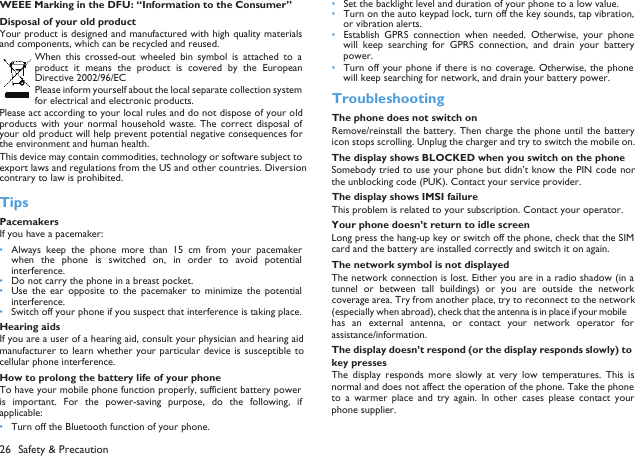
26 Safety & Precaution  WEEE Marking in the DFU: “Information to the Consumer”Disposal of your old productYour product is designed and manufactured with high quality materialsand components, which can be recycled and reused. When  this crossed-out  wheeled  bin  symbol is  attached  to  aproduct  it  means  the  product  is  covered  by  the  EuropeanDirective 2002/96/ECPlease inform yourself about the local separate collection systemfor electrical and electronic products.Please act according to your local rules and do not dispose of your oldproducts  with  your  normal  household  waste. The  correct  disposal ofyour old product will help prevent potential negative consequences forthe environment and human health.This device may contain commodities, technology or software subject toexport laws and regulations from the US and other countries. Diversioncontrary to law is prohibited.TipsPacemakersIf you have a pacemaker:•Always keep  the  phone  more  than  15  cm  from  your  pacemakerwhen  the  phone is  switched  on, in  order to  avoid  potentialinterference.•Do not carry the phone in a breast pocket.•Use  the  ear  opposite  to  the  pacemaker  to  minimize  the  potentialinterference.•Switch off your phone if you suspect that interference is taking place.Hearing aidsIf you are a user of a hearing aid, consult your physician and hearing aidmanufacturer to  learn whether your particular  device is susceptible  tocellular phone interference.How to prolong the battery life of your phone To have your mobile phone function properly, sufficient battery poweris  important.  For  the  power-saving  purpose,  do  the  following,  ifapplicable:•Turn off the Bluetooth function of your phone. •Set the backlight level and duration of your phone to a low value. •Turn on the auto keypad lock, turn off the key sounds, tap vibration,or vibration alerts. •Establish  GPRS  connection when  needed.  Otherwise,  your  phonewill  keep  searching  for  GPRS  connection,  and  drain  your  batterypower. •Turn off your phone if there is no coverage. Otherwise, the phonewill keep searching for network, and drain your battery power. TroubleshootingThe phone does not switch onRemove/reinstall the  battery. Then charge  the phone until  the batteryicon stops scrolling. Unplug the charger and try to switch the mobile on.The display shows BLOCKED when you switch on the phoneSomebody tried to use your phone but didn’t know the PIN code northe unblocking code (PUK). Contact your service provider.The display shows IMSI failureThis problem is related to your subscription. Contact your operator.Your phone doesn’t return to idle screenLong press the hang-up key or switch off the phone, check that the SIMcard and the battery are installed correctly and switch it on again.The network symbol is not displayedThe network connection is lost. Either you are in a radio shadow (in atunnel  or between  tall  buildings)  or you  are  outside  the  networkcoverage area. Try from another place, try to reconnect to the network(especially when abroad), check that the antenna is in place if your mobilehas  an  external  antenna,  or contact  your network  operator forassistance/information.The display doesn’t respond (or the display responds slowly) to key pressesThe  display  responds  more  slowly  at  very  low  temperatures.  This  isnormal and does not affect the operation of the phone. Take the phoneto  a  warmer  place  and  try  again.  In  other  cases  please  contact  yourphone supplier.
Your battery seems to over heatYou might be using a charger that was not intended for use with yourphone. Make sure you always use the Philips authentic accessory shippedwith your phone.Your phone doesn’t display the phone numbers of incoming callsThis feature  is  network  and  subscription  dependent.  If  the  networkdoesn’t  send  the  caller’s  number,  the  phone  will  display  Call  1  orWithheld  instead.  Contact  your  operator for  detailed  information  onthis subject.You can’t send text messagesSome  networks  don’t  allow  message  exchanges  with  other  networks.First check  that you have entered the number  of your SMS  centre, orcontact your operator for detailed information on this subject.You can’t receive and/or store JPEG picturesA picture may not be accepted by your mobile phone if it is too large, ifits name is too long, or if it doesn’t have the correct file format.You feel that you have missed some callsCheck your call divert options.When charging, the battery icon shows no bar and the outline is flashingOnly charge the battery in an environment where the temperature doesnot go below 0°C (32°F) or above 50°C (113°F).In other cases please contact your phone supplier.The display shows SIM failureCheck  that  the  SIM  card  has  been  inserted  correctly.  If  the  problempersists, your SIM card may be damaged. Contact your operator.When attempting to use a feature in the menu, the display shows NOT ALLOWEDSome  features are network  dependent. They  are only  available,therefore, if the network or your subscription supports them. Contactyour operator for detailed information on this subject.The display shows INSERT YOUR SIM CARDCheck  that  the  SIM  card  has  been  inserted  correctly.  If  the  problempersists, your SIM card may be damaged. Contact your operator.The autonomy of your phone seems lower than indicated on the user guideThe autonomy is linked to your settings (e.g., ringer volume, backlightduration)  and  the  features  you  use.  To  increase  the  autonomy, andwhenever possible, you must deactivate features you do not use.Your phone doesn’t work well in your carA car contains many metallic parts that absorb electromagnetic waveswhich  can  affect the phone’s  performance.  A  car  kit  is  available  toprovide  you  with  an  external  antenna  and  enables  you  to  make andreceive phone calls without handling the handset.Note: •Check with the local authorities whether or not you are allowed touse the phone while driving.Your phone is not chargingIf  the  battery  is  completely  flat,  it  might  take  several  minutes  of  pre-charge  (up  to  5  minutes  in  some  cases)  before  the  charging  icon  isdisplayed on the screen.The picture captured with the phone camera is not clearMake sure that the camera lens on both sides is clean.Safety & Precaution 27Trademark DeclarationAndroid Android is a trademark of Google, Inc.Bluetooth™ Bluetooth™ is  a  trade-mark  owned  bytelefonaktiebolaget L M Ericsson, Sweden and licensedto Philips.Philips PHILIPS and the PHILIPS' Shield Emblem are registered trademarks of Koninklijke Philips N.V and are used by Shenzhen Sang Fei Consumer Communications Co., Ltd under license from Koninklijke Philips N.V.
28 Safety & Precaution Limited warranty1 What Does This Limited Warranty Cover?Philips warrants to the original retail purchaser (“Consumer” or “You”)that this Philips cellular product and all accessories originally provided byPhilips in the sales package (“Product”) are free from defects in materials,design  and  workmanship  under  normal  use in  accordance  with  theoperating  instructions  and  pursuant  to  the  following  terms  andconditions.  This limited  warranty  extends  only  to  the  Consumer forProducts purchased and  used in the  original country of  purchase. Thelimited warranty is valid only in Phili ps’ intended country of sales of theproduct.2.How Long is The Limited Warranty Period?The limited warranty period for the Product extends for ONE (1) YEARfrom the date of purchase of the Product, documented by valid proof ofpurchase. The limited warranty for original Philips rechargeable batteryextends for six (6) months from the date of purchase.3.What  Will  Philips  Do  if  The  Product  is  Not  Free  From  MaterialDefects  in  Materials  and  Workmanship  During  The LimitedWarranty Period?During  the  limited  warranty  period,  Philips  or  its  authorized servicerepresentative will, at its option either repair or replace, without chargefor  parts  or  labour,  a  materially  defective  Product  with  new  orrefurbished  parts or  Product  and  return  such  repaired  or replacedProduct  to  the  Consumer  in  working  condition.  Philips  will  retaindefective parts, modules or equipment.Repaired or replaced Product will be covered by this limited warrantyfor the balance of the original limited warranty period or ninety (90) daysfrom the date of repair or replacement whichever is longer. Repair orreplacement of Product, at Philips’ option is your exclusive remedy.4.What is Not Covered By This Limited Warranty?This limited warranty does not cover:a) Product that has been subjected to misuse, accident, shipping or otherphysical  damage,  improper  installation,  abnormal  operation  handling,neglect, inundation, fire, water or other liquid intrusion; orb)  Product  that  has  been  damaged  due  to  repair,  alteration,  ormodification by anyone not authorized by Philips; orc) Product  that has reception  or operation problems caused  by  signalconditions, network reliability or cable or antenna systems; ord) Product defects or problems caused by uses with non-Philips productsor accessories; or e)  Product  which  warranty/quality  stickers,  product  serial  number  orelectronic serial number has been removed, altered or rendered illegible;or f) Product purchased, used, serviced, or shipped for repair from outsidethe original country of purchase, or used for commercial or institutionalpurposes  (including  but  not  limited  to  Products  used  for  rentalpurposes); or g) Product returned without valid proof of purchase or which proof ofpurchase has been altered or is illegible.h)Normal wear and tear or Force Majeure.5.How Do You Get Warranty Service?a) Return the Product to an authorized service center of Philips. You maycontact the local Philips office for the location of the nearest authorizedservice center.b)The SIM card must be removed from the Product before it is given toPhilips. Philips assumes no liability for damaged or loss of the SIM card orthe data contained therein.c)If the Product failure is not covered by this limited warranty, or thislimited  warranty  is  inapplicable, void  or  invalid  due  to  any  terms  andconditions stated herein, the Consumer will be charged for the cost ofrepair or replacement of the Product and all other related cost incurredin repairing or replacing the Product.d) IMPORTANT - you are required to return the Product together witha valid proof of purchase which must identify the point of purchase, dateof purchase, Product model and Product serial number clearly.6.Other Limitation: This Warranty is The Entire Agreement.EXCEPT FOR THE EXPRESS WARRANTIES SET FORTH ABOVE ANDTHOSE IMPLIED  BY LAW AND  WHICH CANNOT  BE EXCLUDEDOR  MODIFIED  BY  AGREEMENT,  PHILIPS  PROVIDES  NO  OTHER
WARRANTY  WHETHER  EXPRESS  OR  IMPLIED  (WHETHER  BYSTATUTE, UNDER  THE  OPERATION  OF  LAW  OR  OTHERWISE)AND SPECIALLY DISCLAIMS ANY WARRANTY OF SATISFACTORYQUALITY  MERCHANTABILITY  OR  FITNESS  FOR  A  PARTICULARPURPOSE.PHILIPS’  TOTAL  LIABILITY  FOR  DAMAGES  RELATING  TO  ORARISING  OUT  OF  THE  PURCHASE  OR  USE  OF  THE  PRODUCT,REGARDLESS OF THE TYPE OR CAUSE OF SUCH DAMAGE OR THEFORM  OR  CHARACTERISATION OF  THE CLAIM ASSERTED  (E.G.CONTRACT  OR  TOPIT),  SHALL NOT  EXCEED  THE  ORIGINALPURCHASE PRICE PAID FOR THE PRODUCT.HOWEVER IN  NO  EVENT  SHALL  PHILIPS  BE  LIABLE  FOR  ANYPUNITIVE,  SPECIAL,  INCIDENTAL,  INDIRECT  ORCONSEQUENTIAL DAMAGES (INCLUDING BUT NOT LIMITED TOTHE LOSS OF USE, LOSS OF TIME, INCONVENIENCE, COMMERIALLOSS, LOST PROFITS, LOST BUSINESS OPPORTUNITIES, COST OFSUBSTITUTION  OF  GOODS  OR  SERVICES, INVESTMENTS,DAMAGE TO  GOODWILL OR REPUTATION, OR LOSS OF DATAAND  CLAIMS  BY  THIRD  PARTIES)  RESULTING  FROM  PURCHASEOR USE OF THE PRODUCT, TO THE FULLEST EXTENT ALLOWEDBY LAW, WHETHER OR NOT PHILIPS HAS BEEN ADVISED OF THEPOSSIBILTY OF SUCH  DAMAGES.  THESE  LIMITATIONS  SHALLAPPLY  NOTWITHSTANDING THE  FAILURE  OF  THE  ESSENTIALPURPOSE OF ANY LIMITED REMEDY.Safety & Precaution 29This limited warranty represents the complete and exclusive agreementbetween the Consumer and Philips with respect to this cellular Productand  it  supercedes  all prior  agreements between the  parties, oral  orwritten, and  all other communications between the parties relating  tothe subject matter of this limited warranty. No carrier, retailer, agent,dealer, employee, thereof, or employee of Philips is authorized to makemodifications to this  limited  warranty and you  should  not rely on anysuch representation.This limited warranty  does not affect the  Consumer’s statutory rightsunder applicable national laws in force.7. 1. This device complies with Part 15 of the FCC Rules. Operation is subject to the following two conditions:(1) This device may not cause harmful interference.(2) This device must accept any interference received, including interference that may cause undesired operation.2. Changes or modifications not expressly approved by the party responsible for compliance could void the user's authority to operate the equipment.         FCC Statement8. RF Exposure Information (SAR)This mobile phone meets the government’s requirements for exposure to radio waves.This phone is designed and manufactured not to exceed the emission limits for exposure to radio frequency (RF) energy set by the Federal Communications Commission of the U.S. Government. NOTE: This equipment has been tested and found to comply with the limits                      This equipment generates uses and can radiate radio frequency Reorient or relocate the receiving antenna.Increase the separation between the equipment and receiver.Connect the equipment into an outlet on a circuit different from Consult the dealer or an experienced radio/TV technician for help.These limits are designed to provide reasonable protection against  for a Class B digital device, pursuant to Part 15 of the FCC Rules.     harmful interference in a residential installation. energy and, if not installed and used in accordance with the instructions, may cause harmful interference to radio communications. However, there is no guarantee that interference will not occur in a particular installation. If this equipment does cause harmful interference to radio or television reception, which can be determined by turning the equipment off and on, the user is encouraged to try to correct the interference by one or more of the following measures:that to which the receiver is connected.
30 Safety & PrecautionThe exposure standard for wireless mobile phones employs a unit of measurement known as the Specific Absorption Rate, or SAR.  The SAR limit set by the FCC is 1.6W/kg.  *Tests for SAR are conducted using standard operating positions accepted by the FCC with the phone transmitting at its highest certified power level in all tested frequency bands.  Although the SAR is determined at the highest certified power level, the actual SAR level of the phone while operating can be well below the maximum value.  This is because the phone is designed to operate at multiple power levels so as to use only the poser required to reach the network.  In general, the closer you are to a wireless base station antenna, the lower the power output.The highest SAR value for the model phone as reported to the FCC when tested for use at the ear is 0.33 W/kg and when worn on the body, as described in this user guide, is 0.77W/kg (Body-worn )measurements differ among phone models, depending upon available accessories and FCC requirements.)While there may be differences between the SAR levels of various phones and at various positions, they all meet the government requirement.The FCC has granted an Equipment Authorization for this model phone with all reported SAR levels evaluated as in compliance with the FCC RF exposure guidelines.  SAR information on this model phone is on file with the FCC and can be found under the Display Grant section of www.fcc.gov/oet/ea/fccid after searching on FCC ID:   VQRCTW3620For body worn operation, this phone has been tested and meets the FCC RF exposure guidelines for use with an accessory that contains no metal and the positions the handset a minimum of 1.0 cm from thebody.  Use of other accessories may not ensure compliance with FCC RF exposure guidelines.  If you do no t use a body-worn accessory and are not holding the phone at the ear, position the handset a minimum of 1.0 cm from your body when the phone is switched on.Please make sure the temperature for production unit will be between -10~50 ˚C.Fabricado por Telecomunicaciones Fueguinas S.A.Tierra del Fuego, República ArgentinaValidez de la garantía: República Argentina.Servicio técnico: Galander S.A.Tel: 0800-888-7532The maximum scaled SAR in hotspot mode is 1.084 W/KG.
Register your product and get support atPHILIPS and the PHILIPS' Shield Emblem are registered trademarks of Koninklijke Philips N.V and are used by Shenzhen Sang Fei Consumer Communications Co., Ltd under license from Koninklijke Philips N.V.

Navigation menu