Sang Fei Consumer Communications CTX530 900/1800/1900 GSM/GPRS Mobile Phone User Manual X530 En Book

Shenzhen Sang Fei Consumer Communications Co., Ltd. 900/1800/1900 GSM/GPRS Mobile Phone X530 En Book

User manual

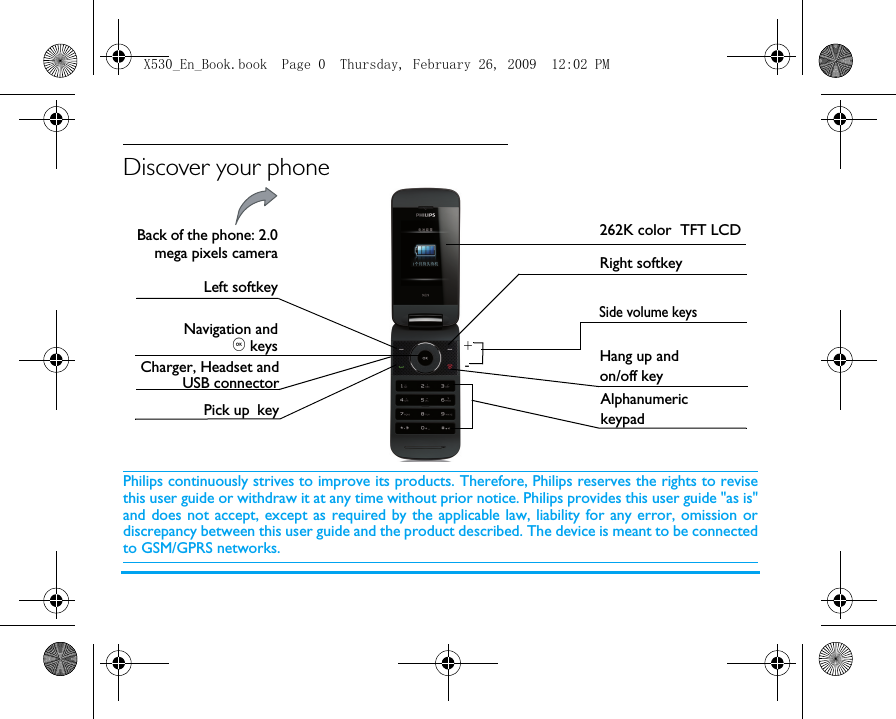
Discover your phonePhilips continuously strives to improve its products. Therefore, Philips reserves the rights to revisethis user guide or withdraw it at any time without prior notice. Philips provides this user guide "as is"and does not accept, except as required by the applicable law, liability for any error, omission ordiscrepancy between this user guide and the product described. The device is meant to be connectedto GSM/GPRS networks.Back of the phone: 2.0mega pixels cameraLeft softkeyPick up key   Hang up and on/off keyRight softkey262K color  TFT LCDCharger, Headset andUSB connectorAlphanumeric keypadSide volume keysNavigation and, keys+-X530_En_Book.book  Page 0  Thursday, February 26, 2009  12:02 PM
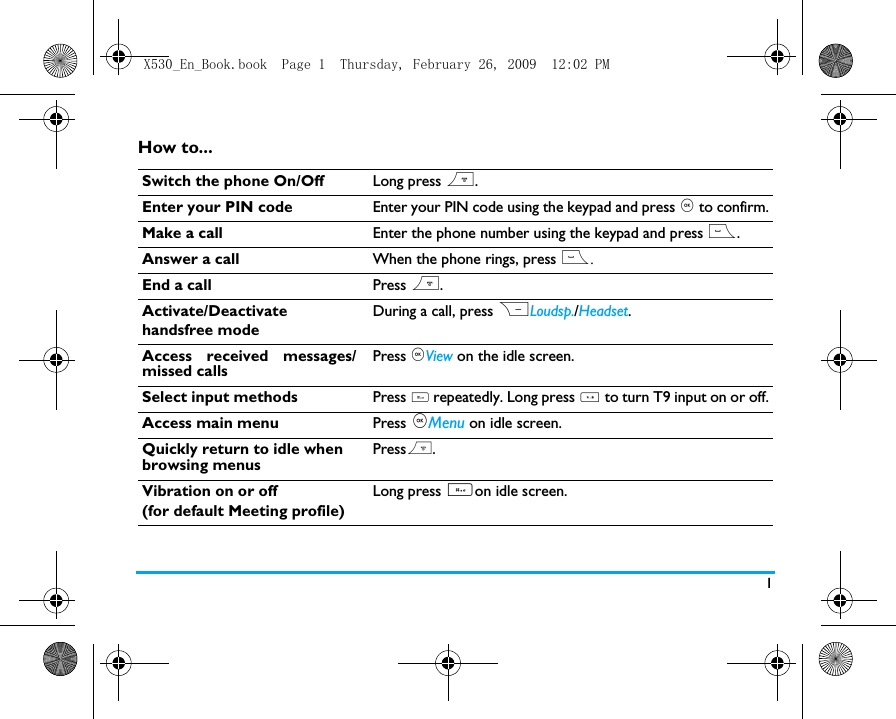
1How to...Switch the phone On/Off Long press ).Enter your PIN code Enter your PIN code using the keypad and press , to confirm.Make a call Enter the phone number using the keypad and press (.Answer a call When the phone rings, press (.End a call Press ).Activate/Deactivate handsfree modeDuring a call, press RLoudsp./Headset. Access received messages/missed callsPress ,View on the idle screen. Select input methods Press # repeatedly. Long press * to turn T9 input on or off.Access main menu Press ,Menu on idle screen.  Quickly return to idle when browsing menusPress).Vibration on or off (for default Meeting profile)Long press #on idle screen.X530_En_Book.book  Page 1  Thursday, February 26, 2009  12:02 PM
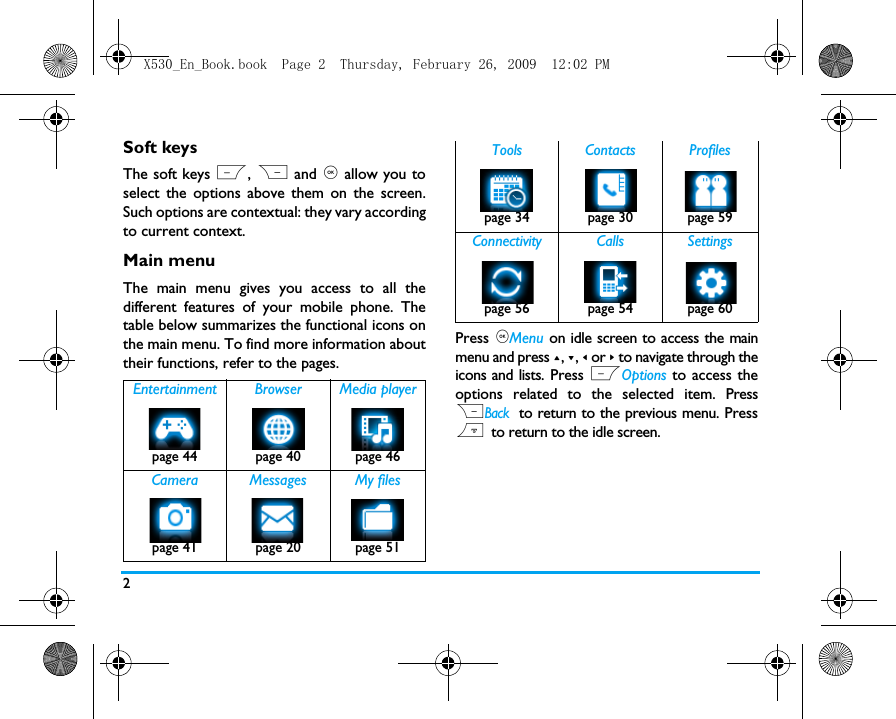
2Soft keysThe soft keys L, R and , allow you toselect the options above them on the screen.Such options are contextual: they vary accordingto current context.Main menuThe main menu gives you access to all thedifferent features of your mobile phone. Thetable below summarizes the functional icons onthe main menu. To find more information abouttheir functions, refer to the pages. Press ,Menu on idle screen to access the mainmenu and press +, -, < or > to navigate through theicons and lists. Press LOptions to access theoptions related to the selected item. PressRBack to return to the previous menu. Press) to return to the idle screen.Entertainment Browser Media playerpage 44 page 40 page 46 Camera Messages My filespage 41 page 20 page 51Tools Contacts Profilespage 34 page 30 page 59Connectivity Calls Settingspage 56 page 54 page 60X530_En_Book.book  Page 2  Thursday, February 26, 2009  12:02 PM
3Fast keysYou can configure the navigation keys +, -, <, >,and L and  R to access your favoritefeatures directly. Press the keys to access thefeatures.Go to Settings > General > Shortcuts to check thedefault settings of the navigation keys +, -, <, >,and L and  R. To change the defaultsetting,1.Select the item to be changed.2. Press ,Change to assign a new shortcut to the key.3. Press + or - to select, and , to confirm.External displayThe phone provides you with a double-sideddisplay, the external display synchronous withthe internal display.  Without opening the flip,you can  be informed of new events, like newmessages, missed calls, and tasks on the calendar(if the reminder is set to on), and  some phonestatus, like inserted headset, silent ringtone,music or radio playback, alarm and batterycharging. The new events and status are shownas icons on the external display. Without opening the flip, you can do thefollowing by using the side volume keys: 0Long press to enter “+” when making international calls 1Long press to access the voicemailbox #Long press to select/unselectMeeting profile (by default,vibration on or off for incomingcalls or messages)Turn on external displayPress one side volume key.Navigate through the eventsPress one side volume keyrepeatedly.X530_En_Book.book  Page 3  Thursday, February 26, 2009  12:02 PM
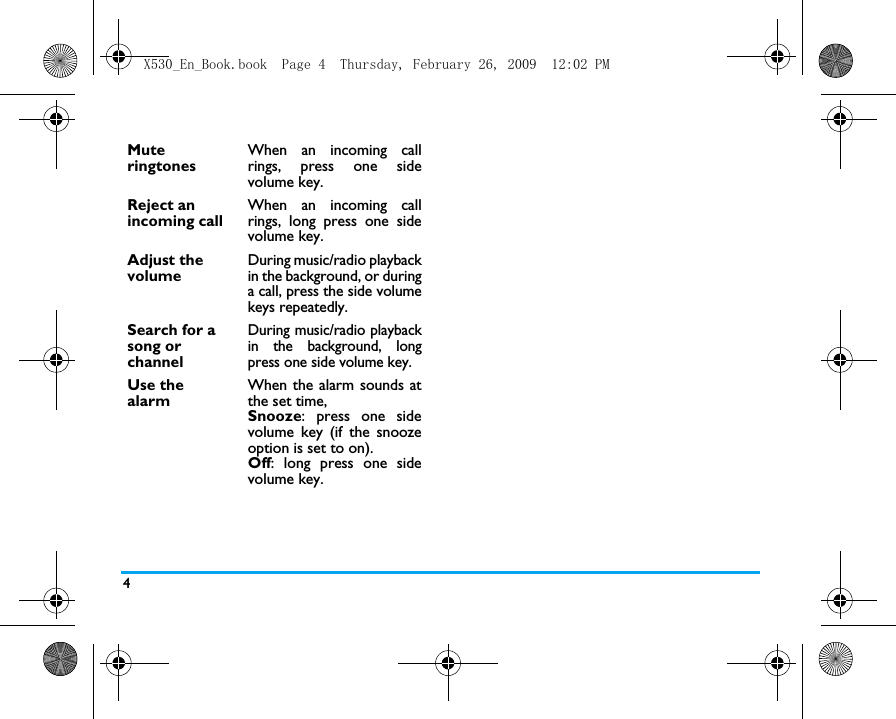
4Mute ringtones When an incoming callrings, press one sidevolume key. Reject an incoming call When an incoming callrings, long press one sidevolume key.Adjust the volume During music/radio playbackin the background, or duringa call, press the side volumekeys repeatedly.Search for a song or channel During music/radio playbackin the background, longpress one side volume key.Use the alarmWhen the alarm sounds atthe set time,Snooze: press one sidevolume key (if the snoozeoption is set to on).Off: long press one sidevolume key.X530_En_Book.book  Page 4  Thursday, February 26, 2009  12:02 PM
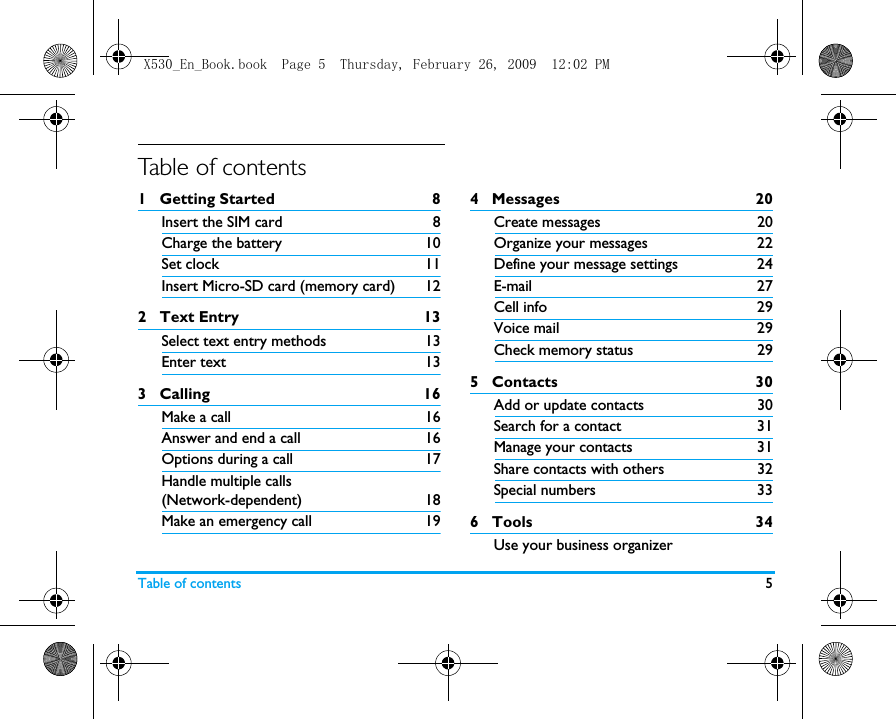
Table of contents 5Table of contents1   Getting Started 8Insert the SIM card 8Charge the battery 10Set clock 11Insert Micro-SD card (memory card) 122   Text Entry 13Select text entry methods 13Enter text 133   Calling 16Make a call 16Answer and end a call 16Options during a call 17Handle multiple calls (Network-dependent) 18Make an emergency call 194   Messages  20Create messages 20Organize your messages 22Define your message settings 24E-mail 27Cell info  29Voice mail  29Check memory status  295   Contacts 30Add or update contacts 30Search for a contact  31Manage your contacts 31Share contacts with others 32Special numbers 336   Tools 34Use your business organizerX530_En_Book.book  Page 5  Thursday, February 26, 2009  12:02 PM
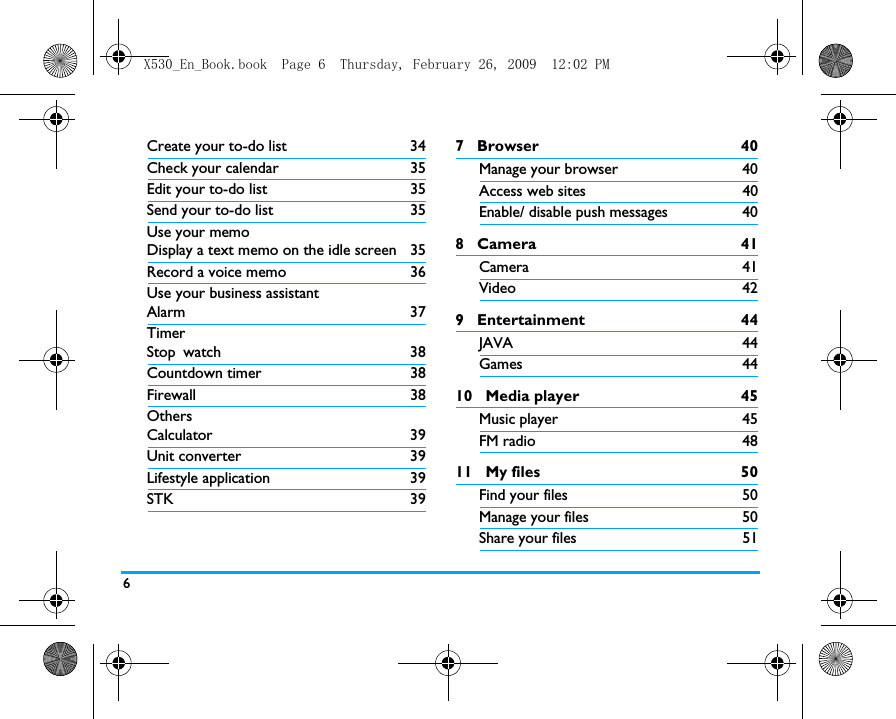
6Create your to-do list 34Check your calendar 35Edit your to-do list 35Send your to-do list 35Use your memoDisplay a text memo on the idle screen 35Record a voice memo 36Use your business assistantAlarm 37TimerStop watch 38Countdown timer 38Firewall 38OthersCalculator 39Unit converter 39Lifestyle application 39STK 397   Browser 40Manage your browser 40Access web sites 40Enable/ disable push messages  408   Camera 41Camera 41Video 429   Entertainment 44JAVA 44Games 4410   Media player 45Music player 45FM radio 4811   My files 50Find your files   50Manage your files 50Share your files 51X530_En_Book.book  Page 6  Thursday, February 26, 2009  12:02 PM
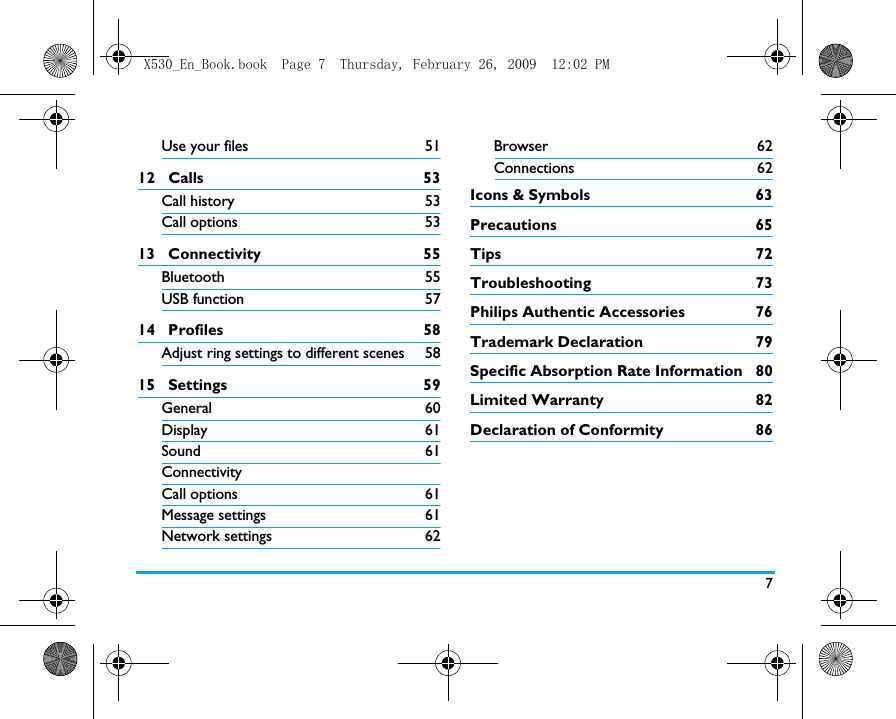
7Use your files 5112   Calls 53Call history 53Call options 5313   Connectivity 55Bluetooth 55USB function 5714   Profiles 58Adjust ring settings to different scenes 5815   Settings 59General 60Display 61Sound 61ConnectivityCall options 61Message settings 61Network settings 62Browser 62Connections 62Icons & Symbols  63Precautions 65Tips 72Troubleshooting 73Philips Authentic Accessories  76Trademark Declaration  79Specific Absorption Rate Information  80Limited Warranty  82Declaration of Conformity  86X530_En_Book.book  Page 7  Thursday, February 26, 2009  12:02 PM
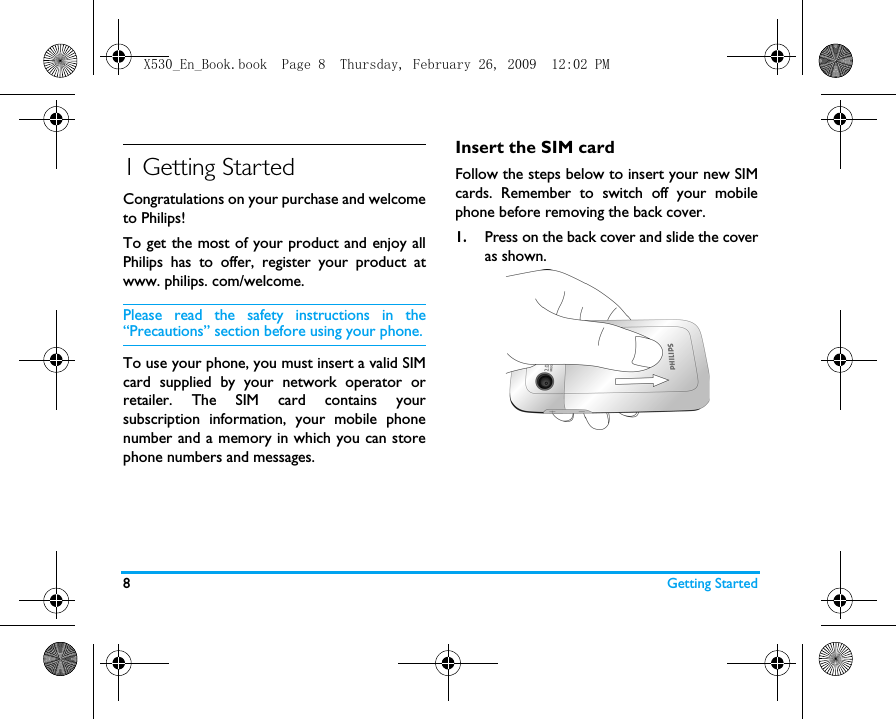
8Getting Started1 Getting StartedCongratulations on your purchase and welcometo Philips!To get the most of your product and enjoy allPhilips has to offer, register your product atwww. philips. com/welcome.Please read the safety instructions in the“Precautions” section before using your phone.To use your phone, you must insert a valid SIMcard supplied by your network operator orretailer. The SIM card contains yoursubscription information, your mobile phonenumber and a memory in which you can storephone numbers and messages.Insert the SIM cardFollow the steps below to insert your new SIMcards. Remember to switch off your mobilephone before removing the back cover.1.Press on the back cover and slide the coveras shown.   X530_En_Book.book  Page 8  Thursday, February 26, 2009  12:02 PM
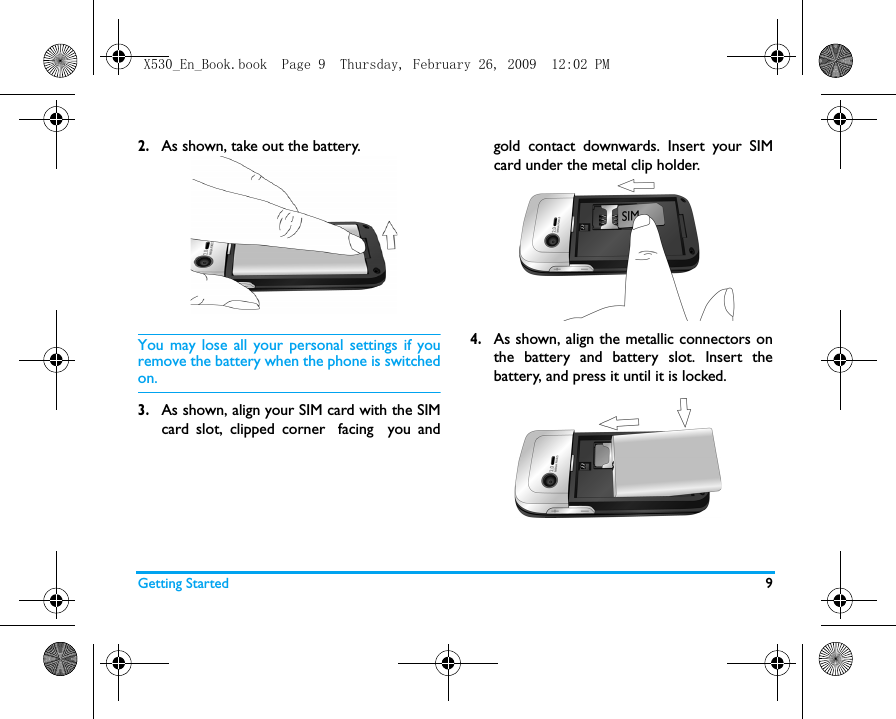
Getting Started 92.As shown, take out the battery. You may lose all your personal settings if youremove the battery when the phone is switchedon.3.As shown, align your SIM card with the SIMcard slot, clipped corner facing  you andgold contact downwards. Insert your SIMcard under the metal clip holder.4.As shown, align the metallic connectors onthe battery and battery slot. Insert thebattery, and press it until it is locked.X530_En_Book.book  Page 9  Thursday, February 26, 2009  12:02 PM
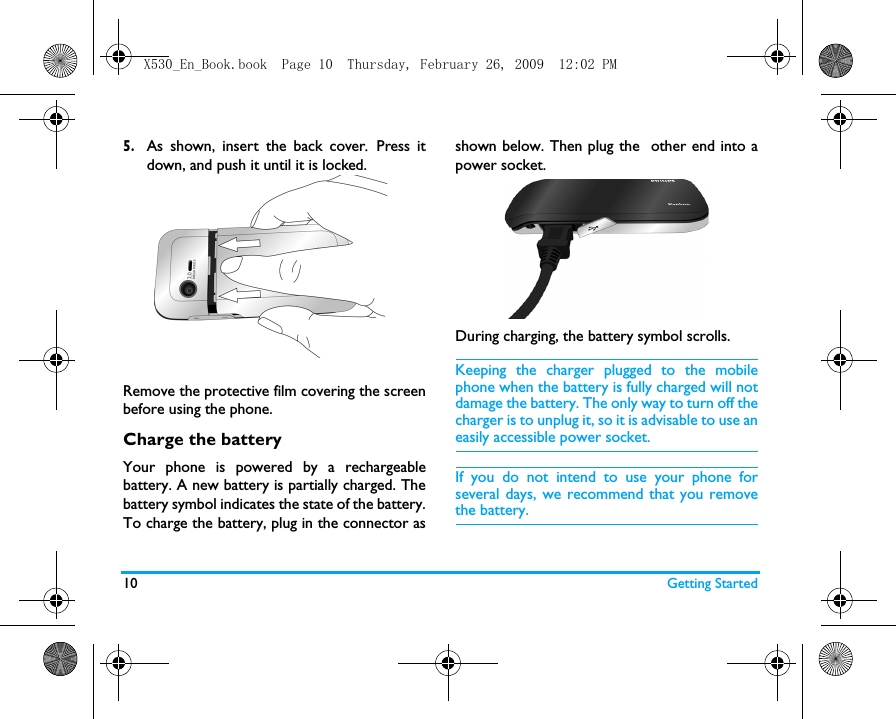
10 Getting Started5.As shown, insert the back cover.  Press itdown, and push it until it is locked. Remove the protective film covering the screenbefore using the phone.Charge the batteryYour phone is powered by a rechargeablebattery. A new battery is partially charged. Thebattery symbol indicates the state of the battery.To charge the battery, plug in the connector asshown below. Then plug the  other end into apower socket.During charging, the battery symbol scrolls.  Keeping the charger plugged to the mobilephone when the battery is fully charged will notdamage the battery. The only way to turn off thecharger is to unplug it, so it is advisable to use aneasily accessible power socket. If you do not intend to use your phone forseveral days, we recommend that you removethe battery.X530_En_Book.book  Page 10  Thursday, February 26, 2009  12:02 PM
Getting Started 11You can use the phone while it is charging. If thebattery is completely flat, the battery symbol willonly reappear after a few minutes of charging.Set clock1.Check that your phone is switched on. Long press ) if necessary. Enter thePIN code if required. A PIN code is a 4- to8-digit secret code of your SIM card. It ispreconfigured and communicated to youby your network operator or retailer.If you enter an incorrect PIN code three timesin succession, your SIM card will be blocked. Tounblock it, you must request the PUK code fromyour operator.2.On idle screen, press ,Menu and go toSettings > General > Time & date.Set time/date: Enter the time and date byusing the numeric keypad.  Time/Date format: Select the time (12-houror 24-hour clock) and date format bypressing the navigation keys +, -, <,  >  and,.3.To display time and date on the idle screen,go to Settings > General  >  Time & date >Display time.Press , to turn on the clock.Display local and international clocksYou can display two clocks on the idle screen,one showing your local time and one the time ofyour destination. 1.Check that you have set your local timeand date.2.Go to Settings > General > Time & date.Check that Display time is set to On.3.On the idle screen, press ,Menu and go toSettings > General >Time & date>International clock.Clock status: Press , to choose to turn onthe international clock. X530_En_Book.book  Page 11  Thursday, February 26, 2009  12:02 PM
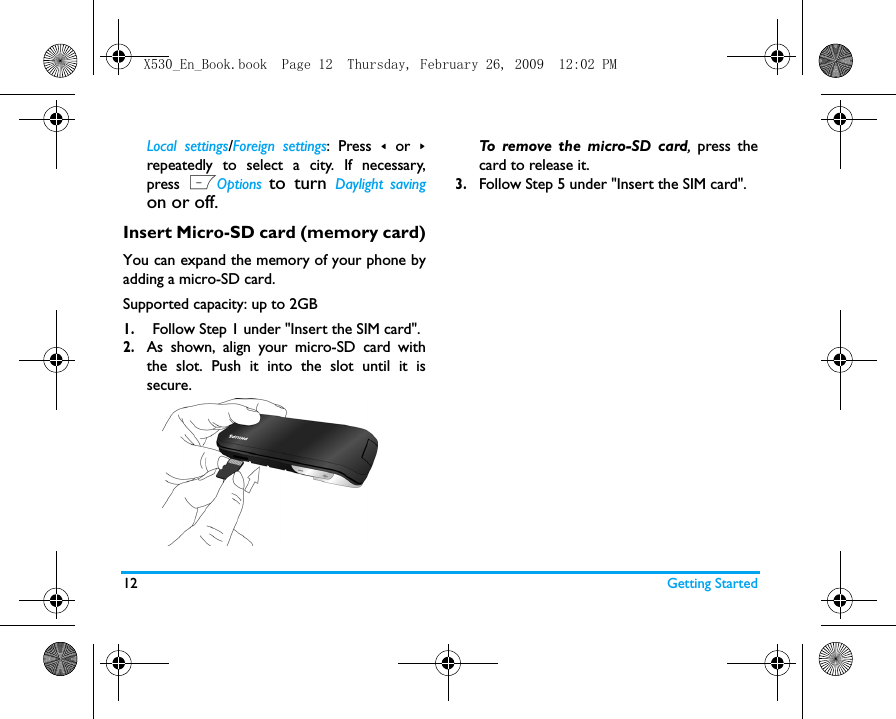
12 Getting StartedLocal settings/Foreign settings: Press < or >repeatedly to select a city. If necessary,press LOptions to turn Daylight savingon or off.  Insert Micro-SD card (memory card)You can expand the memory of your phone byadding a micro-SD card. Supported capacity: up to 2GB1.Follow Step 1 under "Insert the SIM card".2.As shown, align your micro-SD card withthe slot. Push it into the slot until it issecure. To remove the micro-SD card, press thecard to release it.   3.Follow Step 5 under "Insert the SIM card".X530_En_Book.book  Page 12  Thursday, February 26, 2009  12:02 PM
132 Text entryYour mobile phone supports a number of textentry modes, including T9 input, multi-tap input,numeric input and symbol input. Select text entry methods1.During text editing, press # repeatedlyto select your desired inputs:/ / : for English entry: for numeric entry: Pinyin input for SimplifiedChinese/ : Stroke input forSimplified/Traditional Chinese  Long press # to set your preferredinput methods. Only your preferredinput methods appears when you press# repeatedly.     2.Long press * to switch the T9 Englishinput on or off. 3.To enter a symbol and punctuations, press*.The text editor remembers the last inputmethod you have used before you exit theediting screen. When you access the editoragain, it will automatically select the last inputmethod you have used. Depending on the language you select for yourphone, the supported input methods may vary.Enter text1.Select your desired text entry methods.2.Enter text by using the alphanumerickeypad.2 to 9   To input letters (T9 input)             Press repeatedly to input the desired              letter (multi-tap input)1 to 6   To enter strokes (stroke input)<,>         To browse candidate words               (T9 input/multi-tap input)+, -      To browse the candidate words on X530_En_Book.book  Page 13  Thursday, February 26, 2009  12:02 PM
14                                                                                                                                         the previous/next page                 (T9 input/multi-tap input),Select    To confirm the selection0         To input a spaceRClear  Short press to clear a letter,                 long press to clear all entries.                If necessary, press R to exit                the input mode first.T9® inputT9® predictive text input is anintelligent editing mode formessages, which includes acomprehensive dictionary. Itallows you to quickly enter text.You need to press only once onthe key corresponding to each letter needed tospell a word: keystrokes input are analyzed andthe word suggested by T9® is displayed at thepop-up window. Examples: how to enter the word "home":1.Press 4, 6, 6, 3.The screen displays the first word of a list:Good.2.Press - to scroll and select Home.3.Press ,Select to confirm.Multi-tap input (Abc/abc/ABC)Press the keys that are marked with thecorresponding letter you wish to enter. Pressonce to get the first letter on the key, presstwice quickly to get the second letter and so onuntil the letter you want is displayed on thescreen.Example: how to enter the word "home":Press 4,  4 (GHI)  6, 6, 6 (MNO),6 (MNO), 3, 3 (DEF). Tegic Euro. Pat. App. 0842463X530_En_Book.book  Page 14  Thursday, February 26, 2009  12:02 PM
15Stroke input The principle of stroke input is to dissect andseparate every stroke of a Chinese characteraccording to sequence. When you wish to inputthe character, press the keys corresponding tothe required strokes according to sequence toget the desired character. The stroke inputmethod in this phone classifies a Chinesecharacter into 5 basic strokes: (horizontal,vertical, left falling stroke, right falling stroke andover-down) as well as a special stroke. Whenthe stroke you need does not correspond to the5 basic strokes, replace it with the specialstroke. X530_En_Book.book  Page 15  Thursday, February 26, 2009  12:02 PM
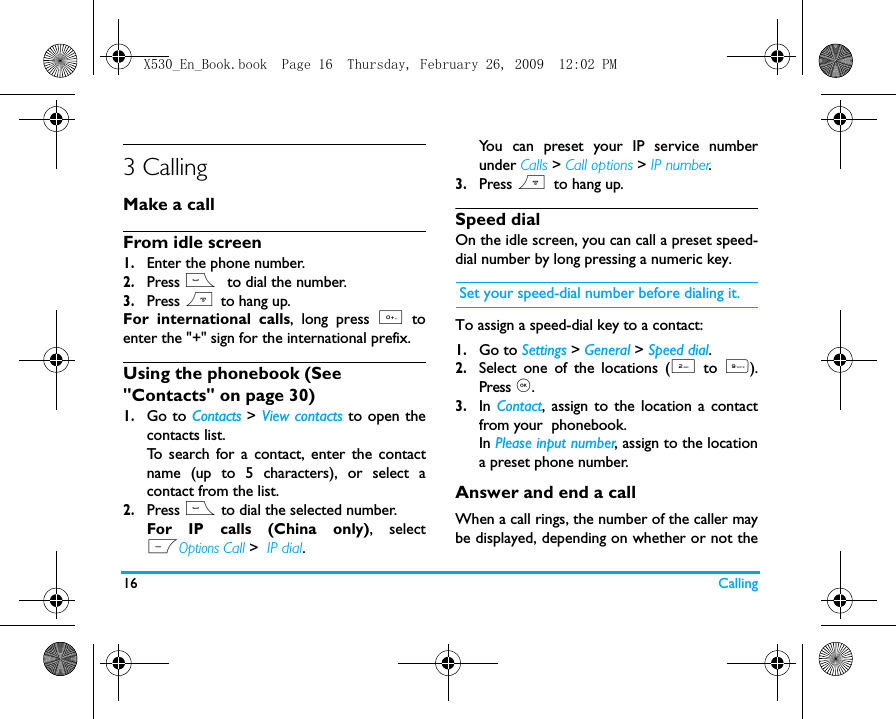
16 Calling3 CallingMake a callFrom idle screen1.Enter the phone number.2.Press (  to dial the number. 3.Press )  to hang up.For international calls, long press 0 toenter the "+" sign for the international prefix.Using the phonebook (See "Contacts" on page 30)1.Go to Contacts > View contacts to open thecontacts list.To search for a contact, enter the contactname (up to 5 characters), or select acontact from the list. 2.Press ( to dial the selected number. For IP calls (China only), selectLOptions Call >  IP dial.You can preset your IP service numberunder Calls > Call options > IP number.3.Press )  to hang up.Speed dialOn the idle screen, you can call a preset speed-dial number by long pressing a numeric key. Set your speed-dial number before dialing it.To assign a speed-dial key to a contact:1.Go to Settings > General > Speed dial.2.Select one of the locations (2 to  9).Press ,. 3.In  Contact, assign to the location a contactfrom your  phonebook. In Please input number, assign to the locationa preset phone number. Answer and end a callWhen a call rings, the number of the caller maybe displayed, depending on whether or not theX530_En_Book.book  Page 16  Thursday, February 26, 2009  12:02 PM
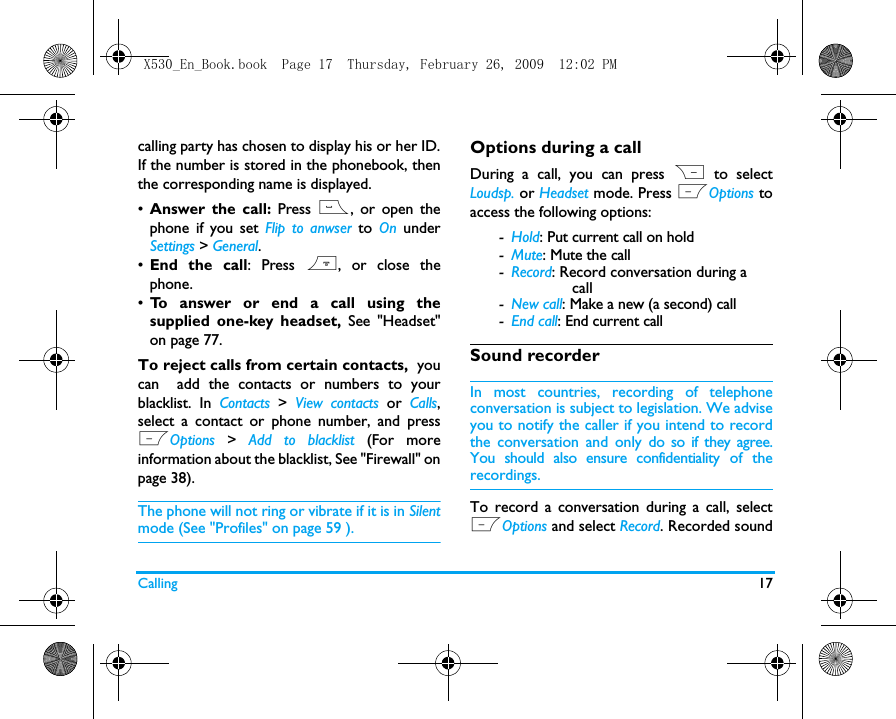
Calling 17calling party has chosen to display his or her ID.If the number is stored in the phonebook, thenthe corresponding name is displayed.•Answer the call: Press (, or open thephone if you set Flip to anwser to  On  underSettings > General. •End the call: Press ), or close thephone.•To answer or end a call using thesupplied one-key headset, See "Headset"on page 77.To reject calls from certain contacts,  youcan  add the contacts or numbers to yourblacklist. In Contacts  >  View contacts or  Calls,select a contact or phone number, and pressLOptions  >  Add to blacklist (For moreinformation about the blacklist, See "Firewall" onpage 38).The phone will not ring or vibrate if it is in Silentmode (See "Profiles" on page 59 ).Options during a callDuring a call, you can press R to selectLoudsp. or Headset mode. Press LOptions toaccess the following options:-Hold: Put current call on hold -Mute: Mute the call-Record: Record conversation during a              call-New call: Make a new (a second) call-End call: End current callSound recorderIn most countries, recording of telephoneconversation is subject to legislation. We adviseyou to notify the caller if you intend to recordthe conversation and only do so if they agree.You should also ensure confidentiality of therecordings.To record a conversation during a call, selectLOptions and select Record. Recorded soundX530_En_Book.book  Page 17  Thursday, February 26, 2009  12:02 PM
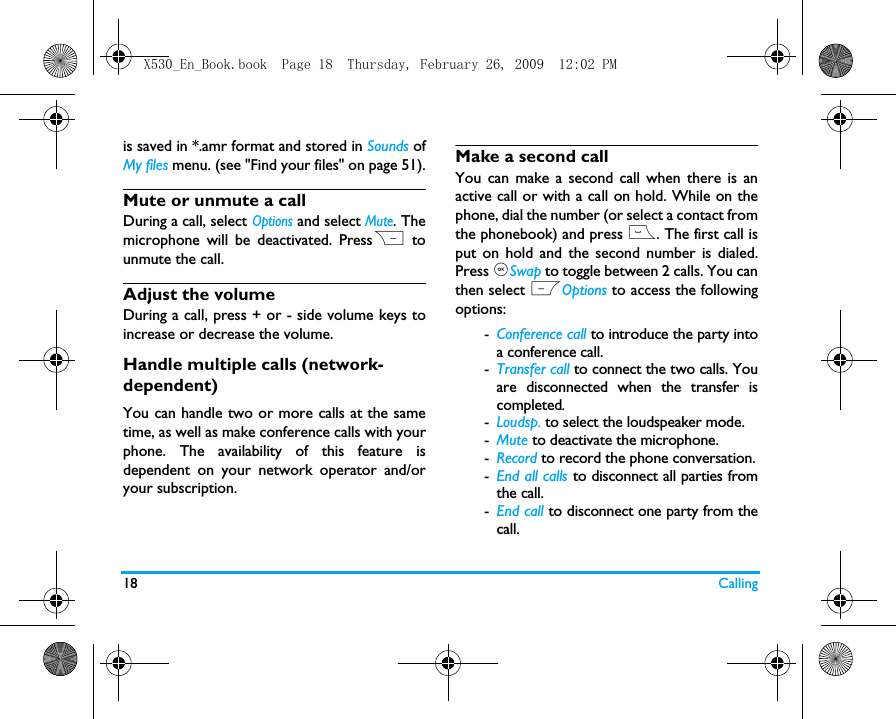
18 Callingis saved in *.amr format and stored in Sounds ofMy files menu. (see "Find your files" on page 51).Mute or unmute a callDuring a call, select Options and select Mute. Themicrophone will be deactivated. PressR tounmute the call.Adjust the volumeDuring a call, press + or - side volume keys toincrease or decrease the volume.Handle multiple calls (network- dependent)You can handle two or more calls at the sametime, as well as make conference calls with yourphone. The availability of this feature isdependent on your network operator and/oryour subscription.Make a second call You can make a second call when there is anactive call or with a call on hold. While on thephone, dial the number (or select a contact fromthe phonebook) and press (. The first call isput on hold and the second number is dialed.Press ,Swap to toggle between 2 calls. You canthen select LOptions to access the followingoptions:-Conference call to introduce the party intoa conference call.-Transfer call to connect the two calls. Youare disconnected when the transfer iscompleted.-Loudsp. to select the loudspeaker mode.-Mute to deactivate the microphone.-Record to record the phone conversation.-End all calls to disconnect all parties fromthe call.-End call to disconnect one party from thecall.X530_En_Book.book  Page 18  Thursday, February 26, 2009  12:02 PM
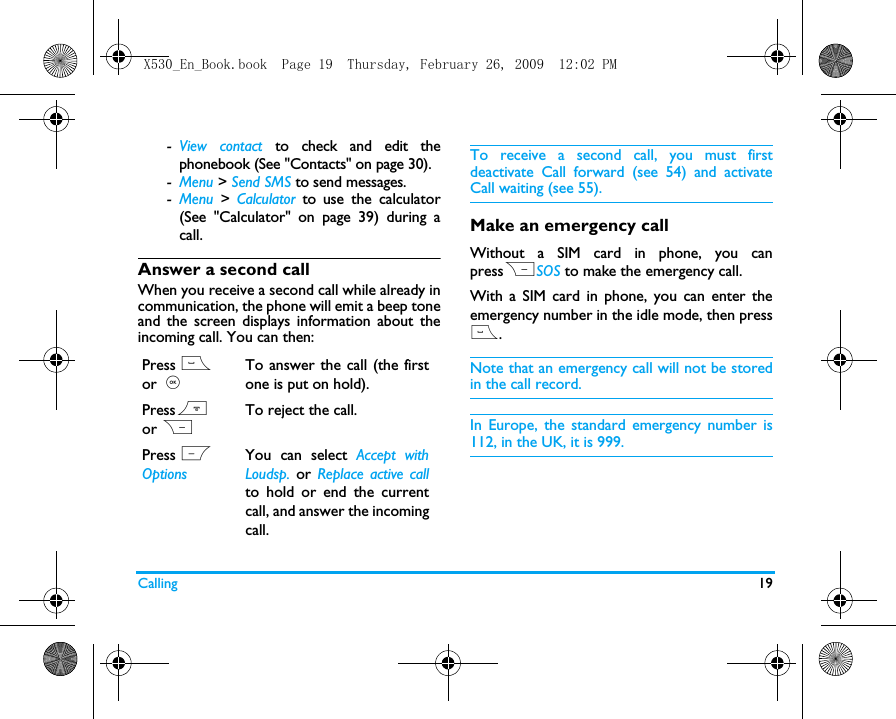
Calling 19-View contact to check and edit thephonebook (See "Contacts" on page 30). -Menu > Send SMS to send messages.-Menu  > Calculator to use the calculator(See "Calculator" on page 39) during acall.Answer a second callWhen you receive a second call while already incommunication, the phone will emit a beep toneand the screen displays information about theincoming call. You can then:To receive a second call, you must firstdeactivate Call forward (see 54) and activateCall waiting (see 55).Make an emergency callWithout a SIM card in phone, you canpressRSOS to make the emergency call.With a SIM card in phone, you can enter theemergency number in the idle mode, then press(.Note that an emergency call will not be storedin the call record. In Europe, the standard emergency number is112, in the UK, it is 999.Press ( or ,To answer the call (the firstone is put on hold).Press) or RTo reject the call.Press L OptionsYou can select Accept withLoudsp. or Replace active callto hold or end the currentcall, and answer the incomingcall.X530_En_Book.book  Page 19  Thursday, February 26, 2009  12:02 PM
20 Messages4 MessagesCreate messagesSMSSMS enables you to send text messages to theother party, using Short Messaging Service(SMS). You can use the SMS  menu to sendmessages to another handphone or a device thatis capable of receiving SMS messages. Tocompose and send an SMS message, follow thesteps below:1.Select Create message > SMS, and write yourmessage. 2.Press  LOptions to access the followingoptions:Clear text Delete the text on the editingscreen. Save Save as draft: Save the SMSmessage to Drafts.Save as template: Save the SMSmessage as an SMS template.Insert contact Select to insert the name andphone number of yourcontacts. Use template Select to insert a presetmessage. Exit editor Exit from the SMS editor. Spell word For T9 input: Add to thememory the words youfrequently input.Help Check the shortcuts forediting.X530_En_Book.book  Page 20  Thursday, February 26, 2009  12:02 PM
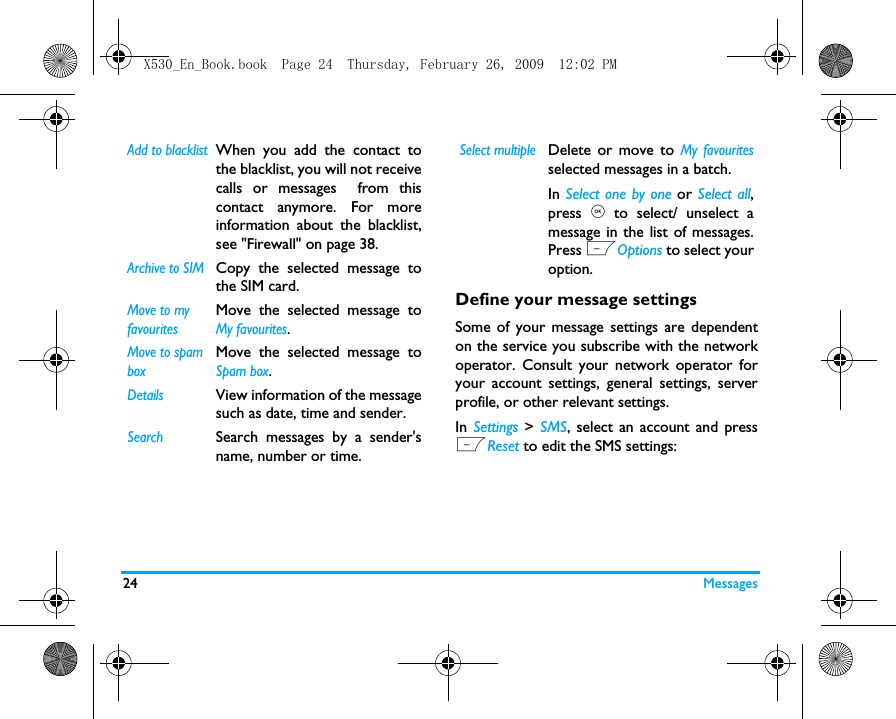
Messages 213.Press  ,Send to send the message to thedesired contact or contact group (see"Contacts" on page 30).MMSYour mobile phone can also send and receiveMMS (Multimedia Messaging Service) messages.With MMS, you can send messages that containpictures, sound and text.When sending MMS messages, make sure thatyour recipient also has an MMS-enabled phonein order to view your messages. Follow thesteps described below to compose and send anMMS.1.Select  Create Message >  MMS. Enter thetext of your MMS message, and press ,Ok. If necessary, press R to exit the inputmode first.2.Press  LOptions to access the followingoptions:Insert objectInsert picture, video, or soundfiles from My files, or contactnumbers from the phonebook. One page can only contain amaximum of one picture, onevideo and one sound files. Toinsert more picture, video orsound files, select Insert object >Page to insert another page.  To insert a new picture, video,or sound file, select  Insert object >New picture,  New video, or Newsound for photographing orvideo/ sound recording. Edit subjectEdit the subject of the MMSmessage.PreviewPreview current MMS message.Press </> to browse a multi-pageMMS message.X530_En_Book.book  Page 21  Thursday, February 26, 2009  12:02 PM
22 Messages3.Press  ,Send to send the message to thedesired contact or contact group (see"Contacts" on page 30)Use templates for messagesYou can use ready-made messages as newmessages. To create preset SMS or MMS messages1.Create a message under Create message >SMS or MMS. 2.Press LOptions, and select Save > Save astemplate.      The preset message is saved to Templates.To use a preset message1.Select your desired message underTemplates.2.Press  ,View, and then ,Edit to edit themessage. Organize your messagesYour messages are sorted in the followingfolders on your phone memory and SIM cards:Inbox: received messagesSent: sent messagesOutbox: unsuccessfully sent messagesDrafts: messages saved as draftsPage timingSet play time of the MMS slides.The default value is 30 seconds.Save  Save as draft: Save the MMS message to Drafts.Save as template: Save the MMSmessage as an MMS template.Exit editorExit from the MMS editor.Spell wordFor T9 input: Add to thememory the words youfrequently input. HelpCheck the shortcuts for editing.X530_En_Book.book  Page 22  Thursday, February 26, 2009  12:02 PM
Messages 23My favourites: messages moved from otherfolders through the Move to my favourites optionSpam box: rejected or filtered messages SIM archive: messages saved in the SIM cardFind a message• Enter a folder, and press + or - to select amessage. Manage messagesPress  LOptions to access the followingoptions:For the SMS or MMS, or different folders,available options may vary.  Download Download the whole message.Reply Reply to the sender.Forward Forward the selected message.Dial Extract the sender's numberfrom the message and dial thenumber.Delete Delete the selected message.Delete all Delete all messages in the folder.Save objects Extract the inserted object fromthe message and save it asdesired.Extract numbers, Extract URLExtract the number of thesender or in the message tocreate messages, make a call, orsave to the phonebook.Extract the URL in the messageto connect to the website, oradd as a bookmark (see "Accessweb sites" on page 40).X530_En_Book.book  Page 23  Thursday, February 26, 2009  12:02 PM
24 MessagesDefine your message settingsSome of your message settings are dependenton the service you subscribe with the networkoperator. Consult your network operator foryour account settings, general settings, serverprofile, or other relevant settings. In  Settings  > SMS, select an account and pressLReset to edit the SMS settings:Add to blacklistWhen you add the contact tothe blacklist, you will not receivecalls or messages  from thiscontact anymore. For moreinformation about the blacklist,see "Firewall" on page 38.Archive to SIM Copy the selected message tothe SIM card.Move to my favouritesMove the selected message toMy favourites.Move to spam boxMove the selected message toSpam box.DetailsView information of the messagesuch as date, time and sender.SearchSearch messages by a sender'sname, number or time.Select multipleDelete or move to My favouritesselected messages in a batch.In Select one by one or Select all,press , to select/ unselect amessage in the list of messages.Press LOptions to select youroption.X530_En_Book.book  Page 24  Thursday, February 26, 2009  12:02 PM
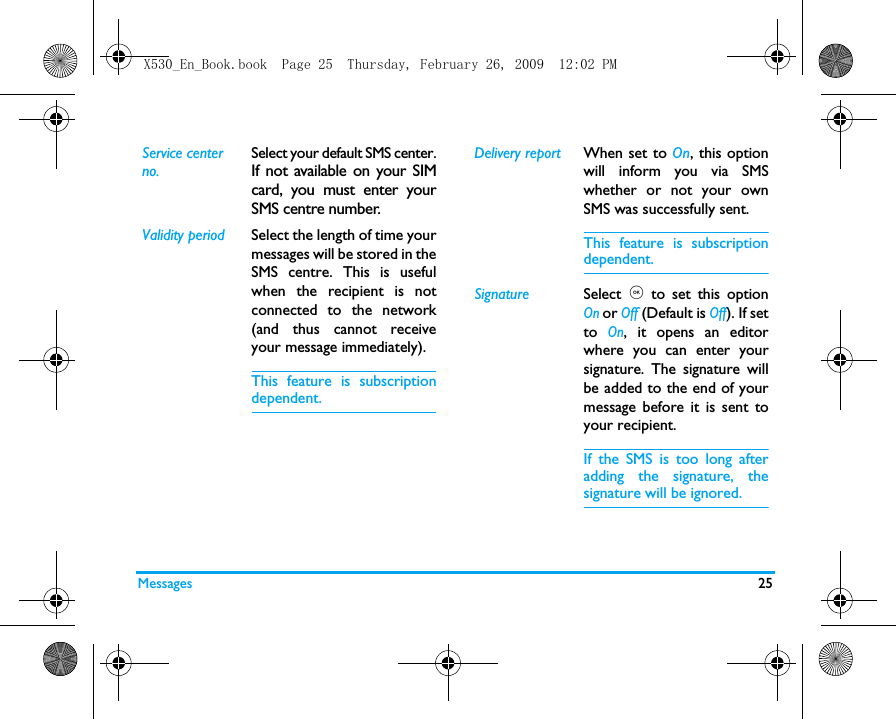
Messages 25Service center no.Select your default SMS center.If not available on your SIMcard, you must enter yourSMS centre number.Validity period Select the length of time yourmessages will be stored in theSMS centre. This is usefulwhen the recipient is notconnected to the network(and thus cannot receiveyour message immediately).This feature is subscriptiondependent.Delivery report When set to On, this optionwill inform you via SMSwhether or not your ownSMS was successfully sent. This feature is subscriptiondependent.Signature Select  , to set this optionOn or Off (Default is Off). If setto On, it opens an editorwhere you can enter yoursignature. The signature willbe added to the end of yourmessage before it is sent toyour recipient.If the SMS is too long afteradding the signature, thesignature will be ignored. X530_En_Book.book  Page 25  Thursday, February 26, 2009  12:02 PM
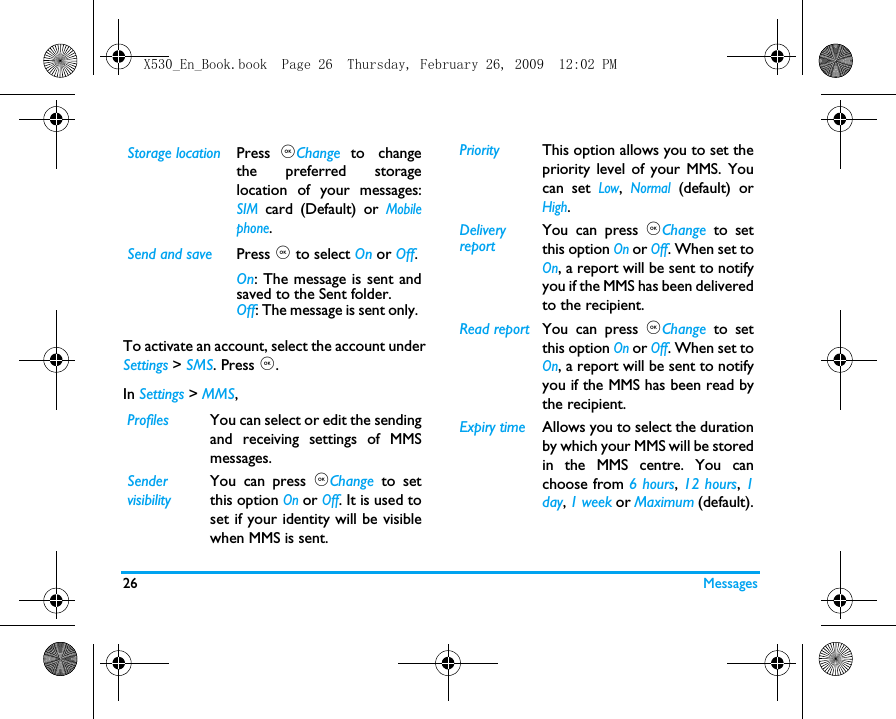
26 MessagesTo activate an account, select the account underSettings > SMS. Press ,.In Settings > MMS,Storage location Press ,Change to changethe preferred storagelocation of your messages:SIM card (Default) or Mobilephone.Send and save Press , to select On or Off.On: The message is sent andsaved to the Sent folder. Off: The message is sent only. Profiles You can select or edit the sendingand receiving settings of MMSmessages.SendervisibilityYou can press ,Change to setthis option On or Off. It is used toset if your identity will be visiblewhen MMS is sent.Priority This option allows you to set thepriority level of your MMS. Youcan set Low, Normal (default) orHigh.Delivery reportYou can press ,Change to setthis option On or Off. When set toOn, a report will be sent to notifyyou if the MMS has been deliveredto the recipient.Read report You can press ,Change to setthis option On or Off. When set toOn, a report will be sent to notifyyou if the MMS has been read bythe recipient. Expiry time Allows you to select the durationby which your MMS will be storedin the MMS centre. You canchoose from 6 hours, 12 hours, 1day, 1 week or Maximum (default).X530_En_Book.book  Page 26  Thursday, February 26, 2009  12:02 PM
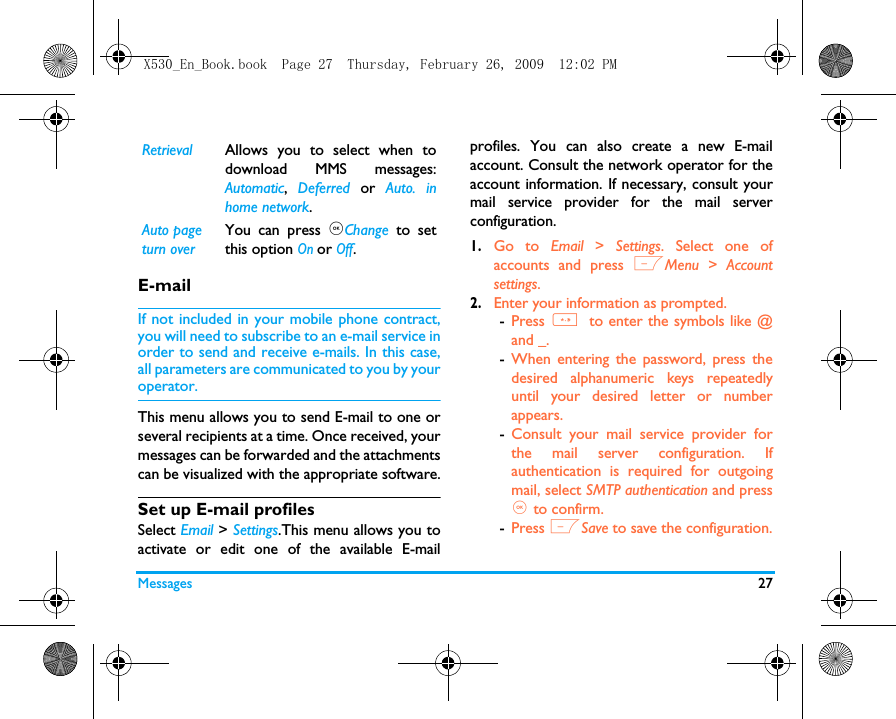
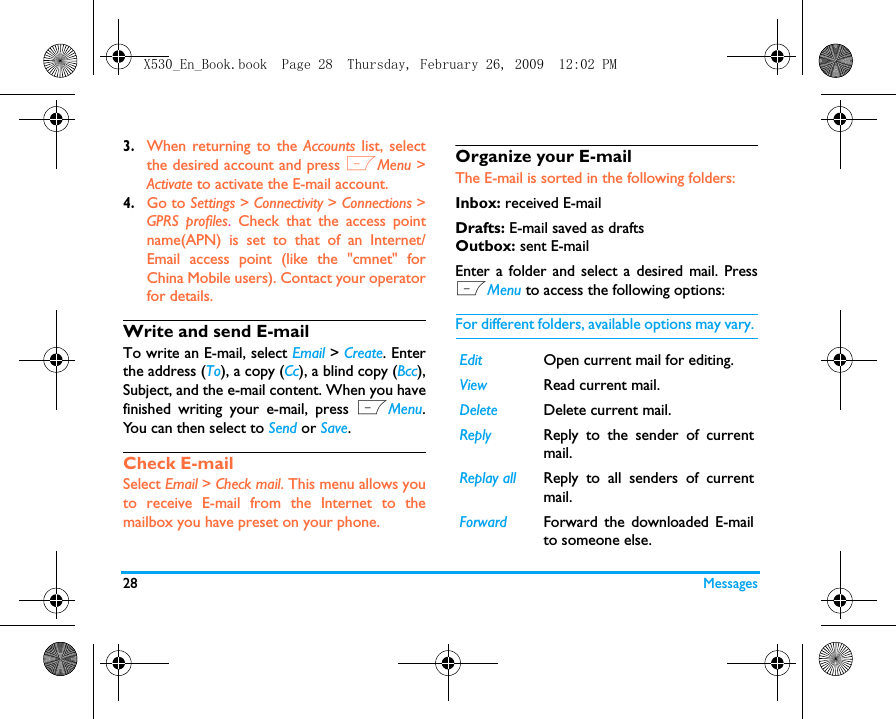
Messages 27E-mailIf not included in your mobile phone contract,you will need to subscribe to an e-mail service inorder to send and receive e-mails. In this case,all parameters are communicated to you by youroperator.This menu allows you to send E-mail to one orseveral recipients at a time. Once received, yourmessages can be forwarded and the attachmentscan be visualized with the appropriate software.Set up E-mail profilesSelect Email > Settings.This menu allows you toactivate or edit one of the available E-mailprofiles. You can also create a new E-mailaccount. Consult the network operator for theaccount information. If necessary, consult yourmail service provider for the mail serverconfiguration. 1.Go to Email  > Settings. Select one ofaccounts and press LMenu > Accountsettings.2.Enter your information as prompted.-Press * to enter the symbols like @and _. -When entering the password, press thedesired alphanumeric keys repeatedlyuntil your desired letter or numberappears. -Consult your mail service provider forthe mail server configuration. Ifauthentication is required for outgoingmail, select SMTP authentication and press, to confirm. -Press LSave to save the configuration.Retrieval Allows you to select when todownload MMS messages:Automatic,  Deferred or Auto. inhome network.Auto page turn overYou can press ,Change to setthis option On or Off.X530_En_Book.book  Page 27  Thursday, February 26, 2009  12:02 PM
28 Messages3.When returning to the Accounts list, selectthe desired account and press LMenu >Activate to activate the E-mail account. 4.Go to Settings > Connectivity > Connections >GPRS profiles. Check that the access pointname(APN) is set to that of an Internet/Email access point (like the "cmnet" forChina Mobile users). Contact your operatorfor details. Write and send E-mailTo write an E-mail, select Email > Create. Enterthe address (To), a copy (Cc), a blind copy (Bcc),Subject, and the e-mail content. When you havefinished writing your e-mail, press LMenu.You can then select to Send or Save.Check E-mailSelect Email > Check mail. This menu allows youto receive E-mail from the Internet to themailbox you have preset on your phone.Organize your E-mailThe E-mail is sorted in the following folders:Inbox: received E-mailDrafts: E-mail saved as draftsOutbox: sent E-mailEnter a folder and select a desired mail. PressLMenu to access the following options: For different folders, available options may vary. Edit Open current mail for editing.View Read current mail.Delete Delete current mail.Reply Reply to the sender of currentmail.Replay all Reply to all senders of currentmail. Forward Forward the downloaded E-mailto someone else. X530_En_Book.book  Page 28  Thursday, February 26, 2009  12:02 PM
Messages 29Cell infoThis is a network service which allows you toreceive text messages of various contents, suchas news and traffic. These messages areprovided by the network to the subscriberswithin a certain network area. If this service isavailable, the network will provide you with thebroadcast channel numbers. To define thesettings of cell info, go to Advanced > Cell info:Voice mailThis menu allows you to set your voice mailserver number, as well as retrieve your voicemail. Consult the network operator for theaccount information. In  Voice mail >  Voice mail number, input theretrieval number of your voice mail.When voice mail arrives, the phone will sendyou an alert. Select Voice mail > Call voice mail toretrieve you voice mail, or long press 1  onthe idle screen. Check memory statusGo to Advanced > Memory status to check theremaining space for messages on your phoneand SIM card.Delete all Delete all the mail in the folder.Receive Check your new E-mail.Options DescriptionReceptionSelect to turn on/off the receptionof new cell broadcast messages.TopicsAdd, change or delete channels.<Add new>: Press ,Add to add anew channel.Change: Edit a channel number.Delete: Delete a channel in thechannel list. X530_En_Book.book  Page 29  Thursday, February 26, 2009  12:02 PM
30 Contacts5 ContactsContacts are stored in one of the two availablephonebooks: SIM phonebooks (located on yourSIM card, by which the number of entries youcan store depends on the card capacity) or theSmart Phonebook (located on your phone,which allows you to store up to 2,000 names).New contacts will only be added to thephonebook you have selected.Add or update contactsAdd a contact to Smart PhonebookFor contacts on the Smart Phonebook, you canadd detailed information, like home number,office number, and identifying features, likecontact pictures and ringtones. 1.Go to Contacts > Advanced.In Choose contact list > Default location, selectPhone;2.On the idle screen, enter the phone numberyou wish to save. Press ,Save: Name: Enter the contact name. To selectinput methods, press # repeatedly; longpress * to turn T9 input on or off. PressRBack to exit the input mode, ifnecessary.  Mobile: Enter the mobile number. You can also edit your contact informationin Contacts > New contact.3.Add details as desired in other fields.When adding a contact picture or ringtone,press LAdd, and then select your desiredfiles. When selecting a caller group, press < or >.4.Select ,Save to save.X530_En_Book.book  Page 30  Thursday, February 26, 2009  12:02 PM
Contacts 31Add a contact to SIM phonebooks1.Go to Contacts > Advanced > Choose contactlist > Default location. Select SIM.2.Follow Step 2 under “Add a contact toSmart Phonebook”.Update contacts1.On the idle screen, enter the updatedphone number. 2.Press LOptions  > Update existing. Selectyour desired contact (see Step 3 in “Searchfor a contact”) and options, and then press, to update the contact entry.  Search for a contact1.Go to Contacts > Advanced > Choose contactlist >  Default list.  Select your desiredphonebook. 2.Go to Contact > View contacts.3.To search for a contact, enter the contactname (up to 5 characters).Press  # repeatedly to select an inputmethod. Manage your contactsYou can copy or move your contact entriesbetween the two phonebooks. Also, you cangroup your contacts as Family, Friend, Colleagueand others as you like. In this way, you can sendmessages to a group at a time.Copy, move or delete a contact1.Go to Contacts > View contacts.2.Select a desired contact ("Search for acontact").3.Press LOptions  to select Delete, Copy tophone/SIM, or  Move to phone/SIM.Copy, move or delete multiple contacts1.Go to Contacts > View contacts.2.Press LOptions > Select multiple.Select  Select all or  Select one by one toX530_En_Book.book  Page 31  Thursday, February 26, 2009  12:02 PM
32 Contactsdisplay a fully checked or uncheckedcontacts list.3.Press  L to check or uncheck yourselection. 4.Press ,Done > Copy to phone/SIM, Move tophone/SIM, or Delete.5.Press , to confirm. Copy, move or delete all contacts1.Go to Contacts > Advanced.2.Press  + or - to select Copy contact,  Movecontact or Delete all contacts. Group contacts on the Smart Phonebook1.Go to Contacts > View groups.2.Select a group.  To rename the group, press LOptions >Rename.To add members to the group, press ,View.Select Add member, and then press ,Add toadd members from the Smart Phonebook.     To send messages to a group1.In Contacts > View groups, select a group.2.Press LOptions > Send message to createand send a message.To reset a group1.In Contacts > View groups, select a group.2.Press LOptions > Reset.The group returns to its default settings. Share contact information with othersYou can share with others the contactinformation in your phonebook. As desired, theinformation can be sent via the SMS, MMS, orBluetooth. 1.In  Contacts > View contacts, select yourdesired contact ("Search for a contact").2.Press  LOptions  >  Send contact to sendthe contact information via  the SMS, MMS,or Bluetooth.X530_En_Book.book  Page 32  Thursday, February 26, 2009  12:02 PM
Contacts 33Special numbersThis menu allows you to keep a list of usefulnumbers such as your own numbers, servicenumbers, voice mail and SOS numbers.Options DescriptionMy number View, edit or clear your ownphone number.Emergency Display the emergency phonenumber.Voice mail  Edit the number for your voicemail service provider.ServicenumbersThis service is provided by yournetwork operator. For moreinformation regarding thecorresponding function, pleasecontact your network operator.X530_En_Book.book  Page 33  Thursday, February 26, 2009  12:02 PM
34 Tools6 ToolsUse your business organizerYou can add your new tasks to the phone. Suchto-do tasks are marked in your calendar. Youcan always check your calendar and remindyourself as desired.Create your to-do list1.In  Tools  >  Calendar, select a date in thecalendar, and press ,View to add a kind oftask.2.To keep yourself reminded, do thefollowing:At the set time, the alarm sounds or vibrates,depending on the selected profile. The taskSubject Add a note about the task. Time Enter the task time in 24-hourformat.RepeatmethodPress  < or > once or more torepeat the alarm at the specifiedtime once, daily, weekly, monthlyor annually. Reminders Press < or > once or more to havethe alarm sound 5 min,15min, 1hour or 1 day before the specifiedtime, or have it sound on time. To turn on or off the alarm: InTools > Calendar,  pressLOptions >  Advanced >Reminders. Press < or > to selectyour desired option. To set the alarm ringtone, goto Settings > Sound > Ringtones >Calendar.X530_En_Book.book  Page 34  Thursday, February 26, 2009  12:02 PM
Tools 35subject appears as a new event on the idlescreen. Check your calendar•Check your calendar in day, weekly ormonthly views: In Tools > Calendar, pressLOptions or ,View. You can also create your to-do list in thecalendar of different views.• Find a task by subject: 1.In Tools > Calendar,  press LOptions >Advanced > Find. 2.Enter the subject information of the task infull or part.  3.In the list of found tasks, press + or - toselect the task. Press ,View to see thedetails.Edit your to-do list1.Select a task (see "Check your calendar").2.Press ,View if necessary.3.Press LOptions > Edit or Delete.Send your to-do list1.Follow Step 1-2 under "Edit your to-do list".2.Press LOptions > Send. Use your memoYou can use this phone to record your text orsound memos. Display a text memo on the idle screenTo set tasks1.In Tools > Task > New task, press < or > toselect the type of the task: Phone call andTask. Edit Edit current task.Delete Delete current task.Send Send current task via the MMS orBluetooth. X530_En_Book.book  Page 35  Thursday, February 26, 2009  12:02 PM
36 Tools2.For Task, enter the subject of the task.For Phone call, enter the phone number.3.To display the memo on the idlescreen, press < or > to set Display on idle toOn.Only one text memo can be displayed on theidle screen.  To have the alarm sound at the set time,press  < or > to set Set Reminder to On. Press,Select to set the alarm date and time, andpress ,Ok when finishing setting. 4.After setting a task, press ,Save to savethe settings. If necessary, press + to switch,Select to ,Save.On the idle screen, you will see the textmemo if the Display on idle is set to On.At the set time, the alarm sounds orvibrates, depending on the selected profile(see "Profiles" on Page 59). To edit tasksGo to Tools > Task to see the list of your tasks.Select your desired task, and press LOptionsto access the following options: Record a voice memoYou can make your voice recording, and share itwith your friends via the MMS or Bluetooth.  Make recording1.Go to Tools > Voice recorder.2.To send the voice memo via the MMS, Press  LOptions > MMS size and selectOn. The recording stops when exceedingthe MMS size limit. To continue yourrecording and send it via another MMSmessage, press LOptions > New episode.Mark as (Not) DoneTick or untick as done orundone.Edit Edit the task.Delete Delete the task.X530_En_Book.book  Page 36  Thursday, February 26, 2009  12:02 PM
Tools 37To save the voice memo, pressLOptions > Storage location to select yourstorage location.3.Press , to start, stop or play recording.  All the sound files are saved to My files >Sounds.Use your business assistantAlarmYou can set up to three alarms. To set an alarm 1.Check that your clock is correctly set (see"Set clock" on Page 11).2.Go to Tools > Alarm, and select an alarm. To have alarm sound once, select Simplealarm, and set the time in 24-hour format.To have the alarm sound repeatedlyon desired weekdays or weekends,select  Recurrent alarm, and set the time (in 24-hourformat) and repetition.Alarm tone: Select an audio file in a .mid,mp3 or .amr format.Snooze: Turn it on to pause the sounding ofthe alarm.  3.Select RBack or ) when the settingis done.To use an alarmOn the set alarm time, your alarm sounds. Select  Off: The alarm stops. If you have set arecurrent alarm (see “To set an alarm”), it willsound again at the set time. Select  Snooze: The alarm will sound again fiveminutes later. You can select Snooze twice. The alarm clock will ring even if your mobilephone is switched off, will not ring or vibrate ifthe Profiles is set to Silent, and will only vibrate ifthe Profiles is set to Meetings.X530_En_Book.book  Page 37  Thursday, February 26, 2009  12:02 PM
38 ToolsTimerStop watchUse the stopwatch for your timing needs.In Tools > Stop watch,•Press , to start timing. • Press ,Pause/Go to pause or resume.• Press RStop to stop timing.Countdown timerTo set a countdown timerIn Tools > Countdown, set your countdown timerin the format of hh:mm:ss (maximum: 23:59:59). To use the countdown timer• Press , to start or pause countdown. • To reset the timer, press LReset. • To exit,  pressRBack.At the end of the countdown period, the alertsounds if your phone is not set to the Silentmode (see "Profiles" on Page 59). To set thealert sound, go to Settings > Sound > Ringtones >Calendar.FirewallUse the firewall to reject the incoming calls ormessages from those included in the blacklist. Set > Activate: Turn the firewall mode on or off.Black list:  Edit a list of phone numbers orcontacts. You can reject all the calls or messagesfrom such numbers. To add a contact from the phonebook,call lists, or inbox1.Go to Contacts  >  View contacts,  Calls  >  Allcalls, or Messages > Inbox.2.Select a contact or phone number. PressLOptions, and select Add to blacklist.X530_En_Book.book  Page 38  Thursday, February 26, 2009  12:02 PM
Tools 39OthersCalculator Enter figures by using the the numeric keypad.To enter desired symbols, press the keys asshown: Unit converterYou can make different types of unit conversionat a fixed rate. Press < or > to select unit types,and input figures in boxes. Press # to enter the decimal point.Lifestyle applicationUse this menu to make calculation or recordsthat may be useful in your daily life. STKThe availability of the features in this menudepends on whether or not your SIM cardsupports STK. If your SIM card supports STKfunction, the STK menu will be displayed on thescreen.Keys Symbols+Operation symbol "+"-Operation symbol "-">Operation symbol "x"<Operation symbol "/", Operation symbol "="*Negative or positive symbols#A decimal pointL Options >  Percent A percentage symbol after the figure behind an operation symbol.LOptions > ModularA percent symbol after thecalculation result.X530_En_Book.book  Page 39  Thursday, February 26, 2009  12:02 PM
40 Browser7 BrowserYou can use this function to browse theInternet. Consult your network operator forthe service subscription, data accountinformation, and WAP settings. Manage your browserIn Browser > Settings,WAP profiles: Define or select your Internetaccess settings.Clear cache,  Clear history: Clear the cache andhistory of the browser.Options: Allows you to define Show images, Exit infoor Enable cookies.  Access web sitesBefore accessing web sites, go to Settings >Connectivity  > Connections > GPRS profiles. Checkthat you Check that the access pointname(APN) is set to that of a WAP access point(like the "cmwap" for China Mobile users).Contact your operator for details. You can access a web site in different ways:Homepage: Save a web page as your homepage.Bookmarks: Save a website as a bookmark. In thisway, you save and quickly access your favoritewebsites.Enter address: Enter a web site address.History: Access a web site you visited before.Enable/disable push messagesWAP push messages are specially formattedSMS messages that contain a URL. With such aURL, you can  connect to a web site addressthrough the WAP browser of your phone. Go to Browser > Push inbox to check your pushmessages. To enable or disable the function, go to Settings> Connectivity > Browser > Push messages.X530_En_Book.book  Page 40  Thursday, February 26, 2009  12:02 PM
Camera 418 CameraYour mobile phone features a digital camera thatallows you to take pictures (up to 2.0 Megapixels) and record short video clips. CameraTake photosGo to Camera. If necessary, press < or > to switch to camera mode.• Press , to take a picture. • Press the side volume key to decrease orincrease the brightness.• Press + or - to zoom in or out (image sizeequal to or smaller than 640 x 480)• Before taking a photo, press Lto selectyour desired photo settings and storagelocation. • Before taking a photo for contact picture,press LOptions > Picture resolution > 240 x320. After a photo is takenAfter a photo is taken, it is saved to My files >Phone or Memory card > Pictures. To send the photo, press , to send it via theMMS or Bluetooth. To continue photographing, press R. To rename or delete the photo, pressLOptions to select your options. To set the photo as wallpaper,or contactpicture  (for a picture of 240 x 320 in theresolution), Press LOptions > Set as contact picture (See"Add a contact to Smart Phonebook" on pageX530_En_Book.book  Page 41  Thursday, February 26, 2009  12:02 PM
42 Camera30) or Set as wallpaper (See "Display" on page62).To exit the camera, press ).View pictures1.Go to Camera. If necessary, press < or > toswitch to camera mode.2.Press Lto select View picture.3.Select your desired photo. If necessary,press + or - to move to previous or nextphotos.To show all the photos one by oneautomatically, select LOptions  >  Slideshow.VideoVideo recordingGo to Camera. If necessary, press < or > toswitch to video mode.•Press , to start or stop video recording. • To select your desired video recordersettings, video file settings, and storagelocation, press L.• Press the side volume key to decrease orincrease the brightness.• Press + or - to zoom in or out.After a video clip is recordedYour video recording is saved to My files > Phoneor Memory card > Videos. To send the video clip, press LOptions  >Send to send it via the MMS or Bluetooth.To continue video recording, press R. To delete the video clip, press LOptionsto select Delete. To check the file information, pressLOptions to select Details.X530_En_Book.book  Page 42  Thursday, February 26, 2009  12:02 PM
Camera 43Play video clips• Press , to start or pause playback. •Long press < or > to search backward orforward.• Press L to rotate the video clip.• Press R to stop playback and return to theprevious menu.  X530_En_Book.book  Page 43  Thursday, February 26, 2009  12:02 PM
44 Entertainment9 EntertainmentJAVAYour mobile phone features a Java run-timeenvironment, which allows you to run Javaapplications, such as games downloaded fromthe network.The first time you launch Java, a message appearsto alert you that the installation andconfiguration of Java will take several moments.  Install Java games and applicationsYou can download Java games and applicationsfrom the Internet to your phone via the WAP.Save such files to My files > Others > Java gameand applications. Consult your network operatorfor the services. With the supplied USB data cable, you cantransfer Java games or applications from yourcomputer to the Micro-SD card on your phone(see "Insert Micro-SD card (memory card)" onpage 12). Make sure that both the .jar and .jadfiles are saved under My files > Micro SD card >Others > Java game and applications . Run Java games and applicationsWhen running Java games and applications,select your desired .jar or .jad file, and then,press ,Play  to start your game or application.GamesYour phone is preloaded with some games.Select your desired program in Games, and press,OK to start it.X530_En_Book.book  Page 44  Thursday, February 26, 2009  12:02 PM
Media player 4510 Media playerMusic playerSave MP3, AAC, AAC+, WMA and WAV musicfiles under the Sounds folder on your phonememory or memory card. You can play themusic on your phone.Create your music library  Edit music files on your PC1.Run Windows Media Player (or other musicmanagement program) on your PC.2.To add music files, click Media Library on theleft menu, and then click Add on the topmenu.3.On the left pane, select All Music.On the right pane, all the music files youadded are displayed. 4.Click  Title,  Artist,  Album to edit them asdesired.Operations may vary according to musicmanagement software or Windows MediaPlayer versions. Consult the help file of thesoftware.Transfer music files from PC to your phone 1.Use the supplied USB data cable to connectyour phone with the PC. 2.Copy the music files from the PC to theSounds folder on your memory card (see"Insert Micro-SD card (memory card)" onPage 12).3.Remove your phone (a USB mass storagedevice) from the PC safely. 4.On your phone, go to Media player > Musicplayer > Settings > Refresh all lists.You will find the transferred files on thephone.X530_En_Book.book  Page 45  Thursday, February 26, 2009  12:02 PM
46 Media playerTo copy or move music files from thememory card to phone memory, see "Manage your files" on Page 51.Play music The music files are organized in two folders.Tracks: all the songs on your phone.Artists: songs sorted by artist.Play music files1. Select your desired song in a folder.    You start playback from the song. On theplayback screen, the file information andselected playback settings are displayed.2.To select your plackback settings,      Press LOptions:•   Play in background: Continue to playmusic after exiting the music player.•   Add to playlist: Add current song to aselected playlist. •   Play mode: Repeat one: Play current file repeatedly.Repeat all: Play all the files in the folderrepeatedly. Shuffle and repeat: Repeat music files inthe folder randomly.Shuffle: Play music files in the folderrandomly.Off: Turn off the play mode.3.During playback (on the playback screen), If necessary, select Now playing on the Musicplayer screen to go to the playback screen.,: press to start and pause playback< or >: press repeatedly to select a song< or >: long press to select a section withina song+ or -: adjust the volumeRBack: return to the previous menu): press to go to the idle screenX530_En_Book.book  Page 46  Thursday, February 26, 2009  12:02 PM
Media player 47To continue to play music after exitingthe music player, go to Media player > Music player > Settings > Playin background, and select Ask first or Always. To turn off the music player on the idlescreen, press ), and then ,Ok.When listening to music, adjust the volume to amoderate level. Continuous exposure to highvolume may impair your hearing.PlaylistsYou can create up to 10 playlists for songs thatyou wish to play at this time. Your last playedsongs are saved to Music player > Last played.Create playlists1.Select your desired song.2.Press LOptions > Add to playList. Existing playlists are displayed. 3.To create a new playlist, select Playlists > Newplaylist, and assign a file name to the playlist.Repeat Step 1 and 2. 4.Select the playlist where you add the song. The song is added to the selected playlist.Edit playlistsYou can add tracks to an existing playlist, ordelete tracks from it. 1.In Music player > Playlists, select the playlistto be edited. Press ,.2.In the playlist, press LOptions  >  Editplaylist.All tracks in the music player are displayedon the screen. 3.Select your desired track. Press Lto addthe track to your playlist, or delete it fromthe playlist. Adjust track sequenceYou can adjust the sequence of the tracks in theplaylist. X530_En_Book.book  Page 47  Thursday, February 26, 2009  12:02 PM
48 Media player1.Select your desired playlist. Press ,  toenter it. 2.In the playlist, press LOptions  >  Trackssequence.3.Select the track whose sequence is to beadjusted. Press ,Select.4.Press + or - to move the track as desired.Press ,Insert to confirm. FM radioTune to a radio stationTo tune to a radio station, always plug thesupplied headset into your phone.•Auto tune: In Media player > FM radio, pressLOptions  >  Auto presets. The radiofrequency scanning starts automatically. Up to20 available radio stations are saved to Presetstations. The last searched radio station startsto play. Press ,Channels to select yourdesired station from Preset stations. Ifnecessary, press RBack to go to theplayback screen. On the radio playback screen, press + toenable the auto search function. The autosearch icon lights up. Press < or > to start theauto tuning to the next available station. Theavailable stations are saved to the Presetstations automatically (if there are less than 20presets in Preset stations).  •Manual tune: On the radio playback screen, press + todisable the auto search function. The autosearch icon dims. Press < or > repeatedly forfine tuning. Edit the channel list1.In  Media player >  FM radio, tune to yourdesired station. 2.Press LOptions > Save as preset.3.Press + or - to select a location. Press ,.To overwrite a preset, save a new channelto the location of the preset. X530_En_Book.book  Page 48  Thursday, February 26, 2009  12:02 PM
Media player 49To rename a preset, 1.Press LOptions  > Preset stations.2.Select your desired station, and pressLOptions > Rename.Listen to a radio station1.Go to Media player > FM radio.The last played station starts to play. 2.Tune to your desired station (see "Tune to aradio station"). Or press ,Channels toselect your desired station from Presetstations.3.On the radio playback screen, pressLOptions to select your playbacksettings.Play in background: Play the radio afterexiting the radio. The station informationappears on the idle screen. 4.On the radio playback screen or idle screen,press - to pause or resume radio playback.5.To turn off the radio, select LOptions >Off  on the radio playback screen, or press), and then , on the idle screen.6.To return to the idle screen during playback,press).RDS (dependent on the radio station service)The feature RDS (Radio Data System) is aservice that allows FM stations to send additionalinformation along with the regular FM radiosignal. When you are listening to an RDS station,received text information rolls on the screen,including station name, program type (forexample, News, Sports, and Info), and frequency.A pop-up window appears when radio textmessages are received.X530_En_Book.book  Page 49  Thursday, February 26, 2009  12:02 PM
50 My files11 My filesOn the phone, all the files are stored under thefolders of the phone memory or memory card.Find your files1.Go to My files.2.Select  Phone  or  Micro SD card, if you haveinstalled a memory card on your phone. Pictures: for photos, .jpg files and others.Sounds: for audio files, like sound recording,music files, ringtones, and others.Videos: for video files, and others.Others: for all other files.If necessary, open a folder, and pressLOptions to select your view settings:Change view: Show files as icons or a listSort: Show files in the order of name ordate.Slideshow(for picture files): Show photosone by one automatically.Manage your filesCreate sub-folders You can create sub-folders under the folders(like  Pictures,  Sounds,  Videos  and  Others) or anexisting sub-folder.1.Select a folder or sub-folder under whichyou wish to create a folder.2.Select New folder, and press ,Add.3.In the editing screen, enter a file name. Ifnecessary, press # repeatedly to selectinput methods, and long press * to turnthe T9 input on or off. Press ,Ok.A sub-folder is created. Manage your filesYou can copy and move, delete, or rename yourfiles. X530_En_Book.book  Page 50  Thursday, February 26, 2009  12:02 PM
My files 511.Select a file under a folder.2.Press LOptions > Advanced to select yourdesired option.3.To copy or move (cut) a file, select thedesired folder, and pressLOptions > Paste here: Move or copy thefile to current folder or sub-folder.,Open: Open a sub-folder under currentfolder/sub-folder. ,Open >  New folder > ,Add: Create asub-folder under current folder/sub-folder.To copy, move, or delete multiple files, 1.In a file folder, press LOptions > Selectmultiple.2.Select  Select all or  Select one by one todisplay a fully checked or uncheckedcontacts list.3.Press  , to check or uncheck yourselection. 4.Press  LOptions to select your desiredoption.Share your filesYou can share your audio and video files withothers via the MMS or Bluetooth. 1.Select your desired audio or video file, andpress LOptions > Send.2.Select the option to send the file via theMMS or bluetooth.If you send your files via the Bluetooth,check your Bluetooth connection first. (see "Bluetooth" on page 56 )Use your filesTo use a picture file as contact picture or wallpaperSelect the photo, and press LOptions > Use. The photo is set to the wallpaper (see "Display"on page 62), or the contact picture of a contactX530_En_Book.book  Page 51  Thursday, February 26, 2009  12:02 PM
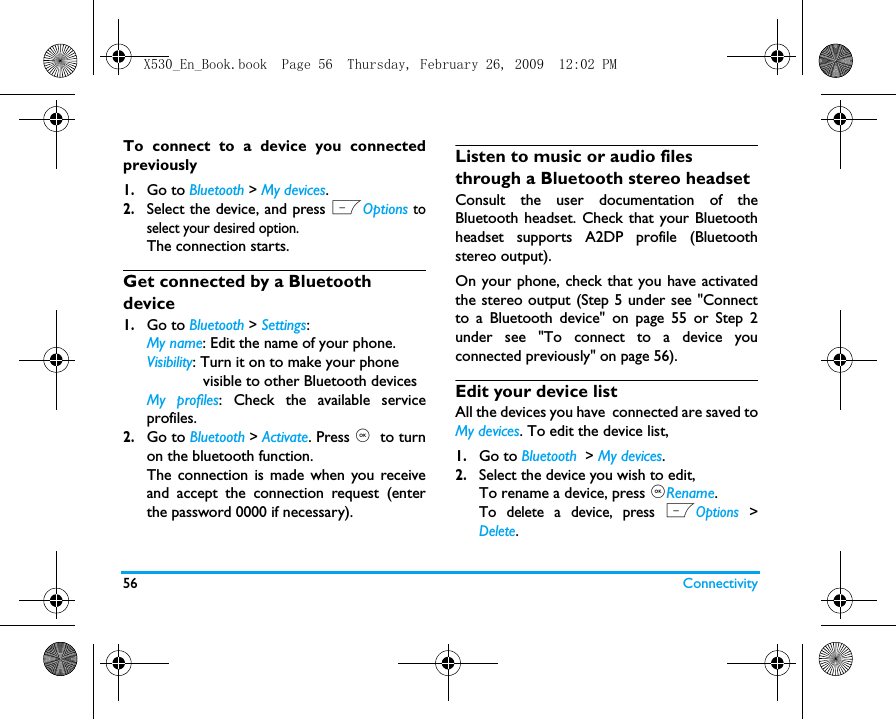
52 My filesin your Smart Phonebook (see "Add a contact toSmart Phonebook" on page 30).Before taking a photo for contact picture,set thepicture resolution to 240 x 320. To set an audio file as ringtone1.Select an audio file under Sounds.2.Press LOptions  > Use.You can set the audio file to ringtone (see"Sound" on page 62), or contact ID (see "Add acontact to Smart Phonebook" on page 30).X530_En_Book.book  Page 52  Thursday, February 26, 2009  12:02 PM
Calls 5312 CallsCall historyYou are provided with the records about yourincoming and outgoing calls. Go to Calls to check your call history.You can reply to such calls or add such contactsto your phone book. Go to the call list, selectthe contact or phone number, and pressLOptions to select your options. Go to Calls  >  Clear history to clear your callhistory as desired.Call optionsThis menu allows you to set call-related options.Call forward Divert incoming calls to yourvoice mailbox or to anotherphone number (regardless ofwhether or not the number isin your phonebook).Auto answer Turn Auto answer on/off. Whenthis function is on, the incomingcall will be answeredautomatically after 10 seconds.Any key answerTurn it on to answer anincoming call by brieflypressing any key ( except for),  R  and the sidevolume key). Press , toselect your option. X530_En_Book.book  Page 53  Thursday, February 26, 2009  12:02 PM
54 CallsMinute reminderGet reminded after thespecified call time span onceor repeatedly.Call services Call  time: Depending on yournetwork, rounding-off forbilling purposes, taxes etc, theactual time invoiced for callsand services by your serviceprovider may vary.Call waiting: Get informed of an incoming call when on phone (network-dependent, see "Answer a second call" on page 19).Owner ID: Set how to showyour number to the calledparty (network-dependent).Caller ID: To  c h e c k  y o u roperator setting of showingthe identity of your caller(network-dependent).Call cost:  network-dependentCall barring Set limits to your incoming andoutgoing calls. RestricteddialingRestrict your outgoing calls tocertain numbers (PIN2 coderequired). IP number (network-dependent, availableonly in China): Add the presetIP number to outgoing callnumbers.X530_En_Book.book  Page 54  Thursday, February 26, 2009  12:02 PM
Connectivity 5513  ConnectivityBluetoothAbout BluetoothYour phone supports Bluetooth wirelesstechnology, allowing connection to a compatibleBluetooth device within 10 meters. TheBluetooth connection can be subject tointerference from obstructions such as walls orother electronic devices.Before you can apply Bluetooth, make sure theother device supports Bluetooth function bycontacting the device’s manufacturer or itsaccompanied documentation.Connect to a Bluetooth deviceConsult the user documentation of theBluetooth device to be connected. Prepare theBluetooth for connection. 1.Go to Bluetooth > Activate. Press , to turnon the bluetooth function. 2.Select  Search for devices to start searchingfor available Bluetooth devices. A list of available Bluetooth devices appears.3.Select the device you wish to connect.4.Enter your Bluetooth password (0000 bydefault) to start connecting.The connection is made if your connectionrequest is accepted by the other device.The device is saved to Bluetooth > Mydevices.5.If necessary, select the device, and pressLOptions to select your desired option.  X530_En_Book.book  Page 55  Thursday, February 26, 2009  12:02 PM
56 ConnectivityTo connect to a device you connectedpreviously 1.Go to Bluetooth > My devices.2.Select the device, and press LOptions toselect your desired option.  The connection starts. Get connected by a Bluetooth device1.Go to Bluetooth > Settings:My name: Edit the name of your phone. Visibility: Turn it on to make your phone             visible to other Bluetooth devicesMy profiles: Check the available serviceprofiles. 2.Go to Bluetooth > Activate. Press ,  to turnon the bluetooth function.The connection is made when you receiveand accept the connection request (enterthe password 0000 if necessary).Listen to music or audio files through a Bluetooth stereo headsetConsult the user documentation of theBluetooth headset. Check that your Bluetoothheadset supports A2DP profile (Bluetoothstereo output).On your phone, check that you have activatedthe stereo output (Step 5 under see "Connectto a Bluetooth device" on page 55 or Step 2under see "To connect to a device youconnected previously" on page 56). Edit your device listAll the devices you have  connected are saved toMy devices. To edit the device list, 1.Go to Bluetooth  > My devices.2.Select the device you wish to edit,To rename a device, press ,Rename. To delete a device, press LOptions >Delete. X530_En_Book.book  Page 56  Thursday, February 26, 2009  12:02 PM
Connectivity 57If you do not use the Bluetooth feature for sometime, you should deactivate it in order toconserve battery power.USB functionYour phone is supplied with a USB cable.  Whenconnected to a computer via the USB cable, yourphone can work as a charger of the battery, thecard reader of the memory card inserted on yourphone, and fulfill functions through the by-packeddata communication software. For moreinformation, see "USB cable" on page 77, and see"Data communication software" on page 78.X530_En_Book.book  Page 57  Thursday, February 26, 2009  12:02 PM
58 Profiles14 ProfilesAdjust ring settings to different scenesThe profiles are defined for several scenes. Theyconsist of the settings for ringtones, ring volume,and others. With preset profiles, you can easilyadjust the ring settings for incoming calls andmessages as desired. Define your profilesThis phone has provided you several presetprofiles. You can use the default settings orchange them as desired. The settings for Flight mode (on a plane) andSilent mode are unchangeable.To change the settings:1.In Profiles, select the profile to be changed.Press LChange.2.Select the item to be changed. Press , toselect your desired options. 3.Repeat Step 2 until you finish the settings. Apply a profile1.In Profiles, select the profile to be applied.2.Press ,Select to activate the profile.To activate the Meeting mode, long press# on the idle screen.If you select Flight mode, you disable theconnection between your phone and yourmobile phone network.  X530_En_Book.book  Page 58  Thursday, February 26, 2009  12:02 PM
Settings 5915 SettingsGeneralFlip to anwserSelect whether to answer an incoming call by opening the flip. Press , to select On or Off.LanguagesSelect a language for your phone.Time & Date Set the clock of the phone (see"Set clock" on page 11 and"Display local and internationalclocks" on page 11).Sync from network: Update thetime and date of your phoneaccording to the signals sent bythe network. (dependent on  thenetwork).Power-on time: Set time for thephone to be switched onautomatically. Power-off time: Set time for thephone to be switched offautomatically. Security This menu allows you to usepasswords to protect your SIMcard and information stored onthe phone. PIN protection: Set PIN or PIN2password protection for yourSIM card. (The PIN or PIN2 areprovided by the networkoperator.)Change PIN and  Change PIN2:Change your PIN and PIN2passwords as desired. X530_En_Book.book  Page 59  Thursday, February 26, 2009  12:02 PM
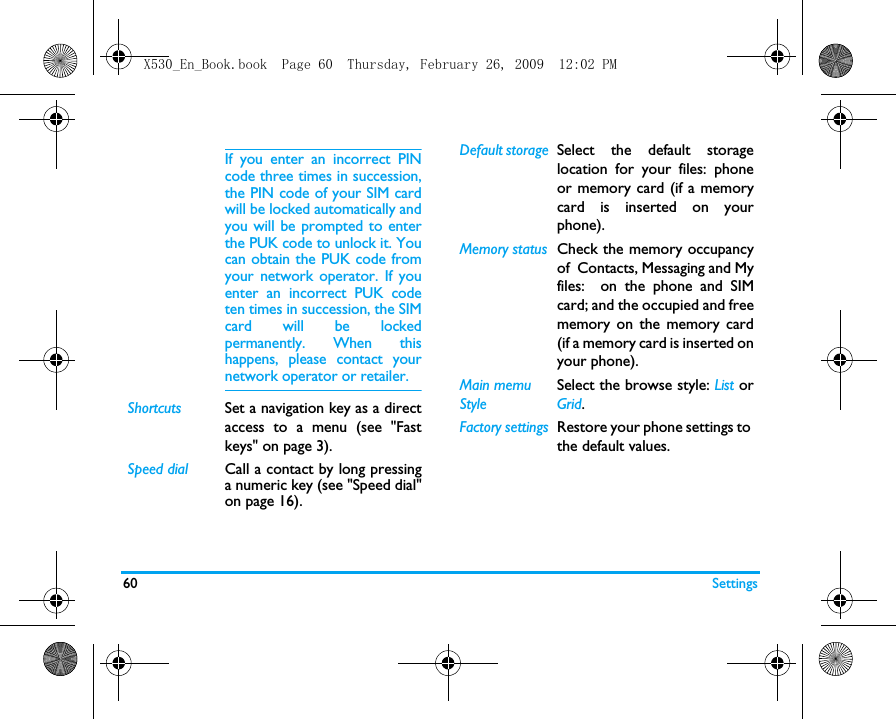
60 SettingsIf you enter an incorrect PINcode three times in succession,the PIN code of your SIM cardwill be locked automatically andyou will be prompted to enterthe PUK code to unlock it. Youcan obtain the PUK code fromyour network operator. If youenter an incorrect PUK codeten times in succession, the SIMcard will be lockedpermanently. When thishappens, please contact yournetwork operator or retailer.Shortcuts Set a navigation key as a directaccess to a menu (see "Fastkeys" on page 3).Speed dial Call a contact by long pressinga numeric key (see "Speed dial"on page 16).Default storage Select the default storagelocation for your files: phoneor memory card (if a memorycard is inserted on yourphone).Memory status Check the memory occupancyof  Contacts, Messaging and Myfiles:  on the phone and SIMcard; and the occupied and freememory on the memory card(if a memory card is inserted onyour phone). Main memu StyleSelect the browse style: List orGrid.Factory settings Restore your phone settings to the default values. X530_En_Book.book  Page 60  Thursday, February 26, 2009  12:02 PM
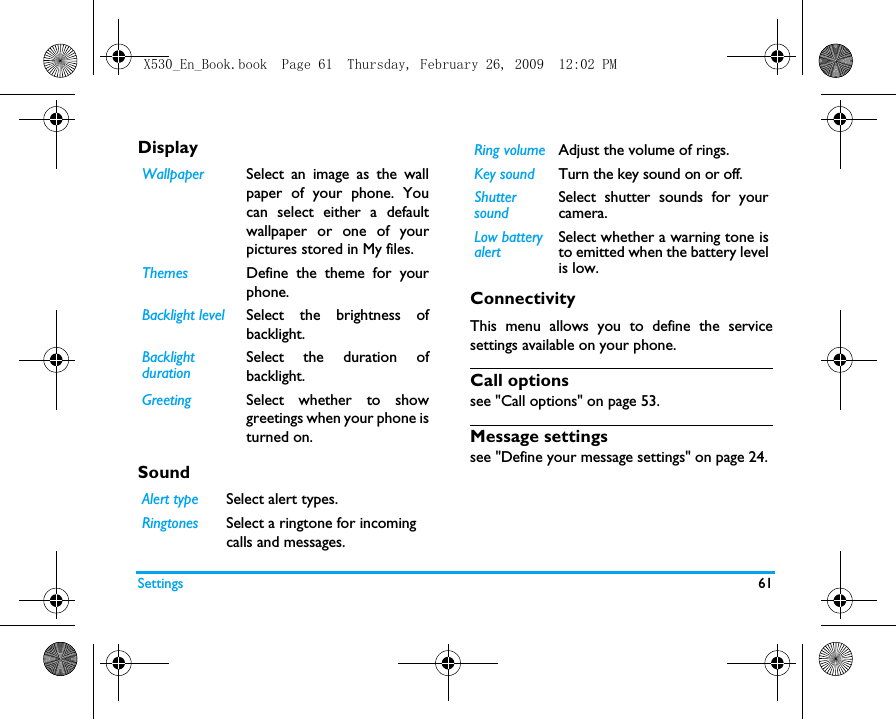
Settings 61DisplaySound              ConnectivityThis menu allows you to define the servicesettings available on your phone. Call optionssee "Call options" on page 53.Message settingssee "Define your message settings" on page 24.Wallpaper Select an image as the wallpaper of your phone. Youcan select either a defaultwallpaper or one of yourpictures stored in My files.Themes Define the theme for yourphone.Backlight level Select the brightness ofbacklight.Backlight durationSelect the duration ofbacklight.Greeting Select whether to showgreetings when your phone isturned on.Alert type Select alert types.Ringtones Select a ringtone for incoming calls and messages. Ring volume Adjust the volume of rings. Key sound Turn the key sound on or off. Shutter soundSelect shutter sounds for yourcamera.Low battery alertSelect whether a warning tone isto emitted when the battery levelis low.X530_En_Book.book  Page 61  Thursday, February 26, 2009  12:02 PM
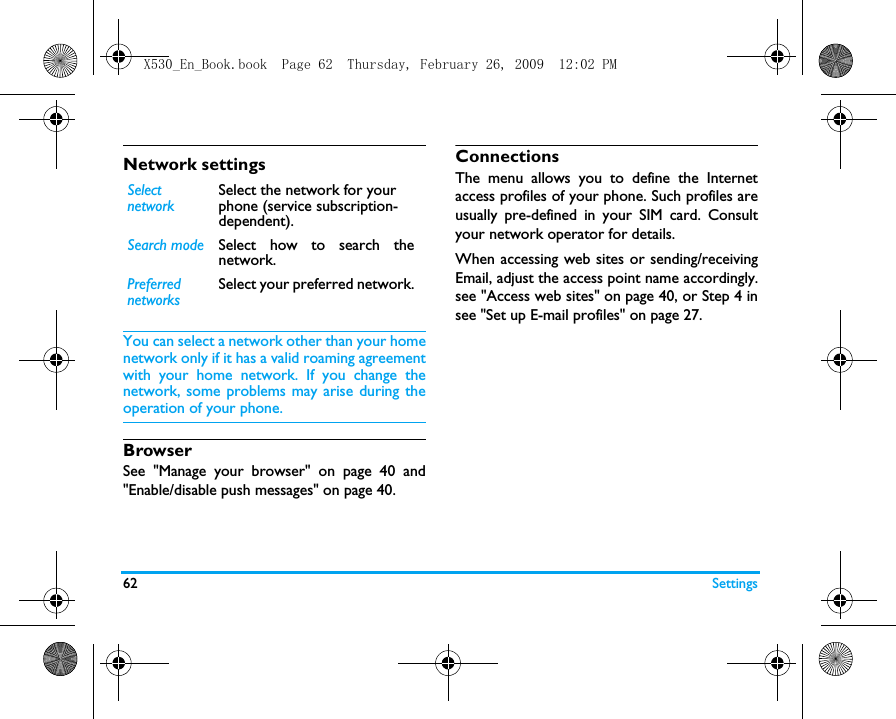
62 SettingsNetwork settingsYou can select a network other than your homenetwork only if it has a valid roaming agreementwith your home network. If you change thenetwork, some problems may arise during theoperation of your phone.BrowserSee "Manage your browser" on page 40 and"Enable/disable push messages" on page 40.ConnectionsThe menu allows you to define the Internetaccess profiles of your phone. Such profiles areusually pre-defined in your SIM card. Consultyour network operator for details. When accessing web sites or sending/receivingEmail, adjust the access point name accordingly.see "Access web sites" on page 40, or Step 4 insee "Set up E-mail profiles" on page 27.SelectnetworkSelect the network for your phone (service subscription-dependent).Search mode Select how to search thenetwork.PreferrednetworksSelect your preferred network.X530_En_Book.book  Page 62  Thursday, February 26, 2009  12:02 PM
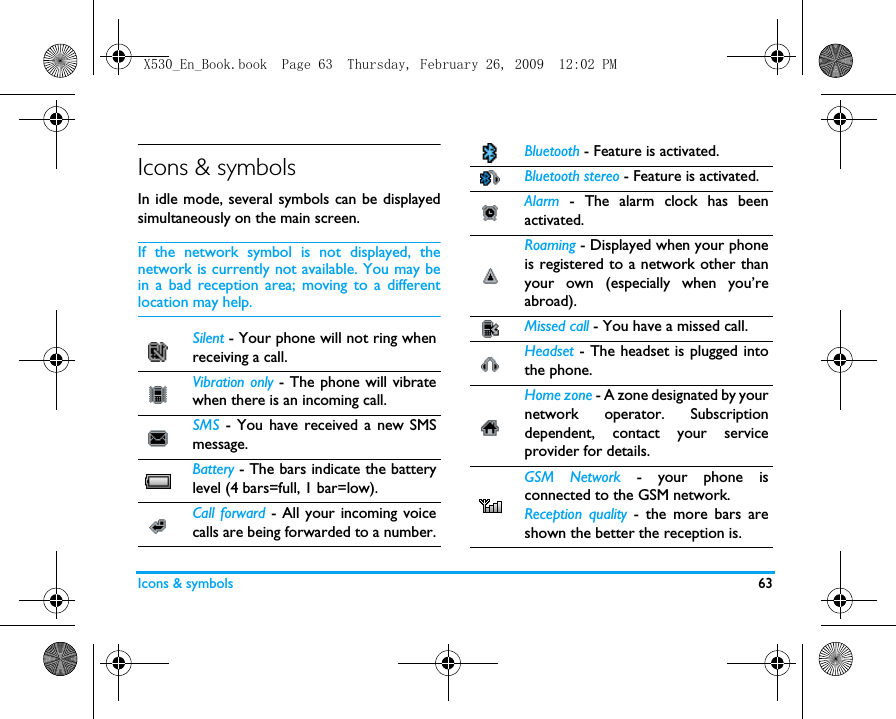
Icons & symbols 63Icons & symbolsIn idle mode, several symbols can be displayedsimultaneously on the main screen.If the network symbol is not displayed, thenetwork is currently not available. You may bein a bad reception area; moving to a differentlocation may help.Silent - Your phone will not ring whenreceiving a call.Vibration only - The phone will vibratewhen there is an incoming call.SMS - You have received a new SMSmessage.Battery - The bars indicate the batterylevel (4 bars=full, 1 bar=low).Call forward - All your incoming voicecalls are being forwarded to a number. Bluetooth - Feature is activated. Bluetooth stereo - Feature is activated. Alarm - The alarm clock has beenactivated.Roaming - Displayed when your phoneis registered to a network other thanyour own (especially when you’reabroad).Missed call - You have a missed call.Headset - The headset is plugged intothe phone.Home zone - A zone designated by yournetwork operator. Subscriptiondependent, contact your serviceprovider for details.GSM Network - your phone isconnected to the GSM network.Reception quality - the more bars areshown the better the reception is.X530_En_Book.book  Page 63  Thursday, February 26, 2009  12:02 PM
64 Icons & symbolsAuto answer - Indicates that Autoanswer is on.MMS message - You have received anew multimedia message.Wap message - You have received amessage in the wap push inbox.Firewall - Feature is activated.EDGE attach - Your phone is connectedto the EDGE network.Memory card - Indicates the memorycard is in use. You can access yourmemory card through  My files menu.X530_En_Book.book  Page 64  Thursday, February 26, 2009  12:02 PM
65PrecautionsRadio WavesYour cellular mobile phone is a lowpower radio transmitter andreceiver. When it is operating, itsends and receives radio waves. Theradio waves carry your voice or data signal to abase station that is connected to the telephonenetwork. The network controls the power atwhich the phone transmits.• Your phone transmits/receives radio waves inthe GSM frequency (900 / 1800 / 1900 MHz).• The GSM network controls transmissionpower (0.01 to 2 watts).• Your phone complies with all relevant safetystandards.• The CE mark on your phone showscompliancy with European electromagneticcompatibility (Ref. 89/336/EEC) and lowvoltage directives (Ref. 73/23/EEC).Your cellular mobile phone is yourresponsibility. To avoid damage to yourself, toothers or to the phone itself, read and follow allthe safety instructions and make them known toanyone borrowing your phone.Furthermore toprevent unauthorized use of your phone:Keep your phone in a safe place andkeep it out of small children's reach.Avoid writing down your PIN code.Try to remember it instead. Switch off the phone and remove the battery ifyou are going to leave it unused for a long time.Change your PIN code after purchasing thephone and to activate call restriction options.The design of your phone complieswith all applicable laws and regulations.However your phone may causeinterference with other electronicX530_En_Book.book  Page 65  Thursday, February 26, 2009  12:02 PM
66devices. Consequently you should follow alllocal recommendations and regulationswhen using your cellular phone both at homeand when away. Regulations on the use ofcellular phones in vehicles and aircraft areparticularly stringent.Public concern has been focused for some time onthe possible health risks for users of cellularphones. The current research on radio wavetechnology, including the GSM technology, hasbeen reviewed and safety standards have beendrawn up to ensure protection from exposure toradio wave energy. Your cellular telephonecomplies with all applicable safetystandards and the Radio Equipment andTelecommunications Terminal EquipmentDirective 1999/5/EC.Always switch off your phoneInadequately protected or sensitiveelectronic equipment may be affected byradio energy. This interference can lead toaccidents.Before boarding an aircraft and/orwhen packing the phone in yourluggage: the use of mobile phones in anaircraft may be dangerous for the operation ofthe aircraft, disrupt the mobile phones networkand may be illegal.In hospitals, clinics, other health carecentres and anywhere else where youmay be in the close vicinity of medicalequipment.In areas with a potentially explosiveatmosphere (e.g. petrol stations andalso areas where the air contains dustparticles, such as metal powders).In a vehicle transporting flammable products(even if the vehicle is parked) or a vehiclepowered by liquefied petroleum gas (LPG),X530_En_Book.book  Page 66  Thursday, February 26, 2009  12:02 PM
67check first that the vehicle complies with theapplicable safety rules.In areas where you are requested to turn offradio transmitting devices, such as quarries orother areas where blasting operations are inprogress.Check with the vehicle manufacturerthat electronic equipment used inyour vehicle will not be affected byradio energy.PacemakersIf you have a pacemaker:• Always keep the phone more than 15 cmfrom your pacemaker when the phone isswitched on, in order to avoid potentialinterference.• Do not carry the phone in a breast pocket.• Use the ear opposite to the pacemaker tominimize the potential interference.• Switch off your phone if you suspect thatinterference is taking place.Users of hearing aidsIf you are a user of a hearing aid, consult yourphysician and hearing aid manufacturer to learnwhether your particular device is susceptible tocellular phone interference.Improved performanceIn order to improve the performance ofyour phone, reduce radio energy emission,reduce battery consumption and ensuresafe operation adhere to the followingguidelines:For the optimal and satisfactoryoperation of the phone, you arerecommended to use the phone in thenormal operating position (when notusing in hands-free mode or with ahands-free accessory).X530_En_Book.book  Page 67  Thursday, February 26, 2009  12:02 PM
68• Do not expose your phone to extremetemperatures.• Treat the phone with care. Any misuse willvoid the International Guarantee.• Do not immerse the phone in any liquid; ifyour phone is damp, switch it off, remove thebattery. and let them dry for 24hrs beforeusing them again.• To clean the phone, wipe it with a soft cloth.• Placing and receiving calls consumes the sameamount of battery energy. However, themobile consumes less energy in idle screenwhen kept in the same place. When in idlescreen and while you are moving, your phoneconsumes energy to transmit updatedlocation information to the network. Settingthe backlight for a shorter period of time aswell as avoiding unnecessary navigating in themenus will also help to save the battery'senergy for longer phoning and stand-byperformances.Battery information• Your phone is powered by a rechargeablebattery.• Use specified charger only.• Do not incinerate.• Do not deform or open the battery.• Do not allow metal objects (such as keys inyour pocket) to short circuit the batterycontacts.• Avoid exposure to excessive heat (>60°C or140°F), moisture or caustic environments.You should only use Philips authenticbattery and accessories, as the use ofany other accessories may damageyour phone and may be dangerous, andwill make all guarantees for yourPhilips phone null and void. The use of anincorrect type of battery may also cause anexplosion.Make sure damaged parts are replacedimmediately by a qualified technician and thatX530_En_Book.book  Page 68  Thursday, February 26, 2009  12:02 PM
69they are replaced with genuine Philipsreplacement parts.Do not use your phone while drivingSpeaking on the telephone whiledriving lowers your concentration,which can be dangerous. Adhere tothe following guidelines:• Give your full attention to driving. Pull off theroad and park before using the phone.• Respect the local regulations in countrieswhere you drive and use your GSM phone.• If you want to use your phone in a vehicle, installthe hands-free car kit which is designed for thatpurpose.• Ensure that your phone and car kit do notblock any air bags or other security devicesfitted in your car.The use of an alarm system to operate a vehicle'slights or horn to indicate incoming phone calls isprohibited on public roads in some countries.Check local regulations.EN60950 NormIn case of hot weather or after a prolongedexposure to the sun (e.g., behind a window or awindscreen), the temperature of your phone'scasing might increase, especially when featuring ametallic finish. Be very careful in this case whenpicking up your phone and also avoid using it withan ambient temperature over 40°C.For your phone, the socket-outlet shall beinstalled near the phone and shall be accessible. Environmental careRemember to observe the localregulations regarding the disposal ofthe packaging materials, exhaustedbatteries and old phone and pleasepromote recycling.Philips has marked the battery and packagingwith standard symbols designed to promote theX530_En_Book.book  Page 69  Thursday, February 26, 2009  12:02 PM
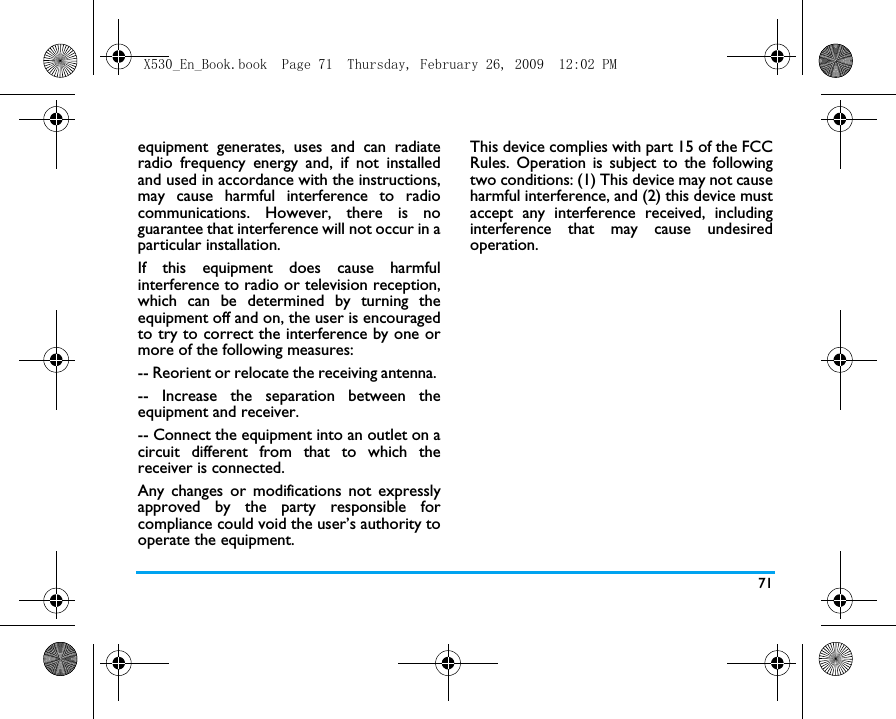
70recycling and appropriate disposal of youreventual waste.WEEE Marking in the DFU: “Information to the Consumer”Disposal of your old productYour product is designed and manufactured withhigh quality materials and components, whichcan be recycled and reused. When this crossed-out wheeled binsymbol is attached to a product itmeans the product is covered bythe European Directive 2002/96/ECPlease inform yourself about thelocal separate collection system forelectrical and electronic products.Please act according to your local rules and donot dispose of your old products with yournormal household waste. The correct disposalof your old product will help prevent potentialnegative consequences for the environment andhuman health.FCC Compliance StatementThis equipment has been tested and found tocomply with the limits for a Class B digitaldevice, pursuant to Part 15 of the FCC Rules.These limits are designed to providereasonable protection against harmfulinterference in a residential installation. ThisThe labelled packaging material isrecyclable.A financial contribution has beenmade to the associated nationalpackaging recovery and recyclingsystem.The plastic material is recyclable(also identifies the type of plastic).X530_En_Book.book  Page 70  Thursday, February 26, 2009  12:02 PM
71equipment generates, uses and can radiateradio frequency energy and, if not installedand used in accordance with the instructions,may cause harmful interference to radiocommunications. However, there is noguarantee that interference will not occur in aparticular installation. If this equipment does cause harmfulinterference to radio or television reception,which can be determined by turning theequipment off and on, the user is encouragedto try to correct the interference by one ormore of the following measures: -- Reorient or relocate the receiving antenna. -- Increase the separation between theequipment and receiver. -- Connect the equipment into an outlet on acircuit different from that to which thereceiver is connected. Any changes or modifications not expresslyapproved by the party responsible forcompliance could void the user’s authority tooperate the equipment.This device complies with part 15 of the FCCRules. Operation is subject to the followingtwo conditions: (1) This device may not causeharmful interference, and (2) this device mustaccept any interference received, includinginterference that may cause undesiredoperation.X530_En_Book.book  Page 71  Thursday, February 26, 2009  12:02 PM
72TipsHow to prolong the battery life of your phone To have your mobile phone function properly,sufficient battery power is important. For thepower-saving purpose, do the following, ifapplicable:1.Turn off the Bluetooth function of yourphone. 2.Set the backlight level of your phone to alow value. Or, turn on the light sensor.3.Set the backlight duration of your phone toa low value. 4.Turn on the auto keypad lock. When thekeypad is locked, your phone goes to thepower-saving mode. 5.Turn off the key sounds, tap vibration, orvibration alerts. 6.Establish GPRS connection when needed.Otherwise, your phone will keep searchingfor GPRS connection, and drain yourbattery power. 7.Turn off your phone if there is no coverage.Otherwise, the phone will keep searchingfor network, and drain your battery power. X530_En_Book.book  Page 72  Thursday, February 26, 2009  12:02 PM
73TroubleshootingThe phone does not switch onRemove/reinstall the battery. Then charge thephone until the battery icon stops scrolling.Unplug the charger and try to switch on thephone.Your phone doesn’t return to idle screenLong press the hangup key or switch off thephone, check that the SIM card and the batteryare installed correctly and switch it on again.The network symbol is not displayedThe network connection is lost. Either you are ina radio shadow (in a tunnel or between tallbuildings) or you are outside the networkcoverage area. Try from another place, try toreconnect to the network (especially whenabroad), check that the antenna is in place if yourmobile phone has an external antenna, or contactyour network operator for assistance/information.The display doesn’t respond (or the display responds slowly) to key pressesThe display responds more slowly at very lowtemperatures. This is normal and does not affectthe operation of the phone. Take the phone toa warmer place and try again. In other cases,please contact your phone supplier.Your battery seems to over heatYou might be using a charger that was notintended for your phone. Make sure you alwaysuse the Philips authentic accessory shipped withyour phone.X530_En_Book.book  Page 73  Thursday, February 26, 2009  12:02 PM
74Your phone doesn’t display the phone numbers of incoming callsThis feature is network and subscriptiondependent. If the network doesn’t send thecaller’s number, the phone will display Call 1 orWithheld instead. Contact your networkoperator for more information.You can’t send text messagesSome networks don’t allow message exchangeswith other networks. First check that you haveentered the number of your SMS centre, orcontact your operator for more information.You can’t display picturesA picture may not be accepted by your mobilephone if it is too large, if its name is too long, orif it doesn’t have the correct file format.You have the feeling that you missed some callsCheck your call divert options.The display shows INSERT SIM Check that the SIM card has been insertedcorrectly. If the problem remains, your SIM cardmay be damaged. Contact your networkoperator.When attempting to use a feature in the menu, the mobile displays NOT ALLOWEDSome features are network and subscriptiondependent. They are only available, therefore, ifthe network or your subscription supportsthem. Contact your network operator for moreinformation.X530_En_Book.book  Page 74  Thursday, February 26, 2009  12:02 PM
75Your phone is not chargingIf your battery is completely flat, it might take awhile before the charging icon is displayed onthe screen.Text cannot be displayed appropriately during the installation of Mobile Phone ToolsOn your computer, adjust the language settingsto match your language choice for Mobile PhoneTools. For Windows Vista users, go to Start > ControlPanel > Regional and Language Options. Select theAdministrative tab. Click  the Change system localebutton, and then select the language that matchyour choice for Mobile Phone Tools. Make sure that the desired language has beeninstalled on your computer. For Windows XP/ 2000 users, go to Start >Settings > Control Panel > Date, Time, Language,and Regional Options > Regional and LanguageOptions. Select the Advanced  tab, and then, thematching lanugage. Restart your computer. Contents on the memory card are not accessible through the supplied USB cableInstall the phone driver on your computerbefore USB connections. To do so, install the supplied Datacommunication software (MobilePhoneTools)on your computer (see "Data communicationsoftware" on Page 78). Contents on the phone memory are not accessible through the supplied USB cableTo access such contents, install and run thesupplied Data communication software(MobilePhoneTools) on your computer (see"Data communication software" on Page 78). X530_En_Book.book  Page 75  Thursday, February 26, 2009  12:02 PM
76Philips Authentic AccessoriesSome accessories, such as battery and charger,are included as standard accessories in yourmobile phone package. Additional accessoriesmay also be provided or sold separately. Packagecontents may therefore vary.To maximise the performance of your Philipsmobile phone and not to void the warranty,always purchase Philips Authentic Accessoriesthat are specially designed for use with yourphone. Philips Consumer Electronics cannot beheld liable for any damage due to use with non-authorised accessories.ChargerCharges your battery in any AC outlet. Smallenough to carry in a briefcase/handbag.HeadsetYour phone will activate headset modeautomatically when you plug in the headset. Ifyou select On in Calls  >  Call options  >  Autoanswer, your phone will automatically answerthe incoming call in 5 or 10 seconds.When using the supplied one-key headset, pressthe key to answer a call, and long press the keyto end the call. USB cableWhen connected to a computer through theUSB cable (compatible with most computers),your phone can work asCharger Charges the battery on thephone.X530_En_Book.book  Page 76  Thursday, February 26, 2009  12:02 PM
77When the transfer is finished, please make surethat you safely remove your device based on theinstruction of your computer.Data communication softwareData communication software(MobilePhoneTools) offers instant datasychronization between your phone and yourcomputer, including your phonebook and SMSmessages. With the software, the backup andrecovery of phone data can be easily fulfilled ona computer. Installing MobilePhoneTools on yourcomputer1.Insert the supplied Data communicationsoftware into the CD drive.2.Run the autorun.exe program. 3.Make selections as prompted, andinstallation starts automatically. USB drive Allows the data transferbetween your computer andthe micro-SD card insertedinto the phone, and the datamanagement on the micro-SDcard through your computer.To do so, select Connectivity >USB Function >  USB driveonyour phone.PC Sync Allows you to back up phonedata, like phonebooks, on acomputer or recover the datafrom the computer.  To do so, install the suppliedData communication software(MobilePhoneTools) on yourcomputer, and selectConnectivity > USB Function > PCSync on your phone (see "Datacommunication software" asbelow).X530_En_Book.book  Page 77  Thursday, February 26, 2009  12:02 PM
78Connecting your Phone to the computer1.Connect your phone to the computer usingthe supplied USB cable or through theBluetooth.When using the USB cable for connection,select Connectivity  > USB function > PC Syncon your phone. The first time you connect your phone tothe PC, wait till the USB driver of yourphone is successfully installed. 2.On your computer, double click theMobilePhoneTools icon.On the bottom left of the menu, “PhilipsX530 is connected” is displayed. X530_En_Book.book  Page 78  Thursday, February 26, 2009  12:02 PM
79Trademark DeclarationT9® is a trademark ofTegic CommunicationsInc.Bluetooth™ is a trade-mark owned bytelefonaktiebolaget L MEricsson, Sweden andlicensed to Philips.Tegic Euro. Pat. App. 0842463JAVA is a trademark ofSun Microsystems, Inc.PHILIPS and PHILIPS’Shield Emblem areregistered trademarksof Koninklijke PhilipsElectronics N.V. manufactured byShenzhen Sang FeiConsumer Communications Co.,Ltd. under license fromKoninklijke PhilipsElectronics N.V.X530_En_Book.book  Page 79  Thursday, February 26, 2009  12:02 PM
80 Specific Absorption Rate InformationSpecific Absorption Rate InformationInternational standardsTHIS MOBILE PHONE MEETS THE INTERNATIONAL RECOMMENDATIONS FOR EXPOSURE TO RADIO WAVESYour mobile phone is a radio transmitter and receiver. It is designed and manufactured not to exceedthe limits for exposure to radio frequency (RF) energy defined by the international standards. Theserecommendations have been established by the International Commission on Non-Ionizing RadiationProtection (ICNIRP) and, the Institute of Electrical and Electronics Engineers (IEEE) that forecast asubstantial safety margin for assuring the protection of all persons, regardless of age and health.The exposure recommendations for mobile phones use a measurement unit known as the SpecificAbsorption Rate (SAR). The SAR limit recommended by the ICNIRP for the mobile phones used bythe general public is 2.0W/kg averaged over ten grams of tissue and, is 1,6W/kg averagedover one gram of tissue by IEEE Std 1528 for the head.Tests for SAR have been conducted using recommended operating positions with the mobile phonetransmitting at its highest certified power level in all tested frequency bands. Although the SAR isdetermined at the highest certified power level, the actual SAR levels of the mobile phone whileoperating are generally below the maximum SAR value. This is because the phone is designed tooperate at multiple power levels so as to use only the power required to reach the network. Ingeneral, the closer you are to a base station antenna, the lower the power output. While there may be differences between the SAR levels of various phones and at various positions,they all meet the international protection standards for exposure to radio waves. X530_En_Book.book  Page 80  Thursday, February 26, 2009  12:02 PM
Specific Absorption Rate Information 81The highest SAR value for this Philips X530 model phone when tested for compliance against thestandard was 0.425 W/kg for ICNIRP recommendation and 0.213 W/kg for IEEE Std 1528.For limiting the radio waves exposure, it is recommended to reduce the mobile phone call durationor to use a headset. The purpose of those precautions is to take the mobile phone away from thehead and the body.For body-worn operation, the cell phone meets FCC RF exposure guidelines provided thatit is used with a non-metallic accessory with the handset at least 1.5 cm from the body.Use of other accessories may not ensure compliance with FCC RF exposure guidelines.X530_En_Book.book  Page 81  Thursday, February 26, 2009  12:02 PM
82Limited Warranty1.  What Does This Limited Warranty Cover?Philips warrants to the original retailpurchaser (“Consumer” or “You”) that thisPhilips cellular product and all accessoriesoriginally provided by Philips in the salespackage (“Product”) are free from defectsin materials, design and workmanship undernormal use in accordance with theoperating instructions and pursuant to thefollowing terms and conditions. This limitedwarranty extends only to the Consumer forProducts purchased and used in the originalcountry of purchase. The limited warrantyis valid only in Philips’ intended country ofsales of the product.2.  How Long is The Limited Warranty Period?The limited warranty period for theProduct extends for ONE (1) YEAR fromthe date of purchase of the Product,documented by valid proof of purchase.The limited warranty for original Philipsrechargeable battery extends for six (6)months from the date of purchase.3.  What Will Philips Do if The Product is NotFree From Material Defects in Materials andWorkmanship During The LimitedWarranty Period?During the limited warranty period, Philipsor its authorized service representativewill, at its option either repair or replace,without charge for parts or labour, amaterially defective Product with new orrefurbished parts or Product and returnsuch repaired or replaced Product to theConsumer in working condition. Philips willretain defective parts, modules orequipment.Repaired or replaced Product will becovered by this limited warranty for thebalance of the original limited warrantyperiod or ninety (90) days from the date ofrepair or replacement whichever is longer.Repair or replacement of Product, atPhilips’ option is your exclusive remedy.X530_En_Book.book  Page 82  Thursday, February 26, 2009  12:02 PM
834.  What is Not Covered By This LimitedWarranty?This limited warranty does not cover:a)  Product that has been subjected tomisuse, accident, shipping or otherphysical damage, improper installation,abnormal operation handling, neglect,inundation, fire, water or other liquidintrusion; orb)  Product that has been damaged due torepair, alteration, or modification byanyone not authorized by Philips; orc) Product that has reception oroperation problems caused by signalconditions, network reliability or cableor antenna systems; ord) Product defects or problems caused byuses with non-Philips products oraccessories; or e) Product  which  warranty/qualitystickers, product serial number orelectronic serial number has beenremoved, altered or rendered illegible;or f)  Product purchased, used, serviced, orshipped for repair from outside theoriginal country of purchase, or usedfor commercial or institutionalpurposes (including but not limited toProducts used for rental purposes); or g) Product returned without valid proofof purchase or which proof ofpurchase has been altered or isillegible.h) Normal wear and tear or ForceMajeure.5.  How Do You Get Warranty Service?a)  Return the Product to an authorizedservice center of Philips. You maycontact the local Philips office for thelocation of the nearest authorizedservice center.b) The SIM card must be removed fromthe Product before it is given to Philips.Philips assumes no liability for damagedX530_En_Book.book  Page 83  Thursday, February 26, 2009  12:02 PM
84or loss of the SIM card or the datacontained therein.c) If the Product failure is not covered bythis limited warranty, or this limitedwarranty is inapplicable, void or invaliddue to any terms and conditions statedherein, the Consumer will be chargedfor the cost of repair or replacementof the Product and all other relatedcost incurred in repairing or replacingthe Product.d)  IMPORTANT - you are required toreturn the Product together with avalid proof of purchase which mustidentify the point of purchase, date ofpurchase, Product model and Productserial number clearly.6.  Other Limitation: This Warranty is TheEntire Agreement.EXCEPT FOR THE EXPRESSWARRANTIES SET FORTH ABOVE ANDTHOSE IMPLIED BY LAW AND WHICHCANNOT BE EXCLUDED OR MODIFIEDBY AGREEMENT, PHILIPS PROVIDES NOOTHER WARRANTY WHETHEREXPRESS OR IMPLIED (WHETHER BYSTATUTE, UNDER THE OPERATION OFLAW OR OTHERWISE) AND SPECIALLYDISCLAIMS ANY WARRANTY OFSATISFACTORY QUALITYMERCHANTABILITY OR FITNESS FOR APARTICULAR PURPOSE.PHILIPS’ TOTAL LIABILITY FORDAMAGES RELATING TO OR ARISINGOUT OF THE PURCHASE OR USE OFTHE PRODUCT, REGARDLESS OF THETYPE OR CAUSE OF SUCH DAMAGE ORTHE FORM OR CHARACTERISATIONOF THE CLAIM ASSERTED (E.G.CONTRACT OR TOPIT), SHALL NOTEXCEED THE ORIGINAL PURCHASEPRICE PAID FOR THE PRODUCT.HOWEVER IN NO EVENT SHALLPHILIPS BE LIABLE FOR ANY PUNITIVE,SPECIAL, INCIDENTAL, INDIRECT ORX530_En_Book.book  Page 84  Thursday, February 26, 2009  12:02 PM
85CONSEQUENTIAL DAMAGES(INCLUDING BUT NOT LIMITED TO THELOSS OF USE, LOSS OF TIME,INCONVENIENCE, COMMERIAL LOSS,LOST PROFITS, LOST BUSINESSOPPORTUNITIES, COST OFSUBSTITUTION OF GOODS ORSERVICES, INVESTMENTS, DAMAGE TOGOODWILL OR REPUTATION, ORLOSS OF DATA AND CLAIMS BY THIRDPARTIES) RESULTING FROM PURCHASEOR USE OF THE PRODUCT, TO THEFULLEST EXTENT ALLOWED BY LAW,WHETHER OR NOT PHILIPS HAS BEENADVISED OF THE POSSIBILTY OF SUCHDAMAGES. THESE LIMITATIONS SHALLAPPLY NOTWITHSTANDING THEFAILURE OF THE ESSENTIAL PURPOSEOF ANY LIMITED REMEDY.This limited warranty represents thecomplete and exclusive agreement betweenthe Consumer and Philips with respect tothis cellular Product and it supercedes allprior agreements between the parties, oralor written, and all other communicationsbetween the parties relating to the subjectmatter of this limited warranty. No carrier,retailer, agent, dealer, employee, thereof,or employee of Philips is authorized tomake modifications to this limited warrantyand you should not rely on any suchrepresentation.This limited warranty does not affect theConsumer’s statutory rights underapplicable national laws in force.X530_En_Book.book  Page 85  Thursday, February 26, 2009  12:02 PM
Declaration of conformityWe, Shenzhen Sang Fei Consumer Communications Co., Ltd.11 Science and Technology Road,Shenzhen Hi-tech Industrial Park,Nanshan District, Shenzhen 518057,China.declare under our sole responsibility that theproductPhilips X530Cellular Mobile Radio GSM 900/1800/1900TAC : 35167503to which this declaration relates, is in conformitywith the following Standards:SAFETY: EN 60950-1: 2006HEALTH: EN50360: 2001;                 EN62209-1: 2006EMC: EN 301 489-1 V 1.6.1;           EN 301 489-7 V 1.3.1;          EN 301 489-17 V1.2.1SPECTRUM:  EN 301 511 V9.0.2;                        EN 300 328 V1.7.1 We hereby declare that all essential radio testsuites have been carried out and that the abovenamed product is in conformity to all theessential requirements of Directive 1999/5/EC.The conformity assessment procedure referredto in Article 10 and detailed in Annex V of Direc-tive 1999/ 5/EC has been followed related to ar-ticles 3.1 and 3.2 with the involvement of thefollowing Notified Body: CETECOM ICT Servic-es GmbH, Unterturkheimer Strabe6-10, 66117,Saarbrucken, Germany.Identification mark: 0682   October 14, 2008                                                                 Quality ManagerX530_En_Book.book  Page 91  Thursday, February 26, 2009  12:02 PM

Navigation menu