Sang Fei Consumer Communications CTX600 GSM/GPRS 900/1800/1900 digital mobile phone with Bluetooth User Manual X500 Master EN

Shenzhen Sang Fei Consumer Communications Co., Ltd. GSM/GPRS 900/1800/1900 digital mobile phone with Bluetooth X500 Master EN

User manual
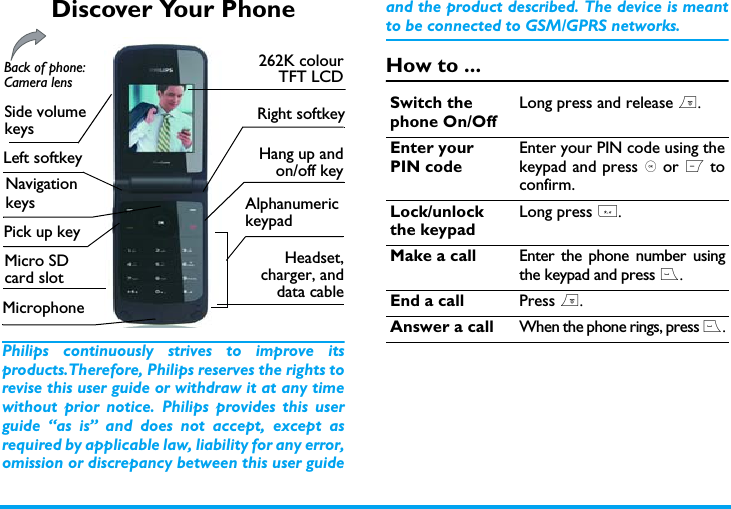
Discover Your PhonePhilips continuously strives to improve itsproducts.Therefore, Philips reserves the rights torevise this user guide or withdraw it at any timewithout prior notice. Philips provides this userguide “as is” and does not accept, except asrequired by applicable law, liability for any error,omission or discrepancy between this user guideand the product described. The device is meantto be connected to GSM/GPRS networks.How to ...Alphanumeric keypadMicrophone 262K colourTFT LCDHang up andon/off keyLeft softkeyRight softkeyPick up keyBack of phone: Camera lensHeadset,charger, anddata cableMicro SD card slotSide volume keysNavigationkeysSwitch the phone On/OffLong press and release ).Enter your PIN codeEnter your PIN code using thekeypad and press , or L toconfirm.Lock/unlock the keypadLong press *.Make a call Enter the phone number usingthe keypad and press (.End a call Press ).Answer a call When the phone rings, press (.
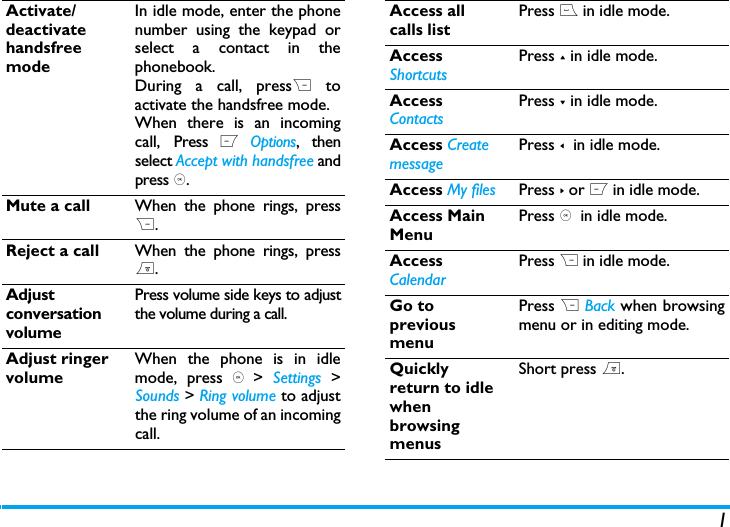
1Activate/deactivate handsfree modeIn idle mode, enter the phonenumber using the keypad orselect a contact in thephonebook.During a call, pressR toactivate the handsfree mode.When there is an incomingcall, Press L Options, thenselect Accept with handsfree andpress ,.Mute a call When the phone rings, pressR.Reject a call When the phone rings, press).Adjust conversation volumePress volume side keys to adjustthe volume during a call.Adjust ringer volumeWhen the phone is in idlemode, press , >  Settings >Sounds > Ring volume to adjustthe ring volume of an incomingcall.Access all calls listPress ( in idle mode.Access ShortcutsPress + in idle mode.Access ContactsPress - in idle mode.Access Create messagePress <  in idle mode.Access My files Press > or L in idle mode.Access Main MenuPress ,  in idle mode.Access CalendarPress R in idle mode.Go to previous menuPress R Back when browsingmenu or in editing mode.Quickly return to idle when browsing menusShort press ).
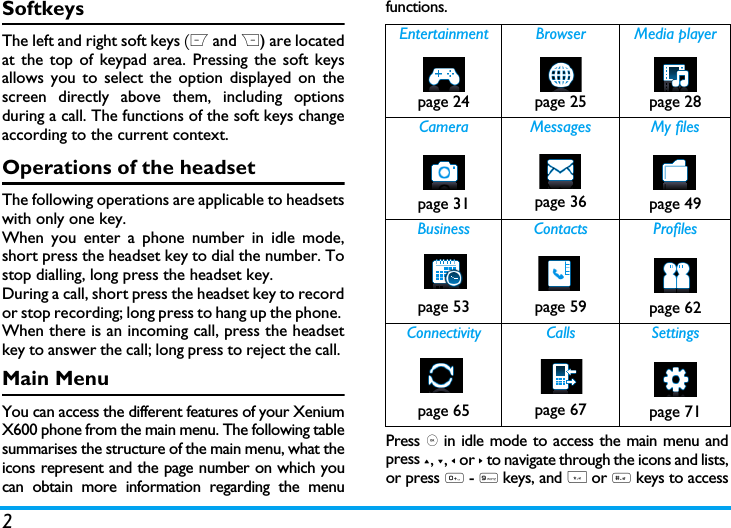
2SoftkeysThe left and right soft keys (L and R) are locatedat the top of keypad area. Pressing the soft keysallows you to select the option displayed on thescreen directly above them, including optionsduring a call. The functions of the soft keys changeaccording to the current context. Operations of the headsetThe following operations are applicable to headsetswith only one key. When you enter a phone number in idle mode,short press the headset key to dial the number. Tostop dialling, long press the headset key. During a call, short press the headset key to recordor stop recording; long press to hang up the phone. When there is an incoming call, press the headsetkey to answer the call; long press to reject the call. Main MenuYou can access the different features of your XeniumX600 phone from the main menu. The following tablesummarises the structure of the main menu, what theicons represent and the page number on which youcan obtain more information regarding the menufunctions.Press , in idle mode to access the main menu andpress +, -, < or > to navigate through the icons and lists,or press 0 - 9 keys, and * or # keys to accessEntertainment Browser Media playerpage 24 page 25 page 28Camera Messages My filespage 31 page 36 page 49Business Contacts Profilespage 53 page 59 page 62Connectivity Calls Settingspage 65 page 67 page 71
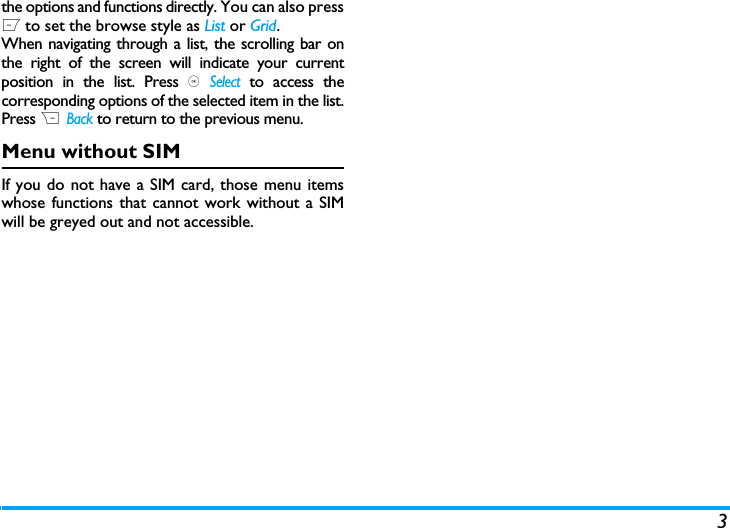
3the options and functions directly. You can also pressL to set the browse style as List or Grid.When navigating through a list, the scrolling bar onthe right of the screen will indicate your currentposition in the list. Press , Select to access thecorresponding options of the selected item in the list.Press R  Back to return to the previous menu. Menu without SIMIf you do not have a SIM card, those menu itemswhose functions that cannot work without a SIMwill be greyed out and not accessible.
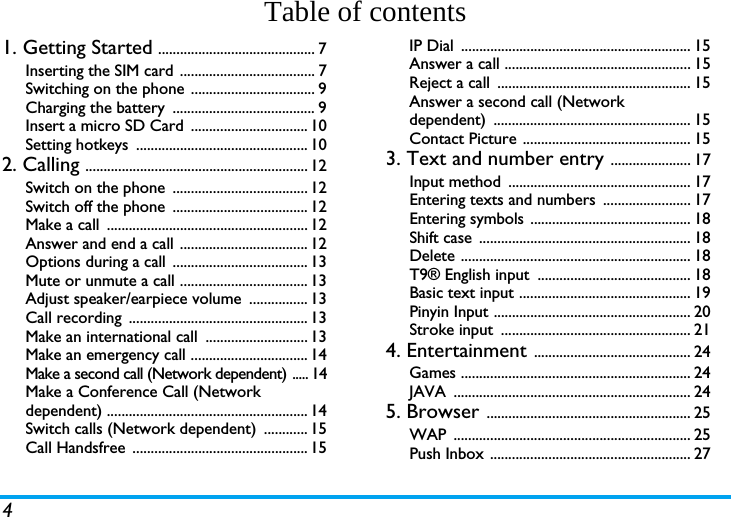
4Table of contents1. Getting Started ........................................... 7Inserting the SIM card ..................................... 7Switching on the phone .................................. 9Charging the battery  ....................................... 9Insert a micro SD Card  ................................ 10Setting hotkeys  ............................................... 102. Calling ............................................................. 12Switch on the phone  ..................................... 12Switch off the phone  ..................................... 12Make a call  ....................................................... 12Answer and end a call ................................... 12Options during a call  ..................................... 13Mute or unmute a call ................................... 13Adjust speaker/earpiece volume  ................ 13Call recording  ................................................. 13Make an international call  ............................ 13Make an emergency call ................................ 14Make a second call (Network dependent) ..... 14Make a Conference Call (Network dependent) ....................................................... 14Switch calls (Network dependent)  ............ 15Call Handsfree  ................................................ 15IP Dial  ............................................................... 15Answer a call ................................................... 15Reject a call  ..................................................... 15Answer a second call (Network dependent) ...................................................... 15Contact Picture .............................................. 153. Text and number entry ...................... 17Input method  .................................................. 17Entering texts and numbers  ........................ 17Entering symbols  ............................................ 18Shift case  .......................................................... 18Delete ............................................................... 18T9® English input  .......................................... 18Basic text input ............................................... 19Pinyin Input ...................................................... 20Stroke input  .................................................... 214. Entertainment ........................................... 24Games ............................................................... 24JAVA ................................................................. 245. Browser ........................................................ 25WAP ................................................................. 25Push Inbox ....................................................... 27
56. Media Player ............................................... 28Music player  .................................................... 297. Camera .......................................................... 31Camera ............................................................. 28Video recorder ............................................... 338. Messages ....................................................... 36Create message  .............................................. 36Inbox ................................................................. 38Sent ................................................................... 40Outbox ............................................................. 41Drafts ................................................................ 42My favourites  .................................................. 42Spam box  ......................................................... 43SIM archive  ...................................................... 43Templates ........................................................ 44E-mail ................................................................ 44Advanced ......................................................... 45Voice mail  ........................................................ 46Settings ............................................................. 479. My Files .......................................................... 49Pictures ............................................................. 49Sounds .............................................................. 50Videos ............................................................... 51Others .............................................................. 52Memory status ................................................ 5210. Business ...................................................... 53Calendar ........................................................... 53Alarm ................................................................ 54Calculator ........................................................ 54Voice recorder ............................................... 55Secretary OTG ............................................... 55Stopwatch ........................................................ 56Countdown ..................................................... 56Unit converter ................................................ 56Firewall ............................................................. 56Chinese festival (if available)......................... 57Task.................................................................... 57Lunar calendar (if available) .......................... 5811. Contacts .................................................... 59New contacts  ................................................. 59View contacts  ................................................. 60View group ...................................................... 60Special numbers  ............................................. 61Advanced ......................................................... 6112. Profiles ........................................................ 6213. Connectivity ............................................ 65Bluetooth ......................................................... 65USB function  ................................................... 6614. Calls .............................................................. 67View calls  ......................................................... 67
6Call options  ..................................................... 67Clear history  ................................................... 7015. Settings ........................................................ 71General ............................................................. 71Display .............................................................. 73Sounds .............................................................. 73Connectivity .................................................... 74Icons & Symbols ............................................ 76Precautions ....................................................... 78Troubleshooting ............................................ 83Philips Authentic Accessories .............. 85Trademark Declaration ............................ 86Specific Absorption Rate Information  .... 87Limited Warranty  ........................................ 88Declaration of conformity ...................... 91
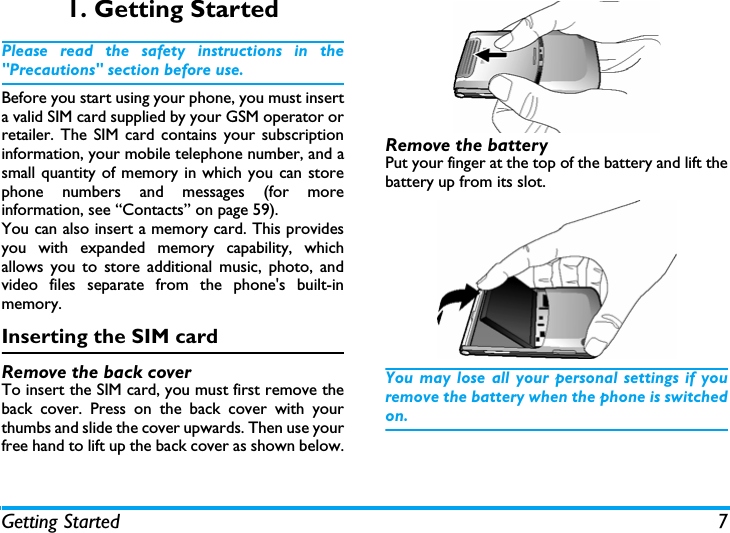
Getting Started 71. Getting StartedPlease read the safety instructions in the"Precautions" section before use.Before you start using your phone, you must inserta valid SIM card supplied by your GSM operator orretailer. The SIM card contains your subscriptioninformation, your mobile telephone number, and asmall quantity of memory in which you can storephone numbers and messages (for moreinformation, see “Contacts” on page 59). You can also insert a memory card. This providesyou with expanded memory capability, whichallows you to store additional music, photo, andvideo files separate from the phone's built-inmemory.Inserting the SIM cardRemove the back coverTo insert the SIM card, you must first remove theback cover. Press on the back cover with yourthumbs and slide the cover upwards. Then use yourfree hand to lift up the back cover as shown below.Remove the batteryPut your finger at the top of the battery and lift thebattery up from its slot.You may lose all your personal settings if youremove the battery when the phone is switchedon.
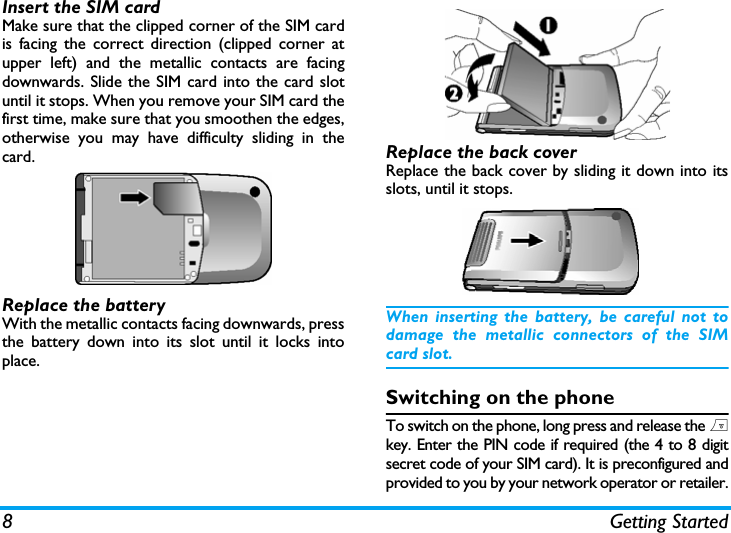
8 Getting StartedInsert the SIM cardMake sure that the clipped corner of the SIM cardis facing the correct direction (clipped corner atupper left) and the metallic contacts are facingdownwards. Slide the SIM card into the card slotuntil it stops. When you remove your SIM card thefirst time, make sure that you smoothen the edges,otherwise you may have difficulty sliding in thecard.Replace the batteryWith the metallic contacts facing downwards, pressthe battery down into its slot until it locks intoplace.Replace the back coverReplace the back cover by sliding it down into itsslots, until it stops.When inserting the battery, be careful not todamage the metallic connectors of the SIMcard slot.Switching on the phoneTo switch on the phone, long press and release the )key. Enter the PIN code if required (the 4 to 8 digitsecret code of your SIM card). It is preconfigured andprovided to you by your network operator or retailer.
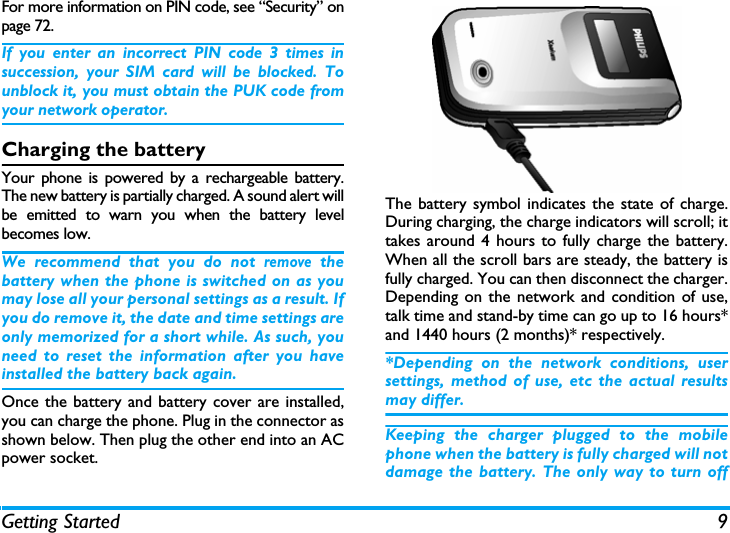
Getting Started 9For more information on PIN code, see “Security” onpage 72.If you enter an incorrect PIN code 3 times insuccession, your SIM card will be blocked. Tounblock it, you must obtain the PUK code fromyour network operator.Charging the batteryYour phone is powered by a rechargeable battery.The new battery is partially charged. A sound alert willbe emitted to warn you when the battery levelbecomes low. We recommend that you do not remove thebattery when the phone is switched on as youmay lose all your personal settings as a result. Ifyou do remove it, the date and time settings areonly memorized for a short while. As such, youneed to reset the information after you haveinstalled the battery back again.Once the battery and battery cover are installed,you can charge the phone. Plug in the connector asshown below. Then plug the other end into an ACpower socket.The battery symbol indicates the state of charge.During charging, the charge indicators will scroll; ittakes around 4 hours to fully charge the battery.When all the scroll bars are steady, the battery isfully charged. You can then disconnect the charger.Depending on the network and condition of use,talk time and stand-by time can go up to 16 hours*and 1440 hours (2 months)* respectively.*Depending on the network conditions, usersettings, method of use, etc the actual resultsmay differ. Keeping the charger plugged to the mobilephone when the battery is fully charged will notdamage the battery. The only way to turn off
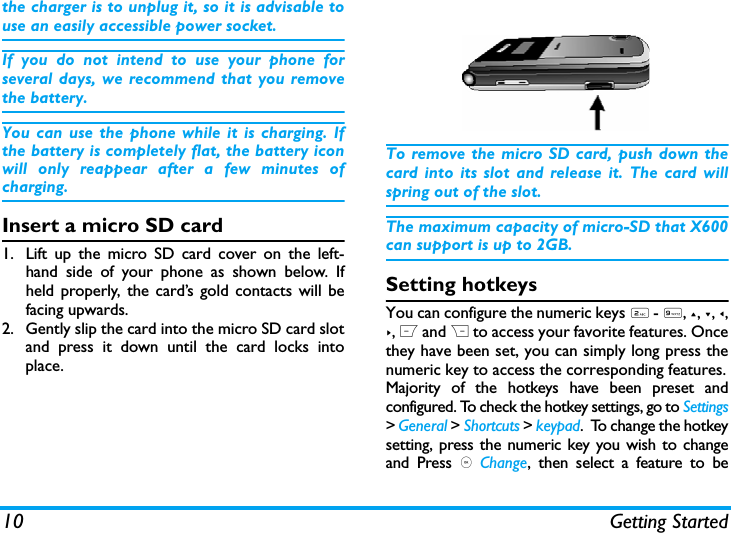
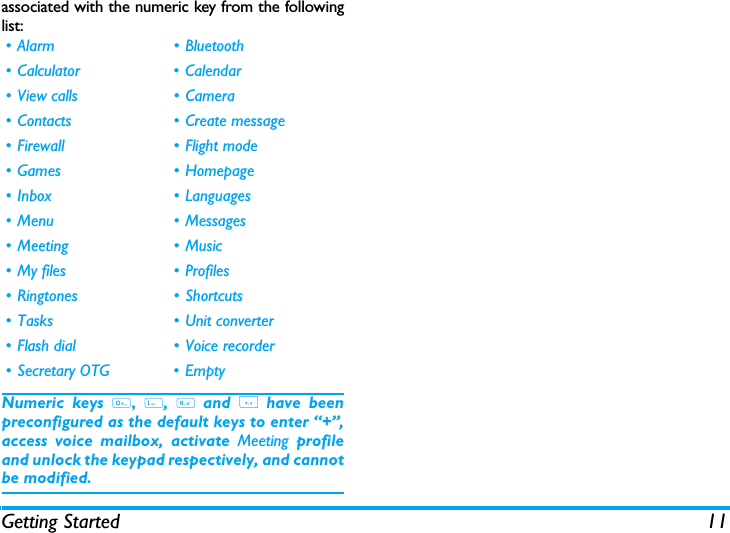
10 Getting Startedthe charger is to unplug it, so it is advisable touse an easily accessible power socket. If you do not intend to use your phone forseveral days, we recommend that you removethe battery.You can use the phone while it is charging. Ifthe battery is completely flat, the battery iconwill only reappear after a few minutes ofcharging.Insert a micro SD card1. Lift up the micro SD card cover on the left-hand side of your phone as shown below. Ifheld properly, the card’s gold contacts will befacing upwards.2. Gently slip the card into the micro SD card slotand press it down until the card locks intoplace.To remove the micro SD card, push down thecard into its slot and release it. The card willspring out of the slot.The maximum capacity of micro-SD that X600can support is up to 2GB.Setting hotkeysYou can configure the numeric keys 2 - 9, +, -, <,>, L and R to access your favorite features. Oncethey have been set, you can simply long press thenumeric key to access the corresponding features.Majority of the hotkeys have been preset andconfigured. To check the hotkey settings, go to Settings> General > Shortcuts > keypad.  To change the hotkeysetting, press the numeric key you wish to changeand Press , Change, then select a feature to be
Getting Started 11associated with the numeric key from the followinglist:Numeric keys 0, 1, # and * have beenpreconfigured as the default keys to enter “+”,access voice mailbox, activate Meeting profileand unlock the keypad respectively, and cannotbe modified.• Alarm • Bluetooth• Calculator • Calendar• View calls • Camera• Contacts • Create message• Firewall • Flight mode•Games •Homepage•Inbox •Languages• Menu • Messages• Meeting • Music• My files • Profiles•Ringtones •Shortcuts• Tasks • Unit converter•Flash dial •Voice recorder• Secretary OTG • Empty
12 Calling2. CallingThis chapter describes the features and optionsrelated to making and receiving calls.Switch on the phoneLong press ) to switch on the phone.You may set a security code (PIN code) on yourphone to protect it from unauthorised use. Whenyou have set a security code, you will be promptedto enter the corresponding security code when youswitched on the phone. 1. Enter the PIN code. If you have entered thewrong number, press R Clear to clear it.2. Press ,. The phone will validate the PIN codeand commence network registration. 3. Once a network name is displayed on thescreen, you are ready to make or answer a call.If there is no network name on the screen, youneed to re-register. If you enter a wrong PIN code 3 times insuccession, your SIM card will be blocked. Tounblock it, you must request the PUK code fromyour operator. If you enter a wrong PUK code10 times in succession, your SIM card will bepermanently blocked and cannot be usedanymore. If this happens, please contact yournetwork operator.Switch off the phoneAt all times, you can long press ) to switch off thephone.Make a callYou can make a call only when the networkname appears on the screen. 1. Enter the phone number.2. Press ( to dial the number or press L Optionsto enter options menu, then select Dial.Answer and end a callWhen receiving a call, the number of the caller maybe displayed, depending on whether or not theperson has chosen to display his or her ID.  If thecorresponding name is displayed instead of thenumber.Answer the call: press ( or open the phone if theActive flip option is On (see “General” on page 71).End the call: press ) or close the phone.
Calling 13Options during a callDuring a call, you can press , to activate/cancelHandsfree or press L Options to carry out thefollowing operations:-Put the call on Hold-Mute/Unmute the call-Record phone conversation (which includes 3sub-options: Record both, Record the oppositeparty and Record own)- Make a New call- End the current callMute or unmute a callDuring a call, press L Options and select Mute orUnmute. If you select Mute, the microphone will bedeactivated.When you switch from one call to another, mutingwill be cancelled. Adjust speaker/earpiece volumeDuring a call, call on hold or call waiting, you canpress + / - side key to increase or decrease thevolume (if you are not browsing the call optionsmenu).When the volume has been set, the call volume willtake effect immediately and the settings will beapplied to your subsequent calls. Call recordingDuring a call, press L Options and select Record toaccess the 3 recording options; namely, Record both(default), Record the opposite party and Record own(applicable to two-party calls or multi-party calls).When you start recording, a recording icon willappear on the screen. When you end the call, therecording will stop and saved automatically in AMRformat under My files > Sounds.There is no limit to the length of the recording;the recording will stop only when you press R keyto stop the recording, when there is insufficientmemory, or when the call has ended. Make an international call1. Long press 0 until "+"appears on the screen.2. Enter the country code.3. Enter the area code (normally without the 0 infront), followed by the phone number. 4. Press ( to call directly.
14 CallingMake an emergency callYou can make an emergency call anytime,irrespective of whether the mobile phone has beenregistered on the network. 1. In idle mode, enter the emergency call number(specific number in the caller's country)2.  Press (.Note that an emergency call will not be storedin the call record. 3. Alternatively, if there is no SIM card, pressingR SOS can also bring you to the emergencycall screen, displaying the call number. Thenpress ( or the OK softkey to directly make anemergency call and the dial animation will bedisplayed.Make a second call (Network dependent)You can make a second call by putting the currentcall on hold: 1. During a call with Party A, you can enterParty's B number using the keypad. 2. Press ( to dial Party B's number. Party A willbe put on hold automatically. Make a Conference Call (Network dependent)Your phone supports multi-party call of up to fivemembers. The screen will display Conference callduring the multi-party call.When there is a call waiting while you are alreadyon the phone, you can carry out the followingoperations to establish the multi-party call:1. Press ( to answer the second call. The firstcall will be put on hold automatically. 2. Select Conference Call from the call menu. Thetwo calls will be combined and a conferencecall is established. During the multi-party call, you can answer a newincoming call or add a new member to the call bydialing the new member (the ongoing multi-partycall will be put on hold automatically). Once the callis established, select Establish conference call fromthe call menu to add the new member to the multi-party call (you can add up to five members).If you wish to separate one member from the call,you can select Split conference call during the multi-party call. To disconnect a member from the call,select End call in conference.
Calling 15Switch calls (Network dependent)When you have one active call and one call on hold,you can press L Options, then select Swap to switchbetween the 2 calls. Call HandsfreeDuring a call, press L Options and select Handsfree.When the headset is plugged into the phone,you cannot activate handsfree mode.IP Dial You may select IP dial. When you select IP dialoption, the mobile phone will automatically add theIP special service number preset by you in front ofthe phone number and then make IP dial. You canalso long press ( to activate IP dial.When you have entered several IP specialservice numbers, you will be prompted to verifythem to avoid adding them repeatedly.Answer a callPress ( to answer a call.Reject a callPress ) to reject a call.Answer a second call (Network dependent) If you have activated Call waiting, you will be alertedwhen there is a second incoming call. You can: 1. Press ( to answer the second call. Thecurrent call will be put on hold automatically.2. Press ) to reject the second call and continuewith your current call.3. When there is one active call and one call onhold, you can press , Swap or L Options tocarry out the following operations:If you press the numeric keys, the notepadeditor will opened under call waiting mode. Contact PictureThis feature allows you to link a contact in yourphonebook to a photo you have taken using the• Conference call • Handsfree • Mute• Record • End all calls • End  calls• View contacts • Menu
16 CallingCamera function, or a picture you havedownloaded via WAP or data cable. During a call, ifthe other party's name card is linked to a picture,the incoming call background will display thecorresponding picture. This feature is referred toas Contact picture.Contact picture is only available on the phonememory. The photo size should not be largerthan 128 x 160 pixels.
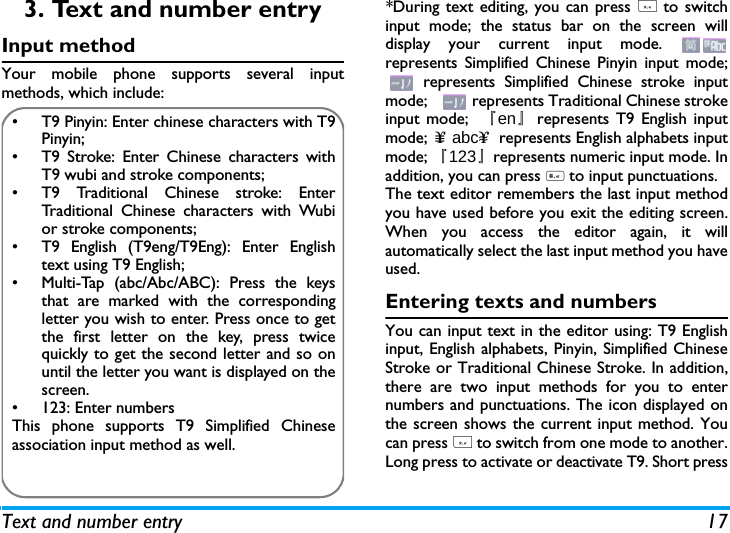
Text and number entry 173. Text and number entryInput methodYour mobile phone supports several inputmethods, which include:*During text editing, you can press * to switchinput mode; the status bar on the screen willdisplay your current input mode. represents Simplified Chinese Pinyin input mode; represents Simplified Chinese stroke inputmode;     represents Traditional Chinese strokeinput mode;  『en』represents T9 English inputmode; ϒ≡ abcϒ≈ represents English alphabets inputmode; 『123』represents numeric input mode. Inaddition, you can press # to input punctuations.The text editor remembers the last input methodyou have used before you exit the editing screen.When you access the editor again, it willautomatically select the last input method you haveused. Entering texts and numbersYou can input text in the editor using: T9 Englishinput, English alphabets, Pinyin, Simplified ChineseStroke or Traditional Chinese Stroke. In addition,there are two input methods for you to enternumbers and punctuations. The icon displayed onthe screen shows the current input method. Youcan press * to switch from one mode to another.Long press to activate or deactivate T9. Short press•  T9 Pinyin: Enter chinese characters with T9Pinyin;•  T9 Stroke: Enter Chinese characters withT9 wubi and stroke components; •  T9 Traditional Chinese stroke: EnterTraditional Chinese characters with Wubior stroke components;•  T9 English (T9eng/T9Eng): Enter Englishtext using T9 English;•  Multi-Tap (abc/Abc/ABC): Press the keysthat are marked with the correspondingletter you wish to enter. Press once to getthe first letter on the key, press twicequickly to get the second letter and so onuntil the letter you want is displayed on thescreen.•  123: Enter numbersThis phone supports T9 Simplified Chineseassociation input method as well.
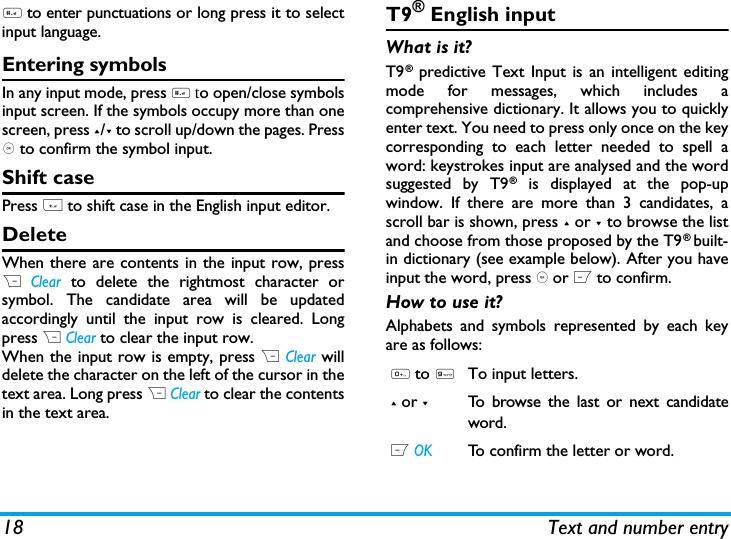
18 Text and number entry# to enter punctuations or long press it to selectinput language.Entering symbolsIn any input mode, press # to open/close symbolsinput screen. If the symbols occupy more than onescreen, press +/- to scroll up/down the pages. Press, to confirm the symbol input.Shift casePress * to shift case in the English input editor. DeleteWhen there are contents in the input row, pressR Clear to delete the rightmost character orsymbol. The candidate area will be updatedaccordingly until the input row is cleared. Longpress R Clear to clear the input row.When the input row is empty, press R Clear willdelete the character on the left of the cursor in thetext area. Long press R Clear to clear the contentsin the text area. T9® English inputWhat is it?T9® predictive Text Input is an intelligent editingmode for messages, which includes acomprehensive dictionary. It allows you to quicklyenter text. You need to press only once on the keycorresponding to each letter needed to spell aword: keystrokes input are analysed and the wordsuggested by T9® is displayed at the pop-upwindow. If there are more than 3 candidates, ascroll bar is shown, press + or - to browse the listand choose from those proposed by the T9® built-in dictionary (see example below). After you haveinput the word, press , or L to confirm.How to use it?Alphabets and symbols represented by each keyare as follows:0 to 9To input letters.+ or -To browse the last or next candidateword. L OKTo confirm the letter or word.
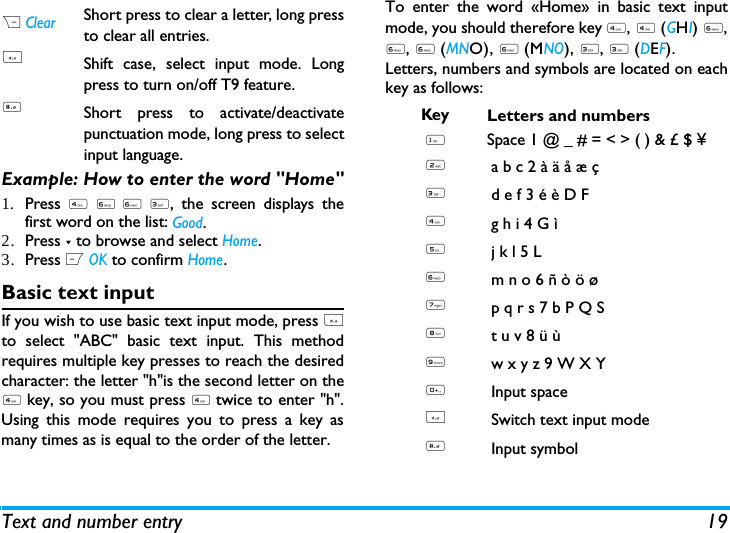
Text and number entry 19Example: How to enter the word "Home"1. Press 4 6°6 3, the screen displays thefirst word on the list: Good.2. Press - to browse and select Home.3. Press L OK to confirm Home.Basic text inputIf you wish to use basic text input mode, press *to select "ABC" basic text input. This methodrequires multiple key presses to reach the desiredcharacter: the letter "h"is the second letter on the4 key, so you must press 4 twice to enter "h".Using this mode requires you to press a key asmany times as is equal to the order of the letter.To enter the word «Home» in basic text inputmode, you should therefore key 4, 4 (GHI) 6,6, 6 (MNO), 6 (MNO), 3, 3 (DEF).Letters, numbers and symbols are located on eachkey as follows:R ClearShort press to clear a letter, long pressto clear all entries.*Shift case, select input mode. Longpress to turn on/off T9 feature.#Short press to activate/deactivatepunctuation mode, long press to selectinput language.Key Letters and numbers1Space 1 @ _ # = < > ( ) & £ $ ¥ 2a b c 2 à ä å æ ç3d e f 3 é è D F4g h i 4 G ì5j k l 5 L6m n o 6 ñ ò ö ø7p q r s 7 b P Q S8t u v 8 ü ù9w x y z 9 W X Y0Input space*Switch text input mode#Input symbol
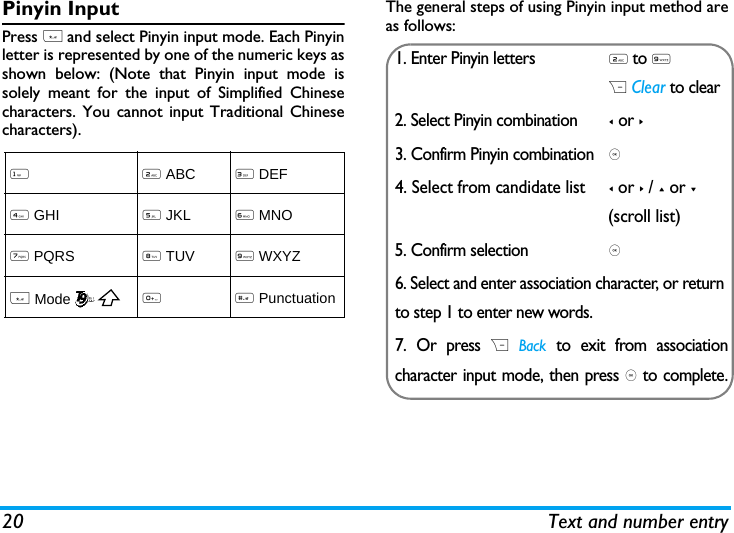
20 Text and number entryPinyin InputPress * and select Pinyin input mode. Each Pinyinletter is represented by one of the numeric keys asshown below: (Note that Pinyin input mode issolely meant for the input of Simplified Chinesecharacters. You cannot input Traditional Chinesecharacters).The general steps of using Pinyin input method areas follows:12 ABC3 DEF4 GHI5 JKL6 MNO7 PQRS8 TUV9 WXYZ * Mode0# Punctuation1. Enter Pinyin letters2 to 9R Clear to clear2. Select Pinyin combination< or >3. Confirm Pinyin combination, 4. Select from candidate list< or > / + or - (scroll list)5. Confirm selection, 6. Select and enter association character, or return to step 1 to enter new words.7. Or press R Back to exit from associationcharacter input mode, then press , to complete.
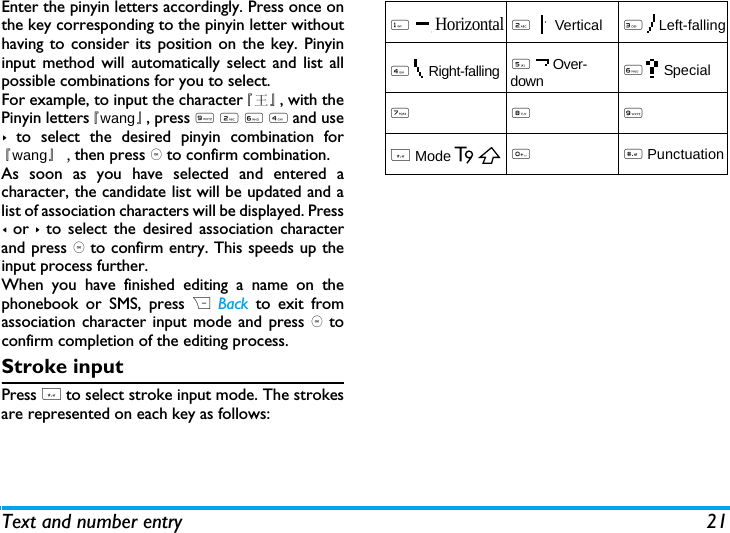
Text and number entry 21Enter the pinyin letters accordingly. Press once onthe key corresponding to the pinyin letter withouthaving to consider its position on the key. Pinyininput method will automatically select and list allpossible combinations for you to select. For example, to input the character『王』, with thePinyin letters『wang』, press 9 2 6 4 and use> to select the desired pinyin combination for『wang』, then press , to confirm combination. As soon as you have selected and entered acharacter, the candidate list will be updated and alist of association characters will be displayed. Press< or > to select the desired association characterand press , to confirm entry. This speeds up theinput process further.When you have finished editing a name on thephonebook or SMS, press R Back to exit fromassociation character input mode and press , toconfirm completion of the editing process. Stroke inputPress * to select stroke input mode. The strokesare represented on each key as follows: 1  Horizontal2    Vertical3  Left-falling4  Right-falling5  Over-down6 Special7 8 9 * Mode0 # Punctuation
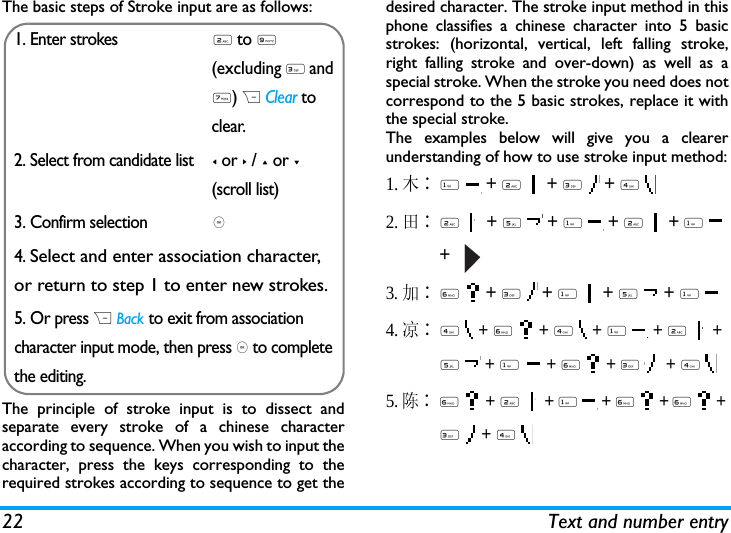
22 Text and number entryThe basic steps of Stroke input are as follows:The principle of stroke input is to dissect andseparate every stroke of a chinese characteraccording to sequence. When you wish to input thecharacter, press the keys corresponding to therequired strokes according to sequence to get thedesired character. The stroke input method in thisphone classifies a chinese character into 5 basicstrokes: (horizontal, vertical, left falling stroke,right falling stroke and over-down) as well as aspecial stroke. When the stroke you need does notcorrespond to the 5 basic strokes, replace it withthe special stroke. The examples below will give you a clearerunderstanding of how to use stroke input method:1.木∶1  + 2  + 3  + 4  2.田∶2  + 5  + 1  + 2  + 1  +   3.加∶6  + 3  + 1  + 5  + 1 4.凉∶4  + 6  + 4  + 1  + 2  + 5  + 1  + 6  + 3   + 4 5. 陈∶6  + 2  + 1  + 6  + 6  + 3  + 4  1. Enter strokes2 to 9 (excluding 3 and 7) R Clear to clear.2. Select from candidate list< or > / + or -(scroll list)3. Confirm selection,4. Select and enter association character, or return to step 1 to enter new strokes.5. Or press R Back to exit from association character input mode, then press , to complete the editing.
Text and number entry 23Generally, you will be able to find a desiredcharacter before you finished entering all thestrokes. After you have entered the name of thephonebook or SMS, pressR Back to exit from theassociation character list and press , to confirmcompletion of text editing. The input mode for Traditional chinese strokeand Simplified Chinese stroke are similar, withthe exception of the character coding.
24 Entertainment4. EntertainmentThis section describes the games and additionaltools installed on your mobile phone.Some of the features described here aredependent on the configuration of your mobilephone, the country in which you purchasedyour mobile phone, and/or your serviceprovider.GamesDefault gamesThis menu features games that are pre-installed inyour mobile phone. Press , to enter the mainmenu from idle mode and select Entertainment >Games.JavaYour mobile phone features a Java run-timeenvironment, which allows you to run Javaapplications, such as games downloaded from thenetwork.  You can also download games and otherapplications via WAP or USB and run them in theJava environment.
Browser 255. BrowserYour phone comes with a WAP browser. You canobtain news, sports and weather information, aswell as services from the internet via the WAPbrowser. This feature is available only if yoursubscription includes WAP access services. Thesettings have been pre-configured (depends oncountry variants) and you do not need tomodify them. For more information, pleasecontact your network operator. WAP Normally, the phone would have been pre-configured. If you wish to add or modify theconfiguration parameters, you need to obtain thenecessary information from your networkoperator before you proceed. Philips is not liable togive prior notification nor shall it bear anyconsequences for any failures arising fromchanges of configuration made by you or by thenetwork operator. Please check with your networkoperator for the most updated information.HomepageSelect this menu to access the homepage directly.You can also set the homepage address in thesettings menu. BookmarksYou can save the current web page or the webpages that you frequently visit to the Bookmarks list,manage and organize them. When you enter the menu, a list of bookmarkentries is displayed. To connect to the web addressof a particular bookmark entry, select an entryusing + or - and press ,.If there are no existing entries, you can select thefollowing options to add and manage yourbookmarks:Add bookmarkEdit the title and web address. Manage bookmarksDelete or edit a bookmark entry.
26 BrowserTo add a new bookmark:To edit a bookmark:Enter addressEnter the web address and press , to connect,press R Back to return to previous web page.HistoryThis menu allows you to quickly access the last webpage you have visited. 1. When you enter this menu, the web pages youhave previously visited will be listed.2. Select a web page on the list and press ,.Then press L Options to access the following:SettingsThis menu allows you to configure the web settingsfor web browsing. Your phone may have been pre-configured with the settings of a specific networkoperator. If you are a subscriber of the networkoperator, you may start using your WAP browserimmediately. Otherwise, you need to re-configurethe settings. Philips is not liable to give prior notification norshall it bear any consequences for failuresarising from changes in configuration made byGo to Bookmark menu Press , to enter themain menu from idlemode and selectBrowser > Bookmarks.Select Add Bookmark Press ,.Add a new bookmark  Enter  the  Address andTitle of the newbookmark and press ,Save.Go to Bookmark menu Press , to enter themain menu from idlemode and selectBrowser > Bookmarks.Select a bookmark youwish to editPress + or - and pressLOptions. Then selectEdit and press , Select.Edit the bookmark  Edit the Title and URL ofthe bookmark andpress ,.Open InfoNavigate ExitGo toHistorySave asSend as SMS
Browser 27you or by the network operator, or changes inWAP address or contents made by the internetcontent provider. Please check with yournetwork operator and your internet contentprovider for the most updated information.The following options are available:Push InboxAllows you to check your Push messages andconfigure your Push settings, such as select whetheror not to accept Push messages, delete pushmessages, etc. WAP profilesAllows you to configure the WAP profiles.Clear cacheAllows you to set the Clear cache. Clear historyAllows you to remove the webhistory.CookiesAllows you to Show images, Exit info or Enable cookies.
28 Media player6. Media playerMusic PlayerThis feature allows you to download music fromthe network, save the audio files, edit your playlist,and play music. The phone supports audio files inMP3 and AAC format. However, only MP3 formatis supported with the bluetooth headset.TracksThis feature allows you to play downloaded musicin your Phone memory or Memory card (underSounds folder). From the listed tracks, use +/- toselect the music file you want to play and then press, Open  to open the music player to play theselected track or press L Options.PlaylistsThe stored playlists are displayed on the screen. Tocreate a new playlist, select New playlist. Enter theplaylist name and press ,. Then use +/- to select aplaylist, press ,.  Then press , Edit  and select thetracks that you want to add to the playlist. Thenpress , Done to confirm and store the songs in theplaylist.You can create up to 10 playlist. You can press ,Open to open the music player to play the selectedtrack or press L Options. Options DescriptionAdd to playlistOpen the playlist, select a playlistand add the selected track to theplaylist.Delete track Delete the selected track.Details View detailed information of theselected track.Options DescriptionEdit playlist Edit the playlist.Rename playlistModify the playlist name.Delete playlistDelete the current playlist.Tracks sequenceModify the play sequence of thecurrent playlist.Details View detailed information of theselected file.
Media player 29ArtistsA list of singer names is displayed on the screen.You can press +/- to select a certain artist and pressL or , to display all tracks of the selected artist.From the listed tracks, use +/- to select the musicfile you want to play.  You can press , Open  toopen the music player to play the selected track orpress L Options. Last playedList the last 10 tracks you have played, and the lastplayed track is displayed at the top of the list.SettingsThe available options include: Now playingThe screen displays the last played song. Thisfunction enables you to go on playing the lastplaylist you were listening to.Keys operationThe keypad operations during music playback areas follows: Options DescriptionOpen Open the music player to play theselected track.Add to playlistOpen the playlist, select a playlistand add the selected track to theplaylist.Delete track Delete the selected track.Delete artist Delete all tracks of the same artist.Details View detailed information of theselected track.Options DescriptionPlay in backgroundAllows you to listen to the musicwhen you exit the music playerapplication.  You can select Askfirst, Always or Never.Play modeSelect between Repeat one, Repeatall,  Shuffle and repeat,  Shuffle orOff.HelpDisplay descriptions on how touse the music player.Refresh all listsAll tracks stored in the phonememory and the memory card willbe refreshed.Key Operation
30 Media playerPress L Options to carry out the followingoperations:, key Short press to Start/Pause/resumemusic playback.< or >Short press to select the previoussong/next song. Long press to fastrewind/fast forward the trackduring playback. + or - Adjust volume. Once you have setthe volume, the settings will besaved until the next time youadjust it again. L OptionsOpen options menu.R BackReturn to previous menu. Whenyou exit the music player, themusic playback will stop.Play in backgroundAllows you to listen to the musicwhen you exit the music playerapplication.  You can select Askfirst, Always or Never.Add to playlistOpen the playlist, select a playlistand add the selected file to theplaylist.Play modeSelect between Repeat one, Repeatall, Shuffle and repeat, Shuffle or Off.Refresh all listsAll tracks stored in the phonememory and the memory card willbe refreshed.
31 Camera7. CameraCameraYour mobile phone features a 2.0 mega pixel digitalcamera that allows you to take pictures and recordvideos, store them in your phone and memory card,use them as wallpaper or send them to your friends.Please ensure that the camera lens is cleanbefore you take pictures, as small dust particlescan strongly affect the picture quality.Camera modeConsult the table below on how to carry out somecommon operations with your camera.How to ...At any point in time, you can press ) key tocancel the current operation and return to idlemode.Camera option menuWhen the camera mode is activated and before apicture is taken, you can change a number ofsettings by pressing L Options.Launch Camera Press , to enter the mainmenu from idle mode andselect Camera. Then switch tocamera mode.Zoom in/out  Press side key +/-.Only available for pictureresolution of 640*480 orbelow.Adjust brightnessPress +/- side keys.Brightness level is -3 to +3.Default level is 0. Take a picture Press ,.The picture will beautomatically saved andstored in My files > Pictures. Exit from Camera and return to idle modePress ) key or R Backtwice.
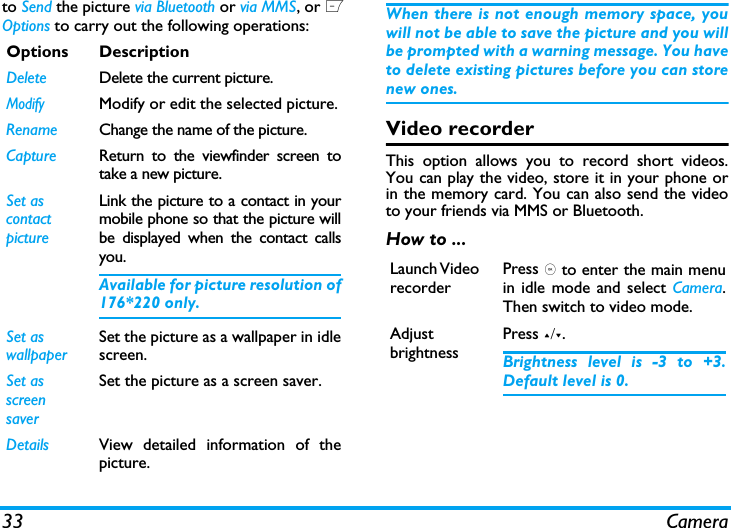
Camera 32Photo preview option menuOnce you have activated the camera, simply press, to take a picture. The picture is automaticallysaved and displayed on the screen. You can press ,Options DescriptionPictureresolutionSelect image size: 1600*1200,1280*1024, 1024*768, 640*480and 176*220.Picture QualitySelect image quality: Super fine, Fineand Normal.The last selected value willremain active until you change itagain.ViewpictureEnter My Files > Pictures to view thepictures taken.Camera ModeColor effects:  Off  (default),  B&W,Sepia, Blue or Red. The selected color effect will bedisplayed on the screen in realtime. Night mode: On or OffSelf-timer: On or OffThe time limit is 8 seconds. Multishot: On or OffThree pictures can be taken atthe same time.Advanced Storage location:  Phone memory orMemory cardDefault name: modify the defaultname of the photo Frequency: 50HZ or 60HZFull screen preview: On or Off
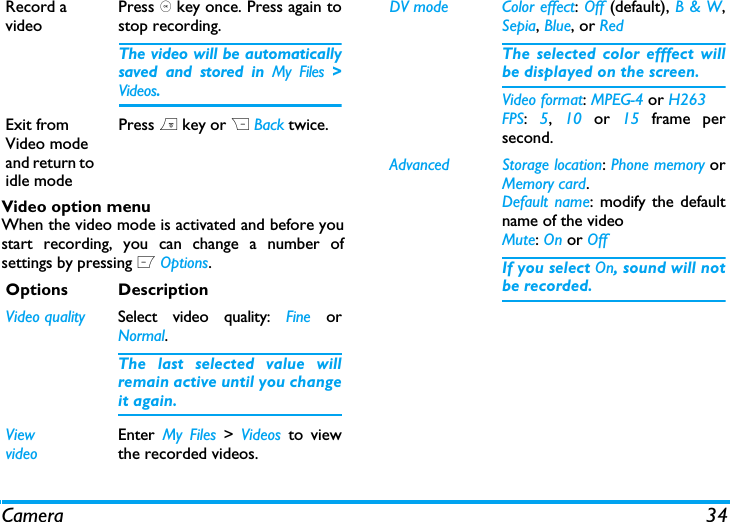
33 Camerato Send the picture via Bluetooth or via MMS, or LOptions to carry out the following operations:  When there is not enough memory space, youwill not be able to save the picture and you willbe prompted with a warning message. You haveto delete existing pictures before you can storenew ones. Video recorderThis option allows you to record short videos.You can play the video, store it in your phone orin the memory card. You can also send the videoto your friends via MMS or Bluetooth. How to ...Options DescriptionDelete Delete the current picture.ModifyModify or edit the selected picture.Rename Change the name of the picture.Capture Return to the viewfinder screen totake a new picture.Set as contact pictureLink the picture to a contact in yourmobile phone so that the picture willbe displayed when the contact callsyou.Available for picture resolution of176*220 only.Set as wallpaperSet the picture as a wallpaper in idlescreen.Set as screen saverSet the picture as a screen saver.Details View detailed information of thepicture.Launch Video recorderPress , to enter the main menuin idle mode and select Camera.Then switch to video mode.Adjust brightnessPress +/-.Brightness level is -3 to +3.Default level is 0.
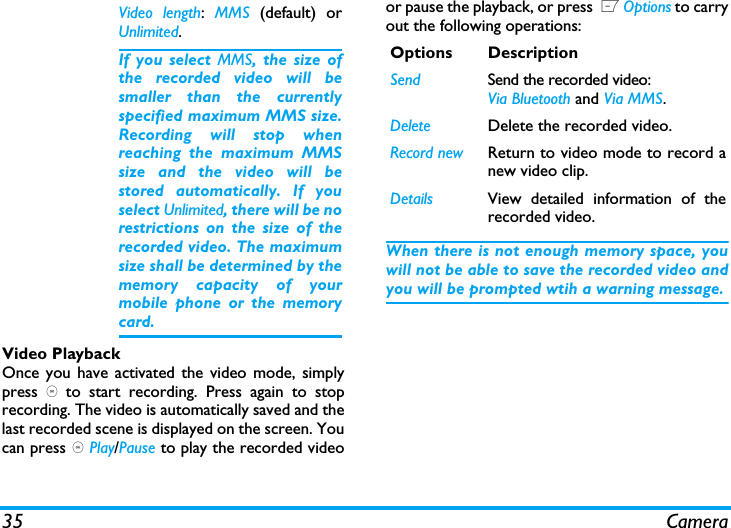
Camera 34Video option menuWhen the video mode is activated and before youstart recording, you can change a number ofsettings by pressing L Options.Record a videoPress , key once. Press again tostop recording.The video will be automaticallysaved and stored in My Files >Videos. Exit from Video mode and return to idle modePress ) key or R Back twice.Options DescriptionVideo quality Select video quality: Fine orNormal.The last selected value willremain active until you changeit again.ViewvideoEnter  My Files > Videos to viewthe recorded videos.DV mode Color effect: Off (default), B & W,Sepia, Blue, or RedThe selected color efffect willbe displayed on the screen. Video format: MPEG-4 or H263FPS:  5,  10 or 15  frame persecond.Advanced Storage location: Phone memory orMemory card.Default name: modify the defaultname of the videoMute: On or OffIf you select On, sound will notbe recorded.
35 CameraVideo PlaybackOnce you have activated the video mode, simplypress , to start recording. Press again to stoprecording. The video is automatically saved and thelast recorded scene is displayed on the screen. Youcan press , Play/Pause to play the recorded videoor pause the playback, or press  L Options to carryout the following operations:When there is not enough memory space, youwill not be able to save the recorded video andyou will be prompted wtih a warning message. Video length:  MMS (default) orUnlimited.If you select MMS, the size ofthe recorded video will besmaller than the currentlyspecified maximum MMS size.Recording will stop whenreaching the maximum MMSsize and the video will bestored automatically. If youselect Unlimited, there will be norestrictions on the size of therecorded video. The maximumsize shall be determined by thememory capacity of yourmobile phone or the memorycard.Options DescriptionSend Send the recorded video: Via Bluetooth and Via MMS.Delete Delete the recorded video.Record new Return to video mode to record anew video clip.Details View detailed information of therecorded video.
Messages 368. MessagesCreate messageSMSSMS enables you to send text messages to theother party, which is a convenient and affordablemode of communication. You can use the SMSmenu to send messages to another handphone or adevice that is capable of receiving SMS. Your phone can store up to 1000 messages. Onceyou have reached 1000 messages, the screen willflash an icon to alert you. You need to delete somemessages in order to receive new ones. Create, edit and send SMSYou need to enter the correct message centrenumber before you can send SMS. The numbercan be obtained from your network operator. 1. In idle mode, press , to enter the main menu. 2. Select Messages > Create Message > SMS andpress ,. The SMS editing screen will appear. 3. Enter the SMS content in the SMS editor andpress L Options to carry out the followingoperations: If your SMS is not sent successfully, you canresend it. If your SMS cannot be sentsuccessfully after several attempts, pleasecheck if your SMS centre number has been setcorrectly. When editing SMS, for certain reasons (such asan incoming call, out of battery), you are forcedto exit from the SMS editing screen before youmanaged to send or save your messagesuccessfully, the edited message will be savedautomatically. The next time you enter theClear textDelete the text on the editingscreen. Save as  Save as draft: save the SMS as draft.Save as template: save the SMS astemplate.Exit editorExit from the SMS editor.Spell wordSelect Chinese pinyin inputmethod.HelpDisplays the shortcuts for editing.
37 MessagesSMS editor, the message will be displayed onthe screen. MMS (network dependent)Your phone allows you to send and receivemultimedia messages, known as MMS, whichfeatures texts, pictures, sound and video clips. MMScan comprise one or several slides. Whether yousend it to an e-mail address or to another mobilephone, the MMS will be played as a slide show. Your phone can support 50 MMS (maximum100KB). When the maximum of 50 MMS isreached, the screen will display a MMS icon to alertyou. You will need to delete some old MMS inorder to receive new ones.Before you can send MMS, you need to enterthe correct MMS Center number and ensurethat the network profile of your MMS has beencorrectly configured. You can obtain suchinformation from your network operator. Create, edit and send MMS1. In idle mode, press , to enter the main menu.2. Select Messages > Create Message > MMS andpress ,. The MMS editing screen will appear. 3. Enter the MMS content in the MMS editor andpress ,. Then press L Options to carry outthe following operations: ContinueEnter details for the MMS:To: Select L Add to enter the phonenumber of the recipient, you canselect it from Contacts or Groups list.Subject: Enter a subject for themessage.Cc: Send a courtesy copy to otherrecipients.Bcc: Send a blind courtesy copy toother recipients.Insert objectInsert picture, video, melody, pageor object. Only a picture, a melody and avideo can be inserted on onepage. If 3 of them exist at thesame time, only one can be saved.Change objectIt appears after you have insertedobjects. You can change theseinserted objects. Remove objectDelete inserted objects.
Messages 38When there is more than one page, you can press </> to view the different pages of the MMS. At thesame time, the title bar at the top of the screen willdisplay the current page you are viewing and thetotal number of pages in your MMS. 4. Press , Send to access the next option menu:InboxThe Inbox stores the messages you have received. 1. In idle mode, press , to enter the main menu.2. Select Messages > Inbox and press ,.3. If there are messages in the Inbox, they will belisted on the screen in the order they werereceived (the most recent message will appearat the top of the list).4. Press +/- to select a message. When a messageis selected, its contents will be displayed on thescreen. Press , View  to view the selectedEdit subjectEdit the subject of the MMSExit editorExit from the MMS editor.Spell wordSelect Chinese pinyin input method.HelpDisplays the shortcuts for editing.PreviewPreview the current MMS.Page timingSet play time of the MMS slides. Thedefault value is 30 seconds.Save as  Save as draft: save the MMS as draft.Save as template: save the MMS astemplate.Exit editorExit from the MMS editor.Spell wordSelect Chinese pinyin input method.HelpDisplays the shortcuts for editing.ContactsSelect the contact from the Contactslist.GroupsSelect the group from the Groupslist.Phone numberEnter the phone number of therecipient.Recently listSelect from the list of recipients youreceived the messages from.Email addressEnter the email address of therecipient.
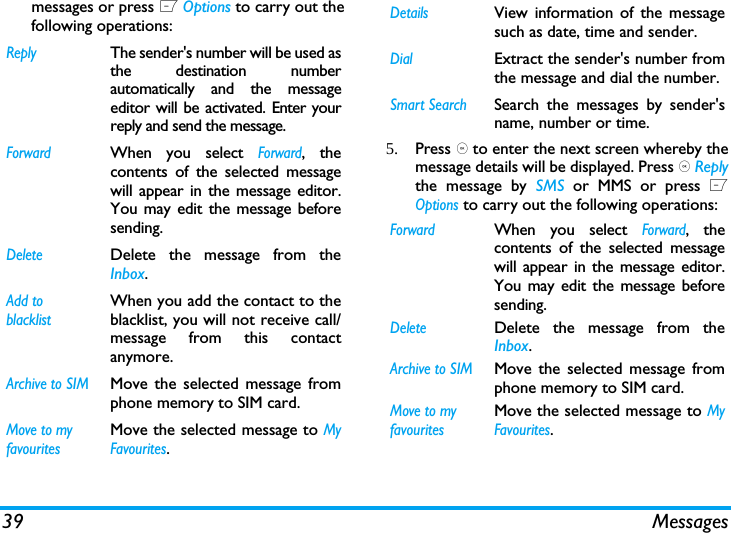
39 Messagesmessages or press L Options to carry out thefollowing operations:5. Press , to enter the next screen whereby themessage details will be displayed. Press , Replythe message by SMS or MMS or press LOptions to carry out the following operations:ReplyThe sender's number will be used asthe destination numberautomatically and the messageeditor will be activated. Enter yourreply and send the message.ForwardWhen you select Forward, thecontents of the selected messagewill appear in the message editor.You may edit the message beforesending. DeleteDelete the message from theInbox.Add to blacklistWhen you add the contact to theblacklist, you will not receive call/message from this contactanymore.Archive to SIMMove the selected message fromphone memory to SIM card.Move to my favouritesMove the selected message to MyFavourites.DetailsView information of the messagesuch as date, time and sender.DialExtract the sender's number fromthe message and dial the number.Smart SearchSearch the messages by sender'sname, number or time.ForwardWhen you select Forward, thecontents of the selected messagewill appear in the message editor.You may edit the message beforesending. DeleteDelete the message from theInbox.Archive to SIMMove the selected message fromphone memory to SIM card.Move to my favouritesMove the selected message to MyFavourites.
Messages 40SentThe Sent box allows you to save the messages youhave sent successfully. 1. In idle mode, press , to enter the main menu.2. Select Messages > Sent and press ,.3. If there are messages in the Sent box, they willbe listed on the screen. 4. Press +/- to select a message. When a message isselected, its contents will be displayed on thescreen. Press , View to view the selectedmesage, or press L Options to carry out thefollowing operations:Extract numbersOpens the list of numbersavailable in the message. In this list,the L option opens a pop-upwindow showing the followingoptions:•Save •Update existing •Dial •Send message Add to blacklistWhen you add the contact to theblacklist, you will not receive call/message from this contactanymore.Move to spam boxMove the selected message to spam box.DetailsView information of the messagesuch as date, time and sender.DialExtract the sender's number fromthe message and dial the number.ForwardWhen you select Forward, thecontents of the selected message willappear on the message editor. Youmay edit the message beforesending. DeleteDelete the message from the Sentbox.DetailsView information of the messagesuch as date and time.Select multipleYou can select several messages oneby one or all at once. You can press, to select/cancel the operations onmultiple messages. Checkboxes willbe marked on the left of the selectedmessage. Press L Options to deletethe selected messages.
41 Messages5. Press , to enter the next screen whereby themessage details will be displayed. Press ,Forward  to forward the selected mesage, orpress L Options to carry out the followingoperations. OutboxThe Outbox allows you to save the messages youhave not sent successfully. 1. In idle mode, press , to enter the main menu.2. Select Messages > Outbox and press ,.3. If there are messages in the Outbox, they will belisted on the screen. 4. Press +/- to select a message. When a message isselected, its contents will be displayed on thescreen. Press , View to view the selectedmesage, or press L Options to carry out thefollowing operations:5. Press , to enter the next screen whereby themessage details will be displayed. Press , Editto edit the selected message or press LOptions to carry out the following operations. ForwardWhen you select Forward, thecontents of the selected message willappear on the message editor. Youmay edit the message before sending. DeleteDelete the message from the Outbox.Move to my favouritesMove the selected message to MyFavourites.DetailsView information of the messagesuch as date and time.ForwardWhen you select Forward, thecontents of the selected message willappear on the message editor. Youmay edit the message beforesending. DeleteDelete the message from the Sentbox.DetailsView information of the messagesuch as date and time.ForwardWhen you select Forward, thecontents of the selected message willappear on the message editor. Youmay edit the message before sending. DeleteDelete the message from the Outbox.DetailsView information of the messagesuch as date and time.
Messages 42DraftsList the messages that were created and saved butwere not sent, and messages that wereautomatically saved before you were able to saveor send them when you exit from the messageeditor. Select a message from the Draft box and press LOptions to: View,  Send, Edit, Delete,  Details,  Selectmultiple. If you select View, the subsequentprocedures would be similar to the Inboxoperations.My favouritesThis menu contains all the messages received andsaved in the phone memory via Move to my favouriteoption. 1. In idle mode, press , to enter the main menu. 2. Select Messages > My favourites and press ,.3. If there are messages in My favourites, they willbe listed on the screen. 4. Press +/- to select a message. When a messageis selected, its content will be displayed on thescreen. Press , View to view the selectedmessages or press L Options to carry out thefollowing operations:DetailsView information of the messagesuch as date, time and sender.ReplyThe sender's number will be used asthe destination number automaticallyand the message editor will beactivated. Enter your reply and sendthe message.ForwardWhen you select Forward, thecontents of the selected message willappear in the message editor. Youmay edit the message before sending. DeleteDelete the message from MyFavourites.Restore locationMove the message to the originallocation where the message is sent orreceived.DialExtract the sender's number fromthe message and dial the number.
43 Messages5. Press , to enter the next screen whereby thedetails will be displayed. Press L Options tocarry out the following operations:Spam boxThis menu allows you to filter messages after thefirewall has been set. When the firewall is activated,any message from a person on your blacklist will goto the spam SMS box automatically.SIM archiveIn the menu, you can see the read and unreadmessages saved in the SIM Card. Press , View toview the selected messages or press L Options tocarry out the following operations:Select multipleYou can select several messages oneby one or all at once. You can press ,to select/cancel the operations onmultiple messages. Checkboxes will bemarked on the left of the selectedmessage. Press L Options to deletethe selected messages.DetailsView information of the messagesuch as date, time and sender.ReplyThe sender's number will be used asthe destination number automaticallyand the message editor will beactivated. Enter your reply and sendthe message.ForwardWhen you select Forward, thecontents of the selected message willappear in the message editor. Youmay edit the message before sending. DeleteDelete the message from MyFavourites.Restore locationMove the message to the originallocation where the message is sent orreceived.DialExtract the sender's number fromthe message and dial the number.Options DescriptionReply Reply the message.Forward Forward the message to otherrecipients.Delete Delete the message.
Messages 44TemplatesThis menu allows you to select a message saved asa SMS or MMS template.  You can create, send,modify and delete your preset messages.E-mailYour phone can send and receive e-mail messages,provided this service is included in yoursubscription.  You must already have an e-mailaccount and have received the settings from youremail service provider.  In some cases, your mobilephone service provider may also provide an e-mailservice.Create e-mailTo write an e-mail, select Email > Create.  Enter theaddress (To), a copy (Cc), or blind copy (Bcc), Subjectand the e-mail Content.  When you have finishedwriting your e-mail, press L to access thefollowing:InboxThis menu allows you to connect to your mailboxand download the e-mail headers.  Press L toReceive the e-mails.  You may then select an e-mailheader and press L to access the followingoptions:  View, Delete, Reply, Reply all, Forward, Deleteall, Receive.DraftsThe menu lists all the e-mails you have saved butnot sent.  Press L to: Edit, View, Delete, Delete all.Add to blacklistWhen you add the contact to theblacklist, you will not receive  call/message from this contact anymore.Move to my favouritesMove the selected message to Myfavourites.Details View information of the message,such as date, time and sender, etc.Dial Call the sender of the message.Select multipleYou can press , to select/cancel theoperations on multiple messages.Checkboxes will be marked on theleft of the selected message. Youcan delete the selected messages.Save Save the message in the draft boxwithout sending it.Send Send the e-mail.
45 MessagesOutboxThe menu lists all the e-mails you have sent. PressL to: Edit, View, Delete, Delete all.Check mailThe menu allows you to connect to your mailboxand to download the e-mails.  This might bring up amessage requesting airtime. Select Yes to continueand receive new e-mails.SettingsThis menu allows you to edit e-mail's AccountSettings or Activate one of the available profiles bypressing L.  Use up/down key to access the menulist, press , or numeric keypad to edit the content.In the editing screen, press , to return, press Lto Save and R to Clear.  You may edit the followingdetails:ExitYou will be exited from the e-mail menu.AdvancedCell InfoThis is a network service which allows you toreceive text messages of various contents, such asnews, traffic, etc. These messages are provided bythe network to the subscribers within a certainnetwork area. If this service is available, thenetwork will provide you with the broadcastMenu DescriptionProfile name To name the profile.E-mail address To enter an e-mail address.User ID To enter a login name.Password To enter the password.Number of mails received at a timeTo define the number of mailsreceived at a time.Incoming serverTo set the POP information usedto receive e-mails.Outgoing serverTo set the SMTP information usedto send e-mails.SMTP authenticationTo turn on/off the authentication.Type To select POP3 or IMAP.
Messages 46channel numbers. It gives you access to the optionslisted below.Memory statusThis feature allows you to see how much memoryspace remains for messages in your phone and SIMcard.SMS timerYou may set a specific time to send an edited textmessage to a particular contact.This menu allows you to select Add to send textmessages at specific times and display suchmessages in a list on the screen. Select  Add to enter into the SMS editing screen.Press , to open the contacts list and select acontact, or enter the phone number directly andset message sending options. You can set the dateand time to send the message.When you select a message from the list of textmessages configured for sending at specific times,you can press , View  to view the details of themessage or press L Options to carry out thefollowing operations: When you enter a message detail screen, you canpress , Send to send the message to the recipientdirectly or press L Option to carry out thefollowing operations: Voice mailThis menu allows you to set your voice mailboxnumber and listen to voice messages yourcorrespondents have left for you.You can forward your calls to your voicemailbox (the phone number for callers to leavea message) via the Call forwarding feature. Options DescriptionReception Select to turn on/off the reception ofnew cell broadcast messages.Topics Add, change or delete channels.<Add new>: Press , Add to add a newchannel.Change: Edit a channel number.Delete: Delete a channel in the channellist. Delete Delete the message.Delete all Delete all messages.Edit You can edit the contents, contactor date.Delete Delete the message.
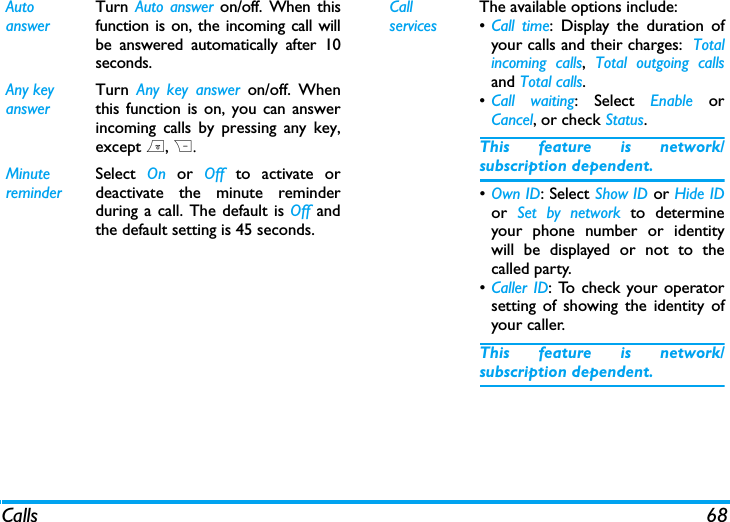
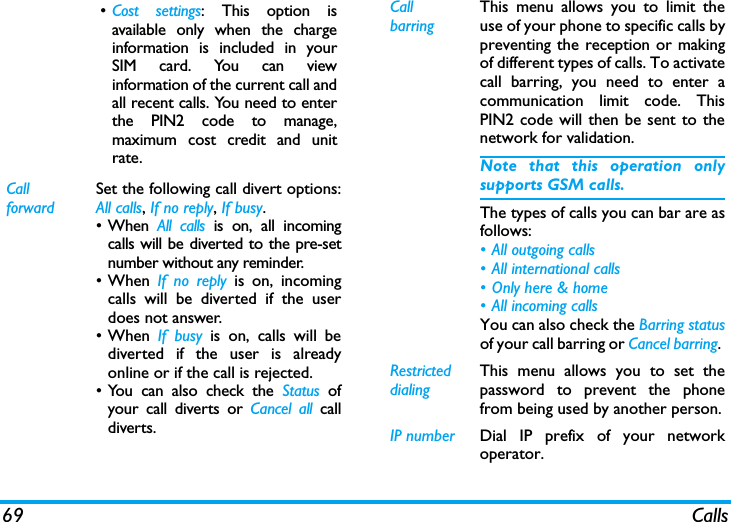
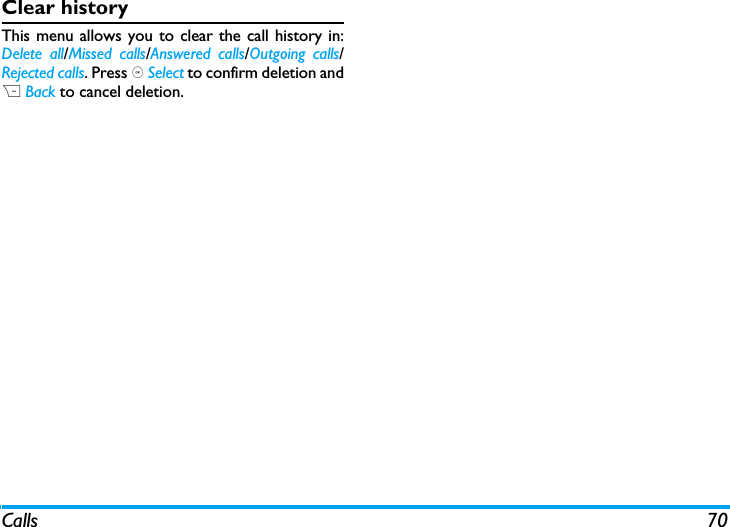
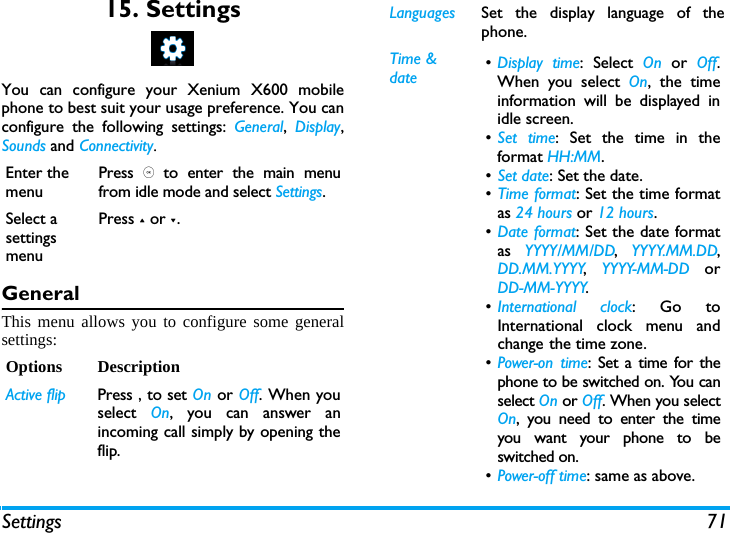
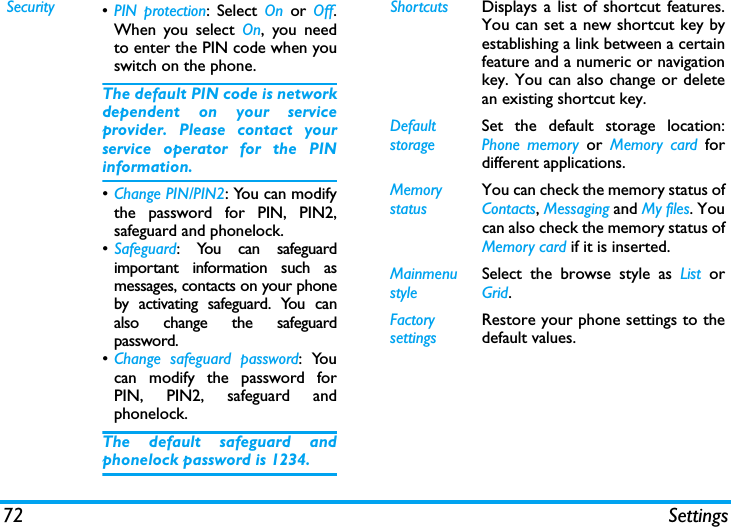
47 MessagesCall voice mailWhen you receive a voice mail, the phone will sendyou an alert. You can then call your voice mailboxnumber to retrieve your voice mail. In idle mode, long press 1 to call your voicemailbox directly. If the number is empty, you will beprompted to enter the number. Voice mail numberGenerally, you can obtain two sets of numbersfrom your network provider: •  number for the caller to leave a message (thisnumber can also used for Call Forwarding)•  number for you to retrieve your voicemessagesSettingsSMSSelect Messages > Settings > SMS to open the list ofSMS accounts. Press L Personalize to edit the SMSsettings:Service center numberThis menu allows you to save and edit the SMSservice center number of your home network. Ifthe service center number is empty, you will not beable to send any SMS.Validity periodAllows you to select the duration by which yourmessages will be stored in the service center. Youcan select from: 1 hour, 12 hours, 1 day, 1 week andMaximum (default). Press +/- to select a value. This option is useful when your recipient is notconnected to the network and is not able toreceive your messages immediately. This feature is subscription dependent. Delivery reportYou can select , to set this option On or Off. Thisoption allows you to set whether or not to notifyyou the send status of your messages: successfullysent to the recipient, or not sent successfully. This feature is subscription dependent. SignatureYou can select , to set this option On or Off(Default is Off). If set to On, it opens an editorwhere you can enter your signature. The signaturewill be added to the end of your message before itis sent to your recipient. If the SMS is too long after adding thesignature, the signature will be ignored.
Messages 48Storage locationYou can press , Change to change the preferredstorage location of your messages: SIM card(Default) or Mobile phone.MMSThis menu allows you to set your MMS center andpersonalize your MMS settings. The optionsinclude: ProfilesYou can select or edit the parameters.Sender visibilityYou can press , Change to set this option On or off.It is used to set if your identity will be visible whenMMS is sent.PriorityThis option allows you to set the priority level ofyour MMS. You can set Low, Normal (default) or High.Delivery reportYou can press , Change to set this option On or off.When set to On, a report will be sent to notify youif the MMS has been delivered to the recipient. Read reportYou can press , Change to set this option On or off.When set to On, a report will be sent to notify youif the MMS has been read by the recipient. Expiry timeAllows you to select the duration by which yourMMS will be stored in the MMS center. You canchoose from 6 hours,  12 hours, 1 day,  1 week orMaximum (default). RetrievalAllows you to select Automatic,  Deferred,  Auto inhome network when downloading of MMS messages.
49 My files9. My filesThis menu allows you to store the files in differentfolders (Pictures, Videos, Sounds, Others) to facilitatemore efficient management of files in your phoneand the memory card. In addition, you can obtaininformation regarding your phone and memory card,such as number of files, memory utilised, percentageof memory utilised via the Memory status option. PicturesWhen you enter this menu, the photos which youhave taken using the phone's camera as well aspictures you have downloaded via MMS, WAP, BT,or USB will be displayed in a list. 1. Select My files > Pictures and press , to enter themenu.2. Press , View/Open to view the selected picture/open the selected folder or press L Options tocarry out the following operations to aselected file:Options DescriptionSend Send the selected file: Via bluetoothand Via MMS.ModifyModify or edit the selected picture.Advanced Cut: Similar to copy, but the originalfile will be deleted.Copy: Copy the selected file toanother folder.RenameModify the name of the selected file.DetailsDisplay detailed information of theselected photo, such as lastmodified date, file size, etc. Use As contact ID: If you select this option,the phonebook list will be displayed.After you have selected a contactfrom the phonebook, press L Selectto associate the picture to theselected contact. Only available for picture of176*220 or smaller.
My files 503. The folder options include: SoundsWhen you enter this menu, the sounds which youhave stored or downloaded via MMS, WAP, BT, orUSB will be displayed in a list. 1. Select My files > Sounds and press , to enter themenu.2. Press , Play/Open to play the selected audio file/open the selected folder or press L Optionsto carry out the following operations to aselected file:As wallpaper: If the selected photo is176*220 or smaller, it will bedisplayed as wallpaper in its originalsize. If it is larger than 176*220, itwill be re-sized accordingly. DeleteDelete the selected picture.Slide showIf you select this option, the screenwill display the full screen view of allthe pictures in the form ofslideshow every 4 seconds. Pressany key to exit from the slide showmode. Change viewYou can select to view the picturesin List view, Grid view or Full screen.SortSort the pictures and folders byname, date, or size.SelectmultipleSelect one by one: select the pictureone by one and then Cut,  Copy orDelete them.Select all: select all the pictures andthen Cut, Copy or Delete them.RenameModify the name of the selectedfolder.DetailsDisplay detailed information of theselected folder. DeleteDelete the selected folder.Change viewSelect List view or Grid view.SortSort the pictures and folders byname or date.
51 My files3. The folder options and their operations are thesame as Pictures menu.VideosWhen you enter this menu, the videos which youhave recorded using the phone's camera as well asvideos you have downloaded via MMS, WAP, BT,or USB will be displayed as a list.1. Select My files > Videos and press , to enter themenu.2. Press , Play/Open to play the selected video/open the selected folder or press L Optionsto carry out the following operations to aselected file:SendThe available options are: Viabluetooth and Via MMS.Advanced Cut: Similar to copy, but the originalfile will be deleted.Copy: Copy the selected file toanother folderUseYou can set the audio file: Asringtone or As Contact ID. RenameModify the name of the selectedfile.DetailsDisplay detailed information of theselected audio file, such as lastmodified date, file size, etc. DeleteDelete the selected audio file.Change viewSelect List view or Grid view.SortSort the audios and folders byname or date.Select multipleSelect one by one: select the audiofiles one by one and then Cut, Copyor Delete them.Select all: select all the audio filesand then Cut, Copy or Delete them.Options DescriptionSendSend the selected file: Via bluetoothand Via MMS.Advanced Cut: Similar to copy, but the originalfile will be deleted.Copy: Copy the selected file toanother folder.RenameModify the name of the selected file.
My files 523. The folder options and their operations are thesame as Pictures menu.Videos are played in the middle of the screen. Astatus bar is displayed at the top of the screen. Thekeypad operations when playing videos are asfollows: OthersYou can save all other files into this folder.  The fileand folder options and their operations are thesame as the Pictures menu.Memory statusAll memory capacity, used memory capacity andfree memory capacity between all memory capacityand used in both the mobile phone and memorycard will be displayed.SettingsThe phone has a micro SD memory card slot toincrease the phone's memory. The phone supportsFAT16 and FAT32 format for 1GB capacity, andsupports FAT32 format for 2GB capacity.  You canselect Uninstall to safely remove memory card fromthe phone, and select Format to format it.For 2GB capacity, in order to ensure the card canbe recognized by the phone, please connect thecard to a computer and format it to FAT32 beforeusing it for the first time with X600.DetailsDisplay detailed information of theselected video, such as last modifieddate, file size, etc. DeleteDelete the selected video.Change viewYou can select to view the videofiles in List view, Grid view.SortSort the videos and folders by name,date, or size.SelectmultipleSelect one by one: select the videosone by one and then Cut,  Copy orDelete them.Select all: select all the videos andthen Cut, Copy or Delete them.Key Operation, Start/pause the  playback.<Long press to rewind.>Long press to fast forward.RExit/return to an upper menu level.)Return to idle screen.
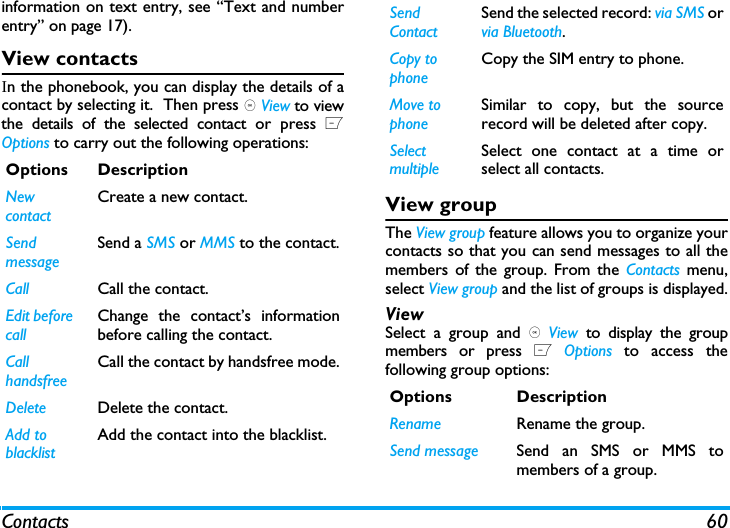
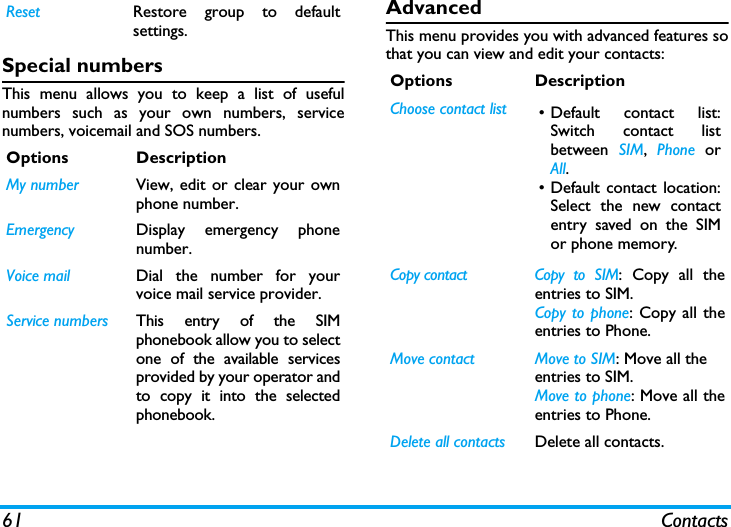
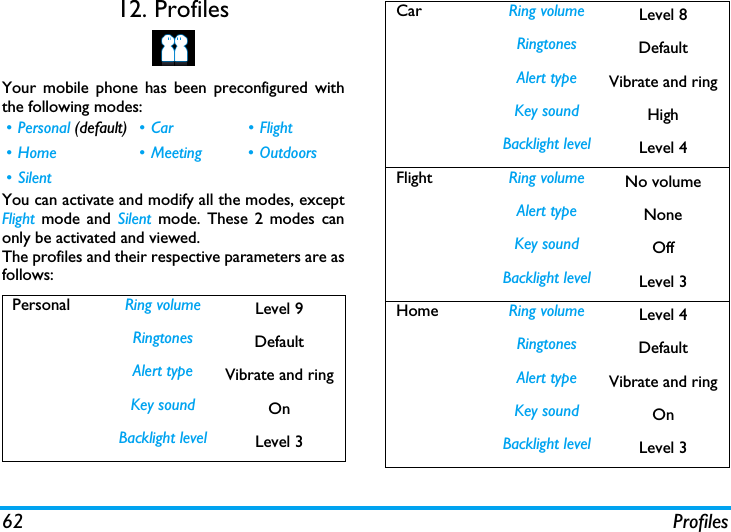
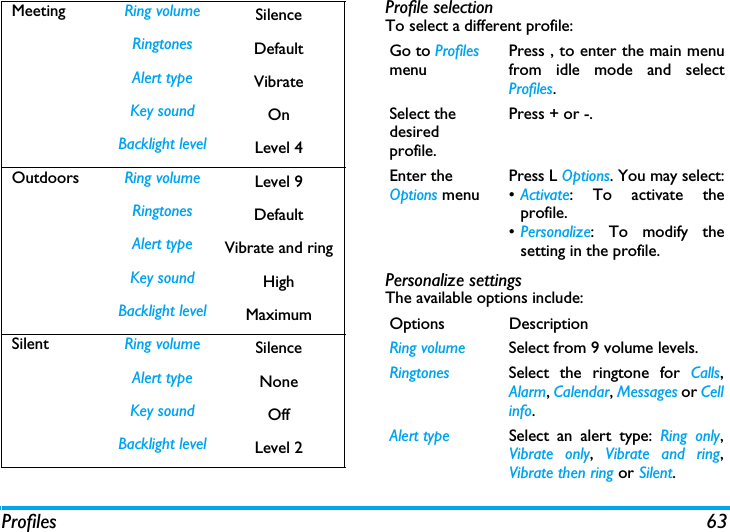
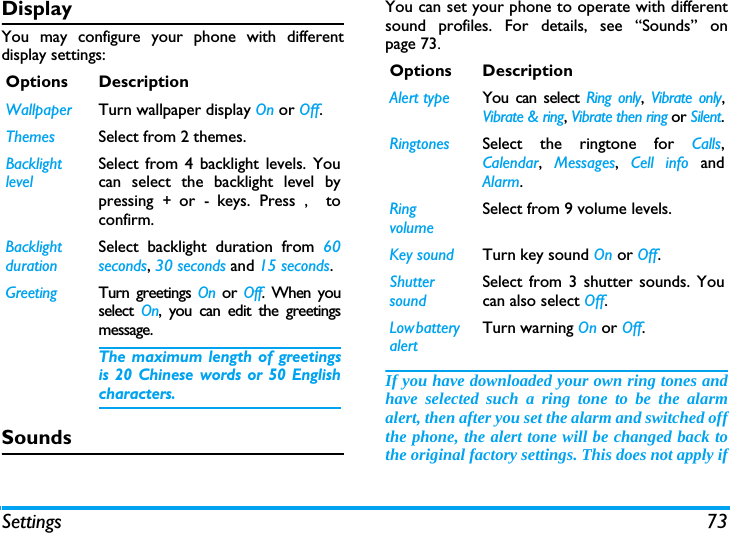
53 Business10. BusinessCalendarThis menu displays the calendar. You can selectDay view, Week view or Month view. You cancreate new appointments, view appointments list,delete or modify appointments in the calendar. Thecalendar stores the alarm date and time of everyevent. If the current date and time correspond withthe date and time of the event, the phone will emitan alarm (if needed), and the screen will display aprompt to indicate that a new event has arrived. You can create a maximum of 30 events. The listwill display part of the contents. Once you haveselected an event, you can press , to view thedetailed information.1. Enter the menu. Press , to access View  orpress Lto access the options menu.2. The options include: View Week, New event, Goto date, Advanced.New eventThe list of events will be displayed. When you adda new event, you need to enter the correspondinginformation of the event, such as subject, location,start date, start time, end date, end time, reminderand repeat method.If the memory space for events is full, the phonewill prompt you that there is no more space. When editing date and time, the phone willdisplay the default or the selected date andtime. You can edit or confirm them directly. The maximum length of an event is 40characters. ReminderNo reminder, On time, 5 min. before, 15 min. before, 1hour before, 1 day before and other  (the remindertime can be set by you).Repeat methodThe phone provides the following repeat methods:Once, Daily, Weekly, Monthly and Annually.When you change the date and time of yourphone, the next alert will be repeated based onthe modified date and time of the phone. When you switched off the phone, the organizeralert will be postponed until the next time you
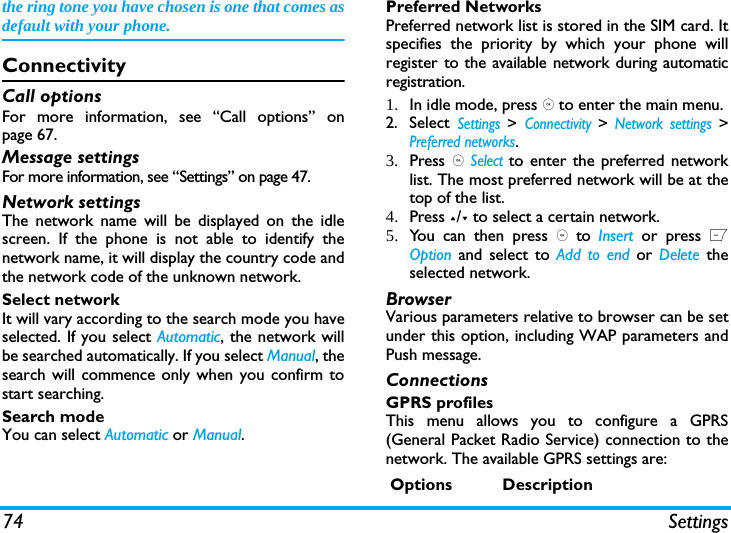
Business 54switch on the phone. For repeated events, onlythe latest one will be alerted. AlarmThis phone supports 24-hour alarm.The available options are:If you have downloaded your own ring tonesand have selected such a ring tone to be thealarm alert, then after you set the alarm andswitched off the phone, the alert tone will bechanged back to the original factory settings.This does not apply if the ring tone you havechosen is one that comes as default with yourphone.CalculatorYour mobile phone has a built in calculator. Enterthe numbers with the keypad.Options DescriptionSimple alarmA simple alarm rings only once. Setthe alarm status to On or Off bypressing , Change. When set to On,you need to specify the alarm timeand press , to confirm.Reccurent alarmA recurrent alarm rings accordingto the day you specify in a week. Setthe alarm status to On or Off bypressing , Change. When set to On,you need to specify the Time andRepetition.  For example, if you selectSunday and Monday, the alarm clockwill ring every Sunday and Monday.Then press , to confirm.Alarm tone Select an alarm tone.Snooze Select On or Off.Options Description+Addition-Subtraction>Multiplication<Division, or L Options > CalculateEquals.*To toggle between negative andpositive figures.
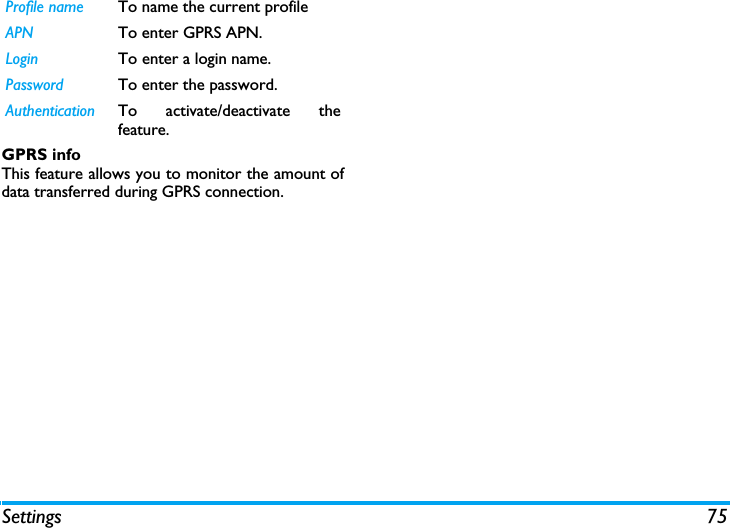
55 BusinessThe maximum length of the numbers and theresult is 8 digits. The result of the calculator isindicative.Voice recorderThis menu allows you to record a voice memo.From the main menu, select Business  >  Voicerecorder. Then you can press L to set the MMSsize and select the Storage location. When you setthe MMS size On, the recording will stop if itexceeds the MMS size limit.To start recording, press , Record. During theprocess, the recorded time will be displayed in realtime. To stop recording, press , and the file will besaved in My files > Sounds.  Then you could press ,to play the recorded file or press L Options toaccess the following options: Secretary OTGThis menu allows you to make long recordings.From the main menu, select Business > SecretaryOTG.To start recording, press , Add if there is no file onthe list.  If there are existing files on the list, pressL Options  and select New sound. During theprocess, the recorded time will be displayed in realtime. To stop recording, press , and the file will besaved.  Then you can edit the start date, start time,and  reminders for this recording. Other availableoptions are:L Options > % Add a percentage symbol.L Options > ModularCalculate a remainders of adivision.#Add a decimal point.Options DescriptionNew episodeMake another recording.Delete Delete the selected file.Send Send the selected file.Rename Change the name of the selectedfile.Options DescriptionNew sound Make another recording.Delete Delete the selected file.
Business 56StopwatchYour phone features a stop watch and theminimum unit is 0.1 second.The starting time is 00:00.0, in the format“mm:ss.n”, where mm stands for minutes of thewatch, which can be any number from 0 to 59; ssstands for seconds, a number between 0 and 59; nstands for 0.x second, x being any number from 0to 9. The stopwatch will start the timing when youpress L Start or ,. You can pause the timing,press L Pause, to resume L Go, to stop thetiming, press R Stop.CountdownThis feature is very simliar to the alarm clock,except that you will be alerted of the remainingtime, and the phone will emit an alarm at the end ofthe count-down. The alarm tone is the same asyour alarm clock.The minimum time is 1 minute. The format of thetime is hh:mm:ss, and the maximum time input is 23hours 59 minutes 59 seconds. You can edit the time timer and start thecountdown by pressing , Go. To stop countdown,press L Pause, to reset, press LReset. and youcan exit the menu by pressing the R Back.The count-down timer will switch onautomatically and emit an alarm at the end ofthe count-down even if your phone is in idlemode.Unit converterThis application allows you to convert many typesof units such as exchange rate, area, energy, mass,power, pressure, temperature and volume.Select the type of unit and input the figure and thenpress , Change to calculate the result.Press # key to enter the decimal point.Send Send the selected file.Rename Change the name of the selectedfile.Edit Edit the start date,  start time andreminders of the selected.Details View the detailed information of theselected file.
57 BusinessFirewallThis function provides a simple and quick methodfor you to avoid nuisance calls and SMS. Blacklistcontains a list of phone numbers from which youdo not wish to receive calls or SMS.Select  Business > Firewall > Enable and choosebetween the following options:•SMS • Incoming call •SMS and incoming call•OffTo add phone numbers into the black list, selectBlack list, press LAdd or OK on Add new, then youcan carry out the following operations:You can press +/- to select a particular number inthe black list, then press L Options to carry out thefollowing operations:Chinese festival (if available)The menu allows you to view the Chinese festivalfor the entire year.Task This menu allows you to create, store and manageevents in your task list.    Create taskThis menu allows you to create a new task.  Thereare 2 types of tasks: Phone Call and Task. Select Newtask  and press , Select to access the followingoptions:Option OperationNew numberOpen the phone number editor,enter the new number and save thenumber into the black list.ContactsOpen the phonebook list and selecta phone number for saving into theblack list.ChangeOpen the phone number editor, toedit the selected number in theblack list.DeleteDelete the selected number in theblack list.Call/Task Allow you to create a Phone Callor Task. Subject Create a subject for your task.
Business 58After you have finished editing, press , to Save yournew task. Manage taskThis menu allows you to manage your tasks .  Selecta task, then press , to  View the task or Call thecontact (depending on the if it is the Task or PhoneCall) or press LOption  to access the followingoptions: Lunar calendar (if available)You can set this menu On or Off . When set to On,the Lunar calender will display on screen in idlemode.Call number (Available only in Phone call)Enter the phone number directly,or press , Select for:• Contacts: Display the list of contacts for calling.• Enter number: Enter the number. Display on idleSet On or Off to choose whetherthe event will display on screen inidle mode.Set Reminder Set On or Off  to choose whetheryou want to receive the alert.When set to On, you need to setthe alert date and time. Press , toconfirm.Mark as (Not) DoneMark a tick on the task as done oruntick for not done.Edit Edit the selected task.Delete Delete the selected task.Delete all Delete all tasks on the list.
59 Contacts11. ContactsYour phone features two phonebooks. The SIMphonebook is located on your SIM card and thenumber of entries you can store depends on theSIM card. The second phonebook (Smartphonebook) is integrated in the phone memory andthe maximum number of name cards you can storeis 2000 (a namecard can consist of a name, 4 phonenumbers,  groups, email address, address, etc.).The SIM card is the default phonebook, but theentries in the two phonebooks are combined,sorted and displayed as a list. When you add a newcontact to your phonebook, the new contact willonly be added to the phonebook you have selected.You can store up to 2000 name cards, providedother features in the phone such as Calendar,Sounds, Pictures, and Videos, etc. did not use upa large amount of the phone's memory space.New contactsTo create a new SIM/phone contact:To create a contact, you must enter at least aphone number.Most of the fields are free-text, which means youcan enter alphanumeric data using the text entryfunctions of your mobile phone (for moreEnter new contact  Press , and select NewContactsEnter contact detailsEnter the following for SIMcard contacts.•Name• NumberEnter the following foronboard phonebookcontacts:•Name• General• Mobile•Home•Work and etcStore the new contactPress , Save.
Contacts 60information on text entry, see “Text and numberentry” on page 17).View contactsIn the phonebook, you can display the details of acontact by selecting it.  Then press , View to viewthe details of the selected contact or press LOptions to carry out the following operations:View groupThe View group feature allows you to organize yourcontacts so that you can send messages to all themembers of the group. From the Contacts menu,select View group and the list of groups is displayed.ViewSelect a group and , Viewoto display the groupmembers or press L Options to access thefollowing group options:Options DescriptionNew contactCreate a new contact.SendmessageSend a SMS or MMS to the contact.Call Call the contact.Edit before callChange the contact’s informationbefore calling the contact.Call handsfree Call the contact by handsfree mode.Delete Delete the contact.Add to blacklistAdd the contact into the blacklist.Send ContactSend the selected record: via SMS orvia Bluetooth.Copy to phoneCopy the SIM entry to phone.Move to phoneSimilar to copy, but the sourcerecord will be deleted after copy.SelectmultipleSelect one contact at a time orselect all contacts.Options DescriptionRename Rename the group.Send message Send an SMS or MMS tomembers of a group.
61 ContactsSpecial numbersThis menu allows you to keep a list of usefulnumbers such as your own numbers, servicenumbers, voicemail and SOS numbers.AdvancedThis menu provides you with advanced features sothat you can view and edit your contacts:Reset Restore group to defaultsettings.Options DescriptionMy number View, edit or clear your ownphone number.Emergency Display emergency phonenumber.Voice mail  Dial the number for yourvoice mail service provider.Service numbers This entry of the SIMphonebook allow you to selectone of the available servicesprovided by your operator andto copy it into the selectedphonebook.Options DescriptionChoose contact list •Default contact list:Switch contact listbetween  SIM,  Phone orAll.• Default contact location:Select the new contactentry saved on the SIMor phone memory.Copy contact  Copy to SIM: Copy all theentries to SIM.Copy to phone: Copy all theentries to Phone.Move contact Move to SIM: Move all the entries to SIM. Move to phone: Move all theentries to Phone.Delete all contacts Delete all contacts.
62 Profiles12. ProfilesYour mobile phone has been preconfigured withthe following modes: You can activate and modify all the modes, exceptFlight  mode and Silent mode. These 2 modes canonly be activated and viewed.The profiles and their respective parameters are asfollows:•Personal (default) • Car • Flight • Home • Meeting • Outdoors• SilentPersonal Ring volume Level 9Ringtones DefaultAlert type Vibrate and ringKey sound OnBacklight level Level 3Car Ring volume Level 8Ringtones DefaultAlert type Vibrate and ringKey sound HighBacklight level Level 4Flight Ring volume No volumeAlert type NoneKey sound OffBacklight level Level 3Home Ring volume Level 4Ringtones DefaultAlert type Vibrate and ringKey sound OnBacklight level Level 3
Profiles 63Profile selectionTo select a different profile:Personalize settingsThe available options include:Meeting Ring volume SilenceRingtones DefaultAlert type VibrateKey sound OnBacklight level Level 4Outdoors Ring volume Level 9Ringtones DefaultAlert type Vibrate and ringKey sound HighBacklight level MaximumSilent Ring volume SilenceAlert type NoneKey sound OffBacklight level Level 2Go to Profiles menuPress , to enter the main menufrom idle mode and selectProfiles. Select the desired profile.Press + or -.Enter the Options menuPress L Options. You may select:•Activate: To activate theprofile.•Personalize: To modify thesetting in the profile.Options DescriptionRing volume Select from 9 volume levels.Ringtones Select the ringtone for Calls,Alarm, Calendar, Messages or Cellinfo.Alert type Select an alert type: Ring only,Vibrate only,  Vibrate and ring,Vibrate then ring or Silent.
64 ProfilesKey sound Set the key sound On or Off.Backlight level Select a backlight level fromlevel 1 to level 4.
Connectivity 6513. ConnectivityThis menu provides you with more features to setup a connection with these external devices.BluetoothYour phone supports Bluetooth wirelesstechnology, allowing connection to a compatibleBluetooth device. To ensure interoperabilitybetween other Bluetooth devices, please checkwith the manufacturers of other devices. TheBluetooth connection can be subjected tointerference from obstructions such as walls orother electronic devices.To use Bluetooth connection, the device withwhich you want to establish a connection mustsupport Bluetooth function. Please contact thedevice's manufacturer or its accompanieddocumentation.Establish a Bluetooth connectionTo activate, press , to enter the main menu fromidle mode and then select Connectivity > Bluetooth.On the Bluetooth screen, select Activate. Next,select Search for devices. When the list of devicesappears, press L to select the device you wish toestablish a connection with.If you do not intend to use the Bluetoothfeature for some time, you should deactivate itin order to conserve battery power.Bluetooth menuOptions DescriptionActivate Turn Bluetooth feature on or off. Search for devicesSearch for the external devices thatyou can connect to.My devices Display the bluetooth devices thatyou can connect to.You can select the desired device bypressing L in the devices list. Youcan also open the Options menu ofthe device. The options are: Connect/Disconnect (if applicable)Browse files (if applicable)Activate/Deactivate stereo (if applicable)RenameDelete
66 ConnectivityWhen searching for a device, you are presentedwith a list of any devices discovered within therange of your Bluetooth-enabled phone. As soon asyou select a device and a connection is made, youare prompted to enter a passkey in order to pairwith the device. This passkey is supplied by themanufacturer of the other Bluetooth device. Referto its documentation for further information. Thepasskey feature ensures that only legitimateconnections are allowed to connect either to yourdevice or to the selected device.USB functionConnect your phone to a PC via USB cable, yourphone will then behave like a USB drive.  You canaccess your phone memory and memory card.  Youcan upload and download music, videos and picturesvia the USB cable, and the size of file transfer isunlimited until your memory is full.Besides, your phone can perform PC connectionswith the Mobile Phone Tools.  From main menu,select Connectivity > USB function > PC Sync, you canconnect your phone to the computer viaBluetooth; select USB drive, you can connect yourphone to the computer via Bluetooth or USB cable.PC software offers instant sychronization betweenyour phone and your computer, and enables you tobackup your mobile phone data and recover thedata saved in the computer, receive SMS and edityour mobile phone contacts.When the transfer is finished, please make surethat you safely remove your device based onthe instruction of your computer.Settings Select to display more features:•My name: edit the name of thedevice•Visibility: choose to show or hidethe device by select toggle On orOff•My Profiles: lists the phone’savailable profiles
67 Calls14. CallsMost options described in this chapter areoperator and/or subscription dependent andrequire either a PIN2 code or a phone code. Formore information on PIN codes, see “General” onpage 71.View callsThis menu provides you with a list of calls you havemissed, answered and made. The calls include Allcalls,  Missed calls,  Answered call,  Outgoing calls andRejected calls, which are displayed in chronologicalorder with the most recent call at the top of thelist. Select a call from one of the lists and press ,Dial to call or press L Options to access thefollowing:Call optionsThis menu allows you to configure the call settings:Options DescriptionView View the detailed information of theselected call.Save Save the number if the number is notin the contacts list.Save to existingSave the number in the current thecontacts list.Send messagesSend a message to the selectednumber. You can send by SMS orMMS.Delete Delete the selected number from thelist.Delete Delete all numbers from the list.Dial Call the selected number.Add to blacklistTo add the phone number into theblacklist, see “Firewall” on page 57.Edit number before dialingOpen the contacts list and edit thenumber if it is in the contacts list.Options Description
Calls 68Auto answerTurn  Auto answer on/off. When thisfunction is on, the incoming call willbe answered automatically after 10seconds.Any keyanswerTurn  Any key answer on/off. Whenthis function is on, you can answerincoming calls by pressing any key,except ), R.MinutereminderSelect  On or Off to activate ordeactivate the minute reminderduring a call. The default is Off andthe default setting is 45 seconds.Call servicesThe available options include:•Call time: Display the duration ofyour calls and their charges:  Totalincoming calls,  Total outgoing callsand Total calls.•Call waiting: Select Enable orCancel, or check Status.This feature is network/subscription dependent.•Own ID: Select Show ID or Hide IDor  Set by network to determineyour phone number or identitywill be displayed or not to thecalled party.•Caller ID: To check your operatorsetting of showing the identity ofyour caller.This feature is network/subscription dependent.
69 Calls•Cost settings: This option isavailable only when the chargeinformation is included in yourSIM card. You can viewinformation of the current call andall recent calls. You need to enterthe PIN2 code to manage,maximum cost credit and unitrate. Call forwardSet the following call divert options:All calls, If no reply, If busy. • When  All calls is on, all incomingcalls will be diverted to the pre-setnumber without any reminder. •When If no reply is on, incomingcalls will be diverted if the userdoes not answer. •When If busy is on, calls will bediverted if the user is alreadyonline or if the call is rejected.• You can also check the Status ofyour call diverts or Cancel all calldiverts.Call barringThis menu allows you to limit theuse of your phone to specific calls bypreventing the reception or makingof different types of calls. To activatecall barring, you need to enter acommunication limit code. ThisPIN2 code will then be sent to thenetwork for validation.Note that this operation onlysupports GSM calls. The types of calls you can bar are asfollows:• All outgoing calls• All international calls• Only here & home• All incoming callsYou can also check the Barring statusof your call barring or Cancel barring. Restricted  dialingThis menu allows you to set thepassword to prevent the phonefrom being used by another person.IP number Dial IP prefix of your networkoperator.
Calls 70Clear historyThis menu allows you to clear the call history in:Delete all/Missed calls/Answered calls/Outgoing calls/Rejected calls. Press , Select to confirm deletion andR Back to cancel deletion.
Settings 7115. SettingsYou can configure your Xenium X600 mobilephone to best suit your usage preference. You canconfigure the following settings: General,  Display,Sounds and Connectivity.GeneralThis menu allows you to configure some generalsettings:Enter the menuPress , to enter the main menufrom idle mode and select Settings.Select a settings menuPress + or -.Options DescriptionActive flip Press , to set On or Off. When youselect  On, you can answer anincoming call simply by opening theflip.Languages Set the display language of thephone.Time & date •Display time: Select On or Off.When you select On, the timeinformation will be displayed inidle screen.•Set time: Set the time in theformat HH:MM.•Set date: Set the date.•Time format: Set the time formatas 24 hours or 12 hours.•Date format: Set the date formatas  YYYY/MM/DD,  YYYY.MM.DD,DD.MM.YYYY,  YYYY-MM-DD orDD-MM-YYYY.•International clock: Go toInternational clock menu andchange the time zone.•Power-on time: Set a time for thephone to be switched on. You canselect On or Off. When you selectOn, you need to enter the timeyou want your phone to beswitched on. •Power-off time: same as above.
72 SettingsSecurity •PIN protection: Select On or Off.When you select On, you needto enter the PIN code when youswitch on the phone. The default PIN code is networkdependent on your serviceprovider. Please contact yourservice operator for the PINinformation.•Change PIN/PIN2: You can modifythe password for PIN, PIN2,safeguard and phonelock.•Safeguard: You can safeguardimportant information such asmessages, contacts on your phoneby activating safeguard. You canalso change the safeguardpassword.•Change safeguard password: Youcan modify the password forPIN, PIN2, safeguard andphonelock.The default safeguard andphonelock password is 1234.Shortcuts Displays a list of shortcut features.You can set a new shortcut key byestablishing a link between a certainfeature and a numeric or navigationkey. You can also change or deletean existing shortcut key.DefaultstorageSet the default storage location:Phone memory or Memory card fordifferent applications.Memory statusYou can check the memory status ofContacts, Messaging and My files. Youcan also check the memory status ofMemory card if it is inserted.Mainmenu styleSelect the browse style as List  orGrid.Factory settingsRestore your phone settings to thedefault values.
Settings 73DisplayYou may configure your phone with differentdisplay settings:SoundsYou can set your phone to operate with differentsound profiles. For details, see “Sounds” onpage 73.If you have downloaded your own ring tones andhave selected such a ring tone to be the alarmalert, then after you set the alarm and switched offthe phone, the alert tone will be changed back tothe original factory settings. This does not apply ifOptions DescriptionWallpaper Turn wallpaper display On or Off.Themes Select from 2 themes.Backlight levelSelect from 4 backlight levels. Youcan select the backlight level bypressing + or - keys. Press ,  toconfirm. Backlight durationSelect backlight duration from 60seconds, 30 seconds and 15 seconds.Greeting Turn greetings On or Off. When youselect  On, you can edit the greetingsmessage. The maximum length of greetingsis 20 Chinese words or 50 Englishcharacters.Options DescriptionAlert type You can select Ring only,  Vibrate only,Vibrate & ring, Vibrate then ring or Silent.Ringtones Select the ringtone for Calls,Calendar,  Messages,  Cell info andAlarm.Ring volumeSelect from 9 volume levels.Key sound Turn key sound On or Off.Shutter soundSelect from 3 shutter sounds. Youcan also select Off.Low battery alertTurn warning On or Off.
74 Settingsthe ring tone you have chosen is one that comes asdefault with your phone.ConnectivityCall optionsFor more information, see “Call options” onpage 67.Message settingsFor more information, see “Settings” on page 47.Network settingsThe network name will be displayed on the idlescreen. If the phone is not able to identify thenetwork name, it will display the country code andthe network code of the unknown network.Select networkIt will vary according to the search mode you haveselected. If you select Automatic, the network willbe searched automatically. If you select Manual, thesearch will commence only when you confirm tostart searching. Search modeYou can select Automatic or Manual.Preferred NetworksPreferred network list is stored in the SIM card. Itspecifies the priority by which your phone willregister to the available network during automaticregistration. 1. In idle mode, press , to enter the main menu. 2. Select Settings > Connectivity > Network settings >Preferred networks.3. Press , Select to enter the preferred networklist. The most preferred network will be at thetop of the list. 4. Press +/- to select a certain network.5. You can then press , to Insert  or press LOption and select to Add to end or Delete theselected network.BrowserVarious parameters relative to browser can be setunder this option, including WAP parameters andPush message.ConnectionsGPRS profilesThis menu allows you to configure a GPRS(General Packet Radio Service) connection to thenetwork. The available GPRS settings are:Options Description
Settings 75GPRS infoThis feature allows you to monitor the amount ofdata transferred during GPRS connection.Profile name To name the current profileAPN To enter GPRS APN.Login To enter a login name.Password To enter the password.Authentication To activate/deactivate thefeature.
76 Icons & SymbolsIcons & SymbolsIn idle mode, several icons and symbols can bedisplayed on the main screen. The status, networkand battery icons are displayed all the time. Therest of the icons are displayed if the feature isavailable, and not displayed if the feature isunavailable.If the network symbol is not displayed, it impliesthat the network is currently unavailable. Youmay be in a bad reception area; moving to adifferent location may help.Network - Network icon comprises of 2portions. The left portion indicateswhether or not your phone is alreadyregistered with a network, and the rightportion indicates signal strength in 5levels (from no signal to strongest).Battery - Indicates battery level with 5battery level indicator bars. Whencharging, a scrolling icon will bedisplayed.International roaming - Displayed whenyour phone is registered to a networkother than your own.Whether to log on GPRS - There are 2GPRS status which are mutuallyexclusive: GPRS network is available butnot in use; or GPRS network is availableand in use. The icon will be displayedonly when you have logged on to GPRS.MMS  - Indicates there is a MMSmessage.WAP Push message - Indicates there is aWAP push message. Go to Browser >Push Inbox to check it.Voicemail- Indicates voice messages thathave not been heard.Alarm Clock - Indicates that the alarmclock is activated.Vibration - Your phone will vibrate whenthere is an incoming call or when thealarm clock rings.Firewall  - Indicates that firewall featureis activated.
Icons & Symbols 77New event - You have a new event.Miss call - Indicates there is a miss call.Call Divert - Indicates that the calldivert function is activated.Silence - Indicates that silent mode isactivated.Auto answer - Indicates that Autoanswer is on.Keypad Locked - Indicates that thekeypad is locked.Memory card - Indicates the memorycard is in use.Bluetooth - Feature is activated.Start recording - Indicates OK to startvideo recording.Stop recording - Indicates OK to stopvideo recording.
78 PrecautionsPrecautionsRadio WavesYour cellular mobile phone is a lowpower radio transmitter andreceiver. When it is operating, it sendsand receives radio waves. The radio wavescarry your voice or data signal to a base station thatis connected to the telephone network. Thenetwork controls the power at which the phonetransmits.• Your phone transmits/receives radio waves in theGSM frequency (900 / 1800 / 1900 MHz).• The GSM network controls transmission power(0.01 to 2 watts).• Your phone complies with all relevant safetystandards.• The CE mark on your phone shows compliancywith European electromagnetic compatibility(Ref. 89/336/EEC) and low voltage directives(Ref. 73/23/EEC).Your cellular mobile phone is your responsibility.To avoid damage to yourself, to others or to thephone itself, read and follow all the safetyinstructions and make them known to anyoneborrowing your phone.Furthermore to preventunauthorized use of your phone:Keep your phone in a safe place and keepit out of small children's reach.Avoid writing down your PIN code. Tryto remember it instead. Switch off the phone and remove the battery if youare going to leave it unused for a long time.Change your PIN code after purchasing the phoneand to activate call restriction options.The design of your phone complies withall applicable laws and regulations.However your phone may causeinterference with other electronicdevices. Consequently you should follow all localrecommendations and regulations when usingyour cellular phone both at home and when away.Regulations on the use of cellular phones invehicles and aircraft are particularlystringent.Public concern has been focused for some time onthe possible health risks for users of cellular phones.The current research on radio wave technology,including the GSM technology, has been reviewedand safety standards have been drawn up to ensureprotection from exposure to radio wave energy.
Precautions 79Your cellular telephone complies with allapplicable safety standards and the RadioEquipment and Telecommunications TerminalEquipment Directive 1999/5/EC.Always switch off your phoneInadequately protected or sensitive electronicequipment may be affected by radio energy. Thisinterference can lead to accidents.Before boarding an aircraft and/or whenpacking the phone in your luggage: the useof mobile phones in an aircraft may bedangerous for the operation of the aircraft, disruptthe mobile phones network and may be illegal.In  hospitals, clinics, other health carecentres and anywhere else where you maybe in the close vicinity of medicalequipment.In areas with a potentially explosiveatmosphere (e.g. petrol stations andalso areas where the air contains dustparticles, such as metal powders).In a vehicle transporting flammable products (evenif the vehicle is parked) or a vehicle powered byliquefied petroleum gas (LPG), check first that thevehicle complies with the applicable safety rules.In areas where you are requested to turn off radiotransmitting devices, such as quarries or otherareas where blasting operations are in progress.Check with the vehicle manufacturer thatelectronic equipment used in yourvehicle will not be affected by radioenergy.PacemakersIf you have a pacemaker:• Always keep the phone more than 15 cm fromyour pacemaker when the phone is switched on,in order to avoid potential interference.• Do not carry the phone in a breast pocket.• Use the ear opposite to the pacemaker tominimize the potential interference.• Switch off your phone if you suspect thatinterference is taking place.Users of hearing aidsIf you are a user of a hearing aid, consult yourphysician and hearing aid manufacturer to learnwhether your particular device is susceptible tocellular phone interference.
80 PrecautionsImproved performanceIn order to improve the performance of yourphone, reduce radio energy emission, reducebattery consumption and ensure safeoperation adhere to the following guidelines:For the optimal and satisfactory operationof the phone, you are recommended touse the phone in the normal operatingposition (when not using in hands-freemode or with a hands-free accessory).• Do not expose your phone to extremetemperatures.• Treat the phone with care. Any misuse will voidthe International Guarantee.• Do not immerse the phone in any liquid; if yourphone is damp, switch it off, remove the battery.and let them dry for 24hrs before using themagain.• To clean the phone, wipe it with a soft cloth.• Placing and receiving calls consumes the sameamount of battery energy. However, the mobileconsumes less energy in idle screen when kept inthe same place. When in idle screen and whileyou are moving, your phone consumes energy totransmit updated location information to thenetwork. Setting the backlight for a shorterperiod of time as well as avoiding unnecessarynavigating in the menus will also help to save thebattery's energy for longer phoning and stand-byperformances.Battery information• Your phone is powered by a rechargeablebattery.•Use specified charger only.• Do not incinerate.• Do not deform or open the battery.• Do not allow metal objects (such as keys in yourpocket) to short circuit the battery contacts.•Avoid exposure to excessive heat (>60°C or140°F), moisture or caustic environments.You should only use Philips authenticbattery and accessories, as the use of anyother accessories may damage yourphone and may be dangerous, and willmake all guarantees for your Philips phonenull and void. The use of an incorrect type ofbattery may also cause an explosion.Make sure damaged parts are replaced immediatelyby a qualified technician and that they are replacedwith genuine Philips replacement parts.
Precautions 81Do not use your phone while drivingSpeaking on the telephone while drivinglowers your concentration, which can bedangerous. Adhere to the followingguidelines:• Give your full attention to driving. Pull off theroad and park before using the phone.• Respect the local regulations in countries whereyou drive and use your GSM phone.• If you want to use your phone in a vehicle, installthe hands-free car kit which is designed for thatpurpose.• Ensure that your phone and car kit do not blockany air bags or other security devices fitted inyour car.The use of an alarm system to operate a vehicle'slights or horn to indicate incoming phone calls isprohibited on public roads in some countries. Checklocal regulations.EN60950 NormIn case of hot weather or after a prolonged exposureto the sun (e.g., behind a window or a windscreen),the temperature of your phone's casing mightincrease, especially when featuring a metallic finish.Be very careful in this case when picking up yourphone and also avoid using it with an ambienttemperature over 40°C.For your phone, the socket-outlet shall be installednear the phone and shall be accessible. Environmental careRemember to observe the localregulations regarding the disposal of thepackaging materials, exhausted batteriesand old phone and please promoterecycling.Philips has marked the battery and packaging withstandard symbols designed to promote therecycling and appropriate disposal of your eventualwaste.The labelled packaging material isrecyclable.A financial contribution has been madeto the associated national packagingrecovery and recycling system.The plastic material is recyclable (alsoidentifies the type of plastic).
82 PrecautionsWEEE Marking in the DFU: “Information to the Consumer”Disposal of your old productYour product is designed and manufactured withhigh quality materials and components, which canbe recycled and reused. When this crossed-out wheeled binsymbol is attached to a product itmeans the product is covered by theEuropean Directive 2002/96/ECPlease inform yourself about the localseparate collection system forelectrical and electronic products.Please act according to your local rules and do notdispose of your old products with your normalhousehold waste. The correct disposal of your oldproduct will help prevent potential negativeconsequences for the environment and humanhealth.FCC Compliance StatementThis equipment has been tested and found tocomply with the limits for a Class B digital device,pursuant to Part 15 of the FCC Rules. These limitsare designed to provide reasonable protectionagainst harmful interference in a residentialinstallation. This equipment generates, uses and canradiate radio frequency energy and, if not installedand used in accordance with the instructions, maycause harmful interference to radiocommunications. However, there is no guaranteethat interference will not occur in a particularinstallation. If this equipment does cause harmful interference toradio or television reception, which can bedetermined by turning the equipment off and on, theuser is encouraged to try to correct theinterference by one or more of the followingmeasures: -- Reorient or relocate the receiving antenna. -- Increase the separation between the equipmentand receiver. -- Connect the equipment into an outlet on a circuitdifferent from that to which the receiver isconnected. Any changes or modifications not expresslyapproved by the party responsible for compliancecould void the user’s authority to operate theequipment.This device complies with part 15 of the FCC Rules.Operation is subject to the following twoconditions: (1) This device may not cause harmfulinterference, and (2) this device must accept anyinterference received, including interference thatmay cause undesired operation.
83TroubleshootingThe phone does not switch onRemove/reinstall the battery. Then charge thephone until the battery icon stops scrolling. Unplugfrom charger and try to switch on the phone.Your phone doesn’t return to the idle screenLong press the hangup key or switch off the phone,check that the SIM card and the battery have beeninstalled correctly and switch it on again.The network symbol is not displayedThe network connection is lost. Either you are in aradio shadow (in a tunnel or between tall buildings)or you are outside the network coverage area. Tryfrom another place, try to reconnect to the network(especially when abroad), check that the antenna isin place if your mobile has an external antenna, orcontact your network operator for assistance/information.The display doesn’t respond (or the display responds slowly) to key pressesThe display responds more slowly at very lowtemperatures. This is normal and does not affectthe operation of the phone. Take the phone to awarmer place and try again. In other cases, pleasecontact your phone supplier.Your battery seems to over heatYou might be using a charger that was not intendedfor use with your phone. Make sure you always usethe Philips authentic accessory shipped with yourphone.Your phone doesn’t display the phone numbers of incoming callsThis feature is network and subscriptiondependent. If the network does not send thecaller’s number, the phone will display Call 1 orWithheld instead. Contact your operator fordetailed information on this subject.You can’t send text messagesSome networks don’t allow message exchangeswith other networks. First check that you enteredthe number of your SMS centre, or contact youroperator for detailed information on this subject.You have the feeling that you miss some callsCheck your call divert options.
84The display shows INSERT SIM Check that the SIM card has been insertedcorrectly. If the problem remains, your SIM cardmay be damaged. Contact your operator.When attempting to use a feature in the menu, the mobile displays NOT ALLOWEDSome features are network dependent. Therefore,they are only available if the network or yoursubscription supports them. Contact youroperator for detailed information on this subject.Your phone is not chargingIf your battery is completely flat, it might takeseveral minutes of pre-charge (up to 10 minutes insome cases) before the charging icon is displayedon the screen.
85Philips Authentic AccessoriesSome accessories, such as a standard battery and acharger, are included as standard accessories inyour mobile phone package. Additional accessoriesmay also be provided or sold separately. Packagecontents may therefore vary.To maximize the performance of your Philipsphone and not to void the warranty, alwayspurchase Philips Authentic Accessories that arespecially designed for use with your phone.Philips Consumer Electronics cannot be heldliable for any damages due to use with nonauthorized accessories.ChargerCharges your battery in any AC outlet. Smallenough to carry in a briefcase/handbag.Data connect kitProvides easy data connection to your Philipsmobile phone. The USB cable enables high-speedcommunication between your phone and yourcomputer. The provided software allows you todownload pictures and melodies and tosynchronize your contacts and appointments.Deluxe HeadsetThe integrated answer button offers you a simpleway to answer your calls. Simply answer anincoming call by pressing the button or long pressto reject the incoming call.
86Trademark DeclarationT9® is a trademark of TegicCommunications Inc.Bluetooth™ is a trade-mark owned bytelefonaktiebolaget L M Ericsson, Sweden andlicensed to Philips.PHILIPS and PHILIPS’ ShieldEmblem are registered trademarks of KoninklijkePhilips Electronics N.V. manufactured by ShenzhenSang Fei Consumer Communications Co., Ltd.under license fromKoninklijke Philips Electronics N.V.Tegic Euro. Pat. App. 0842463
Specific Absorption Rate Information 87Specific Absorption Rate InformationInternational standardsTHIS MOBILE PHONE MEETS THE INTERNATIONAL RECOMMENDATIONS FOR EXPOSURE TO RADIO WAVESYour mobile phone is a radio transmitter and receiver. It is designed and manufactured not to exceed the limitsfor exposure to radio frequency (RF) energy defined by the international standards. These recommendations havebeen established by the International Commission on Non-Ionizing Radiation Protection (ICNIRP) and, theInstitute of Electrical and Electronics Engineers (IEEE) that forecast a substantial safety margin for assuring theprotection of all persons, regardless of age and health.The exposure recommendations for mobile phones use a measurement unit known as the Specific AbsorptionRate (SAR). The SAR limit recommended by the ICNIRP for the mobile phones used by the general public is2.0W/kg averaged over ten grams of tissue and, is 1,6W/kg averaged over one gram of tissue by IEEEStd 1528 for the head.Tests for SAR have been conducted using recommended operating positions with the mobile phone transmittingat its highest certified power level in all tested frequency bands. Although the SAR is determined at the highestcertified power level, the actual SAR levels of the mobile phone while operating are generally below the maximumSAR value. This is because the phone is designed to operate at multiple power levels so as to use only the powerrequired to reach the network. In general, the closer you are to a base station antenna, the lower the poweroutput. While there may be differences between the SAR levels of various phones and at various positions, they all meetthe international protection standards for exposure to radio waves. The highest SAR value for this Xenium X600 model phone when tested for compliance against the standard was0,391 W/kg for ICNIRP recommendation and 0,361 W/kg for IEEE Std 1528. For limiting the radio waves exposure, it is recommended to reduce the mobile phone call duration or to use aheadset. The purpose of those precautions is to take the mobile phone away from the head and the body.For body worn operation, this phone has been tested and meets FCC RF exposure guidelines when used whit anaccessory that contains no metal and that positions the handset a minimum of 1.5cm from the body. Use of otheraccessories may not ensure compliance with FCC RF exposure guidelines.
88Limited warranty1.  What Does This Limited Warranty Cover?Philips warrants to the original retail purchaser(“Consumer” or “You”) that this Philipscellular product and all accessories originallyprovided by Philips in the sales package(“Product”) are free from defects in materials,design and workmanship under normal use inaccordance with the operating instructions andpursuant to the following terms andconditions. This limited warranty extends onlyto the Consumer for Products purchased andused in the original country of purchase. Thelimited warranty is valid only in Philips’intended country of sales of the product.2.  How Long is The Limited Warranty Period?The limited warranty period for the Productextends for ONE (1) YEAR from the date ofpurchase of the Product, documented by validproof of purchase. The limited warranty fororiginal Philips rechargeable battery extendsfor six (6) months from the date of purchase.3.  What Will Philips Do if The Product is NotFree From Material Defects in Materials andWorkmanship During The Limited WarrantyPeriod?During the limited warranty period, Philips orits authorized service representative will, at itsoption either repair or replace, without chargefor parts or labour, a materially defectiveProduct with new or refurbished parts orProduct and return such repaired or replacedProduct to the Consumer in workingcondition. Philips will retain defective parts,modules or equipment.Repaired or replaced Product will be coveredby this limited warranty for the balance of theoriginal limited warranty period or ninety (90)days from the date of repair or replacementwhichever is longer. Repair or replacement ofProduct, at Philips’ option is your exclusiveremedy.4.  What is Not Covered By This LimitedWarranty?This limited warranty does not cover:a)  Product that has been subjected tomisuse, accident, shipping or otherphysical damage, improper installation,abnormal operation handling, neglect,
89inundation, fire, water or other liquidintrusion; orb)  Product that has been damaged due torepair, alteration, or modification byanyone not authorized by Philips; orc)  Product that has reception or operationproblems caused by signal conditions,network reliability or cable or antennasystems; ord)  Product defects or problems caused byuses with non-Philips products oraccessories; or e)  Product which warranty/quality stickers,product serial number or electronic serialnumber has been removed, altered orrendered illegible; or f)  Product purchased, used, serviced, orshipped for repair from outside theoriginal country of purchase, or used forcommercial or institutional purposes(including but not limited to Products usedfor rental purposes); or g)  Product returned without valid proof ofpurchase or which proof of purchase hasbeen altered or is illegible.h) Normal wear and tear or Force Majeure.5.  How Do You Get Warranty Service?a)  Return the Product to an authorizedservice center of Philips. You may contactthe local Philips office for the location ofthe nearest authorized service center.b) The SIM card must be removed from theProduct before it is given to Philips. Philipsassumes no liability for damaged or loss ofthe SIM card or the data containedtherein.c) If the Product failure is not covered by thislimited warranty, or this limited warrantyis inapplicable, void or invalid due to anyterms and conditions stated herein, theConsumer will be charged for the cost ofrepair or replacement of the Product andall other related cost incurred in repairingor replacing the Product.d)  IMPORTANT - you are required to returnthe Product together with a valid proof ofpurchase which must identify the point ofpurchase, date of purchase, Productmodel and Product serial number clearly.6. Other Limitation: This Warranty is The EntireAgreement.EXCEPT FOR THE EXPRESS WARRANTIESSET FORTH ABOVE AND THOSE IMPLIEDBY LAW AND WHICH CANNOT BEEXCLUDED OR MODIFIED BY
90AGREEMENT, PHILIPS PROVIDES NOOTHER WARRANTY WHETHER EXPRESSOR IMPLIED (WHETHER BY STATUTE,UNDER THE OPERATION OF LAW OROTHERWISE) AND SPECIALLY DISCLAIMSANY WARRANTY OF SATISFACTORYQUALITY MERCHANTABILITY OR FITNESSFOR A PARTICULAR PURPOSE.PHILIPS’ TOTAL LIABILITY FOR DAMAGESRELATING TO OR ARISING OUT OF THEPURCHASE OR USE OF THE PRODUCT,REGARDLESS OF THE TYPE OR CAUSE OFSUCH DAMAGE OR THE FORM ORCHARACTERISATION OF THE CLAIMASSERTED (E.G. CONTRACT OR TOPIT),SHALL NOT EXCEED THE ORIGINALPURCHASE PRICE PAID FOR THEPRODUCT.HOWEVER IN NO EVENT SHALL PHILIPS BELIABLE FOR ANY PUNITIVE, SPECIAL,INCIDENTAL, INDIRECT ORCONSEQUENTIAL DAMAGES (INCLUDINGBUT NOT LIMITED TO THE LOSS OF USE,LOSS OF TIME, INCONVENIENCE,COMMERIAL LOSS, LOST PROFITS, LOSTBUSINESS OPPORTUNITIES, COST OFSUBSTITUTION OF GOODS OR SERVICES,INVESTMENTS, DAMAGE TO GOODWILLOR REPUTATION, OR LOSS OF DATA ANDCLAIMS BY THIRD PARTIES) RESULTINGFROM PURCHASE OR USE OF THEPRODUCT, TO THE FULLEST EXTENTALLOWED BY LAW, WHETHER OR NOTPHILIPS HAS BEEN ADVISED OF THEPOSSIBILTY OF SUCH DAMAGES. THESELIMITATIONS SHALL APPLYNOTWITHSTANDING THE FAILURE OFTHE ESSENTIAL PURPOSE OF ANY LIMITEDREMEDY.This limited warranty represents the completeand exclusive agreement between theConsumer and Philips with respect to thiscellular Product and it supercedes all prioragreements between the parties, oral orwritten, and all other communicationsbetween the parties relating to the subjectmatter of this limited warranty. No carrier,retailer, agent, dealer, employee, thereof, oremployee of Philips is authorized to makemodifications to this limited warranty and youshould not rely on any such representation.This limited warranty does not affect theConsumer’s statutory rights under applicablenational laws in force.
Declaration of conformityWe, Shenzhen Sang Fei ConsumerCommunications Co., Ltd.11 Science and Technology Road,Shenzhen Hi-tech Industrial Park,Nanshan District, Shenzhen  518057Chinadeclare under our sole responsibility that theproductXenium X600Cellular Mobile Radio GSM 900/1800/1900TAC: 35520202to which this declaration relates, is in conformitywith the following Standards:SAFETY : EN 60950-1: 2001+A11:2004HEALTH: EN50360: 2001EMC: ETSI EN301 489-7 v 1.2.1; ETSIEN 301 489-17 v1.2.1 SPECTRUM: ETSI EN 301 511 v9.0.2;ETSI EN 300 328 v1.6.1 We hereby declare that all essential radio testsuites have been carried out and that the abovenamed product is in conformity to all the essentialrequirements of Directive 1999/5/EC.The conformity assessment procedure referred toin Article 10 and detailed in Annex V of Directive1999/ 5/EC has been followed related to articles 3.1and 3.2 with the involvement of the following No-tified Body: CETECOM ICT Services GmbH, Un-terturkhelmer Strabe6-10, 66117, Saarbrucken,Germany.Identification mark: 0682June 12, 2008Quality Manager

Navigation menu