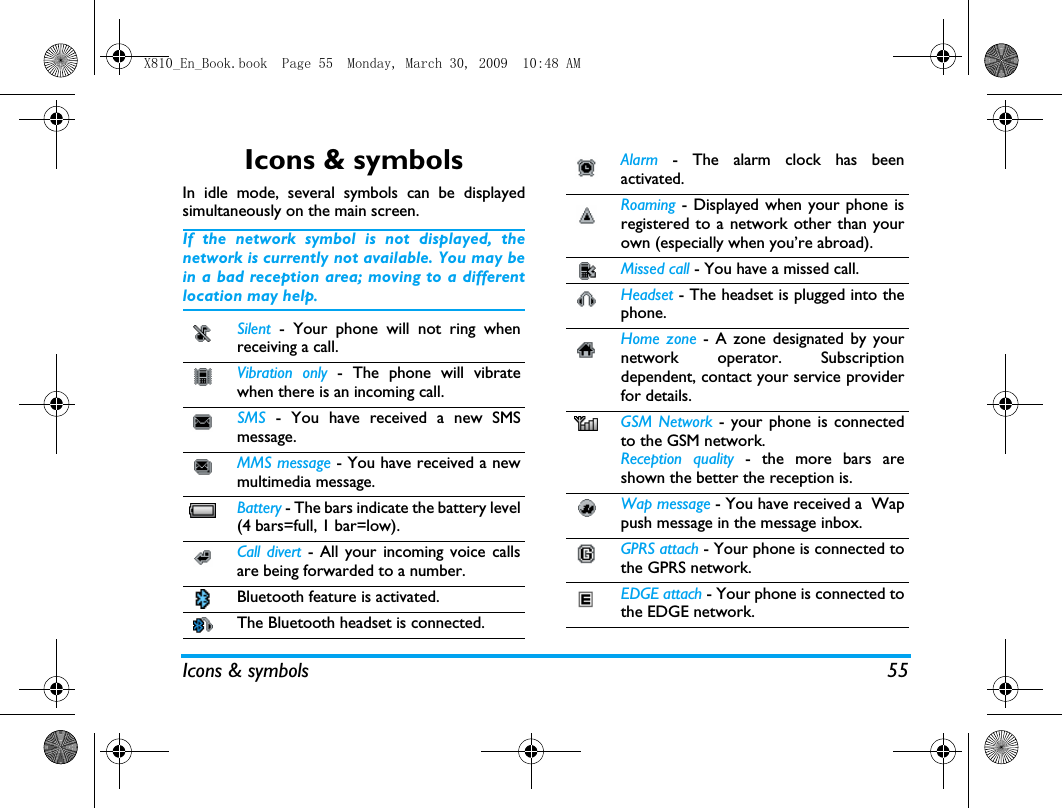
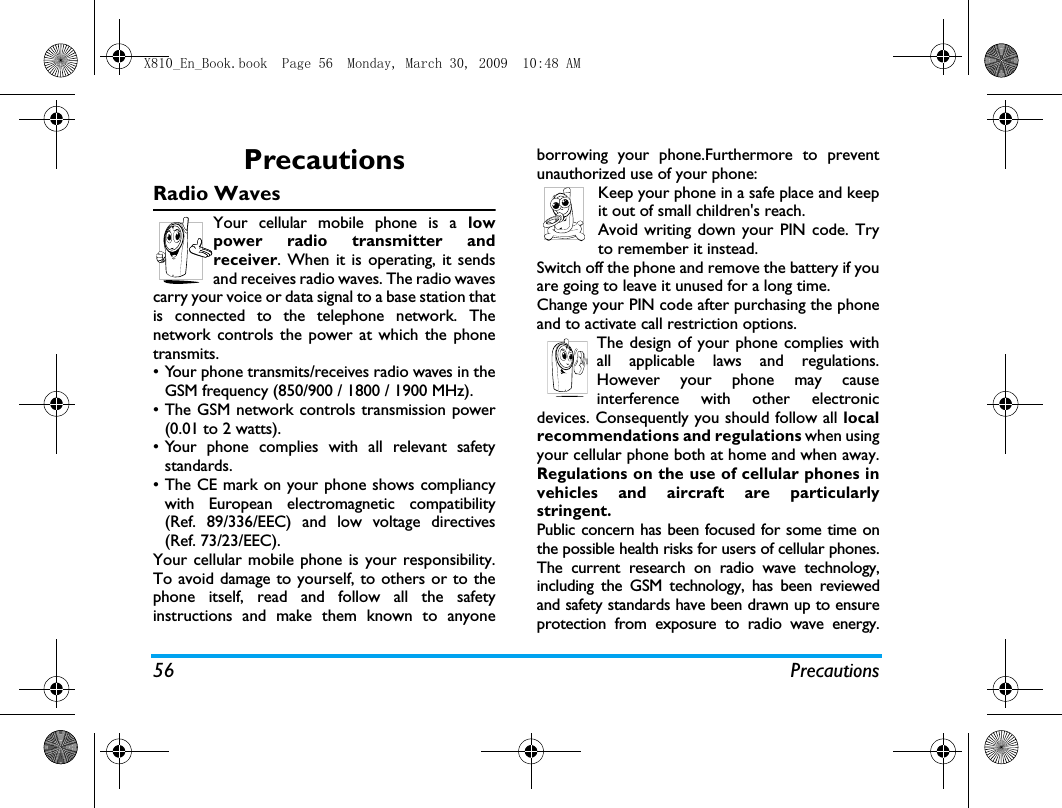
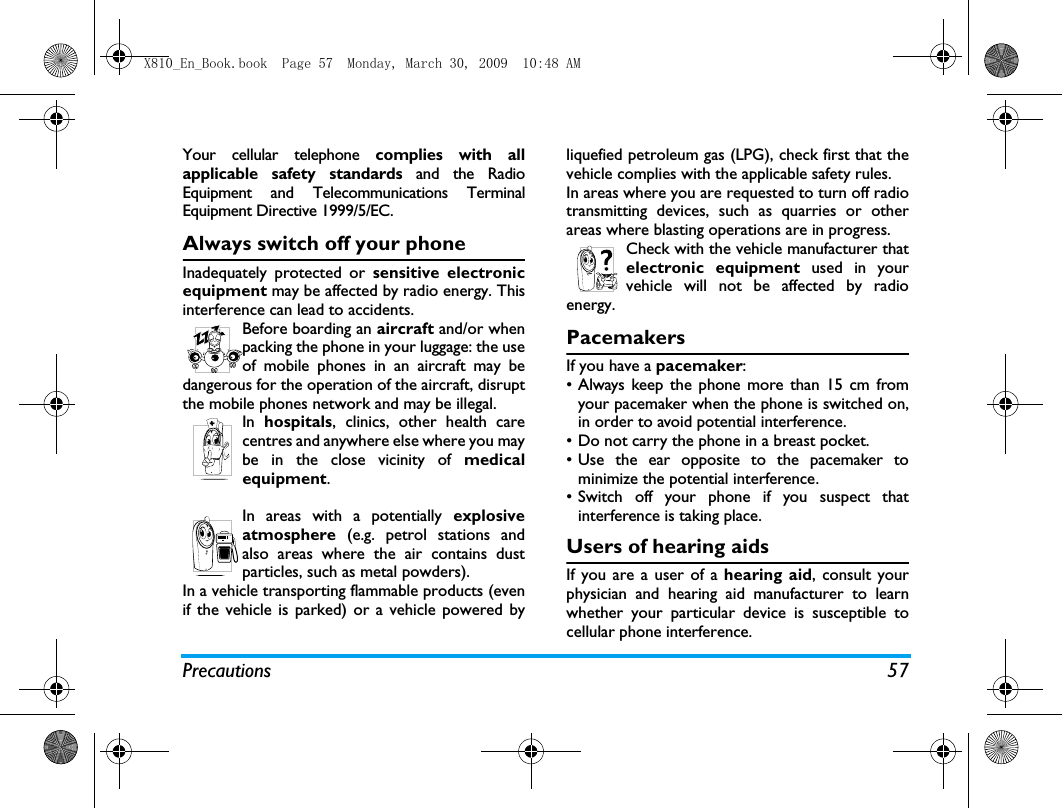
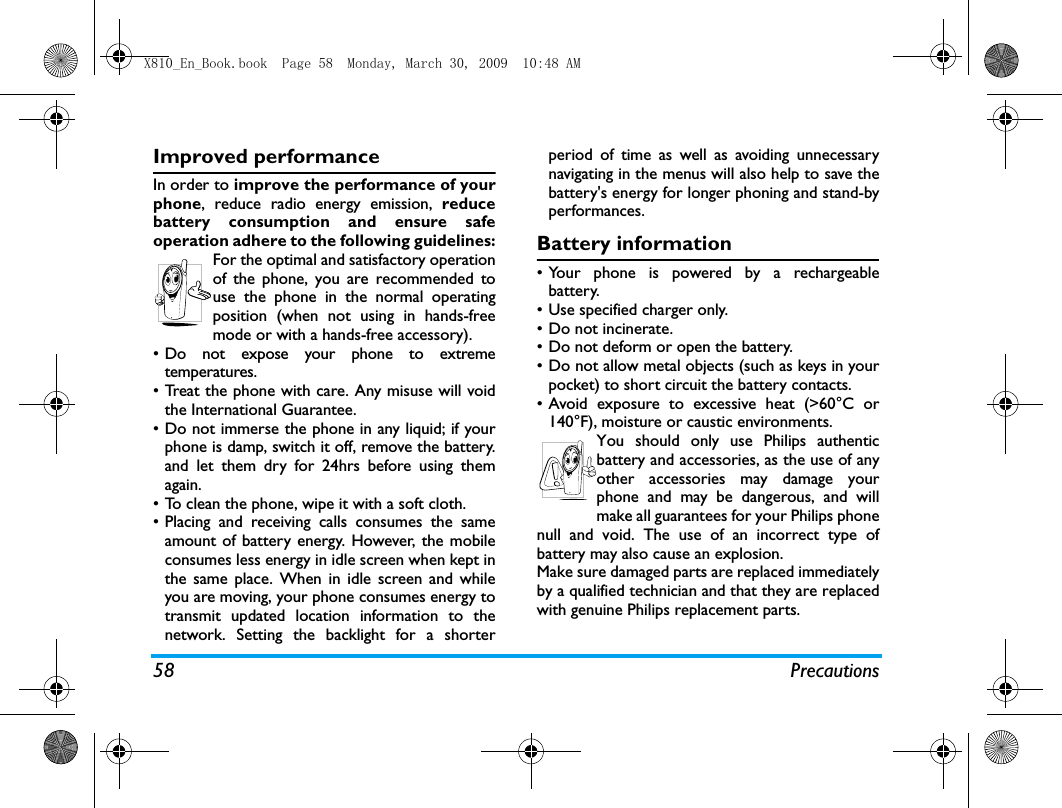
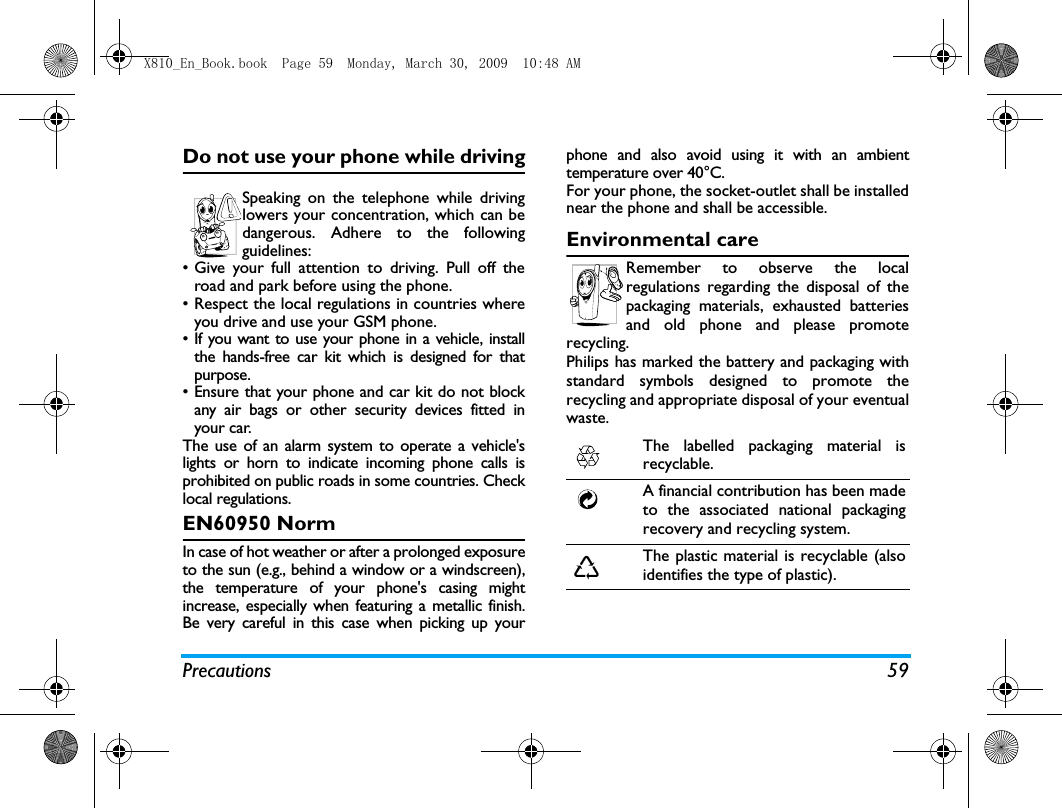
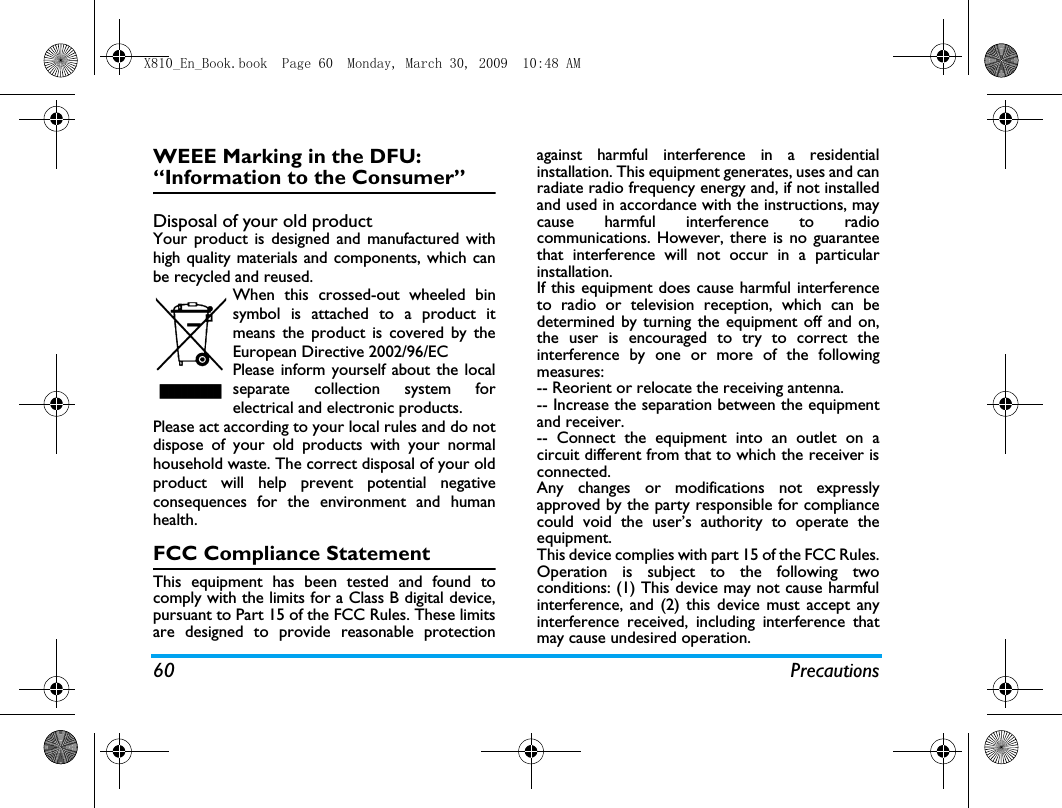
Sang Fei Consumer Communications CTX810 850/900/1800/1900 GSM/GPRS Mobile Phone User Manual X810 En Book

Shenzhen Sang Fei Consumer Communications Co., Ltd. 850/900/1800/1900 GSM/GPRS Mobile Phone X810 En Book

Contents

user manual X810
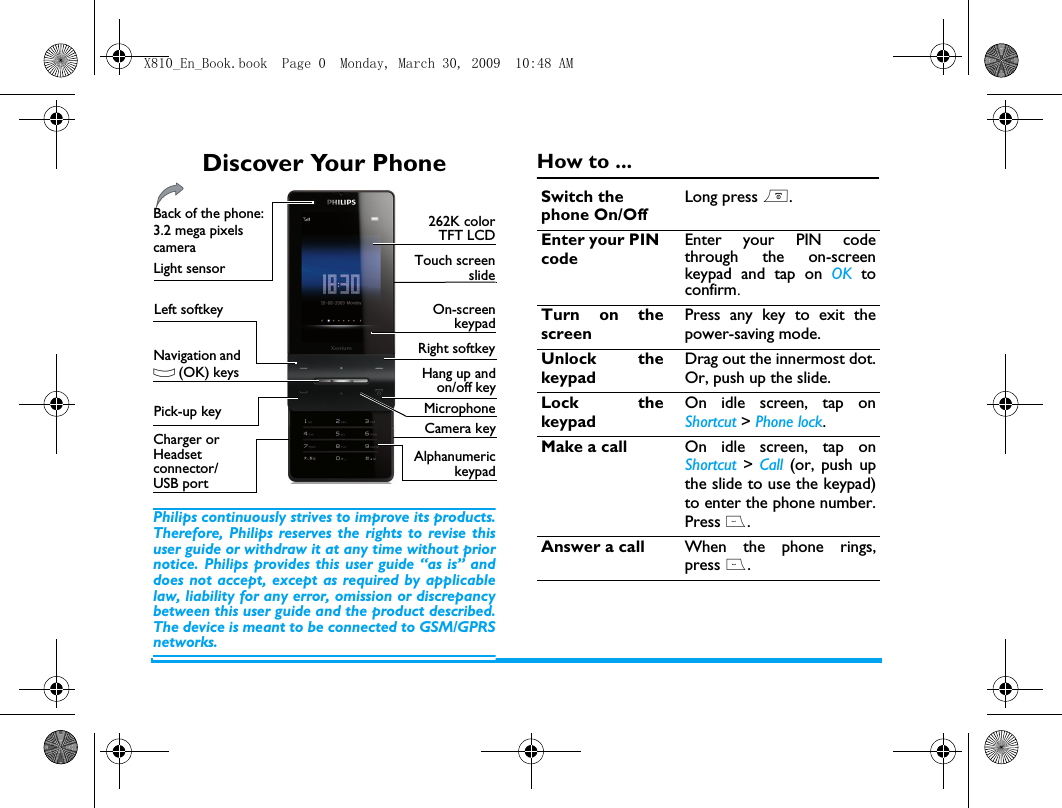
Discover Your PhonePhilips continuously strives to improve its products.Therefore, Philips reserves the rights to revise thisuser guide or withdraw it at any time without priornotice. Philips provides this user guide “as is” anddoes not accept, except as required by applicablelaw, liability for any error, omission or discrepancybetween this user guide and the product described.The device is meant to be connected to GSM/GPRSnetworks.How to ...Hang up andon/off keyAlphanumerickeypadCamera keyNavigation and O (OK) keys262K colorTFT LCDLeft softkeyPick-up keyBack of the phone: 3.2 mega pixels cameraRight softkeyCharger or Headset connector/ USB portOn-screenkeypadMicrophoneTouch screenslideLight sensorSwitch the phone On/OffLong press )..Enter your PIN codeEnter your PIN codethrough the on-screenkeypad and tap on OK toconfirm.Turn on thescreenPress any key to exit thepower-saving mode. Unlock thekeypadDrag out the innermost dot.Or, push up the slide.  Lock thekeypadOn idle screen, tap onShortcut > Phone lock.Make a call On idle screen, tap onShortcut  > Call  (or, push upthe slide to use the keypad)to enter the phone number.Press (.Answer a call When the phone rings,press (.X810_En_Book.book  Page 0  Monday, March 30, 2009  10:48 AM
1Mute theringing call orsounding alarmWhen the phone/ alarmrings, turn over the phone,front side to the back, orback side to the front (if youhave selected On in Menu >Settings > Motion sensor).End a call Press ).Activate/DeactivatehandsfreemodeDuring a call, tap on H-Free/H-Held.Access receivedmessages/missed callsOn the idle screen, tap onView. If necessary, tap on themessage/call icon first.Select inputkeypadsOn the editing screen, pushup/ down the slide to selectthe alphanumeric keypad, orthe on-screen qwertykeypad. Select inputmethodsAlphanumeric keypad:Press # repeatedly. Longpress  * to turn T9 inputon or off.Qwerty keypad: Tap on/   to select the inputthrough the keypad orstylus. Tap on the languageor numeric icon to selectthe input methods. Access mainmenuTap on Menu on the idlescreen.Quickly returnto idle whenbrowsingmenusPress )..Access shortcutmenu  (see"Shortcut menu"on page 2)Tap on Shortcut on the idlescreen.Quickly switchto a differentbuilt-infunctionaldisplay  On current functionaldisplay, move your finger  tothe left/right; long press <,>;or, shake your phone.X810_En_Book.book  Page 1  Monday, March 30, 2009  10:48 AM
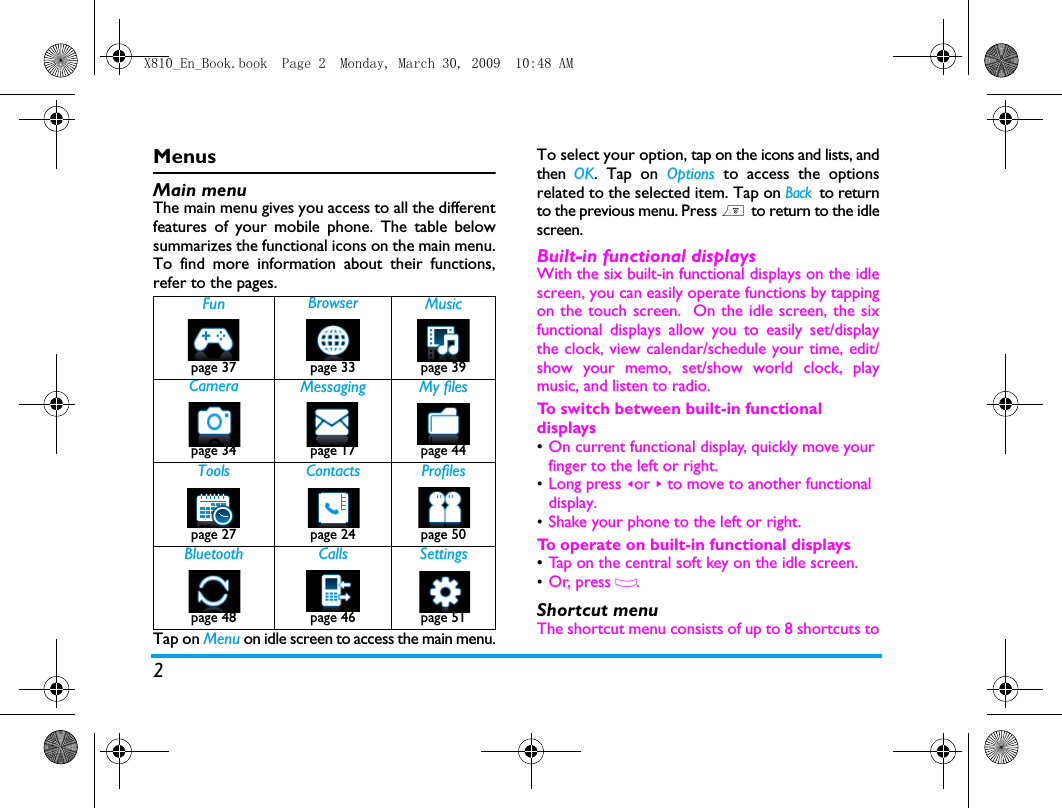
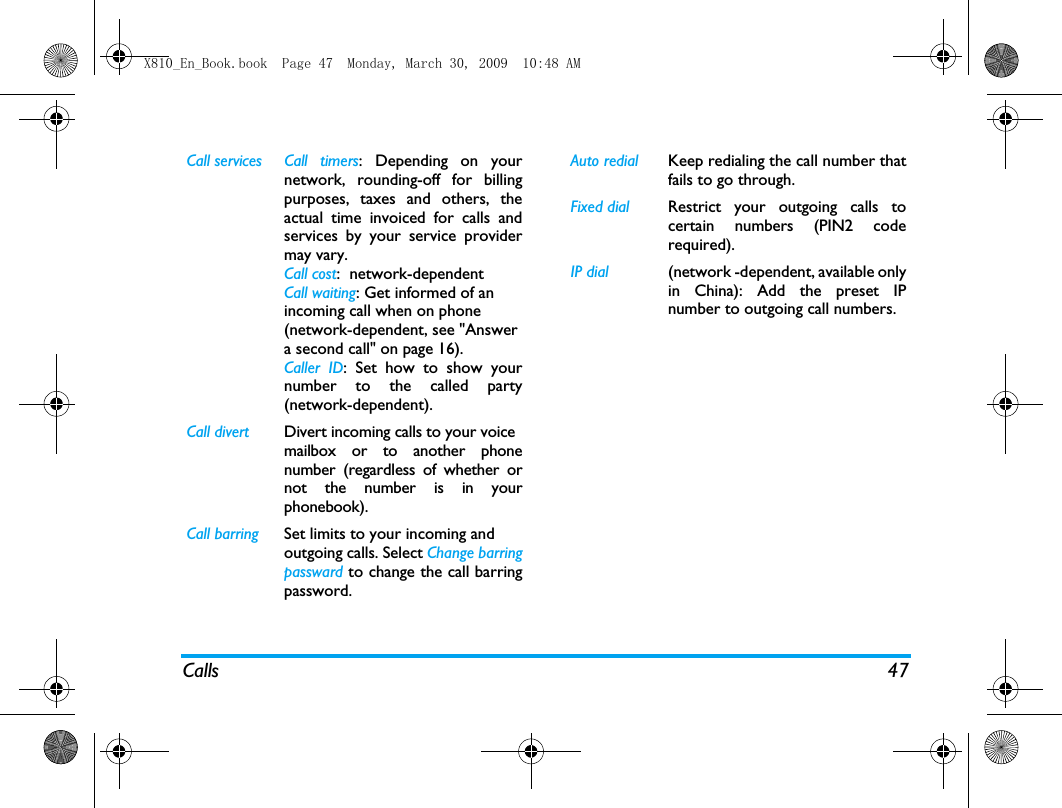
2MenusMain menuThe main menu gives you access to all the differentfeatures of your mobile phone. The table belowsummarizes the functional icons on the main menu.To find more information about their functions,refer to the pages. Tap on Menu on idle screen to access the main menu.To select your option, tap on the icons and lists, andthen  OK. Tap on Options to access the optionsrelated to the selected item. Tap on Back to returnto the previous menu. Press ) to return to the idlescreen.Built-in functional displaysWith the six built-in functional displays on the idlescreen, you can easily operate functions by tappingon the touch screen.  On the idle screen, the sixfunctional displays allow you to easily set/displaythe clock, view calendar/schedule your time, edit/show your memo, set/show world clock, playmusic, and listen to radio. To switch between built-in functional displays•On current functional display, quickly move your finger to the left or right. •Long press <or > to move to another functional display. •Shake your phone to the left or right. To  operate on built-in functional displays•Tap on the central soft key on the idle screen. •Or, press O.  Shortcut menu The shortcut menu consists of up to 8 shortcuts toFun Browser Musicpage 37 page 33 page 39 Camera Messaging My filespage 34 page 17 page 44Tools Contacts Profilespage 27 page 24 page 50Bluetooth Calls Settingspage 48 page 46 page 51X810_En_Book.book  Page 2  Monday, March 30, 2009  10:48 AM
3functional displays. Extend your quick access tofunctional displays by selecting shortcuts to thoseother than the six ones. To set your shortcut menu1.Go to Settings > General > Shortcut.2.Tap o n  Change  to show the list of functionaldisplays.3.To select/ unselect an option, tap on it, andthen Select /Uncheck.4.Tap  on  Done to finish setting.To use your shortcut menu•On the idle screen, tap on Shortcut, and you can select a functional display as desired.The idle screen switches to the relevant display. StylusThe touch screen allows you to enter text bydirectly writing on the screen, or tap to select thedesired option. The supplied stylus makes it easierto do so. The first time you switch on the phone, you areasked to do calibration for the stylus. Thus, strokesor taps by the stylus will be precisely displayed onthe screen. You can also do the calibration in Settings > Pencalibration by following the screen instructions.KeysSoft keysThe soft keys L, R and O allow you to selectthe options above them on the screen. Suchoptions are contextual: they vary according tocurrent context.Fast keysSenorsWith built-in motion and light sensors, the phonecan react to motion and ambient luminance asdesired or necessary. To use the motion sensor, •In Settings > Motion sensor > Mute incoming call or Snooze mode, select On. 0Long press to enter “+” when making international calls. 1Long press to access the voicemailbox. #Long press to select/unselectMeeting  profile (by default,vibration on for incoming callsor messages).X810_En_Book.book  Page 3  Monday, March 30, 2009  10:48 AM
4If a call or alarm rings, turn over the phone (frontside to back, or back side to front) to mute theringtone. To use the light sensor, •In Settings > Display > Light sensor, select On.The phone will adjust backlight level automaticallyaccording to ambient brightness. For power-savingpurposes, always turn on the light sensor.  Power-saving modeAfter the set time span, the phone has the idlescreen turned off automatically. To exit the power-saving mode, press any key. For power-savingpurpose, set the time span to a low value in Settings> Display > Backlight duration.Auto keypad lockIn the idle mode, your phone can have the keypadlocked automatically after the set time span. Whenthe keypad is locked, a set of concentric circleskeep moving on the screen. To set the auto keypad lockGo to Settings > General > Auto keypad lock.To unlock the keypadDrag out the innermost dot. Or, push up the slide.To lock the keypad manuallyOn the idle screen, tap on Shortcut > Phone lock.X810_En_Book.book  Page 4  Monday, March 30, 2009  10:48 AM
5Table of contents1. Getting Started ..................................7Insert the SIM card  ...........................................7Charge the battery  ..........................................8Set clock...............................................................8Insert Micro-SD card (memory card) ........ 102. Text Entry  ........................................11On-screen text entry .................................... 11Keypad text entry ........................................... 123. Calling ................................................14Make a call  ....................................................... 14Answer and end a call ................................... 14Options during a call  ..................................... 15Handle multiple calls   .................................... 15(network-dependent)Make an emergency call  ............................... 164. Messaging ..........................................17Create messages  ............................................ 17Organize your messages................................ 19Define your message settings ...................... 20Email .................................................................. 21Broadcast messages ........................................ 235. Contacts  ...........................................24Add or edit contacts ..................................... 24Search for a contact ...................................... 25Manage your contacts ................................... 25Share contact information with others...... 26Extra numbers ................................................ 266. Tools ..................................................27Use your business organizer Create your to-do list.................................... 27Check your calendar...................................... 27Edit your to-do list ......................................... 27Use your memoDisplay a text memo on the idle screen ... 28Record a sound memo .................................. 28Use your clock and timerAlarm ................................................................ 29World clock ..................................................... 29Stopwatch ......................................................... 30Use your file reader Text reader ...................................................... 30Document reader ........................................... 31Use your business assistantBusiness card reader ...................................... 31Firewall ............................................................. 31Calculator ......................................................... 32X810_En_Book.book  Page 5  Monday, March 30, 2009  10:48 AM
6Currency converter........................................ 32E-dictionary ..................................................... 327. Browser ............................................ 33Manage your browser ................................... 33Access web sites  ............................................ 33Enable/disable push messages....................... 33STK..................................................................... 338. Camera  ............................................. 34Camera .............................................................. 34Video recorder ................................................ 359. Fun  ..................................................... 37Java ..................................................................... 37Sensor games.................................................... 3810. Music ............................................... 39Audio player ..................................................... 39FM radio ........................................................... 4111. My files ............................................ 44Find your files .................................................. 44Manage your files  ........................................... 44Share your files ............................................... 45Use your files ................................................... 4512. Calls ................................................. 46Call history  ...................................................... 46Call options  ..................................................... 4613. Bluetooth ....................................... 48About Bluetooth  ............................................ 48Connect to a Bluetooth device  .................. 48Get connected by a Bluetooth device  ...... 49Edit your device list ........................................ 4914. Profiles ............................................ 50Adjust ring settings to different scenes  .... 5015. Settings ........................................... 51General.............................................................. 51Display ............................................................... 53Sound ................................................................ 53Connectivity .................................................... 53Icons & symbols  .................................. 55Precautions .......................................... 56Tips.......................................................... 61Troubleshooting ................................. 62Philips Authentic Accessories .......... 64Trademark Declaration ..................... 66Specific Absorption Rate Information .......................................... 67Limited warranty  ................................ 69Declaration of conformity ................ 72X810_En_Book.book  Page 6  Monday, March 30, 2009  10:48 AM
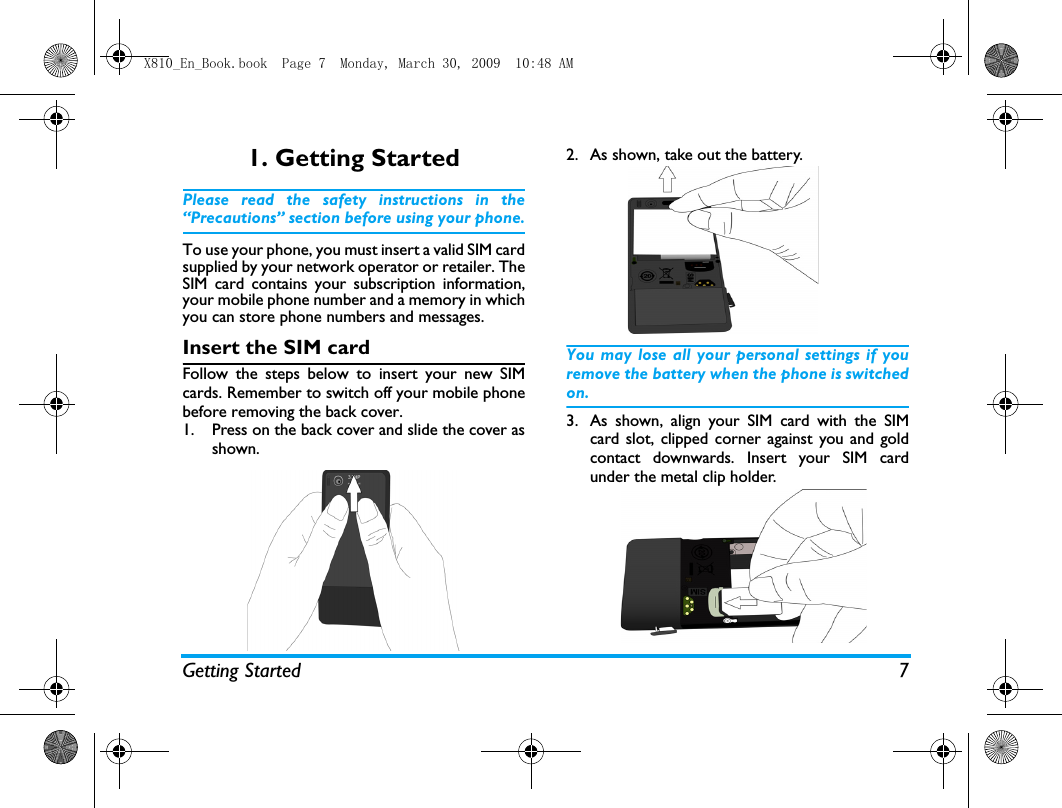
Getting Started 71. Getting StartedPlease read the safety instructions in the“Precautions” section before using your phone.To use your phone, you must insert a valid SIM cardsupplied by your network operator or retailer. TheSIM card contains your subscription information,your mobile phone number and a memory in whichyou can store phone numbers and messages.Insert the SIM cardFollow the steps below to insert your new SIMcards. Remember to switch off your mobile phonebefore removing the back cover.1. Press on the back cover and slide the cover asshown.  2. As shown, take out the battery. You may lose all your personal settings if youremove the battery when the phone is switchedon.3. As shown, align your SIM card with the SIMcard slot, clipped corner against you and goldcontact downwards. Insert your SIM cardunder the metal clip holder.X810_En_Book.book  Page 7  Monday, March 30, 2009  10:48 AM
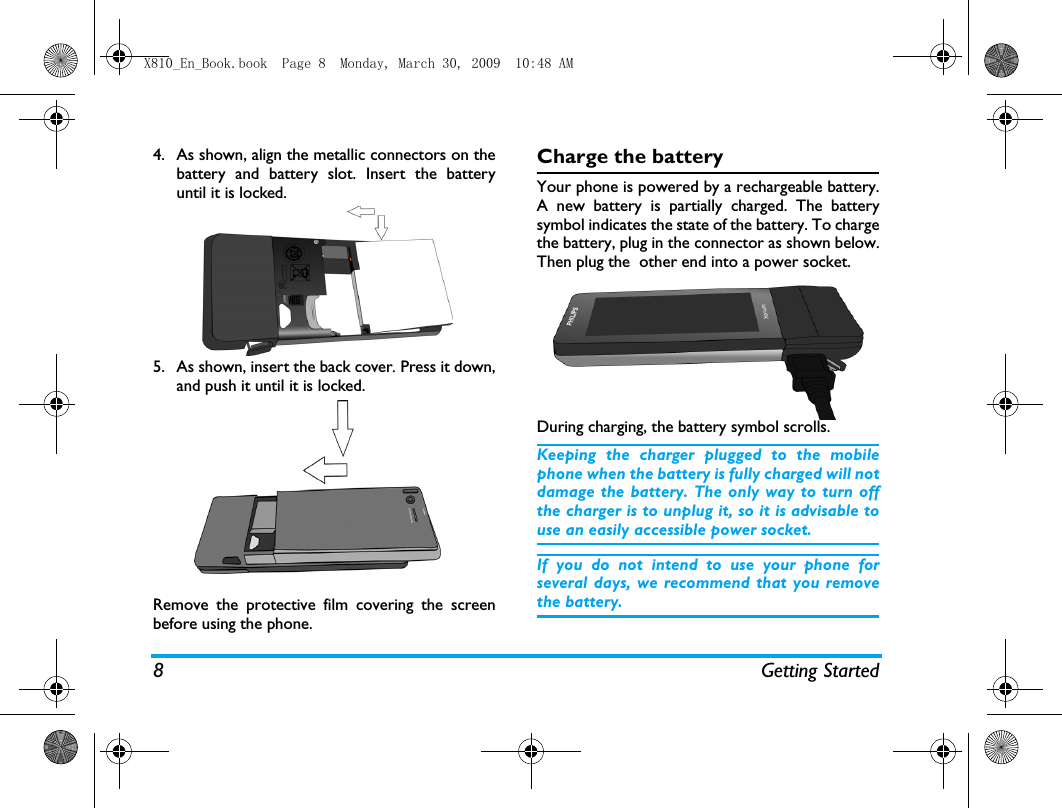
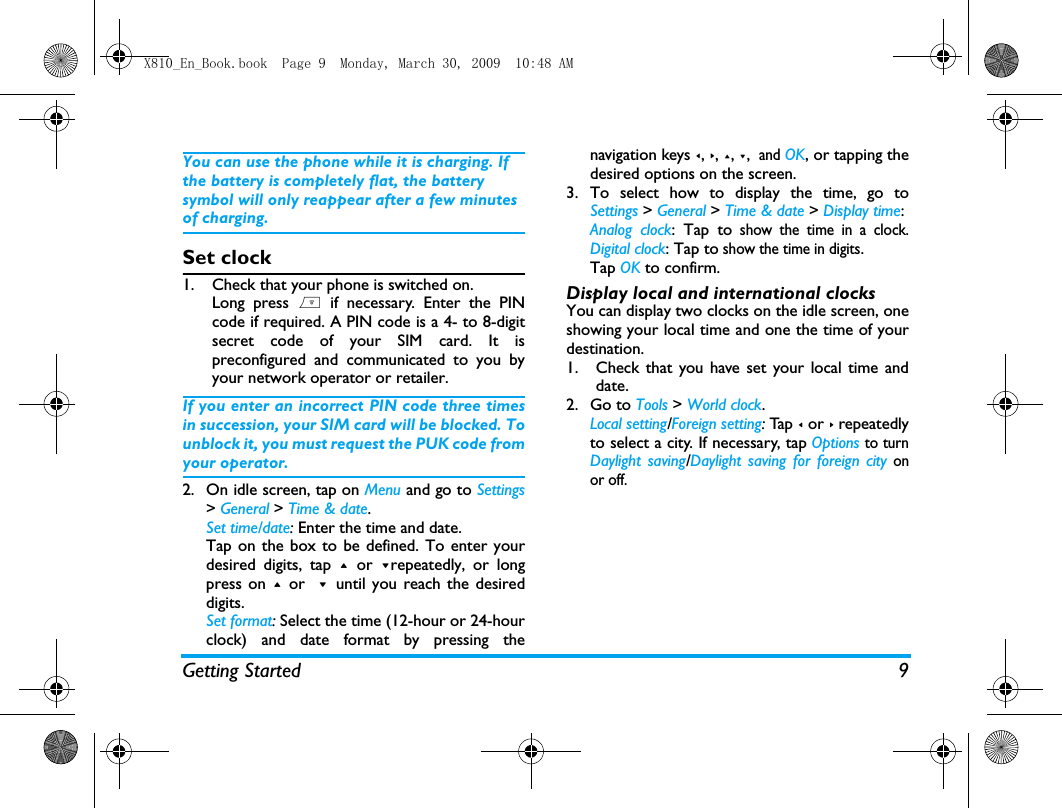
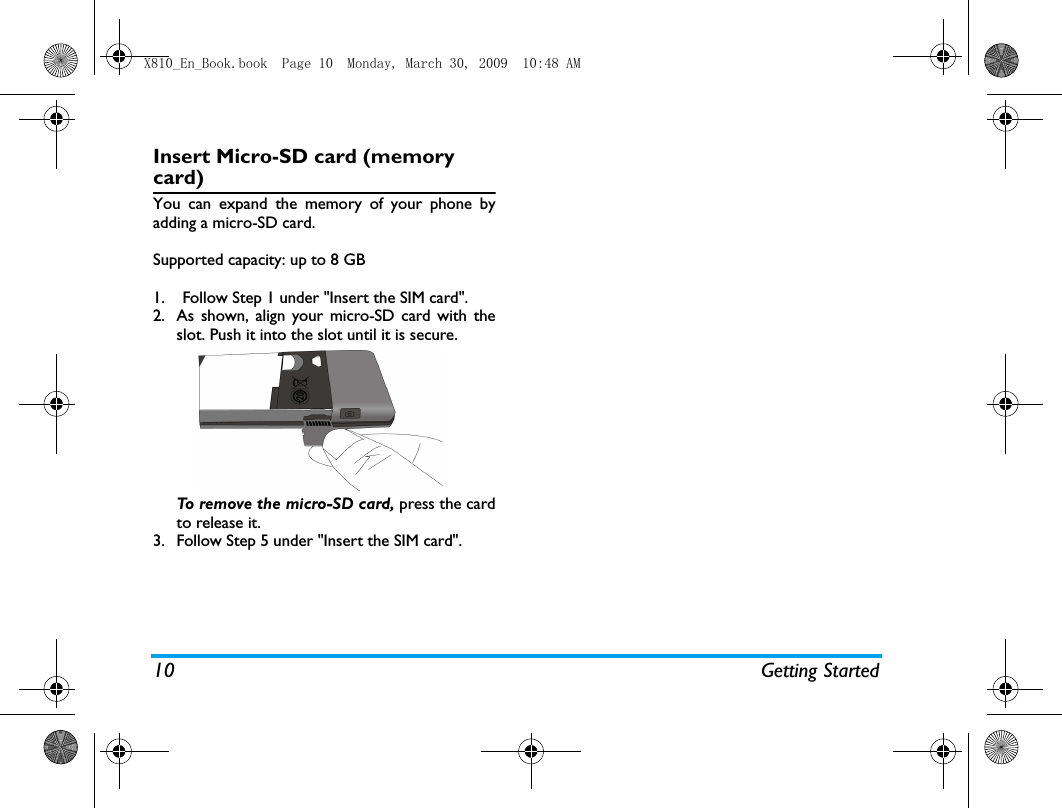
8 Getting Started4. As shown, align the metallic connectors on thebattery and battery slot. Insert the batteryuntil it is locked.5. As shown, insert the back cover. Press it down,and push it until it is locked. Remove the protective film covering the screenbefore using the phone.Charge the batteryYour phone is powered by a rechargeable battery.A new battery is partially charged. The batterysymbol indicates the state of the battery. To chargethe battery, plug in the connector as shown below.Then plug the  other end into a power socket.During charging, the battery symbol scrolls.  Keeping the charger plugged to the mobilephone when the battery is fully charged will notdamage the battery. The only way to turn offthe charger is to unplug it, so it is advisable touse an easily accessible power socket. If you do not intend to use your phone forseveral days, we recommend that you removethe battery.X810_En_Book.book  Page 8  Monday, March 30, 2009  10:48 AM
Getting Started 9You can use the phone while it is charging. If the battery is completely flat, the battery symbol will only reappear after a few minutes of charging.Set clock1. Check that your phone is switched on. Long press ) if necessary. Enter the PINcode if required. A PIN code is a 4- to 8-digitsecret code of your SIM card. It ispreconfigured and communicated to you byyour network operator or retailer.If you enter an incorrect PIN code three timesin succession, your SIM card will be blocked. Tounblock it, you must request the PUK code fromyour operator.2. On idle screen, tap on Menu and go to Settings> General > Time & date.Set time/date: Enter the time and date.  Tap on the box to be defined. To enter yourdesired digits, tap + or -repeatedly, or longpress on + or  -  until you reach the desireddigits.Set format: Select the time (12-hour or 24-hourclock) and date format by pressing thenavigation keys <, >, +, -,  and OK, or tapping thedesired options on the screen. 3. To select how to display the time, go toSettings > General > Time & date > Display time:Analog clock: Tap to show the time in a clock.Digital clock: Tap to show the time in digits. Tap OK to confirm.Display local and international clocksYou can display two clocks on the idle screen, oneshowing your local time and one the time of yourdestination. 1. Check that you have set your local time anddate.2. Go to Tools > World clock.Local setting/Foreign setting: Ta p  < or > repeatedlyto select a city. If necessary, tap Options to turnDaylight saving/Daylight saving for foreign city onor off.  X810_En_Book.book  Page 9  Monday, March 30, 2009  10:48 AM
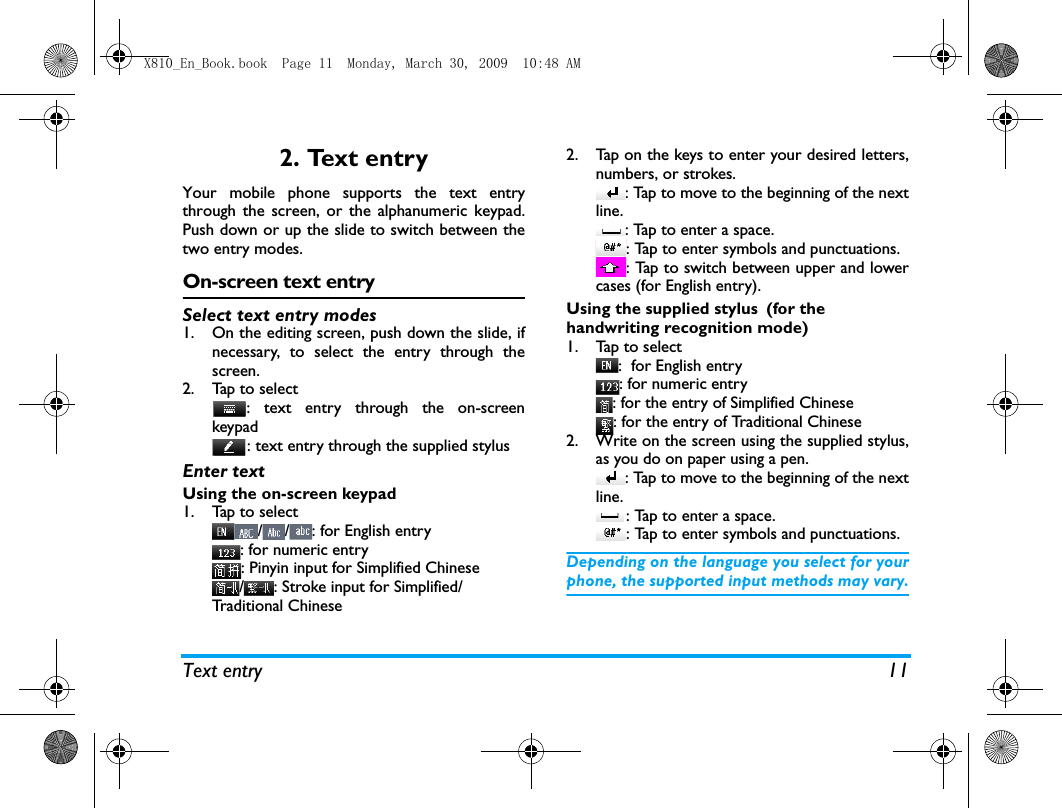
10 Getting StartedInsert Micro-SD card (memory card)You can expand the memory of your phone byadding a micro-SD card. Supported capacity: up to 8 GB1. Follow Step 1 under "Insert the SIM card".2. As shown, align your micro-SD card with theslot. Push it into the slot until it is secure. To remove the micro-SD card, press the cardto release it.   3. Follow Step 5 under "Insert the SIM card".X810_En_Book.book  Page 10  Monday, March 30, 2009  10:48 AM
Text entry 112. Text entryYour mobile phone supports the text entrythrough the screen, or the alphanumeric keypad.Push down or up the slide to switch between thetwo entry modes. On-screen text entrySelect text entry modes1. On the editing screen, push down the slide, ifnecessary, to select the entry through thescreen. 2. Tap to select: text entry through the on-screenkeypad: text entry through the supplied stylus Enter textUsing the on-screen keypad1. Tap to select//: for English entry: for numeric entry: Pinyin input for Simplified Chinese/ : Stroke input for Simplified/Traditional Chinese2. Tap on the keys to enter your desired letters,numbers, or strokes.: Tap to move to the beginning of the nextline.: Tap to enter a space. : Tap to enter symbols and punctuations. : Tap to switch between upper and lowercases (for English entry).Using the supplied stylus (for the handwriting recognition mode)1. Tap to select:  for English entry: for numeric entry: for the entry of Simplified Chinese: for the entry of Traditional Chinese2. Write on the screen using the supplied stylus,as you do on paper using a pen. : Tap to move to the beginning of the nextline.: Tap to enter a space. : Tap to enter symbols and punctuations. Depending on the language you select for yourphone, the supported input methods may vary.X810_En_Book.book  Page 11  Monday, March 30, 2009  10:48 AM
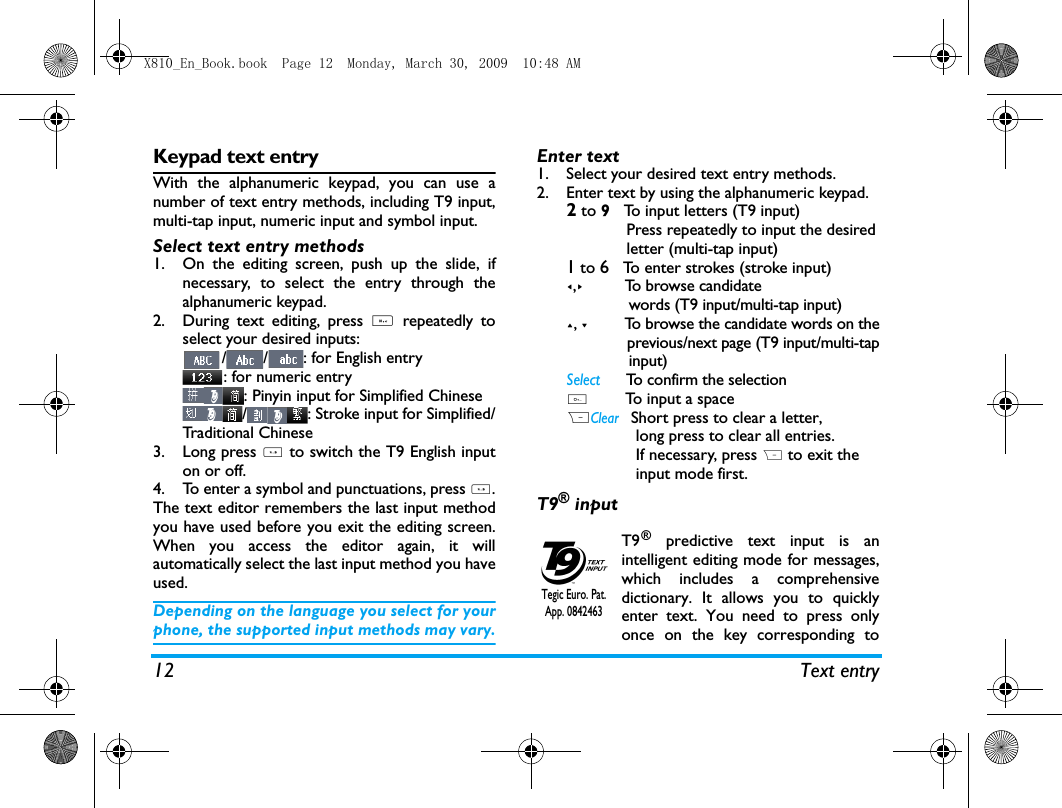
12 Text entryKeypad text entryWith the alphanumeric keypad, you can use anumber of text entry methods, including T9 input,multi-tap input, numeric input and symbol input. Select text entry methods1. On the editing screen, push up the slide, ifnecessary, to select the entry through thealphanumeric keypad. 2. During text editing, press # repeatedly toselect your desired inputs:/ / : for English entry: for numeric entry: Pinyin input for Simplified Chinese/ : Stroke input for Simplified/Traditional Chinese       3. Long press * to switch the T9 English inputon or off. 4. To enter a symbol and punctuations, press *.The text editor remembers the last input methodyou have used before you exit the editing screen.When you access the editor again, it willautomatically select the last input method you haveused. Depending on the language you select for yourphone, the supported input methods may vary.Enter text1. Select your desired text entry methods.2. Enter text by using the alphanumeric keypad.2 to 9   To input letters (T9 input)             Press repeatedly to input the desired             letter (multi-tap input)1 to 6   To enter strokes (stroke input)<,>         To browse candidate              words (T9 input/multi-tap input)+, -         To browse the candidate words on the              previous/next page (T9 input/multi-tap              input)Select      To confirm the selection0        To input a spaceRClear   Short press to clear a letter,                long press to clear all entries.               If necessary, press R to exit the               input mode first.T9® inputT9® predictive text input is anintelligent editing mode for messages,which includes a comprehensivedictionary. It allows you to quicklyenter text. You need to press onlyonce on the key corresponding toTegic Euro. Pat. App. 0842463 X810_En_Book.book  Page 12  Monday, March 30, 2009  10:48 AM
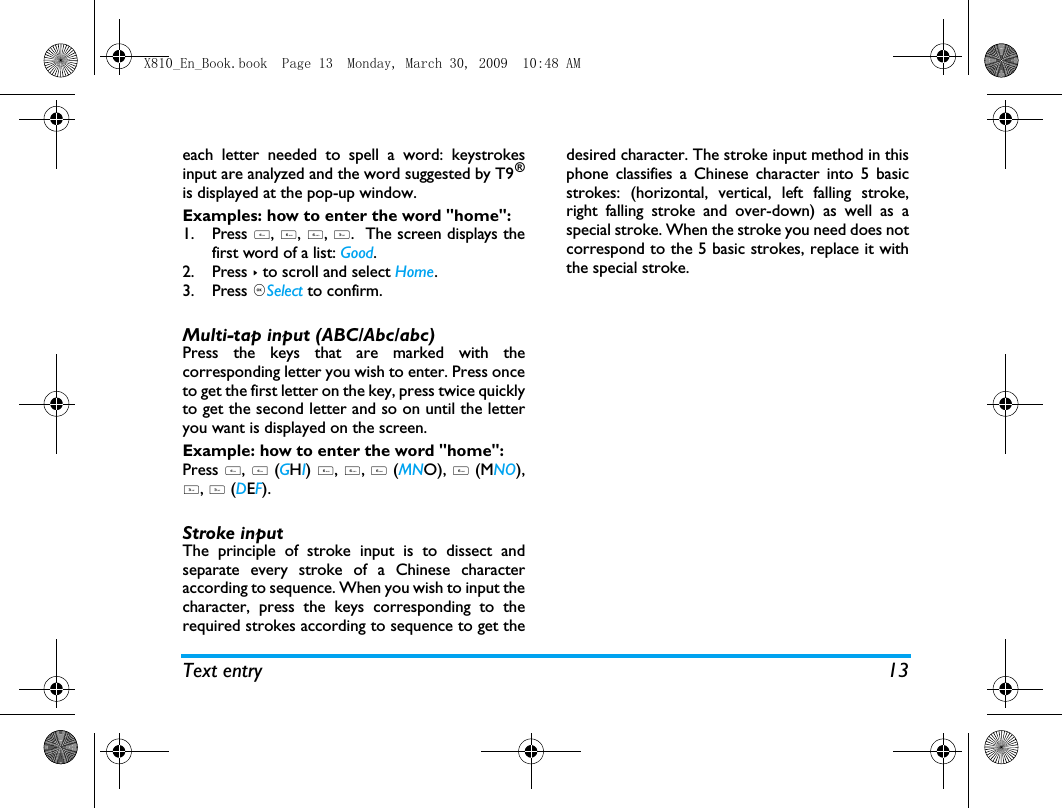
Text entry 13each letter needed to spell a word: keystrokesinput are analyzed and the word suggested by T9®is displayed at the pop-up window. Examples: how to enter the word "home":1. Press 4, 6, 6, 3.  The screen displays thefirst word of a list: Good.2. Press > to scroll and select Home.3. Press ,Select to confirm.Multi-tap input (ABC/Abc/abc)Press the keys that are marked with thecorresponding letter you wish to enter. Press onceto get the first letter on the key, press twice quicklyto get the second letter and so on until the letteryou want is displayed on the screen.Example: how to enter the word "home":Press 4, 4 (GHI) 6, 6, 6 (MNO), 6 (MNO),3, 3 (DEF). Stroke input The principle of stroke input is to dissect andseparate every stroke of a Chinese characteraccording to sequence. When you wish to input thecharacter, press the keys corresponding to therequired strokes according to sequence to get thedesired character. The stroke input method in thisphone classifies a Chinese character into 5 basicstrokes: (horizontal, vertical, left falling stroke,right falling stroke and over-down) as well as aspecial stroke. When the stroke you need does notcorrespond to the 5 basic strokes, replace it withthe special stroke. X810_En_Book.book  Page 13  Monday, March 30, 2009  10:48 AM
14 Calling3. CallingMake a callFrom idle screen1. Enter the phone number using thealphanumeric keypad. If necessary, push up theslide first. 2. Press (  to dial the number. 3. Press )  to hang up.For international calls, long press 0 to enterthe "+" sign for the international prefix.Using the phonebook (see "Contacts" on page 24)1. Go to Contacts >  View contacts to open thecontacts list.To search for a contact, enter the contactname (up to 5 characters) using thealphanumeric keypad, or select a contact fromthe list. 2. Press ( to dial the selected number. For IP calls (China only), select LOptions >IP call.You can preset your IP service number underCalls > Call options > IP dial.3. Press )  to hang up.Speed dialOn the idle screen, you can call a preset speed-dialnumber by long pressing a numeric key. Set your speed-dial number before dialing it.To assign a speed-dial key to a contact:1. Go to Menu > Settings > General > Speed dial.2. Select one of the locations (2 to 9).3. In  Contacts, assign to the location a contactfrom your  phonebook. In  Phone number, assign to the location apreset phone number. Answer and end a callWhen receiving a call, the number of the caller maybe displayed, depending on whether or not thecalling party has chosen to display his or her ID. Ifthe number is stored in the phonebook, then thecorresponding name is displayed.•Answer the call: Press (, or push up the slide ifyou set Active slide to On under Menu > Settings >General. •End the call: Press ), or push down the slide.•To answer or end a call using the suppliedone-key headset, see "Headset" on page 64.X810_En_Book.book  Page 14  Monday, March 30, 2009  10:48 AM
Calling 15•To reject calls from certain contacts,  you canadd the contacts or numbers to your blacklist. (Formore information about the blacklist, see "Firewall"on page 31).The phone will not ring or vibrate if it is in Silentmode (see "Profiles" on page 50 ).Options during a callDuring a call, you can tap to select H-Free or H-Heldmode. Tap on Options to access the followingoptions:-Hold single call: Put current call on hold. -End single call: End current call.-Sound recorder: Record conversation during acall.-Mute: Mute/unmute the call.-New call: Make another call.-Message center: Send and receive messages.-Calendar:  Check your calendar (see "Checkyour calendar" on page 27) during a call.-Quick note: Edit a text memo to be shown onthe idle screen. -Calculator:  Use the calculator (see"Calculator" on page 32) during a call.-DTMF: Enable the touch tone dialing system.In most countries, recording of telephoneconversation is subject to legislation. We adviseyou to notify the caller if you intend to recordthe conversation and only do so if they agree.You should also ensure confidentiality of therecordings.To record a conversation during a call, selectLOptions and select Sound recorder. Recordedsound is saved in *.amr format and stored in Audioof  My files  menu. (see "Find your files" on page 44).Mute or unmute a callDuring a call, select Options and set the Mute functionto On/Off. If you select Mute, the microphone will bedeactivated.Adjust the volumeDuring a call, press the  + or - navigations keys toincrease or decrease the volume.Handle multiple calls (network- dependent)You can handle two or more calls at the same time,as well as make conference calls with your phone.The availability of this feature is dependent on yournetwork operator and/or your subscription.X810_En_Book.book  Page 15  Monday, March 30, 2009  10:48 AM
16 CallingMake a second call You can make a second call when there is an activecall or with a call on hold. While on the phone, dialthe number (or select a contact from thephonebook) and press (. The first call is put onhold and the second number is dialed. When thesecond call is received, you can tap on Swap totoggle between 2 calls,  or select Options to accessthe following options:-H-Free to receive the call in handsfree orhandheld way. -Conference to introduce the party into aconference call.-Transfer to connect the two calls. You aredisconnected when the transfer iscompleted.-End single call to disconnect one party fromthe call.-End all calls to disconnect all parties from thecall.-New call to make another call.-Message center to send or receive messages -Calendar to check your calendar (see "Checkyour calendar" on page 27) during a call.-Quick note to edit a text memo to be shownon the idle screen. -Calculator to use the calculator (see"Calculator" on page 32) during a call.Answer a second callWhen you receive a second call while already incommunication, the phone will emit a beep toneand the screen displays information about theincoming call. You can then:To receive a second call, you must firstdeactivate Call divert (see 47)and activate Callwaiting (see 47).Make an emergency callWithout a SIM card in phone, you can pressRSOSto make the emergency call.With a SIM card in phone, you can enter theemergency number in the idle mode, then press (.In Europe, the standard emergency number is112, in the UK, it is 999.Press (To answer the call (the first oneis put on hold).Press R or)To reject the call.X810_En_Book.book  Page 16  Monday, March 30, 2009  10:48 AM
Messaging 174. MessagingCreate messageSMSSMS enables you to send text messages to theother party, using Short Messaging Service (SMS).You can use the SMS menu to send messages toanother handphone or a device that is capable ofreceiving SMS messages. To compose and send anSMS message, follow the steps below:1. Select Create message > SMS, and write yourmessage. 2. Tap on Options to access the following options:3. Tap on Send to send the message to thedesired contact or contact group ( "Contacts"on page 24).MMSYour mobile phone can also send and receive MMS(Multimedia Messaging Service) messages. WithMMS, you can send messages that contain pictures,sound and text.When sending MMS messages, make sure that yourrecipient also has an MMS-enabled phone in orderto view your messages. Follow the steps describedbelow to compose and send an MMS.1. Select Create Message >  MMS, and enter thefollowing:Save as Draft: Save the SMS message toDrafts.Template: Save the SMS message asan SMS template.Insert contact Select to insert the name andphone number of your contacts. Use templates Select to insert a preset message. Exit editor Exit the editing screen. To Enter the number or e-mail of therecipient.Cc Enter the number or e-mail of otherrecipients to whom you wish to send acopy of the message.X810_En_Book.book  Page 17  Monday, March 30, 2009  10:48 AM
18 Messaging2. In Edit content, tap on Options to select youroptions. Tap on Done to finish editing. 3. Tap on Done to access the next option:Use templates for messagesYou can use ready-made messages as newmessages. 10 SMS and 5 MMS messages are presetin the Templates folder.  1. Select Templates > SMS or MMS.2. Select your desired templates.3. Tap on Options, and select Write message.The ready-made messages appear on the editscreen.Organize your messagesYour messages are sorted in the following folderson your phone memory and SIM card:Inbox: received messagesBcc Enter the number or e-mail of the recipientsto whom you wish to send a copy of themessage, by which the recipients in theBcc list will be invisible to otherrecipients.Subject Enter the subject of the MMS.Add picture, Add audio, Add videoInsert image, audio or video files toyour MMS message.Add attachmentInsert a file (txt, jar etc) to yourmessage.Add slidebefore, Add slide after Adjust the slide sequence asdesired.Add bookmark textAdd website information you savedas a bookmark ( "Access web sites"on page 33)Preview Preview current MMS message.Tap on <  and  >  to move toprevious or next page.Slide timing Set the play time of MMS slides.The default value is 5 seconds.Send only Send the MMS message only.Save and send Save and Send the MMS message.Save to Drafts Save the MMS message to Drafts.Send options Set Validity period, Deliveryreport, Read report, Priority.Exit ExitX810_En_Book.book  Page 18  Monday, March 30, 2009  10:48 AM
Messaging 19Sent: sent messagesOutbox: unsuccessfully sent messagesDrafts: messages saved as draftsSIM Archive: messages saved in the SIM cardSpam box: rejected or filtered messages Find a message• Enter a folder, and press + or -  to select amessage. Manage messagesPress LOptions to access the following options:For the SMS or MMS, or different folders,available options may vary.  Define your message settingsSome of your message settings are dependent onthe service you subscribe with the networkoperator. Consult your network operator for youraccount settings, general settings, server profile, orReply Reply to the sender.Reply by SMSReply to the MMS sender by SMS.Reply all Reply to the sender and all recipientson the Cc and Bcc lists.Forward Forward the selected message.Edit Edit and send the selected message.Delete Delete the selected message.Move to SIMMove the selected message to yourSIM card.Use details, Use number, Use URLExtract the number or E-mail addressof the sender or in the message tocreate messages, make a call, or saveto the phonebook.Extract the URL in the message toconnect to the website, or add as abookmark.Edit before callingEdit the sender’s phone numberbefore making a call Delete all Delete all messages in the folder.Properties Show the file information of currentmessage.Save object Save to your phone or memory card(if inserted) the picture, audio, video,or other attached file of current MMSmessage.X810_En_Book.book  Page 19  Monday, March 30, 2009  10:48 AM
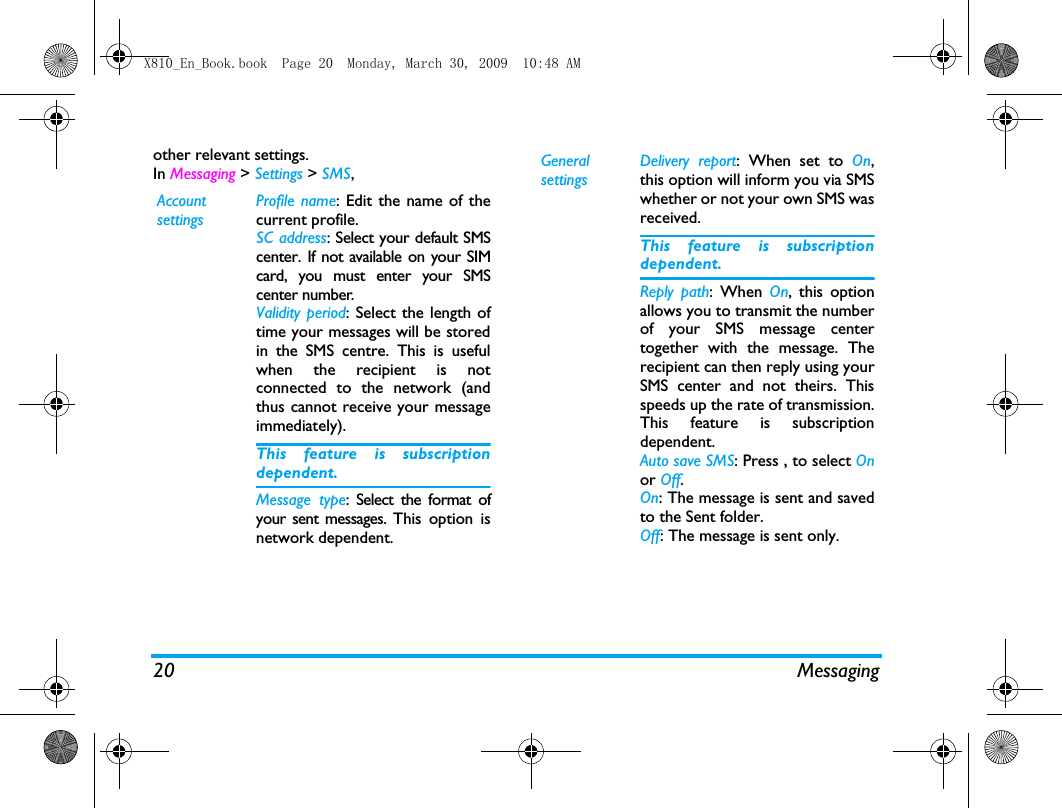
20 Messagingother relevant settings. In Messaging > Settings > SMS,Account settingsProfile name: Edit the name of thecurrent profile.SC address: Select your default SMScenter. If not available on your SIMcard, you must enter your SMScenter number.Validity period: Select the length oftime your messages will be storedin the SMS centre. This is usefulwhen the recipient is notconnected to the network (andthus cannot receive your messageimmediately).This feature is subscriptiondependent.Message type: Select the format ofyour sent messages. This option isnetwork dependent.General settingsDelivery report: When set to On,this option will inform you via SMSwhether or not your own SMS wasreceived. This feature is subscriptiondependent.Reply path: When On, this optionallows you to transmit the numberof your SMS message centertogether with the message. Therecipient can then reply using yourSMS center and not theirs. Thisspeeds up the rate of transmission.This feature is subscriptiondependent.Auto save SMS: Press , to select Onor Off.On: The message is sent and savedto the Sent folder. Off: The message is sent only. X810_En_Book.book  Page 20  Monday, March 30, 2009  10:48 AM
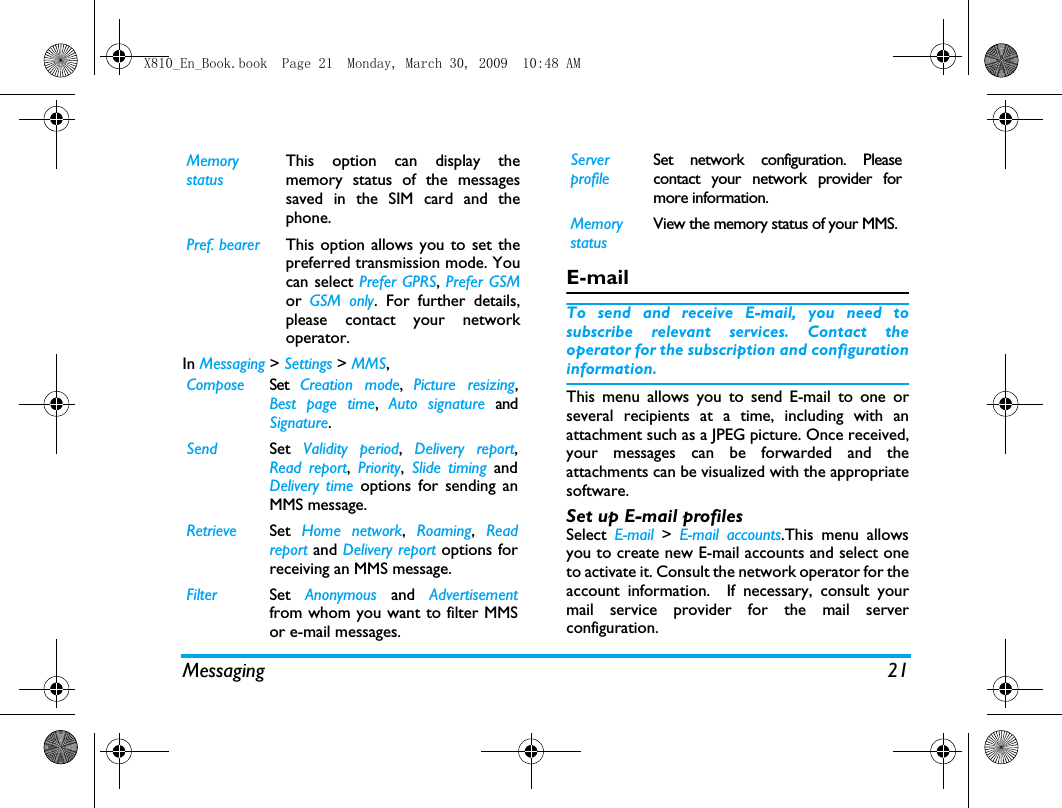
Messaging 21In Messaging > Settings > MMS,E-mailTo send and receive E-mail, you need tosubscribe relevant services. Contact theoperator for the subscription and configurationinformation.This menu allows you to send E-mail to one orseveral recipients at a time, including with anattachment such as a JPEG picture. Once received,your messages can be forwarded and theattachments can be visualized with the appropriatesoftware.Set up E-mail profilesSelect  E-mail  > E-mail accounts.This menu allowsyou to create new E-mail accounts and select oneto activate it. Consult the network operator for theaccount information.  If necessary, consult yourmail service provider for the mail serverconfiguration. Memory statusThis option can display thememory status of the messagessaved in the SIM card and thephone.Pref. bearer This option allows you to set thepreferred transmission mode. Youcan select Prefer GPRS, Prefer GSMor  GSM only. For further details,please contact your networkoperator.Compose Set  Creation mode,  Picture resizing,Best page time, Auto signature andSignature.Send Set  Validity period,  Delivery report,Read report,  Priority,  Slide timing andDelivery time options for sending anMMS message.Retrieve Set  Home network,  Roaming,  Readreport and Delivery report options forreceiving an MMS message.Filter Set  Anonymous and Advertisementfrom whom you want to filter MMSor e-mail messages.Server profileSet network configuration. Pleasecontact your network provider formore information.Memory statusView the memory status of your MMS.X810_En_Book.book  Page 21  Monday, March 30, 2009  10:48 AM
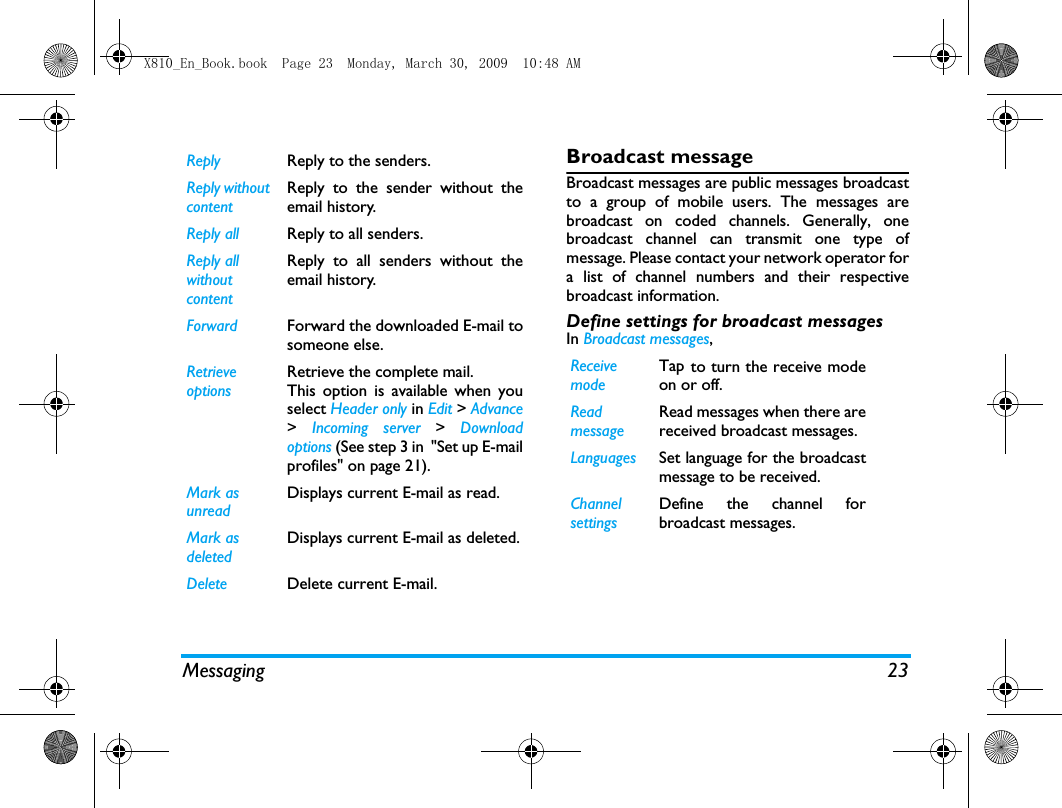
22 Messaging1. Go to E-mail > E-mail accounts. Tap on Options,and select New account.2. Enter your account information as prompted.-When entering symbols like @ and _, tap on to turn on/ off the symbol inputkeypad.- When selecting data account, tap on Edit andselect GPRS. Check that you have selected aGPRS Internet/Email connection account.- Consult your mail service provider for themail server configuration.3. When returning to the list of E-mail accounts,tap on Activate to activate the selected E-mailaccount. Write E-mailTo write E-mail, select E-mail > Write Email. Enterthe address (To), a copy (Cc),  a blind copy (Bcc),Subject and Attachment, and the e-mail content.When you have finished writing your E-mail, pressDone. You can then select to Send, Send and save,Save to draft or Quit without Saving.Send and receive E-mailSelect E-mail  > Send and receive.This menu allowsyou to send E-mail from your phone to theInternet, and receive E-mail from the Internet tothe mailbox you have preset on your phone.To receive E-mail automatically 1. Go to E-mail > E-mail accounts. Tap to selectyour desired account.2. Tap on Options, and select Edit  > Advance >Account settings.3. In  Check interval, tap <,  >  to select yourdesired time span.Your mail box will be checked automaticallyafter each time span. Organize your E-mailFor your activated account, the Email is sorted inthe following folders:Inbox: received E-mailOutbox: unsuccessfully sent E-mailSent: sent E-mailDrafts: Email saved as drafts1. Go to E-mail > E-mail accounts. Tap to selectyour desired account. Tap on Activate  toactivate the E-mail account.2. Enter a folder and select a desired message.Tap  on  Options to access the following options:For different folders, available options mayvary. X810_En_Book.book  Page 22  Monday, March 30, 2009  10:48 AM
Messaging 23Broadcast messageBroadcast messages are public messages broadcastto a group of mobile users. The messages arebroadcast on coded channels. Generally, onebroadcast channel can transmit one type ofmessage. Please contact your network operator fora list of channel numbers and their respectivebroadcast information.Define settings for broadcast messagesIn Broadcast messages, Reply  Reply to the senders. Reply without contentReply to the sender without theemail history.Reply all Reply to all senders. Reply all without contentReply to all senders without theemail history.Forward Forward the downloaded E-mail tosomeone else. Retrieve options Retrieve the complete mail. This option is available when youselect Header only in Edit > Advance>  Incoming server > Downloadoptions (See step 3 in  "Set up E-mailprofiles" on page 21).Mark as unreadDisplays current E-mail as read.Mark as deletedDisplays current E-mail as deleted.Delete Delete current E-mail.Receivemode Tap to turn the receive modeon or off.Readmessage Read messages when there arereceived broadcast messages. Languages Set language for the broadcastmessage to be received. ChannelsettingsDefine the channel forbroadcast messages. X810_En_Book.book  Page 23  Monday, March 30, 2009  10:48 AM
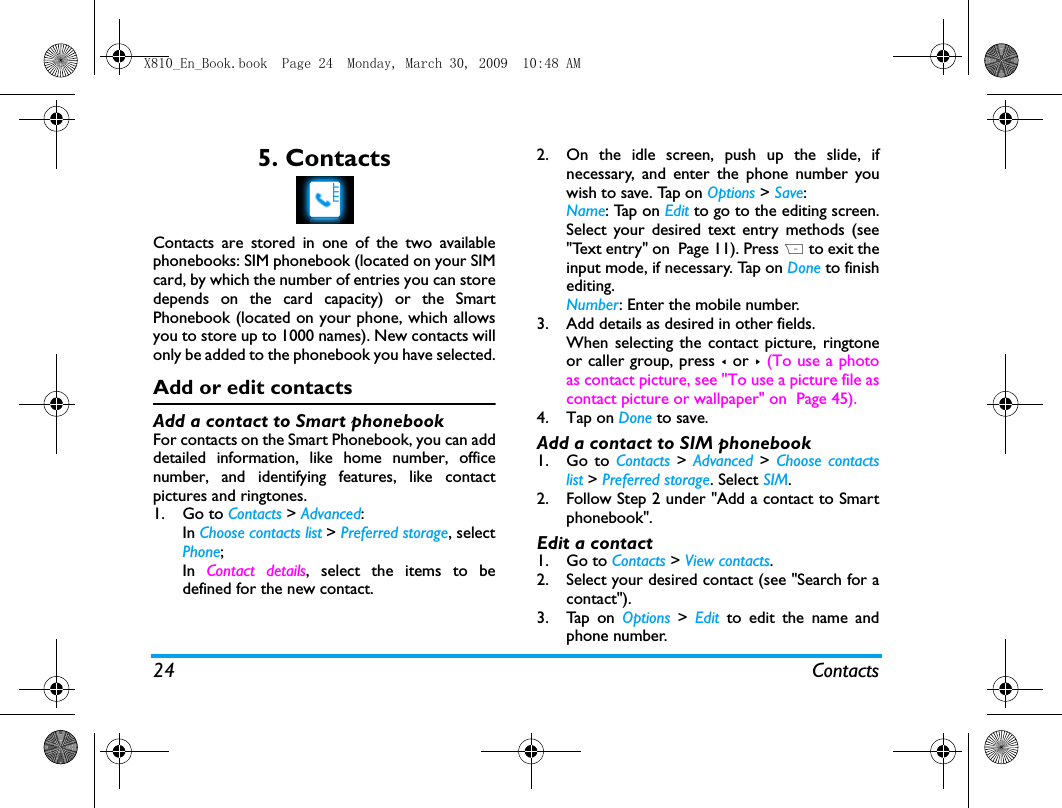
24 Contacts5. ContactsContacts are stored in one of the two availablephonebooks: SIM phonebook (located on your SIMcard, by which the number of entries you can storedepends on the card capacity) or the SmartPhonebook (located on your phone, which allowsyou to store up to 1000 names). New contacts willonly be added to the phonebook you have selected.Add or edit contactsAdd a contact to Smart phonebookFor contacts on the Smart Phonebook, you can adddetailed information, like home number, officenumber, and identifying features, like contactpictures and ringtones. 1. Go to Contacts > Advanced: In Choose contacts list > Preferred storage, selectPhone;In  Contact details, select the items to bedefined for the new contact.2. On the idle screen, push up the slide, ifnecessary, and enter the phone number youwish to save. Tap on Options > Save: Name: Tap on Edit to go to the editing screen.Select your desired text entry methods (see"Text entry" on  Page 11). Press R to exit theinput mode, if necessary. Tap on Done to finishediting. Number: Enter the mobile number. 3. Add details as desired in other fields.When selecting the contact picture, ringtoneor caller group, press < or > (To use a photoas contact picture, see "To use a picture file ascontact picture or wallpaper" on  Page 45).4. Tap on Done to save.Add a contact to SIM phonebook1. Go to Contacts > Advanced >  Choose contactslist > Preferred storage. Select SIM.2. Follow Step 2 under "Add a contact to Smartphonebook".Edit a contact1. Go to Contacts > View contacts. 2. Select your desired contact (see "Search for acontact"). 3. Tap on Options > Edit to edit the name andphone number.X810_En_Book.book  Page 24  Monday, March 30, 2009  10:48 AM
Contacts 25Search for a contact1. Go to Contacts > Advanced >  Choose contactslist >  Default contact list.  Select your desiredphonebook. 2. Go to Contact > View contacts.3. To search for a contact, enter the contactname (up to 5 characters) using thealphanumeric keypad.To enter text, push up the slide, if necessary,to use the alphanumeric keypad. Press #repeatedly to select an input method.Manage your contactsYou can copy or move your contact entriesbetween the two phonebooks. Also, you can groupyour contacts as Family, Friends, Business andothers as you like. For different groups, you can usedifferent ringtones and contact pictures foridentification, and send messages to a group. Copy, move or delete a contact1. Go to Contacts > View contacts.2. Select a desired contact (see "Search for acontact").3. Tap on Options to select Delete, Copy to phone/SIM, or  Move to phone/SIM.Copy, move or delete multiple contacts1. Go to Contacts > View contacts.2. Tap on Options  > Select multiple > Copy tophone/SIM,  Move to phone/SIM, or Deleteselected contacts.3. Select Select all or Select one by one to display afully checked or unchecked contacts list.4. Tap to check or uncheck your selection. 5. Tap on Done to confirm. Copy, move or delete all contacts1. Go to Contacts > Advanced.2. Select Copy to SIM/phone,  Move to SIM/Phone,or Delete all contacts. Group your contacts on the Smart phonebook1. Go to Contacts > Caller groups.2. Select a group. You can rename the group,select a ringtone and a contact picture, andadd contacts to Member list. To add multiple contacts to a group, you can also go to Contacts > View contacts. Tap onOptions, and select Select multiple > Add to group.X810_En_Book.book  Page 25  Monday, March 30, 2009  10:48 AM
26 ContactsShare contact information with othersYou can share with others the contact informationin your phonebook. As desired, the information canbe sent via the SMS, MMS, E-mail or Bluetooth. 1. In Contacts > View contacts, select your desiredcontact ("Search for a contact").2. Tap on Options >  Send vCard to send thecontact information via  the SMS, MMS, E-mailor Bluetooth.Extra numbersThis menu allows you to keep a list of usefulnumbers such as own numbers, service numbers,and emergency numbers.Options DescriptionMynumbersTap on Edit  to edit the phonenumber or name to be shown onthe idle screen. To show the number or name onthe idle screen, select On in Settings> Display > Show own number.ServicenumbersThis service is provided by yournetwork operator. For moreinformation regarding thecorresponding function, pleasecontact your network operator.Voice mail  This menu allows you to set yourvoice mail server number, as well asretrieve your voice mails. Consultthe network operator for theaccount information.  Select a voice mail box, and tap onEdit: Edit voice mail server number.Connect: Retrieve your voice mail.Emergency Tap on Edit to edit your emergencyphone number.X810_En_Book.book  Page 26  Monday, March 30, 2009  10:48 AM
Tools 276. ToolsUse your business organizerYou can add your new tasks to the phone. Such to-do tasks are marked in your calender. You canalways check your calendar and remind yourself asdesired.Create your to-do list1.In  Tools > Calendar, select a date in thecalendar, and tap on Options > Add event to adda kind of task.2. To keep yourself reminded, do the following:3. Tap on Done to save the task. At the set time, the task note appears as a newevent on the idle screen. Check your calendarAfter creating your to-do lists, you can check yourcalendar in day, weekly, or monthly views. In Tools> Calendar, tap on Options or View task. You can also create your to-do list in the calendarof different views.Edit your to-do list1.In Tools > Calendar, tap on Options > View all toenter the task list.2. Select your desired task. Tap on Options to dothe following:Note Add a note about the task. Tap on Edit to edit the task. On theediting screen, tap on Template to usethe preset note.Alarm Press < or > once or more to turn thealarm on, have it sound 5,15 or 30minutes before the specified time, orturn the alarm off. Repeat Press < or >  once or more to repeatthe alarm at the specified time once,everyday, weekly or monthly. To repeat the alarm at certain days,press < or > to select Days, tap on aweekday or weekend, and then On/Offto select or unselect the day. View View the details of the selectedtask. X810_En_Book.book  Page 27  Monday, March 30, 2009  10:48 AM
28 ToolsDelete expired tasksYou can quickly delete all tasks before current dateand time. In Tools > Calendar, tap on Options > Delete expiredtasks.Use your memoYou can use this phone to record your text orsound memos. Display a text memo on the idle screen1.In Tools > Quick note, enter your memo. Select your desired text entry methods (see"Text entry" on page 11). Press R to exit theinput mode, if necessary. 2. Tap on Done to finish editing. On the idle screen, you will see the textmemo.Record a sound memoYou can make your own recording, and share itwith your friends via the MMS, E-mail, orBluetooth. Also, you can use the recording as theringtone of incoming calls or a contact. Make recording1.Go to Tools > Sound recorder.2.Tap  on  Record  or  Options >  Record to startrecording.3.Tap  on  Stop to stop recording.A file name is generated. 4. Edit the file name as desired.Select your desired text entry methods (see"Text entry" on page 11). Press R to exit theinput mode, if necessary. The recording file is saved. Append recording to a file1.Select the desired file.2.Tap  on  Options > Append. The new recording is added to the file.Edit recording files1.Select the desired file.2. Tap on Options to select Rename,  Delete, orDelete all files.Send an audio file1.Select the desired file. Add Add a task.Edit Edit the selected task.Delete Delete the selected task.Delete all Delete all the tasks.Send vCalendarSend the task as a message.X810_En_Book.book  Page 28  Monday, March 30, 2009  10:48 AM
Tools 292.Tap  o n  Options > Send to send the audio file viathe MMS, E-mail, or Bluetooth. Set your recording as a ringtone1.Select the desired file. 2.Tap  on  Options > Set as ringtone.The recording is added to your ringtone file list. The ringtone of your incoming calls is changedto the recording. To change the ringtone, see"Sounds" on page 53. To use the ringtone forcontacts, see "Add or edit contacts" on page 24 orsee "Group your contacts on the Smartphonebook" on page 25. Use your clock and timerAlarmYou can set up to five alarms. To set an alarm, 1.Check that your clock is correctly set (see"Set clock" on page 9).2. Go to Tools > Alarm.The screen of alarm list appears.3. Select an alarm, and tap on Edit to enter thealarm setting screen.Set time: Set the alarm time.Repeat: Repeat the alarm once or on some ofthe weekdays or weekends. To repeat thealarm at certain days, press < or > to selectDays, tap on a  weekday or weekend, and thenOn/Off to select or unselect the day.Alarm tone: Tap to select an alarm tone.Snooze: Select an alarm interval: Off,  2,  5, or10 minutes.4. Tap on Done when you finish setting the alarm.5. To turn off an alarm, tap on an alarm, and thenOff. To use an alarm,On the set alarm time, your alarm sounds. Select Stop: The alarm stops. If you have selectedrepeat mode for the alarm (see “To set an alarm”),it will sound again at the set time. Select Snooze: The alarm will sound again after theset Snooze interval.To mute the sounding alarm, you can also turnover the phone (front side to the back, back side tothe front, see "Senors" on page 3).The alarm clock will ring even if your mobilephone is switched off, or the Profiles is set toMeeting or Silent.World clock You can display two clocks on the idle screen, oneX810_En_Book.book  Page 29  Monday, March 30, 2009  10:48 AM
30 Toolsshowing your local time and one the time of yourdestination. 1. Check that you have set your local time anddate.2. Go to Tools > World clock.Local setting/Foreign setting: Ta p  < or >repeatedly to select a city. If necessary, tapOptions to turn Daylight saving/Daylight saving forforeign city on or off. Switch local/foreign:  Ta p  to switch betweenlocal and foreign clock. Alarms, reminders, programmed events aretime zone independent! If you set an alarm oran event at 9:00 AM in time zone A, it will stillring or be due at 9:00 AM if you change to timezone B.StopwatchUse the stopwatch for your timing needs.In Tools > Stopwatch,•Tap  on  Start to start timing. •Tap on  Pause/Continue to pause or resume.•Tap on Restart to reset the timer.•Tap on Back to exit.Use your file readerText  re a de rThis menu allows you to view the text file (.txt file) saved in your phone or the memory card. To view a file through the text reader, 1.Copy and save the file to My files > Phone orMemory card > Others > Ebook. 2. Go to Tools > Text reader menu. Tap on Selector Options > Global settings > Select storage toselect the file location: phone or memorycard. Existing files are listed. To display the files asdesired, tap on Options > Sort by.   3. To display a file correctly, select your desiredfile, and tap on Options  >  Global settings >Encoding. Select the encoding suitable to yourlanguage. To search for information when viewing a file You search for specific words, marked information,or different parts of the file. After opening the file,tap on Options to select:•Find: Find specific words in the file. •Go to bookmark: Go to the marked information.To do so, add a bookmark where desired bytapping Options > Add bookmark.X810_En_Book.book  Page 30  Monday, March 30, 2009  10:48 AM
Tools 31•Jump to: Go to the beginning, middle, or end ofthe file. To clear the files created by the system during E-book reading•Tap on Options > Clean up bookshelf.Documents readerThis menu allows you to view the files in .txt, .pdf,.doc, .ppt and . xls formats. To  view a file throughthe document reader,1.Copy and save the file to My files > Others inthe phone or micro SD card. 2. Go to Tools > Documents reader menu. Tap onSelect  or  Options > Select storage to select thefile location, phone or memory card. Existing files are listed. To display the files asdesired, tap on Options > Sort by.3. Select your desired file, and tap on Open.4. To zoom in or out, tap on Options > Zoom inor Zoom out.To move to a certain portion of thedocument, use the stylus or your finger tip todrag the document. To go to a certain page, tap on Options andselect:To search for informtion when viewing a file •Tap on Options and select: Use your business assistantBusiness card readerThis menu allows you to collect the business cardsinformation by directly scanning the business cardcontents into Contacts. 1.In Tools > Business card reader, Adjust the focus: press and hold the camerakey. Adjust the distance between the lens andbusiness card: in the viewing frame, theNext page Move to the next page.Previous page Move to the previous page.Goto page Enter the number of the page youwish to read. Find Search for  specific words in thedocument. The matched words aremarked in color. Find next Move to the next match.X810_En_Book.book  Page 31  Monday, March 30, 2009  10:48 AM
32 Toolsbusiness card shall be clear and recognizable. The screen turns black. The recognition startsuntil the recognition result is displayed. 2. Edit the information as desired. 3. Tap on Done to save the result.   A new contact is created in your phonebook.FirewallUse the firewall to reject the incoming calls ormessages from those included in the blacklist. Mode: Turn the firewall mode on or off.Black list numbers:  Edit a list of phone numbers.You can reject all the calls or messages from suchnumbers. To  a d d  a phone number from your phonebook, 1.Go to Contacts  >  View contacts. Select yourdesired contact. 2. Tap on Options, and select Add to blacklist.CalculatorEnter figures and operation symbols by using thethe on-screen numeric keypad. Currency converterConvert between different currencies based onexchange rates.1.In  Tools > Currency converter, enter yourexchange rate in Rate. Tap on Done  toconfirm.2. Enter the sum of money in Local. Tap on Done.You will get the result in Foreign.The result of the calculator is indicative only.The calculation accuracy is 10 decimal places.The result is then truncated after the 10thdecimal digit for the next operation.E-Dictionary (if available)It is an English-Chinese and Chinese-Englishdictionary. To look up a word in the dictionary, 1.Ty p e  i n  t h e  wo rd .  Select your desired text entry methods (see"Text entry" on page 11). Press R to exit theinput mode, if necessary. 2. Tap on OK to look up the word in thedictionary. X810_En_Book.book  Page 32  Monday, March 30, 2009  10:48 AM
Browser 337. BrowserYou can use this function to browse the Internet.Consult your network operator for the servicesubscription, data account information, and WAPsettings. Manage your browserIn Browser > Browser > Settings,Edit account: Define or select your Internet accesssettings.Browser options: Define the time for an accessattempt, or choose whether to show images onweb pages. Clear cache,  Clear cookies: Clear the history andcookies of the browser.Access web sitesYou can access a web site in different ways:Homepage:  Access the homepage. Save yourfavorite web site as your homepage.Bookmarks:  Access the web site saved as abookmark. By storing a website as bookmark, youcan save and quickly access your favorite websites,and forward them in your messages (see "MMS" onpage 17).Input address: Enter a web site address.Recent pages: Access a web site you visited before.Enable/disable push messagesWAP push messages are specially formatted SMSmessages that contain a URL. With such a URL, youcan  connect to a web site address through theWAP browser of your phone. To enable or disable the function, go to Browser >Settings > Service message settings.STKThe availability of the features in this menu dependson whether or not your SIM card supports STK. Ifyour SIM card supports STK function, the STKmenu will be displayed on the screen.X810_En_Book.book  Page 33  Monday, March 30, 2009  10:48 AM
34 Camera8. CameraYour mobile phone features a digital camera thatallows you to take pictures (up to 3.2 Mega pixels)and record short video clips. CameraTake photosOn the idle screen,  long press the camera key, orgo to Menu > Camera. Tap on   to switch to thecamera, if necessary. • Press the camera key gently to focus. A bluesquare appears. Hold down the camera key untilthe auto focus is completed and picturecaptured.  • Or, tap on   to take a photo without autofocus. • Press   to exit.To zoom in or out (image size equal to or smaller than 640 x 480)• Press + or - to zoom out or in.To select photo settings• Tap on   to select Image size and/or Quality.• To store photos on the phone or memory card,tap on   to select Storage.To select your shooting mode• Continuous shooting: Shoot 3 or 9 photos in asequence at a time. Tap on   to selectContinuous shot > 3-shot or Burst shot.  appearson the screen. • Delayed shooting: Start shooting after the settime span. Tap on   to select Timer for timersetting. The delay timer icon appears on thescreen. Auto shooting setting•Tap on   to select Scenes > Auto. Select Nightfor shooting at night. Manual shooting settingLight settings:• Tap on   to select and turn on the flash. • Or tap on   to select your EV (exposurevalue) options.• To avoid the impacts on photos caused byflickers from lighting sources, such as fluorescentX810_En_Book.book  Page 34  Monday, March 30, 2009  10:48 AM
Camera 35lamps, select 50Hz  in  > Banding if the ACpower supply is 220V, and 60Hz if 110V.Color settings:• To remove the effects on colors bysurroundings, tap on   > Picture mode to selectthe scenes similar to yours. •To add effects, tap on   > Effects  to selectyour desired options.To restore the default settings•Tap on   > Restore.View photosAll the pictures are saved to  My files > Phone orMemory card > Pictures. To view the pictures, 1. In the camera mode, tap on    > Viewpicture. Select your desired photo.2. Tap on the screen to show the on-screenmenu, if necessary./ : Tap to move to previous or nextphoto.To zoom in or out the photo, tap on the zoomicon on the screen, or turn the phone by 90degrees (vertical to horizontal position, orvice versa).: Tap to exit.To view photos one by one1.In My files > Phone  or Memory card >  Pictures,select the photo you will start with. Tap onOptions > Slide show.2.To select the playback settings, tap on Settings: Type of playback > Auto (Once): Play photos oneby one once and automatically.Type of playback >  Auto (Repeat): Play photosone by one repeatedly and automatically.Type of playback >  Manual: Tap on  /  tomove to previous or next photo.Speed: Select long or short interval betweentwo photos.  Effect: Select the transition between twophotos.Horizontal view > On: Show photos in horizontalview.Horizontal view >  Off: Show photos in verticalview.Share and use photosSee "My files" on page 44.Video recorderVideo recordingOn the idle screen,  long press the camera key, orgo to Camera. Tap on   to switch to the videoX810_En_Book.book  Page 35  Monday, March 30, 2009  10:48 AM
36 Camerarecorder, if necessary. •Tap on   to start or stop video recording.• Press   to exit. To select file settings• Tap on   to set the file size, format, and imagequality in File size limit, Encode format and Quality.• To store photos on the phone or memory card,tap on   to select Storage.To select recording settings•  > Record audio: Turn it on to make audiorecording in the time of video recording.•  > Rec time limit: Set a time limit to therecording.Auto shooting setting•Tap on   to select Scenes > Auto. Select Nightfor shooting at night. Manual shooting setting• Light settings:Tap on   to select your EV (exposure value)options.• To avoid the impacts on video clips caused byflickers from lighting sources, such as fluorescentlamps, select 50Hz  in  > Banding  if the ACpower supply is 220V, and 60Hz if  110V.Color settings:• To remove the effects on colors by thesurroundings, tap on   > Picture mode toselect the scenes similar to yours. •To add effects, tap on   > Effects  to selectyour desired options.Play video clipsYour video recording is saved to My files >  Phoneor Memory card > Videos. To play a video clip,1. In the video mode, tap on    > View video.Select your desired video clip.2. Tap on the screen to show the on-screenmenu, if necessary.: Tap to start or pause playback.: Tap to search forward.: Tap to exit. : Tap to select your playback settings.:  Tap to switch to the camera mode. Share video clipsSee "My files" on page 44.X810_En_Book.book  Page 36  Monday, March 30, 2009  10:48 AM
Fun 379. FunJavaYour mobile phone features a Java run-timeenvironment, which allows you to run Javaapplications, such as games downloaded from thenetwork.The first time you launch Java, a message appears toalert you that the installation and configuration ofJava will take several moments.  Install Java games and applicationsYou can download Java games and applicationsfrom the Internet to your phone via the WAP, orinstall them from PC via the supplied USB cable. Consult your network operator for the services. When installing games via a USB data cable, makesure that you save the .jar and .jad files in the samefile folder under My files > Others. Tap on Intall tostart the installation. Run Java games and applicationsYour phone is preloaded with some Java games andapplications. Select your desired program, tap onLaunch to start it. To run some Java applications (untrusted thirdparty software) on your phone, you may need toadjust the Java settings. 1.In  Fun  >  Java, select the application to belaunched. 2.Ta p  o n  Options  >  Setting, and select youroption as needed:Network access: permission to network access Auto invocation: permission to launch the MIDlet                      automaticallyMessaging: permission to send and receive                messagesMultimedia: permission to photographing, or sound/                 video recordingRead user data: permission to read your data, like                      contacts and calendar entriesWrite user data: permission to write your dataLocal connectivity: permission to local connectivity,                         like the Bluetooth connectivity.X810_En_Book.book  Page 37  Monday, March 30, 2009  10:48 AM
38 FunSensor gamesIn Fun > Sensor games, your phone is preloaded withsome sensor games, for which you can use thebuilt-in motion sensor. In the games, to go to the left or right, you canmove your phone in the direction. X810_En_Book.book  Page 38  Monday, March 30, 2009  10:48 AM
Music 3910. MusicMusic playerSave MP3, WMA, AAC,AAC +, and AMR musicfiles under the Audio folder on your phone ormemory card. You can play the music on yourphone.Create your music library  Edit music files on your PC1.Run Windows Media Player (or other musicmanagement program) on your PC.2.To add music files, click Media Library on theleft menu, and then click Add on the top menu.3.On the left pane, select All Music.On the right pane, all the music files youadded are displayed. 4.Click  Title,  Artist,  Album to edit them asdesired.Operations may vary according to musicmanagement software or Windows MediaPlayer versions. Consult the help file of thesoftware.Transfer music files from PC to your phone 1.Use the supplied USB data cable to connectyour phone with the PC. Select Mass storageon your phone. 2.Copy the music files from the PC to the Audiofolder on your phone or memory card (see"Insert Micro-SD card (memory card)" onPage 10).3.Remove your phone (a USB mass storagedevice) from the PC safely. 4.On your phone, go to Music > Music player >Settings > Refresh list.All the music files are transferred.Play music The music files are organized in two folders on thephone or memory card.Tracks: all the songs on your phone.Artists: songs sorted by artist.Play music files1.If you have inserted a memory card on yourphone, select your music source in Music >Music player > Settings > Music source: Phone orMemory card. 2.Select your desired song in a folder. You start playback from the song. On theX810_En_Book.book  Page 39  Monday, March 30, 2009  10:48 AM
40 Musicplayback screen, the file information andselected playback settings are displayed.3.To select your plackback settings, Tap  on  Options:Add to ringtone list: Set current song as theringtone of incoming calls.Play in background: Continue to play musicafter exiting the music player.Add to playlist: Add current song to a selectedplaylist. Repeat: Select One  to play current filerepeatedly; select All to play all the files in thefolder repeatedly.Shuffle  > On: Play music files in the folderrandomly.Tap  o n  Options  >  Equaliser to select soundsettings suitable to your songs.4.During playback (on the playback screen), If necessary, select Now playing on the Musicplayer screen to go to the playback screen./ : tap to start or pause playback/ : tap repeatedly to select a song. + or -: tap to adjust the volumeR: press to return to the previous menu): press to go to the idle screenTo continue to play music after exiting the music player, go to Music > Music player > Settings  >  Play inbackground, and select Ask first or Always. To turn off the music player on the idle screen, •Press ), and then tap on Yes.When listening to music, adjust the volume to  amoderate level. Continuous exposure to highvolume may impair your hearing.Create playlistsYou can create up to 10 playlists for songs that youwish to play at this time. Your last played songs aresaved to My playlists > Last played.1.Select your desired song.2.Tap  on  Options > Add to playlist. Existing playlists are displayed. 3.To create a new playlist, select My playlists >New playlist, and then assign a file name to theplaylist. Repeat Step 1 and 2. 4.Select the playlist where you add the song. The song is added to the selected playlist.X810_En_Book.book  Page 40  Monday, March 30, 2009  10:48 AM
Music 41Listen to music through a stereo Bluetooth headset1.Check that your phone is connected to astereo Bluetooth headset that supportsA2DP profile (Bluetooth stereo output).For the Bluetooth connection, see "Connectto a Bluetooth device" on Page 48.2.In  Music > Music player > Settings  >  Bluetoothsettings, BT stereo output: Tap on < or > to select On.  BT stereo headset: Tap to select a connectedstereo Bluetooth headset. 3.Play your music files (see "Play music" on Page39).To play music through the loudspeaker again1.Select  Off  in  BT stereo output (see Step 2 in"Listen to music through a stereo Bluetoothheadset").2.Turn off the Bluetooth headset. FM radioTune to a radio stationTo tune to a radio station, always plug the suppliedheadset into your phone.•Auto tune: 1.In  Music  >  FM radio, select Options  >  Presetauto search. The radio frequency scanning startsautomatically. Up to 20 available radio stationsare saved to Channel list. The first preset radio station starts to play.2.Ta p   o n  Channel to select your desired stationfrom Channel list. If necessary, tap on Back togo to the playback screen. Or, -In Music > FM radio, long press  or  tostart the auto tuning to the next availablestation.•Manual tune: In Music > FM radio, select Options > Manual inputto enter your desired radio frequency.Or,-In Music > FM radio, repeatedly press    or to tune to a frequency if no presetstation is stored in channel list.   X810_En_Book.book  Page 41  Monday, March 30, 2009  10:48 AM
42 MusicEdit the channel listYou can assign a preset to a certain location. Whenpressing the numeric key on the radio playbackscreen, you tune to the station immediately. 1.In Music > FM radio, tap on Channel to enterthe channel list.2.Tap on a location for your preset .3.Tap  o n  Edit  or  Options  > Edit to edit thechannel list:Channel name: Name or rename the channel.Frequency: Enter your desired frequency.The old frequency in the location is replaced. Or1.Tune to your desired station (see "Tune to aradio station").2.On the radio playback screen, long press yourdesired numeric key.Current station is saved to the location(corresponding to the numeric key) in Channellist.3.To edit the channel name, tap on Channel toselect a channel. Tap on Options > Edit to editthe channel name. Listen to a radio station1.Go to Music > FM radio.The last played station starts to play. 2.Tune to your desired station. To select apreset station, -press  or  repeatedly; -or, tap on  Channel;-or, press a numeric key. 3.On the radio playback screen, : Tap to pause or resume radio playback.+/-: Tap to turn up or down volume. Options  >  Play in background: Tap to exit theradio and continue playback.Options > Loud speaker: Turn it on to listen tothe radio through the speaker.Options > Turn off FM radio: Turn off and exitthe radio. 4.To return to the idle screen during playback,press).To turn off the radio on the idle screen, 1.Tap  on   to pause playback, if necessary.2.To select your desired display, tap on Shortcuton the idle screen. Record radio programsYou can record a radio program when listening toit. X810_En_Book.book  Page 42  Monday, March 30, 2009  10:48 AM
Music 431.On the radio playback screen, tap on Options >Record to start recording.2.Tap  on  Pause/Cont. to pause or resumerecording. Tap on Stop to stop recording. A file name is generated for the recording file.Edit the file name as desired, if necessary. 3.Tap  on  Save to save the file. You can find the recording file under My files >Phone or Memory card > Audio.RDS (dependent on the radio station service)The feature RDS (Radio Data System) is aservice that allows FM stations to send additionalinformation along with the regular FM radiosignal. When you are listening to an RDS station, receivedtext information appears on the screen, includingstation name, program type (for example, News,Sports, and Info), and frequency. To enable the RDS reception of your phone, •In  Music  >  FM radio, tap on Options >  RDS, andselect On.X810_En_Book.book  Page 43  Monday, March 30, 2009  10:48 AM
44 My files11. My filesOn the phone, all the files are stored under thefolders of the phone memory or memory card.Find your files1.Go to My files.  2.Select  Phone  or  Memory card, if you haveinstalled a memory card on your phone. Selectyour desired file folder:Pictures: for photos, .jpg files and othersVideos: for video files, and othersAudio: for audio files, like sound recording,radio recording, music files, ringtones, andothersOthers: for all other files, like Ebook (for filesreadable through Tools > Text reader), filesreadable through Tools > Document reader, andfiles received via the Bluetooth3.If necessary, open a folder, and tap on Optionsto select your view settings:Sort by: Show files in the order of name, type,time or size.Select your default storage location•Go to Settings > General > Default storage. Tap toselect the default location, phone or memorycard. Manage your filesCreate sub-folders You can create sub-folders under the folders (likePictures, Videos, Audio and Others) or an existing sub-folder.1.Select a folder or sub-folder under which youwish to create a folder.2.Tap on Options > New folder.3.In the editing screen, enter a file name. Select your desired text entry methods (see"Text entry" on page 11). Press R to exit theinput mode, if necessary. Tap on Done to finishediting.  A sub-folder is created. Manage your filesYou can copy and move, delete, or rename yourfiles. 1.Select a file under a folder.2.Tap  on  Options to select your desired option.3.To copy or move a file, select the desiredfolder, and tap on X810_En_Book.book  Page 44  Monday, March 30, 2009  10:48 AM
My files 45Done: Move or copy the file to current folderor sub-folder.Open > Options > Open: Open a sub-folderunder current folder/sub-folder. Open > Options > New folder: Create a sub-folder under current folder/sub-folder.To copy, move, or delete multiple files, 1.In a file folder, tap on Options > Select multiple,and select your desired option.2.Select Select all or Select one by one to display afully checked or unchecked list.3.Ta p  to check or uncheck your selection. 4.Tap  on  Done to confirm.Share your filesYou can share your picture, audio or video fileswith others via the MMS, E-mail, or Bluetooth.  1.Select your desired picture, audio or videofile, and tap on Options > Send.2.Select the option to send the file via the MMS,E-mail, or bluetooth.If you send your files via the Bluetooth, checkyour Bluetooth connection first. (see "Bluetooth" on page 48 )Use your filesTo use a picture file as contact picture or wallpaper Select the photo, and tap on Options > Use. The photo is set to the wallpaper (see "Display" onpage 53), or the contact picture of a contact in yourSmart Phonebook (for the image size 240 x 400,see "Add a contact to Smart phonebook" on page24).To set an audio file as ringtoneSelect an audio file, and tap on Options > Set asringtone.You can set the audio file to ringtone (see "Sounds"on page 53), or contact ID (see "Add a contact toSmart phonebook" on page 24).X810_En_Book.book  Page 45  Monday, March 30, 2009  10:48 AM
46 Calls12. CallsCall historyYou are provided with the records about yourincoming and outgoing calls. Go to View calls to check your call history.You can reply to such calls or add such contacts toyour phone book. Go to the call list, select thecontact or phone number, and tap on Options toselect your options. Go to Clear history to clear your call history asdesired.Call optionsThis menu allows you to set call-related options.Headset answerTurn it on to answer an incomingcall automatically when using aheadset (see "Headset" onpage 64). Tap to turn it On or Off. Any key answerTurn it on to answer an incomingcall by briefly pressing any key (except for ) and R). Tap to turnit On or Off. Call time reminderGet reminded after the specifiedcall time span once or repeatedly.X810_En_Book.book  Page 46  Monday, March 30, 2009  10:48 AM
Calls 47Call services Call  timers: Depending on yournetwork, rounding-off for billingpurposes, taxes and others, theactual time invoiced for calls andservices by your service providermay vary.Call cost:  network-dependentCall waiting: Get informed of an incoming call when on phone (network-dependent, see "Answer a second call" on page 16).Caller ID: Set how to show yournumber to the called party(network-dependent).Call divert Divert incoming calls to your voicemailbox or to another phonenumber (regardless of whether ornot the number is in yourphonebook).Call barring Set limits to your incoming andoutgoing calls. Select Change barringpassward to change the call barringpassword. Auto redial Keep redialing the call number thatfails to go through.Fixed dial Restrict your outgoing calls tocertain numbers (PIN2 coderequired). IP dial (network -dependent, available onlyin China): Add the preset IPnumber to outgoing call numbers.X810_En_Book.book  Page 47  Monday, March 30, 2009  10:48 AM
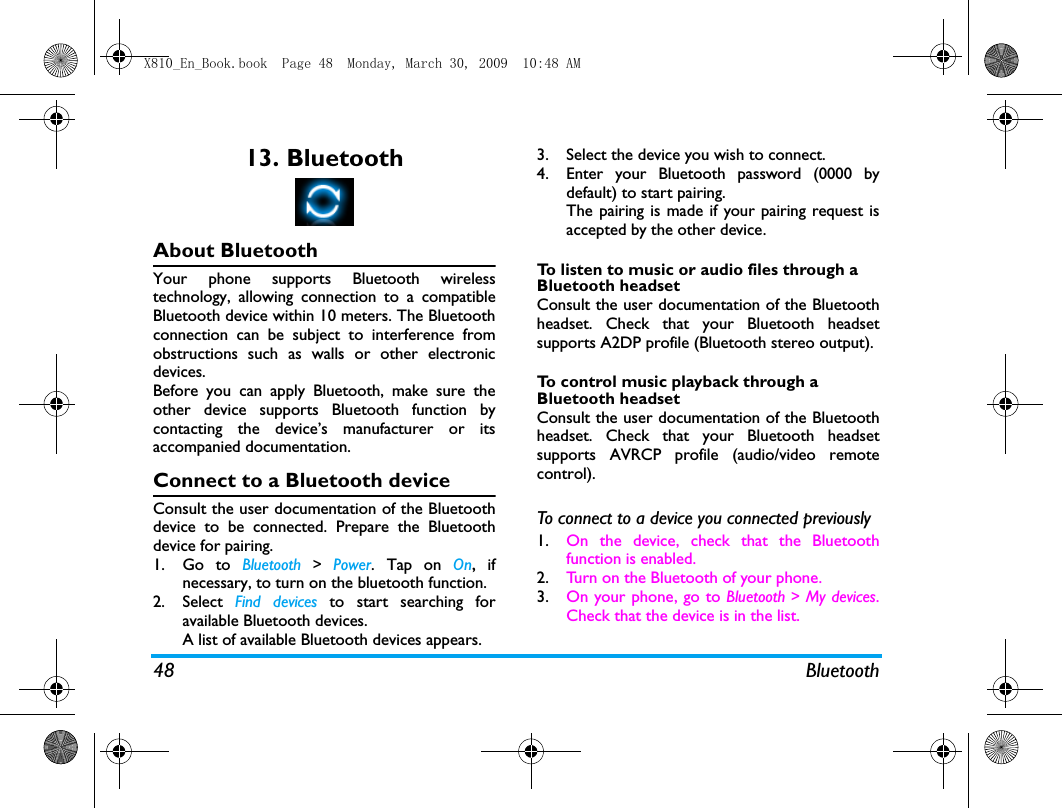
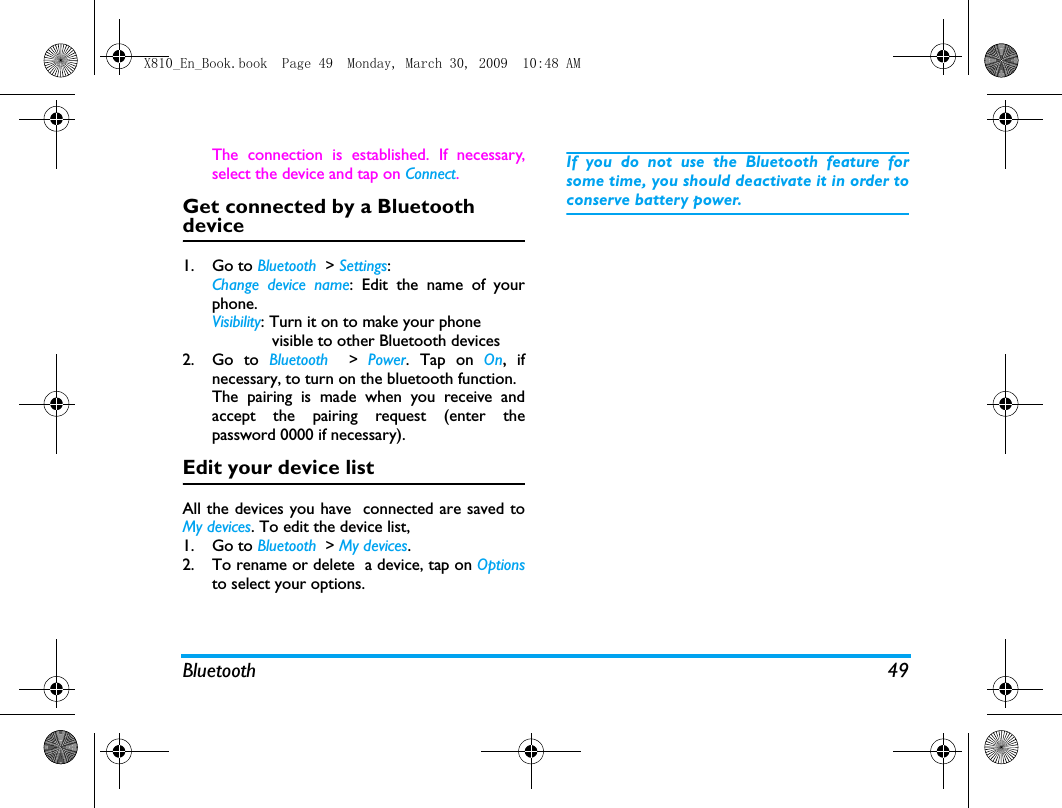
48 Bluetooth13. BluetoothAbout BluetoothYour phone supports Bluetooth wirelesstechnology, allowing connection to a compatibleBluetooth device within 10 meters. The Bluetoothconnection can be subject to interference fromobstructions such as walls or other electronicdevices.Before you can apply Bluetooth, make sure theother device supports Bluetooth function bycontacting the device’s manufacturer or itsaccompanied documentation.Connect to a Bluetooth deviceConsult the user documentation of the Bluetoothdevice to be connected. Prepare the Bluetoothdevice for pairing. 1. Go to Bluetooth > Power. Tap on On, ifnecessary, to turn on the bluetooth function. 2. Select  Find devices to start searching foravailable Bluetooth devices. A list of available Bluetooth devices appears.3. Select the device you wish to connect.4. Enter your Bluetooth password (0000 bydefault) to start pairing.The pairing is made if your pairing request isaccepted by the other device. To listen to music or audio files through a Bluetooth headsetConsult the user documentation of the Bluetoothheadset. Check that your Bluetooth headsetsupports A2DP profile (Bluetooth stereo output).To control music playback through a Bluetooth headsetConsult the user documentation of the Bluetoothheadset. Check that your Bluetooth headsetsupports AVRCP profile (audio/video remotecontrol). To connect to a device you connected previously 1. On the device, check that the Bluetoothfunction is enabled. 2. Turn on the Bluetooth of your phone.3. On your phone, go to Bluetooth > My devices.Check that the device is in the list.X810_En_Book.book  Page 48  Monday, March 30, 2009  10:48 AM
Bluetooth 49The connection is established. If necessary,select the device and tap on Connect.Get connected by a Bluetooth device1. Go to Bluetooth  > Settings:Change device name: Edit the name of yourphone. Visibility: Turn it on to make your phone             visible to other Bluetooth devices2. Go to Bluetooth  > Power. Tap on On, ifnecessary, to turn on the bluetooth function.The pairing is made when you receive andaccept the pairing request (enter thepassword 0000 if necessary).Edit your device listAll the devices you have  connected are saved toMy devices. To edit the device list, 1. Go to Bluetooth  > My devices.2. To rename or delete  a device, tap on Optionsto select your options. If you do not use the Bluetooth feature forsome time, you should deactivate it in order toconserve battery power.X810_En_Book.book  Page 49  Monday, March 30, 2009  10:48 AM
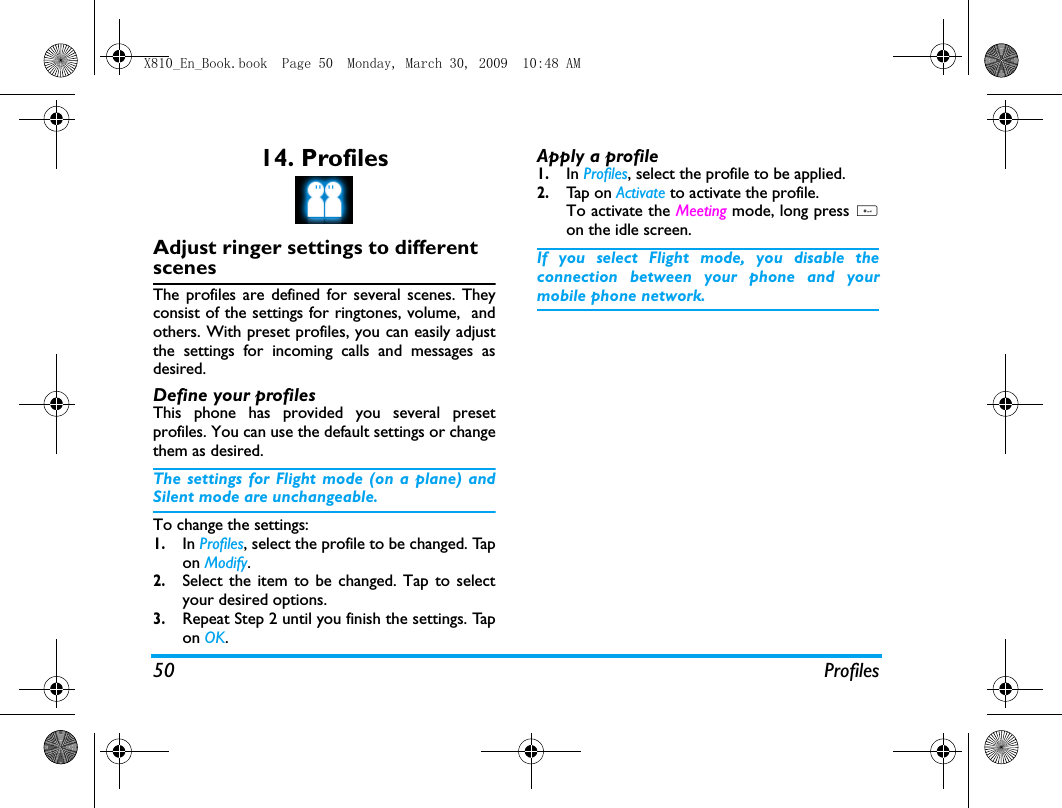
50 Profiles14. ProfilesAdjust ringer settings to different scenesThe profiles are defined for several scenes. Theyconsist of the settings for ringtones, volume,  andothers. With preset profiles, you can easily adjustthe settings for incoming calls and messages asdesired. Define your profilesThis phone has provided you several presetprofiles. You can use the default settings or changethem as desired. The settings for Flight mode (on a plane) andSilent mode are unchangeable.To change the settings:1.In Profiles, select the profile to be changed. Tapon Modify.2.Select the item to be changed. Tap to selectyour desired options. 3.Repeat Step 2 until you finish the settings. Tapon OK.Apply a profile1.In Profiles, select the profile to be applied.2.Tap  on  Activate to activate the profile.To activate the Meeting mode, long press #on the idle screen.If you select Flight mode, you disable theconnection between your phone and yourmobile phone network.  X810_En_Book.book  Page 50  Monday, March 30, 2009  10:48 AM
Settings 5115. SettingsGeneral  Language Select a language for your phone.Time & date Set the clock of the phone (See "Setclock" on page 9 and "Display localand international clocks" on page9).Auto power-on time: Set time for thephone to be switched onautomatically. Auto power-off time: Set time for thephone to be switched offautomatically. Security setup This menu allows you to usepasswords to protect your SIMcard, phone, and informationstored on the phone. PIN protection:  Set PIN or PIN2password protection for your SIMcard. (The PIN or PIN2 areprovided by the network operator.)Change PIN and  Change PIN2:Change your PIN and PIN2passwords as desired. If you enter an incorrect PINcode three times in succession,the PIN code of your SIM cardwill be locked automatically andyou will be prompted to enterthe PUK code to unlock it. Youcan obtain the PUK code fromyour network operator. If youenter an incorrect PUK code tentimes in succession, the SIM cardwill be locked permanently.When this happens, pleasecontact your network operatoror retailer.X810_En_Book.book  Page 51  Monday, March 30, 2009  10:48 AM
52 SettingsPhone lock: Set password protectionfor your phone. You are requiredto enter the password each timeyou turn on the phone (1122 bydefault).Safeguard: Set password protectionfor the information stored on yourphone.•Safeguard: Enter your passwordto turn the password protectionon or off (1122 by default).•Activation: Enter your passwordto select the information thataccepts the password protection:msg(s), Contacts, View calls or/andSpeed dial.•Change safeguard password:Change your password asdesired.Speed dial Call a contact by long pressing anumeric key (See "Speed dial" onpage 14).Shortcut Set the quick access menu on theidle screen (See "Shortcut menu"on page 2).Default storageSelect the default storage locationfor your files: phone or memorycard (if a memory card is insertedon your phone).Memory statusCheck the memory occpancy  ofContacts, Messaging and My files:on phone and SIM card, or onphone and memory card (if amemory card is inserted on yourphone). Active slide Select whether to answer an incoming call by pushing up the slide. Tap to select On or Off.Auto keypadlockSet an idle time span for the keypad to be locked automatically. To unlock the keypad, push up theslide, or drag out the innermostdot.Factory settingsRestore your phone settings to the default values. You need to enter your phone lock password (1122 by default).X810_En_Book.book  Page 52  Monday, March 30, 2009  10:48 AM
Settings 53Display Sounds              ConnectivityThis menu allows you to define the service settingsavailable on your phone. Call optionsSee "Call options" on page 46.Wallpaper Select an image as the wall paperof your phone. You can selecteither a default wallpaper or oneof your pictures stored in My files.Themes Define the theme for your phone.Backlight level Select the brightness of backlight.BacklightdurationSelect the duration of backlight.Show ownnumberSelect whether to show yourphone number or name on theidle screen. Set your phonenumber or name in Contacts >Extra numbers > My numbers.Greeting Select whether to show greetingswhen your phone is turned on.Light sensor Select whether to have thebacklight level adjustedautomatically to ambientluminance. Alert type Select alert types.Ringtones Select a ringtone for incoming calls and messages. Ring volume Adjust the volume of rings. Key sound Select whether the key sounds whenpressed.  Slide sound Select whether the slide soundswhen you push it up or down. Tap vibration Select whether there isaccompanying vibration for each tap.  Shutter sound Select shutter sounds for yourcamera.Battery low Select whether a warning tone isemitted when the battery level islow.X810_En_Book.book  Page 53  Monday, March 30, 2009  10:48 AM
54 SettingsMessage settingsSee "Define your message settings" on page 19.Network settingsYou can select a network other than your homenetwork only if it has a valid roamingagreement with your home network. If youchange the network, some problems may ariseduring the operation of your phone.BrowserSee "Manage your browser" and "Enable/disablepush messages" on page 33.ConnectionsThe menu allows you to define the Internet accessprofiles of your phone. Such profiles are usuallypre-defined in your SIM card. Consult yournetwork operator for details. Java settingsMotion sensorSee "Senors" on page 3Pen calibrationSee "Stylus" on page 3.NetworkselectionSelect the network for your phone(service subscription-dependent). Automatic is recommended.GPRSconnectionSelect how to search the network.Preferences Select your preferred network.Java audio Set the volume level.Java vibration Turn the vibration On or Off. Java network Select a Java network (servicesubscription-dependent).Heap size Display allowed maximum size forJava memory.X810_En_Book.book  Page 54  Monday, March 30, 2009  10:48 AM
Icons & symbols 55Icons & symbolsIn idle mode, several symbols can be displayedsimultaneously on the main screen.If the network symbol is not displayed, thenetwork is currently not available. You may bein a bad reception area; moving to a differentlocation may help.Silent  - Your phone will not ring whenreceiving a call.Vibration only - The phone will vibratewhen there is an incoming call.SMS  - You have received a new SMSmessage.MMS message - You have received a newmultimedia message.Battery - The bars indicate the battery level(4 bars=full, 1 bar=low).Call divert - All your incoming voice callsare being forwarded to a number. Bluetooth feature is activated. The Bluetooth headset is connected. Alarm  - The alarm clock has beenactivated.Roaming - Displayed when your phone isregistered to a network other than yourown (especially when you’re abroad).Missed call - You have a missed call.Headset - The headset is plugged into thephone.Home zone - A zone designated by yournetwork operator. Subscriptiondependent, contact your service providerfor details.GSM Network - your phone is connectedto the GSM network.Reception quality - the more bars areshown the better the reception is.Wap message - You have received a  Wappush message in the message inbox.GPRS attach - Your phone is connected tothe GPRS network.EDGE attach - Your phone is connected tothe EDGE network.X810_En_Book.book  Page 55  Monday, March 30, 2009  10:48 AM
56 PrecautionsPrecautionsRadio WavesYour cellular mobile phone is a lowpower radio transmitter andreceiver. When it is operating, it sendsand receives radio waves. The radio wavescarry your voice or data signal to a base station thatis connected to the telephone network. Thenetwork controls the power at which the phonetransmits.• Your phone transmits/receives radio waves in theGSM frequency (850/900 / 1800 / 1900 MHz).• The GSM network controls transmission power(0.01 to 2 watts).• Your phone complies with all relevant safetystandards.• The CE mark on your phone shows compliancywith European electromagnetic compatibility(Ref. 89/336/EEC) and low voltage directives(Ref. 73/23/EEC).Your cellular mobile phone is your responsibility.To avoid damage to yourself, to others or to thephone itself, read and follow all the safetyinstructions and make them known to anyoneborrowing your phone.Furthermore to preventunauthorized use of your phone:Keep your phone in a safe place and keepit out of small children's reach.Avoid writing down your PIN code. Tryto remember it instead. Switch off the phone and remove the battery if youare going to leave it unused for a long time.Change your PIN code after purchasing the phoneand to activate call restriction options.The design of your phone complies withall applicable laws and regulations.However your phone may causeinterference with other electronicdevices. Consequently you should follow all localrecommendations and regulations when usingyour cellular phone both at home and when away.Regulations on the use of cellular phones invehicles and aircraft are particularlystringent.Public concern has been focused for some time onthe possible health risks for users of cellular phones.The current research on radio wave technology,including the GSM technology, has been reviewedand safety standards have been drawn up to ensureprotection from exposure to radio wave energy.X810_En_Book.book  Page 56  Monday, March 30, 2009  10:48 AM
Precautions 57Your cellular telephone complies with allapplicable safety standards and the RadioEquipment and Telecommunications TerminalEquipment Directive 1999/5/EC.Always switch off your phoneInadequately protected or sensitive electronicequipment may be affected by radio energy. Thisinterference can lead to accidents.Before boarding an aircraft and/or whenpacking the phone in your luggage: the useof mobile phones in an aircraft may bedangerous for the operation of the aircraft, disruptthe mobile phones network and may be illegal.In  hospitals, clinics, other health carecentres and anywhere else where you maybe in the close vicinity of medicalequipment.In areas with a potentially explosiveatmosphere (e.g. petrol stations andalso areas where the air contains dustparticles, such as metal powders).In a vehicle transporting flammable products (evenif the vehicle is parked) or a vehicle powered byliquefied petroleum gas (LPG), check first that thevehicle complies with the applicable safety rules.In areas where you are requested to turn off radiotransmitting devices, such as quarries or otherareas where blasting operations are in progress.Check with the vehicle manufacturer thatelectronic equipment used in yourvehicle will not be affected by radioenergy.PacemakersIf you have a pacemaker:• Always keep the phone more than 15 cm fromyour pacemaker when the phone is switched on,in order to avoid potential interference.• Do not carry the phone in a breast pocket.• Use the ear opposite to the pacemaker tominimize the potential interference.• Switch off your phone if you suspect thatinterference is taking place.Users of hearing aidsIf you are a user of a hearing aid, consult yourphysician and hearing aid manufacturer to learnwhether your particular device is susceptible tocellular phone interference.X810_En_Book.book  Page 57  Monday, March 30, 2009  10:48 AM
58 PrecautionsImproved performanceIn order to improve the performance of yourphone, reduce radio energy emission, reducebattery consumption and ensure safeoperation adhere to the following guidelines:For the optimal and satisfactory operationof the phone, you are recommended touse the phone in the normal operatingposition (when not using in hands-freemode or with a hands-free accessory).• Do not expose your phone to extremetemperatures.• Treat the phone with care. Any misuse will voidthe International Guarantee.• Do not immerse the phone in any liquid; if yourphone is damp, switch it off, remove the battery.and let them dry for 24hrs before using themagain.• To clean the phone, wipe it with a soft cloth.• Placing and receiving calls consumes the sameamount of battery energy. However, the mobileconsumes less energy in idle screen when kept inthe same place. When in idle screen and whileyou are moving, your phone consumes energy totransmit updated location information to thenetwork. Setting the backlight for a shorterperiod of time as well as avoiding unnecessarynavigating in the menus will also help to save thebattery's energy for longer phoning and stand-byperformances.Battery information• Your phone is powered by a rechargeablebattery.•Use specified charger only.• Do not incinerate.• Do not deform or open the battery.• Do not allow metal objects (such as keys in yourpocket) to short circuit the battery contacts.•Avoid exposure to excessive heat (>60°C or140°F), moisture or caustic environments.You should only use Philips authenticbattery and accessories, as the use of anyother accessories may damage yourphone and may be dangerous, and willmake all guarantees for your Philips phonenull and void. The use of an incorrect type ofbattery may also cause an explosion.Make sure damaged parts are replaced immediatelyby a qualified technician and that they are replacedwith genuine Philips replacement parts.X810_En_Book.book  Page 58  Monday, March 30, 2009  10:48 AM
Precautions 59Do not use your phone while drivingSpeaking on the telephone while drivinglowers your concentration, which can bedangerous. Adhere to the followingguidelines:• Give your full attention to driving. Pull off theroad and park before using the phone.• Respect the local regulations in countries whereyou drive and use your GSM phone.• If you want to use your phone in a vehicle, installthe hands-free car kit which is designed for thatpurpose.• Ensure that your phone and car kit do not blockany air bags or other security devices fitted inyour car.The use of an alarm system to operate a vehicle'slights or horn to indicate incoming phone calls isprohibited on public roads in some countries. Checklocal regulations.EN60950 NormIn case of hot weather or after a prolonged exposureto the sun (e.g., behind a window or a windscreen),the temperature of your phone's casing mightincrease, especially when featuring a metallic finish.Be very careful in this case when picking up yourphone and also avoid using it with an ambienttemperature over 40°C.For your phone, the socket-outlet shall be installednear the phone and shall be accessible. Environmental careRemember to observe the localregulations regarding the disposal of thepackaging materials, exhausted batteriesand old phone and please promoterecycling.Philips has marked the battery and packaging withstandard symbols designed to promote therecycling and appropriate disposal of your eventualwaste.The labelled packaging material isrecyclable.A financial contribution has been madeto the associated national packagingrecovery and recycling system.The plastic material is recyclable (alsoidentifies the type of plastic).X810_En_Book.book  Page 59  Monday, March 30, 2009  10:48 AM
60 PrecautionsWEEE Marking in the DFU: “Information to the Consumer”Disposal of your old productYour product is designed and manufactured withhigh quality materials and components, which canbe recycled and reused. When this crossed-out wheeled binsymbol is attached to a product itmeans the product is covered by theEuropean Directive 2002/96/ECPlease inform yourself about the localseparate collection system forelectrical and electronic products.Please act according to your local rules and do notdispose of your old products with your normalhousehold waste. The correct disposal of your oldproduct will help prevent potential negativeconsequences for the environment and humanhealth.FCC Compliance StatementThis equipment has been tested and found tocomply with the limits for a Class B digital device,pursuant to Part 15 of the FCC Rules. These limitsare designed to provide reasonable protectionagainst harmful interference in a residentialinstallation. This equipment generates, uses and canradiate radio frequency energy and, if not installedand used in accordance with the instructions, maycause harmful interference to radiocommunications. However, there is no guaranteethat interference will not occur in a particularinstallation. If this equipment does cause harmful interferenceto radio or television reception, which can bedetermined by turning the equipment off and on,the user is encouraged to try to correct theinterference by one or more of the followingmeasures: -- Reorient or relocate the receiving antenna. -- Increase the separation between the equipmentand receiver. -- Connect the equipment into an outlet on acircuit different from that to which the receiver isconnected. Any changes or modifications not expresslyapproved by the party responsible for compliancecould void the user’s authority to operate theequipment.This device complies with part 15 of the FCC Rules.Operation is subject to the following twoconditions: (1) This device may not cause harmfulinterference, and (2) this device must accept anyinterference received, including interference thatmay cause undesired operation.X810_En_Book.book  Page 60  Monday, March 30, 2009  10:48 AM
Tips 61TipsHow to prolong the battery life of your phone To have your mobile phone function properly,sufficient battery power is important. For thepower-saving purpose, do the following, ifapplicable:1.Turn off the Bluetooth function of your phone. 2.Set the backlight level of your phone to a lowvalue. Or, turn on the light sensor.3.Set the backlight duration of your phone to alow value. 4.Turn on the auto keypad lock. When thekeypad is locked, your phone goes to thepower-saving mode. 5.Turn off the key sounds, tap vibration, orvibration alerts. 6.Establish GPRS connection when needed.Otherwise, your phone will keep searching forGPRS connection, and drain your batterypower. 7.Turn off your phone if there is no coverage.Otherwise, the phone will keep searching fornetwork, and drain your battery power.  X810_En_Book.book  Page 61  Monday, March 30, 2009  10:48 AM
62Tro u b l e s h o o t i n gThe phone does not switch onRemove/reinstall the battery. Then charge thephone until the battery icon stops scrolling. Unplugthe charger and try to switch on the phone.Your phone doesn’t return to idle screenLong press the hangup key or switch off the phone,check that the SIM card and the battery areinstalled correctly and switch it on again.The network symbol is not displayedThe network connection is lost. Either you are in aradio shadow (in a tunnel or between tall buildings)or you are outside the network coverage area. Tryfrom another place, try to reconnect to the network(especially when abroad), check that the antenna isin place if your mobile phone has an externalantenna, or contact your network operator forassistance/information.The display doesn’t respond (or the display responds slowly) to key pressesThe display responds more slowly at very lowtemperatures. This is normal and does not affectthe operation of the phone. Take the phone to awarmer place and try again. In other cases, pleasecontact your phone supplier.Your battery seems to over heatYou might be using a charger that was not intendedfor your phone. Make sure you always use thePhilips authentic accessory shipped with yourphone.Your phone doesn’t display the phone numbers of incoming callsThis feature is network and subscriptiondependent. If the network doesn’t send the caller’snumber, the phone will display Call 1 or Withheldinstead. Contact your network operator for moreinformation.You can’t send text messagesSome networks don’t allow message exchangeswith other networks. First check that you haveentered the number of your SMS centre, or contactyour operator for more information.You can’t display picturesA picture may not be accepted by your mobilephone if it is too large, if its name is too long, or ifit doesn’t have the correct file format.You have the feeling that you missed some callsCheck your call divert options.X810_En_Book.book  Page 62  Monday, March 30, 2009  10:48 AM
63The display shows INSERT SIM Check that the SIM card has been insertedcorrectly. If the problem remains, your SIM cardmay be damaged. Contact your network operator.When attempting to use a feature in the menu, the mobile displays NOT ALLOWEDSome features are network and subscriptiondependent. They are only available, therefore, if thenetwork or your subscription supports them.Contact your network operator for moreinformation.Your phone is not chargingIf your battery is completely flat, it might take awhile before the charging icon is displayed on thescreen.X810_En_Book.book  Page 63  Monday, March 30, 2009  10:48 AM
64Philips Authentic AccessoriesSome accessories, such as battery and charger, areincluded as standard accessories in your mobilephone package. Additional accessories may also beprovided or sold separately. Package contents maytherefore vary.To maximize the performance of your Philipsmobile phone and not to void the warranty,always purchase Philips Authentic Accessoriesthat are specially designed for use with yourphone. Philips Consumer Electronics cannot beheld liable for any damage due to use with non-authorised accessories.ChargerCharges your battery in any AC outlet. Smallenough to carry in a briefcase/handbag.HeadsetYour phone will activate headset modeautomatically when you plug in the headset. If youselect On in Calls > Call options  > Headset answer,your phone will automatically answer the incomingcall in 5 or 10 seconds.When using the supplied one-key headset, pressthe key to answer a call, and long press the key toend the call. USB cableWhen connected to a computer through the USBcable (compatible with most computers), yourphone can work asCharger Charges the battery on the phone.MassStorageAllows the data transfer betweenPC and the phone, or the micro-SDcard inserted into the phone;Allows the data management on thephone, or micro-SD card throughyour PC.Webcam Acts as a web camera on your PC.X810_En_Book.book  Page 64  Monday, March 30, 2009  10:48 AM
65When the transfer is finished, please make surethat you safely remove your device based onthe instruction of your computer.Data communication softwareData communication software(MobilePhoneTools) offers instant sychronizationbetween your phone and your computer. You canuse the software for the data synchronizationbetween your phone and PC, like phonebook,calendar, SMS messages, and audio/video/picturefiles. With the software and GPRS service, you canalso connect your PC to the Internet through yourphone. Install MobilePhoneTools on your PC1.Insert the supplied Data communicationsoftware into the CD drive.2.Run the autorun.exe program. 3.Make selections as prompted, and installationstarts automatically. Connect your Phone to the PC 1.Connect your phone to the PC using thesupplied USB cable or through the Bluetooth.When using the USB cable for connection,select COM port on your phone. The first time you connect your phone to thePC, wait till the USB driver of your phone issuccessfully installed. 2.On your PC, double click theMobilePhoneTools icon.On the bottom left of the menu, “Philips X810is connected” is displayed. COM port Allows you to back up phone data,like phonebooks, on a computer orrecover the data from thecomputer. To do so, install the supplied Datacommunication software(MobilePhoneTools) on yourcomputer (see "Datacommunication software" asbelow).X810_En_Book.book  Page 65  Monday, March 30, 2009  10:48 AM
66Trademark DeclarationT9® is a trademark ofNuance Communications,Inc.Bluetooth™ is a trade-mark owned bytelefonaktiebolaget L MEricsson, Sweden andlicensed to Philips.JAVA is a trademark of SunMicrosystems, Inc.Tegic Euro. Pat. App. 0842463PHILIPS and PHILIPS’ ShieldEmblem are registered trademarks of KoninklijkePhilips Electronics N.V. manufactured by ShenzhenSang Fei Consumer Communications Co., Ltd.under license fromKoninklijke Philips Electronics N.V.X810_En_Book.book  Page 66  Monday, March 30, 2009  10:48 AM
Specific Absorption Rate Information 67Specific Absorption Rate InformationInternational standardsTHIS MOBILE PHONE MEETS THE INTERNATIONAL RECOMMENDATIONS FOR EXPOSURE TO RADIO WAVESYour mobile phone is a radio transmitter and receiver. It is designed and manufactured not to exceed thelimits for exposure to radio frequency (RF) energy defined by the international standards. Theserecommendations have been established by the International Commission on Non-Ionizing RadiationProtection (ICNIRP) and, the Institute of Electrical and Electronics Engineers (IEEE) that forecast a substantialsafety margin for assuring the protection of all persons, regardless of age and health.The exposure recommendations for mobile phones use a measurement unit known as the SpecificAbsorption Rate (SAR). The SAR limit recommended by the ICNIRP for the mobile phones used by thegeneral public is 2.0W/kg averaged over ten grams of tissue and, is 1,6W/kg averaged over onegram of tissue by IEEE Std 1528 for the head.Tests for SAR have been conducted using recommended operating positions with the mobile phonetransmitting at its highest certified power level in all tested frequency bands. Although the SAR is determinedat the highest certified power level, the actual SAR levels of the mobile phone while operating are generallybelow the maximum SAR value. This is because the phone is designed to operate at multiple power levels soas to use only the power required to reach the network. In general, the closer you are to a base stationantenna, the lower the power output. While there may be differences between the SAR levels of various phones and at various positions, they allmeet the international protection standards for exposure to radio waves. The highest SAR value for this Philips Xenium X810 model phone when tested for compliance against thestandard was 0.315 W/kg for ICNIRP recommendation and 0.858 W/kg for IEEE Std 1528.For limiting the radio waves exposure, it is recommended to reduce the mobile phone call duration or touse a headset. The purpose of those precautions is to take the mobile phone away from the head and thebody.X810_En_Book.book  Page 67  Monday, March 30, 2009  10:48 AM
68 Specific Absorption Rate InformationFor body-worn operation, the cell phone meets FCC RF exposure guidelines provided that it is used with anon-metallic accessory with the handset at least 1.5 cm from the body. Use of other accessories may notensure compliance with FCC RF exposure guidelines.X810_En_Book.book  Page 68  Monday, March 30, 2009  10:48 AM
69Limited warranty1. What Does This Limited Warranty Cover?Philips warrants to the original retail purchaser(“Consumer” or “You”) that this Philips cellularproduct and all accessories originally provided byPhilips in the sales package (“Product”) are freefrom defects in materials, design and workmanshipunder normal use in accordance with the operatinginstructions and pursuant to the following termsand conditions. This limited warranty extends onlyto the Consumer for Products purchased and usedin the original country of purchase. The limitedwarranty is valid only in Philips’ intended country ofsales of the product.2. How Long is The Limited Warranty Period?The limited warranty period for the Productextends for ONE (1) YEAR from the date ofpurchase of the Product, documented by validproof of purchase. The limited warranty for originalPhilips rechargeable battery extends for six (6)months from the date of purchase.3. What Will Philips Do if The Product is Not FreeFrom Material Defects in Materials andWorkmanship During The Limited WarrantyPeriod?During the limited warranty period, Philips or itsauthorized service representative will, at its optioneither repair or replace, without charge for partsor labour, a materially defective Product with newor refurbished parts or Product and return suchrepaired or replaced Product to the Consumer inworking condition. Philips will retain defectiveparts, modules or equipment.Repaired or replaced Product will be covered bythis limited warranty for the balance of the originallimited warranty period or ninety (90) days fromthe date of repair or replacement whichever islonger. Repair or replacement of Product, atPhilips’ option is your exclusive remedy.4. What is Not Covered By This Limited Warranty?This limited warranty does not cover:X810_En_Book.book  Page 69  Monday, March 30, 2009  10:48 AM
70a) Product that has been subjected to misuse,accident, shipping or other physical damage,improper installation, abnormal operation handling,neglect, inundation, fire, water or other liquidintrusion; orb)  Product that has been damaged due torepair, alteration, or modification byanyone not authorized by Philips; orc)  Product that has reception or operationproblems caused by signal conditions,network reliability or cable or antennasystems; ord)  Product defects or problems caused byuses with non-Philips products oraccessories; or e)  Product which warranty/quality stickers,product serial number or electronic serialnumber has been removed, altered orrendered illegible; or f)  Product purchased, used, serviced, orshipped for repair from outside theoriginal country of purchase, or used forcommercial or institutional purposes(including but not limited to Products usedfor rental purposes); or g)  Product returned without valid proof ofpurchase or which proof of purchase hasbeen altered or is illegible.h) Normal wear and tear or Force Majeure.5.  How Do You Get Warranty Service?a)  Return the Product to an authorizedservice center of Philips. You may contactthe local Philips office for the location ofthe nearest authorized service center.b) The SIM card must be removed from theProduct before it is given to Philips. Philipsassumes no liability for damaged or loss ofthe SIM card or the data containedtherein.c) If the Product failure is not covered by thislimited warranty, or this limited warrantyis inapplicable, void or invalid due to anyterms and conditions stated herein, theConsumer will be charged for the cost ofrepair or replacement of the Product andall other related cost incurred in repairingor replacing the Product.d)  IMPORTANT - you are required to returnthe Product together with a valid proof ofpurchase which must identify the point ofpurchase, date of purchase, Productmodel and Product serial number clearly.6.  Other Limitation: This Warranty is The EntireAgreement.X810_En_Book.book  Page 70  Monday, March 30, 2009  10:48 AM
71EXCEPT FOR THE EXPRESS WARRANTIESSET FORTH ABOVE AND THOSE IMPLIEDBY LAW AND WHICH CANNOT BEEXCLUDED OR MODIFIED BYAGREEMENT, PHILIPS PROVIDES NOOTHER WARRANTY WHETHER EXPRESSOR IMPLIED (WHETHER BY STATUTE,UNDER THE OPERATION OF LAW OROTHERWISE) AND SPECIALLY DISCLAIMSANY WARRANTY OF SATISFACTORYQUALITY MERCHANTABILITY OR FITNESSFOR A PARTICULAR PURPOSE.PHILIPS’ TOTAL LIABILITY FOR DAMAGESRELATING TO OR ARISING OUT OF THEPURCHASE OR USE OF THE PRODUCT,REGARDLESS OF THE TYPE OR CAUSE OFSUCH DAMAGE OR THE FORM ORCHARACTERISATION OF THE CLAIMASSERTED (E.G. CONTRACT OR TOPIT),SHALL NOT EXCEED THE ORIGINALPURCHASE PRICE PAID FOR THEPRODUCT.HOWEVER IN NO EVENT SHALL PHILIPS BELIABLE FOR ANY PUNITIVE, SPECIAL,INCIDENTAL, INDIRECT ORCONSEQUENTIAL DAMAGES (INCLUDINGBUT NOT LIMITED TO THE LOSS OF USE,LOSS OF TIME, INCONVENIENCE,COMMERIAL LOSS, LOST PROFITS, LOSTBUSINESS OPPORTUNITIES, COST OFSUBSTITUTION OF GOODS OR SERVICES,INVESTMENTS, DAMAGE TO GOODWILLOR REPUTATION, OR LOSS OF DATA ANDCLAIMS BY THIRD PARTIES) RESULTINGFROM PURCHASE OR USE OF THEPRODUCT, TO THE FULLEST EXTENTALLOWED BY LAW, WHETHER OR NOTPHILIPS HAS BEEN ADVISED OF THEPOSSIBILTY OF SUCH DAMAGES. THESELIMITATIONS SHALL APPLYNOTWITHSTANDING THE FAILURE OFTHE ESSENTIAL PURPOSE OF ANY LIMITEDREMEDY.This limited warranty represents the completeand exclusive agreement between theConsumer and Philips with respect to thiscellular Product and it supercedes all prioragreements between the parties, oral orwritten, and all other communicationsbetween the parties relating to the subjectmatter of this limited warranty. No carrier,retailer, agent, dealer, employee, thereof, oremployee of Philips is authorized to makemodifications to this limited warranty and youshould not rely on any such representation.This limited warranty does not affect theConsumer’s statutory rights under applicablenational laws in force.X810_En_Book.book  Page 71  Monday, March 30, 2009  10:48 AM
Declaration of conformityWe, Shenzhen Sang Fei Consumer Communications Co., Ltd.11 Science and Technology Road,Shenzhen Hi-tech Industrial Park,Nanshan District, Shenzhen 518057,China.declare under our sole responsibility that theproductXenium X810Cellular Mobile Radio GSM 850/900/1800/1900TAC: 35992802to which this declaration relates, is in conformitywith the following Standards:SAFETY: EN 60950-1: 2006HEALTH: EN50360: 2001;                 EN62209-1: 2006EMC: EN 301 489-1 V 1.6.1;           EN 301 489-7 V 1.3.1;          EN 301 489-17 V1.2.1SPECTRUM:  EN 301 511 V9.0.2;                        EN 300 328 V1.7.1 We hereby declare that all essential radio testsuites have been carried out and that the abovenamed product is in conformity to all the essentialrequirements of Directive 1999/5/EC.The conformity assessment procedure referred toin Article 10 and detailed in Annex V of Directive1999/ 5/EC has been followed related to articles 3.1and 3.2 with the involvement of the following No-tified Body: CETECOM ICT Services GmbH, Un-terturkheimer Strabe6-10, 66117, Saarbrucken,Germany.Identification mark: 0682November 7, 2008Quality ManagerX810_En_Book.book  Page 65  Monday, March 30, 2009  10:48 AM
Navigation menu