Sang Fei Consumer Communications SAF3011 Mobile Phone User Manual

Shenzhen Sang Fei Consumer Communications Co., Ltd. Mobile Phone

Contents

user manual

 SAF3011PM User Manual
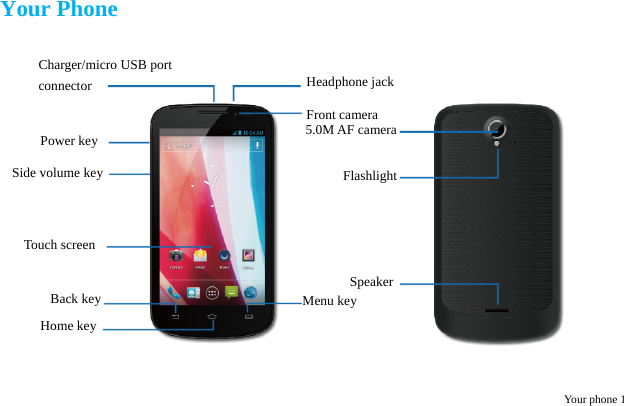
 Your phone 1  Your Phone Charger/micro USB port   connector Power key Side volume key Touch screen Back key Home key Menu key Headphone jack Front camera 5.0M AF camera Flashlight Speaker
 Your phone 2  Home screen You may activate functions of this device by operations on the touch screen. There are five main screens, which could be switched by sliding to the left or the right. Tap in any interface to go back to the main screen. Tap an application icon on the main screen to start that application. Tap [Apps Panel ] to find all applications. Your phone’s home screen consists of the following areas:                Status BarApplication icons Apps Panel Shortcuts icons
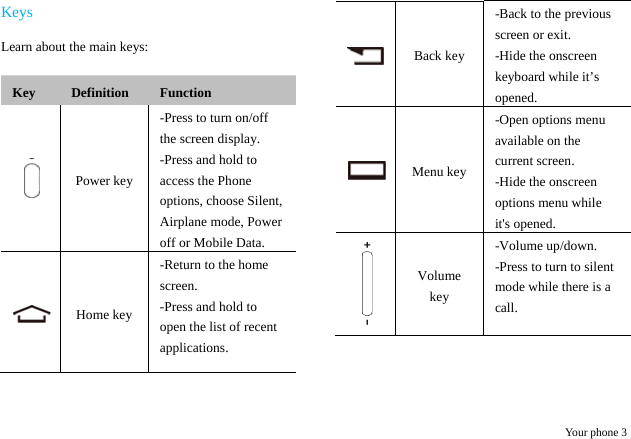
 Your phone 3 Keys Learn about the main keys:  Key  Definition  Function  Power key -Press to turn on/off the screen display. -Press and hold to access the Phone options, choose Silent, Airplane mode, Power off or Mobile Data.  Home key -Return to the home screen. -Press and hold to open the list of recent applications. Back key -Back to the previous screen or exit. -Hide the onscreen keyboard while it’s opened. Menu key -Open options menu available on the current screen. -Hide the onscreen options menu while it's opened.  Volume key -Volume up/down. -Press to turn to silent mode while there is a call.
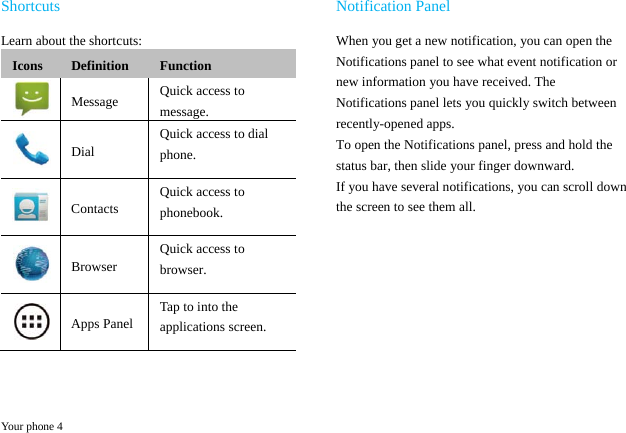
 Your phone 4 Shortcuts Learn about the shortcuts: Icons  Definition  Function  Message  Quick access to message.  Dial Quick access to dial phone.  Contacts Quick access to phonebook.  Browser Quick access to browser.  Apps Panel Tap to into the applications screen.  Notification Panel When you get a new notification, you can open the Notifications panel to see what event notification or new information you have received. The Notifications panel lets you quickly switch between recently-opened apps. To open the Notifications panel, press and hold the status bar, then slide your finger downward. If you have several notifications, you can scroll down the screen to see them all.
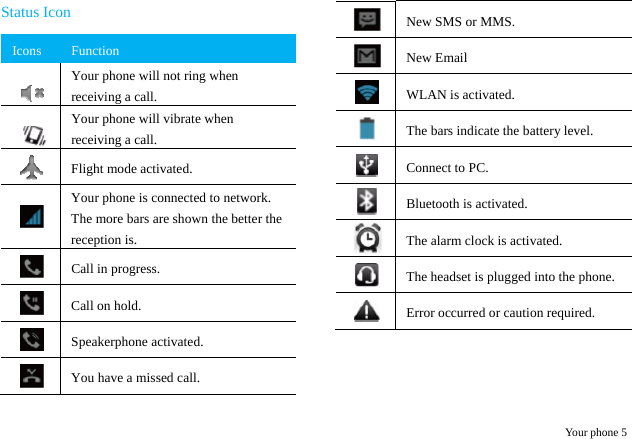
 Your phone 5 Status Icon Icons  Function   Your phone will not ring when receiving a call.   Your phone will vibrate when receiving a call.  Flight mode activated.  Your phone is connected to network. The more bars are shown the better the reception is.  Call in progress.  Call on hold.  Speakerphone activated.  You have a missed call. New SMS or MMS. New Email  WLAN is activated.  The bars indicate the battery level.  Connect to PC.  Bluetooth is activated. The alarm clock is activated. The headset is plugged into the phone.  Error occurred or caution required.
 Table of contents 6 Table of contents YOUR PHONE ................................................. 1 GETTING STARTED ...................................... 7 Charge & Insert a Memory Card ............... 7 Personalize your phone ............................ 10 BASIC FUNCTION ........................................ 11 Calls ......................................................... 11 Messaging ................................................ 12 Email ........................................................ 13 MULTIMEDIA ............................................... 15 Camera ..................................................... 15 Music ....................................................... 16 FM Radio ................................................. 17 SEARCH AND WEB ..................................... 18 Search settings ......................................... 18 Web browser ............................................ 18 INTERNET CONNECTIONS ...................... 19 Bluetooth ................................................. 19 Wi-Fi ........................................................  20 SETTINGS ...................................................... 21 Sound setting ........................................... 21 Screen settings ......................................... 21 Factory data reset ..................................... 22 SAFETY & PRECAUTION .......................... 23 Safety Notice ........................................... 23 Care and maintenance .............................. 24 Trouble Shooting ..................................... 25
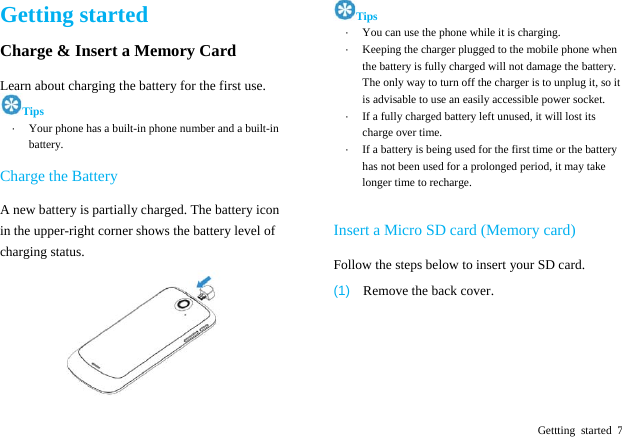
 Gettting started 7 Getting started Charge & Insert a Memory Card   Learn about charging the battery for the first use.   Tips ·  Your phone has a built-in phone number and a built-in battery. Charge the Battery A new battery is partially charged. The battery icon in the upper-right corner shows the battery level of charging status.    Tips ·  You can use the phone while it is charging. ·  Keeping the charger plugged to the mobile phone when the battery is fully charged will not damage the battery. The only way to turn off the charger is to unplug it, so it is advisable to use an easily accessible power socket.   ·  If a fully charged battery left unused, it will lost its charge over time.   ·  If a battery is being used for the first time or the battery has not been used for a prolonged period, it may take longer time to recharge.  Insert a Micro SD card (Memory card)   Follow the steps below to insert your SD card.   (1)  Remove the back cover.
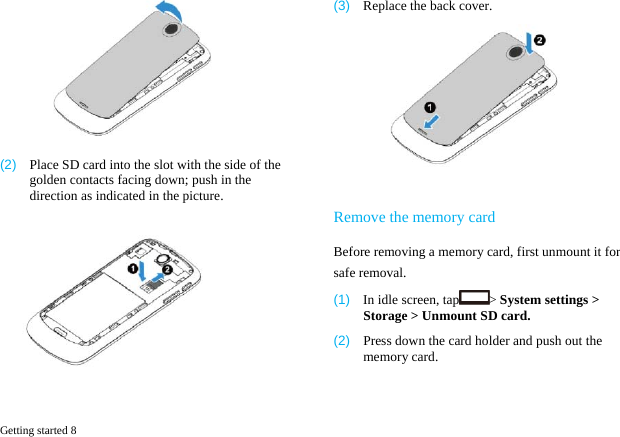
 Getting started 8    (2)  Place SD card into the slot with the side of the golden contacts facing down; push in the direction as indicated in the picture.  (3)  Replace the back cover.   Remove the memory card Before removing a memory card, first unmount it for safe removal. (1)  In idle screen, tap > System settings > Storage > Unmount SD card. (2)  Press down the card holder and push out the memory card.
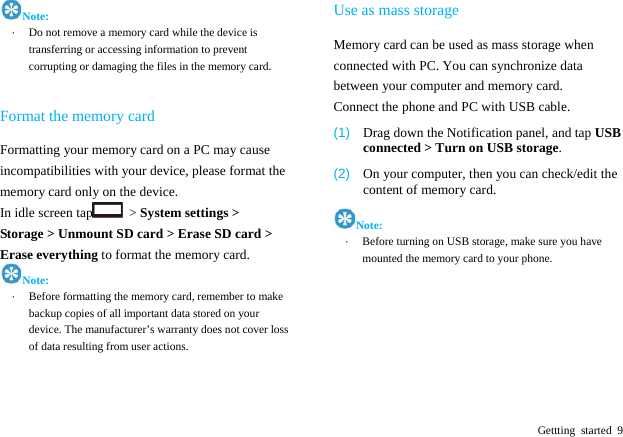
 Gettting started 9 Note: ·  Do not remove a memory card while the device is transferring or accessing information to prevent corrupting or damaging the files in the memory card.    Format the memory card Formatting your memory card on a PC may cause incompatibilities with your device, please format the memory card only on the device.   In idle screen tap  > System settings > Storage > Unmount SD card > Erase SD card > Erase everything to format the memory card. Note: ·  Before formatting the memory card, remember to make backup copies of all important data stored on your device. The manufacturer’s warranty does not cover loss of data resulting from user actions.   Use as mass storage Memory card can be used as mass storage when connected with PC. You can synchronize data between your computer and memory card. Connect the phone and PC with USB cable. (1)  Drag down the Notification panel, and tap USB connected > Turn on USB storage. (2)  On your computer, then you can check/edit the content of memory card. Note: ·  Before turning on USB storage, make sure you have mounted the memory card to your phone.
 Getting started 10 Personalize your phone Make the phone look and sound just the way you want it to. Personalize it with a different wallpaper, skin, ringtone, and notification sound for events such as incoming text, email, and calendar reminders. (1)  Change the wallpaper: Tap > Wallpaper to choose the one you want, or press and hold the blank area of the home screen to change. (2)  Add widgets/shortcuts to the home screen: Tap , press and hold the widget or icon you want to add,    drag it to a location. (3)  Rearrange or remove widgets and icons: Press and hold the widget or icon you want to move, drag it to a new location. (4)  Delete the widgets and icons: Press and hold the widget or icon, drag it to the deletion area on the top of the screen.
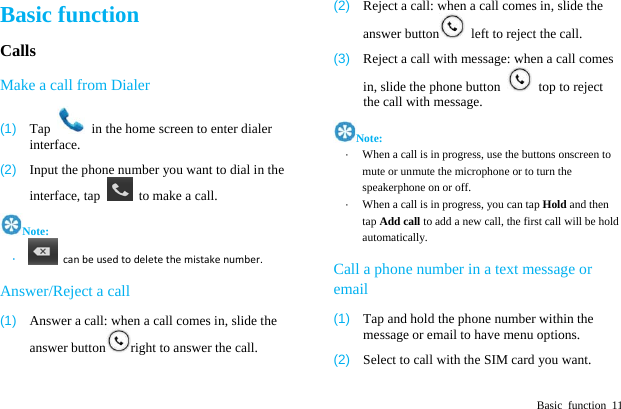
 Basic function 11 Basic function Calls Make a call from Dialer (1)  Tap    in the home screen to enter dialer interface. (2)  Input the phone number you want to dial in the interface, tap    to make a call. Note: ·  canbeusedtodeletethemistakenumber. Answer/Reject a call (1)  Answer a call: when a call comes in, slide the answer button right to answer the call. (2)  Reject a call: when a call comes in, slide the answer button   left to reject the call. (3)  Reject a call with message: when a call comes in, slide the phone button    top to reject the call with message. Note: ·  When a call is in progress, use the buttons onscreen to mute or unmute the microphone or to turn the speakerphone on or off.   ·  When a call is in progress, you can tap Hold and then tap Add call to add a new call, the first call will be hold automatically. Call a phone number in a text message or email (1)  Tap and hold the phone number within the message or email to have menu options. (2)  Select to call with the SIM card you want.
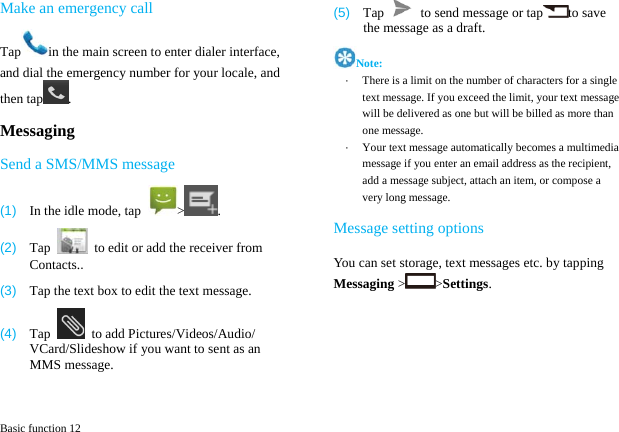
 Basic function 12 Make an emergency call Tap in the main screen to enter dialer interface, and dial the emergency number for your locale, and then tap . Messaging Send a SMS/MMS message (1)  In the idle mode, tap  > . (2)  Tap    to edit or add the receiver from Contacts.. (3)  Tap the text box to edit the text message. (4)  Tap    to add Pictures/Videos/Audio/ VCard/Slideshow if you want to sent as an MMS message. (5)  Tap    to send message or tap to save the message as a draft.   Note: ·  There is a limit on the number of characters for a single text message. If you exceed the limit, your text message will be delivered as one but will be billed as more than one message. ·  Your text message automatically becomes a multimedia message if you enter an email address as the recipient, add a message subject, attach an item, or compose a very long message.Message setting options You can set storage, text messages etc. by tapping Messaging > >Settings. 
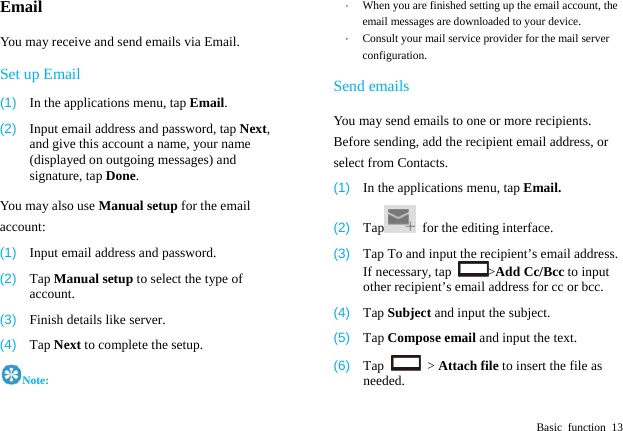
 Basic function 13 Email You may receive and send emails via Email.   Set up Email (1)  In the applications menu, tap Email. (2)  Input email address and password, tap Next, and give this account a name, your name (displayed on outgoing messages) and signature, tap Done.  You may also use Manual setup for the email account: (1)  Input email address and password. (2)  Tap Manual setup to select the type of account. (3)  Finish details like server.   (4)  Tap Next to complete the setup. Note: ·  When you are finished setting up the email account, the email messages are downloaded to your device. ·  Consult your mail service provider for the mail server configuration. Send emails You may send emails to one or more recipients. Before sending, add the recipient email address, or select from Contacts.   (1)  In the applications menu, tap Email. (2)  Tap   for the editing interface. (3)  Tap To and input the recipient’s email address. If necessary, tap  >Add Cc/Bcc to input other recipient’s email address for cc or bcc.   (4)  Tap Subject and input the subject. (5)  Tap Compose email and input the text. (6)  Tap   > Attach file to insert the file as needed.
 Basic function 14 (7)  Tap    to send the email. Receive emails (1)  In the applications menu, tap Email. (2)  Tap   to refresh the Inbox.   (3)  The device will connect to the server and download emails. All emails received will be saved in the Inbox. (4)  Tap the email to read. (5)  During reading, tap    to reply the email to the sender; tap   and tap Forward to forward the email to others; tap   and tap Reply all to reply to all contacts in the email.
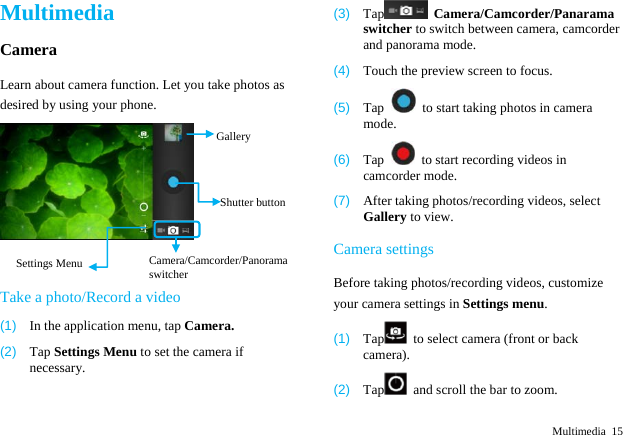
 Multimedia 15 Multimedia Camera Learn about camera function. Let you take photos as desired by using your phone. Take a photo/Record a video (1)  In the application menu, tap Camera. (2)  Tap Settings Menu to set the camera if necessary. (3)  Tap  Camera/Camcorder/Panarama switcher to switch between camera, camcorder and panorama mode. (4)  Touch the preview screen to focus. (5)  Tap    to start taking photos in camera mode. (6)  Tap    to start recording videos in camcorder mode. (7)  After taking photos/recording videos, select Gallery to view. Camera settings Before taking photos/recording videos, customize your camera settings in Settings menu. (1)  Tap   to select camera (front or back camera).   (2)  Tap   and scroll the bar to zoom. ShutterbuttonCamera/Camcorder/Panorama switcher GallerySettings Menu
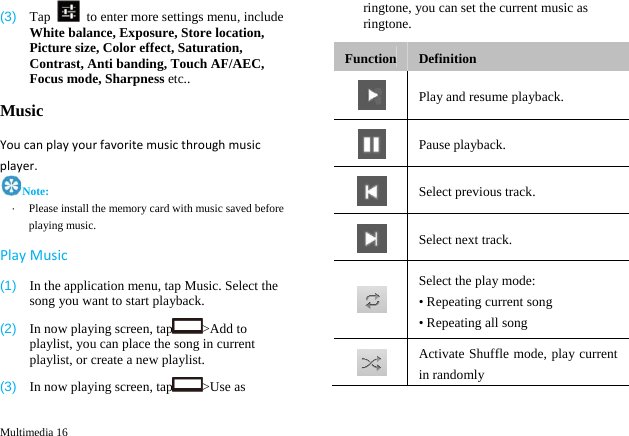
 Multimedia 16 (3)  Tap    to enter more settings menu, include White balance, Exposure, Store location, Picture size, Color effect, Saturation, Contrast, Anti banding, Touch AF/AEC, Focus mode, Sharpness etc.. Music Youcanplayyourfavoritemusicthroughmusicplayer.Note: ·  Please install the memory card with music saved before playing music. PlayMusic(1)  In the application menu, tap Music. Select the song you want to start playback. (2)  In now playing screen, tap >Add to playlist, you can place the song in current playlist, or create a new playlist. (3)  In now playing screen, tap >Use as ringtone, you can set the current music as ringtone. Function Definition  Play and resume playback.  Pause playback.  Select previous track.  Select next track.  Select the play mode: • Repeating current song   • Repeating all song  Activate Shuffle mode, play current in randomly
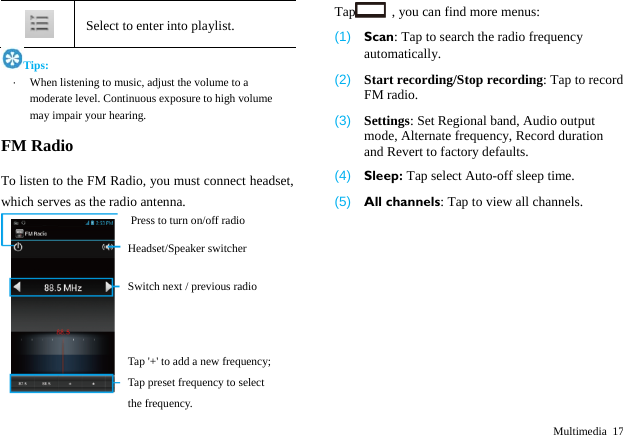
 Multimedia 17  Select to enter into playlist. Tips: ·  When listening to music, adjust the volume to a moderate level. Continuous exposure to high volume may impair your hearing. FM Radio To listen to the FM Radio, you must connect headset, which serves as the radio antenna.    Tap   , you can find more menus: (1)  Scan: Tap to search the radio frequency automatically. (2)  Start recording/Stop recording: Tap to record FM radio. (3)  Settings: Set Regional band, Audio output mode, Alternate frequency, Record duration and Revert to factory defaults. (4)  Sleep: Tap select Auto-off sleep time. (5)  All channels: Tap to view all channels. Press to turn on/off radio Headset/Speaker switcher Switch next / previous radio Tap '+' to add a new frequency; Tap preset frequency to select the frequency.
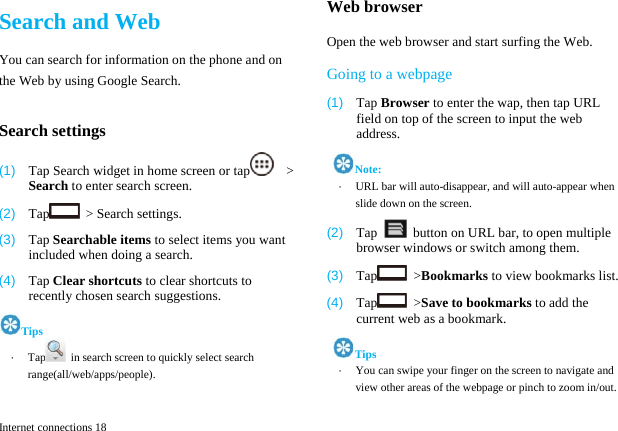
 Internet connections 18 Search and Web You can search for information on the phone and on the Web by using Google Search.  Search settings (1)  Tap Search widget in home screen or tap   > Search to enter search screen. (2)  Tap   > Search settings. (3)  Tap Searchable items to select items you want included when doing a search. (4)  Tap Clear shortcuts to clear shortcuts to recently chosen search suggestions. Tips ·  Tap   in search screen to quickly select search range(all/web/apps/people).  Web browser Open the web browser and start surfing the Web. Going to a webpage (1)  Tap Browser to enter the wap, then tap URL field on top of the screen to input the web address.  Note: ·  URL bar will auto-disappear, and will auto-appear when slide down on the screen. (2)  Tap    button on URL bar, to open multiple browser windows or switch among them. (3)  Tap  >Bookmarks to view bookmarks list. (4)  Tap  >Save to bookmarks to add the current web as a bookmark.  Tips ·  You can swipe your finger on the screen to navigate and view other areas of the webpage or pinch to zoom in/out.
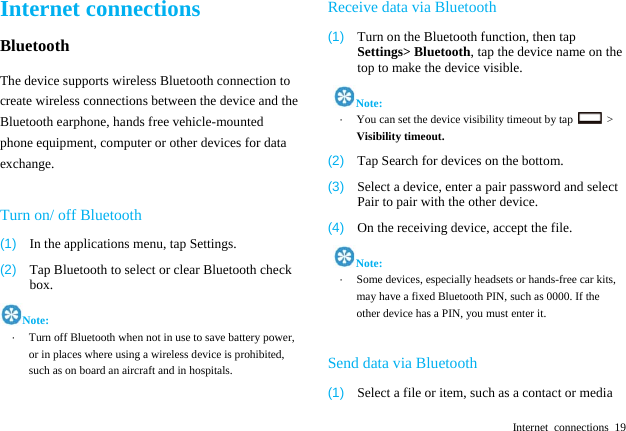
 Internet connections 19 Internet connections Bluetooth The device supports wireless Bluetooth connection to create wireless connections between the device and the Bluetooth earphone, hands free vehicle-mounted phone equipment, computer or other devices for data exchange.  Turn on/ off Bluetooth (1)  In the applications menu, tap Settings. (2)  Tap Bluetooth to select or clear Bluetooth check box. Note: ·  Turn off Bluetooth when not in use to save battery power, or in places where using a wireless device is prohibited, such as on board an aircraft and in hospitals.  Receive data via Bluetooth (1)  Turn on the Bluetooth function, then tap Settings> Bluetooth, tap the device name on the top to make the device visible.  Note: ·  You can set the device visibility timeout by tap   > Visibility timeout.  (2)  Tap Search for devices on the bottom. (3)  Select a device, enter a pair password and select Pair to pair with the other device.   (4)  On the receiving device, accept the file.  Note: ·  Some devices, especially headsets or hands-free car kits, may have a fixed Bluetooth PIN, such as 0000. If the other device has a PIN, you must enter it.  Send data via Bluetooth (1)  Select a file or item, such as a contact or media
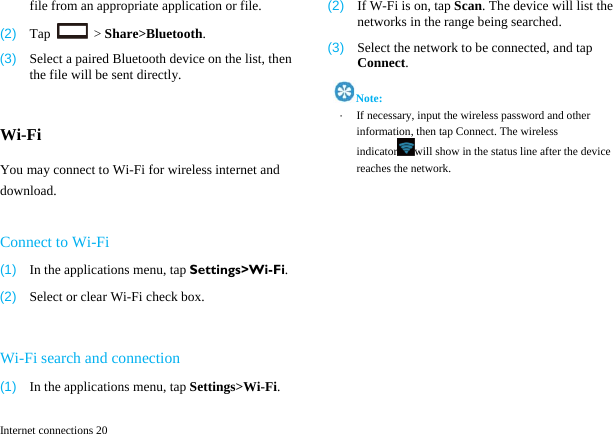
 Internet connections 20 file from an appropriate application or file. (2)  Tap   > Share>Bluetooth. (3)  Select a paired Bluetooth device on the list, then the file will be sent directly.  Wi-Fi You may connect to Wi-Fi for wireless internet and download.  Connect to Wi-Fi (1)  In the applications menu, tap Settings>Wi-Fi. (2)  Select or clear Wi-Fi check box.  Wi-Fi search and connection (1)  In the applications menu, tap Settings>Wi-Fi. (2)  If W-Fi is on, tap Scan. The device will list the networks in the range being searched.   (3)  Select the network to be connected, and tap Connect.  Note: ·  If necessary, input the wireless password and other information, then tap Connect. The wireless indicator will show in the status line after the device reaches the network.
 Settings 21 Settings Sound setting Volume (4)  In the applications menu, tap Settings> Sound >Volumes. (5)  Scroll the volume indicator to adjust, select and tap OK to save. (6)  In the main screen, press the volume on the side to adjust the ringtone & notifications volume. Press the volume down key to set as vibration mode and silent mode.    Note: ·  Press the [Power Key] for a while, and tap the silent mode/ vibration mode/ normal mode in this option menu as a short cut to activate the corresponding mode.    Ringtone Settings You can select the ringtone you like to set as incoming ringtone. (1)  In the applications menu, tap Settings>Sound >Phone ringtone. (2)  Scroll the ringtone list up and down, tap the ringtone name to listen; select one and tap OK to save.  Screen settings Set wallpaper (1)  In the main screen, tap    to open the options. (2)  Tap Wallpaper and select from Gallery, Live wallpapers or Wallpapers.. (3)  Scroll the wallpaper thumbnails to select the wallpaper you like and tap Set wallpaper.
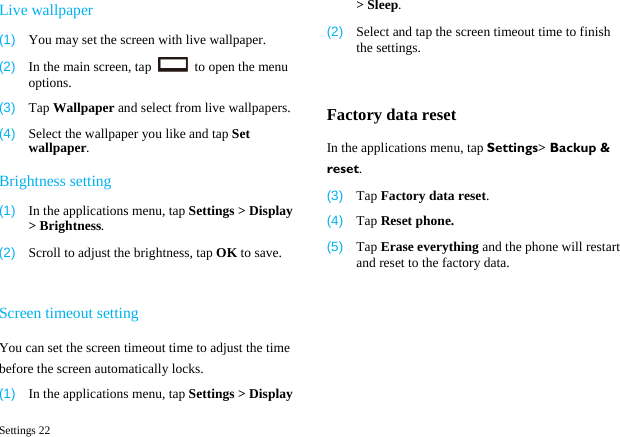
 Settings 22 Live wallpaper (1)  You may set the screen with live wallpaper. (2)  In the main screen, tap    to open the menu options. (3)  Tap Wallpaper and select from live wallpapers. (4)  Select the wallpaper you like and tap Set wallpaper. Brightness setting (1)  In the applications menu, tap Settings > Display > Brightness. (2)  Scroll to adjust the brightness, tap OK to save.  Screen timeout setting You can set the screen timeout time to adjust the time before the screen automatically locks. (1)  In the applications menu, tap Settings > Display > Sleep. (2)  Select and tap the screen timeout time to finish the settings.  Factory data reset In the applications menu, tap Settings> Backup & reset. (3)  Tap Factory data reset. (4)  Tap Reset phone. (5)  Tap Erase everything and the phone will restart and reset to the factory data.
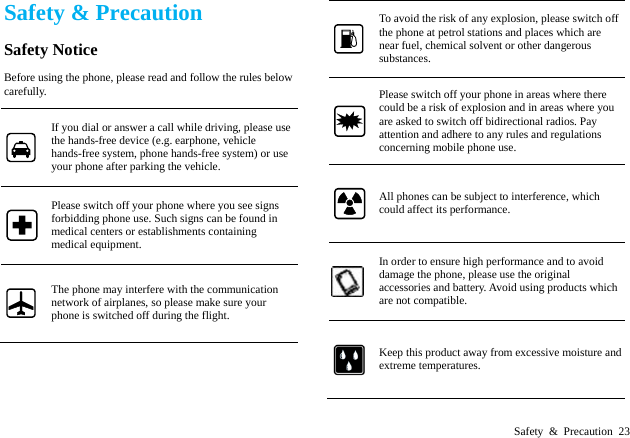
 Safety & Precaution 23 Safety & Precaution Safety Notice Before using the phone, please read and follow the rules below carefully. If you dial or answer a call while driving, please use the hands-free device (e.g. earphone, vehicle hands-free system, phone hands-free system) or use your phone after parking the vehicle. Please switch off your phone where you see signs forbidding phone use. Such signs can be found in medical centers or establishments containing medical equipment. The phone may interfere with the communication network of airplanes, so please make sure your phone is switched off during the flight. To avoid the risk of any explosion, please switch off the phone at petrol stations and places which are near fuel, chemical solvent or other dangerous substances. Please switch off your phone in areas where there could be a risk of explosion and in areas where you are asked to switch off bidirectional radios. Pay attention and adhere to any rules and regulations concerning mobile phone use. All phones can be subject to interference, which could affect its performance. In order to ensure high performance and to avoid damage the phone, please use the original accessories and battery. Avoid using products which are not compatible. Keep this product away from excessive moisture and extreme temperatures.
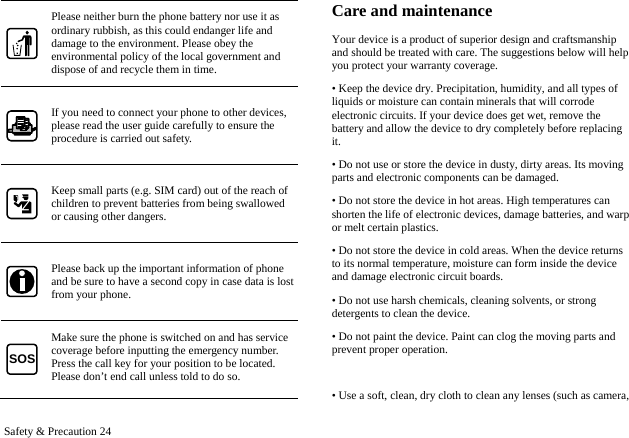
 Safety & Precaution 24 Please neither burn the phone battery nor use it as ordinary rubbish, as this could endanger life and damage to the environment. Please obey the environmental policy of the local government and dispose of and recycle them in time. If you need to connect your phone to other devices, please read the user guide carefully to ensure the procedure is carried out safety. Keep small parts (e.g. SIM card) out of the reach of children to prevent batteries from being swallowed or causing other dangers. Please back up the important information of phone and be sure to have a second copy in case data is lost from your phone. SOS Make sure the phone is switched on and has service coverage before inputting the emergency number. Press the call key for your position to be located. Please don’t end call unless told to do so. Care and maintenance Your device is a product of superior design and craftsmanship and should be treated with care. The suggestions below will help you protect your warranty coverage.   • Keep the device dry. Precipitation, humidity, and all types of liquids or moisture can contain minerals that will corrode electronic circuits. If your device does get wet, remove the battery and allow the device to dry completely before replacing it.  • Do not use or store the device in dusty, dirty areas. Its moving parts and electronic components can be damaged.   • Do not store the device in hot areas. High temperatures can shorten the life of electronic devices, damage batteries, and warp or melt certain plastics. • Do not store the device in cold areas. When the device returns to its normal temperature, moisture can form inside the device and damage electronic circuit boards.   • Do not use harsh chemicals, cleaning solvents, or strong detergents to clean the device.   • Do not paint the device. Paint can clog the moving parts and prevent proper operation.  • Use a soft, clean, dry cloth to clean any lenses (such as camera,
 Safety & Precaution 25 proximity sensor, and light sensor lenses) • Use only the supplied or an approved replacement antenna. Unauthorized antennas, modifications, or attachments could damage the device and may violate regulations governing radio devices.  • Use charges indoors. • Always create a backup of data you want to keep (such as contacts and calendar notes) before sending your device to a service facility. All of the above suggestions apply equally to your device, battery, charger, or any enhancement. If any device is not working properly, take it to the nearest authorized service facility for service.  Trouble Shooting Your phone displays “Call not allowed” or “No service.” • When you are in an area with weak signals or poor reception, you may lose reception. Move to another area and try again. • You cannot access some options without a subscription.   Contact your service provider for more details. You enter a number, but the call is not dialed. • Ensure that you have pressed the Dial key. • Ensure that you have accessed the right cellular network. • Ensure that you have not set call barring for the phone number. Another caller cannot reach you. • Ensure that your phone is turned on. • Ensure that you have accessed the right cellular network. • Ensure that you have not set call barring for the phone number. Another caller cannot hear you speaking. • Ensure that you are not covering the built-in microphone. • Ensure that the microphone is close to your mouth. • If using a headset, ensure that it is properly connected. The phone beeps and the battery icon flashes. Your battery is low. Recharge or replace the battery to continue using the phone. The audio quality of the call is poor. • Ensure that you are not blocking the phone’s internal antenna. • When you are in an area with weak signals or poor reception, you may lose reception. Move to another area and try again.
 Safety & Precaution 26 You select a contact to call, but the call is not dialed. • Ensure that the correct number is stored in the contact list. • Re-enter and save the number, if necessary. The battery does not charge properly or sometimes the phone turns itself off. • The battery terminals may be dirty. Wipe both gold-colored contacts with a clean, soft cloth and try charging the battery again. • If the battery will no longer charge completely, dispose of the old battery properly and replace it with a new battery.  FCC & IC Regulations This mobile phone complies with part 15 of the FCC Rules and with RSS-210 of Industry Canada.. Operation is subject to the following two conditions: (1) This device may not cause harmful interference, and (2) this device must accept any interference received, including interference that may cause undesired operation.  Le présent appareil est conforme aux CNR d'Industrie Canada applicables aux appareils radio exempts de licence. L'exploitation est autorisée aux deux conditions suivantes :   (1) l'appareil ne doit pas produire de brouillage, et   (2) l'utilisateur de l'appareil doit accepter tout brouillage radioélectrique subi, même si le brouillage est susceptible   d'en compromettre le fonctionnement.  This Class B digital apparatus complies with Canadian ICES-003.  Cet appareil numérique de la classe B est conforme à la norme NMB-003 du Canada.     This mobile phone has been tested and found to comply with the limits for a Class B digital device, pursuant to Part 15 of the FCC Rules. These limits are designed to provide reasonable protection against harmful interference in a residential installation. This equipment generates uses and can radiate radio frequency energy and, if not installed and used in accordance with the instructions, may cause harmful interference to radio communications. However, there is no guarantee that interference will not occur in a particular installation. If this equipment does cause harmful interference to radio or television reception, which can be determined by turning the equipment off and on, the user is encouraged to try to correct the interference by one or more of the following measures: - Reorient or relocate the receiving antenna.
 Safety & Precaution 27 - Increase the separation between the equipment and receiver. - Connect the equipment into an outlet on a circuit different from that to which the receiver is connected. - Consult the dealer or an experienced radio/TV technician for help. Changes or modifications not expressly approved by the party responsible for compliance could void the user‘s authority to operate the equipment. The antenna(s) used for this transmitter must not be co-located or operating in conjunction with any other antenna or transmitter. RF Exposure Information (SAR) This mobile phone meets the government’s requirements for exposure to radio waves. This phone is designed and manufactured not to exceed the emission limits of exposure to radio frequency (RF) energy set by the Federal Communications Commission of the U.S. Government.   The exposure standard for wireless mobile phones employs a unit of measurement known as the Specific Absorption Rate, or SAR. The SAR limit set by the FCC is 1.6W/kg. Tests for SAR are conducted using standard operating positions accepted by the FCC with the phone transmitting at its highest certified power level in all tested frequency bands. Although the SAR is determined at the highest certified power level, the actual SAR level of the phone while operating can be well below the maximum value. This is because the phone is designed to operate at multiple power levels so as to use only the poser required to reach the network. In general, the closer you are to a wireless base station antenna, the lower the power output. The highest SAR value for the model phone as reported to the FCC when tested for use at the ear is 0.678W/kg and when worn on the body, as described in this user guide, is 0.510W/kg (Body-worn measurements differ among phone models, depending upon available accessories and FCC requirements.) While there may be differences between the SAR levels of various phones and at various positions, they all meet the government requirement. The FCC has granted an Equipment Authorization for this model phone with all reported SAR levels evaluated as in compliance with the FCC RF exposure guidelines. SAR information on this model phone is on file with the FCC and can be found under the Display Grant section of www.fcc.gov/oet/ea/fccid after searching on FCC ID:   VQR-SAF3011 For body worn operation, this phone has been tested and meets the FCC RF exposure guidelines for use with an accessory that contains no metal and the positions the handset a minimum of 1.5 cm from the body. Use of other accessories may not ensure compliance with FCC RF exposure guidelines. If you do not use a body-worn accessory and are not holding the phone at the ear, position the handset a minimum of 1.5 cm from your body when the phone is switched on. Please make sure the temperature for production unit will be between -10~50 ˚C. This device complies with the FCC HAC requirements has also been tested E-Field, H-Field and T-Coil, the worst test result of
 Safety & Precaution 28 M rating is M3, the T rating is T3. M-Ratings: Phones rated M3 or M4 meet FCC requirements and are likely to generate less interference to hearing devices than phones that are not rated. M4 is the better/higher of the two ratings. Your device is rated M3. T-Ratings: Phones rated T3 or T4 meet FCC requirements and are likely to be more usable with a hearing aid’s telecoil than phones that are not rated. T4 is the better/higher of the two ratings. Your device is rated T3 .

Navigation menu