Sanyo Scp 7300 Users Manual Bell_EN_3b
Sanyo-7300-User-Guide sanyo-7300-user-guide sanyo-7300-user-guide manuals phones s.theinformr.com 3:
SCP-7300 to the manual d9104f89-90a6-49cb-a256-624058d15b5b
2015-01-26
: Sanyo Sanyo-Scp-7300-Users-Manual-336934 sanyo-scp-7300-users-manual-336934 sanyo pdf
Open the PDF directly: View PDF  .
.
Page Count: 81
User Guide
SCP-7300

Table of Contents
1. The Basics . . . . . . . . . . . . . . . . . . . . . . . . . . . . . . . . . . . . . . . . . . . . . . . . .2
Front View of Phone . . . . . . . . . . . . . . . . . . . . . . . . . . . . . . . . . . . . . . . . . . . . . . . . .2
Viewing the Display Screen . . . . . . . . . . . . . . . . . . . . . . . . . . . . . . . . . . . . . . . . . .4
Turning Your Phone ON and OFF . . . . . . . . . . . . . . . . . . . . . . . . . . . . . . . . . . . . .5
Using the Battery . . . . . . . . . . . . . . . . . . . . . . . . . . . . . . . . . . . . . . . . . . . . . . . . . . . .6
Displaying Your Phone Number . . . . . . . . . . . . . . . . . . . . . . . . . . . . . . . . . . . . . .8
Making and Answering Calls . . . . . . . . . . . . . . . . . . . . . . . . . . . . . . . . . . . . . . . . .8
Making Calls . . . . . . . . . . . . . . . . . . . . . . . . . . . . . . . . . . . . . . . . . . . . . . . . . . . . . . .8
Dialing Options . . . . . . . . . . . . . . . . . . . . . . . . . . . . . . . . . . . . . . . . . . . . . . . . . . . .9
Answering Calls . . . . . . . . . . . . . . . . . . . . . . . . . . . . . . . . . . . . . . . . . . . . . . . . . .10
Using the Speakerphone . . . . . . . . . . . . . . . . . . . . . . . . . . . . . . . . . . . . . . . . . .12
Changing the Ringer Volume . . . . . . . . . . . . . . . . . . . . . . . . . . . . . . . . . . . . . .12
Adjusting Volume During a Conversation . . . . . . . . . . . . . . . . . . . . . . . . . . .12
Muting a Call . . . . . . . . . . . . . . . . . . . . . . . . . . . . . . . . . . . . . . . . . . . . . . . . . . . . .12
Missed Call Notification . . . . . . . . . . . . . . . . . . . . . . . . . . . . . . . . . . . . . . . . . . .13
Calling Emergency Numbers . . . . . . . . . . . . . . . . . . . . . . . . . . . . . . . . . . . . . .13
In-Call Options . . . . . . . . . . . . . . . . . . . . . . . . . . . . . . . . . . . . . . . . . . . . . . . . . . .14
End-of-Call Options . . . . . . . . . . . . . . . . . . . . . . . . . . . . . . . . . . . . . . . . . . . . . . .15
Saving a Phone Number . . . . . . . . . . . . . . . . . . . . . . . . . . . . . . . . . . . . . . . . . . .15
Finding a Phone Number . . . . . . . . . . . . . . . . . . . . . . . . . . . . . . . . . . . . . . . . . .16
Dialing and Saving Phone Numbers With Pauses . . . . . . . . . . . . . . . . . . . .16
Dialing From the Contacts Directory . . . . . . . . . . . . . . . . . . . . . . . . . . . . . . .17
Using One-Touch Speed Dialing . . . . . . . . . . . . . . . . . . . . . . . . . . . . . . . . . . . .18
Selecting a Character Input Mode . . . . . . . . . . . . . . . . . . . . . . . . . . . . . . . . . . .18
Entering Characters Using T9 Text Input . . . . . . . . . . . . . . . . . . . . . . . . . . .19
Adding a Word to the T9 Database . . . . . . . . . . . . . . . . . . . . . . . . . . . . . . . . . .19
Entering Characters by Tapping the Keypad . . . . . . . . . . . . . . . . . . . . . . . .20
Entering Numbers, Symbols, Canned Suffix and Smileys . . . . . . . . . . . . .21
2. Your Phone’s Settings . . . . . . . . . . . . . . . . . . . . . . . . . . . . . . . . . . . . .22
Sound Settings . . . . . . . . . . . . . . . . . . . . . . . . . . . . . . . . . . . . . . . . . . . . . . . . . . . . .22
Selecting a Tone Length . . . . . . . . . . . . . . . . . . . . . . . . . . . . . . . . . . . . . . . . . . .24
Setting 10-4 Incoming Tone . . . . . . . . . . . . . . . . . . . . . . . . . . . . . . . . . . . . . . . .24
Setting a Start-up/Power-off Tone . . . . . . . . . . . . . . . . . . . . . . . . . . . . . . . . . .25
Using Voice Prompt . . . . . . . . . . . . . . . . . . . . . . . . . . . . . . . . . . . . . . . . . . . . . . .25
Adjusting the Phone’s Volume Settings . . . . . . . . . . . . . . . . . . . . . . . . . . . . .26
Alert Notification . . . . . . . . . . . . . . . . . . . . . . . . . . . . . . . . . . . . . . . . . . . . . . . . .27
Silence All . . . . . . . . . . . . . . . . . . . . . . . . . . . . . . . . . . . . . . . . . . . . . . . . . . . . . . . .28
Display Settings . . . . . . . . . . . . . . . . . . . . . . . . . . . . . . . . . . . . . . . . . . . . . . . . . . . .29
Changing the Greeting . . . . . . . . . . . . . . . . . . . . . . . . . . . . . . . . . . . . . . . . . . . .29
Changing the Backlight Time Length . . . . . . . . . . . . . . . . . . . . . . . . . . . . . . .30
Changing the Display Screen . . . . . . . . . . . . . . . . . . . . . . . . . . . . . . . . . . . . . .31
Changing the Display for Incoming Calls . . . . . . . . . . . . . . . . . . . . . . . . . . . .31
Changing the Display for the Standby Mode . . . . . . . . . . . . . . . . . . . . . . . . .32

Prepending a Phone Number From Call History . . . . . . . . . . . . . . . . . . . . . .56
Erasing Call History . . . . . . . . . . . . . . . . . . . . . . . . . . . . . . . . . . . . . . . . . . . . . . . .56
7. Contacts Directory . . . . . . . . . . . . . . . . . . . . . . . . . . . . . . . . . . . . . . . .57
Displaying the Contacts List . . . . . . . . . . . . . . . . . . . . . . . . . . . . . . . . . . . . . . . . .57
Adding a New Contacts Entry . . . . . . . . . . . . . . . . . . . . . . . . . . . . . . . . . . . . . . .57
Finding Contacts List Entries . . . . . . . . . . . . . . . . . . . . . . . . . . . . . . . . . . . . . . . .58
Contacts List Entry Options . . . . . . . . . . . . . . . . . . . . . . . . . . . . . . . . . . . . . . . . .60
Adding a Phone Number to a Contacts Entry . . . . . . . . . . . . . . . . . . . . . . . . .61
Assigning Speed Dial Numbers . . . . . . . . . . . . . . . . . . . . . . . . . . . . . . . . . . . . . .62
Editing a Contacts Entry . . . . . . . . . . . . . . . . . . . . . . . . . . . . . . . . . . . . . . . . . . . .63
Selecting a Ringer/Image Type for an Entry . . . . . . . . . . . . . . . . . . . . . . . . . . .64
Secret Contacts Entries . . . . . . . . . . . . . . . . . . . . . . . . . . . . . . . . . . . . . . . . . . . . .66
Dialing Services . . . . . . . . . . . . . . . . . . . . . . . . . . . . . . . . . . . . . . . . . . . . . . . . . . . .66
8. Personal Organizer . . . . . . . . . . . . . . . . . . . . . . . . . . . . . . . . . . . . . . .67
Managing Schedules . . . . . . . . . . . . . . . . . . . . . . . . . . . . . . . . . . . . . . . . . . . . . . . .67
Adding an Event to the Scheduler . . . . . . . . . . . . . . . . . . . . . . . . . . . . . . . . . . . .69
Event Alerts . . . . . . . . . . . . . . . . . . . . . . . . . . . . . . . . . . . . . . . . . . . . . . . . . . . . . . . .70
Event Alert Menu . . . . . . . . . . . . . . . . . . . . . . . . . . . . . . . . . . . . . . . . . . . . . . . . . . .70
Viewing Events . . . . . . . . . . . . . . . . . . . . . . . . . . . . . . . . . . . . . . . . . . . . . . . . . . . .70
Editing an Event . . . . . . . . . . . . . . . . . . . . . . . . . . . . . . . . . . . . . . . . . . . . . . . . . . . .71
Adding a Call Alarm to the Scheduler . . . . . . . . . . . . . . . . . . . . . . . . . . . . . . . .71
Call Alarm Alerts . . . . . . . . . . . . . . . . . . . . . . . . . . . . . . . . . . . . . . . . . . . . . . . . . . .72
Call Alarm Menu . . . . . . . . . . . . . . . . . . . . . . . . . . . . . . . . . . . . . . . . . . . . . . . . . . .72
Editing a Call Alarm . . . . . . . . . . . . . . . . . . . . . . . . . . . . . . . . . . . . . . . . . . . . . . . .73
Erasing a Day’s Events or Call Alarms . . . . . . . . . . . . . . . . . . . . . . . . . . . . . . . . .73
Viewing a Future/Past Day ’s Scheduled Events . . . . . . . . . . . . . . . . . . . . . . .73
Adding To Do Items . . . . . . . . . . . . . . . . . . . . . . . . . . . . . . . . . . . . . . . . . . . . . . . .74
Viewing To Do List . . . . . . . . . . . . . . . . . . . . . . . . . . . . . . . . . . . . . . . . . . . . . . . . .74
Editing To Do Items . . . . . . . . . . . . . . . . . . . . . . . . . . . . . . . . . . . . . . . . . . . . . . . .74
Adding a To Do Item to the Schedule . . . . . . . . . . . . . . . . . . . . . . . . . . . . . . . . .74
Deleting Items from the To Do List . . . . . . . . . . . . . . . . . . . . . . . . . . . . . . . . . . .75
Viewing Memory in Your Scheduler . . . . . . . . . . . . . . . . . . . . . . . . . . . . . . . . .75
Purging All Events, Call Alarms or To Do List Items . . . . . . . . . . . . . . . . . . . .76
Displaying Phone Information . . . . . . . . . . . . . . . . . . . . . . . . . . . . . . . . . . . . . .76
Finding Icon Definition . . . . . . . . . . . . . . . . . . . . . . . . . . . . . . . . . . . . . . . . . . . . .76
Displaying the Version Information . . . . . . . . . . . . . . . . . . . . . . . . . . . . . . . . . .76
Displaying Advanced Information . . . . . . . . . . . . . . . . . . . . . . . . . . . . . . . . . . .77
Using Your Phone’s Tools . . . . . . . . . . . . . . . . . . . . . . . . . . . . . . . . . . . . . . . . . . .77
Using the Calculator . . . . . . . . . . . . . . . . . . . . . . . . . . . . . . . . . . . . . . . . . . . . . .77
Using the World Clock . . . . . . . . . . . . . . . . . . . . . . . . . . . . . . . . . . . . . . . . . . . .77
Downloading through Wireless Web . . . . . . . . . . . . . . . . . . . . . . . . . . . . . . . .78
Confirming the Downloaded Data . . . . . . . . . . . . . . . . . . . . . . . . . . . . . . . . . .81
Viewing the Downloaded Data Size . . . . . . . . . . . . . . . . . . . . . . . . . . . . . . . . .86
Changing the Screen Saver . . . . . . . . . . . . . . . . . . . . . . . . . . . . . . . . . . . . . . . .33
Changing the Display for My Buddy . . . . . . . . . . . . . . . . . . . . . . . . . . . . . . . .33
Changing the LED Indicator Color . . . . . . . . . . . . . . . . . . . . . . . . . . . . . . . . .34
Changing the Phone’s Main Menu Style . . . . . . . . . . . . . . . . . . . . . . . . . . . . .34
Changing the Display Color . . . . . . . . . . . . . . . . . . . . . . . . . . . . . . . . . . . . . . . .35
Changing the Font Size . . . . . . . . . . . . . . . . . . . . . . . . . . . . . . . . . . . . . . . . . . . .35
Location Settings . . . . . . . . . . . . . . . . . . . . . . . . . . . . . . . . . . . . . . . . . . . . . . . . . . .36
TTY Use . . . . . . . . . . . . . . . . . . . . . . . . . . . . . . . . . . . . . . . . . . . . . . . . . . . . . . . . . . .37
Airplane Mode . . . . . . . . . . . . . . . . . . . . . . . . . . . . . . . . . . . . . . . . . . . . . . . . . . . . .38
Phone Setup Options . . . . . . . . . . . . . . . . . . . . . . . . . . . . . . . . . . . . . . . . . . . . . . .39
My Shortcut . . . . . . . . . . . . . . . . . . . . . . . . . . . . . . . . . . . . . . . . . . . . . . . . . . . . . .39
Auto Answer Mode . . . . . . . . . . . . . . . . . . . . . . . . . . . . . . . . . . . . . . . . . . . . . . . .39
Setting the Open/Close Flip Option . . . . . . . . . . . . . . . . . . . . . . . . . . . . . . . .40
Setting Any Key Answer . . . . . . . . . . . . . . . . . . . . . . . . . . . . . . . . . . . . . . . . . . .41
Setting Side Key Guard . . . . . . . . . . . . . . . . . . . . . . . . . . . . . . . . . . . . . . . . . . . .41
Headset Mode . . . . . . . . . . . . . . . . . . . . . . . . . . . . . . . . . . . . . . . . . . . . . . . . . . . .42
Sleep Mode . . . . . . . . . . . . . . . . . . . . . . . . . . . . . . . . . . . . . . . . . . . . . . . . . . . . . . .42
Setting Message Notification . . . . . . . . . . . . . . . . . . . . . . . . . . . . . . . . . . . . . . .43
Setting Push Options . . . . . . . . . . . . . . . . . . . . . . . . . . . . . . . . . . . . . . . . . . . . . .43
Editing Canned Messages . . . . . . . . . . . . . . . . . . . . . . . . . . . . . . . . . . . . . . . . . .44
Setting the Current Time . . . . . . . . . . . . . . . . . . . . . . . . . . . . . . . . . . . . . . . . . .44
Changing the Menu Language . . . . . . . . . . . . . . . . . . . . . . . . . . . . . . . . . . . . .44
3. Security . . . . . . . . . . . . . . . . . . . . . . . . . . . . . . . . . . . . . . . . . . . . . . . . . . .45
Accessing the Security Menu . . . . . . . . . . . . . . . . . . . . . . . . . . . . . . . . . . . . . . . .45
Locking Your Phone . . . . . . . . . . . . . . . . . . . . . . . . . . . . . . . . . . . . . . . . . . . . . . . .45
Unlocking Your Phone . . . . . . . . . . . . . . . . . . . . . . . . . . . . . . . . . . . . . . . . . . . . .46
Changing the Lock Code . . . . . . . . . . . . . . . . . . . . . . . . . . . . . . . . . . . . . . . . . . . .46
Calling in Lock Mode . . . . . . . . . . . . . . . . . . . . . . . . . . . . . . . . . . . . . . . . . . . . . . .46
Restricting Calls . . . . . . . . . . . . . . . . . . . . . . . . . . . . . . . . . . . . . . . . . . . . . . . . . . . .47
Using Special Numbers . . . . . . . . . . . . . . . . . . . . . . . . . . . . . . . . . . . . . . . . . . . . .48
Erasing the Contacts Directory . . . . . . . . . . . . . . . . . . . . . . . . . . . . . . . . . . . . . .48
Erasing the Downloads . . . . . . . . . . . . . . . . . . . . . . . . . . . . . . . . . . . . . . . . . . . . .49
Resetting Your Phone . . . . . . . . . . . . . . . . . . . . . . . . . . . . . . . . . . . . . . . . . . . . . .49
4. Roaming . . . . . . . . . . . . . . . . . . . . . . . . . . . . . . . . . . . . . . . . . . . . . . . . . .50
Understanding Roaming . . . . . . . . . . . . . . . . . . . . . . . . . . . . . . . . . . . . . . . . . . . .50
Setting Your Phone’s Roam Mode . . . . . . . . . . . . . . . . . . . . . . . . . . . . . . . . . . .51
5. Menu Navigation . . . . . . . . . . . . . . . . . . . . . . . . . . . . . . . . . . . . . . . . .52
Viewing the Menus . . . . . . . . . . . . . . . . . . . . . . . . . . . . . . . . . . . . . . . . . . . . . . . . .52
6. Managing Call History . . . . . . . . . . . . . . . . . . . . . . . . . . . . . . . . . . . .54
Viewing History . . . . . . . . . . . . . . . . . . . . . . . . . . . . . . . . . . . . . . . . . . . . . . . . . . .54
Call History Options . . . . . . . . . . . . . . . . . . . . . . . . . . . . . . . . . . . . . . . . . . . . . . . .54
Making a Call From Call History . . . . . . . . . . . . . . . . . . . . . . . . . . . . . . . . . . . . .55
Saving a Phone Number From Call History . . . . . . . . . . . . . . . . . . . . . . . . . . .55

Message List Options . . . . . . . . . . . . . . . . . . . . . . . . . . . . . . . . . . . . . . . . . . . .122
Messages Details Options . . . . . . . . . . . . . . . . . . . . . . . . . . . . . . . . . . . . . . . .123
Changing the Display Font Size of a Message . . . . . . . . . . . . . . . . . . . . . . . .124
Prepending a Phone Number From a Message . . . . . . . . . . . . . . . . . . . . . . .124
Creating Folders for Messages . . . . . . . . . . . . . . . . . . . . . . . . . . . . . . . . . . . . . .125
Erasing All Messages . . . . . . . . . . . . . . . . . . . . . . . . . . . . . . . . . . . . . . . . . . . . . .126
Moving a Message Into Another Folder . . . . . . . . . . . . . . . . . . . . . . . . . . . . .126
Editing Folders . . . . . . . . . . . . . . . . . . . . . . . . . . . . . . . . . . . . . . . . . . . . . . . . . . .126
Erasing a Folder . . . . . . . . . . . . . . . . . . . . . . . . . . . . . . . . . . . . . . . . . . . . . . . . . . .127
Erasing Selected Messages in All Folders . . . . . . . . . . . . . . . . . . . . . . . . . . . .127
Web Alerts Options . . . . . . . . . . . . . . . . . . . . . . . . . . . . . . . . . . . . . . . . . . . . . . .128
Web Alerts List Options . . . . . . . . . . . . . . . . . . . . . . . . . . . . . . . . . . . . . . . . . .128
Web Alerts Details Options . . . . . . . . . . . . . . . . . . . . . . . . . . . . . . . . . . . . . . .128
12. Service Features . . . . . . . . . . . . . . . . . . . . . . . . . . . . . . . . . . . . . . .129
Using Voicemail . . . . . . . . . . . . . . . . . . . . . . . . . . . . . . . . . . . . . . . . . . . . . . . . . .129
Voicemail Notification . . . . . . . . . . . . . . . . . . . . . . . . . . . . . . . . . . . . . . . . . . .129
Displaying Voicemail Details . . . . . . . . . . . . . . . . . . . . . . . . . . . . . . . . . . . . .129
Retrieving Your Voicemail Messages . . . . . . . . . . . . . . . . . . . . . . . . . . . . . .129
Clearing the Message Icon . . . . . . . . . . . . . . . . . . . . . . . . . . . . . . . . . . . . . . . .130
Editing Your Voicemail Number . . . . . . . . . . . . . . . . . . . . . . . . . . . . . . . . . .130
Responding to Call Waiting . . . . . . . . . . . . . . . . . . . . . . . . . . . . . . . . . . . . . . . .131
Making a Three-Way Call . . . . . . . . . . . . . . . . . . . . . . . . . . . . . . . . . . . . . . . . . . .131
Web . . . . . . . . . . . . . . . . . . . . . . . . . . . . . . . . . . . . . . . . . . . . . . . . . . . . . . . . . . . . .132
Launching the Web . . . . . . . . . . . . . . . . . . . . . . . . . . . . . . . . . . . . . . . . . . . . . .132
Net Guard . . . . . . . . . . . . . . . . . . . . . . . . . . . . . . . . . . . . . . . . . . . . . . . . . . . . . . .132
Browsing the Web . . . . . . . . . . . . . . . . . . . . . . . . . . . . . . . . . . . . . . . . . . . . . . .133
Games . . . . . . . . . . . . . . . . . . . . . . . . . . . . . . . . . . . . . . . . . . . . . . . . . . . . . . . . . . .136
Ringers . . . . . . . . . . . . . . . . . . . . . . . . . . . . . . . . . . . . . . . . . . . . . . . . . . . . . . . . . . .137
Screen Savers . . . . . . . . . . . . . . . . . . . . . . . . . . . . . . . . . . . . . . . . . . . . . . . . . . . . .139
13. Safety Guidelines . . . . . . . . . . . . . . . . . . . . . . . . . . . . . . . . . . . . . .141
Maintaining Your Phone’s Peak Performance . . . . . . . . . . . . . . . . . . . . . . . .141
Using Your Phone While Driving . . . . . . . . . . . . . . . . . . . . . . . . . . . . . . . . . . .141
Following Safety Guidelines . . . . . . . . . . . . . . . . . . . . . . . . . . . . . . . . . . . . . . .141
Using Your Phone Near Other Electronic Devices . . . . . . . . . . . . . . . . . . .142
Turning Off Your Phone Before Flying . . . . . . . . . . . . . . . . . . . . . . . . . . . . . .142
Turning Off Your Phone in Dangerous Areas . . . . . . . . . . . . . . . . . . . . . . . .143
Restricting Children’s Access to Your Phone . . . . . . . . . . . . . . . . . . . . . . . .143
Protecting Your Battery . . . . . . . . . . . . . . . . . . . . . . . . . . . . . . . . . . . . . . . . . . .144
Disposal of Lithium Ion (Li-Ion) Batteries . . . . . . . . . . . . . . . . . . . . . . . . . . .144
Cautions . . . . . . . . . . . . . . . . . . . . . . . . . . . . . . . . . . . . . . . . . . . . . . . . . . . . . . . . .145
Index . . . . . . . . . . . . . . . . . . . . . . . . . . . . . . . . . . . . . . . . . . . . . . . . . . . . . . .147
9. Voice Services . . . . . . . . . . . . . . . . . . . . . . . . . . . . . . . . . . . . . . . . . . . .88
Using Voice-Activated Dialing . . . . . . . . . . . . . . . . . . . . . . . . . . . . . . . . . . . . . . .88
Programming Voice Dial Tag to Your Phone . . . . . . . . . . . . . . . . . . . . . . . . . .88
Reviewing Voice Dialing Tags . . . . . . . . . . . . . . . . . . . . . . . . . . . . . . . . . . . . . . .89
Erasing All Voice Dial Tags . . . . . . . . . . . . . . . . . . . . . . . . . . . . . . . . . . . . . . . . . .89
Recording Voice Memos . . . . . . . . . . . . . . . . . . . . . . . . . . . . . . . . . . . . . . . . . . . .90
Reviewing Voice Memos . . . . . . . . . . . . . . . . . . . . . . . . . . . . . . . . . . . . . . . . . . . .91
Erasing Voice Memos . . . . . . . . . . . . . . . . . . . . . . . . . . . . . . . . . . . . . . . . . . . . . . .92
Setting Up Screen Call . . . . . . . . . . . . . . . . . . . . . . . . . . . . . . . . . . . . . . . . . . . . . .93
10. 10-4 . . . . . . . . . . . . . . . . . . . . . . . . . . . . . . . . . . . . . . . . . . . . . . . . . . . . . .96
Setting 10-4 Mode . . . . . . . . . . . . . . . . . . . . . . . . . . . . . . . . . . . . . . . . . . . . . . . . .96
Preparing Your Phone for 10-4 Service . . . . . . . . . . . . . . . . . . . . . . . . . . . . . .97
10-4 Call Alerts . . . . . . . . . . . . . . . . . . . . . . . . . . . . . . . . . . . . . . . . . . . . . . . . . . .97
Displaying the 10-4 List . . . . . . . . . . . . . . . . . . . . . . . . . . . . . . . . . . . . . . . . . . . .98
Selecting Contacts Lists . . . . . . . . . . . . . . . . . . . . . . . . . . . . . . . . . . . . . . . . . . .98
Making a 10-4 Call (1-to-1 Call) . . . . . . . . . . . . . . . . . . . . . . . . . . . . . . . . . . . . .99
Making a 10-4 Call (Group Call) . . . . . . . . . . . . . . . . . . . . . . . . . . . . . . . . . . .100
Making a 10-4 Call by Entering a Number . . . . . . . . . . . . . . . . . . . . . . . . . .101
Missed Call Notification for 10-4 Calls . . . . . . . . . . . . . . . . . . . . . . . . . . . . .101
Receiving a 10-4 Call (1-to-1 Call) . . . . . . . . . . . . . . . . . . . . . . . . . . . . . . . . .102
Receiving a 10-4 Call (Group Call) . . . . . . . . . . . . . . . . . . . . . . . . . . . . . . . . .102
Redialing a 10-4 Call . . . . . . . . . . . . . . . . . . . . . . . . . . . . . . . . . . . . . . . . . . . . .103
10-4 Options . . . . . . . . . . . . . . . . . . . . . . . . . . . . . . . . . . . . . . . . . . . . . . . . . . . .104
Copying an Entry to Personal List or Personal Group List . . . . . . . . . . . .105
Saving a 10-4 Number . . . . . . . . . . . . . . . . . . . . . . . . . . . . . . . . . . . . . . . . . . . .107
Finding an Entry in the 10-4 List . . . . . . . . . . . . . . . . . . . . . . . . . . . . . . . . . . .107
Adding a New Contact to Your Personal List . . . . . . . . . . . . . . . . . . . . . . .108
Adding a New Group to Your Personal Group List . . . . . . . . . . . . . . . . . .109
Editing a Contact in Your Personal List . . . . . . . . . . . . . . . . . . . . . . . . . . . . .110
Editing a Group in Your Personal Group List . . . . . . . . . . . . . . . . . . . . . . .110
Erasing an Entry in Your Personal List or Personal Group List . . . . . . . .112
Erasing a 10-4 List . . . . . . . . . . . . . . . . . . . . . . . . . . . . . . . . . . . . . . . . . . . . . . . .113
Updating the Company List and Personal List . . . . . . . . . . . . . . . . . . . . . .113
Setting Speed Dialing for 10-4 Entries . . . . . . . . . . . . . . . . . . . . . . . . . . . . .114
Setting 10-4 Guard . . . . . . . . . . . . . . . . . . . . . . . . . . . . . . . . . . . . . . . . . . . . . . .115
11. Messaging . . . . . . . . . . . . . . . . . . . . . . . . . . . . . . . . . . . . . . . . . . . . .116
New Messages . . . . . . . . . . . . . . . . . . . . . . . . . . . . . . . . . . . . . . . . . . . . . . . . . . . .116
Message Storage . . . . . . . . . . . . . . . . . . . . . . . . . . . . . . . . . . . . . . . . . . . . . . . . . .116
Displaying Messages . . . . . . . . . . . . . . . . . . . . . . . . . . . . . . . . . . . . . . . . . . . . . .117
Sending a Message . . . . . . . . . . . . . . . . . . . . . . . . . . . . . . . . . . . . . . . . . . . . . . . .118
Sending a Message in the Drafts Folder . . . . . . . . . . . . . . . . . . . . . . . . . . . . . .120
Sending a Message in the Outbox Folder . . . . . . . . . . . . . . . . . . . . . . . . . . . .121
Message Options . . . . . . . . . . . . . . . . . . . . . . . . . . . . . . . . . . . . . . . . . . . . . . . . . .121
Folder List Options . . . . . . . . . . . . . . . . . . . . . . . . . . . . . . . . . . . . . . . . . . . . . .121

SCP-7300
Dual Band/Tri Mode Phone
User Guide
1
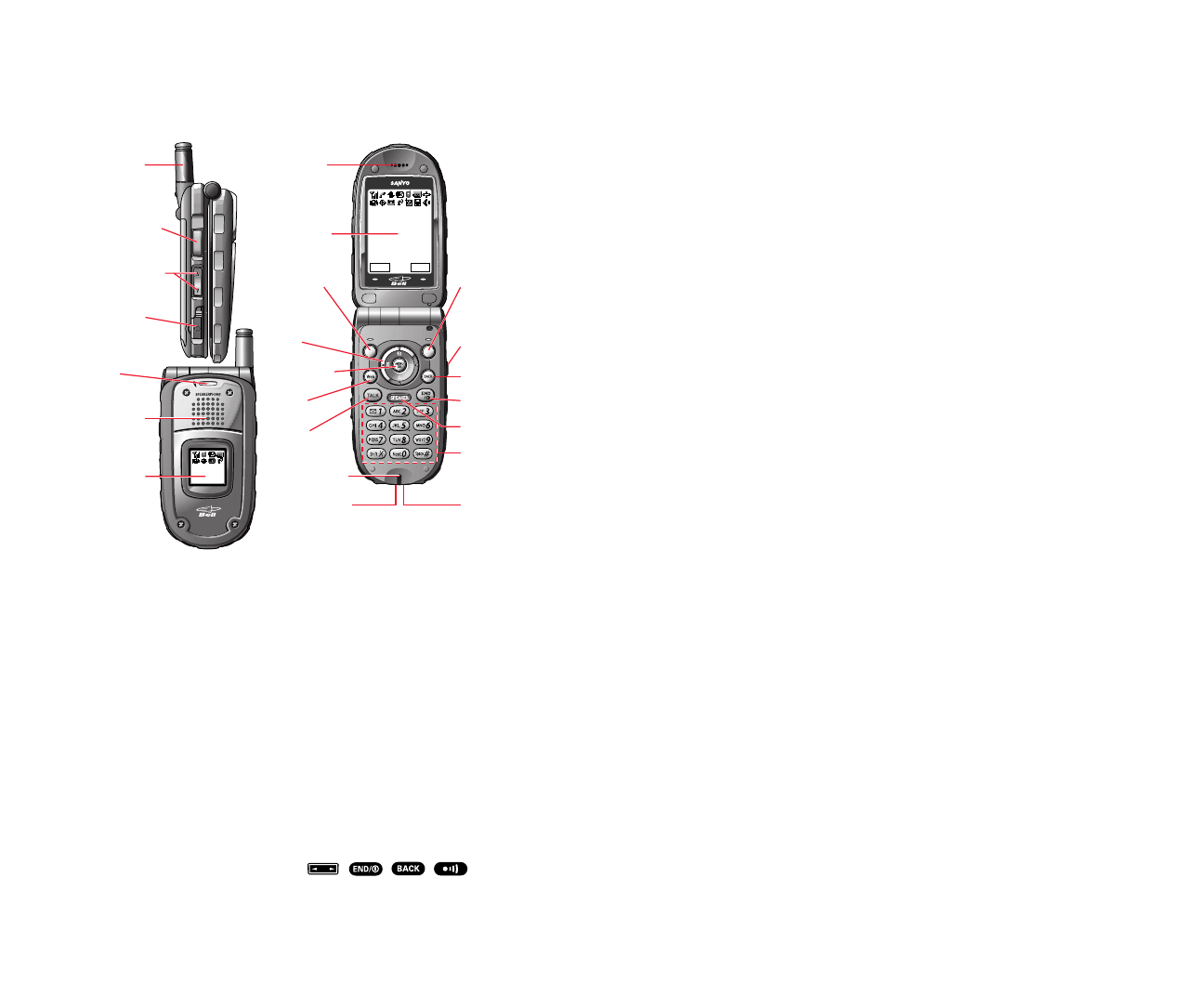
7. Sub LCD: Lets you monitor the phone’s status and see who’s
calling without opening the phone.
8. Earpiece: Lets you hear the caller’s voice.
9. Main LCD (display): Displays the phone’s main menu, features,
modes, etc.
10. Softkey (left): Lets you select the menu corresponding to the
bottom left line on the Main LCD.
11. Navigation Key: Lets you navigate quickly and easily through
the menu options. You can access menu shortcuts by pressing
Right = Contacts, Left = My Shortcut, Up = Messaging, and
Down = Downloads.
12. MENU/OK: Lets you access the phone’s menus and select menu
options.
13. Web: Lets you launch the Browser.
14. TALK: Lets you place or receive calls, answer Call Waiting, or
use Three-Way Calling and Voice Dial.
15. Microphone: To speak into or record your voice.
16. Accessories Connector: Connects optional accessories such as
a USB cable.
17. Charger Jack: Connects the Travel Charger (included).
18. Keypad: Lets you enter numbers, letters, and characters, and
navigate within menus. Press and hold keys 2-9 for speed
dialing.
19. SPEAKER Key: Lets you place or receive calls in speakerphone
mode. You can also use it to activate Voice Dial and Memo
recording.
20. END/POWER: Lets you turn the phone On/Off, end a call, or
return to standby mode.
21. BACK: Lets you clear characters from the screen or display the
previous page.
22. Side Call Key: Lets you place or receive calls without opening
the phone.
23. Softkey (right): Lets you select the menu corresponding to the
bottom right line on the Main LCD.
3
1. The Basics
Front View of Phone
Key Features
1. Antenna: Fully extend the antenna for the best reception.
2. 10-4 Button: Press to access the 10-4 List. (See “10-4” on
page 96.)
3. Side Volume Key: Lets you adjust the receiver volume during a
call or ringer volume in standby mode.
4. Headset Jack: Insert the plug of a headset (sold separately) for
hands-free phone use.
5. LED Indicator: Shows your phone’s connection status at a glance.
6. Speaker: Allows you hands-free conversation while in
speakerphone mode. Lets you hear the different ringers
and sounds. You can mute the ringer when receiving
incoming calls by pressing ,,,,or
the 10-4 Button.
2
1X Ready
Dec 20, 04 (Mon)
10:30am
10-4 Memo
1X Ready
10:30a Dec20
23. Softkey
(right)
4. Headset
Jack
2. 10-4 Button
7. Sub LCD
5. LED
Indicator
3.
Side Volume
Key 10. Softkey
(left)
14. TALK
11. Navigation
Key
12.
MENU/OK
13. Web
9. Main LCD
16. Accessories
Connector
18. Keypad
17. Charger Jack
6. Speaker
1. Antenna
15.
Microphone
8. Earpiece
20. END/POWER
21. BACK
19. SPEAKER Key
22. Side Call Key

Turning Your Phone ON and OFF
Turning Your Phone ON
To turn your phone on, press .
Once your phone is ON, it displays “Looking for service...”
which indicates that your phone is searching for a signal. When
your phone finds a signal, it automatically enters standby mode.
At this point, you are ready to begin making and receiving calls.
If your phone is unable to find a signal after 15 minutes of
searching, a Power Save feature is automatically activated.
When a signal is found, your phone automatically returns to
standby mode.
In Power Save mode, your phone searches for a signal
periodically without your intervention. You can also initiate a
search for service by pressing any key (when your phone is
turned ON).
Tip: The Power Save feature helps to save your battery power when you
are in an area where there is no signal.
Turning Your Phone OFF
Press for two seconds until you see the powering down
animation on the display screen.
Your screen remains blank while your phone is off (unless the
battery is charging).
5
Viewing the Display Screen
This list identifies the symbols you’ll see on your display screen.
shows your current signal strength. The more lines you
have, the stronger your signal.
means your phone cannot find a signal.
tells you a call is in progress.
indicates the 1X Services/10-4 access are available.
indicates the 1X Services/10-4 access are not available.
indicates 1X Data/10-4 access are connected, but voice
calls can be sent or received.
indicates 1X Data/10-4 access are active.
indicates you have new text messages waiting.
indicates you have new voicemail messages waiting.
Press and hold to call your voicemail box.
indicates you have text messages and voicemail messages
waiting.
indicates you are roaming on digital service network.
indicates you are roaming on analog service network.
indicates your phone is on analog service network.
indicates the 10-4 service is enabled.
indicates the 10-4 service is disabled.
shows the level of your battery charge. The more black you
see, the more power you have left. It turns while charging.
indicates you have menus to scroll (in four directions).
indicates the vibrate feature is set to ON.
indicates volume level 4 and vibrate feature is set to ON.
indicates the voice call ringer setting is OFF.
indicates all the sound settings are OFF.
indicates the Location Service of your phone is enabled.
indicates the Location Service of your phone is disabled.
indicates you have new caller’s message.
indicates the Screen Call Auto setting is ON.
indicates you have new downloaded data.
indicates your phone is in TTY mode.
indicates Headset mode is set to 10-4 and a headset is
connected.
indicates the speakerphone mode is set to ON.
4
Charging the Battery
Your phone comes with a rechargeable battery. You should
charge the battery as soon as possible so you can begin using
your phone.
Keeping track of your battery’s charge is important. If your
battery level becomes too low, your phone automatically turns
off and you will lose all the information you were just working
on. For a quick check of your phone’s battery level, glance at the
battery charge indicator located in the upper-right corner of
your phone’s display screen. If the battery charge is getting too
low, the battery icon appears and the phone sounds a
warning tone.
Always use an approved desktop charger, travel charger, or
vehicle power adapter to charge your battery.
Warning! Using the wrong battery charger could cause damage to your
phone and void the warranty.
Note: Long backlight settings, searching for service, vibrate mode, and
browser use affect the battery’s talk and standby times.
Using the Travel Charger
To use the travel charger provided with your phone:
1. Plug the travel charger into a wall outlet.
2. Plug the other end of the travel charger into the side of your
phone (with the battery installed).
Charging when your phone is turned on:
The battery icon appears on the display while charging.
The battery icon turns to when charging is complete.
Charging when your phone is turned off:
The battery icon appears, and the message “BATTERY
CHARGING-Power Off-” is shown on the display while
charging. When the battery is completely discharged, you may
wait for several minutes until the message is shown on the
display. The battery icon turns to , and message changes to
“CHARGING COMPLETE-Power Off-” when charging is
complete.
Tip: Be sure to watch your phone’s battery level indicator and charge the
battery before it runs out of power.
7
Using the Battery
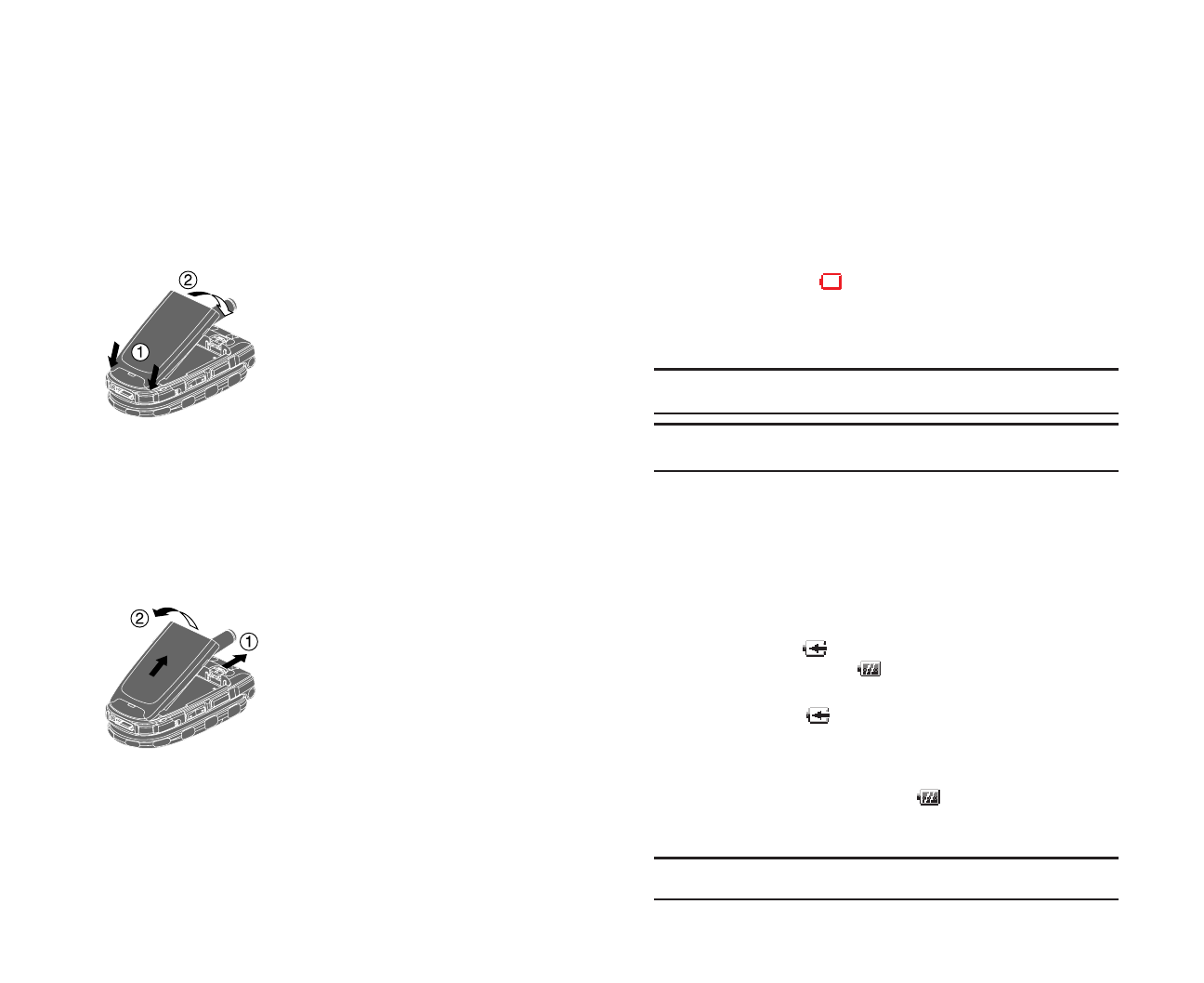
Installing the Battery
Your phone comes with a Li-Ion battery. Follow these steps to
install it:
1. Place the battery into the space beneath the antenna with the
metal contacts at the bottom, facing downward.
2. Gently press down until it’s in place and the battery release
latch snaps.
Removing the Battery
To remove your battery, follow these easy steps:
1. Make sure the power is off so that you don’t lose any stored
numbers or messages.
2. Push the battery release latch up and hold the battery.
3. Then pull it up and out at a 45-degree angle.
6
3. Follow the system prompts. (The call will be made in
speakerphone mode, unless you have a headset attached to
the phone.)
Redial to redial the last number you called.
Voice Dial to use the Voice Dial function (see “Using Voice-
Activated Dialing” on page 88).
4. When you’re finished, press and hold .
Note: To use a Voice Dial, you must have stored Voice Dial entries (see
“Programming Voice Dial Tag to Your Phone” on page 88).
Dialing Options
Dialing options are displayed when you press after
entering numbers in the standby mode.
To select an option, highlight it and press .
Call to dial the phone number.
Call:Speaker On to dial the phone number in speakerphone
mode.
Save Phone# to save the phone number in your Contacts list.
(See “Saving a Phone Number” on page 15.)
Hard Pause to insert a hard pause. (See “Dialing and Saving
Phone Numbers With Pauses” on page 16.)
2-Sec. Pause to insert a 2-second pause. (See “Dialing and
Saving Phone Numbers With Pauses” on page 16.)
Hyphen to insert a hyphen manually where you like.
Tip: To Speed Dial a phone number, press and hold the appropriate
Speed Dial location from 2-9. See page 62 for setting.
This option appears when you enter four or more digits and
press .
Find to display Contacts list entries that ends with the digits
you enter. (See “Finding a Phone Number” on page 16.)
This option appears when you enter numbers for Text Messaging
and press .
Send Text to send a text message. See page 118 for details.
T
H
9
Displaying Your Phone Number
1. Press to access the main menu.
2. Highlight Contacts and press .
3. Highlight My Phone# and press .
Note: To access the phone’s main menu, press from standby
mode. Menu items may be selected by highlighting them with the
navigation key and pressing , or you can press the number
corresponding to the menu item on your keypad.
Making and Answering Calls
Making Calls
To place a call using your keypad:
1. Make sure your phone is on.
2. Enter a phone number. (If you make a mistake while dialing,
press to erase one digit at a time. Press and hold to
erase the entire number.)
3. Press or .
4. When you’re finished, press .
Tip: To redial your last outgoing call, press or twice.
Important: When you use your phone to maximize performance, extend
the antenna and do not touch the antenna.
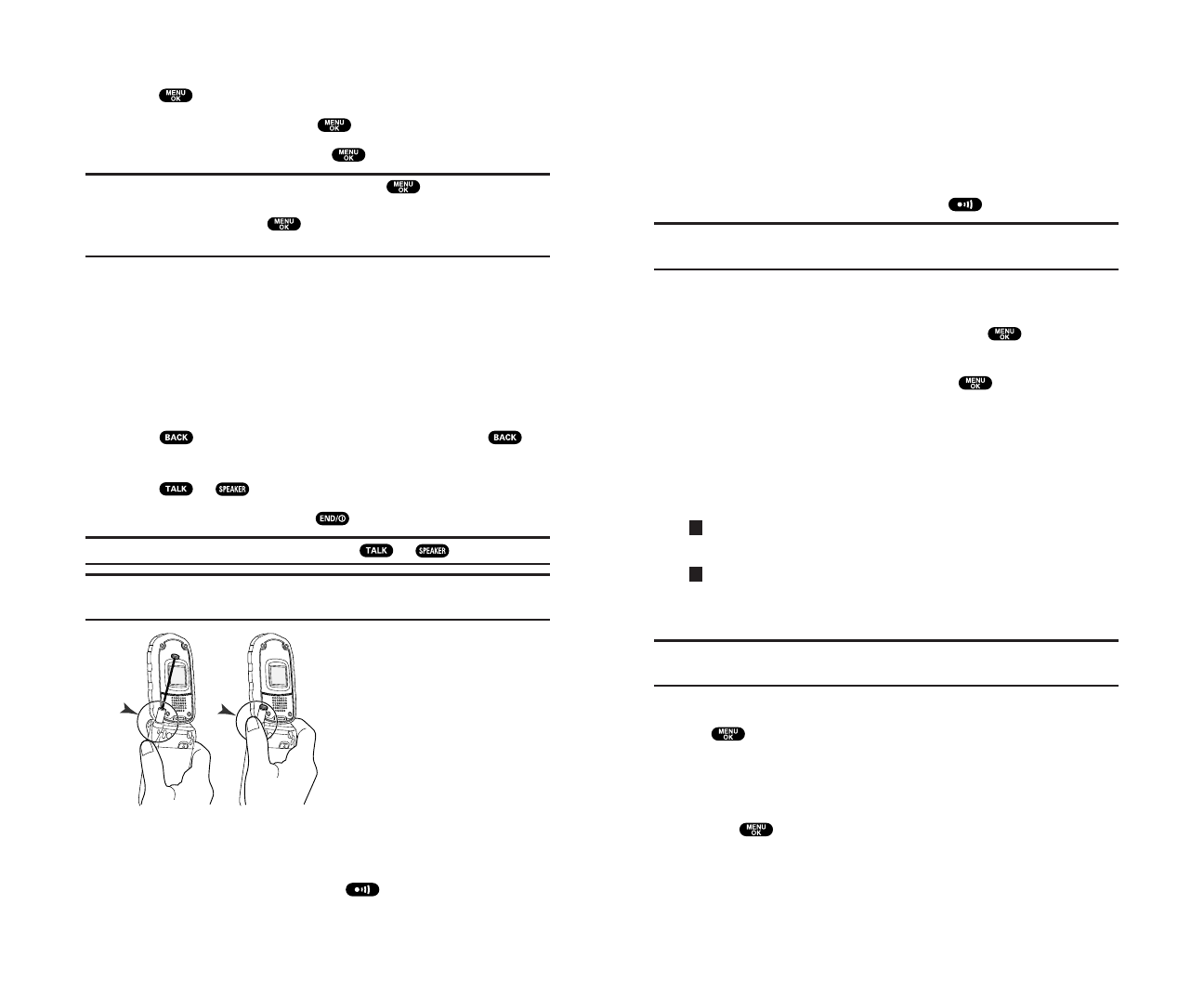
To place a call with the Flip Closed:
1. Make sure your phone is on.
2. Press and hold the Side Call key ( ) on the right side of the
phone. (You will see a message on the Sub LCD.)
Correct Incorrect
8
The following options are also displayed by pressing .
To select an option, highlight it and press .
Answer to answer the call.
Answer:Speaker to answer the call in speakerphone mode.
Don’t Answer to hang up the incoming call and return to Web
while you are in the Web operation. (This feature appears
when Web access is dormant.)
Screen Call to answer the call by using pre-recorded
announcement. (This feature appears when you are in service
area or digital roaming area.) See page 93 for setting up.
Quiet Ringer to mute the ringer. (This feature appears when
the ringer is set.)
Note: If your phone is off, incoming calls go to voicemail.
3. To disconnect the call, press .
Ending a Call
With the Flip Open:
Close the phone or press .
With the Flip Closed:
Press and hold .
Note: If the setting for Close Flip is not set to “end call,” closing the phone
will not end the call. (See “Setting the Open/Close Flip Option” on page 40.)
Tip: Time/Date is displayed when you press while the phone is in use.
11
Answering Calls
To answer an incoming call:
1. Make sure your phone is on. If your phone is off, incoming
calls go to voicemail.
2. Press or to answer an incoming call. (Depending
on your phone’s settings, you may also answer incoming calls
by opening the phone or by pressing any number key. See
“Setting Any Key Answer” on page 41 for more information.)
To answer a call with the flip closed:
1. Make sure your phone is on. (If your phone is off, incoming
calls go to voicemail.)
2. When your phone rings or vibrates, press and hold the Side
Call key ( ) on the right side of the phone. (The call will
be answered in speakerphone mode.)
– or –
Open the phone to use the earpiece.
Note: If the setting for Open Flip is not set to “Answer Call,” opening the
phone will not answer the call. (See “Setting the Open/Close Flip Option”
on page 40.)
Your phone notifies you of incoming calls in the following ways:
The phone rings or vibrates.
The LED flashes.
The backlight illuminates.
The screen displays an incoming call message.
If available, the phone number of the caller is displayed.
If the phone number is in your Contacts list, the contact’s
name is displayed.
10
Missed Call Notification
When an incoming call is not answered, your phone displays the
Missed Call Notification.
To display the Missed Call entry:
Press (left softkey). (To call an entry, highlight the entry
you want to call and press or .)
Calling Emergency Numbers
You can place calls to 911 (dial and press ),
even if your phone is locked or your account is restricted. Once
the dial is made, you will enter Emergency mode.
To select an option, press , highlight it, and press .
Options:
My Phone# to display your phone number.
Speaker On to activate speakerphone mode. (If you are in
speakerphone mode, the option will appear as Speaker Off to
deactivate.)
Unlock Phone to unlock your phone (appears only if the phone
is locked).
Even if you press , your phone is still in Emergency mode.
To exit Emergency mode:
1. Press .
2. Press to display the options.
Call 911 to call 911.
Call 911:Speaker to call 911 in speakerphone mode.
My Phone# to display your phone number.
Exit Emergency to exit Emergency mode.
3. Highlight Exit Emergency and press .
View
13
Using the Speakerphone
The speakerphone feature lets you hear audio through the
speaker and talk without holding the phone. When the
speakerphone is activated, use the Side Volume key to adjust the
volume.
To turn the speakerphone on during a call:
Press .
– or –
Press , highlight Speaker On, and press .
To turn the speakerphone off during a call:
Press .
– or –
Press , highlight Speaker Off, and press .
Changing the Ringer Volume
To change the ringer volume, adjust the Side Volume key when
the phone is in standby mode.
Note: To change the ringer volume from the main menu, see “Adjusting
the Phone’s Volume Settings” on page 26.
Adjusting Volume During a Conversation
Whether you need to hear more or less of a conversation, adjust
the Side Volume key or press the navigation key up or down
during a call.
Muting a Call
To mute a call with the Flip Open:
Press , highlight Mute, and press . (When the phone
is muted, “Mute” appears on the display.)
To unmute a call with the Flip Open:
Press , highlight Unmute, and press .
To mute a call with the Flip Closed:
Simply press (side of the phone).
To unmute a call with the Flip Closed:
Press once again during a call.
12
End-of-Call Options
To display the following options, press within 10 seconds
after disconnecting a call.
To select an option, highlight it and press .
Call Again to dial the phone number.
Call:Speaker On to dial the phone number in speakerphone
mode.
Save Phone# to save the phone number in your Contacts list.
Go to Phone Book appears when the number is already in your
Contacts list. (See “Saving a Phone Number” on this page.)
Note: The End-of-Call options are not displayed for calls identified as
No ID or Restricted.
Saving a Phone Number
Your phone can store up to seven phone numbers in each of
300 Contacts entries. Each entry’s name can contain 16 characters.
Your phone automatically sorts the Contacts entries alphabetically.
To save a number from the standby mode:
1. Enter a phone number.
2. Press .
3. Highlight Save Phone# and press .
4. Select a label by highlighting Home,Work,Mobile,Pager,Data,
Fax or No Label and press .
5. Enter a Name and press . (See “Selecting a Character
Input Mode” on page 18.) If you have already stored entries
in Contacts list, you are prompted to select the following
entry modes:
New Name to enter a name directly.
From Ph. Book to select a name from the Contacts entry list.
6. Press (left softkey).
Save
15
In-Call Options
During a call, your phone displays menu options by pressing .
To select an option, highlight it and press .
Flash to answer an incoming Call Waiting call or connect a
third party during Three-Way Calling.
Mute to mute your phone’s microphone. Select Unmute to
reactivate the microphone.
Speaker On or Speaker Off to activate or deactivate
speakerphone mode. You can adjust the speakerphone
volume using the Side Volume key.
Warning! Due to higher volume levels, do not place the phone near your
ear during speakerphone use.
Three -Way Call to call a third party.
Call History to access the Call History menu. (See “Managing
Call History” on page 54.)
Contacts to access the Contacts menu. (See “Contacts
Directory” on page 57.)
Messaging to access the Messaging menu. (See “Messaging” on
page 116.)
Settings to access the Settings menu. (See “Your Phone’s
Settings” on page 22.)
Tools/Extras to access the Tools/Extras menu. (See Calendar
menu instructions on page 67.)
Voice Services to access the Voice Services menu. (See
page 88.)
Phone Info to access the Phone Info menu. (See page 76.)
Note: Flash menu appears in Call Waiting and Three-Way Call.
Mute menu does not appear during a 911 call.
14
Dialing From the Contacts Directory
To dial directly from a Contacts entry:
1. Press to access the main menu.
2. Highlight Contacts and press .
3. Highlight Find/Add Entry and press .
Shortcut: Press the navigation key right to list entries.
4. Use your navigation key to scroll through the Contacts list and
highlight one of the appropriate entries and press .
5. Highlight the number you wish to call.
6. Press (right softkey) for the menu options.
7. Highlight Call or Call:Speaker On and press .
Tip: You can also make a call by pressing , , or (left
softkey) during step 5 above.
Note: The icon next to each entry represent the Contacts labels (for
example, Home, Work, Mobile, etc.). A triangle next to an icon means
there is another number for the entry. Press the navigation key right or
left to select the desired label/number.
Call
Options
17
Finding a Phone Number
You can search Contacts list entries for phone numbers that
contain a specific string of numbers.
To find a phone number:
1. Enter the last four or more digits of the number and press .
The more numbers you enter, the more specific the search
becomes.
2. Highlight Find and press .
3. The Contacts entry that ends with the digits you entered
appears.
4. Highlight your desired entry.
Press to display the entry details.
Press or to dial.
Dialing and Saving Phone Numbers With Pauses
You can dial or save phone numbers with pauses for use with
automated systems, such as voicemail or credit card billing
numbers.
There are two types of pauses available on your phone:
Hard Pause sends the next set of numbers when you press .
2-Sec. Pause automatically sends the next set of numbers after
two seconds.
Note: You can have multiple pauses in a phone number and combine
2-second and hard pauses.
To dial or save phone numbers with pauses:
1. Enter the phone number and press .
2. Highlight either Hard Pause or 2-Sec. Pause and press .
Hard Pauses are displayed as a “H” and 2-second pauses as a “T”.
3. Enter additional numbers.
4. To dial the number, press or . (When dialing a
number with a hard pause, press to send the next set of
numbers.)
– or –
To save the number in your Contacts list, press , highlight
Save Phone#, and press .
16

Entering Characters Using T9 Text Input
T9 Text Input lets you enter text in your phone by pressing keys
just once per letter. (To select the T9 Word mode when entering
text, see “Selecting a Character Input Mode” above.)
T9 Text Input analyses the letters you enter using an intuitive
word database and creates a suitable word. (The word may
change as you type.) If the word you want does not display after
you have entered all the letters, press to scroll through
additional word selections. To accept a word and insert a space,
press .
If you make a mistake, press to erase a single character.
Press and hold to delete an entire entry.
Adding a Word to the T9 Database
If a word you want to enter does not display as an option when
you are using T9 Text Input, you can add it to the database.
1. Select the Alphabet input mode. (See “Selecting a Character
Input Mode” on the previous page.)
2. Enter the word using multi-tap text entry. (See “Entering
Characters by Tapping the Keypad” on the next page.)
Then press the right softkey, highlight T9 Word and press .
The word will appear as an option the next time you scroll
through options during T9 Text Input.
19
Using One-Touch Speed Dialing
With this feature, you can dial Speed Dial entries using one key
press for locations 2-9. (See page 62 for storing a Speed Dial
number.)
To use speed dial for voice calls:
From standby mode, press and hold the appropriate key for
approximately two seconds.
– or –
From standby mode, press the appropriate key and
press or .
The display confirms that the number has been dialed when it
shows “Connecting...”.
To use speed dial for 10-4 calls:
From standby mode, press the appropriate key then press and
hold . (See “Setting Speed Dialing for 10-4 Entries” on
page 114.)
The display confirms that the number has been dialed when it
shows “10-4 calling...”.
Selecting a Character Input Mode
Your phone provides convenient ways to enter words, letters,
punctuation, and numbers whenever you are prompted to enter
text (for example, when adding a Contacts entry or when
sending Email messages).
1. When you display a screen where you can enter text, press
(right softkey).
2. Select a character input mode, highlight it and press .
T9 Word to enter characters using T9 Text Input (see
next page).
Alphabet to enter characters by tapping the keypad
(see page 20).
SYMBOL to enter symbols (see page 21).
NUMBER to enter numbers (see page 21).
CANNED SUFFIX to enter a canned suffix (see page 21).
SMILEYS to enter smiley pictures (see page 21).
Mode
18
Entering Numbers, Symbols, Canned Suffix and Smileys
Entering NUMBER
1. In a text entry field, press (right softkey).
2. Highlight NUMBER and press .
3. Press the corresponding numeric key to enter the number.
Shortcut: Press and hold the corresponding numeric key to enter the
number directly in alphabet mode or T9 mode.
Entering SYMBOL
1. In a text entry field, press (right softkey).
2. Highlight SYMBOL and press .
3. Highlight the line that includes your desired symbol.
4. Press the corresponding key (1~8) with each symbol.
– or –
Highlight your desired symbol by using the navigation key,
and press .
Entering CANNED SUFFIX
1. In a text entry field, press (right softkey).
2. Highlight CANNED SUFFIX and press .
3. Highlight your desired word by using the navigation key and
press .
Entering SMILEYS
1. In a text entry field, press (right softkey).
2. Highlight SMILEYS and press .
3. Highlight the line that includes your desired smiley.
4. Press the corresponding key (1~4) with each smiley.
– or –
Highlight your desired smiley by using the navigation key, and
press .
This feature does not apply in 10-4 mode.
Mode
Mode
Mode
Mode
21
Entering Characters by Tapping the Keypad
To enter characters by tapping the keypad, select the Alphabet
mode (see “Selecting a Character Input Mode” on page 18).
Press the corresponding key until the desired character appears.
By default, the first letter of a word is capitalized and following
letters are lowercase.
Characters scroll in the following order:
In French mode, characters scroll in the following order.
See page 44 for changing French entering mode.
After a character is entered, the cursor automatically advances to
the next space after two seconds or when you enter a character
not on the same key.
Tip: The beginning of the word after the space is changed to
upper/lower case depending on shift mode. You can change the shift
mode by pressing .
French Sequence
Upper Case
Key
. , @ 1 ? ! * # /
A B C À Â Ç 2
D E F É È Ê Ë 3
G H I Î Ï 4
J K L 5
M N O Ô 6
P Q R S 7
T U V Ù Û Ü 8
W X Y Z 9
a b c à â ç 2
d e f é è ê ë 3
g h i î ï 4
j k l 5
m n o ô 6
p q r s 7
t u v ù û ü 8
w x y z 9
0
Space
Unshifted One-character- shifted Caps Lock
Lower Case
English Sequence
Upper Case
Key
. , @ 1 ? ! * # /
A B C 2
D E F 3
G H I 4
J K L 5
M N O 6
P Q R S 7
T U V 8
W X Y Z 9
a b c 2
d e f 3
g h i 4
j k l 5
m n o 6
p q r s 7
t u v 8
w x y z 9
0
Space
Unshifted One-character- shifted Caps Lock
Lower Case
20
Selecting Ringer Types for Voicemail
1. Press to access the main menu.
2. Highlight Settings and press .
3. Highlight Sounds and press .
4. Highlight Ringer Type and press .
5. Highlight Voicemail and press .
6. Select the menu under Voicemail and press .
7. Highlight your desired ringer type and press .
Ringer Type to select a ringer type. You can hear each ringer
type by scrolling.
Voice Ringer to notify you with Voice for voicemail.
Get New: start up the Browser and you can select an item to
download. (See page 79.)
Selecting Ringer Types for Messages
1. Press to access the main menu.
2. Highlight Settings and press .
3. Highlight Sounds and press .
4. Highlight Ringer Type and press .
5. Highlight Messaging and press .
6. Select the menu under Messaging and press .
7. Highlight your desired ringer type and press .
Ringer Type to select a ringer type. You can hear each ringer
type by scrolling.
Voice Ringer to notify you with Voice for Messages.
Get New: start up the Browser and you can select an item to
download. (See page 79.)
23
2. Your Phone’s Settings
Reminder: To access the phone’s main menu, press from standby
mode. Menu items may be selected by highlighting them with the
navigation key and pressing .
Sound Settings
Selecting Ringer Types for Voice Calls
To select a ringer type for voice calls so you recognize when a
certain type of call is coming in by the ringer:
To select a ringer type for voice calls:
1. Press to access the main menu.
2. Highlight Settings and press .
3. Highlight Sounds and press .
4. Highlight Ringer Type and press .
5. Highlight Voice Calls and press .
6. Select the menu under With Caller ID or No Caller ID and
press .
7. Highlight your desired ringer type and press .
Ringer Type to select a ringer type. You can hear each ringer
type by scrolling.
Ringer & Voice to notify you with Ringer & Voice for voice calls.
Get New: start up the Browser and you can select an item to
download. (See page 79.)
To select a distinctive ringer for voice calls while roaming:
1. Follow steps 1-5 above.
2. Select Roaming and press .
3. Select Distinctive and press .
To confirm the ringer, press Play (right softkey).
If you want to deactivate this feature, select Normal during
step 3 above.
Note: The Normal ringer is available only when you are in digital roaming
area.
22

Setting a Start-up/Power-off Tone
1. Press to access the main menu.
2. Highlight Settings and press .
3. Highlight Sounds and press .
4. Highlight Others and press .
5. Select the menu under Start-up Tone or Power-off Tone and
press .
6. Highlight your desired option and press .
Tone to select a tone. You can hear each ringer type by
scrolling.
Get New: start up the Browser and you can select an item to
download. (See page 79.)
Tip: The volume of the Start-up Tone and Power-off Tone can be set
through the volume setting. See next page for instructions.
Using Voice Prompt
This feature allows you to hear voice prompts at Voice Memo,
Screen Call setting or Voice Dial etc. (Default Setting is On.)
To deactivate this feature:
1. Follow the steps 1-4 above.
2. Select the menu under Voice Prompt and press .
3. Highlight Off and press .
Tip: When ringer volume is set to “Silence All”, voice prompts cannot be
heard.
25
Selecting Ringer Types for Calendar
1. Press to access the main menu.
2. Highlight Settings and press .
3. Highlight Sounds and press .
4. Highlight Ringer Type and press .
5. Highlight Calendar and press .
6. Select the menu under Calendar and press .
7. Highlight your desired ringer type and press .
Ringer Type to select a ringer type. You can hear each ringer
type by scrolling.
Voice Ringer to notify you with Voice for scheduled events.
Get New: start up the Browser and you can select an item to
download. (See page 79.)
Selecting a Tone Length
1. Press to access the main menu.
2. Highlight Settings and press .
3. Highlight Sounds and press .
4. Highlight Others and press .
5. Select the menu under Tone Length and press .
6. Highlight Short or Long and press .
Setting 10-4 Incoming Tone
1. Press to access the main menu.
2. Highlight Settings and press .
3. Highlight 10-4 and press .
4. Highlight Incoming Tone and press .
5. Select Single or Continuous and press .
Single to notify you of an incoming 10-4 call with a single tone.
Continuous to notify you of an incoming 10-4 call with a
continuous tone.
24
Alert Notification
Your phone comes with several different options to keep you
aware of what’s going on by sounding the alert or ringer.
Service sets alert On or Off for network services parameter
changes.
Voicemail sets alert to notify you of caller’s message(s).
Messaging sets alert to notify you of text message(s).
Minute Beep sets a minute reminder that beeps ten seconds
before the end of each minute during a call.
Signal Fade sets alert to notify you when your phone loses a
signal during a call.
To set the alerts:
1. Press to access the main menu.
2. Highlight Settings and press .
3. Highlight Sounds and press .
4. Highlight Alerts and press .
5. Highlight your desired option and press .
6. If you selected Service,Minute Beep or Signal Fade, select On or
Off. If you selected Voicemail or Messaging, select Once,
Repeat Alert or Off.
Tip: Repeat Alert sounds every two minutes for twenty minutes.
27
Adjusting the Phone’s Volume Settings
To adjust the ringer/key volume:
1. Press to access the main menu.
2. Highlight Settings and press .
3. Highlight Sounds and press .
4. Highlight Ringer/Key Vol. and press .
5. Select the menu you wish to change and press .
Ringer Volume for adjusting Ringer tone volume.
Start-up/Pw-off for adjusting Start-up/Power-off tone volume.
Key Beep for adjusting Key Beep tone volume.
6. Adjust the volume level by using the navigation key up or
down and press .
Vibrate to set the vibrate feature to on and the ringer volume to
off. (Only appears in Ringer Volume Setting.)
Ringer Off to set the Voice Call ringer volume to off.
(Only appears in Ringer Volume Setting.)
Silence All to set all the ringer volume to off. (Only appears in
Ringer Volume Setting.) See “Silence All” on page 28.
To adjust Earpiece volume:
1. Press to access the main menu.
2. Highlight Settings and press .
3. Highlight Sounds and press .
4. Highlight Receiver Vol. and press .
5. Select either Earpiece or Speaker and press .
When you use speakerphone mode, select Speaker during
step 5 above.
6. Adjust the volume level by using the navigation key up or
down and press .
Tip: You can adjust the ringer volume in standby mode by using
Side Volume key, and adjust earpiece volume during a call by using
the navigation key up or down or Side Volume key.
26
Display Settings
Changing the Greeting
To display or change your custom greeting:
1. Press to access the main menu.
2. Highlight Settings and press .
3. Highlight Display and press .
4. Highlight Greeting and press .
5. Highlight Custom and press .
You can customize the greeting. (See “Selecting a Character
Input Mode” on page 18.)
6. Press .
To display the default greeting:
1. Follow steps 1 to 4 above.
2. Highlight Default and press .
29
Silence All
1. Press to access the main menu.
2. Highlight Settings and press .
3. Highlight Sounds and press .
4. Highlight Ringer/Key Vol. and press .
5. Highlight Ringer Volume and press .
6. Press the navigation key down until “Silence All” appears on
the display and press .
To deactivate this feature, select a volume level you wish
during step 6 above.
Tip: When Ringer Volume is set as Silence All, other items are changed
to Off and cannot be highlighted by cursor.
28
Changing the Display Screen
Your new phone offers animation for what you see on the
display screen when in Standby mode, Outgoing Calls or Service
Search.
1. Press to access the main menu.
2. Highlight Settings and press .
3. Highlight Display and press .
4. Highlight Animation and press .
5. Highlight Standby,Outgoing Calls, or Service Search and
press .
6. Select the menu under the item and press .
7. Select your desired option and press .
Press (right softkey) to see an example display.
For Standby, also set animation starting time. Select the option
under after and press , then highlight your desired setting
time and press .
Preset to use the pre-programmed animation.
Get New: start up the Browser and you can select an item to
download. (See page 80.)
To deactivate this feature, select Off during step 6 above.
Changing the Display for Incoming Calls
1. Press to access the main menu.
2. Highlight Settings and press .
3. Highlight Display and press .
4. Highlight Incoming Calls and press .
5. Select the menu under Incoming Calls and press .
6. Highlight your desired color or image and press .
Get New: start up the Browser and you can select an item to
download. (See page 80.)
To see a display preview, press (right softkey) during
step 6 above.
Preview
Preview
31
Changing the Backlight Time Length
To change the Main LCD or Sub LCD backlight setting:
1. Press to access the main menu.
2. Highlight Settings and press .
3. Highlight Display and press .
4. Highlight Backlight and press .
5. Highlight Main LCD or Sub LCD and press .
6. Select Always On,Always Off or your defined time length and
press .
Always Off always turns the backlight off.
Always On always turns the backlight on.
Note: The Always On setting returns to the previous value the next time
you turn on the phone.
Note: Depending on the Sleep Mode setting, the LCD backlight turns off
even the setting is Always On. (See page 42 for details.)
To change Keypad backlight setting:
1. Select Key during step 5, and press .
2. Select Always Off or your defined time length and press .
Note: Long backlight settings affect the battery’s talk and standby times.
30
33
Changing the Display for the Standby Mode
1. Press to access the main menu.
2. Highlight Settings and press .
3. Highlight Display and press .
4. Highlight Standby Display and press .
5. Select your desired item and press .
Screen Saver selects the screen saver to display.
Calendar displays the Calendar.
Digital Clock displays the local time in digital view.
Analog Clock displays the local time in analog view.
World Clock displays the time of the selected country along
with the local time. You can scroll the World Clock list and
change the country by pressing the navigation key right or
left. When applicable, the (left softkey)/
(right softkey) can be used to change between summer and
standard time.
Tip: You can also display the World Clock from Tools/Extras menu.
See “Using the World Clock” on page 77.
Default sets this feature to default.
6. After following each system prompt or confirming the
preview display, press to save the setting.
StandardSummer
32
Changing the Screen Saver
1. Press to access the main menu.
2. Highlight Settings and press .
3. Highlight Display and press .
4. Highlight Standby Display and press .
5. Select Screen Saver and press .
6. Select the menu under Screen Saver and press .
7. Highlight your desired screen saver and press .
Preset to select a pre-installed screen saver.
Get New: start up the Browser and you can select an item to
download. (See page 80.)
To see a display preview, press (right softkey) during
step 7 above.
8. Press (left softkey) to save the screen saver.
Changing the Display for My Buddy
This feature enables you to see a funny animation for 30 seconds
on the Main LCD after opening the flip.
1. Press to access the main menu.
2. Highlight Settings and press .
3. Highlight Display and press .
4. Highlight My Buddy and press .
5. Select On or Off and press .
Press (right softkey) during step 5 above to see a
display preview. Press the right softkey to switch between
Main/Sub LCD.
Press (left softkey) to see My Buddy information.
Info
Preview
Save
Preview
Changing the Display Color
1. Press to access the main menu.
2. Highlight Settings and press .
3. Highlight Display and press .
4. Highlight Color and press .
5. Highlight Main LCD or Sub LCD and press .
6. Select your desired color and press .
Changing the Font Size
1. Press to access the main menu.
2. Highlight Settings and press .
3. Highlight Display and press .
4. Highlight Font Size and press .
5. Highlight either Message or Browser and press .
6. Select your desired font size.
Press (right softkey) to display a font size example.
7. Press to set the selected font.
Tip: From the font example display, you can switch the your desired font
displays by pressing the navigation key right or left.
Preview
35
Changing the LED Indicator Color
1. Press to access the main menu.
2. Highlight Settings and press .
3. Highlight Display and press .
4. Highlight LED and press .
5. Select During Call,Incoming Calls,Voicemail,Messaging,or
Calendar and press .
Incoming Calls allows you to select the menu from
With Caller ID,No Caller ID, or Roaming. To select your desired
menu, highlight it and press .
6. Select your desired color patterns and press .
To deactivate this feature, select Off during step 6 above.
Changing the Phone’s Main Menu Style
Your phone allows you to choose how the menu appears on
your display screen.
1. Press to access the main menu.
2. Highlight Settings and press .
3. Highlight Display and press .
4. Highlight Main Menu and press .
5. Select either Graphic or Text and press .
34
37
Location Settings
Your phone is equipped with a Location feature which
will allow the network to detect your position, making some
Applications easier to use. Turning Location off will hide your
location from everyone except 911.
Note: Even if the Location feature is enabled, no service may use your
location without your expressed permission.
To enable your phone’s Location feature:
1. Press to access the main menu.
2. Highlight Settings and press .
3. Highlight Location and press .
4. Press or (left softkey) or wait a few seconds until the
message scrolls down completely.
5. Select On and press .
To deactivate this feature, select Off during step 5 above.
Tip: When the Location feature is on, your phone’s standby screen will
display the icon. When Location is turned off, the icon will be
displayed.
OK
36
TTY Use
A TTY (also known as a TDD or Text Telephone) is a
telecommunications device that allows people who are deaf or
hard of hearing, or who have speech or language disabilities, to
communicate via a telephone.
Your phone is compatible with select TTY devices. Please check
with the manufacturer of your TTY device to ensure that it
supports digital wireless transmission. Your phone and TTY
device will connect via a special cable that plugs into your
phone’s headset jack. If this cable was not provided with your
TTY device, contact your TTY device manufacturer to purchase
the connector cable.
1. Press to access the main menu.
2. Highlight Settings and press .
3. Highlight Others and press .
4. Highlight TTY and press . (You will see a message on the
display.)
5. Press or (left softkey) to continue.
6. Select Enable or Disable and press .
Note: When you connect TTY devices, your phone will display in TTY
mode.
Note: If TTY mode is enabled, the audio quality of non-TTY devices
connected to the headset jack may be impaired.
IMPORTANT NOTICE: 911 Emergency Calling
It is recommended that TTY users make emergency calls by other means
including cellular and landline communications.
OK
Phone Setup Options
My Shortcut
Your phone offers you the option of assigning a shortcut key to a
favourite or often-used function. Pressing the navigation key left
in standby mode will launch your user-defined shortcut.
1. Press to access the main menu.
2. Highlight Settings and press .
3. Highlight Others and press .
4. Highlight My Shortcut and press .
5. Select the menu under My Shortcut and press .
6. Highlight your desired menu option and press .
Press (right softkey) during step 5 above to see the My
Shortcut information.
Auto Answer Mode
This feature sets the phone to automatically pick up after 5 or 15
seconds.
1. Press to access the main menu.
2. Highlight Settings and press .
3. Highlight Others and press .
4. Highlight Auto Answer and press .
5. Select Car Kit/Headset or Speaker Phone and press .
6. Select either 5 Seconds or 15 Seconds and press .
To deactivate this feature, select Off during step 6 above.
Info
39
Airplane Mode
When your phone is in Airplane mode, it cannot send or receive
any calls (except for 911 dialing) or access online information.
You may still use the phone’s other features, such as Voice Memos,
Calculator, Calendar, etc., while you are in Airplane mode.
1. Press to access the main menu.
2. Highlight Settings and press .
3. Highlight Others and press .
4. Highlight Airplane Mode and press .
5. The display shows a message. Press or (left softkey).
Press (right softkey) to return to the setting display.
6. Select On and press .
To deactivate this feature, select Off during step 6 above.
Note: While in Airplane mode, your phone’s standby screen will display
“Phone Off.”
Cancel
OK
38
Setting Any Key Answer
This feature allows you to answer incoming calls by pressing any
key (except ,,,,,,or the
navigation key).
1. Press to access the main menu.
2. Highlight Settings and press .
3. Highlight Others and press .
4. Highlight Any Key Answer and press .
5. Select On and press .
To deactivate this feature, select Off during step 5 above.
Setting Side Key Guard
This feature enables you to lock your side key (10-4 button,
Side Volume key, Side Call key) while the flip is closed.
1. Press to access the main menu.
2. Highlight Settings and press .
3. Highlight Others and press .
4. Highlight Side Key Guard and press .
5. Select On and press .
Key Guard appears on the Sub LCD when you press any side
key while the flip is closed.
To deactivate this feature, select Off at step 5 above.
Note: This feature does not apply when the flip is open.
41
Setting the Open/Close Flip Option
This feature enables you to answer an incoming call by opening
the flip or to end a call by closing the flip.
To activate the Open Flip feature:
1. Press to access the main menu.
2. Highlight Settings and press .
3. Highlight Others and press .
4. Highlight Open/Close Flip and press .
5. Highlight Open and press .
6. Select Answer Call and press .
To deactivate this feature, select No Action during step 6.
To activate the Close Flip feature:
1. Follow steps 1-4 above.
2. Highlight Close and press . (You will see a message on the
display.)
3. Press (left softkey) to continue.
4. Select End Call and press .
To deactivate this feature, select Mute during step 4.
Note: This feature does not apply when you are using the speakerphone,
a headset, or a car kit.
OK
40
Setting Message Notification
You can see message notification when you receive a text
message or Voicemail while you are in Web applications,
Browser mode, or Voice Calls.
1. Press to access the main menu.
2. Highlight Settings and press .
3. Highlight Messaging and press .
4. Highlight Display Pop-up and press .
5. Check the box next to Games/Apps,Browser or Voice Calls and
press (left softkey).
Press (right softkey) during step 5 above to see the
Messages information.
Setting Push Options
This feature allows you to connect Web Alerts page automatically
if possible when you receive. See page 116 for Web Alerts.
1. Press to access the main menu.
2. Highlight Settings and press .
3. Highlight Messaging and press .
4. Highlight Push Options and press .
5. Select Yes and press .
To deactivate this feature, select No during step 5 above.
Info
Save
43
Headset Mode
This feature allows you hands-free phone use. Set the headset
mode to Voice Call or 10-4 and press the Turbo Button (the
operation button) on the headset to activate useful functions.
To set headset mode:
1. Press to access the main menu.
2. Highlight Settings and press .
3. Highlight Others and press .
4. Highlight Headset Mode and press .
5. Select Voice Call or 10-4 and press .
Press (right softkey) during step 5 above to see the
Headset Mode information screen.
To deactivate this feature, select Off during step 5 above.
With the headset:
Voice Call: Press the Turbo Button to activate Voice dial.
Press twice to redial the last call. Press and hold the button to
record a Voice Memo.
10-4: Press and hold the Turbo Button to redial the last
10-4 call.
Note: If your headset doesn’t have a Turbo Button, set headset mode to Off.
Sleep Mode
This feature helps conserve your battery power by restricting
the display.
1. Press to access the main menu.
2. Highlight Settings and press .
3. Highlight Display and press .
4. Highlight Sleep Mode and press .
5. Highlight Main LCD or Sub LCD and press .
6. Highlight your desired option and press .
To deactivate this feature, highlight Off during step 6 above.
Info
42
3. Security
Accessing the Security Menu
You must enter your lock code to view the Security menu.
1. Press to access the main menu.
2. Highlight Settings and press .
3. Highlight Security and press .
4. Enter your lock code.
Tip: If you can’t recall your lock code, try using the last four digits of your
phone number or 0000.
Locking Your Phone
When your phone is locked, you can only receive incoming calls
or make calls to 911, Customer Service, or special numbers.
1. From the Security Menu display (See “Accessing the Security
Menu” above), highlight Lock Phone and press .
2. Highlight Lock Now or On Power-up and press .
3. Depending on your preference, highlight either Full Lock or
Excp. Incom.Calls and press .
Full Lock: All phone calls except for emergency number,
(Customer Service) or special numbers
cannot be made. No phone calls can be received except for
special numbers.
Excp. Incom.Calls: All phone calls except for emergency
number, (Customer Service) or special
numbers cannot be made, but all incoming calls can be
received.
Tip: If you want to cancel the “On Power-up” setting before turning the
phone off, select Unlocked during step 2 above.
45
Editing Canned Messages
Your phone can store pre-set (canned) messages for use with
text messaging. You can edit your phone’s default canned
messages through the Settings menu.
1. Press to access the main menu.
2. Highlight Settings and press .
3. Highlight Messaging and press .
4. Highlight Canned Msgs and press .
5. Select the message you want to edit and press .
To reset all messages, press (right softkey), select
Reset All Msgs, and press during step 5 above.
6. Use your keypad to edit the message and press (left
softkey) or to save your changes. (“Canned Msgs Saved”
will display.)
Note: For information on editing text, see “Selecting a Character Input
Mode” on page 18.
Setting the Current Time
1. Press to access the main menu.
2. Highlight Settings and press .
3. Highlight Others and press .
4. Highlight Set Time/Date and press .
5. Set the current time and date and press .
Note: This feature is only available when you are in an area with no
digital network available.
Changing the Menu Language
1. Press to access the main menu.
2. Highlight Settings and press .
3. Highlight Others and press .
4. Highlight Language and press .
5. Select Français and press .
OK
Options
44

Restricting Calls
You can restrict phone numbers your phone dials or receives.
(The Restrict Calls setting does not apply to 911 or Customer
Service.)
1. From the Security Menu display (See “Accessing the Security
Menu” on page 45), highlight Others and press .
2. Highlight Limit Use and press .
3. Select the menu under Outgoing Calls or Incoming Calls and
press .
4. Highlight your desired option and press .
Options:
Allow All: You can make or receive all calls.
PhoneBook Only: Only Contacts entries, Voicemail or special
numbers (see next page) are available to make or receive calls.
Special #s Only: Only three special numbers are available to
make or receive calls.
Note: Restricted incoming calls are forwarded to voicemail.
47
Unlocking Your Phone
1. Press (left softkey).
2. Enter your lock code.
Changing the Lock Code
1. From the Security Menu display (See “Accessing the Security
Menu” on the previous page), highlight Others and press .
2. Highlight Change Lock and press .
3. Enter new lock code, “1234” for example, in the box under
New Code.
4. Reenter the new code in the box under Reenter Code.
Calling in Lock Mode
You can place calls to 911 and to your special numbers when in
lock mode.
To place an outgoing call in lock mode:
To call an emergency number, special number, or Customer
Service, enter the phone number and press .
Unlock
46
Erasing the Downloads
1. From the Security Menu display (See “Accessing the Security
Menu” on page 45), highlight EraseDownload and press .
2. If you’re sure you want to erase all data downloaded from the
Web, highlight Yes and press .
If you have assigned downloaded data, the function returns to
its default setting.
Resetting Your Phone
Resetting the phone restores all the factory defaults, including
the ringer types and display settings. The Contacts, Call History,
Scheduler, and Messaging are not affected.
1. From the Security Menu display (See “Accessing the Security
Menu” on page 45), highlight Reset Phone and press .
2. If you’re sure you want to reset your phone, highlight Yes and
press .
49
Using Special Numbers
You can save three special numbers in addition to your Contacts
entries (the same number may be in both directories). You can
make and receive calls from special numbers even when your
phone is locked.
To add or replace a special number:
1. From the Security Menu display (See “Accessing the Security
Menu” on page 45), highlight Others and press .
2. Highlight Special #s and press .
3. Highlight the box under the entry number and press .
4. Enter the number you wish to add and press .
– or –
Press (right softkey), then highlight From Ph. Book or
Voicemail and press .
5. When you have finished entering or changing your special
numbers, press (left softkey).
To insert pauses into a special number:
1. From step 4 above, enter the phone number and press
(right softkey) for the options.
2Highlight Hard Pause,2-Sec. Pause, or Hyphen and press .
3. Finish entering the rest of the numbers and press .
Erasing the Contacts Directory
1. From the Security Menu display (See “Accessing the Security
Menu” on page 45), highlight Erase Ph. Book and press .
2. If you’re sure you want to erase your Contacts, highlight Yes
and press .
Options
Done
Options
48
Note: If you’re on a call when you leave the home network and enter an
area where roaming is available (whether digital or analog), your call is
dropped. If your call is dropped in an area where you think service is
available, turn your phone off and on again to reconnect to the home
network.
Note: When using your phone in analog mode, the handset may feel
warm. This behaviour is normal for analog operation.
Setting Your Phone’s Roam Mode
Your phone allows you to control your ability to roam. By using
the Roaming menu option, you can determine which signals your
phone accepts.
Set Mode
Choose from four different settings on your dual band/tri mode
phone to control your roaming experience:
1. Press to access the main menu.
2. Highlight Settings and press .
3. Highlight Roaming and press .
4. To select an option, select it and press .
Automatic: This setting seeks Service. When Service is
unavailable, the phone searches for an alternate system.
Home Only: This setting allows you to access the home
network only and prevents roaming on other networks.
Digital Only: This setting forces the phone to seek a digital
roaming system.
Analog Only: This setting forces the phone to seek an analog
roaming system. The previous setting (Automatic, Home
Only, or Digital Only) is restored the next time the phone is
turned on.
51
4. Roaming
Understanding Roaming
Recognizing Icons on the Display Screen
Your phone’s display screen always lets you know when you’re
off the home network and whether your phone is operating in
analog or digital mode. The following chart indicates what you’ll
see depending on where you’re using your phone.
Network Indicator
Digital Home
Analog Home
Digital Roaming
Digital Roam
Analog Roaming
Analog Roam
Roaming on Digital Networks
When you’re roaming on digital networks, your call quality and
security will be similar to the quality you receive when making
calls on the home network. You may not be able to access
certain features, such as Web.
Roaming on AnalogNetworks
When you roam on analog networks, you will experience a
similar quality provided by other analog carriers today. Although
some features, such as Web, will be unavailable, you can still
make and receive calls. You will experience a few differences:
You are more likely to experience, cross-talk, fade-out, and
dropped calls.
Some features which are standard on the home network are
unavailable.
There are security and privacy risks (eavesdropping and
cloning) that exist with conventional analog services today.
Your battery needs recharging sooner when you use your
phone for analog roaming.
50

6. Settings
1. Sounds
2. Display
3. Internet
4. 10-4
5. Location
6. Roaming
7. Messaging
8. Security
9. Others
7. Tools/Extras
1. Calendar
2. Calculator
3. World Clock
8. Voice Services
1. Voice Memo
2. Screen Call
3. Voice Dial
9
. Phone Info
1. My Phone#
2. Help
3. Version
4. Advanced
53
5. Menu Navigation
Viewing the Menus
Menu Diagram
Menus let you check or change your phone settings. The
following outline shows your phone’s menu structure.
1. Call History
1. Outgoing Calls
2. Incoming Calls
3. Missed Calls
4. Erase History
2. Contacts
1. Find/Add Entry
2. Speed Dial #s
3. My Phone#
4. Services
3. Messaging
1. Send Text
2. Text Msg
3. Web Alerts
4. Voicemail
4. Web
5. Downloads
Games
Ringers
Screen Savers
Applications
Dynamic 1-10 (If applicable)
Others
52
55
6. Managing Call History
ViewingHistory
You’ll find the Call History feature very helpful. It is a list of the
last 20 phone numbers (or Contacts entries) for each calls that
you placed, accepted, or missed. Call History makes redialing a
number fast and easy. It is continually updated as new numbers
are added to the beginning of the list and the oldest entries are
removed from the bottom of the list.
1. Press to access the main menu.
2. Highlight Call History and press .
3. Highlight Outgoing Calls,Incoming Calls, or Missed Calls and
press .
Tip: You can switch the Voice Call history to the 10-4 call history by
pressing (left softkey). To return to the Voice Call history, press
(left softkey).
Call History Options
For additional information and options on a particular call,
highlight a Call History entry and press (right softkey).
Call to dial the phone number.
Call:Speaker On to dial the phone number in speakerphone
mode.
Send Text to send a text message. See page 118 for details.
Save Phone# to save the phone number (if applicable). If the
caller’s phone number is already saved in your Contacts list,
Go to Phone Book appears. (See “Saving a Phone Number From
Call History” on the next page.)
Prepend to add numbers to the beginning of the phone
number. (See “Prepending a Phone Number From Call
History” on page 56.)
Copy to Personal to copy the phone number to the 10-4
Personal List. (Only appears when 10-4 mode is set to Enable
and the number does not match any stored entry in your
Personal List.)
Erase to erase the entry.
Options
Voice Call
10-4
54
Making a Call From Call History
1. Press to access the main menu.
2. Highlight Call History and press .
3. Highlight Outgoing Calls,Incoming Calls, or Missed Calls.
4. Press .
5. Highlight the entry you want to call by scrolling through the list.
6. Press or .
– or –
Press (right softkey), highlight Call or Call:Speaker On,
and press .
Note: You cannot make calls from Call History to entries identified as
No ID or Restricted.
Saving a Phone Number From Call History
1. Highlight the call history entry you want to save.
2. Press (right softkey) to display the options.
3. Highlight Save Phone# and press .
4. Highlight appropriate label (Home, Work, Mobile, Pager,
Data, Fax, or No Label) and press .
5. Enter a name and press . If you have already stored
entries in the Contacts list, you are prompted to select from
the following entry modes:
New Name to enter a name directly.
From Ph. Book to select a name from Contacts entry list.
6. Press (left softkey).
Note: You cannot save phone numbers already in your Contacts list or
from calls identified as No ID or Restricted. If the selected entry has
already been stored in the Contacts list, Go to Phone Book appears
during step 3 above.
Save
Options
Options

7. Contacts Directory
Displaying the Contacts List
Press the navigation key right.
– or –
1. Press to access the main menu.
2. Highlight Contacts and press .
3. Highlight Find/Add Entry and press .
Adding a New Contacts Entry
Your phone can store up to 300 Contacts entries. Contacts
entries can store up to a total of 500 phone numbers and each
entry’s name can contain 16 characters.
1. Press to access the main menu.
2. Highlight Contacts and press .
3. Highlight Find/Add Entry and press .
Press the navigation key right for the shortcut (steps 1
through 3).
4. Highlight <New Contact> and press .
5. Enter a name and press .
6. Select a label by using your navigation key and press .
7. Enter the phone number or address and press .
8. Press (left softkey).
– or –
1. Press the navigation key right to display the Contacts list.
2. Press (right softkey).
3. Highlight Add New Contact and press .
4. Follow steps 5-8 above.
Options
Save
57
Prepending a Phone Number From Call History
If you need to make a call from Call History and you happen to
be outside your local area code, you can add the appropriate
prepending by following these steps:
1. Highlight a call history entry and press Options (right softkey).
2. Highlight Prepend and press .
3. Enter the digits you want to add to the number.
4. Press or to place a call.
To select an option press , highlight it and press .
Call to dial the phone number.
Call:Speaker On to dial the phone number is speakerphone
mode.
Save Phone# to store the phone number in your Contacts
directory.
Hard Pause to insert a hard pause. (See “Dialing and Saving
Phone Numbers With Pauses” on page 16.)
2-Sec. Pause to insert a 2-second pause. (See “Dialing and
Saving Phone Numbers With Pauses” on page 16.)
Erasing Call History
1. Press to access the main menu.
2. Highlight Call History and press .
3. Highlight Erase History and press .
4. Select Outgoing Calls,Incoming Calls,Missed Calls, or All Calls
and press .
5. Select Voice Call Log or 10-4 Log and press .
Voice Call Log to erase Call History for Voice Calls.
10-4 Log to erase Call History for 10-4 Calls.
6. Select Yes and press .
T
H
56

Finding Speed Dial Numbers
1. Press to access the main menu.
2. Highlight Contacts and press .
3. Highlight Speed Dial #s and press . (The Speed Dial
numbers list appears.)
Finding Voice Dial Numbers
1. Press to access the main menu.
2. Highlight Voice Services and press .
3. Highlight Voice Dial and press .
4. Select Review or Rev:Speaker and press . (The Voice Dial
numbers list appears.)
59
Finding Contacts List Entries
There are several ways to display your Contacts entries: by
name, by speed dial number, by 10-4 list, and by voice dial
numbers. Follow the steps outlined in the sections below to
display entries from the Contacts list menu.
Finding Names
To find Contacts list entries by name:
1. Press to access the main menu.
2. Highlight Contacts and press .
3. Highlight Find/Add Entry and press .
Press the navigation key right for the shortcut (steps 1
through 3).
4. Use your navigation key to scroll through the Contacts list.
– or –
Enter the first letter of the name or part of the name. (The
display shows the entry beginning with the letter entered.)
5. Press to display the entry’s details.
To find 10-4 List entries:
1. From standby mode, press the navigation key right to display
your Contacts list.
2. Press (left softkey). Highlight your desired list and
press .
Phone Book to display the Contacts list.
Company List to display the Company List.
Company GRP. to display the Company Group List.
Personal List to display the Personal List.
Personal GRP. to display the Personal Group List.
3. Scroll through the list to select your desired entry.
Note: The (left softkey) option does not appear when 10-4 mode is
set to Disable (see “Setting 10-4 Mode” on page 96).
Go to
Go to
58

Adding a Phone Number to a Contacts Entry
1. Display a Contacts entry (see “Finding Contacts List Entries”
on page 58).
2. Highlight a phone number, press (right softkey),
highlight Edit, and press .
3. Highlight the label field you want to add and press .
4. Enter the number and press .
5. Press (left softkey).
Save
Options
61
Contacts List Entry Options
To access Contacts options, display the entry list, highlight an
entry and press , then select a phone number and press
(right softkey). To select an option, highlight it and
press .
Edit to edit your desired label.
Call to dial the phone number.
Call:Speaker On to dial the phone number in speakerphone
mode.
Send Text to send a text message. (See page 118 for details.)
Call Alarm to set the call alarm to the entry (see page 71).
Set Speed Dial to set the Speed Dial to the entry
(see page 62).
Set Voice Dial to set the Voice Dial to the entry (see page 88).
Prepend to alter a phone number by adding numbers to the
beginning of the entry. (See “Prepending a Phone Number
From Call History” on page 56.)
Copy to Personal to copy the phone number to your 10-4
Personal List. (Only appears when 10-4 mode is set to Enable
and the number does not match any stored entry in your
Personal List.)
Tip: You can view the next entry by pressing the navigation key right or view
the previous entry by pressing the navigation key left.
To erase the selected entry from the Contacts list:
1. Press the navigation key right to display the Contacts list.
2. Highlight the entry you wish to delete using the navigation key.
3. Press (right softkey).
4. Highlight Erase Contact and press .
5. Highlight Yes and press .
Options
Options
60
To cancel a stored speed dial number:
1. Press to access the main menu.
2. Highlight Contacts and press .
3. Highlight Speed Dial #s and press .
4. Highlight the stored speed dial number you want to cancel
and press .
5. Highlight Unassign and press .
To use Speed Dial:
From standby mode, just press and hold the appropriate key.
Editing a Contacts Entry
1. Press the navigation key right.
2. Highlight the entry you wish to edit and press .
3. Highlight a phone number, press (right softkey),
highlight Edit, and press .
– or –
Highlight an email address or Web address and press
(right softkey).
4. Select the field you want to edit and press .
5. Edit the entry by using your keypad and press .
6. Press (left softkey) to save your changes.
Save
Edit
Options
63
Assigning Speed Dial Numbers
With this feature you can dial Contacts Directory entries with one
key press for locations 2-9. Save your memory locations 2-9 for
speed dialing your most commonly used phone numbers. Speed
Dial numbers must be stored in your Contacts to use this feature.
To set Speed Dial:
1. Press to access the main menu.
2. Highlight Contacts and press .
3. Highlight Speed Dial #s and press .
4. To select a corresponding speed dial number from 2-9,
highlight an unassigned number and press .
5. Select an entry from the list and press .
6. Select the phone number you want to set as a speed dial and
press .
– or –
1. Press the navigation key right.
2. Highlight your desired entry by scrolling through the
Contacts list and press .
3. Highlight the phone number you want to set as a speed dial
and press (right softkey).
4. Highlight Set Speed Dial and press .
5. Highlight an unassigned number and press .
When you highlight an assigned number and press ,
you’ll be asked whether you want to overwrite the assigned
number. Select Yes to overwrite or No to cancel.
Options
62

To select an image type for an entry:
1. Follow steps 1-3 on the previous page.
2. Highlight Image and press .
3. Select a menu by scrolling up or down and press .
4. Highlight your desired image type and press .
Normal to set Image to the Incoming Calls setting
(see page 31).
None to turn the image type off.
Get New to start up the Browser so you can select an item to
download.
5. Press (left softkey).
To see a display preview of an image, press (right
softkey) during step 5 above. Then press (right
softkey) to see the Sub LCD preview. (You may also check the
image through the external display.)
If you set an animation ringer (indicated with icon) and an
image, your phone plays the ringer (audio) of the animation
ringer and displays the image you selected.
Sub LCD
Preview
Save
6564
Selecting a Ringer/Image Type for an Entry
You can assign a ringer/image type to a Contacts entry so you
can identify the caller by the ringer or image type.
To select a ringer type for an entry:
1. Press the navigation key right.
2. Select the entry you want to set as the incoming ringer and
press .
3. Highlight a phone number, press (right softkey),
highlight Edit, and press .
– or –
Highlight an Email address or Web address, and press
(right softkey).
4. Select the menu under Ringer and press .
5. Select a ringer type by scrolling up or down and press .
Ringer Type to select a ringer type. You can hear each ringer
type by scrolling.
Ringer & Voice to notify you with Ringer and Voice.
Vibrate to notify you by vibrating.
Normal to set Ringer to the With Caller ID or Roaming setting
(see page 22).
None to turn the ringer type off.
Get New to start up the Browser so you can select an item to
download.
6. Press (left softkey).
To confirm the ringer, highlight Ringer and press (right
softkey).
Play
Save
Edit
Options
67
Secret Contacts Entries
You can hide an entry’s phone number(s) by making them
secret, which requires your lock code to edit the entry. The
entry name is still displayed, but the entry’s phone numbers are
replaced by “(Secret)”.
1. Press the navigation key right.
2. Scroll to the Contacts entry you want to tag Secret.
3. Press (right softkey) to display the menu options.
4. Highlight Set Secret and press .
5. Enter the 4-digit lock code.
6. Select On and press .
To make an entry public, select Off during step 6 above.
Tip: If you can’t recall your lock code, try using the last four digits of
phone number, or 0000.
Dialing Services
You must be in digital mode to access Services.
To dial a service:
1. Press to access the main menu.
2. Highlight Contacts and press .
3. Highlight Services and press .
4. Highlight Cust Service or Dir Assistance and press .
5. Press or .
– or –
Press , highlight Call or Call:Speaker On and press .
Options
66
8. Personal Organizer
Managing Schedules
Calendar
Use the Calendar to remind you of events or important calls you
need to make. You can schedule up to 100 events, 15 Call Alarms
and 20 To Do Items.
Setting the Time/Date
In a no service area or analog service area, it’s necessary to set
actual time before using the Calendar function. Set the current
Time/Date by using numeric keys and/or the navigation key
(Right or Left: move cursor, Up or Down: change value).
To display the time setting mode, press , select Tools/Extras,
and press . Then select Calendar and press .
It’s available from 12:00 AM, Jan 1, 2000 to 11:59 PM, Dec 31,
2099.
Setting Holidays
You can set your personal holidays by displaying the date in red
on the Calendar display. The default holidays displayed in red are
Sundays and National holidays.
You can set holidays from Jan 1, 2000 to Dec 31, 2020.
1. Press to access the main menu.
2. Highlight Tools/Extras and press .
3. Highlight Calendar and press .
4. Highlight the day you want to set to the holiday by using
the navigation key (Left: previous day, Right: next day,
Up: previous week, Down: next week, Side Volume key:
previous/next month).
5. Press (right softkey) highlight Holiday, and press .
Options
Adding an Event to the Scheduler
1. Press to access the main menu.
2. Highlight Tools/Extras and press .
3. Highlight Calendar and press .
4. Highlight the day you want to add an event by using the
navigation key and press .
5. Press (right softkey) to display the options.
6. Highlight Add Event and press .
7. Highlight Schedule and press .
8. Enter the description and press or press without
entering the description.
9. Select the menu under the following options and press :
Description Entering a description of your event (up to 14
characters).
From Scheduling the start time.
To Scheduling the end time.
Location Editing the location of your event (up to 14
characters).
Alarm Select the ringer you wish to set.
Alarm Time Editing the alarm time (number of hours or
minutes before the event starts). Default alarm time is 10
minutes.
Repeat Repeating the event. Select None,Daily,Weekly,
Monthly, or Yearly.
10. Press (left softkey) to schedule the event.
Tip: Press the navigation key up or down to scroll by week through the
Scheduler calendar, and the Side Volume key to scroll by month.
Save
Options
69
6. Highlight Set Date or Set Weekly, and press .
Options:
Set Date sets the selected date to the holiday.
Set Weekly sets the weekly holidays.
Reset Date resets the holiday setting for the selected date.
Reset Weekly resets the weekly holiday setting.
Reset All resets all the holiday settings and returns to the
default settings.
7. If you selected Set Weekly,Reset Weekly, or Reset All, you’ll be
prompted to select Yes or No.
Tip: The current day is framed by a rectangle.
68
Editing an Event
1. From the Event list display, highlight one of the events and
press .
2. The event details appear.
3. Select the box under each item you want to edit and press .
(See “Adding an Event to the Scheduler” on page 69 for options.)
4. Enter or select a new setting and press .
5. Press (left softkey).
Adding a Call Alarm to the Scheduler
1. Press to access the main menu.
2. Highlight Tools/Extras and press .
3. Highlight Calendar and press .
4. Highlight the day you want to add an event by using the
navigation key and press .
5. From the event list display, press (right softkey) to
display the options.
6. Highlight Add Event and press .
7. Highlight Call Alarm and press .
8. Enter the phone number directly or press (right
softkey) for the following options:
From Ph. Book select the number from your Contacts list.
Voicemail select the number for voicemail access.
9. Select the box under the following items and press :
Time/Date Editing the start time/date.
Alarm Selecting the ringer alarm.
Repeat Repeating the Call Alarm. Select None,Daily,Weekly,
Monthly, or Yearly.
10. Press (left softkey).
Tip: You can also add a Call Alarm from the Contacts menu (see
“Contacts List Entry Options” on page 60).
Save
Options
Options
Save
71
Event Alerts
There are several ways your phone alerts you of scheduled
events:
By playing the alert tone (depending on the Alert and Ringer
Volume setting).
By blinking the LED.
By displaying the event’s description on the Main LCD when
the flip is open.
By displaying the event’s description on the Sub LCD when
the flip is closed.
By lighting the LCD backlight (depending on the backlight
setting).
Event Alert Menu
When your phone is turned on and you have an event alarm
scheduled, your phone alerts you and displays the event
summary.
1. Press or (left softkey) to silence the alarm and see
the event details.
2. Highlight the unchecked event and press to see the
event details, or press (right softkey) for following
options. To select an option, highlight it and press .
Snooze to repeat the alarm in ten minutes.
Exit to exit the options.
Note: If you press (left softkey) during step 2 above, you are
prompted to confirm the unchecked event. Select Yes to view or No to
cancel.
Viewing Events
1. Press to access the main menu.
2. Highlight Tools/Extras and press .
3. Highlight Calendar and press .
4. Select the date for which you set events and press .
(The selected day’s events list will display.)
Exit
Options
View
70
Editing a Call Alarm
1. From the Event list display, highlight one of the call alarms and
press .
2. The call alarm details appear.
3. Select the box under each item you want to edit and press
. (See “Adding a Call Alarm to the Scheduler” on page 71
for options.)
4. Enter or select a new setting and press .
5. Press (left softkey).
Erasing a Day’s Events or Call Alarms
1. From the Event list display, highlight one of the events or call
alarms and press (right softkey).
2. Highlight Erase Event and press .
3. Highlight Yes and press .
Viewing a Future/Past Day ’s Scheduled
Events
1. From the Event list display, press (right softkey).
2. Highlight Go To Date and press .
3. Enter the date by using numeric keys and the navigation key
and press or (left softkey).
4. Press again to view the day’s Event List.
OK
Options
Options
Save
73
Call Alarm Alerts
There are several ways your phone alerts you of scheduled call
alarms:
By playing the alert tone (depending on the Alert and Ringer
Volume setting).
By blinking the LED.
By displaying the name or phone number on the Main LCD
when the flip is open.
By displaying the name or phone number on the Sub LCD
when the flip is closed.
By lighting the LCD backlight (depending on the backlight
setting).
Call Alarm Menu
When your phone is turned on and you have scheduled a call
alarm, your phone alerts you and displays the phone number.
1. Press or (left softkey) to silence the alarm and see
the unchecked event list.
2. Highlight the unchecked call alarm and press to see the
call alarm details, or press (right softkey) for following
options. To select an option, highlight it and press .
Call to dial the scheduled phone number.
Call:Speaker On to dial the scheduled phone number in
speakerphone mode.
Snooze to repeat the alarm in ten minutes.
Save Phone# to save the scheduled phone number in your
Contacts list. Go to Phone Book appears when the number is
already in your Contacts list.
Note: If you press (left softkey) during step 1 above, you are
prompted to confirm the unchecked event. Select Yes to view or No to
cancel.
Exit
Options
View
72
Deleting Items from the To Do List
1. From To Do List display, highlight the item you want to erase
and press (right softkey).
2. Highlight your desired option and press .
Erase Item erases an item from the To Do List.
Erase Selection erases the selected To Do items at one time.
Press to check the box next to To Do item and press
(left softkey) to erase. To check all boxes, press
(right softkey) and highlight Check All and press .
Erase All erases all the To Do items.
3. Highlight Yes and press .
Viewing Memory in Your Scheduler
To view their memory space and options:
1. From Event list display, press (right softkey).
2. Highlight View Memory and press .
3. Highlight Schedule,Call Alarm, or To Do List and press .
For further options:
4. Press (right softkey).
5. Highlight an option and press .
Options:
Erase Old deletes the old events or call alarms.
Erase Selection deletes the selected To Do item. (See “Deleting
Items from the To Do List” above.)
Erase Done deletes the To Do that is done.
Erase All deletes all the events, call alarms, or To Do items.
6. Highlight Yes or No and press .
Options
Options
OptionsErase
Options
75
Adding To Do Items
Your phone can store and manage 20 To Do items.
1. From the Event list display, press (right softkey).
2. Highlight To Do List and press .
3. Press (right softkey).
4. Highlight Add Item and press .
5. Enter the description and press (up to 14 characters).
6. Select the menu under Priority and press to edit the
To Do’s priority. You can select from Normal,!Urgent, or √Done.
7. Press (left softkey).
ViewingTo Do List
1. From Event list display, press (right softkey).
2. Highlight To Do List and press .
To see the details of each To Do item, select an item and
press .
Editing To Do Items
1. From the To Do list display, highlight the item you want to edit
and press .
2. Highlight the box you want to edit and press .
3. Edit description or change the priority and press .
4. Press (left softkey).
Adding a To Do Item to the Schedule
1. From the To Do List display, highlight the item you want to
add to schedule and press (right softkey).
2. Highlight Add To Schedule and press .
3. Enter the description using your keypad and press . (See
“Adding an Event to the Scheduler” on page 69 for entering.)
4. Press (left softkey).
Add To Schedule extracts the item from the To Do list and
makes it a scheduled event.
Save
Options
Save
Options
Save
Options
Options
74
Displaying Advanced Information
1. Press to access the main menu.
2. Highlight Phone Info and press .
3. Highlight Advanced and press .
Using Your Phone’s Tools
Using the Calculator
1. Press to access the main menu.
2. Highlight Tools/Extras and press .
3. Highlight Calculator and press .
4. Enter numbers using your keypad. Press (left softkey) to
insert a decimal point.
5. Press the appropriate navigation key for an arithmetic option.
(Up for addition, Down for subtraction, Left for multiplication,
Right for division)
6. Enter numbers and press for the result.
To clear the numbers, press (right softkey).
To end calculation, press .
Using the World Clock
This feature is available only in digital areas.
1. Press to access the main menu.
2. Highlight Tools/Extras and press .
3. Highlight World Clock and press .
4. World Clock display appears.
Press the navigation key right or left for changing city or
country.
Press (left softkey) or (right softkey) for
changing between summer and standard time, if applicable.
“ ” is shown while summer time is displayed.
StandardSummer
CLR
.
77
Purging All Events, Call Alarms or To Do List Items
1. From Event list display, press (right softkey).
2. Highlight Erase Memory and press .
3. Highlight one Options item and press .
Options:
Erase Old deletes the old events, call alarms, or completed To
Do items.
Erase All deletes all the events, call alarms, or To Do items.
4. Highlight Yes or No and press .
Displaying Phone Information
1. Press to access the main menu.
2. Highlight Phone Info and press .
3. Highlight My Phone# and press .
Finding Icon Definition
1. Press to access the main menu.
2. Highlight Phone Info and press .
3. Highlight Help and press .
4. Highlight the item for which you want to see the explanation
and press .
5. The icon’s explanation appears and scrolls down
automatically.
Tip: Use the navigation key up or down to scroll the message manually.
Displaying the Version Information
1. Press to access the main menu.
2. Highlight Phone Info and press .
3. Highlight Version and press .
Options
76

To download a ringer file from the Ringer Setting Menu
(Ringer Type and Start-up/Power-off Tone):
1. Press to access the main menu.
2. Highlight Settings and press .
3. Highlight Sounds and press .
4. Highlight Ringer Type and press .
5. Highlight Voice Calls,Voicemail,Messaging, or Calendar and
press . The following item requires an extra step:
Voice Calls select With Caller ID or No Caller ID.
6. Select the menu under each item and press .
7. Highlight Get New and press .
8. Start up the Browser and connect to the download page.
9. Select your desired ringer file, and follow the system prompts.
10. Wait for the download to complete.
To download a ringer file from the Start-up/Power-off Tone menu:
1. Highlight Others at the previous step 4 and press .
2. Select the menu under Start-up Tone or Power-off Tone and
press .
3. Follow the previous steps from 7 to 10.
7978
Downloading through Wireless Web
Your phone allows you to download images (screen savers),
ringers, games, etc., from a website. It is also possible to
download from certain menus (Contacts list, Ringer Setting, or
Display Setting).
To download a file from the Web:
1. Press to access the main menu.
2. Highlight Downloads and press .
3. Highlight your desired data folder (for example, Games,
Ringers, Screen Saver, or Applications) and press .
4. Highlight Get New and press .
5. Start up the Browser and connect to the download page.
6. Select your desired image or ringer file, and follow the system
prompts.
7. Wait for the download to complete.
To download a file from Contacts list Entry:
1. Press to access the main menu.
2. Highlight Contacts and press .
3. Highlight Find/Add Entry and press .
4. Highlight the entry you want to assign the downloaded ringer
or image to and press .
5. Highlight a phone number and press (right softkey).
Then highlight Edit and press .
– or –
Highlight an Email address or Web address, then press
(right softkey).
6. Select the menu under Ringer or Image and press .
7. Highlight Get New and press .
8. Start up the Browser and connect to the download page.
9. Select your desired image or ringer file, and follow the system
prompts.
10. Wait for the download to complete.
Edit
Options

Confirming the Downloaded Data
The downloaded data will be automatically classified as games,
ringers, images (screen savers) or an application folder. However,
if any data has a different category, it is classified as a Dynamic
folder. If data doesn’t belong to any of the above categories, it is
classified in the Others folder.
To confirm the downloaded games folder:
1. Press to access the main menu.
2. Highlight Downloads and press .
3. Highlight Games and press .
4. Highlight the downloaded data you want to confirm and
press .
5. Select Run from the options and press .
Options:
Run to play the downloaded game.
Settings to set the Network Access availability.
Options to select the options of the downloaded data.
Properties shows the downloaded data property.
Online Info shows the downloaded data information online. (If
applicable)
Shop allows you to continue downloading. (If applicable)
Logo/Trademark displays logo and description. (If applicable)
Erase erases the selected downloaded data.
Exit to return to the downloaded data list display.
To confirm the downloaded ringers folder:
1. Press to access the main menu.
2. Highlight Downloads and press .
3. Highlight Ringers and press .
4. Highlight the downloaded data you want to confirm and
press .
5. Select Play from the options and press .
81
To download an image file from the Display Setting Menu
(Animation, Incoming Calls, and Screen Saver):
1. Press to access the main menu.
2. Highlight Settings and press .
3. Highlight Display and press .
4. Highlight Animation or Incoming Calls and press .
The following item needs an extra step:
Animation select the menu under Standby,Outgoing Calls,or
Service Search.
5. Select the menu under each item and press .
6. Highlight Get New and press .
7. Start up the Browser and connect to the download page.
8. Select your desired image file, and follow the system prompts.
9. Wait for the download to complete.
To download an image file from the Screen Saver menu:
1. Highlight Standby Display during step 4 above and press .
2. Select Screen Saver and press .
3. Select the menu under Screen Saver and press .
4. Follow the previous steps from 6 to 9.
80

To confirm the downloaded applications folder:
1. Press to access the main menu.
2. Highlight Downloads and press .
3. Highlight Applications and press .
4. Highlight the downloaded data you want to confirm and
press .
5. Select Run from the options and press .
Options:
Run to play the downloaded application.
Settings to set the Network Access availability.
Options to select the options of the downloaded data.
Properties shows the downloaded data property.
Online Info shows the downloaded data information online. (If
applicable)
Shop allows you to continue downloading. (If applicable)
Logo/Trademark displays logo and description. (If applicable)
Erase erases the selected downloaded data.
Exit to return to the downloaded data list display.
To confirm the downloaded Dynamic folder:
As the downloaded data in the Dynamic folders is varied, the
options are subject to change.
1. Press to access the main menu.
2. Highlight Downloads and press .
3. Highlight Dynamic folder and press .
4. Highlight the downloaded data you want to confirm and
press .
5. Select Open from the options and press .
83
Options:
Play to play the downloaded ringer.
Assign to assign the downloaded data to the Ringer Type,
Calendar, Start-up/Power-off Tone, or Contacts list.
Options to select the options of the downloaded data.
Properties shows the downloaded data property.
Online Info shows the downloaded data information online. (If
applicable)
Shop allows you to continue downloading. (If applicable)
Erase erases the selected downloaded data.
Exit to return to the downloaded data list display.
To confirm the downloaded images (screen savers) folder:
1. Press to access the main menu.
2. Highlight Downloads and press .
3. Highlight Screen Savers and press .
4. Highlight the downloaded data you want to confirm and
press .
5. Select View from the options and press .
Options:
View to display the downloaded image.
Assign to assign the downloaded data to the Incoming Calls,
Screen Saver, or Contacts list entry.
Options to select the options of the downloaded data.
Properties shows the downloaded data property.
Online Info shows the downloaded data information online. (If
applicable)
Shop allows you to continue downloading. (If applicable)
Erase erases the selected downloaded data.
Exit to return to the downloaded data list display.
Note: Depending on the data, you can select where to assign
Image data: Incoming Calls, Screen Saver or Phone Book.
Animation data: Standby, Outgoing Calls or Service Search.
82
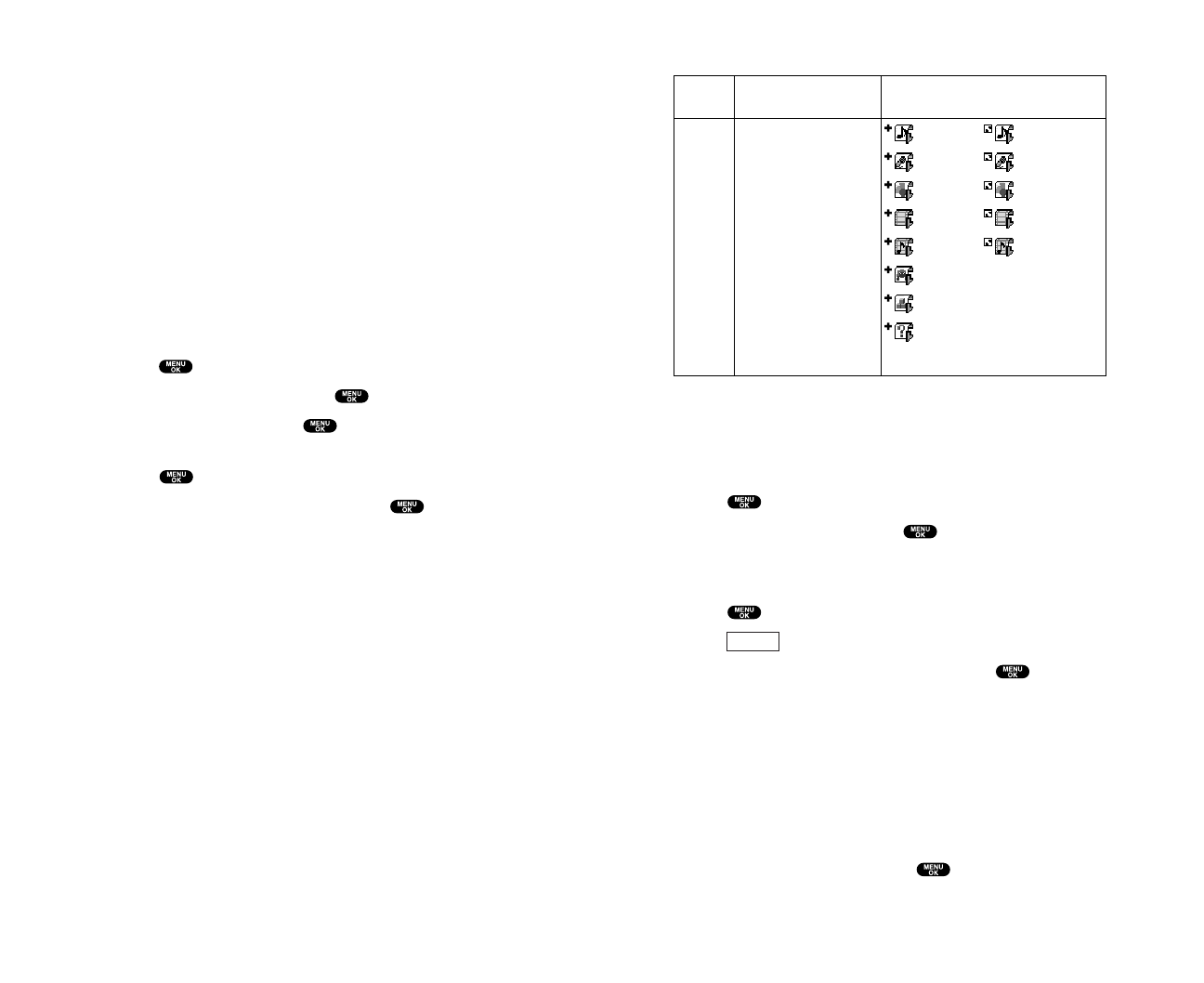
Icon Indication
Sorting the downloaded data in memory size order
The files downloaded via website are stored in alphabetical
order. If you want to store the data in memory size order, follow
these instructions:
1. Press to access the main menu.
2. Highlight Downloads and press .
3. Highlight each folder that includes the downloaded data you
want to sort.
4. Press .
5. Press (right softkey).
6. Highlight Sorting from the options and press .
Options:
Sorting to sort the downloaded data in alphabetical (Name) or
memory size (Size) order.
Icon/Size to show the downloaded data list with memory size.
Erase All to erase all downloaded files you selected during step 3.
(Downloaded data that has already been assigned cannot be
erased.)
7. Highlight Name or Size and press .
Options
Type
From Web
Item
Ringers (~128KB)
Voice (~128KB)
Screen Savers/Images (~128KB)
Animation (~128KB)
Animation Ringer (~128KB)
Game (~128KB)
Application (~128KB)
Unknown type (~128KB)
Icon (appears at the left side
of the downloaded data)
(New Data) (Assigned Data)
(New Data) (Assigned Data)
(New Data) (Assigned Data)
(New Data) (Assigned Data)
(New Data) (Assigned Data)
(New Data)
(New Data)
(New Data)
Note: Download icon subject to change
85
Options:
Open to play the downloaded content.
Options to select the options of the downloaded data.
Properties shows the downloaded data property.
Online Info shows the downloaded data information online. (If
applicable)
Shop allows you to continue downloading. (If applicable)
Logo/Trademark displays logo and description. (If applicable)
Erase erases the selected downloaded data.
Exit to return to the downloaded data list display.
To confirm the downloaded Others folder:
As the downloaded data in the Others folder is varied, the
options are subject to change.
1. Press to access the main menu.
2. Highlight Downloads and press .
3. Highlight Others and press .
4. Highlight the downloaded data you want to confirm and
press .
5. Select Open from the options and press .
Options:
Open to play the downloaded content.
Options to select the options of the downloaded data.
Properties shows the downloaded data property.
Online Info shows the downloaded data information online. (If
applicable)
Shop allows you to continue downloading. (If applicable)
Logo/Trademark displays logo and description. (If applicable)
Erase erases the selected downloaded data.
Exit to return to the initial display.
84

Erasing old downloaded data
If you try to download new data when the downloaded data’s
memory is full, the warning message appears. You will be
prompted to erase some old downloaded data.
To get new download data:
1. When the warning message appears, press (left softkey)
to make a space for new download data. (Press the right
softkey to cancel the download.)
2. Highlight each folder that includes the data you want to erase
and press .
3. Highlight the data you want to erase and press
(left softkey).
4. Highlight Yes and press .
5. You can continue to download the new file.
Erase
Erase
87
Viewing the Downloaded Data Size
This feature allows you to confirm each downloaded data size
and the rest of the download capacity.
1. Press to access the main menu.
2. Highlight Downloads and press .
3. Highlight each folder that includes the downloaded data you
want to confirm and press .
4. Press (right softkey).
5. Highlight Icon/Size and press .
6. Data size is displayed at the left of the downloaded data name.
To return the display to the icon indication, repeat steps 4 and
5 above.
Viewing the memoryspace for downloading
This feature allows you to confirm how much memory is left and
used for downloading.
1. Press to access the main menu.
2. Highlight Downloads and press .
3. Press (right softkey).
4. Highlight View Memory and press .
5. Used and Free memory size are displayed.
Options
Options
86
Reviewing Voice Dialing Tags
1. Press to access the main menu.
2. Highlight Voice Services and press .
3. Highlight Voice Dial and press .
4. Highlight Review or Rev:Speaker and press .
5. Highlight the desired entry and press .
– or –
Highlight the desired entry and press (right softkey).
To select an option, highlight it and press .
Options:
Play to play the recorded voice dial tag.
Speaker On to play the recorded voice dial tag in
speakerphone mode. (If you are in speakerphone mode, the
option will appear as Speaker Off to deactivate.)
Erase to erase the voice dial tag. Select Yes to erase and No to
cancel.
Erasing All Voice Dial Tags
1. Press to access the main menu.
2. Highlight Voice Services and press .
3. Highlight Voice Dial and press .
4. Highlight Erase All and press .
5. Highlight Yes and press .
Options
8988
9. Voice Services
Using Voice-Activated Dialing
You can use a Voice Dial tag to automatically dial a phone number
in your Contacts list. Your phone can store up to 30 Voice Dial
tags. (To create a Voice Dial tag, see “Programming Voice Dial Tag
to Your Phone” below.)
With the Flip Open:
1. Press or briefly.
2. Follow the voice prompts and recite the entry’s Voice Dial tag
into your phone’s microphone.
With Flip Closed:
1. Press and hold .
2. Follow the voice prompts and recite the entry’s Voice Dial tag
into your phone’s microphone.
Note: To use this feature, you must have a stored entries (see
“Programming Voice Dial Tag to Your Phone” below).
Programming Voice Dial Tag to Your Phone
1. Press to access the main menu.
2. Highlight Voice Services and press .
3. Highlight Voice Dial and press .
4. Highlight Program and press .
5. The phone will prompt you to say the name you want to
program. Wait for the beep and then say the name.
6. Respond to the prompt by repeating the name after the beep.
7. Enter or highlight the Voice Dial entry (name) in the Contacts
list, and press .
8. Select the labeled category that includes the phone number
(display shows “Voice Dial Recorded”).
Note: Record Voice Dial tags in a quiet environment and without the aid
of an accessory.
Recording also stops when the other party hangs up the call.
Memo recording during a phone call is disabled while you are
roaming in analog service areas.
When the recording capacity is full, highlight an old memo,
press (left softkey), highlight Yes, and press to
make room for additional memos.
Note: Your phone can store up to 12 memos and the total available
recording time is 72 seconds (maximum of 18 seconds per memo).
Tip: Voice Memos are stored with the date and time stamp in reverse
chronological order, except when recorded in a no service area.
Reviewing Voice Memos
1. Press to access the main menu.
2. Highlight Voice Services and press .
3. Highlight Voice Memo and press .
4. Highlight Play or Play:Speaker and press .
5. Highlight one memo from the list.
– or –
Highlight All if you want to play all memos continuously.
6. Press .
You can change the message playing speed by pressing
(left softkey) or (right softkey).
To play the newer/older memo, press the navigation key right
or left.
Tip: To set the speakerphone mode on or off, press (right
softkey), highlight Speaker On/Off, and press during step 5 above.
Options
Fast
Slow
Erase
91
Recording Voice Memos
To record a memo in Standby mode:
1. Press to access the main menu.
2. Highlight Voice Services and press .
3. Highlight Voice Memo and press .
4. Highlight Record and press .
5. Start recording after the beep.
To end the recording of your memo:
1. Press , , or while recording.
– or –
Wait for 18 seconds.
To record the other party’s voice during a phone call:
1. Press to see the options.
2. Highlight Voice Services and press .
3. Highlight Voice Memo and press .
4. Highlight Record and press .
5. Start recording after the beep.
To end the recording during a phone call:
1. Wait for 18 seconds or press or while recording.
– or –
Press and disconnect the call when recording in Use State.
90
Setting Up Screen Call
This feature enables you to answer incoming calls by using pre-
recorded announcements, either one that is pre-recorded or one
that you record. You can also record the caller’s message into the
Voice Memo list. To listen to the message, see “Reviewing Voice
Memos ”on page 91.
Activating Screen Call
To start Screen Call when you have incoming calls:
1. Press to display the options.
2. Highlight Screen Call and press .
To set Auto Screen Call:
1. Press to access the main menu.
2. Highlight Voice Services and press .
3. Highlight Screen Call and press .
4. Highlight Auto and press .
5. Highlight On and press .
If you want to change the answer time, enter your desired
number (from 1 to 16 seconds) by using numeric keys or the
navigation key up or down.
6. Press or (left softkey). The icon is displayed on the
Standby display.
Tip: If a new caller’s message is waiting, appears on the display. The
memos recorded while activating “Screen Call” are shown with “√” or
“!” icon in the list. (“√”: once played, “!”: not played yet)
Tip: While the caller is recording: Pressing stops recording and
disconnects the call. Pressing answers the call.
OK
93
Erasing Voice Memos
To erase all voice memos:
1. Follow steps 1-4 on the previous page.
2. Press (right softkey).
3. Highlight Erase All and press .
4. Highlight Yes and press .
– or –
1. Press to access the main menu.
2. Highlight Voice Services and press .
3. Highlight Voice Memo and press .
4. Highlight Erase All and press .
5. Highlight Yes and press .
To erase individual memo:
1. Press to access the main menu.
2. Highlight Voice Services and press .
3. Highlight Voice Memo and press .
4. Highlight Play or Play:Speaker and press .
5. Display the memo list, highlight the memo you want to erase,
and press (right softkey).
6. Highlight Erase and press .
7. Highlight Yes and press .
Options
Options
92
Recording Customized Announcement
1. Follow steps 1 to 4 on the previous page.
2. Highlight Custom and press (right softkey).
3. Highlight Record and press .
If your announcement has already been recorded, select Yes
or No for overwriting.
4. Press to start the 1st recording.
5. After the 1st recording, press again to start the 2nd
recording.
6. To stop recording, wait for 12 seconds or press .
Reviewing an Announcement
To review an announcement:
1. Press to access the main menu.
2. Highlight Voice Services and press .
3. Highlight Screen Call and press .
4. Highlight Announcement and press .
5. Highlight Pre-Recorded or Custom and press (right
softkey).
6. Highlight Play or Play:Speaker and press .
Erasing an Announcement
To erase an announcement:
1. Follow steps 1 to 5 above.
2. Highlight Erase Name to erase name for Pre-Recorded
announcement and press .
– or –
Highlight Erase to erase message for Custom and press .
3. Highlight Yes and press .
Edit
Edit
95
Selecting Announcement for Screen Call
1. Press to access the main menu.
2. Highlight Voice Services and press .
3. Highlight Screen Call and press .
4. Highlight Announcement and press .
5. Depending on your preference, highlight Pre-Recorded
or Custom, and press .
Recording Name for Pre-Recorded Announcement
1. Press to access the main menu.
2. Highlight Voice Services and press .
3. Highlight Screen Call and press .
4. Highlight Announcement and press .
5. Highlight Pre-Recorded and press (right softkey).
6. Highlight Record Name and press .
If your name has already been recorded, select Yes or No for
overwriting.
7. Press to start the 1st recording.
8. After the 1st recording, press again to start the 2nd
recording.
9. To stop recording, wait for 12 seconds or press .
Edit
94

Preparing Your Phone for 10-4 Service
The first time you use your 10-4 Phone, your phone guides you
how to use the 10-4 function.
1. Press (left softkey) or the 10-4 button on the side of your
phone ( ). (The 10-4 Help message will appear.)
2. Press (left softkey) to read a brief introduction to 10-4,
and press (left softkey) to continue through the tutorial.
Your phone is now ready to make and receive 10-4 calls.
10-4 Call Alerts
There are several ways your Phone alerts you during 10-4 calls.
When you make or receive a 10-4 call:
The phone beeps.
The backlight illuminates.
The screen displays a 10-4 call message.
The other party’s 10-4 number and name (if available) are
displayed.
The screen displays who has the floor.
The status of a 10-4 call:
The Green LED On indicates you have the floor and may
speak.
The Red LED On indicates another contact has the floor.
The LED Off indicates the floor is open. (You can take the
floor and speak by pressing and holding .)
Next
Yes
10-4
97
10. 10-4
10-4 allows you to enjoy quick, two-way, “walkie-talkie-style”
communication with your friends, family, and co-workers. You
can make 1-to-1 or 1-to-many calls (up to 5 others on the same
call) to any other 10-4 user, anywhere on the Network. You can
make and receive 10-4 calls when your phone displays .
Setting 10-4 Mode
1. Press to access the main menu.
2. Highlight Settings and press .
3. Highlight 10-4 and press .
4. Highlight Enable/Disable and press .
5. Select Enable and press . (The default setting is Disable.)
Enable: Lets you make or receive 10-4 calls any time your
phone is not in use.
Disable: Disables your phone’s 10-4 service; you will not be
able to make or receive 10-4 calls or access your 10-4 contacts.
96
Making a 10-4 Call (1-to-1 Call)
You can place a 1-to-1 10-4 call by entering a 10-4 number or by
selecting a contact from the 10-4 List.
1. Press (left softkey) or press to access the 10-4 List.
2. Press (left softkey), highlight the list from which you
want to place a call (Company List,Personal List,Outgoing Calls,
Incoming Calls, or Missed Calls), and press .
3. Highlight the contact you want to call, and press and hold
to place the call and get the floor. (You will see
10-4 calling... and Connecting... followed by “You have floor.”You
can now begin speaking.)
– or –
Highlight the contact you want to call and press and release
to place the call. (The call will connect as described
above, but “Floor is open.” will appear on the screen and either
you or your contact may press and hold to take the floor
and speak.)
To see an entry’s information, press during step 3 above.
Note: During a 10-4 call, the “floor” is the right to speak. When you see
“Floor is open.,” the first person to press the 10-4 button ( ) can speak
(while holding the button). Only the person who has the floor can speak.
The phone beeps if you press the 10-4 button when another contact has
the floor.
4. Continue holding as you speak. When you are finished
speaking, release the 10-4 button to allow other contacts to
speak. (When the other party takes the floor, you will see the
speaker’s name and phone number and the text “has floor.”)
5. When you are finished, press .
Note: When neither party has the floor during a 10-4 call, “Floor is open.”
appears on the display. If no one takes the floor for 20 seconds, the 10-4
call ends automatically.
Tip: If you press or during step 3 above, you can make a
standard voice call.
Go to
10-4
99
Displaying the 10-4 List
From standby mode, press (left softkey) or the 10-4
button on the side of your phone ( ) to access the 10-4 List.
Selecting Contacts Lists
When your phone displays a 10-4 List, the left softkey is labeled
Go to. To switch to another contacts list, press (left
softkey), highlight your desired list, and press .
Company List/Company GRP. contain company-provided contacts
(up to 200 entries). Your company list can only be created and
modified by an authorized administrator on the 10-4 server.
You cannot add, edit, or delete Company List items, but you can
copy entries to your Personal List/Personal GRP.
Personal List/Personal GRP. contain your personal 10-4 contact
names and numbers, separately or in groups. You can create
and edit your own Personal List. Your phone can store a total
of 200 entries (you may include up to five contacts per
group).
Outgoing Calls shows the last 10 different 10-4 calls you placed.
Incoming Calls shows the last 10 different 10-4 calls you
accepted.
Missed Calls shows the last 10 10-4 calls you missed.
Tip: You can also select Enter 10-4# from Go to option to enter a 10-4
number directly. See page 101 for details.
Note: The icon next to the group name indicates a group.
Go to
10-4
98
Making a 10-4 Call by Entering a Number
1. From standby mode, enter the 10-4 number you want to dial.
2. Press to place the 10-4 call. Continue holding to take the
floor and speak.
The contact’s name appears if there is a matched number in
your 10-4 List.
3. Continue with the 10-4 call, pressing and holding to
speak and releasing it to allow others to reply.
4. When the call is finished, press .
– or –
1. Press (left softkey) or press to access the 10-4 List.
2. Press (left softkey), highlight Enter 10-4# and press .
3. Enter the 10-4 number you want to dial.
4. Follow steps 2-4 above.
Missed Call Notification for 10-4 Calls
When an incoming 10-4 Call is not answered, the Missed Call
Notification is displayed on your screen.
To call the last Missed 10-4 Call:
Simply press and hold while the Missed Call Notification
is displayed. (Continue with the 10-4 call as described
previously.)
To display the Missed 10-4 Call Log:
Press (left softkey). To call the entry, highlight the entry
you want to call, and press and hold . (Continue with the
10-4 call as described previously.)
Note: When you display Missed Calls entries, you will see the icon
next to the name. The icon will remain until you make or receive
a 10-4 call to or from the entry. The icon appears next to the new
missed call entry.
View
Go to
10-4
101
Making a 10-4 Call (Group Call)
You can make a 10-4 call to all members in a Group entry, which
you have in your 10-4 List. You can communicate with up to five
members at a time.
1. Press (left softkey) or press to access the 10-4 List.
2. Press (left softkey), highlight the list from which you
want to make a Group call (Company GRP. or Personal GRP.),
and press .
3. Highlight the group you want to call, and press and hold
to place the call and take the floor. (You will see
10-4 calling... and Connecting... followed by “You have floor.”
Continue with the 10-4 call as described above.)
To display a group member’s details, press , highlight
your desired group member, then press (left softkey)
during step 3 above. Press to make a 10-4 call to the
member.
If one of the group members takes the floor, you will see the
member’s name and 10-4 number on the display. The phone
beeps if you press the 10-4 button when another contact has
the floor.
4. When the call is finished, press .
Tip: You can also make a Group Call after checking the group member.
Press to display group members, highlight <Call Group> and press
and hold during step 3 above.
View
Go to
10-4
100

Redialing a 10-4 Call
1. From the 10-4 List, highlight Redial, and press and hold .
You will see 10-4 redialing... and Connecting... followed by the
text “You have floor.”
2. Speak after the beep (keep pressing down while you are
speaking). After speaking, release the button to allow others
to reply.
3. When you are finished, press .
Note: You can change the volume and the speaker setting while a 10-4
call is activated. Volume: Adjust the voice volume by using the Side
Volume key or the navigation key up or down except when you are
pressing and holding . This doesn’t affect tone and beep volume.
Loudspeaker: Switch the speaker On or Off by pressing .
103
Receiving a 10-4 Call (1-to-1 Call)
1. Make sure your phone’s 10-4 mode is enabled (see “Setting
10-4 Mode” on page 96).
2. When you receive a 10-4 call from a contact, “10-4 Call,” the
contact’s name, and the 10-4 number appear on the display.
(You do not need to take any action to answer the call.)
3. If the person placing the call has kept the floor (held the 10-4
button), you will see the contact name and 10-4 number along
with “has floor.,” and you will hear the caller speaking.
4. When the caller finishes speaking and releases the 10-4
button, you will see “Floor is open.” on the display screen.
Press and hold to take the floor and reply to the caller.
(You will see “You have floor.” and hear a tone confirming that
you may speak.)
5. When the conversation is finished, press .
Receiving a 10-4 Call (Group Call)
1. When you receive a 10-4 call from one of the group members,
“Group Call,” the group member’s name, and the 10-4 number
appear on the display.
2. Continue with the 10-4 call as described on the previous page.
3. When the conversation is finished, press .
102

Copying an Entry to Personal List or Personal Group List
You can copy an entry to your Personal List/Personal GRP. from
several different sources. If the selected entry is already stored in
the Personal List/Personal GRP., the “copy” option does not
appear.
To copy an entry from the last 10-4 call:
1. From the 10-4 List, highlight Redial and press .
2. Press (right softkey).
3. Press (left softkey) to complete copying.
To copy an entry from the 10-4 List:
1. Press (left softkey) or press to access the 10-4 List.
2. Press (left softkey), highlight the list from which you want
to copy a contact (Company List,Company GRP.,Outgoing Calls,
Incoming Calls, or Missed Calls), and press .
3. Highlight the entry you want to copy (or scroll to highlight
the Redial entry at the top of your screen) and press
(right softkey).
4. Highlight Copy and press .
Copy Group appears when you highlight a group during step 3
above.
5. Press (left softkey) to copy and save the entry to your
Personal List or Personal Group List.
Yes
Options
Go to
10-4
Yes
Copy
105
10-4 Options
When you use 10-4, several user options are available by
pressing (right softkey). To select an option, highlight it
and press .
Edit to edit a 10-4 number and/or name. See page 110.
Erase to erase a contact. Erase Group appears when you
highlight a group.
Erase 10-4 List to erase entries saved in the 10-4 List (except
Company List/Company GRP.).
New Contact to add a new contact. New Group appears when
you highlight a group list. See page 109 for details.
Copy to copy a contact to the Personal List. Copy Group appears
when you highlight a group. (This option doesn’t appear if
the entry is already in the Personal List or when you select
Personal List/Personal GRP.)
Settings to change the current settings.
Default View to select the default 10-4 List when a 10-4 is
launched. You can select from Company List/
Company GRP., or Personal List/Personal GRP. (The default
setting is Company List.) If you select Company List/
Company GRP. and there is no data in the list, your phone
will display Personal List.
Loudspeaker to set the speakerphone On or Off when 10-4
call is activated. The default setting is On. (If the phone’s
ringer volume is set Vibrate, Ringer Off, or Silence All, the
speakerphone turns Off. Press to turn the
speakerphone mode On.)
Help to see the 10-4 instruction page.
Options
104
Saving a 10-4 Number
You can save a 10-4 number from the ending display to your
Personal List/Personal GRP.
1. From the ending display, press (right softkey).
2. Enter a name and press .
3. Press (left softkey).
4. Press (left softkey).
Tip: If the entry already has a name, skip step 2 and 3 above.
Note: If the number is already stored in the Personal List/Personal GRP.,
the “Save” softkey does not appear.
Finding an Entry in the 10-4 List
You can find your desired entry by entering a few letters.
1. Press (left softkey) or press to access the 10-4 List.
2. Press (left softkey), highlight your desired list
(Company List,Company GRP.,Personal List, or Personal GRP.),
and press .
3. Enter the first letter or the first few letters of the name.
The display shows the list beginning with the letter(s) you
entered.
4. Scroll through the list and press to select your desired
entry.
Go to
10-4
Yes
Save
Save
107
To copy an entry from the Company List:
1. Press to access the main menu.
2. Highlight Contacts and press .
3. Highlight Find/Add Entry and press .
4. Press (left softkey), highlight Company List, and press .
5. Highlight a contact you want to copy and press (right
softkey). To select an option, highlight it and press .
Copy to Personal to copy the entry to the Personal List.
Copy to Ph. Book to copy the entry to the Contacts list.
6. Press (left softkey) to complete copying.
To copy an entry from the Company Group List:
1. From step 4 on the previous page, highlight Company GRP. and
press .
2. Highlight a group you want to copy and press (right
softkey). To select an option, highlight it and press .
Copy to Personal to copy the entry to your Personal Group List.
Exit to exit the options.
3. Press (left softkey) to complete copying.
Note: Your Company List/Company GRP. can only be set up and edited by
an authorized administrator on the 10-4 server. You cannot add or edit
contacts/groups to your Company List/Company GRP.
Yes
Options
Yes
Options
Go to
106
Adding a New Group to Your Personal Group List
You can add new groups to the Personal Group List. Each group
can include up to five members. You can enter a group member
directly, or select the member from the Company List or
Personal List.
1. Press (left softkey) or press to access the 10-4 List.
2. Press (left softkey), highlight Personal GRP., and
press .
3. Highlight <New Group> and press .
– or –
Highlight an entry and press (right softkey). Then
highlight New Group and press .
4. Enter a Group Name, press , and press (left softkey).
5. To add contacts to the group, press (right softkey).
6. Highlight one item from the following and press :
New to add a new contact. See the previous page for details.
from Company to add a contact from your Company List.
from Personal to add a contact from your Personal List.
7. Scroll to select the contacts you want to add and press or
(right softkey) to include the entries.
8. Press (left softkey) when you are finished selecting
contacts, then press (left softkey) to update your
Personal Group List with the new group entry.
Update
Done
Pick
Add
Next
Options
Go to
10-4
109
Adding a New Contact to Your Personal List
You can store the total of 200 entries in the Personal List/
Personal GRP.
1. Press (left softkey) or press to access the 10-4 List.
2. Press (left softkey), highlight Personal List, and press .
3. Highlight <New Contact> and press .
– or –
Highlight an entry and press (right softkey). Then
highlight New Contact and press .
If the Personal List is full, you will see a warning message on
the display.
4. Enter a name for the new contact and press . (This is the
name you will see when calling or receiving a call from the
contact.)
5. Highlight the 10-4 Number field, enter the contact’s 10-digit
10-4 number (their Phone number) and press .
6. Press (left softkey) to save the new contact to your
Personal List.
Tip: You are not allowed to use the following symbols during step 4: “:”,
“@”, “;”, “/”, “*”, “)”, and “(”.
Save
Options
Go to
10-4
108

3. Highlight Edit and press .
4. Edit the group name and press or (left softkey).
If you don’t need to edit the group name, press (left
softkey) during step 4 above and skip step 5.
5. Press (left softkey) to save your changes.
6. To edit a group member, highlight the contact you want to
edit and press (right softkey).
Options:
Edit to edit a group member’s name and phone number.
Erase to erase the group member.
Add New to add a new group member in the Personal Group
List.
Add (Company) to add a new group member from the Company
List.
Add (Personal) to add a new group member from the Personal
List.
Details to display a group member’s information.
7. Highlight Edit and press .
8. Highlight the field you want to edit (Name or 10-4 Number) and
press .
9. Edit the entry, press (left softkey), and press (left
softkey) to save your changes.
10. Press (left softkey) to update your Personal Group List.
Update
SaveOK
Options
Save
Next
OK
111
Editing a Contact in Your Personal List
1. Follow steps 1-2 in “Adding a New Contact to Your Personal
List” on page 108.
2. Highlight the entry you want to edit and press (right
softkey).
Options:
Edit to edit the selected contact.
Erase to erase the selected contact.
New Contact to add a new contact.
Erase 10-4 List to erase the 10-4 List. See page 113 for details.
Settings to set Default View and Loudspeaker. See page 104 for
details.
Help to view the 10-4 instruction page.
3. Highlight Edit and press .
4. Highlight the field you want to edit (Name or 10-4 Number), and
press .
5. Edit the entry, press (left softkey), and press (left
softkey) to save your changes.
Editing a Group in Your Personal Group List
1. Follow steps 1-2 in “Adding a New Group to Your Personal
Group List” on page 109.
2. Highlight the group entry you want to edit and press
(right softkey).
Options:
Edit to edit the selected group.
Erase Group to erase the selected group.
New Group to add a new group.
Erase 10-4 List to erase the 10-4 List. See page 113 for details.
Settings to set Default View and Loudspeaker. See page 104 for
details.
Help to view the 10-4 instruction page.
Options
SaveOK
Options
110
Erasing a 10-4 List
You can erase all entries saved in the 10-4 List (except Company
List/Company GRP.).
To erase a 10-4 List:
1. From the 10-4 List, press (right softkey).
2. Highlight Erase 10-4 List and press .
3. Highlight your desired option and press .
Options:
Outgoing Calls to erase all outgoing 10-4 calls.
Incoming Calls to erase all incoming 10-4 calls.
Missed Calls to erase all missed 10-4 calls.
All Calls to erase all 10-4 call history, except redial.
AllPersonal Ent to erase all entries in Personal List and Personal
Groups. You are prompted to enter your 4-digit lock code.
(See “Unlocking Your Phone” on page 46.)
4. Select Yes and press .
Tip: The Redial number will not be erased.
Updating the Company List and Personal List
1. Press to access the main menu.
2. Highlight Settings and press .
3. Highlight 10-4 and press .
4. Highlight List Update and press .
Options
113
Erasing an Entry in Your Personal List or Personal Group List
To erase a contact or a group:
1. From the 10-4 List, press (left softkey), highlight
Personal List or Personal GRP., and press .
2. Highlight the entry you want to erase and press (right
softkey).
3. Highlight Erase and press .
Erase Group appears when you select Personal GRP.
4. Select Yes and press .
To erase a group member:
1. From the 10-4 List, press (left softkey), highlight
Personal GRP., and press .
2. Highlight your desired group and press to display the
group members.
3. Highlight the contact you want to erase and press
(right softkey).
4. Highlight Erase and press .
5. Select Yes and press .
6. Press (left softkey) to update your Personal Group List.
Update
Options
Go to
Options
Go to
112

Setting 10-4 Guard
This feature enables you to display the warning message when
you cannot receive 10-4 calls. The warning message appear
when you are launching the Web.
1. Press to access the main menu.
2. Highlight Settings and press .
3. Highlight 10-4 and press .
4. Highlight 10-4 Guard and press . (A message will appear.)
5. Press (left softkey) to continue.
6. Select On and press .
To deactivate this feature, select Off during step 6 above.
OK
115
Setting Speed Dialing for 10-4 Entries
1. Press to access the main menu.
2. Highlight Contacts and press .
3. Highlight Speed Dial #s and press .
4. Highlight an unassigned number and press .
When you highlight an assigned number and press ,
you’ll be asked whether you want to overwrite the assigned
number. Select Yes or No, or you can also select Unassign to
cancel the stored speed dial.
5. Press (left softkey), highlight the list from which you
want to set a speed dial (Company List,Company GRP.,
Personal List, or Personal GRP.) and press .
6. Select the contact and press .
– or –
Select the group and press , select an option, and
press .
Assign to assign the selected group as a speed dial.
Details to display the group details. You can select the entry
from the group list.
To use Speed Dial for a 10-4 entry:
From standby mode, press the appropriate key and press and
hold .
Go to
114
Displaying Messages
To display a Message from the message notification alert, see
“New Messages” on the previous page.
To display a Message from the main menu:
1. Press to access the main menu.
2. Highlight Messaging and press .
3. Highlight Text Msg and press . (The folder list appears.)
4. Highlight Inbox,Sent,Outbox,Drafts, or your defined folder and
press . (The message list appears.)
5. Highlight the header of the message you want to see and
press . (The message detail appears.)
To display a Web Alert:
1. Press to access the main menu.
2. Highlight Messaging and press .
3. Highlight Web Alerts and press . (The Web Alerts list
appears.)
4. Highlight the header of the message you want to see and
press . (The Web Alert detail appears.)
117
11. Messaging
New Messages
When you receive a new Message or Web Alert, your phone will
alert you. Press (left softkey) to display the message details.
Press (left softkey) to dial the phone number. (Appears
when a phone number is highlighted.)
Press (left softkey) to reply the message. (Appears
when a phone number or email address is highlighted.)
Press (left softkey) to go to the website. (Appears when a
URL is highlighted.)
Press (left softkey) to forward the message. (Appears
only if there are no phone numbers and URLs in the message.)
Press (right softkey) to display options. (See page 121
for details.)
Tip: When you highlight a phone number, the left softkey may change as
or depending on the circumstances.
Note: Web Alert is a URL. When you buy a ringer or image through your
computer for your phone, your phone will receive a Web Alert. Press
(left softkey) to go to the website.
Message Storage
Your phone can store up to 200 received Messages, 180 sent
Messages, and 20 Web Alerts. When the message memory is full,
the oldest unlocked message will be deleted automatically (see
page 122 for locking the message).
Go
ReplyCall
Options
Forward
Go
Reply
Call
View
116
5. To add a recipient, press (right softkey), highlight
Add Recipient, and press .
Edit to edit the selected entry.
Erase to erase the selected entry.
Erase All to erase all entries you have selected/entered.
Add Recipient to add recipients.
6. Press (left softkey) when you are finished
selecting/entering recipients (you may include up to 10
recipients).
7. To enter a message, select the box under Message and press
.
8. Use your keypad to enter a text message (or press the right
softkey to select from Canned Messages or Recent Messages)
and press .
9. To set the message priority, select the box under Priority and
press .
10. Highlight Ordinary or Urgent and press .
11. Press (left softkey) to send the message.
To change the recipients or to save the message as a draft, press
(right softkey) and select Chg Recipients or Save to Drafts
during steps 7-10 above.
Chg Recipients to change Recipients.
Save to Drafts to save the message to a Drafts folder.
(See next page to edit and send the draft message.)
Note: If there is a failure when sending a message, the message goes to
the Outbox folder. See next page to send the message.
Options
Send
Next
Options
119
Icon Indication
If the sender or addressee’s information has already been stored
in your Contacts list, the corresponding name or phone number
appears as the header of the message.
To read other messages:
Press the navigation key right to read the next message.
Press the navigation key left to read the previous message.
Sending a Message
1. Press to access the main menu.
2. Highlight Messaging and press .
3. Highlight Send Text and press .
4. Highlight From Phone Book,Mobile Phone#, or Email Address to
enter recipients.
From Phone Book to select a recipient from your Contacts list.
Highlight an entry and press to select. Or select
<New Entry> to enter a new entry. Press (left softkey)
when you are finished selecting/entering recipients.
Mobile Phone# to enter a mobile phone number directly.
Email Address to enter an email address directly.
Done
Function
Folder
Sent
Outbox
Drafts
Inbox/
Web Alerts
A new message folder
Unread message
Read message
Sent message
Unsent message
Plural unsent message
Draft message
Plural draft message
Icons Details
118
Sending a Message in the Outbox Folder
If a failure occurs when you try to send a message, the message
goes to the Outbox folder.
1. Press to access the main menu.
2. Highlight Messaging and press .
3. Highlight Text Msg and press .
4. Highlight Outbox and press .
5. Highlight the message you wish to send, and press (left
softkey).
Message Options
Several options are available when you display a folder list,
message list, or message details.
Folder List Options
Highlight Inbox,Sent,Outbox,Drafts, or your defined folder and
press (right softkey). To select an option, highlight it
and press .
Edit Folder to edit the folder (user defined folder only).
Erase Folder to erase the folder (user defined folder only).
Create Folder to create a new user defined folder.
Compose New to compose a new message.
Erase Messages to erase messages (if applicable).
Options
Send
121
Sending a Message in the Drafts Folder
To edit and send a message in the drafts folder:
1. Press to access the main menu.
2. Highlight Messaging and press .
3. Highlight Text Msg and press .
4. Highlight Drafts and press .
5. Highlight the message you wish to edit and press
(right softkey).
Edit to edit the draft message.
Send to send the draft message.
Compose New to compose a new message.
Erase to erase the message.
Erase All to erase all messages in the drafts folder.
6. Highlight Edit and press to edit the message.
7. After editing the message press (left softkey) to send the
message.
Tip: The oldest message in the drafts folder will be erased when you
save more than 10 messages.
Send
Options
120
Messages Details Options
After you display the Message list in Inbox, Sent, or your defined
folder, press to display the message details. Press
(right softkey) to display message options. To select an option,
highlight it and press .
Call(Go to List) to call a number in the message. Select a number
and press or (left softkey) to make a call. Press and
hold to make a 10-4 call.
Call:Speaker On to call in speakerphone mode. Select a
number and or (left softkey) to place a call. Press
and hold to make a 10-4 call.
Prepend to add numbers to the beginning of the phone
number (if applicable).
Go to URL List to display URLs in the message. Press (left
softkey) or select a URL and press to go to the site.
Send Text to display phone numbers and email addresses to
send a message. (See page 118 for details.)
Reply to reply to the message. (See page 118 to send a
message.) (Message in Inbox and defined folder only.)
Forward to forward the message. Select from From Phone Book,
Mobile Phone#, or Email Address.
Move to move the message to another folder. Select a folder
and press or press <New Folder> to create a new folder.
(See page 125 to create a folder.) (Message in Inbox and
defined folder only.)
Lock to lock the message. Locked messages will not be erased
automatically. To unlock the message, select Unlock and
press .
Font Size to change the font size from Small or Normal.
Save to Ph. Book to save the phone number, email address and
URLs. Select a data category and press to save.
Go to Phone Book to go to the Contacts list (if applicable).
Compose New to compose a new message. (See page 118 to
compose a message.)
Erase to erase the message.
Go
Call
Call
Options
123
Message List Options
To display message list options, highlight Inbox (or defined
folder), Sent,Outbox, or Drafts and press . Then press
(right softkey).
Reply to reply to the message. (See page 118 to send a
message.) (Inbox only.)
Forward to forward the message. Select from From Phone Book,
Mobile Phone#, or Email Address. (Inbox and Sent only.)
Edit to edit a message. (Outbox and Drafts only.)
Send to send a message. (Outbox and Drafts only.)
Move to move a message to the Inbox or to your defined
folder. Select a folder and press , or press <New Folder> to
create a new folder. (See page 125 to create a folder.) (Inbox
only.)
Lock to lock a message. Locked messages will not be erased
automatically. To unlock the message, select Unlock and
press . (Inbox and Sent only.)
Compose New to compose a new message. (See page 118 to
compose a new message.)
Erase to erase the selected message.
Erase Read Msgs to erase read messages in the folder (except
locked messages). (Inbox only.)
Erase All to erase all messages in the folder (except locked
messages). A warning message appears if there are unread
messages.
Tip: You can lock up to 40 messages. Locked messages will be displayed
with .
Tip: To make a call from the list, highlight a message and press or
(if applicable).
Options
122
125
Changing the Display Font Size of a Message
After you display a Message in the Inbox, Sent, or your defined
folder, press (right softkey) to display message options.
1. Highlight Font Size and press .
2. Highlight Small or Normal and press .
Prepending a Phone Number From a Message
After you display a Message in the Inbox, Sent, or your defined
folder, press (right softkey) to display message options.
If you happen to be outside your local area code and need to add
a prefix to a phone number:
1. Highlight Prepend and press .
2. Press , enter the digits or pauses (see below) you want to
add to the number. If you want to save the number, press
and select the Save Phone# option. If not, the changes only
apply to the current call.
3. To select an option, highlight it and press .
Call to dial the phone number.
Call:Speaker On to dial the phone number in speakerphone
mode.
Save Phone# to store the phone number in your Contacts
Directory.
Hard Pause to insert a hard pause. (See “Dialing and Saving
Phone Numbers With Pauses” on page 16.)
2-Sec. Pause to insert a 2-second pause. (See “Dialing and
Saving Phone Numbers With Pauses” on page 16.)
T
H
Options
Options
124
Creating Folders for Messages
You can create up to ten folders to store your Messages. When
10 user defined folders exist, the “Create Folder” option will not
appear.
1. Press to access the main menu.
2. Highlight Messaging and press .
3. Highlight Text Msg and press .
4. Press (right softkey).
5. Highlight Create Folder and press .
6. Enter a folder name and press or (left softkey).
Pressing (left softkey) allows you to save the
folder name.
7. If you want the message to be filed into the folder
automatically, highlight the menu under Auto Filing and
press .
8. Highlight On and press .
9. Highlight the box under Keyword by scrolling down and press
.
10. Enter a keyword and press or (left softkey).
11. Press (left softkey).
To set an optional feature for the added folder:
1. During step 9 above, scroll down to select other menu
options. Highlight the menu under each item and press .
Notify to set the display notification to on or off when you have
unread message matching the defined folder.
Envelope Icon to set the envelope icon display to on or off
when you have unread message matching the defined folder.
2. After selecting each setting, press (left softkey).
Save
Save
OK
Save
OK
Options
Erasing a Folder
1. From the folder list display, highlight the defined folder you
want to erase.
2. Press (right softkey).
3. Highlight Erase Folder and press .
4. Highlight Yes and press .
Note: When you erase a folder, the messages within the folder are also
erased. If the folder contains a new (unread) message or locked
message, you are prompted to select Erase or Don’t Erase.
Erasing Selected Messages in All Folders
1. From the folder list display, press (right softkey).
2. Highlight Erase Messages and press .
3. Select Read,Unread, and/or Sent and press to check the
appropriate box(es).
4. After selecting the boxes, press (left softkey).
5. Highlight Erase and press to erase selected messages
(except locked messages).
Note: To erase an individual message, see “Message Options” on page 121.
Done
Options
Options
127
Erasing All Messages
1. Press to access the main menu.
2. Highlight Messaging and press .
3. Highlight Text Msg and press .
4. Select Inbox,Sent,Outbox,Drafts, or your defined folder and
press .
5. Press (right softkey).
6. Highlight Erase All and press .
7. Highlight Yes and press .
Moving a Message Into Another Folder
After you display a message, press (right softkey) to
display message options. You need at least one defined folder.
(Inbox or user defined folder only.)
1. Highlight Move and press .
2. Highlight your desired folder and press .
Editing Folders
1. From the folder list display, highlight a defined folder.
2. Press (right softkey).
3. Highlight Edit Folder and press .
4. Highlight the box under your desired option and press .
5. Enter or select a new folder name/setting.
6. Press or (left softkey).
7. Press (left softkey).
Save
OK
Options
Options
Options
126
129
Web Alerts Options
Several options are also available for Web Alerts.
Web Alerts List Options
From Messaging display, highlight Web Alerts, press and
press (right softkey). To select an option, highlight it
and press .
Lock to lock a message. Locked messages will not be erased
automatically. To unlock the messages, select Unlock and
press .
Erase to erase the messages.
Erase Read Msgs to erase read messages in the folder (except
locked messages).
Erase All to erase all messages in the folder (except locked
messages). A warning message appears if there are unread
messages.
Tip: You can lock up to 10 messages. Locked messages will be displayed
with .
Web Alerts Details Options
After you display the Web Alerts list, press to display the
Web Alerts details. Press (right softkey) to display Web
Alerts options. To select an option, highlight it and press .
Go to URL to go to the website.
Lock to lock a message. Locked messages will not be erased
automatically. To unlock the messages, select Unlock and
press .
Font Size to change the font size from Small or Normal.
Erase to erase the message.
Options
Options
128
12. Service Features
Using Voicemail
All unanswered calls to your phone are automatically transferred
to voicemail, even if your phone is in use or turned off.
Voicemail Notification
There are several ways your phone alerts you to new voicemail
messages:
By displaying a message on the screen.
By playing the assigned ringer type.
By blinking the LED.
By displaying at the top of your screen.
Displaying Voicemail Details
1. Press to access the main menu.
2. Highlight Messaging and press .
3. Highlight Voicemail and press .
4. Highlight Details and press .
Retrieving Your Voicemail Messages
1. Press and hold . Follow the system prompts.
– or –
1. Press to access the main menu.
2. Highlight Messaging and press .
3. Highlight Voicemail and press .
4. Highlight Call Voicemail and press .
Responding to Call Waiting
When you’re on a call, Call Waiting alerts you to incoming calls
by sounding beeps. Your phone’s screen informs you that
another call is coming in and displays the caller’s phone number
(if it is available and you are in digital mode).
To respond to an incoming call while you’re on a call:
Press (or press , highlight Flash and press ).
This puts the first caller on hold and answers the second call.
To switch back to the first caller, press (or press ,
highlight Flash and press ) again.
Note: Call Waiting may not be available while roaming off the home network.
Making a Three-Way Call
With Three-Way Calling, you can talk to two people at the same
time. When using this feature, the normal airtime rates will be
charged for each of the two calls.
1. Enter a number you wish to call and press or .
2. Once you have established the connection, press (or
press , highlight Three-Way Call and press ) to put
the first caller on hold.
3. Enter the second number you wish to call and press (or
press , highlight Call or Call:Speaker On and press ).
4. When you’re connected to the second party, press again
(or press , highlight Flash and press ) to begin your
three-way call.
If one of the people you called hangs up during your call, you
and the remaining caller stay connected. If you initiated the call
and are the first to hang up, all three callers are disconnected.
Tip: You can also begin a Three-Way Call by displaying a phone number
stored in your Contacts list, Call History, or Messaging. To call the third
party, press during step 3 above.
131
Clearing the Message Icon
1. Press to access the main menu.
2. Highlight Messaging and press .
3. Highlight Voicemail and press .
4. Highlight Clear Count and press .
5. Highlight Yes and press .
Editing Your Voicemail Number
To edit your voicemail number:
1. Press to access the main menu.
2. Highlight Messaging and press .
3. Highlight Voicemail and press .
4. Highlight Edit Voicemail# and press .
5. Edit your voicemail number and press .
To reset your voicemail number:
1. Follow steps 1 to 4 above.
2. Press (right softkey).
3. Highlight Reset Voicemail# and press .
4. Highlight Yes and press .
Options
130
Browsing the Web
Creating a Bookmark
Bookmarks allow you to store the address of your favorite
Websites for easy access at a later time.
To create a bookmark:
1. Launch the Web page you want to mark.
2. Press (right softkey) to go to the Browser menu.
3. Highlight Mark this page and press or (left softkey).
Note: Bookmarking a page does not store the page contents, just its
address. Some pages cannot be bookmarked. Whether a particular Web
page may be marked is controlled by its creator.
Accessing a Bookmark
To access a bookmark:
1. Access the browser menu by pressing (right softkey).
2. Highlight View Bookmarks and press (left softkey).
3. Highlight the bookmark you’d like to access and press or
(left softkey) to go to the Website.
Editing a Bookmark
To edit a bookmark:
1. Launch the Web and press (right softkey) to access the
browser menu.
2. Highlight View Bookmarks and press (left softkey).
3. Select the bookmark you wish to edit and press (right
softkey).
4. Select Edit Address or Edit Title and press (left softkey).
5. Press (right softkey), use your keypad to edit the address
or title, and press (left softkey).
6. To save the bookmark, press (left softkey).
OK
OK
Edit
OK
OK
OK
OK
OK
133
Web
With Web on your phone, you will be able to browse
full-color graphic versions – not just text versions – of your
favorite website, making it easier than ever to stay informed
while on the go. Check sports scores, trade stocks, and shop all
on your phone.
Launching the Web
To launch the Web:
1. Press .
– or –
1. Press to access the main menu.
2. Highlight Web and press .
Net Guard
With the Net Guard setting, the confirmation display will appear
to connect to the Internet. This feature helps you avoid
accidental connections. You can disable the Net Guard in the
future by selecting Always Auto-Connect when the Net Guard is
displayed.
To change your Net Guard settings:
1. Press to access the main menu.
2. Highlight Settings and press .
3. Highlight Internet and press .
4. Highlight Net Guard and press .
5. Select On or Off and press .
On to make the Net Guard appear when connecting to the
Internet.
Off to avoid the Net Guard when connecting to the Internet.
Note: When enabled, the Net Guard appears only once per session.
The Net Guard does not appear if the phone is merely re-connecting due
to a time-out.
132
Restarting the Web Browser
If the Web browser appears to be malfunctioning or stops
responding, you can usually fix the problem by simply restarting
the browser.
To restart the Web browser:
1. From an active Internet connection, press (right softkey)
to display the browser menu.
2. Highlight More... and press (left softkey).
3. Highlight Restart Browser and press (left softkey).
Selecting Your Preference Settings
To select your preference settings:
1. Launch the Web and press (right softkey) to display the
browser menu.
2. Highlight More... and press (left softkey).
3. Highlight the setting you want to change press (left
softkey).
4. Select your preference setting and press (left softkey).
OK
OK
OK
OK
OK
135
Deleting a Bookmark
To delete a bookmark:
1. Access View Bookmarks menu as outlined on the previous
page in steps 1-2.
2. Highlight the bookmark you wish to erase and press (right
softkey).
3. Highlight Delete and press (left softkey).
4. Press (right softkey).
Tip: To delete all bookmarks, select Delete All during step 3 above.
Going to a Specific Website
To go to a particular Website by entering a URL (Website address):
1. Launch the Web and press (right softkey) to display the
browser menu.
2. Highlight Go to URL... and press (left softkey).
3. Highlight Address and press (left softkey).
4. Press (right softkey), use your keypad to enter the URL of
the Website you wish to go to, and press (left softkey).
5. Press (left softkey) to go to the Website.
Note: Not all Websites are viewable on your phone.
Reloading a Web Page
To reload (refresh) a Web page:
1. Launch the Web and press (right softkey) to display the
browser menu.
2. Highlight Refresh this page and press (left softkey).
OK
OK
OK
Edit
OK
OK
Yes
OK
134

Ringers
Downloading Ringers
To download an available ringer to your phone:
1. Press to access the main menu.
2. Highlight Downloads and press .
3. Highlight Ringers and press .
4. Highlight Get New and press . The browser will launch
and take you to the Ringers download menu.
5. Use your navigation key to highlight and select a ringer you
wish to download.
6. Follow the system prompts to download.
137
Games
Downloading Games
1. Press to access the main menu.
2. Highlight Downloads and press .
3. Highlight Games and press .
4. Highlight Get New and press . The browser will launch
and take you to the Games download menu.
5. Use your navigation key to highlight and select a game you
wish to download.
6. Follow the system prompts to download.
Playing Games
To play a downloaded game on your phone:
1. Press to access the main menu.
2. Highlight Downloads and press .
3. Highlight Games and press .
4.Select the game you wish to play.
5. If applicable, a prompt will display the days remaining
on the game license and ask if you want to continue.
Select Yes.
6. Follow the onscreen instructions to play the game. When you
are finished, press .
7. A prompt will display: “Resume the Application?”
Select Yes to continue playing or No to exit.
136
Screen Savers
Downloading Screen Savers (Images)
To download an available Screen Saver (Image) to your phone:
1. Press to access the main menu.
2. Highlight Downloads and press .
3. Highlight Screen Savers and press .
4. Highlight Get New and press . The browser will launch
and take you to the Screen Savers download menu.
5. Use your navigation key to highlight and select a Screen Saver
you wish to download.
6. Follow the system prompts to download.
Note: You may store total of 832KB downloaded data including data
management information on your phone, depending on the file sizes.
139
Assigning Downloaded Ringers
Downloaded ringers may be assigned directly from the
Downloads menu and are also available through the
Settings menu.
To assign a downloaded ringer through the Settings menu, see
“Selecting Ringer Types for Voice Calls” on page 22, “Selecting
Ringer Types for Voicemail” on page 23, “Selecting Ringer Types
for Messages” on page 23, “Selecting Ringer Types for Calendar”
on page 24, “Setting a Start-up/Power-off Tone” on page 25 or
“Selecting a Ringer/Image Type for an Entry” on page 64.
To assign a downloaded ringer from the Downloads menu:
1. Press to access the main menu.
2. Highlight Downloads and press .
3. Highlight Ringers and press .
4. Highlight the downloaded data you want to confirm and
press .
5. Select Assign from the options and press .
6. Highlight Voice Calls,Voicemail,Messaging,Calendar,
Start-up Tone,Power-off Tone, or Phone Book, and press .
The following two items require an extra step:
Voice Calls: highlight With Caller ID or No Caller ID, and
press .
Phone Book: highlight your desired entry and press .
7. A message appears confirming the data has been assigned.
Note: You may assign a ringer to more than one type of call.
138

13. Safety Guidelines
Maintaining Your Phone’s Peak Performance
Try not to hold, bend, or twist the phone’s antenna.
Don’t use the phone if the antenna is damaged.
Avoid exposing your phone and accessories to rain or liquid
spills. If your phone does get wet, turn the power off and
immediately remove the battery.
Using Your Phone While Driving
Talking on your phone while driving (or operating the phone
without a hands-free device) is prohibited in some jurisdictions.
Laws vary as to specific restrictions.
Let the person you are speaking to know you are driving; if
necessary, suspend the call in heavy traffic or hazardous
weather conditions.
Do not take notes or look up phone numbers while driving.
Following Safety Guidelines
To operate your phone safely and efficiently, always follow any
special regulations in a given area. Turn your phone off in areas
where use is forbidden or when it may cause interference or
danger.
141
Assigning Downloaded Screen Savers (Images)
Downloaded Screen Savers may be assigned directly from
the Downloads menu and are also available through the
Settings menu.
To assign a downloaded Screen Saver through the Settings
menu, see “Changing the Display Screen” on page 31,
“Changing the Display for Incoming Calls” on page 31,
“Changing the Screen Saver” on page 33 or “Selecting a
Ringer/Image Type for an Entry” on page 64.
To assign a downloaded Screen Saver from the
Downloads menu:
1. Press to access the main menu.
2. Highlight Downloads and press .
3. Highlight Screen Savers and press .
4. Highlight the downloaded data you want to confirm and
press .
5. Select Assign from the options and press .
6. Highlight one of Incoming Calls,Screen Saver or Phone Book,
and press . The following item needs an extra step:
Phone Book: highlight your desired entry and press .
7. A message appears confirming the data has been assigned.
Note: Depending on the data, you can select where to assign the data:
Image data: Incoming Calls, Screen Saver, or Phone Book.
Animation data: Standby, Outgoing Calls, or Service Search.
Note: You may assign a Screen Saver to more than one task.
140

Turning Off Your Phone in Dangerous Areas
To avoid interfering with blasting operations, turn your phone
off when in a blasting area or in other areas with signs indicating
two-way radios should be turned off. Construction crews often
use remote-control RF devices to set off explosives.
Turn your phone off when you’re in any area that has a
potentially explosive atmosphere. Although it’s rare, your
phone and accessories could generate sparks. Sparks can cause
an explosion or fire, resulting in bodily injury or even death.
These areas are often, but not always, clearly marked. They
include:
Any area where it is very humid and with inflammables.
Fueling areas such as gas stations.
Below deck on boats.
Fuel or chemical transfer or storage facilities.
Areas where the air contains chemicals or particles such as
grain, dust, or metal powders.
Any other area where you would normally be advised to turn
off your vehicle’s engine.
Note: Never transport or store flammable gas, liquid or explosives in the
compartment of your vehicle that contains your phone or accessories.
Restricting Children’s Access to Your Phone
Your phone is not a toy. Do not allow children to play with it as
they could hurt themselves and others, damage the phone or
make calls that increase your telephone bill.
143
Using Your Phone Near Other Electronic Devices
Most modern electronic equipment is shielded from
radiofrequency (RF) signals. However, RF signals from wireless
phones may affect inadequately shielded electronic equipment.
RF signals may affect improperly installed or inadequately
shielded electronic operating systems and/or entertainment
systems in motor vehicles. Check with the manufacturer or their
representative to determine if these systems are adequately
shielded from external RF signals. Also check with the
manufacturer regarding any equipment that has been added to
your vehicle.
Consult the manufacturer of any personal medical devices, such
as pacemakers and hearing aids, to determine if they are
adequately shielded from external RF signals.
Note: Always turn off the phone in health care facilities and request
permission before using the phone near medical equipment.
Turning Off Your Phone Before Flying
Turn off your phone or set your phone to Airplane mode before
boarding any aircraft. To prevent possible interference with
aircraft systems, Transport Canada regulations require you to
have permission from a crew member to use your phone while
the plane is on the ground.
142

Cautions
Any changes or modifications to your phone not expressly
approved in this document could void your warranty for this
equipment and void your authority to operate this equipment.
Only use approved batteries, antennas and chargers. The use of
any unauthorized accessories may be dangerous and void the
phone warranty if said accessories cause damage or a defect to
the phone.
Although your phone is quite sturdy, it is a complex piece of
equipment and can be broken. Avoid dropping, hitting, bending
or sitting on it.
145
Protecting Your Battery
The guidelines listed below help you get the most out of your
battery’s performance.
Use only approved batteries, AC adapters, and chargers.
These chargers are designed to maximize battery life. Using
other batteries or chargers voids your warranty and may cause
damage.
In order to avoid damage, charge the battery only in
temperatures that range from 32º F to 113º F (0º C to 45º C).
Don’t store the battery in a high humidity environment.
Don’t use the battery charger in direct sunlight or in high
humidity areas, such as the bathroom.
Never dispose of the battery by incineration.
Keep the metal contacts on top of the battery clean.
Don’t attempt to disassemble or short-circuit the battery.
Don’t store the battery in high temperature areas for long
periods of time. It’s best to follow these storage rules:
Less than one month:
4º F to 140º F (-20º C to 60º C)
More than one month:
4º F to 113º F (-20º C to 45º C)
Disposal of Lithium Ion (Li-Ion) Batteries
For safe disposal options of your Li-Ion batteries, please ensure
that disposal of this in accordance with law and regulation.
Do not dispose of the battery in fire; the cell may explode.
Do not open or puncture the battery; the released electrolyte
is corrosive and may cause damage to the eyes and skin.
Special Note: Be sure to dispose of your battery properly. In some
areas, the disposal of batteries in household or business trash
may be prohibited.
Note: For safety, do not handle a damaged or leaking Li-Ion battery.
144

Index
A
Airplane Mode 38
Alert Notification 27
Answering Calls 10
Any Key Answer 41
Auto Answer 39
B
Backlight Time Length 30
Battery
Charging 7
Installing 6
Removing 6
C
Calculator 77
Calendar 67
Call Alarm
Adding 71
Alerts 72
Editing 73
Erasing 73, 76
Menu 72
Viewing 73
Call History
Erasing 56
Making a Call 55
Options 54
Prepend 56
Saving 55
Viewing 54
Call Waiting 131
Calling in Lock Mode 46
Canned Messages 44
Canned Suffix 21
Contacts
Adding 57, 61
Editing 61, 63
Erasing 48
Finding 58
Options 60
Secret 66
Saving 15
D
Dialing
Contacts 17
Numbers With Pauses 16
Options 9
Speed Dialing 18, 62, 114
Voice-Activated Dialing 88
Display Settings
Backlight Time Length 30
Display Color 35
Display Screen 31
Font Size 35
Greeting 29
Incoming Calls 31
LED Color 34
Main Menu 34
My Buddy 33
Screen Saver 33
Standby Mode 32
Downloading
Data Size 86
Erasing 49, 87
Icon Indication 85
Viewing Memory 86
147
NetFront is the trademark or registered trademark of ACCESS Co., Ltd. in Japan and in all other countries.
Copyright (c) 1996-2005 ACCESS Co., Ltd.
This mobile telephone uses JBlendTM of Aplix Corporation. JBlend and Aplix are registered trade marks
of Aplix Corporation in Japan and similar applications have been filed in other countries.

R
Resetting Phone 49
Ringer
Assigning 138
Downloading 137
Tone Length 24
Volume 12
Roaming
Analog Networks 50
Digital Networks 50
Setting 51
S
Scheduler
Calendar 67
Erasing 73, 76
Event 69
Memory 75
Setting Holidays 67
Setting the Time/Date 67
To Do 74
Screen Call
Activating 93
Customize 95
Pre-Record 94
Selecting Announcement 94
Screen Savers
Assigning 140
Downloading 139
Secret Mode 66
Security Menu
Accessing 45
Changing the Lock Code 46
Locking Phone 45
Unlocking Phone 46
Shortcut 39
Side Key Guard 41
Silence All 28
Sleep Mode 42
Sound Settings
Alert Notification 27
Silence All 28
Start-up/Power-off Tone 25
Tone Length 24
Voice Prompt 25
Volume Settings 26
Speakerphone 12
Special Number 48
Speed Dialing 18, 62, 114
Start-up Tone 25
Symbols 21
T
10-4
10-4 Guard 115
Adding 108
Contacts List 98
Copying 105
Editing 110
Erasing 112, 113
Finding 107
Making Calls
by Entering Number 101
Contact 99
Group 100
Options 104
Preparing 97
Receiving 102
Redialing 103
Saving 107
Setting 96
Updating 113
T9 Text Input 19
Three-Way Call 131
To Do Items
Adding 74
Deleting 75, 76
Editing 74
Viewing 74
Tone Length 24
TTY 37
Turning On and Off 5
2-Second Pause 16
149
E
Emergency Calling 13
End-of-Call Options 15
Event
Adding 69
Alerts 70
Editing 71
Erasing 73, 76
Menu 70
Viewing 70, 73
F
Font Size 35, 124
G
Games
Downloading 136
Playing 136
Greeting 29
H
Hard Pause 16
I
Icon indication 4, 76, 85, 118
In-Call Options 14
Input Mode
Alphabet Mode 20
Canned Suffix 21
Numbers 21
Smileys 21
Symbols 21
T9 Text Mode 19
L
Language 44
Limit Use 47
Location Settings 36
Lock Code 46
Locking Phone 45
M
Main Menu Style 34
Making 10-4 Calls 99
Making Calls 8
Menu Diagram 52
Message Notification 43
Messaging
Displaying 117
Folder
Creating 125
Drafts 120
Editing 126
Erasing 127
Outbox 121
Font Size 124
Moving a Message 126
Options 121
Prepend 124
Sending 118, 120, 121
Storage 116
Missed Call Notification 13, 101
Muting 12
My Buddy 33
My Shortcut 39
N
Net Guard 132
O
Open/Close Flip options 40
P
Phone Number
Dialing With Pauses 16
Displaying 8
Finding 16
Saving 15
Power-off Tone 25
Prepend Dialing 56
Push Options 43
Q
Quiet Ringer 11
148

U
Unlocking Phone 46
Unmute 12
V
Version 76
Voice Dial
Erasing 89
Programming 88
Reviewing 89
Using 88
Voice Memo
Erasing 92
Recording 90
Reviewing 91
Voice Prompt 25
Voicemail
Clearing Message Icon 130
Editing Number 130
Notification 129
Retrieving 129
Volume Settings
During a Conversation 12
Muting 12
Ringer 12
W
Web
Browsing 133
Launching 132
Net Guard 132
Web Alerts 116
World Clock 77
150
Printed in Japan

NotesNotes
