Sealed Air DRX 13.56MHz RFID TRANSMITTER WITH USB INTERFACE User Manual Cryovac Inc

Sealed Air Corp. 13.56MHz RFID TRANSMITTER WITH USB INTERFACE Cryovac Inc

USERS MANUAL

                       www.turbo-tag.com  TurboTag™ Session Manager™ Software and DR-1 Reader Setup and Operating Instructions – Version 2.0.0  Table of Contents  Components of the System....................................................................................................................................1 Computer System Requirements ..........................................................................................................................1 Basic Software Installation Procedure .................................................................................................................1 Reading Tags with TurboTag™ Session Manager™...........................................................................................2 IR Mode Display (Reader Not Found)................................................................................................................3 Reading Actions ..................................................................................................................................................4 Card Reading Errors ...........................................................................................................................................6 Other Information Displayed During READ Operations..................................................................................6 Switching Between READ and START Modes .................................................................................................7 Other Methods for Tag Reading.........................................................................................................................7 Alarms, Shelf Life and Data Summaries...............................................................................................................8 Temperature Panel ..............................................................................................................................................8 Time Panel............................................................................................................................................................9 Graph Panel .......................................................................................................................................................10 General Software Actions ....................................................................................................................................12 Configuring and Starting Tags with TurboTag™ Session Manager™ ............................................................13 START Screen Inputs (Protocol = Open) ........................................................................................................13 Time Panel Inputs..............................................................................................................................................14 Temperature Panel Inputs ................................................................................................................................15 Protocols................................................................................................................................................................16 Creating a New Protocol...................................................................................................................................17 Importing Protocols ..........................................................................................................................................19 ID Code Inputs for Identification of Monitored Products/Locations................................................................20 Data Security Features of T-700 Tags and File Access ....................................................................................21 IR Data Capture (Optional QC-1 Handheld Reader Accessory) .......................................................................22 Appendix A - Shelf Life Monitoring Option ........................................................................................................24 Setting Up Shelf Life Monitoring......................................................................................................................24 Shelf Life Configuration: Temperature Panel of START Screen ..................................................................24 Shelf Life Configuration: Time Panel of START Screen................................................................................26 Reading Shelf Life Data from Tags..................................................................................................................26 Appendix B – Using MKT with TurboTag™........................................................................................................28 Appendix C– Setting Future Start Times with Log Delay Window...................................................................30 ® Reg. U.S. Pat. & TM Off. U. S. Patent 7,165,015. © Sealed Air Corporation 2007. All rights reserved.  The “9 Dot Logo” and “Sealed Air” are registered trademarks of Sealed Air Corporation (US).
  Components of the System •  TurboTag™ DR-1 Desktop Reader, including USB cable1 • TurboTag™ Session Manager ™ Software Installation CD •  TurboTag™ T-700 temperature monitoring tags  Computer System Requirements •  Desktop or laptop computer running Windows® 2000 or XP operating system. •  Screen resolution at least 600 x 800 pixels • USB port with power (do not use with un-powered multi-port USB hub)  Basic Software Installation Procedure •  DO NOT plug in the DR-1 reader to the computer yet! • Insert the Session Manager™ Software Installation CD and select Install •  Follow all on-screen prompts. Accept license terms and default options  •  When the installation processes are complete, you will have a TurboTag™ Session Manager™ icon on your desktop.  Clicking on this icon will start the software. •  Connect your DR-1 reader to a powered USB port on the computer.  You should see a series of new device recognition windows appear adisappear the first time that you do this, indicating that the DR-1 reader has been recogand is being installed on your computer.  It is important to start getting familiar with Session Manager™ with the reader already connected to your computer. nd  nized                                                      .    Warning: Changes or modifictaions not expressly approved by the party responsible for compliance could void the user's authority to operate the equipment.  1 Some TurboTag™ installations may include the DR-2 mid-range reader or other TurboTag™ supported antenna modules designed for longer distance reading than the DR-1.  This option does not affect any of the instructions in this manual, but may involve installation of a different driver. V2.0.0c Session Manager™ 9/5/2007    1
Reading Tags with TurboTag™ Session Manager™  When you first use Session Manager™, be sure at the DR-1 reader is plugged into an available USB port.  Your operating system should provide a message that indicates that the DR-1 has been installed.  The installation procedure is designed to provide the driver for the DR-1 and proceed to create its connection with the PC.  If it is connected correctly, the first READ screen of Session Manager™ will appear.    You will see a message in the Control Panel message box showing the process of finding the DR-1 reader on one of the COM ports  If you see this screen as shown above you are ready to process T-700 tags on the DR-1 reader. Note that when the software has connected to the DR-1 Reader, the status light in the upper right part of the reader case changes to green (indicating it is ready to perform communication with T-700 tags).   You will see a series of messages in the white background message box just below the READ title on the Control Panel.  These will convey information about the actions and readiness of Session Manger™ to perform certain tasks.   Note that there are several panels on the screen display: The Control Panel, Time Panel, Temperature Panel, Temperature vs. Time Panel and the Tag Status Panel.  Each of these represents different types of information that control the way tags are programmed and read. V2.0.0c Session Manager™ 9/5/2007    2
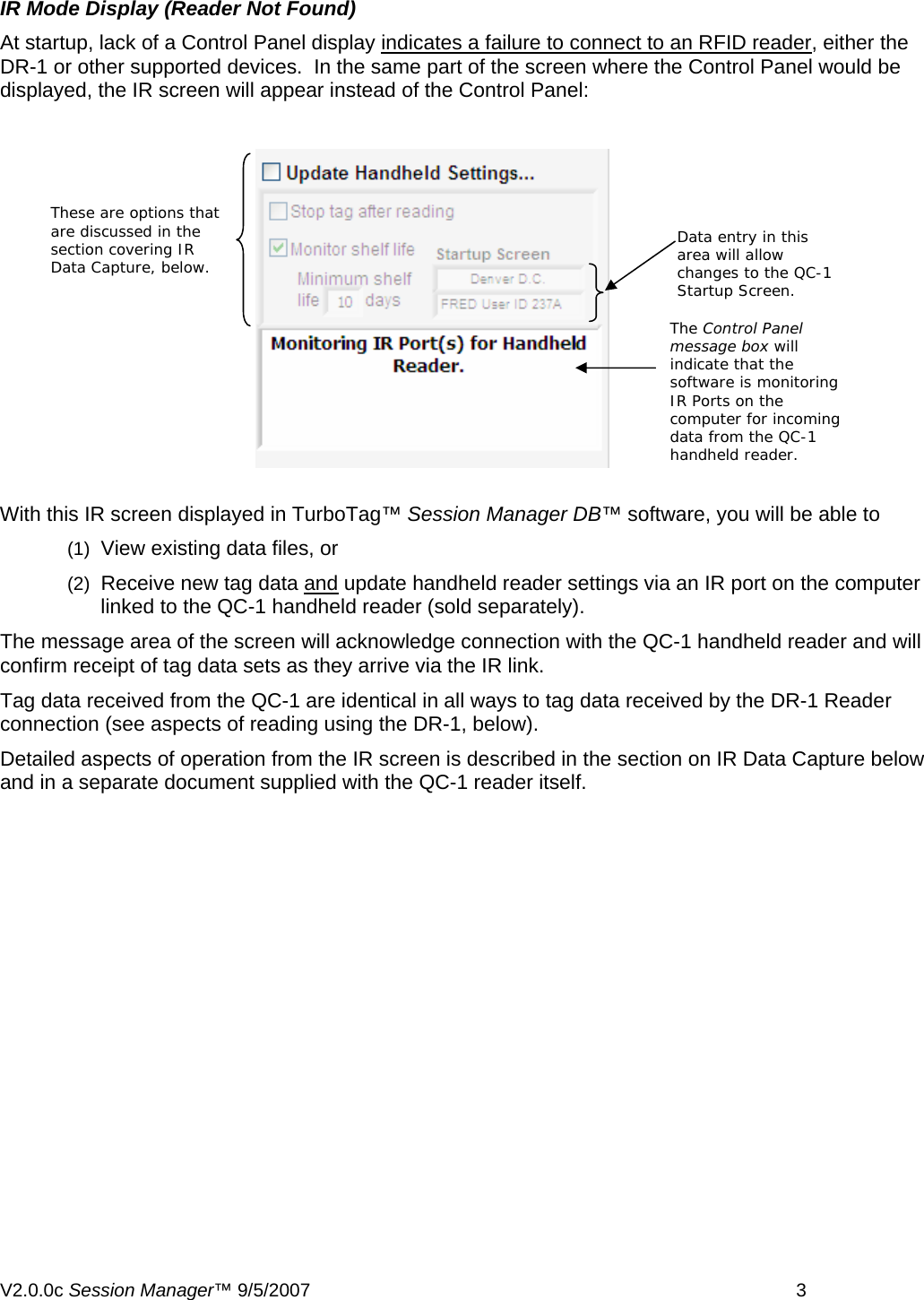
 IR Mode Display (Reader Not Found) At startup, lack of a Control Panel display indicates a failure to connect to an RFID reader, either the DR-1 or other supported devices.  In the same part of the screen where the Control Panel would be displayed, the IR screen will appear instead of the Control Panel: These are options that are discussed in the section covering IR Data Capture, below. Data entry in this area will allow changes to the QC-1 Startup Screen. The Control Panel message box will indicate that the software is monitoring IR Ports on the computer for incoming data from the QC-1 handheld reader. With this IR screen displayed in TurboTag™ Session Manager DB™ software, you will be able to  (1)  View existing data files, or  (2)  Receive new tag data and update handheld reader settings via an IR port on the computer linked to the QC-1 handheld reader (sold separately).   The message area of the screen will acknowledge connection with the QC-1 handheld reader and will confirm receipt of tag data sets as they arrive via the IR link. Tag data received from the QC-1 are identical in all ways to tag data received by the DR-1 Reader connection (see aspects of reading using the DR-1, below). Detailed aspects of operation from the IR screen is described in the section on IR Data Capture below and in a separate document supplied with the QC-1 reader itself. V2.0.0c Session Manager™ 9/5/2007    3
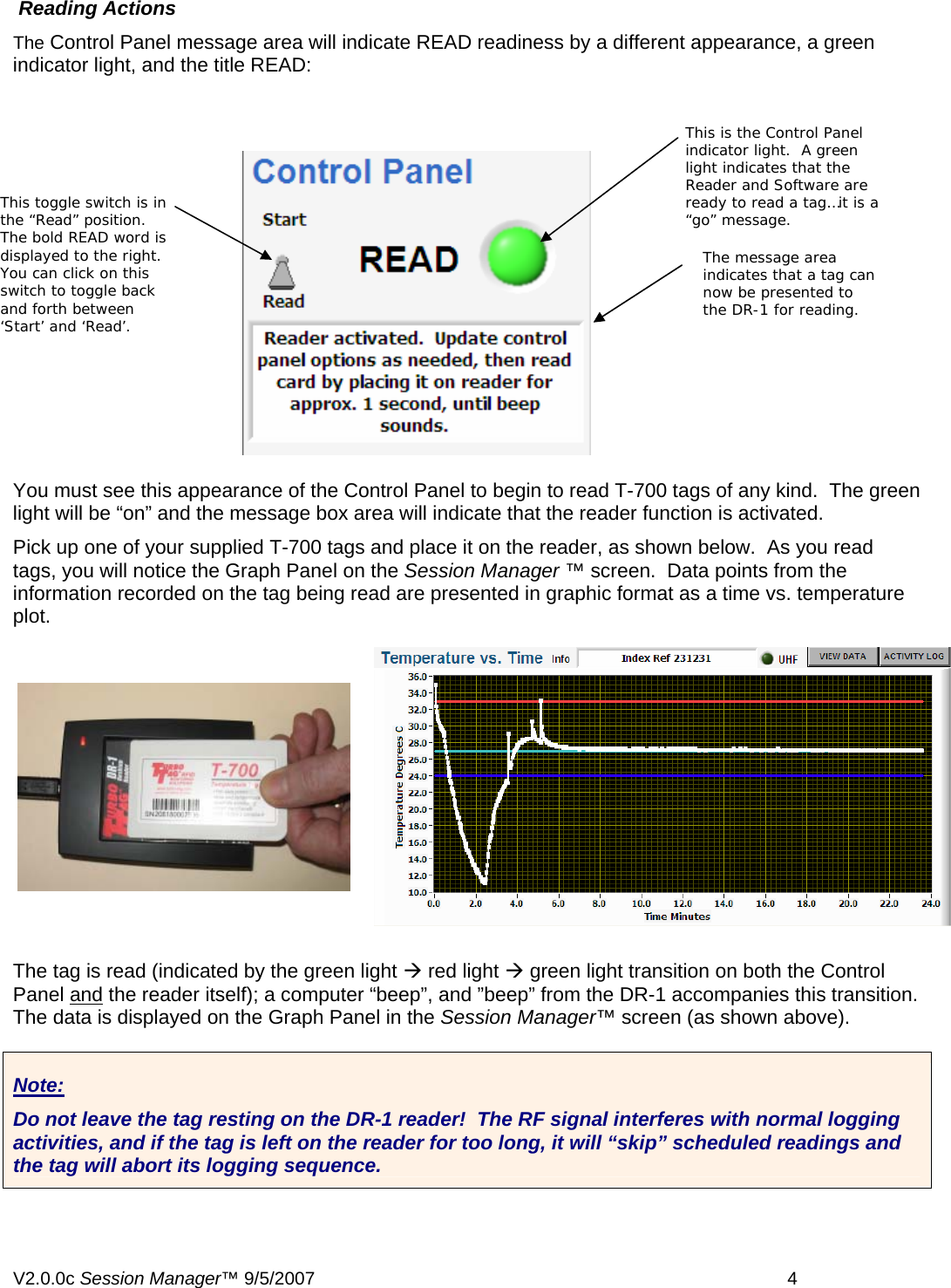
 Reading Actions The Control Panel message area will indicate READ readiness by a different appearance, a green indicator light, and the title READ: This is the Control Panel indicator light.  A green light indicates that the Reader and Software are ready to read a tag…it is a “go” message. This toggle switch is in the “Read” position.  The bold READ word is displayed to the right.  You can click on this switch to toggle back and forth between ‘Start’ and ‘Read’. The message area indicates that a tag can now be presented to the DR-1 for reading.  You must see this appearance of the Control Panel to begin to read T-700 tags of any kind.  The green light will be “on” and the message box area will indicate that the reader function is activated.   Pick up one of your supplied T-700 tags and place it on the reader, as shown below.  As you read tags, you will notice the Graph Panel on the Session Manager ™ screen.  Data points from the information recorded on the tag being read are presented in graphic format as a time vs. temperature plot.   The tag is read (indicated by the green light Æ red light Æ green light transition on both the Control Panel and the reader itself); a computer “beep”, and ”beep” from the DR-1 accompanies this transition. The data is displayed on the Graph Panel in the Session Manager™ screen (as shown above).     Note: Do not leave the tag resting on the DR-1 reader!  The RF signal interferes with normal logging activities, and if the tag is left on the reader for too long, it will “skip” scheduled readings and the tag will abort its logging sequence.  V2.0.0c Session Manager™ 9/5/2007    4
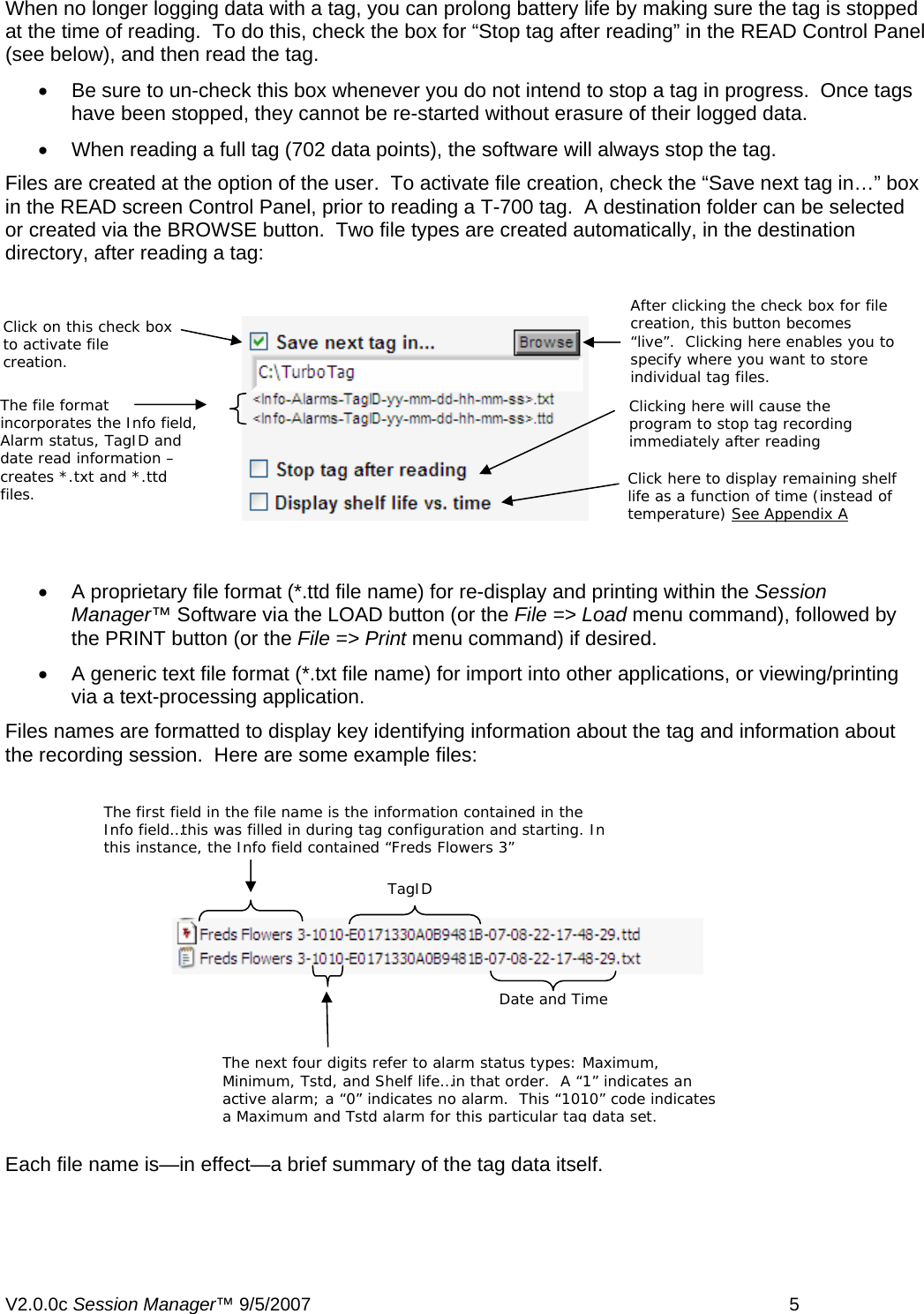
When no longer logging data with a tag, you can prolong battery life by making sure the tag is stopped at the time of reading.  To do this, check the box for “Stop tag after reading” in the READ Control Panel (see below), and then read the tag.   •  Be sure to un-check this box whenever you do not intend to stop a tag in progress.  Once tags have been stopped, they cannot be re-started without erasure of their logged data.   •  When reading a full tag (702 data points), the software will always stop the tag. Files are created at the option of the user.  To activate file creation, check the “Save next tag in…” box in the READ screen Control Panel, prior to reading a T-700 tag.  A destination folder can be selected or created via the BROWSE button.  Two file types are created automatically, in the destination directory, after reading a tag:  After clicking the check box for file creation, this button becomes “live”.  Clicking here enables you to specify where you want to store individual tag files. Click on this check box to activate file creation. The file format incorporates the Info field, Alarm status, TagID and date read information – creates *.txt and *.ttd files.  Clicking here will cause the program to stop tag recording immediately after reading Click here to display remaining shelf life as a function of time (instead of temperature) See Appendix A•  A proprietary file format (*.ttd file name) for re-display and printing within the Session Manager™ Software via the LOAD button (or the File => Load menu command), followed by the PRINT button (or the File => Print menu command) if desired. •  A generic text file format (*.txt file name) for import into other applications, or viewing/printing via a text-processing application. Files names are formatted to display key identifying information about the tag and information about the recording session.  Here are some example files: The first field in the file name is the information contained in the Info field…this was filled in during tag configuration and starting. In this instance, the Info field contained “Freds Flowers 3” TagID Date and Time The next four digits refer to alarm status types: Maximum, Minimum, Tstd, and Shelf life…in that order.  A “1” indicates an active alarm; a “0” indicates no alarm.  This “1010” code indicates a Maximum and Tstd alarm for this particular tag data set. Each file name is—in effect—a brief summary of the tag data itself. V2.0.0c Session Manager™ 9/5/2007    5
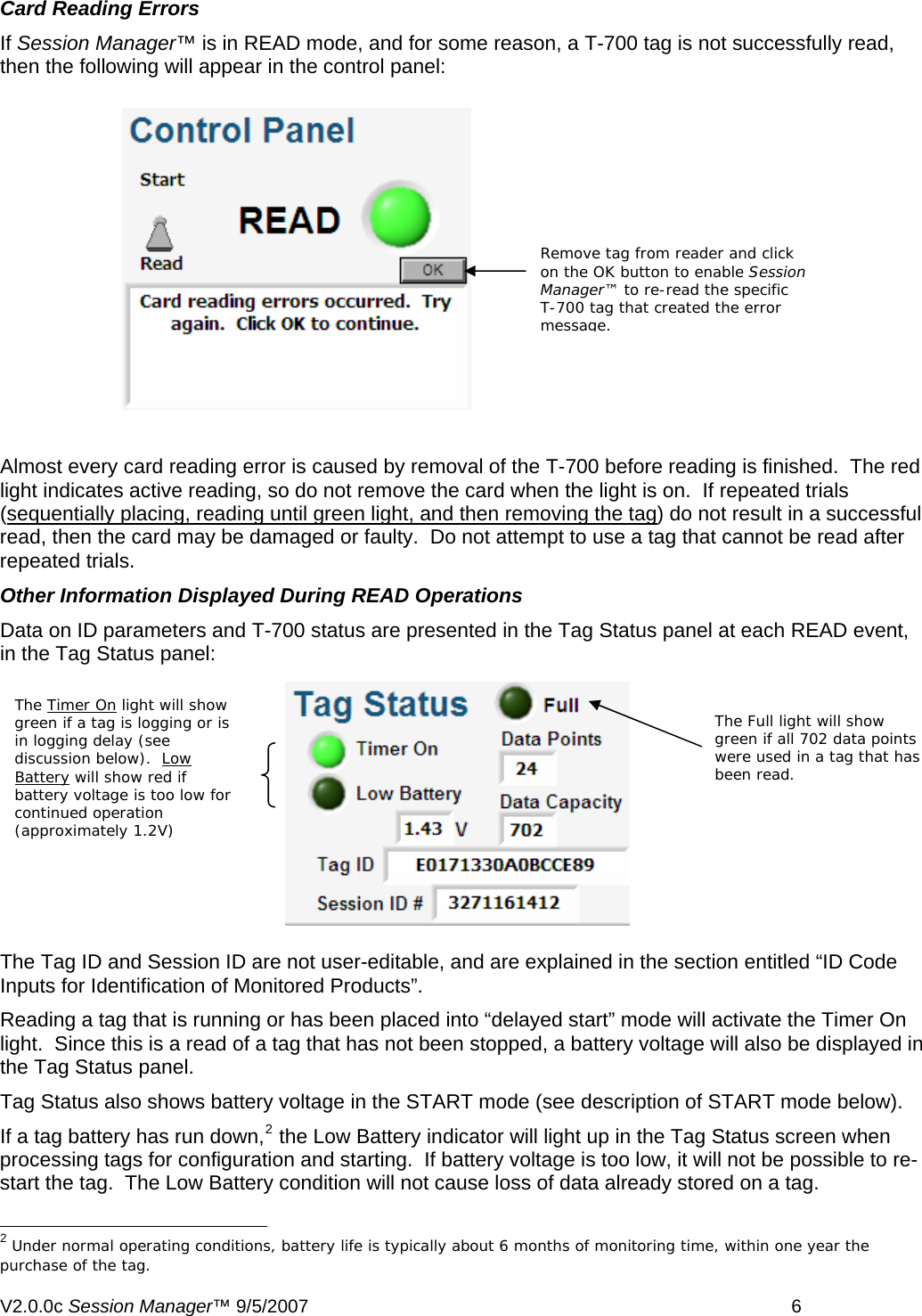
Card Reading Errors If Session Manager™ is in READ mode, and for some reason, a T-700 tag is not successfully read, then the following will appear in the control panel: Remove tag from reader and click on the OK button to enable Session Manager™ to re-read the specific T-700 tag that created the error message.  Almost every card reading error is caused by removal of the T-700 before reading is finished.  The red light indicates active reading, so do not remove the card when the light is on.  If repeated trials (sequentially placing, reading until green light, and then removing the tag) do not result in a successful read, then the card may be damaged or faulty.  Do not attempt to use a tag that cannot be read after repeated trials.  Other Information Displayed During READ Operations Data on ID parameters and T-700 status are presented in the Tag Status panel at each READ event, in the Tag Status panel: The Tag ID and Session ID are not user-editable, and are explained in the section entitled “ID Code Inputs for Identification of Monitored Products”.  Reading a tag that is running or has been placed into “delayed start” mode will activate the Timer On light.  Since this is a read of a tag that has not been stopped, a battery voltage will also be displayed in the Tag Status panel. Tag Status also shows battery voltage in the START mode (see description of START mode below). If a tag battery has run down,2 the Low Battery indicator will light up in the Tag Status screen when processing tags for configuration and starting.  If battery voltage is too low, it will not be possible to re-start the tag.  The Low Battery condition will not cause loss of data already stored on a tag.                                                       2 Under normal operating conditions, battery life is typically about 6 months of monitoring time, within one year the purchase of the tag. The Timer On light will show green if a tag is logging or is in logging delay (see discussion below).  Low Battery will show red if battery voltage is too low for continued operation (approximately 1.2V) The Full light will show green if all 702 data points were used in a tag that has been read.    V2.0.0c Session Manager™ 9/5/2007    6
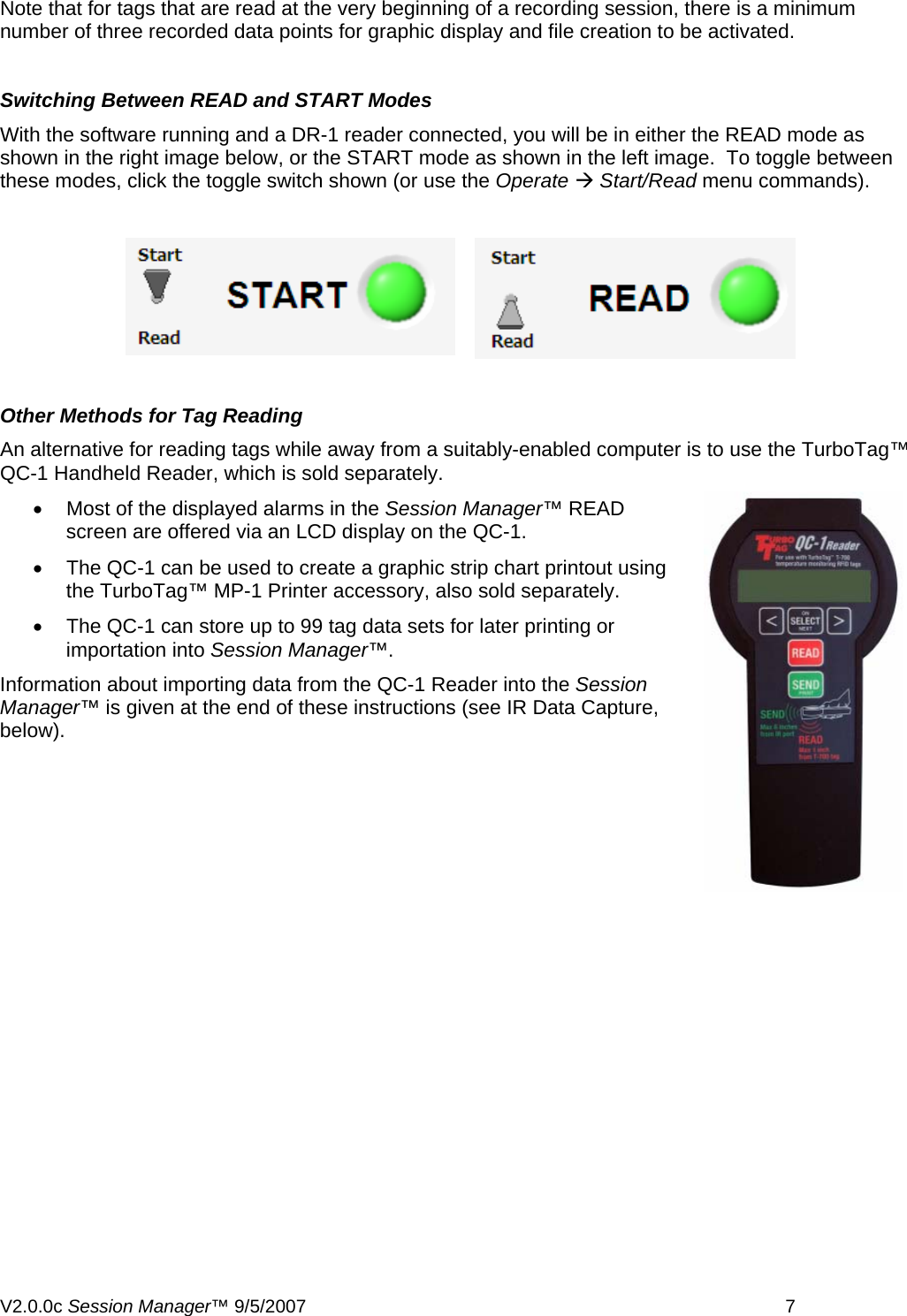
Note that for tags that are read at the very beginning of a recording session, there is a minimum number of three recorded data points for graphic display and file creation to be activated.  Switching Between READ and START Modes With the software running and a DR-1 reader connected, you will be in either the READ mode as shown in the right image below, or the START mode as shown in the left image.  To toggle between these modes, click the toggle switch shown (or use the Operate Æ Start/Read menu commands).    Other Methods for Tag Reading An alternative for reading tags while away from a suitably-enabled computer is to use the TurboTag™ QC-1 Handheld Reader, which is sold separately. •  Most of the displayed alarms in the Session Manager™ READ screen are offered via an LCD display on the QC-1. •  The QC-1 can be used to create a graphic strip chart printout using the TurboTag™ MP-1 Printer accessory, also sold separately. •  The QC-1 can store up to 99 tag data sets for later printing or importation into Session Manager™. Information about importing data from the QC-1 Reader into the Session Manager™ is given at the end of these instructions (see IR Data Capture, below). V2.0.0c Session Manager™ 9/5/2007    7
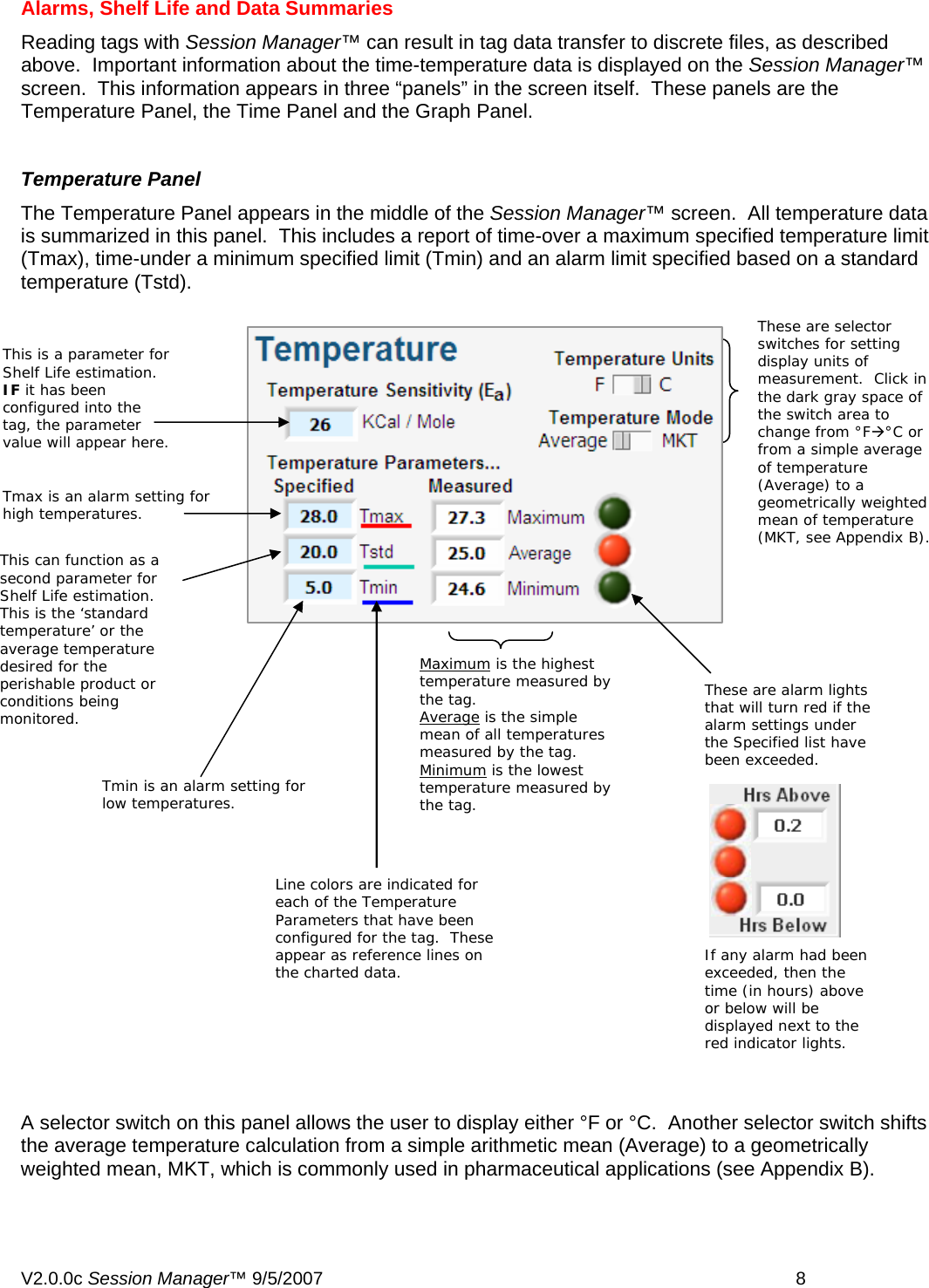
Alarms, Shelf Life and Data Summaries Reading tags with Session Manager™ can result in tag data transfer to discrete files, as described above.  Important information about the time-temperature data is displayed on the Session Manager™ screen.  This information appears in three “panels” in the screen itself.  These panels are the Temperature Panel, the Time Panel and the Graph Panel.  Temperature Panel The Temperature Panel appears in the middle of the Session Manager™ screen.  All temperature data is summarized in this panel.  This includes a report of time-over a maximum specified temperature limit (Tmax), time-under a minimum specified limit (Tmin) and an alarm limit specified based on a standard temperature (Tstd).   This is a parameter for Shelf Life estimation.  IF it has been configured into the tag, the parameter value will appear here. These are selector switches for setting display units of measurement.  Click in the dark gray space of the switch area to change from °FưC or from a simple average of temperature (Average) to a geometrically weighted mean of temperature (MKT, see Appendix B). Maximum is the highest temperature measured by the tag.  Average is the simple mean of all temperatures measured by the tag. Minimum is the lowest temperature measured by the tag. These are alarm lights that will turn red if the alarm settings under the Specified list have been exceeded. Tmax is an alarm setting for high temperatures. Tmin is an alarm setting for low temperatures. This can function as a second parameter for Shelf Life estimation.  This is the ‘standard temperature’ or the average temperature desired for the perishable product or conditions being monitored. If any alarm had been exceeded, then the time (in hours) above or below will be displayed next to the red indicator lights. Line colors are indicated for each of the Temperature Parameters that have been configured for the tag.  These appear as reference lines on the charted data.  A selector switch on this panel allows the user to display either °F or °C.  Another selector switch shifts the average temperature calculation from a simple arithmetic mean (Average) to a geometrically weighted mean, MKT, which is commonly used in pharmaceutical applications (see Appendix B).   V2.0.0c Session Manager™ 9/5/2007    8
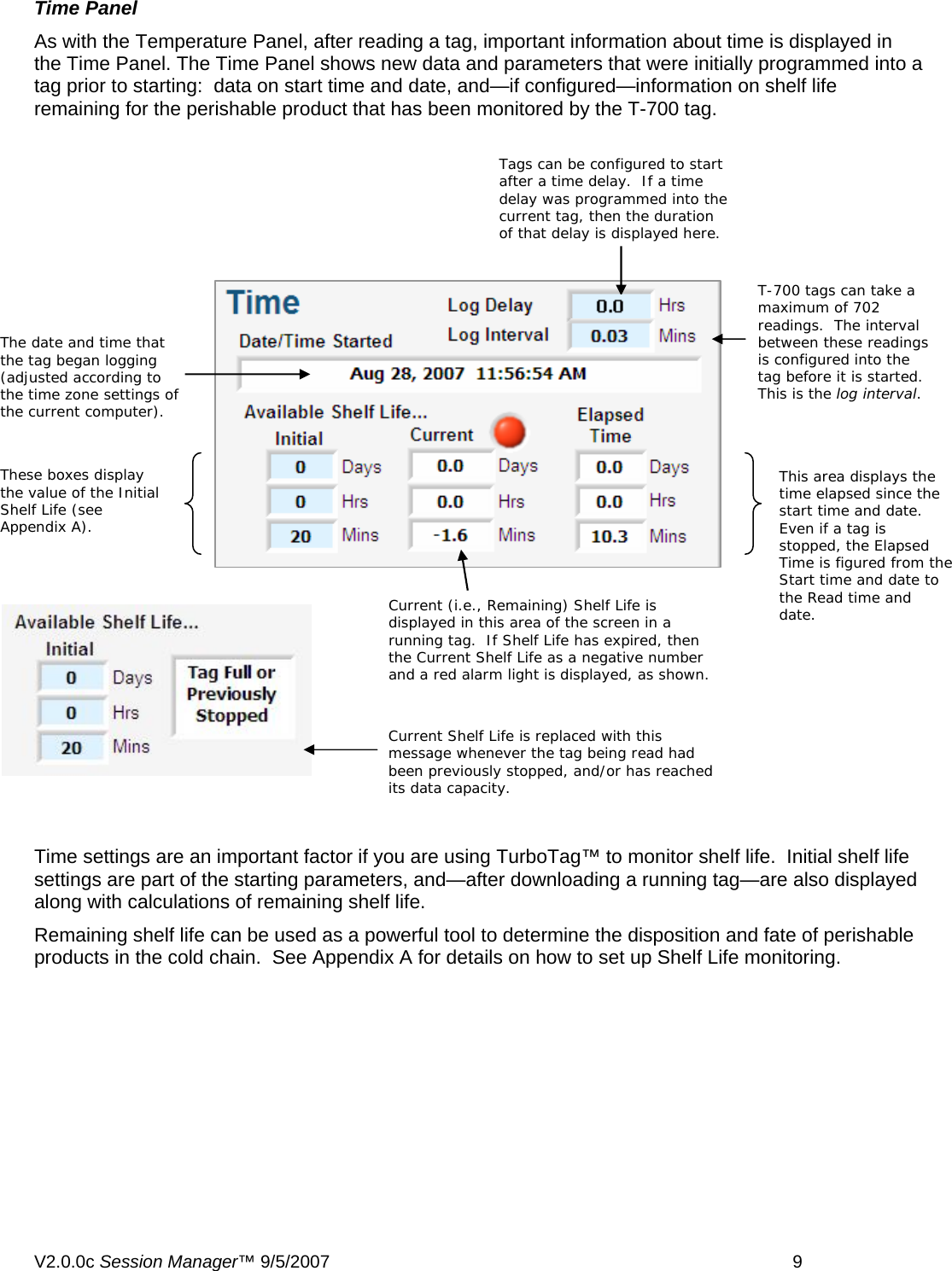
Time Panel As with the Temperature Panel, after reading a tag, important information about time is displayed in the Time Panel. The Time Panel shows new data and parameters that were initially programmed into a tag prior to starting:  data on start time and date, and—if configured—information on shelf life  remaining for the perishable product that has been monitored by the T-700 tag.  The date and time that the tag began logging (adjusted according to the time zone settings of the current computer). Tags can be configured to start after a time delay.  If a time delay was programmed into the current tag, then the duration of that delay is displayed here. T-700 tags can take a maximum of 702 readings.  The interval between these readings is configured into the tag before it is started.  This is the log interval.   This area displays the time elapsed since the start time and date.  Even if a tag is stopped, the Elapsed Time is figured from the Start time and date to the Read time and date.   These boxes display the value of the Initial Shelf Life (see Appendix A).  Current Shelf Life is replaced with this message whenever the tag being read had been previously stopped, and/or has reached its data capacity. Current (i.e., Remaining) Shelf Life is displayed in this area of the screen in a running tag.  If Shelf Life has expired, then the Current Shelf Life as a negative number and a red alarm light is displayed, as shown. Time settings are an important factor if you are using TurboTag™ to monitor shelf life.  Initial shelf life settings are part of the starting parameters, and—after downloading a running tag—are also displayed along with calculations of remaining shelf life.   Remaining shelf life can be used as a powerful tool to determine the disposition and fate of perishable products in the cold chain.  See Appendix A for details on how to set up Shelf Life monitoring.  V2.0.0c Session Manager™ 9/5/2007    9
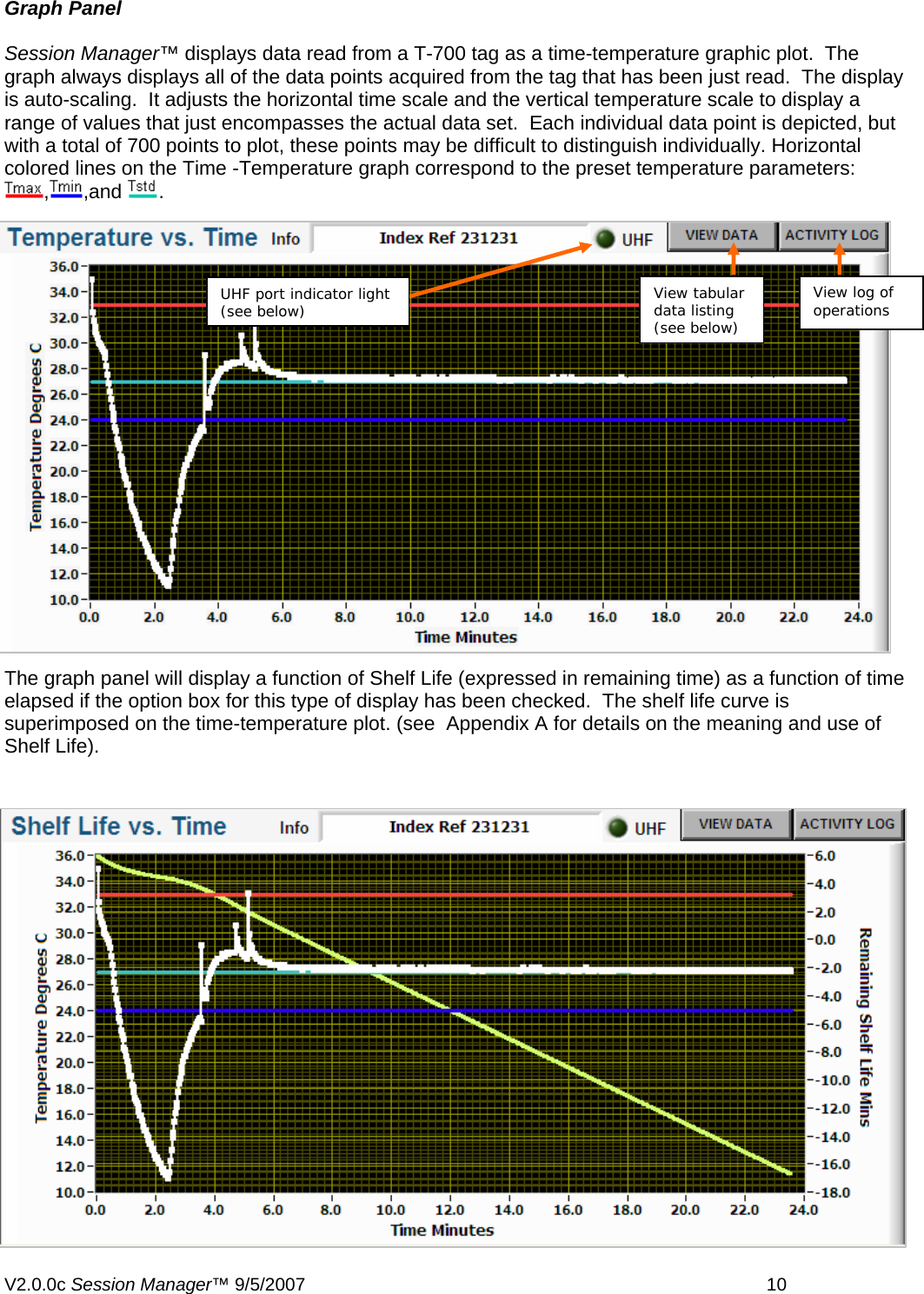
Graph Panel  Session Manager™ displays data read from a T-700 tag as a time-temperature graphic plot.  The graph always displays all of the data points acquired from the tag that has been just read.  The display is auto-scaling.  It adjusts the horizontal time scale and the vertical temperature scale to display a range of values that just encompasses the actual data set.  Each individual data point is depicted, but with a total of 700 points to plot, these points may be difficult to distinguish individually. Horizontal colored lines on the Time -Temperature graph correspond to the preset temperature parameters: ,,and  .   View tabular data listing  (see below) UHF port indicator light (see below) View log of operations  The graph panel will display a function of Shelf Life (expressed in remaining time) as a function of time elapsed if the option box for this type of display has been checked.  The shelf life curve is superimposed on the time-temperature plot. (see  Appendix A for details on the meaning and use of Shelf Life).  V2.0.0c Session Manager™ 9/5/2007    10
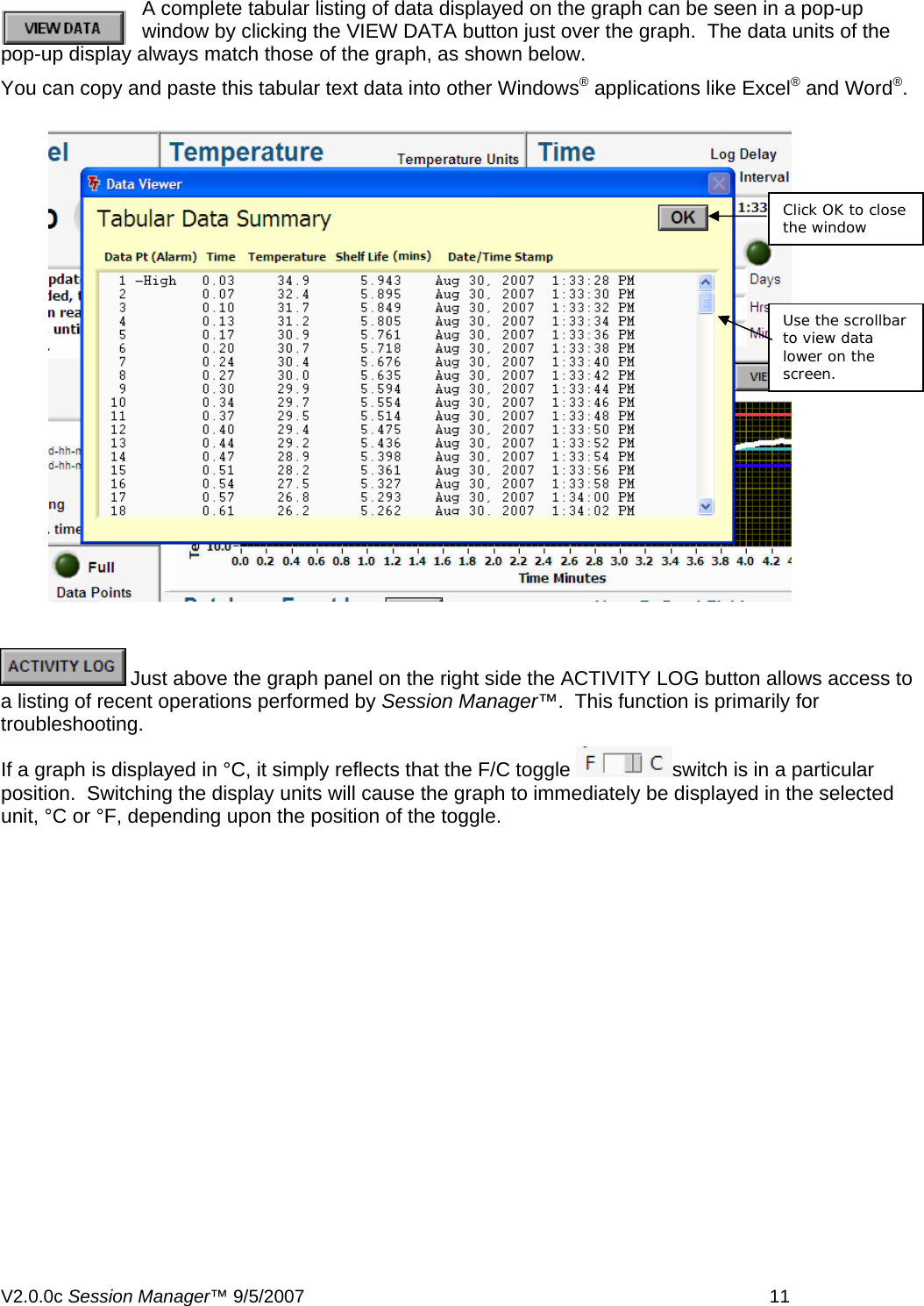
A complete tabular listing of data displayed on the graph can be seen in a pop-up window by clicking the VIEW DATA button just over the graph.  The data units of the pop-up display always match those of the graph, as shown below.  You can copy and paste this tabular text data into other Windows® applications like Excel® and Word®.   Click OK to close the window Use the scrollbar to view data lower on the screen.   Just above the graph panel on the right side the ACTIVITY LOG button allows access to a listing of recent operations performed by Session Manager™.  This function is primarily for troubleshooting. If a graph is displayed in °C, it simply reflects that the F/C toggle  switch is in a particular position.  Switching the display units will cause the graph to immediately be displayed in the selected unit, °C or °F, depending upon the position of the toggle.  V2.0.0c Session Manager™ 9/5/2007    11
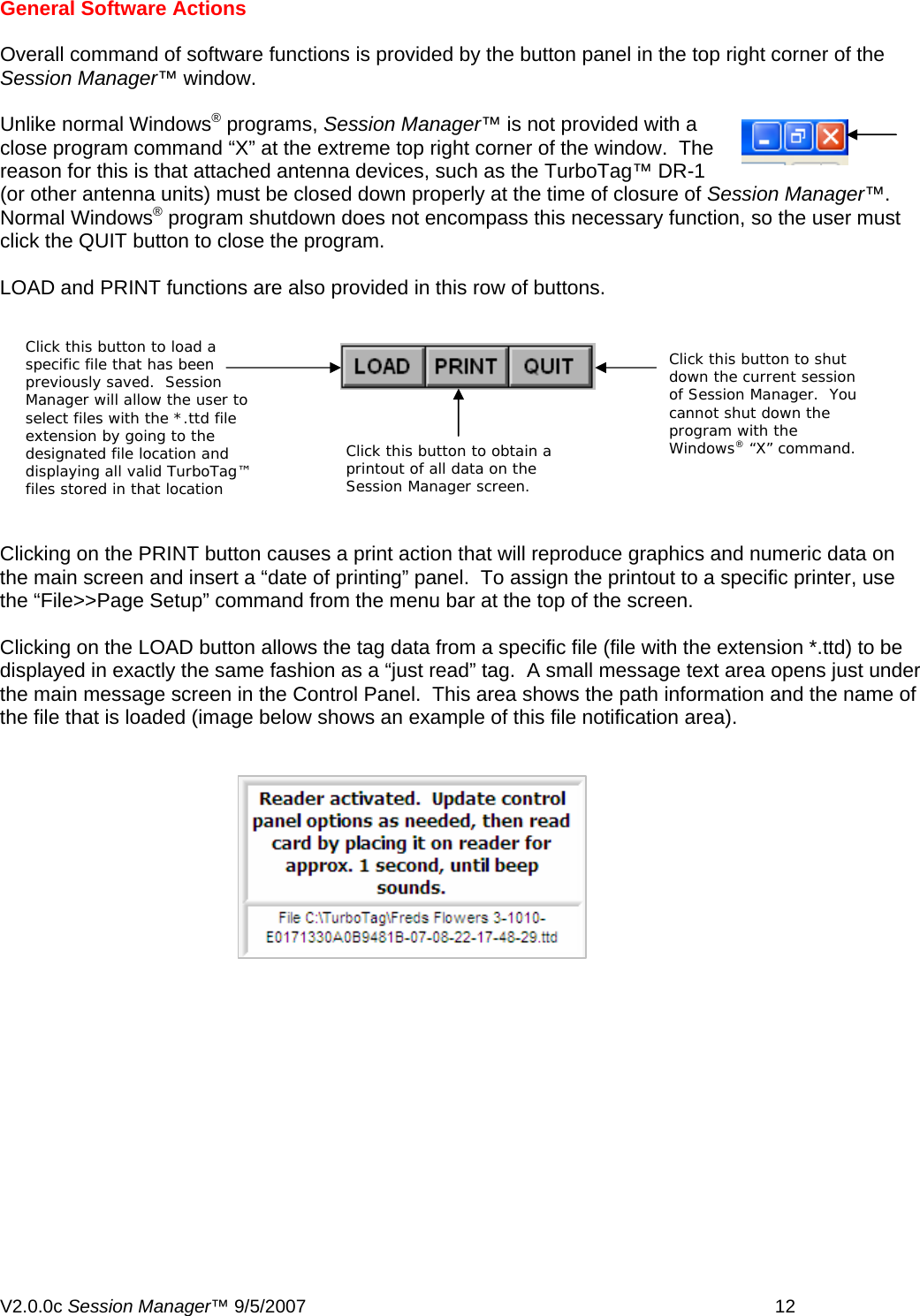
General Software Actions  Overall command of software functions is provided by the button panel in the top right corner of the Session Manager™ window.  Unlike normal Windows® programs, Session Manager™ is not provided with a close program command “X” at the extreme top right corner of the window.  The reason for this is that attached antenna devices, such as the TurboTag™ DR-1 (or other antenna units) must be closed down properly at the time of closure of Session Manager™.  Normal Windows® program shutdown does not encompass this necessary function, so the user must click the QUIT button to close the program.  LOAD and PRINT functions are also provided in this row of buttons.  Click thdown thof Session Manager.  You cannot shut down the program with the Windows® “X” command. Click this button to obtain a printout of all data on the Session Manager screen.   Click this button to load a specific file that has been previously saved.  Session Manager will allow the user to select files with the *.ttd file extension by going to the designated file location and displaying all valid TurboTag™ files stored in that location is button to shut e current session Clicking on the PRINT button causes a print action that will reproduce graphics and numeric data on the main screen and insert a “date of printing” panel.  To assign the printout to a specific printer, use the “File>>Page Setup” command from the menu bar at the top of the screen.  Clicking on the LOAD button allows the tag data from a specific file (file with the extension *.ttd) to be displayed in exactly the same fashion as a “just read” tag.  A small message text area opens just under the main message screen in the Control Panel.  This area shows the path information and the name of the file that is loaded (image below shows an example of this file notification area).   V2.0.0c Session Manager™ 9/5/2007    12
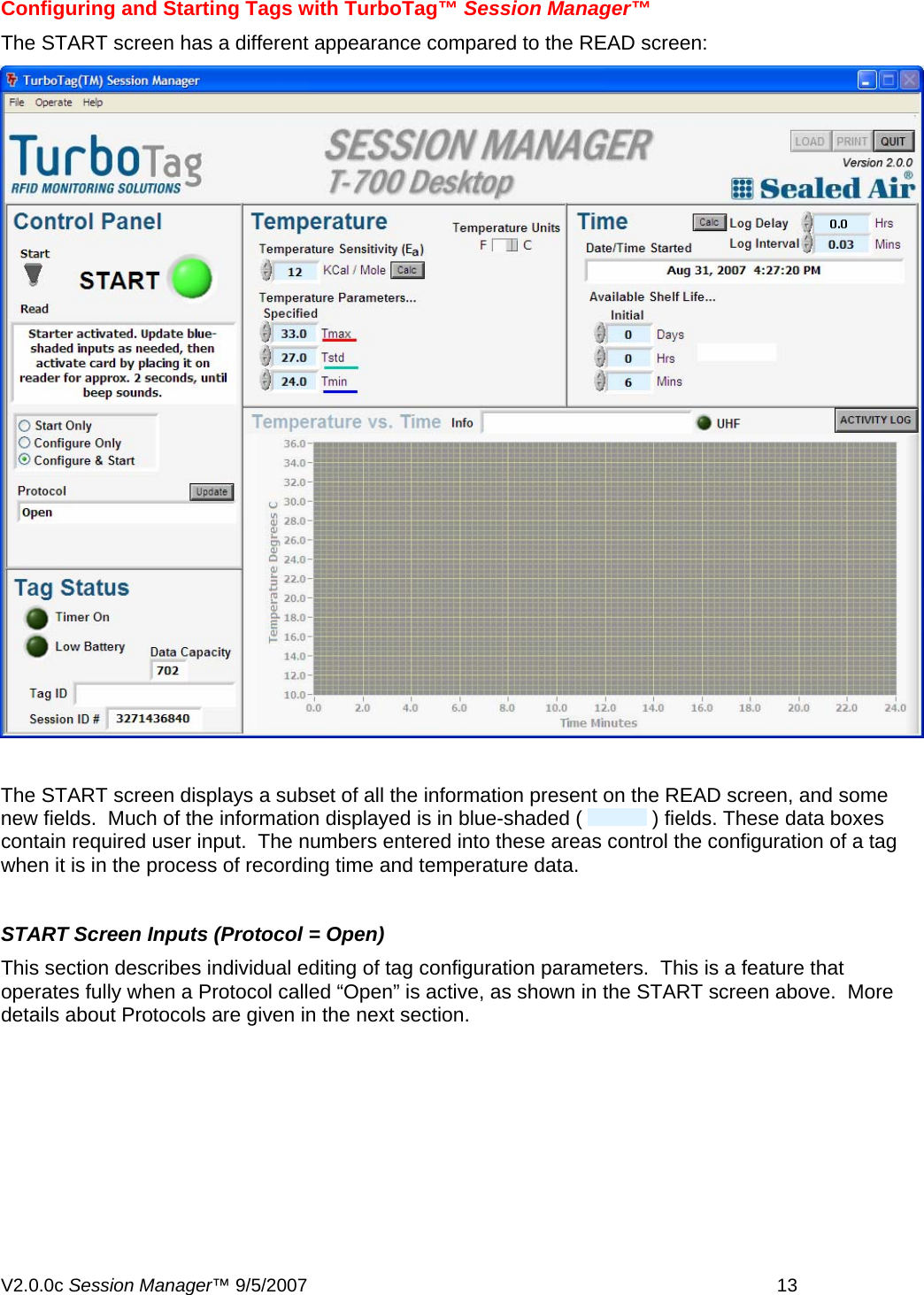
 Configuring and Starting Tags with TurboTag™ Session Manager™ The START screen has a different appearance compared to the READ screen:    The START screen displays a subset of all the information present on the READ screen, and some new fields.  Much of the information displayed is in blue-shaded (   ) fields. These data boxes contain required user input.  The numbers entered into these areas control the configuration of a tag when it is in the process of recording time and temperature data.  START Screen Inputs (Protocol = Open)  This section describes individual editing of tag configuration parameters.  This is a feature that operates fully when a Protocol called “Open” is active, as shown in the START screen above.  More details about Protocols are given in the next section. V2.0.0c Session Manager™ 9/5/2007    13
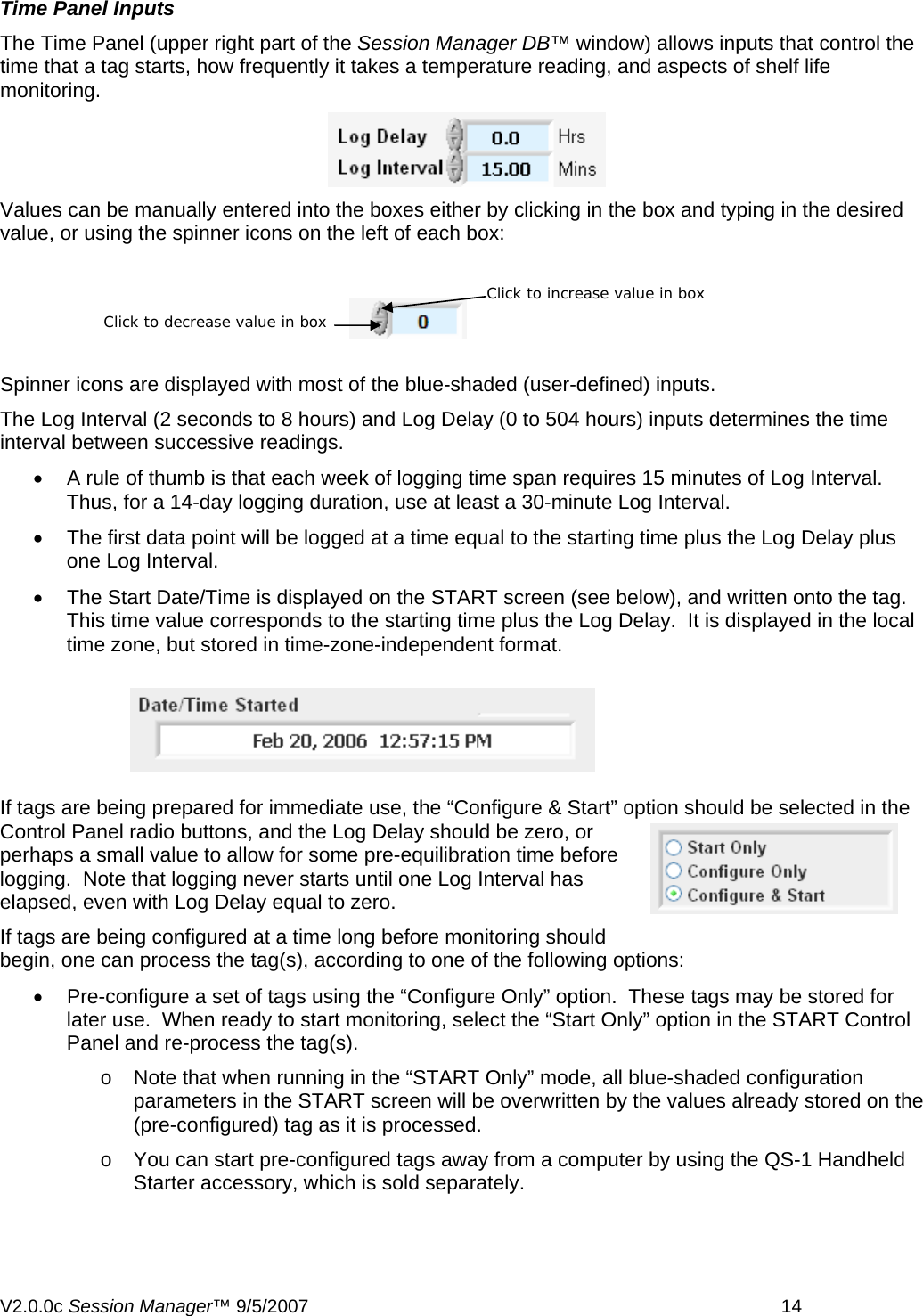
Time Panel Inputs The Time Panel (upper right part of the Session Manager DB™ window) allows inputs that control the time that a tag starts, how frequently it takes a temperature reading, and aspects of shelf life monitoring.   Values can be manually entered into the boxes either by clicking in the box and typing in the desired value, or using the spinner icons on the left of each box:  Click to increase value in box Click to decrease value in box Spinner icons are displayed with most of the blue-shaded (user-defined) inputs. The Log Interval (2 seconds to 8 hours) and Log Delay (0 to 504 hours) inputs determines the time interval between successive readings.  •  A rule of thumb is that each week of logging time span requires 15 minutes of Log Interval.  Thus, for a 14-day logging duration, use at least a 30-minute Log Interval. •  The first data point will be logged at a time equal to the starting time plus the Log Delay plus one Log Interval. •  The Start Date/Time is displayed on the START screen (see below), and written onto the tag.  This time value corresponds to the starting time plus the Log Delay.  It is displayed in the local time zone, but stored in time-zone-independent format.  If tags are being prepared for immediate use, the “Configure & Start” option should be selected in the Control Panel radio buttons, and the Log Delay should be zero, or perhaps a small value to allow for some pre-equilibration time before logging.  Note that logging never starts until one Log Interval has elapsed, even with Log Delay equal to zero. If tags are being configured at a time long before monitoring should begin, one can process the tag(s), according to one of the following options: •  Pre-configure a set of tags using the “Configure Only” option.  These tags may be stored for later use.  When ready to start monitoring, select the “Start Only” option in the START Control Panel and re-process the tag(s). o  Note that when running in the “START Only” mode, all blue-shaded configuration parameters in the START screen will be overwritten by the values already stored on the (pre-configured) tag as it is processed. o  You can start pre-configured tags away from a computer by using the QS-1 Handheld Starter accessory, which is sold separately.  V2.0.0c Session Manager™ 9/5/2007    14
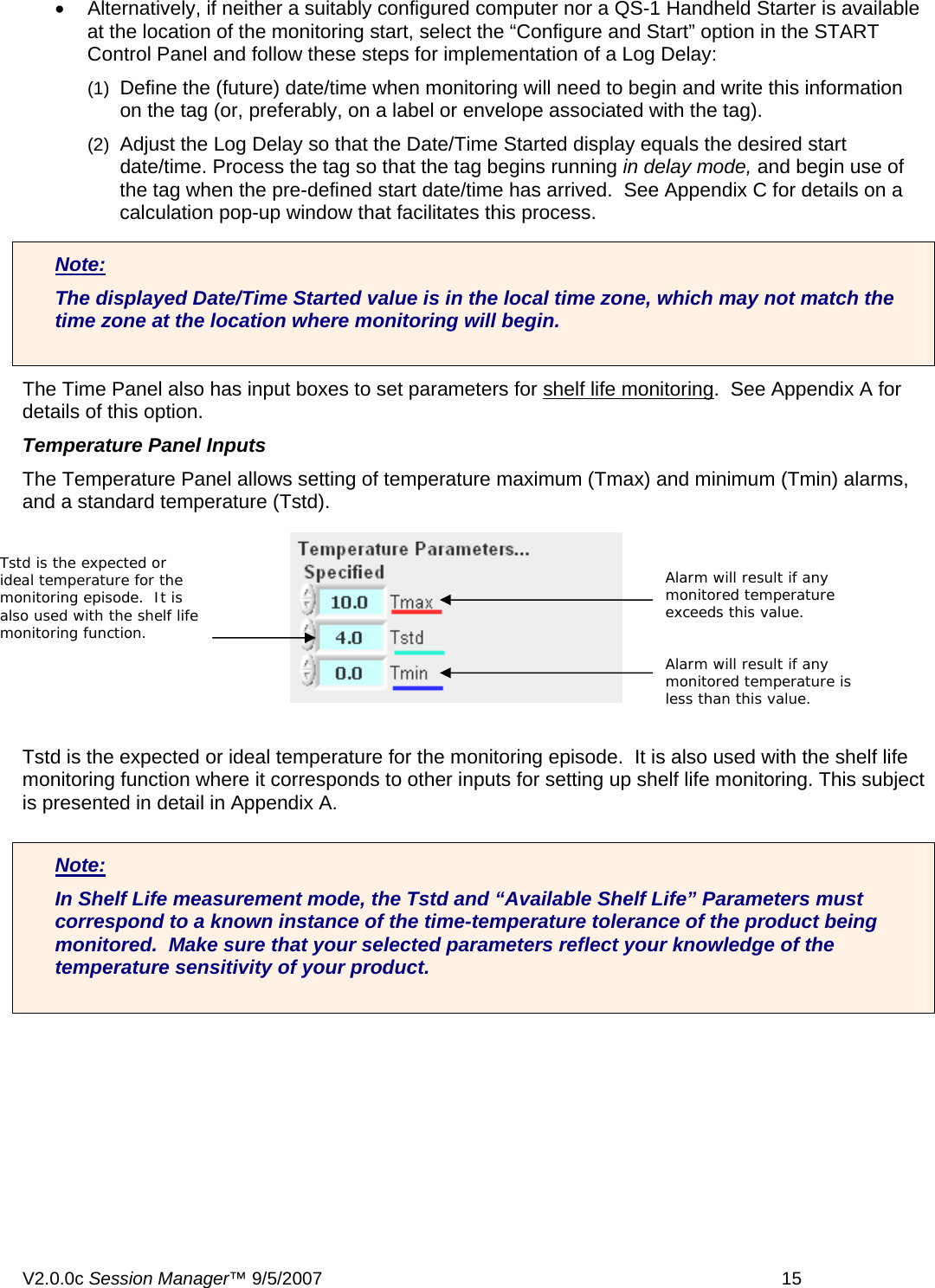
•  Alternatively, if neither a suitably configured computer nor a QS-1 Handheld Starter is available at the location of the monitoring start, select the “Configure and Start” option in the START Control Panel and follow these steps for implementation of a Log Delay: (1)  Define the (future) date/time when monitoring will need to begin and write this information on the tag (or, preferably, on a label or envelope associated with the tag). (2)  Adjust the Log Delay so that the Date/Time Started display equals the desired start date/time. Process the tag so that the tag begins running in delay mode, and begin use of the tag when the pre-defined start date/time has arrived.  See Appendix C for details on a calculation pop-up window that facilitates this process. Note: The displayed Date/Time Started value is in the local time zone, which may not match the time zone at the location where monitoring will begin.  The Time Panel also has input boxes to set parameters for shelf life monitoring.  See Appendix A for details of this option. Temperature Panel Inputs The Temperature Panel allows setting of temperature maximum (Tmax) and minimum (Tmin) alarms, and a standard temperature (Tstd). Tstd is the expected or ideal temperature for the monitoring episode.  It is also used with the shelf life monitoring function where it corresponds to other inputs for setting up shelf life monitoring. This subject is presented in detail in Appendix A.  Note: In Shelf Life measurement mode, the Tstd and “Available Shelf Life” Parameters must correspond to a known instance of the time-temperature tolerance of the product being monitored.  Make sure that your selected parameters reflect your knowledge of the temperature sensitivity of your product.  Tstd is the expected or ideal temperature for the monitoring episode.  It is also used with the shelf life monitoring function. Alarm will result if any monitored temperature exceeds this value. Alarm will result if any monitored temperature is less than this value. V2.0.0c Session Manager™ 9/5/2007    15
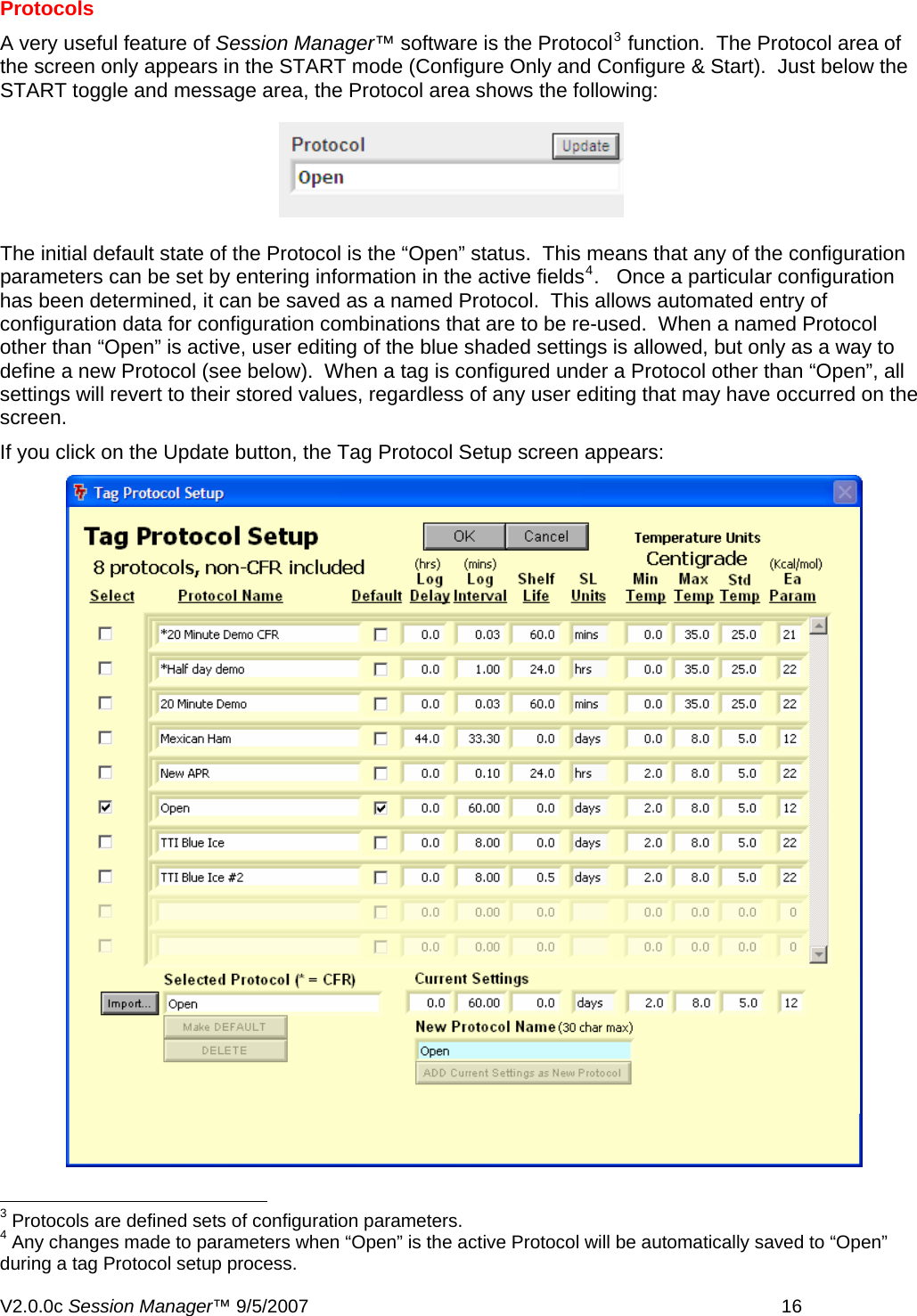
Protocols A very useful feature of Session Manager™ software is the Protocol3 function.  The Protocol area of the screen only appears in the START mode (Configure Only and Configure & Start).  Just below the START toggle and message area, the Protocol area shows the following: The initial default state of the Protocol is the “Open” status.  This means that any of the configuration parameters can be set by entering information in the active fields4.   Once a particular configuration has been determined, it can be saved as a named Protocol.  This allows automated entry of configuration data for configuration combinations that are to be re-used.  When a named Protocol other than “Open” is active, user editing of the blue shaded settings is allowed, but only as a way to define a new Protocol (see below).  When a tag is configured under a Protocol other than “Open”, all settings will revert to their stored values, regardless of any user editing that may have occurred on the screen. If you click on the Update button, the Tag Protocol Setup screen appears:                                                         3 Protocols are defined sets of configuration parameters. 4 Any changes made to parameters when “Open” is the active Protocol will be automatically saved to “Open” during a tag Protocol setup process. V2.0.0c Session Manager™ 9/5/2007    16
In this screen, the default Protocol is “Open”.  We can create a new Protocol named “My New Protocol” based on the current settings taken from the main screen.  The next action is to type in “My New Protocol” in the New Protocol Name box.  This action activates the                                                  button.   When this button is clicked, “My New Protocol” is added to the list.  Using the Select check box, you can activate actions to be performed on the Selected Protocol.  The name appears in the Selected Protocol box: You can delete or make this Selected Protocol the default Protocol.  Note that the “Current Settings” values cannot be edited on this screen  Button Function  Action  Refers to the Default Protocol by checkbox in the Default column Marks the currently selected Protocol in the Default column as the Default setting. Requires clicking OK to exit and activate default status…Protocol is automatically displayed the next time Session Manager™ is loaded and used in configuration mode Deletes named Protocol currently selected in the Selected column.  The “Open” Protocol becomes the Selected Protocol when this action is completed. Action is completed by clicking OK button.   Open configuration is the “wild card” configuration set and cannot be deleted.  The default Protocol cannot be deleted. Clicking OK will activate the selected Protocol and save any changes made.  Creating a New Protocol The best way to understand the creation of a new Protocol is to step through an example.  We are creating a Protocol that we wish to call “Trial Protocol”. Step 1: On the START screen, be sure that the option Configure or Configure & Start is checked. V2.0.0c Session Manager™ 9/5/2007    17
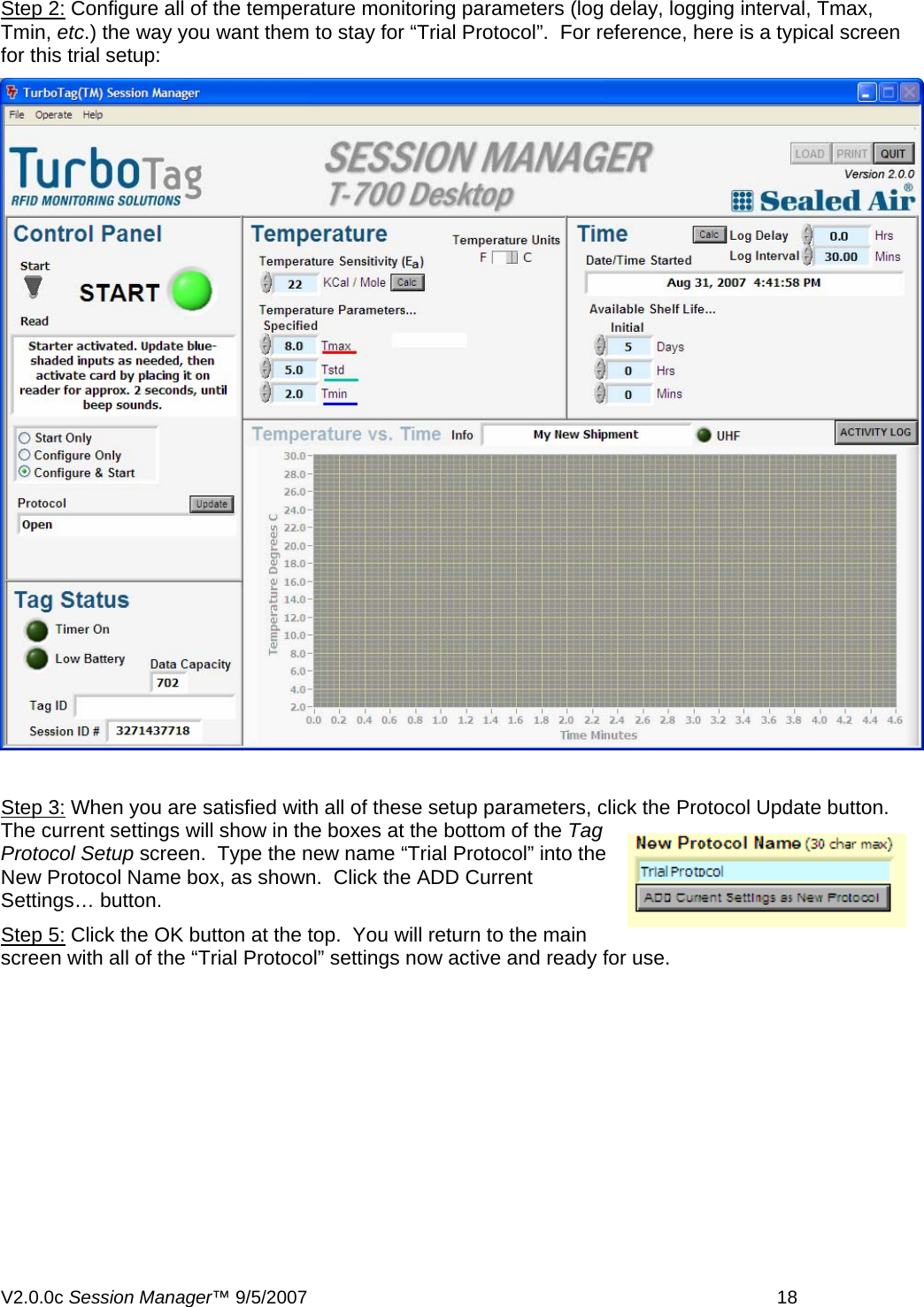
Step 2: Configure all of the temperature monitoring parameters (log delay, logging interval, Tmax, Tmin, etc.) the way you want them to stay for “Trial Protocol”.  For reference, here is a typical screen for this trial setup:   Step 3: When you are satisfied with all of these setup parameters, click the Protocol Update button.  The current settings will show in the boxes at the bottom of the Tag Protocol Setup screen.  Type the new name “Trial Protocol” into the New Protocol Name box, as shown.  Click the ADD Current Settings… button. Step 5: Click the OK button at the top.  You will return to the main screen with all of the “Trial Protocol” settings now active and ready for use. V2.0.0c Session Manager™ 9/5/2007    18
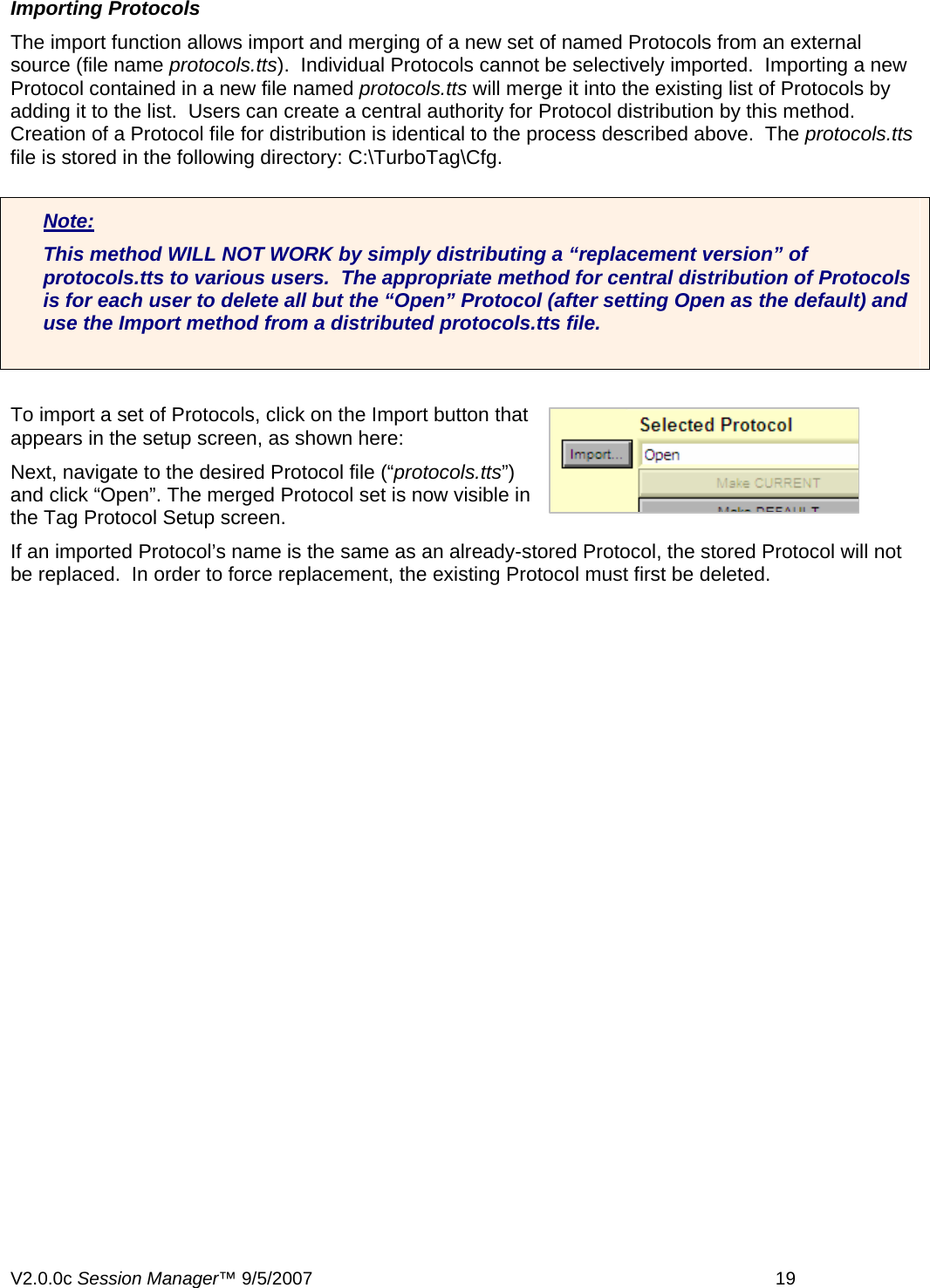
Importing Protocols The import function allows import and merging of a new set of named Protocols from an external source (file name protocols.tts).  Individual Protocols cannot be selectively imported.  Importing a new Protocol contained in a new file named protocols.tts will merge it into the existing list of Protocols by adding it to the list.  Users can create a central authority for Protocol distribution by this method.  Creation of a Protocol file for distribution is identical to the process described above.  The protocols.tts file is stored in the following directory: C:\TurboTag\Cfg.   Note: This method WILL NOT WORK by simply distributing a “replacement version” of protocols.tts to various users.  The appropriate method for central distribution of Protocols is for each user to delete all but the “Open” Protocol (after setting Open as the default) and use the Import method from a distributed protocols.tts file.   To import a set of Protocols, click on the Import button that appears in the setup screen, as shown here: Next, navigate to the desired Protocol file (“protocols.tts”) and click “Open”. The merged Protocol set is now visible in the Tag Protocol Setup screen. If an imported Protocol’s name is the same as an already-stored Protocol, the stored Protocol will not be replaced.  In order to force replacement, the existing Protocol must first be deleted.   V2.0.0c Session Manager™ 9/5/2007    19
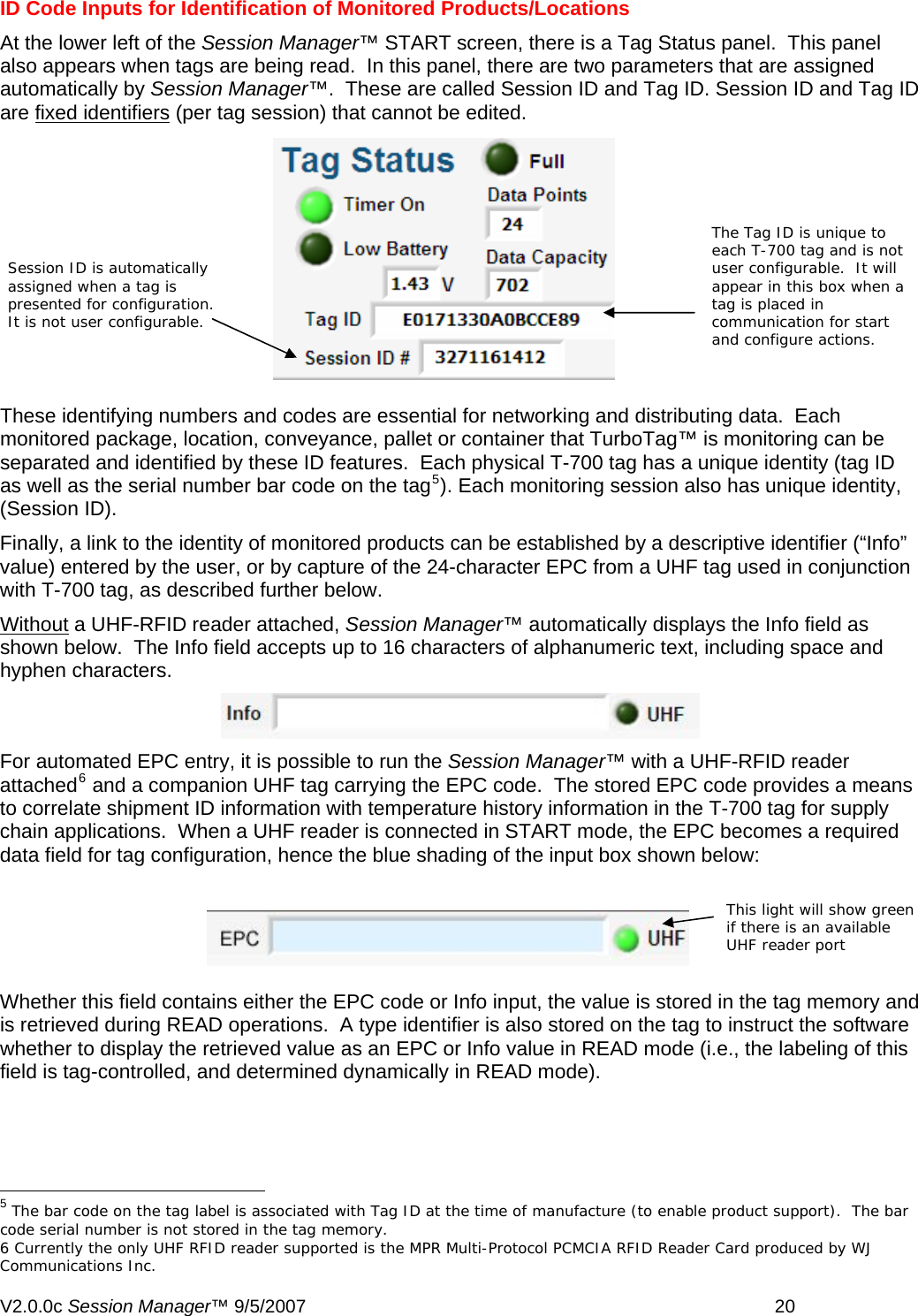
ID Code Inputs for Identification of Monitored Products/Locations  At the lower left of the Session Manager™ START screen, there is a Tag Status panel.  This panel also appears when tags are being read.  In this panel, there are two parameters that are assigned automatically by Session Manager™.  These are called Session ID and Tag ID. Session ID and Tag ID are fixed identifiers (per tag session) that cannot be edited.  rking and distributing data.  Each   be   the identity of monitored products can be established by a descriptive identifier (“Info” Session ID is automatically assigned when a tag is presented for configuration.  It is not user configurable.  The Tag ID is unique to each T-700 tag and is not user configurable.  It will appear in this box when a tag is placed in communication for start and configure actions.  These identifying numbers and codes are essential for netwomonitored package, location, conveyance, pallet or container that TurboTag™ is monitoring canseparated and identified by these ID features.  Each physical T-700 tag has a unique identity (tag IDas well as the serial number bar code on the tag5). Each monitoring session also has unique identity, (Session ID).    Finally, a link to value) entered by the user, or by capture of the 24-character EPC from a UHF tag used in conjunction with T-700 tag, as described further below. Without a UHF-RFID reader attached, Session Manager™ automatically displays the Info field as   shown below.  The Info field accepts up to 16 characters of alphanumeric text, including space andhyphen characters.  For automated EPC entry, it is possible to run the Session Manager™ with a UHF-RFID reader  eans  ag memory and                                                      attached6 and a companion UHF tag carrying the EPC code.  The stored EPC code provides a mto correlate shipment ID information with temperature history information in the T-700 tag for supply chain applications.  When a UHF reader is connected in START mode, the EPC becomes a requireddata field for tag configuration, hence the blue shading of the input box shown below:  Whether this field contains either the EPC code or Info input, the value is stored in the tThis light will show green if there is an available UHF reader port is retrieved during READ operations.  A type identifier is also stored on the tag to instruct the software whether to display the retrieved value as an EPC or Info value in READ mode (i.e., the labeling of this field is tag-controlled, and determined dynamically in READ mode).   5 The bar code on the tag label is associated with Tag ID at the time of manufacture (to enable product support).  The bar code serial number is not stored in the tag memory. 6 Currently the only UHF RFID reader supported is the MPR Multi-Protocol PCMCIA RFID Reader Card produced by WJ Communications Inc. V2.0.0c Session Manager™ 9/5/2007    20
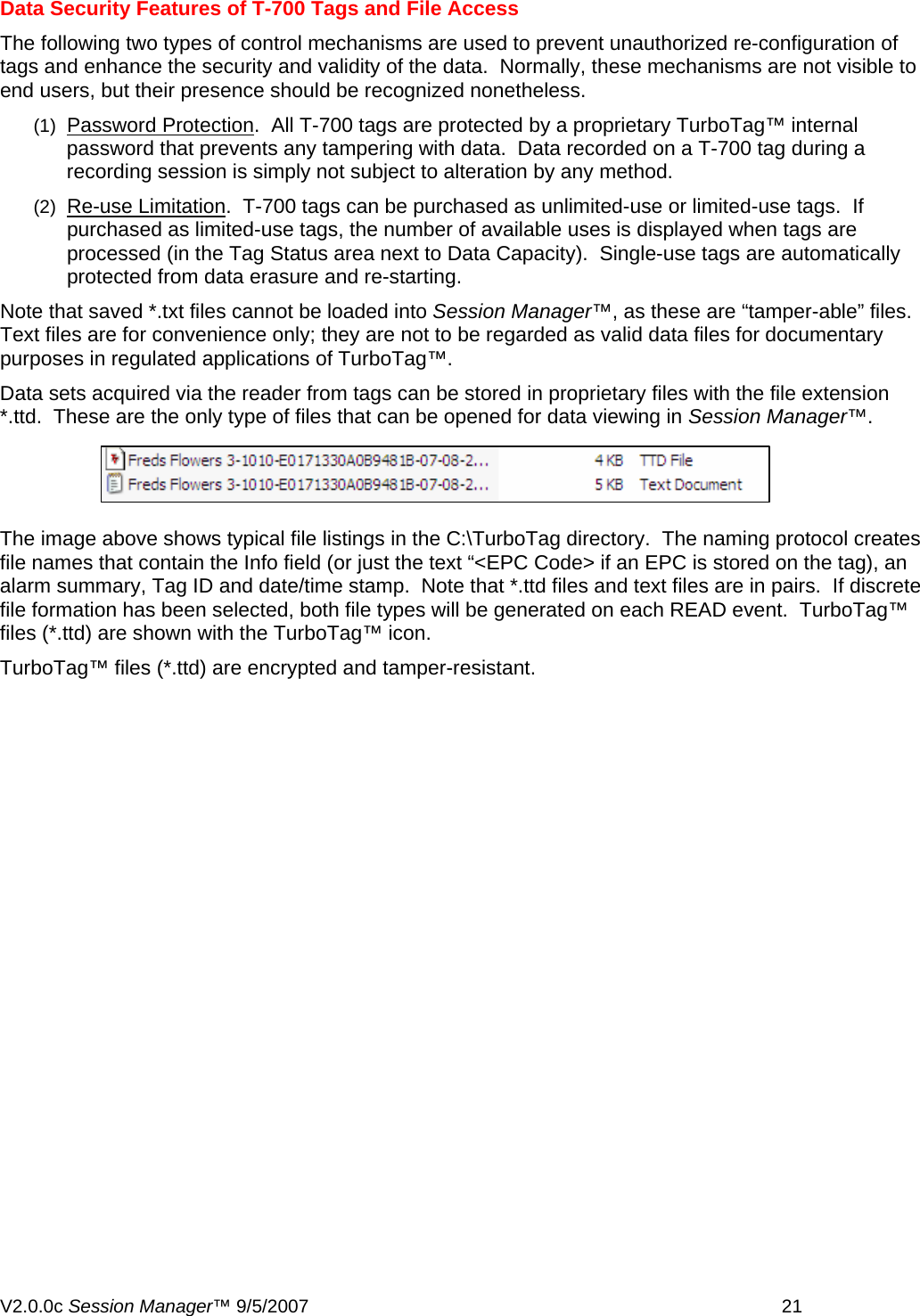
Data Security Features of T-700 Tags and File Access The following two types of control mechanisms are used to prevent unauthorized re-configuration of tags and enhance the security and validity of the data.  Normally, these mechanisms are not visible to end users, but their presence should be recognized nonetheless. (1)  Password Protection.  All T-700 tags are protected by a proprietary TurboTag™ internal password that prevents any tampering with data.  Data recorded on a T-700 tag during a recording session is simply not subject to alteration by any method. (2)  Re-use Limitation.  T-700 tags can be purchased as unlimited-use or limited-use tags.  If purchased as limited-use tags, the number of available uses is displayed when tags are processed (in the Tag Status area next to Data Capacity).  Single-use tags are automatically protected from data erasure and re-starting. Note that saved *.txt files cannot be loaded into Session Manager™, as these are “tamper-able” files.  Text files are for convenience only; they are not to be regarded as valid data files for documentary purposes in regulated applications of TurboTag™.   Data sets acquired via the reader from tags can be stored in proprietary files with the file extension *.ttd.  These are the only type of files that can be opened for data viewing in Session Manager™.   The image above shows typical file listings in the C:\TurboTag directory.  The naming protocol creates file names that contain the Info field (or just the text “<EPC Code> if an EPC is stored on the tag), an alarm summary, Tag ID and date/time stamp.  Note that *.ttd files and text files are in pairs.  If discrete file formation has been selected, both file types will be generated on each READ event.  TurboTag™ files (*.ttd) are shown with the TurboTag™ icon. TurboTag™ files (*.ttd) are encrypted and tamper-resistant.  V2.0.0c Session Manager™ 9/5/2007    21
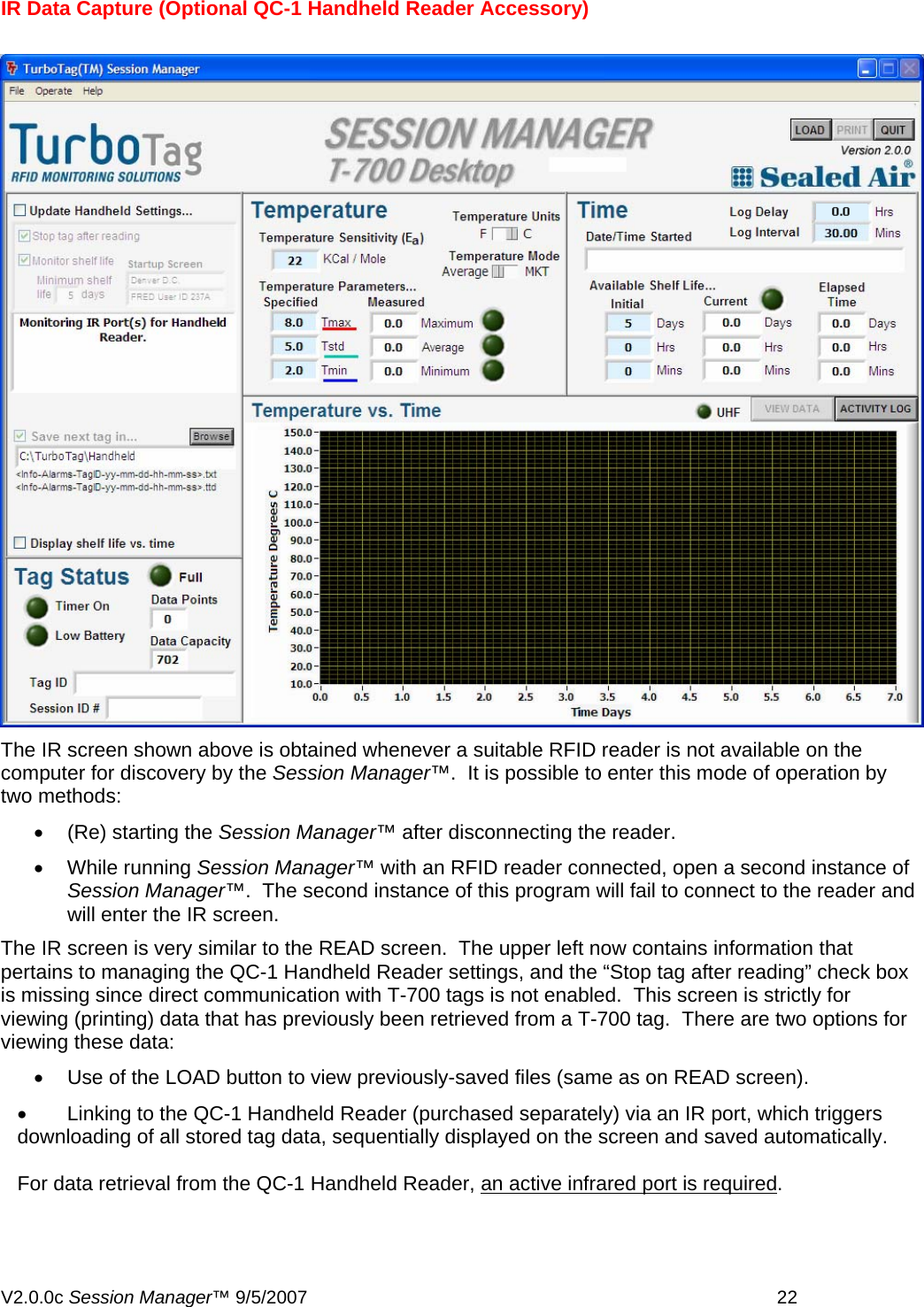
IR Data Capture (Optional QC-1 Handheld Reader Accessory)    The IR screen shown above is obtained whenever a suitable RFID reader is not available on the computer for discovery by the Session Manager™.  It is possible to enter this mode of operation by two methods: •  (Re) starting the Session Manager™ after disconnecting the reader.   • While running Session Manager™ with an RFID reader connected, open a second instance of Session Manager™.  The second instance of this program will fail to connect to the reader and will enter the IR screen. The IR screen is very similar to the READ screen.  The upper left now contains information that pertains to managing the QC-1 Handheld Reader settings, and the “Stop tag after reading” check box is missing since direct communication with T-700 tags is not enabled.  This screen is strictly for viewing (printing) data that has previously been retrieved from a T-700 tag.  There are two options for viewing these data: •  Use of the LOAD button to view previously-saved files (same as on READ screen). •  Linking to the QC-1 Handheld Reader (purchased separately) via an IR port, which triggers downloading of all stored tag data, sequentially displayed on the screen and saved automatically.    For data retrieval from the QC-1 Handheld Reader, an active infrared port is required. V2.0.0c Session Manager™ 9/5/2007    22
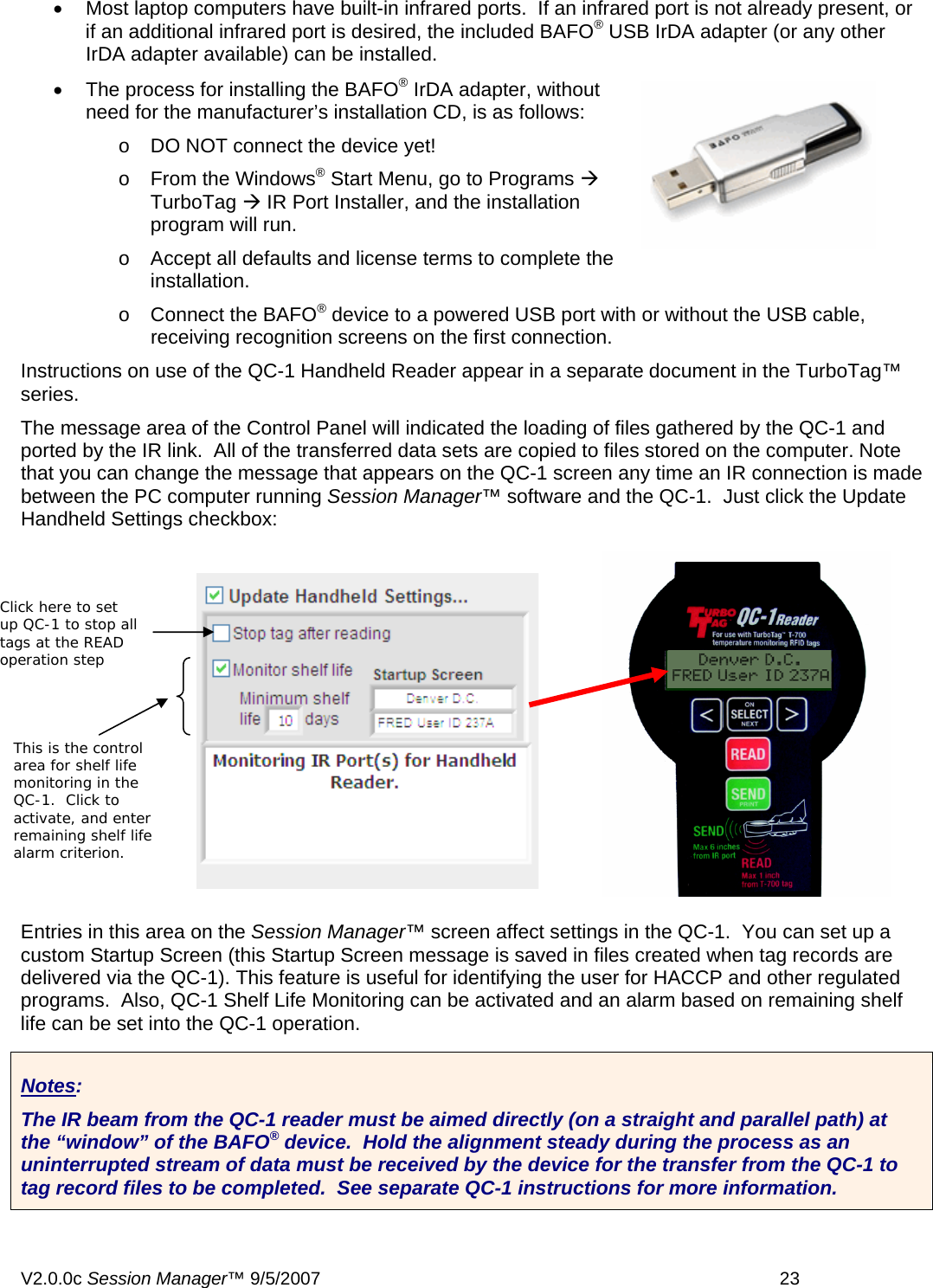
•  Most laptop computers have built-in infrared ports.  If an infrared port is not already present, or if an additional infrared port is desired, the included BAFO® USB IrDA adapter (or any other IrDA adapter available) can be installed.   •  The process for installing the BAFO® IrDA adapter, without need for the manufacturer’s installation CD, is as follows: o  DO NOT connect the device yet! o  From the Windows® Start Menu, go to Programs Æ  TurboTag Æ IR Port Installer, and the installation program will run. o  Accept all defaults and license terms to complete the installation. o  Connect the BAFO® device to a powered USB port with or without the USB cable, receiving recognition screens on the first connection. Instructions on use of the QC-1 Handheld Reader appear in a separate document in the TurboTag™ series. The message area of the Control Panel will indicated the loading of files gathered by the QC-1 and ported by the IR link.  All of the transferred data sets are copied to files stored on the computer. Note that you can change the message that appears on the QC-1 screen any time an IR connection is made between the PC computer running Session Manager™ software and the QC-1.  Just click the Update Handheld Settings checkbox:  Click here to set up QC-1 to stop all tags at the READ operation step This is the control area for shelf life monitoring in the QC-1.  Click to activate, and enter remaining shelf life alarm criterion. Entries in this area on the Session Manager™ screen affect settings in the QC-1.  You can set up a custom Startup Screen (this Startup Screen message is saved in files created when tag records are delivered via the QC-1). This feature is useful for identifying the user for HACCP and other regulated programs.  Also, QC-1 Shelf Life Monitoring can be activated and an alarm based on remaining shelf life can be set into the QC-1 operation. Notes: The IR beam from the QC-1 reader must be aimed directly (on a straight and parallel path) at the “window” of the BAFO® device.  Hold the alignment steady during the process as an uninterrupted stream of data must be received by the device for the transfer from the QC-1 to tag record files to be completed.  See separate QC-1 instructions for more information. V2.0.0c Session Manager™ 9/5/2007    23
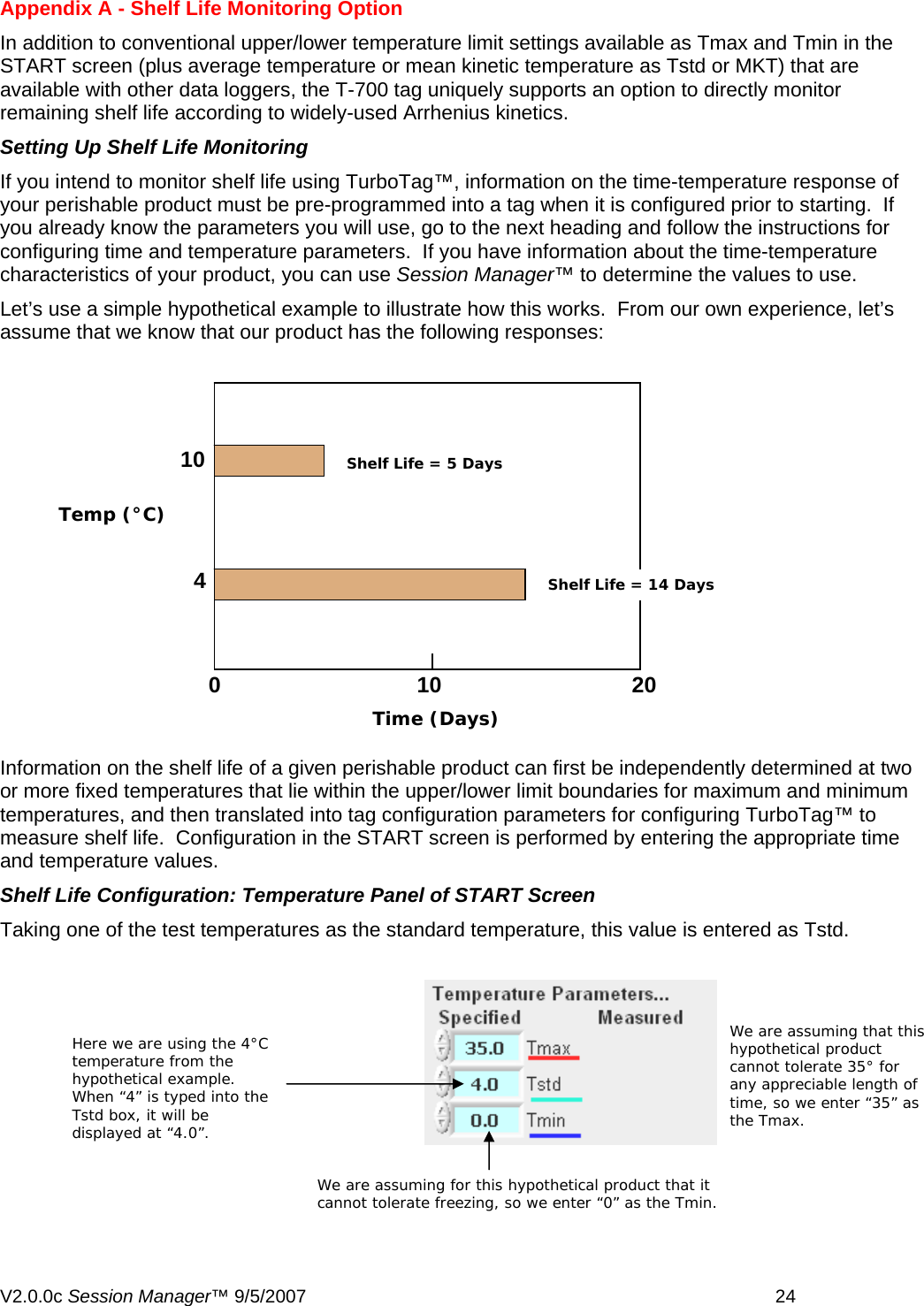
Appendix A - Shelf Life Monitoring Option In addition to conventional upper/lower temperature limit settings available as Tmax and Tmin in the START screen (plus average temperature or mean kinetic temperature as Tstd or MKT) that are available with other data loggers, the T-700 tag uniquely supports an option to directly monitor remaining shelf life according to widely-used Arrhenius kinetics.   Setting Up Shelf Life Monitoring  If you intend to monitor shelf life using TurboTag™, information on the time-temperature response of your perishable product must be pre-programmed into a tag when it is configured prior to starting.  If you already know the parameters you will use, go to the next heading and follow the instructions for configuring time and temperature parameters.  If you have information about the time-temperature characteristics of your product, you can use Session Manager™ to determine the values to use. Let’s use a simple hypothetical example to illustrate how this works.  From our own experience, let’s assume that we know that our product has the following responses:  10 4  Shelf Life = 14 Days Shelf Life = 5 Days Temp (°C)          0 10 20  Time (Days)  Information on the shelf life of a given perishable product can first be independently determined at two or more fixed temperatures that lie within the upper/lower limit boundaries for maximum and minimum temperatures, and then translated into tag configuration parameters for configuring TurboTag™ to measure shelf life.  Configuration in the START screen is performed by entering the appropriate time and temperature values. Shelf Life Configuration: Temperature Panel of START Screen Taking one of the test temperatures as the standard temperature, this value is entered as Tstd.     We are assuming that this hypothetical product cannot tolerate 35° for any appreciable length of time, so we enter “35” as the Tmax. Here we are using the 4°C temperature from the hypothetical example.  When “4” is typed into the Tstd box, it will be displayed at “4.0”. We are assuming for this hypothetical product that it cannot tolerate freezing, so we enter “0” as the Tmin. V2.0.0c Session Manager™ 9/5/2007    24
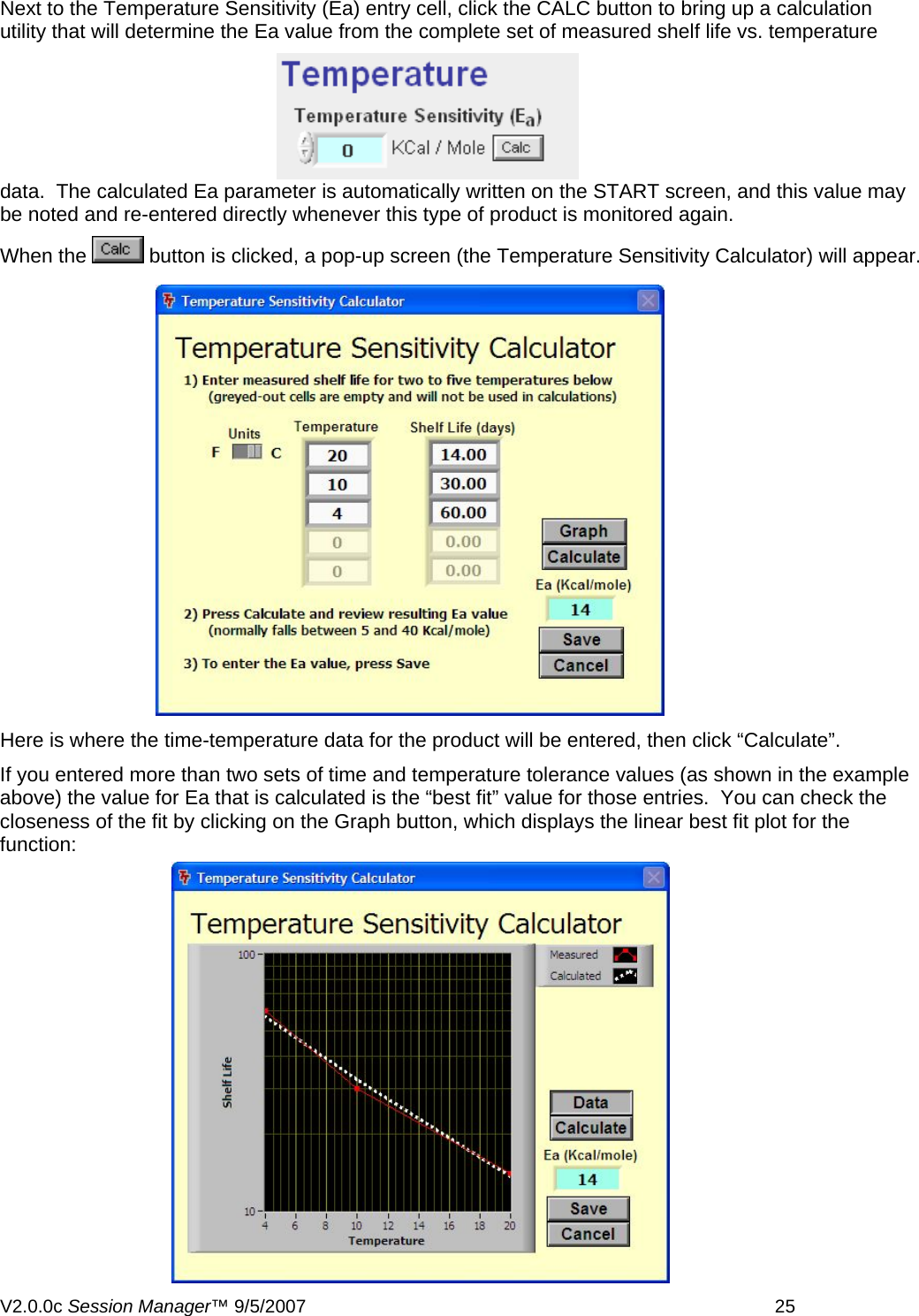
Next to the Temperature Sensitivity (Ea) entry cell, click the CALC button to bring up a calculation utility that will determine the Ea value from the complete set of measured shelf life vs. temperature data.  The calculated Ea parameter is automatically written on the START screen, and this value may be noted and re-entered directly whenever this type of product is monitored again. When the   button is clicked, a pop-up screen (the Temperature Sensitivity Calculator) will appear.  Here is where the time-temperature data for the product will be entered, then click “Calculate”. If you entered more than two sets of time and temperature tolerance values (as shown in the example above) the value for Ea that is calculated is the “best fit” value for those entries.  You can check the closeness of the fit by clicking on the Graph button, which displays the linear best fit plot for the function:V2.0.0c Session Manager™ 9/5/2007    25
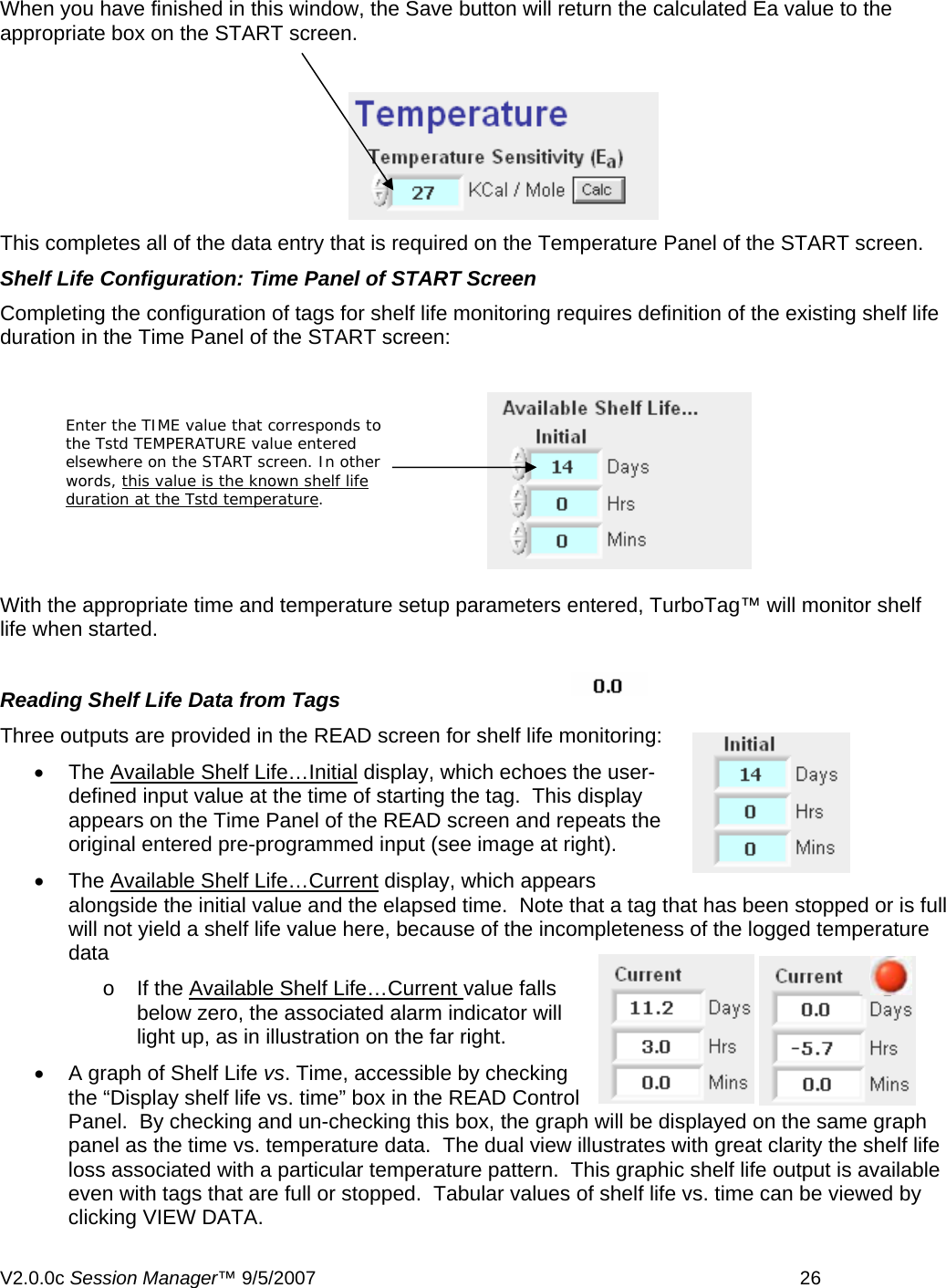
  When you have finished in this window, the Save button will return the calculated Ea value to the appropriate box on the START screen.  This completes all of the data entry that is required on the Temperature Panel of the START screen. Shelf Life Configuration: Time Panel of START Screen Completing the configuration of tags for shelf life monitoring requires definition of the existing shelf life duration in the Time Panel of the START screen:   Enter the TIME value that corresponds to the Tstd TEMPERATURE value entered elsewhere on the START screen. In other words, this value is the known shelf life duration at the Tstd temperature.  With the appropriate time and temperature setup parameters entered, TurboTag™ will monitor shelf life when started.   Reading Shelf Life Data from Tags Three outputs are provided in the READ screen for shelf life monitoring: • The Available Shelf Life…Initial display, which echoes the user-defined input value at the time of starting the tag.  This display appears on the Time Panel of the READ screen and repeats the original entered pre-programmed input (see image at right).   • The Available Shelf Life…Current display, which appears alongside the initial value and the elapsed time.  Note that a tag that has been stopped or is full will not yield a shelf life value here, because of the incompleteness of the logged temperature data o If the Available Shelf Life…Current value falls below zero, the associated alarm indicator will light up, as in illustration on the far right. •  A graph of Shelf Life vs. Time, accessible by checking the “Display shelf life vs. time” box in the READ Control Panel.  By checking and un-checking this box, the graph will be displayed on the same graph panel as the time vs. temperature data.  The dual view illustrates with great clarity the shelf life loss associated with a particular temperature pattern.  This graphic shelf life output is available even with tags that are full or stopped.  Tabular values of shelf life vs. time can be viewed by clicking VIEW DATA. V2.0.0c Session Manager™ 9/5/2007    26
 Note: Shelf Life updating does NOT begin until after the start delay.  Make adjustments for the extra time when assessing the total time-temperature contributions to remaining shelf life.  V2.0.0c Session Manager™ 9/5/2007    27
 Appendix B – Using MKT with TurboTag™ MKT is a parameter used in the pharmaceutical industry in the US.  MKT, or Mean Kinetic Temperature is defined in the context of Controlled Room Temperature, which is a condition required for a comprehensive list of drugs and preparations.  From the USP literature, Controlled Room Temperature is defined: “A temperature maintained thermostatically that encompasses the usual and customary working environment of 20°C to 25°C (68° to 77° F); that results in a mean kinetic temperature calculated to be not more than 25°; and that allows for excursions between 15° and 30° (59° and 86° F), that are experienced in pharmacies, hospitals, and warehouses.” These storage locations and the transport of CRT pharmaceuticals between locations are required to maintain MKT at 25°C or less.  Many CRT pharmaceuticals have a specified shelf life of 1 year at CRT, which requires measurement of MKT for assessing the conformity to this requirement.  Many refrigerated preparations have a maximum exposure to temperatures at CRT, as well. Calculation from manual readings can be complicated.  MKT is usually higher than the arithmetic mean temperature and is derived from the Arrhenius equation. MKT addresses temperature fluctuations during the storage period of the product. MKT is calculated by the following equation:  in which DH is the heat of activation, which equals 83.144kJ per mole7; R45 is the universal gas constant, which equals 8.3144×10⁻³kJ per degree per mole; T1 is the average temperature (°K) during the first time period,(e.g., the first week); T2 is the average temperature (°K) during the second time period,(e.g., second week); and Tn is the average during the nth time period,(e.g.,nth week) ,n being the total number of temperatures recorded.   Making this calculation on a routine basis from temperature averages, of course, is not practical.  TurboTag™ automates the MKT monitoring process. TurboTag™ is easy to set up for these types of applications.  In a facility, TurboTag™ can monitor facility MKT for CRT compliance.  Here are some general guidelines for setup: (1)  Set up for at least 12 measurements in daily period (log interval of 2 hours) in the START screen.  (2)  Pre-configure Tstd to 25.0°C in the START screen (prior to recording)  (3)  Set Ea to 22 in the START screen                                                        7 This corresponds to an Ea of 22 Kcals/mole.  This value needs to be entered for MKT calculations to be performed according to regulatory expectation. V2.0.0c Session Manager™ 9/5/2007    28
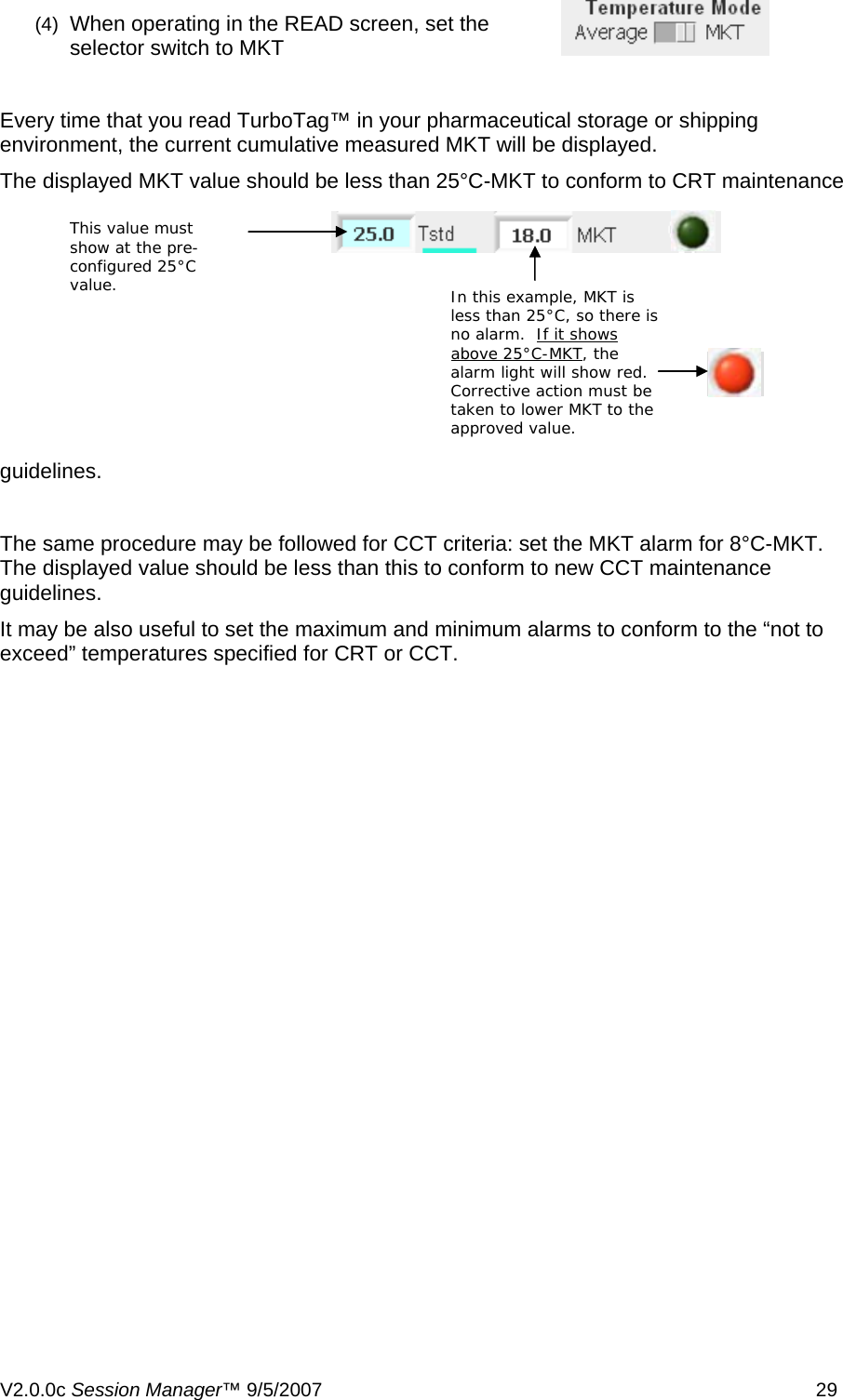
(4)  When operating in the READ screen, set the selector switch to MKT  Every time that you read TurboTag™ in your pharmaceutical storage or shipping environment, the current cumulative measured MKT will be displayed. The displayed MKT value should be less than 25°C-MKT to conform to CRT maintenance guidelines. This value must show at the pre-configured 25°C value.  In this example, MKT is less than 25°C, so there is no alarm.  If it shows above 25°C-MKT The same procedure may be followed for CCT criteria: set the MKT alarm for 8°C-MKT.  The displayed value should be less than this to conform to new CCT maintenance guidelines. It may be also useful to set the maximum and minimum alarms to conform to the “not to exceed” temperatures specified for CRT or CCT. , the alarm light will show red.  Corrective action must be taken to lower MKT to the approved value. V2.0.0c Session Manager™ 9/5/2007    29
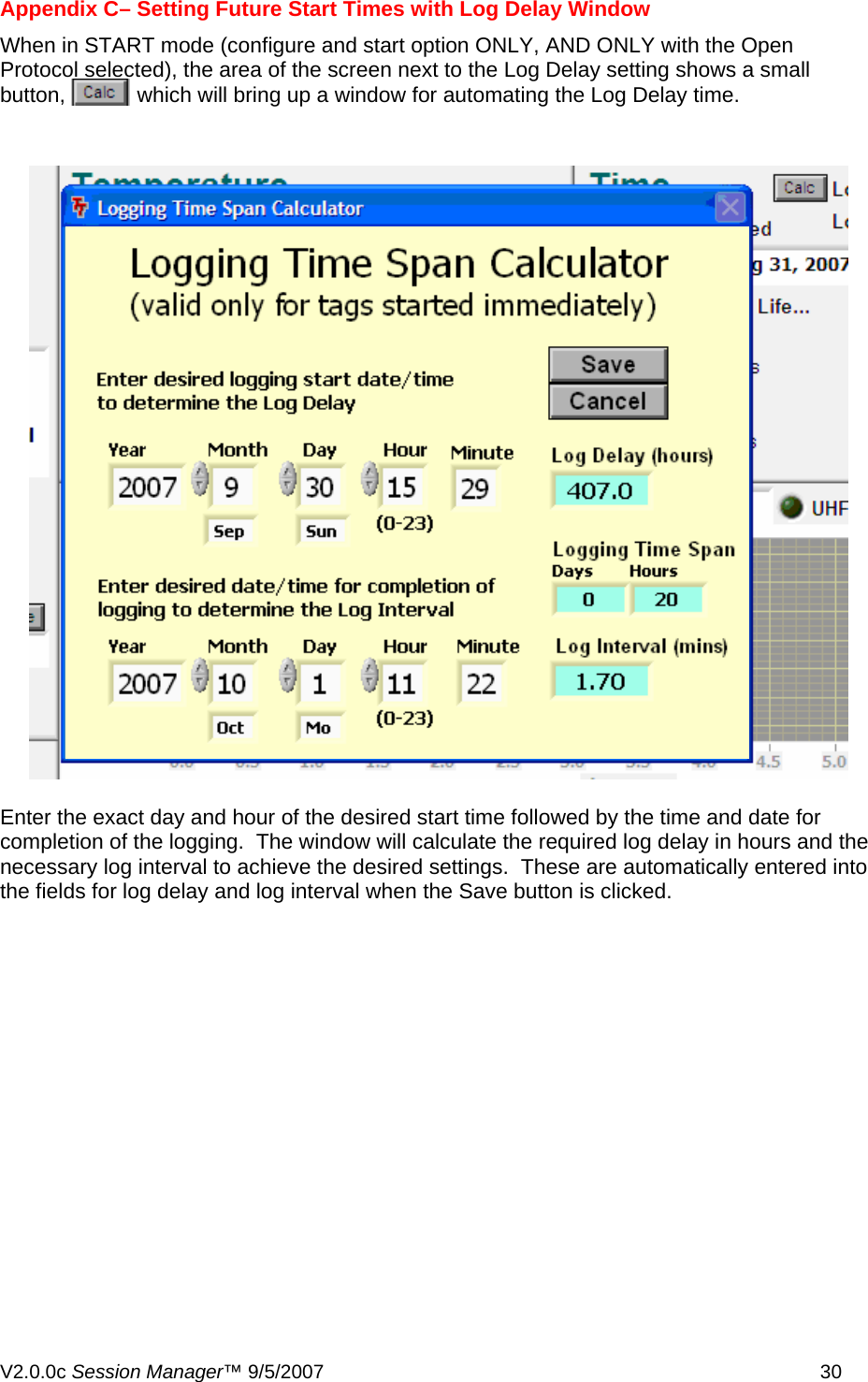
Appendix C– Setting Future Start Times with Log Delay Window When in START mode (configure and start option ONLY, AND ONLY with the Open Protocol selected), the area of the screen next to the Log Delay setting shows a small button,            which will bring up a window for automating the Log Delay time.  Enter the exact day and hour of the desired start time followed by the time and date for completion of the logging.  The window will calculate the required log delay in hours and the necessary log interval to achieve the desired settings.  These are automatically entered into the fields for log delay and log interval when the Save button is clicked.   V2.0.0c Session Manager™ 9/5/2007    30

Navigation menu