Sealed Air QXX TURBO TAG READER User Manual USERS MANUAL

Sealed Air Corp. TURBO TAG READER USERS MANUAL

USERS MANUAL

            www.turbo-tag.com  User Guides for the TurboTag™ QS-1 Handheld Starter and QC-1 Handheld Reader   Contents  QS-1 Starter – User Guide ..........................................1 QS-1 Clock Setup............................................................................2 QC-1 Reader – User Guide ..........................................3 Reading a T-700 Tag ......................................................................4 Displaying Further Tag Information................................................5 Screen Navigation Overview...........................................................7 Reviewing Summary Information about the QC-1...........................9 Changing QC-1 Settings................................................................10 Printing TurboTag™ Data with the MP-1 Printer ...........................12 Sending Tag Data from the QC-1 to a Computer............................12 Sending Tag Data from the QC-1 to a Computer............................13 Battery Replacement....................................................................14 About the TurboTag™ Shelf Life Function .....................................15 Frequently Asked Questions – QC-1 Reader..................................16    FCC ID:  UPZQC1  These devices comply with part 15 of the FCC Rules.  Operation is subject to the following two rules: 1) This device may not cause harmful interference, and 2) This device must accept any interference received, including interference that may cause undesired operation.  CAUTION: Any changes or modifications to these devices not expressly authorized by Sealed Air Corporation may void the user’s authorization to operate the device.
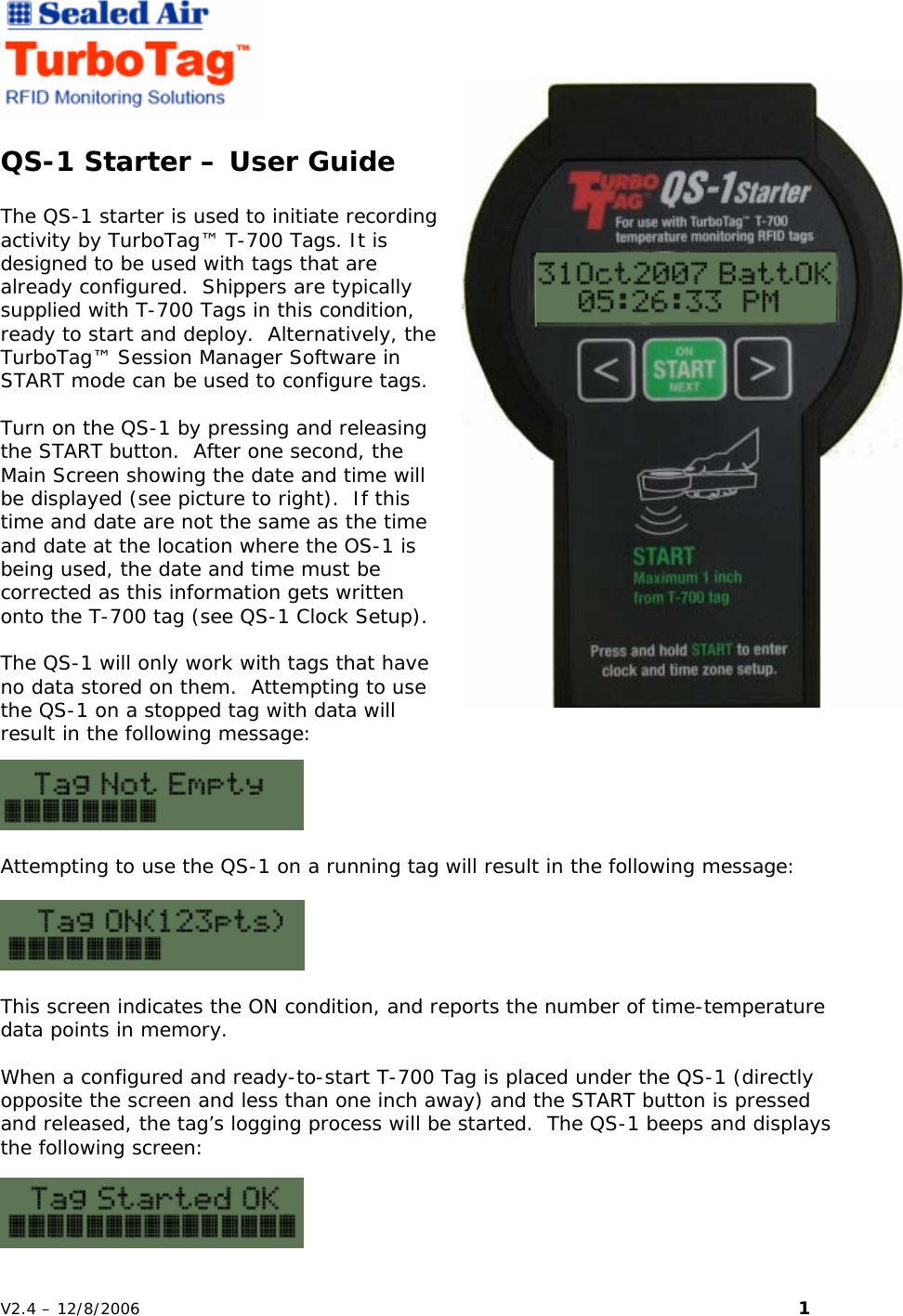
  QS-1 Starter – User Guide  The QS-1 starter is used to initiate recording activity by TurboTag™ T-700 Tags. It is designed to be used with tags that are already configured.  Shippers are typically supplied with T-700 Tags in this condition, ready to start and deploy.  Alternatively, the TurboTag™ Session Manager Software in START mode can be used to configure tags.  Turn on the QS-1 by pressing and releasing the START button.  After one second, the Main Screen showing the date and time will be displayed (see picture to right).  If this time and date are not the same as the time and date at the location where the OS-1 is being used, the date and time must be corrected as this information gets written onto the T-700 tag (see QS-1 Clock Setup).  The QS-1 will only work with tags that have no data stored on them.  Attempting to use the QS-1 on a stopped tag with data will result in the following message:  Attempting to use the QS-1 on a running tag will result in the following message:    This screen indicates the ON condition, and reports the number of time-temperature data points in memory.  When a configured and ready-to-start T-700 Tag is placed under the QS-1 (directly opposite the screen and less than one inch away) and the START button is pressed and released, the tag’s logging process will be started.  The QS-1 beeps and displays the following screen: V2.4 – 12/8/2006                                                                                                                         1
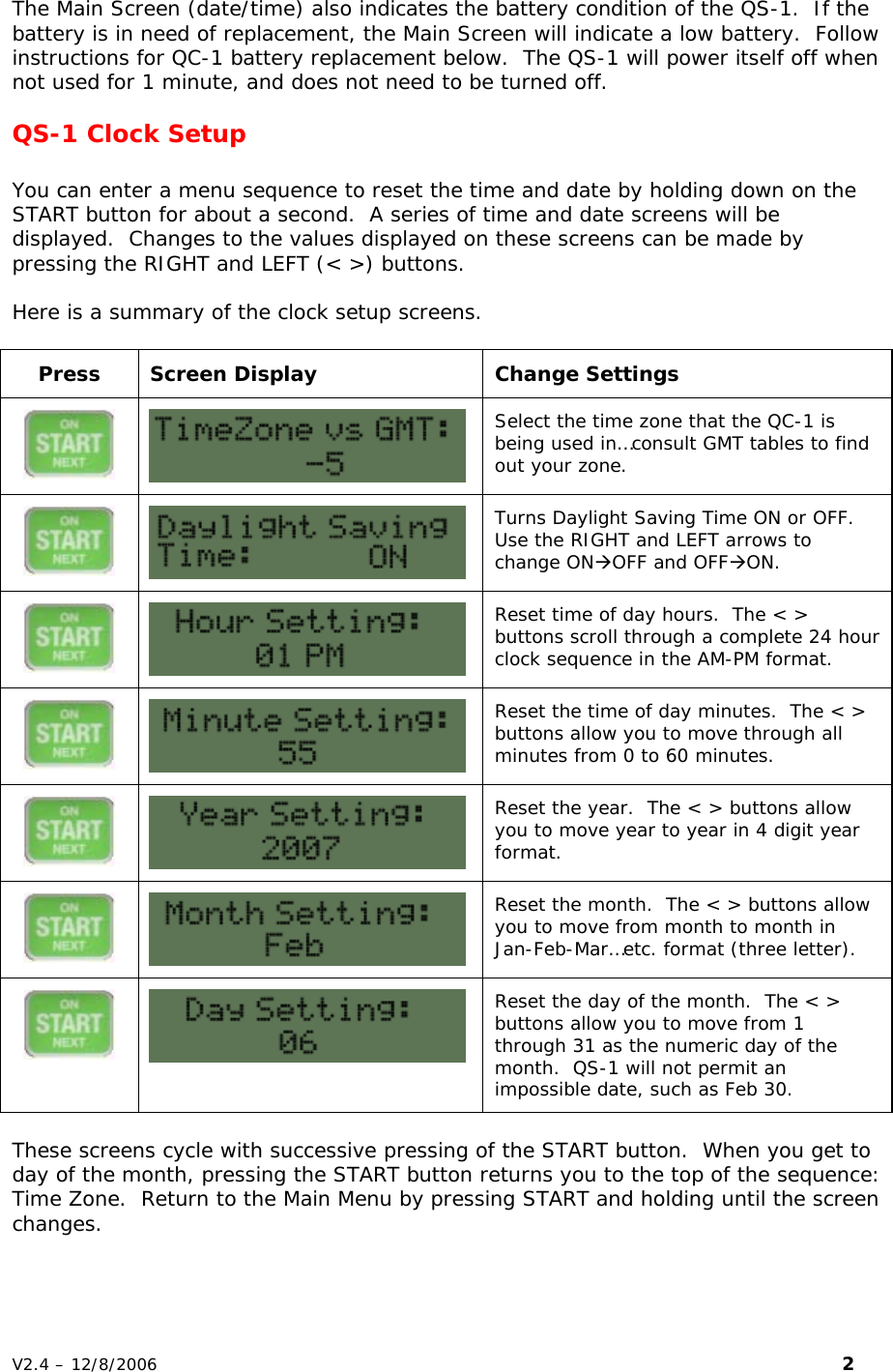
The Main Screen (date/time) also indicates the battery condition of the QS-1.  If the battery is in need of replacement, the Main Screen will indicate a low battery.  Follow instructions for QC-1 battery replacement below.  The QS-1 will power itself off when not used for 1 minute, and does not need to be turned off.  QS-1 Clock Setup  You can enter a menu sequence to reset the time and date by holding down on the START button for about a second.  A series of time and date screens will be displayed.  Changes to the values displayed on these screens can be made by pressing the RIGHT and LEFT (< >) buttons.  Here is a summary of the clock setup screens.  Press Screen Display  Change Settings   Select the time zone that the QC-1 is being used in…consult GMT tables to find out your zone.   Turns Daylight Saving Time ON or OFF.  Use the RIGHT and LEFT arrows to change ONÆOFF and OFFÆON.   Reset time of day hours.  The < > buttons scroll through a complete 24 hour clock sequence in the AM-PM format.   Reset the time of day minutes.  The < > buttons allow you to move through all minutes from 0 to 60 minutes.   Reset the year.  The < > buttons allow you to move year to year in 4 digit year format.   Reset the month.  The < > buttons allow you to move from month to month in Jan-Feb-Mar…etc. format (three letter).   Reset the day of the month.  The < > buttons allow you to move from 1 through 31 as the numeric day of the month.  QS-1 will not permit an impossible date, such as Feb 30.  These screens cycle with successive pressing of the START button.  When you get to day of the month, pressing the START button returns you to the top of the sequence: Time Zone.  Return to the Main Menu by pressing START and holding until the screen changes.   V2.4 – 12/8/2006                                                                                                                         2
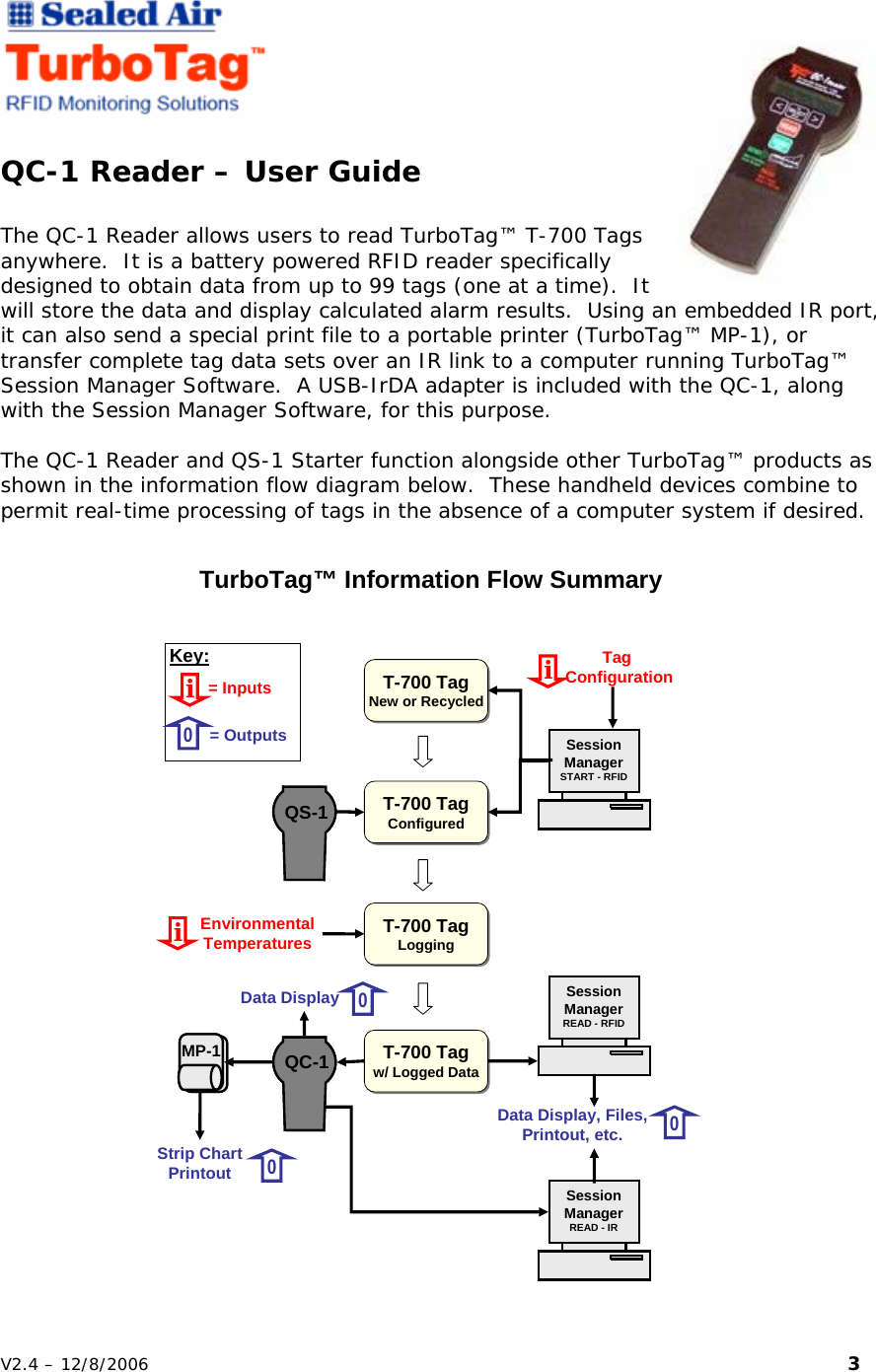
   QC-1 Reader – User Guide  The QC-1 Reader allows users to read TurboTag™ T-700 Tags anywhere.  It is a battery powered RFID reader specifically designed to obtain data from up to 99 tags (one at a time).  It will store the data and display calculated alarm results.  Using an embedded IR port, it can also send a special print file to a portable printer (TurboTag™ MP-1), or transfer complete tag data sets over an IR link to a computer running TurboTag™ Session Manager Software.  A USB-IrDA adapter is included with the QC-1, along with the Session Manager Software, for this purpose.  The QC-1 Reader and QS-1 Starter function alongside other TurboTag™ products as shown in the information flow diagram below.  These handheld devices combine to permit real-time processing of tags in the absence of a computer system if desired.   T-700 TagNew or RecycledT-700 TagNew or RecycledT-700 TagConfiguredT-700 TagConfiguredT-700 TagLoggingT-700 TagLoggingT-700 Tagw/ Logged DataT-700 Tagw/ Logged DataTag ConfigurationEnvironmentalTemperaturesi0iSession ManagerSTART - RFIDSession ManagerSTART - RFIDData DisplayMP-1MP-10Strip ChartPrintoutSession ManagerREAD - RFIDSession ManagerREAD - RFIDSession ManagerREAD - IRSession ManagerREAD - IR0Data Display, Files,Printout, etc.i= Inputs0= OutputsTurboTag™ Information Flow SummaryQS-1QS-1Key:QC-1QC-1V2.4 – 12/8/2006                                                                                                                         3
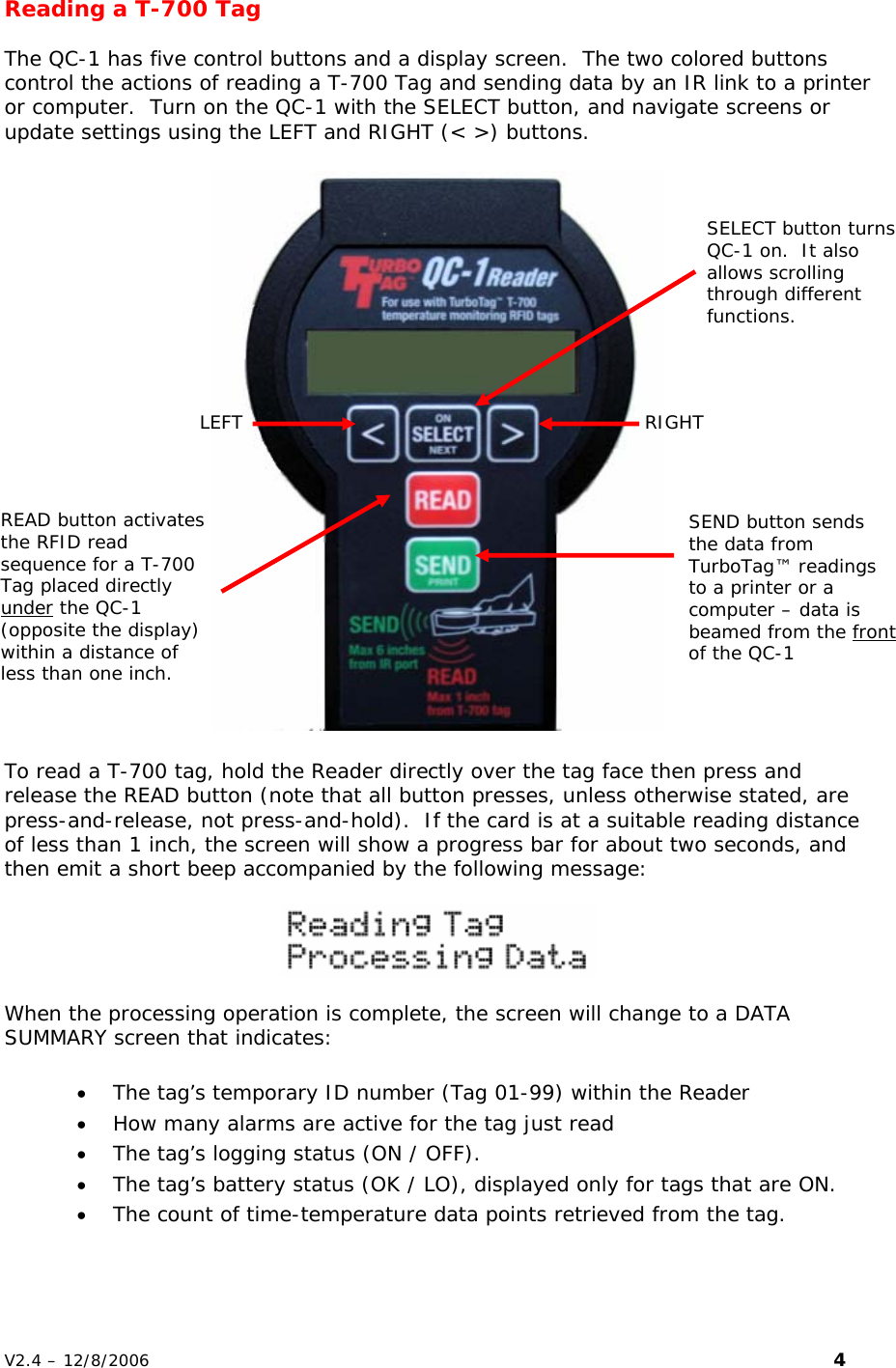
Reading a T-700 Tag  The QC-1 has five control buttons and a display screen.  The two colored buttons control the actions of reading a T-700 Tag and sending data by an IR link to a printer or computer.  Turn on the QC-1 with the SELECT button, and navigate screens or update settings using the LEFT and RIGHT (< >) buttons.    SELECT button turns QC-1 on.  It also allows scrolling through different functions. LEFT  RIGHT READ button activates the RFID read sequence for a T-700 Tag placed directly under the QC-1 (opposite the display) within a distance of less than one inch. SEND button sends the data from TurboTag™ readings to a printer or a computer – data is beamed from the front of the QC-1  To read a T-700 tag, hold the Reader directly over the tag face then press and release the READ button (note that all button presses, unless otherwise stated, are press-and-release, not press-and-hold).  If the card is at a suitable reading distance of less than 1 inch, the screen will show a progress bar for about two seconds, and then emit a short beep accompanied by the following message:     When the processing operation is complete, the screen will change to a DATA SUMMARY screen that indicates:  • The tag’s temporary ID number (Tag 01-99) within the Reader  • How many alarms are active for the tag just read  • The tag’s logging status (ON / OFF). • The tag’s battery status (OK / LO), displayed only for tags that are ON. • The count of time-temperature data points retrieved from the tag.   V2.4 – 12/8/2006                                                                                                                         4
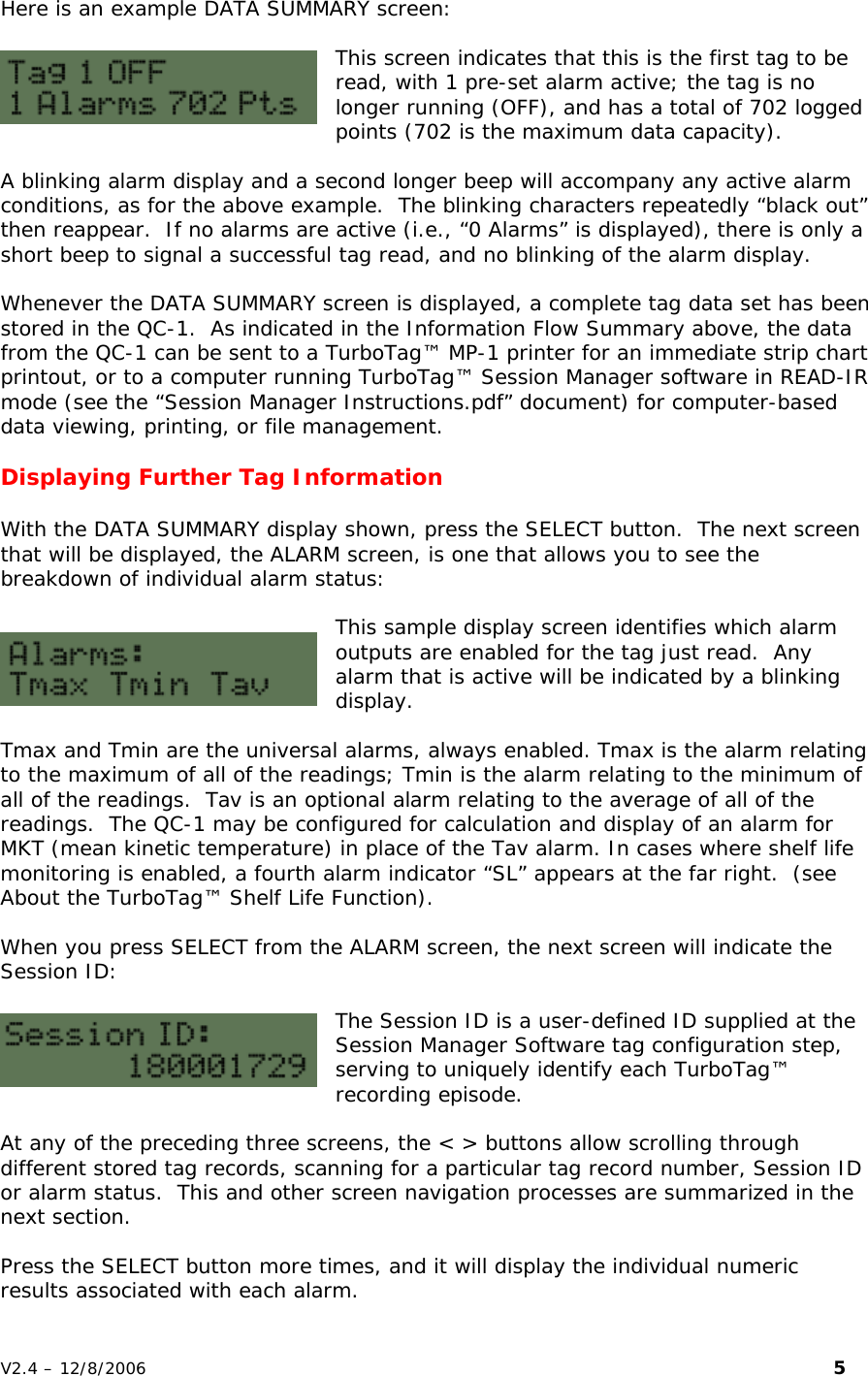
Here is an example DATA SUMMARY screen:  This screen indicates that this is the first tag to be read, with 1 pre-set alarm active; the tag is no longer running (OFF), and has a total of 702 logged points (702 is the maximum data capacity).  A blinking alarm display and a second longer beep will accompany any active alarm conditions, as for the above example.  The blinking characters repeatedly “black out” then reappear.  If no alarms are active (i.e., “0 Alarms” is displayed), there is only a short beep to signal a successful tag read, and no blinking of the alarm display.  Whenever the DATA SUMMARY screen is displayed, a complete tag data set has been stored in the QC-1.  As indicated in the Information Flow Summary above, the data from the QC-1 can be sent to a TurboTag™ MP-1 printer for an immediate strip chart printout, or to a computer running TurboTag™ Session Manager software in READ-IR mode (see the “Session Manager Instructions.pdf” document) for computer-based data viewing, printing, or file management.  Displaying Further Tag Information  With the DATA SUMMARY display shown, press the SELECT button.  The next screen that will be displayed, the ALARM screen, is one that allows you to see the breakdown of individual alarm status:  This sample display screen identifies which alarm outputs are enabled for the tag just read.  Any alarm that is active will be indicated by a blinking display.    Tmax and Tmin are the universal alarms, always enabled. Tmax is the alarm relating to the maximum of all of the readings; Tmin is the alarm relating to the minimum of all of the readings.  Tav is an optional alarm relating to the average of all of the readings.  The QC-1 may be configured for calculation and display of an alarm for MKT (mean kinetic temperature) in place of the Tav alarm. In cases where shelf life monitoring is enabled, a fourth alarm indicator “SL” appears at the far right.  (see About the TurboTag™ Shelf Life Function).    When you press SELECT from the ALARM screen, the next screen will indicate the Session ID:   The Session ID is a user-defined ID supplied at the Session Manager Software tag configuration step, serving to uniquely identify each TurboTag™ recording episode.  At any of the preceding three screens, the < > buttons allow scrolling through different stored tag records, scanning for a particular tag record number, Session ID or alarm status.  This and other screen navigation processes are summarized in the next section.   Press the SELECT button more times, and it will display the individual numeric results associated with each alarm.   V2.4 – 12/8/2006                                                                                                                         5
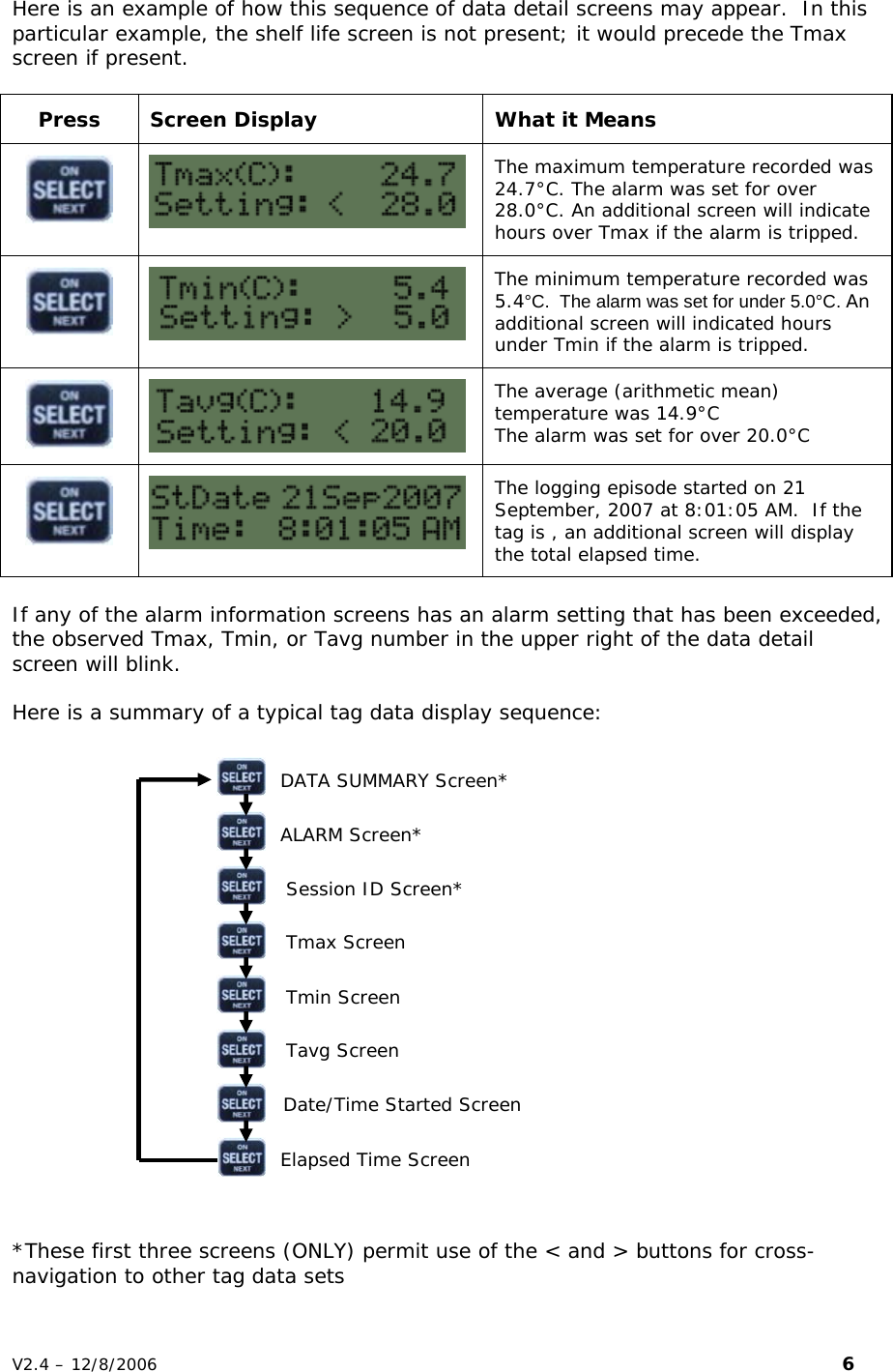
Here is an example of how this sequence of data detail screens may appear.  In this particular example, the shelf life screen is not present; it would precede the Tmax screen if present.    Press  Screen Display  What it Means   The maximum temperature recorded was 24.7°C. The alarm was set for over 28.0°C. An additional screen will indicate hours over Tmax if the alarm is tripped.   The minimum temperature recorded was 5.4°C.  The alarm was set for under 5.0°C. An additional screen will indicated hours under Tmin if the alarm is tripped.   The average (arithmetic mean) temperature was 14.9°C The alarm was set for over 20.0°C   The logging episode started on 21 September, 2007 at 8:01:05 AM.  If the tag is , an additional screen will display the total elapsed time.  If any of the alarm information screens has an alarm setting that has been exceeded, the observed Tmax, Tmin, or Tavg number in the upper right of the data detail screen will blink.   Here is a summary of a typical tag data display sequence:   DATA SUMMARY Screen*    ALARM Screen*   Session ID Screen*   Tmax Screen   Tmin Screen   Tavg Screen    Date/Time Started Screen   Elapsed Time Screen    *These first three screens (ONLY) permit use of the < and > buttons for cross-navigation to other tag data sets V2.4 – 12/8/2006                                                                                                                         6
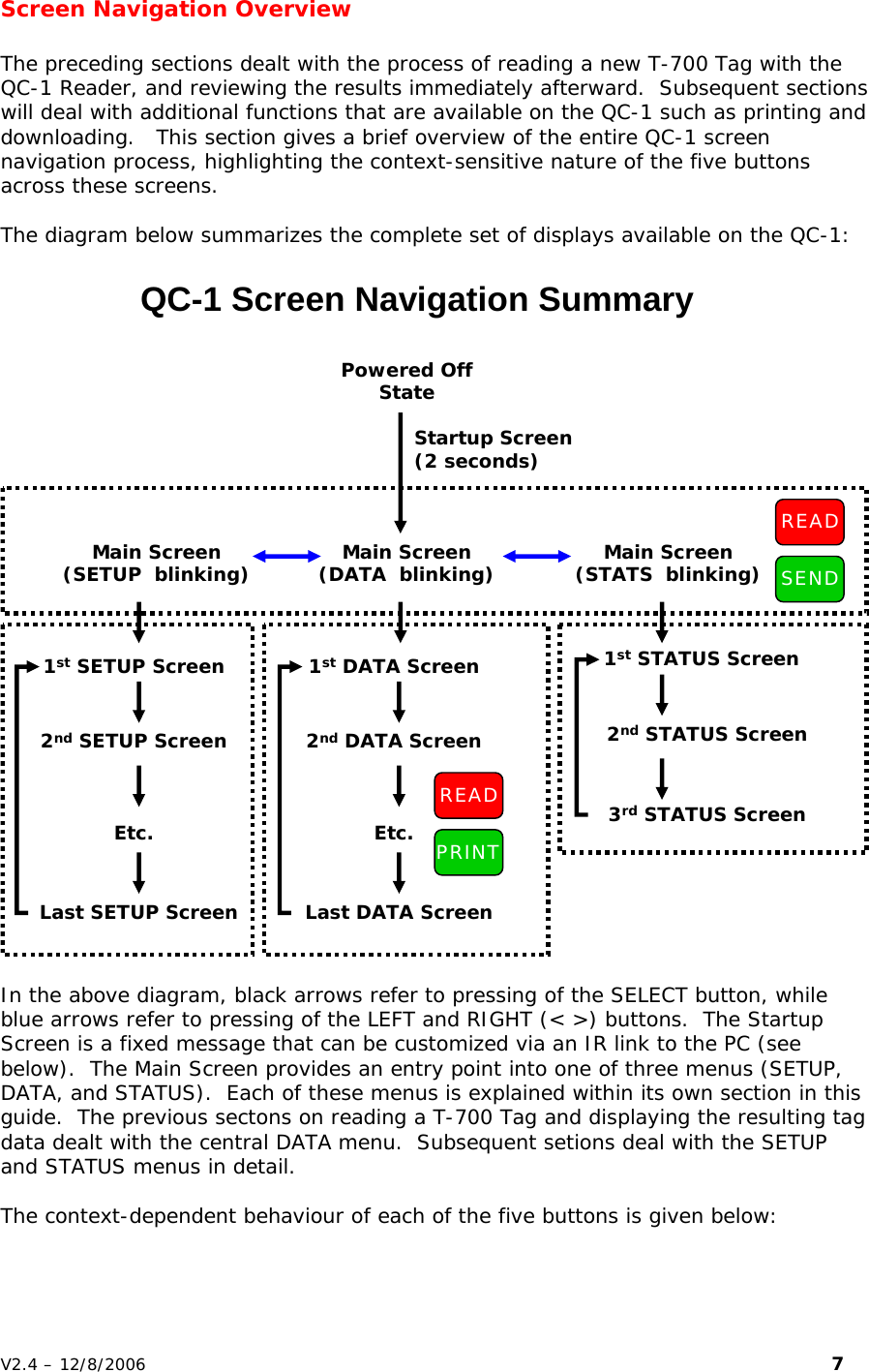
Screen Navigation Overview  The preceding sections dealt with the process of reading a new T-700 Tag with the QC-1 Reader, and reviewing the results immediately afterward.  Subsequent sections will deal with additional functions that are available on the QC-1 such as printing and downloading.   This section gives a brief overview of the entire QC-1 screen navigation process, highlighting the context-sensitive nature of the five buttons across these screens.  The diagram below summarizes the complete set of displays available on the QC-1:                               Main Screen(DATA  blinking)Main Screen(SETUP  blinking) Main Screen(STATS  blinking)READSENDPowered OffStateQC-1 Screen Navigation Summary1stSETUP Screen2ndSETUP ScreenLast SETUP ScreenEtc.1stDATA Screen2ndDATA ScreenLast DATA ScreenEtc.READPRINT1stSTATUS Screen2ndSTATUS Screen3rdSTATUS ScreenStartup Screen (2 seconds)In the above diagram, black arrows refer to pressing of the SELECT button, while blue arrows refer to pressing of the LEFT and RIGHT (< >) buttons.  The Startup Screen is a fixed message that can be customized via an IR link to the PC (see below).  The Main Screen provides an entry point into one of three menus (SETUP, DATA, and STATUS).  Each of these menus is explained within its own section in this guide.  The previous sectons on reading a T-700 Tag and displaying the resulting tag data dealt with the central DATA menu.  Subsequent setions deal with the SETUP and STATUS menus in detail.  The context-dependent behaviour of each of the five buttons is given below:    V2.4 – 12/8/2006                                                                                                                         7
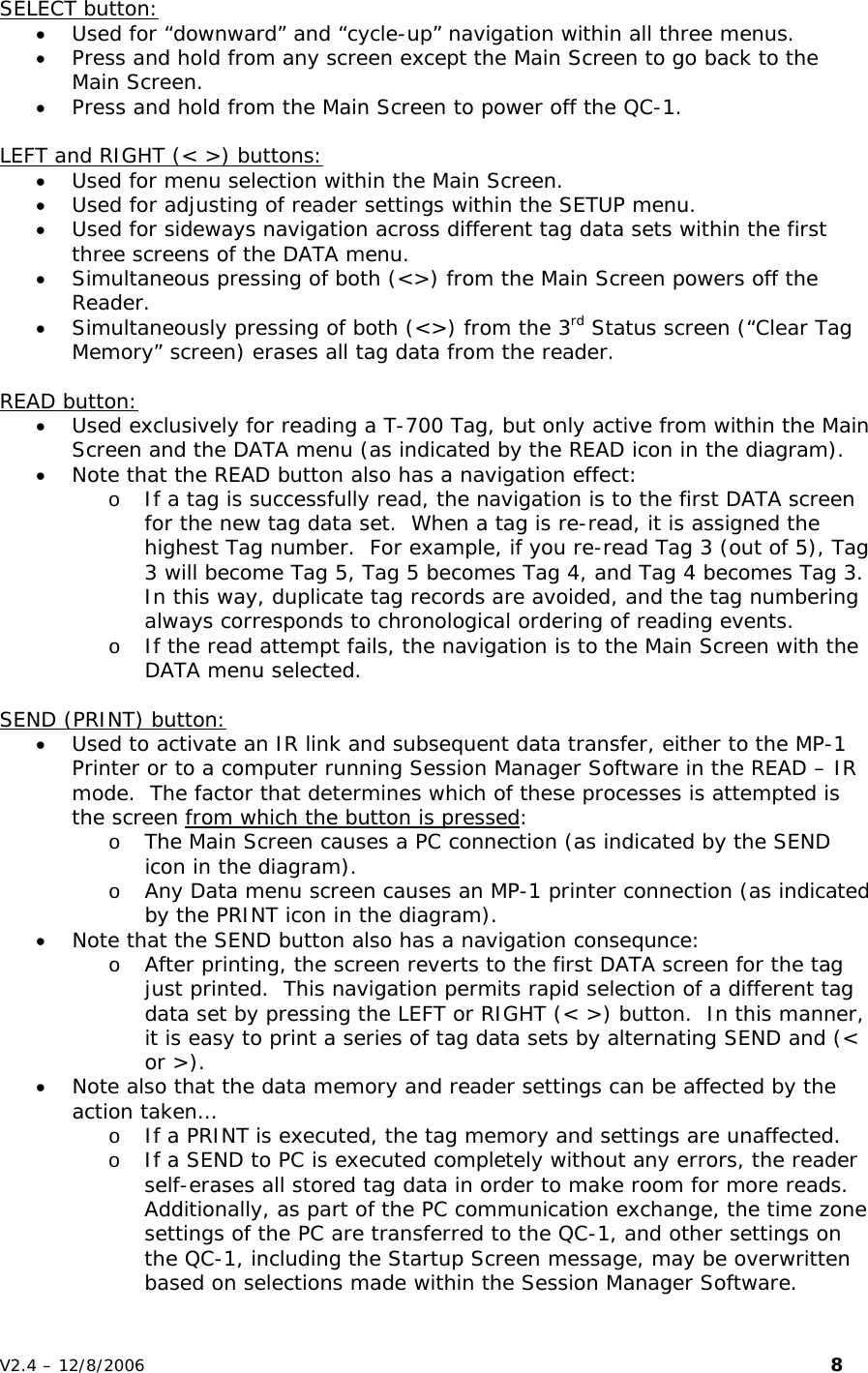
SELECT button:• Used for “downward” and “cycle-up” navigation within all three menus. • Press and hold from any screen except the Main Screen to go back to the Main Screen. • Press and hold from the Main Screen to power off the QC-1.  LEFT and RIGHT (< >) buttons:• Used for menu selection within the Main Screen. • Used for adjusting of reader settings within the SETUP menu. • Used for sideways navigation across different tag data sets within the first three screens of the DATA menu. • Simultaneous pressing of both (<>) from the Main Screen powers off the Reader. • Simultaneously pressing of both (<>) from the 3rd Status screen (“Clear Tag Memory” screen) erases all tag data from the reader.  READ button:• Used exclusively for reading a T-700 Tag, but only active from within the Main Screen and the DATA menu (as indicated by the READ icon in the diagram). • Note that the READ button also has a navigation effect:  o If a tag is successfully read, the navigation is to the first DATA screen for the new tag data set.  When a tag is re-read, it is assigned the highest Tag number.  For example, if you re-read Tag 3 (out of 5), Tag 3 will become Tag 5, Tag 5 becomes Tag 4, and Tag 4 becomes Tag 3.  In this way, duplicate tag records are avoided, and the tag numbering always corresponds to chronological ordering of reading events.   o If the read attempt fails, the navigation is to the Main Screen with the DATA menu selected.  SEND (PRINT) button:• Used to activate an IR link and subsequent data transfer, either to the MP-1 Printer or to a computer running Session Manager Software in the READ – IR mode.  The factor that determines which of these processes is attempted is the screen from which the button is pressed: o The Main Screen causes a PC connection (as indicated by the SEND icon in the diagram). o Any Data menu screen causes an MP-1 printer connection (as indicated by the PRINT icon in the diagram). • Note that the SEND button also has a navigation consequnce: o After printing, the screen reverts to the first DATA screen for the tag just printed.  This navigation permits rapid selection of a different tag data set by pressing the LEFT or RIGHT (< >) button.  In this manner, it is easy to print a series of tag data sets by alternating SEND and (< or >). • Note also that the data memory and reader settings can be affected by the action taken…   o If a PRINT is executed, the tag memory and settings are unaffected.   o If a SEND to PC is executed completely without any errors, the reader self-erases all stored tag data in order to make room for more reads.  Additionally, as part of the PC communication exchange, the time zone settings of the PC are transferred to the QC-1, and other settings on the QC-1, including the Startup Screen message, may be overwritten based on selections made within the Session Manager Software. V2.4 – 12/8/2006                                                                                                                         8
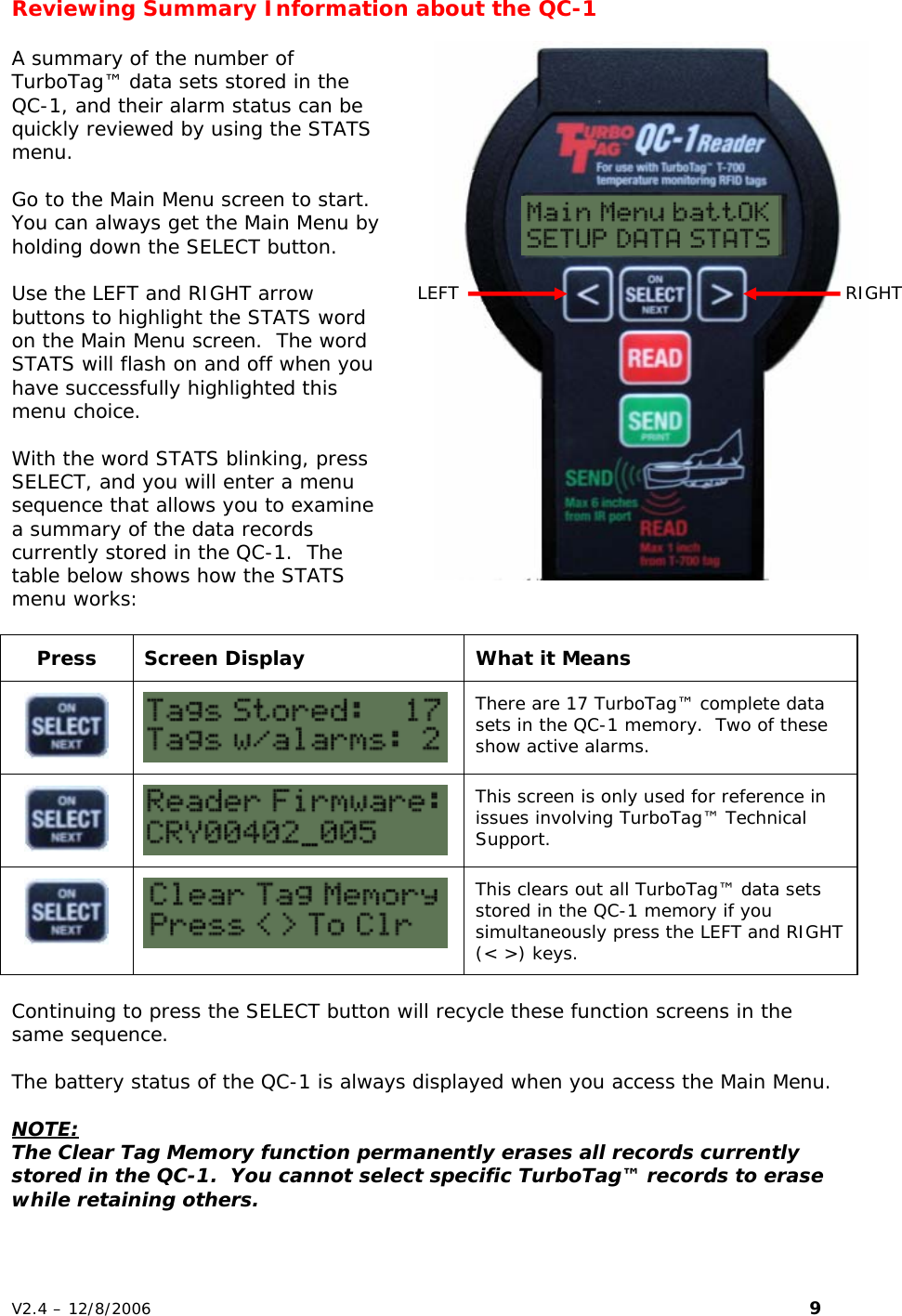
Reviewing Summary Information about the QC-1    LEFT  RIGHT A summary of the number of TurboTag™ data sets stored in the QC-1, and their alarm status can be quickly reviewed by using the STATS menu.  Go to the Main Menu screen to start.  You can always get the Main Menu by holding down the SELECT button.   Use the LEFT and RIGHT arrow buttons to highlight the STATS word on the Main Menu screen.  The word STATS will flash on and off when you have successfully highlighted this menu choice.  With the word STATS blinking, press SELECT, and you will enter a menu sequence that allows you to examine a summary of the data records currently stored in the QC-1.  The table below shows how the STATS menu works:  Press  Screen Display  What it Means   There are 17 TurboTag™ complete data sets in the QC-1 memory.  Two of these show active alarms.   This screen is only used for reference in issues involving TurboTag™ Technical Support.   This clears out all TurboTag™ data sets stored in the QC-1 memory if you simultaneously press the LEFT and RIGHT (< >) keys.  Continuing to press the SELECT button will recycle these function screens in the same sequence.  The battery status of the QC-1 is always displayed when you access the Main Menu.  NOTE: The Clear Tag Memory function permanently erases all records currently stored in the QC-1.  You cannot select specific TurboTag™ records to erase while retaining others. V2.4 – 12/8/2006                                                                                                                         9
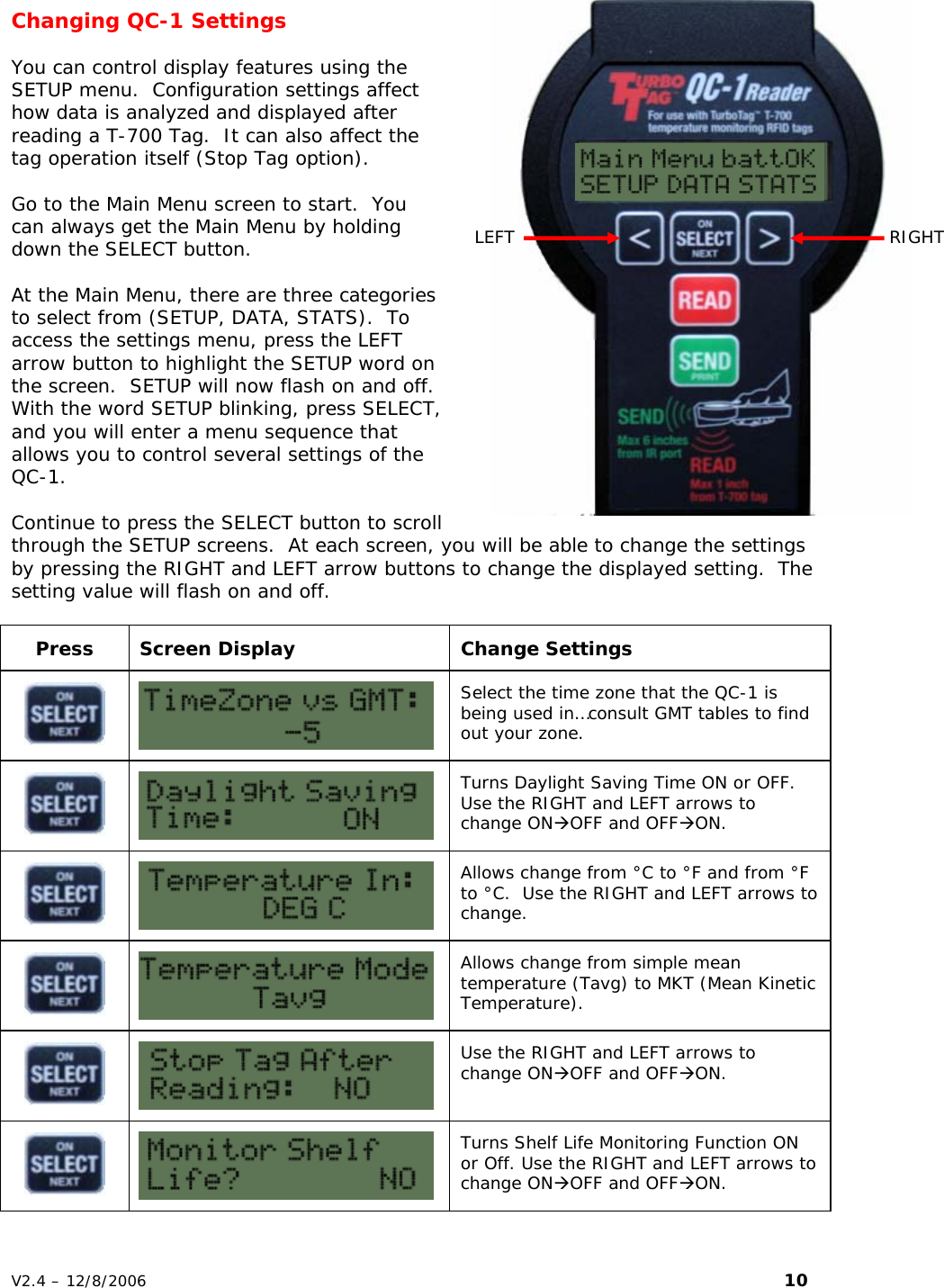
Changing QC-1 Settings    You can control display features using the SETUP menu.  Configuration settings affect how data is analyzed and displayed after reading a T-700 Tag.  It can also affect the tag operation itself (Stop Tag option).  Go to the Main Menu screen to start.  You can always get the Main Menu by holding down the SELECT button.   At the Main Menu, there are three categories to select from (SETUP, DATA, STATS).  To access the settings menu, press the LEFT arrow button to highlight the SETUP word on the screen.  SETUP will now flash on and off.  With the word SETUP blinking, press SELECT, and you will enter a menu sequence that allows you to control several settings of the QC-1.  Continue to press the SELECT button to scroll through the SETUP screens.  At each screen, you will be able to change the settings by pressing the RIGHT and LEFT arrow buttons to change the displayed setting.  The setting value will flash on and off.  Press Screen Display  Change Settings   Select the time zone that the QC-1 is being used in…consult GMT tables to find out your zone.   Turns Daylight Saving Time ON or OFF.  Use the RIGHT and LEFT arrows to change ONÆOFF and OFFÆON.   Allows change from °C to °F and from °F to °C.  Use the RIGHT and LEFT arrows to change.   Allows change from simple mean temperature (Tavg) to MKT (Mean Kinetic Temperature).   Use the RIGHT and LEFT arrows to change ONÆOFF and OFFÆON.   Turns Shelf Life Monitoring Function ON or Off. Use the RIGHT and LEFT arrows to change ONÆOFF and OFFÆON. LEFT  RIGHT V2.4 – 12/8/2006                                                                                                                         10
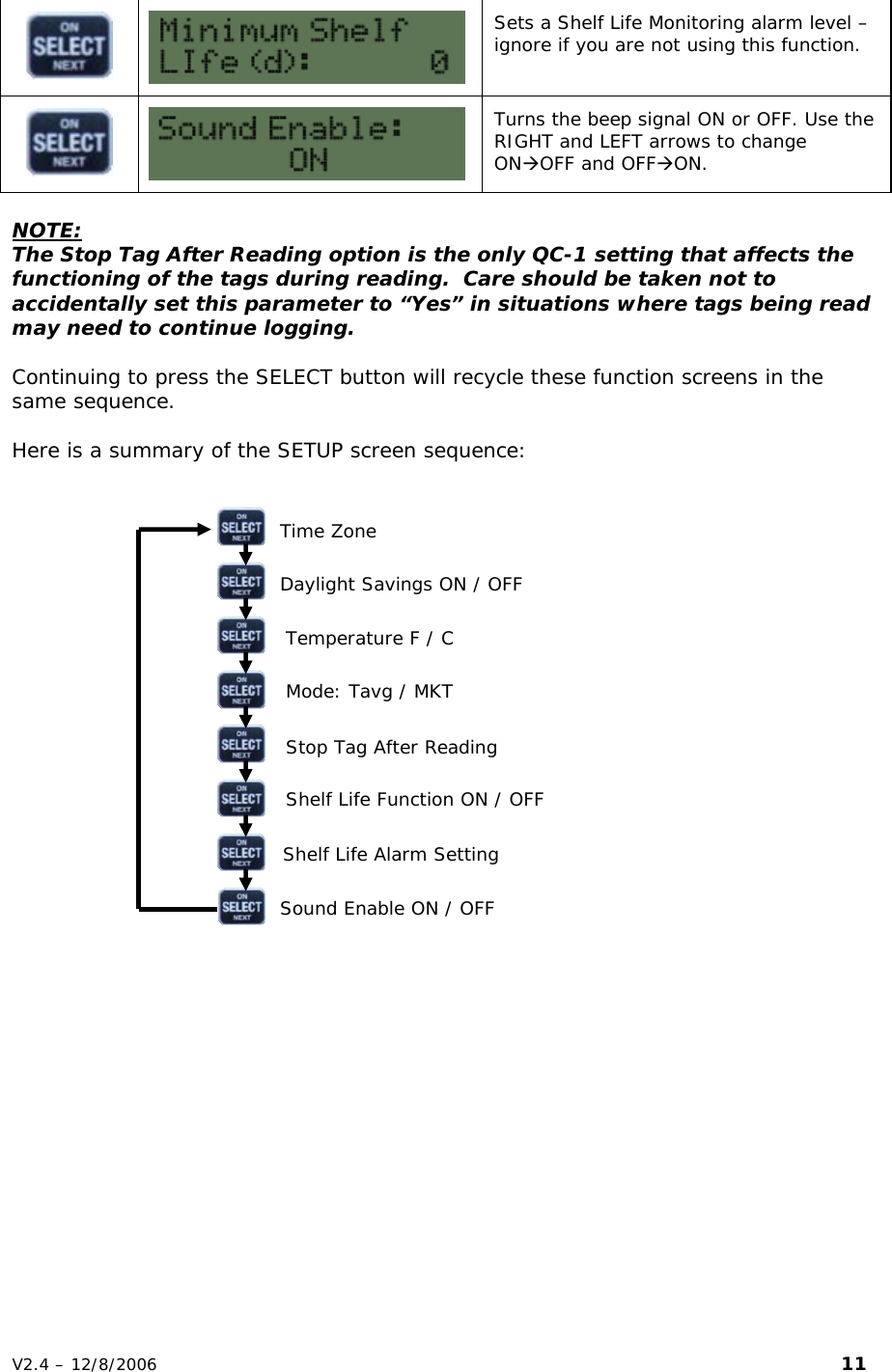
  Sets a Shelf Life Monitoring alarm level – ignore if you are not using this function.   Turns the beep signal ON or OFF. Use the RIGHT and LEFT arrows to change ONÆOFF and OFFÆON.  NOTE: The Stop Tag After Reading option is the only QC-1 setting that affects the functioning of the tags during reading.  Care should be taken not to accidentally set this parameter to “Yes” in situations where tags being read may need to continue logging.  Continuing to press the SELECT button will recycle these function screens in the same sequence.  Here is a summary of the SETUP screen sequence:    Time Zone   Daylight Savings ON / OFF   Temperature F / C   Mode: Tavg / MKT    Stop Tag After Reading   Shelf Life Function ON / OFF   Shelf Life Alarm Setting   Sound Enable ON / OFF           V2.4 – 12/8/2006                                                                                                                         11
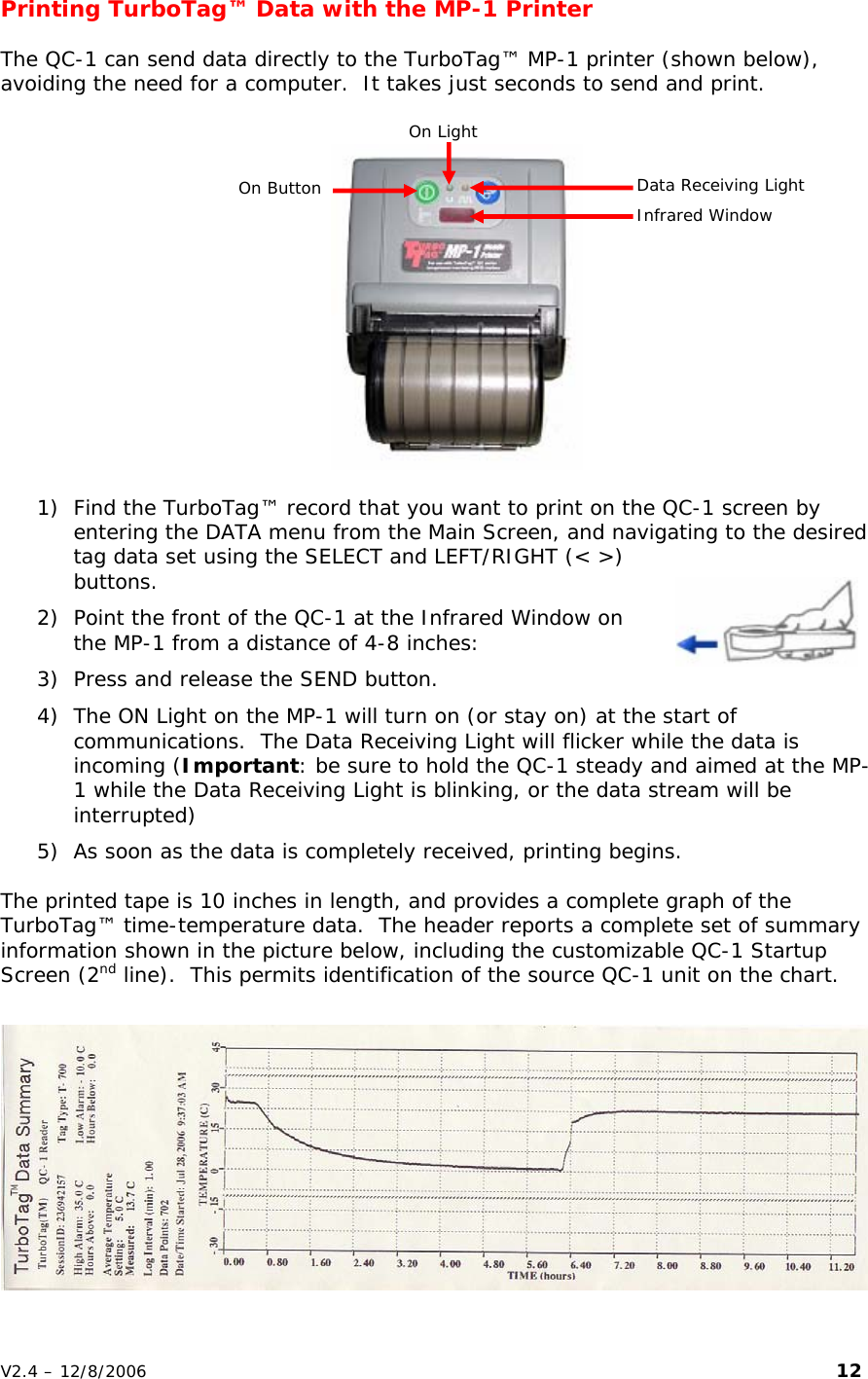
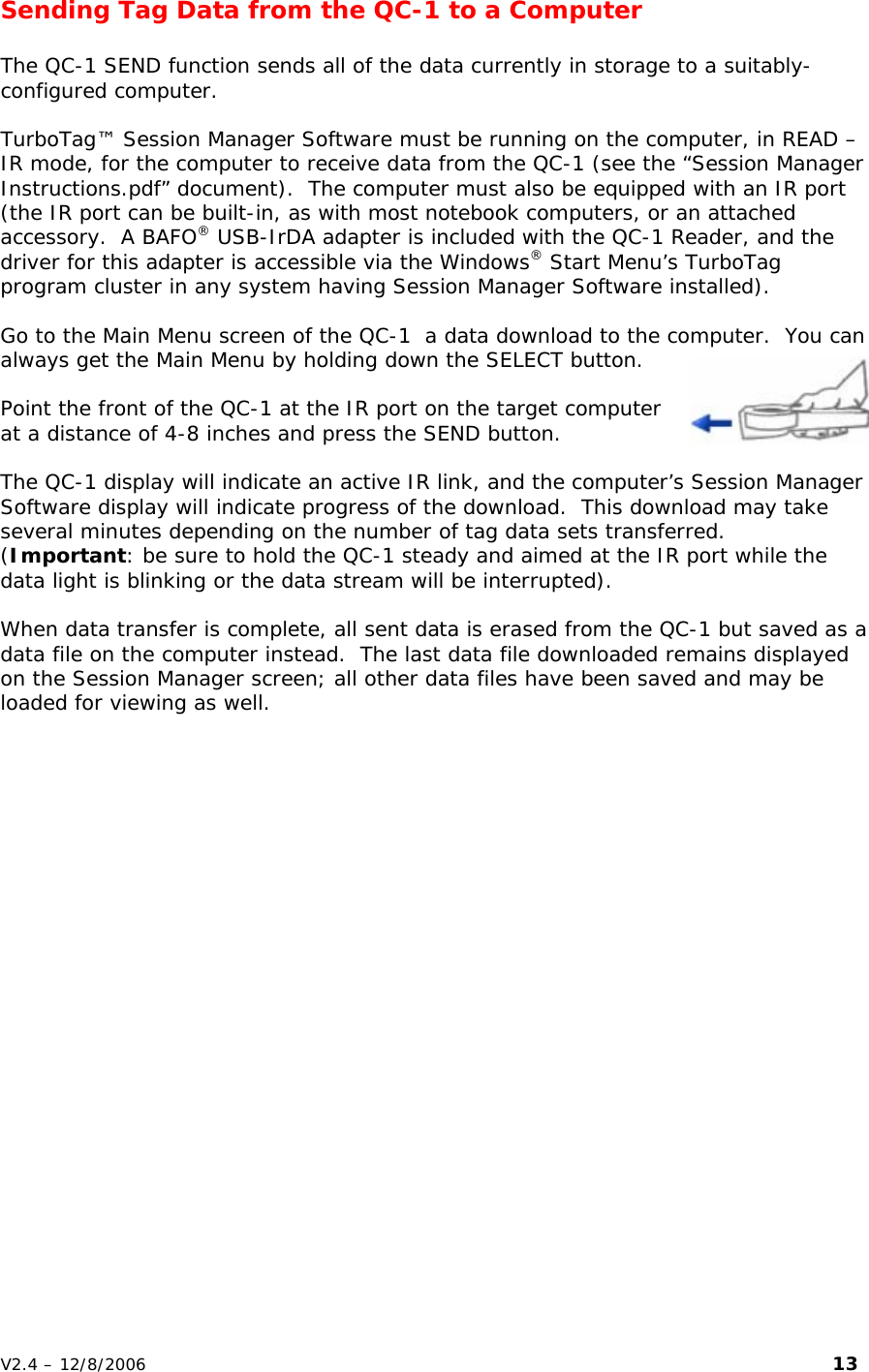
Printing TurboTag™ Data with the MP-1 Printer    The QC-1 can send data directly to the TurboTag™ MP-1 printer (shown below), avoiding the need for a computer.  It takes just seconds to send and print.   On Light  Data Receiving Light On Button  Infrared Window  1) Find the TurboTag™ record that you want to print on the QC-1 screen by entering the DATA menu from the Main Screen, and navigating to the desired tag data set using the SELECT and LEFT/RIGHT (< >) buttons.   2) Point the front of the QC-1 at the Infrared Window on the MP-1 from a distance of 4-8 inches: 3) Press and release the SEND button.  4) The ON Light on the MP-1 will turn on (or stay on) at the start of communications.  The Data Receiving Light will flicker while the data is incoming (Important: be sure to hold the QC-1 steady and aimed at the MP-1 while the Data Receiving Light is blinking, or the data stream will be interrupted) 5) As soon as the data is completely received, printing begins.   The printed tape is 10 inches in length, and provides a complete graph of the TurboTag™ time-temperature data.  The header reports a complete set of summary information shown in the picture below, including the customizable QC-1 Startup Screen (2nd line).  This permits identification of the source QC-1 unit on the chart.  V2.4 – 12/8/2006                                                                                                                         12
Sending Tag Data from the QC-1 to a Computer  The QC-1 SEND function sends all of the data currently in storage to a suitably-configured computer.    TurboTag™ Session Manager Software must be running on the computer, in READ – IR mode, for the computer to receive data from the QC-1 (see the “Session Manager Instructions.pdf” document).  The computer must also be equipped with an IR port (the IR port can be built-in, as with most notebook computers, or an attached accessory.  A BAFO® USB-IrDA adapter is included with the QC-1 Reader, and the driver for this adapter is accessible via the Windows® Start Menu’s TurboTag program cluster in any system having Session Manager Software installed).  Go to the Main Menu screen of the QC-1  a data download to the computer.  You can always get the Main Menu by holding down the SELECT button.  Point the front of the QC-1 at the IR port on the target computer at a distance of 4-8 inches and press the SEND button.  The QC-1 display will indicate an active IR link, and the computer’s Session Manager Software display will indicate progress of the download.  This download may take several minutes depending on the number of tag data sets transferred.  (Important: be sure to hold the QC-1 steady and aimed at the IR port while the data light is blinking or the data stream will be interrupted).    When data transfer is complete, all sent data is erased from the QC-1 but saved as a data file on the computer instead.  The last data file downloaded remains displayed on the Session Manager screen; all other data files have been saved and may be loaded for viewing as well. V2.4 – 12/8/2006                                                                                                                         13
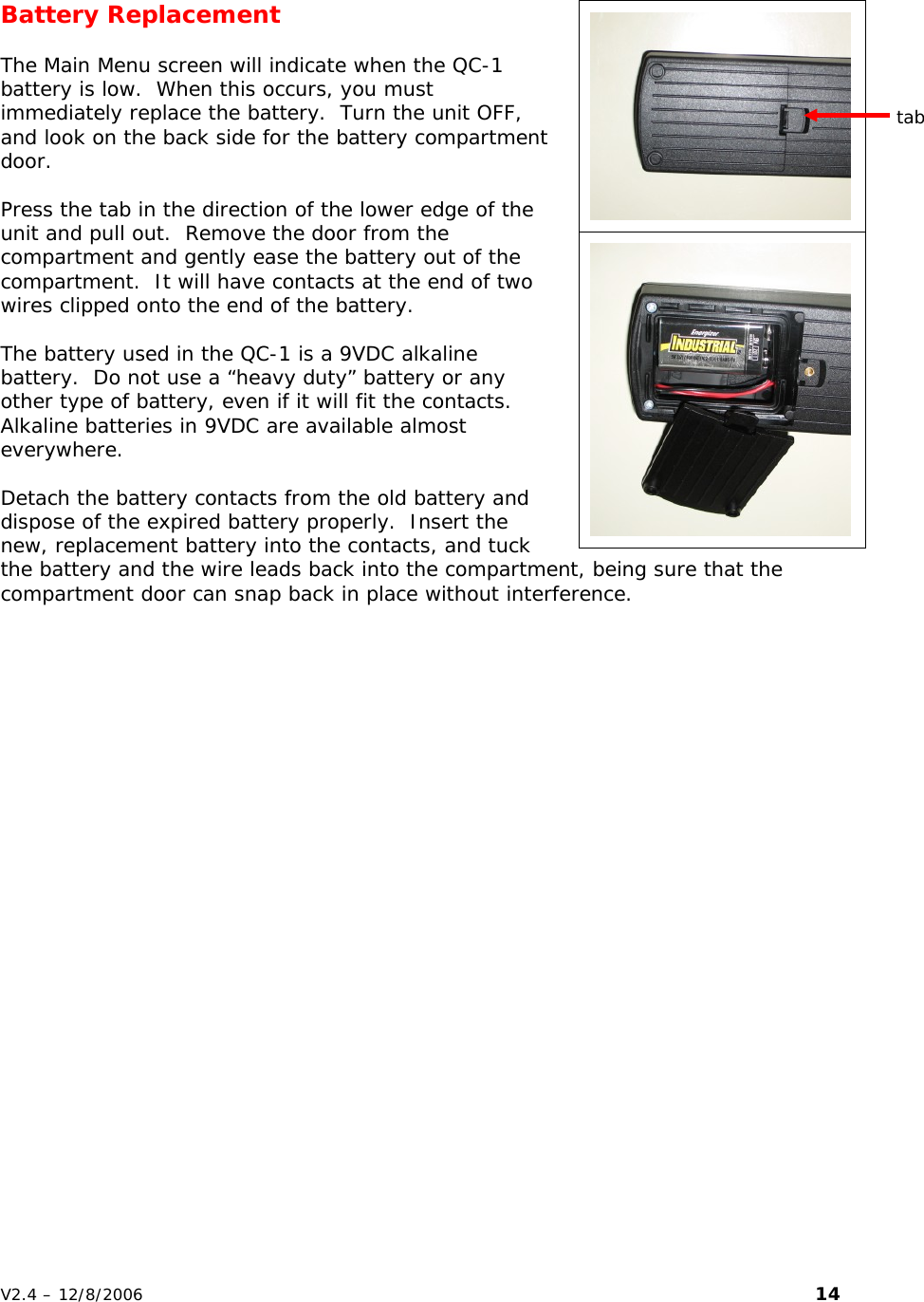
  Battery Replacement  The Main Menu screen will indicate when the QC-1 battery is low.  When this occurs, you must immediately replace the battery.  Turn the unit OFF, and look on the back side for the battery compartment door.  Press the tab in the direction of the lower edge of the unit and pull out.  Remove the door from the compartment and gently ease the battery out of the compartment.  It will have contacts at the end of two wires clipped onto the end of the battery.  The battery used in the QC-1 is a 9VDC alkaline battery.  Do not use a “heavy duty” battery or any other type of battery, even if it will fit the contacts.  Alkaline batteries in 9VDC are available almost everywhere.  Detach the battery contacts from the old battery and dispose of the expired battery properly.  Insert the new, replacement battery into the contacts, and tuck the battery and the wire leads back into the compartment, being sure that the compartment door can snap back in place without interference.   tab V2.4 – 12/8/2006                                                                                                                         14
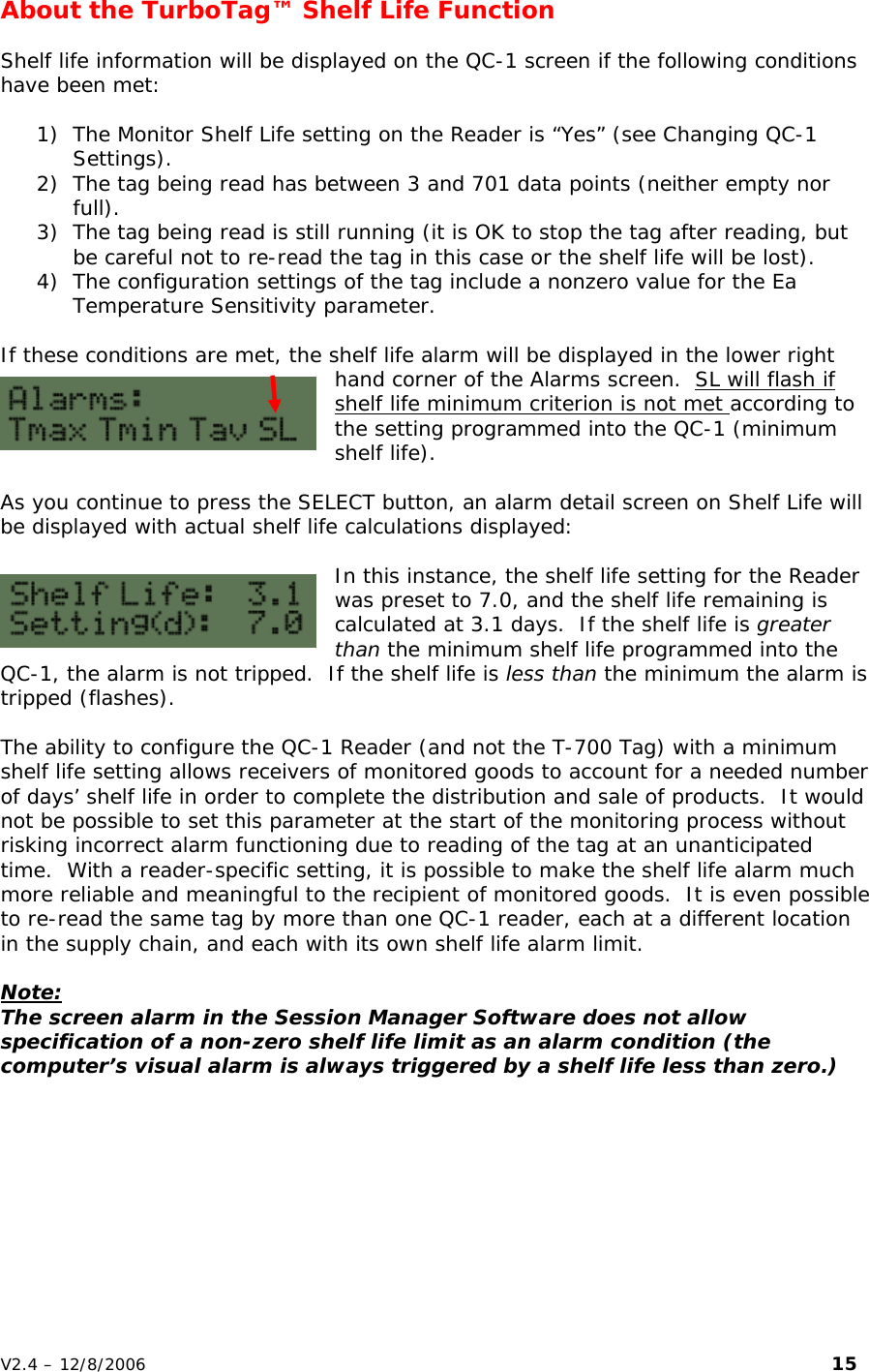
About the TurboTag™ Shelf Life Function  Shelf life information will be displayed on the QC-1 screen if the following conditions have been met:  1) The Monitor Shelf Life setting on the Reader is “Yes” (see Changing QC-1 Settings). 2) The tag being read has between 3 and 701 data points (neither empty nor full). 3) The tag being read is still running (it is OK to stop the tag after reading, but be careful not to re-read the tag in this case or the shelf life will be lost). 4) The configuration settings of the tag include a nonzero value for the Ea Temperature Sensitivity parameter.  If these conditions are met, the shelf life alarm will be displayed in the lower right hand corner of the Alarms screen.  SL will flash if shelf life minimum criterion is not met according to the setting programmed into the QC-1 (minimum shelf life).  As you continue to press the SELECT button, an alarm detail screen on Shelf Life will be displayed with actual shelf life calculations displayed:  In this instance, the shelf life setting for the Reader was preset to 7.0, and the shelf life remaining is calculated at 3.1 days.  If the shelf life is greater than the minimum shelf life programmed into the QC-1, the alarm is not tripped.  If the shelf life is less than the minimum the alarm is tripped (flashes).  The ability to configure the QC-1 Reader (and not the T-700 Tag) with a minimum shelf life setting allows receivers of monitored goods to account for a needed number of days’ shelf life in order to complete the distribution and sale of products.  It would not be possible to set this parameter at the start of the monitoring process without risking incorrect alarm functioning due to reading of the tag at an unanticipated time.  With a reader-specific setting, it is possible to make the shelf life alarm much more reliable and meaningful to the recipient of monitored goods.  It is even possible to re-read the same tag by more than one QC-1 reader, each at a different location in the supply chain, and each with its own shelf life alarm limit.  Note: The screen alarm in the Session Manager Software does not allow specification of a non-zero shelf life limit as an alarm condition (the computer’s visual alarm is always triggered by a shelf life less than zero.) V2.4 – 12/8/2006                                                                                                                         15
Frequently Asked Questions – QC-1 Reader  My QC-1 is “hung up”.  I have a display, but none of the buttons changes it.  What do I do next? Some unusual button combinations may cause this.  Simply disconnect the battery and reconnect it.  This will restore the QC-1 to normal function.  I am reading TurboTag™ cards OK, but there is no battery condition display.  What is happening? The QC-1 only reports a battery voltage on a tag that is running.  I am reading TurboTag™ cards OK, but there is no shelf life display.  What is happening? The QC-1 only reports a remaining shelf life when configured to do so, and when reading a tag that is running (see About the TurboTag™ Shelf Life Function).  I attempted to send data to the printer, the lights on the printer flashed, but there was no tape printed.  What happened? Several things can cause failure to print.   • Make sure the attempt is made from a DATA menu screen and not the Main Screen.   • Make sure the printer is isolated from any computers having IR ports as they will interfere with the QC-1 Reader’s transmissions.    • Make sure the printer’s battery is charged and the paper is not jammed. • Make sure that you hold the QC-1 steady as you point it at the printer IR window.  Wait until the amber light stops flashing (this happens during data transfer) before changing the “aim” of the QC-1 towards the printer.  I just want to send a single record to my computer.  How do I do this? You cannot send a single record to the computer.  The QC-1 is designed to send the entire current data set in its memory to the computer, and then erase its memory to make room for more data sets incoming from new tag data sets to be read.  Can I print out all of the records in the QC-1 to the printer in a group? Not with a single button press.  The QC-1 is designed to send only one record at a time to the printer.  It is possible to navigate through tag data sets and sequentially print as many records as desired.  What is the significance of the “minimum shelf life” setting in SETUP? Some TurboTag™ users prefer to have a criterion for receipt of perishables in terms of remaining shelf life.  The minimum shelf life setting allows users to set this criterion according to their position within a supply chain, or further time required to sell a product after its receipt.  (see About the TurboTag™ Shelf Life Function)  Do I need a PC computer to use the QC-1? No.  If you do not need to store TurboTag™ data, just use the QC-1 to review incoming data and alarm conditions, and to print graphic data and summaries using the MP-1 printer. V2.4 – 12/8/2006                                                                                                                         16

Navigation menu