Seba Dynatronic Mess und Ortungstechnik CORC3 Portable device for reading audio data from acoustical sensors and correlating these data User Manual Correlux C 3 Technische Dokumentation
Seba Dynatronic Mess- und Ortungstechnik GmbH Portable device for reading audio data from acoustical sensors and correlating these data Correlux C 3 Technische Dokumentation
Contents
- 1. User manual
- 2. Users Manual
Users Manual

Consultation with SebaKMT
1
User Manual
Correlator
Correlux C-3
Issue: 01 (06/2015) - EN
Article number: 84416
Mess- und Ortungstechnik
Measuring and Locating Technologies
Elektrizitätsnetze
Power Networks
Kommunikationsnetze
Communication Networks
Rohrleitungsnetze
Water Networks
A
bwassernetze
Sewer Systems
Leitungsortung
Line Locating

Consultation with SebaKMT
2

Consultation with SebaKMT
3
Consultation with SebaKMT
The present system manual has been designed as an operating guide and for
reference. It is meant to answer your questions and solve your problems in as fast and
easy a way as possible. Please start with referring to this manual should any trouble
occur.
In doing so, make use of the table of contents and read the relevant paragraph with
great attention. Furthermore, check all terminals and connections of the instruments
involved.
Should any question remain unanswered or should you need the help of an authorized
service station, please contact:
Seba Dynatronic
Mess- und Ortungstechnik GmbH
Hagenuk KMT
Kabelmesstechnik GmbH
Dr.-Herbert-Iann-Str. 6
D - 96148 Baunach
Phone: +49 / 9544 / 68 – 0
Fax: +49 / 9544 / 22 73
Röderaue 41
D - 01471 Radeburg / Dresden
Phone: +49 / 35208 / 84 – 0
Fax: +49 / 35208 / 84 249
E-Mail: sales@sebakmt.com
http://www.sebakmt.com
SebaKMT
All rights reserved. No part of this handbook may be copied by photographic or other means unless SebaKMT
have before-hand declared their consent in writing. The content of this handbook is subject to change without
notice. SebaKMT cannot be made liable for technical or printing errors or shortcomings of this handbook.
SebaKMT also disclaims all responsibility for damage resulting directly or indirectly from the delivery, supply,
or use of this matter.

Terms of Warranty
4
Terms of Warranty
SebaKMT accept responsibility for a claim under warranty brought forward by a
customer for a product sold by SebaKMT under the terms stated below.
SebaKMT warrant that at the time of delivery SebaKMT products are free from
manufacturing or material defects which might considerably reduce their value or
usability. This warranty does not apply to faults in the software supplied. During the
period of warranty, SebaKMT agree to repair faulty parts or replace them with new parts
or parts as new (with the same usability and life as new parts) according to their choice.
This warranty does not cover wear parts, lamps, fuses, batteries and accumulators.
SebaKMT reject all further claims under warranty, in particular those from consequential
damage. Each component and product replaced in accordance with this warranty
becomes the property of SebaKMT.
All warranty claims versus SebaKMT are hereby limited to a period of 12 months from
the date of delivery. Each component supplied by SebaKMT within the context of
warranty will also be covered by this warranty for the remaining period of time but for 90
days at least.
Each measure to remedy a claim under warranty shall exclusively be carried out by
SebaKMT or an authorized service station.
This warranty does not apply to any fault or damage caused by exposing a product to
conditions not in accordance with this specification, by storing, transporting, or using it
improperly, or having it serviced or installed by a workshop not authorized by SebaKMT.
All responsibility is disclaimed for damage due to wear, will of God, or connection to
foreign components.
For damage resulting from a violation of their duty to repair or re-supply items,
SebaKMT can be made liable only in case of severe negligence or intention. Any liability
for slight negligence is disclaimed.
Since some states do not allow the exclusion or limitation of an implied warranty or of
consequential damage, the limitations of liability described above perhaps may not
apply to you.
For FCC:
- User Information acc. to FCC15.21:
Changes or modifications not expressly approved by the party responsible for
compliance could void the user's authority to operate the equipment.
- Part 15 Statement gem. FCC 15.19/RSS Gen Issue 3 Sect. 7.1.3
This device complies with Part 15 of the FCC Rules and with Industry Canada
license-exempt RSS standard(s). Operation is subject to the following two
conditions:
(1) this device may not cause harmful interference, and (2) this device must
accept any interference received, including interference that may cause
undesired operation

Terms of Warranty
5
Contents
Consultation with SebaKMT ...........................................................................................3
Terms of Warranty ...........................................................................................................4
1 Safety Instructions ...........................................................................................7
1.1 General Safety Instructions and Warnings.........................................................7
1.2 General Notes ....................................................................................................7
2 Frequently used menus ...................................................................................9
2.1 Start menu..........................................................................................................9
2.2 Pipe data menu ................................................................................................11
2.3 Correlation menu..............................................................................................13
2.4 Correlation menu (Offline measurement).........................................................15
2.5 Correlation analysis menu................................................................................17
2.6 Frequency analysis menu ................................................................................19
2.7 Audio menu ......................................................................................................21
2.8 Audio menu (in Pinpointing mode) ...................................................................23
3 Technical description ....................................................................................25
3.1 Function............................................................................................................25
3.2 Features of the set ...........................................................................................26
3.3 Communication of the components..................................................................26
3.4 Power supply....................................................................................................27
3.5 Scope of delivery..............................................................................................27
3.6 Technical data ..................................................................................................28
4 The Correlator.................................................................................................31
4.1 Design ..............................................................................................................31
4.2 Power supply....................................................................................................33
4.3 Design of the user interface .............................................................................34
4.4 Basics of operation...........................................................................................35
4.4.1 Input methods...................................................................................................35
4.4.2 Entering identification numbers (IDs) ...............................................................35
4.4.3 Entering text .....................................................................................................36
4.4.4 Sorting devices in lists and tables ....................................................................37
4.4.5 ESC pushbutton and Back button ....................................................................37
4.5 Commissioning.................................................................................................38
4.5.1 Switch the correlator ON/OFF..........................................................................38
4.5.2 Basic settings at initial start-up.........................................................................38
4.5.3 Change the language .......................................................................................39
4.5.4 Enable/Disable the touch screen (touch sensitivity) ........................................40
4.5.5 Activate the display light...................................................................................40
4.6 Systeme settings ..............................................................................................41

Terms of Warranty
6
4.6.1 Basic settings ...................................................................................................41
4.6.2 System info.......................................................................................................43
4.6.3 Store the settings .............................................................................................43
4.7 Hardware reset.................................................................................................43
4.8 Communication ................................................................................................44
4.8.1 Connection between the correlator and the sensors .......................................44
4.8.2 Connection between the correlator and the computer .....................................44
5 The Power transmitters .................................................................................45
5.1 Design ..............................................................................................................45
5.2 Identification number (ID).................................................................................46
5.3 Power supply....................................................................................................47
5.4 Commissioning.................................................................................................47
6 The Multi sensors...........................................................................................49
6.1 Design ..............................................................................................................49
6.2 Identifikationsnummer (ID) ...............................................................................49
6.3 Power supply....................................................................................................50
6.4 Switching ON/OFF ...........................................................................................50
6.5 Installation ........................................................................................................51
6.6 Adapter .............................................................................................................51
7 Online measurement - Realtime correlation with 2 sensors......................53
8 Offline measurement - Multipoint correlation with preprogrammed
sensors............................................................................................................57
9 "Map" function................................................................................................63
10 Sound velocity measurement .......................................................................67
10.1 Velocity measurement in Online measurement mode .....................................67
10.2 Velocity measurement in Offline measurement mode .....................................70
10.2.1 Introduction.......................................................................................................70
10.2.2 Determining the sound speed ..........................................................................71
11 GPS position data ..........................................................................................73
11.1 Introduction.......................................................................................................73
11.2 Determine and save GPS coordinates.............................................................73
11.3 Distance measurement and navigation via GPS .............................................75
Safety Instructions
7
1 Safety Instructions
1.1 General Safety Instructions and Warnings
xDo not drop the device / the system’s components or subject it / them
to strong impacts or mechanical shocks.
xThe limits described under Technical Data may not be exceeded.
xThe device / system must be in a technically perfect condition for
measurement.
xThe indicated degree of protection can only be ensured if plugs or the
provided protection caps are put in all sockets of the device.
xThe plugs of the supplied connection cables are only compliant to the
indicated degree of protection as long as they are plugged in. Plugs
which are not connected or which are connected in a wrong way are
not protected from water and dust ingress.
xIf the O-ring seal of a socket is obviously damaged, it must be replaced
in order to ensure the total protection against water and dust ingress.
1.2 General Notes
This manual contains basic instructions for the commissioning and operation of the
device / system. For this reason, it is important to ensure that the manual is always
available to the authorised and trained operator. He needs to read the manual
thoroughly. The manufacturer is not liable for damage to material or humans due to non-
observance of the instructions and safety advices provided by this manual.
Locally applying regulations have to be observed!
The following signal words and symbols are used in this manual and on the product
itself:
Signal word /
symbol
Description
CAUTION Indicates a potential hazard which may result in moderate or minor
injury if not avoided.
NOTICE Indicates a potential hazard which may result in material damage if not
avoided.
Serves to highlight warnings and safety instructions.
As a warning label on the product it is used to draw attention to
potential hazards which have to be avoided by reading the manual.
Serves to highlight important information and useful tips on the
operation of the device/system. Failure to observe may lead to
unusable measurement results.
Check the contents of the package for completeness and visible damage right after
receipt. In the case of visible damage, the device must under no circumstances be taken
into operation. If something is missing or damaged, please contact your local sales
representative.
It is important to observe the generally applicable regulations of the country in which the
device will be operated, as well as the current national accident prevention regulations
and internal company directives (work, operating and safety regulations).
Safety precautions
Labelling of safety
instructions
Check contents
Working with products
from SebaKMT

Safety Instructions
8
Use genuine accessories to ensure system safety and reliable operation. The use of
other parts is not permitted and invalidates the warranty.
Repair and maintenance work has to be carried out by SebaKMT or authorised service
partners using original spare parts only. SebaKMT recommends having the system
tested and maintained at a SebaKMT service centre once a year.
SebaKMT also offers its customers on-site service. Please contact your service centre if
needed.
The lithium batteries of the device are dangerous goods. The transport of the batteries
itselves and of devices which contain such batteries is subject to regulations based on
the UN Model Regulations “Transport of Dangerous Goods” (ST/SG/AC.10-1).
Please inform yourself about the transportation requirements and follow them when
shipping the device.
This device is designed for industrial use. When used at home it could cause
interference to other equipment, such as the radio or television.
The interference level from the line complies with the limit curve B (living area), the
radiation level complies with the limit curve A (industrial area) according to EN 55011.
Given that living areas are sufficiently far away from the planned area of operation
(industrial area), equipment in living areas will not be impaired.
Repair and
maintenance
Special transportation
requirements
Electromagnetic
radiation

Frequently used menus
9
2 Frequently used menus
2.1 Start menu
The Start menu appears on the screen after the device has been switched on.
In addition, the "ESC" pushbutton takes you back directly to the Start menu from every
menu level.
Element Description
Measuring mode selection
Arrow buttons … Run forward / backward through the available
measuring methods.
Big central button … Opens the relevant measuring mode menu or starts the
correlation.
Main menu
Starts the Correlation
Opens the Pipe data menu
Opens the Tools menu
Opens the System settings menu
Goes Back to the previous menu
Info line
This line provides information on the display, comments and notes on how to
proceed. On the right, the Correlator's battery status and the time are
shown.
this symbol indicates info texts
this symbol indicates warnings
this symbol indicates that an Offline measurement is in progress
shows the Correlator battery level
Firmware version / Date / Identification number (ID) of the device
Frequently used menus
10
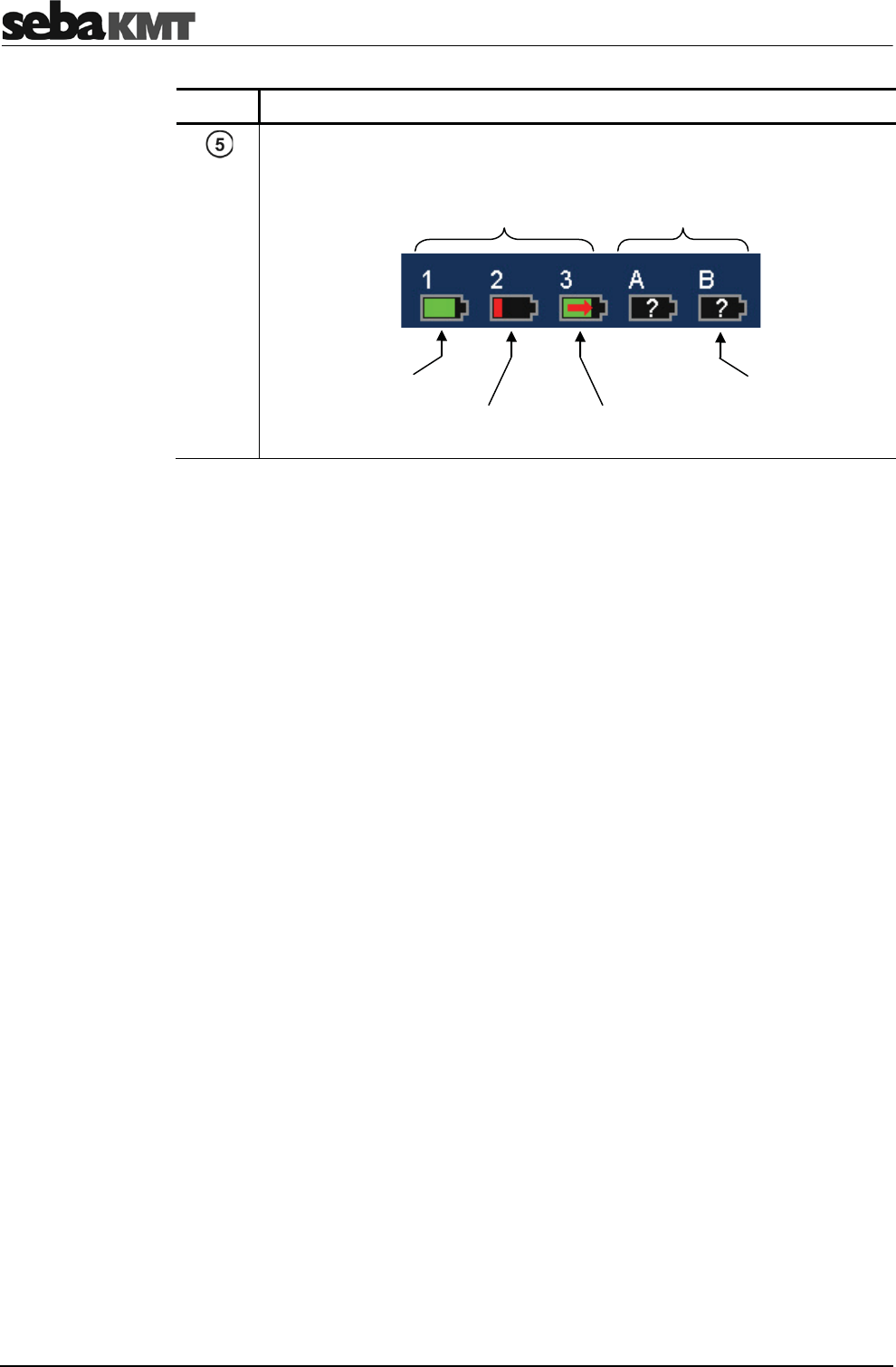
Element Description
Battery level of the received Power transmitters or Multi sensors.
Power transmitters
A and B
Multi sensors
No. 1 to 3
fully charged
critical charging
no radio signal
Frequently used menus
11
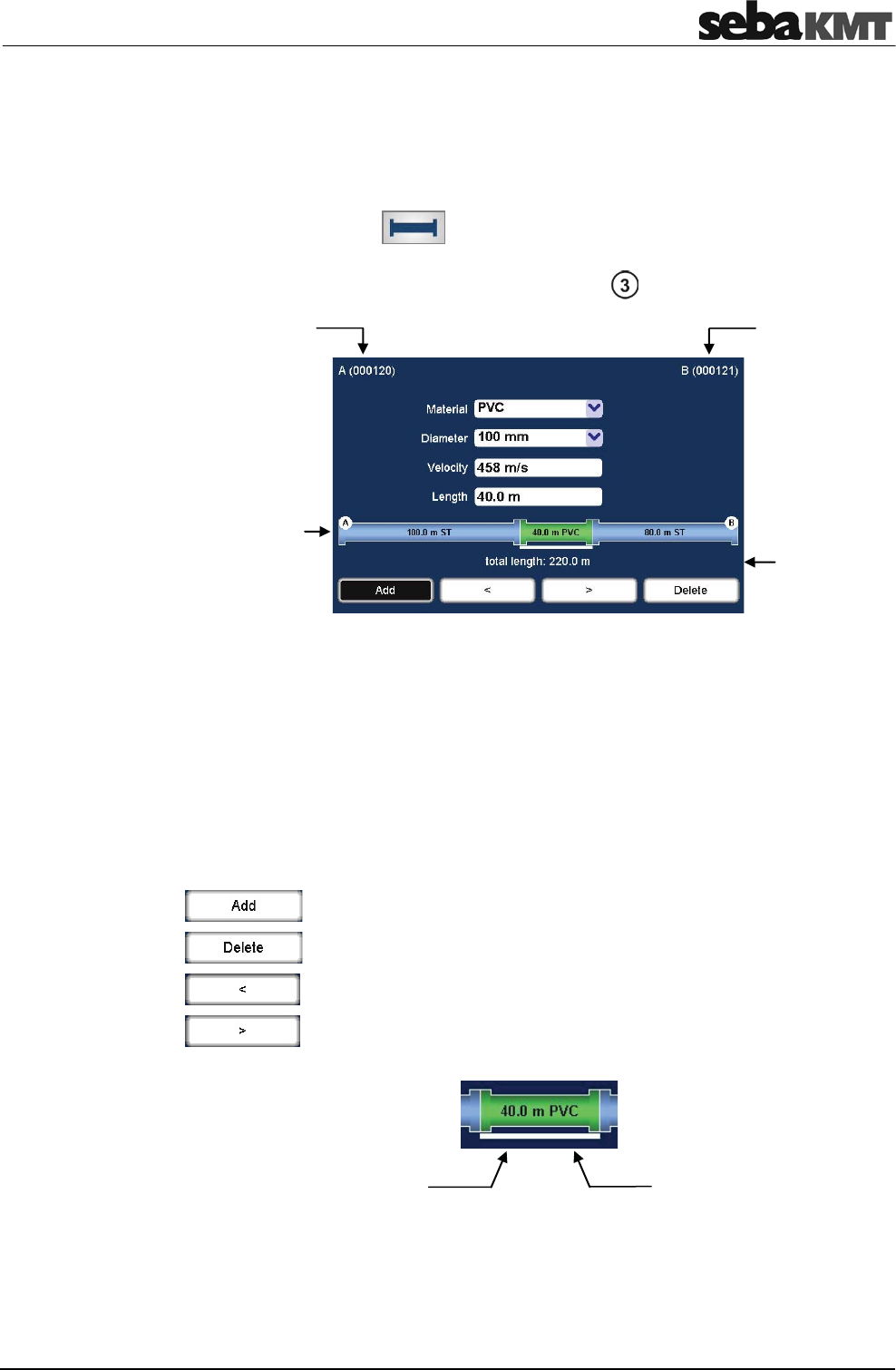
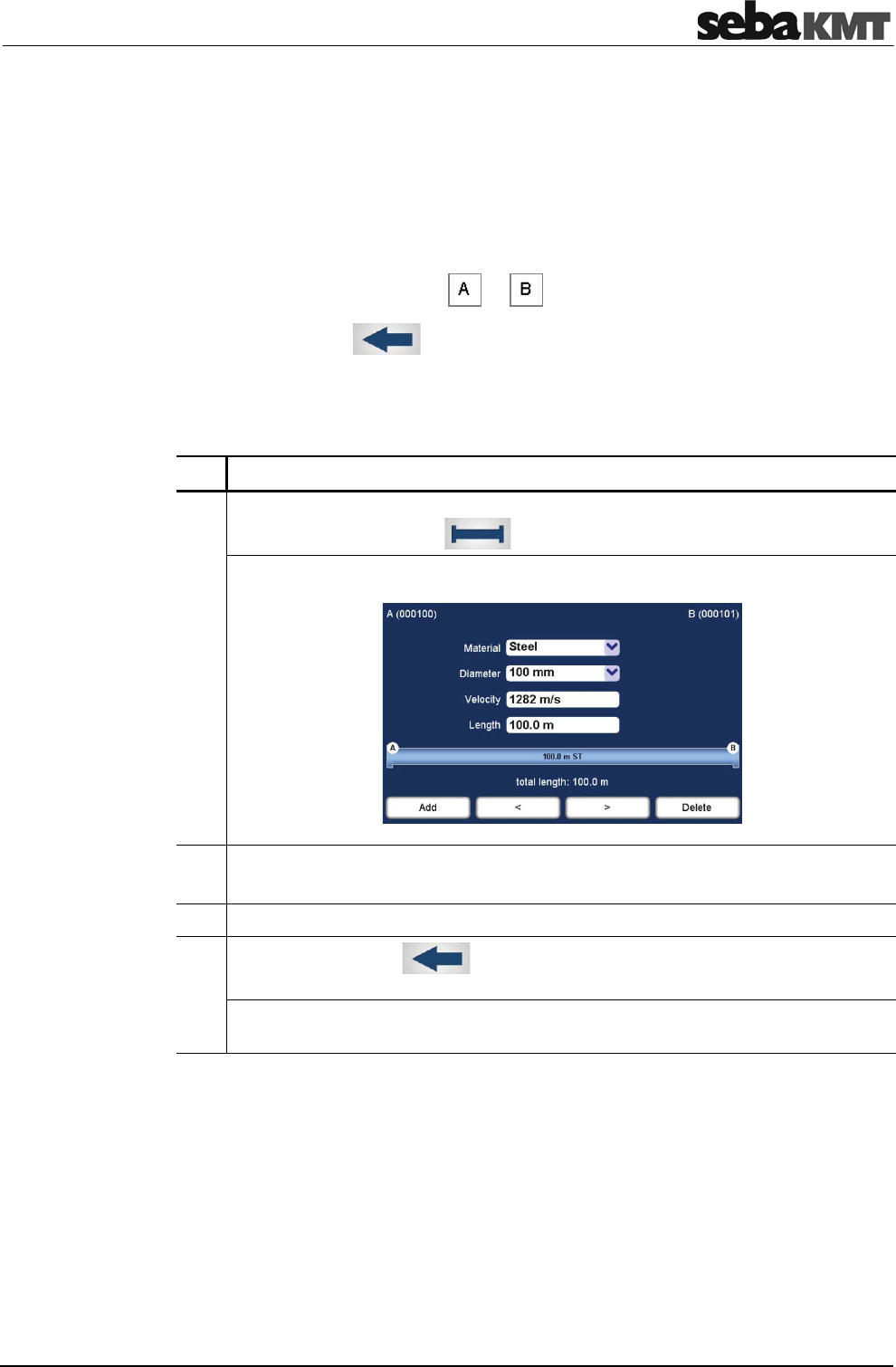
2.2 Pipe data menu
In the Pipe data menu the properties of the pipe can be specified.
The menu can be opened by
xtapping the button in the main menu
xtapping the button between the two diagrams in the Correlation menu,
representing the pipe (see next section: button )
Drop-Down Lists: Material … Select the pipe section's material.
Diameter … Select the pipe section's diameter.
Input fields: Velocity … Input field for the pipe section's sound velocity.
The displayed value automatically adjusts to the
selected pipe material. The value can be entered
manually when needed as well. For this purpose,
tap the field. A numeric keypad for input opens.
Length … Select the pipe section's length.
Tap the field. A numeric keypad for input opens.
Use these buttons to devide the pipe line displayed in up to
12 sections.
Use these buttons to move from one pipe section to the next.
The selected pipe section is "highlighted" with a white bar. The pipe parameters in the
four input fields refer to this section.
pipe section
material
pipe section
length
Visualization o
f
the pipe line
Sensor ID at
1st measuring
point
Sensor ID at
2nd measuring
point
Total length of
the line
between the
meas. points

Frequently used menus
12
Frequently used menus
13
2.3 Correlation menu
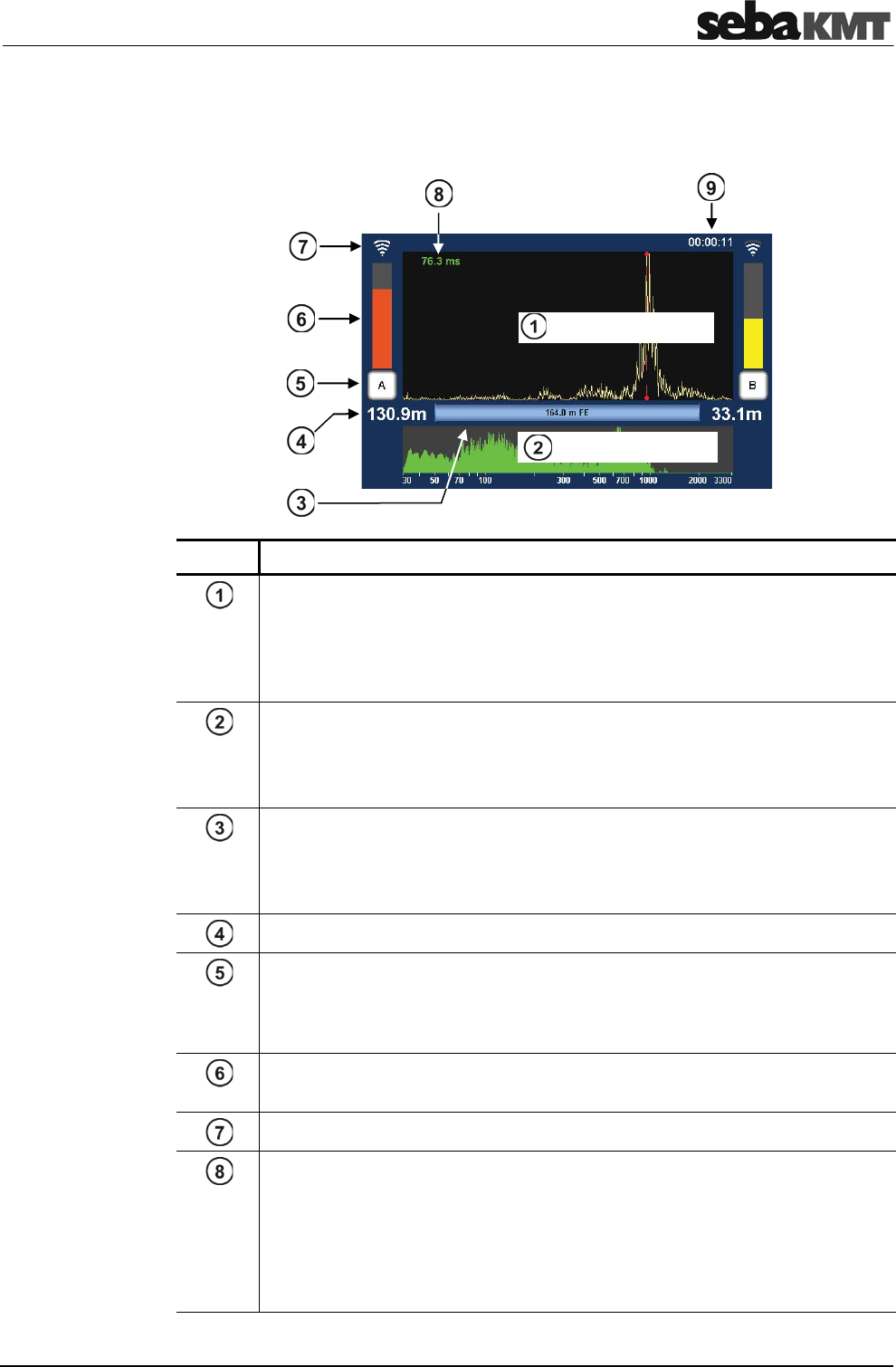
After starting a correlation the result is displayed in the following view:
Element Description
Correlation curve
Result from comparing the recordings of the two sensors with regard to the
delay time of the signals.
Tap the diagram area to open the Correlation analysis menu which provides a
number of analysis tools.
Coherence curve
Result from comparing the recordings of the two sensors with regard to the
frequency range of the recordings.
Tap the diagram area to open the frequency filter settings.
Pipeline between A and B
The grafic illustrates the pipeline between the measuring points A and B with
all its sections.
Tap the grafic to open the Pipe data menu.
Distance from the measuring point to the leak
Measuring point A / B
Indicates whether the Power transmitter A or B is installed at this measuring
point. Tap the button to open the Audio menu which can be used to listen to
the leak noise.
Noise level at the measuring point
The height of the bar reflects the noise level at the measuring point.
Quality of the radio link between transmitter and Correlator
Lag value
Indicates the delay of the leak noise between the two sensors.
The colour of the numbers shows how reliable the result of this correlation is:
green … "good" correlation, reliable result
yellow … correlation is not optimal
red … "bad" correlation; unreliable result
Correlation curve
Coherence curve

Frequently used menus
14
Element Description
negat. … the leak is on the left from the center of the line
posit. … the leak is on the right from the center of the line
Term of the correlation
Specifies how long the displayed correlation is already running.
Any interruption resets the counter to 00:00:00.

Frequently used menus
15
2.4 Correlation menu (Offline measurement)
In Offline measurement mode with Multi sensors, the Correlation menu differs in the
following aspects from the menu in Online measurement mode.
Element Description
Number of correlated audio blocks
The displayed curve is the result of an averaging from up to 10 single
correlations (due to 10 noise recordings during one measurement period).
The index shows how many single correlations are included in the calculation.
Number of the sensor at the measuring point
Pipeline between the measuring points
The grafic illustrates the pipeline between the measuring points.
Tap the grafic to open the Pipe data menu.
Pipeline sections
Intallation points of the
sensors no. 3 and no. 4

Frequently used menus
16
Frequently used menus
17
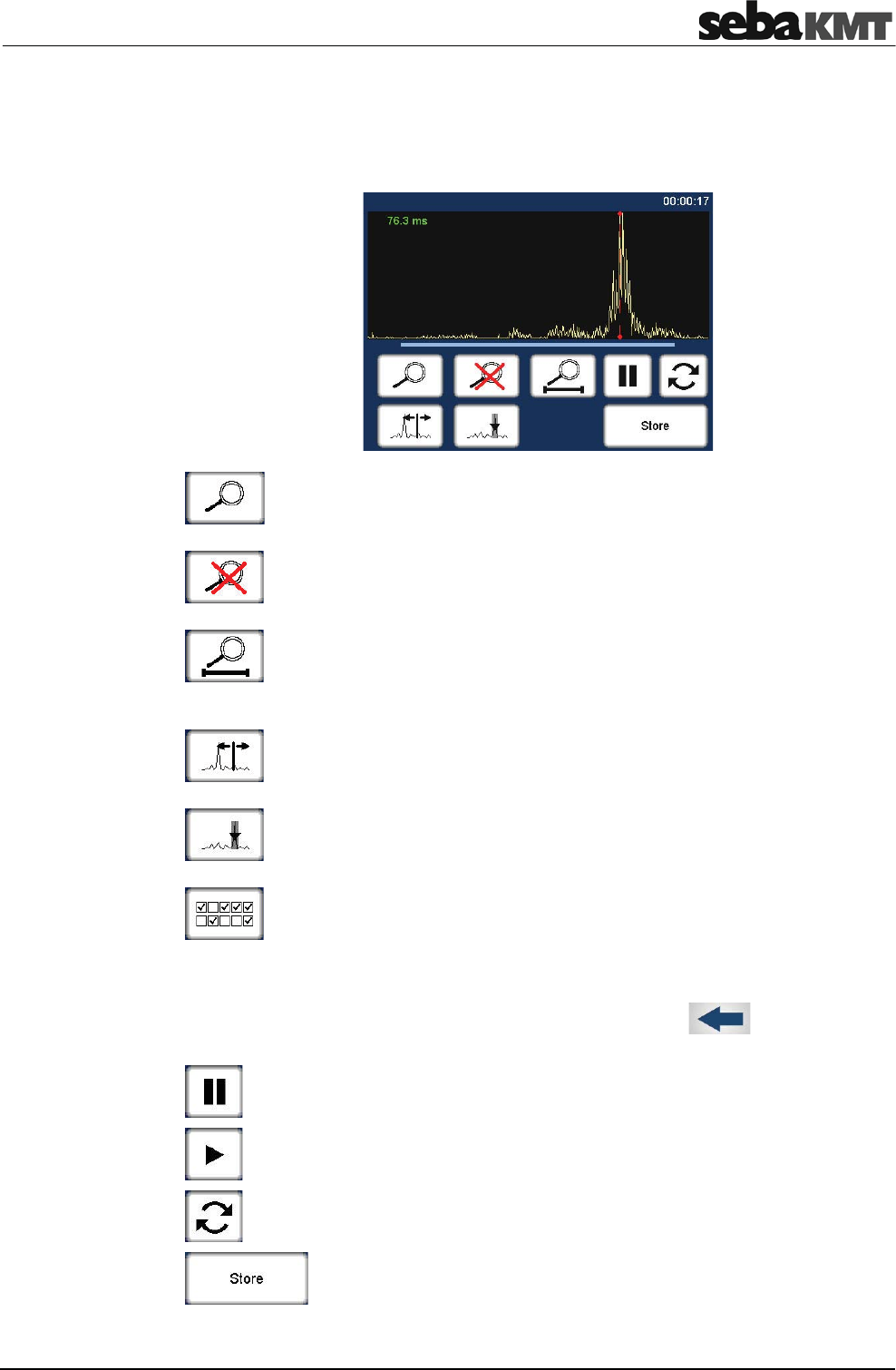
2.5 Correlation analysis menu
Tapping the Correlation curve always opens the following menu which provides tools
for analysing the correlation.
Zoom … to magnify a section of the curve
Tap the button, then mark the area to be magnified in the diagram,
i.e. tap and draw out the required range.
Zoom-Reset … to reset the curve to its initial state
Magnification and suppression are abolished. The entire correlation curve
is displayed.
Zoom opt. … to magnify the curve optimally, relative to the measuring
distance
Exactly the part of the correlation curve is shown, which refers to the pipe
between the two measuring points.
Move cursor … to read the lag value or the distance to the leak at any
point of the curve
Tap the button, then move the vertical red line in the diagram.
Suppress … to hide a section of the curve
Tap the button, then mark the area to be suppressed in the diagram,
i.e. tap and draw out the required range.
Suppress individual audio blocks (only Offline measurement)
Opens a menu showing the 10 single correlations of this pair of sensors.
"Bad" single-correlations can be 'deactivated' and, by this means,
excluded from the total-correlation.
Tap the button. In the menu that opens, tap the required fields to
remove/set the checkmark. Use the Back button to return to the
correlation analysis menu.
Pause
Interrupts the current correlation.
Continue
Continues the interrupted correlation, but does not reset the averaging.
Refresh
Resets the averaging and restarts the correlation.
Store
Opens the Correlation management menu to store the displayed
correlation data in the Correlator's data base.

Frequently used menus
18

Frequently used menus
19
2.6 Frequency analysis menu
Tapping the Coherence curve always opens the following menu which provides tools
for analysing the frequency range.
Lower frequency limit
Shows the lower limit of the adjusted frequency range.
Tap the button to change the value.
Bandpass … to isolate a frequency range
Tap the button, then mark the required range in the frequency diagram.
The correlation is updated. The frequencies outside the selected range
are suppressed.
Filter reset
Tap the button to reset the frequency filter settings to the initial state.
Bandstop … to suppress a frequency range
Tap the button, then mark the required range in the frequency diagram.
The correlation is updated. The selected frequency range is suppressed.
Upper frequency limit
Shows the upper limit of the adjusted frequency range.
Tap the button to change the value.
Frequency spectrum
Allows to change between the following frequency diagram
options:
Coherence … Coherence of the recordings of both sensors.
Spectrum L … Frequency spectrum of the sensor on the left.
Spectrum R … Frequency spectrum of the sensor on the right.
Spectrum L+R … Frequency spectra of both sensors.
xOrange curve … Sensor A
xYellow curve … Sensor B
Automatic search for best filter
Provides 10 possible filter settings.
Coherence
curve
Correlation
curve

Frequently used menus
20
Frequently used menus
21
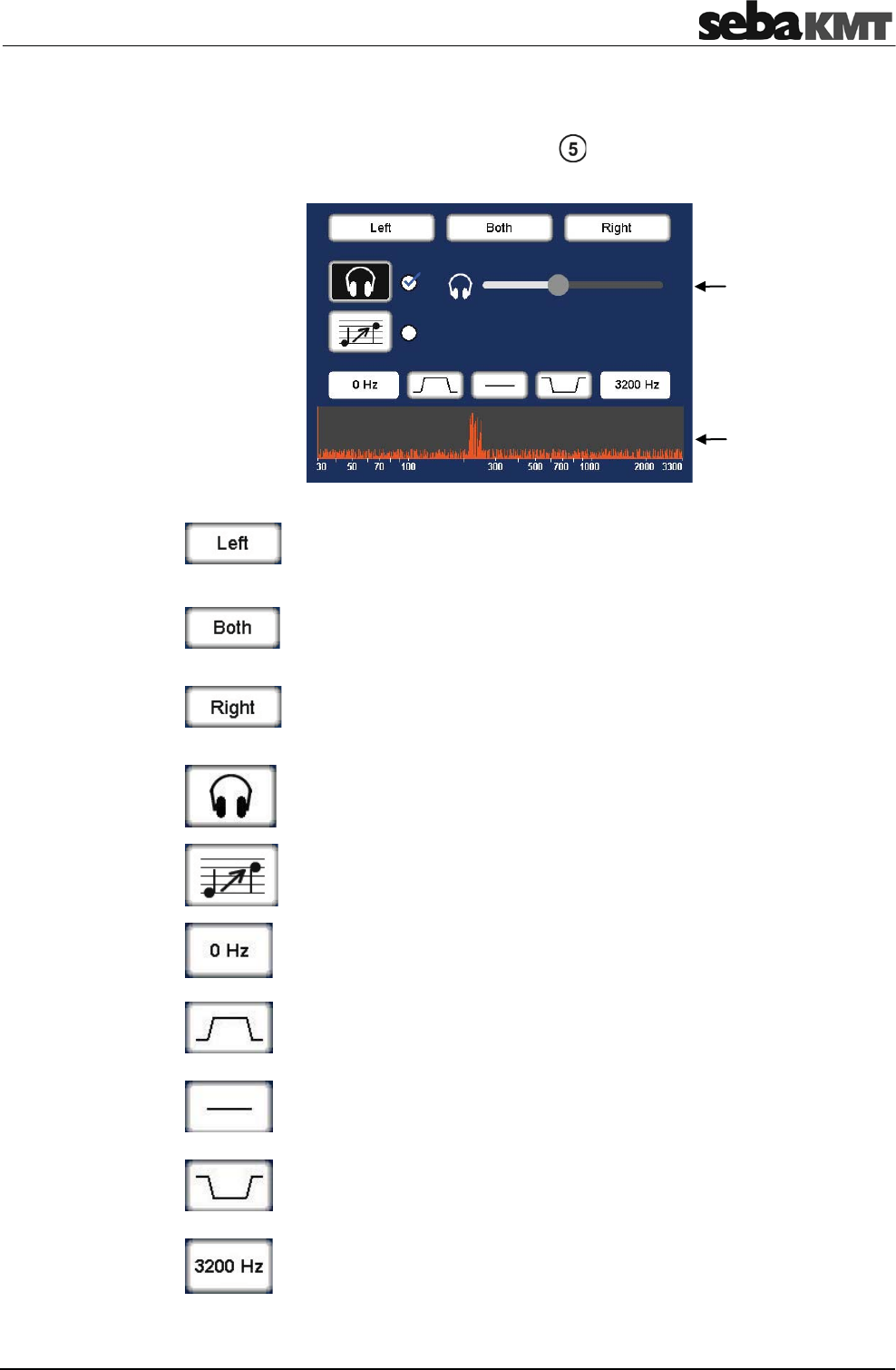
2.7 Audio menu
Tapping the buttons A/B/Sensornumber in the Correlation menu opens the
Audio menu which allows listening to the leak noise using the delivered headphones.
Listen only to the left sensor
Only the noise recorded by the sensor on the left is reproduced.
Listen to both sensors
The combined noise of both sensors is reproduced.
Listen only to the right sensor
Only the noise recorded by the sensor on the left is reproduced.
Headphones ON/OFF
Tap the button to enable / disable the connected headphones.
Pitching ON/OFF
This function lifts very low frequencies artificially up to a higher
frequency range to make them more audible to humans.
Audio filter: Lower limit
Shows the lower limit of the frequency range to be reproduced on the
headphones. Tap the button to change the value.
Audio filter: Bandpass
Specify the frequency range to be reproduced. Frequencies out of this
range are suppressed.
Audio filter: Reset
Tap the button to reset the audio filter settings to the initial state.
Audio filter: Bandstop
Specify the frequency range to be suppressed on the headphones. Only
the frequencies outside the selected range are reproduced.
Audio filter: Upper limit
Shows the upper limit of the frequency range to be reproduced on the
headphones. Tap the button to change the value.
Headphone
volume
slide control
Frequency
curve

Frequently used menus
22

Frequently used menus
23
2.8 Audio menu (in Pinpointing mode)
In Pinpointing mode, the Audio menu differs in the following aspects from the standard
Audio menu:
On the left, the Instantaneous value and the Minimum value of the current
measurement are displayed.
Narrow bar: Instantaneous value
xThe bar's height represents the current noise level.
xThe bar's color illustrates the frequency of the current noise.
xAdditionally, level and frequency are displayed inside the bar
numerically.
Wide bar: Minimum value
xThe bar's height represents the lowest noise level of the
measurement.
xThe bar's color illustrates the frequency of this lowest noise.
xAdditionally, level and frequency are displayed below the bar
graph numerically.
By means of the second slide control the gain of the ground microphone can be
adjusted.
Slide to the left … Decrease the microphone gain
Slide to the right … Increase the microphone gain
Microphone
gain control
Noise level /
frequency
report

Frequently used menus
24
Technical description
25
3 Technical description
3.1 Function
The Correlux C-3 correlator locates leaks in drinking water pipes.
Pressurized water at the leak location creates a noise which travels out in all directions
of the pipe. This noise is recorded, amplified and sent wirelessly to the correlator by two
sensors (piezo microphone, hydrophone) which are attached to the pipe (e.g. valve,
hydrants). The Correlux C-3 compares both signals (correlation) and calculates the
exact distance to the leakage on the basis of the delay time of the signals, the sensor
spacing and the sound velocity in the pipe.
The Correlux C-3 is suitable for both immediate measurement ("Online measurement")
as well as time-shifted measurement ("Offline measurement" or "Night measurement")).
Online measurement
In a so-called Online measurement, the noise recording and the correlation of the data
take place at the same time.
Step Description
1Installing the Power transmitters "A" and "B" at two measuring points.
2Noise recording, at the same time data transfer and live data correlation on the
Correlator.
Offline measurement
In a so-called Offline measurement, the correlation of the measured data takes place
only after the noise recording has been terminated.
Step Description
1Programming the sensors (Multi sensors and Power transmitters) using the
Correlator.
2Installing the sensors at up to 8 measuring points.
3Noise recording, immediately or at a preset time (e.g. at night).
4Collecting the sensors.
5Reading and analyzing the measured data using the Correlator.
Pinpointing
To determine the exact location of the leak after the correlation, a pinpoint search can
be performed using the Multi sensors or the ground microphone connected to the
correlator.

Technical description
26
3.2 Features of the set
The Correlux C-3 set mainly comprises the following components:
xCorrelator
x2 Power transmitters with microphone
for recording the leak noise at two measuring points and sending the recorded
data to the correlator for an Online correlation
The set can be extended by the following components:
xup to 8 Multi sensors
for recording the leak noise at up to 8 measuring points simultaneously, followed
by an Offline correlation
xhydrophones
for recording the leak noise directly at the water column
xa ground microphone
for pinpointing the leak after correlation
The Transport case offers space for the Correlator, 2 Power transmitters and
3 Multi sensors. The case is not only for storage and transportation purposes, but also
functions as a charging station for the devices.
3.3 Communication of the components
The components of the system communicate with each other in the following ways:
Participating devices Communication channel
Correlator Power transmitter Short range radio (digital or analogue)
Correlator Multi sensors Short range radio (digital)
Correlator Computer USB cable
Correlator Ground microphone Connection cable
Technical description
27
3.4 Power supply
The Correlator, the Power transmitters and the Multi sensors come with internal
rechargeable Li-Ion batteries.
The storage places of the individual devices in the transport case function as charging
stations. As soon as a device is placed in/on its station in the case, the device is
automatically charged, provided the case is connected to mains or to a 12 Volt vehicle
power supply.
NOTE
When connected to the electrical system of a car, the transport case is
powered by the vehicle's battery, even while the vehicle is not in
operation. This could result in the complete discharge of the vehicle
battery.
When you park the car, disconnect the Correlux transport case from the
vehicle power supply.
You can find more information in the chapters which describe the individual devices.
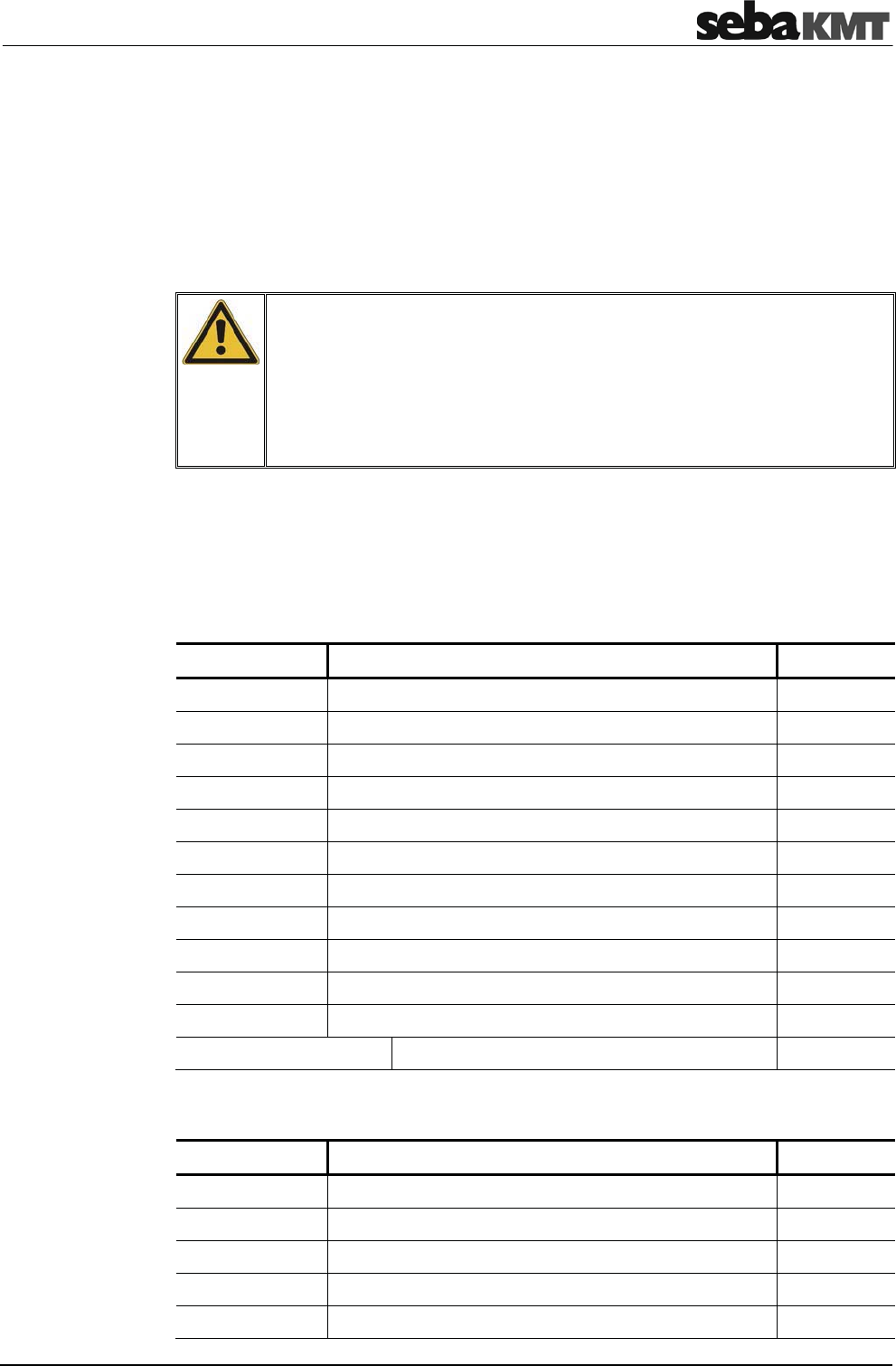
3.5 Scope of delivery
The basic set comprises the following devices and accessories:
Part Description Art.no.
COR C-3 Correlator 1006550
COR PT-3A Power transmitter A 1004779
COR PT-3B Power transmitter B 1004780
PAM CORR-2 2 x active universal microphone for COR PT-3 820019615
CPK 3-B Case for COR C-3 (Basis) 2007235
LG C-3 Charging unit for CPK 3/CMK 3 1006646
LK 13 Car charging adaptor, 3.5m 810000006
KR 22-5 Stereo headphones 810002087
VST T-1 2 x extension rod for PAM T-2/U 810000103
VK 77 Connection cable set Sebalog D (USB) 820012451
2 x nylon cord 3mm blue, 2m 304035025
CSW CorreluxView C-3 PC software 1006584
The following devices and accessories are available to extend the basic set.
Part Description Art.no.
COR MS-3 Multi sensor 1004815
CMK 3-8-MS Case for 8 Multi sensors COR MS-3 2005301
LOG TP Trivet adaptor 128309877
LOG MWA Magnetic angled adaptor 118303355
Set of labels COR C-3 (1 - 8) 2007321
Standard accessory
Additional accessory

Technical description
28
3.6 Technical data
Correlux C-3 is specified by the following parameters:
Parameter Value
Display 5,7'' VGA color display
640 x 480 pixels
Operation Touch display,
Rotary encoder with ENTER function,
On/Off pushbutton
Power supply Internal rechargeable Li-Ion battery,
12 V DC charging pins
Operating time min. 16 h
PC interface USB
Connections Sensor (microphone/hydrophone),
12 V DC / headphones (combined)
USB / GPS (combined)
External antenna 1 (digital radio)
External antenna 2 (analogue radio)
Dimensions 250 x 190 x 100 mm
Weight 1.9 kg
Degree of protection IP 65
Parameter Value
Sensor Piezo sensor with active amplifier (standard) /
hydrophone (optional)
Indicators I/O LED (device On/Off)
Radio LED (radio module On/Off))
Row of LEDs (battery status or measured noise level)
Operation On/Off pushbutton
Power supply Internal rechargeable Li-Ion battery,
inductive charging
Operating time min. 12 h
Connections Sensor (microphone/hydrophone),
Radio antenna
Dimensions (without
handle)
Ø 125 x 111 mm
Weight (without sensor) 0.9 kg
Degree of protection IP 68
Correlator
COR C-3
Power transmitter
COR PT-3A/B

Technical description
29
Parameter Value
Type Piezo sensor with magnetic adaptor
(to be connected to Power transmitter or Correlator)
Active amplification yes
Dimensions Ø 38 x 78 mm
Weight 0.4 kg
Parameter Value
Sensor Integrated piezo sensor with active amplifier
Adaptor Magnetic adaptor
Indicators Status LED
Operation On/Off magnetic switch
Power supply Internal rechargeable Li-Ion battery,
inductive charging
Operating time min. 16 h
Dimensions Ø 45 x 115 mm
Weight 0.4 kg
Degree of protection IP 68
Sensor
PAM CORR-2
Multi sensor
COR MS-3

Technical description
30
The Correlator
31
4 The Correlator
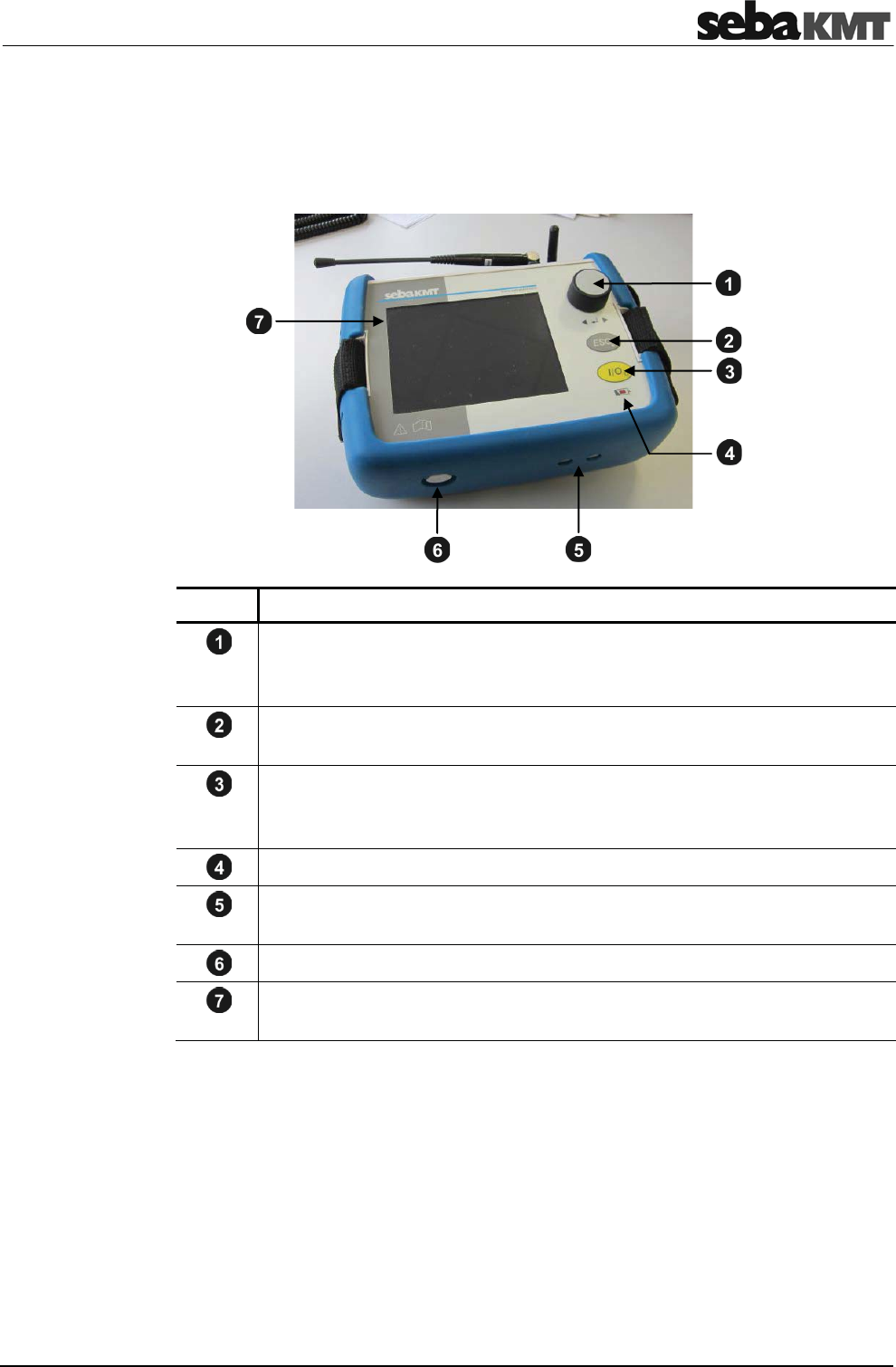
4.1 Design
The device has the following control elements and external features:
Element Description
Rotary encoder
Turning … Leads through the buttons and input fields displayed
Pressing … Executes the selected button or enters the input field
ESC pushbutton
exits the current menu and returns to the Start menu
I/O pushbutton
Short pressing … Switches the device on or activates the backlight
Long pressing … Switches the device off
Charging indicator light
Charging pins
to charge the device wireless in the transport case
Ventilation / venting membrane
Touch screen
(the Touch function can be enabled/disabled in the sytem settings)

The Correlator
32
The device has the following connection sockets:
Element Description
Antenna 1 (digital radio)
data transfer in Offline measurement mode
Antenna 2 (analogue radio)
data transfer in Online measurement mode
Microphone
connection socket for ground microphone
12V DC
connection socket for headphones
USB / GPS
combined connection socket for
xUSB cable
xGPS receiver
The Correlator
33
4.2 Power supply
The Correlator is fitted with an internal rechargeable Li-ion battery. This can power the
device for approximately 16 hours. The battery’s present charge level is shown
continuously by the battery symbol bottom right of the screen.
When the battery is low, a warning tone is heard and a warning message appears on
the screen. The device must then be recharged, otherwise, it switches itself off
automatically.
The correlator is charged wirelessly in the C-3 transport case.
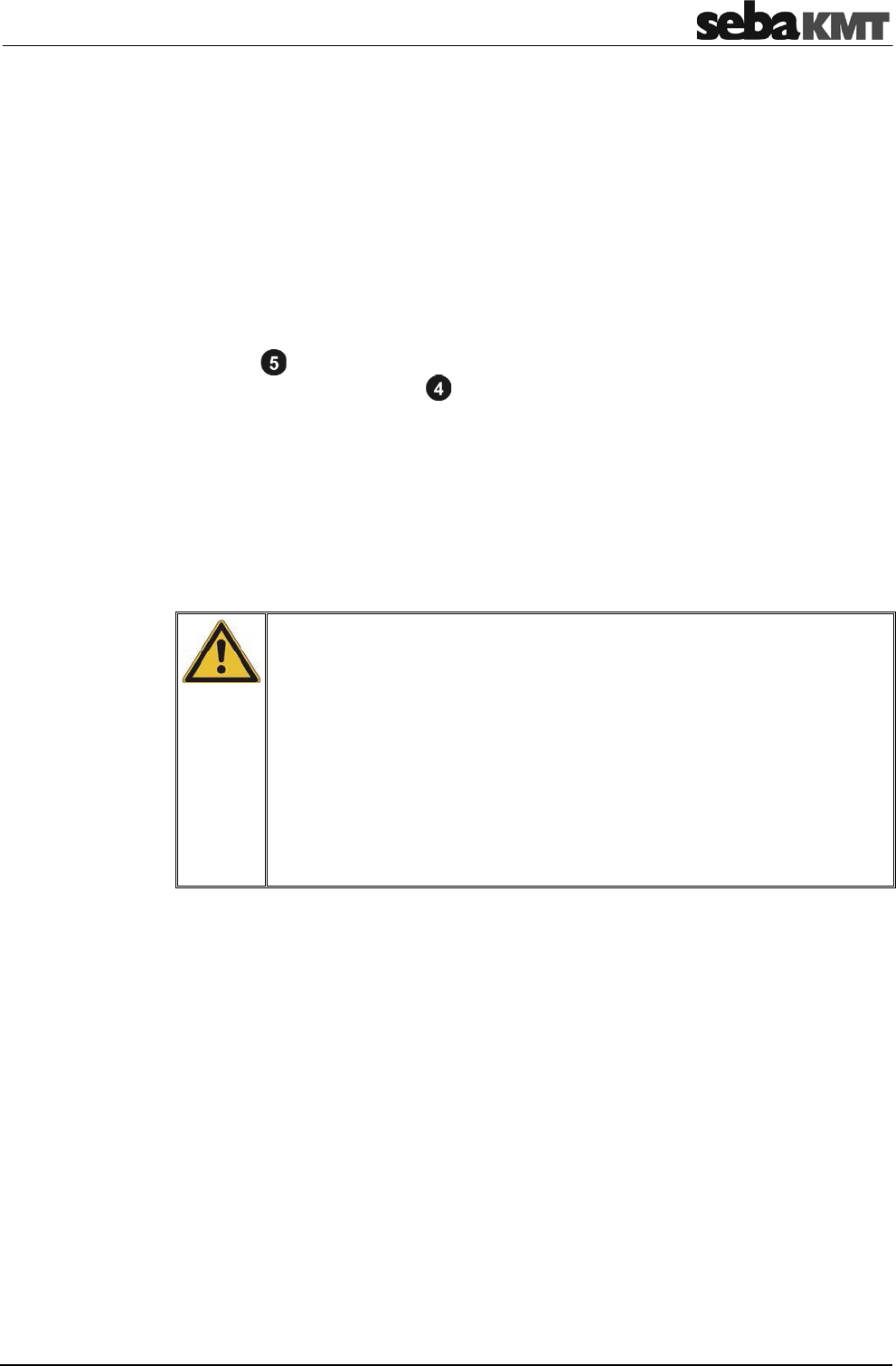
As soon as the device is situated at it's storage place in the case, it is recharged via the
two pins , provided the case is connected to mains or a 12 Volt vehicle power
supply. The red indicator light is lit while the device is charging.
The correlator is switched on during the entire charging process and can not be
deactivated. After the end of charging, the device remains switched on for the Auto-OFF
period specified in the system settings.
Charging takes approximately 12 hours.
Heat is generated while charging. The charging station in the case therefore has a
temperature switch. The charger switches off automatically when it gets too warm in the
case. It turns back on as soon as the degree of heat has fallen below a certain level.
NOTE
In order to prevent damage, observe the following precautions when
charging:
xUse only the charging station in the transport case. Do not use other
chargers.
xThe ambient temperature should be between 10°C and 35°C
(50°F and 95°F).
xTo avoid heat accumulation, do not close the lid of the case at high
ambient temperatures during charging.
xIf you experience problems with the battery, please contact your
SebaKMT sales partner. Do not open the device yourself.
Charging

The Correlator
34
4.3 Design of the user interface
All the menu levels on the Correlator's user interface consist of a large display area, the
main menu bar and an info bar.
Using the buttons in the main menu bar you can access the individual functions of the
device.
The info bar provides the following information (from left to right):
xa help text with short explanations for the selected element (button / field / box) or
on how to proceed
xthe battery symbol indicates the charge level of the battery
xthe correlator's internal time
Main menu
Info bar
Correlation
Quick start
to begin a
correlation
Pipe data
Menu to specify
the pipe
parameters
(length, material,
diameter, etc.)
Measurement
Functions for the
preparation,
implementation,
and analysis of
measurements
Settings
Functions for
managing devices,
correlation data sets
and system settings
s
s
Back
Return to the
previous
menu level
Display
area
Info bar Main menu
helptext ++ helptext ++ helptext
The Correlator
35
4.4 Basics of operation
4.4.1 Input methods
Entries can be made directly on the screen or via the rotary encoder.
2 ways of entering data
Touch display Rotary encoder
The correlator screen is touch-sensitive.
All entries can be made directly on the
screen.
The correlator has a rotary encoder.
All entries can be made using the rotary
encoder.
The buttons or fields displayed can be
called or executed by tapping with your
finger.
Turn the rotary encoder to navigate
through the displayed buttons.
Press the encoder to call the selected
button (ENTER function).
You can always switch between operating via touch screen and operating via rotary
encoder.
4.4.2 Entering identification numbers (IDs)
Various functions require the identification numbers (IDs) of the Power transmitters or
Multi sensors to be specified.
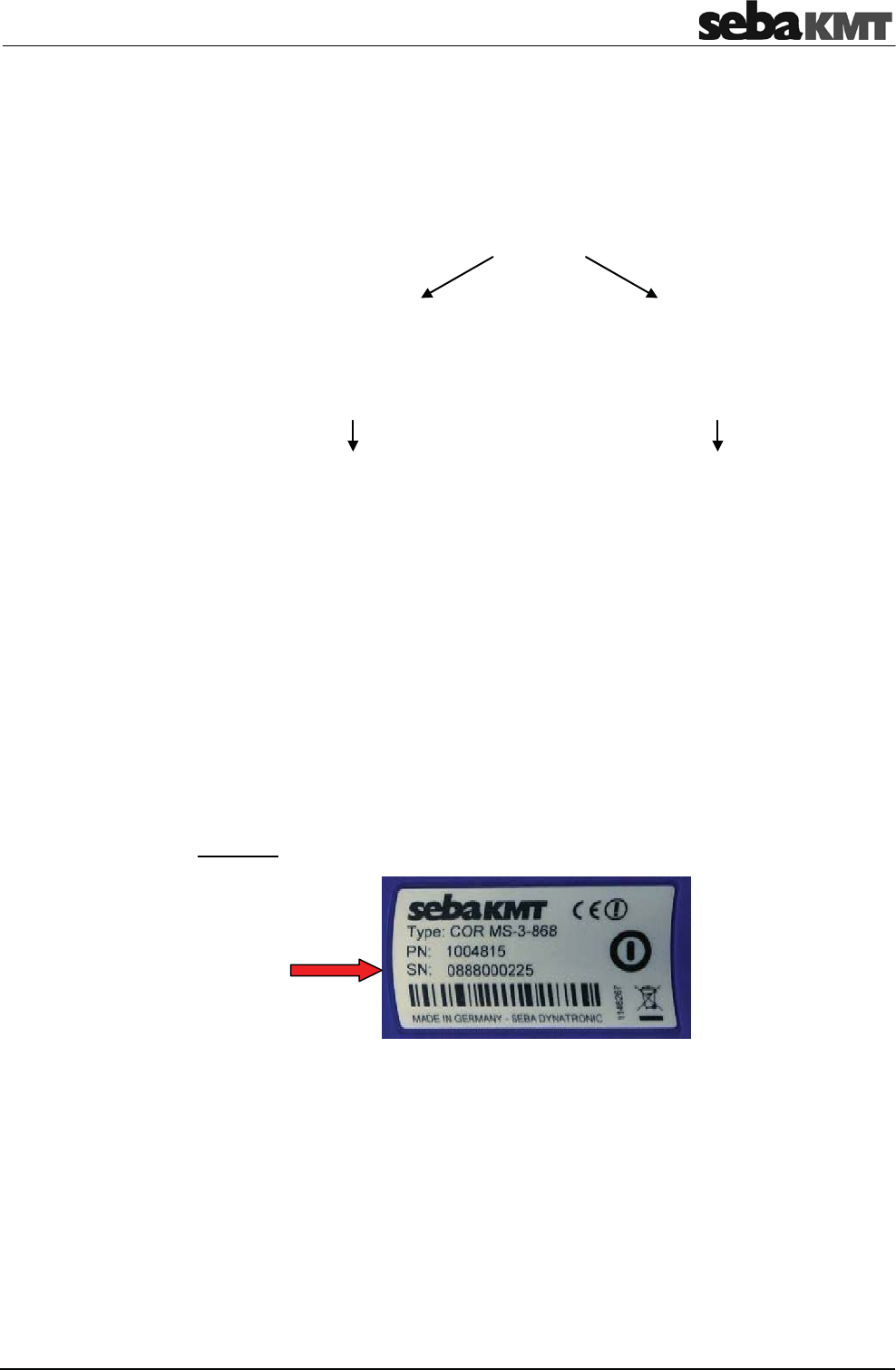
The ID is deduced from the last six digits of the device's serial number (short: SN). You
find the serial number on the nameplate of the device.
Example:
Serial number (SN): 0888000225
Identification number (ID): 000225
Entry on correlator / PC: 225
You can enter device IDs manually or you can use the "Automatic device detection".
Automatic detection means that, when a device is activated its ID is sent to the
Correlator. There, it is detected and displayed.
Introduction

The Correlator
36
For entering a device ID the following screen view, or a similar one, opens:
DEL … Deletes the last character
ENTER … Confirms and completes the input
Accept … Accepts and enters the automatically detected ID
Decline … Does not accept the automatically detected ID
Finish … Completes the automatic detection
For the manual entry of IDs, the number pad displayed is used. Confirm your entry with
the ENTER button.
When inputting an ID, the preceding zero digits can be omitted.
Thus, if the ID is ‘000225’, you need only enter ‘225’.
To the right of the number pad, there are fields and buttons for the automatic sensor
detection. The devices concerned must be close to the correlator.
To register a Power transmitter to the correlator, briefly press the I/O pushbutton of the
device. To register a Multi sensor, briefly move a magnet past the sensor's I/O area, so
that the LED lights up briefly. As a result, the device's ID is sent, detected by the
Correlator and displayed there. Use the provided buttons to accept or decline the ID.
This way, multiple sensor IDs can be registered to the Correlator in quick succession.
4.4.3 Entering text
To input comments or similar, a virtual keyboard appears on the screen. Enter the
required text and confirm with OK.
Manual entry
Automatic detection
The Correlator
37
4.4.4 Sorting devices in lists and tables
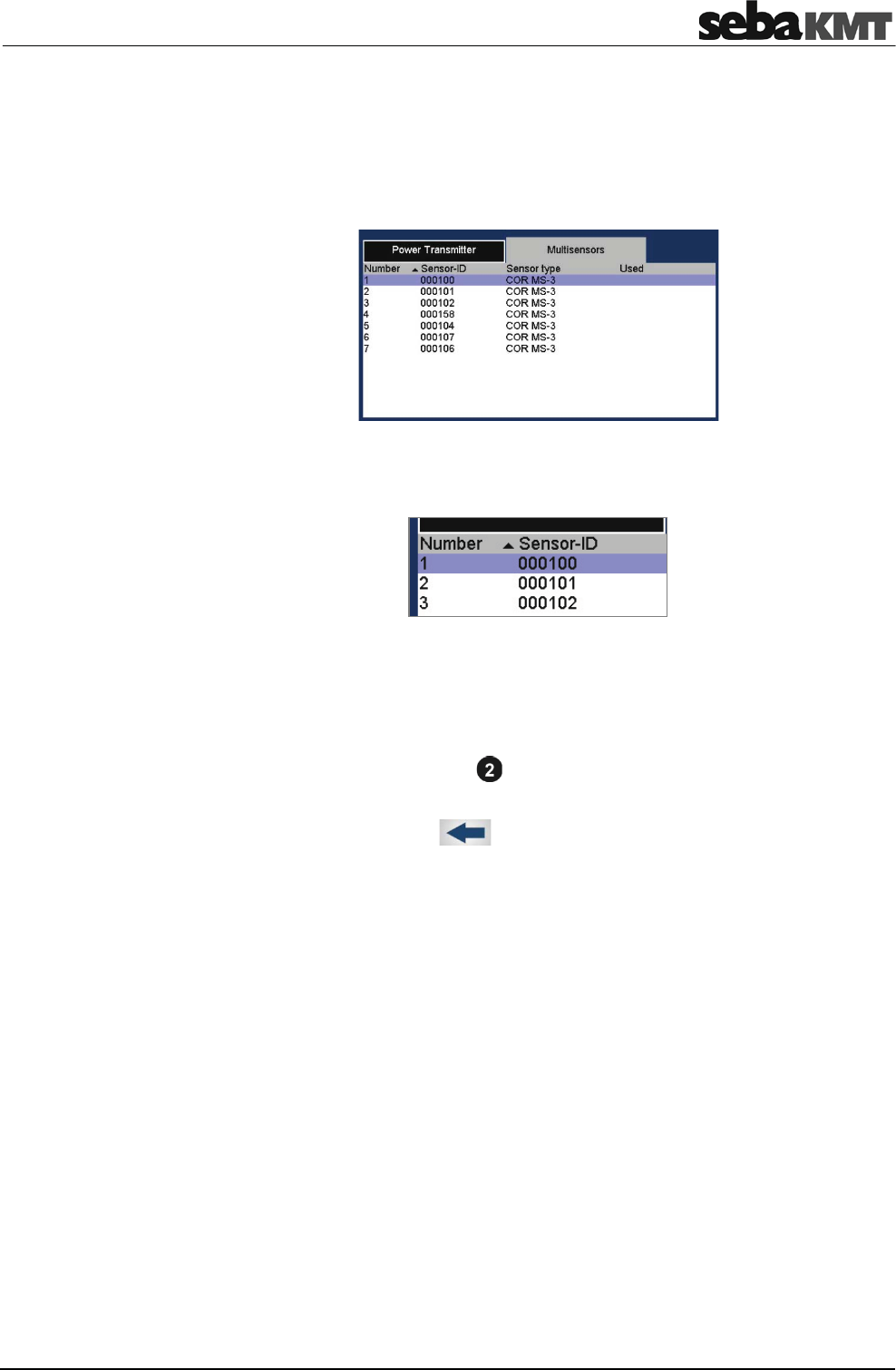
In various menus, device IDs or other information are listed in a kind of table.
For example, the following picture shows a list of all Multi sensors registered to a
Correlator (the so called 'sensor pool').
If a black triangle can be seen in the header of a column, you have the chance to
change the sort order (ascending / descending) according to the parameter shown in the
header. Just tap the respective header.
Changing the sort order is only possible via touch screen, not via the rotary encoder.
4.4.5 ESC pushbutton and Back button
You can use the ESC pushbutton to cancel any started function and exit each
menu. This immediately returns you to the start screen.
You can use the Back button in the main menu bar to return to the previous
menu level.
The Correlator
38
4.5 Commissioning
4.5.1 Switch the correlator ON/OFF
The correlator is switched on with the I/O pushbutton . The boot process takes a few
seconds, then the Start menu appears on the screen. The device is now ready.
To switch the correlator off, press the I/O pushbutton until the screen turns off
(approx. 2 seconds).
The Commander automatically switches off if no input is made within a specified time
period. This timespan can be configured in the system settings.
4.5.2 Basic settings at initial start-up
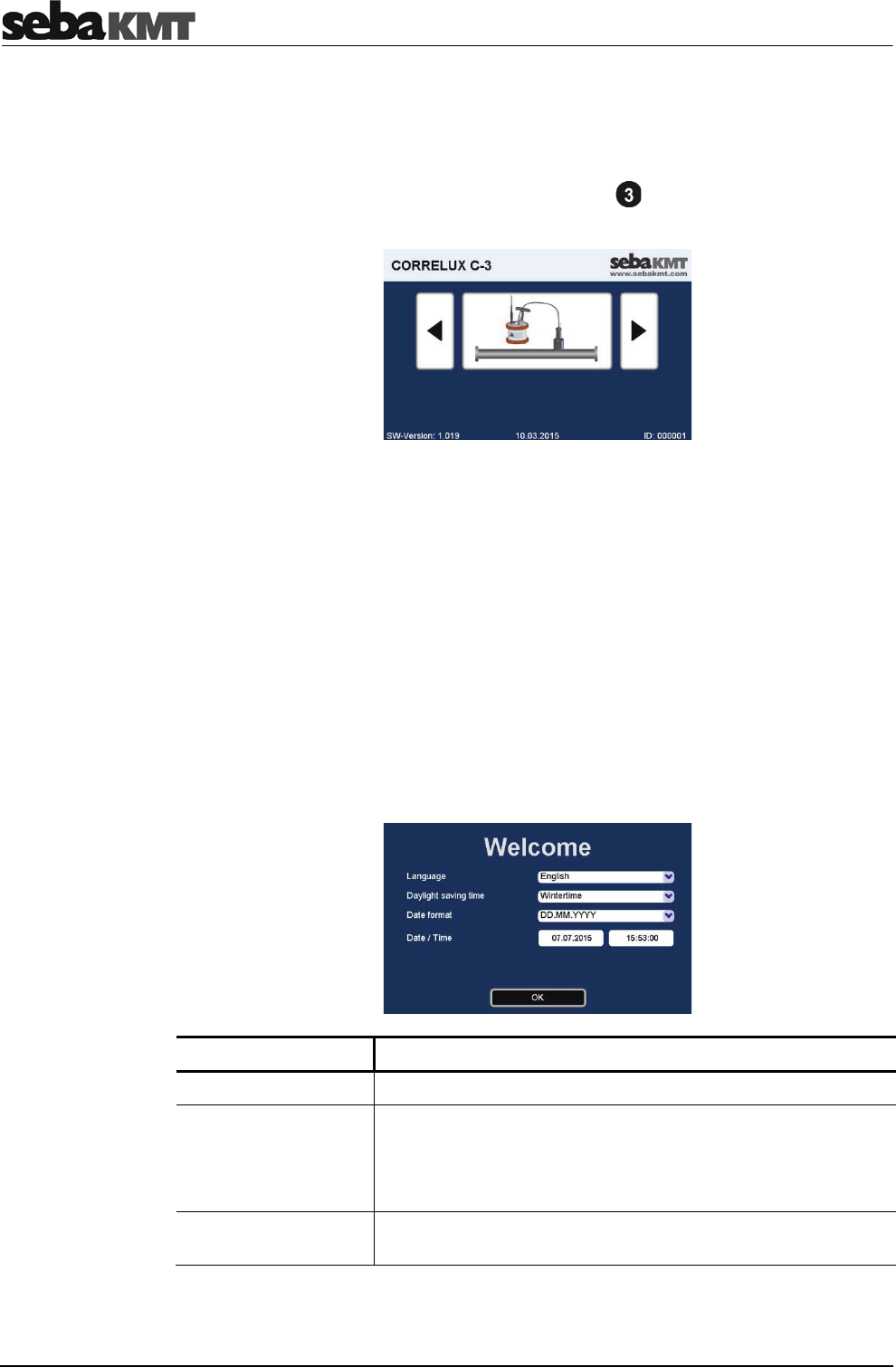
When the correlator is switched on for the first time, two consecutive 'Welcome menus'
appear on the screen. There, some basic system settings have to be made before the
Start menu can be entered.
In the menu that appears first, use the upper pull-down list to select your language. The
Correlator's operating language immediately adapts to your selection. After that, give the
remaining requested details.
Line Description
Daylight saving time Select whether currently is winter or summer time.
Date format Select a format for the correlator's system time.
DD
MM
YYYY
…
…
…
Day
Month
Year
Date / Time Enter the current time (hours:minutes:seconds) and date
(day:month:year).
Confirm with OK. The menu is closed. The settings are accepted. You have the chance
to change these settings again in the Correlator's system settings menu, at any time.
Switching ON
Switching OFF
Auto-OFF
Language,
date and time

The Correlator
39
Specify in the next menu, which devices are part of your Correlux C-3 set. Activate the
relevant checkbox/es.
The statements made here determine which measuring methods will be offered in the
Correlators Start screen.
Example: If you select no checkbox except "COR PT-3", the Online measurement
method "COR PT-3 with microphone" will be the only available method in the Start
screen.
Confirm with OK. The settings are accepted. The menu is closed and the Start menu
appears.
You have the chance to change these settings again in the correlator's system settings
menu, at any time.
4.5.3 Change the language
The operating language can be changed in the system settings of the device.
If currently a foreign language is set, call the Start menu (ESC button) and follow these
symbols:
ÎÎ
Next to the second flag you find a pull-down list with all available languages.
Devices of your set

The Correlator
40
4.5.4 Enable/Disable the touch screen (touch sensitivity)
The touch function of the screen can be disabled/enabled. As long as the function is
switched off the correlator can only be operated using the rotary encoder.
Proceed as follows:
Step Description
1In the main menu, tap the button .
2In the displayed menu, tap the System settings button.
Result: The system settings menu is opened.
Use the buttons Next and Previous to browse through the available settlings.
3Look for the Touch option.
Enable/Disable the corresponding checkbox.
4.5.5 Activate the display light
The display light is switched on by
xtouching the screen (provided the touch function is not disabled)
xturning the rotary encoder
xpressing the I/O pushbutton briefly
The light remains on for a certain time period. The length of this period (a maximum of
4 minutes) can be adjusted in the system settings.

The Correlator
41
4.6 Systeme settings
By means of the System settings various device settings can be customized to the
needs of the user. Furthermore, the menu provides useful information on the status of
the device and the firmware used.
To access the System settings menu, proceed as follows:
Step Description
1In the main menu, tap the button .
2In the displayed menu, tap the System settings button.
Result: The system settings menu is opened.
Use the buttons Next and Previous to browse through the available settlings.
4.6.1 Basic settings
The following basic settings can be made
Line Description
Backlight
switch off
Select a period of time for the backlight until it is switched off
automatically.
Explanation: If no entry is made, the display light is switched off
automatically after a period of time. Specify the length of this period
here. If you select never, the backlight will remain on permanently.
Turn off autom.
after
Select a period of time for the correlator until it is switched off
automatically.
Explanation: If no entry is made, the device switches itself off
automatically after a period of time. Specify the length of this period
here. If you select never, the correlator will remain switched on
permanently.
Backlight
Auto-OFF

The Correlator
42
Keybeep Activate/deactivate the key tone that sounds when a button is tapped
or the rotary encoder is pressed.
Language Select your language.
Timezone Select the time zone for where you are.
Daylight saving
time
Select whether it is currently winter or summer time.
Date format Select the date format to be used by the correlator.
DD
MM
YYYY
…
…
…
Day
Month
Year
Date / Time Enter the current date and time (hour:minute:second) for the
correlator.
Measurement
units
Select the system of units to be used.
Metric
Imperial
…
…
Used in Europe and most countries in the world
Used in the US
Factory settings Tap the Reset button if you want to reset all system settings to
factory defaults.
Touch Enable/Disable the touch function of the screen.
As long as the function is switched off the correlator can only be
operated using the rotary encoder.
Averaging Select the averaging interval.
Explanation: When performing an Online measurement, the
calculation will automatically be restarted and the displayed
correlation curve will be updated at regular intervals.
no averaging
20 s
unlimited
…
…
…
No averaging takes place.
Averaging of the correlation curve takes place
in a 20 seconds interval.
Averaging of the correlation curve takes place
with every new received measuring data
package.
Available quick
start buttons
Specify which devices are part of your Correlux C-3 set.
Enable/Disable the relevant checkbox/es.
Explanation: The statements made here determine which measuring
methods will be offered in the correlator's Start screen.
Example: If you select no checkbox except "COR PT-3", the Online
measurement method "COR PT-3 with microphone" will be the only
available method on the Start screen.
Key tone
Language
Time and date
Format of units
Reset system settings
Touch screen
ON/OFF
Averaging during
correlation
Available measuring
methods in Start menu

The Correlator
43
Frequency
scale
Select if the X-axis of the coherence diagram in the Correlation menu
shall ascend in a linear or logarithmic way.
Explanation: The frequency range of the Correlux C-3 system is from
0 to 3.300 Hz. The logarithmic view results in a wider display area for
lower frequencies.
logarithmic:
linear:
4.6.2 System info
The System settings menu has the following information on the device and the
firmware currently in use:
Line Description
Free space The correlator's free memory space in MB
Software version Firmware version
Software date/time Date of last firmware update
ID Identification number of the correlator
4.6.3 Store the settings
When leaving the system settings menu all the settings are automatically stored and
accepted.
4.7 Hardware reset
If the correlator stops responding to inputs (neither from touch screen nor from rotary
encoder or pushbuttons), a hardware reset can be performed.
Hold down the rotary encoder and the ESC pushbutton at the same time for
about one second. The correlator restarts automatically. This usually rectifies the
malfunction.
If the malfunction persists after this normal reset, try the following: Hold down the rotary
encoder and the ESC pushbutton at the same time for about three seconds.
The correlator switches off. Wait about a minute before switching the device back on.
The correlator should now function correctly again.
Frequency scale
linear / logarithmic

The Correlator
44
4.8 Communication
4.8.1 Connection between the correlator and the sensors
Short range radio is used for communication between the correlator and the sensors
(Power transmitters and Multi sensors)
Digital radio is used for Online measurements. Analogue radio is used for Offline
measurements. Therefore, the correlator is equipped with two radio antennas.
Antenna 1 … Digital radio
Antenna 2 … Analogue radio
4.8.2 Connection between the correlator and the computer
The delivered VK 77 connection cable is used to connect the correlator to a PC/laptop.
This connection is needed for
xcorrelation data transfer to computer
xfirmware update file transfer to the correlator
To connect the correlator to a computer, proceed as follows:
Step Description
1In the main menu, tap the button .
2In the displayed menu, tap the Connect to PC button.
3Establish the cable connection.
Connect the round plug of the cable to the USB/GPS socket of the correlator.
Markings on the plug and socket ensure that the plug is lined up correctly. You
must feel the plug engage.
4Tap the Connect button on the correlator.
Result: The connection is made. The correlator is automatically detected by the
computer as a mass storage device. As soon as the "Connected" message on the
correlator’s screen appears, data can be transferred.
If no connection is made, check the cable connection again. If necessary, disconnect
the correlator from the computer, restart it or perform a reset, and follow steps 1 to 4
once again.
To end the connection, select the Disconnect button on the correlator. As soon as the
"Disconnected" message appears, the connection cable can be removed.
Connecting
Disconnecting

The Power transmitters
45
5 The Power transmitters
5.1 Design
Each Power transmitter has an active amplifier for the microphone signal, a data
memory, a rechargeable Li-Ion battery, a digital radio module and an analog radio
module with antenna inside.
The devices have the following external characteristics:
Element Description
Sensor storage place
Sensor socket
for connecting the microphone / hydrophone
I/O pushbutton
short pressing … switches the device on
long pressing … switches the device off
Ventilation / venting membrane
Antenna socket
for connecting the analog radio antenna

The Power transmitters
46
The Power transmitters have the following lights (LEDs):
Element Description
Row of LEDs
lit green … represents the current battery level
lit red … represents the noise level
Radio LED
lit green … the device is switched on
flashing … the device is charging
not lit … the device is switched off
I/O LED
lit red … the device is in "Active" mode,
noise measurement in progress
measurement data is being sent to the correlator
not lit … the device is in "Stand-by" mode,
no measurement in progress,
no radio traffic
5.2 Identification number (ID)
Each Power transmitter has its own six-digit identification number (short: ID). Using this
ID the device in the correlator and the Correlux View PC software can be managed and
clearly identified.
The ID is deduced from the last six digits of the device's serial number (short: SN).
You find the serial number on the nameplate of the device.
When inputting an ID on the correlator or computer, the preceding zero digits can be
omitted.
Indicator light

The Power transmitters
47
5.3 Power supply
The Power transmitters are fitted with internal rechargeable Li-Ion batteries which can
power the devices for at least 12 hours.
On the device, the current battery status is indicated by the row of LEDs when it is
green. (Red light represents the recorded noise.) If only one of five LEDs is lit, the
device should be charged. Otherwise, it switches itself off automatically.
In the Start menu of the correlator two battery icons indicate the current battery status of
the Power transmitters, provided both devices are switched on and in reach.
To know the exact battery state of a Power transmitter, read the unit's configuration and
see the Battery level line in the respective menu.
The Power transmitters are charged wirelessly in the transport case.
As soon as the devices are situated at their storage places in the case, they are
recharged inductively, provided the case is connected to mains or to a 12 Volt vehicle
power supply.
Charging takes approximately 12 hours. The row of LEDs indicates the charging
progress. The I/O-LED is flashing during the process. It returns to permanent light
as soon as the battery is full.
NOTE
In order to guarantee the devices' water and dirt resistance, any repairs
must be carried out by SebaKMT or an authorised service partner.
Do not open a Power transmitter yourself. If you have problems with the
battery, please contact your SebaKMT service partner.
5.4 Commissioning
To turn a Power transmitter on, briefly press the I/O pushbutton . The I/O LED is lit.
To turn the device off, press the button until the LED goes out.
The Power transmitter's sensor storage place is fitted with a magnetic switch. As a
result, the transmitter "knows" whether the microphone is currently in use or not.
As long as the microphone rests in the storage place, the Power transmitter remains in
"Stand-by" mode. The internal analog radio module stays off as no measuring data
needs to be transferred. This saves battery power.
As soon as the microphone is taken from the storage place, the Power transmitter
switches from "Stand-by" to "Active" mode. The internal radio module is activated and,
from now on, the recorded data are directly sent to the correlator. The row of LEDs
switches from green to red and represents the recorded noise level.
Battery level
Charging
Switching ON/OFF
Stand-by

The Power transmitters
48

The Multi sensors
49
6 The Multi sensors
6.1 Design
Each Multi sensor has a highly sensitive piezo microphone with active amplifier, a data
memory, a rechargeable Li-Ion battery and a radio module with antenna inside.
The devices have the following external characteristics:
Element Description
Indicator light
flashes green … battery OK
flashes yellow … battery critical
flashes red … device needs to be re-charged
flashes rapidly … device is charging
no light … device is turned off
ON/OFF contact area I/O
Magnetic foot (replaceable)
Type plate
Carrying ring (removeable)
6.2 Identifikationsnummer (ID)
Each Multi sensor has its own six-digit identification number (short: ID). Using this ID the
device in the correlator and the Correlux View PC software can be managed and clearly
identified.
The ID is deduced from the last six digits of the device's serial number (short: SN). You
find the serial number on the nameplate of the device.
When inputting an ID on the correlator or computer, the preceding zero digits can be
omitted.
The Multi sensors
50
6.3 Power supply
The Multi sensors are fitted with internal rechargeable Li-Ion batteries which can power
the devices for at least 16 hours.
In the Start menu of the correlator up to eight battery icons can be seen. They indicate
the current battery status of the registered Multi sensors in reach. To know the exact
battery state of a Multi sensor, read the unit's configuration and see the Battery level
line in the respective menu.
When the battery level of a Multi sensor falls below a certain threshold, the indicator
light of the device will blink red. The unit must then be recharged, otherwise it switches
itself off automatically.
The Multi sensors are charged wirelessly in the transport case.
As soon as the sensors are situated at their storage places in the case, they are
recharged inductively, provided the case is connected to mains or to a 12 Volt vehicle
power supply.
Charging takes approximately 6 hours. The units' indicator lights are rapidely flashing
during the process. The indicator lights turn to permanent green light as soon as the
battery is full.
CAUTION
No objects must be put into empty charging stations.
Risk of fire due to the induction !
The charging stations are for transport and charging of the
Multi sensors only.
NOTE
In order to guarantee the devices' water and dirt resistance, any repairs
must be carried out by SebaKMT or an authorised service partner.
Do not open a Multi sensor yourself. If you have problems with the battery,
please contact your SebaKMT service partner.
6.4 Switching ON/OFF
The Multi sensors have an internal magnetic switch.
To turn a Multi sensor on, briefly hold a magnet (e.g. the foot of another Multi sensor) in
front of the sensor's I/O area . The device turns on. The indicator light flashes
3times.
To turn the device off, hold a magnet in front of the I/O area for approximtely 2 sconds.
The indicator light will flash 2 times before it goes out.
Battery level
Charging

The Multi sensors
51
6.5 Installation
The Multi sensors should be installed directly on the pipe but, however, you can also
attach them to valve rods or hydrants, for example, or any other position along the
pipeline that is easily accessible. Due to their powerful magnet, the sensors can also be
attached horizontally to ferromagnetic surfaces.
There must be the best possible contact between the sensor foot or the mounted
adapter (see below) and the pipe. If need be, clean the contact point thoroughly
(preferably with a wire brush).
6.6 Adapter
The magnetic foot of the Multi sensor can be unscrewed and replaced by another
adaptor, e.g. by the optional magnetic angled adaptor.

The Multi sensors
52
Online measurement – Realtime correlation with 2 sensors
53
7 Online measurement – Realtime correlation with 2 sensors
xAre the batteries of the Power transmitters and the Correlator charged?
xAre the antennas properly connected to the Power transmitters and the
Correlator?
xAre the microphones/hydrophones properly connected to the Power transmitters?
xHas the radio of each Power transmitter been tested?
(For this, take the transmitter’s microphone from the storage place . The
Radio LED must now be lit. If not, put the microphone back to the storage
place, switch the transmitter off and on again and repeat the test.
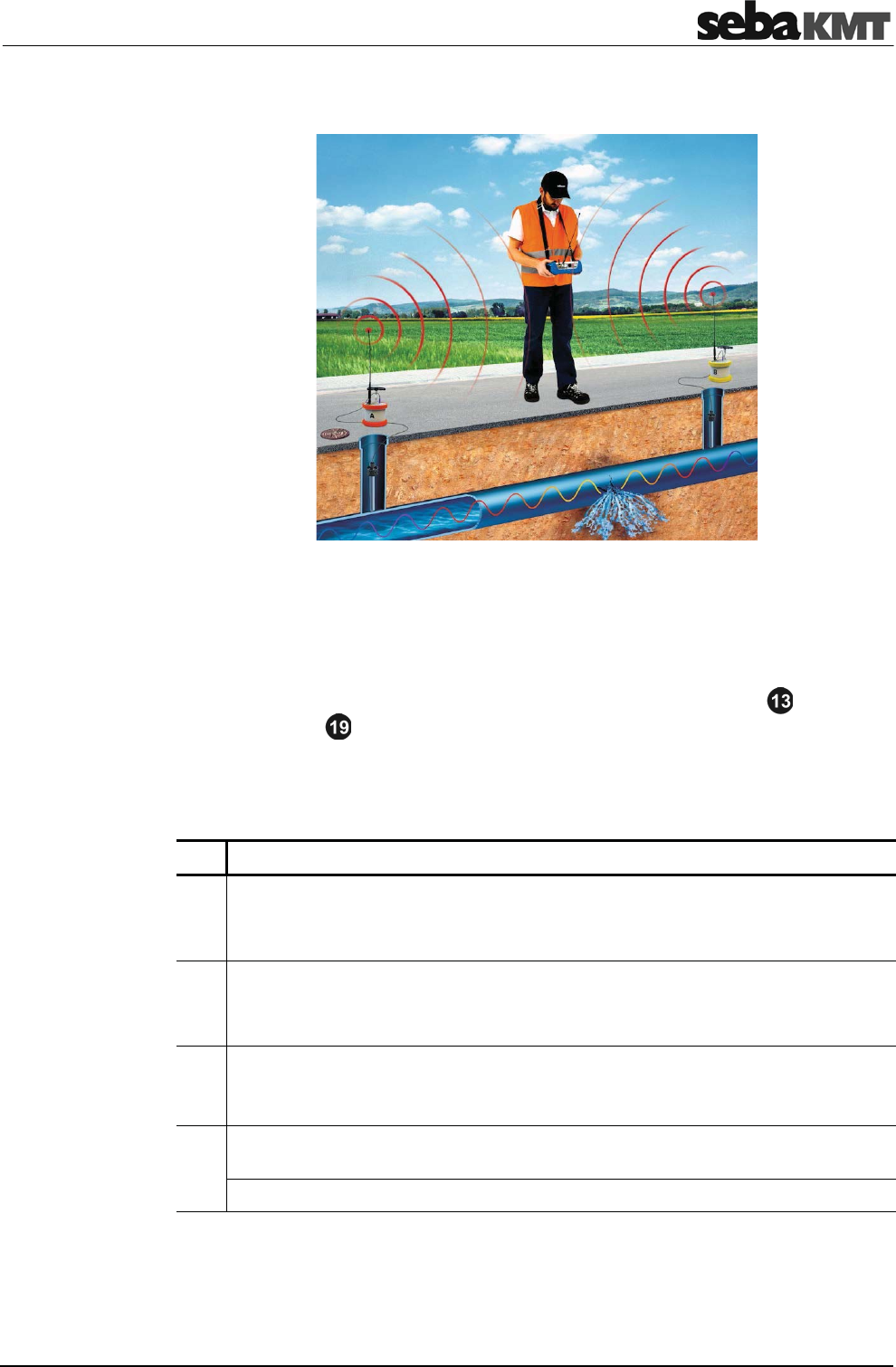
Deploy the Power transmitters at the required measuring points and start the correlation.
Proceed as follows:
Step Description
1Take the Power transmitter „A“ (orange) and go to the first measuring point.
Place the microphone on the pipe (or, alternatively, install the hydrophone).
Turn the Power transmitter on.
2Take the Power transmitter „B“ (yellow) and go to the second measuring point.
Place the microphone on the pipe (or, alternatively, install the hydrophone).
Turn the Power transmitter on.
3Take the Correlator and choose a position half way between the measuring
points.
Turn the Correlator on.
4In the Start menu, select the required Online measuring mode
COR PT-3 with microphone or COR PT-3 with hydrophone.
Result: The Correlation menu appears. The correlation is started and displayed.
Checklist
prior to measurement
Start a correlation

Online measurement – Realtime correlation with 2 sensors
54
Use the following questions to assess the quality of the displayed correlation.
Question 1: Is the radio signal of both transmitters strong enough?
The radio symbol shows:
strong signal
The radio symbol shows:
weak signal
How to proceed: Continue the
measurement and start a detailed
analysis.
Meaning: continuous correlation hardly or
not possible
How to proceed:
xMove closer to the
Power transmitter in question
xPlace the transmitter higher (e.g. on
a wall or on a traffic cone or similar)
xIf necessary, place the transmitter at
an other measurement point
xIf possible, there should be a direct
line of sight connection between
Correlator and transmitter
If still no connection can be made,
conduct an Offline measurement instead
of the Online measurement
Question 2: Is the correlation result reliable?
The curve shows one clear peak;
the lag value is green or yellow and
does not fluctuate
The curve shows no clear peak;
the lag value is red and fluctuating
Meaning: the result is reasonable
How to proceed: Continue the
measurement and start a detailed
analysis.
Meaning: there is no leak or no accurate
localization is possible
How to proceed: If you still suppose a leak
to be here, the following can help:
xAccess the system settings menu,
adjust the „Averaging“ to “unlimited”
and restart the correlation.
Rate the correlation
Online measurement – Realtime correlation with 2 sensors
55
xConduct an Offline measurement (at
night) instead of the Online
measurement.
You have the chance to listen to the sound in the pipe “live”, in order to judge whether a
leak noise or a background noise can be heard.
Use the 12 V DC socket to connect the delivered headphones to the Correlator. In the
Correlation menu, tap the button or to open the Audio menu.
Use the Back button to return to the Correlation menu.
If you assess the correlation as ”good“, in the next step specify the properties of the pipe
in order to be able to calculate the distance to the leak.
Proceed as follows:
Step Description
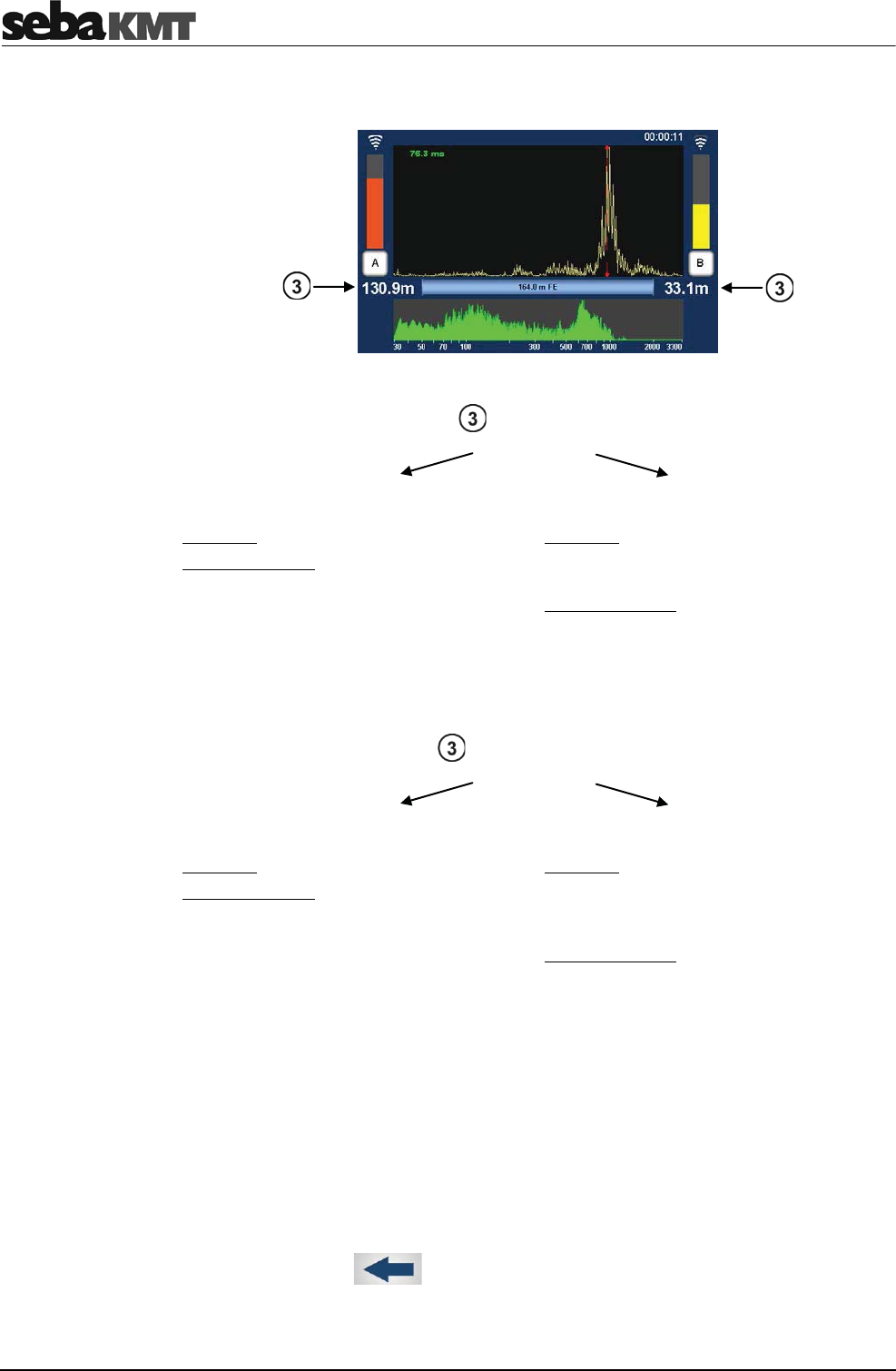
1In the Correlation menu, tap the button between the two diagrams representing
the pipe or use the button in the main menu.
Result: The Pipe data menu is opened.
2Reproduce the pipeline.
Use the Add and Delete buttons to devide the line into sections.
3Enter the pipe data (material, diameter, length) for each section.
4Use the Back button to return to the Correlation menu or the Start menu.
The entered pipe data are accepted
Result: In the Correlation menu, the distance from transmitter Aor Bto the leak
is displayed now.
Listen to leak noise
Enter pipe parameters
Online measurement – Realtime correlation with 2 sensors
56
Assess whether the leak position seems plausible or not.
Question 1: Is one of the values zero or close to zero?
No Yes
Meaning: The values seem plausible.
How to proceed: Continue the
measurement and start a detailed
analysis.
Meaning: The leak is located precisely at
the measuring point or outside the
correlated pipe section.
How to proceed: Cancel the
measurement. Take the relevant
transmitter and look for a new installation
point in order to enlarge the measuring
length. Then start a new correlation.
Question 2: Does each value show the half of the measuring length
No Yes
Meaning: The values seem plausible.
How to proceed: Continue the
measurement and start a detailed
analysis.
Meaning: The leak is located precisely half
way between the measuring points or a
measuring error has occurred (so called
‘center point correlation’).
How to proceed: Cancel the
measurement. Take one of the
transmitters and look for a new installation
point in order to enlarge the measuring
length. Then start a new correlation.
Use the various tools to analyze the displayed correlation:
xWhen you tap the displayed correlation curve, the Correlation analysis menu
with the relevant tools opens.
xWhen you tap the displayed coherence curve, the Frequency analysis menu
with the relevant tools opens.
Use the Back button to return to the Correlation menu.
Some settings for calculating and presenting the correlation curve can be changed in
the System settings menu.
Rate the leak position
Detailled analysis
Offline measurement - Multipoint correlation with preprogrammed sensors
57
8 Offline measurement - Multipoint correlation with preprogrammed
sensors
A group of 2 to 8 sensors is programmed for measurement and then deployed at the
measuring points. Multi sensors and/or Power transmitters can be used. The
measurement is carried out by all sensors simultaneously. During the measurement,
there is no contact between the sensors or between the sensors and the Correlator.
After the measurement, the sensors are collected and the recorded data is read, then
correlations can be carried out and displayed on the Correlator.
xIs there a digital or printed pipe network plan of the relevant measuring area with
all pipe parameters?
xAre the batteries of the relavant devices charged?
xIf Power transmitters will be used: Are the microphones properly connected?
Add all the required sensors to the Correlator's Multi sensor pool:
Step Description
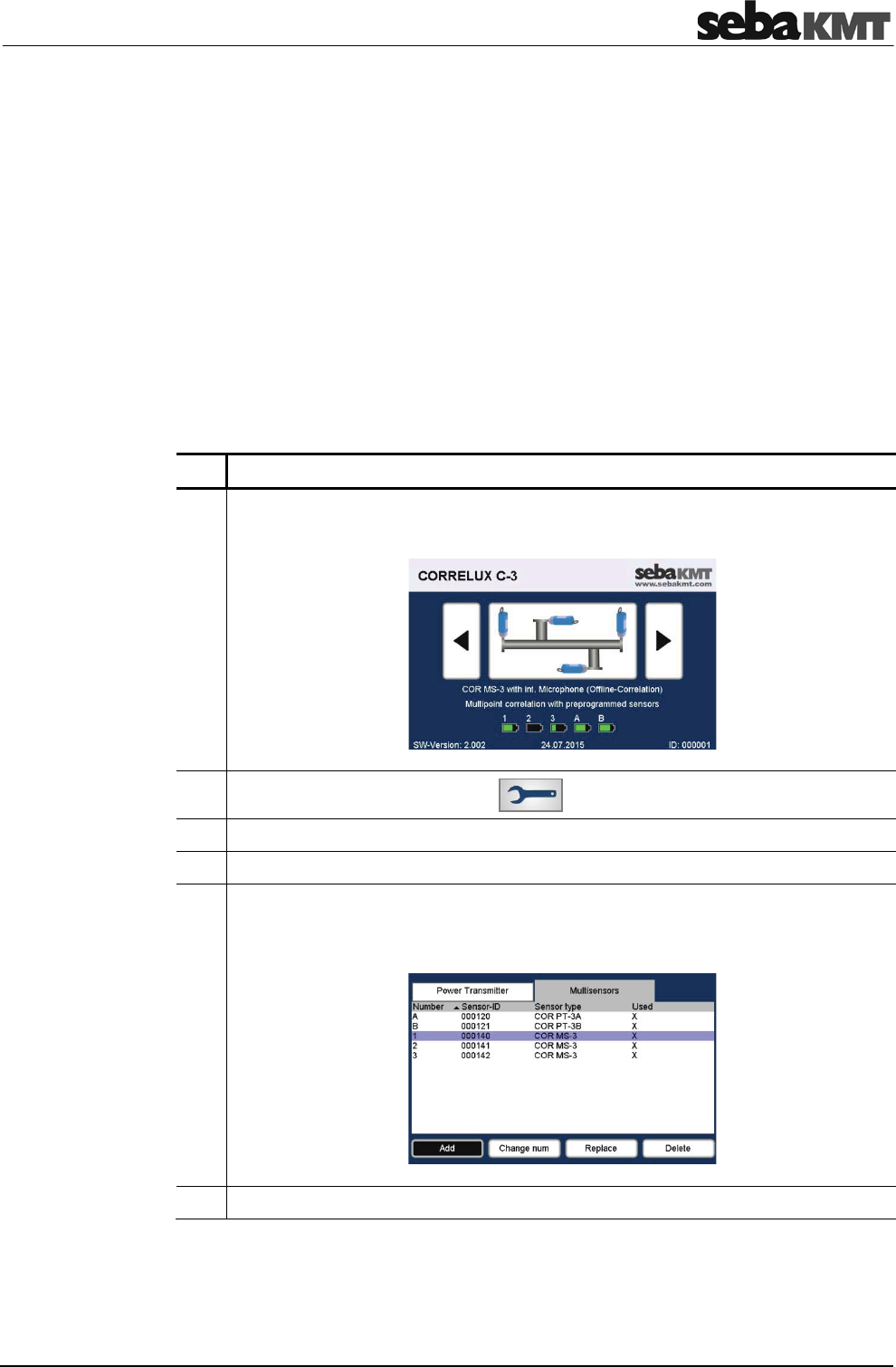
1In the Start menu, navigate to the required Offline measuring mode using the
arrow buttons.
2In the main menu, tap the button .
3In the displayed menu, tap the Sensor management button.
4In the displayed menu, tap the Edit/Manage button.
5Use the displayed menu to register all sensors which are to be used.
If Power transmitters are to be used, they have to be added here as well.
A maximum of 8 sensors is possible.
6Use the ESC pushbutton to return to the Start menu.
Checklist
prior to measurement
Registering sensors
Offline measurement - Multipoint correlation with preprogrammed sensors
58
Configure the sensors for the measurement:
Step Description
7All sensors must be turned on.
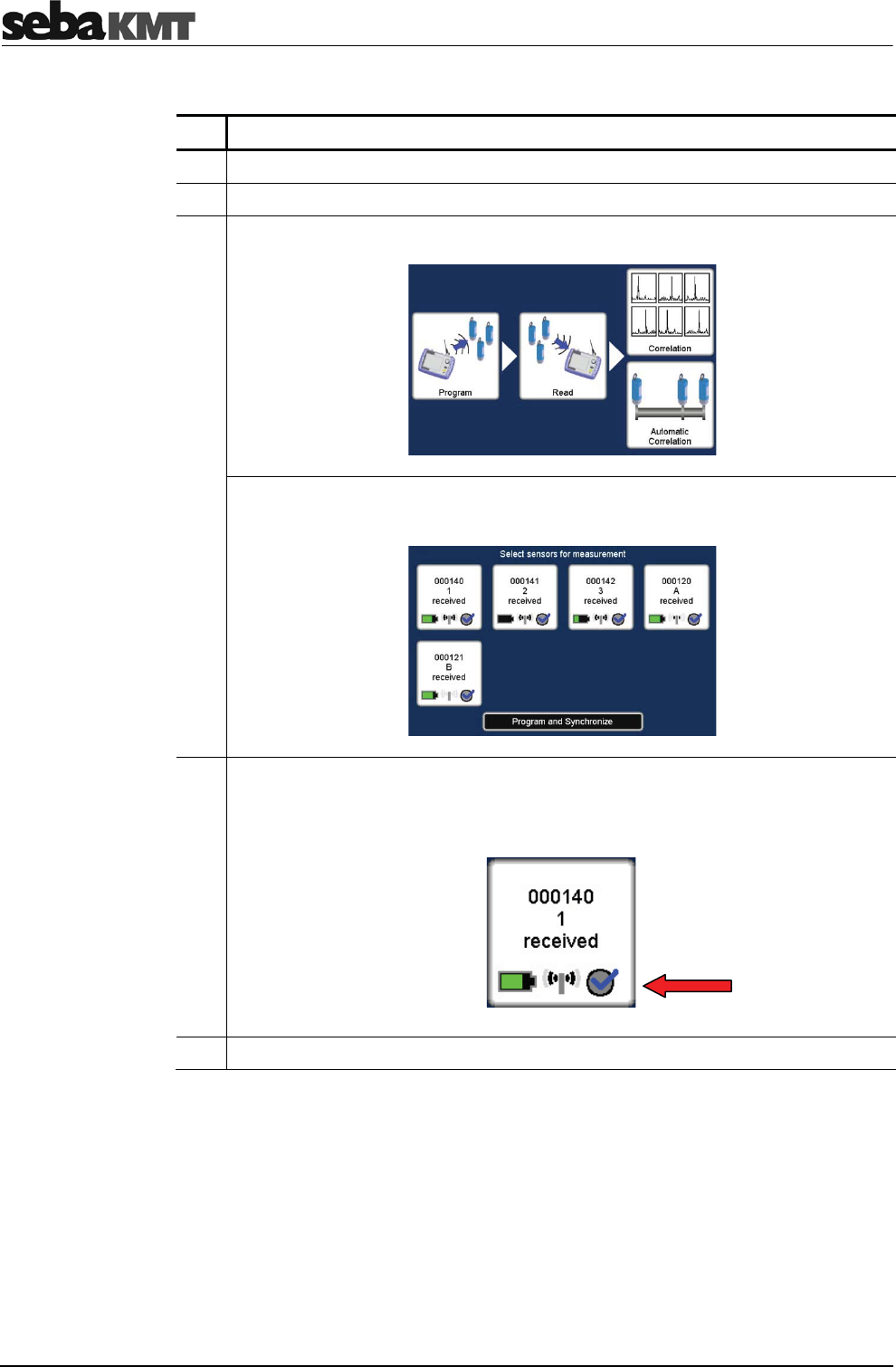
8In the Start menu, select the required Offline measuring mode.
9In the displayed menu, tap the Program button.
Result: In the displayed menu, the up to 8 fields represent the sensors of the
Correlator's sensor pool.
10 Select the sensors that shall be programmed. Tap the appropriate field to
enable/disable the checkbox.
Only "enabled" sensors will be programmed and can be part of the measurement.
11 Tap the Program and Synchronize button.
Programming and
deploying sensors

Offline measurement - Multipoint correlation with preprogrammed sensors
59
Step Description
12 In the menu displayed, decide whether the measurement shall be carried out
immediately or at a later time. Tap one of the two buttons:
Instantaneous measurement
(Explanation: measurement takes
2min30sec and starts directly after the
sensors have been deployed)
Custom measurement
(Explanation: Start and end time of the
measurement are set by the user)
13 Use the Time offset field to specify the
period of time which it will take to deploy
the sensors at the individual measuring
points.
The entered time span will later be used
as a "countdown to measurement".
Use the Start of measurement field to
specify when the measurement shall
start.
Use the End of measurement field to
specify when the measurement shall be
finished.
14 Tap the OK button. Tap the OK button.
Result: The sensors are programmed and synchronized successively.
The progress of the operation is shown on the screen.
When the operation is completed, a countdown appears on the screen showing
the time remaining before the measurement starts.
15 Deploy the sensors at the measuring
points.
Deploy the sensors at the measuring
points.
Result: Once the countdown reached
zero, the sensors start measuring.
A new countdown of 2min 30sec is
displayed on the Correlator screen
representing the total time of the
measurement. During this time, the
sensors simultaneously record 10 audio
blocks, each of 3 seconds length. Once
the countdown reached zero, the
measurement is completed.
Result: The sensors start measuring at
the programmed time.
A new countdown is displayed on the
Correlator screen showing the time
remaining until the programmed end of
measurement.
During this time, the sensors
simultaneously record 10 audio blocks,
each of 3 seconds length. Once the
countdown reached zero, the
measurement is completed.
16 When the measurement is completed, collect the sensors.
NOTE
Do not switch off the sensors.
Otherwise the recorded data would be lost.
Offline measurement - Multipoint correlation with preprogrammed sensors
60
To read the measuring data from the sensors, proceed as follows:
Step Description
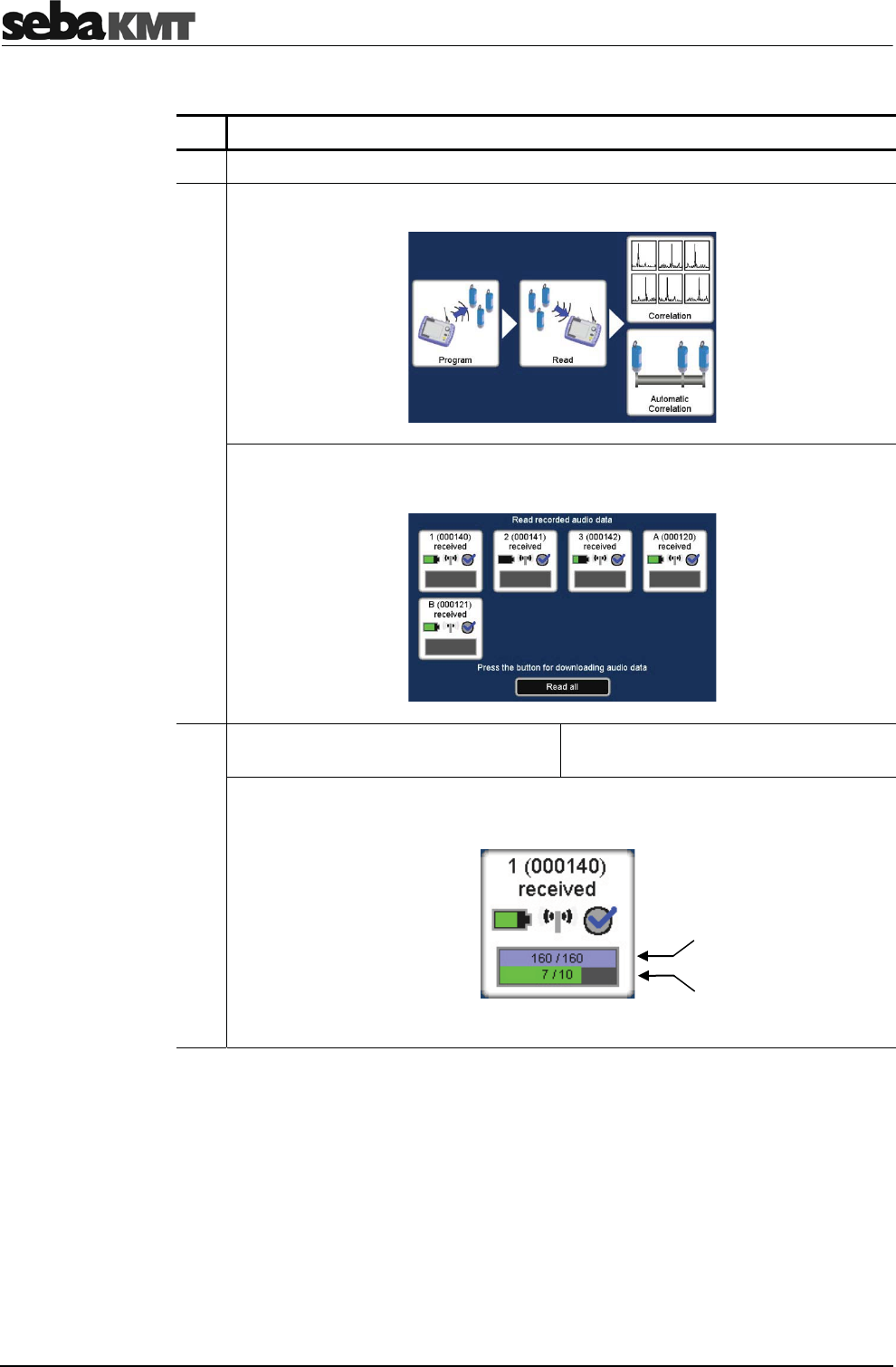
1In the Start menu, select the required Offline measuring mode.
2In the displayed menu, tap the Read button.
Result: The Correlator successively contacts all sensors. Thereby, the devices
are synchronized again. Then, the following menu appears:
3If you want to read the audio files of all
sensors, tap the Read all button.
If you want to read just one sensor, tap
the field of the sensor in question.
Result: The audio files are successively transferred. The progress of the
operation is shown in the individual fields.
Use the ESC pushbutton to return to the Start menu.
Reading out data
Radio packages
received
Audio files
received
Offline measurement - Multipoint correlation with preprogrammed sensors
61
Step Description
1In the Start menu, select the required Offline measuring mode.
2In the displayed menu, tap the Correlation button.
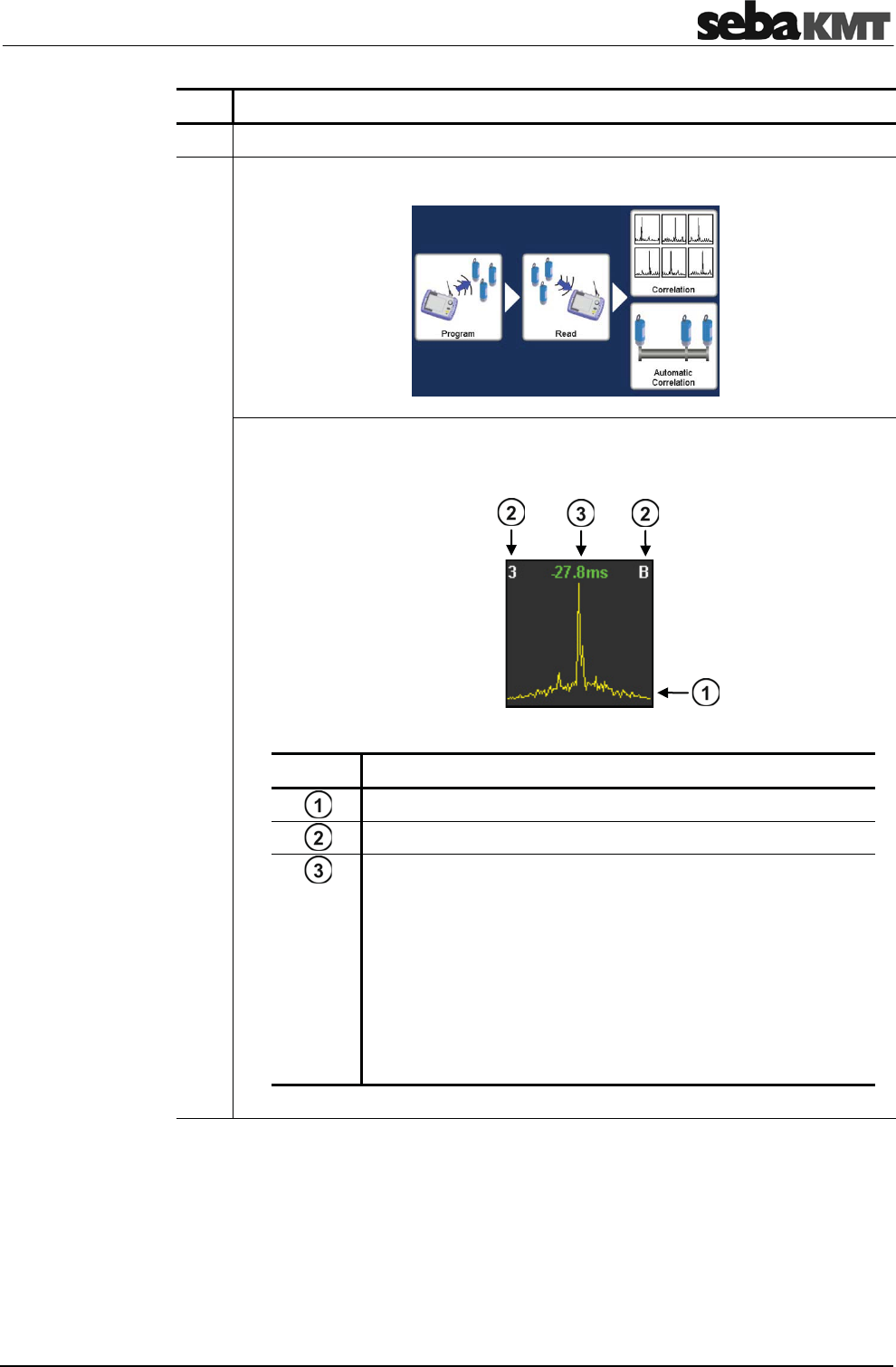
Result: A "Multi correlation" is carried out, which means that the values of all
sensors are correlated with each other. The process can take some seconds.
Subsequently, the correlation results for all sensor pairs are shown in thumbnails.
Element Description
Correlation curve
Sensor numbers of the two devices whose data are correlated.
Time distance from the middle of the pipe line to the leak.
The color of the digit indicates the quality of the correlation.
green … good correlation, clear result
yellow … no clear result
red … bad correlation; no leak or no clear
lokalization possible
negat.value … the leak is on the left from the center point
posit. value … the leak is on the right from the center point
Correlation

Offline measurement - Multipoint correlation with preprogrammed sensors
62
The Multi correlation gives you an overview of the noise situation along the measured
pipeline. In the ideal case, the pipe sections where leaks are most likely can be
identified at a glance.
Rate the displayed correlations.
"Good correlation"
xclear peak
xlag value is green
xlag value is not zero
Probability of a leak is high
"Bad correlation"
xmore than one peak
xlag value is yellow or red
xlag value is zero or nearly zero
No leak or no clear localization possible
If the Multi correlation shows at least one "good correlation" with one clear peak, the
probability of a leak between the respective sensors is high.
Take a closer look at the good correlations. Tap the relevant thumbnail. The
Correlation menu for this sensor pair is opened.
To be able to calculate the distance to the leak the properties of the pipe have to be
specified.
You can call the Pipe data menu directly and enter the parameters for the pipe between
the two sensors.
However, we recommend instead to switch to the "Map" menu now. This menu offers a
good overview of the used sensors and the sections of the pipe. The Map menu can not
only be used to specify the pipe parameters for all pipe sections, but also to carry out
more correlations. You find detailed information about the Map function in a separate
section of this manual.
If there is no complete pipe data available, you have the chance to switch now to the
"Velocity measurement" menu.
This menu is for:
xCalculating the distance between a sensor and the leak, although material and
diameter of the pipe are unknown.
xCalculating the sound velocity in the pipe. The value can then be adopted for
further correlations.
You find detailed information on how to use the Velocity measurement function in a
separate section in this manual.
Rate correlations
How to proceed
if there are pipe data
How to proceed if there
are no pipe data

"Map" function
63
9 "Map" function
The Map function is a very clear and comfortable way to work with Offline Measurement
data.
In the Map menu, the existing pipe network can be reproduced on the screen. The
sensors used are shown as icons. Pipelines can be drawn between these icons and the
pipe parameters can be specified.
As soon as the network is drawn, the correlation of every possible sensor pair can be
started and displayed.
To access the Map menu, proceed as follows:
Step Description
1In the main menu, tap the button .
2In the displayed menu, tap the Map button.
Result: The following menu is opened.
The square boxes represent the Multi sensors (1 to 8) or Power transmitters
(A + B) used in the measurement. The icons can be arranged realistically to each
other by hand or, if the GPS coordinates of the measuring points have been
determined and stored with the Correlator, at the touch of a button.
The sensor icons can be moved and repositioned on the screen. (Only possible via
touch screen, not possible via rotary encoder).
Proceed as follows:
Step Description
1Tap the Move button.
2Tap and move the sensor icons on the screen.
If GPS coordinates of the measuring points have been stored, you can use the
GPS button to arrange the sensor icons automatically.
3Conclude with OK.
Access the Map
Arrange sensor icons
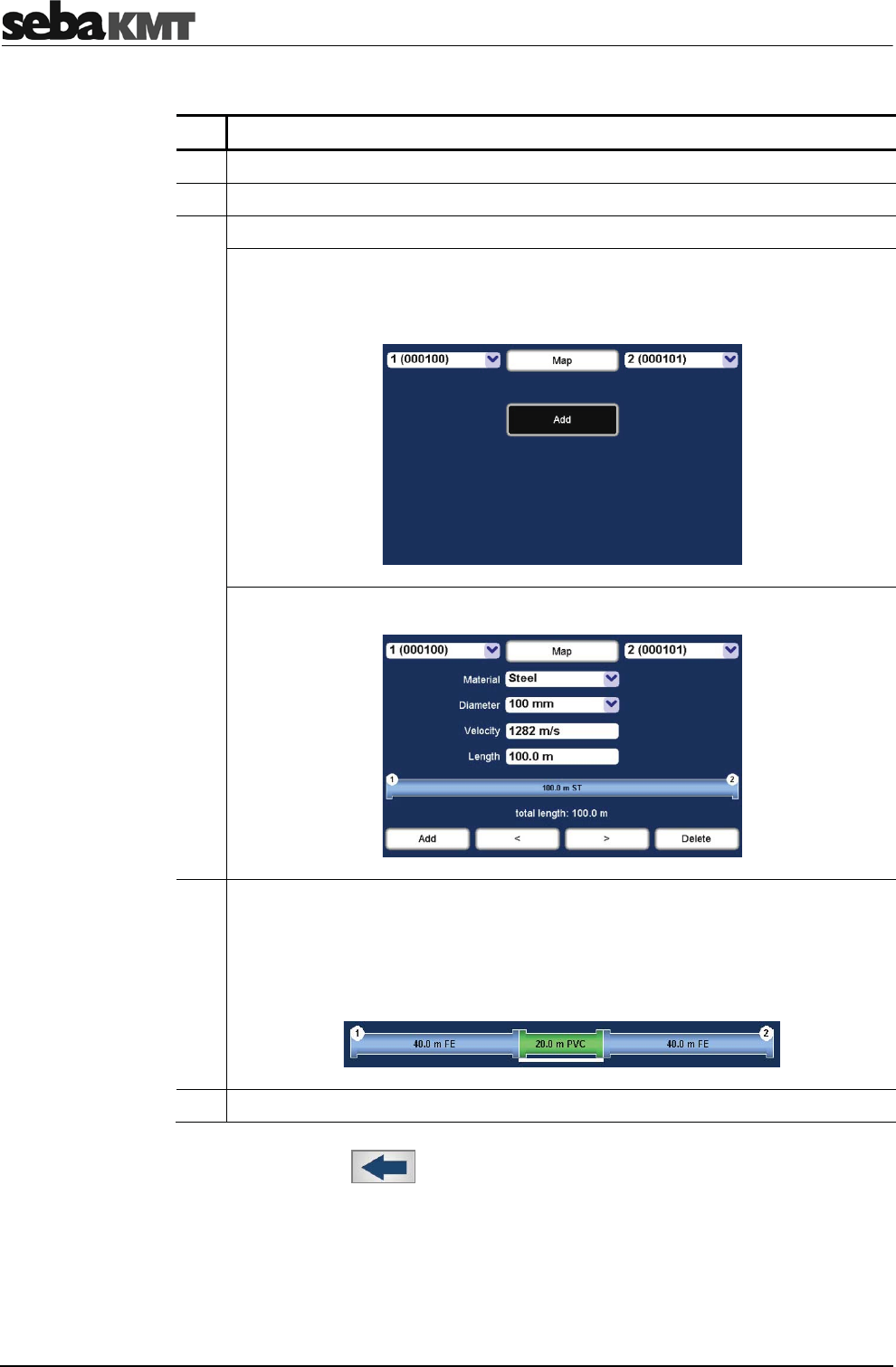
"Map" function
64
To draw, change or delete pipelines in the map, proceed as follows:
Step Desccription
1Tap the sensor icon which represents the start point of the line.
2Tap the sensor icon which represents the end point of the line.
3Tap the Pipe button.
Result: If there is no line between the two sensors in question so far, first the
following screen appears.
There, tap the Add button.
Result: The Pipe data menu is opened.
5You can devide the displayed pipeline into individual sections if the line between
the sensors is not consistently of the same material or diameter.
Use the buttons Add and Delete to create or remove pipe sections.
To select a section, tap directly on the relevant section in the graph or use the two
arrow keys. The currently selected section is underlined white.
6Enter the pipe data (material, diameter, length) for each pipe section.
Use the Back button to return to the Map menu.
Draw pipelines
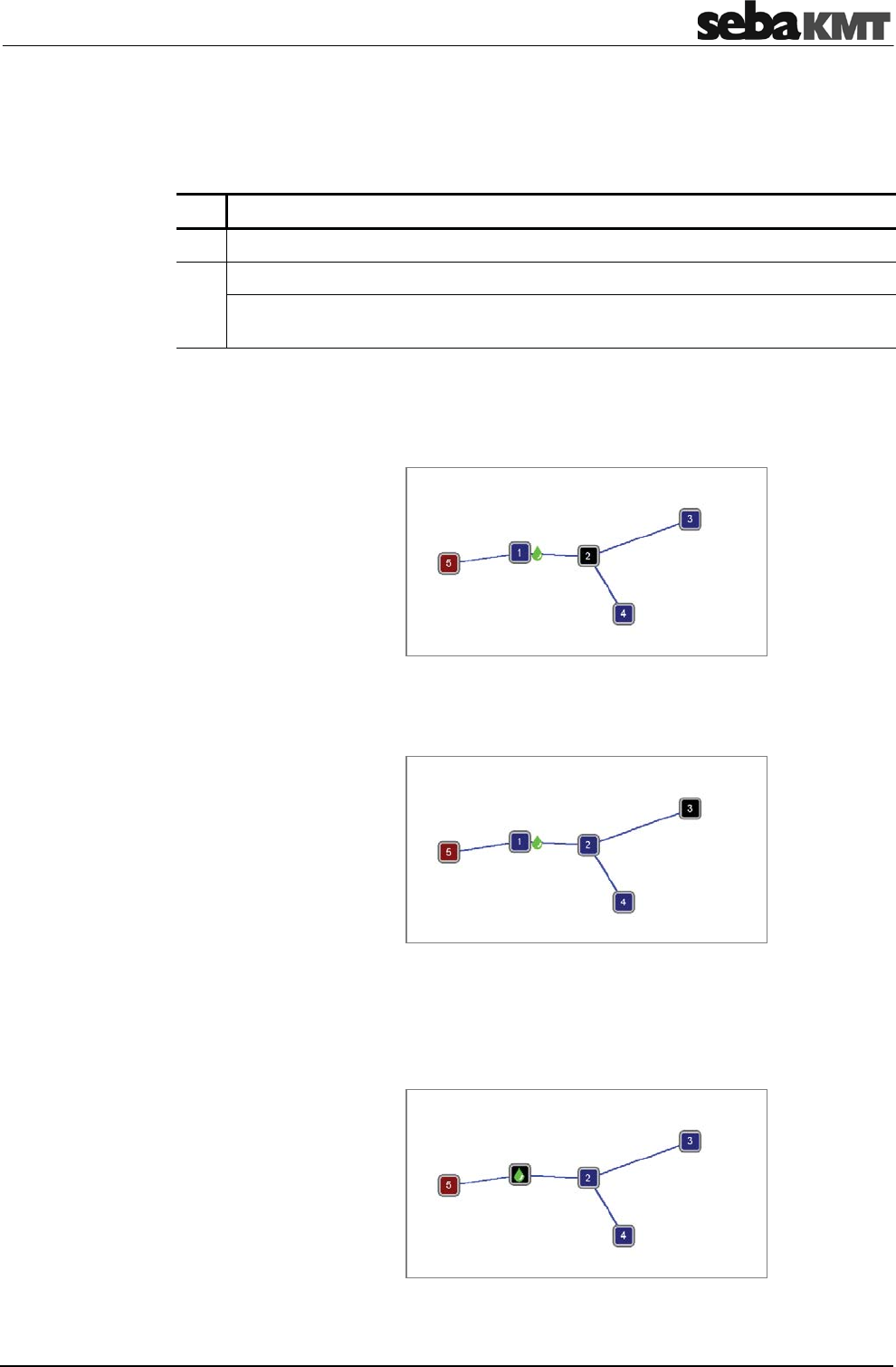
"Map" function
65
Once the pipe net in the map is created, the correlation calculations for all sensor pairs
are automatically updated in the background.
You can display the calculated leak between two sensors in the map.
Proceed as follows:
Step Description
1Tap the first sensor.
2Tap the second sensor.
Result: The leak position is marked on the map with a drop icon, provided the
correlation between the two sensors in question found a leak noise.
Example: The correlation of the line from sensor 5 to 2 results in a leak at the marked
position.
The correlation of the line from sensor 5 to 3 results in a leak at the very
same position.
The correlation of the line from sensor 5 to 1 shows the drop icon right at
sensor 1.
This indicates either that the leak is right at sensor 1 or that the leak is near
sensor 1 but outside the correlated pipeline section.
Show Leak
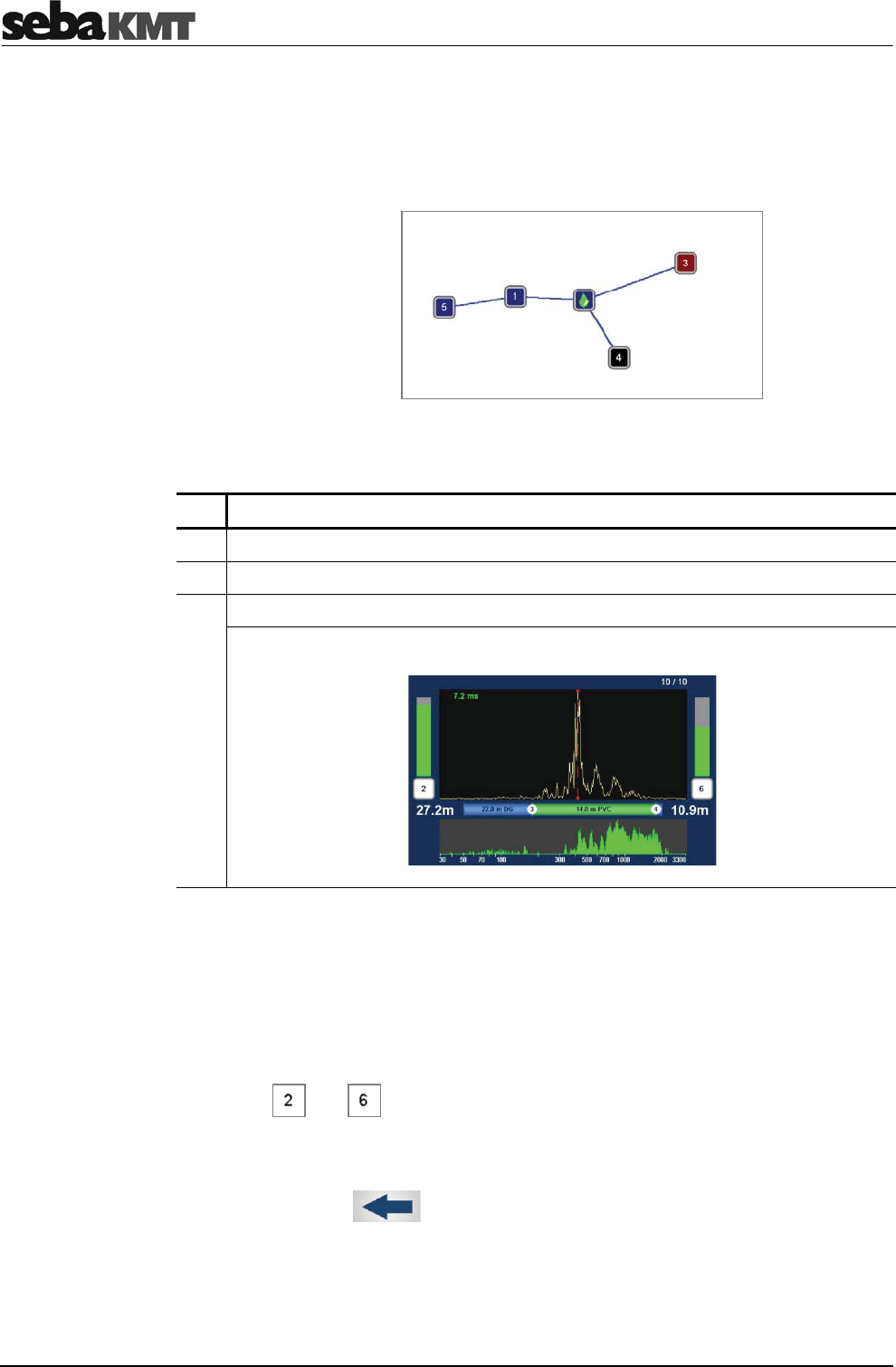
"Map" function
66
The correlation of the line from sensor 3 to 4 shows the drop icon right at
sensor 2.
This indicates either that the leak is right at sensor 2 or that the leak is near
sensor 2 but outside the correlated pipeline section.
To start the correlation between two sensors, proceed as follows:
Step Description
1Tap the first sensor (start point of the pipeline section to be correlated).
2Tap the second sensor (end point of the pipeline section to be correlated).
3Tap the Correlation button.
Result: The Correlation menu is opened and the correlation curve is displayed.
Use the various analysis tools:
xWhen you tap the displayed correlation curve, the Correlation analysis menu
with the relevant tools opens.
xWhen you tap the displayed coherence curve, the Frequency analysis menu
with the relevant tools opens.
xWhen you tap the buttons that symbolize the sensors at the measuring points
(e.g. and ), the Audio menu opens which can be used to listen to the
stored leak noise. For that, connect the delivered headphones to the 12 V DC
socket of the Correlator.
Use the Back button to return to the previous menu.
Some settings for calculating and presenting the correlation curve can be changed in
the system settings.
Start correlation
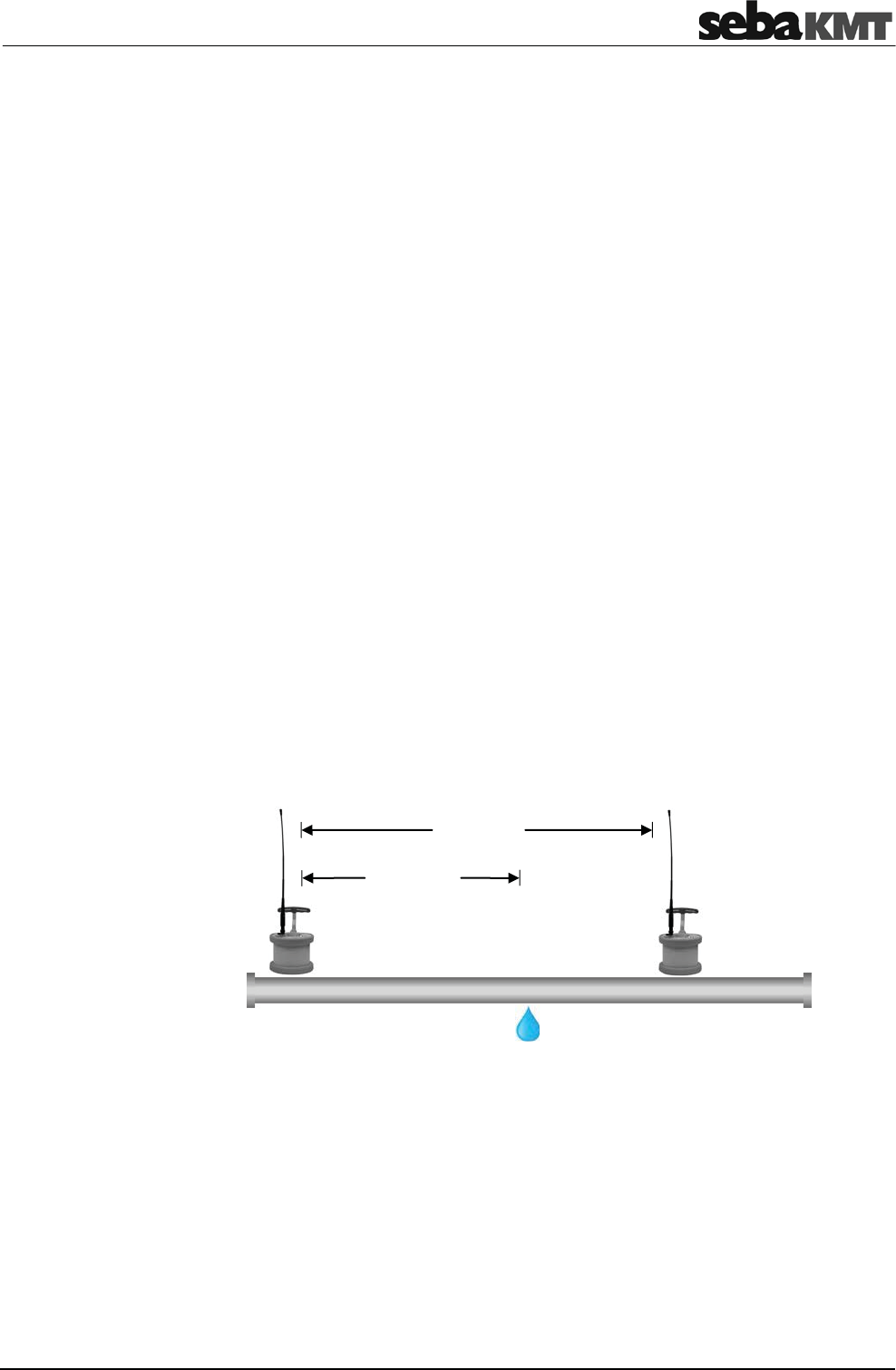
Sound velocity measurement
67
10 Sound velocity measurement
The Correlux C-3 system can be used to perform a sound velocity measurement in
order to determine the actual speed of sound in a pipe section.
This function is useful when no reliable information on the pipe material is available for a
pipe section or the entire measurement area. The calculated sound speed is then
accepted by the Correlator and used for the correlation.
The calculation of the speed of sound is possible in both the Online measurement as
well as the Offline measurement mode.
10.1 Velocity measurement in Online measurement mode
The Velocity measurement function compares the measuring values of the
Power transmitters while they are recording the noise from one specific source. The
sound velocity in the pipe is calculated using the sound delay.
There must be a source of noise on the pipe, which is clearly measurable for both
sensors. If such a noise source does not exist, it must be created artificially, for
example, by opening a fire hydrant.
The following conditions must be met in order to use the function:
xTwo Power transmitters (PT-A and PT-B) at two measuring points.
xThe distance between the two measuring points must be known.
xThe noise must be clearly measurable for both sensors.
xThe source of noise may be inside or outside the measuring section.
xThe source of noise should not be half way between the measuring points.
xIf the source of noise is inside the measuring section, the distance from the first
measuring point to the sound source must be known.
Requirements
Source of noise
distance
distance
Measuring point 2Measuring point 1
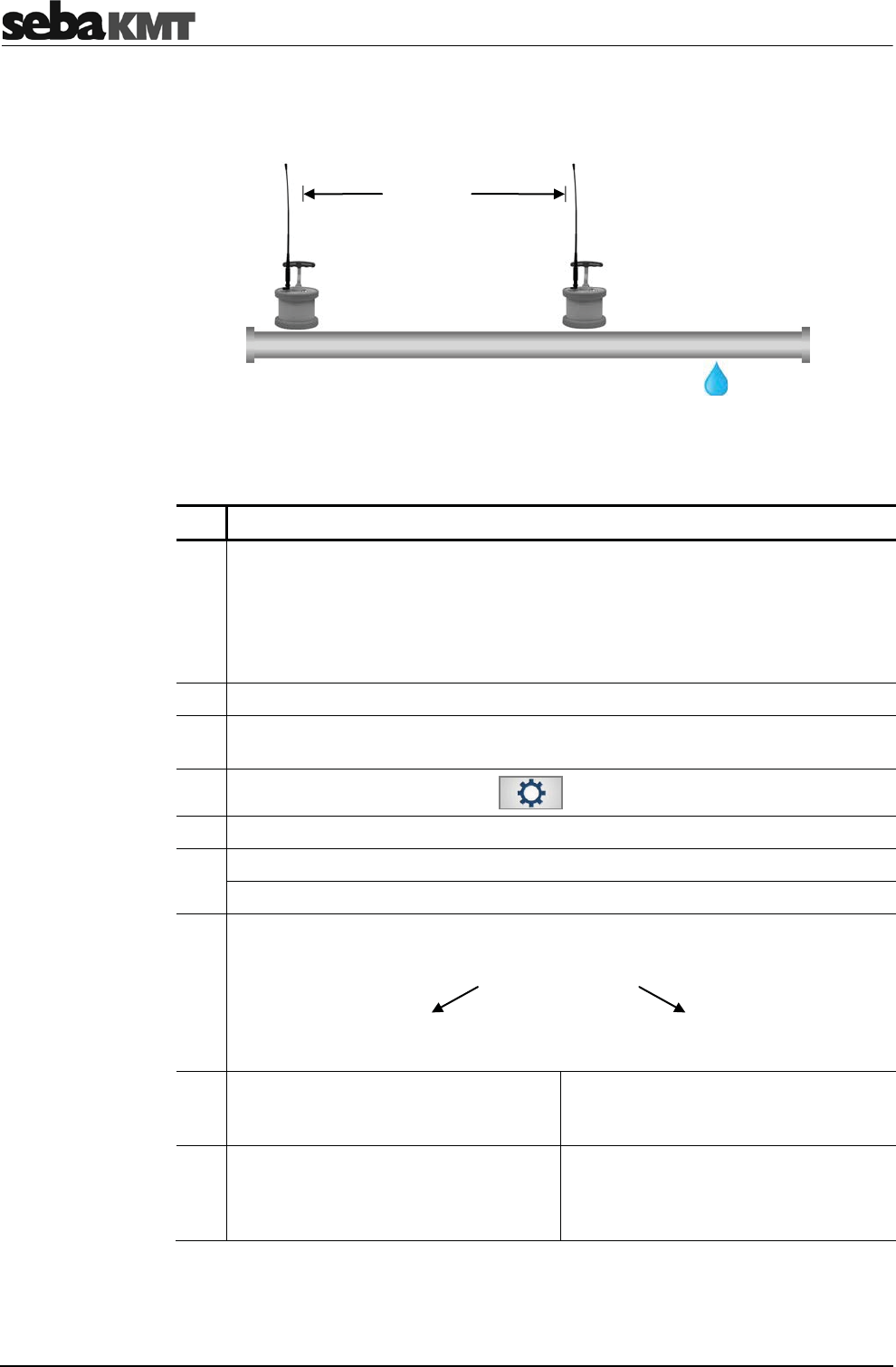
Sound velocity measurement
68
xIf the source of noise is outside the measuring section, the measuring points and
sound source must be arranged as shown on the following picture.
Proceed as follows:
Step Description
1Position the Power transmitters at the measuring points, attach the sensors
(microphones/hydrophones) and switch the devices on.
There must be radio contact between the Power transmitters and the Correlator.
(If there is a connection, the two battery symbols in the Correlator’s Start screen
reproduce the Power transmitters’ battery level. Question marks are shown if the
Power transmitters are not available.)
2Make sure the required sound source does exist.
3use the two arrow buttons to go to the required Offline measuring mode
(“COR PT-3”).
4In the main menu, tap the button .
5In the displayed menu, tap the Tools button.
6In the displayed menu, tap the Velocity measurement button.
Result: The corresponding menu opens.
7Specify whether the source of noise is inside or outside the measuring section.
Tap the appropriate button:
Leak outside sensors Leak between sensors
8Specify the length of the measuring
section. Tap the Distance between
sensors button.
Specify the length of the measuring
section. Tap the Distance between
sensors button.
9Specify the distance from the first
measuring point to the sound source.
Tap the Distance from left sensor
button.
Procedure
Source of noice
distance
Measuring point 2Measuring point 1
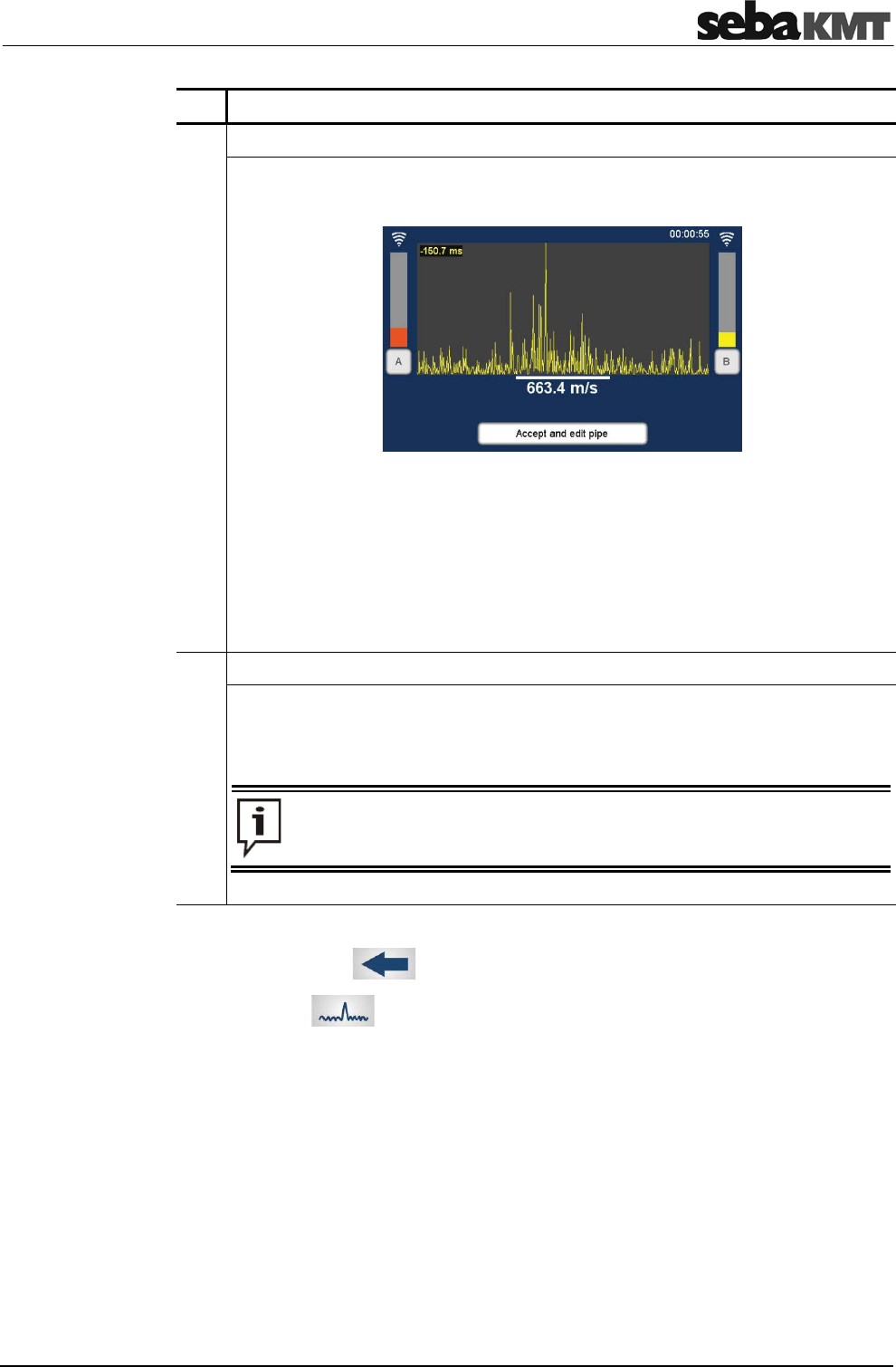
Sound velocity measurement
69
Step Description
10 Tap the OK button.
Result: The correlation starts. The sound velocity in the pipe is calculated and
displayed below the correlation curve.
The result is considered reliable if the following criteria are met:
xThe radio signal from both transmitters is good or excellent.
xThe lag value (top left of the diagram) is green and seems plausible.
xThe displayed sound velocity seems stable and plausible
If no reliable result is shown, you can use the Cancel button to terminate the
measurement and leave the menu.
11 Tap the Accept and edit pipe button.
Result: The Pipe data menu opens.
There, for the Material and Diameter input fields, the “Manual” option is
automatically selected. The recently calculated sound velocity is accepted and
shown in the corresponding field.
Once the length of the pipe section is changed in this menu, the sound
velocity measurement must be performed again.
Use the Back button to return to the Start menu.
Use the button to start a new correlation between the Power transmitters. The
determined sound velocity will be used for the calculation. This applies until the pipe
parameters are changed in the Pipe data menu, or the entire correlation data are reset
in the Settings menu.
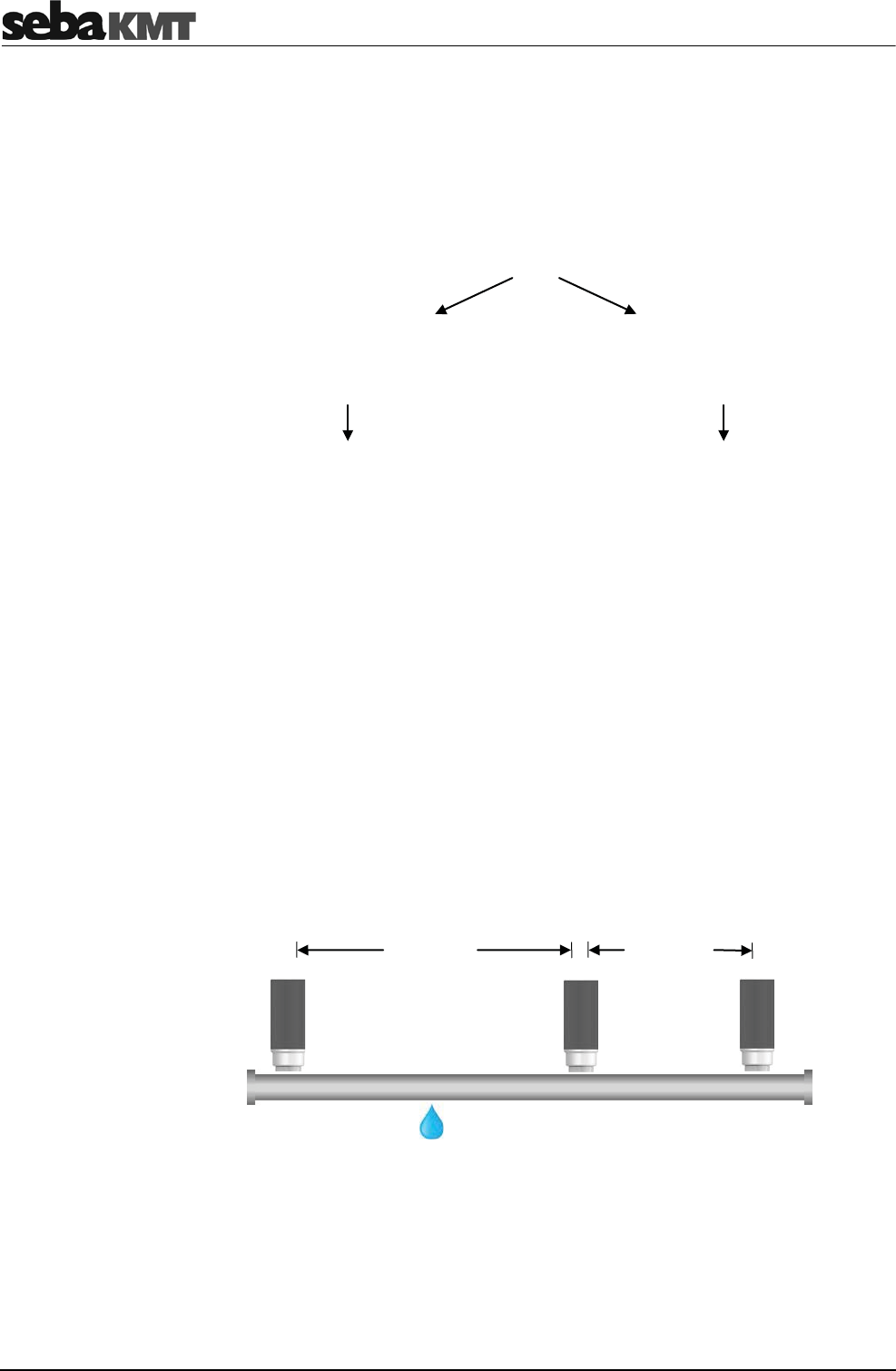
Sound velocity measurement
70
10.2 Velocity measurement in Offline measurement mode
10.2.1 Introduction
The Velocity measurement function compares the measuring values of three sensors
which have recorded a shared noise. As a result, the following applications are possible:
Application options
Determining the sound velocity
in the pipe
(for an unknown pipe material)
Determining the position of a leak
(despite unknown pipe material)
The actual sound velocity in the pipe is
calculated.
This value can then be adopted for the
pipe section being analysed as a pipe
parameter.
The correlation curve will be updated on
this basis.
The distance from a certain measuring
point to the leak position is calculated.
The following conditions must be met in order to use the function:
xA measurement (night or instantaneous measurement) with at least 3 sensors has
been performed.
xThe measured data has been read and saved with the Correlator.
xBetween the three considered sensors exists a clearly perceptible source of noise.
(The louder the noise, the lower are the negative effects of any potential
interference on the result of the sound velocity calculation).
xThe lengths of the pipe sections between the measuring points must be known.
xThe measuring points and sound source must be arranged as shown on the
following picture.
There must be one sensor „in front of“ the sound source (Position 1).
There must be two sensors “behind” the sound source (Positions 2 and 3).
Requirements
Source of noise
distance
Position 2
Position 1 Position 3
distance
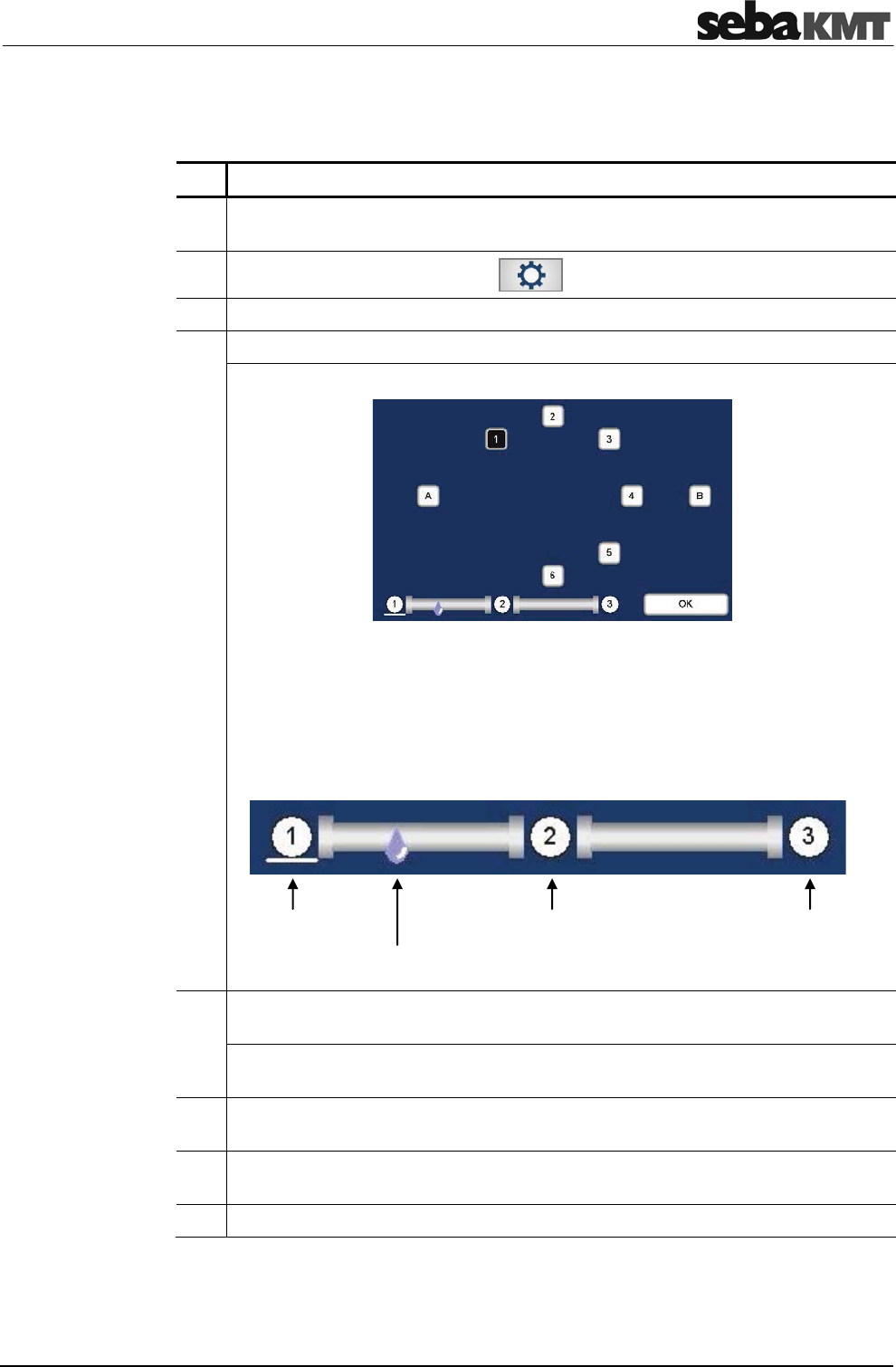
Sound velocity measurement
71
10.2.2 Determining the sound speed
To calculate the sound velocity in the pipe, proceed as follows:
Step Description
1In the Start menu of the Correlator, use the two arrow buttons to go to the
required Offline measuring mode (“COR MS-3”).
2In the main menu, tap the button .
3In the displayed menu, tap the Tools button.
4In the displayed menu, tap the Velocity measurement button.
Result: The following menu opens.
The square boxes represent the Multi sensors (1 to 8) or Power transmitters
(A + B) used in the measurement.
The scheme below illustrates how the sensors must be positioned in relation to
the source of noise. Take care to follow this scheme when selecting the three
sensors for the measurement. Otherwise the result of the calculation may be
wrong.
5Select the sensor which represents Position 1 (sensor “in front of” the sound
source) by tapping the required box.
Result: The number of the selected sensor is shown at position 1. The white
highlighting switches to position 2.
6Select the sensor which represents Position 2 (first sensor “behind” the sound
source).
7Select the sensor which represents Position 3 (second sensor “behind” the sound
source).
8Tap the OK button.
Position 1 Position 2 Position 3
Source of noise

Sound velocity measurement
72
The source of noise is located between the sensors 1 and 2.
Entry on the Correlator: first, sensor 1 (in front of the sound source), then sensors 2 and
3 (behind the sound source).
The source of noise is located between the sensors 2 and 3.
Possible entry on the Correlator: first, sensor 2, then sensors 3 and 4.
Possible entry on the Correlator: first, sensor 3, then sensors 2 and 1.
Example 1:
Example 2:
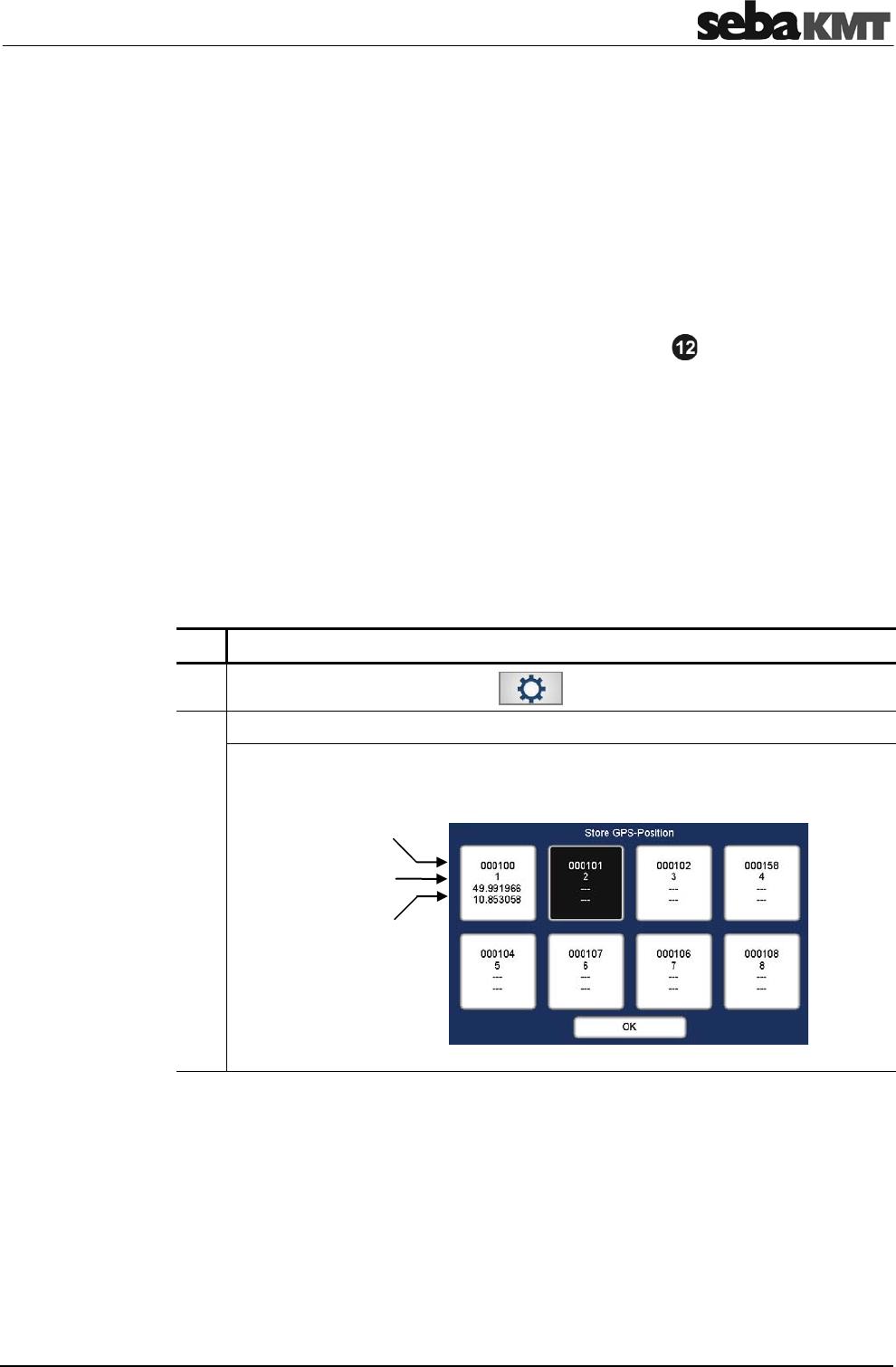
GPS position data
73
11 GPS position data
11.1 Introduction
You can use the Correlator to determine and store the GPS coordinates of the individual
measuring points.
GPS data facilitate the management and analysis of the measured data in the Offline
measurement. For some analysis capabilities GPS data are even a prerequisite.
The GPS receiver LOG GPS-3 has to be connected to the Correlator.
The GPS module is connected using the USB/GPS socket . Observe the markings
on the plug and socket. You must feel the plug engage. The GPS module is powered via
the USB connection. The device switches on immediately after connection and is ready
for operation. The status LED lights up. The device is detected automatically by the
Correlator. Further settings are not required.
11.2 Determine and save GPS coordinates
To determine the GPS position for a sensor, you must take the Correlator and proceed
as close as possible to the installed device.
Proceed as follows:
Step Description
1In the main menu, tap the button .
2In the displayed menu, tap the Store GPS position button.
Result: The following menu is opened. The up to 8 fields represent the sensors
registered to the Correlator's "Multisensor pool".
(continued on next page)
Requirements
Sensor ID
Sensor no.
GPS position
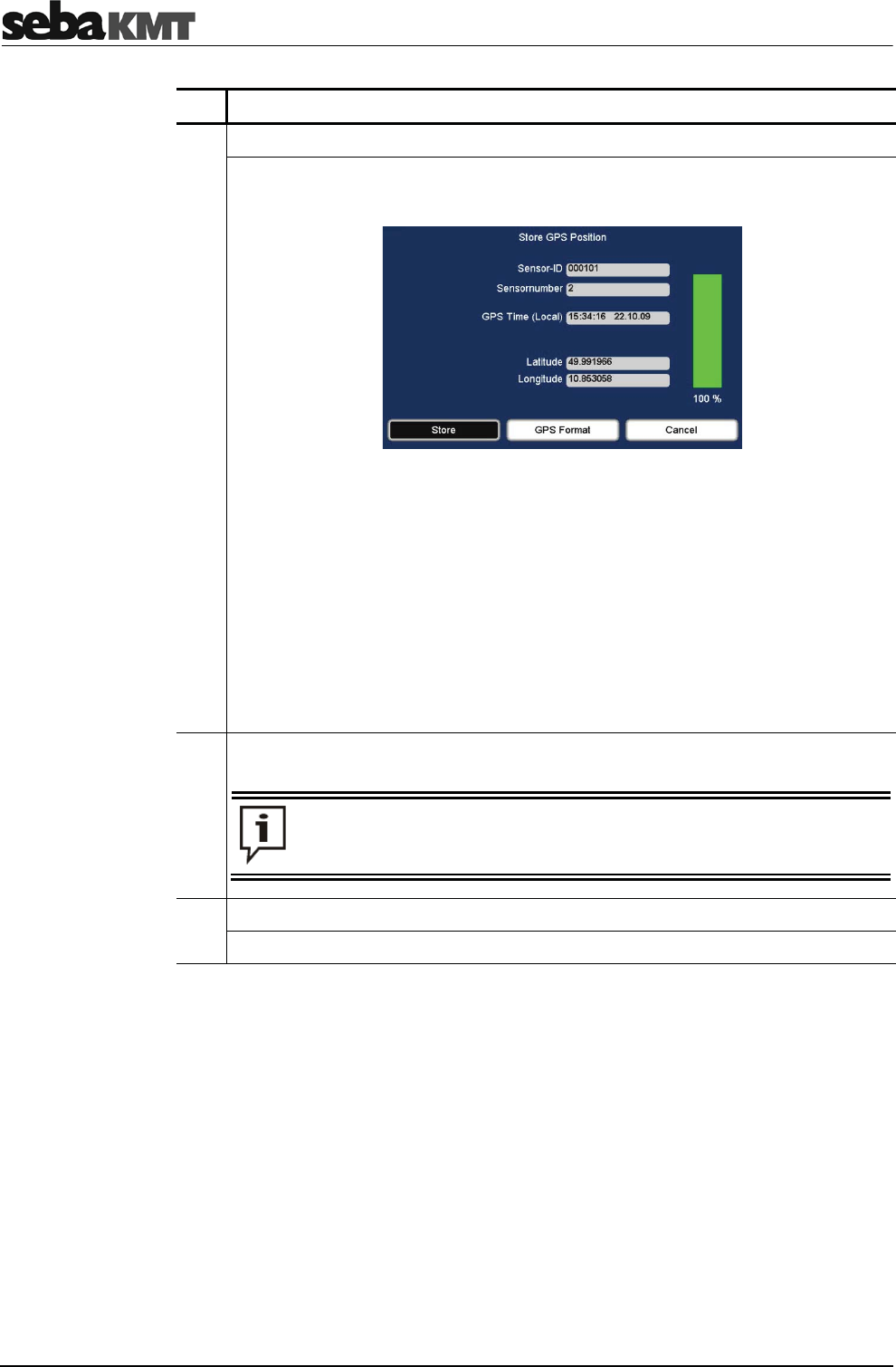
GPS position data
74
Step Description
3Tap the field of the sensor whose position is to be determined.
Result: The GPS menu is opened. The GPS receiver is searching for available
satellites.
After a while, the current GPS time is displayed.
As soon as the position of the Correlator can be calculated, the current latitude
and longitude are specified.
You can change the format for displaying the GPS position. Tap the GPS format
button repeatedly to select one of the following formats:
xDecimal degrees
xDegrees, minutes
xDegrees, minutes, seconds
The vertical green bar at the right of the screen indicates how high the accuracy is
with which the position can currently be determined.
4Wait until the position has leveled out on a reliable value. The bar to the right
should show an accuracy of 100%.
The first time the position is determined after connecting the GPS module
may take a little time. The Correlator should not be moved during this
phase. It is best to put it down somewhere.
5Tap the Store button.
Result: The coordinates are accepted. The display returns to the previous menu.
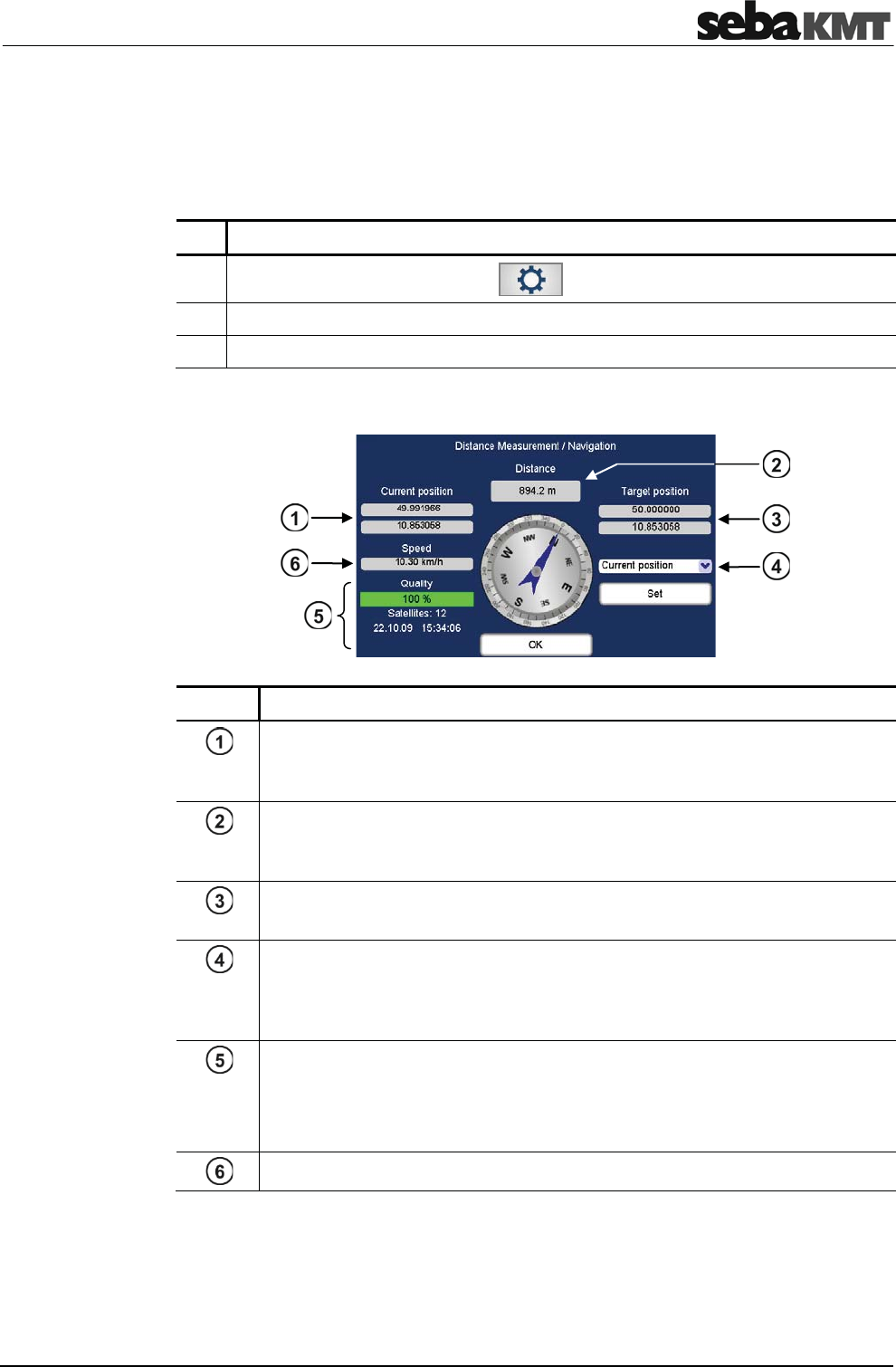
GPS position data
75
11.3 Distance measurement and navigation via GPS
You can use the GPS function of the Correlator to determine the distance between two
points. You can also use the function as a guide to find a stored measuring point.
To open the GPS menu, proceed as follows:
Step Description
1In the main menu, tap the button .
2In the displayed menu, tap the Tools button.
3In the displayed menu, tap the Distance measurement / Navigation button.
The menu is structured as follows:
Element Description
Current position
Indicates the current position of the Correlator. Once the Correlator is moved,
the displayed value is adapted.
Distance
Indicates the linear distance between the Current position and the Target
position.
Target position
Indicates the GPS position of the point, which was defined as Target position.
Sensor list
List of all sensors, i.e. measuring points, whose GPS coordinates have been
determined and stored. One of these sensor installation points can be
selected and specified as Target position.
top down:
Positioning accuracy for the Correlator position (in percent).
Number of available GPS satellites.
The current GPS date and GPS time.
Speed at which the Correlator is currently moved.
Access the menu
GPS position data
76
You can calculate the distance from your current position to a stored measuring point.
In the drop-down list , select the sensor which is installed at the relevant measuring
point.
The GPS coordinates of the measuring point are adopted and displayed as the new
Target position. The distance information is updated and displays the distance between
the Correlator and the measuring point.
You can calculate the distance from your current position to any other location.
Proceed as follows:
Step Description
1In the drop-down list , select Current position.
2Tap the Set button.
Result: The GPS coordinates of your current location are adopted and displayed
as the new Target position.
3Take the Correlator and proceed to the desired other location.
Result: The distance information is permanently updated and displays the
distance from your current location to the Target position.
You can use the directional sign of the GPS menu to guide you to a measuring point.
Proceed as follows:
Step Description
1In the drop-down list , select the sensor which is installed at the relevant
measuring point.
Result: The GPS coordinates of the measuring point are adopted and displayed
as the new Target position.
2Go into the direction the compass needle shows.
The target location is reached when the "Current position" coordinates match the
"Target position" coordinates.
The direction specified by the compass needle is reliable, as long as you
are in motion, but once you stand still at a place, the needle begins to
rotate and the direction shown is no longer reliable.
Distance
from here to
a measuring point
Distance
from here to
any location
Navigating
to a location

GPS position data
77
edná o produkt obchodovaný mezi
podnikatelskými subjekty nizaci specializující
Dit symbool duidt aan dat het product met dit symbool niet verwijderd mag worden als gewoon huishoudelijk afval. Dit is een product voor industrieel gebruik, wat betekent
dat het ook niet afgeleverd mag worden aan afvalcentra voor huishoudelijk afval. Als u dit product wilt verwijderen, gelieve dit op de juiste manier te doen en het naar een
nabij gelegen organisatie te brengen gespecialiseerd in de verwijdering van oud elektrisch materiaal.
This symbol indicates that the product which is marked in this way should not be disposed of as normal household waste. As it is a B2B product, it may also not be disposed
of at civic disposal centres. If you wish to dispose of this product, please do so properly by taking it to an organisation specialising in the disposal of old electrical equipment
near you.
B2B
Dette symbol viser, at det produkt, der er markeret på denne måde, ikke må kasseres som almindeligt husholdningsaffald. Eftersom det er et B2B produkt, må det heller ikke
bortskaffes på offentlige genbrugsstationer. Skal dette produkt kasseres, skal det gøres ordentligt ved at bringe det til en nærliggende organisation, der er specialiseret i at
bortskaffe gammelt el-udstyr.
Sellise sümboliga tähistatud toodet ei tohi käidelda tavalise olmejäätmena. Kuna tegemist on B2B-klassi kuuluva tootega, siis ei tohi seda viia kohalikku jäätmekäitluspunkti.
Kui soovite selle toote ära visata, siis viige see lähimasse vanade elektriseadmete käitlemisele spetsialiseerunud ettevõttesse.
Tällä merkinnällä ilmoitetaan, että kyseisellä merkinnällä varustettua tuotetta ei saa hävittää tavallisen kotitalousjätteen seassa. Koska kyseessä on yritysten välisen kaupan
tuote, sitä ei saa myöskään viedä kuluttajien käyttöön tarkoitettuihin keräyspisteisiin. Jos haluatte hävittää tämän tuotteen, ottakaa yhteys lähimpään vanhojen
sähkölaitteiden hävittämiseen erikoistuneeseen organisaatioon.
Ce symbole indique que le produit sur lequel il figure ne peut pas être éliminé comme un déchet ménager ordinaire. Comme il s’agit d’un produit B2B, il ne peut pas non plus
être déposé dans une déchetterie municipale. Pour éliminer ce produit, amenez-le à l’organisation spécialisée dans l’élimination d’anciens équipements électriques la plus
proche de chez vous.
Cuireann an siombail seo in iúl nár cheart an táirgeadh atá marcáilte sa tslí seo a dhiúscairt sa chóras fuíoll teaghlaigh. Os rud é gur táirgeadh ghnó le gnó (B2B) é, ní féidir
é a dhiúscairt ach oiread in ionaid dhiúscartha phobail. Más mian leat an táirgeadh seo a dhiúscairt, déan é a thógáil ag eagraíocht gar duit a sainfheidhmíonn i ndiúscairt
sean-fhearas leictrigh.
Dieses Symbol zeigt an, dass das damit gekennzeichnete Produkt nicht als normaler Haushaltsabfall entsorgt werden soll. Da es sich um ein B2B-Gerät handelt, darf es
auch nicht bei kommunalen Wertstoffhöfen abgegeben werden. Wenn Sie dieses Gerät entsorgen möchten, bringen Sie es bitte sachgemäß zu einem Entsorger für
Elektroaltgeräte in Ihrer Nähe.
. B2B,
. ,
.
Ez a jelzés azt jelenti, hogy az ilyen jelzéssel ellátott terméket tilos a háztartási hulladékokkal együtt kidobni. Mivel ez vállalati felhasználású termék, tilos a lakosság
szá
Questo simbolo indica che il prodotto non deve essere smaltito come un normale rifiuto domestico. In quanto prodotto B2B, può anche non essere smaltito in centri di
smaltimento cittadino. Se si desidera smaltire il prodotto, consegnarlo a un organismo specializzato in smaltimento di apparecchiature elettriche vecchie.
Dan is-simbolu jindika li l-prodott li huwa mmarkat b’dan il- - ntrema wkoll
-rimi ta’ l-iskart. Jekk tkun tixtieq tarmi dan il---rimi ta’
-elettriku.
Dette symbolet indikerer at produktet som er merket på denne måten ikke skal kastes som vanlig husholdningsavfall. Siden dette er et bedriftsprodukt, kan det heller ikke
kastes ved en vanlig miljøstasjon. Hvis du ønsker å kaste dette produktet, er den riktige måten å gi det til en organisasjon i nærheten som spesialiserer seg på kassering av
gammelt elektrisk utstyr.
Este símbolo indica que o produto com esta marcação não deve ser deitado fora juntamente com o lixo doméstico normal. Como se trata de um produto B2B, também não
pode ser deitado fora em centros cívicos de recolha de lixo. Se quiser desfazer-se deste produto, faça-o correctamente entregando-o a uma organização especializada na
eliminação de equipamento eléctrico antigo, próxima de si.
Deoarece acesta este un produs B2B, el nu trebuie aruncat nici
la --un mod adecvat, ducând-
echipamentelor electrice uzate.
a likvidáciu starých elektrických zariadení.
amenjen za druge proizvajalce, ga ni dovoljeno
Este símbolo indica que el producto así señalizado no debe desecharse como los residuos domésticos normales. Dado que es un producto de consumo profesional,
tampoco debe llevarse a centros de recogida selectiva municipales. Si desea desechar este producto, hágalo debidamente acudiendo a una organización de su zona que
esté especializada en el tratamiento de residuos de aparatos eléctricos usados.
Den här symbolen indikerar att produkten inte får blandas med normalt hushållsavfall då den är förbrukad. Eftersom produkten är en så kallad B2B-produkt är den inte
avsedd för privata konsumenter, den får således inte avfallshanteras på allmänna miljö- eller återvinningsstationer då den är förbrukad. Om ni vill avfallshantera den här
produkten på rätt sätt, ska ni lämna den till myndighet eller företag, specialiserad på avfallshantering av förbrukad elektrisk utrustning i ert närområde.