Seba Dynatronic Mess und Ortungstechnik LOGD3 Data Logger User Manual man log d3 en 03 4

Seba Dynatronic Mess- und Ortungstechnik GmbH Data Logger man log d3 en 03 4

User manual

Consultation with SebaKMT    1 User Manual Data Logger Sebalog D-3                  Issue:  03 (09/2015) - EN Article number:  83914 Mess- und Ortungstechnik Measuring and Locating Technologies Elektrizitätsnetze Power Networks  Kommunikationsnetze Communication Networks  Rohrleitungsnetze Water Networks  Abwassernetze Sewer Systems  Leitungsortung Line Locating
Consultation with SebaKMT    3 Consultation with SebaKMT The  present  system  manual  has  been  designed  as  an  operating  guide  and  for reference. It is meant to answer your questions and solve your problems in as fast and easy a  way as possible.  Please  start  with  referring to  this  manual  should  any trouble occur. In  doing  so,  make  use  of  the  table  of  contents  and  read  the  relevant  paragraph  with great  attention.  Furthermore,  check  all  terminals  and  connections  of  the  instruments involved. Should any question remain unanswered or should you need the help of an authorized service station, please contact: Seba Dynatronic Mess- und Ortungstechnik GmbH Hagenuk KMT Kabelmesstechnik GmbH Dr.-Herbert-Iann-Str. 6 D - 96148 Baunach  Phone: +49 /  9544 / 68 – 0 Fax: +49 /  9544 / 22 73 Röderaue 41 D - 01471 Radeburg / Dresden Phone: +49 / 35208 /  84 – 0 Fax: +49 / 35208 /  84 249 E-Mail: sales@sebakmt.com http://www.sebakmt.com                   SebaKMT All rights reserved. No part of this handbook may be copied by photographic or other means unless SebaKMT have before-hand declared their consent in writing. The content of this handbook is subject to change without notice.  SebaKMT cannot  be  made  liable  for  technical  or  printing  errors  or  shortcomings  of  this  handbook. SebaKMT also disclaims all responsibility for damage resulting directly or indirectly from the delivery, supply, or use of this matter.
  Terms of Warranty   4 Terms of Warranty SebaKMT accept  responsibility  for  a  claim  under  warranty  brought  forward  by  a customer for a product sold by SebaKMT under the terms stated below. SebaKMT  warrant  that  at  the  time  of  delivery  SebaKMT  products  are  free  from manufacturing  or  material  defects  which  might  considerably  reduce  their  value  or usability.  This  warranty  does  not  apply  to  faults  in  the  software  supplied.  During  the period of warranty, SebaKMT agree to repair faulty parts or replace them with new parts or parts as new (with the same usability and life as new parts) according to their choice.  This warranty does not cover wear parts, lamps, fuses, batteries and accumulators. SebaKMT reject all further claims under warranty, in particular those from consequential damage.  Each  component  and  product  replaced  in  accordance  with  this  warranty becomes the property of SebaKMT. All warranty claims versus SebaKMT are hereby limited to a period of 12 months from the  date  of  delivery.  Each  component  supplied  by  SebaKMT  within  the  context  of warranty will also be covered by this warranty for the remaining period of time but for 90 days at least. Each  measure  to  remedy  a  claim  under  warranty  shall  exclusively  be  carried  out  by SebaKMT or an authorized service station. This warranty does not apply to any fault or damage caused by exposing a product to conditions not in accordance with this specification, by storing, transporting, or using it improperly, or having it serviced or installed by a workshop not authorized by SebaKMT. All  responsibility  is  disclaimed  for  damage  due  to  wear,  will  of  God,  or  connection  to foreign components.  For  damage  resulting  from  a  violation  of  their  duty  to  repair  or  re-supply  items, SebaKMT can be made liable only in case of severe negligence or intention. Any liability for slight negligence is disclaimed. Since some states do not allow the exclusion or limitation of an implied warranty or of consequential  damage,  the  limitations  of  liability  described  above  perhaps  may  not apply to you.
Terms of Warranty    5 Contents Consultation with SebaKMT ........................................................................................... 3 Terms of Warranty ........................................................................................................... 4 1 Safety Instructions ........................................................................................... 7 1.1 General Safety Instructions and Warnings ......................................................... 7 1.2 General Notes .................................................................................................... 7 2 Technical description ...................................................................................... 9 2.1 Design ................................................................................................................ 9 2.1.1 Controls and indicators ....................................................................................... 9 2.1.2 Connectors ....................................................................................................... 10 2.2 Function ............................................................................................................ 10 2.3 Communication ................................................................................................ 11 2.3.1 Log RI or Log RI+ radio interface ..................................................................... 12 2.3.2 Reader-3 used as radio interface ..................................................................... 12 2.4 Power supply .................................................................................................... 13 2.5 Memory............................................................................................................. 14 2.6 Technical data .................................................................................................. 15 2.7 Scope of delivery .............................................................................................. 16 2.8 Available versions ............................................................................................ 17 3 Commissioning the logger ............................................................................ 18 3.1 Preparations for mobile communication ........................................................... 18 3.2 Preparing the logger for GSM .......................................................................... 18 3.3 Switching the logger On/Off ............................................................................. 20 3.4 Programming the logger ................................................................................... 20 4 Connecting the logger and installing it on-site ........................................... 21 4.1 Connecting sensors to the logger .................................................................... 21 4.1.1 Fixed channel allocations ................................................................................. 21 4.1.2 Connecting a hose to the internal pressure sensor ......................................... 22 4.1.3 Connecting sensors .......................................................................................... 23 4.1.4 Connecting devices to the switching Inputs / Outputs ..................................... 24 4.1.5 Wiring diagram examples ................................................................................. 25 4.2 Positioning the logger ....................................................................................... 26 4.3 Positioning the GSM antenna .......................................................................... 27 5 SebaDataView-3 software .............................................................................. 28 5.1 Installation ........................................................................................................ 28 5.2 Function and structure ...................................................................................... 29 5.3 Device administration ....................................................................................... 31 5.3.1 Creating / deleting folders ................................................................................ 31 5.3.2 Creating / deleting zones.................................................................................. 31
  Terms of Warranty   6 5.3.3 Creating / deleting groups ................................................................................ 32 5.3.4 Adding / deleting single devices ....................................................................... 33 5.4 Map function ..................................................................................................... 35 5.4.1 Creating a map ................................................................................................. 35 5.4.2 Executing a map ............................................................................................... 36 5.5 System settings ................................................................................................ 38 5.5.1 Managing the storage location of the measurement database ........................ 38 5.5.2 Saving access data for FTP server and email account .................................... 39 5.5.3 Getting information about the current device state .......................................... 40 5.6 Updating the firmware of a device .................................................................... 40 6 Programming the logger................................................................................ 42 6.1 Selecting the logging interval ........................................................................... 43 6.2 Configuring a measuring channel .................................................................... 43 6.2.1 Selecting the type of sensor ............................................................................. 44 6.2.1.1 Configuring an Internal Pressure Sensor ......................................................... 44 6.2.1.2 Configuring a ‘user defined’ sensor .................................................................. 45 6.2.1.3 Input type examples ......................................................................................... 46 6.2.2 Configuring alarm conditions (Threshold monitoring) ...................................... 48 6.2.3 Finishing the sensor configuration ................................................................... 50 6.3 Configuring the alarm inputs ............................................................................ 51 6.4 Configuring the mobile communication ............................................................ 53 6.4.1 Explanations about the GSM configuration dialogue ....................................... 54 6.4.2 Testing the mobile connection ......................................................................... 57 6.5 Adjusting the start time of data recording ......................................................... 58 6.6 Adjusting the memory mode............................................................................. 58 6.7 Checking the device status .............................................................................. 58 6.8 Finishing the programming ............................................................................... 58 7 Retrieving and evaluating data ..................................................................... 59 7.1 ‘Realtime Measurement’ function ..................................................................... 59 7.2 Retrieving measurement data .......................................................................... 60 7.2.1 Reading out data using the PC/Laptop ............................................................ 60 7.2.2 Downloading data from a FTP server .............................................................. 60 7.3 Managing saved measurement data ................................................................ 61 7.4 Displaying measurement data .......................................................................... 62 7.4.1 Calling up a measurement ............................................................................... 62 7.4.2 Using the measurement data display ............................................................... 62 7.4.3 Displaying pressure surges .............................................................................. 64 8 Miscellaneous functions of the SebaDataView-3software ......................... 65 8.1 Receiving an ‘Event List’ .................................................................................. 65 8.2 Exporting data in CSV format ........................................................................... 66
Safety Instructions    7 1  Safety Instructions 1.1  General Safety Instructions and Warnings    • Do not drop the device / the system’s components or subject it / them to strong impacts or mechanical shocks. • The limits described under Technical Data may not be exceeded.  • The device / system must be in a technically perfect condition for measurement. • The indicated degree of protection can only be ensured if plugs or the provided protection caps are put in all sockets of the device. • The plugs of the supplied connection cables are only compliant to the indicated degree of protection as long as they are plugged in. Plugs which are not connected or which are connected in a wrong way are not protected from water and dust ingress. • If the O-ring seal of a socket is obviously damaged, it must be replaced in order to ensure the total protection against water and dust ingress.   1.2  General Notes This  manual  contains  basic  instructions  for  the  commissioning  and  operation  of  the device  /  system.  For  this  reason,  it  is  important  to  ensure  that  the  manual  is  always available  to  the  authorised  and  trained  operator.  He  needs  to  read  the  manual thoroughly. The manufacturer is not liable for damage to material or humans due to non-observance of the instructions and safety advices provided by this manual. Locally applying regulations have to be observed! The  following  signal  words  and  symbols  are  used  in  this  manual  and  on  the  product itself: Signal word / symbol Description CAUTION  Indicates a potential hazard which may result in moderate or minor injury if not avoided. NOTICE  Indicates a potential hazard which may result in material damage if not avoided.  Serves to highlight warnings and safety instructions. As a warning label on the product it is used to draw attention to potential hazards which have to be avoided by reading the manual.  Serves to highlight important information and useful tips on the operation of the device/system. Failure to observe may lead to unusable measurement results.  Check  the  contents  of  the  package  for  completeness  and  visible  damage  right  after receipt. In the case of visible damage, the device must under no circumstances be taken into  operation.  If  something  is  missing  or  damaged,  please  contact  your  local  sales representative. Safety precautions Labelling of safety instructions Check contents
  Safety Instructions   8 It is important to observe the generally applicable electrical regulations of the country in which the device will be installed and operated, as well as the current national accident prevention  regulations  and  internal  company  directives  (work,  operating  and  safety regulations). After working on the system, it must be voltage-free and secured against reconnection as well as having been discharged, earthed and short-circuited. Use  genuine  accessories  to  ensure  system  safety and  reliable  operation.  The  use  of other parts is not permitted and invalidates the warranty. Repair and maintenance work has to be carried out by SebaKMT or authorised service partners  using  original  spare  parts  only.  SebaKMT  recommends  having  the  system tested and maintained at a SebaKMT service centre once a year. SebaKMT also offers its customers on-site service. Please contact your service centre if needed. The lithium batteries of the device are dangerous goods. The transport of the batteries itselves and of devices which contain such batteries is subject to regulations based on the UN Model Regulations “Transport of Dangerous Goods” (ST/SG/AC.10-1). Please  inform  yourself  about  the  transportation  requirements  and  follow  them  when shipping the device. This  device  is  designed  for  industrial  use.  When  used  at  home  it  could  cause interference to other equipment, such as the radio or television. The  interference  level  from  the  line  complies  with  the  limit  curve  B  (living  area),  the radiation level complies with the limit curve A (industrial area) according to EN 55011. Given  that  living  areas  are  sufficiently  far  away  from  the  planned  area  of  operation (industrial area), equipment in living areas will not be impaired.   Working with products from SebaKMT Repair and maintenance Special transportation requirements Electromagnetic radiation For FCC: - User Information acc. to FCC15.21: Changes or modifications not expressly approved by the party responsible for compliance could void the user's authority to operate the equipment.    - Part 15 Statement gem. FCC 15.19/RSS Gen Issue 3 Sect. 7.1.3 This device complies with Part 15 of the FCC Rules and with Industry Canada license-exempt RSS standard(s). Operation is subject to the following two conditions: (1) this device may not cause harmful interference, and (2) this device must accept any interference received, including interference that may cause undesired operation.  This equipment  should be  installed and  operated with  a minimum  distance of  20 centimeters between the radiator and your body.
Technical description    9 2  Technical description 2.1  Design 2.1.1  Controls and indicators The following figure shows the loggers’ ON/OFF switch and control lamp.   Item Description  On/Off contact area  I/O control lamp  Here you find some possible states of the logger’s control lamp  .  LED status  Description green (1 x per second)  logger is switched on red (regularly)  logger is sampling (flashing is according to log interval) blue (1x each 10 seconds) logger is checking for radio signal blue (rapidly)  during data transfer via radio blue (constantly)  during connection to radio signal green (unsteady)  GSM operations are done, data are transmitted green (constantly)  logger is dialing in to GSM network red (constantly)  Error !! • common GSM error, e.g. powering up modem failed,no SIM card detected, dial in unsuccessful, error during ftp data transfer - (LED turns off when modem was successfully turned down) • wrong PIN code - (flashing red 3x before turning on constantly) • SIM-card blocked, PUK needed - (flashing white 3x before turning on constantly)  Control lamp states
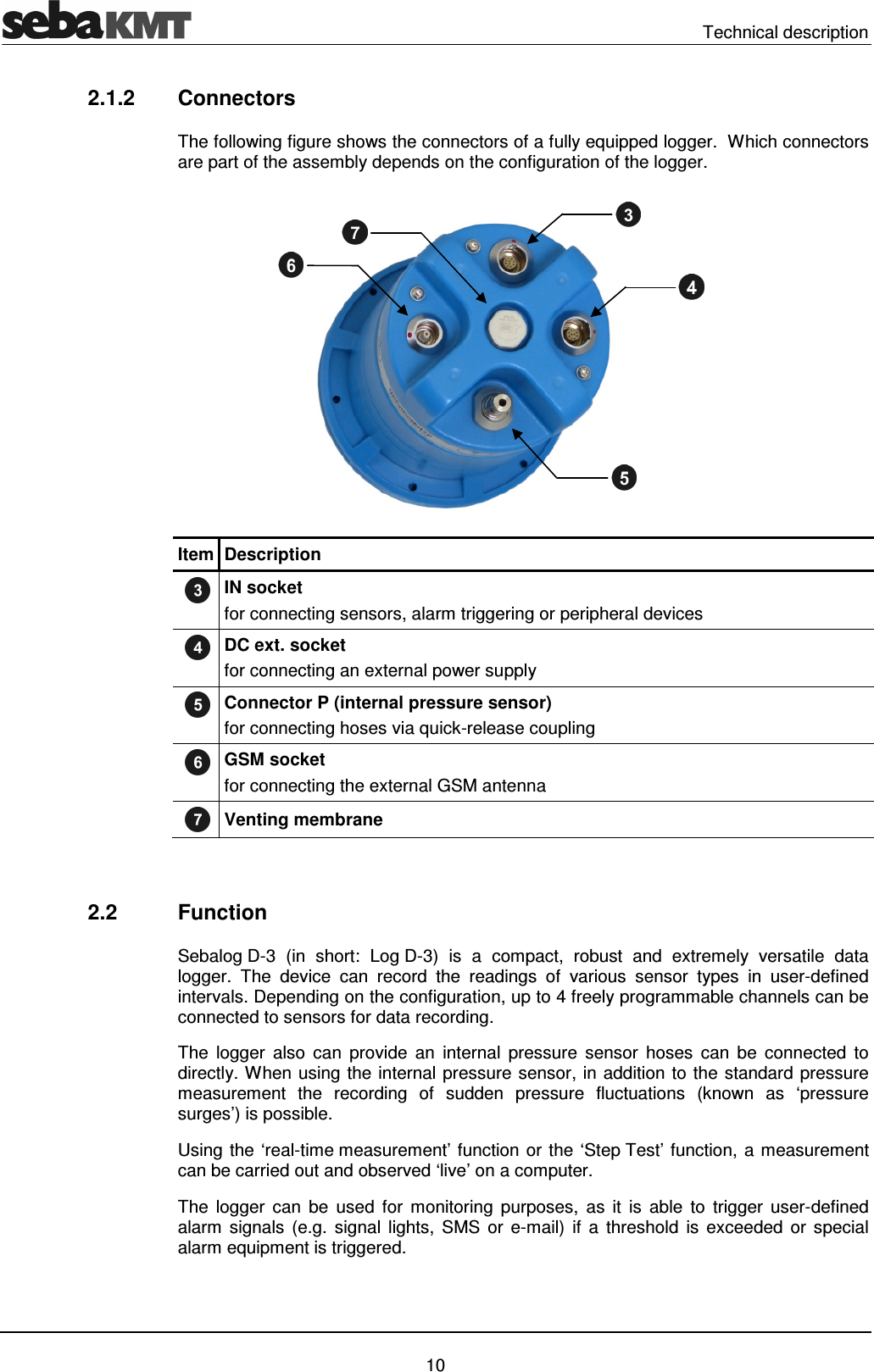
  Technical description   10 2.1.2  Connectors The following figure shows the connectors of a fully equipped logger.  Which connectors are part of the assembly depends on the configuration of the logger.  Item Description  IN socket for connecting sensors, alarm triggering or peripheral devices  DC ext. socket for connecting an external power supply  Connector P (internal pressure sensor)  for connecting hoses via quick-release coupling  GSM socket for connecting the external GSM antenna  Venting membrane   2.2  Function Sebalog D-3  (in  short:  Log D-3)  is  a  compact,  robust  and  extremely  versatile  data logger.  The  device  can  record  the  readings  of  various  sensor  types  in  user-defined intervals. Depending on the configuration, up to 4 freely programmable channels can be connected to sensors for data recording.  The  logger  also  can  provide  an  internal  pressure  sensor  hoses  can  be  connected  to directly. When using the internal pressure sensor, in addition to the standard pressure measurement  the  recording  of  sudden  pressure  fluctuations  (known  as  ‘pressure surges’) is possible. Using the ‘real-time measurement’ function or the ‘Step Test’ function, a measurement can be carried out and observed ‘live’ on a computer. The  logger  can  be  used  for  monitoring  purposes,  as  it  is  able  to  trigger  user-defined alarm  signals  (e.g.  signal  lights,  SMS  or e-mail)  if  a  threshold  is  exceeded  or  special alarm equipment is triggered.
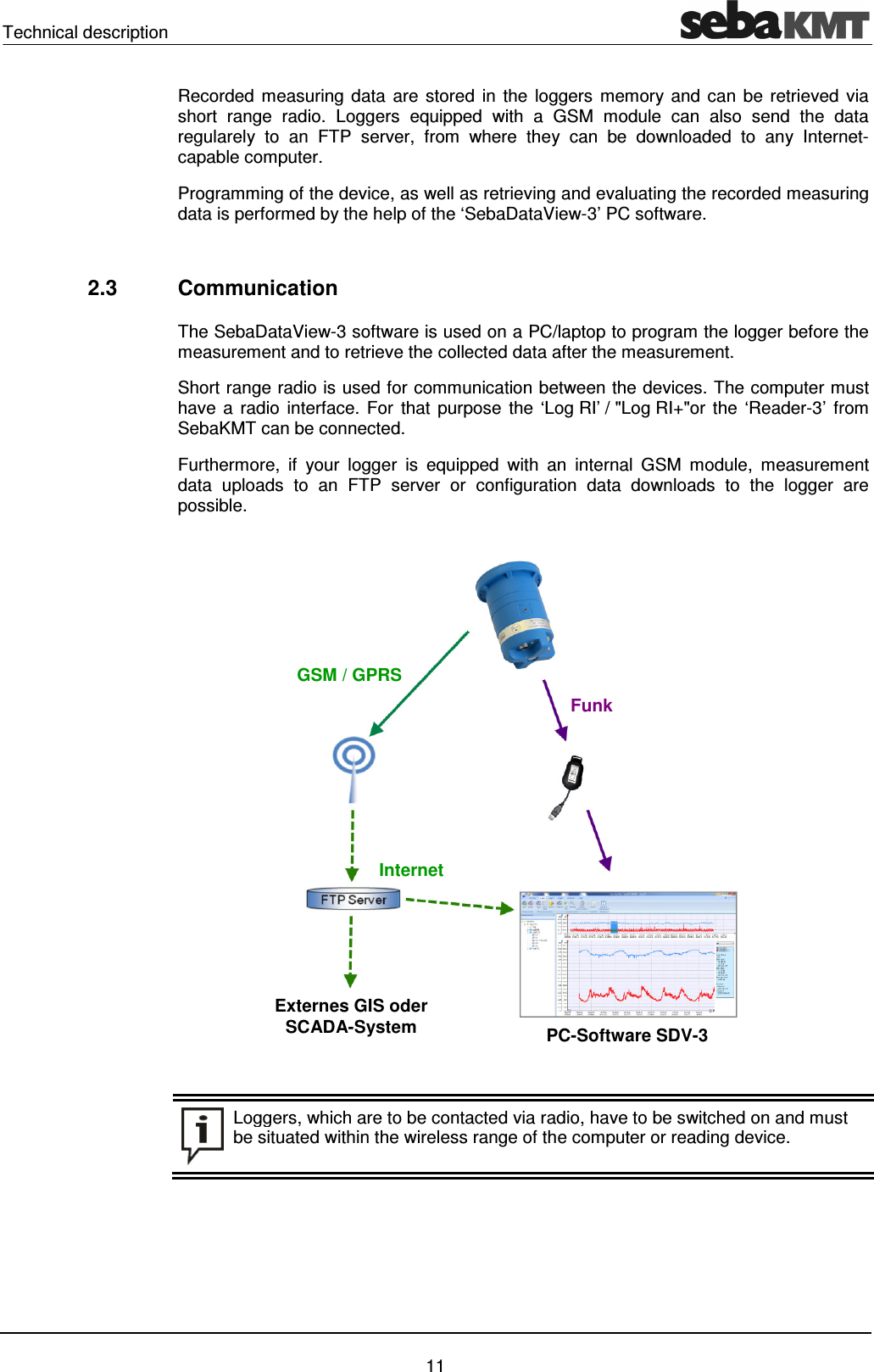
Technical description    11 Recorded  measuring data are stored in the loggers  memory and can be retrieved  via short  range  radio.  Loggers  equipped  with  a  GSM  module  can  also  send  the  data regularely  to  an  FTP  server,  from  where  they  can  be  downloaded  to  any  Internet-capable computer. Programming of the device, as well as retrieving and evaluating the recorded measuring data is performed by the help of the ‘SebaDataView-3’ PC software.   2.3  Communication  The SebaDataView-3 software is used on a PC/laptop to program the logger before the measurement and to retrieve the collected data after the measurement.  Short range radio is used for communication between the devices. The computer must have a radio interface. For  that  purpose  the ‘Log RI’ / "Log RI+"or the  ‘Reader-3’ from SebaKMT can be connected. Furthermore,  if  your  logger  is  equipped  with  an  internal  GSM  module,  measurement data  uploads  to  an  FTP  server  or  configuration  data  downloads  to  the  logger  are possible.   Loggers, which are to be contacted via radio, have to be switched on and must be situated within the wireless range of the computer or reading device.   GSM / GPRS Internet Funk Externes GIS oder SCADA-System  PC-Software SDV-3
  Technical description   12 2.3.1  Log RI or Log RI+ radio interface The compact ‘Log RI’ is the standard radio interface for communicating with devices of the Sebalog series.   The radio interface ‘Log RI+’ is available as accessory from SebaKMT. Compared to the Log RI  the  device  has  a  higher-performing  radio  module  which  allows  a  higher  radio range.   Simply  connect  the  ‘Log RI’ / ‘Log RI+’  to  a  USB  port  of  the  computer.  The  device switches  itself  on.  The  device  is  automatically  detected  by  the  computer  and immediately  ready  to  establish  the  radio  link.  There  are  no  further  adjustments  to  be done. The device has a status LED: • flashing 1x red, 1x green  … switching on • blue light  … data transfer in progress • red light  … malfunction  We recommend that the device is always operated with the latest firmware. More exact information on how to update the firmware in Sebalog N-3 series devices is available in its own section in this operating manual (see page 40).  2.3.2  Reader-3 used as radio interface  The  ‘Reader-3’  reading  device  from  SebaKMT  can  be  used  to  establish  radio communication, too.  Connect the Reader-3 to the USB port of your PC using the Docking Station and switch it on. The device automatically starts in USB mode. It is automatically detected by the computer  and  immediately  ready  to  establish  the  radio  link.  There  are  no  further adjustments to be done. For further information please consult the operating instructions of your Reader-3.  ‘Log RI’ 'Log RI+' Use Status LED Update
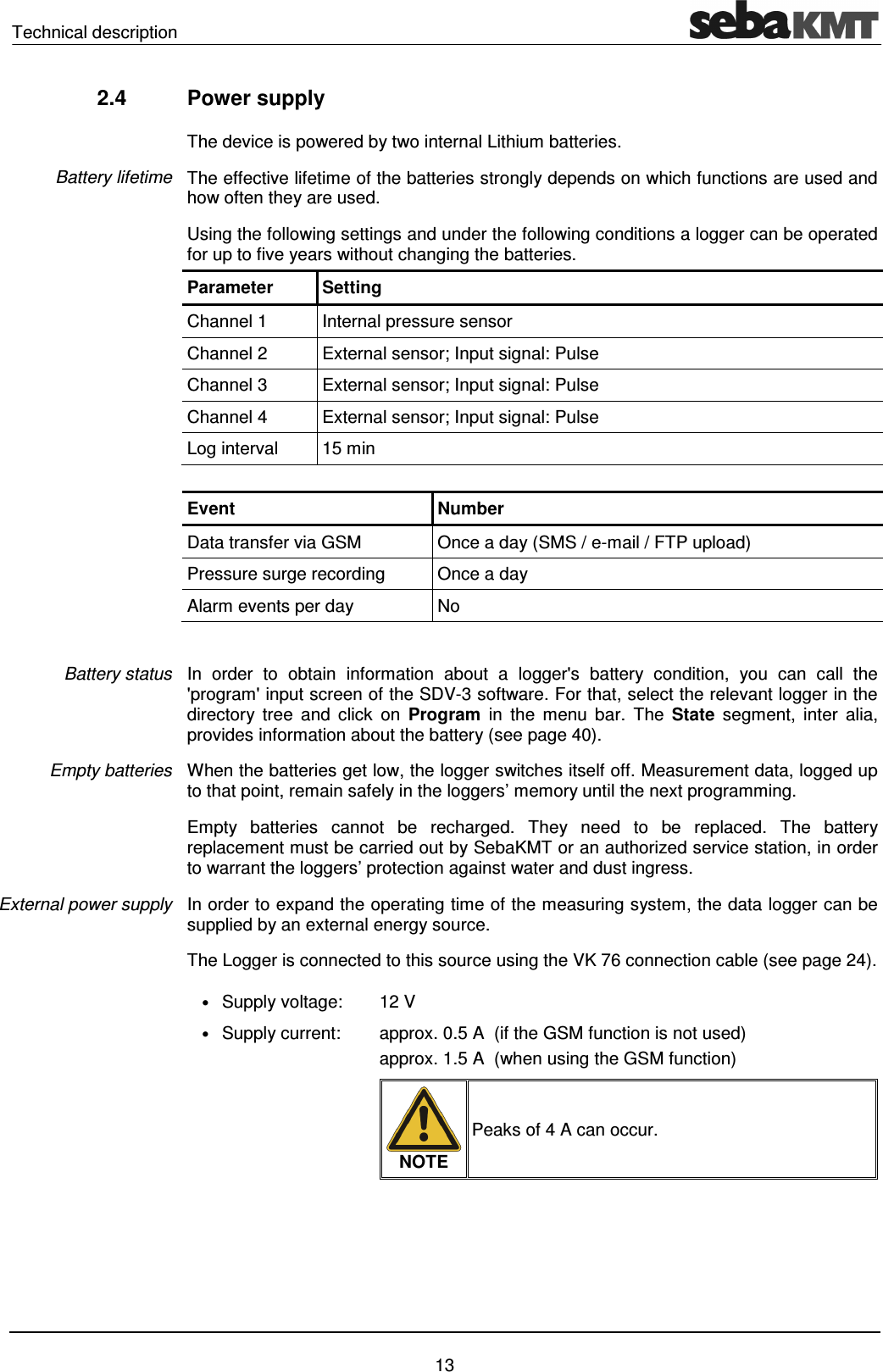
Technical description    13 2.4  Power supply The device is powered by two internal Lithium batteries. The effective lifetime of the batteries strongly depends on which functions are used and how often they are used.  Using the following settings and under the following conditions a logger can be operated for up to five years without changing the batteries. Parameter  Setting Channel 1  Internal pressure sensor Channel 2  External sensor; Input signal: Pulse Channel 3  External sensor; Input signal: Pulse Channel 4  External sensor; Input signal: Pulse Log interval  15 min  Event  Number Data transfer via GSM  Once a day (SMS / e-mail / FTP upload) Pressure surge recording  Once a day Alarm events per day  No  In  order  to  obtain  information  about  a  logger's  battery  condition,  you  can  call  the 'program' input screen of the SDV-3 software. For that, select the relevant logger in the directory  tree  and  click  on  Program  in  the  menu  bar.  The  State  segment,  inter  alia, provides information about the battery (see page 40).  When the batteries get low, the logger switches itself off. Measurement data, logged up to that point, remain safely in the loggers’ memory until the next programming.  Empty  batteries  cannot  be  recharged.  They  need  to  be  replaced.  The  battery replacement must be carried out by SebaKMT or an authorized service station, in order to warrant the loggers’ protection against water and dust ingress.  In order to expand the operating time of the measuring system, the data logger can be supplied by an external energy source. The Logger is connected to this source using the VK 76 connection cable (see page 24). • Supply voltage:  12 V • Supply current:  approx. 0.5 A  (if the GSM function is not used) approx. 1.5 A  (when using the GSM function)   NOTE Peaks of 4 A can occur.    Battery lifetime Battery status Empty batteries External power supply
  Technical description   14 In order to expand the operating time of the measuring system, the data logger can be connected  to  an  external  rechargeable  battery  pack  which  can  be  ordered  from SebaKMT.  The logger is connected to the external battery pack by means of the VK88 connection cable. The 10-pole  connector (red) of the cable has to be plugged  in the DC ext.   socket of the logger. Then the 5-pole connector has to be plugged in one of the sockets of the battery, no matter which one. From now on the logger is powered by the external battery only, until the connection is cut or the capacitance of the external battery gets low. In that case, the logger switches back to internal power supply. Use the supplied mains adapter to recharge the external battery pack. Plug the round 5-pole connector  in one of the sockets  of  the battery, no matter  which one. Once the battery is connected to the mains, it is charging. The charging process for a fully loaded battery takes 12 to 13 hours. Overcharging of the battery cannot  occur if the supplied mains adapter is used.  2.5  Memory The device has 4 MB internal memory. For example, if 4 sensors are connected and a recording  interval  of  5 minutes  is  specified,  this  is  sufficient  for  5 years  non-stop  data recording. As part of the programming process, the logger can be set to "ring memory mode". As the memory fills up with data in this mode, the device keeps logging and the respective oldest value is overwritten.   External rechargeable battery pack
Technical description    15 2.6  Technical data Depending  on  the  configuration,  the  Sebalog D-3  is  specified  by  the  following parameters: Parameter  Value Communication  Short-range radio    868 MHz (in Europe)   913,02 MHz (in the US)   913 / 916 MHz (depending on the country) Mobile radio (GSM / GPRS / UMTS)    850 / 900 / 1800 / 1900 / 2100 MHz Inputs / outputs  2 or 4 freely programmable channels,    digital: 0…5 V / pulse / frequency   analogue:4…20 mA (max. 2 channels); Up to 2 switching inputs (alarm trigger); Up to 2 switching outputs (alarm installation); Connectors for internal pressure sensor Internal pressure sensor  optional (16 bar / 25 bar / 35 bar);   accuracy: +/- 1 %   resolution: 0.006 bar (16 bar sensor)  Log interval   standard measurement    pressure surge meas. Standard measurement   1 sec up to 24 hrs selectable Pressure surge measurement   0.1 sec or 1 sec selectable Memory  4 MB internal memory    block or roll memory selectable Alarm  Switching input and threshold monitoring for each channel possible; Triggering of switching output(s); Alarm messages via SMS / e-mail; Measuring data upload to FTP server in case of alarm Battery  Internal lithium batteries Ext. power supply  12 V DC Operating temperature  -20°C … +70°C  Storage temperature  -20°C … +70°C Dimensions (L x W x H)  115 x 115 x 180 mm Weight   approx. 0.9 kg (incl. batteries) Degree of protection  IP 68
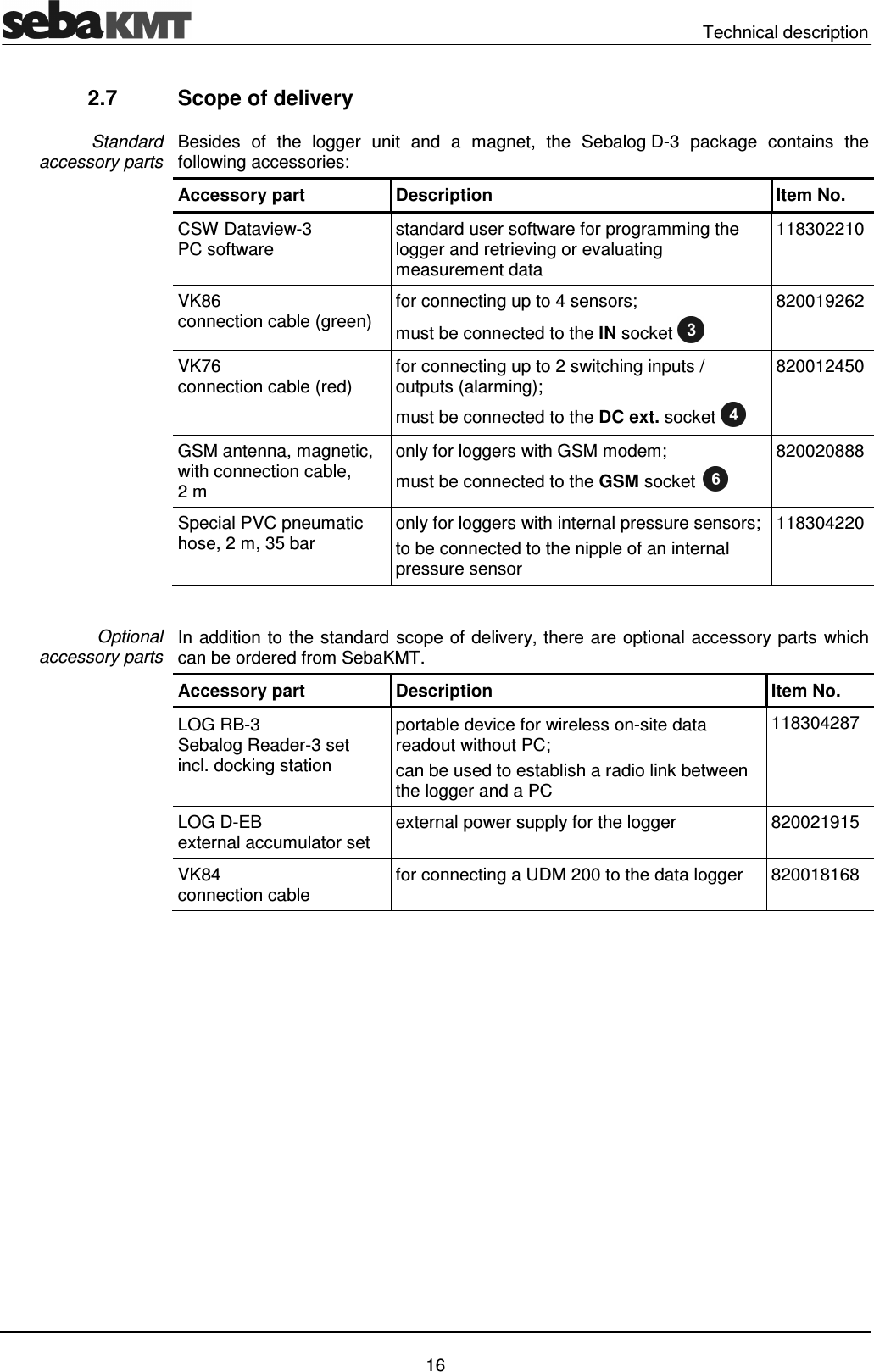
  Technical description   16 2.7  Scope of delivery Besides  of  the  logger  unit  and  a  magnet,  the  Sebalog D-3  package  contains  the following accessories: Accessory part  Description  Item No. CSW Dataview-3 PC software  standard user software for programming the logger and retrieving or evaluating measurement data 118302210 VK86  connection cable (green)  for connecting up to 4 sensors; must be connected to the IN socket  820019262 VK76 connection cable (red)  for connecting up to 2 switching inputs / outputs (alarming); must be connected to the DC ext. socket  820012450 GSM antenna, magnetic, with connection cable,  2 m only for loggers with GSM modem; must be connected to the GSM socket  820020888 Special PVC pneumatic hose, 2 m, 35 bar  only for loggers with internal pressure sensors; to be connected to the nipple of an internal pressure sensor 118304220  In addition to the standard scope of delivery, there are optional accessory parts which can be ordered from SebaKMT. Accessory part  Description  Item No. LOG RB-3 Sebalog Reader-3 set  incl. docking station portable device for wireless on-site data readout without PC; can be used to establish a radio link between the logger and a PC 118304287 LOG D-EB  external accumulator set  external power supply for the logger  820021915 VK84 connection cable for connecting a UDM 200 to the data logger  820018168  Standard  accessory parts Optional  accessory parts
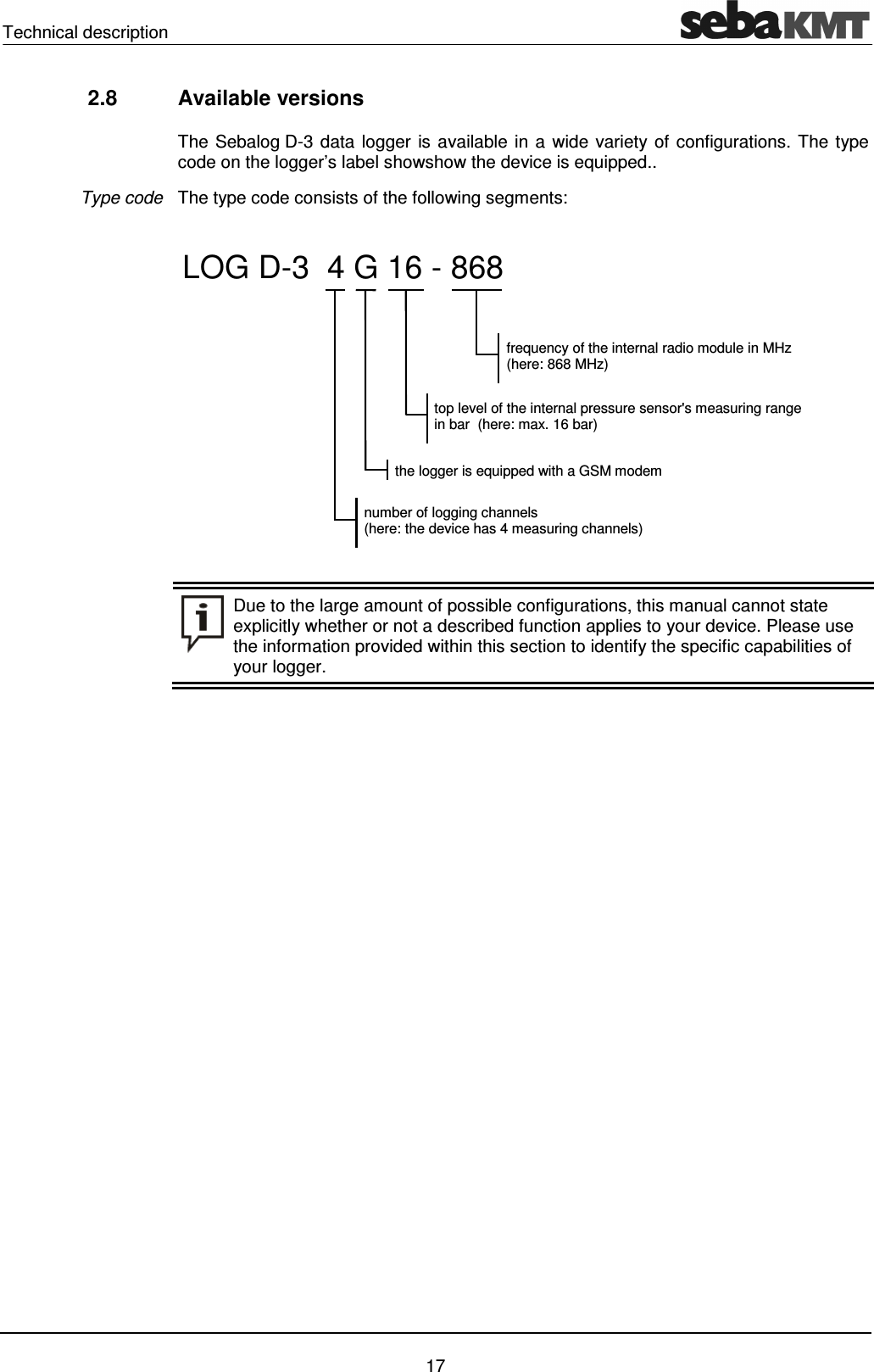
Technical description    17 2.8  Available versions The Sebalog D-3 data logger is available in a wide variety of configurations. The type code on the logger’s label showshow the device is equipped.. The type code consists of the following segments:   Due to the large amount of possible configurations, this manual cannot state explicitly whether or not a described function applies to your device. Please use the information provided within this section to identify the specific capabilities of your logger.  Type code number of logging channels (here: the device has 4 measuring channels) LOG D-3  4 G 16 - 868 top level of the internal pressure sensor's measuring range  in bar  (here: max. 16 bar) the logger is equipped with a GSM modem frequency of the internal radio module in MHz (here: 868 MHz)
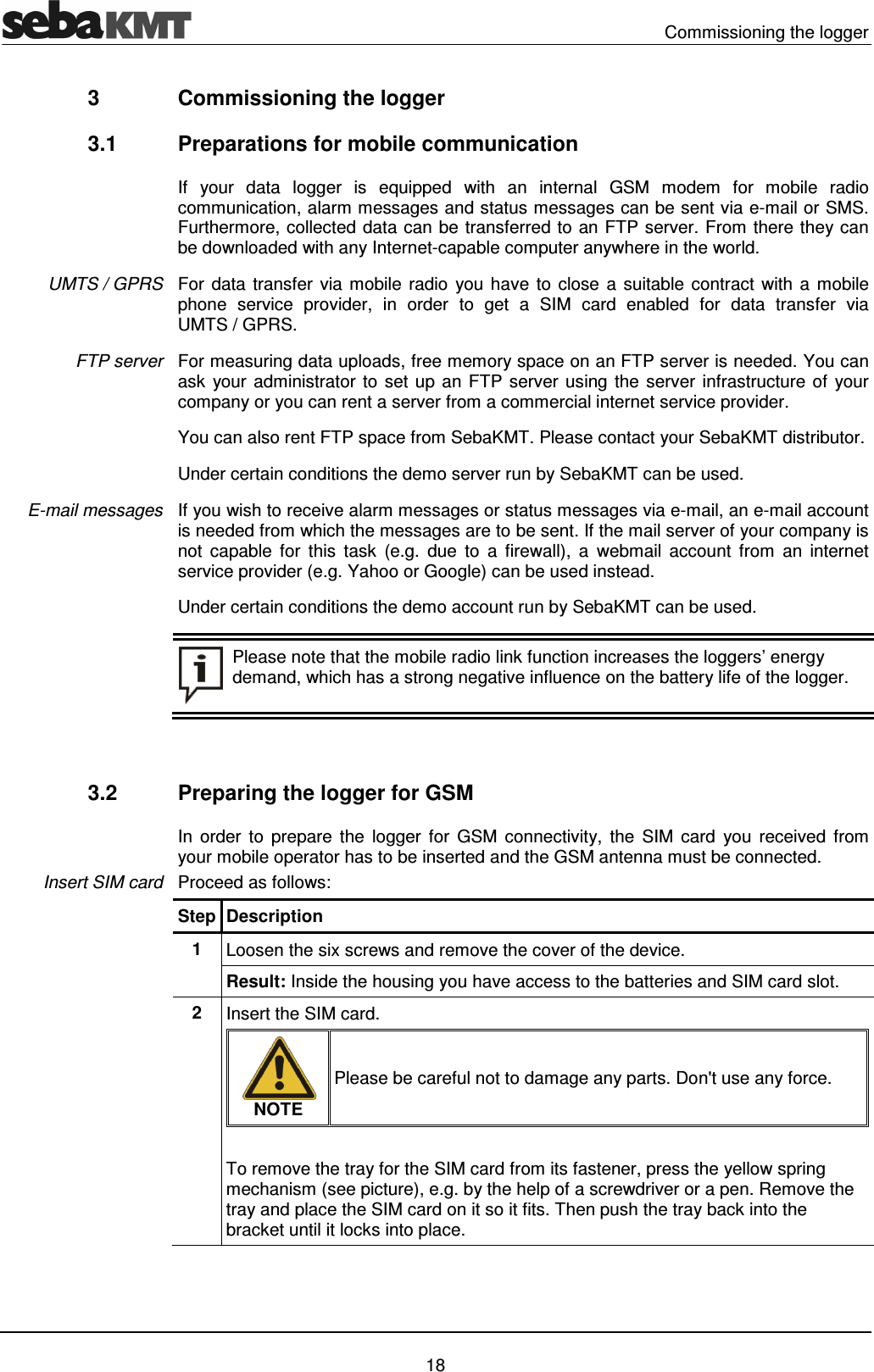
  Commissioning the logger   18 3  Commissioning the logger 3.1  Preparations for mobile communication If  your  data  logger  is  equipped  with  an  internal  GSM  modem  for  mobile  radio communication, alarm messages and status messages can be sent via e-mail or SMS. Furthermore, collected data can be transferred to an FTP server. From there they can be downloaded with any Internet-capable computer anywhere in the world.  For data transfer via mobile radio  you have to close a suitable contract  with a mobile phone  service  provider,  in  order  to  get  a  SIM  card  enabled  for  data  transfer  via UMTS / GPRS. For measuring data uploads, free memory space on an FTP server is needed. You can ask  your administrator to set up an FTP server using the server infrastructure of your company or you can rent a server from a commercial internet service provider.  You can also rent FTP space from SebaKMT. Please contact your SebaKMT distributor. Under certain conditions the demo server run by SebaKMT can be used.  If you wish to receive alarm messages or status messages via e-mail, an e-mail account is needed from which the messages are to be sent. If the mail server of your company is not  capable  for  this  task  (e.g.  due  to  a  firewall),  a  webmail  account  from  an  internet service provider (e.g. Yahoo or Google) can be used instead. Under certain conditions the demo account run by SebaKMT can be used.   Please note that the mobile radio link function increases the loggers’ energy demand, which has a strong negative influence on the battery life of the logger.   3.2  Preparing the logger for GSM In  order  to  prepare  the  logger  for  GSM  connectivity,  the  SIM  card  you  received  from your mobile operator has to be inserted and the GSM antenna must be connected. Proceed as follows: Step Description 1  Loosen the six screws and remove the cover of the device.  Result: Inside the housing you have access to the batteries and SIM card slot. 2  Insert the SIM card.   NOTE Please be careful not to damage any parts. Don't use any force.  To remove the tray for the SIM card from its fastener, press the yellow spring mechanism (see picture), e.g. by the help of a screwdriver or a pen. Remove the tray and place the SIM card on it so it fits. Then push the tray back into the bracket until it locks into place. UMTS / GPRS FTP server E-mail messages Insert SIM card
Commissioning the logger    19 Step Description   3  Attach the cover to the housing again.   The rubber seal inside the cover is not glued in and may possibly fall out. Therefore, when re-assembling the device, it may be helpful not to put the cover on the housing but to take both parts upside down and then put the housing on the cover.    To ensure that the housing remains waterproof, please observe the following points: • The rubber seals and the housing and cover surfaces which touch each other must be free of dirt.  • Be careful not to jam the housing parts against each other.  • Tighten the screws finger-tight (1 Nm). Do not overtighten!   The  logger  has  no  internal  or  external  antenna.  To  enable  the  GSM  connectivity  the delivered external GSM antenna must be connected to the device. Connect the antenna to the GSM socket  . Make sure that the guide on the plug fits in the groove in the socket and that you feel the plug latch in.  Connect GSM antenna
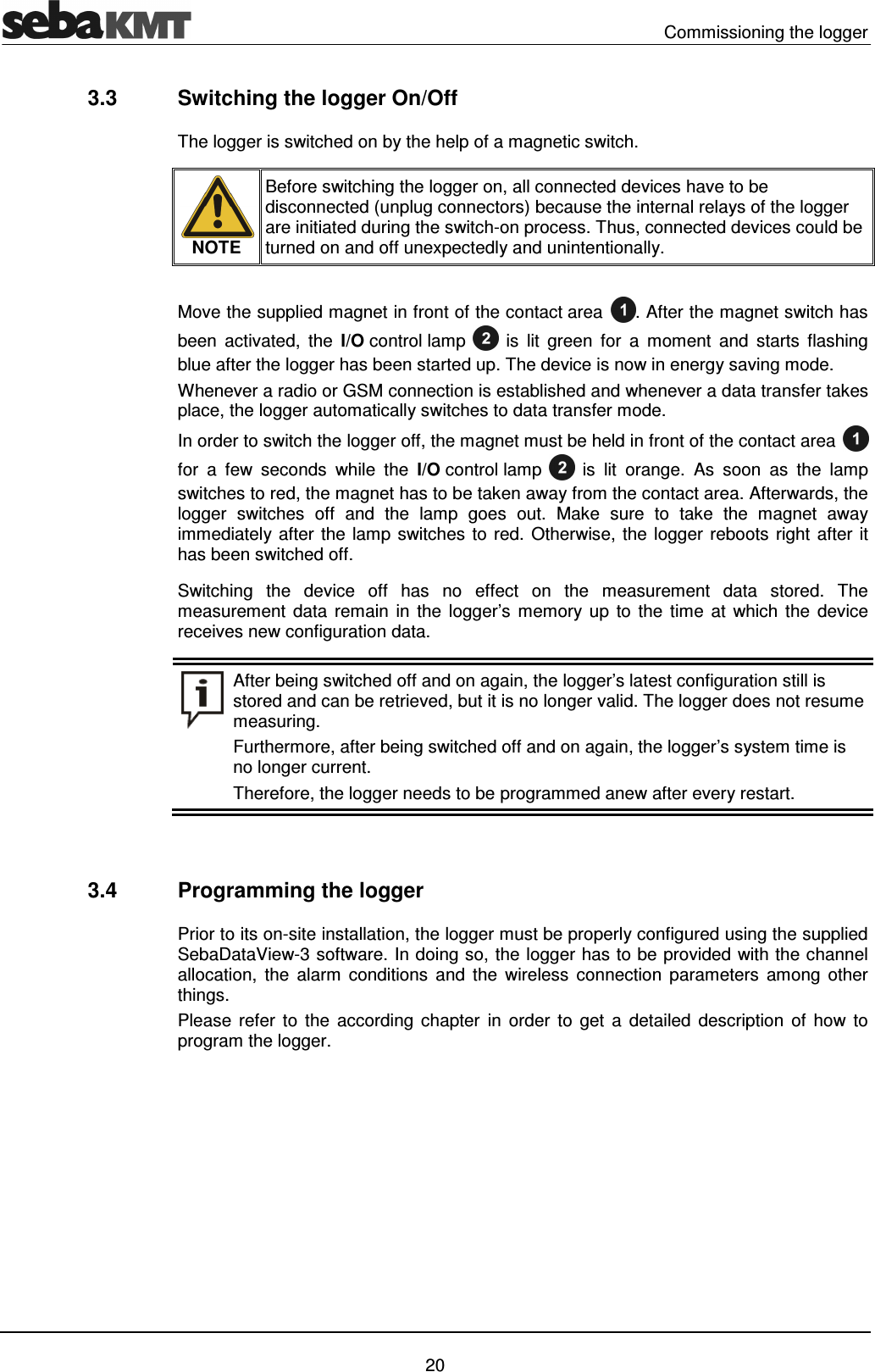
  Commissioning the logger   20 3.3  Switching the logger On/Off The logger is switched on by the help of a magnetic switch.  NOTE Before switching the logger on, all connected devices have to be disconnected (unplug connectors) because the internal relays of the logger are initiated during the switch-on process. Thus, connected devices could be turned on and off unexpectedly and unintentionally.  Move the supplied magnet in front of the contact area . After the magnet switch has been  activated,  the  I/O control lamp  is  lit  green  for  a  moment  and  starts  flashing blue after the logger has been started up. The device is now in energy saving mode. Whenever a radio or GSM connection is established and whenever a data transfer takes place, the logger automatically switches to data transfer mode. In order to switch the logger off, the magnet must be held in front of the contact area  for  a  few  seconds  while  the  I/O control lamp  is  lit  orange.  As  soon  as  the  lamp switches to red, the magnet has to be taken away from the contact area. Afterwards, the logger  switches  off  and  the  lamp  goes  out.  Make  sure  to  take  the  magnet  away immediately after the lamp switches to red. Otherwise, the logger reboots right after it has been switched off. Switching  the  device  off  has  no  effect  on  the  measurement  data  stored.  The measurement  data  remain in the logger’s  memory  up  to  the  time  at which the  device receives new configuration data.  After being switched off and on again, the logger’s latest configuration still is stored and can be retrieved, but it is no longer valid. The logger does not resume measuring.  Furthermore, after being switched off and on again, the logger’s system time is no longer current. Therefore, the logger needs to be programmed anew after every restart.   3.4  Programming the logger Prior to its on-site installation, the logger must be properly configured using the supplied SebaDataView-3 software. In doing so, the logger has to be provided with the channel allocation,  the  alarm  conditions  and  the  wireless  connection  parameters  among  other things. Please  refer  to  the  according chapter  in  order  to  get  a  detailed  description  of  how  to program the logger.
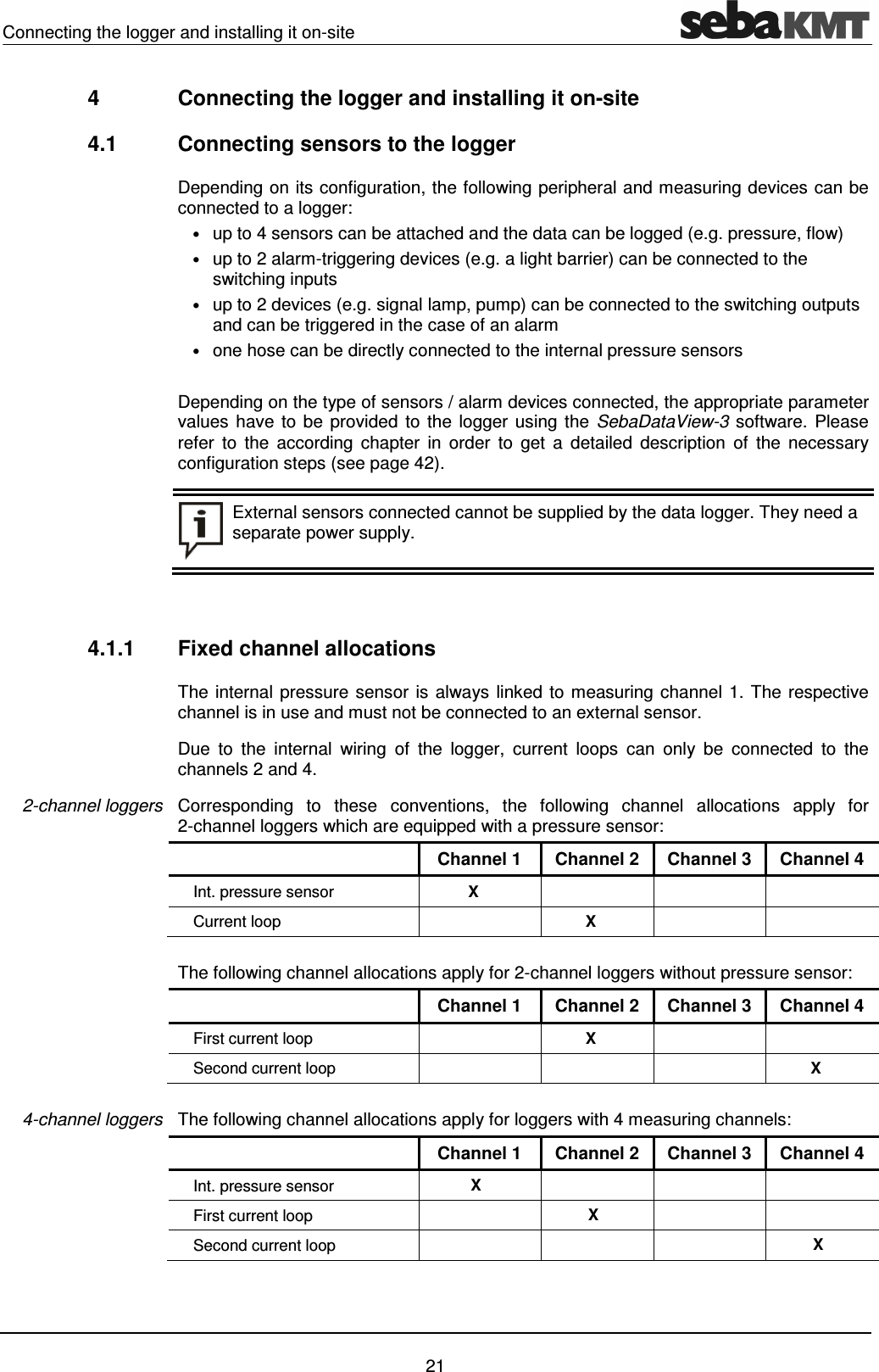
Connecting the logger and installing it on-site    21 4  Connecting the logger and installing it on-site 4.1  Connecting sensors to the logger Depending on its configuration, the following peripheral and measuring devices can be connected to a logger: • up to 4 sensors can be attached and the data can be logged (e.g. pressure, flow)  • up to 2 alarm-triggering devices (e.g. a light barrier) can be connected to the switching inputs  • up to 2 devices (e.g. signal lamp, pump) can be connected to the switching outputs and can be triggered in the case of an alarm  • one hose can be directly connected to the internal pressure sensors  Depending on the type of sensors / alarm devices connected, the appropriate parameter values have to be provided  to the logger using the SebaDataView-3  software. Please refer  to  the  according  chapter  in  order  to  get  a  detailed  description  of  the  necessary configuration steps (see page 42).   External sensors connected cannot be supplied by the data logger. They need a separate power supply.   4.1.1  Fixed channel allocations The internal pressure sensor is always linked to measuring channel 1. The respective channel is in use and must not be connected to an external sensor. Due  to  the  internal  wiring  of  the  logger,  current  loops  can  only  be  connected  to  the channels 2 and 4.  Corresponding  to  these  conventions,  the  following  channel  allocations  apply  for 2-channel loggers which are equipped with a pressure sensor:   Channel 1  Channel 2  Channel 3  Channel 4 Int. pressure sensor   X       Current loop    X      The following channel allocations apply for 2-channel loggers without pressure sensor:   Channel 1  Channel 2  Channel 3  Channel 4 First current loop    X     Second current loop        X  The following channel allocations apply for loggers with 4 measuring channels:   Channel 1  Channel 2  Channel 3  Channel 4 Int. pressure sensor X       First current loop   X     Second current loop       X 2-channel loggers 4-channel loggers
  Connecting the logger and installing it on-site   22 4.1.2  Connecting a hose to the internal pressure sensor If your logger is equipped with a pressure sensor, a hose can be connected directly to the  connector  P .  In  order  to  do  so,  your  hose  has  to  be  equipped  with  a  female quick-fit connector.   NOTE When  connecting  a  hose  to  the  internal sensor,  the  following  instructions must be noted: • Pressure sensors are sensitive to overpressure. Do not exceed the measuring range in order to avoid irreparable damage to the sensor. • Make sure no dirt or rust can ingress inside the sensors. In case of doubt, use a filter. • There must not be any water inside the sensor after use. Otherwise, frost can damage the sensor. • After a sensor has been in use or in storage for a longer period, it must be cleaned with compressed air.  The sensors are capable of measuring the pressure of both liquid and gaseous media.
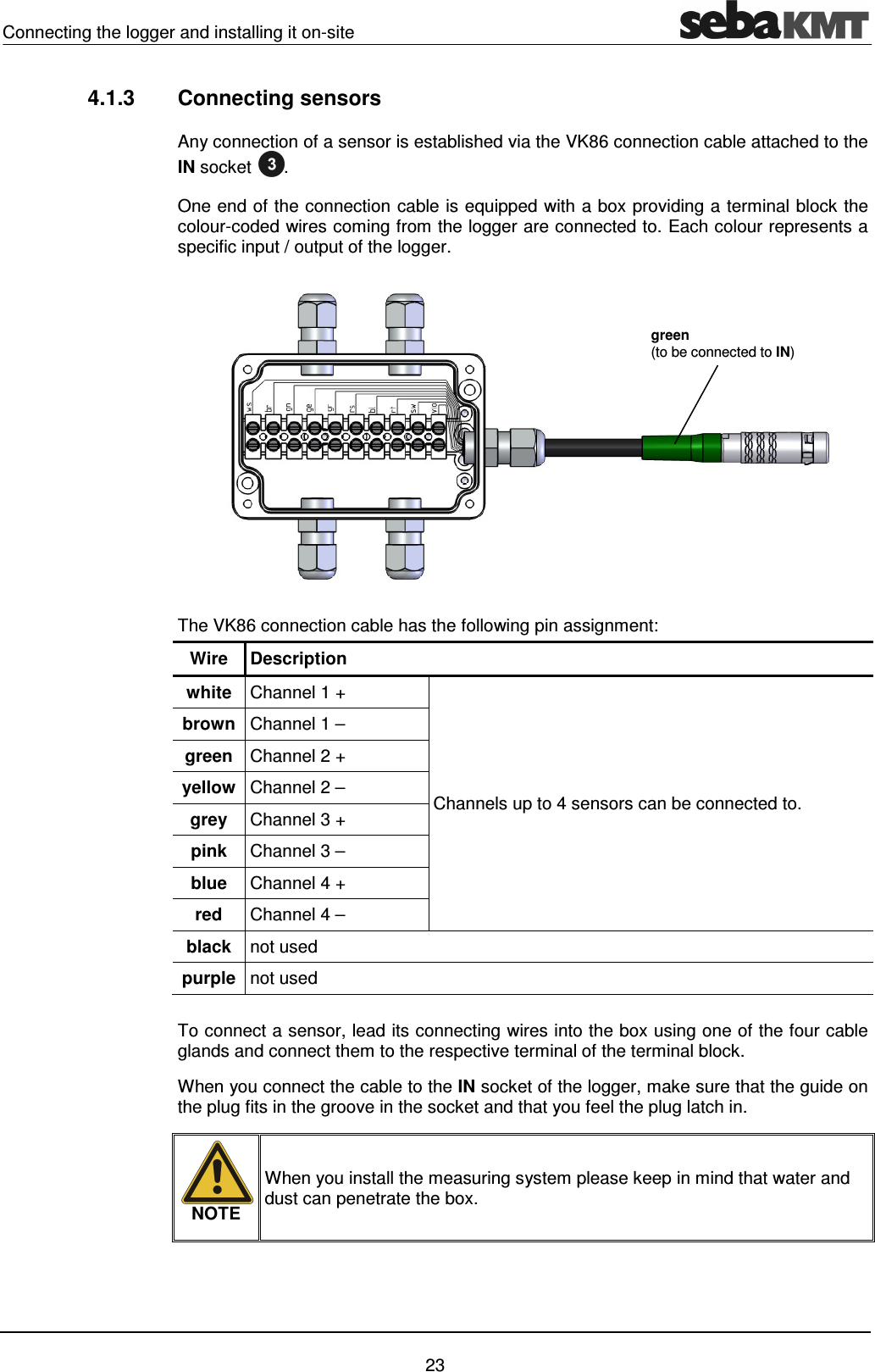
Connecting the logger and installing it on-site    23 4.1.3  Connecting sensors Any connection of a sensor is established via the VK86 connection cable attached to the IN socket .  One end of the connection cable is equipped with a box providing a terminal block the colour-coded wires coming from the logger are connected to. Each colour represents a specific input / output of the logger.  The VK86 connection cable has the following pin assignment: Wire  Description white  Channel 1 + Channels up to 4 sensors can be connected to. brown Channel 1 – green  Channel 2 + yellow Channel 2 – grey  Channel 3 + pink  Channel 3 – blue  Channel 4 + red  Channel 4 – black not used purple not used  To connect a sensor, lead its connecting wires into the box using one of the four cable glands and connect them to the respective terminal of the terminal block.  When you connect the cable to the IN socket of the logger, make sure that the guide on the plug fits in the groove in the socket and that you feel the plug latch in.  NOTE When you install the measuring system please keep in mind that water and dust can penetrate the box.  green (to be connected to IN)
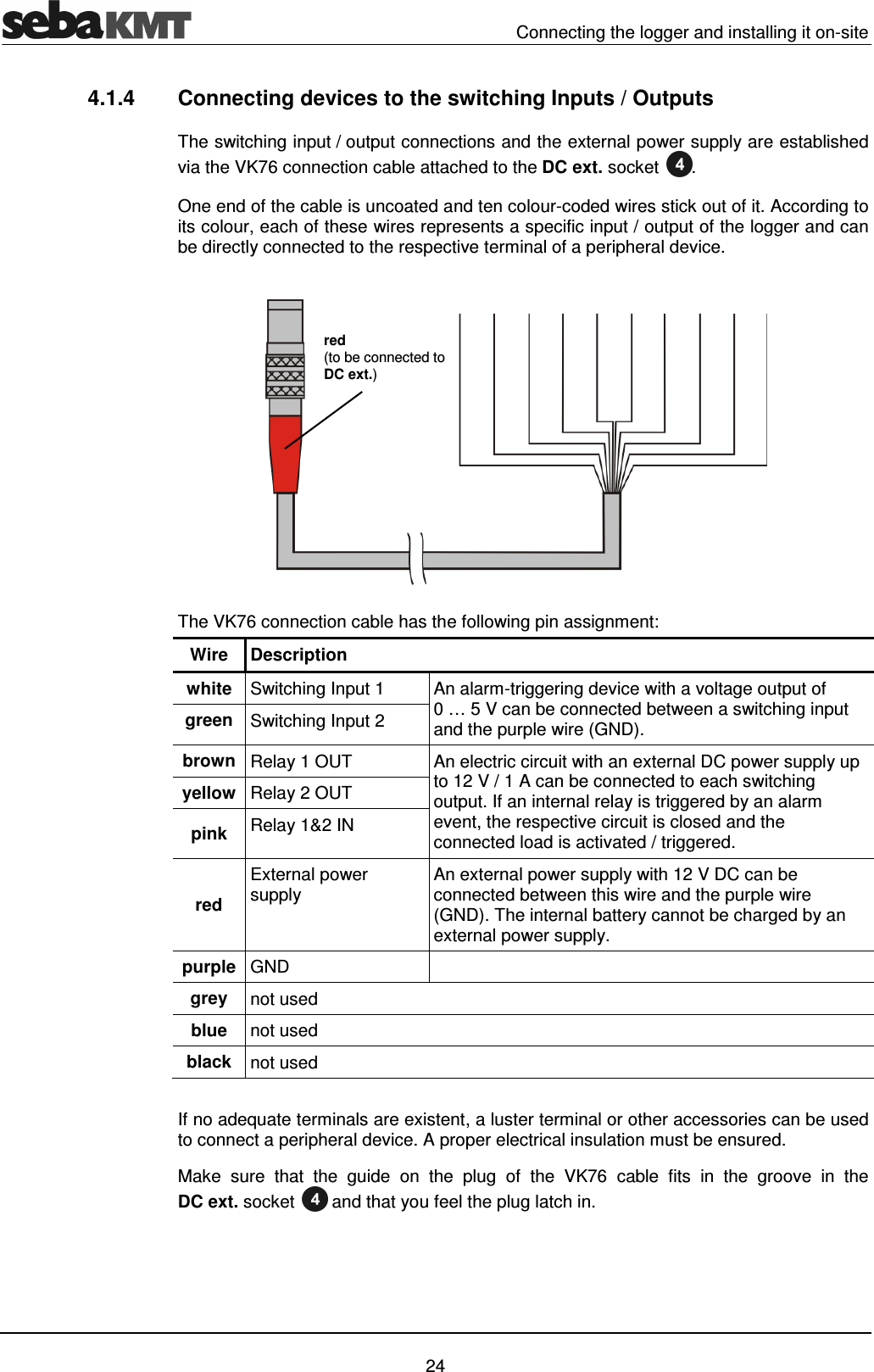
  Connecting the logger and installing it on-site   24 4.1.4  Connecting devices to the switching Inputs / Outputs The switching input / output connections and the external power supply are established via the VK76 connection cable attached to the DC ext. socket . One end of the cable is uncoated and ten colour-coded wires stick out of it. According to its colour, each of these wires represents a specific input / output of the logger and can be directly connected to the respective terminal of a peripheral device.  The VK76 connection cable has the following pin assignment: Wire  Description white  Switching Input 1  An alarm-triggering device with a voltage output of 0 … 5 V can be connected between a switching input and the purple wire (GND). green  Switching Input 2 brown Relay 1 OUT  An electric circuit with an external DC power supply up to 12 V / 1 A can be connected to each switching output. If an internal relay is triggered by an alarm event, the respective circuit is closed and the connected load is activated / triggered. yellow Relay 2 OUT pink  Relay 1&2 IN red External power supply   An external power supply with 12 V DC can be connected between this wire and the purple wire (GND). The internal battery cannot be charged by an external power supply. purple GND   grey  not used blue  not used black  not used  If no adequate terminals are existent, a luster terminal or other accessories can be used to connect a peripheral device. A proper electrical insulation must be ensured.  Make  sure  that  the  guide  on  the  plug  of  the  VK76  cable  fits  in  the  groove  in  the DC ext. socket  and that you feel the plug latch in. red (to be connected to DC ext.)
Connecting the logger and installing it on-site    25 4.1.5  Wiring diagram examples In the following, some connection examples  are described. Depending on the  sensor, the actual  wiring  diagram  and  the  terminal designation may differ.  Please  refer  to the respective sensor manual for detailed information. The  following  example  describes  how  to  connect  a  sensor  with  a  0 - 5 V voltage output or 0 Hz - 6000 Hz frequency output or pulse output:   The following example describes how to connect a sensor to a 4 … 20 mA current loop:     A current loop can only be connected to channel 2 or 4.  Output signal type voltage/frequency/ pulse  Output signal type current  Channel +  Channel –  Logger I + I –  Sensor  Channel +  Channel –  Logger Signal GND Sensor
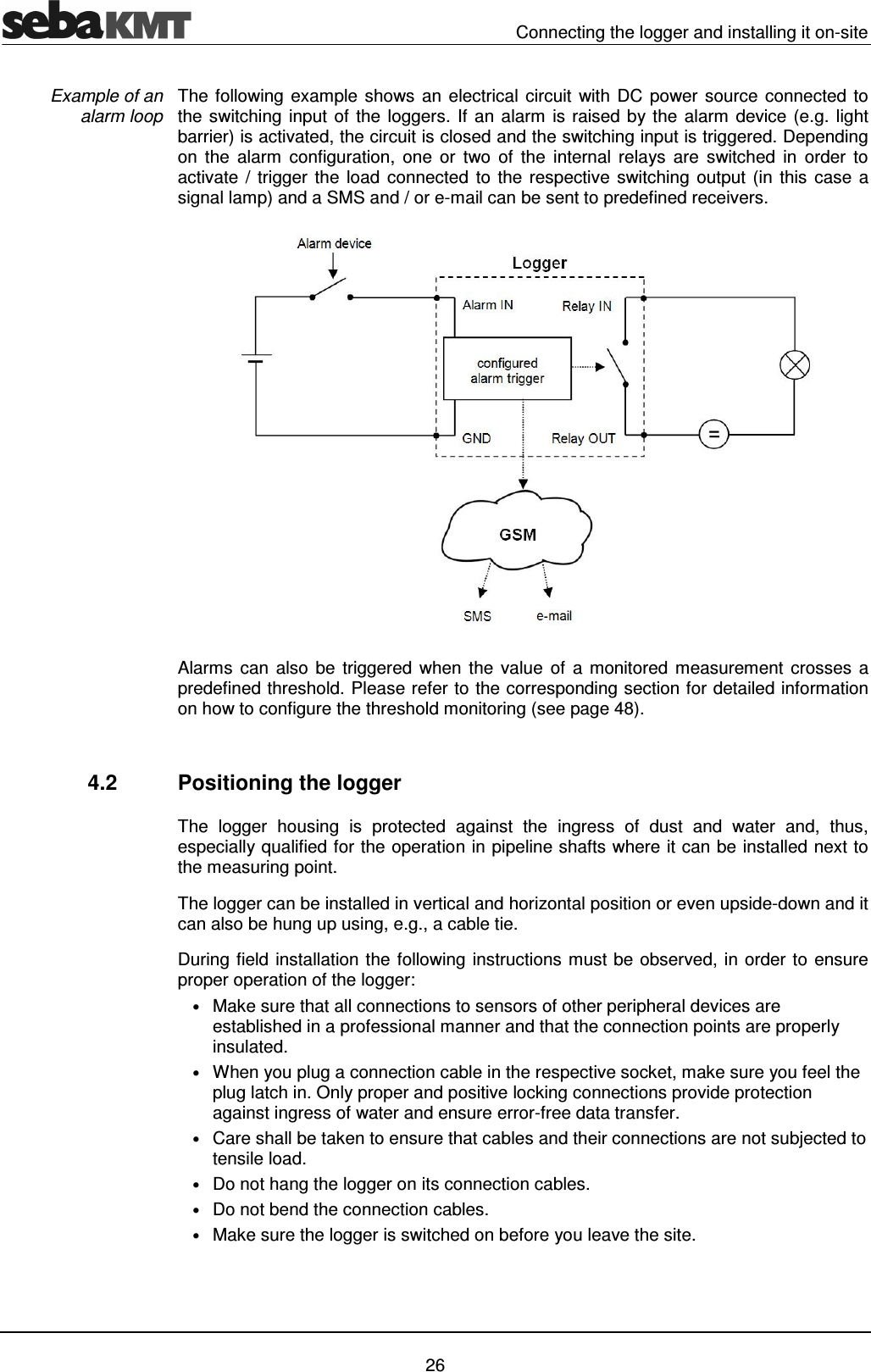
  Connecting the logger and installing it on-site   26 The following example shows an electrical circuit  with DC power source connected to the switching input of the loggers. If an alarm is raised by the alarm device (e.g. light barrier) is activated, the circuit is closed and the switching input is triggered. Depending on  the  alarm  configuration,  one  or  two  of  the  internal  relays  are  switched  in  order  to activate / trigger the load connected to the respective  switching  output  (in  this  case  a signal lamp) and a SMS and / or e-mail can be sent to predefined receivers.  Alarms  can  also  be  triggered  when  the value  of  a  monitored measurement  crosses a predefined threshold. Please refer to the corresponding section for detailed information on how to configure the threshold monitoring (see page 48).   4.2  Positioning the logger The  logger  housing  is  protected  against  the  ingress  of  dust  and  water  and,  thus, especially qualified for the operation in pipeline shafts where it can be installed next to the measuring point. The logger can be installed in vertical and horizontal position or even upside-down and it can also be hung up using, e.g., a cable tie.  During field installation the following instructions must be observed, in order to ensure proper operation of the logger: • Make sure that all connections to sensors of other peripheral devices are established in a professional manner and that the connection points are properly insulated. • When you plug a connection cable in the respective socket, make sure you feel the plug latch in. Only proper and positive locking connections provide protection against ingress of water and ensure error-free data transfer. • Care shall be taken to ensure that cables and their connections are not subjected to tensile load. • Do not hang the logger on its connection cables. • Do not bend the connection cables. • Make sure the logger is switched on before you leave the site.  Example of an  alarm loop
Connecting the logger and installing it on-site    27 4.3  Positioning the GSM antenna You have to observe the following instructions when positioning the GSM antenna: • The GSM antenna must be properly connected to the logger. Make sure that the guide on the plug fits in the groove in the GSM socket  and that you feel the plug latch in.  • Be aware that thick walls and other barriers do affect the signal strength negatively. • If the logger is installed underground, e.g. in a pipeline shaft, the antenna should be positioned as near as possible to the ground surface. The deeper the antenna is positioned, the smaller is the chance of an adequate reception.  Check  the  GSM  connectivity  using  the  GSM  test  function  of  the  SebaDataView-3 software  (see  page  57)  right  after  the  GSM  antenna  has  been  positioned.  If  no connection can be established, a better position has to be found. If necessary, lead the antenna out of the shaft and bury it a few centimetres under the ground surface.
  SebaDataView-3 software   28 5  SebaDataView-3 software SebaDataView-3  (abbreviation:  SDV-3)  is  the  multifunctional  application  software  for working with devices in the ‘Sebalog’ series. You can use it to configure the majority of devices and read out the measurement data from the devices. The measurement data can  be  displayed  and  analysed  in  greater  detail  using  various  functions  on  the computer.  5.1  Installation Your machine must meet the following minimum system requirements in order to run the SebaDataView-3 software: • PC or notebook with Windows 7® or higher • min. Pentium IV compatible CPU (at least 2 GHz) • min. 2 GB memory • USB interface • CD ROM drive  To install the software insert the provided CD, execute the installation file and follow the instructions  on  the  screen.  The  application  is  installed  to  the  following  folder: C:\Program Files\SebaKMT\SebaDataView. Furthermore, a database is created in the Windows standard folder for application data (see page 38).  Start  the  application  by  double-clicking  on  the  desktop  icon  created  during  the installation process. Alternatively, the application can be started via the Windows start menu. During start-up you are asked to select the language of the user interface. Make your choice from the drop-down-list and click on OK. During start-up, the current version of the software is displayed on the screen. Please check www.sebakmt.com regularly for updates. To install a new version of the software, store the respective file on your PC, execute it and follow the instructions on the screen. System requirements Installation Software start Language selection Software update
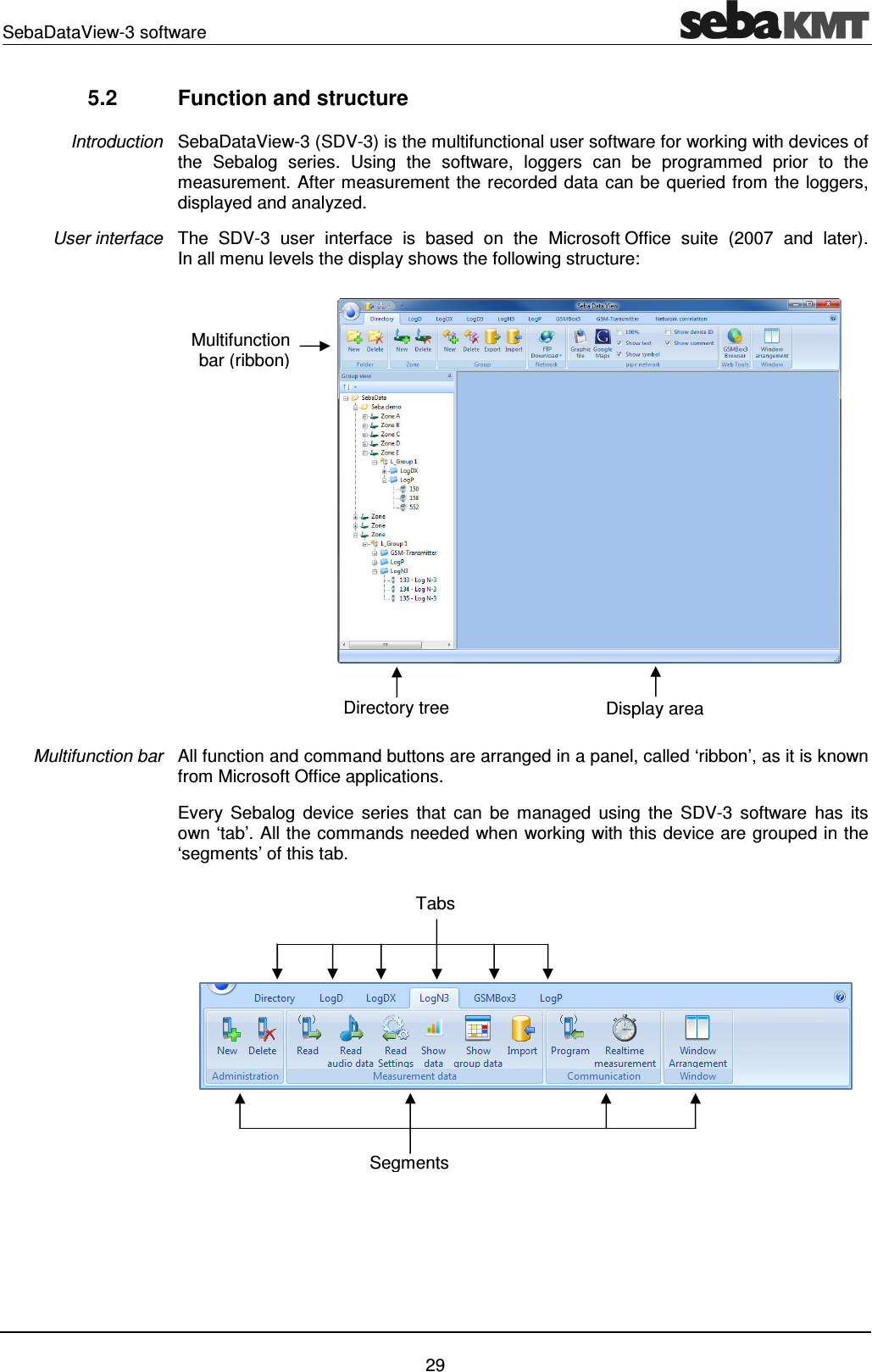
SebaDataView-3 software    29 5.2  Function and structure SebaDataView-3 (SDV-3) is the multifunctional user software for working with devices of the  Sebalog  series.  Using  the  software,  loggers  can  be  programmed  prior  to  the measurement. After measurement the recorded data can be queried from the loggers, displayed and analyzed. The  SDV-3  user  interface  is  based  on  the  Microsoft Office  suite  (2007  and  later).  In all menu levels the display shows the following structure:  All function and command buttons are arranged in a panel, called ‘ribbon’, as it is known from Microsoft Office applications. Every  Sebalog  device  series  that  can  be  managed  using  the  SDV-3  software  has its own ‘tab’. All the commands needed when working with this device are grouped in the ‘segments’ of this tab.    Introduction User interface Multifunction bar Tabs Segments Multifunction bar (ribbon) Display area Directory tree
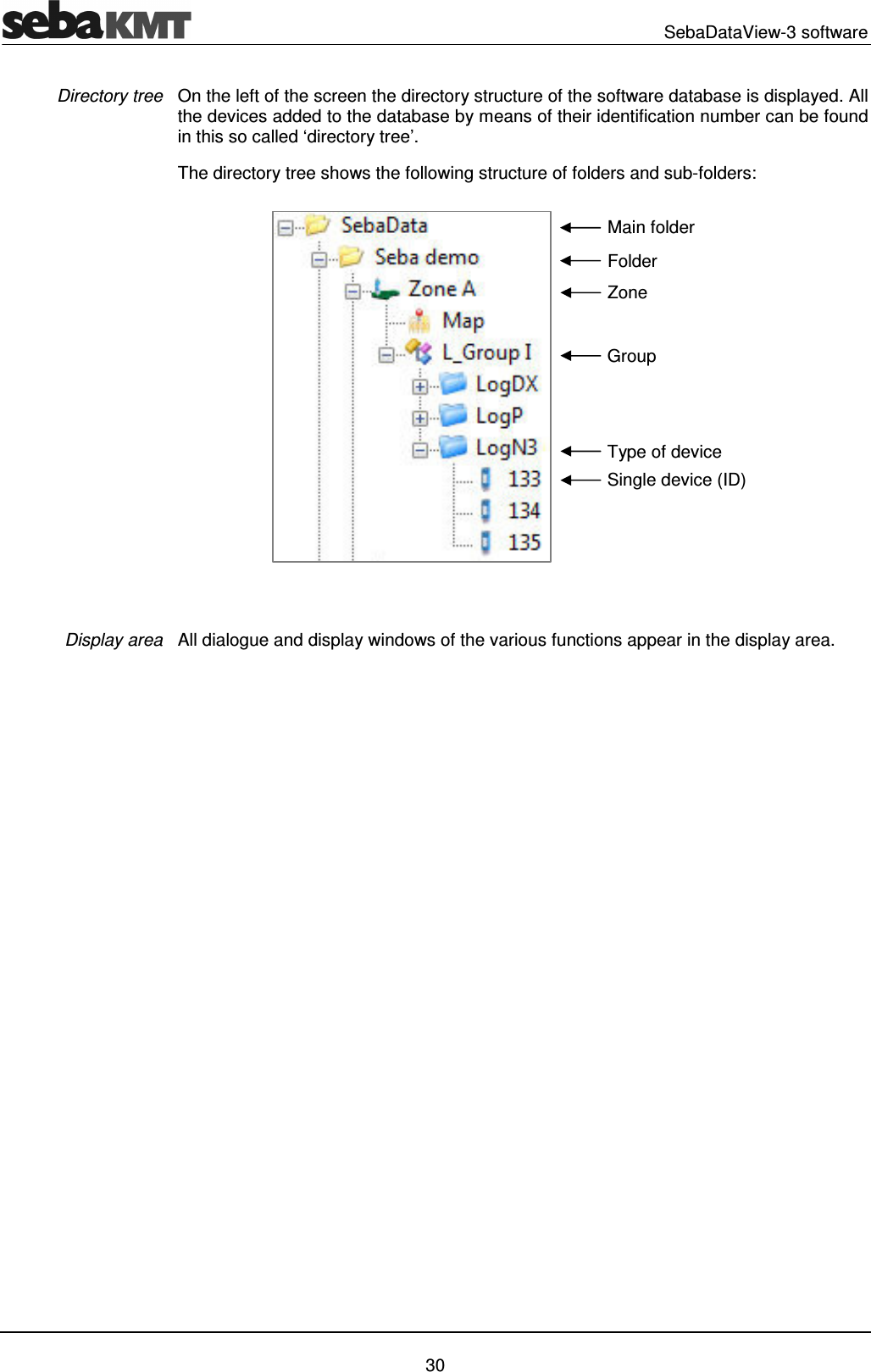
  SebaDataView-3 software   30 On the left of the screen the directory structure of the software database is displayed. All the devices added to the database by means of their identification number can be found in this so called ‘directory tree’. The directory tree shows the following structure of folders and sub-folders:   All dialogue and display windows of the various functions appear in the display area.  Directory tree Display area Main folder Folder Zone Type of device Single device (ID) Group
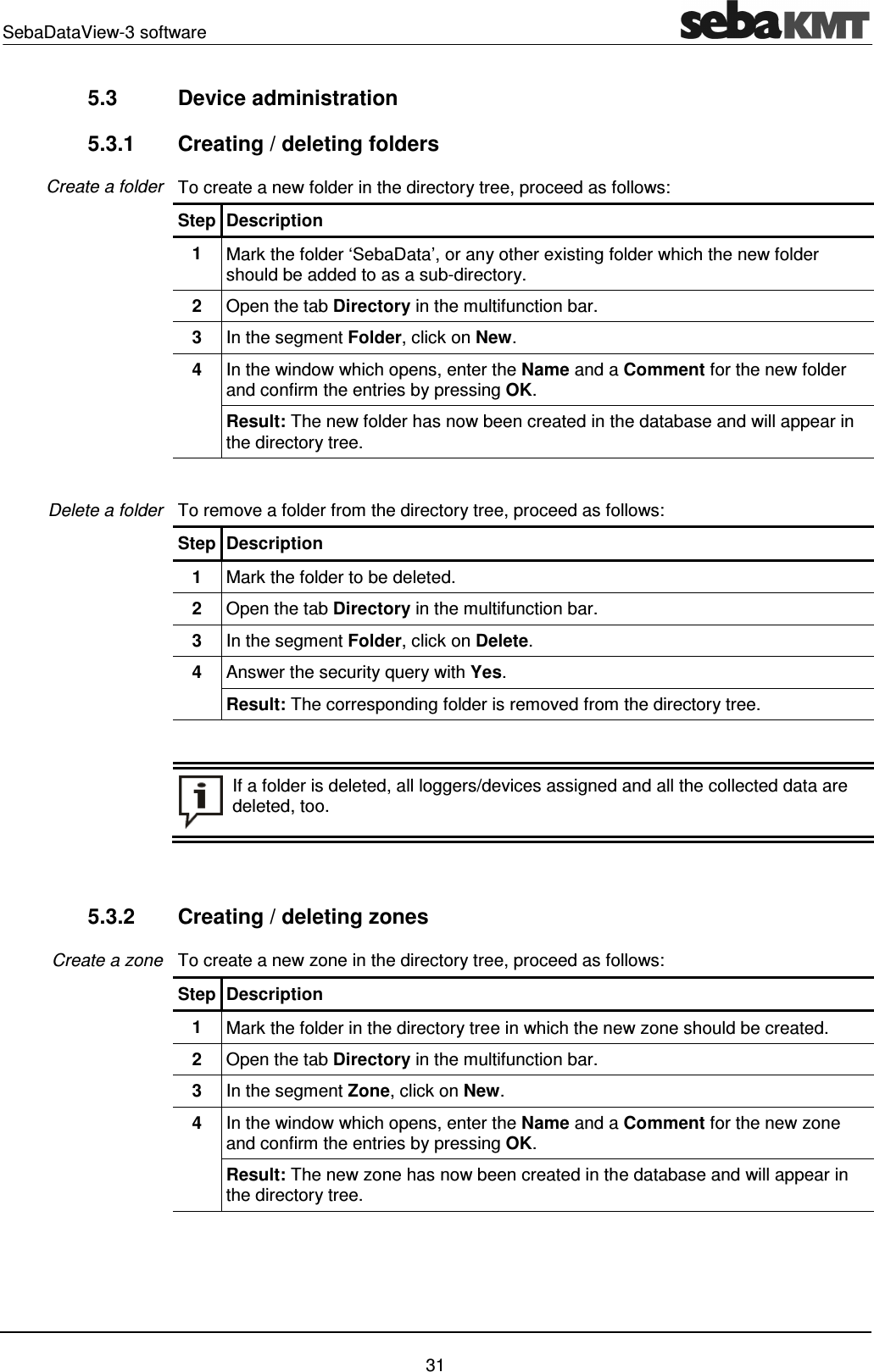
SebaDataView-3 software    31 5.3  Device administration 5.3.1  Creating / deleting folders To create a new folder in the directory tree, proceed as follows: Step Description 1  Mark the folder ‘SebaData’, or any other existing folder which the new folder should be added to as a sub-directory.  2  Open the tab Directory in the multifunction bar. 3  In the segment Folder, click on New. 4  In the window which opens, enter the Name and a Comment for the new folder and confirm the entries by pressing OK. Result: The new folder has now been created in the database and will appear in the directory tree.  To remove a folder from the directory tree, proceed as follows: Step Description 1  Mark the folder to be deleted. 2  Open the tab Directory in the multifunction bar. 3  In the segment Folder, click on Delete. 4  Answer the security query with Yes.  Result: The corresponding folder is removed from the directory tree.   If a folder is deleted, all loggers/devices assigned and all the collected data are deleted, too.   5.3.2  Creating / deleting zones To create a new zone in the directory tree, proceed as follows: Step Description 1  Mark the folder in the directory tree in which the new zone should be created.  2  Open the tab Directory in the multifunction bar. 3  In the segment Zone, click on New. 4  In the window which opens, enter the Name and a Comment for the new zone and confirm the entries by pressing OK. Result: The new zone has now been created in the database and will appear in the directory tree.  Create a folder Delete a folder Create a zone
  SebaDataView-3 software   32 To remove a zone from the directory tree, proceed as follows: Step Description 1  Mark the zone to be deleted. 2  Open the tab Directory in the multifunction bar. 3  In the segment Zone, click on Delete. 4  Answer the security query with Yes.  Result: The corresponding zone is removed from the directory tree.   If a zone is deleted, all loggers/devices assigned and all the collected data are deleted, too.   5.3.3  Creating / deleting groups To create a new group in the directory tree, proceed as follows: Step Description 1  Mark the zone in the directory tree in which the new group should be created.  2  Open the tab Directory in the multifunction bar. 3  In the segment Group, click on New. 4  In the window which opens, enter the Name and a Comment for the new group and confirm the entries by pressing OK. Result: The new group has now been created in the database and will appear in the directory tree.  To remove a group from the directory tree, proceed as follows: Step Description 1  Mark the group to be deleted. 2  Open the tab Directory in the multifunction bar. 3  In the segment Group, click on Delete. 4  Answer the security query with Yes.  Result: The corresponding group is removed from the directory tree.   If a group is deleted, all loggers/devices assigned and all the collected data are deleted, too.  Delete a zone Create a group Delete a group
SebaDataView-3 software    33 5.3.4  Adding / deleting single devices To add a device to a group in the directory tree, e.g. a logger, proceed as follows: Step Description 1  Mark the group in the directory tree to which the device should be added.  2  In the multifunction bar, open the tab LogD3. 3  In the segment Administration, click on New. 4    In the window which opens, enter the Identification Number (ID) of the device or use the "Automatic detection" (find more information below in the text).  Click on OK to add the device to the group.  Result: The new device has now been created in the database and will appear in the directory tree. Add more devices to the group successively or close the window.    There is the possibility to add devices of different types to the same group. Then, automatically new sub-directories are created by the software to which the various devices are added according to their type. Example: "Group I" has LogDX, Log P and Log N3 loggers:    A radio interface (e.g. Log RI) needs to be connected to the computer in order to be able to use the „Automatic detection“ when signing on devices.  Tick  the  checkbox  „Automatic detection“  in  the  window  which  opens.  Then  bring  the device which has to be turned off near the computer and switch it on. The identification number of the device will be recognised and displayed on the screen.  Click OK or Insert in order to accept the ID and to add the device to the group. If  you  tick  the  checkbox  „Automatic insertion“,  the  recognised  devices  will  be  added automatically to the group. Add a device Automatic detection
  SebaDataView-3 software   34 To remove a device from the directory tree, proceed as follows: Step Description 1  Mark the device to be deleted. 2  In the multifunction bar, open the tab LogD3. 3  In the segment Administration, click on Delete. 4  Answer the security query with Yes. Result: The corresponding device with all its measuring data is removed from the directory tree.    Delete a device
SebaDataView-3 software    35 5.4  Map function You have the opportunity to mark the location of installation of each of your devices on a virtual map. Thus, you obtain an overview of the zone and all the devices used. 5.4.1  Creating a map You have the chance to import any image file into the software - e.g., a sector of a pipe network plan or a detail of a map, etc. If you have access to the Internet, the software also provides the possibility to call up the ‘Google Maps’ web service, in order to create a map of the respective zone. To import an image file and add it to a zone in the directory tree, proceed as follows: Step Description 1  Mark the zone in the directory tree to which the map should be added.  2  Open the tab Directory in the multifunction bar. 3  In the segment Pipe network, click on Graphic file. 4  Use the window that opens to navigate to the source folder, from where the image file is to be imported (‘jpg’, ‘bmp’ and ‘png’ format are possible).  Select the file and click on OK. Result: The image file is imported into the software and now appears in the directory tree in the form of a sub-folder called Map. A new window opens, where the newly created map is shown. 5  To mark the place of installation of a device, in the directory tree click on the device concerned, keep the left mouse button pushed and drag the device to the point desired on the map displayed. Proceed in the same way to place the other devices of the zone on the map.  To  create  a  map  using  the  ‘Google Maps’  web  service  and  add  it  to  a  zone  in  the directory tree, proceed as follows: Step Description 1  Mark the zone in the directory tree to which the map should be added.  2  Open the tab Directory in the multifunction bar. 3  In the segment Pipe network, click on Google Maps. Result: A connection to ‘Google Maps’ is established. A new window opens, showing the known ‘Google Maps’ user interface. Aditionally, you find some input fields and controls. 4  To get a certain destination area displayed, use one of the following options: • Mark the checkbox Address and enter the destination adress desired into the field right beside, or  • mark the checkbox Coordinate and enter a GPS position, using the fields Latitude and Longitude. Confirm your entry by pressing the ENTER key on your keyboard.  5  Use the known tools of the ‘Google Maps’ user interface (moving, zooming, etc.) to customize the map section displayed.  (continued on the next paage) Introduction Import an image file Create a map using ‘Google Maps’
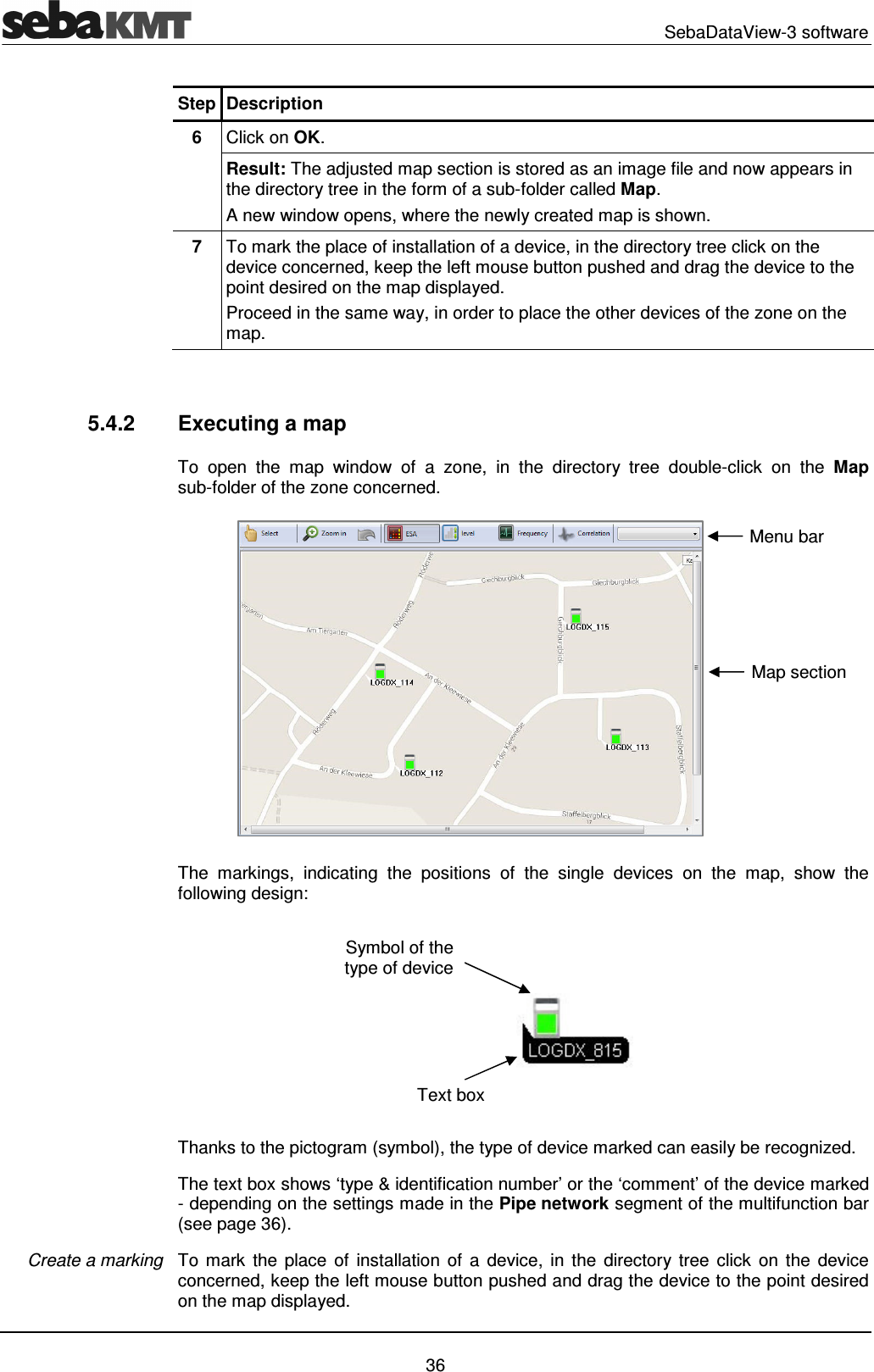
  SebaDataView-3 software   36 Step Description 6  Click on OK. Result: The adjusted map section is stored as an image file and now appears in the directory tree in the form of a sub-folder called Map. A new window opens, where the newly created map is shown. 7  To mark the place of installation of a device, in the directory tree click on the device concerned, keep the left mouse button pushed and drag the device to the point desired on the map displayed. Proceed in the same way, in order to place the other devices of the zone on the map.   5.4.2  Executing a map To  open  the  map  window  of  a  zone,  in  the  directory  tree  double-click  on  the  Map sub-folder of the zone concerned.  The  markings,  indicating  the  positions  of  the  single  devices  on  the  map,  show  the following design:  Thanks to the pictogram (symbol), the type of device marked can easily be recognized. The text box shows ‘type & identification number’ or the ‘comment’ of the device marked - depending on the settings made in the Pipe network segment of the multifunction bar (see page 36).  To  mark  the  place  of  installation  of  a  device,  in  the  directory tree  click  on  the  device concerned, keep the left mouse button pushed and drag the device to the point desired on the map displayed. Create a marking Symbol of the type of device Text box Map section Menu bar
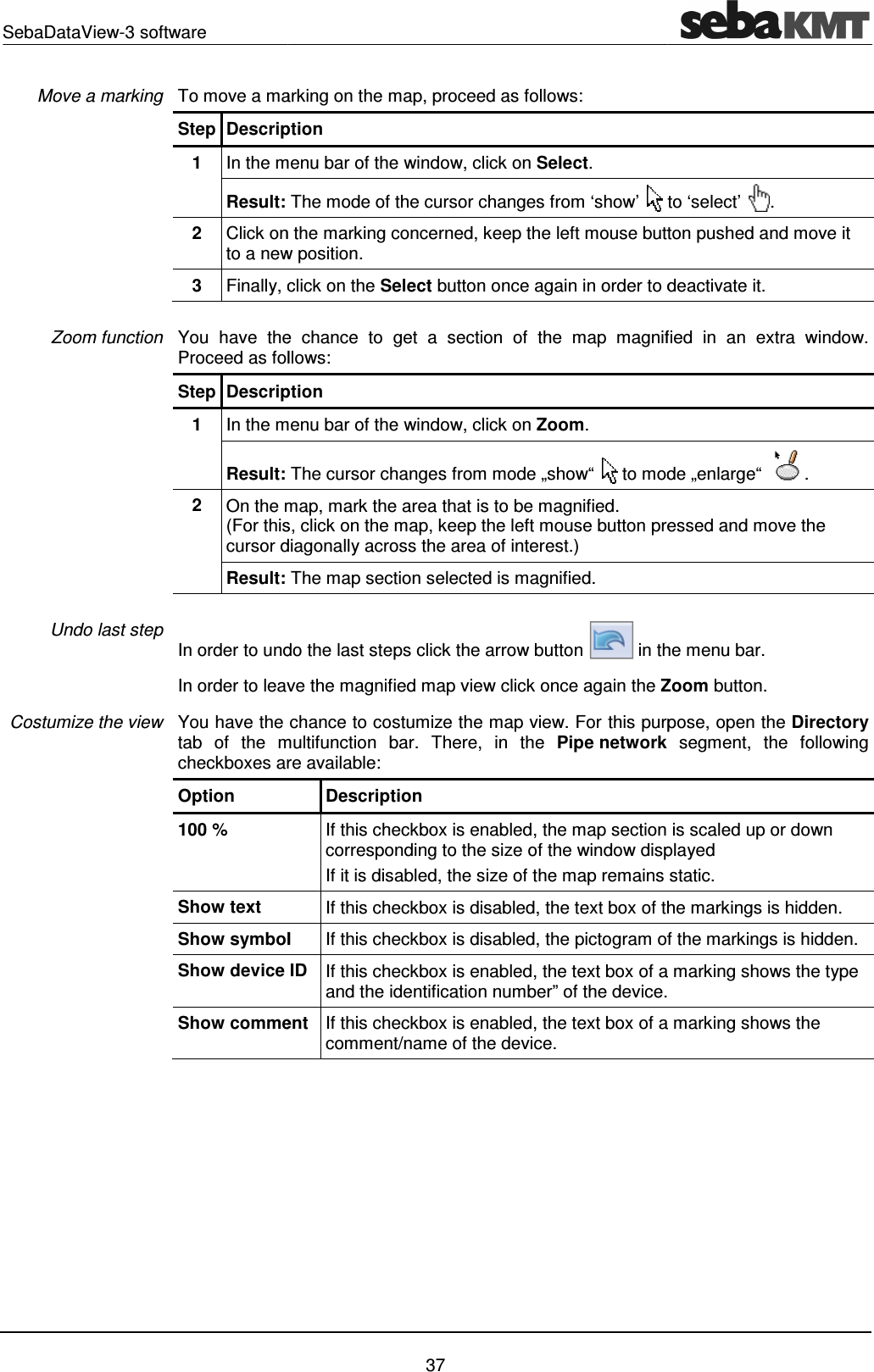
SebaDataView-3 software To move a marking on the map, proceed as follows: Step Description1 In the menu bar of the window, click on Result: 2 Click on the marking concerned, keep the left mouse button pushedto a new position.3 Finally, click on the  You  have  the  chance  to Proceed as follows:Step Description1 In the menu bar of the window, click on Result: 2 On the map(For this, cursor diagonalResult:  In order to undo the last steps click the arrow button In order to leave the magnified map view click once again the You have the chance to costumize the map view. For this purpose, open the tab  of  the  multifunction  bar.  There,  in  the checkboxes are available:Option 100 % Show text Show symbolShow device Show comment Move a marking Zoom function Undo last step  Costumize the view  37 To move a marking on the map, proceed as follows:  Description In the menu bar of the window, click on Select.  The mode of the cursor changes from ‘show’  Click on the marking concerned, keep the left mouse button pushedto a new position. Finally, click on the Select button once again in order to deactivate it. You  have  the  chance  to get  a  section  of  the  map  magnified  in  an  extra  window.Proceed as follows: Description In the menu bar of the window, click on Zoom.  The cursor changes from mode „show“  to mode „enlarge“ On the map, mark the area that is to be magnified.  For this, click on the map, keep the left mouse button pressed and move the cursor diagonally across the area of interest.)  The map section selected is magnified. In order to undo the last steps click the arrow button  in the menu bar. In order to leave the magnified map view click once again the ZoomYou have the chance to costumize the map view. For this purpose, open the tab  of  the  multifunction  bar.  There,  in  the Pipe network checkboxes are available: Description If this checkbox is enabled, the map section is corresponding to the size of the window displayed If it is disabled, the size of the map remains static.If this checkbox is disabled, the text box of the markings is ymbol If this checkbox is disabled, the pictogram of the markings is device ID  If this checkbox is enabled, the text box of a marking shows and the identification number” of the device.omment If this checkbox is enabled, the text box of a marking shows comment/name of the device.   to ‘select’  . Click on the marking concerned, keep the left mouse button pushed and move it button once again in order to deactivate it.  get  a  section  of  the  map  magnified  in  an  extra  window.  to mode „enlarge“ .  click on the map, keep the left mouse button pressed and move the in the menu bar.  Zoom button. You have the chance to costumize the map view. For this purpose, open the Directory  segment,  the  following he map section is scaled up or down corresponding to the size of the window displayed  is disabled, the size of the map remains static. he text box of the markings is hidden. of the markings is hidden. text box of a marking shows the type ” of the device. text box of a marking shows the
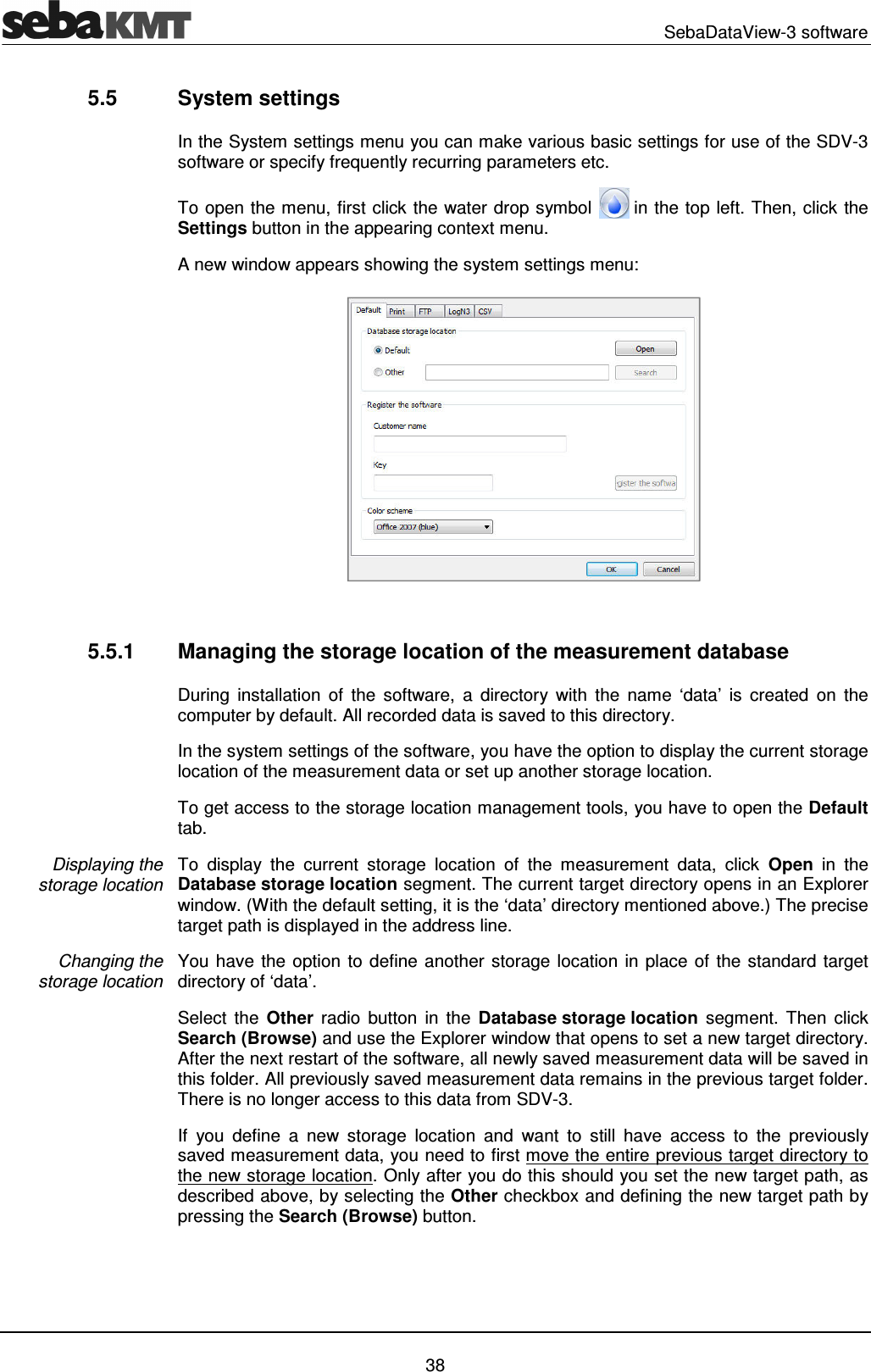
  SebaDataView-3 software   38 5.5  System settings In the System settings menu you can make various basic settings for use of the SDV-3 software or specify frequently recurring parameters etc. To open the menu, first click the water drop symbol   in the top left. Then, click the Settings button in the appearing context menu.  A new window appears showing the system settings menu:   5.5.1  Managing the storage location of the measurement database During  installation  of  the  software,  a  directory  with  the  name  ‘data’  is  created  on  the computer by default. All recorded data is saved to this directory.  In the system settings of the software, you have the option to display the current storage location of the measurement data or set up another storage location. To get access to the storage location management tools, you have to open the Default tab. To  display  the  current  storage  location  of  the  measurement  data,  click  Open  in  the Database storage location segment. The current target directory opens in an Explorer window. (With the default setting, it is the ‘data’ directory mentioned above.) The precise target path is displayed in the address line. You have the option to define another storage location in place of the standard target directory of ‘data’.  Select  the  Other  radio  button  in  the  Database storage location  segment.  Then  click Search (Browse) and use the Explorer window that opens to set a new target directory. After the next restart of the software, all newly saved measurement data will be saved in this folder. All previously saved measurement data remains in the previous target folder. There is no longer access to this data from SDV-3. If  you  define  a  new  storage  location  and  want  to  still  have  access  to  the  previously saved measurement data, you need to first move the entire previous target directory to the new storage location. Only after you do this should you set the new target path, as described above, by selecting the Other checkbox and defining the new target path by pressing the Search (Browse) button. Displaying the  storage location Changing the  storage location
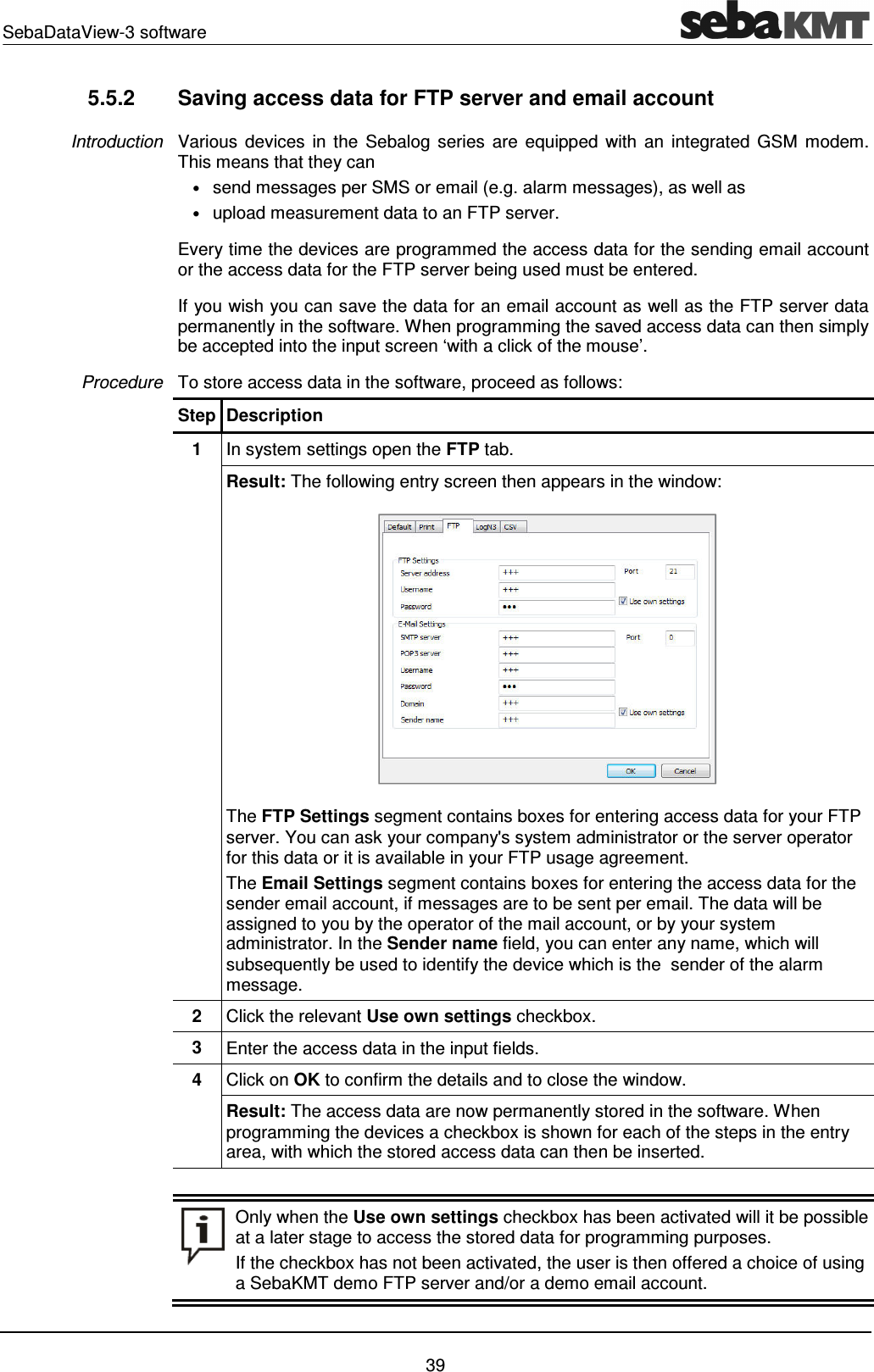
SebaDataView-3 software    39 5.5.2  Saving access data for FTP server and email account Various  devices  in  the  Sebalog  series  are  equipped  with  an  integrated GSM  modem. This means that they can  • send messages per SMS or email (e.g. alarm messages), as well as  • upload measurement data to an FTP server. Every time the devices are programmed the access data for the sending email account or the access data for the FTP server being used must be entered. If you wish you can save the data for an email account as well as the FTP server data permanently in the software. When programming the saved access data can then simply be accepted into the input screen ‘with a click of the mouse’. To store access data in the software, proceed as follows: Step Description 1  In system settings open the FTP tab.  Result: The following entry screen then appears in the window:  The FTP Settings segment contains boxes for entering access data for your FTP server. You can ask your company's system administrator or the server operator for this data or it is available in your FTP usage agreement. The Email Settings segment contains boxes for entering the access data for the sender email account, if messages are to be sent per email. The data will be assigned to you by the operator of the mail account, or by your system administrator. In the Sender name field, you can enter any name, which will subsequently be used to identify the device which is the  sender of the alarm message. 2  Click the relevant Use own settings checkbox. 3  Enter the access data in the input fields. 4  Click on OK to confirm the details and to close the window. Result: The access data are now permanently stored in the software. When programming the devices a checkbox is shown for each of the steps in the entry area, with which the stored access data can then be inserted.    Only when the Use own settings checkbox has been activated will it be possible at a later stage to access the stored data for programming purposes. If the checkbox has not been activated, the user is then offered a choice of using a SebaKMT demo FTP server and/or a demo email account.  Introduction Procedure
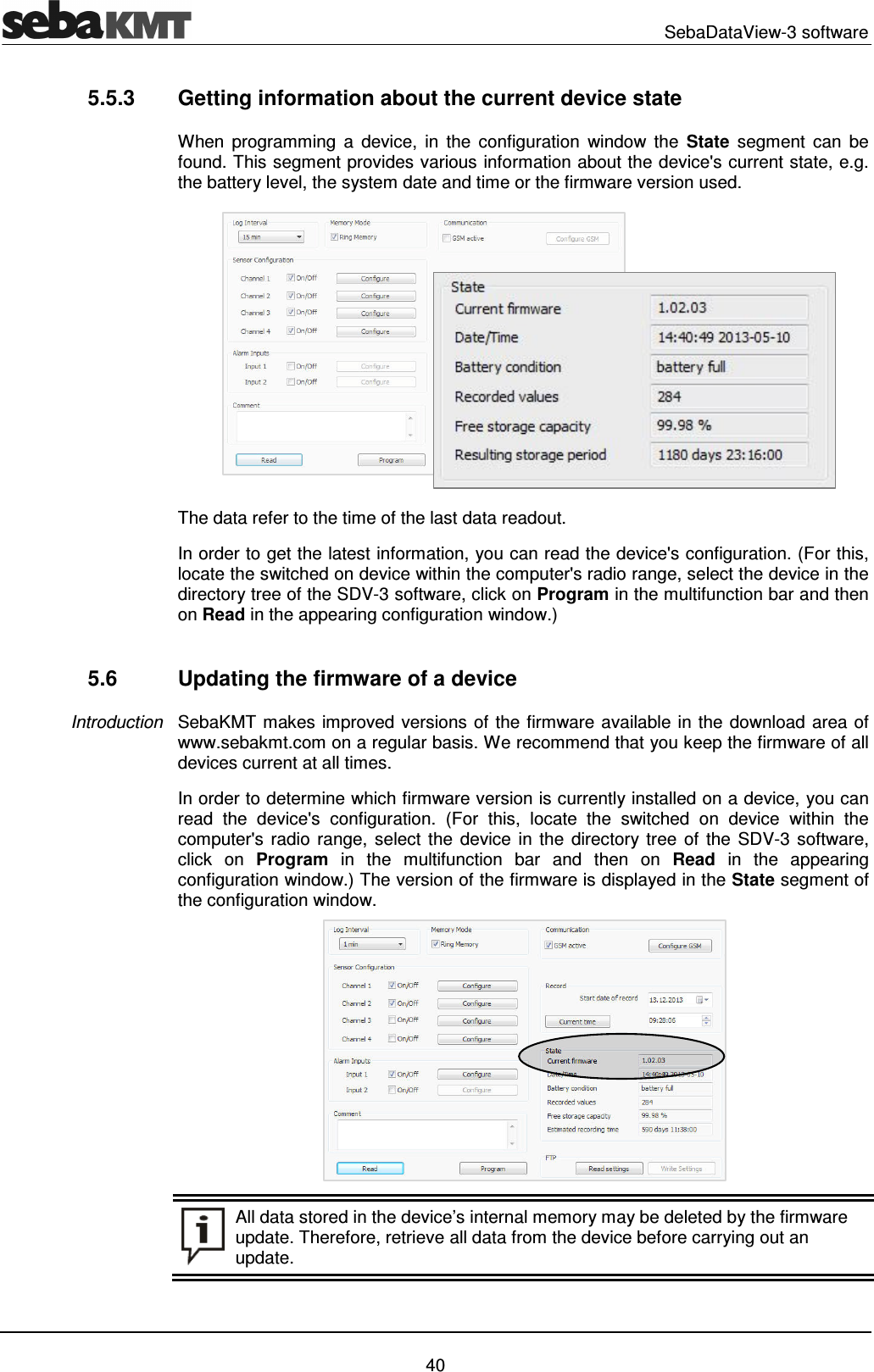
  SebaDataView-3 software   40 5.5.3  Getting information about the current device state When  programming  a  device,  in  the  configuration  window  the  State  segment  can  be found. This segment provides various information about the device's current state, e.g. the battery level, the system date and time or the firmware version used.  The data refer to the time of the last data readout.  In order to get the latest information, you can read the device's configuration. (For this, locate the switched on device within the computer's radio range, select the device in the directory tree of the SDV-3 software, click on Program in the multifunction bar and then on Read in the appearing configuration window.)  5.6  Updating the firmware of a device SebaKMT makes improved versions of the firmware available in the download area of www.sebakmt.com on a regular basis. We recommend that you keep the firmware of all devices current at all times.  In order to determine which firmware version is currently installed on a device, you can read  the  device's  configuration.  (For  this,  locate  the  switched  on  device  within  the computer's  radio  range, select the  device in the  directory tree  of  the  SDV-3  software, click  on  Program  in  the  multifunction  bar  and  then  on  Read  in  the  appearing configuration window.) The version of the firmware is displayed in the State segment of the configuration window.     All data stored in the device’s internal memory may be deleted by the firmware update. Therefore, retrieve all data from the device before carrying out an update. Introduction
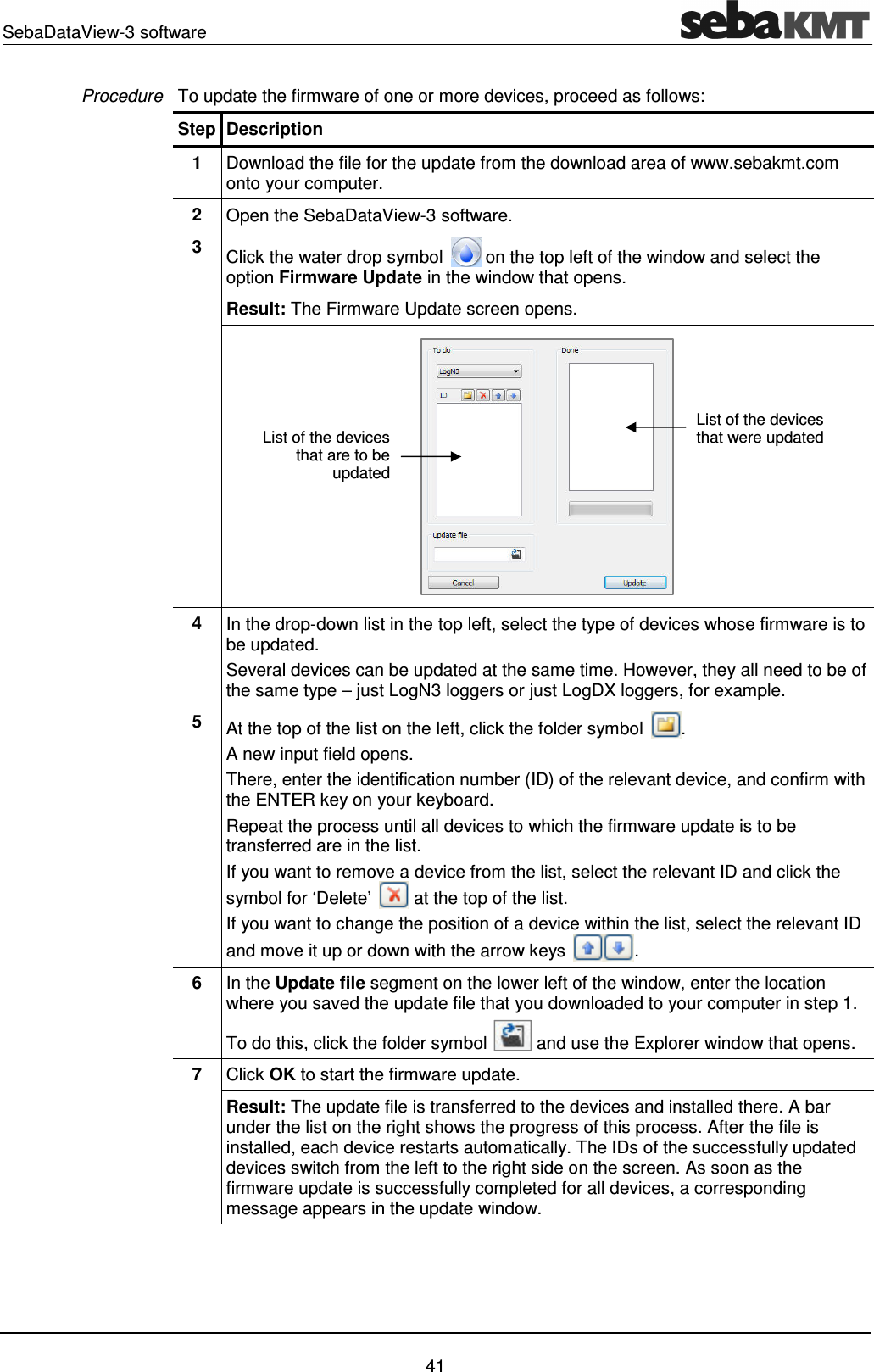
SebaDataView-3 software    41 To update the firmware of one or more devices, proceed as follows: Step Description 1  Download the file for the update from the download area of www.sebakmt.com onto your computer. 2  Open the SebaDataView-3 software. 3  Click the water drop symbol   on the top left of the window and select the option Firmware Update in the window that opens. Result: The Firmware Update screen opens.  4  In the drop-down list in the top left, select the type of devices whose firmware is to be updated.   Several devices can be updated at the same time. However, they all need to be of the same type – just LogN3 loggers or just LogDX loggers, for example.  5  At the top of the list on the left, click the folder symbol  .  A new input field opens. There, enter the identification number (ID) of the relevant device, and confirm with the ENTER key on your keyboard. Repeat the process until all devices to which the firmware update is to be transferred are in the list.  If you want to remove a device from the list, select the relevant ID and click the symbol for ‘Delete’   at the top of the list. If you want to change the position of a device within the list, select the relevant ID and move it up or down with the arrow keys  . 6  In the Update file segment on the lower left of the window, enter the location where you saved the update file that you downloaded to your computer in step 1. To do this, click the folder symbol   and use the Explorer window that opens.  7  Click OK to start the firmware update. Result: The update file is transferred to the devices and installed there. A bar under the list on the right shows the progress of this process. After the file is installed, each device restarts automatically. The IDs of the successfully updated devices switch from the left to the right side on the screen. As soon as the firmware update is successfully completed for all devices, a corresponding message appears in the update window.  Procedure List of the devices that are to be updated List of the devices that were updated
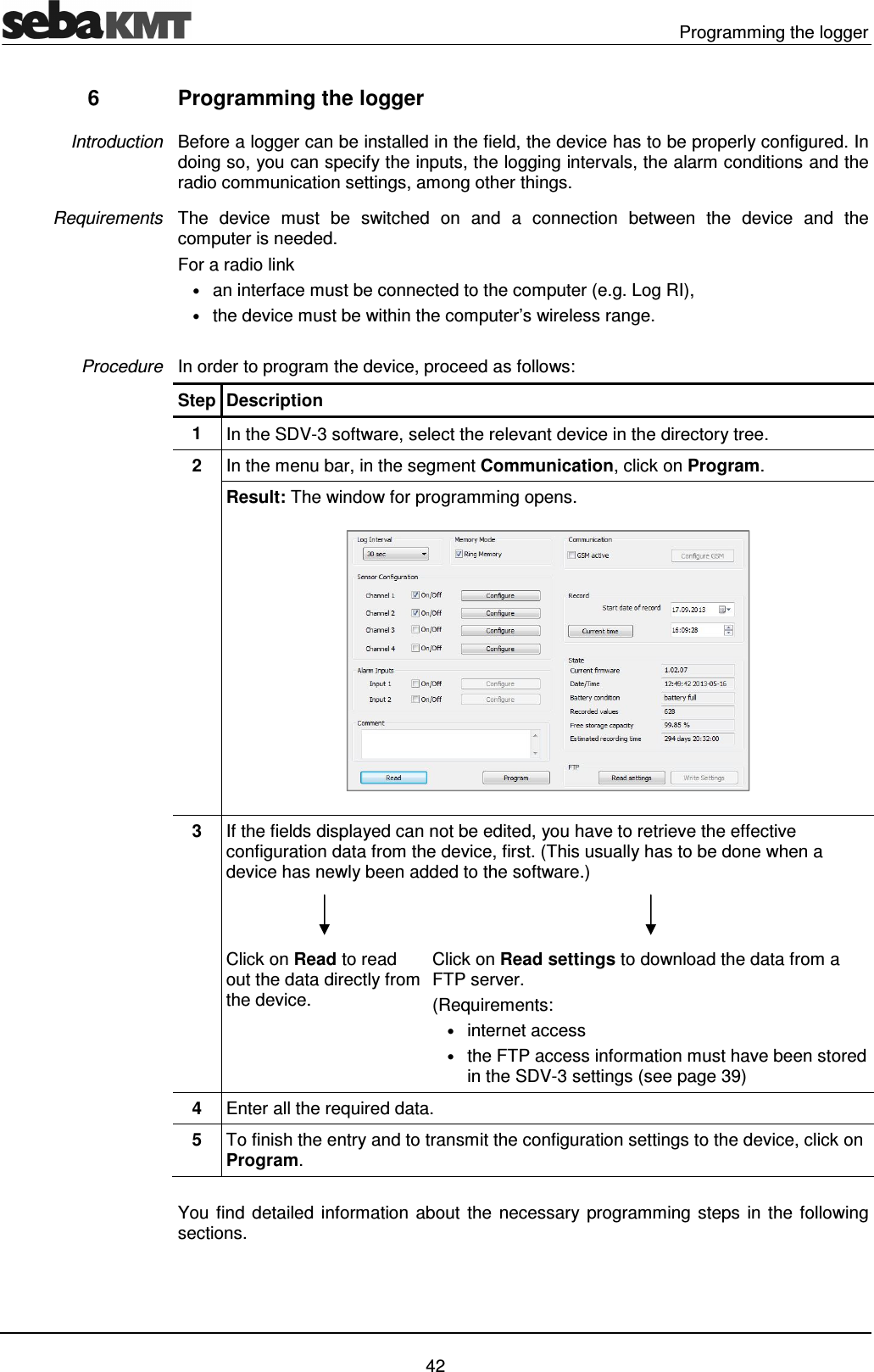
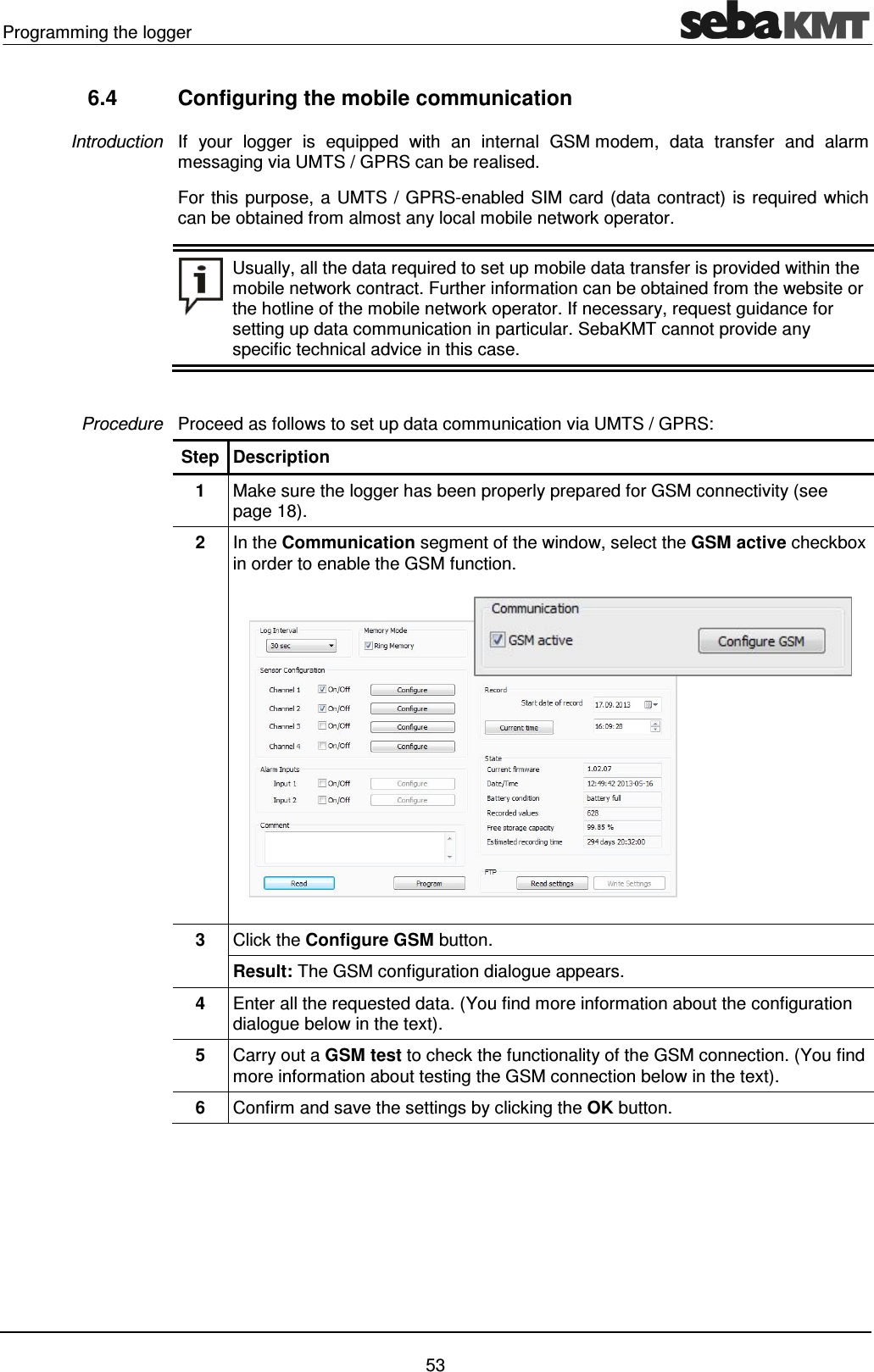
  Programming the logger   42 6  Programming the logger Before a logger can be installed in the field, the device has to be properly configured. In doing so, you can specify the inputs, the logging intervals, the alarm conditions and the radio communication settings, among other things.  The  device  must  be  switched  on  and  a  connection  between  the  device  and  the computer is needed.  For a radio link • an interface must be connected to the computer (e.g. Log RI),  • the device must be within the computer’s wireless range.  In order to program the device, proceed as follows: Step Description 1  In the SDV-3 software, select the relevant device in the directory tree. 2  In the menu bar, in the segment Communication, click on Program. Result: The window for programming opens.  3  If the fields displayed can not be edited, you have to retrieve the effective configuration data from the device, first. (This usually has to be done when a device has newly been added to the software.)    Click on Read to read out the data directly from the device. Click on Read settings to download the data from a FTP server. (Requirements: • internet access • the FTP access information must have been stored in the SDV-3 settings (see page 39) 4  Enter all the required data.  5  To finish the entry and to transmit the configuration settings to the device, click on Program.  You find detailed  information about the necessary  programming steps in the following sections.   Introduction Requirements Procedure
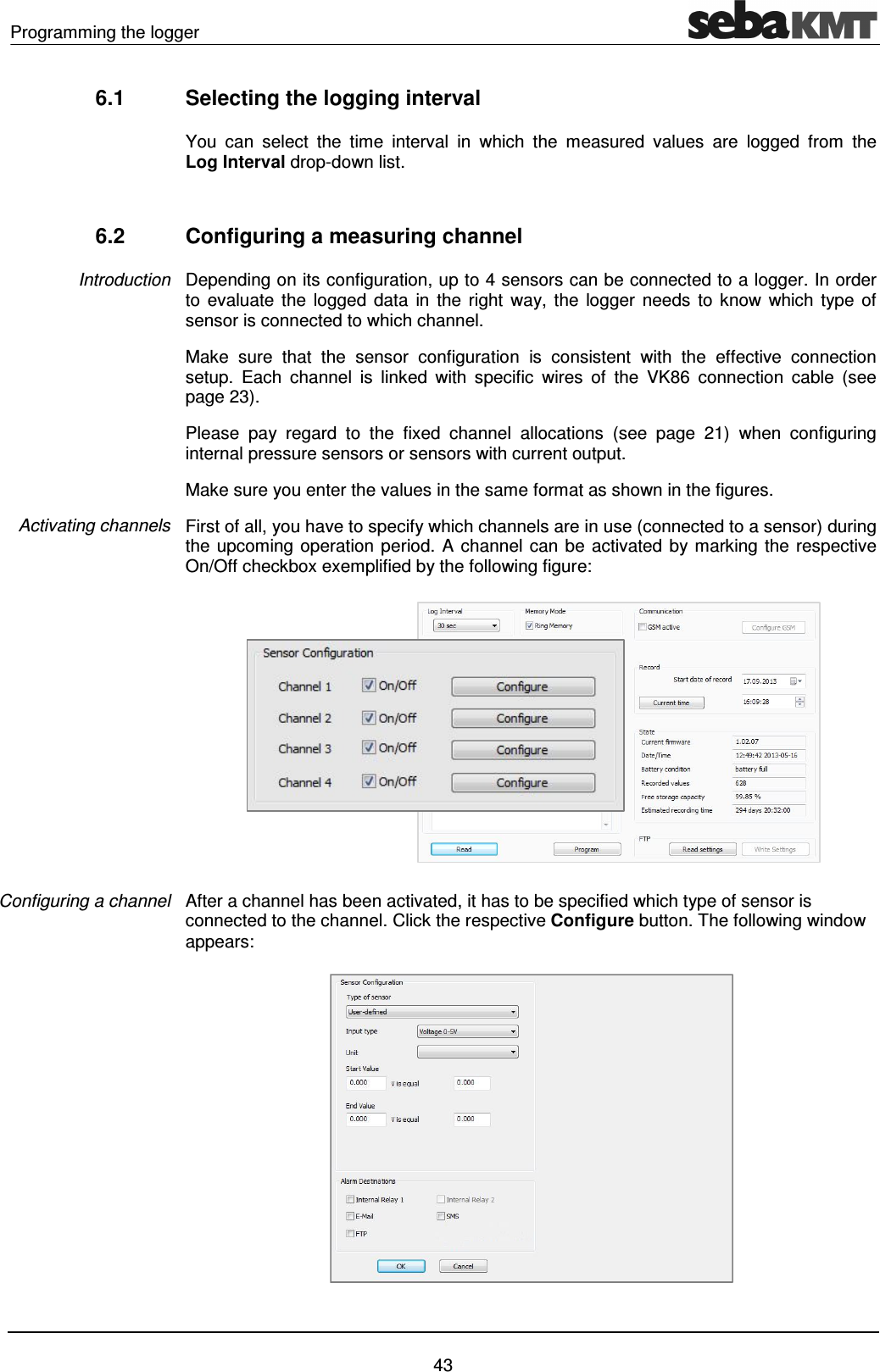
Programming the logger    43 6.1  Selecting the logging interval You  can  select  the  time  interval  in  which  the  measured  values  are  logged  from  the Log Interval drop-down list.  6.2  Configuring a measuring channel Depending on its configuration, up to 4 sensors can be connected to a logger. In order to evaluate  the  logged  data  in  the  right  way, the  logger  needs  to  know  which  type  of sensor is connected to which channel. Make  sure  that  the  sensor  configuration  is  consistent  with  the  effective  connection setup.  Each  channel  is  linked  with  specific  wires  of  the  VK86  connection  cable  (see page 23).  Please  pay  regard  to  the  fixed  channel  allocations  (see  page  21)  when  configuring internal pressure sensors or sensors with current output. Make sure you enter the values in the same format as shown in the figures. First of all, you have to specify which channels are in use (connected to a sensor) during the upcoming operation period. A channel can be activated by marking the respective On/Off checkbox exemplified by the following figure:  After a channel has been activated, it has to be specified which type of sensor is connected to the channel. Click the respective Configure button. The following window appears:    Introduction Activating channels Configuring a channel
  Programming the logger   44 6.2.1  Selecting the type of sensor The physical value measured by the sensor is transformed into an electrical signal (e.g. voltage, pulses, frequency) which is used to transmit the data to the logger. In order to transform this carrier signal back into the original physical values, the logger needs to know how the ranges are correlated to each other.  Select the sensor connected to the channel from the drop-down list on the upper left of the  window.  If  your  sensor  type  is  not  contained  in  the  drop-down  list,  select  the User-defined entry. The  sensors  contained  in  the  list  are  parameterized.  The  signal  conversion  data  are already populated and cannot be edited. Usually, no further configuration is required.  In  some  cases  you  have  the  chance  to  specify  the  unit  for  the  recorded  values  - e.g. ‘m3/h‘ or ‘l/sec‘. Furthermore, with some flow sensors you have the chance to compare your results to the values of a water meter. For this purpose, enter the water meters’ meter reading into the displayed field prior to the measurement. The logger will then accept this count as a starting point for the measurement.  6.2.1.1  Configuring an Internal Pressure Sensor Most parameters of the internal pressure sensor are filled in automatically and cannot be edited. You have the chance to select the unit for the recorded pressure. Use the drop-down list. If you want sudden pressure fluctuations, known as pressure surges, to be recorded in addition  to  the  standard  pressure  measurement,  select  the  Record Press Shocks checkbox  Using the input field to the right of  the checkbox,  you specify how much  a measuring value has to differ from the previous value in order to classify a pressure fluctuation as a ‘pressure surge’. Example:  If ‘0.5’ is set, pressure surge recordings start as soon as a measuring value is min. 0.5 bar higher or lower than the preceding value.  By  means  of  the  High resolution  checkbox  you  can  specify  which  sampling  interval should be used for the 60 second pressure surge recordings: • checkbox de-selected:  1 sec sampling interval • checkbox selected:  0.1 sec sampling interval  Using the short 0.1 sec interval allows a more detailed recording.  Please note that the high resolution recording of pressure surges requires more energy and, thus, has a strong negative impact on the logger’s battery life.  The recording of pressure surges is parallel to the standard pressure measurement and has no effect on this. Introduction Procedure Unit Recording  pressure surges
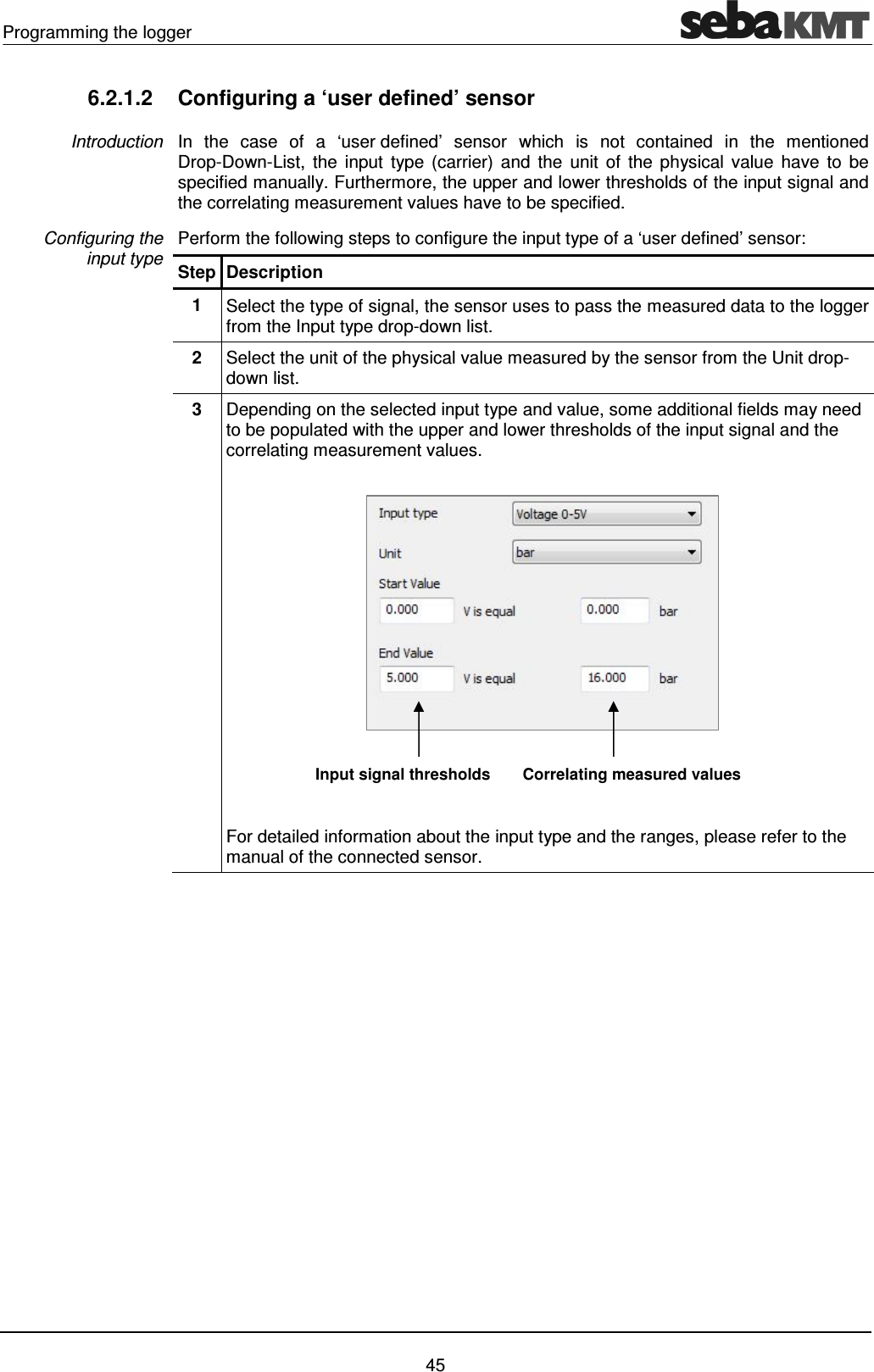
Programming the logger    45 6.2.1.2  Configuring a ‘user defined’ sensor In  the  case  of  a  ‘user defined’  sensor  which  is  not  contained  in  the  mentioned Drop-Down-List,  the  input  type (carrier)  and  the unit  of  the  physical  value  have  to  be specified manually. Furthermore, the upper and lower thresholds of the input signal and the correlating measurement values have to be specified. Perform the following steps to configure the input type of a ‘user defined’ sensor: Step Description 1  Select the type of signal, the sensor uses to pass the measured data to the logger from the Input type drop-down list.  2  Select the unit of the physical value measured by the sensor from the Unit drop-down list. 3  Depending on the selected input type and value, some additional fields may need to be populated with the upper and lower thresholds of the input signal and the correlating measurement values.  For detailed information about the input type and the ranges, please refer to the manual of the connected sensor.  Introduction Configuring the  input type Input signal thresholds  Correlating measured values
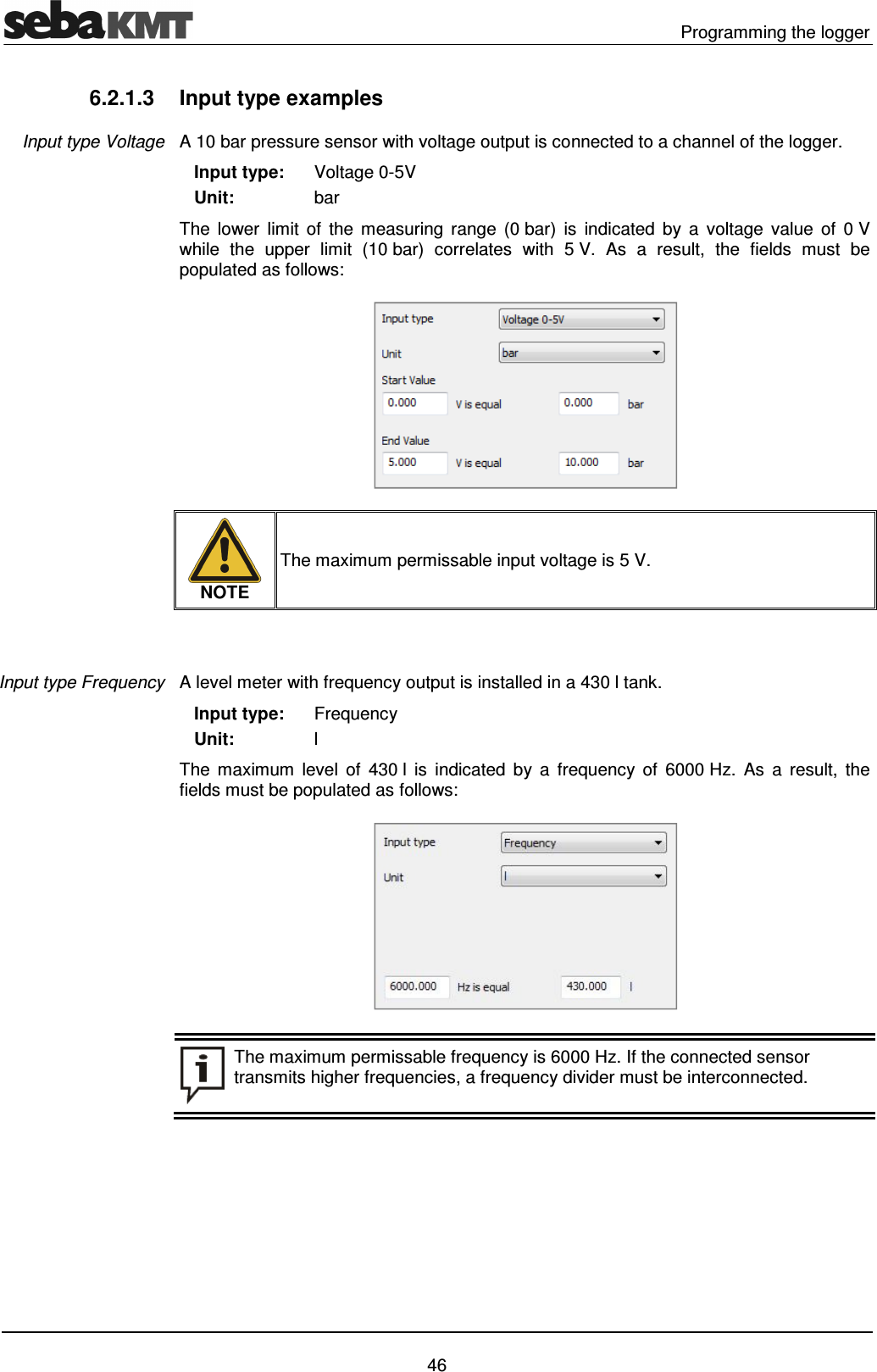
  Programming the logger   46 6.2.1.3  Input type examples A 10 bar pressure sensor with voltage output is connected to a channel of the logger.    Input type:    Unit: Voltage 0-5V bar The  lower  limit  of  the  measuring  range  (0 bar)  is  indicated  by  a  voltage  value  of  0 V while  the  upper  limit  (10 bar)  correlates  with  5 V.  As  a  result,  the  fields  must  be populated as follows:   NOTE The maximum permissable input voltage is 5 V.    A level meter with frequency output is installed in a 430 l tank.     Input type:    Unit: Frequency l The  maximum  level  of  430 l  is  indicated  by  a  frequency  of  6000 Hz.  As  a  result,  the fields must be populated as follows:   The maximum permissable frequency is 6000 Hz. If the connected sensor transmits higher frequencies, a frequency divider must be interconnected.  Input type Voltage Input type Frequency
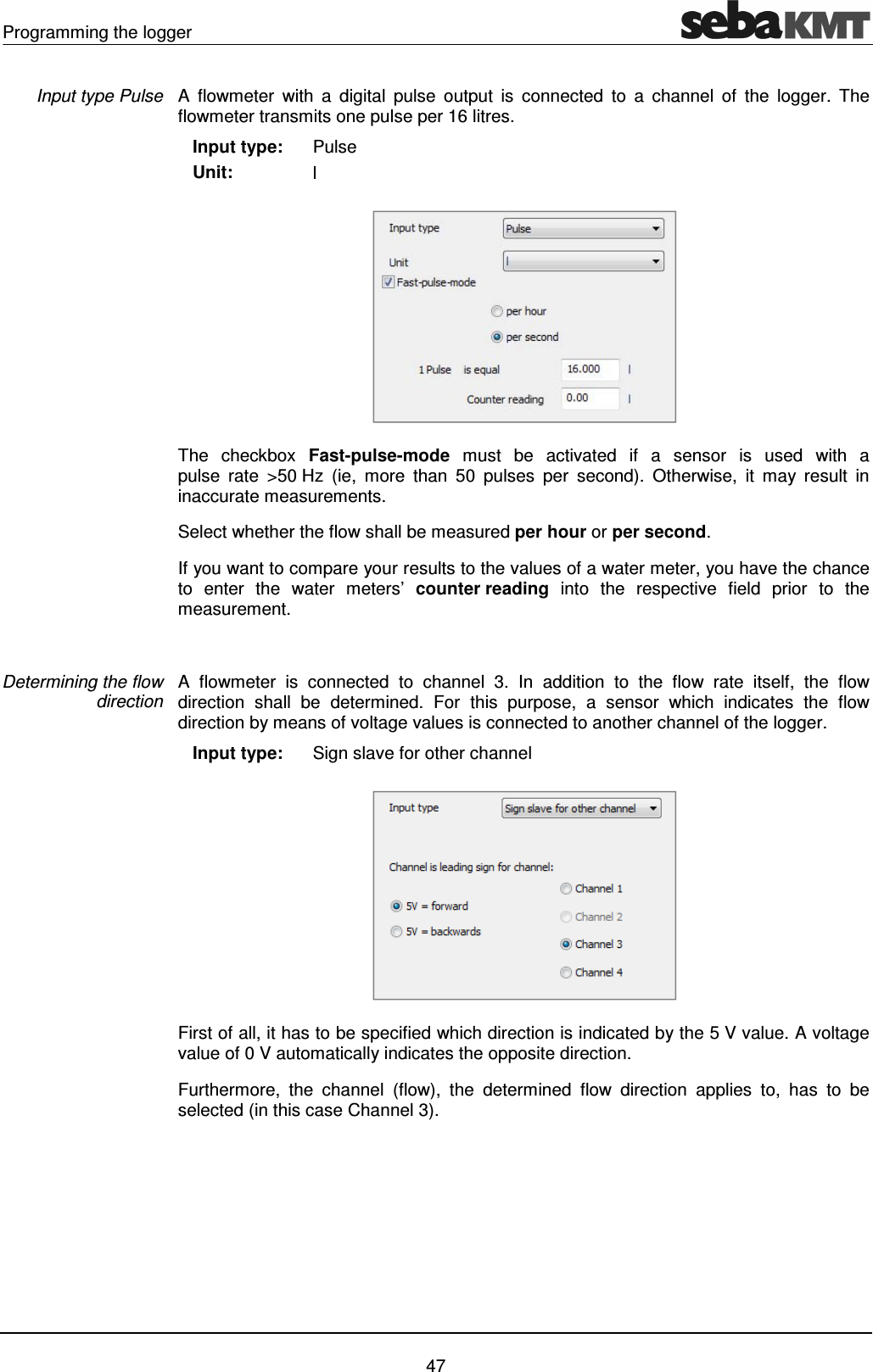
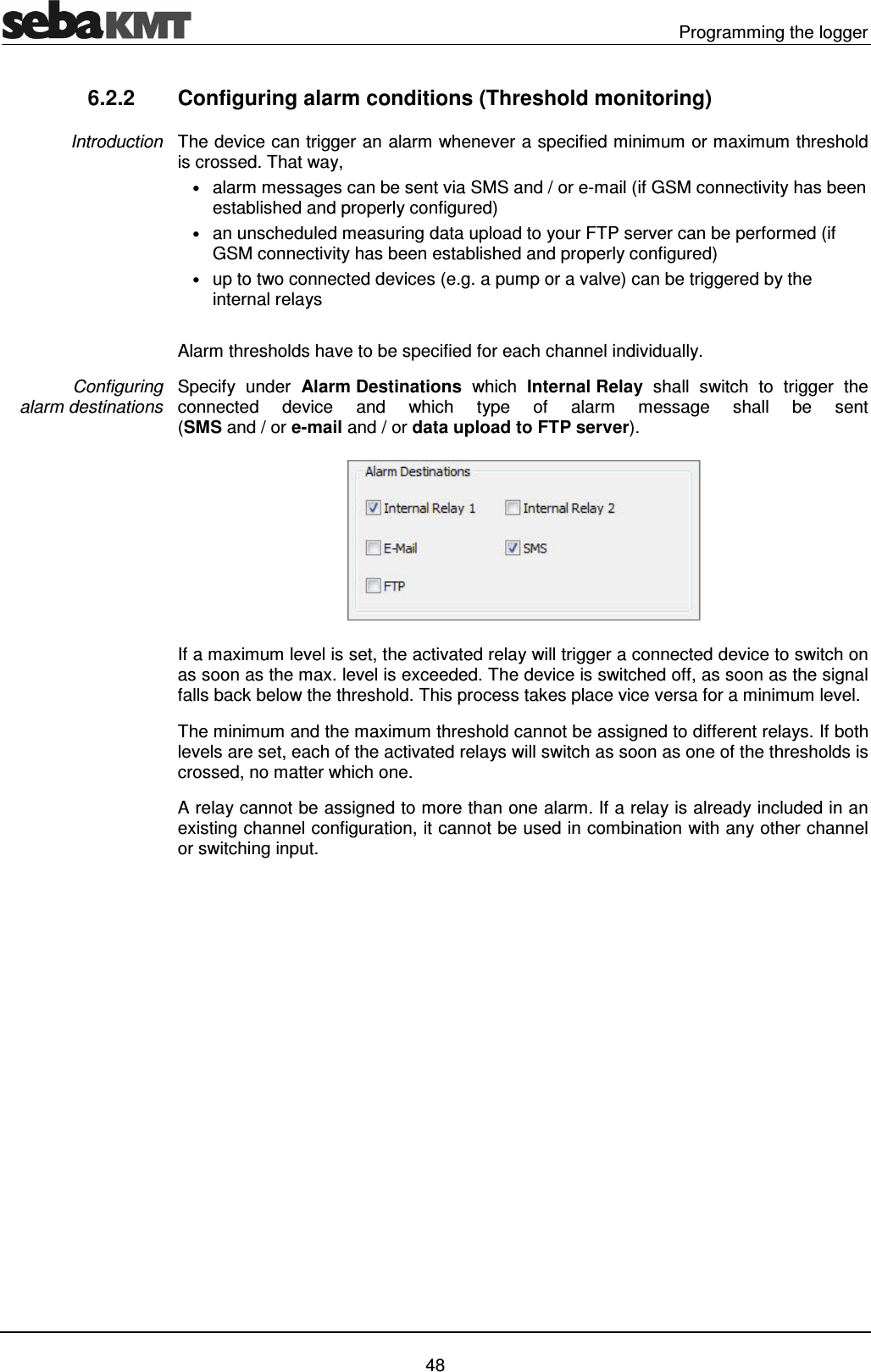
Programming the logger    47 A  flowmeter  with  a  digital  pulse  output  is  connected  to  a  channel  of  the  logger.  The flowmeter transmits one pulse per 16 litres.    Input type:    Unit: Pulse l  The  checkbox  Fast-pulse-mode  must  be  activated  if  a  sensor  is  used  with  a  pulse  rate  >50 Hz  (ie,  more  than  50  pulses  per  second).  Otherwise,  it  may  result  in inaccurate measurements. Select whether the flow shall be measured per hour or per second.  If you want to compare your results to the values of a water meter, you have the chance to  enter  the  water  meters’  counter reading  into  the  respective  field  prior  to  the measurement.   A  flowmeter  is  connected  to  channel  3.  In  addition  to  the  flow  rate  itself,  the  flow direction  shall  be  determined.  For  this  purpose,  a  sensor  which  indicates  the  flow direction by means of voltage values is connected to another channel of the logger.    Input type:  Sign slave for other channel  First of all, it has to be specified which direction is indicated by the 5 V value. A voltage value of 0 V automatically indicates the opposite direction.  Furthermore,  the  channel  (flow),  the  determined  flow  direction  applies  to,  has  to  be selected (in this case Channel 3).  Input type Pulse Determining the flow direction
  Programming the logger   48 6.2.2  Configuring alarm conditions (Threshold monitoring) The device can trigger an alarm whenever a specified minimum or maximum threshold is crossed. That way,  • alarm messages can be sent via SMS and / or e-mail (if GSM connectivity has been established and properly configured)  • an unscheduled measuring data upload to your FTP server can be performed (if GSM connectivity has been established and properly configured) • up to two connected devices (e.g. a pump or a valve) can be triggered by the internal relays   Alarm thresholds have to be specified for each channel individually.  Specify  under  Alarm Destinations  which  Internal Relay  shall  switch  to  trigger  the connected  device  and  which  type  of  alarm  message  shall  be  sent  (SMS and / or e-mail and / or data upload to FTP server).   If a maximum level is set, the activated relay will trigger a connected device to switch on as soon as the max. level is exceeded. The device is switched off, as soon as the signal falls back below the threshold. This process takes place vice versa for a minimum level. The minimum and the maximum threshold cannot be assigned to different relays. If both levels are set, each of the activated relays will switch as soon as one of the thresholds is crossed, no matter which one. A relay cannot be assigned to more than one alarm. If a relay is already included in an existing channel configuration, it cannot be used in combination with any other channel or switching input.  Introduction Configuring  alarm destinations
Programming the logger    49 Perform the following steps to configure the alarm thresholds: Step Description 1  In the segment Alarm Trigger – Settings specify whether there is a minimum and / or a maximum threshold to be monitored by activating the respective checkbox(es).  2  Enter the minimum and / or the maximum threshold into the respective field(s). 3  A hysteresis can be defined for alarm input preventing a constant triggering of the alarm by measuring values fluctuating marginally around the threshold.  Enter a Hysteresis value. The Hysteresis value in percent designates a symmetrical range around the specified threshold the input signal can fluctuate in without having an impact on the current alarm status.   Example: (pressure sensor) Min. level:  2.0 bar  Hysteresis:  10 %   The alarm does not switch on until the input signal reaches 90 %  of the specified threshold (here 1.8 bar). After this, the alarm does not switch off until the input signal exceeds 110 % of the threshold (here 2.2 bar).  Select a Debounce value. The input signal must cross the specified threshold not only one time in order to switch an alarm on or off, but two times more after specific periods of time. These periods of time, called ‘debounce’, always are a multiple of the specified logging interval.   Example: (pressure sensor) Logging interval:  5 sec  Min. level:  2.0 bar  Debounce:  15 sec   The alarm does not switch on until the input signal crosses the specified threshold (2.0 bar) three times in succession (15 seconds).  4  Select the days of the week alarming should be active on by marking the respective checkbox(es).  Configuring  alarm trigger
  Programming the logger   50 The  segment  Alarm Trigger – Exceptions  offers  the  possibility  to  modify  the  alarm setting,  entered  under  Alarm Trigger - Settings,  for  specific  periods  of  time  (certain days of the week or even periods of time in a day).  Example: The following picture shows a possible setting:  Here, from Monday to Friday an alarm is switched on as soon as the input signal falls below a value of 2.0 bar (set in Alarm Trigger – Settings segment), but from 2 to 4 o’clock in the morning a threshold of 4.0 bar is valid (set in Alarm Trigger – Exceptions segment).  6.2.3  Finishing the sensor configuration Confirm and save the configuration of a channel by clicking the OK button. Perform the configuration for the remaining channels.  Defining exceptions
Programming the logger    51 6.3  Configuring the alarm inputs Depending on its configuration a logger can be equipped with up to two switching inputs (alarm inputs) which can be connected to active circuits. For each of these inputs it can be specified which input voltage value causes an alarm. As known from the channel configuration, an alarm can trigger up to two internal relays.  If your logger is equipped with a GSM modem, alarm messages can be sent via SMS and / or e-mail. Furthermore, an unscheduled measuring data upload to your FTP server can be performed in case of alarm. For that, GSM connectivity must be established and properly configured. First of all, you have to activate the Alarm Inputs which are going to be part of an alarm input during the upcoming operation period by marking the respective On/Off checkbox:  After an alarm input has been activated, it must be specified which input voltage value causes an alarm and which actions are triggered by an alarm.  Click the respective Configure button. The following window appears:  Proceed as follows to configure an alarm input: Step Description 1  Specify the input voltage value which does, when present at the switching input, trigger an alarm. Introduction Activating an  alarm input Configuring an  alarm input
  Programming the logger   52 Step Description  The input voltage threshold is 2.5 V. Any voltage value below 2.5 V is interpreted as 0 V while voltages higher than 2.5 V are interpreted as 5 V. In order to ensure a reliable classification, the actual voltage values should not be too close to 2.5 V. 2  Specify under Alarm Destinations which type of alarm message shall be sent (SMS and / or e-mail and / or data upload to FTP server) and which Internal Relay shall switch to trigger the connected device. 3  Confirm and save the settings by clicking the OK button.   A relay cannot be assigned to more than one alarm. If a relay is already included in an existing channel configuration, it cannot be used in combination with any other channel or switching input.
Programming the logger    53 6.4  Configuring the mobile communication If  your  logger  is  equipped  with  an  internal  GSM modem,  data  transfer  and  alarm messaging via UMTS / GPRS can be realised.  For this purpose, a UMTS / GPRS-enabled SIM card (data contract) is required which can be obtained from almost any local mobile network operator.  Usually, all the data required to set up mobile data transfer is provided within the mobile network contract. Further information can be obtained from the website or the hotline of the mobile network operator. If necessary, request guidance for setting up data communication in particular. SebaKMT cannot provide any specific technical advice in this case.  Proceed as follows to set up data communication via UMTS / GPRS: Step Description 1  Make sure the logger has been properly prepared for GSM connectivity (see page 18). 2  In the Communication segment of the window, select the GSM active checkbox in order to enable the GSM function.  3  Click the Configure GSM button.  Result: The GSM configuration dialogue appears.  4  Enter all the requested data. (You find more information about the configuration dialogue below in the text). 5  Carry out a GSM test to check the functionality of the GSM connection. (You find more information about testing the GSM connection below in the text). 6  Confirm and save the settings by clicking the OK button.  Introduction Procedure
  Programming the logger   54 6.4.1  Explanations about the GSM configuration dialogue The picture shows the GSM configuration dialogue:   You  find  explanations  on  the  individual  segments  of  the  configuration  dialogue  in  the following table: Segment  Parameter SIM Card Settings Enter the PIN code of the SIM card which is being used in the device (see mobile communication contract or ask your provider).  FTP transfer  If you want the logged data to be transferred to a FTP server daily, select the Active checkbox. Under Daily upload time you have the chance to specify the time at which this upload should take place. If you wish a second measuring data upload every day, select the 2nd upload checkbox and specify the desired time for this second upload.  If you select the send Event List checkbox, simultaneously with the measuring data upload another file is sent to the FTP server containing the last 100 alarm events and GSM connection establishments of the device. These information can then be added to the device’s ‘event list’.   If you want the upcoming measurement to be a StepTest, select the FTP Step Test checkbox. As a result, the device starts logging right after having received its configuration data.
Programming the logger    55 Segment  Parameter  Every recorded value is immediately uploaded to the FTP server, so that the measurement can be monitored from any Internet-capable computer.  If you select the Configurable via FTP checkbox, the device checks the FTP server for new configuration data after every measuring data upload. The new configuration data is downloaded and immediately installed on the device.  SMS checkbox  and  E-Mail checkbox To enable the alarm messaging service via SMS (regular status messages and/or alarm messages), select the SMS checkbox. To enable the alarm messaging service via e-mail (regular status messages and/or alarm messages), select the E-Mail checkbox.  Use the radio buttons to select, which messages you want to receive: • Alarm only You will receive alarm messages only • Status daily You will receive alarm messages and, beyond, a status message once a day • Status weekly You will receive alarm messages and, beyond, a status message once a week  Furthermore, specify the point in time and, if required, the day of the week, the status message shall be sent. (Time values are specified in 24-hour format.)  Each alarm message contains: • ID of the sender device • sending date and time  • number of the measuring channel concerned • alarm reason and alarm value  Each status message contains:  • ID of the sender device • sending date and time  • the highest and the lowest measured values of each measuring channel (seit der letzten Statusmeldung) • flow rate seit der letzten Statusmeldung (nur bei Durchflusssensoren) SMS Destination  Specify up to three mobile phone numbers here to which summary or alarm messages should be sent. E-mail Destination  Specify up to two e-mail addresses here to which summary or alarm messages should be sent. E-mail Settings  Enter the SMTP server address, user name and password for the e-mail account from which alarm or status messages are to be sent.
  Programming the logger   56 Segment  Parameter  (Usually, this kind of information can be obtained from the ‘How to configure an e-mail client’ tutorial on the providers’ website. Username and password can be specified during the account setup procedure or can be requested from the operator of the mail account or from your system administrator. SebaKMT does not provide e-mail accounts.)  Maybe the access data for your e-mail account are already stored in the database of the software (see page 39). To use these stored data, select the Use own server checkbox. The data are then filled in automatically.  The Seba Demo Mode checkbox offers the chance to use a demo account run by SebaKMT. The respective data are filled in automatically. However, the Seba Demo Account is for demonstration purposes only! Internet Settings  Enter the data required for internet access (see mobile communication contract or ask your provider).  If you can find your provider in the Templates drop-down list and you select it, then the aforementioned data will be entered automatically. FTP Settings  Enter the Server address, port, user name and password for the FTP server. (These information can be obtained from your administrator or your internet service provider.)  Maybe the access data for your FTP server are already stored in the database of the software (see page 39). To use these stored data, select the Use own server checkbox. The data are then filled in automatically.  The Seba Demo Mode checkbox offers the chance to use a demo FTP server run by SebaKMT. The respective data are filled in automatically. The logged measuring data will be transferred to this server. However, the Seba Demo Server is for demonstration purposes only!
Programming the logger    57 6.4.2  Testing the mobile connection You have the chance to check the functionality of the GSM connection.   Please note that the GSM test will reprogram the GSM settings of the device. Furthermore, all measurement data in the device will be lost.  In order to perform a GSM test,  • the GSM configuration must have been already finished (see previous sections),  • a radio interface has to be connected to the computer (e.g. Log RI),  • the device must be within the computer’s wireless range and it has to be switched on.   Proceed as follows to carry out a GSM test:  Step Description 1  In the SDV-3 software open the GSM configuration dialogue of the respective device (see previous sections). 2  On the upper right of the window, click on the Test button. Result: The device dials into the mobile network. It sends a test SMS or e-mail respectively. Furthermore, it tries to create a test file in the target folder of your FTP server.   If the transmission has been successfully completed, you find a test file with the name “ftp-test.txt” on your FTP server. It contains date and time of the test. All addressees should receive a SMS or e-mail containing the following information:  • Type of device and identification number • Date and time of the test • Signal quality     0-1 … bad      2-15 … average      16-30 … good In the case of bad signal quality (SignalQ 0 or 1), it may help to move the GSM antenna in a better position.  If no file is created in the folder of the FTP server or no SMS / e-mail has been received, the test failed. Then, use the Event list button to retrieve the event list from the device. There, information can be found which can help to identify the problem.  Requirements Procedure Test FTP file Test SMS / e-mail Debugging
  Programming the logger   58 6.5  Adjusting the start time of data recording The point in time, the device shall start logging, has to be defined under Record. Use the controls to specify a start date and time or click on the Current time button to get the system date and time of the computer filled in. If the entered recording start lies in the past, seen from the point in time the device is receiving the configuration data, the device starts data storage immediately.  6.6  Adjusting the memory mode The device has 4 MB internal memory.  By checking the Ring memory checkbox under Memory Mode, the logger can be set to ‘ring  buffer’  mode.  As  the  memory  fills  up  with  data  in  this  mode,  the  device  keeps logging and the respective oldest value is overwritten. If the Ring memory checkbox is not selected, measuring data storage stops as soon as the logger’s memory is full.  6.7  Checking the device status Some  characteristic  data  about  the  device  are  listed  under  State  (e.g.  remaining memory, battery condition, system time, firmware version etc.).  The data has been derived during the last data or configuration readout.   6.8  Finishing the programming By  adding  a  comment  to  the  Comment  field you  can  take  some  notes,  e.g.,  on  the location of the device. Click on the Program button in order to finalize the configuration.  Thereupon,  the  data  is  transmitted  to  the  data  logger.  After  the  settings  have  been saved on the device, a confirmation message appears.  If no connection to the device can be established, an error message appears. Check the link between device and computer and try to transmit the data again.   Adding a comment Transmitting the configuration data
Retrieving and evaluating data    59 7  Retrieving and evaluating data 7.1  ‘Realtime Measurement’ function Using  the  real-time measurement  function  you  have  the  chance  to  carry  out  a measurement and observe the data recording in real-time. Also a current measurement can be observed. For  the  realtime  measurement  the  device  must  be  switched  on  and  a  connection between device and computer is needed.  For a radio link • a radio interface must be connected to the computer (e.g. Log RI)  • the device must be within the computer’s wireless range.   Proceed as follows to retrieve and display live data: Step Description 1  Select the relevant device in the directory tree of the SDV-3 software.  2  In the menu bar in the segment Communication, click on Realtime measurement.  3  From the context menu select if the ‘live’ measuring values should be displayed graphically (select: graph) or numerically (select: digital). In the digital view the measured value of each active channel is displayed numerically in a table: In the graphical view, the continuous curves in the top diagram show the last 10 taken values. The bottom diagram shows the entire realtime measurement:   Result: If a measurement already is in process, the values of this recording are displayed. Otherwise, a new measurement is started and the taken ‘live’ data is shown.   You finish the realtime measurement function using the Stop button or by closing the display window.  After having closed the graphical view, a dialogue appears asking if you’d like to store the data set of this realtime measurement. If you answer with Yes, the measuring data is stored in the software database and can from now on be found in the data records list.  Requirements Procedure Storing the data set
  Retrieving and evaluating data   60 7.2  Retrieving measurement data  The measuring data is stored in the memory of the device. It can be read out using the computer or another reading device (e.g. Reader-3).  If  measuring  data  have  been  transmitted  from  the  device  to  a  FTP  server,  it  can  be downloaded from there to your computer.  7.2.1  Reading out data using the PC/Laptop You  can  read  out  the  measuring  data  from  the  device  using  your  computer  with SebaDataView-3 software. The  device  must  be  switched  on  and  a  connection  between  the  device  and  the computer is needed.  For a radio link • a radio interface must be connected to the computer (e.g. Log RI),  • the device must be within the computer’s wireless range.   Proceed as follows: Step Description 1  Select the relevant device in the directory tree of the SDV-3 software.  2  In the menu bar in the segment Measurement data, click on Read. 3  Select RF from the appearing context menu. Result: The connection between the computer and the device is established and the data readout starts. In a small window the progress of the data transfer is displayed.  As soon as the transfer is completed, a new window opens and the measuring data is displayed.    7.2.2  Downloading data from a FTP server Depending on the device's configuration the measuring data may have been transmitted to a FTP server. From there it can be downloaded to your computer.  The following requirements must be met: • computer with SDV-3 software and Internet access • the FTP access data must have been entered and stored in the database of the software (see page 39)  Proceed as follows to download data from the FTP server: Step Description 1  Select the relevant device in the directory tree of the SDV-3 software.  2  In the menu bar in the segment Measurement data, click on Read. 3  Select FTP from the appearing context menu. Result: The download starts. In a small window the progress of the data transfer is displayed.  Requirements Procedure Requirements Procedure
Retrieving and evaluating data    61 Step Description 4  As soon as the download is finished, click the OK button. Result: The small window closes. Measuring data and event list data of the respective device are now available in the software database and can be displayed.  7.3  Managing saved measurement data In the database of the software, a large number of measurement data records can be saved for each device.  You can display all measurement data records of a device in a list. Proceed as follows: Step Description 1  Select the relevant device in the directory tree of the SDV-3 software.  2  In ihe menu bar in the segment Measurement data, click on Show data. Result: A new window opens. It shows a table where all measurement data records of the device are listed (see figure).  If only one measurement data record is saved for the device, this window does not appear. Instead, the measurement data display opens immediately.  The  window  contains  a  table  in  which  all  measurement  data  records  saved  for  this device  in  the  database  of  the  software  are  listed.  These  are  results  from  standard measurements as well as recordings of real-time measurements.  Using  the  buttons  at  the  bottom  of  the  window,  you  can  call  up  and  manage  the individual measurement data records. Select the relevant line in the list and click the desired button: Show  … The measurement data is shown. (Alternatively, you can simply double-click the respective line in the table.)  Edit  … A window that can be used to edit the comment text for this measurement opens. Delete  … The data record is deleted from the database of the software. Answer the confirmation prompt with Yes. Export … The data record can be exported and stored in CSV format to the hard disk or any other memory. The saved file can be accessed using any CSV-capable application (e.g. Microsoft Excel).  Data records list Functions
  Retrieving and evaluating data   62 7.4  Displaying measurement data 7.4.1  Calling up a measurement To  call  up  the  most  recently  saved  measurement  data  of  a  device,  double-click  this device in the directory tree of the software. The window for displaying the measurement data opens (see below). To call up the results of a particular measurement, proceed as follows: Step Description 1  Select the relevant device in the directory tree.  2  In the menu bar in the segment Measurement data, click on Show data. Result: The data records list opens. If only one measurement data record is saved for this device, this list does not appear. Instead, the measurement data display opens immediately. 3  Select the required data record in the list and click Show or double-click the concerning line. Result: The measurement data is shown.   7.4.2  Using the measurement data display  The following figure shows the window for displaying measurement data:   In the top diagram the entire  measurement  is  displayed.  Up  to  four  different  coloured curves  can  be  seen.  Each  curve  is  representing  the  results  of  one  of  the  logger’s measuring channels.  The bottom diagram is used for viewing enlarged subareas of the measurement curves (known as the “ZoomView” – see below).  The X-axis corresponds to the chronological sequence of a measurement. The Y-axis corresponds to the measured values. To focus on the data of one measuring channel you can either select the channel from the blue info window on the right or click directly on the respective curve in the bottom diagram.  Calling up the most recent measurement Calling up a particular measurement Design Selecting a channel
Retrieving and evaluating data The curve is shifted to the foreground. If there are alarm thresholds set for this channel, they are indicated by horizontal black lines. If  the  curve  represents  a  pressure  measurement,  all  recorded  pressure  sindicated by vertical black lines.Some important The  information  relate  exclusively  to  the  section  of  the  measurement  that  is  currently displayed in the bottom diagram. Click anywhere in the diagram to end focusing on one individual channel.You  have  the  following  options  for  displaying  an  enlarged  subarea  of  the  overall measurement curve:• Free selection of a section of the curveSelect the desired areinside the diagram, hold down the left mouse button and guide the cursor diagonally across the relevant area. The selected area will be displayed in the bottom diagram.If you click the coloured button, you can freely move the selection within the top diagram. This function is practical for use as a “magnifying glass”.• Selecting time frames from the list Using the dropframe of the displayed area to a month, a week, a day or an hour. By means of the "User-defined" option you have the the chance to specify the start and end time of the span to be displayed.  Using the mouse wheel (if available), you can move within the diagram along the axes:• Mouse wheel• Shift key + A context  menufunctions for working with the diagram are available here: Function Zoom in Pan  Select Measure Specifying the  zoom area Moving in the diagram Other functions  63 The curve is shifted to the foreground. If there are alarm thresholds set for this channel, they are indicated by horizontal black lines.  If  the  curve  represents  a  pressure  measurement,  all  recorded  pressure  sindicated by vertical black lines. Some important characteristics of the measurement are displayed in the blue window. The  information  relate  exclusively  to  the  section  of  the  measurement  that  is  currently displayed in the bottom diagram.  anywhere in the diagram to end focusing on one individual channel.You  have  the  following  options  for  displaying  an  enlarged  subarea  of  the  overall measurement curve: Free selection of a section of the curve Select the desired area of the measurement in the top diagram. To do this, click inside the diagram, hold down the left mouse button and guide the cursor diagonally across the relevant area. The selected area will be displayed in the bottom diagram.If you click the coloured area that was selected and hold down the left mouse button, you can freely move the selection within the top diagram. This function is practical for use as a “magnifying glass”. Selecting time frames from the list  Using the drop-down list on the right next to the diagram, you can restrict the time frame of the displayed area to a month, a week, a day or an hour. By means of the defined" option you have the the chance to specify the start and end time of the span to be displayed.  Using the mouse wheel (if available), you can move within the diagram along the axes:Mouse wheel … Movement along the X-axis Shift key + mouse wheel … Movement along the Y-axis context  menu  opens  after  you  right-click  in  the  diagram functions for working with the diagram are available here:  Description You can use this function to select an area in the diagram for enlarged display.  The cursor symbol switches from   to . Lefthold down the button and guide the cursor to the desired area.You can use this function to grab and move the displayed measurement area.  The cursor symbol switches from   to . Lefthold down the button and freely move the image section in all directions. Use this command to end the functions Zoom You can use this function to display the time span and pressure difference between any two points on the displayed measurement curve. Left-click in the diagram on the desired starting point, hold down the button and guide the cursor to the desired ending point. The time span between the two points is displayed.  The curve is shifted to the foreground. If there are alarm thresholds set for this channel, If  the  curve  represents  a  pressure  measurement,  all  recorded  pressure  surges  are measurement are displayed in the blue window. The  information  relate  exclusively  to  the  section  of  the  measurement  that  is  currently anywhere in the diagram to end focusing on one individual channel. You  have  the  following  options  for  displaying  an  enlarged  subarea  of  the  overall a of the measurement in the top diagram. To do this, click inside the diagram, hold down the left mouse button and guide the cursor diagonally across the relevant area. The selected area will be displayed in the bottom diagram. area that was selected and hold down the left mouse button, you can freely move the selection within the top diagram. This function is t to the diagram, you can restrict the time frame of the displayed area to a month, a week, a day or an hour. By means of the defined" option you have the the chance to specify the start and end time of Using the mouse wheel (if available), you can move within the diagram along the axes:  click  in  the  diagram view.  A  number  of  other You can use this function to select an area in the diagram for enlarged . Left-click in the diagram, hold down the button and guide the cursor to the desired area. You can use this function to grab and move the displayed . Left-click in the diagram, move the image section in all  in and Pan.  You can use this function to display the time span and pressure difference between any two points on the displayed measurement ick in the diagram on the desired starting point, hold down the button and guide the cursor to the desired ending point. The time span
  Retrieving and evaluating data   64 Function  Description Insert label  You can use this function to create text fields (labels) within the diagram. These fields can be used to add comments to any points in the diagram. Labels remain saved after the diagram display is closed.   Edit text  … Double-click the text field – input text – then click once outside of the field   Move label  … Click the text field once – then “grab onto it” (click it and hold down the left mouse button) and move it wherever you would like    Delete label  … Click the text field once – then press the “Delete” key on your keyboard Hide / Show grid You can use this option to decide whether there should be a grid shown in the bottom diagram’s background or not.  If you want to print the actual diagram view, right-click in the bottom diagram and select Print from the appearing context menu.  If you want to cancel all active functions in the window and return to the initial diagram view,  right-click  in  the  bottom  diagram  and  select  Reset  from  the  appearing  context menu.    7.4.3  Displaying pressure surges If  pressure  surges  were  recorded  in  addition  to  the  standard  pressure  measurement, you  will  see  a  drop-down list  at  the  very  top  of  the  displayed  window.  All  recorded pressure surges are in this list.  In order to display the one-minute recording of an individual pressure fluctuation, click the desired recording time point in this list. The corresponding measurement curve will be displayed in the bottom diagram.  With the  tools  described  above,  you  can  view  the  recording  in  detail  and  carry  out  a closer analysis. To return to the standard measurement display, click Overview in the drop-down list.   Print Reset initial view
Miscellaneous functions of the SebaDataView-3 software    65 8  Miscellaneous functions of the SebaDataView-3 software 8.1  Receiving an ‘Event List’ By the help of the Event List function you get information about • a device's alarm events up to now, • a device's GSM connection establishments up to now.  These events are listed in a table on the screen.   If measuring data have been sent from the device to a FTP server, the event list is part of these data and is available right after the download. For  energy  saving  reasons,  the  event  list  is  not  part  of  the  data  transferred  to  the computer via radio. In this case, the event list still needs to be retrieved from the logger, before it can be displayed on the screen.  A  maximum  of  600  events  can  be  listed.  After  600  entries  have  been  reached,  the respective oldest values are overwritten. The  device  must  be  switched  on  and  a  connection  between  the  device  and  the computer is needed.  For a radio link • a radio interface must be connected to the computer (e.g. Log RI),  • the device must be within the computer’s wireless range.  Proceed as follows to call the event list of a device: Step Description 1  Select the relevant device in the directory tree.  2  In the menu bar in the segment Event list click on Show. Result: The event list window opens (see picture above). If the list is empty, there are no events stored for this logger in the software database. Maybe the list has not yet been read out from the device.  3  In order to retrieve the current list from the device now, click the Read button. Result: The transfer of the event data from the device starts. A small window indicates the progress.  After data transfer is finished, all alarms and GSM establishments of the respective device are shown in the event list. If the list still is empty, no events have been stored by the device.  Introduction Requirements Procedure
  Miscellaneous functions of the SebaDataView-3 software   66 You  can  remove  events  from  the  list  and  delete  them  in  the  software  database  by selecting them in the window and clicking the Delete button.  8.2  Exporting data in CSV format The data collected from a device and stored in the SDV-3 database can be exported in CSV (‘Comma Separated Values’) format. In doing so a file containing all logged value-time pairs line by line is saved to the hard disk or any other memory. The saved file can be accessed using any CSV-capable application (e.g. Microsoft Excel). To export all the stored measurement data of one device, proceed as follows: Step Description 1  Select the device whose data you want to export in the directory tree. 2  In the multifunction bar in the segment Measurement data click on Export. Result: An Explorer window opens. 3  Browse to the desired target folder and save the data there.   To export the data of one individual measurement, proceed as follows: Step Description 1  Select the device whose data you want to export in the directory tree. 2  In the multifunction bar in the segment Measurement data click on Show data. Result: A new window shows all measurement data records saved for this device (see page 61). 3  Select the relevant data record and click on Export. Result: An Explorer window opens. 4  Browse to the desired target folder and save the data record there.   Deleting events Introduction Export all data records Export one data record
Miscellaneous functions of the SebaDataView-3 software    67     Tento  symbol  indikuje,  že  výrobek nesoucí  takovéto  označení  nelze  likvidovat  společně  s  běžným  domovním odpadem. Jelikož  se  jedná  o  produkt  obchodovaný  mezi podnikatelskými subjekty (B2B), nelze jej likvidovat ani ve veřejných sběrných dvorech. Pokud se potřebujete tohoto výrobku zbavit, obraťte se na organizaci specializující se na likvidaci starých elektrických spotřebičů v blízkosti svého působiště.  Dit symbool duidt aan dat het product met dit symbool niet verwijderd mag worden als gewoon huishoudelijk afval. Dit is een product voor industrieel gebruik, wat betekent dat het ook niet afgeleverd mag worden aan afvalcentra voor huishoudelijk afval. Als u dit product wilt verwijderen, gelieve dit op de juiste manier te doen en het naar een nabij gelegen organisatie te brengen gespecialiseerd in de verwijdering van oud elektrisch materiaal.  This symbol indicates that the product which is marked in this way should not be disposed of as normal household waste. As it is a B2B product, it may also not be disposed of at civic disposal centres. If you wish to dispose of this product, please do so properly by taking it to an organisation specialising in the disposal of old electrical equipment near you.  Този знак означава, че продуктът, обозначен по този начин, не трябва да се изхвърля като битов отпадък. Тъй като е B2B продукт, не бива да се изхърля  и в градски пунктове за отпадъци. Ако желаете да извърлите продукта, го занесете в пункт, специализиран в изхвърлянето на старо електрическо оборудване.  Dette symbol viser, at det produkt, der er markeret på denne måde, ikke må kasseres som almindeligt husholdningsaffald. Eftersom det er et B2B produkt, må det heller ikke bortskaffes på offentlige genbrugsstationer. Skal dette produkt kasseres, skal det gøres ordentligt ved at bringe det til en nærliggende organisation, der er specialiseret i at bortskaffe gammelt el-udstyr.  Sellise sümboliga tähistatud toodet ei tohi käidelda tavalise olmejäätmena. Kuna tegemist on B2B-klassi kuuluva tootega, siis ei tohi seda viia kohalikku jäätmekäitluspunkti. Kui soovite selle toote ära visata, siis viige see lähimasse vanade elektriseadmete käitlemisele spetsialiseerunud ettevõttesse.  Tällä merkinnällä ilmoitetaan, että kyseisellä merkinnällä varustettua tuotetta ei saa hävittää tavallisen kotitalousjätteen seassa. Koska kyseessä on yritysten välisen kaupan tuote,  sitä  ei  saa  myöskään  viedä  kuluttajien  käyttöön  tarkoitettuihin  keräyspisteisiin.  Jos  haluatte  hävittää  tämän  tuotteen,  ottakaa  yhteys  lähimpään  vanhojen sähkölaitteiden hävittämiseen erikoistuneeseen organisaatioon.  Ce symbole indique que le produit sur lequel il figure ne peut pas être éliminé comme un déchet ménager ordinaire. Comme il s’agit d’un produit B2B, il ne peut pas non plus être déposé dans une déchetterie municipale. Pour éliminer ce produit, amenez-le à l’organisation spécialisée dans l’élimination d’anciens équipements électriques la plus proche de chez vous.  Cuireann an siombail seo in iúl nár cheart an táirgeadh atá marcáilte sa tslí seo a dhiúscairt sa chóras fuíoll teaghlaigh. Os rud é gur táirgeadh ghnó le gnó (B2B) é, ní féidir é a dhiúscairt ach oiread in ionaid dhiúscartha phobail. Más mian leat an táirgeadh seo a dhiúscairt, déan é a thógáil ag eagraíocht gar duit a sainfheidhmíonn i ndiúscairt sean-fhearas leictrigh.  Dieses Symbol zeigt an, dass das damit gekennzeichnete Produkt nicht als normaler Haushaltsabfall entsorgt werden soll. Da es sich um ein B2B-Gerät handelt, darf es auch  nicht  bei  kommunalen  Wertstoffhöfen  abgegeben  werden.  Wenn  Sie  dieses  Gerät  entsorgen  möchten,  bringen  Sie  es  bitte  sachgemäß  zu  einem  Entsorger  für Elektroaltgeräte in Ihrer Nähe.  Αυτό το σύµβολο υποδεικνύει ότι το προϊόν που φέρει τη σήµανση αυτή δεν πρέπει να απορρίπτεται µαζί µε τα οικιακά απορρίµατα. Καθώς πρόκειται για προϊόν B2B, δεν πρέπει να απορρίπτεται σε δηµοτικά σηµεία απόρριψης. Εάν θέλετε να απορρίψετε το προϊόν αυτό, παρακαλούµε όπως να το παραδώσετε σε µία υπηρεσία συλλογής ηλεκτρικού εξοπλισµού της περιοχής σας.  Ez  a  jelzés  azt  jelenti,  hogy  az  ilyen  jelzéssel  ellátott  terméket  tilos  a  háztartási  hulladékokkal  együtt  kidobni.  Mivel  ez  vállalati  felhasználású  termék,  tilos  a  lakosság számára  fenntartott  hulladékgyűjtőkbe  dobni.Ha  a  terméket  ki  szeretné  dobni,  akkor  vigye  azt  el  a  lakóhelyéhez  közel  működő,  elhasznált  elektromos  berendezések begyűjtésével foglalkozó hulladékkezelő központhoz.  Questo simbolo indica  che il  prodotto non  deve essere  smaltito  come un normale  rifiuto domestico. In quanto  prodotto B2B, può anche non essere smaltito in centri di smaltimento cittadino. Se si desidera smaltire il prodotto, consegnarlo a un organismo specializzato in smaltimento di apparecchiature elettriche vecchie.  Šī zīme norāda, ka iztrādājumu, uz kura tā atrodas, nedrīkst izmest kopā ar parastiem mājsaimniecības atkritumiem. Tā kā tas ir izstrādājums, ko cits citam pārdod un lieto tikai uzņēmumi, tad to nedrīkst arī izmest atkritumos tādās izgāztuvēs un atkritumu savāktuvēs, kas paredzētas vietējiem iedzīvotājiem. Ja būs vajadzīgs šo izstrādājumu izmest atkritumos, tad rīkojieties pēc noteikumiem un nogādājiet to tuvākajā vietā, kur īpaši nodarbojas ar vecu elektrisku ierīču savākšanu.  Šis simbolis rodo, kad juo paženklinto gaminio negalima išmesti kaip paprastų buitinių atliekų. Kadangi tai B2B (verslas verslui) produktas, jo negalima atiduoti ir buitinių atliekų tvarkymo įmonėms. Jei norite išmesti šį gaminį, atlikite tai tinkamai, atiduodami jį arti jūsų esančiai specializuotai senos elektrinės įrangos utilizavimo organizacijai.  Dan is-simbolu jindika li l-prodott li huwa mmarkat b’dan il-mod m’għandux  jintrema bħal  skart normali tad-djar. Minħabba li huwa prodott B2B , ma jistax  jintrema  wkoll f’ċentri ċiviċi għar-rimi ta’ l-iskart. Jekk tkun tixtieq tarmi dan il-prodott, jekk jogħġbok għamel dan kif suppost billi tieħdu għand organizzazzjoni fil-qrib li tispeċjalizza fir-rimi ta’ tagħmir qadim ta’ l-elettriku.  Dette symbolet indikerer at produktet som er merket på denne måten ikke skal kastes som vanlig husholdningsavfall. Siden dette er et bedriftsprodukt, kan det heller ikke kastes ved en vanlig miljøstasjon. Hvis du ønsker å kaste dette produktet, er den riktige måten å gi det til en organisasjon i nærheten som spesialiserer seg på kassering av gammelt elektrisk utstyr.  Ten symbol oznacza, że produktu nim opatrzonego nie należy usuwać z typowymi odpadami z gospodarstwa domowego. Jest to produkt typu B2B, nie należy go więc przekazywać  na  komunalne  składowiska  odpadów.  Aby  we  właściwy  sposób  usunąć  ten  produkt,  należy  przekazać  go  do  najbliższej  placówki  specjalizującej  się  w usuwaniu starych urządzeń elektrycznych.  Este símbolo indica que o produto com esta marcação não deve ser deitado fora juntamente com o lixo doméstico normal. Como se trata de um produto B2B, também não pode ser deitado fora em centros cívicos de recolha de lixo. Se quiser desfazer-se deste produto, faça-o correctamente entregando-o a uma organização especializada na eliminação de equipamento eléctrico antigo, próxima de si.  Acest simbol indică faptul că produsul marcat în acest fel nu trebuie aruncat ca şi un gunoi menajer obişnuit. Deoarece acesta este un produs B2B, el nu trebuie aruncat nici la centrele de colectare urbane. Dacă vreţi să aruncaţi acest produs, vă rugăm s-o faceţi într-un mod adecvat, ducând-ul la cea mai apropiată firmă specializată în colectarea echipamentelor electrice uzate.  Tento symbol znamená, že takto označený výrobok sa nesmie likvidovať ako bežný komunálny odpad.Keďže sa jedná o výrobok triedy B2B, nesmie sa likvidovať ani na mestských skládkach odpadu. Ak chcete tento výrobok likvidovať, odneste ho do najbližšej organizácie, ktorá sa špecializuje na likvidáciu starých elektrických zariadení.  Ta  simbol pomeni, da izdelka, ki je z njim označen, ne smete zavreči kot običajne gospodinjske odpadke. Ker je to izdelek, namenjen za druge proizvajalce, ga ni dovoljeno odlagati  v  centrih za  civilno  odlaganje odpadkov.  Če  želite izdelek  zavreči,  prosimo, da  to  storite  v  skladu  s  predpisi, tako  da  ga  odpeljete  v  bližnjo organizacijo,  ki  je specializirana za odlaganje stare električne opreme.  Este  símbolo  indica  que  el  producto  así  señalizado  no debe  desecharse  como los  residuos  domésticos  normales.  Dado  que  es  un  producto  de  consumo  profesional, tampoco debe llevarse a centros de recogida selectiva municipales. Si desea desechar este producto, hágalo debidamente acudiendo a una organización de su zona que esté especializada en el tratamiento de residuos de aparatos eléctricos usados.  Den här symbolen indikerar att produkten inte får blandas med normalt hushållsavfall då den är förbrukad. Eftersom produkten  är en så kallad B2B-produkt är den inte avsedd för privata konsumenter, den får således inte avfallshanteras på allmänna miljö- eller återvinningsstationer då den är förbrukad. Om ni vill avfallshantera den här produkten på rätt sätt, ska ni lämna den till myndighet eller företag, specialiserad på avfallshantering av förbrukad elektrisk utrustning i ert närområde.

Navigation menu