Seba Dynatronic Mess und Ortungstechnik LOGGSM3 Interface between the logger network and control centre User Manual part 2

Seba Dynatronic Mess- und Ortungstechnik GmbH Interface between the logger network and control centre part 2

Contents

User manual part 2
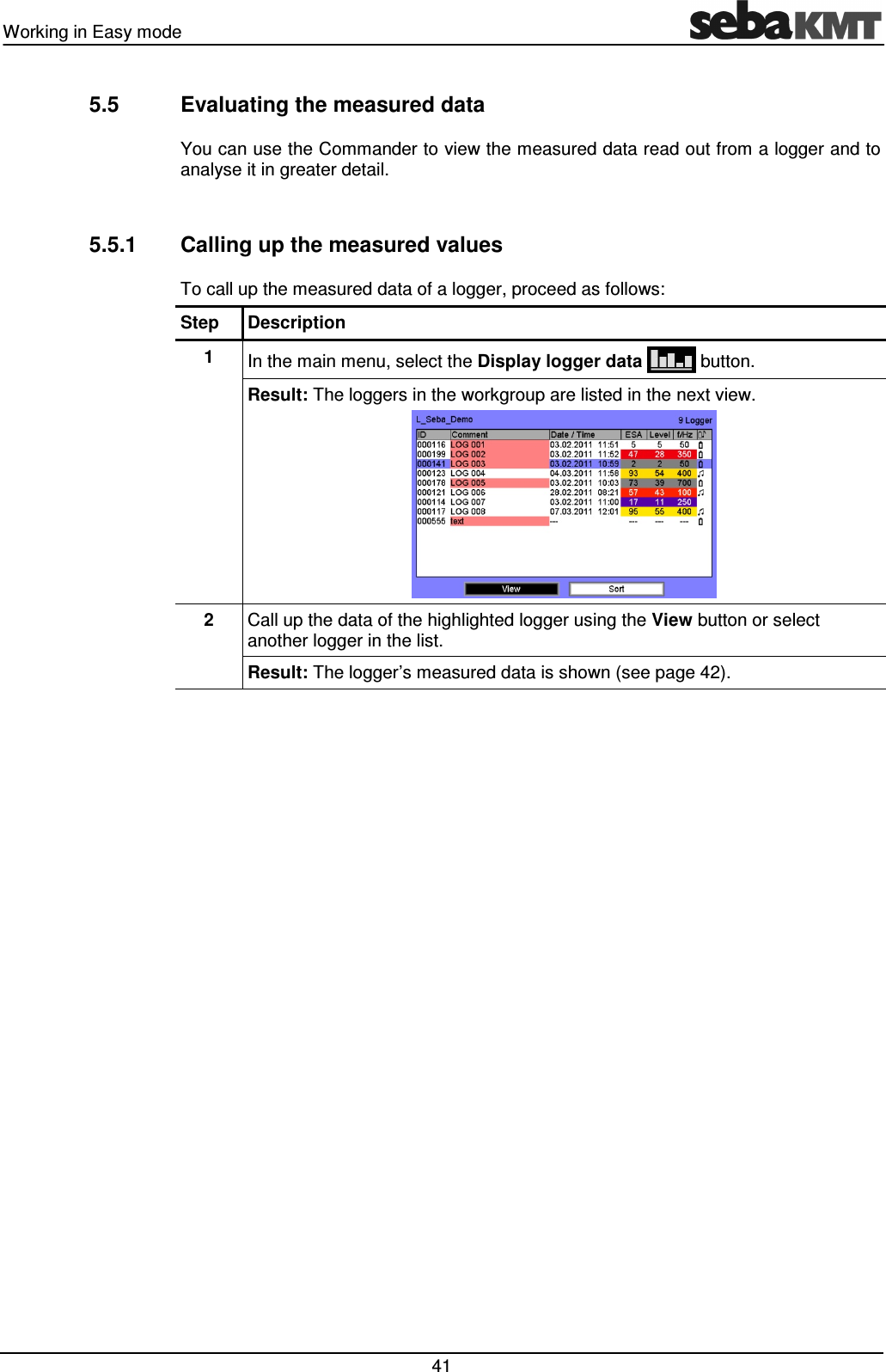
Working in Easy mode   41 5.5  Evaluating the measured data You can use the Commander to view the measured data read out from a logger and to analyse it in greater detail.  5.5.1  Calling up the measured values To call up the measured data of a logger, proceed as follows: Step  Description 1  In the main menu, select the Display logger data   button. Result: The loggers in the workgroup are listed in the next view.    2  Call up the data of the highlighted logger using the View button or select another logger in the list.  Result: The logger’s measured data is shown (see page 42).
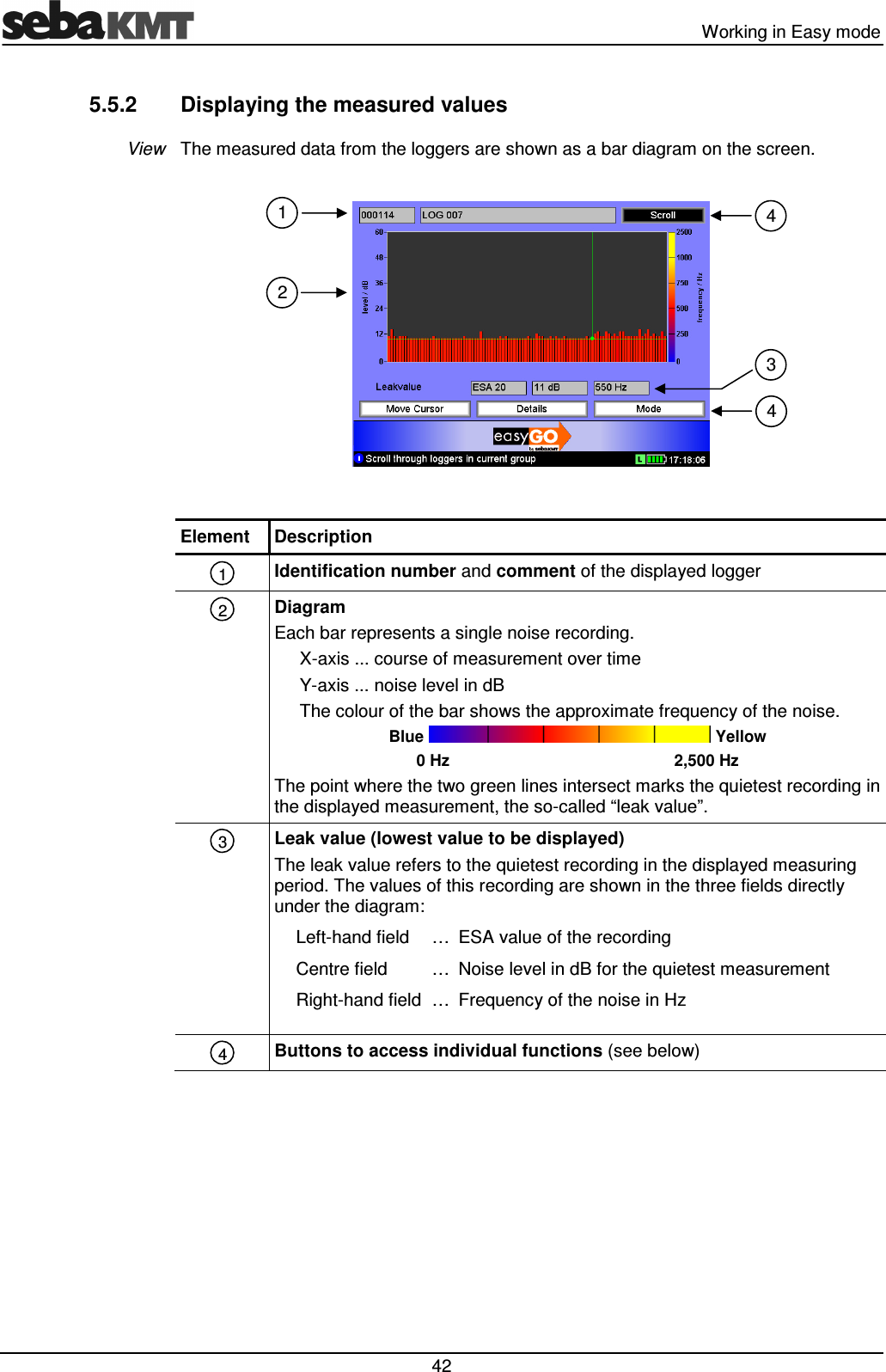
  Working in Easy mode  42 5.5.2  Displaying the measured values The measured data from the loggers are shown as a bar diagram on the screen.    Element  Description  Identification number and comment of the displayed logger  Diagram  Each bar represents a single noise recording. X-axis ... course of measurement over time Y-axis ... noise level in dB The colour of the bar shows the approximate frequency of the noise. Blue   Yellow 0 Hz        2,500 Hz The point where the two green lines intersect marks the quietest recording in the displayed measurement, the so-called “leak value”.  Leak value (lowest value to be displayed) The leak value refers to the quietest recording in the displayed measuring period. The values of this recording are shown in the three fields directly under the diagram: Left-hand field  … ESA value of the recording Centre field  … Noise level in dB for the quietest measurement Right-hand field … Frequency of the noise in Hz   Buttons to access individual functions (see below)  View 4 3 2 1 1 2 3 4 4
Working in Easy mode   43 There are the following functions for analyzing the displayed data: Button  Description Scroll  You can use this function to view in the diagram the measurement results of the other loggers in the group. To do so, apply the button and turn the selector knob to select a logger. Apply the button again to confirm your selection. Move Cursor You can use this function to move the vertical green line in the diagram from one bar to the next. The values of the particular noise measurement (volume, frequency, ESA) and the time of the recording are shown. To do so, apply the button and turn the selector knob. Apply the button again to end the function. Details  This function opens a new window on the screen. It shows the configuration data of the particular logger at the time of the measurement. You can use the Scroll button to view the configuration data of the other loggers in the group. Use the OK button to return to the measured data display. Mode  You can use this function to change the measurement unit on the Y-axis in the diagram.  Standard view  … The Y-axis shows the volume of the noises. Each bar in the diagram represents a single recording. ESA view  … The Y-axis shows the ESA value.  Each bar represents the quietest recording of a measuring day.  Functions
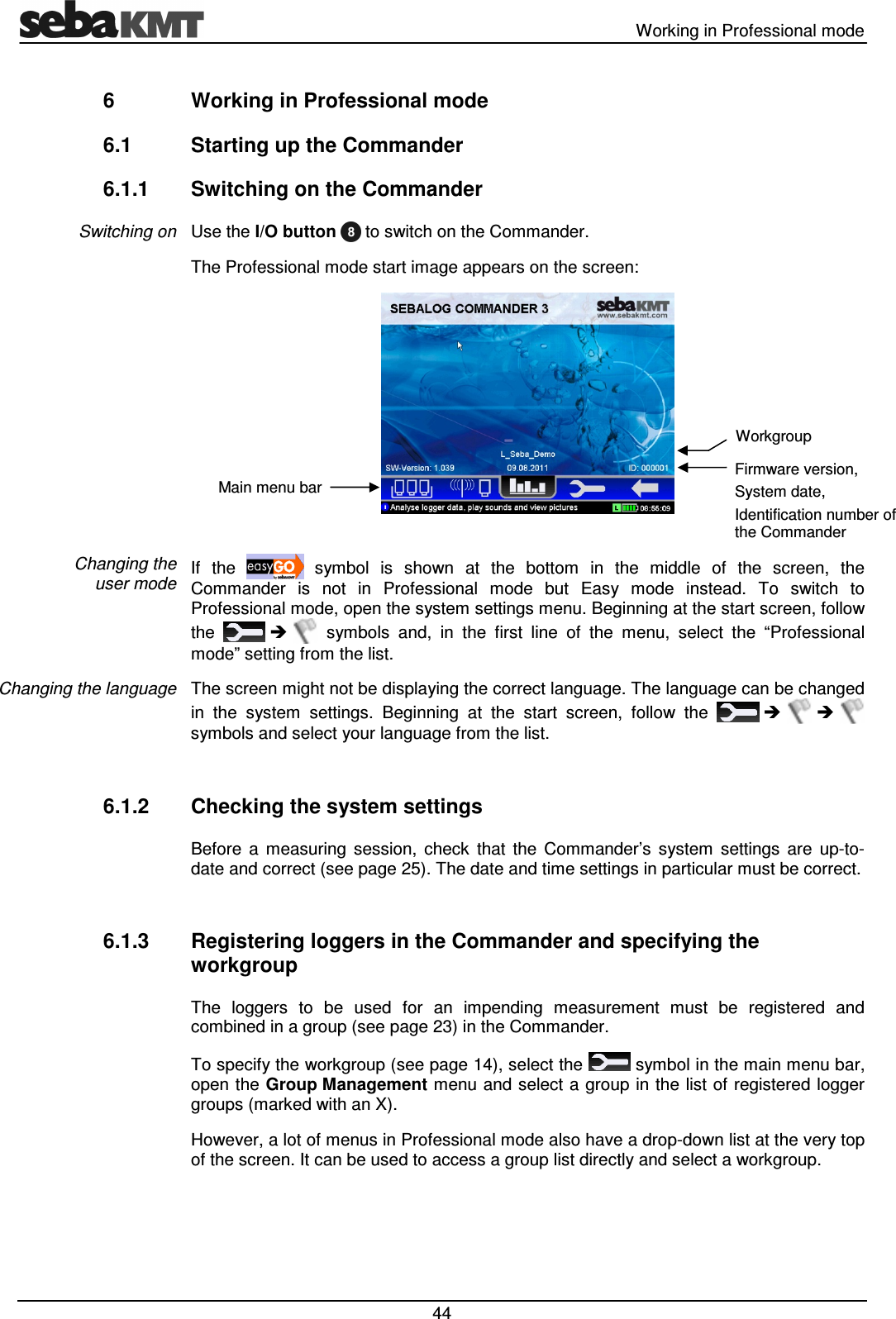
  Working in Professional mode  44 6  Working in Professional mode 6.1  Starting up the Commander 6.1.1  Switching on the Commander Use the I/O button   to switch on the Commander.  The Professional mode start image appears on the screen:   If  the    symbol  is  shown  at  the  bottom  in  the  middle  of  the  screen,  the Commander  is  not  in  Professional  mode  but  Easy  mode  instead.  To  switch  to Professional mode, open the system settings menu. Beginning at the start screen, follow the       symbols  and,  in  the  first  line  of  the  menu,  select  the  “Professional mode” setting from the list. The screen might not be displaying the correct language. The language can be changed in  the  system  settings.  Beginning  at  the  start  screen,  follow  the         symbols and select your language from the list.  6.1.2  Checking the system settings Before  a  measuring  session,  check  that  the  Commander’s  system  settings  are  up-to-date and correct (see page 25). The date and time settings in particular must be correct.  6.1.3  Registering loggers in the Commander and specifying the workgroup The  loggers  to  be  used  for  an  impending  measurement  must  be  registered  and combined in a group (see page 23) in the Commander.  To specify the workgroup (see page 14), select the   symbol in the main menu bar, open the Group Management menu and select a group in the list of registered logger groups (marked with an X). However, a lot of menus in Professional mode also have a drop-down list at the very top of the screen. It can be used to access a group list directly and select a workgroup.  Switching on Changing the  user mode Changing the language Main menu bar Firmware version, System date, Identification number of the Commander Workgroup
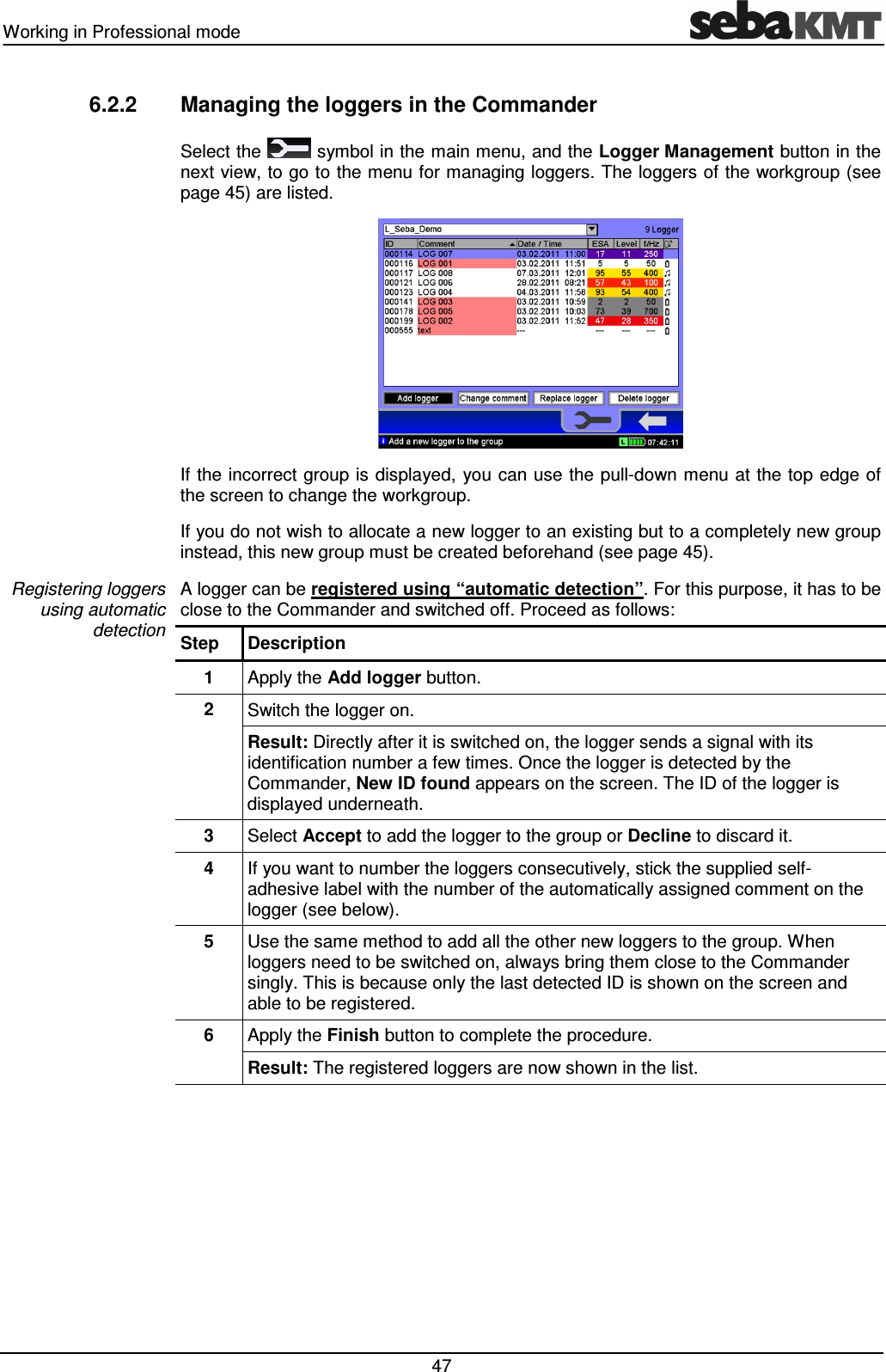
Working in Professional mode   45 6.2  Managing the loggers All  loggers  to  be  used  for  a  measurement  must  be  registered  in  the  Commander beforehand.  Only  registered  loggers  can  be  programmed  and  read.  Registration  is performed either by manually inputting the logger ID or by automatic wireless detection. The registered loggers are combined in groups.  6.2.1  Managing logger groups in the Commander All loggers registered in the Commander must be assigned to a group. The Commander can only communicate with one of the logger groups created, the so called “workgroup” (see page 14). Logger  groups  can  be  created,  deleted,  copied  and  renamed  directly  on  the Commander. Select the   symbol in the  main menu, and the Group Management button  in the next  view,  to  go  to  the  menu  for  managing  logger  groups.  All  the  registered  logger groups are listed.   The  workgroup is marked with an X in  the view.  To turn  another logger  group into the workgroup, select the list and then a group. To create a completely new logger group in the Commander, proceed as follows: Step  Description 1  Select the Add button.  Result: A new view opens. 2  Select the group mode (see page 13) for the new group and confirm with OK.      After the group is created, the group mode can no longer be changed. All loggers in a group must belong to the same group mode as the group itself (e.g. a “Lift&Shift” group may only contain “Lift&Shift” loggers).     Result: A new view opens. 3  Enter a name for the new group. Use the virtual keyboard for this. To complete the input, select the ENTER button.  Result: The new group is  now created in the Commander. The display jumps automatically to the Logger Management menu. 4  Use this menu to assign loggers to the newly created group (see page 47).  Introduction Managing groups  Defining a workgroup Creating a new group
  Working in Professional mode  46 You can rename an existing logger group. First  select  the  particular  group  in  the  list  and  then  select  the  Rename  button.  In  the following  screen  views,  enter  a  group  mode  (see  page  13)  and  the  new  name  of  the group.  The group then appears with the new name in the group list. You can copy an existing logger group, with all its loggers, within the list and allocate a new name and new  group  mode to this copy. (This  can be useful if,  for example,  you wish  to  use  the  loggers  of  an  existing  “Lift&Shift”  group  for  the  next  measuring assignment,  but  would  like  to  read  out  data  by  “Patrolling”.)  The  new  group automatically  adopts  the  configuration  data  of  the  original  group  but  contains  no measured data at all.  First  select  the  particular  group  in  the  list  and  then  select  the  Copy  button.  In  the following screen views, enter the group mode (see page 13) and the name of the new group.  The new group then appears in the group list. If needed, more new loggers can now be allocated to it (see page 47). You can delete a logger group from the Commander.  First select the particular group in the list. Then select the Delete button and answer the confirmation query with Yes. If  the  loggers  in  this  group  are  not  contained  in  any  other  existing  groups,  deleting simultaneously  de-registers  them  from  the  Commander.  The  measured  data  of  the group is retained in the history as long as the “History” function is active (see page 26). Otherwise the data will be lost.  Renaming a group Copying a group Deleting a group
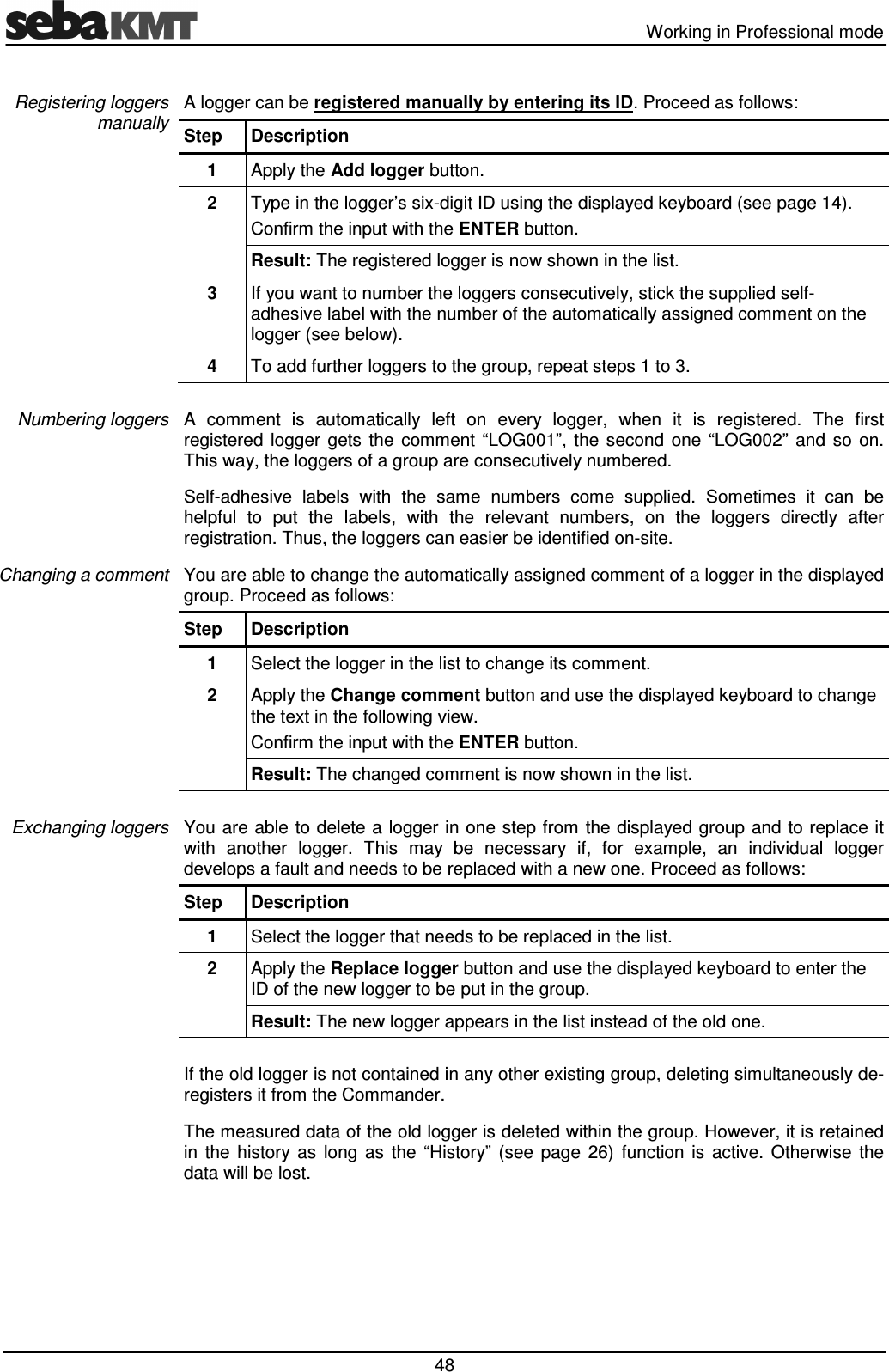
Working in Professional mode   47 6.2.2  Managing the loggers in the Commander Select the   symbol in the main menu, and the Logger Management button in the next view, to go to the menu for managing loggers. The loggers of the workgroup (see page 45) are listed.  If the incorrect group is displayed, you can use the pull-down menu at the top edge of the screen to change the workgroup.  If you do not wish to allocate a new logger to an existing but to a completely new group instead, this new group must be created beforehand (see page 45). A logger can be registered using “automatic detection”. For this purpose, it has to be close to the Commander and switched off. Proceed as follows: Step  Description 1  Apply the Add logger button.  2  Switch the logger on. Result: Directly after it is switched on, the logger sends a signal with its identification number a few times. Once the logger is detected by the Commander, New ID found appears on the screen. The ID of the logger is displayed underneath. 3  Select Accept to add the logger to the group or Decline to discard it. 4  If you want to number the loggers consecutively, stick the supplied self-adhesive label with the number of the automatically assigned comment on the logger (see below). 5  Use the same method to add all the other new loggers to the group. When loggers need to be switched on, always bring them close to the Commander singly. This is because only the last detected ID is shown on the screen and able to be registered. 6  Apply the Finish button to complete the procedure. Result: The registered loggers are now shown in the list.  Registering loggers using automatic detection
  Working in Professional mode  48 A logger can be registered manually by entering its ID. Proceed as follows: Step  Description 1  Apply the Add logger button.  2  Type in the logger’s six-digit ID using the displayed keyboard (see page 14).  Confirm the input with the ENTER button. Result: The registered logger is now shown in the list. 3  If you want to number the loggers consecutively, stick the supplied self-adhesive label with the number of the automatically assigned comment on the logger (see below). 4  To add further loggers to the group, repeat steps 1 to 3.  A  comment  is  automatically  left  on  every  logger,  when  it  is  registered.  The  first registered  logger  gets  the  comment  “LOG001”,  the  second  one  “LOG002”  and  so  on. This way, the loggers of a group are consecutively numbered. Self-adhesive  labels  with  the  same  numbers  come  supplied.  Sometimes  it  can  be helpful  to  put  the  labels,  with  the  relevant  numbers,  on  the  loggers  directly  after registration. Thus, the loggers can easier be identified on-site. You are able to change the automatically assigned comment of a logger in the displayed group. Proceed as follows: Step  Description 1  Select the logger in the list to change its comment. 2  Apply the Change comment button and use the displayed keyboard to change the text in the following view.  Confirm the input with the ENTER button. Result: The changed comment is now shown in the list.  You are able to delete a logger in one step from the displayed group and to replace it with  another  logger.  This  may  be  necessary  if,  for  example,  an  individual  logger develops a fault and needs to be replaced with a new one. Proceed as follows: Step  Description 1  Select the logger that needs to be replaced in the list. 2  Apply the Replace logger button and use the displayed keyboard to enter the ID of the new logger to be put in the group. Result: The new logger appears in the list instead of the old one.  If the old logger is not contained in any other existing group, deleting simultaneously de-registers it from the Commander. The measured data of the old logger is deleted within the group. However, it is retained in  the  history  as  long  as  the  “History”  (see  page  26)  function  is  active.  Otherwise  the data will be lost. Registering loggers manually Numbering loggers Changing a comment Exchanging loggers
Working in Professional mode   49 You can delete a logger from the displayed group. Proceed as follows: Step  Description 1  Select the logger in the list. 2  Apply the Delete button and answer the confirmation query with Yes.  Result: The logger is no longer contained in the list.  If  the  logger  is  not  contained  in  any  other  existing  group,  it  is  simultaneously  de-registered from the Commander. The measured data of the logger is deleted within the group. However, it is retained in the history as long as the “History” (see page 26) function is active.  Deleting loggers
  Working in Professional mode  50 6.3  Programming the loggers Each  logger  must  be  configured  before  each  measuring  session.  They  are  assigned with all the relevant parameters before the impending measurement.  Even loggers that have already been programmed and installed can usually be reprogrammed. However, to save power, all loggers in group mode “Patrol” can only receive the Commander’s signal every 10 seconds, even in the time when they are ready for wireless operation. It can therefore take a very long time to program these loggers.  Where possible, we recommend that all the loggers are changed to configuration mode before programming, i.e. to switch them off for at least 3 minutes and then to switch them back on again. Loggers can be reliably programmed in configuration mode.  Proceed as follows to open the configuration window for a logger: Step  Description 1  Select the   symbol in the main menu bar. 2  In the next menu, select the Program Logger / Group button. Result: The menu for logger programming opens. The loggers in the current workgroup are listed here.  If you would like to program loggers not in the workgroup, you can use the drop-down list at the very top of the screen to call up another registered logger group. 3  If you wish to program all the loggers in the displayed group, apply the Prog. Group button. If you wish to program a single logger in the group, first select the list and then choose the logger. Then apply the Prog. Single button. Result: The input window for configuring the loggers opens on the screen.   Introduction Opening the configuration window
Working in Professional mode   51 The following parameters must be stated in order to define the measuring window: Parameter  Description Measurement (from … to)  Beginning and end of the daily measuring window. Select from: 0:00 to 24:00 hours Default: 2 a.m. to 4 a.m.  Explanation: The logger performs measurements and saves the measurement values within the stated window. Interference from background noise (traffic, water use, etc.) should be at a minimum at this time. Values per measuring window  Number of saved measured values per day. Select from: All 100 measured values or the 50/20/10/5 lowest values of the measuring window Default: 50 Explanation: A logger performs 100 measurements in each measuring window. A maximum of 100 pairs of values (noise level and frequency) can be saved in the internal memory. The pull-down menu is used to specify whether all 100 measured values in the logger are to be saved or just the lowest 50/20/10/5 values in the period.  If, for example, “100 pairs per measuring window” is specified, the logger must be read after each measuring day so that no measured data is overwritten in the subsequent day.  If “20 measurement values per measuring window” is specified, the logger only has to be read after 5 measuring days. Leak threshold value Noise level from which to classify a noise as a leak. Select from: 0 to 60 dB Default: 10 dB  Explanation: If the lowest measured noise level in a measuring period is above this threshold, this is an indication to the user that there is a leak in the pipe system. Loggers where the threshold is exceeded are pointed out in particular during the data read-out and analysis.    Experience shows that it is often sensible to have a value of 10 dB as the leak threshold. In order to gain an impression of the average noise level in the pipe and to gauge whether the default leak threshold of 10 dB is too high or too low, one possibility would be to perform a real time measurement before programming the loggers at the place of use (see page 58). If, during the first few measuring days, the selected leak threshold is always far too low or far too high, you should once again reprogram the loggers concerned and adjust the leak threshold.   Measuring days  (Mon to Sun)  Days of the week when measurements are to be taken. Select from: Monday to Sunday Default: Monday to Sunday Explanation: No measurements are performed on the other days.  Measuring parameters
  Working in Professional mode  52 Continuous  wireless  availability  and  frequent  wireless  exchange  of  data  have  a detrimental effect on the lifetime of a logger’s battery. To spare the battery, the periods of wireless availability and activity can be restricted. To do this, the following parameters must be entered: Parameter  Description Radio signal (from … to)  Beginning and end of the daily transmission window. Select from: 0:00 to 24:00 hours Default: 9:00 to 15:00 hours (in group mode “Patrol”) or     8:00 to 17:00 hours (in group mode “Lift&Shift”) Explanation: The logger is ready to receive during this time and can be configured or read. Furthermore, when a logger is in group mode “Patrol”, it regularly transmits packets with measured data during this time.    It is not possible to communicate with the logger outside the given transmission window.   Transmission interval  Transmission interval in “Patrol” mode. Select from: 2/3/4/5/10/15 seconds Default:  4 sec. Explanation: Number of seconds after which a logger in group mode “Patrol” repeats the transmission of the recorded measured data (during the time span entered in radio signal only!). The shorter the transmission interval, the faster a logger is detected by the reading device as it passes by. However, long transmission intervals spare the battery of the logger.  Transmission days (Mon to Sun)  Days of the week when the set transmission window applies. Select from: Monday to Sunday Default: Monday to Friday  Explanation: It is not possible to communicate with the logger on the other days of the week.  The  colour of the  battery symbol on the bottom left of the input window indicates  how much the entered configuration will affect the service life of the logger’s battery.   Green … battery lifetime not or hardly affected  Yellow …  battery lifetime badly affected  Red  …  battery lifetime very badly affected  If the factory-set, default configuration is used, a noise logger can be operated for about 5 years  without  interruption.  Any  extension  of  the  measuring  window  or  transmission window reduces the battery’s life accordingly.  Radio parameters Battery symbol
Working in Professional mode   53 Proceed as follows to continue the programming process: Step  Description 1  Enter the data in turn for the group or the single logger.  2  Apply the Program button in order to finish the programming.  Result: The configuration data is transferred from the Commander to the group. A new view opens on the screen with two windows: The left-hand window shows the loggers in the group that have been successfully programmed. The right-hand window shows the loggers that have yet to be programmed. The antenna symbol indicates that the Commander is wirelessly operational. The Stop and Start buttons can be used to cancel and continue the procedure at any time. Data transfer ends automatically once all the loggers in the group have been successfully programmed. Result: The configuration data is transferred from the Commander to the individual logger.  A blue bar shows the progress of the data transfer.    From now on, do not place the loggers on their head because switching off would cause them to lose their configuration data and they would need to be reprogrammed.  If a logger could not be programmed, it may have been switched off, not ready for wireless operation or it was outside the Commander’s wireless range. The loggers are now ready to be installed for use on location.  6.4  Installing the loggers You can find detailed information on installing the loggers in the previous chapter (see page 35).  Continuing programming
  Working in Professional mode  54 6.5  Reading out the measured data After a group has been installed for at least one measuring day, the recorded data can be called up with the Commander.  The same group mode for which the workgroup was configured is used (see page 13).  Furthermore, you can always read just a single logger instead of a group.  6.5.1  Quick query of the workgroup The button on the very left of the main menu bar is always used as a quick-start button for  reading the  workgroup. Depending on the  workgroup’s group  mode, the quick-start symbol is as follows:    Starts reading a  “Lift&Shift” group Starts  “Patrol” Starts reading data of a  “Network” group  from the GSM-Box  When  this  button  is  applied,  reading  immediately  begins  for  the  current  workgroup. Make sure a wireless connection with the loggers or the GSM-Box can be established. The Commander and logger are connected and the measured data is transferred.  The following view opens:  The left-hand window shows the loggers in the group that have been successfully read. The  right-hand  window  contains  all  the  loggers  that  have  yet  to  be  reached.  The antenna symbol indicates that the Commander is wirelessly operational. Reading  finishes  automatically  once  the  Commander  has  received  and  saved  the measured data from all the loggers in the group. If a logger cannot be read, it may be switched off, not ready for wireless operation or it may be outside the Commander’s wireless range.
Working in Professional mode   55 6.5.2  Standard query of a single logger If you only wish to read a single logger with the commander, proceed as follows: Step  Description 1  Select the   symbol in the main menu bar. 2  In the next menu, select the Read measurement data button. Result: The loggers in the workgroup are listed in the next view. 3  If necessary, call up another logger group using the drop-down list at the very top of the screen. 4  Select the concerning logger in the list. Then apply the Read Single button. Result: The identification number and name of the logger are shown in the next view. 5  Apply the Read button. Result: The Commander and logger are connected and the measured data is transferred.  A blue bar shows the progress of the data transfer.  After the transfer has been successfully completed, the display automatically switches to the menu for showing the measured data (see page 42). An error message appears if the data transfer fails. Ensure the Commander is in the wireless range of the logger/group/GSM-Box concerned. The logger must be ready for wireless operation. Press Read again to repeat the procedure.   6.5.3  Standard query of a “Lift&Shift” group If you wish to read a “Lift&Shift” group, proceed as follows: Step  Description 1  Select the   symbol in the main menu bar. 2  In the next menu, select the Read measurement data button. Result: The loggers in the workgroup are listed in the next view. 3  If necessary, call up the group concerned using the drop-down list at the very top of the screen. 4  Apply the Read Group button. Result: The Commander and logger/GSM-Box are connected and the measured data is transferred. The same view opens on the screen as with the “Quick query”.   It is not possible to read a “Patrol” group or a “Network” group using this method. For them, please use the “Quick query” (see page 54).
  Working in Professional mode  56 6.6  Evaluating the measured data 6.6.1  Calling up the measured values To  view  the  measured  values  from  a  logger  on  the  Commander’s  screen,  select  the  symbol in the main menu and then the Display logger data button. The loggers in the workgroup are listed in the next view:  If necessary, you can call up a different group using the drop-down list at the very top of the screen. Use the View button to call up the measured data of the highlighted logger. To call up the data of another logger in the list, select the list and then the logger. The measured data is shown. If  the  History  function  has  been  activated  in  the  Commander’s  system  settings  (see page  26),  you  are  not  only  able  to  access  recent  data  read  from  the  logger  but  also older sets of data.  To do so, select the Actual line and then, from the drop-down list, the date of the data set that you wish to view. The date refers to the day of the read-out.  Calling up recent measured data Calling up older measured data
Working in Professional mode   57 6.6.2  Displaying the measured values In Professional mode the measured data from the loggers is shown as a bar diagram on the screen just as in Easy mode (see page 42). But, additionally the Professional mode provides the opportunity to compare the measured data of two loggers. After the measured data of a logger has been called up, this data can be compared to the data of another logger in the group.  To do so, select the Compare button. The list of loggers in the workgroup opens on the screen.  Select  the  table  and  choose  a  logger  for  comparison.  The  following  view appears on the screen:   The two diagrams show the values of the loggers graphically. The values of the logger selected first are above, the values of the logger for comparison below. The leak value of the first and second logger are shown numerically under the diagrams. After  applying  the  Move Cursor  button,  you  can  move  the  vertical  green  line  in  the diagrams to view the values of the individual recordings in greater detail. You  can  use  the  Mode  button  to  change  the  measurement  unit  on  the  Y-axis  in  the diagram (see page 43).  To choose another logger in the group for comparison, use the arrow key to return to the logger list and select a different logger. Introduction Comparing  measured data
  Additional measuring functions  58 7  Additional measuring functions 7.1  Real time measurement The  “Real  time  measurement”  function  allows  you  to  follow,  in  real  time,  the  current noise  level  and  the  frequency  in  a  pipe  directly  on  location  and  without  additional measuring devices. A logger measures continuously and immediately transfers the data to the Commander. The real time measurement can be useful in many situations. Here are some examples: •  Before a measurement session, you can use the real time measurement to gain a first impression of the noises in the section of pipe concerned. This enables you, for example, to estimate a sensible leak threshold for the measurement. •  With real time measurements at various points on the pipe network, you can already distinguish during the day the non-critical pipe sections from the potentially critical ones. They can then be examined more closely using a night measurement.  If the pipe noise in a section is already very low during the day, the probability of a leak is not very high. A night measurement may then no longer be necessary at this position and the logger can be used at a more critical point in the pipe network.  •  When “patrolling”, you can use a real time measurement to check the results there and then from the loggers indicating a high leak probability.  The  logger  used  for  the  real  time  measurement  must  be  switched  on  and  ready  for wireless  operation.  You  can  install  a  logger  in  configuration  mode  (see  page  14)  at  a position on the pipe or use a logger already installed for the function. The logger does not have to be programmed for the function! In Easy mode, proceed as follows to perform the real time measurement: Step  Description 1  In the main menu, select the Real time measurement   button. Result: The loggers in the workgroup are listed in the next view. 2  Select the list and there select the logger that you wish to observe. Result: Observation of the logger begins. The view for the real time measurement appears on the screen (see further down in the text).  In Professional mode, proceed as follows to perform the real time measurement: Step  Description 1  Select the   symbol in the main menu. 2  In the next menu, select the Real time measurement button. Result: The loggers in the workgroup are listed in the next view. 3  If necessary, you can call up another group using the drop-down list at the very top of the screen. 4  Select the list and there select the logger that you wish to observe. Result: Observation of the logger begins. The view for the real time measurement appears on the screen (see further down in the text).  Introduction Purpose Requirements Procedure in  Easy mode Procedure in  Professional mode
Additional measuring functions   59 The course of the real time measurement is shown on the Commander’s screen with a running bar diagram:   Element Description  Identification number and comment of the observed logger  Diagram  Each bar represents a single noise recording. X-axis ... course of measurement over time Y-axis ... noise level in dB The colour of the bar represents the frequency of the noise. Blue   Yellow 0 Hz        2,500 Hz The point where the two green lines intersect marks the quietest recording in the displayed measurement, the so-called “leak value”.  Antenna symbol indicates that the Commander is wirelessly operational  Minimum value of the display (leak value) Left-hand field  … ESA value of the recording Centre field  … Noise level in dB for the quietest measurement Right-hand field … Frequency of the noise in Hz   Current value of the display Noise level (bar height) and frequency (bar colour) of the current measuring value (including numeric values).  Buttons Stop and Start can be used to cancel and continue the observation at any time. However, the time gap between cancellation and continuation is not shown.  Use the ESC button   to end the function and return to the main menu.  The permanent wireless connection during the real time measurement requires a lot of power. This has a detrimental effect on the lifetime of the logger’s battery. Please consider this when using the function.  Display of  measured data 6 5 4 3 2 1 1 2 3 4 5 6
  Additional measuring functions  60 7.2  Audio recordings Loggers in the Sebalog N-3 series are able to save recorded noises as audio files and to send  them  to  the  reading  device.  This  means  the  user  is  no  longer  reliant  on  the measurement  values  alone  (level/frequency/ESA  value)  when  evaluating  a  noise.  You can actually listen to the suspected leak. Firstly, the loggers automatically save the quietest noise in the measuring period as an audio  file.  This  file  can,  for  example,  be  called  up  later  with  the  Commander  and replayed. Secondly, you can get  a recording of  the current noise in the pipe from each installed logger.  This  allows  you  to  listen  on  a  pipe,  almost  in  real  time,  without  any  additional equipment (sensor rod microphone or similar).  7.2.1  Reading out the audio data Each logger automatically records the quietest noise (leak noise) in a measuring period and saves it as an audio file. To spare the logger’s battery, this file is not automatically sent to the reading device when the logger is read. It must be queried separately.  To query audio data in a logger, proceed as follows: Step  Description 1  In Easy mode …  In Professional mode … … select the   button in the main menu. … select the   symbol in the main menu bar. 2  Select the Read / Play audio data button. Select the Read audio data button. Result: The loggers in the workgroup are listed in the next view.  3    If necessary, you can call up another group using the drop-down list at the very top of the screen. 4  Select the logger list and then the logger from which you wish to call up the leak noise. 5  Apply the Read audio data button to continue. Result: The ID and comment of the logger, from which the audio data is called up, are shown once again in the next view. Data transfer starts automatically. A blue bar shows the progress of the transfer. After the transfer has been successfully completed, the display automatically switches to the menu for playing back audio data (see page 61). You can then listen to the leak noise that has just been read. An error message appears on the screen if the data transfer fails. Ensure the Commander is in the wireless range of the logger concerned. Press Start to repeat the procedure.  Introduction Procedure
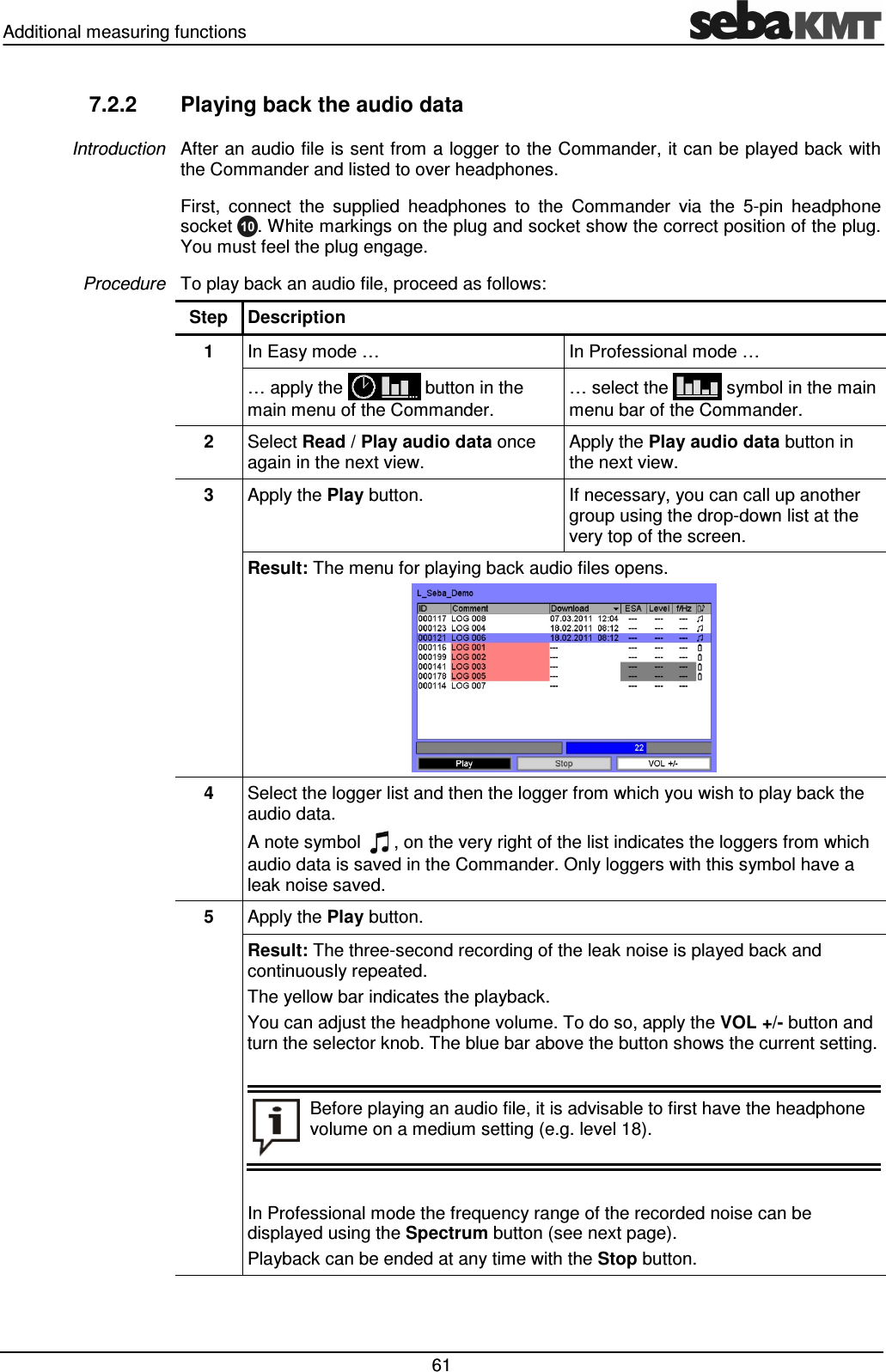
Additional measuring functions   61 7.2.2  Playing back the audio data After an audio file is sent from a logger to the Commander, it can be played back with the Commander and listed to over headphones. First,  connect  the  supplied  headphones  to  the  Commander  via  the  5-pin  headphone socket  . White markings on the plug and socket show the correct position of the plug. You must feel the plug engage. To play back an audio file, proceed as follows: Step  Description 1  In Easy mode …  In Professional mode … … apply the   button in the main menu of the Commander. … select the   symbol in the main menu bar of the Commander. 2  Select Read / Play audio data once again in the next view. Apply the Play audio data button in the next view. 3  Apply the Play button.  If necessary, you can call up another group using the drop-down list at the very top of the screen. Result: The menu for playing back audio files opens.  4  Select the logger list and then the logger from which you wish to play back the audio data. A note symbol  , on the very right of the list indicates the loggers from which audio data is saved in the Commander. Only loggers with this symbol have a leak noise saved. 5  Apply the Play button. Result: The three-second recording of the leak noise is played back and continuously repeated. The yellow bar indicates the playback. You can adjust the headphone volume. To do so, apply the VOL +/- button and turn the selector knob. The blue bar above the button shows the current setting.    Before playing an audio file, it is advisable to first have the headphone volume on a medium setting (e.g. level 18).  In Professional mode the frequency range of the recorded noise can be displayed using the Spectrum button (see next page). Playback can be ended at any time with the Stop button.  Introduction Procedure
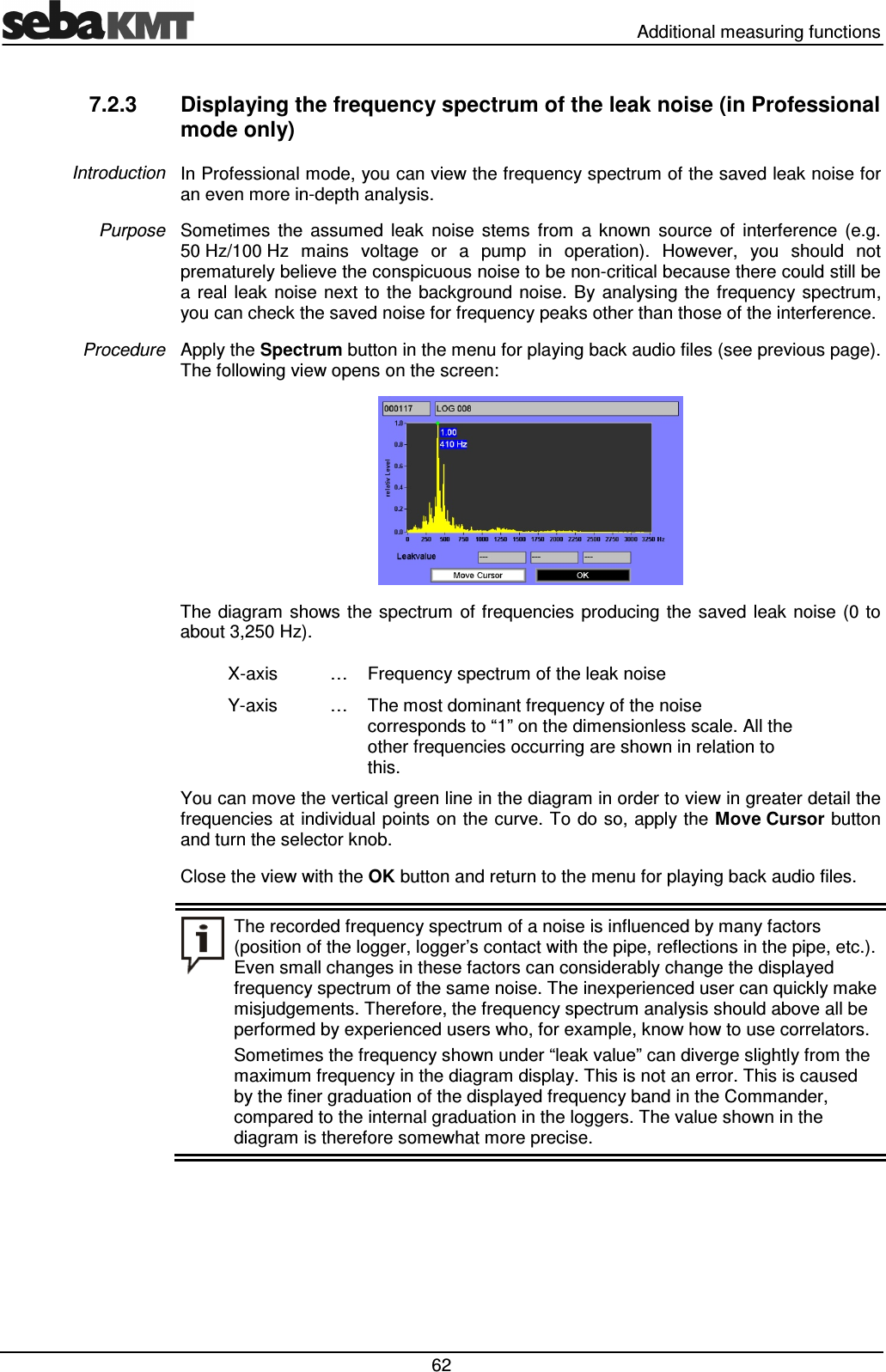
  Additional measuring functions  62 7.2.3  Displaying the frequency spectrum of the leak noise (in Professional mode only) In Professional mode, you can view the frequency spectrum of the saved leak noise for an even more in-depth analysis.  Sometimes  the  assumed  leak  noise  stems  from  a  known  source  of  interference  (e.g. 50 Hz/100 Hz  mains  voltage  or  a  pump  in  operation).  However,  you  should  not prematurely believe the conspicuous noise to be non-critical because there could still be a real leak  noise next  to the background  noise.  By  analysing the frequency spectrum, you can check the saved noise for frequency peaks other than those of the interference.  Apply the Spectrum button in the menu for playing back audio files (see previous page). The following view opens on the screen:  The  diagram  shows the  spectrum of frequencies  producing  the saved leak noise (0  to about 3,250 Hz). X-axis  …  Frequency spectrum of the leak noise Y-axis  …  The most dominant frequency of the noise corresponds to “1” on the dimensionless scale. All the other frequencies occurring are shown in relation to this. You can move the vertical green line in the diagram in order to view in greater detail the frequencies at individual points on the curve. To do so, apply the Move Cursor button and turn the selector knob. Close the view with the OK button and return to the menu for playing back audio files.  The recorded frequency spectrum of a noise is influenced by many factors (position of the logger, logger’s contact with the pipe, reflections in the pipe, etc.). Even small changes in these factors can considerably change the displayed frequency spectrum of the same noise. The inexperienced user can quickly make misjudgements. Therefore, the frequency spectrum analysis should above all be performed by experienced users who, for example, know how to use correlators. Sometimes the frequency shown under “leak value” can diverge slightly from the maximum frequency in the diagram display. This is not an error. This is caused by the finer graduation of the displayed frequency band in the Commander, compared to the internal graduation in the loggers. The value shown in the diagram is therefore somewhat more precise.  Introduction Purpose  Procedure
Additional measuring functions   63 7.2.4  Recording a noise directly (in Professional mode only) The  “Direct recording”  function  of  a  Log N-3  logger  enables  you  to  listen  in  on  the current  noise  in  a  pipe  without  using  additional  equipment  (sensor  rod  microphone  or similar). If “Direct recording” is performed with a logger already installed, you do not even have to open the shaft to listen to the pipe. With this  function,  the  logger  creates  a  three-second  recording  of  the  current  noise  in the  pipe.  This  audio  file  is  then  immediately  sent  to  the  Commander  where  it  can  be replayed. The pipe noise can thus be tracked almost in real time.  You can perform “Direct recording” with any logger already installed, if it is programmed in  “Lift&Shift”  or  “Patrol”  group  mode  and  if  it  is  within  its  programmed  “Wireless  on” time.  (Unfortunately,  the  system  will  not  allow  loggers  in  “Network”  group  mode  to  be used for this.)  However, you can also use a logger that has not been installed yet. The logger does not have to be programmed after  being switched on. It  can simply remain in configuration mode instead (see page 14). To  record  a  noise  directly,  a  logger  must  be  switched  on,  installed  on  the  pipe  and located within the wireless range of the Commander. The distance is preferably between 1 and 10 m. Proceed as follows to record the pipe noise directly: Step  Description 1  Select the   symbol in the main menu and the Direct recording button in the next view. Result: The loggers in the workgroup are listed in the next view.   2  If necessary, you can call up another logger group using the drop-down list at the very top of the screen. 3  Select the table and then the logger for recording the current noise. 4  Apply the Start recording button. Result: The ID and comment of the logger to perform the recording are shown once again in the next view. The Commander and the logger are connected. The noise recording and following transfer of the audio file to the Commander take place automatically. A bar shows the progress. After the data has been transferred successfully, the menu for playing back audio files opens automatically on the Commander’s screen (see page 61).  Introduction Requirements Procedure
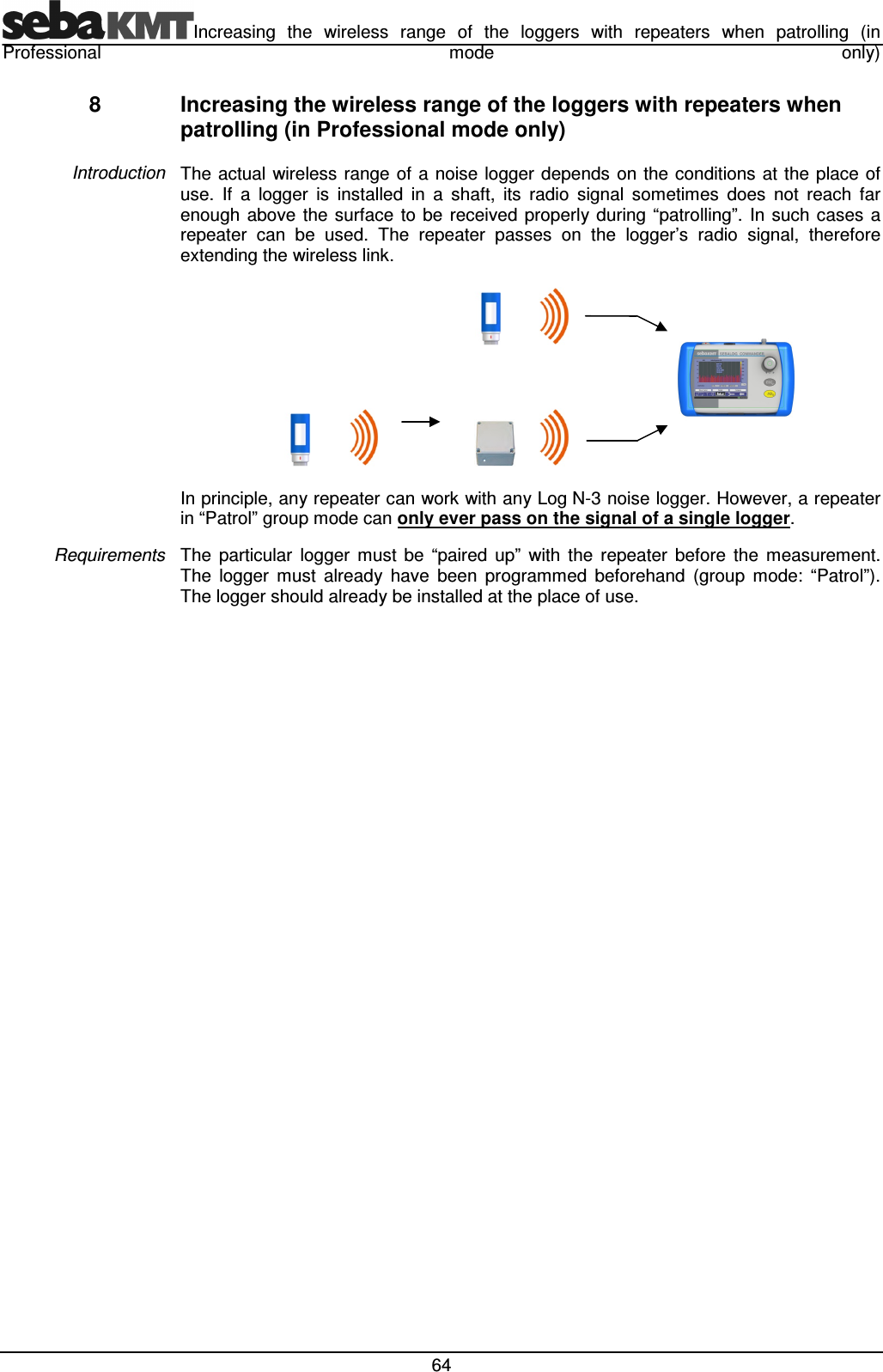
Increasing  the  wireless  range  of  the  loggers  with  repeaters  when  patrolling  (in Professional  mode  only)  64 8  Increasing the wireless range of the loggers with repeaters when patrolling (in Professional mode only) The  actual wireless  range of a  noise logger depends on the conditions at the place of use.  If  a  logger  is  installed  in  a  shaft,  its  radio  signal  sometimes  does  not  reach  far enough  above  the surface to be  received  properly during “patrolling”.  In  such  cases  a repeater  can  be  used.  The  repeater  passes  on  the  logger’s  radio  signal,  therefore extending the wireless link.                     In principle, any repeater can work with any Log N-3 noise logger. However, a repeater in “Patrol” group mode can only ever pass on the signal of a single logger. The  particular  logger  must  be  “paired  up”  with  the  repeater  before  the  measurement. The  logger  must  already  have  been  programmed  beforehand  (group  mode:  “Patrol”). The logger should already be installed at the place of use.   Introduction Requirements
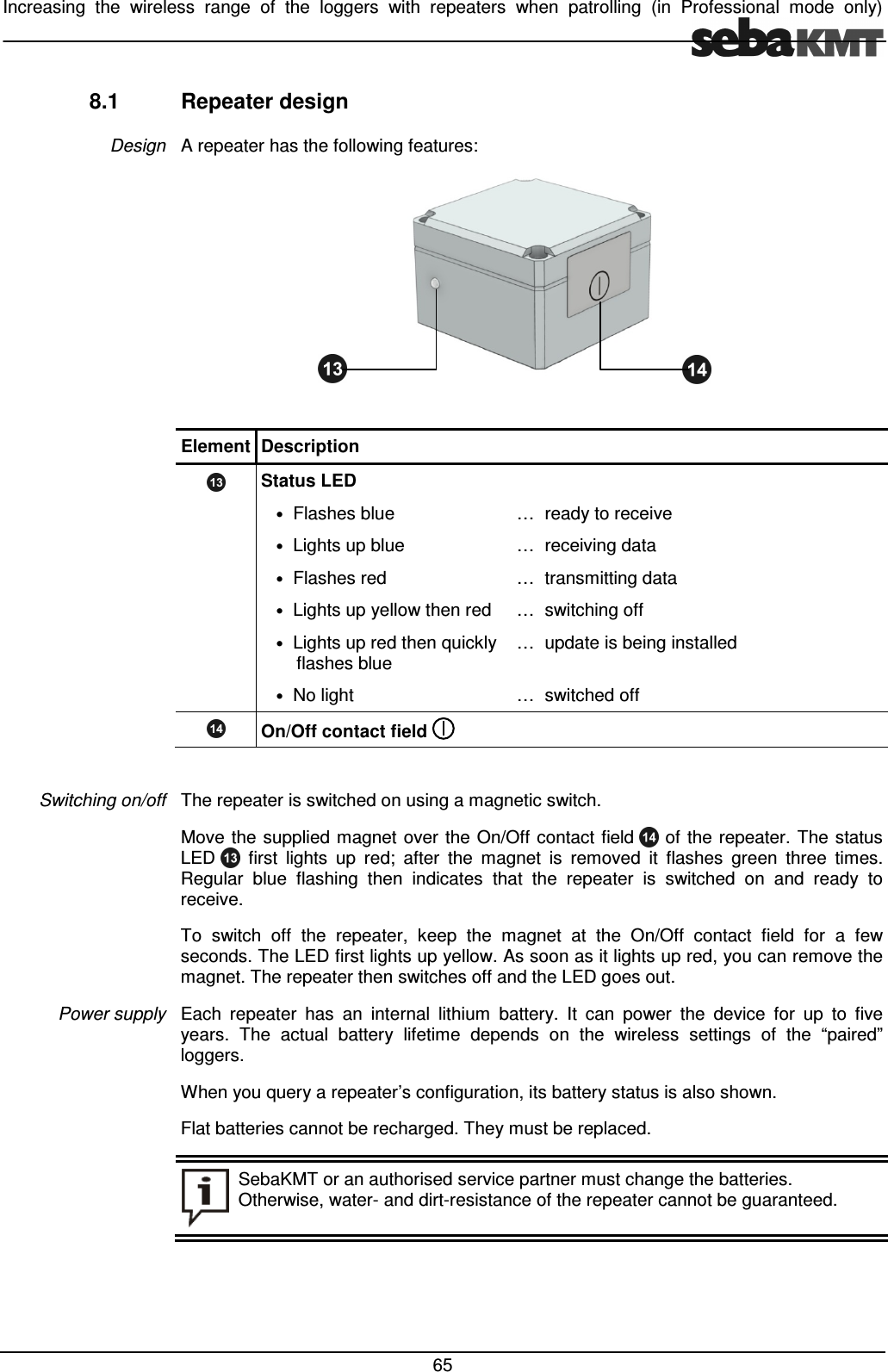
Increasing  the  wireless  range  of  the  loggers  with  repeaters  when  patrolling  (in  Professional  mode  only)   65 8.1  Repeater design A repeater has the following features:    Element Description  Status LED • Flashes blue … ready to receive • Lights up blue … receiving data • Flashes red … transmitting data • Lights up yellow then red … switching off • Lights up red then quickly flashes blue … update is being installed • No light … switched off  On/Off contact field    The repeater is switched on using a magnetic switch. Move the  supplied magnet  over the On/Off contact field    of the  repeater. The status LED    first  lights  up  red;  after  the  magnet  is  removed  it  flashes  green  three  times. Regular  blue  flashing  then  indicates  that  the  repeater  is  switched  on  and  ready  to receive.  To  switch  off  the  repeater,  keep  the  magnet  at  the  On/Off  contact  field  for  a  few seconds. The LED first lights up yellow. As soon as it lights up red, you can remove the magnet. The repeater then switches off and the LED goes out.  Each  repeater  has  an  internal  lithium  battery.  It  can  power  the  device  for  up  to  five years.  The  actual  battery  lifetime  depends  on  the  wireless  settings  of  the  “paired” loggers. When you query a repeater’s configuration, its battery status is also shown. Flat batteries cannot be recharged. They must be replaced.  SebaKMT or an authorised service partner must change the batteries. Otherwise, water- and dirt-resistance of the repeater cannot be guaranteed.  Design Switching on/off Power supply
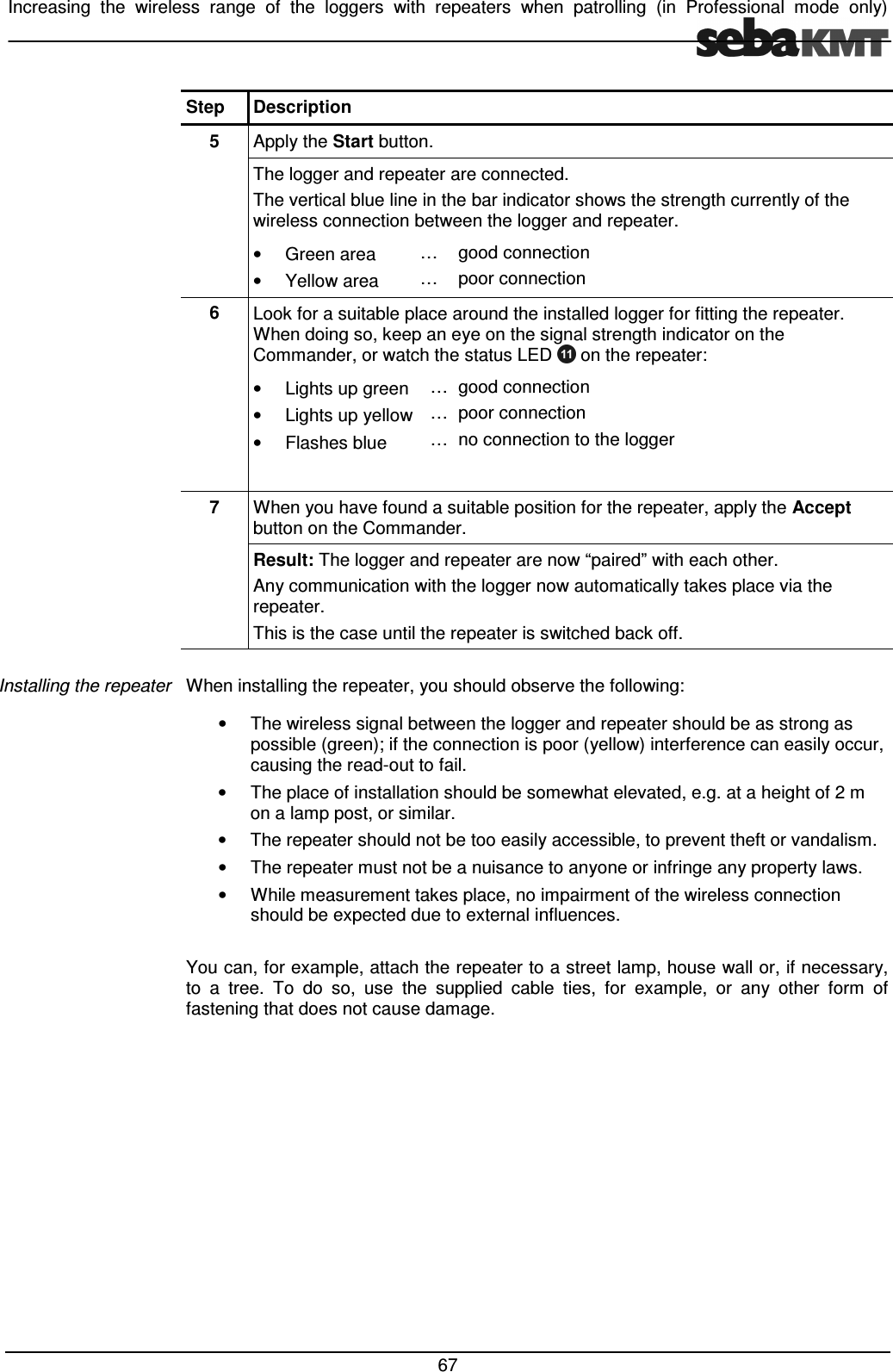
Increasing  the  wireless  range  of  the  loggers  with  repeaters  when  patrolling  (in Professional  mode  only)  66 8.2  Installing the wireless extension Before the wireless  extension via repeaters  can be set up, the logger  concerned must already be programmed and installed at its place of use.  Proceed on location as follows: Step  Description 1  Select the   symbol in the main menu and the Connect Repeater to Logger button in the next view. If this button is not shown, the current workgroup is probably not a “Patrol” group. In this case you must first specify a new workgroup (see page 45). Result: The loggers in the workgroup are listed.  2  If necessary, you can call up another logger group using the drop-down list at the very top of the screen.  3  Select the logger list and then the logger to be connected to the repeater. If the respective reader is already preset, apply the “Select Repeater” button. Result: A window for registering the repeater in the Commander automatically opens on the screen.  4  Use one of these two methods to register the repeater: Automatic detection: Move the switched off repeater close to the Commander and switch it on. Once the repeater is detected, New ID found appears on the screen. The ID of the repeater is displayed underneath. Use the Accept button to confirm. Manual input: Enter the repeater’s six-digit ID with the virtual keyboard. Use the ENTER button to confirm.  Result: The following display opens on the screen:  This display can be used to test the quality of the wireless connection between the logger and repeater and to find a suitable location for the repeater.
Increasing  the  wireless  range  of  the  loggers  with  repeaters  when  patrolling  (in  Professional  mode  only)   67 Step  Description 5  Apply the Start button.  The logger and repeater are connected. The vertical blue line in the bar indicator shows the strength currently of the wireless connection between the logger and repeater. •  Green area •  Yellow area … … good connection poor connection  6 Look for a suitable place around the installed logger for fitting the repeater. When doing so, keep an eye on the signal strength indicator on the Commander, or watch the status LED   on the repeater: •  Lights up green •  Lights up yellow •  Flashes blue … … … good connection poor connection no connection to the logger   7  When you have found a suitable position for the repeater, apply the Accept button on the Commander. Result: The logger and repeater are now “paired” with each other.  Any communication with the logger now automatically takes place via the repeater.  This is the case until the repeater is switched back off.  When installing the repeater, you should observe the following: •  The wireless signal between the logger and repeater should be as strong as possible (green); if the connection is poor (yellow) interference can easily occur, causing the read-out to fail. •  The place of installation should be somewhat elevated, e.g. at a height of 2 m on a lamp post, or similar. •  The repeater should not be too easily accessible, to prevent theft or vandalism. •  The repeater must not be a nuisance to anyone or infringe any property laws. •  While measurement takes place, no impairment of the wireless connection should be expected due to external influences.  You can, for example, attach the repeater to a street lamp, house wall or, if necessary, to  a  tree.  To  do  so,  use  the  supplied  cable  ties,  for  example,  or  any  other  form  of fastening that does not cause damage.  Installing the repeater

Navigation menu