Seba Dynatronic Mess und Ortungstechnik LOGRI Wireless Interface for Loggers and Repeaters User Manual part 1
Seba Dynatronic Mess- und Ortungstechnik GmbH Wireless Interface for Loggers and Repeaters part 1

Contents

User Manual part 1

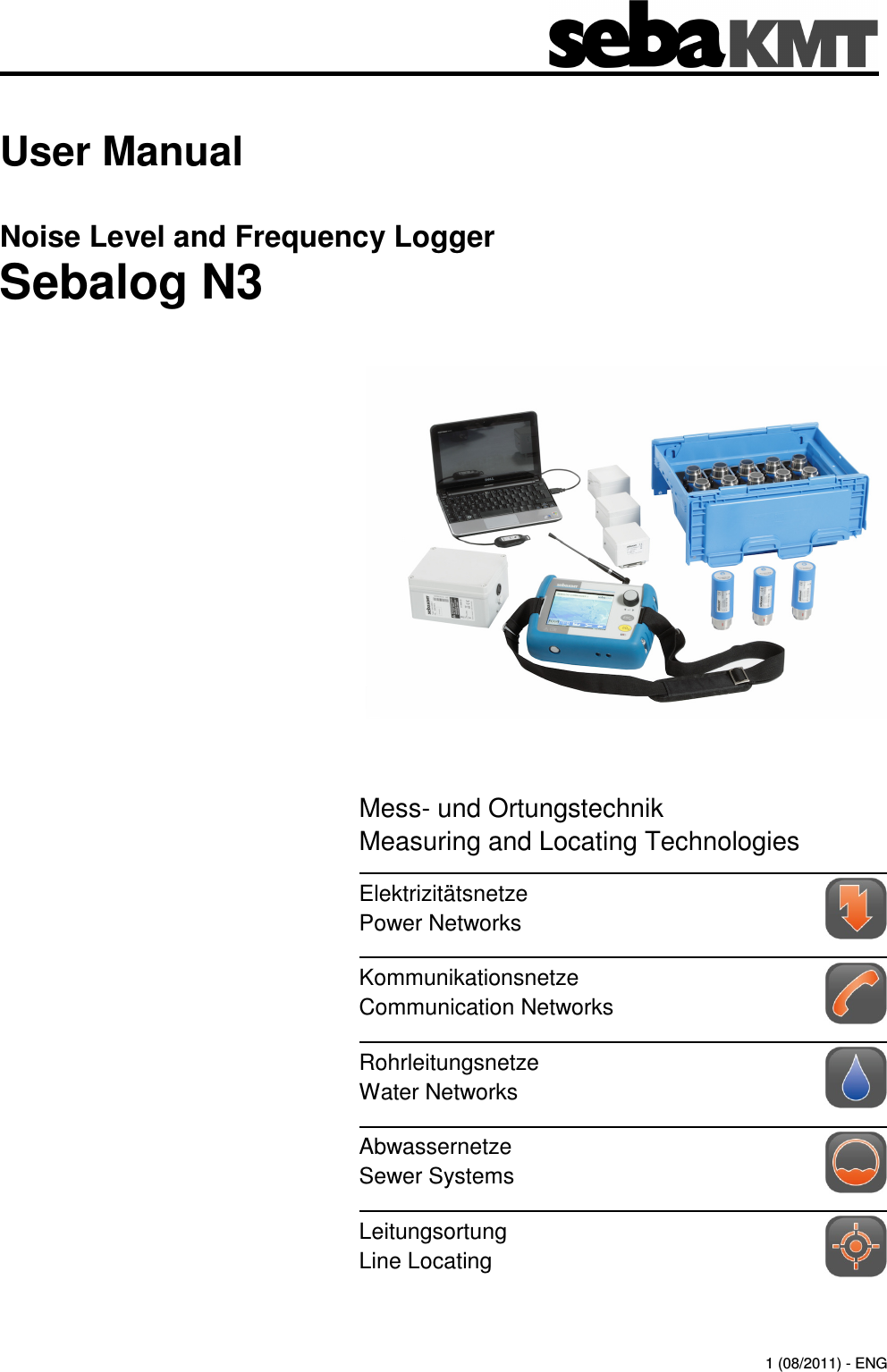
Consultation with SebaKMT   1 User Manual Noise Level and Frequency Logger Sebalog N3                  1 (08/2011) - ENG Mess- und Ortungstechnik Measuring and Locating Technologies Elektrizitätsnetze Power Networks  Kommunikationsnetze Communication Networks  Rohrleitungsnetze Water Networks  Abwassernetze Sewer Systems  Leitungsortung Line Locating
Consultation with SebaKMT   3 Consultation with SebaKMT The  present  system  manual  has  been  designed  as  an  operating  guide  and  for reference. It is meant to answer your questions and solve your problems in as fast and easy  a  way  as  possible.  Please  start  with  referring  to  this  manual  should  any  trouble occur. In  doing  so,  make  use  of  the  table  of  contents  and  read  the  relevant  paragraph  with great  attention.  Furthermore,  check  all  terminals  and  connections  of  the  instruments involved. Should any question remain unanswered, please contact: Seba Dynatronic Mess- und Ortungstechnik GmbH Hagenuk KMT Kabelmesstechnik GmbH Dr.-Herbert-Iann-Str. 6 D - 96148 Baunach  Phone: +49 /  9544 / 68 – 0 Fax: +49 /  9544 / 22 73 Röderaue 41 D - 01471 Radeburg / Dresden Phone: +49 / 35208 /  84 – 0 Fax: +49 / 35208 /  84 249 E-Mail: sales@sebakmt.com http://www.sebakmt.com             SebaKMT All rights reserved. No part of this handbook may be copied by photographic or other means unless SebaKMT have before-hand declared their consent in writing. The content of this handbook is subject to change without notice.  SebaKMT  cannot  be  made  liable  for  technical  or  printing  errors  or  shortcomings  of  this  handbook. SebaKMT also disclaim all responsibility for damage resulting directly or indirectly from the delivery, supply, or use of this matter.
  Terms of Warranty  4 Terms of Warranty SebaKMT accept  responsibility  for  a  claim  under  warranty  brought  forward  by  a customer for a product sold by SebaKMT under the terms stated below. SebaKMT  warrant  that  at  the  time  of  delivery  SebaKMT  products  are  free  from manufacturing  or  material  defects  which  might  considerably  reduce  their  value  or usability.  This  warranty  does  not  apply  to  faults  in  the  software  supplied.  During  the period of warranty, SebaKMT agree to repair faulty parts or replace them with new parts or parts as new (with the same usability and life as new parts) according to their choice.  SebaKMT reject all further claims under warranty, in particular those from consequential damage.  Each  component  and  product  replaced  in  accordance  with  this  warranty becomes the property of SebaKMT. All warranty claims versus SebaKMT are hereby limited to a period of 12 months from the  date  of  delivery.  Each  component  supplied  by  SebaKMT  within  the  context  of warranty will also be covered by this warranty for the remaining period of time but for 90 days at least. Each  measure  to  remedy  a  claim  under  warranty  shall  exclusively  be  carried  out  by SebaKMT or an authorized service station. To register a claim under the provisions of this warranty, the customer has to complain about the defect, in case of an immediately detectable fault within 10 days from the date of delivery. This warranty does not apply to  any fault  or damage caused by exposing a product to conditions not in accordance with  this specification, by storing, transporting, or  using it improperly, or having it serviced or installed by a workshop not authorized by SebaKMT. All  responsibility  is  disclaimed  for  damage  due  to  wear,  will  of  God,  or  connection  to foreign components.  For  damage  resulting  from  a  violation  of  their  duty  to  repair  or  re-supply  items, SebaKMT can be made liable only in case of severe negligence or intention. Any liability for slight negligence is disclaimed. This device complies with Part 15 of the FCC Rules. Operation is subject to the following two conditions: (1) this device may not cause harmful interference, and (2) this device must accept any interference received, including interference that may cause undesired operation.Changes or modifications not expressly approved by the party responsible for compliance could void the user's authority to operate the equipmentNOTE: This equipment has been tested and found to comply with the limits for a Class B digital device, pursuant to part 15 of the FCC Rules. These limits are designed to provide reasonable protection against harmful interference in a residential installation. This equipment generates, uses and can radiate radio frequency energy and, if not installed and used in accordance with the instructions, may cause harmful interference to radio communications. However, there is no guarantee that interference will not occur in a particular installation. If this equipment does cause harmful interference to radio or television reception, which can be determined by turning the equipment off and on, the user is encouraged to try to correct the interference by one or more of the following measures:   --Reorient or relocate the receiving antenna.   --Increase the separation between the equipment and receiver.   --Connect the equipment into an outlet on a circuit different from that to which the     receiver is connected.   --Consult the dealer or an experienced radio/TV technician for help.
Contents   5 Contents Consultation with SebaKMT ........................................................................................... 3 Terms of Warranty ........................................................................................................... 4 Contents ........................................................................................................................... 5 1 Technical description ...................................................................................... 7 1.1 Technical data .................................................................................................... 9 1.2 Scope of delivery and accessories ................................................................... 12 1.3 Optional accessories ........................................................................................ 12 2 Important and common terms ...................................................................... 13 3 The loggers ..................................................................................................... 15 3.1 Function ............................................................................................................ 15 3.2 Design .............................................................................................................. 16 3.3 Switching on and off ......................................................................................... 17 3.4 Memory............................................................................................................. 17 3.5 Power supply .................................................................................................... 17 4 The Commander ............................................................................................. 18 4.1 Function ............................................................................................................ 18 4.2 Device design ................................................................................................... 19 4.3 Design of the user interface ............................................................................. 20 4.4 Basics of operation ........................................................................................... 21 4.5 User mode ........................................................................................................ 23 4.6 Making a connection ........................................................................................ 24 4.6.1 Connection between the Commander and logger ........................................... 24 4.6.2 Connection between the Commander and PC................................................. 24 4.7 Switching on the display lighting ...................................................................... 25 4.8 System settings ................................................................................................ 25 4.8.1 Basic settings ................................................................................................... 26 4.8.2 Extended settings in Professional mode .......................................................... 27 4.8.3 System info ....................................................................................................... 28 4.8.4 Saving settings ................................................................................................. 28 4.9 Performing a hardware reset ............................................................................ 28 4.10 Updating the firmware ...................................................................................... 29 4.11 Memory............................................................................................................. 30 4.12 Power supply .................................................................................................... 30 5 Working in Easy mode ................................................................................... 31 5.1 Starting up the Commander ............................................................................. 31 5.1.1 Switching on the Commander .......................................................................... 31 5.1.2 Checking the basic settings ............................................................................. 31
  Contents  6 5.1.3 Defining a workgroup ....................................................................................... 32 5.2 Programming the loggers ................................................................................. 33 5.3 Installing the loggers ........................................................................................ 35 5.4 Reading out the measured data ....................................................................... 37 5.4.1 Reading out a “Lift&Shift” group ....................................................................... 38 5.4.2 Reading out a “Patrol” group ............................................................................ 39 5.5 Evaluating the measured data ......................................................................... 41 5.5.1 Calling up the measured values ....................................................................... 41 5.5.2 Displaying the measured values ...................................................................... 42 6 Working in Professional mode ..................................................................... 44 6.1 Starting up the Commander ............................................................................. 44 6.1.1 Switching on the Commander .......................................................................... 44 6.1.2 Checking the system settings .......................................................................... 44 6.1.3 Registering loggers in the Commander and specifying the workgroup ........... 44 6.2 Managing the loggers ....................................................................................... 45 6.2.1 Managing logger groups in the Commander .................................................... 45 6.2.2 Managing the loggers in the Commander ........................................................ 47 6.3 Programming the loggers ................................................................................. 50 6.4 Installing the loggers ........................................................................................ 53 6.5 Reading out the measured data ....................................................................... 54 6.5.1 Quick query of the workgroup .......................................................................... 54 6.5.2 Standard query of a single logger .................................................................... 55 6.5.3 Standard query of a “Lift&Shift” group .............................................................. 55 6.6 Evaluating the measured data ......................................................................... 56 6.6.1 Calling up the measured values ....................................................................... 56 6.6.2 Displaying the measured values ...................................................................... 57 7 Additional measuring functions ................................................................... 58 7.1 Real time measurement ................................................................................... 58 7.2 Audio recordings .............................................................................................. 60 7.2.1 Reading out the audio data .............................................................................. 60 7.2.2 Playing back the audio data ............................................................................. 61 7.2.3 Displaying the frequency spectrum of the leak noise (in Professional mode only) .................................................................................................................. 62 7.2.4 Recording a noise directly (in Professional mode only) ................................... 63 8 Increasing the wireless range of the loggers with repeaters when patrolling (in Professional mode only) ......................................................... 64 8.1 Repeater design ............................................................................................... 65 8.2 Installing the wireless extension ....................................................................... 66
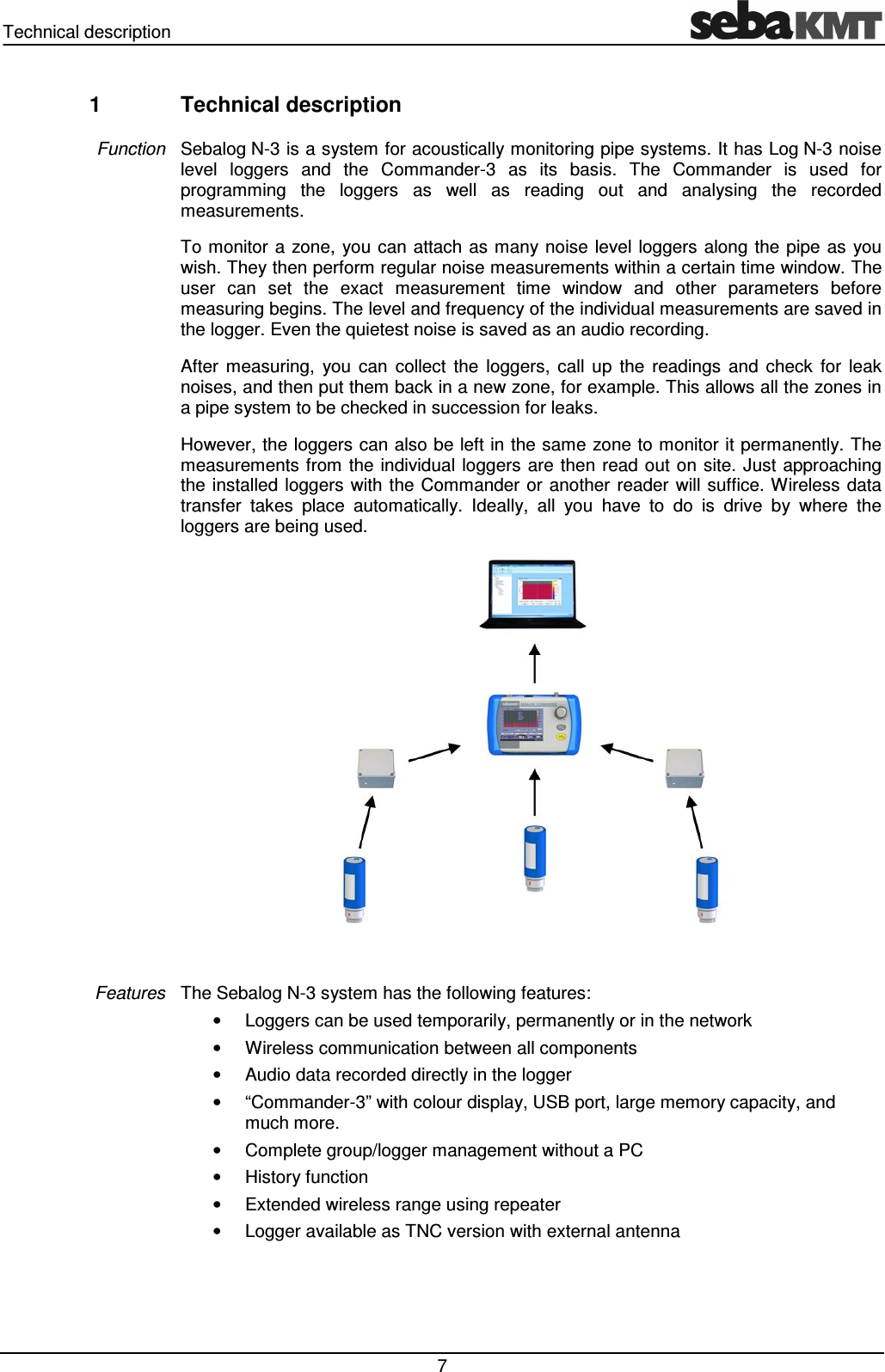
Technical description   7 1  Technical description Sebalog N-3 is a system for acoustically monitoring pipe systems. It has Log N-3 noise level  loggers  and  the  Commander-3  as  its  basis.  The  Commander  is  used  for programming  the  loggers  as  well  as  reading  out  and  analysing  the  recorded measurements.  To monitor  a  zone,  you can attach as many noise  level loggers along the pipe as  you wish. They then perform regular noise measurements within a certain time window. The user  can  set  the  exact  measurement  time  window  and  other  parameters  before measuring begins. The level and frequency of the individual measurements are saved in the logger. Even the quietest noise is saved as an audio recording.  After  measuring,  you  can  collect  the  loggers,  call  up  the  readings  and  check  for  leak noises, and then put them back in a new zone, for example. This allows all the zones in a pipe system to be checked in succession for leaks. However, the loggers can also be left in the same zone to monitor it permanently. The measurements from  the  individual loggers  are then read out on  site. Just approaching the installed  loggers with the Commander or another reader  will suffice. Wireless data transfer  takes  place  automatically.  Ideally,  all  you  have  to  do  is  drive  by  where  the loggers are being used.   The Sebalog N-3 system has the following features: •  Loggers can be used temporarily, permanently or in the network •  Wireless communication between all components •  Audio data recorded directly in the logger •  “Commander-3” with colour display, USB port, large memory capacity, and much more. •  Complete group/logger management without a PC •  History function •  Extended wireless range using repeater •  Logger available as TNC version with external antenna  Function Features
  Technical description  8 The Sebalog N-3 system consists of the following components: Component Use Log N-3 noise loggers measures regularly the volume level and frequency of the noise in the pipe during the programmed measuring window.  Commander-3  is the portable device for programming the loggers before measuring, and for reading out and analysing the recorded data after measuring. Repeaters-3  forward the radio signals from the loggers and therefore extend the wireless link between the loggers and Commander. GSM box-3  is used as the interface between the logger network and control centre during wireless remote data transmission. SebaDataView-3 software is the application software for programming the loggers before measuring, and for reading out and analysing the recorded data with a PC or laptop. Reader-3   is a convenient device for reading out the measurements taken by the Sebalog series of loggers.  Log RI  is used as the wireless interface to the loggers or repeaters when connected to a PC/laptop.   Components
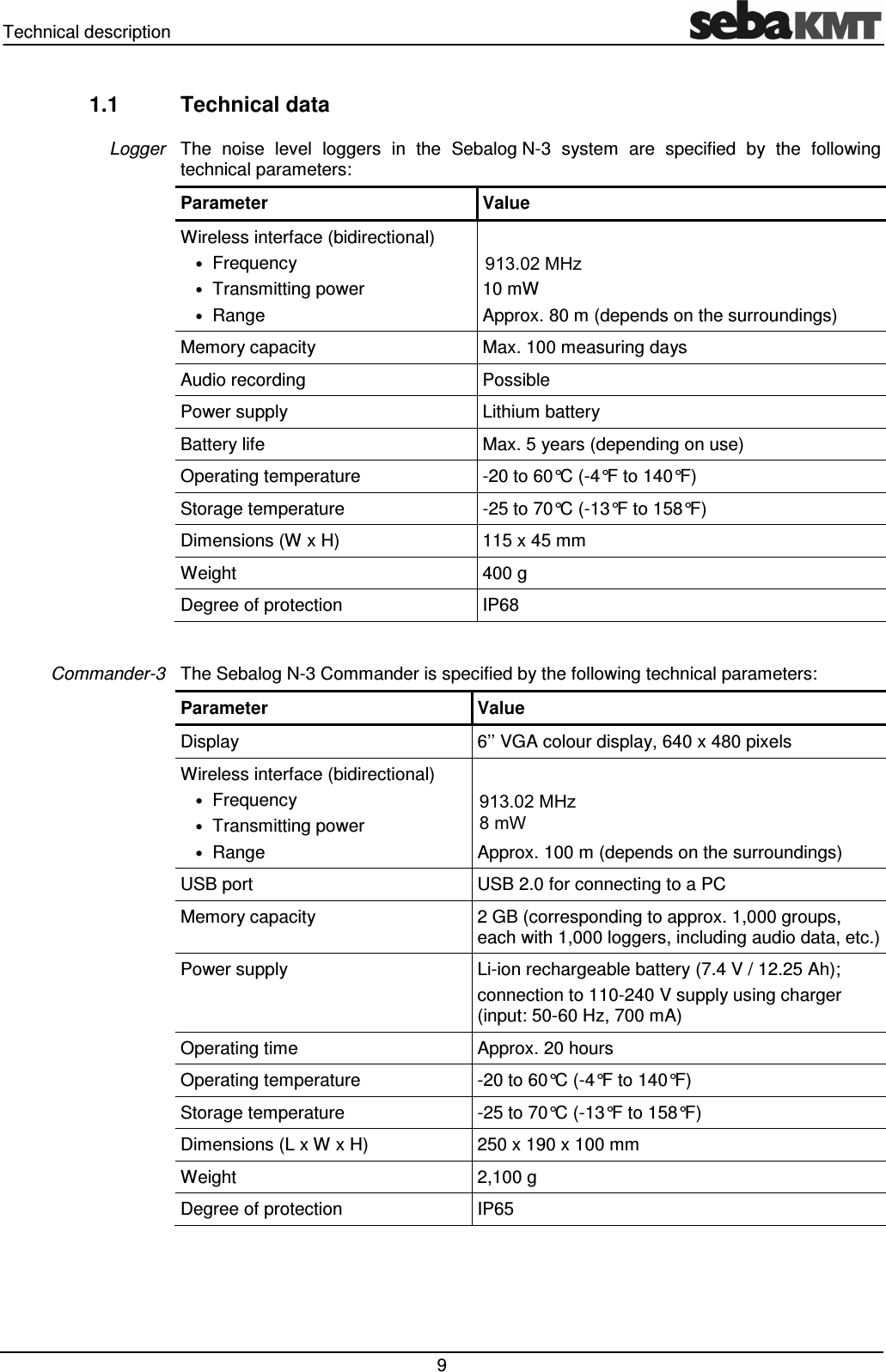
Technical description   9 1.1  Technical data   The  noise  level  loggers  in  the  Sebalog N-3  system  are  specified  by  the  following technical parameters: Parameter Value Wireless interface (bidirectional) • Frequency • Transmitting power • Range  868 MHz (915 MHz optional) 10 mW Approx. 80 m (depends on the surroundings) Memory capacity  Max. 100 measuring days Audio recording  Possible Power supply  Lithium battery Battery life  Max. 5 years (depending on use) Operating temperature  -20 to 60°C (-4°F to 140°F) Storage temperature  -25 to 70°C (-13°F to 158°F) Dimensions (W x H)  115 x 45 mm Weight  400 g Degree of protection  IP68  The Sebalog N-3 Commander is specified by the following technical parameters: Parameter  Value Display  6’’ VGA colour display, 640 x 480 pixels Wireless interface (bidirectional) • Frequency • Transmitting power • Range  868 MHz (915 MHz optional) 10 mW Approx. 100 m (depends on the surroundings) USB port  USB 2.0 for connecting to a PC Memory capacity  2 GB (corresponding to approx. 1,000 groups, each with 1,000 loggers, including audio data, etc.) Power supply  Li-ion rechargeable battery (7.4 V / 12.25 Ah); connection to 110-240 V supply using charger (input: 50-60 Hz, 700 mA) Operating time  Approx. 20 hours  Operating temperature  -20 to 60°C (-4°F to 140°F) Storage temperature  -25 to 70°C (-13°F to 158°F) Dimensions (L x W x H)  250 x 190 x 100 mm Weight  2,100 g Degree of protection  IP65  Logger Commander-3 913.02 MHz913.02 MHz 8 mW
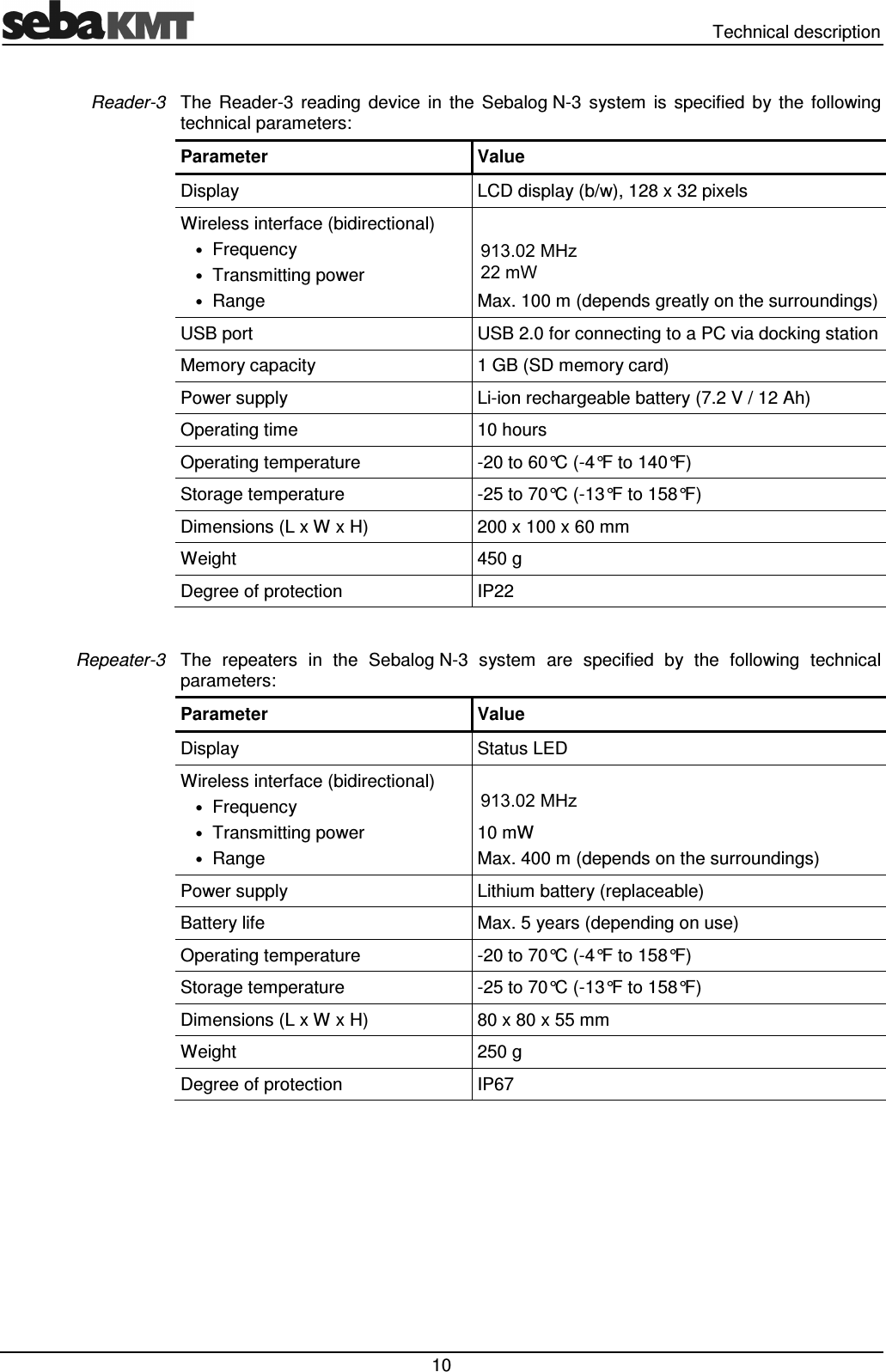
  Technical description  10 The  Reader-3  reading  device  in  the  Sebalog N-3  system  is  specified  by  the  following technical parameters: Parameter  Value Display  LCD display (b/w), 128 x 32 pixels Wireless interface (bidirectional) • Frequency • Transmitting power • Range  868 MHz (915 MHz optional) 10 mW Max. 100 m (depends greatly on the surroundings) USB port  USB 2.0 for connecting to a PC via docking station Memory capacity  1 GB (SD memory card) Power supply  Li-ion rechargeable battery (7.2 V / 12 Ah)  Operating time  10 hours Operating temperature  -20 to 60°C (-4°F to 140°F) Storage temperature  -25 to 70°C (-13°F to 158°F) Dimensions (L x W x H)  200 x 100 x 60 mm Weight  450 g Degree of protection  IP22  The  repeaters  in  the  Sebalog N-3  system  are  specified  by  the  following  technical parameters: Parameter  Value Display  Status LED Wireless interface (bidirectional) • Frequency • Transmitting power • Range  868 MHz (915 MHz optional) 10 mW Max. 400 m (depends on the surroundings) Power supply  Lithium battery (replaceable)  Battery life  Max. 5 years (depending on use) Operating temperature  -20 to 70°C (-4°F to 158°F) Storage temperature  -25 to 70°C (-13°F to 158°F) Dimensions (L x W x H)  80 x 80 x 55 mm Weight  250 g Degree of protection  IP67  Reader-3 Repeater-3 913.02 MHz913.02 MHz 22 mW
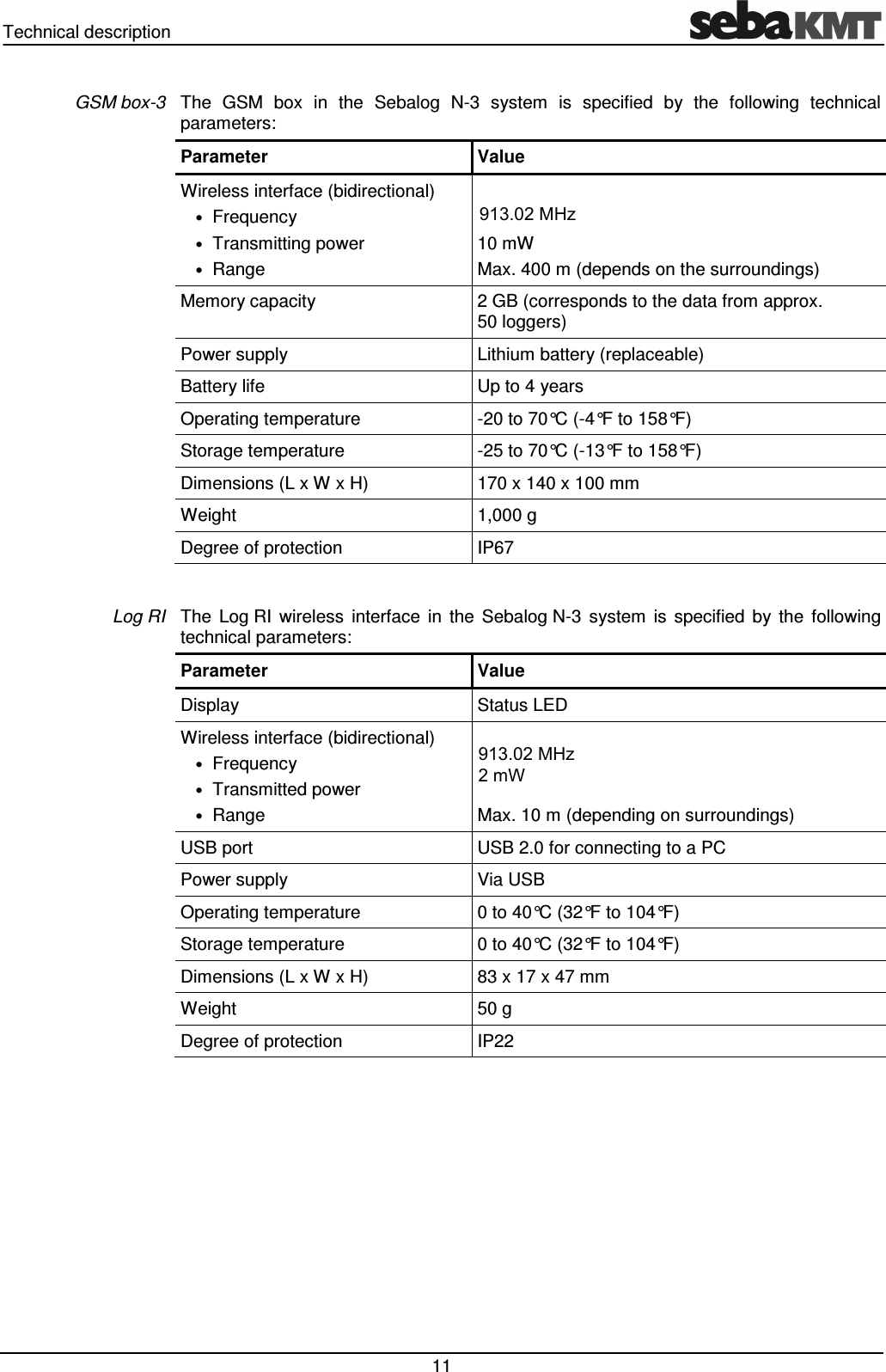
Technical description   11 The  GSM  box  in  the  Sebalog  N-3  system  is  specified  by  the  following  technical parameters: Parameter  Value Wireless interface (bidirectional) • Frequency • Transmitting power • Range  868 MHz (915 MHz optional) 10 mW Max. 400 m (depends on the surroundings) Memory capacity  2 GB (corresponds to the data from approx. 50 loggers) Power supply  Lithium battery (replaceable)  Battery life  Up to 4 years Operating temperature  -20 to 70°C (-4°F to 158°F) Storage temperature  -25 to 70°C (-13°F to 158°F) Dimensions (L x W x H)  170 x 140 x 100 mm Weight  1,000 g Degree of protection  IP67  The  Log RI  wireless  interface  in  the  Sebalog N-3  system  is  specified  by  the  following technical parameters: Parameter  Value Display  Status LED Wireless interface (bidirectional) • Frequency • Transmitted power • Range  868 MHz (915 MHz optional) 10 mW  Max. 10 m (depending on surroundings) USB port  USB 2.0 for connecting to a PC Power supply  Via USB Operating temperature  0 to 40°C (32°F to 104°F) Storage temperature  0 to 40°C (32°F to 104°F) Dimensions (L x W x H)  83 x 17 x 47 mm Weight  50 g Degree of protection  IP22  GSM box-3 Log RI 913.02 MHz 2 mW913.02 MHz
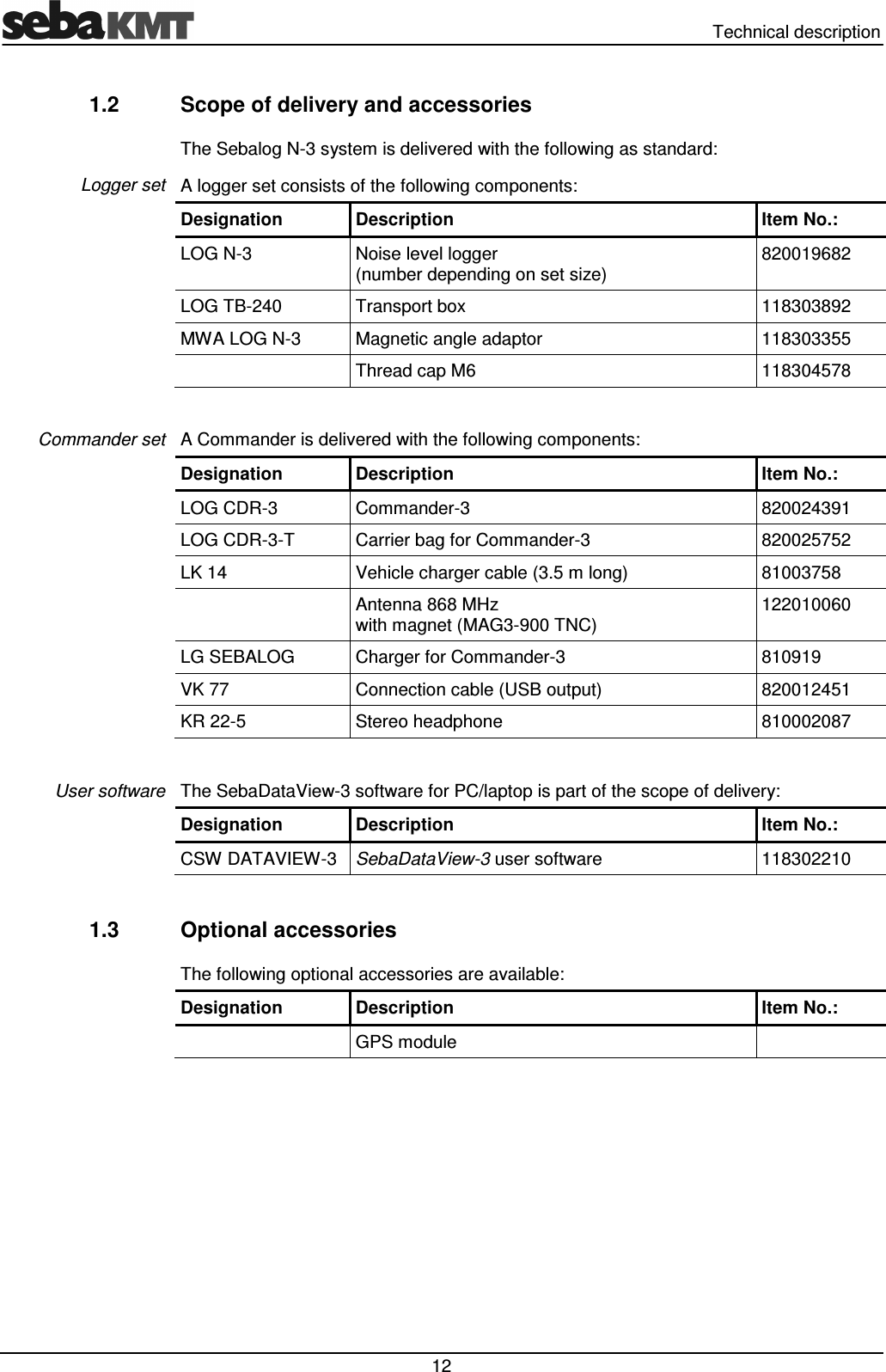
  Technical description  12 1.2  Scope of delivery and accessories The Sebalog N-3 system is delivered with the following as standard: A logger set consists of the following components: Designation  Description  Item No.: LOG N-3  Noise level logger  (number depending on set size) 820019682 LOG TB-240  Transport box  118303892 MWA LOG N-3  Magnetic angle adaptor  118303355   Thread cap M6  118304578  A Commander is delivered with the following components: Designation  Description  Item No.: LOG CDR-3  Commander-3  820024391 LOG CDR-3-T  Carrier bag for Commander-3  820025752 LK 14  Vehicle charger cable (3.5 m long)  81003758   Antenna 868 MHz  with magnet (MAG3-900 TNC) 122010060 LG SEBALOG  Charger for Commander-3  810919 VK 77  Connection cable (USB output)  820012451 KR 22-5  Stereo headphone  810002087  The SebaDataView-3 software for PC/laptop is part of the scope of delivery: Designation  Description  Item No.: CSW DATAVIEW-3  SebaDataView-3 user software  118302210  1.3  Optional accessories The following optional accessories are available: Designation  Description  Item No.:   GPS module     Logger set Commander set User software
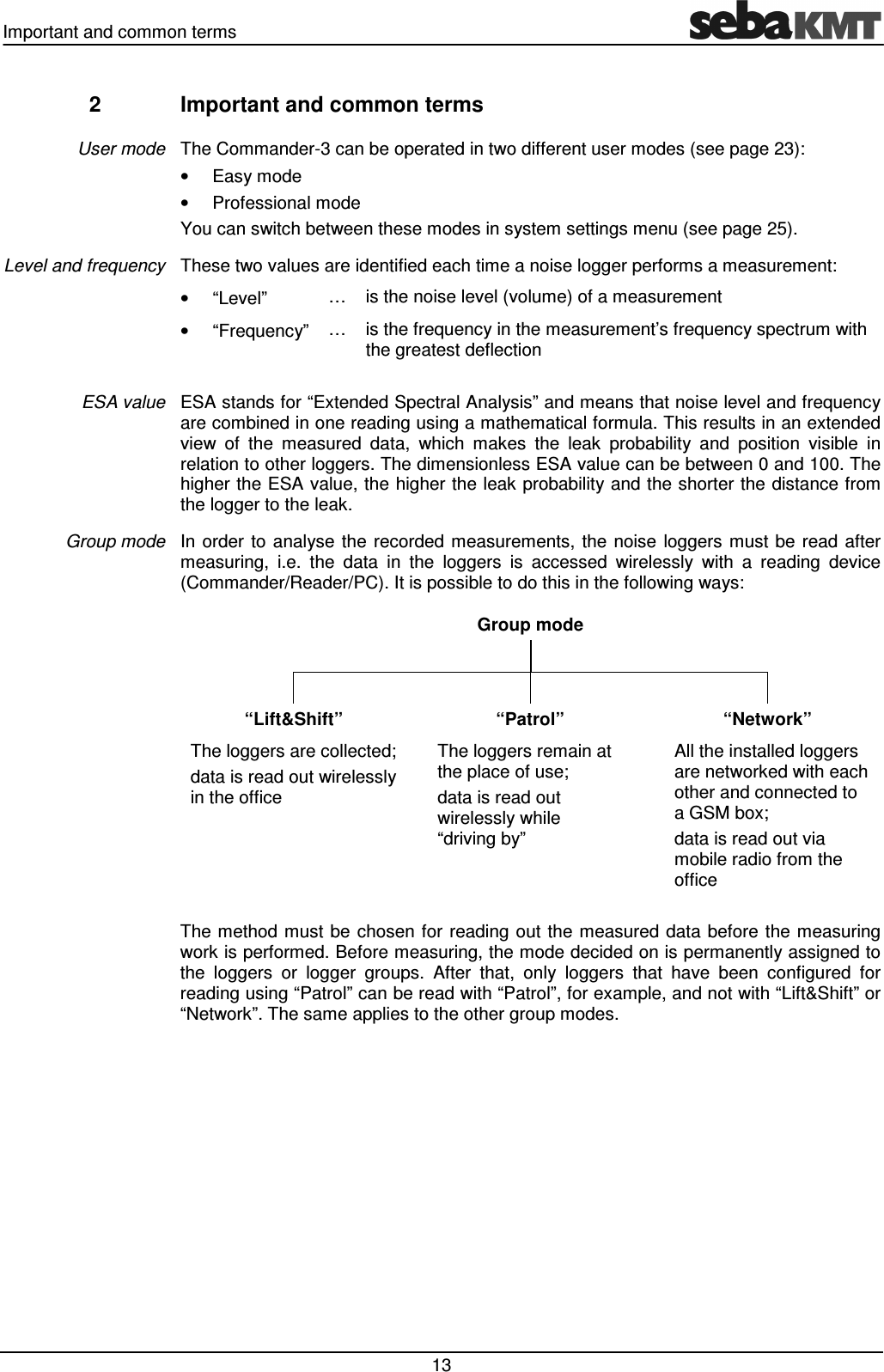
Important and common terms   13 2  Important and common terms The Commander-3 can be operated in two different user modes (see page 23):  •  Easy mode •  Professional mode You can switch between these modes in system settings menu (see page 25). These two values are identified each time a noise logger performs a measurement:  •  “Level”  …  is the noise level (volume) of a measurement •  “Frequency” …  is the frequency in the measurement’s frequency spectrum with the greatest deflection  ESA stands for “Extended Spectral Analysis” and means that noise level and frequency are combined in one reading using a mathematical formula. This results in an extended view  of  the  measured  data,  which  makes  the  leak  probability  and  position  visible  in relation to other loggers. The dimensionless ESA value can be between 0 and 100. The higher the ESA value, the higher the leak probability and the shorter the distance from the logger to the leak. In order  to  analyse the  recorded measurements,  the noise  loggers  must  be  read after measuring,  i.e.  the  data  in  the  loggers  is  accessed  wirelessly  with  a  reading  device (Commander/Reader/PC). It is possible to do this in the following ways:   Group mode                         “Lift&Shift”  “Patrol”  “Network” The loggers are collected; data is read out wirelessly  in the office The loggers remain at  the place of use; data is read out  wirelessly while  “driving by” All the installed loggers are networked with each other and connected to a GSM box; data is read out via mobile radio from the office  The method  must be chosen  for reading out the  measured data  before  the measuring work is performed. Before measuring, the mode decided on is permanently assigned to the  loggers  or  logger  groups.  After  that,  only  loggers  that  have  been  configured  for reading using “Patrol” can be read with “Patrol”, for example, and not with “Lift&Shift” or “Network”. The same applies to the other group modes.  User mode Level and frequency ESA value Group mode
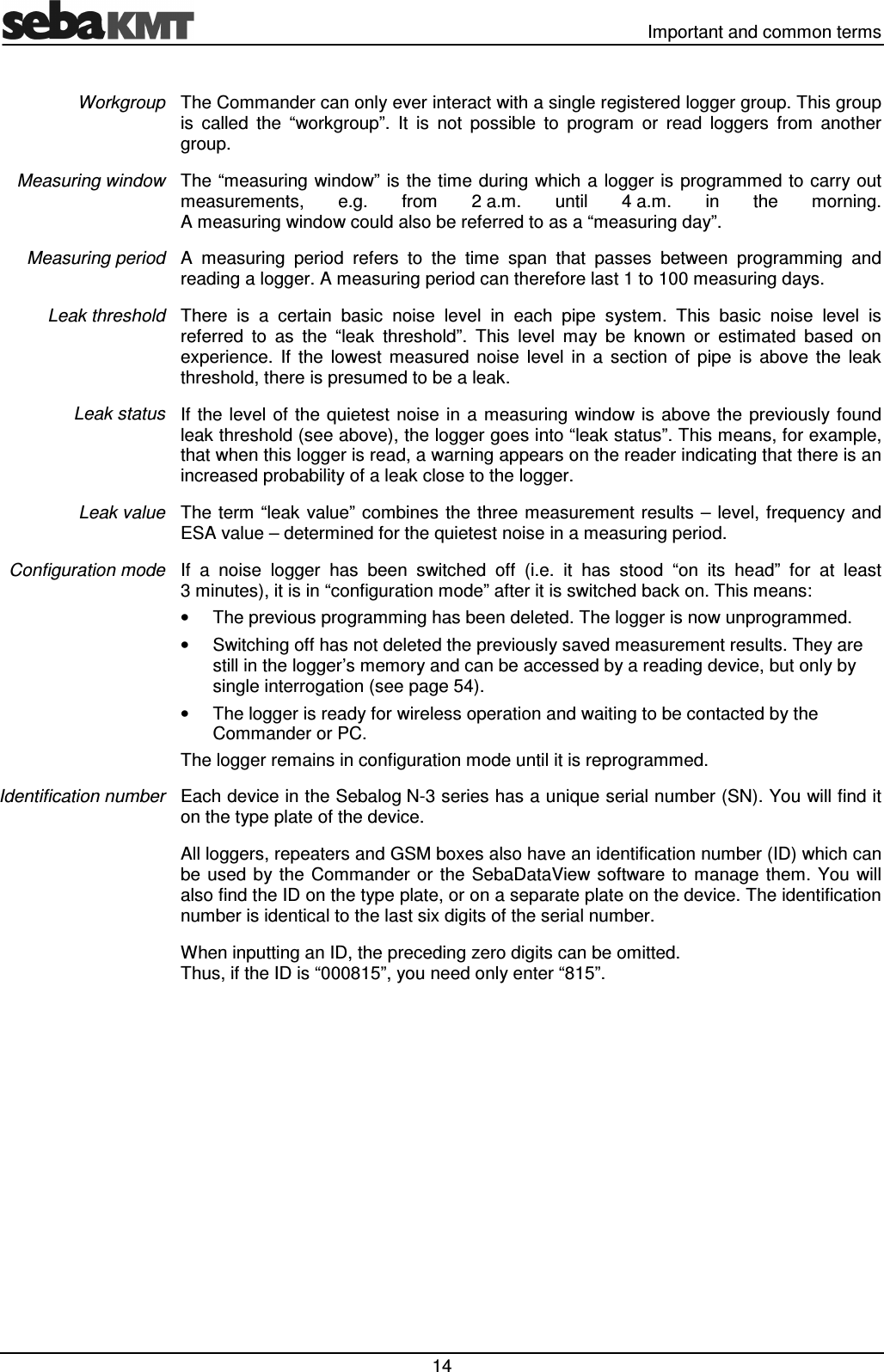
  Important and common terms  14 The Commander can only ever interact with a single registered logger group. This group is  called  the  “workgroup”.  It  is  not  possible  to  program  or  read  loggers  from  another group. The “measuring  window” is the time during which a logger is  programmed to carry out measurements,  e.g.  from  2 a.m.  until  4 a.m.  in  the  morning.  A measuring window could also be referred to as a “measuring day”. A  measuring  period  refers  to  the  time  span  that  passes  between  programming  and reading a logger. A measuring period can therefore last 1 to 100 measuring days. There  is  a  certain  basic  noise  level  in  each  pipe  system.  This  basic  noise  level  is referred  to  as  the  “leak  threshold”.  This  level  may  be  known  or  estimated  based  on experience.  If  the  lowest  measured  noise  level  in  a  section  of  pipe  is  above  the  leak threshold, there is presumed to be a leak. If the level  of the quietest  noise in  a measuring  window is  above the  previously found leak threshold (see above), the logger goes into “leak status”. This means, for example, that when this logger is read, a warning appears on the reader indicating that there is an increased probability of a leak close to the logger. The  term  “leak value” combines the three measurement results  – level,  frequency and ESA value – determined for the quietest noise in a measuring period. If  a  noise  logger  has  been  switched  off  (i.e.  it  has  stood  “on  its  head”  for  at  least 3 minutes), it is in “configuration mode” after it is switched back on. This means: •  The previous programming has been deleted. The logger is now unprogrammed. •  Switching off has not deleted the previously saved measurement results. They are still in the logger’s memory and can be accessed by a reading device, but only by single interrogation (see page 54).  •  The logger is ready for wireless operation and waiting to be contacted by the Commander or PC. The logger remains in configuration mode until it is reprogrammed. Each device in the Sebalog N-3 series has a unique serial number (SN). You will find it on the type plate of the device.  All loggers, repeaters and GSM boxes also have an identification number (ID) which can be used  by the  Commander or  the  SebaDataView  software  to manage them.  You  will also find the ID on the type plate, or on a separate plate on the device. The identification number is identical to the last six digits of the serial number. When inputting an ID, the preceding zero digits can be omitted.  Thus, if the ID is “000815”, you need only enter “815”. Workgroup Measuring window Measuring period Leak threshold Leak status Leak value Configuration mode Identification number
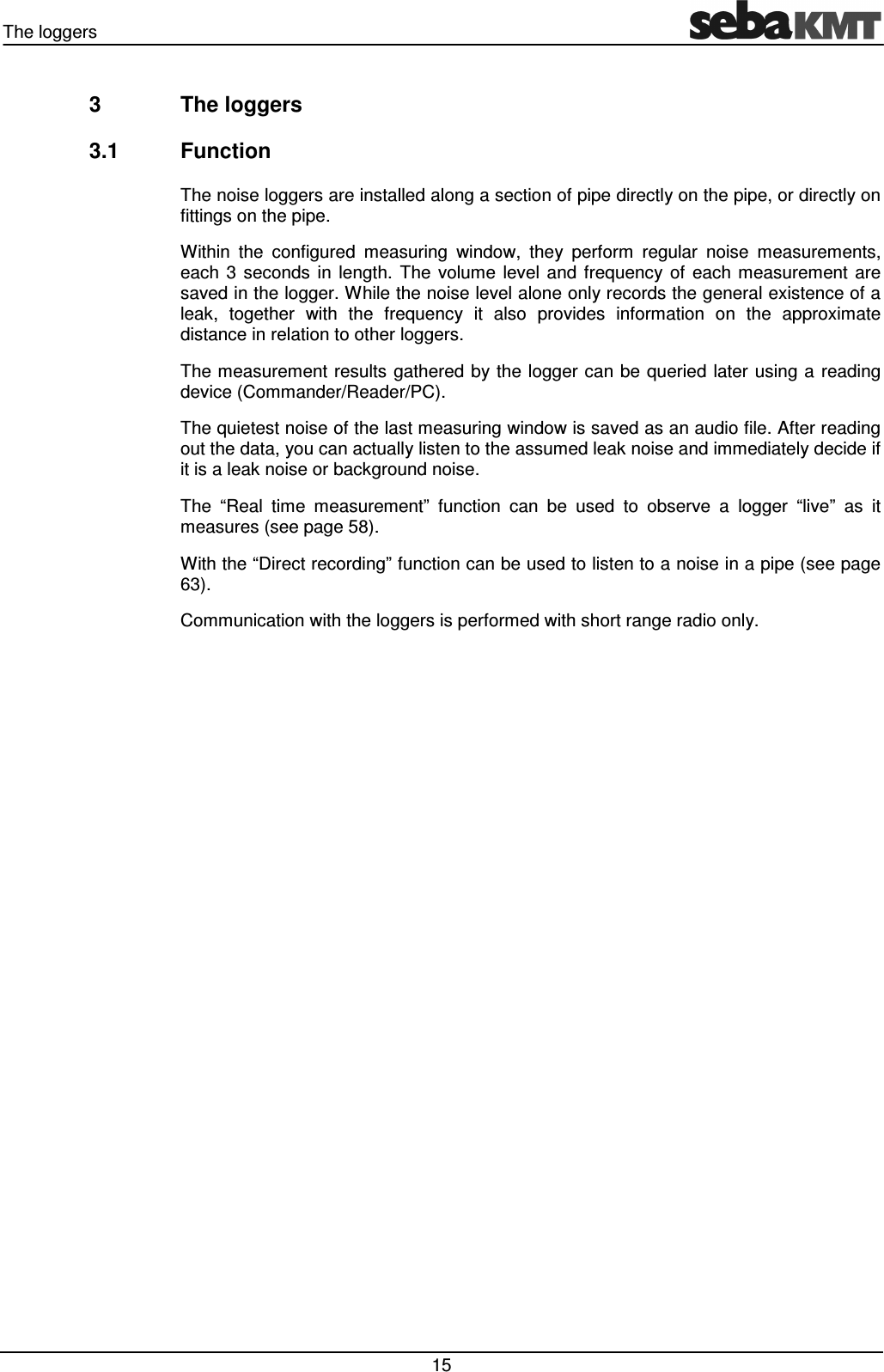
The loggers   15 3  The loggers 3.1  Function The noise loggers are installed along a section of pipe directly on the pipe, or directly on fittings on the pipe.  Within  the  configured  measuring  window,  they  perform  regular  noise  measurements, each  3  seconds  in  length.  The  volume  level  and  frequency  of  each  measurement  are saved in the logger. While the noise level alone only records the general existence of a leak,  together  with  the  frequency  it  also  provides  information  on  the  approximate distance in relation to other loggers. The measurement results gathered by the logger can be queried later using a reading device (Commander/Reader/PC). The quietest noise of the last measuring window is saved as an audio file. After reading out the data, you can actually listen to the assumed leak noise and immediately decide if it is a leak noise or background noise. The  “Real  time  measurement”  function  can  be  used  to  observe  a  logger  “live”  as  it measures (see page 58).  With the “Direct recording” function can be used to listen to a noise in a pipe (see page 63).  Communication with the loggers is performed with short range radio only.
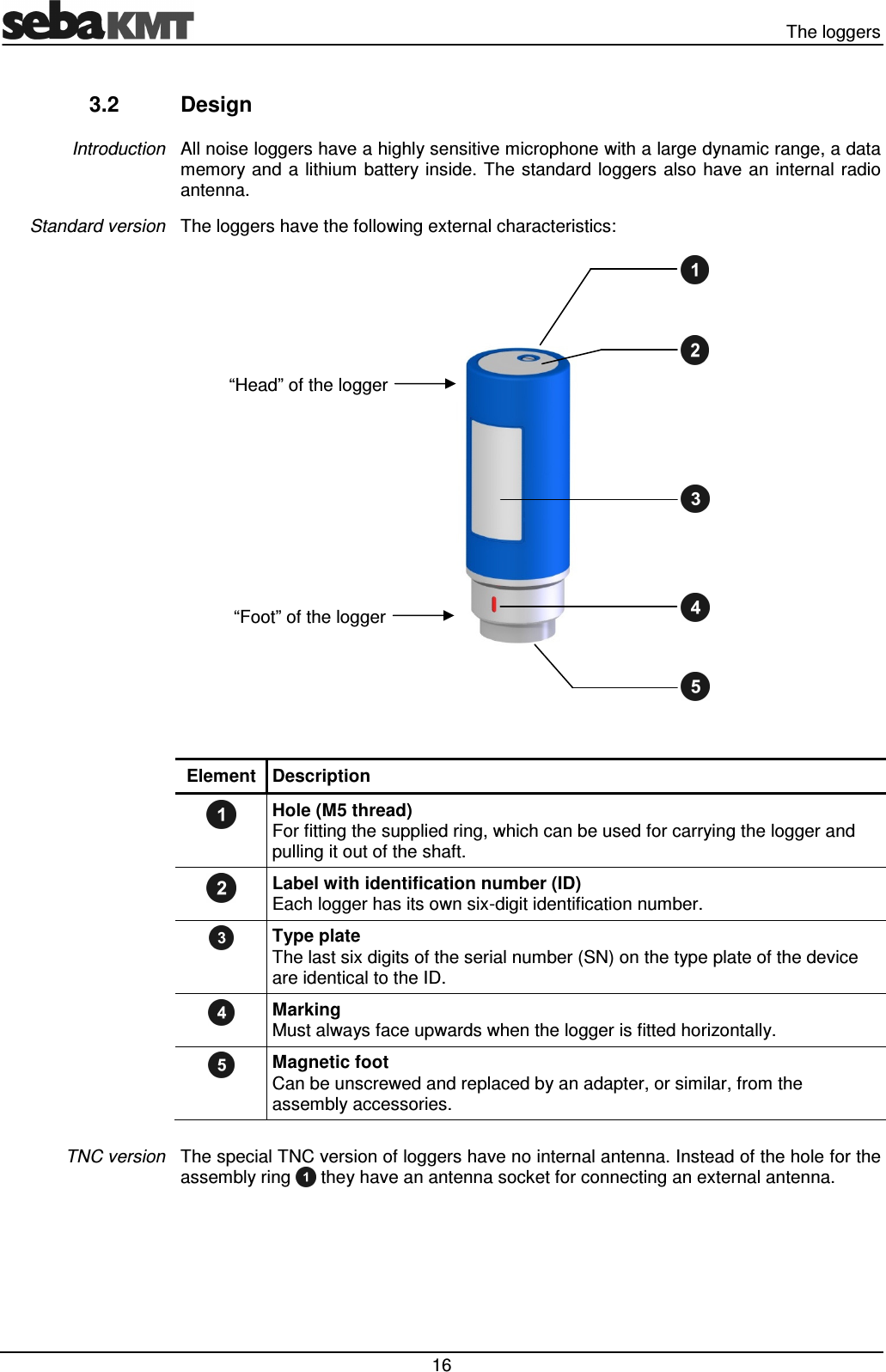
  The loggers  16 3.2  Design All noise loggers have a highly sensitive microphone with a large dynamic range, a data memory and a lithium battery inside. The standard loggers also have an internal radio antenna. The loggers have the following external characteristics:    Element Description  Hole (M5 thread)  For fitting the supplied ring, which can be used for carrying the logger and pulling it out of the shaft.  Label with identification number (ID) Each logger has its own six-digit identification number.  Type plate The last six digits of the serial number (SN) on the type plate of the device are identical to the ID.  Marking  Must always face upwards when the logger is fitted horizontally.  Magnetic foot  Can be unscrewed and replaced by an adapter, or similar, from the assembly accessories.  The special TNC version of loggers have no internal antenna. Instead of the hole for the assembly ring   they have an antenna socket for connecting an external antenna.  Introduction Standard version TNC version “Head” of the logger “Foot” of the logger
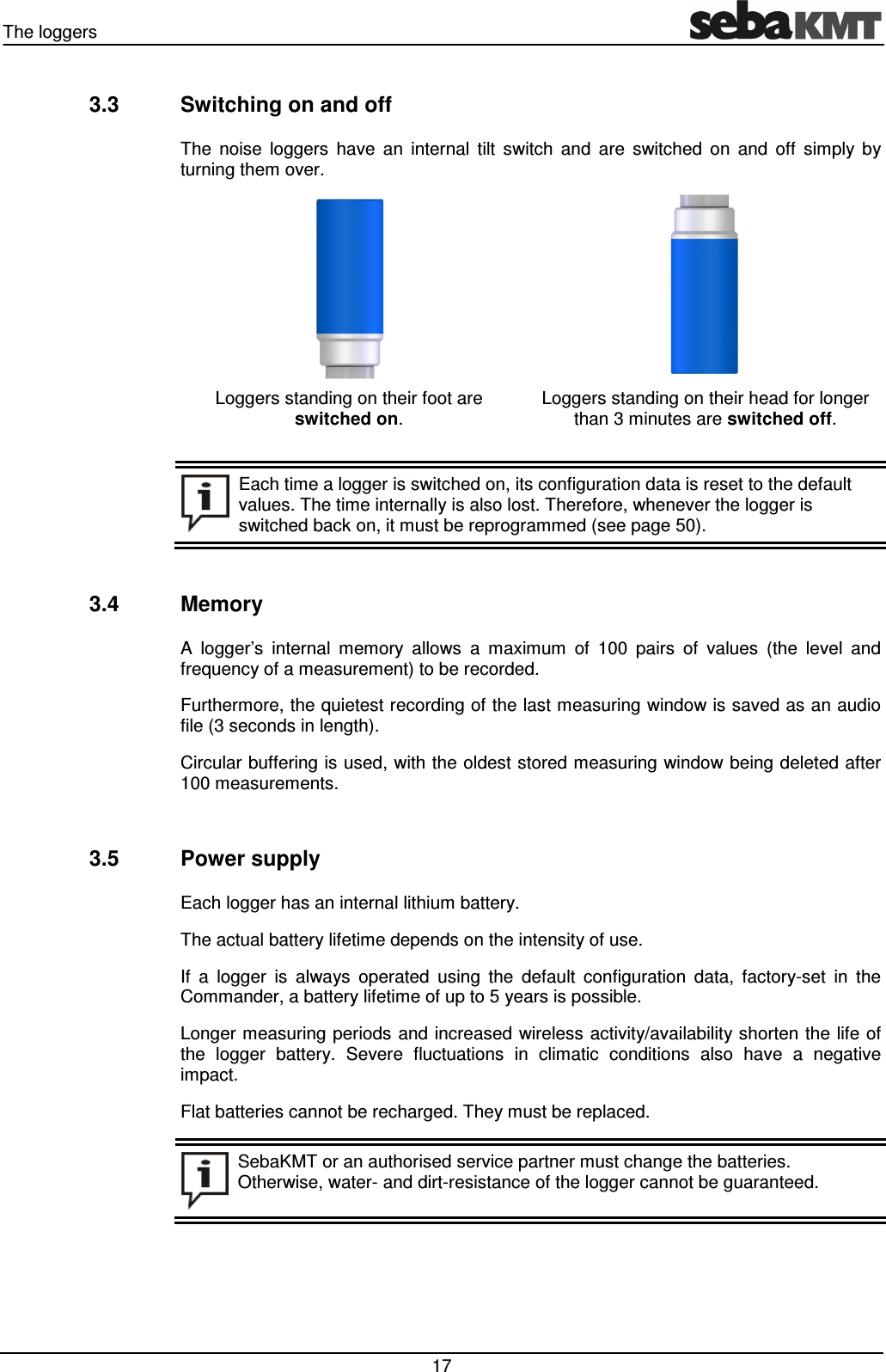
The loggers   17 3.3  Switching on and off The  noise  loggers  have  an  internal  tilt  switch  and  are  switched  on  and  off  simply  by turning them over.  Loggers standing on their foot are  switched on.  Loggers standing on their head for longer than 3 minutes are switched off.   Each time a logger is switched on, its configuration data is reset to the default values. The time internally is also lost. Therefore, whenever the logger is switched back on, it must be reprogrammed (see page 50).  3.4  Memory A  logger’s  internal  memory  allows  a  maximum  of  100  pairs  of  values  (the  level  and frequency of a measurement) to be recorded.  Furthermore, the quietest recording of the last measuring window is saved as an audio file (3 seconds in length). Circular buffering is used, with the oldest stored measuring window being deleted after 100 measurements.  3.5  Power supply Each logger has an internal lithium battery. The actual battery lifetime depends on the intensity of use. If  a  logger  is  always  operated  using  the  default  configuration  data,  factory-set  in  the Commander, a battery lifetime of up to 5 years is possible.  Longer measuring periods and increased wireless activity/availability shorten the life of the  logger  battery.  Severe  fluctuations  in  climatic  conditions  also  have  a  negative impact. Flat batteries cannot be recharged. They must be replaced.  SebaKMT or an authorised service partner must change the batteries. Otherwise, water- and dirt-resistance of the logger cannot be guaranteed.
  The Commander  18 4  The Commander 4.1  Function The  Sebalog Commander 3  is  the  mobile  programming  and  reading  device  for  noise loggers  in  the  Sebalog N-3  series.  The  Commander  is  used  to  program  the  noise loggers  before  measuring.  After  measuring,  the  recorded  data  in  the  loggers  can  be queried  with  the  Commander.  Both  current  and  older  data  can  be  displayed  on  the device’s screen  and analysed in greater  detail. Furthermore, a real time measurement can be performed (see page 58). After connecting the supplied headphones, you can play back audio files of leak noises. It is also possible to listen to the current noise in a pipe (see page 63).
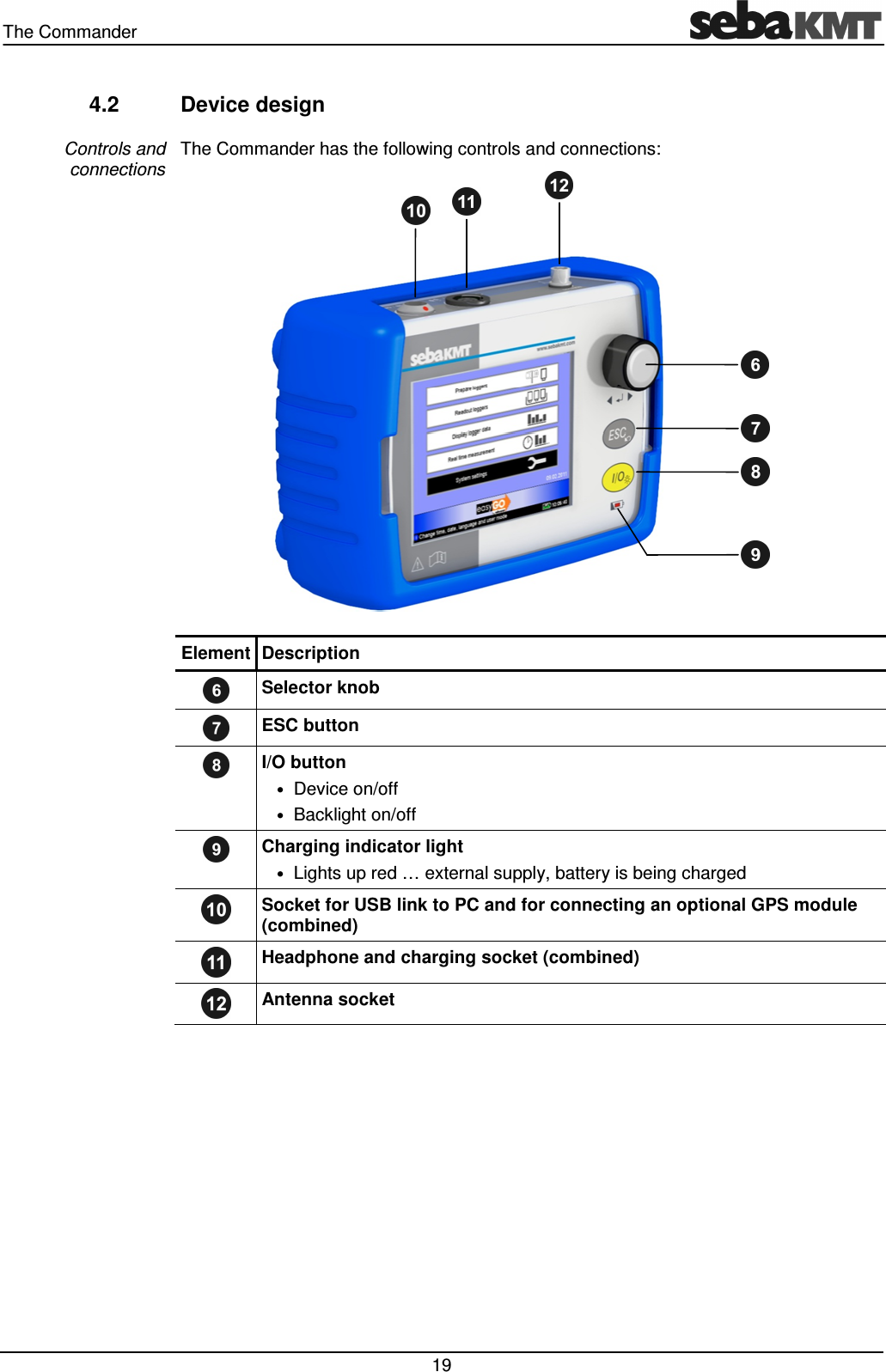
The Commander   19 4.2  Device design The Commander has the following controls and connections:  Element Description  Selector knob  ESC button  I/O button • Device on/off  • Backlight on/off   Charging indicator light • Lights up red … external supply, battery is being charged  Socket for USB link to PC and for connecting an optional GPS module (combined)  Headphone and charging socket (combined)  Antenna socket  Controls and connections
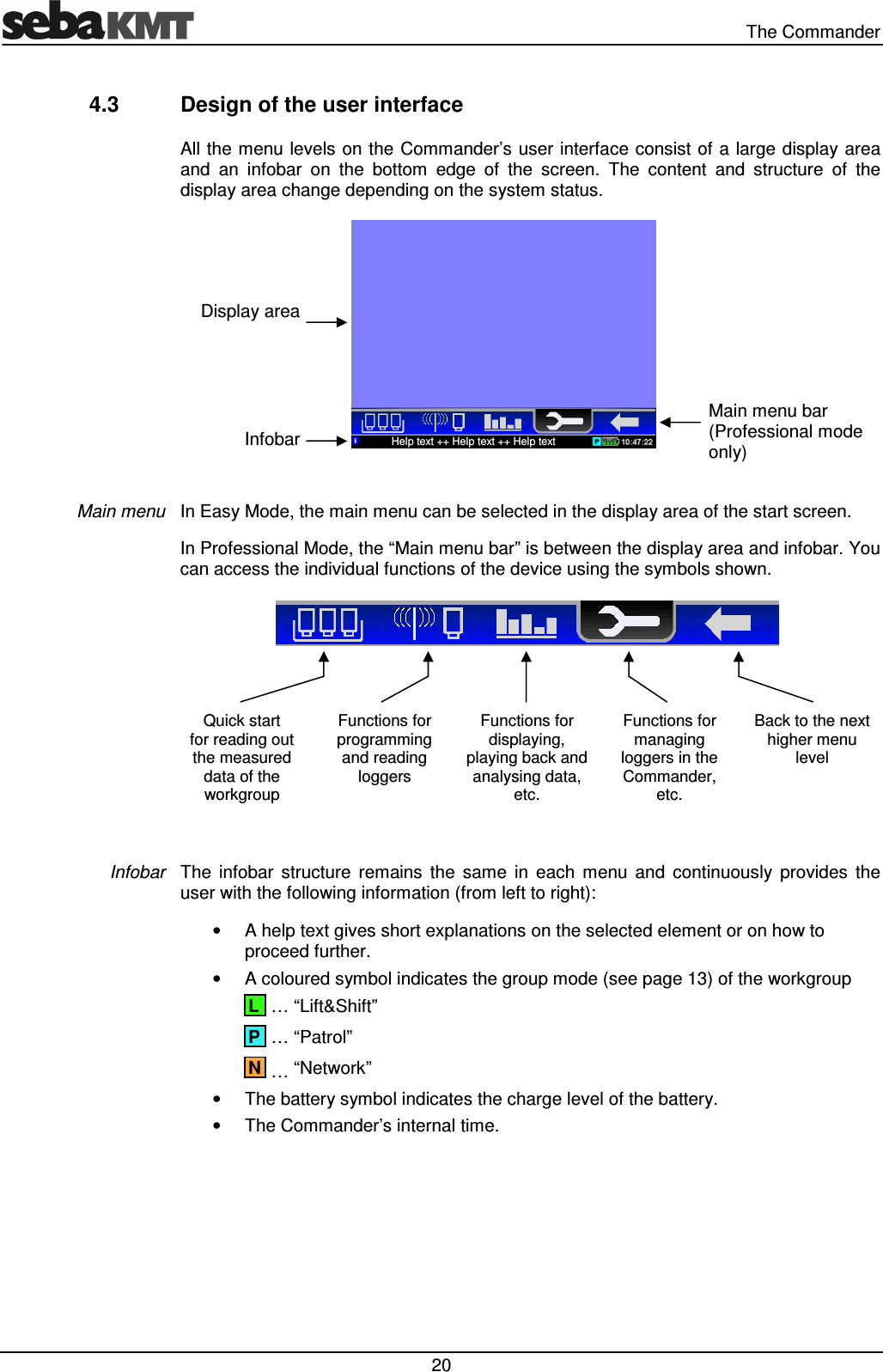
  The Commander  20 4.3  Design of the user interface All the menu levels on the Commander’s user interface consist of a large display area and  an  infobar  on  the  bottom  edge  of  the  screen.  The  content  and  structure  of  the display area change depending on the system status.   In Easy Mode, the main menu can be selected in the display area of the start screen.  In Professional Mode, the “Main menu bar” is between the display area and infobar. You can access the individual functions of the device using the symbols shown.    Quick start  for reading out the measured data of the workgroup Functions for programming and reading loggers Functions for displaying, playing back and analysing data, etc. Functions for managing loggers in the Commander, etc. Back to the next higher menu level  The  infobar  structure  remains  the  same  in  each  menu  and  continuously  provides  the user with the following information (from left to right): •  A help text gives short explanations on the selected element or on how to proceed further. •  A coloured symbol indicates the group mode (see page 13) of the workgroup   … “Lift&Shift”  … “Patrol”  … “Network” •  The battery symbol indicates the charge level of the battery. •  The Commander’s internal time. Main menu Infobar N P L Display area Infobar Help text ++ Help text ++ Help text Main menu bar  (Professional mode only)
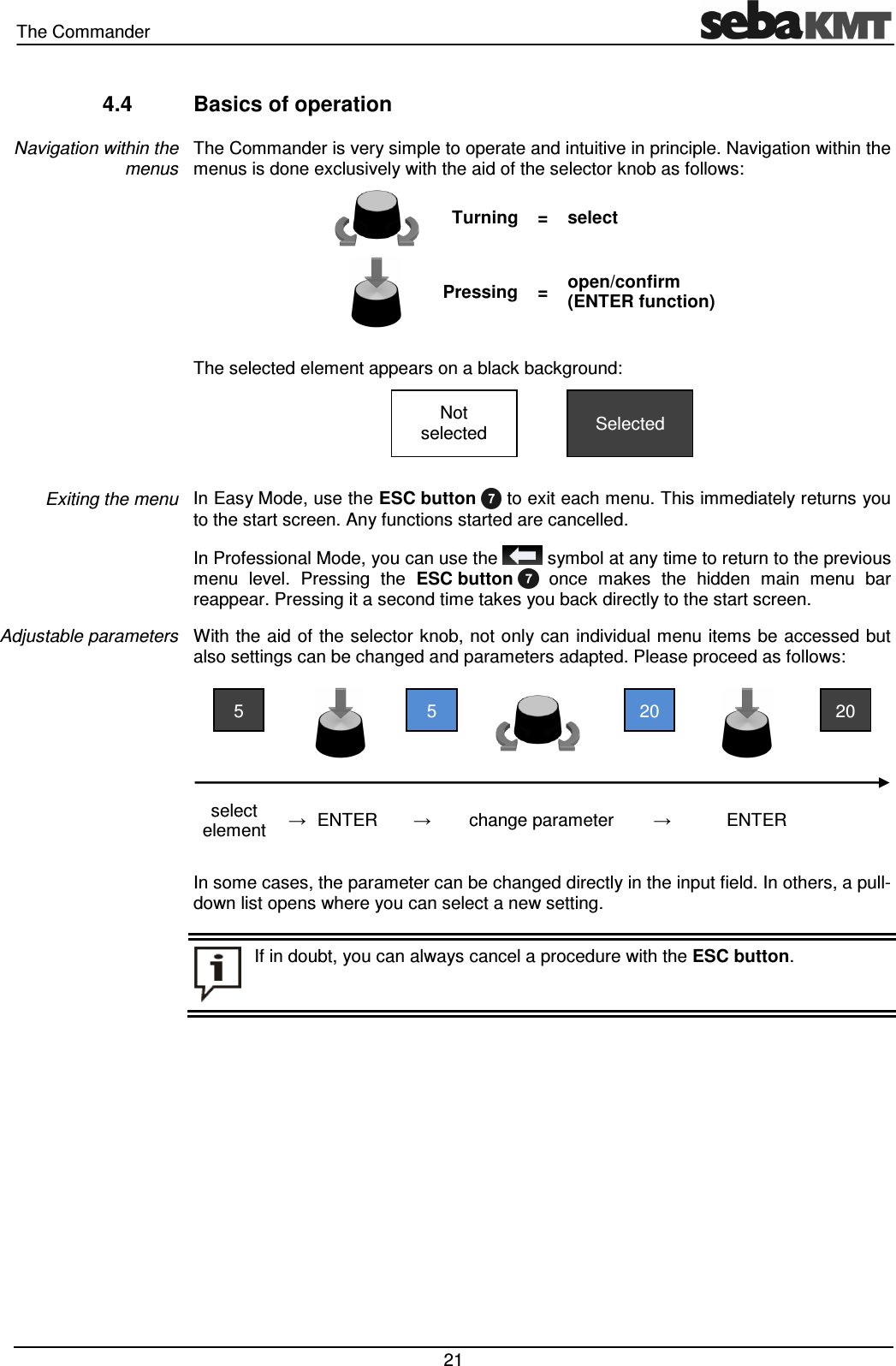
The Commander   21 4.4  Basics of operation The Commander is very simple to operate and intuitive in principle. Navigation within the menus is done exclusively with the aid of the selector knob as follows:   Turning =  select   Pressing =  open/confirm (ENTER function)  The selected element appears on a black background:     In Easy Mode, use the ESC button   to exit each menu. This immediately returns you to the start screen. Any functions started are cancelled.  In Professional Mode, you can use the   symbol at any time to return to the previous menu  level.  Pressing  the  ESC button    once  makes  the  hidden  main  menu  bar reappear. Pressing it a second time takes you back directly to the start screen. With the aid  of the selector knob, not only can individual menu items be accessed but also settings can be changed and parameters adapted. Please proceed as follows:         select element  → ENTER →  change parameter  →  ENTER    In some cases, the parameter can be changed directly in the input field. In others, a pull-down list opens where you can select a new setting.   Navigation within the menus Exiting the menu Adjustable parameters  If in doubt, you can always cancel a procedure with the ESC button.  20 20 5 5 Selected Not selected
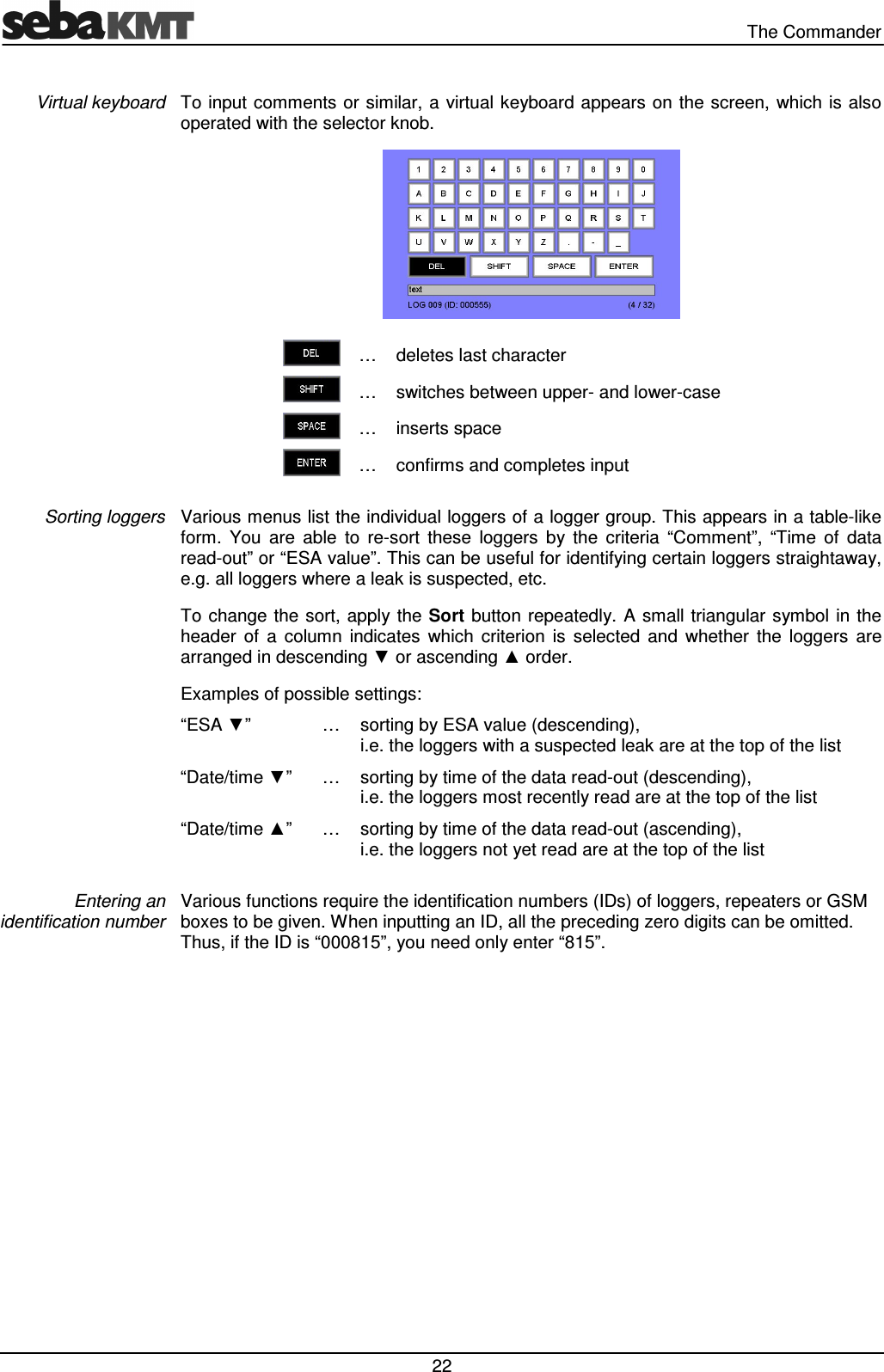
  The Commander  22 To input comments or similar, a virtual keyboard appears on the screen, which is also operated with the selector knob.   …  deletes last character  …  switches between upper- and lower-case  …  inserts space  …  confirms and completes input  Various menus list the individual loggers of a logger group. This appears in a table-like form.  You  are  able  to  re-sort  these  loggers  by  the  criteria  “Comment”,  “Time  of  data read-out” or “ESA value”. This can be useful for identifying certain loggers straightaway, e.g. all loggers where a leak is suspected, etc. To  change  the sort,  apply the Sort button  repeatedly.  A small triangular symbol in the header  of  a  column  indicates  which  criterion  is  selected  and  whether  the  loggers  are arranged in descending ▼ or ascending ▲ order.  Examples of possible settings:  “ESA ▼”  …  sorting by ESA value (descending), i.e. the loggers with a suspected leak are at the top of the list “Date/time ▼”  …  sorting by time of the data read-out (descending), i.e. the loggers most recently read are at the top of the list “Date/time ▲”  …  sorting by time of the data read-out (ascending), i.e. the loggers not yet read are at the top of the list  Various functions require the identification numbers (IDs) of loggers, repeaters or GSM boxes to be given. When inputting an ID, all the preceding zero digits can be omitted. Thus, if the ID is “000815”, you need only enter “815”. Virtual keyboard Sorting loggers Entering an identification number
The Commander   23 4.5  User mode The Commander-3 can be operated in two different user modes. Easy mode  Professional mode In Easy mode all the main functions of the device are available. They can perform most day-to-day work quickly and simply - from programming a logger group to analysing measured data on the Commander. The individual applications are structured very clearly; the user is partly guided step-by-step from one action to the next. Easy mode is therefore not just suited to first-time users but also experienced operators who prefer to use its simpler menu structure. In Professional mode all the functions of the device are available to the user. This allows the system to be better adapted to the user’s requirements and conditions on site. Difficult measurements can be prepared more exactly and the results evaluated and documented in more different ways, etc. Some applications can only be used in Professional mode, such as using Repeaters or building a logger network.  If  the  Commander  is  in  Easy  mode,  the  following  symbol  is  permanently  displayed above the infobar:   If  the  EasyGo  symbol  isn’t  shown  on  the  screen,  the  Commander  is  in  Professional mode. The user mode can be switched in the system settings (see page 26).   Introduction How to identify  the user mode? How to change the user mode?
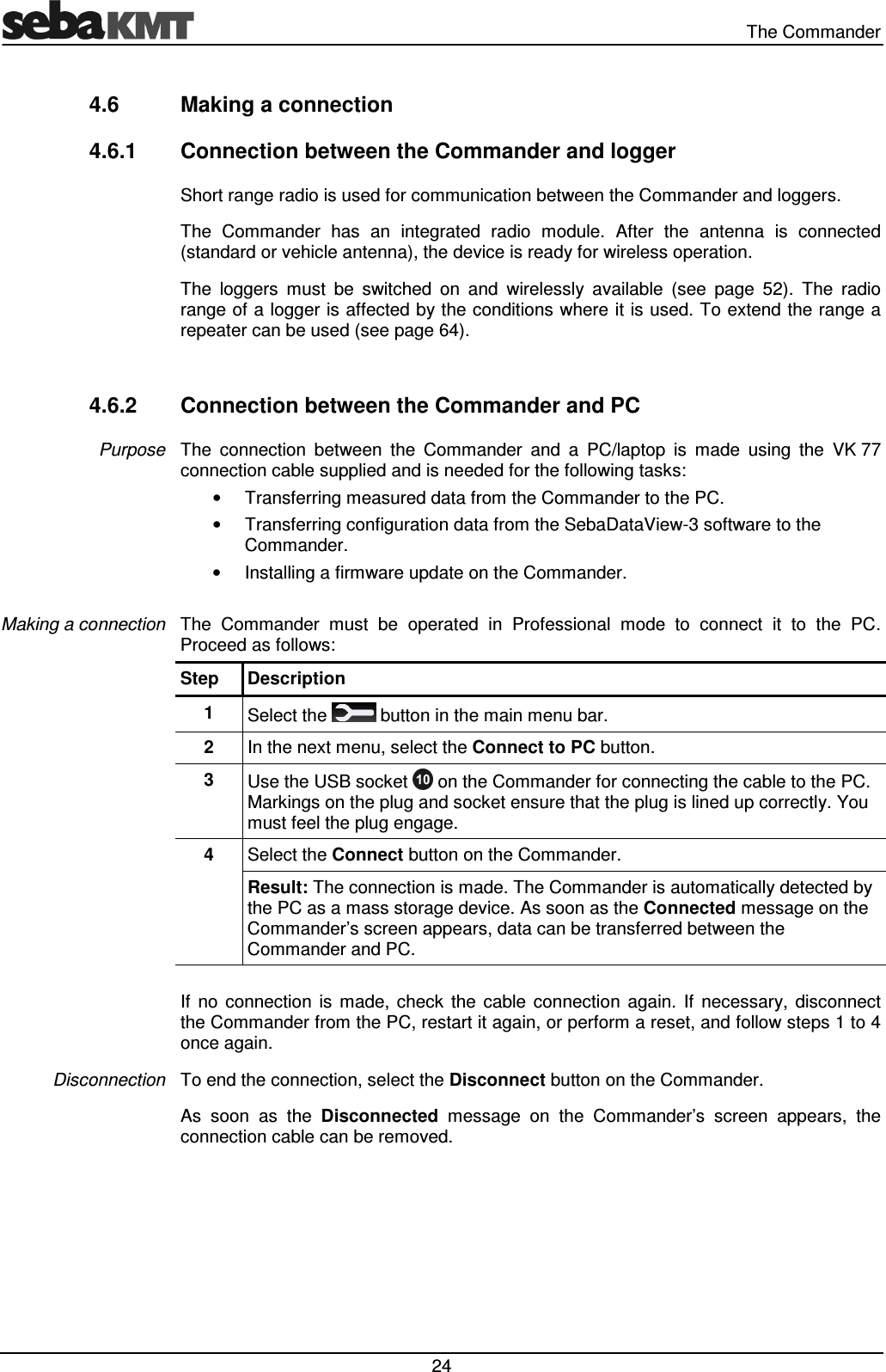
  The Commander  24 4.6  Making a connection 4.6.1  Connection between the Commander and logger Short range radio is used for communication between the Commander and loggers.  The  Commander  has  an  integrated  radio  module.  After  the  antenna  is  connected (standard or vehicle antenna), the device is ready for wireless operation. The  loggers  must  be  switched  on  and  wirelessly  available  (see  page  52).  The  radio range of a logger is affected by the conditions where it is used. To extend the range a repeater can be used (see page 64).  4.6.2  Connection between the Commander and PC The  connection  between  the  Commander  and  a  PC/laptop  is  made  using  the  VK 77 connection cable supplied and is needed for the following tasks: •  Transferring measured data from the Commander to the PC. •  Transferring configuration data from the SebaDataView-3 software to the Commander. •  Installing a firmware update on the Commander.  The  Commander  must  be  operated  in  Professional  mode  to  connect  it  to  the  PC. Proceed as follows: Step  Description 1  Select the   button in the main menu bar. 2  In the next menu, select the Connect to PC button. 3  Use the USB socket   on the Commander for connecting the cable to the PC. Markings on the plug and socket ensure that the plug is lined up correctly. You must feel the plug engage. 4  Select the Connect button on the Commander. Result: The connection is made. The Commander is automatically detected by the PC as a mass storage device. As soon as the Connected message on the Commander’s screen appears, data can be transferred between the Commander and PC.  If  no  connection  is  made,  check  the  cable  connection  again.  If  necessary,  disconnect the Commander from the PC, restart it again, or perform a reset, and follow steps 1 to 4 once again.  To end the connection, select the Disconnect button on the Commander.  As  soon  as  the  Disconnected  message  on  the  Commander’s  screen  appears,  the connection cable can be removed. Purpose Making a connection Disconnection
The Commander   25 4.7  Switching on the display lighting The Commander’s screen has a backlight. It is activated by using the selector knob or briefly pressing the I/O button  . The lighting then remains on for a certain time period. The  length  of  this  period  (a  maximum  of  4 minutes)  can  be  adjusted  in  the  system settings (see page 26).   4.8  System settings You  can  use  the  System settings  menu  to  customise  various  device  settings  to  the needs of the user.  Beginning  at  the  start  screen,  follow  the       symbols.  The System settings menu opens:   When the Commander is in Professional mode, more settings can be changed than in Easy mode. Use the Next button to go to the second page of the menu.
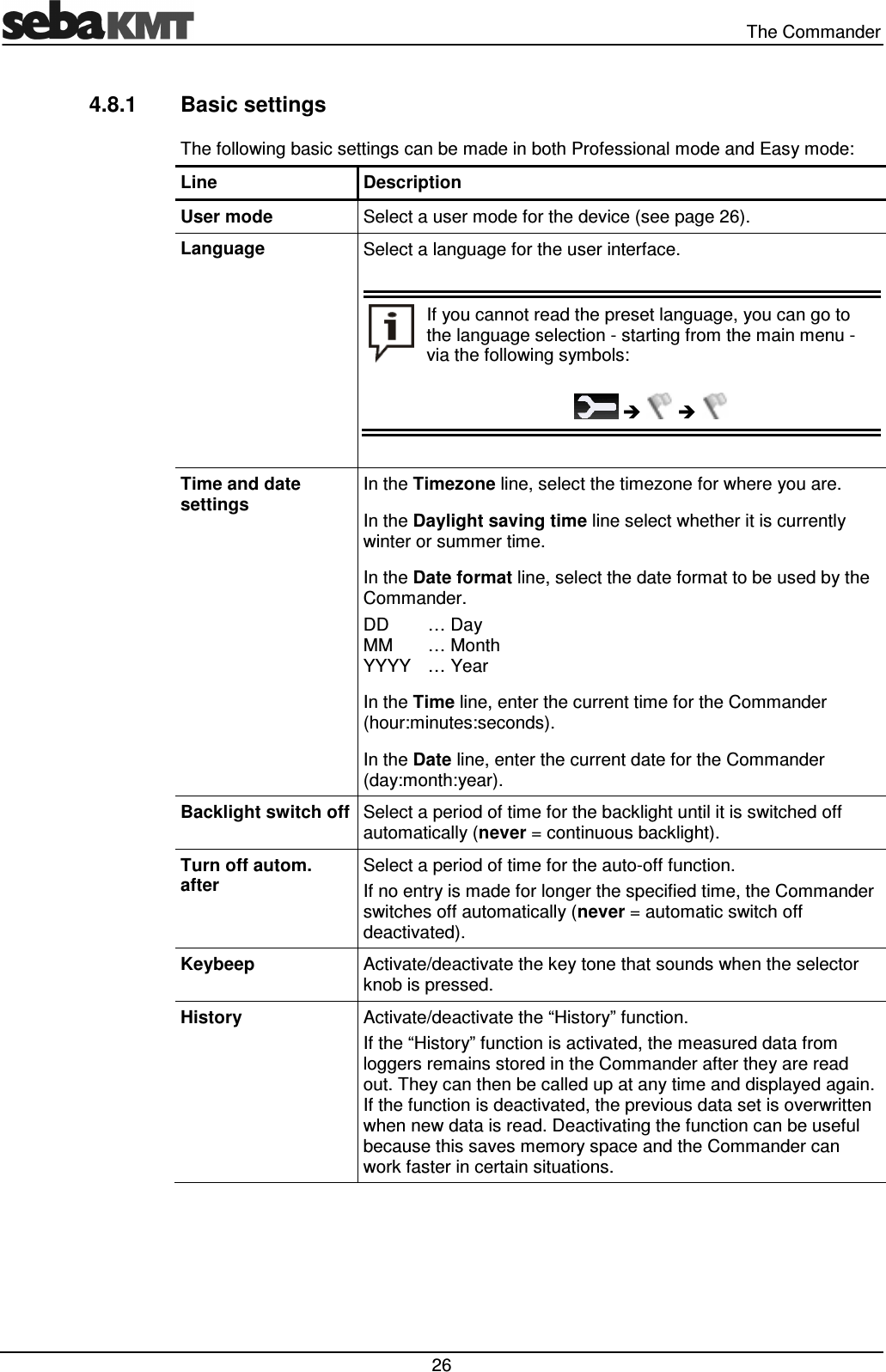
  The Commander  26 4.8.1  Basic settings The following basic settings can be made in both Professional mode and Easy mode: Line  Description User mode  Select a user mode for the device (see page 26). Language  Select a language for the user interface.   If you cannot read the preset language, you can go to the language selection - starting from the main menu - via the following symbols:          Time and date settings In the Timezone line, select the timezone for where you are. In the Daylight saving time line select whether it is currently winter or summer time. In the Date format line, select the date format to be used by the Commander.  DD  … Day MM  … Month YYYY  … Year In the Time line, enter the current time for the Commander (hour:minutes:seconds). In the Date line, enter the current date for the Commander (day:month:year). Backlight switch off Select a period of time for the backlight until it is switched off automatically (never = continuous backlight). Turn off autom. after Select a period of time for the auto-off function.  If no entry is made for longer the specified time, the Commander switches off automatically (never = automatic switch off deactivated). Keybeep  Activate/deactivate the key tone that sounds when the selector knob is pressed. History  Activate/deactivate the “History” function. If the “History” function is activated, the measured data from loggers remains stored in the Commander after they are read out. They can then be called up at any time and displayed again. If the function is deactivated, the previous data set is overwritten when new data is read. Deactivating the function can be useful because this saves memory space and the Commander can work faster in certain situations.
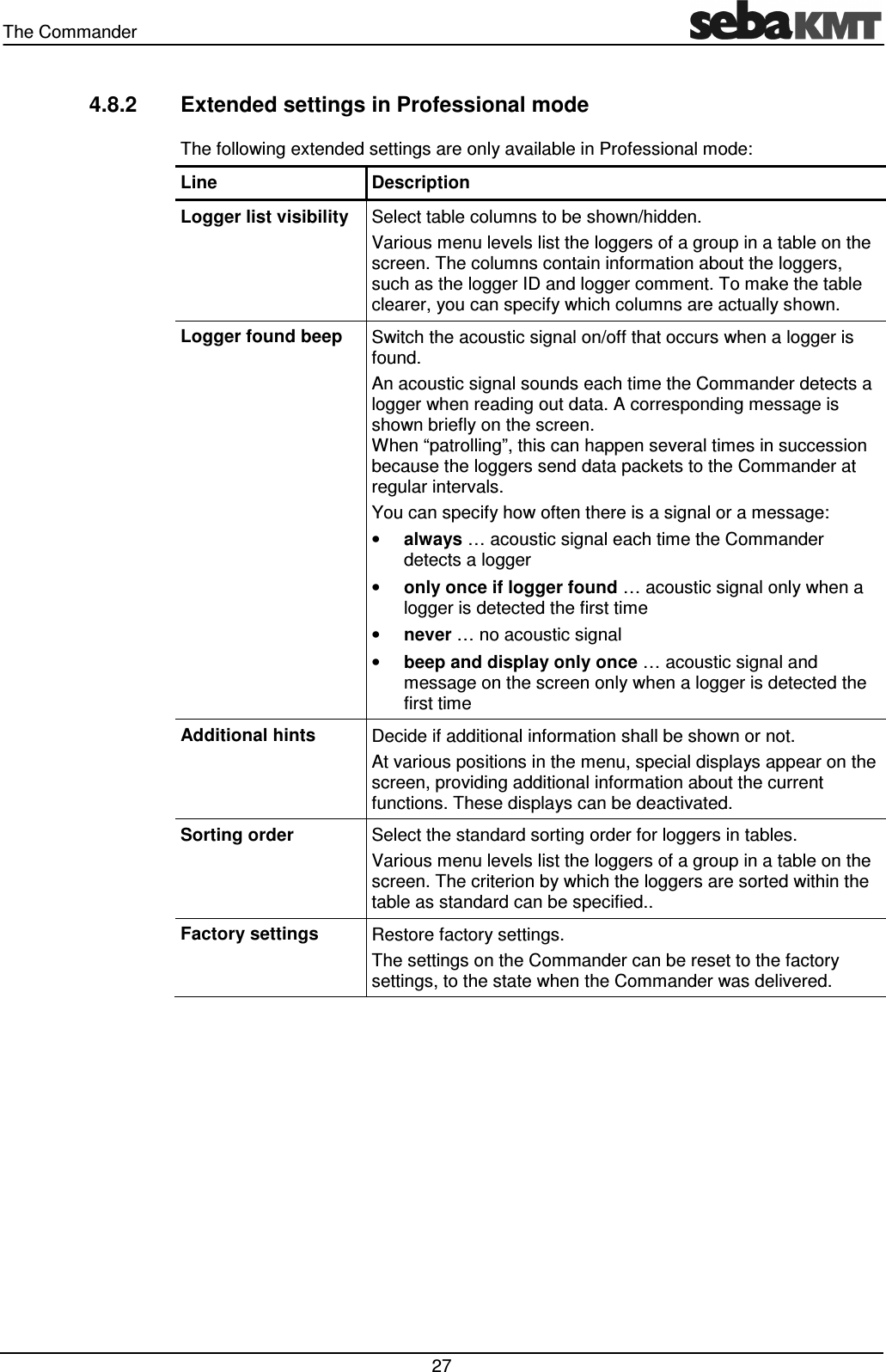
The Commander   27 4.8.2  Extended settings in Professional mode The following extended settings are only available in Professional mode: Line  Description Logger list visibility  Select table columns to be shown/hidden. Various menu levels list the loggers of a group in a table on the screen. The columns contain information about the loggers, such as the logger ID and logger comment. To make the table clearer, you can specify which columns are actually shown.  Logger found beep  Switch the acoustic signal on/off that occurs when a logger is found. An acoustic signal sounds each time the Commander detects a logger when reading out data. A corresponding message is shown briefly on the screen.  When “patrolling”, this can happen several times in succession because the loggers send data packets to the Commander at regular intervals. You can specify how often there is a signal or a message: • always … acoustic signal each time the Commander detects a logger • only once if logger found … acoustic signal only when a logger is detected the first time • never … no acoustic signal • beep and display only once … acoustic signal and message on the screen only when a logger is detected the first time Additional hints  Decide if additional information shall be shown or not. At various positions in the menu, special displays appear on the screen, providing additional information about the current functions. These displays can be deactivated. Sorting order  Select the standard sorting order for loggers in tables. Various menu levels list the loggers of a group in a table on the screen. The criterion by which the loggers are sorted within the table as standard can be specified.. Factory settings  Restore factory settings. The settings on the Commander can be reset to the factory settings, to the state when the Commander was delivered.
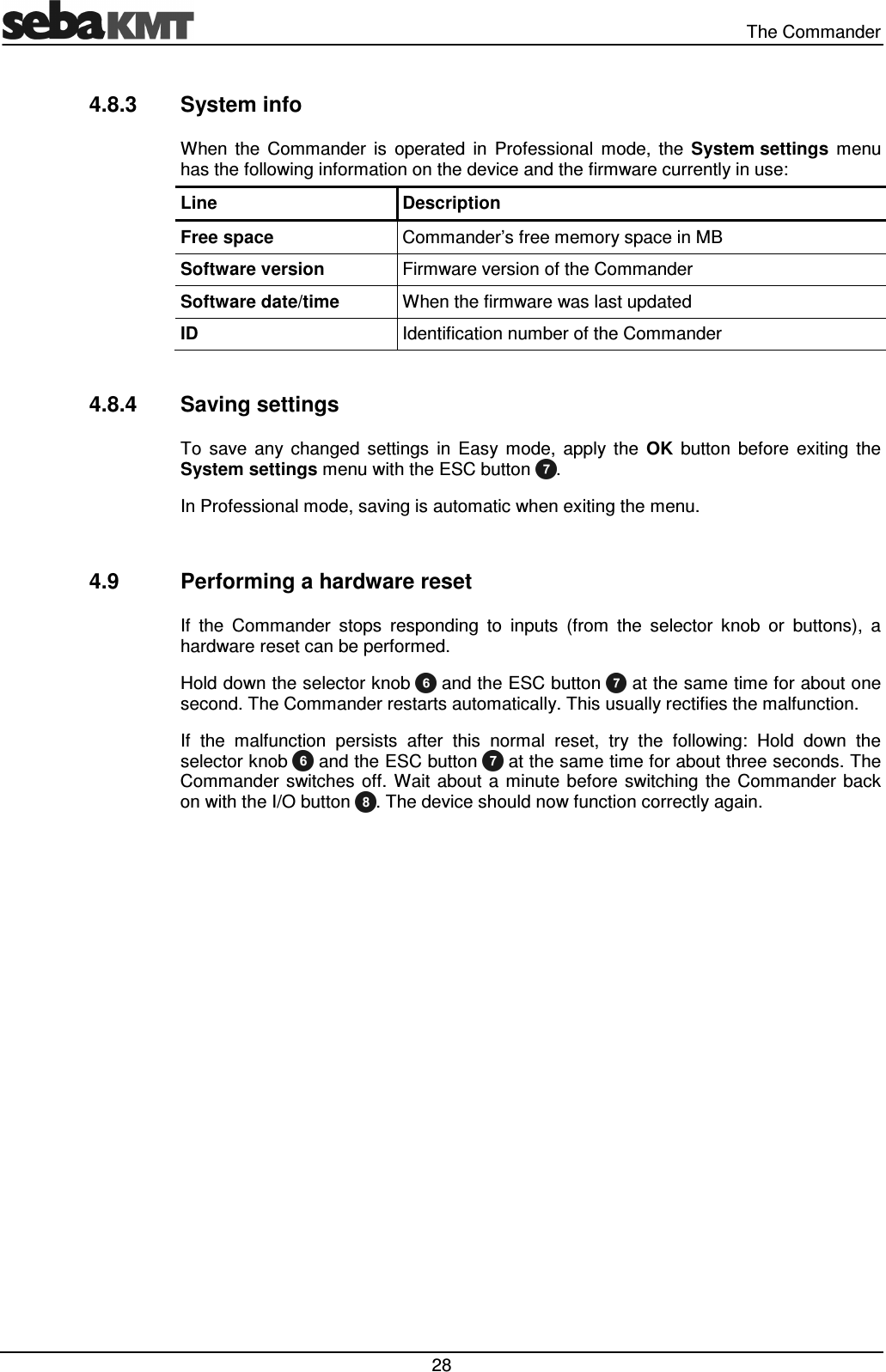
  The Commander  28 4.8.3  System info When  the  Commander  is  operated  in  Professional  mode,  the  System settings  menu has the following information on the device and the firmware currently in use: Line  Description Free space  Commander’s free memory space in MB Software version  Firmware version of the Commander Software date/time  When the firmware was last updated ID  Identification number of the Commander  4.8.4  Saving settings To  save  any  changed  settings  in  Easy  mode,  apply  the  OK  button  before  exiting  the System settings menu with the ESC button  .  In Professional mode, saving is automatic when exiting the menu.  4.9  Performing a hardware reset If  the  Commander  stops  responding  to  inputs  (from  the  selector  knob  or  buttons),  a hardware reset can be performed. Hold down the selector knob   and the ESC button   at the same time for about one second. The Commander restarts automatically. This usually rectifies the malfunction.  If  the  malfunction  persists  after  this  normal  reset,  try  the  following:  Hold  down  the selector knob   and the ESC button   at the same time for about three seconds. The Commander  switches  off.  Wait about  a  minute  before  switching  the  Commander  back on with the I/O button  . The device should now function correctly again.
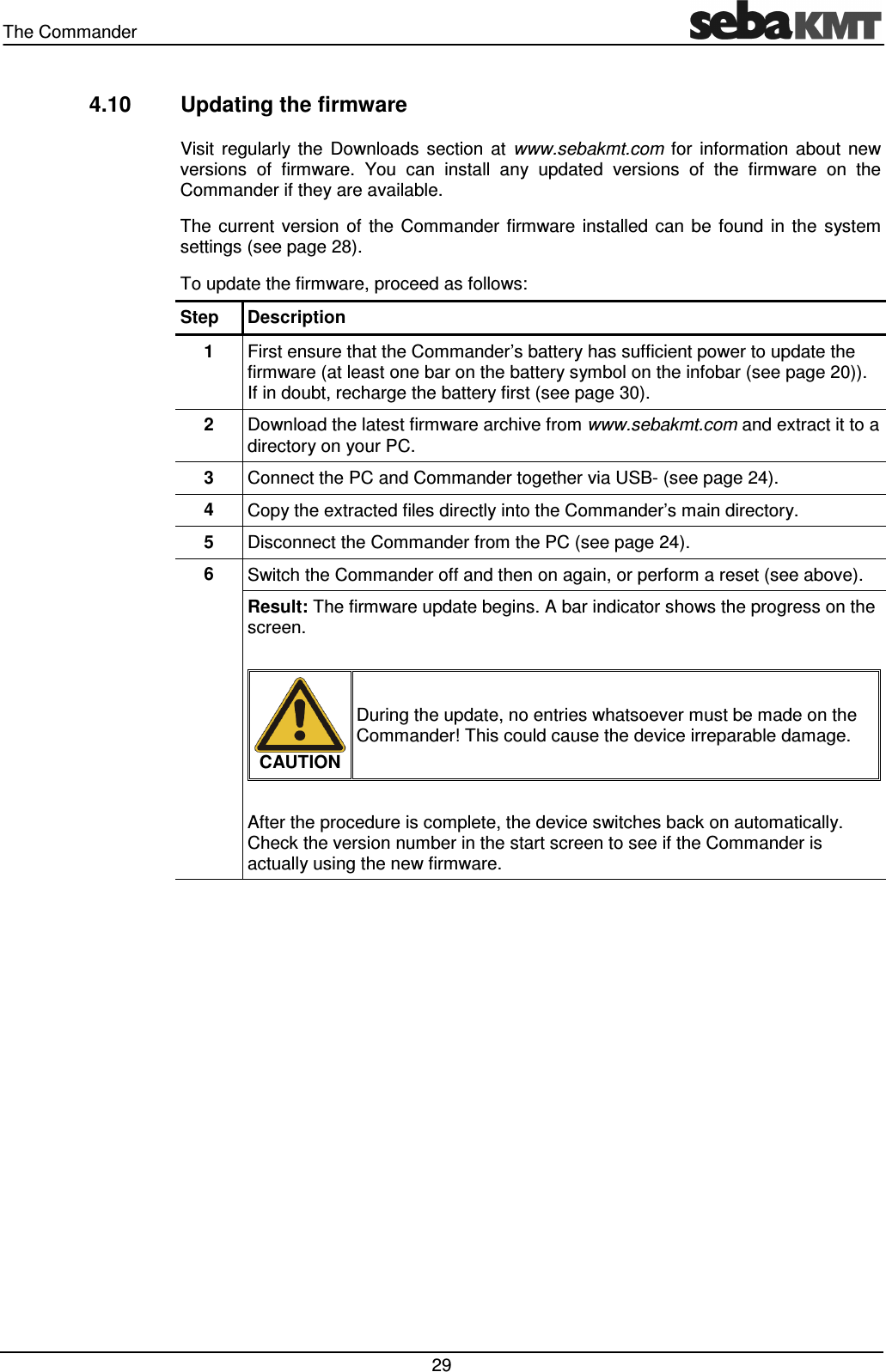
The Commander   29 4.10  Updating the firmware Visit  regularly  the  Downloads  section  at  www.sebakmt.com  for  information  about  new versions  of  firmware.  You  can  install  any  updated  versions  of  the  firmware  on  the Commander if they are available. The  current  version  of  the  Commander  firmware  installed  can  be  found  in  the  system settings (see page 28). To update the firmware, proceed as follows: Step  Description 1  First ensure that the Commander’s battery has sufficient power to update the firmware (at least one bar on the battery symbol on the infobar (see page 20)). If in doubt, recharge the battery first (see page 30). 2  Download the latest firmware archive from www.sebakmt.com and extract it to a directory on your PC. 3  Connect the PC and Commander together via USB- (see page 24). 4  Copy the extracted files directly into the Commander’s main directory.  5  Disconnect the Commander from the PC (see page 24). 6  Switch the Commander off and then on again, or perform a reset (see above). Result: The firmware update begins. A bar indicator shows the progress on the screen.   CAUTION During the update, no entries whatsoever must be made on the Commander! This could cause the device irreparable damage.  After the procedure is complete, the device switches back on automatically. Check the version number in the start screen to see if the Commander is actually using the new firmware.
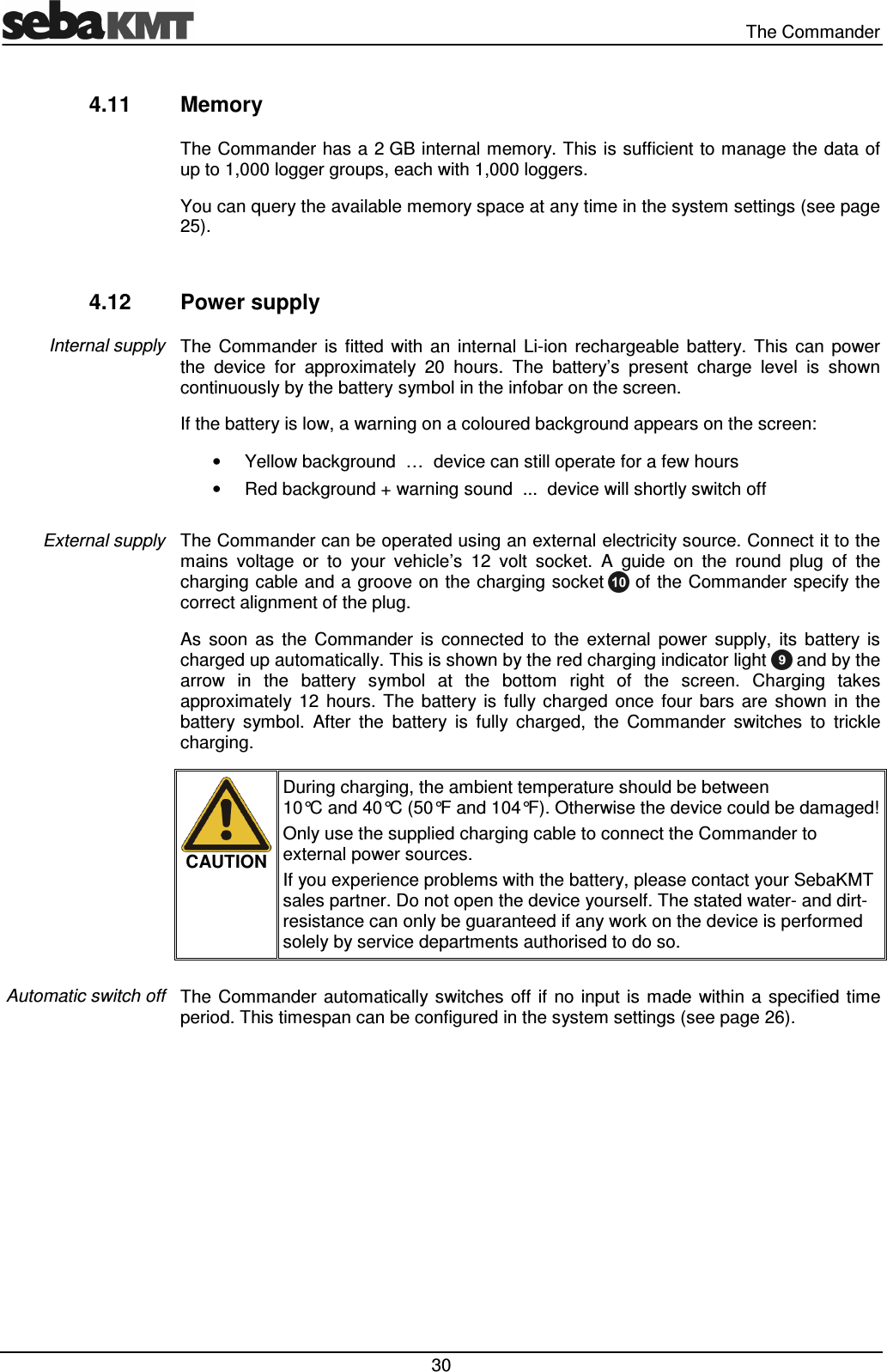
  The Commander  30 4.11  Memory The Commander has a 2 GB internal memory. This is sufficient to manage the data of up to 1,000 logger groups, each with 1,000 loggers. You can query the available memory space at any time in the system settings (see page 25).  4.12  Power supply The  Commander  is  fitted  with  an  internal  Li-ion  rechargeable  battery.  This  can  power the  device  for  approximately  20  hours.  The  battery’s  present  charge  level  is  shown continuously by the battery symbol in the infobar on the screen. If the battery is low, a warning on a coloured background appears on the screen: •  Yellow background  …  device can still operate for a few hours •  Red background + warning sound  ...  device will shortly switch off  The Commander can be operated using an external electricity source. Connect it to the mains  voltage  or  to  your  vehicle’s  12  volt  socket.  A  guide  on  the  round  plug  of  the charging cable and a groove on the charging socket   of the Commander specify the correct alignment of the plug.  As  soon  as  the  Commander  is  connected  to  the  external  power  supply,  its  battery  is charged up automatically. This is shown by the red charging indicator light   and by the arrow  in  the  battery  symbol  at  the  bottom  right  of  the  screen.  Charging  takes approximately  12  hours.  The  battery  is  fully charged  once  four  bars  are  shown  in  the battery  symbol.  After  the  battery  is  fully  charged,  the  Commander  switches  to  trickle charging.   CAUTION During charging, the ambient temperature should be between 10°C and 40°C (50°F and 104°F). Otherwise the device could be damaged! Only use the supplied charging cable to connect the Commander to external power sources. If you experience problems with the battery, please contact your SebaKMT sales partner. Do not open the device yourself. The stated water- and dirt-resistance can only be guaranteed if any work on the device is performed solely by service departments authorised to do so.  The  Commander  automatically switches  off  if  no  input is  made  within a  specified  time period. This timespan can be configured in the system settings (see page 26). Internal supply External supply Automatic switch off
Working in Easy mode   31 5  Working in Easy mode 5.1  Starting up the Commander 5.1.1  Switching on the Commander Switch on the Commander by pressing the I/O button .  The Easy mode main menu appears on the screen:   In Easy mode, the   symbol is continuously shown at the bottom of the screen. If you do not see this symbol, the Commander is in Professional mode. To switch to Easy mode,  open  the  system  settings  menu.  Starting  from  the  start  screen,  follow  the     symbols  and, in the first line of the menu,  select  the “Easy mode”  setting from the list. The screen might not be displaying the correct language. The language can be changed in  the  system  settings  menu.  Beginning  at  the  start  screen,  follow  the        symbols and select your language from the list.  5.1.2  Checking the basic settings Before  a  measuring  session,  check  that  the  Commander’s  system  settings  are  up-to-date and correct (see page 26). The date and time settings in particular must be correct.  Beginning  at  the  start  screen,  follow  the       symbols  to  open  the  system settings menu.   Changing the  user mode Changing the language Name of the workgroup System date
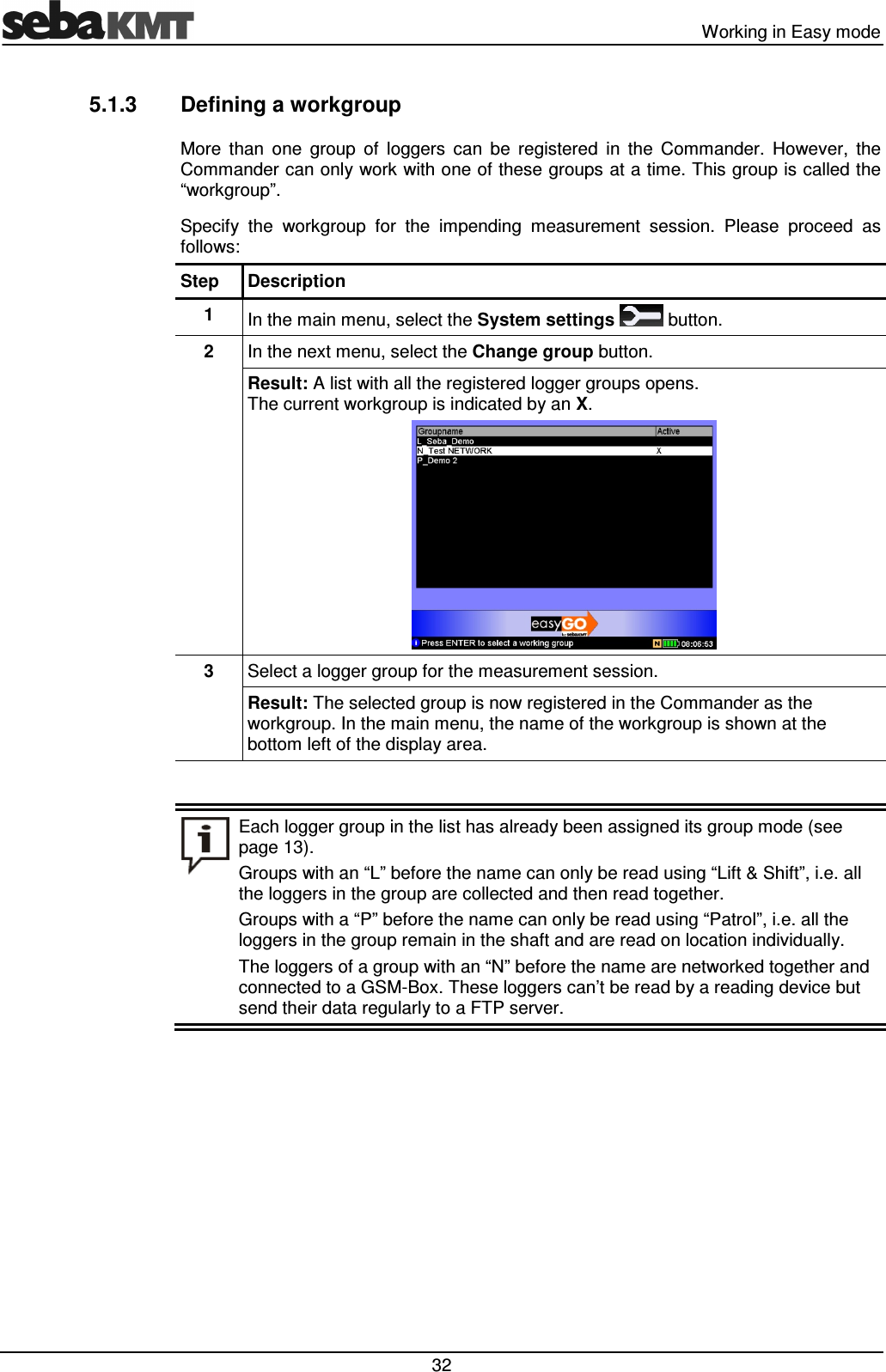
  Working in Easy mode  32 5.1.3  Defining a workgroup More  than  one  group  of  loggers  can  be  registered  in  the  Commander.  However,  the Commander can only work with one of these groups at a time. This group is called the “workgroup”. Specify  the  workgroup  for  the  impending  measurement  session.  Please  proceed  as follows: Step  Description 1  In the main menu, select the System settings   button. 2  In the next menu, select the Change group button. Result: A list with all the registered logger groups opens.  The current workgroup is indicated by an X.  3  Select a logger group for the measurement session. Result: The selected group is now registered in the Commander as the workgroup. In the main menu, the name of the workgroup is shown at the bottom left of the display area.   Each logger group in the list has already been assigned its group mode (see page 13).  Groups with an “L” before the name can only be read using “Lift & Shift”, i.e. all the loggers in the group are collected and then read together. Groups with a “P” before the name can only be read using “Patrol”, i.e. all the loggers in the group remain in the shaft and are read on location individually. The loggers of a group with an “N” before the name are networked together and connected to a GSM-Box. These loggers can’t be read by a reading device but send their data regularly to a FTP server.
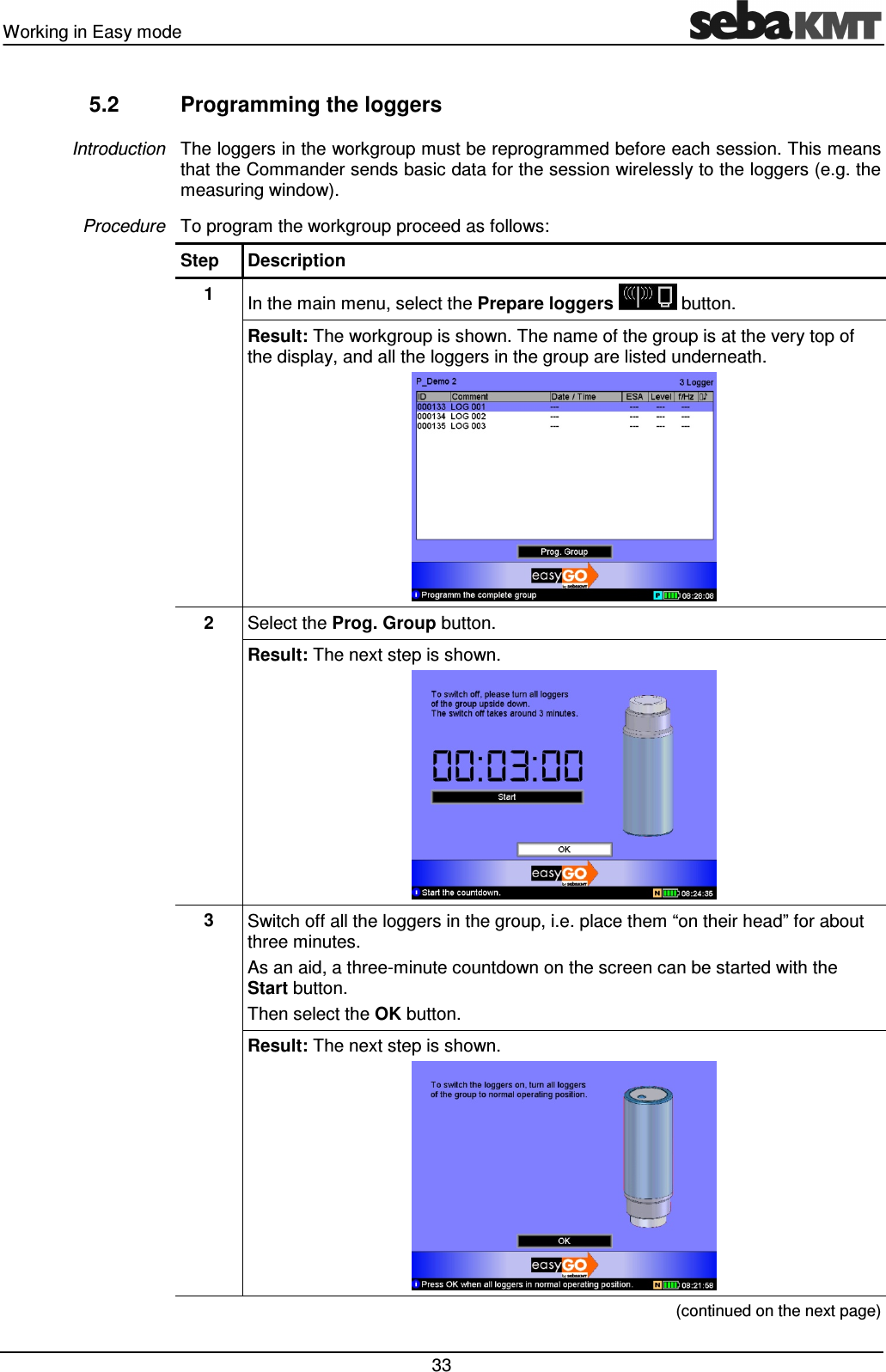
Working in Easy mode   33 5.2  Programming the loggers The loggers in the workgroup must be reprogrammed before each session. This means that the Commander sends basic data for the session wirelessly to the loggers (e.g. the measuring window).  To program the workgroup proceed as follows: Step  Description 1  In the main menu, select the Prepare loggers   button. Result: The workgroup is shown. The name of the group is at the very top of the display, and all the loggers in the group are listed underneath.   2  Select the Prog. Group button. Result: The next step is shown.  3  Switch off all the loggers in the group, i.e. place them “on their head” for about three minutes. As an aid, a three-minute countdown on the screen can be started with the Start button. Then select the OK button. Result: The next step is shown.   (continued on the next page) Introduction Procedure
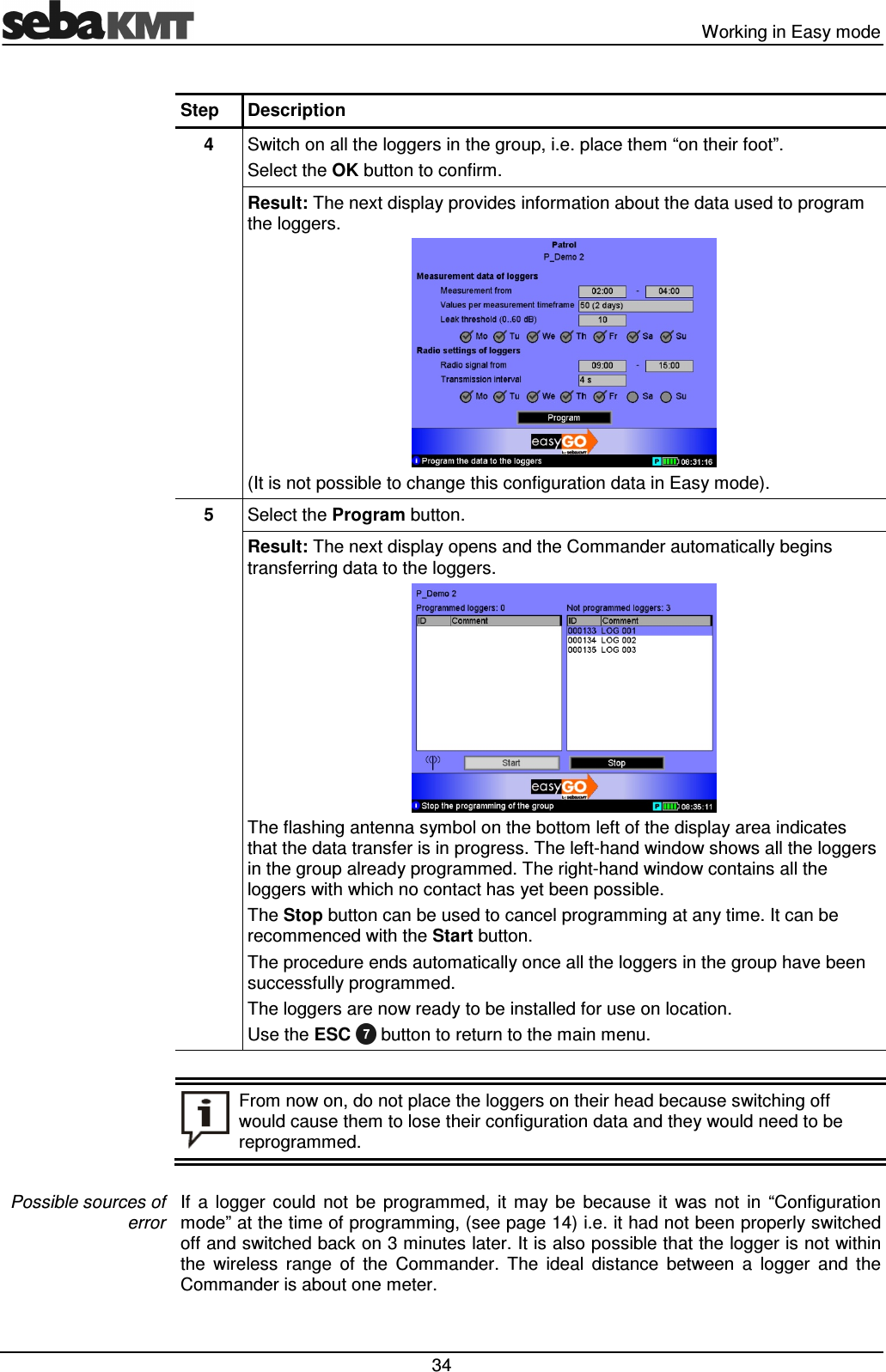
  Working in Easy mode  34 Step  Description 4  Switch on all the loggers in the group, i.e. place them “on their foot”. Select the OK button to confirm. Result: The next display provides information about the data used to program the loggers.  (It is not possible to change this configuration data in Easy mode). 5  Select the Program button. Result: The next display opens and the Commander automatically begins transferring data to the loggers.  The flashing antenna symbol on the bottom left of the display area indicates that the data transfer is in progress. The left-hand window shows all the loggers in the group already programmed. The right-hand window contains all the loggers with which no contact has yet been possible. The Stop button can be used to cancel programming at any time. It can be recommenced with the Start button. The procedure ends automatically once all the loggers in the group have been successfully programmed. The loggers are now ready to be installed for use on location. Use the ESC   button to return to the main menu.   From now on, do not place the loggers on their head because switching off would cause them to lose their configuration data and they would need to be reprogrammed.  If  a  logger  could  not  be  programmed,  it  may  be  because  it  was  not  in  “Configuration mode” at the time of programming, (see page 14) i.e. it had not been properly switched off and switched back on 3 minutes later. It is also possible that the logger is not within the  wireless  range  of  the  Commander.  The  ideal  distance  between  a  logger  and  the Commander is about one meter. Possible sources of error
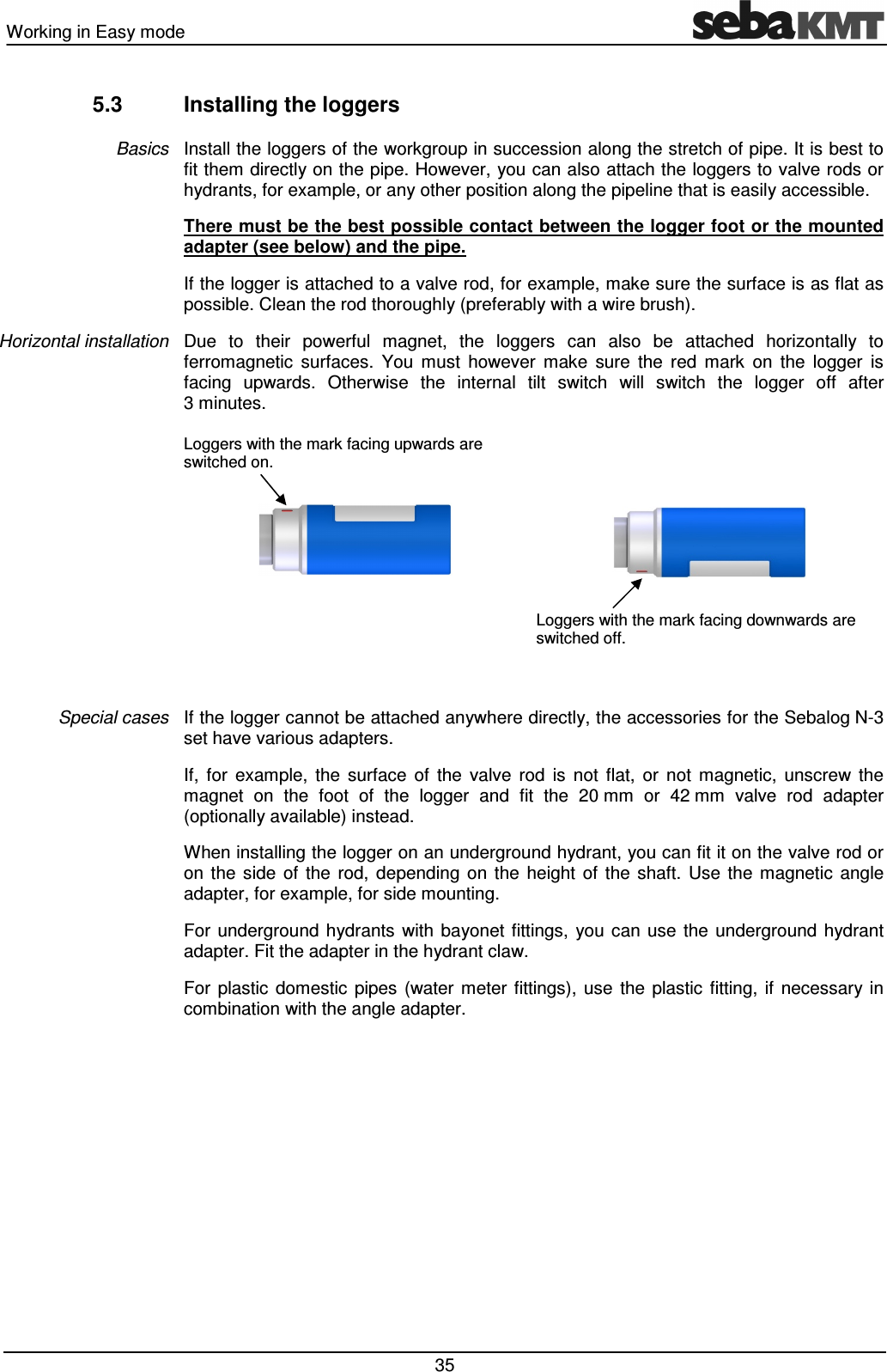
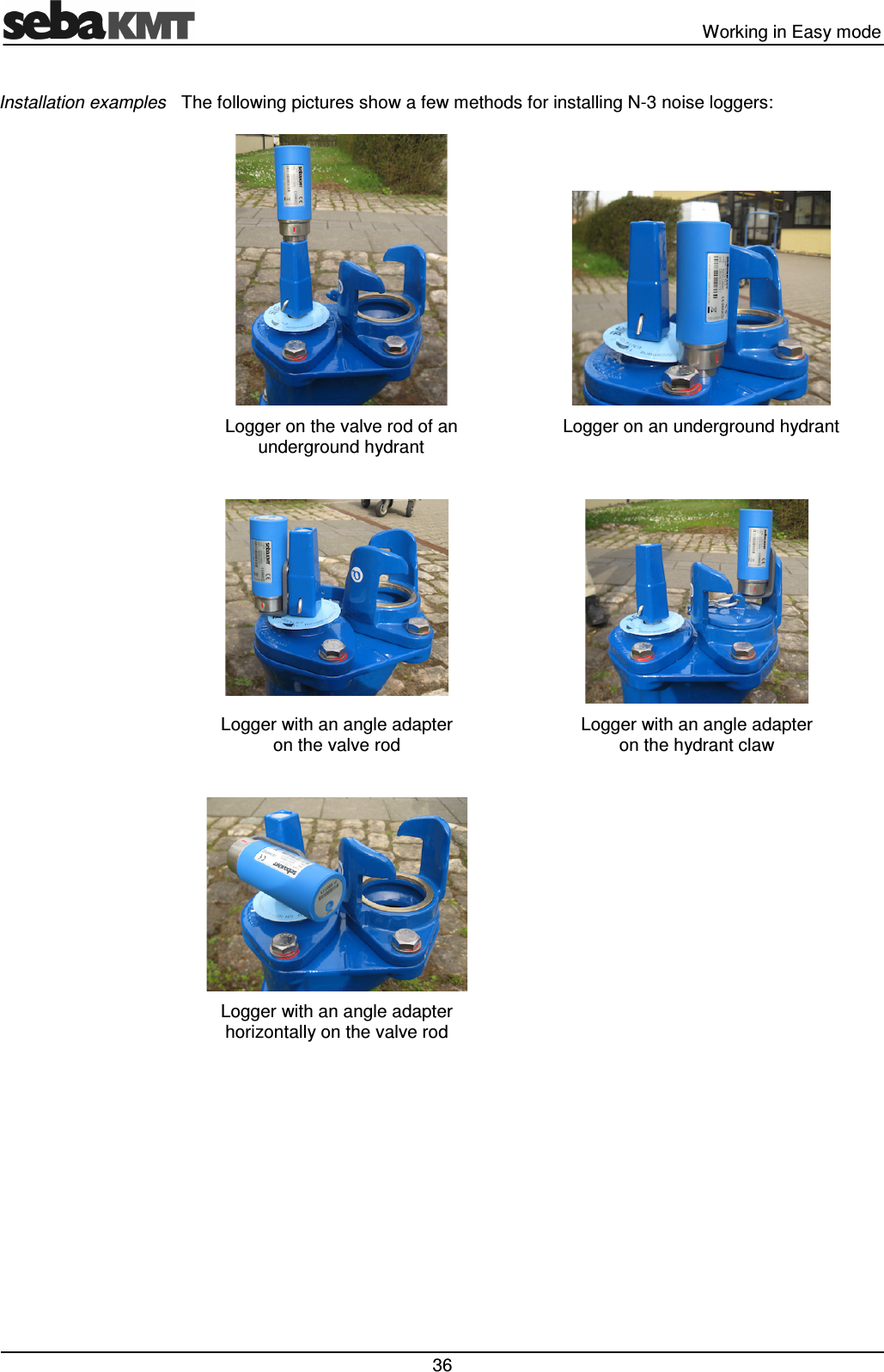
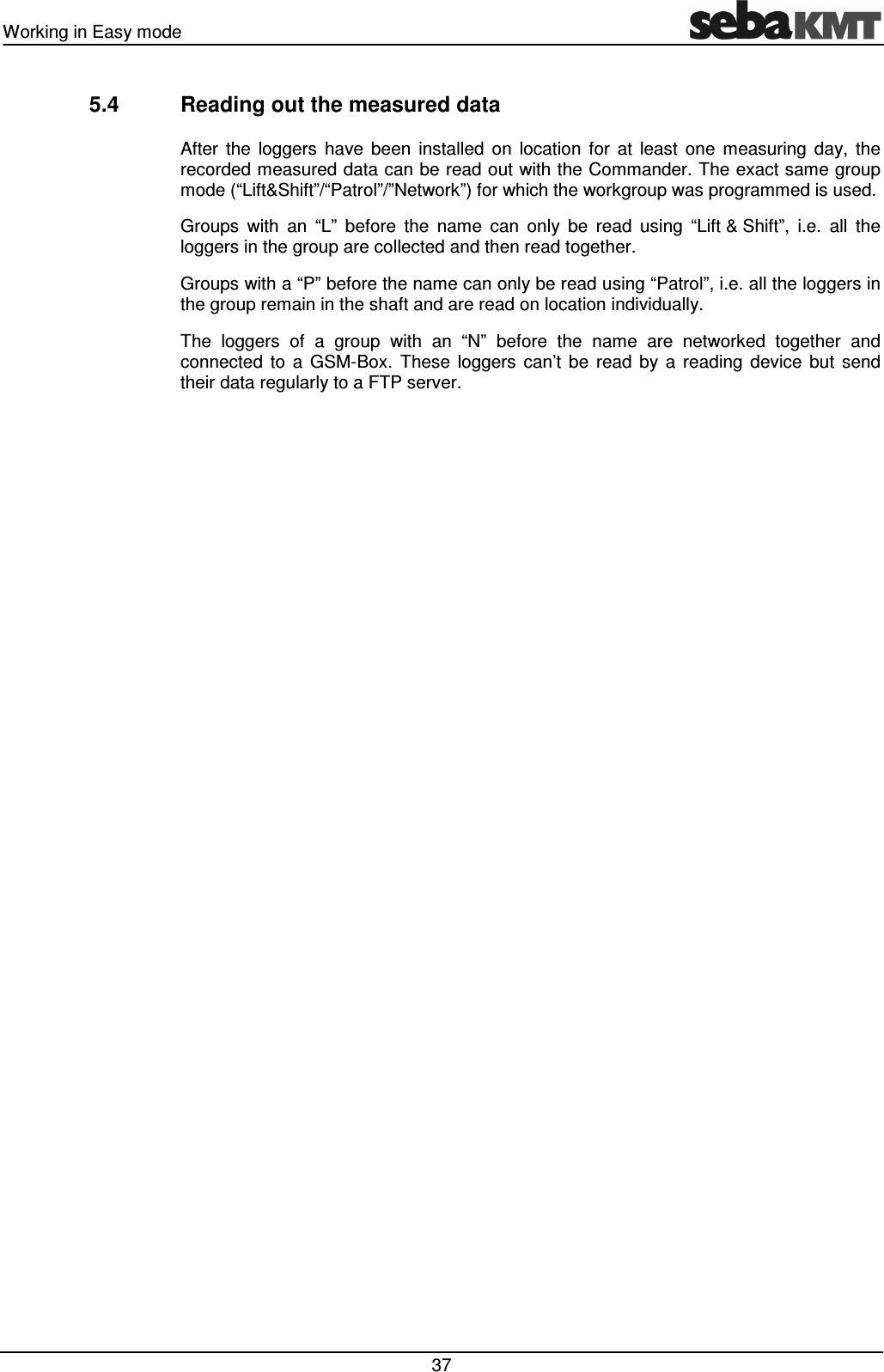
Working in Easy mode   35 5.3  Installing the loggers Install the loggers of the workgroup in succession along the stretch of pipe. It is best to fit them directly on the pipe. However, you can also attach the loggers to valve rods or hydrants, for example, or any other position along the pipeline that is easily accessible.  There must be the best possible contact between the logger foot or the mounted adapter (see below) and the pipe. If the logger is attached to a valve rod, for example, make sure the surface is as flat as possible. Clean the rod thoroughly (preferably with a wire brush).  Due  to  their  powerful  magnet,  the  loggers  can  also  be  attached  horizontally  to ferromagnetic  surfaces.  You  must  however  make  sure  the  red  mark  on  the  logger  is facing  upwards.  Otherwise  the  internal  tilt  switch  will  switch  the  logger  off  after 3 minutes. Loggers with the mark facing upwards are switched on.        Loggers with the mark facing downwards are switched off.  If the logger cannot be attached anywhere directly, the accessories for the Sebalog N-3 set have various adapters. If,  for  example,  the  surface  of  the  valve  rod  is  not  flat,  or  not  magnetic,  unscrew  the magnet  on  the  foot  of  the  logger  and  fit  the  20 mm  or  42 mm  valve  rod  adapter (optionally available) instead. When installing the logger on an underground hydrant, you can fit it on the valve rod or on  the  side  of  the  rod,  depending  on  the  height  of  the  shaft.  Use  the  magnetic  angle adapter, for example, for side mounting.  For  underground  hydrants  with  bayonet fittings,  you  can  use  the underground  hydrant adapter. Fit the adapter in the hydrant claw.  For  plastic  domestic  pipes  (water  meter  fittings),  use  the  plastic  fitting,  if  necessary  in combination with the angle adapter. Basics Horizontal installation Special cases
  Working in Easy mode  36 The following pictures show a few methods for installing N-3 noise loggers:    Logger on the valve rod of an  underground hydrant Logger on an underground hydrant    Logger with an angle adapter  on the valve rod Logger with an angle adapter  on the hydrant claw    Logger with an angle adapter  horizontally on the valve rod  Installation examples
Working in Easy mode   37 5.4  Reading out the measured data After  the  loggers  have  been  installed  on  location  for  at  least  one  measuring  day,  the recorded measured data can be read out with the Commander. The exact same group mode (“Lift&Shift”/“Patrol”/”Network”) for which the workgroup was programmed is used.  Groups  with  an  “L”  before  the  name  can  only  be  read  using  “Lift & Shift”,  i.e.  all  the loggers in the group are collected and then read together. Groups with a “P” before the name can only be read using “Patrol”, i.e. all the loggers in the group remain in the shaft and are read on location individually. The  loggers  of  a  group  with  an  “N”  before  the  name  are  networked  together  and connected  to  a  GSM-Box.  These  loggers  can’t  be  read  by  a  reading  device  but  send their data regularly to a FTP server.
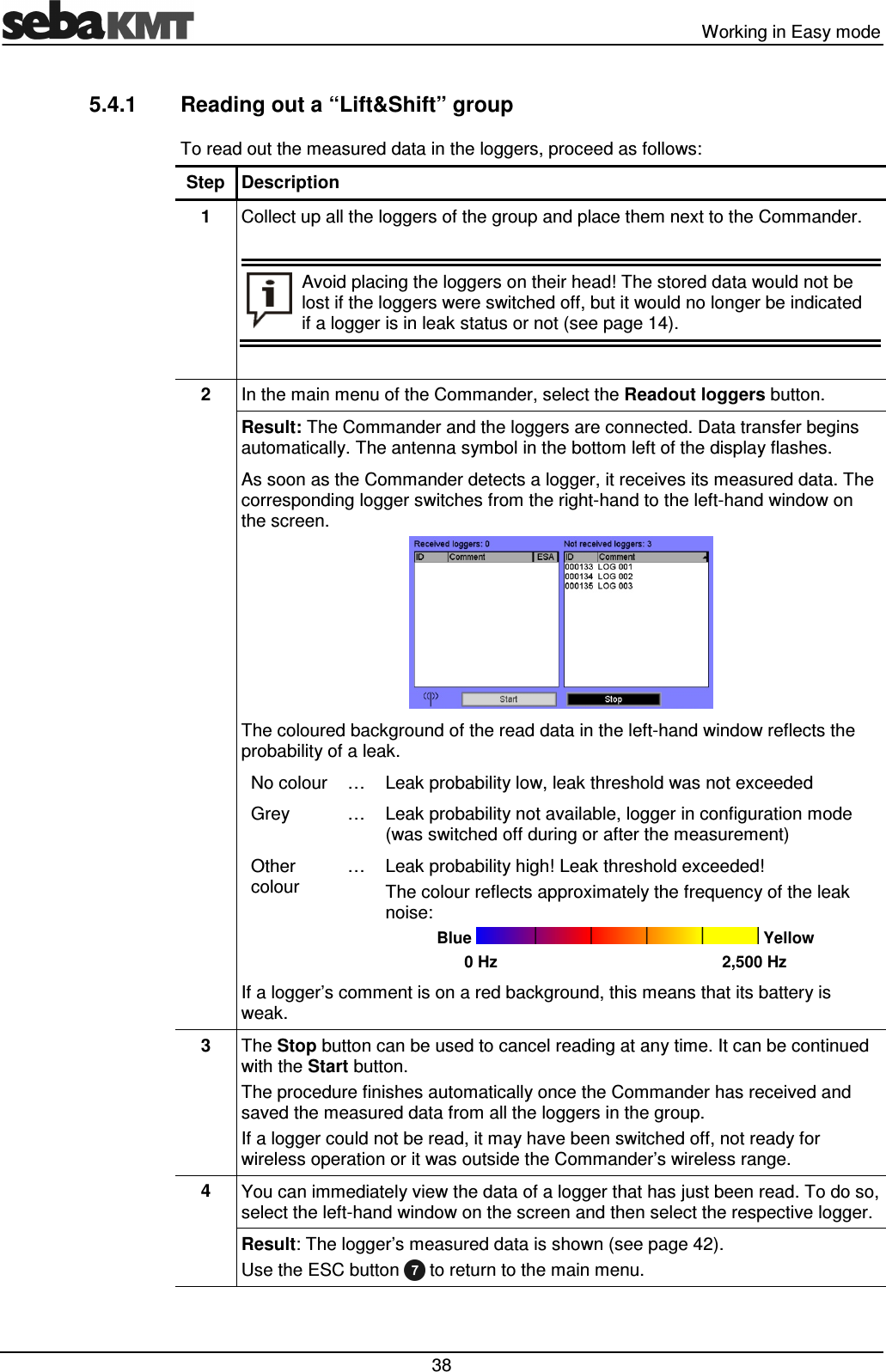
  Working in Easy mode  38 5.4.1  Reading out a “Lift&Shift” group To read out the measured data in the loggers, proceed as follows: Step Description 1  Collect up all the loggers of the group and place them next to the Commander.   Avoid placing the loggers on their head! The stored data would not be lost if the loggers were switched off, but it would no longer be indicated if a logger is in leak status or not (see page 14).    2  In the main menu of the Commander, select the Readout loggers button. Result: The Commander and the loggers are connected. Data transfer begins automatically. The antenna symbol in the bottom left of the display flashes. As soon as the Commander detects a logger, it receives its measured data. The corresponding logger switches from the right-hand to the left-hand window on the screen.  The coloured background of the read data in the left-hand window reflects the probability of a leak. No colour  …  Leak probability low, leak threshold was not exceeded Grey  …  Leak probability not available, logger in configuration mode (was switched off during or after the measurement) Other colour …  Leak probability high! Leak threshold exceeded!  The colour reflects approximately the frequency of the leak noise: Blue   Yellow 0 Hz        2,500 Hz If a logger’s comment is on a red background, this means that its battery is weak.  3  The Stop button can be used to cancel reading at any time. It can be continued with the Start button. The procedure finishes automatically once the Commander has received and saved the measured data from all the loggers in the group. If a logger could not be read, it may have been switched off, not ready for wireless operation or it was outside the Commander’s wireless range.  4  You can immediately view the data of a logger that has just been read. To do so, select the left-hand window on the screen and then select the respective logger. Result: The logger’s measured data is shown (see page 42). Use the ESC button   to return to the main menu.
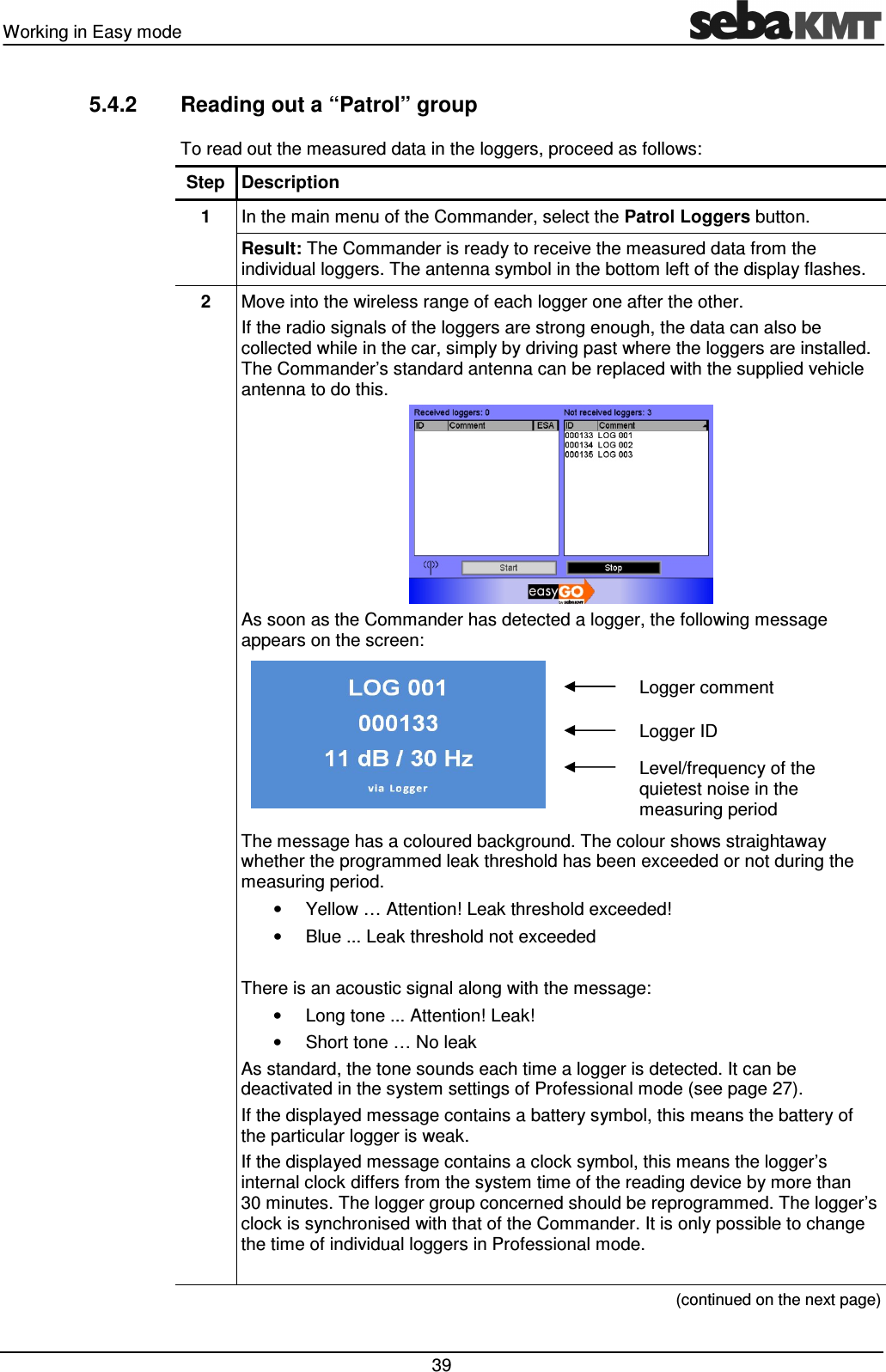
Working in Easy mode   39 5.4.2  Reading out a “Patrol” group To read out the measured data in the loggers, proceed as follows: Step Description 1  In the main menu of the Commander, select the Patrol Loggers button. Result: The Commander is ready to receive the measured data from the individual loggers. The antenna symbol in the bottom left of the display flashes. 2  Move into the wireless range of each logger one after the other. If the radio signals of the loggers are strong enough, the data can also be collected while in the car, simply by driving past where the loggers are installed. The Commander’s standard antenna can be replaced with the supplied vehicle antenna to do this.  As soon as the Commander has detected a logger, the following message appears on the screen:   Logger comment  Logger ID  Level/frequency of the quietest noise in the measuring period The message has a coloured background. The colour shows straightaway whether the programmed leak threshold has been exceeded or not during the measuring period.  •  Yellow … Attention! Leak threshold exceeded! •  Blue ... Leak threshold not exceeded  There is an acoustic signal along with the message: •  Long tone ... Attention! Leak! •  Short tone … No leak As standard, the tone sounds each time a logger is detected. It can be deactivated in the system settings of Professional mode (see page 27). If the displayed message contains a battery symbol, this means the battery of the particular logger is weak.  If the displayed message contains a clock symbol, this means the logger’s internal clock differs from the system time of the reading device by more than 30 minutes. The logger group concerned should be reprogrammed. The logger’s clock is synchronised with that of the Commander. It is only possible to change the time of individual loggers in Professional mode.   (continued on the next page)
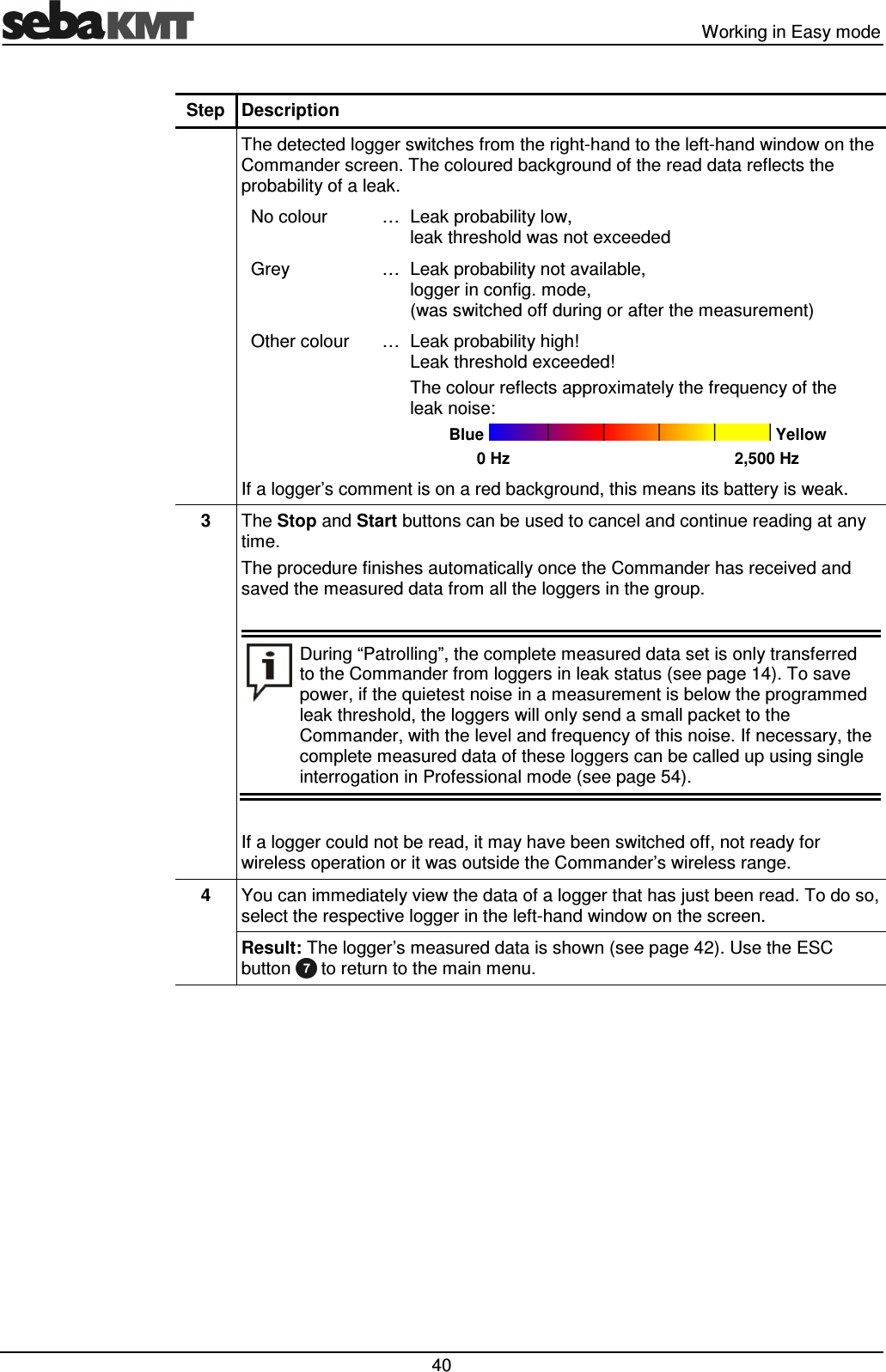
  Working in Easy mode  40 Step Description  The detected logger switches from the right-hand to the left-hand window on the Commander screen. The coloured background of the read data reflects the probability of a leak. No colour  … Leak probability low,  leak threshold was not exceeded Grey  … Leak probability not available,  logger in config. mode, (was switched off during or after the measurement) Other colour  … Leak probability high!  Leak threshold exceeded!  The colour reflects approximately the frequency of the leak noise: Blue   Yellow 0 Hz        2,500 Hz If a logger’s comment is on a red background, this means its battery is weak. 3  The Stop and Start buttons can be used to cancel and continue reading at any time. The procedure finishes automatically once the Commander has received and saved the measured data from all the loggers in the group.   During “Patrolling”, the complete measured data set is only transferred to the Commander from loggers in leak status (see page 14). To save power, if the quietest noise in a measurement is below the programmed leak threshold, the loggers will only send a small packet to the Commander, with the level and frequency of this noise. If necessary, the complete measured data of these loggers can be called up using single interrogation in Professional mode (see page 54).  If a logger could not be read, it may have been switched off, not ready for wireless operation or it was outside the Commander’s wireless range.  4  You can immediately view the data of a logger that has just been read. To do so, select the respective logger in the left-hand window on the screen.  Result: The logger’s measured data is shown (see page 42). Use the ESC button   to return to the main menu.

Navigation menu