Securifi ALP Almond+(Wireless Router) User Manual AHLALP

Securifi Ltd. Almond+(Wireless Router) AHLALP

Users Manual

The setup process consists of a few simple steps:1) Connect Almond+(Wireless Router) to the Internet in “Router” or “Range Extender” mode.2) [Optional] Setup your Almond+(Wireless Router) Account to enable remote access for your sensors.3) [Optional] Pair sensors to your new Almond+(Wireless Router).Inside the BoxDesk StandWall Plate12V, 2.5A Power AdapterGigabit Ethernet CableStylusTouchscreen LCDReset Button2 USB 3.04 Gigabit LAN 1 Gigabit WANPowerConnectorProduct Name: Almond+ (Wireless Router)  Model Name: Almond+Quick Start GuideRouter Setup1) Unplug the AC adapter & ethernet cables of your Internet modem (Cable, DSL or Fiber).  If your modem has a battery remove it. 2) Wait for 1 minute.  If your modem has a battery re-insert it. Plug the AC adapter of the modem back into the power outlet.3) Wait for 1 minute. Plug the AC adapter of  Almond+(Wireless Router) into the power outlet. 4) Follow the on-screen instructions on Almond+(Wireless Router)'s Touch Screen.Range Extender1) Plug the AC adapter of Almond+(Wireless Router) into the power outlet.2) Follow the on-screen instructions on Almond+(Wireless Router)'s Touch Screen.Securifii Ltd,   4F, No.65, Songde Rd, Xinyi Dist, Taipei City 110, Taiwan (R.O.C.)Email: support@securifi.com Ph: +886.2.2726.0100, Fax: +886.2.2726.2006www.securifi.com
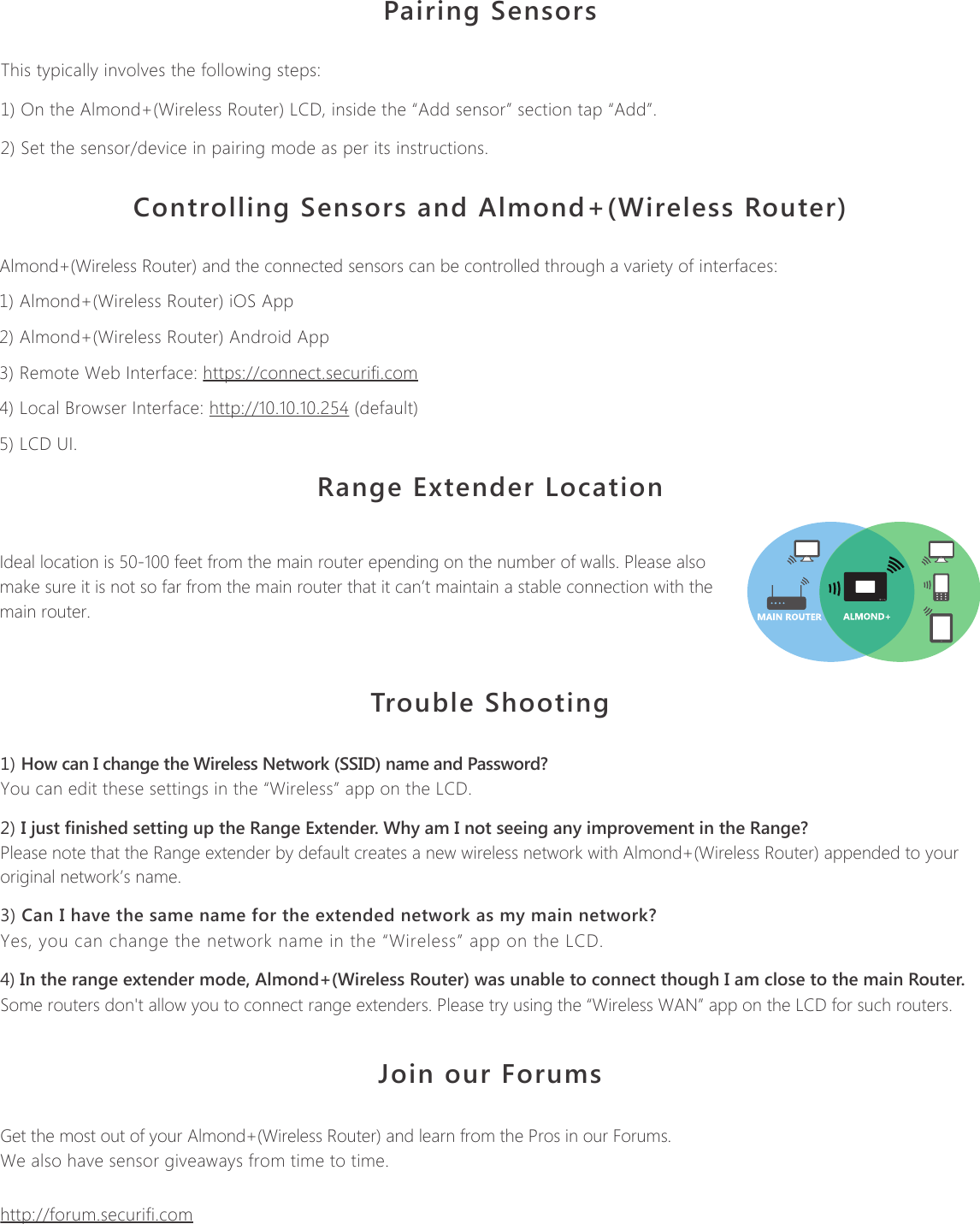
Product Name: Almond+ (Wireless Router)  Model Name: Almond+Pairing SensorsThis typically involves the following steps:1) On the Almond+(Wireless Router) LCD, inside the “Add sensor” section tap “Add”.2) Set the sensor/device in pairing mode as per its instructions.Controlling Sensors and Almond+(Wireless Router)Almond+(Wireless Router) and the connected sensors can be controlled through a variety of interfaces:1) Almond+(Wireless Router) iOS App2) Almond+(Wireless Router) Android App3) Remote Web Interface: https://connect.securifi.com4) Local Browser Interface: http://10.10.10.254 (default)5) LCD UI.Range Extender LocationIdeal location is 50-100 feet from the main router epending on the number of walls. Please also make sure it is not so far from the main router that it can’t maintain a stable connection with the main router.Trouble Shooting1) How can I change the Wireless Network (SSID) name and Password?You can edit these settings in the “Wireless” app on the LCD.2) I just finished setting up the Range Extender. Why am I not seeing any improvement in the Range?Please note that the Range extender by default creates a new wireless network with Almond+(Wireless Router) appended to your original network’s name.3) Can I have the same name for the extended network as my main network?Yes, you can change the network name in the “Wireless” app on the LCD.4) In the range extender mode, Almond+(Wireless Router) was unable to connect though I am close to the main Router.Some routers don't allow you to connect range extenders. Please try using the “Wireless WAN” app on the LCD for such routers. Join our ForumsGet the most out of your Almond+(Wireless Router) and learn from the Pros in our Forums. We also have sensor giveaways from time to time.http://forum.securifi.comSecurifii Ltd,   4F, No.65, Songde Rd, Xinyi Dist, Taipei City 110, Taiwan (R.O.C.)Email: support@securifi.com Ph: +886.2.2726.0100, Fax: +886.2.2726.2006www.securifi.com
Product Name: Almond+ (Wireless Router)  Model Name: Almond+Federal Communication Commission Interference StatementThis equipment has been tested and found to comply with the limits for a Class B digital device, pursuant to Part 15 of the FCC Rules. These limits are designed to provide reasonable protection against harmful interference in a residential installation. This equipment generates, uses and can radiate radio frequency energy and, if not installed and used in accordance with the instructions, may cause harmful interference to radio communications. However, there is no guaran-tee that interference will not occur in a particular installation. If this equipment does cause harmful interference to radio or television reception, which can be determined by turning the equipment off and on, the user is encouraged to try to correct the interference by one of the following measures:●  Reorient or relocate the receiving antenna.●  Increase the separation between the equipment and receiver.●  Connect the equipment into an outlet on a circuit different from that to which the receiver is connected.●  Consult the dealer or an experienced radio/TV technician for help. FCC Caution: Any changes or modifications not expressly approved by the party responsible for compliance could void the user’s authority to operate this equipment. This device complies with Part 15 of the FCC Rules. Operation is subject to the following two conditions: (1) This device may not cause harmful interference, and (2) this device must accept any interference received, including interference that may cause undesired operation. For product available in the USA/Canada market, only channel 1~11 can be operated. Selection of other channels is not possible. This device and its antenna(s) must not be co-located or operation in conjunction with any other antenna or transmitter. IMPORTANT NOTE:FCC Radiation Exposure Statement:This equipment complies with FCC radiation exposure limits set forth for an uncontrolled environment. This equipment should be installed and operated with minimum distance 20cm between the radiator & your body.This Class B digital apparatus complies with Canadian ICES-003.Cet appareil numérique de la classe B conforme á la norme NMB-003 du Canada. This device complies with Industry Canada license-exempt RSS standard(s). Operation is subject to the following two conditions: (1) this device may not cause interference, and (2) this device must accept any interference, including inter-ference that may cause undesired operation of the device.Le présent appareil est conforme aux CNR d'Industrie Canada applicables aux appareils radio exempts de licence. L'exploitation est autorisée aux deux conditions suivantes : (1) l'appareil ne doit pas produire de brouillage, et (2) l'utilisateur de l'appareil doit accepter tout brouillage radioélectrique subi, même si le brouillage est susceptible d'en compromettre le fonctionnement. For product available in the USA/Canada market, only channel 1~11 can be operated. Selection of other channels is not possible. This device and its antenna(s) must not be co-located or operation in conjunction with any other antenna or transmitter. Under Industry Canada regulations, this radio transmitter may only operate using an antenna of a type and maximum (or lesser) gain approved for the transmitter by Industry Canada. To reduce potential radio interference to other users, the antenna type and its gain should be so chosen that the equivalent isotropically radiated power (e.i.r.p.) is not more than that necessary for successful communication.  IMPORTANT NOTE:IC Radiation Exposure Statement:This equipment complies with IC RSS-102 radiation exposure limits set forth for an uncontrolled environment. This equipment should be installed and operated with minimum distance 20cm between the radiator & your body.Securifii Ltd,   4F, No.65, Songde Rd, Xinyi Dist, Taipei City 110, Taiwan (R.O.C.)Email: support@securifi.com Ph: +886.2.2726.0100, Fax: +886.2.2726.2006www.securifi.com
Product Name: Almond+ (Wireless Router)  Model Name: Almond+When suing IEEE 802.11a wireless LAN, this product is restricted to indoor use, due to its operation in the 5.15 to 5.25GHz frequency range. The FCC requires this product to be used indoors for the frequency range of 5.15 to 5.25GHz to reduce the potential for harmful interference to co channel mobile satellite systems.High-power radar is allocated as the primary user of the 5.25 to 5.35GHz and 5.65 to 5.85GHz bands. These radar stations can cause interference with and/or damage to this device.Securifii Ltd,   4F, No.65, Songde Rd, Xinyi Dist, Taipei City 110, Taiwan (R.O.C.)Email: support@securifi.com Ph: +886.2.2726.0100, Fax: +886.2.2726.2006www.securifi.com

Navigation menu