Security Kpx Software Xx128 33 01 FM_XX128 01kp User Manual
Kpx-Software Xx128-33-01 KPX-Software_XX128-33-01 KPX-Software_XX128-33-01 software_manual Products English-US s Collateral
2017-08-09
User Manual: Security Kpx-Software Xx128-33-01 KPX-Software_XX128-33-01 uploads wp-content
Open the PDF directly: View PDF  .
.
Page Count: 272 [warning: Documents this large are best viewed by clicking the View PDF Link!]

Software Manual
Vicon Part No. 8009-8128-33-01 Section 1 Rev 1206
XX128-33-01
Network Digital Video Recorder
Vicon Industries Inc. does not warrant that the functions contained in this equipment will meet your
requirements or that the operation will be entirely error free or perform precisely as described in the
documentation. This system has not been designed to be used in life-critical situations and must not be
used for this purpose.
Copyright © 2006 Vicon Industries Inc. All rights reserved.
Product specifications subject to change without notice.
ViconNet and its logo are trademarks of Vicon Industries Inc.
Kollector Elite, Kollector Pro, Kollector Network Server, the Workstation and their logos are trademarks of Vicon Industries Inc.
Vicon and its logo are registered trademarks of Vicon Industries Inc.
Windows is a trademark of Microsoft Corp.
VICON INDUSTRIES INC., 89 ARKAY DRIVE, HAUPPAUGE, NEW YORK 11788
TEL: 631-952-CCTV (2288) FAX: 631-951-CCTV (2288) TOLL FREE: 800-645-9116
24-Hour Technical Support: 800-34-VICON (800-348-4266)
UK: 44/(0) 1489-566300 WEB: www.vicon-cctv.com


XX128-33-01 Rev 1206 Kollector Pro Network Digital Video Recorder Important Notice • i
Important Notice
This Software Manual is delivered subject to the following conditions and restrictions:
Φ This Manual contains proprietary information belonging to Vicon. Such information is supplied solely for
the purpose of assisting explicitly and properly authorized users of the ViconNet system.
Φ No part of its contents may be used for any other purpose, disclosed to any person or firm or reproduced
by any means, electronic or mechanical, without the express prior written permission of Vicon.
Φ The text and graphics are for the purpose of illustration and reference only. The specifications on which
they are based are subject to change without notice.
Φ The software described in this Manual is furnished under a license. The software may be used or copied
only in accordance with the terms of that agreement.
Φ Information in this Manual is subject to change without notice. Corporate and individual names and data
used in examples herein are fictitious unless otherwise noted.
Copyright ©2006 Vicon. All rights reserved.
ViconNet is a trademark of Vicon.
Other company and brand products and service names are trademarks or registered trademarks of their
respective holders.

ii • About This Manual XX128-33-01 Rev 1206 Kollector Pro Network Digital Video Recorder
About This Manual
The Kollector Pro Software Manual is comprised of the following chapters:
Φ Chapter 1, Introducing ViconNet, introduces the main concepts and system architecture of the
ViconNet system.
Φ Chapter 2, Getting to Know ViconNet, describes the main ViconNet application windows and their
functionality.
Φ Chapter 3, Configuring the ViconNet System, describes all available configuration functions in the
ViconNet system, including system setup and creating macros and schedules.
Φ Chapter 4, Viewing Live Video, describes the mandatory and optional tasks involved in viewing live
video.
Φ Chapter 5, Recording Live Video, describes the manual and automatic processes for recording live
video.
Φ Chapter 6, Playing Back Recorded Video, describes the process for playing back recorded video.
Φ Chapter 7, Managing Macros and Schedules, describes how manage and work with macros and
schedules in the ViconNet system.
Φ Chapter 8, Generating Reports, describes how to generate different types of reports available in the
ViconNet system.
Φ Chapter 9, Printing/Exporting Frames and Creating AVI Files, describes how to print out or export
selected frames from Playback, and to create AVI files from selected playback segments.
Φ Appendix A, Configuring your Personal Firewall, describes how to configure your firewall to protect
your ViconNet system.
Φ Appendix B, Configuring the Network, describes how to configure network adaptors and DHCP.
Φ Appendix C, Setting Up a VPN Service, presents an example of how to setup a Virtual Private Network
(VPN) service (server and client) for the ViconNet application.

XX128-33-01 Rev 1206 Kollector Pro Network Digital Video Recorder Table of Contents • iii
Table of Contents
CHAPTER 1 INTRODUCING VICONNET ............................................................................1
What Is ViconNet?..........................................................................................................................................2
What Is the Kollector Pro? ............................................................................................................................2
How Does ViconNet Work? ...........................................................................................................................3
Frequently Asked Questions.........................................................................................................................3
System Components......................................................................................................................................6
ViconNet Application Options.......................................................................................................................7
System Requirements....................................................................................................................................8
System Architecture.......................................................................................................................................9
CHAPTER 2 GETTING TO KNOW VICONNET .................................................................11
Logging In .....................................................................................................................................................12
Main Window.................................................................................................................................................13
Main Window Toolbar .................................................................................................................................15
Video and Recording Elements ..................................................................................................................18
Playback Controls.......................................................................................................................................32
Other Controls.............................................................................................................................................34
Navigator Window ........................................................................................................................................35
Navigator Window Toolbar .........................................................................................................................37
Navigator Area............................................................................................................................................37
Recorded Device Contents.........................................................................................................................40
Main Window Display Location Area ..........................................................................................................45
Functions and Settings ...............................................................................................................................46
Alarm Window...............................................................................................................................................49
Logging Out, Exiting or Shutting Down.....................................................................................................52
Logging Out ................................................................................................................................................52
Exiting ViconNet..........................................................................................................................................53
Shutting Down or Restarting.......................................................................................................................53
Watchdog ......................................................................................................................................................53
CHAPTER 3 CONFIGURING THE VICONNET SYSTEM ..................................................55
Accessing the Configuration Functions ....................................................................................................57
Modifying the System Configuration..........................................................................................................59
Configuring the Network Setup...................................................................................................................59
Configuring/Modifying Cameras, Sensors and Relays...............................................................................65
Configuring/Modifying PTZ Controls...........................................................................................................73
Configuring Other RS232/422/485 Controls...............................................................................................74

iv • Table of Contents XX128-33-01 Rev 1206 Kollector Pro Network Digital Video Recorder
Using Reset Nucleus....................................................................................................................................75
Using the Central Failure Notification (CFN) Mechanism ........................................................................76
Configuring System Authorizations...........................................................................................................78
Defining Groups..........................................................................................................................................78
Defining Users ............................................................................................................................................81
Configuring Site Authorization ...................................................................................................................84
Configuring Auto Login...............................................................................................................................88
Configuring Storage Database Utilities......................................................................................................89
Configuring Storage Locations ...................................................................................................................90
Clearing Video and Audio Storage Locations.............................................................................................92
Configuring System Authentication...........................................................................................................94
Configuring Manual Recording and Video Quality ...................................................................................95
Configuring Automatic Recording..............................................................................................................97
Configuring Auto/Manual FPS (Frames Per Second) .............................................................................100
Using the Recording Verification System (RVS).....................................................................................103
Creating Macros .........................................................................................................................................108
Creating Regular Macros..........................................................................................................................108
Creating Matrix Macros.............................................................................................................................115
Activating Relays in Macros......................................................................................................................117
Setting Video Priority.................................................................................................................................118
Picture Quality and FPS Priority ...............................................................................................................118
Configuring Alarm Events.........................................................................................................................122
Defining Alarm Setup Links ......................................................................................................................122
Setting Pre/Post Alarms............................................................................................................................132
Creating Schedules....................................................................................................................................136
Restoring and Backing Up System Settings ...........................................................................................141
Configuring an External Control...............................................................................................................142
Activating a Control...................................................................................................................................144
Defining Site Maps and Map Sets.............................................................................................................146
Creating a Map Set...................................................................................................................................146
Using the Language Translation Utility (LTU).........................................................................................154
Creating a Library File ..............................................................................................................................154
Implementing the Translation in the ViconNet Application .......................................................................156
Viewing the Settings Summary.................................................................................................................158
Limited Recording......................................................................................................................................159

XX128-33-01 Rev 1206 Kollector Pro Network Digital Video Recorder Table of Contents • v
CHAPTER 4 VIEWING LIVE VIDEO ................................................................................161
Overview......................................................................................................................................................162
Viewing Workflow.......................................................................................................................................163
Step 1: Selecting the Display Mode..........................................................................................................164
Step 2: Selecting Cameras ........................................................................................................................166
Step 3: Controlling the Picture..................................................................................................................170
Step 4: Zooming the Video Display ..........................................................................................................171
Step 5: Operating a PTZ Camera ..............................................................................................................172
CHAPTER 5 RECORDING LIVE VIDEO..........................................................................175
Overview......................................................................................................................................................176
Recording Live Video (On-Demand).........................................................................................................177
Automatic Recording .................................................................................................................................180
Automatic Scheduled Recording..............................................................................................................181
Alarm Recording.........................................................................................................................................182
CHAPTER 6 PLAYING BACK RECORDED VIDEO ........................................................183
Overview......................................................................................................................................................184
Playback Workflow.....................................................................................................................................185
Step 1: Selecting Recorded Video............................................................................................................186
Step 2: Changing the Main Window Display Location ...........................................................................190
Step 3: Selecting the Playback Time Interval..........................................................................................191
Step 4: Selecting the Playback Start Time...............................................................................................193
Step 5: Displaying Recorded Video Content...........................................................................................196
Step 6: Playing Back from a Selected Camera........................................................................................198
Quick Playback .........................................................................................................................................199
Museum Search..........................................................................................................................................202
Defining ROIs............................................................................................................................................205
How Episodes Are Determined.................................................................................................................206
Creating Archives.......................................................................................................................................207
CHAPTER 7 MANAGING MACROS AND SCHEDULES ................................................211
Creating Macros and Schedules...............................................................................................................212
Working with Macros .................................................................................................................................212
CHAPTER 8 GENERATING REPORTS...........................................................................215
Overview......................................................................................................................................................216
Saving Logs ..............................................................................................................................................216
Opening the Reports Window...................................................................................................................218

vi • Table of Contents XX128-33-01 Rev 1206 Kollector Pro Network Digital Video Recorder
Generating Device Status Reports ...........................................................................................................219
Generating Alarm History Reports ...........................................................................................................220
Generating Recording Status Reports.....................................................................................................223
Generating Audit Log Reports..................................................................................................................225
Generating RVS Log Reports....................................................................................................................227
Generating CFN Log Reports....................................................................................................................229
CHAPTER 9 PRINTING/EXPORTING FRAMES AND CREATING AVI FILES ...............231
Printing Frames ..........................................................................................................................................232
Exporting Frames.......................................................................................................................................233
Creating AVI Files.......................................................................................................................................233
APPENDIX A CONFIGURING THE PERSONAL FIREWALL .........................................235
Disabling the Personal Firewall ................................................................................................................238
Opening the RDP Option (Port) Within the Personal Firewall ...............................................................239
APPENDIX B CONFIGURING THE NETWORK ..............................................................241
Configuring the Network Adapter.............................................................................................................242
Configuring a Network with DHCP ...........................................................................................................243
APPENDIX C SETTING UP A VPN SERVICE .................................................................245
Step 1: Setting Up the VPN Server ...........................................................................................................246
Step 2: Setting Up the Dialup Connection ...............................................................................................249
Step 3: Selecting the VPN Network Adaptor ...........................................................................................252
Step 4: Setting Up the VPN Network ........................................................................................................253
Troubleshooting .........................................................................................................................................254

XX128-33-01 Rev 1206 Kollector Pro Network Digital Video Recorder Introducing ViconNet • 1
Chapter 1
Introducing ViconNet
This chapter introduces the ViconNet system and includes the following sections:
• What Is ViconNet?, page 2, provides a brief overview of the ViconNet system.
• What Is the Kollector Pro?, page 2, describes the Kollector Pro recorder.
• How Does ViconNet Work?, page 3, describes overall functionality of the ViconNet system.
• System Components, page 6, provides a brief description of the main ViconNet components.
• ViconNet Application Options, page 7, describes the software options available from various ViconNet
installations.
• System Requirements, page 8, outlines the main ViconNet system requirements.
• System Architecture, page 9, illustrates the ViconNet system architecture.

2 • Introducing ViconNet XX128-33-01 Rev 1206 Kollector Pro Network Digital Video Recorder
What Is ViconNet?
Today, sites that contain security cameras can access data from those cameras only where monitors are
physically located. The sophistication of the system determines whether all video can be transmitted to these
locations, as well as how many cameras can be viewed simultaneously on each monitor. In addition, viewing
recorded data can be performed only after the videocassette is played back on the operator's monitor.
The ViconNet system, simply put, enables full digital live and recorded audio and video surveillance over an
Ethernet network (using different types of transmission), from any connected computer. This includes
surveillance of all installed cameras and microphones from each Workstation.
Each Workstation can manage up to sixteen simultaneous camera and microphone displays, for the Kollector
Elite and Pro (selected models). (By default, the Kollector Net Server does not support audio input.) Both live
and recorded audio and video can be viewed concurrently. In addition, audio and video can be recorded on
any or all Workstations connected to the ViconNet system.
The ViconNet system offers full flexibility within the video and audio surveillance scheme. For example, a
company with many sites can be merged into one ViconNet system, enabling viewing and recording
capabilities specific for each site. The ViconNet system also operates through the Internet. This enables video
to be viewed on any Workstation with Internet access.
What Is the Kollector Pro?
The Kollector Pro is a 16-channel digital video recorder powered by a software platform called ViconNet,
which allows each Kollector Pro recorder to video from local analog inputs and provide video to other
Kollector Pro recorders and Workstations over the network.
ViconNet also powers each Kollector Pro recorder with the ability to be remotely configured by Kollector Elite
recorders and Workstations on the network. Changes to camera titling, macro programming and scheduling,
as well as frame rate manipulation, are all possible from one or more recorders or workstations on the
system.
The Kollector Pro utilizes two different video compression methods, selectable based on the application’s
requirements:
• Normal: Optimized MPEG4. A proprietary compression algorithm developed by Vicon that produces
outstanding video quality and extended recording durations.
• Full: JPEG. Standard full-frame compression for use in situations that cannot use motion compensation
compression.
The Kollector Pro can distribute its own collected video to each client, or other server, upon request over a
network. Each client is capable of viewing 16 simultaneous cameras while supporting archiving, system
configuration and the control of pan/tilt/zoom drives. It includes full 16-channel simultaneous record and
playback, an integrated GUI for system configuration/playback/record on a SVGA monitor and support for
NTSC/EIA and PAL/CCIR video cameras. In addition, the Kollector Pro supports Internet connectivity for
remote video transmission.

XX128-33-01 Rev 1206 Kollector Pro Network Digital Video Recorder Introducing ViconNet • 3
How Does ViconNet Work?
The idea behind the ViconNet system architecture is relatively simple ⎯ enable full flexibility and minimize
system complexity for the users. The ViconNet system configured on a network can deal with numerous
Workstations. This means that users can use their individual Workstations to view different cameras and
microphones from all ViconNet transmitters within the system simultaneously. The data that can be viewed
includes all live data as well as recorded data.
In addition, users can perform recording operations on their individual Workstations within the ViconNet
system according to their requirements. Depending on the assigned authority level, each user can view
everything that is configured in the system at any time.
Connection to transmitters is not limited only to local area networks (LANs), but is also possible for wide area
networks (WANs) and the Internet. In addition, integration with Vicon's Nova 1500 system enables users of
the ViconNet system to handle thousands of camera arrangements easier and more efficiently than any other
solution.
Frequently Asked Questions
The following set of questions and answers have been created to help customers get the most out of the
potential of ViconNet. Each question is a real-life situation answered by Vicon’s outstanding technical support
group.
• What is the daily hard drive usage of a Kollector Pro?
Approx 10 to 12 GB a day (on a 240 FPS unit; half that on a 120 FPS unit), based on a quality setting of 5
(Normal).
NOTE: Quality settings directly affect daily HDD usage (higher quality = greater HDD consumption).
• What are the options for storage on external (remote) devices?
External storage can be provided using a PC with large internal storage setup as a ViconNet workstation
running VN1000V3 software or a Vicon VN-NVR workstation preconfigured with large internal storage.
Networked Attached Storage (NAS) (Fileserver) can be used primarily for archived data and sometimes
for normal database activity; application dependant.
NOTE: Network performance will vary with NAS capabilities and bandwidth usage.
• What are the options for storage on external (local) devices?
SCSI-RAID, which must be configured as shipped from the factory. This is not an option that can be
added on by the end user/installer.
• What is the average packet size?
TCP/IP protocols control packet sizes, which are completely dependent on the camera video and cannot
be calculated due to the numerous dynamic interactions.

4 • Introducing ViconNet XX128-33-01 Rev 1206 Kollector Pro Network Digital Video Recorder
• Which TCP/IP ports are involved?
4354, 4355, 4356, 4357, 4358, 4359, TCP and UDP. All ports are required for proper communication.
Note: For VNWEB, port 80 (HTTP) should also be opened
• Is the network protocol considered to be Broadcast (transmit to all), Multicast (transmit to a select
group), or Unicast (transmit to a single receiver) traffic?
Unicast
• Does the network protocol use any UDP ports? (UDP/IP is like TCP/IP but without any error
recovery service, and is typically used in Broadcast messages.)
No.
• What is the bandwidth requirement for a single node?
One camera at 30 FPS over the network with low motion activity received the following readings:
Quality Bandwidth
1 – Normal Approximately 600 Kb/sec
3 – Normal Approximately 500 Kb/sec
5 – Normal Approximately 200 Kb/sec
• Does Vicon offer a software developer’s kit for custom applications?
There is no SDK, but there is an API. The API for the ViconNet DVR series of products is a controlled
document requiring a non-disclosure agreement to be signed prior to release. All requests for the API
should be directed to the Vicon marketing group at garazi@vicon-cctv.com. All technical support
questions regarding the API should be directed to the ViconNet engineers at
technicalsupport@vicon-cctv.com.
• How does the Kollector Pro talk to the Workstations when viewing? Does each camera send video
or do all active cameras get sent together?
Each camera sends video separately.
• Can the network bandwidth be increased to allow for more information (frame rates)?
The Kollector Pro will always use the maximum bandwidth available, but it will sacrifice FPS in order to
maintain the selected quality within that available bandwidth.
• Who should I contact if I want to add a second NIC card to the Kollector Pro? (One application
might require a 100BaseT and another might require a 100BaseFX (fiber with ST connectors.)
The Kollector Pro supports multiple installed NICs. The standard product uses a 100/1000MB Ethernet
NIC. Talk to your salesperson if you require a customized unit.
• Can we set up presets or tours through a Kollector Pro for our PTZ domes?
Any dome feature is accessible from any Kollector Pro or Workstation, based on the logged in user’s
authorization profile and on whether PTZ drivers are installed and configured.

XX128-33-01 Rev 1206 Kollector Pro Network Digital Video Recorder Introducing ViconNet • 5
• Is there a priority level available for PTZ domes on a Kollector Pro? If two people are looking at a
Kollector Pro remotely and trying to PTZ the same dome, what happens?
In a primary/secondary setup, the first person connected to a camera controls the PTZ. All others are
locked out until that camera is released (primary/secondary status is indicated by a P or S in the lower-left
corner of that video display). Another user, a secondary user, can request to be the primary user (lower
priority), or force the changeover (only if the secondary user's priority is higher than the current primary
user). If the second user has lower priority and requests to take control, the current primary user decides
whether to allow the changeover or not.
NOTE: This is exclusive of USER ID authorizations as determined by the system administrator.
• How do we save the recorded images to a transportable file type (such as *.AVI) for video clips?
The Vicon line of products can burn CDs in the ViconNet proprietary format that will enable a viewer to be
exported and allow playback of the secure (unalterable) format (the playback PC must meet the minimum
requirements of the viewer). It can also create *.AVI files playable in Windows Media player (video and
audio). These files are not secure, and can be altered. Still images (in *.JPG format) can also be exported
from the application.
• After capturing a still image from the Kollector Pro's software, can the image be processed or
enhanced before exporting to improve quality of the image?
The viewed image can be altered while on display (brightness, color, contrast), but the file itself cannot be
changed; by extension, the exported images would not be altered. Most computers have a graphics
application (such as Microsoft Paint) that can be used, and there are many third-party software products
designed to alter *.JPG files (which is the type of picture created using the export feature).
• What operating system does the Kollector Pro use?
Windows XP Embedded. Each model/application and release has its own particular embedded revision.
• Does the ViconNet product line have the ability to send any notification on an alarm?
Alarm macros can be created on the recorder that sends the alarm notification and/or video to any other
device (Kollector Pro or Workstation) on the network.
• How do I find the MAC address of a local network card?
On Windows XP/Elite/Pro: At the command prompt, type getmac.
• What PTZ devices can the Kollector Pro control?
Driver version 908 contains Vicon, Pelco (D Protocol), Ernitec, Samsung, Sensormatic, Kalatel and
Philips (Bosch), Pelco P Protocol, Panasonic, Elbex (Ver. 0.77), Elbex (Ver 0.91).
NOTE: Vicon strongly recommends bench testing Kollector Pro recorders with any PTZ, prior to final
installation.

6 • Introducing ViconNet XX128-33-01 Rev 1206 Kollector Pro Network Digital Video Recorder
System Components
This section provides a brief description of the main components in the ViconNet system, as follows:
• Recorder: The Kollector Elite, Kollector Pro and Kollector Network Server, which have up to 16 camera
and microphone inputs (only the Kollector Elite supports audio input by default). Recorders can perform
local and remote video recording, local and remote video playback and archive of video/audio data to a
SCSI-connected RAID device.
• Workstation: The VN-NVR Workstation or the ViconNet software loaded onto a computer meeting the
minimum hardware and software requirements. Workstations can remote-view live and playback video
from networked recorders, servers and other Workstations. In addition, Workstations can handle alarms
sent from recorders and servers.
• KN Server: This video server with up to sixteen camera inputs. Recorders and Workstations can view
and record live video from this networked server. This server has a GUI for configuration purposes only.
No video can be viewed locally. This server cannot see other network attached devices but can support
alarms and automatically recorded video.
• Nucleus: A Recorder or Workstation assigned the task of a central data station (CDS) to connect all
recorders and Workstations currently running ViconNet applications in the system.
• Backup Nucleus: A Recorder or Workstation assigned the task of a backup CDS in the event that the
primary Nucleus goes offline.
• ViconNet Application: The ViconNet application is installed on all Recorders, Workstations and Servers,
providing users with full control of the ViconNet system.
NOTES:
It is strongly recommended that the Nucleus and backup Nucleus (if necessary), whenever possible,
should run on dedicated Workstations.
•
Small system – Less then 5 sites
In a small system, the Nucleus can be on any of the recorders or Workstations.
A backup Nucleus should only be configured if deemed necessary.
NOTE: If the Nucleus is configured on a recorder and the recorder is heavily loaded with recording
and transmissions, then the Nucleus should be moved to a dedicated Workstation.
•
Medium/Large system – More then 5 sites
In a medium/large system the Nucleus and backup Nucleus should run on a dedicated Workstation
only.

XX128-33-01 Rev 1206 Kollector Pro Network Digital Video Recorder Introducing ViconNet • 7
ViconNet Application Options
The software options that are available depend on the component on which the ViconNet application is
installed. The applicable component type appears at the top of the application window.
Application Application Options Available
Kollector Elite The Kollector Elite can connect to any IP camera or Recorder in the system
(Kollector Elite, Kollector Pro or Kollector Net Server) and can utilize any of their
devices.
Kollector Pro The Kollector Pro operates on a standalone basis and can only be seen by other
Recorders and Workstations on the network. It can access only its own local
cameras and microphones.
For more details, refer to the Kollector Pro Software Manual, XX128-3X.
Kollector Network The Kollector Network is a server that can be accessed by all other devices to view
and record its cameras.
The Kollector Network can be connected to a network via a network hub or switch
directly into a Recorder or Workstation by using a crossover cable. It has 16
cameras, and 4 sensors.
Workstation Workstations can connect to any Recorder (Kollector Elite or Kollector Pro) or
Server (Kollector Net Server) and can utilize any of their cameras.
For more details, refer to the Workstation Software Manual, XX113-0X.
IP Cameras There are four types of IP cameras, as described below:
1. SurveyorVFT (IP dome): A PTZ camera with 360 degree rotation and digital
zoom facility, which is also a transmitter. It can be connected straight to the
network like a Kollector. If it is connected to a ViconNet network, the
SurveyorVFT appears in the site list. Using this camera can save buying
Kollectors, for example, as you can have one Kollector, 16 regular cameras
and a number of SurveyorVFT cameras connected directly to the network.
2. VN-755IP: A regular camera with a ViconNet IP card installed, which can be
connected directly to a network (and therefore it does not need a Kollector).
The VN-755IP has three more inputs for analog cameras and acts like a
server. The internal compression card outputs digital video.
3. VN-301T (Single channel): A small server that contains a video compression
card. It is connected to a network and supports one analog camera input.
4. V910 (Roughneck): Like an IP dome, but without movement (rotation)
capabilities, and does not provide an indication of the direction in which it is
pointing. It can be connected directly to the network.
Viewer The Viewer is a limited-functionality version of the ViconNet application that
operates on your PC prior to registration.
For more details, refer to the ViconNet Workstation Software Manual.

8 • Introducing ViconNet XX128-33-01 Rev 1206 Kollector Pro Network Digital Video Recorder
System Requirements
Vicon requires the use of Uninterruptible Power Supply (UPS) systems in the electrical power service. Failure
to comply with this will void the unit warranty.
Use the following minimum UPS requirements:
• Capacity: 1000 VA/600 W
• Maximum operation time:
• 16 cameras recording/displaying with a typical 15" CRT monitor): 18 minutes
• 16 cameras recording/displaying with a typical 17" CRT monitor): 5 minutes
• Input:
• Voltage: 115 VAC/230 VAC
• Voltage Range: ±30% (with a 4-step AVR)
• Frequency: 47 – 63 Hz (auto detection)
• Output:
• Voltage: 115 VAC/230 VAC
• Voltage Reduction (bat. mode): ±10%
NOTES:
It is required that external devices (such as RAID units, backup drives or external DVD units) be connected to
the power source via UPS when used with the ViconNet system.

XX128-33-01 Rev 1206 Kollector Pro Network Digital Video Recorder Introducing ViconNet • 9
System Architecture
The diagram shown below illustrates a ViconNet system structure that incorporates the Nova 1500 system
with different ViconNet transmitters.

10 • Introducing ViconNet XX128-33-01 Rev 1206 Kollector Pro Network Digital Video Recorder

XX128-33-01 Rev 1206 Kollector Pro Network Digital Video Recorder Introducing ViconNet • 1
Chapter 1
Introducing ViconNet
This chapter introduces the ViconNet system and includes the following sections:
• What Is ViconNet?, page 2, provides a brief overview of the ViconNet system.
• What Is the Kollector Pro?, page 2, describes the Kollector Pro recorder.
• How Does ViconNet Work?, page 3, describes overall functionality of the ViconNet system.
• System Components, page 6, provides a brief description of the main ViconNet components.
• ViconNet Application Options, page 7, describes the software options available from various ViconNet
installations.
• System Requirements, page 8, outlines the main ViconNet system requirements.
• System Architecture, page 9, illustrates the ViconNet system architecture.

2 • Introducing ViconNet XX128-33-01 Rev 1206 Kollector Pro Network Digital Video Recorder
What Is ViconNet?
Today, sites that contain security cameras can access data from those cameras only where monitors are
physically located. The sophistication of the system determines whether all video can be transmitted to these
locations, as well as how many cameras can be viewed simultaneously on each monitor. In addition, viewing
recorded data can be performed only after the videocassette is played back on the operator's monitor.
The ViconNet system, simply put, enables full digital live and recorded audio and video surveillance over an
Ethernet network (using different types of transmission), from any connected computer. This includes
surveillance of all installed cameras and microphones from each Workstation.
Each Workstation can manage up to sixteen simultaneous camera and microphone displays, for the Kollector
Elite and Pro (selected models). (By default, the Kollector Net Server does not support audio input.) Both live
and recorded audio and video can be viewed concurrently. In addition, audio and video can be recorded on
any or all Workstations connected to the ViconNet system.
The ViconNet system offers full flexibility within the video and audio surveillance scheme. For example, a
company with many sites can be merged into one ViconNet system, enabling viewing and recording
capabilities specific for each site. The ViconNet system also operates through the Internet. This enables video
to be viewed on any Workstation with Internet access.
What Is the Kollector Pro?
The Kollector Pro is a 16-channel digital video recorder powered by a software platform called ViconNet,
which allows each Kollector Pro recorder to video from local analog inputs and provide video to other
Kollector Pro recorders and Workstations over the network.
ViconNet also powers each Kollector Pro recorder with the ability to be remotely configured by Kollector Elite
recorders and Workstations on the network. Changes to camera titling, macro programming and scheduling,
as well as frame rate manipulation, are all possible from one or more recorders or workstations on the
system.
The Kollector Pro utilizes two different video compression methods, selectable based on the application’s
requirements:
• Normal: Optimized MPEG4. A proprietary compression algorithm developed by Vicon that produces
outstanding video quality and extended recording durations.
• Full: JPEG. Standard full-frame compression for use in situations that cannot use motion compensation
compression.
The Kollector Pro can distribute its own collected video to each client, or other server, upon request over a
network. Each client is capable of viewing 16 simultaneous cameras while supporting archiving, system
configuration and the control of pan/tilt/zoom drives. It includes full 16-channel simultaneous record and
playback, an integrated GUI for system configuration/playback/record on a SVGA monitor and support for
NTSC/EIA and PAL/CCIR video cameras. In addition, the Kollector Pro supports Internet connectivity for
remote video transmission.

XX128-33-01 Rev 1206 Kollector Pro Network Digital Video Recorder Introducing ViconNet • 3
How Does ViconNet Work?
The idea behind the ViconNet system architecture is relatively simple ⎯ enable full flexibility and minimize
system complexity for the users. The ViconNet system configured on a network can deal with numerous
Workstations. This means that users can use their individual Workstations to view different cameras and
microphones from all ViconNet transmitters within the system simultaneously. The data that can be viewed
includes all live data as well as recorded data.
In addition, users can perform recording operations on their individual Workstations within the ViconNet
system according to their requirements. Depending on the assigned authority level, each user can view
everything that is configured in the system at any time.
Connection to transmitters is not limited only to local area networks (LANs), but is also possible for wide area
networks (WANs) and the Internet. In addition, integration with Vicon's Nova 1500 system enables users of
the ViconNet system to handle thousands of camera arrangements easier and more efficiently than any other
solution.
Frequently Asked Questions
The following set of questions and answers have been created to help customers get the most out of the
potential of ViconNet. Each question is a real-life situation answered by Vicon’s outstanding technical support
group.
• What is the daily hard drive usage of a Kollector Pro?
Approx 10 to 12 GB a day (on a 240 FPS unit; half that on a 120 FPS unit), based on a quality setting of 5
(Normal).
NOTE: Quality settings directly affect daily HDD usage (higher quality = greater HDD consumption).
• What are the options for storage on external (remote) devices?
External storage can be provided using a PC with large internal storage setup as a ViconNet workstation
running VN1000V3 software or a Vicon VN-NVR workstation preconfigured with large internal storage.
Networked Attached Storage (NAS) (Fileserver) can be used primarily for archived data and sometimes
for normal database activity; application dependant.
NOTE: Network performance will vary with NAS capabilities and bandwidth usage.
• What are the options for storage on external (local) devices?
SCSI-RAID, which must be configured as shipped from the factory. This is not an option that can be
added on by the end user/installer.
• What is the average packet size?
TCP/IP protocols control packet sizes, which are completely dependent on the camera video and cannot
be calculated due to the numerous dynamic interactions.

4 • Introducing ViconNet XX128-33-01 Rev 1206 Kollector Pro Network Digital Video Recorder
• Which TCP/IP ports are involved?
4354, 4355, 4356, 4357, 4358, 4359, TCP and UDP. All ports are required for proper communication.
Note: For VNWEB, port 80 (HTTP) should also be opened
• Is the network protocol considered to be Broadcast (transmit to all), Multicast (transmit to a select
group), or Unicast (transmit to a single receiver) traffic?
Unicast
• Does the network protocol use any UDP ports? (UDP/IP is like TCP/IP but without any error
recovery service, and is typically used in Broadcast messages.)
No.
• What is the bandwidth requirement for a single node?
One camera at 30 FPS over the network with low motion activity received the following readings:
Quality Bandwidth
1 – Normal Approximately 600 Kb/sec
3 – Normal Approximately 500 Kb/sec
5 – Normal Approximately 200 Kb/sec
• Does Vicon offer a software developer’s kit for custom applications?
There is no SDK, but there is an API. The API for the ViconNet DVR series of products is a controlled
document requiring a non-disclosure agreement to be signed prior to release. All requests for the API
should be directed to the Vicon marketing group at garazi@vicon-cctv.com. All technical support
questions regarding the API should be directed to the ViconNet engineers at
technicalsupport@vicon-cctv.com.
• How does the Kollector Pro talk to the Workstations when viewing? Does each camera send video
or do all active cameras get sent together?
Each camera sends video separately.
• Can the network bandwidth be increased to allow for more information (frame rates)?
The Kollector Pro will always use the maximum bandwidth available, but it will sacrifice FPS in order to
maintain the selected quality within that available bandwidth.
• Who should I contact if I want to add a second NIC card to the Kollector Pro? (One application
might require a 100BaseT and another might require a 100BaseFX (fiber with ST connectors.)
The Kollector Pro supports multiple installed NICs. The standard product uses a 100/1000MB Ethernet
NIC. Talk to your salesperson if you require a customized unit.
• Can we set up presets or tours through a Kollector Pro for our PTZ domes?
Any dome feature is accessible from any Kollector Pro or Workstation, based on the logged in user’s
authorization profile and on whether PTZ drivers are installed and configured.

XX128-33-01 Rev 1206 Kollector Pro Network Digital Video Recorder Introducing ViconNet • 5
• Is there a priority level available for PTZ domes on a Kollector Pro? If two people are looking at a
Kollector Pro remotely and trying to PTZ the same dome, what happens?
In a primary/secondary setup, the first person connected to a camera controls the PTZ. All others are
locked out until that camera is released (primary/secondary status is indicated by a P or S in the lower-left
corner of that video display). Another user, a secondary user, can request to be the primary user (lower
priority), or force the changeover (only if the secondary user's priority is higher than the current primary
user). If the second user has lower priority and requests to take control, the current primary user decides
whether to allow the changeover or not.
NOTE: This is exclusive of USER ID authorizations as determined by the system administrator.
• How do we save the recorded images to a transportable file type (such as *.AVI) for video clips?
The Vicon line of products can burn CDs in the ViconNet proprietary format that will enable a viewer to be
exported and allow playback of the secure (unalterable) format (the playback PC must meet the minimum
requirements of the viewer). It can also create *.AVI files playable in Windows Media player (video and
audio). These files are not secure, and can be altered. Still images (in *.JPG format) can also be exported
from the application.
• After capturing a still image from the Kollector Pro's software, can the image be processed or
enhanced before exporting to improve quality of the image?
The viewed image can be altered while on display (brightness, color, contrast), but the file itself cannot be
changed; by extension, the exported images would not be altered. Most computers have a graphics
application (such as Microsoft Paint) that can be used, and there are many third-party software products
designed to alter *.JPG files (which is the type of picture created using the export feature).
• What operating system does the Kollector Pro use?
Windows XP Embedded. Each model/application and release has its own particular embedded revision.
• Does the ViconNet product line have the ability to send any notification on an alarm?
Alarm macros can be created on the recorder that sends the alarm notification and/or video to any other
device (Kollector Pro or Workstation) on the network.
• How do I find the MAC address of a local network card?
On Windows XP/Elite/Pro: At the command prompt, type getmac.
• What PTZ devices can the Kollector Pro control?
Driver version 908 contains Vicon, Pelco (D Protocol), Ernitec, Samsung, Sensormatic, Kalatel and
Philips (Bosch), Pelco P Protocol, Panasonic, Elbex (Ver. 0.77), Elbex (Ver 0.91).
NOTE: Vicon strongly recommends bench testing Kollector Pro recorders with any PTZ, prior to final
installation.

6 • Introducing ViconNet XX128-33-01 Rev 1206 Kollector Pro Network Digital Video Recorder
System Components
This section provides a brief description of the main components in the ViconNet system, as follows:
• Recorder: The Kollector Elite, Kollector Pro and Kollector Network Server, which have up to 16 camera
and microphone inputs (only the Kollector Elite supports audio input by default). Recorders can perform
local and remote video recording, local and remote video playback and archive of video/audio data to a
SCSI-connected RAID device.
• Workstation: The VN-NVR Workstation or the ViconNet software loaded onto a computer meeting the
minimum hardware and software requirements. Workstations can remote-view live and playback video
from networked recorders, servers and other Workstations. In addition, Workstations can handle alarms
sent from recorders and servers.
• KN Server: This video server with up to sixteen camera inputs. Recorders and Workstations can view
and record live video from this networked server. This server has a GUI for configuration purposes only.
No video can be viewed locally. This server cannot see other network attached devices but can support
alarms and automatically recorded video.
• Nucleus: A Recorder or Workstation assigned the task of a central data station (CDS) to connect all
recorders and Workstations currently running ViconNet applications in the system.
• Backup Nucleus: A Recorder or Workstation assigned the task of a backup CDS in the event that the
primary Nucleus goes offline.
• ViconNet Application: The ViconNet application is installed on all Recorders, Workstations and Servers,
providing users with full control of the ViconNet system.
NOTES:
It is strongly recommended that the Nucleus and backup Nucleus (if necessary), whenever possible,
should run on dedicated Workstations.
•
Small system – Less then 5 sites
In a small system, the Nucleus can be on any of the recorders or Workstations.
A backup Nucleus should only be configured if deemed necessary.
NOTE: If the Nucleus is configured on a recorder and the recorder is heavily loaded with recording
and transmissions, then the Nucleus should be moved to a dedicated Workstation.
•
Medium/Large system – More then 5 sites
In a medium/large system the Nucleus and backup Nucleus should run on a dedicated Workstation
only.

XX128-33-01 Rev 1206 Kollector Pro Network Digital Video Recorder Introducing ViconNet • 7
ViconNet Application Options
The software options that are available depend on the component on which the ViconNet application is
installed. The applicable component type appears at the top of the application window.
Application Application Options Available
Kollector Elite The Kollector Elite can connect to any IP camera or Recorder in the system
(Kollector Elite, Kollector Pro or Kollector Net Server) and can utilize any of their
devices.
Kollector Pro The Kollector Pro operates on a standalone basis and can only be seen by other
Recorders and Workstations on the network. It can access only its own local
cameras and microphones.
For more details, refer to the Kollector Pro Software Manual, XX128-3X.
Kollector Network The Kollector Network is a server that can be accessed by all other devices to view
and record its cameras.
The Kollector Network can be connected to a network via a network hub or switch
directly into a Recorder or Workstation by using a crossover cable. It has 16
cameras, and 4 sensors.
Workstation Workstations can connect to any Recorder (Kollector Elite or Kollector Pro) or
Server (Kollector Net Server) and can utilize any of their cameras.
For more details, refer to the Workstation Software Manual, XX113-0X.
IP Cameras There are four types of IP cameras, as described below:
1. SurveyorVFT (IP dome): A PTZ camera with 360 degree rotation and digital
zoom facility, which is also a transmitter. It can be connected straight to the
network like a Kollector. If it is connected to a ViconNet network, the
SurveyorVFT appears in the site list. Using this camera can save buying
Kollectors, for example, as you can have one Kollector, 16 regular cameras
and a number of SurveyorVFT cameras connected directly to the network.
2. VN-755IP: A regular camera with a ViconNet IP card installed, which can be
connected directly to a network (and therefore it does not need a Kollector).
The VN-755IP has three more inputs for analog cameras and acts like a
server. The internal compression card outputs digital video.
3. VN-301T (Single channel): A small server that contains a video compression
card. It is connected to a network and supports one analog camera input.
4. V910 (Roughneck): Like an IP dome, but without movement (rotation)
capabilities, and does not provide an indication of the direction in which it is
pointing. It can be connected directly to the network.
Viewer The Viewer is a limited-functionality version of the ViconNet application that
operates on your PC prior to registration.
For more details, refer to the ViconNet Workstation Software Manual.

8 • Introducing ViconNet XX128-33-01 Rev 1206 Kollector Pro Network Digital Video Recorder
System Requirements
Vicon requires the use of Uninterruptible Power Supply (UPS) systems in the electrical power service. Failure
to comply with this will void the unit warranty.
Use the following minimum UPS requirements:
• Capacity: 1000 VA/600 W
• Maximum operation time:
• 16 cameras recording/displaying with a typical 15" CRT monitor): 18 minutes
• 16 cameras recording/displaying with a typical 17" CRT monitor): 5 minutes
• Input:
• Voltage: 115 VAC/230 VAC
• Voltage Range: ±30% (with a 4-step AVR)
• Frequency: 47 – 63 Hz (auto detection)
• Output:
• Voltage: 115 VAC/230 VAC
• Voltage Reduction (bat. mode): ±10%
NOTES:
It is required that external devices (such as RAID units, backup drives or external DVD units) be connected to
the power source via UPS when used with the ViconNet system.
XX128-33-01 Rev 1206 Kollector Pro Network Digital Video Recorder Introducing ViconNet • 9
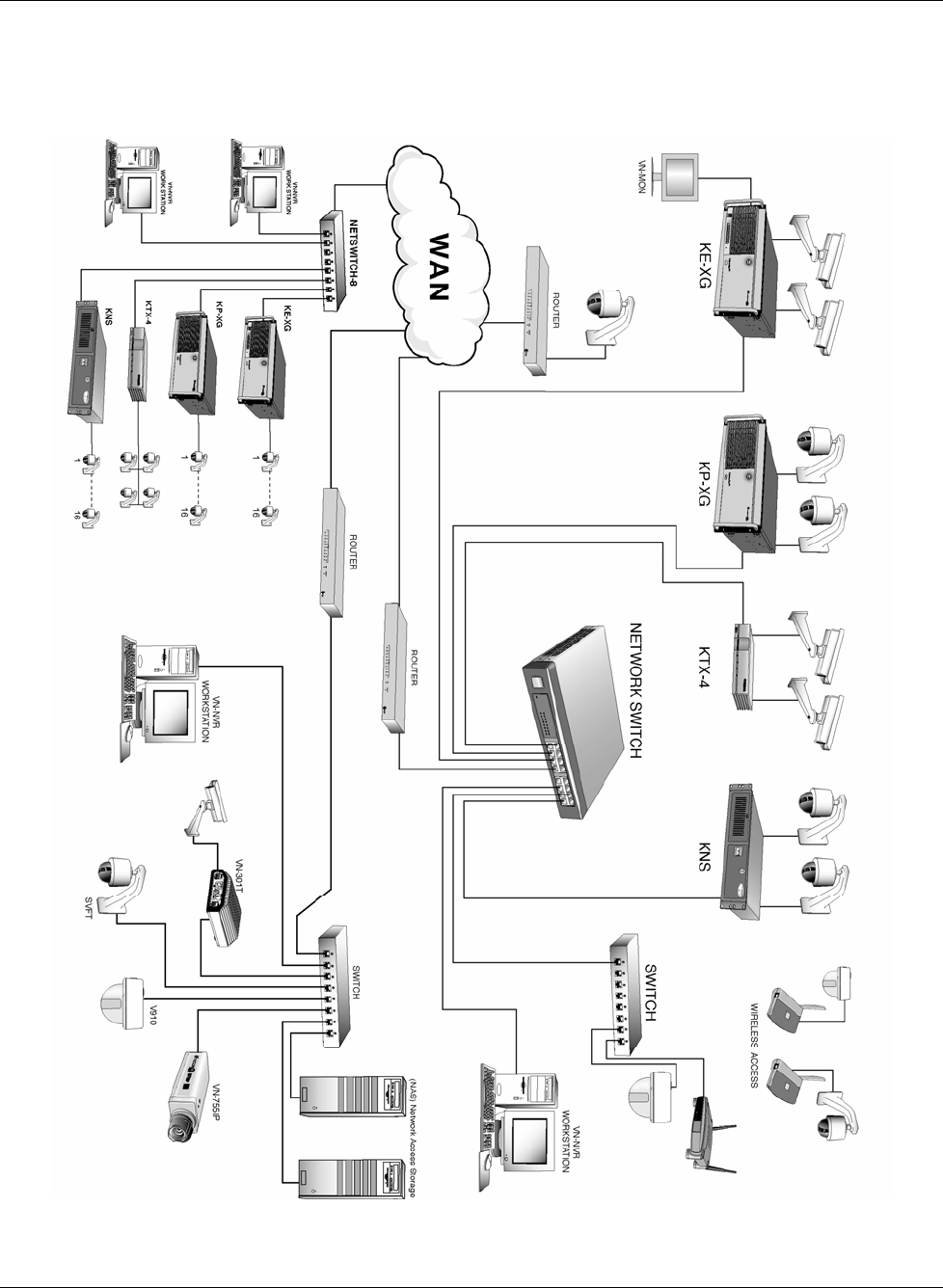
System Architecture
The diagram shown below illustrates a ViconNet system structure that incorporates the Nova 1500 system
with different ViconNet transmitters.

10 • Introducing ViconNet XX128-33-01 Rev 1206 Kollector Pro Network Digital Video Recorder

XX128-33-01 Rev 1206 Kollector Pro Network Digital Video Recorder Getting to Know ViconNet • 11
Chapter 2
Getting to Know ViconNet
This chapter describes the ViconNet application and familiarizes you with its components and functionality.
This chapter contains the following sections:
• Logging In, page 12, describes how to log in to the ViconNet application.
• Main Window, page 13, describes all the elements in the ViconNet Main window that provide access to
the basic functions required to operate the system.
• Navigator Window, page 34, describes all the elements in the ViconNet Navigator window that provide
access to all playback functionality.
• Alarm Window, page 48, describes the popup window displayed when an alarm event occurs in the
system.
• Logging Out, Exiting or Shutting Down, page 51, describes how to log out without closing the ViconNet
application, to close the ViconNet application and exit to the operating system, or to shut down or restart
the ViconNet unit.
• Watchdog, page 52, describes the Watchdog feature, which acts as a safety mechanism in cases of
unforeseen incidents such as temporary power failures.
12 • Getting to Know ViconNet XX128-33-01 Rev 1206 Kollector Pro Network Digital Video Recorder
Logging In
Logging in to the ViconNet application is performed using your assigned user name and password. The
allowed system operations are dependent on your assigned authorization rights (refer to Chapter 3,
Configuring the ViconNet System, for additional details).
The full functionality of the ViconNet system is available only after the system is registered. Before registration
is performed, the system will function with limited Viewer functionality only. Refer to the Registering Your
System section in Chapter 3, Configuring the ViconNet System for further information.
A ViconNet Administrator user can configure the system to automatically log in selected users. Then, each
time the user starts the application, he/she will be presented with the ViconNet Main window without having to
enter a user name and password. Refer to the Configuring Auto Login section in Chapter 3, Configuring the
ViconNet System.
NOTES:
Before you log in to the ViconNet application, verify that the hardware components are properly installed and
functional. For additional details, refer to the hardware manual.
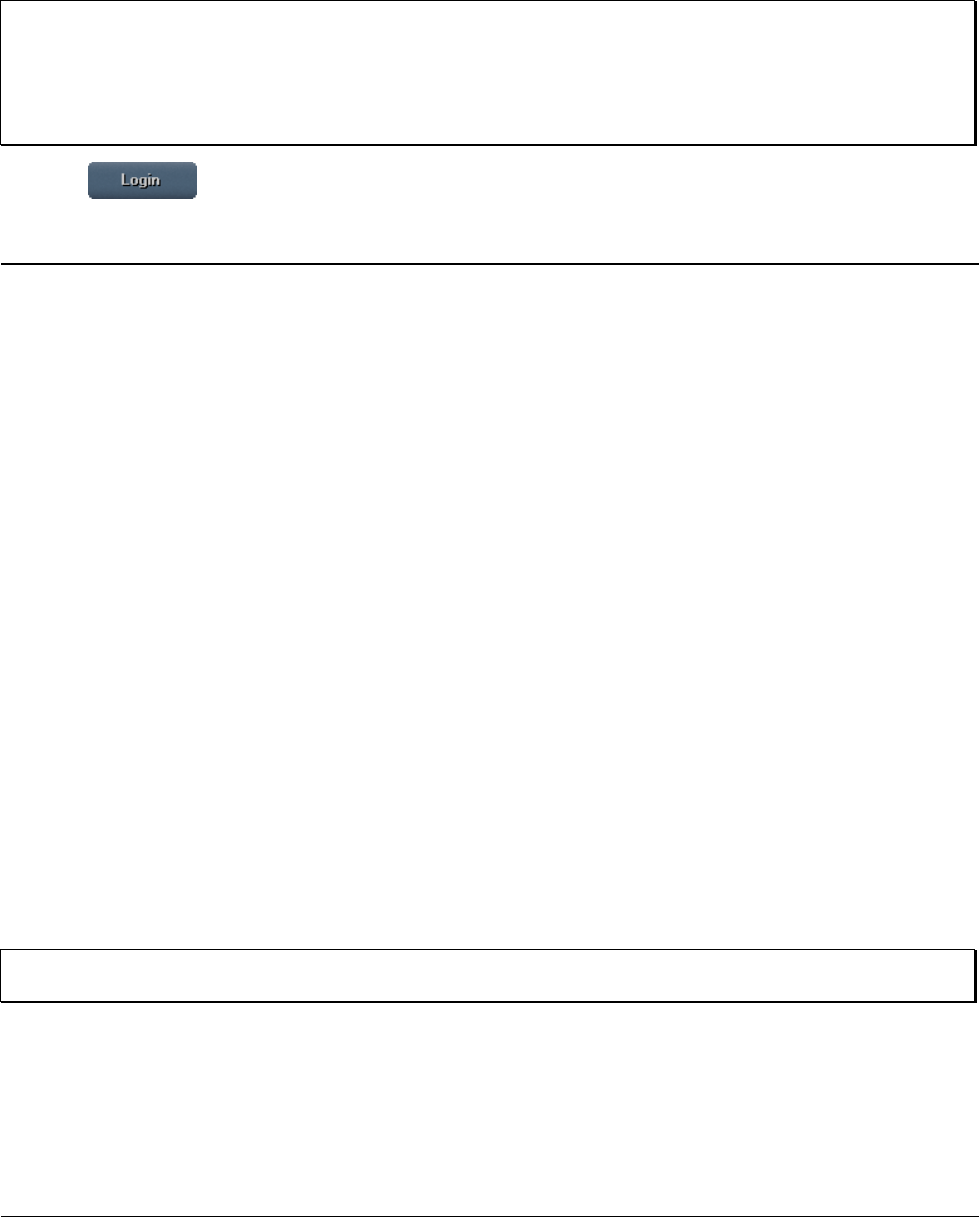
To log in to the ViconNet application:
1. At your Kollector Pro, double-click the ViconNet icon on your Windows desktop,
-OR-
Select StartJViconNet. The ViconNet Login window appears, displaying the name of the last logged in
user.
NOTE: If you restart your Kollector Pro, the ViconNet application automatically starts up with the Login
window open.
XX128-33-01 Rev 1206 Kollector Pro Network Digital Video Recorder Getting to Know ViconNet • 13
2. In the User Name field, enter your assigned user name. If you are an administrator entering for the first
time, enter admin. If you are a guest, enter guest.
3. In the Password field, enter your assigned password.
NOTES:
If you are a guest, you do not need to enter a password.
If you are an administrator entering the application for the first time, you do not need a password. After
logging in as admin, it is recommended to assign yourself a password, as described in Chapter 3,
Configuring the ViconNet System.
4. Click . The ViconNet Main window is displayed, as shown in the following section.
Main Window
After logging in to the ViconNet application, the Main window is displayed, as shown on the following page,
enabling you to:
• Configure the ViconNet system.
• View live video.
• Record live video.
• Play back recorded video.
• Create and manage macros and schedules.
• Control video images.
• Control devices.
• Generate reports.
• Print or export image frames.
• Configure an external control device.
• Use system utilities.
Each of the above tasks is described in detail in the subsequent chapters of this manual.
NOTE: The allowed operations depend on each user's assigned site authorization. Refer to Chapter 3,
Configuring the ViconNet System, for additional details about configuring site authorization.
14 • Getting to Know ViconNet XX128-33-01 Rev 1206 Kollector Pro Network Digital Video Recorder
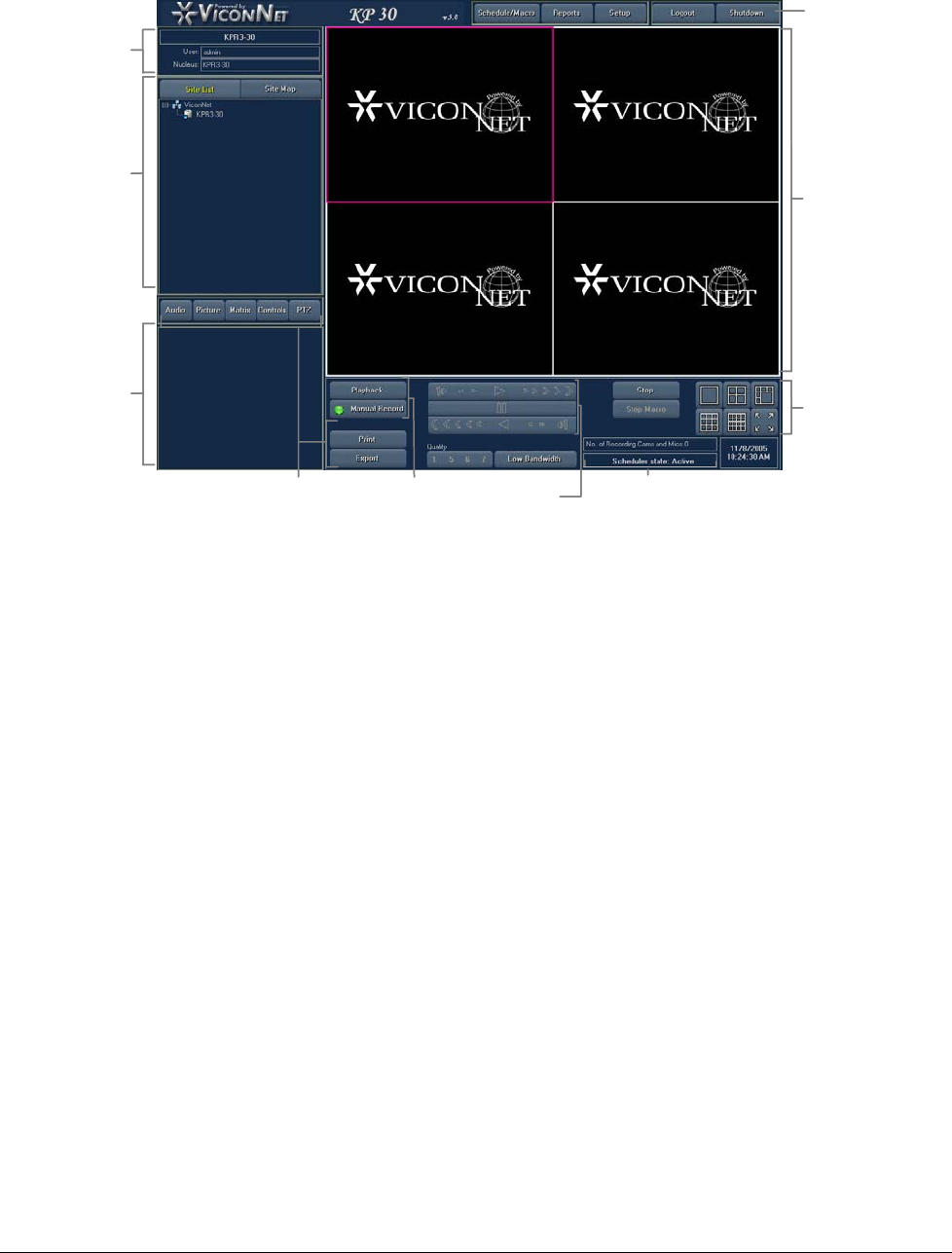
The following example illustrates the elements and options in the ViconNet Main window:
Function
Controls Playback
Controls
Video
Display
Area
Display
Mode
Controls
Toolbar
System Status
Area
Other
Controls
Control
Dialog
Display
Area
Site List/
Site Map
Trees
Current
Details
Area
Function
Controls Playback
Controls
Video
Display
Area
Display
Mode
Controls
Toolbar
System Status
Area
Other
Controls
Control
Dialog
Display
Area
Site List/
Site Map
Trees
Current
Details
Area
The window shown above provides access to all the basic functionality required to operate the system and
contains the following elements:
• Main Window Toolbar, page 15
• Video and Recording Elements, page 17, which include:
• System Status Area
• Site List/Site Map Trees
• Current Details Area
• Video Display Area
• Display Mode Controls
• Function Controls
• Control Dialog Display Area
• Playback Controls, page 31
XX128-33-01 Rev 1206 Kollector Pro Network Digital Video Recorder Getting to Know ViconNet • 15
• Other Controls, page 33, which include the following buttons:
• Audio (This is not functional in the Kollector Pro)
• Picture
• Matrix
• Controls
• PTZ
• Print
• Playback
• Export
Main Window Toolbar
The ViconNet Main window toolbar provides quick access to all the major functionality of the ViconNet
application, as well as all configuration and report generation options.
The ViconNet Main window toolbar appears at the top of the window and contains five buttons, as follows:
16 • Getting to Know ViconNet XX128-33-01 Rev 1206 Kollector Pro Network Digital Video Recorder
The following is a brief description of each toolbar button and its function:
Button Description
This option enables you to manage and work with macros that have been
configured in the system. Macros are used for recording video according to
preconfigured schedules and preconfigured alarm events, as well as for
performing sequence sessions.
Refer to Chapter 3, Configuring the ViconNet System, and Chapter 7,
Managing Macros and Schedules, for detailed configuration and management
procedures.
This option enables you to view and generate the following types of reports:
• Device Status: Displays the current activity state of all currently
configured devices.
• Alarm History: Displays all the alarm events that have occurred in the
system.
• Recording Status: Displays an estimate of the recording time remaining,
according to the database capacity and current data rate (BPS/frame), as
well as a total of devices that are currently recording.
• Audit Log: Provides a basic log of operations performed in the system,
which is useful for history and debugging purposes. Information is
accumulated continuously. 8,000 record lines can be accumulated, and
removed thereafter on a first-in-first-out basis.
• RVS Log: Provides a basic log of recording errors in sites that have been
verified.
• CFN Log: Provides a basic log of all failures that generated central failure
notifications. This report is only available from the nucleus.
Refer to Chapter 8, Generating Reports, for detailed report generation
procedures.
Enables you to close the application and redisplay the operating system by
clicking the Exit to O.S. button, available from the Setup Site Selection
window.
This option also enables you to configure the ViconNet system, which
includes:
• Registering your system.
• Modifying the system configuration, including configuring:
• Network setup.
• Cameras, sensors and relays.
• PTZ controls.
• Site information.
• Other RS232/422/485 controls.
• Configuring system authorizations, including:
• Defining groups.
• Defining users.
NOTE: Users and Groups are defined on the Nucleus unit.
• Configuring automatic login.
• Configuring site authorization.
XX128-33-01 Rev 1206 Kollector Pro Network Digital Video Recorder Getting to Know ViconNet • 17
Button Description
• Configuring storage database utilities, including:
• Configuring storage locations.
• Clearing storage locations.
• Configuring system authentication.
• Configuring manual recording.
• Configuring automatic recording.
• Enable the picture quality manual override buttons.
• Creating, editing, and deleting macros.
• Setting Video priority, including:
• Picture quality and FPS priority.
• Creating sequence sessions. (This option will be functional in future
versions.)
• Configuring alarm events, including:
• Defining alarm setup links.
• Setting pre/post alarms.
• Creating and modifying schedules.
• Copying an existing configuration from one transmitter to another. (This
option will be functional in future versions.)
• Restoring and backing up system settings from/to any network location.
• Configuring a control box.
• Recording Verification System (RVS) continually monitors the recording
performed by a scheduled macro or autorecord. It ensures continuous
recording by notifying users of any recording errors.
• Auto/Manual FPS – Manual FPS distribution of each camera per DSP, so
that you know exactly how many FPS are recorded and displayed per
camera.
• Language Translation Utility (LTU)
• Central Failure Notification (CFN) continually sends notification, to
specified sites, of errors that occur in the system.
• Map sets – enables you to map your working environment in terms of
where ViconNet systems are physically located on your premises.
• Settings summary – provides a summary of all the settings configured in
a specific site.
• Reset nucleus – resets the list of sites appearing in the RVS, CFN and
Macro Editor Send Alarm site lists. Clears all history of disconnected
sites. Disconnected sites appear with the following icon:
Refer to Chapter 3, Configuring the ViconNet System, for detailed
configuration procedures.
This option enables you to log out without closing the ViconNet application.
You can then log in as a different user.
This option closes the ViconNet application and shuts down the local
computer on which it is running.
18 • Getting to Know ViconNet XX128-33-01 Rev 1206 Kollector Pro Network Digital Video Recorder
Video and Recording Elements
The ViconNet system enables you to view and record live video and play back recorded video by selecting
devices and displaying their contents, as required. You can view and record the contents of selected devices
using the following video and recording elements:
• Current Details Area, page 18
• System Status Area, page 18
• Site List, page 19
• Site Map, page 21
• Video Display Area, page 22
• Display Mode Controls, page 26
• Function Controls, page 30
• Control Dialog Display Area, page 31
Current Details Area
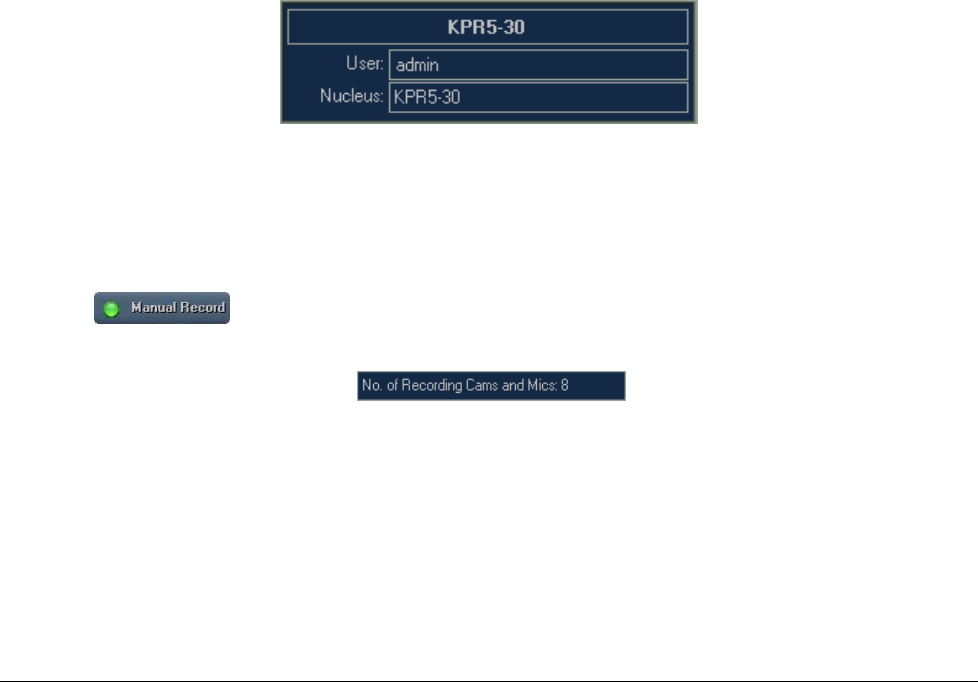
The Current Details area displays the name of the currently logged in user and the name of the master
nucleus:
System Status Area
The System Status area provides the following information about the current state of system resources:
Number of Devices Recording
When the button is clicked, the selected device starts recording and the following information
display is updated:
• No. of Recording Cams and Mics: The combined total of cameras and microphones that are currently
recording.
A few moments are required for the information to be generated.
XX128-33-01 Rev 1206 Kollector Pro Network Digital Video Recorder Getting to Know ViconNet • 19
Scheduler State
The current operational state of the Macro Scheduler is displayed:
For details about the Macro Scheduler, refer to Chapter 7, Managing Macros and Schedules.
Site List
The ViconNet Site List is a hierarchical tree that displays the Kollector Pro and devices in the system. This
tree can be navigated using standard tree expand and collapse functionality. Each storage location contains
the devices that are available for viewing and recording live video segments, and each transmitter and device
list is correlated to a specific storage location.
The following five device types can be configured to accommodate your individual and organizational
requirements:
Device Type Description
Video or Camera (Cam)
Audio Microphone (Mic) (Kollector Pro does not currently support Audio.)
Detector Sensor (Sen)
Relay Relay (Rel)
Speaker Speaker (Spk) (Kollector Pro does not currently support Speakers.)
NOTES:
The cameras that appear in the Site List are automatically detected by the system during startup. If a
camera is not physically connected to the system, it will not appear in the list. If the camera is disconnected
after startup, a red X icon ( ) is displayed next to the relevant camera in the Site List, and a blank screen
appears in the Video Display area.
Selecting a device starts that device's Video transmission and enables you to perform all viewing, and
recording operations.

20 • Getting to Know ViconNet XX128-33-01 Rev 1206 Kollector Pro Network Digital Video Recorder
Using the Site List, you can select or deselect cameras for viewing and recording, as follows:
To view a camera:
• Select a camera in the tree or drag and drop it from the tree to the Video Display area. The following
occurs:
• The icon appears highlighted in yellow.
• The live video transmission begins and is displayed in the selected location in the Video Display
area.
• The pink border in the Video Display area automatically moves to the next available display location.
To reverse a selection:
Select the device in the tree again. The following occurs:
• The icon is not highlighted in the tree (it is gray).
• The live video transmission is stopped. The video appears static in the Video Display area.
To view all cameras from a specific transmitter:
Drag and drop the transmitter from the tree to the Video Display area. The following occurs:
• All camera icons are highlighted in the tree.
• The live video transmission for all cameras connected to the transmitter begins and is displayed in the
Video Display area.
NOTES:
When you select a video display location that contains an active display, a pink border is displayed around
the relevant device in the Site List.
You can also click the STOP button to stop all video transmission immediately, if required.
For the Kollector Pro, the maximum number of cameras that can be selected simultaneously is sixteen,
depending on the current display mode. If you select more than the maximum number, you will be prompted
to remove a camera to make room for another one.
A total of 16 cameras can be selected simultaneously on the Kollector Pro.
You can also change the maximum number and location of the cameras you want to view and record, as
described in Video Display Area, page 22, and Display Mode Controls, page 26. Refer to Chapter 4, Viewing
Live Video, and Chapter 5, Recording Live Video, for detailed procedures using the Site List.
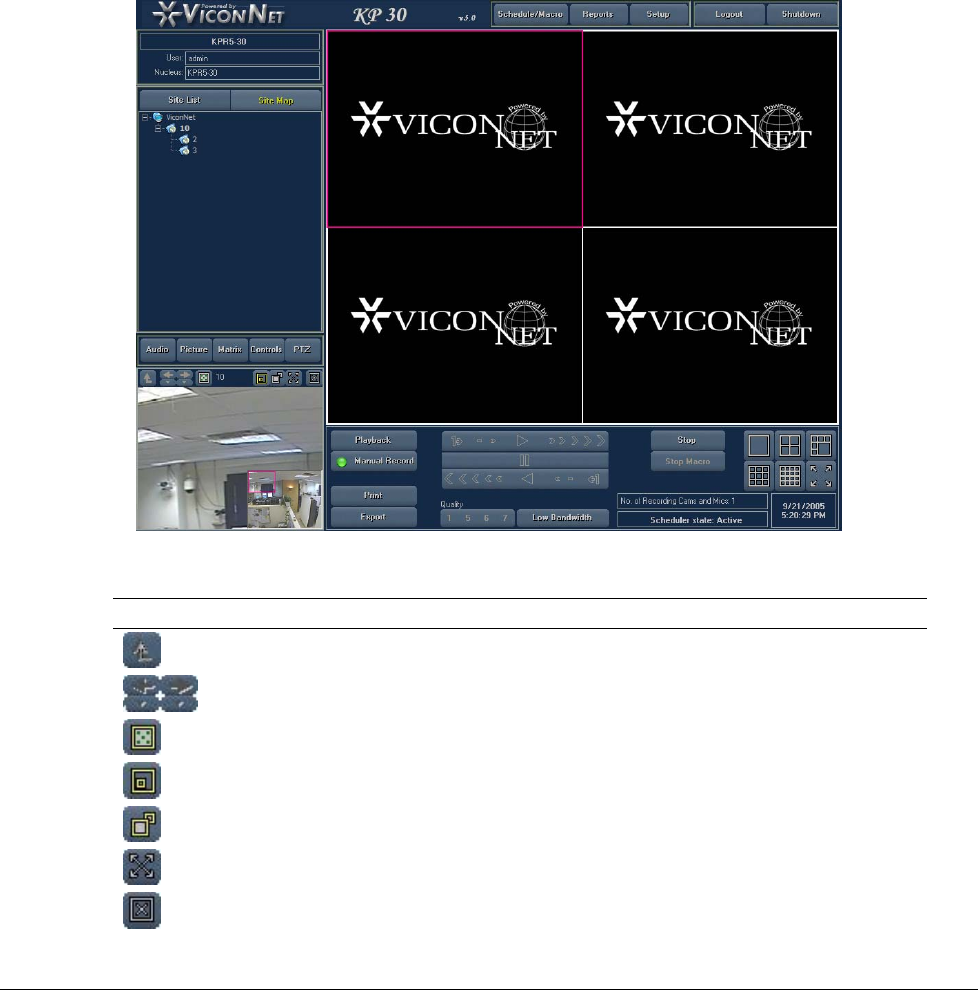
XX128-33-01 Rev 1206 Kollector Pro Network Digital Video Recorder Getting to Know ViconNet • 21
Site Map
In the Kollector Pro, the ViconNet Site Map provides you with the ability to define the location of cameras on
a map of the physical environment/premises. Maps can be grouped into map sets. The map set you are
currently working on is called the working set. The Working Set site maps can be viewed by clicking on Site
Map in the left hand panel of the Main window. The Site Map can be navigated in the same way as the tree
(in the Site List). However, the devices in the Site Map tree are organized by maps and map sets, not by site
(meaning, by physical location of devices as opposed to by device name).
You can define your maps and map sets by selecting Map Sets from the System Settings window. The image
in the lower-left panel changes according to the object selected in the site map. The picture can be dragged to
the middle of the editing space, and then expanded or navigated, and so on, as described below.
The following options are available for working with the selected map in the map set:
|
Button Description
Enables you to navigate to the parent map.
Enables you to navigate to other maps in the map set.
Enables you to remove text labels from the map.
Enables you to expand the picture.
Enables you to return the map to its previous state (expansion).
Enables you to maximize the map to fit the entire screen.
Enables you to close the map image. The Site List tab is redisplayed in the
left-hand panel.
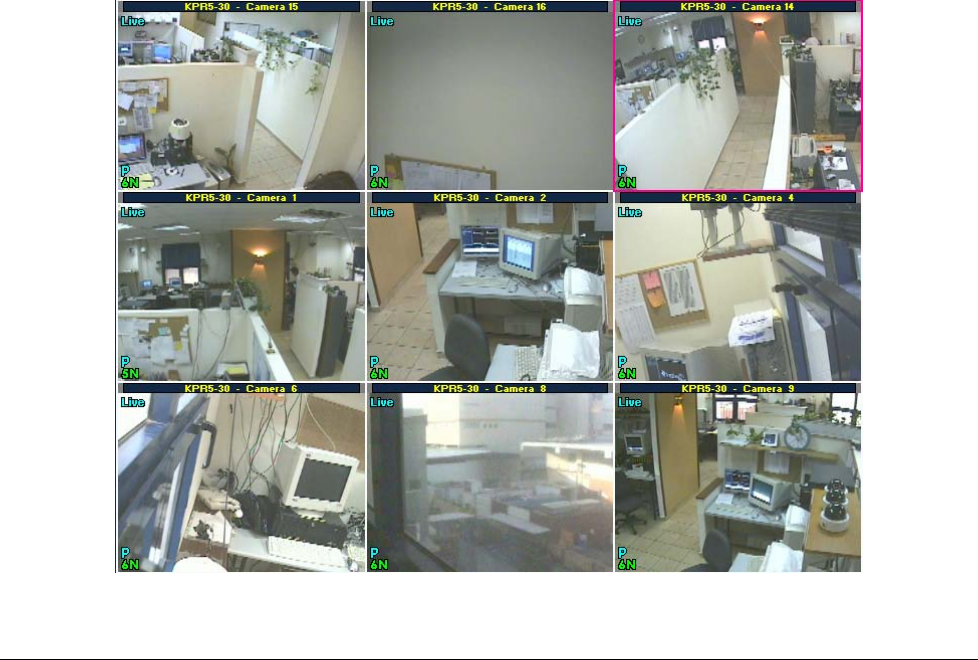
22 • Getting to Know ViconNet XX128-33-01 Rev 1206 Kollector Pro Network Digital Video Recorder
Devices (cameras, servers, and so on) can be added to a site map by dragging them directly to where they
are located on the map of the physical location.
To activate or deactivate a camera, click the camera icon on the map. If the camera icon is flashing, it is
deactivated. If it is steady, it is active.
For more details about site maps, see Chapter 3, Configuring the ViconNet System.
Video Display Area
The ViconNet Video Display area is a viewer for viewing and recording live video and playing back recorded
video. You can view both live video, as well as recorded segments from up to sixteen different cameras
simultaneously in the video display locations in this area, as required.
You can display a camera's video in this area in one of the following ways:
• By selecting the camera from the Site List (the camera is displayed in yellow). The video is automatically
displayed in the Video Display area.
• By dragging and dropping a camera from the Site List to the Video Display area.
• By selecting a recorded camera in the Navigator window and then displaying its video in the Video
Display area, as described in Navigator Tree, page 36.
The following example shows nine live video transmissions displayed in the Video Display area, with the
name of each camera located at the top of each video display location.
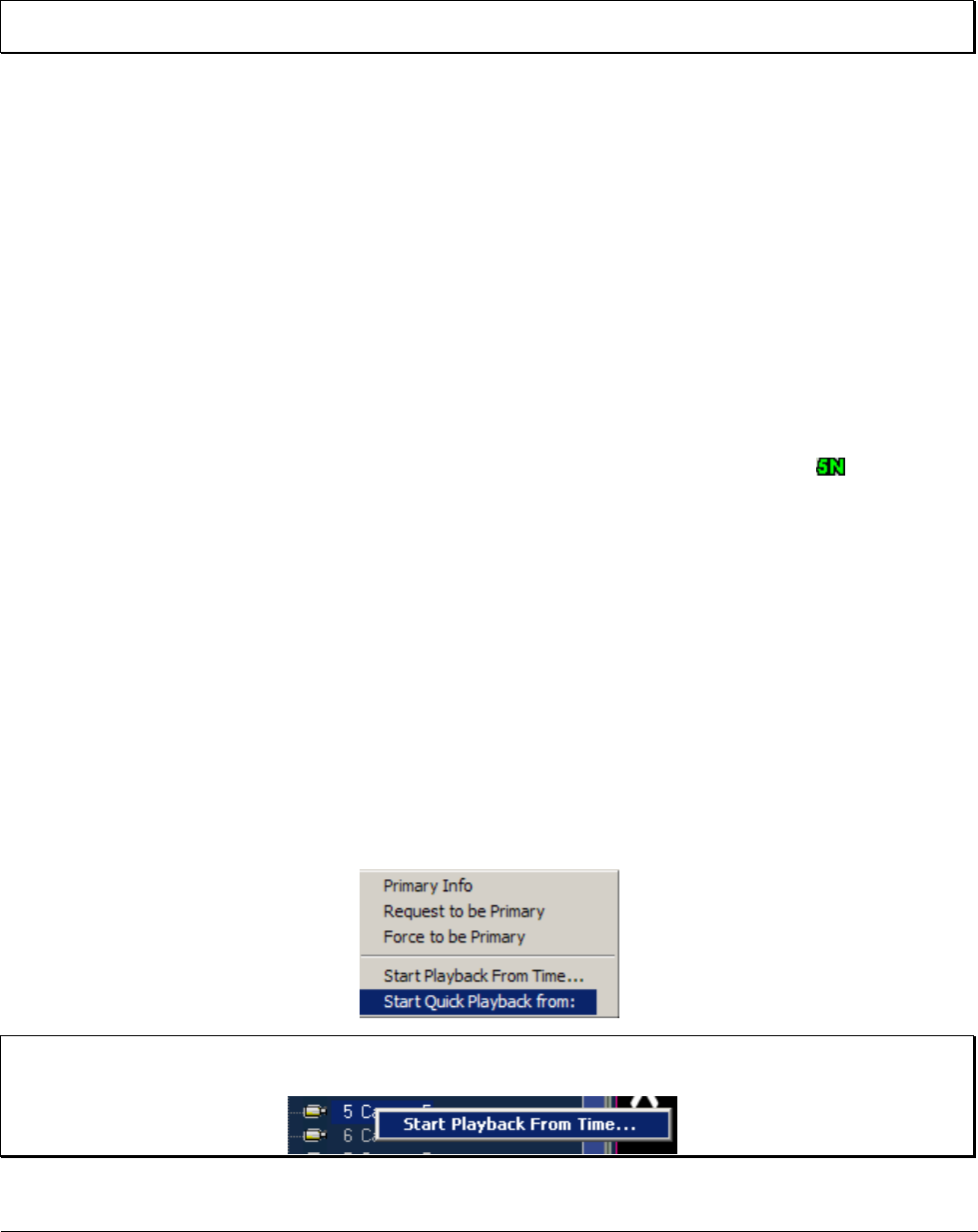
XX128-33-01 Rev 1206 Kollector Pro Network Digital Video Recorder Getting to Know ViconNet • 23
The selected location (indicated by the pink border) then becomes the active location, and its video
transmission is affected by the display mode controls (page 26), playback controls (page 31) and other
controls (page 33).
NOTE: The camera currently displayed in the active video display location is also indicated by a pink border
around its icon in the Site List.
When a camera's video is displayed in one of the video display locations, its related information is also
displayed, such as the following:
• Live, Playback or Recording indications, according to the function currently being performed.
• The camera name during recording operations
• The recording time and date during playback operations.
• P (Primary) or S (Secondary) status of the site relative to this camera. The first site to operate a camera
(whether locally or remotely) acquires Primary status relative to it. Any other site that accesses the
camera while it is already being operated acquires Secondary status relative to that camera. If the
Primary site disconnects from a camera that currently has Secondary sites associated with it, the site that
connected earliest automatically acquires Primary status relative to that camera.
• The picture quality and refresh mode during Live and Playback operation. For example, indicates the
quality 5 at the Normal refresh mode. (For details, refer to the About Picture Quality and Refresh Mode
section, page 28.
If you want to enlarge the size of an image in one of the video display locations, double-click the required
location. The selected image is maximized to fill the entire Video Display area. You can click the image again
to restore it to its previous size.
You can also change cameras from one video display location to another within the Video Display area, as
required, for example, when viewing live and recorded segments simultaneously. The default location for all
the display modes is the top left, but you can change it by clicking in a different location. The pink border
moves and indicates the new active location.
Right-clicking anywhere in a camera that is currently recording displays a shortcut menu with five options, as
shown.
NOTE: If the selected camera is live, all five options are displayed. If the selected camera is not live, only
the Start Playback From Time option is displayed.

24 • Getting to Know ViconNet XX128-33-01 Rev 1206 Kollector Pro Network Digital Video Recorder
• Primary Info: Displays the Primary Information For window, which shows details regarding the Kollector
that currently has Primary status relative to this camera.
• Request to be Primary: Enables you to send a request to the current primary user to take control and
become the primary user. If you request to be the primary user, a message is displayed on the current
primary user's display.
• The current primary user will select Yes or No.
• When you have higher priority, you can request or force. It is recommended to force.
NOTE: In the Quality and FPS Priority window, selecting the checkbox on the lower-right side
(default = checked) sets the response to automatically accept the Request to be Primary if 30
seconds pass with no response from the primary user.
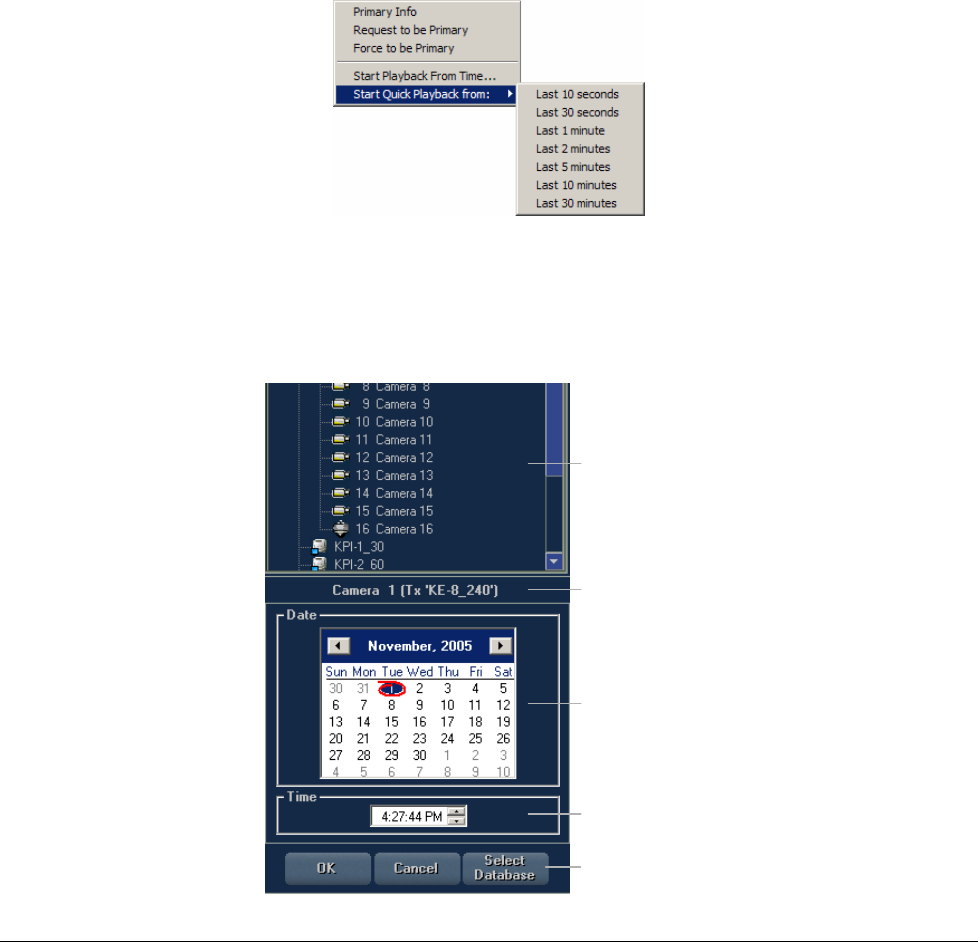
XX128-33-01 Rev 1206 Kollector Pro Network Digital Video Recorder Getting to Know ViconNet • 25
• Force to be Primary: Enables you to force yourself to be the primary user, providing that you have
higher user priority than the current primary user (as defined in the User and Group Management
window). If you force yourself to be the primary user, the P in the corner of the display on the current
primary users display changes to S, and the S in the corner of your display changes to P.
If the user is already the Primary user, the Force to be Primary option is disabled.
If the user has lower priority than the current primary, and selects Force to be Primary, the message
“Request to be primary was not approved” will be displayed.
• Start Quick Playback From: Enables you to play video back from that camera (in an adjacent camera
display location), without interrupting the recording process. This avoids having to remove one's eyes
from the current live video while playing back to investigate suspicious activity, as would be the case if
Playback is initiated from the Navigator window.
For details about how to perform Quick Playback, refer to Quick Playback in Chapter 6, Playing Back
Recorded Video.
• Start Playback From Time: Enables you to play video back from a live camera (in an adjacent camera
display location). When Start Playback From Time is selected, calendar and time boxes are displayed.
Select
Database
Select
Time
Select
Date
Site List
Displays
Selected
Camera Name
Select
Database
Select
Database
Select
Time
Select
Time
Select
Date
Select
Date
Site ListSite List
Displays
Selected
Camera Name
Displays
Selected
Camera Name
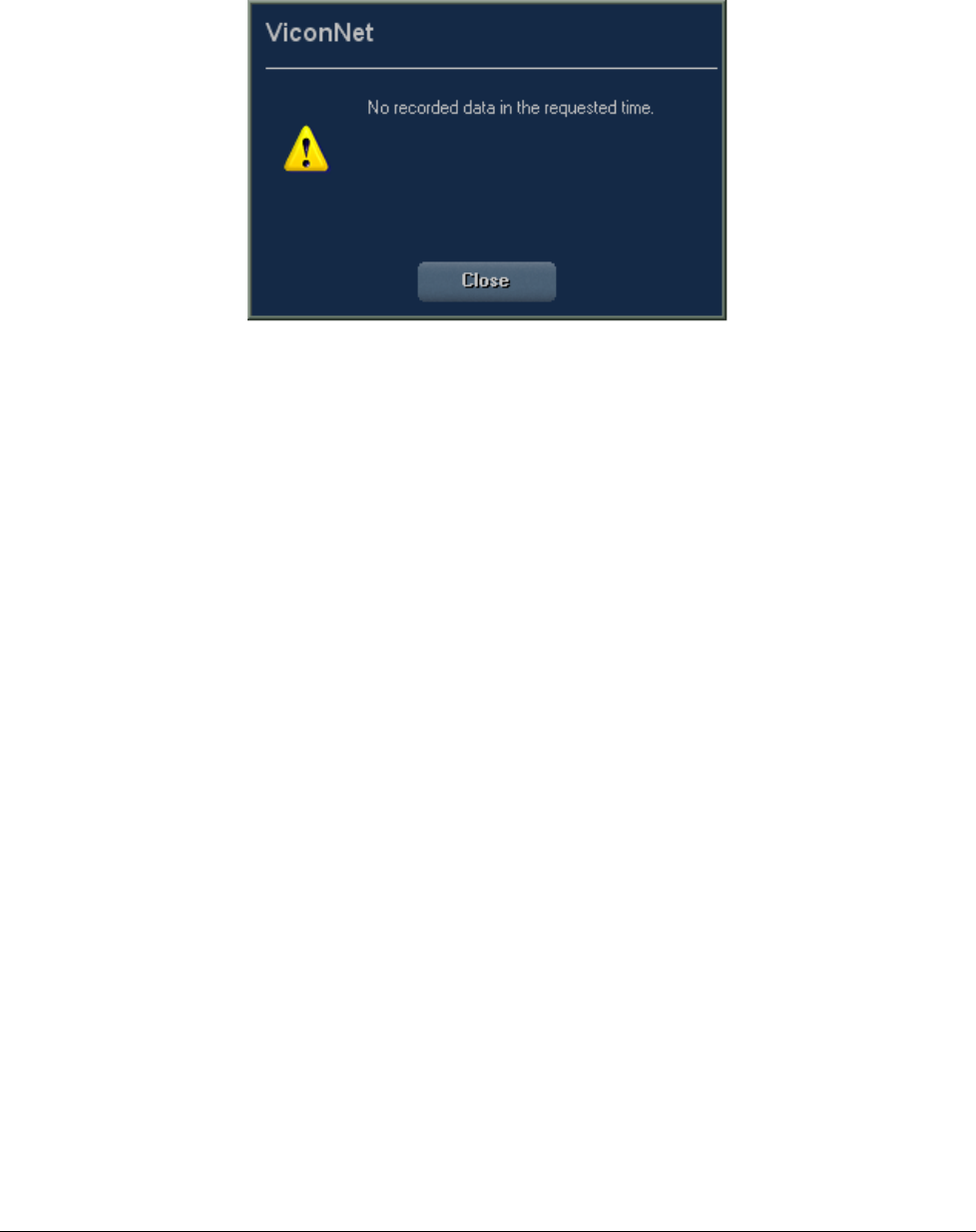
26 • Getting to Know ViconNet XX128-33-01 Rev 1206 Kollector Pro Network Digital Video Recorder
To select the database to be played back, click Select Database. A site list with local Audio Video
Databases (AVDB) is displayed in the lower-left panel. If there is no data in the database, a message is
displayed.
If there is data in the database, the playback image is displayed in the cell adjacent to the camera
recording and it waits for you to press Play. If the selected database is the local database, you can either
run it from here, or by pressing Playback in the Navigator window. The advantage of activating the
playback from the Main window, as opposed to from the Navigator window, is that all Main window
functionality is still displayed.
To activate Start Quick Playback From and Start Playback From Time, right-click the live camera
(meaning, a camera which is currently recording) or right-click the camera in the site-list. If a camera is
off, or if it is not live, the only option is Start Playback From Time.
Display Mode Controls
The ViconNet display mode controls enable you to select and modify the number of video display locations
that are displayed simultaneously in the Video Display area by clicking the required icon. In the display
modes with more than one video display location, you can use all or only some of the locations to view, record
and play back video, as required.
For example, if you want to record video from seven cameras, you would select display mode Nine and have
two blank video display locations and seven active ones. Refer to Chapter 6, Playing Back Recorded Video,
for detailed procedures for recording video.
When performing viewing and playback operations, you can change the display mode during the operation
without affecting the currently displayed video. Refer to Chapter 4, Viewing Live Video, for detailed
procedures for viewing and playing back video.
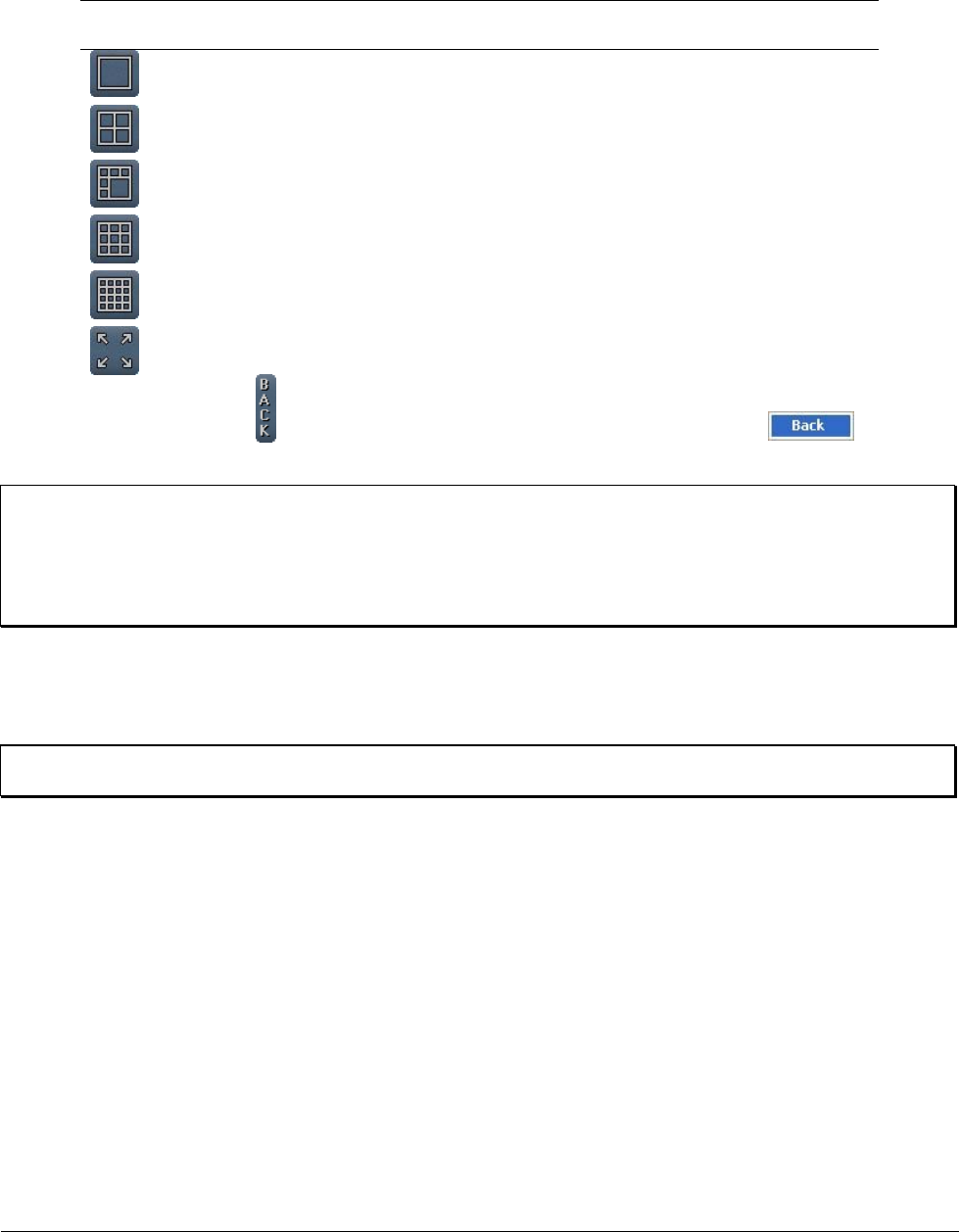
XX128-33-01 Rev 1206 Kollector Pro Network Digital Video Recorder Getting to Know ViconNet • 27
The ViconNet system provides the following display modes, which enable you to select the number of
cameras from which to view or record video in the Video Display area of the Main window:
Display
Mode Description
Single: Enables you to view or record from one camera.
Two-by-two matrix (Quad): Enables you to view or record from up to four cameras
simultaneously.
Hexa (Six): Enables you to view or record from up to six cameras simultaneously.
Three-by-three matrix (Nine): Enables you to view or record from up to nine cameras
simultaneously.
Four-by-four matrix (Sixteen): Enables you to view or record from up to sixteen
cameras simultaneously.
Full Screen: Enables you to maximize a selected video display location to fit the entire
screen (including the Site List). To restore the maximized screen to its previous size,
click the icon in the top right corner or right-click in the screen and click .
You can also click <ESC>.
NOTES:
The upper left video display location in all of the display modes is the default video display location for the
first camera that you select for display in the Video Display area, unless otherwise allocated.
Refer to Chapter 4, Viewing Live Video, Chapter 5, Recording Live Video, and Chapter 6, Playing Back
Recorded Video, for additional details about selecting cameras and video display locations.
In addition, double-clicking a video display location in the Video Display area enlarges the selected location
to full video display size, which is the same as the Single display mode, described on page 27. To return the
Video Display area back to its previous display mode, double-click the full display again.
TIP: The display mode can also be changed from the Navigator window, if required, as described in the
Changing the Display Mode section, page 45.
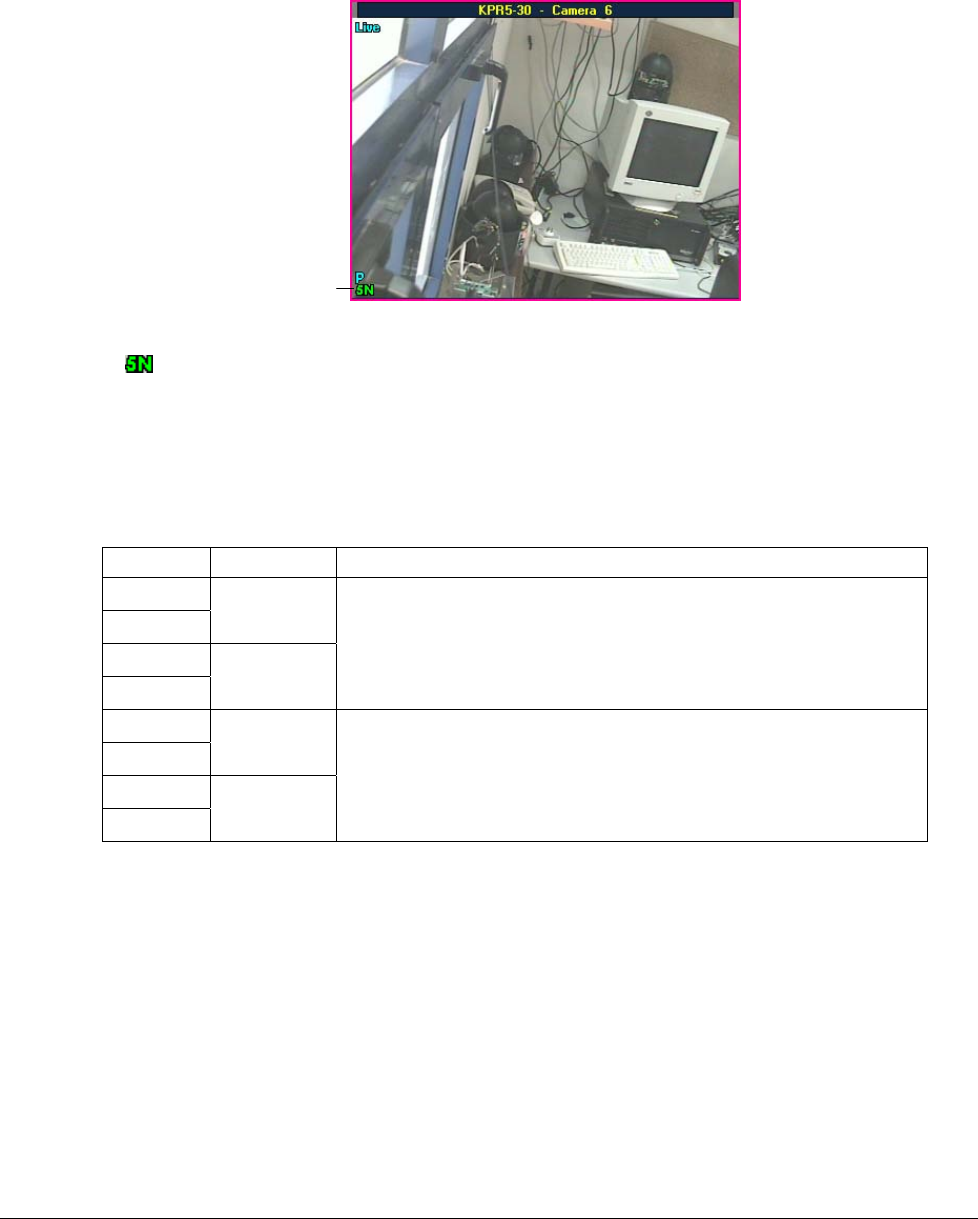
28 • Getting to Know ViconNet XX128-33-01 Rev 1206 Kollector Pro Network Digital Video Recorder
About Picture Quality and Refresh Mode
The notation at the bottom-left of each camera view indicates the picture quality and the refresh mode of the
image in the view.
Picture
Quality and
Refresh Mode
Picture
Quality and
Refresh Mode
For example, indicates the quality 5 at the Normal refresh mode. These concepts are described in the
sections below.
Picture Quality
Picture quality (also known as resolution) refers to the compression level of the video images. The following
qualities are available for recording purposes:
Quality Type Properties
1
2 Frame
3
4 Field
Better picture quality, but slower data transmission.
5
6 CIF
7
8 HCIF
Less clear picture quality, but faster data transmission.
The quality and refresh mode in which video was recorded is displayed during the first five seconds of
playback.
The recorded video quality is determined according to the configuration settings for Manual Recording, Auto
Record, Macro Creation and Pre/Post-Alarm. For additional details, refer to the relevant sections in Chapter 3,
Configuring the ViconNet System.
When different recording options are requested concurrently, the recorded picture quality that applies is
determined according to prioritization settings. For details, refer to the Picture Quality and FPS Priority section
in Chapter 3, Configuring the ViconNet System.

XX128-33-01 Rev 1206 Kollector Pro Network Digital Video Recorder Getting to Know ViconNet • 29
In order to improve transmission speed, the maximum quality of live images is set automatically according to
the selected display mode, as follows:
Display Mode Max Display
Quality
Single 1
Two-by-two matrix 5
Hexa (Six) 5
Three-by-three matrix (Nine) 6
Four-by-four matrix (Sixteen) 7
The Single mode is assigned the highest available resolution, while other modes are assigned lesser
resolutions, in proportion to their number of views. This is because the smaller views (for example, 3x3 or
4x4) generally do not benefit from higher resolutions and are equally legible in a lower resolution.
When the buttons in the Main window Function Controls area are enabled, you can
manually override the display mode-determined live picture quality for the currently selected camera. The
qualities 1, 5, 6 and 7 are available for this purpose. The quality and refresh mode of the live video is
displayed during the first five seconds following the manual Quality change. (For information about enabling
the buttons, refer to the Configuring Manual Recording and Picture Quality section in Chapter 3, Configuring
the ViconNet System.)
Refresh Mode
The refresh mode refers to whether all the frame data (Full mode, represented by an F in the bottom-left of
the camera view) is displayed each time or only changes that occur in the frames (Normal mode, represented
by an N in the bottom-left of the camera view) are displayed. The view image is automatically played back in
the refresh mode in which it was recorded.
The refresh mode of the recorded image is determined according to the configuration settings for Manual
Recording, Auto Record, Macro Creation and Pre/post Alarm. For additional details, refer to the relevant
sections in Chapter 3, Configuring the ViconNet System.
30 • Getting to Know ViconNet XX128-33-01 Rev 1206 Kollector Pro Network Digital Video Recorder
Function Controls
The ViconNet function controls enable you to record or stop the live video currently displayed in the Video
Display area, as well as stop the macros currently running in the system, if required.
Option Description
Records all video currently displayed in all the video display locations in the
Video Display area and stores the recorded data into the predefined local
storage location. To stop recording, click the Manual Record button again.
Refer to Chapter 5, Recording Live Video, for detailed recording
procedures.
Stops the transmission of all video currently displayed in the Video Display
area.
To begin recording again, you must re-select the required cameras, as
described in Chapter 5, Recording Live Video.
Stops all macros currently running independently within the system or as a
result of the scheduler. Macros control operations such as:
• Preconfigured schedules.
• Preconfigured alarm events.
• Sequence sessions.
• Manual macro execution.
Refer to Chapter 3, Configuring the ViconNet System, and Chapter 7,
Managing Macros and Schedules, for additional details.
When these buttons are enabled, you can manually override the live picture
quality for the currently selected camera, as required. The qualities 1, 5, 6
and 7 are available for this purpose. (For information about enabling the
buttons, refer to the Configuring Manual Recording and Picture Quality
section in Chapter 3, Configuring the ViconNet System.)
Enables ViconNet system to work in a low bandwidth network. When this
button is pressed, the scale factor of the compression changes. The higher
the compression, the lower the quantity of data (kB). In this case, smaller
frames are transmitted, but more frames per second (FPS) are sent over
the network. Low bandwidth functionality is subject to video priority settings.
NOTE: If there are multiple users watching the same camera,
from two locations, the low bandwidth is activated
according to the settings in the Quality and FPS Priority
window, and according to the priority of the user who
selects it, as described in Chapter 3, Configuring the
ViconNet System.
For example: If one user has 1 Normal and the other user
has 5 Normal priority, and Highest Requested Quality is
checked in Quality and FPS Priority window, then:
If 5 Normal requests low bandwidth, it is not activated.
If 1 Normal requests low bandwidth, it is activated on both
users (that is, it is forced on the other user).
XX128-33-01 Rev 1206 Kollector Pro Network Digital Video Recorder Getting to Know ViconNet • 31
Option Description
Low bandwidth can also be configured by checking the Low bandwidth
checkbox in the Macro Editor window (in the quality area).
No museum search for low bandwidth
To increase the maximum FPS available when working in low
bandwidth, you can define that there is no museum search for low
bandwidth, as follows:
1. From Windows Explorer, navigate to
C:\viconnet\vndata\settings\config\
(or path of your application\vndata\settings\config\)
2. Double-click the file TxSettings.ini.
3. Set the flag SendMuseumSearchBlockMapOnLb=1 to 0
(SendMuseumSearchBlockMapOnLb=0)
4. Restart the application.
Note: If you configure the application as described above, you will
not be able to perform a museum search.
Control Dialog Display Area
The Control Dialog Display area changes and provides access to different functionality according to the
currently selected control in the Other Controls area. For example, if you click the button, the
Control Dialog Display area displays additional controls specific to controlling the picture. Refer to the Other
Controls section, page 33, for additional details about the controls that affect this area.
Playback Controls
The ViconNet system enables you to play back one or multiple recorded segments in the Video Display area.
The playback controls are enabled when selected video is played back in the Video Display area. (Playback
is started by clicking to access the Navigator window, from which camera and time interval
selections are made, and then clicking the button to redisplay the ViconNet Main window, in which
the playback can be viewed.)
The playback start time for the recorded segment(s) depends on the start time that you defined in the
Navigator window when choosing which segment(s) to play back. Refer to Playback Start Time Selector,
page 42, and Chapter 6, Playing Back Recorded Video, for additional details.
32 • Getting to Know ViconNet XX128-33-01 Rev 1206 Kollector Pro Network Digital Video Recorder
You can then use the playback controls, to navigate the selected recorded segment during playback, as
follows:
Option Description
Forward: Plays the recorded video segment.
This control also enables you to restart playback of a recorded video segment
that has been stopped automatically due to an alarm event.
NOTE: Refer to Chapter 3, Configuring the ViconNet System, for
additional details about configuring alarm events.
Fast Forward: Fast-forwards the recorded segment at the following speeds
(related to the normal speed): 1/4, 1/2, x2, x5, x10, x50, and x100.
NOTE: Place the mouse cursor over a button to view its related fast
forward speed.
Backward: Rewinds the recorded video segment.
Fast Rewind: Fast rewinds the recorded segment at the following speeds
(related to the normal speed): 1/4, 1/2, x2, x5, x10, x50, and x100.
NOTE: Place the mouse cursor over a button to view its related fast
rewind speed.
Stop/Pause: Stops/pauses the current playback of the recorded segment.
Prev: Displays the previous frame in the recorded segment.
Next: Displays the next frame in the recorded segment.
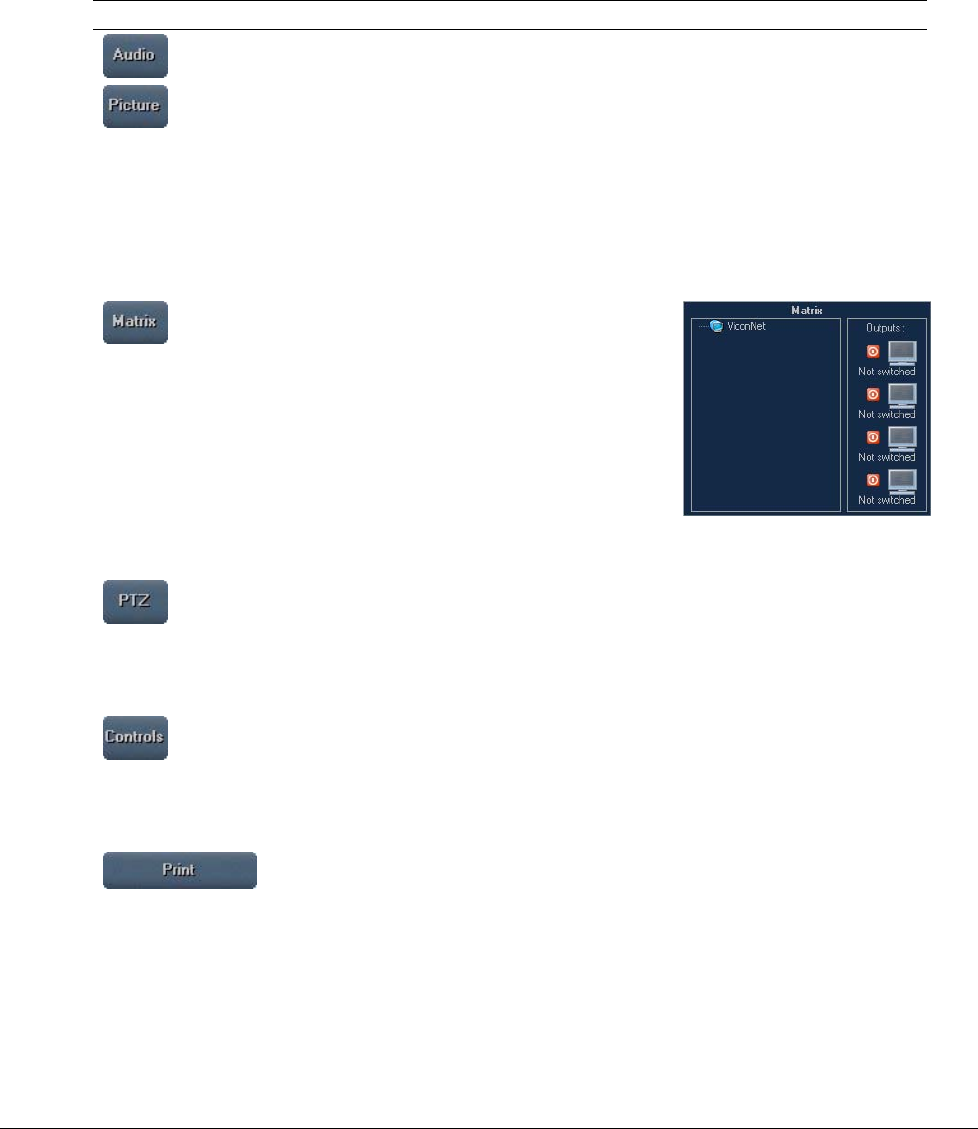
XX128-33-01 Rev 1206 Kollector Pro Network Digital Video Recorder Getting to Know ViconNet • 33
Other Controls
The Other Controls area provides functions that affect one selected device at a time and are active only if a
relevant device type is selected. As you select each of these controls, additional controls or information,
relevant to the selected control, are displayed in the Control Dialog Display area.
The Other Controls area provides the following functions:
Function Description
This function is not active in the Kollector Pro
This button displays controls in the Control Dialog Display area for modifying
the color, brightness, and contrast of the displayed video images.
Changing the picture settings is irreversible (meaning that after the settings have
been changed, the previous settings are lost).
NOTE: The last saved picture settings can only be restored by selecting
Restore from the System Settings window, However, this restores ALL the last
backed-up system settings. Refer to the Step 3: Controlling the Picture section in
Chapter 4, Viewing Live Video, for additional details.
This button displays controls in the Control
Dialog Display area (lower-left panel) for
viewing the four analog outputs made available
by the new Kollector Pro rear panel. The matrix
feature enables four digital streams to be
converted back to analog from the Kollector Pro,
and servers such as analog monitors or TVs can
be used to view the output.
If there are no sites with the relevant hardware, the message: "No site supporting
the switching matrix exists" appears.
This button enables you to display video from a PTZ camera in the Video
Display area. This option also automatically displays a driver-specific interface
for PTZ-enabled cameras in the Control Dialog Display area and on the screen.
Refer to the Operating a PTZ Camera section in Chapter 4, Viewing Live Video,
for additional details.
This button displays buttons in the Control Dialog Display area by which system
functions can be configured to operate via external device commands.
This button is operational only when an external control box has been configured
on your system. Refer to the Configuring a Control Box section in Chapter 3,
Configuring the ViconNet System, for additional details.
This button enables you to print out the Main window Video Display area panel,
showing the frames currently being displayed.
Refer to Chapter 9, Printing/Exporting Frames and Creating AVI Files for
additional details.
34 • Getting to Know ViconNet XX128-33-01 Rev 1206 Kollector Pro Network Digital Video Recorder
Function Description
This button displays the Navigator window, enabling you to select recorded video
segments for playback viewing.
Refer to Navigator Window, page 34, and Chapter 6, Playing Back Recorded
Video, for additional details.
This button enables you to save a selected single frame or group of consecutive
frames being viewed in playback to any network destination as JPEG images.
Refer to Chapter 9, Printing/Exporting Frames and Creating AVI Files for
additional details.
Navigator Window
The Navigator window, which is accessed by clicking the Playback button in the ViconNet Main window,
displays a visual mapping of the storage location, enabling you to:
• Select recorded video segments.
• Change the Main window display location.
• Select the playback time interval.
• Select the playback start time.
• Display and play back recorded video content in the Main window.
• Create or remove archives of recorded video segments.
• Link related audio and video.
• Synchronize multiple playback segments.
• Search for unique recorded segments.
• Create AVI files.
Each of the above tasks, which are available for playing back recorded video, is described in detail in Chapter
6, Playing Back Recorded Video.
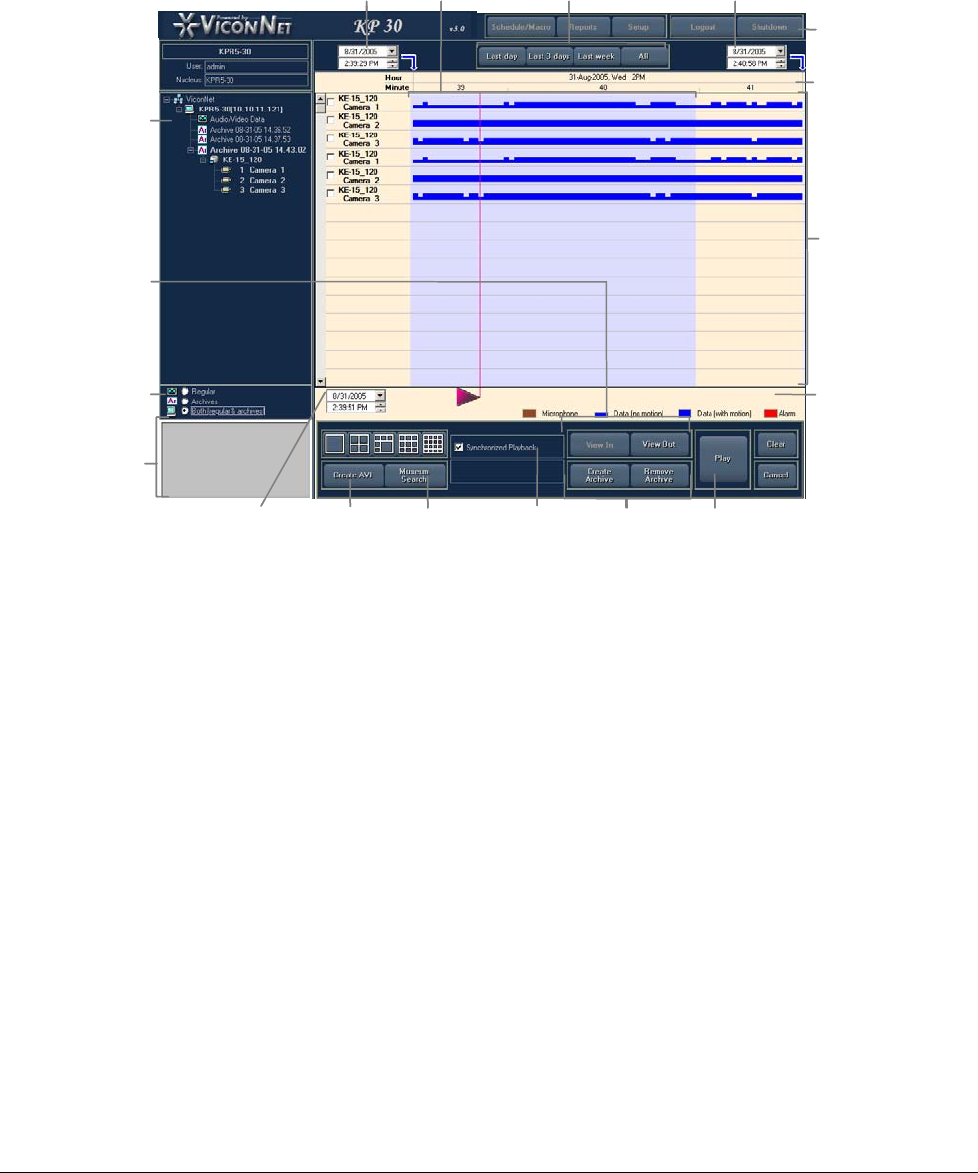
XX128-33-01 Rev 1206 Kollector Pro Network Digital Video Recorder Getting to Know ViconNet • 35
The following example illustrates the elements and options in the Navigator window:
The Navigator window provides access to all playback functionality and contains the following elements:
Selected
Recorded
Interval
Navigator
Tree
Zoom
Controls
Navigator
Tree
Controls
Main
Window
Display
Location
Area
Museum
Search
Create
AVI Archive
Controls
Synchronized
Playback Play
Button
Playback
Start
Time
Selector
Recorded
Device
Contents
Area
Time
Interval
Map Area
Toolbar
Time
Interval
Tabs
“To”
Time/Date
Control
“From”
Time/Date
Control
Selected
Recorded
Interval
Navigator
Tree
Zoom
Controls
Navigator
Tree
Controls
Main
Window
Display
Location
Area
Museum
Search
Create
AVI Archive
Controls
Synchronized
Playback Play
Button
Playback
Start
Time
Selector
Recorded
Device
Contents
Area
Time
Interval
Map Area
Toolbar
Time
Interval
Tabs
“To”
Time/Date
Control
“From”
Time/Date
Control
• Navigator Window Toolbar, page 36
• Navigator Area, page 36, which includes the following elements:
• Navigator Tree
• Navigator Tree Controls
• Recorded Device Contents, page 39, which includes:
• Recorded Device Contents Area
• Time Interval Tabs
• "From" and "To" Date/Time Controls
• Time Interval Map Area
• Playback Start Time Selector
• Playback Start Date/Time Control
• Selected Recorded Interval
• Zoom Controls
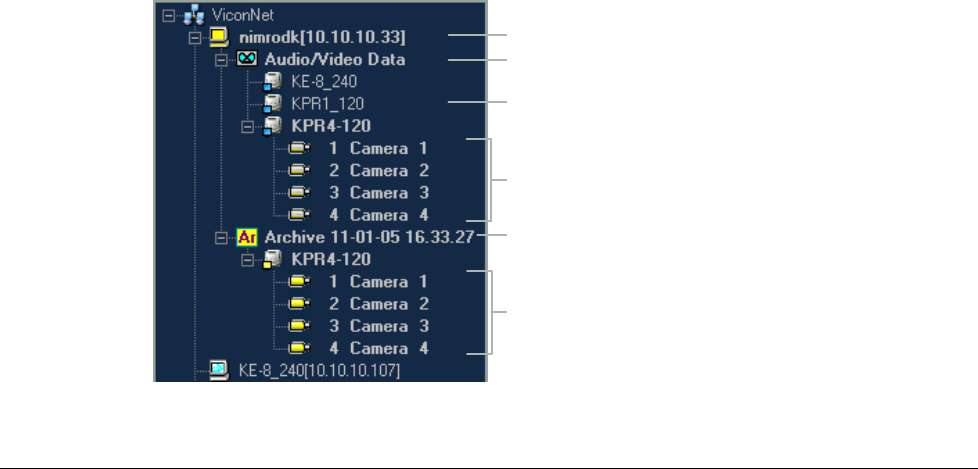
36 • Getting to Know ViconNet XX128-33-01 Rev 1206 Kollector Pro Network Digital Video Recorder
• Main Window Display Location Area, page 44
• Functions and Settings, page 45, which includes the following elements:
• Museum Search
• Synchronized Playback
• Archive Controls
• Create AVI
• Play Button
• Clear and Cancel Buttons
Navigator Window Toolbar
The Navigator window toolbar is an extension of the ViconNet Main window toolbar, featuring identical options
and functionality, as described in Main Window Toolbar, page 15.
Navigator Area
The window elements by which you can navigate and select the system devices are described in the following
sections:
• Navigator Tree, page 36
• Navigator Tree Controls, page 38
Navigator Tree
The Navigator tree displays a hierarchical tree of the current storage location sources, transmitters and
devices configured in the system, as well as any currently defined archives. The Navigator tree can be
navigated using standard tree expand and collapse functionality.
Storage Location
Recorded Devices
Archive (Storage Type) Contents
Devices with Archived Segments
AVDB (Storage Type) Contents
Transmitter
Storage Location
Recorded Devices
Archive (Storage Type) Contents
Devices with Archived Segments
AVDB (Storage Type) Contents
TransmitterTransmitter
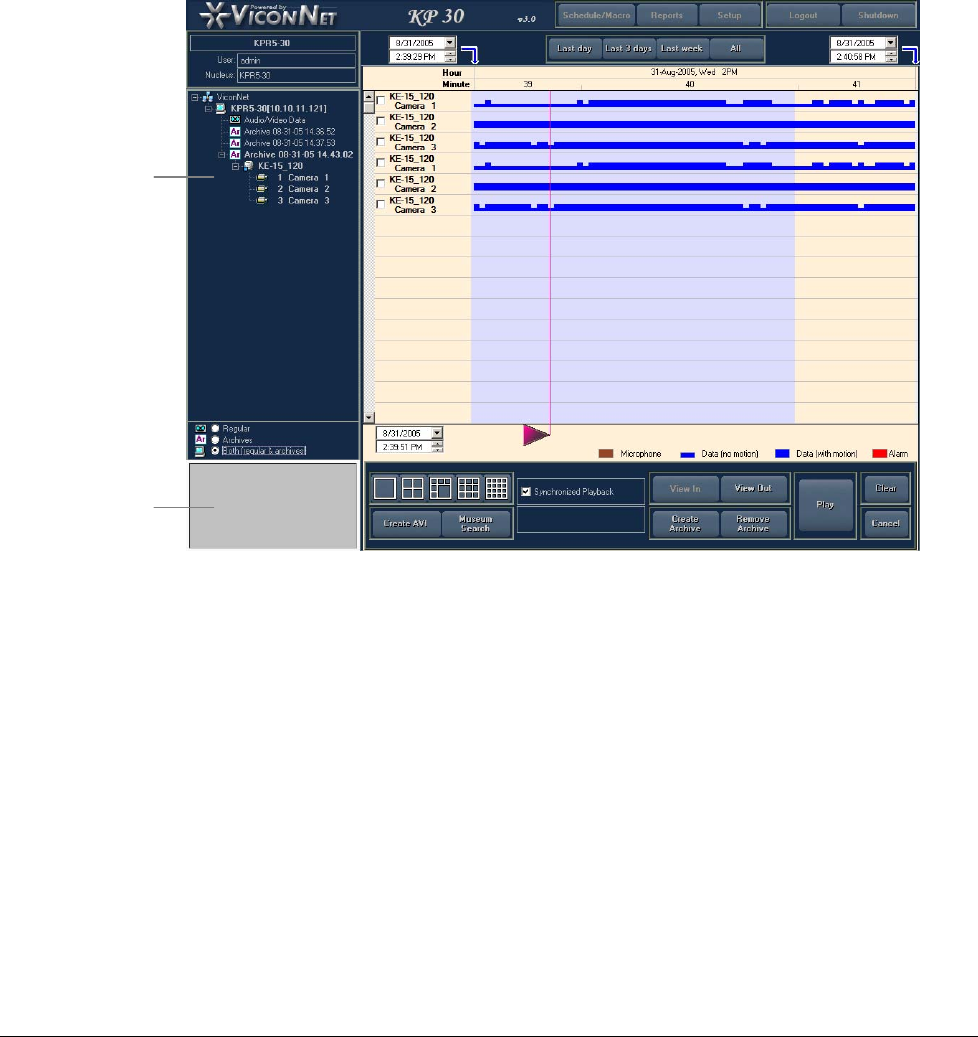
XX128-33-01 Rev 1206 Kollector Pro Network Digital Video Recorder Getting to Know ViconNet • 37
Each storage location (represented by a site name plus its IP address) contains the contents of all recorded
devices available for viewing and playing back recorded video segments.
For the Kollector Pro, each transmitter and camera list is correlated to a specific storage location, within a
storage type – AVDB (Audio and Video Database) or Archive. The AVDB contains all saved (recorded) video
data, while the Archive contains the previously archived video data. Data from both storage types is available
for playing back.
Using the Navigator tree, you can select or remove recorded cameras for viewing, as follows:
To view recorded contents:
Drag and
Drop a
camera from
the Tree to
the Main
Window
–OR –
Drag and
Drop a
camera from
the Tree to
the
Recorded
Device
Contents
Area
Drag and
Drop a
camera from
the Tree to
the Main
Window
–OR –
Drag and
Drop a
camera from
the Tree to
the
Recorded
Device
Contents
Area
Drag and
Drop a
camera from
the Tree to
the Main
Window
–OR –
Drag and
Drop a
camera from
the Tree to
the
Recorded
Device
Contents
Area
The following occurs:
• The icon appears highlighted in yellow.
• An automatic scan for the device's recorded contents in the storage location is performed.
• The camera name appears selected in the Recorded Device Contents area, and its recorded contents
are displayed.
• The name of the camera appears in the next default video display location in the Main Window Display
Location area.
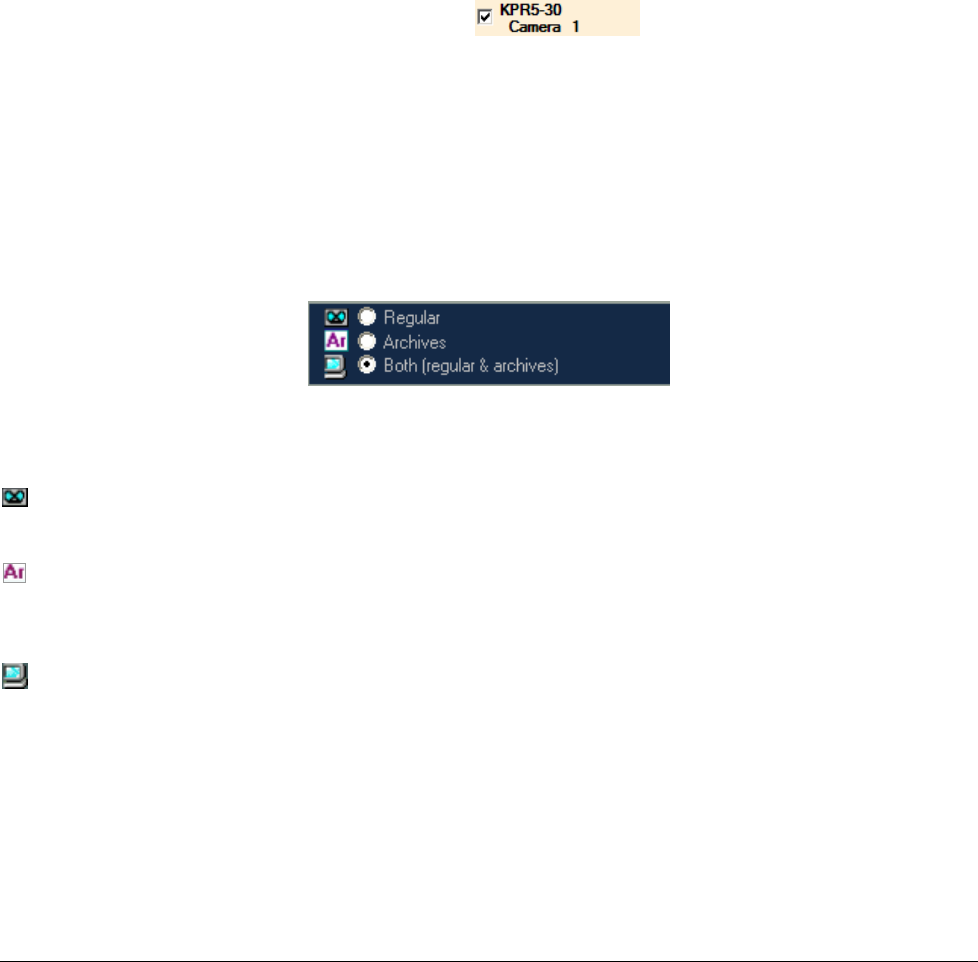
38 • Getting to Know ViconNet XX128-33-01 Rev 1206 Kollector Pro Network Digital Video Recorder
To reverse a selection:
• Select the camera in the tree again. The following occurs:
• The icon is not highlighted in the tree.
• The camera information is removed from both the Main Window Display Location area and the
Recorded Device Contents area.
To remove the camera from the Main Window Display Location area but still view its
recorded contents:
• Deselect the camera in the Recorded Device Contents area. The following occurs:
• The icon is not highlighted in the tree.
• The camera name is removed from the Main Window Display Location area.
• The camera name appears as deselected in the Recorded Device Contents
area, but its recorded contents are still displayed.
For the Kollector Pro, the maximum number of cameras that can be displayed simultaneously is sixteen,
depending on the current display mode. If you select more than the maximum number, you will be prompted
to remove a camera to make room for another one. You can also change the maximum number and location
of the recorded cameras viewed and play back, as described in Main Window Display Location Area, page
44.
Navigator Tree Controls
The Navigator tree controls, displayed at the bottom of the Navigator tree, enable you to define what is
displayed in the Navigator tree, as follows:
Regular: Displays only the regular databases that contain recorded video segments. Refer to
Chapter 5, Recording Live Video for additional details about recording live video.
Archives: Displays only the archives (and their relevant devices) that have been created in the
system. Refer to Chapter 6, Playing Back Recorded Video for additional details about creating
archives and playing back recorded/archived video.
Both (regular & archives): Displays both the regular databases (and their relevant devices) and all
current archives (and their relevant devices).
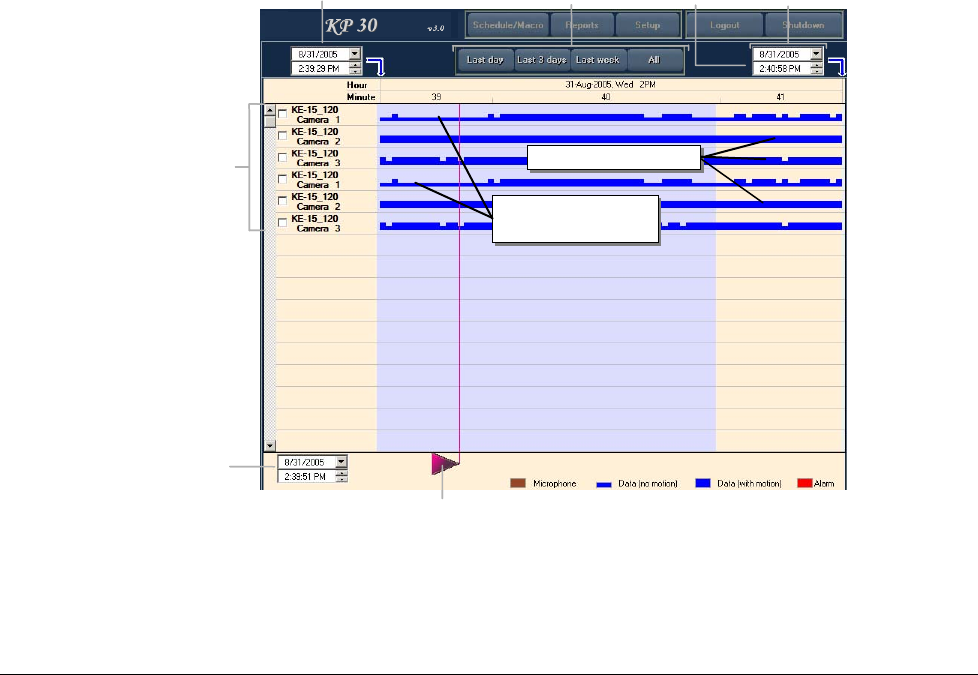
XX128-33-01 Rev 1206 Kollector Pro Network Digital Video Recorder Getting to Know ViconNet • 39
Recorded Device Contents
The recorded devices selected for playback and other purposes are managed within the Recorded Device
Contents area, and are managed using the elements described below:
• Recorded Device Contents Area, page 39
• Time Interval Tabs, page 40
• "From" and "To" Date/Time Controls, page 41
• Time Interval Map Area, page 41
• Playback Start Time Selector, page 42
• Playback Start Date/Time Control, page 42
• Selected Recorded Interval, page 42
• Zoom Controls, page 43
Recorded Device Contents Area
The Recorded Device Contents area appears as follows:
Devices
Selected for
Playback
Recorded Segments
Recorded Segments
Recording Active,
Em p t y Fr am es
Recording Active,
Empty Frames
Recording Active,
Em p t y Fr am es
Recording Active,
Empty Frames
“To”
Time/Date
Control
Time
Interval
Tabs
“From”
Time/Date
Control
Selected
Recorded
Interval
Playback Start
Time/Date
Control
Playback Start Time Selector
Devices
Selected for
Playback
Recorded Segments
Recorded Segments
Recorded Segments
Recorded Segments
Recording Active,
Em p t y Fr am es
Recording Active,
Empty Frames
Recording Active,
Em p t y Fr am es
Recording Active,
Empty Frames
Recording Active,
Em p t y Fr am es
Recording Active,
Empty Frames
Recording Active,
Em p t y Fr am es
Recording Active,
Empty Frames
“To”
Time/Date
Control
Time
Interval
Tabs
“From”
Time/Date
Control
Selected
Recorded
Interval
Playback Start
Time/Date
Control
Playback Start Time Selector
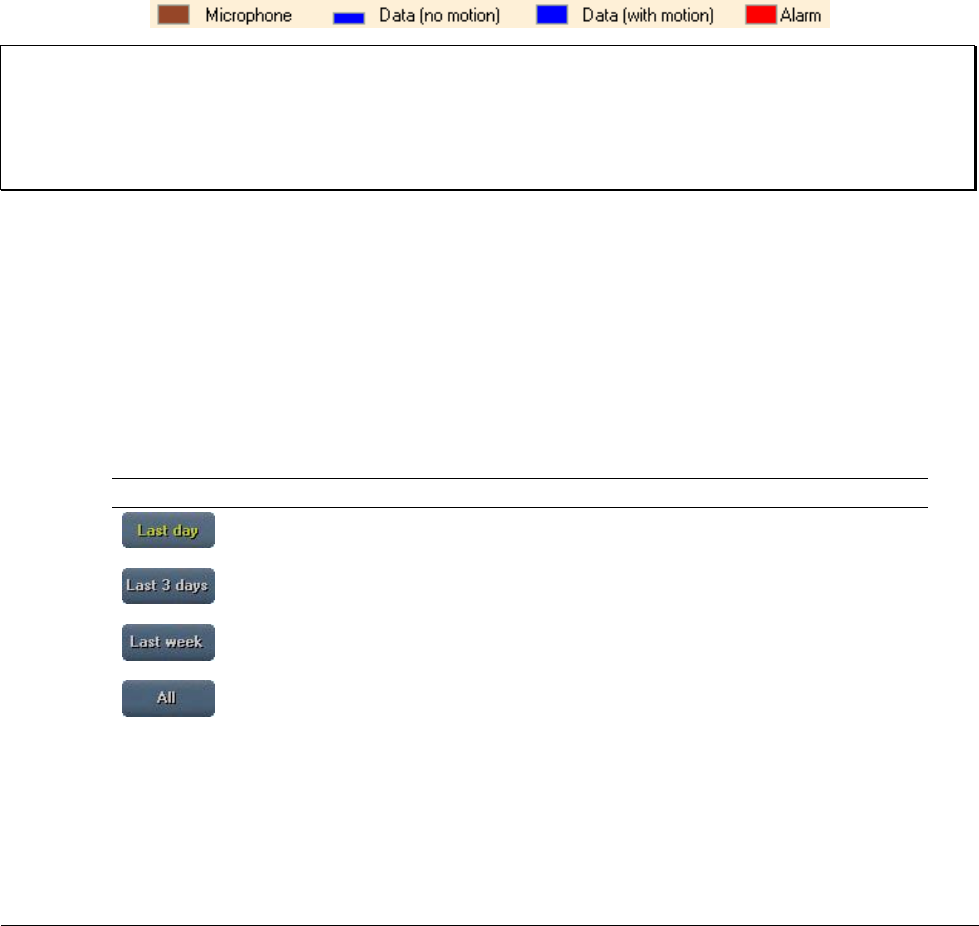
40 • Getting to Know ViconNet XX128-33-01 Rev 1206 Kollector Pro Network Digital Video Recorder
The Recorded Device Contents area displays a list of the cameras that have been selected for viewing and
playing back their recorded contents, as described in Navigator Tree, page 36.
The list in this area displays the name of each selected camera, as well as a graphical representation of the
recorded contents, which appears as a horizontal bar with the following indications:
• Blue indicates a recorded segment.
• Half-height blue line indicates a recording where no data was found (empty frames).
• Red above a recorded segment indicates an alarm event.
• Brown indicates an audio recording.
In addition, a legend for the currently displayed information is displayed at the bottom of the Recorded
Device Contents area, as shown in the following example:
NOTES:
The recorded contents that are displayed depend on the playback time interval you select, as described in
Time Interval Tabs, below, and Date/Time Controls, page 41.
You can also zoom the recorded segments in the Recorded Device Contents area, as described in Zoom
Controls, page 43.
Next to each camera in the list is a checkbox, enabling you to select and deselect it as an active viewing
camera for display in the Main window. You can select up to sixteen cameras (depending on the selected
display mode) at one time from which to view and play back recorded video, as described in Navigator Tree,
page 36.
Time Interval Tabs
The time interval tabs enable you to quickly select the range of time for the recorded segment(s) that you
want to view and play back in the Recorded Device Contents area, as follows:
Tab Description
Displays all recorded segments for the selected cameras during the last 24 hours
(from the current time). This option is the default.
Displays all recorded segments for the selected cameras during the last 72 hours
(from the current time).
Displays all recorded segments for the selected cameras during the last 7 days
(from the current time).
Displays all recorded segments for the selected cameras regardless of when the
recording occurred.
When you select a time interval tab, the Time Interval Map area changes to reflect your selection, as
described below. The display of the recorded contents of the selected device is also updated, as described in
Recorded Device Contents Area, page 39.
Refer to the following section for an alternate time interval selection method.
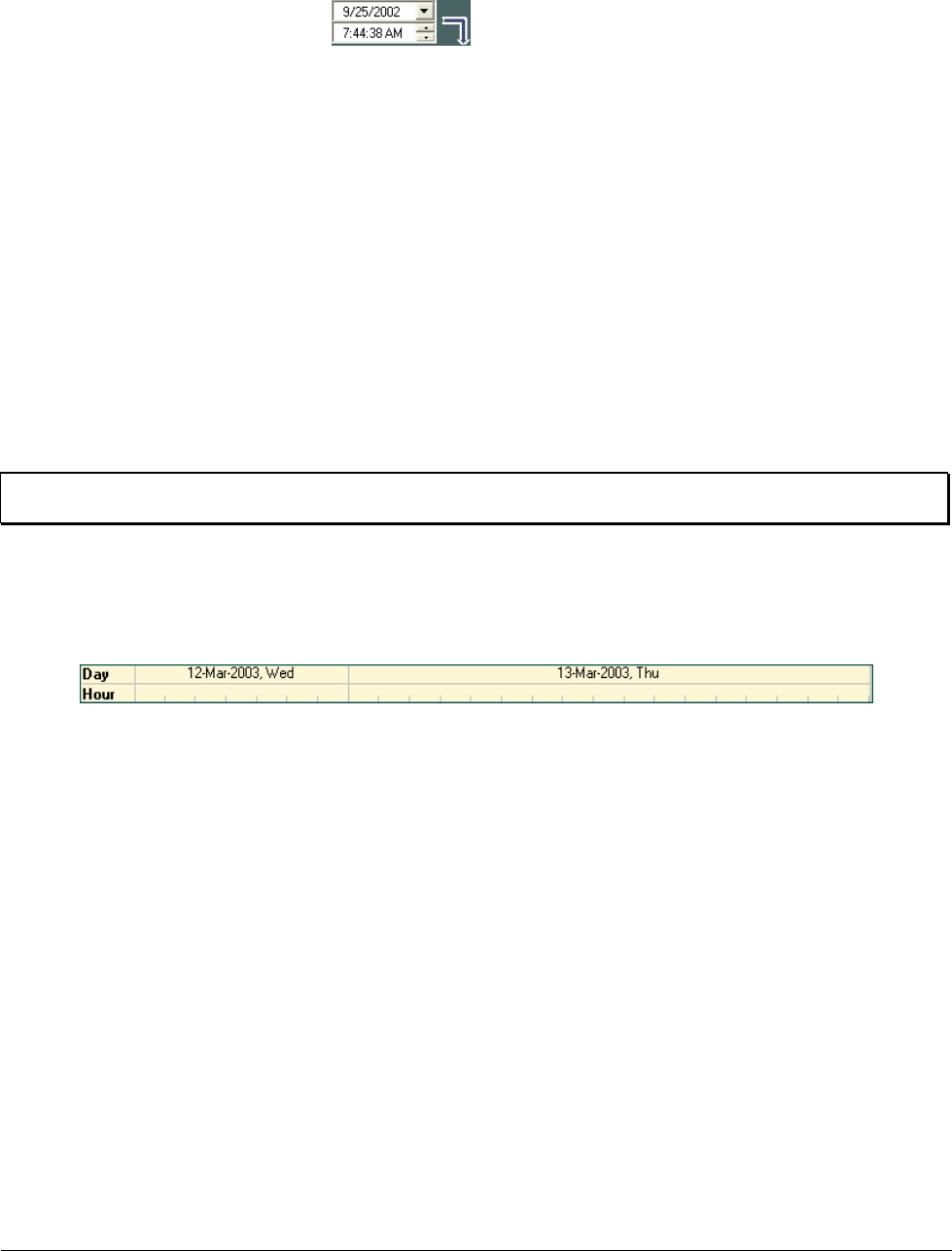
XX128-33-01 Rev 1206 Kollector Pro Network Digital Video Recorder Getting to Know ViconNet • 41
Date/Time Controls
The From and To Date/Time controls in the top-left and top-right of the window enable you
to specify an exact start (From) and end (To) date and time for the recorded segment(s) that you want to view
and play back in the Recorded Device Contents area.
This alternate time interval selection method (used instead of the time interval tabs) lets you fine-tune the time
interval period. Using the time interval controls, you can select a specific:
• Date range by selecting To and From dates for the recorded segment(s) you want to view (using a popup
calendar).
• Time range (hour, minutes and seconds) for the recorded segment(s) you want to view by specifying the
required start and end time.
After you select a date range and/or time range, you must click the View In button to implement the selection.
The Time Interval Map area is automatically updated according to the dates and times specified, as
described below. In addition, all the video segments recorded during the date and time range are displayed,
as described in Recorded Device Contents Area, page 39.
NOTE: The time interval controls are used in the Selecting Payback Time Interval procedure in Chapter 6,
Playing Back Recorded Video.
Time Interval Map Area
The Time Interval Map area displays a graph with the current range of time specified by the selected time
interval tab or controls, as follows:
When you modify the time interval, as described in Time Interval Tabs, page 40, or Time Interval Controls,
above, the Time Interval Map area automatically changes and reflects the new time interval.
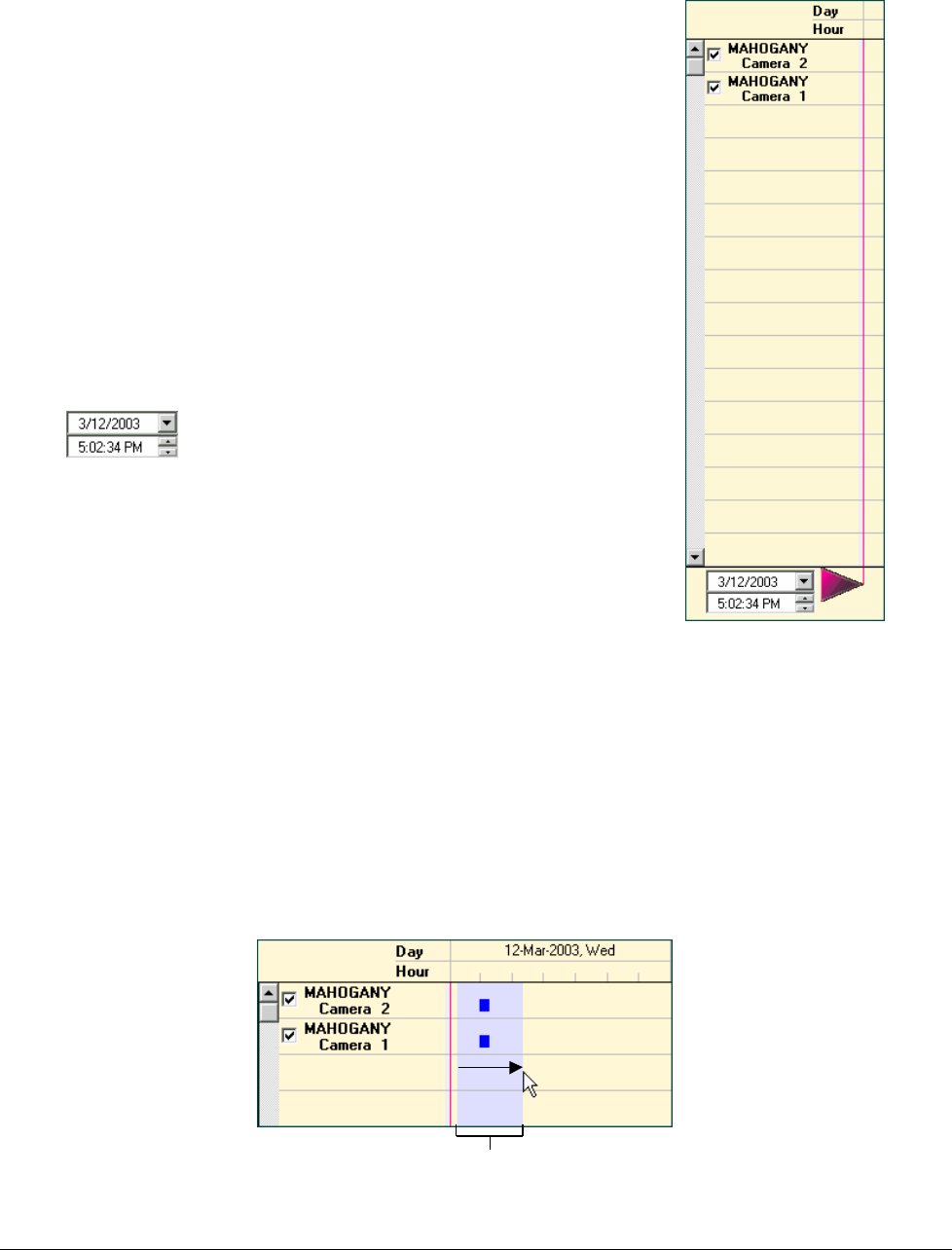
42 • Getting to Know ViconNet XX128-33-01 Rev 1206 Kollector Pro Network Digital Video Recorder
Playback Start Time Selector
The playback start time selector is a scrollable pink arrow with a vertical
line running the length of the Recorded Devices Content area. You can
move the arrow to indicate the location in the recorded segment where the
playback will begin when it is played back in the Main window.
When you click on the pink arrow, a tooltip appears, displaying the date
and time of its current location in the recorded segment. This enables you
to move the arrow and pinpoint the exact playback start time, if required.
For detailed procedures for using the playback start time indicator, refer to
the Selecting the Playback Start Time section in Chapter 6, Playing Back
Recorded Video.
Playback Start Date/Time Control
You can also set the playback start time by using the Start Date/Time
control on the bottom-left side of the window.
Selected Recorded Interval
Recording time segments must be selected in order to implement various procedures, for example, to Zoom
within a select a time frame. (For details regarding the Zoom feature, refer to the Zoom Controls section,
page 43.)
To select a recorded segment:
• In the Recorded Devices Content area, hold down the left mouse button at the required starting point of
the segment and drag the mouse pointer to the required ending point. Blue shading covers the selected
segment, as shown in this example:
Blue Shading Indicates Selected SegmentBlue Shading Indicates Selected Segment
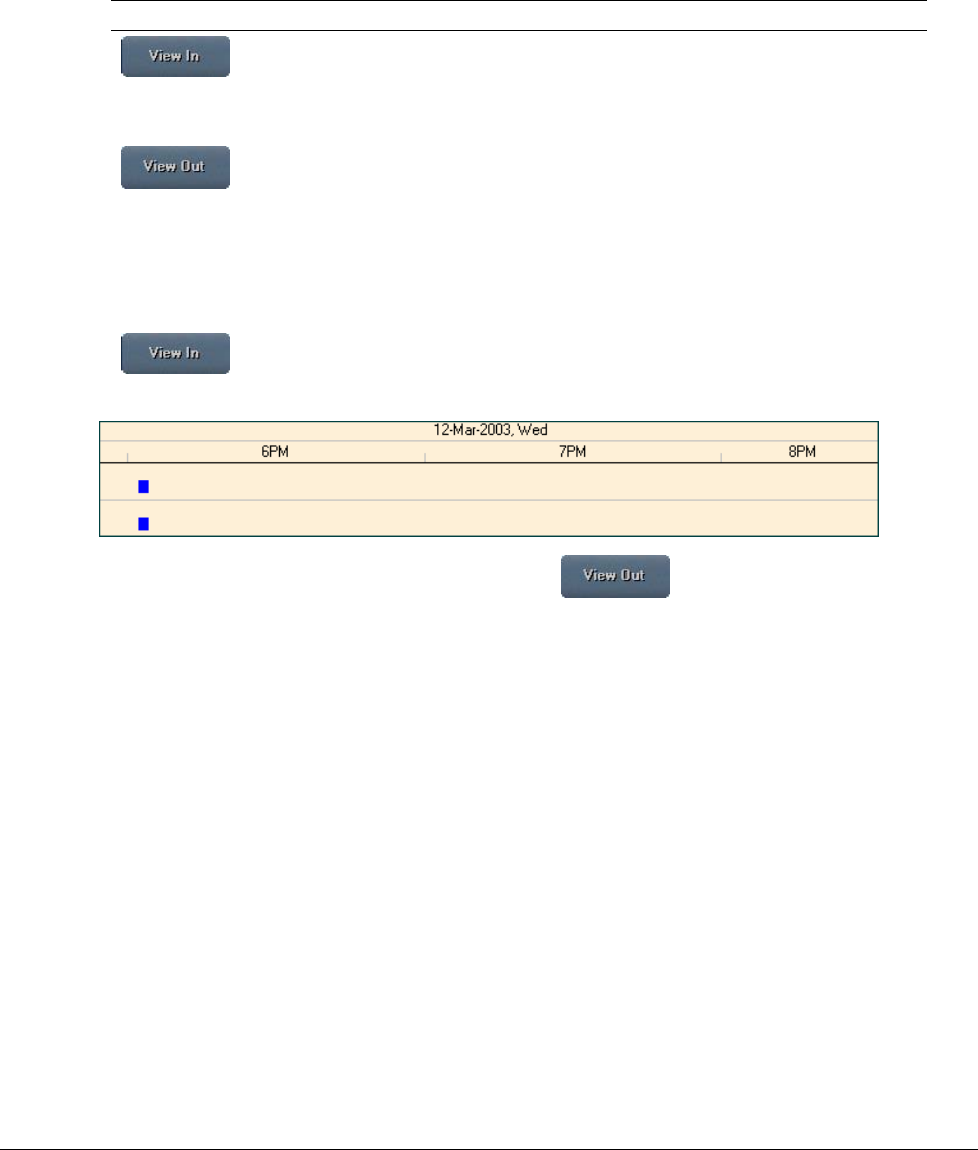
XX128-33-01 Rev 1206 Kollector Pro Network Digital Video Recorder Getting to Know ViconNet • 43
Zoom Controls
The zoom controls enable you to zoom in and out of a selected segment in the Recorded Device Contents
area to make it easier to view. This provides you with the option to fine-tune your view of a selected segment
and view only the required portion, which makes it easier to select a specific playback start time, as described
in both Time Interval Tabs, page 40 and Date/Time Controls, page 41.
Option Description
Zooms in on the selected segment in order to fine-tune the selection capability and
simultaneously updates the Time Interval Map accordingly.
This option is also used to implement the selections you make in the Date/Time
controls, as described on page 41.
Zooms out of the selected segment, returning the Time Interval Map area to its
previous display status. This option is available according to the number of "zooms
in" that were triggered.
To zoom in on a selected time segment:
1. Select the required segments, as described in the Selected Recorded Interval section, page 42.
2. Click the button. The Time Interval Map area time line is changed according to the indicated
zoom.
3. To redisplay the time line before the Zoom action, click the button.
The Zoom feature in used in the Step 4: Zooming the Video Display section in Chapter 4, Viewing Live Video.
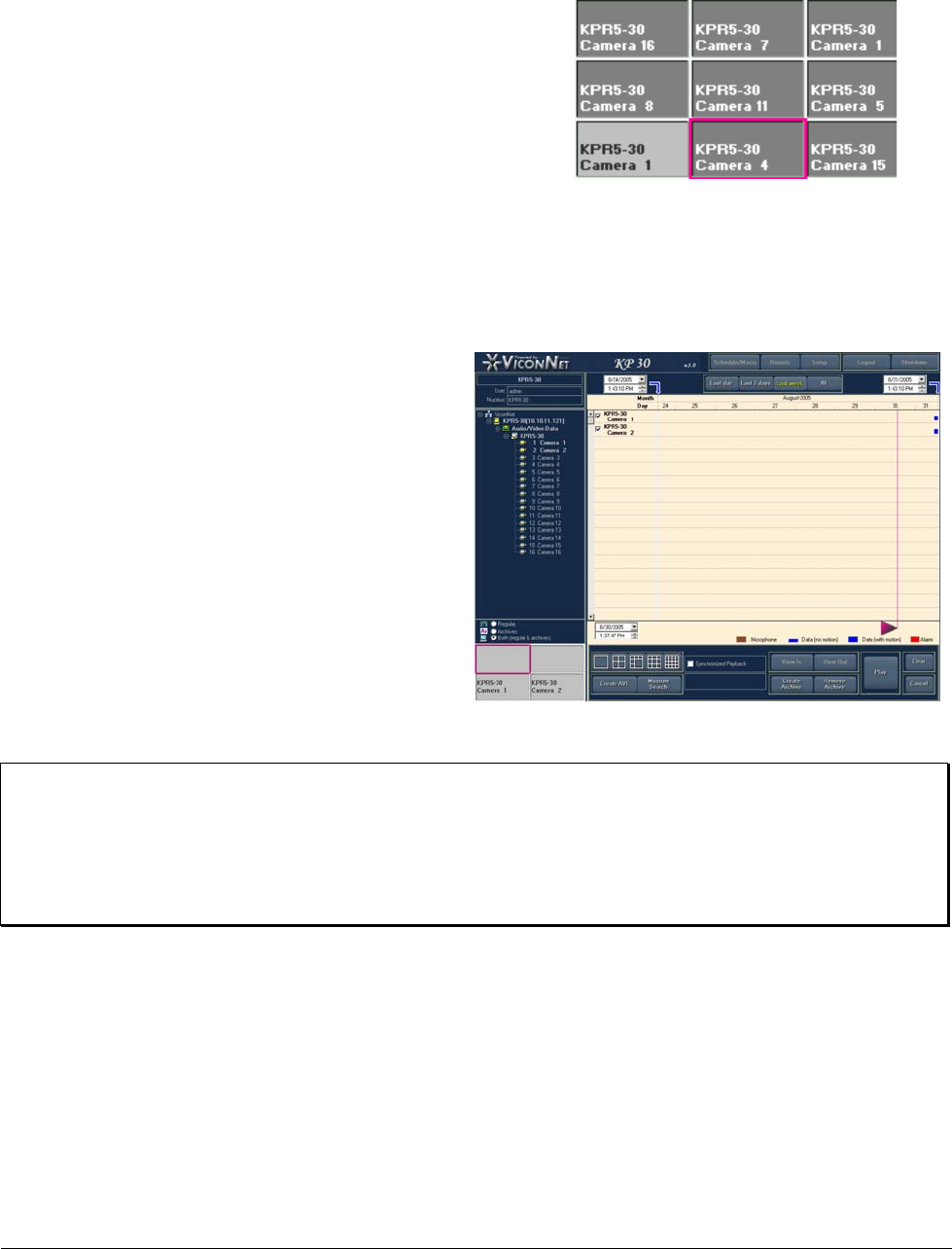
44 • Getting to Know ViconNet XX128-33-01 Rev 1206 Kollector Pro Network Digital Video Recorder
Main Window Display Location Area
The Main Window Display Location area is a small graphical
representation of the Video Display area in the Main window.
This area enables you to choose where each selected device in
the Recorded Device Contents area will be displayed in the
Main window for viewing and playback operations.
The relevant device name is displayed in the next default location when you perform any one of the following
actions:
• Select a device in the Navigator tree.
-OR-
Select a deselected device in the Recorded
Device Contents area.
-OR-
Drag and drop a camera from the Navigator
tree:
• To the Recorded Device Contents area.
-OR-
• To the Main Window Display Location
area.
NOTES:
The current default video display location is indicated by the pink border and can be changed by clicking on
a different location.
Only one camera can be placed in each video display location. For example, if display mode Quad is
selected, only four cameras can be selected in the Recorded Device Contents area and, therefore,
displayed in the Main Window Display Location area.
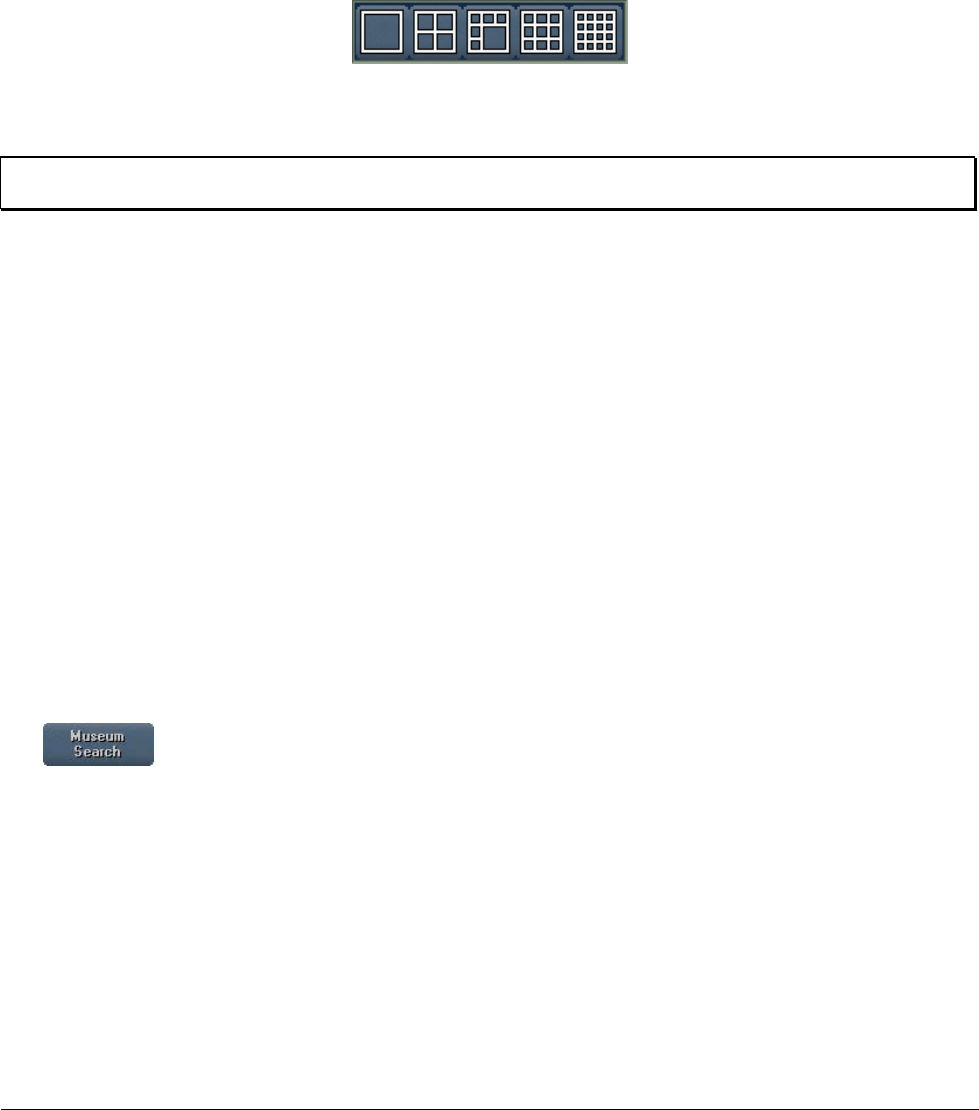
XX128-33-01 Rev 1206 Kollector Pro Network Digital Video Recorder Getting to Know ViconNet • 45
Changing the Display Mode
The number of video display locations in the currently selected display mode determines the number of
cameras that can be selected at one time (up to a maximum of sixteen). The first time you access the
Navigator window, the Main window display location (Quad) is displayed.
The display mode can be changed from the Navigator window by clicking the required Display Mode icon
(located next to the Main Window Display Location area).
Thereafter, when the Play button is selected, the devices in the Main Window Display Location area are
displayed in their respective locations in the Main window, ready for viewing and playing back.
TIP: The display mode can also be changed from the Main window, if required, as described in Display
Mode Controls, page 26.
Functions and Settings
The functions and settings provided by the Navigator window are described in the following sections:
• Museum Search, below
• Synchronized Playback, page 46
• Create AVI, page 46
• Archive Controls, page 46
• Play Button, page 47
• Clear Button, page 47
• Cancel Button, page 47
Museum Search
The button enables you to search for a specific camera's data within a defined region of the
database, saving you having to review the whole database. You can locate all the video segments that
include a specific difference, for example, a main door opening, or a car being moved. (For details, refer to
the Museum Search section in Chapter 6, Playing Back Recorded Video.)
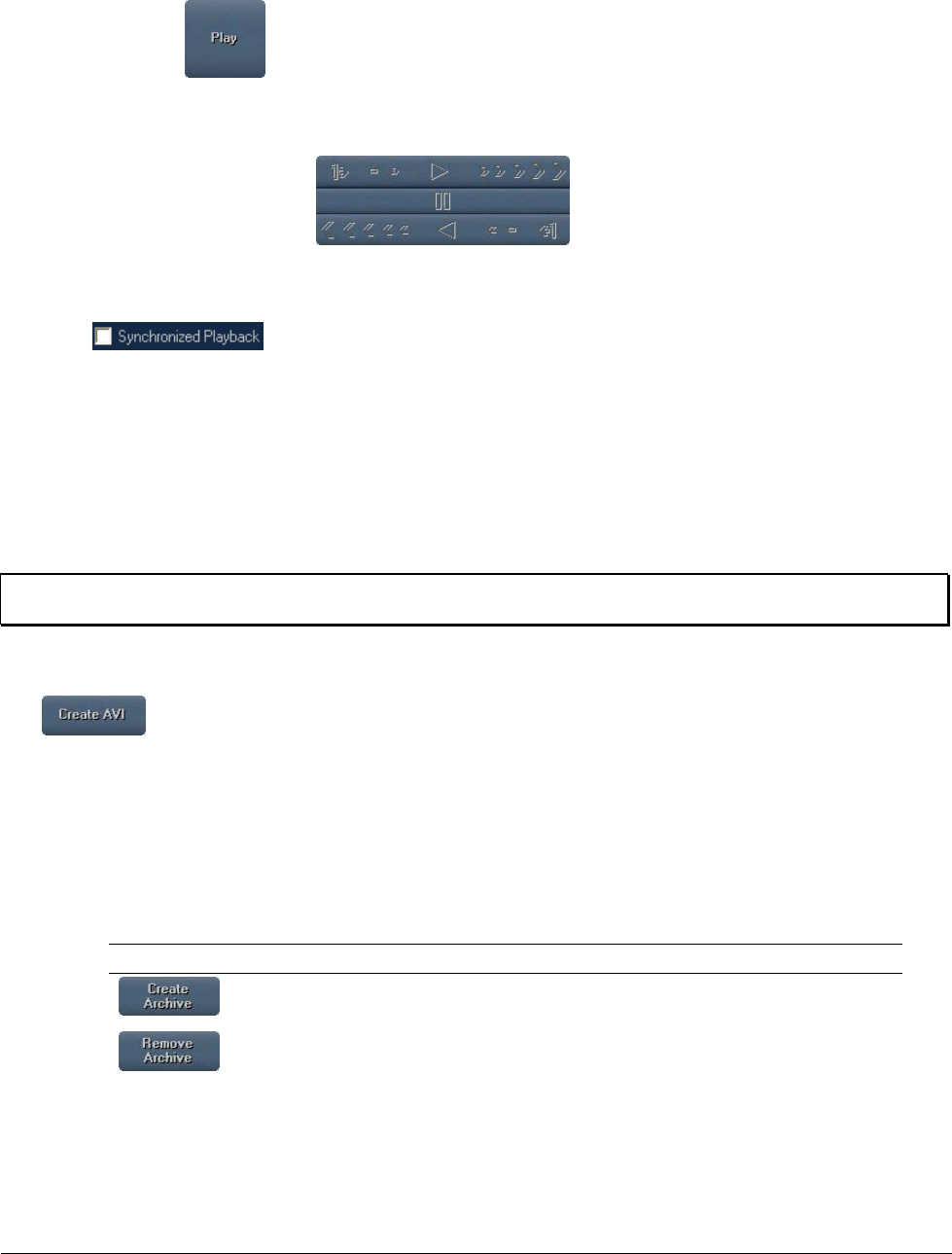
46 • Getting to Know ViconNet XX128-33-01 Rev 1206 Kollector Pro Network Digital Video Recorder
Synchronized Playback
When you select the button, the Navigator window is replaced by the Main window, enabling you to
view and play back the selected recorded cameras in that window's Video Display area, as described in the
previous sections.
The Main window playback controls (refer to page 31) then enable you to view
and play back the recorded segments for the selected cameras according to the selected time interval,
playback start time, display mode and video display location.
When the checkbox is selected, prior to selecting the Play button, the Main window
playback controls will apply simultaneously to all the selected devices.
If Synchronized Playback is not selected, then the playback controls will apply to only one selected camera
at a time. That camera is selected by clicking its block in the Main Window Display Location area (the
selected block will have a pink border). The Main window playback controls then apply only to the selected
camera.
This option is used in the Displaying Video Content procedure in Chapter 6, Playing Back Recorded Video.
NOTE: The Synchronized Playback checkbox must be selected before clicking the Play button. The
synchronization of devices only applies to Playback mode.
Create AVI
The button enables you to create an AVI file from a selected playback segment, which can then
be viewed using any AVI viewer. For details, refer to Chapter 9, Printing/Exporting Frames and Creating
AVI Files.
Archive Controls
The archive controls enable you to create or remove archives that contain specific recorded data from specific
devices:
Option Description
Enables you to create a new archive, which includes specifying the archive
location, name, and contents.
Enables you to remove an archive and all its contents.
The archives are included in the navigator site list together with other databases, and can be selected for
viewing, or any other file operations, as required.
XX128-33-01 Rev 1206 Kollector Pro Network Digital Video Recorder Getting to Know ViconNet • 47
All playback functions can be performed on the archived data in the same way as regular recorded data, as
described beginning from the Selecting Recorded Video section in Chapter 6, Playing Back Recorded Video.
You can archive directly to a CD or DVD. CD or DVD archives can be played on any PC, from an
automatically started "Player" version of the ViconNet application. (The ViconNet application does not have to
be installed on the PC.)
If the System Authentication feature is configured, an authentication status is added to the archive, which
enables verification that live or played-back ViconNet-produced videos were not tampered with. Refer to the
Configuring System Authentication section in Chapter 3, Configuring the ViconNet System for more details.
Play Button
After a camera and recorded time interval is selected, clicking the button displays the ViconNet
Main window, in which the playback can be viewed in the Video Display area.
Clear Button
The button clears the current Navigator window settings.
Cancel Button
The button closes the Navigator window and reinstates the Main window.
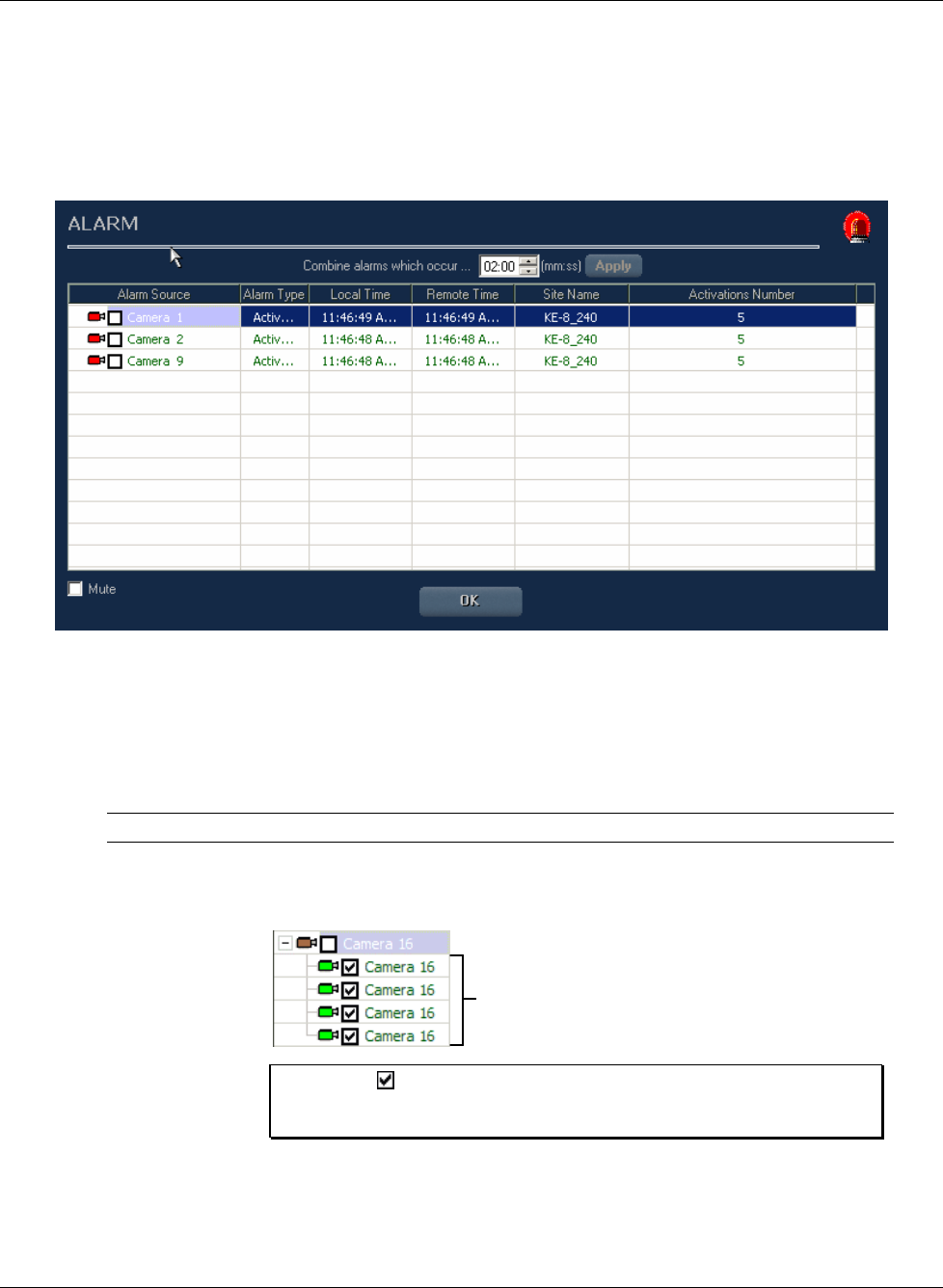
48 • Getting to Know ViconNet XX128-33-01 Rev 1206 Kollector Pro Network Digital Video Recorder
Alarm Window
Whenever an alarm event occurs in the system, regardless of the window in which you are currently working,
the Alarm window is displayed as a popup window on top of your current window.
The Alarm window displays the current alarm (indicated by a red icon), as well as all recently alarmed devices
(indicated by a green icon).
The Mute checkbox enables you to mute the alarm siren. While this is selected, you can still view the video
from the device on which the alarm event occurred.
The siren is auto-enabled (the Mute checkbox is automatically deselected) after each new alarm.
The Alarm window contains the following information:
Column Description
Detector Name The name of the device on which the alarm event occurred.
When you click the device's icon, the alarm history for that device is displayed,
as shown in the following example:
Alarm
History for
Camera 16
Alarm
History for
Camera 16
NOTE: The checkbox is provided for your optional use, for
example, to remind yourself which alarms you have already
viewed.
Alarm Type The type of alarm.
Local Time The local time of the alarm, translated from the local time zone where the alarm
event occurred.

XX128-33-01 Rev 1206 Kollector Pro Network Digital Video Recorder Getting to Know ViconNet • 49
Column Description
Remote Time The time at the remote location where the alarm event occurred.
NOTES:
• If the alarm occurred locally or at a site in the same time zone, the
local time and remote time will be identical.
• If the alarm occurred at a remote site in a different time zone, the
local time will display the local time zone translation of the remote
time.
Example:
If the alarm occurred in London at 0700, and the display you are
looking at (the nucleus) is in Eastern US, the remote time displayed is
0700 and the local time is 0200.
Site Name The name of the Kollector Pro.
Activations
Number
Indicates the number of times an alarm has been activated on the specific
device within a specific time period.
Each time the alarm is activated, another alarm event line is added to the alarm
history for that device (except in the case of a re-activation, as described
below).
In cases where the alarm was activated and then re-activated within a very
short period of time afterwards, the re-activation of the alarm is not displayed in
the alarm history.
Unite Alarms
which occur
within …
The time interval that passes after an initial alarm, in which movement will not
trigger a new alarm, but will cause an increment of +1 in the Number of
Activations field. This is useful if there is a lot of movement, and you do not
want to continuously activate new alarms.
NOTE:
In the Alarm Setup window, the value in the field Min time between
alarms field determines how much time must pass after the first and
subsequent alarms before a new alarm is generated (for a specific
camera).
The difference between Min time between alarms and the Unite
Alarms which occur within…, is that the Min time between alarms
field defines that an alarm is not generated within a certain time,
where as the Unite Alarms which occur within… field determines
which alarms are combined as additional activations of the last alarm.
Example:
Minimum time between alarms = 1 minute
Unite alarms which occur within = 2 minutes
If alarms are continuously being generated, a new line only appears
in the Alarms pop up screen after one minute has passed. If an alarm
occurs between one and two minutes after the former alarm, it is
added to the previous alarm's data (existing row) as an additional
activation. If Unite alarms which occur within... is smaller than
Minimum time between alarms, the number of activations is always
one, and each alarm generates a new row (alarm.)

50 • Getting to Know ViconNet XX128-33-01 Rev 1206 Kollector Pro Network Digital Video Recorder
In order for the Alarm window to pop up during an alarm event, the specific device must be configured in the
Active Detectors and Associated Macros window, as described in Chapter 3, Configuring the ViconNet
System.
NOTES:
When an alarm event occurs in the system, you will notice that the relevant red LED on the Kollector Pro's
front panel blinks. Refer to the Front Panel Indications section in Chapter 1, Introducing ViconNet.
When a macro is running as a result of an alarm event, the following is applicable:
• If the macro is performing display operations, all functions in the ViconNet Main window, except for the
Stop Macro, Schedule/Macro, and Shutdown buttons, are disabled.
• If the macro is performing all other recording operations, all functions in the ViconNet Main window
remain operational.
You can also generate an Alarm History report that contains all the alarms that occurred in the system, as
described in Chapter 8, Generating Reports.
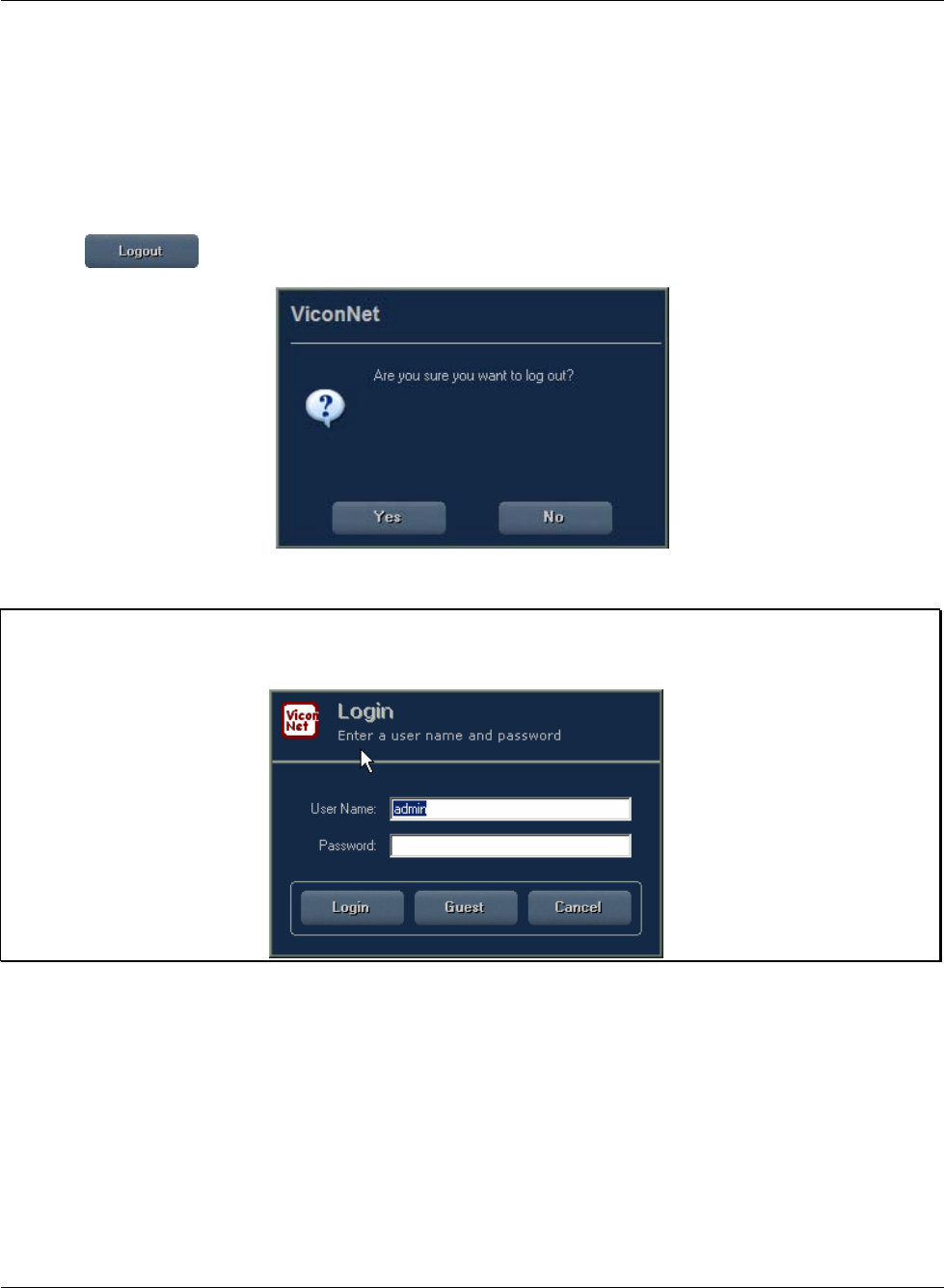
XX128-33-01 Rev 1206 Kollector Pro Network Digital Video Recorder Getting to Know ViconNet • 51
Logging Out, Exiting or Shutting Down
Logging Out
Logging out is performed when you want to exit from the ViconNet application but need the application to
remain open, for example, to log in as a different user.
To log out of the ViconNet application:
1. Click in the Main window toolbar. The following message is displayed:
2. Click
Yes. The ViconNet Login window is redisplayed, as described in Logging In, page 12.
NOTE: If the user is not authorized to logout, a Change User button replaces the Logout button. Once
Change User has been pressed, the Login window appears, with the Cancel button enabled (in
case the user regrets trying to log out).
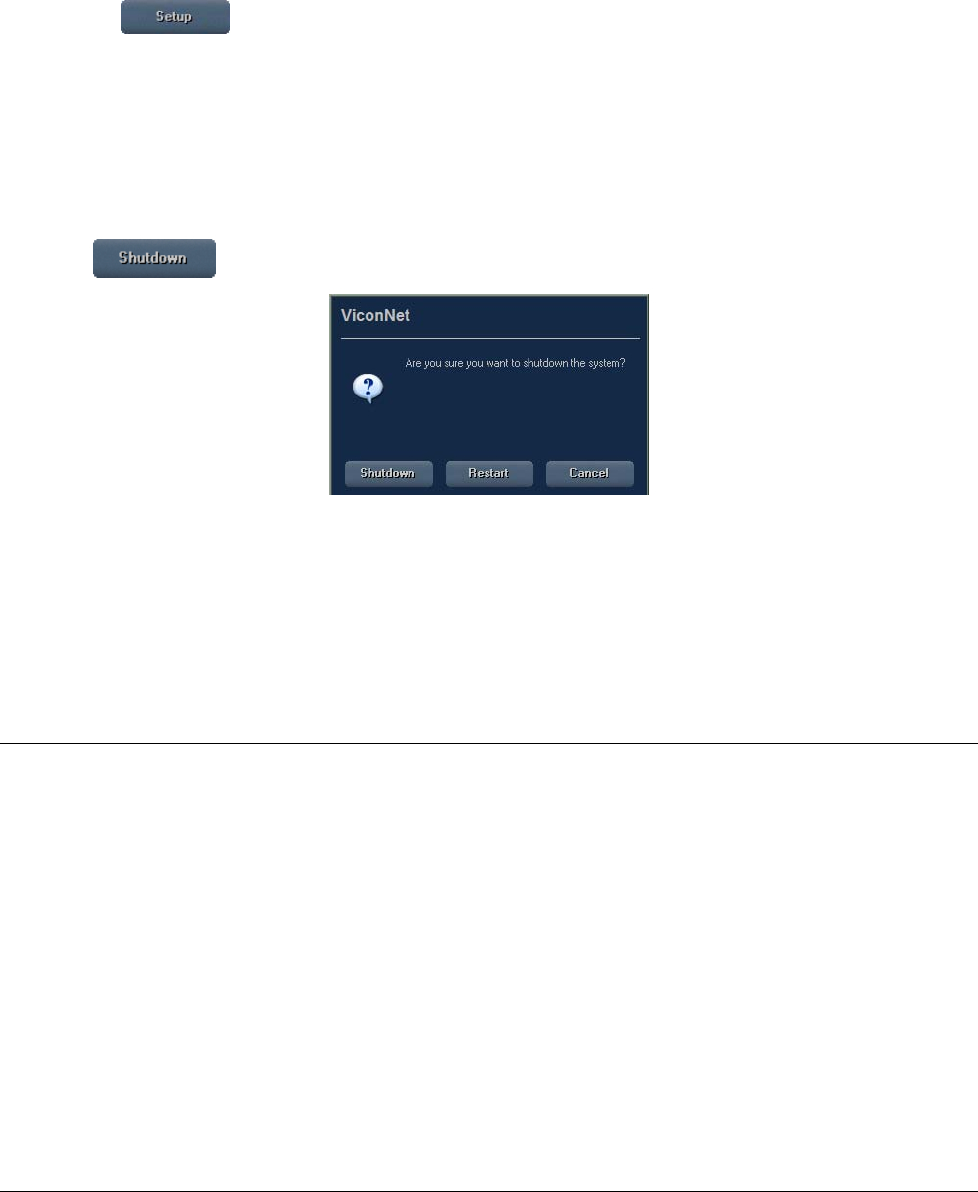
52 • Getting to Know ViconNet XX128-33-01 Rev 1206 Kollector Pro Network Digital Video Recorder
Exiting ViconNet
Exiting is performed when you want to exit the ViconNet application and close the application.
To close ViconNet and exit to the operating system:
1. Click the to display the Setup Site Selection window. (For details about this window, refer to
the Activating the Configuration Functions section in Chapter 3, Configuring the ViconNet System.)
2. Click the
Exit to O.S. button.
Shutting Down or Restarting
To shut down or restart the ViconNet unit:
1. Click in the Main window toolbar. The following window is displayed:
2. Either:
Click Shutdown to shut down the unit.
- OR -
Click Restart to restart the unit.
Watchdog
The Watchdog feature is provided for recovery purposes and acts as a safety mechanism in cases of
unforeseen incidents such as temporary power failures.
If the application "locks up", the ViconNet application is restarted automatically after approximately one
minute and a half. This is useful, for example, if a scheduled macro was running during the night and there
was a power failure. In this case, the application will automatically restart and resume running the macro.

XX128-33-01 Rev 1206 Kollector Pro Network Digital Video Recorder Getting to Know ViconNet • 53

XX128-33-01 Rev 1206 Kollector Pro Network Digital Video Recorder Configuring the ViconNet System • 55
Chapter 3
Configuring the ViconNet System
This chapter describes all the configuration functions available in the ViconNet system and contains the
following sections:
• Accessing the Configuration Functions, page 57, describes how to access the System Settings
window, which enables you to start to perform configuration functions for a selected site.
• Modifying the System Configuration, page 59, describes how to modify all ViconNet default system
configurations, including network setup.
• Using Reset Nucleus, page 75, describes how to remove all disconnected sites from all site lists and
sub-lists in the Central Failure Notification and Recording Verification System features of the ViconNet
system.
• Using the Central Failure Notification (CFN) Mechanism, page 76, describes how to receive
notifications indicating that certain applications have failed, for example, macro, recording and database
failures.
• Configuring System Authorizations, page 78, describes how to categorize users into groups
according to the system operations that you want them to access.
• Configuring Site Authorization, page 84, describes how to define the system operations that can be
accessed by each group of users.
• Configuring Auto Login, page 88, describes how to configure the system to automatically log in
selected users.
• Configuring Storage Database Utilities, page 89, describes how to set up video storage locations for
storage purposes.
• Configuring System Authentication, page 94, describes how to activate the display of system
authentication results.
• Configuring Manual Recording and Picture Quality, page 95, describes how to configure the picture
quality and refresh rate that applies to manually initiated recording.
• Configuring Automatic Recording, page 97, describes how to instruct the system to perform
recording as soon as the ViconNet application starts.
• Configuring Auto/Manual FPS, page 100, describes how to select automatic or manual configuration
of the FPS per DSP.
• Using the Recording Verification System (RVS), page 103, describes how to configure the system to
ensure continuous recording (by notifying users of any recording errors).

56 • Configuring the ViconNet System XX128-33-01 Rev 1206 Kollector Pro Network Digital Video Recorder
• Creating Macros, page 108, describes how to create sets of instructions that cause the system to
perform specific tasks in a specific order. (Information about scheduling of macros is provided in the
Creating Schedules section, page 137.)
• Setting Video Priority, page 118, describes how to define the video settings that will be used when
different viewing/recording functions are requested concurrently.
• Configuring Alarm Events, page 122, describes how to define alarm setup links and how to set pre
alarms and post alarms.
• Creating Schedules, page 137, describes how to create schedules that instruct the system about
when to run specific macros.
• Restoring and Backing Up System Settings, page 142, describes the ViconNet system restore and
backup features.
• Configuring an External Control, page 143, describes how to enable system operation via buttons on
an external control box.
• Defining Site Maps and Map Sets, page 147, describes how to receive notifications indicating that
certain applications have failed, for example, macro, recording and database failures.
• Using the LTU, page 155, describes how to set up and install a translation of all the user interface
terminology for use by non-English speakers.
• Viewing the Settings Summary, page 159, describes how to view all the settings for a specified site in
one place, without navigating through all the windows of that site.
• Limited Recording, page 160, describes how to limit the time period for which recorded material can
be stored and viewed.
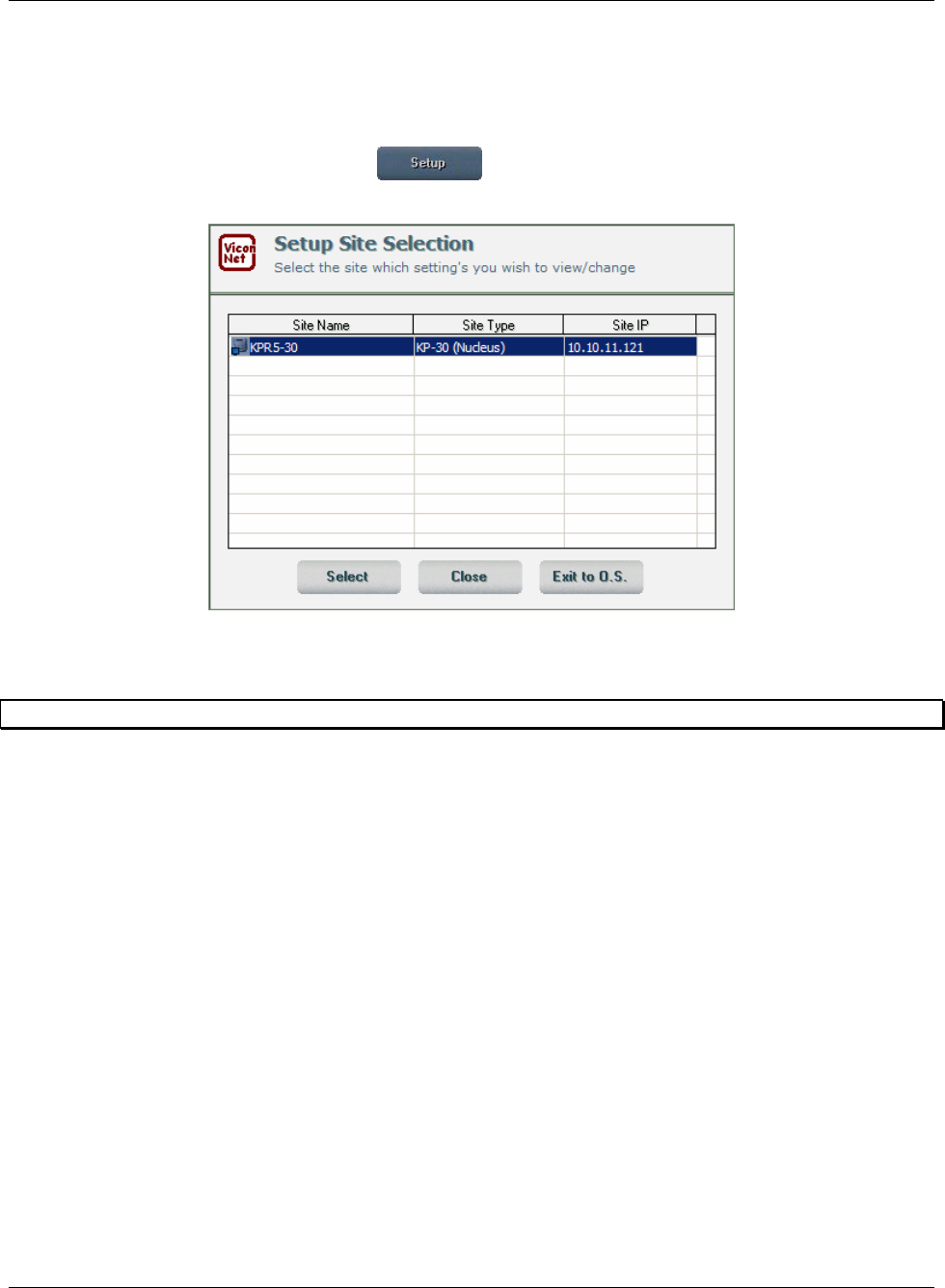
XX128-33-01 Rev 1206 Kollector Pro Network Digital Video Recorder Configuring the ViconNet System • 57
Accessing the Configuration Functions
The configuration functions are performed via the System Settings window applicable to a selected site.
To access the System Settings window:
1. From the ViconNet Main window, click . The Setup Site Selection window is displayed,
showing only the local Kollector Pro:
The Exit to O.S. button enables you to exit to the Operating System and to close the ViconNet
application.
NOTE: The Kollector Pro can configure only itself.
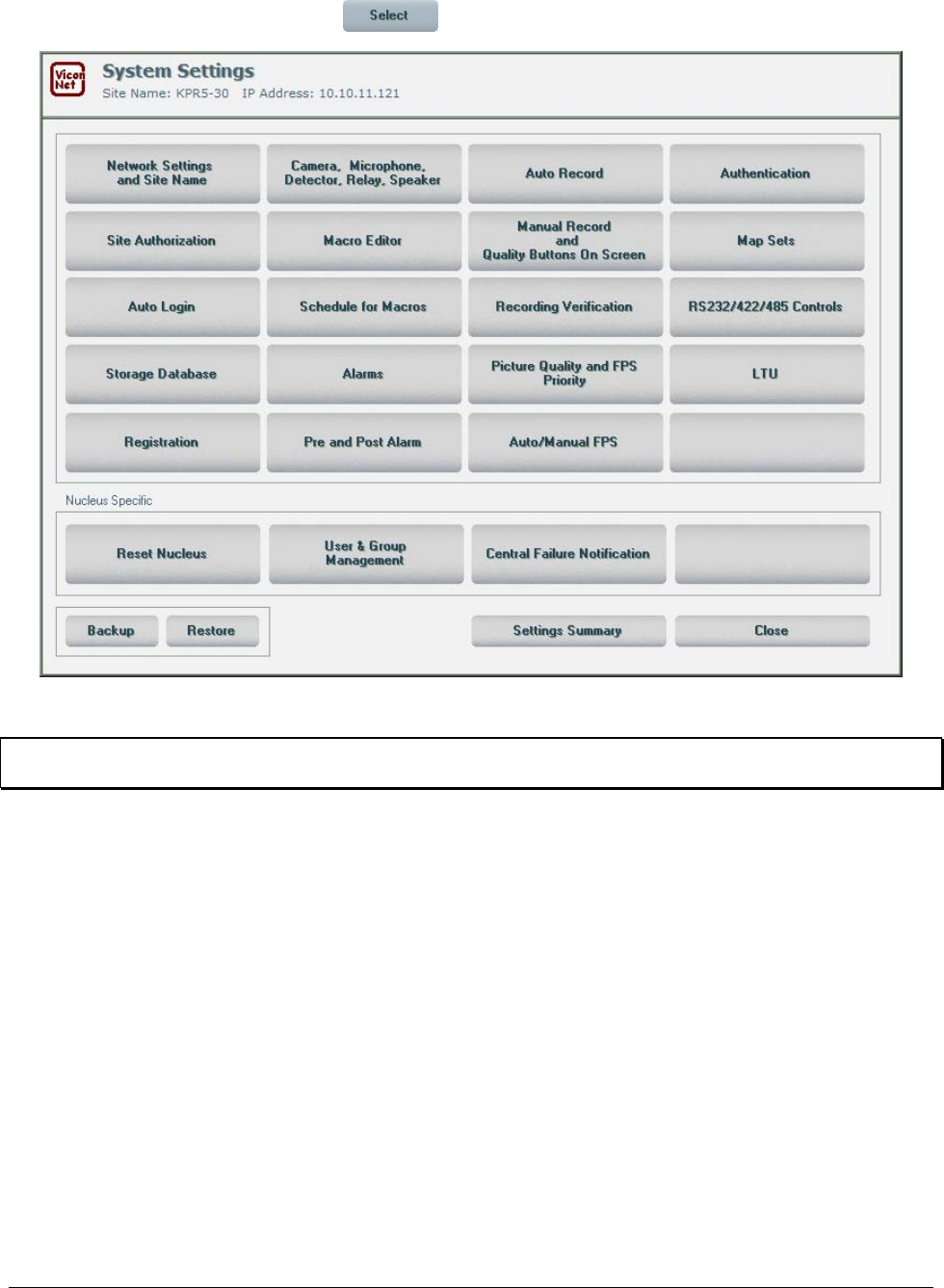
58 • Configuring the ViconNet System XX128-33-01 Rev 1206 Kollector Pro Network Digital Video Recorder
2. Select your Kollector Pro and click . The System Settings window is displayed.
When the function is not supported, the associated button is disabled (grayed out).
NOTE: The Site Name and Site IP information are displayed automatically on this and subsequent
windows.

XX128-33-01 Rev 1206 Kollector Pro Network Digital Video Recorder Configuring the ViconNet System • 59
Modifying the System Configuration
The ViconNet system default configuration can be modified, depending on your requirements, as described
in the following sections:
• Configuring the Network Setup, below, describes how to configure the network setup for each
computer in the system, including which computer is running the master nucleus and which computer is
running the backup nucleus.
• Configuring/Modifying Cameras, Sensors and Relays, page 65, describes how to configure which
devices are available and operational in the system.
• Configuring/Modifying PTZ Controls, page 72, describes how to configure PTZ camera controls,
such as driver and version information.
• Configuring Other RS232/422/485 Controls, page 74, describes how to configure all external
serial-related controls.
Configuring the Network Setup
The network setup parameters are configured individually for each computer in the ViconNet system.
Network setup configuration is performed using the ViconNet application installed on each computer. When
setting up a network, one of the sites must be assigned as a nucleus, and the other sites in the network
must know where this nucleus is. Each site (either a transmitter or a Workstation) has the option to input the
nucleus IP address.
You can also configure more than one computer with the same subnet mask, which enables them to
connect to each other, as well as connect to the master nucleus they share. This includes the ability to
synchronize multiple computers with the nucleus time or update all the time settings to another time zone.
To configure the network setup, you must specify both the master nucleus IP and the backup nucleus IP
addresses on the computer running the master nucleus. The backup nucleus setup is configured only on
the master nucleus computer. Then, as each site connects to the master nucleus using the ViconNet
application, it receives the backup nucleus information automatically.
NOTES:
If the system goes down, any transmitter that uses an external master nucleus and that is not configured to
use a backup nucleus will automatically shift to local operation mode. This means that it will act as a
standalone system, and the transmitter will operate without a nucleus.
The nucleus and backup nucleus must have fixed IP addresses. DHCP cannot be used on the site running
the nucleus (for more details, refer to the Configuring the DHCP section in Appendix B, Configuring the
Network).
60 • Configuring the ViconNet System XX128-33-01 Rev 1206 Kollector Pro Network Digital Video Recorder
Configuring the Nucleus
The nucleus takes an active role in the ViconNet system, acting as a central station that connects all
computers running the ViconNet application. The more computers connected to the system, the more
resources the nucleus requires. A backup nucleus, which runs at all times, can also be configured as a
safety mechanism for cases when the system does not operate due to a problem such as a power failure in
the Nucleus. In such cases, the system automatically searches for and connects all ViconNet applications
to the backup nucleus currently configured in the system and continues operation without interruption.
In a small network (fewer than five sites), the nucleus and backup nucleus (if it exists) can be on any of the
transmitters or workstations, and a backup nucleus should only be configured if deemed necessary. If the
nucleus is configured on a site and it is heavily loaded with recordings and transmissions, the nucleus
should be moved to a dedicated Workstation. In a large network (more than five sites), it is strongly
recommended that the nucleus and backup nucleus be run on dedicated workstations.
Creating a New Network
This procedure provides a five-step example of how to create a new ViconNet network using a field-proven
method of setup and commissioning. In this example, we will create a network made up of 11 Kollector Pros
with RAIDs and three Workstations.
• Step 1: Setting the Sites' IP Addresses, below
• Step 2: Configuring the Network Setup for a Master Nucleus System, page 62
• Step 3: Configuring a Backup Nucleus, page 62
• Step 4: Connecting the Master Nucleus to the Backup Nucleus, page 63
• Step 5: Testing the Network, page 63
NOTES:
To prevent problems, it is recommended that you methodically plan your network ahead of time.
Do not use this procedure to modify an already existing network.
Before beginning, ensure that all CAT5 cables to the transmitters and Workstations are connected to a hub
or switch, and that they are properly wired on each end, per 568B (or 568A). It is important to not mix
connection methods or connect or disconnect cables when the application is running.
Step 1: Setting the Sites' IP Addresses
In this step, you will configure the IP addresses of the sites in the network.
1. Go to the site whose IP address you want to set, and from the ViconNet Main window, click
. The Setup Site Selection window is displayed, as shown on page 57.
2. Select your Kollector Pro and click . The System Settings window is displayed, as shown on
page 58.
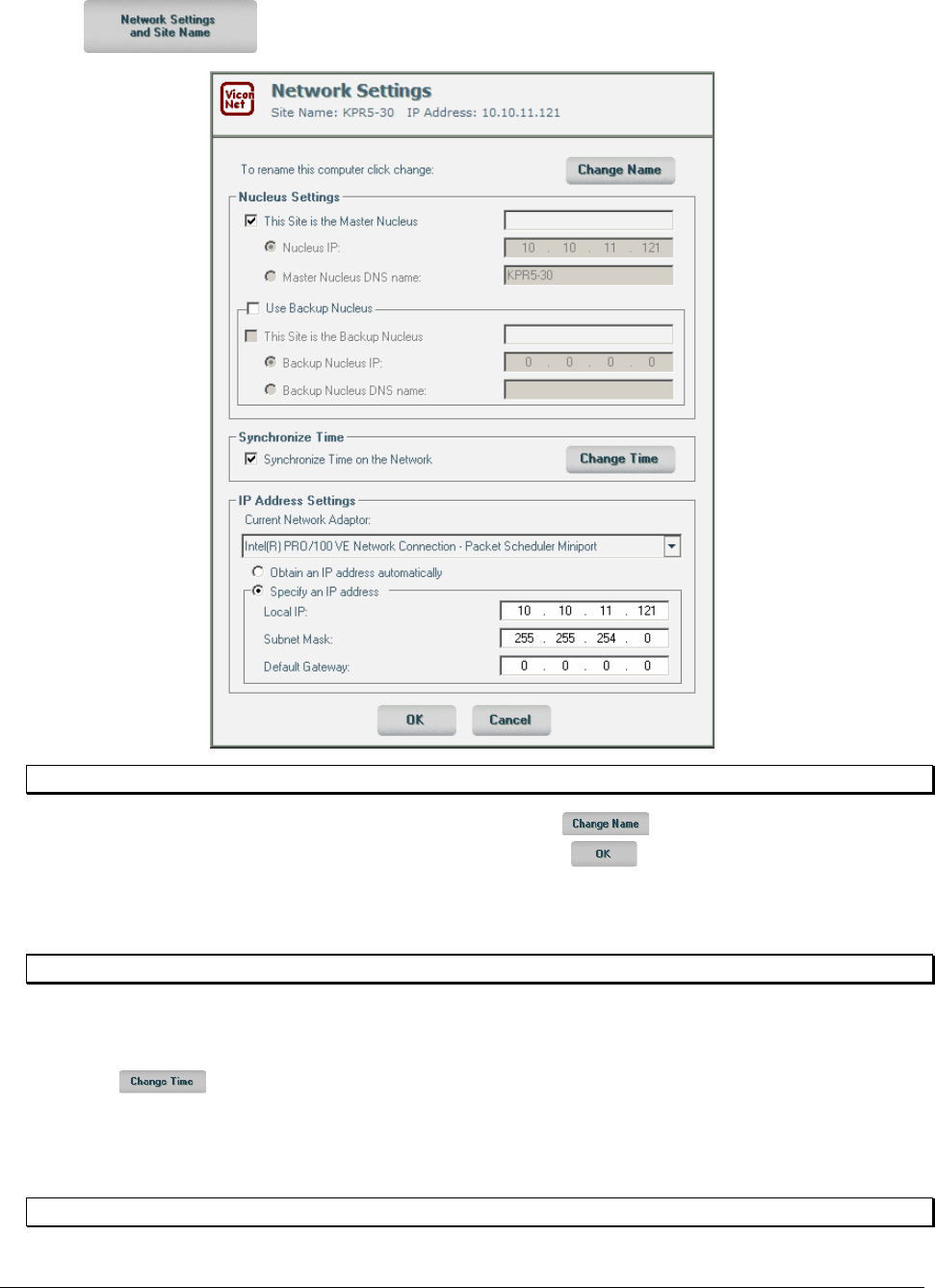
XX128-33-01 Rev 1206 Kollector Pro Network Digital Video Recorder Configuring the ViconNet System • 61
3. Click . The Network Settings window is displayed.
NOTE: The options in the IP Address Settings area are disabled during remote setup.
4. You can change the computer's name, if required, by clicking to open the Change Name
window. After you have assigned a new name to the site, click . The application will reboot.
5. (Optional) To manually synchronize the local computer time with all sites connected to the nucleus,
select the Synchronize Time on the Network option (default=checked).
NOTE: The system also automatically synchronizes the time every one minute.
6. (Optional) To synchronize the time with your local time settings,
6.1 Deselect the Synchronize Time on the Network option (if it is selected).
6.2 Click and update the time in the displayed Date/Time Properties window. This is useful if
you move from one time zone to another.
6.3 Re-select the Synchronize Time on the Network option (if it was previously selected). The new
time is synchronized on the other sites on the network.
NOTE: If you are changing the time on the Nucleus, ignore steps 6.1 and 6.3.
62 • Configuring the ViconNet System XX128-33-01 Rev 1206 Kollector Pro Network Digital Video Recorder
7. In the IP Address Settings area, select the Specify an IP address radio button, and set the Local IP
address and the Subnet Mask.
NOTE: The option Obtain an IP address automatically, in the IP Address Settings area, is only
available for a DHCP server.
8. Click . The application will reboot.
Step 2: Configuring the Network Setup for a Master Nucleus System
The ViconNet system enables you to configure the Workstation that you want to function as the master
nucleus in the system.
1. Go to the site you want as the master nucleus, and follow steps 1 through 3 in Step 1: Setting the Sites'
IP Addresses, page 60.
2. In the Nucleus Settings area, select the This Site is the Master Nucleus checkbox to indicate to the
system that this computer is running the ViconNet master nucleus. When you select this option, the
following occurs:
• The local IP address and DNS are displayed automatically in the Nucleus IP and Master Nucleus
DNS name fields.
• The This Site is the Backup Nucleus option is disabled.
3. In the IP Address Settings area, select the Specify an IP address radio button, and set the Local IP
address and the Subnet Mask.
4. Click . The application will reboot.
Step 3: Configuring a Backup Nucleus
Follow the procedure below to setup a backup nucleus.
1. Go to the site you want as a backup nucleus, and follow steps 1 through 3 in Step 1: Setting the Sites'
IP Addresses, page 60.
2. In the Nucleus Settings area, deselect the This Site is the Master Nucleus checkbox.
3. In the Nucleus Settings area, select the Nucleus IP radio button, and enter the IP address.
4. Click . The application will reboot, and the nucleus name will appear in the top-left corner of the
application, for example, Nucleus: Workstation-1.
5. Repeat this procedure for each site in the network.
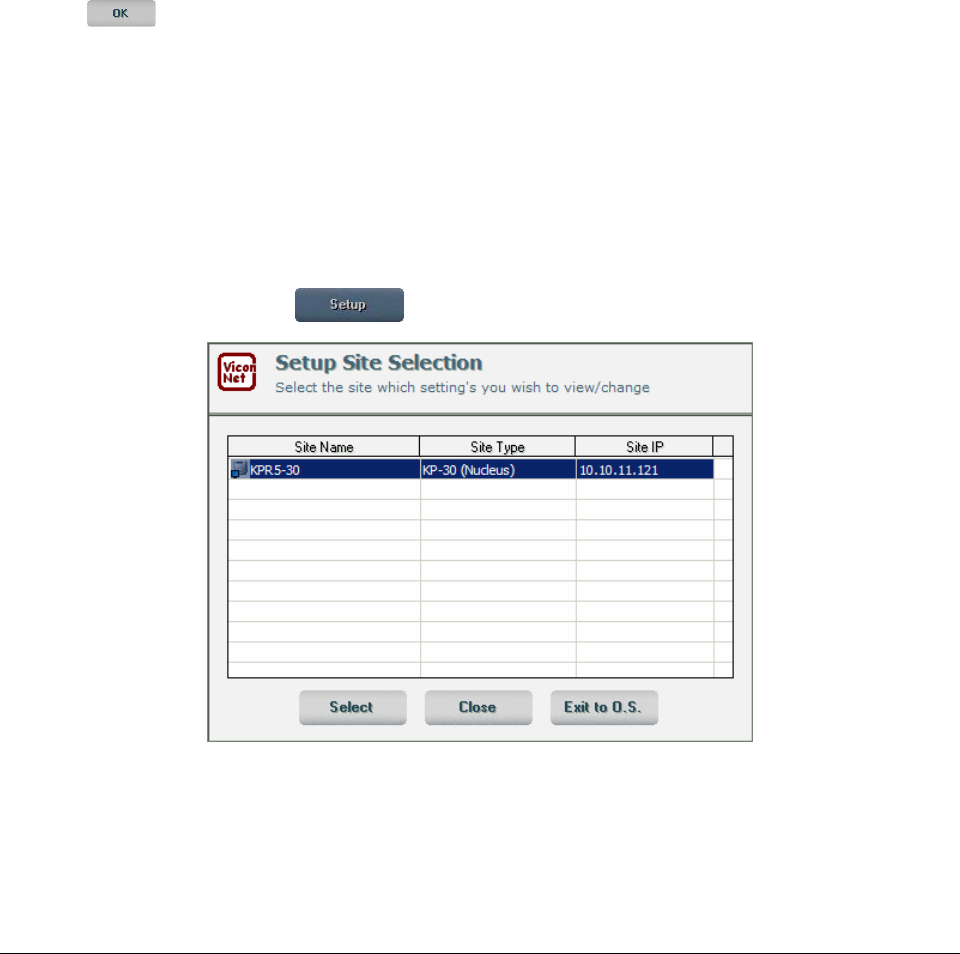
XX128-33-01 Rev 1206 Kollector Pro Network Digital Video Recorder Configuring the ViconNet System • 63
Step 4: Connecting the Master Nucleus to the Backup Nucleus
In this step, you will connect the backup nucleus you created in the previous step to the master nucleus.
1. Go to the site handling the master nucleus, and follow steps 1 through 3 in Step 1: Setting the Sites' IP
Addresses, page 60.
2. Go to the site that is acting as the backup nucleus, and follow steps 1 through 3 in Step 1: Setting the
Sites' IP Addresses, page 60. The name of master nucleus and its IP address, as well as the name of
backup nucleus and its IP address, should be grayed out so you cannot change them.
3. In the Nucleus Settings area, select the Backup Nucleus IP radio button, and enter the IP address of
the backup nucleus you defined in the previous step. By default, 0.0.0.0 is displayed as the backup
nucleus IP.
4. Click . The application will reboot.
5. Repeat step 1. The name of backup nucleus should be grayed out so you cannot change it.
Step 5: Testing the Network
In this final step, you will carry out a number of operational tests to ensure that the network has been setup
properly.
1. In the Main window, ensure that all sites appear in the Site List when they come online, and that you
can select a camera from each site by clicking on it.
2. From the Main window, click . The Setup Site Selection window is displayed:
3. Ensure that the Site Type column displays KP-xx for the Kollector Pro (itself).
4. Go to the site handling the master nucleus and drag a camera from the Kollector Pro to check if video
can be seen from this site on the nucleus.
5. Go to the Kollector Pro and playback a camera. Only the local site should appear in the Site List.
64 • Configuring the ViconNet System XX128-33-01 Rev 1206 Kollector Pro Network Digital Video Recorder
6. Repeat steps 4 and 5 on the site handling the backup nucleus (optional).
7. Ensure that the backup nucleus is working properly by exiting to the operating system on the site acting
as the master nucleus. The backup nucleus name should now appear in the top-left corner of all sites
instead of the master nucleus name (for example, in place of Workstation-1, the name should now
read Workstation-2).
8. Log back into the master nucleus. Its name should now reappear in the top-left corner of all sites
instead of the backup nucleus name.
Configuring a Site to Work with a Pre-existing Network Nucleus
To configure a Workstation to work with a pre-existing network:
1. Follow steps 1 through 3 in Step 1: Setting the Sites' IP Addresses, page 60.
2. Deselect the This Site is the Master Nucleus checkbox.
3. Select the Nucleus IP radio button, and then enter the IP address of the site handling the master
nucleus.
4. Click . The application will reboot.
Configuring the Network Setup for a Standalone System
The ViconNet system enables you to configure a transmitter as the master nucleus in the system without
using a backup nucleus, if required. When performing this configuration, the system automatically detects
the local computer IP address and DNS information.
On a standalone system – where only a single recorder is involved, with no Workstations or other Kollector
Elites or Kollector Pros connected to it (that is, no other sites are connected to it) – the nucleus can be
configured locally. However, it is recommended that the nucleus be configured on a separate system
whenever possible.
NOTE: The nucleus and backup nucleus should not reside on a transmitter. If the system goes down, any
transmitter that uses an external master nucleus and that is not configured to use a backup nucleus
will automatically shift to local operation mode. This means that it will act as a standalone system,
and the transmitter will operate without a nucleus.
To configure the network setup for a standalone system:
1. Go to the site you want to setup, and follow steps 1 through 3 in Step 1: Setting the Sites' IP Addresses,
page 60.
NOTE: In cases where the nucleus is not running on the local computer, the IP address and the DNS
must be typed in manually. As this is a standalone system, you do not need to enter a backup
IP address or DNS.
2. Click . A notification message is displayed, prompting you to restart the currently connected
application with the new nucleus settings.
XX128-33-01 Rev 1206 Kollector Pro Network Digital Video Recorder Configuring the ViconNet System • 65
Configuring/Modifying Cameras, Sensors and Relays
NOTE: The Kollector Pro does not currently support audio input.
The ViconNet system enables you to configure or modify the various devices that you want to be
operational in the system, depending on your requirements, including:
• Configuring/Modifying Local cameras, below
• Configuring/Modifying Switchers and Multiplexers, page 70
NOTE: This feature will be functional in future versions.
• Configuring/Modifying Sensors (Detectors), page 71
• Configuring/Modifying Relays, page 72
Each device that you connect to a specific input in the system must be configured separately, using the
ViconNet application, so that the system can recognize and operate the device. This consists of configuring
information that enables the system to identify the device such as the device type, name, input number, and
so on.
During device configuration, a table of buttons for all devices is displayed. When you select a device from
this table, the configurable information, specific to the selected device and input, is displayed in the bottom
portion of the window.
NOTE: The device appears in the Site List automatically and can be used immediately for all available
system functions. No configuration is required for this purpose.
Configuring/Modifying Local cameras
The ViconNet system enables you to configure or modify up to 16 local cameras in the system.
If you want to configure switchers or multiplexers in addition to local cameras, then you can configure up to
a combined total of 16 devices. Refer to Configuring/Modifying Switchers and Multiplexers, page 70, for
additional details.
The settings described in this section, which are accessed via the button, apply when
connecting to any remote transmitter.
TIP: The local camera definition procedure, described below, includes a region of interest (ROI) area
definition aspect, by which recording and display update is triggered only when the changes to the
camera view affect defined ROI areas, at specified sensitivities. This usefully conserves storage
capacity by limiting the number of frames recorded to those required for business purposes.
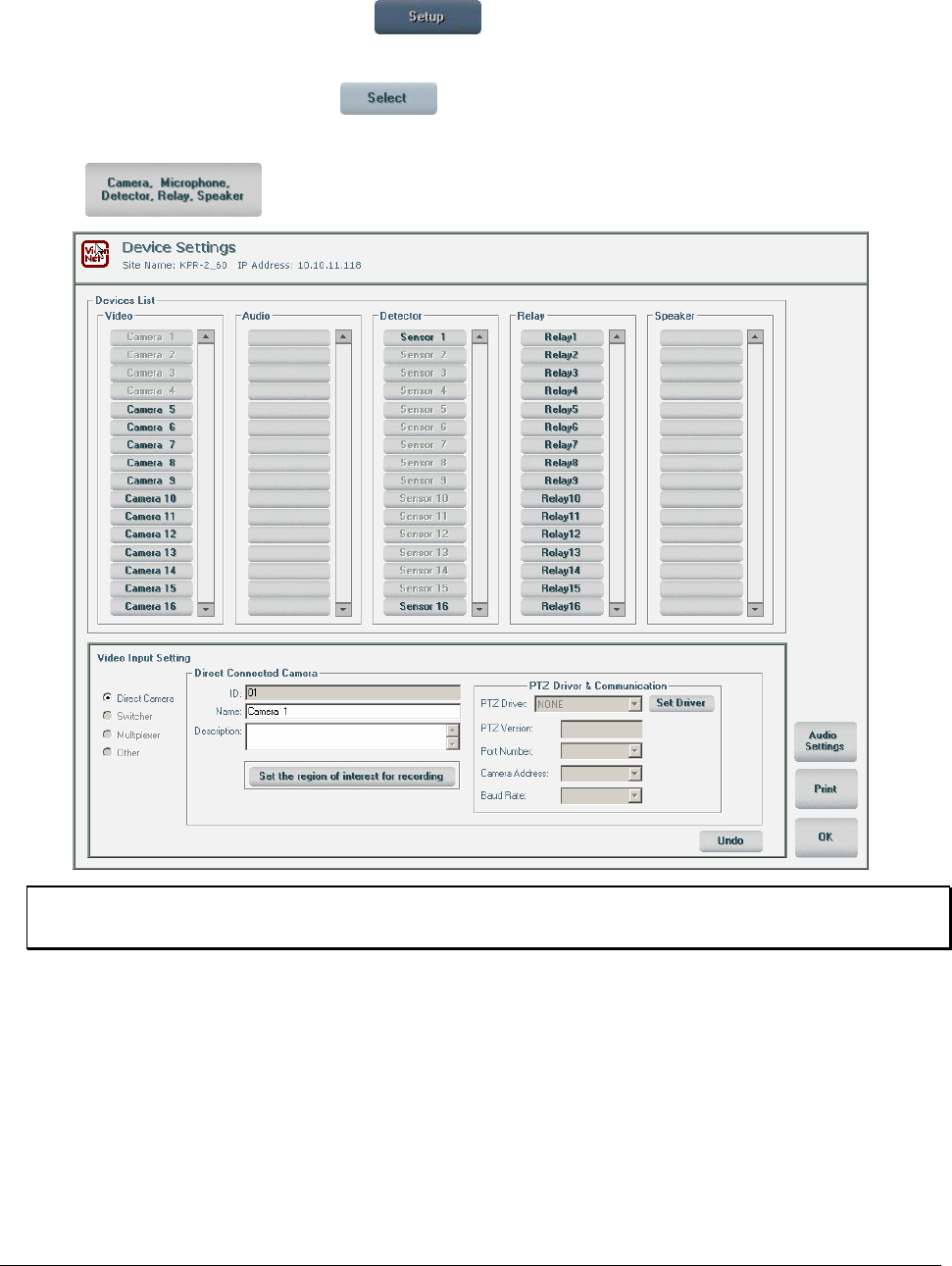
66 • Configuring the ViconNet System XX128-33-01 Rev 1206 Kollector Pro Network Digital Video Recorder
To configure/modify a local camera:
1. From the ViconNet Main window, click . The Setup Site Selection window is displayed,
showing the currently connected Kollector Pro, as shown on page 57.
2. Select your Kollector Pro and click . The System Settings window is displayed, as shown on
page 58.
3. Click . The Devices Settings window is displayed:
NOTE: You can click Undo to restore the last saved settings, if required.
TIP: You can print the current Device List details by clicking the Print button.
4. Select a camera button from the Video section of the Devices List area. The Video Input Setting area
at the bottom of the window displays all the configurable settings for the selected device. A numerical
index number is displayed automatically in the ID field. The ID number is assigned by the system and
cannot be changed (read-only).
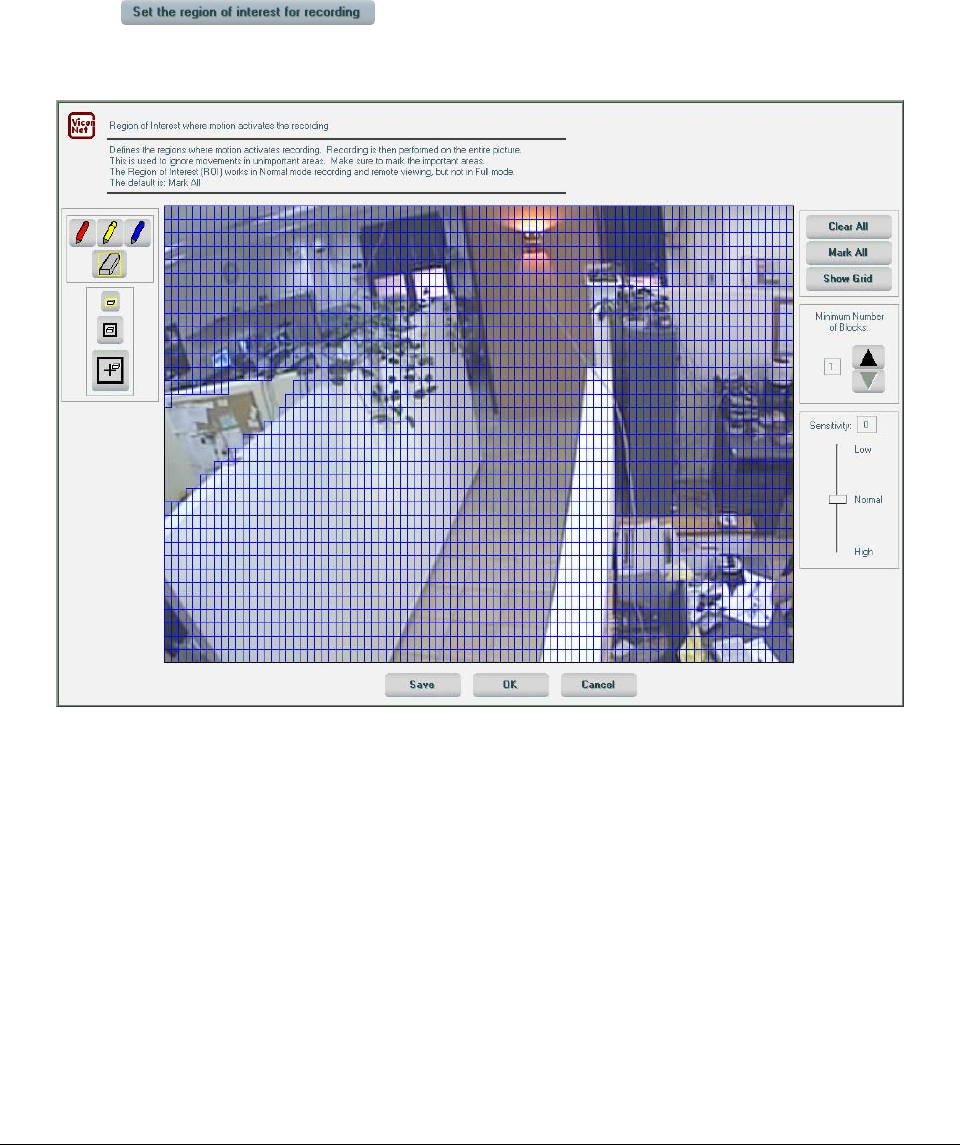
XX128-33-01 Rev 1206 Kollector Pro Network Digital Video Recorder Configuring the ViconNet System • 67
5. In the Video Input Settings area:
• Select the Local camera option.
• In the Name field, enter a logical name for the local camera. For example, you can assign a camera
name that relates to the relevant site, which can be useful for storage purposes.
• In the Description field (Optional), enter descriptive textual information about the local camera.
6. Click the button to define/modify how detected changes in the view area
will trigger recording on the selected camera. You can limit the triggering to when changes are detected
in specific regions of interest (ROIs). The Region of Interest Definition window is displayed:
The window shows the live view of the selected camera, with either blue, red or yellow colored grid
blocks over selected regions of interest. If no settings were yet defined for this camera, the colored grid
blocks cover the entire picture, indicating that the change detection that would trigger recording
currently applies to the entire camera view area.
You can focus the change detection mechanism on security-sensitive objects in the camera space by
using the window functions to vary the coverage of the colored grid blocks. (Only the segments covered
by colored grid blocks are considered for change detection purposes.)
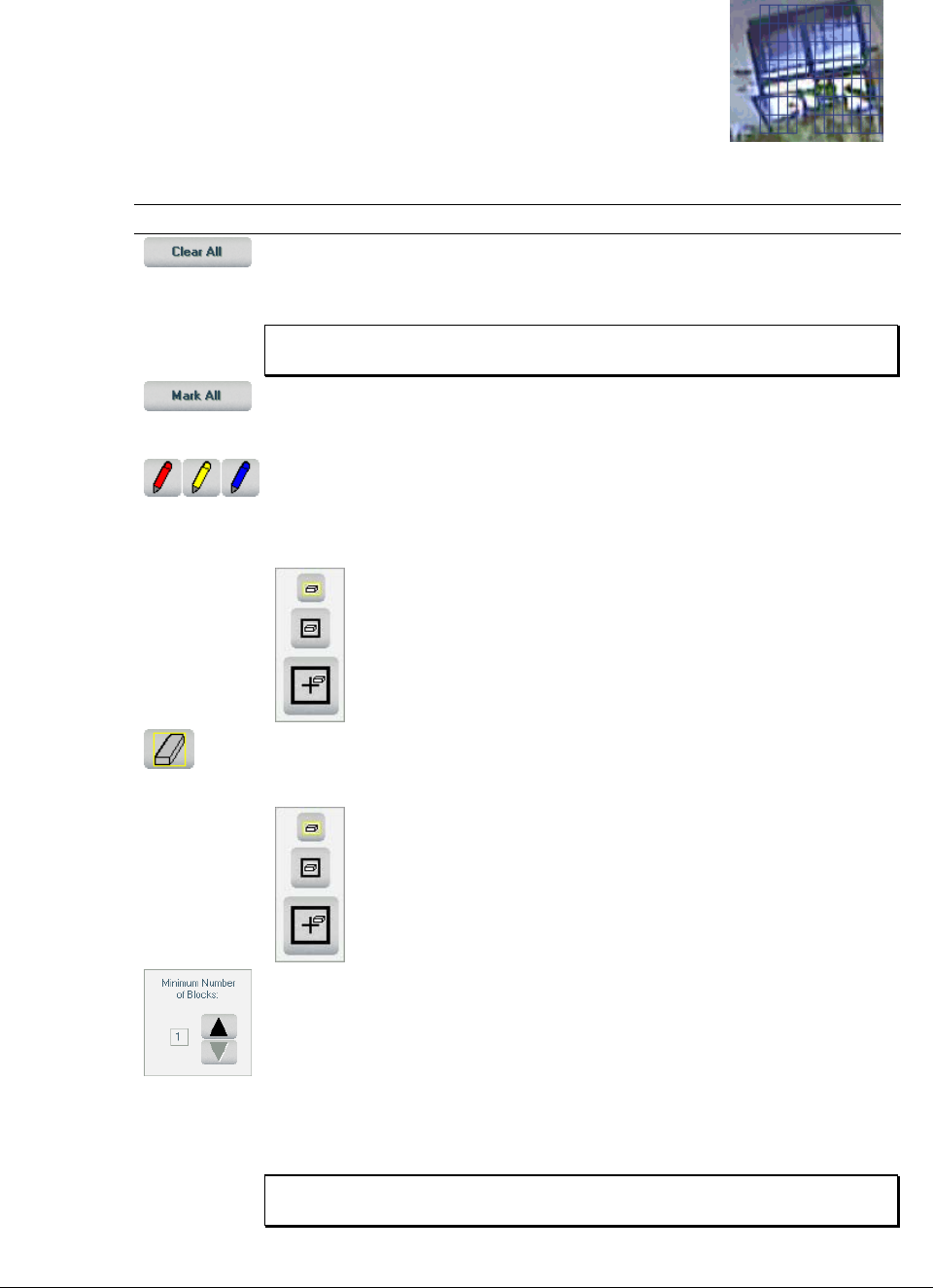
68 • Configuring the ViconNet System XX128-33-01 Rev 1206 Kollector Pro Network Digital Video Recorder
For example, you can focus on windows or doors (as shown in the picture
opposite) to monitor opening/closing events.
The following options are provided:
Option Description
This button clears all the current colored grid blocks in the view. You can then
use the Pencil tool to define grid blocks for specific ROIs within the view
surface.
NOTE: Change detection does not function unless ROIs are identified
by colored (blue, red or yellow) grid blocks.
This button marks colored grid blocks over the entire window surface, meaning
that change detection will apply to the entire camera view. You can then use
the Eraser tool to remove specific grid blocks.
When the Pencil tool is selected, the cursor becomes a pencil icon.
You can define ROIs by clicking and dragging over the required view area
segments, thereby drawing arrays of red, blue or yellow grid blocks (according
to which pencil is selected).
The Tool Size Selector area includes buttons for three pencil sizes.
According to the selected size, the cursor draws a small (single
block), medium (4-block) or large (16-block) width of grid blocks per
sweep.
When the Eraser tool is selected, the cursor becomes an eraser icon. You can
erase ROI segments by clicking and dragging over selected grid blocks,
thereby erasing them.
The Tool Size Selector area includes buttons for three eraser
sizes. According to the selected size, the cursor will erase a small
(single block), medium (4-block) or large (16-block) width of surface
blocks per sweep.
The Block Control selector enables you to define how many blocks of the
colored grid arrays must be simultaneously involved in the change before
recording is triggered. For example:
• "1" (the most sensitive setting) indicates that recording should be triggered
if a change is detected in even one block amongst all the defined ROIs.
• "16" (the least sensitive setting) indicates that the change must be
simultaneously detected in at least 16 blocks within the entire view area.
The blocks do not have to be contiguous.
NOTE: The selected maximum cannot exceed the total number of
blocks defined in ROIs.
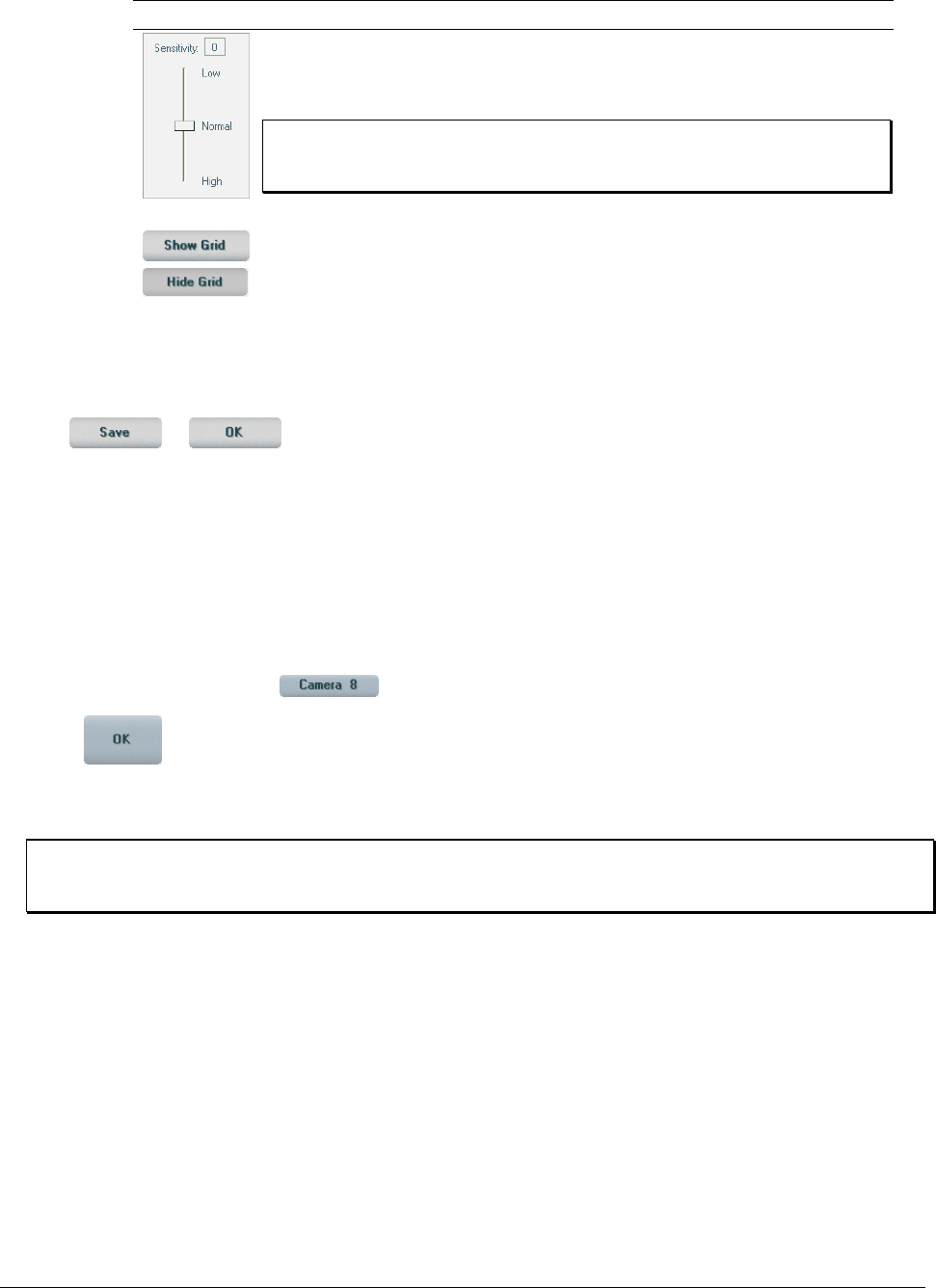
XX128-33-01 Rev 1206 Kollector Pro Network Digital Video Recorder Configuring the ViconNet System • 69
Option Description
The Sensitivity Control enables you to adjust the triggering sensitivity (by
dragging the slider) between High (higher detection of changes) to Low (lower
detection of changes).
NOTE: In general, a "normal" sensitivity should be selected. The
highest sensitivities may generate false alarms, while the
lowest may cause interesting events to be missed.
The Show Grid button applies a gray planning grid to the parts of the window
where no ROIs (colored grid blocks) are defined. The gray grid is only for
purposes of viewing where ROIs may potentially be defined and does not affect
the change-detection process. When selected, the button changes into a Hide
Grid button by which the planning grid can be suppressed, making only the
"active" colored grid blocks visible.
When you have finished defining grids and recording triggering sensitivity for the selected camera, click
the or button. (Both buttons save the current settings. The Save button leaves
the window open for additional changes, while OK redisplays the Device Settings window.)
7. If the local camera is a PTZ, configure the PTZ driver and communication information, as described in
Configuring/Modifying PTZ Controls, page 72.
8. To configure or modify additional local cameras, repeat steps 4 to 7, as required.
As you select another camera button in the Devices Settings window, the new or modified name of the
local camera that you have just configured is displayed automatically on the appropriate button in the
Video section (for example, ).
9. Click . The new or modified local camera configuration is saved automatically in the system
(without requiring a reboot), and the camera appears in the Site List in the ViconNet Main window as an
available device, meaning it is available immediately for all operations.
NOTE: After you have configured a device in the system, it also appears in all other device lists, such
as when creating macros, defining alarm setup links, and setting pre/post alarms. Refer to the
relevant sections in this chapter for additional details.
In addition, the system automatically notifies all connected sites (through the network) of the new or
modified local camera configuration.

70 • Configuring the ViconNet System XX128-33-01 Rev 1206 Kollector Pro Network Digital Video Recorder
Configuring/Modifying Switchers and Multiplexers
The ViconNet system enables you to configure or modify up to a combined total of 16 switchers and/or
multiplexers (non-local cameras), which consists of configuring settings for each device such as the driver,
the output number, and so on.
If you want to configure local cameras in addition to switchers and/or multiplexers, then you can configure
up to a combined total of 16 devices. Refer to Configuring/Modifying Local cameras, page 65, for additional
details.
NOTE: This feature will be functional in future versions.
To configure/modify a switcher or a multiplexer:
1. Perform steps 1 to 4 in Configuring/Modifying Local cameras, page 65.
2. Select the Switcher or Multiplexer option, as required.
3. Configure or modify the switcher or multiplexer settings, as follows:
Option Description
Network or Serial
Connection
Select either Nova 1500 integration or COM interface, as required.
Driver Select the appropriate driver from the dropdown list.
Switcher/Mux
Address Enter the serial address for the switcher or multiplexer.
ID Select a switcher or multiplexer ID. The ID number is assigned by the
system and cannot be changed (read-only).
Name Enter a logical name for the switcher or multiplexer.
Description (Optional) Enter descriptive textual information about the switcher or
multiplexer.
Switcher/Mux
Output #
(Monitor)
Select the output number for the switcher or multiplexer. The output is
connected to the transmitter input and is limited to one output per
transmitter.
Camera Names This option enables you to view a list of camera names instead of input
numbers when performing a switch.
Enter the names of the cameras (inputs) in the switcher or multiplexer.
Important: The driver must supply the respective input numbers.
If a camera is a PTZ, configure the PTZ driver and communication
information, as described in Configuring/Modifying PTZ Controls, page
73.
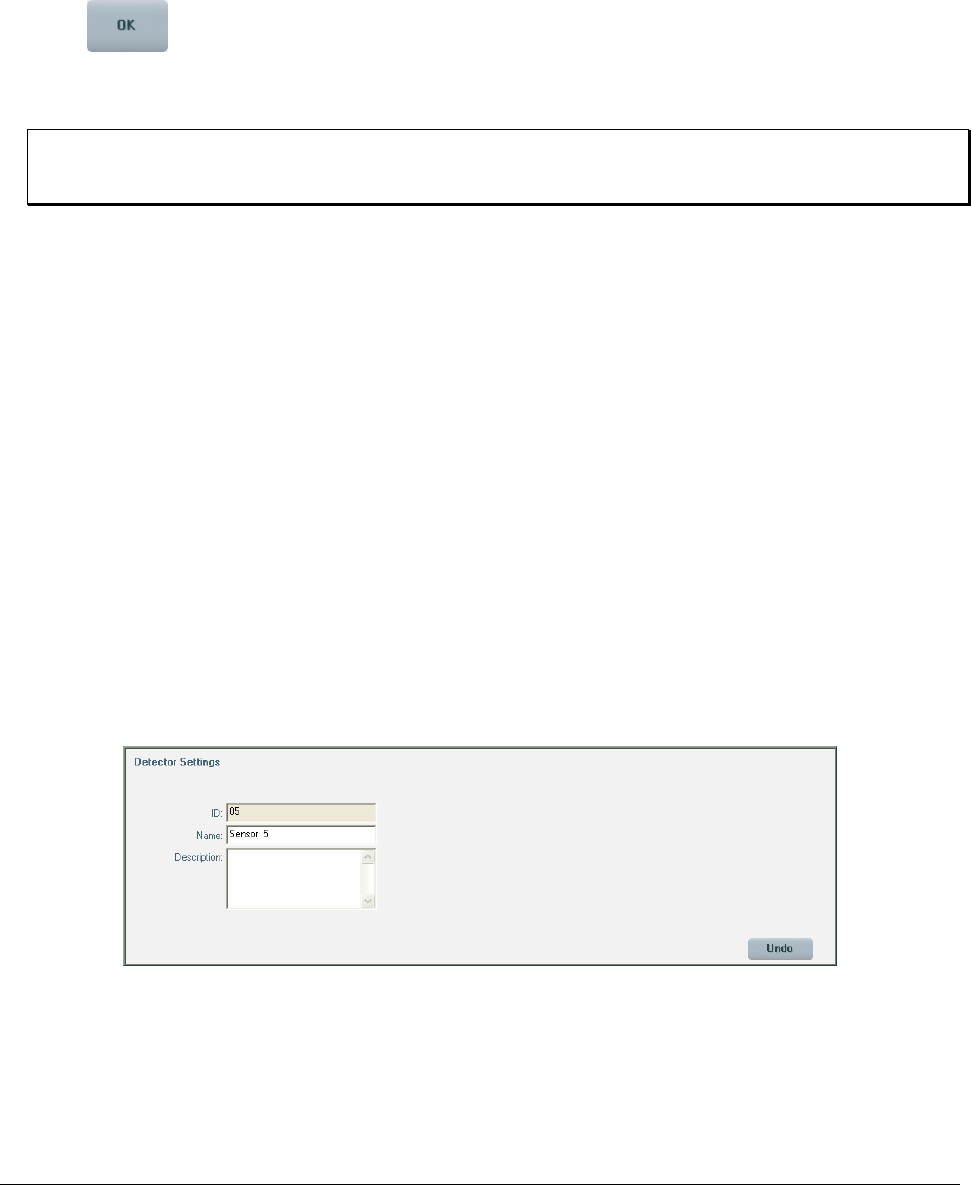
XX128-33-01 Rev 1206 Kollector Pro Network Digital Video Recorder Configuring the ViconNet System • 71
4. To configure or modify additional switchers and/or multiplexers, repeat steps 1 to 3, as required.
As you select another button in the Devices Settings window, the new or modified name of the switcher
or multiplexer that you have just configured is displayed automatically on the appropriate button in the
Video section, and the configuration is automatically saved.
5. Click . The new or modified switcher or multiplexer configuration is saved automatically in the
system (without requiring a reboot), and the switcher or multiplexer appears in the Site List in the
ViconNet Main window as an available device, meaning it is available immediately for all operations.
NOTE: After you have configured a device in the system, it appears in all other device lists, such as
used in the process of creating macros or setting pre/post alarms. Refer to the relevant sections
in this chapter for additional details.
In addition, the system automatically notifies all connected sites (through the network) of the new or
modified switcher or multiplexer configuration.
Configuring/Modifying Sensors (Detectors)
The ViconNet system enables you to configure or modify up to 16 sensors, if required. Each sensor that you
configure in the system must be associated to a specific alarm type.
To configure/modify a sensor (detector):
1. Perform steps 1 to 3 in Configuring/Modifying Local cameras, page 65.
2. Select a sensor button from the Detector section of the Devices List area. The Detector Setting area
at the bottom of the window displays all the configurable settings for the selected device.
3. In addition, a numerical index number is displayed automatically in the ID field. The ID number is
assigned by the system and cannot be changed (read-only).
4. In the Name field, enter a logical name for the sensor. For example, you can assign a name that relates
to the associated alarm type.
5. (Optional) In the Description field, enter descriptive textual information about the sensor.
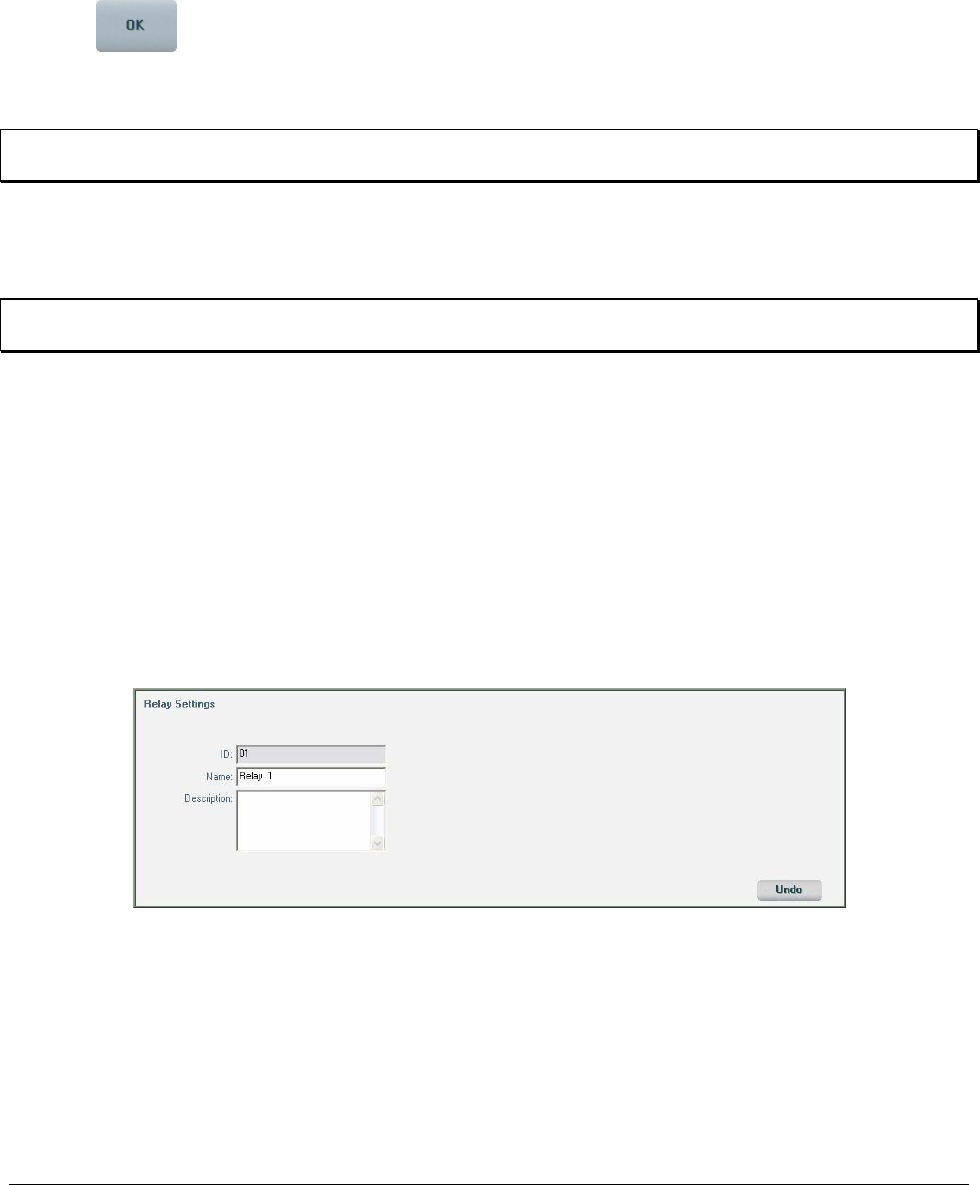
72 • Configuring the ViconNet System XX128-33-01 Rev 1206 Kollector Pro Network Digital Video Recorder
6. To configure/modify additional sensors, repeat steps 1 to 5, as required.
As you select another button in the Devices Settings window, the new or modified name of the sensor
that you have just configured is displayed automatically on the appropriate button in the Detector
section, and the configuration is automatically saved.
7. Click . The new or modified sensor configuration is saved automatically in the system (without
requiring a reboot), and the sensor appears in the Site List in the ViconNet Main window as an available
device, meaning it is available immediately for all operations.
NOTE: After you have configured a device in the system, it also appears in all other device lists, such as
when defining alarm setup links. Refer to the relevant sections in this chapter for additional details.
Configuring/Modifying Relays
The ViconNet system enables you to configure or modify up to 16 relays, if required.
NOTE: The relays are only enabled in this window when using the new Kollector Elite rear panel. In this
case, the system automatically recognizes the relays.
To configure/modify a relay:
1. Perform steps 1 to 3 in Configuring/Modifying Local cameras, page 65.
2. Select a relay button from the Relay section of the Devices List area. The Relay Settings area at the
bottom of the window displays all the configurable settings for the selected device.
3. In addition, a numerical index number is displayed automatically in the ID field. The ID number is
assigned by the system and cannot be changed (read-only).
4. In the Name field, enter a logical name for the relay. For example, you can assign a name that relates
to the proper relay operation.
5. (Optional) In the Description field, enter descriptive textual information about the relay.
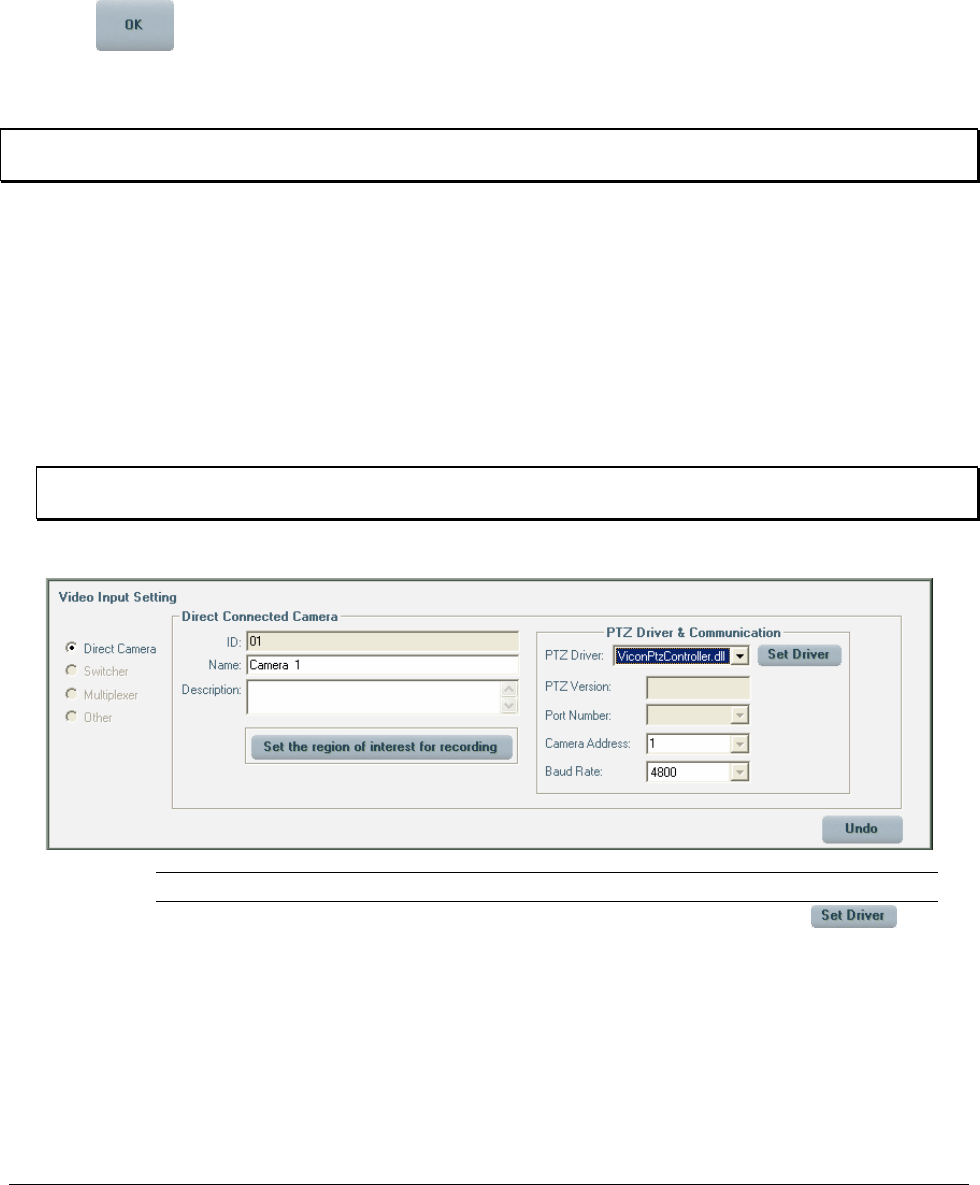
XX128-33-01 Rev 1206 Kollector Pro Network Digital Video Recorder Configuring the ViconNet System • 73
6. To configure/modify additional relays, repeat steps 1 to 5, as required.
As you select another button in the Devices Settings window, the new or modified name of the relay
that you have just configured is displayed automatically on the appropriate button in the Relay section,
and the configuration is automatically saved.
7. Click . The new or modified relay configuration is saved automatically in the system (without
requiring a reboot), and the relay appears in the Controls area in the ViconNet Main window as an
available device.
NOTE: You can also define an external relay box by selecting RS232/422/485 Controls in the System
Settings window. For more details, refer to Configuring an External Control, page 143.
Configuring/Modifying PTZ Controls
When you use PTZ cameras in the ViconNet system, you must configure/modify each device according to
its specific camera specifications, such as the driver, version number, and so on.
To configure/modify PTZ controls:
1. In the Devices Settings window, shown on page 66, select the appropriate PTZ camera button from the
Video section of the Devices List area.
NOTE: When working in the Devices Settings window, you can click Undo to restore the last saved
settings, if required.
2. In the PTZ Driver & Communication area, enter the required PTZ configuration settings, as follows:
Option Description
PTZ Driver Select the appropriate driver from the dropdown list or click to
automatically select the appropriate driver.
PTZ Version The PTZ software version is displayed after the appropriate driver is
selected.
Port Number The port number is shown for information purposes.

74 • Configuring the ViconNet System XX128-33-01 Rev 1206 Kollector Pro Network Digital Video Recorder
Option Description
Camera Address Select the camera address from the dropdown list.
NOTE: The address must be identical to the address configured
on the camera.
Baud Rate Select the Baud rate from the dropdown list.
3. To configure or modify PTZ controls for additional PTZ cameras, repeat steps 1 and 2, as required.
Configuring Other RS232/422/485 Controls
The ViconNet system enables you to configure other RS232/422/485 controls for each computer, as
required, using the RS232/422/485 Controls option in the System Settings window.
The following are the available controls and their configurable settings:
Serial Controlled Relay
Configure the following settings, as required:
• Select Driver: Select the required driver from the list of installed drivers.
• Relay Box ID, Name, and Description: Enter an ID number, logical name, and textual description
(optional) for the relay.
• Relay Box Address: Select the required serial address from the displayed range.
• Relay Input Names: Enter a name for each input to the Relay box.
Serial Controlled Joystick
• Select Driver: Select the required driver from the list of installed drivers.
• Joystick Box ID, Name, and Description: Enter an ID number, logical name, and textual description
(optional) for the joystick.
• Joystick Box Address: Select the required serial address from the displayed range.
• Joystick Input Names: Enter a name for each input to the Joystick box.
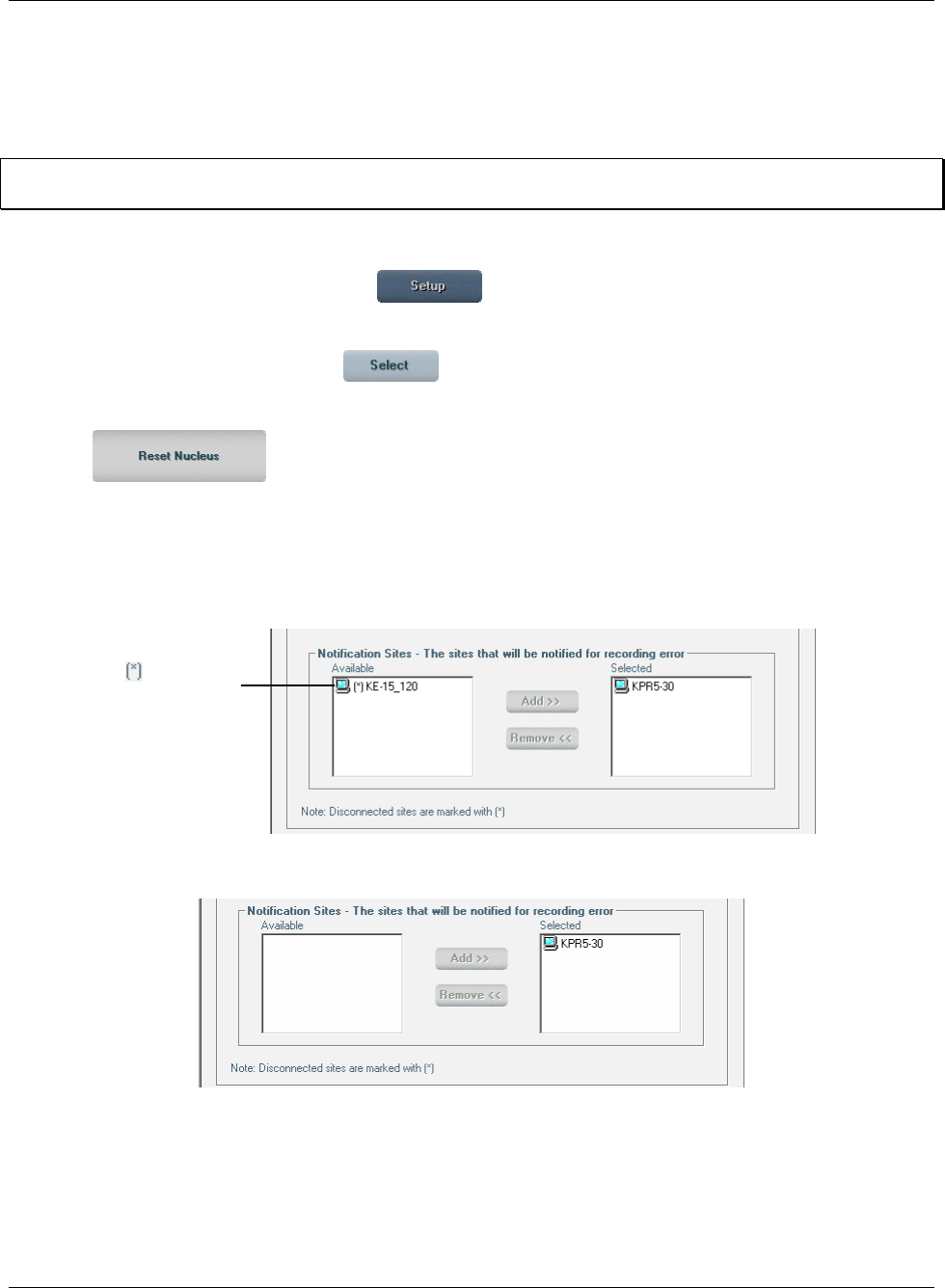
XX128-33-01 Rev 1206 Kollector Pro Network Digital Video Recorder Configuring the ViconNet System • 75
Using Reset Nucleus
The purpose of the Reset Nucleus feature is to clean up the site lists and sub-lists in the Recording
Verification System, Central Failure Notification and Macro Editor (for Send Alarm) windows by removing all
associated disconnected sites.
NOTE: This feature is only available if the Kollector Pro is the nucleus (or by remote from another site with
the correct authorizations).
To reset the nucleus:
1. From the ViconNet Main window, click . The Setup Site Selection window is displayed, as
shown on page 57.
2. Select your Kollector Pro and click . The System Settings window is displayed, as shown on
page 58.
3. Click . All disconnected sites that appeared in the site lists in the Recording
Verification Site, Central Failure Notification and Macro Editor Send Alarms site lists have now been
removed from the lists. An example is shown below:
Before clicking Reset Nucleus, disconnected sites on the network appear with the (*) symbol in the site
lists, as shown in the list of Notification Sites in the Recording Verification System window below:
Disconnected
Site
Disconnected
Site
After Reset Nucleus, the disconnected sites are removed from the site lists:
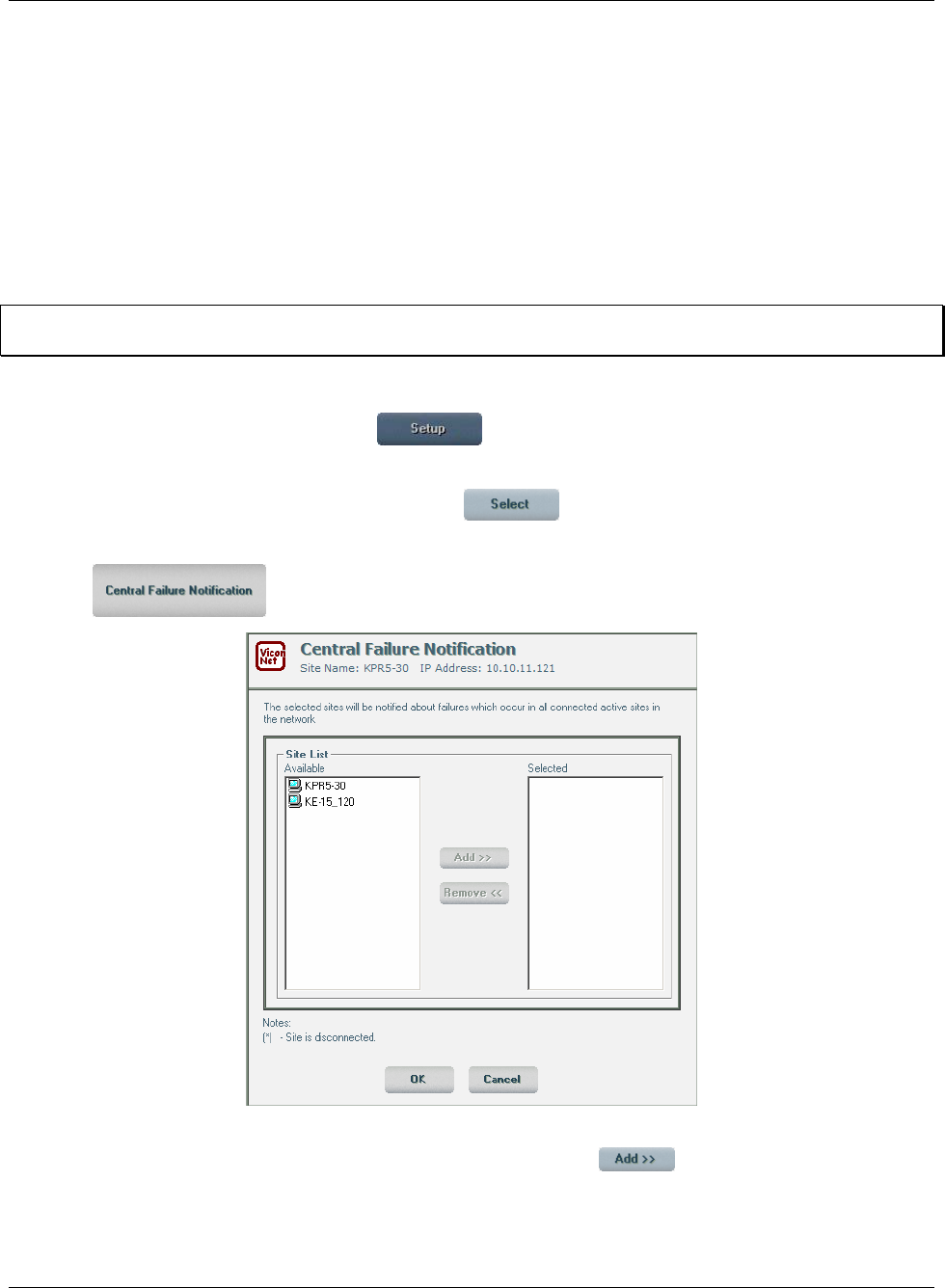
76 • Configuring the ViconNet System XX128-33-01 Rev 1206 Kollector Pro Network Digital Video Recorder
Using the Central Failure Notification (CFN) Mechanism
The CFN mechanism enables Workstations and transmitter sites connected to the same nucleus to receive
notifications indicating that certain applications have failed, for example, macro, recording and database
failures.
CFN increases the user's awareness of problems that could occur at unmanned remote sites. It sends
error/warning notifications, via the network, to other sites that share the same nucleus. The notifying site is
the same one that handles the nucleus.
The CFN mechanism is available only for the site that handles the nucleus.
NOTE: If the Kollector Pro is the nucleus, it can see here (in the CFN window) the other available sites in
the network.
To activate the CFN mechanism:
1. From the ViconNet Main window, click . The Setup Site Selection window is displayed as
shown on page 57.
2. Select the local site (if it is the nucleus) and click . The System Settings window is displayed,
as shown on page 58.
3. Click . The Central Failure Notification window is displayed.
4. In the Site List section, select which site(s) to notify about a failure occurring in any other site that
shares the same nucleus from the Available area and then click . The selected site(s) is
displayed in the Selected area.
5. When you have finished, click OK.
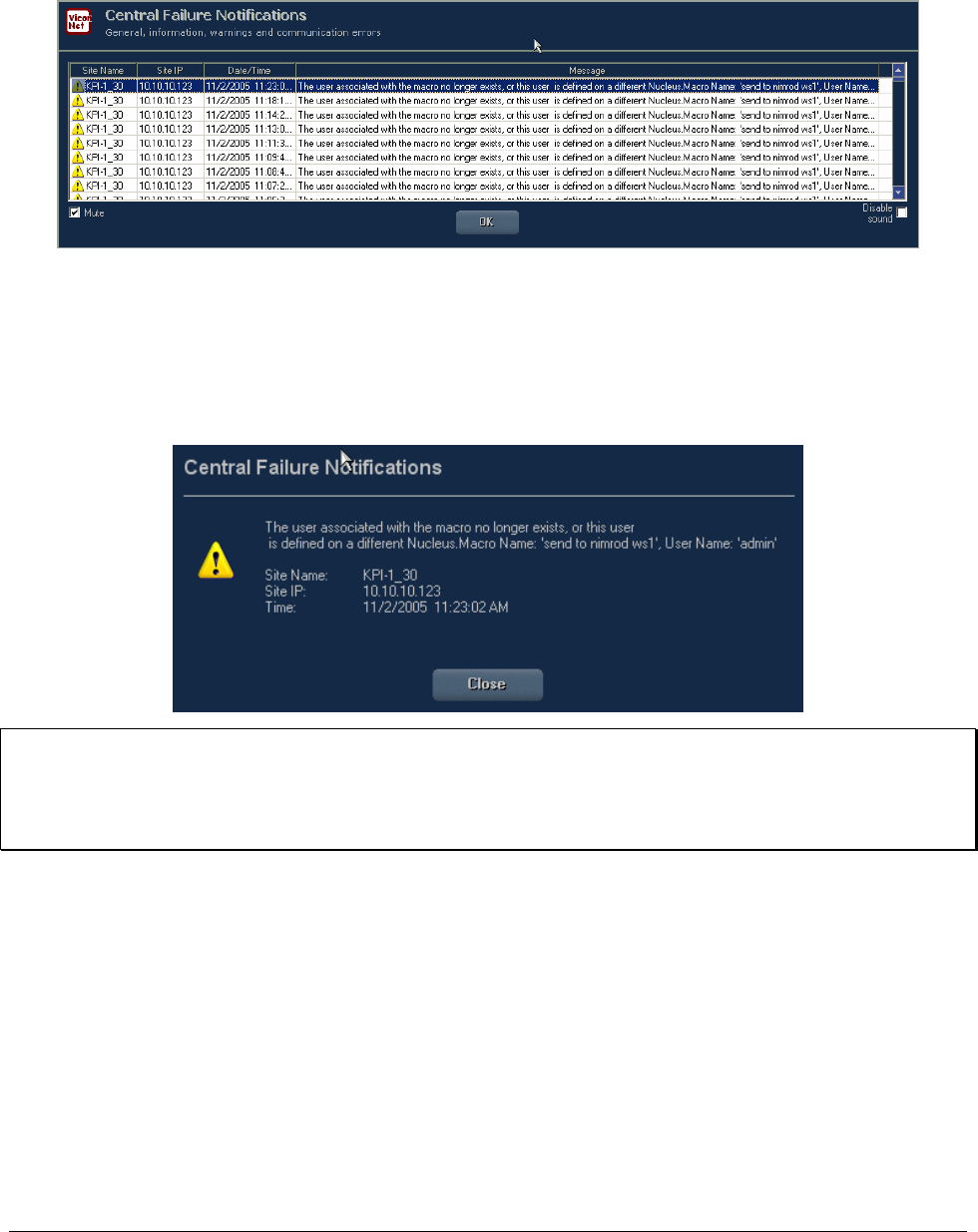
XX128-33-01 Rev 1206 Kollector Pro Network Digital Video Recorder Configuring the ViconNet System • 77
When a failure occurs, a Central Failure Notifications window is displayed in the sites selected in the CFN
setup, containing information about the time the failure occurred, the site name, the site IP address, and a
short description of the failure (the failure message).
This window is accompanied by a sound (similar to the Alarm window). Selecting the Mute checkbox
silences the alarm for this message; however, the next time the window is displayed, the alarm will sound.
Checking the Disable sound checkbox disables the sound option completely, meaning that the alarm will
not sound again.
To see more details about the error, double-click it to open a window like the one shown here.
NOTES:
The local site in which the failure occurred receives the user notification even if it was not selected in the
nucleus CFN setup.
Disconnected sites are marked with a (*).

78 • Configuring the ViconNet System XX128-33-01 Rev 1206 Kollector Pro Network Digital Video Recorder
Configuring System Authorizations
The ViconNet system enables you to configure system authorizations, depending on your organizational
requirements. The authorizations that you configure determine both user access and the authorized system
operations for users according to the group to which you assign them.
Configuring system authorizations consists of defining the groups and users in your system, as described in
the following sections:
• Defining Groups, page 78
• Defining Users, page 81
Users and Groups can only be defined in the nucleus. The User & Group Management button in the
System Settings window is disabled in all other sites.
After groups and users have been defined, you can define which system operations will be available to
each group of users, per site, as described in Configuring Site Authorization, page 84.
Thereafter, each authorized user can access the system and the ViconNet application, using their assigned
user name and password. The system automatically checks the login information according to the assigned
group and then enables the allowed system operations, which can include:
• Configuring the network setup, as described on page 59.
• Configuring PTZ controls, as described on page 73.
• Viewing and recording live video, as described in Chapter 4, Viewing Live Video, and Chapter 5,
Recording Live Video.
• Playing back recorded video, as described in Chapter 6, Playing Back Recorded Video.
Access to the available sites and devices (cameras and so on) is also dependent on the assigned
authorization of each user.
Defining Groups
The ViconNet system enables you to define groups to which you can assign specific users. The purpose of
each group is to categorize specific users so that they can all be assigned the same site authorization
rights. These rights determine the system operations each group can perform.
After defining the groups, you can assign users to the groups, as described in Defining Users, page 81, and
then you can configure the site authorization for each group, as described in Configuring Site Authorization,
page 84.
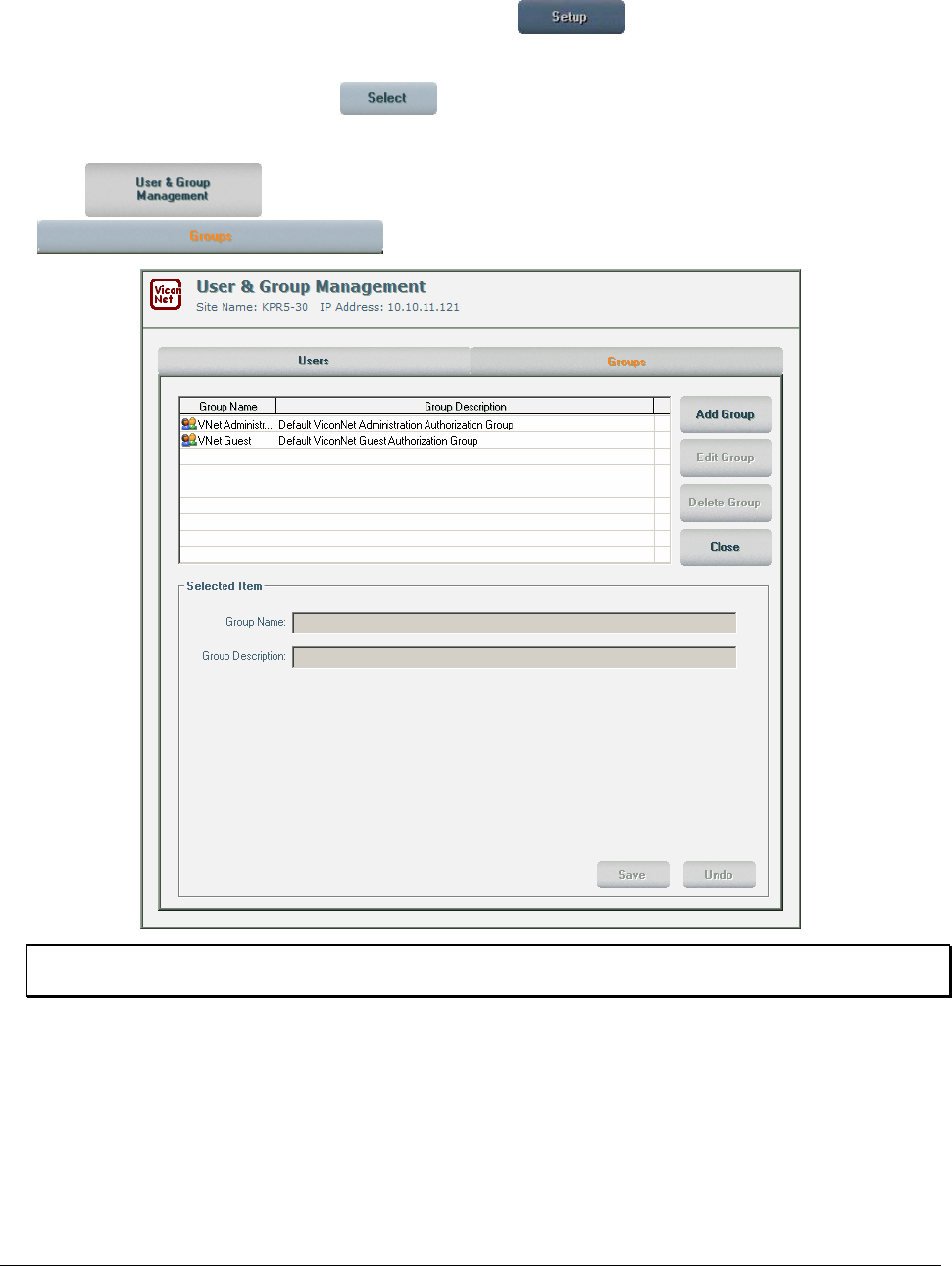
XX128-33-01 Rev 1206 Kollector Pro Network Digital Video Recorder Configuring the ViconNet System • 79
To add a new group:
1. From the ViconNet Main window (in the Nucleus), click . The Setup Site Selection window
is displayed, as shown on page 57.
Select your Kollector Pro and click . The System Settings window is displayed, as shown on
page 58.
2. Click . The User & Group Management window is displayed with the
option selected by default.
NOTE: When working in the User & Group Management window, you can click Undo to restore the last
saved settings, if required.
The system provides two default groups (Administrator and Guest), each with their respective site
authorizations. Refer to Configuring Site Authorization, page 84, for a description of these groups.
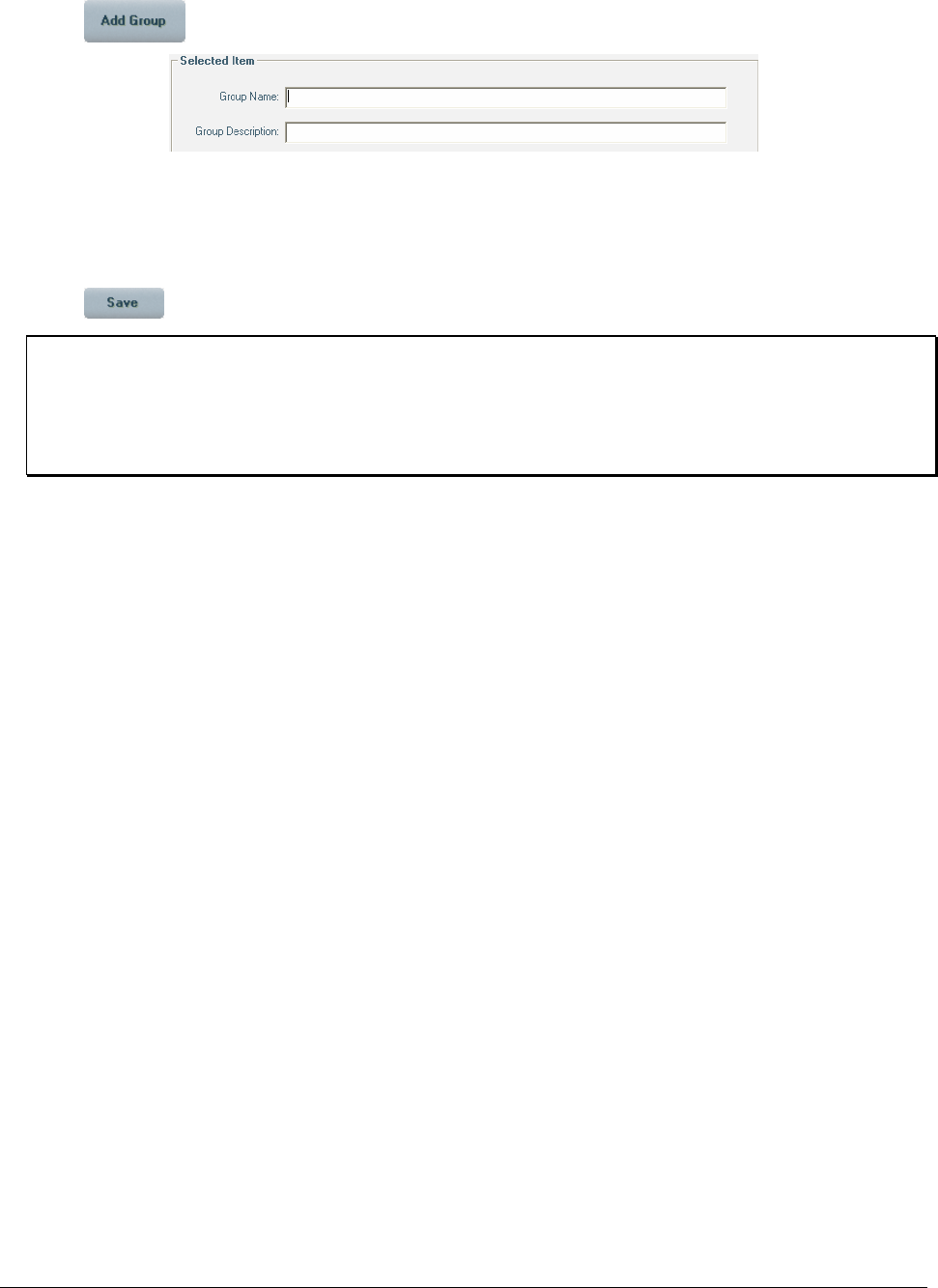
80 • Configuring the ViconNet System XX128-33-01 Rev 1206 Kollector Pro Network Digital Video Recorder
3. Click . The fields in the bottom portion of the window are enabled, as follows:
4. In the Group Name field, enter a logical group name.
5. (Optional) In the Group Description field, enter a description for the group. For example, this can be a
reference to the type of users you plan to add to the group.
6. Click . The new group is added to the group list at the top of the window.
NOTES:
To edit a group, select the group from the list in the User & Group Management window and click Edit
Group. Then modify the displayed settings, as described in the procedure above, and click Save.
To delete a group, select the group from the list in the User & Group Management window and click
Delete Group.
7. To add additional groups, repeat steps 3 to 6, as required.
You can now add specific users to the defined groups, as described in the following section.
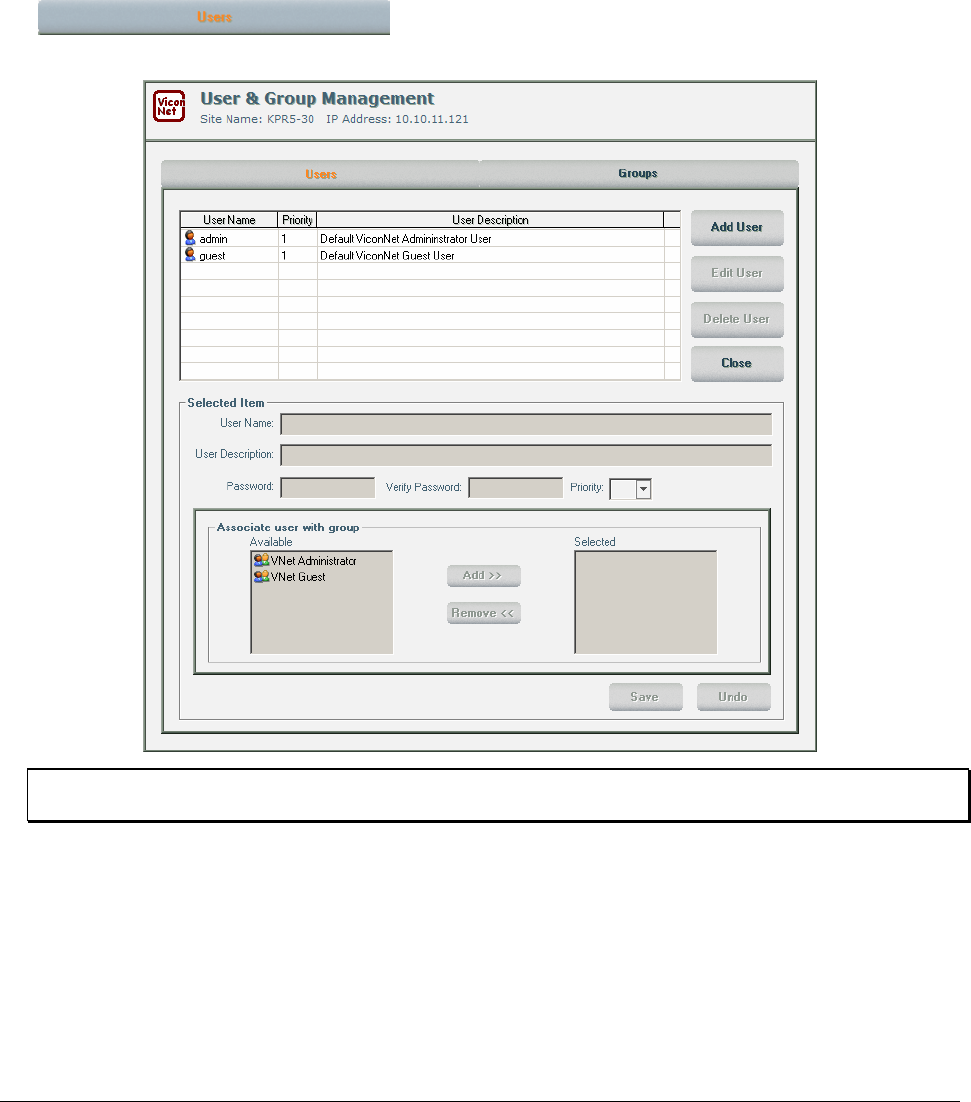
XX128-33-01 Rev 1206 Kollector Pro Network Digital Video Recorder Configuring the ViconNet System • 81
Defining Users
The ViconNet system enables you to categorize the specific users in your system into groups. Users must
be defined in the nucleus and can be seen in all the sites. You can then configure the site authorization for
each group of users, per site, depending on the system operations that you want them to be able to access.
To define a new user:
1. Perform steps 1 to 4 in Defining Groups, page 78, and ensure that the
option in the User & Group Management window is selected.
The User & Group Management window is displayed.
NOTE: When working in the User & Group Management window, you can click Undo to restore the
last saved settings, if required.
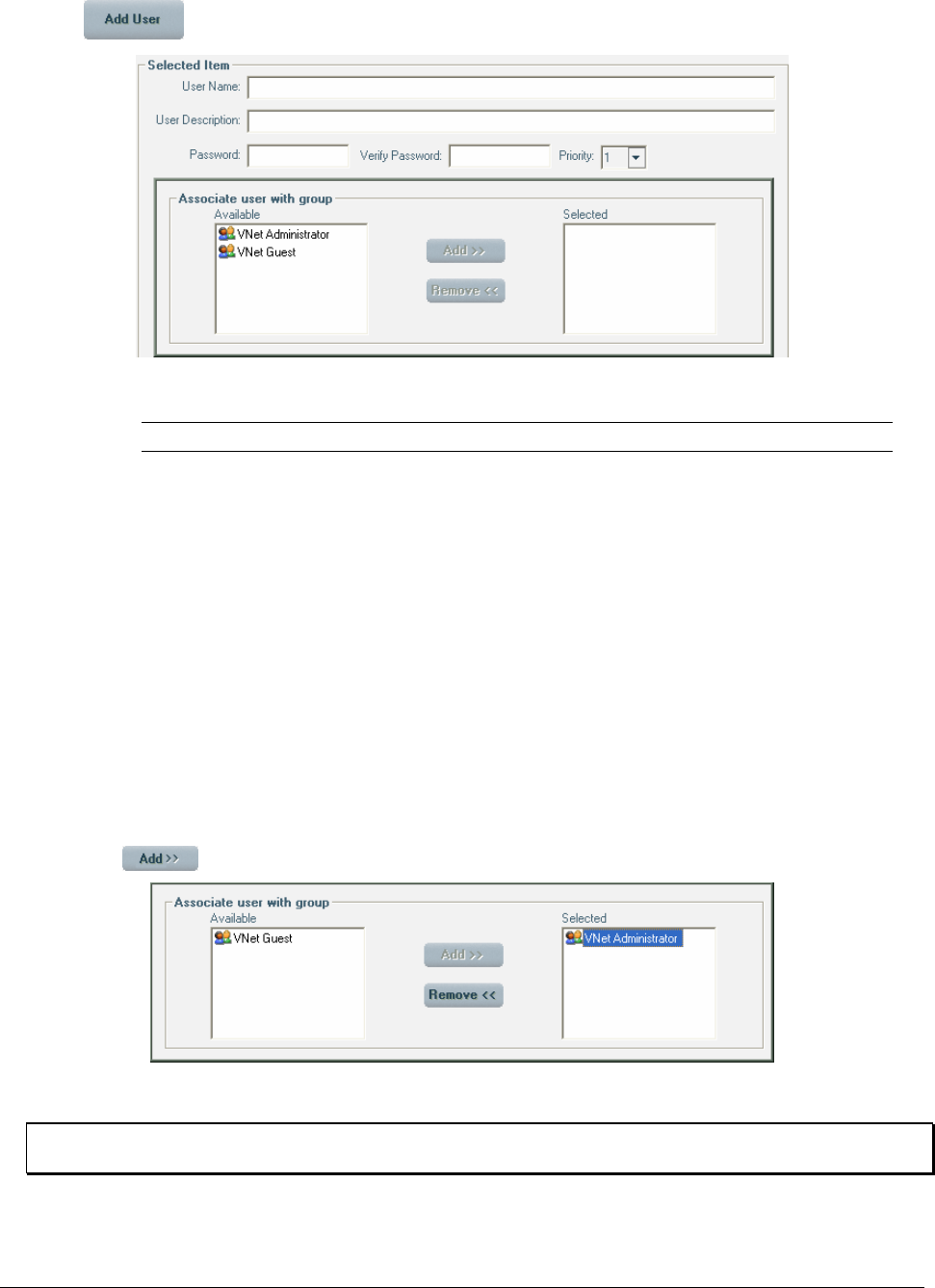
82 • Configuring the ViconNet System XX128-33-01 Rev 1206 Kollector Pro Network Digital Video Recorder
2. Click . The options in the bottom portion of the window are enabled, as follows:
3. Enter the user details, as follows:
Option Description
User name Type in a logical user name.
User description (Optional) Type in a description for the user, if required.
Password (Optional) Type in an alphanumeric password of up to any 32
characters.
Verify Password (Optional) Type in the same password that you entered in the
Password field.
Priority Select the user's priority in the system to resolve conflict situations,
for example, where a user requests or forces him/herself to be the
primary user (default = 1). For example, post alarm recording is
performed at the quality of the user/macro that has the highest
priority.
Refer to the Creating a Macro section for an example of use of user
priority.
4. In the Group Association section, select which group to assign the user from the Available area and
then click . The selected group is displayed in the Selected area.
5. To add the same user to another group, repeat step 4.
NOTE: You can remove a group from the Selected area by selecting it and then clicking Remove. The
group is redisplayed in the Available area.
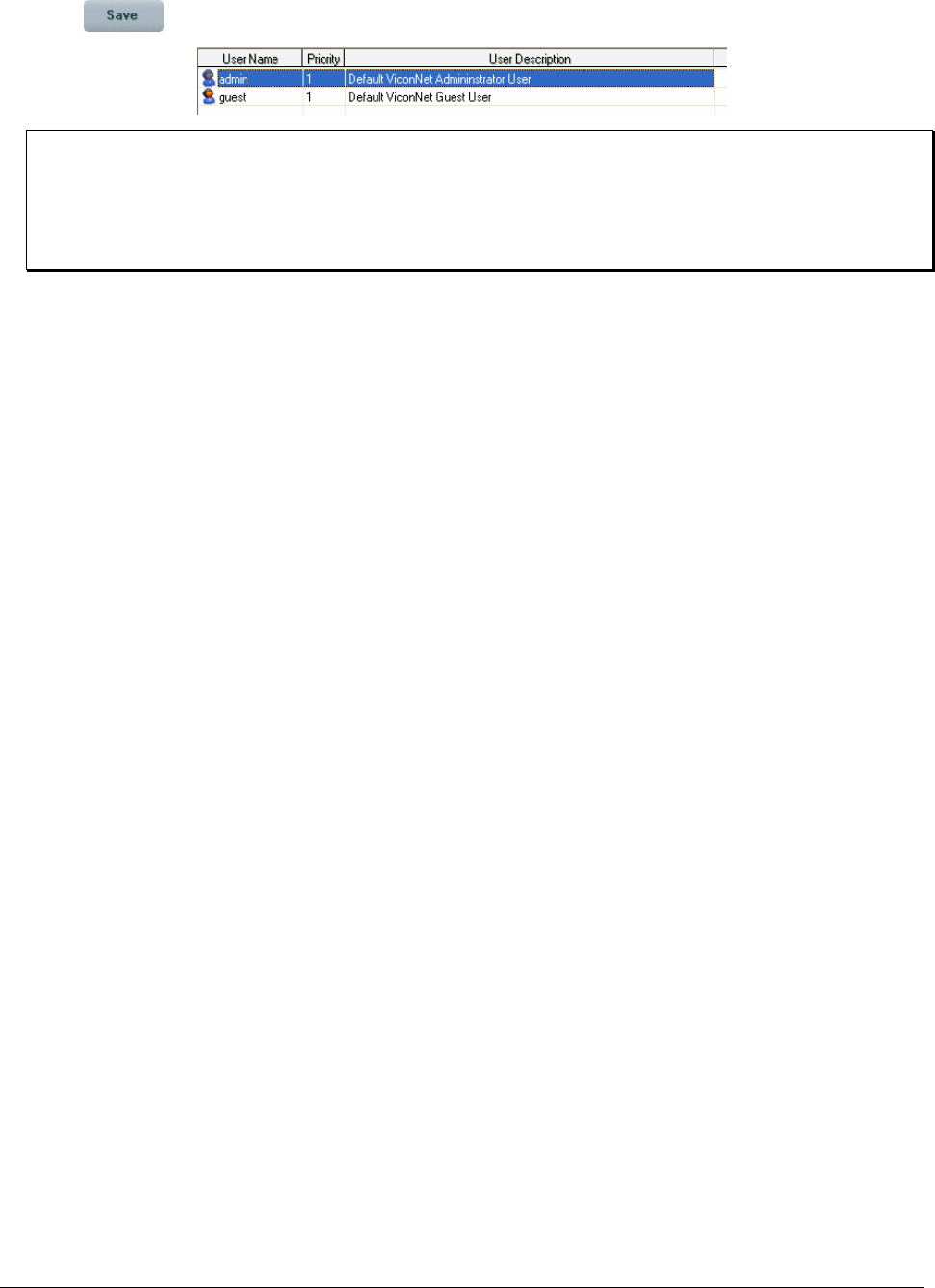
XX128-33-01 Rev 1206 Kollector Pro Network Digital Video Recorder Configuring the ViconNet System • 83
6. Click . The new user is added to the user list at the top of the window.
NOTES:
To edit a user, select the user from the list in the User & Group Management window and click Edit
User. Then modify the displayed settings, as described in the procedure above, and click Save.
To delete a user, select the user from the list in the User & Group Management window and click
Delete User.
7. To add additional users and their group assignments, repeat steps 2 to 6, as required.
You can now set the site authorization for each group of users that you have defined, as described in
Configuring Site Authorization, below.
84 • Configuring the ViconNet System XX128-33-01 Rev 1206 Kollector Pro Network Digital Video Recorder
Configuring Site Authorization
The ViconNet system enables you to define the site authorization for each group of users that you have
defined in the system. This consists of specifically defining which system operations can be accessed by
each group.
The system also provides the following two default groups:
• ViconNet Administrator: Users assigned to this group have authority to perform all system operations.
• ViconNet Guest: Users assigned to this group have authority only to log in, log out, and exit the
ViconNet application. Default values shown in entry fields may also be changed, if required. All other
options are disabled.
When configuring site authorization, each group is displayed in its own column along with a list of available
system operations. This enables you to set site authorization for one or multiple groups by selecting the
appropriate options in each column.
To configure site authorization:
1. From the ViconNet Main window, click . The Setup Site Selection window is displayed,
showing a list of all currently connected transmitters and Workstations, as shown on page 57.
2. Select your Kollector Pro and click . The System Settings window is displayed, as shown on
page 58.
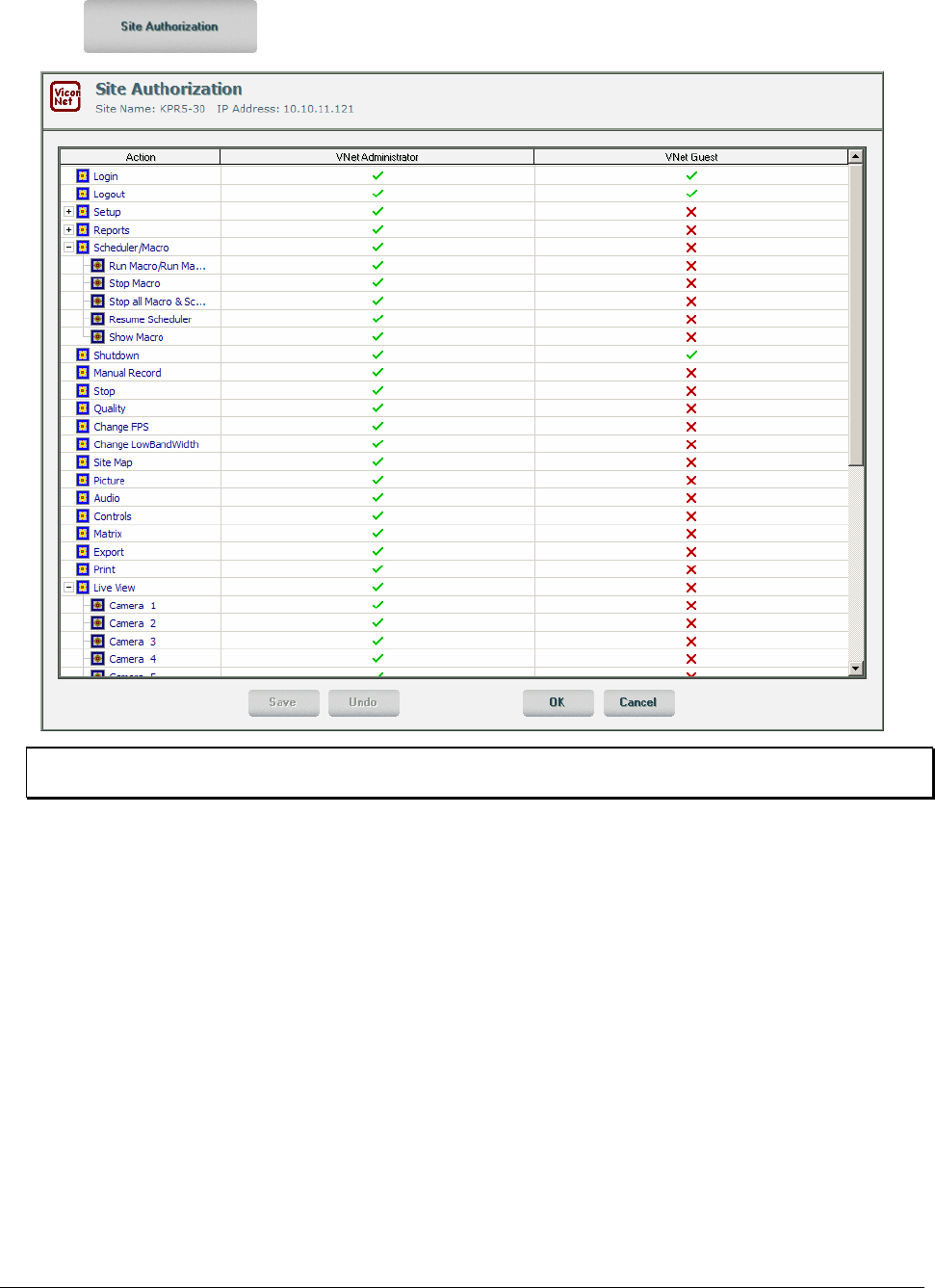
XX128-33-01 Rev 1206 Kollector Pro Network Digital Video Recorder Configuring the ViconNet System • 85
3. Click . The Site Authorization window is displayed, as shown below.
NOTE: When working in the Site Authorization window, you can click Undo to restore the last saved
settings, if required.
The Site Authorization window contains the two default groups (Administrator and Guest) as well as
all other groups currently defined in your system. The operations in the Administrator group cannot be
modified, but you can modify the operations in the Guest group, if required.
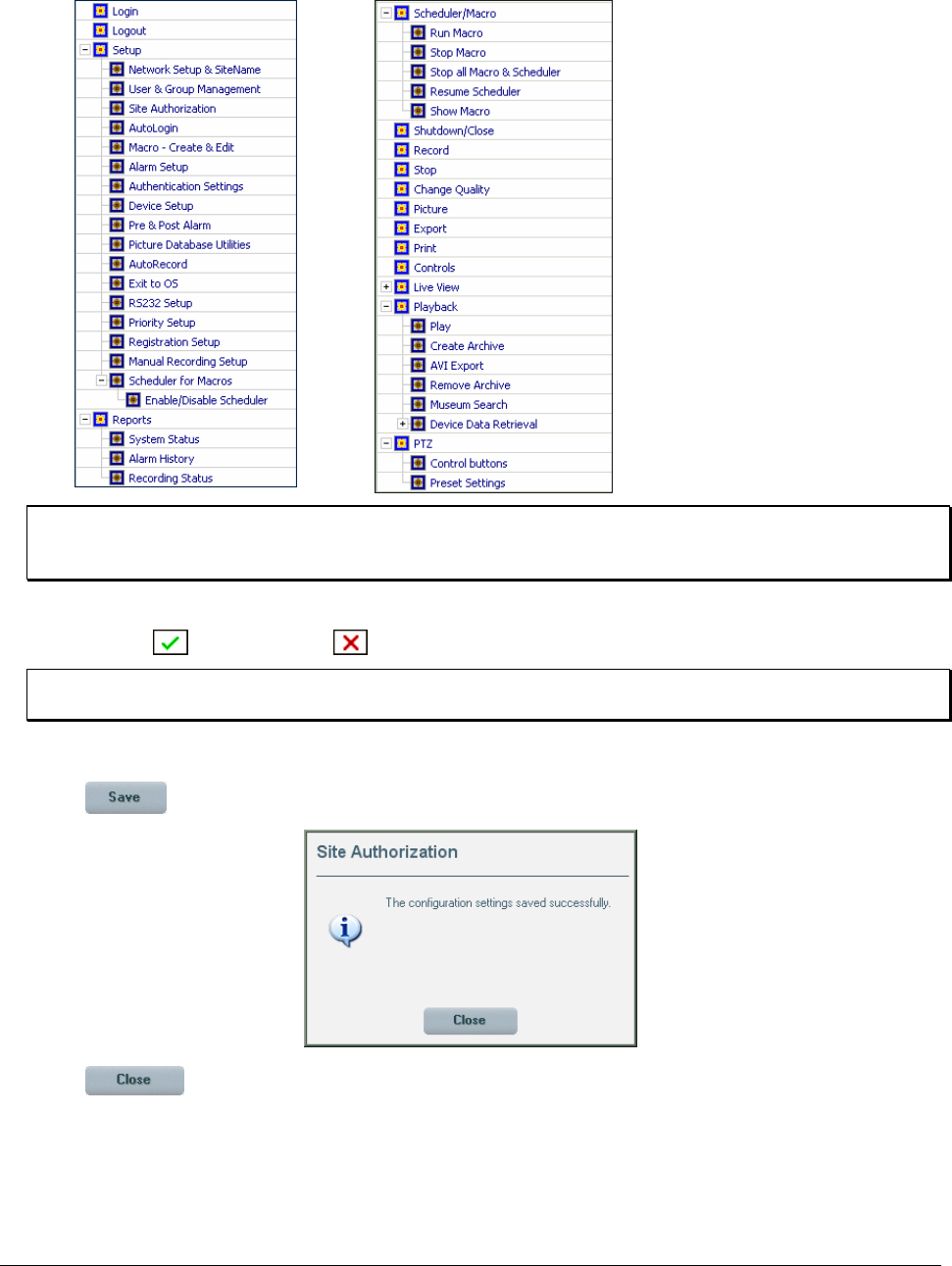
86 • Configuring the ViconNet System XX128-33-01 Rev 1206 Kollector Pro Network Digital Video Recorder
4. Expand the branches in the Action tree to view the categories, as required (see the examples below).
NOTE: The Live View action enables the users of an authorized group (see next step) unlimited
access to the specified device. (The actual feasibility of the device use depends on the device's
authorization for the relevant group.)
5. In the appropriate group column, define the system operations that you want authorized for that group
by selecting ( ) or deselecting ( ) the appropriate categories, as required.
NOTE: The Live View feature, as well as the Device Data Retrieval feature under the Playback
branch, are authorized on a per camera basis.
6. To restore the last saved settings, click Undo.
7. Click . The following message is displayed:
8. Click in the message.

XX128-33-01 Rev 1206 Kollector Pro Network Digital Video Recorder Configuring the ViconNet System • 87
9. In the Site Authorization window, either:
Click to save and exit,
or
Click to exit without saving.
NOTES:
If you click Cancel in the Site Authorization window before you click Save, a message is displayed,
prompting you to save your changes.
To edit the existing site authorization for a group, repeat the procedure above, select or deselect the
options, as required, and then save your changes.
IMPORTANT:
When replacing the nucleus of the system (by changing the Nucleus IP in the Network Settings window),
you must first redefine all the users and groups in the new nucleus. To do so:
1. Go to the site that is to be the new nucleus and manually define all the users and groups.
2. In all the sites connected to the current nucleus, change the Nucleus IP in the Network Settings
window to the IP of the new nucleus. In each site, the system will restart. Upon restart, the site will ask
you if you want to run a conversion (to put all the current site authorizations into the new nucleus).
3. Either:
Click Yes – site authorizations from the existing nucleus are saved in the new nucleus,
or,
Click No – site authorizations are lost and only the administrator and guests can log in to sites
connected to the new nucleus. In the Site Authorization window, all the rows appear with red crosses.
For other users to access the sites connected to the new nucleus, follow the To configure site
authorization procedure, as described on page 84, for each site.
IMPORTANT:
When joining a new nucleus with either a Workstation or Kollector recorder, the new user obtains a group
list from that nucleus. This group list (on the new unit) will have no privileges (meaning that by default, all
Actions are labeled with a red X). In order for the new user to obtain privileges in that group, a user must
login to the nucleus as an Administrator, locally or remotely, and enable the privileges (change the red Xs to
green checks) for that unit. This procedure must be repeated on all units in the system where group
privileges are required.
When joining a new nucleus with either a Workstation of Kollector recorder, the previously established
group privileges will be disabled on that unit when the "Nucleus" designation is removed. To restore those
privileges, the unit must disengage from the new nucleus unit and re-establish itself as a standalone
nucleus.
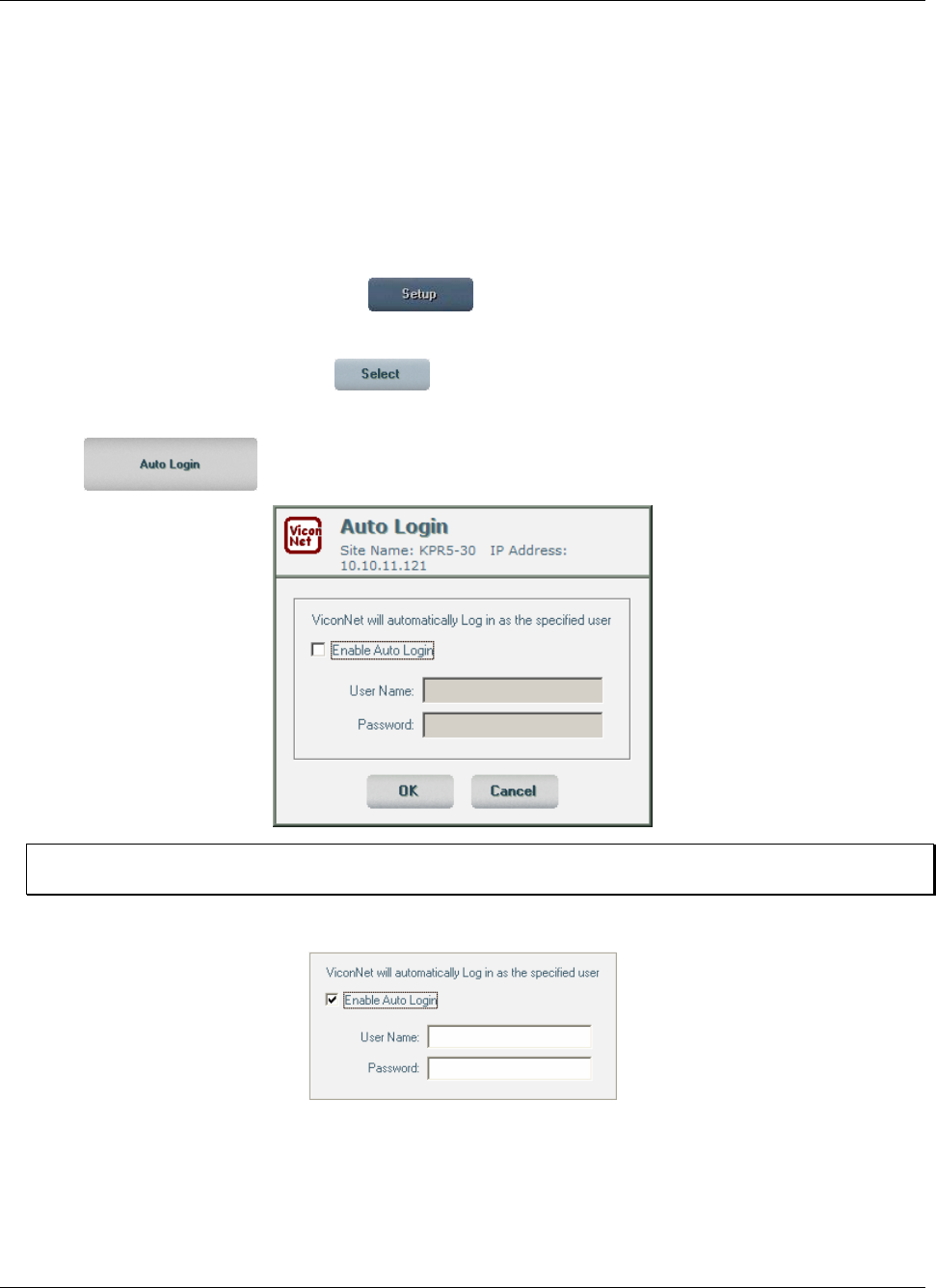
88 • Configuring the ViconNet System XX128-33-01 Rev 1206 Kollector Pro Network Digital Video Recorder
Configuring Auto Login
Any user with appropriate access authorization can configure the system to automatically log in selected
users. Afterwards, each time the application starts, the ViconNet Main window will display without the need
to enter a user name and password. (The regular Login procedure is described in the Logging In section in
Chapter 2, Getting to Know ViconNet.)
The user's Auto Login configuration can also be removed, as required.
To configure a user for Auto Login:
1. From the ViconNet Main window, click . The Setup Site Selection window is displayed, as
shown on page 57.
2. Select your Kollector Pro and click . The System Settings window is displayed, as shown on
page 58.
3. Click to display the Auto Login window.
NOTE: If Auto Login has already been defined for the user name, the window fields will show the user
name and 8 asterisks (********) in the Password field.
4. Select the Enable Auto Login checkbox to enable entering data to the window.
5. Enter the required user's user name and password in the applicable fields. (If you want to remove a
user's Auto Login configuration, delete the displayed entries or unclick the checkbox.)
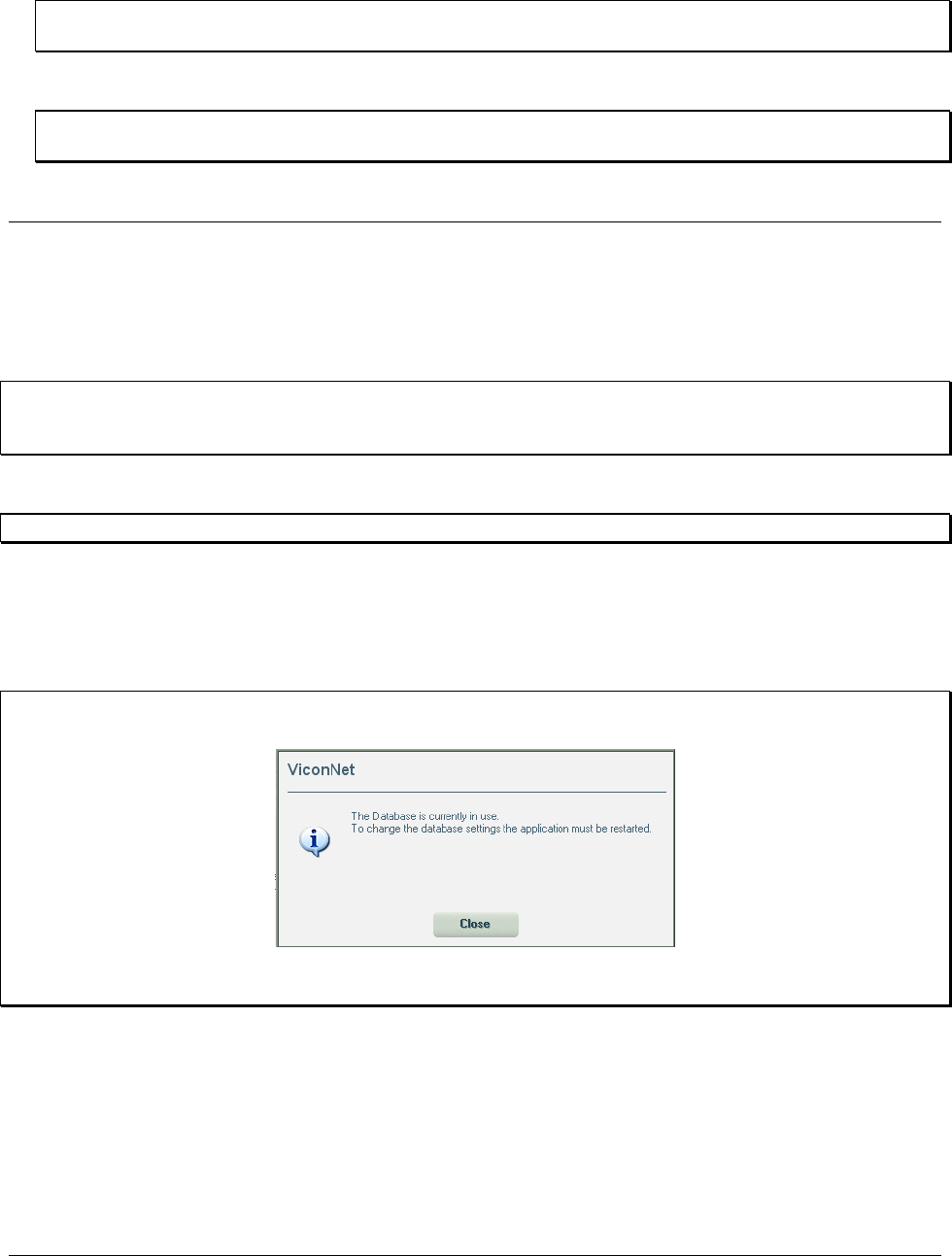
XX128-33-01 Rev 1206 Kollector Pro Network Digital Video Recorder Configuring the ViconNet System • 89
6. Click OK. The System Settings window is redisplayed.
NOTE: If the entered user name and password combination is not defined in the system, an error
message will be displayed. You should try the entries again.
The specified users will now be able to access the system without a login procedure.
NOTE: The Auto Login (or Auto Login removal) becomes operational only after the next restart of the
application by the Administrator user.
Configuring Storage Database Utilities
The ViconNet system enables you to configure the local storage locations of the Video and Audio database
in your system, depending on your requirements. Each storage location can be made up of a combination
of multiple disks (sections), depending on the number of available disks in the system.
IMPORTANT: When you add a disk to an existing storage location or enlarge the disk size, all recorded
data is retained. If you reduce the size of an existing storage location, all recorded data is
removed from the system.
When you run the ViconNet application for the first time, the default storage location settings are applicable.
NOTE: Storage database configuration can ONLY be performed locally.
This section describes how to configure or clear databases, as follows:
• Configuring Storage Locations, below
• Clearing Video and Audio Storage Locations, page 92
NOTE: To avoid damage to databases, if the current session involves recording (since the last reboot), the
Storage Database Utility is disabled. Otherwise, the following message is displayed:
In this case, disable auto recording and macro recording, restart the application and then select the
Storage Database Utilities option again.
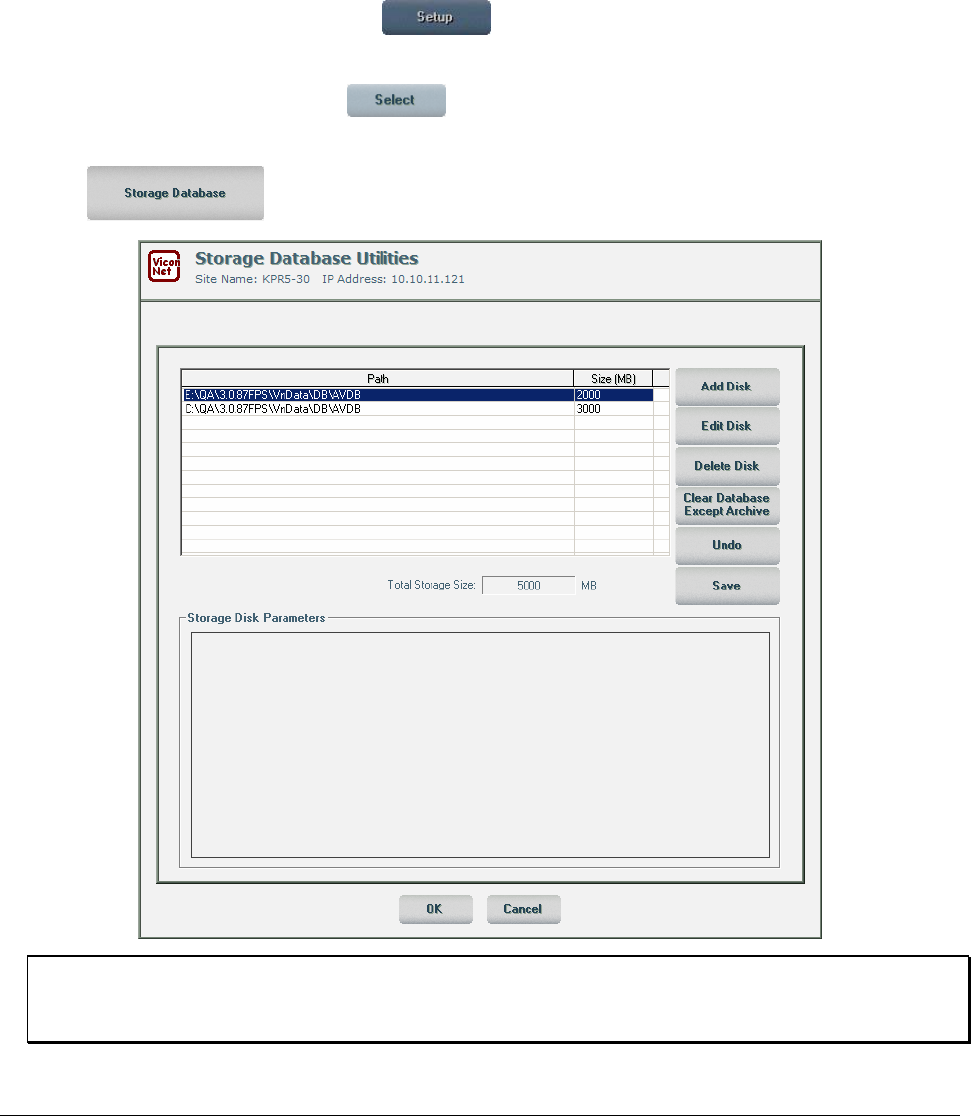
90 • Configuring the ViconNet System XX128-33-01 Rev 1206 Kollector Pro Network Digital Video Recorder
Configuring Storage Locations
Configuring a storage location consists of defining the actual location of the video/audio database. You
must also define the storage size of each storage location, depending on the available disk size.
This function is disabled while recording (manual, automatic, or macro-initiated) is currently in progress.
To configure Storage Database Utilities:
1. From the ViconNet Main window, click . The Setup Site Selection window is displayed, as
shown on page 57.
2. Select your Kollector Pro and click . The System Settings window is displayed, as shown on
page 58.
3. Click . The Storage Database Utilities window is displayed.
NOTES:
When working in the Storage Database Utilities window, you can click Undo to restore the last saved
settings, if required.
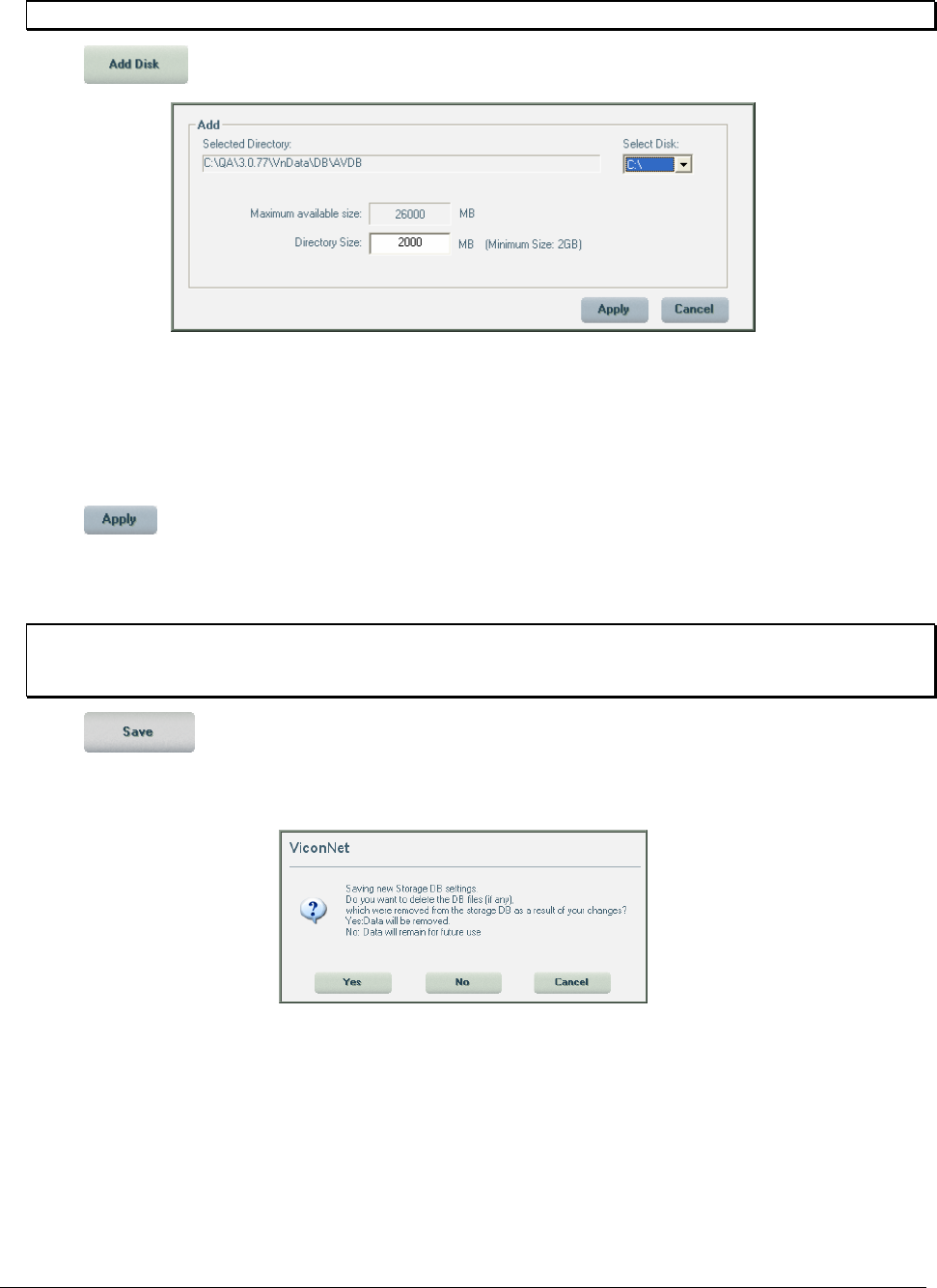
XX128-33-01 Rev 1206 Kollector Pro Network Digital Video Recorder Configuring the ViconNet System • 91
In addition, the options in the Storage Database Utilities window is disabled during remote setup.
4. Click . The bottom portion of the Storage Database Utilities window is enabled, as follows:
5. Click the arrow next to the Select Disk dropdown list and then select the required location.
The system automatically detects the Maximum Size of the selected directory, depending on the
available disk space. The default directory size is 2000 MB (which is also the minimum size).
6. In the Directory Size field, type in the required size (between the minimum and maximum).
7. Click in the bottom of the window. The new storage location information is added to the
storage location list at the top of the window.
8. To add an additional disk, repeat steps 4 to 8, as required.
NOTE: To edit a storage location, select the storage location from the list in the Storage Database
Utilities window and click Edit Disk. Then modify the displayed settings, as described in the
procedure above, and click Save.
9. Click on the right side of the storage location list. When saving a change to the size of the
database, data may be deleted (if database size is reduced). The confirmation message shown below
is displayed, to give you the option of either deleting any excess data or just hiding it.
10. Either:
• Click Yes to delete the data that does not fit in the new database, or
• Click No to hide the data that does not fit in the new database. (That means, the data files can still
be viewed from Windows Operating System, but you will not see them in the Vicon application. If in
the future the database is enlarged, the data files will again become visible.)
The data is deleted/hidden on a FIFO (First In First Out) basis (meaning that the oldest data is
deleted/hidden first).
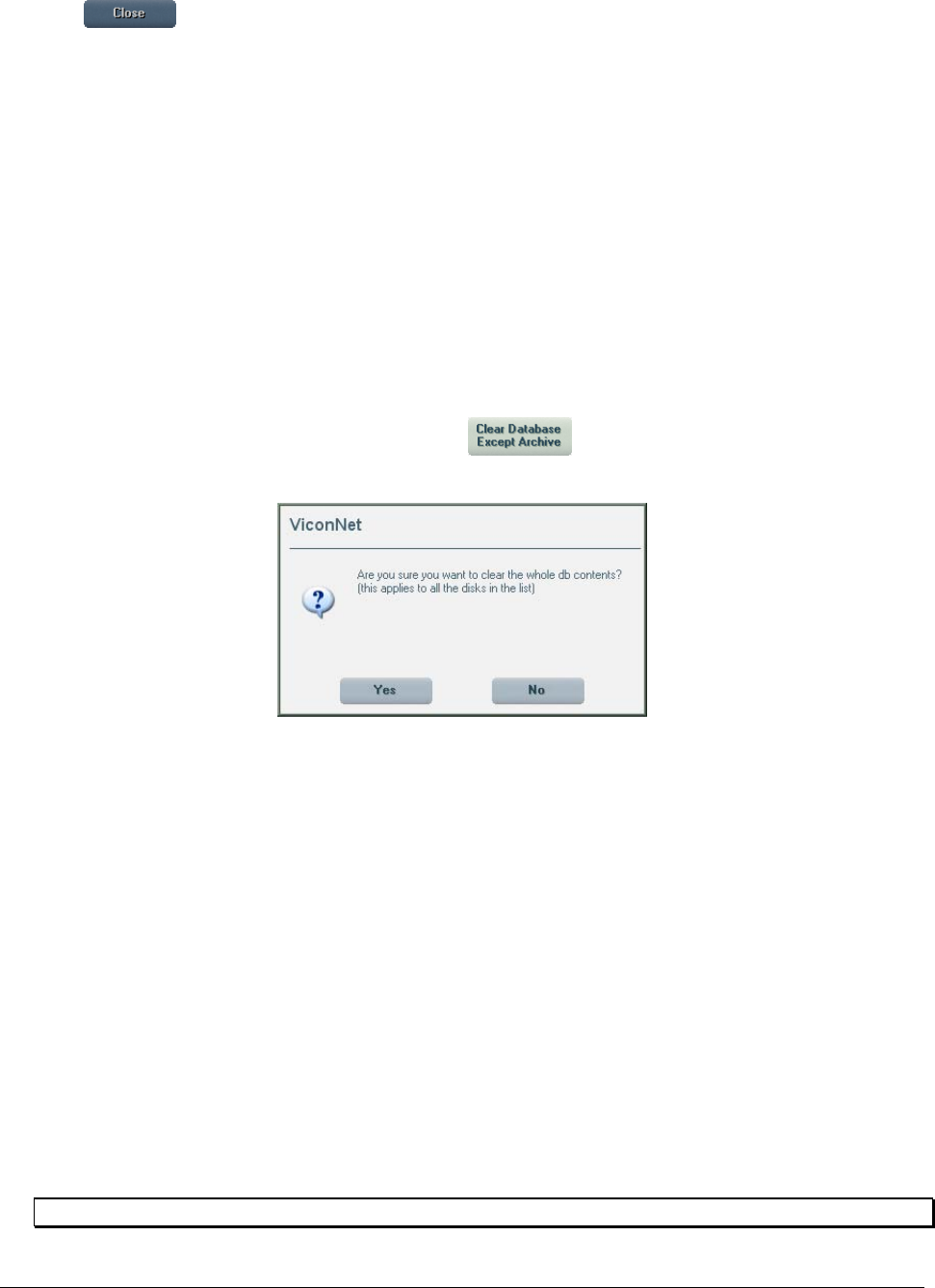
92 • Configuring the ViconNet System XX128-33-01 Rev 1206 Kollector Pro Network Digital Video Recorder
11. Click to confirm your changes.
Deleting Disks
Storage locations can be deleted if no longer required. To delete a storage location, select the storage
location from the list in the Storage Database Utilities window and click Delete Disk.
Clearing Video and Audio Storage Locations
The entire video and audio storage database can be cleared.
It is recommended that authorization to this function be assigned only to Administrator users.
To clear databases:
1. Repeat steps 1 to 3 of the Configuring Storage Locations procedure, page 89.
2. In the Storage Database Utilities window, click the button. (No selections are required
beyond the indicated defaults). The following confirmation window is displayed.
3. Click Yes to confirm the action. The selected database is cleared.
HD Mobility
The HD Mobility feature enables saving data from the hard disk of a malfunctioning Workstation or recorder,
(meaning, a recorder which has stopped working). This feature enables us to take the hard disk from the
malfunctioning recorder and insert it into a working recorder.
To restore data from a malfunctioning workstation or Kollector:
1. Disconnect the hard disk from the malfunctioning Kollector.
2. Insert the hard disk into a working site as an additional disk (meaning, not as part of the existing
storage configuration).
For example: If your storage configuration already consists of 2 hard disks C and E, you can add a disk
and map it to any disk drive whose name appears alphabetically after all existing disk drives (in this
case, after E).
Note: Ensure the working recorder has the option to connect additional disks.
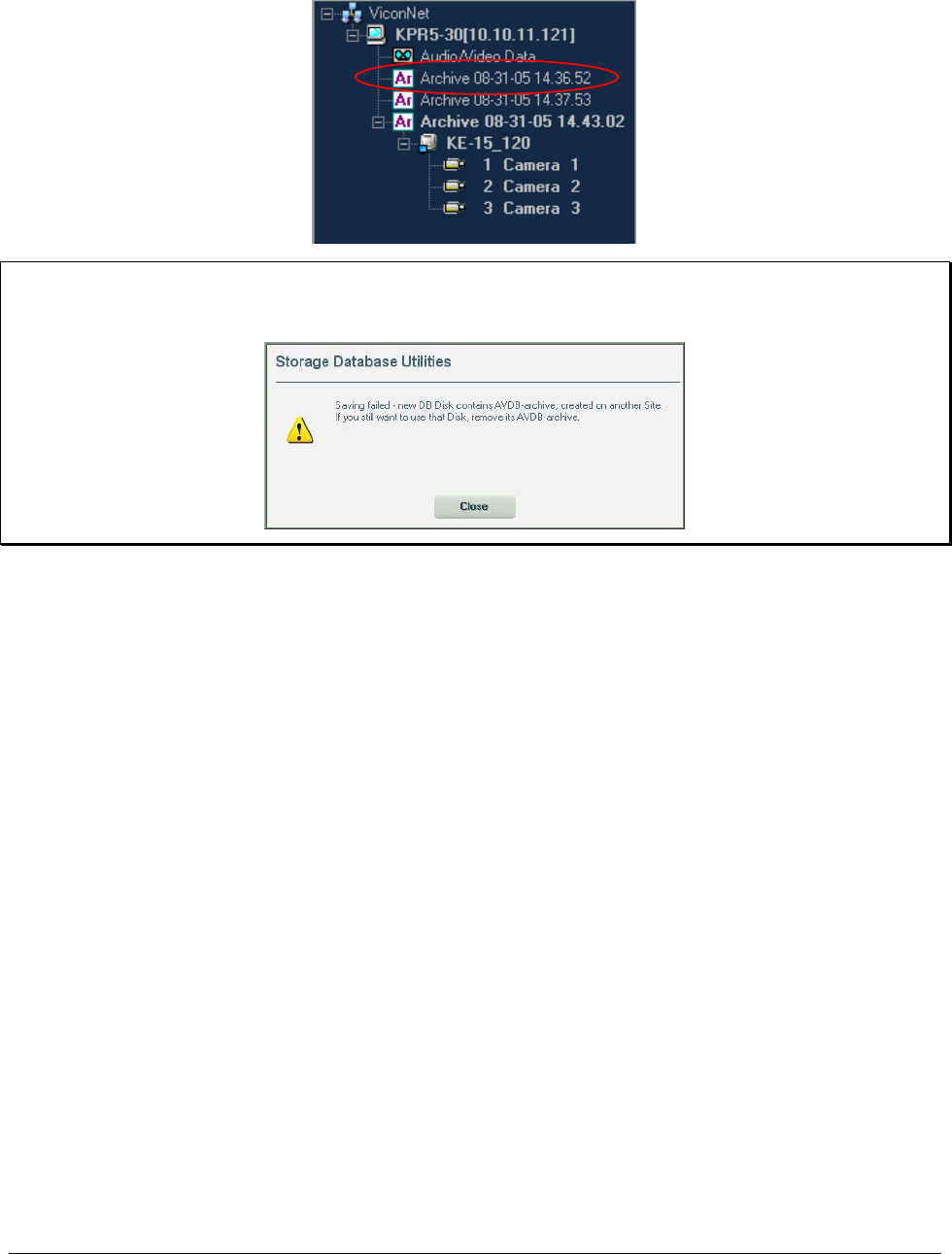
XX128-33-01 Rev 1206 Kollector Pro Network Digital Video Recorder Configuring the ViconNet System • 93
Once the hard disk is connected, it is recognized and displayed in the Navigator as an archive.
Note: Since this disk contains an external database, you cannot add it to the local database configuration
using the storage database utilities window in the setup. If you try to add it, you get the following
message:
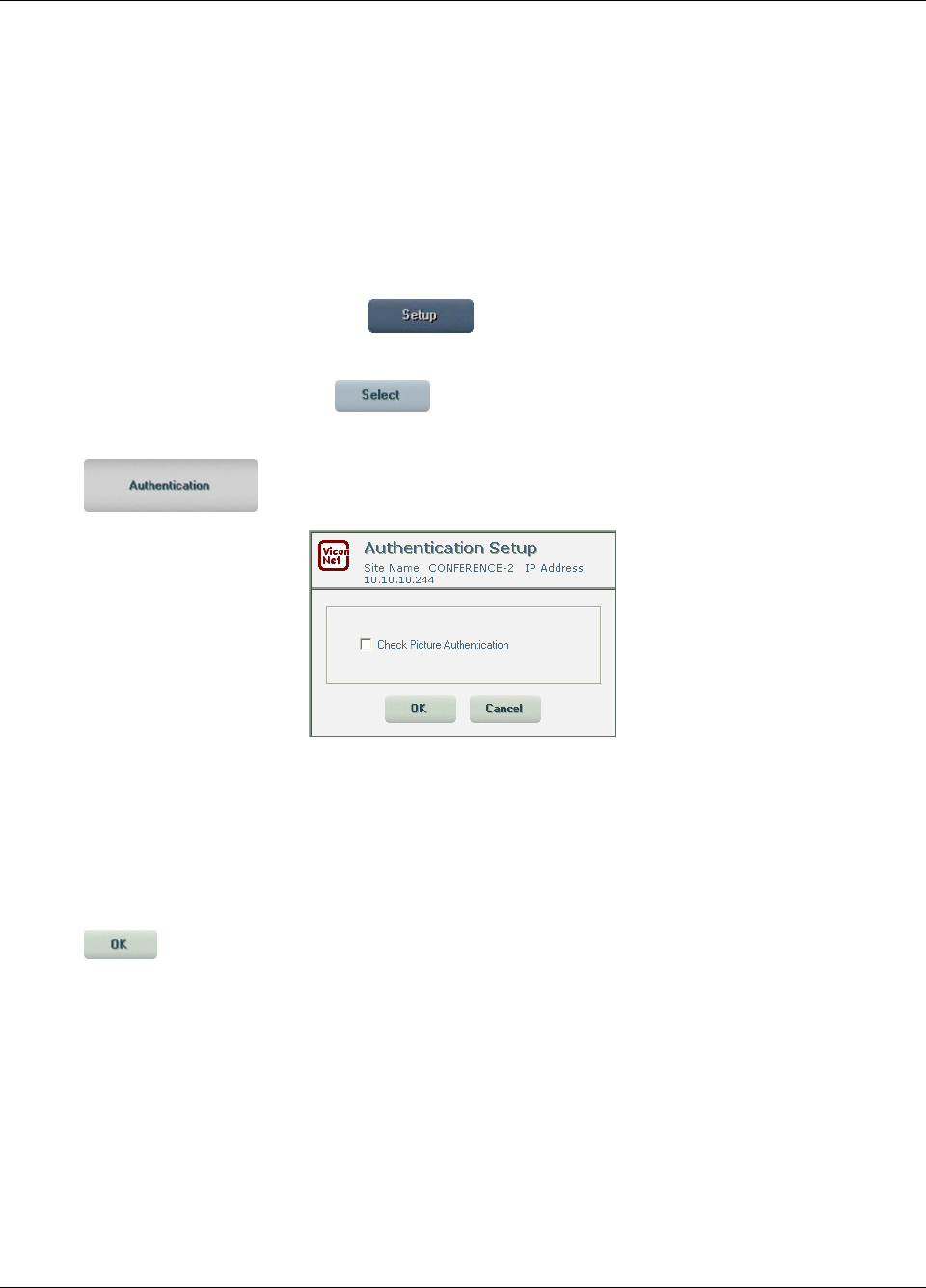
94 • Configuring the ViconNet System XX128-33-01 Rev 1206 Kollector Pro Network Digital Video Recorder
Configuring System Authentication
When the Check Picture Authentication feature is active, the ViconNet system automatically verifies that
live or played back ViconNet-produced videos were not tampered with. According to the results of the
verification, one of the following system authentication statuses is displayed on the video:
• Auth 9: Indicates the video segment has been confirmed as authentic.
• Auth X: Indicates that the authentication was checked properly but the results were poor and could not
be confirmed as authentic.
To view authentication results for video played on the destination site:
1. From the ViconNet Main window, click . The Setup Site Selection window is displayed, as
shown on page 57.
2. Select your Kollector Pro and click . The System Settings window is displayed, as shown on
page 58.
3. Click . The Authentication Setup window is displayed.
4. Select the Check Picture Authentication checkbox. This will activate the authentication reporting
mechanism in the video destination.
When you play back a video segment or watch live video, the system reports whether or not the video
is authentic. (When the Check Picture Authentication checkbox is deselected, authentication results
are not reported.)
5. Click to save your selection.
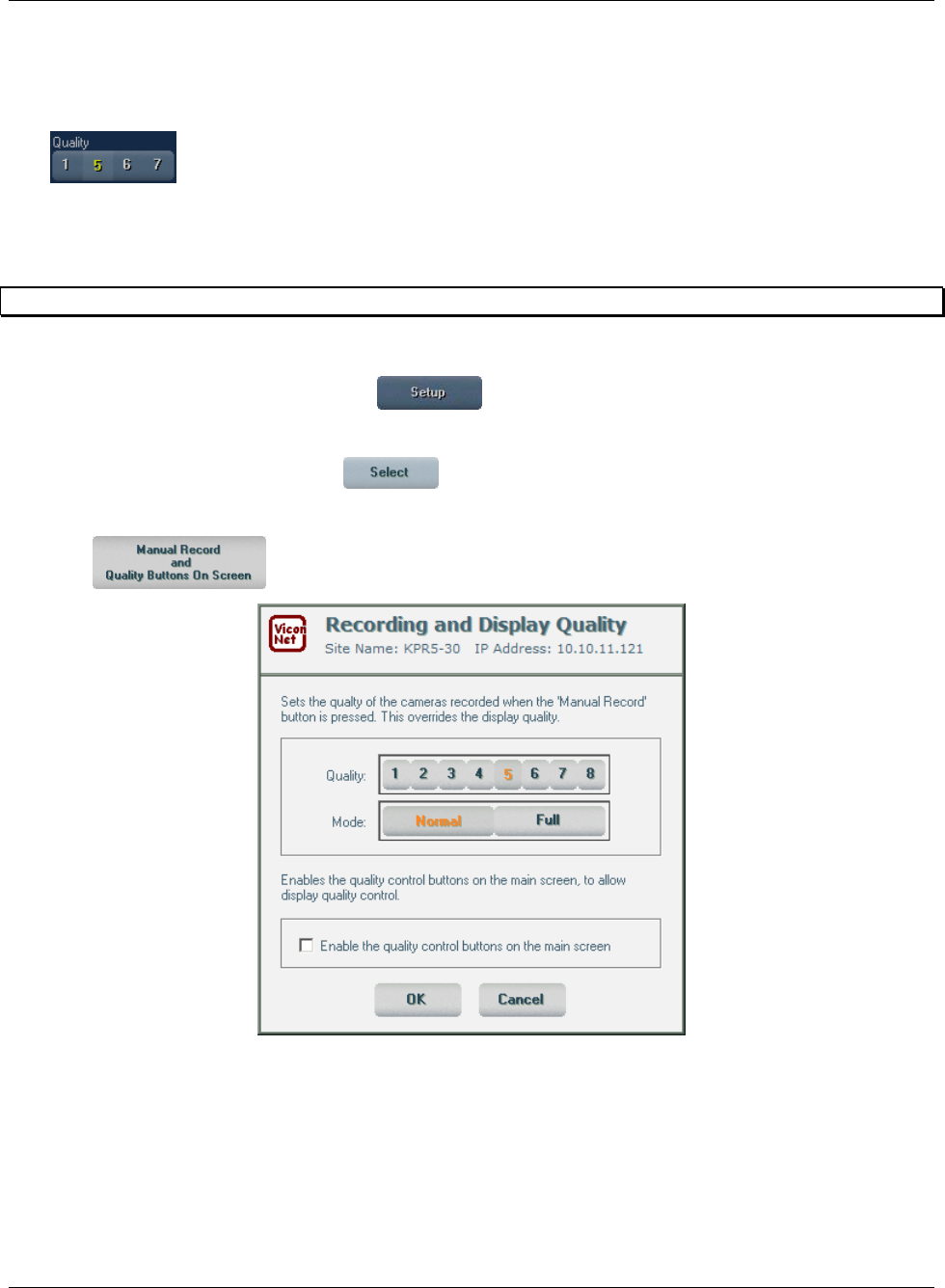
XX128-33-01 Rev 1206 Kollector Pro Network Digital Video Recorder Configuring the ViconNet System • 95
Configuring Manual Recording and Video Quality
The ViconNet system enables you to control the display quality that applies to manually initiated recording
by configuring the picture quality and refresh rate.
The buttons in the Main window Function Controls area can also be enabled, which allow
you to manually override the display mode-determined Live picture quality for the currently selected
camera. The qualities 1, 5, 6 and 7 are available for this purpose. (For more information, refer to the
Function Controls section in Chapter 2, Getting to Know ViconNet.)
NOTE: Changing the display mode after you manually select a quality will override your selection.
To configure manual recording:
1. From the ViconNet Main window, click . The Setup Site Selection window is displayed, as
shown on page 57.
2. Select your Kollector Pro and click . The System Settings window is displayed, as shown on
page 58.
3. Click . The Recording and Display Quality window is displayed.
96 • Configuring the ViconNet System XX128-33-01 Rev 1206 Kollector Pro Network Digital Video Recorder
4. Make the required Quality (picture quality) and Mode (refresh mode) selections, as follows:
Option Description
Quality The picture quality that you select determines the resolution at which the video
images will be recorded. Select the required picture quality from the range of one
to eight, where:
• 1 = best picture quality, but slowest data transmission.
• 8 = least clear picture quality, but fastest data transmission.
NOTE: When different recording options are requested concurrently, the
recorded picture quality that applies is determined according to
prioritization settings. For details, refer to the Picture Quality and
FPS Priority section, page 118.
Mode The refresh mode determines the rate that the frames will be refreshed during the
recording. Select the required refresh mode, as follows:
• Normal: Records only changes within the frames, resulting in an economic
storage location process. This option enables you to view the recorded video
at a high frame per second rate, depending on the magnitude and number of
changes.
• Full: Records full video image frames. During the recording operation, this
refresh mode causes the selected storage location to fill up at a faster rate.
NOTE: For additional details about picture quality and refresh mode in recording vs. playback, refer to
the About Picture Quality and Refresh Mode section in Chapter 2, Getting to Know ViconNet.
5. In order to enable the buttons in the Main window Function Controls area, select the
Enable Quality Control Buttons checkbox.
6. Click OK to save the Quality and Mode settings for manual recording.
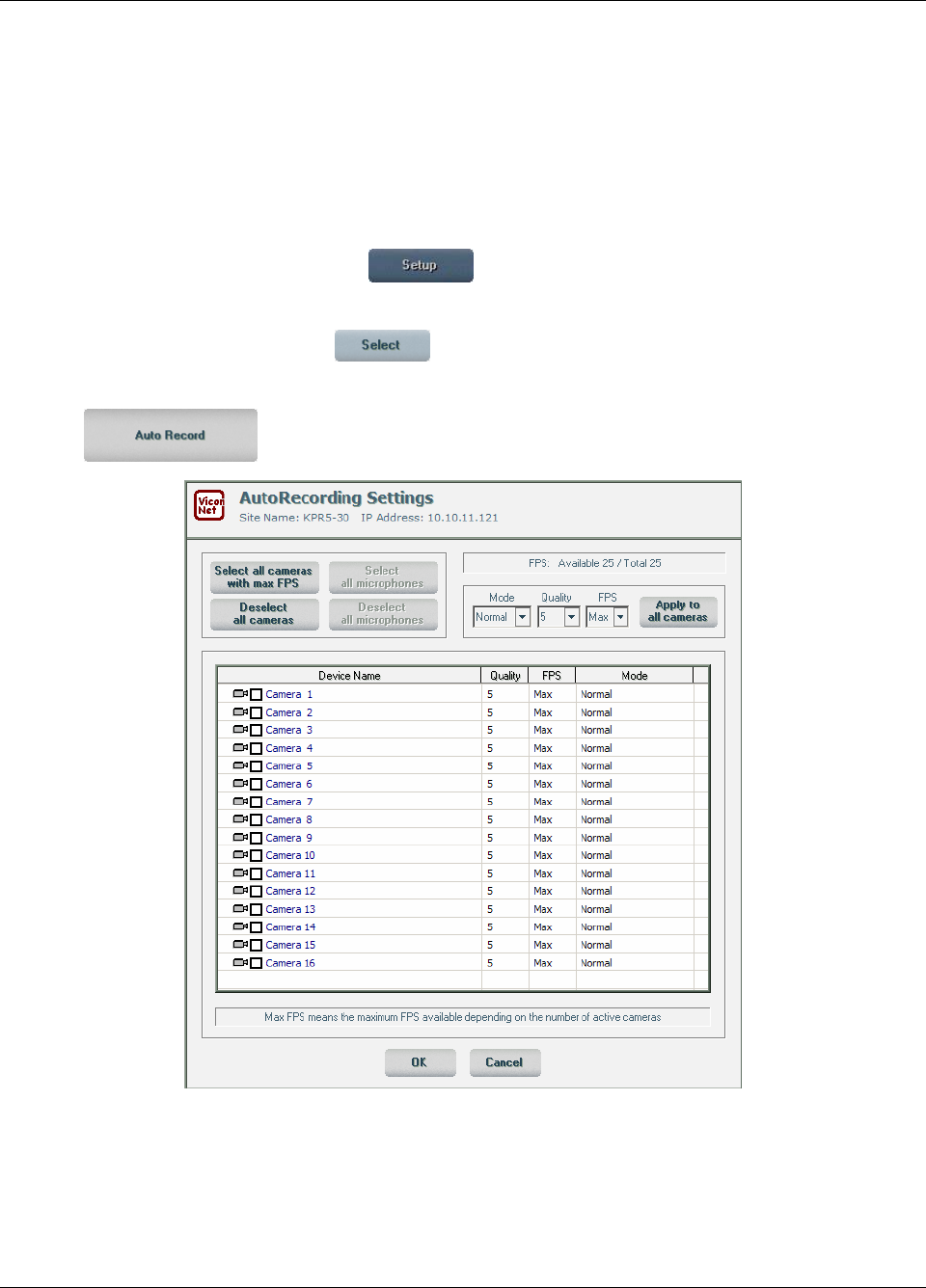
XX128-33-01 Rev 1206 Kollector Pro Network Digital Video Recorder Configuring the ViconNet System • 97
Configuring Automatic Recording
The ViconNet system enables you to configure automatic recording, which instructs the system to begin
recording a selection of connected cameras as soon as the ViconNet application is started.
Configuring automatic recording consists of selecting the cameras that will perform automatic recording and
selecting the recording settings (video quality, FPS, and refresh mode).
To configure automatic recording:
1. From the ViconNet Main window, click . The Setup Site Selection window is displayed, as
shown on page 57.
2. Select your Kollector Pro and click . The System Settings window is displayed, as shown on
page 58.
3. Click . The AutoRecording Settings window is displayed.
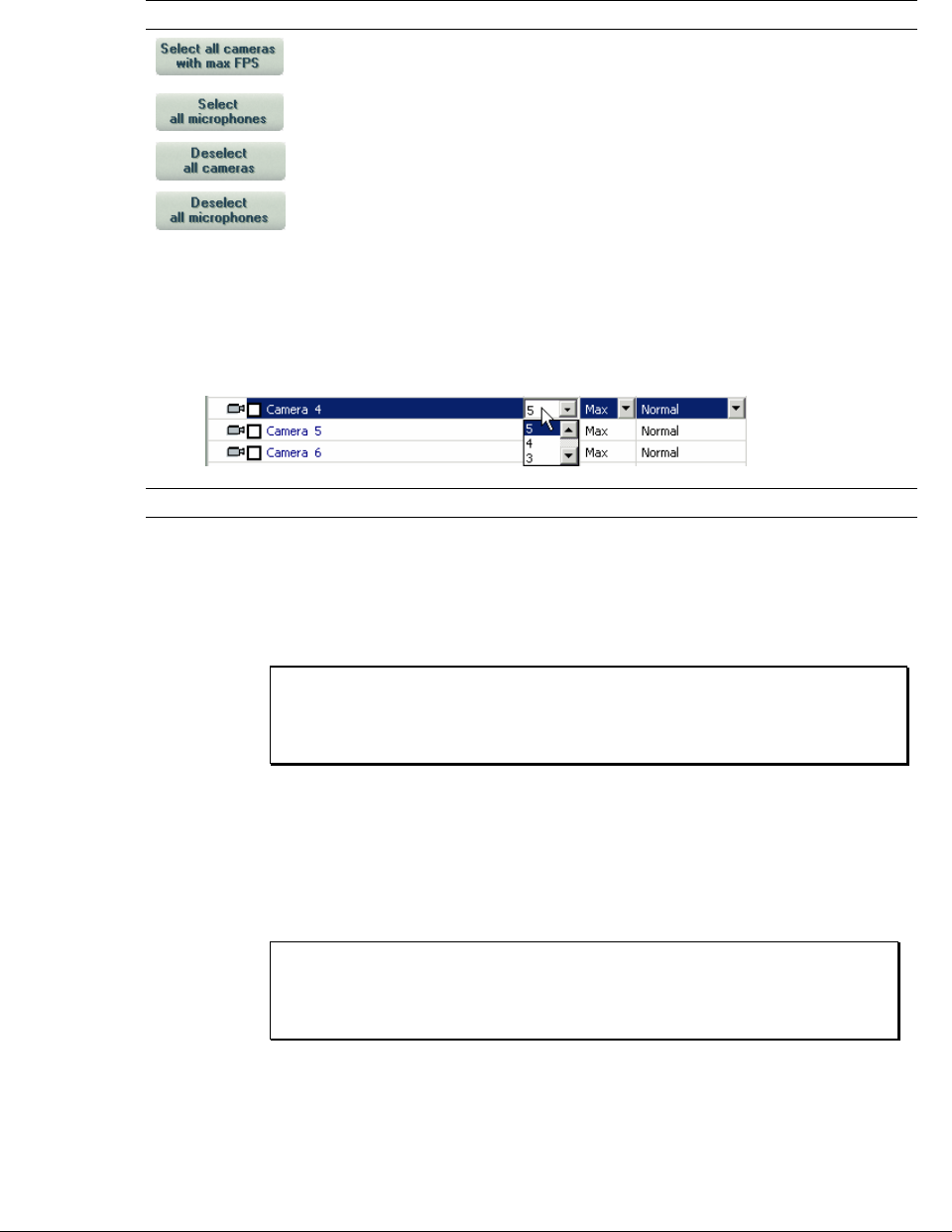
98 • Configuring the ViconNet System XX128-33-01 Rev 1206 Kollector Pro Network Digital Video Recorder
4. Select the required cameras to be configured for auto recording by selecting their checkboxes.
You can select or deselect all the cameras at once by clicking the respective option, as follows:
Option Description
All local cameras will begin recording automatically as soon as the
ViconNet application starts, according to the selected recording settings.
This option is disabled in the Kollector Pro and Kollector Network Server.
Cameras will not record automatically when ViconNet application starts.
This option is disabled in the Kollector Pro and Kollector Network Server.
After selecting all cameras with max FPS you can deselect individual devices that are not required by
clicking their checkboxes.
5. Select the required Video settings for each selected device. (Dropdown lists are enabled when a device
line is selected.)
Option Description
Quality The picture quality that you select determines the resolution at which the video
images will be recorded. Select the required picture quality from the range of
one to eight, where:
• 1 = best picture quality but slowest data transmission.
• 8 = least clear picture quality but fastest data transmission.
NOTE: When different recording options are requested concurrently,
the recorded picture quality that applies is determined
according to prioritization settings. For details, refer to the
Picture Quality and FPS Priority section, page 118.
FPS Select the required frames per second (the rate at which the live video
segments are recorded/displayed) from the following ranges:
• NTSC: 1-30
• PAL: 1-25
• Max: Sets the frames per second rate to the maximum available from the
system.
NOTE: When different recording options are requested concurrently,
the recorded FPS that applies is determined according to
prioritization settings. For details, refer to the Picture Quality
and FPS Priority section, page 118.
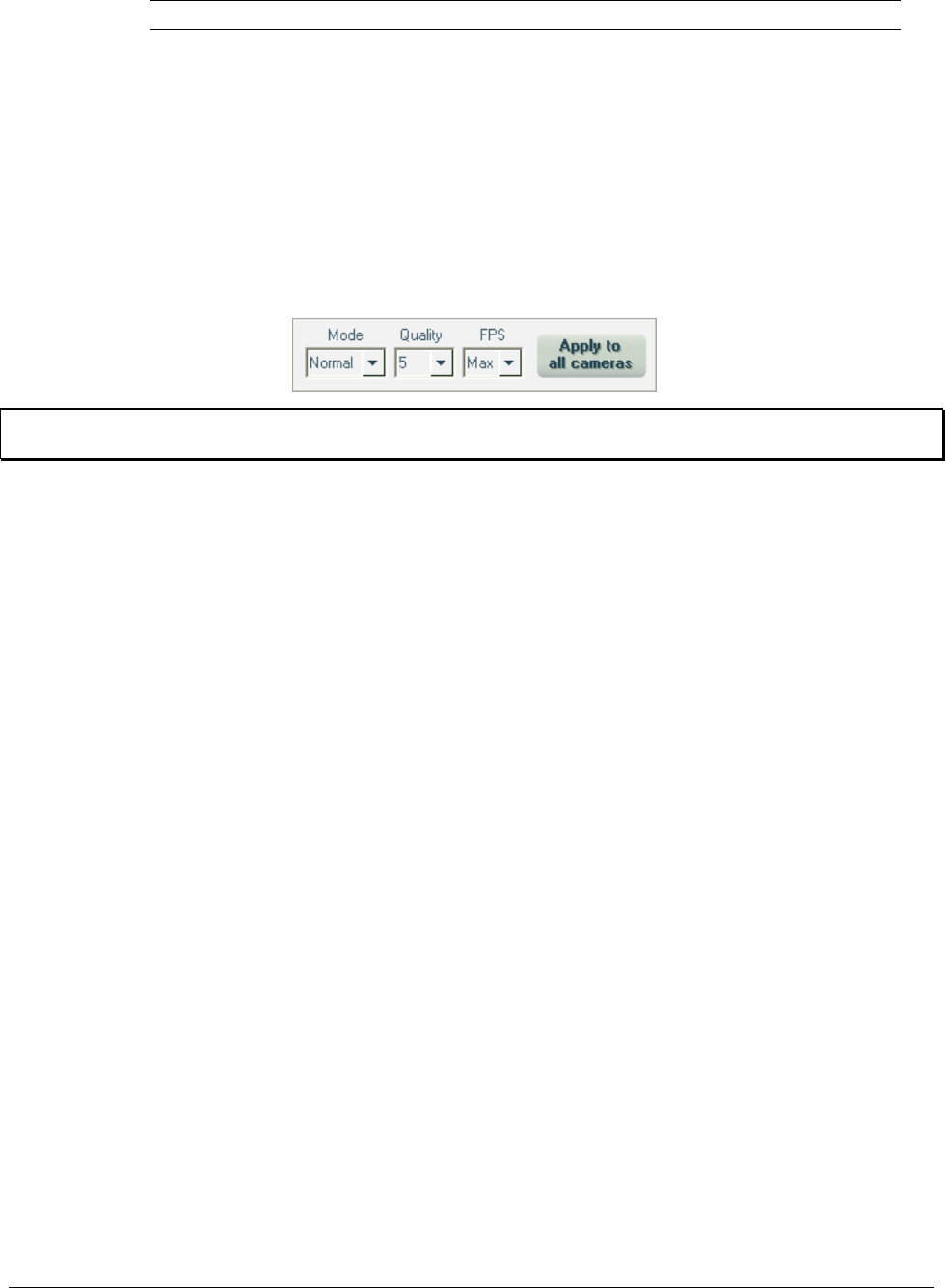
XX128-33-01 Rev 1206 Kollector Pro Network Digital Video Recorder Configuring the ViconNet System • 99
Option Description
Mode The Mode (refresh mode) determines the rate at which the frames are
refreshed during the recording. Select the required refresh mode, as follows:
• Normal: Records only changes within the frames, resulting in an economic
storage location process. This option enables you to view the recorded
video at a high frame-per-second rate, depending on the magnitude and
number of changes.
• Full: Records full video image frames. During the recording operation, this
refresh mode causes the selected storage location to fill up at a faster rate.
To set identical Mode, Quality and FPS for all cameras, select the correct values from the dropdown
boxes at the top of the Auto Recording Setup window and click Apply to all cameras.
NOTE: For additional details about picture quality and refresh mode in recording vs. playback, refer to the
About Picture Quality and Refresh Mode section in Chapter 2, Getting to Know ViconNet.

100 • Configuring the ViconNet System XX128-33-01 Rev 1206 Kollector Pro Network Digital Video Recorder
Configuring Auto/Manual FPS (Frames Per Second)
The purpose of the Auto/Manual FPS feature is to enable the user to determine the FPS for each camera.
Here, the user can select whether the FPS distribution to the DSPs (Digital Signal Processors) is automatic
or manual. The default setting for FPS is automatic.
NOTE: Digital Signal Processing is a method of digitally processing signals that are converted from analog
form.
The maximum FPS that can be assigned to any specific DSP is 25 for PAL format and 30 for NTSC format.
If the total FPS for two cameras assigned to the same DSP is above this maximum, and Auto FPS is
selected, the FPS on one or more cameras will be reduced to the amount of FPS available.
Example (NTSC format)
Camera 1 and camera 5 are assigned to a specific DSP. If camera 1 has 20 FPS configured, and camera 5
has 20 FPS configured, and Auto FPS is selected, then the FPS for camera 5 will be cut to 10.
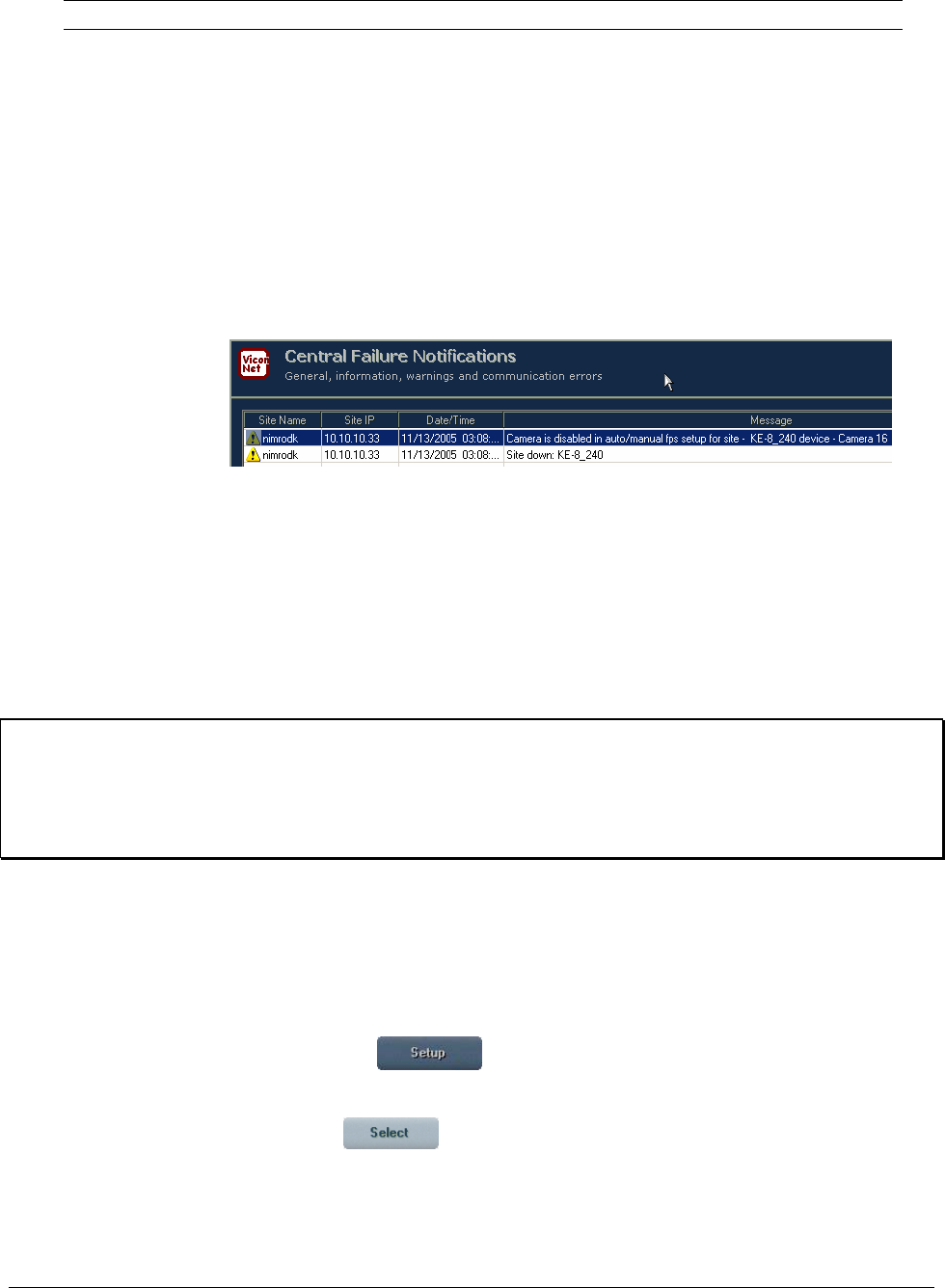
XX128-33-01 Rev 1206 Kollector Pro Network Digital Video Recorder Configuring the ViconNet System • 101
Column Description
Camera Name The camera for which the FPS is being defined.
DSP The DSP to which the camera is assigned.
The number of DSPs depends on the type of Kollector. For example, KP-120 has a
maximum of 120 frames. Each DSP has a maximum of 30 frames, so if, for example
the site is a KP-120, it offers DSPs 1-4. Select the required DSP. The system will
prevent adding too many cameras to a DSP (in this case 4 as 4x30 =120)
FPS The number of FPS of the camera.
In manual FPS configuration, a camera can also be disabled by selecting disable in
this column. If a user tries to record with the disabled camera, or open it live, the
following notification is displayed.
Use Remainder If selected, the system will automatically use all the remaining FPS for the specified
DSP (default = selected).
Automatic FPS
When configuring macro recording, auto recording and pre/post alarms in their respective windows
(meaning, all windows which configure cameras for recording), the cameras are distributed to the DSPs and
are automatically assigned FPS, according to a preset algorithm (meaning that you do not control the
distribution of the FPS to the DSPs).
NOTES:
If the FPS configuration is set to Auto FPS, the FPS obtained for a camera may be different to that which
was specified in a specific window (see above examples).
In the Auto Record window, the camera assignment to DSPs is cyclic, meaning camera 1 goes to DSP 1,
camera 2 to DSP 2, camera 3 to DSP 3, and so on.
Example.
If the site is a KP-120, there will be 4 DSPs and each one will have 30 FPS. The cameras will be distributed
evenly between the DSPs.
To select automatic FPS configuration:
1. From the ViconNet Main window, click . The Setup Site Selection window is displayed,
showing a list of all currently connected transmitters and Workstations, as shown on page 57.
2. Select your Kollector Pro and click . The System Settings window is displayed, as shown on
page 58.
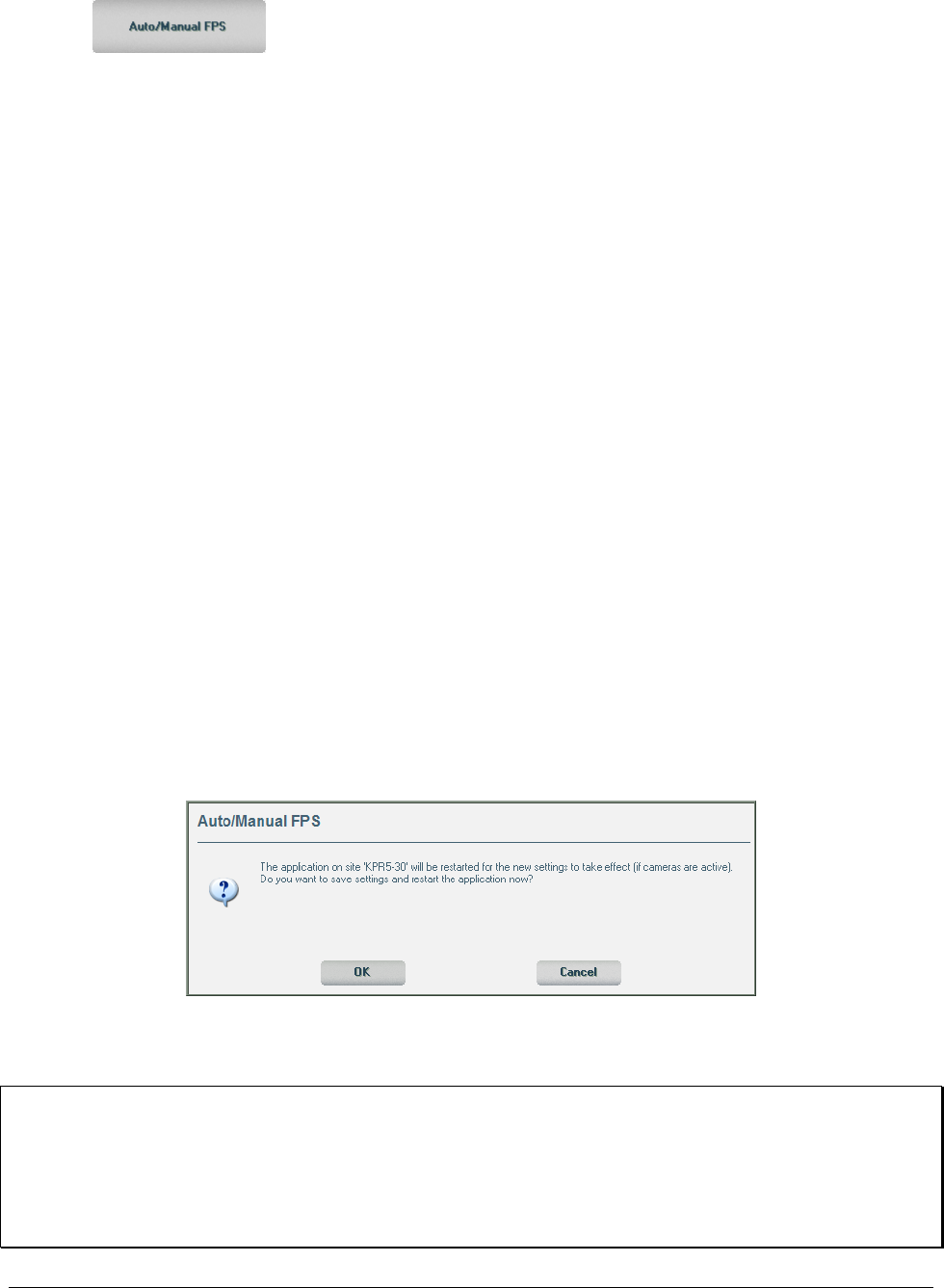
102 • Configuring the ViconNet System XX128-33-01 Rev 1206 Kollector Pro Network Digital Video Recorder
3. Click . The Auto/Manual FPS window is displayed.
4. Select the Auto FPS checkbox.
5. Click OK.
Manual FPS
If you do not want to distribute the FPS equally between the DSPs and the cameras (using the default
algorithm), you can manually set the FPS configuration. In manual FPS configuration, the cameras are
assigned FPS per compression DSP, meaning that you set each camera to a specific DSP, with the
required FPS (up to the maximum available for each DSP).
Example
If a system has four DSPs and eight cameras, and has Auto FPS selected, the camera distribution will be
cameras 1 and 5 to DSP1, cameras 2 and 6 to DSP2, cameras 3 and 7 to DSP 3 and cameras 4 and 8 to
DSP 8. When Manual FPS is selected, if DSPs 1 and 2 do not have enough FPS available, the user can
decide that cameras 5 and 6 will not be assigned to DSP 3 or 4. In this case, the number of FPS is not cut,
and the number of FPS requested in auto record can be implemented.
To select manual FPS configuration:
1. Follow steps 1-3 in the procedure To select automatic FPS configurations, above.
2. Select the Manual FPS checkbox. The list of cameras is enabled.
3. One by one, select the required DSP and FPS for each camera.
4. Click OK. The following message is displayed, warning that the changes will take effect once the
application is restarted (if the cameras are active).
5. Click OK. The manual settings are saved and the manual FPS set here, in the Auto/Manual FPS
window, overrides all FPS settings in other windows.
NOTES:
If the settings in the Auto/Manual FPS window are changed, ALL recording and live video are performed
with the new settings.
If low bandwidth is selected in the site, and manual FPS is selected, the FPS will not be higher (as it would
with low bandwidth and Auto FPS). The FPS will remain the same as with normal bandwidth, meaning, in
this case, low bandwidth will only reduce the bps (bits per second).

XX128-33-01 Rev 1206 Kollector Pro Network Digital Video Recorder Configuring the ViconNet System • 103
Using the Recording Verification System (RVS)
Automatic recording and scheduled macros are two of the Kollector Pro's most important features. The RVS
mechanism ensures continuous recording by notifying users of any recording errors. It monitors local
automatic recording activity (video) at all times.
NOTE: The RVS mechanism operates only on sites using version 2.18 or higher.
The RVS includes a feature in which the RVS causes the system to reboot under specific conditions. The
conditions for this to happen are:
• Two identical RVS messages occur, within 12 hours, and
• The RVS messages indicate problems on the local site, and
• Auto Record is enabled
After a reboot has occurred, 24 hours must pass before another RVS-induced reboot can occur.
The RVS mechanism handles the following types of recording errors:
Error Type Message Displayed Explanation
Connection Verified site does not exist This error is triggered when trying to verify
a site that does not appear in the site list.
This could be the result of changing the
nucleus or the verified site's IP.
Cannot get RVS settings This error is caused by a communication
problem within the system - the RVS
settings could not be retrieved.
Cannot get scheduler settings This error is caused by a communication
problem within the system - the scheduler
settings could not be retrieved.
The verified site doesn't respond to
RVS requests
Although connection with the transmitter
has been established, it does not respond
to the RVS mechanism's requests – the
verified site is disconnected or is running
with another version. (This may happen if
the nucleus IP was changed. To correct
this problem, go to the RVS setup and
follow the instructions in the popup
message received (to view the message,
refer to NOTES, page 106).
Could not connect to site A remote verified site could not be
contacted because it is disconnected/down.
104 • Configuring the ViconNet System XX128-33-01 Rev 1206 Kollector Pro Network Digital Video Recorder
Error Type Message Displayed Explanation
Communication Problem - Could not
connect to site
This error is triggered when the source or
the destination of the recording camera is
disconnected, but the verification is done
on the local site.
Audio Video loss – check device
signal
Although the specific camera appears in
the auto record or scheduled macro device
list, it is not connected to the transmitter.
Record Recording failure – data not found No frame was found at the location that the
RVS was looking in the database.
No devices are assigned in the site
for recording
No automatic recording or scheduled
macros are configured in the verified site.
NOTE: This message is does not
appear locally. It is only
displayed on a remote site.
Recording failure - Data may be
corrupted
The frames are corrupted. The video
cannot be played back and is permanently
damaged.
Scheduler failed to run macro The macro or the user that created the
macro no longer exists.
Macro %s contains obsolete site The scheduler is trying to run a macro
containing a source or a destination that
does not exist.
Recording problem No recording was made. This may be a
problem with either the hardware or the
software.
No video\audio signal No signal from the recording
camera/microphone. It may be
disconnected.
No cameras are assigned in the
transmitter's Auto Recording settings
No recording, as the auto record device list
is empty.
Storage Unable to open database Failed to open the video storage database.
Miscellaneous The version on the verified site does
not support RVS requests
The ViconNet version on the verified site is
lower than 2.18.
Nucleus does not support RVS
requests
The ViconNet version on the nucleus is
lower than 2.18.
Invalid response from the verified site The verified site's response to the RVS
mechanism's request was not according to
RVS protocol (for example, gibberish was
received).
RVS Mechanism Internal error RVS algorithm malfunction.
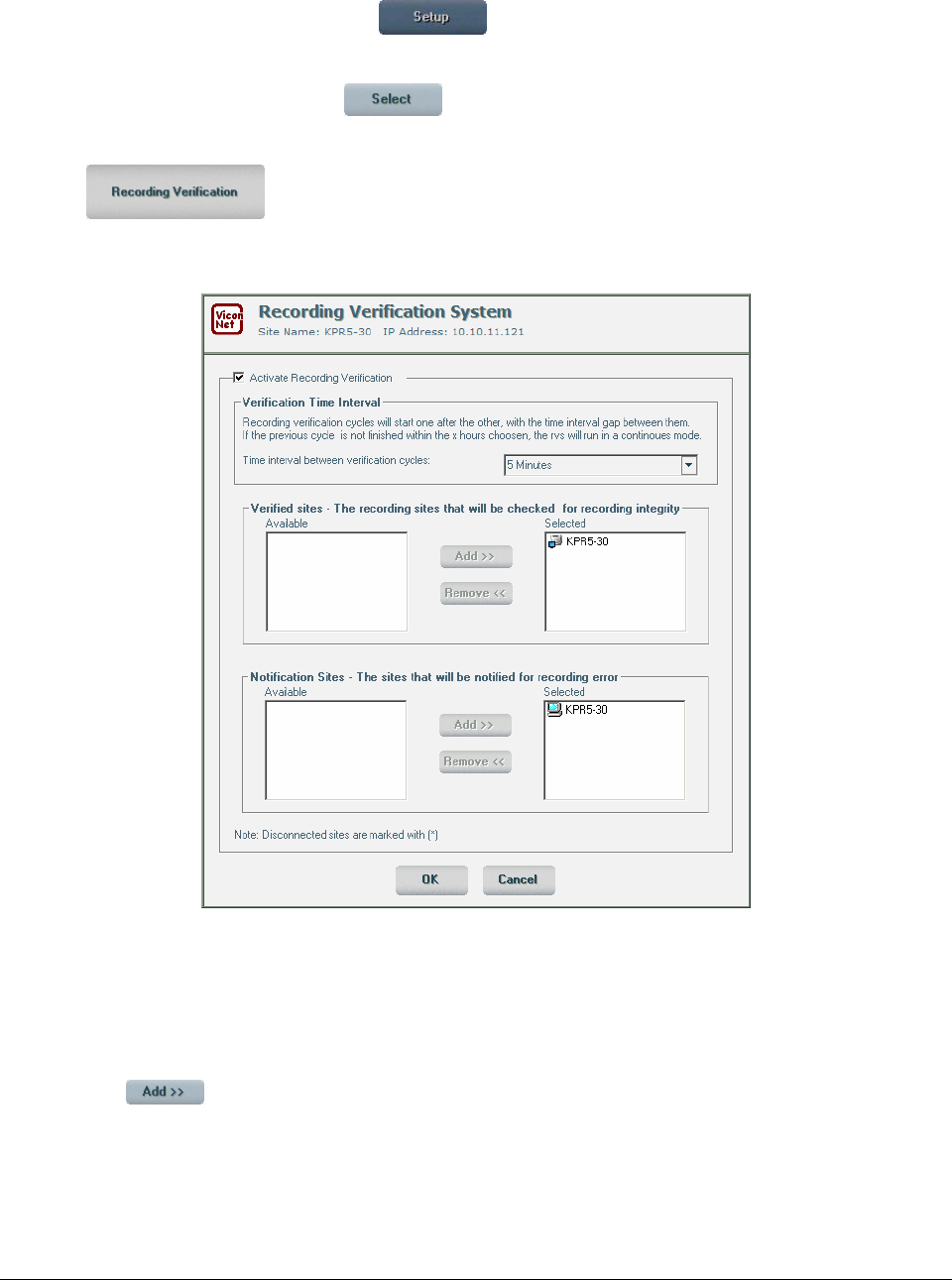
XX128-33-01 Rev 1206 Kollector Pro Network Digital Video Recorder Configuring the ViconNet System • 105
To activate the RVS mechanism (default=activated):
1. From the ViconNet Main window, click . The Setup Site Selection window is displayed, as
shown on page 57.
2. Select your Kollector Pro and click . The System Settings window is displayed, as shown on
page 58.
3. Click . The Recording Verification System window is displayed, enabling you to
determine which sites should be monitored and notified about recording failures, as well as to set the
time between verifications.
4. Ensure the Activate Recording Verification checkbox is checked.
5. Specify how frequently the transmitters are checked for recording by selecting the required interval from
the Verification Time Interval dropdown list (default = 5 Minutes).
6. In the Verification Sites List section, select which transmitter(s) to verify from the Available area and
then click . The selected transmitter(s) is displayed in the Selected area.
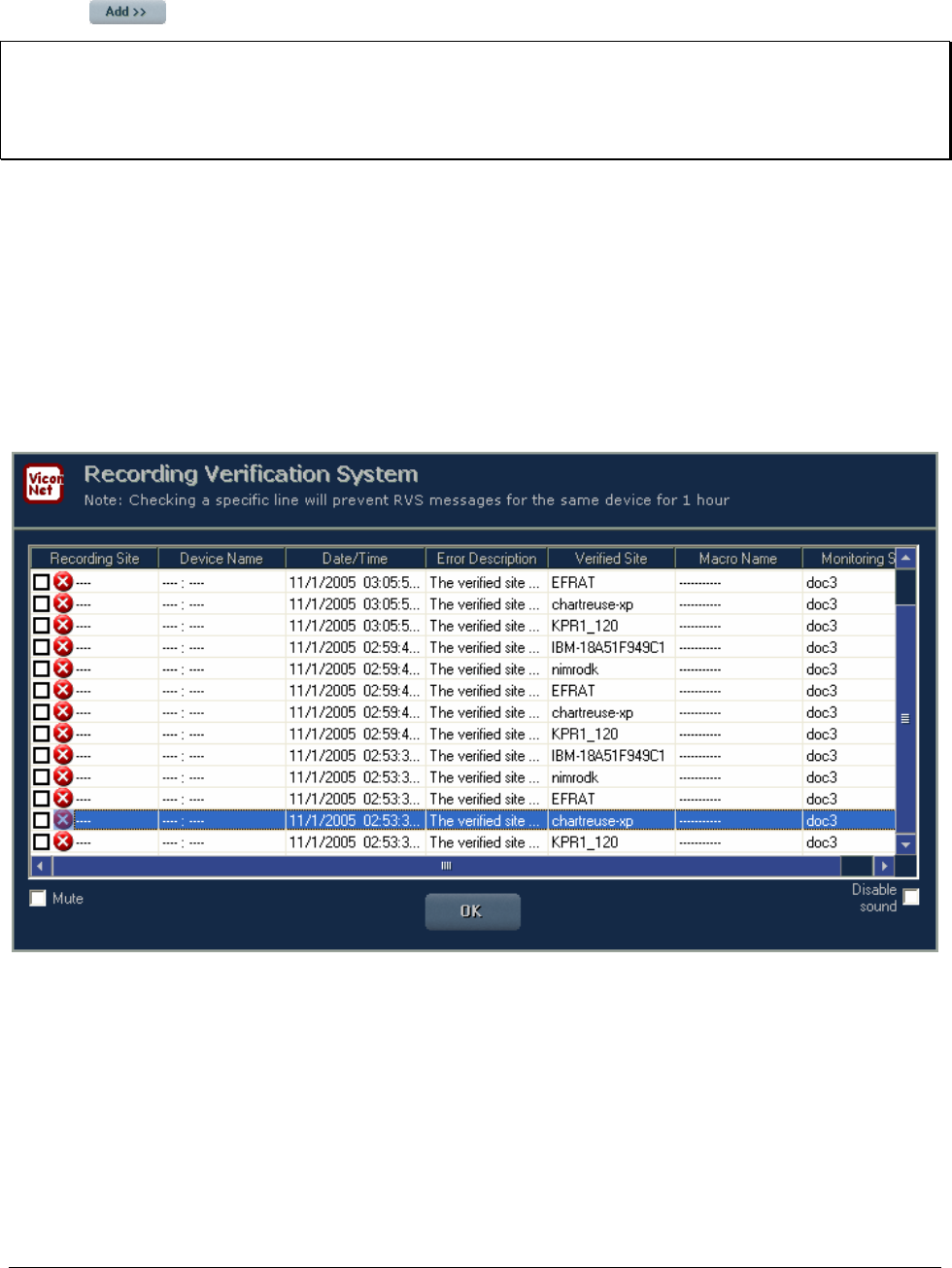
106 • Configuring the ViconNet System XX128-33-01 Rev 1206 Kollector Pro Network Digital Video Recorder
7. In the Notification Sites List section, select which site(s) to notify from the Available area and then
click . The selected site(s) is displayed in the Selected area.
NOTES:
The Verification Sites List contains only the local Kollector Pro site (itself); the Notification Sites List
contains all sites (including Workstations) that enable dialog with end users.
Disconnected sites are marked with a (*).
8. When you have finished, click OK.
When RVS is active, the video storage databases of the sites selected for verification are sampled. The
sampling process verifies the existence of frames in the database, and is done consecutively on all sites.
After the completion of one cycle, the RVS mechanism remains idle for the time selected in the Verification
Time Interval dropdown list, and then restarts from the top of the list.
When a recording error, sampling failure, or malfunction occurs, all sites selected for notification receive a
Recording Verification Error Notification, containing information about the failure (such as, the time the
failure occurred, the site name, the site IP address, and a short description of the failure).
This window is accompanied by a sound (similar to the Alarm window). Selecting the Mute checkbox
silences the alarm for this message; however, the next time the window appears, the alarm will sound.
Checking the Disable sound checkbox disables the sound option completely, meaning that the alarm will
not sound again.
If the checkbox in the Recording Site field is selected for a particular RVS notification, that notification is
cancelled for one hour. After one hour, this checkbox is automatically unchecked and the error message
appears again.
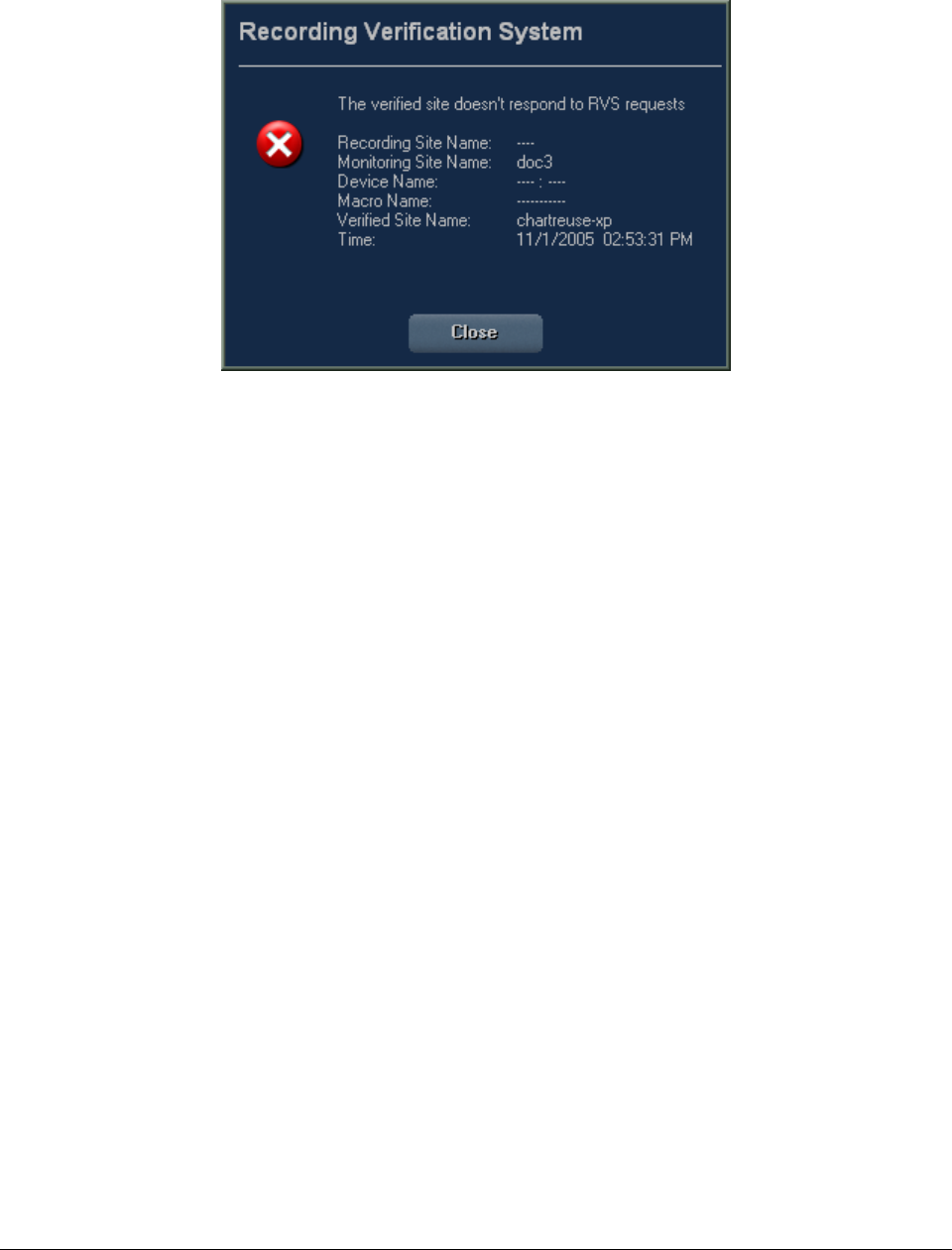
XX128-33-01 Rev 1206 Kollector Pro Network Digital Video Recorder Configuring the ViconNet System • 107
The most recent message is displayed at the top of the list. To see more details about the error,
double-click it to open a window like the one shown below.

108 • Configuring the ViconNet System XX128-33-01 Rev 1206 Kollector Pro Network Digital Video Recorder
Creating Macros
The ViconNet system enables you to create macros, which are sets of instructions that are made up of
user-defined commands that the system executes either automatically or manually in the specific defined
order. The commands in each macro give instructions to the system about which devices will perform
specific tasks, for how long, and in what order. In addition, you can configure macros for each Kollector Pro
independent of the other sites in the system, according to your requirements.
There are two types of macros:
• Regular macros: which are comprised of a series of instructions as described in the section Creating
Regular Macros, below.
• Matrix macros: which are comprised of a series of instructions for defining which cameras are to be
displayed on each of the four analog outputs. More details are provided in the section Creating Matrix
Macros, page 115.
For information about the scheduling of macros, refer to the Creating Schedules section, page 137.
Creating Regular Macros
Creating macros consists of configuring various settings for each command in a macro, such as:
• Cameras to record/display.
• Duration of each command in the macro.
• Recording location.
• Picture quality (resolution).
• Refresh (display) mode.
• Frames per second rate.
• Related devices.
• Sending alarms.
NOTE: Matrix macros have limited configuration options, see section To create a matrix macro, page 115.
After you create a macro, you can configure the system to activate the macro in the defined order by:
• The alarm setup links, as described in Defining Alarm Setup Links, page 122 (automatic).
• A user-defined time schedule, as described in Creating Schedules, page 137 (automatic).
• Manual selection, as described in Chapter 7, Managing Macros and Schedules (manual).
You can also modify or delete an existing macro, if required. (For more details, refer to step 16 in the To
create a macro procedure, on page 109.)
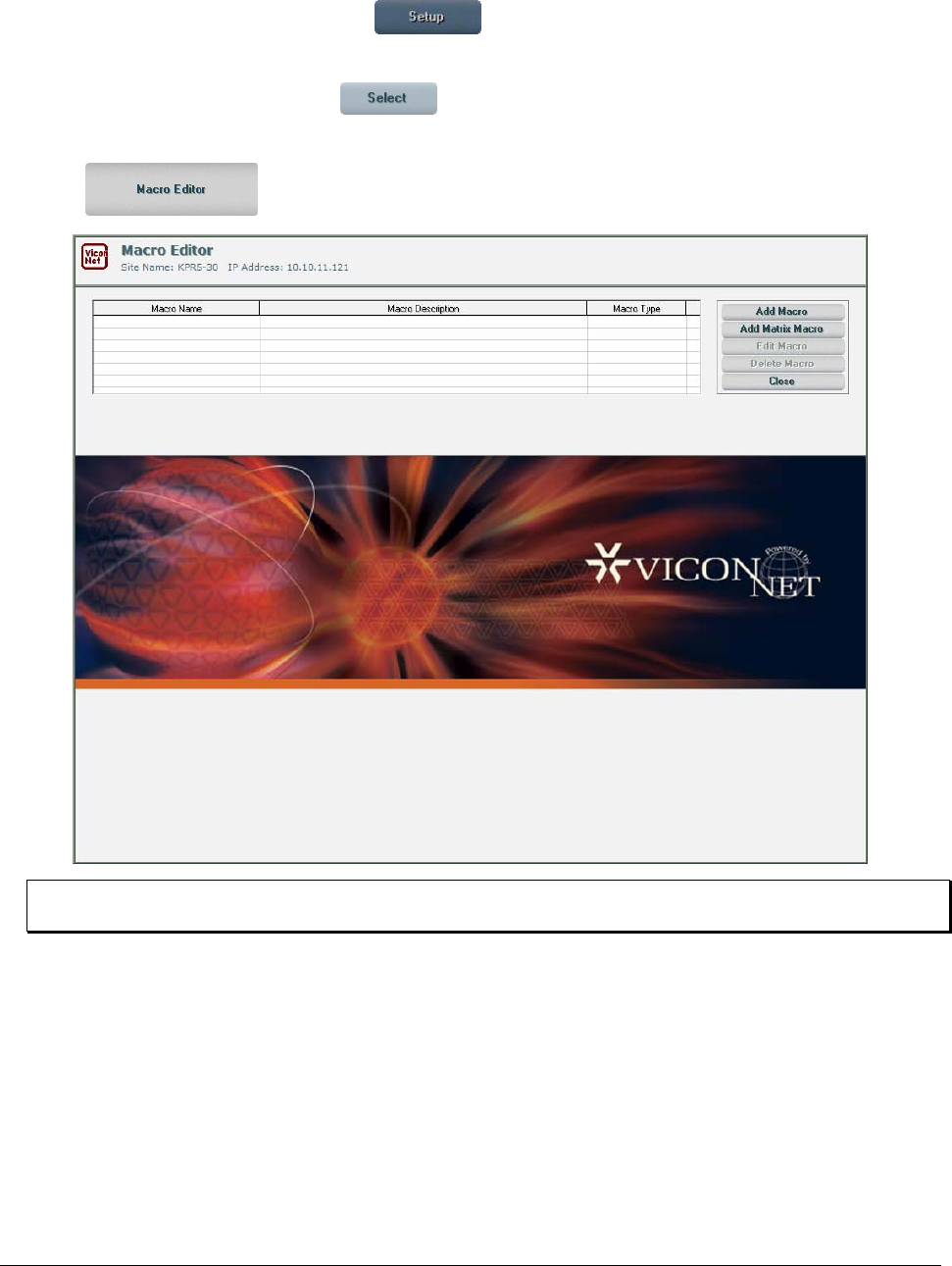
XX128-33-01 Rev 1206 Kollector Pro Network Digital Video Recorder Configuring the ViconNet System • 109
To create a macro:
1. From the ViconNet Main window, click . The Setup Site Selection window is displayed, as
shown on page 57.
2. Select your Kollector Pro and click . The System Settings window is displayed, as shown on
page 58.
3. Click . The Macro Editor window is displayed.
NOTE: Initially, the top portion of the Macro Editor window is blank. If macros have been defined
previously, they will appear in the list.
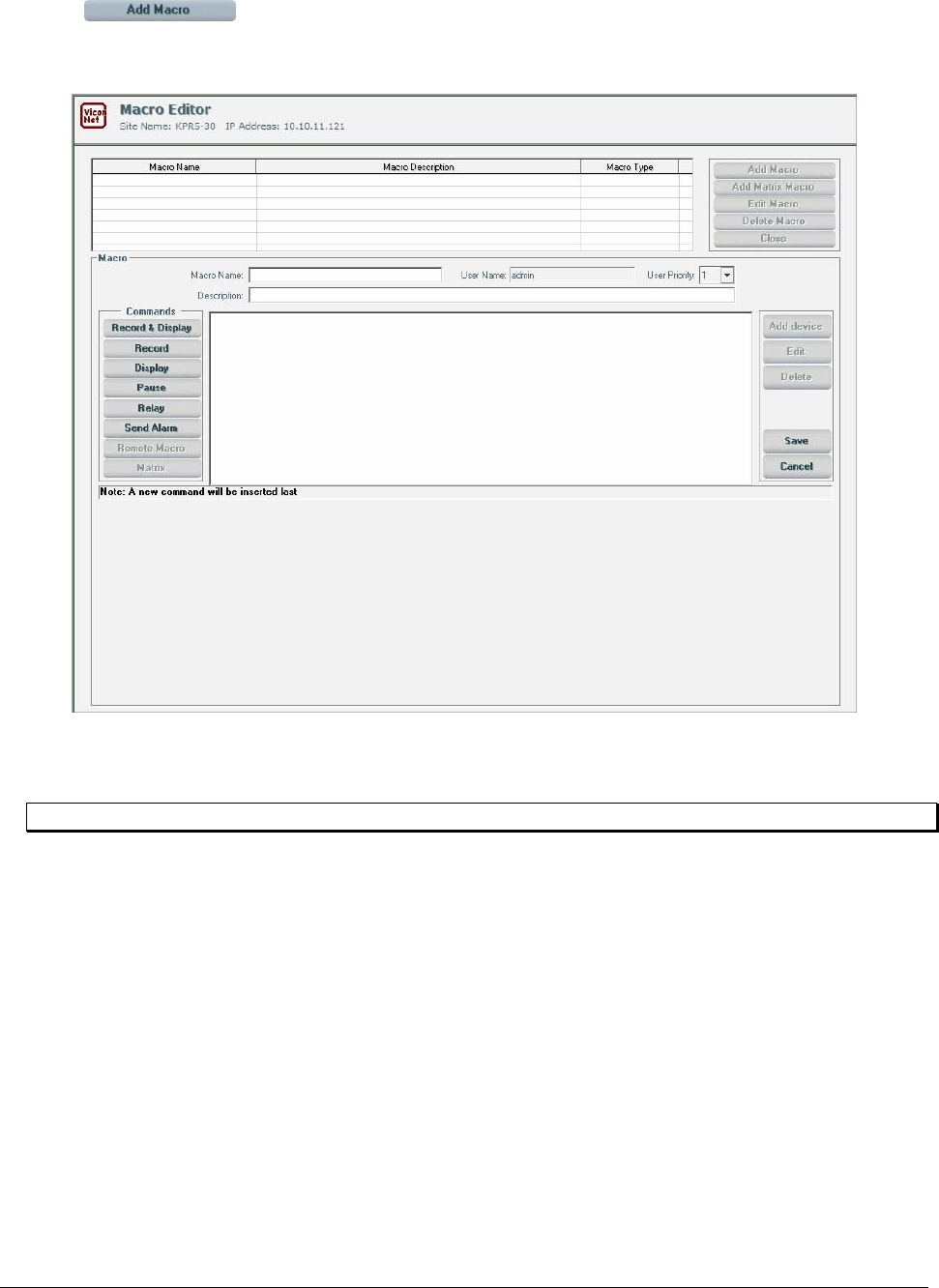
110 • Configuring the ViconNet System XX128-33-01 Rev 1206 Kollector Pro Network Digital Video Recorder
4. Click . The Macro Editor window changes and displays the Macro area in the middle
of the window. This section of the window is where you define the sequence of commands for each
macro.
5. In the Macro Name field, enter a logical name for the macro, for example, Front Entrance External
Cameras or Emergency – All Cameras Recording.
NOTE: The User Name is displayed automatically according to your log in information.
6. (Optional) In the Description field, enter a brief textual description of the macro.
7. Add the first command by selecting the required command type, as follows:
• Record & Display: Simultaneously records and displays live video from the selected camera.
• Record: Only records live video from the selected camera.
• Display: Only displays live video from the selected camera.
• Pause: Pauses all recording and displaying actions between operations.
• Relay: Activates the selected relay.
• Send Alarm: Automatically forwards alarm events to the destination site you specify. This causes
an alarm notification message to be displayed on the destination site.
• Remote Macro: Does not apply to the Kollector Pro.
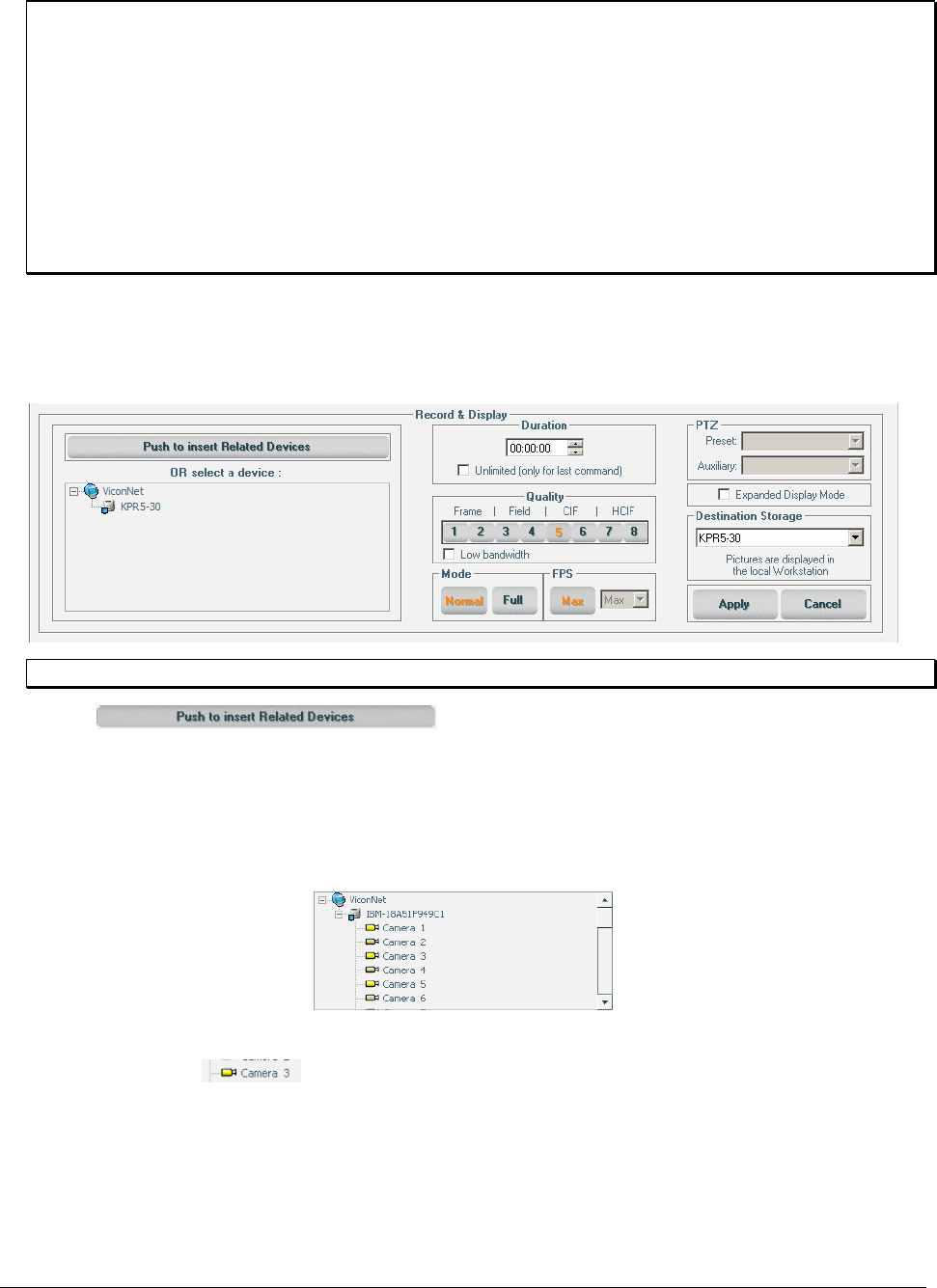
XX128-33-01 Rev 1206 Kollector Pro Network Digital Video Recorder Configuring the ViconNet System • 111
NOTES:
If you select the Record & Display option, then the selected device records and displays live video
simultaneously. If you select the other command types, then the macro runs in the sequence of
commands that you define.
Record operations are available both locally and remotely, but display operations are always local.
If a macro is running display operations (manual, scheduler, or alarm-initiation) all functions in the
ViconNet Main window are disabled, except for the Stop Macro, Schedule/Macro, and Shutdown
buttons.
If a macro is performing any other operations, all functions in the ViconNet Main window remain
operational.
As you select a command type, the bottom portion of the Macro Editor window changes and displays
the settings relevant for the type of command that you selected.
The steps that follow provide an example for the Record & Display settings:
NOTE: All displayed settings for each command type are mandatory.
8. Select to include the related devices that you defined for the
device during alarm setup (refer to Defining Alarm Setup Links, page 122, for additional details),
-OR-
Select the required transmitter in the list to view its available devices (yellow icon = active; gray icon =
disabled).
Then select one or more required devices from the list. After selection, the device names and icons
appear highlighted .
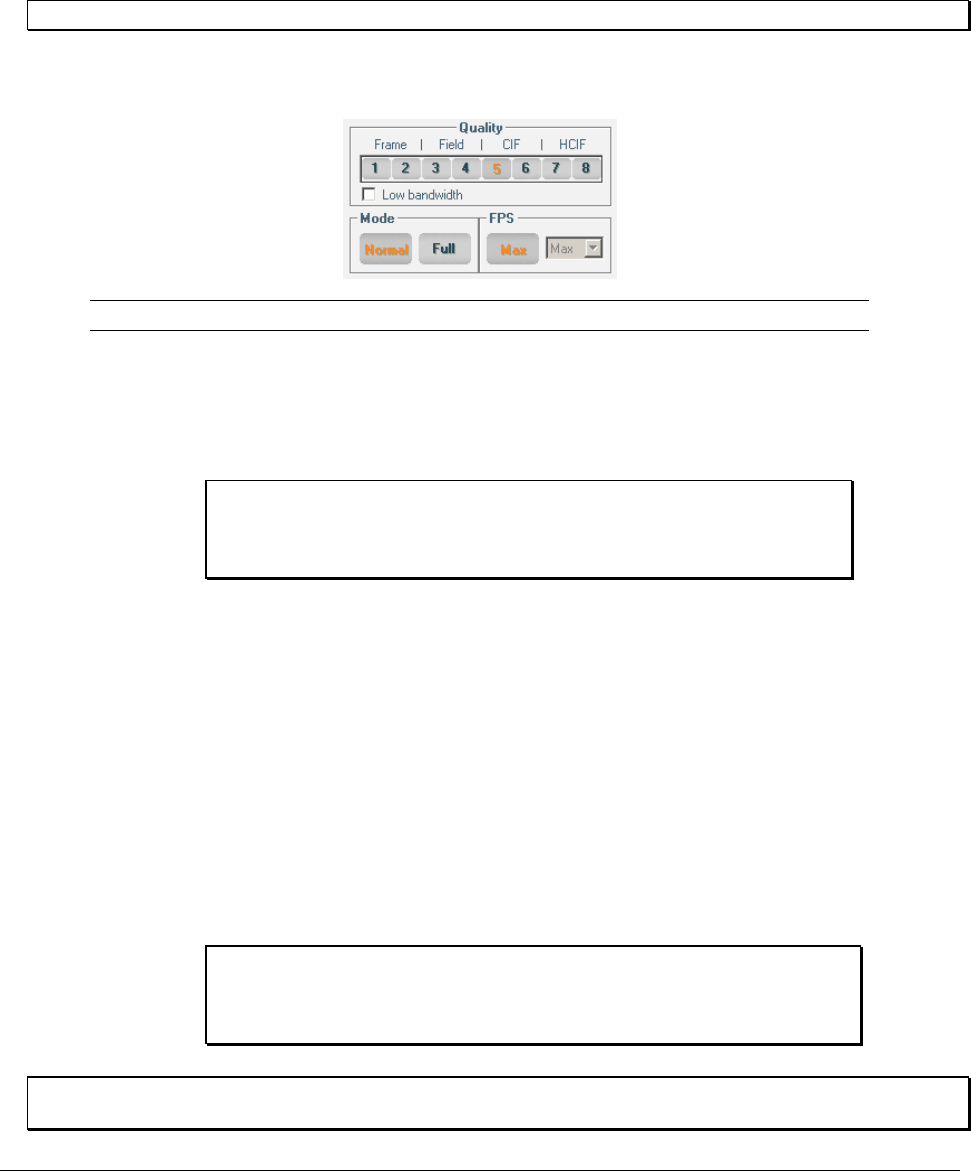
112 • Configuring the ViconNet System XX128-33-01 Rev 1206 Kollector Pro Network Digital Video Recorder
9. In the Duration field, use the up/down arrows to select the duration of the command (in HH:MM:SS
format),
-OR-
Select the required time segment and type in the required value using the keyboard.
NOTE: The duration is set for the entire operation and not per device.
10. Configure the Quality (picture quality), Mode (refresh mode) and FPS (frames per second) settings for
the selected device, as follows:
Option Description
Quality The picture quality that you select determines the resolution at which the video
images are recorded when the macro is activated. Select the required picture
quality from the range of one to eight, where:
• 1 = best picture quality, but slowest data transmission.
• 8 = least clear picture quality, but fastest data transmission.
NOTE: When different recording options are requested concurrently,
the recorded picture quality that applies is determined
according to prioritization settings. For details, refer to the
Picture Quality and FPS Priority section, page 118.
Low
Bandwidth Selecting low bandwidth raises compression. When the compression is higher,
the quantity of data (kB) is lower and in this case, smaller frames are
transmitted. However, more frames per second (FPS) are sent over the network.
Mode The refresh mode determines the rate that the frames are refreshed when the
macro is activated. Select the required refresh mode, as follows:
• Normal: Records/displays only changes within the frames.
• Full: Records/displays full frames of the live video images.
FPS The FPS determines the rate at which the video segments are recorded. Select
the required frames per second, as follows:
• Max: Sets the frames per second (FPS) rate to the maximum available from
the system.
• Custom: Enables you to set a custom FPS rate (1-30 for NTSC or 1-25 for
PAL).
NOTE: When different recording options are requested concurrently,
the recorded FPS that applies is determined according to
prioritization settings. For details, refer to the Picture Quality
and FPS Priority section, page 118.
NOTE: For additional details about picture quality and refresh mode in recording vs. playback, refer to
the About Picture Quality and Refresh Mode section in Chapter 2, Getting to Know ViconNet.
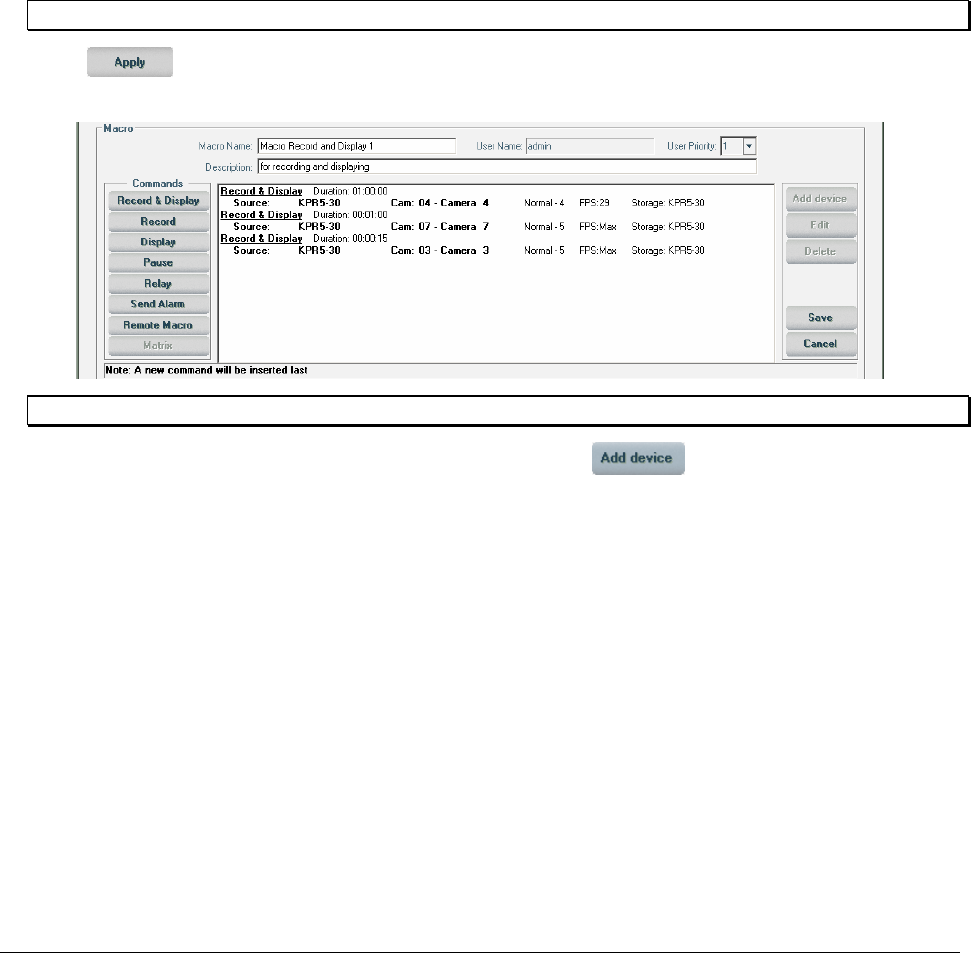
XX128-33-01 Rev 1206 Kollector Pro Network Digital Video Recorder Configuring the ViconNet System • 113
11. Configure the Preset, Expanded Display Mode and Destination settings for the selected device, as
follows:
• Preset: The Preset dropdown list enables operation of a preset for the currently selected PTZ
camera. The presets, representing fixed location-and-zoom points in the video display, must first be
defined as described in Operating a PTZ Camera in Chapter 4, Viewing Live Video. Then, when a
preset is selected (for example, preset1), the macro automatically focuses the camera on the view
area indicated by the preset.
• Expanded Display Mode: Select this checkbox to expand the current screen display to fit the
entire screen (including the Site List).
• Destination Storage: Select the local transmitter (storage location) to record the live video when
the macro is activated.
NOTE: The Expanded Display Mode checkbox is set for the entire operation and not per device.
12. Click . The Macro Editor window displays the settings of the first command that you defined in
the macro script area of the window.
NOTE: The Add device, Edit, and Delete options also become enabled at this point.
13. (Optional) To add another device to the same command, click . The relevant settings are
displayed in the bottom of the window, as shown on page 111.
• Select an additional device from the list and configure its settings, as described in steps 8 to 12.
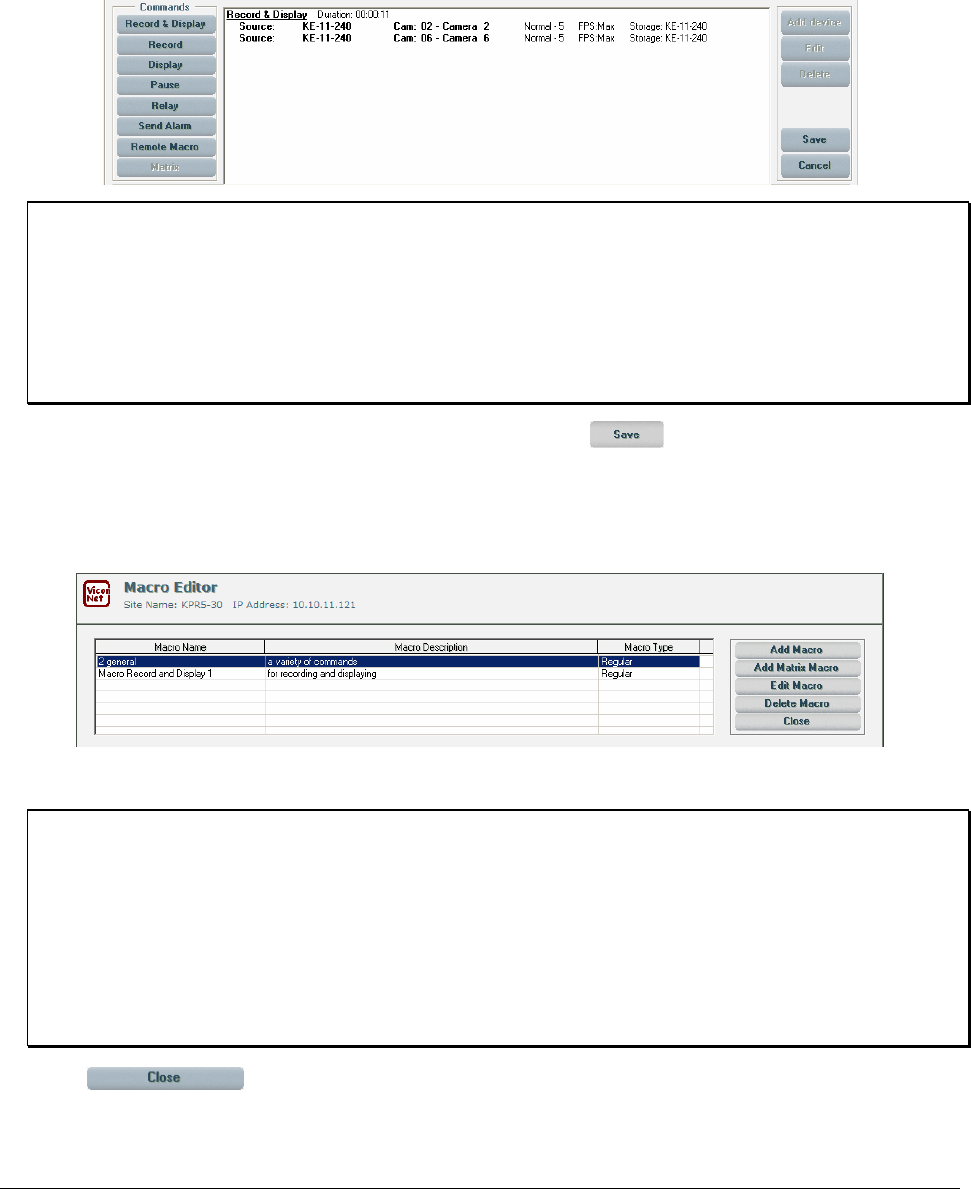
114 • Configuring the ViconNet System XX128-33-01 Rev 1206 Kollector Pro Network Digital Video Recorder
14. (Optional) To add a new command to the macro script area, select the required command type and
configure the command settings, as described in steps 7 to 12.
The following example shows one command that has been defined for the new macro, with two
cameras selected.
NOTES:
The location of each new command is above the highlighted command. In order to add the command to
the bottom, you must cancel the highlighting (by clicking once in the blank area of the macro script
area) before clicking Apply.
To edit a command line in the macro script area, select it and click Edit. Then modify the displayed
settings and click Apply.
To delete a command line from the macro script area, select it and click Delete.
15. When you have defined all the commands for the macro, click . The macro is saved and the
System Settings window is redisplayed.
If you open the Macro Editor window again as described at the beginning of this procedure), you see
the new macro name and description displayed at the top of the window.
16. To define additional macros, repeat steps 4 to 15, as required.
NOTES:
To edit a macro in the list, select it and click Edit Macro. Then edit the macro settings, as described in
the previous steps in this procedure.
To delete a macro from the list, select it and click Delete Macro.
If you change the macro name during editing, you are asked if wish to create another macro in addition
to the first one. (This is similar to the Save As option in other applications.)
If the system reboots while a macro is running or due to run, on startup the macro is resumed from the
place it stopped (if it is still within its defined time limits).
17. Click to close the Macro Editor window.
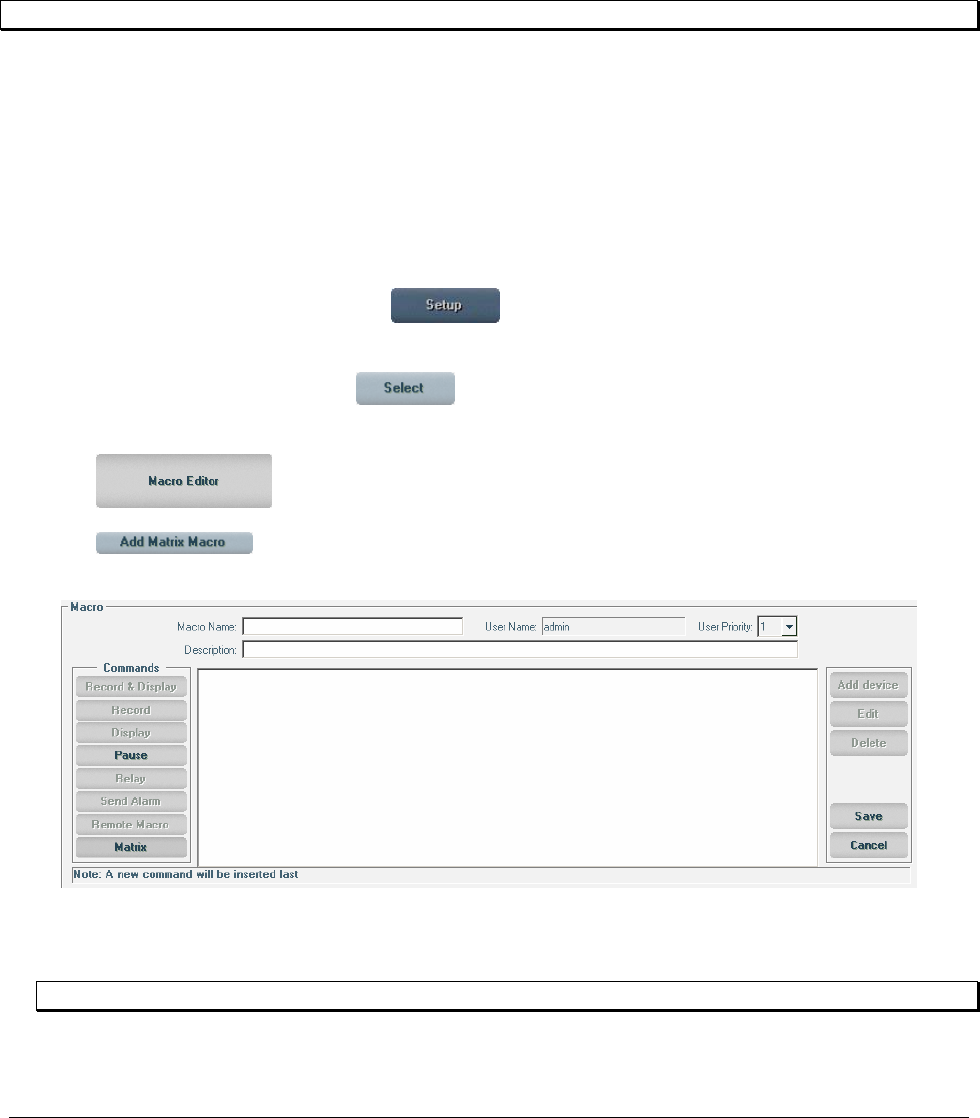
XX128-33-01 Rev 1206 Kollector Pro Network Digital Video Recorder Configuring the ViconNet System • 115
All macros that you define(d) are available during alarm setup, as described in the following sections:
• Defining Alarm Setup Links, page 122.
• Creating Schedules, page 137 (via the Scheduler Settings window).
• Manual selection, as described in Chapter 7, Managing Macros and Schedules (manual).
Creating Matrix Macros
NOTE: If there is no rear panel (optional) in the Kollector Pro, the matrix macro is not active.
If the Kollector Pro has the new rear panel, which supports matrix (and has four outputs), it enables four
digital streams to be converted back to analog. In this case, Servers, such as analog monitors or TVs, can
view these four outputs. The purpose of the matrix macro, is to enable configuration of a specific camera to
a specific output (of these four outputs), such that the camera output displayed can be changed every few
minutes For example, you can select that the analog monitors will display the output from cameras 1 to 4
first, and after a few minutes, change the display on the analog monitors to cameras 5 to 8.
To create a matrix macro:
1. From the ViconNet Main window, click . The Setup Site Selection window is displayed, as
shown on page 57.
2. Select your Kollector Pro and click . The System Settings window is displayed, as shown on
page 58.
3. Click . The Macro Editor window is displayed.
4. Click . The Macro Editor window changes and displays the Macro area in the middle
of the window.
5. In the Macro Name field, enter a logical name for the macro, for example, Front Entrance External
Cameras or Emergency – All Cameras Recording.
NOTE: The User Name is displayed automatically according to your log in information.
6. (Optional) In the Description field, enter a brief textual description of the macro.
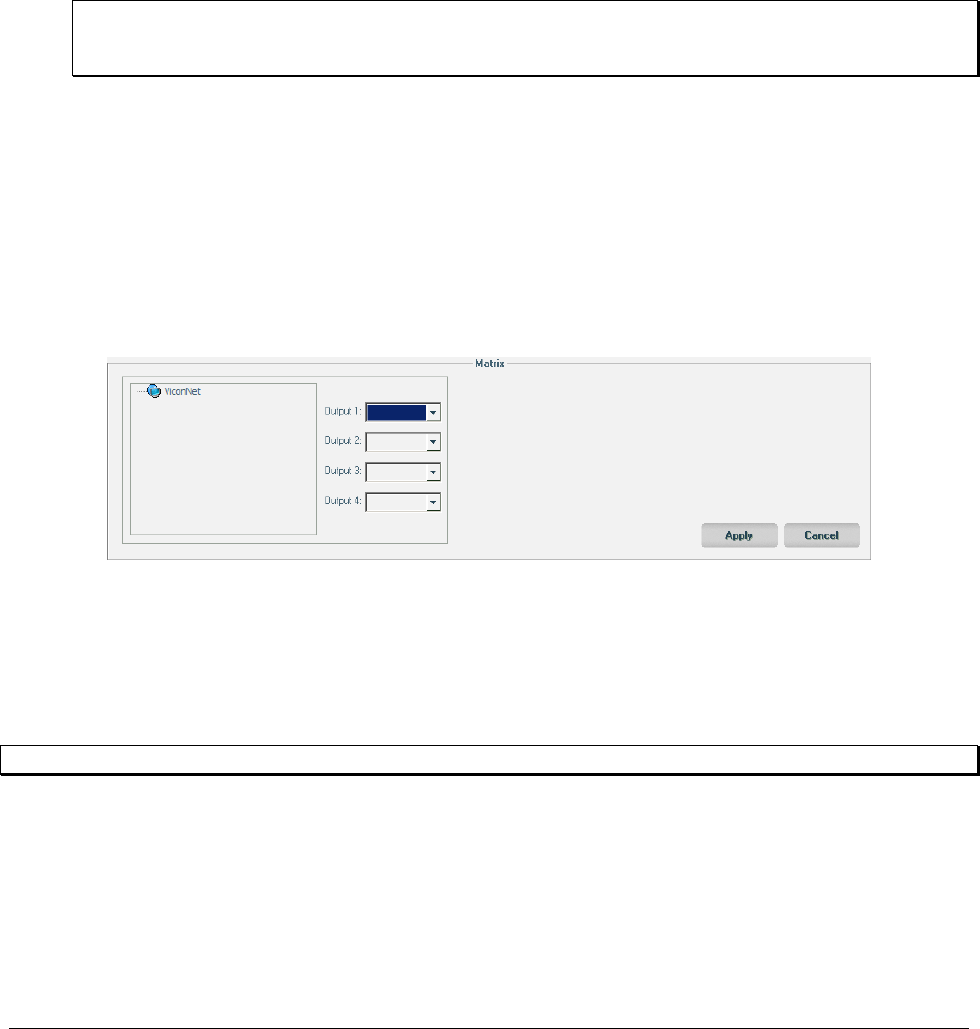
116 • Configuring the ViconNet System XX128-33-01 Rev 1206 Kollector Pro Network Digital Video Recorder
7. Enter the macro commands. The commands available for matrix macros are Pause and Matrix.
• Pause: In the case where several matrix commands are configured, Pause enables you to set the
amount of time the first command will run before the second matrix command takes over.
Example
In one matrix command, only four cameras can be configured. If you want more than four cameras
to be displayed on the analog outputs, you can configure the matrix macro such that every X
minutes another four cameras are displayed. To do this, you must configure several matrix
commands, each time with four other cameras, but between the matrix commands, you set pause
commands with a duration of X minutes.
NOTE: In a macro with only one matrix command (up to four cameras), there is no need for a
pause command because once the matrix macro is running, the cameras will be displayed
on the analog monitors until the macro is stopped manually.
• Matrix: Displays the site list (bottom left) and four output dropdown boxes (monitors). From the
output boxes, select which camera goes to which output.
7.1 To define which camera display connects to which output, click Matrix.
7.2 Select the camera to be displayed on each analog output from the dropdown boxes in the
bottom panel and click Apply.
7.3 To define the duration of the recording click Pause.
7.4 To set other cameras to connect to the four analog outputs after the pause, repeat steps 7.1 to
7.3.
8. To apply the changes, click Apply.
9. To save the changes, click Save.
The matrix macro can be run manually from here, or scheduled from the scheduler (see section Creating
Schedules, page 137.
NOTE: The Matrix Macro is also referred to as the Switcher Macro.
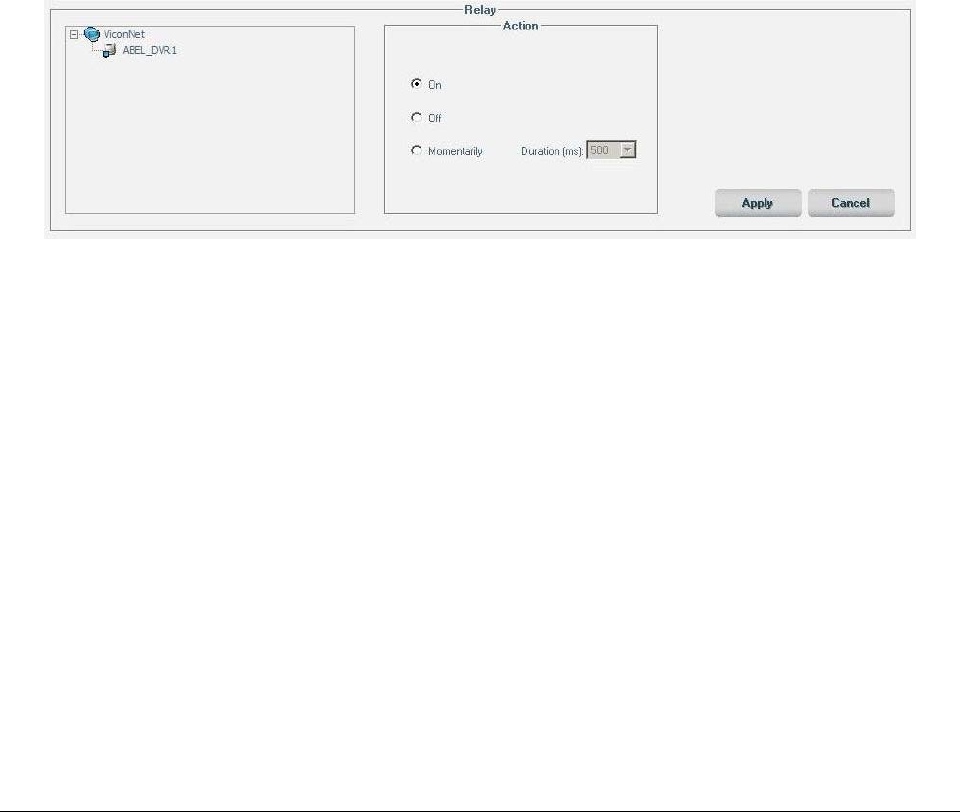
XX128-33-01 Rev 1206 Kollector Pro Network Digital Video Recorder Configuring the ViconNet System • 117
Activating Relays in Macros
The Kollector rear panel has eight relay outputs which can be toggled between the states Open (Off) and
Closed (On), or Momentarily enabled for a set duration. On system start up, the relay state is Normally
Opened (NO).
These relays can be used to drive indicators and alarm enunciators, and to enable or disable devices.
Within a macro, any number of relays can be activated between as many states as desired. The relay can
be directly connected to a switching load with maximum ratings of 60 VAC or DC at 1.0 Amp current.
To activate a relay in a macro:
1. Follow steps 1 to 6 of the To create a macro procedure.
OR
Select a macro from the list at the top of the Macro Editor window, and click Edit Macro.
2. To configure a relay function in the macro, click the Relay button. The relay configuration options are
displayed at the bottom of the window.
3. Select On (Closed), Off (Open) or Momentarily (configurable between 500 and 2500ms).
4. Click Apply.
118 • Configuring the ViconNet System XX128-33-01 Rev 1206 Kollector Pro Network Digital Video Recorder
Setting Video Priority
This section describes how to define the video settings that are used when different recording functions are
requested concurrently for the same camera.
Picture Quality and FPS Priority
The recording procedures, described in various sections of this chapter (Manual Recording, Auto Record,
Macro Creation and Pre/Post-Alarm Configuration), each include picture quality and FPS settings that
should apply when those options are executed.
A problem arises when two or more recording options are executed concurrently on the same cameras -
which function's settings should be used for the recording? In this case, the setting that should be utilized
can be determined in two ways:
• Highest setting value: The highest of all the setting values used by the applicable recording options is
utilized (default method). For example, for Picture Quality purposes - if Pre/Post alarms uses quality 8,
but Auto Record uses quality 1, and both functions are executed concurrently, quality 1 is used for this
recording.
NOTE: If the Highest Requested Quality/FPS is not selected, the recording FPS and quality are
determined by a combination of the setup in the Quality and FPS Priority window and the
User/Macro priority.
-OR-
• Highest priority rank: The setting value used by the recording option having the highest priority rank is
utilized. For example, for Picture Quality purposes, you can set Pre/Post alarms with priority 1, and
Auto Record with priority 2. Then, if both functions are executed concurrently, the Pre/Post alarms
quality setting is used for this recording.
(The Highest priority rank criteria selection actually includes three priority levels, enabling you to
prioritize between all the recording functions - see step 4 in the procedure below.)
NOTE: Here we set up the priority between different functions of the system, NOT between users or
macros.
To define picture quality and FPS priorities:
1. From the ViconNet Main window, click . The Setup Site Selection window is displayed, as
shown on page 57.
2. Select your Kollector Pro and click . The System Settings window is displayed, as shown on
page 58.
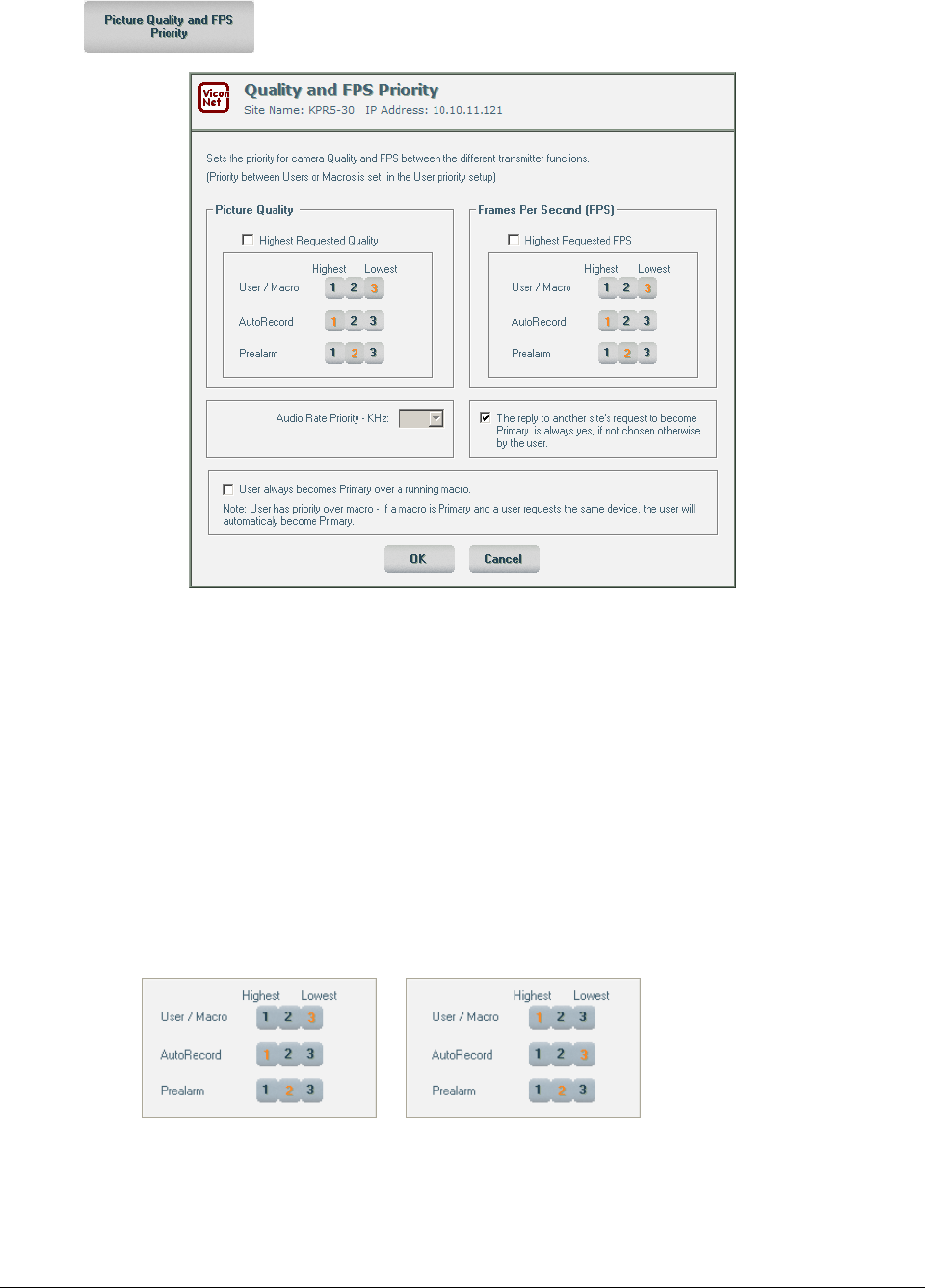
XX128-33-01 Rev 1206 Kollector Pro Network Digital Video Recorder Configuring the ViconNet System • 119
3. Click . The Quality and FPS Priority window is displayed.
4. In the Picture Quality area:
• Select the method for determining Picture Quality setting precedence:
• To always use the highest setting value, select the Highest Requested Quality checkbox
(selected by default) and continue to step 6.
• To use a priority ranking as the selection criteria, leave the Highest Requested Quality
checkbox unselected.
• Enter priorities for each function, as required:
• Select the "1" cell of the function that should have highest priority. (Its Picture Quality setting
should always be used if any other recording function is executed concurrently.) Note that as
you select a cell, the other cells' priorities are automatically renumbered, since only one
function at a time can have the same priority.
Æ

120 • Configuring the ViconNet System XX128-33-01 Rev 1206 Kollector Pro Network Digital Video Recorder
• Select the "2" cell of the function which should have second priority. (Unless the "1" function is
executed concurrently with it, the "2" function's setting should always be used.) The remaining
function is then automatically set as "3".
NOTE: The priority cells in an area are enabled only when the area's Highest Requested Quality
checkbox is unselected.
5. In the Frames Per Second (FPS) area, make the required selections regarding FPS setting
precedence and priorities, in the same way as described in step 4.
6. To enable the user to manage the camera on which macros are running, meaning, to allow the user to
take over as primary user of the camera select User always become primary over a running macro
(default = unchecked).
7. Click OK to save the selections.
NOTE: When a camera is selected to record at 3N and at 3F simultaneously, it will record at 3N, meaning
that Normal mode takes priority over Full mode when the resolution is the same number.
User/Macro Priority
Two users/macros can work or run on the ViconNet system at the same time. The following rules are
implemented to define which user/macro will have the priority to define, for example, system behavior or
settings, in each conflicting situation.
Macro vs. User
If a macro is running and activates a camera before a user, the macro becomes the primary user of that
camera. A user may need to make certain changes to that camera, and therefore needs to have primary
status. (For example, a secondary user cannot change PTZ, picture settings, quality or FPS). Selecting the
option User always become primary over a running macro (default = unchecked) enables the user to
manage the camera on which macros are running, by allowing the user to take over as the primary user of
the camera.
NOTES:
This feature does not relate to whether the user priority is higher or lower than the macro’s priority.
The last macro to start takes over the PTZ presets, regardless of its priority.
If the user always become primary over a running macro is unselected, and the user priority is lower
than the priority of the macro, then the user cannot take over as the primary user in any circumstances.
XX128-33-01 Rev 1206 Kollector Pro Network Digital Video Recorder Configuring the ViconNet System • 121
User vs. Macro
A macro can get primary status from the user only if the user has the lower priority.
NOTE: User priority configuration is irrelevant if Highest Requested Quality is selected.
Example
If the user is the primary user, and the macro is due to start as the secondary user, it will take the primary
status from the user automatically ONLY if it (the macro) has higher priority. If the macro has lower priority,
it will run all commands, except those that only the primary user can control, such as PTZ preset, FPS and
quality.
NOTE: If the Highest Requested Quality is selected in the Quality and FPS Priority window in the source
of the camera, and the macro has the highest FPS and quality, the FPS and quality WILL be
controlled by the macro.
Macro vs. Macro
If macro has higher priority than another macro, it will take control.
If a user and a macro, a macro and another macro, or a user and another user, have the same priority, the
priority is determined on a "first come first served" basis.
NOTE: The last macro to start takes over the PTZ presets, regardless of its priority.

122 • Configuring the ViconNet System XX128-33-01 Rev 1206 Kollector Pro Network Digital Video Recorder
Configuring Alarm Events
An alarm event is an action or condition that is configured to trigger a physical alarm in the system when the
action or condition occurs.
The ViconNet system enables you to configure alarm events by:
• Defining Alarm Setup Links, page 122, which consists of linking a macro to a specific device and a
specific alarm event. In this case, when the preconfigured alarm conditions are met, the system
automatically runs the linked macro, which gives instructions to the system about which devices to
activate, for how long, and so on.
• Setting Pre/Post alarms, page 133, which consists of configuring what devices the system will activate
before and/or after an alarm event occurs. This includes configuring settings such as the recording
duration, video quality, and so on.
Alarms can be activated from various sources, including:
• Sensors: Each sensor is configured to be associated with a specific alarm type, such as smoke, fire,
motion detection, perimeter intrusion, window intrusion, door intrusion, and so on.
• Video Loss: A loss of power to the devices, such as an unplugged power cord, cut power line, or
power outage.
• VMD – Video Motion Detection: Activity detected in a preconfigured area of the premises where
activity is cause for concern.
• Serial Connection or Network Connection Message: Integrated module alarm notification.
NOTE: The Serial Connection or Network Connection Message feature will be functional in future versions.
In order to activate a macro via an alarm, the source device must be linked in the system to the macro that
will run when the alarm conditions are met. When an alarm is activated, a notification is sent to the local
station, and the relevant macro linked to that alarm is executed.
Defining Alarm Setup Links
The ViconNet system enables you to define the alarm setup for each device in the system. The alarm setup
instructs the system how to react in the case of an alarm event on a specific device, which can include:
• Displaying the Alarm window. This happens automatically on the local station for every type of alarm
event. (Refer to Chapter 2, Getting to Know ViconNet, for additional details about the Alarm window.)
• Initiating any defined pre/post alarms. (Refer to Setting Pre/Post alarms, page 133, for additional
details.)
XX128-33-01 Rev 1206 Kollector Pro Network Digital Video Recorder Configuring the ViconNet System • 123
• Executing any linked macro. In this case, you can configure the alarm conditions that will cause the
macro to run on the device if the alarm conditions are met during a specific time period. (Refer to
Creating Macros, page 99, for additional details).
Important: If a device is removed from the list of alarm setup links, you will not receive automatic
notification from the system that the alarm event has occurred.
NOTE:
When a macro is running as a result of an alarm event, the following is applicable:
• If the macro is running display operations (manual, scheduler, or alarm-initiation) all functions in the
ViconNet Main window are disabled, except for the Stop Macro, Schedule/Macro, and Shutdown
buttons.
• If the macro is performing any other operations, all functions in the ViconNet Main window remain
operational.
To define alarm setup links:
1. From the ViconNet Main window, click . The Setup Site Selection window is displayed, as
shown on page 57.
2. Select your Kollector Pro and click . The System Settings window is displayed, as shown on
page 58.
3. Click . The Active Detectors and Associated Macros window is displayed, showing
the default alarm setup links and previously defined alarm setup links, if any.
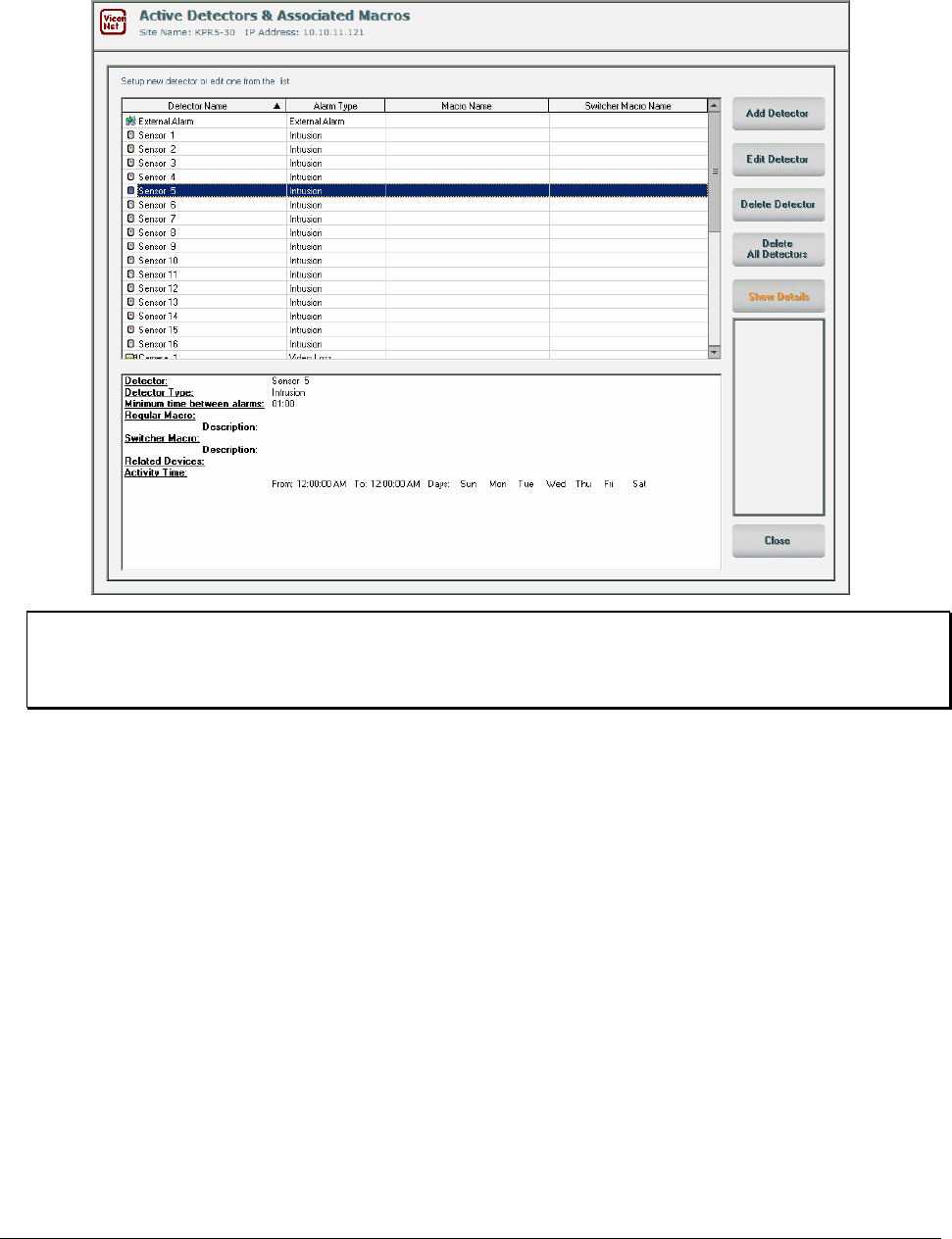
124 • Configuring the ViconNet System XX128-33-01 Rev 1206 Kollector Pro Network Digital Video Recorder
For the Kollector Pro, the default alarm setup links consist of 16 cameras with alarm type Video Loss
and 16 sensors with alarm type Intrusion.
NOTES:
Instructional notes appear in all the alarm setup windows to assist you in defining the alarm setup links.
Switcher Macro = Matrix Macro.
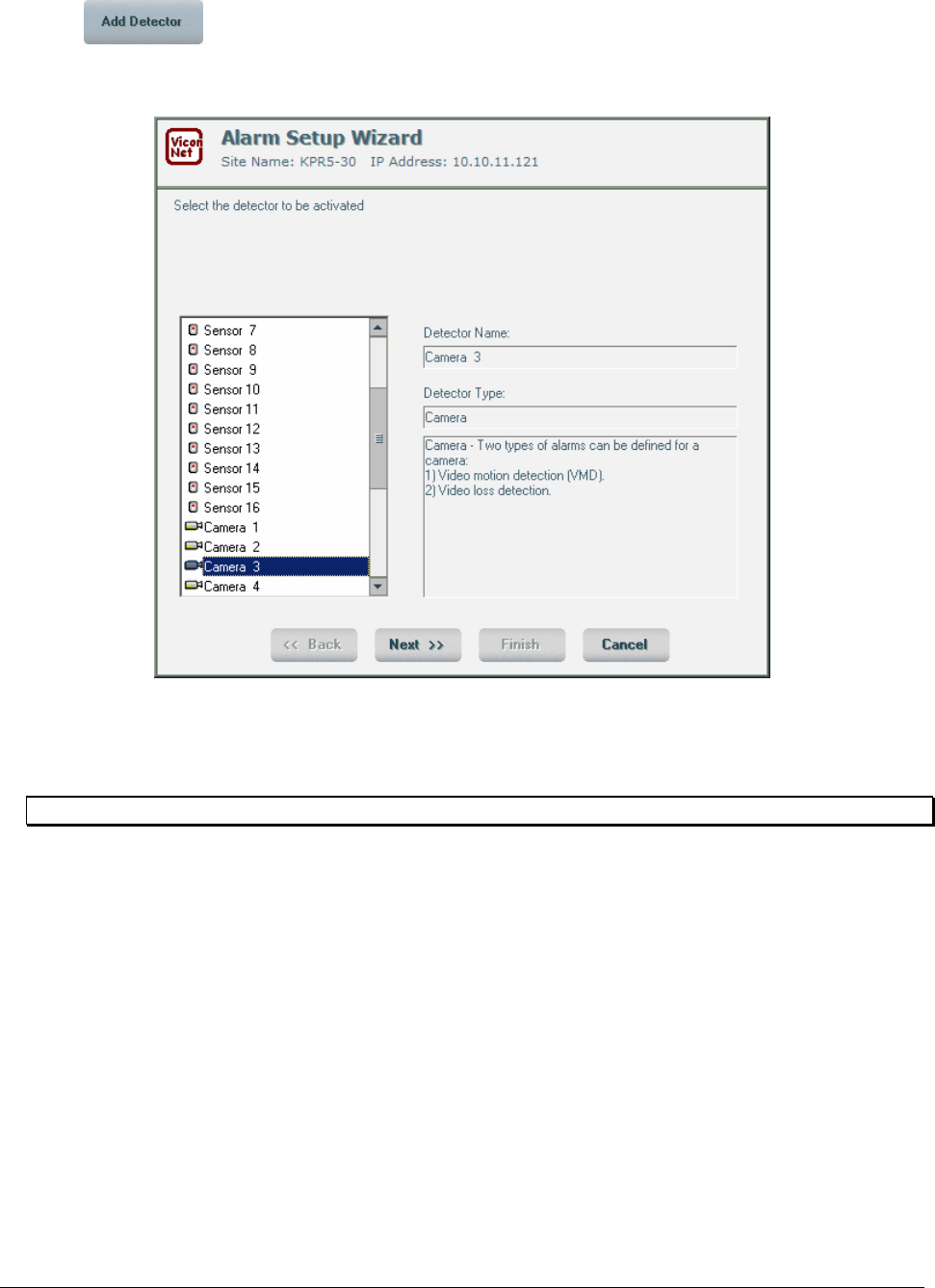
XX128-33-01 Rev 1206 Kollector Pro Network Digital Video Recorder Configuring the ViconNet System • 125
4. Click . The first step of the Alarm Setup Wizard window is displayed, where you select the
device for which you want to set up an alarm link. (The Active Detectors and Associated Macros
window Edit Detector button enables you to modify already defined alarms.)
5. From the displayed list, select the required device. The name and type of the selected device is
displayed automatically in the Detector Name and Detector Type fields, as well as a device-specific
alarm link description (if an alarm link is already defined).
NOTE: The detector type is based on the physical type of device.
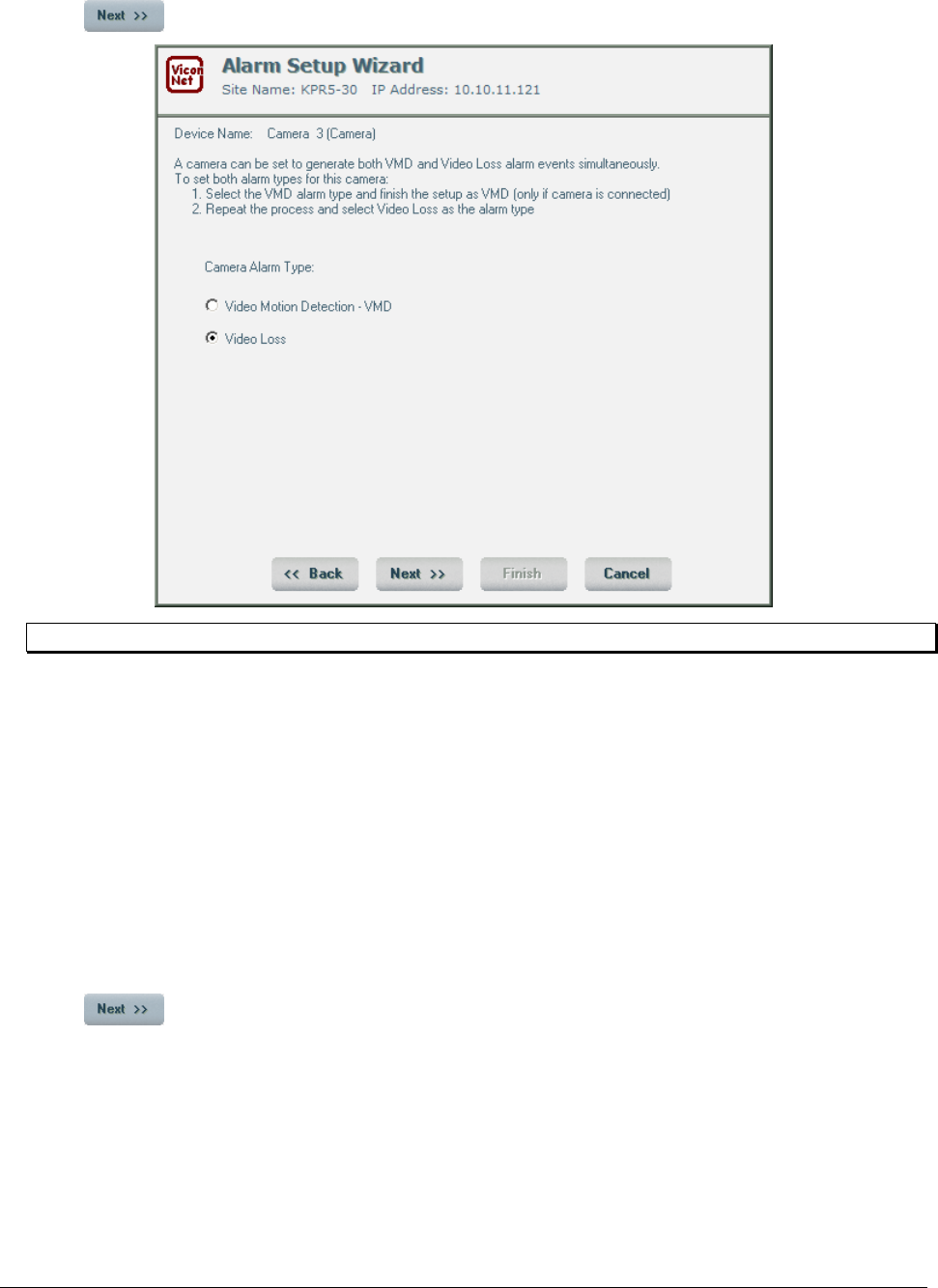
126 • Configuring the ViconNet System XX128-33-01 Rev 1206 Kollector Pro Network Digital Video Recorder
6. Click to proceed to the next step of the Alarm Setup Wizard.
NOTE: The window shown above appears differently when a sensor is selected as a detector.
7. Select the Camera Alarm Type, as follows:
• VMD - Video Motion Detection: Activates an alarm due to activity beyond specified sensitivities in
preconfigured regions of interest (ROIs) in the camera view area. (Refer to When Not to Use VMD,
page 133, for an important warning about using this option.)
• Video Loss: Activates an alarm due to the video signals being stopped by any means (for
example, a cut power line).
-OR-
If you selected a sensor as the detector, select the Sensor Alarm Type (Intrusion, Motion Detector,
Smoke, Perimeter, Fire, or Other).
8. Click .
• If you selected Video Loss, or a sensor as the detector, continue to step 10, where you will define
the time schedule for the macro.
• If you selected VMD - Video Motion Detection, continue to step 9, where you will define the
regions of interest (ROIs) on which the VMD mechanism will focus.
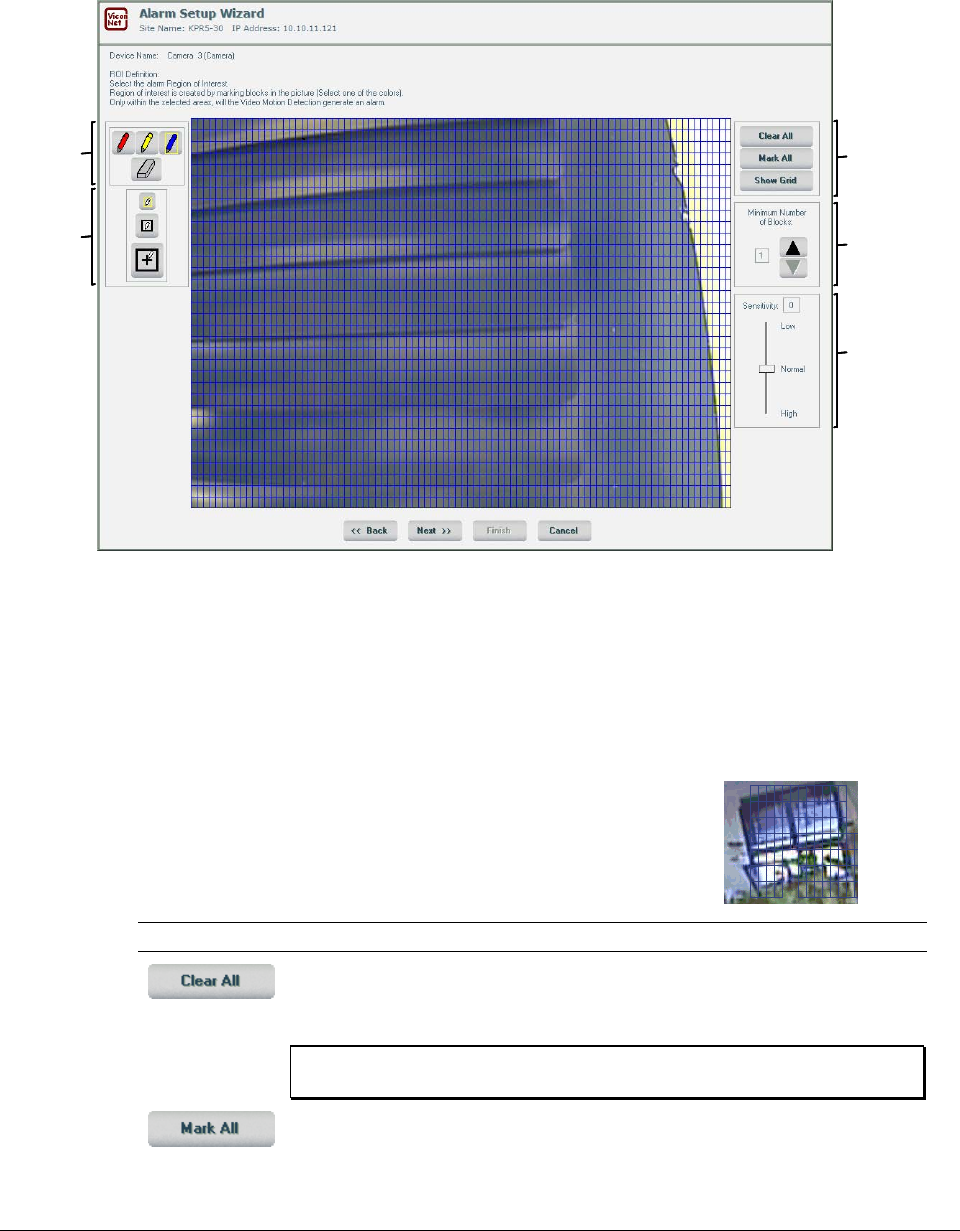
XX128-33-01 Rev 1206 Kollector Pro Network Digital Video Recorder Configuring the ViconNet System • 127
9. If you selected VMD - Video Motion Detection, the Select Alarm region of interest window is
displayed, which enables you to define the regions of interest (ROIs) for which VMD should trigger
alarms for the selected camera.
Tool
Selectors
Grid
Control
Patterns
Block Size
Control
Sensitivity
Control
Tool Size
for the
Selected
Tool
Tool
Selectors
Grid
Control
Patterns
Grid
Control
Patterns
Block Size
Control
Block Size
Control
Sensitivity
Control
Sensitivity
Control
Tool Size
for the
Selected
Tool
Tool Size
for the
Selected
Tool
The window shows the Live view of the selected camera, with colored grid blocks over selected regions
of interest. If no settings were yet defined for this camera, colored grid blocks cover the entire picture,
indicating that the change detection that would trigger alarms applies to the entire camera view area.
You can focus the VMD on security-sensitive objects in the camera space by using the window
functions to vary the coverage of the colored grid blocks. (Only the segments covered by colored grid
blocks are considered for VMD purposes.)
For example, you can focus on windows or doors (as shown in the picture
opposite) to monitor opening/closing events.
The following options are provided:
Option Description
This button clears all the current colored (blue, red or yellow) grid blocks in
the view. You can then use the Pencil tool to define grid blocks for specific
ROIs within the view surface.
NOTE: The VMD does not function, unless ROIs are identified by
colored grid blocks.
This button marks colored grid blocks over the entire window surface,
meaning that VMD will apply to the entire camera view. You can then use the
Eraser tool to remove specific grid blocks.
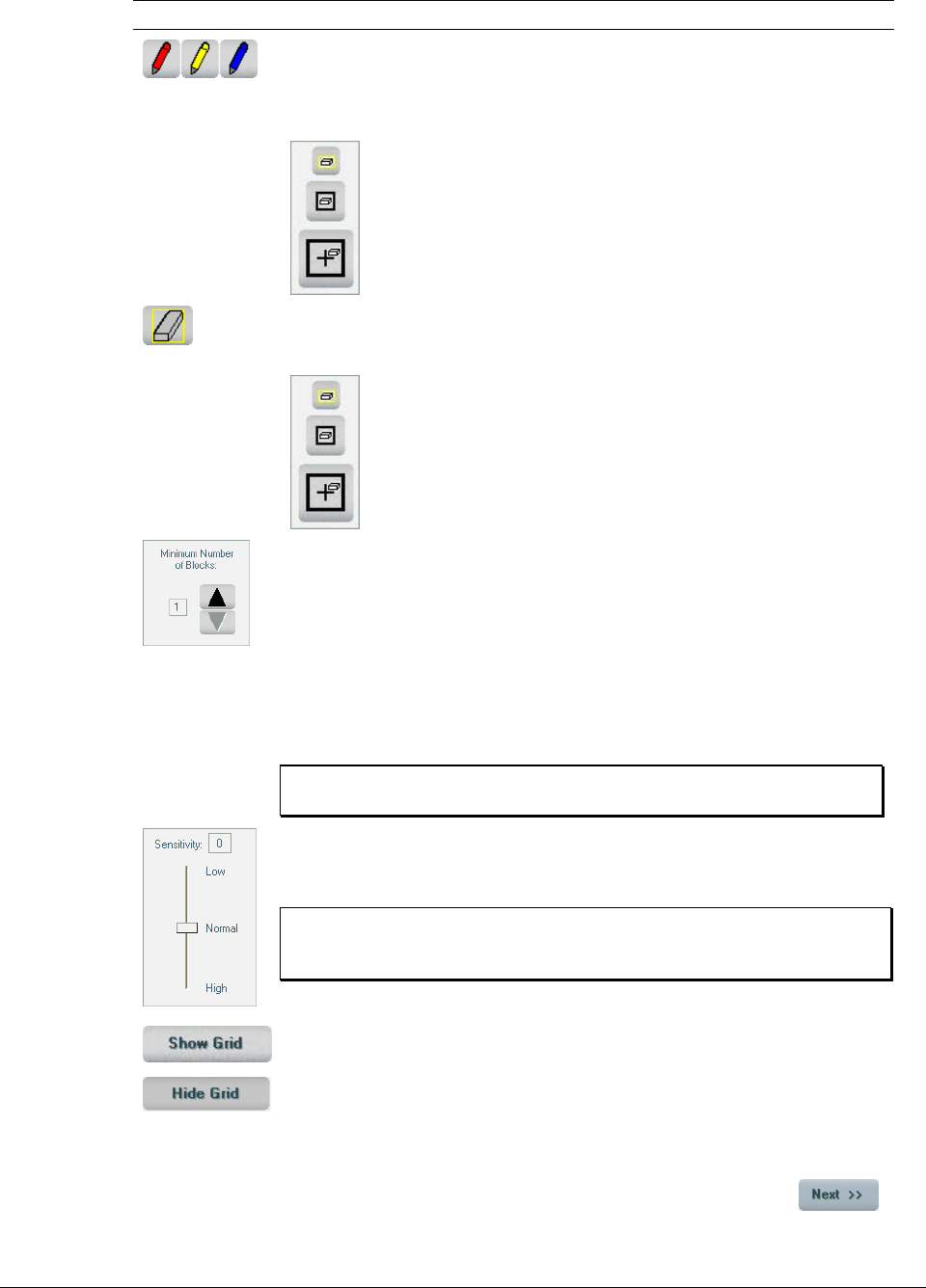
128 • Configuring the ViconNet System XX128-33-01 Rev 1206 Kollector Pro Network Digital Video Recorder
Option Description
When one of the Pencil tools is selected, the cursor becomes a pencil icon.
You can define ROIs by clicking and dragging over the required view area
segments, thereby drawing arrays of blue, red or yellow grid blocks
(according to which pencil is selected).
The Tool Size Selector area includes buttons for three pencil
sizes. According to the selected size, the cursor draws a small
(single block), medium (4-block) or large (16-block) width of grid
blocks per sweep.
When the Eraser tool is selected, the cursor becomes an eraser icon. You
can erase ROI segments by clicking and dragging over selected grid blocks,
thereby erasing them.
The Tool Size Selector area includes buttons for three eraser
sizes. According to the selected size, the cursor erases a small
(single block), medium (4-block) or large (16-block) width of grid
blocks per sweep.
The Block Control selector enables you to define how many blocks of the
colored grid arrays must be simultaneously involved in the change before an
alarm is triggered. For example:
• 1 (the most sensitive setting) – indicates that an alarm should be
triggered if a change is detected in even one block amongst all the
defined ROIs (that is, the alarm triggering is unlimited).
• 16 (the least sensitive setting) – indicates that the change must be
simultaneously detected in at least 16 blocks within the entire view area.
The blocks do not have to be contiguous.
NOTE: The selected minimum cannot exceed the total number of
blocks defined in ROIs.
The Sensitivity Control enables you to adjust the triggering sensitivity (by
dragging the slider) between High (higher detection of changes) to Low
(lower detection of changes).
NOTE: In general, a "normal" sensitivity should be selected. The
highest sensitivities may generate false alarms, while the
lowest may cause interesting events to be missed.
The Show Grid button applies a gray planning grid to the parts of the
window where no ROIs (colored grid blocks) are defined. The gray grid is
only for purposes of viewing where ROIs may potentially be defined and
does not affect the change-detection process. When selected, the button
changes into a Hide Grid button by which the planning grid can be
suppressed, making only the "VMD-active" colored grid blocks visible.
10. When you have finished defining grids and VMD sensitivity for the selected camera, click .
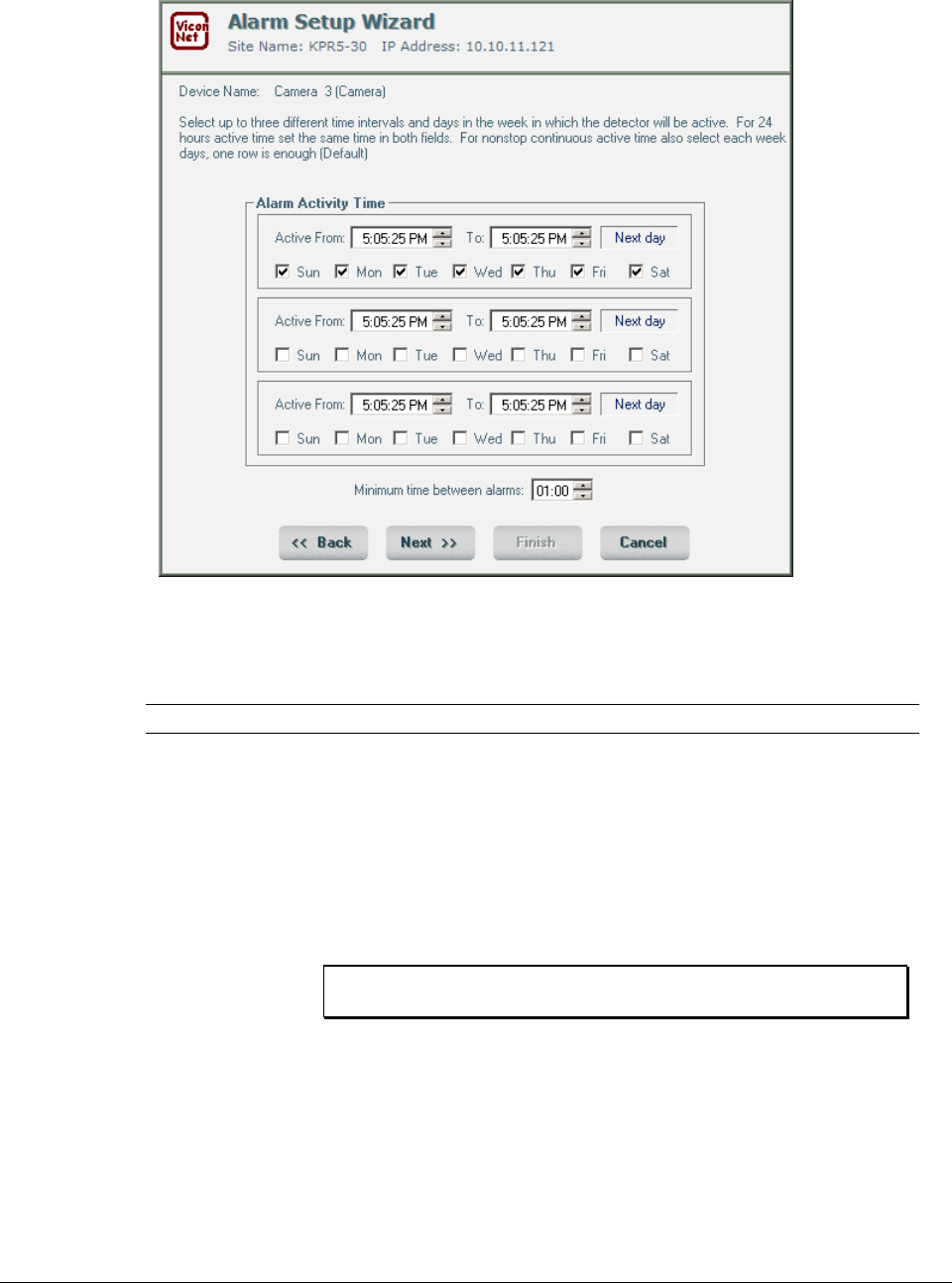
XX128-33-01 Rev 1206 Kollector Pro Network Digital Video Recorder Configuring the ViconNet System • 129
11. The Alarm Setup Wizard window is displayed, where you define the time schedule for the macro.
12. (Optional) To cause the system to activate the macro only if the alarm conditions are met during a
specific time range on specific days (for example, during non-working hours on weekdays), define the
time period in the Alarm Activity Time area, as follows:
Option Description
Active From/To Select the start and end time for the time period (in HH:MM:SS format)
by:
• Selecting the required time segment and then using the up/down
arrows to scroll to the required value,
• -OR-
• Selecting the required time segment and using the keyboard to type
in a numerical value.
Sun, Mon, Tue,
Wed, Thu, Fri, Sat Select the days of the week for the time period.
NOTE: The default is 7 days a week, 24 hours a day (from
midnight to midnight).
Minimum time
between alarms Select how much time must pass after the first and subsequent alarms
before a new alarm will be generated (for any specific camera).
Up to three time-range-and-days definitions can be defined in the Alarm Activity Time area.
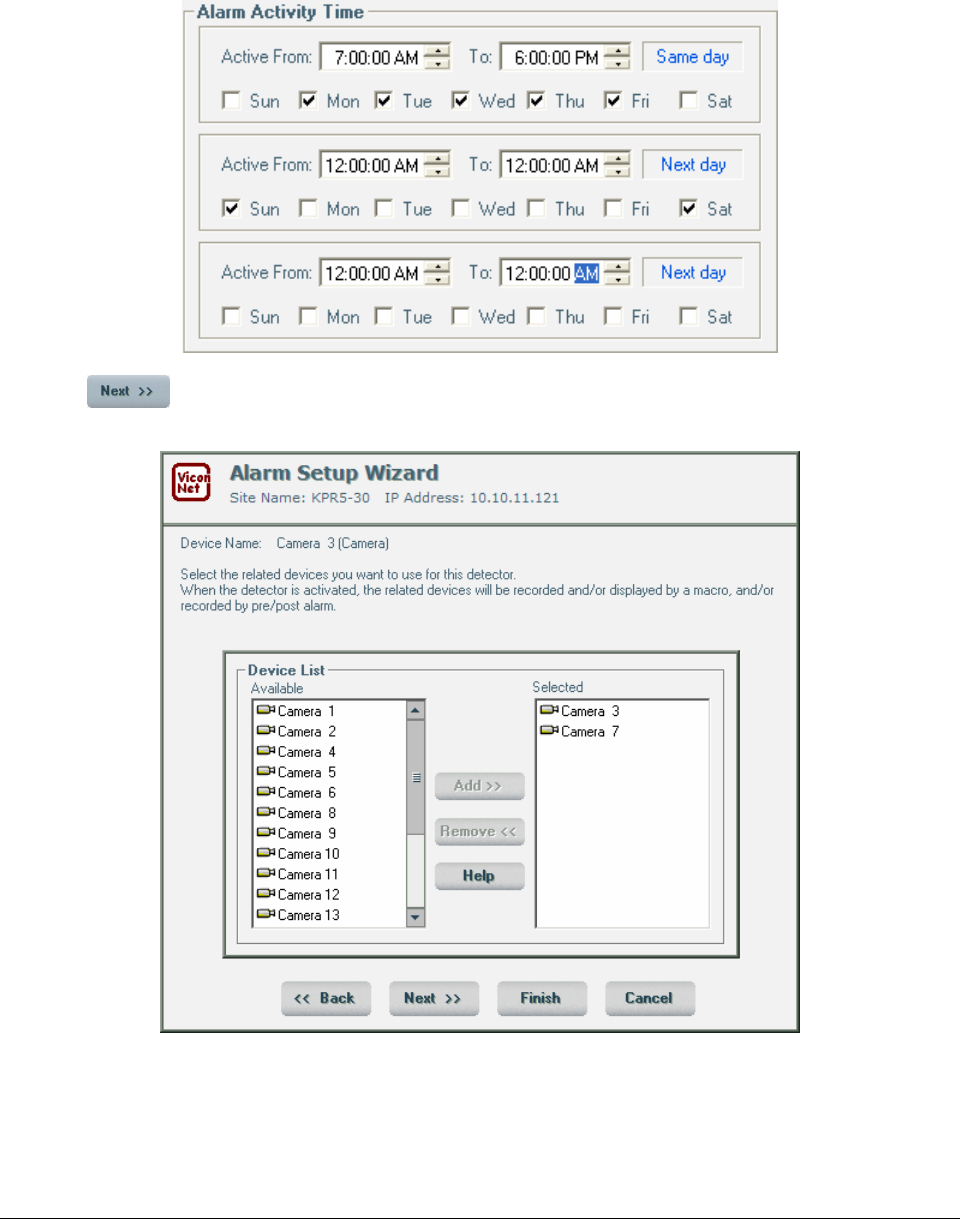
130 • Configuring the ViconNet System XX128-33-01 Rev 1206 Kollector Pro Network Digital Video Recorder
The following example shows an alarm activity time scheduled:
• From 7:00 AM to 6:00 PM, on Monday to Friday, and
• From 12:00 AM to the following 12:00 AM (full 24 hours), on Saturday and Sunday.
13. Click to proceed to the next step of the Alarm Setup Wizard where you can define the related
devices.
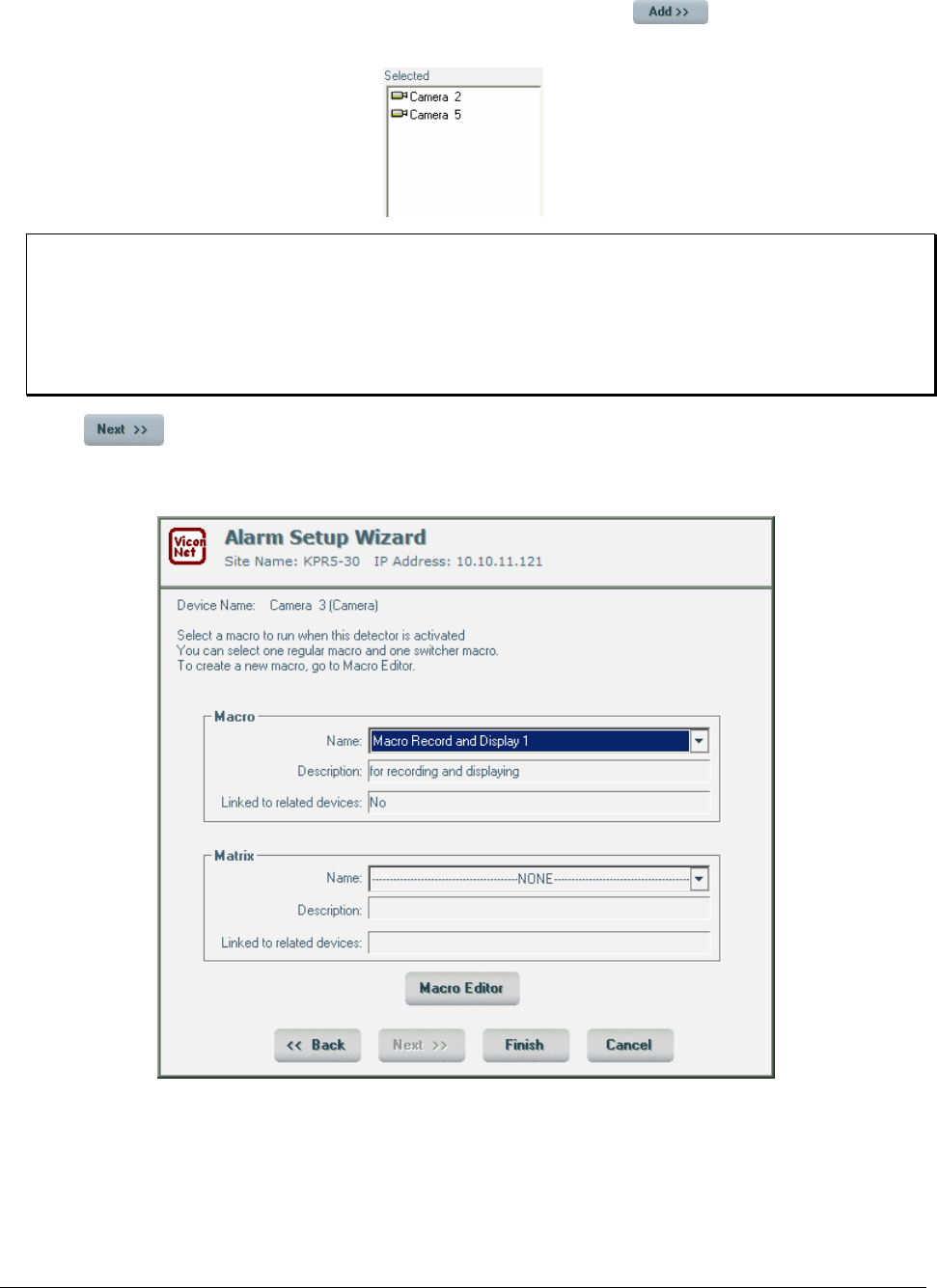
XX128-33-01 Rev 1206 Kollector Pro Network Digital Video Recorder Configuring the ViconNet System • 131
14. (Optional) Select the required devices in the Available area and click to add them to the
Selected area.
NOTES:
You can remove a device from the Selected area by selecting it and then clicking Remove. The device
is redisplayed in the Available area.
The related devices that you select here will be included automatically when you use the Push to
Insert Related Devices option during macro creation. Refer to Creating Macros, page 99, for additional
details.
15. Click to proceed to the next step of the Alarm Setup Wizard where you can select a macro or
a matrix macro (switcher macro) to link to the device. A list of macros currently defined in the system is
displayed.
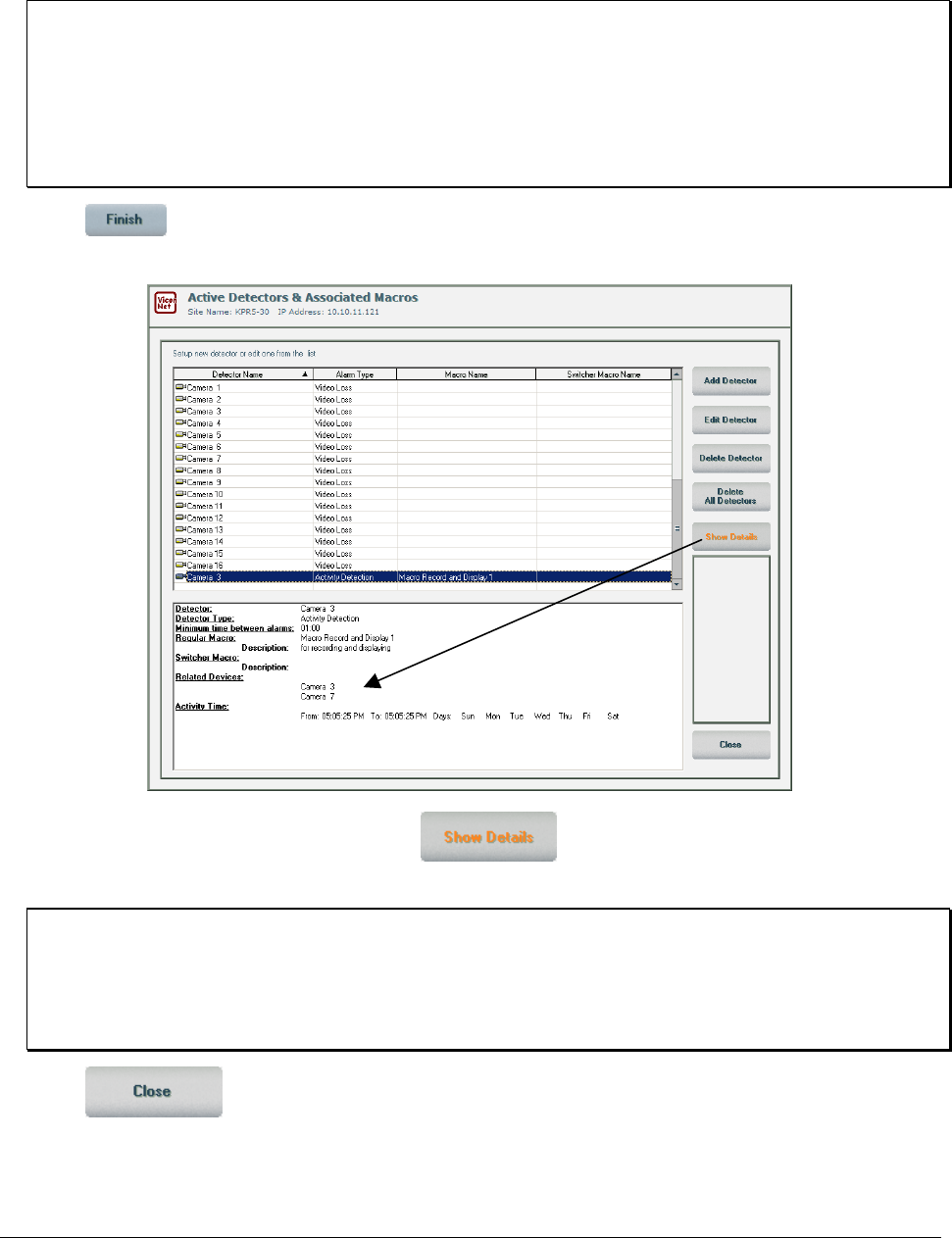
132 • Configuring the ViconNet System XX128-33-01 Rev 1206 Kollector Pro Network Digital Video Recorder
16. (Optional) From the list, select the macro to be activated by the system when the selected alarm
conditions are met on the specific device.
NOTES:
A macro can also be linked to related devices, if required, so that when the alarm conditions are met on
any of the configured devices, it automatically causes the system to run the macro on all the devices
related to the alarmed device.
At this point, you can also create a new macro (meaning, macros do not have to be pre-defined) or edit
an existing macro, by clicking the Macro Editor button. Refer to Creating Macros, page 99, for detailed
information about creating new macros.
17. Click . The device's new alarm setup link is displayed in the list in the Active Detectors &
Associated Macros window.
Click Show Detailsto show detector details
Click Show Detailsto show detector details
18. (Optional) Select the device name and click to view its alarm setup link information in
the bottom of the window, as shown in the above example.
NOTES:
To edit a linked macro, select it from the list and click Edit Detector. The second Alarm Setup Wizard
window is displayed. Modify the displayed settings, as described in the procedure above.
To delete an alarm setup link from the list, select the appropriate device and click Delete Detector or
click Delete All Detectors, if required.
19. Click to exit the Active Detectors and Associated Macros window.

XX128-33-01 Rev 1206 Kollector Pro Network Digital Video Recorder Configuring the ViconNet System • 133
When Not to Use VMD
To conserve valuable hard drive space, it is recommended that the VMD mechanism be used to trigger
recording only when motion occurs. On a very active camera, however, this can result in a constant stream
of alarms and endless recording. This unending alarm state creates an enormous log of thousands of
entries displayed on top of the application. As this log only overwrites after 24 hours and uses a great deal
of system resources, potential delays could occur when clicking in any of the application menus. Therefore,
unless there is a true need for alarm notification upon motion, using the VMD alarm is not recommended for
very active cameras.
Instead, it is preferable to use the recording trigger setup options provided in the Devices Settings window,
as described in step 6 of the To configure/modify a local camera procedure, page 66. When all cameras are
programmed to your satisfaction, you must set them to auto record in order to begin recording. Using this
approach enables the Kollector Pro to record video only when motion occurs within the selected grid you
programmed.
As the Kollector Pro always records the time stamp, upon playback you will see the on-screen clock update
every second, even though the video does not refresh more than once every 20 seconds (when the device
takes a reference frame). For example, if you set a camera to record a clock and you mask out any motion
on the clock face itself (like the sweep secondhand on an analog clock, or the seconds display of a digital
clock), upon playback you will see the time stamp count every second, but the video of the clock will only
change every 20 seconds (the reference frame update). The time stamp that allows the recorder to show a
linear clock upon playback is a very small file, and is considered negligible for hard drive usage. The
reference frame does not trigger recording; it writes one video frame to the hard drive and it does not show
up as a motion "hit" when doing a museum search.
Setting Pre/Post Alarms
The ViconNet system enables you to set pre alarms and post alarms, which instruct the system about what
to do immediately before and after an alarm event occurs on any device in the system. This enables you to
know what happened at a specific site immediately before and/or after an alarm event.
Post alarms are, in effect, a type of macro, but are activated only by alarm events as opposed to, for
example, a user-defined time schedule.
Configuring pre alarm settings consists of determining the duration that devices record prior to the alarm
and the quality of the saved data. If you configure post alarm settings, then when an alarm event occurs,
the system immediately begins recording the configured devices according to the indicated post alarm
duration and other settings.
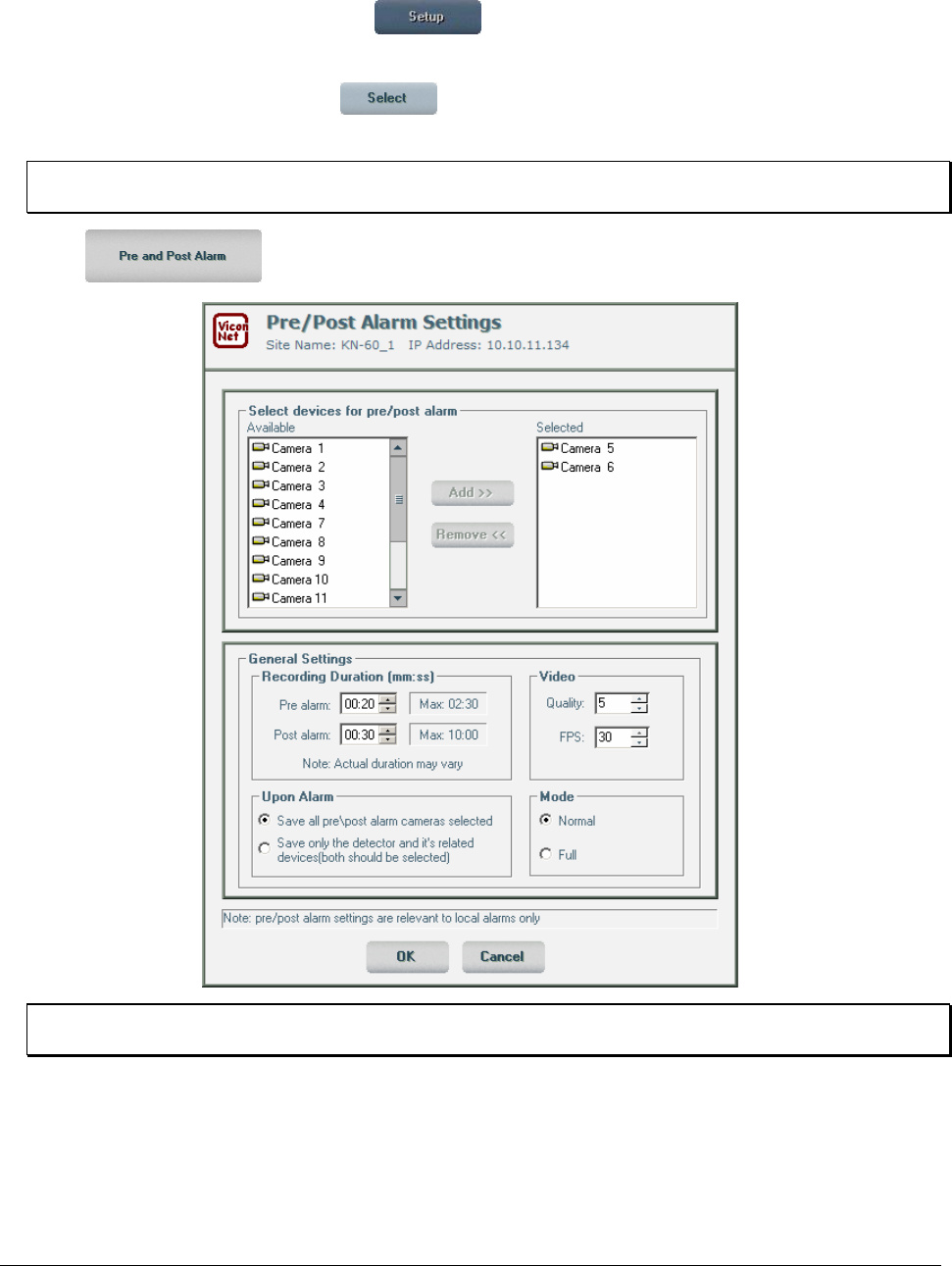
134 • Configuring the ViconNet System XX128-33-01 Rev 1206 Kollector Pro Network Digital Video Recorder
To set pre/post alarms:
1. From the ViconNet Main window, click . The Setup Site Selection window is displayed, as
shown on page 57.
2. Select your Kollector Pro and click . The System Settings window is displayed, as shown on
page 58.
NOTE: You can set pre/post alarms only for a transmitter. Remote setup is only possible to a
transmitter.
3. Click . The Pre/Post Alarm Settings window is displayed.
NOTE: You have the option to set only pre alarms, only post alarms, or both, depending on your
requirements.
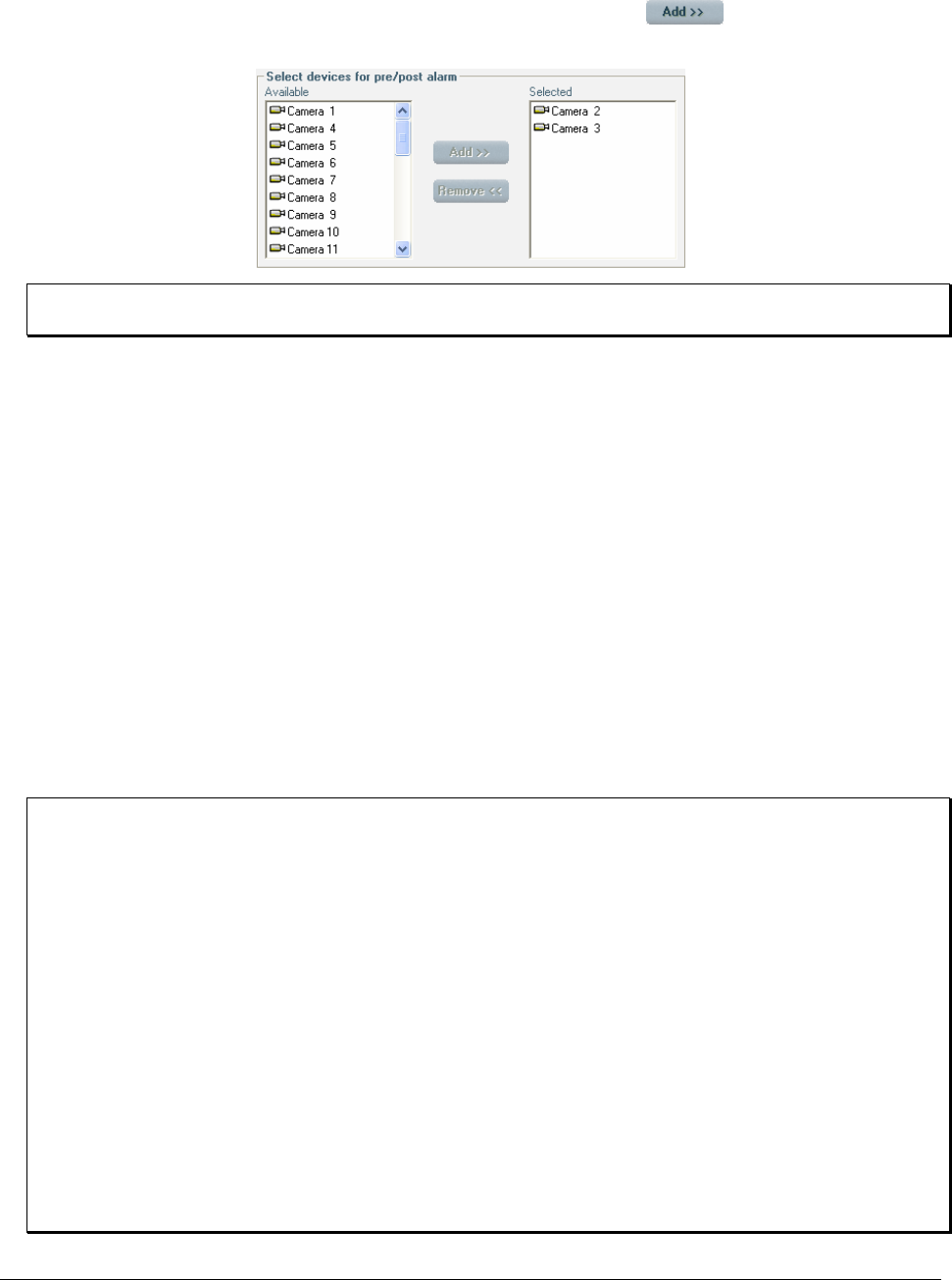
XX128-33-01 Rev 1206 Kollector Pro Network Digital Video Recorder Configuring the ViconNet System • 135
4. In the Select devices for pre/post alarm area, select the devices from the Available area that you
want to be affected by the pre alarm and post alarm settings and click to add them to the
Selected area.
NOTE: You can remove a device from the Selected area by selecting it and then clicking Remove.
The device is redisplayed in the Available area.
5. Select the required Recording duration (mm:ss) settings for the pre/post alarms, as follows:
• Pre alarm: When an alarm is activated in the system, this option causes the system to immediately
save the data prior to the alarm of the selected devices to the storage location. The data is saved
according to the selected duration, the selected Upon Alarm setting, and the Video and Mode
settings, as described in the subsequent steps in this procedure.
Select the required time segment and then use the up/down arrows to scroll to the required value,
-AND/OR-
Select the required time segment (mm or ss) and then use the keyboard to type in a numerical
value.
• Post alarm: When an alarm is activated in the system, this option causes the system to
immediately begin recording the selected devices for the selected duration.
Select the required time segment, as described in the Pre alarm option above.
NOTE: Pre alarm and post alarm settings are not directly related to macros and can run without macros
being configured in the system. When different recording options are requested concurrently, the
recorded Quality and FPS that applies is determined according to prioritization settings. For details,
refer to the Picture Quality and FPS Priority section, page 118.
The MAX fields in the Pre/Post Alarm Settings window (page 134) are read-only fields. The maximum
times are the highest possible limits. These upper limits displayed in the MAX fields changes according
to the selected number of cameras, quality, mode, FPS and transmitter type. The actual recorded
duration may differ from the duration requested. (The default MAX values are five minutes for pre alarm
and ten minutes for post alarm.
If pre\post alarm is defined in the Quality and FPS Priority window as first priority, and the Pre alarm
recording duration in the Pre/Post Settings window is not set to 00, the recording is performed
according to the quality requested in the Pre/Post Alarm Settings window, even though no alarm
occurred. If pre\post alarm is defined in the Quality and FPS Priority window as first priority, and
Pre alarm recording duration is set to 00 (meaning, do not save in a buffer), the recording is performed
according to the second priority function selected in the Quality and FPS Priority window (either quality
of auto record or user/macro), and only after an alarm occurs, the recording is performed according to
the quality defined in the Pre/Post Alarm Settings window – for the duration defined in the Post alarm
recording duration field.
136 • Configuring the ViconNet System XX128-33-01 Rev 1206 Kollector Pro Network Digital Video Recorder
6. If you have configured pre alarm settings in step 5, select one of the following Upon Alarm settings:
• Save all Pre/Post alarm devices: When an alarm is activated on any device in the system, this
option causes the system to immediately save the pre and post alarm data of all the selected
devices to the storage location. The data is saved according to the settings that you define in the
other options in the Pre/Post Alarm Settings window.
• Save only the detector's selected related devices: When an alarm is activated, this option
causes the system to immediately save the pre and post alarm data of only the selected devices
that are also listed as related devices for that alarm.
NOTE: Refer to Defining Alarm Setup Links, page 122, for additional details about adding related
devices.
7. Select the required Video settings for the alarm-activated recorded data, as follows:
• Quality: The picture quality that you select determines the resolution at which the pre alarm and/or
post alarm data is recorded.
Select the required picture quality from the range of one to eight, where:
• 1 = best picture quality, but slowest data transmission.
• 8 = least clear picture quality, but fastest data transmission.
• FPS: The rate at which the pre alarm and/or post alarm data will be recorded.
Select the required frames per second from the available range (NTSC: 1 to 30; PAL: 1-25).
Refer to Chapter 2, Getting to Know ViconNet, for additional details about picture quality and FPS.
8. Select one of the following Mode settings (refresh mode):
• Normal: Records only changes within the frames for pre-and post alarm data.
• Full: Records full frames for pre-and post alarm data.
Refer to Chapter 2, Getting to Know ViconNet, for additional details about the refresh mode.
9. Click to save your settings and close the Pre/Post Alarm Settings window.
XX128-33-01 Rev 1206 Kollector Pro Network Digital Video Recorder Configuring the ViconNet System • 137
Creating Schedules
A schedule is a group of user-defined settings that cause the system to activate a selected macro during a
specific time period and for a specific length of time.
The ViconNet system enables you to use the ViconNet application to create multiple schedules, according
to your requirements, which consists of selecting which macro to run on which days of the week, as well as
a start time and end time for each day.
Each schedule, using its defined macro, performs the respective commands on the configured camera
inputs only during the time periods defined in the schedule. The transmitter remains idle during the
non-scheduled times.
During schedule configuration, you can also determine if the defined macro will run continuously during the
selected time period or at specific intervals. This enables you to fine-tune your macro operations and may
reduce storage space in the storage location by recording data only during the scheduled time periods. You
can also modify or delete an existing schedule, if required.
To create a schedule:
1. Ensure that you have created the required macros, as described in Creating Macros, page 99.
2. From the ViconNet Main window, click . The Setup Site Selection window is displayed, as
shown on page 57.
3. Select your Kollector Pro to create a schedule and click . The System Settings window is
displayed, as shown on page 58.
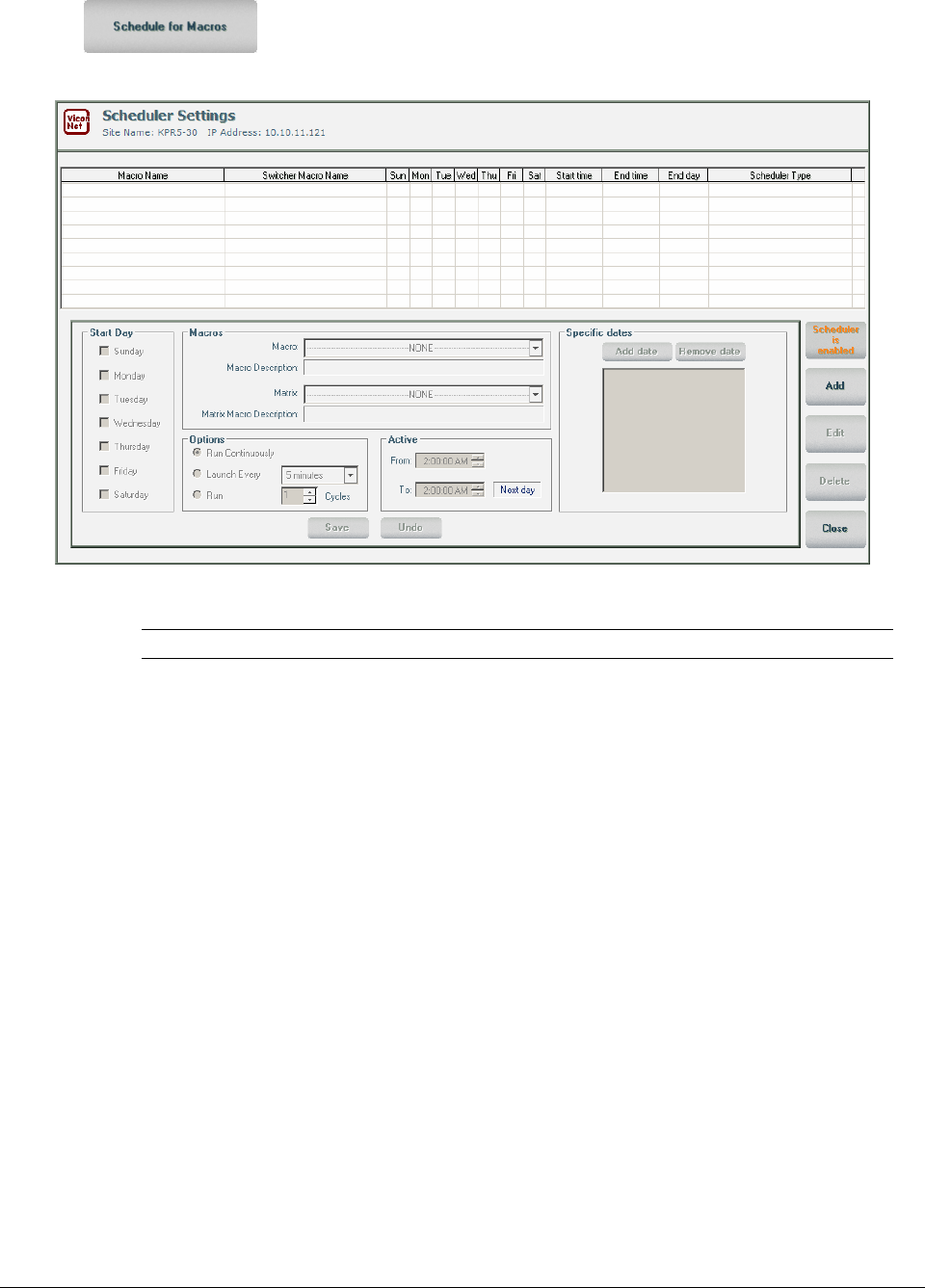
138 • Configuring the ViconNet System XX128-33-01 Rev 1206 Kollector Pro Network Digital Video Recorder
4. Click . The Scheduler Settings window is displayed, showing the currently defined
schedules in the system, if any.
The Scheduler Settings window contains the following information about each schedule:
Column Description
Macro Name The defined macro name.
Switcher Macro Name The defined switcher (matrix) macro name.
Sun, Mon, Tue, Wed,
Thu, Fri, Sat The days of the week that the macro is scheduled to run.
Start Time The time that the macro is scheduled to begin running.
End Time The time that the macro is scheduled to stop running.
End Day The day that the macro is scheduled to stop running.
Scheduler Type The defined run option, which determines if the macro will run
continuously or only at specified intervals.
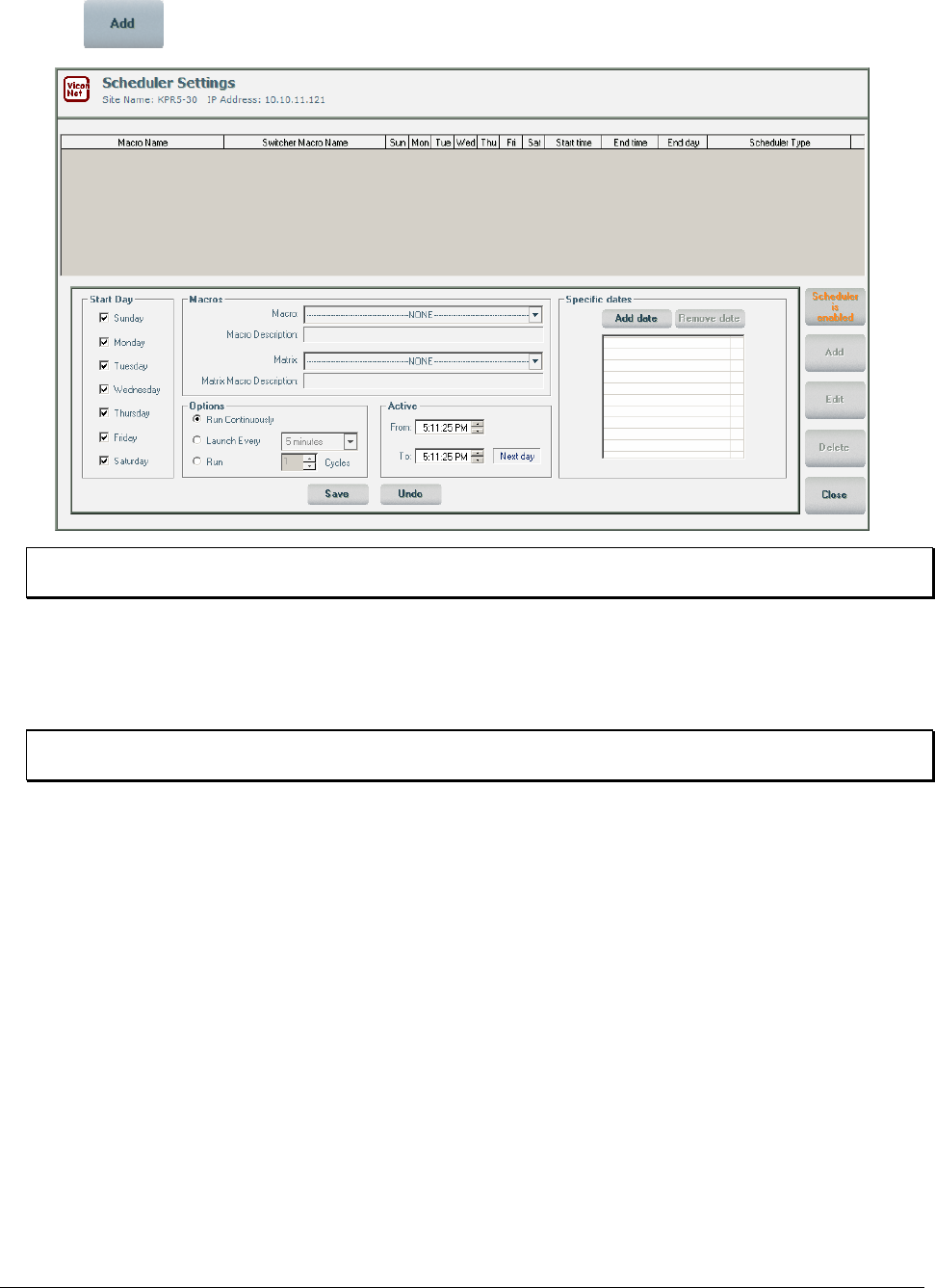
XX128-33-01 Rev 1206 Kollector Pro Network Digital Video Recorder Configuring the ViconNet System • 139
5. Click . The Scheduler Settings window is enabled.
NOTE: When working in the Scheduler Settings window, you can click Undo to restore the last saved
settings, if required.
6. From the Macro or Switcher Macro dropdown list, select the macro for which you want to create a
schedule. The defined macro description is displayed automatically in the Macro Description field.
7. Select the days of the week that you want the macro to run from the Sunday - Saturday checkboxes.
NOTE: Selecting days of the week refers only to the coming week. To select other future dates, select
dates from the Specific dates area, as described in step 9, below.
8. In the Active From and To fields, define the start and end time (in HH:MM:SS format) for the macro to
run on each of the selected days, as follows:
• Select the required time segment and then use the up/down arrows to scroll to the required value,
-OR-
• Select the required time segment and then use the keyboard to type in a numerical value.
If the Active From and To times are the same, the schedule will be for a 24-hour period.
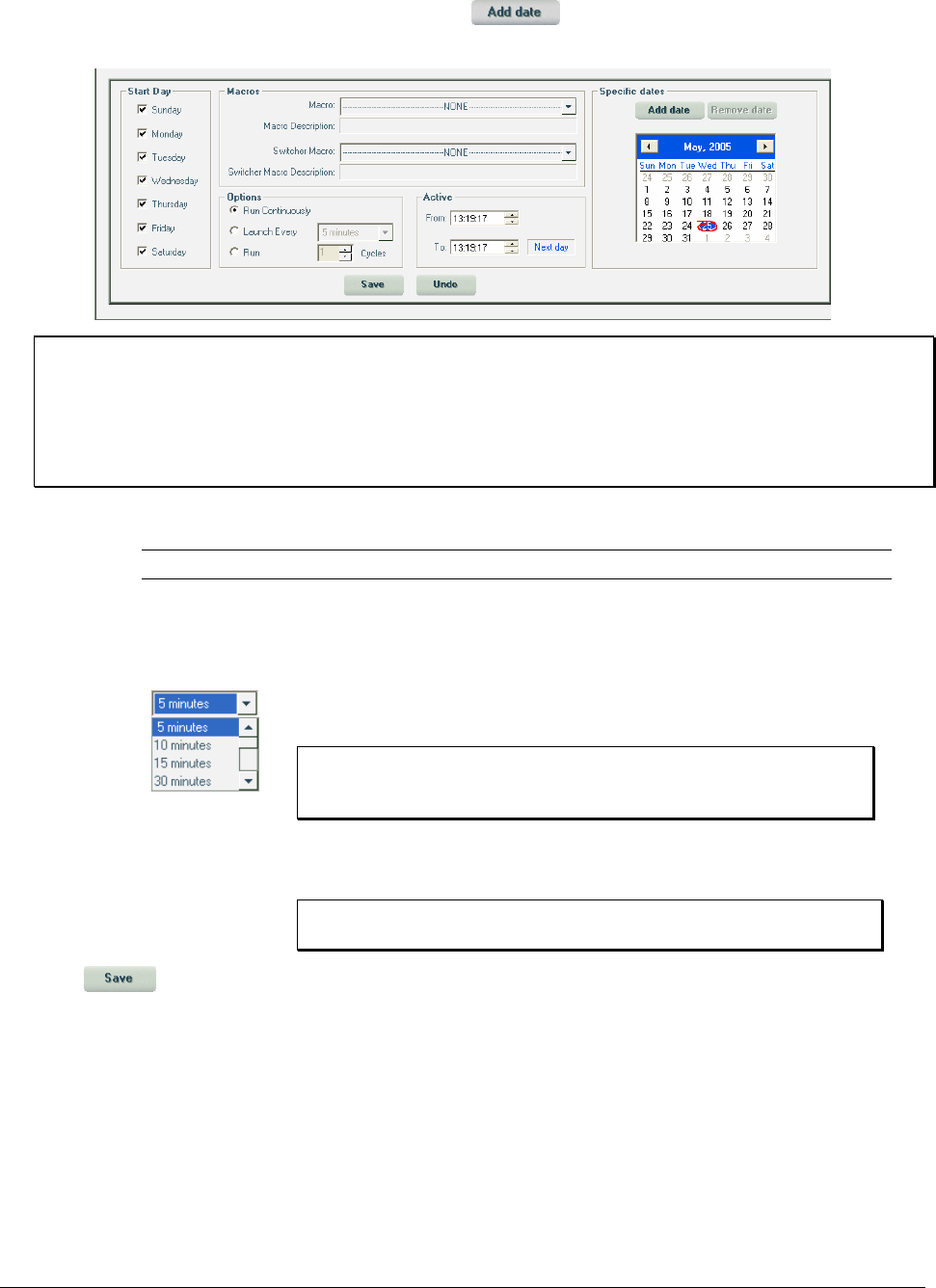
140 • Configuring the ViconNet System XX128-33-01 Rev 1206 Kollector Pro Network Digital Video Recorder
9. To select a specific date for the macro to run, click in the Specific Dates area. A calendar is
displayed. Select the date/s required by clicking in the calendar.
NOTES:
Specific dates selected can be deleted by highlighting the date in the list and clicking Remove date.
If the date you select is in the past, a message requesting a future date is displayed.
If a Start Day is selected, and a Specific date, the macro will run on both the day selected in the Start
Day area, and the date selected in the Specific dates area.
10. In the Options area, select a run option for the macro, as follows:
Option Description
Run
Continuously This option causes the selected macro to run continuously, during the
selected days and during the time period that you selected in the Active
From and To fields.
Launch Every
This option causes the selected macro to run at regular intervals,
depending on the minute/hour value that you select from the dropdown
list.
NOTE: When an alarm event occurs, the execution of the alarm
macro takes priority over the execution of the schedule
macro.
Run This option causes the selected macro to run a specified number of cycles
(from 1 to 256) from the selected start time.
NOTE: For scheduler to run now, ensure that Active From time
is the current time or later.
11. Click . The new schedule is added to the list at the top of the window. The ViconNet Main
window is redisplayed.
After creating the schedule, the system activates the relevant macro automatically according to the
schedule settings that you have defined.
You can also activate the macro manually, if required, as described in Chapter 7, Managing Macros
and Schedules.
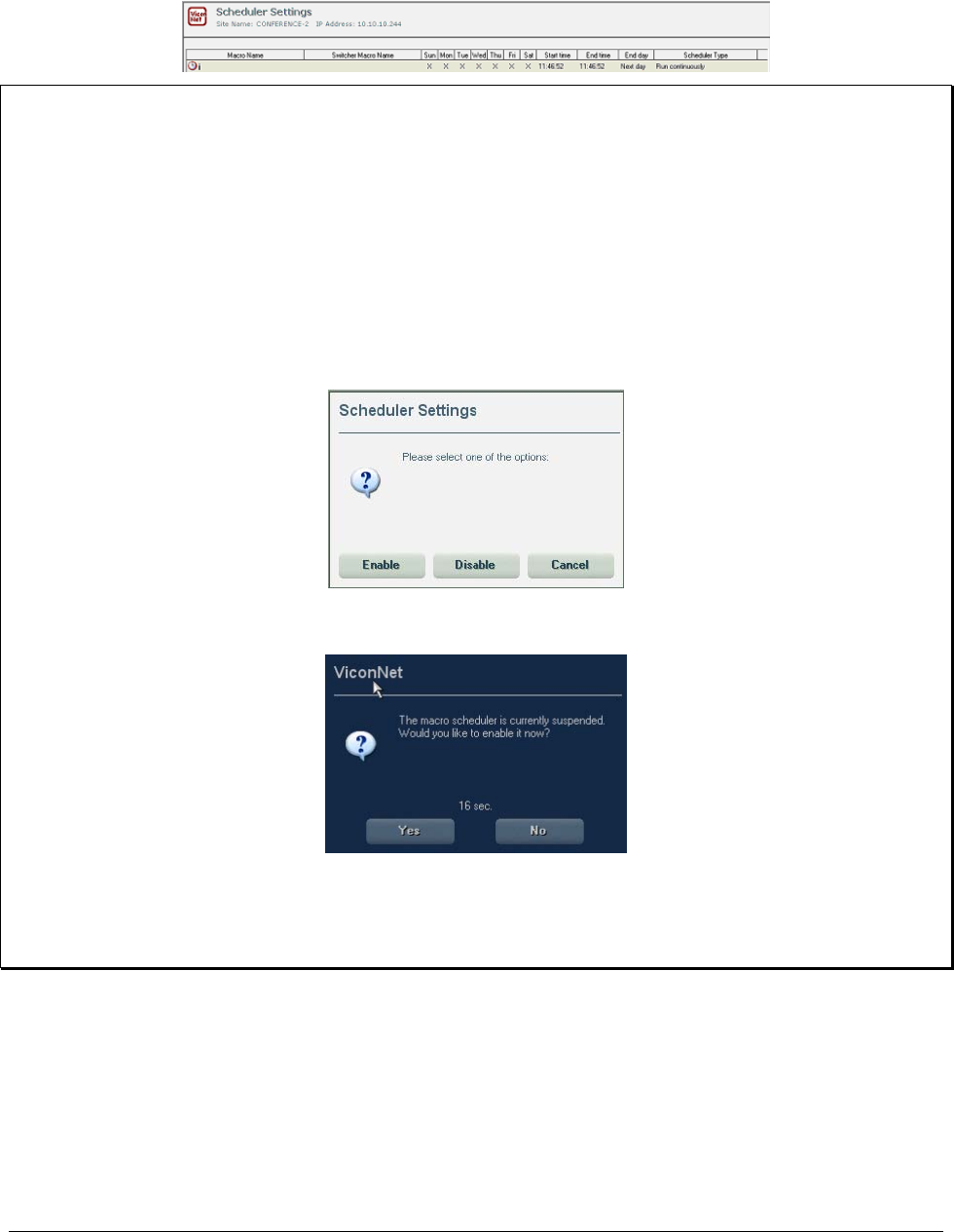
XX128-33-01 Rev 1206 Kollector Pro Network Digital Video Recorder Configuring the ViconNet System • 141
If you open the Scheduler Settings window again as described at the beginning of this procedure), you
will see the new schedule in the list.
NOTES:
To edit a schedule, select the schedule from the list in the Scheduler Settings window and click Edit. Then
modify the displayed settings, as described in the procedure above, and click Save.
To delete a schedule, select the schedule from the list in the Scheduler Settings window and click Delete.
To disable all scheduler operations, click the Scheduler is enabled button and then click Yes in the
displayed message. The button then toggles to Scheduler is disabled.
If a scheduled macro was stopped using the Stop Macro option in the Main window, the Scheduler is
enabled button (in the Scheduler Settings window) changes to Scheduler is suspended, and the
scheduler switches to Disabled mode. Clicking the Scheduler is suspended button displays a message
which provides the option to Enable the scheduler, Disable the scheduler or Cancel (meaning, stay in
Suspended Mode).
In Suspended mode, a message appears every five minutes asking if you want to enable the macro
scheduler.
If the user does not respond (click Yes or No) within 30 seconds of the message appearing, the macro
scheduler is automatically enabled.
If the system reboots while a macro is running or scheduled to run, on system startup, the macro resumes
from the place it stopped (if it is still within its time limits).
142 • Configuring the ViconNet System XX128-33-01 Rev 1206 Kollector Pro Network Digital Video Recorder
Restoring and Backing Up System Settings
The ViconNet system automatically backs up all the system settings every time you close the ViconNet
application.
In addition, you can also manually back up the system settings at any time, to any network location, or
restore the settings to ones that were saved previously.
To manually back up or restore system settings:
1. From the ViconNet Main window, click . The Setup Site Selection window is displayed, as
shown on page 57.
2. Select your Kollector Pro and click . The System Settings window is displayed, as shown on
page 58.
3. To back up settings, click . A standard file browser window is displayed. Navigate to the
required backup location and click OK. It is highly recommended that you backup the settings to a
floppy disk in the A:\ drive or CD, in case the hard drive fails. After you have saved the settings to the
floppy disk or CD, label it with the name of the file and the date on which it was created.
4. To restore settings, click . A standard file browser window is displayed. Navigate to the
backup file that you want to restore and click OK.
NOTE: Remember the backup location for restoration purposes. It is important to restore system settings on
the same transmitter on which the backup was performed.
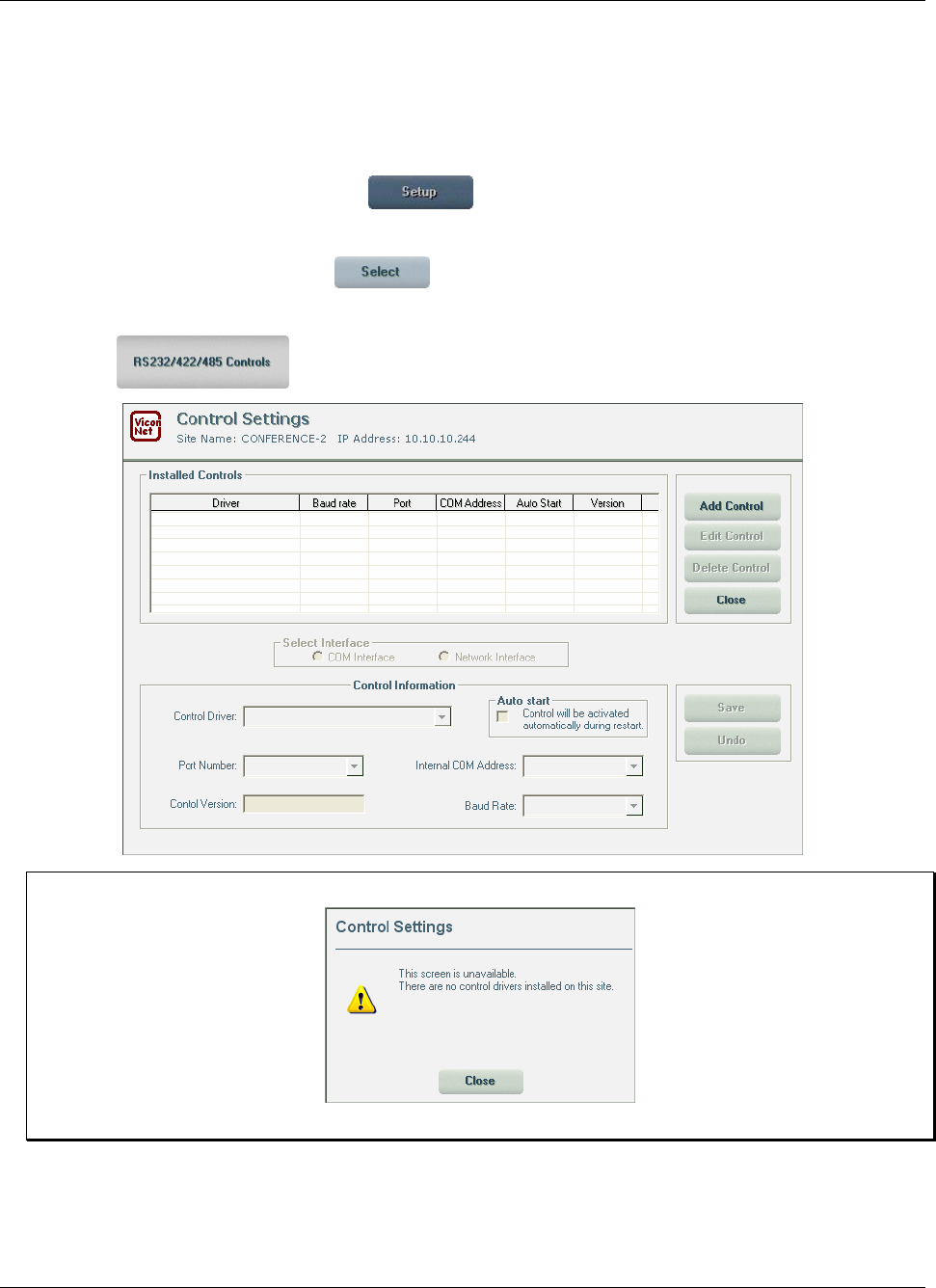
XX128-33-01 Rev 1206 Kollector Pro Network Digital Video Recorder Configuring the ViconNet System • 143
Configuring an External Control
After the appropriate driver has been installed, the controls can be configured through the RS232/422/485
Controls option in the system settings window.
To configure the control:
1. From the ViconNet Main window, click . The Setup Site Selection window is displayed, as
shown on page 57.
2. Select your Kollector Pro and click . The System Settings window is displayed, as shown on
page 58.
3. Click the button. The Control Settings window is displayed.
NOTE: If the relevant drivers are not installed, the following message is displayed:
•
Click Close and install the relevant drivers.
4. When the drivers are correctly installed, click the Add Control button to display a list of the
pre-installed drivers. The types include: PTZ joystick, relays and control box.
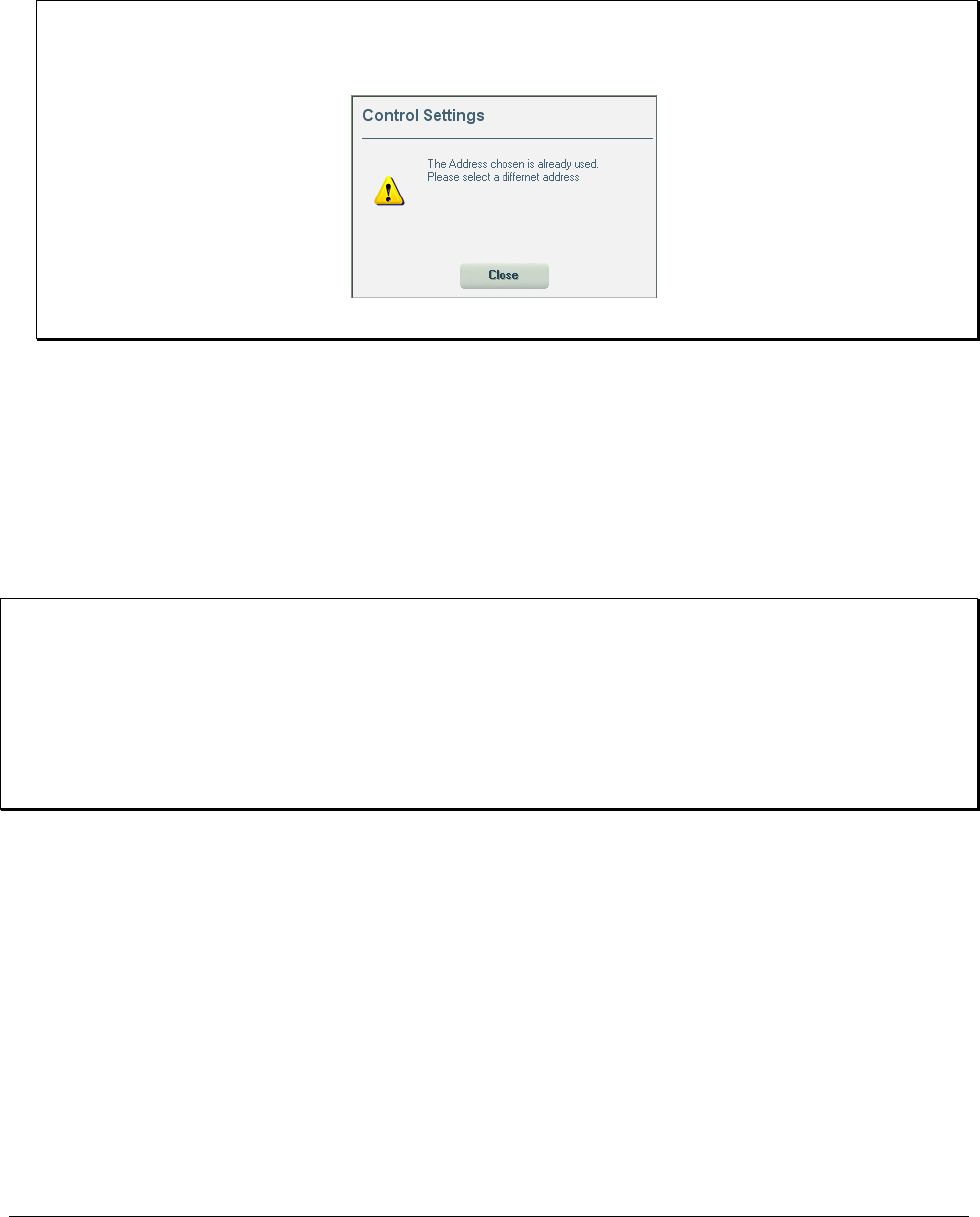
144 • Configuring the ViconNet System XX128-33-01 Rev 1206 Kollector Pro Network Digital Video Recorder
5. From the Control Driver box, select the required driver.
6. Select the Internal COM Address with which to communicate with the device, the Port Number, and
the Baud Rate.
NOTES:
Ensure the Internal COM Address is different for each control driver, or the following message
appears:
.
For PTZ Joystick, the Baud Rate must be 4800.
7. Select/Deselect Auto start checkbox.
• If selected, the control is automatically activated on system startup.
• If not selected, the control must be activated manually in the main screen, as described in the
section Activating a Control, below.
8. Click Save to save the settings.
9. Click Close to exit the Control Settings window.
NOTES:
The Control driver and Control version parameters are set automatically.
To edit the configuration for a control driver, select the control in the list and click Edit Control. The relevant
fields in the Control Information area are enabled.
To delete a control driver, select the control in the list and click Delete Control.
When working in the Control Settings window, you can click Undo to restore the last saved settings, if
required.
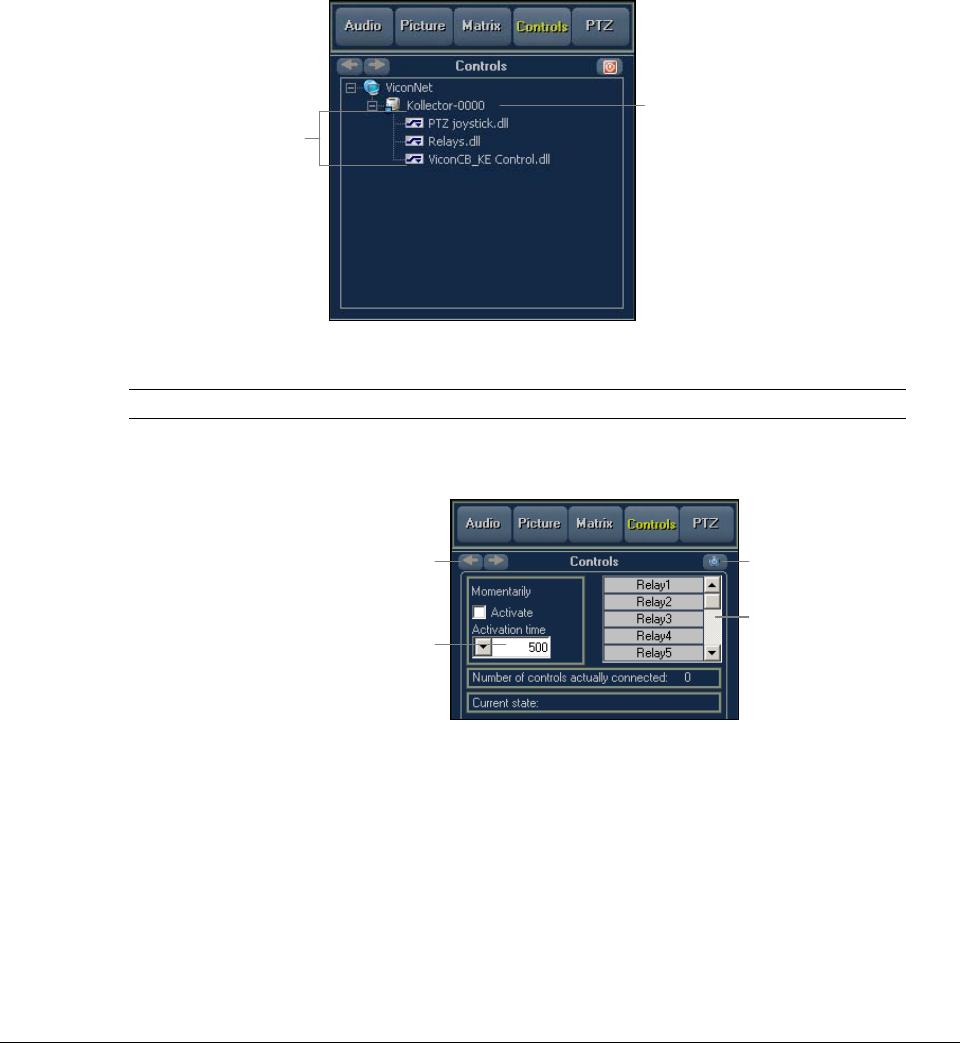
XX128-33-01 Rev 1206 Kollector Pro Network Digital Video Recorder Configuring the ViconNet System • 145
Activating a Control
Controls such as joystick, relay, and so on, must be activated in order for them to function in the ViconNet
system.
To activate a control:
1. In the Main window, click Controls. A list (tree) of all sites with controls configured is shown in the
lower-left panel. To see the controls configured for a specific site, click on the site in the tree.
Control
Drivers
Site
2. Depending on the type of control, activate it as follows:
Control How to Activate
Relay • Click on the control driver in the tree. The following GUI is
displayed in the lower-left panel.
Navigate Between
Activated Relays
Select Relay
Activation Duration
Show/Hide
Relay GUI
Select Relay(s)
to Activate
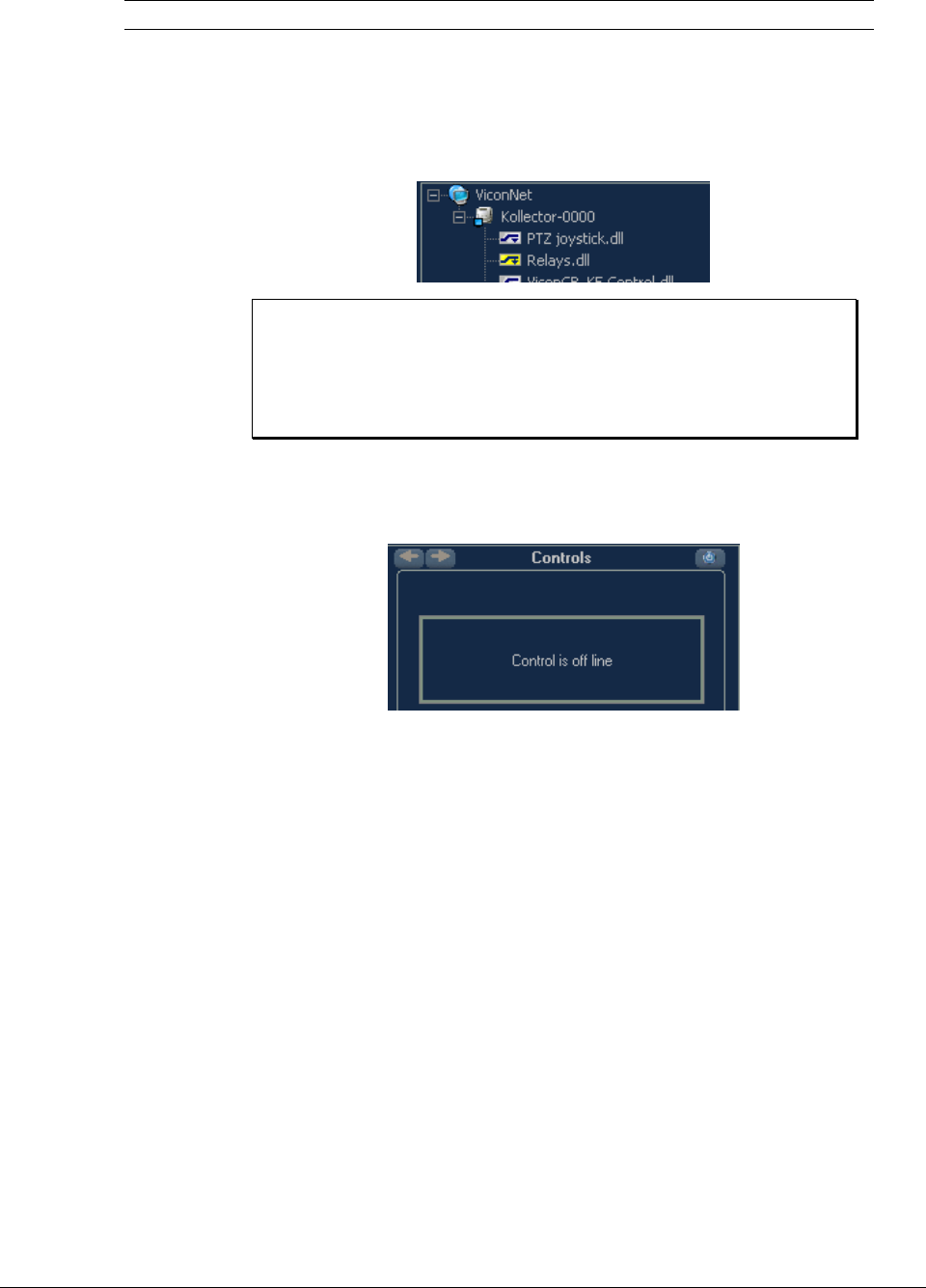
146 • Configuring the ViconNet System XX128-33-01 Rev 1206 Kollector Pro Network Digital Video Recorder
Control How to Activate
• Select Activate and the Activation time (duration of activation of
relay in milliseconds)
• Select which relay to activate
Activated relays appear in the controls list with a yellow icon and bold text.
NOTES:
The Number of controls actually connected is the number of
actual physical connections. If this number is 0, a relay cannot be
activated.
The Current State displays the name of the last relay activated.
PTZ Joystick Click on the joystick control in the tree. The joystick control is activated and a
GUI message appears in the lower-left panel that the control is on line. If
there are no joysticks physically connected (configured), the message in the
GUI is:
To deactivate the joystick control, click on it in the control list again.
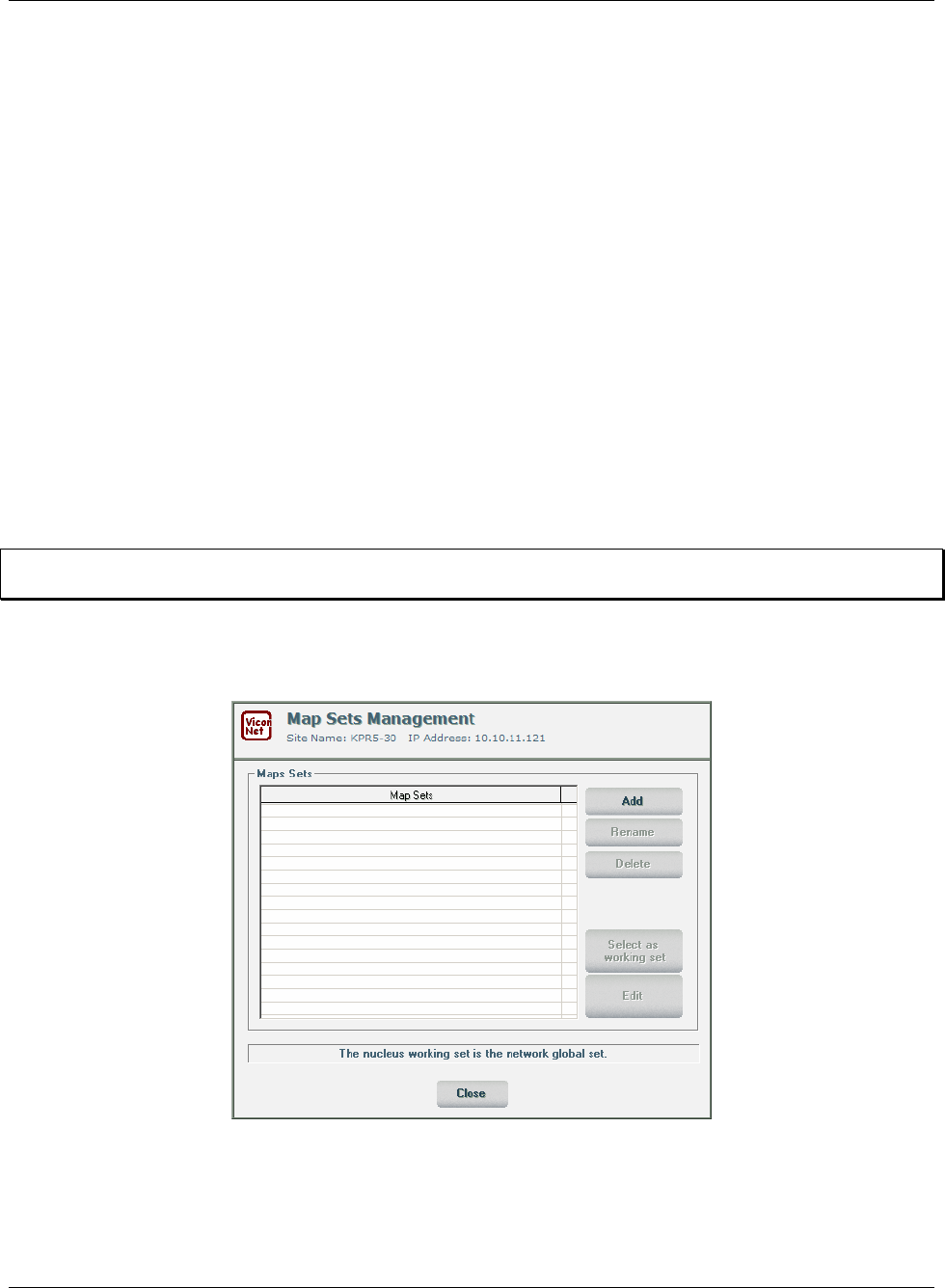
XX128-33-01 Rev 1206 Kollector Pro Network Digital Video Recorder Configuring the ViconNet System • 147
Defining Site Maps and Map Sets
The Site Map feature allows you to define the location of ViconNet equipment (the local Kollector and its
associated cameras, and so on) on a map of their physical environment. A map can be a construction plan,
building plan, plan of a room and so on. Instead of going to the site list and trying to find a particular camera
by name, a Site Map can be examined and the equipment's physical location and status
(activated/deactivated) can immediately be seen. Cameras can also be activated via the Site Map. If more
than one map exists, map sets (groups of maps) can be defined.
Maps are added using Map Sets Management. The map files should be .jpeg type files. The optimal map
size is 980 x 735 pixels. Larger and smaller size maps can be used and will occupy more or less of the full
screen. Maps larger than the screen can be scrolled around to view any specific area.
Creating a Map Set
A map set usually consists of various related maps. For example, in a large company with several
multi-storey buildings, there may be a map set for each building. In each map set there could be a number
of maps, such as, one for each floor (That means, maps can be grouped into map sets according to your
preference).
NOTE: Before a map set can be created, ensure that the map images are preloaded into the system from
Floppy or CD media.
To create a map set:
1. From the System Settings window, select Map Sets. The Map Sets Management window appears.
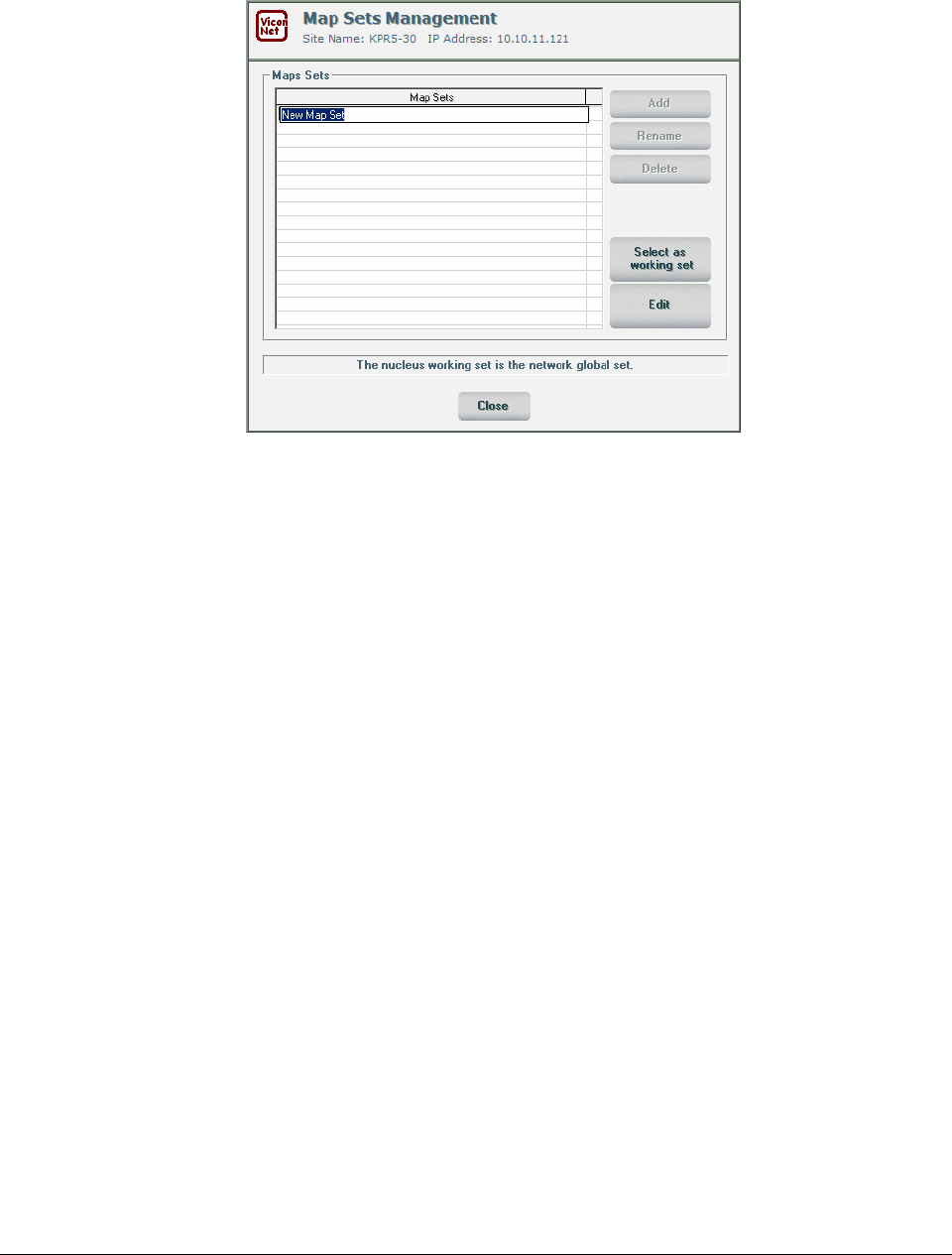
148 • Configuring the ViconNet System XX128-33-01 Rev 1206 Kollector Pro Network Digital Video Recorder
2. Click Add. The next blank line in the Map Sets area becomes editable and the text New Map Set
appears automatically as the name of the new map set.
3. Enter the correct name for the new map set and press Enter.
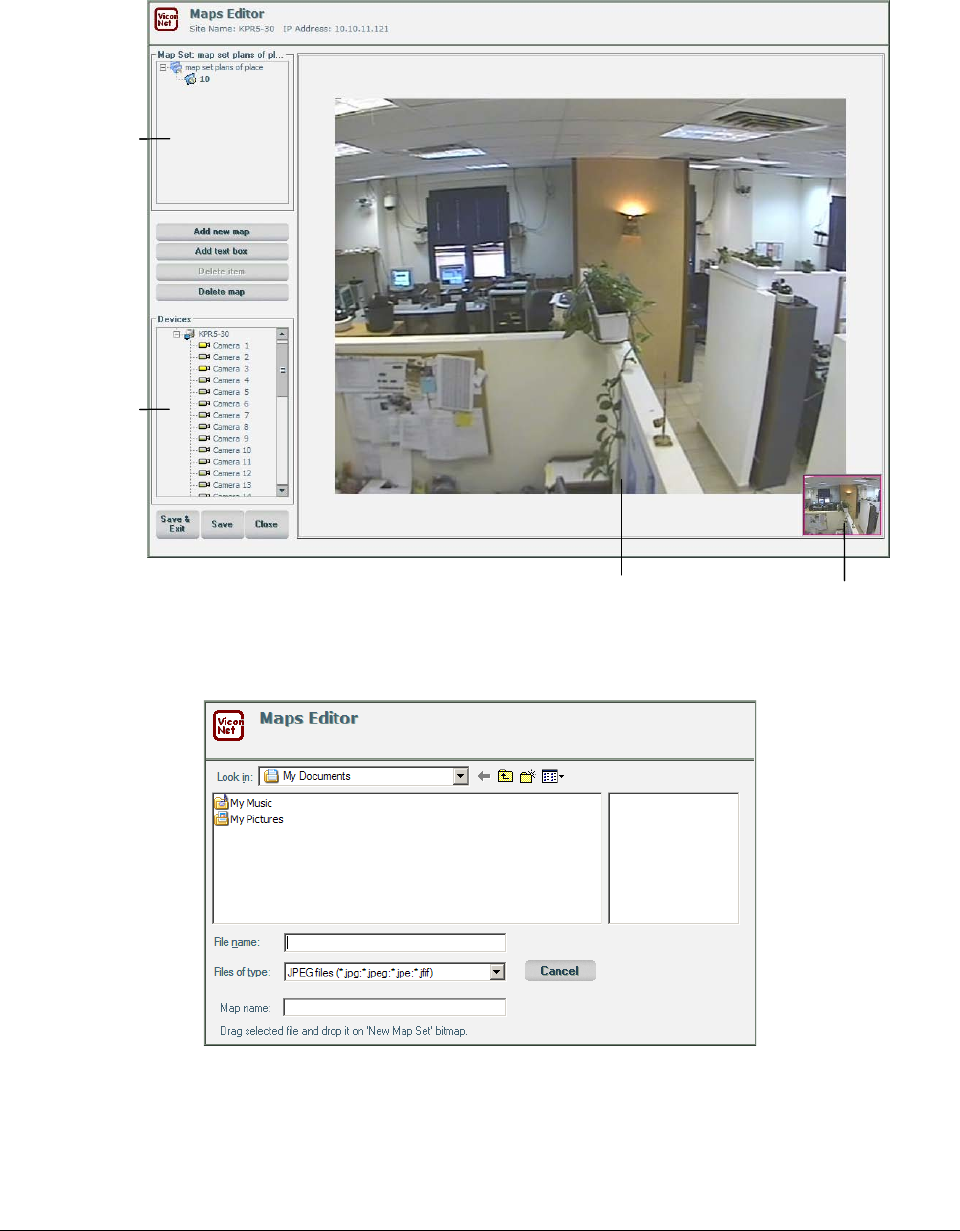
XX128-33-01 Rev 1206 Kollector Pro Network Digital Video Recorder Configuring the ViconNet System • 149
4. To configure which maps to put into a map set, double-click the map set name. The Maps Editor
window appears with the name of the new (selected) map set at the top of the tree in the upper-left
panel.
Map Set
Devices
Editing
Space Navigation
Map
Map Set
Devices
Editing
Space Navigation
Map
5. To add maps to the map set, click Add new map. The Maps Editor browser window appears.
Maps added to the map set retain their original size and resolution.
150 • Configuring the ViconNet System XX128-33-01 Rev 1206 Kollector Pro Network Digital Video Recorder
6. Browse to and select the map you want to add to the map set. Once the map is highlighted, and the
name appears in the File name box, drag the map to the map set where you want it.
NOTES:
1. Double-clicking the map name in the browser does not add it to the map set (as it does not know
where to add it).
2. If the map is larger than the screen, it fills the entire screen in the editing space. To navigate to
another part of the map, use the navigation map in the bottom right-hand corner of the editing
space.
A map can also be dragged directly from the tree onto the displayed map (in the editing space), to
create a sub-map. (For example, if you have a map of a whole floor, you may want to insert a map of
only one room on that floor.)
NOTE: If a map that is dragged onto another map has sub-maps, these sub-maps are also dragged
onto the map set.
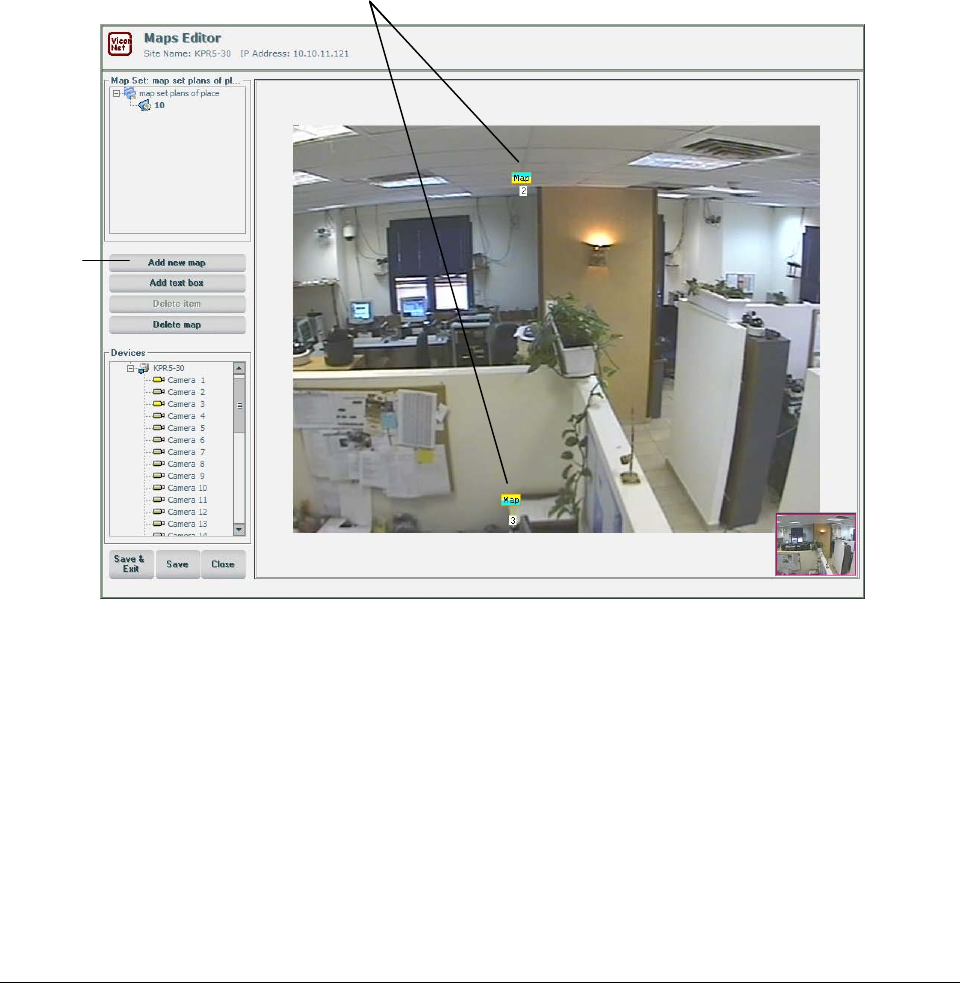
XX128-33-01 Rev 1206 Kollector Pro Network Digital Video Recorder Configuring the ViconNet System • 151
Adding Sub-maps, Text Boxes and Devices
After creating a map you can add:
• Sub-maps: A sub-map is a map inside a higher-level map, for example a detailed map of one room
might be a sub-map of a map of a whole floor.
• Text boxes: A text box allows you to write a textual comment wherever you want on the map. An
example is shown on the following page.
• Devices: Devices that can be added to a map are cameras and sensors. The devices should be added
to maps according to their physical location.
Add new
map to
map set
Sub-maps
Add new
map to
map set
Add new
map to
map set
Sub-maps
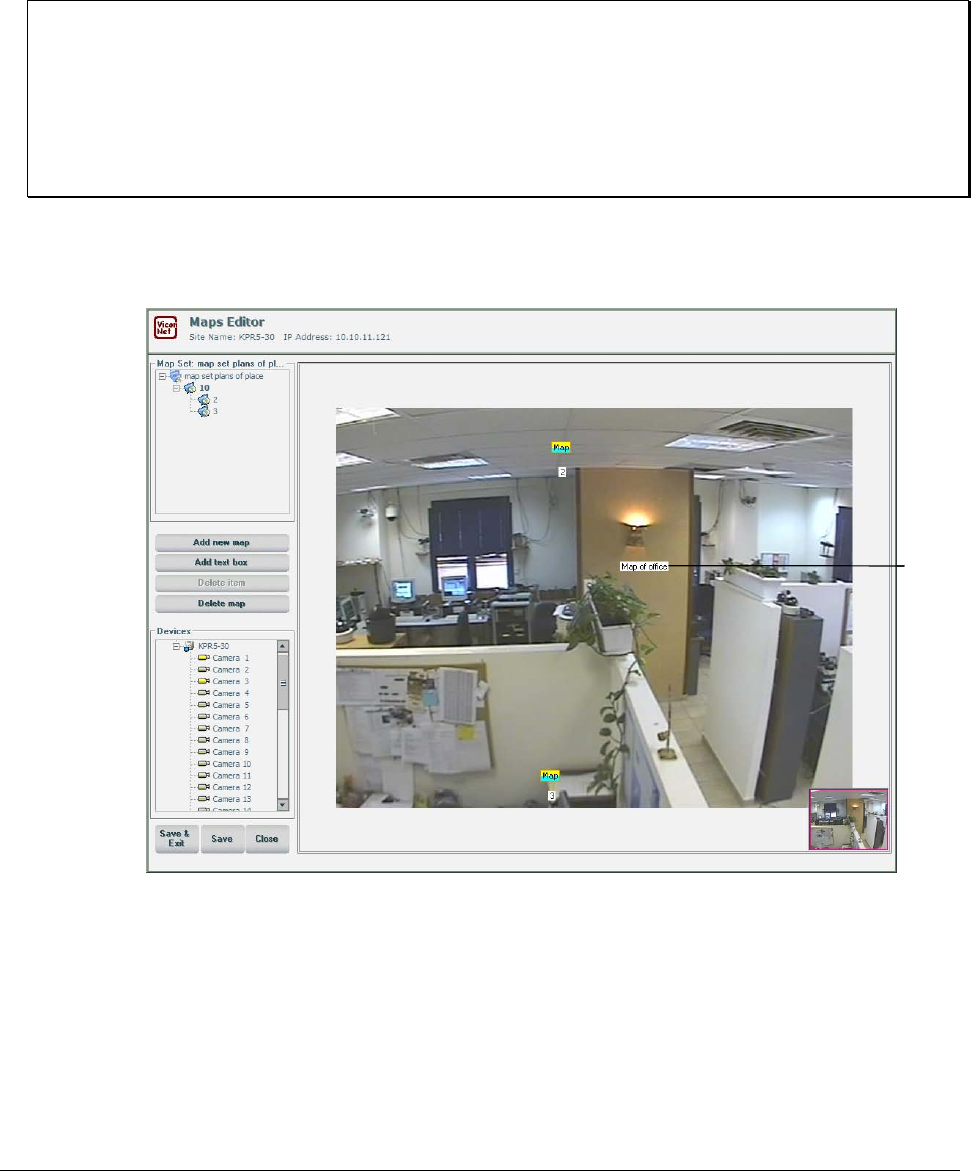
152 • Configuring the ViconNet System XX128-33-01 Rev 1206 Kollector Pro Network Digital Video Recorder
To add sub-maps, text boxes and devices to a map:
1. To add a sub-map (a map inside a map), and click Add new map.
2. From the Maps Editor Browser, drag the selected map onto the higher-level map in the Map Set tree or
onto the higher-level map in the editing space.
NOTES:
•
You can only access a sub-map via the Map Set tree.
•
You cannot add the same map twice in the same higher-level map, but you can drag it from the tree
into another map.
•
You cannot add a higher-level map to its sub-map.
•
Maps are not added recursively.
3. To add a text box (a comment displayed on a map) to the displayed map, click Add text box. Edit the
text in the text box as required and drag the text box to the required location on the map in the editing
space.
Text
Box
Text
Box
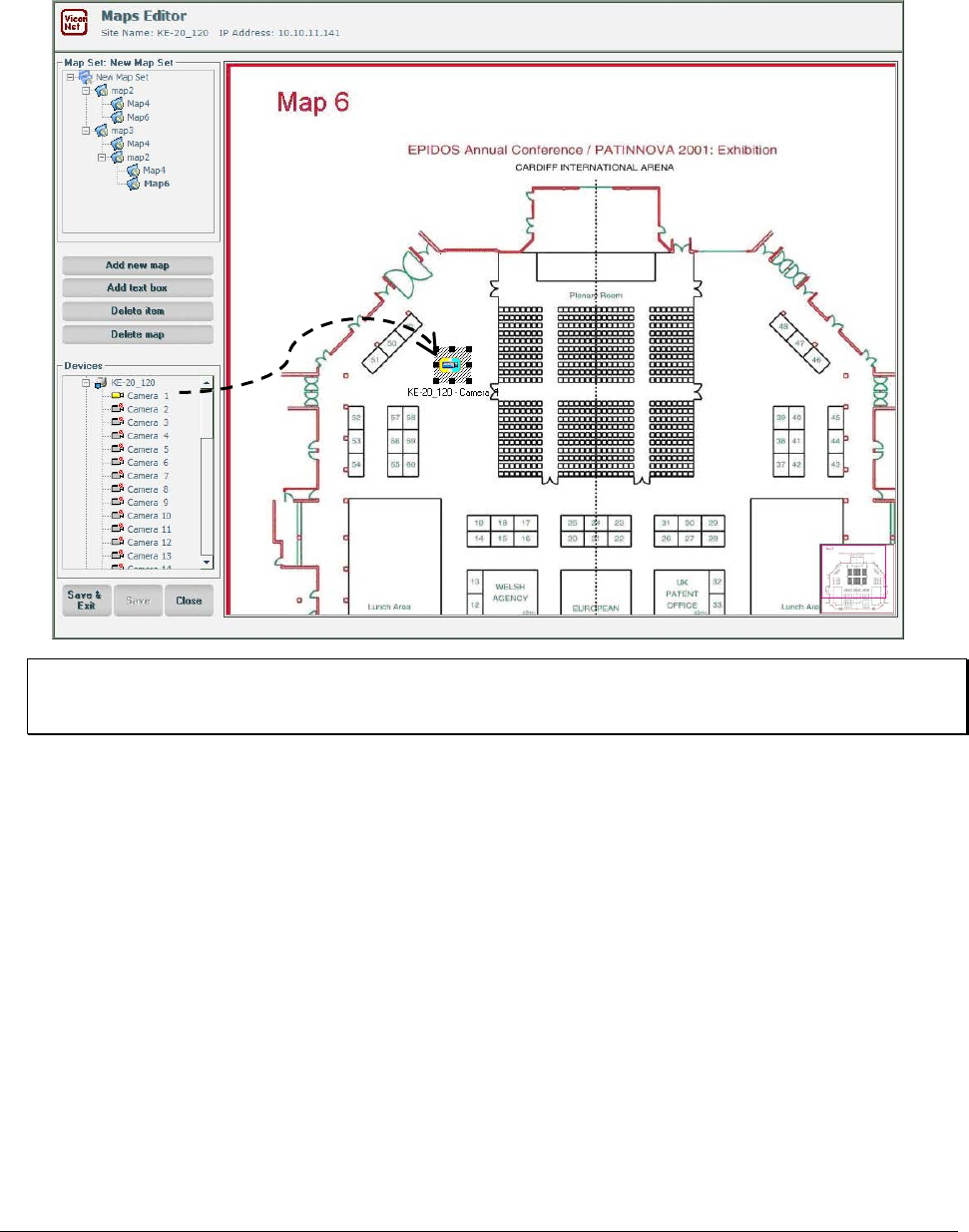
XX128-33-01 Rev 1206 Kollector Pro Network Digital Video Recorder Configuring the ViconNet System • 153
4. To add a device (camera or sensor) to the displayed map, drag the device from the devices list in the
left-hand panel into its required location onto the displayed map. An icon and a label are displayed on
the map.
NOTE: After you drag the device onto the map, the device and its label become two separate objects. If
you move the device to another location on the map, the device icon and the label must be
dragged separately.
To activate a device, click the icon on the map. If the device is activated, the icon blinks.
To deactivate the device, click the icon again. If the device is deactivated, the icon remains steady (not
blinking).
Exiting the Maps Editor Window
There are two ways to exit the Maps Editor window:
• To save your changes, click Save and Exit.
• To close the window without saving your changes, click Close. In this case, a confirmation message
appears to verify that you do not want to save your changes.
In both cases, the Maps Editor window is closed.
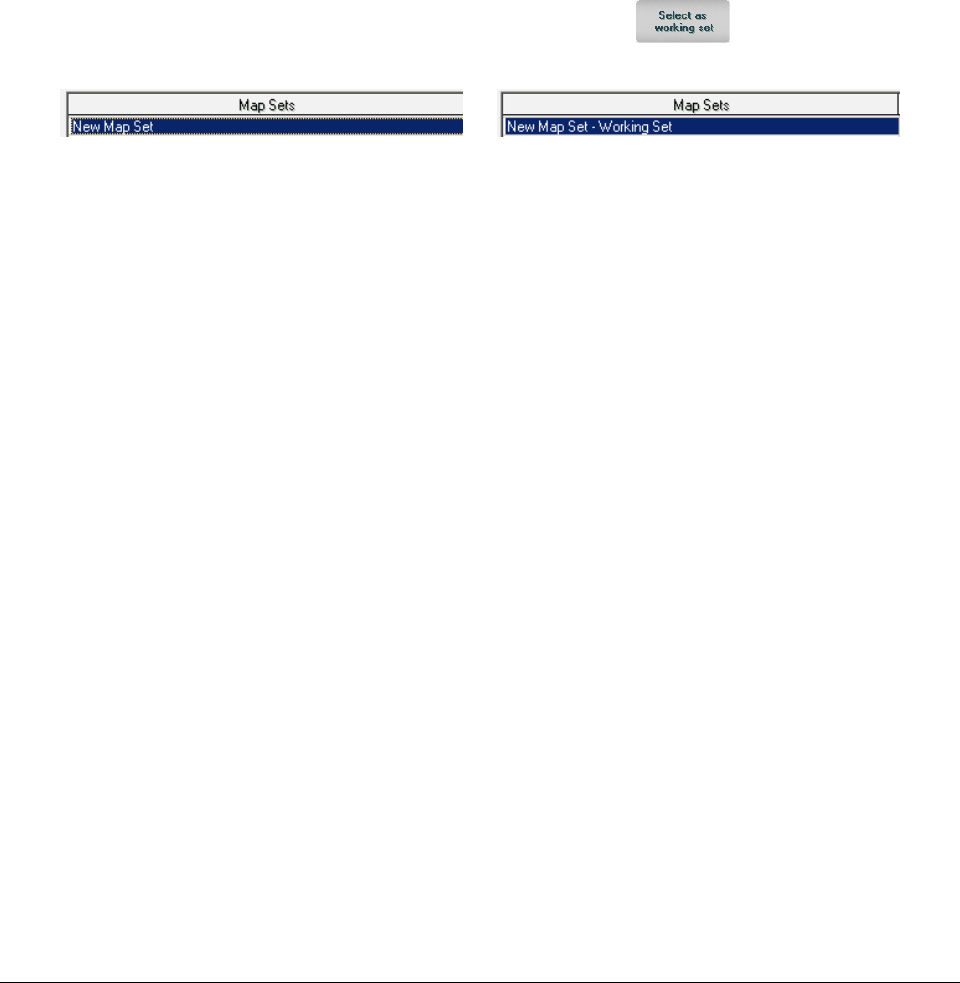
154 • Configuring the ViconNet System XX128-33-01 Rev 1206 Kollector Pro Network Digital Video Recorder
Editing a Map Set
After a map set has been created, it can be edited as follows:
• The definition of the map set: The map set can be renamed, deleted or defined as the working set.
• The content of the map set: Maps, sub-maps, devices can be added to or deleted from the map set.
To edit a map set:
• In the Map Sets Management window, click Edit. The Maps Editor window appears. The map set can
be edited as described above.
• To rename the map set, from the Map Sets Management window, click Rename.
• To select which map set will be displayed in the main window, click . The name of the map
set in the list is then automatically changed to add the suffix "– Working Set".
⇒
To see the working set in the Main Window, click the Site Map tab.
Deleting Sub-maps, Devices and Text Boxes in Maps
Maps, sub-maps, text boxes or devices can be deleted individually or collectively from the Maps Editor
window.
• To delete a device or a text box from a map, select the object and click Delete item.
• To delete a map, click (select) the map to be deleted in the tree, and click Delete map. A message
appears asking you to confirm you want to delete the specific map.
• If the map to be deleted has sub-maps, text boxes or devices, they will also be deleted. Once the map
is deleted, the previous map in tree is selected.
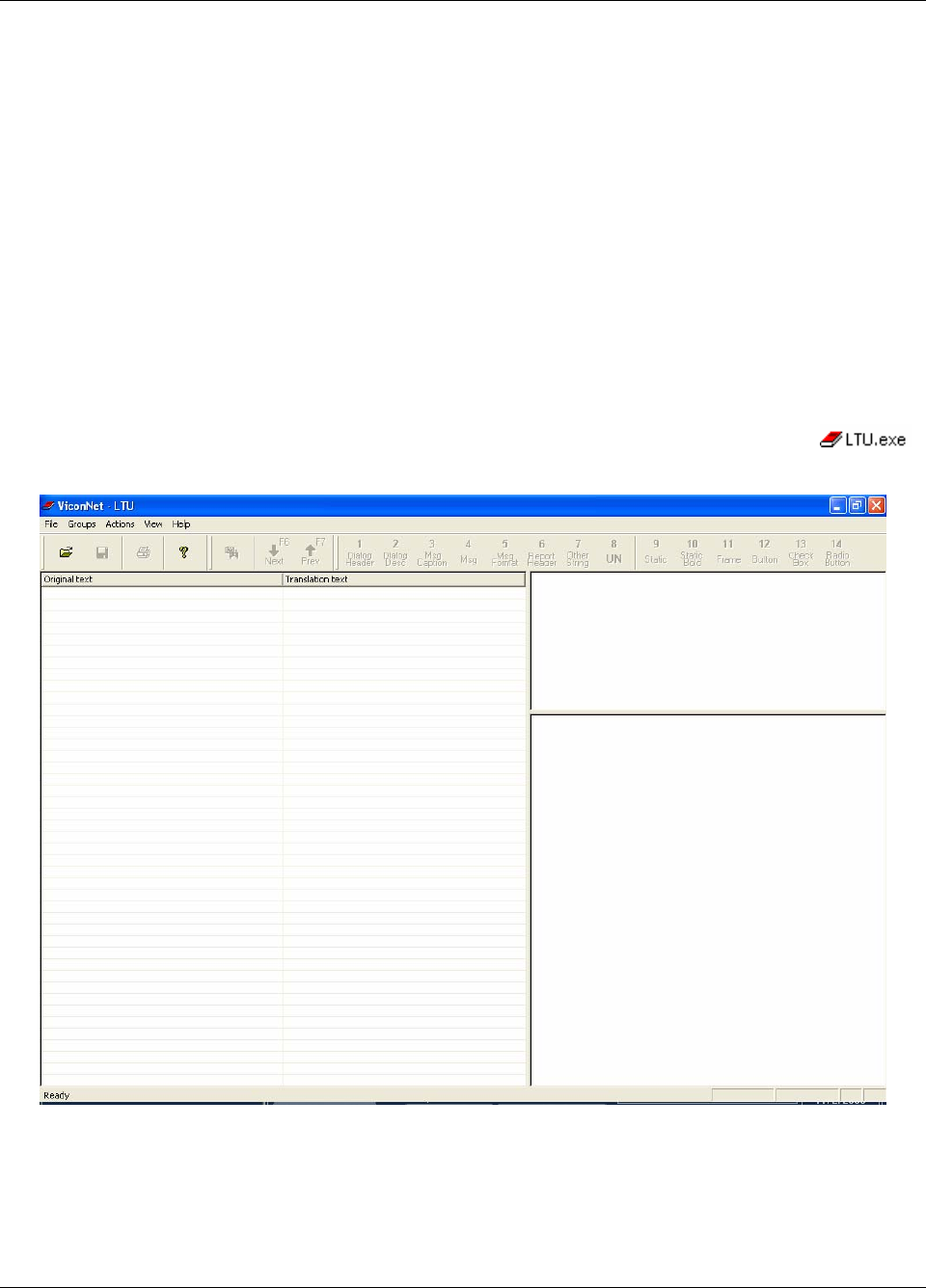
XX128-33-01 Rev 1206 Kollector Pro Network Digital Video Recorder Configuring the ViconNet System • 155
Using the Language Translation Utility (LTU)
The LTU enables the translation of the ViconNet user interface (for example, buttons, labels, messages,
dialogue boxes and so on) to any language.
The utility imports all buttons, labels, messages and dialogue boxes from the ViconNet application, enabling
the translation of all terminology used in the user interface into the local or any other language as required.
Creating a Library File
To change the language of the user interface in a specific site in the ViconNet system, first a library file
must be created. The library file contains a "database" of all the terms, their translations and a reference to
the location of the term in the ViconNet system.
To create a translation library file:
1. Open Windows Explorer and navigate to C:\ViconNet\VNVer\BinRelease and double-click .
The LTU is opened and the empty translation window is displayed.
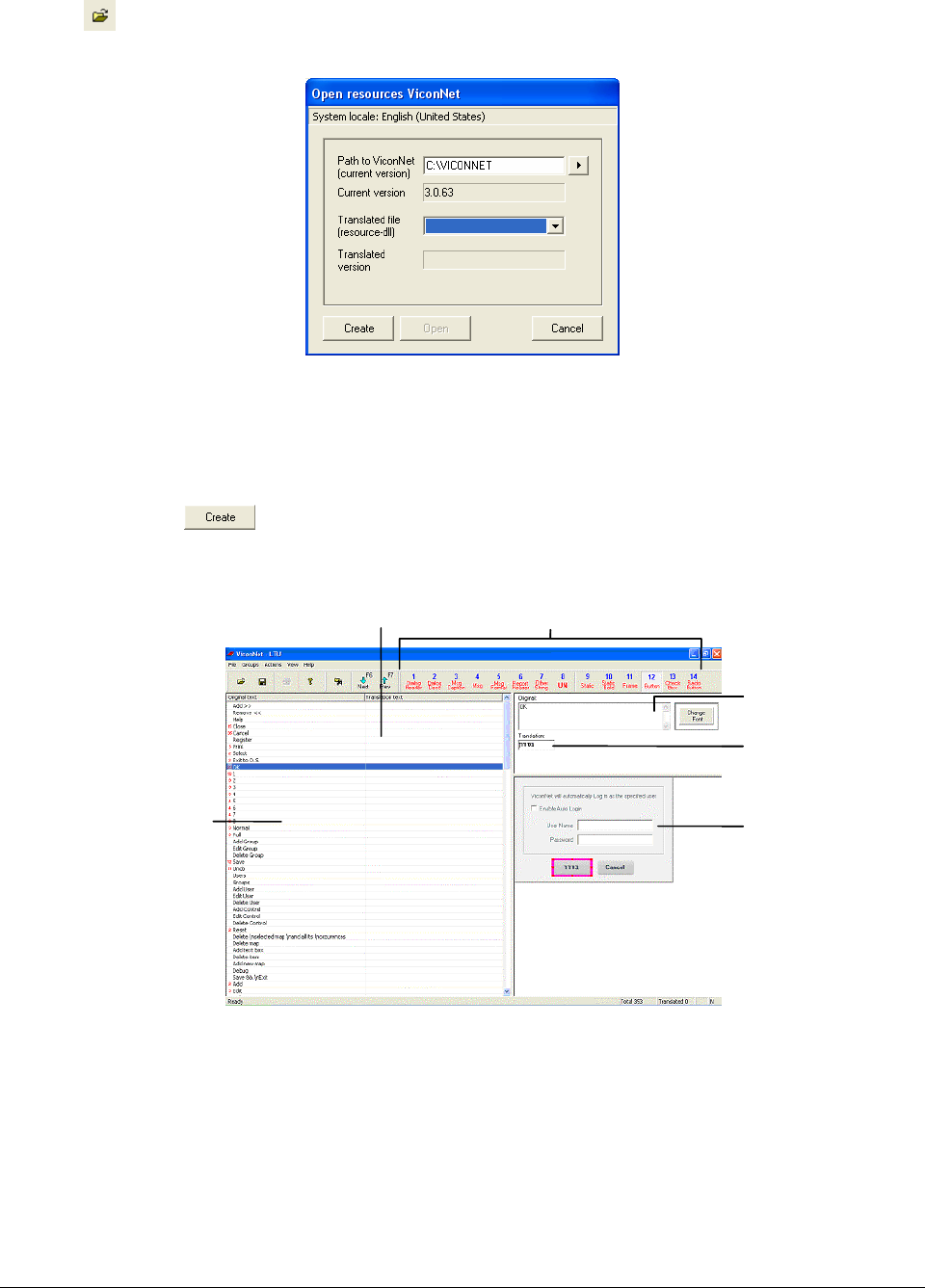
156 • Configuring the ViconNet System XX128-33-01 Rev 1206 Kollector Pro Network Digital Video Recorder
2. Click or select Open from the File menu. The Open resources ViconNet window is displayed with
the default path and current version (read-only) showing.
3. (Optional) To change the location where the translated file will be saved, open the browser by clicking
on the arrow next to the path text box and browse to the required location. (For example, if you want to
open a file from another version of the ViconNet application).
4. If a library file already exists, browse to it in the Translated file text box and click Open. To create a
new library, click . The LTU application window is displayed with a list of buttons, messages,
and so on.
elemen
User interface
where text
appears
Translate
selected text
Selected text
Select interface
element group
List of terms in
system in selected
element type
Translated
terms
User interface
where text
appears
User interface
where text
appears
Translate
selected text
Translate
selected text
Selected textSelected text
Select interface
List of terms in
system in selected
element type
Translated
terms
5. (Optional) Select an interface element group from the options in the toolbar or from the Groups menu.
All the terms which appear in that element group are displayed in the list in the left-hand panel.
6. Click on the row to be translated. The user interface where the selected term appears in the system is
displayed in the lower right-hand panel and the selected term appears with a text box to translate it in
the top right-hand panel.
7. Type the translation in the Translation text box in the top right-hand panel.
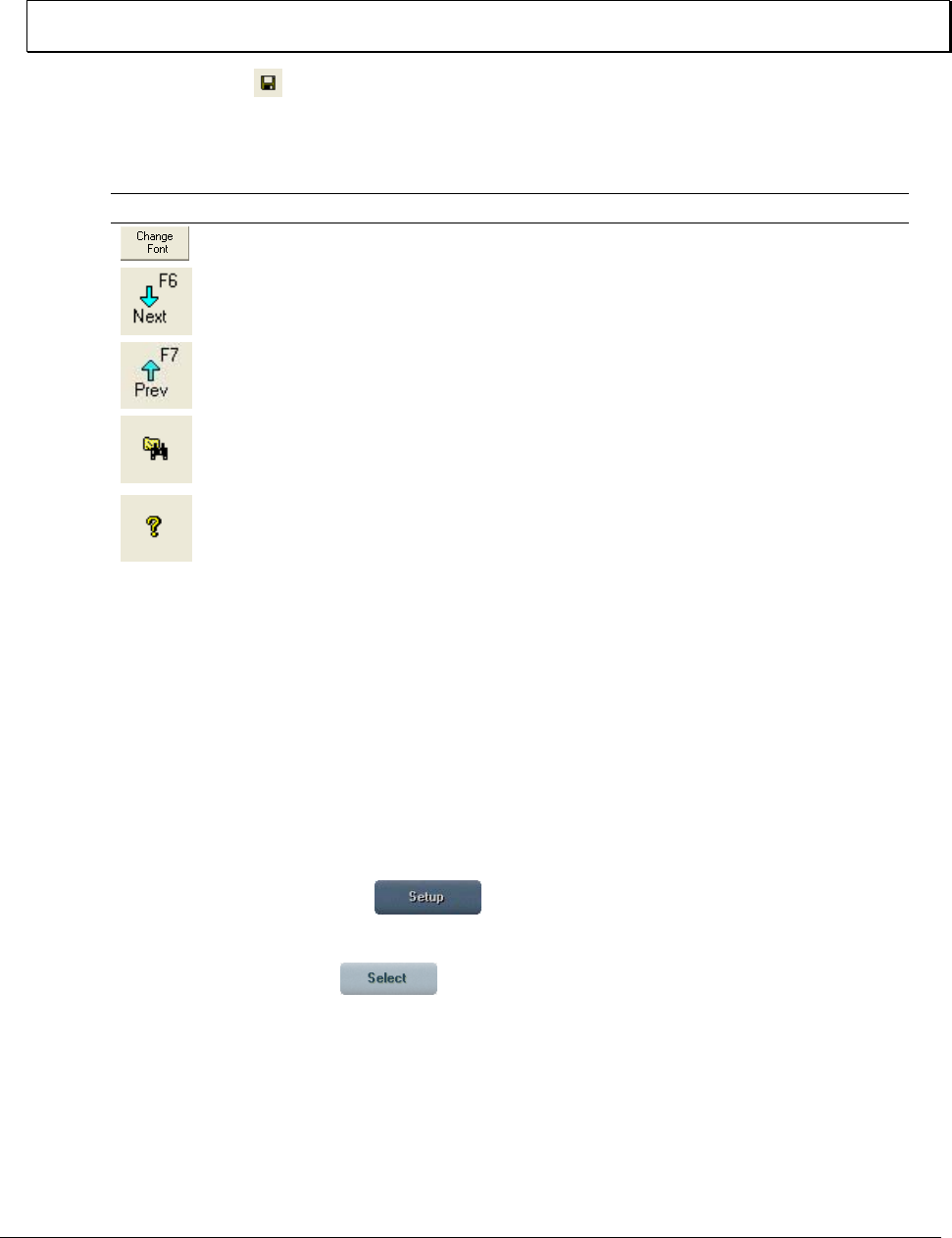
XX128-33-01 Rev 1206 Kollector Pro Network Digital Video Recorder Configuring the ViconNet System • 157
8. Repeat steps 8 to 10 above until all the terms required have been translated. The translations are
saved automatically the selected path.
NOTE: As long as the LTU remains open, the individual translated terms are saved while you
translate/navigate to other terms.
9. To save the library, click or select Save from the File menu. Enter filename of your choice and click
OK. It is saved in default location.
The following is a list of additional options in the LTU:
Option Description
Enables you to change font, font size and font style of the translated term.
Enables navigation to the next term in the list of terms. You can also navigate
to the next term by selecting Next in the Actions menu.
Enables navigation to the previous term in the list of terms. You can also
navigate to the previous next term by selecting Prev in the Actions menu.
Enables you to search for a specific term that appears in the system (button
text, label, message, and so on). You can also search for a term by selecting
Find… or Find in all groups… in the Actions menu.
Provides information about the LTU.
Sort You can sort the list of terms alphabetically by clicking the Original text
column header or by selecting Sort by in the Actions menu.
Show identical
name
You can show other terms with identical name by selecting Show identical
name in the Actions menu.
Implementing the Translation in the ViconNet Application
Once one or more library files have been created and terms appearing in the user interface have been
translated, the LTU feature in the ViconNet system enables a translation to be selected and implemented,
To implement the translation in the ViconNet site:
1. From the ViconNet Main window, click . The Setup Site Selection window is displayed, as
shown on page 57.
2. Select your Kollector Pro and click . The System Settings window is displayed, as shown on
page 58.
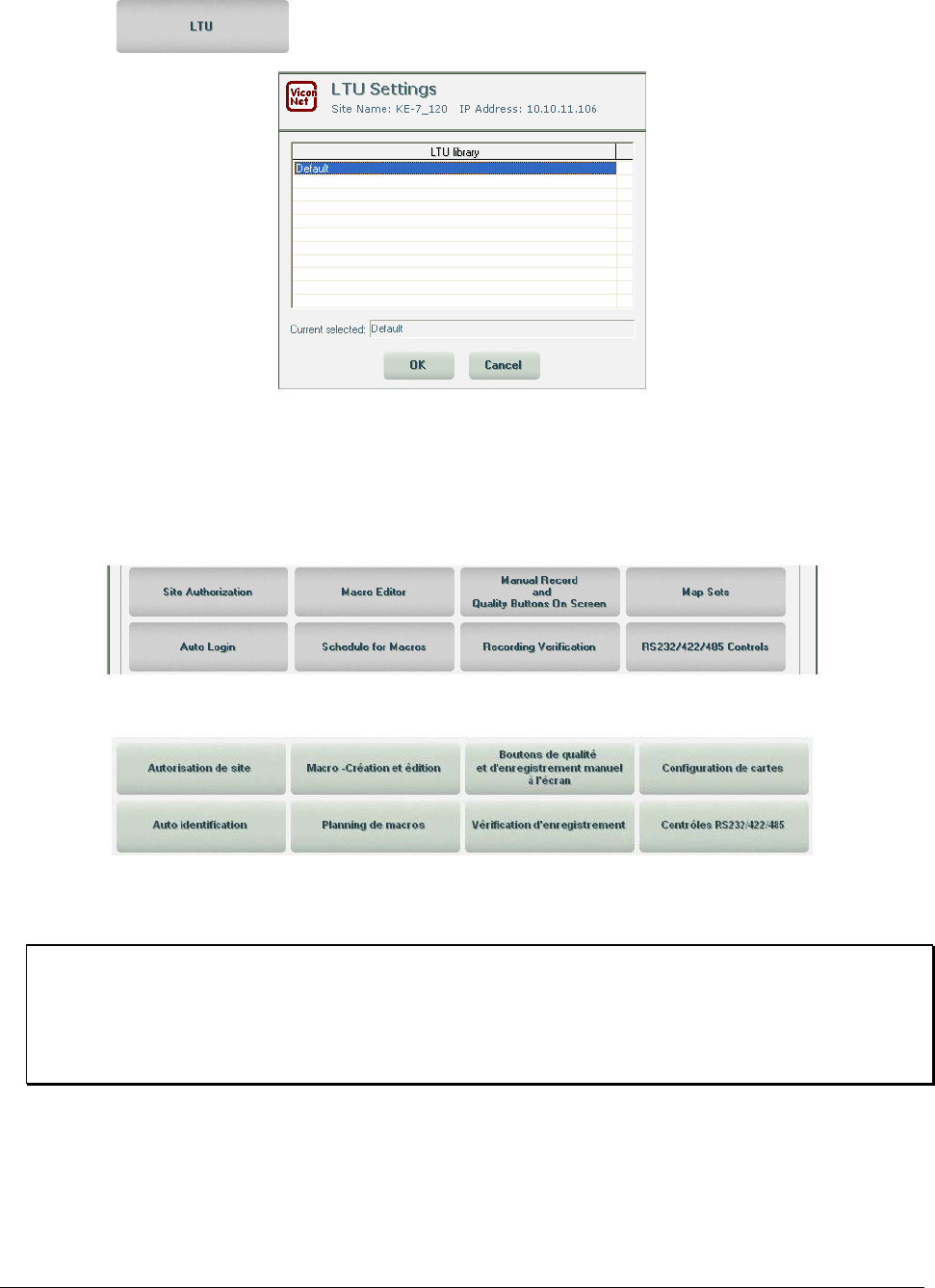
158 • Configuring the ViconNet System XX128-33-01 Rev 1206 Kollector Pro Network Digital Video Recorder
3. Click the button. The LTU Settings window is displayed.
4. If an LTU library has already been created, highlight it and click OK. The translation is immediately
implemented and all the translated terms appear in the site's user interface.
Example:
Original Text:
Translated Text:
If an LTU library has not been created, follow the procedure To create a translation library file
procedure, page 155.
NOTES:
Terms that were not translated remain in the default language.
To implement the translation on another site, the .ltu file must be saved on that site in
../ViconNet/VnData/Settings. The file then appears in the LTU library list in the LTU Settings window
and can be implemented as described in step 4 above.
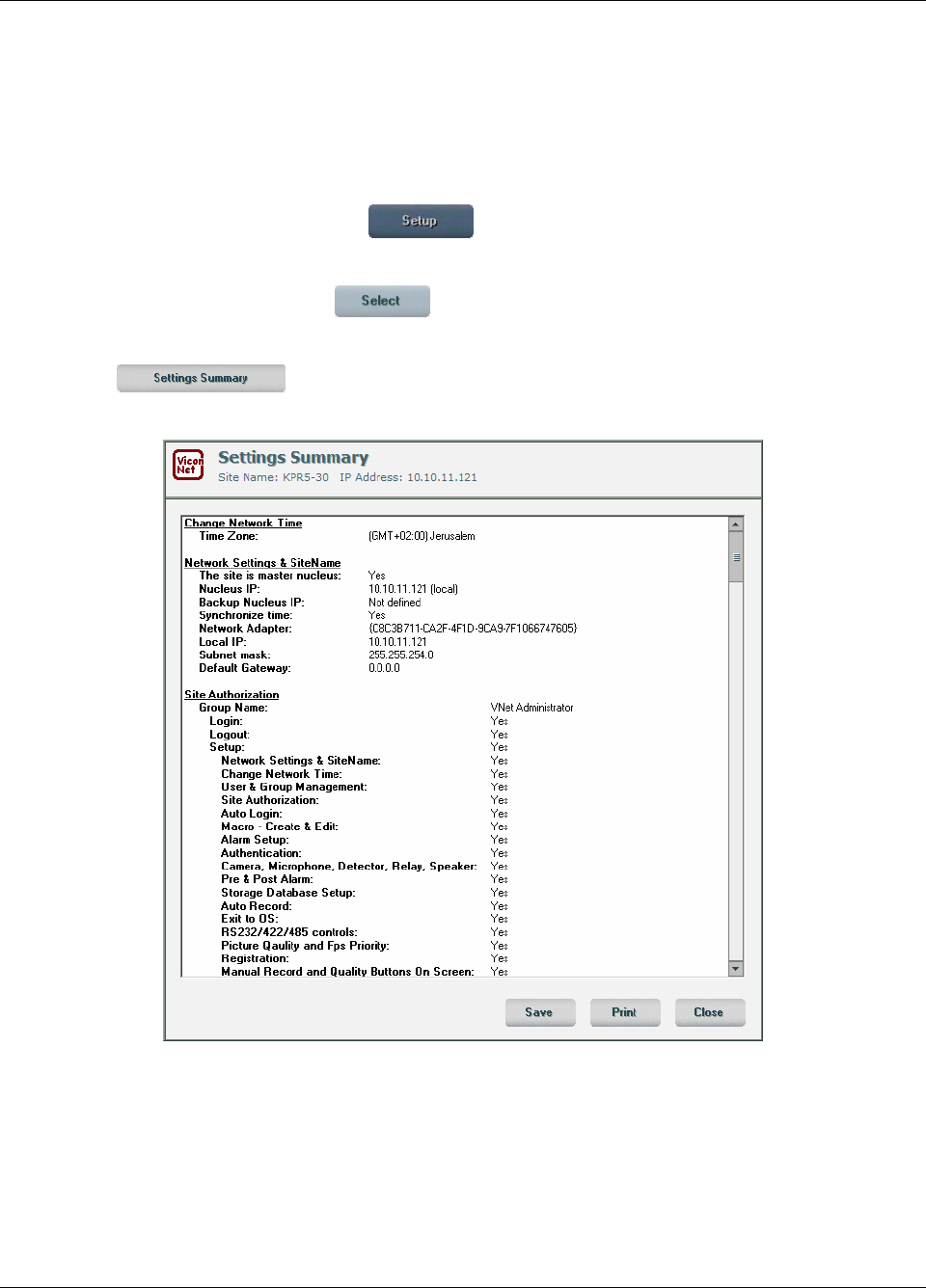
XX128-33-01 Rev 1206 Kollector Pro Network Digital Video Recorder Configuring the ViconNet System • 159
Viewing the Settings Summary
The Settings Summary window displays all the system settings for a specified site. This enables the user to
view all the settings for a remote site without having to navigate through all the available windows for that
site one-by-one (for example, macros, authorizations, schedules, and so on).
To view the settings summary:
1. From the ViconNet Main window, click . The Setup Site Selection window is displayed, as
shown on page 57.
2. Select your Kollector Pro and click . The System Settings window is displayed, as shown on
page 58.
3. Click the button. The Settings Summary window is displayed. An example is shown
below.
4. (Optional) Click Print to print the full list of settings for the selected site.
5. (Optional) Click Save to save the settings to a rich text file (.rtf).
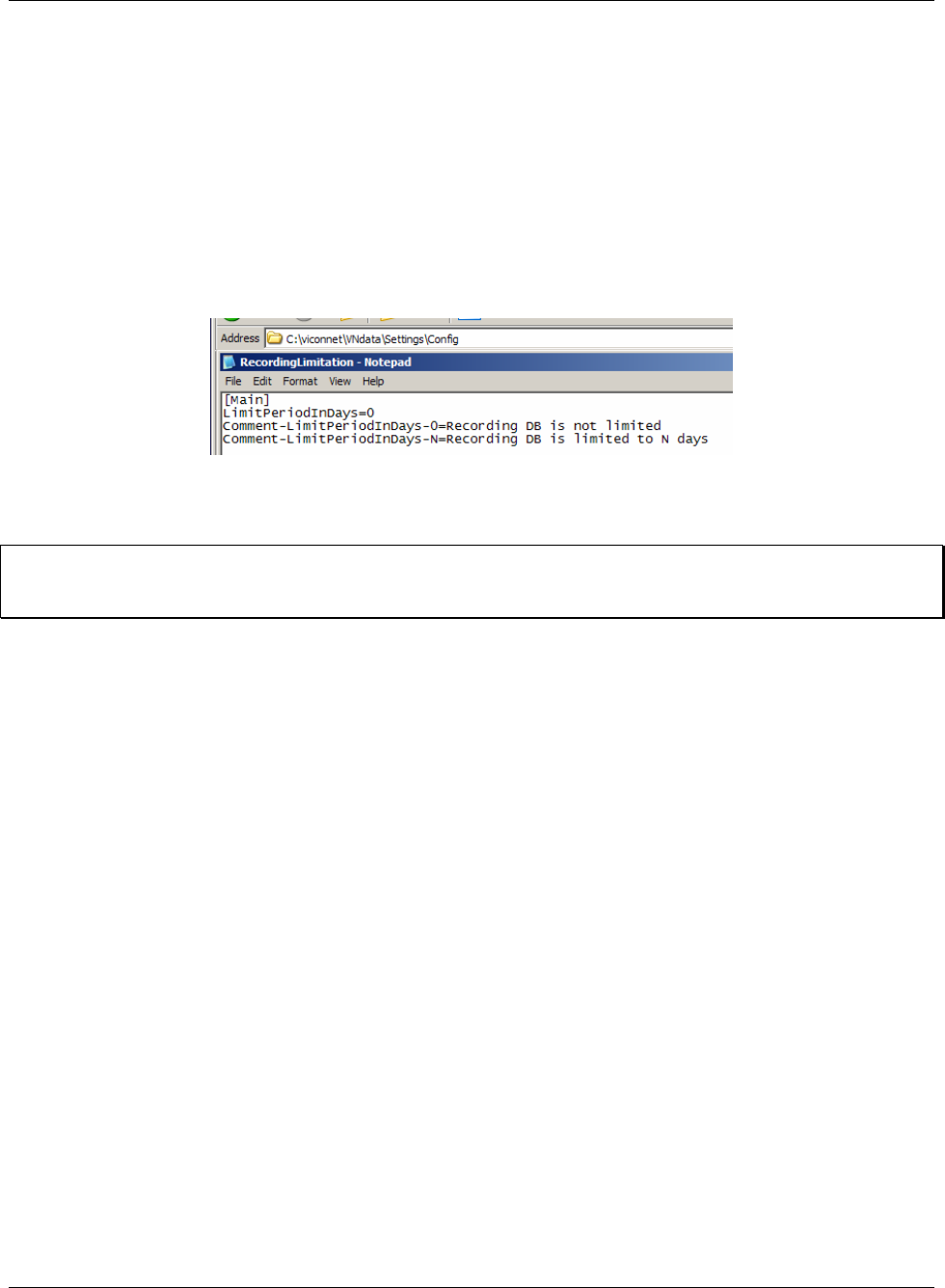
160 • Configuring the ViconNet System XX128-33-01 Rev 1206 Kollector Pro Network Digital Video Recorder
Limited Recording
Some states require, by law, limitation of the storage time of recorded material. The ViconNet system
limited recording feature limits access to video and audio recordings which are older than a defined number
of days,
To limit the period of time for which data is saved and accessed:
1. In Windows Explorer, navigate to C:\viconnet\vndata\settings\config\ (or
path of your application\vndata\settings\config\RecordingLimitation.ini)
2. Double-click the file RecordingLimitation.ini. The file is opened.
3. Change the LimitPeriodInDays=0 flag to LimitPeriodInDays=N, where N is the number of previous
days for which you want to save the data. Data older than N days back is automatically deleted.
Note: This feature only works while recording is being performed (meaning, the system continuously
checks for old data as part of the recording process). If recording is not being performed, the
database is not updated and the old data is not removed.

XX128-33-01 Rev 1206 Kollector Pro Network Digital Video Recorder Viewing Live Video • 161
Chapter 4
Viewing Live Video
This chapter includes the following sections:
• Overview, page 162, provides an overview of the viewing process, which also includes some optional
tasks that can be performed, as required.
• Viewing Workflow, page 163, illustrates the main steps for viewing to live video.
• Step 1: Selecting the Display Mode, page 164, describes how to select the required number of video
display locations.
• Step 2: Selecting Cameras, page 166, describes how to select and control devices in order to view their
live video.
• Step 3: Controlling the Picture, page 170, describes how to control the contrast and brightness of the
live video display.
• Step 4: Zooming the Video Display, page 171, describes how to zoom in or out from a live video
display.
• Step 5: Operating a PTZ Camera, page 172, describes how to view a video from a PTZ camera.

162 • Viewing Live Video XX128-33-01 Rev 1206 Kollector Pro Network Digital Video Recorder
Overview
The ViconNet system enables you to monitor live video using the cameras configured in the ViconNet system.
The devices send the live video pictures to the Kollector Pro via the network. The cameras available for
viewing live video on each Kollector Pro are configured during system setup, as described in Chapter 3,
Configuring the ViconNet System.
In order to view live video, you must select the display mode (the number of display locations in the ViconNet
application that is sufficient for the number of cameras that you want to monitor. Then you can select the
devices using the Site List.
When you have selected the required devices, you can select the picture quality (if the Quality buttons in the
Main window Function Controls area are enabled - refer to the Configuring Manual Recording and Picture
Quality section in Chapter 3, Configuring the ViconNet System), the refresh mode, and additional picture
settings that determine how the live video is displayed on the connected Kollector Pros. The selections that
you make also affect the data during recording and playing back operations, as described in Chapter 5,
Recording Live Video, and Chapter 6, Playing Back Recorded Video.
The ViconNet system also provides some optional functions that can be used when viewing live video. These
include the ability to zoom in on a specific video display to view it in more detail and to use a PTZ camera.
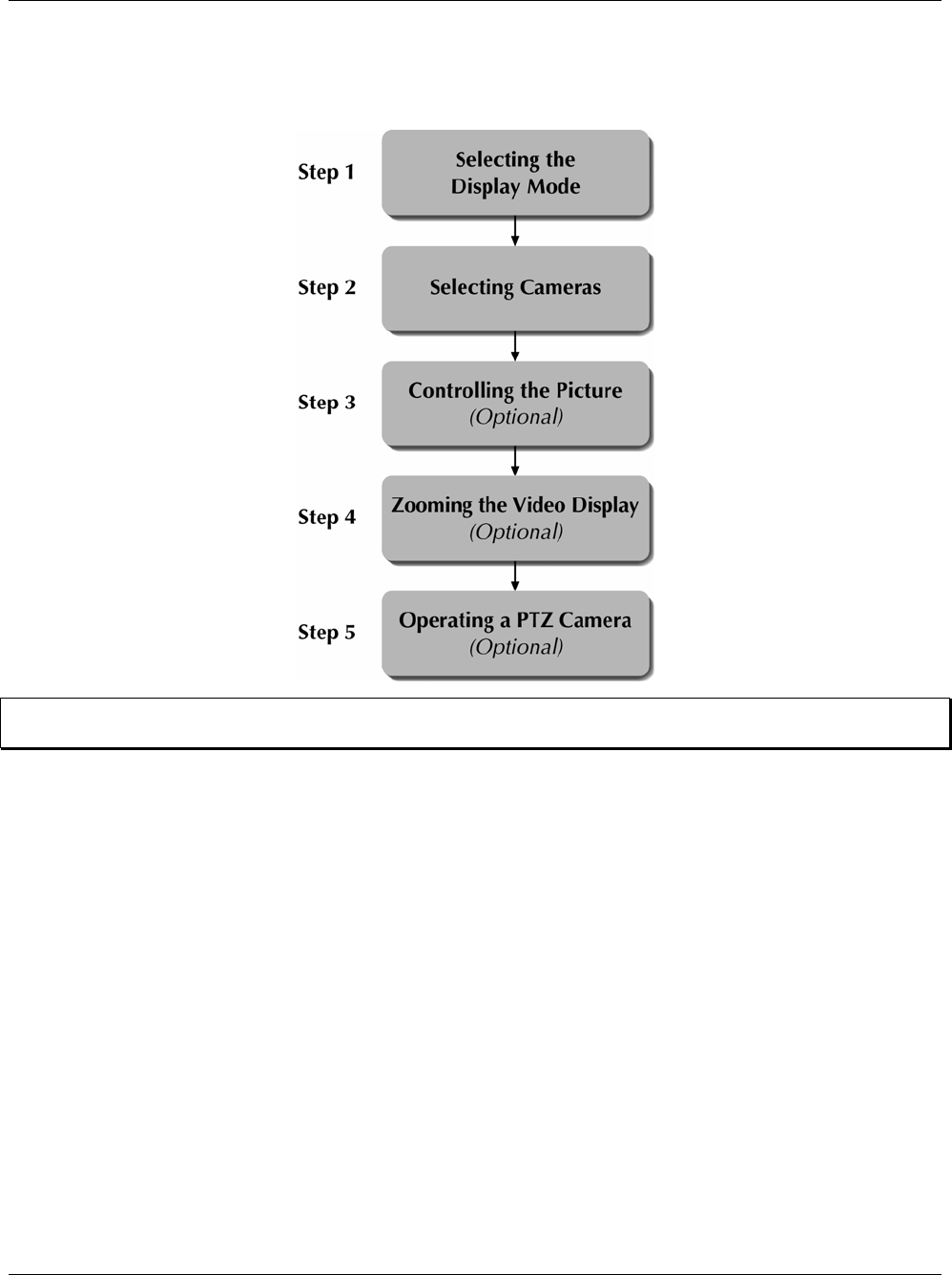
XX128-33-01 Rev 1206 Kollector Pro Network Digital Video Recorder Viewing Live Video • 163
Viewing Workflow
The following workflow illustrates how to view live video using the ViconNet system. Each step is described in
the sections that follow.
NOTE: The workflow shown above is performed after you have already logged in to the ViconNet application,
as described in Chapter 2, Getting to Know ViconNet.
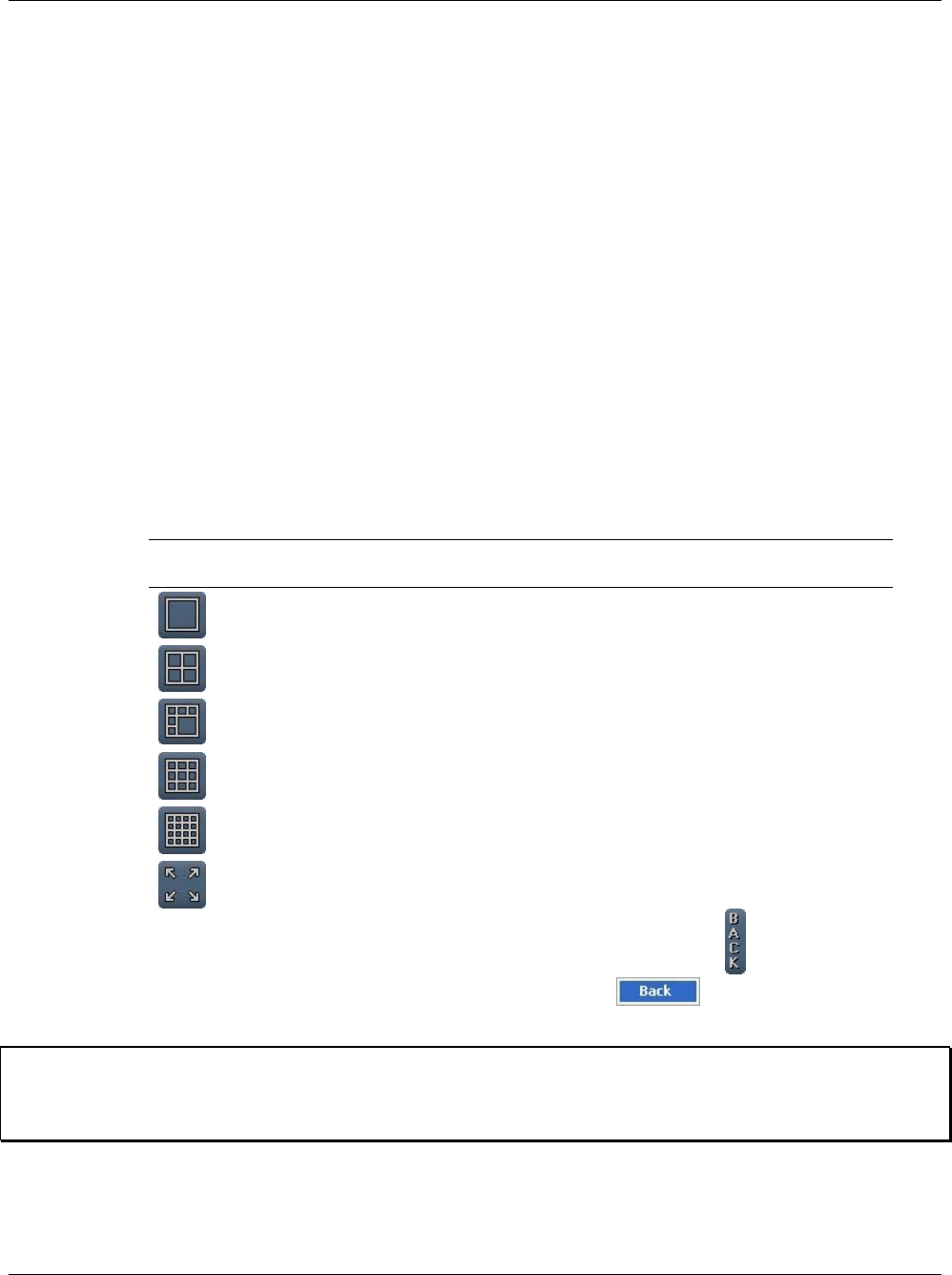
164 • Viewing Live Video XX128-33-01 Rev 1206 Kollector Pro Network Digital Video Recorder
Step 1: Selecting the Display Mode
Selecting the display mode enables you to determine the maximum number of video display locations for
viewing live video at one time in the Video Display area of the Main window.
Various display modes are provided to accommodate your viewing requirements, as described in the
selection procedure, below.
You can modify the display mode after beginning to view the live video, if required. For example, if you
determine that you want to view additional devices, you can select a display mode with more video display
locations without affecting the current video that you are currently viewing.
In addition, you can determine which camera is represented in each video display location, as described in
Step 2: Selecting Cameras, page 166.
You can choose the display mode from either the Main window or the Navigator window.
To select the display mode from the Main window:
• In the Main window, select the required option from the Display Mode controls at the bottom right of the
window, as follows:
Display
Mode Description
Single: Provides a single video display location in the Video Display area.
(Quality 1)
Quad: Provides four individual video display locations simultaneously in the Video
Display area. (Quality 5)
Six: Provides six individual video display locations simultaneously in the Video
Display area. (Quality 5)
Nine: Provides nine individual video display locations simultaneously in the Video
Display area. (Quality 6)
Sixteen: Provides sixteen individual video display locations simultaneously in the
Video Display area. (Quality 7)
Full Screen: Maximizes a selected video display location to fit the entire screen
(including the Site List). (Quality 1)
To restore the maximized screen to its previous size, click the icon in the top
right corner or right-click in the screen and click . You may also click
<ESC>.
NOTE: In order to improve transmission speed, a quality of live images is set automatically for each display
mode selection (for example, Quality 1 for the Single mode, as mentioned above). For information
about display mode quality, refer to the About Picture Quality and Refresh Mode section in Chapter 2,
Getting to Know ViconNet.
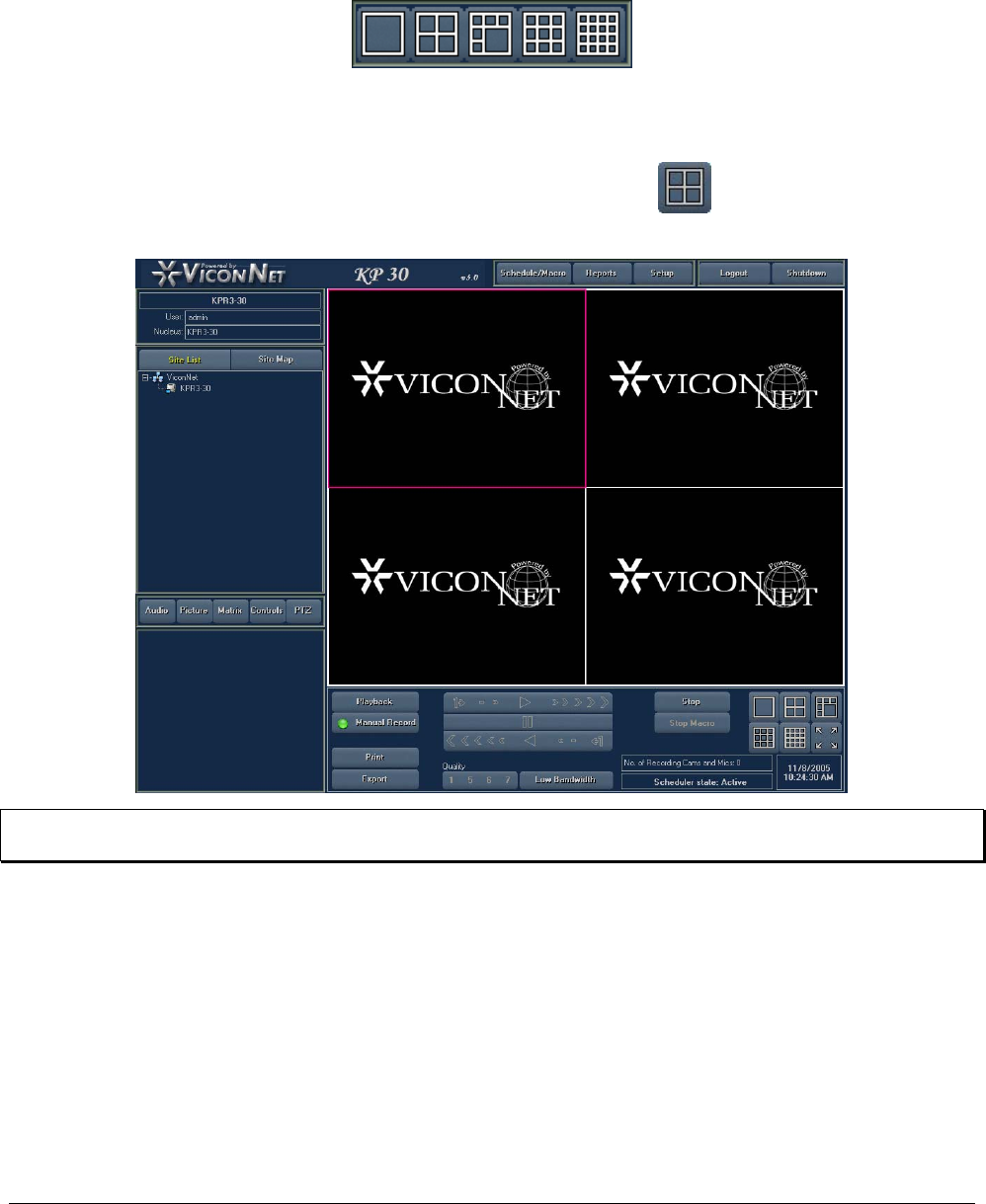
XX128-33-01 Rev 1206 Kollector Pro Network Digital Video Recorder Viewing Live Video • 165
To select the display mode from the Navigator window:
• In the Navigator window, select the required Display Mode icon (located below the Main window Display
Location area).
Thereafter, when the Play button is selected, the devices in the Main window Display Location area are
displayed in their respective locations in the Main window, ready for viewing and playing back.
The following example shows the Video Display area after the Quad display mode has been
selected.
TIP: You can maximize an individual video display location in the Video Display area by double-clicking the
required location. Double-clicking again reverts back to the previous view.
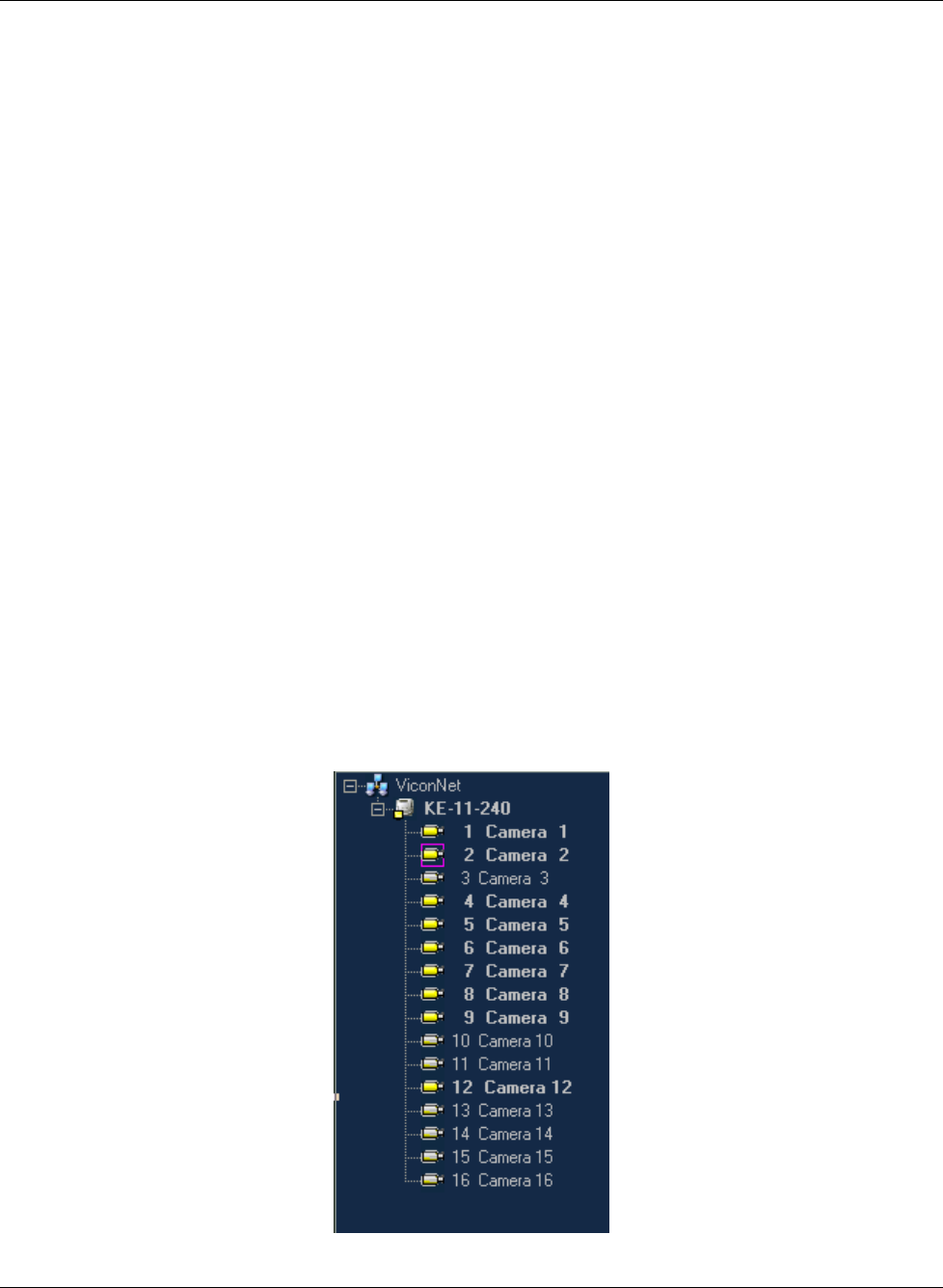
166 • Viewing Live Video XX128-33-01 Rev 1206 Kollector Pro Network Digital Video Recorder
Step 2: Selecting Cameras
When you launch the ViconNet application, the Video Display area of the Main window is initially empty, as
there is no automatic display of live video. In order to view live video in the Video Display area, you must first
select the camera that transmits the required data.
When you select a device, the video is then streamed into the selected video display location in the Video
Display area.
The ViconNet Site List enables you to select devices for viewing live video by navigating through the tree and
selecting first the required recorder/transmitter and then the required devices. The available devices in the
Site List are configured during system setup, as described in Chapter 3, Configuring the ViconNet System.
Selecting a device from the tree automatically begins the device operation (video transmission) in the
selected video display location in the Main window.
As transmission begins, the appropriate controls for the specific type of device that you selected become
active in the Control Dialog Display area, which enables you to modify the live video, as described in the
subsequent sections in this chapter.
The maximum number of cameras that can be selected simultaneously is sixteen, depending on the current
display mode. If all display locations are in use, and you select another camera, the selected camera replaces
one of the previously displayed cameras.
To select a device from the Site List:
1. In the Main window, ensure that you have selected the appropriate display mode for the total number of
devices that you want to select, as described in Step 1: Selecting the Display Mode, page 164.
2. Expand the required transmitter to display a list of the currently connected cameras, as shown below:

XX128-33-01 Rev 1206 Kollector Pro Network Digital Video Recorder Viewing Live Video • 167
NOTES:
The cameras that appear in the Site List are automatically detected by the system during startup. If a camera
is not physically connected to the system, it will not appear in the list. If the camera is disconnected after
startup, it is removed from the list. If a camera is disconnected while it is active (meaning being displayed or
recorded), a red X icon ( ) is displayed next to the relevant camera in the Site List, and a blank screen
appears in the Video Display area.
Each site can have up to 16 cameras and detectors connected to it.
3. Select the required device from the Site List in one of the following ways:
• In the Video Display area, select a video display location (indicated by the pink border) and then
select the required camera from the tree. The live video transmission is displayed automatically in the
selected location, and the camera icon appears highlighted, as shown in the example on page 168.
NOTES:
If you select a video display location that is currently active:
• The live video transmission for the new device that you select will override the current one.
• A pink border is displayed around the relevant device in the Site List.
In addition, if no empty video display locations are available when you select a device, the video transmission
for the new device will override the next default video display location, starting with the location at the top left.
-OR-
• Drag and drop a camera from the tree onto the required video display location. As you drag the
camera, the mouse cursor changes to a camera icon, and then the live video transmission is
displayed as you drop the camera into the required video display location, as shown in the example
on page 168.
-OR-
• Select a recorder/transmitter and drag and drop it anywhere in the Video Display area. Live video
transmission from all the connected cameras are displayed in the current video display locations.
NOTE: The number of devices that can be displayed at one time in the Video Display area is dependent on
the number of video display locations in the currently selected display mode. Refer to Step 1:
Selecting the Display Mode, page 164, for additional details about changing the display mode, if
required.
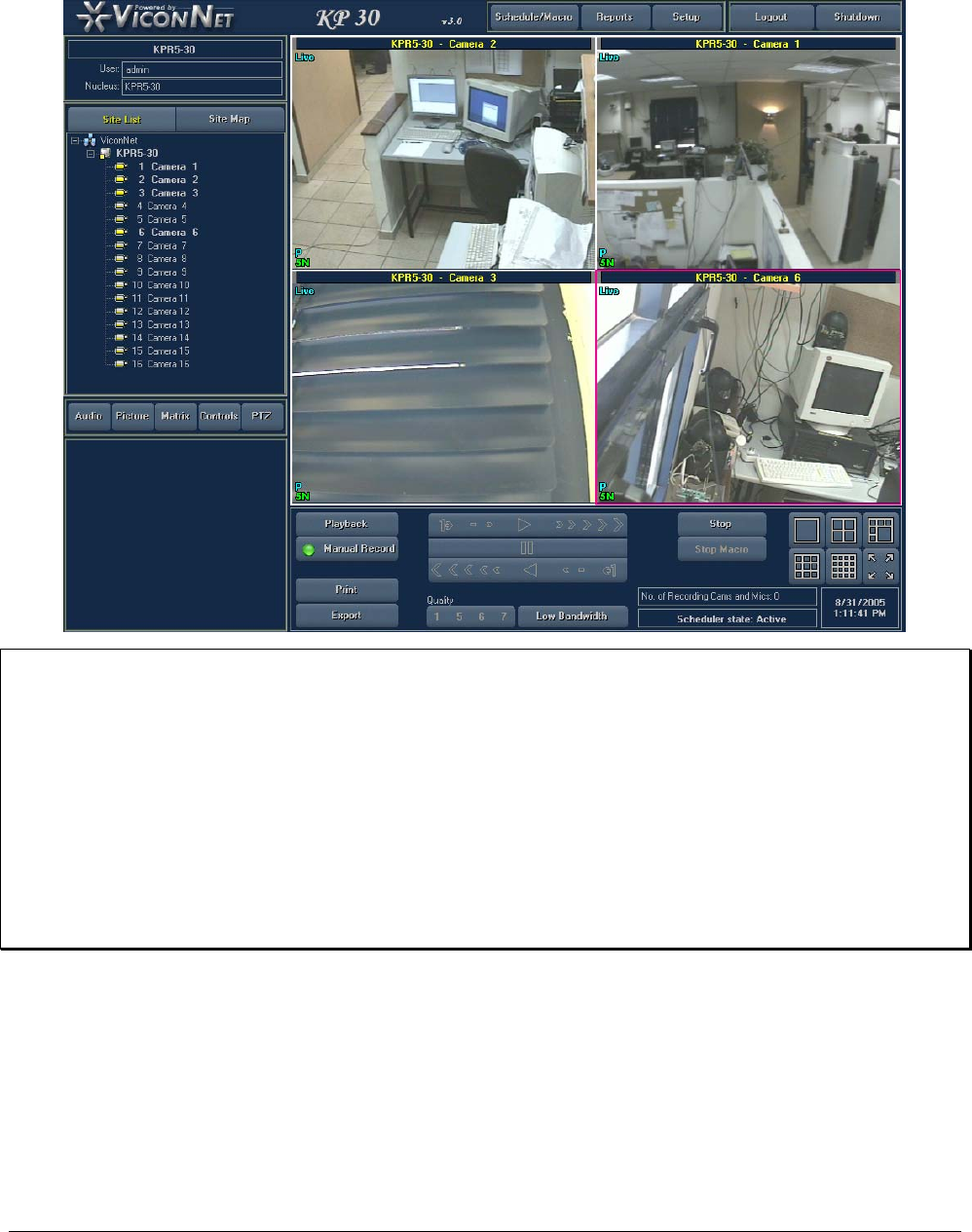
168 • Viewing Live Video XX128-33-01 Rev 1206 Kollector Pro Network Digital Video Recorder
The following example shows four live video transmissions displayed in the Video Display area. The
name of each camera is located in the top of each video display location.
NOTES:
You can manually stop the transmission at any time by clicking STOP.
The name of the currently logged in user and the master nucleus are displayed in the Current Details area
(upper left corner).
When a macro is running as a result of an alarm event, the following is applicable:
• If the macro is performing display operations, all functions in the ViconNet Main window, except for the
Stop Macro, Schedule/Macro, Logout, and Shutdown buttons, are disabled.
• If the macro is performing all other recording operations, except display, all functions in the ViconNet
Main window remain operational.
Refer to Chapter 3, Configuring the ViconNet System for additional details about macros.

XX128-33-01 Rev 1206 Kollector Pro Network Digital Video Recorder Viewing Live Video • 169
4. To display live video from additional devices, repeat step 3, as required.
TIP: To reverse a device selection, click the required device in the Site List again. The live video transmission
for the deselected device is stopped.
5. Proceed to the relevant steps in this chapter to modify the live video display that you have selected, such
as the picture quality and refresh mode.
Note About Picture Quality and Refresh Mode:
The view image quality is set automatically according to the selected display mode. The Single mode is
assigned the highest quality. Other modes assigned lesser qualities, in proportion to their number of views.
The view image is automatically refreshed according to the refresh mode in which it was recorded.
For more information about image quality and refresh modes, refer to the About Picture Quality and Refresh
Mode section in Chapter 2, Getting to Know ViconNet.
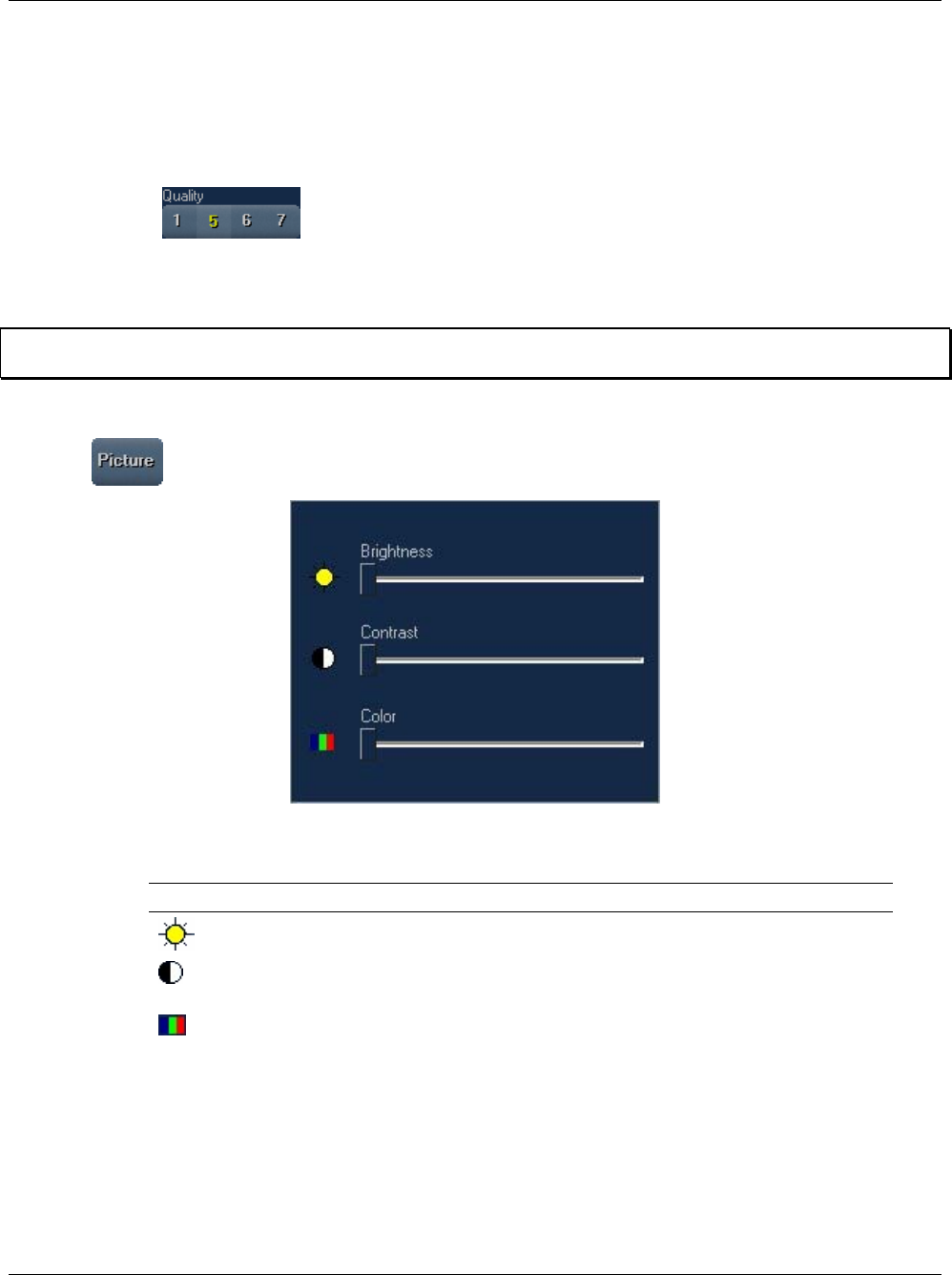
170 • Viewing Live Video XX128-33-01 Rev 1206 Kollector Pro Network Digital Video Recorder
Step 3: Controlling the Picture
The ViconNet system enables you to control and change the settings of the current live pictures displayed in
the Main window, such as the brightness and contrast. Any changes that you make to the picture settings
affect the data that is currently being viewed or recorded on all connected Kollector Pro displays.
As well, you can manually override the display mode-determined live picture quality for the currently selected
camera using the buttons.
Changing the picture settings is irreversible (meaning that after the settings have been changed, the previous
settings are lost).
NOTE: The last saved picture settings can only be restored by selecting Restore from the System Settings
window. However, this restores ALL the last backed-up system settings.
To control the picture brightness, contrast and color:
1. Click . The picture controls are displayed in the Control Dialog Display area.
2. Move the sliders to adjust the picture, as follows:
Option Description
Brightness Adjusts the light level on the display screen.
Contrast Adjusts the difference between the lightest and darkest areas on the
display screen.
Color Adjusts the color intensity (amount of white contained in the basic colors)
on the display screen. For example, a fully saturated red would be pure
red. The less saturated the color, the more pastel the appearance.
XX128-33-01 Rev 1206 Kollector Pro Network Digital Video Recorder Viewing Live Video • 171
To control the live picture quality:
• In order to improve transmission speed, the maximum quality of live images is set automatically according
to the selected display mode, as follows:
Display Mode Max Display
Quality
Single 1
Two-by-two matrix 5
Hexa (Six) 5
Three-by-three matrix (Nine) 6
Four-by-four matrix (Sixteen) 7
The Single mode is assigned the highest available resolution, while other modes are assigned lesser
resolutions, in proportion to their number of views. This is because the smaller views (for example, 3x3 or
4x4) generally do not benefit from higher resolutions and are equally legible in a lower resolution. When the
buttons in the Main window Function Controls area are enabled, you can manually override
the display mode-determined live picture quality for the currently selected camera. The qualities 1, 5, 6 and 7
are available for this purpose. The quality and refresh mode of the Live video is displayed during the first five
seconds following the manual Quality change. (For information about enabling the buttons, refer to the
Configuring Manual Recording and Picture Quality section in Chapter 3, Configuring the ViconNet System.)
Step 4: Zooming the Video Display
The ViconNet system enables you to digitally zoom in on a specific video display location in the Main window
in order to view the video in more detail.
Zooming in or out from the video display consists of selecting the required video display location with the left
mouse button and then using the mouse roller to increase or decrease the degree of zoom. When the video
display is zoomed, one click on the mouse roller returns the display to its original size.
The zoom function can be used on all types of video (live, recorded, and playback).
Refer to the Zoom Controls section in Chapter 2, Getting to Know ViconNet, for more information about how
to use the Zoom feature.
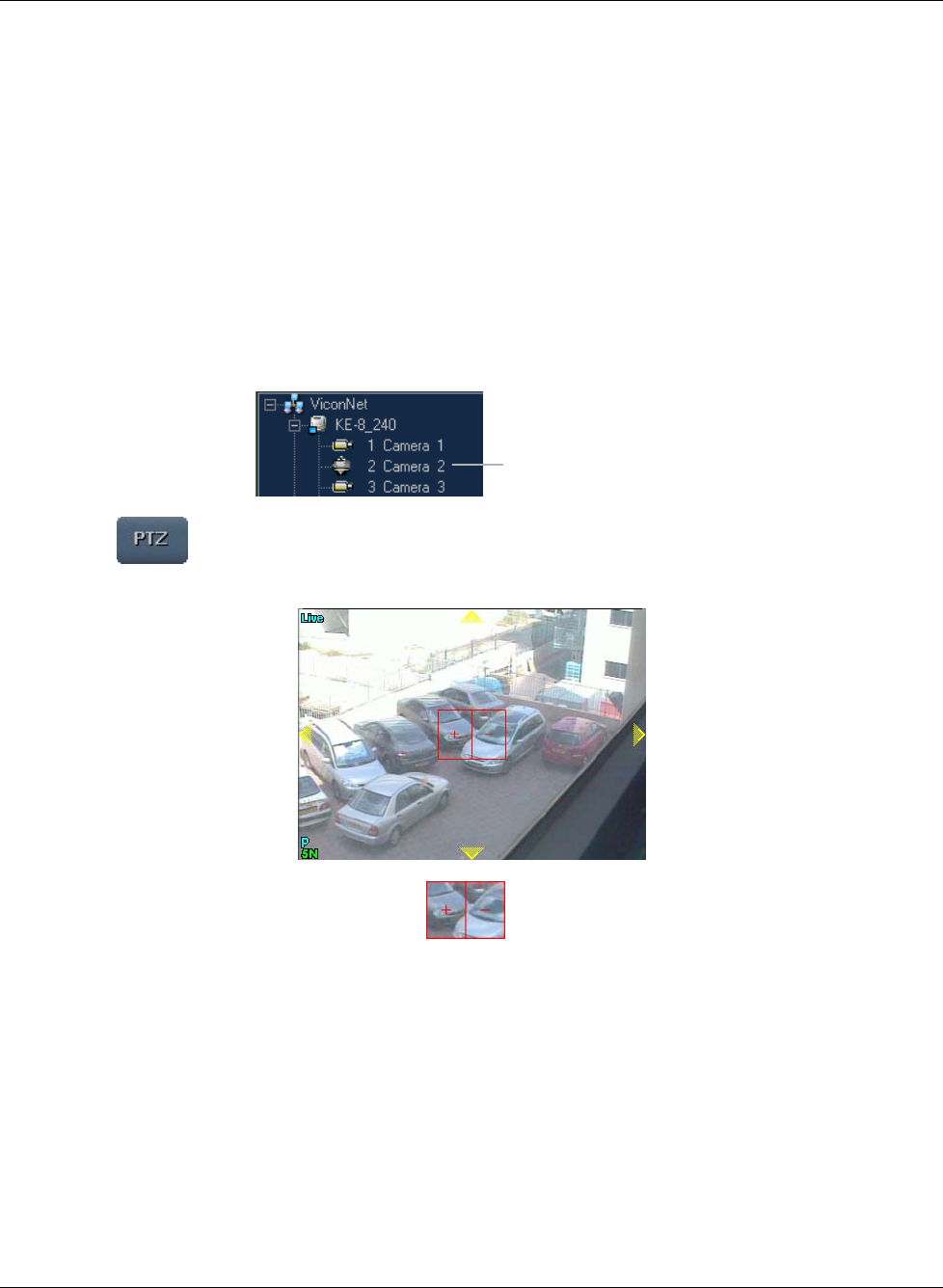
172 • Viewing Live Video XX128-33-01 Rev 1206 Kollector Pro Network Digital Video Recorder
Step 5: Operating a PTZ Camera
The ViconNet system enables you to easily operate and control any PTZ camera configured in your system.
See Configuring/Modifying PTZ Controls in Chapter 3. All PTZ functions are performed in the Main window
and are available only for one selected PTZ camera at a time.
The video from the selected PTZ camera is displayed in the Video Display area. The driver-specific interface
for PTZ-enabled cameras is also displayed in the Control Dialog Display area and on the screen.
To operate a PTZ camera:
1. Ensure that the PTZ camera has been configured in the system, as described in Chapter 3, Configuring
the ViconNet System.
2. Select the required PTZ camera from the Site List.
Select a PTZ cameraSelect a PTZ camera
3. Click the button. The live video from the selected camera is displayed in the Video Display area,
as follows:
The yellow arrow directional markers and the icon in the displayed image will be described in
the following steps.
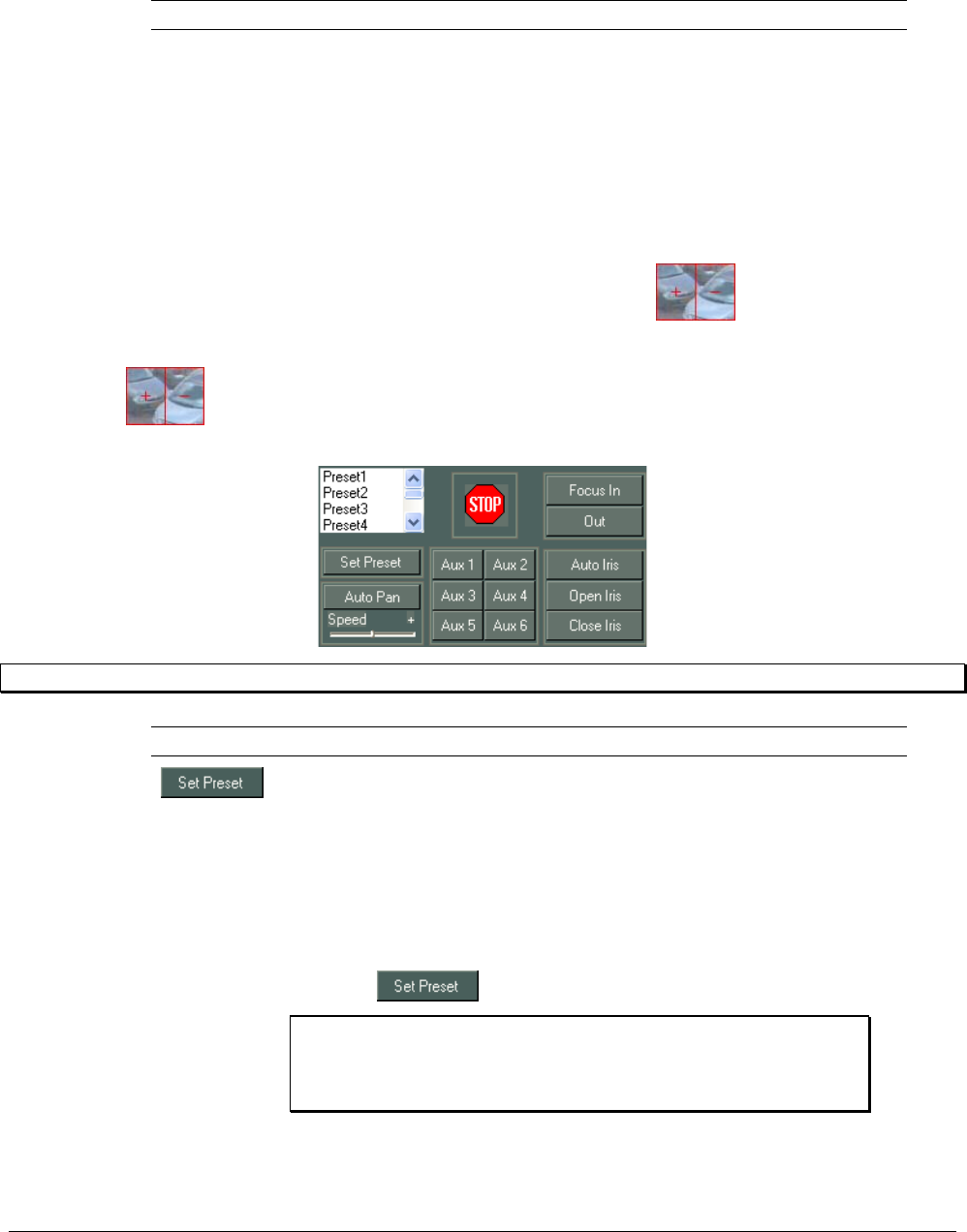
XX128-33-01 Rev 1206 Kollector Pro Network Digital Video Recorder Viewing Live Video • 173
4. Use the PTZ controls in the video display location, as follows:
Option Description
Yellow
Direction
Arrows
These arrows serve only as direction markers.
Clicking anywhere in the video display will cause the camera to move in that
direction. If you move the mouse (while still holding down the mouse
button), the camera will follow the mouse.
When using the mouse, the speed of the camera movement is directly
related to the distance of the mouse from the center of the picture. This
means that the closer the mouse is to the center, the slower the camera
movement, and the farther away from the center, the faster the camera
movement.
Optical Zoom
Click the plus (+) or minus (-) symbols of the icon with the mouse
to zoom in or out from the center of the displayed video.
5. Click the icon at the center of the image. The following PTZ controls are displayed in the
Control Dialog Display area.
NOTE: This area may vary depending on the PTZ type.
Option Description
You can define the "preset" choices in the preset scroll list to represent fixed
location-and-zoom points in the video display. Then, when a preset (for
example, preset1) is clicked, the view automatically focuses on the
associated view area.
You can define (or reassign) a preset, as follows:
• Select the required preset from the scroll list.
• Move to the required specific area/zoom using the window navigation
functions.
• Click to lock that preset to the current location/zoom.
NOTE: Up to 99 presets (depending on the camera's model)
may be defined. Presets can be selected either manually,
as described above, or automatically, as part of a macro
process.
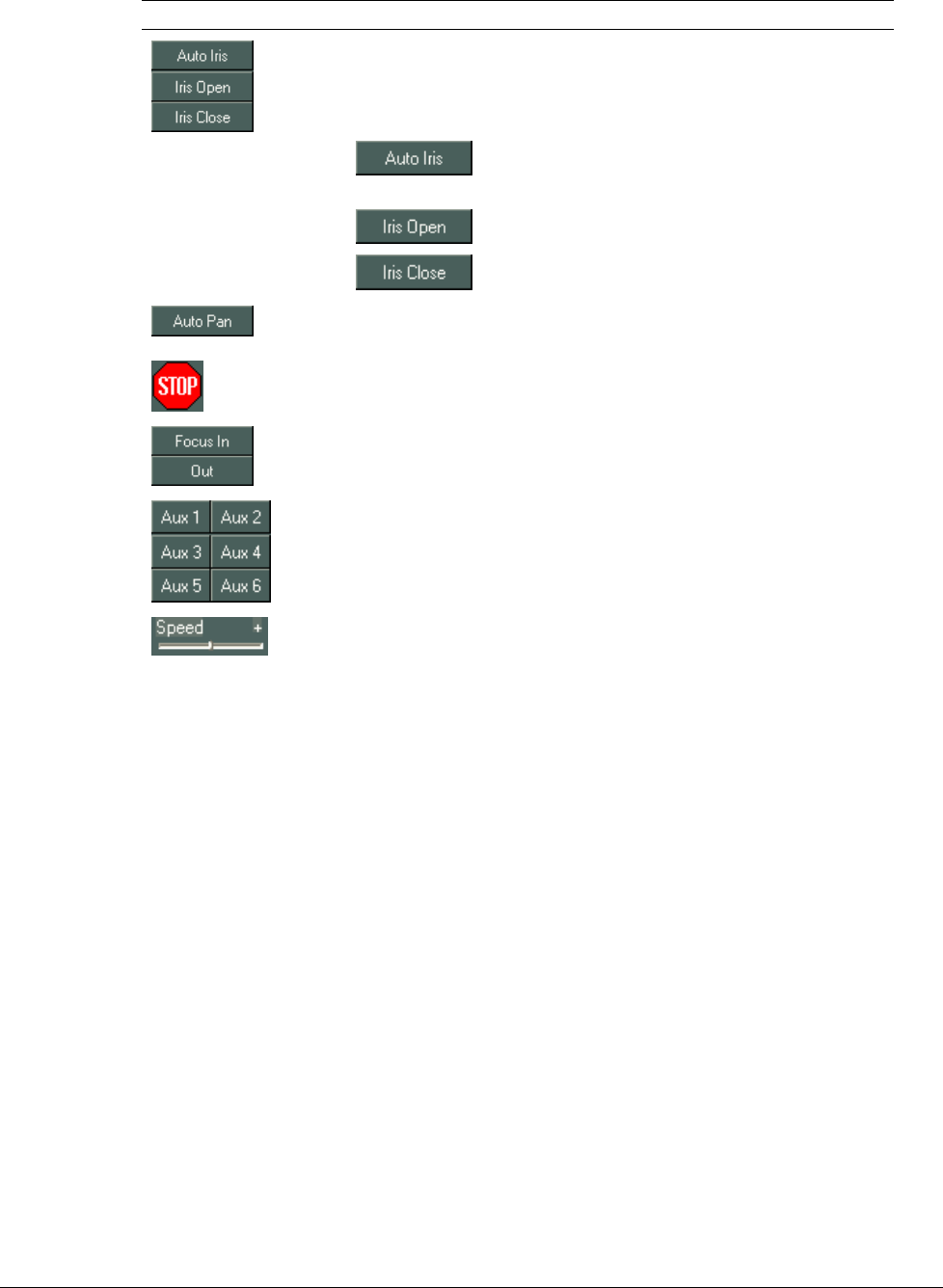
174 • Viewing Live Video XX128-33-01 Rev 1206 Kollector Pro Network Digital Video Recorder
Option Description
These options affect the ability to observe objects in the video display
location in relation to one another (proximity) by controlling the amount of
light entering behind the PTZ lens, as follows:
Clicking automatically adjusts the amount of light in the
displayed video.
Clicking adds more light to the displayed video.
Clicking reduces the amount of light in the displayed video.
Sets the PTZ camera to automatically rotate around 360° while displaying
the video.
Stops uncontrolled directional movement of the video display in the case of a
malfunction.
Adjusts the focus.
Auxiliary buttons for configuring internal PTZ settings, used in accordance
with the PTZ camera operating manual instructions. (This applies only to
Vicon PTZ cameras.)
Determines the speed of the autopan.

XX128-33-01 Rev 1206 Kollector Pro Network Digital Video Recorder Recording Live Video • 175
Chapter 5
Recording Live Video
This chapter includes the following sections:
• Overview, page 176, provides a general overview of the manual and automatic recording processes.
• Recording Live Video (On-Demand), page 177, describes how to manually record live video without the
use of configured macros and schedules.
• Automatic Recording, page 180, describes how to automatically record live video when you log in to the
ViconNet application.
• Automatic Scheduled Recording, page 181, describes how to automatically record live video according
to a pre-configured time schedule.
• Alarm Recording, page 182, describes how to automatically record live video in response to an alarm
event.

176 • Recording Live Video XX128-33-01 Rev 1206 Kollector Pro Network Digital Video Recorder
Overview
The ViconNet system enables you to perform recording operations using several types of recording modes to
accommodate individual and organizational requirements, including:
• On-demand recording, which records inputs from selected cameras and saves the data to a selected
storage location.
• Automatic recording, which uses preconfigured recording settings to record all currently connected
cameras when the ViconNet application starts.
• Automatic scheduled recording, which uses preconfigured macros to record specific according to a
preconfigured time schedule without user intervention.
• Alarm-only recording, which uses preconfigured macros to record specific cameras when an alarm event
occurs in the system.
All recording modes require you to pre-configure the recording settings, which includes selecting which
devices to record, the recording duration and quality, as well as the required macro and time schedule where
relevant.
Note About Picture Quality, Frames per Second (FPS) and Refresh Mode:
The picture quality, FPS and refresh modes for recording purposes are set in the Automatic Recording, Macro
Creation and Pre/Post-Alarm Configuration procedures. For additional details, refer to the relevant sections in
Chapter 3, Configuring the ViconNet System.
When different recording options are requested concurrently, the picture quality and FPS that applies is
determined according to prioritization settings. For details, refer to the Picture Quality and FPS Priority section
in Chapter 3, Configuring the ViconNet System.
When the buttons in the Main window Function Controls area are enabled, you can manually
override the recording picture quality for the currently selected camera, as required. The qualities 1, 5, 6 and
7 are available for this purpose. (For information about enabling the buttons, refer to the Configuring Manual
Recording and Picture Quality section in Chapter 3, Configuring the ViconNet System.)
Recording operations can also be performed on specific cameras at the same time that you are viewing live
video from other selected cameras in the ViconNet system, as described in Chapter 4, Viewing Live Video.
NOTE: During recording operations, you will notice that the green LED for the relevant device(s) blinks on the
Kollector Pro's front panel. Refer to the Front Panel Indications section in Chapter 1, Introducing
ViconNet.

XX128-33-01 Rev 1206 Kollector Pro Network Digital Video Recorder Recording Live Video • 177
Recording Live Video (On-Demand)
The ViconNet system enables you to perform on-demand recording, which is a manual method for recording
live video, from one or multiple cameras connected to the local site.
The on-demand recording method requires that the devices be configured in the system, as described in
Chapter 3, Configuring the ViconNet System. Then you can manually start and stop the recording for multiple
cameras individually or simultaneously, as required.
Performing on-demand recording consists of:
• Selecting the local Kollector Pro, which is a transmitter physically connected to the cameras you want to
record.
• Selecting the cameras that you want to record. The selection of each camera automatically starts the live
video transmission and displays it in the selected video display locations.
• Recording the live video, which stores the data for playback purposes in a predefined local storage
location.
Note About Picture Quality and Refresh Mode
The ViconNet system enables you to control the quality (resolution) of the picture being recorded and to
specify the refresh mode of the video display.
The picture quality that you select determines the resolution at which you record the images. The picture
quality range is from 1 to 8, where:
• 1 = best picture quality, but slowest data transmission.
• 8 = least clear picture quality, but fastest data transmission.
The selections between 1 and 8 provide varying degrees of image compression, resulting in varying degrees
of system resources use and data transmission.
The refresh mode determines whether you record the full frames for the live video or only the changes within
the frames.
NOTE: Both the picture quality (resolution) and the refresh mode affect the recording in all current video
display locations simultaneously.
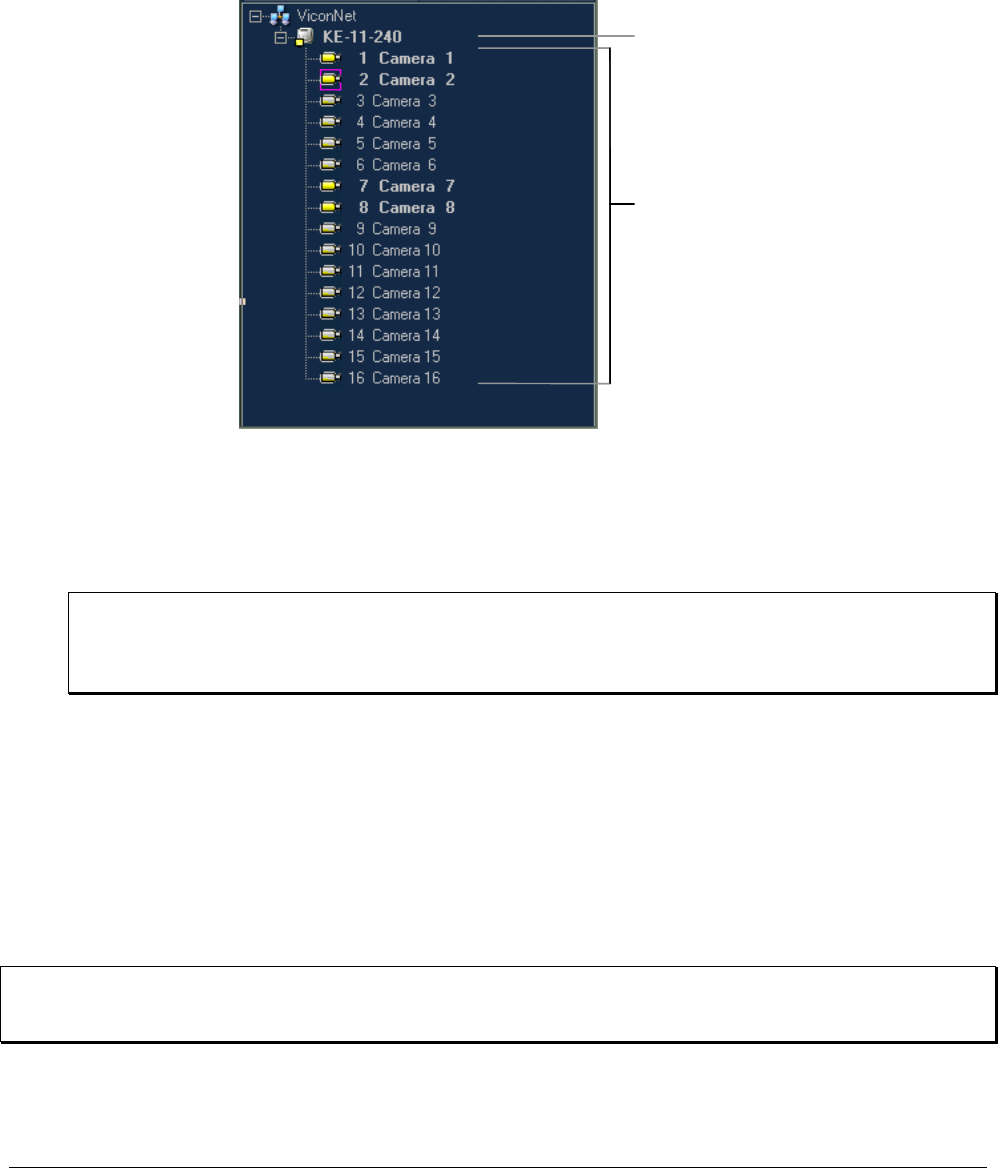
178 • Recording Live Video XX128-33-01 Rev 1206 Kollector Pro Network Digital Video Recorder
To record live video (on-demand):
1. From the Site List in the Main window, select the required transmitter.
2. Expand the branch of the required transmitter to display a list of currently connected cameras, as shown
below:
Transmitter
Devices
3. Select the required camera that you want to record in one of the following ways:
• In the Video Display area, select a video display location (indicated by the pink border), and then
select a camera from the tree. The live video transmission is displayed automatically in the selected
location, and the camera icon appears highlighted, as shown in the example on page 179.
NOTE: If you select a video display location that is currently active:
•
The live video transmission for the new camera that you select will override the current one.
•
A pink border is displayed around the relevant camera in the Site List.
-OR-
• Drag and drop a camera from the tree to the required video display location. As you drag the camera,
the mouse cursor changes to a camera icon, and then the live video transmission is displayed as you
drop the camera into the required video display location, as shown in the example below.
-OR-
• Select a transmitter and drag and drop it anywhere in the Video Display area. Live video
transmission for all the connected cameras are displayed in the current video display locations.
NOTE: The number of cameras that can be displayed at one time in the Video Display area is dependent on
the number of video display locations in the currently selected display mode. Refer to Chapter 4,
Viewing Live Video, for additional details about changing the display mode.
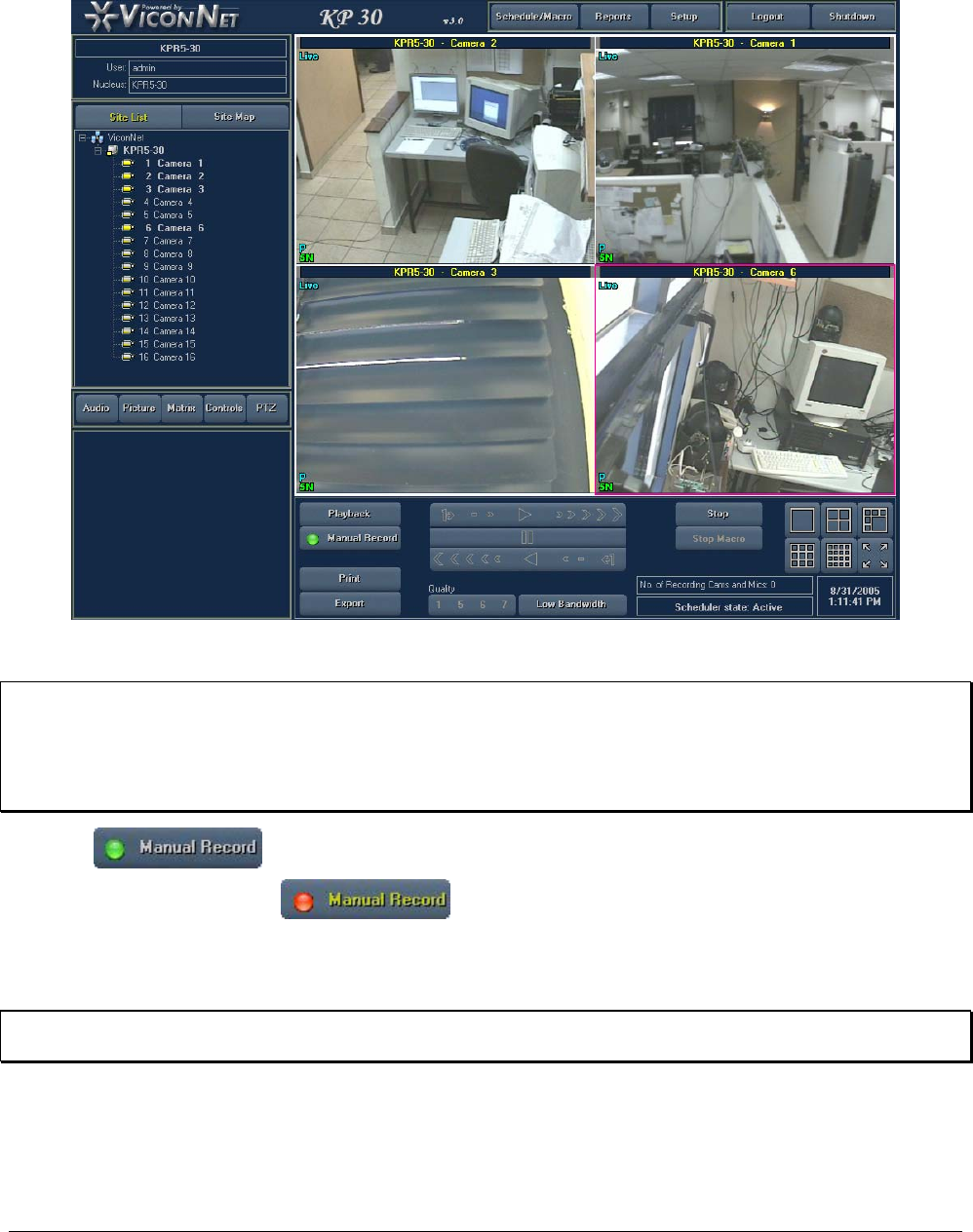
XX128-33-01 Rev 1206 Kollector Pro Network Digital Video Recorder Recording Live Video • 179
The following example shows four live cameras displayed and ready for recording in the Video Display
area, with the name of each camera located at the top of each video display location.
4. To display live video from additional cameras, repeat step 3, as required.
TIP: To reverse a selection, click the required camera in the tree again. The live video transmission for the
deselected camera is stopped.
NOTE: You can change the picture quality and refresh rate settings for manual recording. Refer to the
Configuring Manual Recording and Picture Quality section in Chapter 3, Configuring the ViconNet
System.
5. Click . The following occurs:
• The button changes to .
• The currently active cameras begin recording live video simultaneously.
• The recorded data is loaded and stored into the predefined storage location.
NOTE: When the storage location is full, older files are automatically emptied chronologically to make room
for newer files.
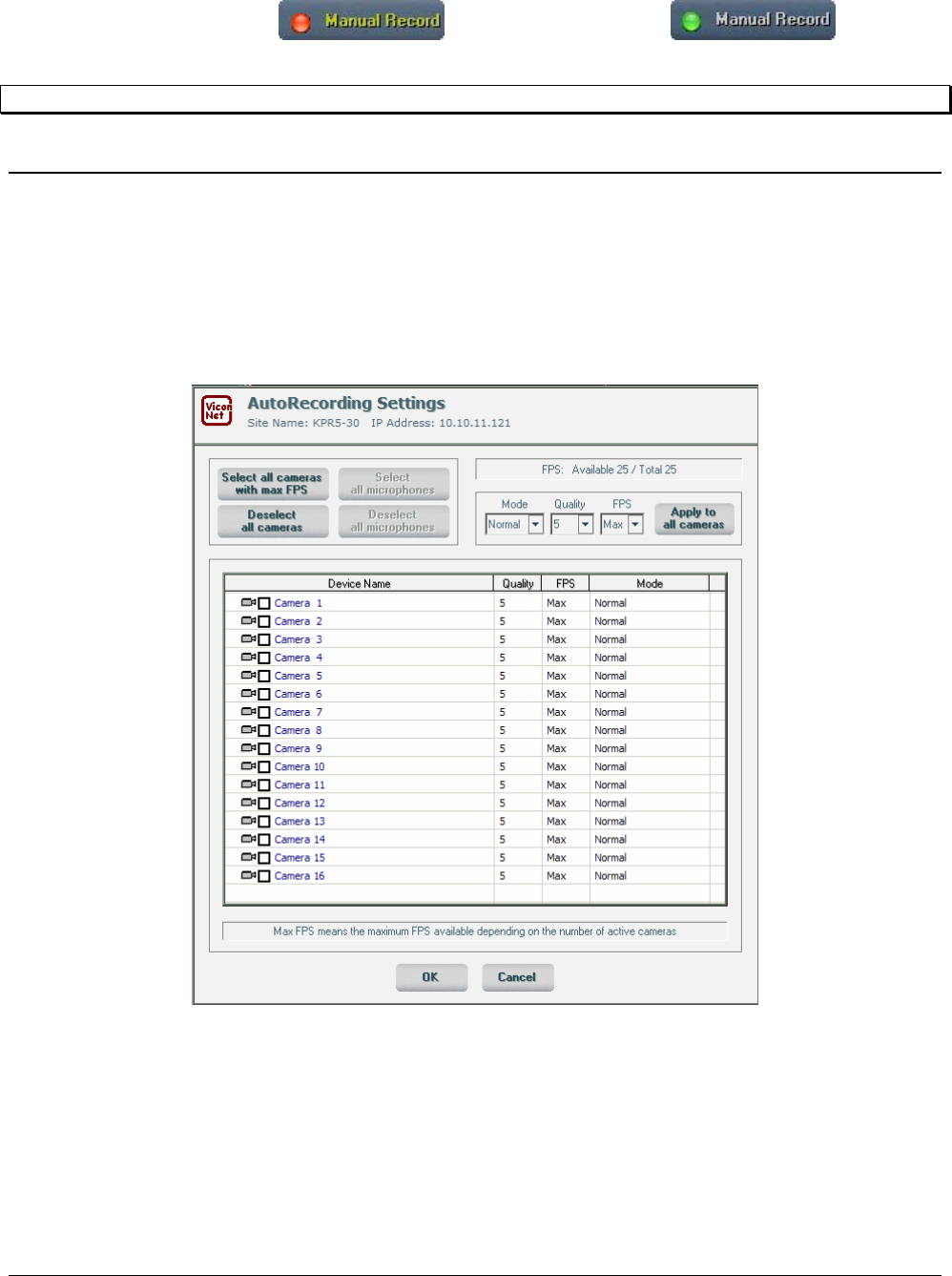
180 • Recording Live Video XX128-33-01 Rev 1206 Kollector Pro Network Digital Video Recorder
6. To stop recording, click the button. It changes back to . The active
cameras stop recording, but the live video continues to be displayed.
NOTE: Clicking STOP turns off all cameras.
Automatic Recording
The ViconNet system enables you to configure the system to automatically record all currently connected
cameras as soon as you log into the ViconNet application. This consists of configuring the automatic
recording settings, including the video quality and refresh mode and FPS, and then selecting whether all
cameras will begin recording automatically when you log in. Refer to Chapter 3, Configuring the ViconNet
System, for additional details about configuring automatic recording.

XX128-33-01 Rev 1206 Kollector Pro Network Digital Video Recorder Recording Live Video • 181
Automatic Scheduled Recording
The ViconNet automatic scheduled recording capability enables you to configure the system to automatically
record and display camera inputs according to specific time schedules without user intervention. This consists
of first configuring macros in the system for the devices you want to record with automatically. Each macro is
made up of user-defined commands that instruct the system about which devices to record, how long to
record, recording quality, and so on. Refer to the Creating Macros section of Chapter 3, Configuring the
ViconNet System, for additional details.
After you have created the required macros, you can create a schedule for each macro. This consists of
configuring the days of the week, the start and stop time, and the run option for the specific macro. The run
option enables you to configure the macro to run continuously during the selected time period or only at
selected intervals. Refer to the Creating Schedules section of Chapter 3, Configuring the ViconNet System,
for additional details.
The combination of the two configurations described above (macro and schedule) causes the system to
record the devices defined in the macro at the times configured in its associated schedule (thus automatic
scheduled recording).
For example, you can configure a schedule to run the macro that has been configured to record Device A
seven days a week from midnight to midnight (using continuous running or run cycles), or you can select a
run option to run the macro only once an hour instead of continuously during the defined time period.
To perform automatic scheduled recording:
1. Create one or multiple macros, according to your requirements, as described in the Creating Macros
section of Chapter 3, Configuring the ViconNet System.
2. Create one or multiple schedules, according to the macros that you created, as described in the Creating
Schedules section of Chapter 3, Configuring the ViconNet System.
When you launch the ViconNet application, all devices configured to perform automatic scheduled
recording (according to the configured macros and schedules) will be activated at the configured times.

182 • Recording Live Video XX128-33-01 Rev 1206 Kollector Pro Network Digital Video Recorder
Alarm Recording
The ViconNet alarm recording capability enables you to configure the system to automatically record and/or
display camera inputs when an alarm event occurs in the system by:
• Defining alarm setup links.
• Setting pre/post-alarms.
Defining alarm setup links consists of first configuring macros in the system for the devices you want to
activate when an alarm event occurs and then linking the macro to a specific alarm type. Each macro is made
up of user-defined commands that instruct the system about which devices to activate, for how long, in what
order, and so on.
When you link the macro to an alarm type, you can also configure it so that the system will activate the macro
only if the defined alarm conditions are met during a specific time period, for example, at night and on the
weekends.
Setting pre/post-alarms consists of configuring a pre-alarm and post-alarm duration and the recording settings
and then configuring which devices will be affected by the settings. When an alarm event occurs in the
system, the following actions take place:
• If you have configured a post-alarm, when an alarm event occurs in the system, the system immediately
begins recording the configured devices according to the post-alarm settings. This enables you to know
what happened immediately after the alarm event occurred.
• If you have configured a pre-alarm, when an alarm event occurs in the system, the data for the configured
devices for the pre-alarm duration is saved immediately to the storage location according to the pre-alarm
settings. This enables you to know what happened immediately before an alarm event occurred.
To perform alarm recording by defining alarm setup links:
1. Create one or multiple macros, according to your requirements, as described in the Creating Macros
section of Chapter 3, Configuring the ViconNet System.
2. Link each macro to the device that you want to act as the trigger, as described in the Defining Alarm
Setup Links section of Chapter 3, Configuring the ViconNet System.
When the configured alarm conditions are met on the configured devices, the system will activate the
linked macro.
To perform alarm recording by setting pre/post-alarms:
• Set the pre-alarm and/or post-alarm settings, according to your requirements, as described in the Setting
Pre/Post-Alarms section of Chapter 3, Configuring the ViconNet System.
When an alarm event occurs on any device, the system will activate the configured devices and
automatically save the pre-alarm and/or post-alarm data to the appropriate storage location.

XX128-33-01 Rev 1206 Kollector Pro Network Digital Video Recorder Playing Back Recorded Video • 183
Chapter 6
Playing Back Recorded Video
This chapter includes the following sections:
• Overview, page 184, provides a general overview of the playback process.
• Playback Workflow, page 185, illustrates the main steps for playing back recorded video segments.
• Step 1: Selecting Recorded Video, page 186, describes how to select the initial parameters in the
Navigator window for the recorded video that you want to play back.
• Step 2: Changing the Main Window Display Location, page 190, describes how to change the location
where the recorded video is displayed in the Main window, if required.
• Step 3: Selecting the Playback Time Interval, page 191, describes how to select the start and end
playback time for the recorded video segment.
• Step 4: Selecting the Playback Start Time, page 193, describes how to select a specific point in a
recorded video segment at which playback will begin.
• Step 5: Displaying Recorded Video Content, page 196, describes how to view a recorded video
segment in the Main window.
• Step 6: Playing Back from a Selected Camera, page 198, describes how to play back recorded
segments from one or all cameras displayed in the Main window, and discusses the Quick Playback
feature, which enables you to play back video from a camera that is currently recording (in an adjacent
camera display location), without interrupting the recording process.
• Museum Search, page 202, describes how to search for a specific camera's data within a defined region
of the database.
• Creating Archives, page 207, describes how to create archive databases that contain specific recorded
data for use at a later time.

184 • Playing Back Recorded Video XX128-33-01 Rev 1206 Kollector Pro Network Digital Video Recorder
Overview
The ViconNet system enables you to select and play back recorded video segments that have been stored in
defined storage locations. You can play back data that has been recorded on your local Kollector Pro. In
addition, you can play back data that was recorded manually or that was recorded automatically as a result of
an alarm event or a preconfigured schedule.
In order to play back recorded video, in the Navigator window, you must select the devices that you want to
play back according to the corresponding number of display locations. Then you can select the playback time
interval and start time according to the recorded segments that you want to play back.
When you have synchronized all the options in the Navigator window, you can display and play back the
selected segments simultaneously or individually in the Main window, as required.
Picture quality (resolution) refers to the compression level of the video images. The quality of the recorded
image is determined according to configuration settings, with eight degrees of quality that can be assigned:
Quality Type Properties
1
2 Frame
3
4 Field
Better picture quality, but slower data transmission.
5
6 CIF
7
8 HCIF
Less clear picture quality, faster data transmission.
The view image quality is also a function of the selected display mode. The Single mode is automatically
assigned the highest resolution available. In order to improve transmission speed, other modes are
automatically assigned lesser resolutions, in proportion to the number of views selected. In general, the
smaller views (for example, 9 or 16) do not benefit from higher resolutions, and are equally legible in a lower
resolution.)
The ViconNet system also provides some optional functions that can be used when playing back recorded
video. These include viewing alarmed segments of recorded data and creating archives that contain specific
recorded data, if required.
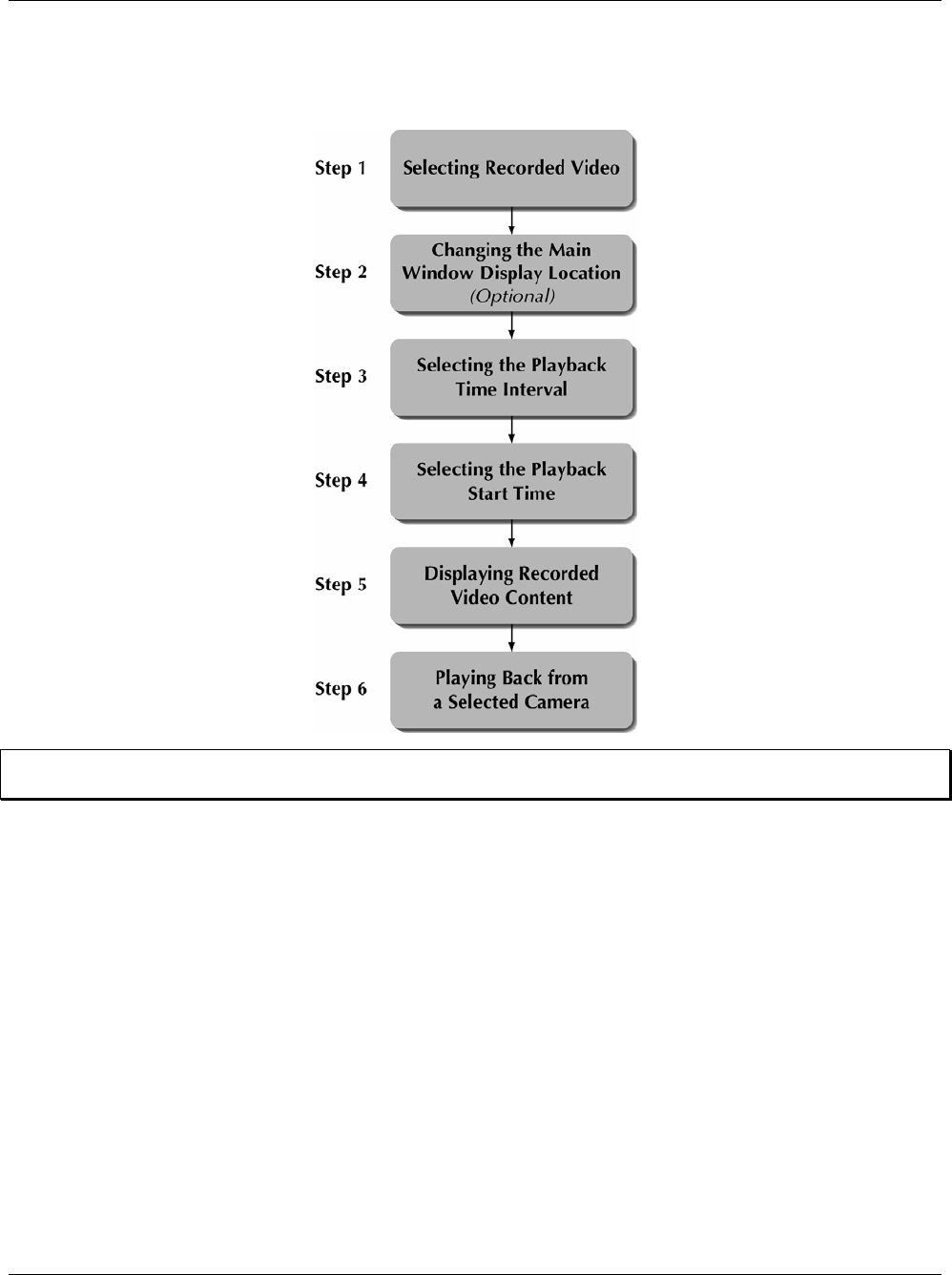
XX128-33-01 Rev 1206 Kollector Pro Network Digital Video Recorder Playing Back Recorded Video • 185
Playback Workflow
The following workflow illustrates how to play back recorded video segments using ViconNet. Each step is
described in the sections that follow.
NOTE: The workflow shown above is performed after you have already logged in to the ViconNet application,
as described in Chapter 2, Getting to Know ViconNet.
Additional procedures are provided for performing the following (optional) functions:
• Quick Playback, described on page 199
• Museum Search, described on page 202
• Creating Archives, described on page 207

186 • Playing Back Recorded Video XX128-33-01 Rev 1206 Kollector Pro Network Digital Video Recorder
Step 1: Selecting Recorded Video
The first step for playing back recorded video consists of selecting a:
• Storage source, which is a predefined storage location (located on the local Kollector Pro) that contains
the contents of all recorded devices available for viewing and playing back recorded video segments.
The storage locations, transmitters, and devices in the system can be viewed in a hierarchical tree in the
Navigator window.
Site, which is the Kollector Pro physically connected to the recording cameras.
-OR-
Archive, which is a previously defined database that contains specific recorded data from specific
devices.
• Recorded camera, which is the device that has recorded the data that you want to view and play back.
Cameras can be selected either from the Navigator tree or by using standard drag and drop functionality.
When you select a camera for viewing and playback using either selection method, a scan of the storage
location is performed for that device's recorded data, which is then displayed.
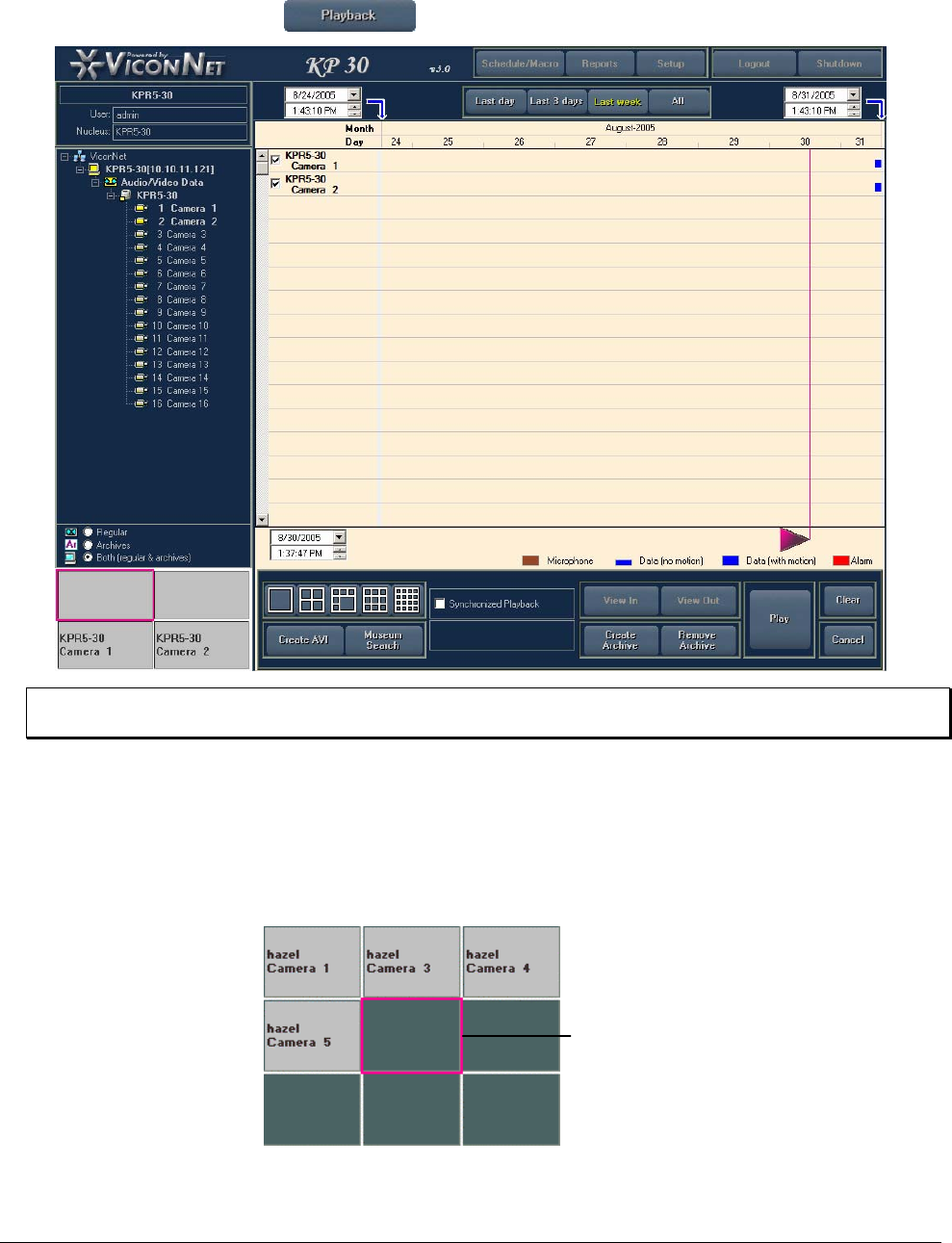
XX128-33-01 Rev 1206 Kollector Pro Network Digital Video Recorder Playing Back Recorded Video • 187
To select recorded video:
1. From the Main window, click The Navigator window is displayed, as follows:
NOTE: Refer to Chapter 2, Getting to Know ViconNet, for a description of each area in the Navigator
window.
The first time you access the Navigator window, the Main window display location Quad is displayed. You
can change this depending on how many cameras you want to select, as described in Step 1: Selecting
the Display Mode in Chapter 4, Viewing Live Video.
If you change the display mode in the Main window, the Main Window Display Location area changes
automatically according to your selection, as shown in the following example:
The pink
border
indicates
the next
default
location
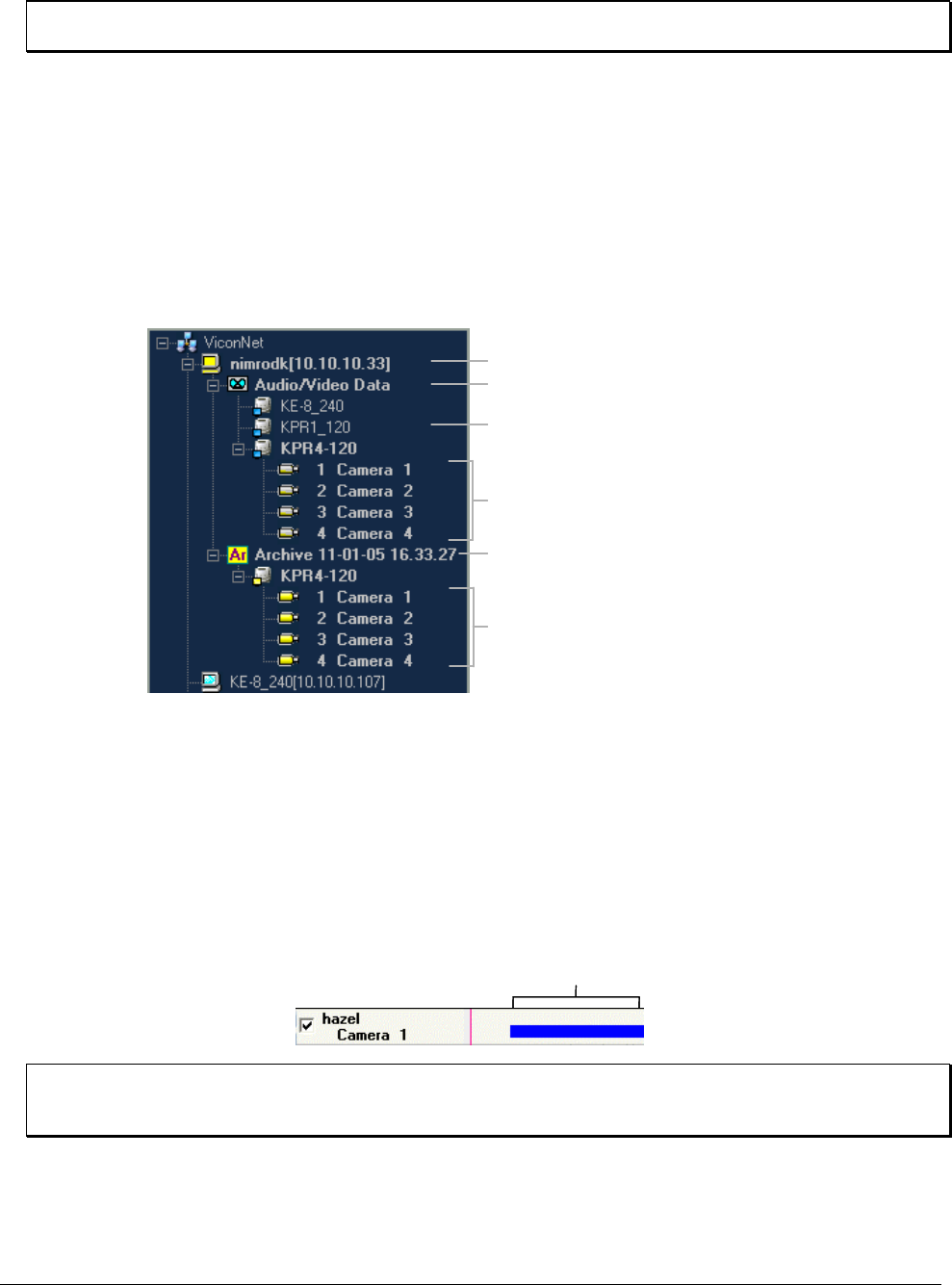
188 • Playing Back Recorded Video XX128-33-01 Rev 1206 Kollector Pro Network Digital Video Recorder
NOTE: The next time the Navigator window is accessed, the display mode that was last selected will be
displayed in the Main Window Display Location area.
2. Expand the Navigator tree to display a list of the system's available storage locations and archives, if any.
3. Expand the required storage location to display a list of the currently connected transmitters. Transmitters
that have related recorded devices are displayed.
4. (Optional) Select the required viewing option from the Navigator Tree Controls (Regular, Archives, or
Both). The Navigator tree is updated depending on your selection.
5. Expand the required transmitter to display a list of currently recorded cameras and/or expand the required
archive to display its contents, as shown below:
Storage Location
Recorded Devices
Archive (Storage Type) Contents
Devices with Archived Segments
AVDB (Storage Type) Contents
Transmitter
Storage Location
Recorded Devices
Archive (Storage Type) Contents
Devices with Archived Segments
AVDB (Storage Type) Contents
TransmitterTransmitter
6. From the Navigator tree, select the camera with the recorded segment(s) that you want to view.
The following details are displayed:
• The name of the selected camera appears on the left side of the Recorded Device Contents area,
with the checkbox automatically selected. (See the picture shown on the following page.)
• The recorded video segments contained in the storage location for the selected camera appear in
blue in the middle of the Recorded Device Contents area, as shown below:
Recorded
Segment
NOTE: The recorded video segments that are displayed also depend on the currently selected time
interval. The default time interval is Last Day. Refer to Step 3: Selecting the Playback Time
Interval, page 191, for additional details about changing the time interval.
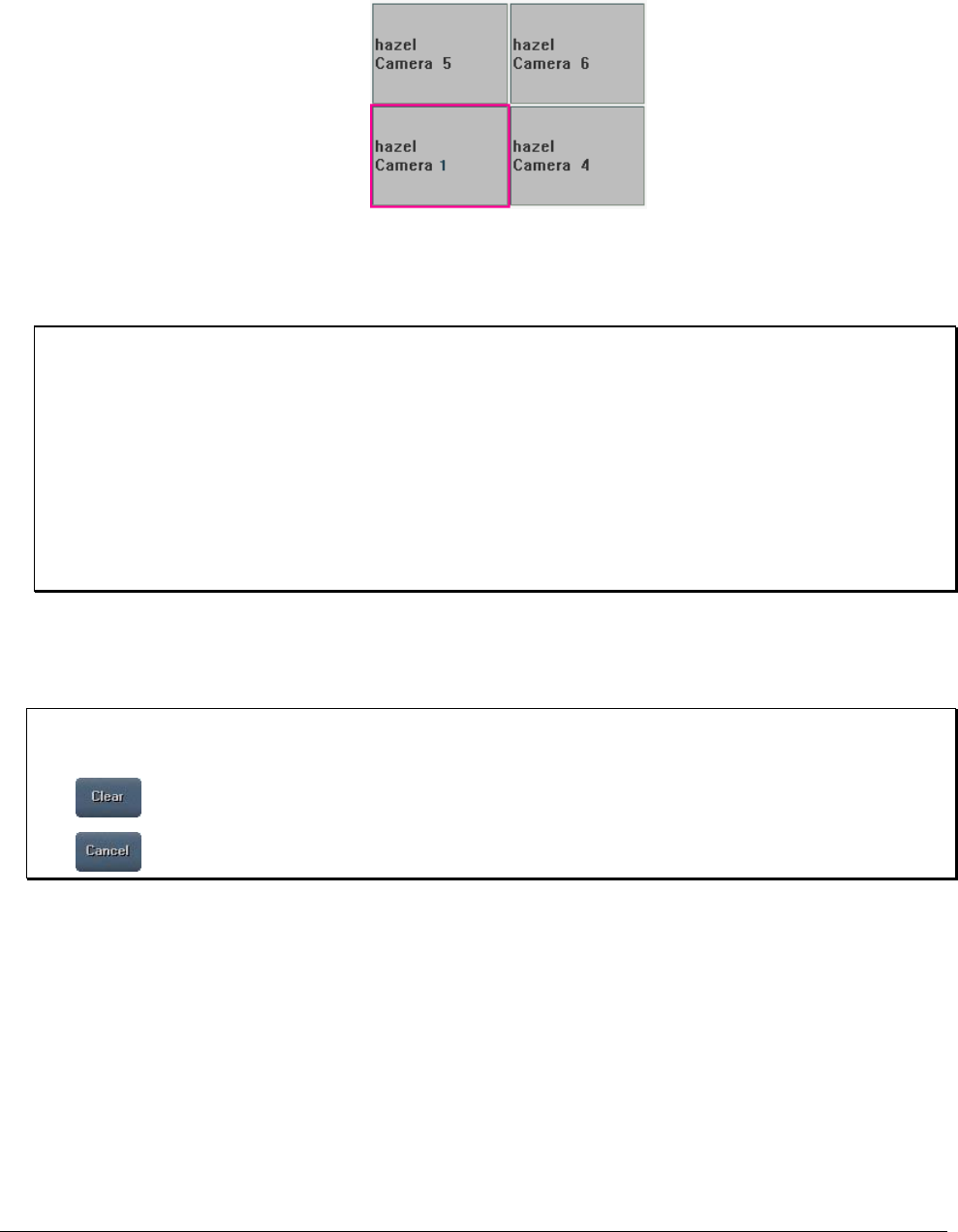
XX128-33-01 Rev 1206 Kollector Pro Network Digital Video Recorder Playing Back Recorded Video • 189
• The name of the selected camera also appears in the Main Window Display Location area in the
location marked with the pink border, as shown below:
The default display location for the pink border is the top left or the first empty location. As you select
additional cameras, the pink border automatically moves to the next display location, indicating the new
default position for the next recorded camera that you select.
NOTE: You can change the position of the pink border by clicking in an empty display location or
dragging and dropping it from one location to another. Refer to Step 2: Changing the Main
Window Display Location, page 190, for additional details.
TIP: You can also select a camera by dragging and dropping it from the Navigator tree:
• To the required display location in the Main Window Display Location area.
-OR-
• To the Recorded Device Contents area.
As you perform this action, the mouse cursor changes to a camera icon, and then the camera name
appears in the relevant location in the Main Window Display Location area (as shown above).
7. To select additional recorded cameras, repeat step 6, as required. Each device you select appears in
both the Recorded Device Contents area and in the Main Window Display Location area, as
described above.
NOTES:
The recorded devices that you select can be displayed simultaneously with live video in the Main window.
The button clears the current Navigator window settings.
The button closes the Navigator window and reinstates the Main window.

190 • Playing Back Recorded Video XX128-33-01 Rev 1206 Kollector Pro Network Digital Video Recorder
Step 2: Changing the Main Window Display Location
The ViconNet system provides you with the option to change the Main window display location for each
camera that you select in the Navigator window, if required.
As described in the previous step, when you select a camera, it is automatically assigned to the next available
display location. You can change the display location by:
• Selecting an unused display location.
• Overriding a used display location.
• Removing a camera from a display location and reassigning a different camera to that location.
Any of these methods enable you to determine the exact display location that each camera will be displayed
and available for playback in the Main window.
To change the Main window display location:
• In the Main Window Display Location area, move the pink border to the required display location by
clicking on the new location, and then select the required camera from either the Recorded Device
Contents area (after first deselecting the device) or from the Navigator tree.
The new camera name appears automatically in the display location that you selected (as shown in the
example on page 189).
-OR-
Add or remove cameras from the Main Window Display Location area by selecting or deselecting the
appropriate checkbox ( ) in the Recorded Device Contents area.
When you select a checkbox ( ), the name of the selected camera appears in the Main Window
Display Location area in the display location indicated by the pink border.
NOTE: The number of cameras that can be viewed at one time is dependent on the number of display
locations in the currently selected display mode (up to 16 cameras). Refer to Step 1: Selecting
Recorded Video, page 186, for additional details.
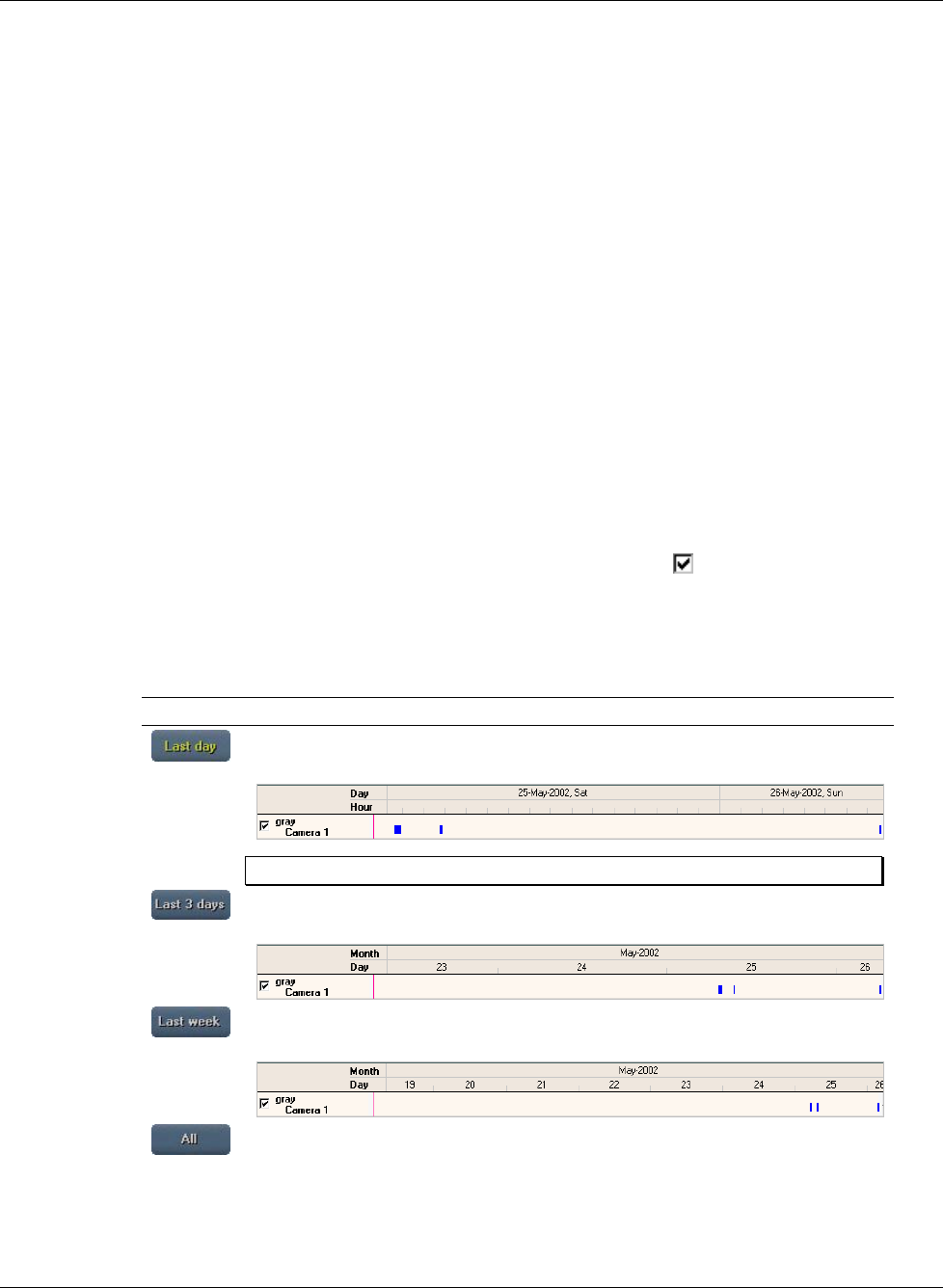
XX128-33-01 Rev 1206 Kollector Pro Network Digital Video Recorder Playing Back Recorded Video • 191
Step 3: Selecting the Playback Time Interval
The playback time interval is the range of time for the recorded video segment you want to view and play
back. This means that you can select a specific time period, defined by its start and end time, for the recorded
segment(s) by:
• Using one of the time interval tabs, which enable you to select a range of time, as described below.
-OR-
• Using the time interval controls, which enable you to specify an exact date and time, as described on
page 192.
The time interval option enables you to fine-tune the time interval period by date, hours, minutes, and
seconds. For example, you may want to view recorded segments for Camera 1 and Camera 2 only between
the hours of 12:00 PM and 1:00 PM, or you may want to view recorded segments for the same cameras for
the previous 24 hours.
You can also select, for example, only a date and later zoom in on the recorded segment, as described in the
next step.
To select the playback time interval using the time interval tabs:
1. In the Navigator window, ensure that the required camera(s) are selected ( ) in the Recorded Device
Contents area, as described in Step 1: Selecting Recorded Video, page 186.
2. In the Recorded Device Contents area, select the time interval of the recorded segment that you want to
view from the following time interval tabs:
Tab Description
Displays all recorded segments during the last 24 hours (from the current time),
as shown in this example:
NOTE: This option is the default.
Displays all recorded segments during the last 72 hours (from the current time),
as shown in this example:
Displays all recorded segments during the last 7 days (from the current time), as
shown in this example:
Displays all recorded segments for the selected cameras regardless of when the
recording occurred.
As you select a time interval tab, the recorded segments displayed in the Recorded Device Contents
area is updated automatically.
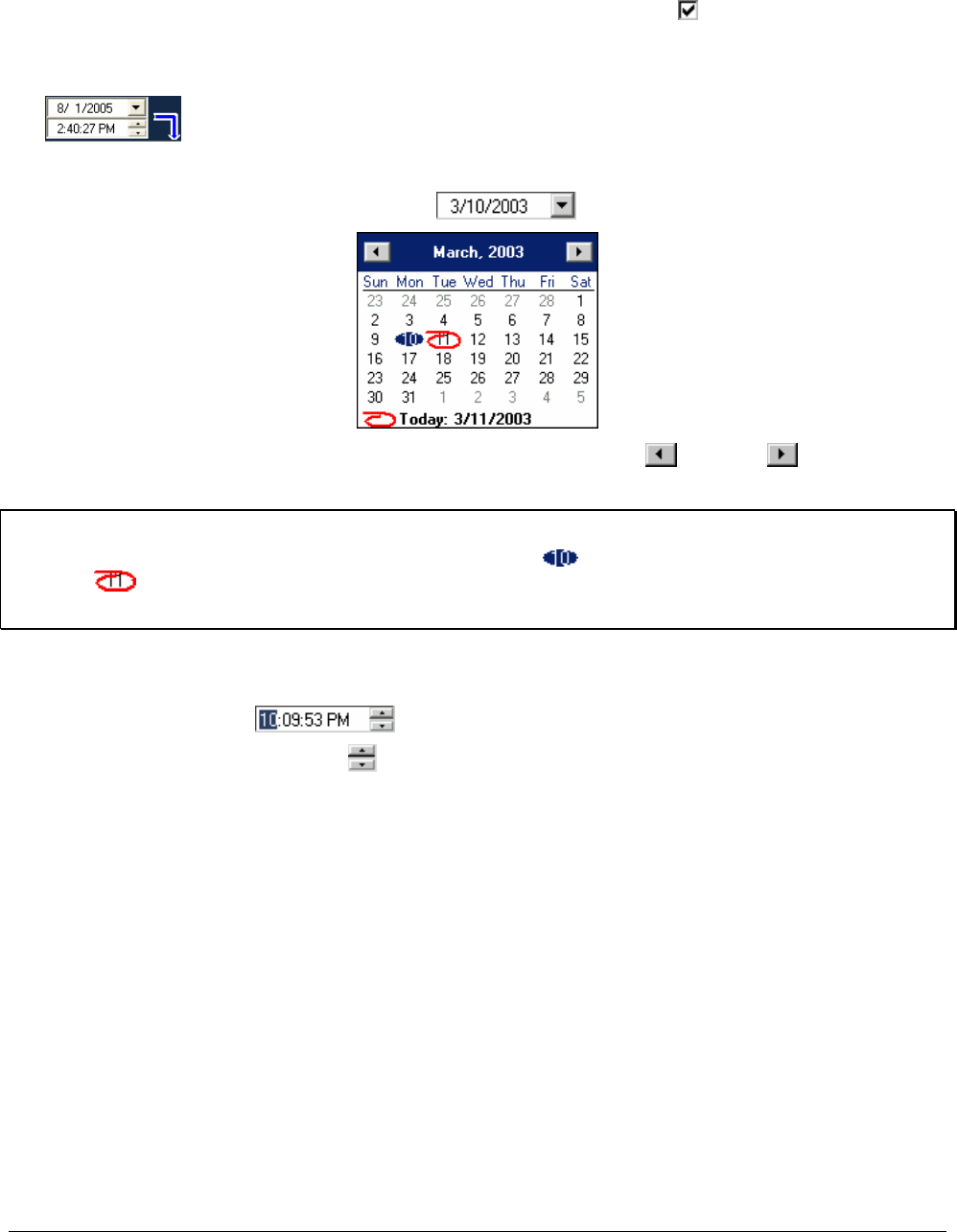
192 • Playing Back Recorded Video XX128-33-01 Rev 1206 Kollector Pro Network Digital Video Recorder
To select the playback time interval using the time interval controls:
1. In the Navigator window, ensure that the required camera(s) are selected ( ) in the Recorded Device
Contents area, as described in Step 1: Selecting Recorded Video, page 186.
2. Select a specific starting (From) date and time of the recorded segment, using the time interval controls
on the top-left side of the window, as follows:
• To select the date:
• Select the arrow next to the date field to display the popup calendar:
• Select a date from the displayed month or use the previous and next arrows to select
another month and day.
NOTES:
The date that you select appears shaded in blue (for example, ) and the current date is circled in red (for
example, ) as well as displayed at the bottom of the calendar.
You can also select the Today caption to set the date to the present day.
• To select the time:
• Click the hour, minutes, or seconds portion of the From or To time field to select it (for example,
select the hours ).
• Select the up/down arrows to change the selected portion of time or type in the required time
using the number and arrow keys.
• Repeat the previous two sub-steps (click and select) for the other time elements (for example,
minutes and seconds), as required.
3. Select a specific ending (To) date and time of the recorded segment, using the time interval controls on
the top-right side of the window. This is done in the same way as described in step 2.
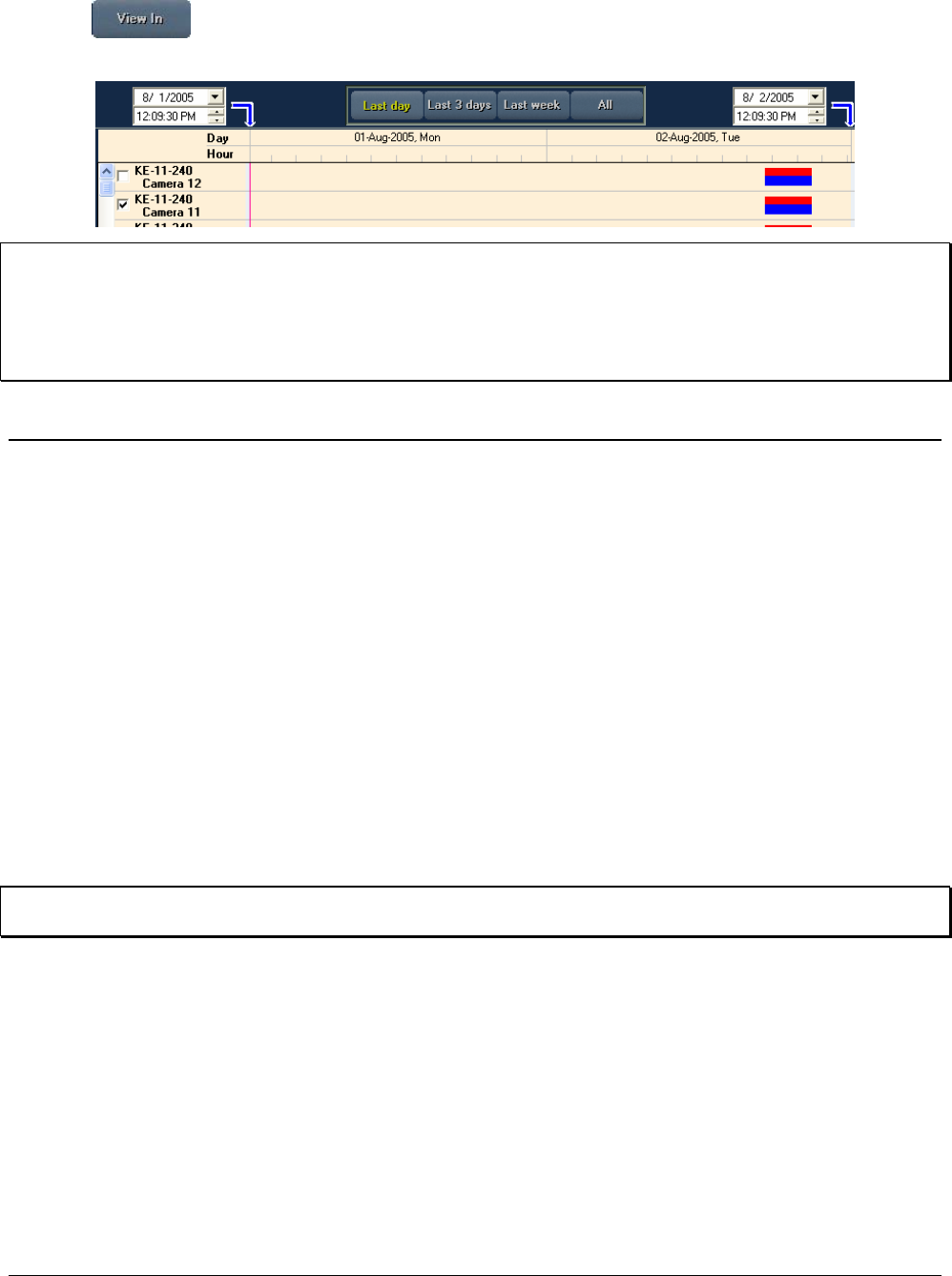
XX128-33-01 Rev 1206 Kollector Pro Network Digital Video Recorder Playing Back Recorded Video • 193
4. Click . The Recorded Device Contents area is updated with the recording date/time interval
that you selected.
NOTES:
The Recorded Device Contents area is refreshed when you switch to the Main window and then switch back
to the Navigator window.
In addition, changing the playback time interval can take a couple of seconds if the video storage location is
considerably large.
Step 4: Selecting the Playback Start Time
The ViconNet system provides an option to select the playback start time of a recorded segment, which
includes:
• Zooming in on a specific recorded segment in order to fine-tune the selection capability (optional).
• Selecting the exact playback point in the recorded segment, including hour, minute, and second, if
required.
This option enables you to play back only the required portion of the recorded segment instead of having to
play the entire segment.
When you select multiple devices in the Recorded Device Contents area, the playback start time applies to
all currently selected devices. For example, if you have selected Camera 1 and Camera 2 and you select a
playback start time of 12:00 PM on May 9, the recorded segments beginning at the selected playback time for
both cameras will be available for playback in the Main window.
NOTE: If you do not select a playback start time, as described in this procedure, all recorded segments for
the selected cameras will begin playing back according to the start time of the first available frame.
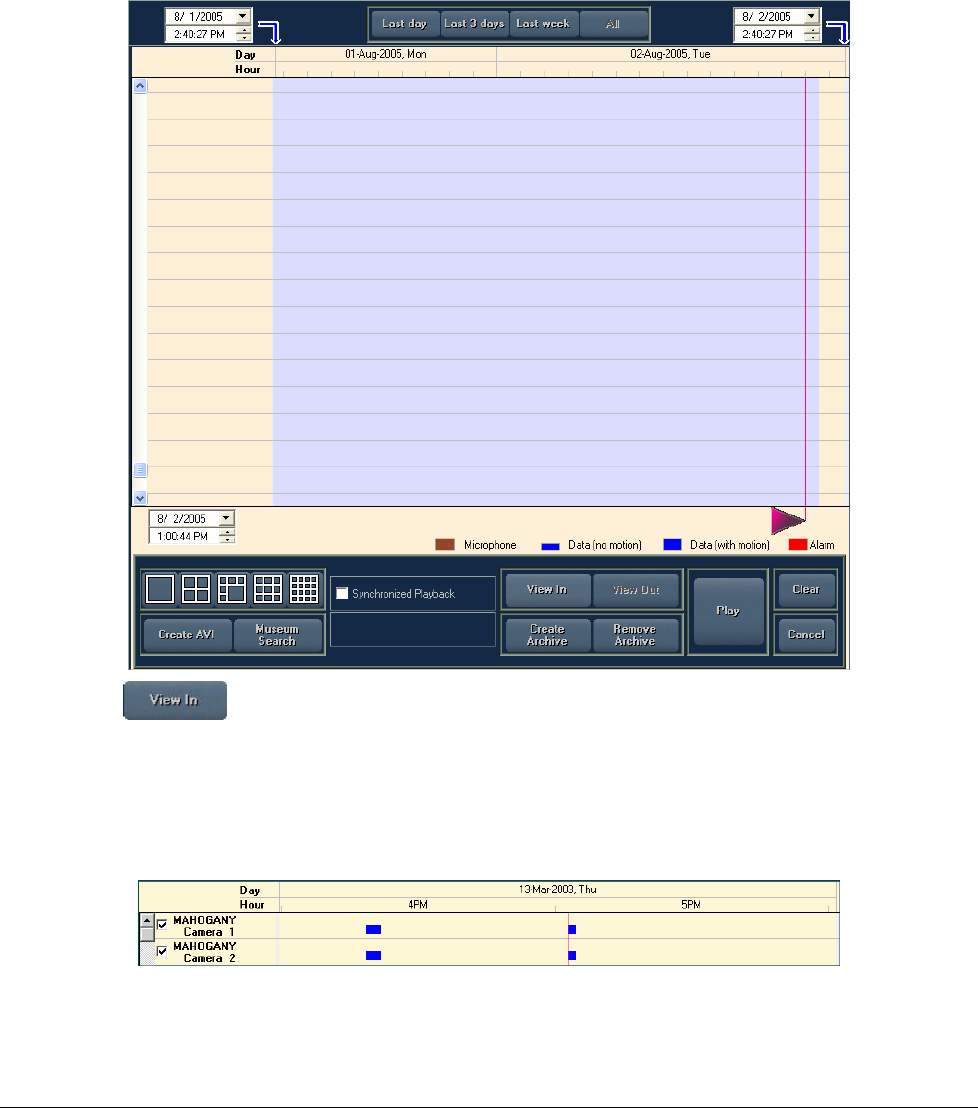
194 • Playing Back Recorded Video XX128-33-01 Rev 1206 Kollector Pro Network Digital Video Recorder
To select the playback start time:
1. (Optional) Zoom in on a specific recorded segment, as follows:
• In the Recorded Device Contents area, position the mouse pointer to the left or right of the recorded
segment that you want to zoom in on.
• Mark the recorded segment by holding down the left mouse button and dragging the mouse pointer
over the recorded segment until the blue shading covers the entire recorded segment, as follows:
• Click to zoom in on the marked recorded segment.
• Repeat the previous two sub-steps (mark and zoom) to zoom in further on the selected recorded
segment, if required.
The following example shows a recorded segment that has been zoomed in to show the hours between
4:00 PM and 6:00 PM:
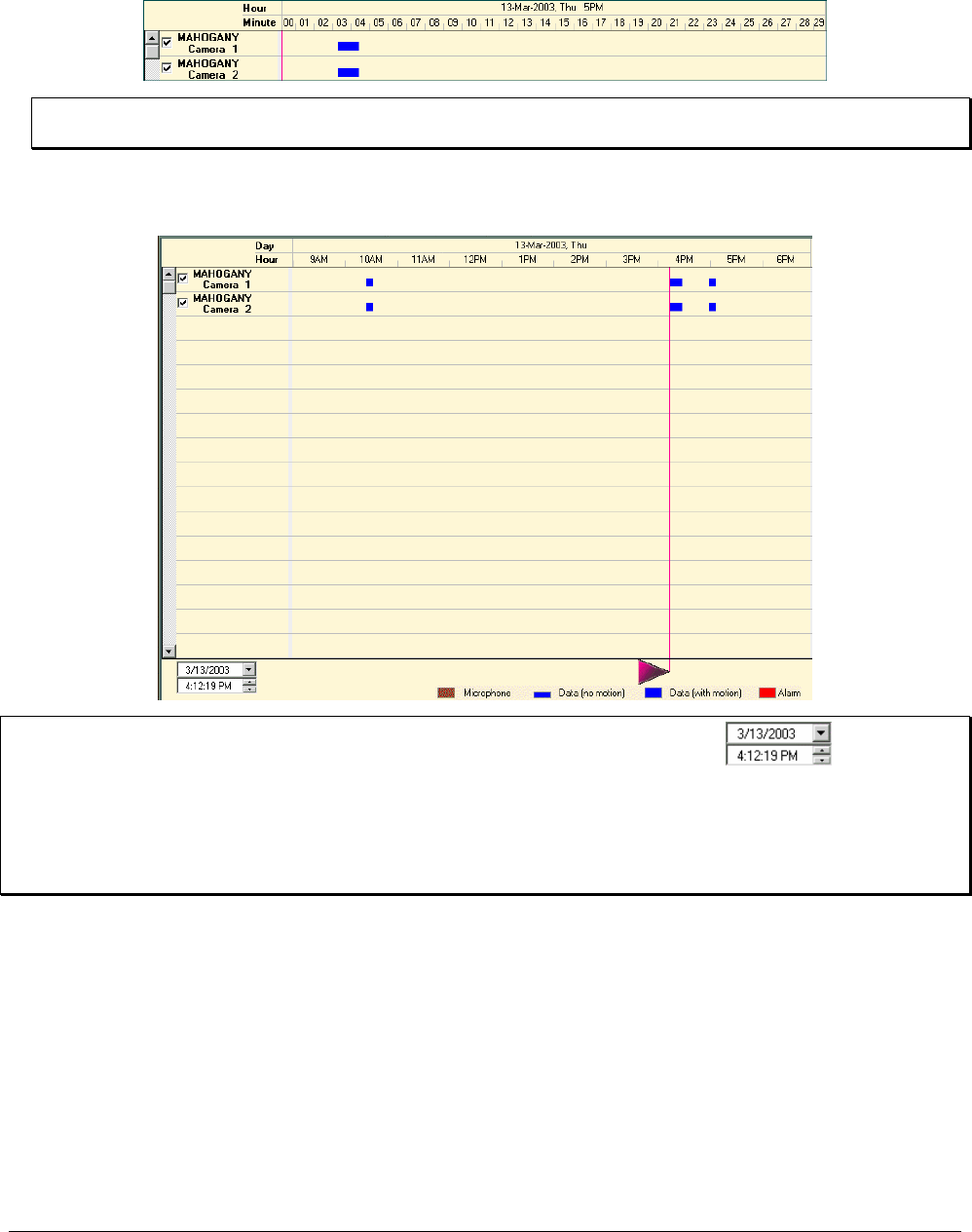
XX128-33-01 Rev 1206 Kollector Pro Network Digital Video Recorder Playing Back Recorded Video • 195
The following example shows the same recorded segments zoomed in further to show the minutes
between 5:00 AM and 5:30 PM.
NOTE: If you have selected more than one device in the Recorded Device Contents area, all recorded
segments for all devices in the marked (shaded) area will be zoomed in on simultaneously.
2. Select the playback start time by using the mouse pointer to click and scroll the pink arrow to the exact
location (including the hour, minute, and second) in the recorded segment, as follows:
TIP: You can also set the playback start time by using the time interval controls on the
bottom-left side of the window. The time and date are selected in the same way as described for the
From time and date selection in Step 3: Selecting the Playback Time Interval, starting on page 191.
NOTE: When you click on the pink arrow, a tooltip appears, displaying the date and time of its current
location in the recorded segment(s). This enables you to pinpoint the exact playback start time, if
required. Refer to Chapter 2, Getting to Know ViconNet, for additional details.
196 • Playing Back Recorded Video XX128-33-01 Rev 1206 Kollector Pro Network Digital Video Recorder
Step 5: Displaying Recorded Video Content
The next step after selecting all the parameters for the recorded video segments of the required camera(s) is
to view the actual recorded segment(s) in the Main window. Each recorded video segment is displayed in a
video display location according to the display mode and the playback start time that you selected in the
previous steps.
Once the recorded segments have been displayed in the Main window, you can then play them back, as
described in the next step.
To display recorded Video content:
1. In the Navigator window, ensure that the pink arrow is positioned at the required playback start time for
the selected camera(s), as described in the previous step.
NOTE: If you do not need to play back from a specific start time, ensure that the pink arrow is to the far
left of the Recorded Device Contents area.
2. (Optional) If you want to play the recorded segments for all the selected devices simultaneously, select
the checkbox.
If this option is not selected, then the playback controls will apply to only one selected camera at a time.
That device is selected by clicking its block in the Main Window Display Location area. (The selected
block has a pink border.) The Main window playback controls then apply only to the selected video
display location.
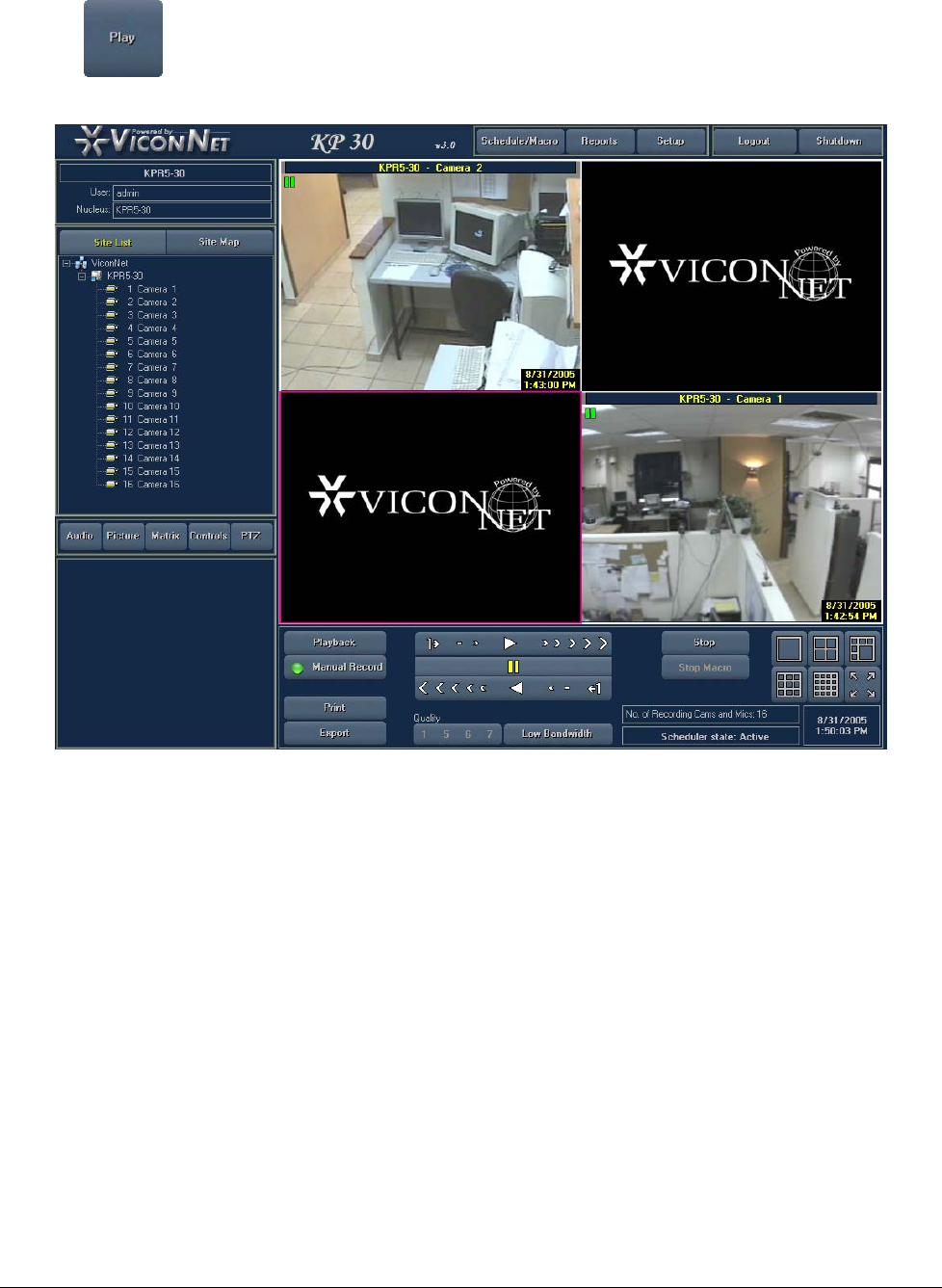
XX128-33-01 Rev 1206 Kollector Pro Network Digital Video Recorder Playing Back Recorded Video • 197
3. Click . The Navigator window closes, and the first frame of the recorded segment(s) for each
selected camera is displayed in the Main window in its selected display location, as shown below:
Each recorded segment appears in its selected display location with its camera source information (date,
time, and camera name).
198 • Playing Back Recorded Video XX128-33-01 Rev 1206 Kollector Pro Network Digital Video Recorder
Step 6: Playing Back from a Selected Camera
The ViconNet system enables you to play back recorded video segments in the Main window from either:
• A single currently displayed recorded camera at a time.
-OR-
• All the currently displayed cameras at the same time.
The ability to play back from one camera at a time or all cameras simultaneously depends on the selection
you made in Step 5: Displaying Recorded Video Content, page 196, as follows:
• If you chose to play back video from all currently displayed recorded devices, then the playback controls
in the Main window apply simultaneously to all video display locations () that contain recorded data.
• If you chose to play back video from one recorded device at a time, then you can select the video display
location (indicated by the pink border) for any of the recorded cameras in the Main window by clicking its
tree icon. The playback controls in the Main window then become active only for the selected device.
During playback, the recorded segment(s) plays from the selected playback start time.
You can also navigate through the recorded segment using standard playback controls such as fast forward
and rewind.
To play back from a selected camera:
1. In the Main window, select the video display location that contains the recorded segment that you want to
play back. The pink border indicates the currently selected video display location.
NOTE: If you selected the checkbox in Step 5: Displaying Recorded Video Content,
page 196, you do not need to perform this step.
2. Click the Forward button . The selected recorded segment plays, and the camera source details
change accordingly.
If you selected the Synchronized Playback checkbox, all the video segments for the displayed cameras
play simultaneously.
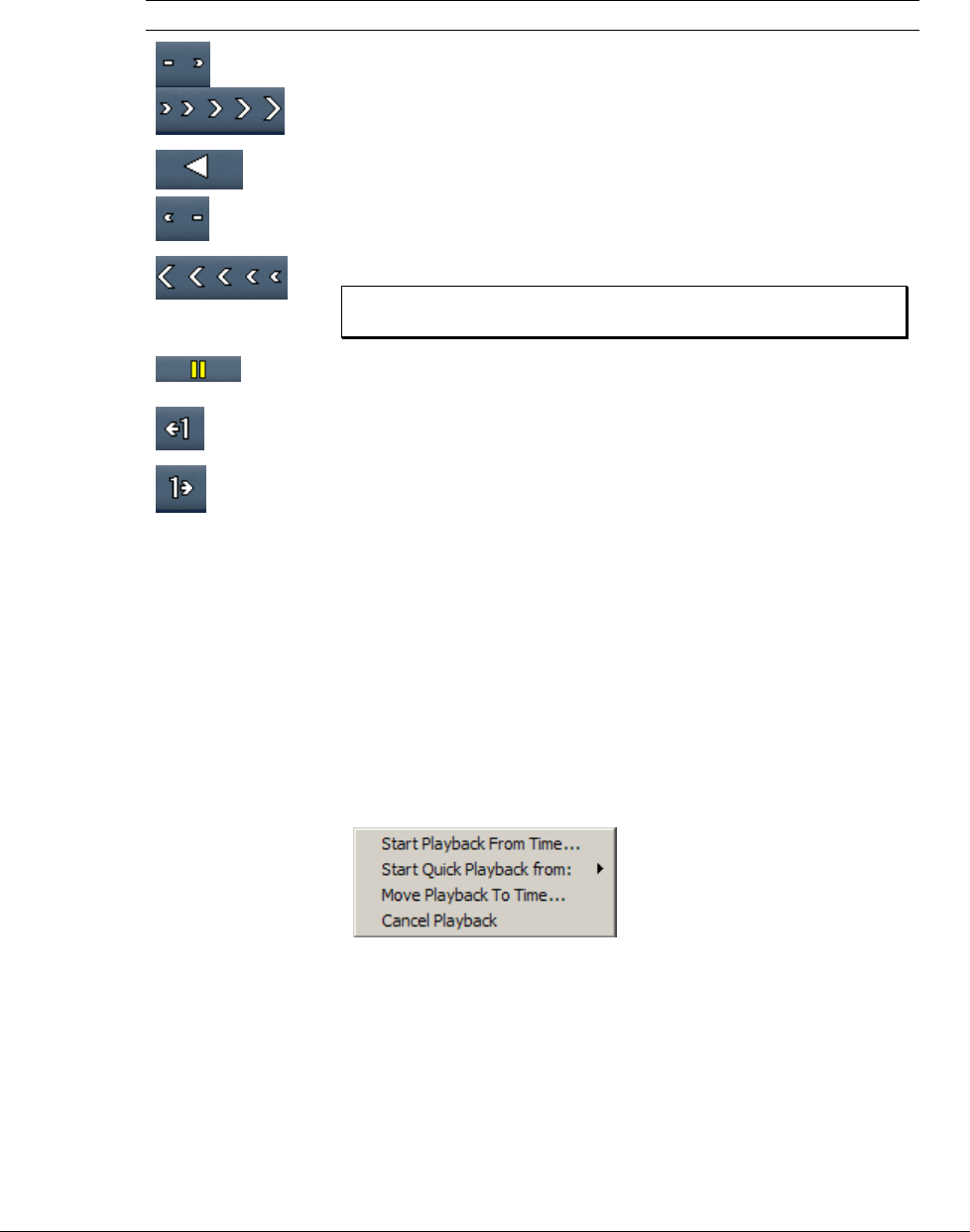
XX128-33-01 Rev 1206 Kollector Pro Network Digital Video Recorder Playing Back Recorded Video • 199
3. (Optional) Use the following buttons to navigate through the recorded segment(s) during playback, as
required:
Button Description
Fast Forward: Fast-forwards the recorded segment at the following
speeds (related to the normal speed): 1/4, 1/2, x2, x5, x10, x50, and
x100.
Backward: Rewinds the recorded video segment.
Fast Rewind: Fast rewinds the recorded segment at the following
speeds (related to the normal speed): 1/4, 1/2, x2, x5, x10, x50, and
x100.
NOTE: Place the mouse cursor over a button to view its
related fast forward speed.
Stop/Pause: Stops/pauses the current playback of the recorded
segment.
Prev: Displays the previous frame in the recorded segment.
Next: Displays the next frame in the recorded segment.
Quick Playback
The following options are available for quick playback of videos:
• Start Playback From Time
• Start Quick Playback From
• Move Playback to Time
• Cancel Playback
200 • Playing Back Recorded Video XX128-33-01 Rev 1206 Kollector Pro Network Digital Video Recorder
Start Quick Playback From and Start Playback From Time
The Start Quick Playback From option and the Start Playback From Time option enable you to play back
video from a camera that is currently recording (in an adjacent camera display location), without interrupting
the recording process. This avoids having to remove one's eyes from the current live video while playing back
to investigate suspicious activity, as would be the case if Playback is initiated from the Navigator window.
Start Playback From Time and Start Quick Playback From can both be selected by clicking the live
camera in the site tree or by clicking the display area while the camera is recording.
The difference between the Start Playback From Time option and the Start Quick Playback From option is
that the Start Playback From Time option enables you to select a date as well as time (a calendar is
displayed for selecting the date). For further details, see chapter 2, Getting to Know ViconNet.
Move Playback To Time
While playback is being performed, right-clicking the icon of the camera playing provides the additional option
Move Playback To Time. This option enables you to stop the current playback and select a new date and
time to playback the video.
NOTE: After being moved to another time, the playback is in the same display rectangle, not the adjacent
one.
Cancel Playback
While playback is being performed, you have the option to stop the playback by right-clicking the camera icon
and selecting Cancel Playback.
NOTE: Quick Playback provides a special-purpose subset of the total playback options. The other Playback
options (for example, selecting Video segments for play back, viewing video from an Archive, or
Museum Search) are accessed from the Navigator window. Quick Playback operates only with local
(not remote) databases.
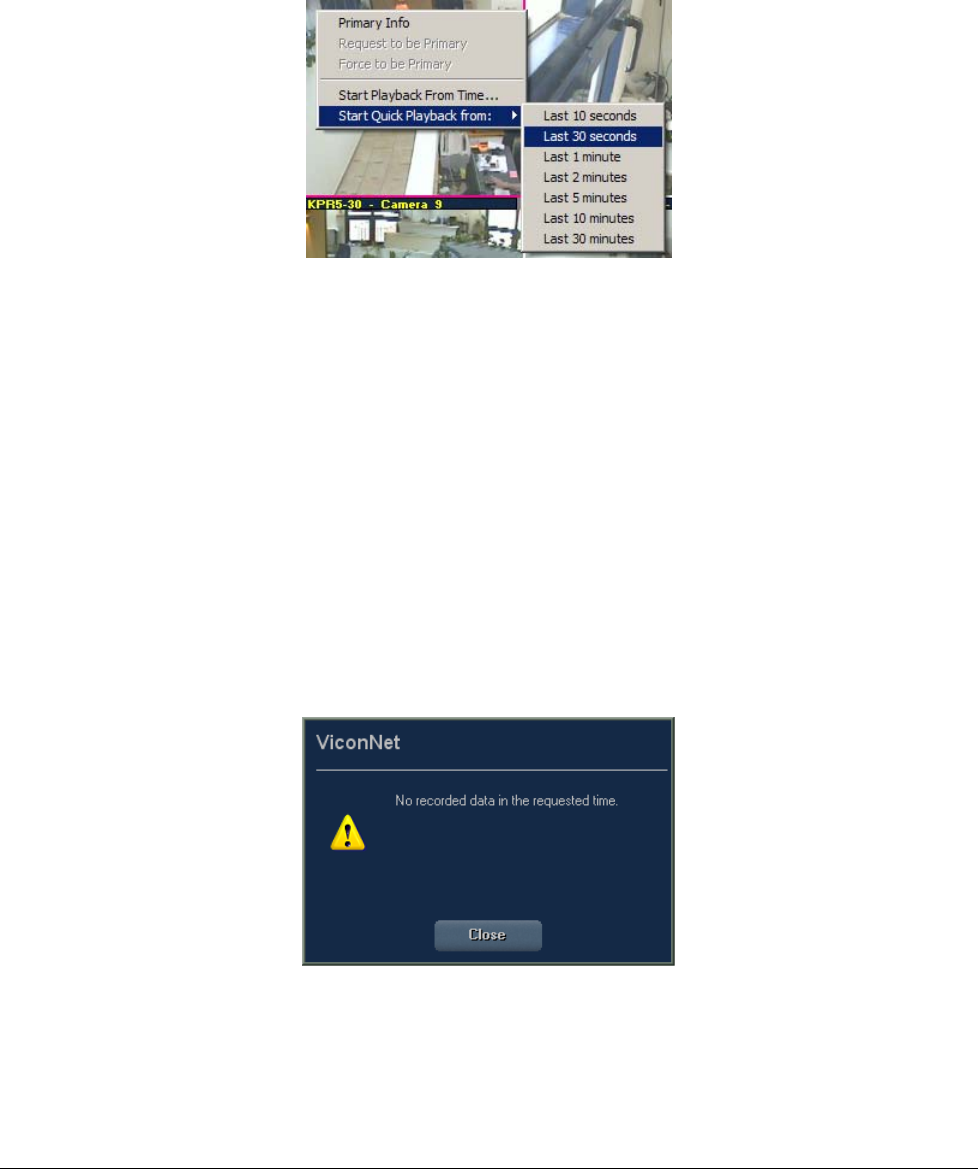
XX128-33-01 Rev 1206 Kollector Pro Network Digital Video Recorder Playing Back Recorded Video • 201
To perform quick playback options (Start Quick Playback From, Start Playback From time):
1. In the Main window, right-click in the required camera display location.
2. Select Start Quick Playback From, and the number of seconds from the current moment from which you
want to play back. For example, you can play back starting from what was recorded 30 seconds ago.
-OR-
Select Start Playback From Time, and a calendar is displayed to select the date to playback the video.
The playback is shown in the adjacent video display location. For example, if Start Quick Playback
From is selected from camera1, the camera1 playback appears in the camera2 video display location,
temporarily overriding the live video from that camera. (Live video continues on camera1. While this is
happening, recording continues uninterrupted on both cameras.)
During the playback, the regular Playback Controls (described on page 198) are available, enabling you,
for example, to fast forward or rewind the playback, exactly as if the camera was selected from the
Navigator.
If no recording is associated with the selected time (for example, the current recording started more
recently than one minute ago, or the most updated video is 30 minutes old), the following warning is
displayed.
(Optional) To playback currently playing video at another time, select Move Playback To Time, and a
calendar is displayed to select the date to playback the video.
3. To stop the quick playback, click the Stop button or right-click the camera icon in the site tree or the
display area and select Cancel Playback. Live video returns to the adjacent video display location.
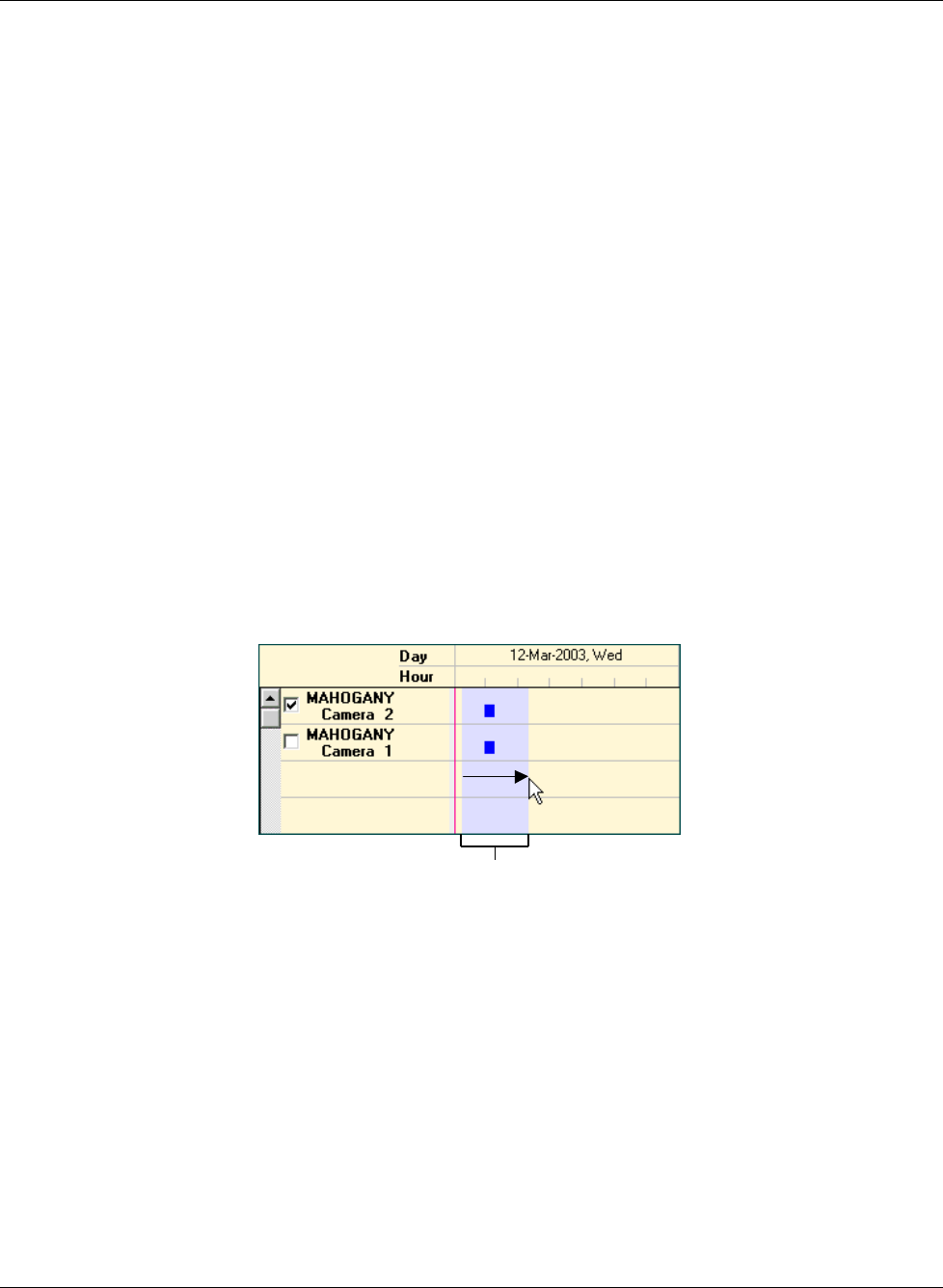
202 • Playing Back Recorded Video XX128-33-01 Rev 1206 Kollector Pro Network Digital Video Recorder
Museum Search
The Museum Search option enables you to search for a specific camera's data within a defined region of the
database, saving you from having to review the entire database. You can locate all the video segments that
include a specific difference, for example, a main door opening, or a car being moved.
The Museum Search option enables you to locate the following types change entities:
• Detections: Specific frames where significant changes occurred.
• Episodes: Sets of consecutive frames in which significant changes that determine a unique event are
detected.
Viewing the unique recorded segments described above consists of selecting the required device(s) in the
Recorded Device Contents area and then selecting the Museum Search option. You can then search in the
storage location for one or all of the unique segments and play them back in the Main window, as described in
the previous steps in this chapter.
To perform a museum search:
1. In the Navigator window, ensure that the required camera is selected. (Only one camera can be selected
at a time).
2. In the Recorded Devices Content area, select the required time interval by clicking and dragging, as
described in the Selected Time Interval section in Chapter 2, Getting to Know ViconNet.
Blue Shading Indicates Selected Time IntervalBlue Shading Indicates Selected Time Interval
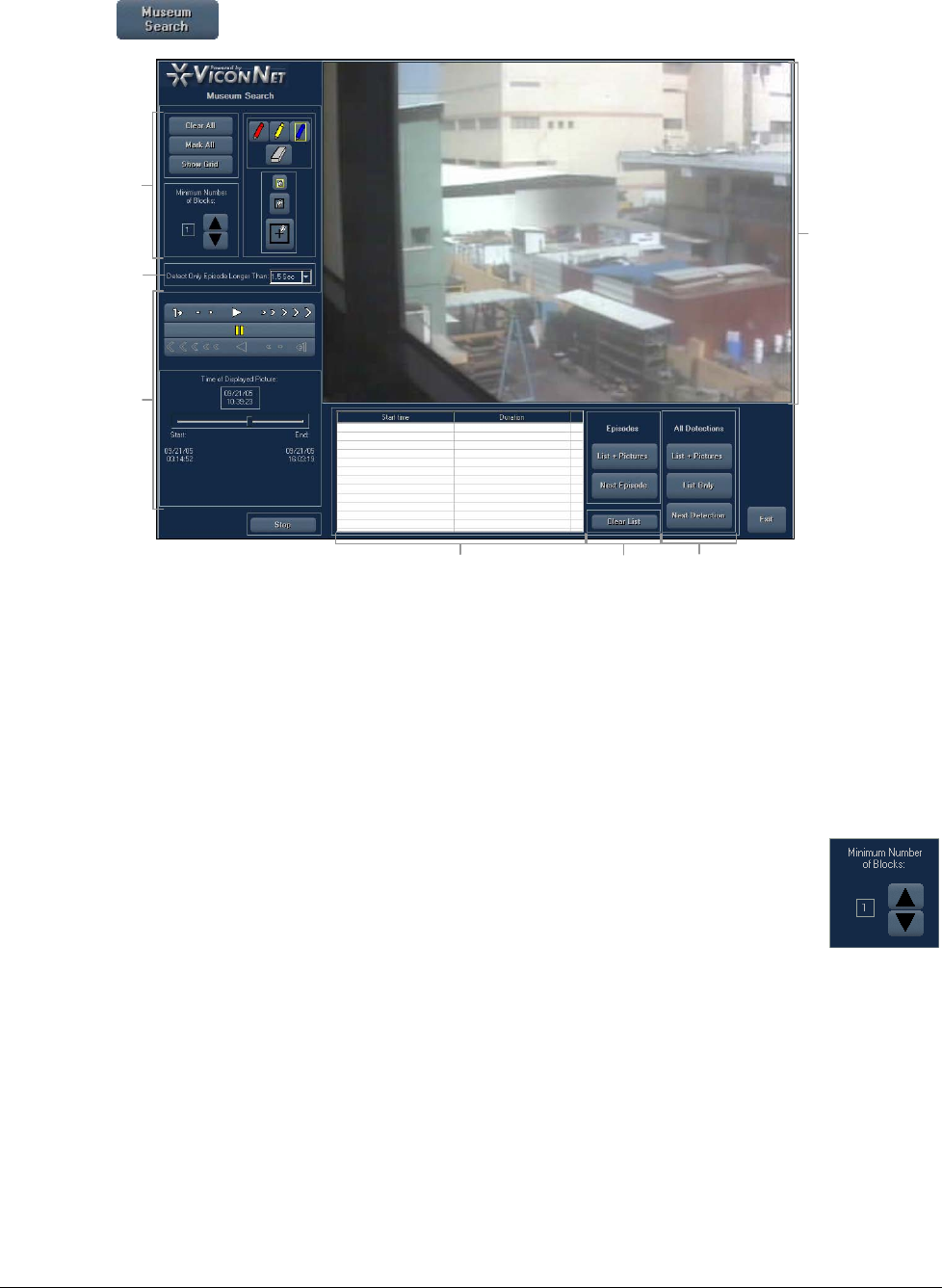
XX128-33-01 Rev 1206 Kollector Pro Network Digital Video Recorder Playing Back Recorded Video • 203
3. Click the button. The Museum Search window is displayed.
Video
Display
A
rea
Detector
Control
Functions
Episode
Control
Functions
Detector
List
Playback
Controls
Duration
Selector
for
Episode
Detection
Grid
Definition
Tools
4. The Video Display area shows the first frame of the time interval that was selected in step 2. (The Time
Range area shows the selected time interval start and end times.) If required, navigate to a relevant
frame in the segment using the playback controls. These are used in the same way as the playback
controls of the ViconNet Main window, described in Chapter 2, Getting to Know ViconNet.
5. In the current frame, define the following:
• The ROIs relevant for the current search procedures. This is done using the Grid Definition tools.
• The sensitivity of the detection mechanism: how many blocks of the colored grid
arrays must be simultaneously involved in the change before a detection is
recognized. This selection is made from the Minimum Number of Blocks selector.
A description of how to perform these definitions is provided in the Defining ROIs section, page 205.
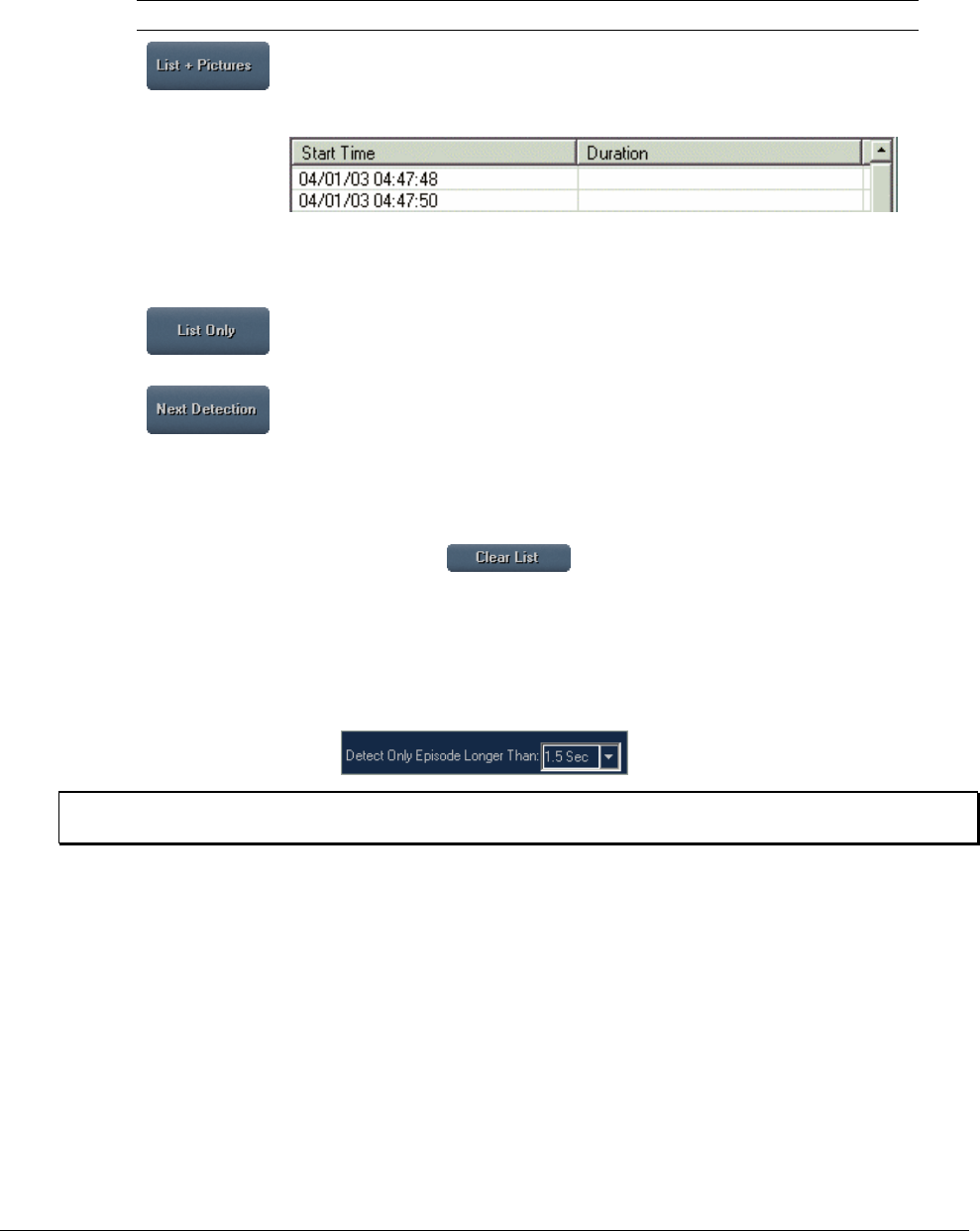
204 • Playing Back Recorded Video XX128-33-01 Rev 1206 Kollector Pro Network Digital Video Recorder
6. If you want to find specific frames where changes occurred in already defined ROIs, use the Detector
Control functions, as follows:
Option Description
This button starts a search, from the current frame forward, for any frames in
which significant differences in ROIs (based on the Minimum Number of
Blocks selection) are detected. The start time of each detected frame is listed
in the Start Time column in window's Detection List.
As each difference frame is detected, the frame image is displayed in the
Video Display area. The process continues until the end of the time interval is
reached, or until the Stop button is clicked.
This button performs the same actions as the List + Pictures button, but does
not display the frame images. The process continues until the end of the time
interval is reached, or until the Stop button is clicked.
This button can be used to search for each next frame (one frame each time
the button is clicked) in which there is an applicable difference. The frame
image is displayed in the Video Display area.
You can view selected frames by clicking their start times in the Detection List. The detected differences
in the frame are indicated by light blue blocks.
You can clear the Detection list by clicking the button.
7. If you want to find "episodes" (sets of consecutive frames in which a significant difference in ROIs is
detected), do the following:
• From the Detect only episode longer than dropdown list, select the length of time over which
changes must continuously occur.
NOTE: The default duration is 1.5 seconds. Values from 0.1 seconds to 5.0 seconds can be selected.
In general, the shorter the duration, the more easily episodes will be detected.
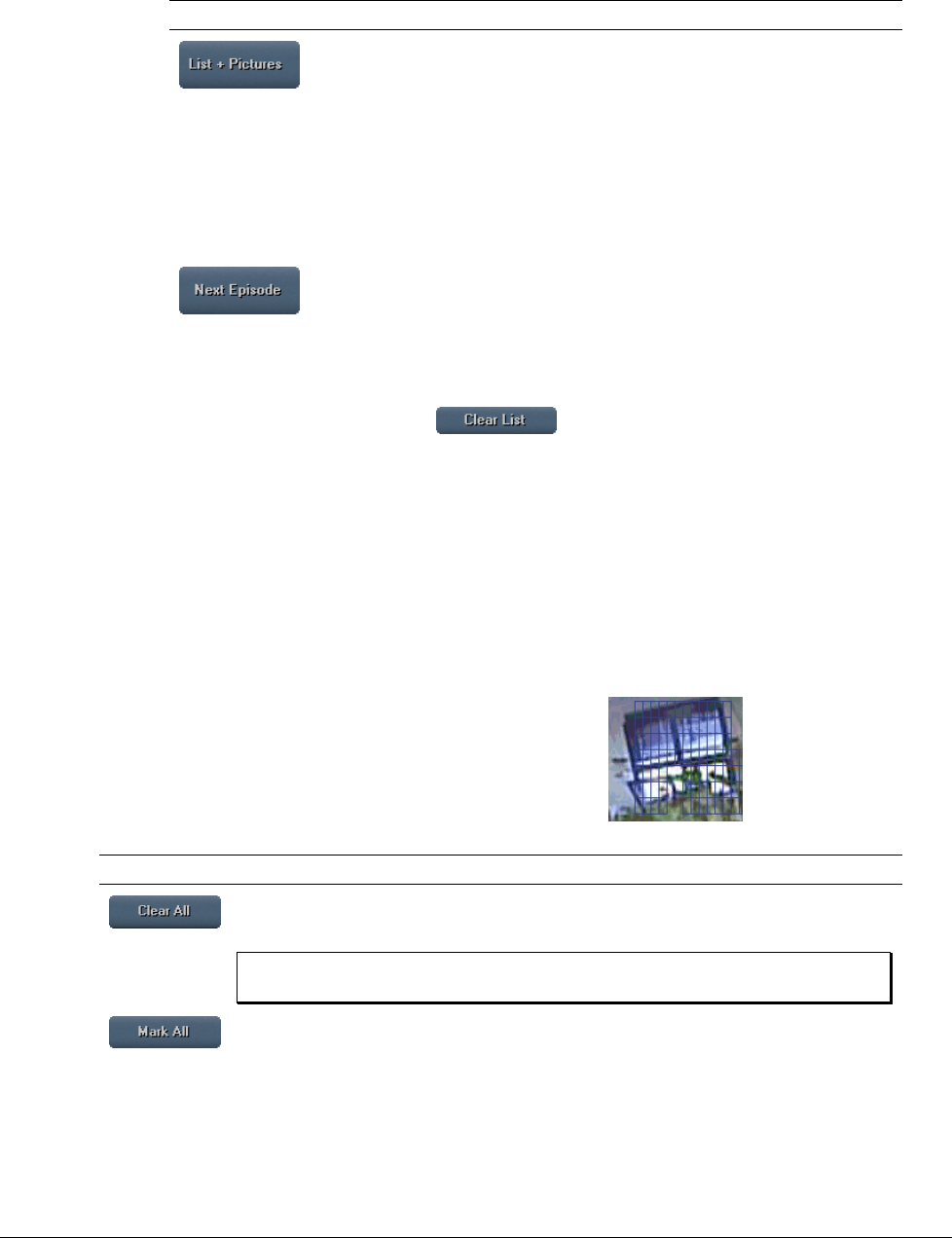
XX128-33-01 Rev 1206 Kollector Pro Network Digital Video Recorder Playing Back Recorded Video • 205
• Use the Episode Control functions, as follows:
Option Description
This button starts a search for episodes, from the current frame forward.
The methodology by which the episode start and end frames are
determined is described in the How Episodes are Determined section,
page 206.
The start time and duration of each episode is listed in the Start Time
and Duration columns in the window's Detection List. As each episode is
detected, its first frame image is displayed in the Video Display area.
The process continues until the end of the time interval is reached, or
until the Stop button is clicked.
This button can be used to search for each next episode (one episode
each time the button is clicked).
You can run the frames of an episode by clicking on its entry in the Detection List. Light blue blocks
indicate the detected differences in the frame.
You can clear the detection list by clicking the button.
Defining ROIs
When the Museum Search window is opened, blue-colored grid blocks cover the entire frame in the Video
Display area, indicating that the change detection mechanism currently applies to the entire frame area.
You can focus the change detection mechanism on security-sensitive objects in the frame space by using the
window functions to vary the coverage of the colored grid blocks. (Only the segments covered by colored grid
blocks are considered for change detection purposes.)
For example, you can focus on windows or doors (as shown in the
picture opposite) to monitor opening/closing events.
The following options are provided:
Option Description
This button clears all the current colored grid blocks in the view. You can then use
the Pencil tool to define grid blocks for specific ROIs within the view surface.
NOTE: Change detection does not function unless ROIs are identified by
colored grid blocks.
This button marks colored grid blocks over the entire window surface, meaning that
change detection will apply to the entire camera view. You can then use the Eraser
tool to remove specific grid blocks.

206 • Playing Back Recorded Video XX128-33-01 Rev 1206 Kollector Pro Network Digital Video Recorder
Option Description
When the Pencil tool is selected, the cursor becomes a pencil icon.
You can define ROIs by clicking and dragging over the required view area
segments, thereby drawing arrays of colored grid blocks.
The Tool Size Selector area includes buttons for three pencil sizes.
According to the selected size, the cursor draws a small (single block),
medium (4-block) or large (16-block) width of grid blocks per sweep.
When the Eraser tool is selected, the cursor becomes an eraser icon. You can
erase ROI segments by clicking and dragging over selected grid blocks, thereby
erasing them.
The Tool Size Selector area includes buttons for three eraser sizes.
According to the selected size, the cursor erases a small (single block),
medium (4-block) or large (16-block) width of surface blocks per sweep.
The Minimum Number of Blocks selector enables you to define how many blocks
of the colored grid arrays must be simultaneously involved in the change, compared
to the reference frame, before a detection is recognized. For example:
• 1 (the most sensitive setting) – indicates that a detection should be recognized
if a change is detected in even one block amongst all the defined ROIs (that is,
the triggering is unlimited).
• 16 (the least sensitive setting) – indicates that the change must be
simultaneously detected in at least 16 blocks within the entire view area. The
blocks do not have to be contiguous.
NOTE: The selected minimum cannot exceed the total number of blocks
defined in ROIs.
The Show Grid button applies a gray planning grid to the parts of the window
where no ROIs (colored grid blocks) are defined. The gray grid is only for purposes
of viewing where ROIs may potentially be defined and does not affect the change-
detection process. When selected, the button changes into a Hide Grid button by
which the planning grid can be suppressed, making only the "active" colored grid
blocks visible.
How Episodes Are Determined
Episodes are sequences of consecutive frames in which significant differences in ROIs are detected. An
episode includes all the frames related to a unique event for which the minimum event duration is determined
by the Detect only episode longer than criteria, and the required amount of changes of most frames is
determined by the Minimum Number of Blocks criteria.
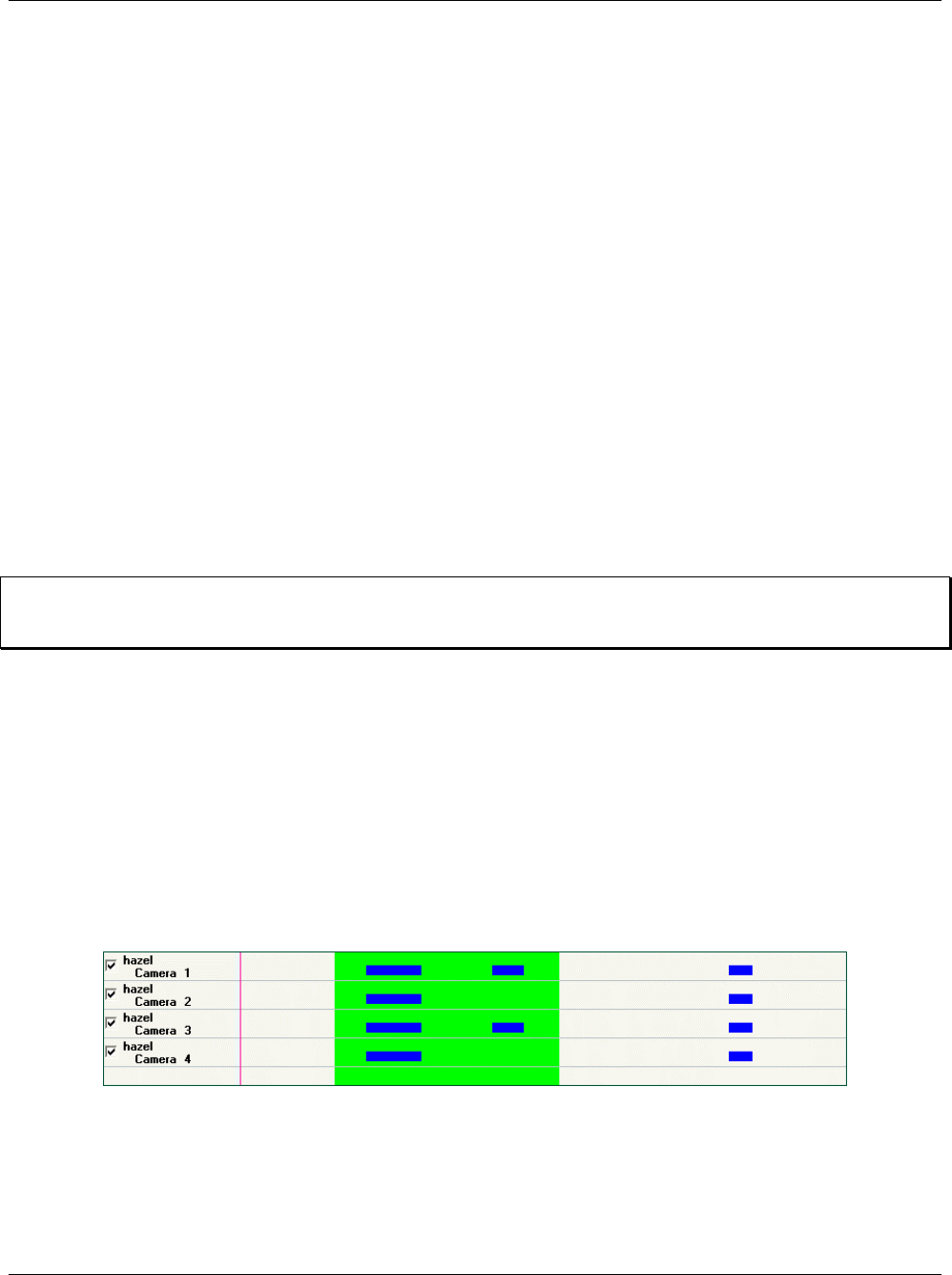
XX128-33-01 Rev 1206 Kollector Pro Network Digital Video Recorder Playing Back Recorded Video • 207
Creating Archives
The ViconNet system enables you to optionally create archives, which contain selected recorded data from a
video database. This consists of selecting the specific devices, the specific recorded data, and the destination
location for where you want to save the data. You can then view it at a later time on the local Kollector Pro.
The archives are included in the navigator site list together with other databases, and can be selected for
viewing, or any other file operations, as required.
All playback functions can be performed on the archived data in the same way as regular recorded data, as
described beginning from the Selecting Recorded Video section in Chapter 6, Playing Back Recorded Video.
You can archive directly to a CD, DVD, local or remote drive. CD or DVD archives can be played on any PC,
from an automatically started "Player" version of the ViconNet application. (For playing CD and DVD archives,
the ViconNet application does not have to be installed on the PC.)
The ViconNet system can be set to automatically verify that ViconNet-produced archive was not tampered
with. Activating the display of system authentication results for play back can be done in the same way as for
a regular database. For more details, refer to the Configuring System Authentication section in Chapter 3,
Configuring the ViconNet System.
Selected archives can also be removed from the network or another PC.
NOTE: After creating an archive, you can perform all playback functions on the archived data in the same
way that you can with regular recorded data, as described beginning from the Selecting Recorded
Video section, page 185.
To create an archive:
1. From the Navigator tree, select the camera(s) that contain the recorded data that you want to archive.
The recorded contents are displayed in the Recorded Devices Content area, and the names of the
selected devices are displayed in the Main Window Display Location area.
2. In the Recorded Device Contents area, mark the recorded segments that you want to archive by holding
down the left mouse button and dragging the mouse pointer over the required segments.
The selection area is indicated with a lime green shading, and the size of the selected contents is
displayed at the top of the Archive area in the Estimated archive size field (in MB).
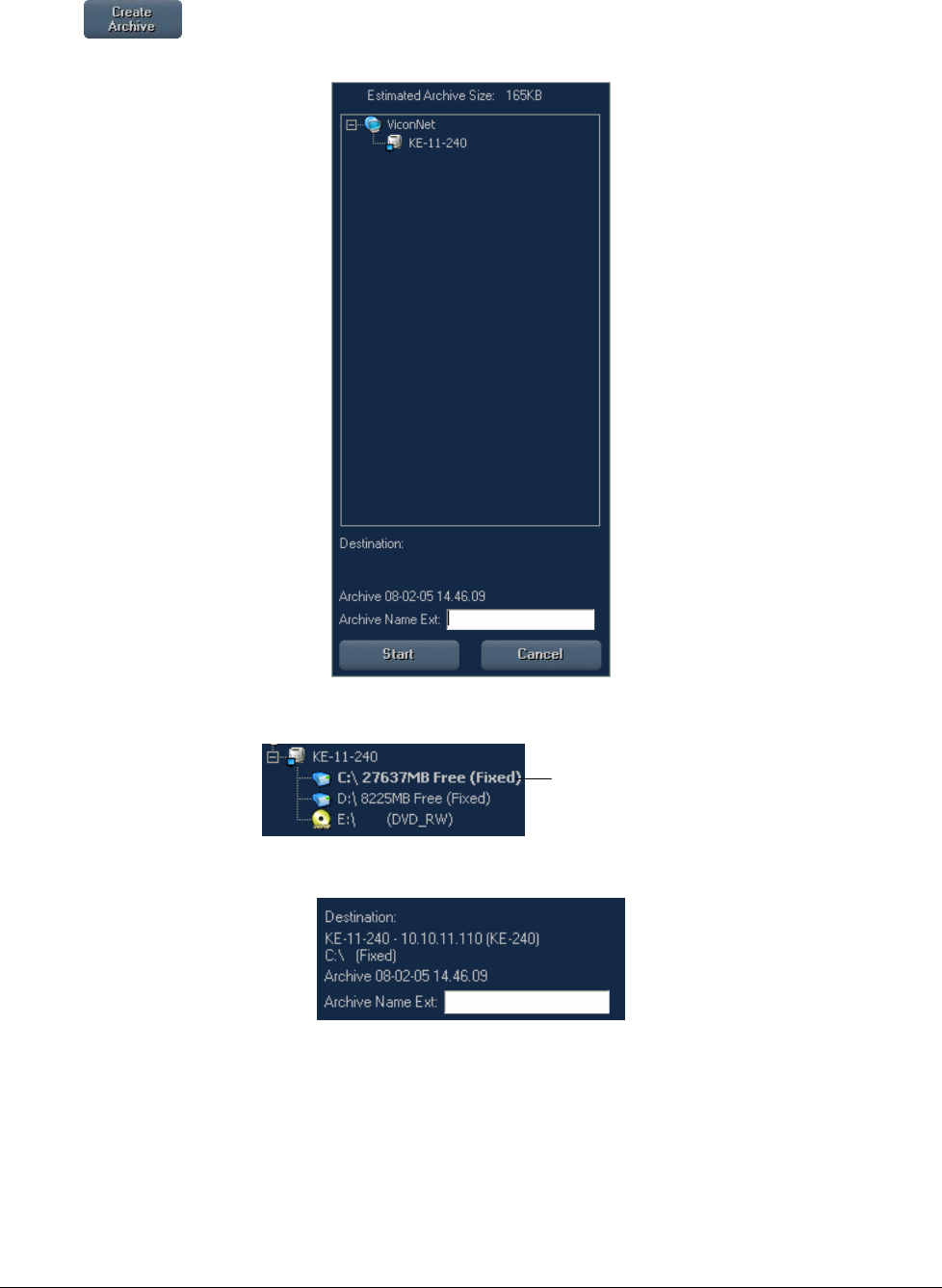
208 • Playing Back Recorded Video XX128-33-01 Rev 1206 Kollector Pro Network Digital Video Recorder
3. Click . The Navigator tree is replaced by an Archive area, which automatically displays the
archive date and time at the bottom.
4. In the Archive area, navigate to the required archive destination (network path, CD-ROM or DVD device).
Archive
Destination
Example
Archive
Destination
Example
The destination details are displayed automatically at the bottom of the Archive area.
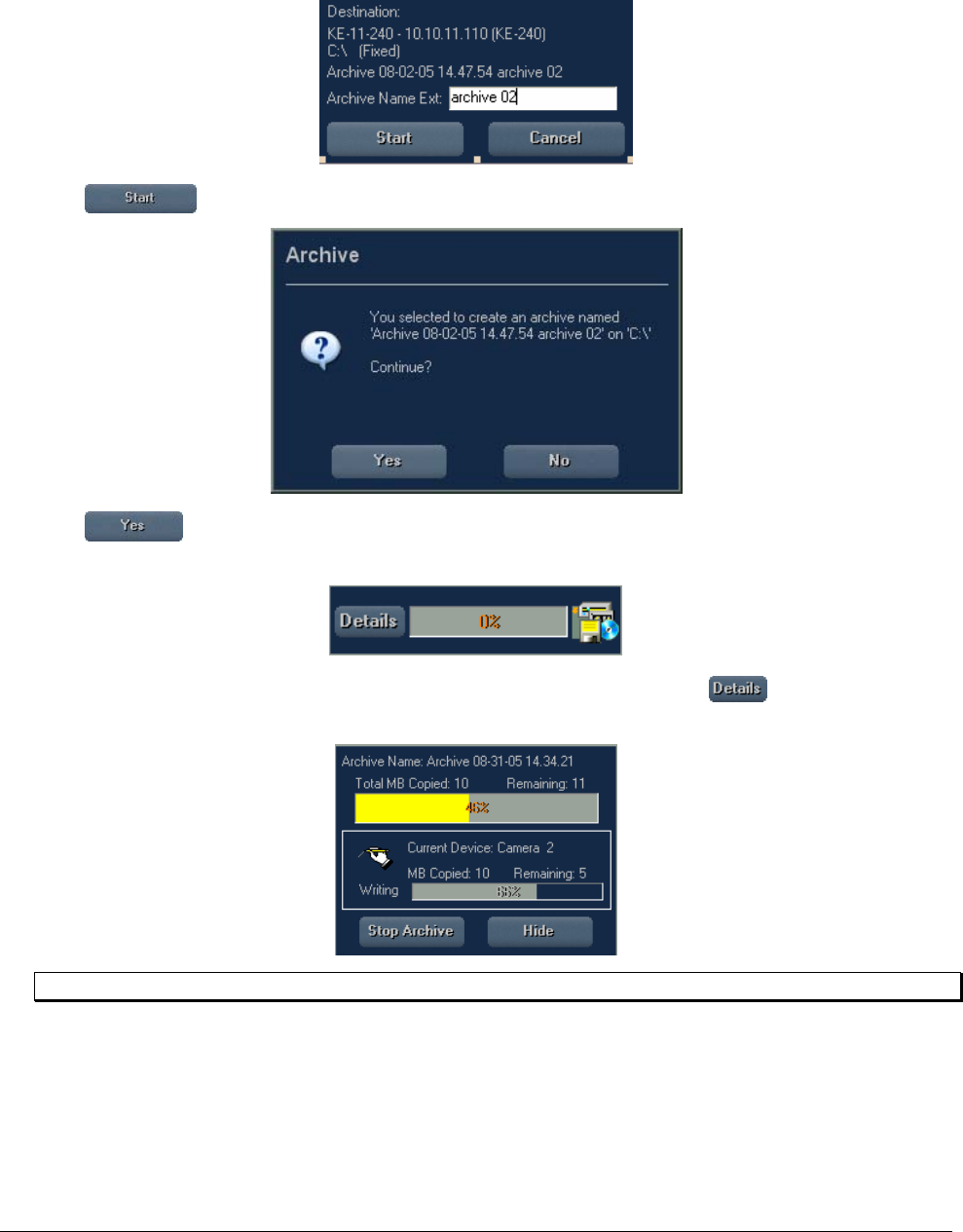
XX128-33-01 Rev 1206 Kollector Pro Network Digital Video Recorder Playing Back Recorded Video • 209
5. In the Archive Name Ext field, enter a logical archive name. The archive name is automatically added to
the archive date and time details.
6. Click . The following confirmation message is displayed.
7. Click . A progress bar in the Archive Controls area indicates that the archive creation is in
process.
8. (Optional) To view additional details during the archive creation process, click . The relevant details
are displayed in the Control Dialog Display area, as shown in the following example:
NOTE: If required, you can stop the archive creation process by clicking Stop Archive.
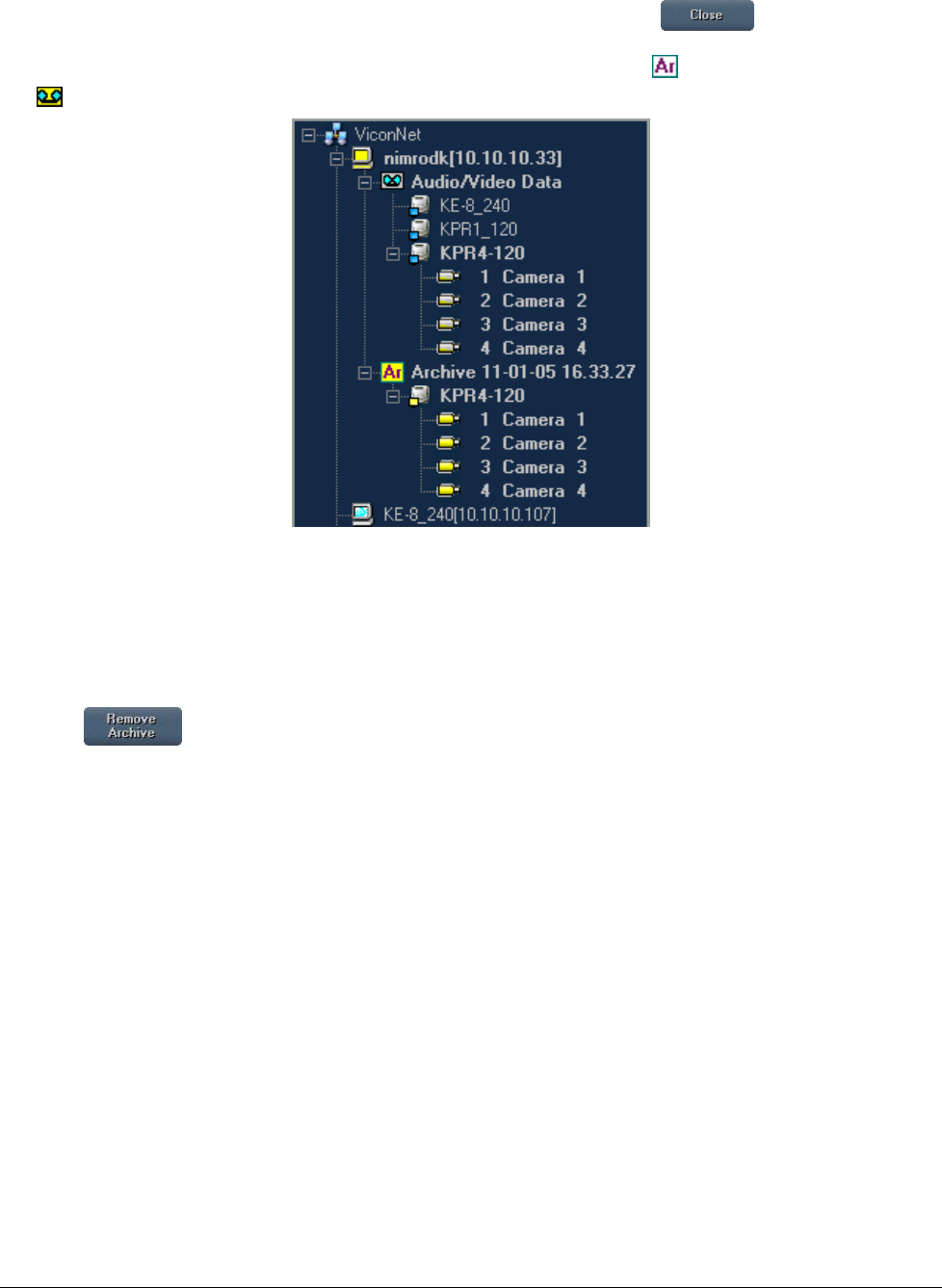
210 • Playing Back Recorded Video XX128-33-01 Rev 1206 Kollector Pro Network Digital Video Recorder
9. When the Archive completed successfully message is displayed, click .
The new archive is displayed in the Navigator tree with an Archive icon (instead of a database icon
), as well as a list of its contents.
You can now select the devices in the archive and perform all required playback functions, as described
in the previous sections in this chapter.
To remove an archive:
1. From the Navigator tree, select the required archive.
2. Click . A confirmation prompt is displayed.
3. Click Yes to confirm the action. The archive is deleted from the database.

XX128-33-01 Rev 1206 Kollector Pro Network Digital Video Recorder Managing Macros and Schedules • 211
Chapter 7
Managing Macros and Schedules
This chapter describes how to manage and work with macros and schedules in the ViconNet system and
contains the following sections:
• Creating Macros and Schedules, page 212, provides a brief description of the process for creating
macros and schedules.
• Working with Macros, page 212, describes how to manually start and stop macros that have been
created in the system, as well as view macro details and status information.

212 • Managing Macros and Schedules XX128-33-01 Rev 1206 Kollector Pro Network Digital Video Recorder
Creating Macros and Schedules
Macros are sets of user-defined commands that give instructions to the system about what tasks to perform at
a specified time and in a specified order. After creating a macro, you can then create a schedule for the
macro, which is a group of user-defined settings that cause the system to activate the specific macro during a
specific time period.
Detailed procedures for creating macros and for creating the schedules that can activate the macros are
described in the Creating Macros and Creating Schedules sections of Chapter 3, Configuring the ViconNet
System. Basic information about working with and managing the configured macros and schedules in your
ViconNet system is described in the following section.
Working with Macros
After creating macros in the ViconNet system according to your requirements, you can use the ViconNet
application to work with and manage the macros during system operation, as required, which includes:
• Viewing the current run status of all configured macros.
• Activating a macro to run immediately, independent of an alarm event or schedule.
• Stopping a macro that is currently running, if required.
• Stopping and/or restarting all macros that are currently running in the system due to the scheduler.
• Displaying or hiding the macro script, which contains all the macro commands and their settings.
• Refreshing the list of macros currently configured in the system.
You can also edit and delete macros that are configured in the system, if required, as described in the
Creating Macros section of Chapter 3, Configuring the ViconNet System.
NOTE: When a macro is running as a result of an alarm event, the following is applicable:
• If the macro is performing display operations, all functions in the ViconNet Main window, except for the
Stop Macro, Schedule/Macro, Logout and Shutdown buttons, are disabled.
• If the macro is performing all other recording operations, all functions in the ViconNet Main window
remain operational.
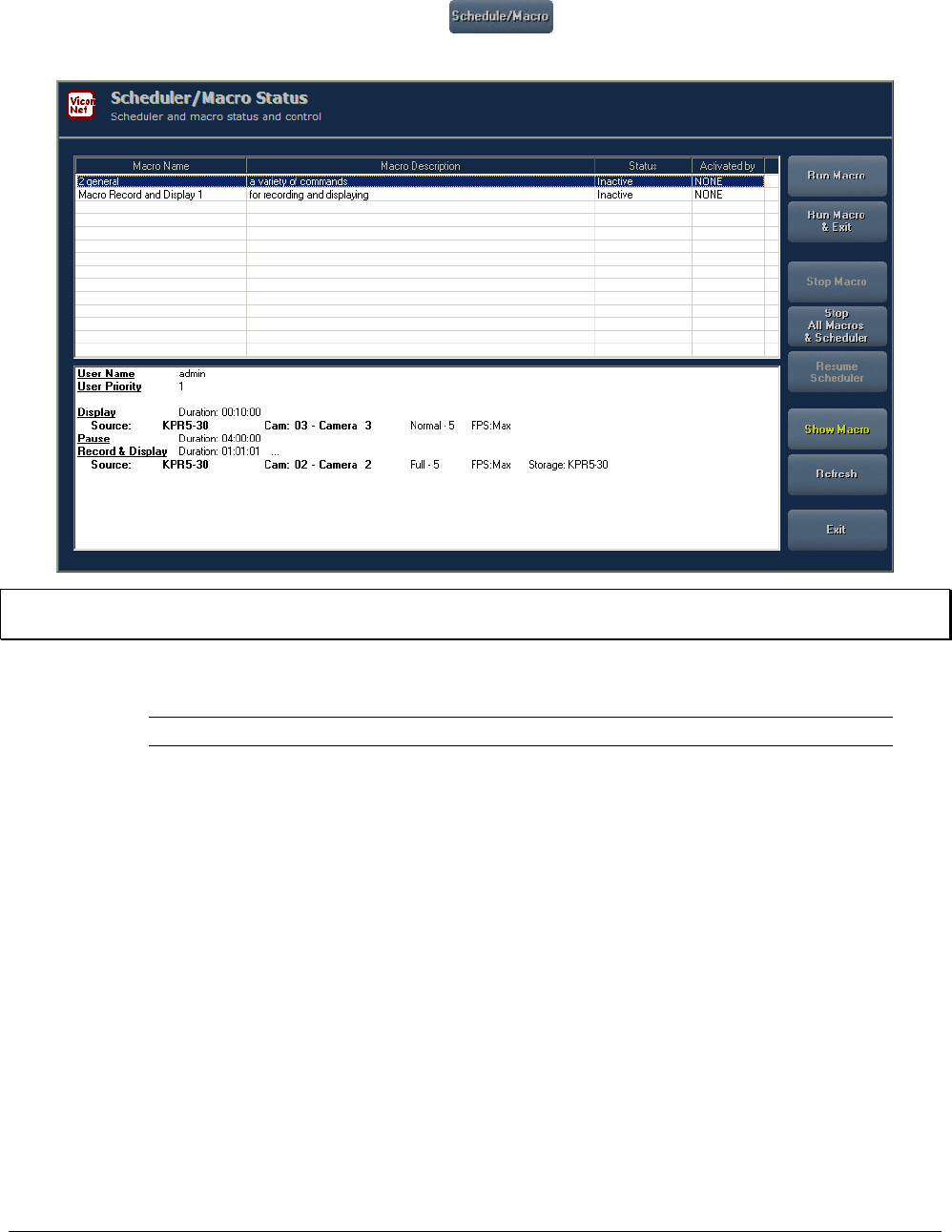
XX128-33-01 Rev 1206 Kollector Pro Network Digital Video Recorder Managing Macros and Schedules • 213
To work with macros:
1. From the ViconNet Main window toolbar, select . The Macro Status window appears,
displaying a list of all macros currently configured in the system.
NOTE: The above example shows how the macro script is displayed in the bottom of the Macro Status
window when you select the Show Macro option.
The Macro Status window contains the following information about each macro:
Column Description
Macro Name The defined macro name.
Macro Description The defined macro description, if any.
Status The current run status of the macro (Running or Inactive).
Activated by How the macro was activated (User, Alarm, or Scheduler).
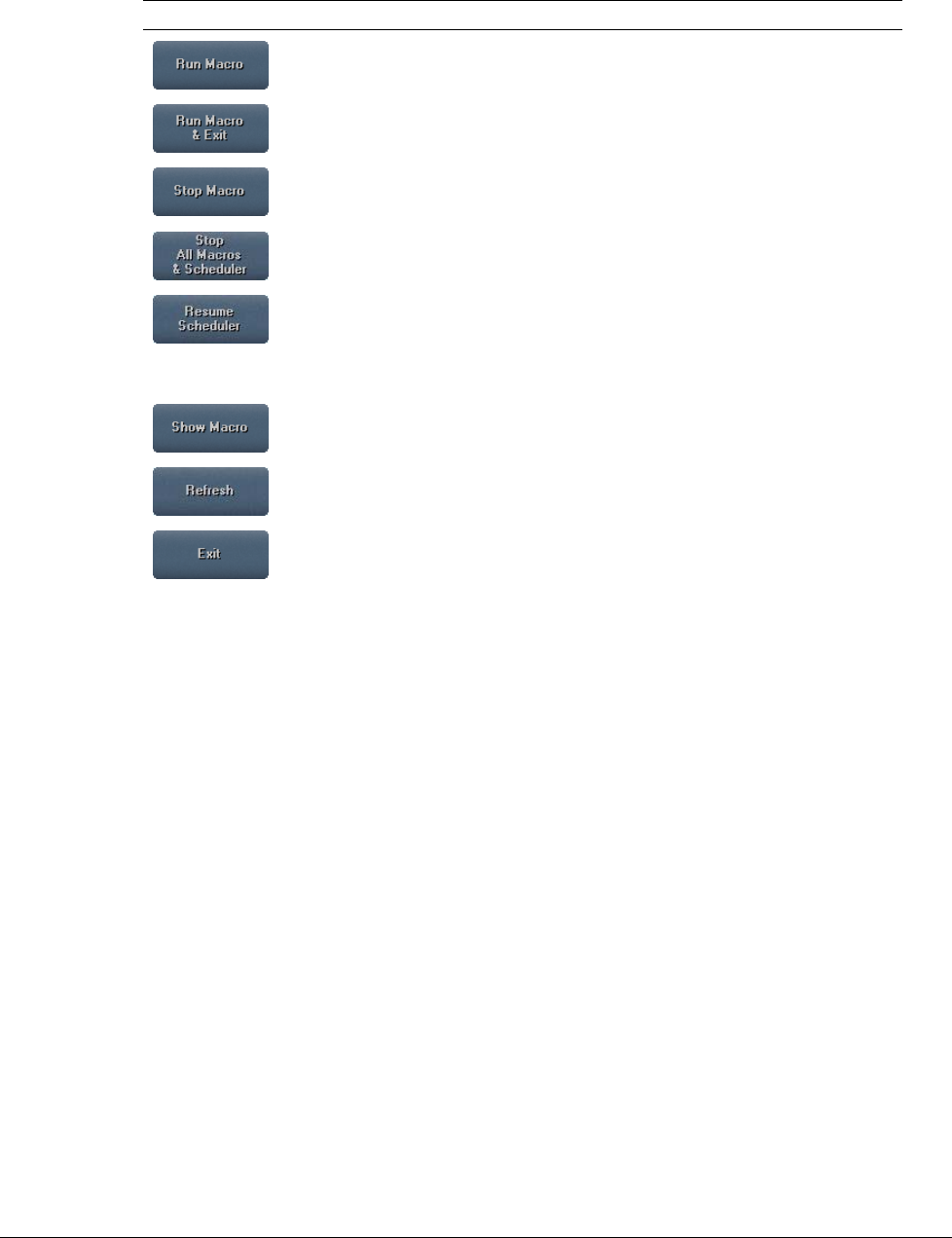
214 • Managing Macros and Schedules XX128-33-01 Rev 1206 Kollector Pro Network Digital Video Recorder
2. Select the appropriate macro in the list and then select the required option, as follows:
Option Description
Runs the selected macro immediately.
Runs the selected macro immediately and closes the Macro Status window.
Stops the selected macro immediately.
Stops all macros currently running in the system that are running
independently or as a result of the scheduler.
Resumes all stopped macros that had been running as a result of the
scheduler before they were stopped.
This option does not affect any macros that are configured to use the
scheduler in the future, meaning they will be activated as configured.
Displays/hides the macro script in the bottom of the window (as shown in the
example on page 213).
Updates the list of macros currently configured in the system.
Exits the Macro Status window.

XX128-33-01 Rev 1206 Kollector Pro Network Digital Video Recorder Generating Reports • 215
Chapter 8
Generating Reports
This chapter describes the various types of reports that can be generated using the ViconNet system and
contains the following sections:
• Overview, page 216, provides a brief description of the ViconNet system report generation capabilities,
how to access the Reports window and a brief description of the option to saving to files.
• Opening the Reports Window, page 218, describes how to open the Reports Window.
• Generating Device Status Reports, page 219, describes how to generate reports that show status
information about each device in the system.
• Generating Alarm History Reports, page 220, describes how to generate reports that show information
about each alarm that occurs in the system.
• Generating Recording Status Reports, page 223, describes how to view information about devices that
are currently recording.
• Generating Audit Log Reports, page 225, provides basic log information for debugging and history
purposes.
• Generating RVS Log Reports, page 227, provides basic log information describing all recording failures
in sites that have been verified.
• Generating CFN Log Reports, page 229, provides basic log information describing all system failures
that generated a CFN.
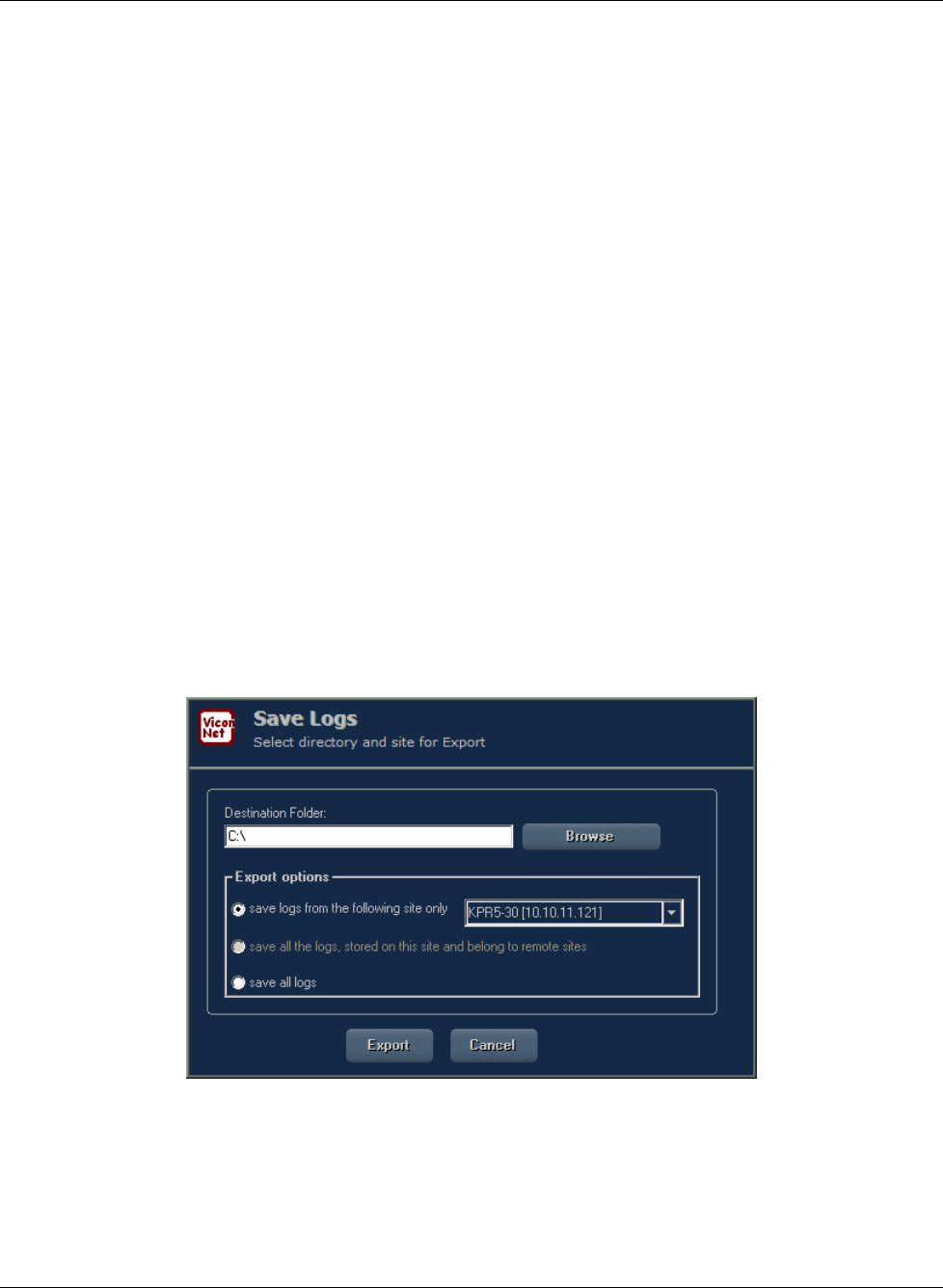
216 • Generating Reports XX128-33-01 Rev 1206 Kollector Pro Network Digital Video Recorder
Overview
The ViconNet system enables you to generate various reports that each contain a specific type of information,
including:
• Alarm History Reports
• Recording Status Reports
• Audit Log Reports
• Device Status Reports
• RVS Log
• CFN Log
Each type of report can be used for analysis of system operations. In addition to easy access to specific
information, you can sort and search through the report information, as required.
Saving Logs
In addition, each report provides the option to save the log files, enabling us to retrieve logs from IP and other
products which do not have a hard drive (and therefore save their logs in the nucleus), or remote sites which
are connected to the same nucleus, yet which are not physically reachable (such as a unit which is located in
a closet, or where the USB is behind the unit and cannot be reached, and so on). This feature enables
browsing and selection of a destination folder to save a log.

XX128-33-01 Rev 1206 Kollector Pro Network Digital Video Recorder Generating Reports • 217
There are three saving options:
Option Description
Save logs from the following site
only Select to save the logs/reports from your local Kollector Pro.
Save all the logs, stored on this
site and belong to remote site This option is disabled in the Kollector Pro.
Save all logs from the remote
sites and the logs of this site Saves all logs.
NOTE: To save reports from an IP product, select the nucleus in the Report Site Selection window, and
select the relevant IP product from the dropdown list in the Save Logs window.
The Save Logs option is available in all of the report windows.
To save the log to a file:
1. Click Save Logs. The Save Logs window is displayed.
2. Select the required save log option and browse to the site whose device status report you want to save.
3. Click Export.
4. Select the location to save the report file and click OK.
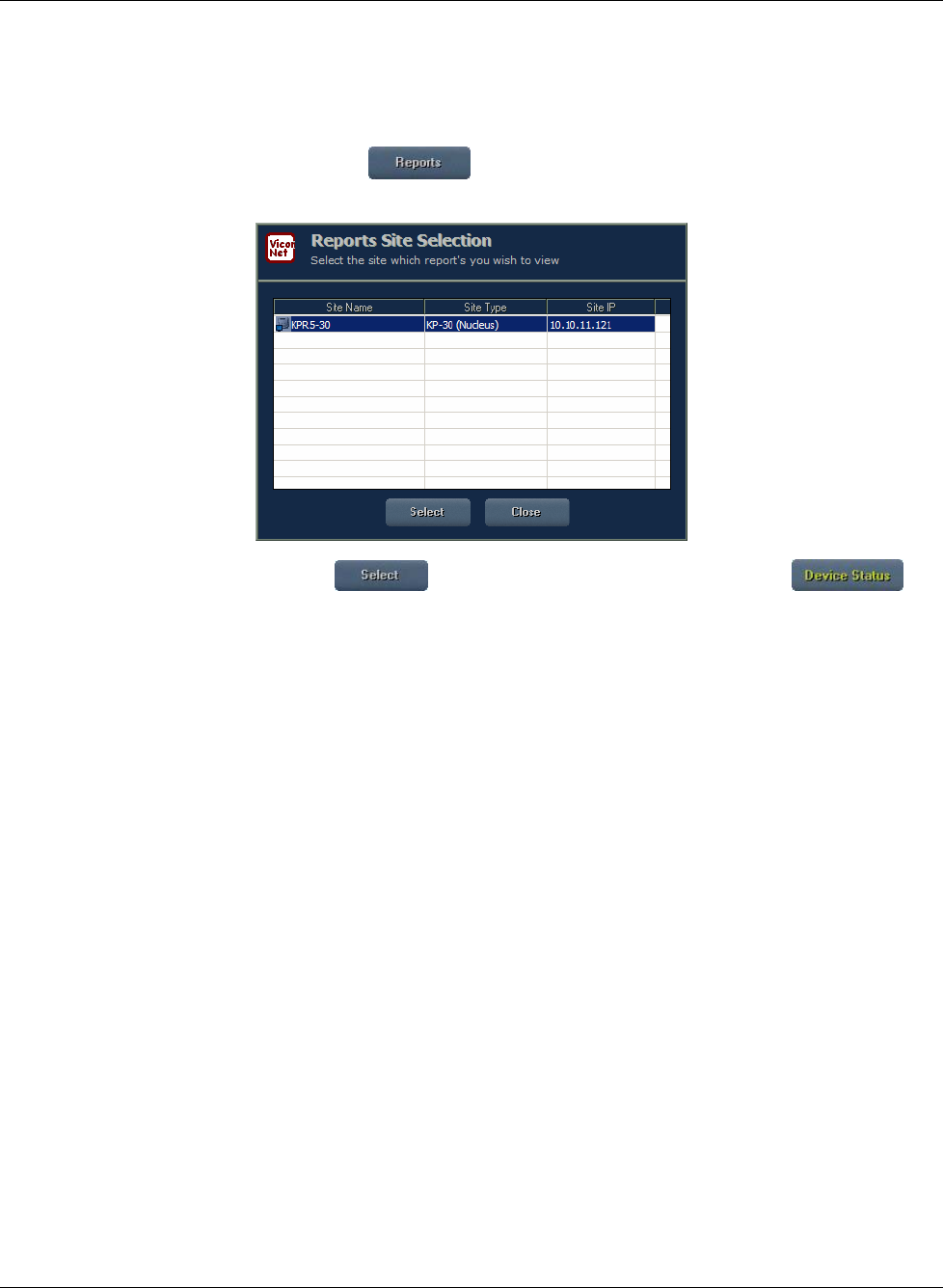
218 • Generating Reports XX128-33-01 Rev 1206 Kollector Pro Network Digital Video Recorder
Opening the Reports Window
For all the reports available, the relevant site must first be selected from the Reports Site Selection window.
To open the Reports window:
1. From the ViconNet Main window, click . The following dialog appears, displaying the currently
connected Kollector Pro:
2. Select your Kollector Pro and click The Reports window is displayed with the
option selected by default, as shown on page 219.
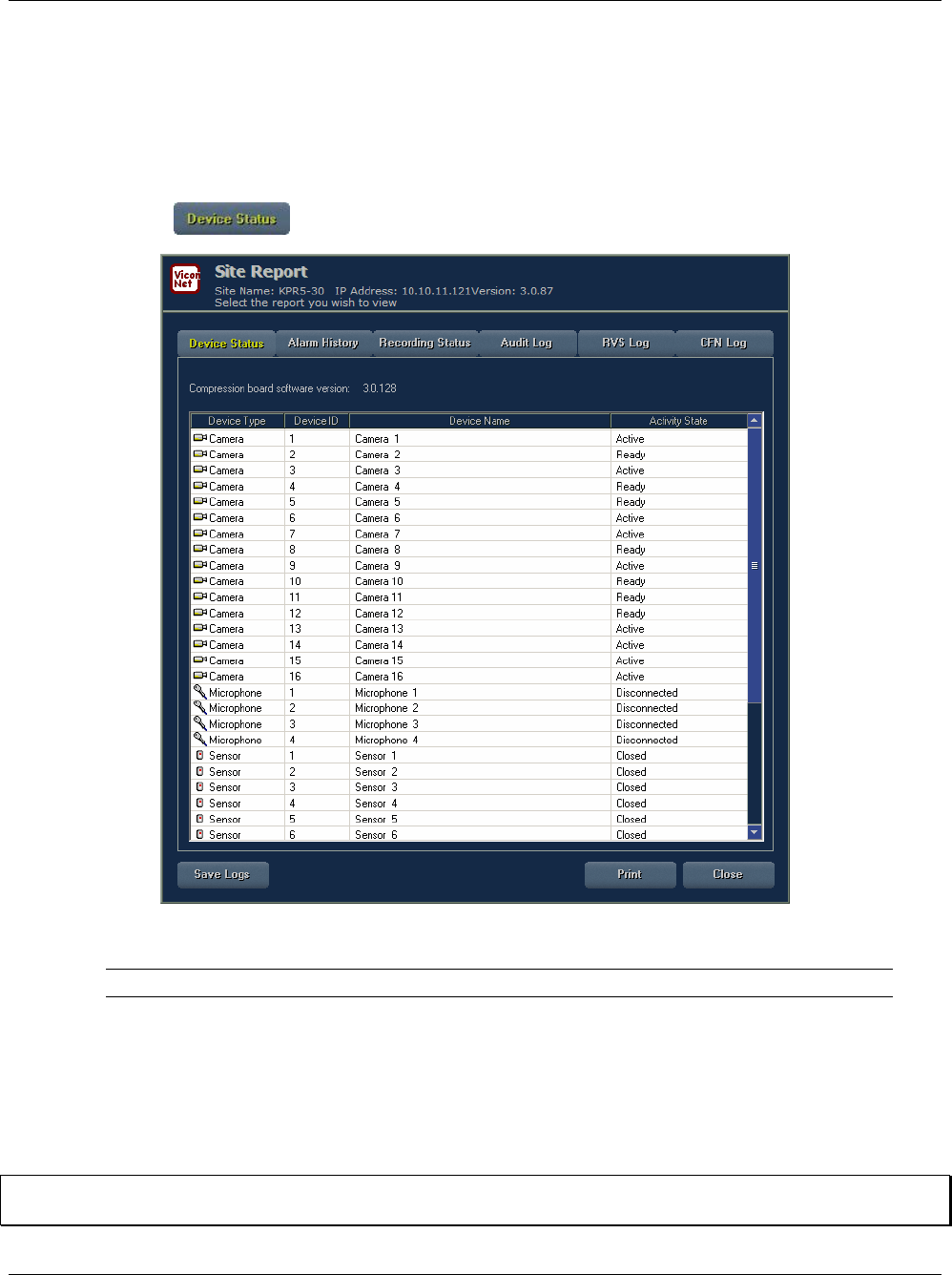
XX128-33-01 Rev 1206 Kollector Pro Network Digital Video Recorder Generating Reports • 219
Generating Device Status Reports
The Device Status report enables you to view system information about the Kollector Pro, such as whether
the device is connected and whether it is currently active or not.
To generate Device Status reports:
1. Display the Reports window for a selected site name, as described on page 216. The Reports window
opens with the option selected by default.
This report contains the following device status information about each device:
Column Description
Device Type The type of device (Camera, Microphone, Sensor, Relay, or Speaker).
Device ID The numerical index number that was automatically assigned to the device
during system setup.
Device The name of the device that was assigned during system setup.
Activity State Indicates the current operation state of the device (Opening, Closed,
Starting, Activate, Stopping, Closing, Ready or Disconnected).
NOTE: Refer to Chapter 3, Configuring the ViconNet System, for additional details about the device type,
device ID, and device name.
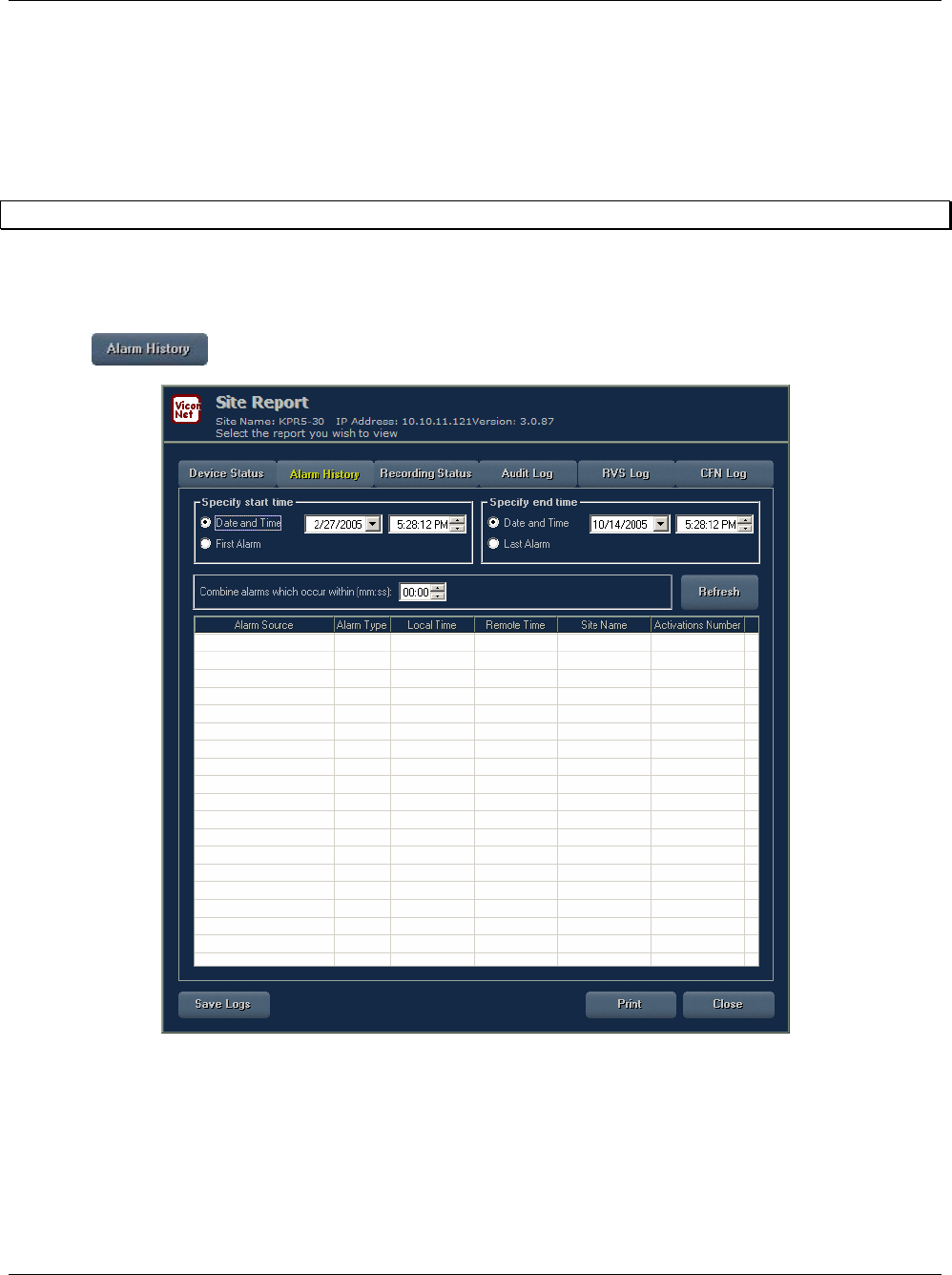
220 • Generating Reports XX128-33-01 Rev 1206 Kollector Pro Network Digital Video Recorder
Generating Alarm History Reports
The Alarm History report enables you to view all information related to each alarm that occurs in the system,
including the alarm type and the date and time of occurrence.
You can use filters to show a timed range of alarms, from/to either specified dates/times or the earliest/latest
detected alarms in the database.
NOTE: Refer also to the Alarm Window section of Chapter 2, Getting to Know ViconNet.
To generate an alarm history report:
1. Display the Reports window for a selected site name, as described on page 216.
2. Click . The Alarm History window is displayed.
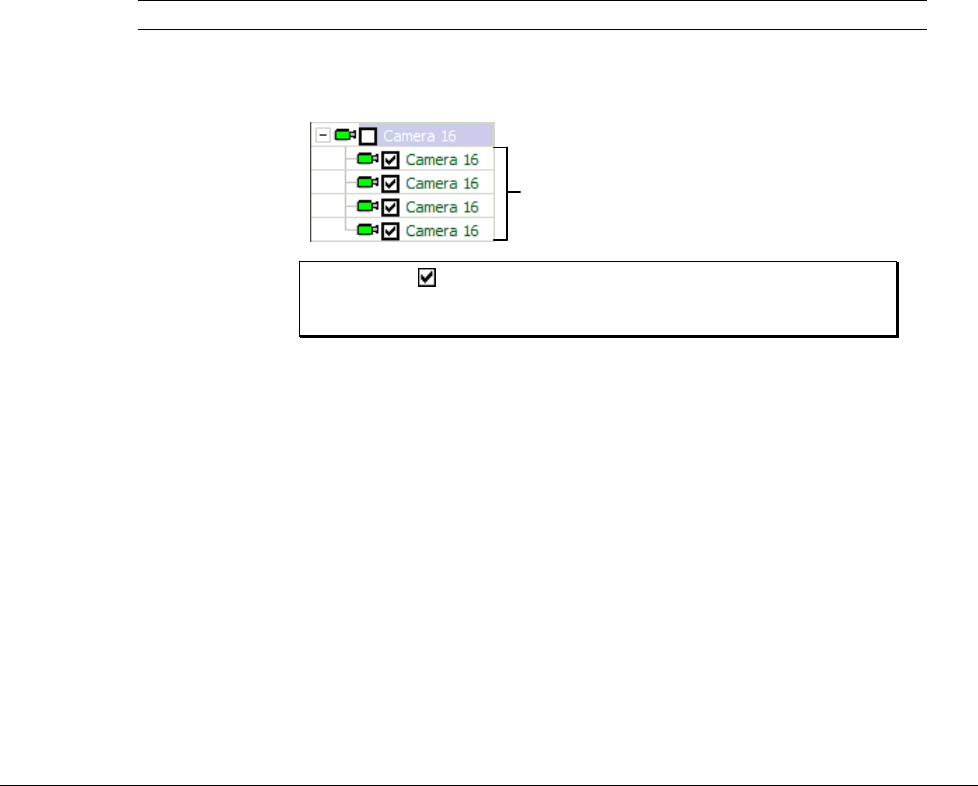
XX128-33-01 Rev 1206 Kollector Pro Network Digital Video Recorder Generating Reports • 221
3. Specify the report content time frame:
• In the Start time area, either:
• Click the Specify time and date radio button and select a start date and start time from the
dropdown lists.
-OR-
• Click the First alarm radio button to list the alarms starting from earliest detected alarm in the
database.
• In the End time area, either:
• Click the Specify time and date radio button and select an ending date and ending time from the
dropdown lists.
-OR-
• Click the Last alarm radio button to list the alarms up to and including the latest detected alarm in
the database.
4. Click the Refresh button. The following history information about each alarm event is displayed:
Column Description
Alarm source The name of the device on which the alarm event occurred.
When you click the device's icon, the alarm history for that device is
displayed.
Alarm
History for
Camera 16
Alarm
History for
Camera 16
NOTE: The checkbox is provided for your optional use, for
example, to remind you which alarms you have already
viewed.
Alarm Type The type of alarm.
Local time Time zone translation to local time.

222 • Generating Reports XX128-33-01 Rev 1206 Kollector Pro Network Digital Video Recorder
Column Description
Remote time Time and date the alarm event occurred.
Site Name The name of the Kollector Pro.
Number of
Activations Indicates the number of times an alarm has been activated on the specific
device within a specific time period.
Each time the alarm is activated, another alarm event line is added to the
alarm history for that device (except in the case of a re-activation, as
described below).
When an alarm was activated and then re-activated within a very short
period of time, the re-activation of the alarm is not displayed in the alarm
history.
The time interval that passes after an initial alarm, in which movement will
not trigger a new alarm, but will cause an increment of +1 in the Number of
Activations field, is defined in the Unite Alarms which occur within…
field in the Alarm window.
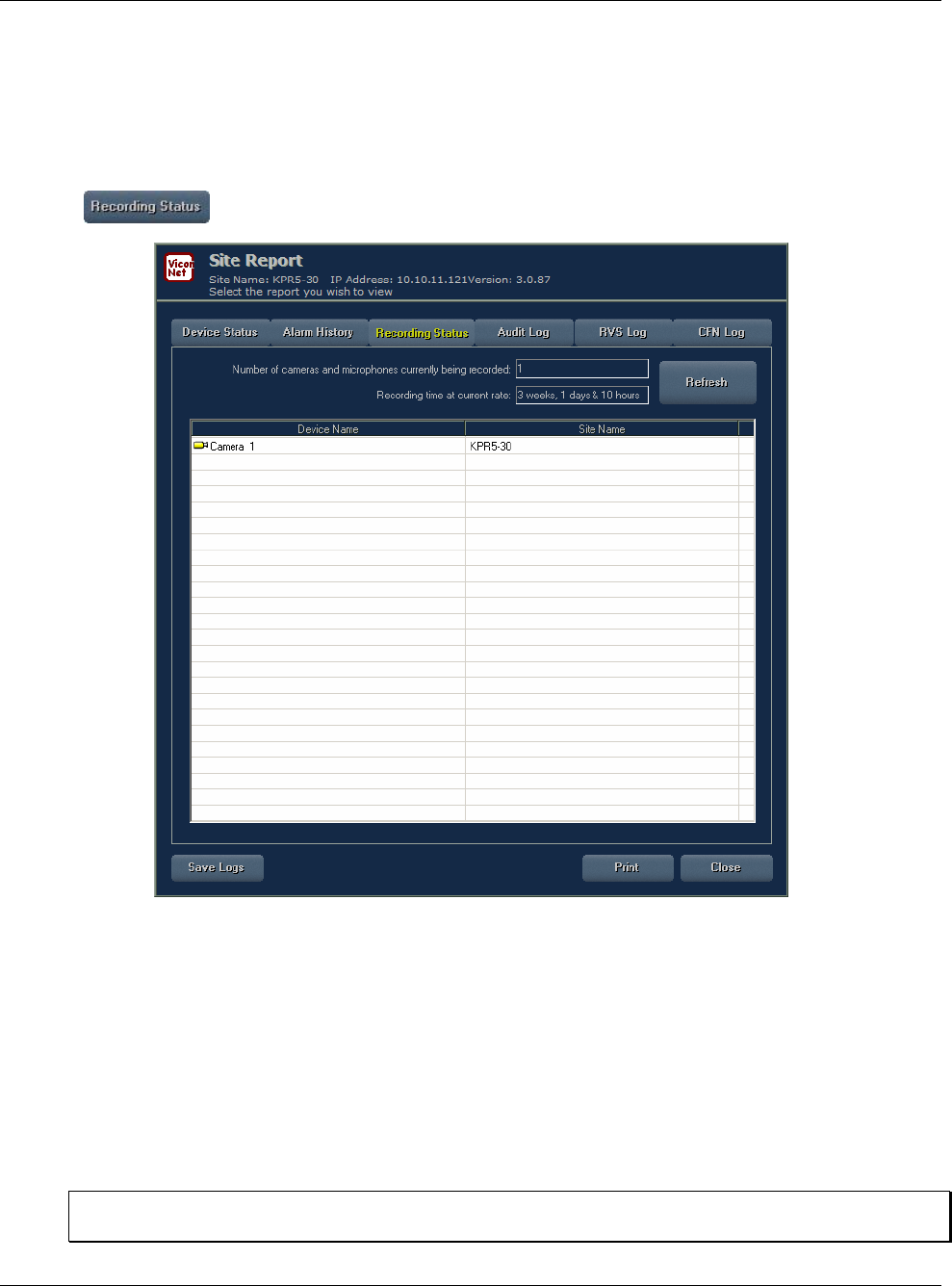
XX128-33-01 Rev 1206 Kollector Pro Network Digital Video Recorder Generating Reports • 223
Generating Recording Status Reports
The Recording Status report enables you to view information about devices that are currently recording.
To generate a recording status report:
1. Display the Reports window for a selected site name, as described on page 216.
2. Click . The Recording Status window is displayed.
The Recording Status report contains the following summary information about devices that are
currently recording:
• Recording time at current rate until present recording will be overwritten: An estimate of the
recording time remaining, according to the database capacity and current data rate (Bytes/Sec),
before already recorded content will be overwritten. The overwriting takes place on a FIFO (first in
first out) basis.
• Number of cameras and microphones presently being locally recorded: The combined total of
devices that are currently recording.
NOTE: This information is also provided in the ViconNet Main window Device Status area. Refer to
Chapter 2, Getting to Know ViconNet.

224 • Generating Reports XX128-33-01 Rev 1206 Kollector Pro Network Digital Video Recorder
The following detailed information is provided about each camera and microphone that is currently
recording:
Column Description
Device Name The name of the device.
Site Name The name of the site at which the device is recording.
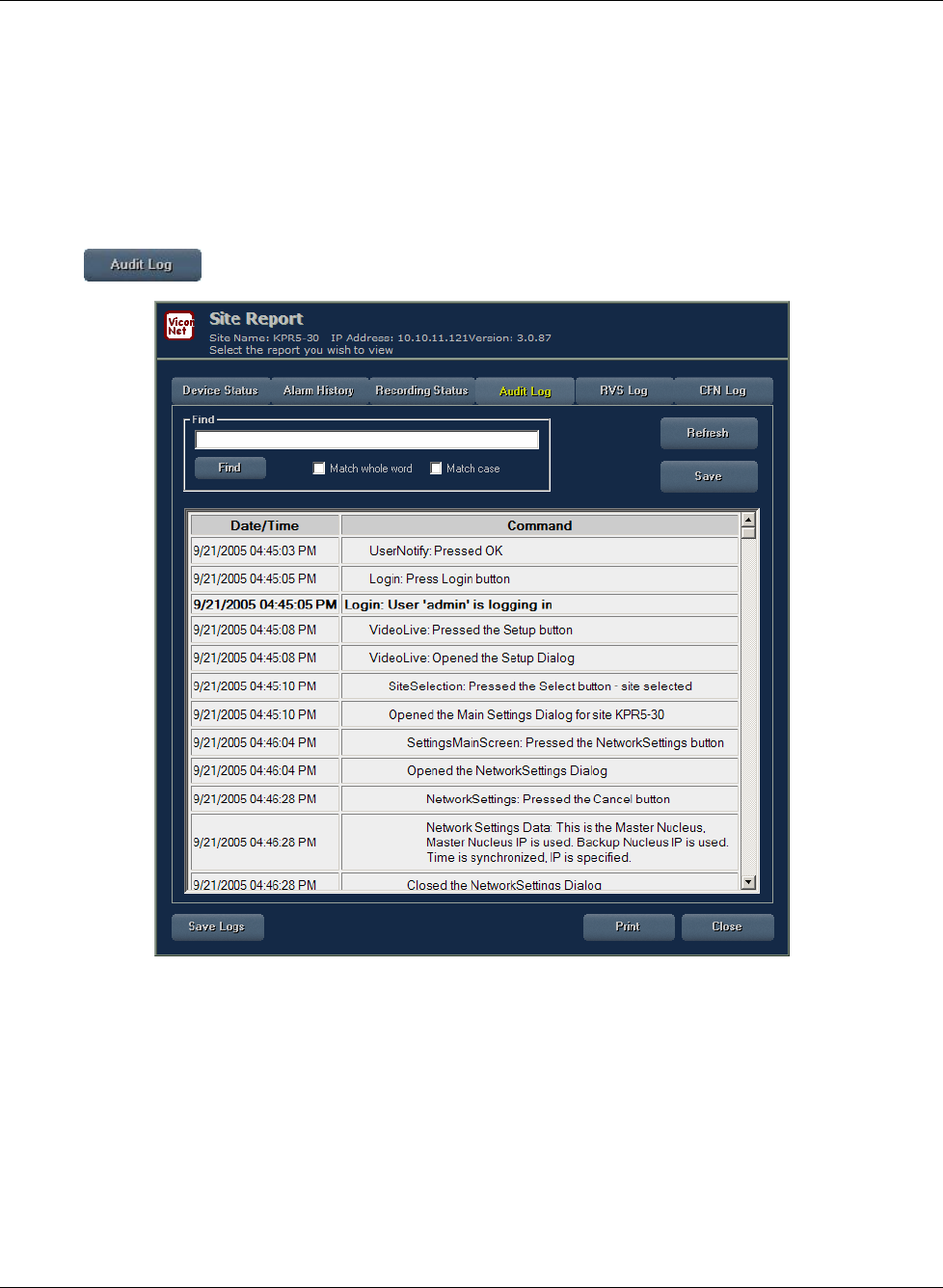
XX128-33-01 Rev 1206 Kollector Pro Network Digital Video Recorder Generating Reports • 225
Generating Audit Log Reports
The Audit Log report provides basic log of operations performed in the system, useful for history and
debugging purposes. Information is accumulated continuously. 8,000 record lines can be accumulated,
removed thereafter on a first-in-first-out basis. The table display can be updated using the Refresh button.
To generate an audit log report:
1. Display the Reports window for a selected site name, as described on page 216.
2. Click . The Audit Log window is displayed.
3. Search for events of interest using the Find panel:
• Enter a string to the input field.
• Specify whether the search should Match Whole Word and/or Match Case.
• Click Find.
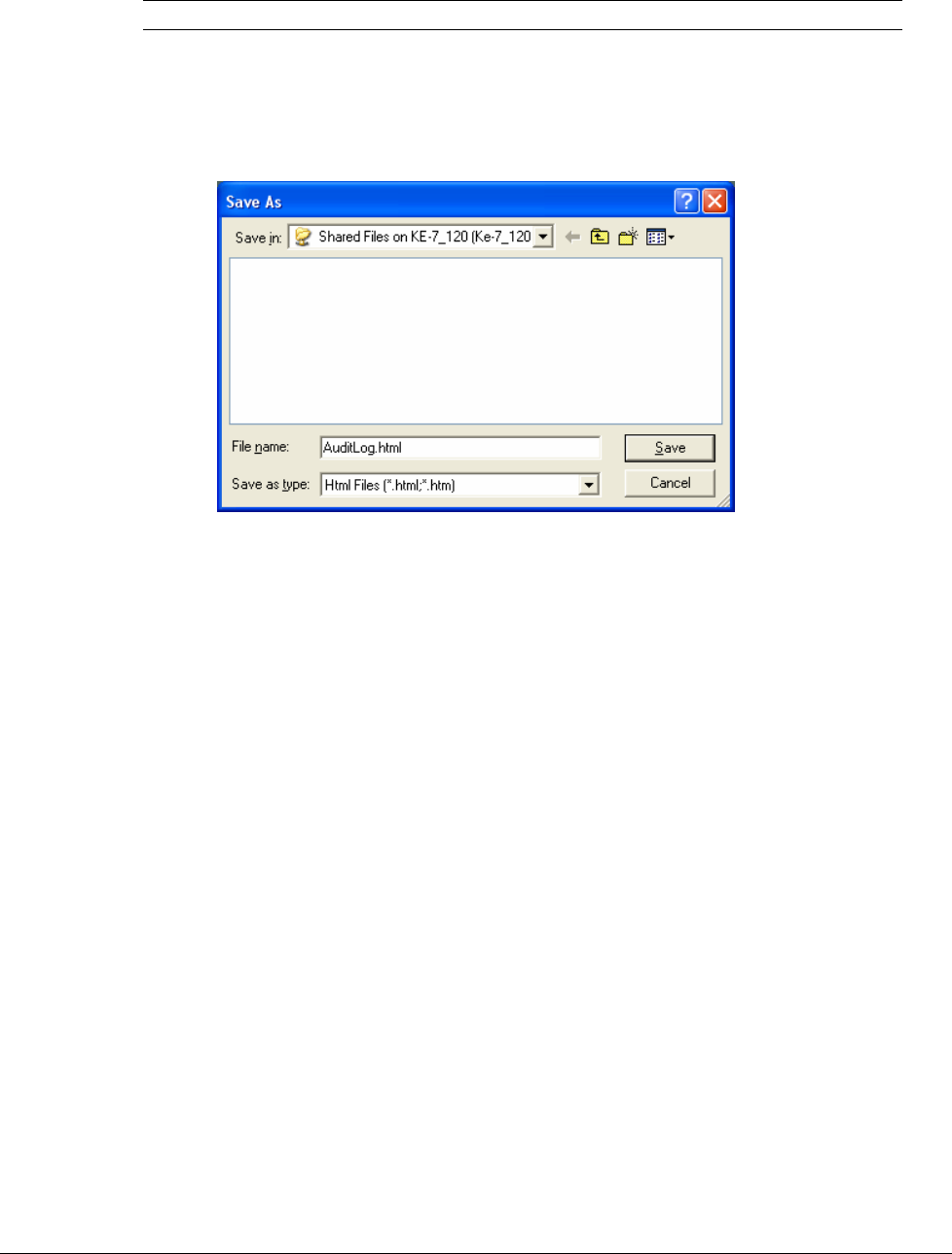
226 • Generating Reports XX128-33-01 Rev 1206 Kollector Pro Network Digital Video Recorder
The Audit Log report contains the following information about each event that is found:
Column Description
Date/Time The date and time that the operation was performed.
Command The name of the operation.
4. If required, you can click Save to save the result of your search in an HTML format, using a standard
Save As window.
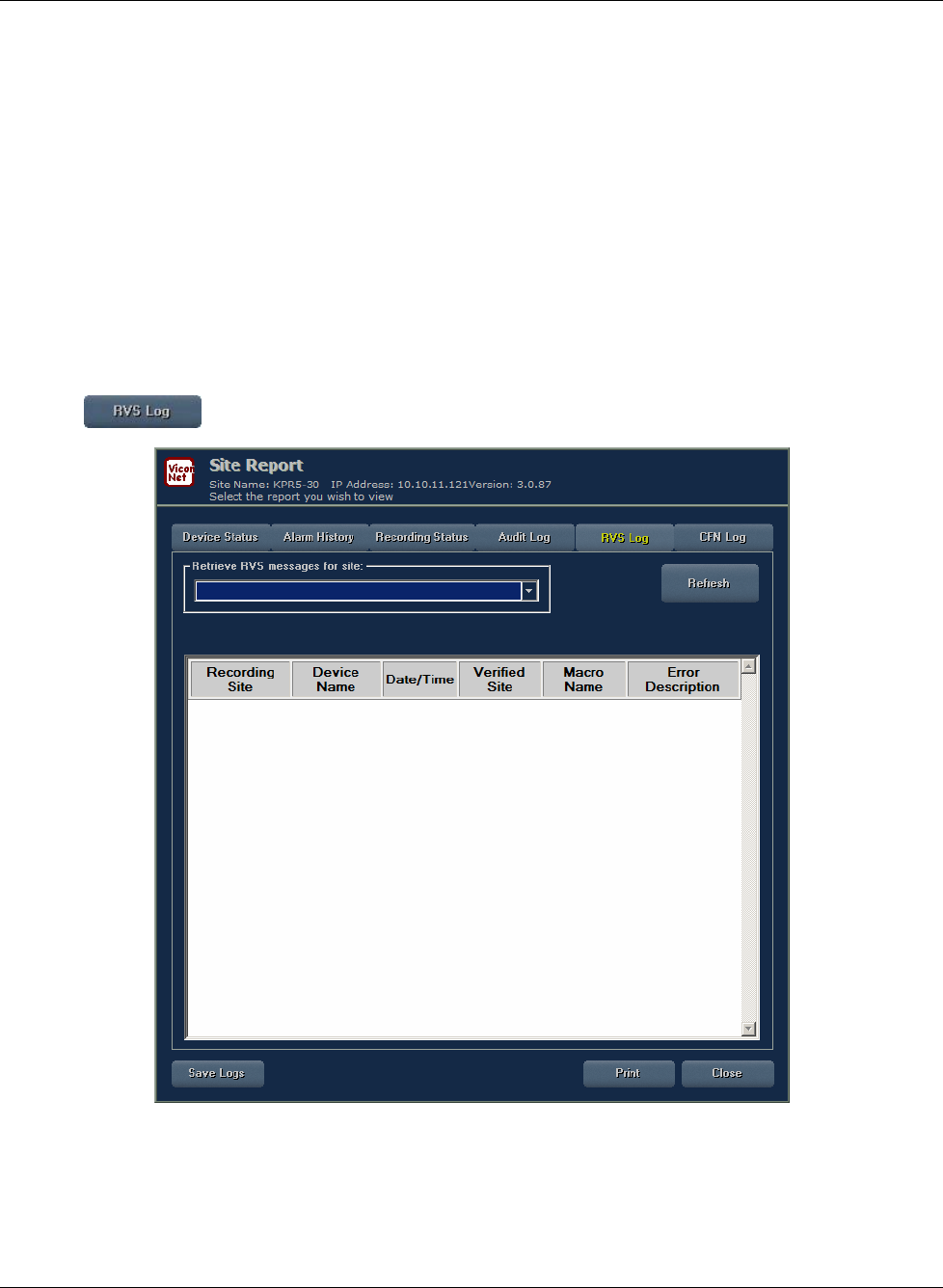
XX128-33-01 Rev 1206 Kollector Pro Network Digital Video Recorder Generating Reports • 227
Generating RVS Log Reports
The RVS mechanism ensures continuous recording by notifying users of any recording errors. It monitors
automatic recording activity (audio and video) at all times, both locally and over the network.
The RVS Log report is kept at each monitoring site and provides a basic history of all RVS messages from all
verified (monitored) sites. The log is available per site, for all sites that have Activate Recording Verification
checked in the RVS window, as shown in Chapter 3, Configuring the ViconNet System. If sites whose logs
you are examining do not have recording verification activated, the RVS Log will be empty
The table display can be updated using the Refresh button.
To generate an RVS log report:
1. Display the Reports window for a selected site name, as described on page 216.
2. Click . The RVS Log window is displayed.

228 • Generating Reports XX128-33-01 Rev 1206 Kollector Pro Network Digital Video Recorder
3. From the dropdown list, select the site (or all verified sites) for which you want to see the RVS Log
(default=All). A history of local RVS messages that have popped up is displayed.
NOTE: The history is cyclic, meaning once it is full (several thousand entries), entries are deleted in a
FIFO manner.
RVS errors also include communication errors in sites being verified which occurred while
recording verification system is active
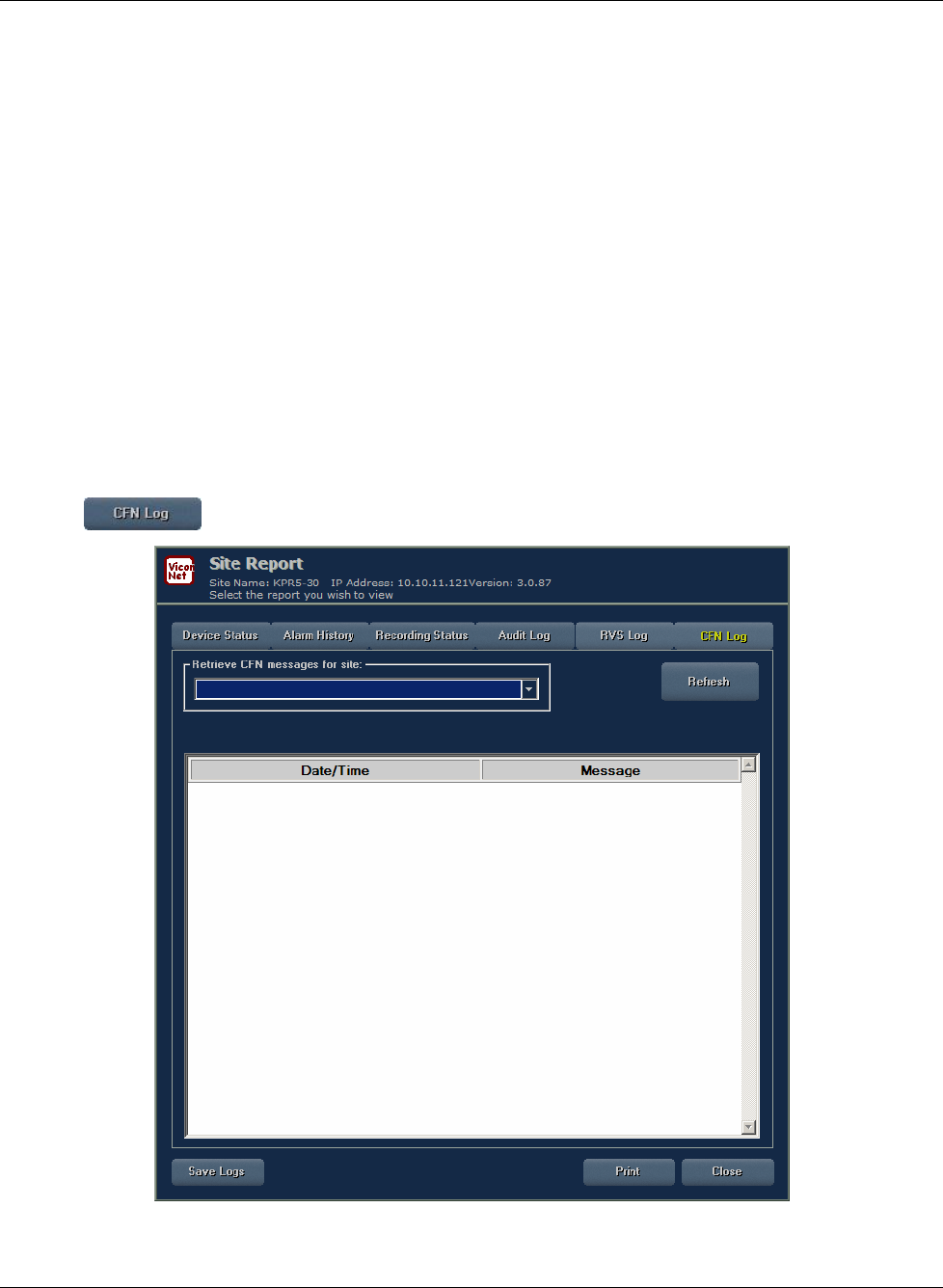
XX128-33-01 Rev 1206 Kollector Pro Network Digital Video Recorder Generating Reports • 229
Generating CFN Log Reports
The CFN mechanism enables Workstations and transmitter sites connected to the same nucleus to receive
notifications indicating that certain applications have failed, for example, macro, recording and database
failures.
The CFN (Central Failure Notification) Log report provides a report of ALL the failures for a specific site (or all
sites).
The CFN report can only be viewed from the nucleus. This is the central site that gathers information from all
the sites and spreads necessary information to the sites. If something happens to a connected site, the
notification is also sent to the nucleus. The nucleus decides whether other sites should be notified. Each site
keeps a log of its own failures.
The table display can be updated using the Refresh button.
To generate a CFN log report:
1. Display the Reports window for a selected site name, as described on page 216.
2. Click . The CFN Log window is displayed.

230 • Generating Reports XX128-33-01 Rev 1206 Kollector Pro Network Digital Video Recorder
3. From the dropdown list, select the site (or all sites) for which you want to see the CFN log (default=All). A
history of local CFNs is displayed.
NOTE: The differences between the RVS Log and the CFN Log are:
1. The RVS Log includes errors related to recording only, whereas the CFN log reports ALL failures, see
explanation at end of RVS Report Log section.
2. The CFN Log is only available from the Nucleus.

XX128-33-01 Rev 1206 Kollector Pro Network Digital Video Recorder Printing/Exporting Frames and Creating AVI Files • 231
Chapter 9
Printing/Exporting Frames and Creating
AVI Files
This chapter describes how to print out or export selected frames, and to create AVI files from selected
playback segments. This chapter contains the following sections:
• Printing Frames, page 232, describes how to print any frame being viewed in the Main window (live or
playback).
• Exporting Frames, page 233, describes how to save a selected single frame or group of consecutive
frames being viewed in playback to any network destination as JPEG images.
• Creating AVI Files, page 233, describes how to create an AVI file from a selected playback segment,
which can then be viewed using any AVI viewer.
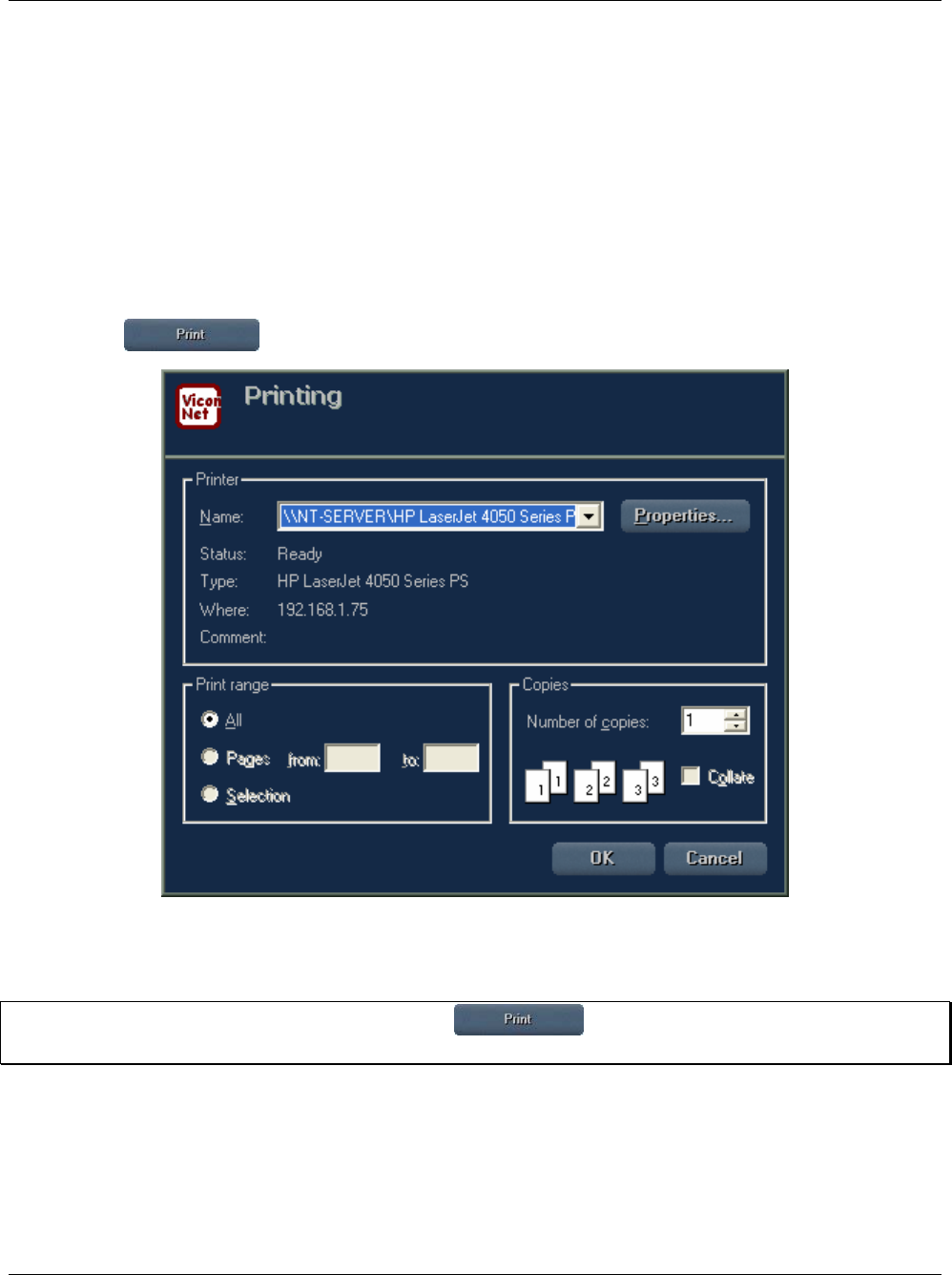
232 • Printing/Exporting Frames and Creating AVI Files XX128-33-01 Rev 1206 Kollector Pro Network Digital Video Recorder
Printing Frames
You can print out the Main window Video Display area panel, showing the frames currently being displayed
in Live or Playback mode.
To print a selected frame:
1. Display live video (as described in Chapter 4, Live Video) and/or play back the required cameras (as
described in Chapter 6, Playing Back Recorded Video).
2. If you require a specific frame from a Playback camera, navigate to the required frame using the playback
controls and freeze the view on that frame using the Stop/Pause button.
3. Click the button. A standard Print window is displayed.
4. Select the printer and settings.
5. Click OK to print out the Video Display area panel with its current contents.
NOTE: If no printer is set in the system, clicking the button provides an option to link a printer
to the system via an Add printer wizard.
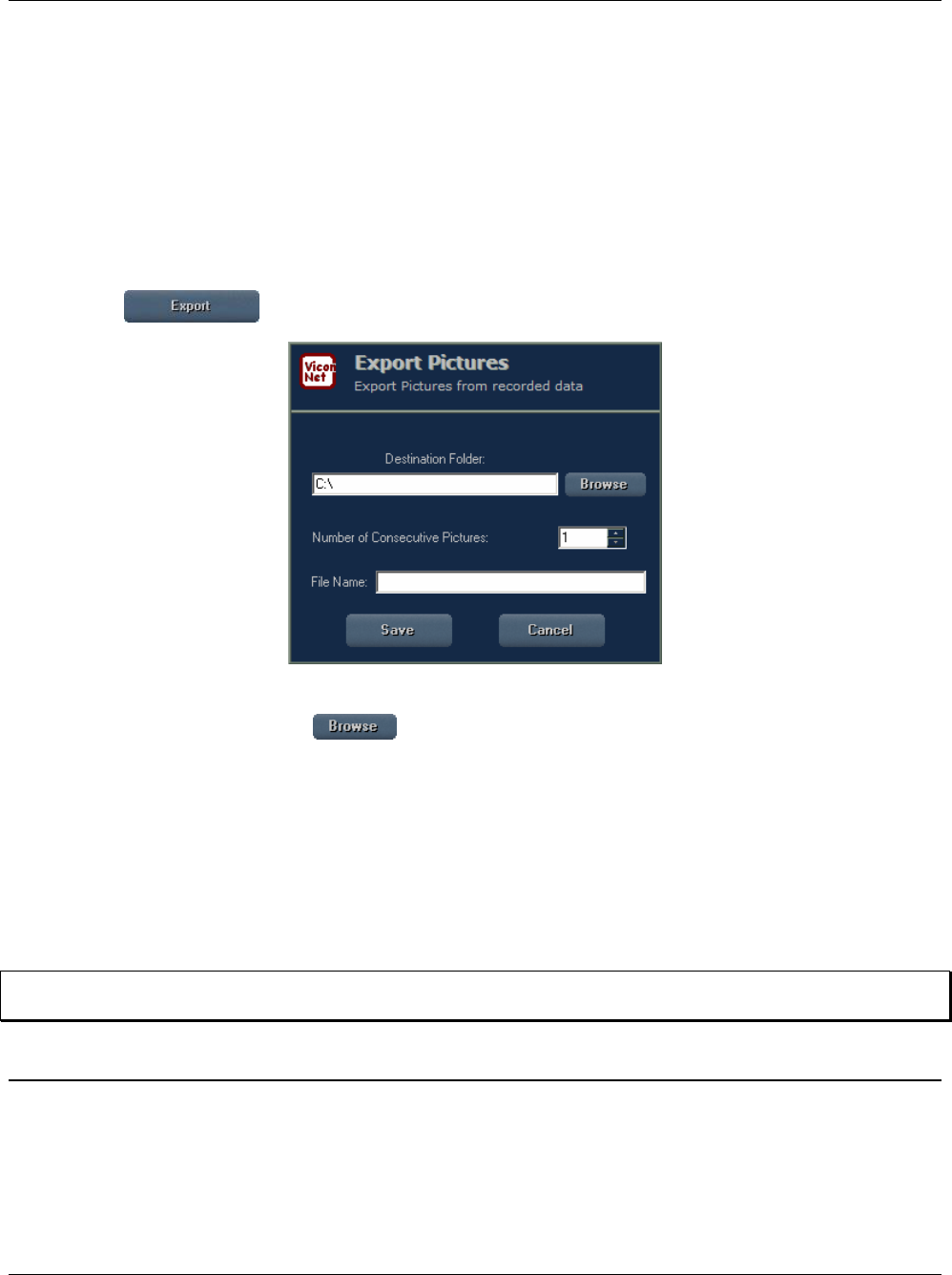
XX128-33-01 Rev 1206 Kollector Pro Network Digital Video Recorder Printing/Exporting Frames and Creating AVI Files • 233
Exporting Frames
You can save selected single frames or groups of consecutive frames being viewed in playback to any
network destination as JPEG images.
To export a selected frame:
1. Play back the required camera, as described in Chapter 6, Playing Back Recorded Video.
2. In the ViconNet Main window, navigate to the required frame using the playback controls and freeze the
view on that frame using the Stop/Pause button.
3. Click the button. The Export Pictures window is displayed.
4. Enter the required destination path on your network, either directly or using the standard browser window
that is displayed by clicking the button.
5. Specify the number of consecutive frames, including the current frame, from which JPEG images should
be created (up to 9999). You can enter this either directly in the Number of Consecutive Pictures field,
or using the Up/Down buttons.
6. Enter a base file name in the File Name field. (Do not include the file extension. The requested files are
automatically named using the base name plus a suffix to denote the applicable frame number.)
7. Click Save to save the requested images to the selected location.
NOTE: If Cancel is clicked while the Export is in process, the frames that were already exported up to that
point will not be removed from the destination folder.
Creating AVI Files
You can create a short video using the AVI format from a selected playback segment, which can then be
viewed using Windows Media Player. The AVI screen converter utility allows conversion of any video data
into standard/common format, enabling you to view the data with standard video tools.
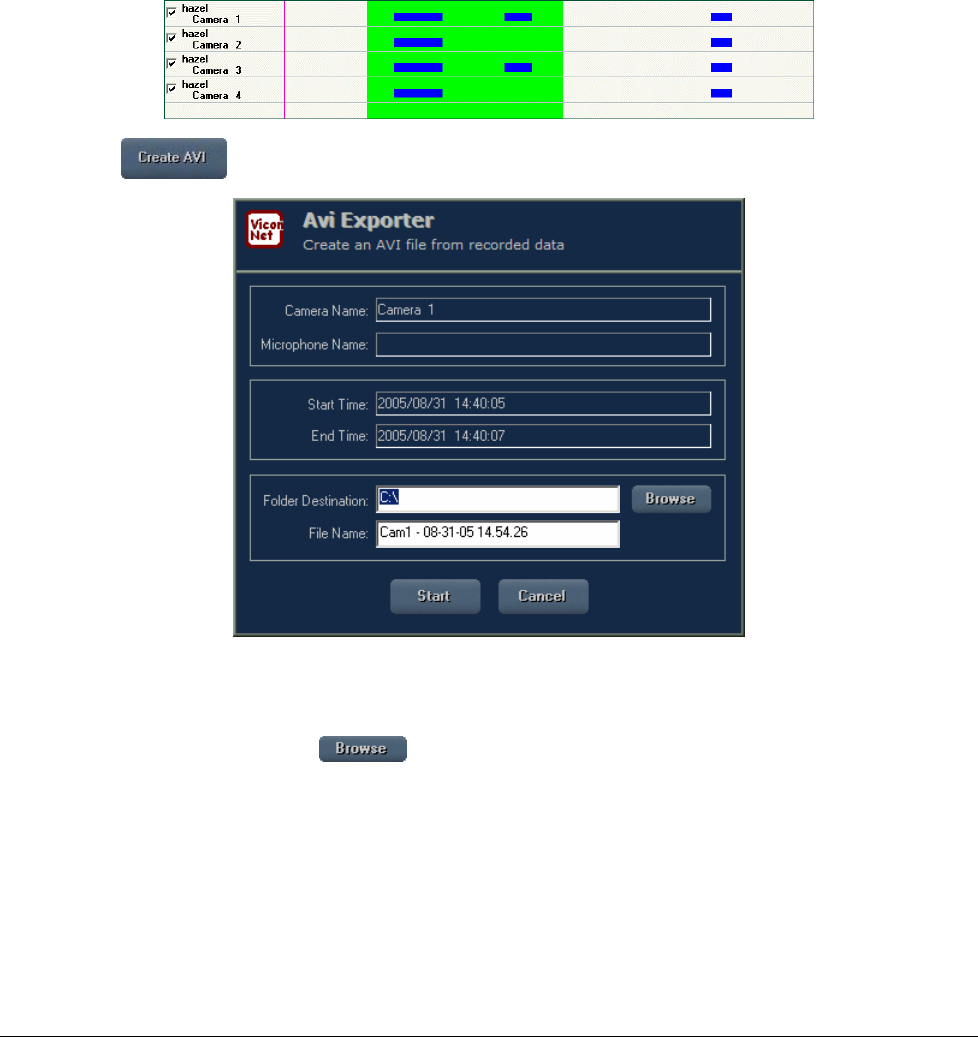
234 • Printing/Exporting Frames and Creating AVI Files XX128-33-01 Rev 1206 Kollector Pro Network Digital Video Recorder
To create an AVI file:
1. In the Navigator window, select a single camera and the required playback time interval from which the
AVI file will be created, as described in the workflow steps of Chapter 6, Playing Back Recorded Video.
(Only one camera in the Recorded Device Contents area should have a checkmark.)
2. In the Recorded Device Contents area, mark the recorded segments that you want to create an AVI file
for by holding down the left mouse button and dragging the mouse pointer over the required segments.
The selection area is indicated by lime green shading when working with an archive, or blue shading
when working with a selection which is not an archive.
3. Click the button. The AVI Exporter window is displayed.
Your camera and time interval selections are shown in read-only fields.
4. Enter the required destination path on your network, either directly or using the standard browser window
that is displayed by clicking the button.
5. Enter a base file name in the File Name field. (Do not include the file extension.)
6. Click Start to create the AVI file at the selected location.

XX128-33-01 Rev 1206 Kollector Pro Network Digital Video Recorder Configuring the Personal Firewall • 235
Appendix A
Configuring the Personal Firewall
Due to various security risks, Vicon has decided to keep only specific ViconNet application ports open, while
fully closing and protecting all others. To do this, Microsoft's Personal Firewall feature, which exists in every
Windows XP operating system, is used.
The following table lists all ports per protocol used by the ViconNet application, version 3. All other ports
should be kept closed in order to protect the system from future security breaches. If other ports are open
from an earlier version of ViconNet, they will be closed automatically, to match the list of required open ports,
as shown below.
Open Ports Closed Ports
TCP: 4354, 4355, 4356, 4357, 4358, 4359 All other Windows ports
UDP: 4354, 4355, 4356, 4357, 4358, 4359 All other Windows ports
NOTE: The Personal Firewall feature is configured by default in Vicon’s XP Embedded revisions higher than
D.
Vicon recommends using the Microsoft Personal Firewall feature, especially in the following cases:
• The Kollector Pro is connected directly to the Internet.
• The Kollector Pro is connected indirectly through a network that has at least one computer connected to
the Internet.
To configure the firewall:
1. Open Windows Explorer by right-clicking the Start button and selecting Explore.
2. Double-click My Computer in the left pane, and then double-click Control Panel in the right pane.
3. Click Network and Internet Connections, and then click Network Connections.
4. Double-click Local Area Connection. The Local Area Connection Status window appears.
5. Click the Properties button. The Local Area Connection Properties window appears.

236 • Configuring the Personal Firewall XX128-33-01 Rev 1206 Kollector Pro Network Digital Video Recorder
6. Click the Advanced tab, and select the checkbox in the Internet Connection Firewall area.
7. Click the Settings button. The Advanced Settings window appears.
8. In the Services tab, click Add. The Service Settings window appears.
9. Enter the required information in the appropriate fields, as shown in the example below, and then click
OK.
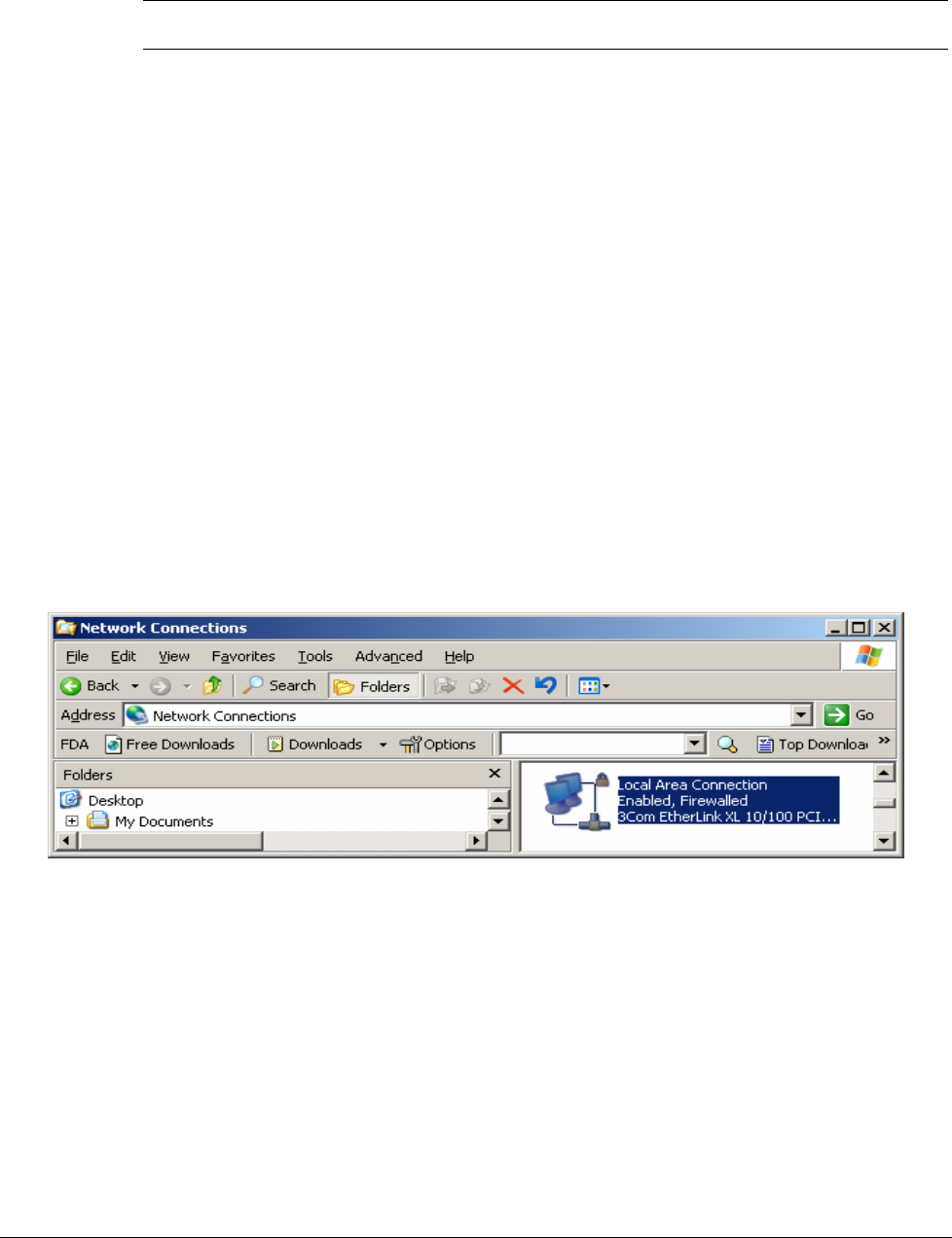
XX128-33-01 Rev 1206 Kollector Pro Network Digital Video Recorder Configuring the Personal Firewall • 237
10. Repeat steps 8 and 9 for each port, as follows:
Description
of Service IP Address External Port Protocol Internal Port IP Address
4354 127.0.0.1 4354 TCP 4354 127.0.0.1
4355 127.0.0.1 4355 TCP 4355 127.0.0.1
4356 127.0.0.1 4356 TCP 4356 127.0.0.1
4357 127.0.0.1 4357 TCP 4357 127.0.0.1
4358 127.0.0.1 4358 TCP 4358 127.0.0.1
4359 127.0.0.1 4359 TCP 4359 127.0.0.1
4354 127.0.0.1 4354 UDP 4354 127.0.0.1
4355 127.0.0.1 4355 UDP 4355 127.0.0.1
4356 127.0.0.1 4356 UDP 4356 127.0.0.1
4357 127.0.0.1 4357 UDP 4357 127.0.0.1
4358 127.0.0.1 4358 UDP 4358 127.0.0.1
4359 127.0.0.1 4359 UDP 4359 127.0.0.1
80(web
service)
127.0.0.1 80 HTTP 80 127.0.0.1
11. When you have finished configuring all of the ports, click OK twice to close all the windows, and then click
Close to close the Local Area Connection Status window.
12. The Local Area Connection icon now displays a lock, as shown below.

238 • Configuring the Personal Firewall XX128-33-01 Rev 1206 Kollector Pro Network Digital Video Recorder
Disabling the Personal Firewall
In general, Vicon does not recommend disabling the Personal Firewall feature, as this may leave the
operating system vulnerable and exposed to various security risks that can attack through the network. Vicon
supports only ViconNet application ports and recommends that customers not change any of the default
settings. Vicon takes no responsibility if customers change any of the default settings or disable this feature
completely.
There are, however, a few circumstances where the Personal Firewall configuration must be either extended
or disabled completely to enable additional communication channels between the Kollector Pro and other
devices/computers over the network, for example:
• When working in the Windows NT domain network environment
• When using the Microsoft RDP protocol for remote control support (Remote Desktop Connection)
NOTE: This option can be opened separately without disabling the Personal Firewall completely, as
described below.
• When debugging communication using the Ping protocol
To disable the firewall:
1. Repeat steps 1 through 5 in the To configure the firewall procedure on page 235.
2. Click the Advanced tab, and deselect the checkbox in the Internet Connection Firewall area.
3. Click OK, and then click Close to close the Local Area Connection Status window.
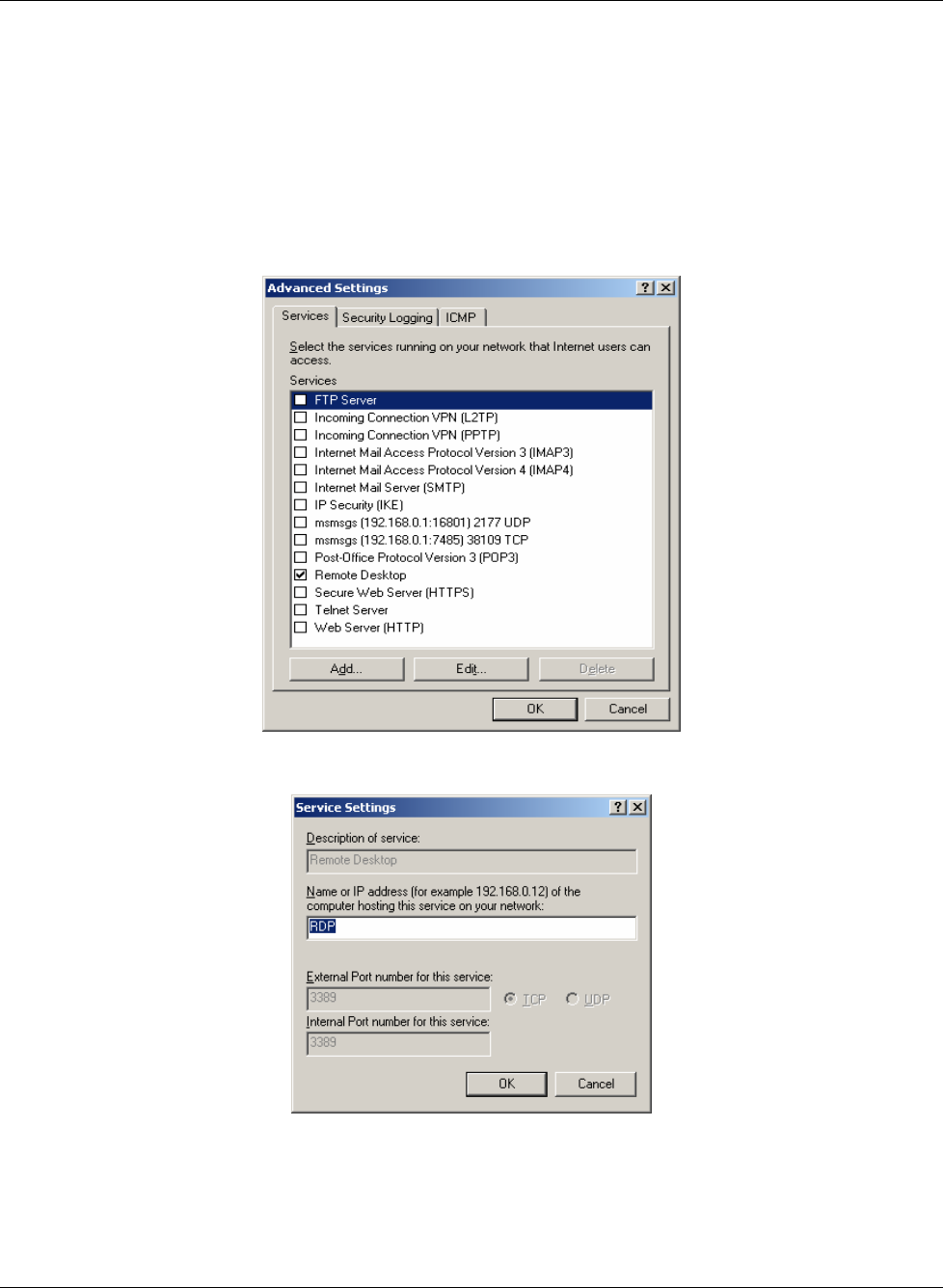
XX128-33-01 Rev 1206 Kollector Pro Network Digital Video Recorder Configuring the Personal Firewall • 239
Opening the RDP Option (Port) Within the Personal
Firewall
As mentioned previously, RDP can be opened separately without disabling the Personal Firewall completely.
To open the RDP option without disabling the firewall:
1. Repeat steps 1 through 7 in the To configure the firewall procedure on page 235.
2. In the Services tab, double-click the Remote Desktop checkbox, as shown:
3. In the displayed Service Settings window, enter RDP in the Name or IP address field, as shown:
4. Click OK three times to close all the windows, and then click Close to close the Local Area Connection
Status window.

240 • Configuring the Personal Firewall XX128-33-01 Rev 1206 Kollector Pro Network Digital Video Recorder

XX128-33-01 Rev 1206 Kollector Pro Network Digital Video Recorder Configuring the Network • 241
Appendix B
Configuring the Network
This appendix describes certain aspects of configure the ViconNet network. It contains the following sections:
• Configuring the Network Adapter, page 242, describes how to configure a network adapter when the
Kollector Pro has more than one.
• Configuring a Network with DHCP, page 243, describes how ViconNet uses networking, in particular
the use of the Dynamic Host Configuration Protocol (DHCP).
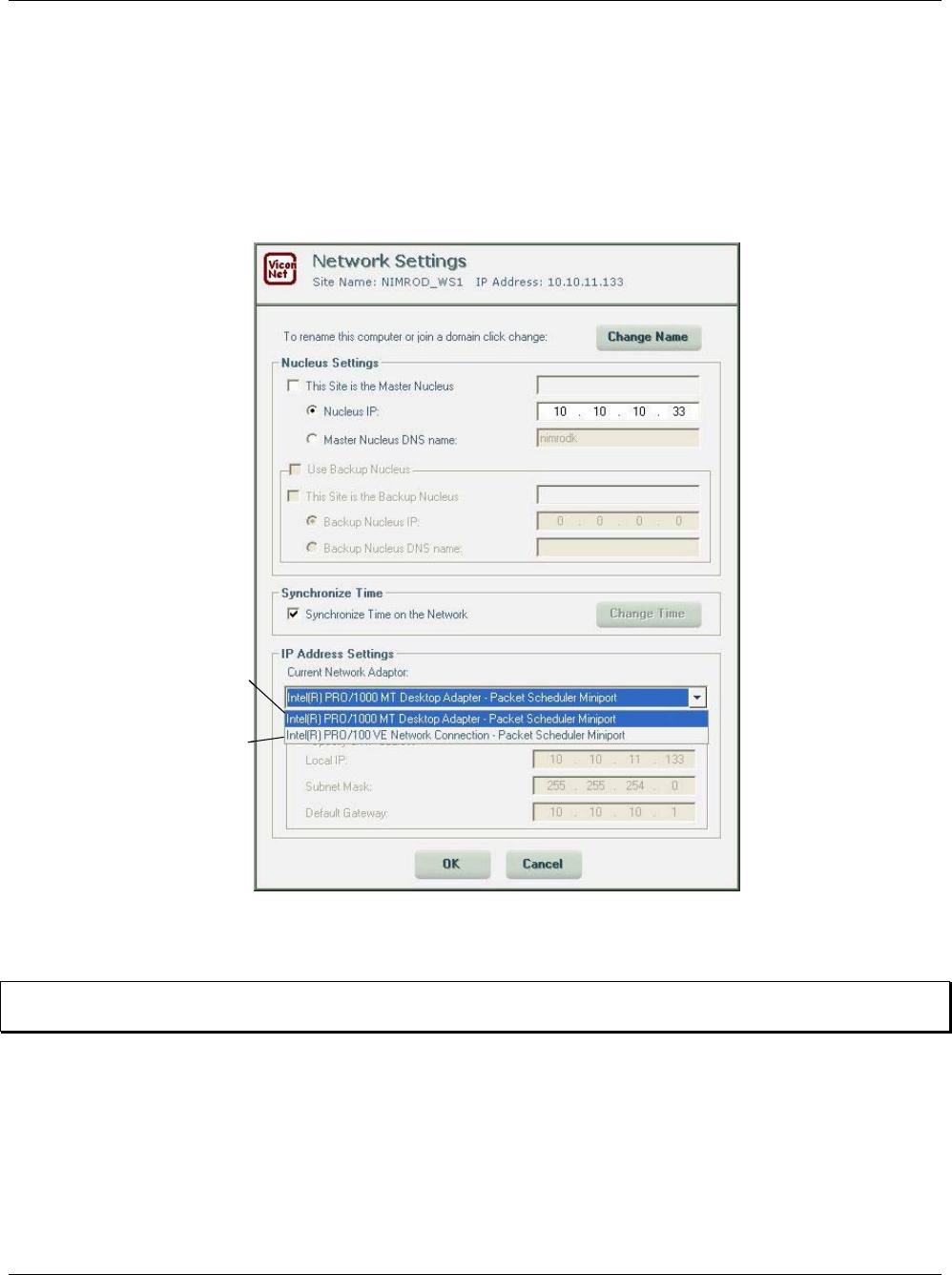
242 • Configuring the Network XX128-33-01 Rev 1206 Kollector Pro Network Digital Video Recorder
Configuring the Network Adapter
When the Kollector Pro has multiple network adapters (cards), meaning multiple IPs, the ViconNet application
allows you to select which network adapter to load (the required IP address).
To select a specific network adapter:
1. From the Network Settings window, select the correct adapter (the required IP) from the IP Address
Settings list.
First
Network
Adapter
Second
Network
Adapter
First
Network
Adapter
Second
Network
Adapter
2. Click OK. The application at the current site requests to be restarted in order to work with the new
settings.
NOTE: If a virtual connection (VPN) is also defined, the virtual adapter IP address is also displayed in the list
of options (providing it was previously connected) and the user can choose to work with it.
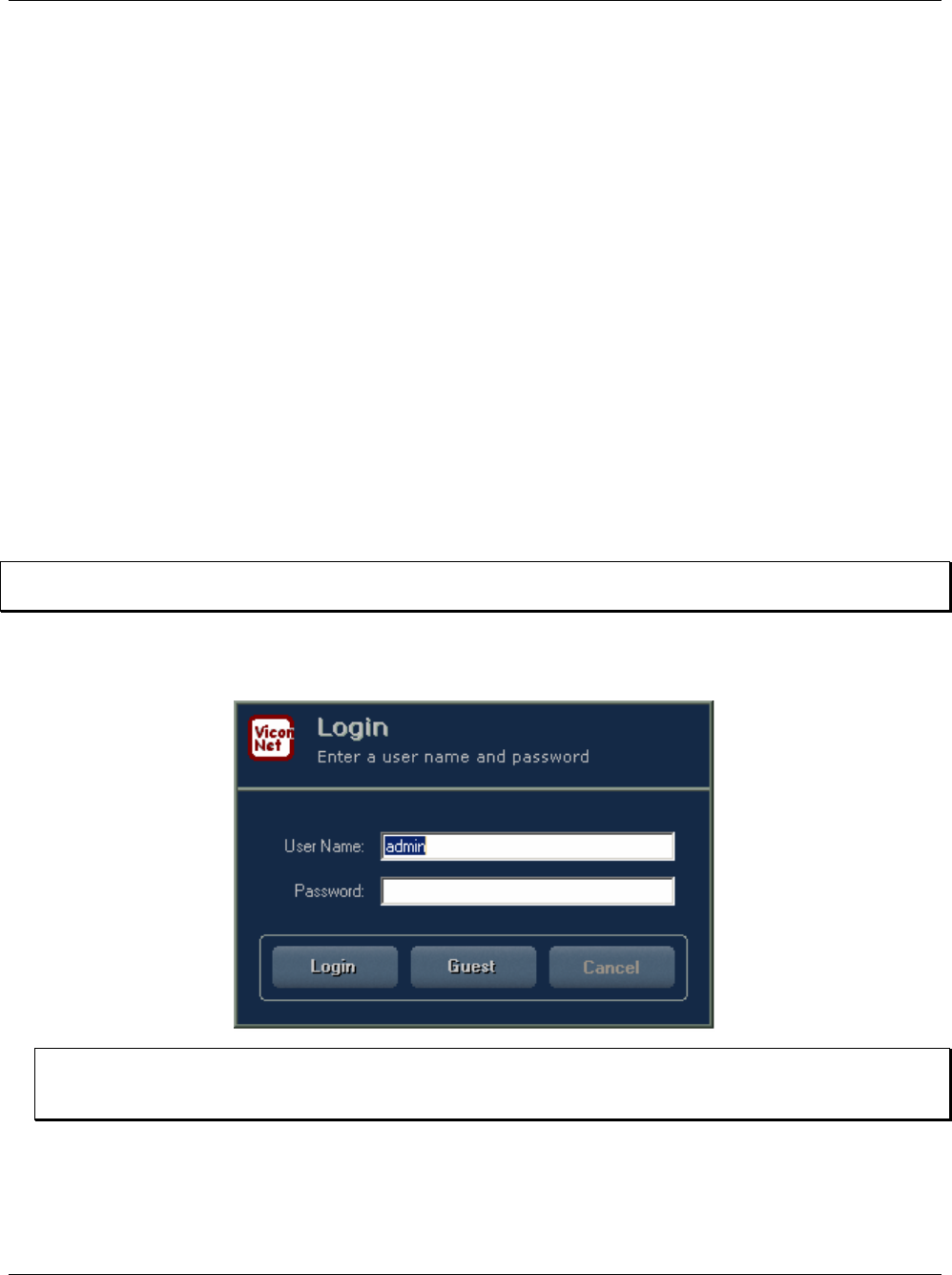
XX128-33-01 Rev 1206 Kollector Pro Network Digital Video Recorder Configuring the Network • 243
Configuring a Network with DHCP
This section describes how ViconNet uses networking, in particular the use of the Dynamic Host
Configuration Protocol (DHCP), and assumes some knowledge of networking and assigning IP addresses in
a Windows environment. Adherence to this setup will ensure stable ViconNet network connectivity. It is very
important to remember that IP addresses must be assigned within the ViconNet application. Never assign an
IP address, either statically or dynamically, in Windows unless otherwise noted.
If you do not have enough IP addresses for all your sites, a DHCP server can be used. The DHCP server
switches dynamically between IP addresses, so that all sites may have varying IP addresses.
ViconNet manages its network elements within itself. It is strongly advised to manually assign IP addresses
to each ViconNet networked device, avoiding DHCP. However, if DHCP must be used, the procedures in this
section must be followed.
The nucleus and backup nucleus should never have their IP addresses assigned by DHCP, as these are
ViconNet's core networking components. Furthermore, these IP addresses should never be changed, as all
other ViconNet transmitters and Workstations refer to them. (An IT administrator can reserve (set) IP
addresses on the DHCP server for the nucleus and backup nucleus units.)
To set up a Kollector Pro with DHCP:
NOTE: A DHCP server must be connected to the system prior to and during the DHCP setup phase of the
ViconNet software.
1. Turn the Kollector Pro on by pressing its ON button. The ViconNet Login window is displayed, showing
the name of the last logged in user.
NOTE: If you restart your site, you will be logged in automatically to the ViconNet application (if the Auto
Login setup is active, as described in the Configuring Auto Login section in Chapter 3,
Configuring the ViconNet System.
2. In the User Name field, enter your assigned user name. If you are an administrator entering for the first
time, enter admin.
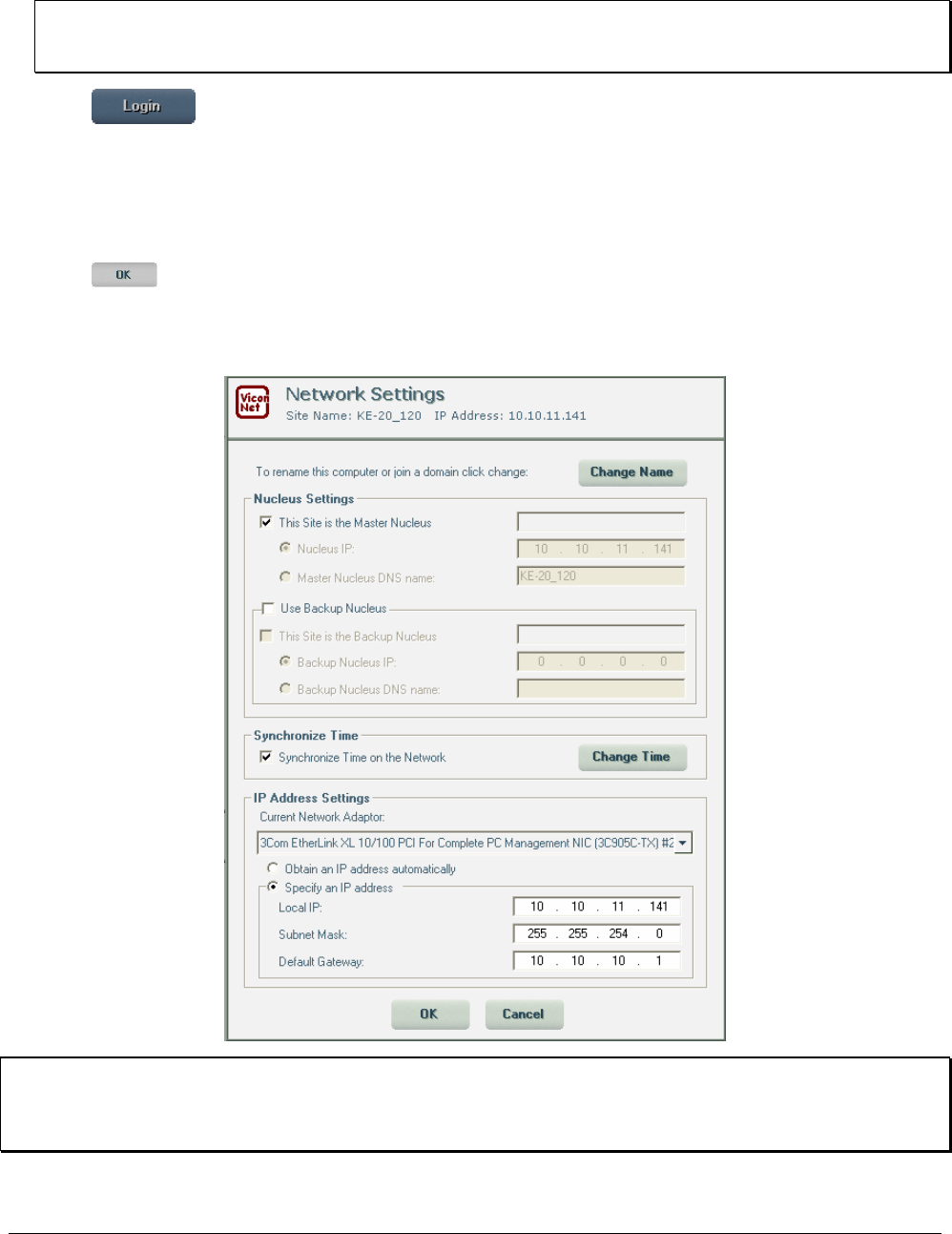
244 • Configuring the Network XX128-33-01 Rev 1206 Kollector Pro Network Digital Video Recorder
3. In the Password field, enter your assigned password.
NOTE: If you are an administrator entering the application for the first time, you do not need a password.
After logging in as admin, it is recommended to assign yourself a password, as described in the
Defining Users section in Chapter 3, Configuring the ViconNet System.
4. Click . The ViconNet Main window is displayed.
5. To open the Network Settings window, follow steps 1 through 3 in Step 1: Setting the Site IP Addresses,
in the Creating a New Network section in Chapter 3, Configuring the ViconNet System.
6. In the IP Address Settings area, select the Obtain an IP address automatically radio button.
7. Click . The application will reboot.
8. Repeat steps 1 through 5 to reopen the Network Settings window. The completed DHCP setup should
look as shown below, with the IP address displayed in the Network Settings area.
NOTE: Once ViconNet has an IP address, it will no longer use one assigned by Windows or by the DHCP
server. Forcing a new DHCP detection of the Kollector Pro requires first manually setting the IP
address, so that it starts with the new manual address. To obtain a new address, repeat the steps in
this procedure.
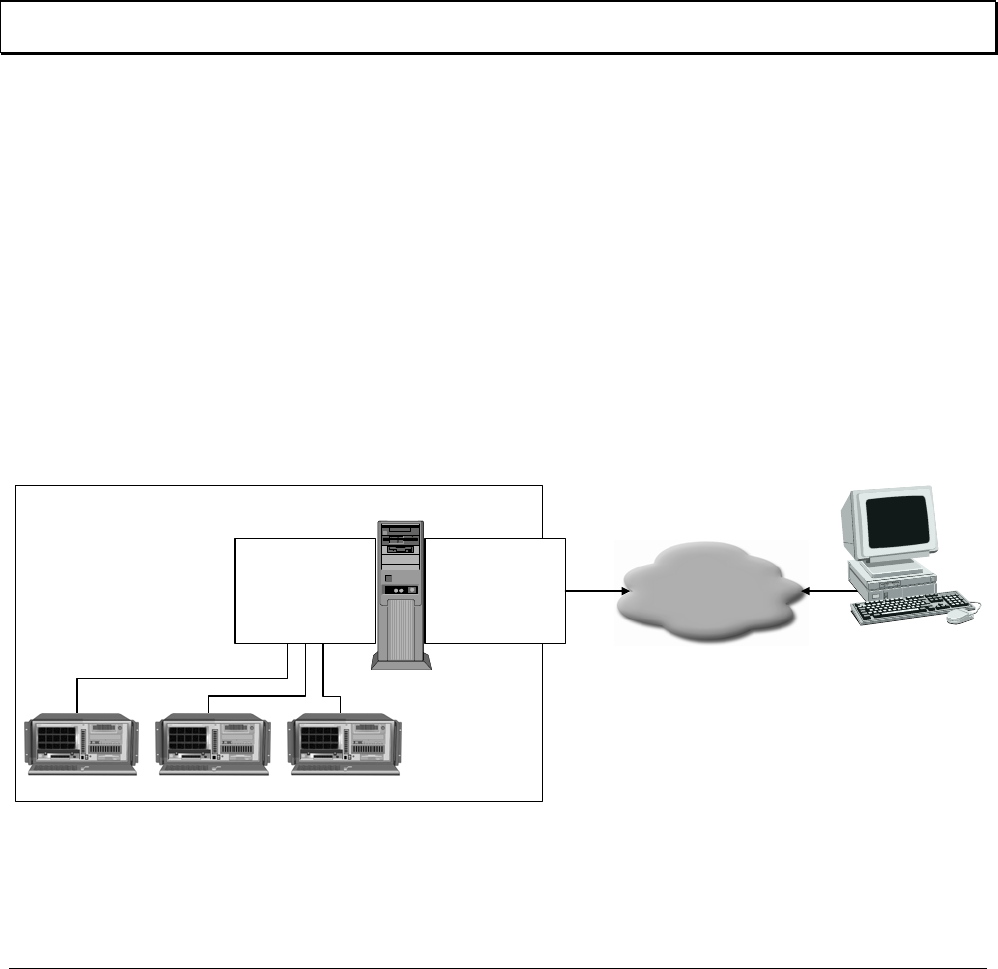
XX128-33-01 Rev 1206 Kollector Pro Network Digital Video Recorder Setting Up a VPN Service • 245
Appendix C
Setting Up a VPN Service
This appendix presents an example of how to setup a Virtual Private Network (VPN) service (server and
client) for the ViconNet application. Configuring the system to work this way is performed by changing the
network settings in the ViconNet application setup, as described in the procedure below.
The VPN server in this example is a Windows XP Professional Workstation with two network interface cards
(NICs). The VPN server should be assigned to a separate Workstation; the VPN client can be assigned to the
VN1000 Workstation or Viewer.
NOTE: While the example presented here uses Windows XP Professional, other VPN servers can be used
as well.
The VPN setup consists of four steps:
• Step 1: Setting Up the VPN Server, page 246
• Step 2: Setting Up the Dialup Connection, page 249
• Step 3: Selecting the VPN Network Adaptor, page 252
• Step 4: Setting Up the VPN Network, page 253
In this example, a number of cameras are connected to Kollector Elites under an internal/corporate network
for security purposes, as shown below. When users outside the office wish to view the cameras over the
Internet, the VPN server in the office serves as a “bridge” between the external world and the internal
network. The remote machine creates a VPN tunnel with the VPN server and allows users to connect to the
Kollectors Elites as if they were under the same internal network in the office.
VPN Server
Local Area Network - Internal Corporate Network
Internal IPs External IP Internet
VN1000
VPN Client -
Workstation
Kollector Elite Kollector Elite Kollector Elite
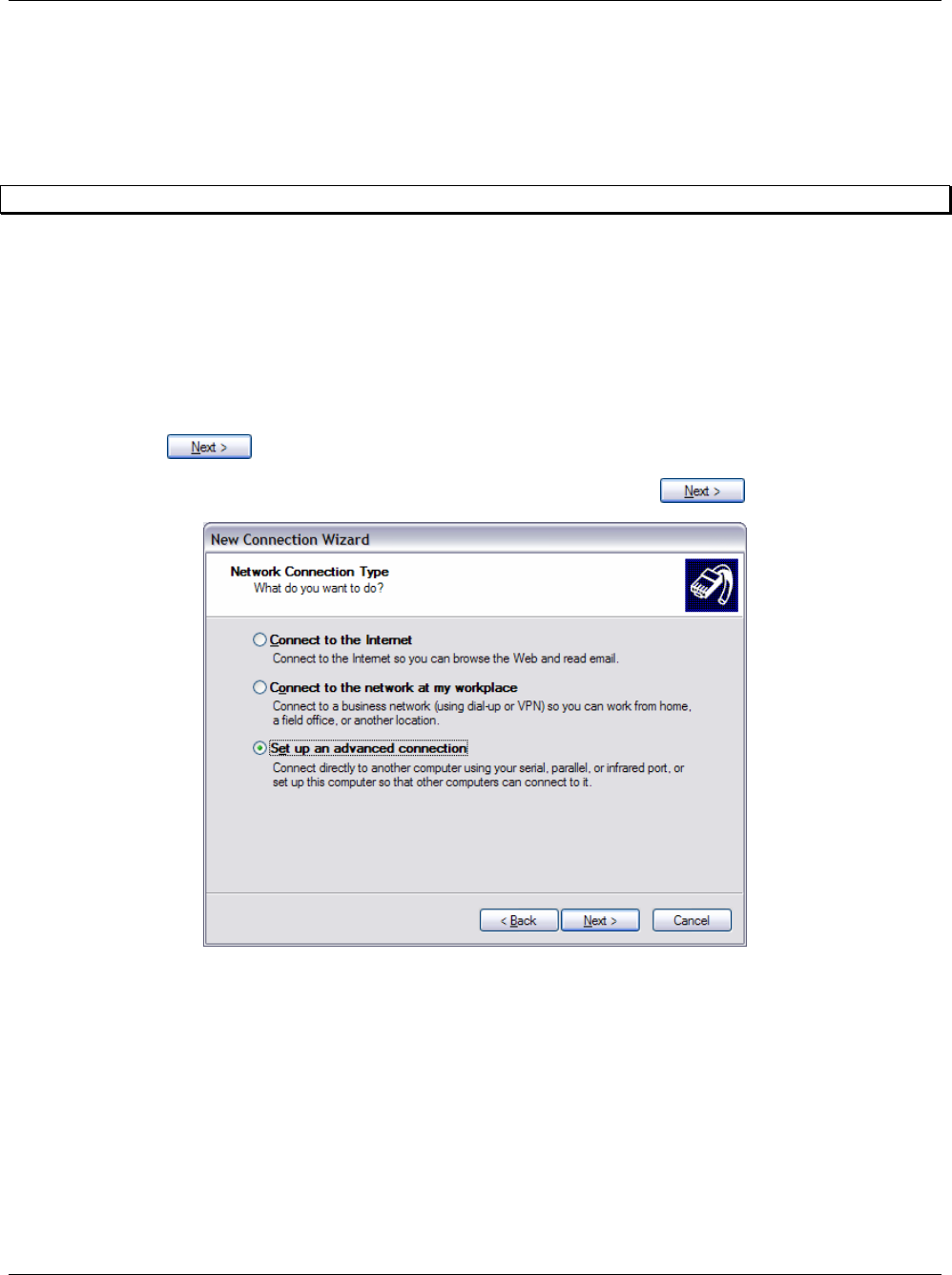
246 • Setting Up a VPN Service XX128-33-01 Rev 1206 Kollector Pro Network Digital Video Recorder
Step 1: Setting Up the VPN Server
To communicate over the Internet with an internal Kollector using an internal IP address, you must first set up
a Windows XP Professional Workstation on your local network to be a VPN server, and then set up the IP
address you want to assign upon connection. The Workstation should have two NIC cards, one for the
external world (public IP address) and one for the internal network (internal IP address).
NOTE: The Workstation's operating system must be Windows XP Professional.
To set up the VPN server:
1. Open Windows Explorer by right-clicking the Start button and selecting Explore.
2. Double-click My Computer in the left pane, and then double-click Control Panel in the right pane.
3. Click Network and Internet Connections, and then click Network Connections.
4. From the File menu, select New Connection. When the Welcome to the New Connection Wizard
appears, click .
5. Select the Set up an advanced connection radio button, and then click .
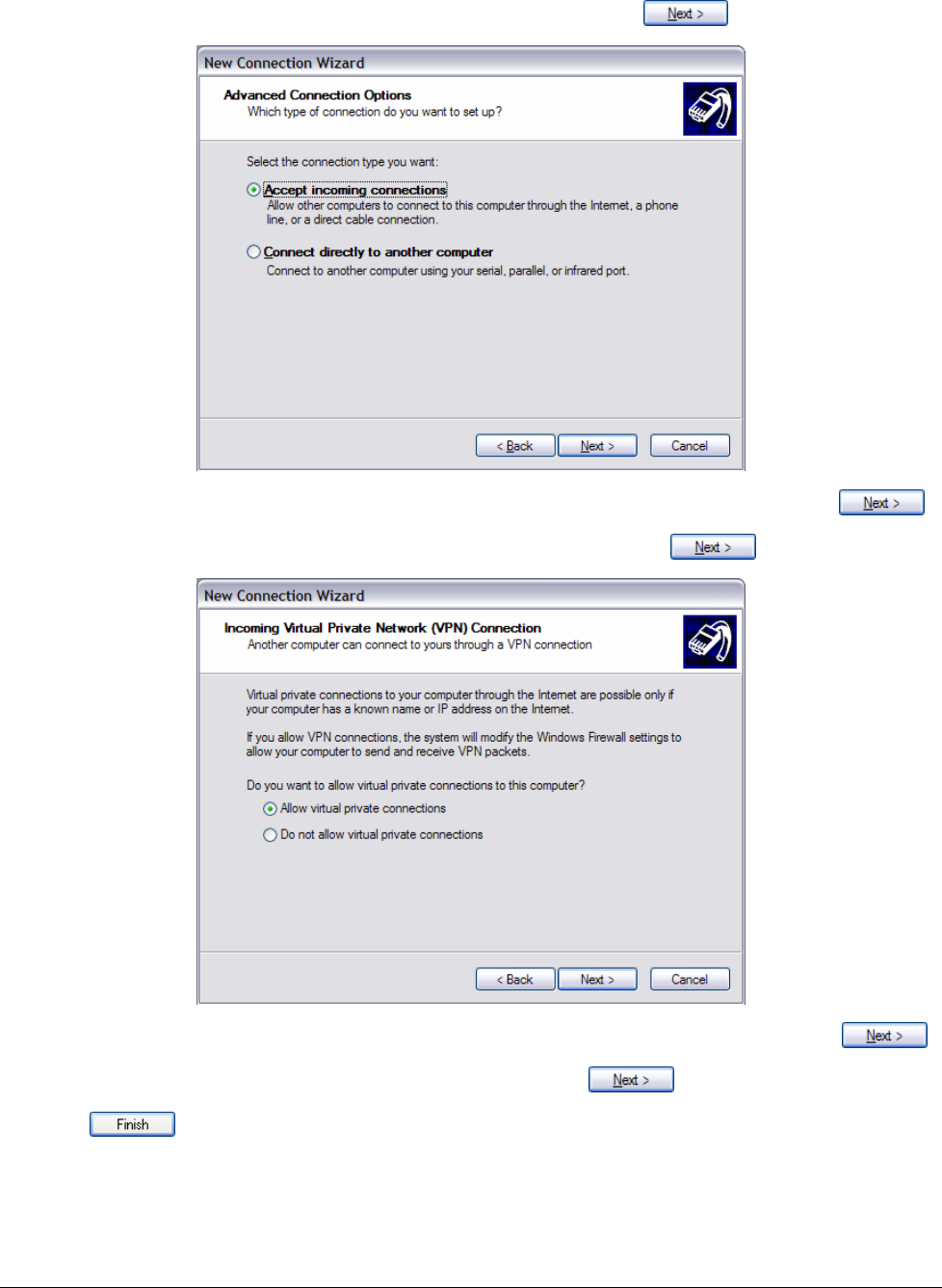
XX128-33-01 Rev 1206 Kollector Pro Network Digital Video Recorder Setting Up a VPN Service • 247
6. Select the Accept incoming connections radio button, and then click .
7. In the screen that appears, make sure that no checkboxes have been selected, and then click .
8. Select the Allow virtual private connections radio button, and then click .
9. Use any existing user name or create a new user name for the new connection, and then click .
10. Select the Internet Protocol (TCP/IP) checkbox, and then click .
11. Click to close the wizard. The VPN server is now installed.
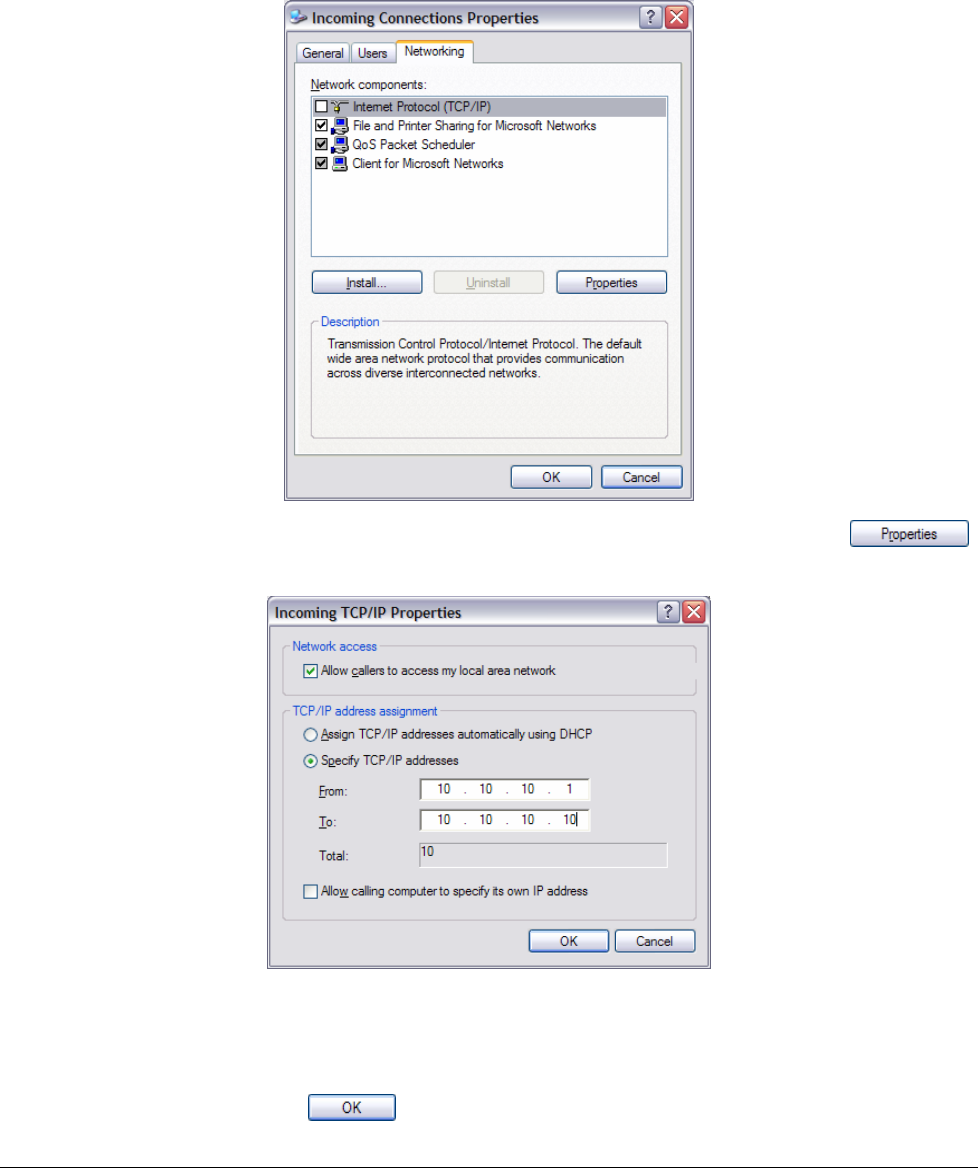
248 • Setting Up a VPN Service XX128-33-01 Rev 1206 Kollector Pro Network Digital Video Recorder
To set up the IP address:
1. Repeat steps 1 through 3 in the previous procedure to open the Network Connections window.
2. Right-click Incoming Connection, and select Properties from the shortcut menu. The Incoming
Connection Properties window is displayed:
3. Select the Networking tab, select the Internet Protocol (TCP/IP) checkbox, and then click .
The Incoming TCP/IP Properties window is displayed:
4. Select the Specify TCP/IP addresses radio button, and in the From and To fields, enter the range of IP
addresses. It is important to ensure that you do not use IP addresses that are already in use in your
network, and that they are under the same network as the Kollectors/Workstation.
5. When you have finished, click . The IP addresses you specified are assigned.
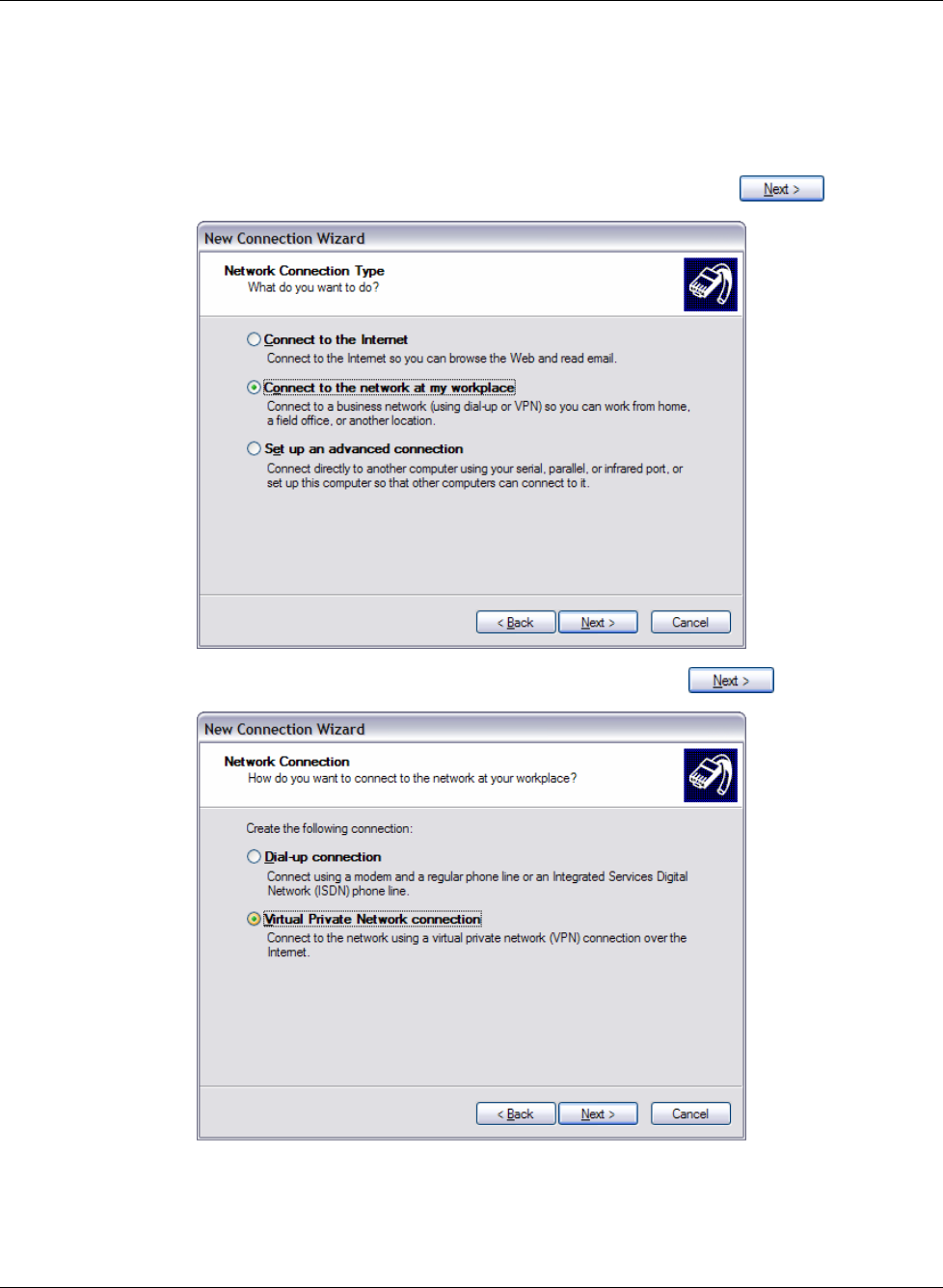
XX128-33-01 Rev 1206 Kollector Pro Network Digital Video Recorder Setting Up a VPN Service • 249
Step 2: Setting Up the Dialup Connection
After you have configured the computer as the VPN server, you must create a VPN dialup connection.
6. On the computer that is running the ViconNet application, create a VPN dialup connection following
steps 1 through 4 in the To set up the VPN server procedure, page 246.
7. Select the Connect to the network at my workplace radio button, and then click .
8. Select the Virtual Private Network connection radio button, and then click .
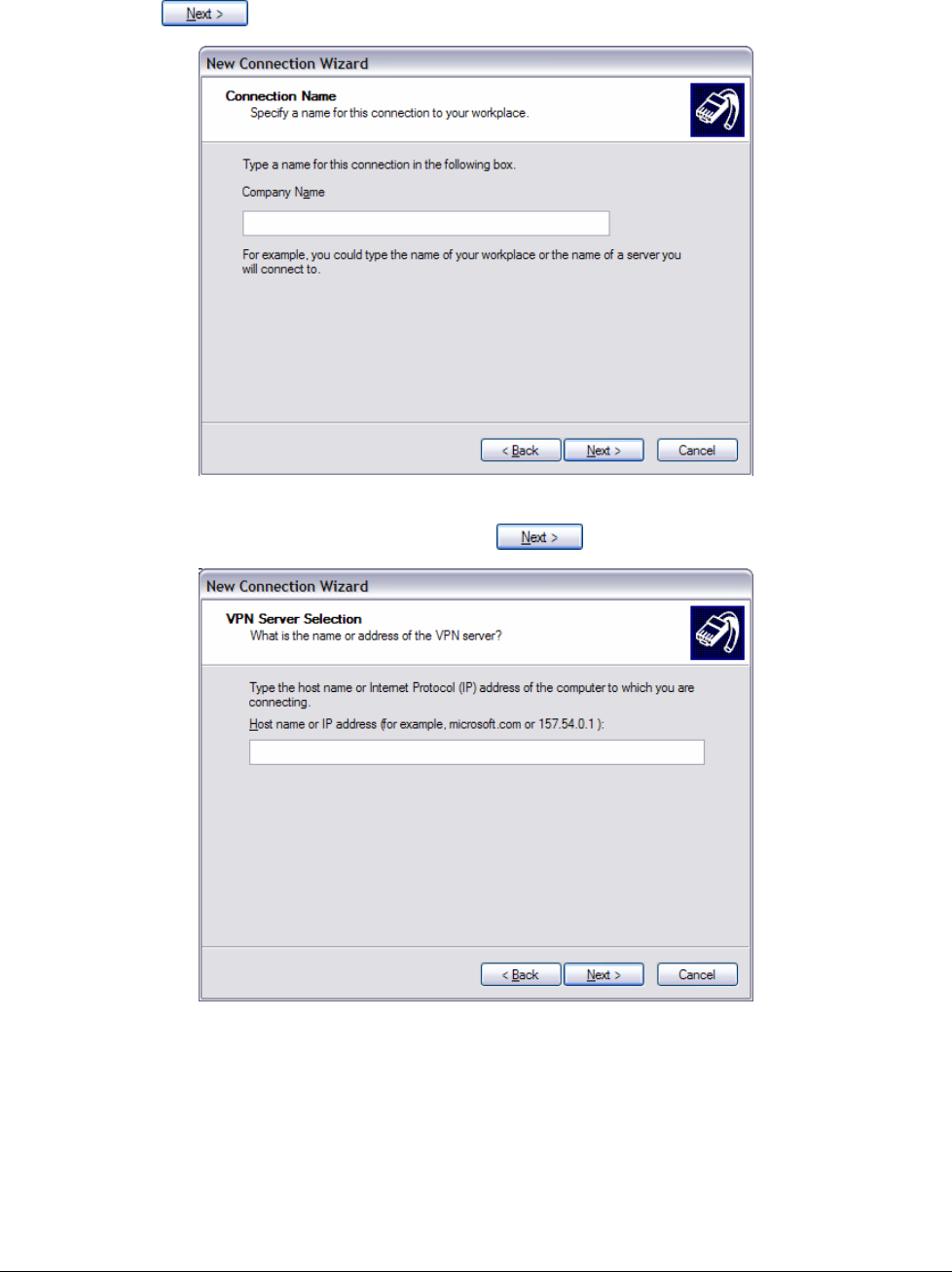
250 • Setting Up a VPN Service XX128-33-01 Rev 1206 Kollector Pro Network Digital Video Recorder
9. In the Company Name field, enter the name of the connection, as you want it to appear in the network,
and then click .
10. Enter the external IP address of the Workstation serving as the VPN server (as described in Step 1:
Setting Up the VPN Server, page 246, and then click .
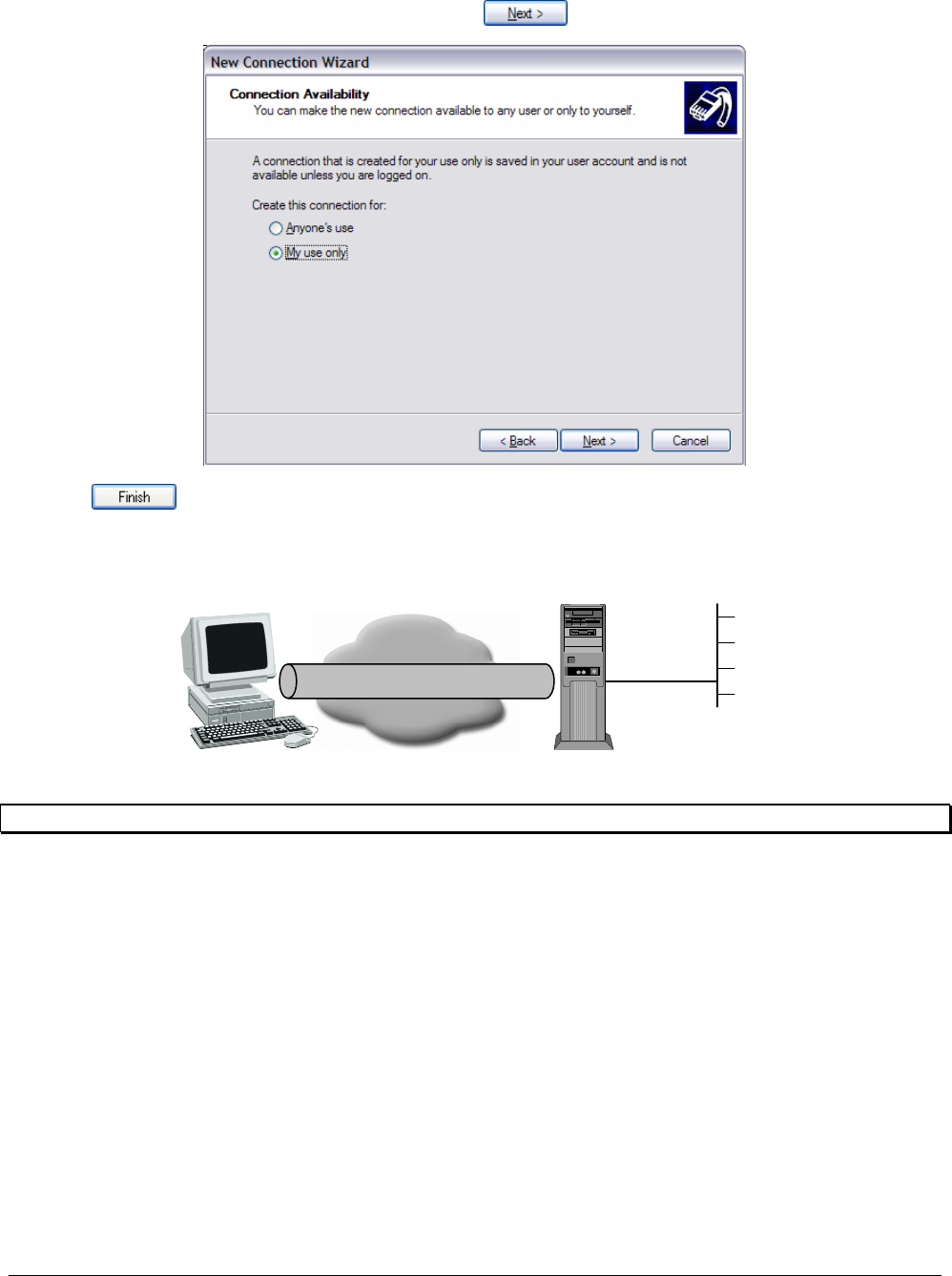
XX128-33-01 Rev 1206 Kollector Pro Network Digital Video Recorder Setting Up a VPN Service • 251
11. Select the My use only radio button, and then click .
12. Click to close the wizard. The VPN client is now installed.
13. Dialup from the Workstation to the VPN server to get an IP address from the IP address pool defined
there. Both sides must be connected to the Internet.
Remote Access Server
Using PPTP or L2TP
Internet
or Private Network
VPN Connection
Using PPTP or L2TP LAN Using IP
VPN Tunnel
NOTE: Contact your system administrator if you need help with these steps.
14. After the VPN connection is established between the Workstation and the VPN server, an additional IP
address will be created for use by the ViconNet application.
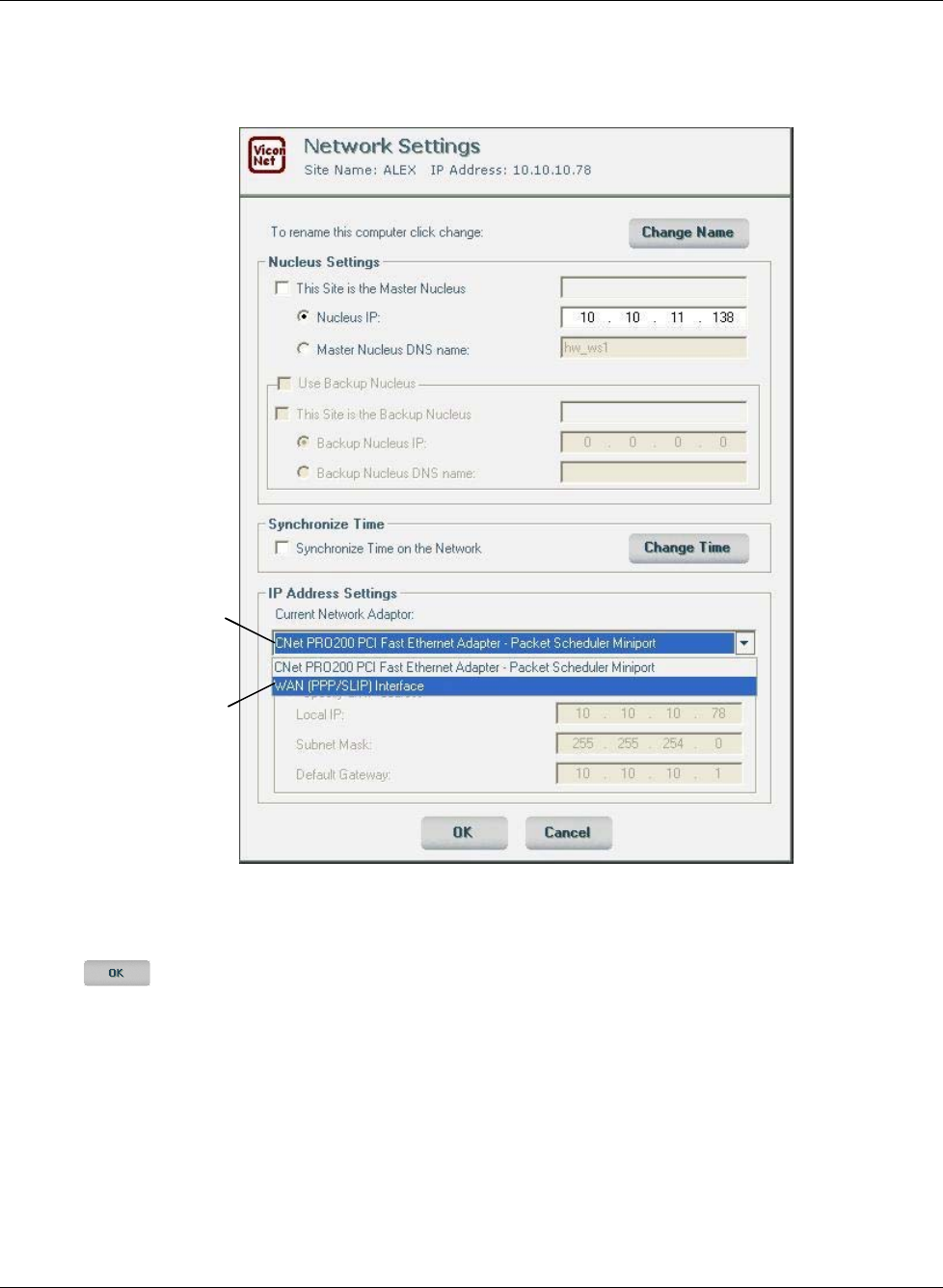
252 • Setting Up a VPN Service XX128-33-01 Rev 1206 Kollector Pro Network Digital Video Recorder
Step 3: Selecting the VPN Network Adaptor
15. From the Network Settings window, select the correct adapter (the VPN adaptor) from the IP Address
Settings list (the VPN adapter will appear as a WAN (PPP/SLIP).
First
Network
Adapter
Second
Network
Adapter
First
Network
Adapter
Second
Network
Adapter
16. Deselect the This Site is the Master Nucleus checkbox and enter the IP address of the site that handles
the nucleus on your network in the Nucleus IP field.
17. Click . The new settings are saved and the application reboots. On the top-left side of the Main
window, the site name displayed next to the word Nucleus: should be your system's nucleus.
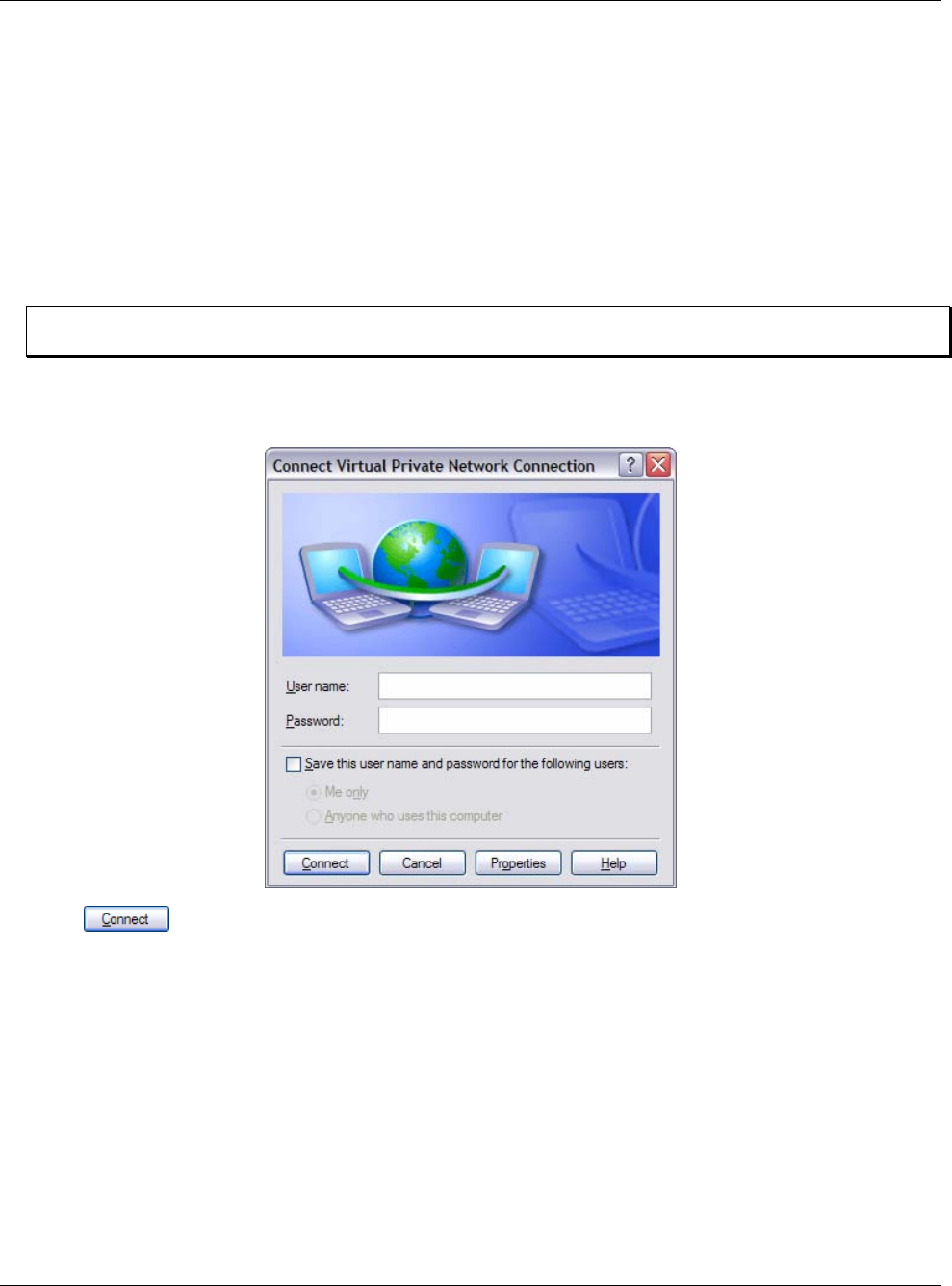
XX128-33-01 Rev 1206 Kollector Pro Network Digital Video Recorder Setting Up a VPN Service • 253
Step 4: Setting Up the VPN Network
Follow the procedure here to setup the ViconNet application over a VPN network.
To set up the VPN Network:
18. Set one of the Kollector Elites in the internal network to be the master nucleus, as shown in Chapter 3,
Configuring the ViconNet System.
19. Set a remote Workstation as a VPN client, as described previously.
20. Set the FirstIpIndex flag in the NetworkAdapters.ini file to 1, as described in the previous procedure.
NOTE: To work with the internal IP address instead, set the FirstIpIndex flag in the
NetworkAdapters.ini file to 0.
21. Run the VPN client and enter the username and password you set previously into the appropriate fields,
as required.
22. Click to connect to the VPN server and make sure the application is established.
23. Start the ViconNet application on the Workstation, and set the nucleus IP address to that defined in
step 1.
24. In the Site List, make sure you can see the cameras over the network and that the list is updated.

254 • Setting Up a VPN Service XX128-33-01 Rev 1206 Kollector Pro Network Digital Video Recorder
Troubleshooting
If the application suddenly gets disconnected from the nucleus machine, you should try the following:
• Check that the VPN connection between the Workstation and the VPN server is still connected.
• Check that the IP address you have received from the VPN server is compatible with the list of addresses
defined on your local network.

Vicon Industries Inc.
Corporate Headquarters
89 Arkay Drive
Hauppauge, New York 11788
631-952-CCTV (2288)/ 800-645-9116
Fax: 631-951-CCTV (2288)
Vicon Europe
Headquarters
Brunel Way
Fareham, PO15 5TX
United Kingdom
+44 (0) 1489 566300
Fax: +44 (0) 1489 566322
Brussels Office
Planet II - Unit E
Leuvensesteenweg 542
B-1930 Zaventem
Belgium
+32 (2) 712 8780
Fax: +32 (2) 712 8781
Far East Office
Unit 5, 17/F, Metropole Square
2 On Yiu Street, Shatin
New Territories,
Hong Kong
(852) 2145-7118
Fax: (852) 2145-7117
Internet Address: www.vicon-cctv.com
