Segway 2420-01 2.4GHz FOB for Human Transporter User Manual Segway
Segway Inc 2.4GHz FOB for Human Transporter Segway
Segway >
User Manual

French
ii

iii
French
English
Reference Manual
Segway® PT
i2, x2
iv
Copyright, Trademark and Contact Information
Copyright © 2006 Segway® Inc. All rights reserved.
Trademarks
Segway Inc. (“Segway”) owns a number of trademarks including but not
limited to, Segway and the Segway “flyguy” logo that have been registered in
the United States and in other countries.
Those trademarks followed by ® are registered trademarks of Segway Inc.
that have been registered in the United States and in other Countries. All
other marks are trademarks or common law marks of Segway Inc. Failure of
a mark to appear in this guide does not mean that Segway Inc. does not use
the mark, nor does it mean that the product is not actively marketed or is not
significant within its relevant market. Segway reserves all rights in its
trademarks. All other trademarks are the property of their respective
companies.
Contact Information
For support, please contact the company from which you bought the
products. For a listing of Authorized Segway Dealers and Distributors, refer to
the Segway website at: http://www.segway.com.
Segway Customer Care: 866.4SEGWAY (866.473.4929)
Fax: 603.222.6001
E-mail: technicalsupport@segway.com
Website: http://www.segway.com
Part Number: 20602-00001aa

v
English
Contents
Preface
About This Manual .................................................. ix
The Risk of Injury .....................................................x
Before You Begin ................................................... xi
Related User Materials ........................................... xi
Conventions ........................................................... xii
1 Introduction
Recording Serial Numbers .......................................1
Segway PT Serial Number.................................2
InfoKey Controller Serial Number ......................3
Segway PT Model Descriptions................................4
Segway PT Specifications ........................................5
Operating Limits .......................................................8
Weight Limits for Riders and Cargo ...................8
Dynamic Weight Limits ...............................8
Minimum Weight Limit ................................9
Handlebar Cargo ........................................9
Structural Weight Limits ............................10
Maximizing Range............................................11
2 Getting to Know Your Segway PT
How the Segway PT Works....................................13
Segway PT Components and Subsystems ............16
InfoKey Controller ............................................19
InfoKey Controller Buttons ........................19
InfoKey Controller Display Area ...............20
Power/Standby Button Functions .............24
Beginner Button Functions .......................25
Information Display Button Functions .......26
Security Button Functions .........................30
Button Combination Functions .................31
LeanSteer Frame/Handlebar Assembly...........34
Tire/Wheel Assembly and Fenders ..................34
Mats .................................................................35
Powerbase .......................................................35
Console ....................................................35
vi
Understanding the Rider Detect Sensors .41
Controller Boards ......................................43
Motors .......................................................44
Balance Sensor Assembly ........................45
Batteries...........................................................46
3 Understanding the Safety Alerts
Speed Limiter .........................................................48
Stick Shake Warning ..............................................51
Rider On...........................................................52
Rider Off...........................................................54
Safety Shutdown ...................................................55
Empty Battery Condition ..................................59
4 Using the Batteries
Battery Safety .........................................................61
Specifications for the Batteries ...............................63
Charging Your Batteries .........................................64
Unplugging the Segway PT..............................68
Battery Charge Indicator Lights........................69
Charging Failures.............................................70
Regenerative Braking.......................................70
Reading the Battery Charge Level Display ......71
Surface Charge (Partial Charge) ..............72
Recalibrating the Display ..........................72
How Temperature Affects Performance...........74
Riding in Hot or Cold Temperatures .........74
Charging in Hot or Cold Temperatures .....76
Replacing Batteries ................................................77
Replacing Batteries in Pairs .............................77
Transporting and Shipping Batteries ......................78
Shipping Li-ion Batteries ..................................79
5 Operating and Maintaining Your Segway PT
Lifting Your Segway PT ..........................................82
Maintaining Tires and Wheels ................................84
Checking the Tire/Wheel Assembly .................84
Checking Tire Inflation Pressure ......................84
Cleaning Your Segway PT .....................................86
Avoid Submerging Your Segway PT................87
Storing Your Segway PT ........................................88

vii
English
6 Servicing Your Segway PT
General Information................................................89
Parts Diagram ..................................................90
Replacing Parts................................................91
Torque Specifications.......................................91
Accessories......................................................91
Service Procedures ................................................92
Removing the LeanSteer Frame ......................93
Attaching the LeanSteer Frame .......................96
Removing the Handlebar .................................98
Attaching the Handlebar...................................99
Removing the Batteries..................................100
Reattaching the Batteries...............................102
Checking Tire Inflation Pressure ....................104
Removing the Tire/Wheel Assembly ..............106
Installing the Tire/Wheel Assembly ................107
Removing/Installing the Fenders....................108
Removing/Installing the Mats .........................109
Replacing the InfoKey Controller Battery .......110
Removing/Replacing the Console Trim..........112
Installing/Removing the InfoKey Controller Dock113
Installing/Removing the Dock Adapter ...........115
Docking/Undocking the InfoKey Controller ....116
7 Troubleshooting the Segway PT
Troubleshooting Procedures ................................119
Segway PT Will Not Power On ......................122
Segway PT Will Not Enter Balance Mode......123
The LeanSteer Frame Slips or is Off-Center..124
Tire/Wheel Assembly is Loose and Wobbles.125
Segway PT Pulls To One Side When Riding .126
Tire is Flat or Will Not Hold Air .......................127
Safety Shutdown At Building Entrance ..........127
The Segway PT Will Not Power Down...........128
Diagnosing Errors with InfoKey Controller Icons ..130
Startup Error Conditions.................................130
Balance Mode Error Conditions .....................132
Reduced Performance Levels........................133
Critical Faults While Riding ............................134
Pitch or Roll Angle Exceeded.........................135
System Faults ................................................136
viii
A Contact and Legal Information
Report All Incidents ..............................................137
How to Reach Us..................................................137
California Warning ................................................137
Obey All Laws and Regulations............................138
Limited Warranty ..................................................138
Radio Frequency Interference ..............................138
Canadian ICES-003 .......................................139
European Directives.......................................139
Other Standards.............................................140
Patent Information ................................................141
Index.........................................................................143

ix
French
English
Preface
Congratulations on the purchase of your new Segway® Personal
Transporter (PT)!
The Segway PT is the standard term used to refer to the self-
balancing Segway products described in this manual. Each
Segway PT model (i2 or x2) is different, but the fundamentals found
in this manual apply to both models.
About This Manual
To learn to ride your Segway PT, you must read and follow all
instructions and warnings in the Getting Started Manual and watch
the Safety Video.
It is important that you follow all safety warnings and cautions that
appear throughout your Segway PT manuals and that you use good
judgment when you ride your Segway PT.
If you have questions, or do not have the Getting Started Manual or
Safety Video, contact an Authorized Segway Dealer or Distributor, or
Segway Inc. (Segway) before you attempt to use your Segway PT.
For a list of Authorized Segway Dealers and Distributors, refer to
www.segway.com.

x
The Risk of Injury
The Segway PT is a self-balancing, personal transporter that uses
patented balancing technology. Balancing technology cannot prevent
injury if you do not ride the Segway PT safely.
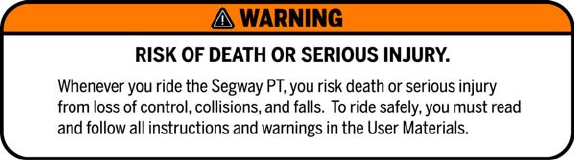
RISK OF DEATH OR SERIOUS INJURY
Whenever you ride the Segway PT, you risk death or serious
injury from loss of control, collisions, and falls. To reduce risk
of injury, you must read and follow all instructions and
warnings in the User Materials.
WARNING!

xi
English
Before You Begin
Before you begin, it may be necessary to assemble your Segway PT.
The Batteries should be charged for 12 hours. To assemble the
Segway PT and charge the Batteries for the first time, refer to the
Segway PT Getting Started Manual.
If you do not have the Segway PT Getting Started Manual, contact an
Authorized Segway Dealer or Distributor, Segway Customer Care, or
download it from www.segway.com.
Related User Materials
zGetting Started Manual - The Segway PT Getting Started
Manual provides information to help you assemble and learn to
ride your new Segway PT. To reduce risk of injury, you must read
and follow all instructions and warnings in the Getting Started
Manual.
zDVD that contains:
zPDF files of each manual. Segway provides an electronic
copy of this Reference Manual and the Getting Started
Manual on DVD for your convenience. The content of the
electronic copy is the same as the printed books. You will
need Adobe Reader® to access the PDF files.
zSafety Video.
The Safety Video is included on the same DVD as the
manuals. It provides important information on how to use
your Segway PT. To reduce the risk of injury, you must watch
and follow all instructions and warnings in the Safety Video
before you ride.
DVDs are shipped in NTSC format for viewing in North America
(USA, Canada, Mexico) and Japan and in PAL format for viewing in
most parts of Europe, Asia, Australia and New Zealand.
xii
Conventions
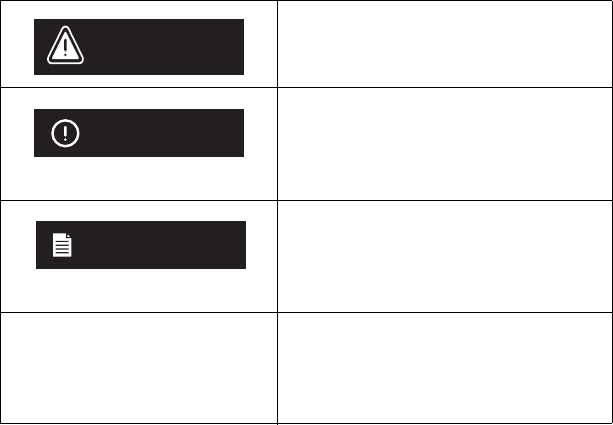
The following conventions are used throughout this guide:
Warns you about actions that may
result in personal injury.
Cautions you about actions that may
result in operational issues or physical
damage to the Segway PT.
Identifies important points, helpful
hints, special circumstances, or
alternative methods.
Indicates a reference to another
section of this document or to the
Getting Started Manual.
WARNING!
CAUTION
NOTE:

1
Chapter 1:
French
English
Introduction
This chapter introduces the Segway PT. It includes:
zInstructions on how to locate and record the serial number of
your Segway PT and the wireless InfoKey™ Controller.
zSegway PT model descriptions.
zDetailed specifications and operating limits of the Segway PT.
Recording Serial Numbers
Record the unique serial numbers for both the Segway PT and the
InfoKey Controller. Store this information in a secure location,
separate from your Segway PT in case you need to order a
replacement InfoKey Controller.
The Segway PT and InfoKey Controller serial numbers are unique to
your machine and InfoKey Controller. These numbers can provide
helpful information in the future for asset and warranty tracking,
InfoKey Controller replacement, insurance claims, and in case of loss
or theft. Store the serial numbers in a secure location, separate from
your Segway PT.
2
Segway PT Serial Number
To record the Segway PT Serial Number:
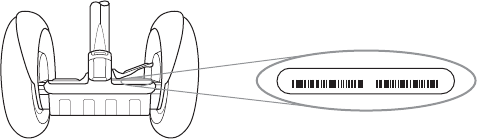
1. Stand behind the Segway PT and lift the back edge of the right
Mat to expose the bar code label.
2. Locate the serial number on the left side of the label. The serial
number is a 12-digit number beginning with “0” (see Figure 1).
Figure 1. Location of Segway PT Serial Number
3. Record the Segway PT serial number and keep it in a safe place.
4. Resecure the Mat in place after you record the serial number.
For more information, see “Removing/Installing the Mats”
on page 109
SM
012345678901 SER MOD 1680400011
3
English
InfoKey Controller Serial Number
To record the InfoKey Controller serial number:
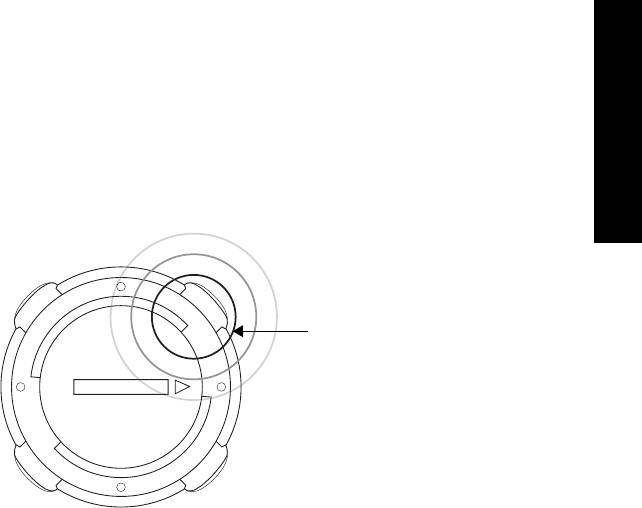
1. Locate the serial number beginning with S/N, on the back of your
InfoKey Controller (located under the trim ring) (see Figure 2).
Figure 2. Location of InfoKey Controller Serial Number
2. Record the InfoKey Controller serial number.
P
/
N
1
8
9
0
0
-
0
0
0
0
1
R
R
S
/
N
Z
Z
Z
Z
Z
Z
Z
Z
I
C
:
63
96
A
2
4
2
0
-
0
1
F
C
C
I
D
:
T
2
Z
2
4
2
0
-
0
1
Serial Number Location
4
Segway PT Model Descriptions
Table 1 lists the Segway PT models described in this manual.
For more information about how the Segway PT works see
Chapter 2, ”Getting to Know Your Segway PT.”
Table 1. Segway PT Model Descriptions
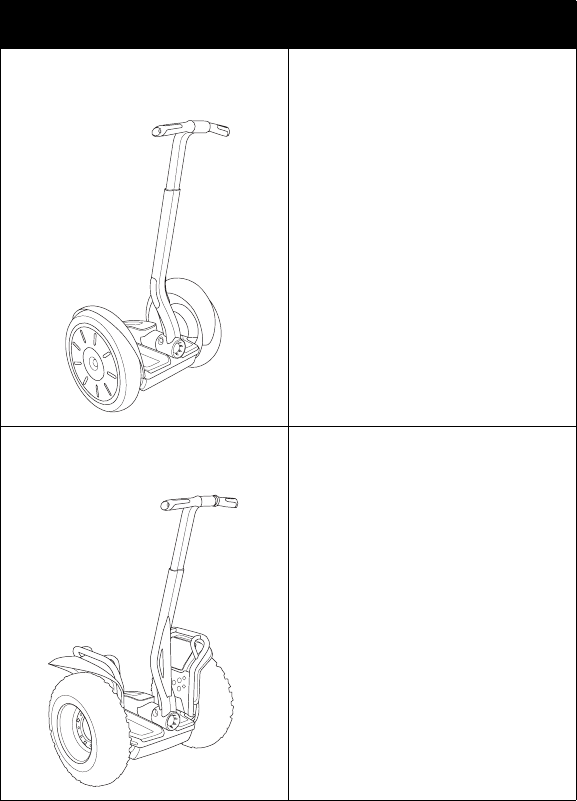
Model Name Description
i2 The i2 model is optimized for
indoor/outdoor use in a wide
variety of environments.
x2 The x2 model is optimized for
outdoor use. The x2 has larger
Wheels and wider Tires with
knobby treads, and is intended
for use on more varied and
rugged terrain than other models.
The x2’s wider stance and low-
pressure Tires provide increased
stability and traction on rough
terrain. The x2 is not intended for
use on sidewalks.

5
English
Segway PT Specifications
Table 2 shows the specifications for the Segway PT models
described in this manual.
Table 2. Segway Specifications
Model Specification i2 x2
Rider Weight and Cargo Limits*
Max. Payload (Rider Plus all
Cargo)
260 lbs
117 kg
260 lbs
117 kg
Min. Rider Weight 100lbs
45 kg
100 lbs
45 kg
Max. Handlebar Cargo
Weight
10 lbs
4.5 kg
10 lbs
4.5 kg
Performance
Max. Speed: 12.5 mph
20 km/h)
12.5 mph
20 km/h
Energy (Rechargeable
Batteries)
Lithium Ion
(Li-ion)
Lithium Ion
(Li-ion)
Range on a Full Charge** 16 to 24 mi
26 to 39 km
9 to 12 mi
14 to 19 km
Turning Radius Zero. The Wheels can rotate in
opposite directions, enabling
the Segway PT to turn in place.
Tire Inflation Pressure 15 psi
1.03 bar
4 psi
.275 bar
Power Requirements
(Worldwide)
100 to 240 V~;
50 or 60 Hz
100 to 240 V~;
50 or 60 Hz

6
Dimensions
Machine Weight Without
Batteries
82 lbs
37 kg
97 lbs
44 kg
Battery Weight See Table 10 on page 63.
Ground Clearance
(Unloaded)
3.4 in
8.5 cm
4.4 in
11.2 cm
Machine Length and Width 25.5 x 25 in
65 x 63 cm
26.5 x 33 in
67 x 84 cm
Handlebar Height from Mat 38 - 43 in
97 -109 cm
38 - 43 in
97-109 cm
Handlebar Height from
Ground (Unloaded)
46 - 51 in
117-130 cm
47 - 52 in
119 - 132 cm
Powerbase Height
(Unloaded)
8 in
20 cm
9 in
22.9 cm
Tire Diameter 19 in
48.3 cm
21 in
53.3 cm
Tire Type Standard All-terrain
InfoKey Controller
Battery CR2430 replacement batteries
are available at Electronics
stores. A spare InfoKey
Controller battery ships with
your new Segway PT, stored
beneath the Console Trim.
Table 2. Segway Specifications
Model Specification i2 x2

8
Operating Limits
It is important that you familiarize yourself with the operating limits of
the Segway PT. These limits are set to maximize rider safety while
reducing the risk of damage to the Segway PT. The Segway PT will
perform better when you observe these limits.
Weight Limits for Riders and Cargo
Segway sets weight limits for two reasons:
zRider safety.
zTo reduce the risk of damage to the Segway PT.
Dynamic Weight Limits
To keep the Segway PT and rider upright, the Segway PT must
always have enough power to be able to turn its Wheels forward and
backward.
Variables that require more power include:
zHigher payloads (weight of rider and all cargo).
zSteeper slopes.
zBumpier surface conditions.
zHigher speeds.
zAbrupt maneuvers.
Exceeding the weight limits, especially when combined with
other variables that require more power, will increase your risk
of falling or damaging the Segway PT.
WARNING!

9
English
The Segway PT monitors the amount of power being used and will
activate safety alerts when it senses excessive power demands. It is
important that you learn to anticipate and recognize when the
Segway PT is reaching the limits of performance.
Learn to recognize and respond to Safety Alerts; review
“Speed Limiter” on page 48, “Stick Shake Warning” on
page 51, and “Safety Shutdown” on page 55.
Minimum Weight Limit
The rider’s weight must not be less than 100 lbs. (45 kg). If the rider is
below the minimum rider weight limit, he/she may not be able to ride
safely because he/she cannot shift his/her weight far enough back
(behind the centerline of the Wheels) to safely slow down and stop.
This is especially true when riding downhill. Also, riders below the
minimum weight limit might fail to properly interact with the
Segway PT’s balancing system.
Handlebar Cargo
The total weight of any Handlebar payload plus any other
attachments hanging from the Handlebar must not exceed 10 lbs
(4.5 kg).
Exceeding this Handlebar Cargo limit interferes with the
Segway PT’s balancing ability and could cause the Segway PT
to accelerate forward, risking injury and damage.
WARNING!

10
Structural Weight Limits
Exceeding the maximum weight limit increases the risk of damage to
the Segway PT. Heavier payloads place greater stress on the Segway
PT. Several factors affect the loads transmitted to the Segway PT:
zSkill level of the rider.
zPayload (weight of the rider and all cargo).
zSurface condition (obstacle height, etc.).
Exceeding the rider or cargo weight limits, especially when riding on
uneven terrain, could damage the Segway PT.
CAUTION

11
English
Maximizing Range
Maximum range distances are provided in Table 2 on page 5. The
range of your Segway PT is affected by many variables, including:
zTerrain: Riding on smooth, flat terrain improves range, and riding
on hilly terrain and unpaved surfaces reduces range.
zSpeed and Riding Style: Riding at a consistent, moderate
speed will increase range while frequent starting, stopping,
acceleration, and deceleration reduces range.
zTire Inflation Pressure: Riding with tire pressures below the
specified limit reduces range.
zRider Weight and Cargo: Lighter riders with less cargo
experience better range than heavier riders with more cargo.
zTemperature: Storing, charging, and riding in temperatures
close to the median of the recommended temperature range
improves range. Riding in colder temperatures reduces range
significantly.
zBattery Condition: Properly charged and maintained Batteries
provide greater range. Old, cold, heavily used, or poorly
maintained Batteries provide less range.
zWind: Riding with a tailwind increases range. Riding against a
headwind reduces range.
12

13
Chapter 2:
English
Getting to Know Your
Segway PT
This chapter describes how the Segway PT works. It includes:
zA description of the InfoKey Controller and its buttons and icons.
zInformation about Segway PT components.
How the Segway PT Works
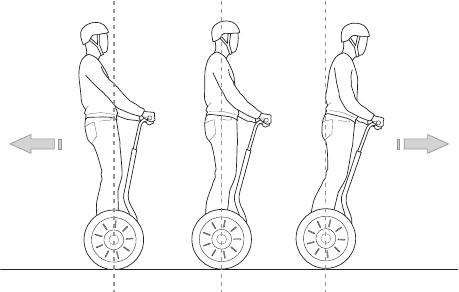
The Segway PT works like the human body. When walking, if you
lean forward, you take a step forward to keep your balance. If you
lean back, you step back. On a Segway PT when you lean forward or
back the machine powers the Wheels in the direction that you lean.
The Segway PT uses technology called dynamic stabilization to
maintain its balance and move forward or backward.
14
When you lean, your center of gravity moves beyond the contact
patch (the place where the tire contacts the ground) causing the
Segway PT to tilt. The Segway PT’s systems sense this change,
powering the Wheels to keep them underneath you. See Figure 3.
Figure 3. How the Seqway PT Works - Leaning Forward and Back
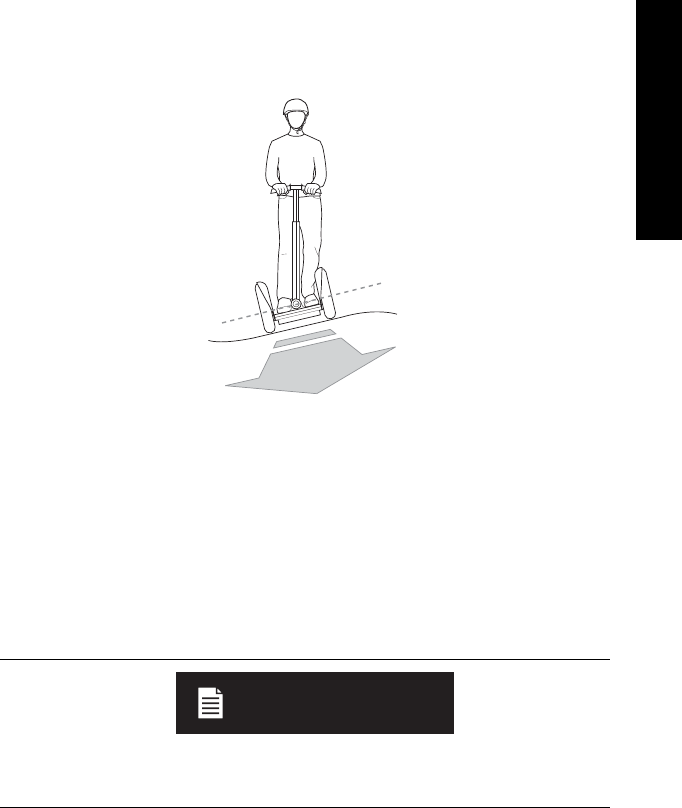
When you pivot the LeanSteer Frame left, the Segway PT turns left.
When you pivot the LeanSteer Frame right, the Segway PT turns
right. To turn the Segway PT, point the LeanSteer Frame in the
direction you want to go, keeping the Handlebar in line with your
body. When the LeanSteer Frame is centered, the Segway PT travels
straight ahead. See Figure 4.
15
English
English
Figure 4. How Segway PT Works - Turning
The Segway PT’s dynamic stabilization technology balances forward
and backward but not side-to-side. If you tip the Segway PT onto one
Wheel, it will not dynamically bring itself underneath you and it could
fall over. You are responsible for maintaining side-to-side stability
while riding the Segway PT. To do this, keep your body aligned with
the LeanSteer Frame. Lean into turns and lean uphill when riding
across a slope to maintain side-to-side balance.
When riding across a slope with one Wheel higher than the other,
keep the LeanSteer Frame vertical to keep from turning.
NOTE:
16
Segway PT Components and
Subsystems
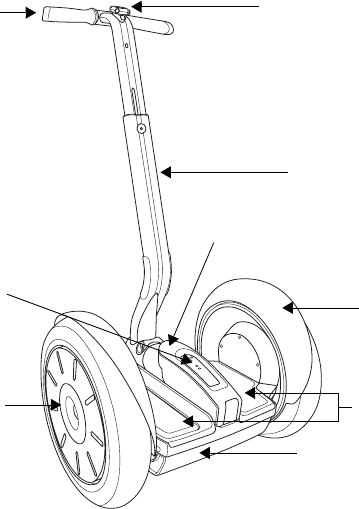
The Segway PT includes the following components and subsystems
(see Figure 5):
zInfoKey™ Controller
zInfoKey Controller Dock
zHandlebar
zLeanSteer Frame
zTire/Wheel Assembly and Fenders
zConsole with Charge and Balance Indicator Lights
zConsole Trim
zMats
zPowerbase
zBatteries
The Segway PT has been designed with concern for the safety of the
rider and those who may be nearby. Redundant subsystems maintain
controlled operation of the Segway PT in the unlikely event of a
component failure. If one component in a subsystem fails, the other
component continues to operate, allowing you to come to a complete
and safe stop before stepping off. The Segway PT has five redundant
subsystems: Controller Boards, Motors, Batteries, the Balance
Sensor Assembly, and LeanSteer Sensors.
17
English
English
All Segway PT parts must be approved by Segway, and
properly installed. Never attempt to stand on a Segway PT
without the LeanSteer Frame attached and secured. Using
your Segway PT without all parts properly installed could
damage your Segway PT and result in serious injury from loss
of control, collisions, and falls.
WARNING!
Do not modify the Segway PT. Modifications to the Segway PT
without the prior written approval of Segway could interfere
with the operation of the Segway PT, could result in serious
injury and/or damage, and could void the Segway PT Limited
Warranty.
WARNING!
18
Figure 5. Segway Components
Handlebar
Console with Console Trim
Charge and Balance
Mats
Powerbase with
LeanSteer
Frame
Tire/Wheel
InfoKey Controller
in Dock
Fender
Assembly
Batteries
Indicator Lights
19
English
English
InfoKey Controller
You use the InfoKey Controller to operate and monitor your
Segway PT. The InfoKey Controller has four buttons around the outer
edge and a display in the center. The InfoKey Controller must be
within 15-ft. (5m) in order to communicate with your Segway PT.
InfoKey Controller Buttons
The buttons allow you to select Segway PT functions and scroll
through information.
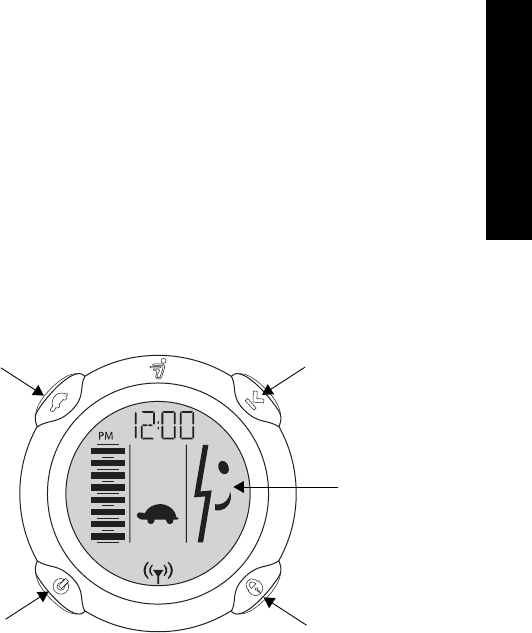
Figure 6 shows the buttons on the InfoKey Controller.
Figure 6. InfoKey Controller Buttons
Power/Standby
Beginner
Button
Information
Button
Display Area
Security
Display
Button Button
20
InfoKey Controller Display Area
The Display Area provides status information such as messages and
warnings.
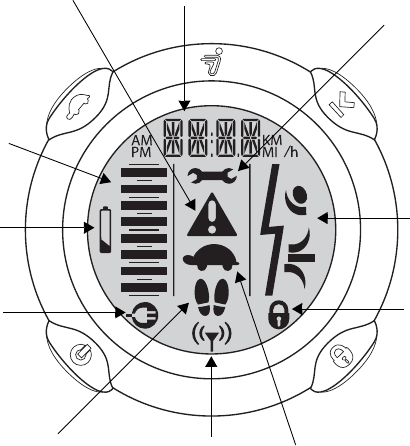
Figure 7 shows icons and data that display on the InfoKey Controller.
Figure 7. InfoKey Controller Display
Face Icons
Information Display
(time, distance, speed, etc.)
Security
Icon
Beginner Icon
AC Power
Icon
Segway PT
Battery Gauge
InfoKey
Controller
Low Battery
Icon
InfoKey
Controller Link
Signal Icon
Wrench Icon
(Service)
Warning Icon
Rider Detect
Error Icons
21
English
English
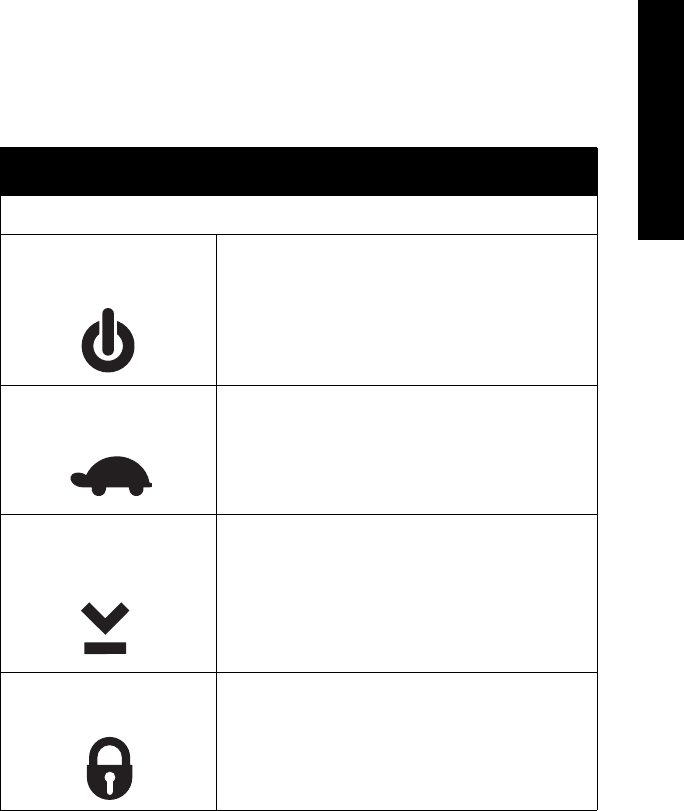
Table 3 describes each of the buttons and icons.
Table 3. InfoKey Controller Buttons and Icons
Control Description
Buttons
Power/Standby button Allows you to power the Segway PT on and
off and switch from Balance Mode to Standby
Mode.
Beginner button Allows you to toggle the Beginner Setting on
and off and illuminate the Backlight.
Information Display
button
Allows you to scroll through information
including time, date, speed, average speed,
trip distance, and odometer.
Allows you to set time, speed/distance
format, date and reset the average speed
and trip distance.
Security button Allows you to activate the security function
(alarm).
22
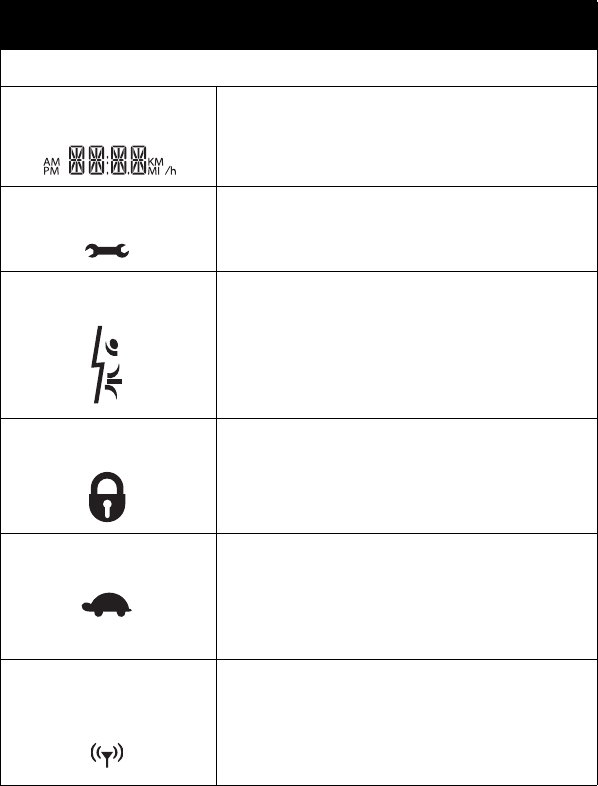
Icons/Controls on Display
Information Display Displays time, date, speed, average speed,
trip distance and odometer.
Wrench icon Indicates a system fault on the Segway PT
that requires service.
Face icons A series of face icons display to indicate
status. For example, you may see a happy
face, sad face, or neutral face.
Security icon Indicates the security function is activated.
Beginner icon A turtle indicates that the Beginner Setting is
enabled (top speed and turning sensitivity
are set at lower rates). When the Beginner
icon is not displayed, the Beginner Setting
has been disabled.
InfoKey Controller Link
Signal icon
Indicates the InfoKey Controller has detected
the Segway PT. The InfoKey Controller must
be within 15 ft. (5m) in order to communicate
with your Segway PT.
Table 3. InfoKey Controller Buttons and Icons
Control Description
23
English
English
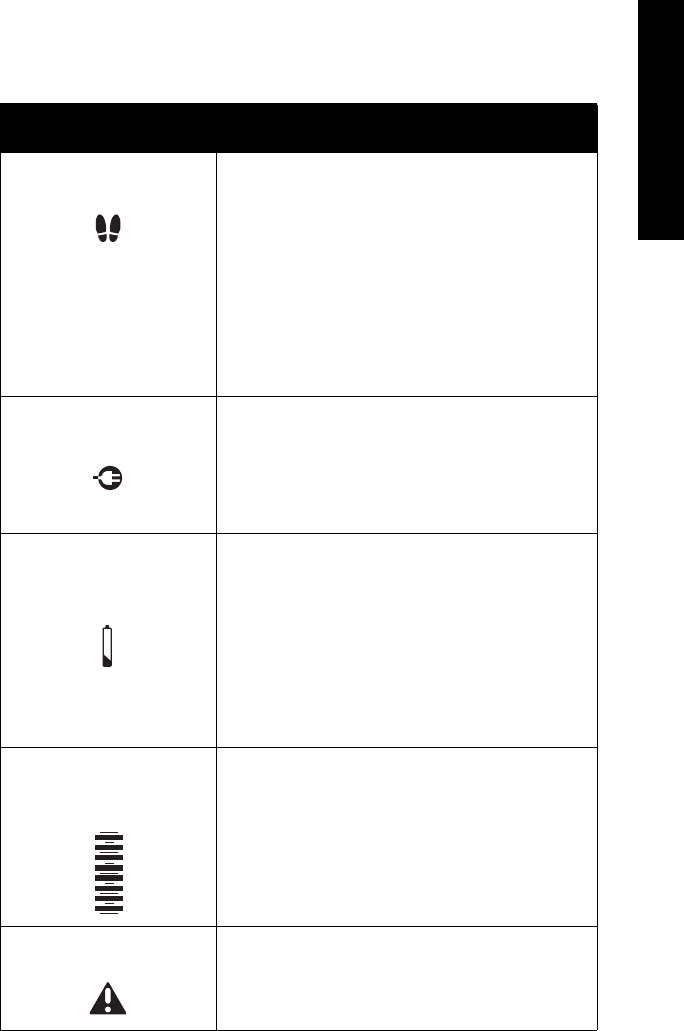
Rider Detect Error icons If any two of the four Rider Detect Sensors
(two located beneath each Mat) are not
depressed while you are riding, the Rider
Detect Error icons will be displayed. The
Rider Detect Error icons display in Standby
Mode if you attempt to step onto a
Segway PT that is not ready to ride. Rider
Detect Error icons display at startup if there
is any weight on the Mats.
AC Power icon Indicates the Segway PT is plugged in to AC
power.
InfoKey Controller Low
Battery icon
Indicates the InfoKey Controller battery must
be replaced. Dispose of the battery properly
in accordance with regulations governing
disposal of toxic materials. CR2430
replacement batteries are available at
electronics stores. A spare InfoKey
Controller battery ships with your new
Segway PT, stored beneath the Console
Trim.
Segway PT Battery
Gauge
Indicates the amount of power remaining in
the Segway PT Batteries.
Warning icon Indicates a warning condition caused by
factors such as aggressive riding, system
operating outside of temperature range, rider
lifting foot off of Mat, etc.
Table 3. InfoKey Controller Buttons and Icons
Control Description

24
Power/Standby Button Functions
The following functions can be performed using the Power/Standby
button.
Powering On and Off
To power on the Segway PT:
1. Stand no more than 15 ft. (5m) from your Segway PT.
2. To power on, tap the Power/Standby button.
3. To power off, press the Power/Standby button for 2 seconds.
The Segway PT will only power off when no Rider Detect Sensors are
depressed (when there is no weight on the Mats).
Switching to Standby Mode from Balance Mode
1. Ensure the Segway PT is powered on and in Balance Mode.
2. To switch to Standby Mode, tap the Power/Standby button.
3. Confirm that there is no face in the Display and that no Balance
Indicator Lights are flashing.
If all four Balance Indicator lights are green and flashing, the
Segway PT is still in Balance Mode.
See “Understanding Balance Mode” in the Getting
Started Manual.
The Segway PT will only accept this command when no Rider Detect
Sensors are depressed (when there is no weight on the Mats).

25
English
English
Beginner Button Functions
The following functions can be performed using the Beginner button.
Enabling and Disabling the Beginner Setting
1. To disable the Beginner Setting, confirm that the Beginner icon
(turtle) is displayed, then tap the Beginner button. The Beginner
icon will no longer show in the Display.
2. To enable the Beginner Setting, confirm that the Beginner icon is
not displayed, then tap the Beginner button. The Beginner icon
will show in the Display.
The Segway PT will only accept these commands when no Rider
Detect Sensors are depressed (when there is no weight on the Mats).
See “Configuring and Locking the Beginner Setting” on
page 31 for more information. This action requires a
combination of buttons.
Illuminating the Backlight
1. Press and hold the Beginner button to illuminate the Backlight.
2. Release the Beginner button to turn off the Backlight.

26
Information Display Button Functions
The following functions can be performed using the Information
Display Button.
Scrolling Through Information
Tap the Information Display button to scroll through the following
information:
zTime
zDate
zCurrent speed
The speed/distance format flashes.
zAverage speed
The speed/distance format does not flash; all trips are averaged
until you reset the average speed function.
zTrip distance
The speed/distance format flashes, and shows distance traveled
with no leading “0”s.
zOdometer
The speed/distance format does not flash, and shows total
distance traveled on the Segway PT.
When you replace or reseat the InfoKey Battery, all information will
revert to the default setting. Trip distance and average speed will
reset to “0.” The odometer will not reset.
NOTE:

27
English
English
Setting and Resetting Information
The following procedures are covered in this section:
zSetting time format, hour and minute
zSetting speed/distance format, date format, year, month, and day
zResetting average speed
zResetting trip distance
Setting Time Format, Hour, and Minute
1. Set Time Format (12- or 24-hour Clock)
Tap the Information Display button until the time displays.
Press and hold the Information Display button until the time for-
mat segment flashes either “12” or “24.”
Select the 12- or 24-hour format by tapping the Security button
until the desired format is displayed.
Release the Information Display button.
Tap the Information Display button to confirm and advance to the
hour setting.
2. Set Hour
Select the hour by tapping the Security button until the desired
hour is displayed. Press and hold the Security button to fast-
advance hours.
Tap the Information Display button to confirm and advance to the
minute setting.
3. Set Minute
Select the minute by tapping the Security button until the desired
minute is displayed. Press and hold the Security button to fast-
advance minutes.
Tap the Information Display button to confirm the time setting.
The time is now set.
28
Setting Speed/Distance Format, Date Format, Year, Month, and
Day
1. Set Speed/Distance Format (MI or KM)
Tap the Information Display button until you see the month/day
or day/month alternating with the year.
Press and hold the Information Display button until the MI/H or
KM/H shows in the display.
Release the Information Display button.
Select the MI/H or KM/H format by tapping the Security button
until the desired format is displayed.
Tap the Information Display button to confirm and advance to the
date format setting.
2. Set Date Format (MO.DA or DA.MO)
Select the MO.DA (Month.Day) or DA.MO (Day.Month) format by
tapping the Security button until the desired format is displayed.
Tap the Information Display button to confirm and advance to the
year setting.
3. Set Year
Select the year by tapping the Security button until the desired
year is displayed. Press and hold the Security button to fast-
advance years.
Tap the Information Display button to confirm and advance to the
month setting.
4. Set Month
Select the month by tapping the Security button until the desired
month is displayed. Press and hold the Security button to fast-
advance months.
Tap the Information Display button to confirm and advance to the
day setting.

29
English
English
5. Set Day
Select the day by tapping the Security button until the desired day
is displayed. Press and hold the Security button to fast-advance
days.
6. Tap the Information Display button to confirm speed/distance
format, date format, year, month, and day. These are now set.
Resetting Average Speed
Tap the Information Display button until you see the average
speed (“MI/h” or “KM/h” does not flash).
Press and hold the Information Display button until average
speed resets to “0.0.”
Resetting Trip Distance
Tap the Information Display button until you see your trip distance
(“MI” or “KM” flashes).
Press and hold the Information Display button until the trip
odometer resets to “0.0.”
30
Security Button Functions
The following functions can be performed using the Security Button.
Enabling and Disabling the Security Function
1. To enable the Security Function, tap the Security button. The
Security icon (lock) will show in the Display.
2. To disable the Security Function, tap the Security button. The
Security icon (lock) will no longer show in the Display.
The Segway PT will only accept these commands when no Rider
Detect Sensors are depressed (when there is no weight on the Mats).
The Security Function includes an alarm and a mechanism that
makes it difficult to move your Segway PT and discourages
tampering. The best way to deter theft of your Segway PT is to keep it
in a secure indoor location with the InfoKey Controller stored
separately. If you must leave your Segway PT unattended in a
location that is not secure, enable the Security Function and remain
within audible range so you can respond, should the alarm sound.

31
English
English
Button Combination Functions
The following functions require you to simultaneously push a
combination of InfoKey Controller buttons.
Configuring and Locking the Beginner Setting
For your first ride, the Segway PT is set to operate exclusively with
the Beginner Setting enabled. If the Beginner icon (turtle) does not
display, do NOT ride the Segway PT until you enable the Beginner
Setting.
The Segway PT ships from the factory with the Beginner Setting
locked, to encourage new riders to learn using the Beginner Setting.
To unlock the Beginner Setting:
1. Power on the Segway PT.
2. Press and hold the Beginner Button and the Information Display
Button simultaneously for more than 10 seconds. The
Information Display button will flash.
3. Confirm that the Beginner icon (turtle) toggles when the Beginner
button is tapped.
Once the Beginner Setting is unlocked, you can toggle the Beginner
Setting on or off by tapping the Beginner button.
To lock the Beginner Setting:
1. Repeat Steps 1 and 2 above.
2. Confirm that the Beginner icon (turtle) is showing on the InfoKey
Display.
3. Test the lock by tapping the Beginner button and confirming that
the Beginner icon remains showing in the InfoKey Display.
32
Activating the Training Safety Shutdown
Before you demonstrate a Safety Shutdown for training purposes,
you must read about “Safety Shutdown” in the Getting Started
Manual, and watch the Safety Video. The purpose of demonstrating
Safety Shutdown for training purposes is to introduce the rider to the
experience while in a predictable, controlled environment with a
spotter. Read all the following steps prior to activating the Training
Safety Shutdown.
1. Make sure the Segway PT is in Balance Mode.
2. The rider should stand on the Mats with the Segway PT
remaining stationary.
3. The spotter should firmly hold the Segway PT, ready to keep it
steady and stationary when the Safety Shutdown begins.
4. A third person should hold the InfoKey Controller, and confirm
that both the rider and the spotter are ready.
33
English
English
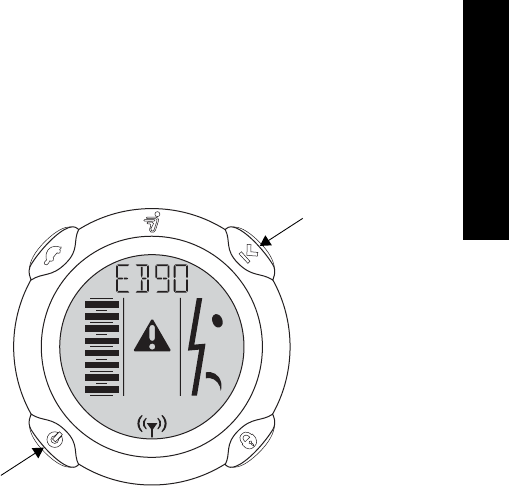
5. The third person may then press and hold both the Information
Display button and the Power/Standby button simultaneously
until the Safety Shutdown initiates. Figure 8 shows the InfoKey
Controller display during a training Safety Shutdown.
Figure 8. InfoKey Controller Display During a Training Safety
Shutdown
6. The spotter must continue holding the Segway PT so it does not
move.
7. The rider must step off the Segway PT before 10 seconds
elapse.The rider has approximately 10 seconds from the start of
a Safety Shutdown to come to a controlled stop and step off.
After 10 seconds, the Segway PT will immediately shut down
when the Wheels reach zero speed.
Power/Standby
Information
button
Display
button
34
LeanSteer Frame/Handlebar Assembly
Ensure the following:
zThe Handlebar is attached to the LeanSteer Frame.
zThe LeanSteer Frame is attached to the Powerbase.
zThe Handlebar is adjusted to the appropriate height.
See “Setting Up Your Segway PT” in the Getting Started
Manual.
The LeanSteer Frame pivots at the base to control left/right direction
of the Segway PT.
If you lean to the left while holding the Handlebar, the LeanSteer
Frame pivots and the Segway PT turns left. If you lean to the right
while holding the handlebar, the LeanSteer Frame pivots and the
Segway PT turns right. Always lean left or right in coordination with
the LeanSteer Frame.
Tire/Wheel Assembly and Fenders
Ensure that Tires are inflated to the proper tire inflation pressure as
specified in “Segway PT Specifications” on page 5.
Tires and Wheels are shipped as an assembly. Do not remove the
Tire from the Wheel.
The Fenders on the Segway PT are designed to protect the rider from
debris and to safeguard the rider while leaning into turns.

35
English
English
Mats
Your Segway PT comes with two Mats installed to the right and left of
the Console. These Mats protect the Rider Detect Sensors located
beneath them, as well as provide a comfortable surface on which to
stand. Mats should be secured in place prior to riding.
For more information, see “Removing/Installing the Mats”
on page 109.
Powerbase
The Powerbase consists of the following parts:
zConsole
zRider Detect Sensors
zController Boards
zMotors
zBalance Sensor Assembly
Console
The Console is located behind the LeanSteer Frame and between the
two Mats. The Console is assembled with a cover that should not be
removed. A replaceable trim piece snaps onto the cover.
There are two sets of Indicator lights on the Console (see Figure 9):
zBalance Indicator lights provide visual feedback about whether or
not the Segway PT is ready for you to step on.
zCharge Indicator lights provide Battery charge status information
for the Segway PT Batteries when the Segway PT is plugged into
AC power.
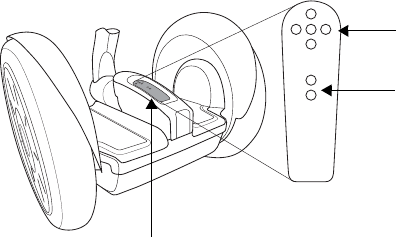
36
Figure 9. Console and Indicator Lights
Balance
Indicator lights
Charge
Indicator lights
Console
37
English
English
Balance Indicator Lights
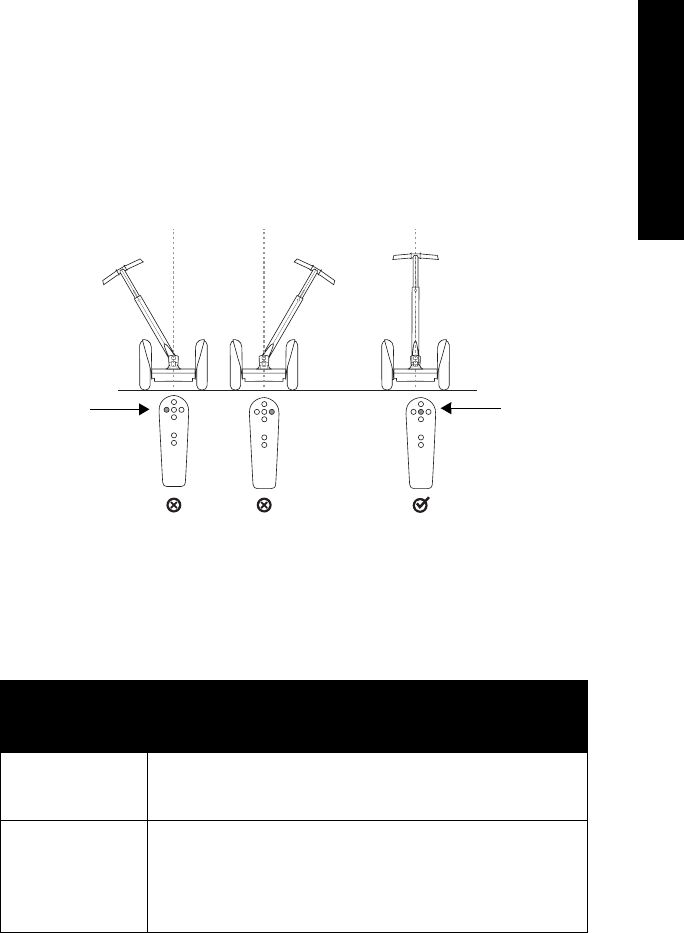
Five Balance Indicator lights are located on the Console. These lights
provide visual feedback about the balancing status of the Segway PT,
and help the rider determine when it is safe to step onto the Mats.
See Figure 10.
Figure 10. Balance Indicator Lights
Table 4 describes the Balance Indicator light patterns, and the
corresponding balance status of the Segway PT.
Table 4. Balance Indicator Light Patterns
Segway PT
Status
Light Pattern
Not Ready
Do not step on.
Off: No Balance Indicator lights are illuminated.
Red: One or more Balance Indicator lights are red.
Ready
Step on.
Green: Only the center Balance Indicator light is
green. All four other lights are not illuminated.
Green: All five Balance Indicator lights are pulsing
green.
Green
Red
38
Red Balance Indicator lights indicate that the Powerbase or
LeanSteer Frame are tilted, and the Segway PT is not ready to be
stepped on:
zOne red left or right Balance Indicator light.
Pivot the LeanSteer Frame in the opposite direction of the red
light, until the LeanSteer Frame is vertical, and the red Balance
Indicator lights are replaced by one green Balance Indicator light
in the center.
zOne red front or rear Balance Indicator light.
Tilt the Powerbase in the opposite direction of the red light, until
the Powerbase is level, and the red Balance Indicator lights are
replaced by one green Balance Indicator light in the center.
zTwo adjacent red Balance Indicator lights.
Move both the LeanSteer Frame and the Powerbase in the
opposite direction of the lights until the red Balance Indicator
lights are replaced by one green Balance Indicator light in the
center.
zFive red Balance Indicator lights.
Pivot the LeanSteer Frame until it is vertical, level the
Powerbase, make sure the Wheels are not moving, and wait until
the red Balance Indicator lights are replaced by one green
Balance Indicator light in the center.

39
English
English
Green Balance Indicator lights indicate that the Segway PT is ready
to be stepped on, or that a rider is already on:
zOne green Balance Indicator light in the center.
The Segway PT is in Standby Mode, ready for the rider to step
on.
zFive green Balance Indicator lights pulsing.
The Segway PT is in Riderless Balance Mode, ready for the rider
to step on.
zFour green Balance Indicator lights rotating.
The Segway PT is in Balance Mode with a rider on.
40
Battery Charge Indicator Lights
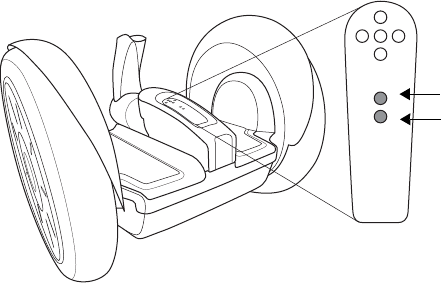
Two Charge Indicator lights on the Console indicate the charge status
of the Batteries when the Segway PT is plugged in. The front Charge
Indicator light corresponds to the front Battery and the rear Charge
Indicator light corresponds to the rear Battery. (See Figure 11).
zWhen the Segway PT is plugged in and charging, each Charge
Indicator light will either be flashing or solid green.
zIf one or both Charge Indicator lights is red or fails to illuminate,
there is a charging problem.
For more information, see “Charging Failures” on
page 70.
Figure 11. Battery Charge Indicator Lights
Console Trim
A trim piece fits over the Console. The Console Trim can be replaced,
and allows you to personalize the trim color on your Segway PT.
A spare InfoKey Controller battery ships with your new Segway PT,
stored beneath the Console Trim. CR2430 replacement batteries are
available at electronics stores.
You may remove or replace the Console Trim, but do not attempt to
remove the Console cover, beneath the Console Trim. The Console
cover is not a user-serviceable part.
Front
Rear
41
English
English
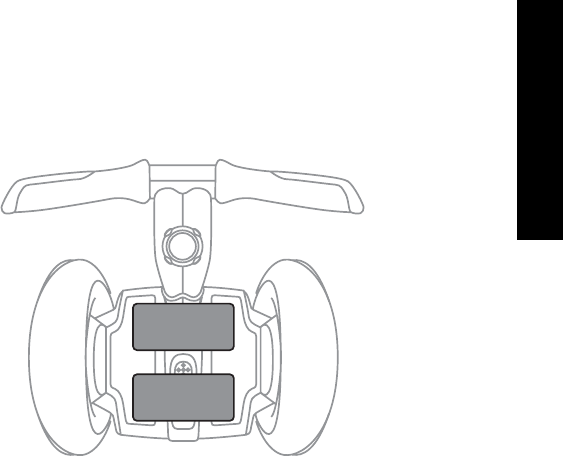
Understanding the Rider Detect Sensors
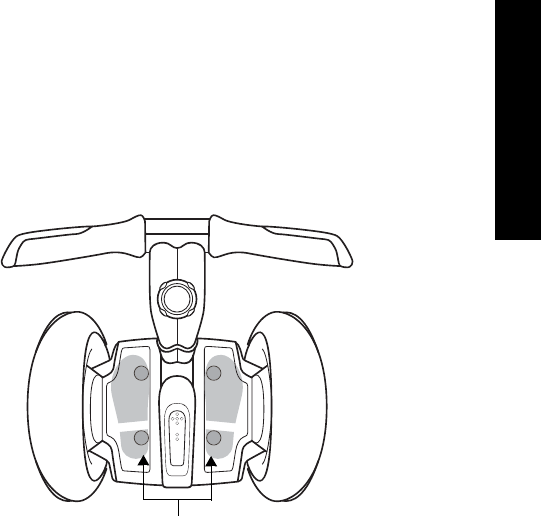
The Segway PT has four sensors located beneath the Mats. Rider
Detect Sensors detect the presence or absence of a rider while the
Segway PT is powered on.
When your feet are properly positioned on the Mats, all four Rider
Detect sensors depress, allowing the Segway PT to operate normally
in Balance Mode.
If fewer than three Rider Detect sensors are depressed while riding,
the Segway PT reduces the top speed limit regardless of whether
Beginner Setting is enabled or not. Once your feet are properly
positioned again, the Segway PT regains full performance.
If the Segway PT is moved too quickly while in Balance Mode and
none of the Rider Detect Sensors are depressed, the Segway PT will
give the Stick Shake Warning before exiting Balance Mode and
transitioning to Standby Mode.
Rider Detect
Sensors
42
To prevent a riderless Segway PT from traveling on its own,
never let go of it while it is in Balance Mode. It will travel some
distance on its own before shutting down, risking injury to
others and damage to the Segway PT.
WARNING!
Never place anything on the Mats, except your feet. Doing so
could interfere with the Rider Detect Sensors and allow the
Segway PT to travel on its own, risking running into a person
or property, and causing injury or damage.
WARNING!
43
English
English
Controller Boards
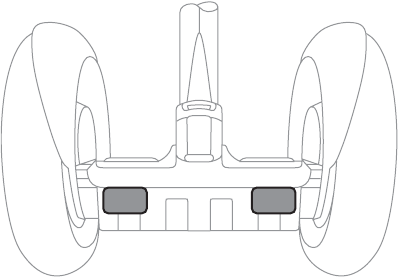
Figure 12 shows the location of the Controller Boards.
Figure 12. Location of Controller Boards
The two Controller Boards receive input from the Segway PT’s
Batteries, Motors, Rider Detect Sensors, LeanSteer Sensors, rate
and tilt sensors. Based on this input, the Controller Boards send
commands to the Motors that turn the Wheels.
If the system senses a malfunction in a critical component or a
Battery that is depleted beyond its safe limit, the Segway PT will
perform a Safety Shutdown.
For more information on Safety Shutdown, see “Safety
Shutdown” on page 55.
44
Motors
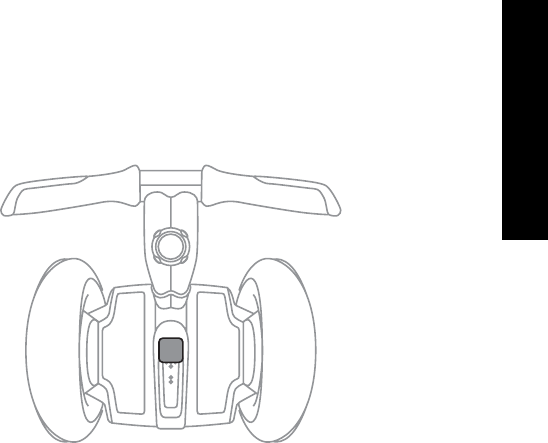
Figure 13 shows the location of the Motors.
Figure 13. Location of Motors
Each Wheel is independently driven by redundant, high-speed
electric Motors that are quiet and efficient. Each Motor is computer-
controlled to precisely regulate the Segway PT’s motion.
Each Motor is wound as two separate electrical circuits, capable of
independent operation, acting as one mechanical entity. If either
winding in a Motor fails, the Segway PT will perform a Safety
Shutdown.
For more information on Safety Shutdown, see “Safety
Shutdown” on page 55.
45
English
English
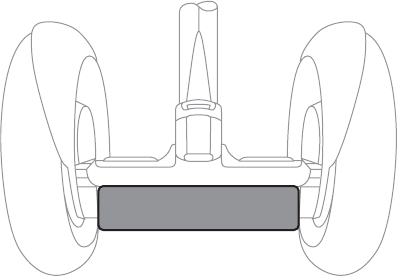
Balance Sensor Assembly
Figure 14 shows the location of the Balance Sensor Assembly.
Figure 14. Location of Balance Sensor Assembly
The Balance Sensor Assembly contains five angular rate sensors
(solid state gyroscopes) and two tilt sensors. The Balance Sensor
Assembly sends information about the Segway PT’s orientation to the
Controller Boards. All sensors are constantly monitored by the
Segway PT to ensure each is operating correctly. If one of these
sensors fail, the Segway PT will perform a Safety Shutdown.
For more information on Safety Shutdown, see “Safety
Shutdown” on page 55.
46
Batteries
Figure 15 shows the location of the Batteries.
Figure 15. Location of Batteries
The two Batteries are sealed units (when properly installed) that
require no maintenance other than proper charging and storage. The
Batteries are interchangeable and can each be installed in either the
front or rear of the Powerbase. For the Segway PT to operate, both
Batteries must be installed, and both must be Li-ion Batteries. If one
Battery fails or is depleted beyond its safe limit, the Segway PT will
perform a Safety Shutdown.
For more information on Safety Shutdown, see “Safety
Shutdown” on page 55.

47
Chapter 3:
English
Understanding the
Safety Alerts
This chapter describes the Segway PT’s safety alerts. The safety
alerts include:
zSpeed Limiter
zStick Shake Warning
zSafety Shutdown
It is important that you recognize these alerts and know how to
respond appropriately before you ride your Segway PT.
Read and follow all the instructions in the Getting Started
Manual, this Reference Manual and watch the Safety Video for
important safety information about the Speed Limiter, Stick
Shake, and Safety Shutdown safety alerts.
WARNING!
Not every safety issue triggers an alert. For additional safety tips
and guidelines, see “Avoiding Hazards” in the Getting Started
Manual.
NOTE:
48
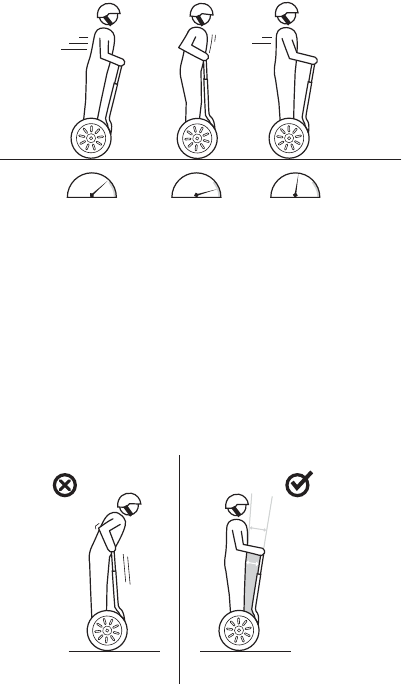
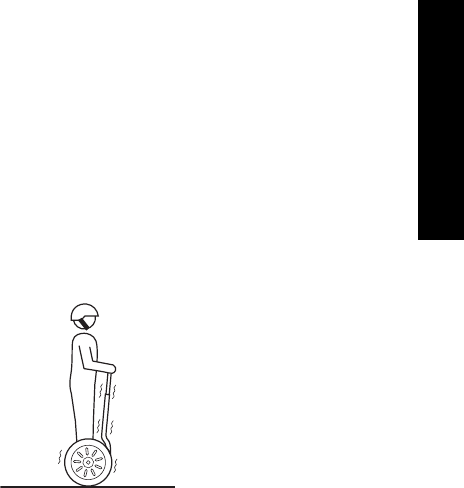
Speed Limiter
When you approach the maximum allowed speed, the Segway PT’s
Speed Limiter will push the Handlebar back to slow you down. (see
Figure 16).
Figure 16. Speed Limiter
The Segway PT’s Speed Limiter is an alert that you are moving too
fast! When the Speed Limiter pushes the Handlebar back, stop
leaning forward and slow down. Always leave a gap between
yourself and the Handlebar as shown in Figure 17. Once you slow to
a speed that the Segway PT determines is safe, it will resume normal
operation and riding position.
Figure 17. Gap Between Rider and Handlebar
49
English
English
The speed at which the Speed Limiter pushes the Handlebar back
depends on a variety of factors including riding style, terrain, payload,
whether or not the Beginner Setting is enabled, Battery condition, foot
positioning, and other factors.
Riding against the Handlebar can cause loss of control,
collisions, falls, and injury.
WARNING!
Conditions that may cause the Speed Limiter to activate and show
the face icon with the straight mouth along with the Warning icon,
when you are traveling at less than the maximum speed allowed for
your operating mode include:
zRiding up a steep hill
zRiding on bumpy terrain
zRiding with fewer than three Rider Detect Sensors
depressed
zThe first few seconds after you power on and step on the
Powerbase
zLow Battery charge
zBatteries that are too hot or too cold
zRiding down a hill with fully charged Batteries
Because of regenerative charging, if the Batteries are fully
charged, the Segway PT will activate the Speed Limiter to
avoid overcharging.
NOTE:
50
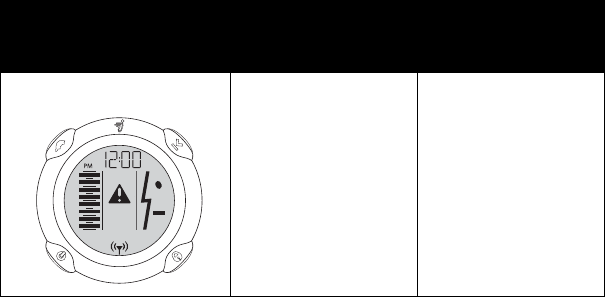
Table 5 shows the icons that display on the InfoKey Controller when
the Speed Limiter is engaged at a speed lower than the top speed set
by the InfoKey Controller. This table also describes the error that has
occurred and the recommended action you should take.
Table 5. Speed Limiter (Display Icon and Recommended Action)
Display Icon Description Recommended
Action
The Segway PT is
operating at
reduced
performance levels
due to a temporary
condition. The
speed limit has
been lowered until
the condition clears.
When the Speed
Limiter pushes the
Handlebar back,
stop leaning forward
and slow down.
Always leave a gap
between yourself
and the Handlebar.
51
English
English
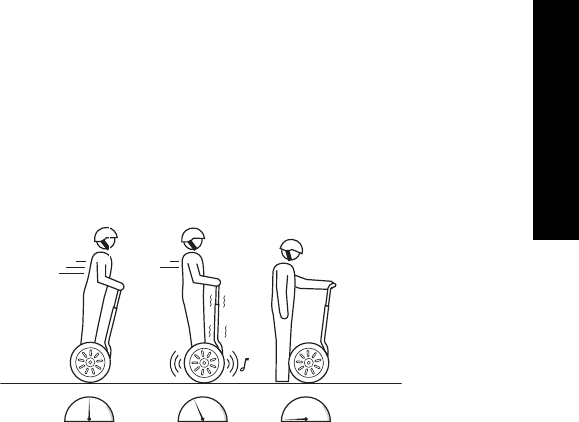
Stick Shake Warning
One of the ways that the Segway PT notifies you when you are at risk
of falling is by shaking the Handlebar and making growling noises.
This is called the Stick Shake Warning. The Stick Shake Warning can
occur in conjunction with, or independent of the Speed Limiter and
Safety Shutdown alert, depending on your riding situation (see
Figure 18).
Figure 18. Stick Shake Warning
52
Rider On
If the Stick Shake Warning occurs while riding, slow down. If the Stick
Shake Warning persists, come to a stop and safely step off. Do not
attempt to ride again until the condition that caused the persistent
Stick Shake Warning has been identified and corrected. If the Stick
Shake Warning occurs while you are stopped or stuck, step off
immediately and do not attempt to ride again until:
zYou are clear of all obstacles and slopes.
zYou are certain that you did not experience a Safety Shutdown.
For additional information, see “Safety Shutdown” on
page 55.
When riding, the Stick Shake Warning occurs if you demand too
much power from the Segway PT. The Stick Shake Warning can
happen when riding on a steep slope, rough terrain, or against an
obstacle, or when accelerating or decelerating abruptly. The Stick
Shake Warning also occurs if you ride backward too fast or if you try
to step on the Segway PT when it is not ready to balance. The Stick
Shake Warning is more likely to occur when your Batteries are low,
cold, heavily used, or poorly maintained because there is less energy
available to keep you balanced.
Table 6 lists possible causes of the Stick Shake Warning and
recommended actions to take when the Stick Shake Warning occurs
with a Rider on the Mats.

53
English
English
Table 6. Stick Shake Warning With a Rider on the Mats
Possible Causes Recommended Action
Riding aggressively, accelerating
or stopping abruptly.
Ride more smoothly and slowly.
Riding against the Handlebar
causing you to demand too much
power.
Leave a gap between you and
the Handlebar.
Riding on rough terrain or steep
slopes causing you to demand
too much power.
Ride on smoother, flatter, less
demanding terrain. If on a slope,
turn perpendicular to the slope,
step off, and walk your Segway
PT in Riderless Balance Mode.
Riding against an obstruction
such as a door frame or curb that
stops the Wheel while you
continue to demand power.
Stop pushing against the
obstruction. Stop, step off, and
proceed by walking around the
obstruction with the Segway PT
in Riderless Balance Mode.
Riding backwards too quickly. Stop, turn in place, and proceed
forward.
Safety Shutdown has begun. Come to a controlled stop and
safely step off the Powerbase
within 10 seconds.

54
Rider Off
You do not have to be riding the Segway PT for the Stick Shake
Warning to occur. The Stick Shake Warning occurs if the Segway PT
is moved too quickly while in Riderless Balance Mode. Riderless
Balance Mode is when the Segway PT is in Balance mode without a
rider standing on the Powerbase. The Stick Shake Warning also
occurs if the Wheels spin as you pull the Segway PT over a curb or
up stairs.
Table 7 lists possible causes of the Stick Shake Warning and
recommended actions to take when the Stick Shake Warning occurs
with no Rider on the Mats.
Table 7. Stick Shake Warning With No Rider on the Mats
Possible Causes Recommended Action
Moving a Segway PT too quickly
with no rider on the Powerbase
while in Riderless Balance Mode.
When moving your Segway PT in
Riderless Balance Mode, you
must move slowly and carefully.
Always keep the Segway PT
below you (lead it up stairs or
slopes and keep it below you
when descending stairs or
slopes).
Stepping on the Segway PT
when it is powered on, but not
ready to for you to step on.
Step off, center the LeanSteer
Frame, and level the Powerbase.
Once the center Balance
Indicator light turns green, step
on again.
55
English
English
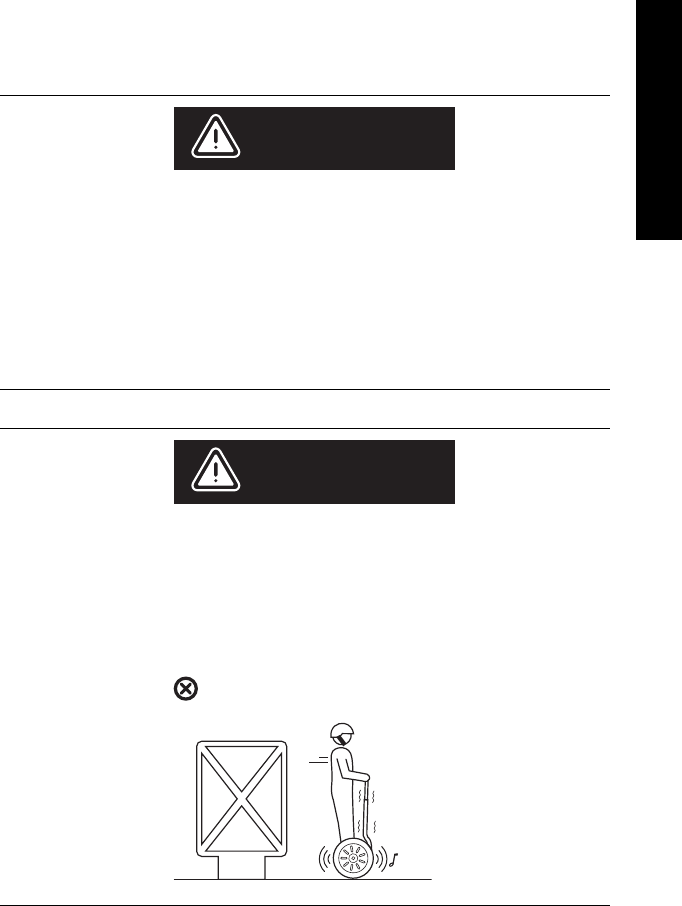
Safety Shutdown
If the Segway PT detects a fault in any of its redundant systems or a
Battery is depleted beyond its safe limit, it performs a Safety
Shutdown (see Figure 19).
Figure 19. Safety Shutdown
When a Safety Shutdown occurs, the Segway PT automatically
reduces its speed, gives the Stick Shake Warning (shakes the
Handlebar and makes growling noises), flashes the Balance Indicator
lights, emits a warning tone, and the InfoKey Controller displays an
unhappy face.

56
You have approximately 10 seconds from the start of a Safety
Shutdown to come to a controlled stop and step off. After 10 seconds,
the Segway PT will immediately shut down when the Wheels reach
zero speed.
If a Safety Shutdown occurs:
1. Immediately come to a controlled stop.
2. Carefully step off one foot at a time.
57
English
English
Never restart and ride your Segway PT after it has indicated an
empty Battery condition or performed Safety Shutdown due to
low Battery. The Segway PT may not have enough power to
keep you balanced, especially if you demand a lot of power at
once. If you restart and continue riding, you risk falling. Also,
you risk damaging your Batteries, resulting in reduced Battery
life and capacity. If the condition persists, contact an
Authorized Segway Dealer or Distributor.
WARNING!
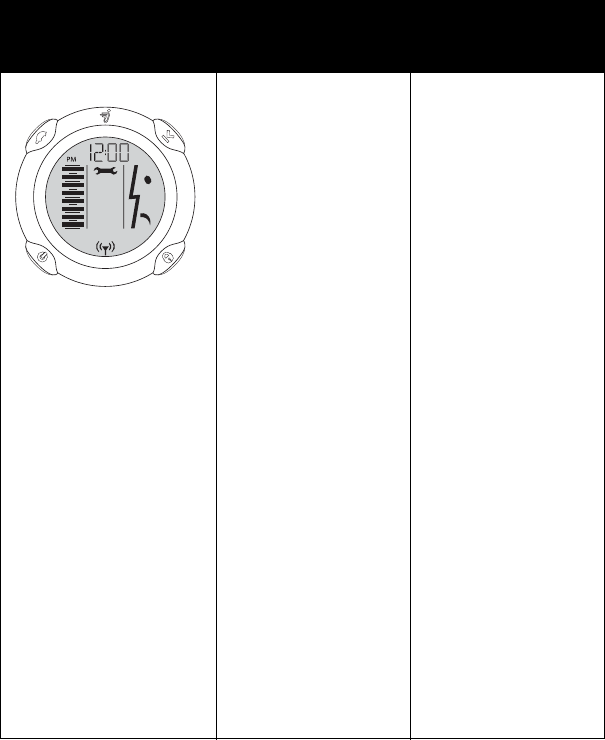
Theft detection systems, such as the type used in some
libraries and retail stores can interfere with the Segway PT’s
ability to balance and/or cause the Segway PT to perform a
Safety Shutdown. Do not ride within 5 feet (1.5 meters) of any
theft detection system.
WARNING!
58
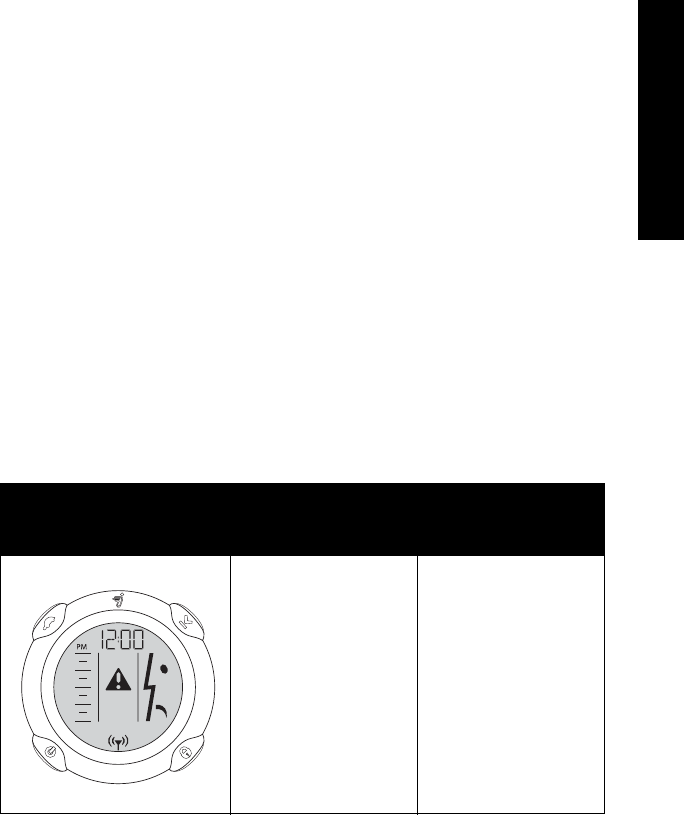
Table 8 shows the InfoKey Controller icon that displays when a
Safety Shutdown occurs. The table also describes the recommended
action you should take.
Table 8. Safety Shutdown (Icon and Recommended Action)
Display Icon Description Recommended
Action
The system has
detected a fault and
is slowing to zero
speed before
shutdown (full
Segway PT Battery
charge level shown).
If a Safety Shutdown
occurs:
1. Immediately
come to a
controlled stop.
2. Carefully step off
one foot at a time.
You have
approximately 10
seconds from the
start of the Safety
Shutdown to
come to a
controlled stop
and step off the
Powerbase.
Do not resume use of
your Segway PT
after a Safety
Shutdown has
occurred until you
have identified and
corrected the
condition that caused
it. See
“Troubleshooting
the Segway PT”
on page 119.
59
English
English
Empty Battery Condition
The Segway PT notifies you of a pending empty Battery condition
before starting a Safety Shutdown.
An unhappy face icon displays on the InfoKey Controller, the
Segway PT’s speed is limited, and the Segway PT emits a warning
tone.
Whenever the Segway PT notifies you of a pending empty Battery
condition, come to a controlled stop and safely step off of the
Segway PT before the Safety Shutdown begins.
Table 9 shows the InfoKey Controller icon that displays when a
pending empty Battery notification occurs. The table also describes
the recommended action you should take.
Table 9. Empty Battery Condition (Icon and Recommended
Action)
Display Icon Description Recommended
Action
The system has
detected and
notified you of a
pending empty
Battery condition.
Come to a
controlled stop and
safely step off of the
Segway PT before
the Safety
Shutdown begins.
Do not resume use
of your Segway PT
until you have
charged the
Batteries.

60
In some cases, old, cold, heavily used, or poorly maintained
Batteries may develop a high resistance condition. This can cause a
pending empty Battery condition to occur even if the Batteries were
recently charged.
NOTE:

61
Chapter 4:
English
Using the Batteries
This chapter describes:
zCharging the Segway PT Batteries.
zMaintaining your Segway PT Batteries.
zSafety rules.
zSpecifications.
Battery Safety
For your safety and the safety of others, and to maximize
Battery life and performance, follow the instructions in this
Manual.
WARNING!

62
Do not use the Batteries if the casing is:
zBroken
zEmits an unusual odor or excessive heat
zLeaks any substance.
Avoid contact with any substance seeping from the Batteries.
Keep Batteries out of reach of children and pets. Exposure to
Battery voltage could result in death or serious injury.
Unplug and disconnect your Segway PT from AC power before
removing or installing Batteries or performing any service. It is
hazardous to work on any part of your Segway PT when it is
plugged into AC power. You risk serious bodily injury from
electric shock as well as damage to your Segway PT.
The cells within the Batteries contain toxic substances. Do not
attempt to open Batteries. Do not insert any object into the
Batteries or use any device to pry at the Batteries casing. If
you insert an object into any of the Batteries’ ports or
openings you could suffer electric shock, injury, burns, or
cause a fire. Attempting to open the Batteries casing will
damage the casing and could release toxic and harmful
substances.
Only charge the Batteries using charging devices approved by
Segway.
Comply with all local and federal and individual country laws
when disposing of and transporting the Segway PT Batteries.
WARNING!

63
English
English
Specifications for the Batteries
Table 10 lists the specifications for the Batteries.
Table 10. Specifications
Specification for Batteries Li-ion-92 Cell
Charging Time
Before First Use 12 hours
Recharge from Empty: ~8 hours
Temperature Ranges
Operating 14°F to 122°F (-10°C to 50°C)
Charging 14°F to 122°F (-10°C to 50°C)
Storage and Transport -4°F to 122°F (-20°C to 50°C)
General
Capacity (Ah) and Voltage 5.8 Ah, 73.6 V~
Dimensions 14 x 7.5 x 3.2 in (35.7 x 19 x 8.2 cm)
Battery Pack Weight (pair) 22.7 lbs (10.3 kg)
If you use, charge, or store your Segway PT Batteries outside the
limits specified, you may void the limited warranty, damage your
Batteries, and/or experience reduced range and ineffective Battery
charging.
NOTE:

64
Charging Your Batteries
To maximize the performance of your Segway PT Batteries, fully
charge your Batteries for at least 12 hours, once a month, or after
every 12 hours of operation—whichever comes first. Charge your
Batteries only when they are within the specified charging
temperature range
For more information, see “Specifications for the
Batteries” on page 63.
Charging times vary depending on the following:
zAmount of charge already stored in the Batteries— The lower the
Battery Charge Level is, the longer it will take to complete the
charging process.
zTemperature of the Batteries— Batteries that are too hot or too
cold may not charge or may take much longer to charge.
Batteries charge most efficiently when they are close to the
center of the recommended charging temperature range.
For more information, see “Specifications” on
page 63).
Failure to charge the Batteries could result in permanent damage to
them. Left unplugged, the Batteries could fully discharge over time,
causing permanent damage.
Use only charging devices approved by Segway.
CAUTION
65
English
English
To charge the Batteries:
1. Put your Segway PT in a clean, dry place, within the
recommended charging temperature range.
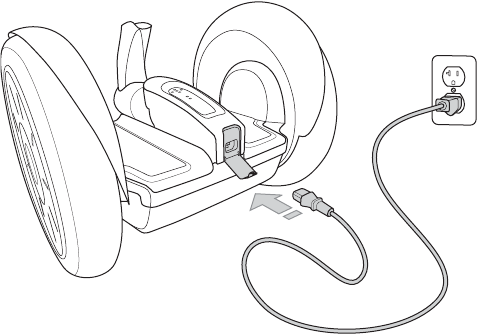
2. Open the Charge Port on the back of your Segway PT’s Console
(see Figure 20).
Figure 20. Open the Charge Port
3. Verify that the Charge Port, Power Cord and AC Power outlet are
clean, dry, and free of debris.
Charge Port
Do not insert the plug if the Charge Port, Power Cord or AC
Power outlet is wet.
WARNING!
67
English
English
6. Verify that the two Charge Indicator lights on the Console
illuminate green to confirm the Batteries are charging (see
Figure 23).
Figure 22. Location of Battery Charge Indicator Lights
For more information on the Charge Indicator lights,
see “Battery Charge Indicator Lights” on page
69.
Front
Rear
The Segway PT’s charging system is automatically controlled to
prevent overcharging. Plug your Segway PT into a grounded AC
power outlet when it is not in use, even if you do not plan to use it
for an extended period of time.
NOTE:

68
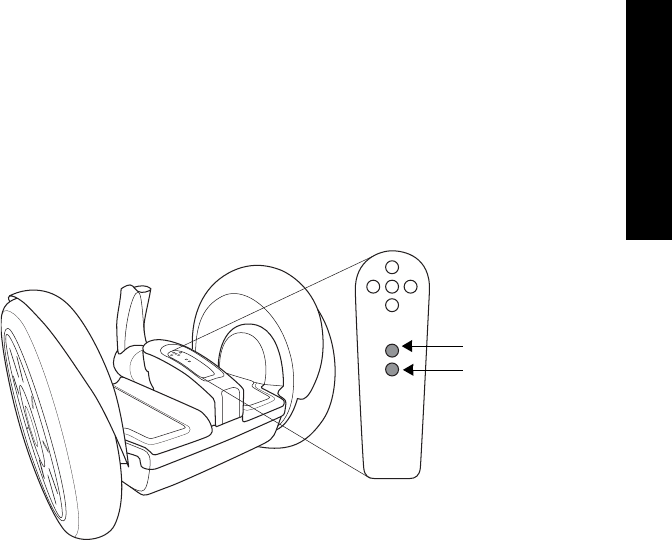
Unplugging the Segway PT
When you are ready to use your Segway PT, remove the Power
Cord, then close the Charge Port Cover as follows:
1. Disconnect the Power Cord from the Charge Port on the
Segway PT.
2. Disconnect the Power Cord from the grounded AC outlet.
3. Store the Power Cord.
4. Close the Charge Port Cover.
Always keep the Charge Port Cover closed, except when you are
charging the Segway PT.
Closing the Charge Port Cover prevents water, dirt, dust, and other
contaminates from entering the Charge Port and causing damage
to your Segway PT.
CAUTION
69
English
English
Battery Charge Indicator Lights
Two Charge Indicator lights on the Console indicate the charge status
of the Batteries when the Segway PT is plugged in. The front Charge
Indicator light corresponds to the front Battery and the rear Charge
Indicator light corresponds to the rear Battery (see Figure 23).
Figure 23. Location of Battery Charge Indicators
The Charge Indicator lights provide independent information
regarding whether each Battery is charging.
When the Segway PT is plugged in and charging, both Charge
Indicator lights will be flashing or solid green.
If one or both Charge Indicator lights is red or fails to illuminate, there
is a charging problem with the corresponding Battery.
For more information, see “Charging Failures” on
page 70.
Front
Rear

70
Charging Failures
If a failure is detected during charging, all charging will stop.
Depending on the nature of the failure, a solid red Charge Indicator
light displays or the Charge Indicator light is off.
If either or both Charge Indicator lights are red or off, check the
following:
1. If the Charge Indicator lights are off (no illumination), check that
AC power is present, and ensure the Power Cord is full seated in
the Charge Port.
2. If AC power is present and the Charge Indicator lights are either
red or off, unplug the power cord, then remove and reseat the
Battery Pack(s).
For instructions, see “Removing the Batteries” on
page 100 and “Reattaching the Batteries” on
page 102.
3. If these actions fail to resolve the problem, contact an Authorized
Segway Dealer or Distributor.
Regenerative Braking
The Segway PT has a regenerative braking system that charges the
Batteries when descending a hill or slowing down.
When you ride down a hill, you may notice an increase in the Battery
charge level. If your Batteries are already completely full at the top of
a hill, when you descend, you may feel the Speed Limiter engage to
keep the Segway PT from overcharging its Batteries.
For more information on the Speed Limiter, see “Safety
Shutdown” on page 55.
71
English
English
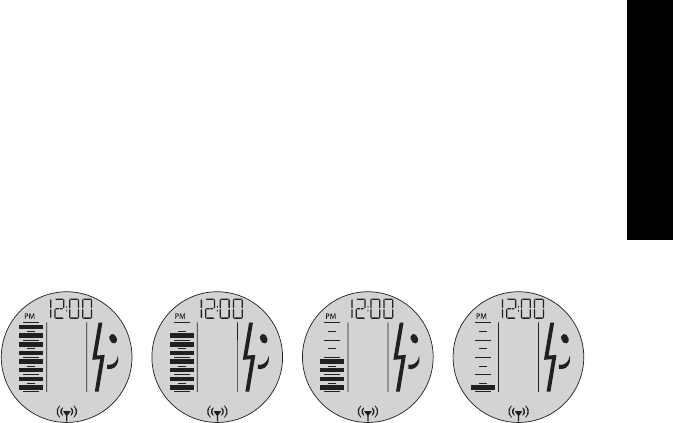
Reading the Battery Charge Level
Display
The horizontal bars on the left side of the InfoKey Controller display
indicate the levels of the charge in the Segway PT Batteries. Figure
24 shows how the Segway PT Battery Gauge on the InfoKey
Controller changes as the Battery is depleted.
Figure 24. InfoKey Controller Display with Battery Charge Being
Depleted
The more charge the Batteries contain, the more horizontal bars are
shown. If the Battery charge level is very low, the Segway PT will
notify you of a pending empty Battery condition prior to initiating
Safety Shutdown.
For more information, see “Safety Shutdown” on page 55.
Do not ride your Segway PT if there is inadequate charge in the
Batteries (indicated by the unhappy face icon on the InfoKey
Controller and no dark horizontal lines on the Battery Charge display).
Carefully monitor your Segway PT Battery Gauge and be prepared to
step off if your Battery charge becomes completely depleted.
Full Charge Low Charge
72
Surface Charge (Partial Charge)
Whenever you do not fully charge the Segway PT’s Batteries, surface
charge or partial charge may affect the accuracy of the Battery
charge level display, causing it to show a higher charge level than
actually exists.
After you power on, check the Battery charge level display and then
ride for at least three or four minutes and check the Battery charge
level display again. If the Battery charge level display shows rapid
charge depletion during this time, the Batteries have received only a
surface charge. If necessary, plug the Segway PT back in and
recharge.
Recalibrating the Display
The Segway PT indicates the Battery charge level in the InfoKey
Controller, as described in “Reading the Battery Charge Level
Display” on page 71.
The display may be inaccurate after long periods of storage, or during
initial use. To recalibrate the display:
1. Fully charge the Batteries for 12 hours.
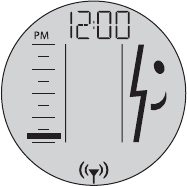
2. Discharge the Batteries until the bottom bar in the Display is
blinking (approximately 10 percent Battery charge remaining).
The InfoKey Controller will display the following:
3. Leave your Segway PT in a safe, secure location, powered on,
until the Battery charge is fully depleted, and your Segway PT
powers down.
73
English
English
4. Fully recharge the Batteries for a minimum of 12 hours, after
which the Battery Charge Level Display will be recalibrated.
Depleting your Segway PT Batteries from the bottom bar to empty
could take several hours, depending on Battery condition and the
amount of charge remaining.
NOTE:
Do not ride your Segway PT to full Battery depletion. To safely
discharge Batteries below the bottom bar, you should leave
your Segway PT powered on in Balance Mode leaning against
a wall in a secure location.
WARNING!
To avoid injury, damage, and to deter theft, be sure your
Segway PT discharges in a safe, secure location, powered on in
Riderless Balance Mode.
CAUTION
74
How Temperature Affects Performance
The Batteries are usually significantly warmer than the air
temperature due to heating that occurs as electricity is delivered from
them (while riding) and to them (while charging.)
Riding in Hot or Cold Temperatures
The Batteries will run at the highest efficiency when you operate them
nearest the center of the recommended operating temperature range.
If the Batteries on your Segway PT become too hot or too cold while
riding, the Segway PT may activate a safety alert.
For more information, see “Understanding the Safety
Alerts” on page 47.
75
English
English
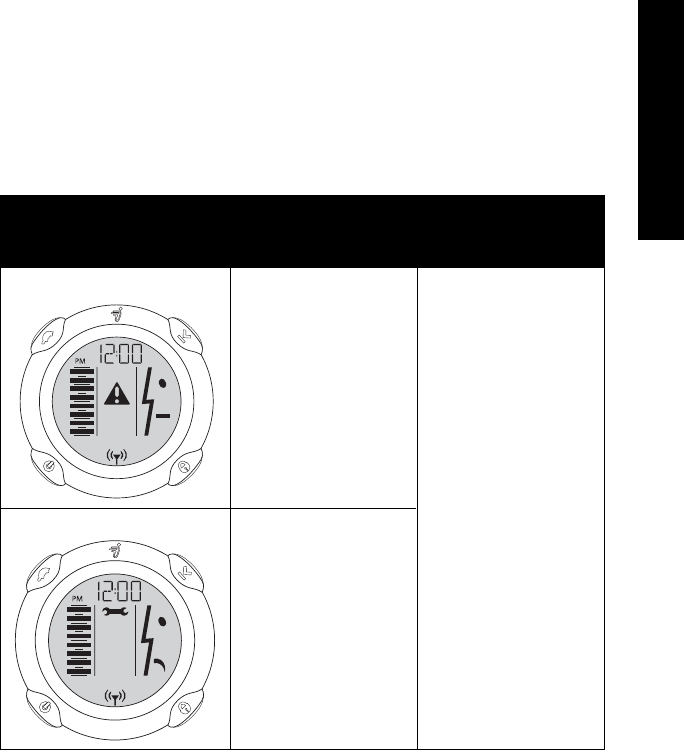
Table 11 shows the InfoKey Controller icon that displays when your
Segway PT Batteries become too hot or too cold.
As with all batteries, less energy is available at low battery
temperatures. You may not be able to travel the same distance when
the Batteries are cold, as when the Batteries are nearer to room
temperature.
Table 11. Riding in Hot and Cold Temperatures (Icon and
Recommended Action)
Display Icon Description Recommended
Action
Speed Limiter or
Stick Shake
Warning
Respond as
instructed in
Chapter 3,
“Understanding
the Safety
Alerts.”
Allow your Batteries
to warm or cool to
within the
recommended
operating
temperature range
prior to riding. For
more information,
see
“Temperature
Ranges” on
page 63.
Safety Shutdown
76
Charging in Hot or Cold Temperatures
Your Batteries should be within the recommended charging
temperature range prior to and during charging.
For the recommended Battery charging temperature range,
see “Temperature Ranges” on page 63.
The Batteries will charge most efficiently when they are nearest the
center of the recommended charging temperature range.
If your Batteries are too hot or too cold, they may take longer to
charge, or they may not charge at all.
If you are concerned that the Batteries may be too cold or
overheated during charging, see “Charging Failures” on
page 70.

77
English
English
Replacing Batteries
Your Segway PT is powered by two rechargeable Li-ion Batteries.
With normal usage and proper maintenance, Batteries should last the
equivalent of 600 to 1000 full charges. As your Batteries near the end
of their useful life, they need more frequent charging and your
Segway PT’s range will be reduced. To order replacement Batteries,
contact an Authorized Segway Dealer or Distributor.
Replacing Batteries in Pairs
Whenever you need to replace a Battery, consider replacing both
Batteries, and always use pairs of Batteries with the same chem-
istry. Replacing only one Battery will not necessarily increase the
performance or range of your Segway PT, because the Segway
PT is designed to operate only at the level allowed by the lower-
energy Battery.
Redundancy is a critical safety feature built into the Segway PT
that also applies to the Batteries. Therefore, you should replace
Batteries in pairs (except for the unusual situation where a Bat-
tery is replaced because of damage or defect and the other Bat-
tery is relatively new).
For information on removing and reseating
Batteries, see “Removing the Batteries” on page
100 and “Reattaching the Batteries” on page 102.

78
Transporting and Shipping
Batteries
If you are transporting your Segway PT, protect the Batteries to avoid
damage during shipment. Do not expose the Batteries to direct heat
or moisture, and avoid heavy vibration during transportation.
Do not use or transport a Battery if the casing breaks open,
leaks any substance, becomes excessively hot, or if you detect
an unusual odor.
Do not handle a damaged or leaking Battery unless you are
wearing disposable rubber gloves, eye protection, and are in a
well-ventilated area. Dispose of the rubber gloves and
damaged Battery properly in accordance with regulations
governing disposal of toxic materials.
WARNING!
79
English
English
Shipping Li-ion Batteries
This section provides guidelines for shipping your Segway PT and the
associated Batteries.
Table 12 lists the shipping methods allowed for Li-ion Batteries
Table 12. Shipping Li-ion Batteries
Ground Sea Air
Batteries
Installed
Allowed Allowed Not allowed.
Hazardous
Materials
regulations apply. *
Batteries Not
Installed
Not allowed. Hazardous Materials regulations apply.*
* Contact an Authorized Segway Dealer or Distributor, or refer to
www.segway.com.
Li-ion Batteries are considered Hazardous Materials under
shipping regulations. Comply with all local, federal and
individual country laws when transporting the Segway PT
Batteries.
WARNING!

80
If you need to arrange air shipment of your Segway PT with Li-ion
Batteries installed, or if you need to arrange shipment of your Li-ion
Batteries separate from the Segway PT by any means of transport,
contact Segway or an Authorized Segway Dealer or Distributor for
detailed information on shipping of hazardous materials.

81
Chapter 5:
English
Operating and
Maintaining Your
Segway PT
The Segway PT is designed to be virtually maintenance free. Make
sure it is clean, all parts are installed and functioning properly,
Batteries are charged, and Tires are properly inflated prior to riding.
Never open the Console, Powerbase or Gearboxes. These are not
user-serviceable parts.
This chapter describes:
zGeneral maintenance procedures related to your Segway PT.
zImportant operating tips.
Before you perform any of the following procedures, verify that
the Segway PT is powered off and unplugged. It is not safe to
perform these procedure while the Segway PT is powered on
or charging.
WARNING!
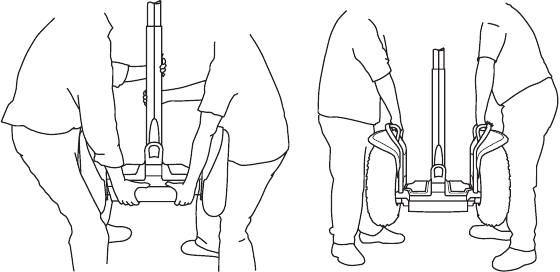
82
Lifting Your Segway PT
Use proper techniques to safely lift and load your Segway PT.
Segway recommends that two people work together to lift the
Segway PT. To lift the Segway PT:
1. Make sure the Segway PT is unplugged and powered off.
2. Select firm, non-moving lifting points such as the Powerbase or
lower cargo frames if provided.
3. Lift the Segway PT with your legs, not your back. See Figure 25.
Figure 25. Lifting the Segway PT
Lifting the i2 Lifting the x2

83
English
English
Watch Your Fingers! Never lift the Segway PT by its Tires,
Fenders, or Wheels because your hands or fingers could
become caught between the Tire and the Fender, resulting in
injury.
WARNING!
84
Maintaining Tires and Wheels
To ensure safe and efficient operation of your Segway PT, be sure to
check Tires and Wheels regularly, especially if you have recently
performed service on a Tire/Wheel Assembly.
Checking the Tire/Wheel Assembly
To check the Tires and Wheels:
1. Make sure the Segway PT is unplugged and powered off.
2. Check for Wheel wobble by grasping the Tire/Wheel Assembly
and attempt to move it side-to-side. The Tire/Wheel Assembly
should not move laterally. If you detect Wheel wobble, check the
Wheel nut and tighten if necessary.
For additional information regarding service procedures for
the Tire/Wheel Assembly, see “Installing the Tire/Wheel
Assembly” on page 107.
Checking Tire Inflation Pressure
The Tires on the Segway PT provide suspension and traction. Both
functions are affected by the tire inflation pressure. Be sure to:
1. Make sure the Segway PT is unplugged and powered off.
2. Check tire inflation pressure regularly. Improperly inflated Tires
will result in less than optimal range.
3. If tire inflation pressure in either Tire is not at the level stated in
the “Segway PT Specifications” on page 5 for your
Segway PT model, inflate the Tire to the specified pressure.
4. Check that both Tires are inflated equally and are free of debris
or contaminates.
85
English
English
The tire pressure stated on any affixed Wheel label (near the
inflation valve) supersedes any recommended pressure stated
on the Tires.
Higher pressure reduces suspension performance and
traction, and increases risk of loss of control, collisions, and
falls.
Lower pressure reduces range and increases risk of damage to
the Tire/ Wheel Assembly.
Unequal pressure causes the Segway PT to turn in the
direction of the lower pressure tire.
WARNING!
86
Cleaning Your Segway PT
To clean your Segway PT:
1. Make sure the Segway PT is unplugged and powered off.
2. Always close the Charge Port Cover after charging, and prior to
cleaning.
3. Gently clean your Segway PT with soap and water and a soft
cloth.
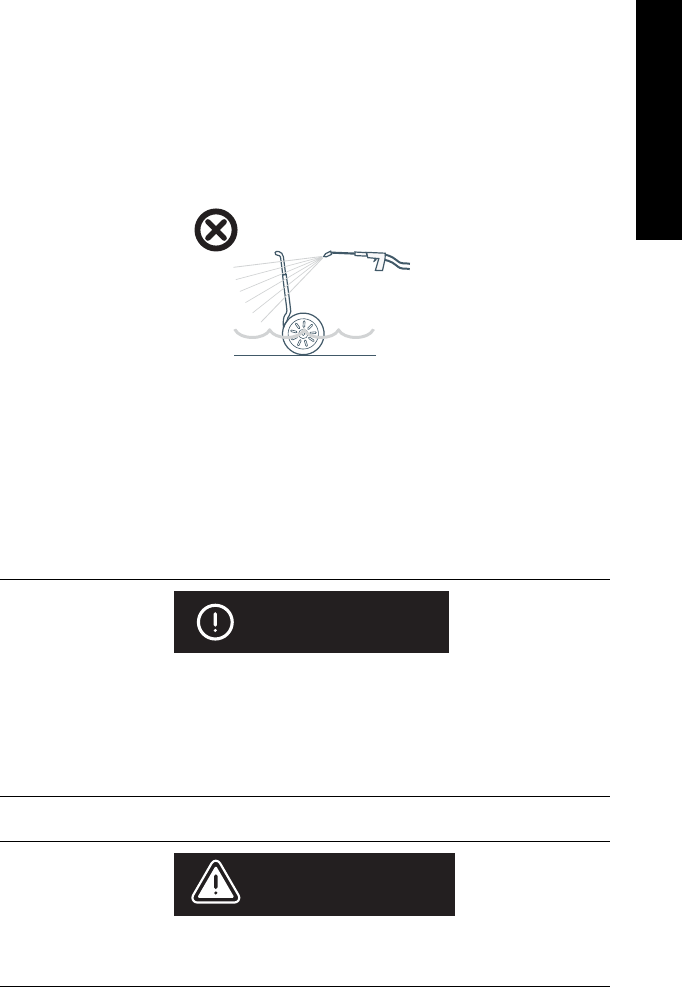
87
English
English
Avoid Submerging Your Segway PT
Submerging your Segway PT can cause permanent damage (see
Figure 26).
Figure 26. Avoid Submersion
Observe the following rules regarding submersion and water:
zDo not submerge the Batteries or Powerbase in water.
zAvoid exposure to heavy downpours or extended periods of
heavy rain (when riding, storing, or transporting the Segway PT).
Do not use a power washer or high pressure hose to clean
your Segway PT. Use of these devices could force water into
components that must stay dry.
Do not allow water to get into the Charge Port.
CAUTION
Do not clean the Mat or Tires with any specialized cleaners.
Use of such products may reduce traction.
WARNING!

88
Storing Your Segway PT
To maximize the performance of your Segway PT Batteries, fully
charge your Batteries for at least 12 hours, once a month, or after
every 12 hours of operation—whichever comes first. Charge your
Batteries only when they are within the specified charging
temperature range.
Store your Segway PT (and its Batteries) indoors, in a place that is
free of moisture, humidity, and temperature extremes. Even if you will
not be using your Segway PT for an extended period of time, you
should leave it plugged into AC power. Otherwise the Batteries could
fully discharge over time, causing permanent damage.
Store your Segway PT within the recommended charging and storage
temperature ranges, as shown in Table 10 on page 63 to preserve
the full performance capabilities of the Segway PT Batteries.
Failure to charge the Batteries could result in permanent damage to
them. Left unplugged, the Batteries could fully discharge over time,
causing permanent damage.
Use only charging devices approved by Segway.
CAUTION
89
Chapter 6:
English
Servicing Your
Segway PT
This chapter describes how to service your Segway PT.
General Information
Always shut down your Segway PT and unplug the AC Power
Cord before performing any maintenance or installing any part
or accessory.
WARNING!
Do not attempt to open the Powerbase or Console. There are
no user-serviceable parts inside. By opening the Powerbase or
Console, you risk electric shock injury. Also, you could void
your limited warranty, damage your Segway PT, and render it
unsafe to use.
Do not attempt to open the Gearboxes. There are no user-
serviceable parts inside. You could damage your Segway PT
and render it unsafe to use.
WARNING!
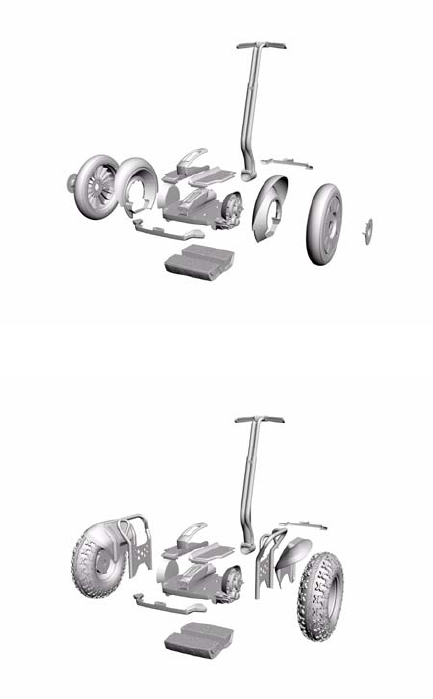

91
English
English
If you have a question on parts or replacements, please contact an
Authorized Segway Dealer or Distributor. For a list of Dealers and
Distributors, visit www.segway.com.
Replacing Parts
If a part breaks or needs replacement, contact an Authorized Segway
Dealer or Distributor. Certain parts are user-replaceable. Use only
Segway-provided replacement parts and fasteners. See your
Segway PT Limited Warranty for a list of owner-replaceable parts.
Torque Specifications
Accessories
If you are interested in adding accessories to your Segway PT,
please contact an Authorized Segway Dealer or Distributor or visit
www.segway.com to learn what accessories are available.
Adhere to torque specifications when tightening fasteners. Over-
tightening or under-tightening fasteners can result in damage or
malfunction.
CAUTION
92
Service Procedures
Use the following procedures when instructed to do so by the
Troubleshooting section of this Reference Manual. The tools provided
with your Segway PT are intended to assist with these procedures.
However, additional tools, such as a torque wrench, will be necessary
to perform some of these procedures correctly.
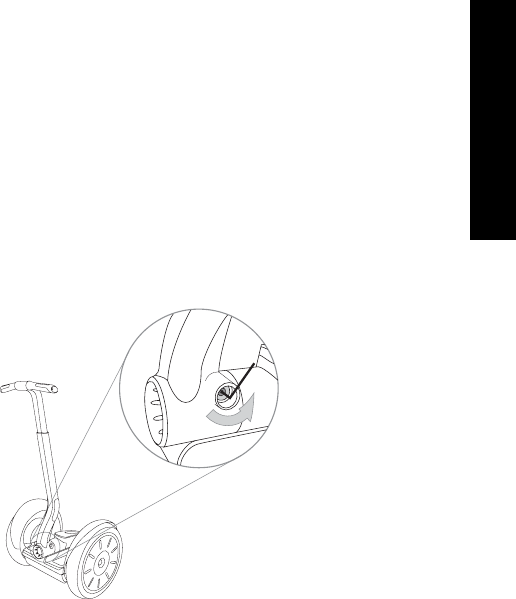
93
English
English
Removing the LeanSteer Frame
Tool Required: 5mm hex wrench.
To remove the LeanSteer Frame from the base:
1. Make sure the Segway PT is unplugged and powered off.
2. Using a 5mm hex wrench, remove the fastener holding the
LeanSteer Frame in place. See Figure 28.
Figure 28. Loosen Fastener Holding LeanSteer Frame
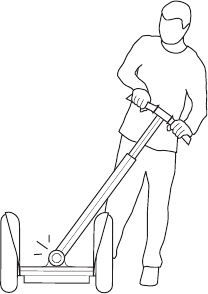
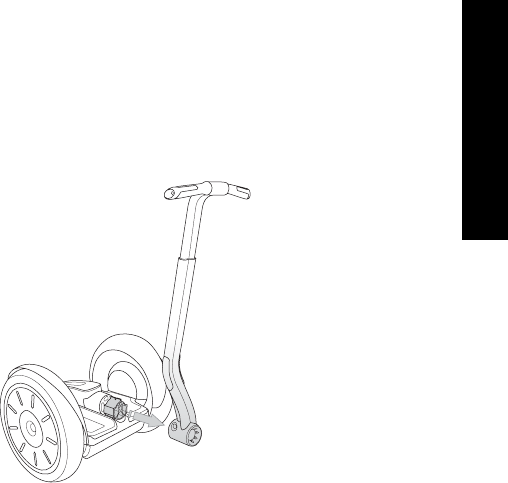
95
English
English
4. Slide the LeanSteer Frame away from the Pivot Base Assembly
as shown in Figure 30. Sliding the LeanSteer Frame away from
the Pivot Base Assembly should require minimal force.
Figure 30. Remove the Handlebar/LeanSteer Frame from the
Pivot Base Assembly
5. If the Wedge Clamps fall out or are removed during this
procedure, put them aside in a safe place as you will need them
to reattach the LeanSteer Frame to the Powerbase.
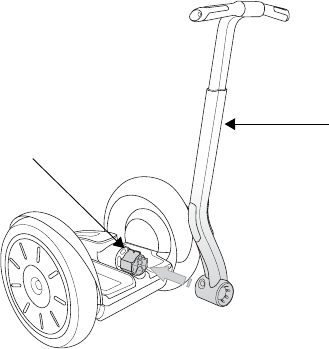
96
Attaching the LeanSteer Frame
Tool Required: Torque wrench with 5mm bit.
To attach the LeanSteer Frame to the Powerbase:
1. Make sure the Segway PT is unplugged and powered off.
2. Slide the LeanSteer Frame onto the Pivot Base Assembly, as
shown in Figure 31:
Figure 31. Attach Handlebar/LeanSteer Frame to the Pivot Base
Assembly
3. If the Wedge Clamps are not installed, install each Wedge
Clamp, curved side facing down, on either side of the LeanSteer
Frame base.
4. Loosely thread in the fastener.
LeanSteer Frame
Pivot Base Assembly
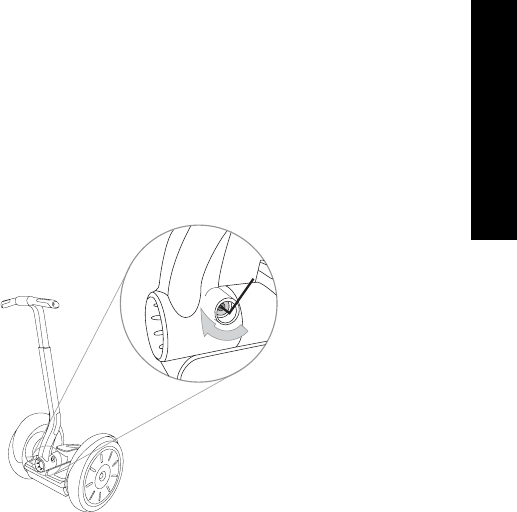
97
English
English
5. Prior to tightening the fastener, visually check that the Handlebar
is straight and centered. If it is not straight and centered, adjust
the LeanSteer Frame to straighten and center it.
6. Tighten the fastener to 11.0 N-m (8.1 ft-lbf). See Figure 32.
Figure 32. Tighten Fastener Holding LeanSteer Frame in Place
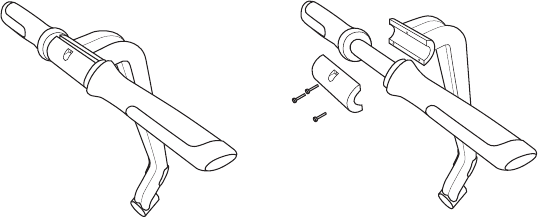
98
Removing the Handlebar
Tool Required: 3mm hex wrench.
To remove the Handlebar from the LeanSteer Frame:
1. Make sure the Segway PT is unplugged and powered off.
2. Using the 3mm hex wrench, remove the 3 fasteners that secure
the Handlebar Clamp to the LeanSteer Frame.
3. When you remove these fasteners and the Handlebar Clamp, the
Handlebar is released from the LeanSteer Frame (see Figure
33).
Figure 33. Remove Handlebar from the LeanSteer Frame
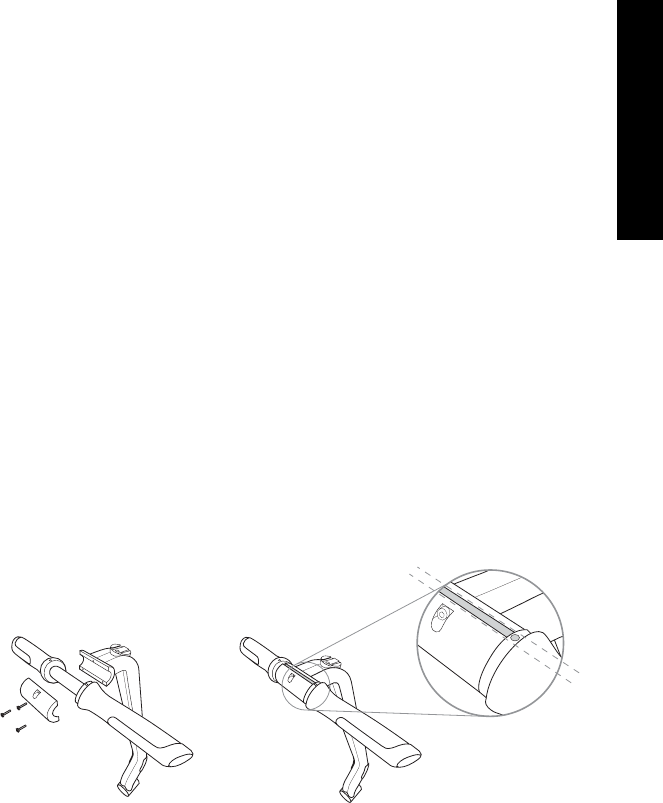
99
English
English
Attaching the Handlebar
Tool Required: Torque wrench with 3mm bit.
To attach the Handlebar to the LeanSteer Frame:
1. Make sure the Segway PT is unplugged and powered off.
2. Align the Handlebar in place against the LeanSteer Frame using
the alignment guides. See Figure 34.
3. Position the Handlebar Clamp against the Handlebar.
4. Insert the 3 fasteners through the Handlebar Clamp into the
LeanSteer Frame.
5. Using the 3mm hex wrench, alternate between the 3 fasteners,
evenly tightening in small increments until the full torque setting
of 6.0 N-m (4.4 ft-lbf) is achieved.
6. Check to ensure that the gap between the Handlebar Clamp and
the LeanSteer Frame is even, and the same between the top and
bottom.
Figure 34. Secure Handlebar to LeanSteer Frame

100
Removing the Batteries
Tool Required: 3mm hex wrench.
Before you begin, verify that the Segway PT is powered off and
unplugged. It is not safe to perform this procedure while the
Segway PT is powered on or charging.
The cells within the Batteries contain toxic substances. Do not
attempt to open Batteries. Do not use the Batteries if the
casing is broken or if it emits an unusual odor or excessive
heat or leaks any substance. Do not handle a damaged or
leaking Batteries unless you are wearing disposable rubber
gloves, eye protection, and are in a well-ventilated area.
Dispose of rubber gloves and damaged Batteries properly in
accordance with regulations governing disposal of toxic
materials.
WARNING!
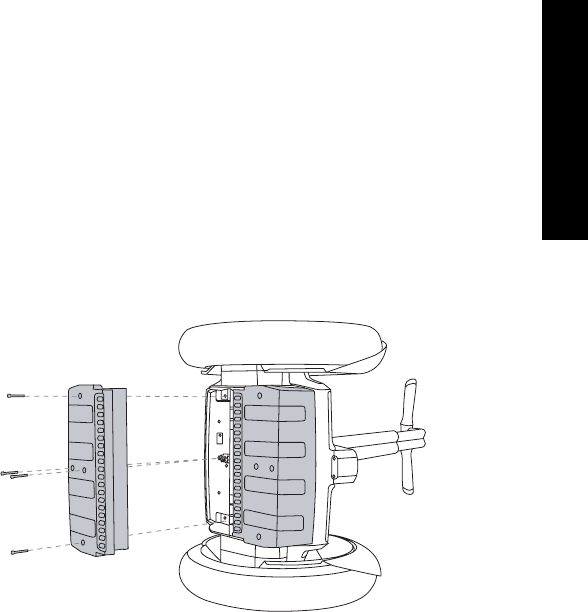
101
English
English
To remove the Batteries:
1. Make sure the Segway PT is unplugged and powered off.
2. Tip the Segway PT onto its side so that the Wheel lies flat against
a smooth clean surface. See Figure 35.
3. Using the 3mm hex wrench, remove the fasteners which hold the
Batteries in place (4 per Battery).
4. Pull Batteries straight off chassis.
Figure 35. Removing the Batteries

102
Reattaching the Batteries
Tool Required: Torque wrench with 3mm bit.
Before you begin, verify that the Segway PT is unplugged. It is
not safe to perform this procedure while the Segway PT is
connected to AC power.
The cells within the Batteries contain toxic substances. Do not
attempt to open Batteries. Do not use the Battery Pack if its
casing is broken or if it emits an unusual odor or excessive
heat or leaks any substance. Do not handle a damaged or
leaking Battery Pack unless you are wearing disposable
rubber gloves, eye protection, and are in a well-ventilated area.
Dispose of rubber gloves and damaged Battery Pack properly
in accordance with regulations governing disposal of toxic
materials.
WARNING!
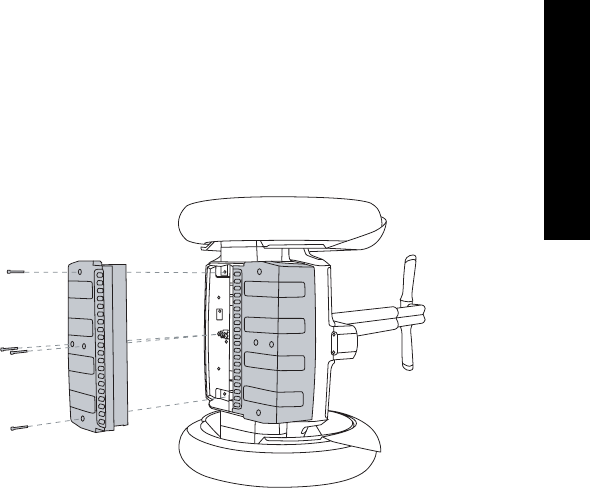
103
English
English
1. Make sure the Segway PT is unplugged and powered off.
2. Reseat one of the Batteries on the Powerbase with curved edge
facing out, as shown in Figure 36.
Figure 36. Reattaching the Batteries
3. Ensure the Battery is aligned straight against the edge of the
Powerbase trim, and there are no uneven gaps.
4. Install and tighten the 2 center fasteners with the 3mm hex
wrench to 1.0 N-m (9 in-lbf)
5. Install and tighten the 2 outer fasteners with the 3mm hex wrench
to 1.0 N-m (9 in-lbf)
6. Ensure the Battery is aligned straight against the edge of the
Powerbase trim, and there are no uneven gaps.
7. Repeat Steps 1 through 7 for the second Battery.
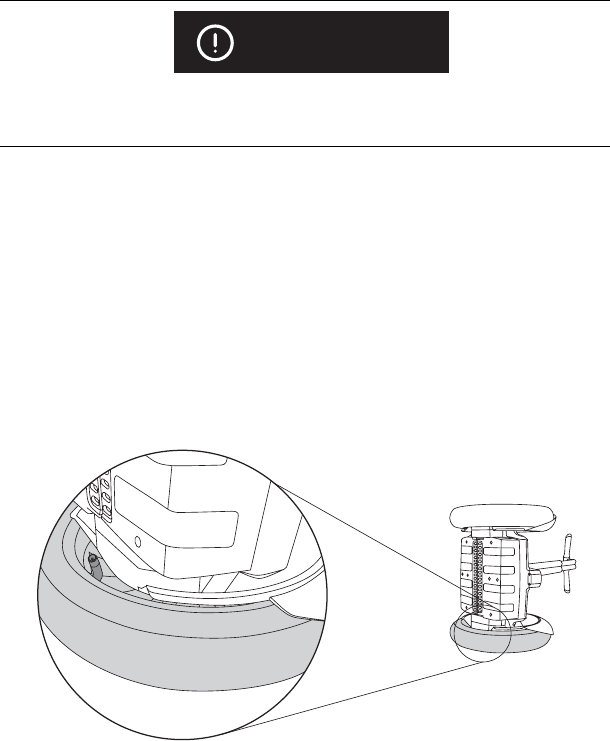
104
Checking Tire Inflation Pressure
Tools Required: Low pressure tire gauge
To check the Tire inflation pressure for the i2 (the valve stem is not
readily visible on the i2):
1. Make sure the Segway PT is unplugged and powered off.
2. Tip the Segway PT onto its side, making sure the Tire to be
checked is on the ground. See Figure 37.
Figure 37. Check Tire Inflation Pressure
To avoid risk of damage, do not use a power tool to install or tighten
fasteners.
CAUTION
105
English
English
3. Rotate the Powerbase until the valve stem on the inside of the
Wheel becomes visible.
4. Check the Tire inflation pressure.
For more information, see “Tire Inflation Pressure”
on page 5.
The valve stem is visible on the x2. You do not need to tip the x2 on
its side to check or adjust Tire inflation pressure.
NOTE:
Inflate Tires to the correct pressure, as stated in the “Segway
Specifications” on page 5. Overinflating or under inflating Tires
can increase your risk of traction loss, resulting in injury and
falls.
WARNING!
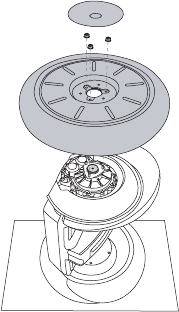
106
Removing the Tire/Wheel Assembly
Tools Required: 13mm socket wrench
To remove the Tire/Wheel assembly (see Figure 38):
1. Make sure the Segway PT is unplugged and powered off.
Figure 38. Removing Tire/Wheel Assembly
2. Tip the Segway PT onto its side so the Wheel you want to
remove is facing up, and the other Wheel rests against a clean,
smooth surface.
3. Remove the Wheel Cap by pressing down on the outside edge,
and lifting the opposite outside edge with your fingers or a plastic
wedge.
4. Remove the 3 Wheel Nuts with a 13mm socket wrench. Hold the
Wheel to keep it from rotating.
5. Lift off the Wheel.
6. Clean all debris from the Wheel’s mounting surfaces.
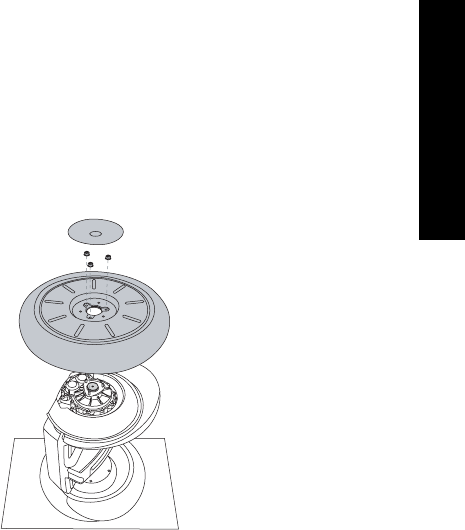
107
English
English
Installing the Tire/Wheel Assembly
Tools Required: 13mm socket, torque wrench
To install the Tire/Wheel assembly (see Figure 39):
1. Make sure the Segway PT is unplugged and powered off.
Figure 39. Reseating Tire/Wheel Assembly
2. Tip the Segway PT onto its side so the Wheel you want to
remove is facing up, and the other Wheel rests against a clean,
smooth surface.
3. Clean all debris from the Wheel’s mounting surfaces.
4. Place the Tire/Wheel assembly over the 3 threaded posts.
5. Hold the Wheel to prevent it from rotating.
6. Thread on the 3 Wheel Nuts, and tighten to 35 N-m (26 ft-lbf) with
a 13mm socket.
7. Replace the Wheel Cap by aligning the three plastic fittings on
the underside of the Wheel Cap with the 3 holes in the Wheel.
8. Press down until the Wheel Cap snaps into place.
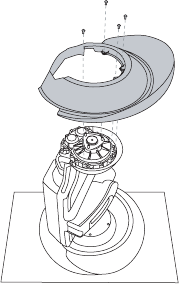
108
Removing/Installing the Fenders
Tools Required: T15 six-lobe wrench, Torque wrench with T15 six-
lobe bit.
To remove the Fenders (see Figure 40):
1. Make sure the Segway PT is unplugged and powered off.
2. Remove the Tire/Wheel Assembly.
For more information, see “Removing the Tire/
Wheel Assembly” on page 106.
3. Using a T15 six-lobe wrench, remove the 4 fasteners which
attach the Fender to the Gearbox.
4. Remove the Fender.
To install the Fenders (see Figure 40):
1. Position the Fender so it aligns with the holes in the Gearbox.
2. Thread the 4 fasteners through the Fender to the Gearbox and
tighten to 1.6 Nm (1.2 ft-lb).
3. Reseat the Tire/Wheel Assembly.
For more information, see “Installing the Tire/
Wheel Assembly” on page 107.
Figure 40. Servicing the Fenders
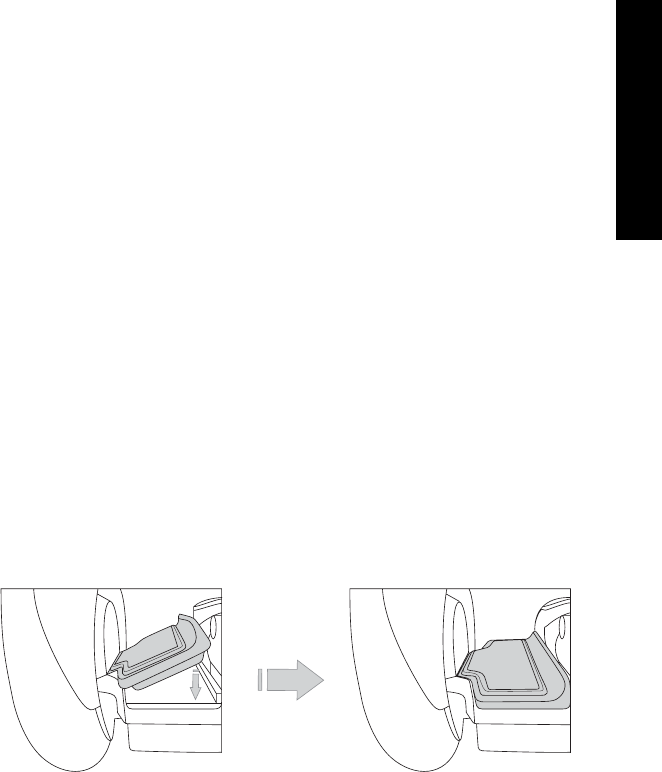
109
English
English
Removing/Installing the Mats
Tools Required: None.
To remove a Mat:
1. Make sure the Segway PT is unplugged and powered off.
2. Lift the Mat off the Powerbase.
To install a Mat:
1. Make sure the Segway PT is unplugged and powered off.
2. Verify that the top of the Powerbase and bottom of Mat are clean,
dry, and free of debris.
3. Place a Mat on the Powerbase. See Figure 41.
4. Fit the Mat’s rubber tabs into the Powerbase grooves.
5. Tuck the tabs in place around the entire perimeter of the Mat
while you press down.
6. Visually confirm that the Mat is properly aligned and all rubber
tabs are tucked in prior to riding.
Figure 41. Removing and Installing the Mats
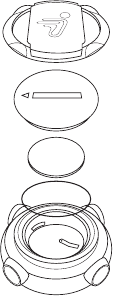
110
Replacing the InfoKey Controller
Battery
Tool Required: Coin or Flathead Screwdriver.
To replace or reseat the InfoKey Controller battery:
1. Remove the InfoKey Controller from the Dock and unscrew the
InfoKey Controller Dock Adapter.
For more information, see “Docking/Undocking
the InfoKey Controller” on page 116.
2. Using a coin or a flathead screwdriver, unscrew the back cover of
the InfoKey Controller. See Figure 42.
Figure 42. Replacing or Reseating the InfoKey Controller Battery
3. Remove the InfoKey Controller battery.
+
CR2430

111
English
English
4. If you are replacing the battery, verify that the new battery is type
CR2430. CR2430 replacement batteries are available at
Electronics stores.
5. Insert the InfoKey Controller battery with the positive (+) side
showing.
6. Screw on the InfoKey Controller's back cover.
7. Screw on the InfoKey Controller Dock Adapter.
A spare InfoKey Controller battery ships with your new Segway PT,
stored beneath the Console Trim. If you use this spare, you should
replace it as soon as possible, as you cannot operate your
Segway PT without a functioning InfoKey Controller.
For more information, see “Removing/Replacing
the Console Trim” on page 112.
NOTE:
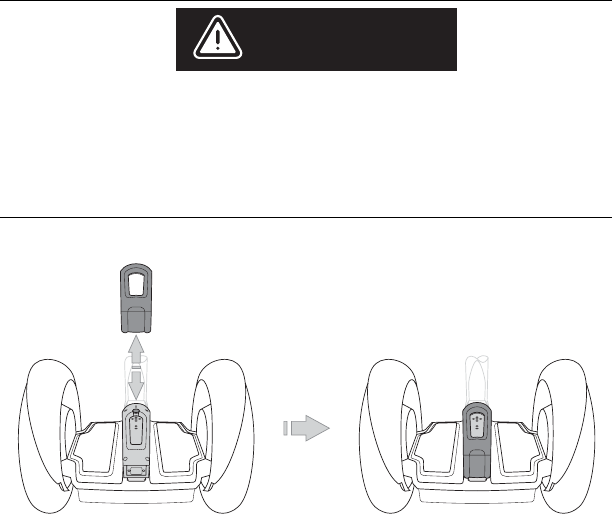
112
Removing/Replacing the Console Trim
Tool Required: None
To remove or replace the Console Trim:
1. Make sure the Segway PT is unplugged and powered off.
2. Pull up on the rigid plastic Console Trim located on the Console
and between the Mats. See Figure 43.
3. Replace the Console Trim by pressing it back in place over the
Console, then snapping the rear part of the Trim in place.
Figure 43. Removing or Replacing the Console Trim
Do not attempt to open the Console. There are no user-
serviceable parts inside. By opening the Console, you risk
electric shock injury. Also, you could void your limited
warranty, damage your Segway PT, and render it unsafe to
use.
WARNING!

113
English
English
Installing/Removing the InfoKey
Controller Dock
Tool Required: 3mm hex wrench, Torque wrench with 3mm bit.
To install the InfoKey Controller Dock:
1. Make sure the Segway PT is unplugged and powered off.
2. Place the InfoKey Controller Dock against the upper LeanSteer
Frame with the Release Tab oriented at the bottom, as shown in
Figure 44.
3. Thread the 3mm fastener through the hole in the top of the
InfoKey Controller Dock and into the upper LeanSteer Frame.
4. Tighten the fastener to 2.0 N-m (18 in-lbf).
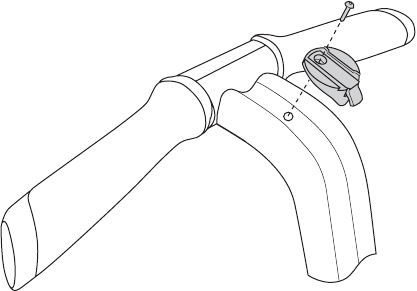
114
To remove the InfoKey Controller Dock:
1. Make sure the Segway PT is unplugged and powered off.
2. Using a 3mm hex wrench, remove the fastener which holds the
InfoKey Controller Dock to the LeanSteer Frame.
3. Remove the InfoKey Controller Dock.
Figure 44. Installing or Removing the InfoKey Controller Dock

115
English
English
Installing/Removing the Dock Adapter
Tool Required: None.
To install the InfoKey Controller Dock Adapter, screw the adapter to
the underside of the InfoKey Controller. When installed properly, the
Dock Adapter should snap into place when screwed on.
To remove the InfoKey Controller Dock Adapter, unscrew the adapter
from the underside of the InfoKey Controller.
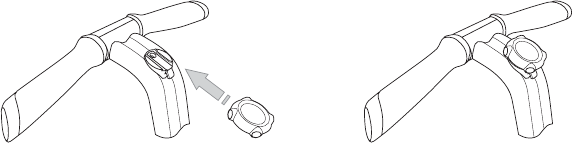
116
Docking/Undocking the InfoKey
Controller
Tool Required: None.
To Dock the InfoKey Controller:
1. Make sure the InfoKey Controller Dock Adapter is installed.
For more information, see “Installing/Removing
the Dock Adapter” on page 115.
2. Slide the InfoKey Controller up into the InfoKey Controller Dock
as shown in Figure 45.
Figure 45. Docking the InfoKey Controller
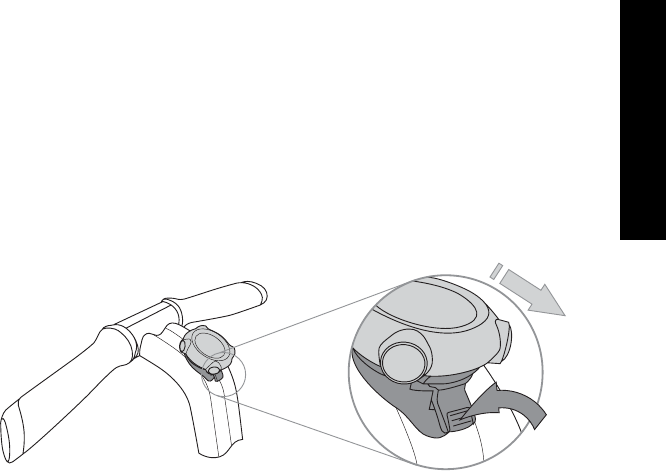
118

119
Chapter 7:
English
Troubleshooting the
Segway PT
This chapter describes:
zTroubleshooting techniques.
zUsing InfoKey Controller icons to help diagnose an error or
failure condition.
Troubleshooting Procedures
You can troubleshoot certain problems with your Segway PT before
contacting an Authorized Segway Dealer or Distributor, or Segway
Customer Care. This chapter provides lists of problems and
recommended actions.
Always shut down your Segway PT and unplug the AC Power
Cord before performing any maintenance or installing any part
or accessory.
WARNING!

120
Refer to Table 13 for a list of potential errors. This table directs you to
the page in this chapter where you can find more information on
resolving the problem.
Table 13. Segway PT Troubleshooting Procedures
Problem: See:
The Segway PT will not power
on.
page 122
The Segway PT will not enter
Balance Mode.
page 123
The LeanSteer Frame slips or is
off-center.
page 124
The Tire/Wheel Assembly is
loose and wobbles.
page 125
The Segway PT pulls to one side
when riding.
page 126
A Tire is flat or will not maintain
inflation pressure.
page 127
A Safety Shutdown occurs when
you are entering or leaving a
store, library, or other building.
page 127
The Segway PT will not power
down.
page 128

121
English
English
If you are unable to solve the problem, look through the section
showing the InfoKey Controller icons that display during error or
failure conditions in “Diagnosing Errors with InfoKey Controller
Icons” on page 130. That section shows the icons and
recommended actions to take when you see certain icons.
If, after reviewing the troubleshooting procedures and the InfoKey
Controller icons, you are still unable to resolve the problem, contact
an Authorized Segway Dealer or Distributor, or Segway Customer
Care. For a list of Authorized Dealers and Distributors, visit
www.segway.com.
122
Segway PT Will Not Power On
Your Segway PT will not power on when you press the InfoKey
Controller Power/Standby button. The procedure below will help you
determine if you are standing in range for the InfoKey Controller to
communicate with the Segway PT, whether the InfoKey Controller
Battery needs replacement, whether your Segway PT needs to be
“reset” by removing and reattaching the Batteries, or if you are
experiencing a startup error.
You should review the following service procedures prior to
troubleshooting this problem for important instructions and torque
values.
z“Removing the Batteries” on page 100
z“Reattaching the Batteries” on page 102
z “Replacing the InfoKey Controller Battery” on page 110
Recommended Action:
1. Make sure your Segway PT's Batteries are charged.
2. Make sure you are standing with the InfoKey Controller no further
than 15 ft. (5m) from your Segway PT.
3. Tap the InfoKey Controller Power/Standby button and verify that
the Link Signal icon appears in the InfoKey display.
4. For more information, see “InfoKey Controller” on page 19.
5. If no Link Signal icon is displayed or the display is blank (no
information displayed), remove and reseat the InfoKey Battery.
6. Tap the InfoKey Controller Power/Standby button. If the InfoKey
display is blank, replace the InfoKey Controller Battery.
7. If the Warning icon appears (see “InfoKey Controller” on page
19) in the InfoKey Display when attempting to power on, see
“Startup Error Conditions” on page 130.
8. If your Segway PT will still not power on, remove both Batteries
and then reattach them.

123
English
English
Segway PT Will Not Enter Balance Mode
Your Segway PT will not enter Balance Mode.
Recommended Action:
Ensure that you have properly followed all instructions in
“Understanding Balance Mode” and “Riding Your Segway PT” in
the Getting Started Manual.
1. Confirm power has been turned on.
2. Confirm the LeanSteer Frame/Handlebar Assembly is centered
and the Powerbase is level. (If you are positioned across a gentle
slope, the LeanSteer Frame/Handlebar Assembly must be
vertical side-to-side).
3. Confirm there is no weight on the Mats.
4. Check that the center Balance Indicator light is green and all four
other Balance Indicator lights are not illuminated.
5. Tap the Mat with your foot without stepping on, then remove your
foot. Confirm that all five Balance Indicator lights are pulsing
green, and a smiling face icon shows in the InfoKey Controller
display.
6. If the Segway PT still will not enter Balance Mode, identify the
error icon on the InfoKey Controller, and attempt to clear the fault
following the recommended actions
in
“Startup Error
Conditions” on page 130.
124
The LeanSteer Frame Slips or is
Off-Center
When you move the LeanSteer Frame, it slips on the Pivot Base
Assembly, or the LeanSteer Frame is off-center and will not return to
center.
You should review the following service procedures prior to
troubleshooting this problem for important instructions and torque
values.
z“Removing the LeanSteer Frame” on page 93
z“Attaching the LeanSteer Frame” on page 96
Recommended Action:
1. Loosen the LeanSteer Frame fastener with a 5mm hex wrench.
2. Align the LeanSteer Frame and visually check that the Handlebar
is straight and centered. If it is not straight and centered, adjust
the LeanSteer Frame to straighten and center it.
3. Tighten the LeanSteer Frame fastener to the correct torque
value.
4. If the LeanSteer Frame still slips or falls off-center, loosen the
LeanSteer Frame fastener and remove the LeanSteer Frame
from the Pivot Base Assembly and ensure that the Pivot Base
Assembly is clean and free of debris.
5. Remove the LeanSteer Frame fastener and Wedge Clamps and
inspect them to make sure there is no slippery substance, and
that the Wedge Clamps are not substantially worn and smooth.
6. If the Wedge Clamps are worn, replace them. If the Wedge
Clamps or Pivot Base Assembly are not clean, thoroughly clean
with isopropyl alcohol and ensure that all substance is removed
prior to reinstalling the Wedge Clamps and LeanSteer Frame.
7. Attach the LeanSteer Frame to the Pivot Base Assembly.

125
English
English
Tire/Wheel Assembly is Loose and
Wobbles
The Tire/Wheel assembly is not secure. It appears to be loose and
wobbles.
You should review the following service procedures prior to
troubleshooting this problem for important instructions and torque
values.
z“Removing the Tire/Wheel Assembly” on page 106
z“Installing the Tire/Wheel Assembly” on page 107
Recommended Action:
1. Remove the Wheel Cap by pressing down on the outside edge,
and lifting the opposite outside edge with your fingers or a plastic
wedge.
2. Tighten the Wheel Nuts.
3. If the Tire/Wheel Assembly is still loose or wobbles, remove,
clean, and reseat the Tire/Wheel Assembly and the flange on
which the Tire/Wheel Assembly mounts.
126
Segway PT Pulls To One Side When
Riding
Your Segway PT pulls to one side when you are riding.
You should review the following service procedure prior to
troubleshooting this problem for important instructions: “Checking
Tire Inflation Pressure” on page 104.
Recommended Action:
1. Check to make sure tire inflation pressure is equal, and set to
recommended specifications in both Tires. See “Tire Inflation
Pressure” on page 5.
2. If either Tire is not set at the proper tire inflation pressure, inflate
the Tire or Tires until both are at equal and correct pressure.
3. Distribute your weight evenly on both feet. If you put more weight
on one foot, the Segway PT will pull in that direction.

127
English
English
Tire is Flat or Will Not Hold Air
One of the Tires on your Segway PT is flat or will not hold air.
You should review the following service procedure prior to
troubleshooting this problem for important instructions: “Checking
Tire Inflation Pressure” on page 104.
Recommended Action:
1. Check for Tire damage. If the Tire is damaged, contact an
Authorized Segway Dealer or Distributor to order a replacement
Tire/Wheel Assembly.
2. If there is not visible Tire damage, check to make sure the Tire
valve stem core is tight. Tighten the valve stem if necessary.
3. Inflate the Tire and check for leaks. If the Tire goes flat or will not
maintain inflation pressure, contact an Authorized Segway
Dealer or Distributor to order a replacement Tire/Wheel
Assembly.
Safety Shutdown At Building Entrance
Theft detection systems, such as the type used in some libraries and
retail stores can interfere with the Segway PT’s ability to balance and/
or cause the Segway PT to perform a Safety Shutdown. Do not ride
within 5 feet (1.5 meters) of any theft detection system. These
systems may not always be visible.
Recommended Action:
1. Step off at least 5 feet (1.5 meters) away from theft detection
systems and walk through the theft detection system in Standby
Mode or with the Segway PT powered off.
2. Once you are at least 5 feet (1.5 meters) away from the theft
detection system, return to Balance Mode and step on.

128
The Segway PT Will Not Power Down
Your Segway PT will not power down when you press and hold the
Power/Standby button on the InfoKey Controller.
You should review the following service procedure prior to
troubleshooting this problem for important instructions
z“Removing/Installing the Mats” on page 109
z“Replacing the InfoKey Controller Battery” on page 110
Recommended Action:
1. Check that your Mats are not sticking to the Powerbase.
2. If a Mat is sticking, lift the Mat to release it, being careful not to
move your Segway PT forward or backward or move the
LeanSteer Frame.
3. Press and hold the Power/Standby button on the InfoKey
Controller for two seconds to confirm the problem is resolved.
4. If your Segway PT still will not power down, check that your
InfoKey Controller Battery is not fully depleted and that the
InfoKey Controller is not damaged. If necessary replace or reseat
the InfoKey Controller Battery.

129
English
English
5. If reseating the InfoKey Controller Battery did not resolve the
problem, and you do not have a replacement InfoKey Controller
Battery:
Switch your Segway PT to Standby Mode by walking beside it
while holding the Handlebar until you hear the Stick Shake Warn-
ing and feel the Segway PT switch out of Balance Mode, into
Standby Mode.
Leave your Segway PT in a secure location for 15 minutes until it
automatically powers down.
Install a new InfoKey Controller Battery.
6. Reinstall the Mat after your Segway PT is powered down.
7. Tap the Power/Standby button on the InfoKey Controller to power
on your Segway PT, then press and hold Power/Standby button
for two seconds to confirm the problem is resolved.

130
Diagnosing Errors with InfoKey
Controller Icons
InfoKey Controller icons assist you in diagnosing certain errors.
Match the icon shown in your InfoKey Controller display to those in
the tables in this section to identify and attempt to correct the fault.
Startup Error Conditions
If you attempt to power on the Segway PT and an error condition
occurs that prevents the Segway PT from powering on and entering
Standby Mode, the icons shown in Table 14 will appear on the
InfoKey Controller.
To clear these conditions, follow the instructions in the
Recommended Action column in Table 14.
Do not step onto the Segway PT Mats until you have cleared all
error conditions and have confirmed the Segway PT is in
Balance Mode.
WARNING!
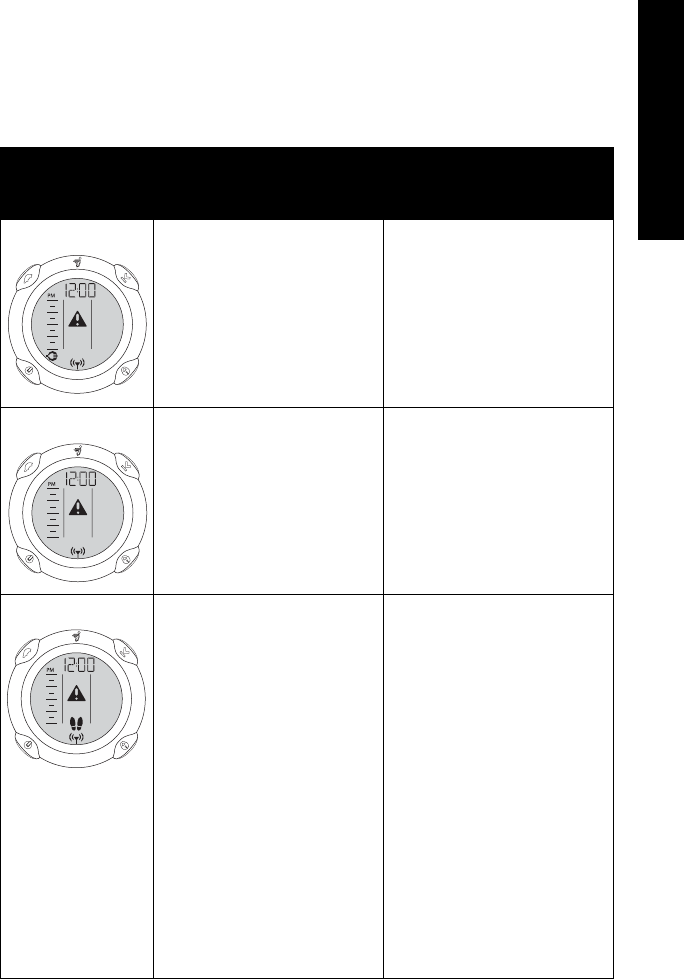
131
English
English
Table 14. Icons for Startup Errors
Display Icon Description Recommended
Action
The Segway PT is
plugged in.
Unplug the Power
Cord. If the Segway PT
has powered off, power
on again.
The charge in the
Segway PT Batteries is
too low to allow safe
operation of the
Segway PT.
Charge the Batteries,
and then attempt to
power on.
A Rider Detect sensor
is on at startup.(The
corresponding icon in
the display will blink).
Make sure your foot is
not on the Mat when
powering on your
Segway PT.
Check the Mat to
ensure it is clear of
foreign objects and not
sticking to the
Powerbase. If
necessary, remove and
inspect, then reinstall
the Mats (see
“Removing/Installing
the Mats” on page
109).
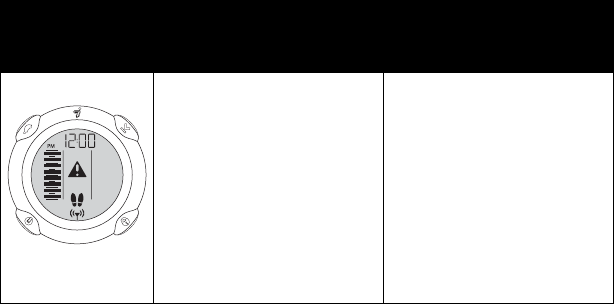
132
Balance Mode Error Conditions
If you unsuccessfully attempt to enter Balance Mode and step onto
the Mat, the icon shown in Table 15 will appear on the InfoKey
Controller.
To clear this condition, follow the instructions in the Recommended
Action column of Table 15.
Table 15. Icons for Errors Entering Balance Mode
Display Icon Description Recommended
Action
Powerbase is not level,
or LeanSteer Frame is
tilted when attempting
to enter Balance Mode.
This icon will display
when you place your
foot on the Mat.
Remove your foot from
the Mat. Level the
Powerbase and center
the LeanSteer Frame
until the center
Balance Indicator light
is green and no other
Balance Indicator lights
are illuminated.

133
English
English
Reduced Performance Levels
When the Segway PT is operating at reduced performance levels due
to an error condition, the icon shown in Table 16 will appear on the
InfoKey Controller. (See “Speed Limiter” on page 48 for a list of the
conditions that cause reduced performance.)
To clear this condition, follow the instructions in the Recommended
Action column of Table 16.
Table 16. Icons for Reduced Performance Level
Display Icon Description Recommended
Action
The Segway PT is
operating at reduced
performance levels,
with the speed limit
lowered, due to a
temporary condition.
The Segway PT’s
Speed Limiter is an
alert that you are
moving too fast. When
the Speed Limiter
pushes the Handlebar
back, stop leaning
forward and slow
down. Always leave a
gap between yourself
and the Handlebar.
Once you slow to a
speed that the
Segway PT determines
is safe, it will resume
normal operation and
riding position.

134
Critical Faults While Riding
During normal riding, if the Segway PT detects a fault in any of its
redundant subsystems, the icon shown in Table 17 will appear on the
InfoKey Controller.
When such a fault is detected, the Segway PT performs a Safety
Shutdown. When a Safety Shutdown occurs, the Segway PT
automatically reduces its speed, gives the Stick Shake Warning
(shakes the Handlebar and makes a growling sound), flashes the
Console lights, and the InfoKey displays a Safety Shutdown icon. As
the Segway PT slows, it emits an audio alert.
Follow the instructions in the Recommended Action column of
Table 17.
Table 17. Icon for Critical Faults in Redundant Subsystems
Display Icon Description Recommended
Action
The system has
detected a critical error
in its redundant
subsystems and
performs a Safety
Shutdown.
The rider has
approximately 10
seconds from the start
of a Safety Shutdown
to come to a controlled
stop and step off. After
10 seconds, the
Segway PT will
immediately shut down
when the Wheels
reach zero speed.

135
English
English
Pitch or Roll Angle Exceeded
If the Segway PT shuts down because a forward/backward (pitch), or
side (roll) tilt limit was exceeded, or no Rider Detect sensors were
depressed while the Segway PT was moving at speed, the icon
shown in Table 18 will appear on the InfoKey Controller.
The Segway PT is programmed to shut down in these situations
because the rider is not in control of the Segway PT.
To clear this condition, follow the instructions in the Recommended
Action column of Table 18.
Table 18. Icons for Tilt Limits Exceeded
Display Icon Description Recommended
Action
The Segway PT shut
down because a
forward/backward
(pitch), or side tilt limit
was exceeded, or no
Rider Detect sensors
were depressed while
the Segway PT was
moving at speed.
Check the Segway PT
for damage. If there is
no damage, turn on
power by tapping the
Power/Standby button
on the InfoKey
Controller.
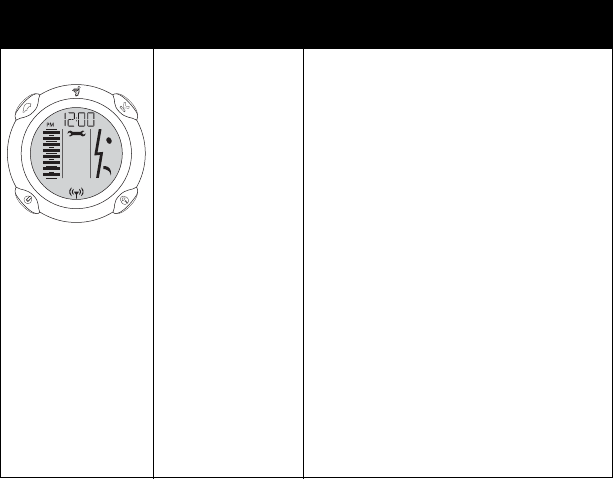
136
System Faults
If the Segway PT detects a hardware fault, the icons shown in
Table 19 will appear on the InfoKey Controller.
The Segway PT cannot be used until the fault is cleared. To attempt
clear system faults, follow the instructions in the Recommended
Action column of Table 19.
Table 19. Icons for System Faults
Display Icon Description Recommended Action
There is a fault
in the
Powerbase or
Batteries.
1. Power on the Segway PT.
2. If the same icon appears,
confirm that both Li-ion
Batteries are installed
correctly.
3. If the same icon appears
remove and reseat both
Batteries (see “Removing
the Batteries” on page
100 and “Reattaching the
Batteries” on page 102).
4. If the same icon appears, plug
in your Segway PT and verify
that both Battery Charge
Indicator lights are green. Plug
in and charge the Segway PT
overnight.

137
Appendix A:
English
Contact and Legal
Information
Report All Incidents
If you or any other user of your Segway PT is involved in an accident,
or if your Segway PT performs in a way that you do not intend or in a
way that it is not supposed to, contact Segway Customer Care by
telephone at 866.4SEGWAY (866.473.4929), or by email at
technicalsupport@segway.com.
How to Reach Us
Call Segway Customer Care (English-language only) at
866.473.4929.
Email Segway Customer Care (English-language only) at
technicalsupport@segway.com.
An Authorized Segway Dealer or Distributor can answer questions
about your Segway PT via the web, email, or phone. For a list of
Dealers and Distributors, visit www.segway.com.
California Warning
This product contains chemicals, including lead, known to the State of
California to cause cancer, birth defects or other reproductive harm.
138
Obey All Laws and Regulations
Many governmental authorities regulate use of Segway PTs on public
roads and sidewalks. In addition to other requirements, these laws
and regulations may prescribe minimum ages for Segway PT users
and may set speed limits and mandate protective gear for riders.
Some governmental authorities prohibit use of Segway PTs on public
roads and sidewalks. You should consult local authorities to become
familiar with applicable laws and regulations. (In the USA, many of
these laws use the term “Electric Personal Assistive Mobility Device”
or “Personal Motorized Mobility Device,” which are specifically
defined to include Segway PTs.)
Limited Warranty
(United States Only)
Segway provides with each Segway PT a “Segway® Personal
Transporter Limited Warranty.” This is the only warranty applicable to
the Segway PT. Consult the “Segway® Personal Transporter Limited
Warranty” delivered with your Segway PT for the specific terms of
limited warranty coverage.
Radio Frequency Interference
United States FCC Part 15 Class B Radio Frequency Interference
(RFI) Statement
The Segway PT has been tested and found to comply with the limits
for Class B digital devices pursuant to Part 15 of the FCC rules.
These limits are designed to provide reasonable protection against
harmful interference in a residential environment. The Segway PT
generates, uses, and can radiate radio frequency energy, and, if not
installed and used in accordance with the User Materials may cause
harmful interference to radio communications.
However, there is no guarantee that interference will not occur in a
particular installation. If the Segway PT does cause harmful
interference to radio or television reception, which can be determined
by turning the Segway PT off and on, the user is encouraged to try
and correct the interference by one or more of the following
measures:

139
English
English
zReorient or relocate the receiving antenna.
zIncrease the distance between the Segway PT and the receiver.
zConnect the Segway PT into an outlet on a circuit different from
that to which the receiver is connected.
zConsult the dealer or an experienced radio/TV technician for
help.
zOperation is subject to the following two conditions
zThis device may not cause harmful interference
zThis device must accept any interference received, including
interference that may cause undesired operation
This product complies with FCC radiation exposure limits set forth for
an uncontrolled environment.
Modifications: Modifications not expressly approved by Segway
may void the user's authority to operate this device under FCC
regulations and must not be made.
FCC ID: T2Z2420-01
IC: 6396A-242001
Canadian ICES-003
The Segway PT is a Class B digital apparatus that complies with
Canadian ICES-003
European Directives
The Segway PT complies with the requirements of the European
Directives 89/336/EEC, Directive of Electromagnetic Compatibility;
73/23/EEC, Low Voltage Directive; and 98/37/EC, Machinery
Directive.
140
Other Standards
The Segway PT also complies under the applicable sections of the
following:
IEC 60950-00; CAN/CSA C22.2 No. 60950-01-03; UL 60950; UL
Standard for Safety for Motor-Operated Appliances, UL 73; Motor-
Operated Appliances (Household and Commercial), CAN/CSA-C22.2
No. 68-92; Degrees of Protection Provided by Enclosures (IP Code)
IEC 60529; Household and Similar Electrical Appliances Safety-
General Requirements, IEC 60335-1; Safety of Machinery - Basic
Concepts, General Principles for Design - Part 1: Basic Terminology,
ISO 121001-1; Safety of Machinery - Basic Concepts, General
Principles for design -Part 2:Technical Principles

141
English
English
Patent Information
The Segway PT is covered by US and foreign patents, including one
or more of the following:
US Patent numbers (issued): 5,701,965; 5,791,425; 5,794,730;
5,971,091; 5,975,225; 6,223,104; 6,288,505; 6,302,230; 6,332,103;
6,357,544; 6,367,817; 6,405,816; 6,408,240; 6,415,879; 6,435,535;
6,443,250; 6,538,411; 6,543,564; 6,553,271; 6,561,294; 6,571,892;
6,575,539; 6,581,714; 6,598,941; 6,651,763; 6,651,766; 6,715,845;
6,779,621; 6,789,640; 6,796,396; 6,799,649; 6,815,929; 6,827,163;
D489,027; D489,029; D489,300; D493,127; D493,128; D493,129;
D493,392; D493,749; 6,965,206; 6,929,080; 7,017,686; 6,874,591;
6,920,947; 6,866,107; 7,023,330; 6,868,931; 7,000,933.
US Patent Pending (published application serial numbers):
20040011573; 20040050611; 20040055795; 20040055796;
20040069543; 20040183272; 20050017733; 20050121866;
20050236215.
Foreign Patent numbers (issued): AU: 705704; 726250; 726253;
727183; 728453; 729781; 738013. CA: 2211738. KR: 346992;
351082; 363809. MX: 205144. NZ: 282114; 330431. RU: 2153868.
TW: 129673; 130073; 154350; 157146; 159151; 171,217.
142
Foreign Patent Pending (published application serial number): AT:
95911624.5. AU: 62669/99; 21703/00; 37202/00; 37430/00; 37450/
00; 33980/00; 54557/00; 53137/00; 80362/00. BE: 95911624.5. CA:
2,211,738; 2,346,442; 2,337,130; 2,363,737; 2,367,501; 2,375,313;
2,366,076; 2,373,275; 2,375,645; 2,382,360; 2,393,418; 2,401,488;
2,431,070. CH: 95911624.5. CN: 95197546.3; 00812269.5;
95197546.3. DE: 95911624.5; 00916035.9. DK: 95911624.5. ES:
95911624.5. EP: 1123235; 1159686; 1161214; 1161215; 1161216;
1180996; 1181187; 1183163; 1208032; 1237779; 1259415;
1298041; 1324911. FI: 973197. FR: 95911624.5; 00916035.9. GB:
95911624.5; 00916035.9. GR: 95911624.5. HK: 02101085.2;
02106106.6; 02106105.7; 03105015.7; 02106266.2; 02108322.0. ID:
W00200102875; W00200102136; W00200102823; W00200200009;
W00200200024; W00200200451; W00200201309. IE: 95911624.5;
IL: 155,390. IN: IN/PCT/02/00280/CHE. IT: 95911624.5. JP: 8-
523486; 2000-577062; 2001-508659; 2000-602941; 2000-604799;
2000-621191; 2000-604801; 2001-501161; 2001-501493; 2001-
519543; 2001-543388; 2001-563370; 2003-35305. KR: 10-2001-
7016896; 10-2001-7011189; 10-2001-7015260; 10-2001-7015490;
10-2001-7015564; 10-2002-7002673; 10-2002-7007338. MC:
95911624.5. MX: 2001/004018; PA/a/2001/012685; PA/a/2001/
008933; PA/a/2001/009342; PA/a/2001/012232; PA/a/2001/009374;
PA/a/2000/12498; PA/a/2001/012557; PA/a/2002/002217; PA/a/
2002/005801; 000162. MY: PI20000540; PI20001210; PI200010118;
PI20001458; PI20002479; PI20002502; PI 200014753. NL:
95911624.5. NO: P973,153; 20011809. NZ: 513868; 517412;
525279. RU: 2000114547; 2002108569. SE: 95911624.5. SG:
200201245-8; 200203390-0. TW: 88117468; 89,106,673;
89,110,752. WO: 00/23315; 00/52588; 00/54719; 00/54720; 00/
54721; 00/61426; 00/73101; 00/74623; 00/75001; 01/02920; 01/
064502; /01/15962; 01/42077; 02/030730; 02/068219; 2003/103559;
03/105967; 2003/106250; 2004/007233; 2004/007264; 2004/075804;
2004/078603; 2005/009828.
Additional US and foreign patent applications are pending.
Segway Inc. manufactures and sells Segway PTs under a license
from DEKA Products Limited Partnership.

143
French
English
Index
A
Accessories 91
Attaching
the Handlebar 99
the LeanSteer Frame 96
B
Balance Indicator lights 37
Balance Sensor Assembly 45
Batteries 46, 61
reattaching 102
removing 100
replacing 77
shipping 78
specifications 63
transporting 78
Battery
InfoKey Controller 110
Battery Charge Indicator
lights 40, 69
Battery charge level display 71
Battery safety 61
Beginner button 21
Beginner icon 22
C
Carrying cargo 8
Center of gravity 14
Charge Port 65
Charging Batteries 64
Charging failures 70
Checking the Tire/Wheel
Assembly 84
Checking Tire inflation
pressure 104
Cleaning your Segway PT 86
Console 35
Console Trim 40
Controller Boards 43
Conventions xii
Critical error 134
Critical faults when riding 134
D
Diagnosing errors 130
Dynamic stabilization 13
E
Empty Battery condition 59
Errors
attempting to Enter Balance
Mode and Step On 132
critical 134
F
Face icons 22
Fenders 34
installing 108
removing 108
Foreign patent numbers 141
H
Handlebar 16
attaching 99
cargo 9
removing 98
144
I
i2 description 4
Indicator lights
Balance 37
Battery Charge 40, 69
InfoKey Controller
battery replacement 110
buttons 19
display area 20
Dock Adapter installation
115
Dock installation 113
error conditions 130
serial number 3
Information Display 22
Information Display button 21
Installing
Fenders 108
InfoKey Controller Dock 113
InfoKey Controller Dock
Adapter 115
LeanSteer Frame 96
Mats 109
Tire/Wheel assembly 107
L
Laws and regulations 138
LeanSteer Frame 16
attaching 96
LeanSteer Frame/Handlebar As-
sembly 16
Lifting Your Segway PT 82
M
Maintaining Tires and Wheels 84
Mats 16, 35
installing 109
removing 109
Maximum handlebar cargo
weight 9
Maximum speed 5
Maximum weight limit 5
Minimum weight limit 9
Model descriptions 4
Motors 44
O
Operating limits 8
Operating temperature
batteries 63
P
Parts diagram 90
Patent and licensing information
141
Performance and temperature
74
Pitch or roll angle exceeded 135
Power requirements 5
Power/Standby button 21
Powerbase height 6
R
Range on a full charge 5
Reattaching the Batteries 102
Recalibrating the Battery charge
level display 72
Reduced performance levels
133
Redundant subsystems 16
Regenerative braking 70
Removing
Batteries 100
Fenders 108
Handlebar 98
LeanSteer Frame 93
Mats 109
Tire/Wheel assembly 106
Replacing parts 91
Replacing the InfoKey Controller
Battery 110
Reseating the InfoKey Controller
Battery 110
Rider Detect Sensors 41

145
English
S
Safety alerts 47
Safety Shutdown 43, 55, 134
Security button 21
Security icon 22
Segway PT
components 16
how it works 14
serial number 2
specifications 5
subsystems 16
Service procedures 92
Servicing your Segway PT 89
Shipping Li-ion Batteries 79
Specifications 5
Speed Limiter 48
description 48
Startup error conditions
inadequate battery charge
131
plugged in 131
Rider Detect Sensor de-
pressed 131
Stick Shake Warning 51
description 51
rider off 54
rider on 52
Storing your Segway PT 88
Structural weight limits 10
System faults 136
T
Temperature
effect on performance 74
Tire inflation pressure 5
checking 84, 104
Tire/Wheel Assembly 16
installing 107
removing 106
Torque specifications 91
Traction 87
Transporting and shipping Bat-
teries 78
Transporting your Segway PT 78
Troubleshooting 119
flat tire 126
LeanSteer Frame 124
procedures 119
pulls to one side when riding
126
Safety Shutdown occurs 126
will not enter balance mode
122
will not power off 126
will not power on 122
Turning radius 5
U
US patent numbers 141
W
Warranty 138
Weight limits 8
Wrench icon 22
X
x2 description 4
146

French