Sensar NS1USB User Manual Final Version

Sensar, Inc. Final Version

Contents

Final Version

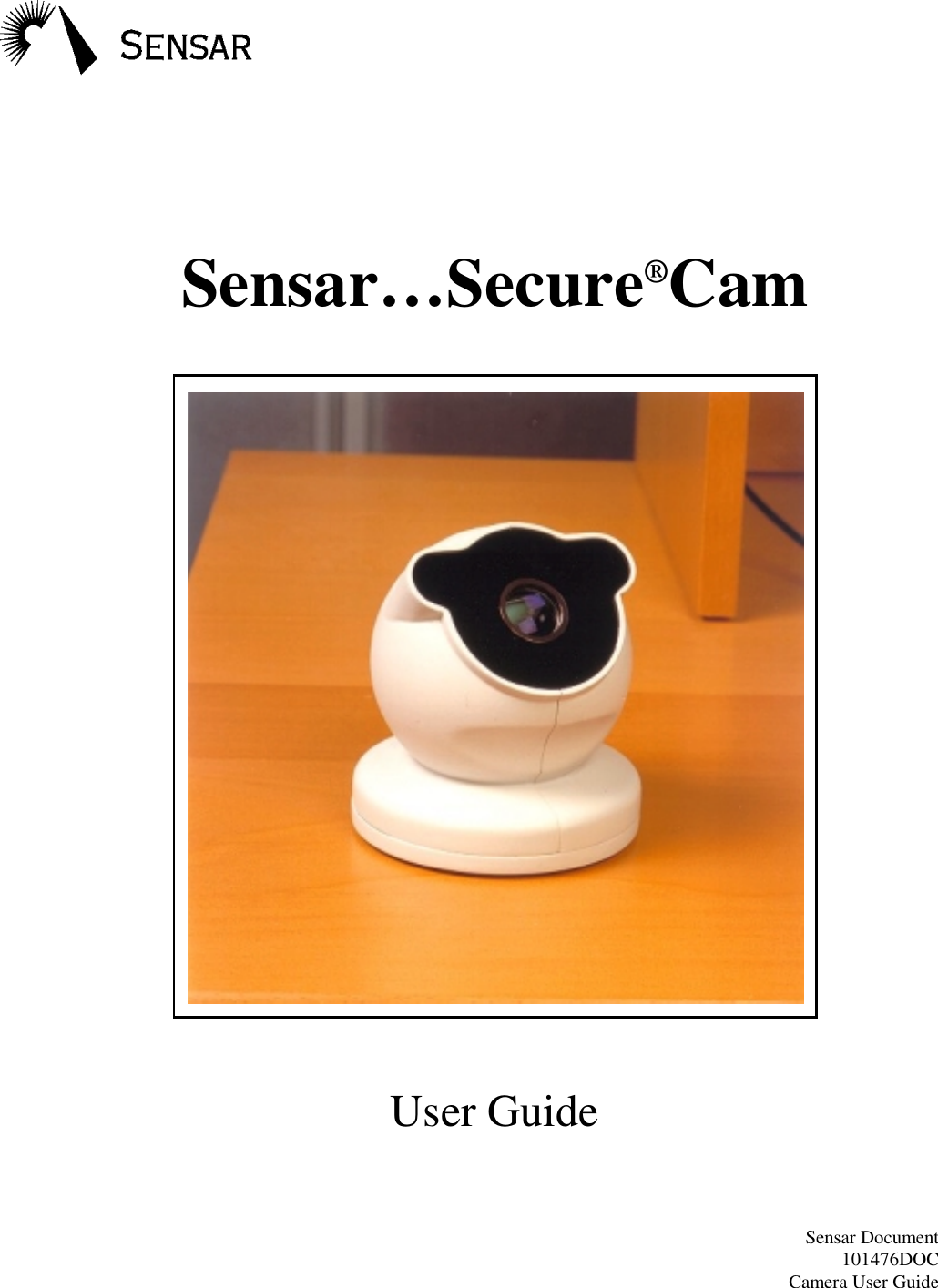
 Sensar…Secure®CamUser GuideSensar Document101476DOCCamera User Guide
Page 2NoticesFCC NoticeThis device complies with part 15 of the FCC Rules.  Operation is subject to thefollowing two conditions:  (1)  This device may not cause harmful interference,and (2)  this device must accept any interference received, including any thatcauses undesired operation.Note:  This equipment has been tested and found to comply with the limits for aClass B digital device, pursuant to part 15 of the FCC Rules.  These limits aredesigned to provide reasonable protection against harmful interference in aresidential installation.  This equipment generates, uses and can radiate radiofrequency energy and, if not installed and used in accordance with the instructions,may cause harmful interference to radio communications.  However, there is noguarantee that interference will not occur in a particular installation.  If thisequipment does cause harmful interference to radio or television reception, whichcan be determined by turning the equipment off and on, the user is encouraged totry to correct the interference by one or moreof the following measures:• Reorient or relocate the receiving antenna.• Increase the separation between the equipment and receiver.• Connect the equipment into an outlet on a circuit different from that towhich the receiver is connected.• Consult the dealer or an experienced radio/TV technician for help.The FCC requires the user to be notified that any changes or modifications madeto this device that are not expressly approved by Sensar, Incorporated may voidthe user’s authority to operate the equipment.
Page 3EEC NoticeThis product conforms to emissions product standards EN55022, class B andEN50082-1 (1992) of the European Economic Community.Copyright NoticeSensar, Inc.  makes no warranty of any kind with regard to this material, including,but not limited to, implied warranties of merchantability and fitness for aparticular purpose.This document contains proprietary information which is protected by copyright.All rights are reserved. No part of this document may be photocopied, reproduced,or translated to another language without prior written consent of Sensar.© 1999 Sensar, Inc.All Rights ReservedWindows is a registered trademark of Microsoft Corporation. All other productnames mentioned herein are the trademarks of the product owners.
Page 4Licensee NoticeIriScan of Marlton, New Jersey, USA holds the exclusive world-wide patents onthe iris recognition concept originated by Drs. Leonard Flom and Aran Safir andthe software and process technology invented by Dr. John Daugman, CambridgeUniversity, England.  Sensar uses, under license, the iris recognition processdeveloped and owned exclusively by IriScan.  IRISCAN® is a trademark ofIriScan, Inc., of Marlton, New Jersey, and is used by Sensar, Inc. under licensefrom IriScan, Inc.
Page 5Table of ContentsNOTICES....................................................................................................................................2-4INTRODUCTION.........................................................................................................................6SYSTEM REQUIREMENTS ......................................................................................................7INSTALLATION..........................................................................................................................8SOFTWARE INSTALLATION ............................................................................................................8Windows 95 .................................................................................................................................8Windows 98 .................................................................................................................................9Windows NT4.0 ...........................................................................................................................9HARDWARE INSTALLATION .........................................................................................................10USB Camera...............................................................................................................................10Parallel Port Camera...................................................................................................................11CONFIGURING YOUR BROWSER .......................................................................................14Internet Explorer 4 (IE4) ............................................................................................................14INTERNET EXPLORER 4 UPGRADE ...............................................................................................14NETSCAPE...................................................................................................................................15VIEWING THE TUTORIAL ....................................................................................................16PRACTICE USING THE CAMERA........................................................................................18GETTING STARTED ................................................................................................................19ENROLLMENT..............................................................................................................................19TROUBLESHOOTING .............................................................................................................21TECHNICAL SUPPORT...........................................................................................................22SPECIFICATIONS.....................................................................................................................22PACKAGE CONTENTS............................................................................................................22ADDING A USB CARD .............................................................................................................23USER TIPS ..................................................................................................................................24
Page 6IntroductionToday’s digital world requires us to access and protect computer information andinteract securely with computer systems.  The use of passwords has long been themost popular method for accomplishing these tasks. . .until now.  Sensar hasintroduced a personal identification system which allows you to conveniently andsecurely identify yourself to your PC and the Internet.It all starts with an image of your eye—iris recognition. The Sensar Secure®Camcaptures an image of your iris and creates an identifying template.  This is yourenrolled digital code and is stored in a secure database.  When verification of youridentity is then requested, the camera will take another image of your eye, digitallyencode it, and compare it to your enrolled digital code.  If they match, then youridentity has been verified.Iris recognition is called a biometric because it uses a measurable physicalcharacteristic.  With 266 measurable characteristics, the iris is the most unique,data rich physical structure on the human body—substantially more unique than afingerprint.  And, unlike other measurable human features, the patterns in the irisdo not change over time.No two people on earth have the same irises. In fact, even the left iris and rightiris of the same person have uniquely different patterns.There are two versions of the Sensar Secure®Cam; a Parallel Port (LPT) cameraand a USB camera.
Page 7System Requirements• 486 processor or better• Sound card / speakers (optional, recommended)• LAN or Internet connection and 28.8bps or greater modem• Internet Explorer 4.01 or later or Netscape Navigator 4.06  or laterParallel Port Camera• Microsoft Windows 95, 98, or Windows NT 4.0 or later versionsUSB Camera• USB (Universal Serial Bus) port equipped Pentium IBM compatible• Microsoft Windows 95 or 98 (Windows 98 is strongly recommended)
Page 8InstallationSoftware InstallationWindows 95To install the USB or Parallel Port version of the camera software, please followthis procedure:1. To find out if your version of Windows 95 is USB compliant, right-click the“My Computer” icon and select Properties.  The System should be 4.00.950B(Windows 95B) or later.  If you are running Windows 95B and USB is notavailable, you need to execute a program from your Windows 95 installationCD.  Your Windows 95 CD should say on it “With USB Support.”  Open theWindows Explorer and go to the directory Drivers\USB\Enduser.  Double clickon the file USBSUPP.EXE to install USB support to Windows 95.  If you donot find this file in this location, go to the Start Menu and select Find–Files orFolders and search for USBSUPP.EXE on the CD.  To find out more about theUniversal Serial Bus standard, visit the USB Website at www.usb.org.2. Insert the camera CD into your CD-ROM drive.  Run the program SETUP.EXElocated in the root directory of the CD.  Follow the instructions as they appearon your screen.
Page 9Windows 98To install the USB or Parallel Port version of the camera software, please followthis procedure:1. Insert the camera CD into your CD-ROM drive.  Run the program SETUP.EXElocated in the root directory of the CD.  Follow the instructions as they appearon your screen.Windows NT4.0To install the Parallel Port version of the camera software, please follow thisprocedure:1. Insert the camera CD into your CD-ROM drive.  Run the program SETUP.EXElocated in the root directory of the CD.  Follow the instructions as they appearon your screen.
Page 10Hardware InstallationUSB Camera1. Find the USB port on your computer.  If your computer does not have aUSB port, a USB card can be added.  See Section “Adding a USB Card.”2. Plug the flat rectangular end of the detachable USB cable into any USB portof your computer.Figure 1Plug the USB Camera into Your PC3. Plug the square end of the detachable USB cable into the rear of the camera.Figure 2Plug the USB Cable into the Camera4. Windows will automatically recognize the USB camera.The most common problem for users installing a USB device for the first time isthat the computer’s BIOS does not have the USB hardware on the motherboard
Page 11enabled.  To rectify the problem you must restart the computer and enter theSETUP utility to enable the USB hardware on the computer’s motherboard.  Afterentering the SETUP utility there will be a peripheral or advance section that willallow you to enable the USB hardware.  After enabling the USB, exit the SETUPutility making sure you SAVE the changes when exiting.  See your PC owner’smanual for starting the BIOS Settings Utility specific to your PC.Parallel Port Camera1. Make sure the power to your computer is off.2. Remove the printer cable from your PC, if installed.Figure 3Locate and Remove Your Printer Cable, If Present3. Connect the camera cable to the printer port on your PC.  Figure 4a, bConnect Camera Cable
Page 124. Reconnect the printer cable, if present, to the adapter cable.  Figure 5a, bReconnect Your Printer Cable, If PresentNote: You can not PRINT and use Sensar Secure®Cam at the same time.5. Remove the keyboard cable from your PC.6. Connect the camera cable with the round male connector to the keyboardport on your PC.Figure 6Locate and Remove Your Keyboard Cable
Page 137. Reconnect the keyboard cable (round male connector) to the cable with theround female connector.  Figure 7a, bReconnect Your Keyboard to the Camera Cable8. Turn the power to your computer back on.
Page 14Configuring Your BrowserIn order to ensure secure transactions over the world wide web, the SensarSecure®Cam Demo uses a ‘Secure Sockets’ (or SSL) connection over the internet.Follow the steps indicated below for your browser in order to invoke the correctSSL level.Internet Explorer 4 (IE4)To invoke the correct SSL level within IE4:1.  Invoke the browser if you have not already done so.2.  Click on the "View" menu.3.  Select the "Internet options" label.4.  Select the "Advanced" tab in the dialog box that appears.5.  Scroll down to the "Security" label.6.  Deselect "PCT 1.0" and deselect "SSL 3.0" (the boxes should not have an"x" when you are through.)7.  Click "OK" when you are done.Important Note:When using the software you may be alerted by the Microsoft Browser that signedcontent from Sensar is being loaded. This is normal and completely secure sincethe content from Sensar is digitally signed, and can be checked by examining thedigital certificate. You may examine the digital certificate by clicking on the TBDbutton, and you may elect to trust content from Sensar for future downloads byclicking the “Always trust content from Sensar” check box.  Click "Yes" to exitthe dialog box.Internet Explorer 4 UpgradeSensar Secure®Cam Demo requires the latest version of the “Java VirtualMachine” which allows IE4 to operate Java Applets in the standard java mode.On the installation CD you will find the file “MSJavx86.exe” located in the rootdirectory. Run this application to upgrade your IE4’s Java Virtual Machine (Notethat this will require re-booting your PC).
Page 15NetscapeTo invoke the correct SSL level within Netscape:1.  Invoke the browser if you have not already done so.2.  Click the "Security" Icon.3.  Click on the "Navigator" link.4.  Disable "SSL v3" box (remove the check mark if it is present.)5.  Click "OK" when you are done.Important Note:When using the software you may be asked by the Netscape browser to grantpermission to enable "high risk activities"–our system requires resources of theoperating system not usually granted to browsers.  This is completely safe, andSensar's software is digitally signed (you may view the certificate) so that youknow that you are truly running software provided by Sensar.  You may wish toclick on "remember this decision" so that you will not be prompted with thisdialog the next time you wish to run the application.
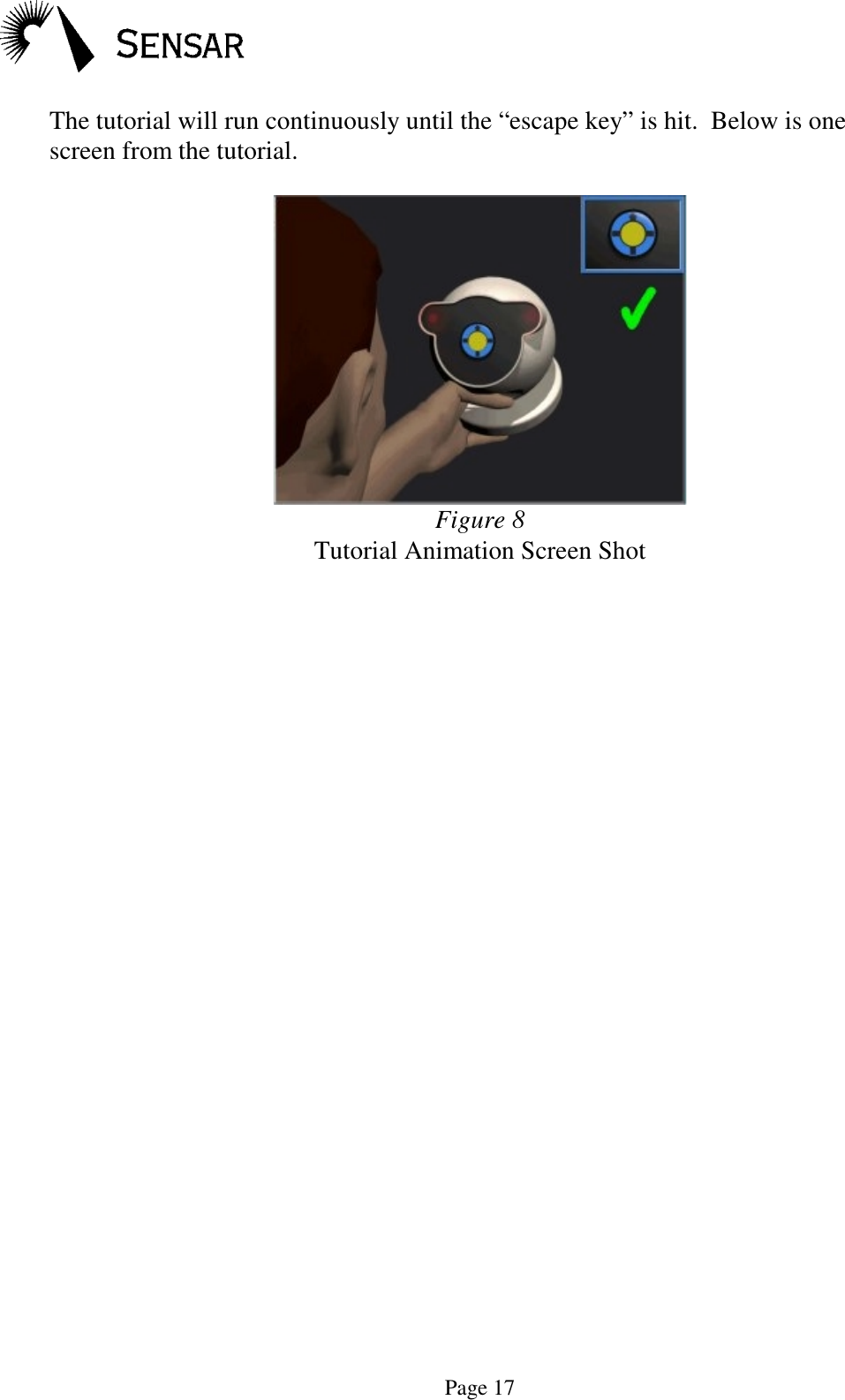
Page 16Viewing The TutorialThe installation procedure will place an animated tutorial “video” onto your PC.This file, named “SecureNET.exe,” can be found in the directory “C:\ProgramFiles\Sensar\SecureCam.”  To run the program, use the shortcut found in the “StartMenu,”–look under “Program Files,” then “Sensar Utilities” for the entry labeled“Tutorial Video.”  You can also locate the tutorial using Windows Explorer andlaunch it by “double-clicking” the file.  Once you are connected to the demo webpage, you may run it by clicking the camera icon located at the bottom right of theweb page.The tutorial shows a typical camera user demonstrating the use of the SensarSecure®Cam camera.  A few things to note from the tutorial…• The tutorial may not run immediately – hit the space key twice to start theanimation. Hitting the space key pauses the animation; hitting it again resumesthe motion. Hit the “Esc” key to exit.• The camera’s range starts about 4 inches away from the eye.• Moving the camera closer or farther away will make the yellow ball of lightshrink or grow respectively.• Moving the camera up, down, left, or right will move the yellow ballaccordingly, without making the ball shrink or grow.The goal is to put the yellow ball in the center, then make it shrink or grow until itjust fills the dark, open area in the center of the blue field.Even after the goal is met we suggest, as the tutorial shows, that you move thecamera just slightly (~1/4 inch) closer then farther away.  This will put your eye inthe best focal range.
Page 17The tutorial will run continuously until the “escape key” is hit.  Below is onescreen from the tutorial.Figure 8Tutorial Animation Screen Shot
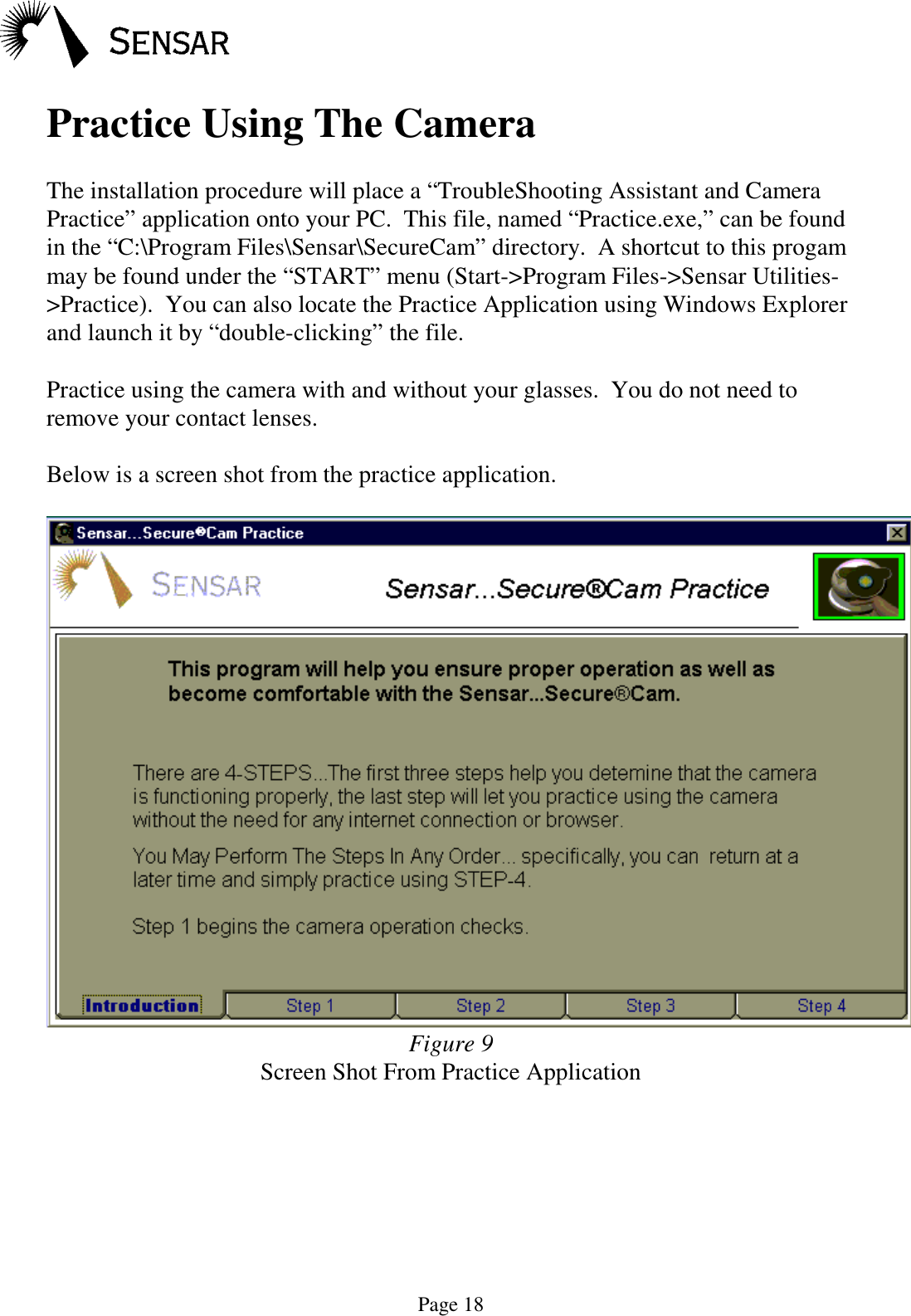
Page 18Practice Using The CameraThe installation procedure will place a “TroubleShooting Assistant and CameraPractice” application onto your PC.  This file, named “Practice.exe,” can be foundin the “C:\Program Files\Sensar\SecureCam” directory.  A shortcut to this progammay be found under the “START” menu (Start->Program Files->Sensar Utilities->Practice).  You can also locate the Practice Application using Windows Explorerand launch it by “double-clicking” the file.Practice using the camera with and without your glasses.  You do not need toremove your contact lenses.Below is a screen shot from the practice application.Figure 9Screen Shot From Practice Application
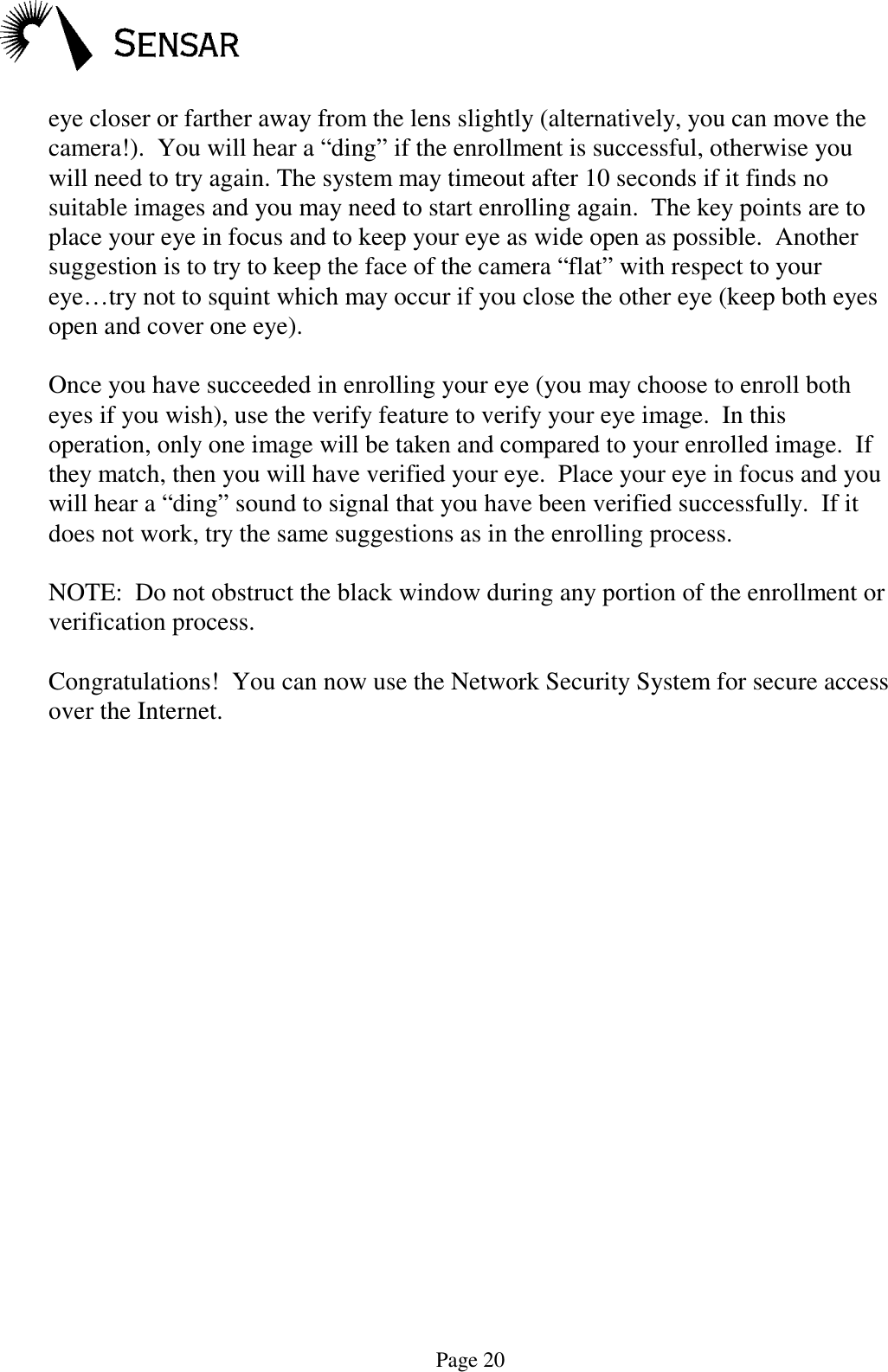
Page 19Getting StartedFigure 10The Sensar Secure®CamEnrollmentAfter you have finished installing the camera, you will need to enroll for the firsttime.  Enrolling is the process of collecting several iris images and comparingthem against each other.  The system collects from 1 to 4 eye images forenrollment.  The best image is selected as your enrolled image and will be used incomparison checks during all future verifications.Enrollment will automatically start by a software application or web page youdownload from a site supporting the Sensar…Secure®Cam system.  Enrollmentsoftware is not provided with this package. You should remove your glasses forthe enrollment process.Focusing—You must position your eye about four inches away from the lensbefore a focused image can be taken.  You will see a ball of light when lookinginto the lens which gets bigger or smaller as you move toward or away from thewindow.  The goal is to make the ball of light approximately the same size as thetarget window. You should slowly move the camera slightly closer and thenfarther away (~1/4 inch) to attain the correct focus position.The camera can be placed on an elevated level surface or you can pick up thecamera with your hand.  Keeping your eyes wide open, position your eye in thefocus range and listen for four shutter sounds from your speakers.  These indicatethe four images being taken.  If needed, cover the opposite eye to aid in imagetaking.  If no sound occurs, first check your sound setup.  Next, try moving your
Page 20eye closer or farther away from the lens slightly (alternatively, you can move thecamera!).  You will hear a “ding” if the enrollment is successful, otherwise youwill need to try again. The system may timeout after 10 seconds if it finds nosuitable images and you may need to start enrolling again.  The key points are toplace your eye in focus and to keep your eye as wide open as possible.  Anothersuggestion is to try to keep the face of the camera “flat” with respect to youreye…try not to squint which may occur if you close the other eye (keep both eyesopen and cover one eye).Once you have succeeded in enrolling your eye (you may choose to enroll botheyes if you wish), use the verify feature to verify your eye image.  In thisoperation, only one image will be taken and compared to your enrolled image.  Ifthey match, then you will have verified your eye.  Place your eye in focus and youwill hear a “ding” sound to signal that you have been verified successfully.  If itdoes not work, try the same suggestions as in the enrolling process.NOTE:  Do not obstruct the black window during any portion of the enrollment orverification process.Congratulations!  You can now use the Network Security System for secure accessover the Internet.
Page 21TroubleshootingProblem SuggestionNo flashing redlights. Verify the camera is properly and completely plugged in.  Runthe Practice Application to review operation and use.Note: The USB Camera has a “snug fit” connection on boththe camera and PC end.  It is possible that either end hasbecome unplugged slightly.Windows does notrecognize camera(USB only).The most common problem for users installing a USB devicefor the first time is that the computer’s BIOS does not havethe USB hardware on the motherboard enabled.  To rectify theproblem you must restart the computer and enter the SETUPutility to enable the USB hardware on the computer’smotherboard.  After entering the SETUP utility there will be aperipheral or advance section that will allow you to enable theUSB hardware.  After enabling the USB, exit the SETUPutility making sure you SAVE the changes when exiting.  Seeyour PC owner’s manual for starting the BIOS Settings Utilityspecific to your PC.To find out if your version of Windows 95 is USB compliant,right-click the “My Computer” icon and select Properties.The System should be 4.00.950B (Windows 95B) or later.  Ifyou are running Windows 95B and USB is not available, youneed to execute a program from your Windows 95 installationCD.  Your Windows 95 CD should say on it “With USBSupport.”  Open the Windows Explorer and go to thedirectory Drivers\USB\Enduser.  Double click on the fileUSBSUPP.EXE to install USB support to Windows 95.  Ifyou do not find this file in this location, go to the Start Menuand select Find–Files or Folders and search forUSBSUPP.EXE on the CD.A USB system test program has been included in thispackage. It can be run by clicking the “USB System Ready”shortcut located under the “Start Menu->Program Files->Sensar Utilities” group.
Page 22Technical SupportFor technical support call:Your system administratorSensar (609) 222-9090Visit our website at www.sensar.comOr equivalent vendor.SpecificationsA summary of the camera specifications are as follows:Operating Temperature: 5° to 40°CEnvironment: Indoor operationPackage ContentsThe package should contain the following items:USB or Parallel Port Camera, User Guide, and CD-ROM containing software.The USB version contains a detachable USB cable.
Page 23Adding a USB CardIf your PC does not have a USB port, an after-market USB port card is availablefrom:ADS Technologies13909 Bettencourt St.Cerritos CA 90703(800) 888-5244http://www.adstechnologies.comThis card operates with Windows 98 only.  The USB card may also be available atyour favorite computer retailer.  This card has been verified to operate with theSensar Secure®Cam.Note:  Windows NT users… the Parallel Port camera must be used.
Page 24User Tips• Begin with the camera 4 inches (10 cm) away fromyour eye.• Keep both eyes wide open.  If you need to close oneeye, use your hand to cover it instead because closing itwill cause the eye your enrolling to squint.• Remove glasses during enrollment.  You may wearthem during any subsequent verifications.• Contact lenses do not need to be removed.• Keep your head pointed directly at the camera lenswithout turning it.• The correct distance for focus does vary slightly amongindividuals. If you are having difficulties using thecamera, try moving the camera slightly closer orslightly farther away from you – you may have betterresults even if the yellow dot is a bit bigger or smallerthan the target.• You may want to try holding the camera at eye level,with your head completely upright.

Navigation menu