Sentek PROBE Drill & Drop Probe User Manual PowerPoint Presentation

Sentek Pty Ltd Drill & Drop Probe PowerPoint Presentation

User manual

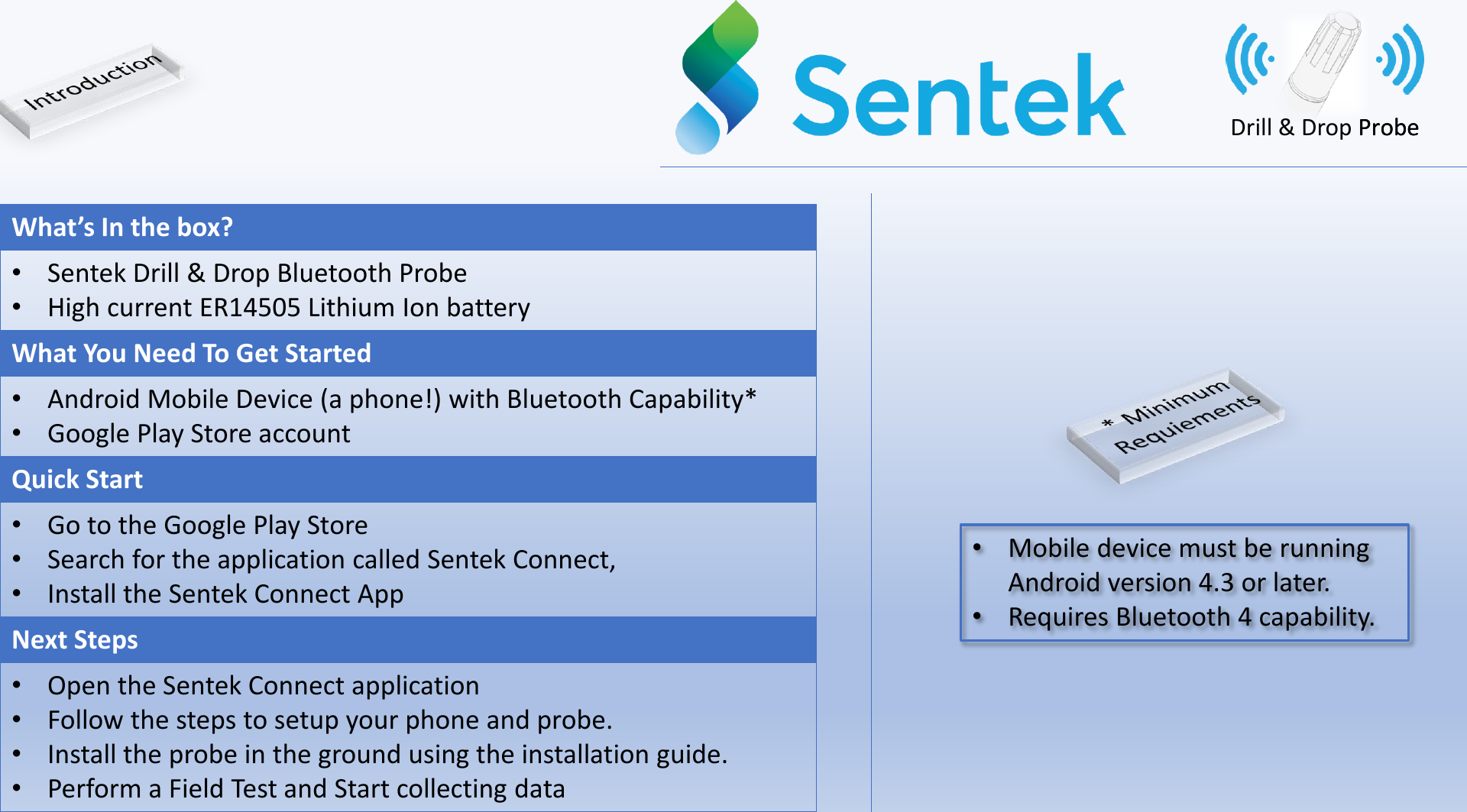
What’s In the box?•Sentek Drill & Drop Bluetooth Probe•High current ER14505 Lithium Ion batteryWhat You Need To Get Started•Android Mobile Device (a phone!) with Bluetooth Capability*•Google Play Store accountQuick Start•Go to the Google Play Store•Search for the application called Sentek Connect, •Install the Sentek Connect AppNext Steps•Open the Sentek Connect application•Follow the steps to setup your phone and probe.•Install the probe in the ground using the installation guide.•Perform a Field Test and Start collecting data•Mobile device must be running Android version 4.3 or later.•Requires Bluetooth 4 capability.Drill & Drop ProbeProbe
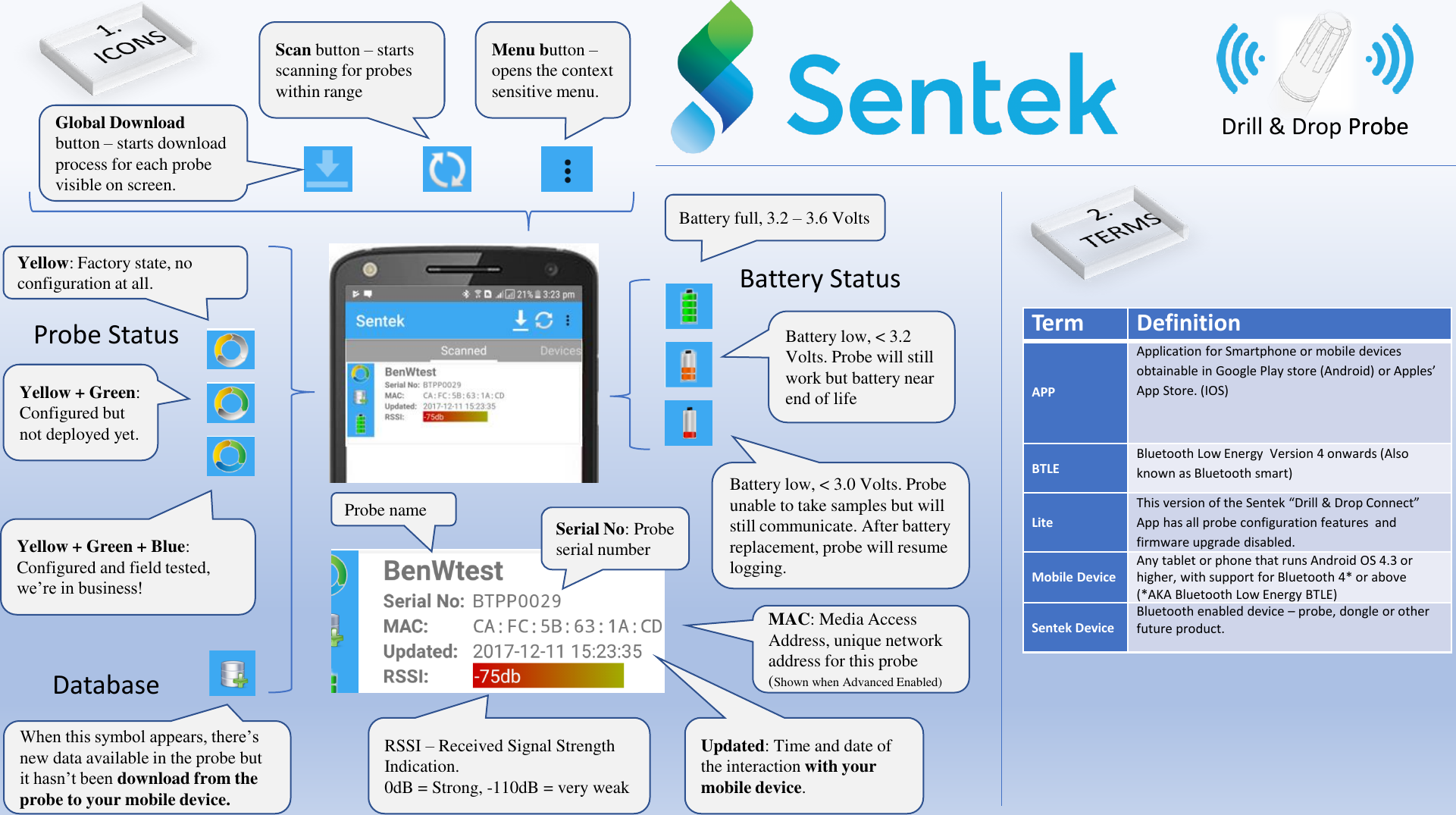
Menu button –opens the context sensitive menu.Scan button –starts scanning for probes within rangeGlobal Download button –starts download process for each probe visible on screen.Yellow: Factory state, no configuration at all.Yellow + Green: Configured but not deployed yet.Yellow + Green + Blue: Configured and field tested, we’re in business!When this symbol appears, there’s new data available in the probe but it hasn’t been download from the probe to your mobile device.Battery low, < 3.0 Volts. Probe unable to take samples but will still communicate. After battery replacement, probe will resume logging.Battery low, < 3.2 Volts. Probe will still work but battery near end of lifeBattery full, 3.2 –3.6 VoltsRSSI –Received Signal Strength Indication.0dB = Strong, -110dB = very weakDatabaseProbe StatusBattery StatusProbe name Serial No: Probe serial numberMAC: Media Access Address, unique network address for this probe (Shown when Advanced Enabled)Updated: Time and date of the interaction with your mobile device.Term DefinitionAPPApplication for Smartphone or mobile devices obtainable in Google Play store (Android) or Apples’ App Store. (IOS)BTLEBluetooth Low Energy  Version 4 onwards (Also known as Bluetooth smart)LiteThis version of the Sentek “Drill & Drop Connect” App has all probe configuration features  and firmware upgrade disabled.Mobile DeviceAny tablet or phone that runs Android OS 4.3 or higher, with support for Bluetooth 4* or above (*AKA Bluetooth Low Energy BTLE)Sentek DeviceBluetooth enabled device –probe, dongle or other future product.Drill & Drop ProbeProbe
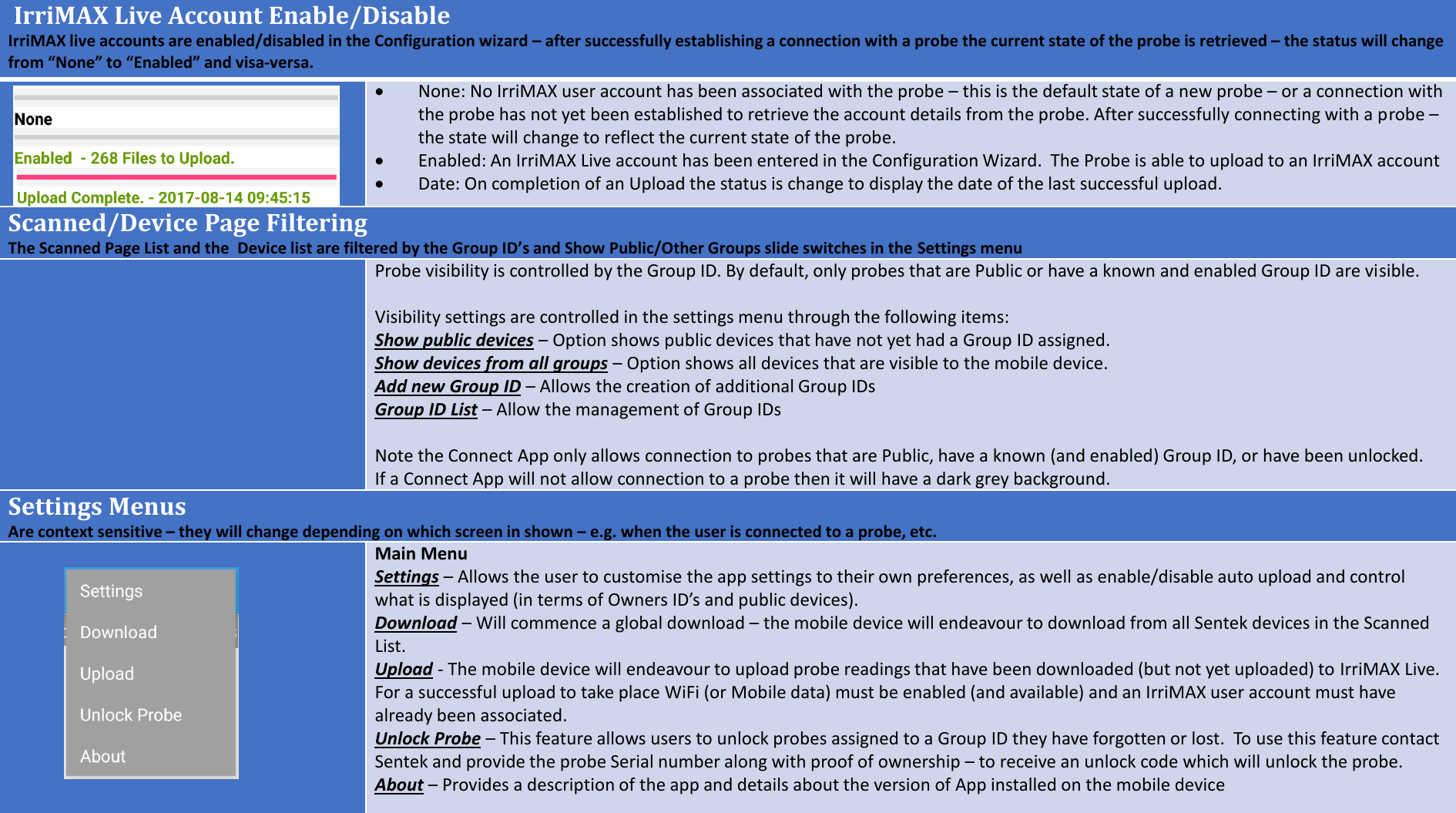
IrriMAX Live Account Enable/DisableIrriMAX live accounts are enabled/disabled in the Configuration wizard –after successfully establishing a connection with a probe the current state of the probe is retrieved –the status will change from “None” to “Enabled” and visa-versa.None: No IrriMAX user account has been associated with the probe –this is the default state of a new probe –or a connection with the probe has not yet been established to retrieve the account details from the probe. After successfully connecting with a probe –the state will change to reflect the current state of the probe.Enabled: An IrriMAX Live account has been entered in the Configuration Wizard.  The Probe is able to upload to an IrriMAX accountDate: On completion of an Upload the status is change to display the date of the last successful upload.Scanned/Device Page FilteringThe Scanned Page List and the  Device list are filtered by the Group ID’s and Show Public/Other Groups slide switches in the Settings menuProbe visibility is controlled by the Group ID. By default, only probes that are Public or have a known and enabled Group ID are visible.Visibility settings are controlled in the settings menu through the following items:Show public devices –Option shows public devices that have not yet had a Group ID assigned.Show devices from all groups –Option shows all devices that are visible to the mobile device.Add new Group ID –Allows the creation of additional Group IDsGroup ID List –Allow the management of Group IDsNote the Connect App only allows connection to probes that are Public, have a known (and enabled) Group ID, or have been unlocked.If a Connect App will not allow connection to a probe then it will have a dark grey background.Settings MenusAre context sensitive –they will change depending on which screen in shown –e.g. when the user is connected to a probe, etc.Main MenuSettings –Allows the user to customise the app settings to their own preferences, as well as enable/disable auto upload and control what is displayed (in terms of Owners ID’s and public devices).Download –Will commence a global download –the mobile device will endeavour to download from all Sentek devices in the Scanned List.Upload - The mobile device will endeavour to upload probe readings that have been downloaded (but not yet uploaded) to IrriMAX Live.  For a successful upload to take place WiFi (or Mobile data) must be enabled (and available) and an IrriMAX user account must have already been associated.Unlock Probe –This feature allows users to unlock probes assigned to a Group ID they have forgotten or lost.  To use this feature contact Sentek and provide the probe Serial number along with proof of ownership –to receive an unlock code which will unlock the probe.About –Provides a description of the app and details about the version of App installed on the mobile device
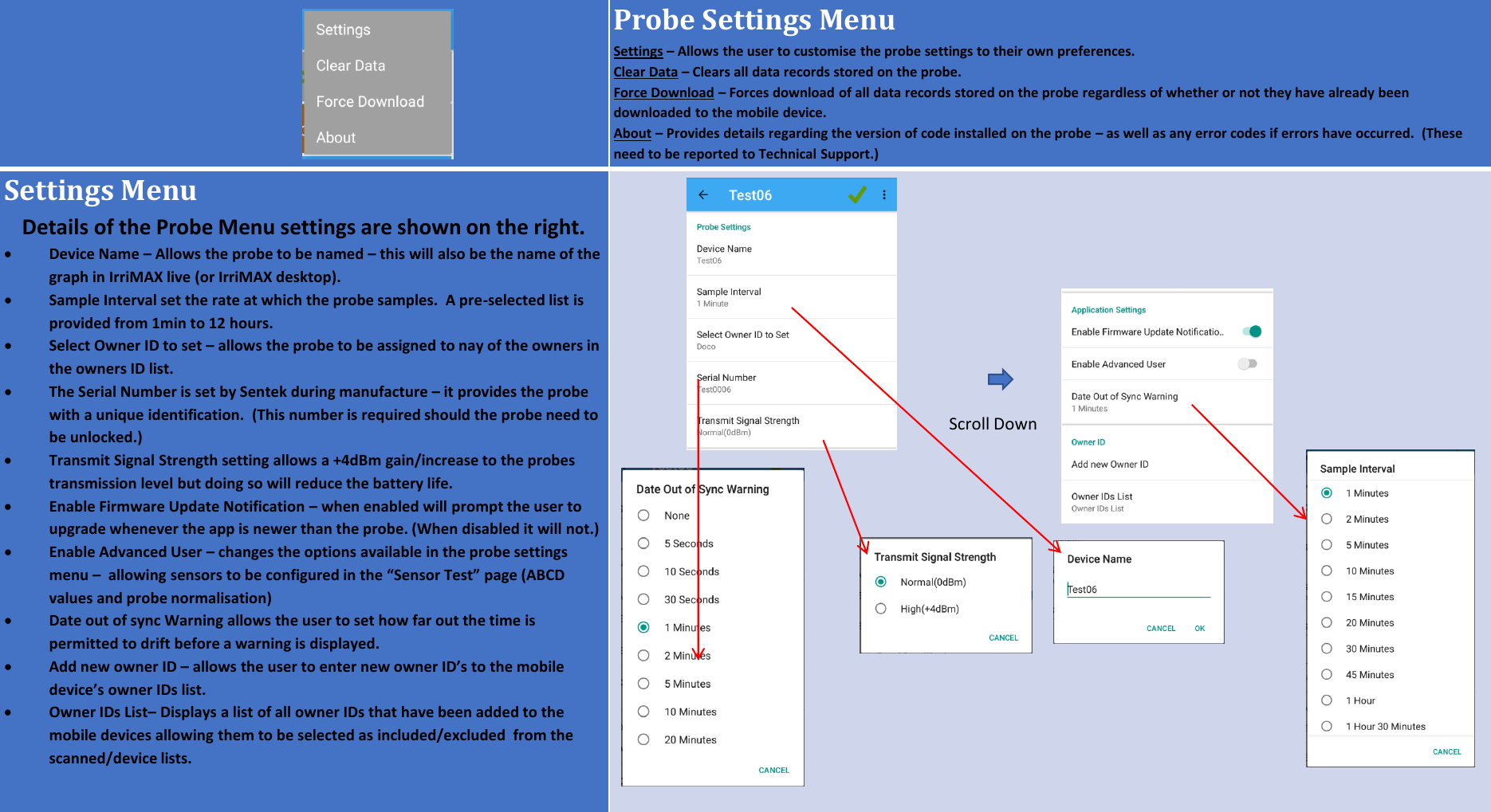
Probe Settings MenuSettings –Allows the user to customise the probe settings to their own preferences.Clear Data –Clears all data records stored on the probe.Force Download –Forces download of all data records stored on the probe regardless of whether or not they have already been downloaded to the mobile device.About –Provides details regarding the version of code installed on the probe –as well as any error codes if errors have occurred.  (These need to be reported to Technical Support.)Settings MenuDetails of the Probe Menu settings are shown on the right.Device Name –Allows the probe to be named –this will also be the name of the graph in IrriMAX live (or IrriMAX desktop).Sample Interval set the rate at which the probe samples.  A pre-selected list is provided from 1min to 12 hours.Select Owner ID to set –allows the probe to be assigned to nay of the owners in the owners ID list.The Serial Number is set by Sentek during manufacture –it provides the probe with a unique identification.  (This number is required should the probe need to be unlocked.)Transmit Signal Strength setting allows a +4dBm gain/increase to the probes transmission level but doing so will reduce the battery life.Enable Firmware Update Notification –when enabled will prompt the user to upgrade whenever the app is newer than the probe. (When disabled it will not.)Enable Advanced User –changes the options available in the probe settings menu – allowing sensors to be configured in the “Sensor Test” page (ABCD values and probe normalisation)Date out of sync Warning allows the user to set how far out the time is permitted to drift before a warning is displayed.Add new owner ID – allows the user to enter new owner ID’s to the mobile device’s owner IDs list.Owner IDs List–Displays a list of all owner IDs that have been added to the mobile devices allowing them to be selected as included/excluded  from the scanned/device lists.Scroll Down
Drill & Drop ProbeFCC Compliance StatementThis device complies with part 15 of the FCC Rules. Operation is subject to the following two conditions:(1) This device may not cause harmful interference, and (2) this device must accept any interference received, including interference that may cause undesired operation.Information to user:This equipment has been tested and found to comply with the limits for a Class B digital device, pursuant to Part 15 of FCC Rules. These limits are designed to provide reasonable protection against harmful interference in a residential installation. This equipment generates, uses, and can radiate radio frequency energy. If not installed and used in accordance with the instructions, it may cause harmful interference to radio communicationsHowever, there is no guarantee that interference will not occur in a particular installation. If this equipment does cause harmful interference to radio or television reception, which can be determined by turning the equipment off and on, the user is encouraged to try and correct the interference by one or more of the following measures:•  Reorient or relocate the receiving antenna.•  Increase the distance between the equipment and the receiver.•  Connect the equipment to outlet on a circuit different from that to which the receiver is connected.•  Consult the dealer or an experienced radio/TV technician for help.Changes or modifications not expressly approved by the party responsible for compliance could void the user’s authority to operate the equipment.Probe

Navigation menu