Sequel Technologies DWSX01 Door/Window Sensor User Manual CERTIFICATE OF COMPLIANCE

Sequel Technologies, LLC Door/Window Sensor CERTIFICATE OF COMPLIANCE

User Manual

Rhein Tech Laboratories, Inc.  Client:  Sequel Technologies, LLC 360 Herndon Parkway    Model:  STWS-DWS Suite 1400  Standard: FCC 15.231                                             FCC ID:  V4X-DWSX01 Herndon, VA 20170 http://www.rheintech.com Report #:  2008038    Page 21 of 25       Appendix G:  Manual  Please see the following pages.
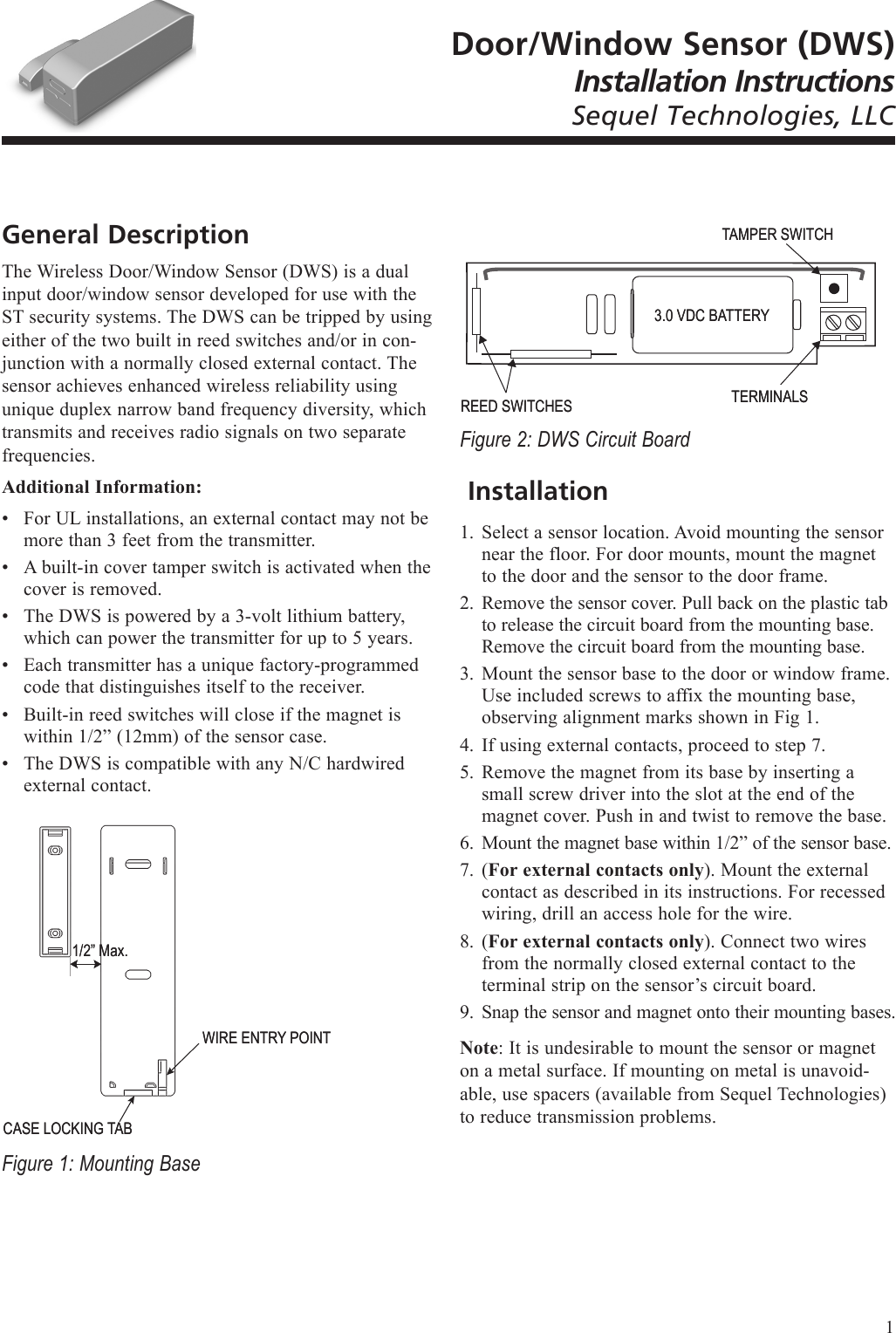
Door/Window Sensor (DWS)Installation InstructionsSequel Technologies, LLCGeneral DescriptionThe Wireless Door/Window Sensor (DWS) is a dual input door/window sensor developed for use with the ST security systems. The DWS can be tripped by using either of the two built in reed switches and/or in con-junction with a normally closed external contact. The sensor achieves enhanced wireless reliability using unique duplex narrow band frequency diversity, which transmits and receives radio signals on two separate frequencies.Additional Information:For UL installations, an external contact may not be more than 3 feet from the transmitter. A built-in cover tamper switch is activated when the cover is removed.The DWS is powered by a 3-volt lithium battery, which can power the transmitter for up to 5 years.Each transmitter has a unique factory-programmed code that distinguishes itself to the receiver.Built-in reed switches will close if the magnet is within 1/2” (12mm) of the sensor case.The DWS is compatible with any N/C hardwired external contact.Figure 1: Mounting Base••••••CASE LOCKING TABCASE LOCKING TAB1/2” Max.1/2” Max.WIRE ENTRY POINTWIRE ENTRY POINTFigure 2: DWS Circuit Board InstallationSelect a sensor location. Avoid mounting the sensor near the floor. For door mounts, mount the magnet to the door and the sensor to the door frame.Remove the sensor cover. Pull back on the plastic tab to release the circuit board from the mounting base. Remove the circuit board from the mounting base. Mount the sensor base to the door or window frame. Use included screws to affix the mounting base, observing alignment marks shown in Fig 1.If using external contacts, proceed to step 7.Remove the magnet from its base by inserting a small screw driver into the slot at the end of the magnet cover. Push in and twist to remove the base.Mount the magnet base within 1/2” of the sensor base.(For external contacts only). Mount the external contact as described in its instructions. For recessed wiring, drill an access hole for the wire.(For external contacts only). Connect two wires from the normally closed external contact to the terminal strip on the sensor’s circuit board.Snap the sensor and magnet onto their mounting bases.Note: It is undesirable to mount the sensor or magnet on a metal surface. If mounting on metal is unavoid-able, use spacers (available from Sequel Technologies) to reduce transmission problems.1.2.3.4.5.6.7.8.9.TAMPER SWITCHTAMPER SWITCHREED SWITCHESREED SWITCHES3.0 VDC BATTERY3.0 VDC BATTERYTERMINALSTERMINALS1
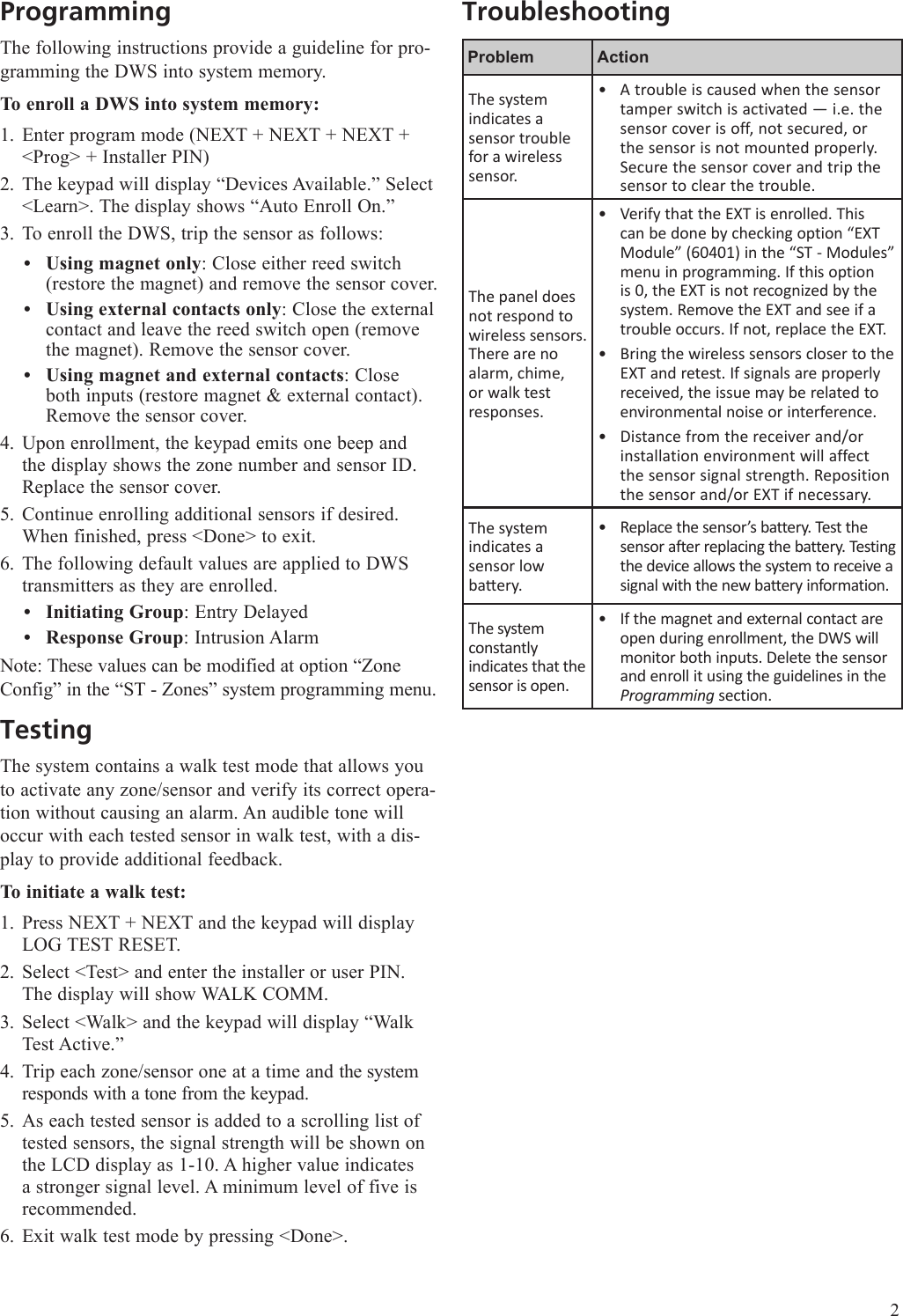
ProgrammingThe following instructions provide a guideline for pro-gramming the DWS into system memory. To enroll a DWS into system memory:Enter program mode (NEXT + NEXT + NEXT + <Prog> + Installer PIN)The keypad will display “Devices Available.” Select <Learn>. The display shows “Auto Enroll On.”To enroll the DWS, trip the sensor as follows:Using magnet only: Close either reed switch (restore the magnet) and remove the sensor cover. Using external contacts only: Close the external contact and leave the reed switch open (remove the magnet). Remove the sensor cover.Using magnet and external contacts: Close both inputs (restore magnet & external contact). Remove the sensor cover.Upon enrollment, the keypad emits one beep and the display shows the zone number and sensor ID. Replace the sensor cover.Continue enrolling additional sensors if desired. When finished, press <Done> to exit.The following default values are applied to DWS transmitters as they are enrolled. Initiating Group: Entry DelayedResponse Group: Intrusion AlarmNote: These values can be modified at option “Zone Config” in the “ST - Zones” system programming menu.TestingThe system contains a walk test mode that allows you to activate any zone/sensor and verify its correct opera-tion without causing an alarm. An audible tone will occur with each tested sensor in walk test, with a dis-play to provide additional feedback.To initiate a walk test:Press NEXT + NEXT and the keypad will display LOG TEST RESET. Select <Test> and enter the installer or user PIN. The display will show WALK COMM.Select <Walk> and the keypad will display “Walk Test Active.”Trip each zone/sensor one at a time and the system responds with a tone from the keypad. As each tested sensor is added to a scrolling list of tested sensors, the signal strength will be shown on the LCD display as 1-10. A higher value indicates a stronger signal level. A minimum level of five is recommended.Exit walk test mode by pressing <Done>.1.2.3.•••4.5.6.••1.2.3.4.5.6.TroubleshootingProblem ActionThe system indicates a sensor trouble for a wireless sensor.A trouble is caused when the sensor tamper switch is activated — i.e. the sensor cover is off, not secured, or the sensor is not mounted properly. Secure the sensor cover and trip the sensor to clear the trouble.•The panel does not respond to wireless sensors. There are no alarm, chime, or walk test responses.Verify that the EXT is enrolled. This can be done by checking option “EXT Module” (60401) in the “ST - Modules” menu in programming. If this option is 0, the EXT is not recognized by the system. Remove the EXT and see if a trouble occurs. If not, replace the EXT.Bring the wireless sensors closer to the EXT and retest. If signals are properly received, the issue may be related to environmental noise or interference.Distance from the receiver and/or installation environment will affect the sensor signal strength. Reposition the sensor and/or EXT if necessary.•••The system indicates a  sensor low baery.Replace the sensor’s battery. Test the sensor after replacing the battery. Testing the device allows the system to receive a signal with the new battery information.•The system constantly indicates that the sensor is open.If the magnet and external contact are open during enrollment, the DWS will monitor both inputs. Delete the sensor and enroll it using the guidelines in the Programming section.•2
3SpecificationsCompatibility: All Sequel Technologies ST Security Systems (ST8 requires Expansion Transceiver Module)Power: 3.0V CR123A, lithium battery (average battery life is 3-5 years)Transmitting Frequency: 319.5 MHz and 345 MHzSupervision Interval: 60 minutesTransmit Range: 500 feet, open airSensor Dimensions: 4.31” x 1.09” x 1.16” (HxWxD)Magnet Dimensions: 1.86” x .41” x .47” (HxWxD)Material: High-impact ABSOperating Temperature: -30° to 120°F (-34° to 49°C)Max. Humidity: 90% relative humidity, non condensingRegulatory Approvals: FCC 15, UL (Pending)FCC NoticeThis device complies with Part 15 of the FCC Rules. Operation is subject to the following two conditions: (1) this device may not cause harmful interfer-ence, and (2) this device must accept any interference received, including interference that may cause undesired operation. Changes and/or modica-tions not approved by Sequel Technologies, LLC could void the user’s authority to operate the equipment.FCC ID: V4X-DWSX01•••••••••••    Sequel Technologies2958 Cleveland Ave. NRoseville, MN  55113  USACopyright © 2008 Sequel Technologies, LLC.

Navigation menu