Shakespeare WW01 WebWatch User Manual WebWatch Manual

Shakespeare Company, LLC WebWatch WebWatch Manual

Contents

Users Manual Revised

Introduction                            1 - 3     Register your Product     Download the App    Theory of Operation Installation                             4 - 6     You will Need     Ethernet Installation    Mounting Notes                           4      Power SupplySelecting SIM CardUsage                                     8 - 17    First Time Only    Connect To WebWatch    WebWatch Setup Page    Hotspot and Ethernet Settings    Wi-Fi, Cellular or Auto Setting    Configure Cellular Function    Connecting to Wi-Fi Network    Deleting a saved network    Changing Admin PasswordInstalling UpdatesWebWatch AppTroubleshooting                    20 -21Compliance Information        22  123446789111213131516171819Internet and TV antennaWCT-1 & WC-1User Guide
Please register your product for warranty and notifications for available software updates at:http://shakespeare-ce.com/marine/register/or Scan the below QR codeINTRODUCTIONRegister your Product WarrantyWCT-1 & WC-1 / WebWatch Wi-Fi & TV antenna                                                                                          Page  1See label under the device for MAC IDPlease record your device details here for future reference:MAC ID:Date of Purchase:Customer ID (Will be mailed to you once registered online):
INTRODUCTION INTRODUCTIONPage 2                                                                                          WCT-1 & WC-1 / WebWatch Wi-Fi & TV antennaThe WebWatch has both, an iOS and an Android APP that can be downloaded to manage your device more easily (Highly Recommended).                  Look for the “WebWatch” app on the respective app stores.Download the WebWatch App
INTRODUCTIONINTRODUCTIONINTRODUCTIONCongratulations on purchasing the WebWatch™. Take you entertainment wherever you go. WebWatch lets you access the internet from a Wi-Fi Hotspot or cellular network with up to 4G speeds and share it wirelessly or through Ethernet. Now, you don’t need another antenna for your TV. Access your favorite local TV channels through the WebWatch's built in HDTV antenna. Web and Watch, on your boat, recreational vehicle, cabin or AnyWhere® else.This guide contains all the information you need to get your WebWatch system up and running.Which model do you own?The only difference between the WCT-1 and WC-1 is the built-in HDTV antenna which is present only in the WCT-1. This manual is common to both models. Please ignore the sections regarding the TV antenna in case you own a WC-1.Please register your product warranty at: http://shakespeare-ce.com/marine/register/ We strive to keep improving the user experience for you. We will keep you posted when software updates are available for your product.Theory of OperationThe WebWatch as its name suggests, brings to you the Web and the TV Watching experience (not in WC-1) to your boat or anywhere else that you may install it. The device has a built in high gain Omni-directional Wi-Fi antenna and a cellular modem that allows it to access the internet either from a Wi-Fi hotspot (if in the proximity of one) or a cellular network if Wi-Fi is unavailable. The device automatically switches depending on the availability of Wi-Fi. Incase required, the device can also be switched manually using either the WebWatch phone app or the device’s built-in web interface.The internet can then be accessed locally using either its built-in Wi-Fi hotspot or over an Ethernet cable. The Wi-Fi range can be increased by either using a Wi-Fi repeaters or connecting other Wi-Fi access points/router using the Ethernet connection.Just like any other antenna, the WebWatch will best perform with a clear line of sight with the Wi-Fi/ cellular tower.WCT-1 & WC-1 / WebWatch Wi-Fi & TV antenna                                                                                          Page  3
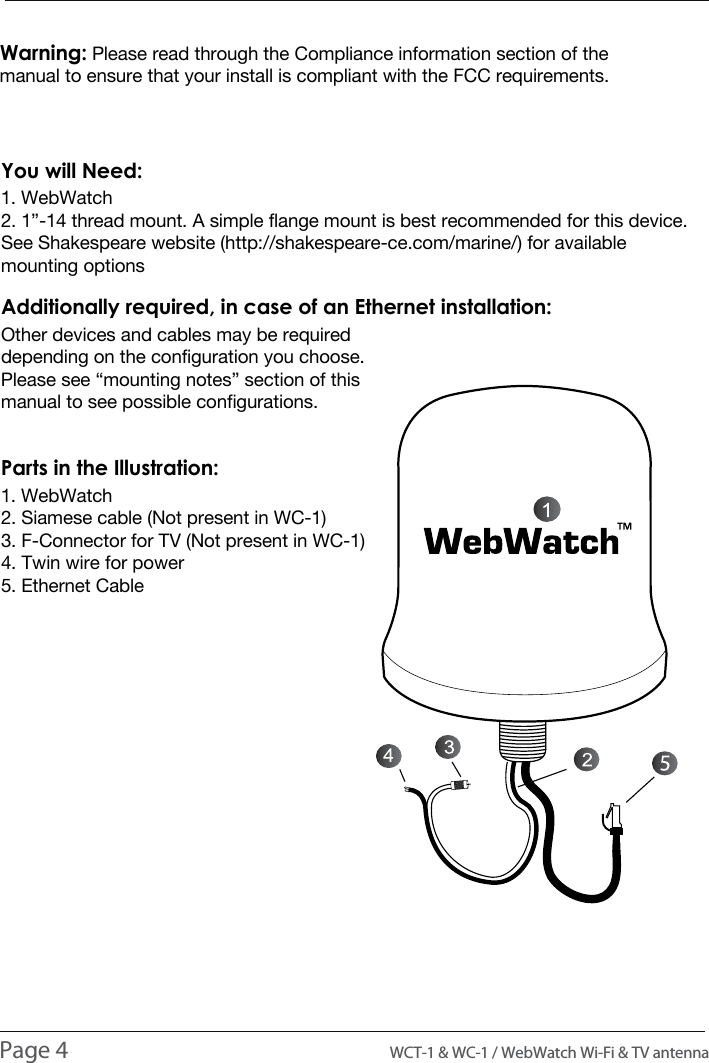
INSTALLATION1. WebWatch2. 1”-14 thread mount. A simple flange mount is best recommended for this device. See Shakespeare website (http://shakespeare-ce.com/marine/) for available mounting optionsYou will Need:Other devices and cables may be required depending on the configuration you choose. Please see “mounting notes” section of this manual to see possible configurations.Additionally required, in case of an Ethernet installation:1. WebWatch2. Siamese cable (Not present in WC-1)3. F-Connector for TV (Not present in WC-1)4. Twin wire for power5. Ethernet CableParts in the Illustration:Page 4                                                                                          WCT-1 & WC-1 / WebWatch Wi-Fi & TV antennaWarning: Please read through the Compliance information section of the manual to ensure that your install is compliant with the FCC requirements.
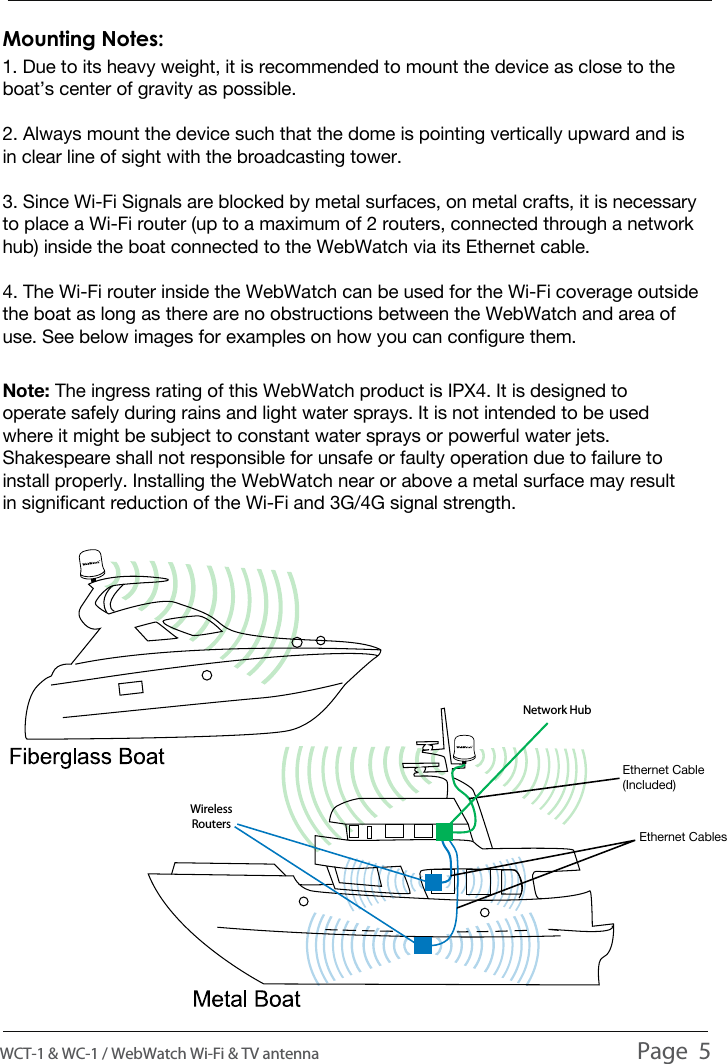
1. Due to its heavy weight, it is recommended to mount the device as close to the boat’s center of gravity as possible.2. Always mount the device such that the dome is pointing vertically upward and is in clear line of sight with the broadcasting tower.3. Since Wi-Fi Signals are blocked by metal surfaces, on metal crafts, it is necessary to place a Wi-Fi router (up to a maximum of 2 routers, connected through a network hub) inside the boat connected to the WebWatch via its Ethernet cable. 4. The Wi-Fi router inside the WebWatch can be used for the Wi-Fi coverage outside the boat as long as there are no obstructions between the WebWatch and area of use. See below images for examples on how you can configure them.Mounting Notes:Note: The ingress rating of this WebWatch product is IPX4. It is designed to operate safely during rains and light water sprays. It is not intended to be used where it might be subject to constant water sprays or powerful water jets. Shakespeare shall not responsible for unsafe or faulty operation due to failure to install properly. Installing the WebWatch near or above a metal surface may result in significant reduction of the Wi-Fi and 3G/4G signal strength.WCT-1 & WC-1 / WebWatch Wi-Fi & TV antenna                                                                                          Page  5INSTALLATIONEthernet CablesEthernet Cable (Included)Wireless RoutersNetwork Hub
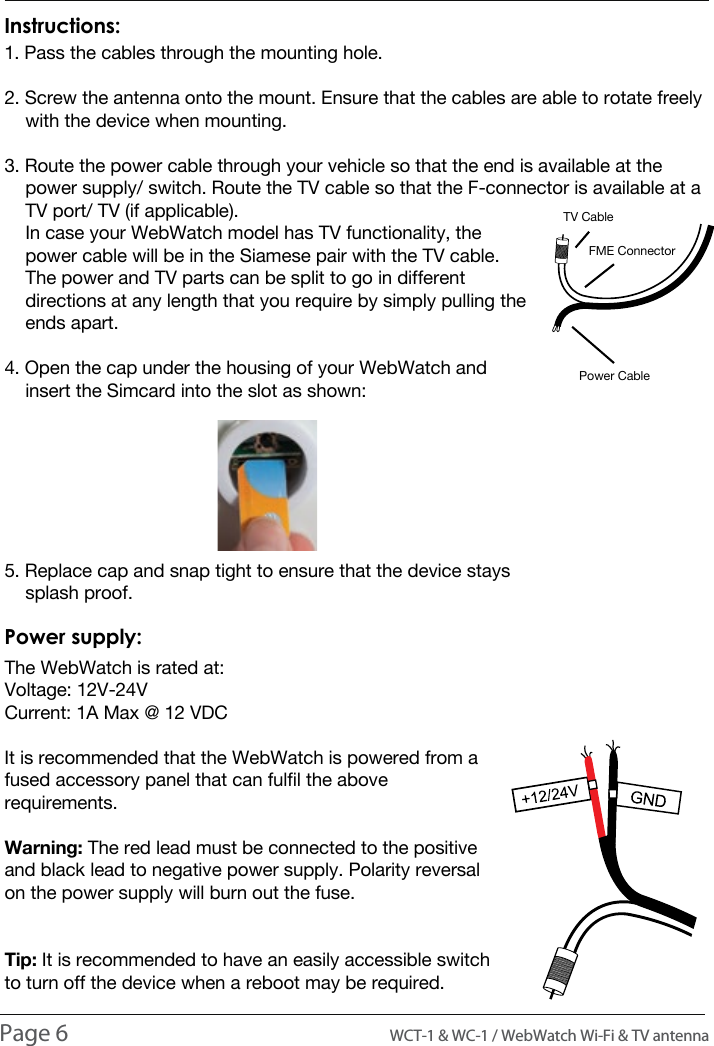
INTRODUCTION1. Pass the cables through the mounting hole.2. Screw the antenna onto the mount. Ensure that the cables are able to rotate freely     with the device when mounting.3. Route the power cable through your vehicle so that the end is available at the     power supply/ switch. Route the TV cable so that the F-connector is available at a     TV port/ TV (if applicable).    In case your WebWatch model has TV functionality, the     power cable will be in the Siamese pair with the TV cable.     The power and TV parts can be split to go in different     directions at any length that you require by simply pulling the     ends apart.4. Open the cap under the housing of your WebWatch and     insert the Simcard into the slot as shown: 5. Replace cap and snap tight to ensure that the device stays     splash proof.Instructions:The WebWatch is rated at:Voltage: 12V-24VCurrent: 1A Max @ 12 VDCIt is recommended that the WebWatch is powered from a fused accessory panel that can fulfil the above requirements. Warning: The red lead must be connected to the positive and black lead to negative power supply. Polarity reversal on the power supply will burn out the fuse.Tip: It is recommended to have an easily accessible switch to turn off the device when a reboot may be required.Power supply:Page 6                                                                                          WCT-1 & WC-1 / WebWatch Wi-Fi & TV antennaINSTALLATIONTV CableFME ConnectorPower Cable
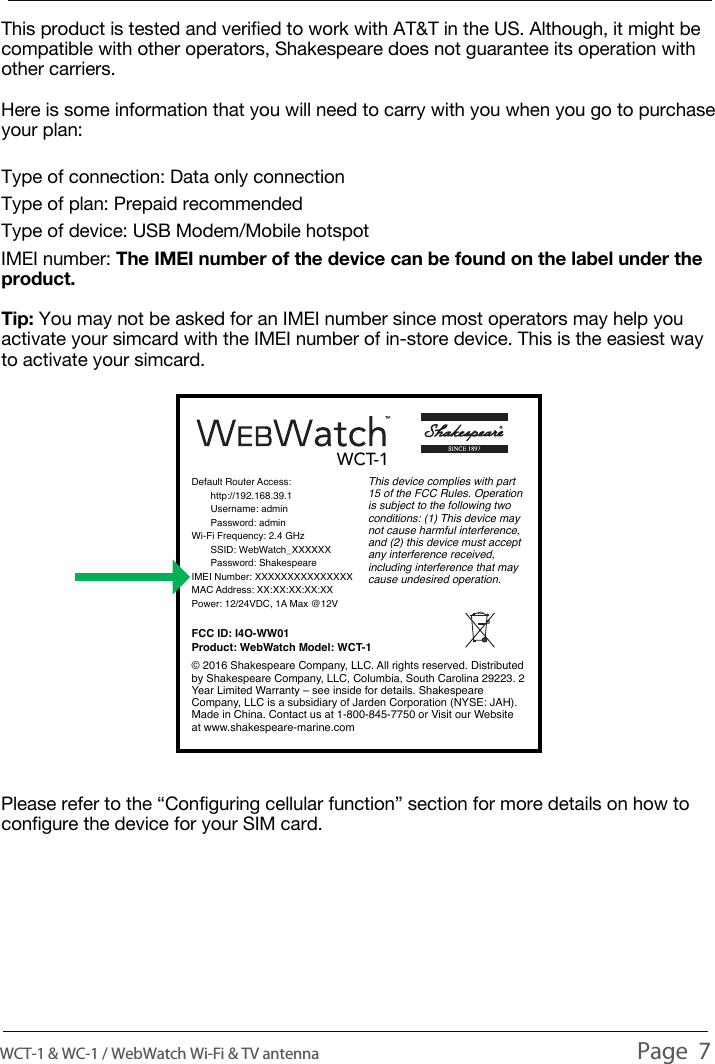
SELECTING THE RIGHT SIM CARDThis product is tested and verified to work with AT&T in the US. Although, it might be compatible with other operators, Shakespeare does not guarantee its operation with other carriers.Here is some information that you will need to carry with you when you go to purchase your plan:Type of connection: Data only connectionType of plan: Prepaid recommendedType of device: USB Modem/Mobile hotspotIMEI number: The IMEI number of the device can be found on the label under the product.Tip: You may not be asked for an IMEI number since most operators may help you activate your simcard with the IMEI number of in-store device. This is the easiest way to activate your simcard.Please refer to the “Configuring cellular function” section for more details on how to configure the device for your SIM card.WCT-1 & WC-1 / WebWatch Wi-Fi & TV antenna                                                                                          Page  7Default Router Access:       http://192.168.39.1       Username: admin       Password: adminWi-Fi Frequency: 2.4 GHz       SSID: WebWatch_XXXXXX       Password: ShakespeareIMEI Number: XXXXXXXXXXXXXXXMAC Address: XX:XX:XX:XX:XXPower: 12/24VDC, 1A Max @12VFCC ID: I4O-WW01Product: WebWatch Model: WCT-1This device complies with part 15 of the FCC Rules. Operation is subject to the following two conditions: (1) This device may not cause harmful interference, and (2) this device must accept any interference received, including interference that may cause undesired operation. © 2016 Shakespeare Company, LLC. All rights reserved. Distributed by Shakespeare Company, LLC, Columbia, South Carolina 29223. 2 Year Limited Warranty – see inside for details. Shakespeare Company, LLC is a subsidiary of Jarden Corporation (NYSE: JAH). Made in China. Contact us at1-800-845-7750 or Visit our Website at www.shakespeare-marine.comWCT-1
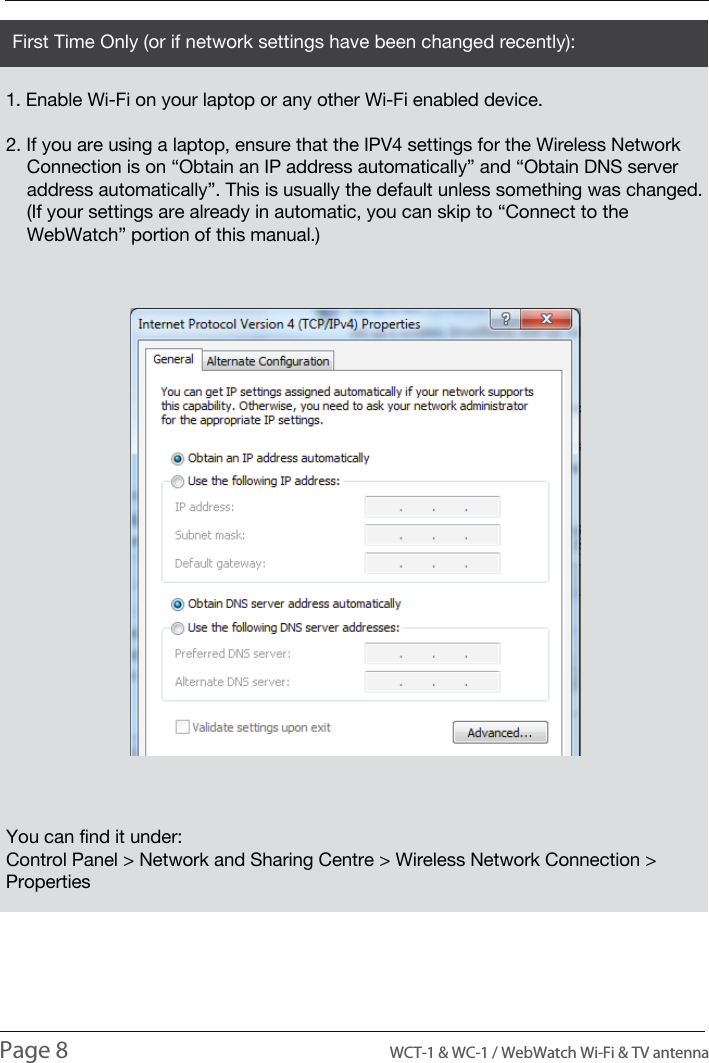
INTRODUCTIONUSAGE1. Enable Wi-Fi on your laptop or any other Wi-Fi enabled device.2. If you are using a laptop, ensure that the IPV4 settings for the Wireless Network     Connection is on “Obtain an IP address automatically” and “Obtain DNS server     address automatically”. This is usually the default unless something was changed.    (If your settings are already in automatic, you can skip to “Connect to the     WebWatch” portion of this manual.)You can find it under:Control Panel > Network and Sharing Centre > Wireless Network Connection > PropertiesFirst Time Only (or if network settings have been changed recently):Page 8                                                                                          WCT-1 & WC-1 / WebWatch Wi-Fi & TV antenna
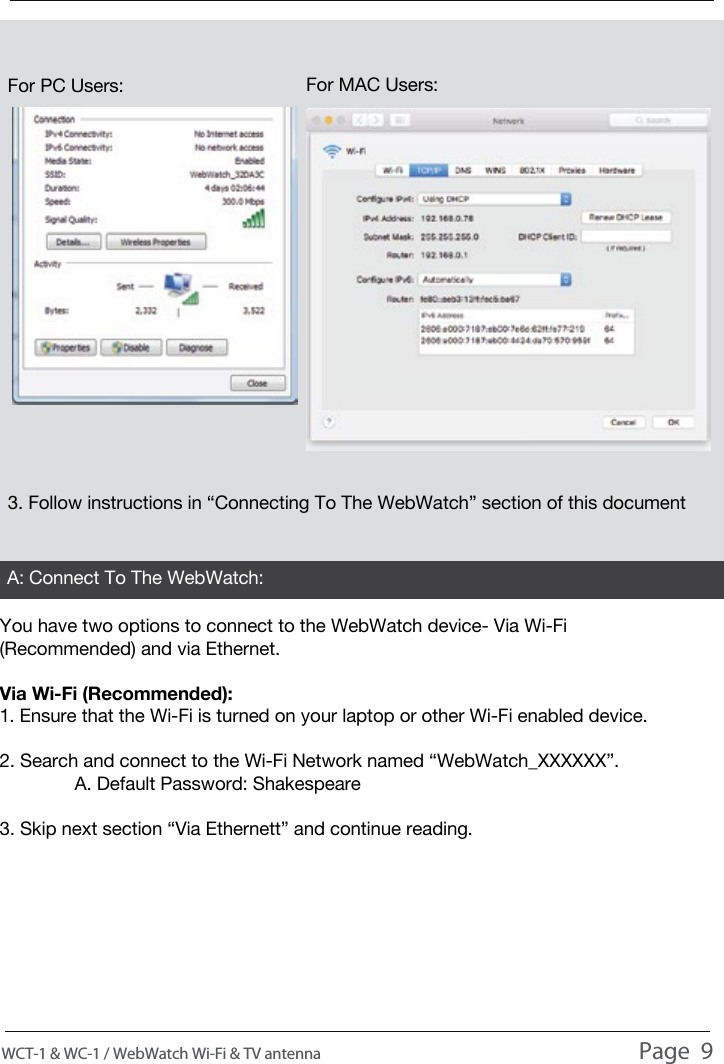
USAGE You have two options to connect to the WebWatch device- Via Wi-Fi (Recommended) and via Ethernet.Via Wi-Fi (Recommended):1. Ensure that the Wi-Fi is turned on your laptop or other Wi-Fi enabled device.2. Search and connect to the Wi-Fi Network named “WebWatch_XXXXXX”.  A. Default Password: Shakespeare3. Skip next section “Via Ethernett” and continue reading.3. Follow instructions in “Connecting To The WebWatch” section of this documentA: Connect To The WebWatch:WCT-1 & WC-1 / WebWatch Wi-Fi & TV antenna                                                                                          Page  9For PC Users: For MAC Users:
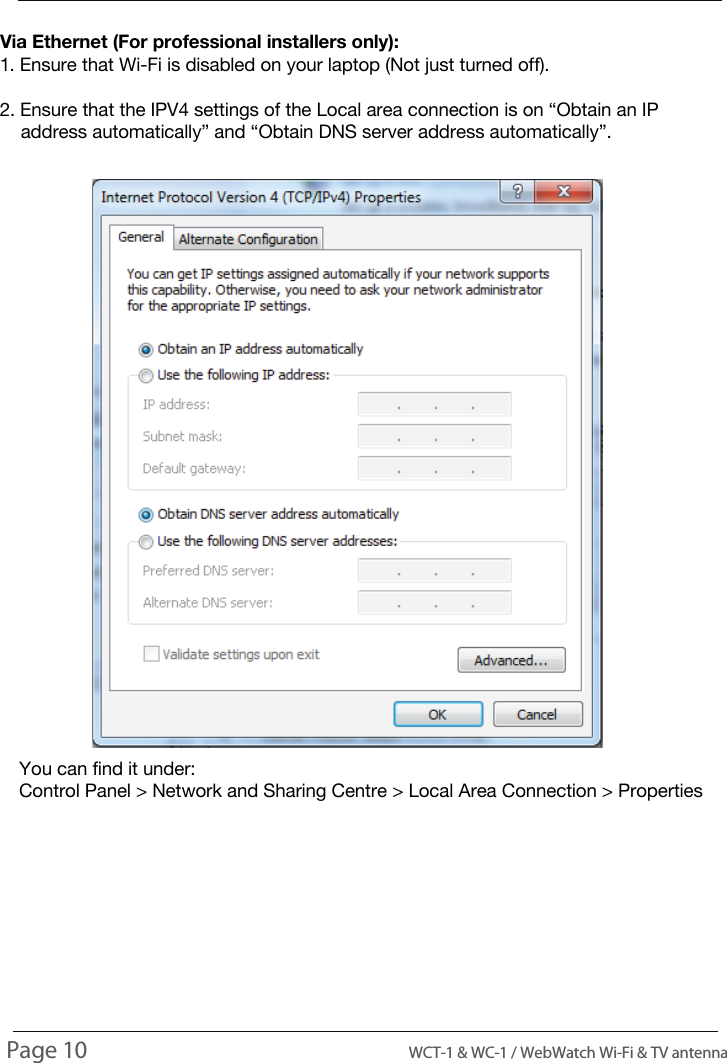
INTRODUCTIONUSAGEVia Ethernet (For professional installers only):1. Ensure that Wi-Fi is disabled on your laptop (Not just turned off).2. Ensure that the IPV4 settings of the Local area connection is on “Obtain an IP     address automatically” and “Obtain DNS server address automatically”.You can find it under:Control Panel > Network and Sharing Centre > Local Area Connection > PropertiesPage 10                                                                                          WCT-1 & WC-1 / WebWatch Wi-Fi & TV antenna
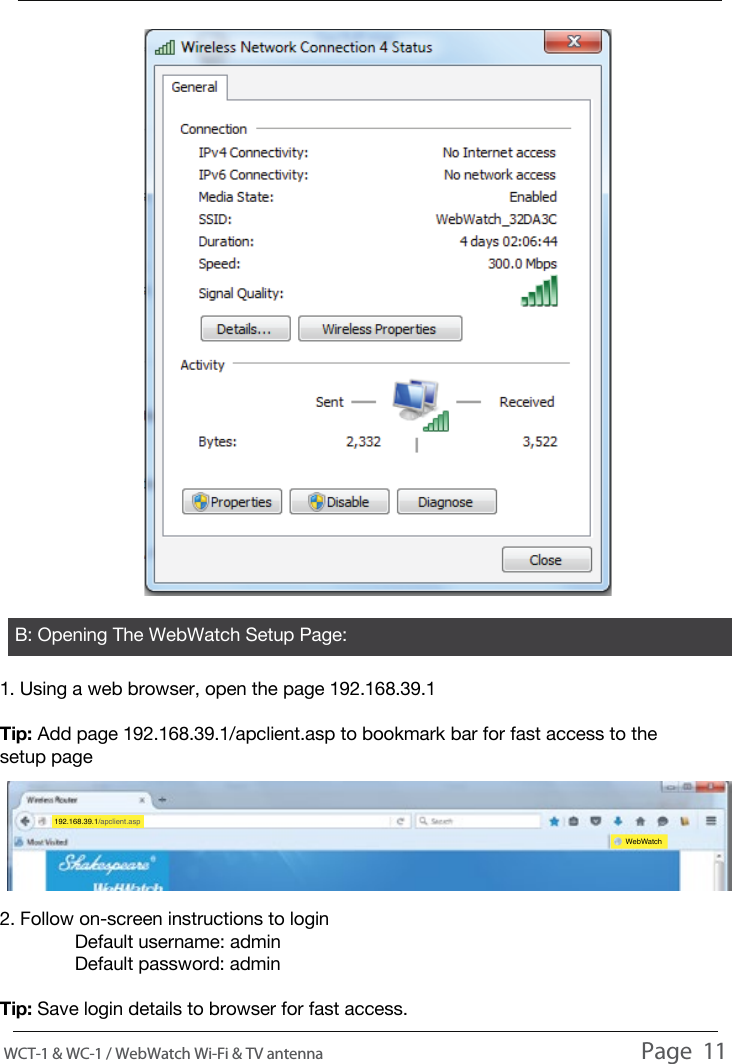
USAGEB: Opening The WebWatch Setup Page:1. Using a web browser, open the page 192.168.39.1Tip: Add page 192.168.39.1/apclient.asp to bookmark bar for fast access to the setup pageWebWatch192.168.39.1/apclient.asp2. Follow on-screen instructions to login  Default username: admin  Default password: adminTip: Save login details to browser for fast access.WCT-1 & WC-1 / WebWatch Wi-Fi & TV antenna                                                                                          Page  11
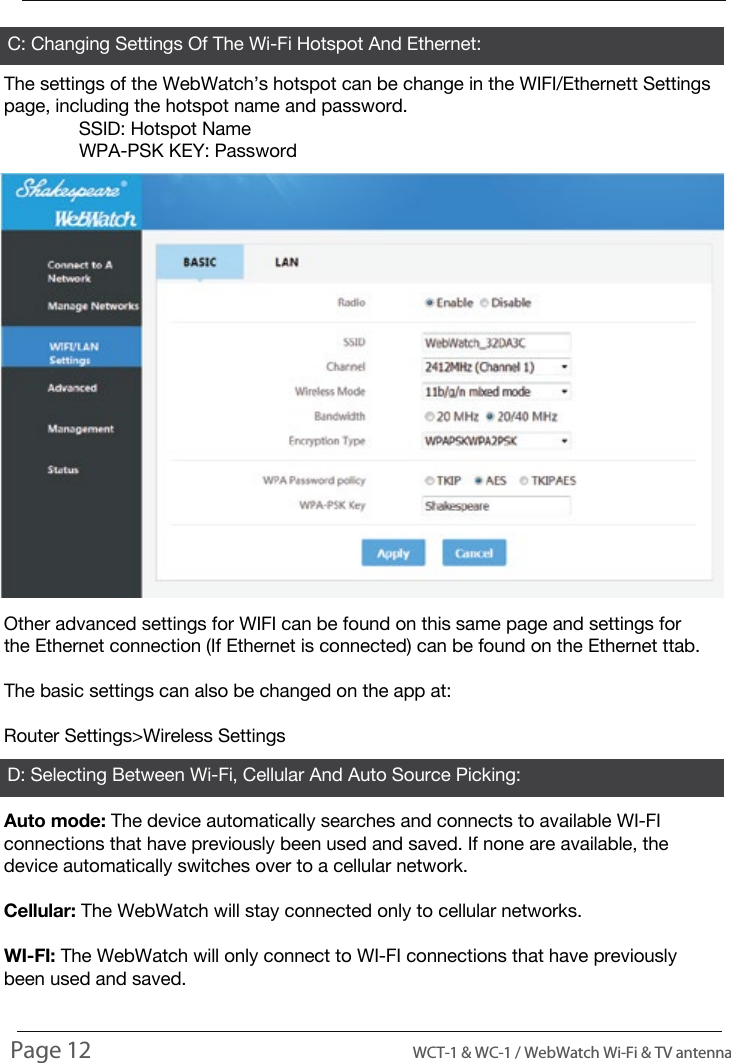
INTRODUCTIONUSAGED: Selecting Between Wi-Fi, Cellular And Auto Source Picking:C: Changing Settings Of The Wi-Fi Hotspot And Ethernet:The settings of the WebWatch’s hotspot can be change in the WIFI/Ethernett Settings page, including the hotspot name and password.  SSID: Hotspot Name  WPA-PSK KEY: PasswordOther advanced settings for WIFI can be found on this same page and settings for the Ethernet connection (If Ethernet is connected) can be found on the Ethernet ttab.The basic settings can also be changed on the app at:Router Settings>Wireless SettingsAuto mode: The device automatically searches and connects to available WI-FI connections that have previously been used and saved. If none are available, the device automatically switches over to a cellular network.Cellular: The WebWatch will stay connected only to cellular networks.WI-FI: The WebWatch will only connect to WI-FI connections that have previously been used and saved.Page 12                                                                                          WCT-1 & WC-1 / WebWatch Wi-Fi & TV antenna
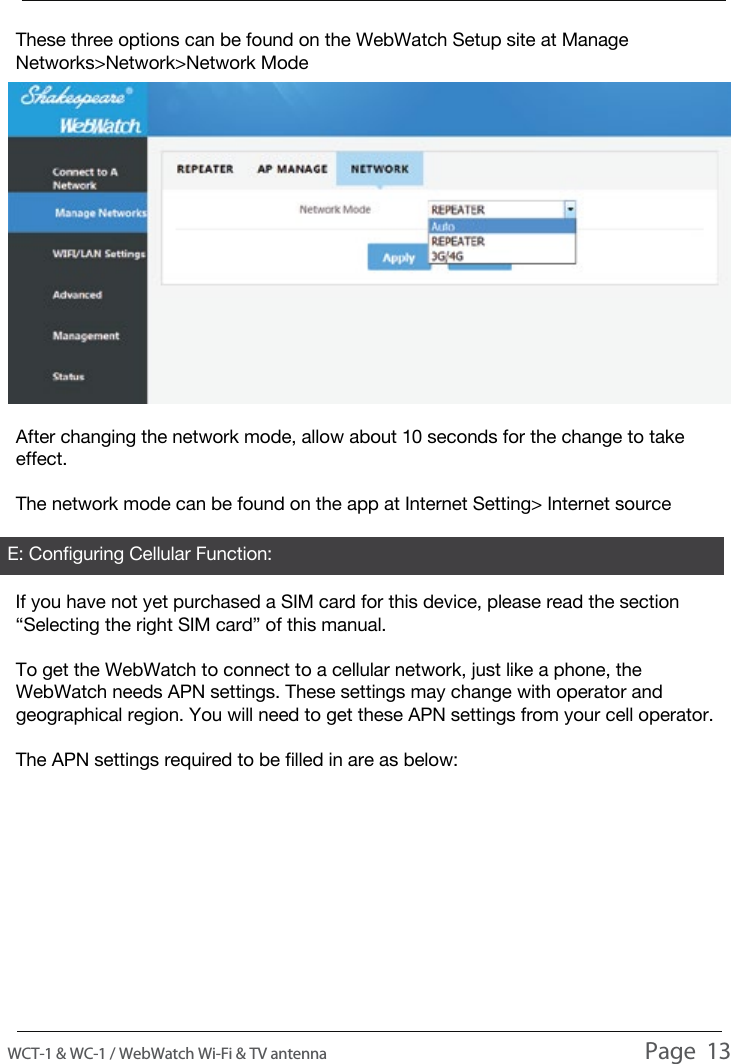
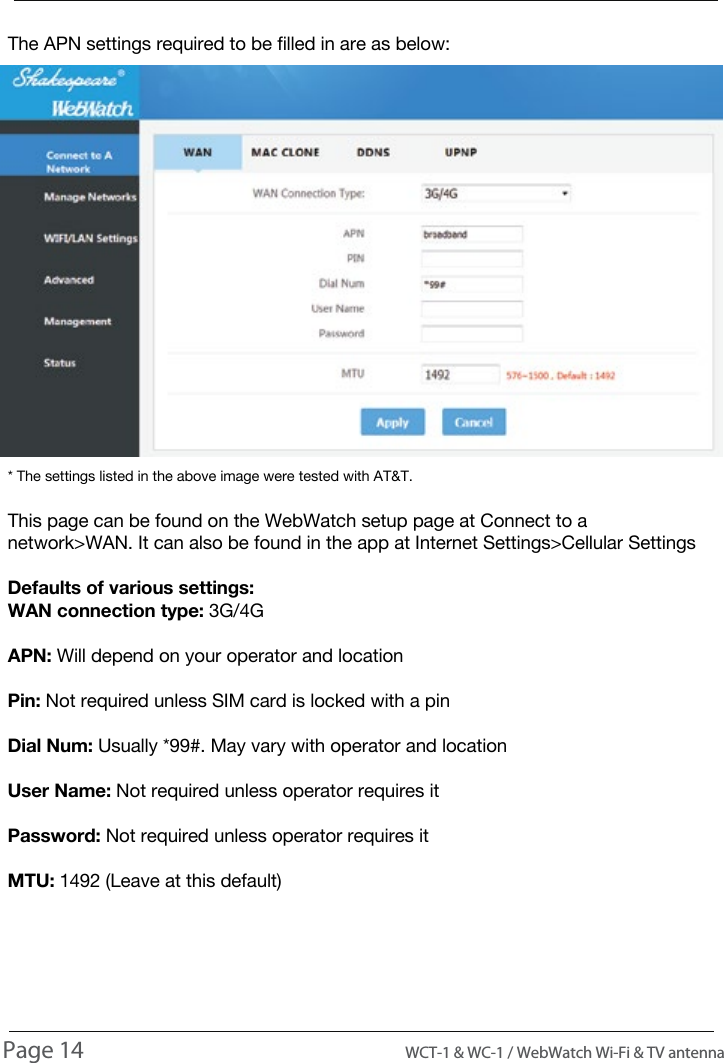
USAGEAfter changing the network mode, allow about 10 seconds for the change to take effect.The network mode can be found on the app at Internet Setting> Internet sourceThese three options can be found on the WebWatch Setup site at Manage Networks>Network>Network ModeIf you have not yet purchased a SIM card for this device, please read the section “Selecting the right SIM card” of this manual.To get the WebWatch to connect to a cellular network, just like a phone, the WebWatch needs APN settings. These settings may change with operator and geographical region. You will need to get these APN settings from your cell operator.The APN settings required to be filled in are as below:E: Configuring Cellular Function:WCT-1 & WC-1 / WebWatch Wi-Fi & TV antenna                                                                                          Page  13
The APN settings required to be filled in are as below:* The settings listed in the above image were tested with AT&T.This page can be found on the WebWatch setup page at Connect to a network>WAN. It can also be found in the app at Internet Settings>Cellular SettingsDefaults of various settings:WAN connection type: 3G/4GAPN: Will depend on your operator and locationPin: Not required unless SIM card is locked with a pinDial Num: Usually *99#. May vary with operator and locationUser Name: Not required unless operator requires itPassword: Not required unless operator requires itMTU: 1492 (Leave at this default)USAGEPage 14                                                                                          WCT-1 & WC-1 / WebWatch Wi-Fi & TV antenna
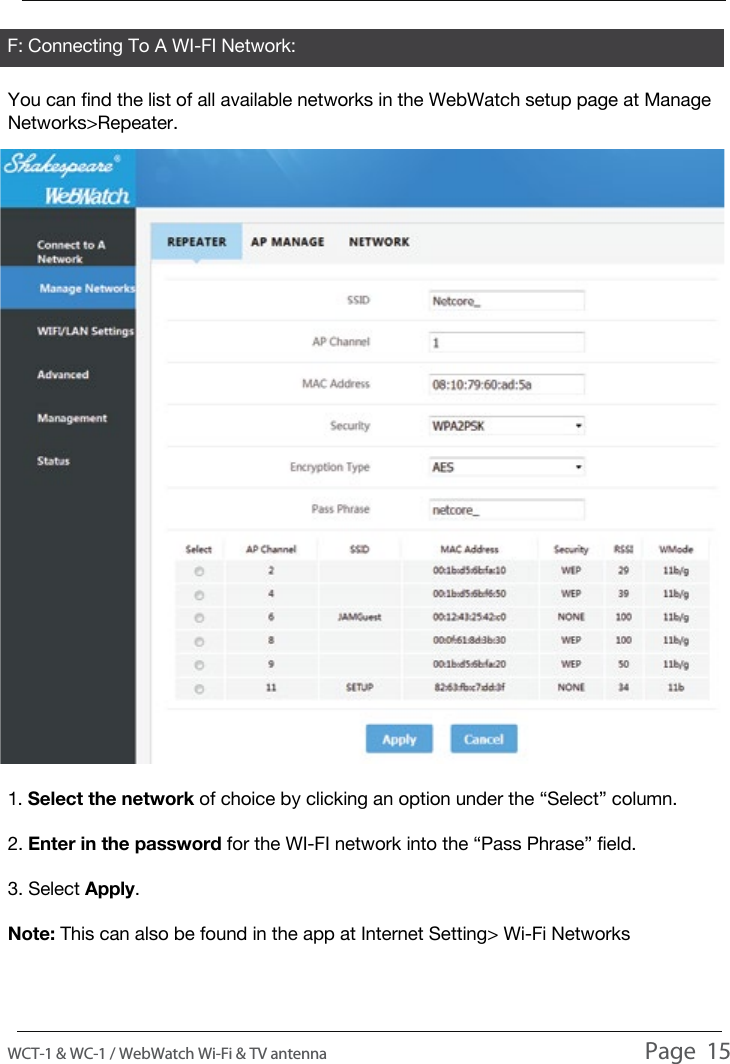
F: Connecting To A WI-FI Network:You can find the list of all available networks in the WebWatch setup page at Manage Networks>Repeater.1. Select the network of choice by clicking an option under the “Select” column.2. Enter in the password for the WI-FI network into the “Pass Phrase” field.3. Select Apply.Note: This can also be found in the app at Internet Setting> Wi-Fi NetworksUSAGEWCT-1 & WC-1 / WebWatch Wi-Fi & TV antenna                                                                                          Page  15
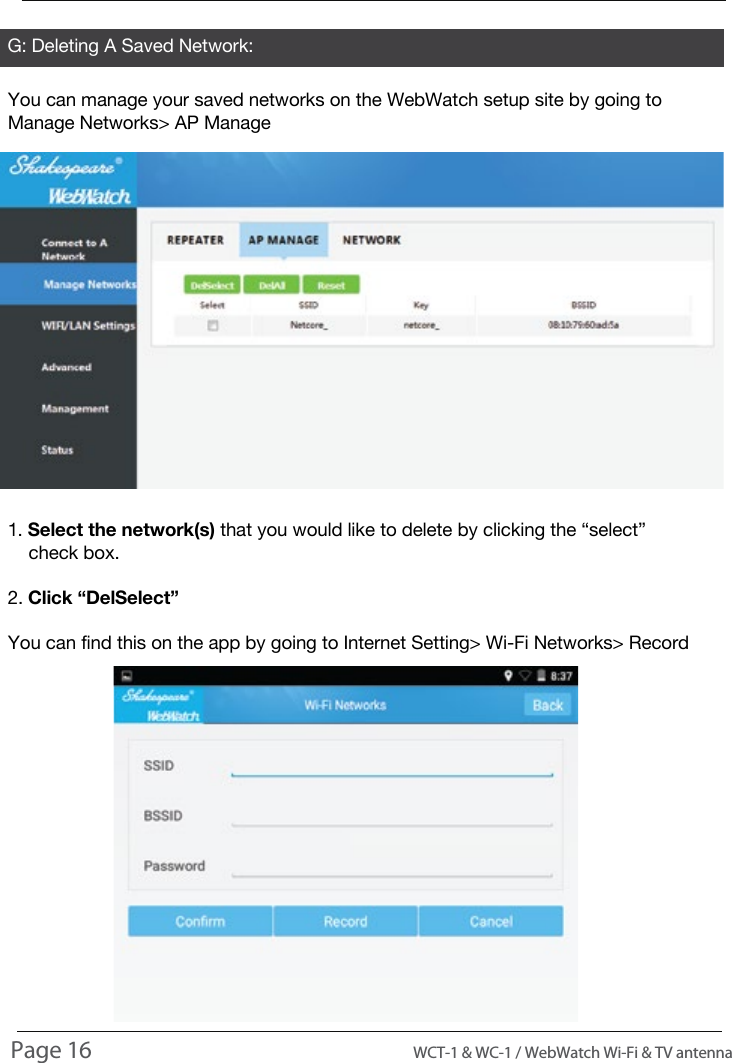
G: Deleting A Saved Network:You can manage your saved networks on the WebWatch setup site by going to Manage Networks> AP Manage1. Select the network(s) that you would like to delete by clicking the “select”     check box.2. Click “DelSelect”You can find this on the app by going to Internet Setting> Wi-Fi Networks> RecordUSAGEPage 16                                                                                          WCT-1 & WC-1 / WebWatch Wi-Fi & TV antenna
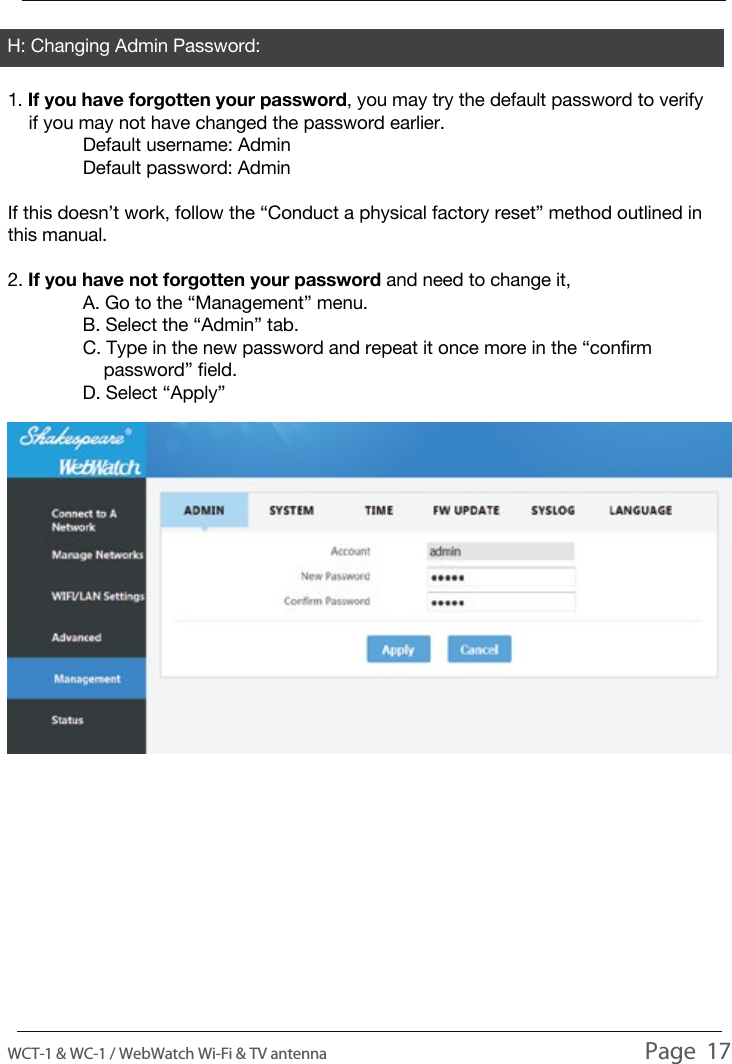
H: Changing Admin Password:1. If you have forgotten your password, you may try the default password to verify     if you may not have changed the password earlier.  Default username: Admin  Default password: AdminIf this doesn’t work, follow the “Conduct a physical factory reset” method outlined in this manual.2. If you have not forgotten your password and need to change it,  A. Go to the “Management” menu.  B. Select the “Admin” tab.  C. Type in the new password and repeat it once more in the “confirm       password” field.  D. Select “Apply”USAGEWCT-1 & WC-1 / WebWatch Wi-Fi & TV antenna                                                                                          Page  17
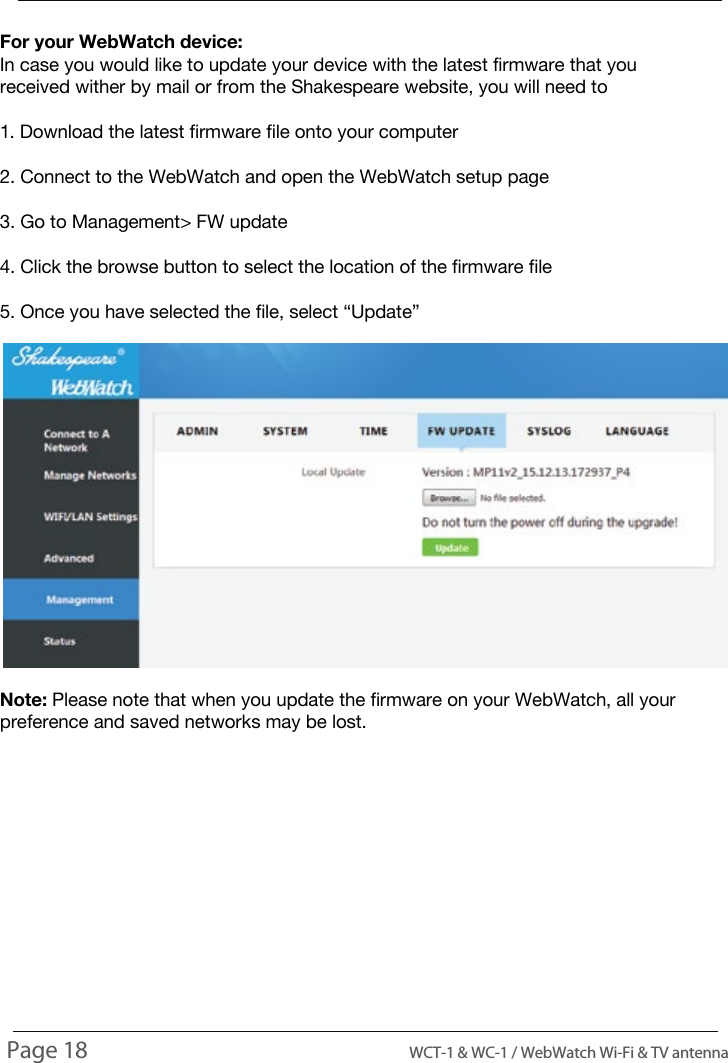
For your WebWatch device:In case you would like to update your device with the latest firmware that you received wither by mail or from the Shakespeare website, you will need to1. Download the latest firmware file onto your computer2. Connect to the WebWatch and open the WebWatch setup page3. Go to Management> FW update4. Click the browse button to select the location of the firmware file5. Once you have selected the file, select “Update”Note: Please note that when you update the firmware on your WebWatch, all your preference and saved networks may be lost.INSTALLING UPDATESPage 18                                                                                          WCT-1 & WC-1 / WebWatch Wi-Fi & TV antenna
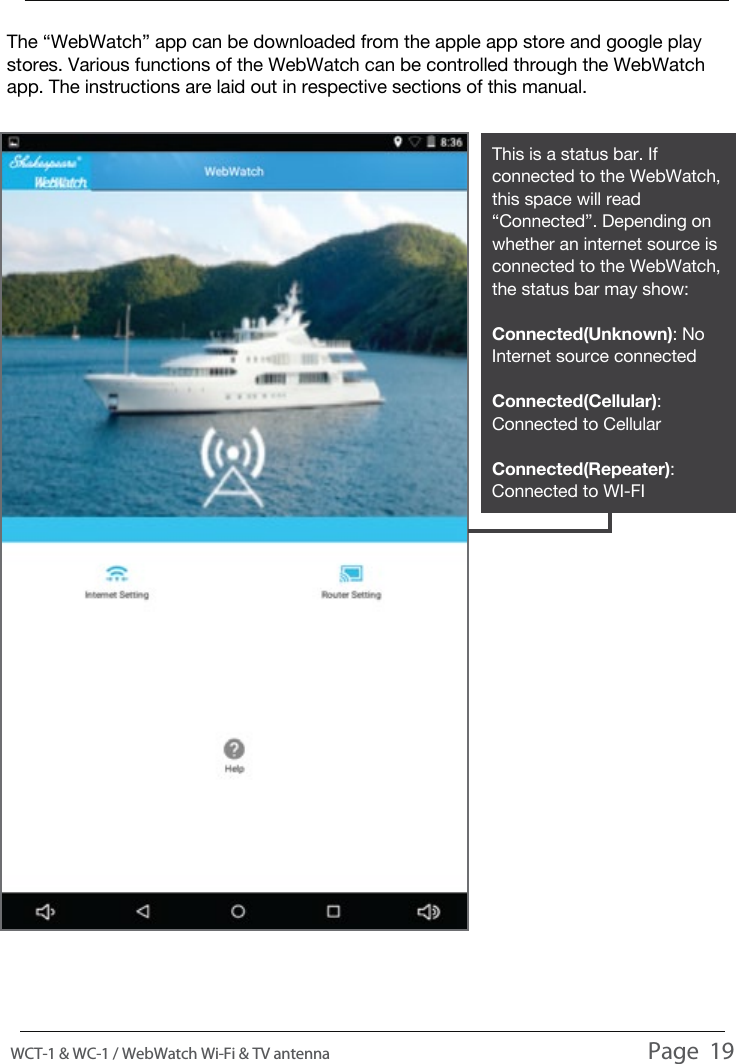
This is a status bar. If connected to the WebWatch, this space will read “Connected”. Depending on whether an internet source is connected to the WebWatch, the status bar may show:Connected(Unknown): No Internet source connectedConnected(Cellular): Connected to CellularConnected(Repeater): Connected to WI-FIThe “WebWatch” app can be downloaded from the apple app store and google play stores. Various functions of the WebWatch can be controlled through the WebWatch app. The instructions are laid out in respective sections of this manual.WEBWATCH APPWCT-1 & WC-1 / WebWatch Wi-Fi & TV antenna                                                                                          Page  19
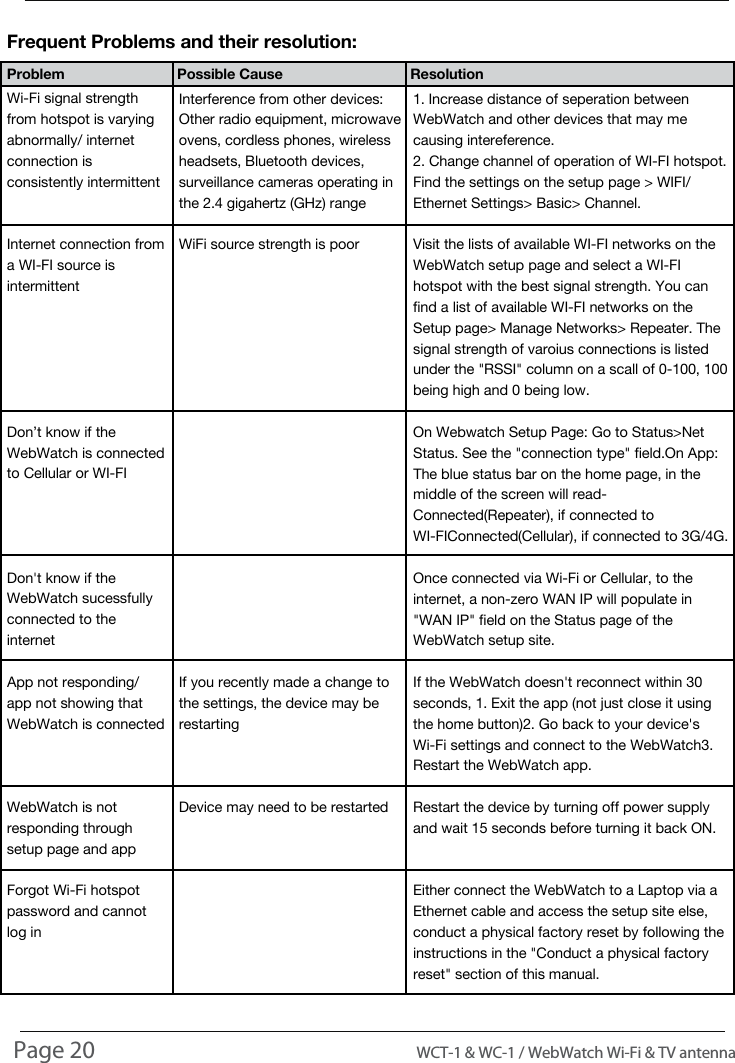
TROUBLESHOOTINGFrequent Problems and their resolution:Wi-Fi signal strength from hotspot is varying abnormally/ internet connection is consistently intermittentInternet connection from a WI-FI source is intermittentDon’t know if the WebWatch is connected to Cellular or WI-FIDon't know if the WebWatch sucessfully connected to the internetApp not responding/ app not showing that WebWatch is connectedWebWatch is not responding through setup page and appForgot Wi-Fi hotspot password and cannot log inProblem         Possible Cause           ResolutionInterference from other devices: 
Other radio equipment, microwave ovens, cordless phones, wireless headsets, Bluetooth devices, surveillance cameras operating in the 2.4 gigahertz (GHz) rangeWiFi source strength is poorIf you recently made a change to the settings, the device may be restartingDevice may need to be restarted1. Increase distance of seperation between WebWatch and other devices that may me causing intereference.2. Change channel of operation of WI-FI hotspot. Find the settings on the setup page > WIFI/ Ethernet Settings> Basic> Channel.Visit the lists of available WI-FI networks on the WebWatch setup page and select a WI-FI hotspot with the best signal strength. You can find a list of available WI-FI networks on the Setup page> Manage Networks> Repeater. The signal strength of varoius connections is listed under the "RSSI" column on a scall of 0-100, 100 being high and 0 being low.On Webwatch Setup Page: Go to Status>Net Status. See the "connection type" field.
On App: The blue status bar on the home page, in the middle of the screen will read- Connected(Repeater), if connected to WI-FI
Connected(Cellular), if connected to 3G/4G.Once connected via Wi-Fi or Cellular, to the internet, a non-zero WAN IP will populate in "WAN IP" field on the Status page of the WebWatch setup site.If the WebWatch doesn't reconnect within 30 seconds, 
1. Exit the app (not just close it using the home button)
2. Go back to your device's Wi-Fi settings and connect to the WebWatch
3. Restart the WebWatch app.Restart the device by turning off power supply and wait 15 seconds before turning it back ON.Either connect the WebWatch to a Laptop via a Ethernet cable and access the setup site else, conduct a physical factory reset by following the instructions in the "Conduct a physical factory reset" section of this manual.Page 20                                                                                          WCT-1 & WC-1 / WebWatch Wi-Fi & TV antenna
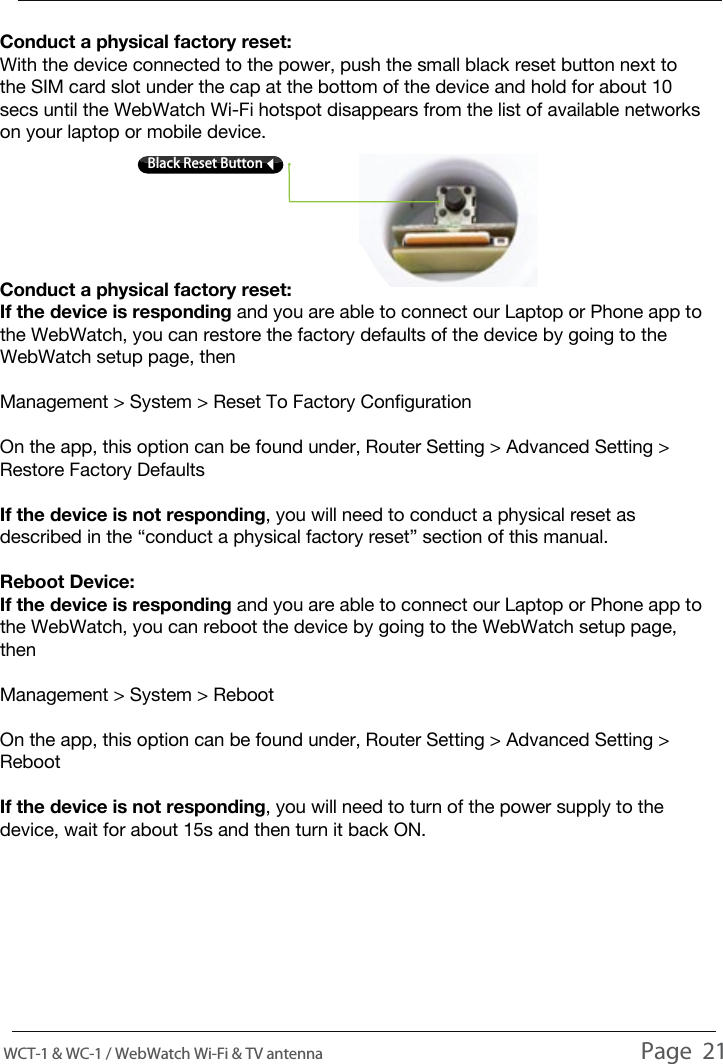
TROUBLESHOOTINGConduct a physical factory reset:With the device connected to the power, push the small black reset button next to the SIM card slot under the cap at the bottom of the device and hold for about 10 secs until the WebWatch Wi-Fi hotspot disappears from the list of available networks on your laptop or mobile device.Conduct a physical factory reset:If the device is responding and you are able to connect our Laptop or Phone app to the WebWatch, you can restore the factory defaults of the device by going to the WebWatch setup page, thenManagement > System > Reset To Factory ConfigurationOn the app, this option can be found under, Router Setting > Advanced Setting > Restore Factory DefaultsIf the device is not responding, you will need to conduct a physical reset as described in the “conduct a physical factory reset” section of this manual.Reboot Device:If the device is responding and you are able to connect our Laptop or Phone app to the WebWatch, you can reboot the device by going to the WebWatch setup page, thenManagement > System > RebootOn the app, this option can be found under, Router Setting > Advanced Setting > RebootIf the device is not responding, you will need to turn of the power supply to the device, wait for about 15s and then turn it back ON.WCT-1 & WC-1 / WebWatch Wi-Fi & TV antenna                                                                                          Page  21Black Reset Button
COMPLIANCE INFORMATIONFederal Communication Commission (FCC) StatementsExposure Statement:     When operating the product, you MUST maintain a distance of 20cm from the      body to ensure compliance with RF exposure requirements.FCC statements:     This device complies with part 15 of the FCC rules. Operation is subject to the      following two conditions: (1) this device may not cause harmful interference, and      (2) this device must accept any interference received, including interference that      may cause undesired operation. NOTE: The manufacturer is not responsible for any radio or TV interference caused by      unauthorized modifications or changes to this equipment. Such modifications or      changes could void the user’s authority to operate the equipment.NOTE: This equipment has been tested and found to comply with the limits for a Class      B digital device, pursuant to part 15 of the FCC Rules. These limits are designed to      provide reasonable protection against harmful interference in a residential      installation. This equipment generates uses and can radiate radio frequency energy      and, if not installed and used in accordance with the instructions, may cause      harmful interference to radio communications. However, there is no guarantee that      interference will not occur in a particular installation. If this equipment does cause      harmful interference to radio or television reception, which can be determined by      turning the equipment off and on, the user is encouraged to try to correct the      interference by one or more of the following measures:1.  Reorient or relocate the receiving antenna.2.  Increase the separation between the equipment and receiver.3.  Connect the equipment into an outlet on a circuit different from that to which                the receiver is connected.4.  Consult the dealer or an experienced radio/TV technician for help.Warning:     You MUST cease operating this device immediately if requested by the FCC or a      licensed wireless service provider.Page 22                                                                                         WCT-1 & WC-1 / WebWatch Wi-Fi & TV antenna
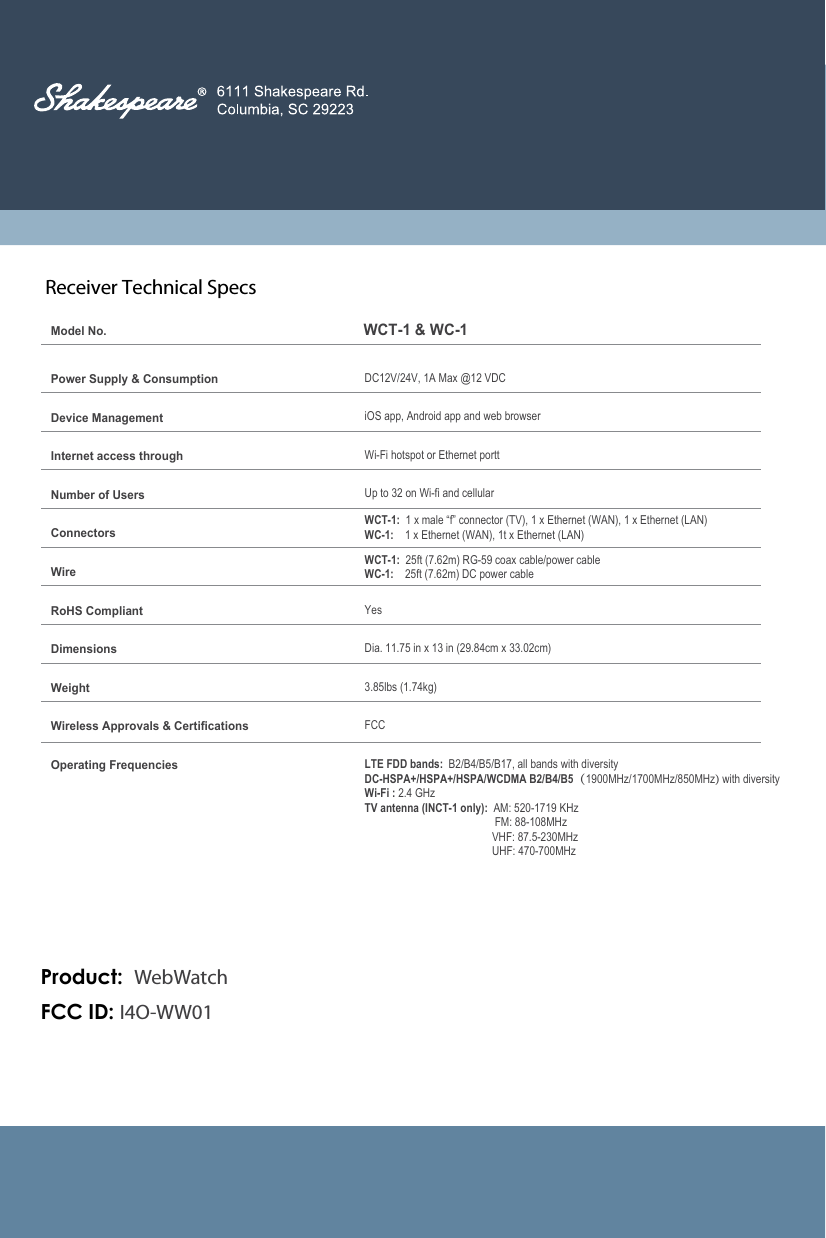
Receiver Technical Specs           Model No.WCT-1 & WC-1Power Supply & ConsumptionDevice ManagementInternet access throughNumber of UsersConnectorsWireRoHS CompliantDimensionsWeightWireless Approvals & CertificationsOperating FrequenciesDC12V/24V, 1A Max @12 VDCiOS app, Android app and web browserWi-Fi hotspot or Ethernet porttUp to 32 on Wi-fi and cellularWCT-1:  1 x male “f” connector (TV), 1 x Ethernet (WAN), 1 x Ethernet (LAN)WC-1:    1 x Ethernet (WAN), 1t x Ethernet (LAN)WCT-1:  25ft (7.62m) RG-59 coax cable/power cableWC-1:    25ft (7.62m) DC power cableYesDia. 11.75 in x 13 in (29.84cm x 33.02cm)3.85lbs (1.74kg)FCCLTE FDD bands:  B2/B4/B5/B17, all bands with diversityDC-HSPA+/HSPA+/HSPA/WCDMA B2/B4/B5(1900MHz/1700MHz/850MHz) with diversityWi-Fi : 2.4 GHzTV antenna (INCT-1 only):  AM: 520-1719 KHz                               FM: 88-108MHz                              VHF: 87.5-230MHz                              UHF: 470-700MHzFCC ID: I4O-WW01Product:  WebWatch

Navigation menu