Shantou City Hengdi Industry 1332C REMOTE CONTROL FOR RC DRONE User Manual Xtreem RaptorEye Drone Instruction Manual

Shantou City Hengdi Industry Co., Ltd REMOTE CONTROL FOR RC DRONE Xtreem RaptorEye Drone Instruction Manual

15_1332C UserMan.pdf

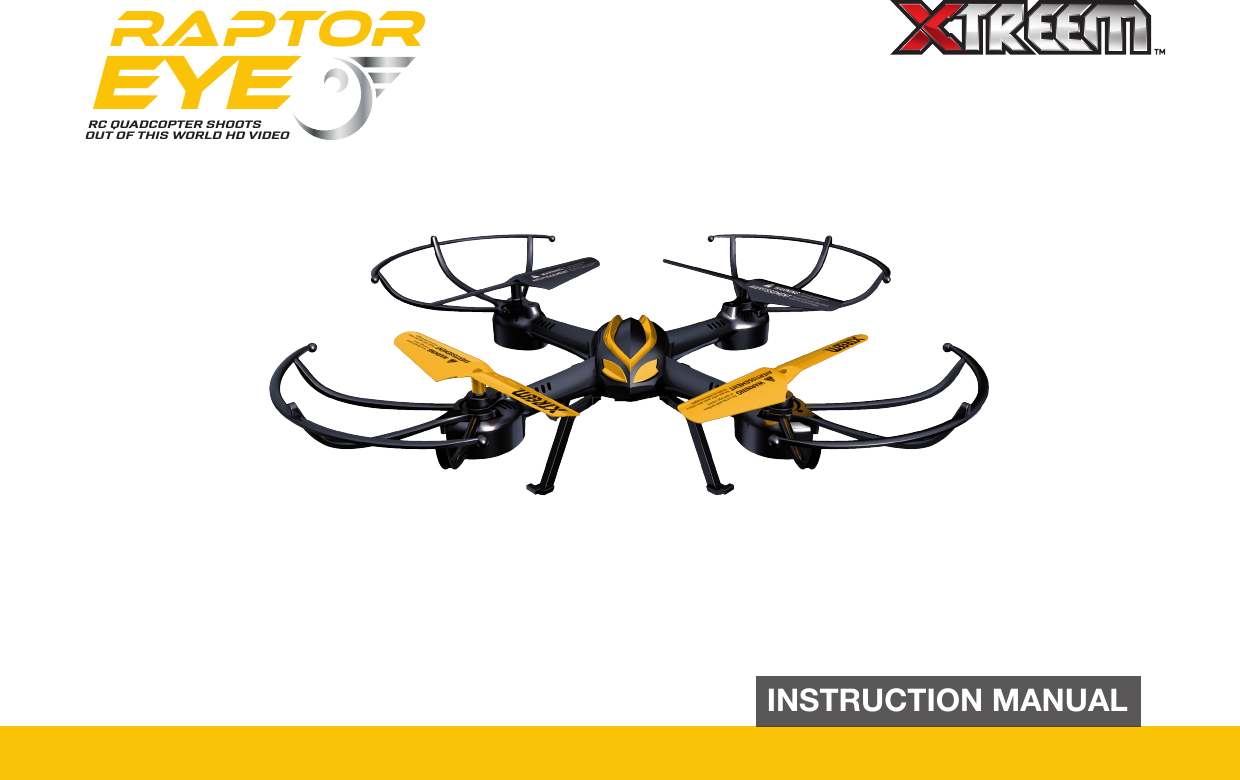
RaptorEYERC QUADCOPTER SHOOTSOUT OF THIS WORLD HD VIDEOINSTRUCTION MANUAL
2SAFETY PRECAUTIONSNOTICE: Before using the Drone, read this instruction manual carefully, and obey all warnings and caution labels - seriously, it’s no fun if someone gets hurt.CHOKING HAZARD - SMALL PARTS, KEEP OUT OF REACH OF SMALL CHILDREN.WARNING - DO NOT FLY IN RESTRICTED OR NO-FLY ZONES. CHECK YOUR LOCAL LAWS AND REGULATIONS FOR INFORMATION REGARDING THE USE OF UNMANNED AERIAL VEHICLES.WARNING - THIS DRONE IS NOT INTENDED FOR USE BY CHILDREN UNDER 14 YEARS OLD. ADULT SUPERVISION IS REQUIRED AT ALL TIMES.CAUTION - DO NOT TOUCH THE RUNNING PROPELLERS OR FLY OVER SOMEONE’S HEAD.•  Keep hands, hair and loose clothing away from the propellers when the power switch is turned on.•  Always lift off from a flat surface. Never hold the drone in your hand when lifting off.•  Stay away from obstacles and electrical hazards.•  Keep your drone within line of sight - if line of sight to the controller is lost, you may lose control of the drone.•  Always keep a safe distance in all directions around your drone to avoid collisions and/or injury. This drone is controlled by a radio signal subject to interference from many sources outside your control. Interference can cause momentary loss of control.•  Never completely exhaust the battery. When the drone starts to lose power, immediately bring it down safely, and charge the battery as soon as practicable.•  Turn off the controller and drone when not in use.•  Read and obey all warnings and safety guidelines in this manual.•  Regularly examine for any damage to the plugs, propellers and other parts (loose or missing screws). Replace any damaged or loose parts before attempting to fly.
3SAFETY PRECAUTIONS•  Never charge battery unattended.•  Never charge batteries overnight.•  Charge battery in an isolated, controlled environment. Keep far away from flammable materials.•  Do not expose to direct sunlight; there is a risk that the battery may overheat, ignite and/or explode.•  Do not disassemble, modify, heat, or short circuit the battery.•  Do not drop the battery or subject it to strong impacts.•  Do not allow the battery to get wet.•  Only charge the battery with the supplied charging equipment. Using other charging equipment will void your warranty, may damage the battery and poses a risk of fire or explosion.•  If the Drone is not being used for an extended period of time, remove the battery and store it in a cool, dry place out of the reach of children.•  In the unlikely event of leakage or explosion, use sand or a chemical fire extinguisher to extinguish the battery.•  The battery must be recycled or disposed of properly.•  Controller requires 4 x 1.5V AA alkaline batteries (not included).•  Installing/Replacing batteries must be undertaken by a competent adult.•  Do not mix new and old batteries or types of batteries (i.e. alkaline/standard).•  To avoid battery leakage, remove batteries from the controller if the Drone is not being played for a long period of time.•  Promptly remove exhausted batteries. Battery leakage and corrosion can damage the controller.•  Recycle or dispose of used batteries responsibly.The Drone is equipped with a Lithium Polymer battery. These kind of batteries are light and powerful, as their chemistry is based on lithium, a light and extremely volatile metal. SPECIAL LIPO BATTERY INSTRUCTIONS:BATTERY SAFETY INSTRUCTIONSWARNING - MODIFICATIONS NOT APPROVED BY THE PARTY RESPONSIBLE FOR COMPLIANCE COULD VOID USER’S AUTHORITY TO OPERATE THE EQUIPMENT.
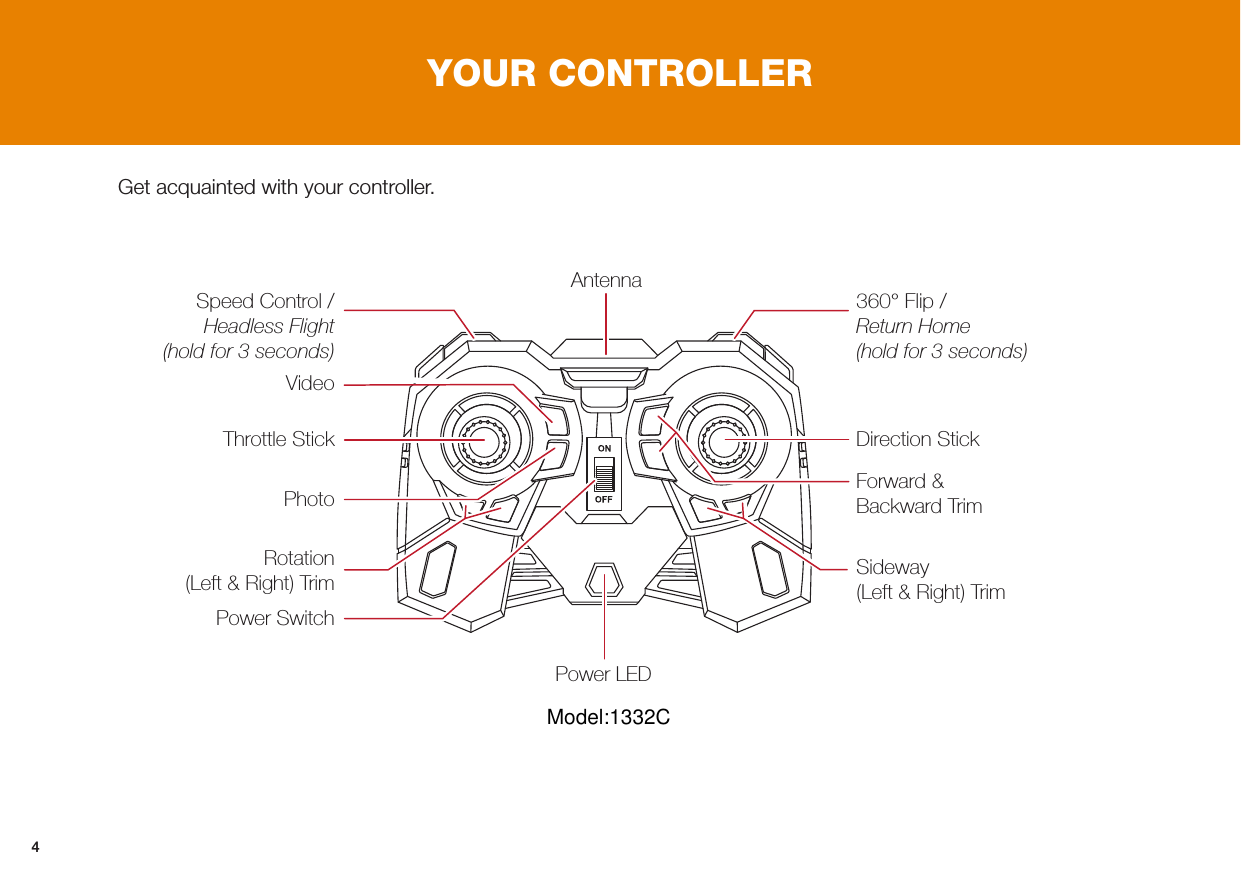
4YOUR CONTROLLERPower LEDThrottle StickPhoto Video Speed Control / Headless Flight  (hold for 3 seconds) Rotation  (Left & Right) Trim Power Switch360° Flip /  Return Home  (hold for 3 seconds)Sideway (Left & Right) TrimDirection StickForward & Backward TrimAntennaGet acquainted with your controller.Model:1332C
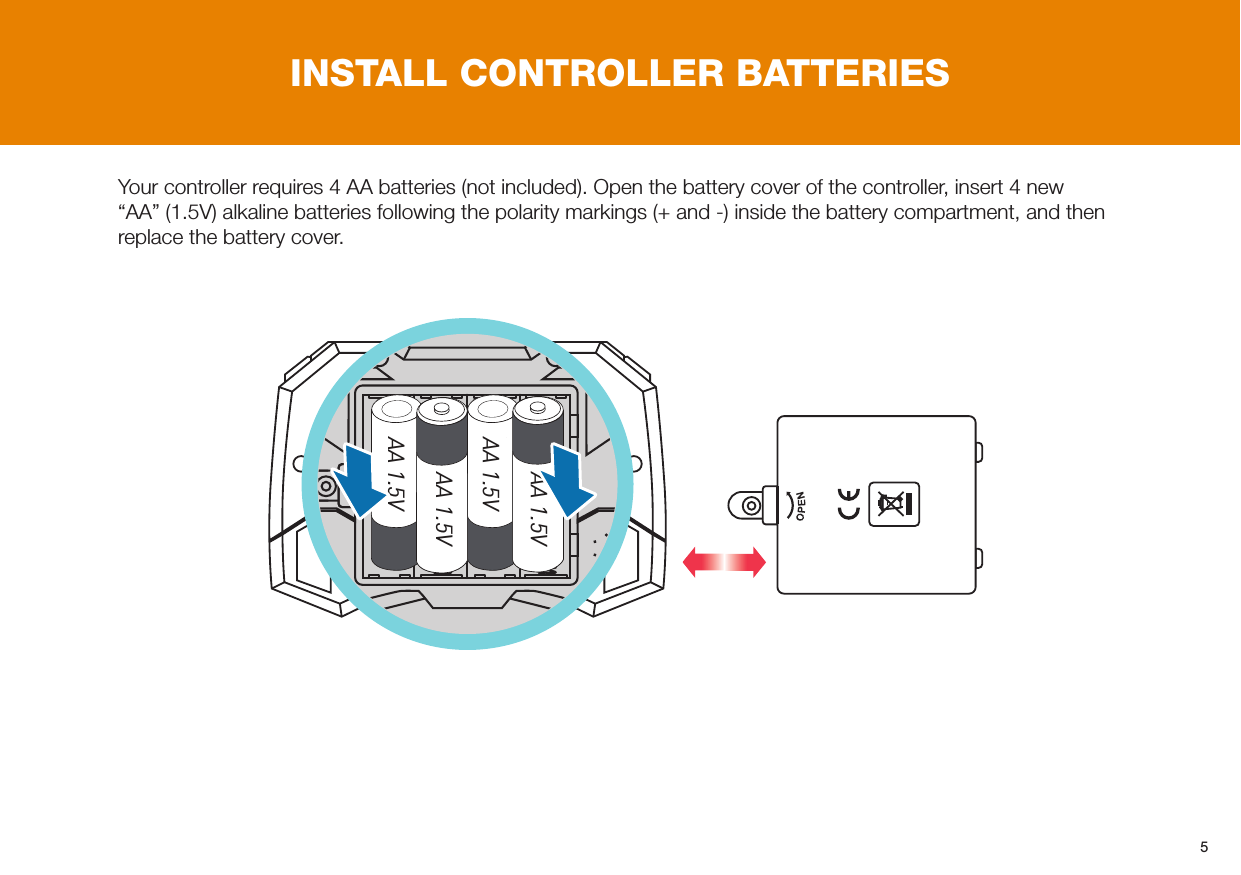
5INSTALL CONTROLLER BATTERIESYour controller requires 4 AA batteries (not included). Open the battery cover of the controller, insert 4 new “AA” (1.5V) alkaline batteries following the polarity markings (+ and -) inside the battery compartment, and then replace the battery cover.AA 1.5VAA 1.5VAA 1.5VAA 1.5V
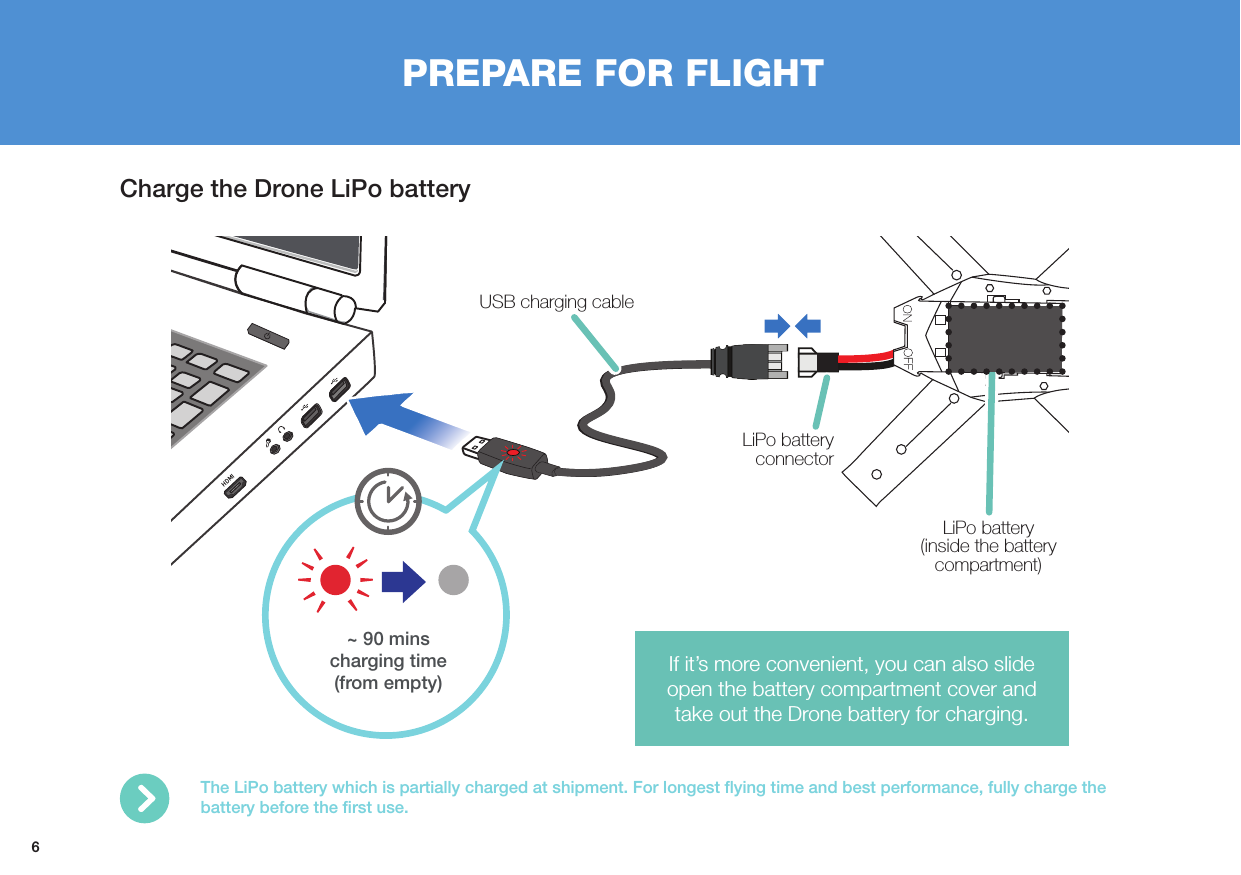
6PREPARE FOR FLIGHTCharge the Drone LiPo battery The LiPo battery which is partially charged at shipment. For longest flying time and best performance, fully charge the battery before the first use. HDMI~ 90 mins charging time (from empty)USB charging cableLiPo battery connectorLiPo battery  (inside the battery compartment)If it’s more convenient, you can also slide open the battery compartment cover and take out the Drone battery for charging.
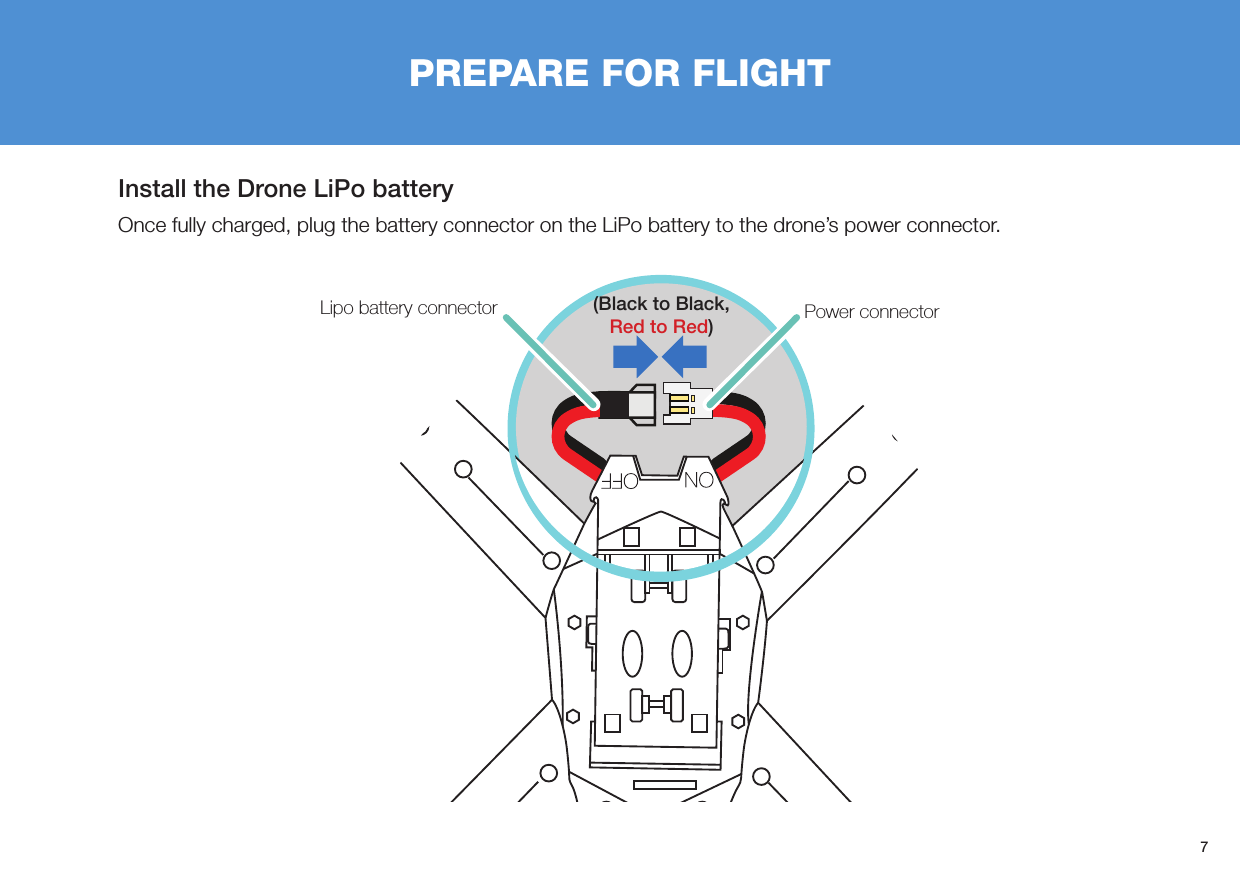
7PREPARE FOR FLIGHTInstall the Drone LiPo batteryOnce fully charged, plug the battery connector on the LiPo battery to the drone’s power connector.Power connectorLipo battery connector (Black to Black, Red to Red)
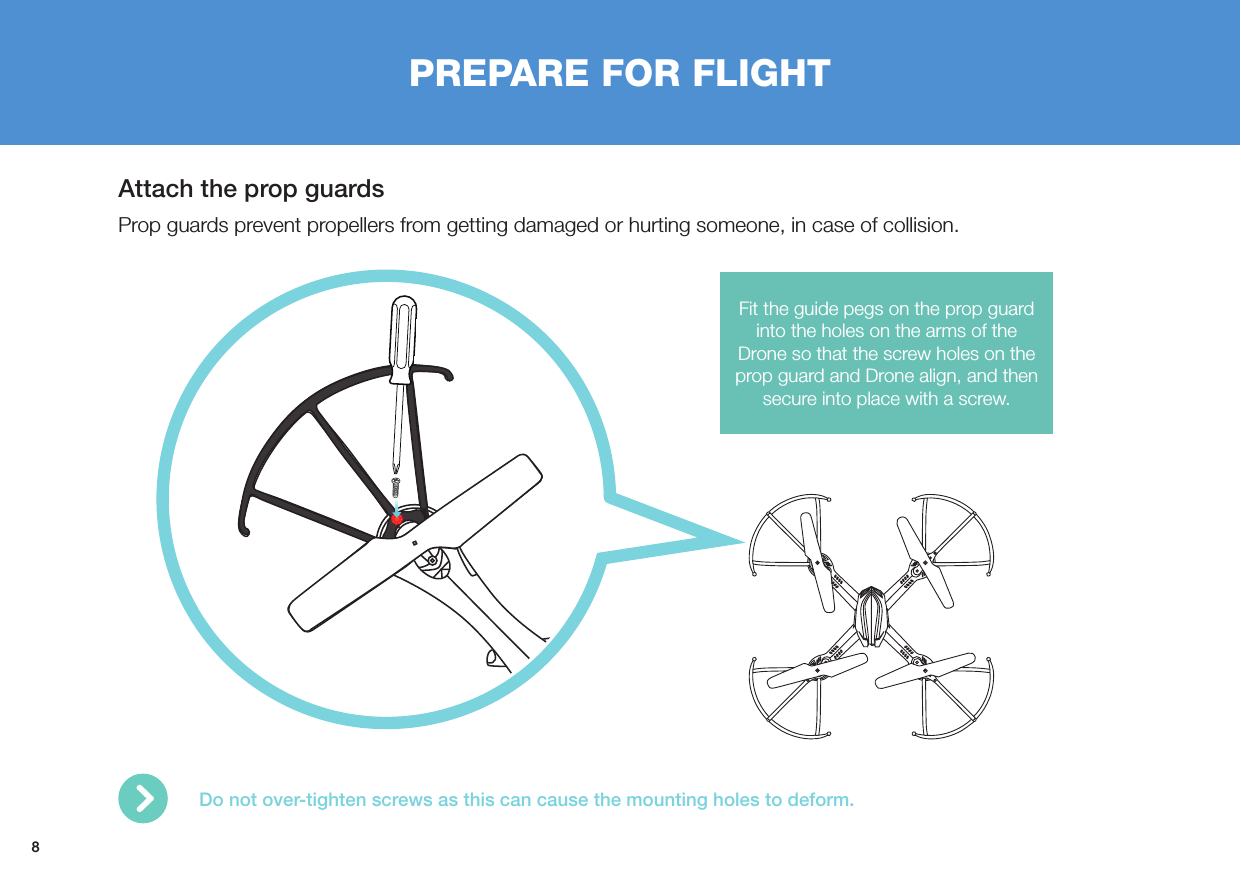
8PREPARE FOR FLIGHTAttach the prop guardsProp guards prevent propellers from getting damaged or hurting someone, in case of collision.Fit the guide pegs on the prop guard into the holes on the arms of the Drone so that the screw holes on the prop guard and Drone align, and then secure into place with a screw.Do not over-tighten screws as this can cause the mounting holes to deform.
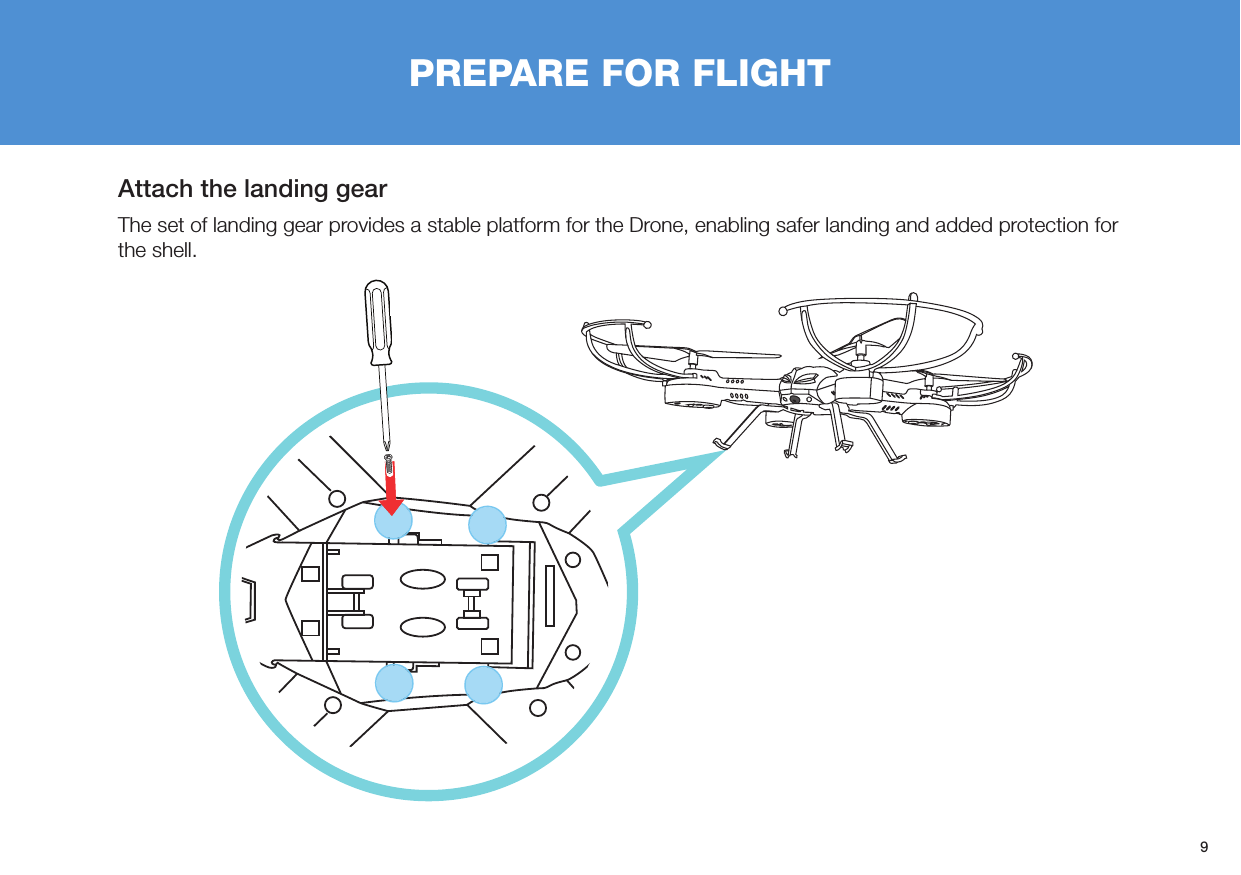
9Attach the landing gearThe set of landing gear provides a stable platform for the Drone, enabling safer landing and added protection for the shell. PREPARE FOR FLIGHT
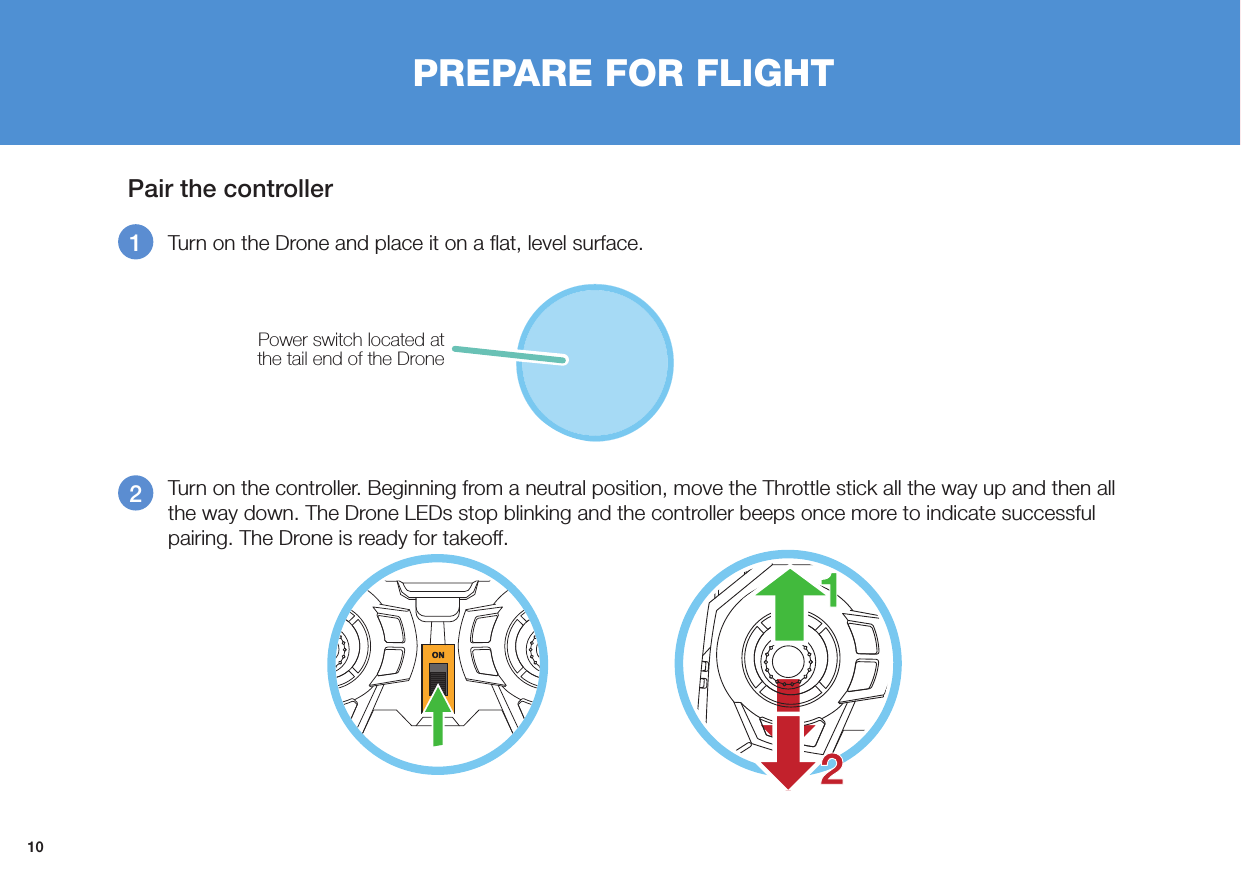
10Pair the controllerPREPARE FOR FLIGHT12  Turn on the controller. Beginning from a neutral position, move the Throttle stick all the way up and then all the way down. The Drone LEDs stop blinking and the controller beeps once more to indicate successful pairing. The Drone is ready for takeoff.Turn on the Drone and place it on a flat, level surface.Power switch located at the tail end of the Drone
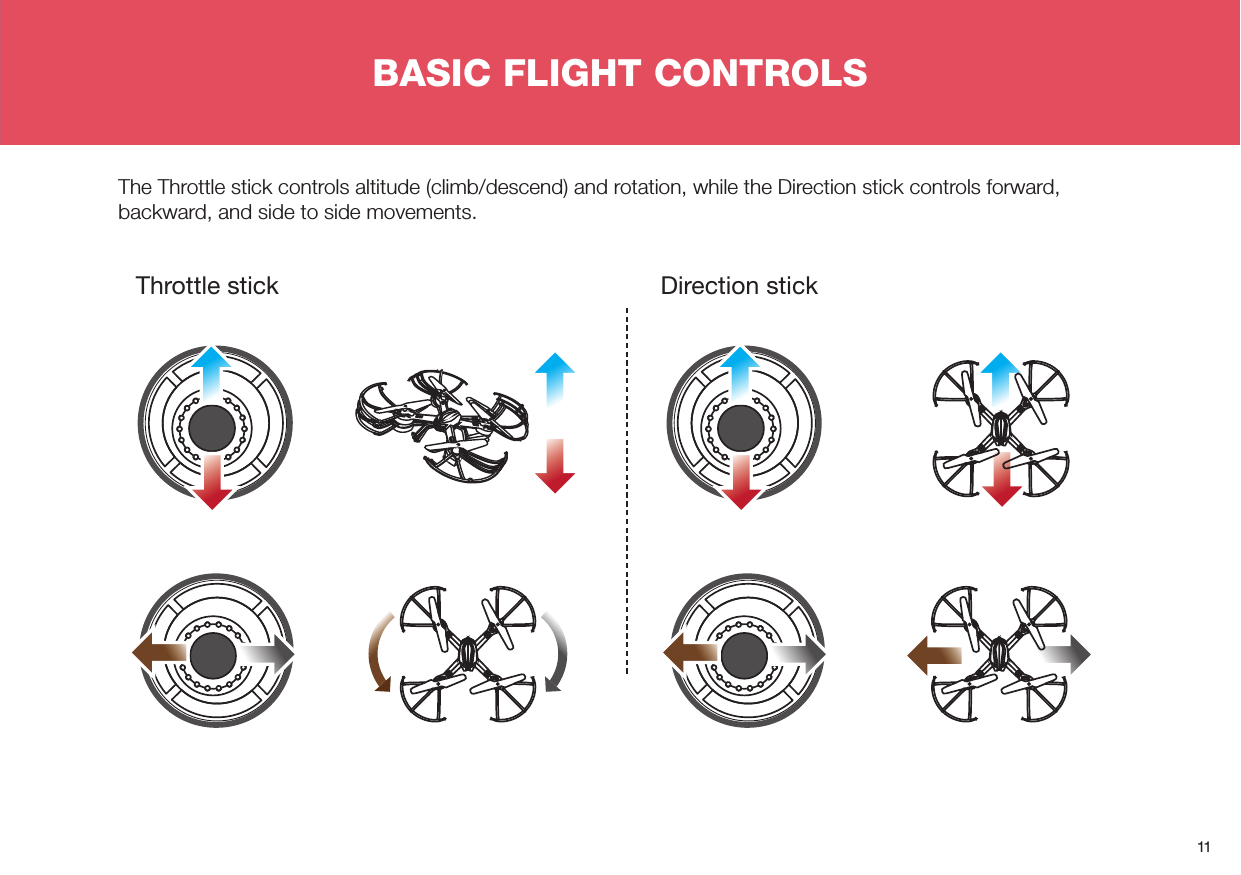
11BASIC FLIGHT CONTROLSThe Throttle stick controls altitude (climb/descend) and rotation, while the Direction stick controls forward, backward, and side to side movements.Throttle stick Direction stick
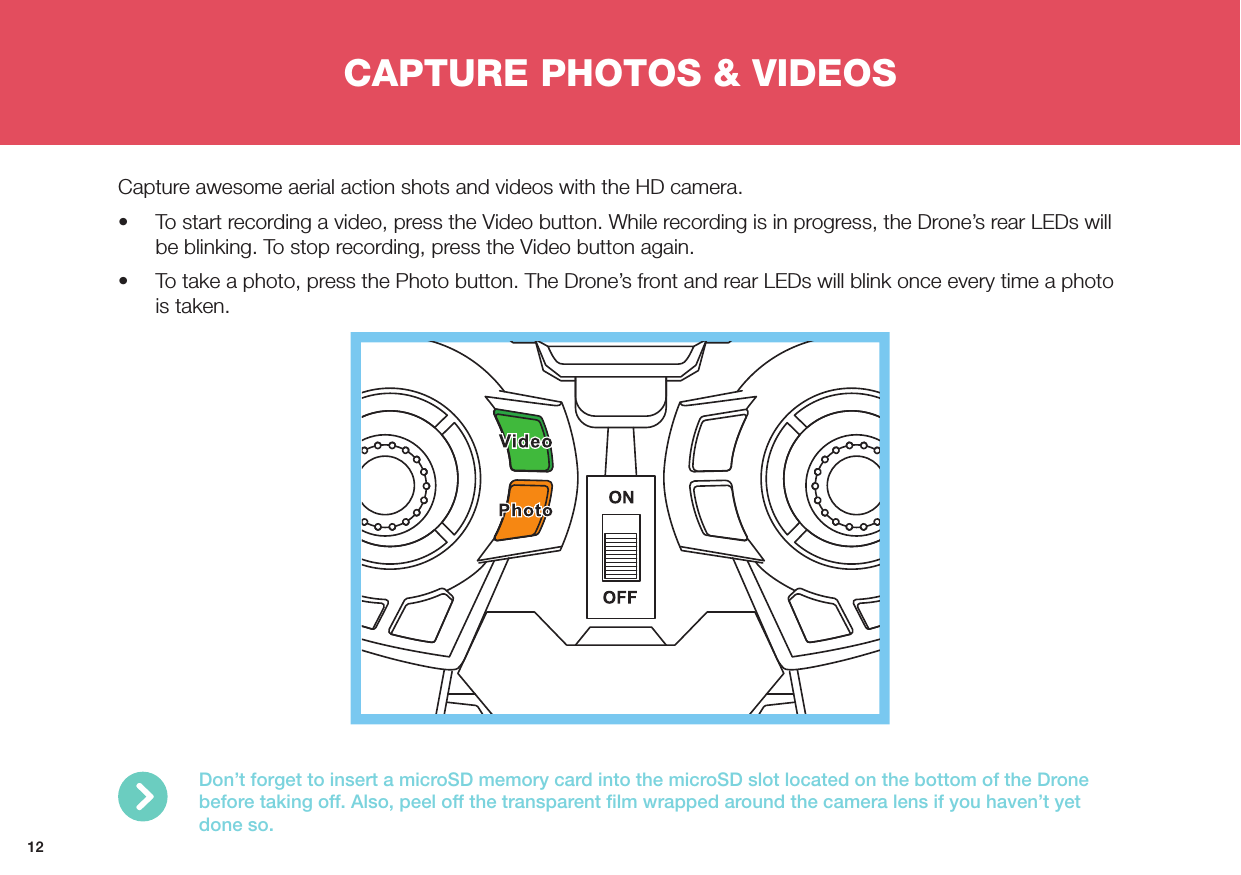
12CAPTURE PHOTOS & VIDEOSCapture awesome aerial action shots and videos with the HD camera.•  To start recording a video, press the Video button. While recording is in progress, the Drone’s rear LEDs will be blinking. To stop recording, press the Video button again.•  To take a photo, press the Photo button. The Drone’s front and rear LEDs will blink once every time a photo is taken.Don’t forget to insert a microSD memory card into the microSD slot located on the bottom of the Drone before taking off. Also, peel off the transparent film wrapped around the camera lens if you haven’t yet done so.
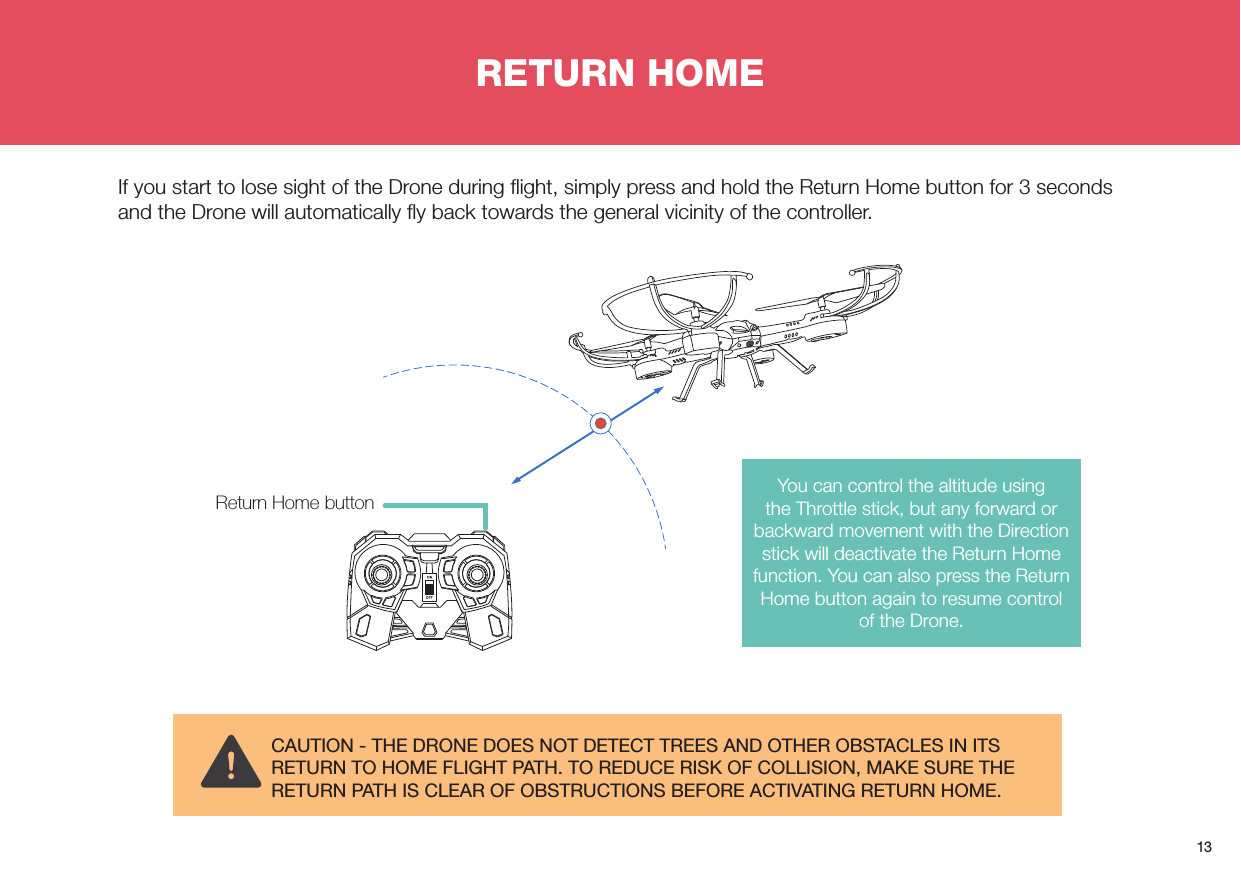
13RETURN HOMEIf you start to lose sight of the Drone during flight, simply press and hold the Return Home button for 3 seconds and the Drone will automatically fly back towards the general vicinity of the controller. CAUTION - THE DRONE DOES NOT DETECT TREES AND OTHER OBSTACLES IN ITS RETURN TO HOME FLIGHT PATH. TO REDUCE RISK OF COLLISION, MAKE SURE THE RETURN PATH IS CLEAR OF OBSTRUCTIONS BEFORE ACTIVATING RETURN HOME.Return Home button You can control the altitude using the Throttle stick, but any forward or backward movement with the Direction stick will deactivate the Return Home function. You can also press the Return Home button again to resume control of the Drone.
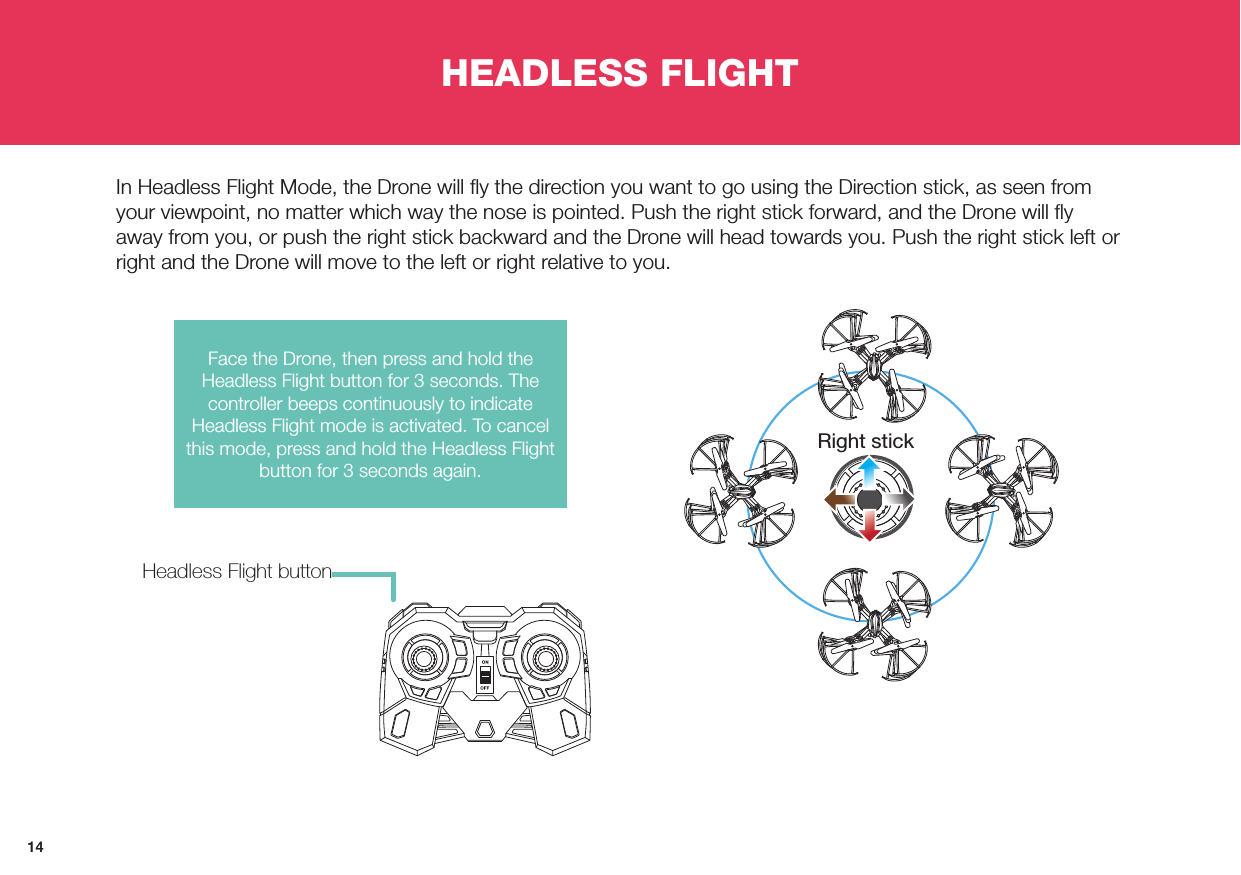
14HEADLESS FLIGHTIn Headless Flight Mode, the Drone will fly the direction you want to go using the Direction stick, as seen from your viewpoint, no matter which way the nose is pointed. Push the right stick forward, and the Drone will fly away from you, or push the right stick backward and the Drone will head towards you. Push the right stick left or right and the Drone will move to the left or right relative to you.Headless Flight buttonFace the Drone, then press and hold the Headless Flight button for 3 seconds. The controller beeps continuously to indicate Headless Flight mode is activated. To cancel this mode, press and hold the Headless Flight button for 3 seconds again.Right stick
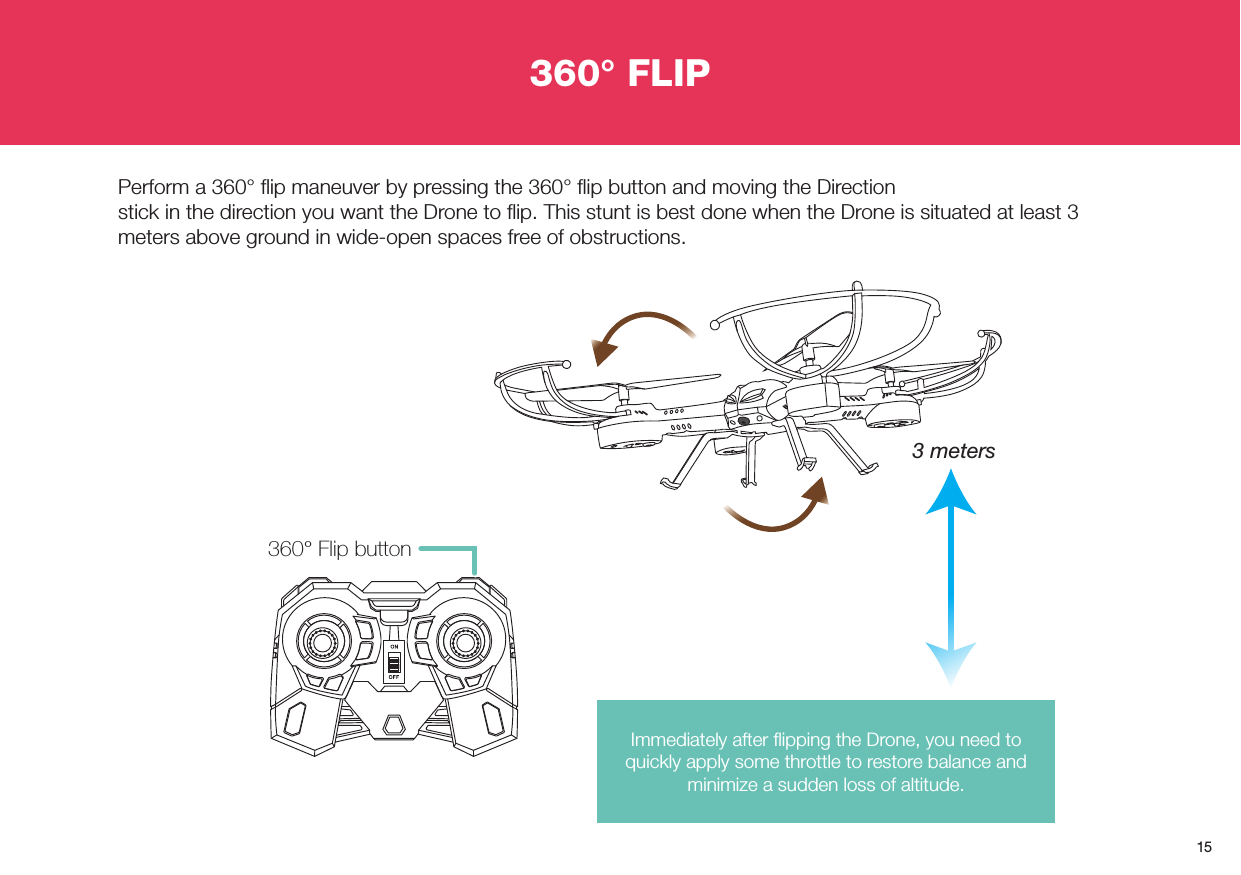
15360° Flip button3 metersImmediately after flipping the Drone, you need to quickly apply some throttle to restore balance and minimize a sudden loss of altitude.360° FLIPPerform a 360° flip maneuver by pressing the 360° flip button and moving the Directionstick in the direction you want the Drone to flip. This stunt is best done when the Drone is situated at least 3 meters above ground in wide-open spaces free of obstructions.
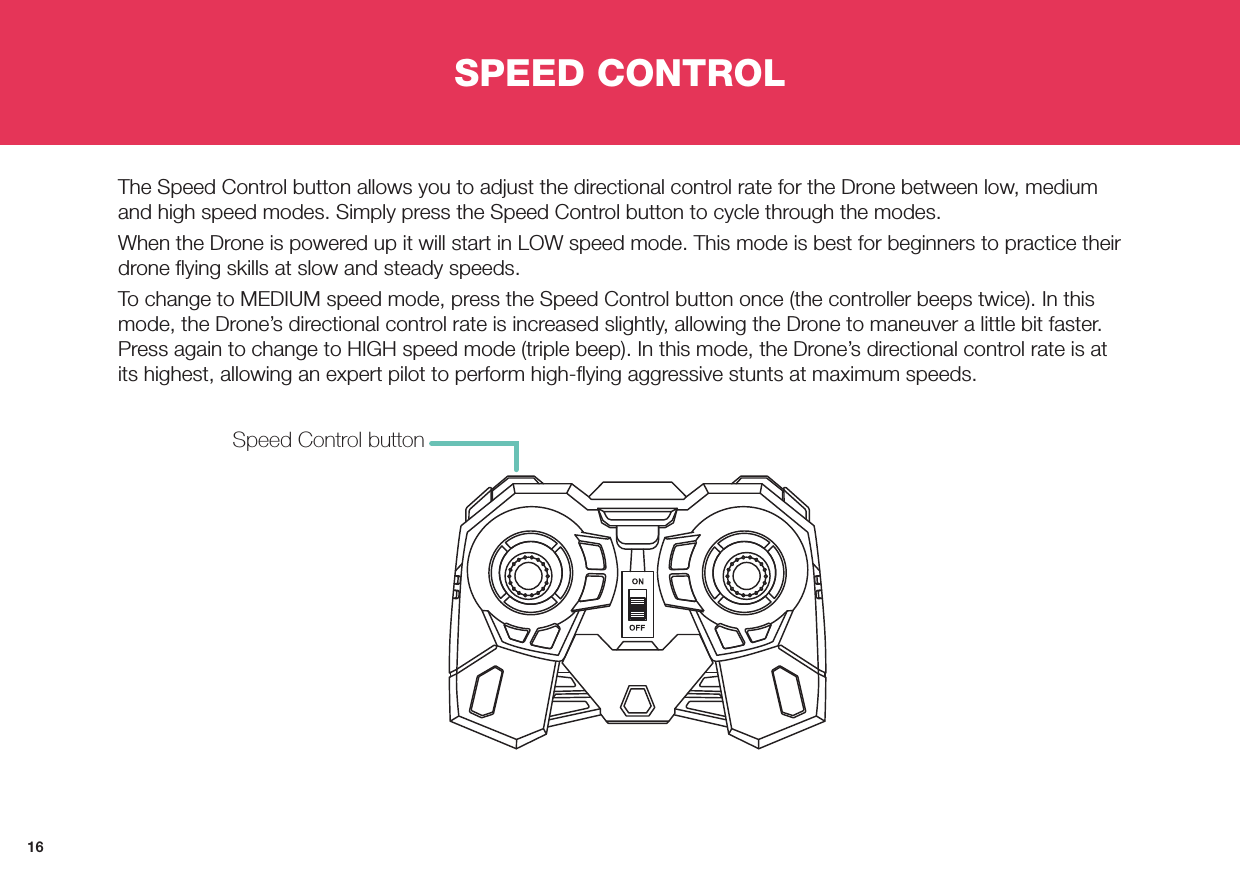
16SPEED CONTROLThe Speed Control button allows you to adjust the directional control rate for the Drone between low, medium and high speed modes. Simply press the Speed Control button to cycle through the modes.When the Drone is powered up it will start in LOW speed mode. This mode is best for beginners to practice their drone flying skills at slow and steady speeds. To change to MEDIUM speed mode, press the Speed Control button once (the controller beeps twice). In this mode, the Drone’s directional control rate is increased slightly, allowing the Drone to maneuver a little bit faster. Press again to change to HIGH speed mode (triple beep). In this mode, the Drone’s directional control rate is at its highest, allowing an expert pilot to perform high-flying aggressive stunts at maximum speeds.Speed Control button
17FLYING TIPS•  Check that the propellers are firmly secured in their slots before each takeoff.•  Small adjustments made slowly and carefully are the best way to fly well. Be careful when easing off the throttle – if the Drone stalls, it will fall to the ground and even if you jam the throttle back on, it might not be able to recover in time.•  Once up in the air, practise hovering and keeping the Drone in one spot through very slight adjustments to the throttle. You’ll find that due to its size, even the lightest of breeze can affect the stability.•  While positioning the Drone into a steady hover, slowly decrease the throttle until it lands. •  When the Drone is near the ground, the air it pushes down with its rotor has nowhere to go – the ground is in the way. Some of this air bounces back; this pushes the Drone up. This is called the ground effect. •  Conversely to the ground effect, when you fly too close to a ceiling, a small pocket of low pressure is created above the Drone, and it will be sucked upwards. This could be bad – if you hit the ceiling, the Drone will stall, fall and possibly be damaged.•  Use the controller’s left and right sticks at different angles and positions to design and execute some graceful, arcing turns. Quick thrusts of the stick in different directions can create some unique tricks or stunts.•  Perform “pirouettes” by rotating around 360° in the air.•  When the battery is starting to run low, the Drone will respond slowly to the controller or be unable to maintain altitude easily. Before power to the motors is cut off entirely, gradually move the left stick all the way down to slow the propellers until you can land the Drone safely.
18HELPPropellers are spinning, but the Drone will not lift off the ground.•  Check the propellers for any sign of damage. Bent or broken propellers should be replaced promptly with the spare propellers included in your package.•  The Drone battery has insufficient power. Make sure the Drone battery has been fully recharged.The Drone keeps drifting in a certain direction during flight even in calm wind conditions.•  Check for trapped dirt around the motors driving the propellers. Just a little strand of hair could make the Drone difficult to control.•  Adjust the trim to compensate for the drifting. Repeatedly push the appropriate trim button opposite to the direction the Drone is drifting towards until the drifting stops. For example, if the Drone drifts forward, press the Backward Trim button, and vice-versa. If the Drone drifts to the left, press the Right Sideway Trim button, and vice-versa. If the Drone spins counter-clockwise, push the Right Rotation Trim button, and vice-versa.•  Recalibrate the Drone gyro sensor after a heavy landing. First, place the Drone on a flat, level surface, and then hold both control sticks to the lower left corner until the status lights on the Drone blink rapidly. When the lights turn solid, the calibration process is complete.The Drone responds slowly and does not maintain altitude easily. •  Battery voltage (power) is running low. Before power to the motors is cut off entirely, gradually lower the throttle stick until the Drone descends and lands safely, and immediately charge the battery. •  The Drone has flown outside of the range of the controller. Bring the Drone closer to your position.Video recording is not clear. •  Peel off the transparent film wrapped around the camera lens.•  Signal interference with other 2.4GHz devices in the vicinity of the Drone may cause horizontal lines to intermittently appear in the video recording.The controller is blinking and beeping continuously.•  Batteries need replacing. Insert a new set of AA batteries into the controller.
19FAQHow do I clean and maintain my Drone?•  Regularly inspect and clean any dirt trapped around the propellers using a soft brush. Accumulation of dirt puts addi-tional stress on the motor and may cause the propeller to spin unevenly or even stop spinning completely.•  Wipe clean with a slightly damp cloth.•  Do not submerge in water. This will damage the electronic components.How long can my Drone fly for?•  You should be able to fly your Drone for at least 7 minutes based on typical conditions before another battery recharge is needed. We have included an extra battery in the package, so you can enjoy double the playing time.How do I access the photos and videos taken with the camera?•  Turn off the Drone. Eject the microSD card from the Drone, then insert it into the included card reader. Plug the USB card reader into the USB port on your computer. Playing videos directly from the memory card may cause the videos to be slow or jerky. It is best to copy or transfer files to your computer before trying to watch them.Do I need to register my Drone?•  Registration is not required in the United States because the Drone weighs less than 0.55 lbs. For more information on the rules for registering drones, please visit www.faa.gov/uas/registration/faqs•  For other parts of the world, please check with your country’s civil aviation authority regarding the operation of the Drone in your local airspace. Here are some useful links: Australia: www.casa.gov.au/aircraft/landing-page/remotely-piloted-aircraft-system Canada:  www.tc.gc.ca/eng/civilaviation/standards/standards-4179.html UK: www.caa.co.uk/Commercial-Industry/Aircraft/Unmanned-aircraft/Unmanned-Aircraft
Limited Warranty Terms & ConditionsXtreem warrants this product against defects in workmanship and material for a period of one (1) year from it’s original purchase date. You must present your receipt as proof of date of purchase for warranty validation. Any unit which proves defective during the stated period will be repaired without charge for parts or labour or replaced at the sole discretion of Xtreem. The end user is responsible for all freight charges incurred to send the product to Xtreem’s repair centres. The end user is responsible for all shipping costs incurred when shipping from and to any country other than the country of origin. The warranty does not cover any incidental, accidental or consequential damages arising from the use of or the inability to use this product. Any costs associated with the fitting or removal of this product by a tradesman or other person or any other costs associated with its use are the responsibility of the end user. This warranty applies to the original purchaser of the product only and is not transferable to any third party.  Unauthorized end user or third party modifications to any component or evidence of misuse or abuse of the device will render all warranties void.By law some countries do not allow limitations on certain exclusions in this warranty.  Where applicable by local laws, regulations and legal rights will take precedence.For Australia: Our goods come with guarantees which cannot be excluded under Australian Consumer Law. You are entitled to a replacement or refund for a major failure and for compensation for any other reasonably foreseeable loss or damage. You are also entitled to have the goods repaired or replaced if the goods fail to be of acceptable quality and the failure does not amount to major failure.
www.xtreemfun.com MRPTEYE180416E© XTREEM 2016Limited Warranty NOTE: This equipment has been tested and found to comply with the limits for a Class B digitaldevice, pursuant to part 15 of the FCC Rules. These limits are designed to provide reasonable protectionagainst harmful interference in a residential installation. This equipment generates, uses and can radiateradio frequency energy and, if not installed and used in accordance with the instructions, may causeharmful interference to radio communications. However, there is no guarantee that interference will notoccur in a particular installation. If this equipment does cause harmful interference to radio or televisionreception, which can be determined by turning the equipment off and on, the user is encouraged to try tocorrect the interference by one or more of the following measures:—Reorient or relocate the receiving antenna.—Increase the separation between the equipment and receiver.—Connect the equipment into an outlet on a circuit different from that to which the receiver isconnected.—Consult the dealer or an experienced radio/TV technician for help.This device complies with part 15 of the FCC rules. Operation is subject to the following twoconditions:(1) this device may not cause harmful interference, and(2) this device must accept any interference received, including interference that may causeundesired operation.Changes or modifications to this unit not expressly approved by the party responsible forcompliance could void the user's authority to operate the equipment.

Navigation menu