Sharp AR 203E Operation Manual Online GB User To The 74171eab 3f05 42b3 Ace4 88d7cd0de255
User Manual: Sharp AR-203E to the manual
Open the PDF directly: View PDF  .
.
Page Count: 39
- Contents
- How to Use the Online Manual
- Scan
- Troubleshooting
- Identifying Unit Problems
- Check the Connection between the Unit and Computer
- Check Your Computer
- Faint, Uneven or Smeared Print Output
- Characters or Graphics are not Printed in Correct Position
- Nothing Prints
- Poor Scanning Result
- The Scanned Image is Incorrectly Positioned
- Unable to Scan the Image
- Uninstalling the Software
- Printer Driver Features
- Index

Contents
How to Use the Online Manual 1
Printing Overview 2
Basic Printing 3
Starting the Printer Driver Using the "Start" Button 4
Printer Driver Settings 5
Printing a Watermark 6
Fitting the Printed Image to the Paper 7
Printing Multiple Pages on One Page 8
Outline of the Print Status Window 9
Scanning Overview 10
Scanning an Image from a TWAIN-Compliant Application 11
Scanning an Image from a WIA-Compliant
Application (Windows XP/Vista) 15
Scanning an Image from the "Scanner and
Camera Wizard" (Windows XP/Vista) 17
Outline of Button Manager 20
Button Manager Settings 21
Identifying Unit Problems 22
Check the Connection between the Unit and Computer 23
Check Your Computer 24
Plug and Play Screen does not Appear (when the
USB is connected) 25
Failed to Install the MFP Driver (Windows 2000/XP) 26
Faint, Uneven or Smeared Print Output 27
Characters or Graphics are not Printed in Correct Position
28
Nothing Prints 29
Poor Scanning Result 30
The Scanned Image is Incorrectly Positioned 31
Unable to Scan the Image 32
Uninstalling the Software 33
Printer Driver Features 34
1
How to Use the Online Manual
2
Print
3
Scan
4
Troubleshooting
5
Printer Driver Features
6
Index
INDEX
CONTENTS 1
This Online Manual provides instruction for the operation of your new unit. Please read the following explanation of how
to use the Online Manual, and then search for the information that you need.
For more information about computers, operating systems and Acrobat Reader, please refer to the relevant manual or
help file.
How to Control the Online Manual
Following links
Links can connect parts of a document to other parts for further information. In this document, green colored letters are linked areas.
To follow a link, select a hand tool ( ), a zoom tool or a selection tool. Position the pointer over the linked area on the page until the pointer
changes to a hand with a pointing finger ( ). Then click the link.
Using Bookmarks
This online manual has Bookmarks on the main pages of each section. You can move to the desired pages by simply clicking its bookmark.
How to Print Out the Online Manual
I
n order to print out a hard copy of the Online Manual for your reference, go to Acrobat Reader, click the "File" menu, and
select "Print". After specifying the printer setting, click the "OK" button to print.
Note
zIn this online manual, screen images and operating procedures are mainly for Windows XP. With other versions
of Windows, some screen images may be different from those in this manual.
zWherever "AR-xxxx" appears in this manual, please substitute your model name for "xxxx".
zFor your information, please note that the SPF and the second cassette are provided as an option.
1
INDEX
CONTENTS
Click this button to display the Table of
Contents of the Online Manual. From the Table
of Contents you can jump to various pages.
Click this button to display the Index of the
Online Manual. From the Index you can
jump to various pages.
Takes you forward page by page.
Takes you back page by page. To return to the previous link,
click the ( ) button on the menu bar of the Acrobat Reader.
How to Use the Online Manual
1
INDEX
CONTENTS 2
2
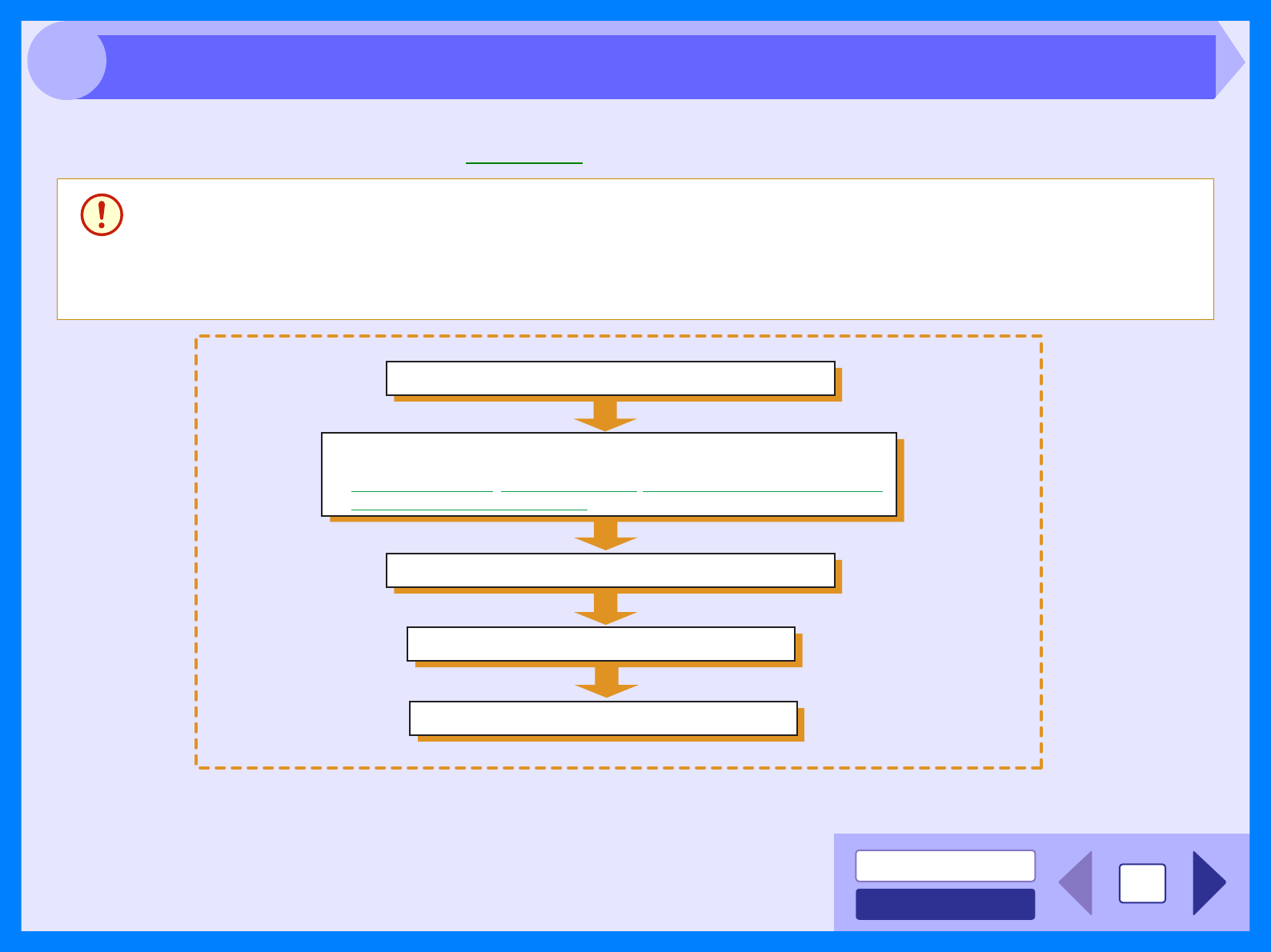
The flow chart shown below provides printing overview.
Reference: For more information on printing, see Basic Printing.
Caution
zThe printer function is only available when the machine is connected to your computer using a USB cable. Printing
over a network connection is not possible.
zWhen the paper source is the paper tray or multi-bypass tray, verify that the paper has been loaded before starting
printing.
zEnsure printing has been completed before turning the power off. Do not remove the power cord before turning
the unit off.
Prepare the document you intend to print
Send print data from your computer
Printing
Exit printing
Open the printer driver setup screen and set the print preferences
Reference:
Printer Driver Settings, Printing a Watermark, Fitting the Printed Image to the Paper,
Printing Multiple Pages on One Page
Printing Overview
INDEX
CONTENTS 3
2
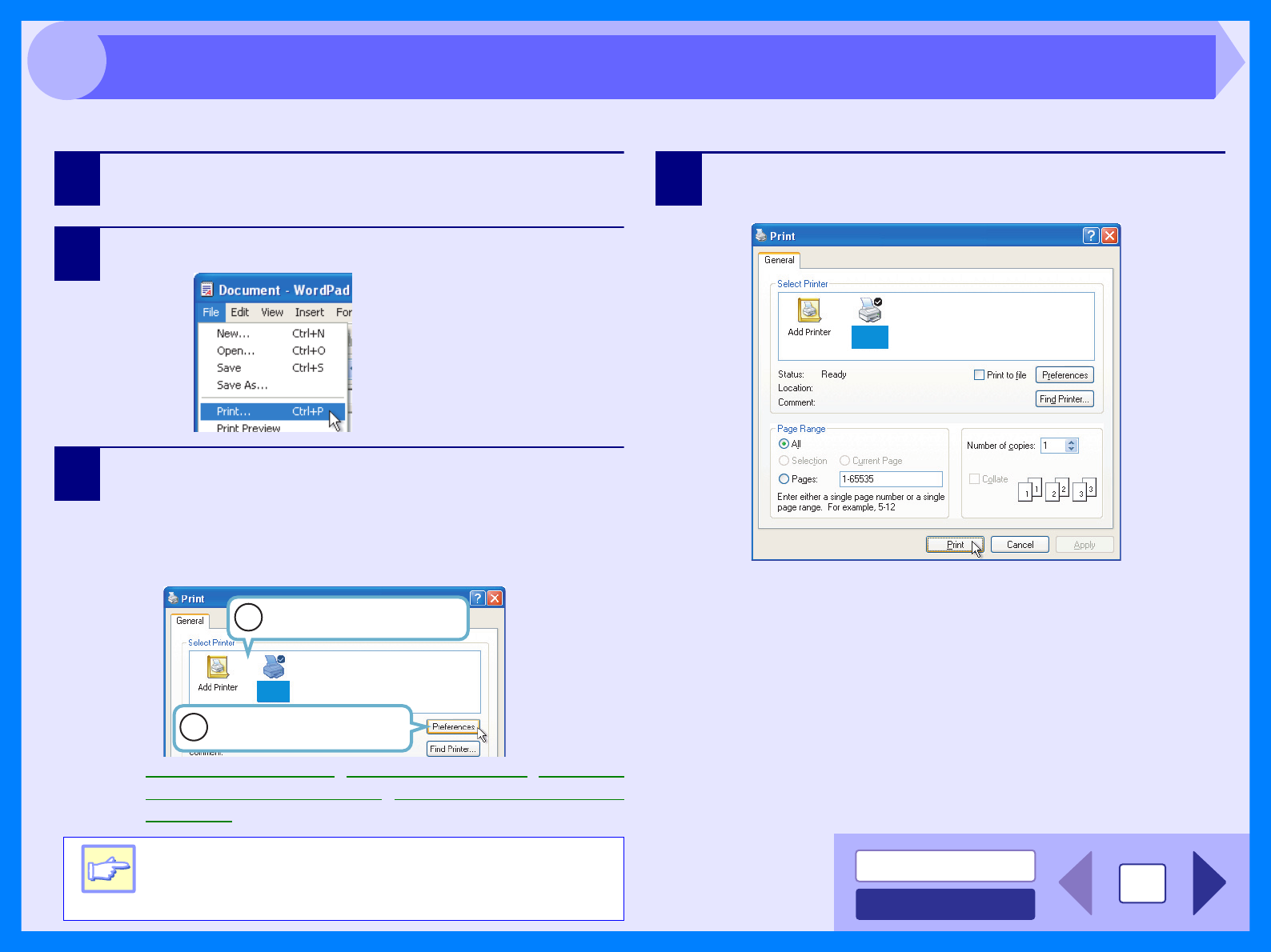
This is a printing example using WordPad to print a document onto A4 size paper.
1Start WordPad, make a new file, and enter the text
you intend to print.
2Select "Print" from the application's "File" menu.
3Make sure that "SHARP AR-xxxx" is selected as the
current printer. If you intend to change any print
setting, click the "Preferences" button to open the
printer driver setup screen.
On Windows 98/Me, click the "Properties" button.
Reference: Printer Driver Settings, Printing a Watermark, Fitting the
Printed Image to the Paper, Printing Multiple Pages on
One Page
4Click the "Print" button in the "Print" dialog box.
On Windows 98/Me, click the "OK" button.
Printing starts according to your preferences.
Note
Windows 2000 does not have the "Preferences"
button on this dialog box. Switch to the desired
tab by clicking it to specify printer settings.
Identify the current printer
in this box.
1
2Click this button to change
any print preference.
SHARP
AR-xxxx
SHARP
AR-xxxx
Basic Printing
INDEX
CONTENTS 4
2
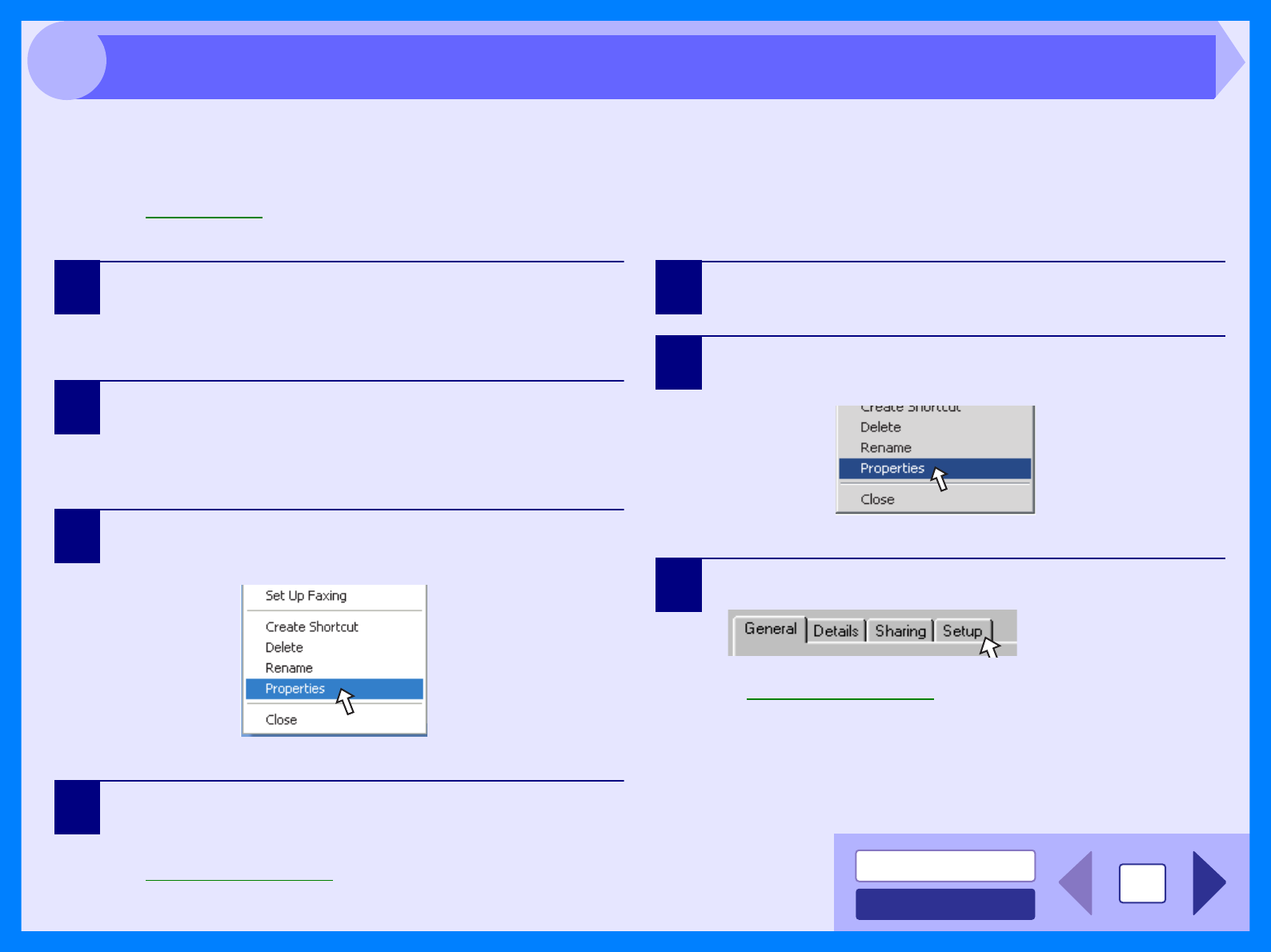
You can open the printer driver and change the printer driver settings from the Windows "start" button. Settings adjusted
in this way will be the initial settings when you print from an application. (If you change the settings from the printer
driver setup screen at the time of printing, the settings will revert to the initial settings when you quit the application.)
Reference: Basic Printing
Windows 2000/XP/Vista
1Click the "start" button, and then click "Control
Panel".
On Windows 2000, click the "Start" button and select
"Settings".
2Click "Printers and Other Hardware", and then click
"Printers and Faxes".
• On Windows Vista, click "Printer".
• On Windows XP, click "Printers".
3Click the "SHARP AR-xxxx" printer driver icon and
select "Properties" from the "File" menu.
On Windows Vista, click "Printer".
4Click the "Printing Preferences" button in the
"General" tab.
The printer driver setup screen will appear.
Reference: Printer Driver Settings
Windows 98/Me
1Click the "Start" button, select "Settings" and then
click "Printers".
2Click the "SHARP AR-xxxx" printer driver icon and
select "Properties" from the "File" menu.
3Click the "Setup" tab.
The printer driver setup screen will appear.
Reference: Printer Driver Settings
Starting the Printer Driver Using the "Start" Button
INDEX
CONTENTS 5
2
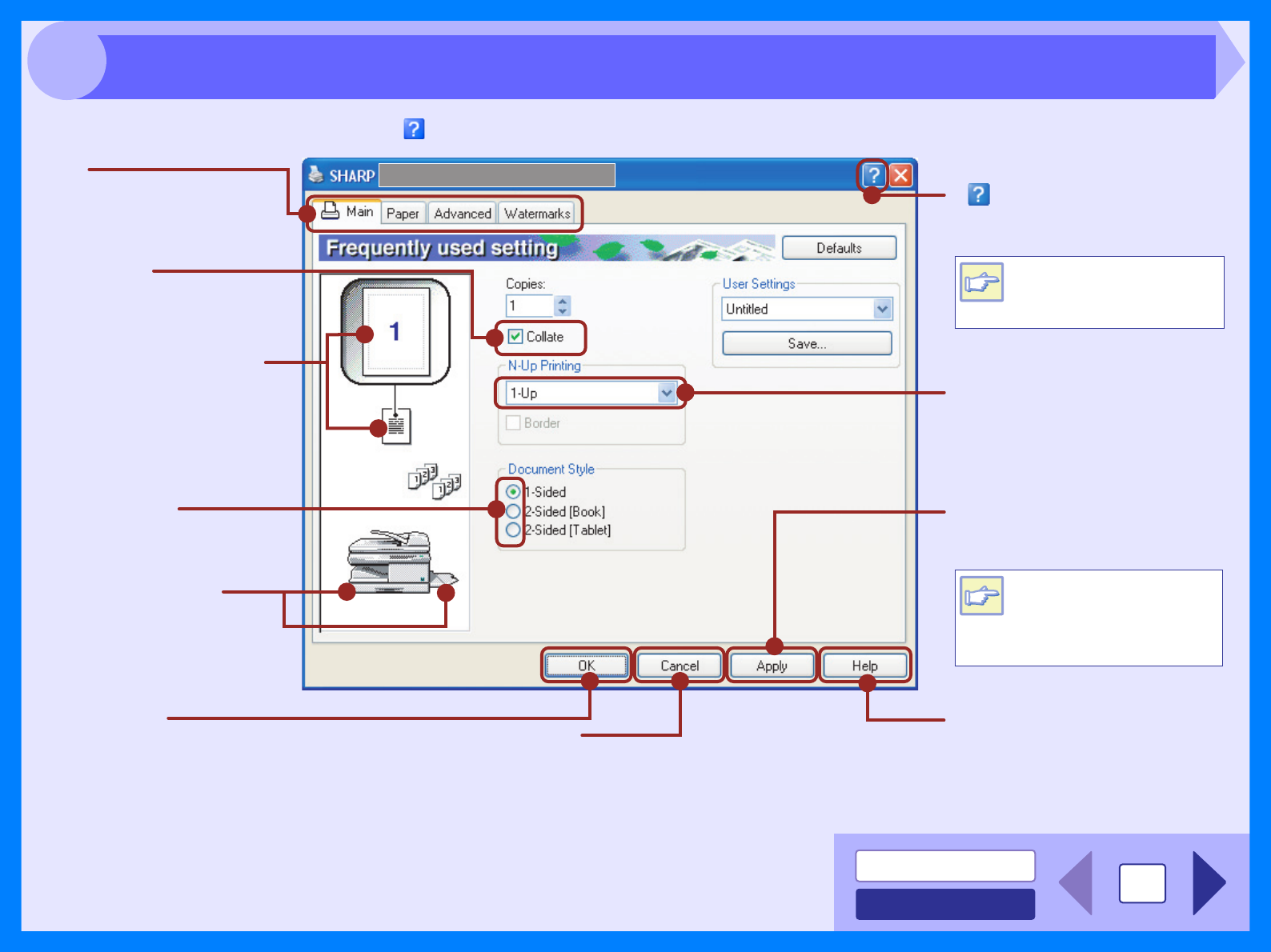
To view Help for a setting, click the ( ) button in the upper right-hand corner of the window and then click the setting.
Tab
Index which allows you to
switch between the various
setup screens.
( ) button
Click this button and then click a
setting to view Help for the setting.
Check button
Allows you to select one
item from a list of options.
"OK" button
Click this button to save
your settings, and exit the
dialog box.
The settings you made at
"N-Up Printing", "Document
Style", "Fit To Paper Size",
"Image Orientation" and
"Watermark" are shown in
this image.
The tray selected in
"Paper Selection" in the
"Paper" tab appears in
blue. You can also click
on a tray to select it.
"Cancel" button
Click this button to exit the dialog
box without making any changes to
the settings.
"Apply" button
Click to save your settings
without closing the dialog box.
"Help" button
The Help window will open to
let you view explanations of the
settings on the tab.
Drop-down list
Allows you to make one
selection from a list of choices.
Check box
Click this option to activate/
deactivate each function.
You can also view Help by
right-clicking the setting
with the mouse.
The "Apply" button does
not appear when you
open this window from
an application.
Note
Note
Printer Driver Settings
INDEX
CONTENTS 6
2
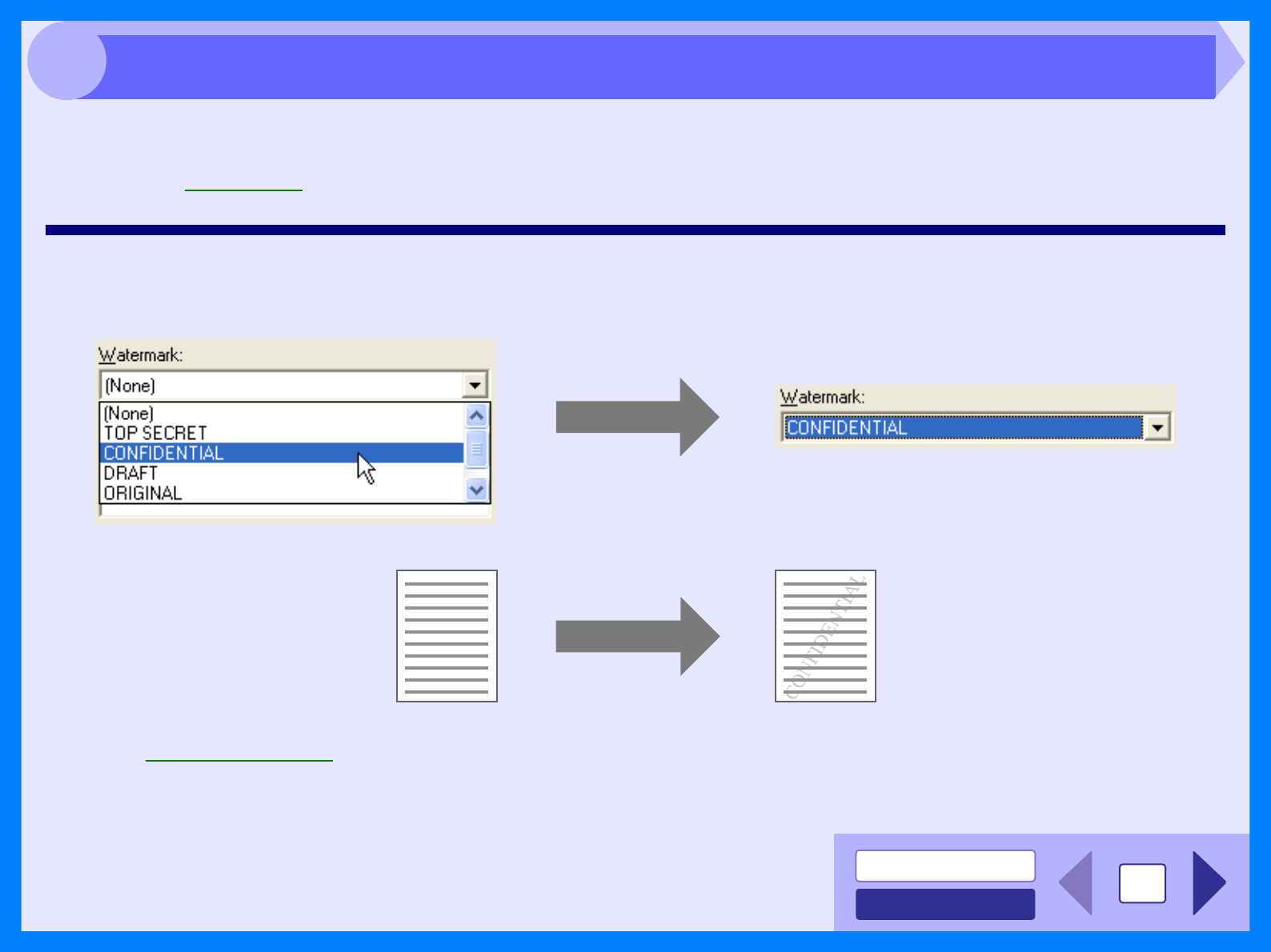
To print a watermark, for example "CONFIDENTIAL", on your document, refer to the following steps. Open the printer
driver and click the "Watermarks" tab.
Reference: See Basic Printing for details on how to open the printer driver.
How to Print a Watermark
From the "Watermark" drop-down list, select the watermark, for example "CONFIDENTIAL", you wish to print on your
document, and start printing.
For details on watermark settings, view printer driver Help.
Reference: Printer Driver Settings
Print sample
Printing a Watermark
INDEX
CONTENTS 7
2
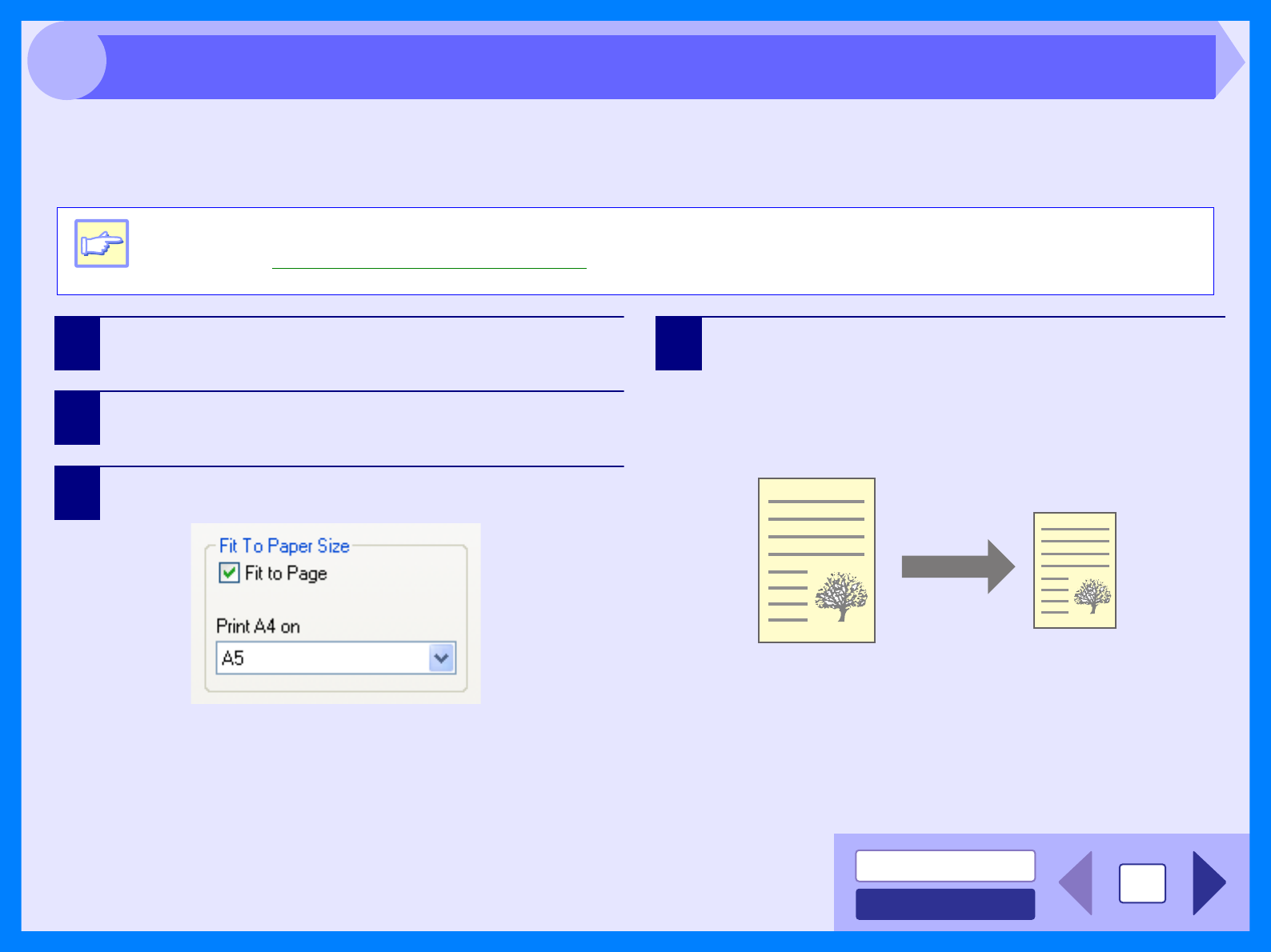
This printer driver can adjust the zoom ratio for printing according to the paper loaded in the unit.
Follow the steps shown below to use this function. The instruction below assumes that you intend to print an A4 size
document onto an A5 size paper.
1Click the "Paper" tab in the printer driver setup
screen.
2Select the paper size for the print data from "Paper
Size".
3Check the "Fit To Page" box.
4Select the paper size for "Fit To Paper Size", which
corresponds to the size of paper in the unit.
Now, the printed image will automatically fit the paper
set in the unit.
Note
The "Fit To Paper Size" setting is not available when "N-Up Printing" is selected.
Reference: Printing Multiple Pages on One Page
Paper Size: A4
Fit To Paper Size: A5
A4 size document
(Paper Size)
A5 size paper
(Fit To Paper Size)
Fitting the Printed Image to the Paper
INDEX
CONTENTS 8
2
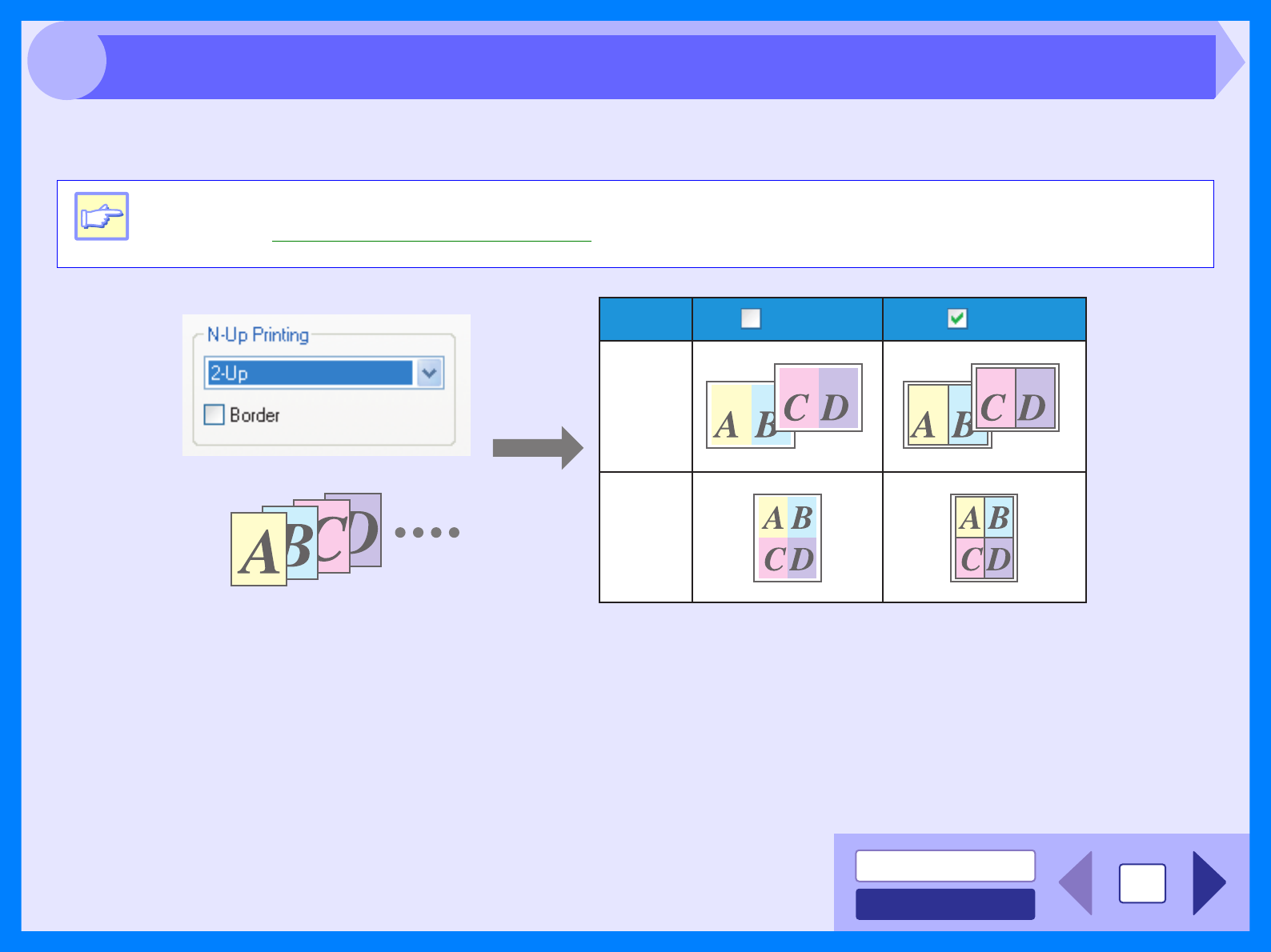
This feature allows you to print two or four document pages onto a single page.
To use this function, open the printer driver setup screen, select "2-Up" or "4-Up" for "N-Up Printing" on the "Main" tab.
If you select the "Border" checkbox, border lines will be printed on each page.
Note
The "N-Up Printing" setting is not available when "Fit To Paper Size" is selected.
Reference: Fitting the Printed Image to the Paper
"2-Up"
"4-Up"
BorderBorderN-Up
Printing Multiple Pages on One Page
INDEX
CONTENTS 9
2
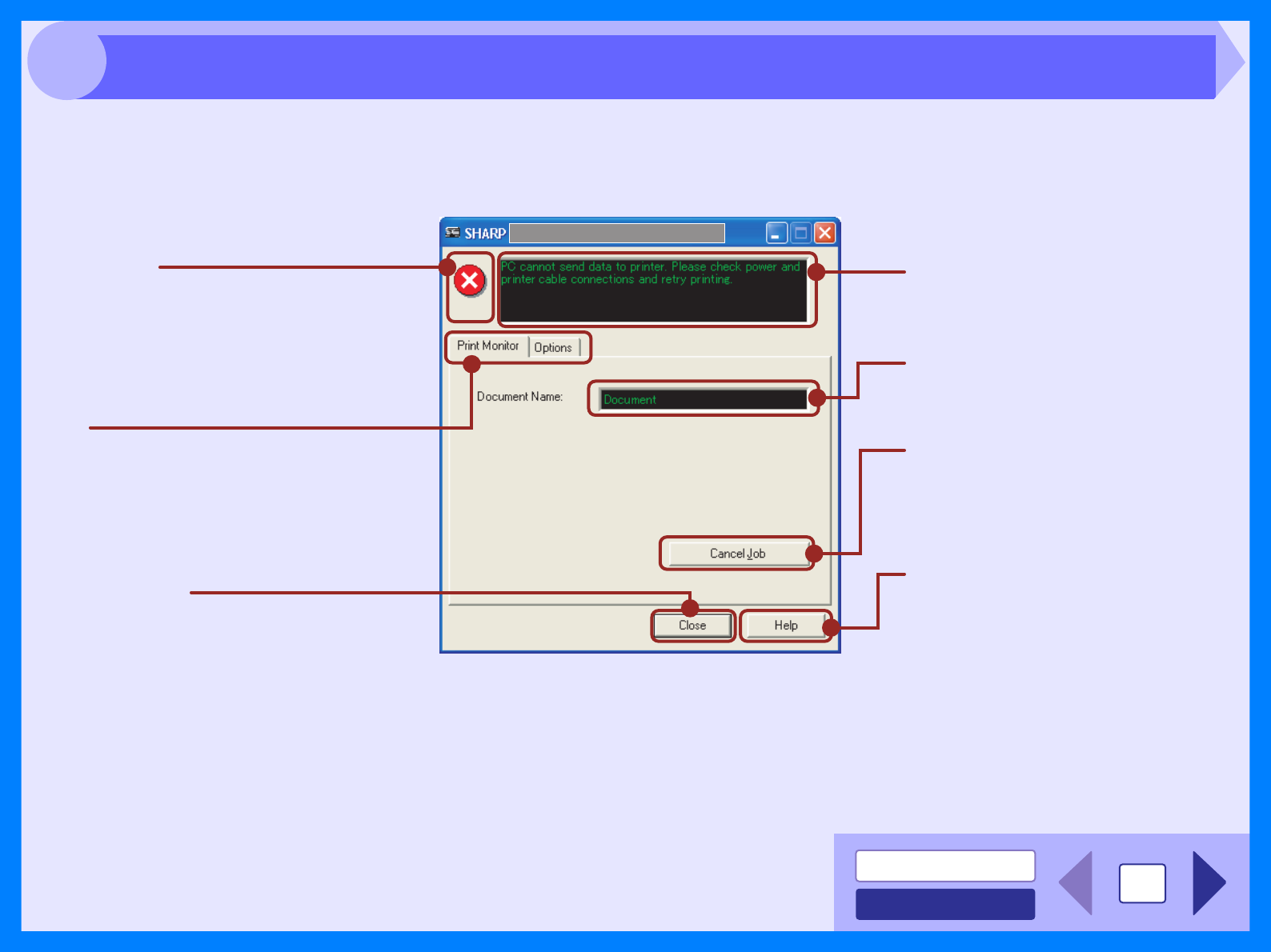
When printing begins, the Print Status Window activates and appears on the screen.
The Print Status Window is a program designed to show the current printer status including the document name being
printed and error messages.
Status window
Provides details on the current
status of the print job.
Document Name
Displays the name of the active print
job.
"Help" button
Click this button to display help file
for the Print Status Window.
Status icon
This icon informs you of the print status.
Tab
Index which allows you to switch
between the two setup screens.
"Cancel Job" button
Printing can be canceled by clicking
this button before the machine
receives the job.
"Close" button
Click this button to close the Print
Status Window.
Outline of the Print Status Window
INDEX
CONTENTS 10
3
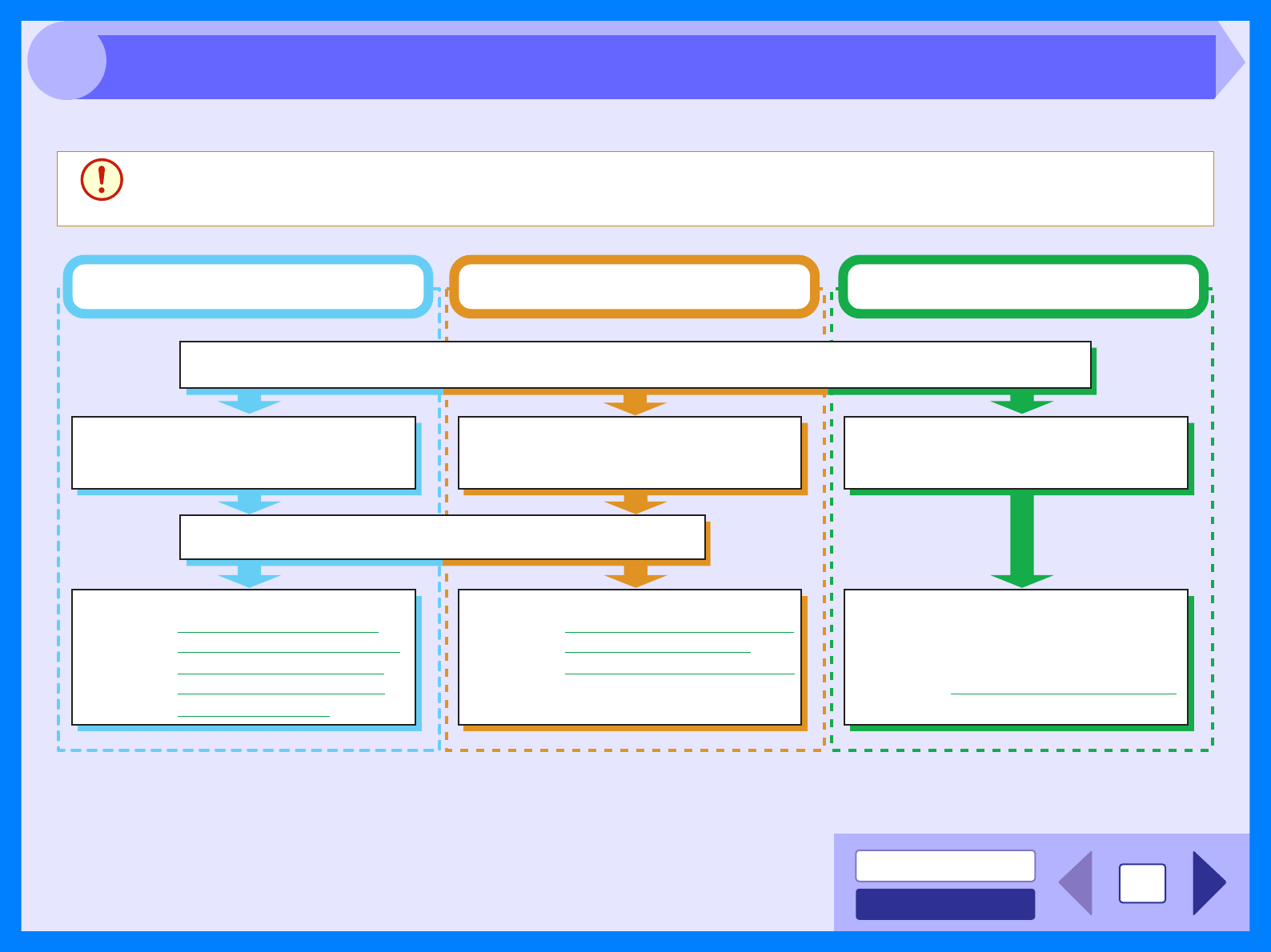
The flow chart shown below provides scanning overview.
*1:TWAIN is an industry standard for interface of image data processing devices including scanners. By installing a TWAIN driver onto your computer,
you can scan and work with images using a variety of TWAIN-compliant applications.
*2:WIA (Windows Imaging Acquisition) is a Windows function that allows a scanner, digital camera or other imaging device to communicate with an
image processing application. The WIA driver for this unit can only be used in Windows XP/Vista.
*3:To scan using the unit's operation panel, you must first install Button Manager and establish the
appropriate settings in the Control Panel. For details, see "USING THE SCANNER MODE" in
the Operation Manual.
Note that not all scanner functions are available using Button Manager.
Caution
The scanning feature can only be used with computers that are connected to the machine by a USB cable.
Place the original in the scanning position
Reference: For more detail, refer to the "ORIGINAL PLACEMENT" in the Operation Manual.
Start up the "Scanner and Camera
Wizard" from "Control Panel" in
your computer.
Start up a Twain-compliant or WIA-
compliant application, and select
the unit's scanner driver.
Change the unit to scanner mode
and select scan menu (SC1 to SC6)
on the operation panel.
Set the scan preferences
When scanning from TWAIN*
1
-compliant
or WIA*
2
-compliant application
When scanning from "Scanner and
Camera Wizard" (Windows XP/Vista)
Using the unit to begin scanning*3
Scanning
Referenc
e: Scanning an Image from the
"Scanner and Camera
Wizard" (Windows XP/Vista)
Scanning
Reference:
Scanning an Image from a
TWAIN-Compliant Application,
Scanning an Image from a
WIA-Compliant Application
(Windows XP/Vista)
Scanning
Reference: "USING THE SCANNER
MODE" in the Operation
Manual,
Outline of Button Manager
Scanning Overview
INDEX
CONTENTS 11
3
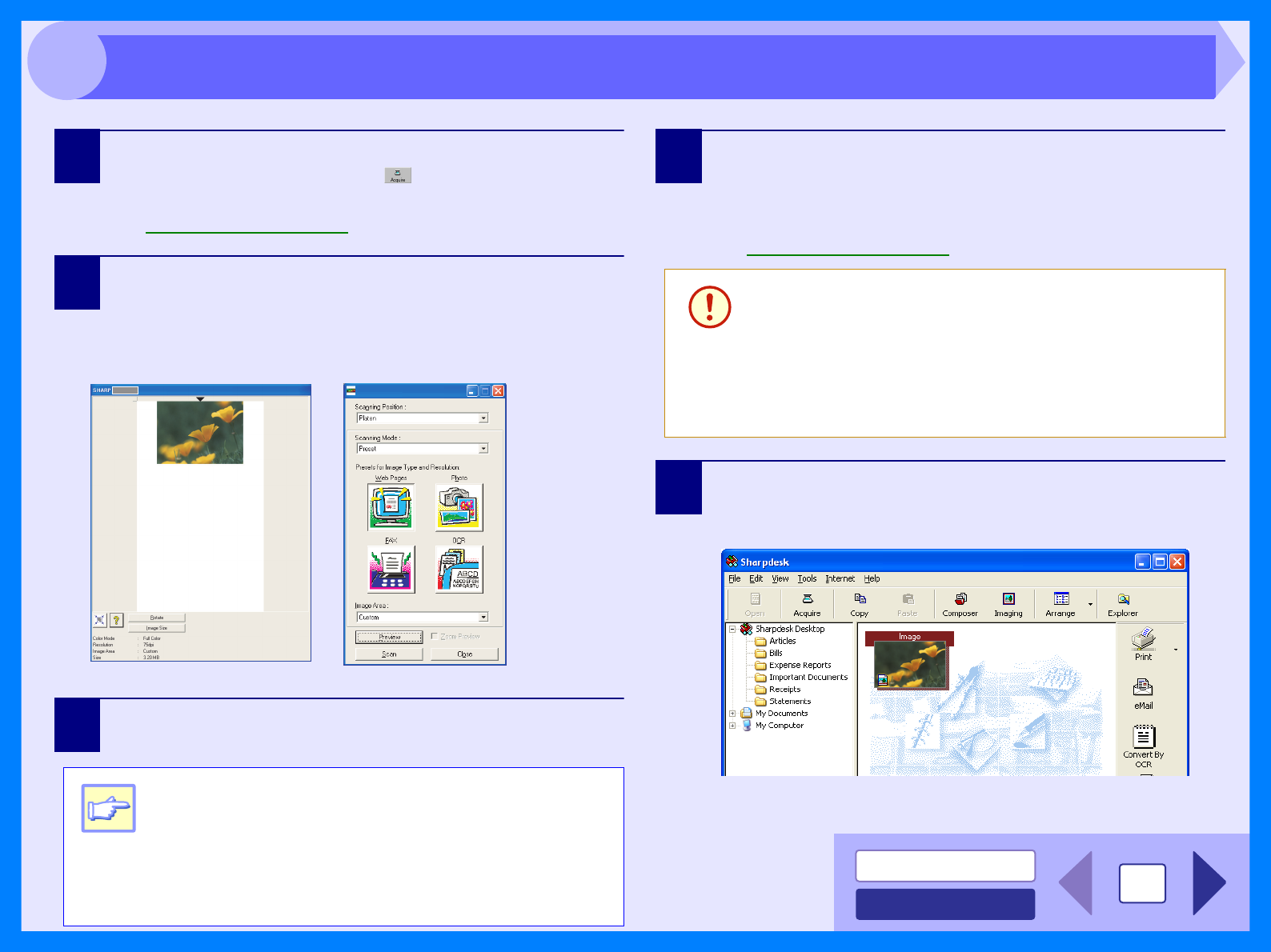
The SHARP scanner driver conforms to TWAIN, the industry standard, making it compatible with a variety of TWAIN-
compliant applications. Below is a step-by-step guide for acquiring a scanned image to the Sharpdesk desktop screen
using Sharpdesk.
1Place the original (s) you wish to scan on the
document glass/SPF.
Reference: For information on setting an original for scanning, refer
to "ORIGINAL PLACEMENT" in the Operation Manual.
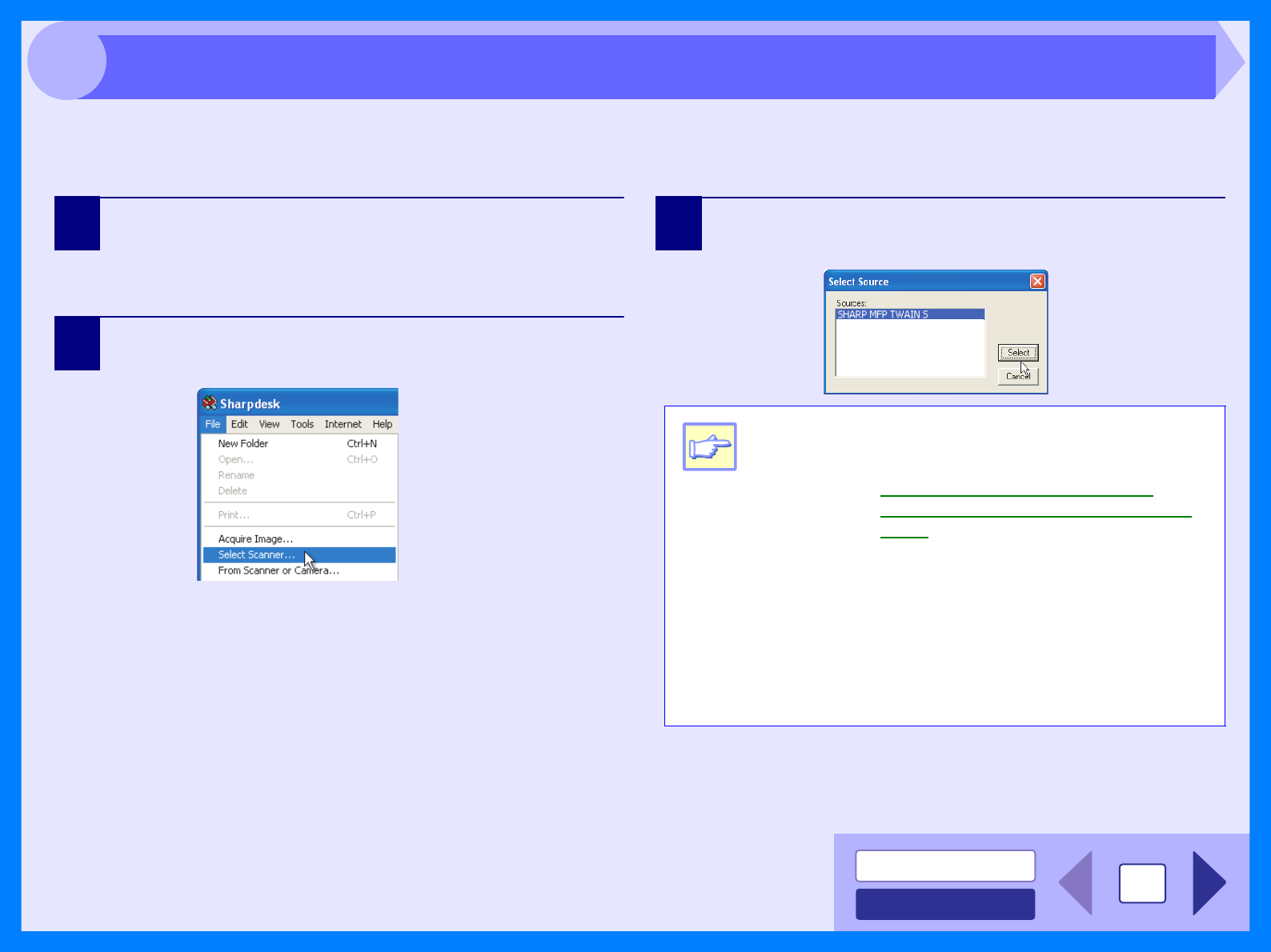
2After starting Sharpdesk, click the "File" menu and
select "Select Scanner".
3Select "SHARP MFP TWAIN S", and click the
"Select" button.
Note
zIf you are using Windows XP/Vista, you can also
select "WIA-SHARP AR-xxxx" to scan using the
WIA driver.
Reference: Scanning an Image from a WIA-
Compliant Application (Windows XP/
Vista)
z
Depending on your system, "
SHARP MFP
TWAIN S 1.0 (32-32)
" and "WIA-SHARP AR-xxxx
1.0 (32-32)" may appear in the "Select Source"
screen.
zThe method for accessing the "Select Scanner"
option, depends upon the application. For more
information, refer to the manual or the help file
of your application.
WIA-SHARP AR-xxxx
Scanning an Image from a TWAIN-Compliant Application (part 1)
INDEX
CONTENTS 12
3
4Select "Acquire Image" from the "File" menu, or
click the "Acquire" button ( ).
The scanner driver setup screen will appear.
Reference: Scanner Driver Settings
5In the "Scanning Position" menu, select the
position in which you placed the original in Step 1
("Platen" (document glass) or "SPF").
Select "SPF" when you placed the original in the SPF.
6Click the "Preview" button.
The preview image will appear.
7Specify the scanning area, and set the scan
preferences.
For information on specifying the scan area and setting
the scan preferences, see scanner driver Help.
Reference: Scanner Driver Settings
8
Click the "Scan" button after setting your preferences.
To cancel your scanning job after clicking the "Scan"
button, press the [Esc] key on your keyboard.
When you close the scanner driver after scanning, the
image data will appear as a new file in Sharpdesk.
Note
z
If the rotation or angle of the image is different, reset
the original, and click the "Preview" button again.
zIf you set multiple pages on the SPF, the unit
previews only the page placed on the top of the
originals, and then sends it to the original exit
area. Return the previewed page to the SPF
before starting the scanning job.
Caution
Setting a large area with full color together with a
high resolution setting, makes the data size large,
resulting in extended scanning times. It is
recommended to set the scanning preferences
depending on the type of the original to be
scanned, i.e., Web Pages (monitor), Photo, FAX,
or OCR.
Scanning an Image from a TWAIN-Compliant Application (part 2)
INDEX
CONTENTS 13
3
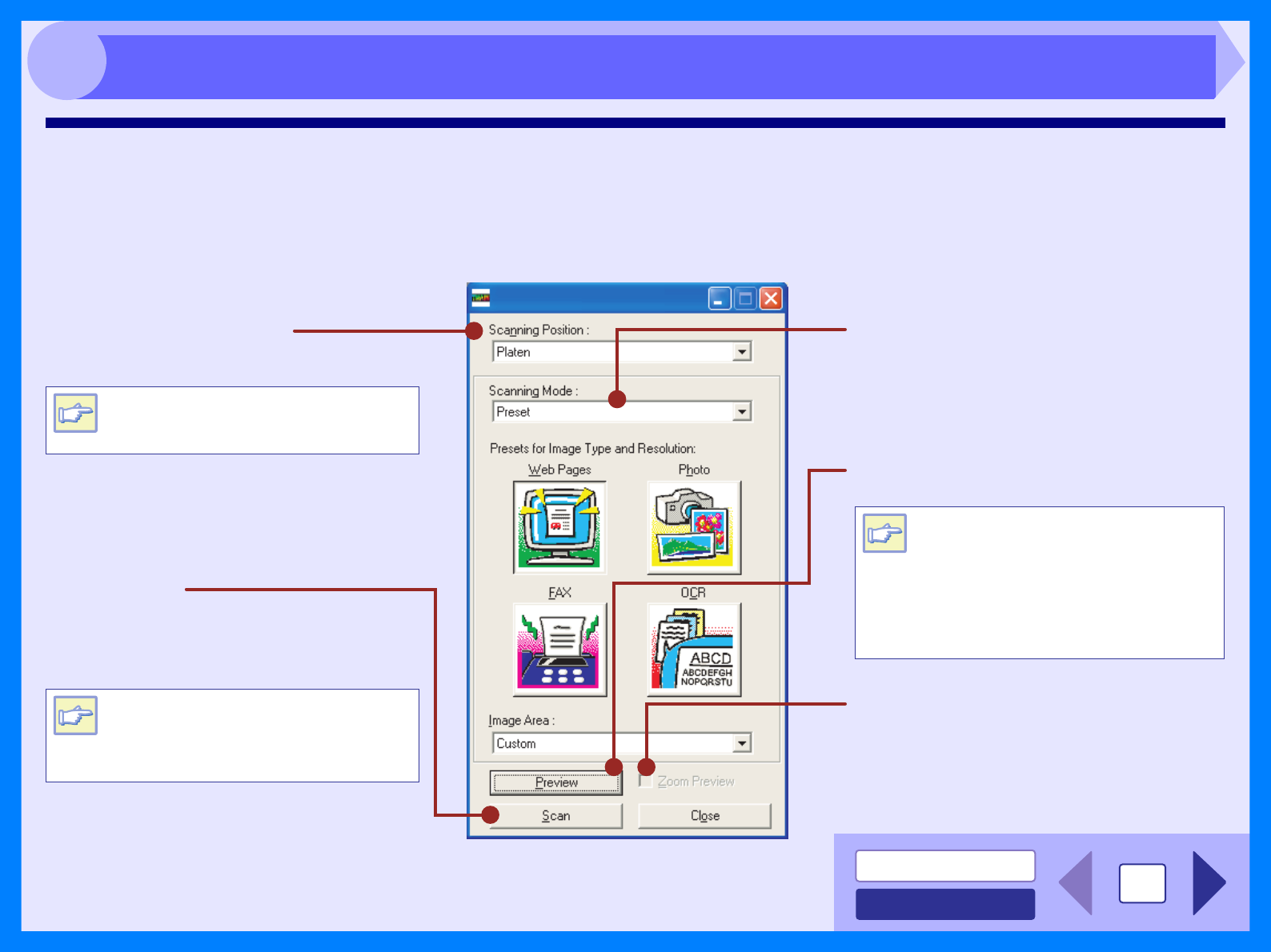
Scanner Driver Settings
The scanner driver setup screen consists of the "Set-up screen", which lets you select scan settings, and the "Preview
screen", which shows the scanned image. For details on the scan settings, click the "Help" button to display Help.
Set-up screen
Note
"Scanning Position" menu
Select the desired scanning position from
"Platen" (document glass) or "SPF".
"Zoom Preview" check box
If the [Zoom Preview] checkbox is selected
before the [Preview] button is clicked, the
selected area will be enlarged in the preview
window.
"Preview" button
Previews the document.
"Scan" button
Click to scan an original or image according
to your preferences. Before clicking the
"Scan" button, check if your preferences are
set correctly.
Select "SPF" when you placed the
original in the SPF.
"Scanning Mode" menu
Switch the scanning mode between the
"Preset" and "Professional Settings" screen.
For details on each of these settings, click
the "Help" button to display Help.
Note
To cancel your scanning job after
clicking the "Scan" button, press the
[Esc] key on your keyboard or the
clear key on the unit.
Note
If "Preview" is canceled by
immediately pressing the [Esc] key
on your keyboard or the clear key
on the unit, there may be no
images displayed on the preview
screen.
Scanning an Image from a TWAIN-Compliant Application (part 3)
INDEX
CONTENTS 14
3
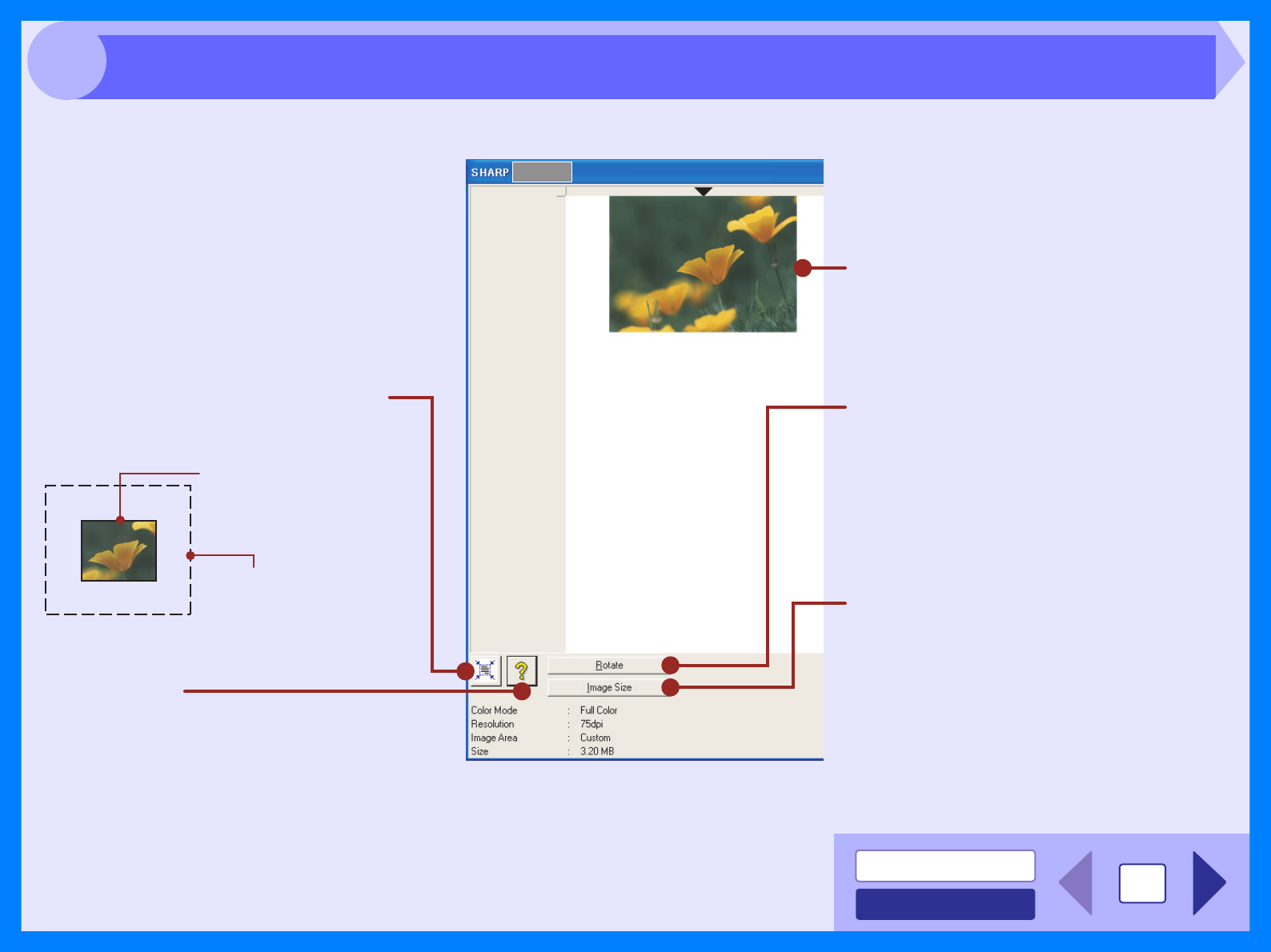
Preview screen
Preview window
Click the "Preview" button in the Set-up
screen to display the scanned image. You
can specify the scanning area by dragging
the mouse inside the window.
"Auto Scan Area Adjustment" button
Click when the preview screen is displayed to
automatically set the scanning area.
"Help" button
Click to display the help file for the scanner
driver.
Click the "Auto Scan Area
Adjustment" button to adjust
the scanning area
automatically.
Entire preview screen
"Rotate" button
Each time this button is clicked, the preview
image rotates 90 degrees. This lets you
change the orientation of the image without
picking up and placing the original again. The
image file will be created using the
orientation that appears in the preview
window.
"Image Size" button
Click to open a dialog box that allows you to
specify the scanning area by entering
numbers. Pixels, mm, or inches can be
selected for the units of the numbers. By
initially specifying a scanning area, numbers
can be entered to change that area relative
to the top left corner as a fixed origin.
Scanning an Image from a TWAIN-Compliant Application (part 4)
INDEX
CONTENTS 15
3
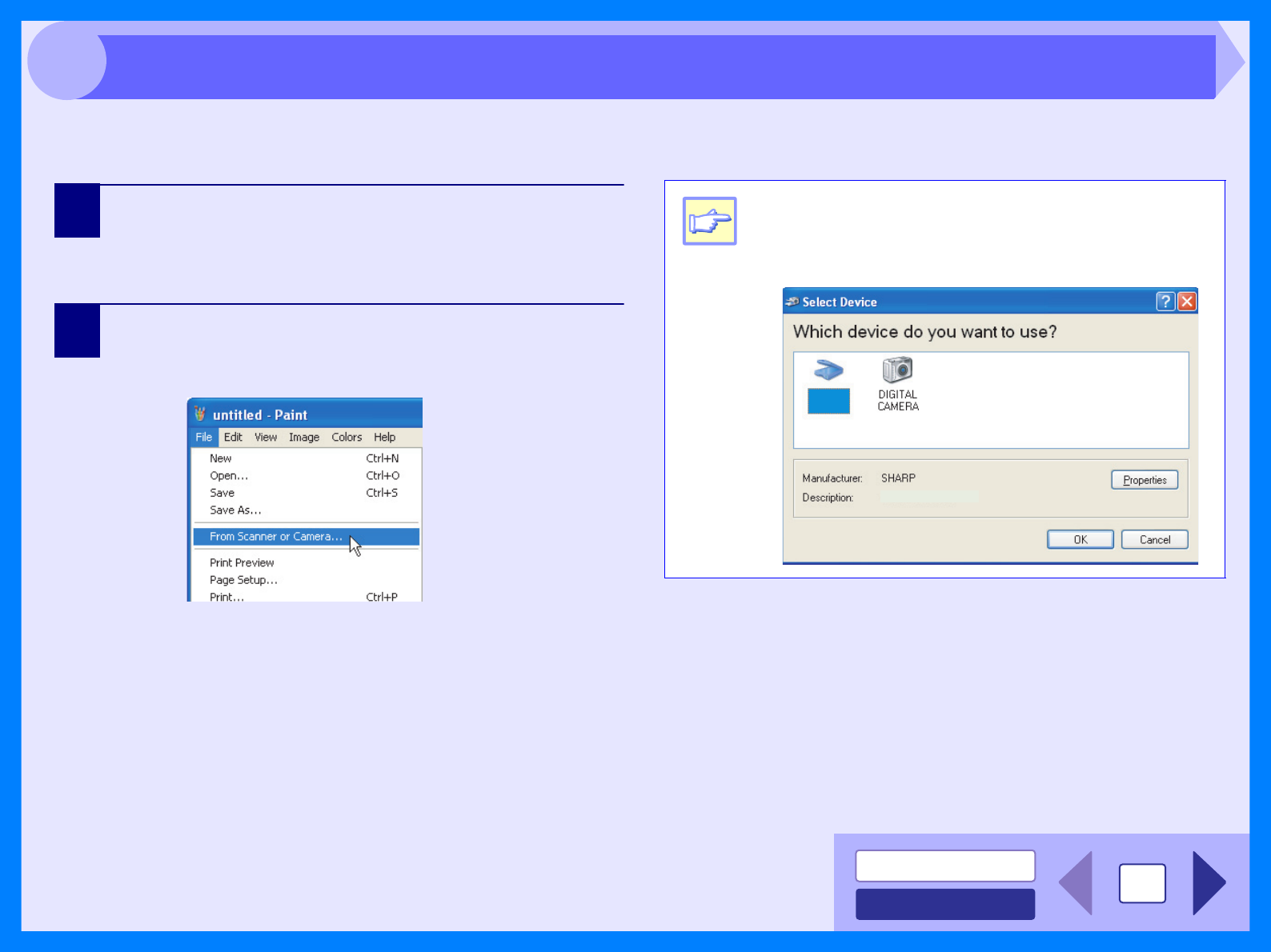
If you are using Windows XP/Vista, you can use the WIA driver to scan from Sharpdesk, Paint and other WIA-compliant
applications. The procedure for scanning using Paint is explained in the following.
1Place the original you wish to scan on the
document glass/SPF.
Reference: For information on setting an original for scanning, refer
to "ORIGINAL PLACEMENT" in the Operation Manual.
2After starting Paint, click the "File" menu and select
"From Scanner or Camera".
The scan screen of the WIA driver will appear.
Note
If you have WIA drivers for other devices installed
in your computer, the "Select Device" screen will
open. Select "SHARP AR-xxxx" and click the
"OK" button.
SHARP AR-xxxx
SHARP
AR-xxxx
Scanning an Image from a WIA-Compliant Application (Windows XP/Vista) (part 1)
INDEX
CONTENTS 16
3
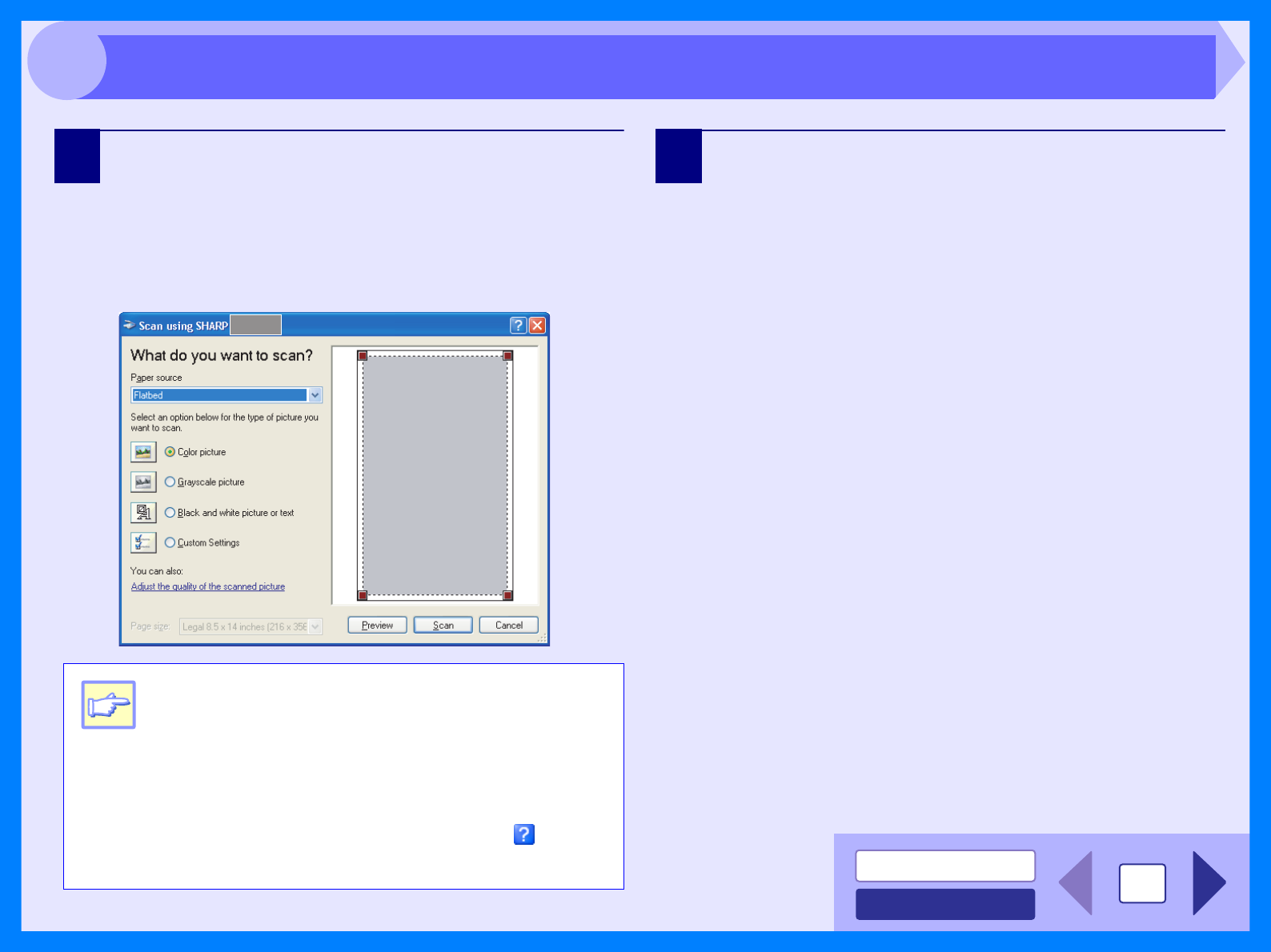
3Select the paper source and picture type, and click
the "Preview" button.
The preview image will appear.
If you placed the original on the document glass, select
"Flatbed" for the "Paper source".
If you placed the original in the SPF, select "Document
Feeder" for the "Paper source" and specify the original
size in "Page size".
4Click the "Scan" button.
Scanning begins and the image is acquired into Paint.
Use "Save" in your application to select a file name and
folder for the scanned image, and save the image.
To cancel your scanning job after clicking the "Scan"
button, click the "Cancel" button.
Note
zIf you select "Document Feeder" for the "Paper
source" and click the "Preview" button, the
original in the SPF is previewed. The previewed
original is sent to the original exit area and the
following original stops in the SPF. To eject the
original, press "C (clear)" key and return those
ejected originals to the SPF before starting the
scanning job.
zTo view Help for a setting, click the ( ) button
in the upper right-hand corner of the window
and then click the setting.
Scanning an Image from a WIA-Compliant Application (Windows XP/Vista) (part 2)
INDEX
CONTENTS 17
3
The procedure for scanning with the "Scanner and Camera Wizard" in Windows XP/Vista is explained here. The
"Scanner and Camera Wizard" lets you scan an image without using a WIA-compliant application.
1Place the original you wish to scan on the
document glass/SPF.
Reference: For information on setting an original for scanning, refer
to "ORIGINAL PLACEMENT" in the Operation Manual.
2Click the "start" button, click "Control Panel", click
"Printers and Other Hardware", and then click
"Scanners and Cameras".
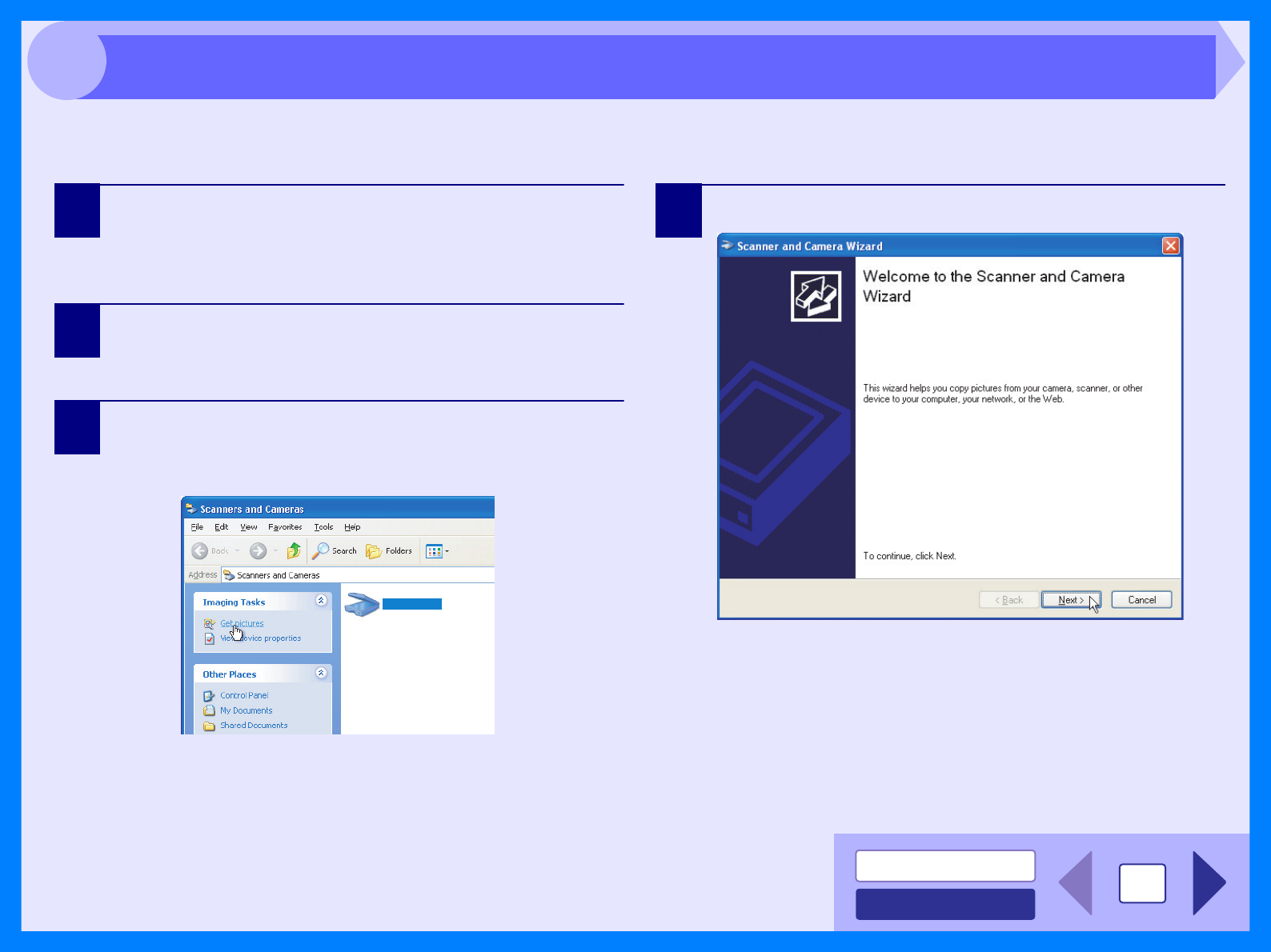
3Click the "SHARP AR-xxxx" icon and then click
"Get pictures" in "Imaging Tasks".
The "Scanner and Camera Wizard" will appear.
4Click the "Next" button.
SHARP AR-xxxx
SHARP AR-xxxx
Scanning an Image from the "Scanner and Camera Wizard" (Windows XP/Vista) (part 1)
INDEX
CONTENTS 18
3
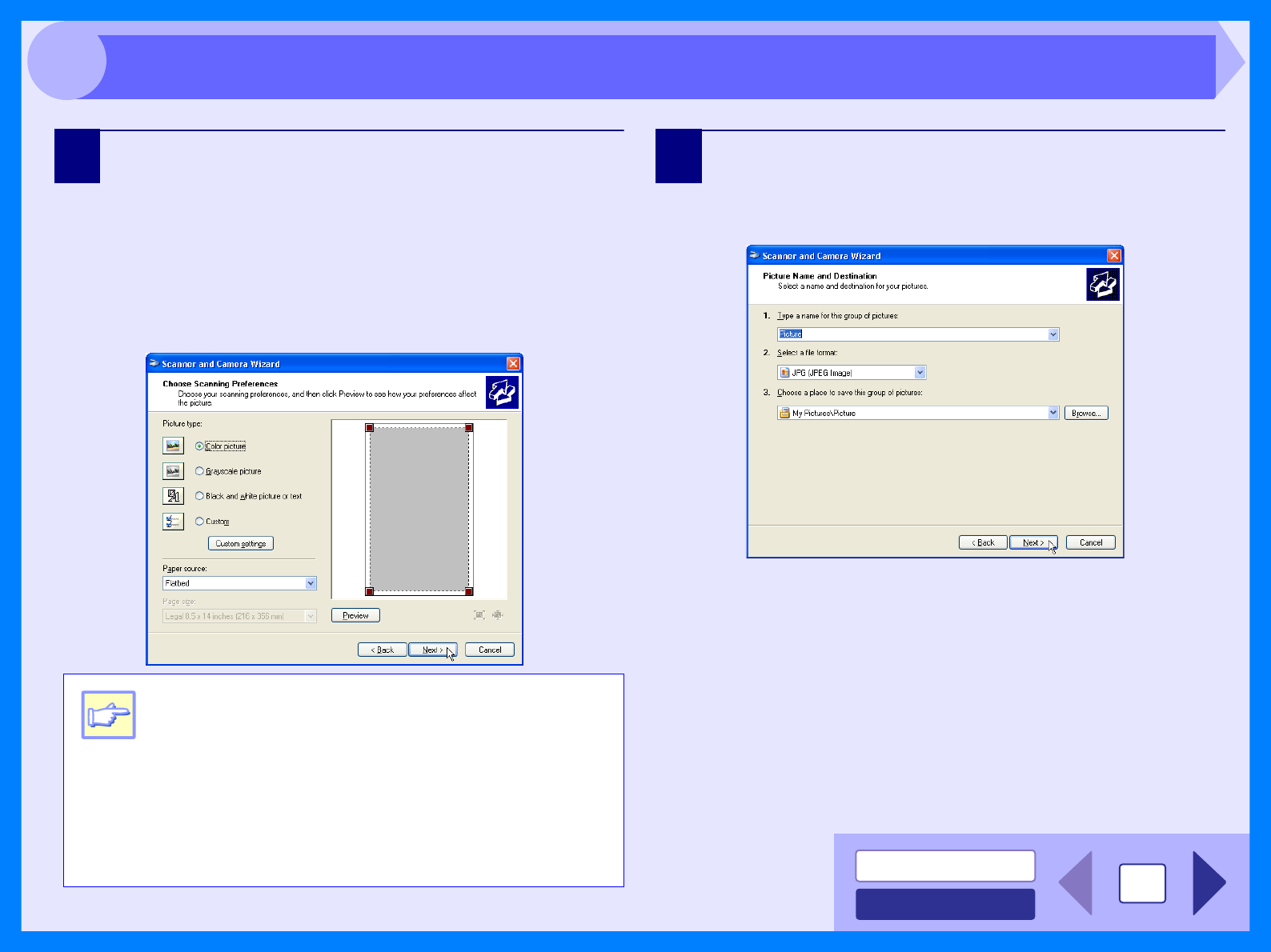
5Select the "Picture type" and "Paper source", and
click the "Next" button.
If you placed the original on the document glass, select
"Flatbed" for the "Paper source".
If you placed the original in the SPF, select "Document
Feeder" for the "Paper source" and specify the original
size in "Page size".
You can click the "Preview" button to display the
preview image.
6Specify a group name, format and folder for saving
the image, and then click the "Next" button.
JPG, BMP, TIF or PNG can be selected for the format.
To begin scanning, click the "Next" button.
Note
zIf you select "Document Feeder" for the "Paper
source" and click the "Preview" button, the top
original in the SPF is previewed. The previewed
original is sent to the original exit area, so you
will need to return it to the SPF before starting
the scanning job.
zTo adjust the resolution, picture type, brightness
and contrast settings, click the "Custom
settings" button.
Scanning an Image from the "Scanner and Camera Wizard" (Windows XP/Vista) (part 2)
INDEX
CONTENTS 19
3
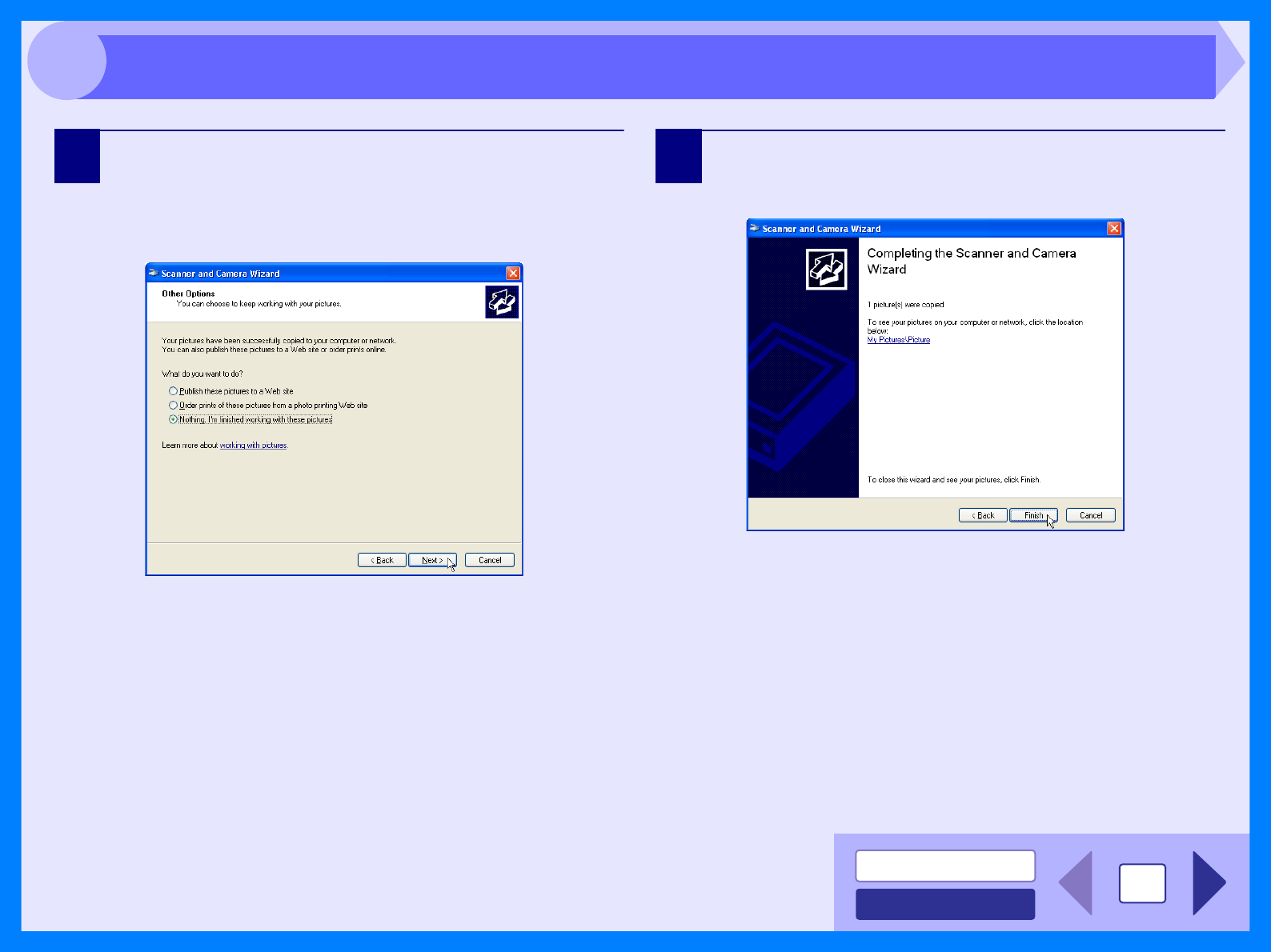
7When scanning ends, the following screen will
appear. Select the next task you wish to perform,
and then click the "Next" button.
If you are ready to end the session, click "Nothing. I'm
finished working with these pictures".
8Click the "Finish" button.
The "Scanner and Camera Wizard" closes and the
scanned image is saved in the specified folder.
Scanning an Image from the "Scanner and Camera Wizard" (Windows XP/Vista) (part 3)
INDEX
CONTENTS 20
3
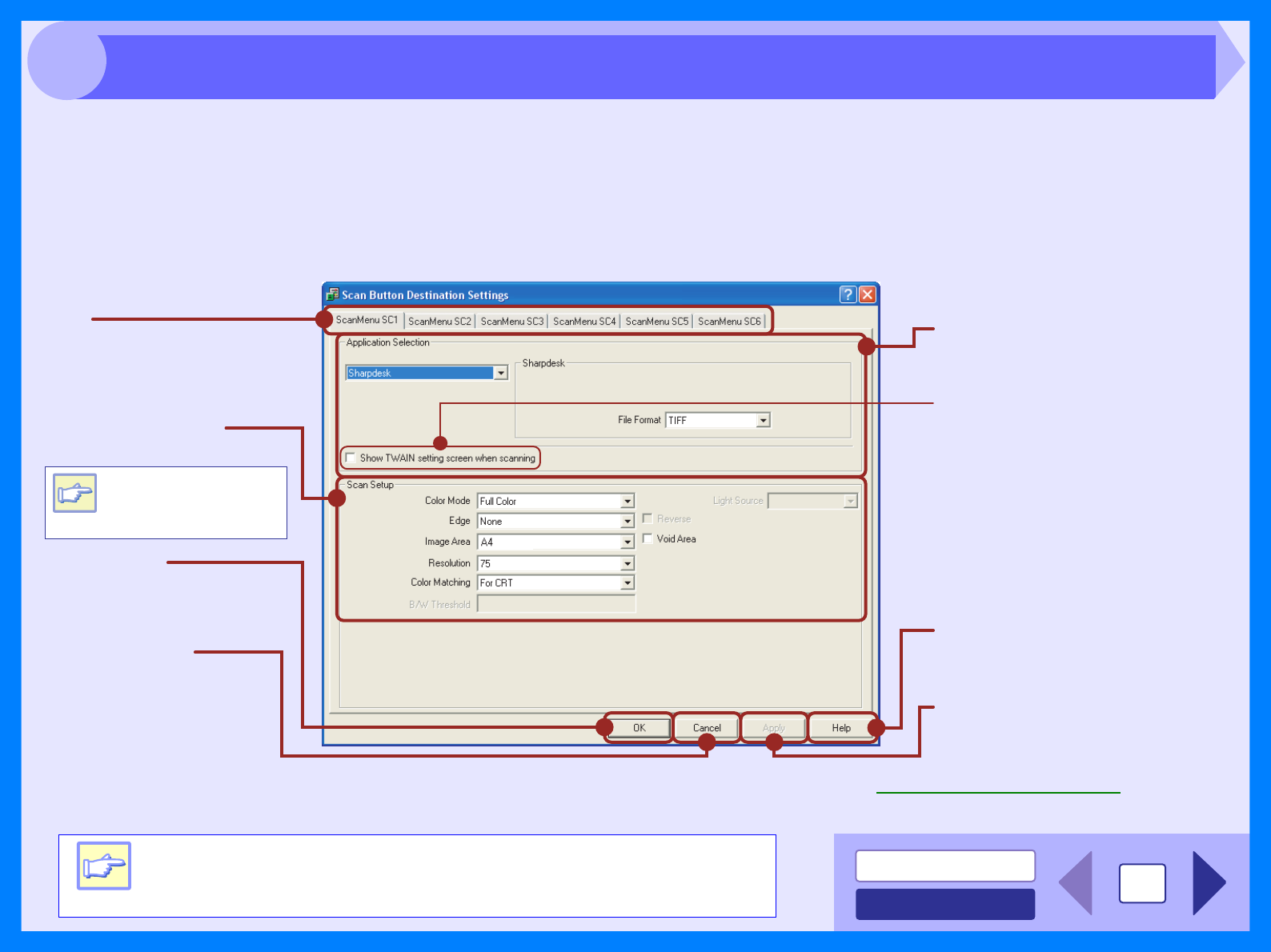
Button Manager is a utility software to link scanning functions to the SCAN key on the unit. This software enables you to
set scanning functions to six different scan menus, which will be linked to the SCAN key on the unit.
Reference: To begin scanning using the unit's operation panel, settings must be established in the Control Panel after the Button Manager is
installed. For information on installing the Button Manager, establishing the Control Panel settings, and scanning using the unit's
operation panel, see "USING THE SCANNER MODE" in the Operation Manual.
The functions of Button Manager are shown below.
You can specify and change your six scan menu options from five functions. Refer to Button Manager Settings to specify
and change the scan menu options.
Tab
Click to set scan menu
options.
Show TWAIN setting screen
when scanning
You can select whether or not the
TWAIN screen is shown. When
the checkbox is selected, the
TWAIN screen appears when
scanning is executed to let you
adjust the scanning conditions.
"Application Selection" area
Select the start-up application
here.
"Help" button
Click this button to display the
help file for Button Manager.
"Apply" button
Click to save your settings without
closing the dialog box.
"Cancel" button
Click this button to exit the
dialog box without making
any changes to the
settings.
"OK" button
Click to save your settings,
and exit the dialog box.
Note
Some applications
may limit your choice
of settings.
"Scan Setup" area
Set the scan conditions.
Note
Close the source application before using the SCAN key on the
unit.
Outline of Button Manager
INDEX
CONTENTS 21
3
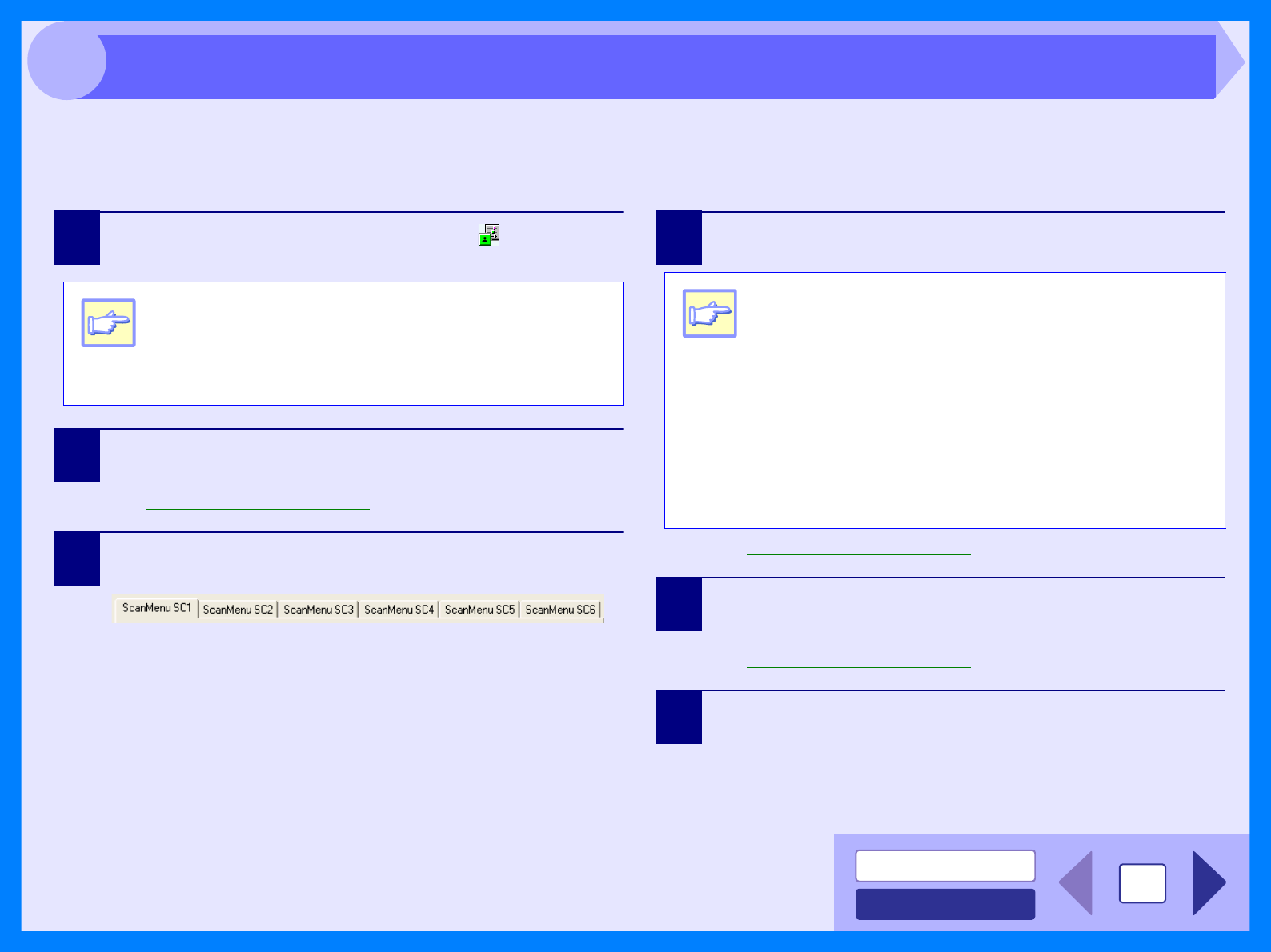
After being installed, Button Manager normally keeps active under the Windows operating system. Follow the steps
shown below to set scan options as you like.
For details on the settings in the setting screen of Button Manager, see Button Manager Help.
1Right-click the Button Manager icon ( ) on the task
bar.
2Select "Settings" from the displayed pop-up menu.
The setting screen of Button Manager will open.
Reference: Outline of Button Manager
3Click the tab of the scan menu you want to set up.
4Set up the start-up application in the "Application
Selection" area.
Reference: Outline of Button Manager
5Set up the "Color Mode", "Edge" and other scan
settings in the "Scan Setup" area.
Reference: Outline of Button Manager
6Click the "OK" button.
You have completed the settings.
Note
If the Button Manager icon does not appear on the
task bar, click the "start" button, select "All
Programs" ("Programs" on Windows 98/Me/2000),
select "SHARP Button Manager S", and then click
"Button Manager" to start Button Manager.
Note
zWhen the "Show TWAIN setting screen when
scanning" checkbox is selected, the scan
setting screen appears when scanning is
executed to let you adjust the scanning
conditions.
zIf an application other than "Sharpdesk" is
selected in the "Application Selection" area,
only one original can normally be scanned. If
"Sharpdesk" is selected, multiple originals
loaded in the SPF can be scanned in a single
operation.
Button Manager Settings
INDEX
CONTENTS 22
4
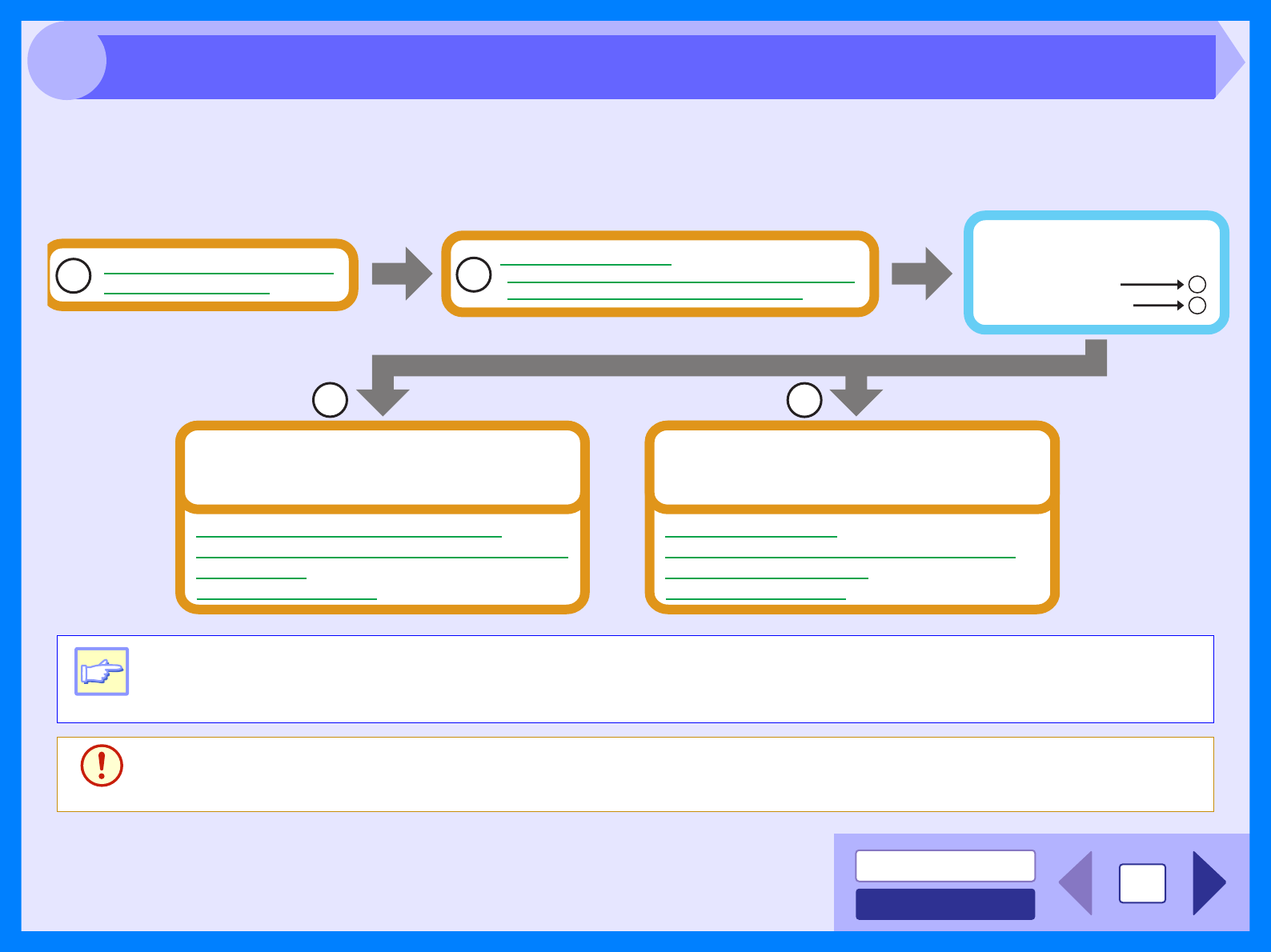
When any trouble has occurred in the unit, first, verify whether you can make a copy or not with the unit. Check the
items shown below when the unit does not work properly but it can make a copy.
Reference: If any copier trouble occurs, refer to "TROUBLESHOOTING" in the Operation Manual.
If you fail to solve the problem after verifying all the items listed above, please
contact your authorised SHARP service centre.
Note
Make sure that the unit is not working. You cannot print from your computer or scan from the unit while the unit is
making copies.
Caution
The unit's scanning function can only be used if the unit is connected to your computer with a USB cable.
Check Your Computer
Plug and Play Screen does not Appear (when the USB is connected)
Failed to Install the Driver (Windows 2000/XP)
Check the Connection between
the Unit and Computer
A
12
B
What type of trouble do
you have?
• Printing trouble
• Scanning trouble B
A
Faint, Uneven or Smeared Print Output
Characters or Graphics are not Printed in Correct Position
Nothing Prints
Uninstalling the Software
Printing trouble
When one of the troubles listed below occurs while
printing, check the corresponding item.
Poor Scanning Result
The Scanned Image is Incorrectly Positioned
Unable to Scan the Image
Uninstalling the Software
Scanning trouble
When one of the troubles listed below occurs while
scanning data, check the corresponding item.
Identifying Unit Problems
INDEX
CONTENTS 23
4
CHECK 1 Is the interface cable compatible with the
unit and computer?
Interface cables compatible with this unit are USB
cables.
USB cable
Use a shielded cable.
CHECK 2 Is the interface cable connected securely?
Check if the interface cable is securely plugged into
the connectors of the unit and computer. It is also
advisable to ensure that the connector pins are not
bent.
Reference: See "CONNECTING THE INTERFACE
CABLE" in the Operation Manual for more
details on interface connection.
CHECK 3 Are any other USB peripherals being
connected along with the unit?
If other USB peripherals are connected through the
same hub, disconnect them to see if the problem
still exists.
If the USB cable becomes disconnected
If the USB cable becomes disconnected, even only once during
the unit's operation, then printing and scanning may be
disrupted.
If this occurs, check the USB cable and ensure that it is
securely connected, then restart the computer.
Caution
The unit's scanning function can only be used if
the unit is connected to your computer with a USB
cable.
Check the Connection between the Unit and Computer

INDEX
CONTENTS 24
4
Reference: Plug and Play Screen does not Appear (when the USB is connected)
CHECK 1 Is there enough computer memory or hard
disk space?
To use this unit, you must have an adequate
amount of hard disk space. If there is insufficient
hard disk space, delete unnecessary files to
increase the free space of the hard disk. If there is
insufficient memory, close unnecessary applications
to increase memory available for printing or
scanning. If you are still unable to print or scan,
install more memory into your computer.
CHECK 2 Is your hard disk fragmented?
When data is frequently stored/deleted, the hard
disk may become fragmented causing a reduction
in printing or scanning speed. In this case it is
recommended to defragment your hard disk. You
may use the Windows tools or a commercially
available hard disk defragmenting tool.
Check Your Computer
INDEX
CONTENTS 25
4
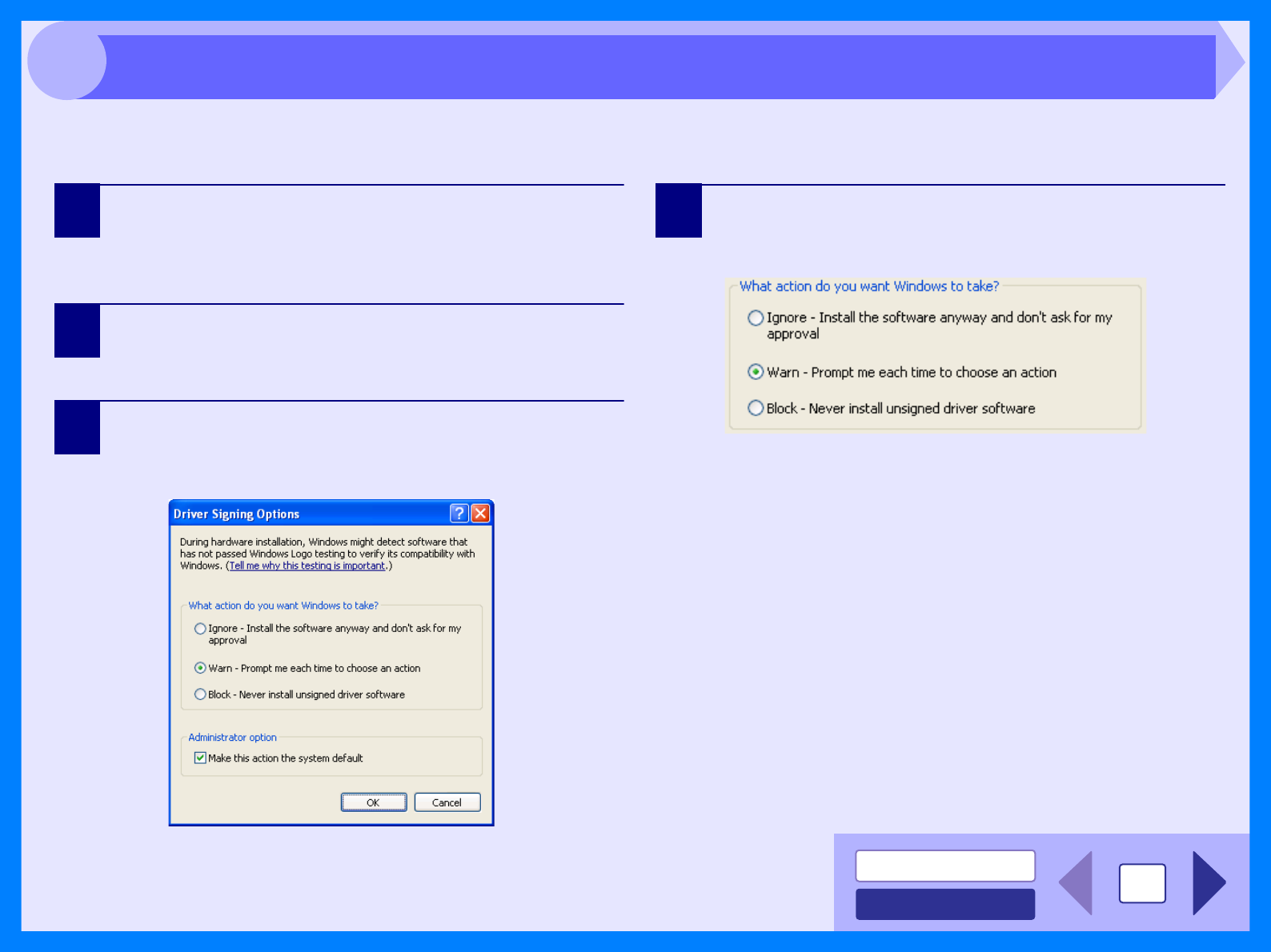
If the Plug and Play screen does not appear after you connect the unit to your computer with a USB cable and turn on
the power of both devices, follow the steps below to verify that the USB port is available.
1Click the "start" button, click "Control Panel", and
then click "Performance and Maintenance".
• On Windows Vista, click the "start" button, click
"Control Panel", and then click "System and
Maintenance".
• On Windows 98/Me/2000, click the "Start" button,
select "Settings", and then click "Control Panel".
2Click "System", click the "Hardware" tab, and click
the "Device Manager" button.
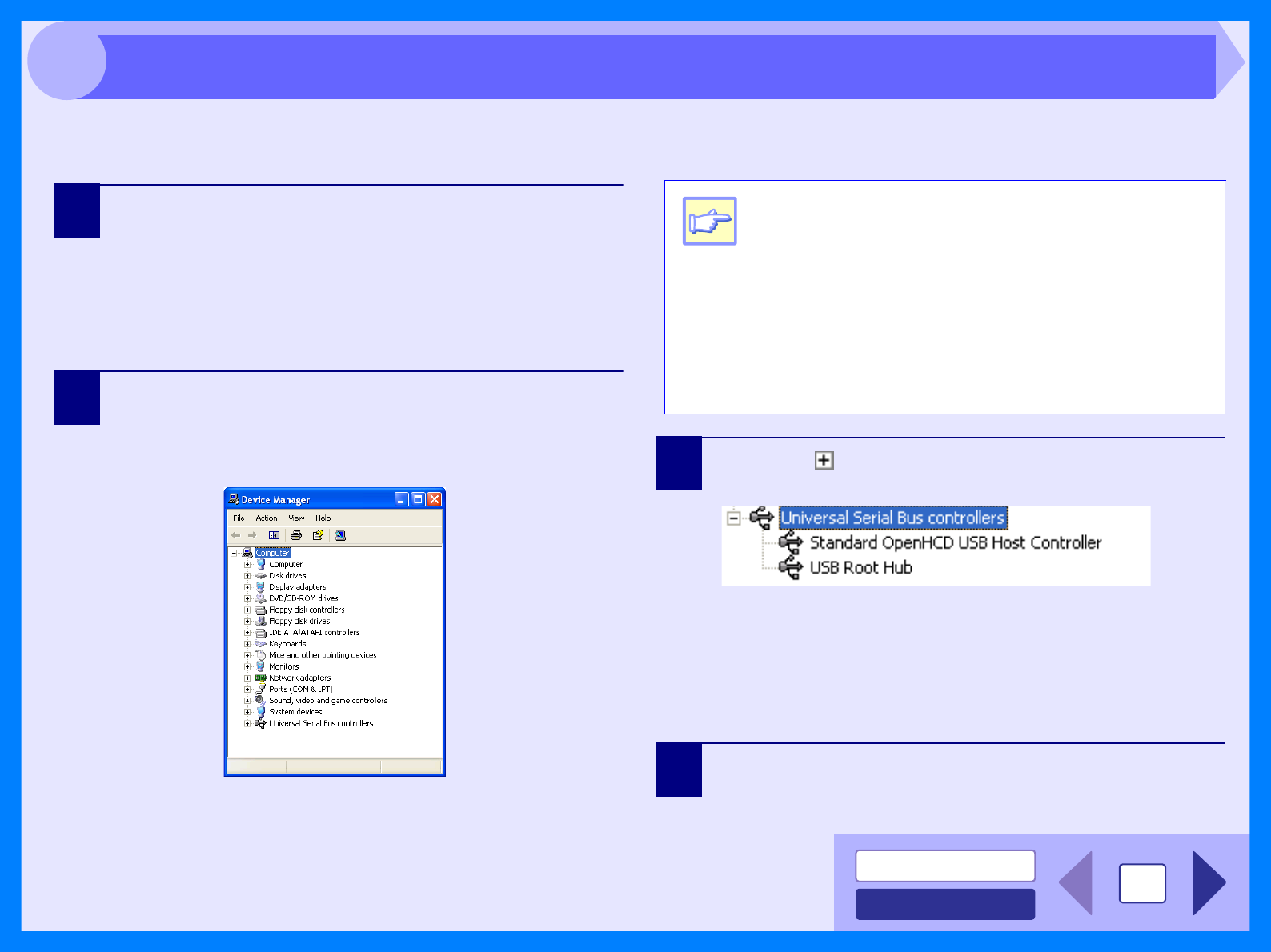
"Universal Serial Bus controllers" will appear in the list
of devices. 3Click the ( ) icon beside the "Universal Serial Bus
controllers".
Two items will display, your Controller chipset type and
Root Hub. If these items appear, you can use the USB
port. If the "Universal Serial Bus controllers" shows a
yellow exclamation point or does not appear, you must
check your computer manual for USB troubleshooting
or contact your computer manufacturer.
4When you make sure that the USB port is enabled,
install the software, referring to "INSTALLING THE
SOFTWARE" in the Operation Manual.
Note
zIf the "System" icon does not appear on
Windows Me, click "view all Control Panel
options" to view it.
z
On Windows 98/Me, double-click the "System" icon
and click the "Device Manager" tab.
zOn Windows 2000, double-click the "System"
icon, click the "Hardware" tab, and click the
"Device Manager" button.
zOn Windows Vista, click the "System", and click
the "Device Manager" from the "Tasks".
Plug and Play Screen does not Appear (when the USB is connected)
INDEX
CONTENTS 26
4
If the MFP driver cannot be installed under Windows 2000/XP, check your computer's settings according to the following
procedure.
1Click the "start" button, and then click "Control
Panel".
On Windows 2000, click the "Start" button, select
"Settings", and then click "Control Panel".
2Click "Performance and Maintenance", and then
click "System".
On Windows 2000, double-click the "System" icon.
3Click the "Hardware" tab, and then click the "Driver
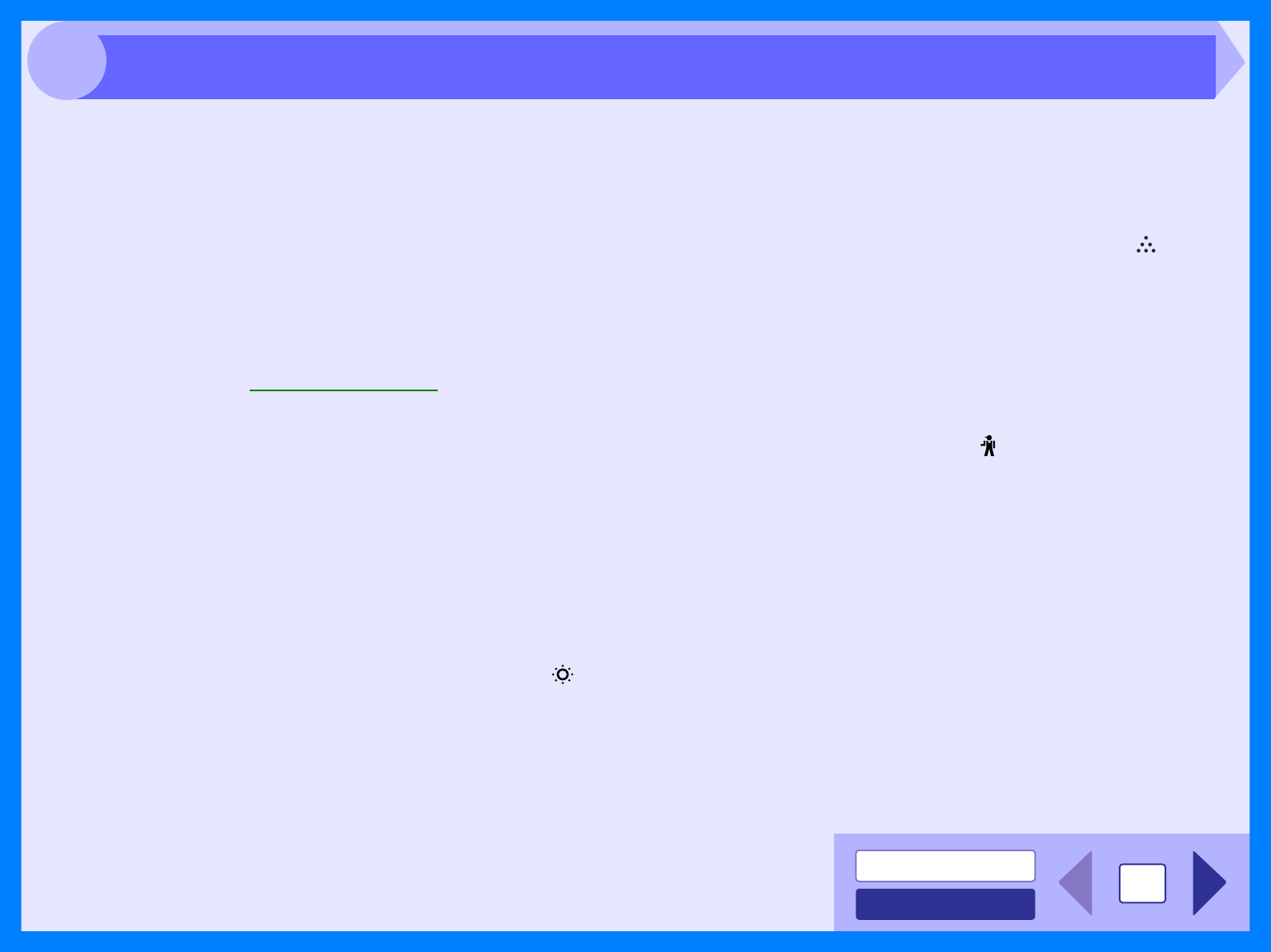
Signing" button.
The following dialog box will open.
4Check the "What action do you want Windows to
take?" ("File signature verification" on Windows
2000).
If the option "Block" has been selected for your
computer, then the MFP driver will not be installable.
Select the option "Warn" and then install the MFP driver
as explained in "INSTALLING THE SOFTWARE" in the
Operation Manual.
Failed to Install the MFP Driver (Windows 2000/XP)
INDEX
CONTENTS 27
4
If print output is faint, uneven or smeared, follow the steps listed below.
CHECK 1 Has the printer driver been specified to suit
both paper and the print job?
You can select "Draft", "Normal" or "Photo" for the
print quality in the "Advanced" tab of the printer
driver setup screen. When "Photo" is selected, you
can click the "Image Adjustment" button and adjust
the brightness and contrast in the dialog box that
appears. Adjust these settings appropriately for
your print data and try printing again.
Reference: Printer Driver Settings
CHECK 2 Is the paper curled?
If the paper is curled, straighten it up and set it in
the unit again.
CHECK 3 Is the paper too thick or too thin?
Only paper weighing from 56 to 80g/m2 can be
used in the paper tray. Only paper weighing from 56
to 128g/m2 can be used in the multi-bypass tray.
CHECK 4 Is the developer replacement required
indicator lit?
When the developer replacement required ( )
indicator lights up, the developer should be
replaced. DEVELOPER REPLACEMENT SHOULD
ONLY BE DONE BY AN AUTHORISED SHARP
SERVICE TECHNICIAN. Contact your service
centre as soon as possible.
CHECK 5 Is it near time to replace the TD cartridge or
drum cartridge?
When it is near time to replace the toner cartridge,
the toner cartridge replacement required ( )
indicator will light up on the unit operation panel.
When it is time to replace the cartridge, the
indicator will blink. Replace the cartridge and try
printing again.
Reference: See "TONER CARTRIDGE
REPLACEMENT", in the Operation Manual.
CHECK 6 Is the maintenance indicator lit?
When the maintenance ( ) indicator lights up,
service by an authorised SHARP service technician
is required. Contact your service centre as soon as
possible.
CHECK 7 Did you set sufficient margins in the paper
settings of your application?
If the margins are set outside of the quality
guaranteed area, smudges or smears may appear
at the upper and lower edges of the paper.
When selecting the paper settings in the
application, set the margins from the top, bottom,
left and right edges of the paper to 4 mm.
Faint, Uneven or Smeared Print Output

INDEX
CONTENTS 28
4
If a document is printed skewed or partly off the paper, follow the steps listed below.
CHECK 1 Is the paper size loaded in the tray the same
as that specified in the printer driver?
Check if the "Paper Size" options suit the size of the
paper loaded in the tray.
If the "Fit To Page" setting is activated, make sure
that the paper size selected from the drop-down list
of the "Fit To Paper Size" option is the same as the
size of the loaded paper.
CHECK 2 Is the orientation of document setting
correct?
Click the "Paper" tab in the printer driver setup
screen, and verify if the "Image Orientation" option
is set to your requirements.
CHECK 3 Is the paper loaded correctly?
If a document is physically damaged when it is
output or the image is skewed on the paper, discard
the damaged sheet, reinsert the paper supply and
print again. Insert the paper so that there is no
visible space between the paper and the paper
guides.
Reference: See "LOADING PAPER" in the Operation
Manual for more details on inserting paper.
CHECK 4 Did you correctly specify the margins for the
application in use?
Check the layout of the document margins and the
paper size settings for the application you are
using. Also check if the print settings are specified
correctly to suit the paper size.
Reference: Faint, Uneven or Smeared Print Output
Characters or Graphics are not Printed in Correct Position
INDEX
CONTENTS 29
4
If nothing prints even when the unit is turned on, please wait a few moments. The unit needs a longer time to process
intricate data. If the unit still does not print, refer to the check list below.
CHECK 1 Has a paper jam occurred?
When the misfeed ( ) indicator blinks or ( )
blinks in the display, the unit will stop because of a
misfeed.
Remove the jammed paper as explained in
"MISFEED REMOVAL" in the Operation Manual.
CHECK 2 Is the ON LINE indicator off?
The ON LINE indicator on the operation panel turns
off while the unit is used for copying. Scanning and
printing is not possible at this time. When copying is
finished, the ON LINE indicator will turn on after the
set auto clear time elapses, and the unit will be
ready for scanning and printing. You can also press
the clear key twice or press the ON LINE key to
make the unit ready for scanning or printing.
CHECK 3 Is your unit selected correctly in the current
application for the print job?
When choosing "Print" from the "File" menu located in
applications, be sure you have selected "SHARP
AR-xxxx" printer displayed in the "Print" dialog box.
CHECK 4 Has the printer driver been installed
properly?
Check if the printer driver has been installed, following
the steps listed below.
1Click the "start" button, click "Control Panel",
click "Printers and Other Hardware", and then
click "Printers and Faxes".
• On Windows Vista, click the "start" button, click
"Control Panel" and then click "Printer".
• On Windows 98/Me/2000, click the "Start" button,
select "Settings" and then click "Printers".
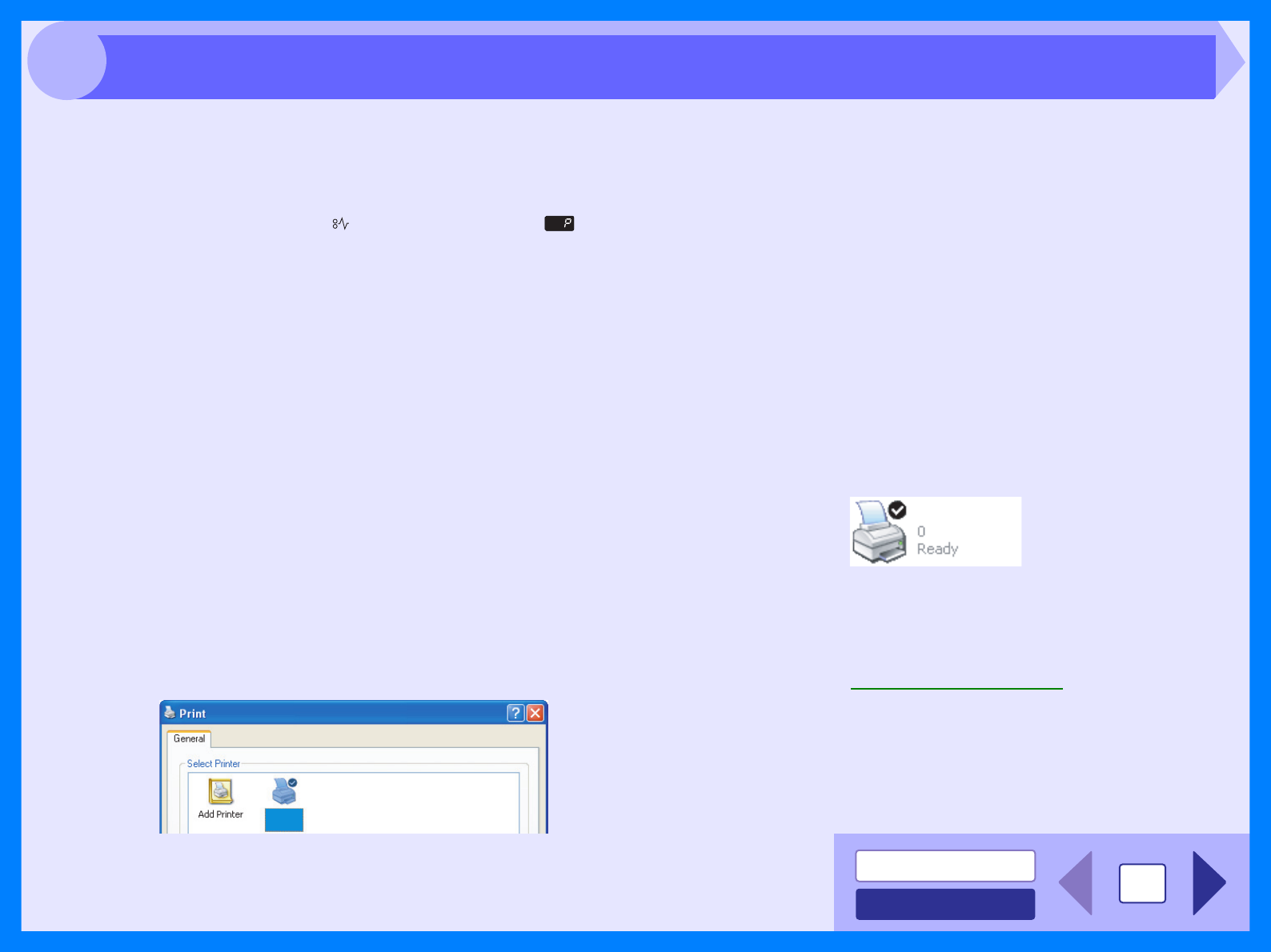
2Check if the "SHARP AR-xxxx" printer driver
icon is shown.
If you still cannot print after confirming the "SHARP
AR-xxxx" printer driver icon, the printer driver may not
have been installed correctly. In this case, delete the
software and then reinstall it.
Reference: Uninstalling the Software
SHARP
AR-xxxx
SHARP AR-xxxx
Nothing Prints

INDEX
CONTENTS 30
4
If you get poor quality as a result of scanning a job, and you cannot improve the quality by changing preferences, refer
to the check list shown below.
CHECK 1 Is the original clean?
Check your original before scanning. If any dust
sticks to the original, you cannot obtain a clean
result. In addition, make sure that the document
glass is also clean.
CHECK 2 Have you specified a suitable resolution?
Make sure that the value for the "Resolution" setting
in the scanner driver satisfies the requirement of the
set original.
Reference: Scanning an Image from a TWAIN-
Compliant Application,
Scanning an Image from a WIA-Compliant
Application (Windows XP/Vista),
Scanning an Image from the "Scanner and
Camera Wizard" (Windows XP/Vista),
CHECK 3
Have you specified a suitable value for the
"B/W Threshold" setting?
If you are scanning with a TWAIN-compliant
application and are using "Mono 2 gradation (no
Green)","Mono 2 gradation (no Red)" or "Mono 2
gradation (no Blue)" mode, make sure that a
suitable value is specified for the "B/W Threshold"
setting. A larger threshold value makes your output
darker, whilst a small threshold value makes it
lighter. To adjust the threshold automatically, click
the "Auto Threshold" button on the "Image" tab of
the "Custom Settings" screen.
Reference: Scanning an Image from a TWAIN-
Compliant Application
CHECK 4 Have you adjusted the brightness and
contrast suitably?
If you are scanning with a TWAIN-compliant
application and the resulting image has unsuitable
brightness or contrast (for example it is too bright),
activate the "Auto Brightness/Contrast Adjustment"
setting on the "Color" tab of the "Custom settings"
screen.
If you are scanning with a WIA-compliant
application or the "Scanner and Camera Wizard",
click "Adjust the quality of the scanned picture" or
the "Custom settings" button, and adjust the
brightness and contrast in the screen that appears.
Poor Scanning Result
INDEX
CONTENTS 31
4
If the scanned image is incorrectly positioned, refer to the check list shown below.
CHECK 1 Have you placed the original straight?
Place the original straight on the document glass.
Reference: Refer to "ORIGINAL PLACEMENT" in the
Operation Manual for the detail on how to
set the original.
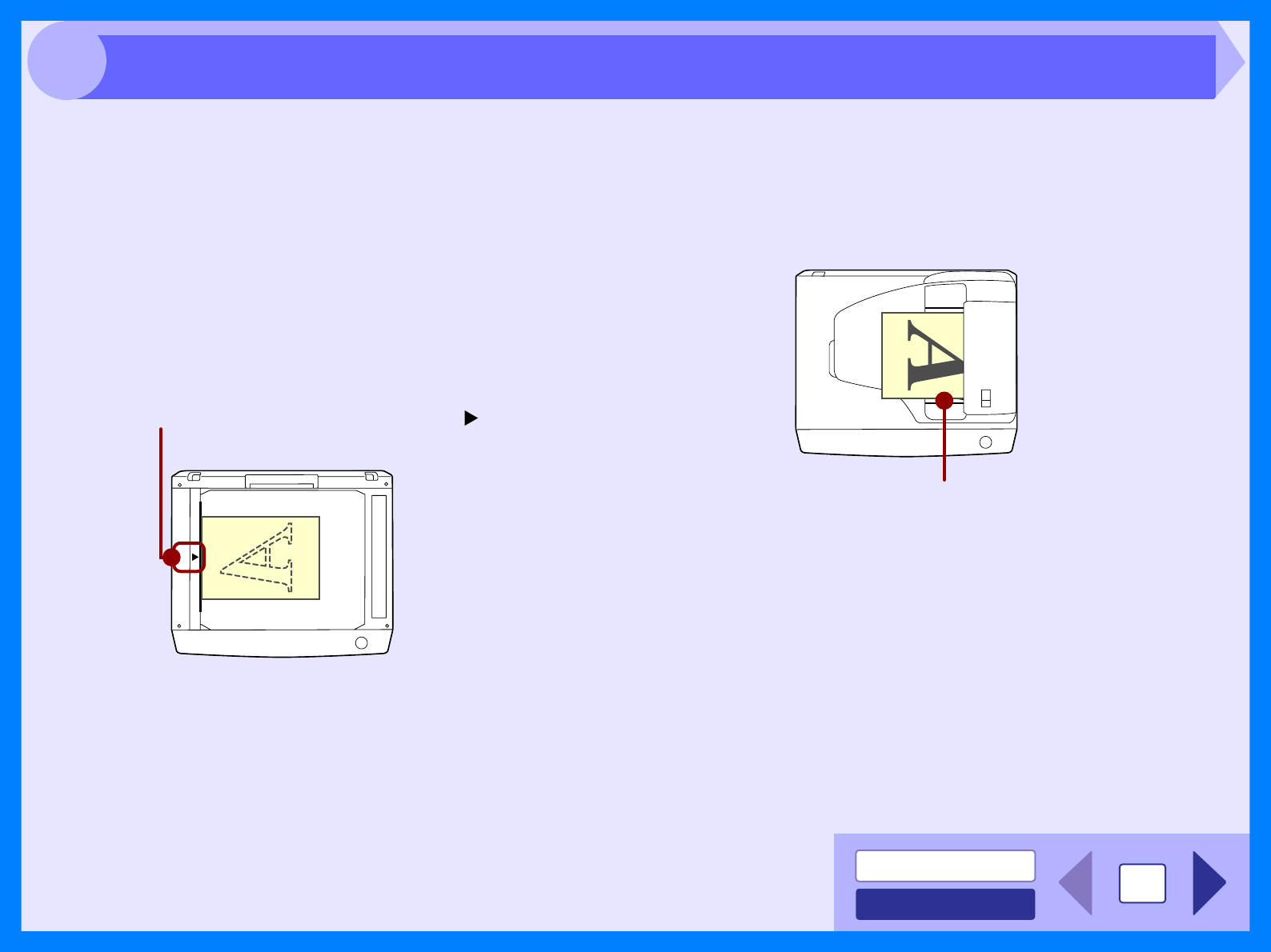
CHECK 2 Have you set the original correctly on the
document glass?
Place the original on the document glass in the
direction as shown in the illustration below.
CHECK 3 Have you set the original correctly on the
SPF?
To scan from the SPF, align the guide to the original
as shown in the illustration below.
Align the center of the original with ( ) mark.
Align the guide to the original.
The Scanned Image is Incorrectly Positioned

INDEX
CONTENTS 32
4
If you cannot scan the image, turn off your computer. Press the power switch on the unit to turn it off, unplug the unit from the power
source, and then plug it back in. Restart your computer. Try scanning again. If scanning is still not possible, refer to the check list below.
CHECK 1 Is your application compliant to TWAIN?
If you are using Windows 98/Me/2000 and your
application is not TWAIN compliant, the application
cannot acquire images. Use an application that is
TWAIN compliant, such as the included Sharpdesk.
CHECK 2 Have you selected the scanner driver of this
unit on your application?
Make sure that the "SHARP MFP TWAIN S" or "WIA-
SHARP AR-xxxx" is selected on your application.
Reference: Scanning an Image from a TWAIN-
Compliant Application
CHECK 3 Have you specified all scanning preferences
appropriately?
Setting a large area with full color together with a high
resolution setting, makes the data size large, resulting in
extended scanning times. It is recommended to set the
scanning preferences depending on the type of original
to be scanned, i.e., Web Pages (monitor), Photo, FAX,
or OCR.
CHECK 4 Is there enough computer memory?
Your computer may not have enough available memory
to hold the document you want to scan. Lower the scan
resolution.
CHECK 5 Has the specified period of program timeout
already elapsed?
Neither printing nor scanning jobs can be sent to the
unit from your computer during the specified period of
program timeout after copying.
To send a scanning job immediately, press the clear key
twice, ONLINE key or SCAN key on the unit.
Reference: For more detail, refer to "USER
PROGRAMS" in the Operation Manual.
CHECK 6 Are you trying to scan multiple originals in the
SPF at once?
When multiple originals are loaded in the SPF, it
depends on your application whether only one original
can be scanned in a single operation, or whether
multiple originals can be scanned. Check which is
possible in your application. (Sharpdesk allows multiple
originals to be scanned in a single operation.)
CHECK 7 Does your computer's operating system
support the scanner driver?
The operating systems that support the unit's scanner
driver are Windows 98/Me/2000/XP/Vista.
CHECK 8 Are you using an appropriate interface?
Make sure that the cable is connected securely to the
USB connector on your computer and the unit.
CHECK 9 Have the scanner driver and Button Manager
been installed properly?
If normal scanning still cannot be performed even after
confirming the items on the above check list, delete the
software and then reinstall it.
Reference: Uninstalling the Software
Unable to Scan the Image
INDEX
CONTENTS 33
4
If printing or scanning is not possible, or Button Manager does not function correctly, check the items in "Nothing Prints" or
"Unable to Scan the Image". If you still cannot solve the problem, follow the steps below to uninstall the software (Printer driver,
Scanner driver, Button Manager), and then reinstall it.
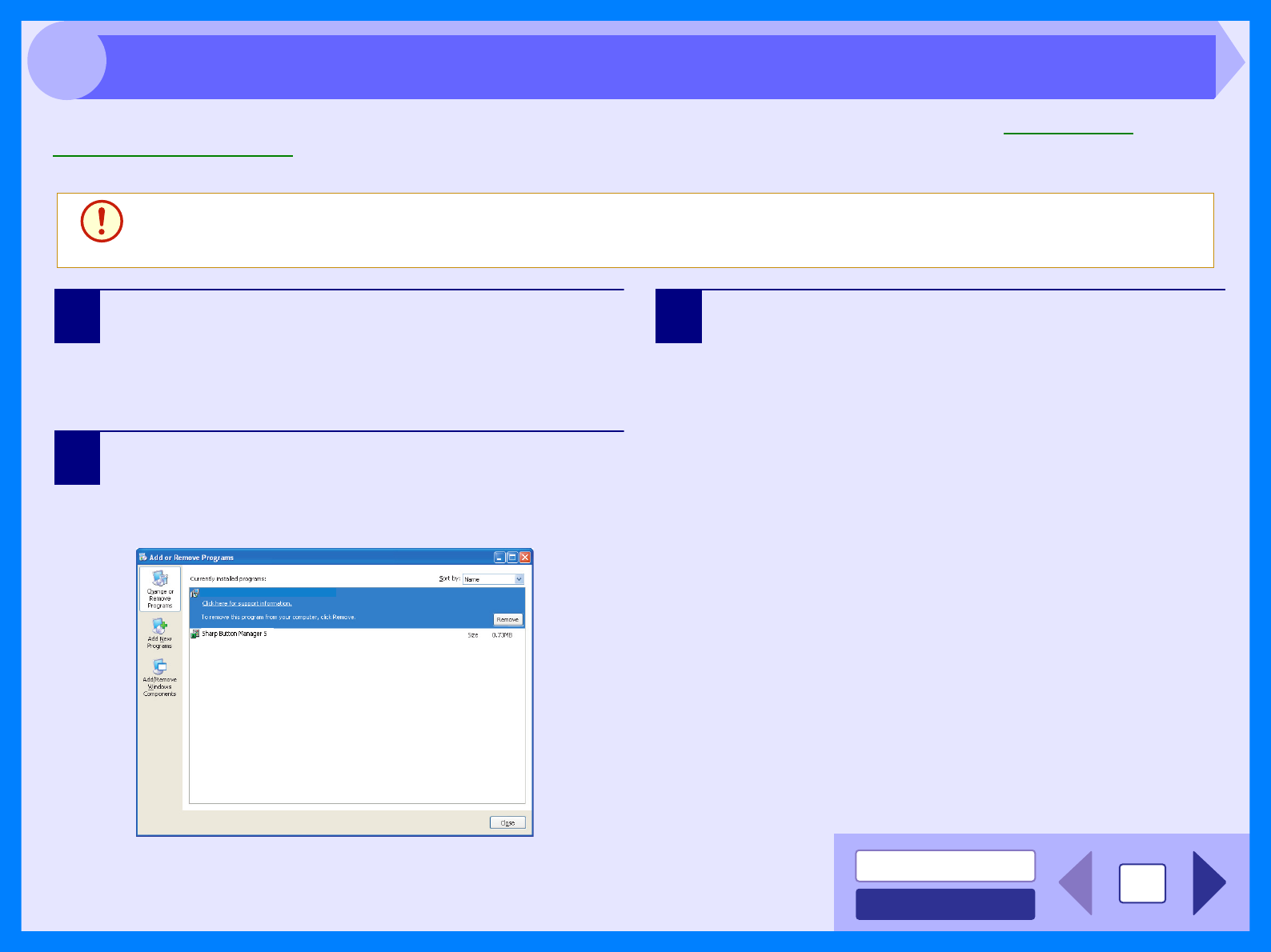
1Click the "start" button, and then click "Control
Panel".
• On Windows Vista click the "Uninstall a program".
• On Windows 98/Me/2000, click the "Start" button,
select "Settings", and then click "Control Panel".
2Click "Add or Remove Programs".
On Windows 98/Me/2000, double-click the "Add/
Remove Programs" icon.
The following dialog box will open.
Delete the "SHARP AR-xxxx Series MFP driver" and the "Sharp
Button Manager S" from the list of applications. For more
information, refer to your operating manual or to the help files
for your operating system.
3Restart your computer.
The deletion of the driver and Button Manager is
completed when you restart your computer. If you wish to
reinstall, follow the instructions in "INSTALLING THE
SOFTWARE" in the Operation Manual.
Caution
Before uninstalling the software, close all applications.
SHARP AR-xxxx Series MFP Driver
Uninstalling the Software
INDEX
CONTENTS 34
5
34
(continued)
*1:Will be reduced to A4 size or the specified size before printing.
*2:This initial setting may vary depending on your operating system settings.
For information on each setting, see Help in the printer driver setup screen.
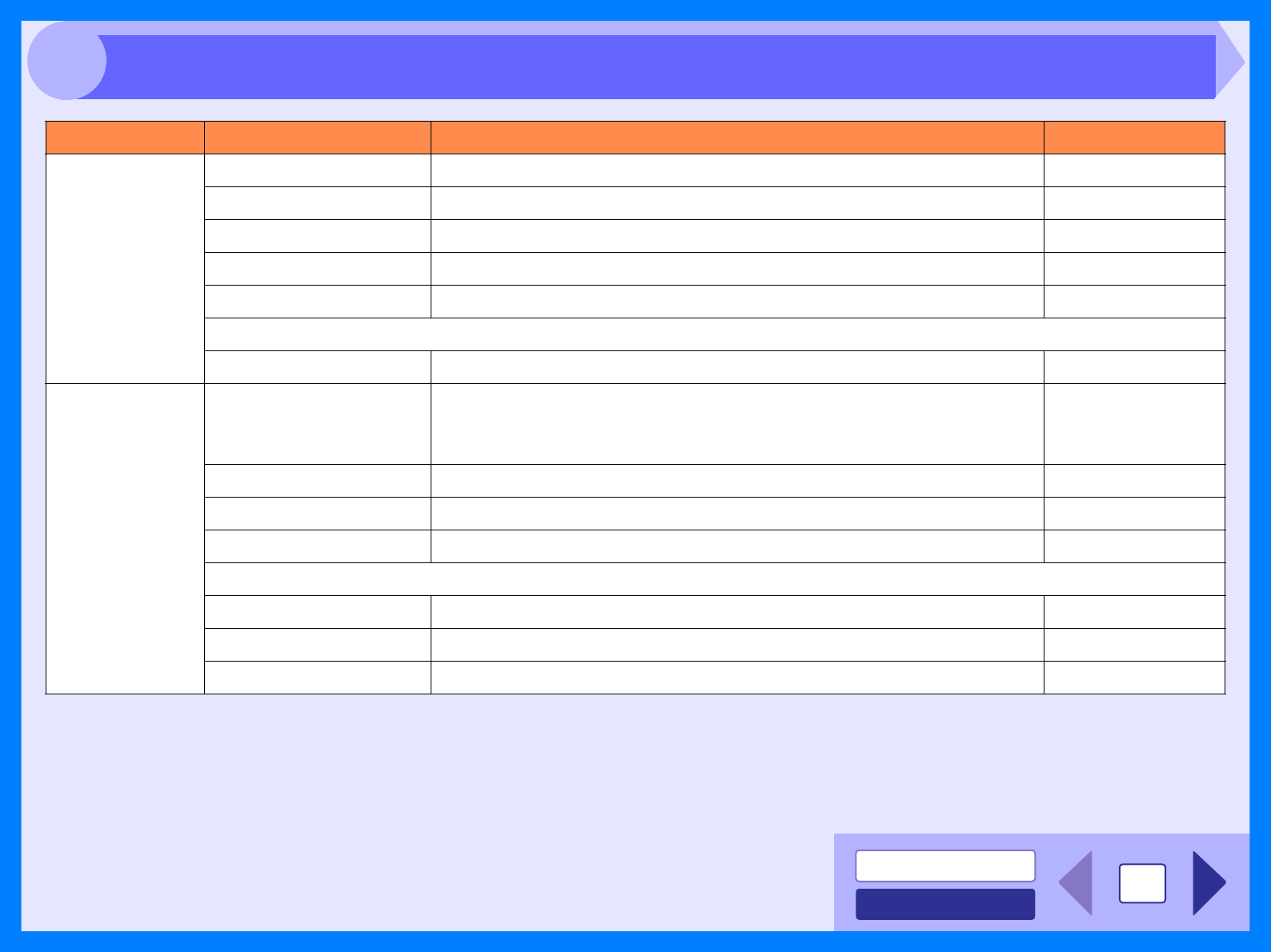
Tab Setting Selections Initial setting
Main Copies 1 to 999 1
Collate On/Off On
N-Up Printing 1-Up/2-Up/4-Up 1-Up
Border On/Off Off
User Settings -Factory Defaults
[User Settings]
Setting Name Up to seven names, 20 characters each -
Paper
Paper Size
A3 [Fit To Page]*1, A4, A5, A6, B4 [Fit To Page]*1, B5, Ledger [Fit To
Page]*1, Letter, Legal, Executive, Invoice, Foolscap, Folio, COM10,
Monarch, DL, C5, 8K [Fit To Page]*1, 16K, Custom Paper
A4*2
Fit To Page On/Off Off
Image Orientation Portrait/Landscape/Rotate 180 degrees Portrait
Paper Source Tray 1, Bypass Tray Tray 1
[Custom]
Width 98.3 to 215.9 (mm.) 98.3 (mm.)*2
Length 148.0 to 355.6 (mm.) 148.0 (mm.)*2
Size millimeters, inch millimeters*2
Printer Driver Features (part 1)
INDEX
CONTENTS 35
5
35
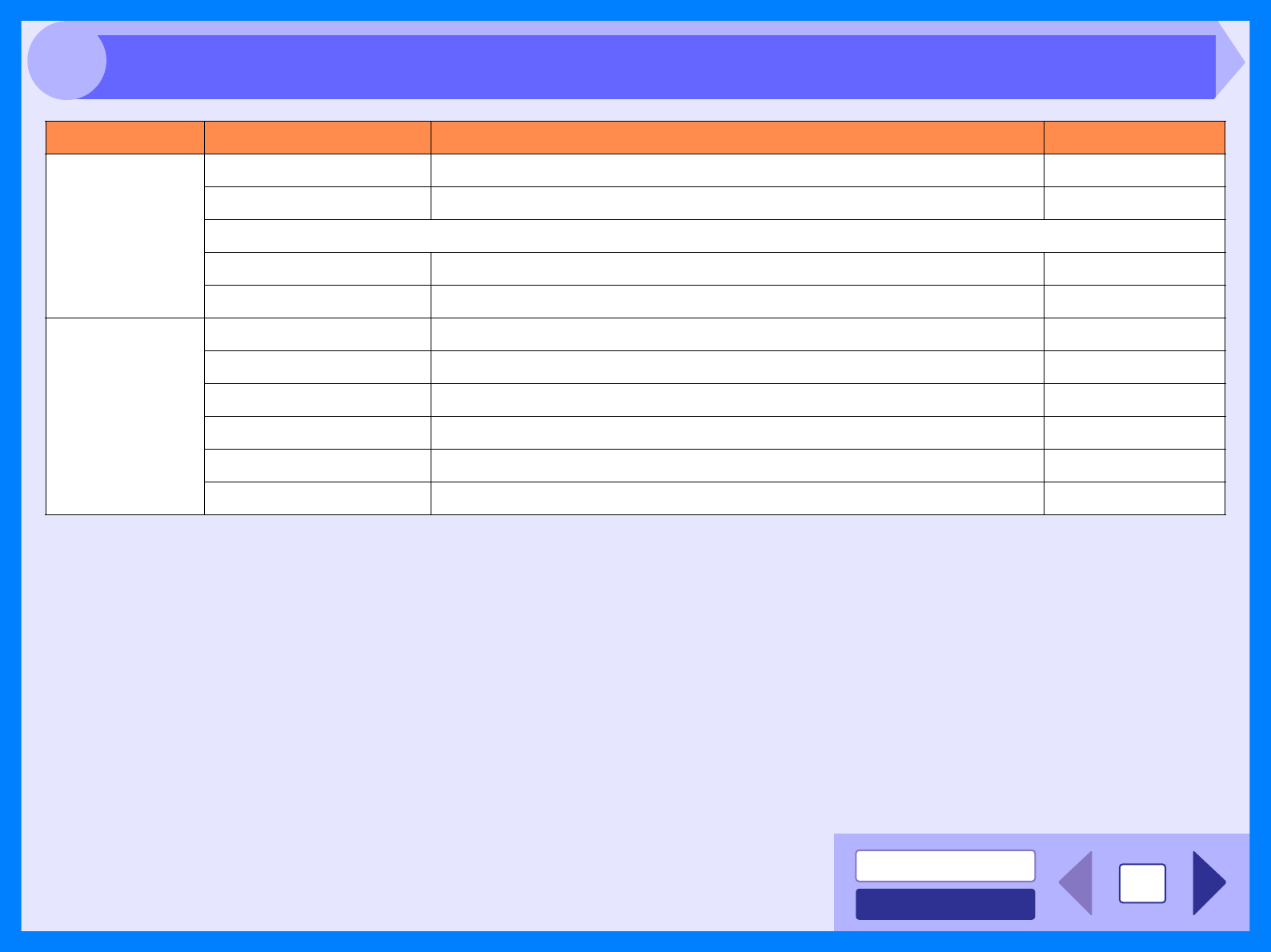
Tab Setting Selections Initial setting
Advanced
Print Quality Draft/Normal/Photo Normal
2 Gradation Print On/Off Off
[Image Adjustment]
Brightness 0 to 100 50
Contrast 0 to 100 50
Watermarks
Watermark (None)/TOP SECRET/CONFIDENTIAL/DRAFT/ORIGINAL/COPY (None)
Text - -
Size 6 to 300 200
Angle -90 to +90 +45
Gray Scale 0 to 255 192
On First Page Only On/Off Off
Printer Driver Features (part 2)

Index
6
AApplication Selection 20
"Auto Scan Area Adjustment" button
14
BBasic Printing 3
Border 8
Button Manager 20
Button Manager Settings 21
FFit To Page 7
Fit To Paper Size 7
HHelp
Button Manager 20
Print Status Window 9
Printer driver 5
Scanner driver
TWAIN driver 13
WIA driver 16
How to Use the Online Manual 1
IInterface 23
MMain 5
Margin 27
NN-up printing 8
Nothing Prints 29
OOutline of Button Manager 20
Outline of the Print Status Window
9
Overview
Print 2
Scan 10
PPaper Size 7
"Preview" button
Scanner and Camera Wizard 18
TWAIN driver 13
WIA driver 16
Preview Screen 14
Print 2
Print Status Window 9
Printer Driver Features 34
Printer Driver Settings 5
Printing a Watermark 6
Printing Overview 2
SScan 10
"Scan" button
TWAIN driver 13
WIA driver 16
Scan Setup 20
Scanner and Camera Wizard 10
Scanning an Image
Scanner and Camera Wizard 17
TWAIN driver 11
WIA driver 15
Scanning Mode 13
Scanning Overview 10
Scanning Position 12
Select Device 15
Set-up Screen 13
Settings
Button Manager 21
Printer driver 5
Scanner driver
Scanner and Camera Wizard
18
TWAIN driver 13
WIA driver 16
Starting
Button Manager 21
Printer driver 4
TTroubleshooting 22
TWAIN 10
UUnable to Scan the Image 32
Uninstalling
Button Manager 33
Printer driver 33
Scanner driver 33
WWatermark 6
WIA 10

AR203E_v1
