Sharp LC 20SH7U User Manual TV LCD Manuals And Guides L0711291
SHARP LCD Television Manual L0711291 SHARP LCD Television Owner's Manual, SHARP LCD Television installation guides
User Manual: Sharp LC-20SH7U LC-20SH7U SHARP TV LCD - Manuals and Guides View the owners manual for your SHARP TV LCD #LC20SH7U. Home:Electronics Parts:Sharp Parts:Sharp TV LCD Manual
Open the PDF directly: View PDF  .
.
Page Count: 35
SHARR
LC-20SH7U /
LIQUID CRYSTAL TELEVISION
TI_LI_VISEUR ACL
TELEVISOR CON PANTALLA
DE CRISTAL LIQUlDO
I
OPERATION MANUAL
MODE D'EMPLOI
MANUAL DE OPERACl0N
D_[DOLBYI
DiGiTAL
LC-20SH7U /
LIQUID CRYSTAL TELEVISION
ENGLISH
OPERATION MANUAL
•The illustrations and on-screen displays in this operation
manual are for explanation purposes and may vary slightly
from the actual operations.
IMPORTANT: I
To aid reporting in case of loss or theft, please record the Model No.:
TV's model and serial numbers in the space provided. The
numbers are located at the rear of the TV. Serial No.: I
WARNING:TO REDUCE THE RISK OF FIRE OR ELECTRIC SHOCK, DO NOT EXPOSE THIS
APPLIANCE TO RAIN OR MOISTURE.
CAUTION / A
AIL
CAUTION: TO REDUCETHERISKOF ELECTRICSHOCK,
DO NOT REMOVECOVER(OR BACK).NO USERSERVICEABLE
PARTSINSIDE.REFERSERVICINGTO QUALIFIEDSERVICE
PERSONNEL.
THIS SYMBOL INDICATES THAT DANGEROUS
VOLTAGE CONSTITUTING A RISK OF ELECTRIC
SHOCK IS PRESENT WITHIN THIS UNIT.
THIS SYMBOL INDICATES THAT THERE ARE
IMPORTANT OPERATING AND MAINTENANCE
INSTRUCTIONS iN THE LITERATURE
ACCOMPANYING THE APPLIANCE.
Theimportant note is locatedonthe rearofthe cabinet.
EN
Important Safeguards
% READ INSTRUCTIONS - All the safety and operating instructions
should be read before the appliance is operated.
2RETAIN INSTRUCTIONS - The safety and operating instructions
should be retained for future reference.
:_ HEED WARNINGS - All warnings on the appliance and in the
operating instructions should be adhered to.
4o FOLLOW INSTRUCTIONS - All operating and use instructions
should be followed.
5CLEANING - Unplug TV from the wall outlet before cleaning. Do
not use liquid cleaners or aerosol cleaners. Use a damp cloth for
cleaning.
EXCEPTION: A product that is meant for uninterrupted service and,
that for some specific reason, such as the possibility of the loss
of an authorization code for a CATV converter, is not intended to
be unplugged by the user for cleaning or any other purpose, may
exclude the reference to unplugging the appliance in the cleaning
description otherwise required in item 5.
_3 ATTACHMENTS- Do not use attachments not recommended by
the TV manufacturer as they may cause hazards.
7o WATER AND MOISTURE - Do not use this TV near water, for
example, near a bath tub, wash bowl, kitchen sink, or laundry tub,
in a wet basement, or near a swimming pool, and the like.
8o ACCESSORIES- Do not placethisTVon
an unstable cart, stand, tripod, bracket, or
table.TheTV may fall, causing serious injury
to someone, and serious damage to the
appliance. Use only with a cart, stand, tripod,
bracket, or table recommended by the
manufacturer, or sold with theTV.
Any mounting of the appliance should
follow the manufacturer's instructions
and should use a mounting accessory
recommended by the manufacturer. An appliance and cart
combination should be moved with care. Quick stops, excessive
force, and uneven surfaces may cause the appliance and cart
combination to overturn.
9o VENTILATION - Slots and openings in the cabinet and the back
or bottom are provided for ventilation and to ensure reliable
operation of theTV and to protect it from overheating, these
openings must not be blocked or covered. The openings should
never be blocked by placing theTV on a bed, sofa, rug, or other
similar surface.ThisTV should never be placed near or over a
radiator or heat register. This TV should not be placed in a built-in
installation such as a bookcase or rack unless proper ventilation is
provided or the manufacturer's instructions have been adhered to.
_0o POWER SOURCES -ThisTV should be operated only from the type
of power source indicated on the marking label. If you are not sure
of the type of power supply to your home, consult your appliance
dealer or local power company. For TVs intended to operate from
battery power, or other sources, refer to the operating instructions.
Io GROUNDING OR POLARIZATION - This TV is equipped with a
polarized alternating-current line plug (a plug having one blade
wider than the other). This plug will fit into the power outlet only
one way. This is a safety feature. If you are unable to insert the plug
fully into the outlet, try reversing the plug. If the plug should still
fail to fit, contact your electrician to replace your obsolete outlet.
Do not defeat the safety purpose of the polarized plug.
2 POWER-CORD PROTECTION - Power-supply cords should be
routed so that they are not likely to be walked on or pinched by
items placed upon or against them, paying particular attention to
cords at plugs, convenience receptacles, and the point where they
exit from the appliance.
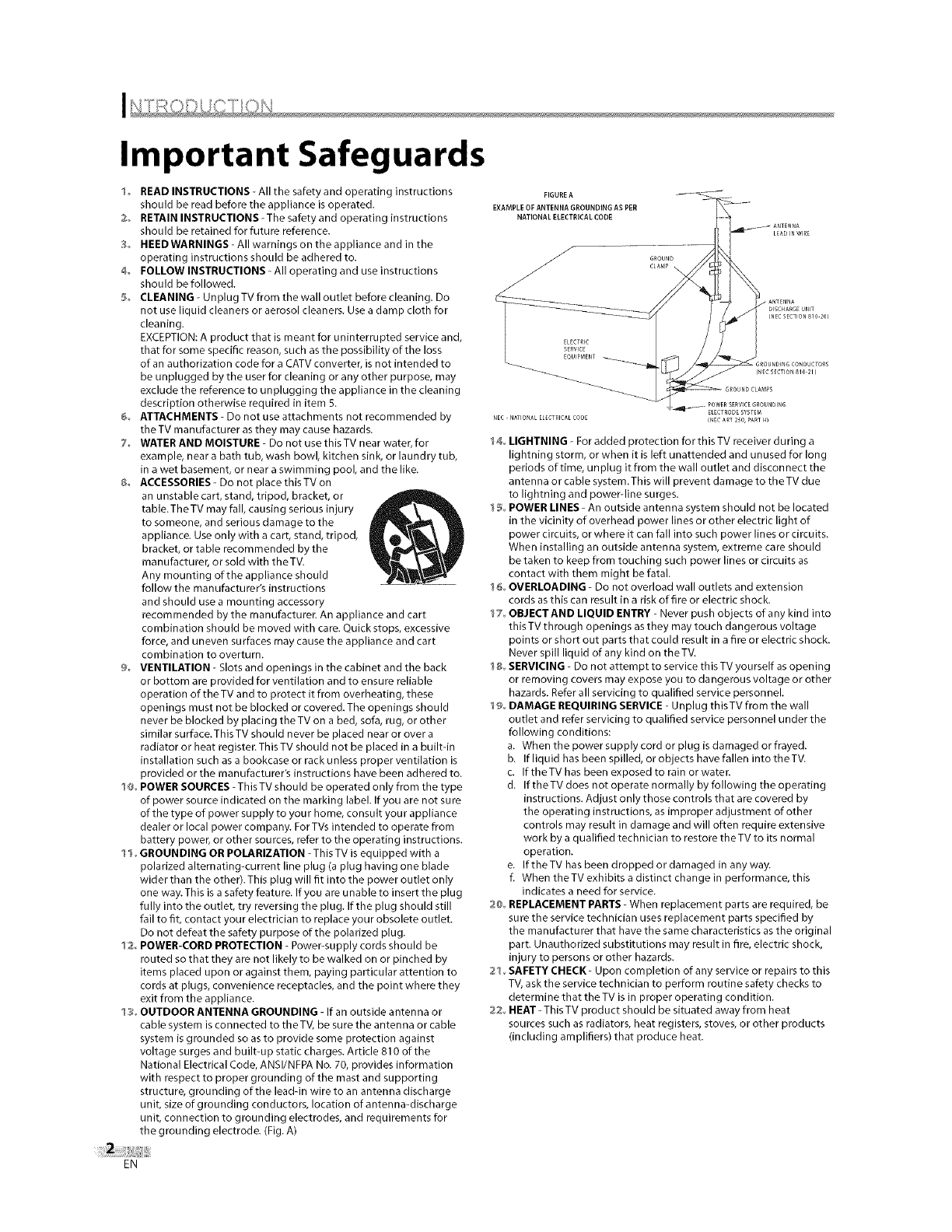
3o OUTDOOR ANTENNA GROUNDING - If an outside antenna or
cable system is connected to the TV, be sure the antenna or cable
system is grounded so as to provide some protection against
voltage surges and built-up static charges. Article 810 of the
National Electrical Code, ANSI/NFPA No. 70, provides information
with respect to proper grounding of the mast and supporting
structure, grounding of the lead-in wire to an antenna discharge
unit, size of grounding conductors, location of antenna-discharge
unit, connection to grounding electrodes, and requirements for
the grounding electrode. (Fig. A)
FIGURE A
EXAMPLE OR ANTENNA GROUNDING AS PER
NATIONAL ELECTRICAL CODE
14o LIGHTNING - For added protection for this TV receiver during a
lightning storm, or when it is left unattended and unused for long
periods of time, unplug it from the wall outlet and disconnect the
antenna or cable system.This will prevent damage to theTV due
to lightning and power-line surges.
15o POWER LINES - An outside antenna system should not be located
in the vicinity of overhead power lines or other electric light of
power circuits, or where it can fall into such power lines or circuits.
When installing an outside antenna system, extreme care should
be taken to keep from touching such power lines or circuits as
contact with them might be fatal.
I6o OVERLOADING - Do not overload wall outlets and extension
cords as this can result in a risk of fire or electric shock.
1% OBJECTAND LIQUID ENTRY - Never push objects of any kind into
this TV through openings as they may touch dangerous voltage
points or short out parts that could result in a fire or electric shock.
Never spill liquid of any kind on theTV.
I _o SERVICING - Do not attempt to service this TV yourself as opening
or removing covers may expose you to dangerous voltage or other
hazards. Refer all servicing to qualified service personnel.
I9o DAMAGE REQUIRING SERVICE - Unplug thisTV from the wall
outlet and refer servicing to qualified service personnel under the
following conditions:
a. When the power supply cord or plug is damaged or frayed.
b. If liquid has been spilled, or objects have fallen into the TV.
c. If the TV has been exposed to rain or water.
d. If theTV does not operate normally by following the operating
instructions. Adjust only those controls that are covered by
the operating instructions, as improper adjustment of other
controls may result in damage and will often require extensive
work by a qualified technician to restore theTV to its normal
operation.
e. If the TV has been dropped or damaged in any way.
f. When the TV exhibits a distinct change in performance, this
indicates a need for service.
20o REPLACEMENT PARTS - When replacement parts are required, be
sure the service technician uses replacement parts specified by
the manufacturer that have the same characteristics as the original
part. Unauthorized substitutions may result in fire, electric shock,
injury to persons or other hazards.
21o SAFETY CHECK- Upon completion of any service or repairs to this
TV, ask the service technician to perform routine safety checks to
determine that the TV is in proper operating condition.
22_ HEAT- This TV product should be situated away from heat
sources such as radiators, heat registers, stoves, or other products
(including amplifiers) that produce heat.
EN
[] Precautions
Dear Sharp Customer
Thank you for your purchase of the Sharp Liquid Crystal Television. To ensure safety and many years of trouble-free
operation of your product, please read the Important Safeguards carefully before using this product.
CAUTION:
DO NOT PLACE THIS PRODUCT ON AN UNSTABLE CART, STAND, TRIPOD, BRACKET, OR TABLE. THE
PRODUCT MAY FALLCAUSING SERIOUSPERSONALINJURYAND SERIOUSDAMAGE TO THEPRODUCT. USE
ONLY WITH A CART, STAND, TRIPOD, BRACKET,OR TABLE RECOMMENDED BYTHE MANUFACTURER OR
SOLD WITH THE PRODUCT. FOLLOW THE MANUFACTURER'S INSTRUCTIONS WHEN INSTALLING THE
PRODUCT AND USE MOUNTING ACCESSORIESRECOMMENDED BY THE MANUFACTURER. A PRODUCT
AND CART COMBINATION SHOULD BEMOVED WITH CARE.QUICK STOPS,EXCESSIVEFORCE,AND UNEVEN
SURFACESMAY CAUSETHE PRODUCT AND CART COMBINATION TO OVERTURN.
WARNING: FCCRegulations state that any unauthorized changes or modifications to this equipment not expressly approved by
the manufacturer could void the usefls authority to operate this equipment.
CAUTION: This product satisfies FCCregulations when shielded cables and connectors are used to connect the unit to other equipment.
To prevent electromagnetic interference with electric appliances such as radios and televisions, use shielded cables and
connectors for connections.
This product utilizes tin-lead solder, and fluorescent lamp containing a small amount of mercury. Disposal of these
materials may be regulated due to environmental considerations. For disposal or recycling information, please contact
your local authorities or the Electronic Industries Alliance: www.eia.org
CAUTION: TO PREVENT ELECTRIC SHOCK, MATCH WIDE BLADE OF PLUG TO WIDE SLOT,
FULLY INSERT.
FCC WARNING This equipment may generate or use radio frequency energy. Changes or modifications to this equipment
may cause harmful interference unless the modifications are expressly approved in the manual. The user
could lose the authority to operate this equipment if an unauthorized change or modification is made.
RADIO-TV INTERFERENCE
This equipment has been tested and found to comply with the limits for a Class B digital device, pursuant to Part 15 of the
FCC Rules. These limits are designed to provide reasonable protection against harmful interference in a residential installation.
This equipment generates, uses, and can radiate radio frequency energy and, if not installed and used in accordance with the
instructions, may cause harmful interference to radio communications. However, there is no guarantee that interference will not
occur in a particular installation. If this equipment does cause harmful interference to radio or television reception, which can be
determined by turning the equipment off and on, the user is encouraged to try to correct the interference by one or more of the
following measures:
1) Reorient or relocate the receiving antenna.
2) Increase the separation between the equipment and receiver.
3) Connect the equipment into an outlet on a circuit different from that to which the receiver is connected.
4} Consult the dealer or an experienced radio/TV technician for help.
This Class B digital apparatus complies with Canadian ICES-O03.
Note to CATV system installer:
This reminder is provided to call the CATV system installer's attention to Article 820-40 of ttmeNEC that provides guidelines
for proper grounding and, in particular, specifies that the cable ground should be connected to the grounding system of the
building as close to the point of cable emmtryas practical
I
EN
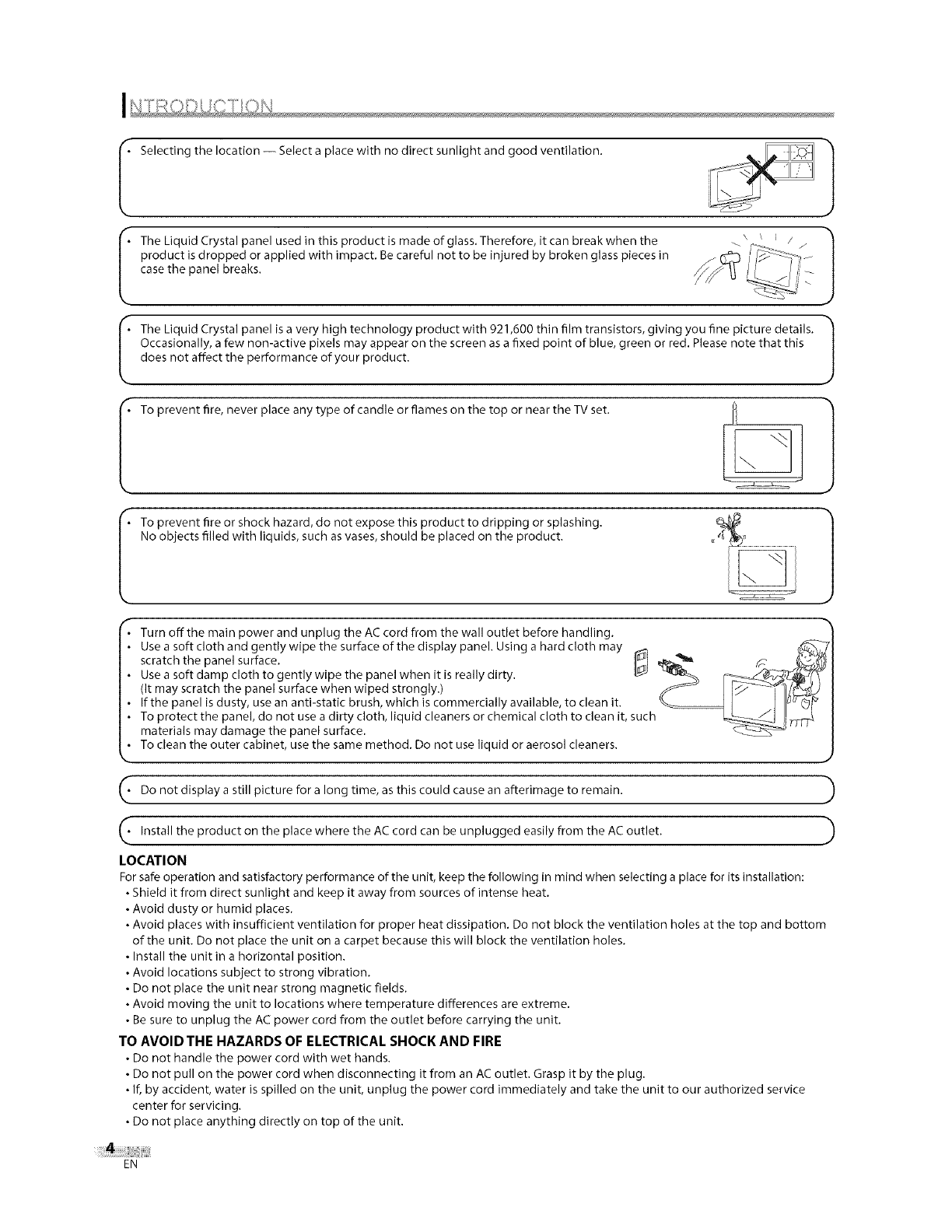
I Selectingthelocation-- Selectaplacewithnodirectsunlightandgoodventilation.
productisdroppedorappliedwithimpact.Becarefulnottobeinjuredbybrokenglasspiecesin
casethepanelbreaks.
• he Liquid Crystal panel is a very high technology product with 921,600 thin film transistors, giving you fine picture details. |
Occasionally, a few non-active pixels may appear on the screen as a fixed point of blue, green or red. Please note that this J
does not affect the performance of your product.
I To prevent fire, never place any type of candle or flames on the top or near the TV set.
I o prevent fire or shock hazard, do not expose this product to dripping or splashing.
No objects filled with liquids, such as vases, should be placed on the product.
• Turn off the main power and unplug the AC cord from the wall outlet before handling.
• UseasoftclothandgentlywipethesurfaceofthedisplaypaneI. Using a hard cloth may _ _ _
scratch the panel surface. _[ ,_ _ _ _
Use a soft damp cloth to gently wipe the panel when it is really dirty. _ "t_, r.........._,C_,_
(it may scratch the panel surface when wiped strongly.) _ [ _-"_"_)
If the panel is dusty, use an anti-static brush, which is commercially available, to clean it. "_ I j uu Q_
To protect the panel, do not use a dirty cloth, liquid cleaners or chemical cloth to clean it, such _ 7T_
materials may damage the panel surface.
• To clean the outer cabinet, use the same method. Do not use liquid or aerosol cleaners.
_. display a picture a long time, as cause an afterimage )
Do not still for this could to remain.
Install the the where the AC cord be from the AC outlet. )
product place unplugged easily
on can
LOCATION
For safe operation and satisfactory performance of the unit, keep the following in mind when selecting a place for its installation:
• Shield it from direct sunlight and keep it away from sources of intense heat.
• Avoid dusty or humid places.
• Avoid places with insufficient ventilation for proper heat dissipation. Do not block the ventilation holes at the top and bottom
of the unit. Do not place the unit on a carpet because this will block the ventilation holes.
• Install the unit in a horizontal position.
• Avoid locations subject to strong vibration.
• Do not place the unit near strong magnetic fields.
• Avoid moving the unit to locations where temperature differences are extreme.
• Be sure to unplug the AC power cord from the outlet before carrying the unit.
TO AVOID THE HAZARDS OF ELECTRICAL SHOCK AND FIRE
• Do not handle the power cord with wet hands.
• Do not pull on the power cord when disconnecting it from an AC outlet. Grasp it by the plug.
• If, by accident, water is spilled on the unit, unplug the power cord immediately and take the unit to our authorized service
center for servicing.
• Do not place anything directly on top of the unit.
EN
[] Features
•DTV/TV/CATV
-You can use your remote control to select channels
which are broadcast in digital, conventional analog,
standard definition, and high definition formats. Also,
cable subscribers can access their cable TV channels.
•Program Information Display (DTV only)
-You can display the title, contents and other
information of the current DTV program on the TV
screen.
•Auto Channel Scan
-This unit automatically scans and memorizes channels
available in your area, eliminating difficult setup
procedures.
•V-chip
-This feature allows you to block children's access to
inappropriate programs.
•Closed Caption Decoder
-Built-in closed caption decoder displays text for closed
caption supported programming.
•MTS/SAP Tuner
-Audio language can be selected from the remote
control.
•Auto Shut Off Function
- If there is no signal input from the antenna terminal
for 5 minutes or no operation for 180 minutes, the
unit will turn itself off automatically if these setting
are on.
•Sleep Timer
- This feature will automatically turned off the power of
the unit at a specific time.
•Choices for On-screen Language
- Select your on-screen language:
English, Spanish or French.
•Stereo Sound Function
•PLL Frequency Synthesized Tuning
-Provides free and easy channel selection and lets you
tune directly to any channel using the channel number
buttons on the remote control.
•Component Video Input
•S-video Input
•AV Input
•Digital Audio Coaxial Output
•Blue Screen
[] Contents
/NTRODUCT ON
ImportantSafeguards............................................. 2
Precautions...................................................... 3
Features......................................................... 5
SuppliedAccessories.............................................. 6
Installingthe Batteries............................................ 6
Tilt Stand........................................................ 6
SymbolsUsedinthis Manual....................................... 6
RemoteControlFunction.......................................... 7
ControlPanel..................................................... 8
RearPanel....................................................... 8
CONNECI ON
BasicConnection.................................................. 9
ExternalDeviceConnection....................................... 10
/NTAL SETT NG
InitialSetup..................................................... 12
MainMenu...................................................... 13
AutoChannelScan............................................... 13
LanguageSelection.............................................. 14
WATCH NG TV
ChannelSelection................................................ 15
VolumeAdjustment.............................................. 15
SwitchingEachMode............................................. 16
SwitchingAudioMode ........................................... 16
ScreenInformation.............................................. 17
TVScreenDisplayMode........................................... 18
SleepTimer..................................................... 18
OPTIONAL SET YNG
ChannelAdd/Delete.............................................. 19
PictureAdjustment.............................................. 20
ClosedCaption................................................... 20
DI"VClosedCaption............................................... 21
DTVCCStyle ..................................................... 22
BackLight Setting ............................................... 23
BlueScreen..................................................... 23
NoSignalOff .................................................... 24
NoOperationOff................................................. 24
ColorTemperature............................................... 25
V-chip.......................................................... 25
TROUBLESHOOT NG
TroubleshootingGuide........................................... 28
INFORMATION
Glossary........................................................ 30
CableChannelDesignations....................................... 30
GeneralSpecifications............................................ 30
ElectricalSpecification............................................ 30
OtherSpecifications.............................................. 30
CallingforService................................................ 31
LimitedWarranty................................................ 31
Dimensionaldrawings
• Thedimensionaldrawingsforthe LCDTVsetare shownonthe insideback
cover.
I
EN

[] Supplied Accessories
operation ....... ' remote control batteries (AA size x2)
• If you need to replace these accessories, please call our customer support line found on the warranty pages in this
manual.
• Depending on your antenna system, you may need different types of combiners (mixers) or separators (splitters).
Contact your local electronics store for these items.
[] Installing the Batteries
Install the batteries (AA x 2) matching the polarity indicated inside battery compartment of the remote control.
Battery Precautions:
•Be sure to follow the correct polarity as indicated in the battery compartment. Reversed batteries may cause damage to the device.
•Do not mix different types of batteries togetber (e.g., Alkaline and Carbon-Zinc) or old batteries with fresh ones.
•If the device is not to be used for a long period of time, remove the batteries to prevent damage or injury from possible battery leakage.
•Do not try to recharge batteries; they can overheat and rupture.
[] Tilt Stand
You can adjust the stand to change the angle
of the TV (-2.5 ° to 10°).
[] Symbols Used in this Manual
The following is the description for the symbols used
in this manual,
Description refers to:
: Digital TV operation
: Analog TV operation
• If neither symbol appears under the function
heading, operation is applicable to both,
EN
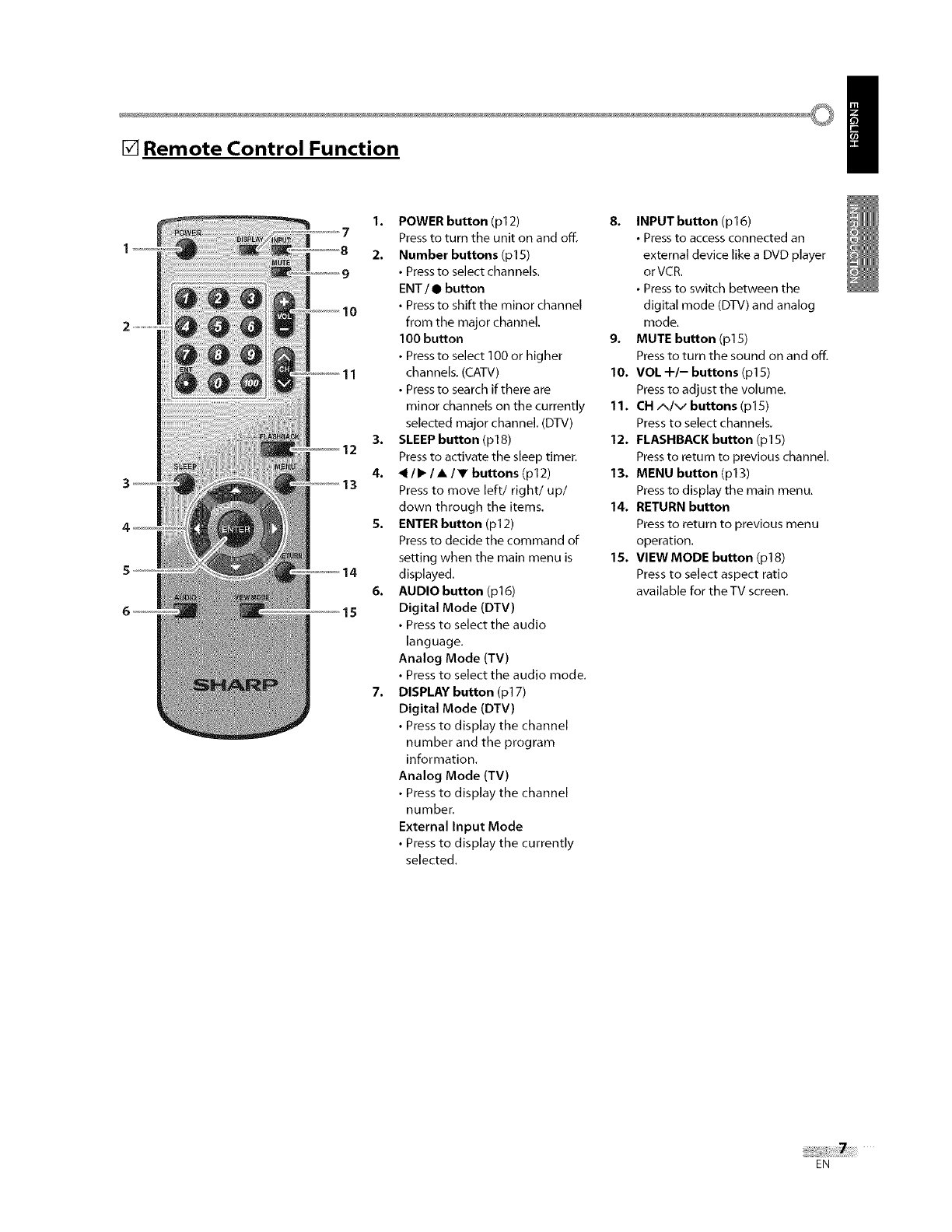
[] Remote Control Function /
POWER button (pl 2)
Press to turn the unit on and off.
Number buttons (p15)
•Press to select channels.
ENT /• button
• Pressto shift the minor channel
from the major channel.
100 button
• Press to select 100 or higher
channels. (CATV)
• Press to search if there are
minor channels on the currently
selected major channel. (DTV)
SLEEP button (p18)
Press to activate the sleep timer,
/•/•/• buttons (pl 2)
Press to move left/right/up/
down through the items.
ENTER button (pl 2)
Press to decide the command of
setting when the main menu is
displayed.
AUDIO button (p16)
Digital Mode (DTV)
•Press to select the audio
language.
Analog Mode (TV)
• Press to select the audio mode.
DISPLAY button (pl 7)
Digital Mode (DTV)
• Press to display the channel
number and the program
information.
Analog Mode (TV)
• Press to display the channel
number.
External Input Mode
• Press to display the currently
selected.
8. INPUTbutton (p16)
• Press to access connected an
external device like a DVD player
orVCR.
• Press to switch between the
digital mode (DTV) and analog
mode,
9. MUTE button (pl5)
Press to turn the sound on and off.
10. VOL +/- buttons (pl 5)
Press to adjust the volume.
11. CH A/v buttons (pl5)
Press to select channels,
12. FLASHBACK button (pl5)
Press to return to previous channel.
13. MENU button (p13)
Press to display the main menu.
14. RETURN button
Press to return to previous menu
operation.
15. VIEWMODE button (p18)
Press to select aspect ratio
available for the TV screen.
EN
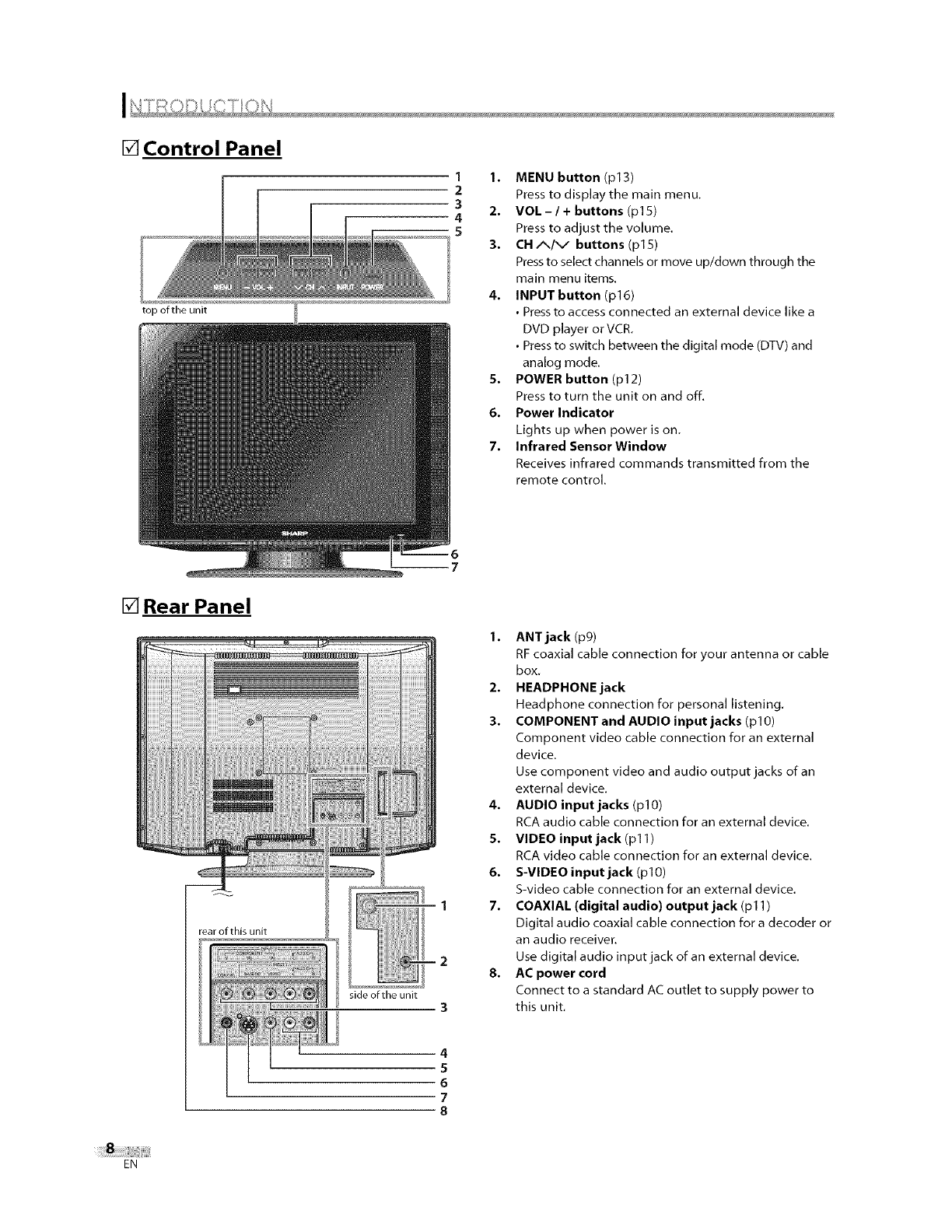
[] Control Panel
top of the unit
11.
2
32.
4
MENU button (pl 3)
Press to display the main menu.
VOL - /+buttons (pl 5)
Press to adjust the volume.
3. CH/_/\_" buttons (p15)
Press to select channels or move up/clown through the
main menu items.
4. INPUT button (p16)
•Press to access connected an external device like a
DVD player or VCR.
• Press to switch between the digital mode (DTV) and
analog mode.
5. POWER button (p12)
Press to turn the unit on and off,
6. Power Indicator
Lights up when power is on.
7. Infrared Sensor Window
Receives infrared commands transmitted from the
remote control.
[] Rear Panel
rear of this unit
side of the unit
4,
5.
6.
17.
4
5
6
7
8
1. ANT jack (p9)
RF coaxial cable connection for your antenna or cable
box,
2. HEADPHONE jack
Headphone connection for personal listening.
3. COMPONENT and AUDIO input jacks (pl0)
Component video cable connection for an external
device.
Use component video and audio output jacks of an
external device.
AUDIO input jacks (pl 0)
RCA audio cable connection for an external device.
VIDEO input jack (pl 1)
RCA video cable connection for an external device.
S-VIDEO input jack (plO)
S-video cable connection for an external device.
COAXIAL (digital audio) output jack (pl 1)
Digital audio coaxial cable connection for a decoder or
an audio receiver.
Use digital audio input jack of an external device.
8. AC power cord
Connect to a standard AC outlet to supply power to
this unit.
EN
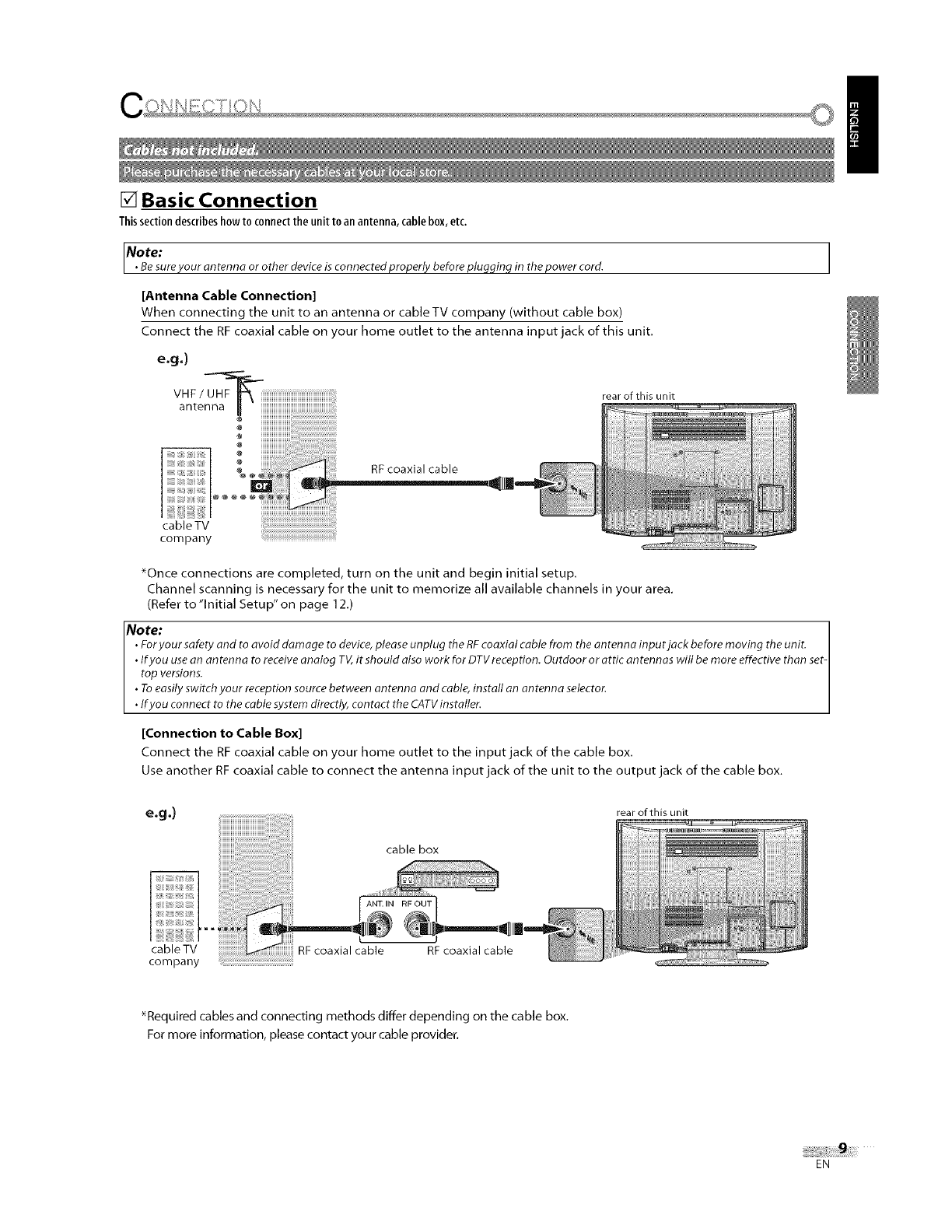
[] Basic Connection
Thissectiondescribeshowto connecttheunit toan antenna,cablebox,etc.
No te:
•Besure your an tenna or other device is connected properly before pluqqinq in the power cord.
[Antenna Cable Connection]
When connecting the unit to an antenna or cable TV company (without cable box)
Connect the RF coaxial cable on your home outlet to the antenna input jack of this unit.
e.g°)
VH F/UHF-_ rear of this unit
antenna
@
÷
RF coaxial cable
/
cableTV
company
_Once connections are completed, turn on the unit and begin initial setup.
Channel scanning is necessary for the unit to memorize all available channels in your area.
(Refer to "Initial Setup" on page 12.)
Note:
• Foryour safety and to avoid damage to device,please unplug the RFcoaxial cable from the antenna input jack before moving the unit.
• If you usean an tenna to receive analog TV,it should also work for DTVreception. Outdoor or attic an tennas will be more effective than set-
top versions.
• Toeasily switch your reception source between antenna and cable, install an antenna selector.
• If you connect to the cable system directly, contact the CATVinstaller.
[Connection to Cable Box]
Connect the RF coaxial cable on your home outlet to the input jack of the cable box.
Use another RF coaxial cable to connect the antenna input jack of the unit to the output jack of the cable box.
e.g.) rear of this unit
cable box
cable TV
company
RF coaxial cable RF coaxial cable
_Required cables and connecting methods differ depending on the cable box.
For more information, please contact your cable provider.
EN
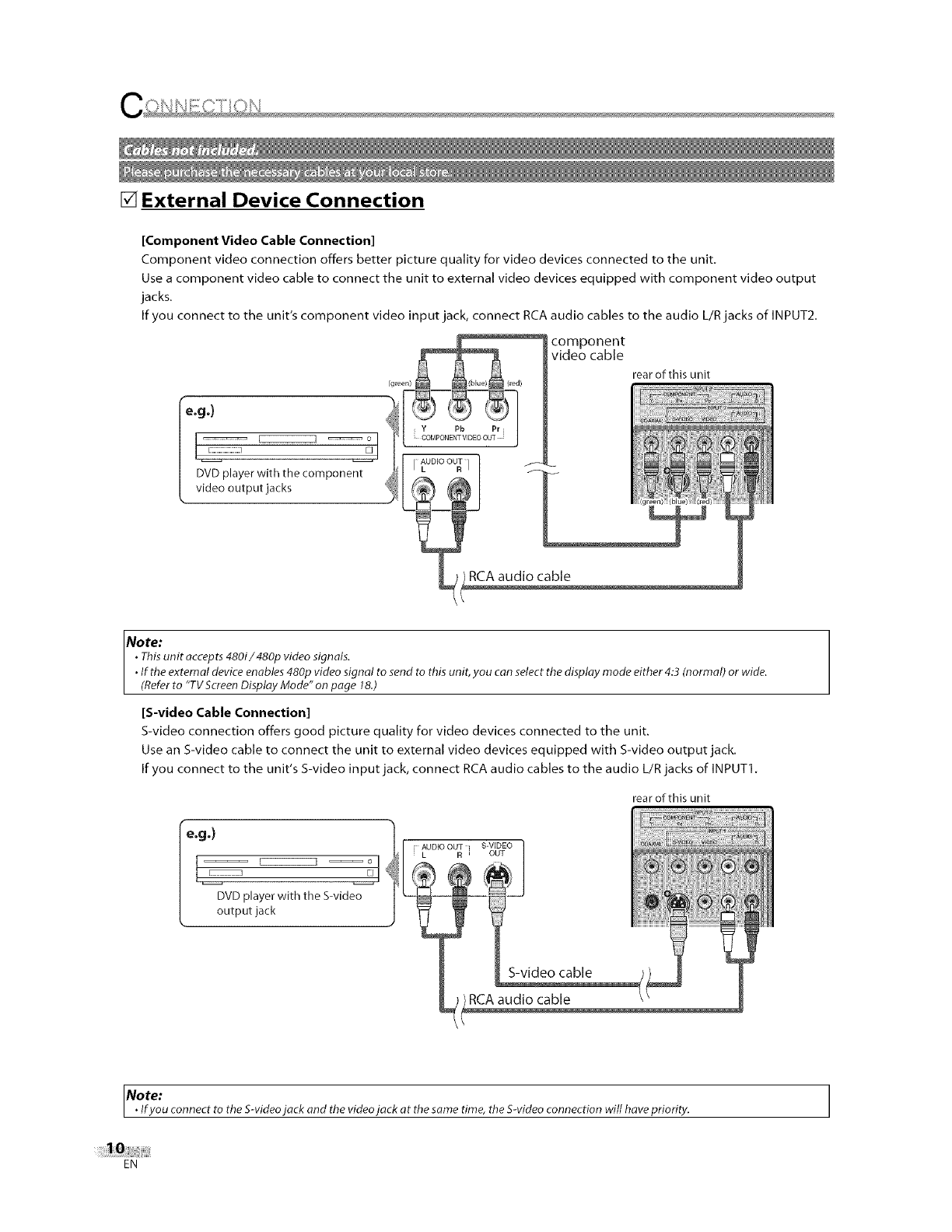
[] External Device Connection
[Component Video Cable Connection]
Component video connection offers better picture quality for video devices connected to the unit.
Use a component video cable to connect the unit to external video devices equipped with component video output
jacks.
If you connect to the unit's component video input jack, connect RCA audio cables to the audio L/R jacks of INPUT2.
rear of this unit
No te:
•This unit accepts 480i/480p video signals.
• If the external device enables 480p video signal to send to this unit, you can select the display mode either 4:3 (normal) or wide.
(Refer to TVScreen Display Mode" on page 18.)
[S-video Cable Connection]
S-video connection offers good picture quality for video devices connected to the unit.
Use an S-video cable to connect the unit to external video devices equipped with S-video output jack.
If you connect to the unit's S-video input jack, connect RCA audio cables to the audio L/R jacks of INPUT1.
Ie.g.)
DVD player with the S-video
output jack
rear of this unit
r AUDIO OUT ] S-VIDEO
L R OUT
RCAaudio cable
Note:
• fyou connect to the S-videojack and the video jack at the same time, the S-video connection will have priority.
EN
/
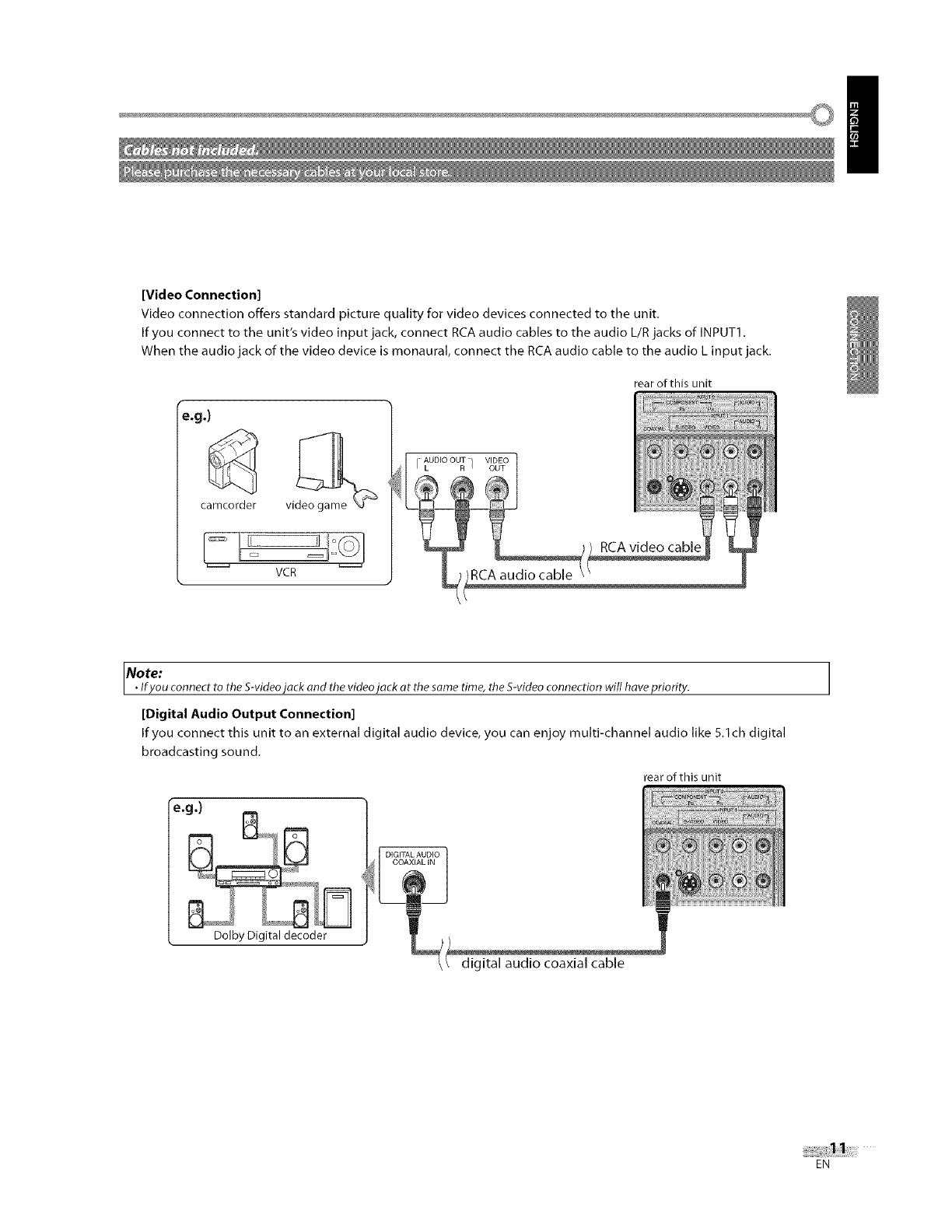
[Video Connection]
Video connection offers standard picture quality for video devices connected to the unit.
If you connect to the unit's video input jack, connect RCA audio cables to the audio L/R jacks of INPUT1.
When the audio jack of the video device is monaural, connect the RCA audio cable to the audio L input jack.
rear of this unit
e.g.)
car'ncorder
VCR
AUDIO OUT
i L R/ vg_o
No re:
•fyou connect to the S-videojack and the video jack at the same time, the S-video connection will have priority.
[Digital Audio Output Connection]
If you connect this unit to an external digital audio device, you can enjoy multi-channel audio like 5.1ch digital
broadcasting sound.
e.g.)
Dolby Digital decoder
DIGITAL AUDIO
COAXIAL IN
rear of this unit
digital audio coaxial cable
EN
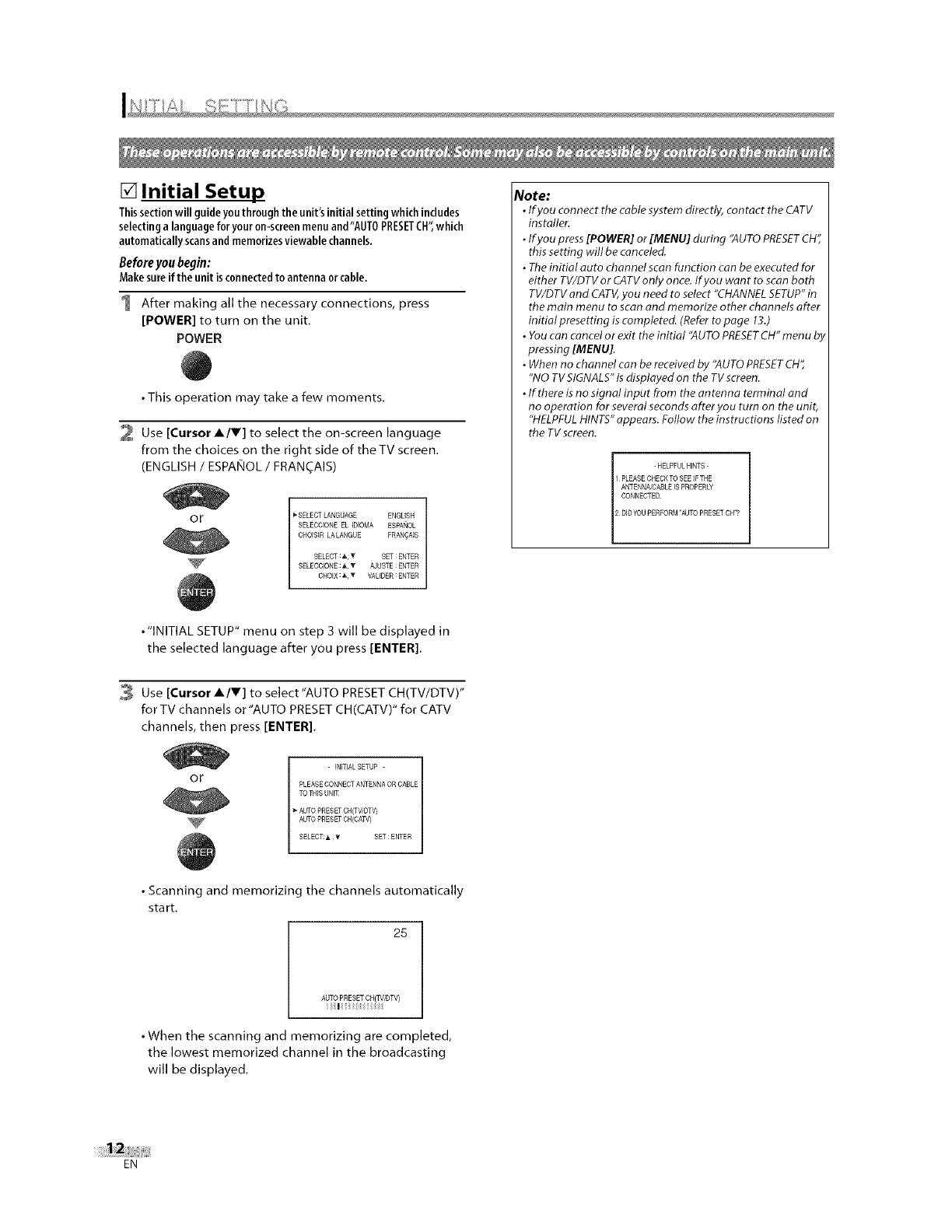
[] Initial Setup
Thissectionwillguideyouthroughthe unit'sinitialsettingwhichincludes
selectinga languageforyouron-screenmenuand"AUTOPRESETCH',which
automaticallyscansandmemorizesviewable channels,
Beforeyou begin:
Makesureifthe unitisconnectedto antennaorcable,
1 After making all the necessary connections, press
[POWER] to turn on the unit.
POWER
• This operation may take a few moments.
2 Use [Cursor A/V] to select the on-screen language
from the choices on the right side of the TV screen.
(ENGLISH /ESPANOL /FRANCAIS)
or '>SELECTLANGUAGE ENGLISH
SELECCIONE EL EDIOMA ESPANOL
CROIS[R LALANGUE PRAN_AIS
SELECT:A,T SET:ENTER
SELECCIONE:A,T AJUSTE:ENTER
CROIX:A,T VALIDER:ENTER
Note:
•If you connect the cable system directly, contact the CATV
ins taller.
•lfyou press [POWER] or [MENU] during '`AUTO PRESET CH_
this setting will be canceled.
•The initial auto channel scan function can be executed for
either TV/DTV or CATV only once. lf you want to scan both
TV/DTV and CATV, you need to select "CHANNEL SETUP" in
the main menu to scan and memorize other channels after
initial presetting is completed. (Refer to page 13.)
•You can cancel or exit the initial "AUTO PRESETCH" menu b,
pressing [MENU].
•When no channel can be received by "AUTO PRESET CH",
"NO TV SIGNALS" is displayed on the TV screen.
•If there is no signal input from the antenna terminal and
no operation for severat seconds after you tum on the unit,
"HELPFUL HINTS" appears. Follow the instructions listed on
the TV screen.
-HELPFUL HINTS -
I PLEASE CHECK TO SEE IFTHE
ANTENNNCASLE ISPROPERLY
CONNECTER
2 DIDYOUPERPORM AUTO PRESETCHI?
•"INITIAL SETUP" menu on step 3 will be displayed in
the selected language after you press [ENTER].
3 Use [Cursor A/V] to select"AUTO PRESETCH(TV/DTV)"
for TV channels or"AUTO PRESETCH(CATV)" for CATV
channels, then press [ENTER].
or
-INmALSETUP -
PLEASECONNECTANTENNA OR CABLE
TOTRIS UNIT
AUTOPRESET CH(TV/RT_
AUTOPRESET OH(CAW)
SELECT:_,, T SET : ENTER
• Scanning and memorizing the channels automatically
start.
25
AUTO PRESETCG(TV/DTV)
| :
• When the scanning and memorizing are completed,
the lowest memorized channel in the broadcasting
will be displayed.
EN
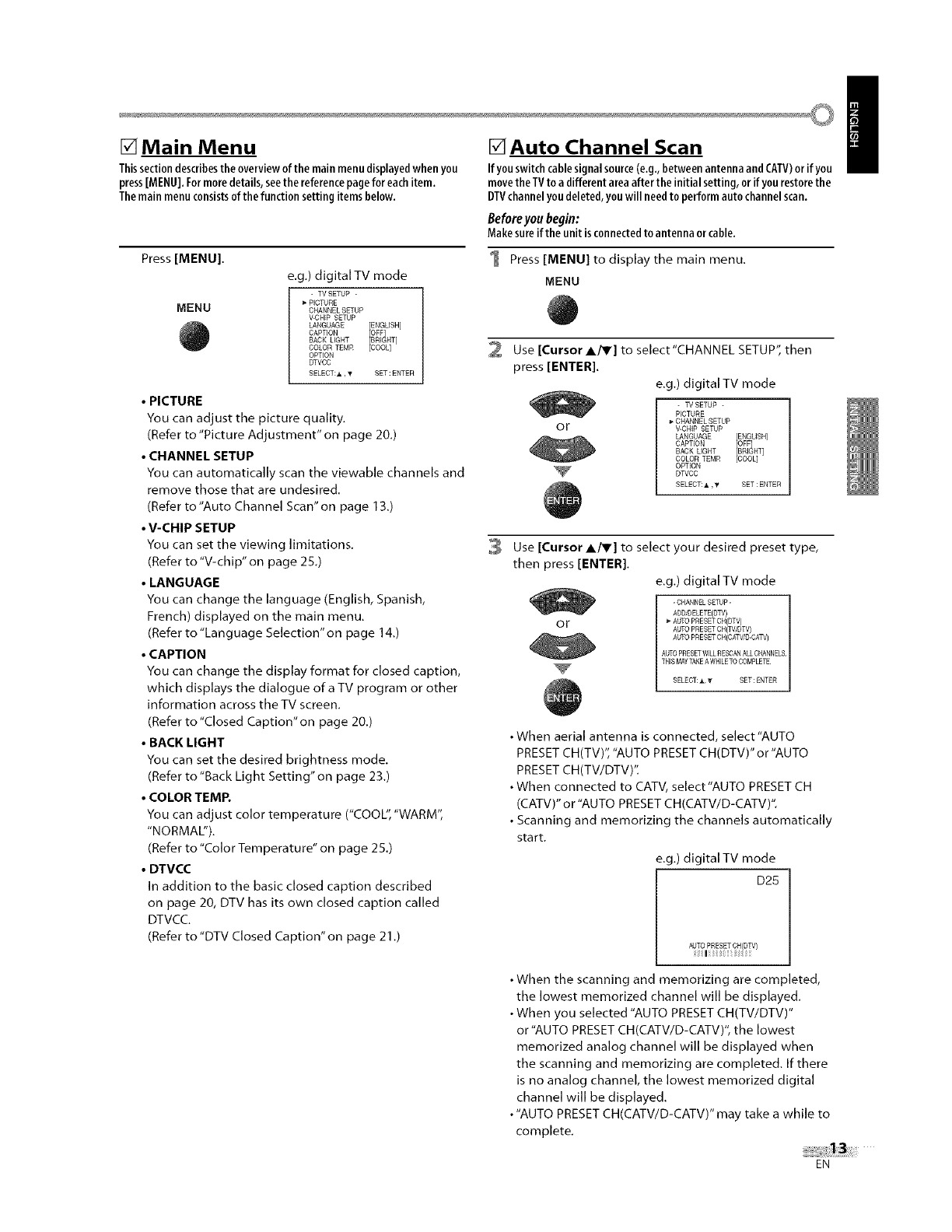
[] Main Menu
Thissectiondescribestheoverviewofthe main menudisplayedwhenyou
press[MENU].Formoredetails,seethe referencepageforeachitem.
Themainmenuconsistsofthe function settingitemsbelow.
Press [MENU].
MENU
e.g.) digital TV mode
TV SETUP -
PICTURE
CHANNEL SETUP
W3NEP SETUP
LANGUAGE
CAPTION
BACK UGNT
COLOR TEMR [COOL]
OPTION
DTVCC
SELECT:h.._ SET:ENTER
•PICTURE
You can adjust the picture quality.
(Refer to "Picture Adjustment" on page 20.)
•CHANNEL SETUP
You can automatically scan the viewable channels and
remove those that are undesired.
(Refer to"Auto Channel Scan" on page 13.)
•V-CHIP SETUP
You can set the viewing limitations.
(Refer to "V-chip" on page 25.)
•LANGUAGE
You can change the language (English, Spanish,
French) displayed on the main menu.
(Refer to "Language Selection" on page 14.)
•CAPTION
You can change the display format for closed caption,
which displays the dialogue ofa TV program or other
information across the TV screen.
(Refer to "Closed Caption" on page 20.)
•BACK LIGHT
You can set the desired brightness mode.
(Refer to "Back Light Setting" on page 23.)
•COLOR TEMP.
You can adjust color temperature ("COOL", "WARM",
"NORMAL").
(Refer to "Color Temperature" on page 25.)
•DTVCC
In addition to the basic closed caption described
on page 20, DTV has its own closed caption called
DTVCC.
(Refer to "DTV Closed Caption"on page 21 .)
[] Auto Channel Scan
Ifyou switchcablesignalsource(e.g.,betweenantennaandCAW)or ifyou
movethe TVto a different areaafter the initialsetting, or if yourestorethe
DTVchannelyoudeleted, youwill needto performauto channelscan.
Before you begin:
Makesure ifthe unitisconnectedto antennaor cable.
1 Press [MENU] to display the main menu.
MENU
2Use [Cursor A/T] to select"CHANNEL SETUP", then
press [ENTER].
e.g.) digital TV mode
or
-TVSETUP -
PICTURE
CNANNEL SETUP
V_CNIP SETUP
LANGUAGE
CAPTION
BACH UGNT
COLOR TEMR
OPTION
DTVCC
SELECT: ,_ .y SET:ENTER
3Use [Cursor A/V] to select your desired preset type,
then press [ENTER].
e.g.) digital TV mode
or
-CHANNEL SETUP-
ADOIDELETE(CTV)
AUTO PRESETCN(DTV)
AUTO PRESETCN(TV/DTV)
AUTO PRESETCN{CATV/D-GATV)
AUTOPRESETWELLRESCANALL CHANNELS
THISMAYTAKEAWHILETOCOMPLETE
SELECT:AT SET:ENTER
•When aerial antenna is connected, select "AUTO
PRESETCH(TV)', "AUTO PRESET CH(DTV)" or "AUTO
PRESETCH(TV/DTV)'I
• When connected to CATV, select"AUTO PRESETCH
(CATV)" or "AUTO PRESETCH(CATV/D-CATV)".
• Scanning and memorizing the channels automatically
start.
e.g.) digital TV mode
D25
/
• When the scanning and memorizing are completed,
the lowest memorized channel will be displayed.
• When you selected "AUTO PRESET CH(TWDTV)"
or "AUTO PRESET CH(CATV/D-CATV)", the lowest
memorized analog channel will be displayed when
the scanning and memorizing are completed. If there
is no analog channel, the lowest memorized digital
channel will be displayed.
• "AUTO PRESET CH(CATV/D-CATV)" may take a while to
complete.
EN
No te:
•If you connect the cable system directly, contact the CATV
installer.
•If you press [POWER] or [MENU] during auto channel scan,
the setting will be canceled.
• When no channel can be received by auto channel scan,
"NO TV SIGNALS" will be displayed on the TV screen.
•Channel settings will be saved even if the power fails.
•If you have Spanish or French men us and need English,
press [MENU]. Use [Cursor A/V] to select "IDIOMA" or
"LANGAGE'f Press [ENTER] to select "ENGLISH". Press
[MENU] to remove the main menu.
• With regard only to the digital channel even after the
scanning is complete if you unplug the AC power cord
before turning off the unit by pressing [POWER], the
channel setting may be lost.
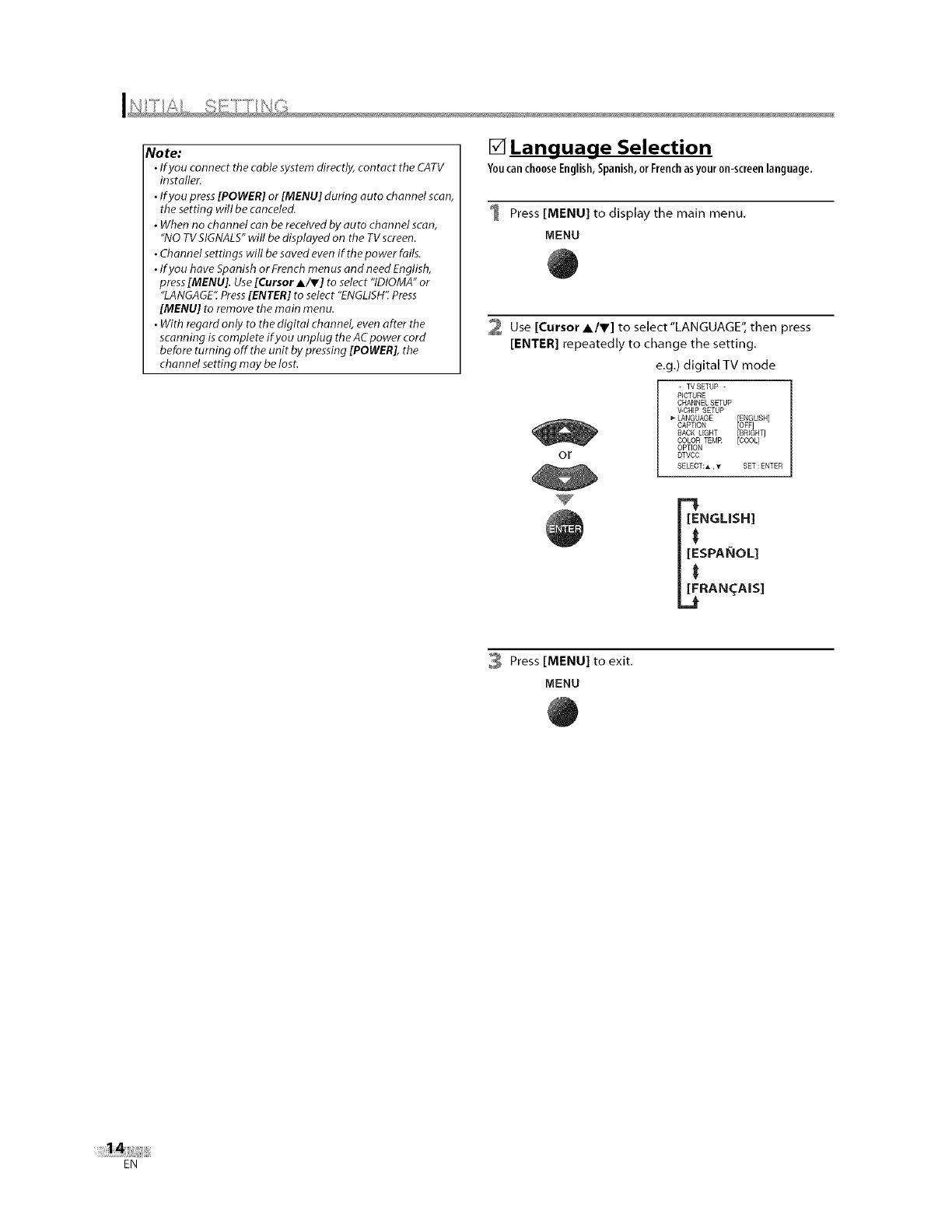
[] Language Selection
You can choose English, Spanish, or French asyour on-screen language.
1 Press [MENU] to display the main menu.
MENU
2 Use [Cursor A/Y] to select"LANGUAGE", then press
[ENTER] repeatedly to change the setting.
e.g.) digital TV mode
or
-TVSETUP -
PICTURE
CHANNEL SETUP
V-CHEP SETUP
LANGUAGE
CAPTION
BACK UGHT
COLOR TEMR [COOL]
OPTION
DTVCC
SELECT:_L ,_ SET:ENTER
NGLISH]
SPAI_IOL]
RAN_AIS]
3 Press [MENU] to exit.
MENU
EN
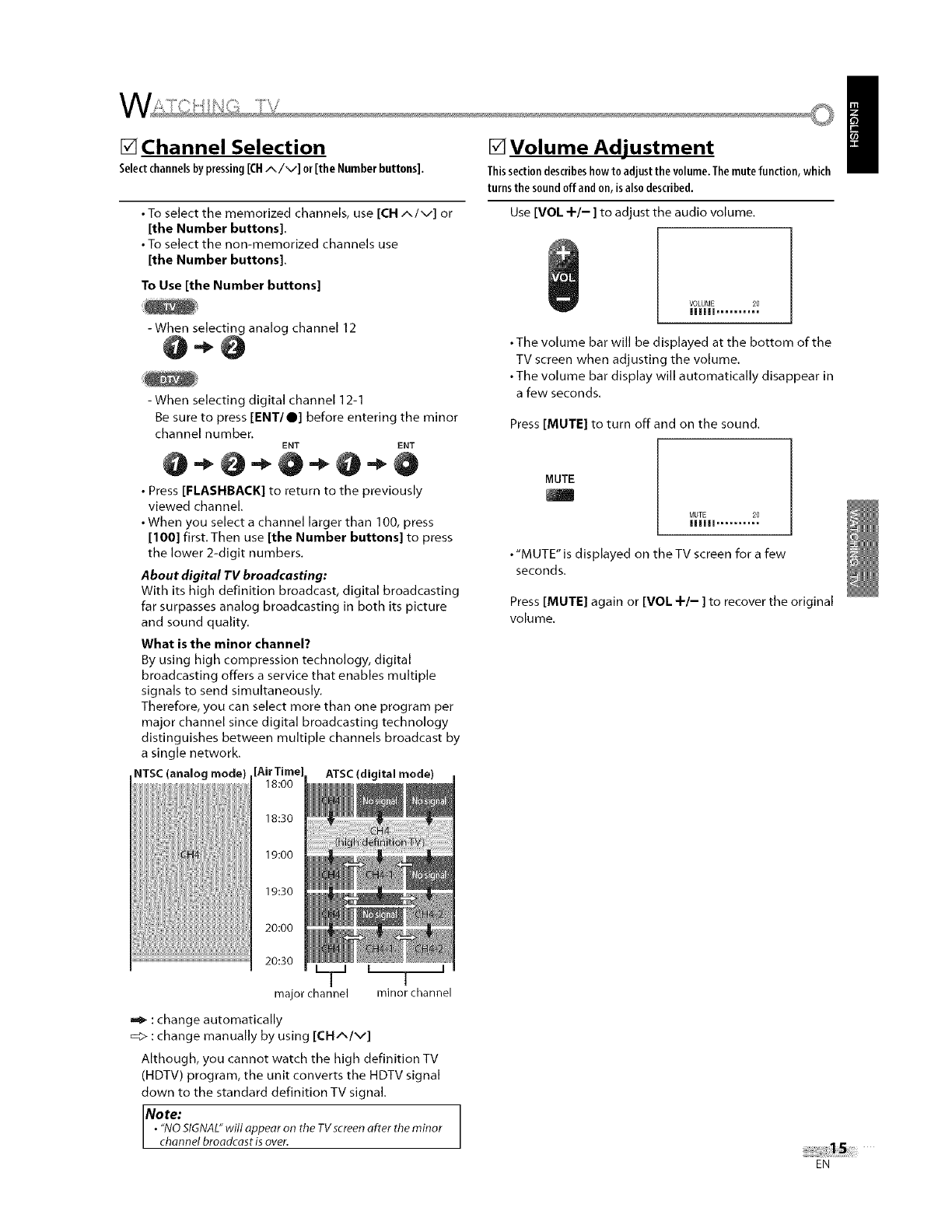
[] Channel Selection
Selectchannelsbypressing[CHA/v] or[the Numberbuttons].
•To select the memorized channels, use [CH A/V] or
[the Number buttons].
• To select the non-memorized channels use
[the Number buttons].
To Use [the Number buttons]
-When selecting analog channel 12
-When selecting digital channel ] 2-1
Be sure to press [ENT/O] before entering the minor
channel number.
ENT ENT
•Press [FLASHBACK] to return to the previously
viewed channel.
• When you select a channel larger than 100, press
[100] first.Then use [the Number buttons] to press
the lower 2-digit numbers.
About digital TV broadcasting:
With its high definition broadcast, digital broadcasting
far surpasses analog broadcasting in both its picture
and sound quality.
What is the minor channel?
By using high compression technology, digital
broadcasting offers a service that enables multiple
signals to send simultaneously.
Therefore, you can select more than one program per
major channel since digital broadcasting technology
distinguishes between multiple channels broadcast by
a single network.
NTSC(analog mode) [AirTim ATSC(digital mode)
18:00
18:30
19:00
19:30
20:00
20:30
major channel minor channel
: change automatically
_> : change manually by using [CH^/v]
Although, you cannot watch the high definition TV
(HDTV) program, the unit converts the HDTV signal
clown to the standard definition TV signal.
Note:
•"NOSIGNAL"will appear on the TVscreen after the minor
channel broadcast is over.
[] Volume Adjustment
Thissectiondescribeshowto adjustthe volume.Themutefunction, which
turnsthe soundoffand on,isalso described.
Use [VOL +/- ] to adjust the audio volume.
VOLUME 20
IIIIII ..........
• The volume bar will be displayed at the bottom of the
TV screen when adjusting the volume.
• The volume bar display will automatically disappear in
a few seconds.
Press [MUTE] to turn offand on the sound.
MUTE
J
MUTE 20
IIIIII ..........
• "MUTE" is displayed on the TV screen for a few
seconds.
Press [MUTE] again or [VOL +/- ] to recover the original
volume.
EN
/
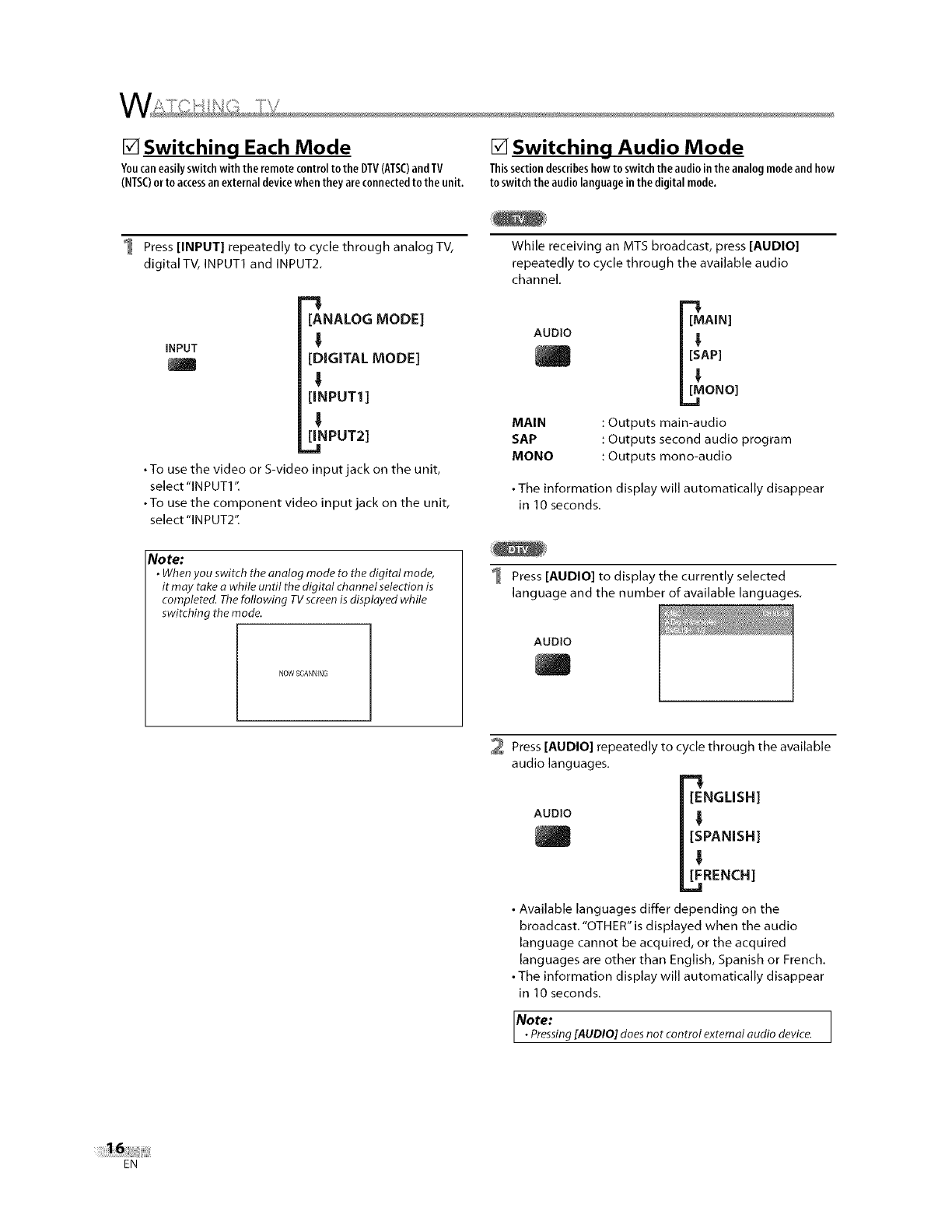
[] Switching Each Mode [] Switching Audio Mode
Youcaneasilyswitchwiththe remotecontrolto the DTV(ATSC)and TV Thissectiondescribeshowto switchthe audiointhe analogmodeand how
(NTSC)orto accessanexternal devicewhentheyareconnectedto the unit, to switchthe audiolanguageinthe digitalmode,
Press [INPUT] repeatedly to cycle through analog TV,
digital TV, INPUT1 and INPUT2.
[ANALOG MODE]
iNPUT _'
I [DIGITAL MODE]
!
[INPUT1 ]
!
[INPUT2]
,,,,,,,!
•To use the video or S-video input jack on the unit,
select "INPUT1"
•To use the component video input jack on the unit,
select "INPUT2"
While receiving an MTS broadcast, press [AUDIO]
repeatedly to cycle through the available audio
channel.
-I
[MAIN]
AUDIO _,
LL_ ONO]
MAIN :Outputs main-audio
SAP : Outputs second audio program
MONO : Outputs mono-audio
• The information display will automatically disappear
in 10 seconds.
No re:
•When you switch the analog mode to the digital mode,
it may take a while until the digital channel selection is
completed. Thefollowing TV screenisdisplayed while
switching the mode.
NOW SCANNING
Press [AUDIO] to display the currently selected
language and the number of available languages.
AUDIO
I
2 Press [AUDIO] repeatedly to cycle through the available
audio languages.
-!
[ENGLISH]
AUDIO
I [SPANISH]
I
[FRENCH]
• Available languages differ depending on the
broadcast. "OTHER" is displayed when the audio
language cannot be acquired, or the acquired
languages are other than English, Spanish or French
• The information display will automatically disappear
in 10 seconds.
Note: 1
•Pressing[AUDIO] does not control external audio device. J
EN
[] Screen Information
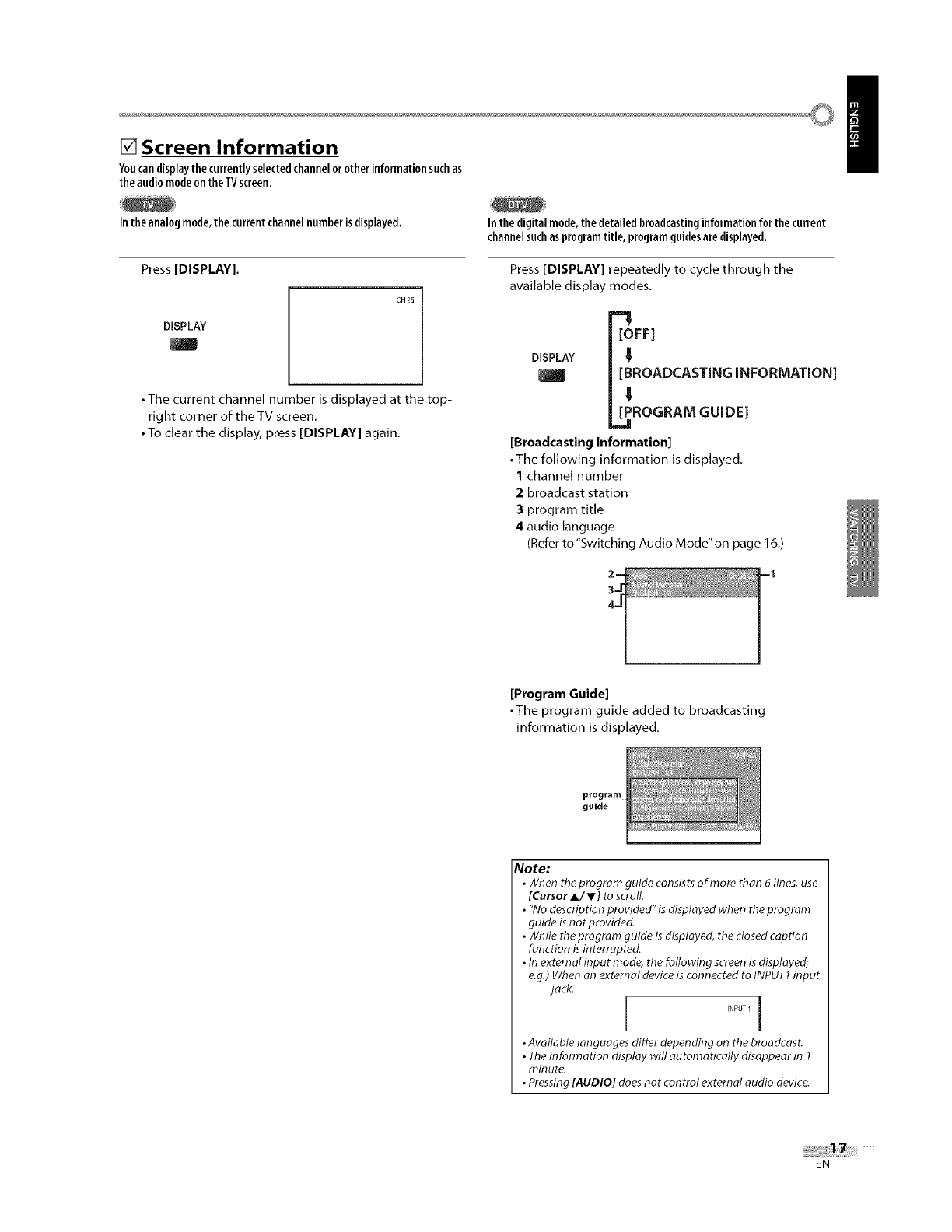
Youcandisplaythe currentlyselectedchannelor otherinformationsuchas
the audiomodeontheTVscreen. /
Inthe analog mode,the current channelnumber isdisplayed.
Press [DISPLAY].
DISPLAY
OH 2_
• The current channel number is displayed at the top-
right corner of the TV screen.
• To clear the display, press [DISPLAY] again.
In the digital mode,the detailed broadcastinginformationfor the current
channelsuchasprogramtitle, programguidesaredisplayed.
Press [DISPLAY] repeatedly to cycle through the
available display modes.
[OFF]
DISPLAY _'
J [BROADCASTING INFORMATION]
!
[PROGRAM GUIDE]
,.,1
[Broadcasting Information]
• The following information is displayed.
1 channel number
2broadcast station
3program title
4 audio language
(Refer to "Switching Audio Mode" on page 16.)
[Program Guide]
• The program guide added to broadcasting
information is displayed.
program
guide
Note:
•When theprogrom guide consists of more than 6 lines, use
[Cursor A/V] to scroll.
• "No description provided"is displayed when the program
guide isnot provided.
•While the program guide is displayed, the closed caption
function isinterrupted.
•In external input mode, the following screenis displayed;
e.g.)When an external device is connected to INPUT1input
jack.
INPOT 1 [
•Available languages differ depending on the broadcast.
•Theinformation display will automatically disappear in 1
minute.
•Pressing[AUDIO] doesnot control external audio device.
EN
[] TV Screen Display Mode
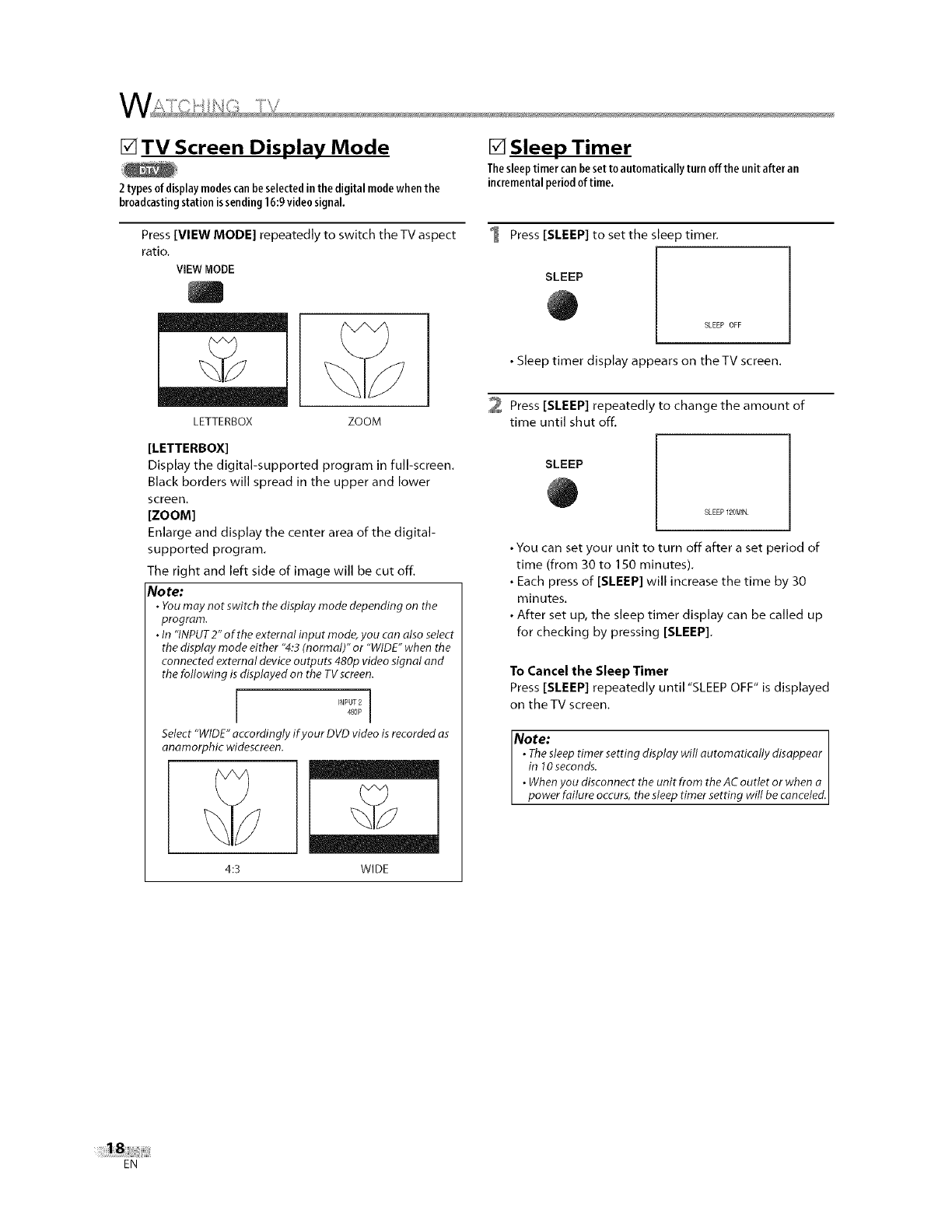
2typesof displaymodescanbeselectedin the digital modewhen the
broadcastingstation issending 16:9video signal.
Press [VIEW MODE] repeatedly to switch the TV aspect
ratio.
VIEWMODE
LETTERBOX ZOOM
[LETTERBOX]
Display the digital-supported program in full-screen.
Black borders will spread in the upper and lower
screen,
[ZOOM]
Enlarge and display the center area of the digital-
supported program.
The right and left side of image will be cut off,
Note:
•Youmay not switch the display mode depending on the
program.
•In "INPUT2" of the external input mode, you can also select
the display mode either "4:3 (normal)" or "WIDE" when the
connected external device outputs 480p video signal and
the following is displayed on the TVscreen.
[INPUT2 i4SOP
Select "WIDE" accordingly if your DVD video is recorded as
anamorphic widescreen.
4:3 WIDE
[] Sleep Timer
Thesleeptimercanbesettoautomaticallyturn offthe unitafteran
incrementalperiodoftime.
1
SLEEP
Press [SLEEP] to set the sleep timer.
SLEEP OFF
•Sleep timer display appears on theTV screen.
2 Press [SLEEP] repeatedly to change the amount of
time until shut off,
SLEEP
SLEEP 120MIN
•You can set your unit to turn off after a set period of
time (from 30 to 150 minutes).
• Each press of [SLEEP] will increase the time by 30
minutes.
• After set up, the sleep timer display can be called up
for checking by pressing [SLEEP].
To Cancel the Sleep Timer
Press [SLEEP] repeatedly until "SLEEP OFF" is displayed
on the TV screen.
Note: I
•The sleep timer setting display will automatically disappear
in I 0seconds, l
• When you disconnect the unit from the AC outlet or when a
power failure occurs, the sleep timer setting will be canceled.
EN
[] Channel Add/Delete
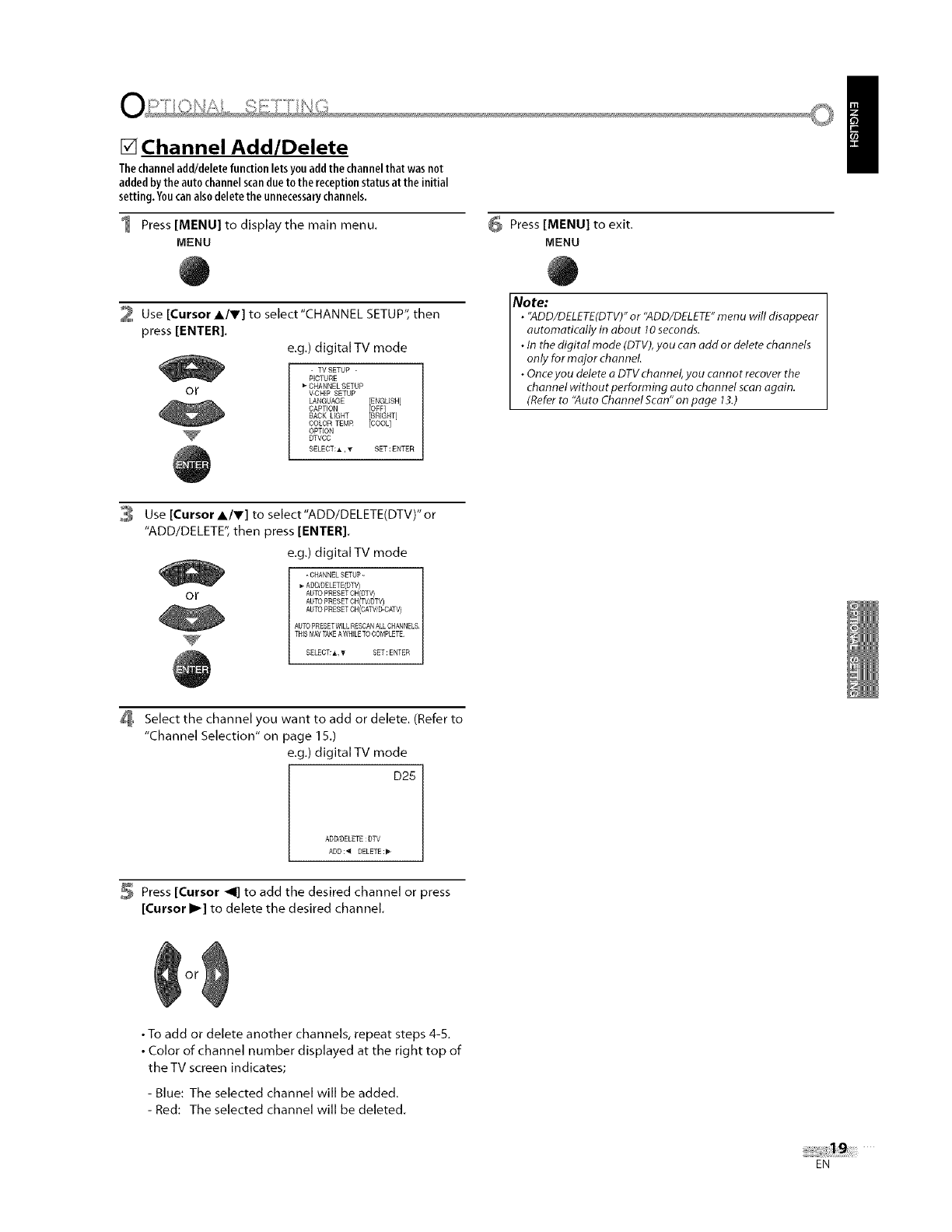
Thechanneladd/deletefunctionletsyouaddthechannelthat wasnot
addedby theauto channelscandueto the receptionstatusat the initial
setting. Youcanalsodeletethe unnecessarychannels.
1 Press [MENU] to displaythe main menu.
MENU
Press [MENU] to exit.
MENU
/
2 Use [Cursor A/V] to select"CHANNEL SETUP", then
press [ENTER],
e.g.) digital TV mode
or
- TVSETUP -
PICTURE
CHANNEL SETUP
V_HEP SETUP
LANGUAGE
CAPTION
BACK LIGHT
COLON TEMR [COOL]
OPTION
DTVCC
SELECT:,L ,y SET:ENTER
Note:
• "ADD/DELETE(DTV)"or "ADD/DELETE"menu will disappear
automatically in about 10seconds.
•In the digital mode (DTV),you can add or delete channels
only for major channel
• Onceyou delete aDTV channel, you cannot recover the
channel without performing auto channel scan again.
(Refer to "Auto Channel Scan" on page 13.)
3Use [Cursor A/r] to select"ADD/DELETE(DTV)" or
"ADD/DELETE", then press [ENTER].
e.g.) digital TV mode
or
- CHANNELSETUP -
ADOiDELETE(DW)
AUTO PRESETCH(OT_
AUTO PRESETCH(W_W)
AUTO PRESETCH(¢ATV_D_AT_
AUTOPRESETWILL RESCANALLCHANNELS¸
THISMAYTAKEAWHILETOCOMPLETE¸
SELECT:A,T SET:ENTER
Select the channel you want to add or delete. (Refer to
"Channel Selection" on page 1S.)
e.g.) digital TV mode
D25
ADD/DELETE:DTV
ADD:_ DELETE:_
Press [Cursor _1] to add the desired channel or press
[Cursor I_] to delete the desired channel.
•To add or delete another channels, repeat steps 4-5.
• Color of channel number displayed at the right top of
the TV screen indicates;
- Blue: The selected channel will be added.
- Red: The selected channel will be deleted.
EN
[] Picture Adjustment
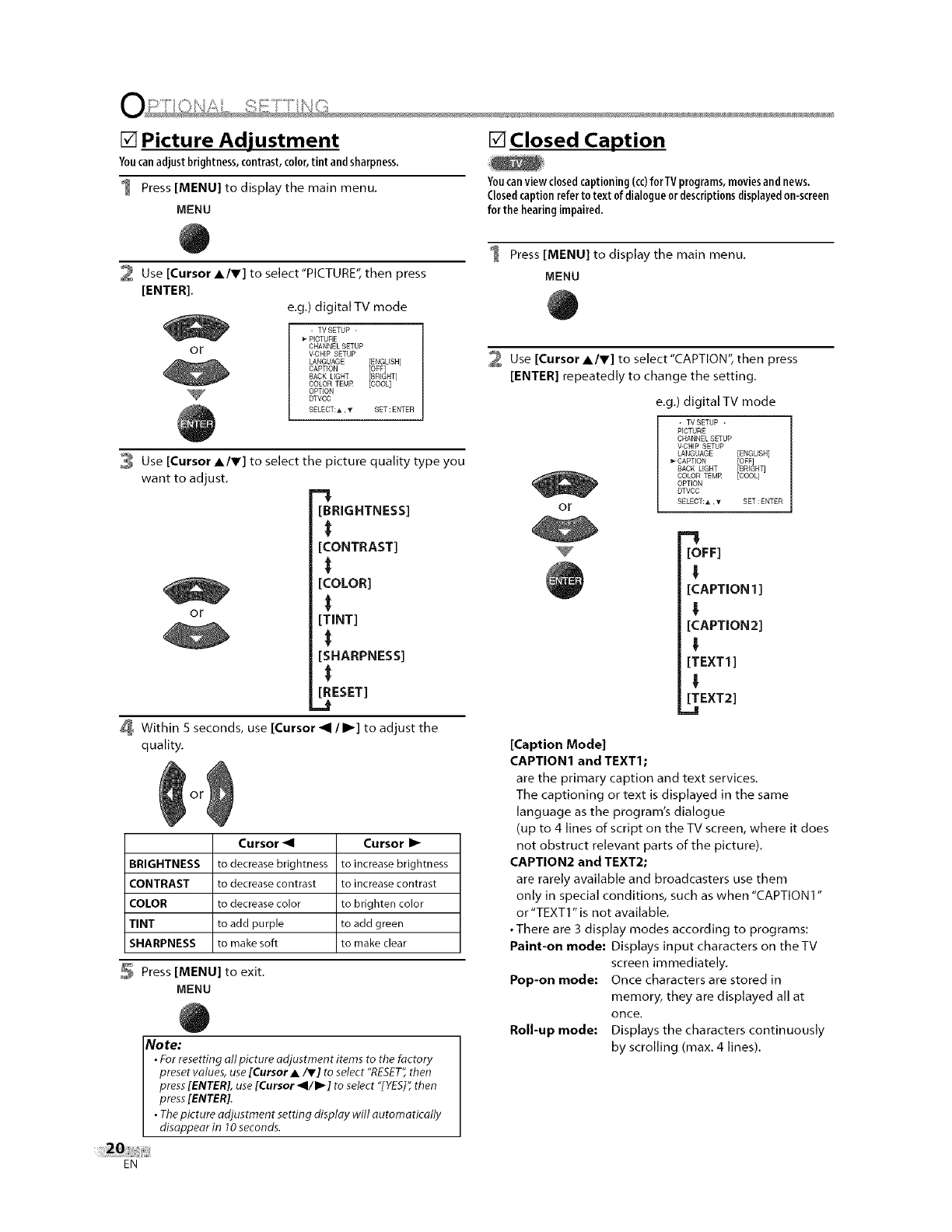
Youcanadjustbrightness,contrast,color,tint andsharpness.
1 Press [MENU] to display the main menu.
MENU
[] Closed Caption
Youcanviewclosedcaptioning(co)forTV programs,moviesandnews.
Closedcaptionrefertotext ofdialogueordescriptionsdisplayedon-screen
forthehearingimpaired.
2 Use [Cursor A/V] to select"PICTURE", then press
[ENTER].
e.g,) digital TV mode
or
- TVSETUP -
PICTURE
CHANNEL SETUP
V43HEP SETUP
LANGUAGE
CAPTION
BACK UGHT
COLOR TEMR [COOL]
OPTION
DTVCC
SELECT:A ,y SET:ENTER
Use [Cursor A/V] to select the picture quality type you
want to adjust.
[BRIGHTNESS]
[CONTRAST]
[COLORI
[TINT]
[SHARPNESS]
[RESET]
_ Within 5 seconds, use [Cursor _I/_1 to adjust the
quality.
Cursor _1
or
Cursor I_
BRIGHTNESS to decreasebrightness to increase brightness
CONTRAST to decreasecontrast to increasecontrast
COLOR to decreasecolor to brighten color
TINT to add purple to add green
SHARPNESS to make soft to make clear
Press [MENU] to exit.
MENU
NO te:
•For resetting all picture adjustment items to the factory
preset values, use[Cursor •,iV] to select "RESET",then
press[ENTER], use[Cursor _1/1_ ] to select "[YES]",then
press[ENTER]. ,,
•Thepicture adjustment setting display will automatically
disappear in 10seconds.
1 Press [MENU] to display the main menu.
MENU
Use [Cursor A/r] to select "CAPTION", then press
[ENTER] repeatedly to change the setting.
e.g,) digital TV mode
or
-TVSETUP -
PICTURE
CHANNEL SETUP
V-CHEP SETUP
LANGUAGE
_- CAPTION
SACK LIGHT
COLOR TEMR
OPTION
DTVCC
SELECT:,L ,y SET:ENTER
-!
[OFF]
!
[CAPTION 1 ]
!
[CAPTION2]
!
[TEXT1]
!
[TEXT2]
=,,=tl
[Caption Mode]
CAPTION1 and TEXT1;
are the primary caption and text services.
The captioning or text is displayed in the same
language as the program's dialogue
(up to 4 lines of script on the TV screen, where it does
not obstruct relevant parts of the picture).
CAPTION2 and TEXT2;
are rarely available and broadcasters use them
only in special conditions, such as when "CAPTION 1"
or "TEXT1" is not available.
• There are 3 display modes according to programs:
Paint-on mode; Displays input characters on theTV
screen immediately.
Pop-on mode: Once characters are stored in
memory, they are displayed all at
once.
Roll-up mode: Displays the characters continuously
by scrolling (max. 4 lines).
EN
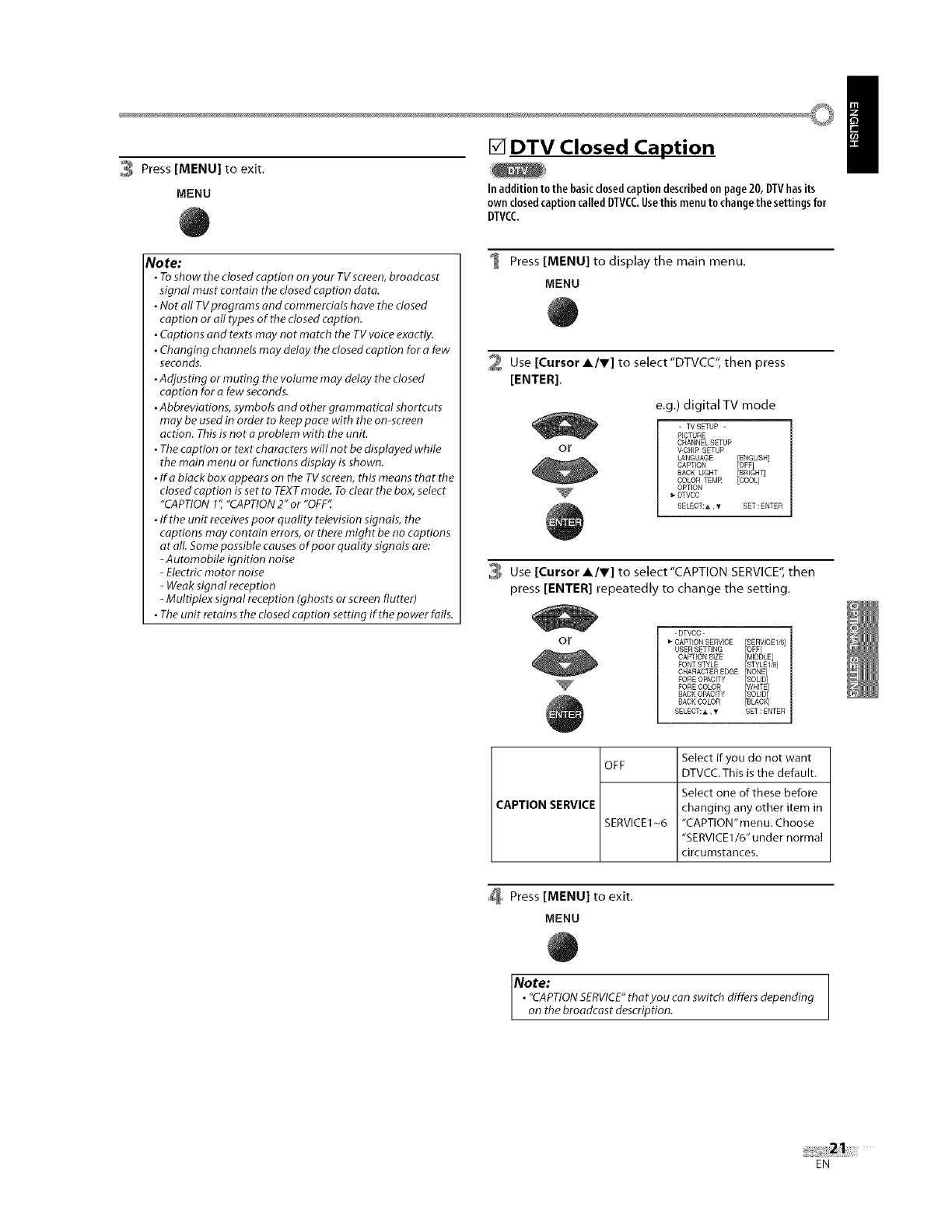
Press[MENU]toexit.
MENU
[] DTV Closed Caption
In addition to the basicclosedcaption describedonpage20, DTVhasits
ownclosedcaptioncalledDTVCC.Usethismenutochangethe settingsfor
DTVCC.
/
No re:
•Toshow the closed caption on your TVscreen, broadcast
signal must contain the dosed caption data.
•Not all TVprograms and commerdals have the dosed
caption or all types of the closed caption.
•Captions and texts may not match the TV voiceexactly.
•Changing channels may delay the dosed caption for a few
seconds.
•Adjusting or muting the volume may delay the dosed
caption for a few seconds.
•Abbreviations, symbols and other grammatical shortcuts
may be usedin order to keeppace with the on-screen
action. Thisis not a problem with the unit.
• Thecaption or text characters will not be displayed while
the main menu or functions display is shown.
•Ira black box appears on the TVscreen, this means that the
closed caption isset to TEXTmode. Todear the box, select
"CAPTION1","CAPTION2" or "OFF'_
•If the unit receivespoor quality television signals, the
captions may contain errors, or there might be no captions
at all. Somepossible causesof poor quality signals are:
-Automobile ignition noise
-Electric motor noise
-Weak signal reception
-Multiplex signal reception (ghosts or screen flutter)
• The unit retains the dosed caption setting if the power fails.
1 Press [MENU] to display the main menu.
MENU
2 Use [Cursor A/V] to select"DTVCC", then press
[ENTER].
or
e.g,) digital TV mode
- TVSETUP -
P]CTURB
CHANNEL SETUP
WCNIP SETUP
LANGUAGE
CAPTION
BACK LIGHT
COLOR TEMP [COOL]
OPTION
DTVCC
SELECT:_ ,_ SET:ENTER
Use [Cursor AIr] to select "CAPTION SERVICE",then
press [ENTER] repeatedly to change the setting.
or - DTVCC -
CAPTION SERVICE SERVICE 1/6]
USBR SETTING OFF
CAPTION SIZE [MIDDLE]
STYLE1/8]
FONT STYLE fNONE
CHARACTER EDGE
FORE OPACITY SOL O
FORE COLOR
BACK OPACITY
BACK COLOR [BLACK]
SELECT: A, Y SET : ENTER
CAPTION SERVICE
OFF
SERVICE1-6
Select if you do not want
DTVCC. This is the default.
Select one of these before
changing any other item in
"CAPTION" menu. Choose
"SERVICE1/6" under normal
circumstances.
Press [MENU] to exit.
MENU
Note;
• "CAPTIONSERVICE"thatyou can switch differs depending
on the broadcast description.
EN

[] DTVCC Style
Youcanchangethe styleof DTVCCsuchasfont,coloror size,etc.
1 Press [MENU] to display the main menu.
MENU
2 Use [Cursor A/V] to select"DTVCC", then press
[ENTER].
or
e.g.) digital TV mode
- TVSETUP -
PICTURE
CHANNEL SETUP
V43HEP SETUP
LANGUAGE
CAPTION
BACK LIGHT
COLOR TEMR [COOL]
OPTION
DTVCC
SELECT:A ,y SET:ENTER
Use [Cursor AIr] to select"USER SETTING", then press
[ENTER] repeatedly to set to "ON".
•Items in the dotted box are available only when "USER
SETTING" is"ON".
or
Use [Cursor AIr] to select an item, then press
[ENTER] repeatedly to change the setting for the item.
or
1
- DTVCC -/
CAPTION SERVICE [SERVICE 1/6] /
USER SETTING ON
, CAPT,ON S,ZE fM,_DLE
FONT STYLE [STYLEI,8] |
CHARACTER EDGE NONEt /PORE OPACITY fSOU
PORE COLOR [WHITE] |
SACK OPACITY SOLED
SACKCOLORESL,_C#1
SELECT: A, Y SET : ENTER J
•CAPTION SIZE
Closed captioning font size can be changed as below.
•FONT STYLE
Font style of the displayed caption can be switched as
below.
•CHARACTER EDGE
Edge type of the displayed caption can be switched
as below.
•FORE COLOR, BACK COLOR
Font and background color of the displayed caption
can be switched as below.
•FORE OPACITY, BACK OPACITY
Text and background opacity of the displayed caption
can be switched as below.
CAPTION SIZE
FONT STYLE
MIDDLE, LARGE, SMALL
STYLE1/8 Proportional font used in the
menu screen
STYLE2/8 Monospaced with serifs
STYLE3/8 Proportionally spaced with
serifs
STYLE4/8 Monospaced with serifs
STYLES/8 Proportionally spaced
without serifs
STYLE6/8 Casual font type
STYLE7/8 Cursive font type
STYLE8/8 Small capitals
NONE, RAISED, DEPRESSED, UNIFORM,
SHADOW LEFT, SHADOW RIGHT
SOLID, TRANSLUCENT, FLASH
WHITE, BLACK, RED, GREEN, YELLOW,
BLUE, MAGENTA, CYAN, TRANSPARENT
SOLID, TRANSLUCENT, FLASH
BLACK, RED, GREEN, BLUE, YELLOW,
MAGENTA, CYAN, TRANSPARENT, WHITE
CHARACTER EDGE
FORE OPACITY
FORE COLOR
BACK OPACITY
BACK COLOR
Press [MENU] to exit.
MENU
EN
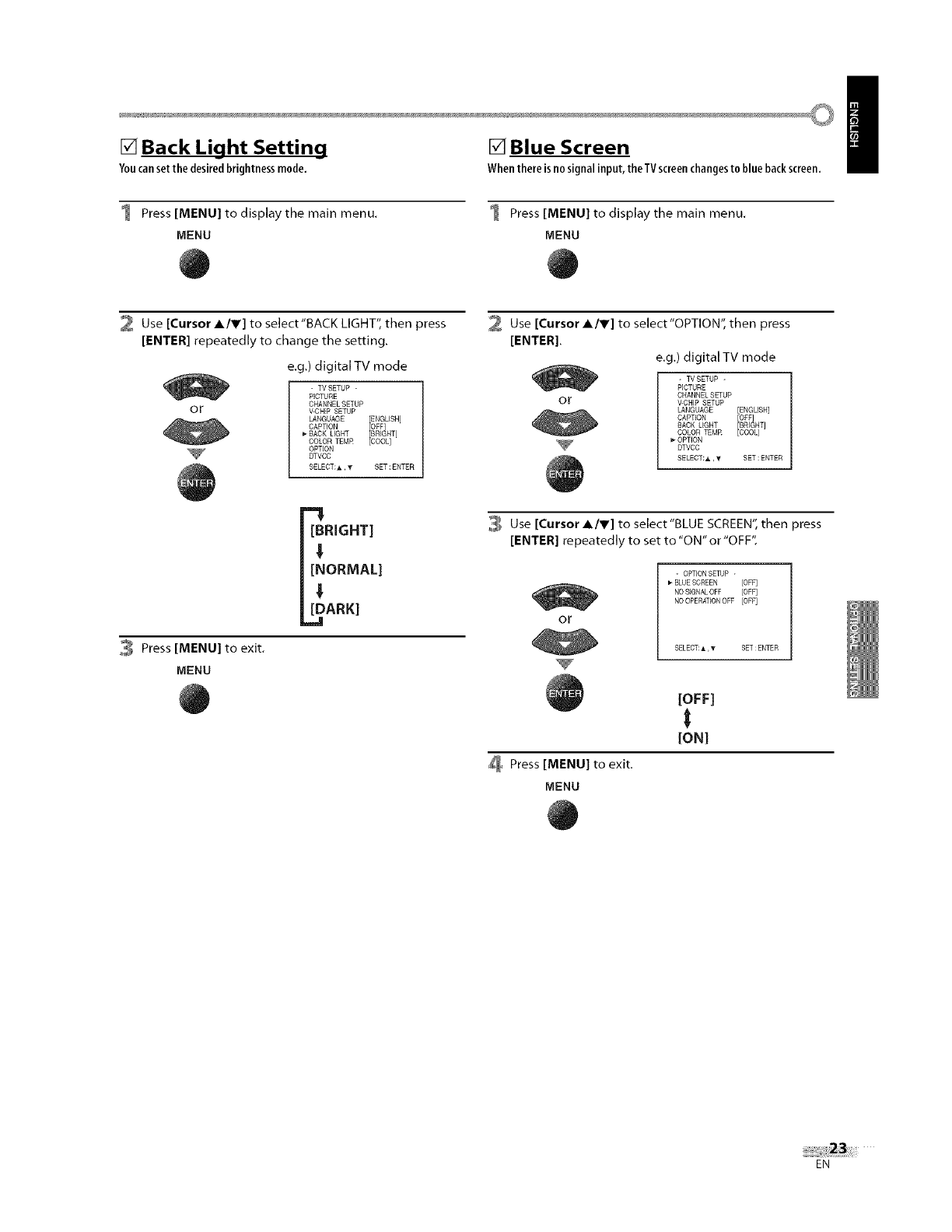
[] Back Light Setting
Youcansetthe desiredbrightnessmode,
[] Blue Screen
Whenthereisnosignalinput,the TVscreenchangesto bluebackscreen, /
1 Press [MENU] to display the main menu.
MENU
Press [MENU] to display the main menu.
MENU
2 Use [Cursor A/V] to select"BACK LIGHT", then press
[ENTER] repeatedly to change the setting.
or
e.g.) digital TV mode
- TVSETUP -
PICTURE
CHANNEL SETUP
V43HEP SETUP
LANGUAGE
CAPTION
BACK LIGHT
COLON TEMR [COOL]
OPTION
DTVCC
SELECT:A ,y SET:ENTER
Use [Cursor A/r] to select"OPTlON", then press
[ENTER].
e.g.) digital TV mode
or
- TVSETUP -
PICTURE
CHANNELSETUP
_CNEP SETUP
LANGUAGE
CAPTION
£RFGHT
BACK UGHT fCOOL
COLOR TEMR
OPTION
DTVCC
SELECT:A,y SET:ENTER
[BRIGHT]
3 Press [MENU] to exit.
MENU
!
[NORMAL]
!
[DARK]
__J
Use [Cursor A/r] to select "BLUE SCREEN", then press
[ENTER] repeatedly to set to "ON" or "OFF".
- OPTIONSETUP -
BLUESCREEN [OFF]
NO SIGNALOFF [OFF]
NO OPERATIONOFF [OFF]
or
SELECT:AT
Press [MENU] to exit.
MENU
[OFF]
[ON]
SET:ENTER
EN
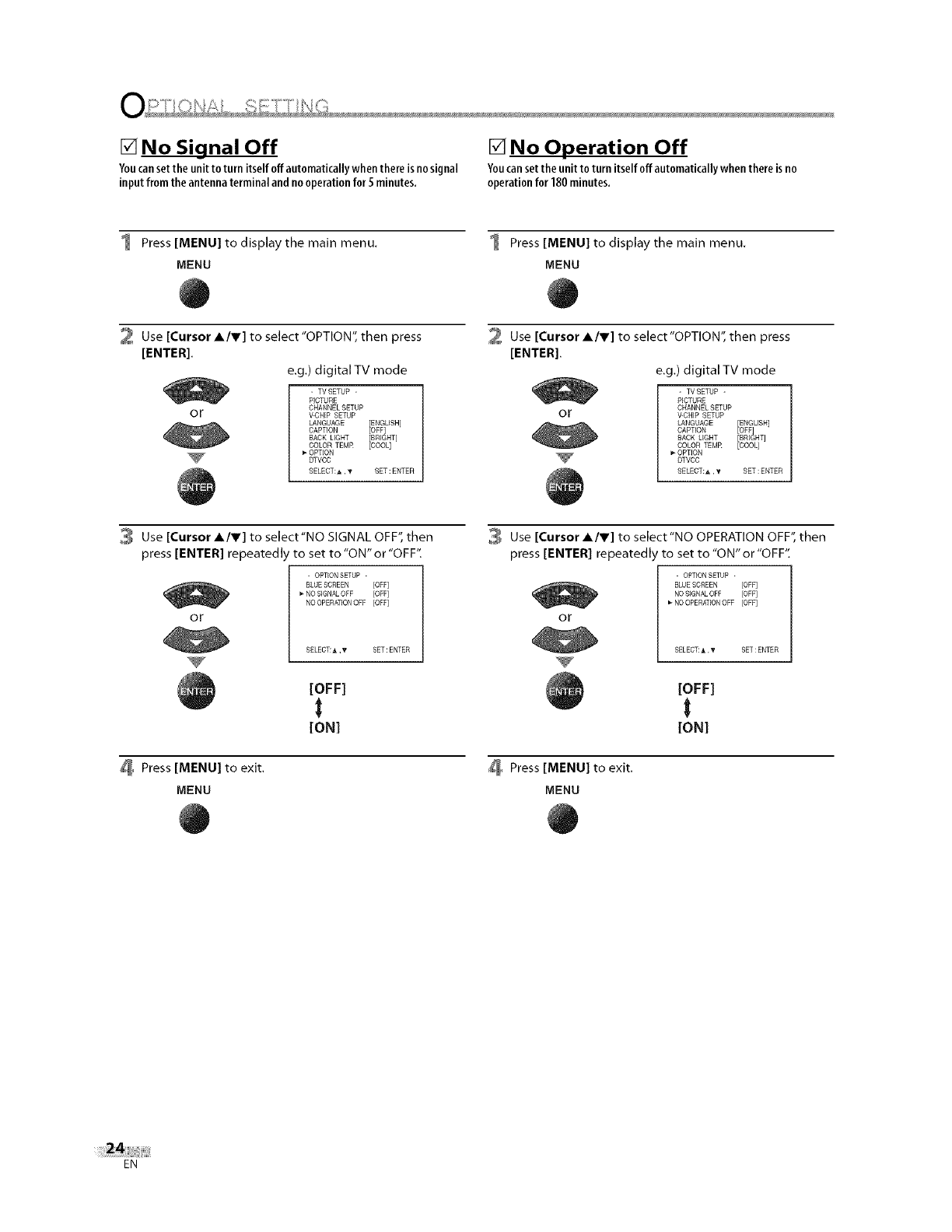
[] No Signal Off [] No Operation Off
Youcansetthe unitto turn itselfoffautomaticallywhenthereisnosignal Youcansetthe unitto turnitselfoff automatically whenthereisno
inputfrom the antennaterminalandnooperationfor 5 minutes, operationfor 180 minutes.
1 Press [MENU] to display the main menu.
MENU
1 Press [MENU] to display the main menu.
MENU
2 Use [Cursor A/V] to select"OPTION", then press
[ENTER].
e.g,) digital TV mode
or
- TVSETUP -
PICTURE
CHANNEL SETUP
V43HFP SETUP
LANGUAGE
CAPTION
BACK UGHT
COLOR TEMR [COOL]
OPTION
DTVCC
SELECT:h. ,y SET:ENTER
Use [Cursor A/r] to select'OPTION", then press
[ENTER].
e.g.) digital TV mode
or
- TVSETUP -
PICTURE
CHANNEL SETUP
V-CHEP SETUP
LANGUAGE
CAPTION
HACK UGHT
COLOR TEMR [COOL]
OPTION
DTVCC
SELECT:A ,y SET:ENTER
Use [Cursor A/V] to select"NO SIGNAL OFF", then
press [ENTER] repeatedly to set to "ON" or "OFF"
I-OPTEONSETUP -
BLUESCREEN [OFF]
NO SIGNALOFF [OFF]
NO OPERATIONOFF [OFF]
SELECT:_,, T SET : ENTER
or
[OFF]
t
[ON]
Press [MENU] to exit.
MENU
Use [Cursor A/r] to select "NO OPERATION OFF", then
press [ENTER] repeated 'to set to"ON" or"OFF".
or
-OPTIONSETUP -
BLUESCREEN [OFF]
NO SIGNALOFF [OFF]
_ NO OPERATIONOFF [OFF]
SELECT:A,T SET:ENTER
[OFF]
t
[ON]
Press [MENU] to exit.
MENU
EN
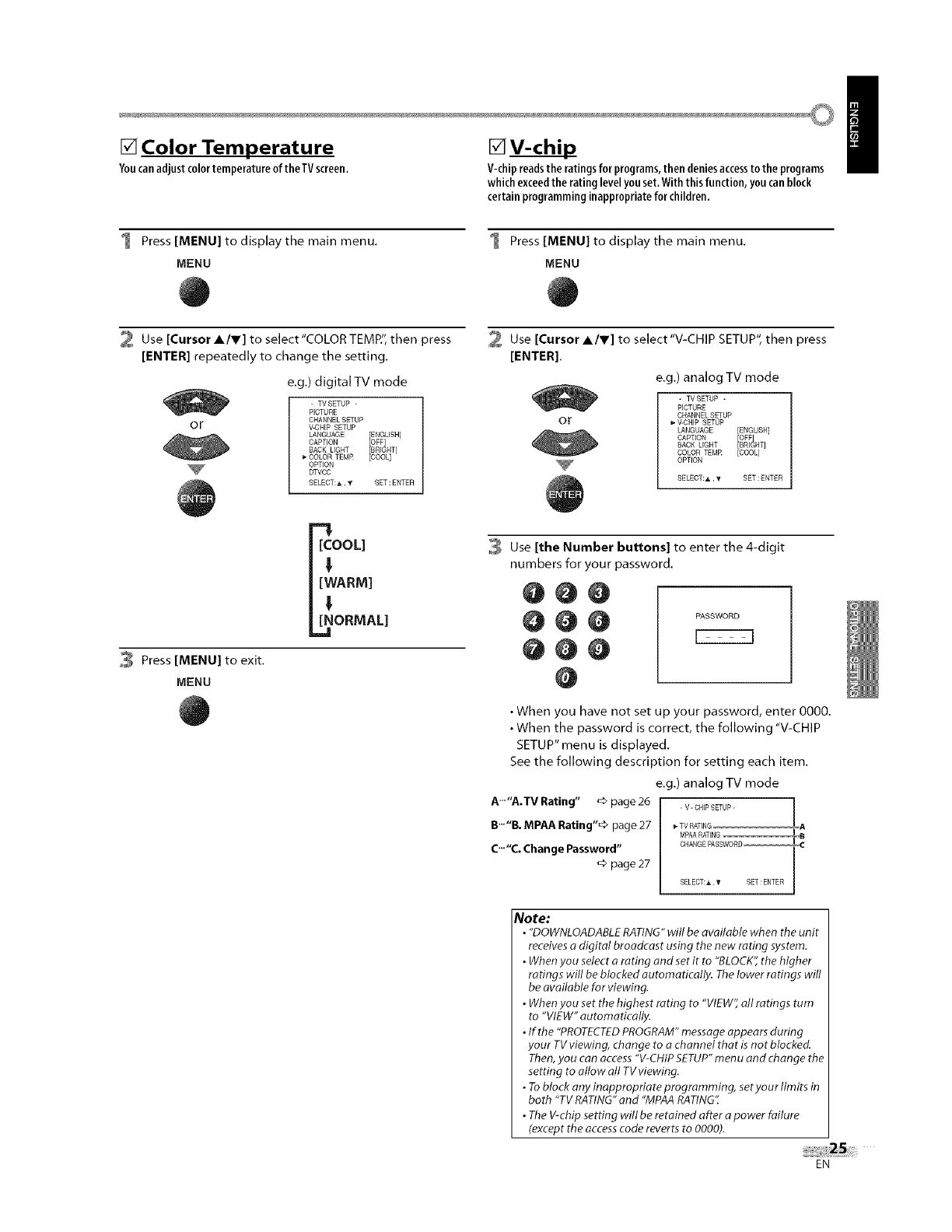
[] Color Temperature
Youcanadjust color temperature of theTVscreen.
[]V-chip_
V-chipreadsthe ratingsforprograms,then deniesaccessto the programs
whichexceedthe rating levelyouset.With thisfunction,youcanblock
certainprogramminginappropriateforchildren.
/
1 Press [MENU] to display the main menu.
MENU
1 Press [MENU] to display the main menu.
MENU
2 Use [Cursor AIr] to select"COLOR TEMP", then press
[ENTER] repeatedly to change the setting.
or
e.g,) digital TV mode
- TVSETUP -
PICTURE
CHANNEL SETUP
V_3HIP SETUP
LANGUAGE [ENGLISH]
CAPTION [OFF]
£HIGHT
BACK LIGHT fCOOL
_- COLOR TEMR
OPTION
_VCC
SELECT:A ,y SET:ENTER
Use [Cursor AIr] to select "V-CHIP SETUP", then press
[ENTER].
e.g,) analog TV mode
or
V
- TVSETUP -
PICTURE
CHANNEL SETUP
V-CHIP SETUP
LANGUAGE
CAPTION
BACK LIGHT
COLOR TEMR [COOL]
OPTION
SELECT:A,y SET:ENTER
[COOL]
t
[WARM]
!
[NORMAL]
Press [MENU] to exit.
MENU
Use [the Number buttons] to enter the 4-digit
numbers for your password.
000
@0@ Asswo0o
@@@
O
• When you have not set up your password, enter 0000.
• When the password is correct, the following "V-CHIP
SETUP" menu is displayed.
See the following description for setting each item.
e.g.) analog TV mode
A'""A.TV Rating" _ page 26 . v-cHipSETUP- |
• 11_>
B B. MPAA Rating page 27 _TVSAT_HG
MPAA RATING
C'""C.Change Password" CHANGEPASSWORD--
_>page 27
SELECT:_,, T SET : ENTER
Note:
•"DOWNLOADABLERATING"will be available when the unit
receivesadigital broadcast using the new rating system.
•Whenyou select o rating and set it to "BLOCK'_the higher
ratings will be blocked automatically. The lower ratings will
be available for viewing.
•Whenyou set the highest rating to "VIEW" all ratings tum
to "VIEW" automatically.
•If the "PROTECTEDPROGRAM"message appears during
your TVviewing, change to achannel that is not blocked.
Then, you can access "V-CHIPSETUP"menu and change the
setting to allow all TV viewing.
•Toblock any in@propriote programming, setyour limits in
both "TV RATING"and "MPAARATING".
•The V-chip setting will be retained after apower failure
(except the accesscode reverts to 0000).
EN
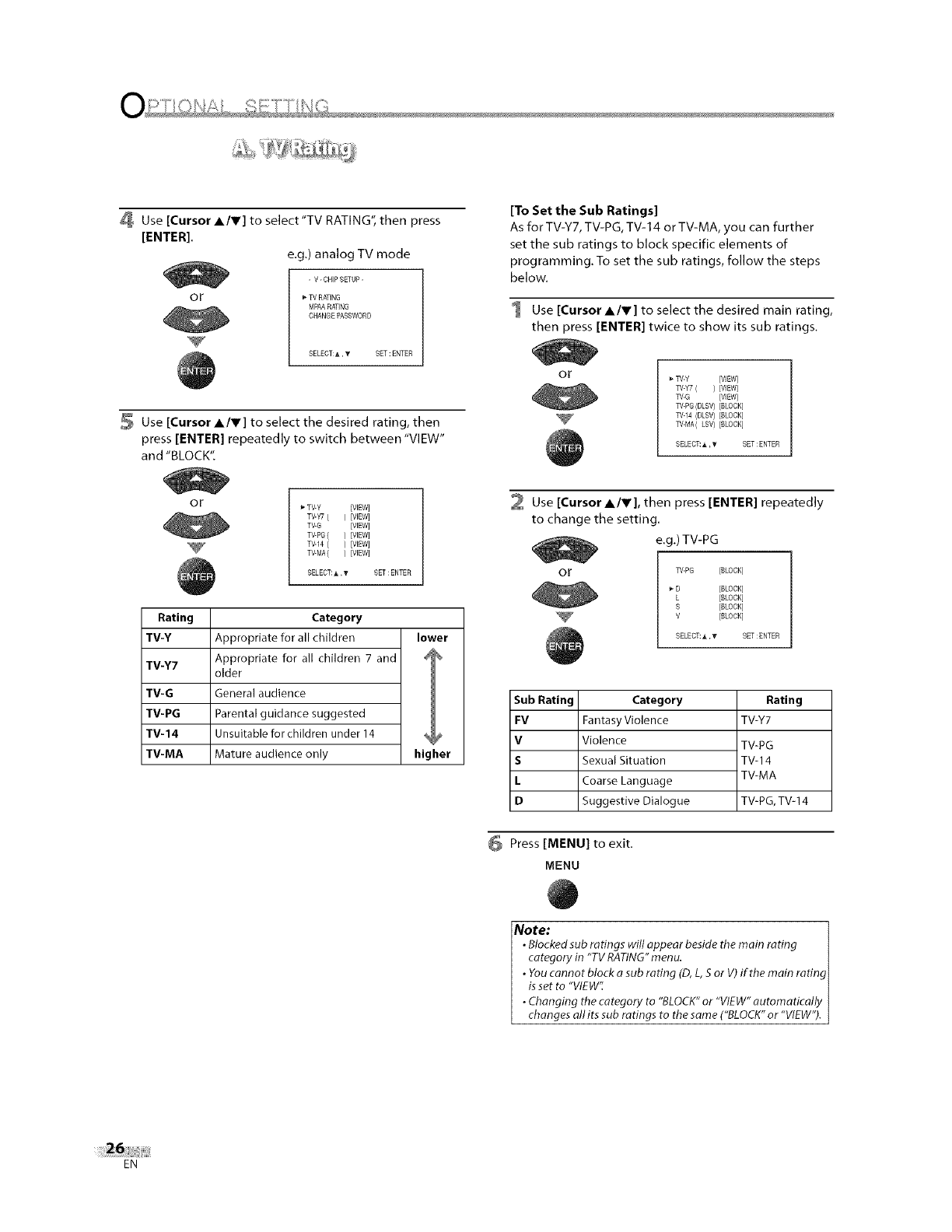
Use [Cursor A/V] to select'TV RATING", then press
[ENTER].
e.g.) analog TV mode
or
- V-CHIP SETUP-
TV RATING
MPAA RATING
CHANGE PASSWORD
SELECT:_, '_ SET: ENTER
Use [Cursor A/V] to select the desired rating, then
press [ENTER] repeatedly to switch between "VIEW"
and "BLOCK".
or
[To Set the Sub Ratings]
As for TV-Y7,TV-PG, TV-14 or TV-MA, you can further
set the sub ratings to block specific elements of
programming. To set the sub ratings, follow the steps
below.
1 Use [CursorS/V] to select the desired main rating,
then press [ENTER] twice to show its sub ratings.
or
V
TV-Y [V]EW]
TV-¥7 ( )[VlEW]
W-G [VIEW]
TV-PG(DLSV)[SLOCK]
TV-14 (DLSV) [SLOCK]
TV-MS(LSV) [BLOCK]
SELECT:_, _ SET: ENTER
_* TV-Y [VEEW]
TV-Y7 ( ) [VEEW]
TV-G [VIEW]
TV-PG( ) [VEEW]
TV-14 ( ) [VEEW]
TV-MA( ) [VIEW]
SELECT:_,, _" SET : ENTER
Rating Category
TV-Y Appropriate for all children lower
TV-Y7 Appropriate for all children 7 and 4
older
TV-G General audience
TV-PG Parental guidance suggested
TV-14 Unsuitable for children under 14 %#
TV-MA Mature audience only higher
2 Use [Cursor slY], then press [ENTER] repeatedly
to change the setting.
e.g.) TV-PG
or W-PG [SLOCK]
_- D [BLOCK]
L [BLOCK]
S [BLOCK]
V [BLOCK]
SELECT:A,V SET:ENTER
Sub Rating
FV
V
S
L
D
Category
Fantasy Violence
Violence
Sexual Situation
Coarse Language
Suggestive Dialogue
Rating
TVY7
TV-PG
TV=I 4
TV-MA
TV=PG, TV=14
Press [MENU] to exit.
MENU
Note: I
•Blockedsub ratings will appear beside the main rating
category in "TV RATING"menu. I
•Youcannot block a sub rating (D,L, Sor V) if the main rating
isset to "VIEW'_ I
• Changing the category to "BLOCK"or "VIEW" automatically
changes all its sub ratings to the same ("BLOCK"or "VIEW").
EN
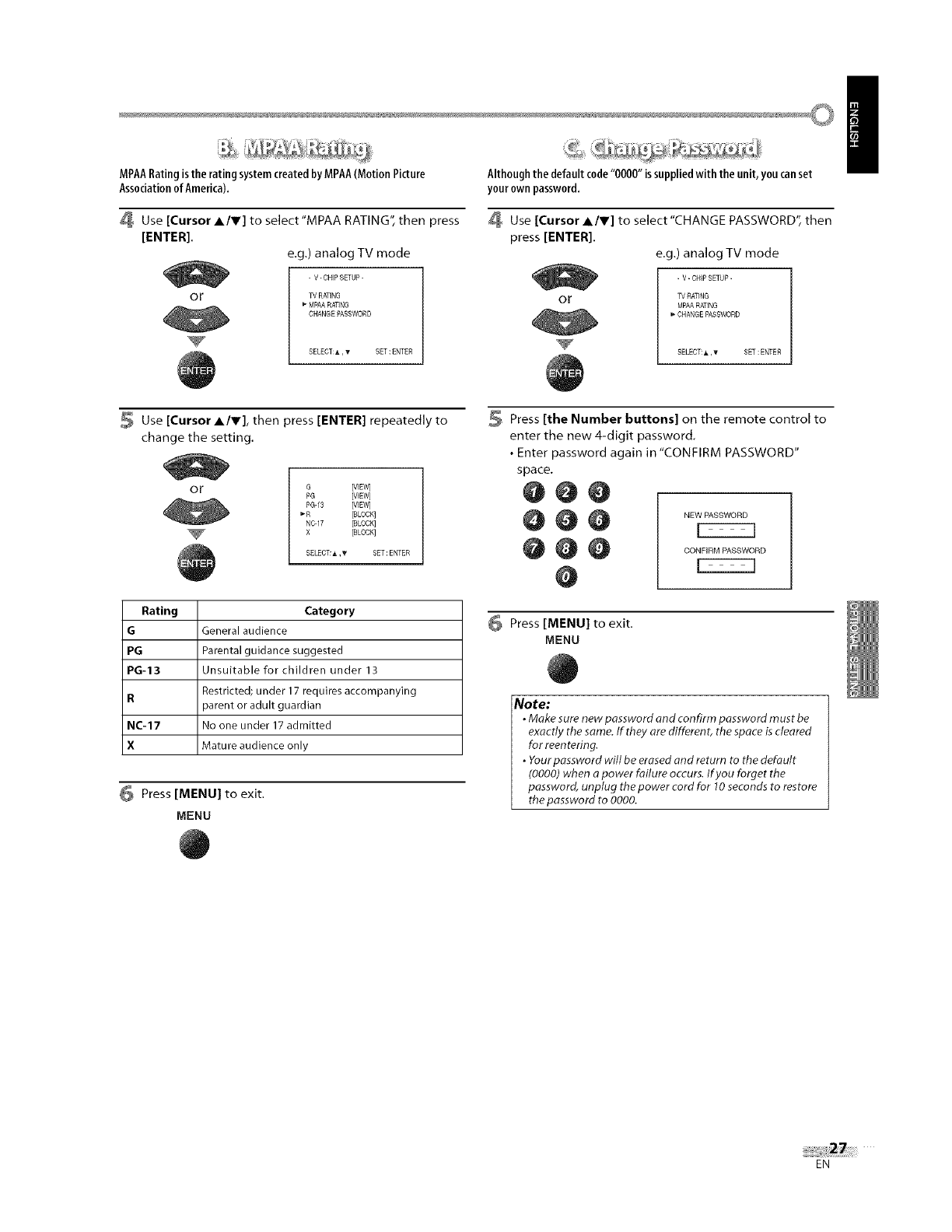
..............................._?,_
MPAARatingisthe ratingsystemcreatedbyMPAA(MotionPicture
Associationof America).
Use [Cursor A/V] to select'MPAA RATING", then press
[ENTER].
e.g.) analog TV mode
OF
- V-CHIP SETUP-
TV RATING
MPAA RATING
CHANGE _SSWORD
SELECT:A, '_ SET: ENTER
Althoughthe default code"0000" is suppliedwith the unit, you canset
your own password.
Use [Cursor slY] to select "CHANGE PASSWORD", then
press [ENTER].
e.g.) analog TV mode
OF
- V- CHIP SETUP-
TV RATING
MPAARATING
CHANGE PASSWORD
SELECT:A,T SET:ENTER
/
Use [Cursor A/,], then press [ENTER] repeatedly to
change the setting.
OF G[V_EW]
PG [VIEW]
PaaS [VIEW]
mR [BLOCK]
N0-17 [BLOCK]
X [BLOCK]
SELECT:A,T SET:ENTER
Rating Category
GGeneral audience
PG Parental guidance suggested
PG-13 Unsuitable for children under 13
R Restricted; under 17 requires accompanying
_arent or adult guardian
NC-17 No one under 17 admitted
X Mature audience only
Press [MENU] to exit.
MENU
Press [the Number buttons] on the remote control to
enter the new 4-digit password.
• Enter password again in "CONFIRM PASSWORD"
space.
@@@
@@@ NEwPAsswo0o
@@@ OO.P,0MPAS WO0O
@
Press [MENU] to exit.
MENU
Note:
•Make sure new password and confirm password must be
exactly the same. If they are differen t, the space is cleared
for reentering.
•Yourpassword will be erasedand return to the default
(0000) when apower failure occurs. If you forget the
password, unplug the power cord for 10seconds to restore
the password to 0000.
EN
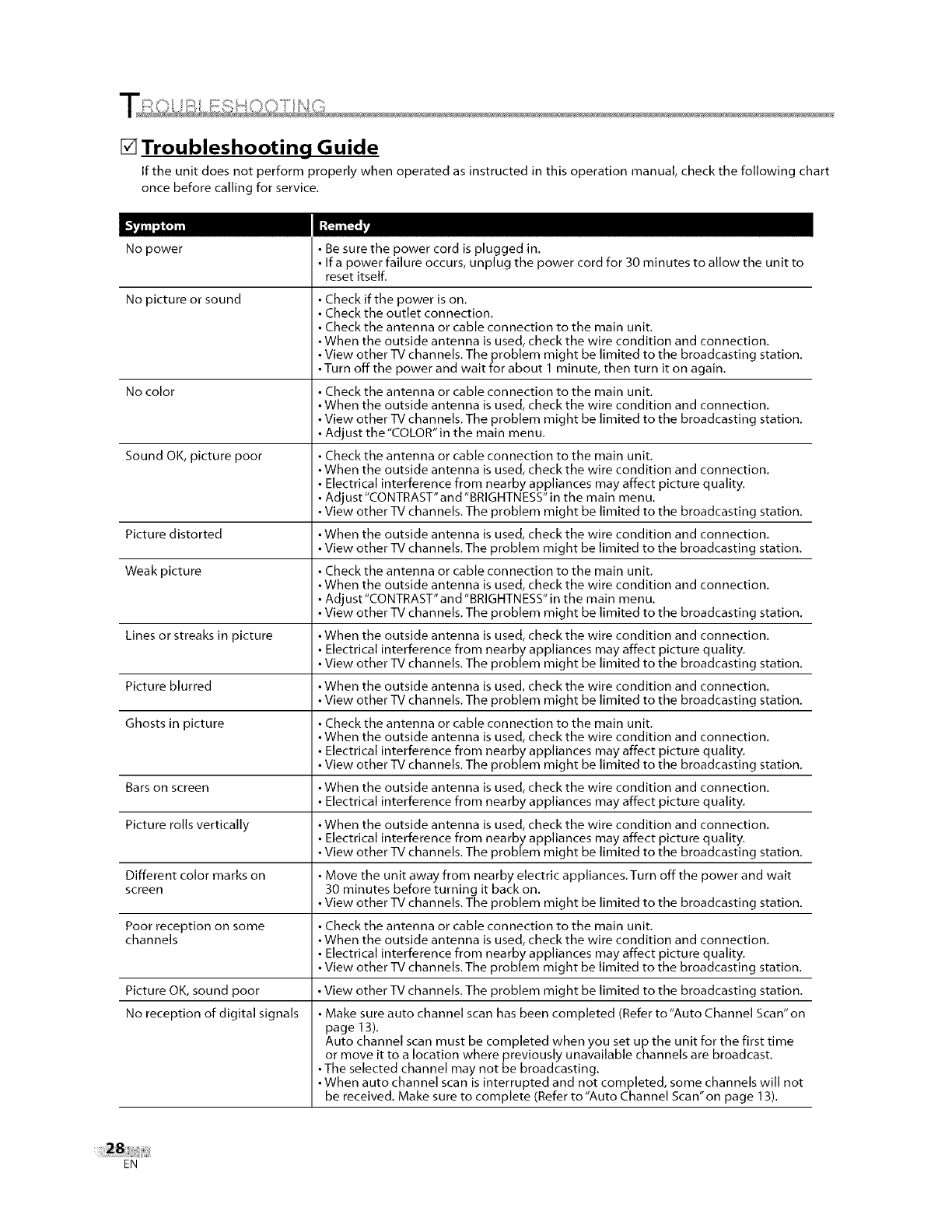
[] Troubleshooting Guide
If the unit does not perform properly when operated as instructed in this operation manual, check the following chart
once before calling for service.
No power
No picture or sound
•Be sure the power cord is plugged in.
• If a power failure occurs, unplug the power cord for 30 minutes to allow the unit to
reset itself.
• Check if the power is on.
• Check the outlet connection.
• Check the antenna or cable connection to the main unit.
• When the outside antenna is used, check the wire condition and connection.
• View other TV channels. The problem might be limited to the broadcasting station.
• Turn off the power and wait for about 1 minute, then turn it on again.
No color •Check the antenna or cable connection to the main unit.
• When the outside antenna is used, check the wire condition and connection.
• View other TV channels. The problem might be limited to the broadcasting station.
• Adjust the"COLOR" in the main menu.
Sound OK, picture poor •Check the antenna or cable connection to the main unit.
• When the outside antenna is used, check the wire condition and connection.
• Electrical interference from nearby appliances may affect picture quality.
• Adjust"CONTRAST"and'BRIGHTNESS"in the main menu.
• View other TV channels. The problem might be limited to the broadcasting station.
Picture distorted •When the outside antenna is used, check the wire condition and connection.
• View other TV channels. The problem might be limited to the broadcasting station.
Weak picture •Check the antenna or cable connection to the main unit.
• When the outside antenna is used, check the wire condition and connection.
• Adjust"CONTRAST"and'BRIGHTNESS"in the main menu.
• View other TV channels. The problem might be limited to the broadcasting station.
Lines or streaks in picture •When the outside antenna is used, check the wire condition and connection.
• Electrical interference from nearby appliances may affect picture quality.
• View other TV channels. The problem might be limited to the broadcasting station.
Picture blurred •When the outside antenna is used, check the wire condition and connection.
• View other TV channels. The problem might be limited to the broadcasting station.
Ghosts in picture •Check the antenna or cable connection to the main unit.
• When the outside antenna is used, check the wire condition and connection.
• Electrical interference from nearby appliances may affect picture quality.
• View other TV channels. The problem might be limited to the broadcasting station.
Bars on screen •When the outside antenna is used, check the wire condition and connection.
• Electrical interference from nearby appliances may affect picture quality.
Picture rolls vertically •When the outside antenna is used, check the wire condition and connection.
• Electrical interference from nearby appliances may affect picture quality.
• View other TV channels. The problem might be limited to the broadcasting station.
Different color marks on •Move the unit away from nearby electric appliances. Turn off the power and wait
screen 30 minutes before turning it back on.
• View other TV channels. The problem might be limited to the broadcasting station.
Poor reception on some •Check the antenna or cable connection to the main unit.
channels •When the outside antenna is used, check the wire condition and connection.
• Electrical interference from nearby appliances may affect picture quality.
• View other TV channels. The problem might be limited to the broadcasting station.
Picture OK, sound poor
No reception of digital signals
• View other TV channels. The problem might be limited to the broadcasting station.
• Make sure auto channel scan has been completed (Refer to "Auto Channel Scan"on
page 13).
Auto channel scan must be completed when you set up the unit for the first time
or move it to a location where previously unavailable channels are broadcast.
• The selected channel may not be broadcasting.
• When auto channel scan is interrupted and not completed, some channels will not
be received. Make sure to complete (Refer to"Auto Channel Scan'on page 13).
EN
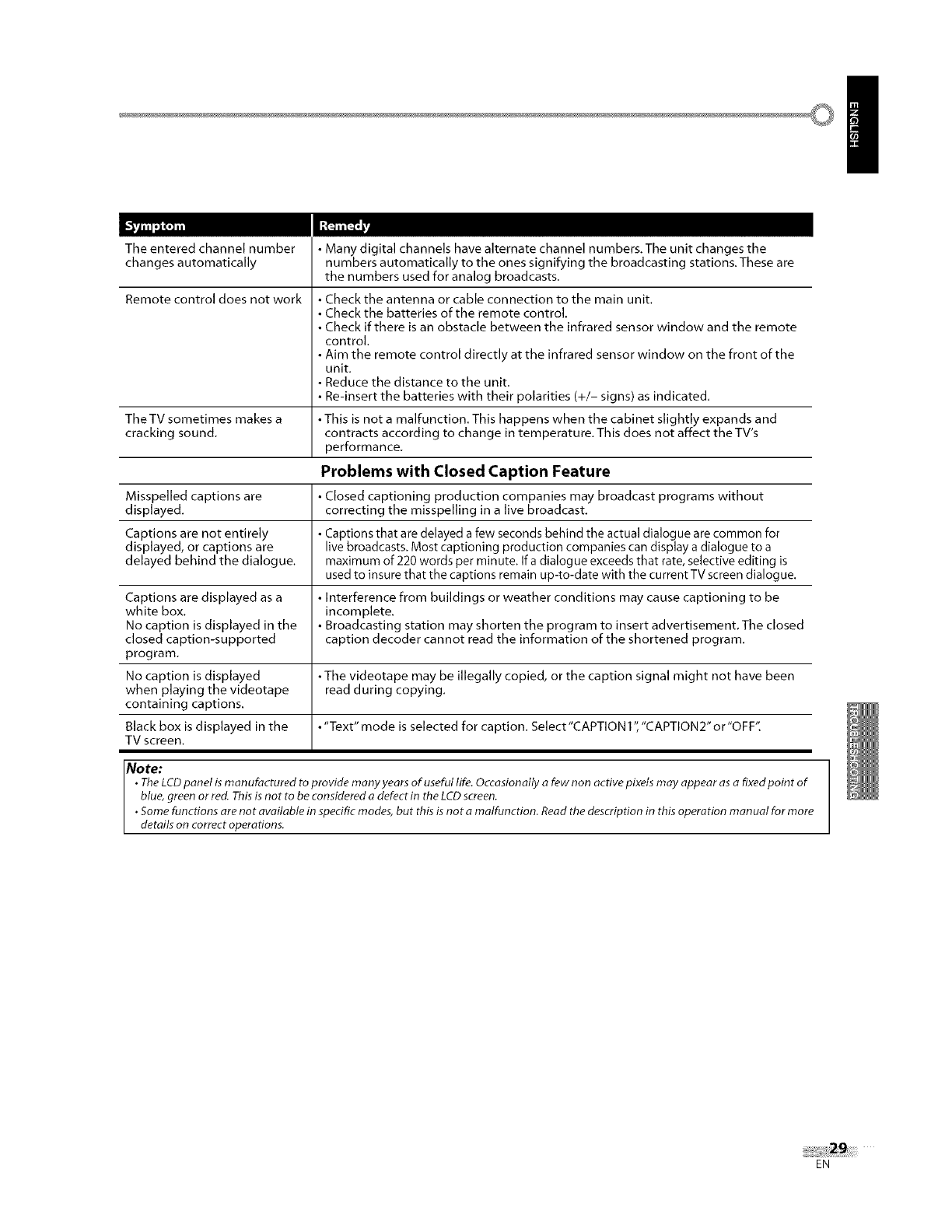
I
The entered channel number
changes automatically
Remote control does not work
•Many digital channels have alternate channel numbers, The unit changes the
numbers automatically to the ones signifying the broadcasting stations. These are
the numbers used for analog broadcasts,
• Check the antenna or cable connection to the main unit,
• Check the batteries of the remote control,
• Check if there is an obstacle between the infrared sensor window and the remote
control.
• Aim the remote control directly at the infrared sensor window on the front of the
unit,
• Reduce the distance to the unit,
• Re-insert the batteries with their polarities (+/- signs) as indicated,
• This is not a malfunction, This happens when the cabinet slightly expands and
contracts according to change in temperature, This does not affect the TV's
performance,
The TV sometimes makes a
cracking sound,
Problems with Closed Caption Feature
Misspelled captions are • Closed captioning production companies may broadcast programs without
displayed, correcting the misspelling in a live broadcast,
Captions are not entirely • Captions that are delayed a few seconds behind the actual dialogue are common for
displayed, or captions are live broadcasts. Most captioning production companies can display a dialogue to a
delayed behind the dialogue, maximum of 220 words per minute. If a dialogue exceeds that rate, selective editing is
used to insure that the captions remain up-to-date with the current TV screen dialogue.
Captions are displayed as a • Interference from buildings or weather conditions may cause captioning to be
white box, incomplete.
No caption is displayed in the • Broadcasting station may shorten the program to insert advertisement, The closed
closed caption-supported caption decoder cannot read the information of the shortened program,
program,
No caption is displayed • The videotape may be illegally copied, or the caption signal might not have been
when playing the videotape read during copying,
containing captions.
Black box is displayed in the • "Text" mode is selected for caption, Select "CAPTION 1","CAPTION 2" or "OFF".
TV screen,
Note:
•The LCDpanel is man ufactured to provide many years of useful life. Occasionally afew non active pixets may appear as a fixed point of
blue, green or red. Thisis not to be considered a defect in the LCDscreen.
•Some functions are not available in specific modes, but this isnot amalfunction. Read the description in this operation manual for more
details on correct operations.
EN
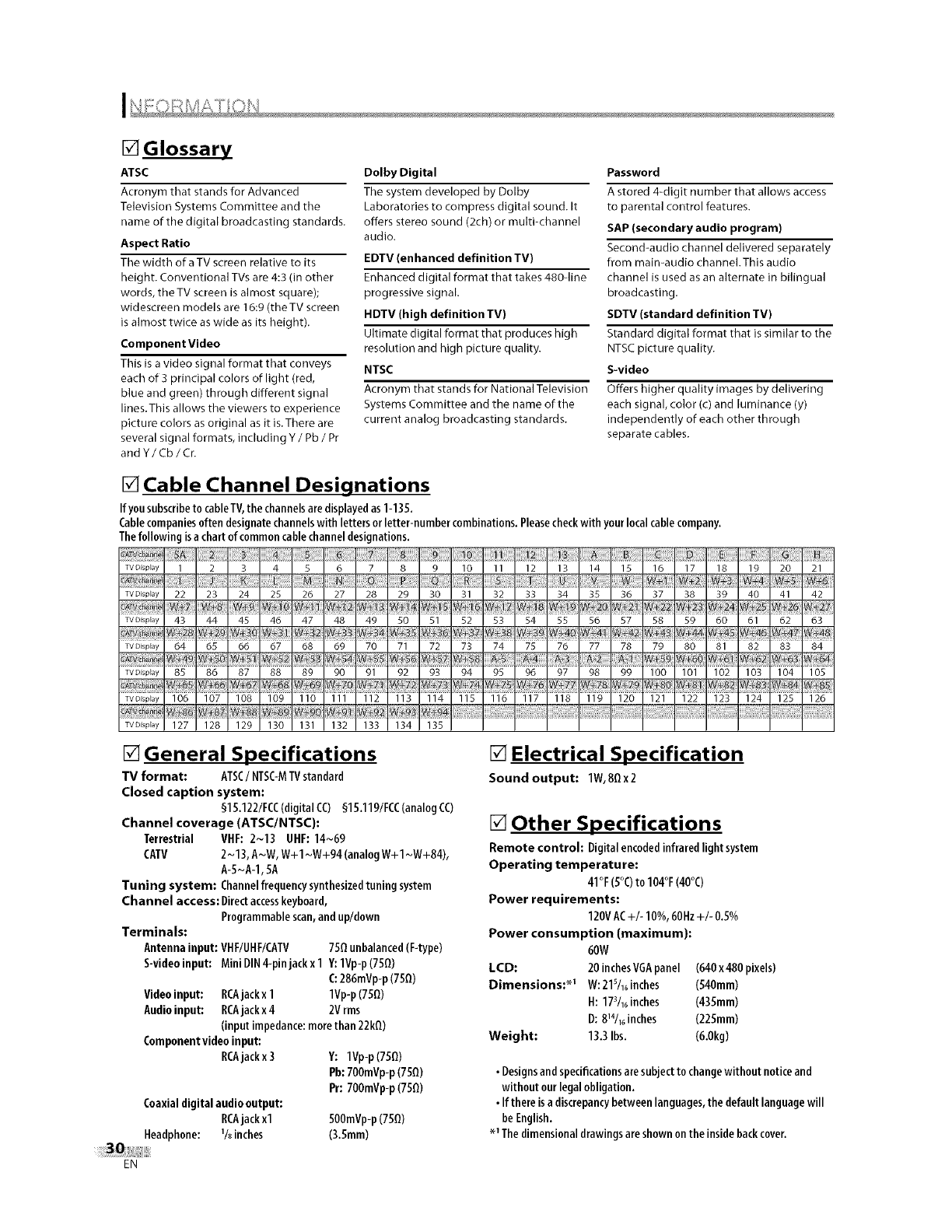
[] Glossary
ATSC Dolby Digital
Acronym that stands for Advanced The system developed by Dolby
Television Systems Committee and the Laboratories to compress digital sound. It
name of the digital broadcasting standards, offers stereo sound (2ch) or multi-channel
Aspect Ratio
The width of a TV screen relative to its
height. Conventional TVs are 4:3 (in other
words, the TV screen is almost square);
widescreen models are 16:9 (theTV screen
is almost twice as wide as its height).
Component Video
This is a video signal format that conveys
each of 3 principal colors of light (red,
blue and green) through different signal
lines.This allows the viewers to experience
picture colors as original as it is. There are
several signal formats, including Y /Pb /Pr
and Y/Cb/Cr.
audio.
EDTV (enhanced definition TV)
Enhanced digital format that takes 480qine
progressive signal.
HDTV (high definition TV)
Ultimate digital format that produces high
resolution and high picture quality.
NTSC
Acronym that stands for National Television
Systems Committee and the name of the
current analog broadcasting standards.
Password
A stored 4-digit nurnber that allows access
to parental control features.
SAP (secondary audio program)
Second-audio channel delivered separately
from main-audio channel.This audio
channel is used as an alternate in bilingual
broadcasting.
SDTV (standard definition TV)
Standard digital format that is similar to the
NTSC picture quality.
S-video
Offers higher quality images by delivering
each signal, color (c) and luminance (y)
independently of each other through
separate cables.
[] Cable Channel Designations
Ifyousubscribeto cableTV,the channelsaredisplayedas1-13S.
Cablecompaniesoftendesignatechannelswithlettersorletter-numbercombinations.Pleasecheckwithyourlocalcablecompany.
Thefollowingisa chartof commoncablechanneldesignations.
SA . . 12
TVDBpDy 1 2 3 4 5 6 7 8 9 10 11 12 13 14 15 16 17 18 19 20 21
TVDispDy 22 23 24 25 26 27 28 29 30 31 32 33 34 35 36 37 38 39 40 41 42
w÷l w+_2
TVDispDy 43 44 45 46 47 48 49 50 51 52 53 54 55 56 57 58 59 60 61 62 63
¢_I+35 W+41 _+43
TVDispDy 64 65 66 67 68 69 70 71 72 73 74 75 76 77 78 79 80 81 82 83 84
TVDisplay 85 86 87 88 89 90 91 92 93 94 95 96 97 98 99 100 101 102 103 104 105
TVDispDy 106 107 108 109 110 111 112 113 114 115 116 117 118 119 120 121 122 123 124 125 126
TVDispDy 127 128 129 130 131 132 133 134 135
[] General Specifications
"IV format: ATSC/NTSC-MTVstandard
Closed caption system:
§15.122/FCC(digitalCC) §15.119/FCC(analogCO)
Channel coverage (ATSC/NTSC):
Terrestrial VHF: 2~13 UHF: 14~69
CATV 2~13,A~W, W+1~W+94(analog W+1~W+84),
A-S~A-I, SA
Tuning system: Channelfrequencysynthesizedtuning system
Channel access: Directaccesskeyboard,
Programmablescan,and up/down
Terminals:
Antennainput: VHF/UHF/CATV 7SQunbalanced(F-type)
S-videoinput: Mini DIN4-pin jackx 1Y:lVp-p (7SQ)
C:286mVp-p(75Q)
Videoinput: RCAjackx 1 1Vp-p(7SQ)
Audioinput: RCAjackx 4 2Vrms
(inputimpedance:morethan 22kQ)
Componentvideoinput:
RCAjackx 3 Y: 1Vp-p(75Q)
Pb:700mVp-p(750)
Pr: 700mVp-p(75_)
Coaxialdigital audiooutput:
RCAjackxl 500mVp-p(75Q)
Headphone: 1/_inches (3.Smm)
[] Electrical Specification
Sound output: lW,8Qx2
[] Other Specifications
Remote control: Digitalencodedinfraredlightsystem
Operating temperature:
41°F(5°C)to 104°F(40°C)
Power requirements:
120VAC+/- I0%, 60Hz+/- 0.5%
Power consumption (maximum):
60W
LCD: 20 inchesVGApanel (640x480 pixels)
Dimensions: *_ W:21s/_0inches (540mm)
H: 17_/_6inches (435mm)
D:8_4/_6inches (225mm)
Weight: 13.3Ibs. (6.0kg)
•Designsand specificationsaresubjectto changewithoutnotice and
withoutourlegalobligation.
• If thereisa discrepancybetweenlanguages,the defaultlanguagewill
beEnglish.
_Thedimensionaldrawingsareshownonthe insidebackcover.
EN
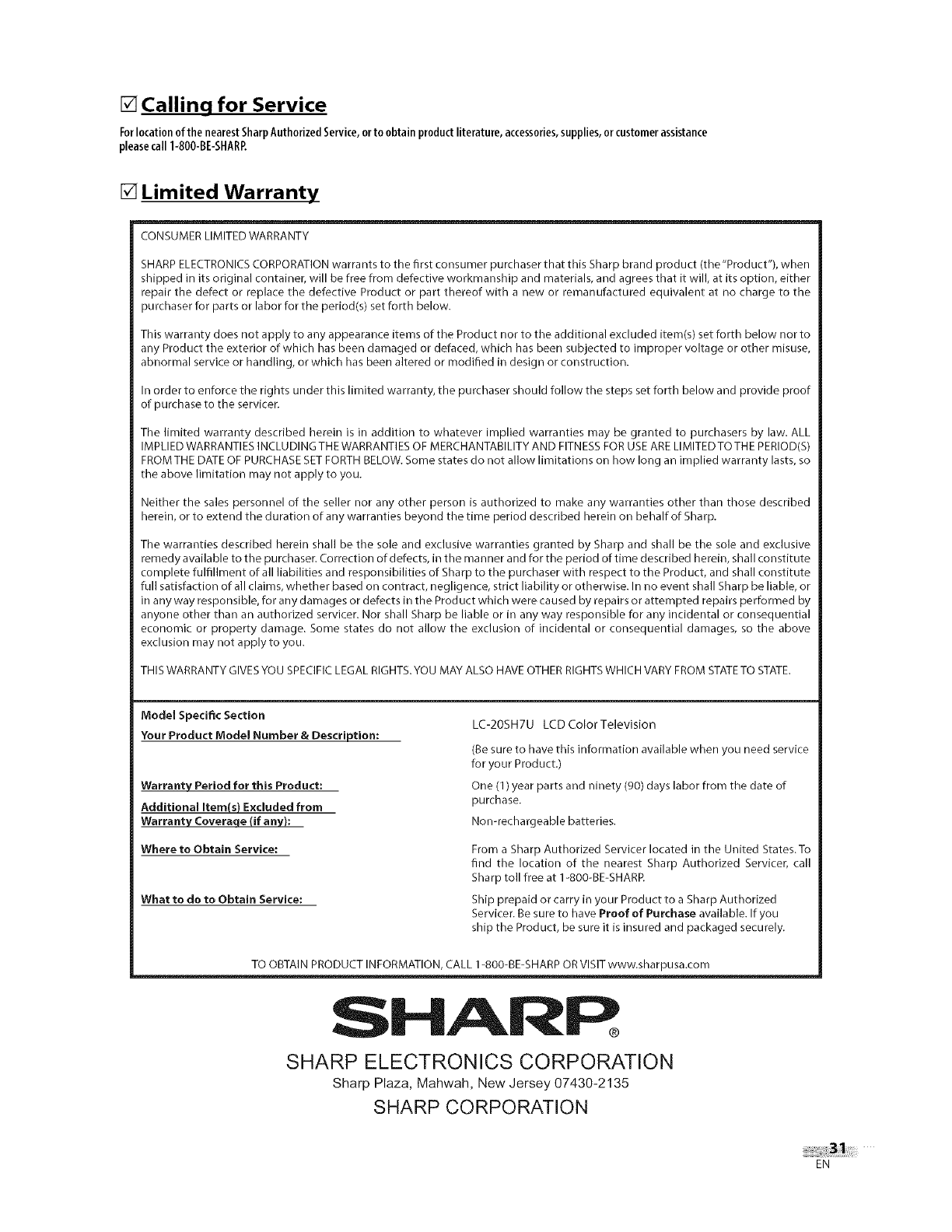
[] Calling for Service
Forlocation of the nearest Sharp Authorized Service, or to obtain product literature, accessories, supplies, or customer assistance
please call 1-800-BE-SHARP,
[] Limited Warranty
CONSUMER LIMITED WARRANTY
SHARP ELECTRONICS CORPORATION warrants to the first consumer purchaser that this Sharp brand product (the "Product"), when
shipped in its original container, will be free from defective workmanship and materials, and agrees that it will, at its option, either
repair the defect or replace the defective Product or part thereof with a new or remanufactured equivalent at no charge to the
_urchaser for parts or labor for the period(s) set forth below.
This warranty does not apply to any appearance items of the Product nor to the additional excluded item(s) set forth below nor to
any Product the exterior of which has been damaged or defaced, which has been subjected to improper voltage or other misuse,
abnormal service or handling, or which has been altered or modified in design or construction.
In order to enforce the rights under this limited warranty, the purchaser should follow the steps set forth below and provide proof
of purchase to the servicer.
The limited warranty described herein is in addition to whatever implied warranties may be granted to purchasers by law. ALL
IMPLIED WARRANTIES INCLUDING THE WARRANTIES OF MERCHANTABILITY AND FITNESS FOR USE ARE LIMITEDTOTHE PERIOD(S)
FROM THE DATE OF PURCHASE SET FORTH BELOW. Some states do not allow limitations on how long an implied warranty lasts, so
the above limitation may not apply to you.
Neither the sales personnel of the seller nor any other person is authorized to make any warranties other than those described
herein, or to extend the duration of any warranties beyond the time period described herein on behalf of Sharp.
The warranties described herein shall be the sole and exclusive warranties granted by Sharp and shall be the sole and exclusive
remedy available to the purchaser. Correction of defects, in the manner and for the period of time described herein, shall constitute
complete fulfillment of all liabilities and responsibilities of Sharp to the purchaser with respect to the Prod uct, and shall constitute
full satisfaction of all claims, whether based on contract, negligence, strict liability or otherwise. In no event shall Sharp be liable, or
in any way responsible, for any damages or defects in the Product which were caused by repairs or attempted repairs performed by
anyone other than an authorized servicer. Nor shall Sharp be liable or in any way responsible for any incidental or consequential
economic or property damage. Some states do not allow the exclusion of incidental or consequential damages, so the above
exclusion may not apply to you.
THIS WARRANTY GIVES YOU SPECIFIC LEGAL RIGHTS. YOU MAY ALSO HAVE OTHER RIGHTS WHICH VARY FROM STATETO STATE.
Model Speci_c Section
Your Product Model Number & Description:
Warranty Period for this Product:
Additional Item(s) Excluded from
Warranty Coveraqe (if any):
Where to Obtain Service:
What to do to Obtain Service:
LC-20SH7U LCD ColorTelevision
(Be sure to have this information available when you need service
for your Product.)
One (1) year parts and ninety (90) days labor from the date of
purchase.
Non-rechargeable batteries.
From a Sharp Authorized Servicer located in the United States.To
find the location of the nearest Sharp Authorized Servicer, call
Sharp toll free at 1-800-BE-SHARR
Ship prepaid or carry in your Product to a Sharp Authorized
Servicer. Be sure to have Proof of Purchase available. If you
ship the Product, be sure it is insured and packaged securely.
TO OBTAIN PRODUCT INFORMATION, CALL 1-800-BE-SHARP OR VISIT www.sharpusa.com
SHARR
SHARP ELECTRONICS CORPORATION
Sharp Plaza, Mahwah, New Jersey 07430-2135
SHARP CORPORATION
EN
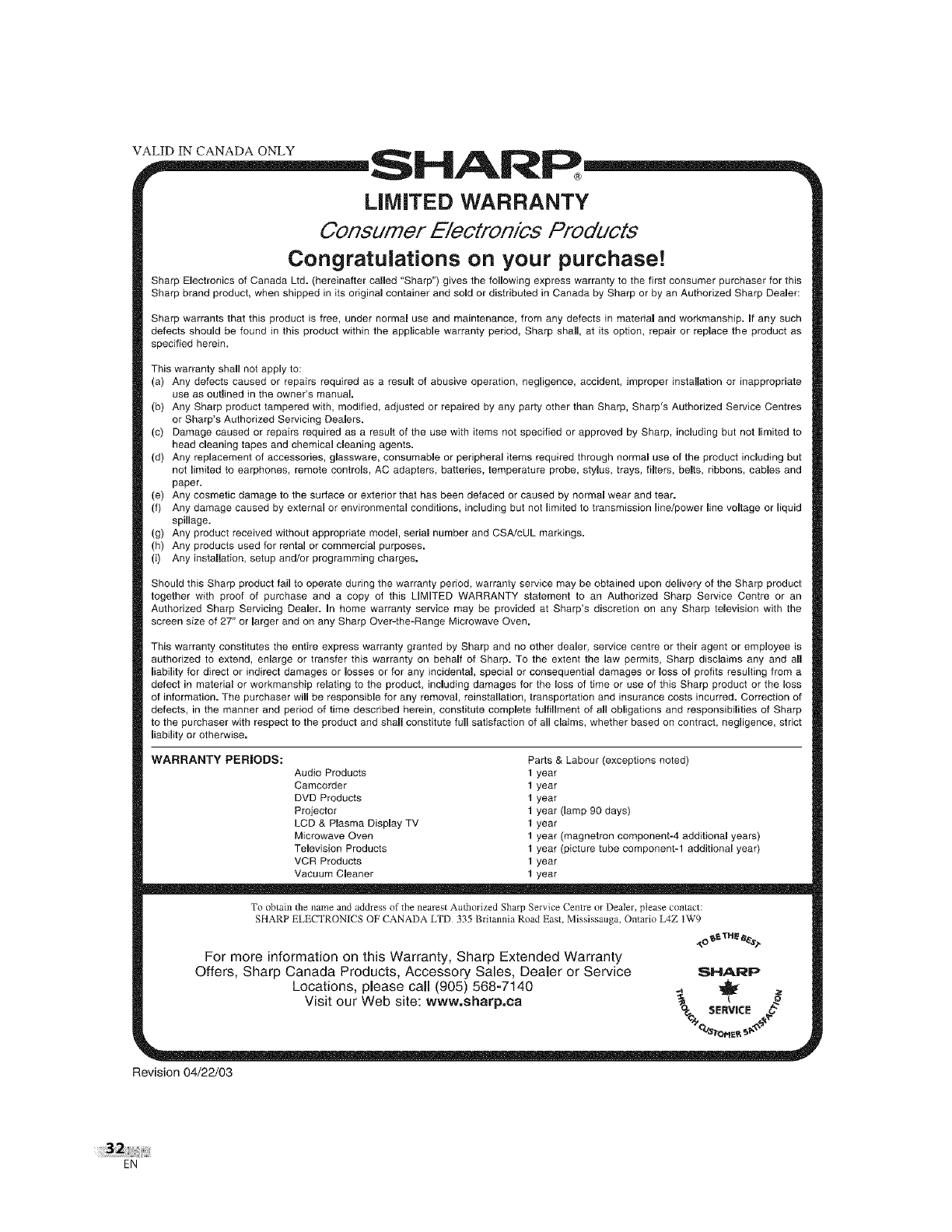
LiMiTED WARRANTY
Consumer E/ectronics Products
Congratulations on your purchase!
Sharp Electronics of Canada Ltd. (hereinafter called "Sharp") gives the following express warranty to the first consumer purchaser for this
Sharp brand product, when shipped in its original container and sold or distributed in Canada by Sharp or by an Authorized Sharp Deamer:
Sharp warrants that this product is free, under normal use and maintenance, from any defects in material and workmanship. If any such
defects should be found in this product within the applicable warranty period, Sharp shall, at its option, repair or replace the product as
specified herein.
This warranty shall not apply to:
(a) Any defects caused or repairs required as a result of abusive operation, negligence, accident, improper installation or inappropriate
use as outlined in the owner's manual.
(b) Any Sharp product tampered with, modified, adjusted or repaired by any party other than Sharp, Sharp's Authorized Service Centres
or Sharp's Authorized Servicing Dealers.
(c) Damage caused or repairs required as a result of the use with items not specified or approved by Sharp, including but not limited to
head cleaning tapes and chemical cleaning agents.
(d) Any replacement of accessories, glassware, consumable or peripheral items required through normal use of the product including but
not limited to earphones, remote controls, AC adapters, batteries, temperature probe, stylus, trays, filters, belts, ribbons, cables and
paper.
(e) Any cosmetic damage to the surface or exterior that has been defaced or caused by normal wear and tear.
(f) Any damage caused by external or environmental conditions, including but not limited to transmission line/power line voltage or liquid
spillage.
(g) Any product received without appropriate model, serial number and CSA/cUL markings.
(h) Any products used for rental or commercial purposes.
(i) Any installation, setup and/or programming charges.
Should this Sharp product fail to operate during the warranty period, warranty service may be obtained upon delivery of the Sharp product
together with proof of purchase and a copy of this LIMITED WARRANTY statement to an Authorized Sharp Service Centre or an
Authorized Sharp Servicing Dealer. In home warranty service may be provided at Sharp's discretion on any Sharp television with the
screen size of 27" or larger and on any Sharp Over-the-Range Microwave Oven.
This warranty constitutes the entire express warranty granted by Sharp and no other dealer, service centre or their agent or employee is
authorized to extend, enlarge or transfer this warranty on behalf of Sharp. To the extent the law permits, Sharp disclaims any and aB
liability for direct or indirect damages or losses or for any incidental, special or consequential damages or loss of profits resulting from a
defect in materiN or workmanship relating to the product, including damages for the loss of time or use of this Sharp product or the loss
of information. The purchaser wiB be responsible for any removal, reinstallation, transportation and insurance costs incurred. Correction of
defects, in the manner and period of time described herein, constitute complete fulfillment of all obligations and responsibilities of Sharp
to the purchaser with respect to the product and shall constitute fumlsatisfaction of all claims, whether based on contract, negligence, strict
liability or otherwise.
WARRANTY PERIODS: Parts & Labour (exceptions noted)
Audio Products 1 year
Camcorder 1 year
DVD Products 1 year
Projector 1 year (lamp 90 days)
LCD & Plasma Display TV 1 year
Microwave Oven 1 year (magnetron component-4 additional years)
Television Products 1 year (picture tube component-1 additional year)
VCR Products 1 year
Vacuum Cleaner 1 year
To obtain Ihe name and address of the nearest Au|horized Sharp Service Centre or Dealer, please contact:
SHARP ELECTRONICS OF CANADA LTD 335 Britannia Road East, Mississauga, Ontario L4Z tW9
For more information on this Warranty, Sharp Extended Warranty
Offers, Sharp Canada Products, Accessory Sales, Dealer or Service SHAlloP
Locations, please call (905) 568-7140 ._ _
Visit our Web site: www,sharp,ca "1__ -- ,_
_,_ SEnWCE
Revision 04/22/03
EN
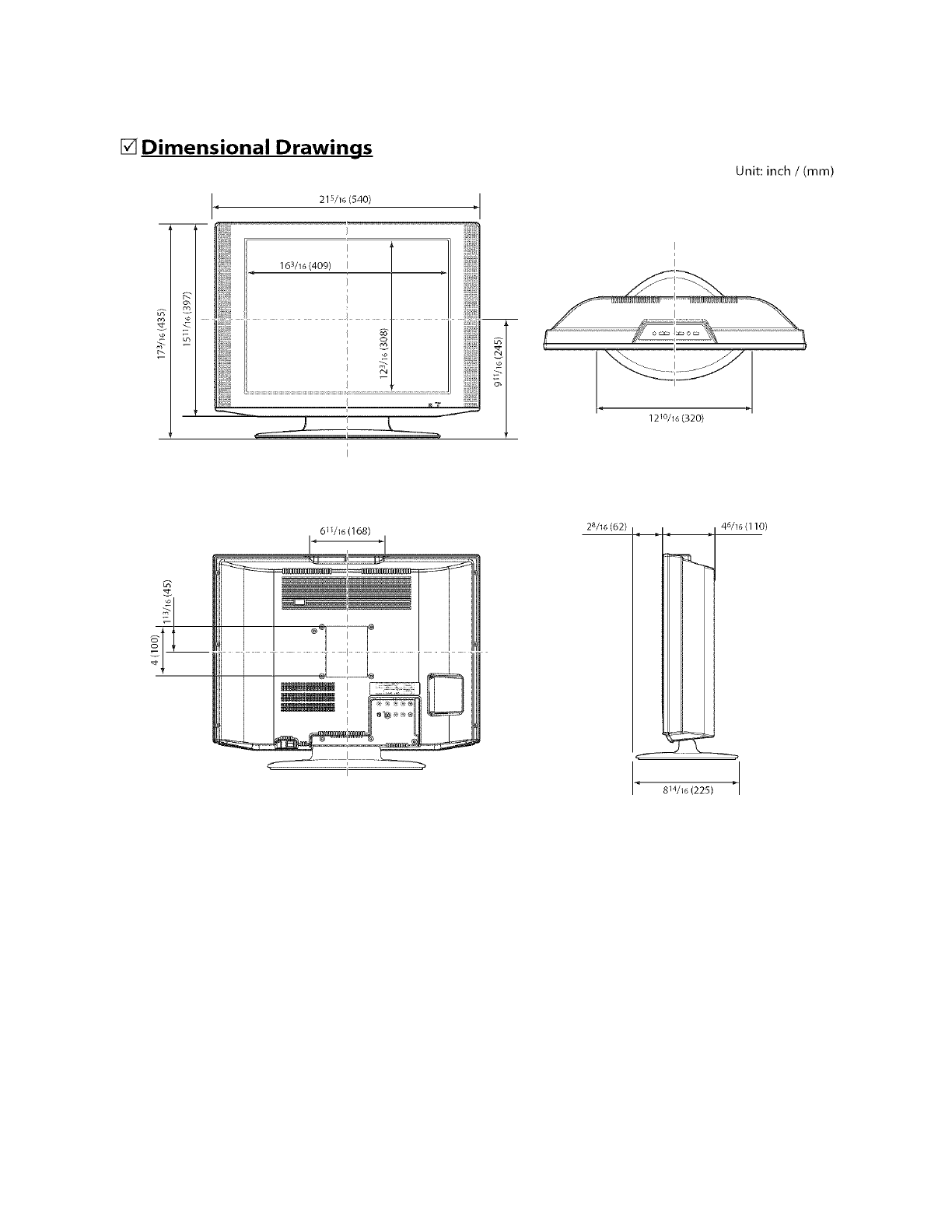
[] Dimensional Drawings
_ 215/16 (540) _l
Unit: inch /(mm)
121o/16 (320)
611/16(168)
? i
28/16 (62) 46/16 (110)
814/16 (225)

®
SHARP ELECTRONICS CORPORATION
Sharp Plaza, Mahwah, New Jersey 07430-2135
SHARP CORPORATION
Printed in China
Imprim_ en Chine
Impreso en China
gHS1 EMN22181
A7145UH
1EMN22181 _
