Sharp MX 3114N Gemini II Plus Im User Manual To The Bda5b40e Bde0 426e A4dd Fd7afe859cd9
User Manual: Sharp MX-3114N to the manual
Open the PDF directly: View PDF  .
.
Page Count: 19
INSTALLATION MANUAL
Parts marked with " " are important for maintaining the safety of the set. Be sure to replace these parts with
specified ones for maintaining the safety and performance of the set.
SHARP CORPORATION This document has been published to be used
for after sales service only.
The contents are subject to change without notice.
TopPage
DIGITAL FULL COLOR
MULTIFUNCTIONAL SYSTEM
MX-2314N
MX-2614N
MX-3114N
MODEL
MX-3114N Transit, Installation (using) environment, Note - i
MX-3114N 6HUYLFH0DQXDO
Transit, Installation (using) environment, Note
1. Installing (use) conditions
Before installing the machine, check that the following installing
(use) conditions are satisfied.
If the installing (use) conditions are not satisfied, the machine may
not display full performances, resulting in troubles. It may also
cause safety problems. Therefore, be sure to arrange the installing
(use) conditions before setting up the machine.
A. Transportation space
For installation of a large size machine, be sure to check that the
door size is wide enough before bringing in.
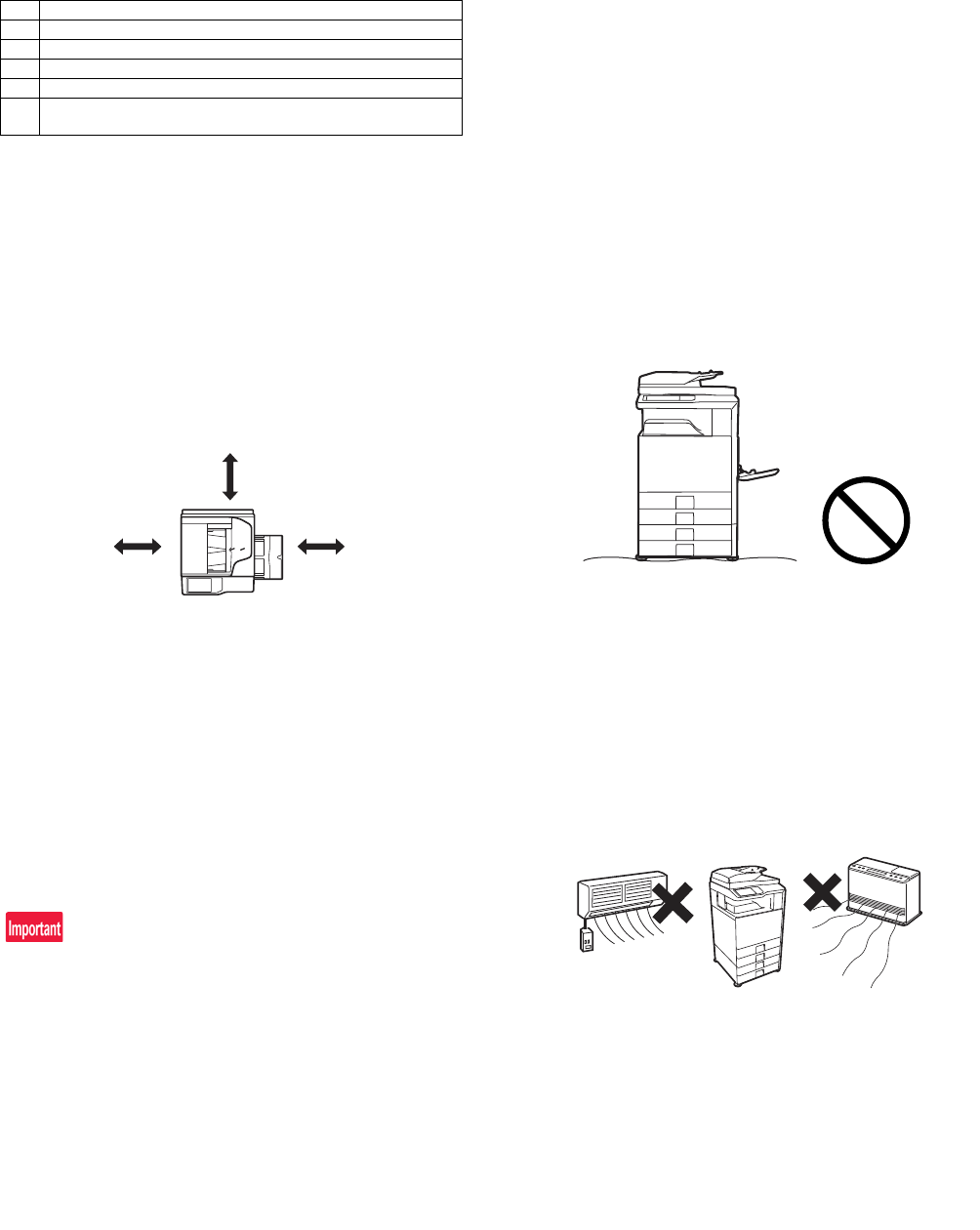
B. Installing space
The following space must be provided around the machine in order
to assure machine performances and proper operations.
If any option is installed, provide the additional space for installing
it.
Adequate space must be provide behind the machine for proper
ventilation heat and dust. If not, the machine cannot exhibit func-
tions against heat and dust, causing some troubles.
C. Power source (Capacity, voltage, frequency,
safety, plug)
If the power specifications are not satisfied, the machine cannot
exhibit full performances and may cause safety trouble.
Strictly observe the following specifications.
(1) Power capacity
Check that the following power capacity is satisfied. If not, addition-
ally provide a power source.
Current capacity
Japan: 20A or more
EX 100V: 15A or more
EX 200V: 10A or more
Check the shape of the power plug of the machine, and insert it into
a power outlet of the acceptable shape.
(2) Power voltage
Measure the voltage during copying to check that the voltage is in
the range of the specified voltage r10%.
If the voltage is outside the specified range, please have a certified
electrician upgrade the outlet.
(An electrical work is required.)
Use of a step-up transformer is also available. In this case, the
capacity must be great enough for the max. power consumption of
the machine.
(3) Power frequency, waveform
The frequency must be within the range of the specified frequency
r2%. If power waveform is deformed, a trouble may occur.
(4) Safety
Be sure to properly ground the machine.
Grounding (earth connection) must be performed before inserting
the power plug into the power outlet.
When disconnecting the earth connection, be sure to disconnect
the power plug from the power outlet in advance.
(5) Power plug
Check the shape of the power plug of the machine, and insert it into
a power outlet of the acceptable shape.
Power plug stated in power capacity.
D. Floor strength and level
This machine is considerably heavy and becomes heavier with an
option installed.
The floor must be strong enough to safely support the weight of the
machine as well as any installed options.
If the unit is not horizontally installed, the toner density control is not
performed normally, degrading the copy quality.
If not, color shift or image distortion may occur.
To assure proper Image quality, make sure the machine is setting
level.
E. Direct rays of the sun, dust, temperature,
humidity, gasses, chemicals, vibration
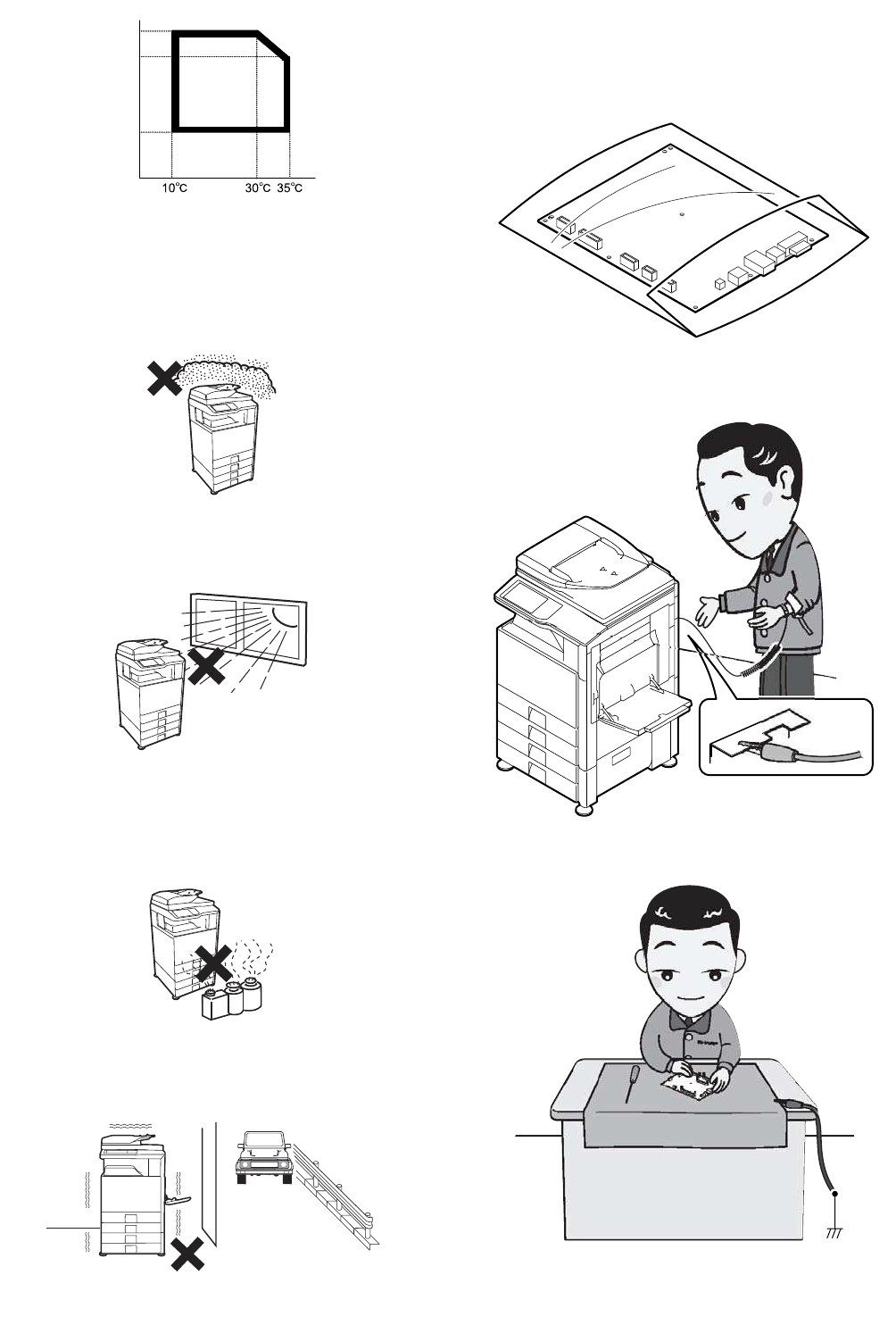
(1) Temperature and humidity (Environmental
conditions)
This machine is designed to perform properly under the specified
temperature and humidity. If the temperature and humidity exceeds
the specified range, the machine may not operate properly and or
cause equipment failure.
Especially when the humidity is too high, paper absorbs humidity to
cause a paper jam or dirty copy.
Do not install the machine near a heater, a cooler, or a humidifier.
Condensation may form inside the machine causing multiple trou-
bles. Use enough care for ventilation.
No. Content
1 Transportation space
2 Installing space
3 Power source (Capacity, fluctuation, safety)
4 Floor strength
5 Direct rays of the sun, dust, temperature, humidity, gases,
chemicals
11-13/16"
(30cm)
11-13/16"
(30cm)
17-23/32"
(45cm)
MX-3114N Transit, Installation (using) environment, Note - ii
Operational environment
Temperature: 10 to 35qC
Humidity: 20 to 85% RH
Atmospheric pressure: 590 to 1013hPa (altitude: 0 to 2000 m)
(2) Contaminates
If dust enters the machine, it may cause dirty copy and a paper
jam, resulting in a shortened lifetime.
(3) Direct sunlight
If the machine is installed under the rays of the sun, the exterior of
the machine may be discolored and abnormal copies may be pro-
duced.
(4) Gases and chemicals
Do not install the machine at a place where there are gases and
chemicals. Especially be careful to avoid installation near a diazo-
type copier, which produces ammonium gas.
Copy quality may be adversely affected and a trouble may be
caused.
(5) Vibration
Avoid installation near a machine which produces vibrations.
If vibrations are applied to the copier machine, copy images may be
deflected and a trouble may be caused.
F. Note for handling PWB and electronic parts
When handling the PWB and the electronic parts, be sure to
observe the following precautions in order to prevent against dam-
age by static electricity.
• When in transit or storing, put the parts in an anti-static bag or an
anti-static case and do not touch them with bare hands.
• When and after removing the parts from an anti-static bag (case),
use an earth band as shown below:
• Put an earth band to your arm, and connect it to the machine.
• When repairing or replacing an electronic part, perform the
procedure on an anti-static mat.
85%
Humidity㧔RH㧕
60%
20%
MX-3114N Transit, Installation (using) environment, Note - iii
G. Note for proper drum, developing, fusing and
transfer unit handling
When handling the OPC drum, developing and transfer units,
observe the following items.
Drum unit
• To prevent damage to the OPC drum, avoid working on the drum
unit in high intensity light areas.
• When the OPC drum is removed from the machine, cover it with
light blocking material. (When using paper, use about 10 sheets
of paper to cover it.)
• Be careful not to attach fingerprints, oil, grease, or other foreign
material on the OPC drum surface.
Transfer unit
• Be careful not to "leave” fingerprints, oil, grease, or other foreign
material on the transfer roller, primary transfer belt and second-
ary transfer belt.
Developing unit
• Be careful not to "leave” fingerprints, oil, grease, or other foreign
material on the developing unit.
Fusing unit
• Be careful not to "leave” fingerprints, oil, grease, or other foreign
material on the fusing roller and the external heating belt.
• Do not leave the fusing roller in contact state for a long time.
If these items are neglected, a trouble may be generated in the
copy and print image quality.
2. Transit and delivery
A. Implements, facility, and manpower
It is recommendable to use a forklift for bringing in the machine for
safety.
If no forklift is available, man-power of two persons is required. The
machine is considerably heavy, and requires safety precautions for
delivery and installation.
Transit of the machine must be made in packed condition to the
installing place.
Since the hard disk drive is built in the machine, use care not to
exert vibrations or shocks to the machine when in transit.
B. Delivery
Remove the packing materials prior to installation in the office envi-
ronment.
3. Relationship between the model name
and the designation in description of
the document
No. Content Method
1 Implements, facility,
and man power
Use a forklift. (If no forklift is available,
manpower of two persons is required.)
2 Delivery Transit must be made in packed condition.
Model name Designation in description
MX-2314N 23cpm machine
MX-2614N 26cpm machine
MX-3114N 31cpm machine
MX-3114N MX-2314N/2614N/3114N (MAIN UNIT) 2 – 1
MX-3114N 6HUYLFH0DQXDO
[2] MX-2314N/2614N/3114N (MAIN UNIT)
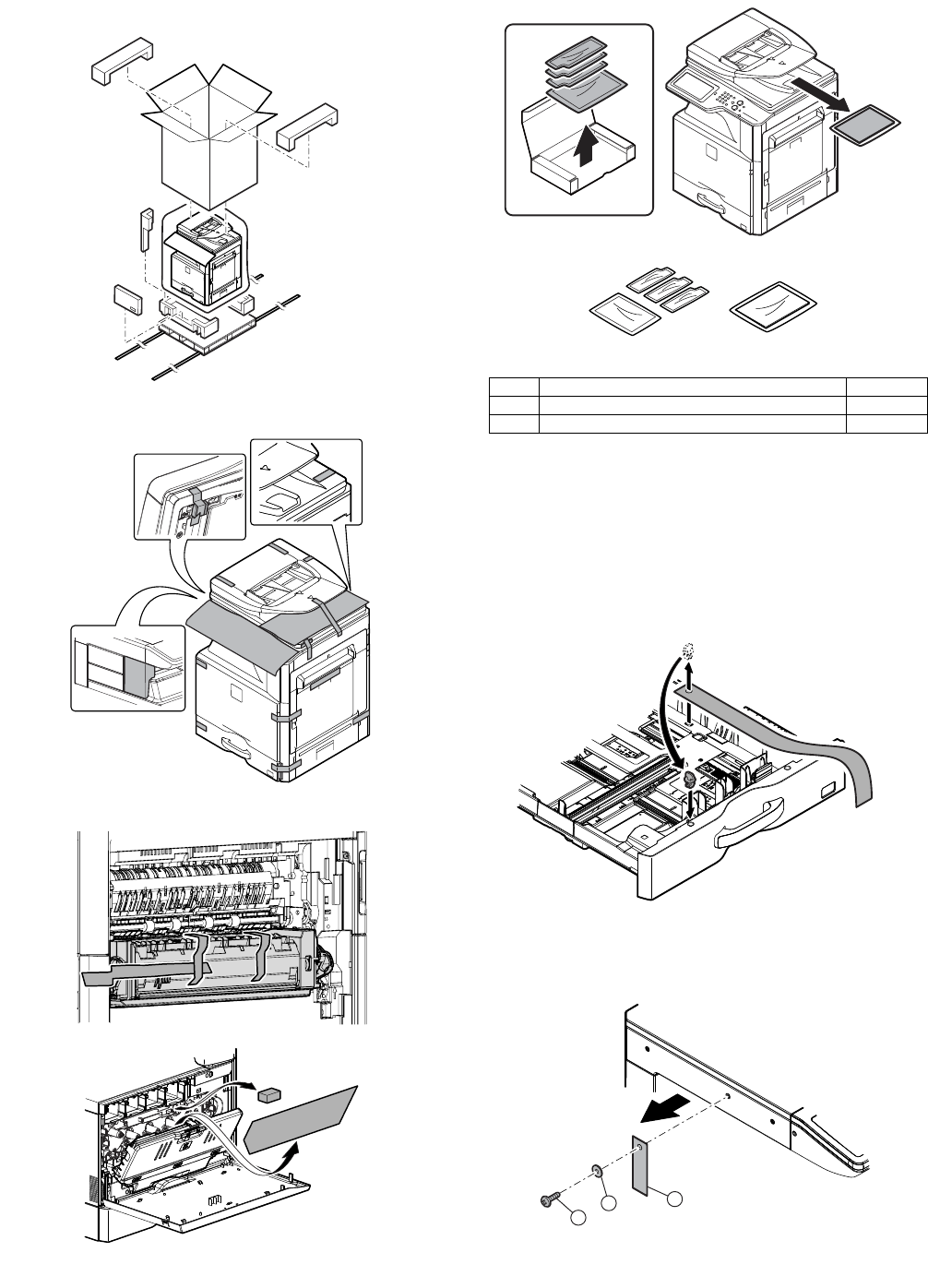
1. Unpacking
A. Unpacking
B. Fixing tape and protection material removal
26cpm/31cpm machine
C. Packed items check
* Depending on the country
D. Lock release
(1) Tray rotation plate lock release
1) Pull out the tray. Turn the fixing material and remove it.
Remove the caution label.
Attach the removed fixing material to the position shown in the
figure for future use.
Close the tray which was pulled out.
(2) Scanner (2/3 mirror unit) lock release
1) Remove the optical unit fixing screw, and remove the note
label.
No. Name Quantity
1 Developer * 4
2 Operation manual 1
1 2
2
1
3
MX-3114N MX-2314N/2614N/3114N (MAIN UNIT) 2 – 2
2. Installation
When an optional paper feed desk is connected to the machine,
unpack and install the paper feed desk, then unpack the machine.
Place the machine on the option desk securely, and perform the
installing procedures of the machine.
Place the machine on the optional desk firmly and secure.
A. Developer installation
Be careful not to leave fingerprints or oily dirt on the DV roller sur-
face.
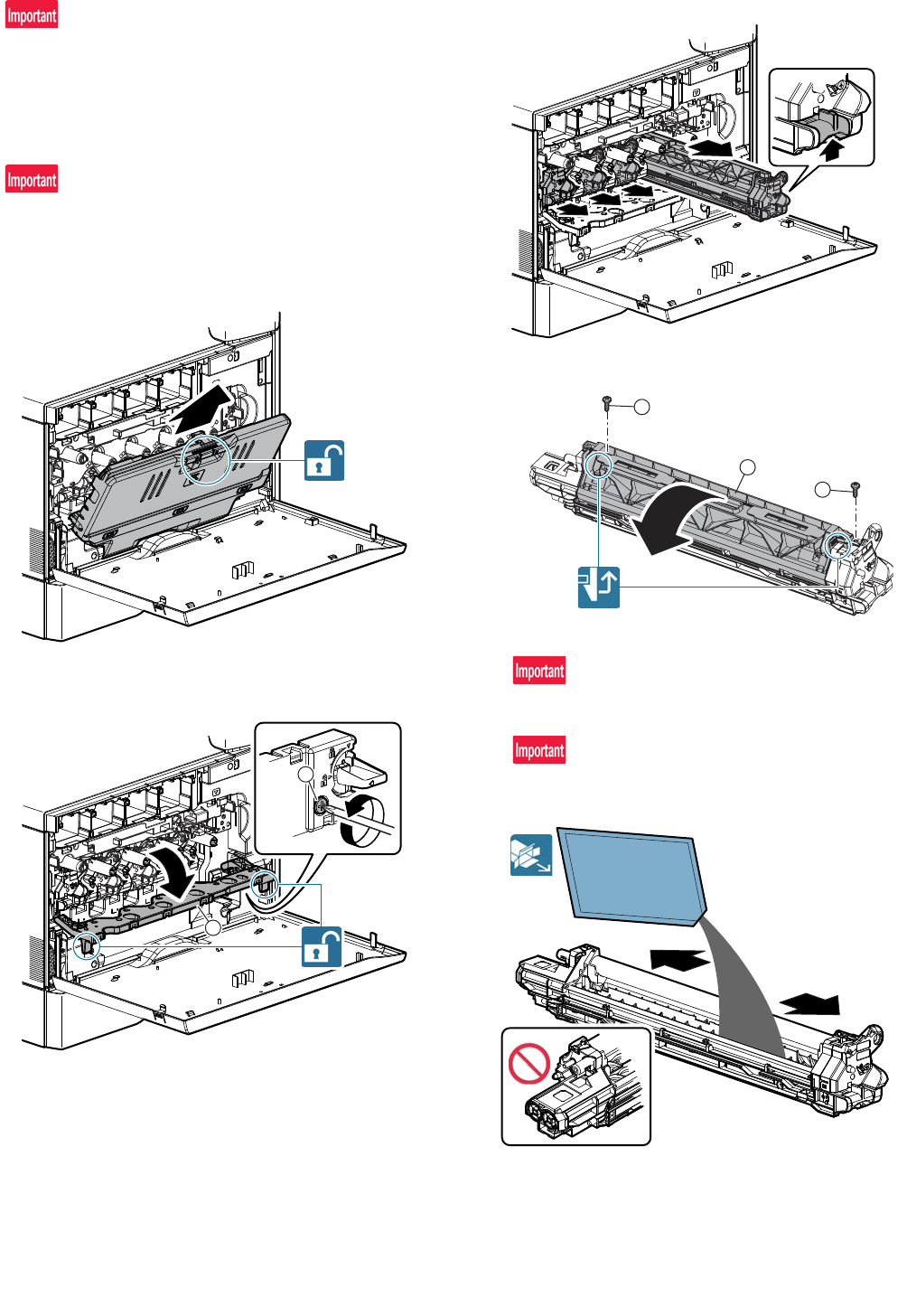
1) Open the front cabinet. Slide the lock to release, and remove
the waste toner box.
2) Turn the drum cover securing locks (2) to release, and then
raise the drum positioning cover.
3) While pressing the lever, pull out the developing unit to
remove.
4) Open the cover to remove.
5) Loading developer to the developing units.
Be sure to shake the bag of developer thoroughly before pour-
ing into the developing unit.
When pouring the developer into the unit, use care to not get
developer in to the drive section.
1
2
MX-3114N MX-2314N/2614N/3114N (MAIN UNIT) 2 – 3
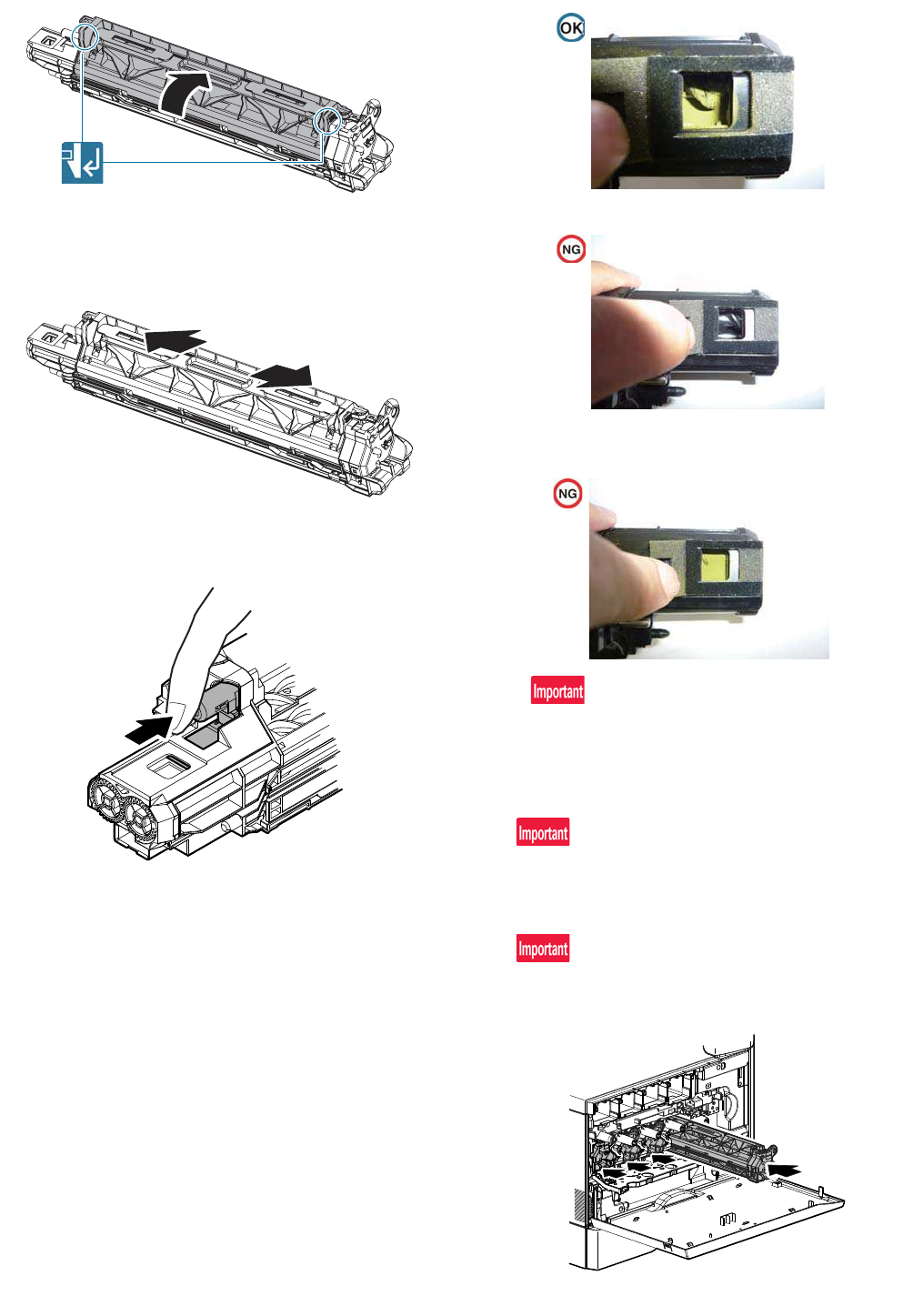
6) Attach the cover.
7) Shake the developing unit several times horizontally and
strongly.
8) Open the toner shutter of the developing unit and check to
confirm that there is proper amount of developer. If not, per-
form procedure 6) again.
• Check that there is proper amount of developer.
(The stirring screw can be partly seen.)
• There is no developer in the shutter position.
• There is too much developer.
(The stirring screw cannot be seen.)
Be sure to keep the developing unit level while supplying the
developer.
9) Insert the developing unit so as not to give a strong shock to
the main unit gently.
Slide the developing unit horizontally into the machine, in the
direction of the arrow, until developing unit locks into. place.
Do not push the unit diagonally, as contact with the drum may
occur causing damage.
When removing or installing the developing unit, put your hand
from below the unit and slide it in parallel along the guide.
At that time, be careful not to touch the roller surface.
MX-3114N MX-2314N/2614N/3114N (MAIN UNIT) 2 – 4
When installing the machine, there is no need to remove or
install the OPC drum unit. If it must be removed or installed for
any reason, follow the procedures below. When removing or
installing the OPC drum unit, put your hand from below the unit
and slide it in parallel along the guide on the right side.
At that time, be careful not to touch the OPC drum surface.
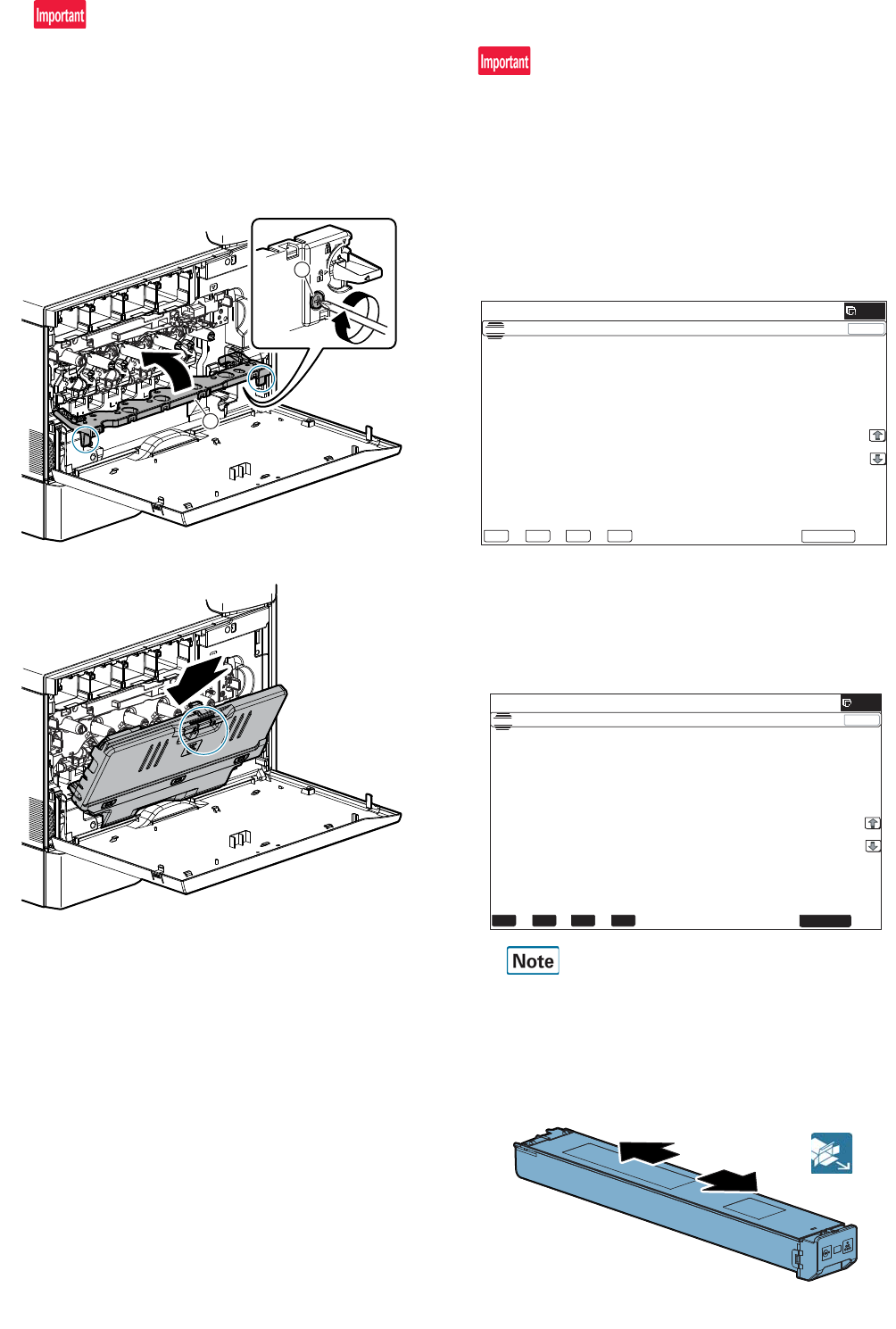
10) Close the drum positioning cover, and lock it.
11) Re-install the waste toner box and lock into place.
B. Set the control level for the reference toner
density
Setting of the reference toner density control level must be per-
formed with the toner cartridge removed.
If setting is performed with the toner cartridge installed, the EE-EL
error or an overtoner trouble may occur.
1) With the front cabinet open, connect the power plug to the
power outlet.
2) Turn ON the main power switch of the machine and the power
switch on the operation panel.
3) Enter the SIM25-2 mode.
4) After entering the simulation, close the front cabinet.
5) Select K, C, M, Y and then press the [EXECUTE] button. The
system then performs the simulation, samples the toner den-
sity control sensor value, and sets (stores in memory) the
average sensor detection level as the control level for the ref-
erence toner density. (Operating times: approx. 1.5 minutes)
Be sure to select all of the four colors: K, C, M, Y.
6) After the machine completes cycling, exit the simulation mode.
7) Confirm that “Install the toner cartridge” is displayed, and
install the toner cartridge by the following procedures.
8) Shake the toner cartridge horizontally several times.
2
1
ǂǂǂ6,08/$7,21ǂǂ12
&/26(
7(67
$8720$7,&'(9(/23(5$'-8670(17
(;(&87(
$7'(9($'-B/B. $7'(9(92B0B.
$7'(9($'-B/B& $7'(9(92B0B&
$7'(9($'-B/B0 $7'(9(92B0B0
$7'(9($'-B/B< $7'(9(92B0B<
$7'(9($'-B0B.
$7'(9($'-B0B&
$7'(9($'-B0B0
$7'(9($'-B0B<
$7'(9(92B/B.
$7'(9(92B/B&
$7'(9(92B/B0
$7'(9(92B/B<
. & 0 <
ǂǂǂ6,08/$7,21ǂǂ12 &/26(
7(67
$8720$7,&'(9(/23(5$'-8670(17
(;(&87(
$7'(9($'-B/B. $7'(9(92B0B.
$7'(9($'-B/B& $7'(9(92B0B&
$7'(9($'-B/B0 $7'(9(92B0B0
$7'(9($'-B/B< $7'(9(92B0B<
$7'(9($'-B0B.
$7'(9($'-B0B&
$7'(9($'-B0B0
$7'(9($'-B0B<
$7'(9(92B/B.
$7'(9(92B/B&
$7'(9(92B/B0
$7'(9(92B/B<
. & 0 <
MX-3114N MX-2314N/2614N/3114N (MAIN UNIT) 2 – 5
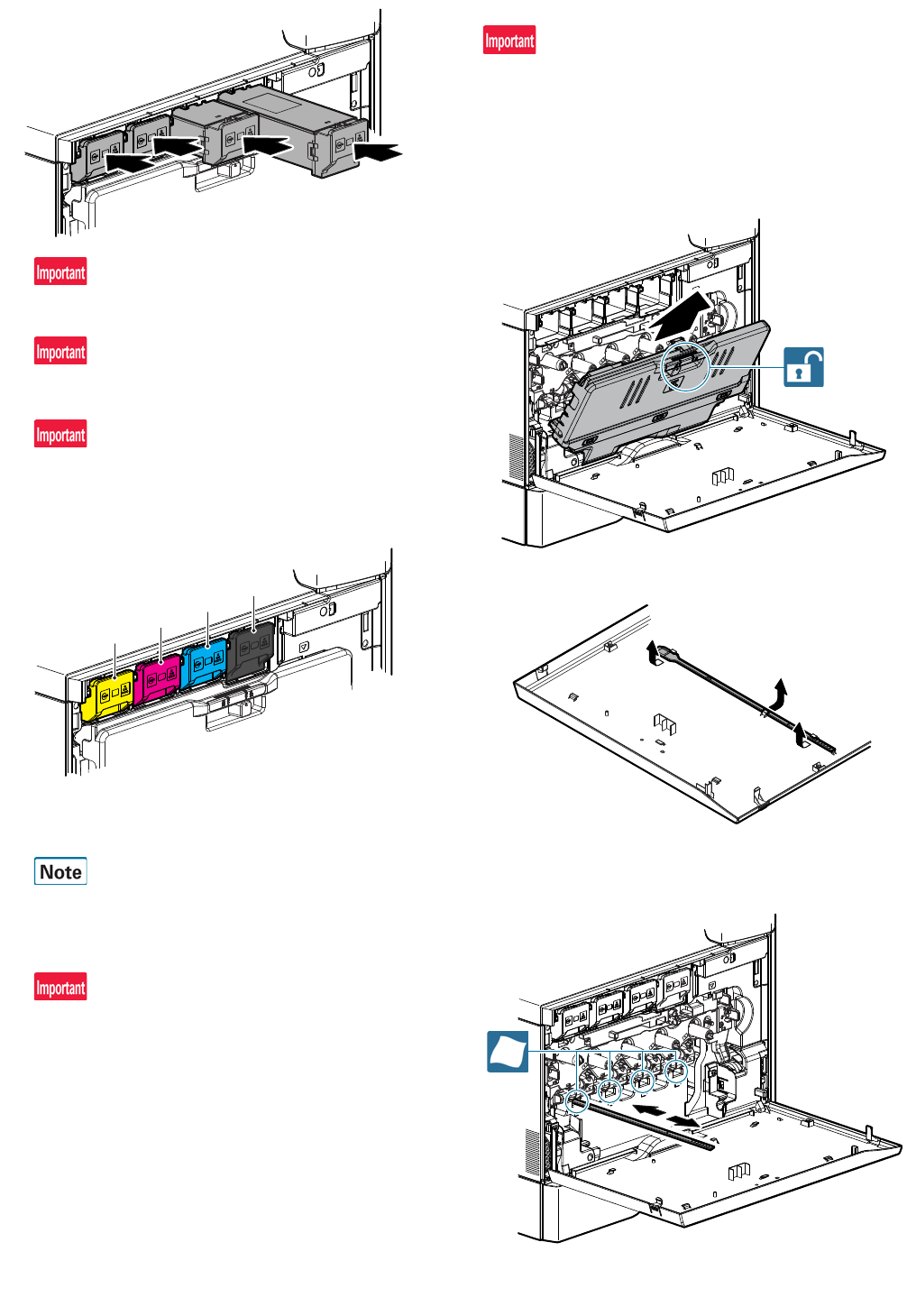
9) Open the front cabinet, and insert each toner cartridge.
Be sure to install the color cartridges to their proper positions.
Avoid installation to a different color position.
Do not forcibly insert the toner cartridge.
Push it in until the cartridge is securely locked in place.
Developing units removed, be sure to remove the toner car-
tridges as well to prevent toner clogging.
Color toner cartridge positions
10) Close the front cabinet.
11) Confirm that "Toner replenishment in progress" is displayed,
and wait until the display disappears. (It takes 30 sec - 6 min.)
This procedure is for checking the toner supply operation from
the toner cartridge to the DV unit. The operation time differs
depending on the toner quantity in the toner cartridge, uneven
distribution of toner, and the inside state of the toner cartridge.
Do not perform operations which interrupt the above operation,
such as opening the front cover, entering the SIM mode, and
turning OFF/ON the power. If this precaution is ignored, an
error of F2-40 - 43 or F2-64 - 67 may occur or an overtoner
may be caused.
C. Cleaning
(1) Cleaning of LSU's dust-proof glass and PTC wire
Dust from the transfer belt or shutter or some other adjacent part
may fall onto the LSU during transport or installation. Be sure to
clean the dust-proof glass and PTC wire before checking the image
quality.
1) Open the front cabinet. Slide the lock to release, and remove
the waste toner box.
2) Detach the LSU cleaning bar from the front cover.
3) Turn the felt side of the cleaning bar downward and insert it.
Slide it back and forth a few times to clean the LSU dust-proof
glass.
Y
M
C
BK
MX-3114N MX-2314N/2614N/3114N (MAIN UNIT) 2 – 6
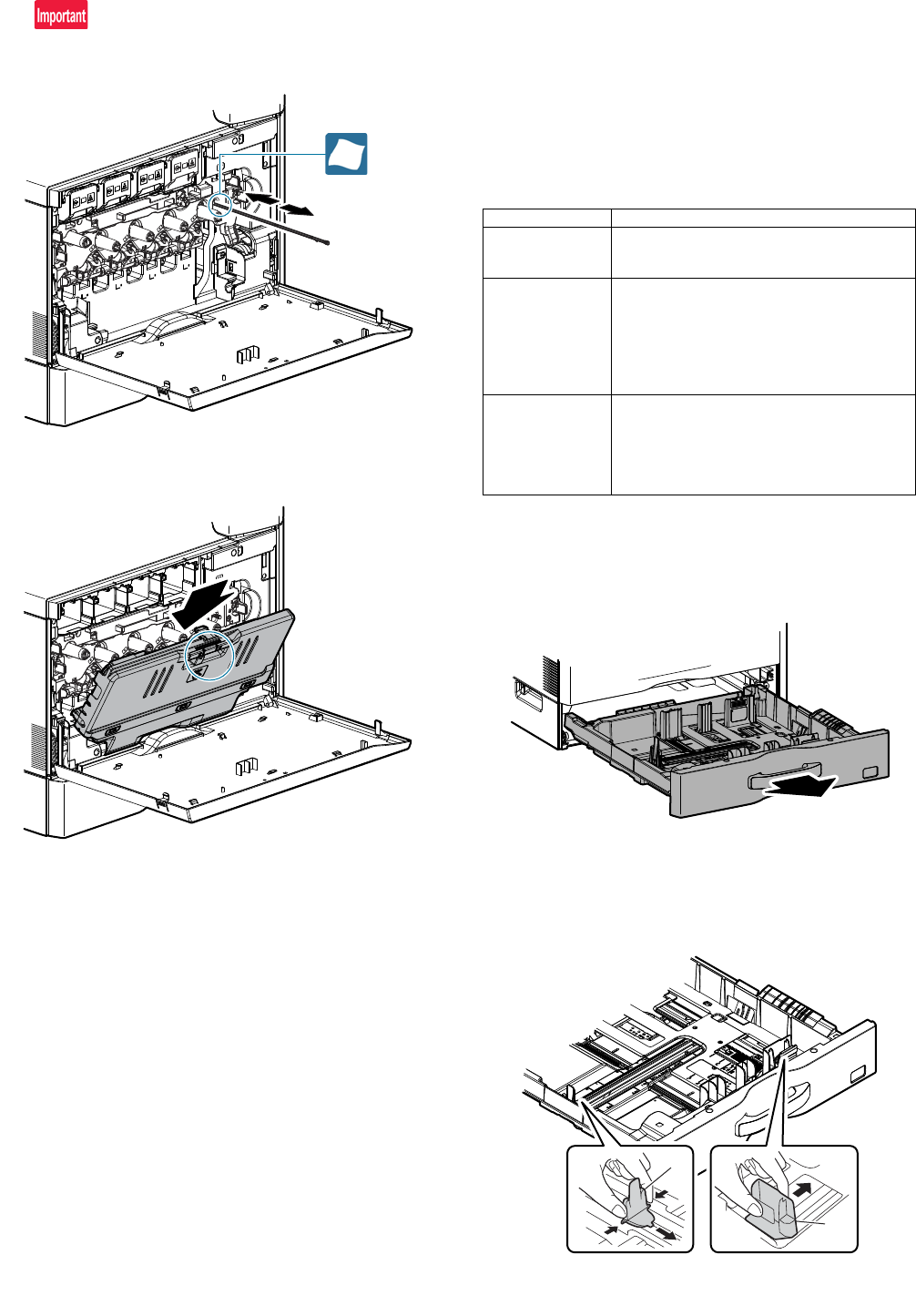
4) Move the PTC cleaning rod back and forth a few times to clean
the PTC wire.
After completion of cleaning, insert the cleaning rod completely
to the bottom.
5) Return the LSU cleaning rod to the front cabinet so that the felt
faces upward. Fit the boss, and fix it with three pawls.
6) Close the front cabinet.
D. Paper feed tray setup
(1) System setting
1) Press the [SYSTEM SETTINGS] key.
2) Touch the [Paper Tray Settings] key.
3) Touch the [Paper Tray Settings] key to configure the settings.
These settings specify the paper type, paper size, and func-
tions allowed for each paper tray. When the [Tray Settings] key
is touched, a list appears showing the trays and the current
settings.
4) Touch the [Change] key in the above screen to change the set-
tings. The following settings can be configured.
(2) Tray size setup
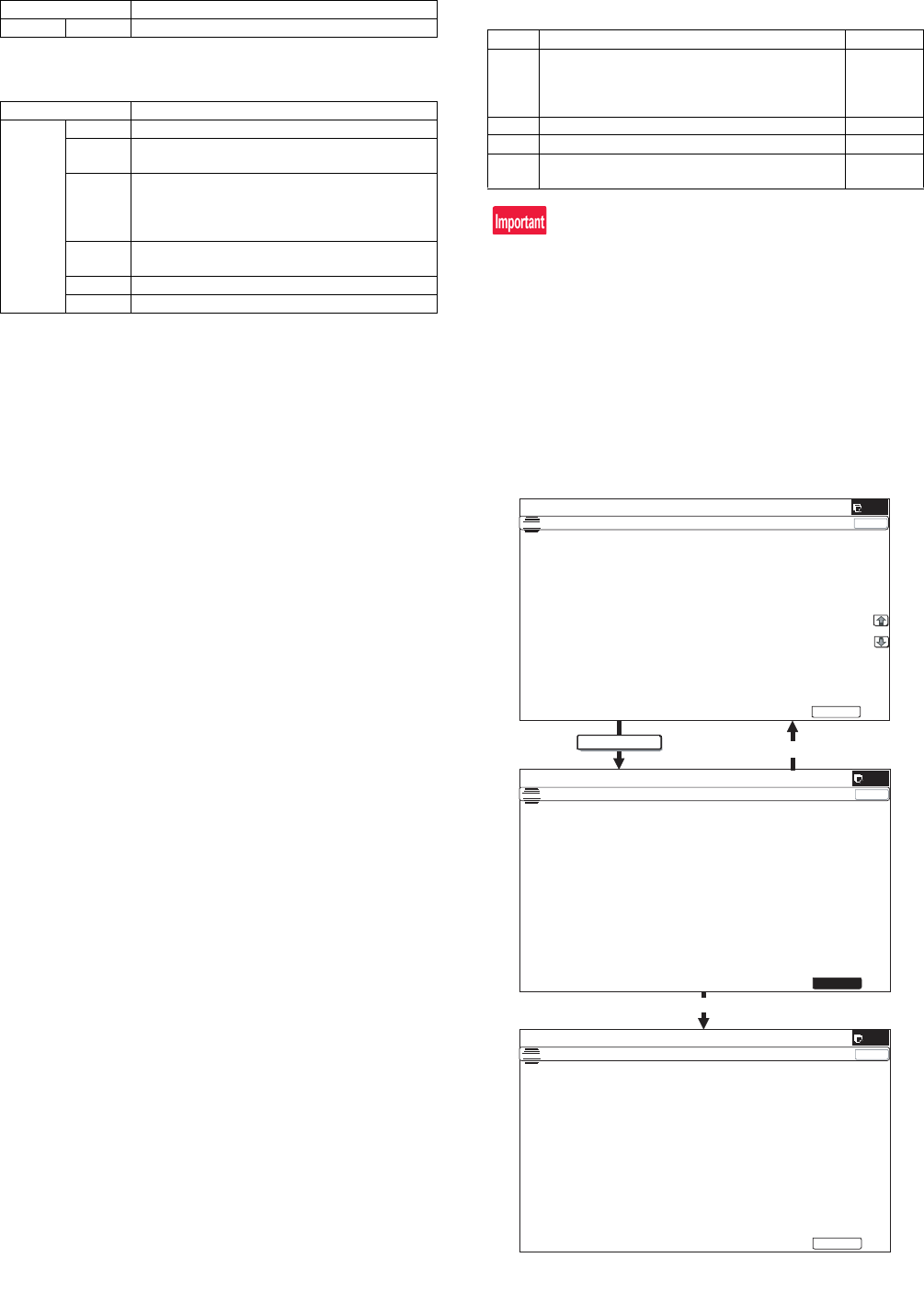
1) Pull out the paper tray.
Gently pull the tray out until it stops.
If paper remains in the tray, remove it.
2) Adjust the guide plates A and B by squeezing their lock levers
and sliding them to match the vertical and horizontal dimen-
sions of the paper to be loaded.
The guide plates A and B are slidable. Slide each guide plate
while squeezing its lock lever.
Item Description
Type Select the type of paper that is loaded in the tray.
The paper types that can be selected vary by paper
tray.
Size Select the paper size from the list. The paper sizes
that can be selected vary by tray. The sizes that
can be selected may also be restricted by the paper
type selected above.
If the desired size does not appear in the list, select
[Custom Size] and directly enter the size (only for
the bypass tray).
Feeding Approved
Job
Select the modes that can be used. If there is a
function that you do not wish to be used with the
selected tray, disable the function. When the "Type"
is other than plain paper, recycled paper, colored
paper, or a user type, [Fax] and [Internet Fax]
cannot be selected.
A
B
MX-3114N MX-2314N/2614N/3114N (MAIN UNIT) 2 – 7
E. Specifications setup
Use simulation 26-6 to set the machines destination.
After completion of destination settings, change the set values to
customize the following settings.
3. Image quality check
A. Execution items
Execute the following items.
*1: When a printer option is installed, be sure to execute the above
item.
B. Description
(1) Print engine image distortion adjustment (Manual
adjustment) / OPC drum phase adjustment
(Automatic adjustment) / Color registration
adjustment (Automatic adjustment)
This adjustment performs the print engine image distortion adjust-
ment, the OPC drum phase adjustment, and the color registration
adjustment simultaneously.
1) Enter SIM50-22 mode.
SIM No Content
26 6 Used to set the destination.
SIM No Content
26 3 Used to set the auditor specification mode.
5 Used to set the count mode of the total counter and
the maintenance counter.
18 Used to set YES/NO of the toner save mode (Only
in UK and Japan versions)
* For other destination versions, this setup is
made by the user program.
52 Used to set YES/NO of counting when non-print
paper is passed through each counter.
53 Used to set YES/NO of user calibration permission.
65 Used to set the limit number of sheets for stapling.
No. Item SIM
1 Print engine image distortion adjustment (Manual
adjustment) / OPC drum phase adjustment
(Automatic adjustment) / Color registration
adjustment (Automatic adjustment)
50-22
2 Copy color balance and density check
3 Printer color balance/density check 64-5/67-25
4*1 Copy/Printer color balance and density adjustment
(Automatic adjustment)
46-74
EXECUTE
ǂǂǂ6,08/$7,21ǂǂ12 &/26(
7(67
$872$'-8670(172)5(*,675$7,21'580326,7,21
12:(;(&87,1*
(;(&87(
ǂǂǂ6,08/$7,21ǂǂ12 &/26(
7(67
$872$'-8670(172)5(*,675$7,21'580326,7,21
35(66>(&(;87(@7267$57
(55257211(5(037<
(;(&87(
ǂǂǂ6,08/$7,21ǂǂ12 &/26(
7(67
$872$'-8670(172)5(*,675$7,21'580326,7,21
0$,1)0$,1568%6.(:3+$6(
&/1*
0/1*
</1*
$//B527$7(/2.
(;(&87(
Adjustment completed
Abnormal end
MX-3114N MX-2314N/2614N/3114N (MAIN UNIT) 2 – 8
2) Press [EXECUTE] key.
[EXECUTE] key is highlighted and the image registration auto-
matic adjustment is started. (It takes about 15 sec to complete
the adjustment.)
3) When the adjustment is completed, [EXECUTE] key returns to
the normal display, and the value of the adjustment result is
displayed.
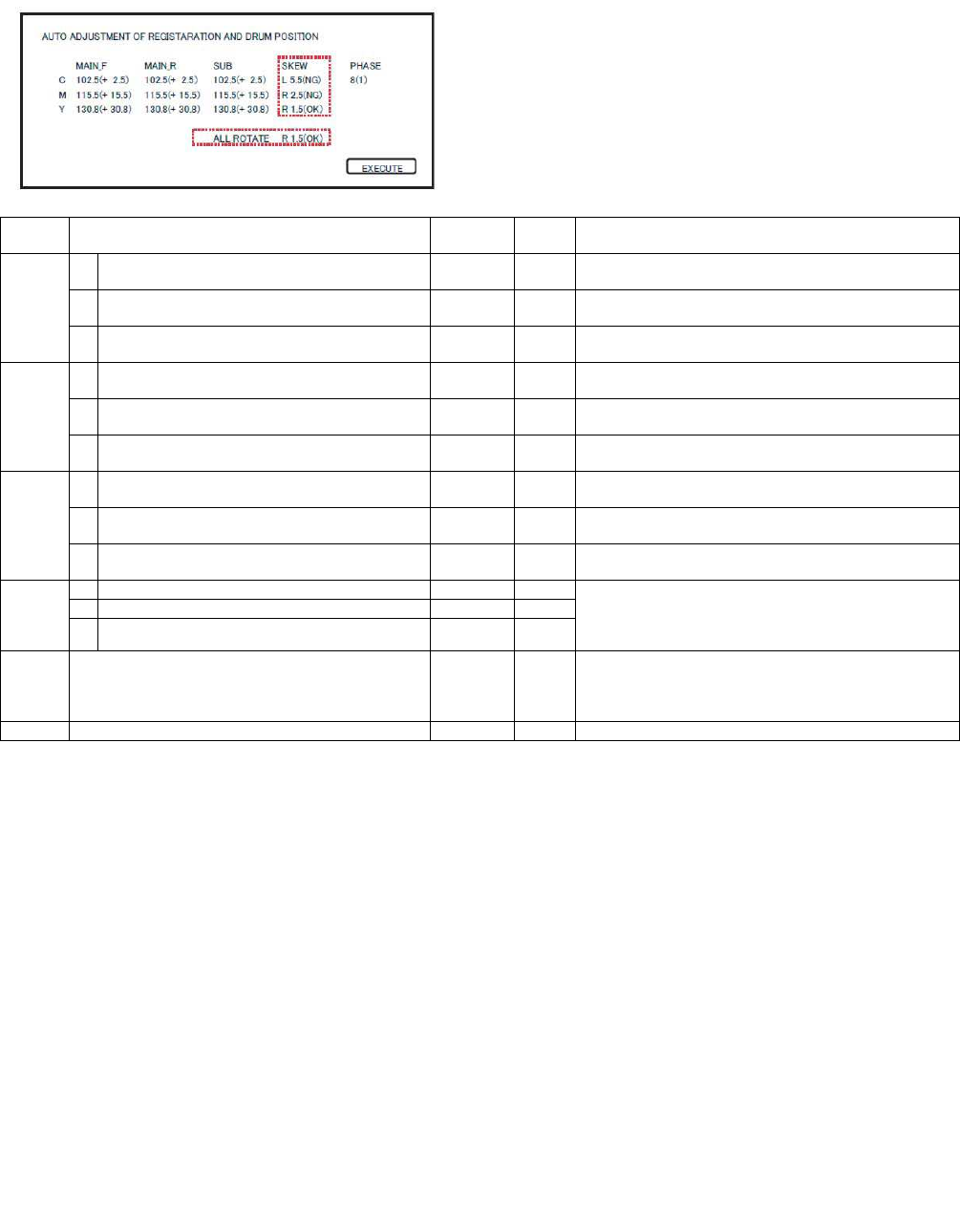
The current skew level for each color is displayed on the
SKEW display section.
4) Write down the displayed skew level.
(Meaning of the skew level value and the adjustment proce-
dure)
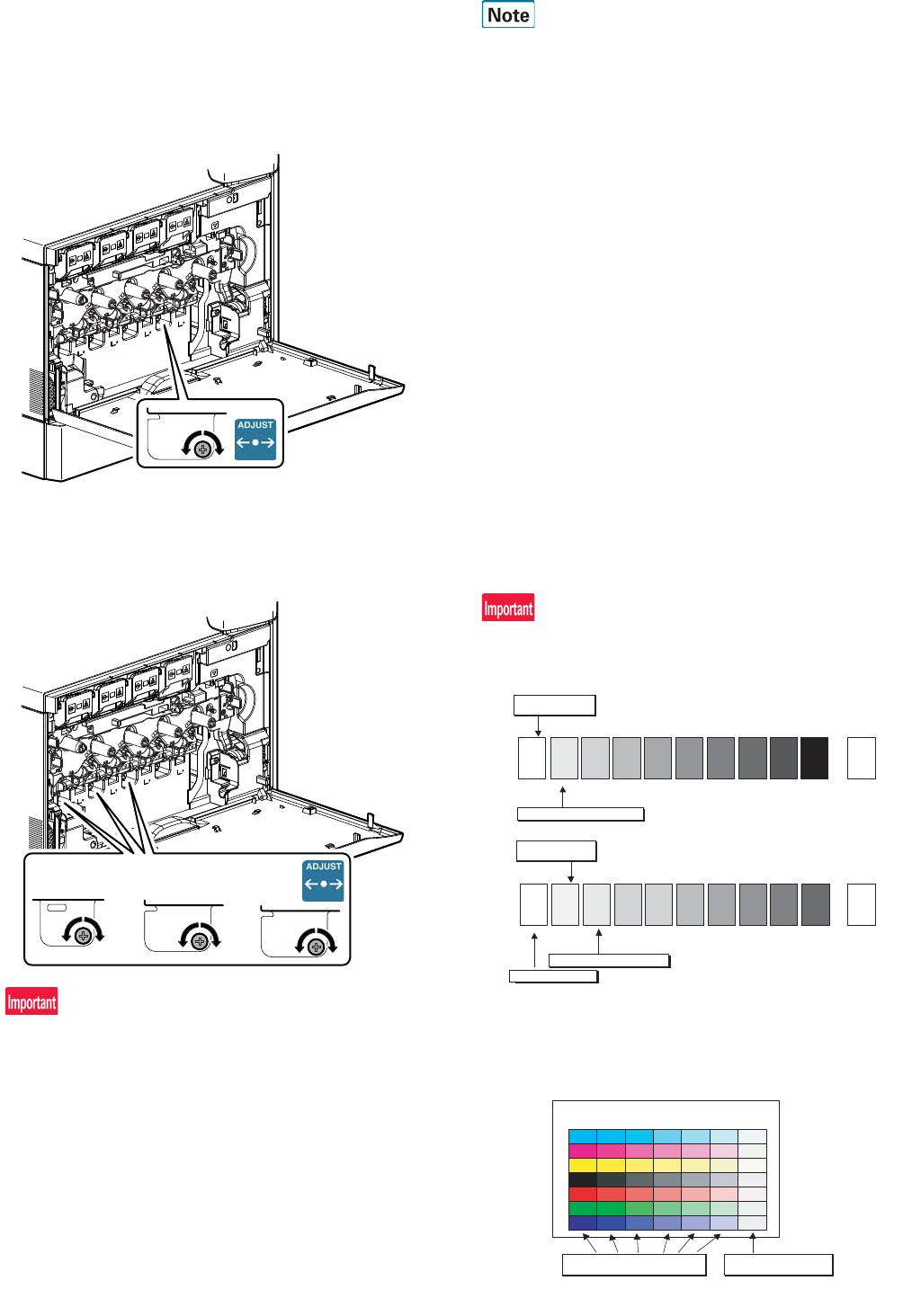
* If "OK" is displayed for all items of SKEW ALL_ROTATE, C,
M, and Y, there is no need to perform the adjustment.
* When "R" is displayed at the head of the value, turn the LSU
skew adjustment screw clockwise.
* When "L" is displayed at the head of the value, turn the LSU
skew adjustment screw counterclockwise.
* The turning amount of the adjustment screw corresponds to
each adjustment value. "ALL_ROTATE" indicates the num-
ber of rotations, and C, M, and Y indicate numbers of clicks.
The display value is rounded at the decimal point.
* "ALL_ROTATES" shows the number of rotations of adjust-
ments for all the adjustment screws. "C, M, and Y(SKEW)"
shows the number of adjustment click steps for each adjust-
ment screw of C, M, and Y.
Contents in ( )
MIAN, SUB: Difference from the previous adjustment value of
image registration.
Example:
If 105 for this time and 103 for the previous time,
it is displayed as 105.0 (+2.0).
SKEW, ALL_ROTATE: Judgment of the LSU skew adjustment
result. OK or NG.
PHASE: OPC drum phase adjustment value of the previous
time
Display/
Item Content Display Default NOTE
MAIN F C Registration adjustment value main scanning
direction (Cyan laser writing position F side)
1.0 - 199.0 100
M Registration adjustment value main scanning
direction (Magenta laser writing position F side)
1.0 - 199.0 100
Y Registration adjustment value main scanning
direction (Yellow laser writing position F side)
1.0 - 199.0 100
MAIN R C Registration adjustment value main scanning
direction (Cyan laser writing position R side)
1.0 - 199.0 100
M Registration adjustment value main scanning
direction (Magenta laser writing position R side)
1.0 - 199.0 100
Y Registration adjustment value main scanning
direction (Yellow laser writing position R side)
1.0 - 199.0 100
SUB C Registration adjustment value sub scanning direction
(Cyan drum o Black drum)
1.0 - 199.0 100
M Registration adjustment value sub scanning direction
(Magenta drum o Black drum)
1.0 - 199.0 100
Y Registration adjustment value sub scanning direction
(Yellow drum o Black drum)
1.0 - 199.0 100
SKEW C Print skew amount calculation result (Cyan) -99.9 - 99.9 0 If the value is positive (+), "L" is displayed at the head of the
value. If negative (–), "R" is displayed.
If the value is in the range of –2.1 - +2.1, "(OK)" is displayed at
the bottom of the value. In the other cases, "(NG)" is displayed.
M Print skew amount calculation result (Magenta) -99.9 - 99.9 0
Y Print skew amount calculation result (Yellow) -99.9 - 99.9 0
ALL_
ROTATE
Print skew amount calculation result (Overall) -99.9 - 99.9 0 If the value is positive (+), "L" is displayed at the head of the
value. If negative (–), "R" is displayed.
If the value is in the range of –1.6 - +1.6, "(OK)" is displayed at
the bottom of the value. In the other cases, "(NG)" is displayed.
PHASE OPC drum phase adjustment value 1 - 8 1
MX-3114N MX-2314N/2614N/3114N (MAIN UNIT) 2 – 9
5) If the display of ALL_ROTATE is NG, turn all the LSU skew
adjustment screws to adjust, and perform the procedures 2) to
4).
Repeat the procedures 2) to 5) until the display of
ALL_ROTATE becomes OK. If the display of ALL_ROTATE is
OK, go to the procedure 6).
For the adjustment, remove the front cover and the waste
toner box, and turn the skew adjustment screw.
6) Repeat the procedures 2) to 4) again, and check to confirm
that C, M, and Y (SKEW) are OK.
If any of them is NG, turn the LSU skew adjustment screw of
the corresponding color to adjust.
When the adjustment is made by turning the LSU skew adjustment
screw of K, the states of C, M and Y (SKEW) are changed. Execute
SIM50-22 to check to confirm that C, M, and Y (SKEW) are OK.
When an abnormality occurs, "ERROR" is displayed.
In this case, check each drive section and the process section.
(2) Copy color balance and density check
Before checking the copy color balance and density, be sure to
execute the following jobs.
* Execute the high density image correction (Process correction)
forcibly. (SIM 44-6)
* Execute the half-tone image correction forcibly. (SIM 44-26)
Method 1
Make a copy of the gray test chart (UKOG-0162FCZZ) and a copy
of the servicing color test chart (UKOG-0326FCZZ/UKOG-
0326FC11), and check that they are proper.
a. Note for execution of the color balance and density check in the
color copy mode
To check the copy color balance and density, use the gray test
chart (UKOG-0162FCZZ) and the servicing color test chart
(UKOG-0326FCZZ/UKOG-0326FC11). Set the copy density
level to "3" in the Text/Printed Photo mode (Manual), and make a
copy.
At that time, all the color balance adjustments in the user adjust-
ment mode must be set to the default (center).
In addition, be sure to use the specified paper for color.
b. Note for checking the monochrome copy mode density
To check the density, use the gray test chart (UKOG-0162FCZZ).
Set the copy density level to "Manual 3" in the Text/Printed Photo
mode (Manual).
In addition, all the color balance adjustments in the user adjust-
ment mode must be set to the default (center).
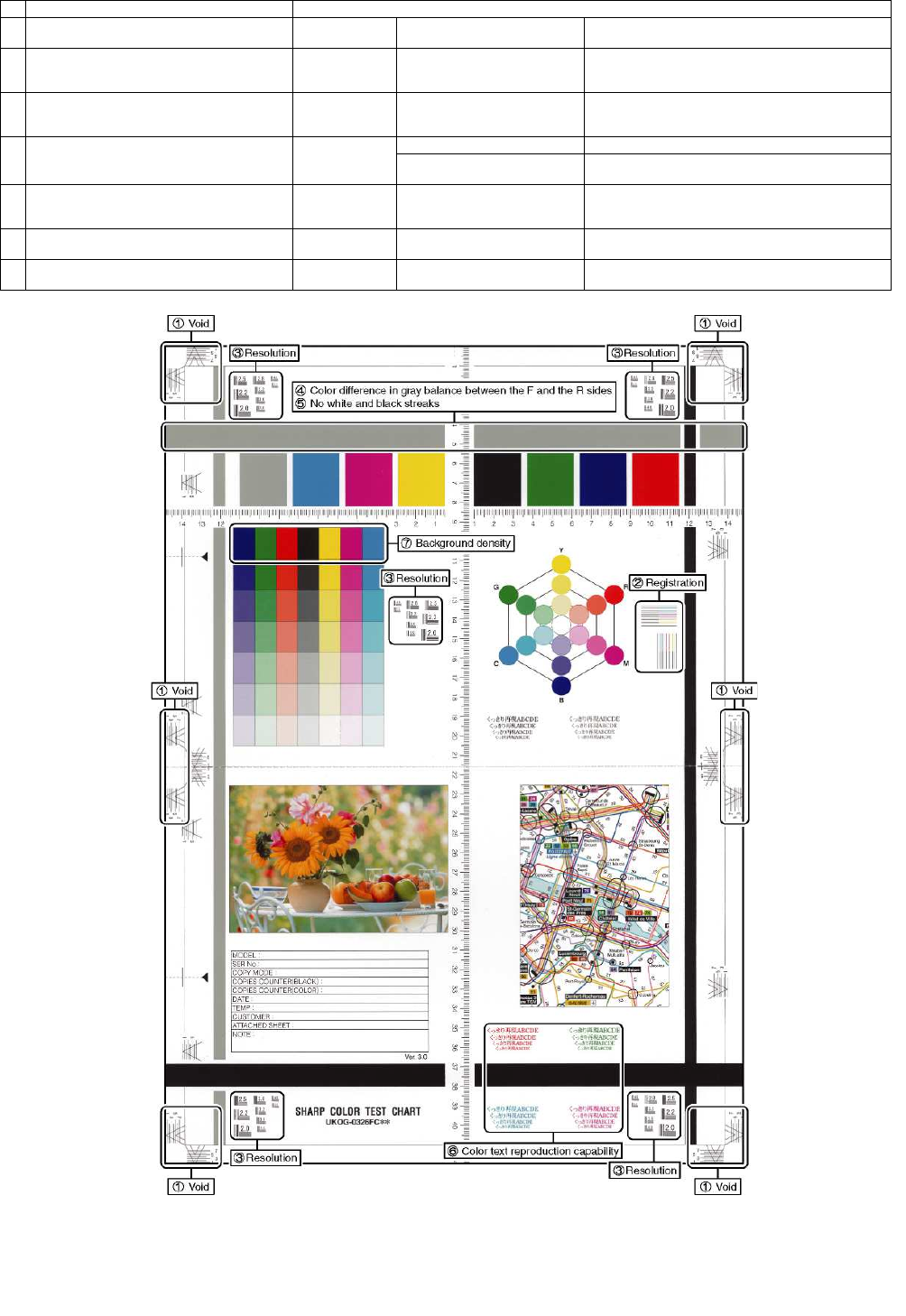
[Check with the gray test chart (UKOG-0162FCZZ)]
In the copy density check with the gray test chart, check to insure
the following conditions.
For the color (gray) balance, use the servicing color test chart
(UKOG-0326FCZZ/UKOG-0326FC11) to check.
[Check with the servicing color test chart (UKOG-0326FCZZ/
UKOG-0326FC11)]
In the copy color balance check with the servicing color test chart,
check to insure the following conditions.
1 2 3 4 5 6 7 8 9
10
W
SHARP GRAY CHART
SHARP gray chart
Patch 1 is
slightly copied.
Patch 2 is copied.
(Color copy)
1 2 3 4 5 6 7 8 9 10 W
SHARP GRAY CHART
SHARP gray chart
Patch 1 is not copied.
Patch 2 is
slightly copied.
Patch 3 is copied.
( py)
Serviceman chart (Color patch section)
The densities of patches 1 - 6 of
each color are properly balanced.
Patch 7 is slightly
copied or not copied.
(Color copy)
MX-3114N MX-2314N/2614N/3114N (MAIN UNIT) 2 – 10
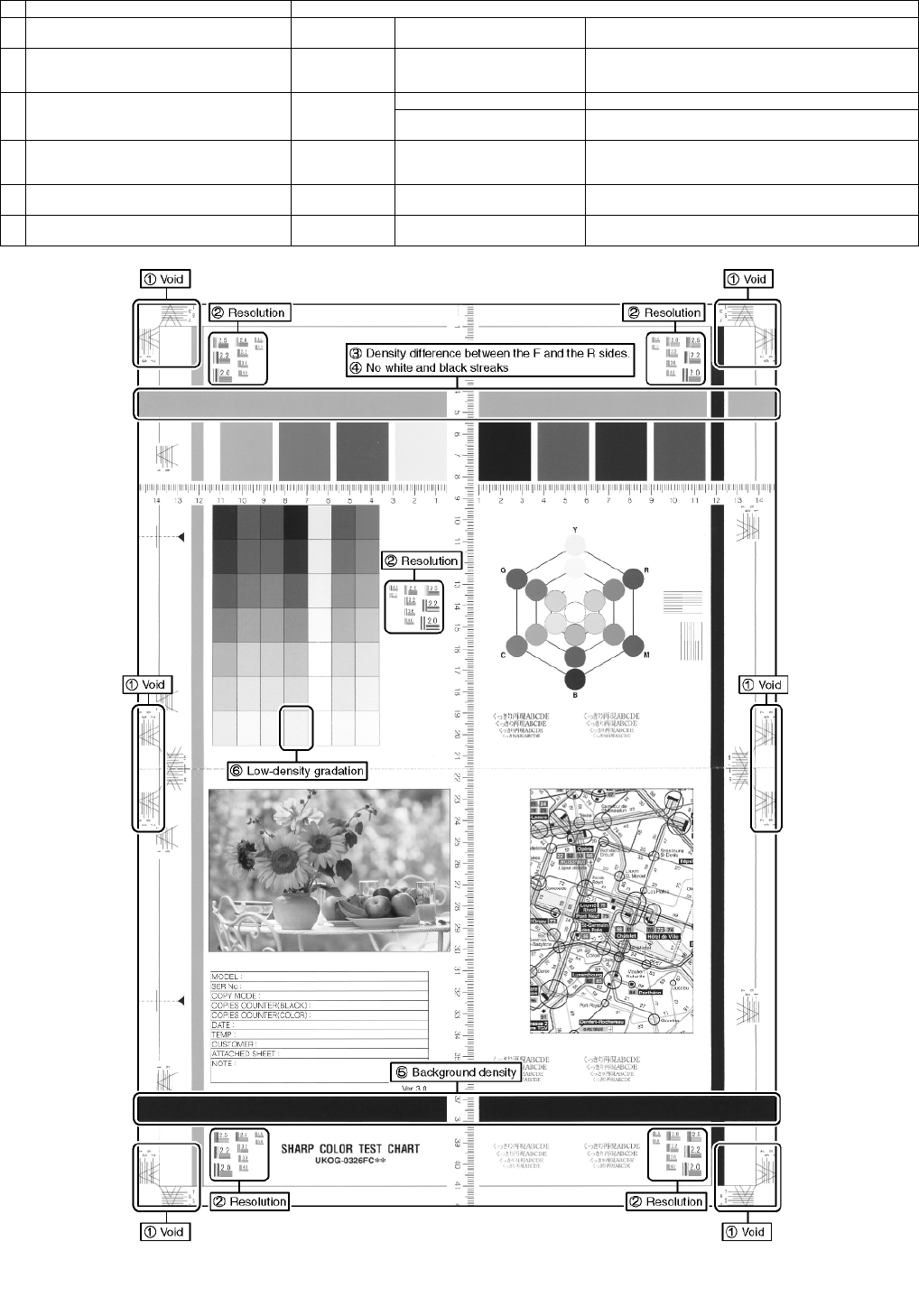
a. Color copy check items (Check to confirm the following:)
Color copy check items Adjustment items
1There are 12 void areas. Main machine S/
M
ADJ3-A to D Sim50-28
2
Registrations (one point for the main scanning,
and one point for the sub scanning) are not
shifted.
Main machine S/
M
ADJ4-A Sim50-22
3
The resolution of 5.0 (5 points) can be seen. Main machine S/
M
Check the dirtof the OC glass
Clean the OC glassClean the
mirror of the scannerADJ9-D16
Sim46-54Copy gamma, color balance adjustment for
each dither (Automatic adjustment)
4
The color difference in gray balance between the
F and th sides is not so great.
Main machine S/
M
ADJ22-A Sim61-11
ADJ9-B Sim46-74Copy/Printer color balance and density
adjustment (Automatic adjustment) (Basic adjustment)
5
There are no white and black streaks. Clean the mirror of the LSU.
Clean the Main ChargerClean the
mirror of the scanner
6Color texts are clearly reproduced. Main machine S/
M
ADJ9-D16 Sim46-54Copy/Printer color balance and density
adjustment (Automatic adjustment) (Basic adjustment)
7The background density is not so light. Main machine S/
M
ADJ9-B Sim46-74Copy/Printer color balance and density
adjustment (Automatic adjustment) (Basic adjustment)
MX-3114N MX-2314N/2614N/3114N (MAIN UNIT) 2 – 11
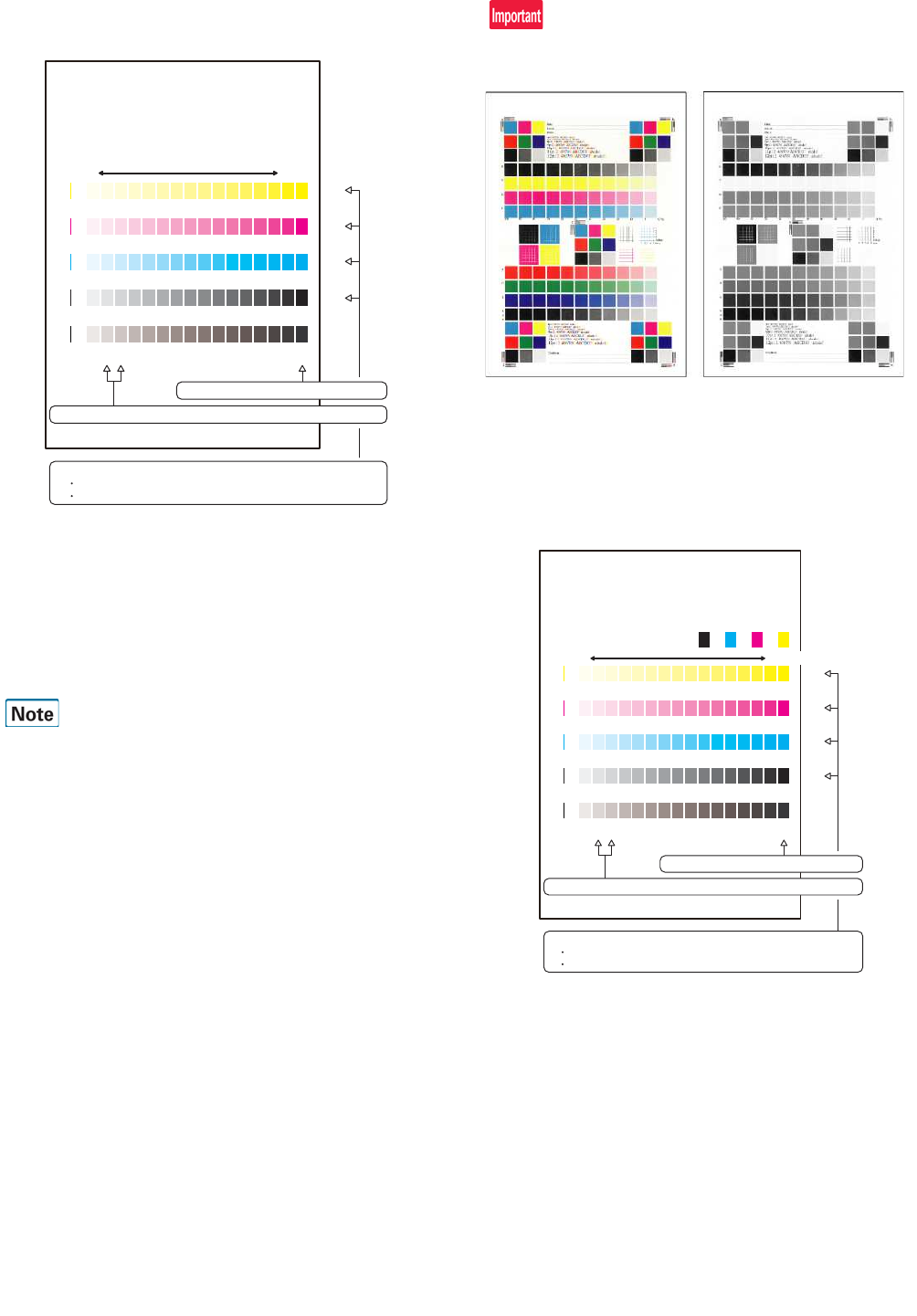
b. Monochrome copy check items (Check to confirm the following:)
Color copy check items Adjustment items
1There are 12 void areas. Main machine
S/M
ADJ3-A to D Sim50-28
2
The resolution of 5.0 (5 points) can be seen. Main machine
S/M
Check the dirtof the OC glass
Clean the OC glassClean the
mirror of the scannerADJ9-D16
Sim46-54Copy gamma, gray balance adjustment for each
dither (Automatic adjustment)
3
The color difference in gray balance between
the F and th sides is not so great.
Main machine
S/M
ADJ22-A Sim61-11
ADJ9-B Sim46-74Copy/Printer color balance and density adjustment
(Automatic adjustment) (Basic adjustment)
4
There are no white and black streaks. Clean the mirror of the LSU.
Clean the Main ChargerClean the
mirror of the scanner
5The background density is not so light. Main machine
S/M
ADJ9-D16 Sim46-54Copy/Printer gray balance and density adjustment
(Automatic adjustment) (Basic adjustment)
6The black low-density gradation is copied
slightly.
Main machine
S/M
ADJ9-B Sim46-74Copy/Printer color balance and density adjustment
(Automatic adjustment) (Basic adjustment)
MX-3114N MX-2314N/2614N/3114N (MAIN UNIT) 2 – 12
Method 2
Use SIM46-21 to print the color balance adjustment sheet, and
check each process (CMY) black patch color balance and the black
patch in order to confirm that the color balance adjustment is
proper.
If the color balance of each patch of the process black (CMY mixed
color) is slightly shifted to Magenta, it means that the adjustment is
proper. If the color balance of the adjustment pattern printed in this
mode is slightly shifted to Magenta, it is converted into the natural
gray color balance by the color table in an actual copy mode.
(When the color balance target is DEF 1.)
If color balance or density is not satisfied, adjust the copy and
printer color balance by SIM 46-74.
(3) Printer color balance/density check
Before checking the printer color balance and the density, be sure
to execute the following procedures in advance.
* Execute the high density image correction (Process correction)
forcibly. (SIM 44-6)
* The half-tone image correction is forcibly executed. (SIM 44-26)
Method 1
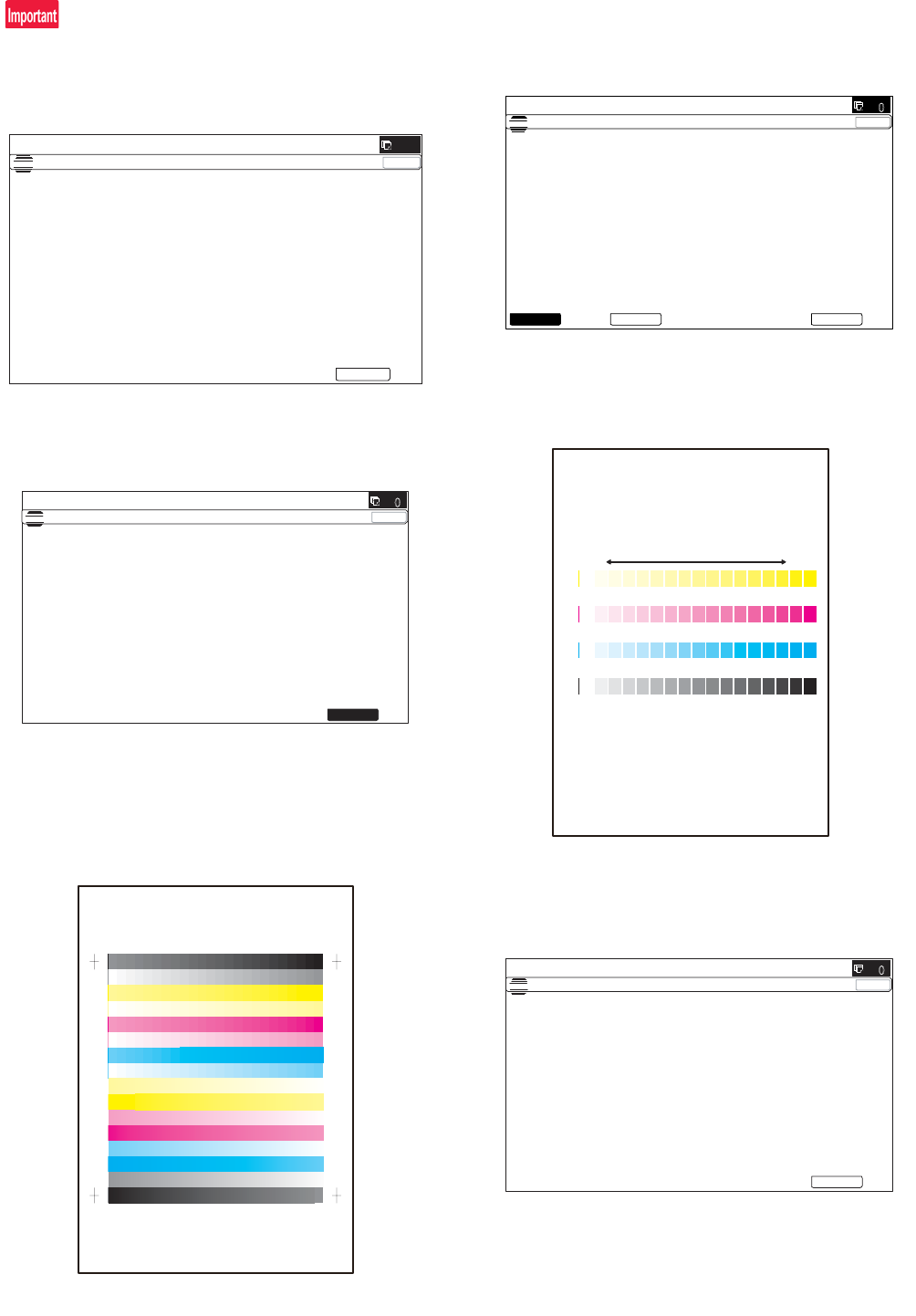
Execute SIM 64-5 to print the print test pattern.
Set each set value to the default and press [EXECUTE] key. The
print test pattern is printed.
The print density must be changed gradually from the lighter level
to the darker level. The density changing direction must not be
reversed. The density level of each color must be almost at the
same level.
Method 2
Use SIM 67-25 to print the color balance adjustment sheet and
compare each process (CMY) black patch color balance and the
black patch to check the color balance.
The print density must be changed gradually from the lighter level
to the darker level. The density changing direction must not be
reversed.
The density level of each color must be almost at the same level.
Patch B may not be copied.
Patch A must not be copied.
If the color balance of each patch of the process black (CMY mixed
color) is slightly shifted to Magenta, it means that the adjustment is
proper. In an actual print mode, it is converted into the natural gray
color balance by the color table. (When the color balance target is
DEF 1.)
QO PNMLKJIHGFEDCBA
Y
M
C
Bk
High
density
1) The max. density section is not blurred.
2) Patch C or D of each of Y, M, C, and BK is very slightly copied.
Low
density
CMY
blend
3) Patch for each of Y, M, C, BK
The patch density is identical between patches or not reversed.
The patch density is changed gradually.
PRINTER CALIBRATION
QO PNMLKJIHGFEDCBA
Y
M
C
Bk
1) The max. density section is not blurred.
2) Patch C or D of each of Y, M, C, and BK is very slightly copied.
Low density
CMY
blend
3) Patch for each of Y, M, C, BK
The patch density is identical between patches or not reversed.
The patch density is changed gradually.
High density
MX-3114N MX-2314N/2614N/3114N (MAIN UNIT) 2 – 13
(4) Copy/Printer color balance and density adjustment
(Automatic adjustment)
When a printer option is installed, be sure to execute the above
item.
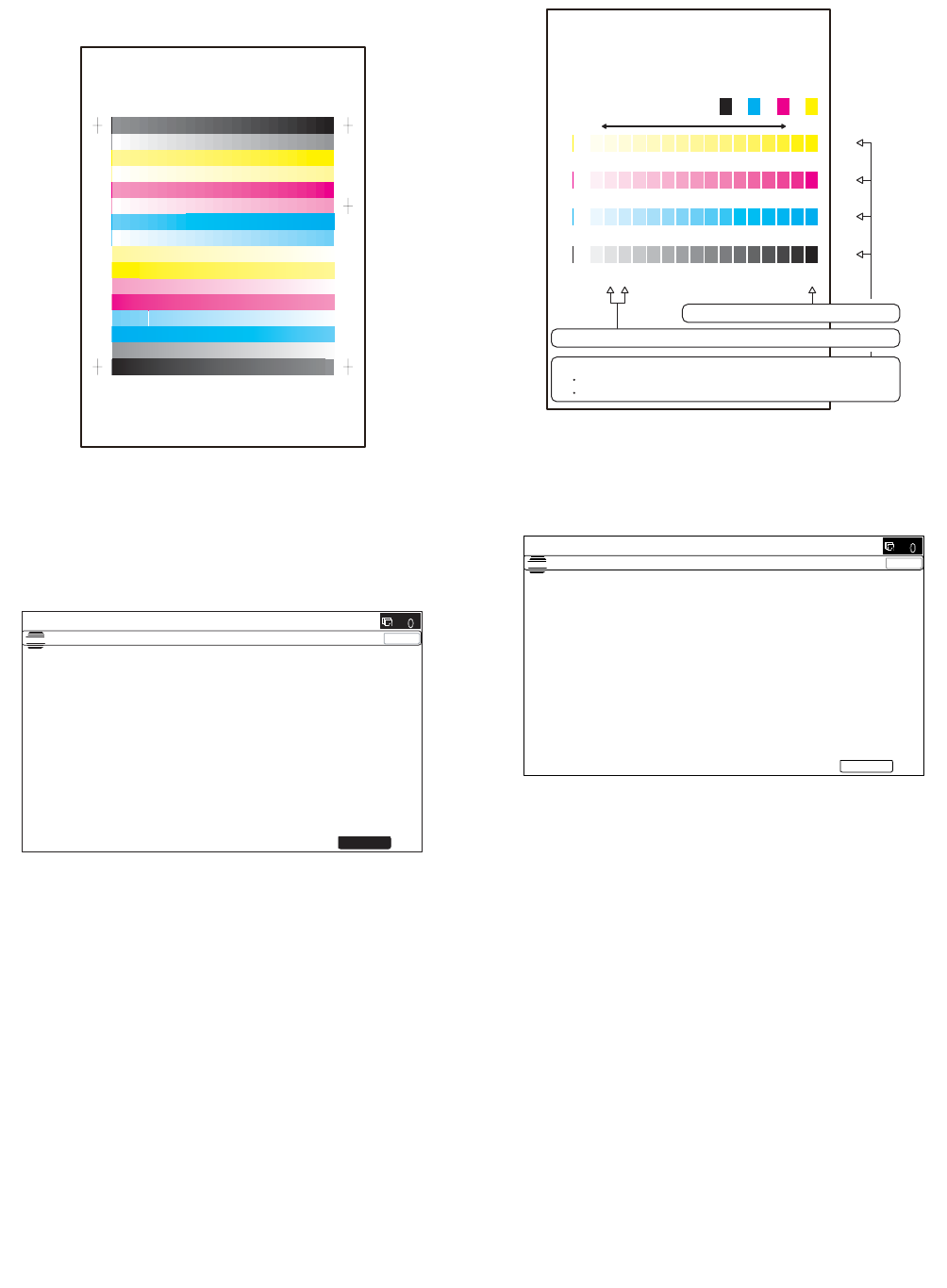
1) Enter the SIM46-74 mode.
2) Press [EXECUTE] key.
The high density process control is performed, and the copy
color patch image (adjustment pattern) is printed out.
(A4/11" x 8.5" or A3/11" x 17" paper is automatically selected.)
3) Set the color patch image (adjustment pattern) paper printed in
procedure 2) on the document table.
Set the color patch image (adjustment pattern) printed in the
procedure 2) on the document table. Place the color patch
image so that the fine lines are on the left side. At that time,
place 5 sheets of white paper on the printed color patch image
(adjustment pattern).
4) Select [FACTORY] target, and press [EXECUTE] key.
When the color balance is customized by the manual color bal-
ance adjustment (SIM 46-21) according to the user's request,
and the color balance is registered with SIM63-7 as the service
target, if the color balance is required to be adjusted, select the
[SERVICE] target.
The copy color balance adjustment is automatically executed
and prints the color balance check patch image.
If there is any streak or unclear print on the printed check pat-
tern, check the print engine for any problems.
5) Press [EXECUTE] key.
The printer color patch image (adjustment pattern) is printed
out. (A4/11" x 8.5" or A3/11" x 17" paper is automatically
selected.)
ǂǂǂ6,08/$7,21ǂǂ12
&/26(
7(67
(1*,1($872$'-8670(176(59,&(
(;(&87(
35(66>(;(&87(@72352&21(;(&87,21$1'35,177+(7(673$7&+
3/($6(86(63(&,),('7<3(2)$$25;;6,=(3$3(5
)257+,6$'-8670(17
ǂǂǂ6,08/$7,21ǂǂ12 &/26(
7(67
(1*,1($872$'-8670(176(59,&(
(;(&87(
352&21(;(&87,1*
ǂǂǂ6,08/$7,21ǂǂ12 &/26(
7(67
(1*,1($872$'-8670(176(59,&(
3/($6(6(/(&77+(02'()$&725<256(59,&($1'3/$&(
7+(35,17('7(673$7&+21'2&80(17*/$667+(135(66>(;(&87(@
/,*+7$5($$7/()76,'(21'2&80(17*/$66
(;(&87(6(59,&()$&725<
QO PNMLKJIHGFEDCBA
Y
M
C
Bk
High
density
Low
density
ǂǂǂ6,08/$7,21ǂǂ12 &/26(
7(67
(1*,1($872$'-8670(176(59,&(
&21),507+($'-3$7&+$1'35(66>(;(&87(@72$'-2)5(*,675$7,21(;(
$1'35,177+(7(673$7&+
3/($6(86(63(&,),('7<3(2)$25h6,=(3$3(5
)257+,6$'-8670(17
(;(&87(
MX-3114N MX-2314N/2614N/3114N (MAIN UNIT) 2 – 14
6) Set the color patch image (adjustment pattern) printed in the
procedure 5) on the document table.
Set the color patch image (adjustment pattern) printed in the
procedure 2) on the document table. Place the color patch
image so that the fine lines are on the left side. At that time,
place 5 sheets of white paper on the printed color patch image
(adjustment pattern).
7) Select [FACTORY] target, and press [EXECUTE] key.
When the color balance is customized with the manual color
balance adjustment (SIM 67-25) according to the user's
request and the color balance is registered as the service tar-
get with SIM 67-27, if the color balance is adjusted to that color
balance, select the [SERVICE] target.
The printer color balance adjustment (step 1) is automatically
performed and the color balance check patch image is printed
out.
If there is any streak or unclear print on the printed check pat-
tern, check the print engine for any problems.
8) The initial setting menu of the half tone image correction is dis-
played. Press [OK] key.
The initial setting of the half tone image correction is per-
formed.
9) Wait until [EXECUTE] key is displayed. When it is displayed,
press it.
The half tone image correction is performed.
PRINTER CALIBRATION
ǂǂǂ6,08/$7,21ǂǂ12 &/26(
7(67
(1*,1($872$'-8670(176(59,&(
2.
3/($6(:$,7
12:5(*,67(5,1*7+(1(:7$5*(72)+$/)721(352&2167
PRINTER CALIBRATION
31 20/.-,+*)('&%$#
;
/
%
$M
1) The max. density section is not blurred.
2) Patch C or D of each of Y, M, C, and BK is very slightly copied.
3) Patch for each of Y, M, C, BK
The patch density is identical between patches or not reversed.
The patch density is changed gradually.
High densityLow density
ǂǂǂ6,08/$7,21ǂǂ12 &/26(
7(67
(1*,1($872$'-8670(176(59,&(
&21),507+($'-867('3$7&+$1'35(66>2.@725(*,67(57+,63$7&+'$7$
2.

MX-3114N MX-2314N/2614N/3114N (MAIN UNIT) 2 – 15
10) When "COMPLETED THIS PROCEDURE" is displayed, the
adjustment operation is completed.
Cancel SIM46-74.
The adjustment result becomes valid only when the both
adjustments in the copy mode and in the printer mode are
completed.
For example, if the copy color balance adjustment (automatic
adjustment) is performed and the simulation is canceled, the
adjustment result is invalid.
11) Check the copy color balance and density.
(Refer to the item of the copy color balance and density
check.)
When satisfactory color balance and density are not obtained
from the automatic adjustment by selecting the factory target in
procedure 4), change the factory color balance target with SIM
63-11 and repeat the procedures from 1).
If a satisfactory result is not obtained with the above proce-
dure, perform the manual color balance adjustment (ADJ 10C
(2)).
Also when the service target is selected in procedure 4) to exe-
cute the automatic adjustment and a satisfactory result is not
obtained, perform the manual color balance adjustment (ADJ
10C (2)).
12) Check the printer color balance and density.
(Refer to the item of the printer color balance and density
check.)
When satisfactory color balance and density are not obtained
from the automatic adjustment by selecting the factory target in
procedure 7), change the factory color balance target with SIM
67-26 and repeat the procedures from 1).
If a satisfactory result on the color balance and the density is
not obtained with the automatic adjustment, execute the man-
ual adjustment (SIM 67-25) (ADJ 10E (2)).
Also when the service target is selected in procedure 7) to exe-
cute the automatic adjustment and a satisfactory result is not
obtained, perform the manual color balance adjustment (ADJ
10E (2)).
If the color balance or density is not in the satisfactory level even
after execution of the automatic and manual adjustments, there
may be another cause.
Troubleshoot the cause, repair or perform necessary works, and
repeat the adjustment from the beginning.
If color balance or density is not satisfied, adjust the copy and
printer color balance by SIM 46-74.
ǂǂǂ6,08/$7,21ǂǂ12
&/26(
7(67
(1*,1($872$'-8670(176(59,&(
5(75<
&203/(7(7+,6352&('85(
3/($6(48,77+,602'(
2.
5(68/7
