Sharp MX FXX1 5500N/6200N/7000N Operation Manual Facsimile GB User To The Ae71a652 Dd4c 42b1 9ab7 9d992b396090
User Manual: Sharp MX-FXX1 to the manual
Open the PDF directly: View PDF  .
.
Page Count: 131 [warning: Documents this large are best viewed by clicking the View PDF Link!]
- TABLE OF CONTENTS
- ABOUT THIS MANUAL
- BEFORE USING THE MACHINE AS A FAX
- ENTERING DESTINATIONS
- BASIC TRANSMISSION METHODS
- FAX RECEPTION
- SPECIAL MODES
- SPECIAL MODES
- STORING FAX OPERATIONS (Program)
- ERASING PERIPHERAL SHADOWS ON THE IMAGE (Erase)
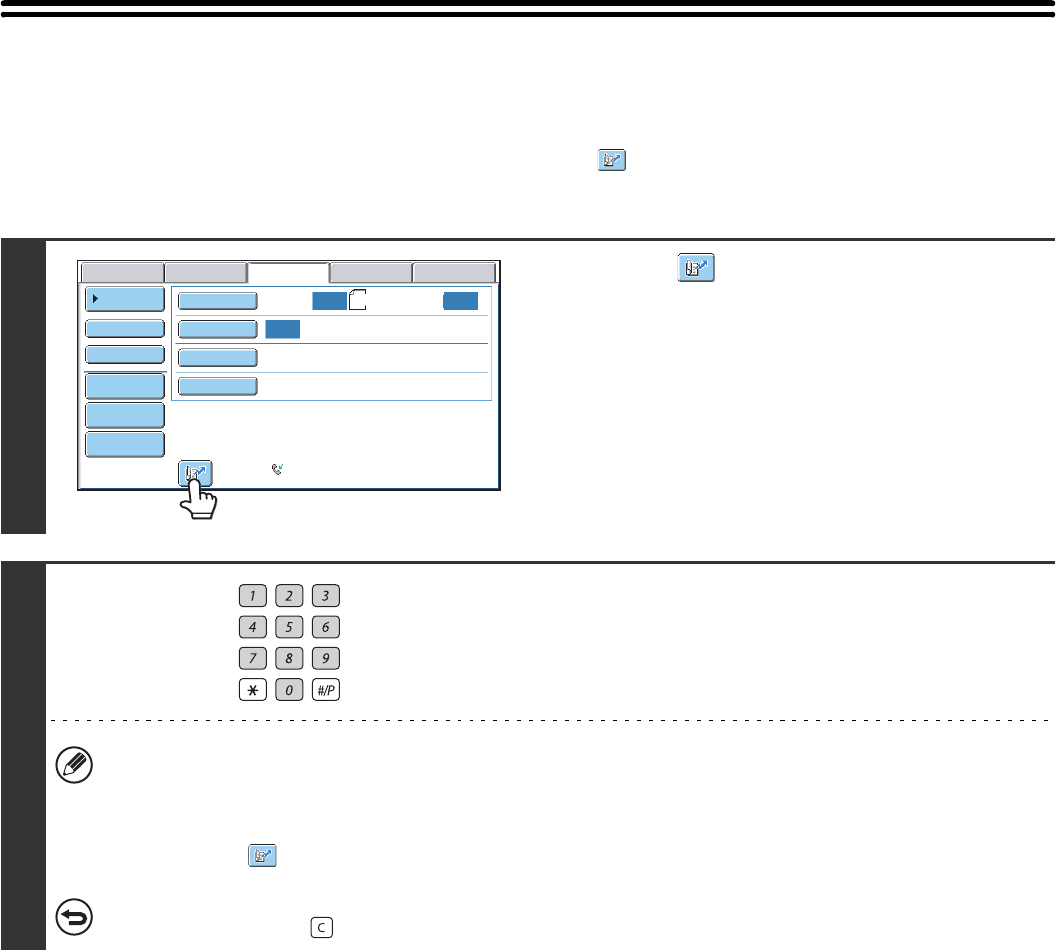
- TRANSMITTING AN ORIGINAL AS TWO SEPARATE PAGES (Dual Page Scan)
- SENDING A FAX AT A SPECIFIED TIME (Timer)
- SENDING TWO PAGES AS A SINGLE PAGE (2in1)
- SENDING BOTH SIDES OF A CARD AS A SINGLE PAGE (Card Shot)
- SENDING A LARGE NUMBER OF PAGES (Job Build)
- TRANSMITTING ORIGINALS OF DIFFERENT SIZES (Mixed Size Original)
- FAXING THIN ORIGINALS (Slow Scan Mode)
- ADDING YOUR SENDER INFORMATION TO FAXES (Own number sending)
- CALLING A FAX MACHINE AND INITIATING RECEPTION (Polling)
- SENDING A FAX WHEN ANOTHER MACHINE POLLS YOUR MACHINE (Polling Memory)
- PERFORMING F-CODE COMMUNICATION
- USING AN EXTENSION PHONE
- CHECKING THE STATUS OF FAX JOBS
- PRINTING A TRANSACTION REPORT / IMAGE SENDING ACTIVITY REPORT
- IF THE MACHINE IS MOVED
Facsimile Guide
MX-FXX1
MODEL:
2
TABLE OF CONTENTS
ABOUT THIS MANUAL . . . . . . . . . . . . . . . . . . . . . . . . 4
• MANUALS PROVIDED WITH THE MACHINE . . . 4
1BEFORE USING THE MACHINE AS A
FAX
BASE SCREEN OF FAX MODE . . . . . . . . . . . . . . . . . 6
• BASE SCREEN OF FAX MODE . . . . . . . . . . . . . . 7
• ADDRESS BOOK SCREEN. . . . . . . . . . . . . . . . . . 9
• CHANGING THE DISPLAY OF ONE-TOUCH
KEYS IN THE ADDRESS BOOK SCREEN . . . . . 10
FAX TRANSMISSION SEQUENCE . . . . . . . . . . . . . . 12
2ENTERING DESTINATIONS
ENTERING A FAX NUMBER WITH THE
NUMERIC KEYS. . . . . . . . . . . . . . . . . . . . . . . . . . . . . 15
RETRIEVING A FAX NUMBER FROM THE
ADDRESS BOOK. . . . . . . . . . . . . . . . . . . . . . . . . . . . 16
• RETRIEVING A STORED DESTINATION . . . . . . 17
• CHECKING AND DELETING ENTERED
DESTINATIONS . . . . . . . . . . . . . . . . . . . . . . . . . . 18
USING A SEARCH NUMBER TO RETRIEVE A
DESTINATION . . . . . . . . . . . . . . . . . . . . . . . . . . . . . . 19
RETRIEVING A DESTINATION FROM A
GLOBAL ADDRESS BOOK. . . . . . . . . . . . . . . . . . . . 20
USING THE RESEND FUNCTION . . . . . . . . . . . . . . . 22
CHAIN DIALLING . . . . . . . . . . . . . . . . . . . . . . . . . . . . 23
3BASIC TRANSMISSION METHODS
TRANSMISSION METHODS . . . . . . . . . . . . . . . . . . . 24
• PLACEMENT ORIENTATION OF THE
ORIGINAL . . . . . . . . . . . . . . . . . . . . . . . . . . . . . . 26
• AUTOMATIC REDUCTION OF THE
TRANSMITTED IMAGE . . . . . . . . . . . . . . . . . . . . 26
• TRANSMITTABLE ORIGINAL SIZES . . . . . . . . . 27
• THE SIZE OF THE PLACED ORIGINAL . . . . . . . 27
• WHEN THE LINE IS BUSY . . . . . . . . . . . . . . . . . 28
• WHEN A COMMUNICATION ERROR
OCCURS . . . . . . . . . . . . . . . . . . . . . . . . . . . . . . . 28
USING THE AUTOMATIC DOCUMENT FEEDER
FOR TRANSMISSION . . . . . . . . . . . . . . . . . . . . . . . . 29
• USING THE AUTOMATIC DOCUMENT
FEEDER TO SEND A FAX IN DIRECT
TRANSMISSION MODE . . . . . . . . . . . . . . . . . . . 30
USING THE DOCUMENT GLASS FOR
TRANSMISSION. . . . . . . . . . . . . . . . . . . . . . . . . . . . . 32
• USING THE DOCUMENT GLASS TO SEND A
FAX IN DIRECT TRANSMISSION MODE . . . . . . 34
TRANSMISSION USING THE SPEAKER . . . . . . . . . 36
SENDING THE SAME FAX TO MULTIPLE
DESTINATIONS (Broadcast Transmission) . . . . . . 37
SENDING A FAX DIRECTLY FROM A
COMPUTER (PC-Fax) . . . . . . . . . . . . . . . . . . . . . . . . 42
IMAGE SETTINGS . . . . . . . . . . . . . . . . . . . . . . . . . . . 43
• AUTOMATICALLY SCANNING BOTH SIDES
OF AN ORIGINAL (2-Sided Original) . . . . . . . . . . 44
• SPECIFYING THE SCAN SIZE AND SEND
SIZE (Enlarge/Reduce Transmission) . . . . . . . . . 45
• CHANGING THE EXPOSURE . . . . . . . . . . . . . . . 52
• CHANGING THE RESOLUTION . . . . . . . . . . . . . 53
4FAX RECEPTION
RECEIVING FAXES . . . . . . . . . . . . . . . . . . . . . . . . . . 55
• RECEIVING A FAX . . . . . . . . . . . . . . . . . . . . . . . 56
• RECEIVING A FAX MANUALLY . . . . . . . . . . . . . 57
• PRINTING A PASSWORD-PROTECTED FAX
(Hold Setting For Received Data Print) . . . . . . . . 57
FORWARDING RECEIVED FAXES (Fax Data
Forward). . . . . . . . . . . . . . . . . . . . . . . . . . . . . . . . . . . 58
FORWARDING A RECEIVED FAX TO AN E-MAIL
ADDRESS (Inbound Routing Settings) . . . . . . . . . . 59
5SPECIAL MODES
SPECIAL MODES . . . . . . . . . . . . . . . . . . . . . . . . . . . 60
STORING FAX OPERATIONS (Program). . . . . . . . . 62
• USING A PROGRAM TO SEND A FAX . . . . . . . . 63
ERASING PERIPHERAL SHADOWS ON THE
IMAGE (Erase) . . . . . . . . . . . . . . . . . . . . . . . . . . . . . . 65
TRANSMITTING AN ORIGINAL AS TWO
SEPARATE PAGES (Dual Page Scan). . . . . . . . . . . 67
SENDING A FAX AT A SPECIFIED TIME (Timer) . . 70
SENDING TWO PAGES AS A SINGLE PAGE
(2in1). . . . . . . . . . . . . . . . . . . . . . . . . . . . . . . . . . . . . . 73
SENDING BOTH SIDES OF A CARD AS A
SINGLE PAGE (Card Shot) . . . . . . . . . . . . . . . . . . . . 76
SENDING A LARGE NUMBER OF PAGES (Job
Build) . . . . . . . . . . . . . . . . . . . . . . . . . . . . . . . . . . . . . 79
3
TRANSMITTING ORIGINALS OF DIFFERENT
SIZES (Mixed Size Original) . . . . . . . . . . . . . . . . . . . 82
FAXING THIN ORIGINALS (Slow Scan Mode). . . . . 84
ADDING YOUR SENDER INFORMATION TO
FAXES (Own number sending) . . . . . . . . . . . . . . . . 86
• TEMPORARILY CHANGING THE SENDER
INFORMATION (Own Name Select) . . . . . . . . . . 87
CALLING A FAX MACHINE AND INITIATING
RECEPTION (Polling) . . . . . . . . . . . . . . . . . . . . . . . . 88
• INITIATING POLLING RECEPTION
MANUALLY . . . . . . . . . . . . . . . . . . . . . . . . . . . . . 90
SENDING A FAX WHEN ANOTHER MACHINE
POLLS YOUR MACHINE (Polling Memory) . . . . . . . 91
• RESTRICTING POLLING ACCESS (Polling
security) . . . . . . . . . . . . . . . . . . . . . . . . . . . . . . . . 91
• SCANNING A DOCUMENT INTO POLLING
MEMORY . . . . . . . . . . . . . . . . . . . . . . . . . . . . . . . 92
• PRINTING A DOCUMENT STORED IN THE
PUBLIC BOX . . . . . . . . . . . . . . . . . . . . . . . . . . . . 94
• DELETING A DOCUMENT FROM THE
PUBLIC BOX . . . . . . . . . . . . . . . . . . . . . . . . . . . . 95
6PERFORMING F-CODE
COMMUNICATION
F-CODE COMMUNICATION . . . . . . . . . . . . . . . . . . . 96
• HOW F-CODES WORK . . . . . . . . . . . . . . . . . . . . 96
• CREATING MEMORY BOXES IN THE
MACHINE FOR F-CODE COMMUNICATION . . . 97
• F-CODE DIALLING . . . . . . . . . . . . . . . . . . . . . . . 97
CONFIDENTIAL COMMUNICATION USING
F-CODES . . . . . . . . . . . . . . . . . . . . . . . . . . . . . . . . . . 98
• F-CODE CONFIDENTIAL TRANSMISSION . . . . 99
• PRINTING A FAX RECEIVED BY F-CODE
CONFIDENTIAL RECEPTION . . . . . . . . . . . . . . 100
POLLING RECEPTION USING F-CODES. . . . . . . . 102
POLLING MEMORY TRANSMISSION USING
F-CODES . . . . . . . . . . . . . . . . . . . . . . . . . . . . . . . . . 104
• SCANNING A DOCUMENT INTO A MEMORY
BOX FOR F-CODE POLLING
TRANSMISSION . . . . . . . . . . . . . . . . . . . . . . . . 104
• PRINTING A DOCUMENT STORED FOR
F-CODE POLLING TRANSMISSION. . . . . . . . . 107
• DELETING A DOCUMENT STORED FOR
F-CODE POLLING TRANSMISSION. . . . . . . . . 108
RELAY REQUEST TRANSMISSION USING
F-CODES . . . . . . . . . . . . . . . . . . . . . . . . . . . . . . . . . 109
RELAY BROADCAST TRANSMISSION USING
F-CODES . . . . . . . . . . . . . . . . . . . . . . . . . . . . . . . . . 111
7USING AN EXTENSION PHONE
CONNECTING AND USING AN EXISTING
PHONE (Extension Phone Connection) . . . . . . . . 112
• RECEIVING A FAX AFTER ANSWERING A
CALL ON THE EXTENSION PHONE (Remote
Reception) . . . . . . . . . . . . . . . . . . . . . . . . . . . . . 113
• MAKING AND RECEIVING PHONE CALLS . . . 113
8CHECKING THE STATUS OF FAX
JOBS
JOB STATUS SCREEN . . . . . . . . . . . . . . . . . . . . . . 114
• JOB QUEUE SCREEN AND COMPLETED
JOB SCREEN. . . . . . . . . . . . . . . . . . . . . . . . . . . 115
• OPERATION WHEN A JOB IN THE JOB
QUEUE IS COMPLETED . . . . . . . . . . . . . . . . . . 118
• CHECKING A RESERVED JOB OR THE JOB
IN PROGRESS. . . . . . . . . . . . . . . . . . . . . . . . . . 119
• CHECKING COMPLETED JOBS . . . . . . . . . . . . 120
CANCELLING A FAX IN PROGRESS OR A
RESERVED FAX . . . . . . . . . . . . . . . . . . . . . . . . . . . 121
GIVING PRIORITY TO A RESERVED FAX JOB. . . 123
9
PRINTING A TRANSACTION
REPORT / IMAGE SENDING
ACTIVITY REPORT
TRANSACTION REPORT . . . . . . . . . . . . . . . . . . . . 124
• CHANGING THE TRANSACTION REPORT
PRINT CONDITION FOR A SINGLE
TRANSMISSION . . . . . . . . . . . . . . . . . . . . . . . . 125
• INFORMATION APPEARING IN THE RESULT
COLUMN . . . . . . . . . . . . . . . . . . . . . . . . . . . . . . 126
IMAGE SENDING ACTIVITY REPORT . . . . . . . . . . 127
10
IF THE MACHINE IS MOVED
CONNECTIONS AND SETTINGS AFTER THE
MACHINE IS MOVED . . . . . . . . . . . . . . . . . . . . . . . . 128
• CONNECTION TO THE TELEPHONE LINE . . . 128
• MAKE SURE THE MAIN POWER SWITCH IS
IN THE "ON" POSITION. . . . . . . . . . . . . . . . . . . 129
• CHECKING THE DATE AND TIME . . . . . . . . . . 130
• CHANGING THE SENDER FAX NUMBER . . . . 130
4
ABOUT THIS MANUAL
Please note
• For information on installing the drivers and software cited in this manual, please refer to the Software Setup Guide.
• For information on your operating system, please refer to your operating system manual or the online Help function.
• Considerable care has been taken in preparing this manual. If you have any comments or concerns about the manual, please
contact your dealer or nearest authorised service representative.
• This product has undergone strict quality control and inspection procedures. In the unlikely event that a defect or other problem
is discovered, please contact your dealer or nearest authorised service representative.
• Aside from instances provided for by law, SHARP is not responsible for failures occurring during the use of the product or its
options, or failures due to incorrect operation of the product and its options, or other failures, or for any damage that occurs due
to use of the product.
Warning
• Reproduction, adaptation or translation of the contents of the manual without prior written permission is prohibited, except as
allowed under copyright laws.
• All information in this manual is subject to change without notice.
Illustrations and the operation panel and touch panel shown in this manual
The peripheral devices are generally optional, however, some models include certain peripheral devices as standard equipment.
The explanations in this manual assume that a saddle stitch finisher, punch module, and inserter are installed on the machine.
For some functions and procedures, the explanations assume that devices other than the above are installed.
MANUALS PROVIDED WITH THE MACHINE
Printed manuals and manuals stored in PDF format on the machine's hard drive are provided with the machine. When
using the machine, read the appropriate manual for the feature you are using.
Printed manuals
The display screens, messages, and key names shown in the manual may differ from those on the actual machine
due to product improvements and modifications.
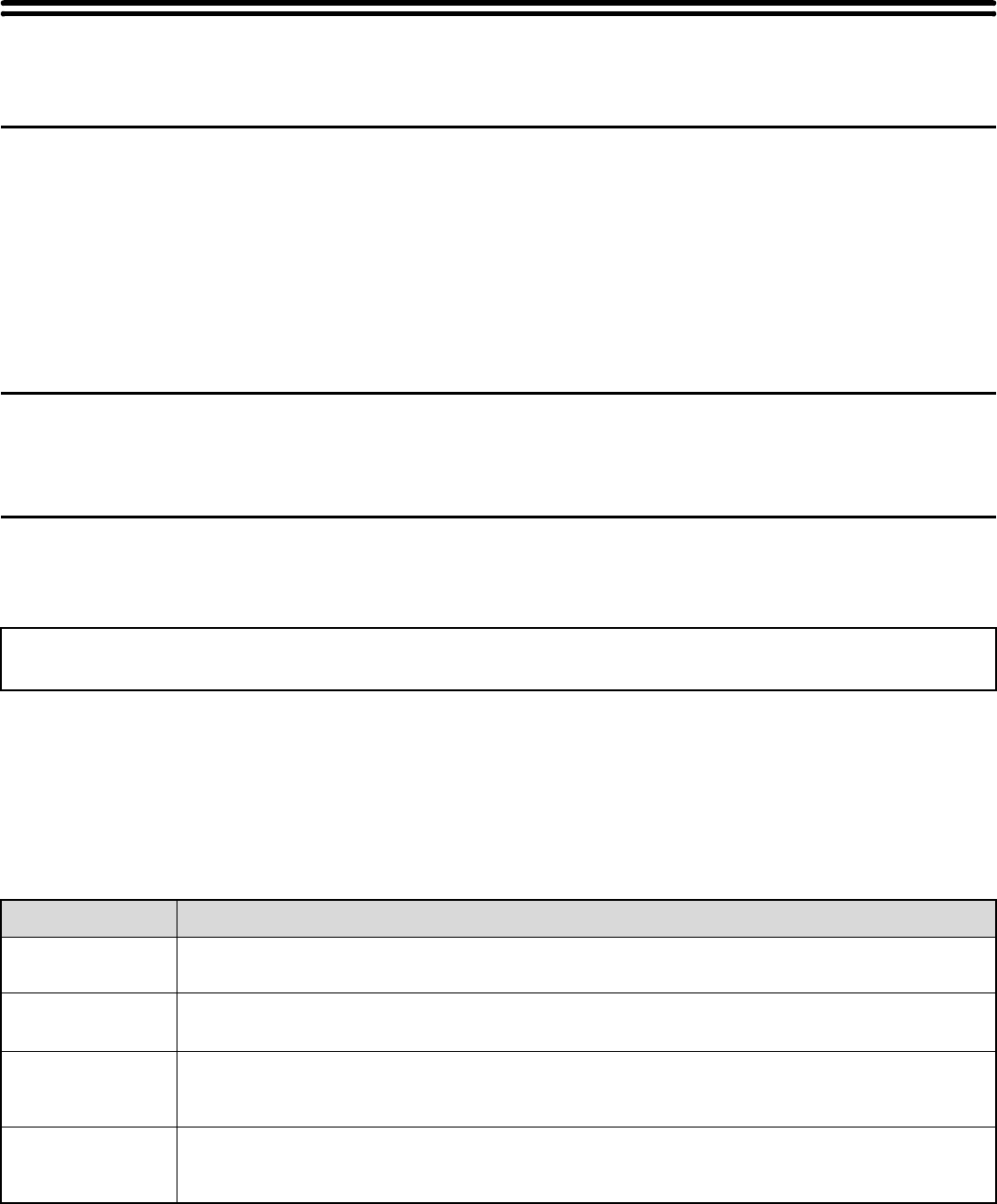
Manual name Contents
Safety Guide This manual contains instructions for using the machine safely and lists the specifications of the machine
and its peripheral devices.
Software Setup
Guide
This manual explains how to install the software and configure settings to use the machine as a printer or
scanner.
Quick Start Guide
This manual provides easy-to-understand explanations of all the functions of the machine in a single
volume.
Detailed explanations of each of the functions can be found in the manuals in PDF format.
Troubleshooting
This manual explains how to remove paper misfeeds and provides answers to frequently asked questions
regarding the operation of the machine in each mode. Refer to this manual when you have difficulty using
the machine.
5
Operation manuals in PDF format
The manuals in PDF format provide detailed explanations of the procedures for using the machine in each mode. To
view the PDF manuals, download them from the hard drive in the machine. The procedure for downloading the manuals
is explained in "How to download the manuals in PDF format" in the Quick Start Guide.
Icons used in the manuals
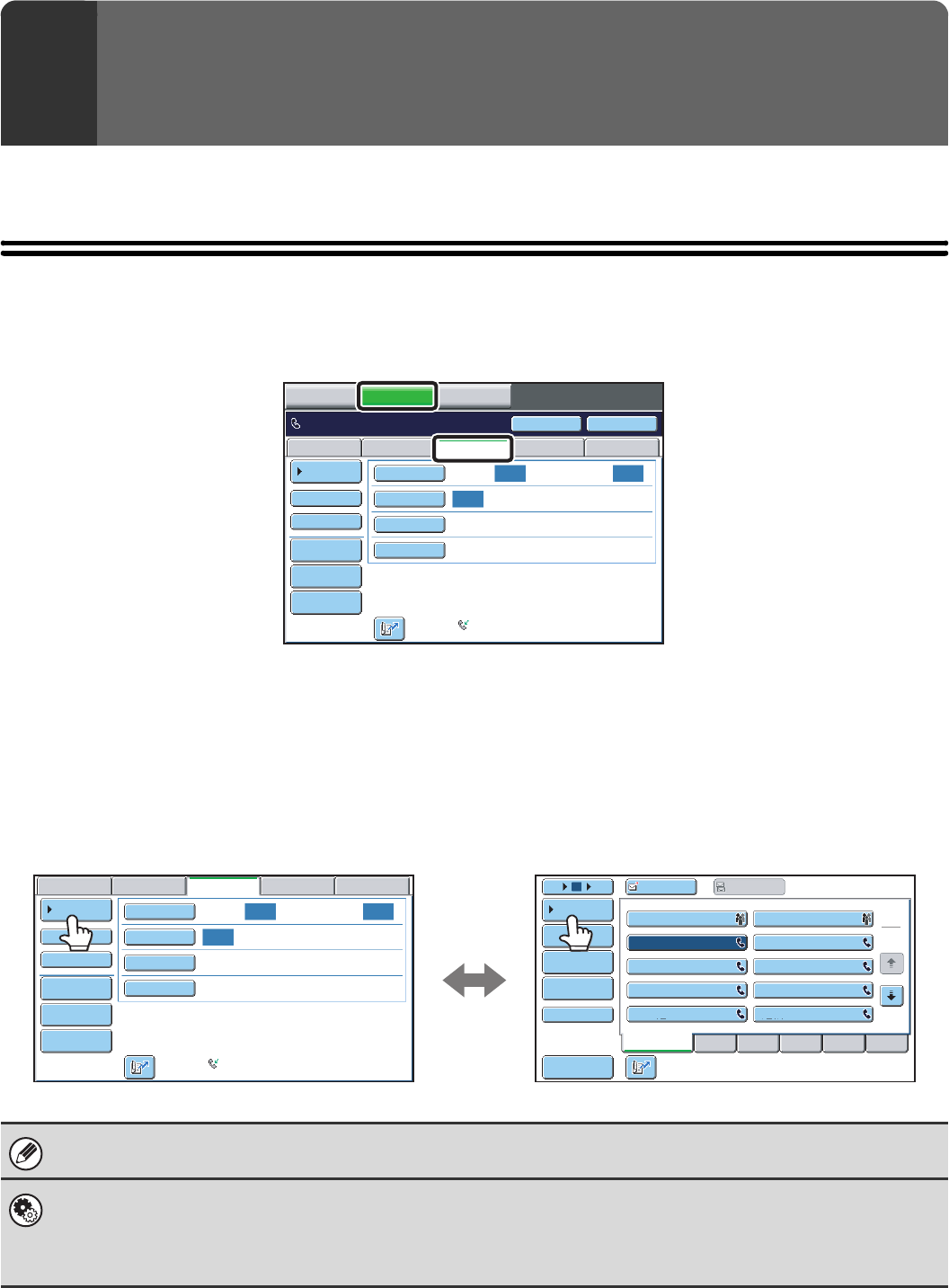
The icons in the manuals indicate the following types of information:
Manual name Contents
User's Guide This manual provides information, such as basic operation procedures, how to load paper, and machine
maintenance.
Copier Guide This manual provides detailed explanations of the procedures for using the copy function.
Printer Guide This manual provides detailed explanations of the procedures for using the printer function.
Facsimile Guide
(This manual)
This manual provides detailed explanations of the procedures for using the fax function.
Scanner Guide This manual provides detailed explanations of the procedures for using the scanner function and the
Internet fax function.
Document Filing
Guide
This manual provides detailed explanations of the procedures for using the document filing function. The
document filing function allows you to save the document data of a copy or fax job, or the data of a print
job, as a file on the machine's hard drive. The file can be called up as needed.
System Settings
Guide
This manual explains the "System Settings", which are used to configure a variety of parameters to suit
the aims and the needs of your workplace. Current settings can be displayed or printed out from the
"System Settings".
This alerts you to a situation where there is a
risk of machine damage or failure.
This indicates the name of a system setting and a provides a
brief explanation of the setting.
For detailed information on each system setting, see the
System Settings Guide.
When "System Settings:" appears:
A general setting is explained.
When "System Settings (Administrator):" appears:
A setting that can only be configured by an administrator is
explained.
This provides a supplemental explanation of a
function or procedure.
This explains how to cancel or correct an
operation.
6
This section provides information that you should know before using the machine as a fax machine.
BASE SCREEN OF FAX MODE
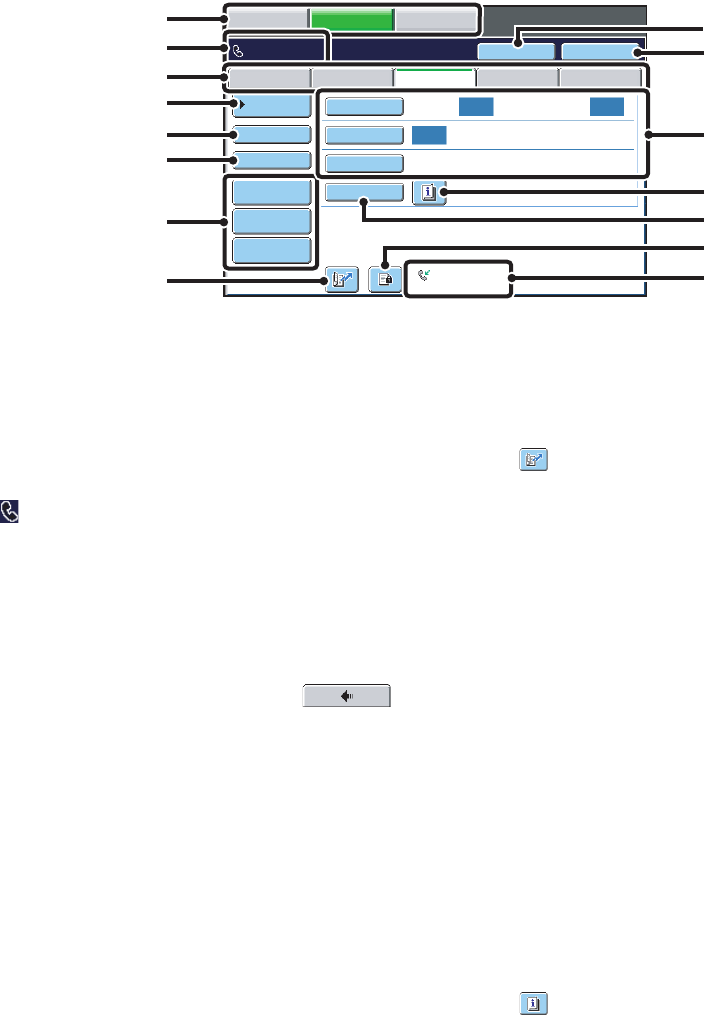
To use the fax function, select settings and operations in the base screen of fax mode. To display the base screen of fax
mode, touch the [IMAGE SEND] key and then touch the [Fax] tab.
Each of the other modes that can be displayed by pressing the [IMAGE SEND] key (scan, Internet fax, USB memory,
and PC scan modes) also have base screens.
Transmission destinations can be stored in one-touch keys in the address book and retrieved from the address book
screen when you need to use them. The address book is shared by fax mode, scan mode, and Internet fax mode.
To display the address book screen, touch the [Address Book] key in the base screen. To display the base screen, touch
the [Condition Settings] key in the address book screen. This manual refers to the base screen of fax mode as the "base
screen".
1BEFORE USING THE MACHINE
AS A FAX
The procedures in this manual begin from the base screen of fax mode.
System Settings (Administrator): Default Display Settings
One of the following screens can be selected for the initial screen that appears when the [IMAGE SEND] key is touched.
• Base screen of each mode (scan, Internet fax, fax, or data entry mode)
• Address book screen (alphabetical/custom index)
Auto Auto
Auto
File
Quick File
Address Review
Direct TX
Sub Address
Address Book
USB Mem. ScanFaxInternet Fax PC Scan
Special Modes
Resolution
Exposure
Original Scan:
Scan
Send:
Standard
Auto Reception
Fax Memory:100%
Speaker
Ready to send. Resend
IMAGE SEND DOCUMENT
FILING
COPY
This screen only appears
when the fax function or
Internet fax function has been
installed.
The contents of the screen
will vary depending on the
devices that are installed.
Auto Auto
Auto
File
Quick File
Address Review
Direct TX
Sub Address
Address Book
USB Mem. ScanFaxInternet Fax PC Scan
Special Modes
Resolution
Exposure
Original Scan:
Scan
Send:
Standard
Auto Reception
Fax Memory:100%
Frequent Use ABCD EFGHI JKLMN OPQRST UVWXYZ
1
2
III III
GGG GGG
EEE EEE
CCC CCC
AAA AAA
JJJ JJJ
HHH HHH
FFF FFF
DDD DDD
BBB BBB
105 15
Global
Address Search
Address Entry
Sort Address
Sub Address
Address Review
Condition
Settings
To Cc
Base screen of fax mode Address book screen
7
BASE SCREEN OF FAX MODE
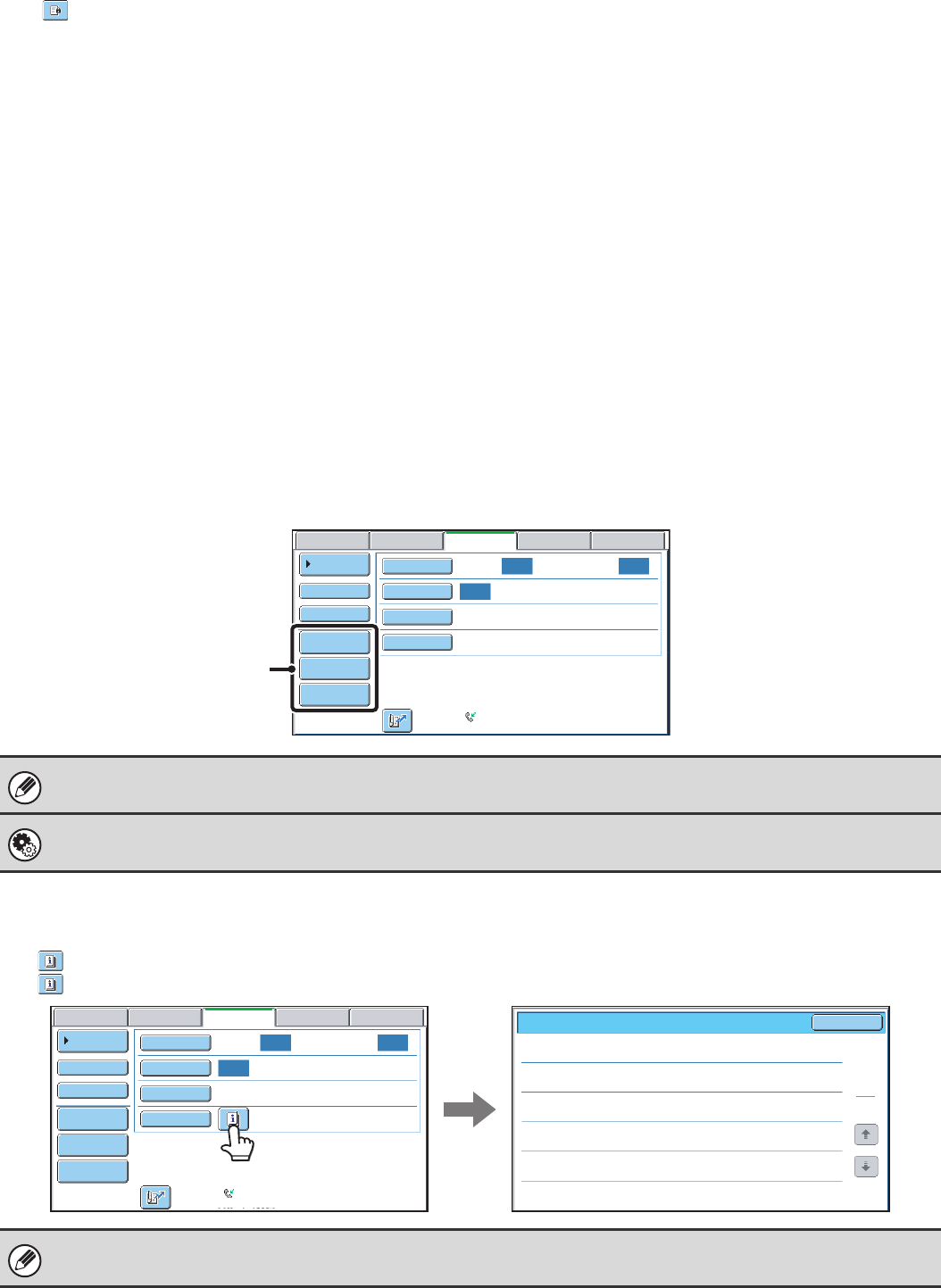
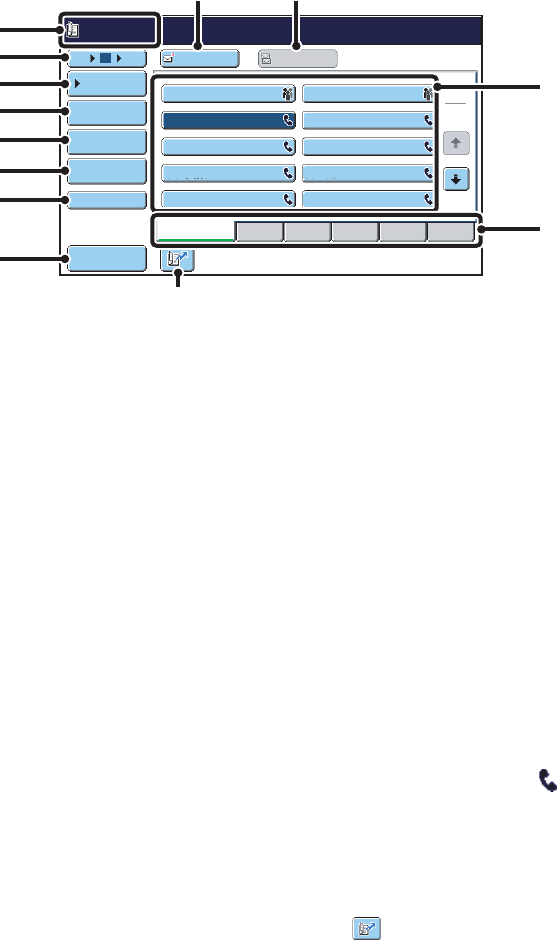
This screen is used to select settings and operations in fax mode.
(1) Mode select keys
Use these keys to switch between copy, image send, and
document filing modes.
To switch to fax mode, touch the [IMAGE SEND] key.
(2) This shows various messages and the destinations
that have been entered.
The icon on the left indicates fax mode.
(3) Send mode tabs
Use these keys to change the mode of the image send
function. Tabs of modes that cannot be used because the
appropriate options (Internet fax expansion kit,
application integration module) are not installed do not
appear.
If the [Fax] tab does not appear, touch the
tab to move the screen.
☞BASE SCREEN OF FAX MODE (page 6)
(4) [Address Book] key
Touch this key to dial using a one-touch key or group
key. When the key is touched, the address book screen
appears.
☞RETRIEVING A FAX NUMBER FROM THE
ADDRESS BOOK (page 16)
(5) [Direct TX] key
Touch this key to send a fax by direct transmission.
When the [Direct TX] key is not highlighted, normal
transmission (memory TX mode) is selected.
☞To fax a large number of sheet originals, use the
automatic document feeder. (page 24)
☞If you wish to send a fax ahead of other previously
reserved fax transmissions, use direct transmission
mode. (page 25)
(6) [Sub Address] key
Touch this key to enter a sub-address and passcode for
F-code transmission.
☞F-CODE DIALLING (page 97)
(7) Customized keys
The keys that appear here can be changed to show
settings or functions that you prefer.
☞Customizing displayed keys (page 8)
(8) key
Touch this key to dial a fax destination using a search
number.
☞USING A SEARCH NUMBER TO RETRIEVE A
DESTINATION (page 19)
(9) [Speaker] key / [Pause] key / [Space] key
Touch this key to dial using the speaker.
When entering a fax number to be dialled, the key
changes to the [Pause] key. When entering a
sub-address, the key changes to the [Space] key.
☞TRANSMISSION USING THE SPEAKER (page 36)
(10) [Resend] key / [Next Address] key
Touch this key to redial a fax number. When entering a
fax number to be dialled, this key changes to the [Next
Address] key.
☞USING THE RESEND FUNCTION (page 22)
(11) Image settings
Image settings (original size, exposure, resolution) can
be selected.
☞IMAGE SETTINGS (page 43)
(12) key
This key appears when a special mode or 2-sided
scanning is selected. Touch the key to display the
selected special modes.
☞Checking what special modes are selected (page 8)
(13) [Special Modes] key
Touch this key to use a special mode.
☞5. SPECIAL MODES (page 60)
Auto Auto
Auto
File
Quick File
Address Review
Direct TX
Sub Address
Address Book
USB Mem. ScanFaxInternet Fax PC Scan
Special Modes
Resolution
Exposure
Original Scan:
Scan
Send:
Standard
Auto Reception
Fax Memory:100%
Speaker
Ready to send. Resend
IMAGE SEND DOCUMENT
FILING
COPY
(1)
(2)
(9)
(3)
(4)
(5)
(6)
(14)
(7)
(8)(15)
(13)
(12)
(11)
(10)
8
(14) key
When "Hold Setting for Received Data Print" is enabled,
this appears when a fax has been received. Touch this
key to open a password entry screen. Enter the set
password to print the received fax.
☞PRINTING A PASSWORD-PROTECTED FAX (Hold
Setting For Received Data Print) (page 57)
(15) This shows the currently selected fax reception
mode and the amount of free memory remaining.
☞RECEIVING FAXES (page 55)
Customizing displayed keys
Special mode keys and other keys can be displayed in the base screen. You can assign frequently used functions to these
keys to access the functions with a single touch. To change the function that is assigned to a key, use "Customize Key
Setting" in the Web pages. The following keys appear by factory default:
•[Address Review] key
Touch this key to display a list of the destinations that have been selected in the address book. This is the same key
as the [Address Review] key in the address book screen.
•[File] key, [Quick File] key
Touch either key to use Quick File or File in document filing mode. For more information on the document filing
function, see the Document Filing Guide.
Example: When "Dual Page Scan", "Job Build", and "Mixed Size Original" are assigned to the customized
keys.
Checking what special modes are selected
The key appears in the base screen when a special mode or 2-sided scanning is selected.
The key can be touched to display the selected special modes. To close the screen, touch the [OK] key.
Displaying a program key in the base screen will enable you to call up the program by simply touching the key.
☞STORING FAX OPERATIONS (Program) (page 62)
System Settings (Administrator): Customize Key Setting
Registration is performed in [System Settings] - [Operation Settings] - "Customize Key Setting" in the Web page menu.
The special mode settings cannot be changed from the function review screen. To change a setting, touch the [OK] key to
close the function review screen and then touch the [Special Modes] key and select the setting that you wish to change.
Job Build
Mixed Size
Org
Dual Page
Scan
Send:
Auto Auto
Auto
Direct TX
Sub Address
Address Book
USB Mem. ScanFaxInternet Fax Internet Fax
Special Modes
Resolution
Exposure
Original Scan:
Scan
Standard
Auto Reception
Fax Memory:100%
These 3 keys can be changed
as desired.
Erase
Function Review
Timer
Mixed Size
Original
:
:
:
Edge:10mm
Centre:10mm
Day of the Week:Monday
Time: 21:30
On
OK
1
1
Auto Auto
Auto
File
Quick File
Address Review
Direct TX
Sub Address
Address Book
USB Mem. ScanFaxInternet Fax PC Scan
Special Modes
Resolution
Exposure
Original Scan:
Scan
Send:
Standard
Auto Reception
Fax Memory:100%
9
ADDRESS BOOK SCREEN
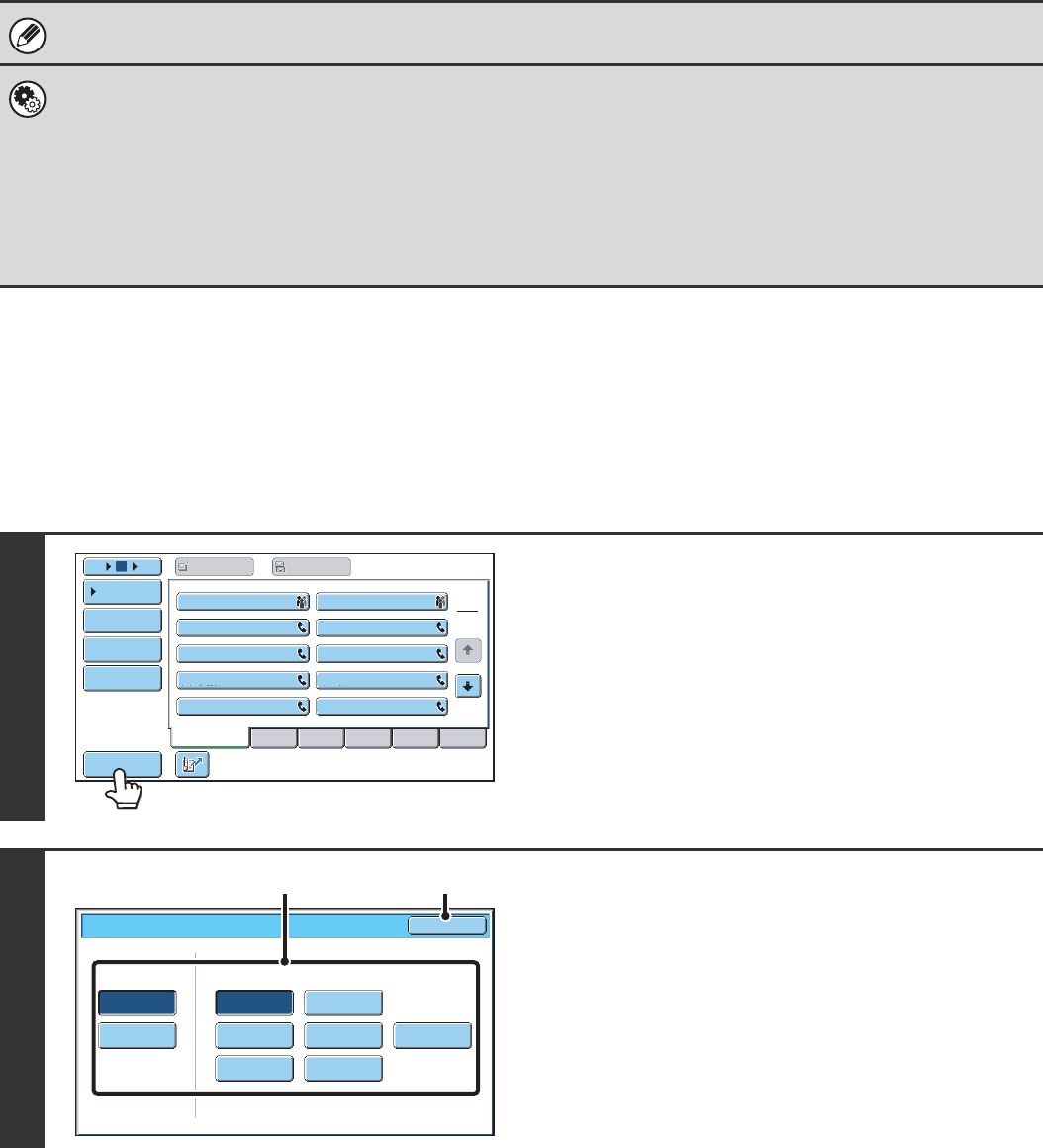
This screen is used to select a destination from the list of stored destinations.
(1) This shows the destination that has been selected.
(2) Number of displayed items selector key
Touch to change the number of destinations (one-touch
keys) displayed in the address book screen. Select 5, 10,
or 15 destinations.
(3) [Condition Settings] key
Touch this key to select transmission settings and
operations. When the key is touched, the base screen
appears.
☞BASE SCREEN OF FAX MODE (page 7)
(4) [Address Review] key
Touch this key to view a list of the selected destinations.
The selected destinations can be changed.
☞CHECKING AND DELETING ENTERED
DESTINATIONS (page 18)
(5) [Address Entry] key
Not used in fax mode.
(6) [Global Address Search] key
When the use of an LDAP server has been enabled in
the machine's Web page, a fax number can be obtained
from a global address book.
☞RETRIEVING A DESTINATION FROM A GLOBAL
ADDRESS BOOK (page 20)
(7) [Sub Address] key
Touch this key to enter a sub-address and passcode for
F-code transmission.
☞F-CODE DIALLING (page 97)
(8) [Sort Address] key
Touch this key to change the index tabs to custom
indexes or to display one-touch keys by send mode.
☞CHANGING THE DISPLAY OF ONE-TOUCH KEYS
IN THE ADDRESS BOOK SCREEN (page 10)
(9) [To] key
Touch this key to enter a selected destination (one-touch
key).
☞RETRIEVING A STORED DESTINATION (page 17)
(10) [Cc] key
Not used in fax mode.
(11) One-touch key display
This shows the one-touch keys of the destinations that
have been stored in the address book. This manual
refers to keys in which single destinations and groups are
stored as one touch keys. Keys that have fax numbers
stored are indicated by .
☞RETRIEVING A STORED DESTINATION (page 17)
(12) Index tabs
Touch this to change indexes.
☞RETRIEVING A STORED DESTINATION (page 17)
(13) key
Touch this key to retrieve a destination using a search
number.
☞USING A SEARCH NUMBER TO RETRIEVE A
DESTINATION (page 19)
CCC CCC
0123456789
Frequent Use ABCD EFGHI JKLMN OPQRST UVWXYZ
1
2
105 15 To Cc
III III
GGG GGG
EEE EEE
CCC CCC
AAA AAA
JJJ JJJ
HHH HHH
FFF FFF
DDD DDD
BBB BBB
Global
Address Search
Address Entry
Sort Address
Sub Address
Address Review
Condition
Settings
(1)
(2)
(3)
(4)
(5)
(6)
(7)
(11)
(12)
(9)
(13)
(10)
(8)
10
CHANGING THE DISPLAY OF ONE-TOUCH KEYS IN
THE ADDRESS BOOK SCREEN
You can show only destinations of a specific transmission mode in the address book screen, or change the displayed
index tabs from the alphabetical tabs to the custom tabs. The procedure for selecting destinations does not change.
Destinations stored for the network scanner and Internet fax functions are indicated by a different icon.
☞RETRIEVING A FAX NUMBER FROM THE ADDRESS BOOK (page 16)
•System Settings: Address Book
This is used to store fax numbers in one-touch keys.
•System Settings (Administrator): The Number of Direct Address Keys Displayed Setting
This is used to change the default setting for the number of one-touch keys displayed in the address book screen.
•System Settings (Administrator): Default Display Settings
One of the following screens can be selected for the initial screen that appears when the [IMAGE SEND] key is touched.
• Base screen of each mode (scan, Internet fax, fax, or data entry mode)
• Address book screen (alphabetical/custom index)
1
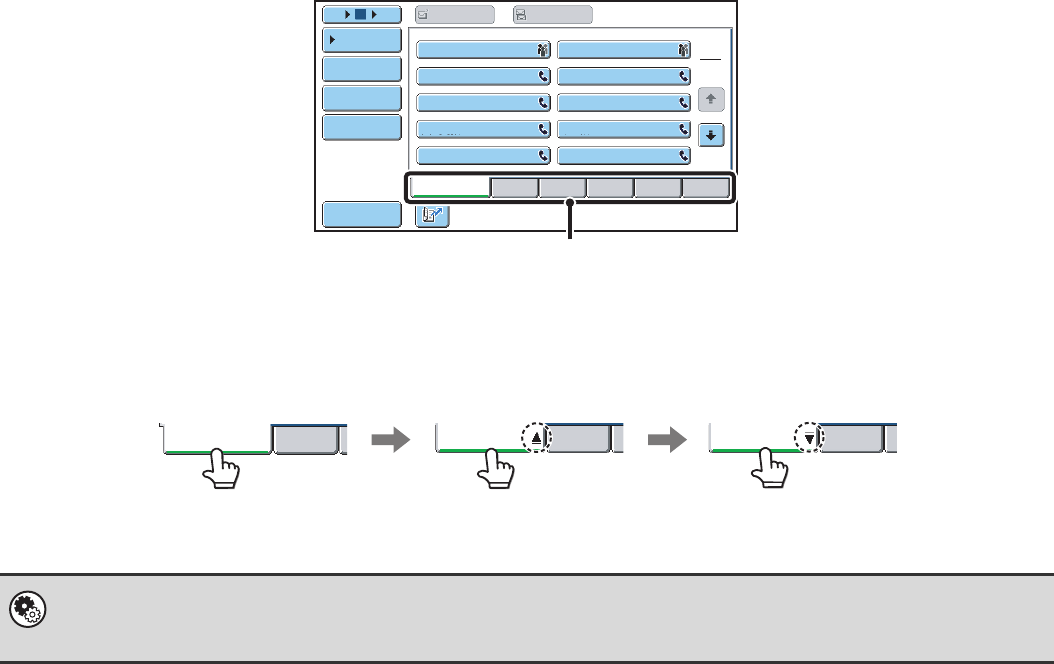
Touch the [Sort Address] key.
2
Change the display mode.
(1) Touch the key of the mode or tab that you
wish to display.
• To show only the one-touch keys of a particular send
mode, touch the desired mode key under "Address
Type".
• To change the index tabs to the custom indexes, touch
the [User] key under "Tab Switch".
(2) Touch the [OK] key.
Frequent Use ABCD EFGHI JKLMN OPQRST UVWXYZ
1
2
105 15 To Cc
III III
GGG GGG
EEE EEE
CCC CCC
AAA AAA
JJJ JJJ
HHH HHH
FFF FFF
DDD DDD
BBB BBB
Global
Address Search
Address Entry
Sort Address
Address Review
Condition
Settings
Sort Address OK
Group
FTP/Desktop Network Folder
Fax
All
Address Type
E-mail
ABC
Tab Switch
User
Internet Fax
(2)(1)
11
Index display
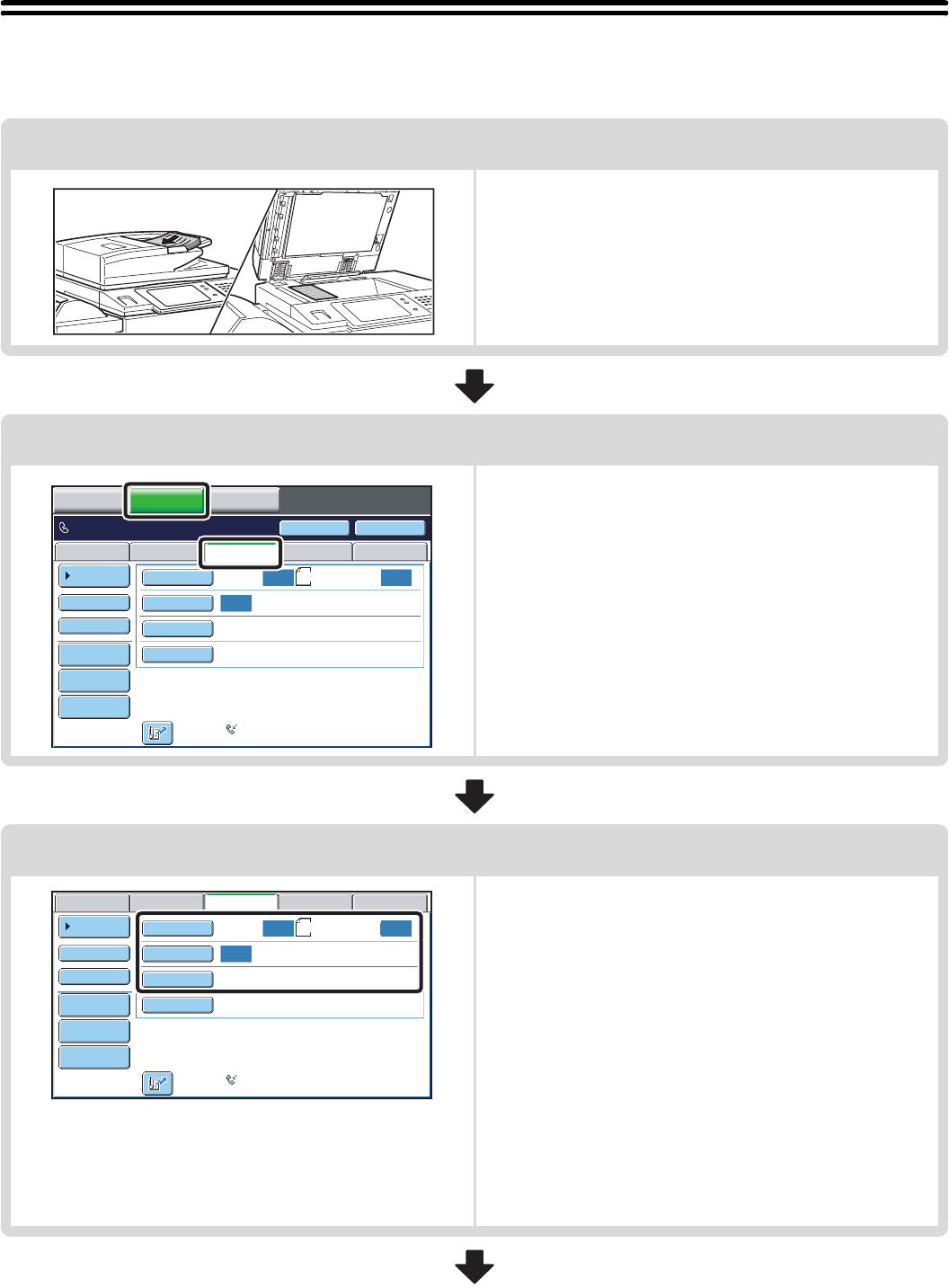
Indexes make it easy to search for a destination (one-touch key). Destinations are grouped on alphabetical index tabs
by their initials. To display a stored destination, touch the appropriate index tab. It is convenient to store frequently used
destinations in the [Frequent Use] index. Specify that a destination be displayed in the [Frequent Use] index when you
store the destination.
The destinations can be displayed in alphabetical order by their initials.
Each time the displayed index tab is touched, the display order changes in the following order: search numbers (page
19), ascending names, descending names, search numbers... When the display order is changed, the display order of
the other index tabs also changes.
Index names can be changed using "Custom Index" in the system settings, allowing you to create groups of one-touch
keys that can be easily recognized. For more information on "Custom Index", see the System Settings Guide.
System Settings: Custom Index
This is used to store custom index names. The custom index where a one-touch key appears is specified when the
transmission destination is stored in the key.
Frequent Use ABCD EFGHI JKLMN OPQRST UVWXYZ
1
2
105 15 To Cc
III III
GGG GGG
EEE EEE
CCC CCC
AAA AAA
JJJ JJJ
HHH HHH
FFF FFF
DDD DDD
BBB BBB
Global
Address Search
Address Entry
Sort Address
Address Review
Condition
Settings
Index tabs
Frequent Use ABCD Frequent Use Frequent Use
ABCD ABCD
Ordered by search number (default) Ascending names Descending names
12
FAX TRANSMISSION SEQUENCE
This section explains the basic procedure for sending a fax.
Place the original.
Place the original in the document feeder tray of the automatic
document feeder, or on the document glass.
Change the mode.
Change to fax mode.
Touch the [IMAGE SEND] key and then the [Fax] tab.
☞BASE SCREEN OF FAX MODE (page 6)
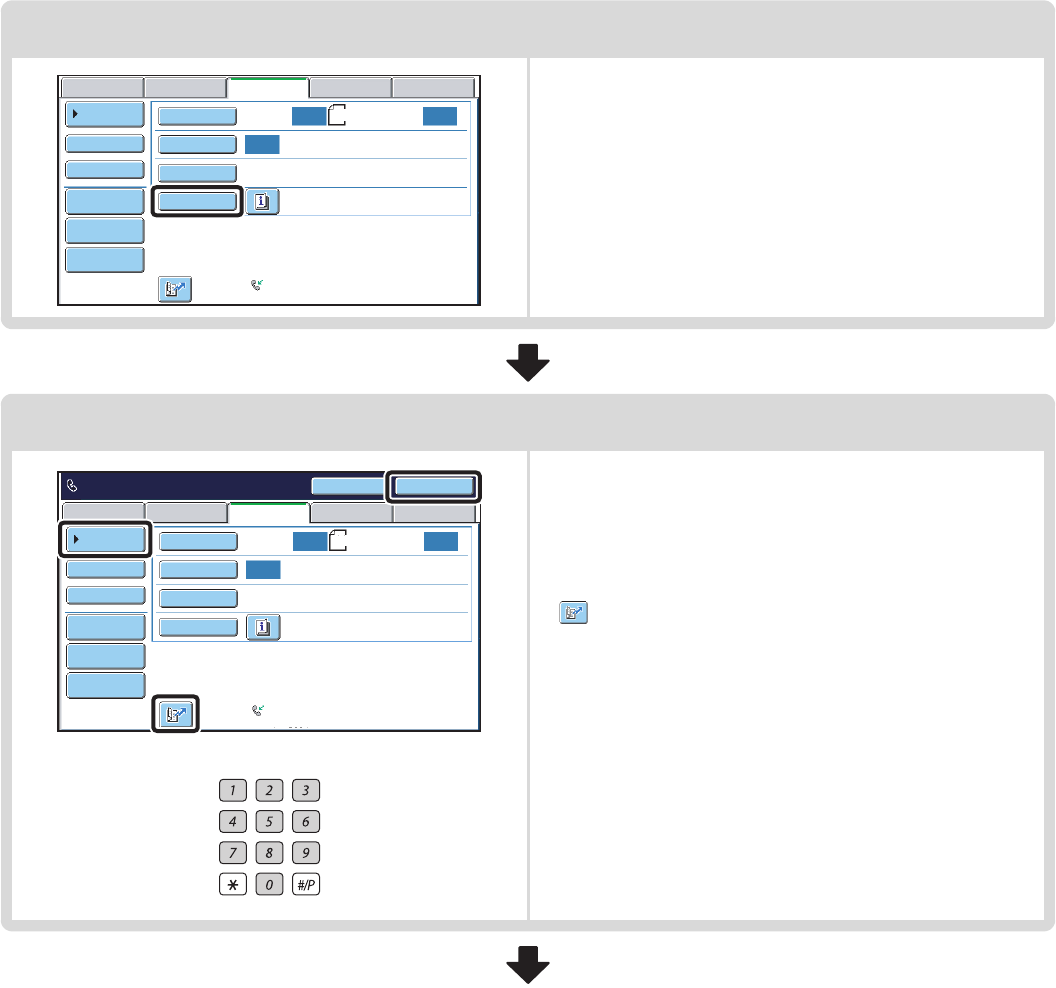
Select image settings.
Select settings for the original to be faxed.
• [Original] key: Use this key to select the original size, the
original send size, and 2-sided original
scanning.
☞SPECIFYING THE SCAN SIZE AND
SEND SIZE (Enlarge/Reduce
Transmission) (page 45),
AUTOMATICALLY SCANNING BOTH
SIDES OF AN ORIGINAL (2-Sided
Original) (page 44)
• [Exposure] key: Use this key to adjust the exposure of the
image.
☞
CHANGING THE EXPOSURE (page 52)
• [Resolution] key: Use this key to adjust the resolution of the
image.
☞CHANGING THE RESOLUTION
(page 53)
Auto Auto
Auto
File
Quick File
Address Review
Direct TX
Sub Address
Address Book
USB Mem. ScanFaxInternet Fax PC Scan
Special Modes
Resolution
Exposure
Original Scan: A4
Scan
Scan:
Standard
Auto Reception
Fax Memory:100%
Speaker
Ready to send. Resend
IMAGE SENDCOPY DOCUMENT
FILING
Auto Auto
Auto
File
Quick File
Address Review
Direct TX
Sub Address
Address Book
USB Mem. ScanFaxInternet Fax PC Scan
Special Modes
Resolution
Exposure
Original Scan:
Scan
Send:
Standard
Auto Reception
Fax Memory:100%
A4
13
Special mode settings
Touch the [Special Modes] key to select special modes such
as timer transmission and the erase function.
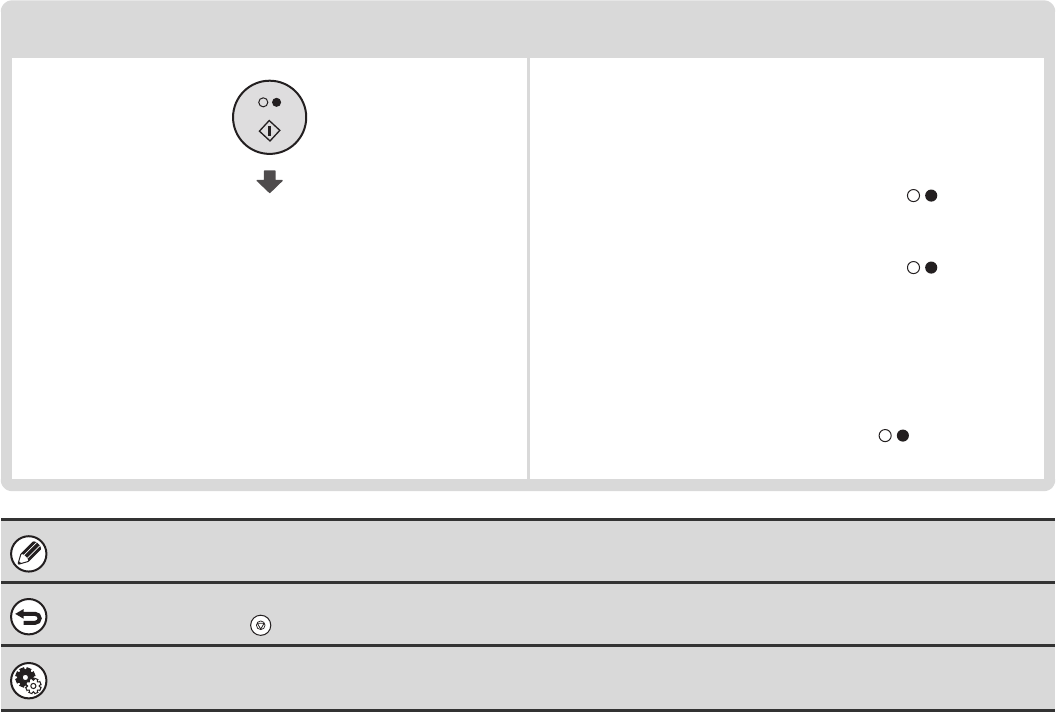
Enter the destination fax number
or
• [Address Book] key: Select a destination that is stored in
the address book or look up a
destination in a global address book.
☞RETRIEVING A FAX NUMBER
FROM THE ADDRESS BOOK
(page 16)
• key: Use a search number to specify a destination
stored in the address book.
☞USING A SEARCH NUMBER TO RETRIEVE
A DESTINATION (page 19)
• [Resend] key: Select a fax number from the last eight
destinations used for transmission.
☞USING THE RESEND FUNCTION (page
22)
• Numeric keys: Enter a fax number.
☞ENTERING A FAX NUMBER WITH THE
NUMERIC KEYS (page 15)
Auto Auto
Auto
File
Quick File
Address Review
Direct TX
Sub Address
Address Book
USB Mem. ScanFaxInternet Fax PC Scan
Special Modes
Resolution
Exposure
Original Scan:
Scan
Send:
Standard
Auto Reception
Fax Memory:100%
A4
Auto Auto
Auto
File
Quick File
Address Review
Direct TX
Sub Address
Address Book
USB Mem. ScanFaxInternet Fax PC Scan
Special Modes
Resolution
Exposure
Original Scan:
Scan
Send:
Standard
Auto Reception
Fax Memory:100%
Speaker
Ready to send. Resend
A4
14
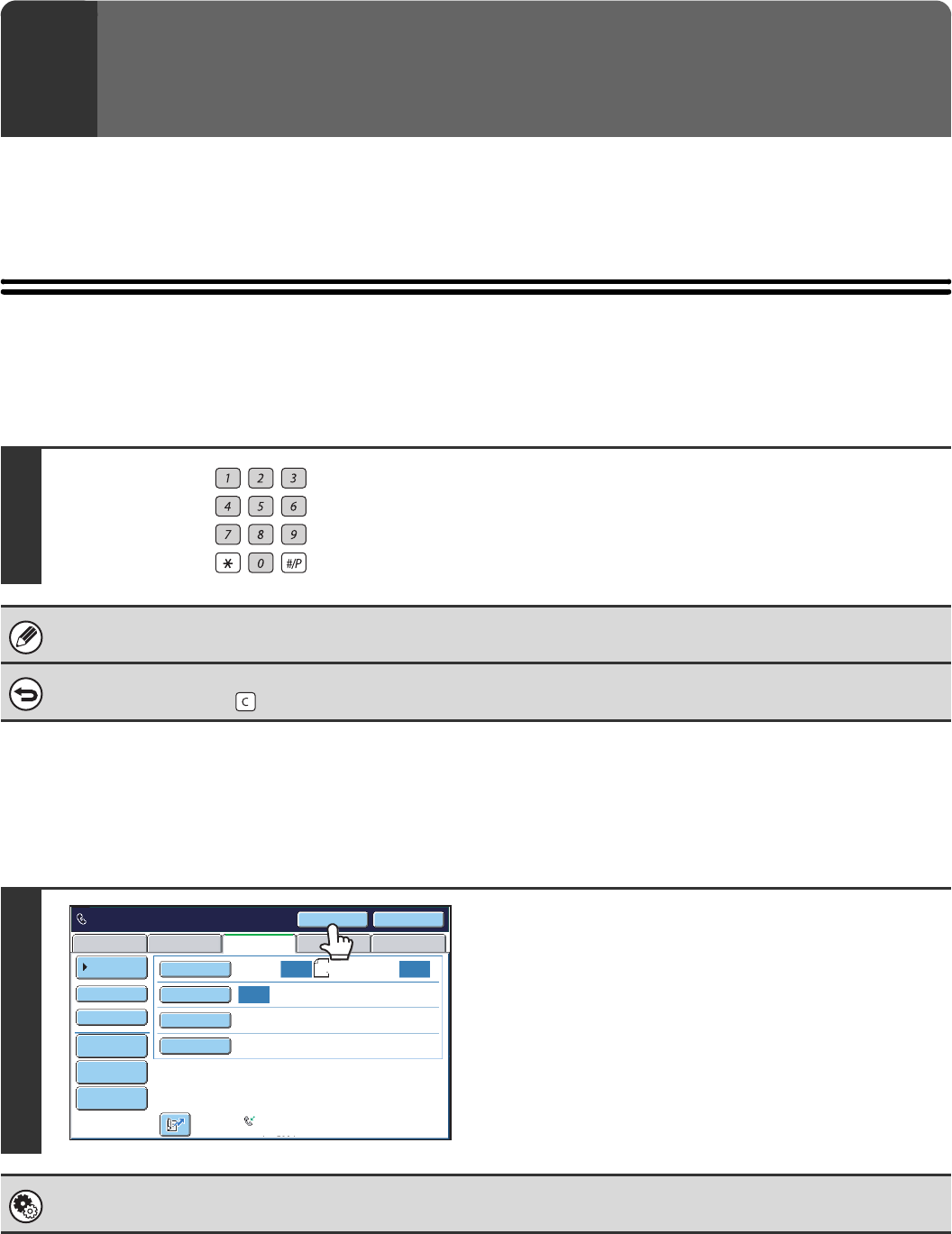
Begin transmission
Transmission begins
Scan the original and send the fax.
If the original is placed on the document glass, follow these
steps to start scanning and transmission:
When sending a fax normally (memory transmission)
(1) Press the [BLACK & WHITE START] key ( ).
(2) When scanning is finished, replace the original with the
next original.
(3) Press the [BLACK & WHITE START] key ( ).
(4) Repeat steps (2) and (3) until all originals have been
scanned.
(5) Touch the [Read-End] key.
When sending a fax in direct transmission mode
Multiple originals cannot be scanned in direct transmission
mode.
Press the [BLACK & WHITE START] key ( ) to start
transmission.
When transmission ends, image settings and convenient special mode settings are cleared.
To cancel scanning...
Press the [STOP] key ( ).
System Settings (Administrator): Default Display Settings
The settings can be kept in effect a fixed period of time after scanning is completed.
15
This chapter explains how to enter destination fax numbers.
Destination fax numbers can be entered using the numeric keys, or by retrieving a previously stored fax number using
the address book or a search number.
ENTERING A FAX NUMBER WITH THE
NUMERIC KEYS
Entering a pause between digits of the number
Enter a pause after the number used to dial out from a PBX (for example, after "0"), or after the country code when
dialling an international number.
2ENTERING DESTINATIONS
Enter the destination fax number with
the numeric keys.
Take care to enter the correct number.
If an incorrect number is entered...
Press the [CLEAR] key ( ) to clear the number and then enter the correct number.
Touch the [Pause] key.
A hyphen "-" is entered when the [Pause] key is touched once.
System Settings (Administrator): Pause Time Setting
This is used to set the length of pauses. The default setting is 2 seconds.
Auto Auto
Auto
File
Quick File
Address Review
Direct TX
Sub Address
Address Book
USB Mem. ScanFaxInternet Fax PC Scan
Special Modes
Resolution
Exposure
Original Scan:
Scan
Send:
Standard
Auto Reception
Fax Memory:100%
Pause
1234567890- Next Address
A4

16
RETRIEVING A FAX NUMBER FROM THE
ADDRESS BOOK
The address book screen shows stored destinations as one-touch keys.
A destination fax number is retrieved by simply touching the one-touch key of that destination. This is called "one-touch
dialling". It is also possible to store multiple fax numbers in a one-touch key, allowing you to retrieve all the numbers by
simply touching the key. This is called "group dialling". This dialling method is convenient when you wish to send a fax to
(or poll) multiple fax destinations.
One-touch keys are grouped on alphabetical index tabs to make it easy to find a destination.
When destinations of other scan modes are stored in addition to fax destinations, an icon indicating the mode appears
together with the name of the destination in each one-touch key.
Icon Mode
Fax
When multiple destinations are stored
Scan to E-mail
Internet Fax
Scan to FTP
Scan to Network Folder
Scan to Desktop
System Settings: Address Book
This is used to store destinations (names and fax numbers) in the address book.
Frequent Use ABCD EFGHI JKLMN OPQRST UVWXYZ
1
2
105 15 To Cc
III III
GGG GGG
EEE EEE
CCC CCC
AAA AAA
JJJ JJJ
HHH HHH
FFF FFF
DDD DDD
BBB BBB
Global
Address Search
Address Entry
Sort Address
Address Review
Condition
Settings

17
RETRIEVING A STORED DESTINATION
A destination fax number is retrieved by simply touching the one-touch key of that destination.
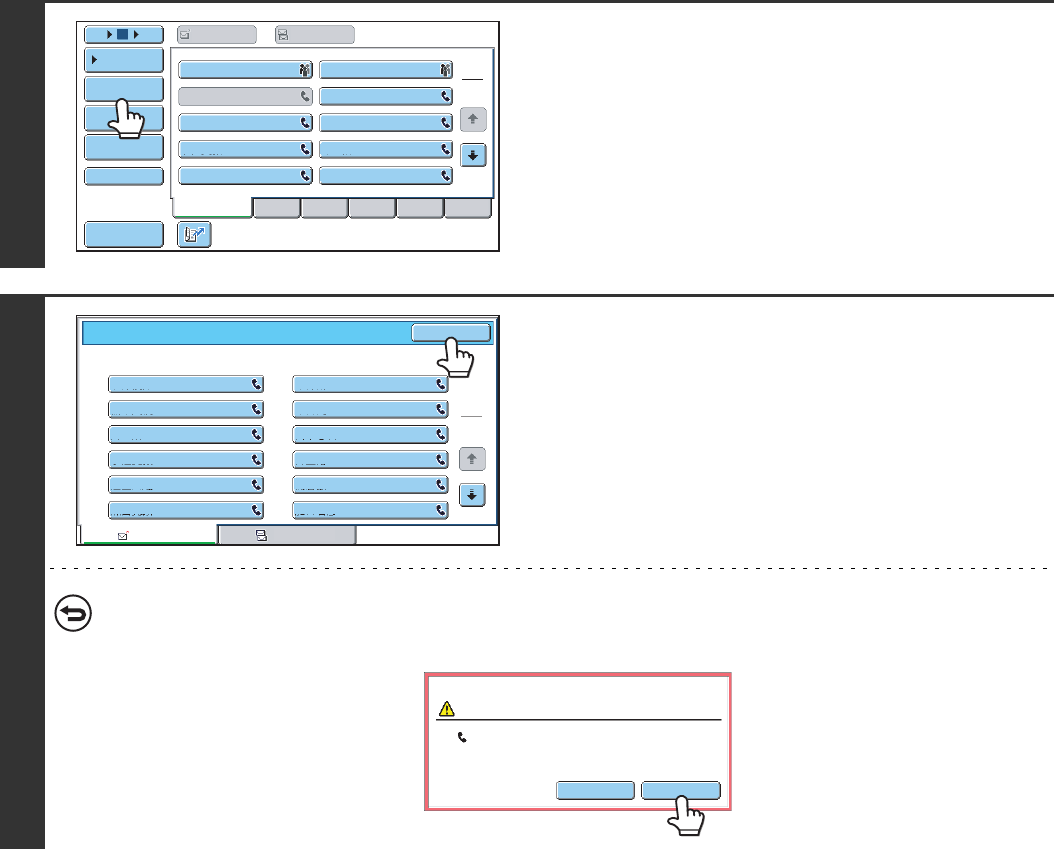
1
Touch the [Address Book] key.
2
Select the destination.
(1) Touch the index tab where the destination
is stored.
(2) Touch the one-touch key of the desired
destination.
If you select an incorrect destination, touch the key again
to cancel the selection.
(3) Touch the [To] key.
This enters the selected destination.
• Frequently used destinations can be displayed in the [Frequent Use] index. Specify that a destination be displayed
in the [Frequent Use] index when you store the destination.
•To continue specifying other destinations...
Touch the [Next Address] key and repeat (2) and (3) of this step.
•System Settings (Administrator): Must Input Next Address Key at Broadcast Setting
This setting determines whether or not the [Next Address] key can be omitted before specifying the next destination.
Factory default setting: The [Next Address] key can be omitted.
•System Settings (Administrator): Disable Switching of Display Order
This is used to disable switching of the order of display of the one-touch keys in the address book screen. The currently
selected display order will be the order that is used after this setting is enabled.
Auto Auto
Auto
File
Quick File
Address Review
Direct TX
Sub Address
Address Book
USB Mem. ScanFaxInternet Fax PC Scan
Special Modes
Resolution
Exposure
Original Scan:
Scan
Send:
Standard
Auto Reception
Fax Memory:100%
A4
Frequent Use ABCD EFGHI JKLMN OPQRST UVWXYZ
1
2
105 15 To Cc
III III
GGG GGG
EEE EEE
CCC CCC
AAA AAA
JJJ JJJ
HHH HHH
FFF FFF
DDD DDD
BBB BBB
Global
Address Search
Address Entry
Sort Address
Sub Address
Address Review
Condition
Settings
(2)(3)
(1)
18
CHECKING AND DELETING ENTERED DESTINATIONS
When multiple destinations have been entered, you can display and check the destinations. You can also delete a
destination (cancel selection of the destination).
1
Touch the [Address Review] key.
2
Check the destinations and then touch
the [OK] key.
To delete a destination...
Touch the one-touch key of the destination that you wish to delete. A message will appear to confirm the deletion.
Touch the [YES] key.
Frequent Use ABCD EFGHI JKLMN OPQRST UVWXYZ
1
2
CCC CCC
105 15 To Cc
III III
GGG GGG
EEE EEE
AAA AAA
JJJ JJJ
HHH HHH
FFF FFF
DDD DDD
BBB BBB
Global
Address Search
Address Entry
Sort Address
Sub Address
Address Review
Condition
Settings
1
2
CCC CCC
LLL LLL
NNN NNN
PPP PPP
RRR RRR
TTT TTT
KKK KKK
MMM MMM
OOO OOO
QQQ QQQ
SSS SSS
UUU UUU
Address Review OK
001
003
005
007
009
011
002
004
006
008
010
012
To Cc
Deselect the address?
BBB BBB
No Yes
19
USING A SEARCH NUMBER TO RETRIEVE
A DESTINATION
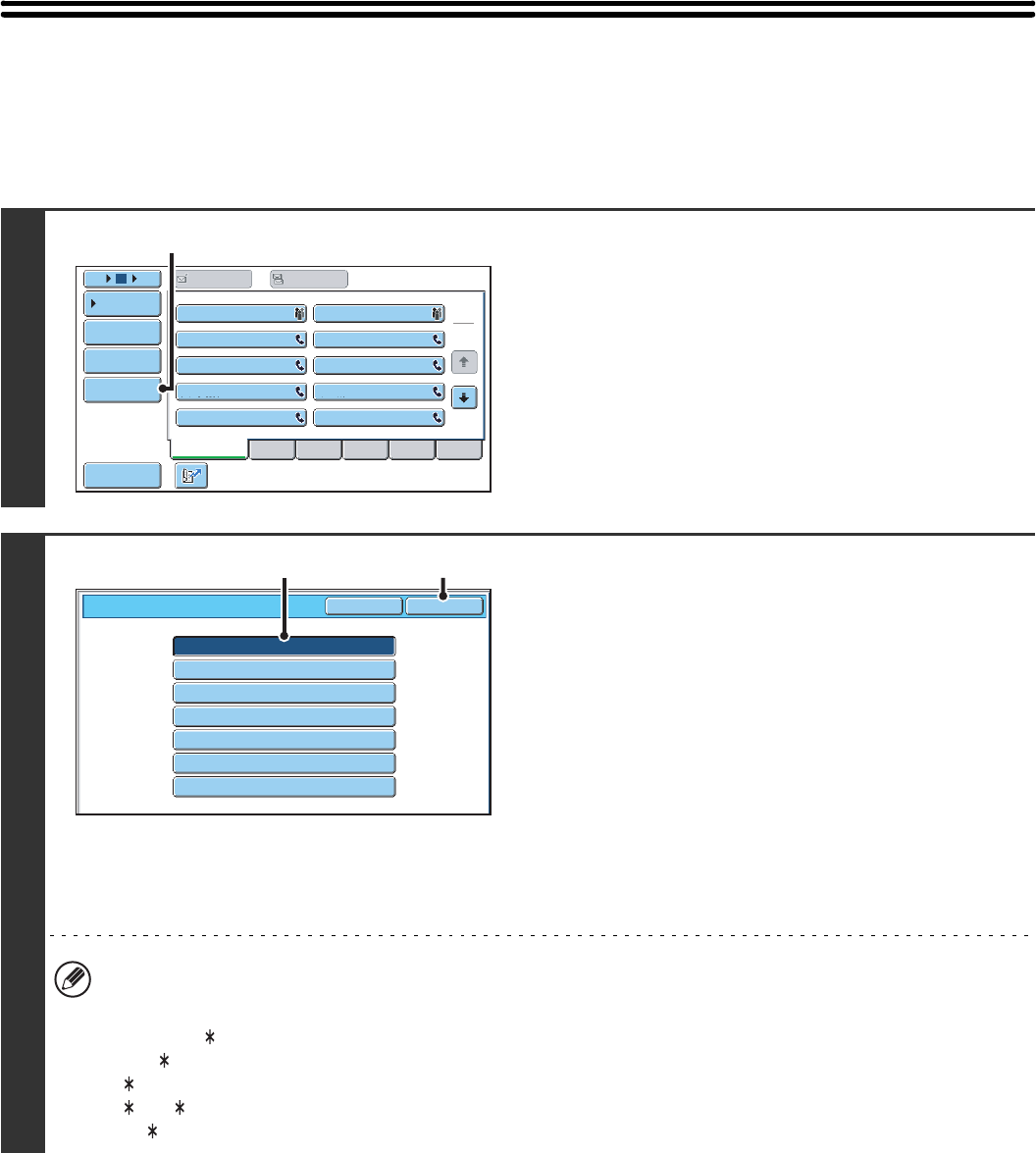
A destination stored in the address book can be retrieved using the key. This can be done in the base screen of fax
mode or in the address book screen.
1
Touch the key.
2
Enter the 3-digit search number of the
address with the numeric keys.
When the 3-digit search number is entered, the stored address
is retrieved and specified as a destination.
• The search number is programmed when the destination is stored in the address book.
• If you do not know the search number, print the one-touch address list using "Sending Address List" in the system
settings.
• When entering search numbers such as "001" and "011", "0" can be omitted. For example, to enter "001", enter "1"
and touch the key or the [Next Address] key.
If an incorrect search number is entered...
Press the [CLEAR] key ( ) to clear the number and enter the correct number.
Auto Auto
Auto
USB Mem. ScanFaxInternet Fax PC Scan
Scan:
Scan
Send:
Standard
Auto Reception
Fax Memory:100%
File
Quick File
Address Review
Direct TX
Sub Address
Address Book
Special Modes
Resolution
Exposure
Original A4
20
RETRIEVING A DESTINATION FROM A
GLOBAL ADDRESS BOOK
If an LDAP server is stored in the Web pages, you can look up a destination fax number in a global address book.
1
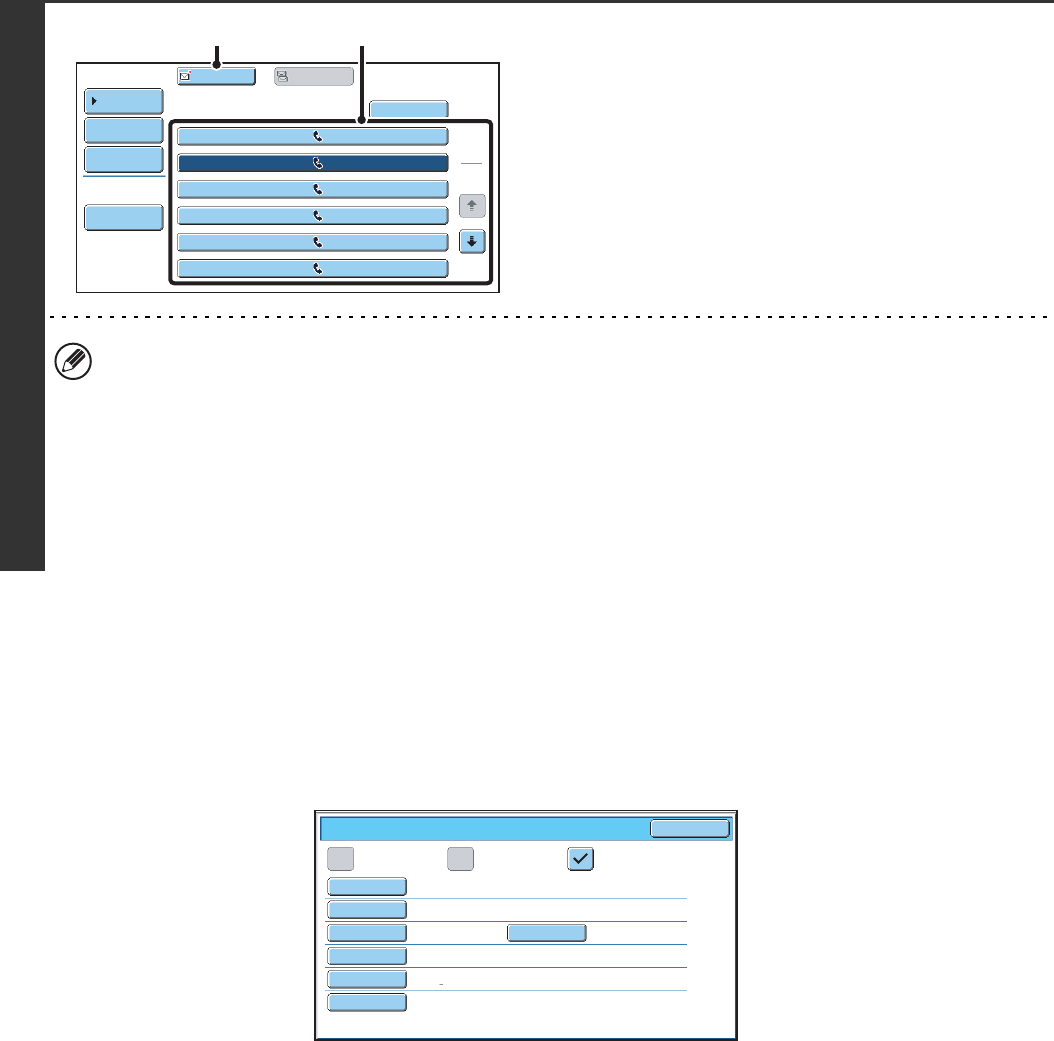
Open the global address search screen.
(1) Touch the [Address Book] key in the base
screen.
(2) Touch the [Global Address Search] key.
2
Search for the destination.
If only one LDAP server has been stored, (1) and (2) are not
necessary. Go directly to (3).
(1) Touch the key of the LDAP server that you
wish to use.
(2) Touch the [OK] key.
(3) Search for the destination in the search
screen.
Enter search characters for the destination and touch the
[Search] key. The search results will appear after a brief
interval.
For the procedure for entering text, see "6. ENTERING
TEXT" in the User's Guide.
How to search
Enter a maximum of 64 characters for the search characters. The system will look for names starting with the entered
letters.
An asterisk can be used as follows:
XXX : Names beginning with "XXX".
XXX: Names that end with "XXX".
XXX : Names that include "XXX".
AA XX: Names that start with "AA" and end with "XX".
Frequent Use ABCD EFGHI JKLMN OPQRST UVWXYZ
1
2
105 15 To Cc
III III
GGG GGG
EEE EEE
CCC CCC
AAA AAA
JJJ JJJ
HHH HHH
FFF FFF
DDD DDD
BBB BBB
Global
Address Search
Address Entry
Sort Address
Address Review
Condition
Settings
(2)
Server 2
Server 1
Server 3
Server 4
Server 5
Server 6
Server 7
Cancel
Server Change OK
(2)(1)
21
Storing a destination from a global address book in the machine's
address book
A destination from a global address book can be stored in the machine's address book as a one-touch key.
Touch the [Detail] key in the search results screen of the global address book (the screen of step 3 above) to display
information on the selected destination. Touch the [Register] key in the detailed information screen and then touch the
item to be used (the [Fax] key in this case). The following screen will appear.
The information stored in the global address book is automatically entered. (The settings can be changed if needed. For
detailed information on each item, see "Address Control" in the System Settings Guide.) However, configure the items
below manually. To complete the storing procedure, touch the [Exit] key.
• [Initial] key: Touch this key to enter the initials that determine where the destination will appear in the alphabetical
index and the order of one-touch key display.
• [Index] key: Touch this key to select the custom index in which the address will appear. You can also select whether
or not the destination will be included on the [Frequent Use] tab of the address book.
• [Mode] key: Touch this key to configure the "Transmission Speed" and "International Correspondence Mode"
settings. These settings have already been configured, however, if the destination is an international
destination, or if you find that communication errors frequently occur when communicating with that
destination, you can try changing the settings.
3
Select the destination.
(1) Touch the key of the desired destination.
If no names are found that match the search letters, a
message will appear. Touch the [OK] key to close the
message and touch the [Search Again] key to search
again.
(2) Touch the [To] key.
This enters the selected destination.
If you wish to select another destination, repeat steps (1)
and (2) above.
• If more than 30 matches are found, a message will appear in the screen. Touch the [OK] key to close the message.
A maximum of 300 search results are displayed. If the desired destination was not found, touch the [Search Again]
key to add more search letters.
•To check the information stored in a destination...
Touch the key of the destination and then touch the [Detail] key. The information stored for the selected destination
will appear. Check the information and then touch the [OK] key to return to the search results screen.
•If a screen for selecting the item to be used appears...
If the selected destination includes an E-mail address or other address in addition to the fax number or telephone
number, you will need to select which item you wish to use. Touch the [Fax] key to retrieve the fax number.
1
2
XXX AAA 0123456789
0612345678
0601234567
0687654321
0676543210
XXX
XXX BBB 9876543210
XXX CCC
XXX EEE
XXX FFF
XXX DDD
To Cc
Detail
Search Again
Address Book
Address Review
Condition
Settings
(1)(2)
Search Number
Name
Initial Index
Fax No.
001
AAA AAA
0123456789
AAA AAA
A User 1
Key Name
33.6 kbps/None
Mode
Direct Address / Individual Exit
E-mail Internet Fax Fax
22
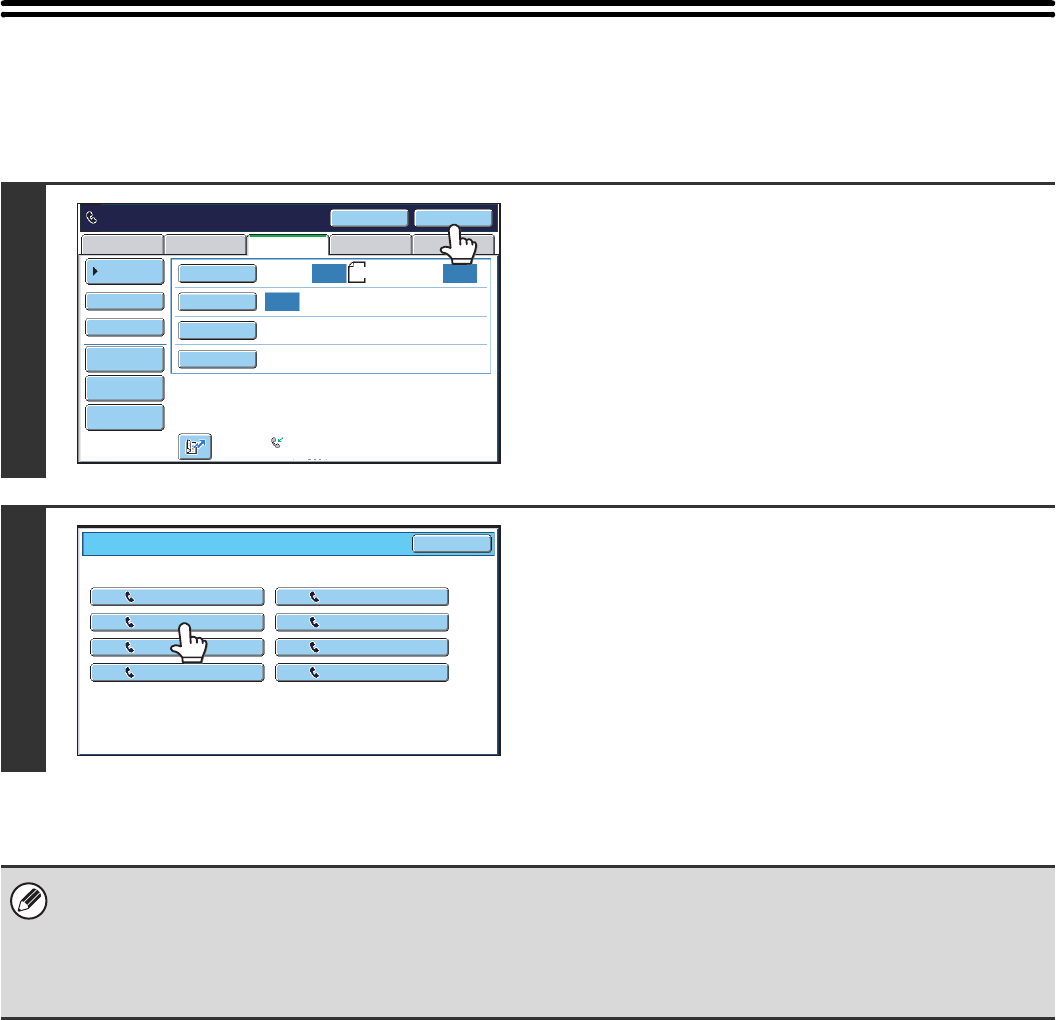
USING THE RESEND FUNCTION
The destinations of the most recent 8 transmissions by fax, Scan to E-mail, and/or Internet fax are stored. One of these
can be selected to resend to that destination.
1
Touch the [Resend] key.
2
Touch the key of the fax destination that
you wish to redial.
The last 8 transmission destinations appear.
• If numeric keys were pressed during the previous transmission, the [Resend] key may not dial the correct number.
• The following types of addresses are not stored for resending.
• A one-touch key in which multiple destinations are stored (group key).
• Broadcast destinations
• Destinations transmitted to using a program
Auto Auto
Auto
USB Mem. ScanFax
Internet Fax PC Scan
Scan:
Scan
Send:
Standard
Auto Reception
Fax Memory:100%
Speaker
Ready to send. Resend
File
Quick File
Address Review
Direct TX
Sub Address
Address Book
Special Modes
Resolution
Exposure
Original A4
Cancel
Resend
EEE EEE
AAA AAANo.01
No.03
No.05
No.07
CCC CCC
GGG GGG
FFF FFF
BBB BBB
DDD DDD
HHH HHH
No.02
No.04
No.06
No.08
23
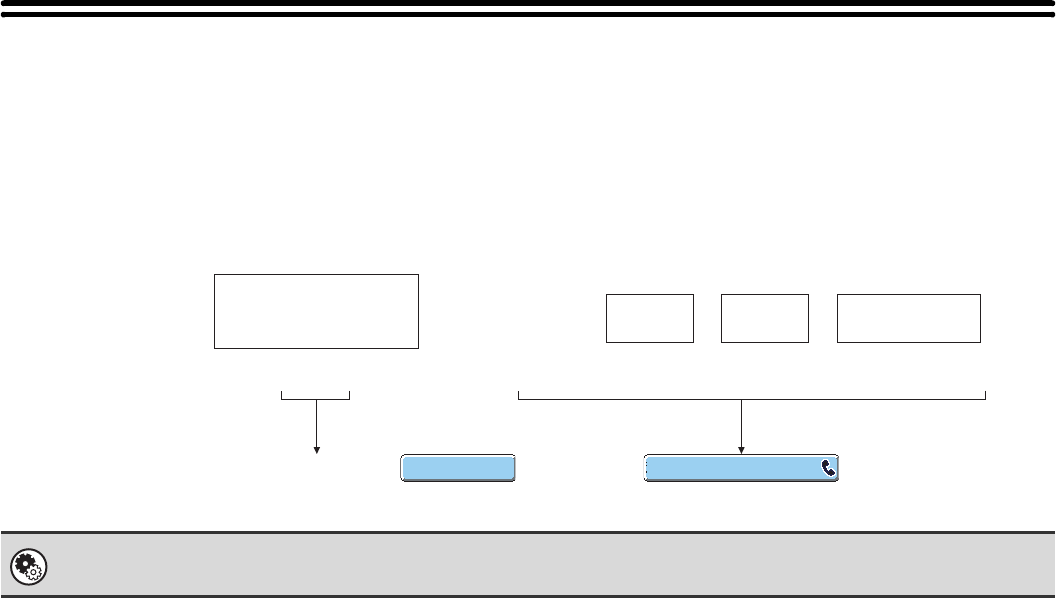
CHAIN DIALLING
Number sequences entered with the numeric keys and/or one-touch keys can be linked together with pauses and dialled
as a single number.
Use chain dialling to dial a long number (such as an international number) when the country code and/or area code are
stored separately in one-touch keys.
Example: Using chain dialling to dial an international number
System Settings (Administrator): Pause Time Setting
This is used to set the length of pauses. The default setting is 2 seconds.
XXX 010 00 XX XXXX
XXX
010
Number to access
international telephone
service
Country
code Area code Number of other
party
Using a one-touch
key
Using the
numeric keys
CCC CCC
Pause
Number to be dialled
Entry
24
This chapter explains the basic procedures for sending a fax.
TRANSMISSION METHODS
The methods that can be used to send a fax from the machine are explained below. Select the method that best suits
your needs.
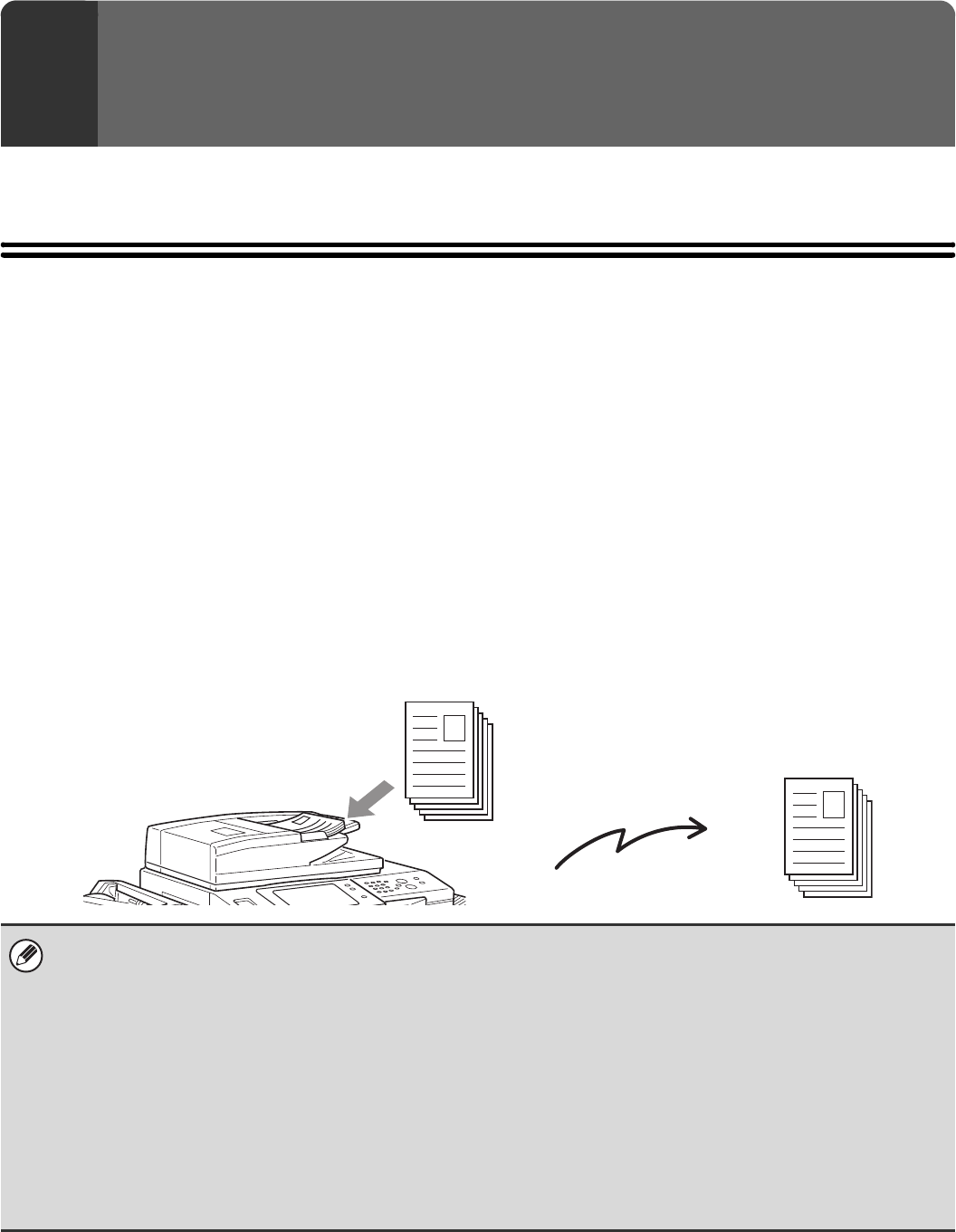
To fax a large number of sheet originals, use the automatic document feeder.
The originals will be scanned into memory and then transmitted (memory transmission).
When memory transmission is selected and multiple originals are placed in the automatic document feeder (and the line
is free), transmission will begin as soon as the first page is scanned and will take place while the remaining pages are
being scanned (Quick Online transmission).
If transmission cannot begin immediately because the line is in use, all pages will be scanned into memory and the
transmission will be reserved.
☞USING THE AUTOMATIC DOCUMENT FEEDER FOR TRANSMISSION (page 29)
When a fax transmission or reception is already in progress, the following procedure can be performed to reserve a
transmission job. To check reserved transmission jobs, display the job status screen.
☞8. CHECKING THE STATUS OF FAX JOBS (page 114)
3BASIC TRANSMISSION
METHODS
• If memory becomes full while the first original page is being scanned, transmission will stop.
• In the following situations, the transmission will be automatically reserved (memory transmission)
• When the line is busy or a communication error occurs and automatic resending is enabled.
☞WHEN THE LINE IS BUSY (page 28), WHEN A COMMUNICATION ERROR OCCURS (page 28)
• The machine is already using the line to send or receive a fax.
• Another fax transmission was reserved ahead of your fax.
• One of the following functions is being used for transmission.
Broadcast transmission, F-code transmission, timer transmission, Dual Page Scan, 2in1, Card Shot, Job Build
• The document glass is being used (except when the speaker is being used to dial).
• Up to 94 transmission jobs can be reserved.
• When the transmission is finished, the scanned original pages are cleared from memory. However, when the document
filing function is used, the transmitted fax is stored.
☞Document Filing Guide
Transmission
25
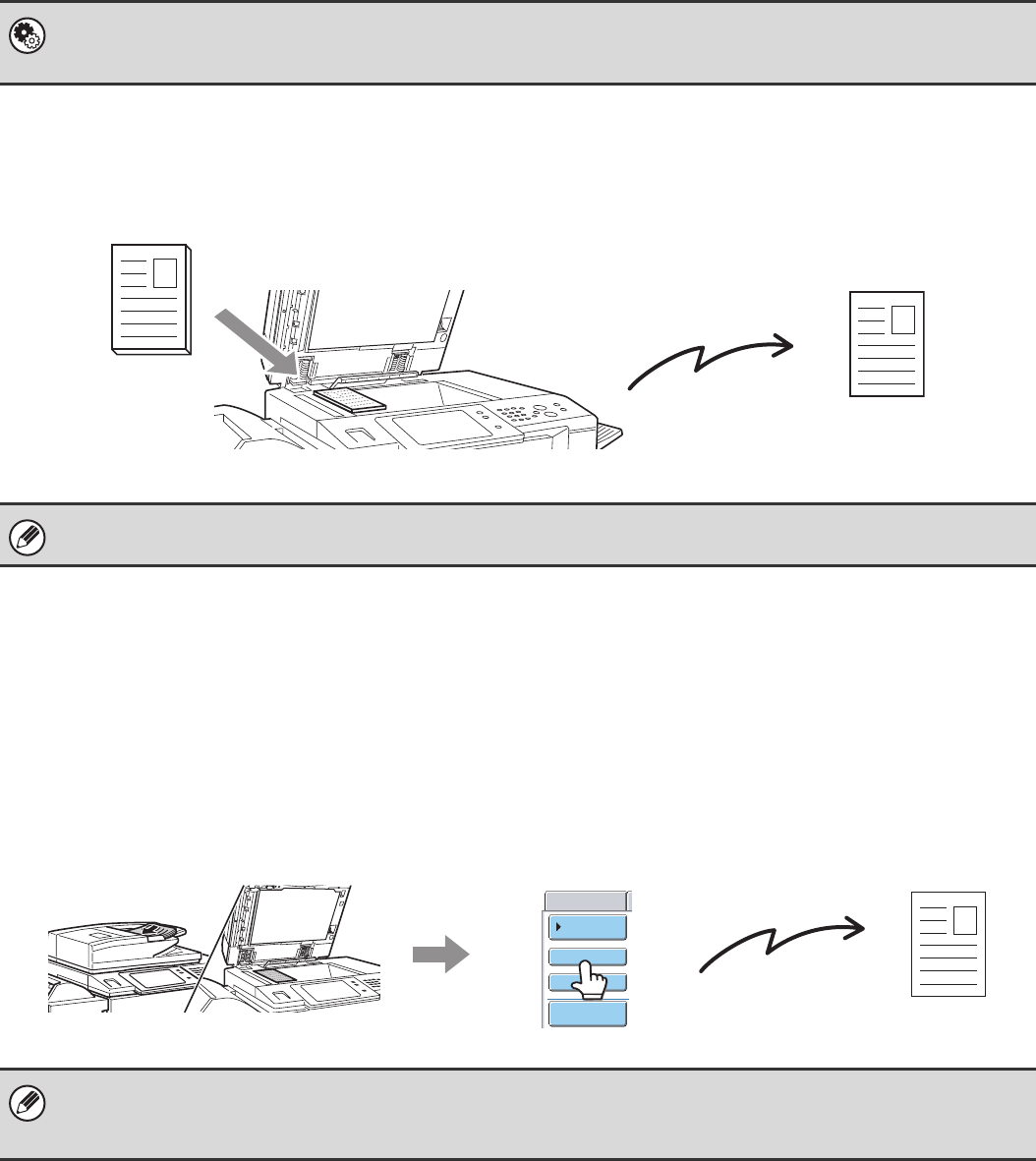
To fax thick originals or pages of a book, use the document glass.
The transmission will be reserved after all pages are scanned (memory transmission).
☞USING THE DOCUMENT GLASS FOR TRANSMISSION (page 32)
If you wish to send a fax ahead of other previously reserved fax
transmissions, use direct transmission mode.
The original is transmitted directly to the receiving fax machine without being scanned into memory.
When direct transmission mode is used, transmission will begin as soon as the transmission in progress is completed
(ahead of any previously reserved transmissions).
To send a fax by direct transmission, touch the [Direct TX] key in the base screen.
☞USING THE AUTOMATIC DOCUMENT FEEDER TO SEND A FAX IN DIRECT TRANSMISSION MODE (page 30),
USING THE DOCUMENT GLASS TO SEND A FAX IN DIRECT TRANSMISSION MODE (page 34)
System Settings (Administrator): Quick On Line Sending
This is used to disable Quick Online transmission. In this case, fax transmissions will be sent by memory transmission
(reserved and then transmitted).
When the document glass is being used for a transmission, Quick Online transmission will not operate.
• When transmission in direct transmission mode ends, the mode automatically changes back to memory transmission
mode.
• When the document glass is used, multiple original pages cannot be scanned.
Transmission
Address Book
Address Review
Sub Address
Direct TX
Scan
Transmission
26
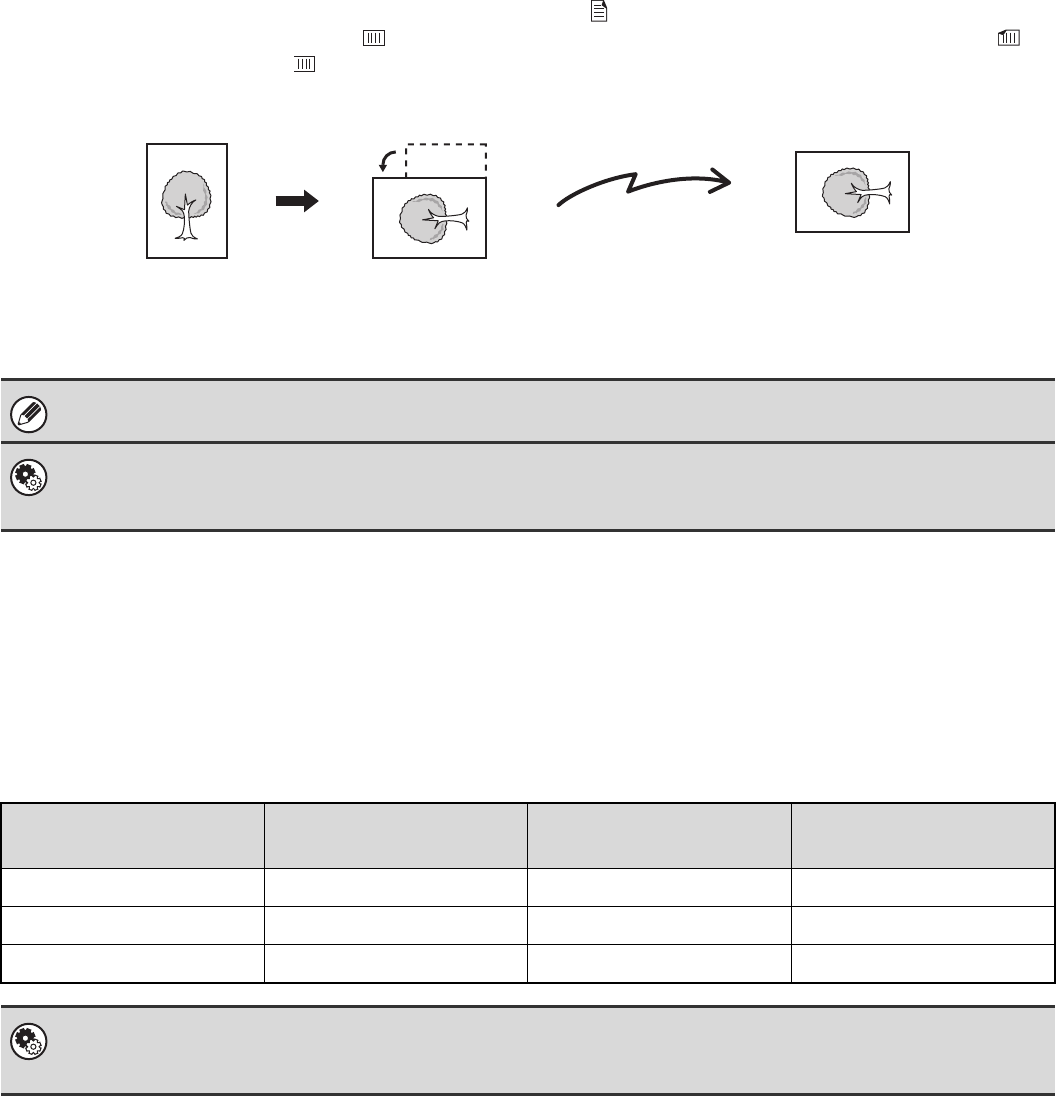
PLACEMENT ORIENTATION OF THE ORIGINAL
When an A4 (8-1/2" x 11") original is placed in vertical orientation ( ), the image is automatically rotated 90 degrees
and transmitted in horizontal orientation ( ) (Rotation Sending). If the original is placed in horizontal orientation ( ), it
is transmitted in that orientation ( ) without being rotated.
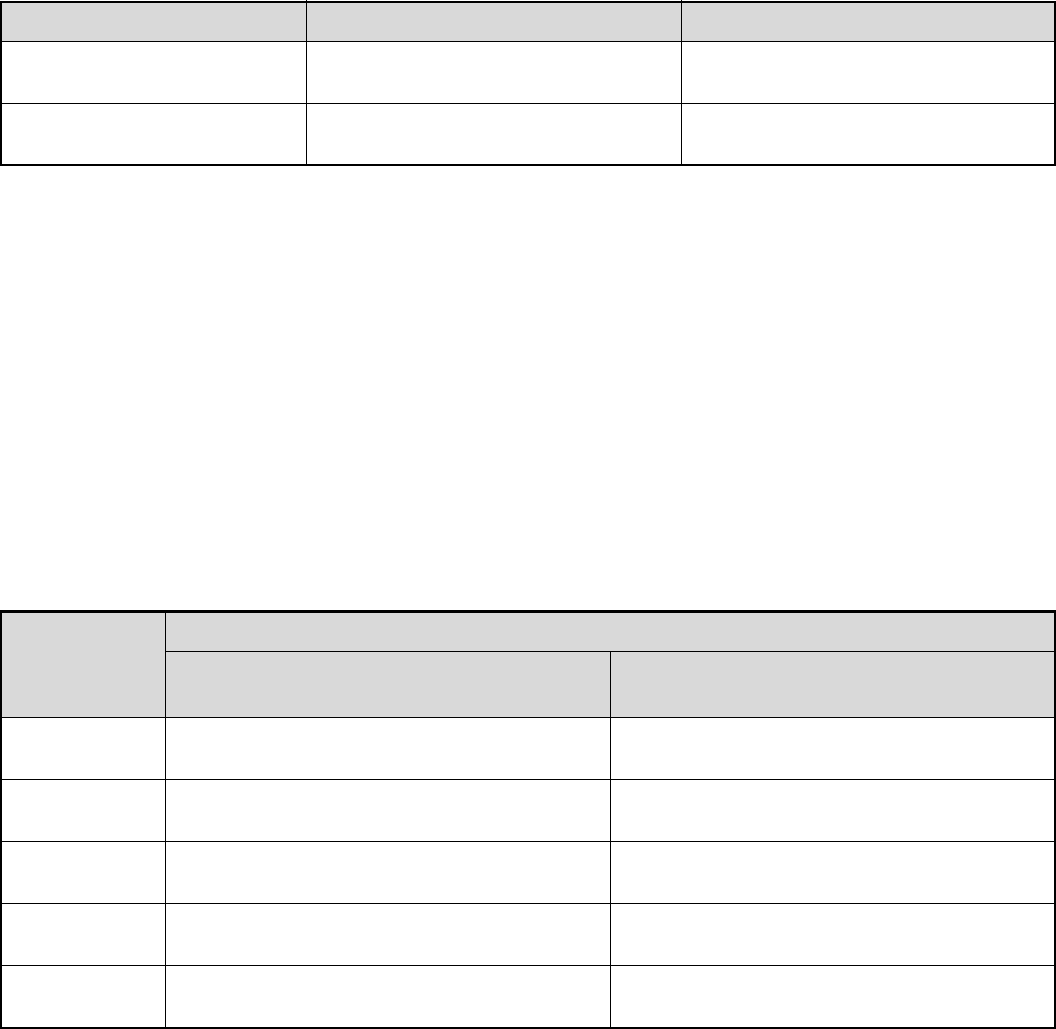
AUTOMATIC REDUCTION OF THE TRANSMITTED
IMAGE
If the width of the transmitted image is larger than the width of the paper in the receiving machine, the image will be
automatically reduced to fit the receiving machine's paper width.
Example: Reduced sizes and reduction ratios
A4R, B5 and A5 (8-1/2" x 11"R and 5-1/2" x 8-1/2") size originals are not rotated for transmission.
System Settings (Administrator): Rotation Sending Setting
The factory default setting is rotate before transmission. If this setting is disabled, the original will be transmitted in the
orientation in which it is placed.
Transmitted image
width
Receiving machine's
paper width Reduced size Ratio
A3 B4 B4 1 : 0.84
A3 (11" x 17")
A4 (8-1/2" x 14", 8-1/2" x 11")
A4R (8-1/2" x 14", 8-1/2" x 11"R)
1 : 0.71
B4 A4 A4R 1 : 0.84
System Settings (Administrator): Auto Reduction Sending Setting
The factory default setting is automatic reduction enabled. If this setting is disabled, the image will be sent at full size and part
of the image may be cut off.
Transmission
A4R (8-1/2" x 11"R)
image is transmitted.
Rotated to A4R
(8-1/2" x 11"R)
orientation
A4 (8-1/2" x 11")
27
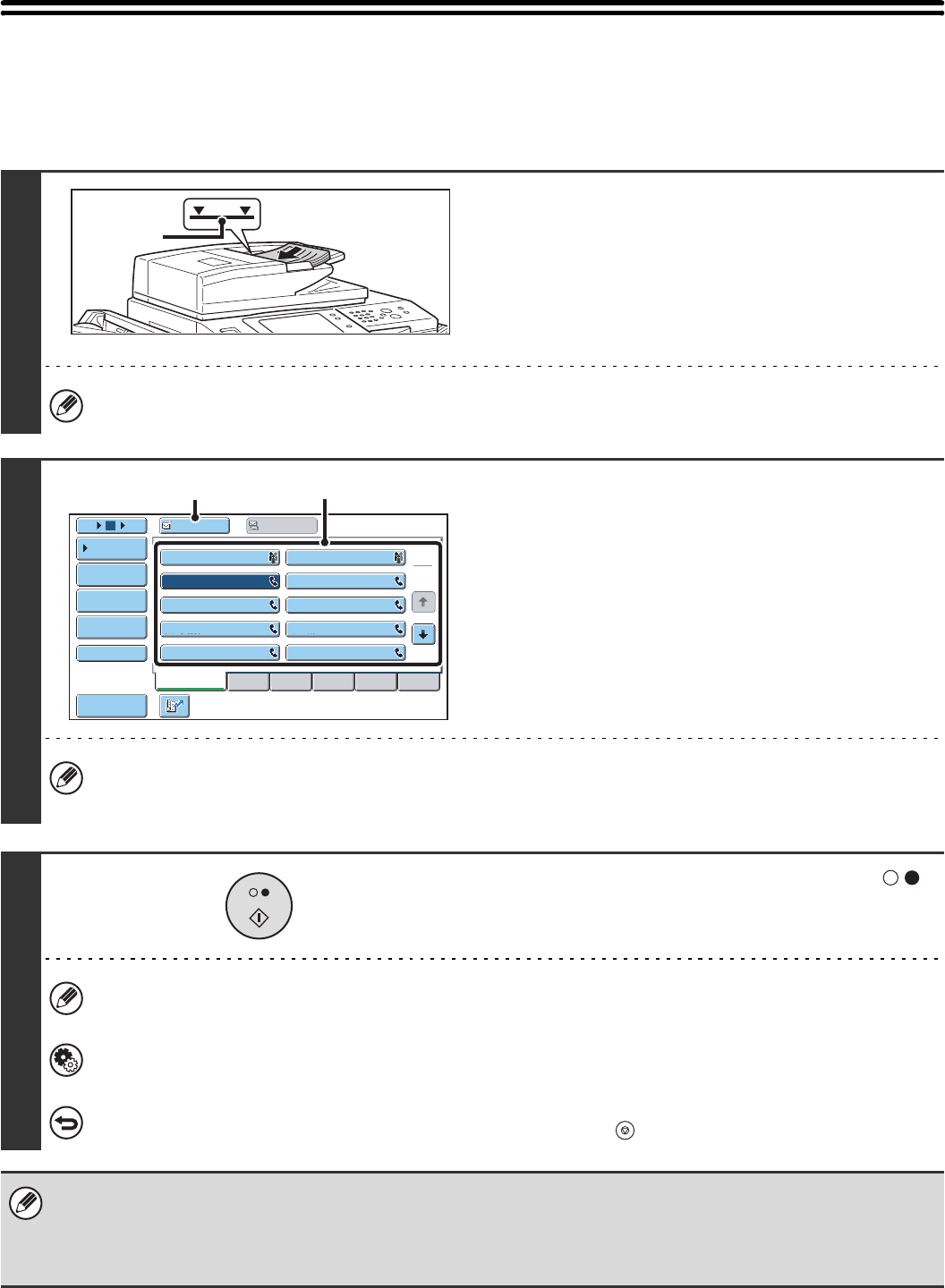
TRANSMITTABLE ORIGINAL SIZES
The following original sizes can be transmitted.
*When transmitting a long original (page 46)
THE SIZE OF THE PLACED ORIGINAL
When a standard size original is placed, the original size is automatically detected and displayed in "Scan" in the base
screen.
When the automatic original detection function is operating and the original is a non-standard size, the closest standard
size may be displayed or the original size may not appear. In this event, manually set the correct original size.
☞Specifying the original scan size (by paper size) (page 46)
Specifying the original scan size (by numerical values) (page 48)
STANDARD SIZES
Standard sizes are sizes that the machine can automatically detect. The standard sizes are set in "Original Size
Detector Setting" in the system settings (administrator). The factory default setting is "AB-1".
List of original size detector settings
Minimum original size Maximum original size
Using the automatic document
feeder
131 mm (height) x 140 mm (width)
(5-1/8" (height) x 5-1/2" (width))
297 mm (height) x 800 mm* (width)
(11" (height) x 31-1/2"* (width))
Using the document glass –297 mm (height) x 432 mm (width)
(11" (height) x 17" (width))
Selections
Standard sizes (detected original sizes)
Document glass Document feeder tray
(automatic document feeder)
AB-1 A3, A4, A4R, A5, B4, B5, B5R A3, A4, A4R, A5, B4, B5, B5R, 8-1/2" x 11",
8-1/2" x 14", 11" x 17"
AB-2 A3, A4, A4R, A5, B5, B5R, 216 mm x 330 mm
(8-1/2" x 13")
A3, A4, A4R, A5, B4, B5, B5R, 8-1/2" x 11",
11" x 17", 216 mm x 330 mm (8-1/2" x 13")
AB-3 A4, A4R, A5, B4, 8K, 16K, 16KR A3, A4, A4R, A5, B4, 8K, 16K, 16KR, 8-1/2" x 11",
11" x 17", 216 mm x 330 mm (8-1/2" x 13")
Inch-1 11" x 17", 8-1/2" x 14", 8-1/2" x 11", 8-1/2" x 11"R,
5-1/2" x 8-1/2"
11" x 17", 8-1/2" x 14", 8-1/2" x 11", 8-1/2" x 11"R,
5-1/2" x 8-1/2", A4, A3
Inch-2 11" x 17", 8-1/2" x 13" (216 mm x 330 mm),
8-1/2" x 11", 8-1/2" x 11"R, 5-1/2" x 8-1/2"
11" x 17", 8-1/2" x 13" (216 mm x 330 mm),
8-1/2" x 11", 8-1/2" x 11"R, 5-1/2" x 8-1/2", A4, A3

28
WHEN THE LINE IS BUSY
If the line is busy when you send a fax, transmission will be re-attempted automatically after a preset interval. This
function only operates in memory transmission mode. In direct transmission mode or manual transmission mode, the
transmission will be cancelled. Wait briefly and then try sending the fax again.
WHEN A COMMUNICATION ERROR OCCURS
If a communication error occurs or the other fax machine does not answer the call within a preset period of time,
transmission will be re-attempted automatically after a preset interval. This function only operates in memory
transmission mode.
To cancel transmission...
Cancel the transmission from the job status screen.
☞CANCELLING A FAX IN PROGRESS OR A RESERVED FAX (page 121)
System Settings (Administrator): Recall in Case of Line Busy
This is used to set the number of recall attempts and the interval between attempts when the connection cannot be
established because the line is busy. The factory default setting is 2 attempts at an interval of 3 minutes.
To cancel transmission...
Cancel the transmission from the job status screen.
☞CANCELLING A FAX IN PROGRESS OR A RESERVED FAX (page 121)
System Settings (Administrator): Recall in Case of Communication Error
This is used to set the number of recall attempts and the interval between attempts when a transmission fails due to an error.
The factory default setting is attempt at an interval of 1 minute.
29
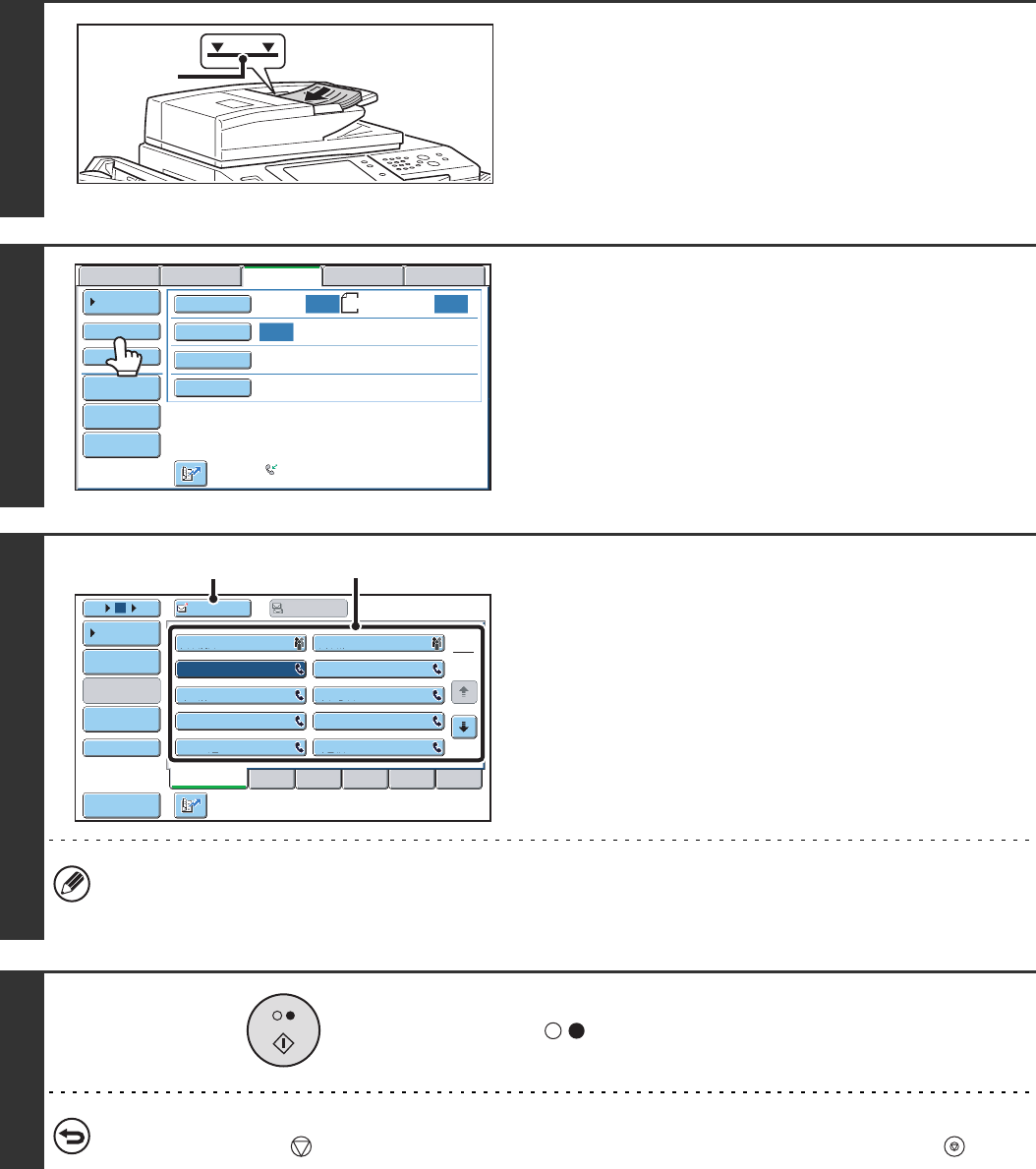
USING THE AUTOMATIC DOCUMENT
FEEDER FOR TRANSMISSION
This section explains how to use the automatic document feeder to send a fax.
1
Place the originals face up in the
document feeder tray with the edges
aligned evenly.
Insert the originals all the way into the document feeder tray.
Multiple originals can be placed in the document feeder tray.
The stack of originals must not be higher than the indicator line
on the tray.
When sending a multi-page fax, the automatic document feeder and the document glass cannot both be used to scan
the original pages.
2
Enter the destination fax number
(1) Touch the [Address Book] key in the base
screen.
(2) Touch the one-touch key of the desired
destination.
(3) Touch the [To] key.
In addition to specification by one-touch key, a destination can also be specified using a search number. You can also
directly enter a fax number with the numeric keys or look up a destination in a global address book. For more
information, see "2. ENTERING DESTINATIONS" (page 15).
3
Press the [BLACK & WHITE START] key ( ).
Scanning begins.
When scanning is completed, the machine sounds a beep.
When scanning is completed, "Job stored." will be displayed together with a job control number. This number can be
used to locate the job in the Transaction Report or in the Image Sending Activity Report.
System Settings (Administrator): Scan Complete Sound Setting
The scan complete sound can be selected.
To cancel scanning...
While "Scanning original" appears in the display, press the [STOP] key ( ).
• If a fax is being received when the transmission operation is performed, the transmission will be reserved and transmitted
after fax reception is completed.
• If the memory becomes full while the originals are being scanned, a message will appear and scanning will stop. If Quick
Online transmission is taking place, the originals that were scanned will be transmitted. If Quick Online is not enabled, the
transmission will be cancelled.
Indicator
line
Frequent Use ABCD EFGHI JKLMN OPQRST UVWXYZ
1
2
105 15 To Cc
III III
GGG GGG
EEE EEE
CCC CCC
AAA AAA
JJJ JJJ
HHH HHH
FFF FFF
DDD DDD
BBB BBB
Global
Address Search
Address Entry
Sort Address
Sub Address
Address Review
Condition
Settings
(2)
(3)
30
USING THE AUTOMATIC DOCUMENT FEEDER TO
SEND A FAX IN DIRECT TRANSMISSION MODE
1
Place the originals face up in the
document feeder tray with the edges
aligned evenly.
Insert the originals all the way into the document feeder tray.
Multiple originals can be placed in the document feeder tray.
The stack of originals must not be higher than the indicator line
on the tray.
2
Touch the [Direct TX] key.
3
Enter the destination fax number
(1) Touch the [Address Book] key in the base
screen.
(2) Touch the one-touch key of the desired
destination.
(3) Touch the [To] key.
In addition to specification by one-touch key, a destination can also be specified using a search number. You can also
directly enter a fax number with the numeric keys or look up a destination in a global address book. For more
information, see "2. ENTERING DESTINATIONS" (page 15).
4
Press the [BLACK & WHITE START] key
().
Transmission begins.
To cancel transmission...
While "Dialling. Press [ ] to cancel" appears or while the fax is being transmitted, press the [STOP] key ( ).
Indicator
line
Auto
Auto
Auto
USB Mem. ScanFaxInternet Fax PC Scan
Scan:
Scan
Send:
Standard
Auto Reception
Fax Memory:100%
File
Quick File
Address Review
Direct TX
Sub Address
Address Book
Special Modes
Resolution
Exposure
Original A4
Frequent Use ABCD EFGHI JKLMN OPQRST UVWXYZ
1
2
105 15 To Cc
III III
GGG GGG
EEE EEE
CCC CCC
AAA AAA
JJJ JJJ
HHH HHH
FFF FFF
DDD DDD
BBB BBB
Global
Address Search
Address Entry
Sort Address
Sub Address
Address Review
Condition
Settings
(2)
(3)

31
• Only one destination can be entered.
• The following functions cannot be used with direct transmission:
Program, Timer Transmission, 2in1, Card Shot, Job Build, Polling Memory, File, Quick File, 2-Sided Original Scanning,
Global Address Search
• Resending will not take place when a direct transmission is not successful due to a communication error or other reason.
• If a fax transmission is already in progress when the direct transmission operation is performed, the direct transmission will
wait until the previous transmission is finished. When the previous transmission is completed, the direct transmission will
begin. While the direct transmission is waiting, the [JOB STATUS] key can be pressed to display the job status screen. No
other operations are possible.
☞8. CHECKING THE STATUS OF FAX JOBS (page 114)
32
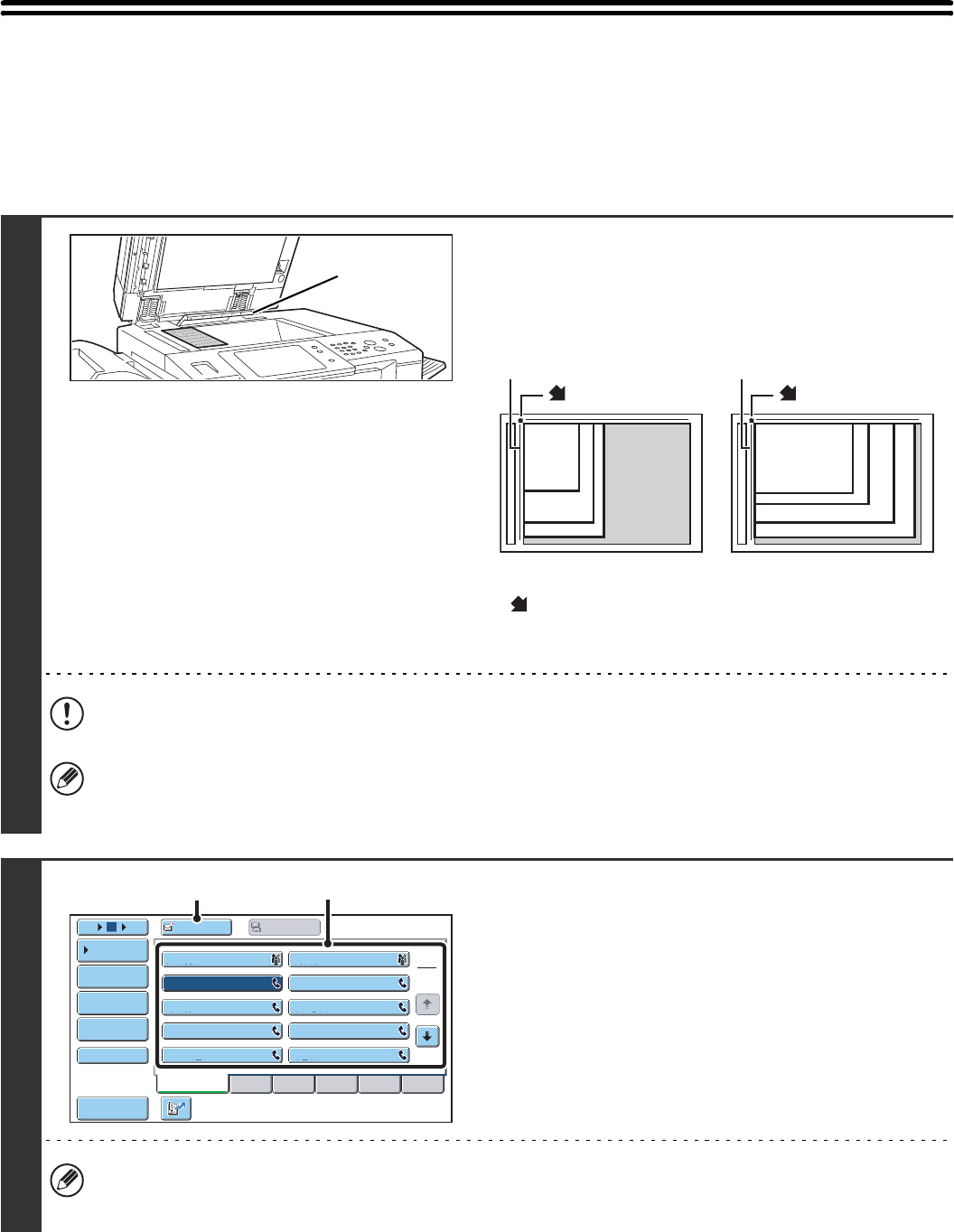
USING THE DOCUMENT GLASS FOR
TRANSMISSION
To fax a thick original or other original that cannot be fed through the automatic document feeder, open the automatic
document feeder and place the original on the document glass.
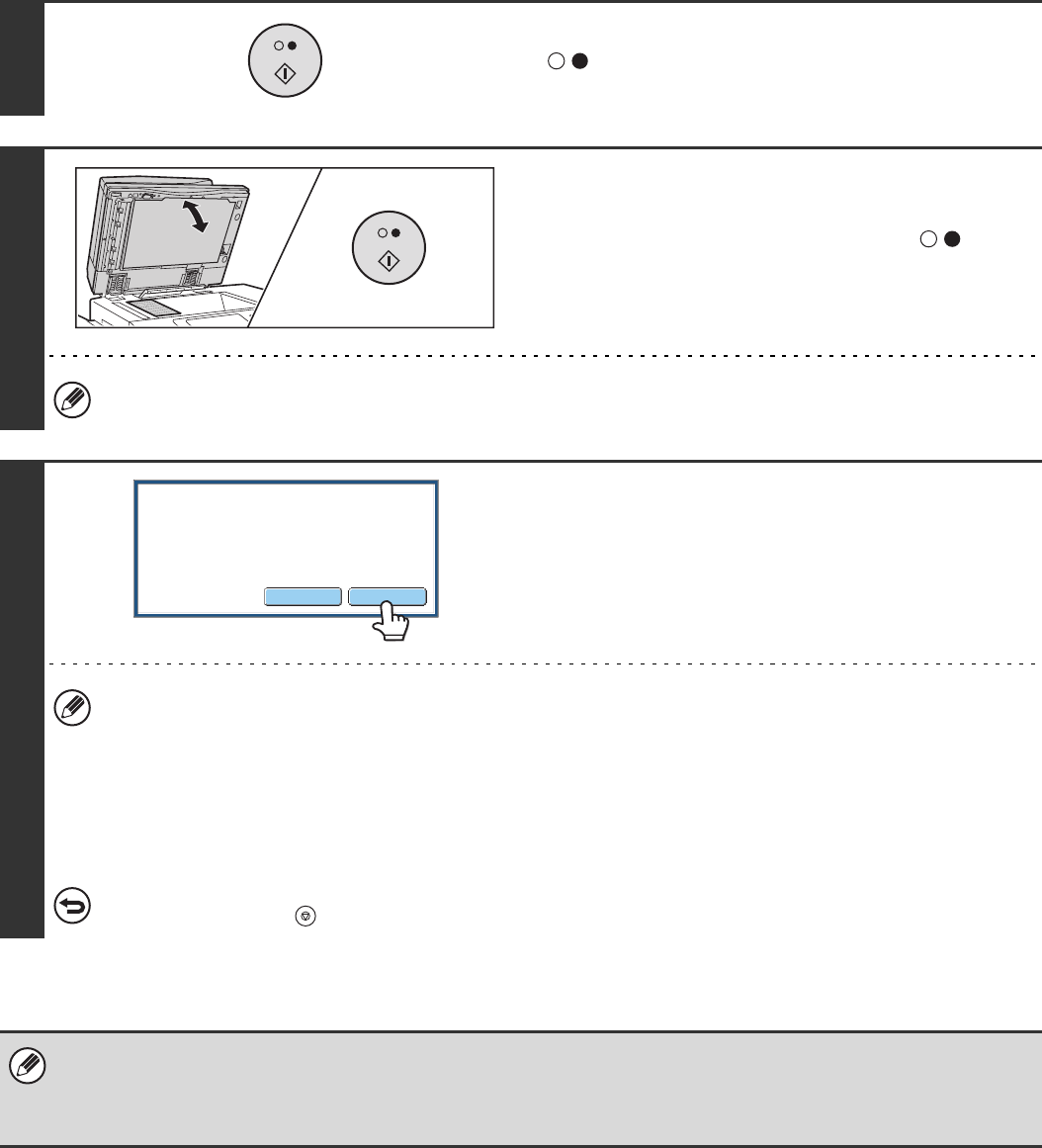
1
Open the automatic document feeder,
place the original face down on the
document glass, and then gently close
the automatic document feeder.
• Align the corner of the original with the tip of the arrow mark
on the document glass scale.
• Place the original in the appropriate position for its size as
shown above.
Do not place any objects under the original size detector. Closing the automatic document feeder with an object
underneath may damage the original size detector plate and prevent correct detection of the document size.
• When faxing a multi-page original, scan each page in order starting from the first page.
• When sending a multi-page fax, the automatic document feeder and the document glass cannot both be used to
scan the original pages.
2
Enter the destination fax number
(1) Touch the [Address Book] key in the base
screen.
(2) Touch the one-touch key of the desired
destination.
(3) Touch the [To] key.
In addition to specification by one-touch key, a destination can also be specified using a search number. You can also
directly enter a fax number with the numeric keys or look up a destination in a global address book. For more
information, see "2. ENTERING DESTINATIONS" (page 15).
Original size
detector
A4R (8-1/2" x 11"R)
B5R
B4 (8-1/2" x 14")
A3 (11" x 17")
A4 (8-1/2" x 11")
A5
(5-1/2" x 8-1/2")
B5
mark
Document glass scale Document glass scale
mark
Frequent Use ABCD EFGHI JKLMN OPQRST UVWXYZ
1
2
105 15 To Cc
III III
GGG GGG
EEE EEE
CCC CCC
AAA AAA
JJJ JJJ
HHH HHH
FFF FFF
DDD DDD
BBB BBB
Global
Address Search
Address Entry
Sort Address
Sub Address
Address Review
Condition
Settings
(2)
(3)
33
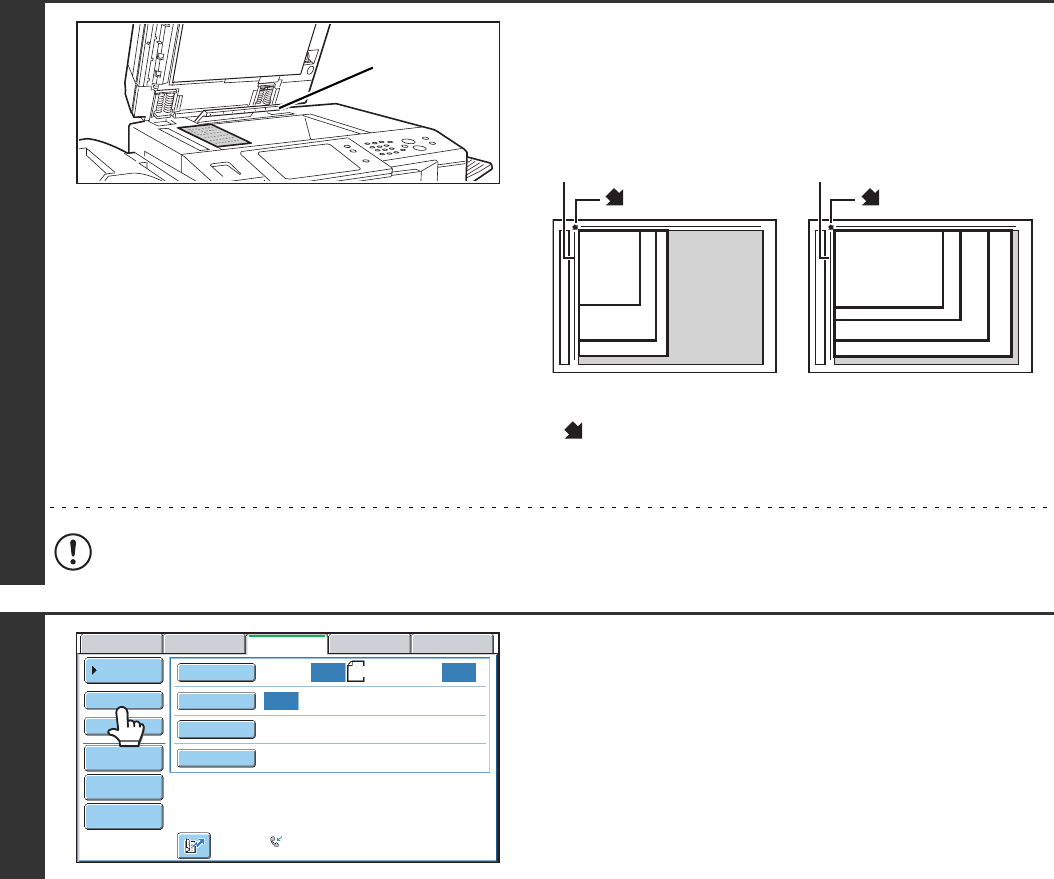
3
Press the [BLACK & WHITE START] key
().
Scanning begins.
4
If you have another page to scan,
change pages and then press the
[BLACK & WHITE START] key ( ).
Repeat until all originals have been scanned.
If no action is taken for one minute, scanning automatically ends and the transmission is reserved.
5
Touch the [Read-End] key.
A beep sounds.
Open the automatic document feeder and remove the original.
• When scanning is completed, "Job stored." will be displayed together with a job control number.
This number can be used to locate the job in the Transaction Report or in the Image Sending Activity Report.
• If no action is taken for one minute after the confirmation screen appears, scanning automatically ends and the
transmission is reserved.
• The [Configure] key can be touched to change the exposure, resolution, scan size, and send size for each original
page scanned. However, when "2in1" or "Card Shot" is selected in the special modes, only the exposure can be
changed, and this can only be done when scanning each even page number of the original pages.
To cancel transmission...
Press the [STOP] key ( ) before the [Read-End] key is touched.
• If a fax is being received when the transmission operation is performed, the transmission will be reserved and transmission
will take place after fax reception is completed.
• If the memory becomes full while the originals are being scanned, a message will appear and transmission will be
cancelled.
Place next original.
Press [Start].
When finished, press [Read-End].
(Pg.No.x)
Configure Read-End
34
USING THE DOCUMENT GLASS TO SEND A FAX IN
DIRECT TRANSMISSION MODE
When sending a fax from the document glass in direct transmission mode, only one page can be transmitted.
1
Open the automatic document feeder,
place the original face down on the
document glass, and then gently close
the automatic document feeder.
• Align the corner of the original with the tip of the arrow mark
on the document glass scale.
• Place the original in the appropriate position for its size as
shown above.
Do not place any objects under the original size detector. Closing the automatic document feeder with an object
underneath may damage the original size detector plate and prevent correct detection of the document size.
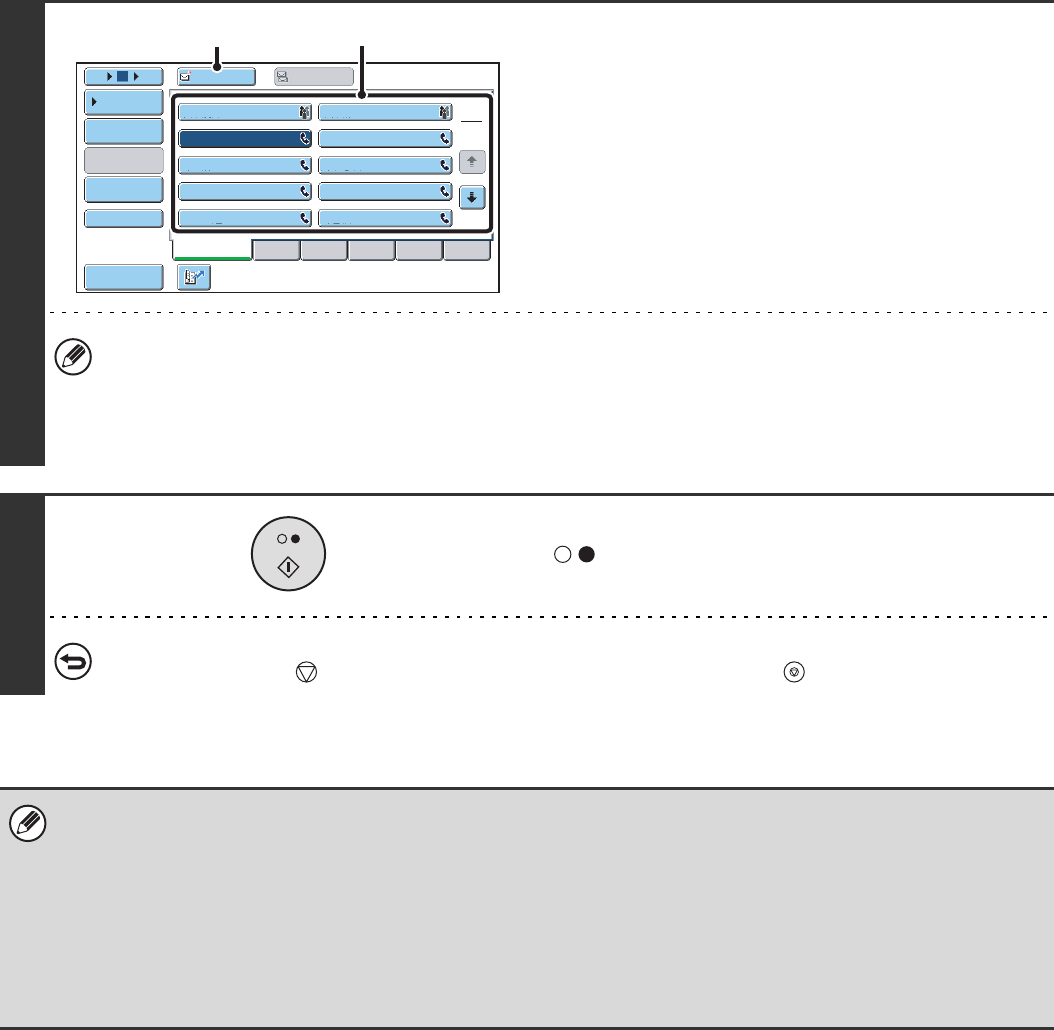
2
Touch the [Direct TX] key.
Original size
detector
A4R (8-1/2" x 11"R)
B5R
B4 (8-1/2" x 14")
A3 (11" x 17")
A4 (8-1/2" x 11")
A5
(5-1/2" x 8-1/2")
B5
mark
Document glass scale Document glass scale
mark
Auto
Auto
Auto
USB Mem. ScanFaxInternet Fax PC Scan
Scan:
Scan
Send:
Standard
Auto Reception
Fax Memory:100%
File
Quick File
Address Review
Direct TX
Sub Address
Address Book
Special Modes
Resolution
Exposure
Original A4
35
3
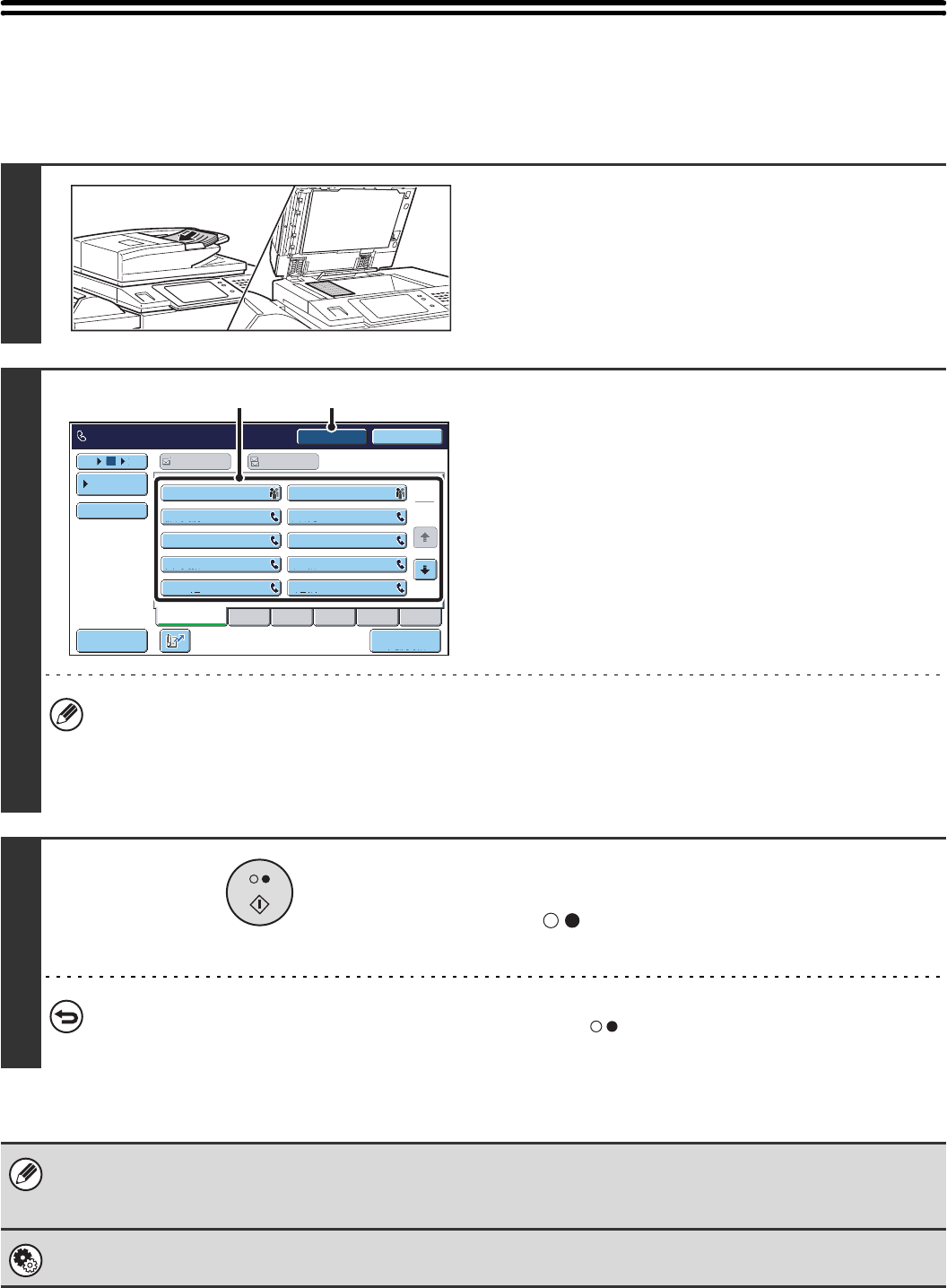
Enter the destination fax number
(1) Touch the [Address Book] key in the base
screen.
(2) Touch the one-touch key of the desired
destination.
(3) Touch the [To] key.
• Only one destination can be entered. A one-touch key in which multiple destinations are stored (group key) cannot
be used.
• In addition to specification by one-touch key, a destination can also be specified using a search number. You can
also directly enter a fax number with the numeric keys or look up a destination in a global address book. For more
information, see "2. ENTERING DESTINATIONS" (page 15).
4
Press the [BLACK & WHITE START] key
().
Transmission begins.
To cancel transmission...
While "Dialling. Press [ ] to cancel" appears in the display, press the [STOP] key ( ).
• The following functions cannot be used with direct transmission:
Program, Timer Transmission, 2in1, Card Shot, Job Build, Polling Memory, File, Quick File, 2-Sided Original Scanning,
Global Address Search
• Resending will not take place when a direct transmission is not successful due to a communication error or other reason.
• If a fax transmission is already in progress when the direct transmission operation is performed, the direct transmission will
wait until the previous transmission is finished. When the previous transmission is completed, the direct transmission will
begin. While the direct transmission is waiting, the [JOB STATUS] key can be pressed to display the job status screen. No
other operations are possible.
☞8. CHECKING THE STATUS OF FAX JOBS (page 114)
Frequent Use ABCD EFGHI JKLMN OPQRST UVWXYZ
1
2
105 15 To Cc
III III
GGG GGG
EEE EEE
CCC CCC
AAA AAA
JJJ JJJ
HHH HHH
FFF FFF
DDD DDD
BBB BBB
Global
Address Search
Address Entry
Sort Address
Sub Address
Address Review
Condition
Settings
(2)
(3)
36
TRANSMISSION USING THE SPEAKER
When the speaker is used to dial, the fax is sent after the number is dialled and the connection is established. If a person
answers, you will be able to hear his or her voice, but you will not be able to speak.
1
Place the original.
Place the original face up in the document feeder tray, or face
down on the document glass.
When the document glass is used, only one page can be
transmitted.
2
Enter the destination fax number
(1) Touch the [Speaker] key.
You will hear the dial tone through the machine's speaker.
(2) Touch the [Address Book] key in the base
screen.
(3) Touch the one-touch key of the desired
destination.
A group key cannot be used.
• In addition to specification by one-touch key, a destination can also be specified using a search number. You can
also directly enter a fax number with the numeric keys or look up a destination in a global address book. For more
information, see "2. ENTERING DESTINATIONS" (page 15).
• After touching the [Speaker] key, you can touch the [Speaker Volume] key to adjust the volume of the speaker. The
speaker volume changes each time the [Speaker Volume] key is touched. Adjust the volume to the desired level.
3
Wait until the connection is made and
then press the [BLACK & WHITE START]
key ( ).
Transmission begins.
To cancel transmission...
Touch the [Speaker] key before the [BLACK & WHITE START] key ( ) is pressed. The line will be disconnected
and transmission will stop.
• When the speaker is used, transmission takes place without scanning the original into memory.
• A destination that includes an F-code (sub-address and passcode) cannot be used.
• A one-touch key that has multiple destinations or has a non-fax destination cannot be used.
System Settings (Administrator): Speaker Settings
The default volume level of the speaker can be changed in the "Speaker Settings".
1
2
III III
GGG GGG
EEE EEE
CCC CCC
AAA AAA
JJJ JJJ
HHH HHH
FFF FFF
DDD DDD
BBB BBB
105 15
Sort Address
Speaker Volume
To Cc
Telephone mode.
Fax Manual
Reception
ResendSpeaker
Frequent Use ABCD EFGHI JKLMN OPQRST UVWXYZ
Condition
Settings
(3) (1)
37
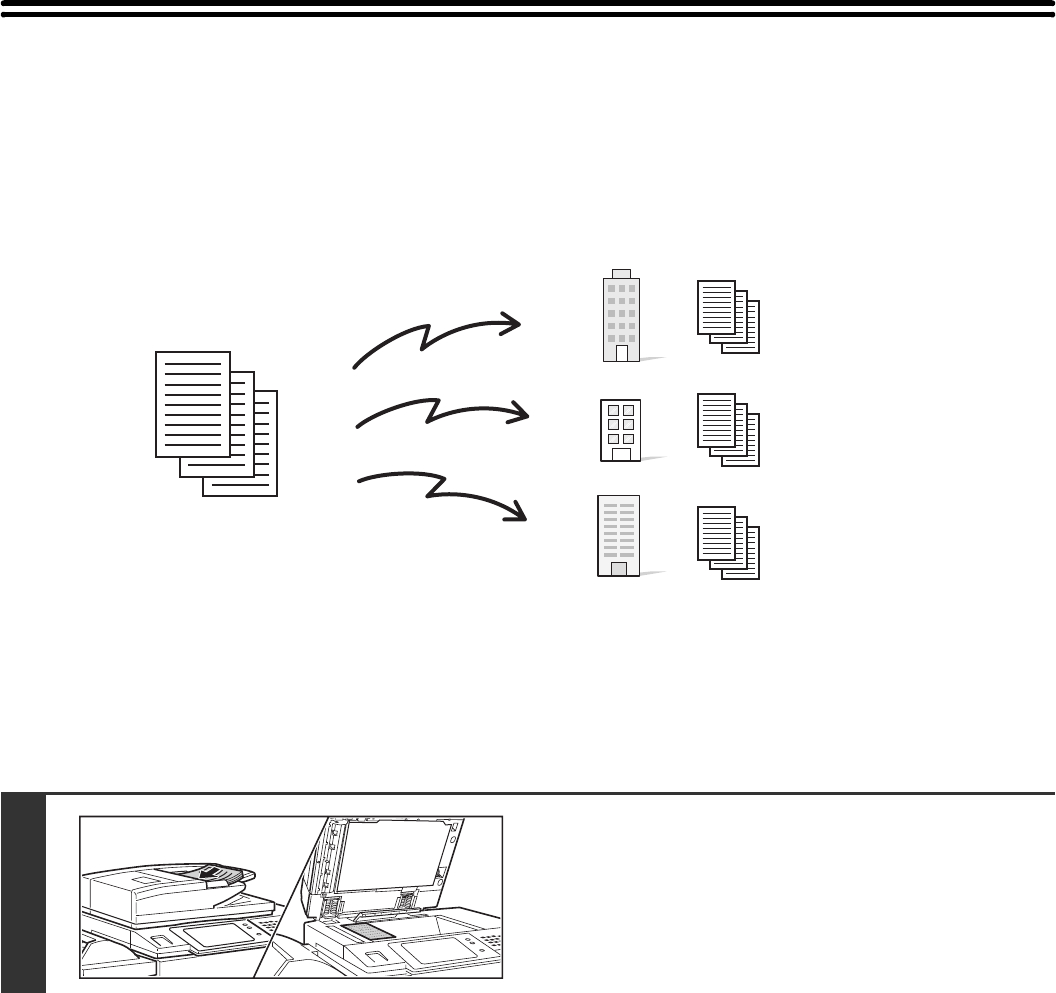
SENDING THE SAME FAX TO MULTIPLE
DESTINATIONS (Broadcast Transmission)
This function is convenient when you need to send the same fax to multiple destinations, such as sending a report to
branch offices in different regions. You can transmit to as many as 500 destinations in one broadcast operation.
It is convenient to store destinations to which you frequently send faxes by broadcast transmission in group keys. Group
dialling allows you to retrieve multiple fax numbers stored in a one-touch key by simply pressing the one-touch key. To
store group keys, see "Address Control" in the system settings.
When a group key is used to dial, the number of fax numbers that are dialled is the number of destinations that are
stored in the group key. When a group key that has 10 destinations is used, 10 fax numbers are dialled.
1
Place the original.
Place the original face up in the document feeder tray, or face
down on the document glass.
Originals
Transmission
38
2
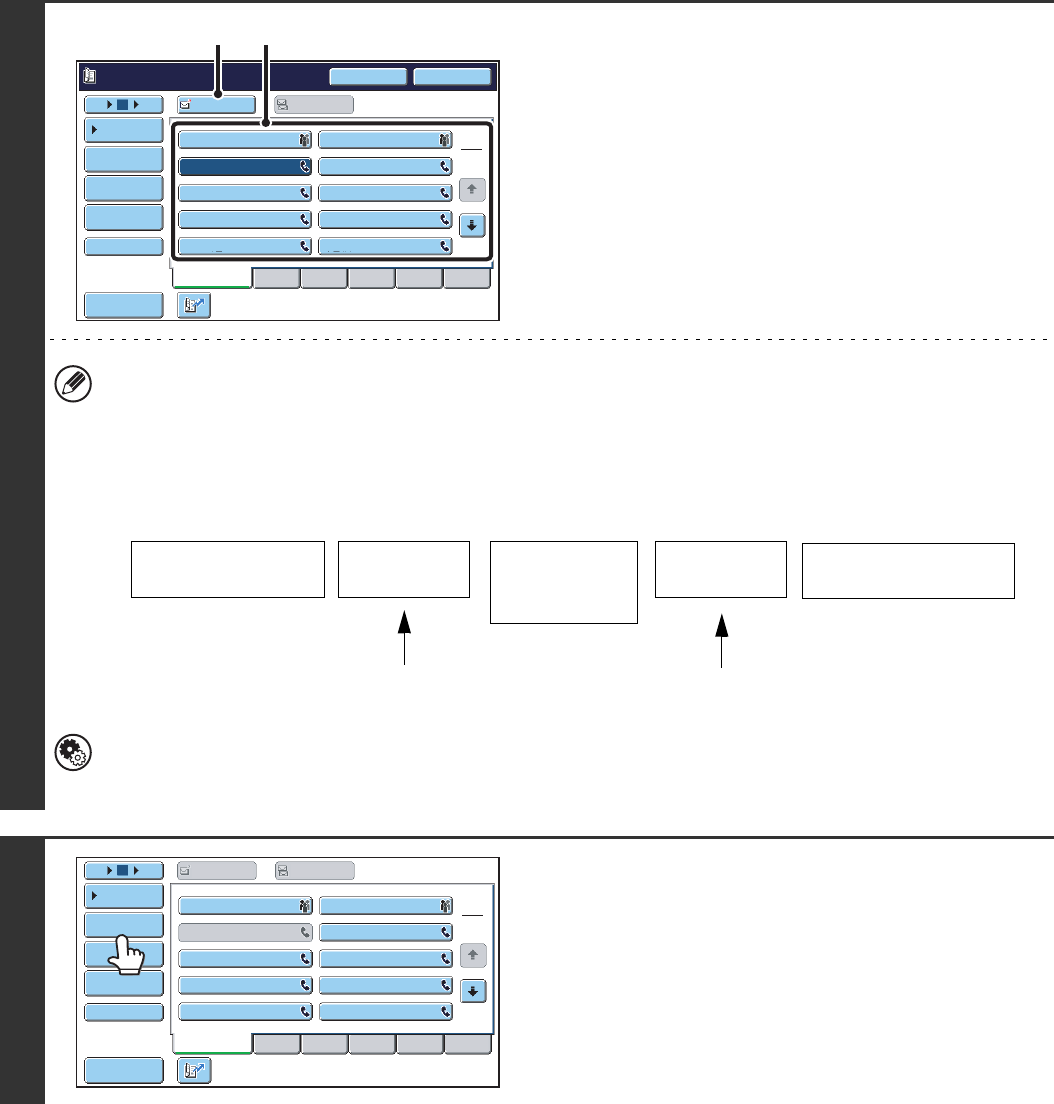
Enter the destination fax number
(1) Touch the [Address Book] key in the base
screen.
(2) Touch the one-touch key of the desired
destination.
(3) Touch the [To] key.
The destination is specified.
(4) Repeat steps (2) and (3) until all
destinations are selected.
• In addition to specification by one-touch key, a destination can also be specified using a search number. You can
also directly enter a fax number with the numeric keys or look up a destination in a global address book. For more
information, see "2. ENTERING DESTINATIONS" (page 15).
• It is convenient to use a group key to enter the destinations.
• Touch the [Next Address] key before entering the next destination.
The [Next Address] key can be omitted before and after a destination entered with a one-touch key.
System Settings (Administrator): Must Input Next Address Key at Broadcast Setting
This setting is used to prohibit omission of the [Next Address] key when entering destinations for broadcast
transmissions.
3
Touch the [Address Review] key.
Pause Next Address
CCC CCC
0123456789
Frequent Use ABCD EFGHI JKLMN OPQRST UVWXYZ
1
2
105 15 To Cc
III III
GGG GGG
EEE EEE
CCC CCC
AAA AAA
JJJ JJJ
HHH HHH
FFF FFF
DDD DDD
BBB BBB
Global
Address Search
Address Entry
Sort Address
Sub Address
Address Review
Condition
Settings
(2)(3)
Fax number entered
with the numeric keys
Fax number
entered with the
numeric keys
Destination entered with
a one-touch key
[Next Address]
key
[Next Address]
key
(Cannot be omitted) (Can be omitted)
Frequent Use ABCD EFGHI JKLMN OPQRST UVWXYZ
1
2
CCC CCC
105 15 To Cc
III III
GGG GGG
EEE EEE
AAA AAA
JJJ JJJ
HHH HHH
FFF FFF
DDD DDD
BBB BBB
Global
Address Search
Address Entry
Sort Address
Sub Address
Address Review
Condition
Settings
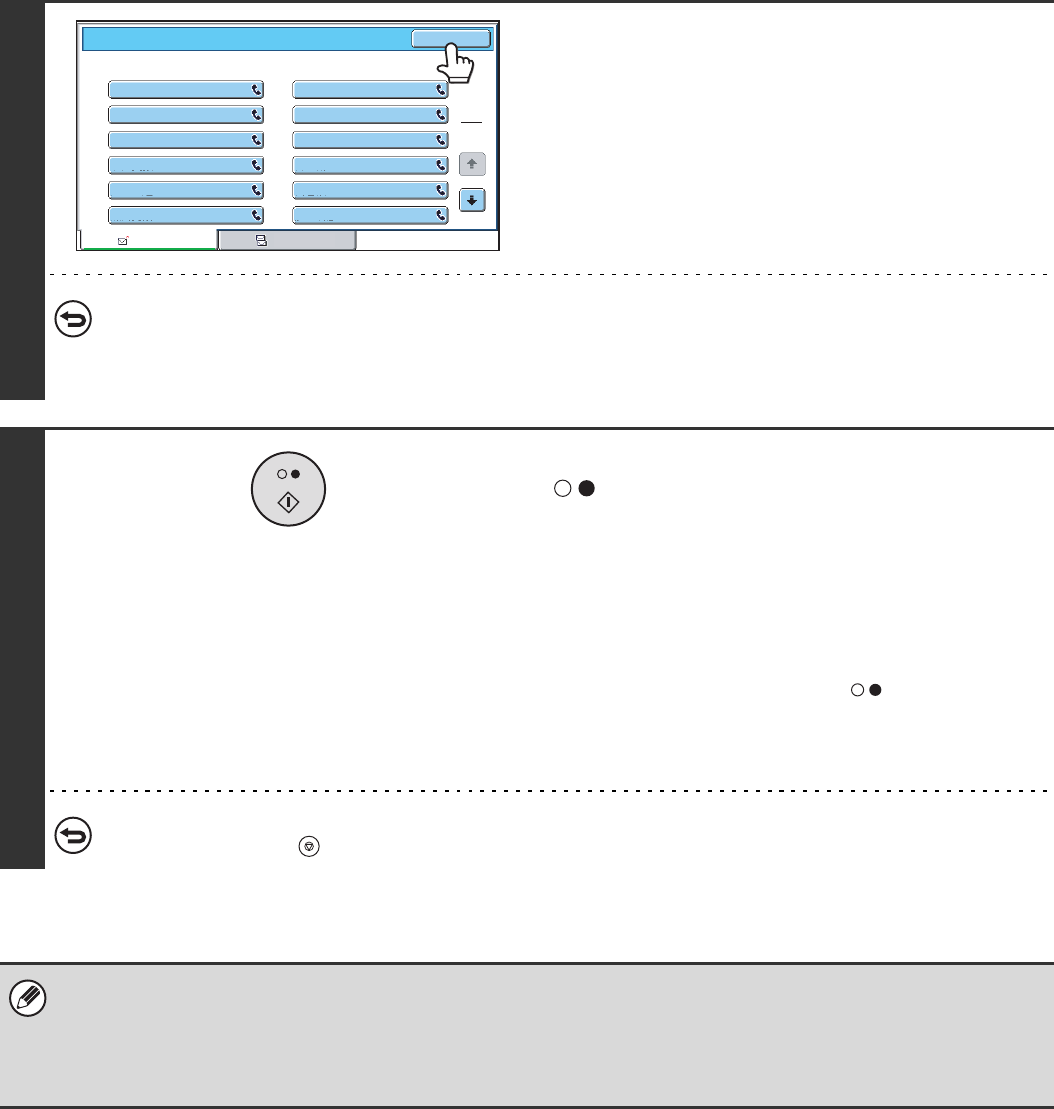
39
4
Check the destinations and then touch
the [OK] key.
To cancel a specified destination...
Touch the key of the destination that you wish to cancel. A message will appear to confirm the deletion. Touch the
[Yes] key.
☞CHECKING AND DELETING ENTERED DESTINATIONS (page 18)
5
Press the [BLACK & WHITE START] key
().
Scanning begins.
• If you inserted the original pages in the document feeder
tray, all pages are scanned.
A beep will sound to indicate that scanning is finished.
• If you are scanning the original on the document glass, scan
each page one page at a time.
When scanning finishes, place the next original and press
the [BLACK & WHITE START] key ( ). Repeat until all
pages have been scanned and then touch the [Read-End]
key.
A beep will sound to indicate that scanning is finished.
To cancel scanning...
Press the [STOP] key ( ).
• A broadcast transmission takes place by memory transmission only.
• A broadcast transmission can be used in combination with the timer transmission function to transmit at night or any other
desired time. A broadcast transmission can also be used in combination with other convenient functions.
• The broadcast transmission can include Scan to E-mail and Internet fax destinations. In this case, the image sent to the
Scan to E-mail and Internet fax destinations will be black and white.
1
2
CCC CCC
LLL LLL
NNN NNN
PPP PPP
RRR RRR
TTT TTT
KKK KKK
MMM MMM
OOO OOO
QQQ QQQ
SSS SSS
UUU UUU
Address Review OK
001
003
005
007
009
011
002
004
006
008
010
012
To Cc
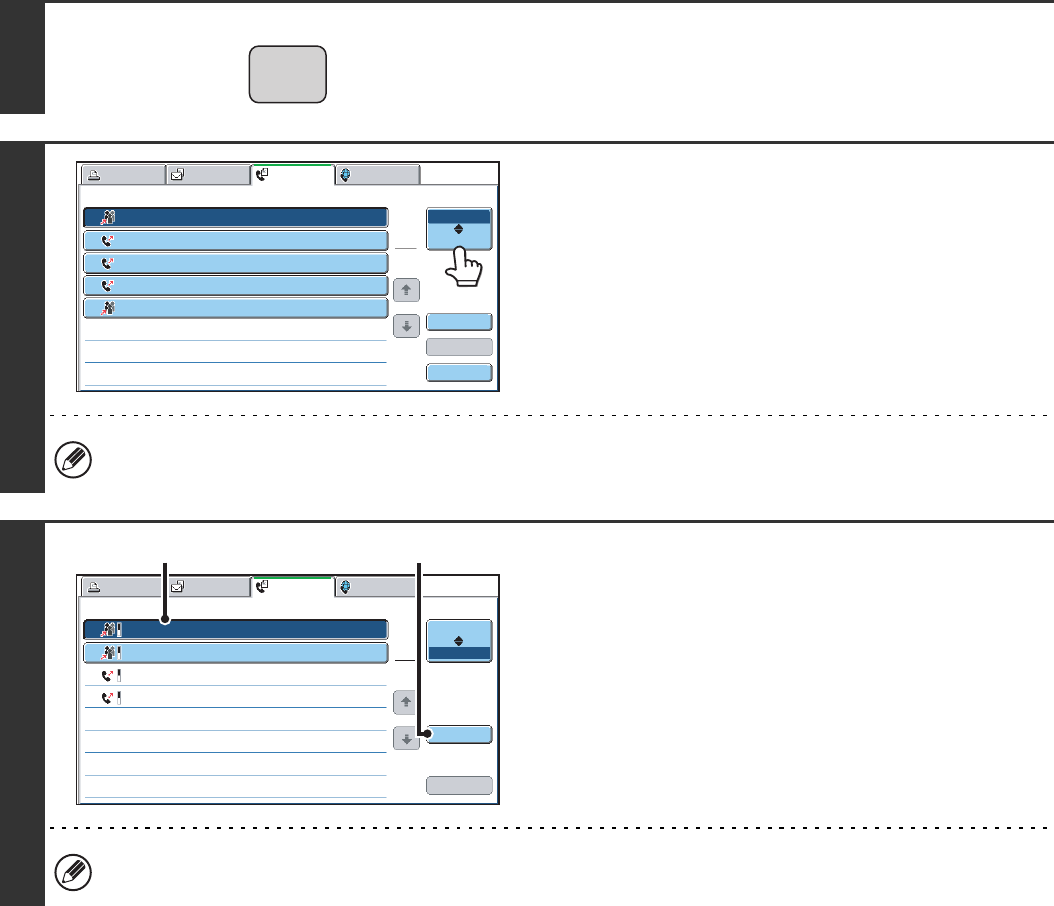
40
Resending to unsuccessful broadcast transmission destinations
The results of a completed broadcast transmission can be checked in the job status screen. If transmission to any of the
destinations failed, resend the fax to those destinations.
1
Press the [JOB STATUS] key.
2
Touch the [Complete] key.
If the job status screen of fax mode does not appear, touch the
[Fax Job] tab.
If the broadcast transmission included destinations of different modes, the same broadcast transmission key will
appear in each of those modes.
3
Display details on the broadcast
transmission.
(1) Touch the key of the completed broadcast
transmission.
(2) Touch the [Detail] key.
"Broadcastxxxx" will appear as the destination of the broadcast job key. The job control number that appeared in the
touch panel when scanning ended appears in "xxxx".
JOB STATUS
Fax JobScan toPrint Job Internet Fax
Address
Broadcast00011
2
3
4
5
10:00 04/01 020/003 Connecting
04/01 000/004 Waiting
Broadcast0002
BBB BBB
AAA AAA
0123456789 10:05
04/01 000/004 Waiting
10:22
04/01 000/010 Waiting
10:30
04/01 000/010 Waiting
10:33
Set Time Pages Status
1
1
Job Queue
Complete
Detail
Priority
Stop/Delete
Fax Job
Scan toPrint Job Internet Fax
Address
Broadcast0001 10:00 04/01 010/003 NG000000
Broadcast0002 04/01 001/001 Send OK
10:05
CCC CCC 04/01 004/004 Send OK
10:22
0123456789 04/01 010/010 Send OK
10:30
Start Time Pages Status
1
1
Job Queue
Complete
Detail
Call
(1) (2)
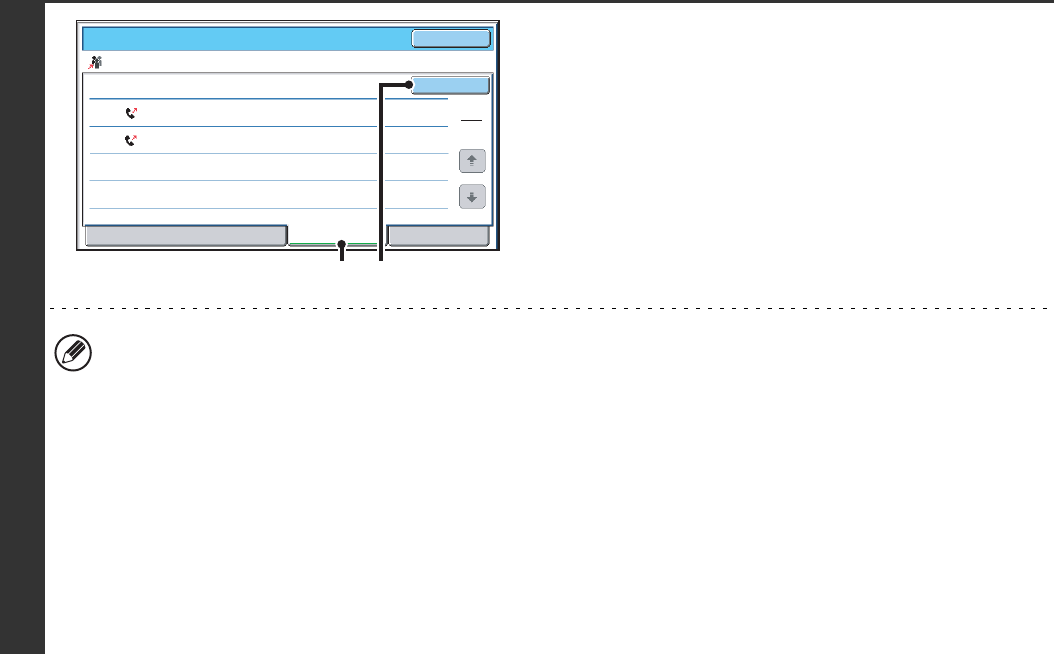
41
4
Resend to unsuccessful destinations.
(1) Touch the [Failed] tab.
(2) Touch the [Retry] key.
• The procedure after the [Retry] key is touched varies depending on whether or not the document filing function was
used.
Not using document filing
You will return to the base screen with the unsuccessful destinations entered. Place the original and perform the
broadcast transmission operation.
Using document filing
The document filing operation selection screen will appear with the unsuccessful destinations entered. Perform the
document filing resend procedure. (There is no need to rescan the original.)
If the job was stored in a confidential folder or was stored as confidential file, a password entry screen will appear
after you touch the [Retry] key. Enter the password.
For more information, see the Document Filing Guide.
• If the [All Destinations] key is touched in (1), all destinations will be displayed. The [Retry] key that appears in the
screen can be touched to resend to all destinations.
Broadcast0001
Address
EEE EEE
DDD DDD
Start Time
10:01
10:10
04/01
04/01
NG00000
NG00000
Status
Detail OK
Retry
File Failed All Destinations
002
010
1
1
(1) (2)
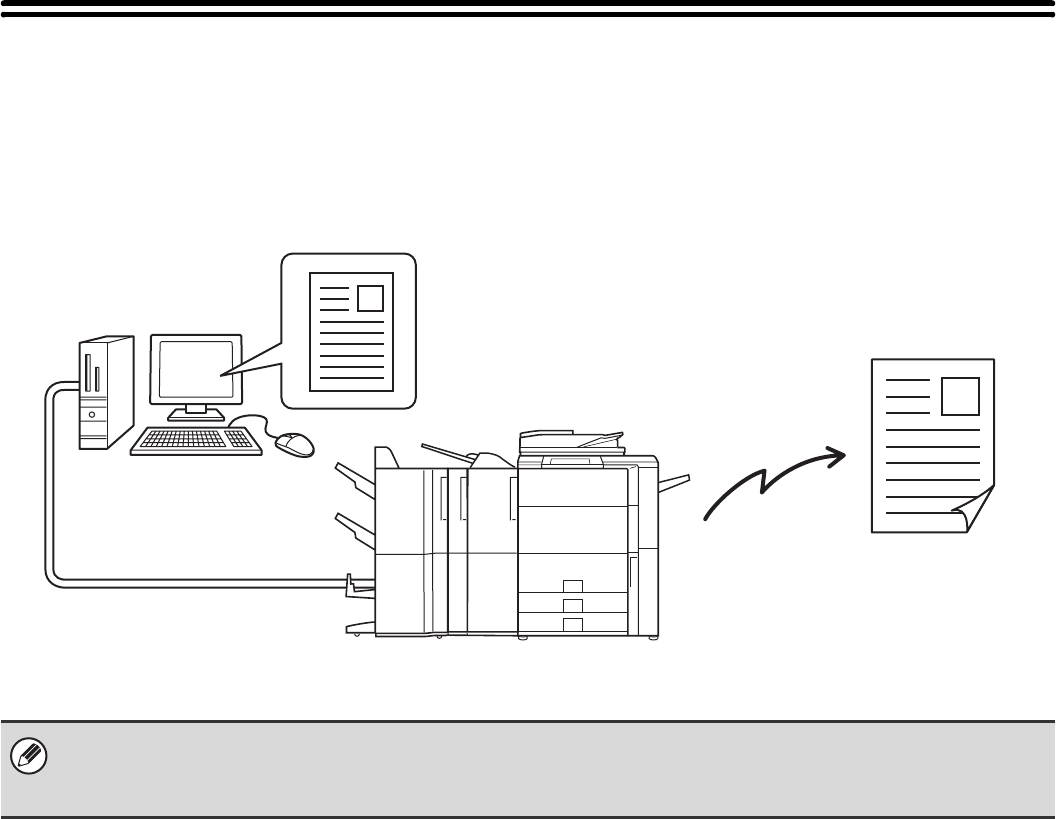
42
SENDING A FAX DIRECTLY FROM A
COMPUTER (PC-Fax)
A document in a computer can be transmitted via the machine as a fax. Faxes are sent using the PC-Fax function in the
same way as documents are printed. Select the PC-Fax driver as the printer driver on your computer and then select the
Print command in the software application. Image data for transmission will be created and sent as a fax.
For more information on using PC-Fax, see the Help file for the PC-Fax driver.
• To use the PC-Fax function, the PC-Fax driver must be installed. For more information, see the Software Setup Guide.
• This function can only be used on a Windows® computer.
• This function can only be used for transmission. Faxes cannot be received to your computer.
Fax transmission
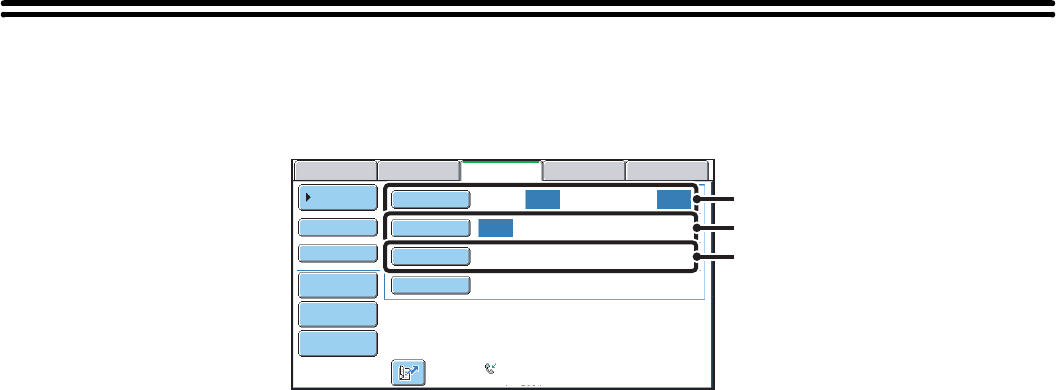
43
IMAGE SETTINGS
Settings for scanning the original are selected in the base screen of each mode. The current state of each setting
appears to the right of the key used to select the setting.
(1) [Original] key
Touch this key to set the scan size, send size, and
orientation of the original, and select 2-sided scanning
settings.
☞AUTOMATICALLY SCANNING BOTH SIDES OF
AN ORIGINAL (2-Sided Original) (page 44),
SPECIFYING THE SCAN SIZE AND SEND SIZE
(Enlarge/Reduce Transmission) (page 45)
(2) [Exposure] key
Touch this key to select the exposure for scanning.
☞CHANGING THE EXPOSURE (page 52)
(3) [Resolution] key
Touch this key to select the scanning resolution.
☞CHANGING THE RESOLUTION (page 53)
Auto Auto
Auto
USB Mem. ScanFaxInternet Fax PC Scan
Scan:
Scan
Send:
Standard
Auto Reception
Fax Memory:100%
File
Quick File
Address Review
Direct TX
Sub Address
Address Book
Special Modes
Resolution
Exposure
Original
(1)
(2)
(3)
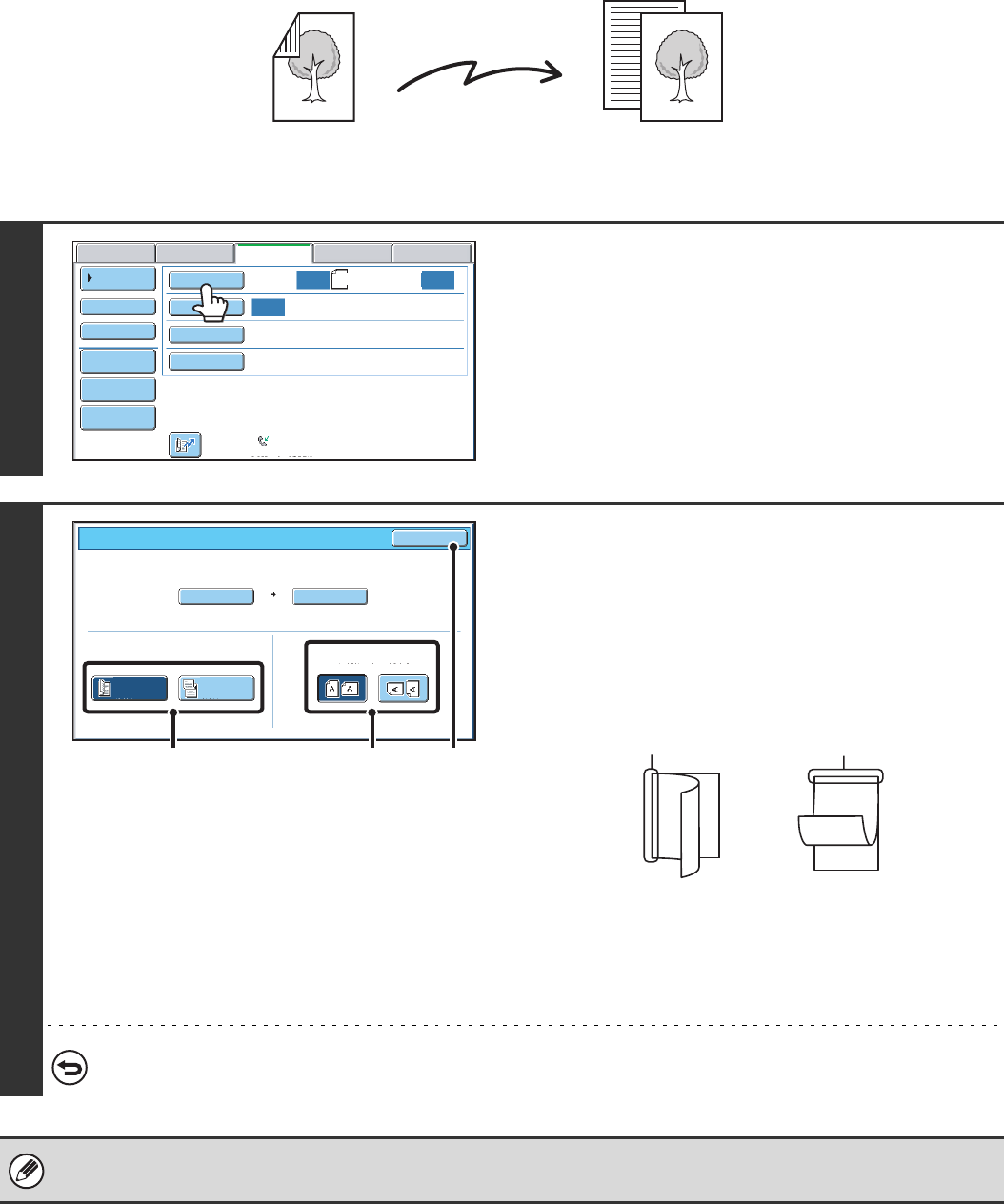
44
AUTOMATICALLY SCANNING BOTH SIDES OF AN
ORIGINAL (2-Sided Original)
The automatic document feeder will automatically scan both sides of the document.
1
Touch the [Original] key.
2
Specify the binding style of the 2-sided
original (book or tablet) and the
orientation in which the original is placed.
(1) Touch the [2-Sided Booklet] key or the
[2-Sided Tablet] key.
A book and a tablet are bound as shown below.
(2)
Touch the appropriate [Image Orientation] key.
If the wrong orientation is selected here, the image may
not be sent properly.
(3) Touch the [OK] key.
To cancel 2-sided scanning, touch the highlighted key so that it is no longer highlighted.
• 2-sided scanning automatically turns off after the transmission operation is completed.
• When direct transmission mode is selected, 2-sided scanning cannot be used.
2-sided original Front and back are
sent as two pages
Transmission
Auto
Auto
Auto
USB Mem. ScanFaxScan
Standard
Auto Reception
Fax Memory:100%
Internet Fax PC Scan
Scan: Send:
File
Quick File
Address Review
Direct TX
Sub Address
Address Book
Special Modes
Resolution
Exposure
Original A4
Auto
Auto A4
Scan Size Send Size100%
Fax/Original OK
2-Sided
Booklet
2-Sided
Tablet
Image Orientation
(1) (2) (3)
A
C
E
G
AB
EF
J
LKL
Booklet Tablet
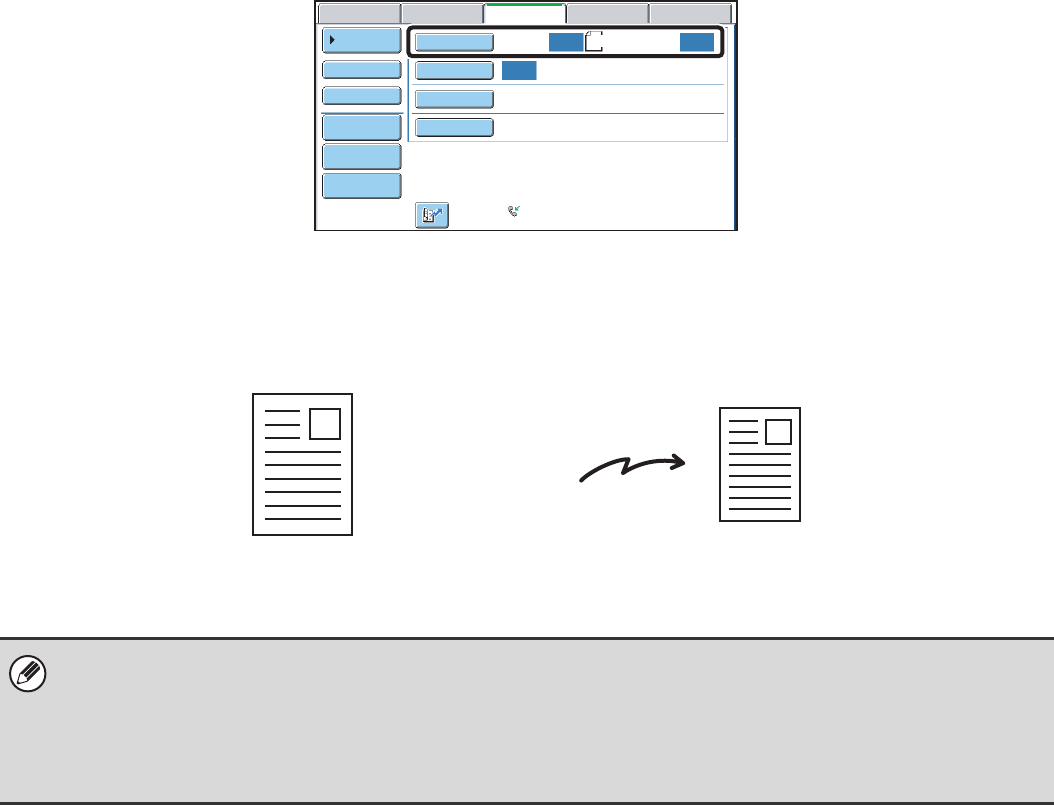
45
SPECIFYING THE SCAN SIZE AND SEND SIZE
(Enlarge/Reduce Transmission)
When the original is placed, its size is automatically detected and displayed in the base screen.
The size of the placed original is indicated as the scan size, and the size to be transmitted is indicated as the send size.
In the above screen, the scan size (the placed original) is A4 (8-1/2" x 11") and the send size is auto. If, for example, the
scan size were A4 (8-1/2" x 11") and the send size were B5 (5-1/2" x 8-1/2"), the image would be reduced before
transmission.
• Only standard original sizes can be automatically detected.
☞STANDARD SIZES (page 27)
• When the original size is a non-standard size, or if the size is not detected correctly, manually specify the original scan
size.
☞Specifying the original scan size (by paper size) (page 46)
Specifying the original scan size (by numerical values) (page 48)
Auto Auto
Auto
USB Mem. ScanFaxScan
Standard
Auto Reception
Fax Memory:100%
Internet Fax PC Scan
Scan: Send:
File
Quick File
Address Review
Direct TX
Sub Address
Address Book
Special Modes
Resolution
Exposure
Original A4
A4 (8-1/2" x 11") The image is reduced
to B5 (5-1/2" x 8-1/2")
before transmission
"Scan Size"
"Send Size" is set to
B5 (5-1/2" x 8-1/2")
Transmission
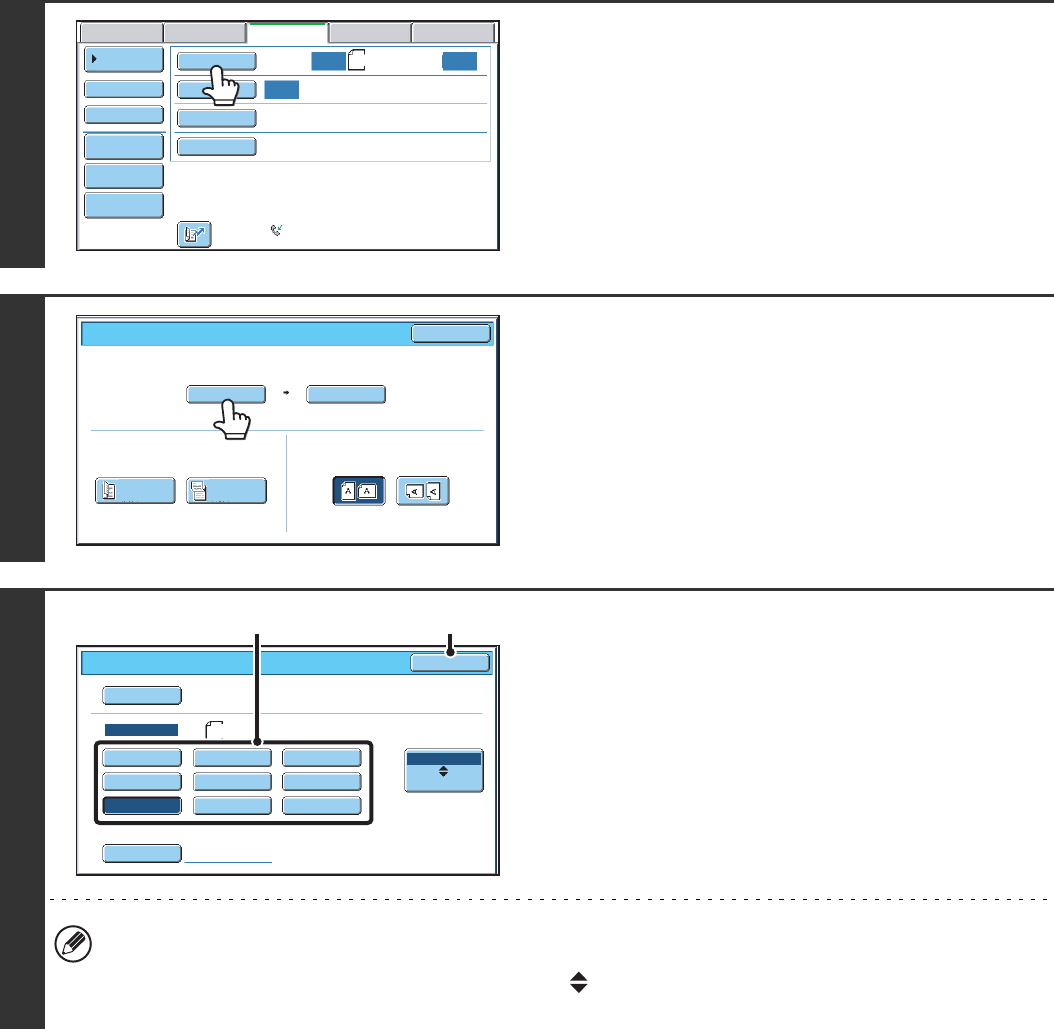
46
Specifying the original scan size (by paper size)
If the original is a non-standard size or you wish to change the scan size, touch the [Original] key to specify the original
size manually. Place the original in the document feeder tray or on the document glass and follow the steps below.
1
Touch the [Original] key.
The automatically detected original size appears to the right of
the [Original] key.
2
Touch the [Scan Size] key.
3
Specify the scan size.
(1) Touch the appropriate original size key.
(2) Touch the [OK] key.
• If you are sending a long original, touch the [Long Size] key. Use the automatic document feeder to scan a long
original. The maximum length that can be scanned is 800 mm (31-1/2") (the maximum height is 297 mm (11-5/8")).
• To specify an Inch size for the scan size, touch the [AB Inch] key to highlight the [Inch] side and then specify the
scan size.
Auto
Auto
Auto
USB Mem. ScanFaxScan
Standard
Auto Reception
Fax Memory:100%
Internet Fax PC Scan
Scan: Send:
File
Quick File
Address Review
Direct TX
Sub Address
Address Book
Special Modes
Resolution
Exposure
Original A4
Auto
Auto A4
Scan Size Send Size100%
Fax/Original OK
2-Sided
Booklet
2-Sided
Tablet
Image Orientation
Manual
B5RA5 B4
A3
A4A5R
Auto
Fax/Original
Manual
A4RB5 Long Size
OK
Inch
AB
Size Input
(2)(1)
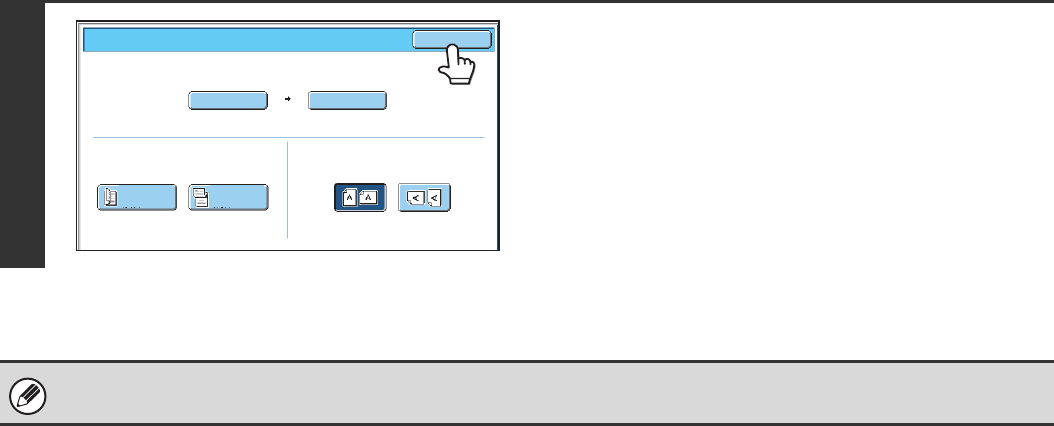
47
4
Touch the [OK] key.
When [Long Size] is selected, the 2-sided scanning setting and send size cannot be changed.
Auto
B5
Scan Size Send Size100%
Fax/Original OK
2-Sided
Booklet
2-Sided
Tablet
Image Orientation
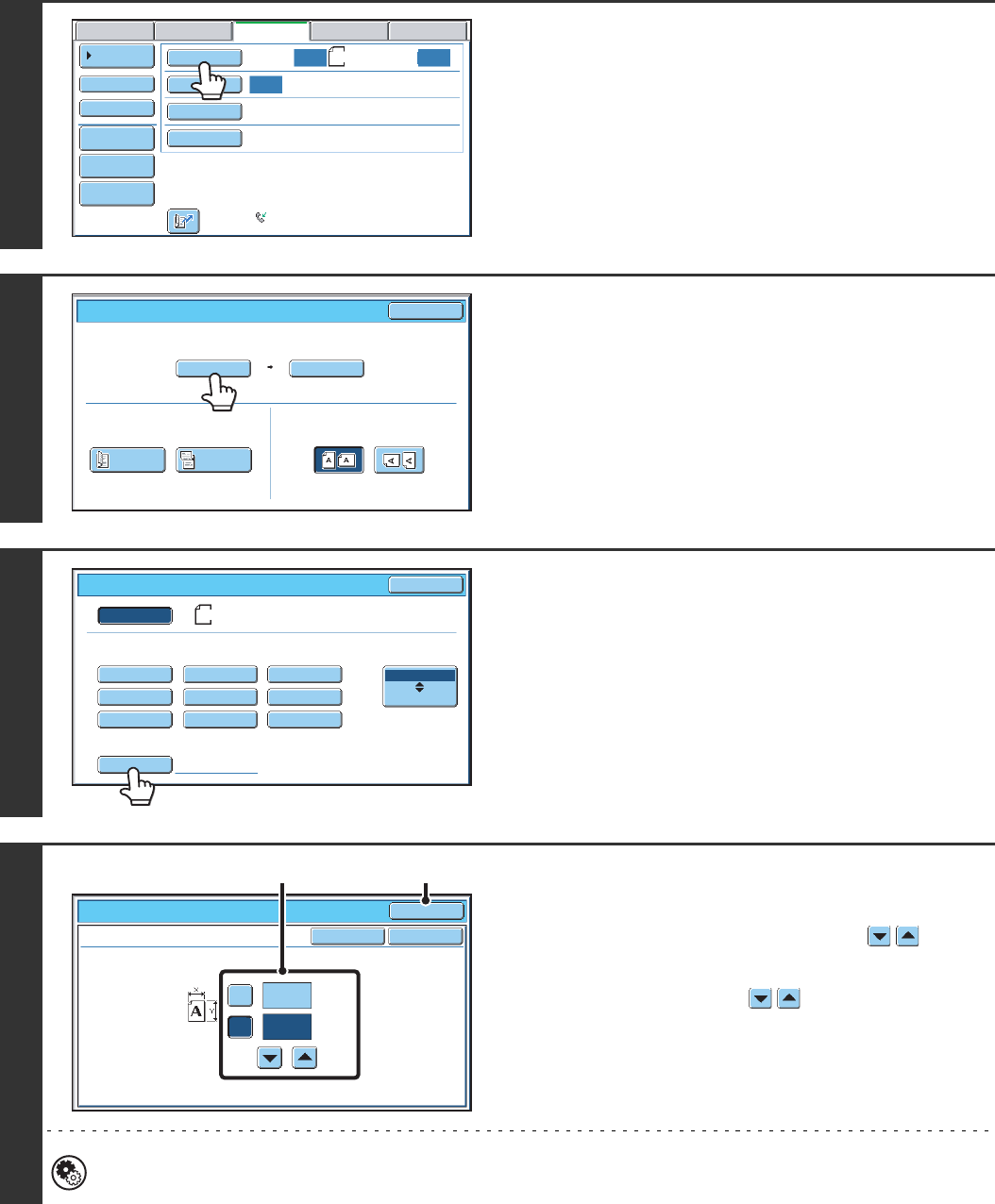
48
Specifying the original scan size (by numerical values)
When scanning a non-standard size original such as a postcard or card, follow these steps to specify the original size.
The width can be from 64 mm to 432 mm (2-1/2" to 17"), and the height can be from 64 mm to 297 mm (2-1/2" to
11-5/8").
1
Touch the [Original] key.
The automatically detected original size appears to the right of
the [Original] key.
2
Touch the [Scan Size] key.
3
Touch the [Size Input] key.
4
Enter the scan size.
(1) Touch the [X] key and enter the X
(horizontal) dimension with the keys.
(2) Touch the [Y] key and enter the Y (vertical)
dimension with the keys.
(3) Touch the [OK] key.
To complete the setting and return to the screen of step 3,
touch the [OK] key next to the [Cancel] key.
System Settings (Administrator): Original Size Detector Setting
This is used to set the size entry screen to "inch units" or "mm units".
Auto
Auto
Auto
USB Mem. ScanFaxScan
Standard
Auto Reception
Fax Memory:100%
Internet Fax PC Scan
Scan: Send:
File
Quick File
Address Review
Direct TX
Sub Address
Address Book
Special Modes
Resolution
Exposure
Original A4
Auto
Auto A4
Scan Size Send Size100%
Fax/Original OK
2-Sided
Booklet
2-Sided
Tablet
Image Orientation
Auto
Fax/Original
Manual
Long Size
OK
Inch
AB
Size Input
B5RA5 B4
A3
A4A5R
A4RB5
A4
Size Input
Fax/Original OK
OKCancel
420
X
Y297
(64~297)
mm
(64~432)
mm
(1), (2) (3)

49
5
Touch the [OK] key.
The specified size appears in the [Scan Size] key.
• When the scan size is specified by numerical values, the send size cannot be specified.
• When the automatic document feeder is used, an original longer that 432 mm (17") can be scanned (maximum width
800 mm (31-1/2")). In this case, touch the [Long Size] key in the screen of step 3.
☞Specifying the original scan size (by paper size) (page 46)
Auto
X420 Y297
Scan Size Send Size
Fax/Original OK
2-Sided
Booklet
2-Sided
Tablet
Image Orientation

50
Specifying the send size of the original
Specify the send size as a paper size. If a send size bigger than the scan size is selected, the image will be enlarged. If
a send size smaller than the scan size is selected, the image will be reduced.
The send size cannot be specified when [Long Size] is selected for the scan size, or when the scan size is specified by
numerical values.
1
Touch the [Original] key.
2
Touch the [Send Size] key.
3
Specify the send size.
(1) Touch the desired send size key.
(2) Touch the [OK] key.
• Depending on the "Scan Size" setting, it may not be possible to select some sizes for the "Send Size". Size keys
that cannot be specified for the "Send Size" are greyed out to prevent selection.
• To specify an Inch size for the send size, touch the [AB Inch] key to highlight the [Inch] side and then specify the
send size.
Auto
Auto
Auto
USB Mem. ScanFaxScan
Standard
Auto Reception
Fax Memory:100%
Internet Fax PC Scan
Scan: Send:
File
Quick File
Address Review
Direct TX
Sub Address
Address Book
Special Modes
Resolution
Exposure
Original A4
Auto
Auto A4
Scan Size Send Size100%
Fax/Original OK
2-Sided
Booklet
2-Sided
Tablet
Image Orientation
Auto
Fax/Original
Manual
OK
Inch
AB
B5RA5
A5R
B4
A3
A4
A4RB5
A4
(2)(1)
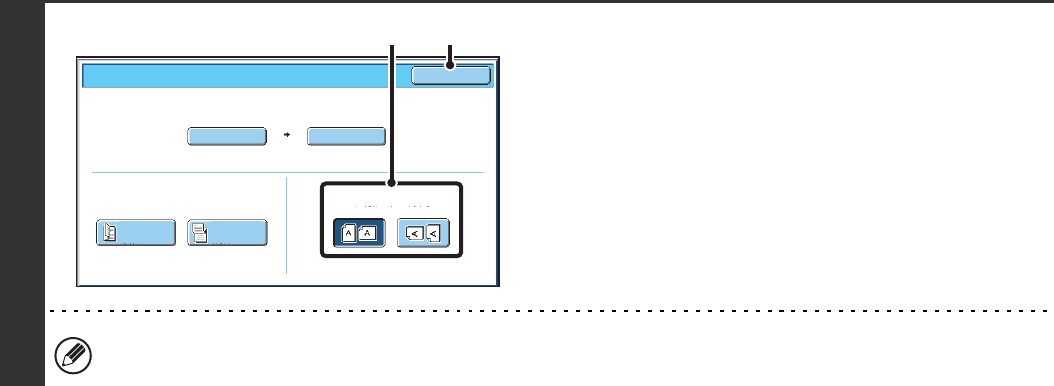
51
4
Specify the orientation in which the
original is placed.
(1) Touch the appropriate [Image Orientation]
key.
If the wrong orientation is selected here, the image may
not be sent properly when using enlargement/reduction.
(2) Touch the [OK] key.
The ratio used for reduction or enlargement of the original will appear between the "Scan Size" and the "Send Size".
A3
Auto A4
Scan Size Send Size141%
Fax/Original OK
2-Sided
Booklet
2-Sided
Tablet
Image Orientation
(2)(1)
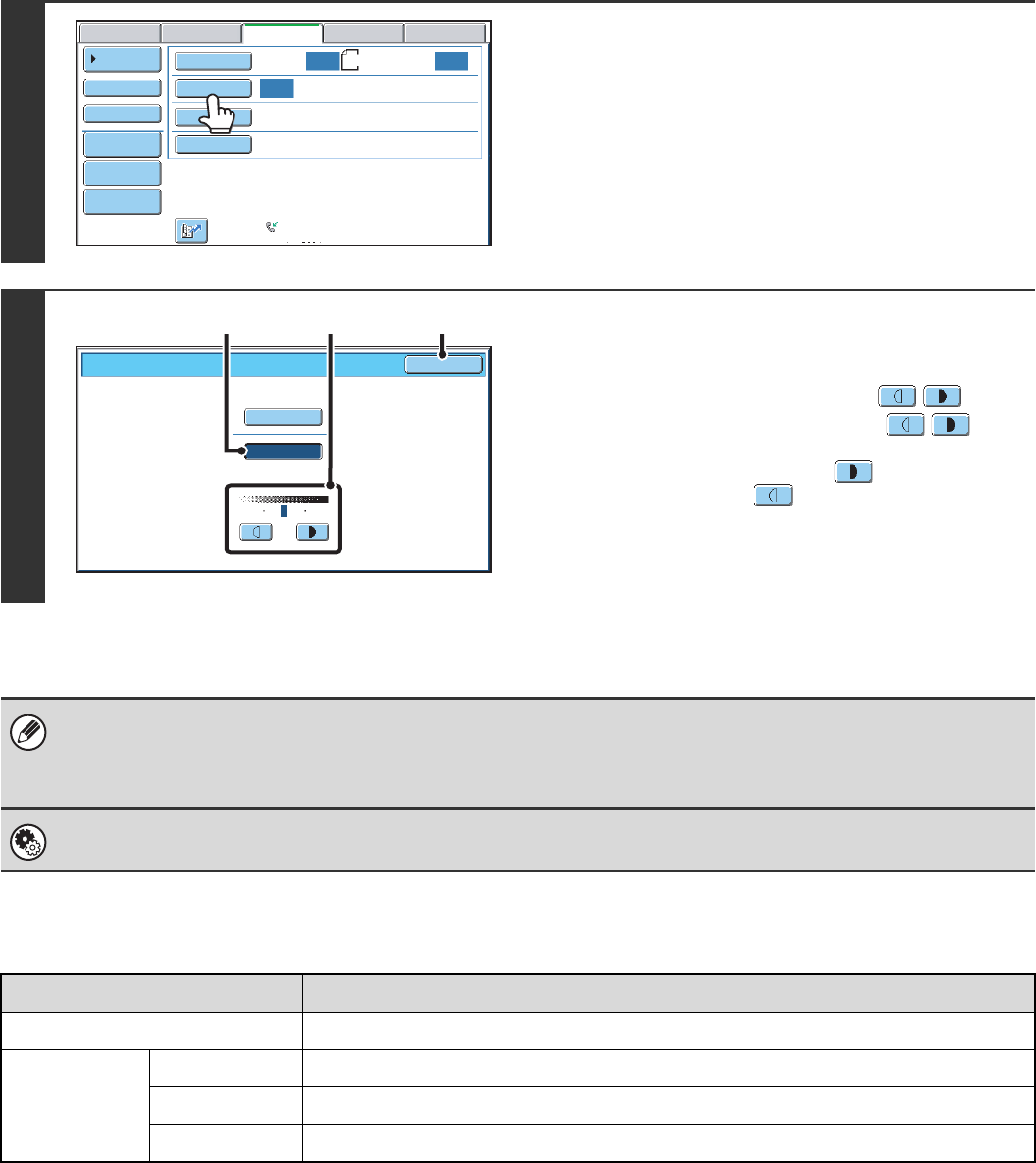
52
CHANGING THE EXPOSURE
The exposure can be changed to match the darkness of the original.
Exposure settings
1
Touch the [Exposure] key.
The current exposure setting appears to the right of the
[Exposure] key.
2
Select the exposure.
(1) Touch the [Manual] key.
(2) Adjust the exposure with the keys.
When the exposure is set to [Auto], the keys
cannot be used.
The exposure darkens when the key is touched,
and lightens when the key is touched.
To return to auto exposure adjustment, touch the [Auto]
key.
(3) Touch the [OK] key.
When using the document glass to scan multiple original pages, the exposure setting can be changed each time you change
pages. When using the automatic document feeder, the exposure setting cannot be changed once scanning has begun.
(However, when "Job Build" in the special modes is used, the exposure can be changed each time a new set of originals is
inserted.)
System Settings (Administrator): Default Exposure Settings
This is used to change the default exposure setting.
Exposure When to select
Auto This setting automatically adjusts the exposure for light and dark parts of the original.
Manual
1-2 Select this setting when the original consists of dark text.
3Select this setting for a normal original (neither dark nor light).
4-5 Select this setting when the original consists of faint text.
Auto Auto
Auto
USB Mem. ScanFaxScan
Standard
Auto Reception
Fax Memory:100%
Internet Fax PC Scan
Scan: Send:
File
Quick File
Address Review
Direct TX
Sub Address
Address Book
Special Modes
Resolution
Exposure
Original A4
Fax/Exposure OK
Auto
Manual
1 53
(3)(1) (2)
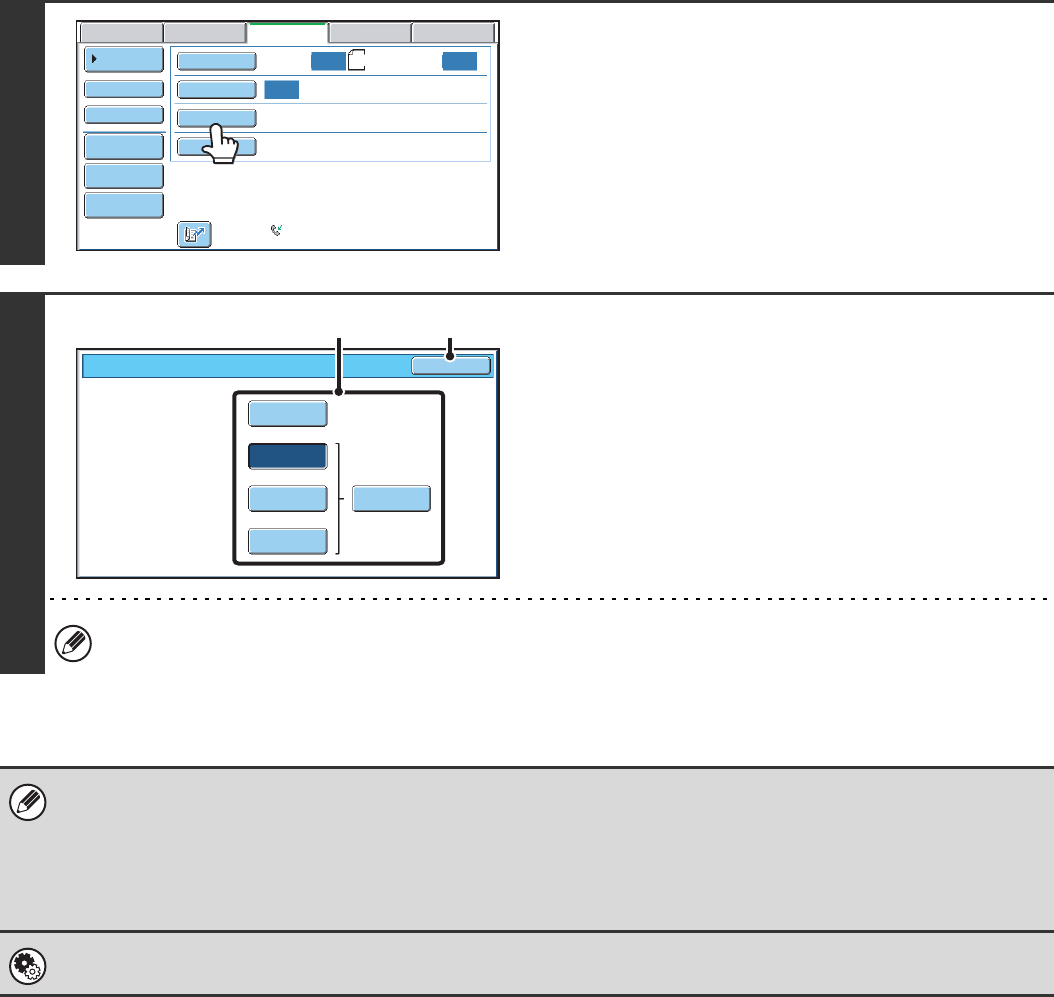
53
CHANGING THE RESOLUTION
The resolution can be selected to match the characteristics of the original, such as text or photo, the size of the text, and
the darkness of the image.
1
Touch the [Resolution] key.
The current resolution setting appears to the right of the
[Resolution] key.
2
Select the resolution.
(1) Touch the key of the desired resolution.
(2) Touch the [OK] key.
When [Fine], [Super Fine], or [Ultra Fine] is selected, the [Half Tone] key can be touched to select halftone.
• When using the document glass to scan multiple original pages, the resolution setting can be changed each time you
change pages. When using the automatic document feeder, the resolution setting cannot be changed once scanning has
begun. (However, when "Job Build" in the special modes is used, the resolution can be changed each time a new set of
originals is inserted.)
• When a fax is sent at [Ultra Fine], [Super Fine], or [Fine] resolution, a lower resolution will be used if the receiving machine
does not have that resolution.
System Settings (Administrator): Initial Resolution Setting
This is used to change the default resolution setting.
Auto Auto
Auto
USB Mem. ScanFaxScan
Standard
Auto Reception
Fax Memory:100%
Internet Fax PC Scan
Scan: Send:
File
Quick File
Address Review
Direct TX
Sub Address
Address Book
Special Modes
Resolution
Exposure
Original A4
Fax/Resolution OK
Standard
Super Fine Half Tone
Fine
Ultra Fine
(1) (2)
54
Resolution settings
Resolution When to select
Standard Select this setting when your original consists of normal-sized text (like the text in this
manual).
Fine Select this setting when your original has small text or diagrams with fine lines.
The original will be scanned at twice the resolution of the [Standard] setting.
Super Fine Select this setting when your original has intricate pictures or diagrams.
A higher-quality image will be produced than with the [Fine] setting.
Ultra Fine Select this setting when your original has intricate pictures or diagrams.
This setting gives the best image quality. However, transmission will take longer than with the
other settings.
Half Tone Select this setting when your original is a photograph or has gradations of colour (such as a
colour original).
This setting will produce a clearer image than [Fine], [Super Fine], or [Ultra Fine] used alone.
Halftone cannot be selected when [Standard] is used.
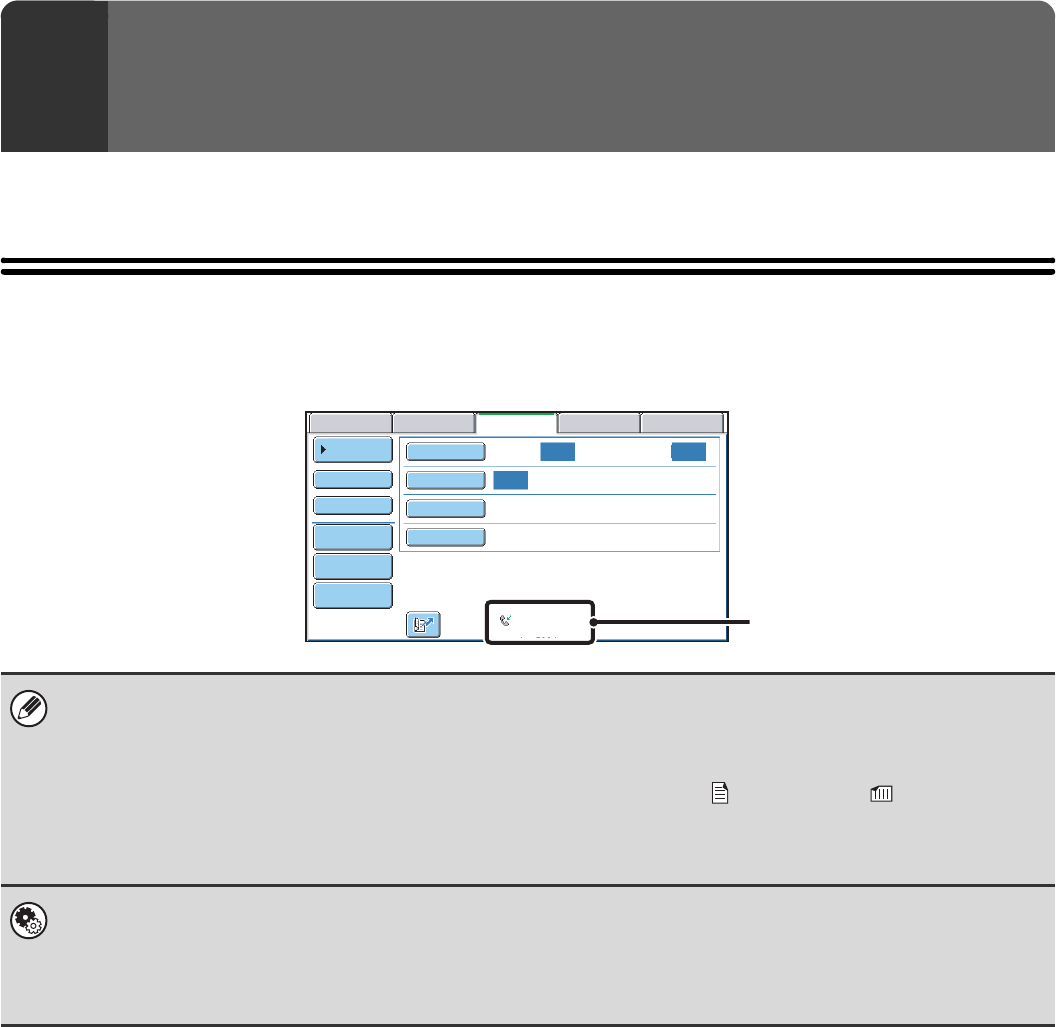
55
This chapter explains the basic procedures for receiving faxes.
RECEIVING FAXES
When the reception mode is set to "Auto Reception", the machine will receive and print faxes automatically. The fax
reception mode is displayed in the base screen.
4FAX RECEPTION
• When fax reception is in progress, it is possible to reserve a transmission by performing the transmission in memory
transmission mode.
☞TRANSMISSION METHODS (page 24)
• To print received faxes, make sure that the required paper is loaded in the machine's paper trays. It is not necessary to
load A4 (8-1/2" x 11") paper and B5 (5-1/2" x 8-1/2") paper in both the vertical ( ) and horizontal ( ) orientations.
Differences in orientation are automatically adjusted when faxes are received.
When a fax smaller than A4 (8-1/2" x 11") size is received, the size of the paper used for printing will vary depending on the
orientation (vertical or horizontal) in which the sender placed the original.
•System Settings: Receive Setting
This is used to change the fax reception mode. "Auto Reception" should normally be used.
Select "Manual Reception" when an extension phone is connected to the machine.
•System Settings (Administrator): Anti Junk Fax Setting
This setting is used to enter fax numbers from which you wish to block reception.
Auto Auto
Auto
USB Mem. ScanFaxScan
Standard
Auto Reception
Fax Memory:100%
Internet Fax PC Scan
Scan: Send:
File
Quick File
Address Review
Direct TX
Sub Address
Address Book
Special Modes
Resolution
Exposure
Original
This shows the current fax
reception mode and the amount
of free memory remaining.
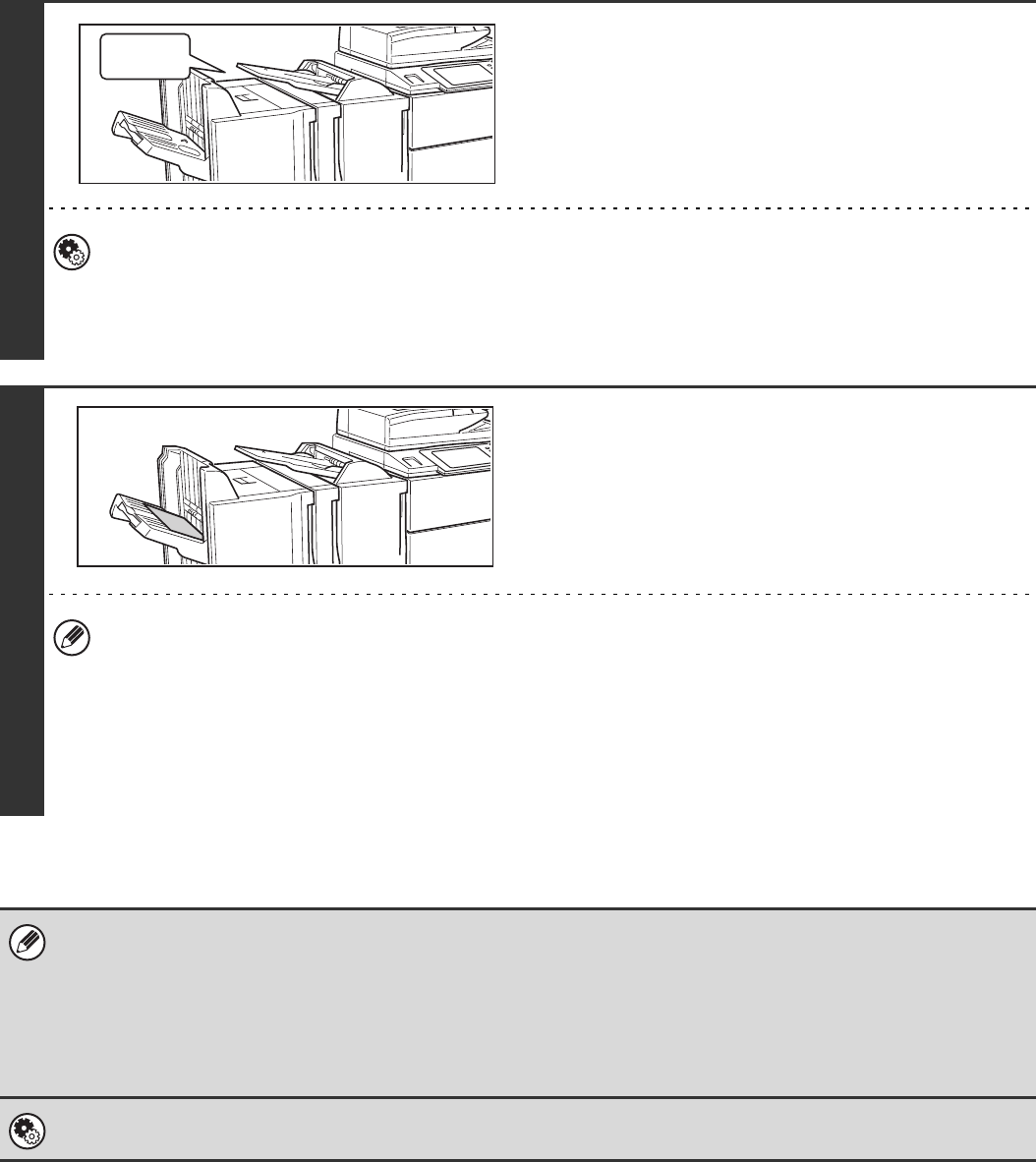
56
RECEIVING A FAX
When a fax is transmitted to the machine, the machine automatically receives and prints the fax.
1
The machine rings and fax reception
begins automatically.
A beep sounds when reception ends.
•System Settings (Administrator): Speaker Settings
This is used to change the volume and tone of the reception beep.
•System Settings (Administrator): Number of Calls in Auto Reception
This is used to change the number of rings on which fax reception begins automatically. To receive faxes without
the machine ringing, select "0" rings.
2
The fax is automatically printed.
•If a password entry screen appears...
A password must be entered to print the received fax. When the correct password is entered, the received fax is
printed.
☞PRINTING A PASSWORD-PROTECTED FAX (Hold Setting For Received Data Print) (page 57)
•The output tray and stapling (when a finisher is installed) can be selected.
The number of copies of received faxes that are printed and the output tray can be selected. When a finisher is
installed, the number of copies printed, the output tray, and stapling can be selected. For more information, see the
System Settings Guide.
• If printing of a copy job or print job is in progress when a fax is received, the fax will not be printed until the previously
reserved job is completed.
• Received faxes will not be printed when the machine cannot print due to an error condition such as out of paper, out of
toner, or a paper misfeed. The faxes will be printed automatically when the error condition is cleared. (If the machine ran
out of paper, touch the [OK] key in the touch panel after loading paper.
• When received faxes cannot be printed, the faxes can be forwarded to another fax machine.
☞FORWARDING RECEIVED FAXES (Fax Data Forward) (page 58)
System Settings (Administrator): Duplex Reception Setting
This is used to have received faxes printed on both sides of the paper.
Beep
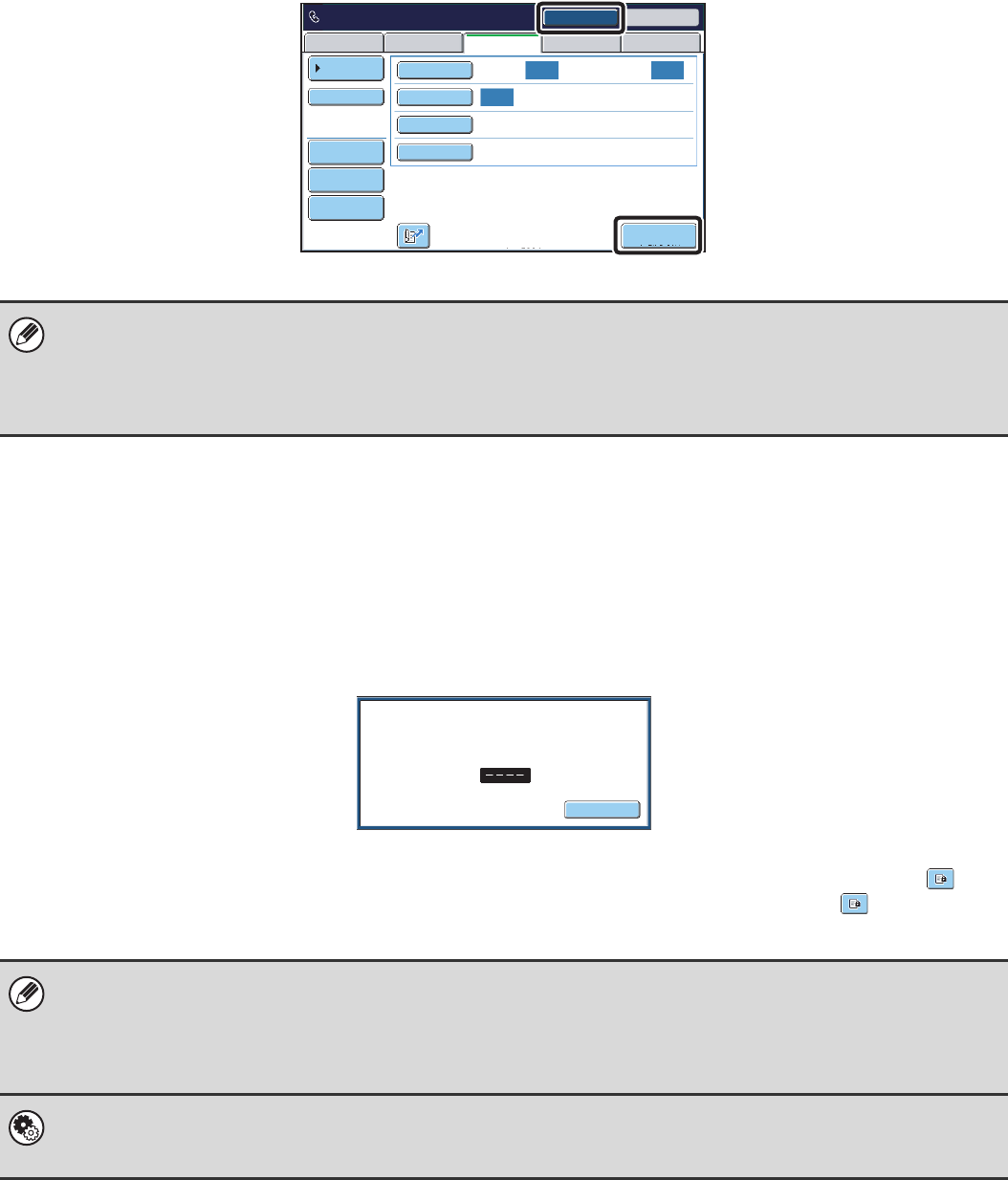
57
RECEIVING A FAX MANUALLY
A fax can be received manually using the touch panel. While the machine rings, touch the [Speaker] key in the base
screen and then touch the [Fax Manual Reception] key that appears.
PRINTING A PASSWORD-PROTECTED FAX (Hold
Setting For Received Data Print)
"Hold Setting for Received Data Print" can be enabled in the system settings (administrator) to have faxes received to
memory without being printed. To print the faxes, a password must be entered. When this function is used, a password
entry screen appears in the touch panel when a fax is received.
When the previously programmed 4-digit password is entered with the numeric keys, printing begins.
The [Cancel] key can be touched to close the password entry screen. If this is done, the data in memory key ( ) will
blink in the touch panel. The password entry screen will reappear when you touch the blinking key ( ) or change
modes.
• When a call is answered by touching the [Speaker] key, you will be able to hear the other party, however, you will not be
able to speak.
• Even when you use an extension phone to answer a call, you can touch the [Fax Manual Reception] key in the touch panel
to begin fax reception. You can also use the extension phone to begin fax reception.
☞RECEIVING A FAX AFTER ANSWERING A CALL ON THE EXTENSION PHONE (Remote Reception) (page 113)
• The received faxes will be retained in memory regardless of whether they were received automatically or manually. If a
transaction report is set to print when a fax is received, the transaction report will also be retained in memory.
• If "Fax Data Receive/Forward" is executed in the system settings to forward received faxes to another machine, faxes
retained in memory will also be forwarded. At that time, the same password entry screen as for printing will appear.
Forwarding will not take place unless the password is entered.
System Settings (Administrator): Hold Setting for Received Data Print
Enable this setting to have received faxes retained in memory until a password is entered. This setting is also used to
program the password.
Auto Auto
Auto
Speaker Volume
USB Mem. ScanFax
Special Modes
Resolution
Exposure
Original
Scan
Standard
Fax Memory:100%
Speaker
Telephone mode. Resend
Fax Manual
Reception
Internet Fax PC Scan
Scan: Send:
Address Book
Address Review
File
Quick File
Received data is stored.
Enter password via the 10-key.
Cancel
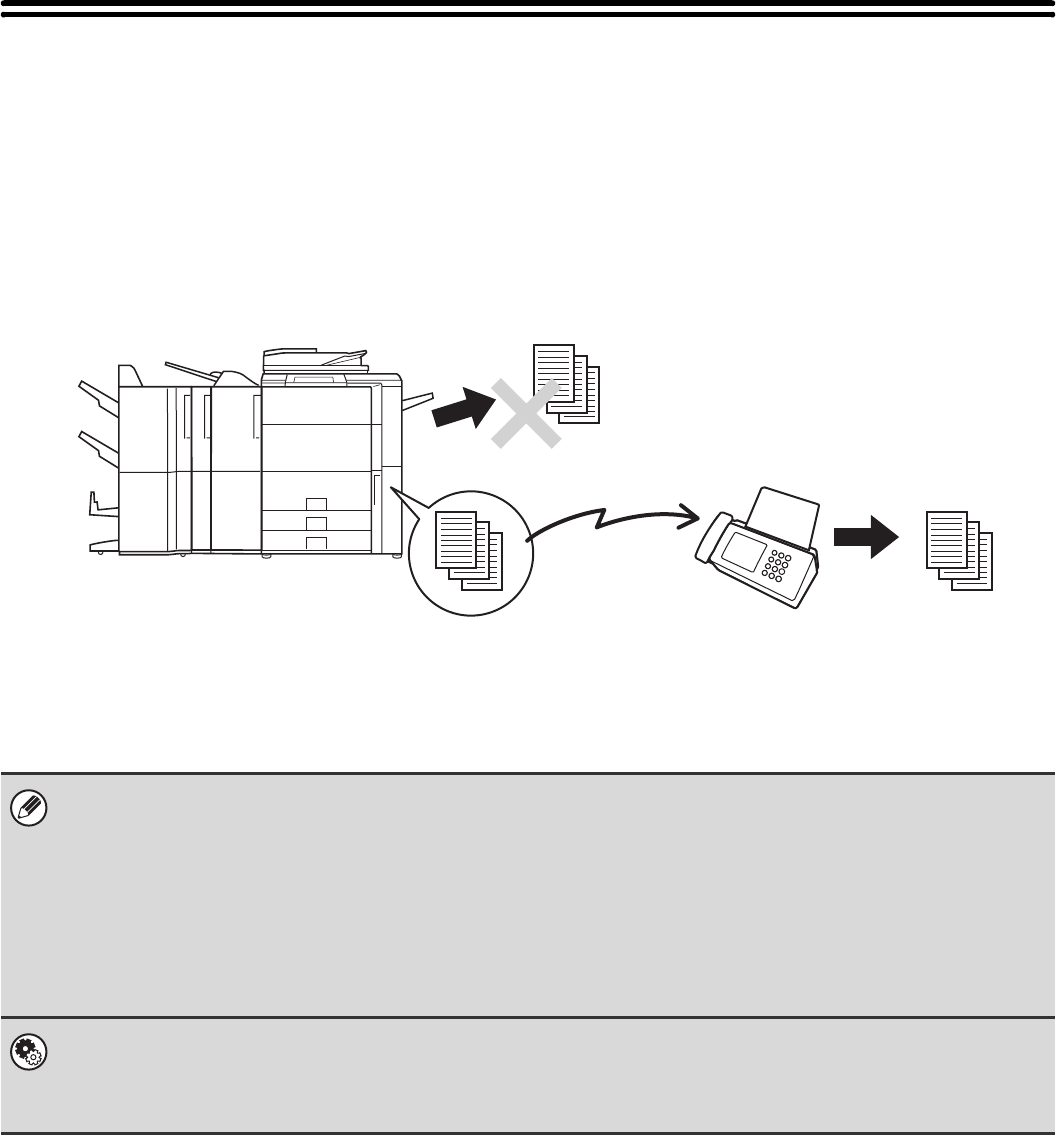
58
FORWARDING RECEIVED FAXES
(Fax Data Forward)
When the machine cannot print because it is out of paper or out of toner, received faxes can be forwarded to another
previously programmed fax machine.
This function is convenient in an office or work area that has two or more telephone lines and another fax machine is
connected to a different line than the machine.
Forwarding of received faxes is executed in the system settings of the machine. Touch the [SYSTEM SETTINGS] key
on the operation panel to display the system setting menu screen in the touch panel. Select [Fax Data Receive/Forward]
- [Fax Settings], and then touch the key that executes received fax forwarding.
• If some pages of a fax that is being forwarded were successfully printed, only those pages that were not printed will be
forwarded.
• A forwarded fax becomes a fax transmission job. If transmission does not take place because the transmission was
cancelled or an error occurred, the fax will be held in memory until it can be printed.
• All faxes received are forwarded. Note, however, that faxes received to an F-code confidential memory box cannot be
forwarded.
• If a password entry screen appears after touching the [OK] key, "Hold Setting for Received Data Print" has been enabled.
Enter the password with the numeric keys to begin forwarding.
☞PRINTING A PASSWORD-PROTECTED FAX (Hold Setting For Received Data Print) (page 57)
•System Settings: Fax Data Receive/Forward
Use this to forward received faxes when the machine is unable to print.
•System Settings (Administrator): Set the Telephone Number for Data Forwarding
This is used to store the forwarding fax number.
The machine cannot print
Printing
Forwarding
Received fax
The machine
Forwarding
destination
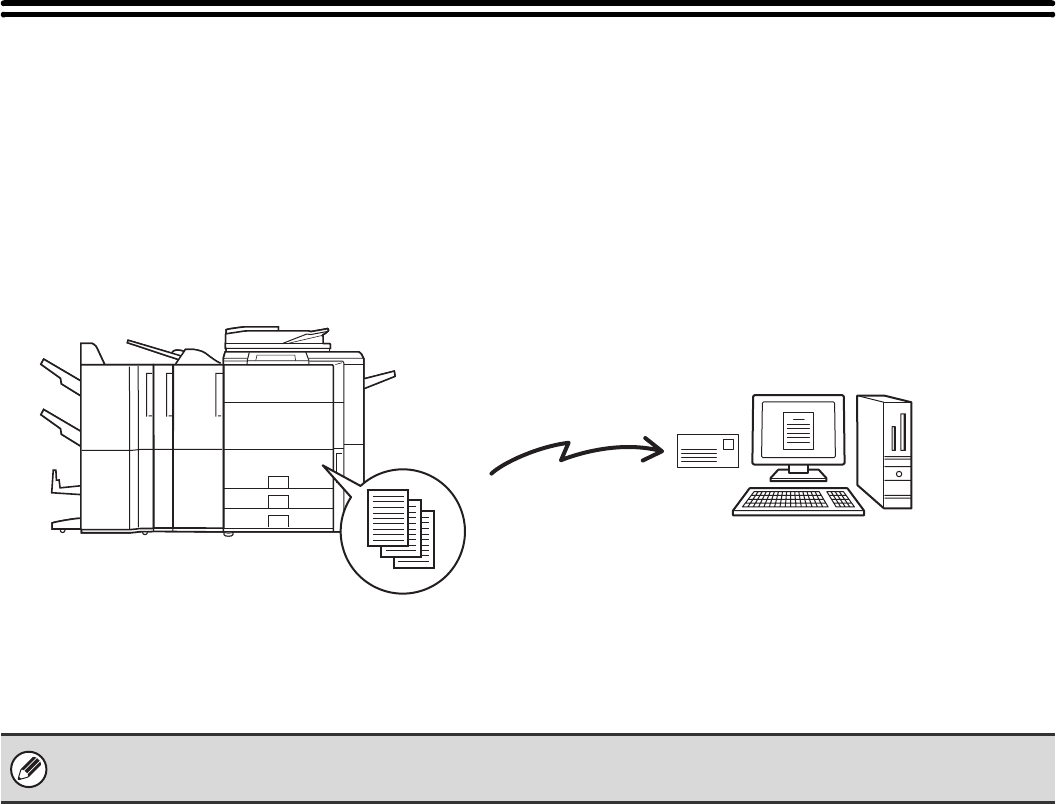
59
FORWARDING A RECEIVED FAX TO AN
E-MAIL ADDRESS (Inbound Routing
Settings)
Received faxes can be automatically forwarded to a specified E-mail address. This function can be used to forward
received faxes directly to an e-mail address without printing the faxes.
To configure inbound routing settings, click [Application Settings] and then [Inbound Routing Settings] in the Web page
menu. (Administrator rights are required.)
• The format of the forwarded file is TIFF-F.
• This function cannot be used for faxes received by confidential reception.
Forwarding
Received fax
The machine
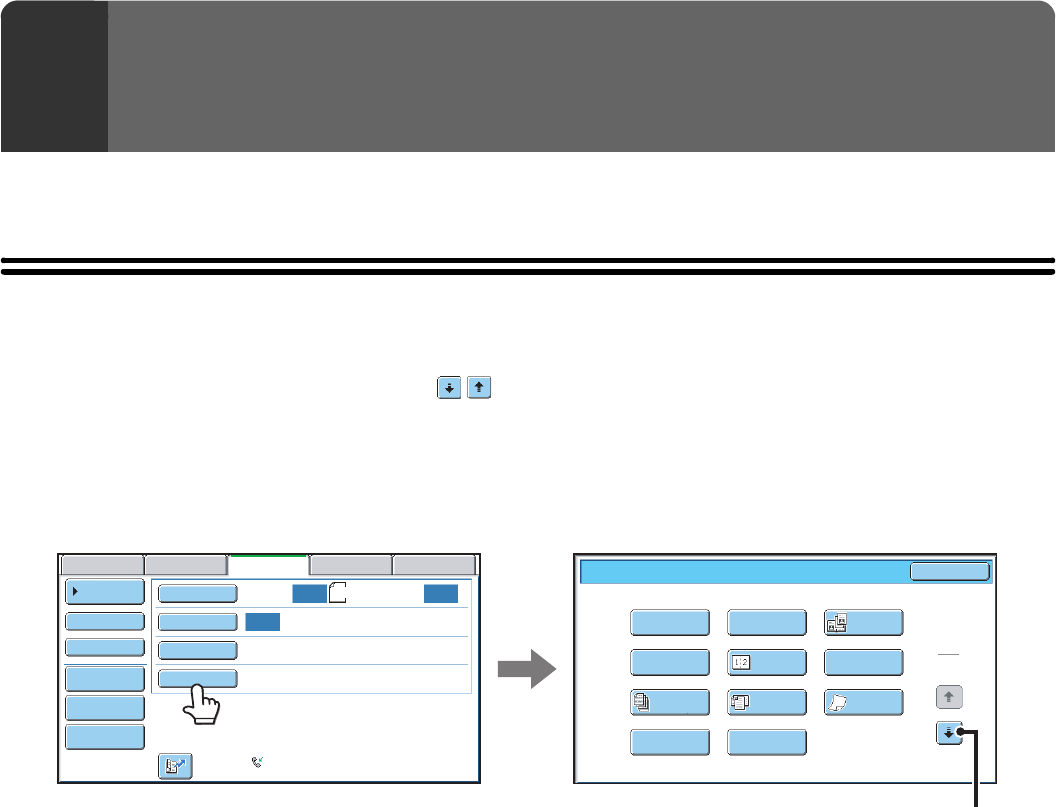
60
This chapter explains special modes that can be used for fax transmission.
SPECIAL MODES
When the [Special Modes] key is pressed in the base screen, the special modes menu screen appears. The special
modes menu consists of two screens. Touch the keys to move between the screens. After selecting special
mode settings, touch the [OK] key in the special modes menu screen to complete the settings and return to the base
screen of fax mode.
Special modes menu (1st screen)
(1) [Program] key
☞STORING FAX OPERATIONS (Program) (page 62)
(2) [Erase] key
☞ERASING PERIPHERAL SHADOWS ON THE
IMAGE (Erase) (page 65)
(3) [Dual Page Scan] key
☞TRANSMITTING AN ORIGINAL AS TWO
SEPARATE PAGES (Dual Page Scan) (page 67)
(4) [Timer] key
☞SENDING A FAX AT A SPECIFIED TIME (Timer)
(page 70)
(5) [2in1] key
☞SENDING TWO PAGES AS A SINGLE PAGE (2in1)
(page 73)
(6) [Card Shot] key
☞SENDING BOTH SIDES OF A CARD AS A SINGLE
PAGE (Card Shot) (page 76)
(7) [Job Build] key
☞SENDING A LARGE NUMBER OF PAGES (Job
Build) (page 79)
(8) [Mixed Size Original] key
☞TRANSMITTING ORIGINALS OF DIFFERENT
SIZES (Mixed Size Original) (page 82)
(9) [Slow Scan Mode] key
☞FAXING THIN ORIGINALS (Slow Scan Mode) (page
84)
(10) [File] key
Touch this to use the File function of document filing
mode. For more information on File, see the Document
Filing Guide.
(11) [Quick File] key
Touch this to use the Quick File function of document
filing mode. For more information on Quick File, see the
Document Filing Guide.
5SPECIAL MODES
1
2
Fax/Special Modes
Card Shot
Slow Scan
Mode
OK
Dual Page
Scan
Quick File
Mixed Size
Original
Erase
File
Job
Build
2in1
Program
Timer
Auto Auto
Auto
USB Mem. ScanFaxScan
Standard
Auto Reception
Fax Memory:100%
Internet Fax PC Scan
Scan: Send:
File
Quick File
Address Review
Direct TX
Sub Address
Address Book
Special Modes
Resolution
Exposure
Original A4
(1) (2) (3)
(4) (5) (6)
(7) (8) (9)
(10) (11)
☞Special modes menu (2nd screen)
(page 61)
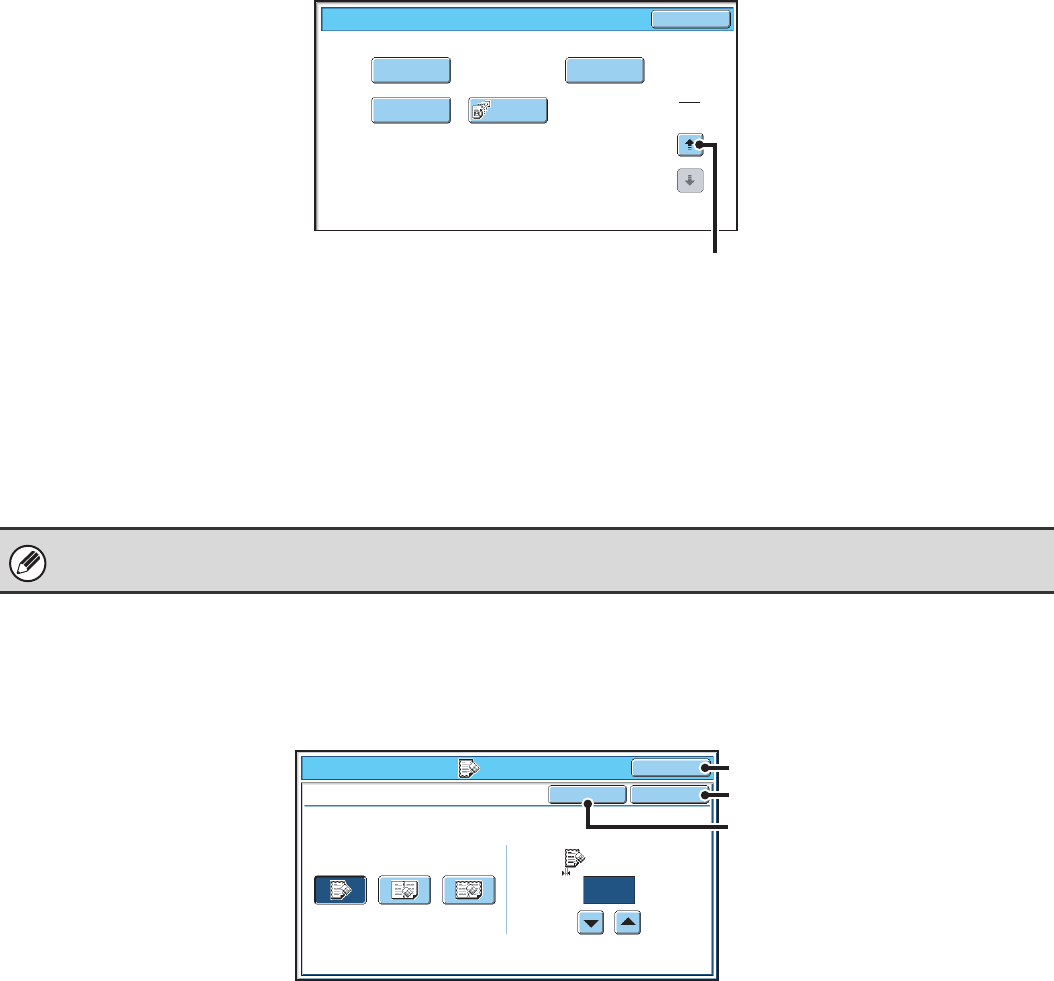
61
Special modes menu (2nd screen)
(1) [Transaction Report] key
☞CHANGING THE TRANSACTION REPORT PRINT
CONDITION FOR A SINGLE TRANSMISSION
(page 125)
(2) [Own Name Select] key
☞TEMPORARILY CHANGING THE SENDER
INFORMATION (Own Name Select) (page 87)
(3) [Memory Box] key
☞SENDING A FAX WHEN ANOTHER MACHINE
POLLS YOUR MACHINE (Polling Memory) (page
91)
(4) [Polling] key
☞CALLING A FAX MACHINE AND INITIATING
RECEPTION (Polling) (page 88)
[OK] key and [Cancel] key
In some cases two [OK] keys and one [Cancel] key will appear in the special mode screens. The keys are used as
follows:
(A) Enter the selected special mode setting and return to the base screen.
(B) Enter the selected special mode setting and return to the special modes menu screen. Touch this key when you
wish to continue selecting other special mode settings.
(C) During selection of special mode settings, this key returns you to the special modes menu screen without saving the
settings. When settings have been completed, this cancels the settings and returns you to the special modes menu
screen.
Transaction
Report
Own Name
Select
Memory Box Polling
OK
Fax/Special Modes
2
2
(1) (2)
(3) (4)
☞Special modes menu (1st screen) (page 60)
Special modes can generally be combined with other special modes, however, there are some combinations that are not
possible. If a prohibited combination is selected, a message will appear in the touch panel.
Fax/Special Modes
Erase
Centre
Erase
Edge
Erase
Edge+Centre
Erase Edge
Cancel OK
OK
10
(0~20)
mm
(C)
(A)
(B)
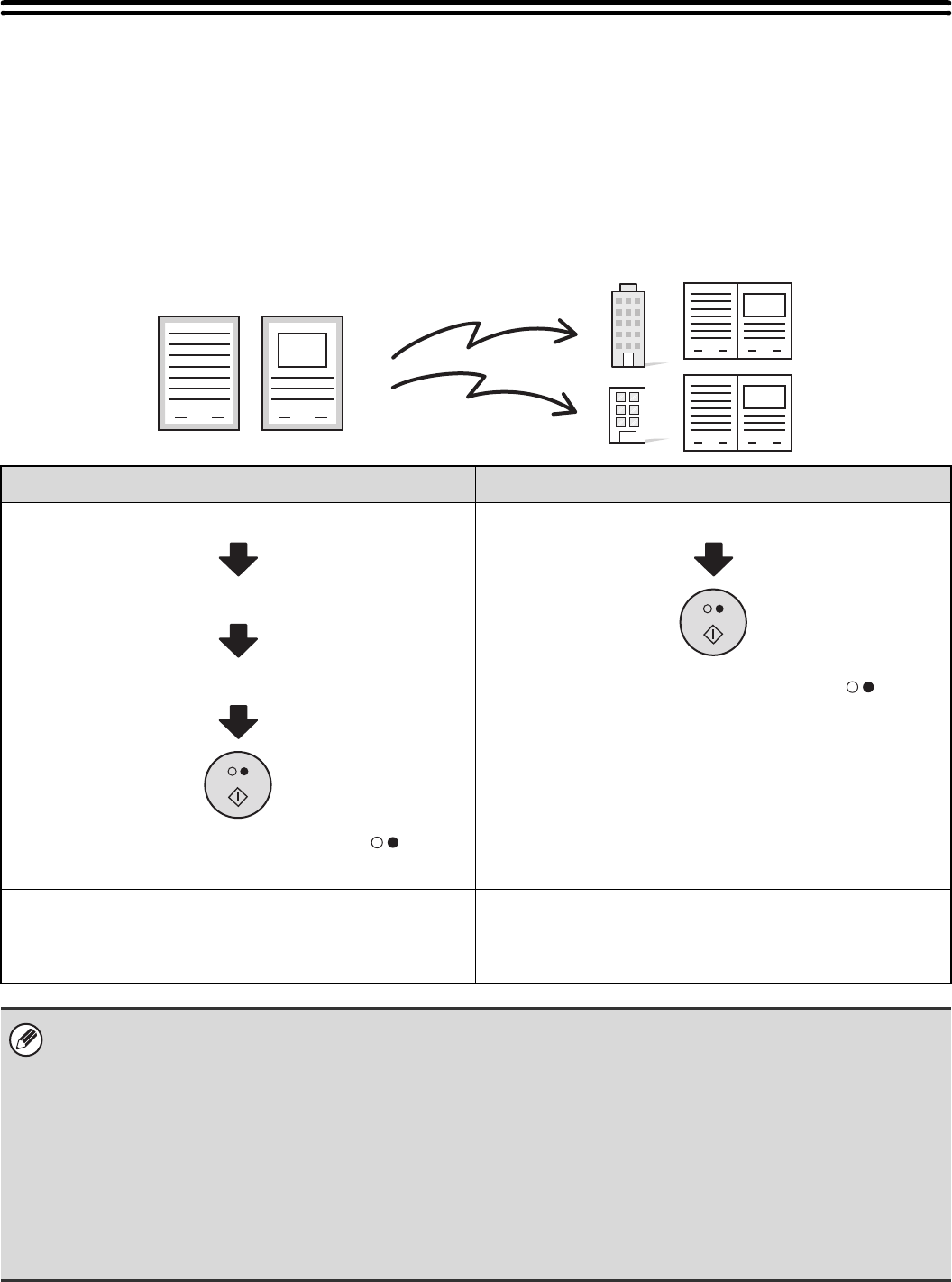
62
STORING FAX OPERATIONS (Program)
A program is a group of transmission settings stored together. When transmission settings are stored in a program, the
settings can be retrieved and used for a fax job by means of a simple operation.
For example, suppose that the same A4 (8-1/2" x 11") size documents are distributed to branch offices in various
regions once a month.
(1) The same documents are faxed to each branch office
(2) To save paper, two document pages are faxed as a single page
(3) Smudges on the edges of the documents are erased before transmission
When a job program is not stored When a job program is stored
Enter the fax numbers of the branch offices
Select the 2in1 function.
Select erase settings
Press the [BLACK & WHITE START] key ( ).
The originals are scanned and transmitted.
Retrieve the stored program.
Press the [BLACK & WHITE START] key ( ).
The originals are scanned and transmitted.
Considerable time is required to send the documents each
month because the above settings must be selected.
In addition, mistakes may occasionally be made when
selecting the settings, so incorrect transmissions may occur.
When a program is stored, settings are selected with ease by
simply pressing the program key.
In addition, transmission takes place based on the stored
settings so there are no chances for mistakes.
•Programs are stored, edited, and deleted using "Address Control" in the system settings. See "Program" in the
System Settings Guide.
•
Programs can also be stored using the Web pages. Click [Job Programs] and then [Program Registration] in the Web page menu.
• The settings stored in a program will be retained even after the program is used for transmission. The same settings can
be used repeatedly for transmission.
• The following settings can be stored in programs.
Destinations: One-touch keys, group keys, search numbers
Image settings: Resolution and exposure settings
Special modes: Polling reception, Erase, Dual Page Scan, 2in1
F-code communication: A destination that includes an F-code can be stored to perform an F-code operation.
• Up to 48 programs can be stored.
• Up to 500 destinations can be stored in each program.
1 2
1 2
1 2
A4 (8-1/2" x 11") size
documents to be distributed
Fax received by recipients.

63
USING A PROGRAM TO SEND A FAX
1
Place the original.
Place the original in the document feeder tray or on the document glass as appropriate for the functions stored in the
program.
2
Select the special modes.
(1) Touch the [Special Modes] key.
(2) Touch the [Program] key.
☞Special modes menu (1st screen) (page 60)
3
Retrieve the stored program.
(1) Touch the desired program key.
(2) Touch the [OK] key.
4
Select additional settings.
Select any settings or functions that you wish to use that cannot
be stored in a program. The following items can be selected.
• Image settings: original scan size, send size, 2-sided
scanning
• Special modes: Timer Transmission, Card Shot, Job Build,
Mixed Size Original, Slow Scan Mode, Own
Name Select, Transaction Report, File,
Quick File
• The screen that appears will vary depending on the destination stored in the program.
• The mode cannot be changed here.
• Functions stored in the program cannot be cancelled here.
Program C
Program A
Program
Program E
Program G
Program I
Program K
Program D
Program B
Program F
Program H
Program J
Program L
OK
1
2
(1) (2)
Program : Program C
0123456789
Auto Auto
Auto
USB Mem. ScanFax
Special Modes
Resolution
Exposure
Original
Scan
Standard
Auto Reception
Fax Memory:100%
Internet Fax PC Scan
Scan: Send:
File
Quick File
Address Review
A4
64
5
Press the [BLACK & WHITE START] key
().
Scanning begins.
• If you inserted the original pages in the document feeder
tray, all pages are scanned.
A beep will sound to indicate that scanning is finished.
• If you are scanning the original on the document glass, scan
each page one page at a time.
When scanning finishes, place the next original and press
the [BLACK & WHITE START] key ( ). Repeat until all
pages have been scanned and then touch the [Read-End]
key.
A beep will sound to indicate that scanning is finished.
To cancel scanning...
Press the [STOP] key ( ).
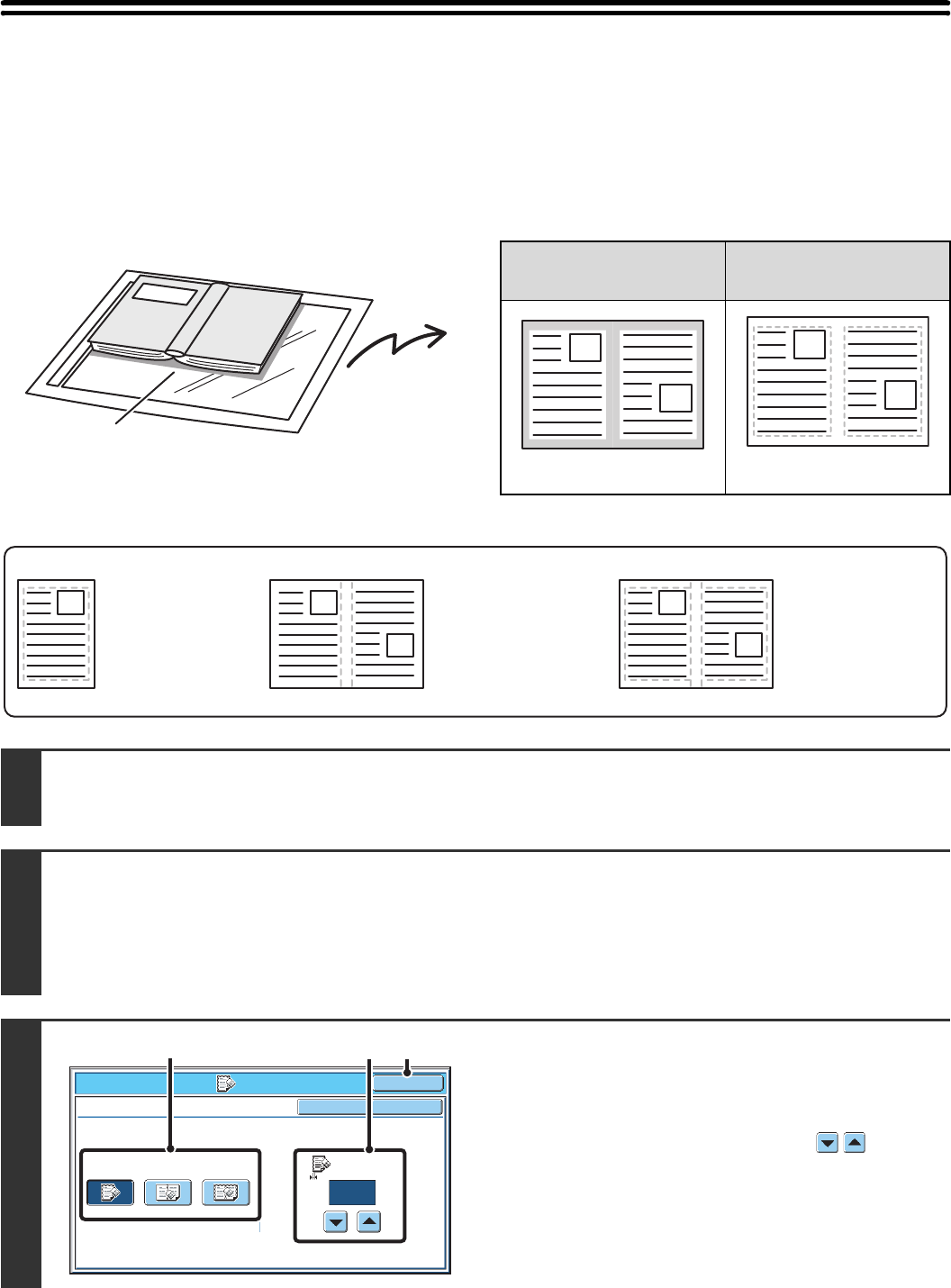
65
ERASING PERIPHERAL SHADOWS ON THE
IMAGE (Erase)
The erase function is used to erase shadows on images produced when scanning thick originals or books.
(This function erases the parts of the image where shadows tend to form. The function does not detect shadows and
erase only the shadows.)
Scanning a thick book
Erase modes
Shadows appear here.
Not using the erase
function
Using the erase
function
Shadows appear in the image.
No shadows appear.
1Place the original.
Place the original face up in the document feeder tray, or face down on the document glass.
2
Select the special modes.
(1) Touch the [Special Modes] key.
(2) Touch the [Erase] key.
☞Special modes menu (1st screen) (page 60)
3
Select the erase settings.
(1) Touch the desired erase mode.
Select one of the three erase modes.
(2) Set the erasure width with the keys.
0 mm to 20 mm (0" to 1") can be entered.
(3) Touch the [OK] key.
Edge Erase
This erases shadows
that appear at the
edges of the image
when thick originals
or books are faxed.
Centre Erase
This erases shadows
at the bindings of
books or other bound
documents.
Edge + Centre
Erase
This erases shadows
at both the edges
and the binding.
Fax/Special Modes
Erase
Centre
Erase
Edge
Erase
Edge+Centre
Erase Edge
Cancel OK
OK
10
(0~20)
mm
(1) (2) (3)
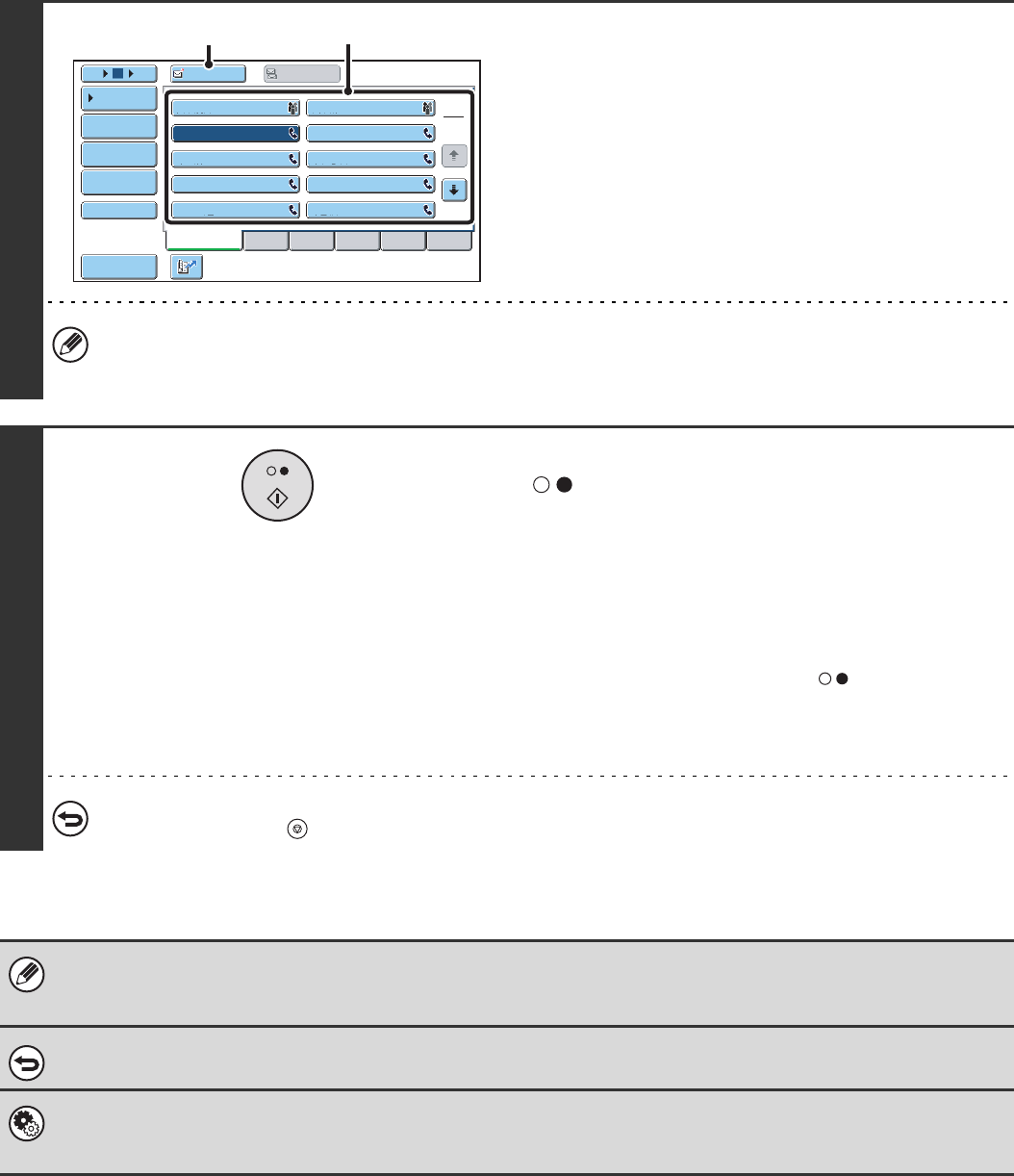
66
4
Enter the destination fax number
(1) Touch the [Address Book] key in the base
screen.
(2) Touch the one-touch key of the desired
destination.
(3) Touch the [To] key.
In addition to specification by one-touch key, a destination can also be specified using a search number. You can also
directly enter a fax number with the numeric keys or look up a destination in a global address book. For more
information, see "2. ENTERING DESTINATIONS" (page 15).
5
Press the [BLACK & WHITE START] key
().
Scanning begins.
• If you inserted the original pages in the document feeder
tray, all pages are scanned.
A beep will sound to indicate that scanning is finished.
• If you are scanning the original on the document glass, scan
each page one page at a time.
When scanning finishes, place the next original and press
the [BLACK & WHITE START] key ( ). Repeat until all
pages have been scanned and then touch the [Read-End]
key.
A beep will sound to indicate that scanning is finished.
To cancel scanning...
Press the [STOP] key ( ).
When the erase function is used, erase takes place at the edges of the original image. If you also use a reduction or an
enlargement setting, the erase width will change according to the selected ratio. For example, if the erase width setting is
20 mm (1") and the image is reduced to 50%, the erase width will be 10 mm (1/2").
To cancel an erase setting...
Touch the [Cancel] key in the screen of step 3.
System Settings (Administrator): Erase Width Adjustment
The default erase width setting is linked to the copy mode system setting, and can be set from 0 mm to 20 mm (0" to 1"). The
factory default setting is 10 mm (1/2").
Frequent Use ABCD EFGHI JKLMN OPQRST UVWXYZ
1
2
105 15 To Cc
III III
GGG GGG
EEE EEE
CCC CCC
AAA AAA
JJJ JJJ
HHH HHH
FFF FFF
DDD DDD
BBB BBB
Global
Address Search
Address Entry
Sort Address
Sub Address
Address Review
Condition
Settings
(2)
(3)
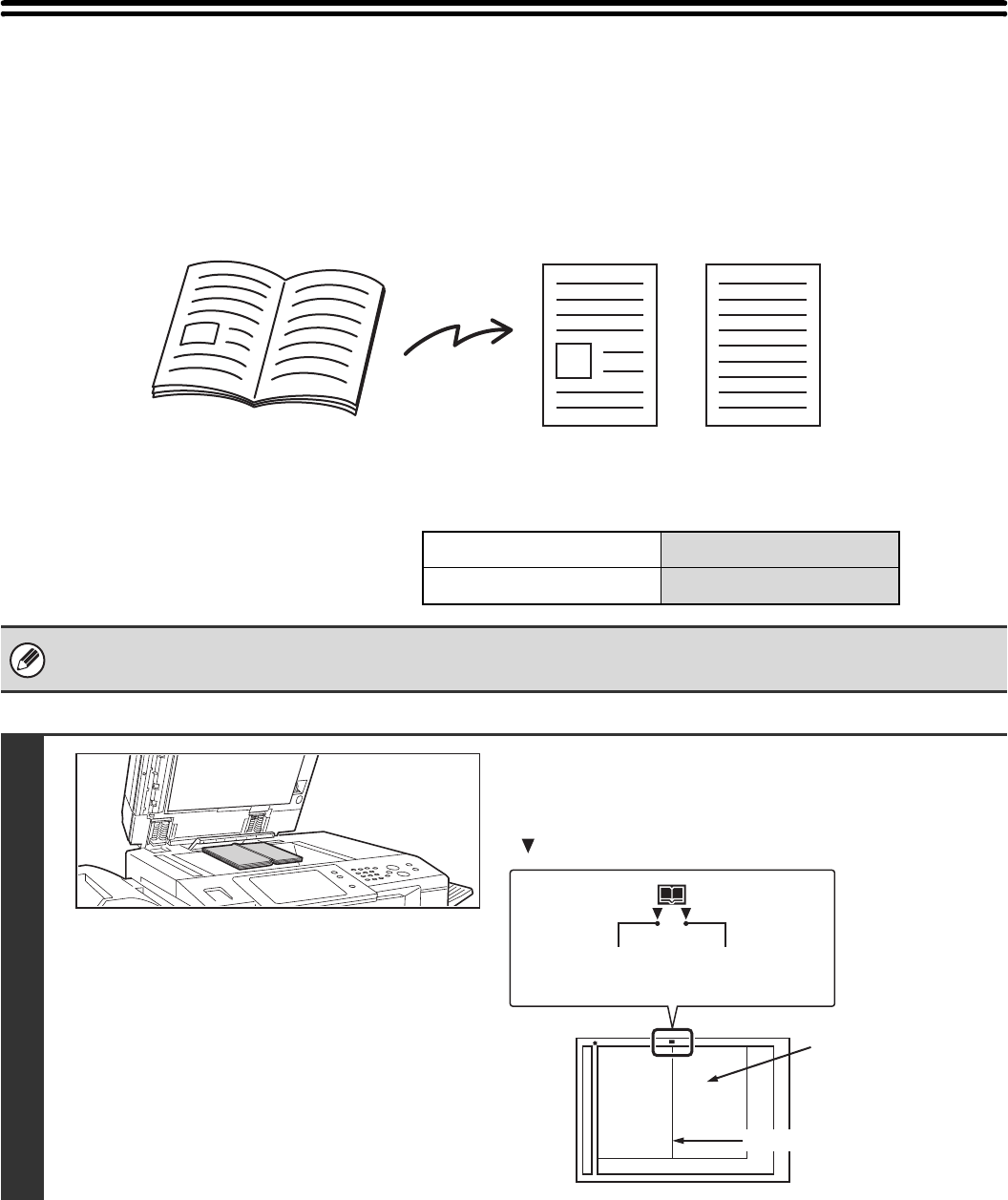
67
TRANSMITTING AN ORIGINAL AS TWO
SEPARATE PAGES (Dual Page Scan)
The left and right sides of an original can be transmitted as two separate pages. This function is useful when you wish to
fax the left and right pages of a book or other bound document as separate pages.
Example: Faxing the left and right pages of a book
Example:
Book or bound document The left and right pages are sent as two pages.
Original scan size Transmitted image
A3 (11" x 17") x 1 page A4 (8-1/2" x 11") x 2 pages
• When using dual page scan, the original must be placed on the document glass.
• The send size cannot be changed.
1
Place the original face down on the
document glass.
Align the centre of the original with the appropriate size mark
.
A3 (11" x 17")
Size mark
The page on this side
is scanned first.
Centreline of
A3 original
Centreline of
11" x 17" original
Centreline of original
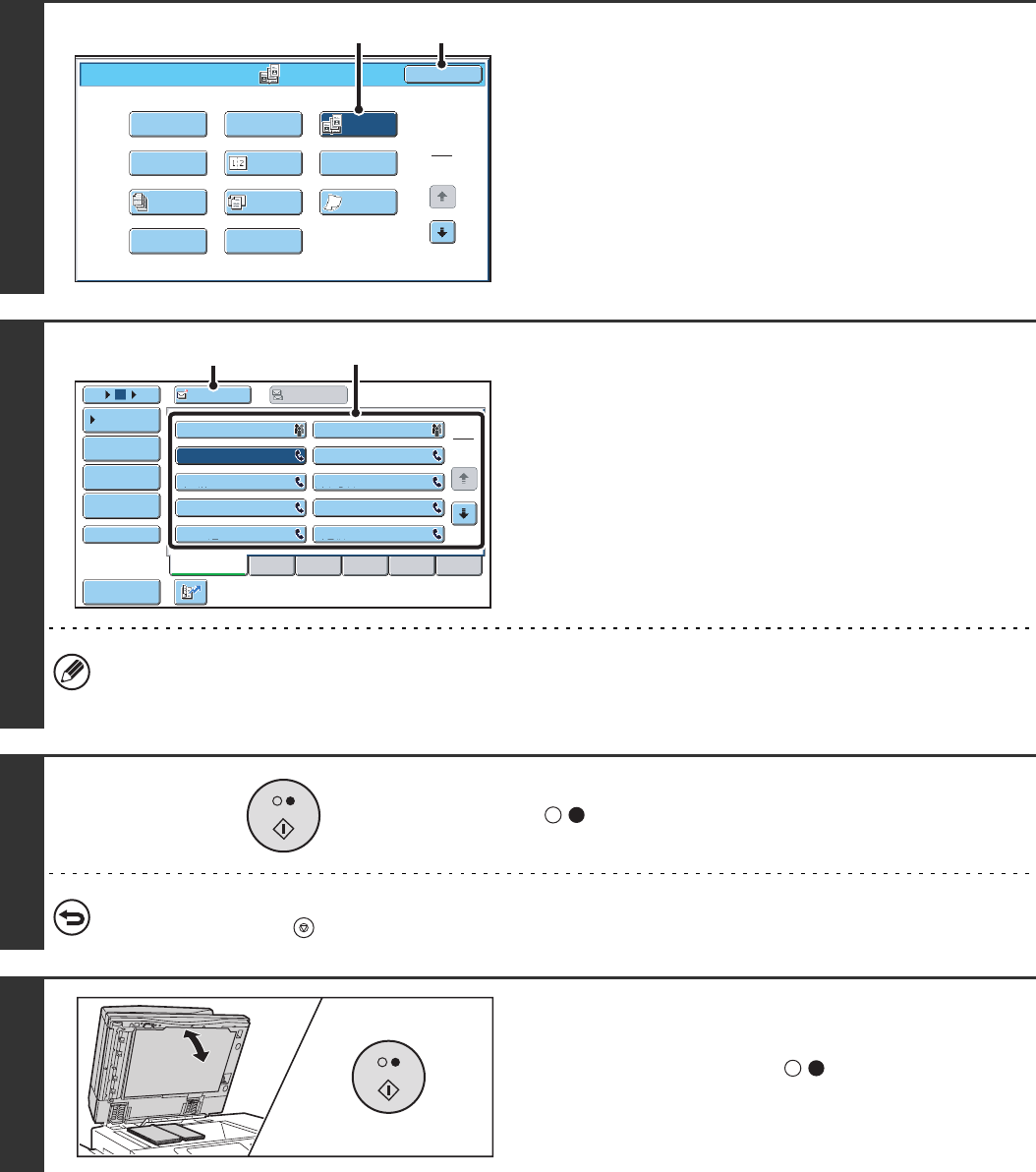
68
2
Select Dual Page Scan.
(1) Touch the [Special Modes] key.
☞SPECIAL MODES (page 60)
(2) Touch the [Dual Page Scan] key so that it is
highlighted.
(3) Touch the [OK] key.
3
Enter the destination fax number
(1) Touch the [Address Book] key in the base
screen.
(2) Touch the one-touch key of the desired
destination.
(3) Touch the [To] key.
In addition to specification by one-touch key, a destination can also be specified using a search number. You can also
directly enter a fax number with the numeric keys or look up a destination in a global address book. For more
information, see "2. ENTERING DESTINATIONS" (page 15).
4
Press the [BLACK & WHITE START] key
( ) to scan the first original.
To cancel scanning...
Press the [STOP] key ( ).
5
If you have more pages to scan, change
pages and then press the [BLACK &
WHITE START] key ( ).
Repeat this step until all pages have been scanned.
1
2
Fax/Special Modes OK
Card Shot
Slow Scan
Mode
Dual Page
Scan
Quick File
Mixed Size
Original
Erase
File
Job
Build
2in1
Program
Timer
(3)(2)
Frequent Use ABCD EFGHI JKLMN OPQRST UVWXYZ
1
2
105 15 To Cc
III III
GGG GGG
EEE EEE
CCC CCC
AAA AAA
JJJ JJJ
HHH HHH
FFF FFF
DDD DDD
BBB BBB
Global
Address Search
Address Entry
Sort Address
Sub Address
Address Review
Condition
Settings
(2)
(3)
69
6
Touch the [Read-End] key.
The [Configure] key can be touched to change the exposure, resolution, scan size, and send size for each original
page scanned.
• To erase shadows caused by the binding of a book or other bound document, use the erase function. (Note, however, that
"Centre Erase" and "Edge + Centre Erase" cannot be used.)
• When the scan size of the original is specified by numerical values, this function cannot be used.
To cancel Dual Page Scan...
Touch the [Dual Page Scan] key in the screen of step 2 so that it is not highlighted.
Place next original.
Press [Start].
When finished, press [Read-End].
(Pg.No.x)
Configure Read-End

70
SENDING A FAX AT A SPECIFIED TIME
(Timer)
When this function is used, transmission takes place automatically at a specified time.
The timer transmission function makes it easy to perform reserved transmissions, broadcast transmissions and other
transmissions at night or other times when phone rates are low.
A timer setting can also be specified for polling reception to receive a fax when you are not present.
• When a timer transmission is set, keep the main power switch "on". Transmission will not take place if the main power is
turned off at the specified time.
• When performing a timer transmission, you must scan the original into memory when you set up the transmission. It is not
possible to leave the document in the auto document feeder or on the document glass and have it scanned at the reserved
time of transmission.
• Settings selected for a timer transmission (exposure, resolution, special modes, etc.) are automatically cleared after the
transmission is finished. (However, when the document filing function is used, the scanned original and settings are stored
on the built-in hard drive. For more information on the document filing function, see the Document Filing Guide.)
1Place the original.
Place the original face up in the document feeder tray, or face down on the document glass.
2
Select the special modes.
(1) Touch the [Special Modes] key.
(2) Touch the [Timer] key.
☞Special modes menu (1st screen) (page 60)
During the day, set up a
broadcast transmission to
take place at 20:00
At 20:00, the broadcast
transmission begins automatically
(Transmission to the first destination
takes place)
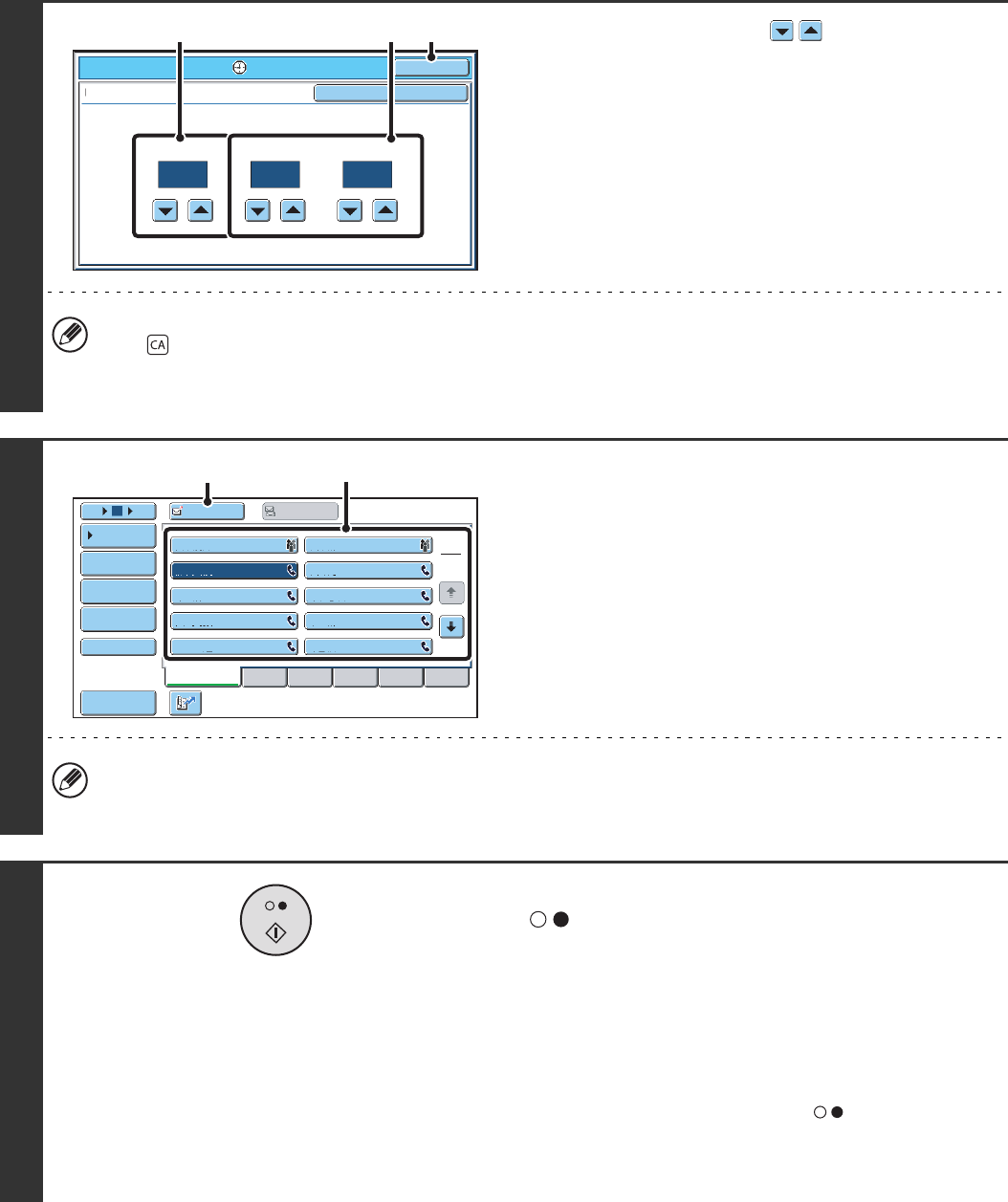
71
3
Set the time with the keys.
(1) Specify the day.
If you do not wish to specify a day, select [---]. In this
case, transmission will begin when the time specified in
(2) arrives.
(2) Specify the time (hour, minute)
Select the time in 24-hour format.
(3) Touch the [OK] key.
When this screen is opened, the setting will show the current time. If the time is not correct, press the [CLEAR ALL]
key ( ) to cancel the operation. Correct the time in the system settings and then perform the timer transmission
procedure.
☞CHECKING THE DATE AND TIME (page 130)
4
Enter the destination fax number
(1) Touch the [Address Book] key in the base
screen.
(2) Touch the one-touch key of the desired
destination.
(3) Touch the [To] key.
In addition to specification by one-touch key, a destination can also be specified using a search number. You can also
directly enter a fax number with the numeric keys or look up a destination in a global address book. For more
information, see "2. ENTERING DESTINATIONS" (page 15).
5
Press the [BLACK & WHITE START] key
().
Scanning begins.
• If you inserted the original pages in the document feeder
tray, all pages are scanned.
A beep will sound to indicate that scanning is finished.
• If you are scanning the original on the document glass, scan
each page one page at a time.
When scanning finishes, place the next original and press
the [BLACK & WHITE START] key ( ). Repeat until all
pages have been scanned and then touch the [Read-End]
key.
A beep will sound to indicate that scanning is finished.
Fax/Special Modes OK
10--- 00
Timer
Day of the Week
hh. mm.
OK
Cancel
Time
(1) (2) (3)
Frequent Use ABCD EFGHI JKLMN OPQRST UVWXYZ
1
2
105 15 To Cc
III III
GGG GGG
EEE EEE
CCC CCC
AAA AAA
JJJ JJJ
HHH HHH
FFF FFF
DDD DDD
BBB BBB
Global
Address Search
Address Entry
Sort Address
Sub Address
Address Review
Condition
Settings
(2)
(3)
72
• The time can be specified up to a week in advance.
• Up to 94 timer transmissions can be stored at once.
• Only one timer polling operation can be stored at once. If you wish to poll multiple machines, store a serial polling timer
operation.
• If another transmission is in progress when the specified time arrives, the timer operation will begin after that transmission
is finished.
• Other operations can be performed after a timer transmission is set up.
• This function cannot be used in direct transmission mode or when the speaker is used to dial.
• If a timer transmission is given priority in the job status screen, the time specification is cancelled. The transmission will
begin as soon as the job in progress is completed.
☞GIVING PRIORITY TO A RESERVED FAX JOB (page 123)
To cancel timer transmission...
Touch the [Cancel] key in the screen of step 3.
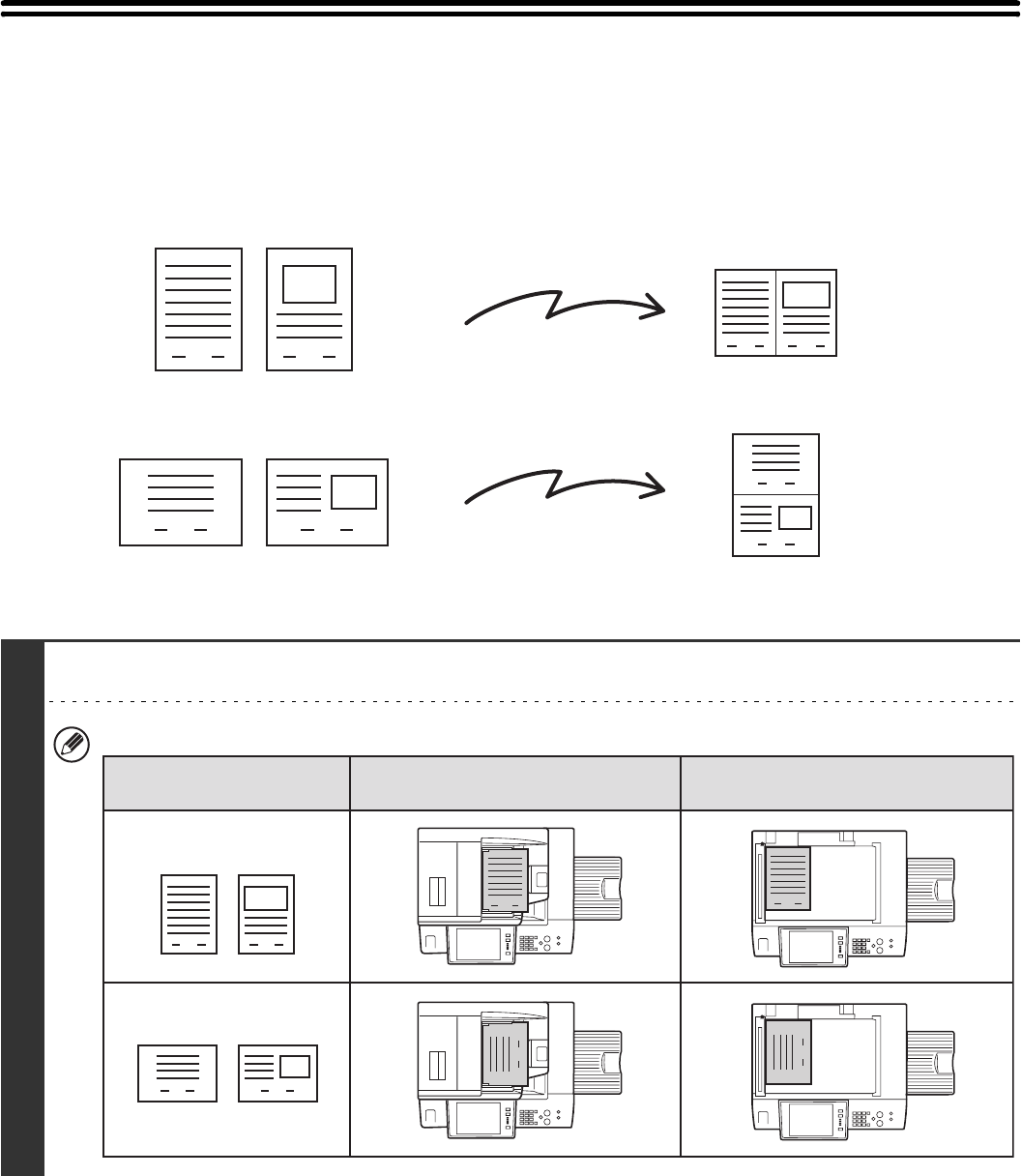
73
SENDING TWO PAGES AS A SINGLE PAGE
(2in1)
Two original pages can be reduced and sent as a single page. This function is convenient when you have a large
number of original pages and wish to reduce the number of pages sent.
1
Place the original.
When placing the originals, orient them as shown below.
1 2
1 2
1 2
1
2
Portrait-oriented originals
Landscape-oriented originals
Transmission
Transmission
1 2
1 2
1
1
1
1
Document feeder tray
Place the originals face up.
Portrait orientation
Landscape orientation
Document glass
Place the originals face down.
Originals
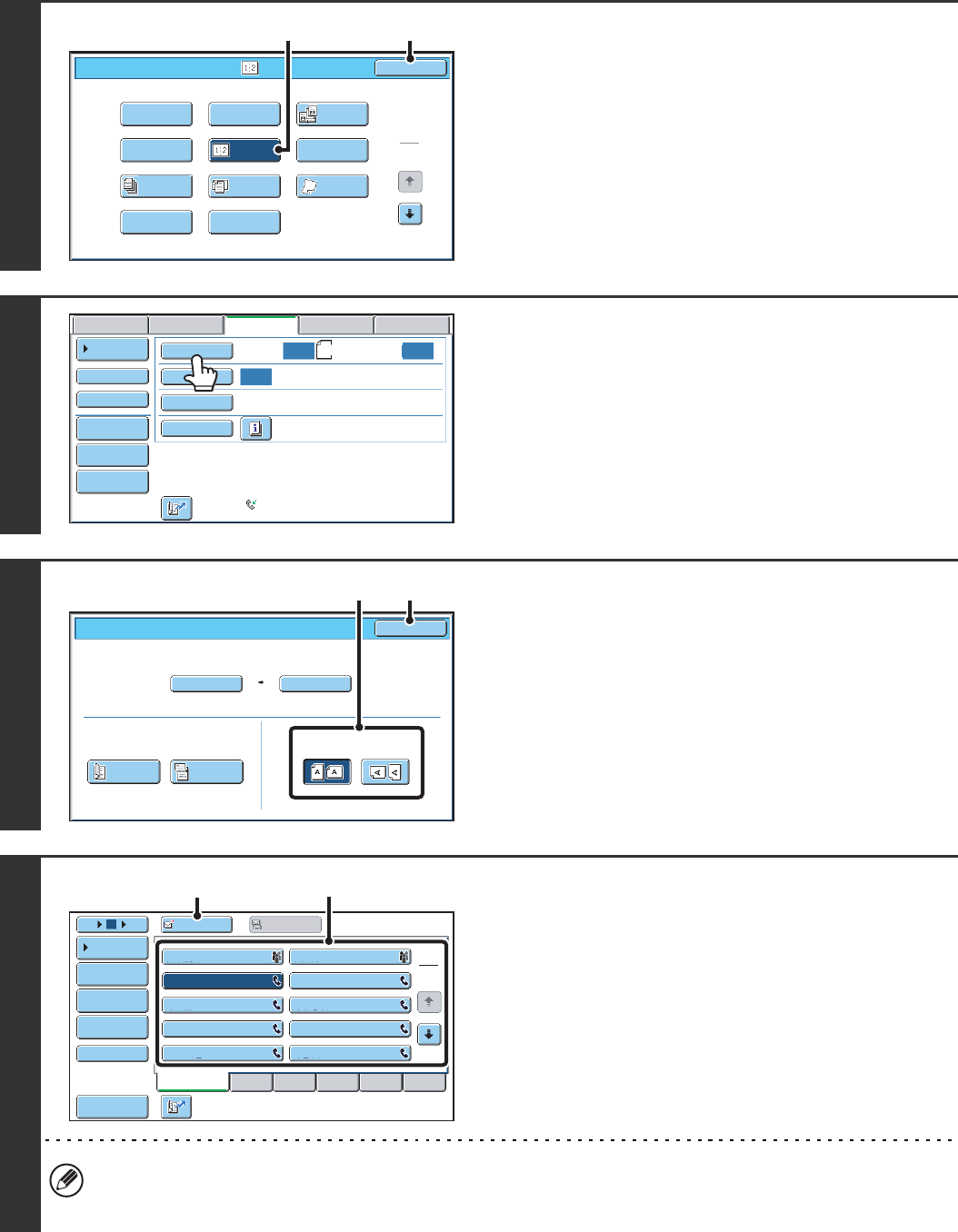
74
2
Select 2in1.
(1) Touch the [Special Modes] key.
☞SPECIAL MODES (page 60)
(2) Touch the [2in1] key so that it is
highlighted.
(3) Touch the [OK] key.
3
Touch the [Original] key.
4
Specify the orientation in which the
original is placed.
(1) Touch the appropriate [Image Orientation]
key.
If this setting is not correct, a suitable image may not be
transmitted.
(2) Touch the [OK] key.
5
Enter the destination fax number
(1) Touch the [Address Book] key in the base
screen.
(2) Touch the one-touch key of the desired
destination.
(3) Touch the [To] key.
In addition to specification by one-touch key, a destination can also be specified using a search number. You can also
directly enter a fax number with the numeric keys or look up a destination in a global address book. For more
information, see "2. ENTERING DESTINATIONS" (page 15).
1
2
Fax/Special Modes OK
Card Shot
Slow Scan
Mode
Dual Page
Scan
Quick File
Mixed Size
Original
Erase
File
Job
Build
2in1
Program
Timer
(3)(2)
Auto
Auto
Auto
USB Mem. ScanFaxScan
Standard
Auto Reception
Fax Memory:100%
Internet Fax PC Scan
Scan: Send:
File
Quick File
Address Review
Direct TX
Sub Address
Address Book
Special Modes
Resolution
Exposure
Original A4
Auto
Auto A4
Scan Size Send Size100%
Fax/Original OK
2-Sided
Booklet
2-Sided
Tablet
Image Orientation
(1) (2)
Frequent Use ABCD EFGHI JKLMN OPQRST UVWXYZ
1
2
105 15 To Cc
III III
GGG GGG
EEE EEE
CCC CCC
AAA AAA
JJJ JJJ
HHH HHH
FFF FFF
DDD DDD
BBB BBB
Global
Address Search
Address Entry
Sort Address
Sub Address
Address Review
Condition
Settings
(2)
(3)
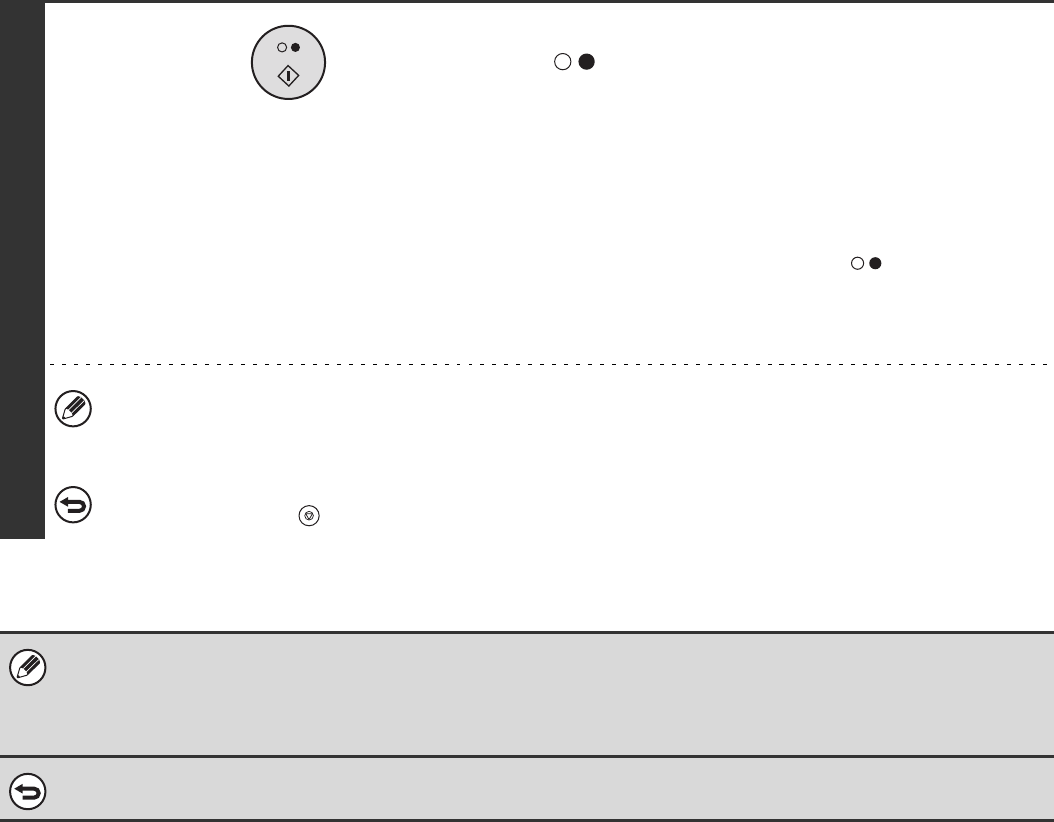
75
6
Press the [BLACK & WHITE START] key
().
Scanning begins.
• If you inserted the original pages in the document feeder
tray, all pages are scanned.
A beep will sound to indicate that scanning is finished.
• If you are scanning the original on the document glass, scan
each page one page at a time.
When scanning finishes, place the next original and press
the [BLACK & WHITE START] key ( ). Repeat until all
pages have been scanned and then touch the [Read-End]
key.
A beep will sound to indicate that scanning is finished.
The [Configure] key can be touched in the scan-end confirmation screen to change the exposure, resolution, scan
size, and send size. (However, when scanning each even-numbered page of the original, only the exposure can be
changed.)
To cancel scanning...
Press the [STOP] key ( ).
• Transmission is not possible at a size smaller than the original size.
• This function cannot be used in direct transmission mode or when the speaker is used to dial.
• The 2in1 function cannot be used when the original is other than A4, B5 and A5 (8-1/2" x 11" and 5-1/2" x 8-1/2") size.
• When the scan size of the original is specified by numerical values, this function cannot be used.
To cancel 2in1...
Touch the [2in1] key in the screen of step 2 so that it is not highlighted.
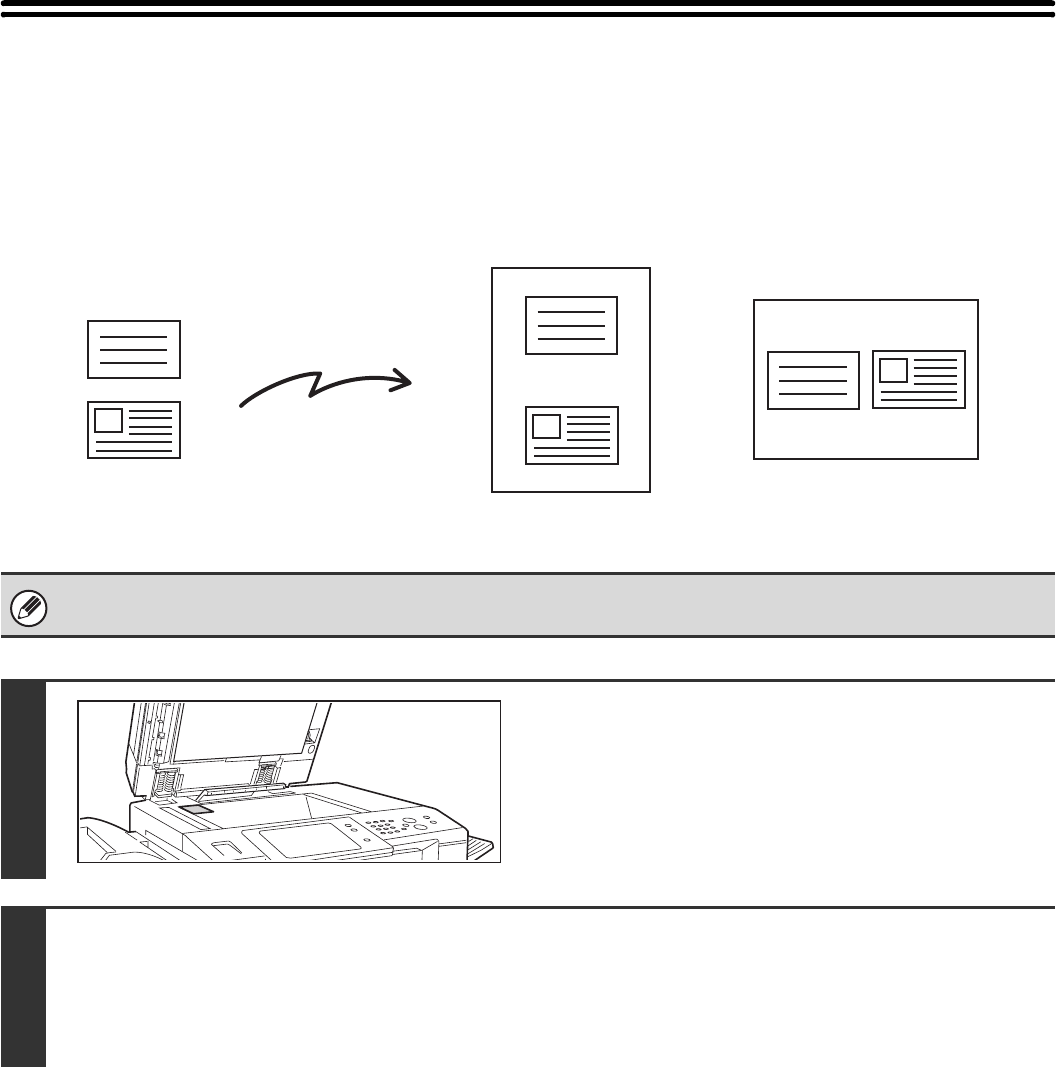
76
SENDING BOTH SIDES OF A CARD AS A
SINGLE PAGE (Card Shot)
This function lets you send the front and reverse sides of a card as a single page, without the need to send each side
separately.
When using card shot, the original must be scanned on the document glass.
1
Place the original (card) face down on
the document glass.
2
Select the special modes.
(1) Touch the [Special Modes] key.
(2) Touch the [Card Shot] key.
☞Special modes menu (1st screen) (page 60)
Transmission
Front
Back
Originals
Example of an A4 (8-1/2" x 11")
size portrait scan transmission
Example of an A4 (8-1/2" x 11")
size landscape scan transmission
Transmitted image
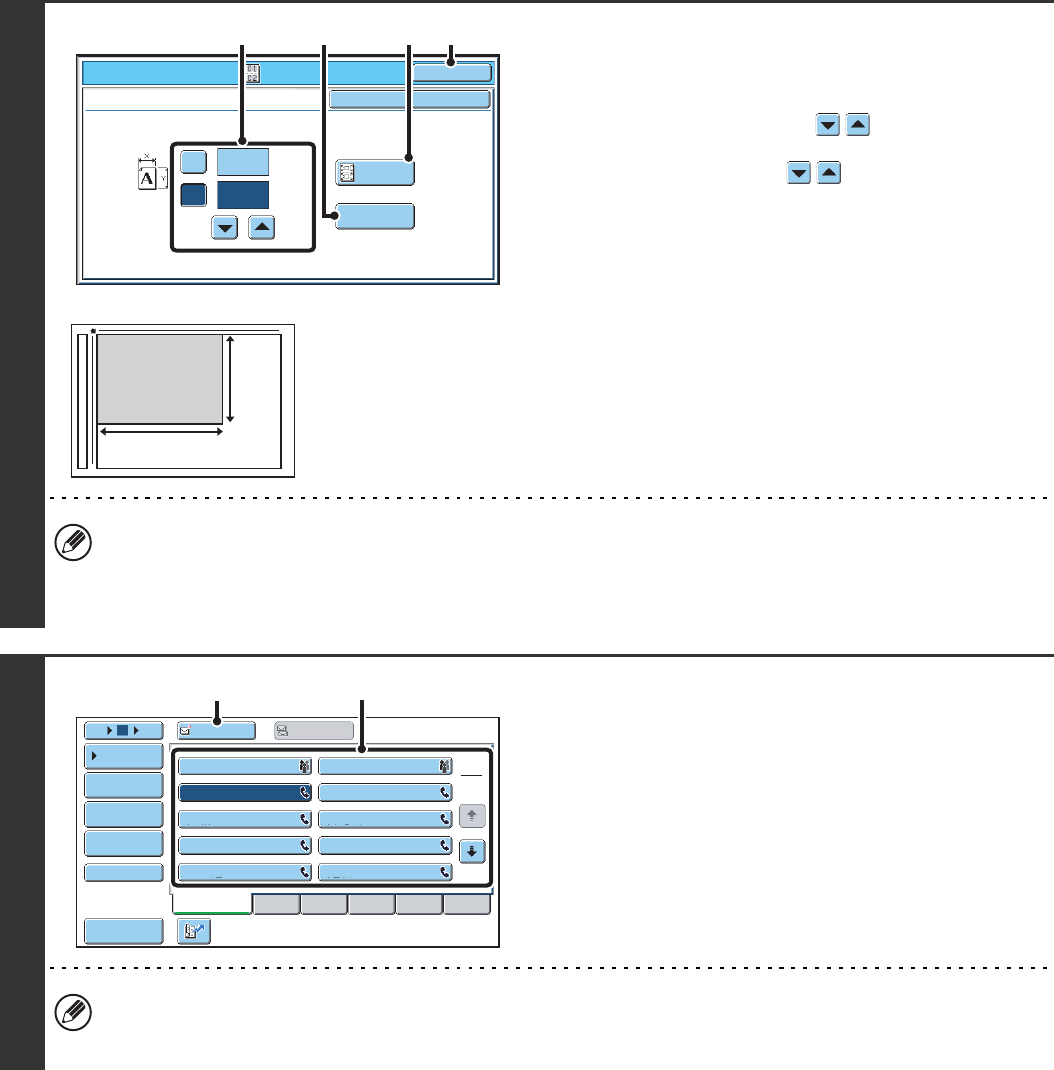
77
3
Specify the original size.
(1) Enter the original size.
• Touch the [X] key and enter the horizontal dimension
(X) of the original with the keys.
• Touch the [Y] key and enter the vertical dimension (Y)
of the original with the keys.
(A) To return the original size to the default size, touch
the [Size Reset] key.
(B) To automatically enlarge or reduce the image size to
the send size, touch the [Fit to Send Size] key. Do not
touch this key if you wish to scan the original at the
original size that you entered.
(2) Touch the [OK] key.
• The send size is automatically selected based on the original size you entered.
• After selecting Card Shot, you can touch the [Original] key in the base screen to change the original scan size or the
send size. In this case, the screen of step 3 appears when you touch the scan size key. For the procedure for
setting the send size, see "Specifying the send size of the original" (page 50).
4
Enter the destination fax number
(1) Touch the [Address Book] key in the base
screen.
(2) Touch the one-touch key of the desired
destination.
(3) Touch the [To] key.
In addition to specification by one-touch key, a destination can also be specified using a search number. You can also
directly enter a fax number with the numeric keys or look up a destination in a global address book. For more
information, see "2. ENTERING DESTINATIONS" (page 15).
Fax/Special Modes OK
X
Y
Card Shot
(25~210)
mm
(25~210)
mm
OK
Cancel
Fit to
Send Size
Size Reset
86
54
(2)(B)(1) (A)
X
Y
Frequent Use ABCD EFGHI JKLMN OPQRST UVWXYZ
1
2
105 15 To Cc
III III
GGG GGG
EEE EEE
CCC CCC
AAA AAA
JJJ JJJ
HHH HHH
FFF FFF
DDD DDD
BBB BBB
Global
Address Search
Address Entry
Sort Address
Sub Address
Address Review
Condition
Settings
(2)
(3)
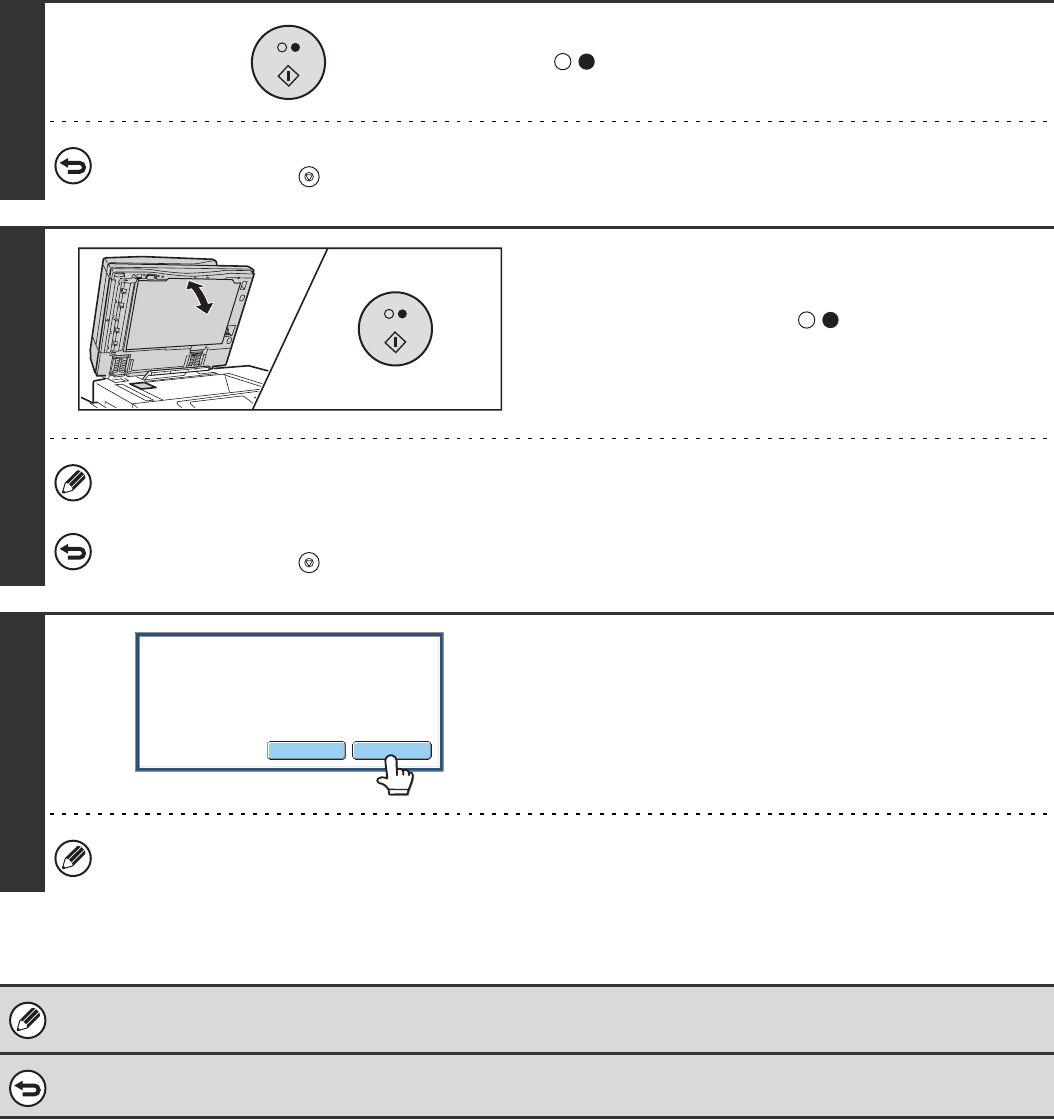
78
5
Press the [BLACK & WHITE START] key
( ) to scan the front of the card.
To cancel scanning...
Press the [STOP] key ( ).
6
Turn the card over so that the back is
face down, and press the [BLACK &
WHITE START] key ( ) to scan the
back of the card.
Before scanning the back of the card, you can touch the [Configure] key in the touch panel to change the exposure.
To cancel scanning...
Press the [STOP] key ( ).
7
Touch the [Read-End] key.
If you will continue by scanning the front of the card, you can touch the [Configure] key to change the exposure,
resolution, scan size, and send size.
• The ratio cannot be specified and "Rotation Sending Setting" cannot be selected.
• This function cannot be used in direct transmission mode or when the speaker is used to dial.
To cancel Card Shot...
Touch the [Cancel] key in the screen of step 3.
Place next original.
Press [Start].
When finished, press [Read-End].
(Pg.No.x)
Configure Read-End
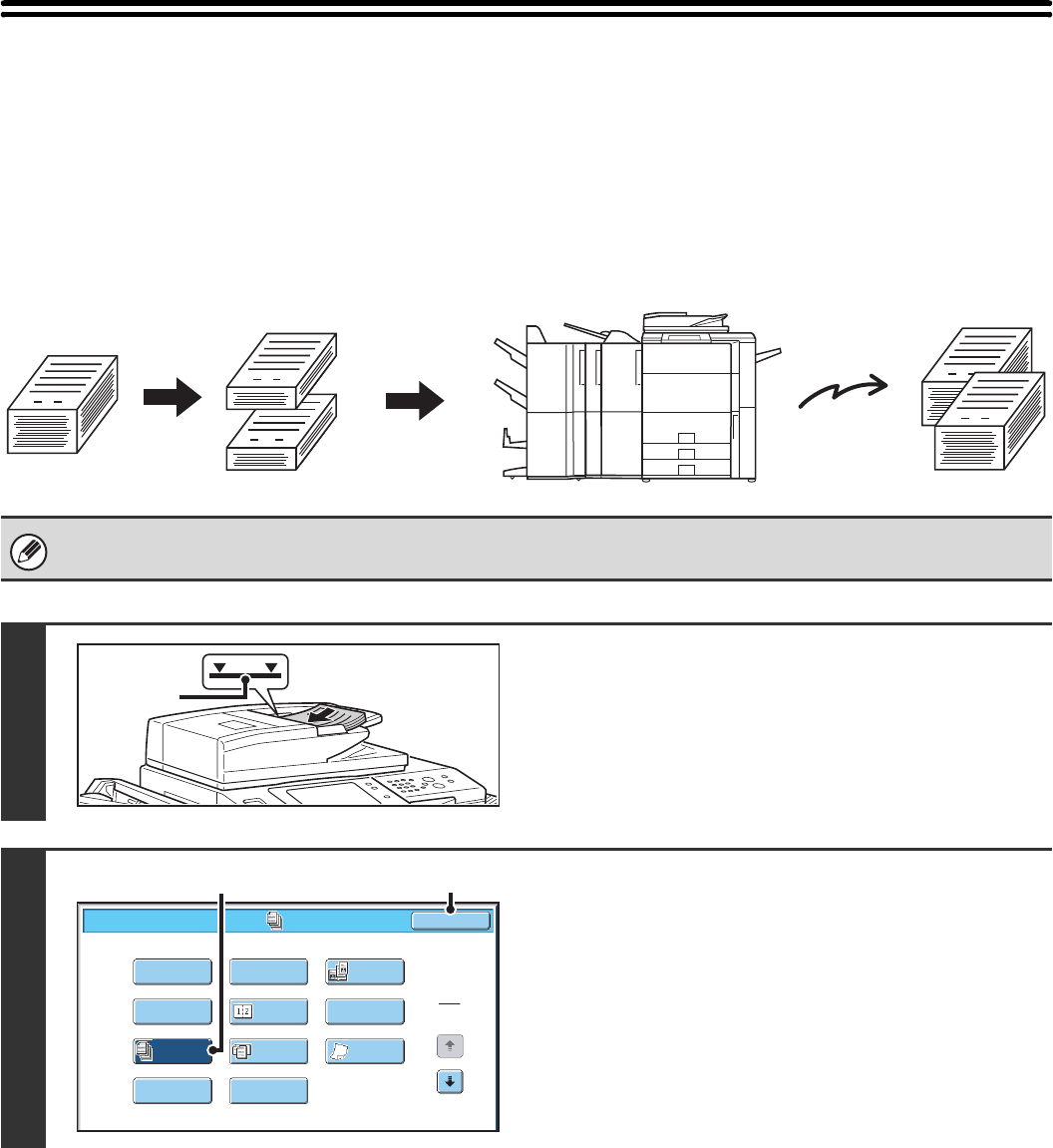
79
SENDING A LARGE NUMBER OF PAGES
(Job Build)
This function lets you separate an original consisting of numerous pages into sets, scan each set using the automatic
document feeder, and transmit the pages in a single transmission. Use this function when there are more original pages
than can be placed at once in the auto document feeder.
When scanning originals that are separated into sets, scan the set that has the first page first. The settings that you
select for the first set can be used for all remaining sets.
Up to 999 pages can be scanned. Note that when the memory is being used for other jobs, fewer pages can be scanned.
1
Insert the originals face up in the
document feeder tray.
Insert the originals all the way into the document feeder tray.
Multiple originals can be placed in the document feeder tray.
The stack of originals must not be higher than the indicator line
on the tray.
2
Select job build mode.
(1) Touch the [Special Modes] key.
☞SPECIAL MODES (page 60)
(2) Touch the [Job Build] key so that it is
highlighted.
(3) Touch the [OK] key.
1
1
1
101
1
Originals are
scanned in
separate sets.
All originals can
be sent in one
operation.
Originals
Indicator
line
1
2
Fax/Special Modes OK
Card Shot
Slow Scan
Mode
Dual Page
Scan
Quick File
Mixed Size
Original
Erase
File
Job
Build
2in1
Program
Timer
(3)(2)
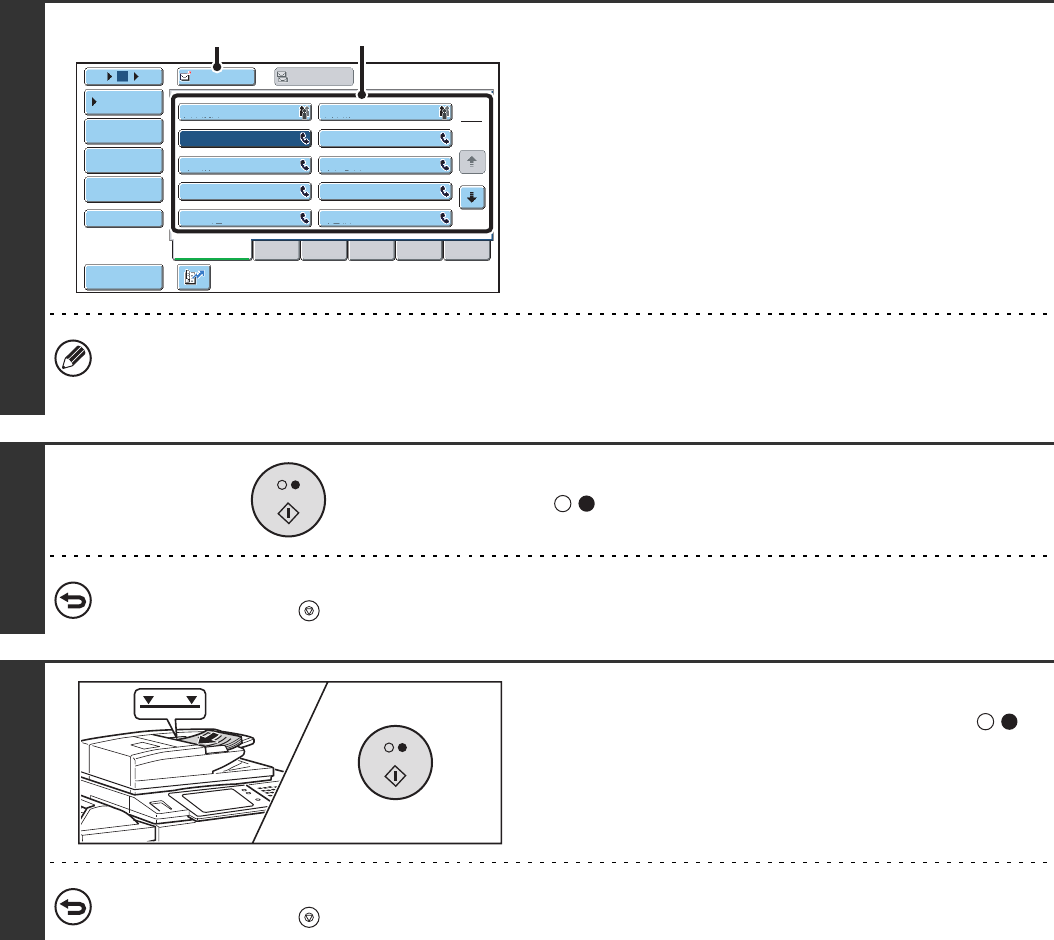
80
3
Enter the destination fax number
(1) Touch the [Address Book] key in the base
screen.
(2) Touch the one-touch key of the desired
destination.
(3) Touch the [To] key.
In addition to specification by one-touch key, a destination can also be specified using a search number. You can also
directly enter a fax number with the numeric keys or look up a destination in a global address book. For more
information, see "2. ENTERING DESTINATIONS" (page 15).
4
Press the [BLACK & WHITE START] key
( ) to scan the first set.
To cancel scanning...
Press the [STOP] key ( ).
5
Insert the next set of originals and press
the [BLACK & WHITE START] key ( ).
Repeat this step until all originals have been scanned.
To cancel scanning...
Press the [STOP] key ( ). All scanned data will be cleared.
Frequent Use ABCD EFGHI JKLMN OPQRST UVWXYZ
1
2
105 15 To Cc
III III
GGG GGG
EEE EEE
CCC CCC
AAA AAA
JJJ JJJ
HHH HHH
FFF FFF
DDD DDD
BBB BBB
Global
Address Search
Address Entry
Sort Address
Sub Address
Address Review
Condition
Settings
(2)
(3)
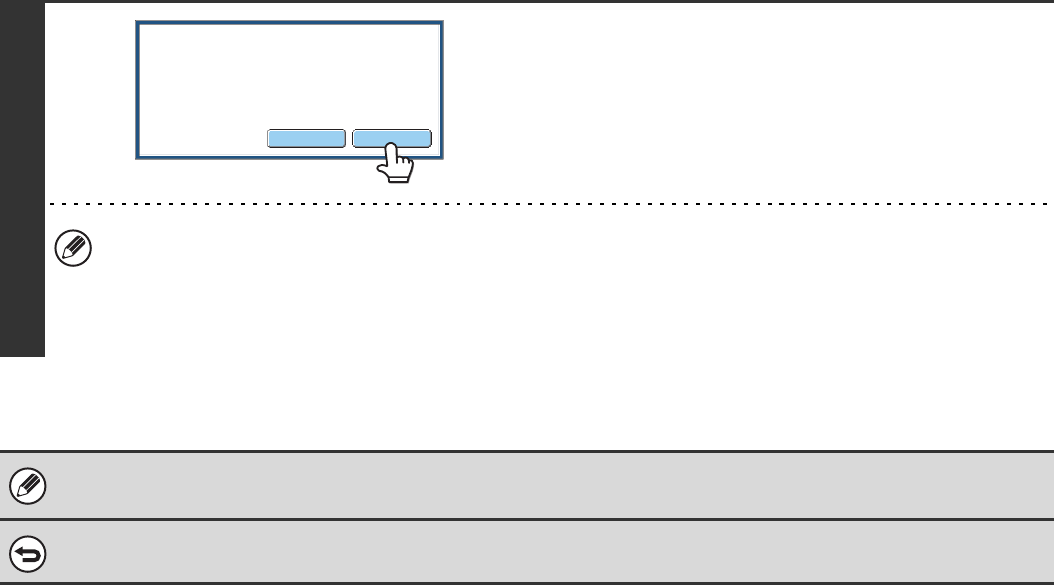
81
6
Touch the [Read-End] key.
• If no action is taken for one minute after the confirmation screen appears, scanning automatically ends and the
transmission is reserved.
• The [Configure] key can be touched to change the exposure, resolution, scan size, and send size for each original
page scanned. However, when Job Build is used in combination with 2in1 in the special modes, only the exposure
can be changed when scanning each even-numbered page of the original pages.
• If the memory becomes full during scanning, a message will appear and the transmission will be cancelled.
• This function cannot be used in direct transmission mode or when the speaker is used to dial.
To cancel Job Build....
Touch the [Job Build] key in the screen of step 2 so that it is not highlighted.
Place next original.
Press [Start].
When finished, press [Read-End].
(Pg.No.x)
Configure Read-End
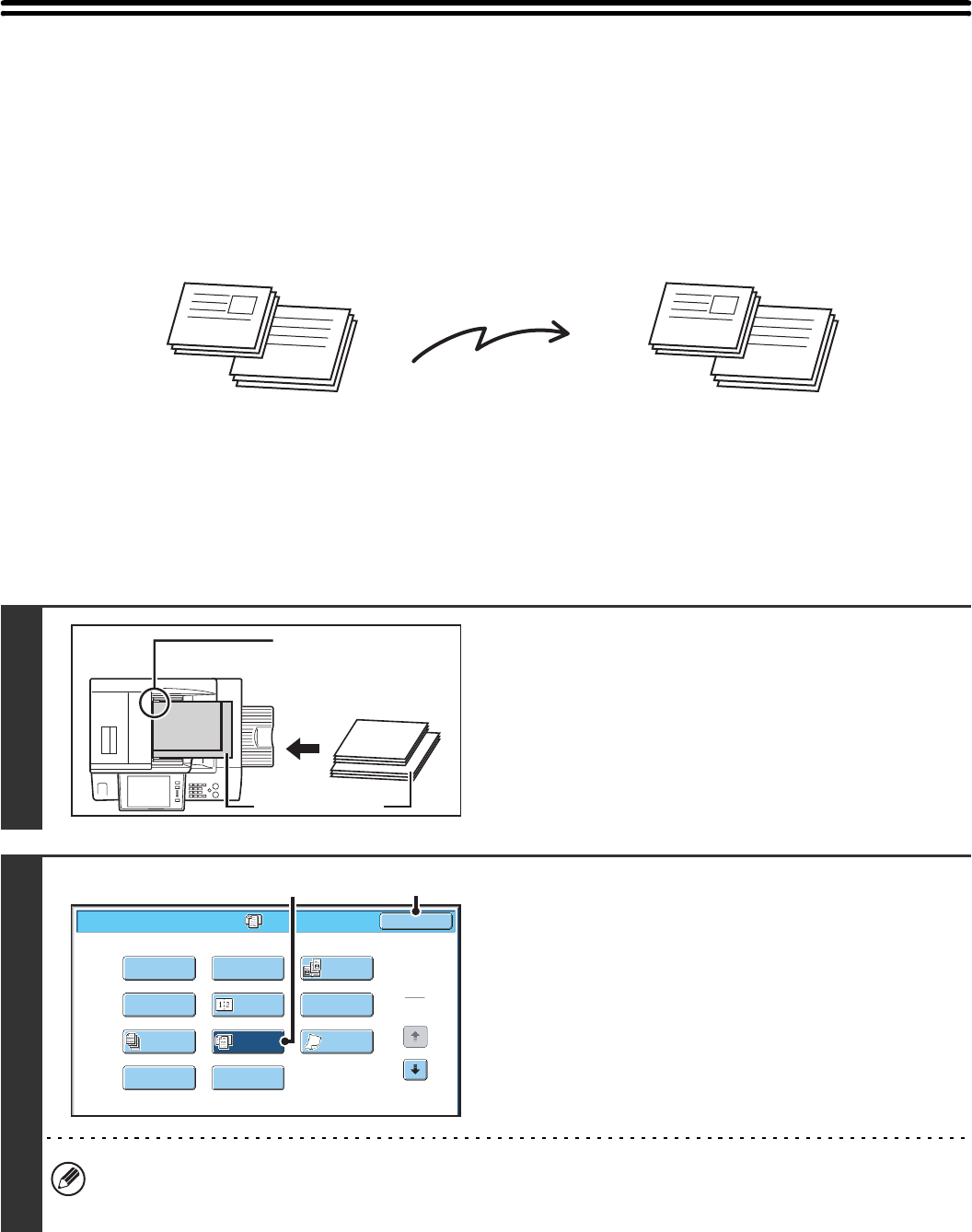
82
TRANSMITTING ORIGINALS OF DIFFERENT
SIZES (Mixed Size Original)
This feature lets you scan and transmit originals of different sizes at the same time; for example, B4 (8-1/2" x 14") size
originals mixed together with A3 (11" x 17") size originals. When scanning the originals, the machine automatically
detects the size of each original.
This feature can only be used with the following combinations of original sizes:
• A3 and B4 • A3 and B5 • B4 and A4 • A4 and B5
• A4R and B5 • B4 and A4R • B4 and A5 • B5 and A5
• 11" x 17" and 8-1/2" x 14" • 11" x 17" and 8-1/2" x 13" • 11" x 17" and 5-1/2" x 8-1/2"
1
Insert the originals face up in the
document feeder tray.
Insert the originals with the corners aligned together in the far
left corner of the document feeder tray.
2
Select the mixed size original setting.
(1) Touch the [Special Modes] key.
☞SPECIAL MODES (page 60)
(2) Touch the [Mixed Size Original] key so that
it is highlighted.
(3) Touch the [OK] key.
If an original scan size has been specified, a message will appear when the [Mixed Size Original] key is touched. To
enable the Mixed Size Original setting, change the scan size setting to auto and then touch the [Mixed Size Original]
key again.
B4 A3
B4
A3
B4
(8-1/2" x 14")
B4
(8-1/2" x 14")
A3 (11" x 17")
Place the originals with
the corners aligned
together in the far left
corner.
1
2
Fax/Special Modes OK
Card Shot
Slow Scan
Mode
Dual Page
Scan
Quick File
Mixed Size
Original
Erase
File
Job
Build
2in1
Program
Timer
(3)(2)
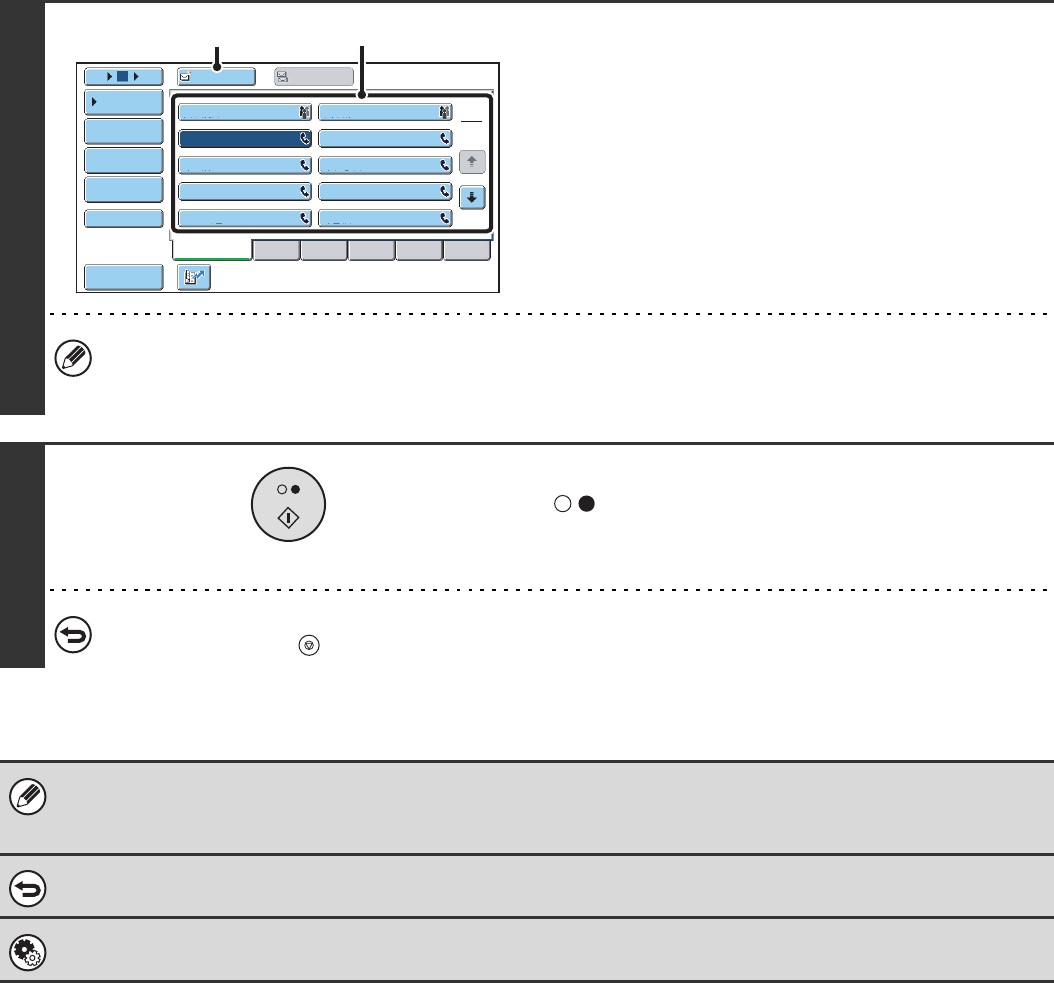
83
3
Enter the destination fax number.
(1) Touch the [Address Book] key in the base
screen.
(2) Touch the one-touch key of the desired
destination.
(3) Touch the [To] key.
In addition to specification by one-touch key, a destination can also be specified using a search number. You can also
directly enter a fax number with the numeric keys or look up a destination in a global address book. For more
information, see "2. ENTERING DESTINATIONS" (page 15).
4
Press the [BLACK & WHITE START] key
().
Scanning begins. A beep will sound to indicate that scanning is
finished.
To cancel scanning...
Press the [STOP] key ( ).
• If an original scan size is specified after selecting the Mixed Size Original setting, the original scan size setting will be
enabled and the Mixed Size Original setting will be cleared.
• When the mixed size original setting is selected, rotation sending does not operate.
To cancel the mixed size original setting...
Touch the [Mixed Size Original] key in the screen of step 2 so that it is not highlighted.
System Settings (Administrator): Original Feeding Mode
The original feeding mode can be set to always scan mixed size originals.
Frequent Use ABCD EFGHI JKLMN OPQRST UVWXYZ
1
2
105 15 To Cc
III III
GGG GGG
EEE EEE
CCC CCC
AAA AAA
JJJ JJJ
HHH HHH
FFF FFF
DDD DDD
BBB BBB
Global
Address Search
Address Entry
Sort Address
Sub Address
Address Review
Condition
Settings
(2)
(3)
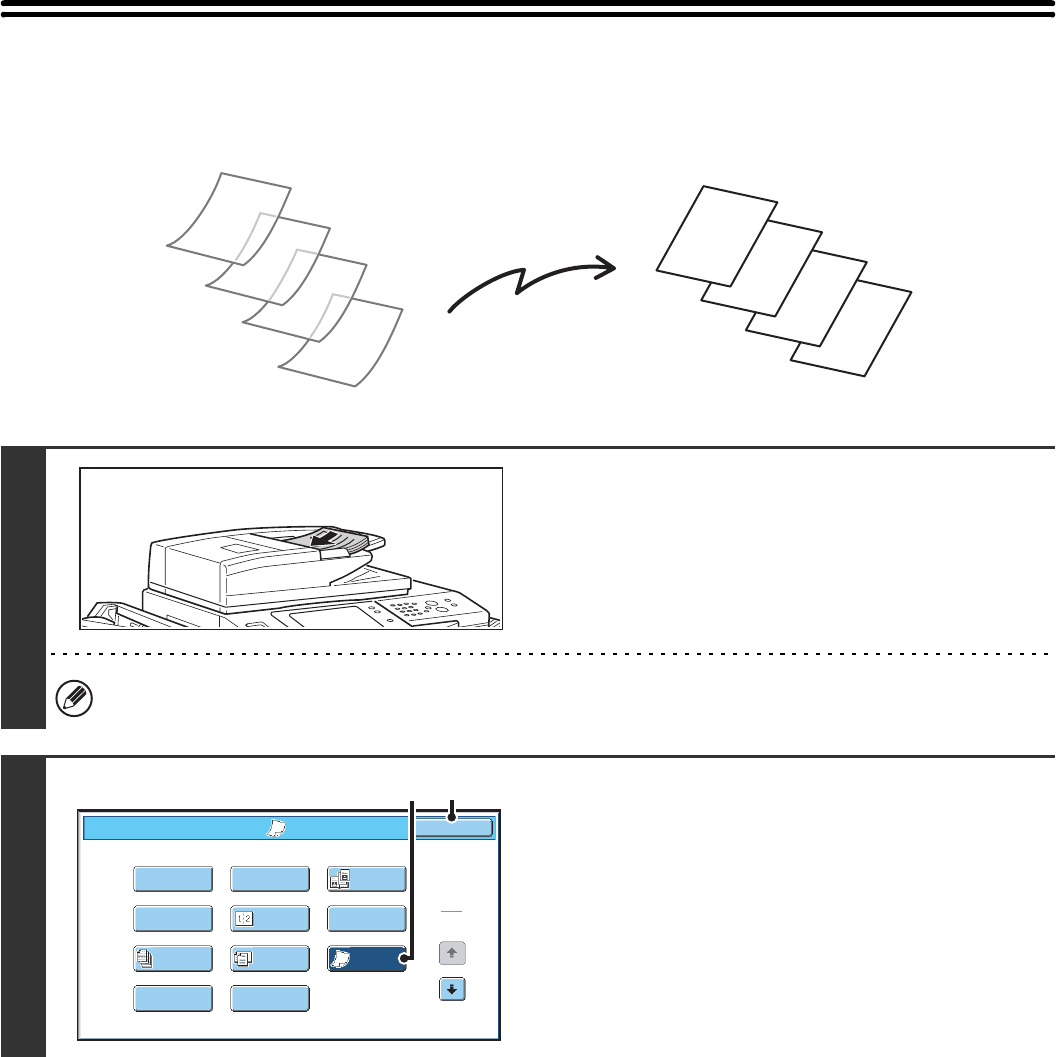
84
FAXING THIN ORIGINALS (Slow Scan Mode)
Use this function when you wish to scan thin originals using the automatic document feeder. This function helps prevent
thin originals from misfeeding.
1
Insert the originals face up in the
document feeder tray.
Adjust the document guides slowly.
If the originals are inserted with too much force, they may crumple and misfeed.
2
Select slow scan mode.
(1) Touch the [Special Modes] key.
☞SPECIAL MODES (page 60)
(2) Touch the [Slow Scan Mode] key so that it is
highlighted.
(3) Touch the [OK] key.
D
C
B
A
D
C
B
A
1
2
Fax/Special Modes OK
Card Shot
Slow Scan
Mode
Dual Page
Scan
Quick File
Mixed Size
Original
Erase
File
Job
Build
2in1
Program
Timer
(3)(2)
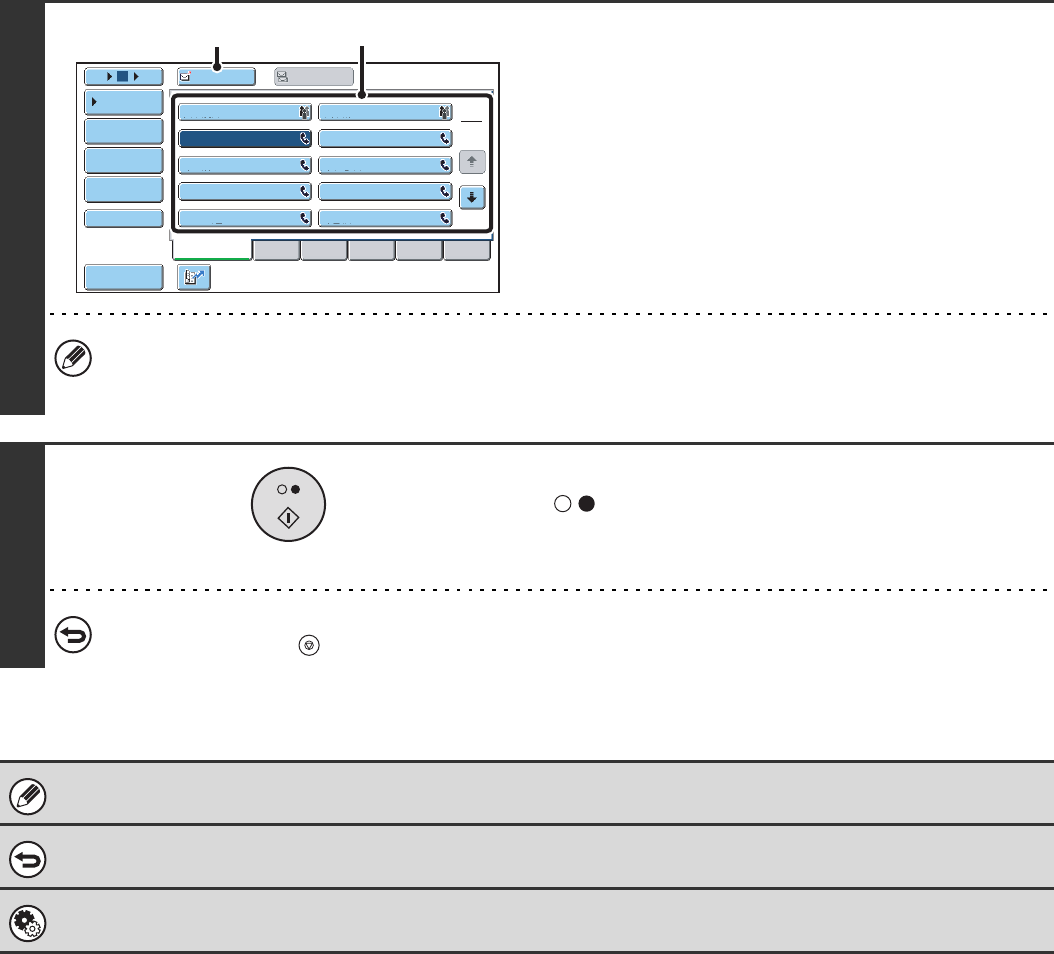
85
3
Enter the destination fax number.
(1) Touch the [Address Book] key in the base
screen.
(2) Touch the one-touch key of the desired
destination.
(3) Touch the [To] key.
In addition to specification by one-touch key, a destination can also be specified using a search number. You can also
directly enter a fax number with the numeric keys or look up a destination in a global address book. For more
information, see "2. ENTERING DESTINATIONS" (page 15).
4
Press the [BLACK & WHITE START] key
().
Scanning begins. A beep will sound to indicate that scanning is
finished.
To cancel scanning...
Press the [STOP] key ( ).
When this function is selected, automatic 2-sided scanning is not possible.
To cancel slow scan mode...
Touch the [Slow Scan Mode] key in the screen of step 2 so that it is not highlighted.
System Settings (Administrator): Original Feeding Mode
This is used to have scanning always take place using slow scan mode.
Frequent Use ABCD EFGHI JKLMN OPQRST UVWXYZ
1
2
105 15 To Cc
III III
GGG GGG
EEE EEE
CCC CCC
AAA AAA
JJJ JJJ
HHH HHH
FFF FFF
DDD DDD
BBB BBB
Global
Address Search
Address Entry
Sort Address
Sub Address
Address Review
Condition
Settings
(2)
(3)
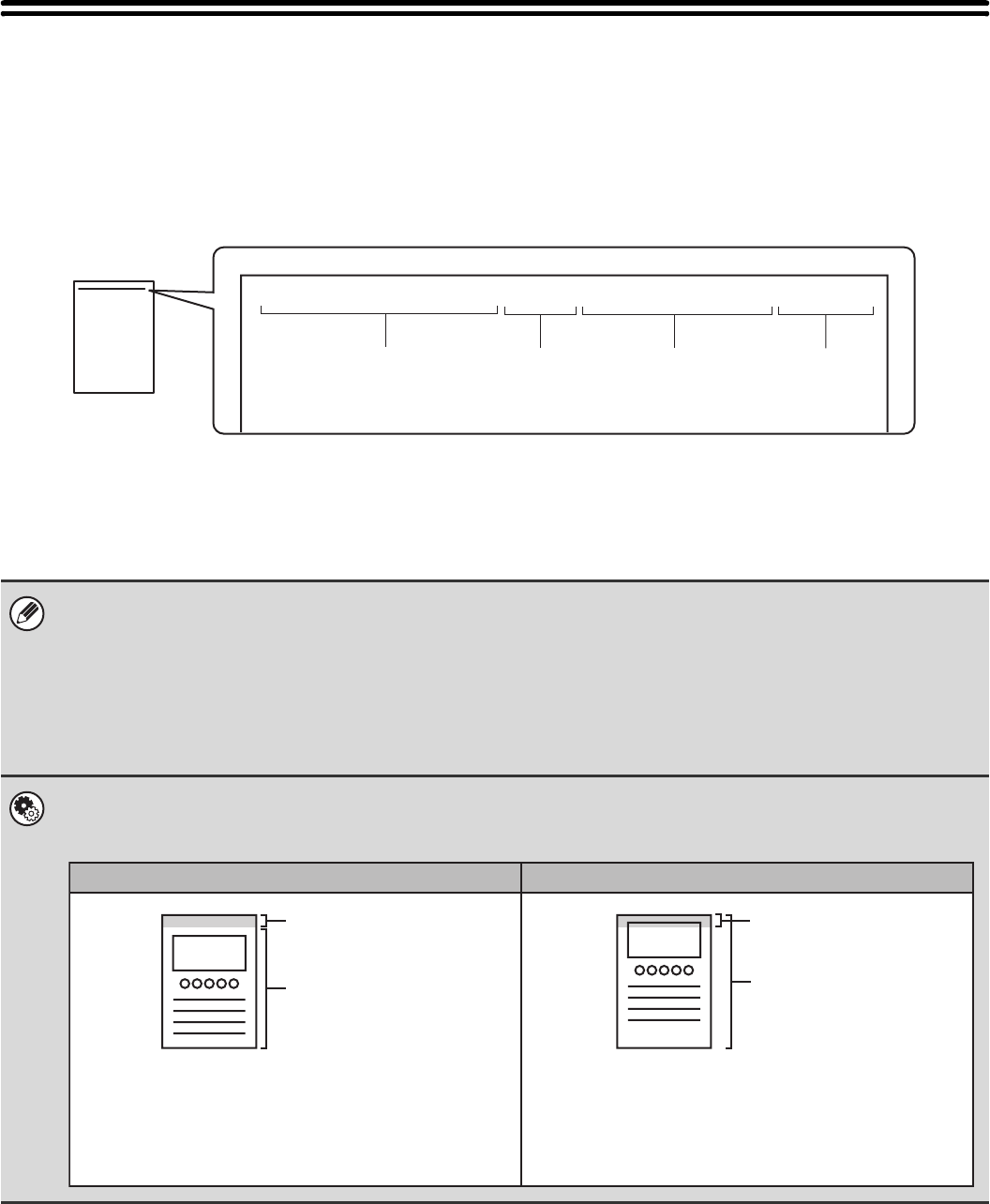
86
ADDING YOUR SENDER INFORMATION TO
FAXES (Own number sending)
Your sender information (date, time, sender name, sender fax number, number of pages) is automatically added to the
top of each fax page you transmit.
Example of the sender information printed
(1) Date, time: The date and time of transmission.
(2) Sender name: The sender name programmed in the machine.
(3) Sender fax number: The sender fax number programmed in the machine.
(4) Page numbers: Page number / total pages (the total page number is only printed
when the fax is sent by memory transmission.)
Information programmed in Own Number Sending
Date, time: To set or check the date and time, see the System Settings Guide.
Sender name, sender fax number: Program the sender name and fax number in "Fax Own Name and Number Set" in the
system settings (administrator).
Page numbers: Select whether or not to include page numbers in "Printing Page Number at Receiver" in
the system settings (administrator).
Page numbers appear in the format "page number / total pages". Only the page number
is printed when manual transmission or quick online transmission is used.
System Settings (Administrator): Date/Own Number Print Position Setting
This is used to set the position where the sender information is printed. The sender information can be printed outside the
scanned original image or inside the scanned original image.
01/APR/2006/Sat 3:00 PM AAAAA FAX No. 0123456789 P.001/001
(1) (2) (3) (4)
Sender
information
Sender
information
Originals Originals
Outside scanned image (factory default setting) Inside scanned image
The transmitted image length will be: length of sender
information + length of original image. When the fax is
printed by the receiving machine, it may be reduced or
divided onto two pages.
The sender information is printed inside the original
image, and thus the transmitted image length is the
length of the original. Note that the sender information
will overlap part of the original image (the overlapped
part of the original image will not appear).
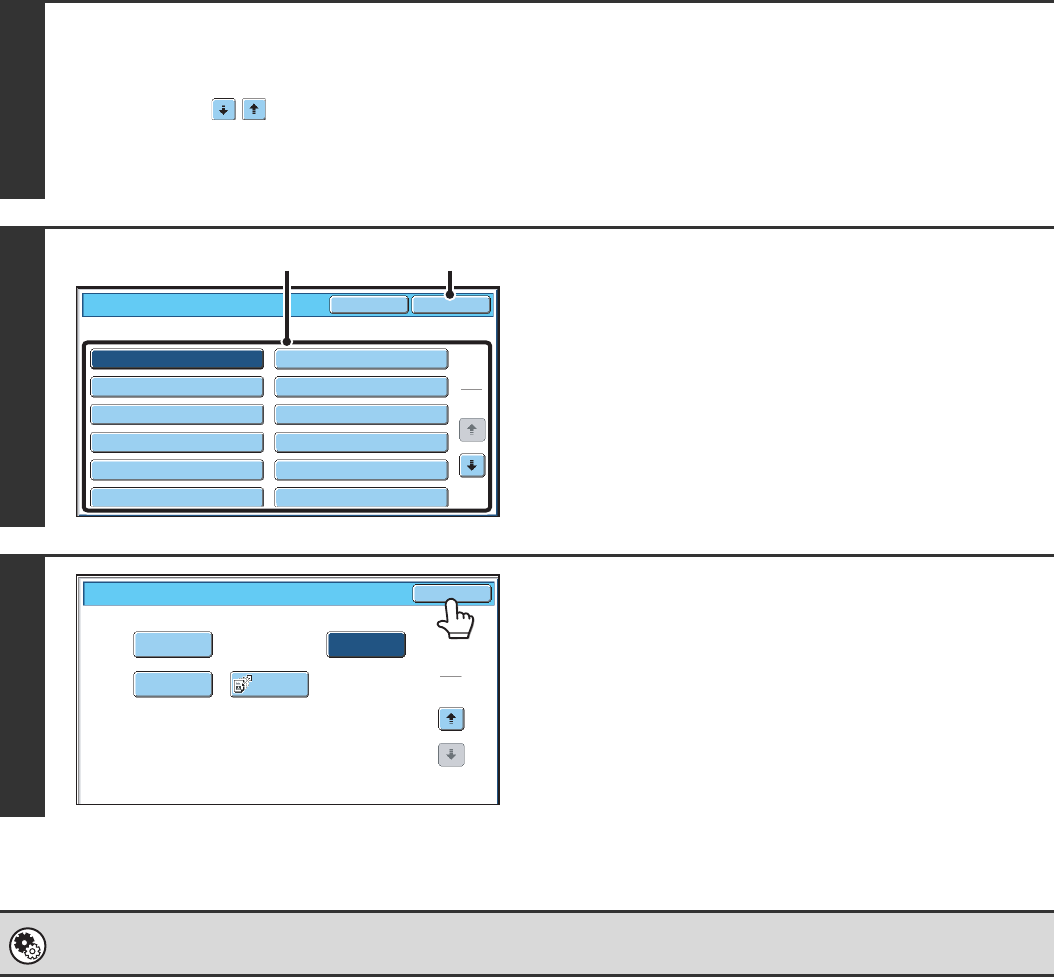
87
TEMPORARILY CHANGING THE SENDER
INFORMATION (Own Name Select)
You can select the sender information printed on a transmitted fax from a list of stored senders.
1
Select the special modes.
(1) Touch the [Special Modes] key.
(2) Touch the keys to switch through the screens.
(3) Touch the [Own Name Select] key.
☞Special modes menu (2nd screen) (page 61)
2
Select the sender information.
(1) Touch the desired sender information key.
(2) Touch the [OK] key.
3
Touch the [OK] key.
System Settings (Administrator): Registration of Own Name Select
This is used to store sender information for Own Name Select.
Own Name Select Cancel OK
1
2
AAAAA
CCCCC
EEEEE
GGGGG
IIIII
KKKKK
BBBBB
DDDDD
FFFFF
HHHHH
JJJJJ
LLLLL
(1) (2)
Transaction
Report
Own Name
Select
Memory Box Polling
OK
Fax/Special Modes
2
2
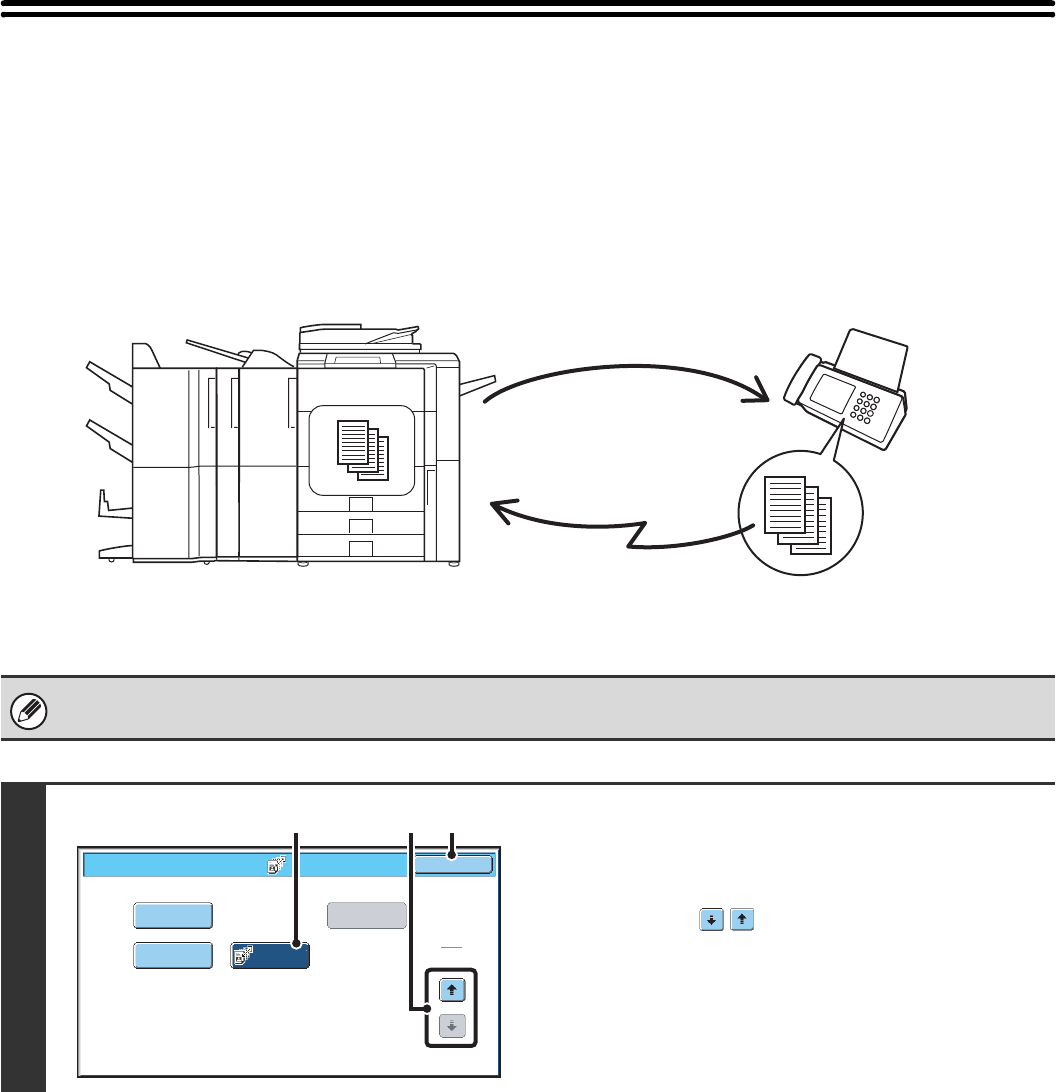
88
CALLING A FAX MACHINE AND INITIATING
RECEPTION (Polling)
The Polling function allows the receiving machine to call the transmitting machine and initiate reception of a document in
that machine.
Because the receiving machine initiates reception of a document, this is called "Polling Reception".
Make sure that an original is not placed in the machine when using the polling reception function.
1
Select polling reception.
(1) Touch the [Special Modes] key.
☞SPECIAL MODES (page 60)
(2) Touch the keys to switch through the
screens.
(3) Touch the [Polling] key so that it is
highlighted.
(4) Touch the [OK] key.
(1) Requests fax transmission.
Transmission
(2) The previously prepared
document is transmitted.
(3) The fax is received.
Transaction
Report
Own Name
Select
Memory Box Polling
OK
Fax/Special Modes
2
2
(2) (4)(3)
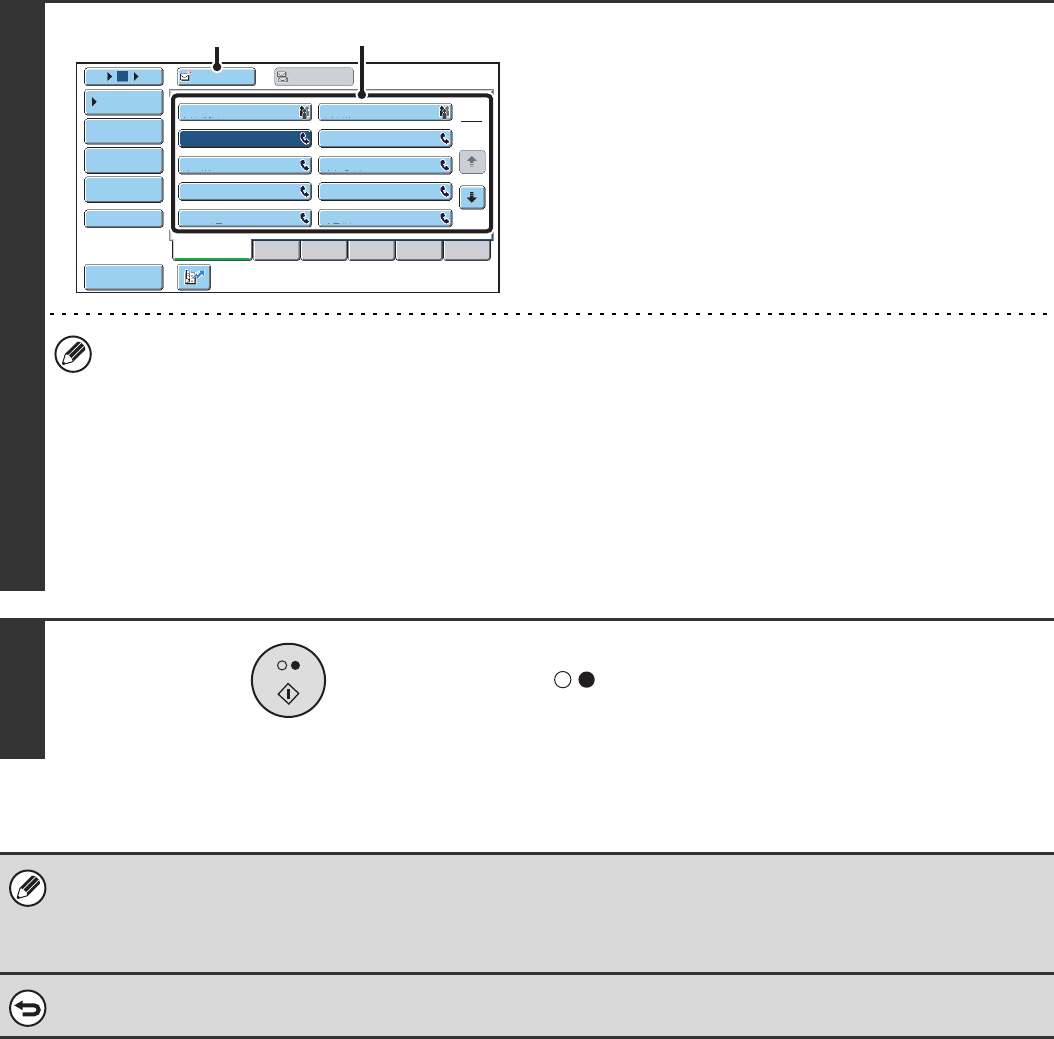
89
2
Enter the destination fax number.
(1) Touch the [Address Book] key in the base
screen.
(2) Touch the one-touch key of the desired
destination.
(3) Touch the [To] key.
If you wish to enter multiple fax numbers, repeat steps (2)
and (3) above to enter each number.
• In addition to specification by one-touch key, a destination can also be specified using a search number. You can
also directly enter a fax number with the numeric keys or look up a destination in a global address book. For more
information, see "2. ENTERING DESTINATIONS" (page 15).
•Multiple fax numbers can be entered.
Polling will take place in the order that the numbers were entered.
Polling multiple machines is called "Serial Polling".
Up to 500 fax numbers can be entered. In this procedure, one-touch keys that have a sub-address and passcode
cannot be used.
• To enter multiple fax numbers, touch the [Next Address] key after entering a fax number and enter the next fax
number.
3
Press the [BLACK & WHITE START] key
().
Your machine will call the other machine and initiate reception
of the fax.
• Polling reception can be used in combination with the timer function to poll at any specified time, such as at night or when
you are not present.
• This function can only be used when the other machine is Super G3 or G3 compatible and has a polling function.
• The receiving machine bears the expense (phone charges) of the polling reception.
To cancel polling reception...
Touch the [Polling] key in the screen of step 1 so that it is not highlighted.
Frequent Use ABCD EFGHI JKLMN OPQRST UVWXYZ
1
2
105 15 To Cc
III III
GGG GGG
EEE EEE
CCC CCC
AAA AAA
JJJ JJJ
HHH HHH
FFF FFF
DDD DDD
BBB BBB
Global
Address Search
Address Entry
Sort Address
Sub Address
Address Review
Condition
Settings
(2)
(3)
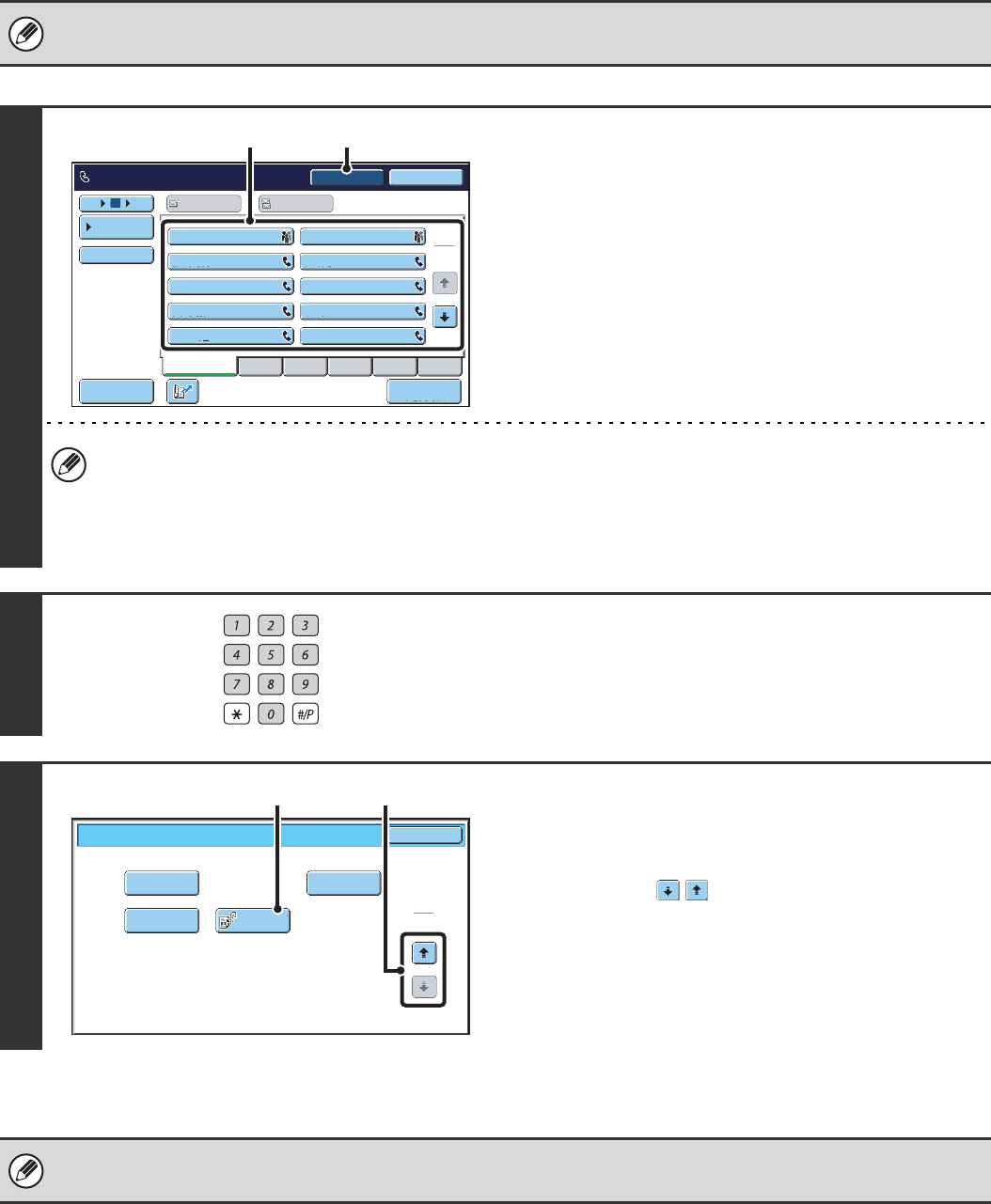
90
INITIATING POLLING RECEPTION MANUALLY
Use this procedure when you must start polling after listening to a recorded greeting, such as when using a fax
information service.
• Make sure that an original is not placed in the machine when using the polling reception function.
• This function cannot be used to poll multiple machines (serial polling).
1
Enter the destination fax number.
(1) Touch the [Speaker] key.
You will hear the dial tone through the machine's speaker.
(2) Touch the [Address Book] key in the base
screen.
(3) Touch the one-touch key of the desired
destination.
A group key cannot be used.
• In addition to specification by one-touch key, a destination can also be specified using a search number. You can
also directly enter a fax number with the numeric keys or look up a destination in a global address book. For more
information, see "2. ENTERING DESTINATIONS" (page 15).
• After touching the [Speaker] key, you can touch the [Speaker Volume] key to adjust the volume of the speaker. The
speaker volume changes each time the [Speaker Volume] key is touched. Adjust the volume to the desired level.
2
Follow the instructions in the recorded
greeting.
3
Receive the fax.
(1) Touch the [Special Modes] key.
☞SPECIAL MODES (page 60)
(2) Touch the keys to switch through the
screens.
(3) When you hear the fax tone, touch the
[Polling] key.
The fax is received.
• This function can only be used when the other machine is Super G3 or G3 compatible and has a polling function.
• The receiving machine bears the expense (phone charges) of the polling reception.
1
2
III III
GGG GGG
EEE EEE
CCC CCC
AAA AAA
JJJ JJJ
HHH HHH
FFF FFF
DDD DDD
BBB BBB
105 15
Sort Address
Speaker Volume
To Cc
Telephone mode.
Fax Manual
Reception
Resend
Speaker
Frequent Use ABCD EFGHI JKLMN OPQRST UVWXYZ
Condition
Settings
(3) (1)
Transaction
Report
Own Name
Select
Memory Box Polling
OK
Fax/Special Modes
2
2
(2)(3)
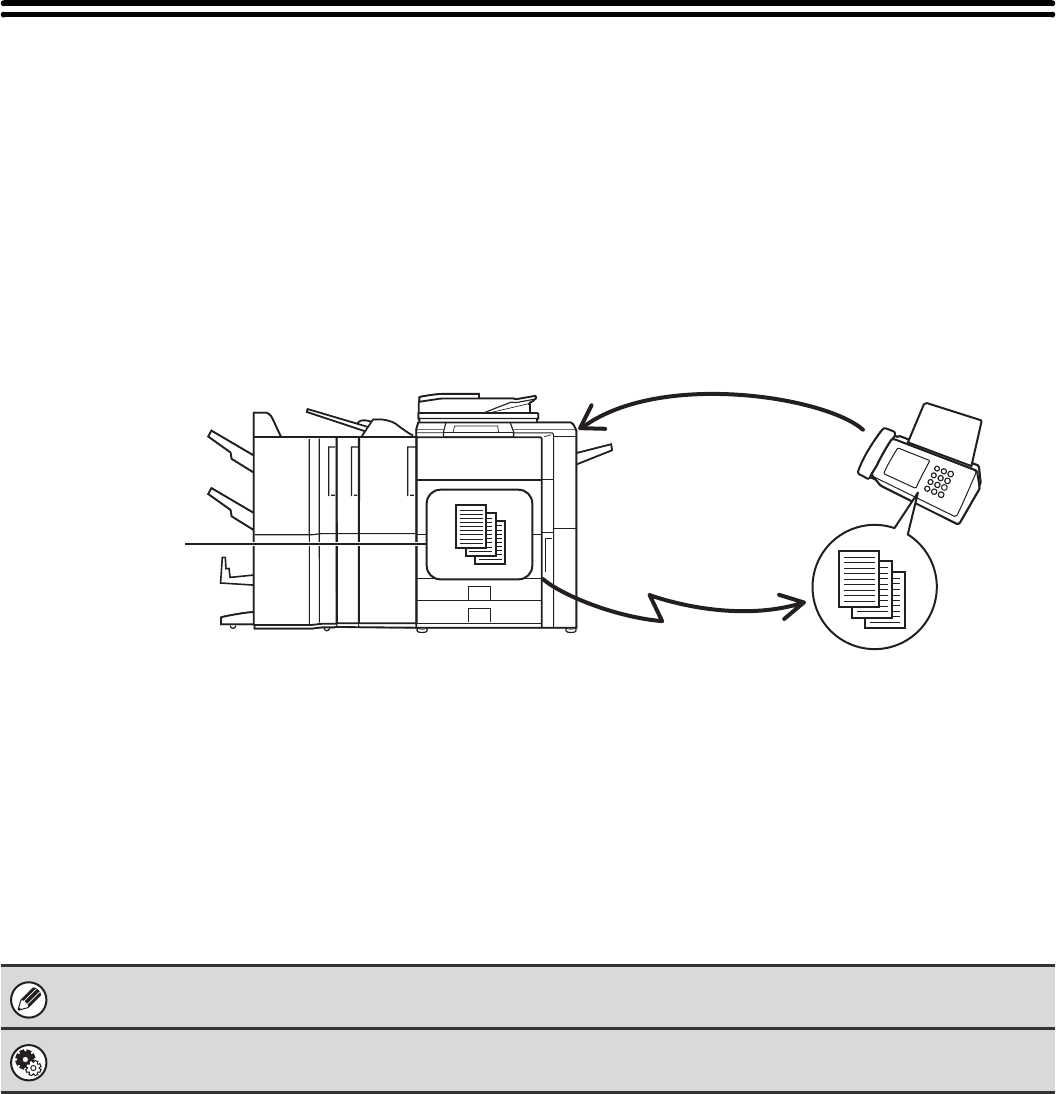
91
SENDING A FAX WHEN ANOTHER
MACHINE POLLS YOUR MACHINE
(Polling Memory)
Sending a document that has been scanned into memory when another machine polls your machine is called "Polling
Memory".
Prior to polling, the document that will be faxed to the other machine must be scanned into a polling memory box.
This function can only be used when the other machine is Super G3 or G3 compatible and has a polling function.
RESTRICTING POLLING ACCESS (Polling security)
To only allow specified machines to poll your machine, you can restrict polling to machines whose programmed sender
fax number matches a fax number stored in your machine as a polling passcode number. This is called "Polling
Security".
To use this function, first store polling passcode numbers (the sender fax numbers programmed in the other machines)
in the machine's system settings, and then enable polling security.
Up to 10 fax numbers can be stored as polling passcode numbers.
System Settings (Administrator): Fax Polling Security
This is used to enable polling security. This is used to store fax numbers as polling passcode numbers.
(1) Requests fax transmission.
(3) The fax is received.
(2) The document in the memory box is
transmitted.
Polling
memory box
Transmission
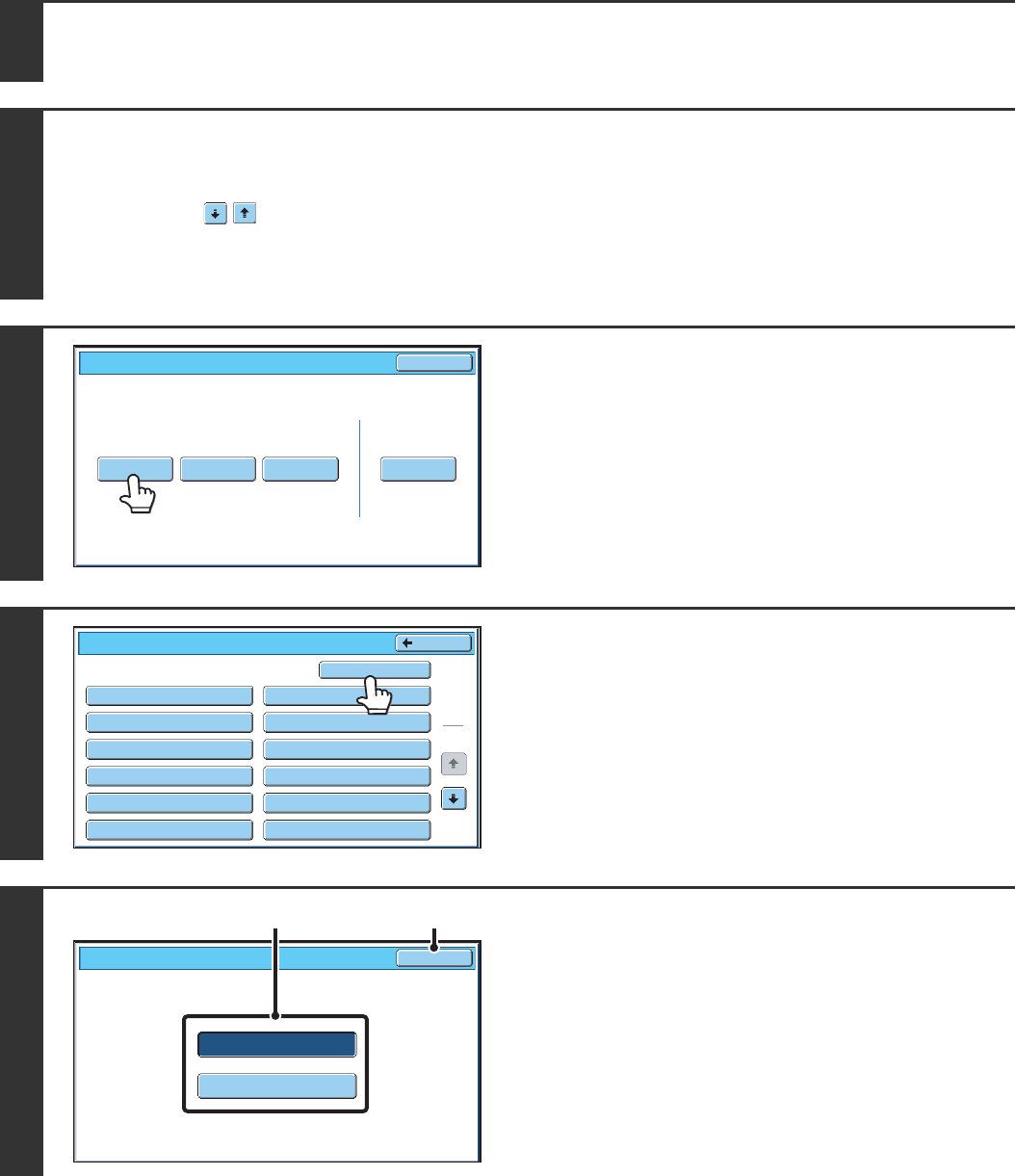
92
SCANNING A DOCUMENT INTO POLLING MEMORY
Follow these steps to scan a document into the memory box for polling transmission (Public Box).
1Place the original.
Place the original face up in the document feeder tray, or face down on the document glass.
2
Select the special modes.
(1) Touch the [Special Modes] key.
(2) Touch the keys to switch through the screens.
(3) Touch the [Memory Box] key.
☞Special modes menu (2nd screen) (page 61)
3
Touch the [Data Store] key.
4
Touch the [Public Box] key.
5
Specify the number of polling times.
(1) Touch the key for the desired number of
times.
Touch the [Once] key if you want the document cleared
from memory after it is transmitted. Touch the [Unlimited]
key to allow polling an unlimited number of times.
(2) Touch the [OK] key.
Polling Memory Confidential
Reception
Print Data Delete Data
Data Store
Memory Box
Print Data
Exit
Memory Box - Data Store
Public Box
Back
1
2
Box 1
Box 3
Box 5
Box 7
Box 9
Box 11
Box 2
Box 4
Box 6
Box 8
Box 10
Box 12
Unlimited
Once
OK
Memory Box - Data Store
(1) (2)
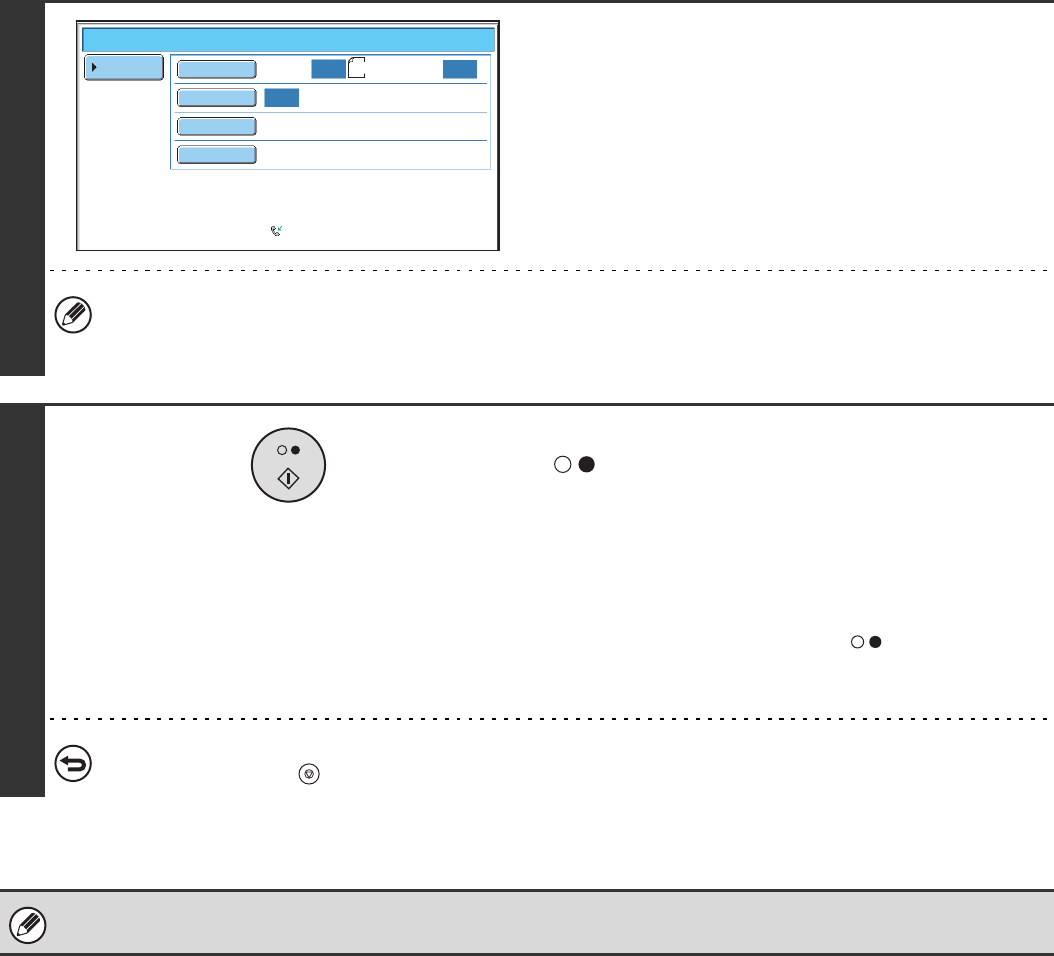
93
6
Select image settings and special
modes.
• The following functions can be selected:
Erase, Dual Page Scan, 2in1, Card Shot, Job Build, Mixed Size Original, Slow Scan Mode, Own Name Select.
• To return to the screen of step 4, touch the [Memory Box List] key.
7
Press the [BLACK & WHITE START] key
().
Scanning begins.
• If you inserted the original pages in the document feeder
tray, all pages are scanned.
• If you are scanning the original on the document glass, scan
each page one page at a time.
When scanning finishes, place the next original and press
the [BLACK & WHITE START] key ( ). Repeat until all
pages have been scanned and then touch the [Read-End]
key.
To cancel scanning...
Press the [STOP] key ( ) while the original is being scanned.
If another document remains in the memory box (Public Box), the newly scanned document is added to the previous
document. In this case, the number of polling times will be the number set for the newly scanned document.
Standard
Auto Reception
Fax Memory:100%
Scan: Send:
Auto
Auto
Auto
Memory Box - Data Store
Memory Box
List
Special Modes
Resolution
Exposure
Original A4
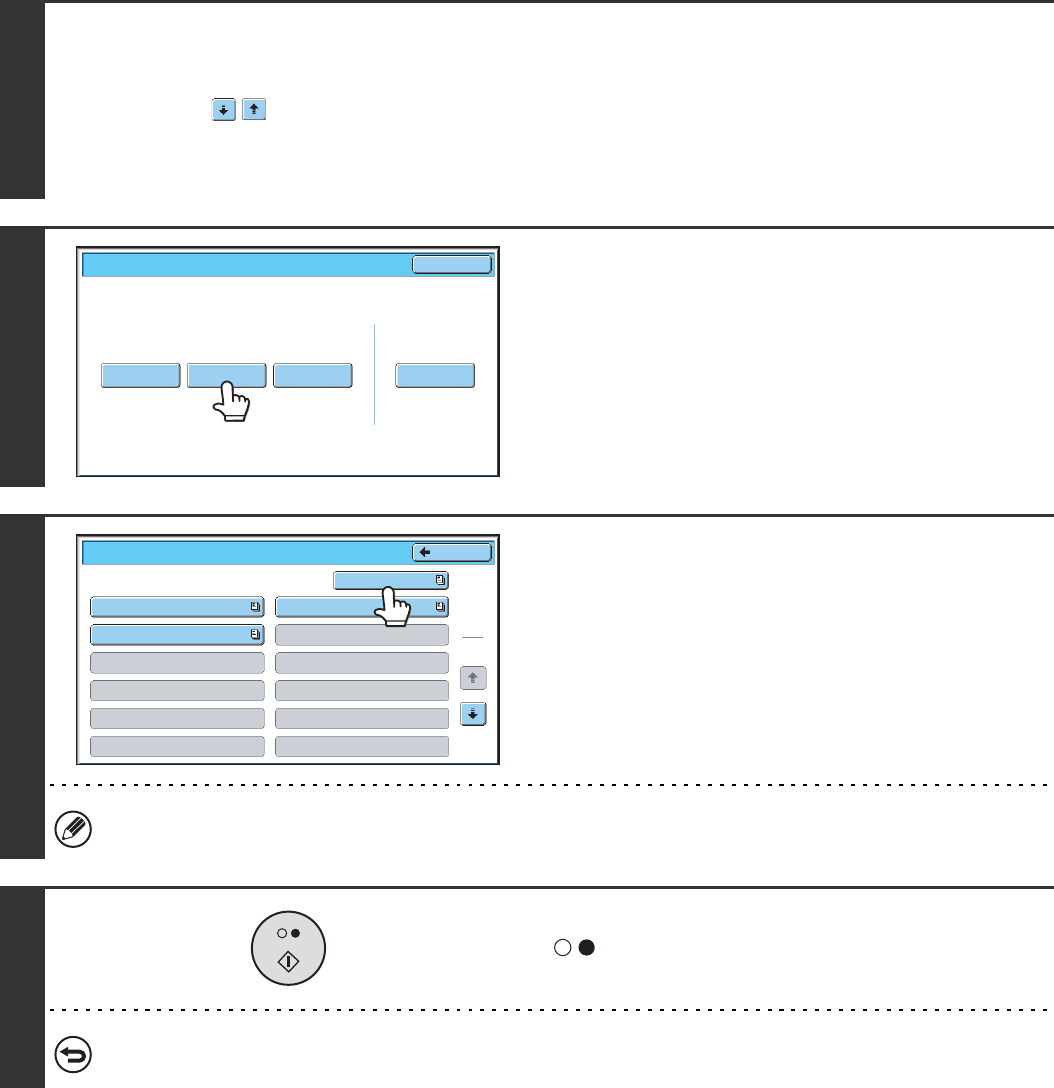
94
PRINTING A DOCUMENT STORED IN THE PUBLIC BOX
To check a document stored in the Public Box for polling transmission, follow the steps below to print the document.
1
Select the special modes.
(1) Touch the [Special Modes] key.
(2) Touch the keys to switch through the screens.
(3) Touch the [Memory Box] key.
☞Special modes menu (2nd screen) (page 61)
2
Touch the [Print Data] key.
3
Touch the [Public Box] key.
When nothing is stored in the Public Box, the [Public Box] key will be greyed out.
4
Press the [BLACK & WHITE START] key
().
The stored document is printed.
To cancel printing...
Touch the [Cancel] key in the touch panel.
Polling Memory Confidential
Reception
Print Data Delete Data
Data Store
Memory Box
Print Data
Exit
Memory Box - Print Data
Public Box
Back
1
2
Box 1
Box 3
Box 5
Box 7
Box 9
Box 11
Box 2
Box 4
Box 6
Box 8
Box 10
Box 12
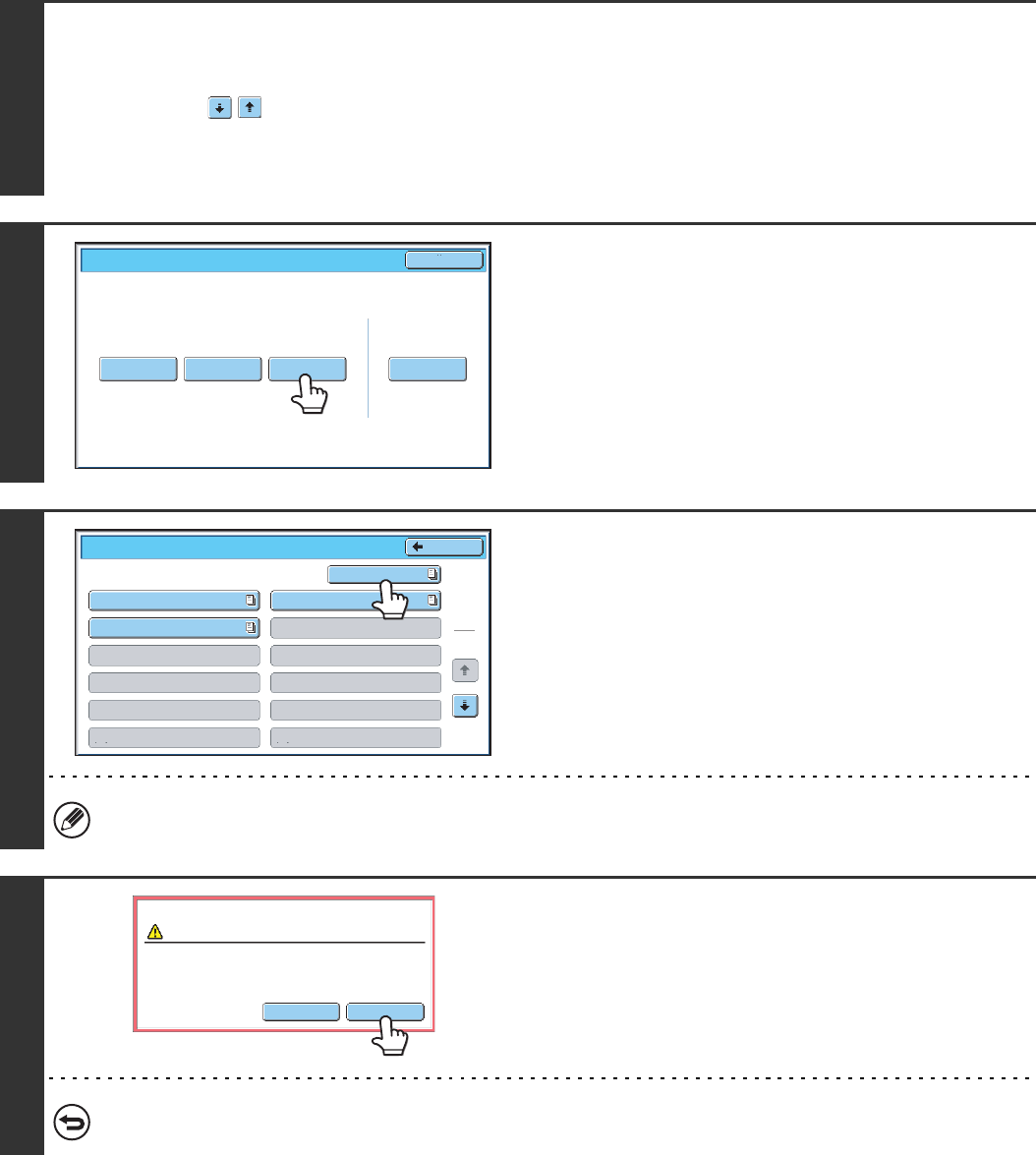
95
DELETING A DOCUMENT FROM THE PUBLIC BOX
Delete a document from the Public Box when it is no longer needed.
1
Select the special modes.
(1) Touch the [Special Modes] key.
(2) Touch the keys to switch through the screens.
(3) Touch the [Memory Box] key.
☞Special modes menu (2nd screen) (page 61)
2
Touch the [Delete Data] key.
3
Touch the [Public Box] key.
When nothing is stored in the Public Box, the [Public Box] key will be greyed out.
4
Touch the [Yes] key.
The document is deleted and you return to the screen of step 3.
To cancel the deletion...
Touch the [No] key. You will return to the screen of step 3.
Polling Memory Confidential
Reception
Print Data Delete DataData Store
Memory Box
Print Data
Exit
Memory Box - Delete Data Back
1
2
Box 1
Box 3
Box 5
Box 7
Box 9
Box 11
Box 2
Box 4
Box 6
Box 8
Box 10
Box 12
Public Box
Yes
No
Delete the data in the memory box?
Public Box
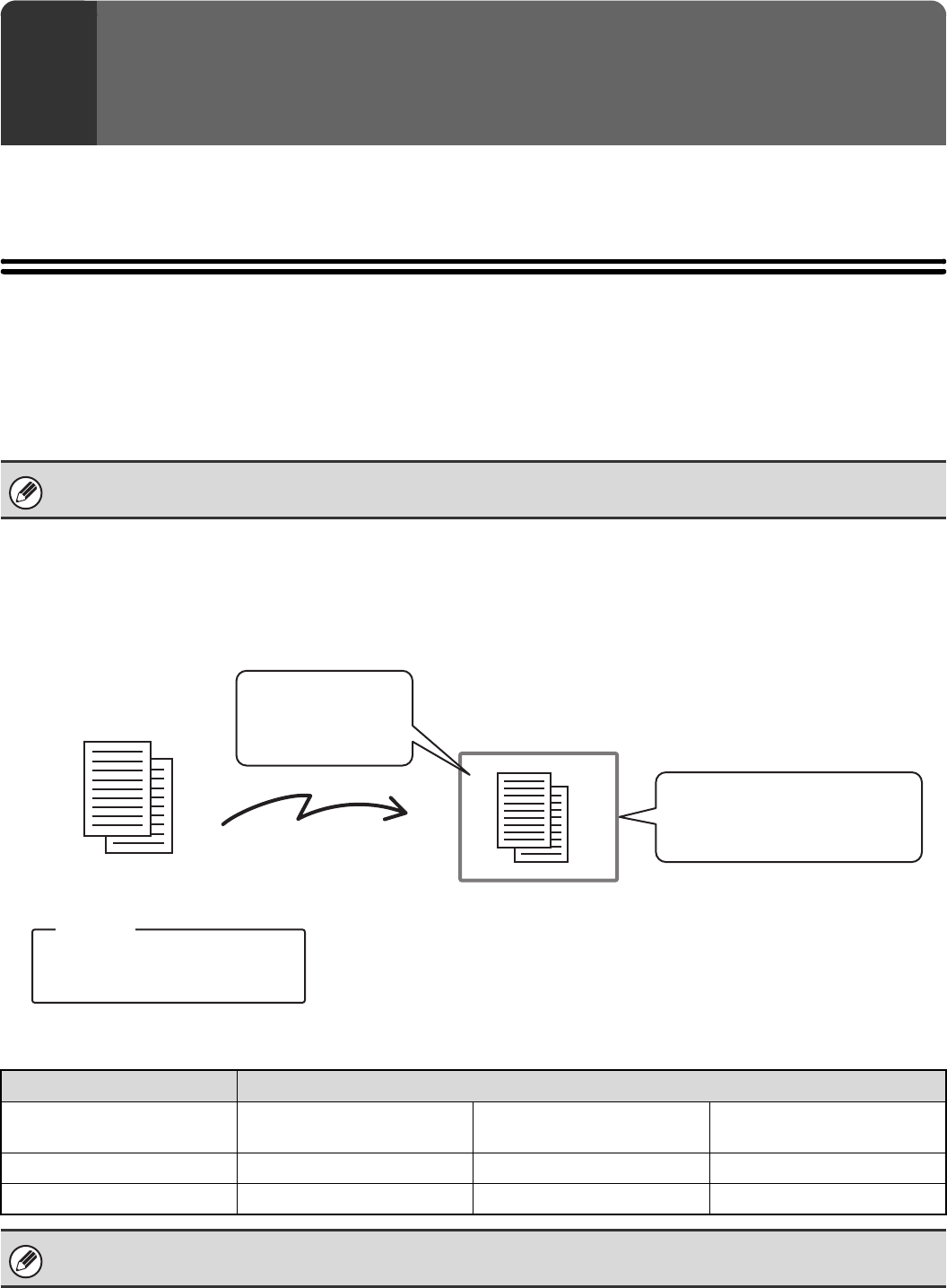
96
This chapter explains how to perform F-code communication operations. F-code communication is possible with
machines of other manufacturers that also support F-code communication.
F-CODE COMMUNICATION
Exchange of confidential documents (confidential communication), retrieval (polling) and distribution (polling memory) of
information, distribution of information to multiple destinations (relay broadcast transmission) are possible with other
machines that support F-code communication.
An F-code* is specified in each communication, enabling a higher level of security.
* F-code is a communication function based on the G3 standard of the ITU-T.
HOW F-CODES WORK
A fax that is transmitted with an F-code is received to the memory box in the receiving machine specified by the F-code
(sub-address and passcode). If the F-code sent by the transmitting machine does not match the F-code in the receiving
machine, reception will not take place.
The products of other manufacturers may use different terms for "sub-address" and "passcode". If you need to contact the
operator of another machine regarding sub-addresses and passcodes, refer to the terms used by the ITU-T in the table below.
6PERFORMING F-CODE
COMMUNICATION
The ITU-T is a United Nations organization that establishes communications standards. It is a department of the International
Telecommunication Union (ITU), which coordinates global telecommunications networks and services.
The machine ITU-T
F-code polling memory box F-code confidential box F-code relay broadcast
memory box
Sub Address SEP SUB SUB
Passcode PWD SID SID
An F-code consists of a sub-address and passcode, and cannot be longer than 20 digits.
Fax number of other
machine
+
F-code
Sub-address: AAAAAAAA
Passcode: XXXXXXXX
Box name: BBBB
Sub-address: AAAAAAAA
Passcode: XXXXXXXX
Memory box for F-code
communication
The fax is received to
the memory box
specified by the
F-code
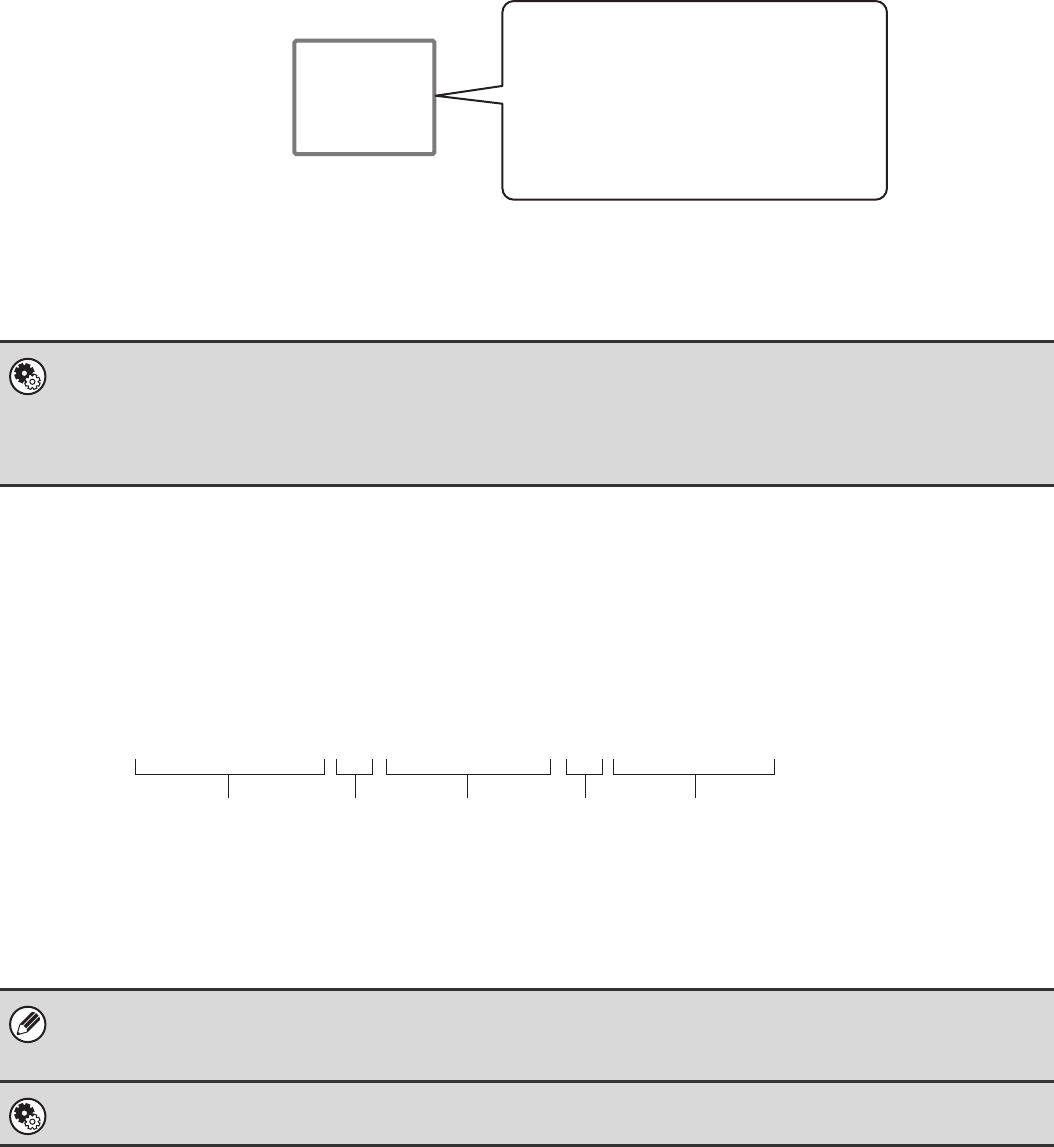
97
CREATING MEMORY BOXES IN THE MACHINE FOR
F-CODE COMMUNICATION
Before the F-code communication function can be used, special memory boxes must be created using "F-Code Memory
Box" in the system settings.
A box name and F-code (sub-address and passcode) are programmed in each box, and an F-code communication
function is assigned to each box.
After you have created a memory box, inform the other party of the sub-address and passcode of the box.
To use the following F-code communication functions, F-code memory boxes must be created in your machine.
F-code confidential reception, F-code polling memory, F-code relay broadcast transmission
To use the following F-code communication functions, F-code memory boxes must be created in the other machine.
F-code confidential transmission, F-code polling reception, F-code relay request transmission
F-CODE DIALLING
When performing an F-code operation, the F-code (sub-address and passcode) is appended to the fax number that is
dialled. Check the F-code (sub-address and passcode) programmed in the memory box in the other machine before you
perform an F-code transmission. It is convenient to store an F-code together with the fax number in a one-touch key or
group key.
When the following F-code functions are used, your machine dials the other machine.
F-code confidential transmission, F-code polling reception, F-code relay request transmission
When the following F-code functions are used, the other machine dials your machine.
F-code confidential reception, F-code polling memory, F-code relay broadcast transmission
System Settings: F-Code Memory Box
This is used to configure memory boxes for F-code communication.
• Up to 100 memory boxes can be created.
• The memory box name cannot be longer than 18 characters, and the sub-address and passcode cannot be longer than 20
digits.
• If the destination machine does not have a passcode configured in the F-code, do not enter a passcode when dialling that
machine.
• F-code communication cannot be performed when using the speaker or performing manual transmission.
System Settings: Address Book
This is used to store and edit one-touch keys and group keys.
•Box Name
• Sub Address
•Passcode
• End receiving machines (only in an
F-code relay broadcast memory box)
• Print PIN (only for F-code confidential
reception)
Memory box for F-code
communication
0123456789
/
AAAAAAAA
/
XXXXXXXX
Fax number of other
machine
Sub Address Passcode
* Touch the [Sub Address]
key in the screen to enter
"/".
**
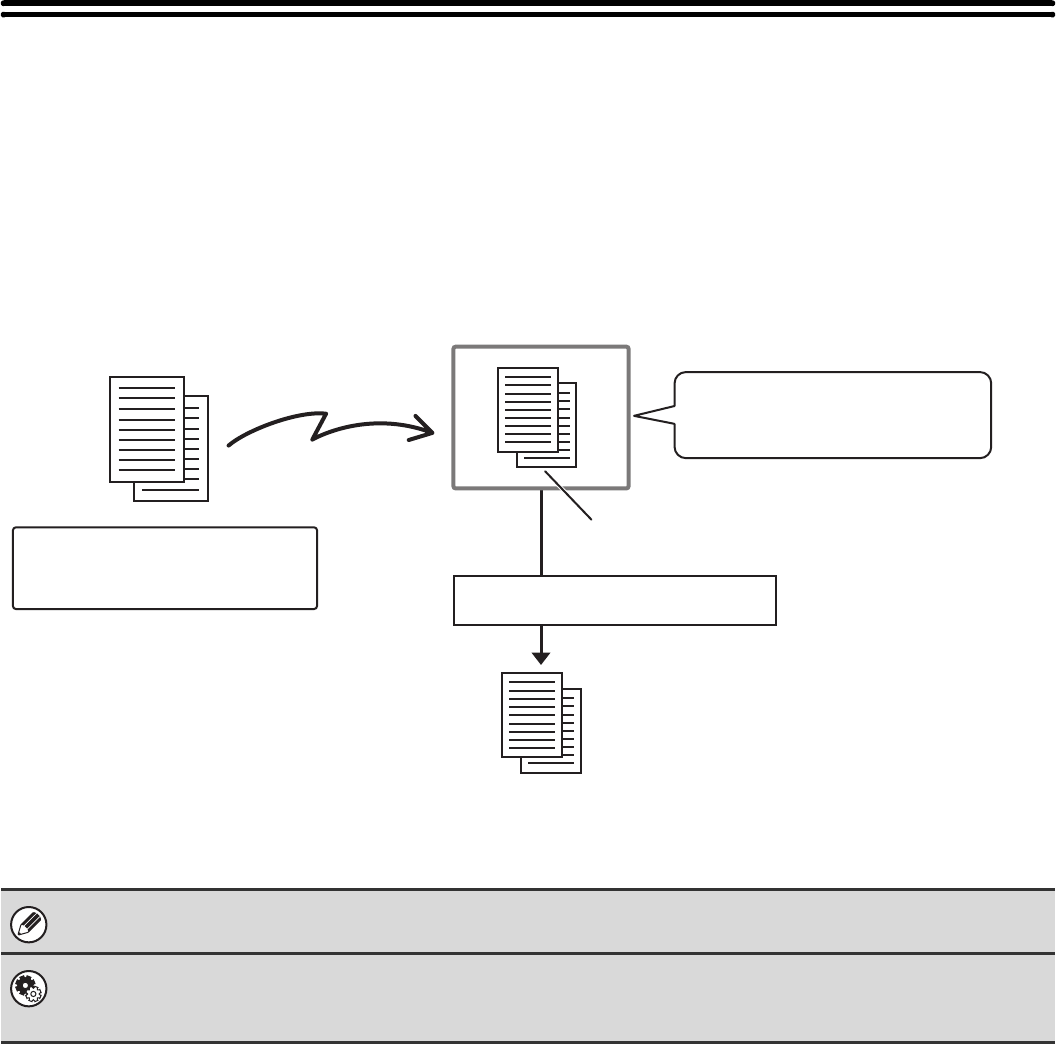
98
CONFIDENTIAL COMMUNICATION USING
F-CODES
By sending a fax to an F-code memory box (confidential) in the receiving machine (your machine or the other machine),
the sender can direct the transmission specifically to the user of the box.
This is convenient for sending sensitive documents that you do not wish people other than the recipient to see, or when
the receiving machine is shared by multiple departments.
To print an F-code confidential fax, the print passcode must be entered.
The F-code (sub-address and passcode) of the memory box to be used should be verified by the sender and the recipient
before the fax is sent.
System Settings: F-Code Memory Box
This is used to create memory boxes for F-code confidential communication (confidential reception).
A memory box name, sub-address, passcode, and print passcode are programmed in each box.
Sub-address: AAAAAAAA
Passcode: XXXXXXXX
Sub-address: AAAAAAAA
Passcode: XXXXXXXX
Transmission with an
F-code
Reception in F-code Memory Box
Print passcode: Enter BBBB
The fax is printed.
Receiver Sender
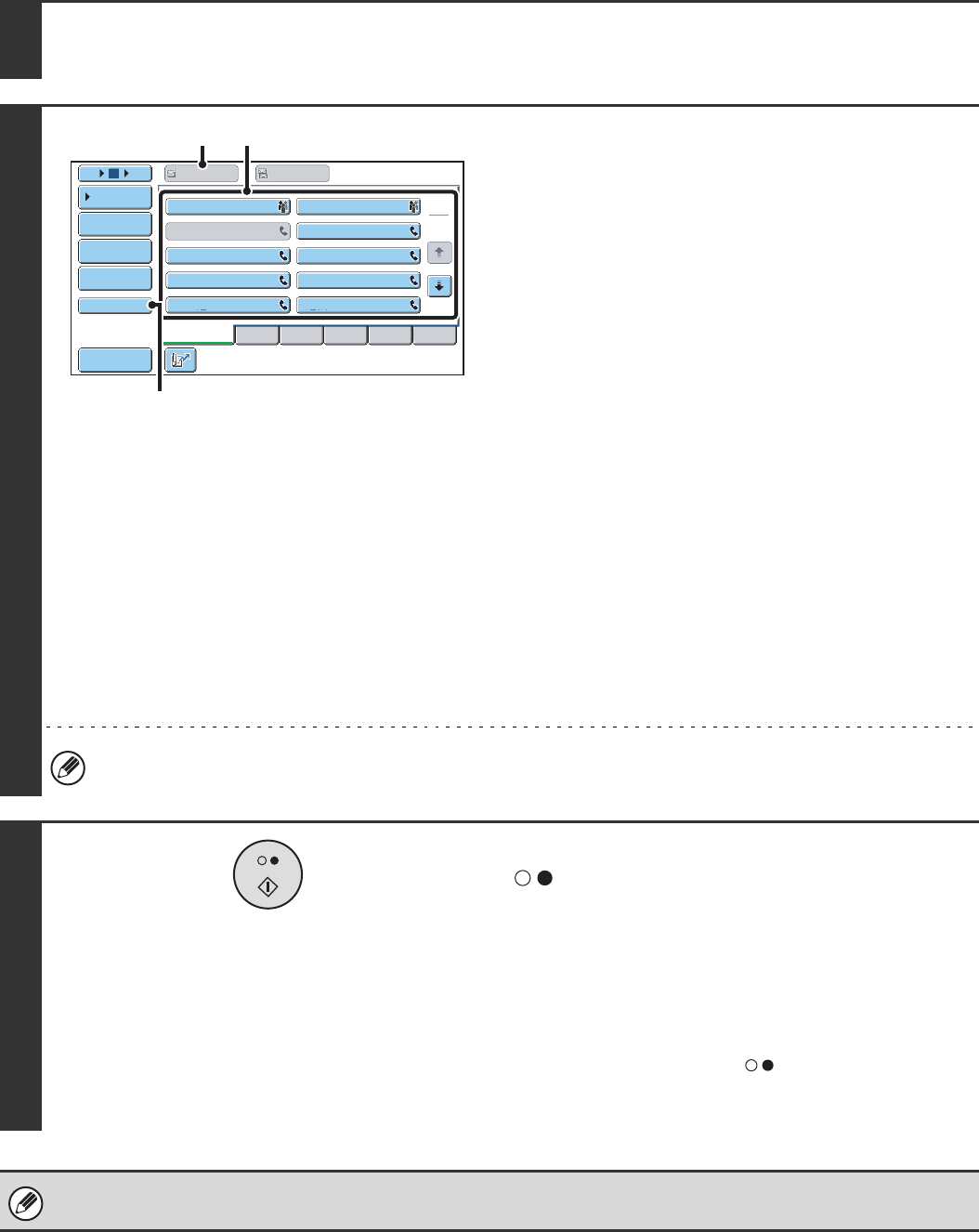
99
F-CODE CONFIDENTIAL TRANSMISSION
Follow the steps below to send a confidential fax by adding an F-code to the fax number.
1Place the original.
Place the original face up in the document feeder tray, or face down on the document glass.
2
Enter the destination fax number.
(1) Touch the [Address Book] key in the base
screen.
(2) Touch the one-touch key of the desired
destination.
If the destination is not stored in the address book, enter
the fax number with the numeric keys.
(3) Touch the [To] key.
If you entered the fax number with the numeric keys, this
is not necessary.
If the sub-address and passcode are stored in the one-touch
key, the following sub-steps are not necessary. Go to step 3.
(4) Touch the [Sub Address] key.
"/" appears.
(5) Enter the sub-address with the numeric
keys.
(6) Touch the [Sub Address] key.
"/" appears.
(7) Enter the passcode with the numeric keys.
If a passcode has been omitted in the memory box of the other machine, (6) and (7) are not necessary.
3
Press the [BLACK & WHITE START] key
().
Scanning begins.
• If you inserted the original pages in the document feeder
tray, all pages are scanned.
A beep will sound to indicate that scanning is finished.
If you are scanning the original on the document glass, scan
each page one page at a time.
When scanning finishes, place the next original and press the
[BLACK & WHITE START] key ( ). Repeat until all pages
have been scanned and then touch the [Read-End] key.
A beep will sound to indicate that scanning is finished.
This function can be used in combination with a broadcast transmission or timer transmission. This function can also be
stored in a program.
Frequent Use ABCD EFGHI JKLMN OPQRST UVWXYZ
1
2
105 15 To Cc
III III
GGG GGG
EEE EEE
CCC CCC
AAA AAA
JJJ JJJ
HHH HHH
FFF FFF
DDD DDD
BBB BBB
Global
Address Search
Address Entry
Sort Address
Sub Address
Address Review
Condition
Settings
(2)(3)
(4), (6)
100
PRINTING A FAX RECEIVED BY F-CODE
CONFIDENTIAL RECEPTION
When an F-code confidential fax is sent to your machine, the fax is received to the memory box specified by the F-code.
To print the received fax, enter the print passcode.
1
The machine rings and the fax is
received.
A beep sounds when reception ends.
2
Select the special modes.
(1) Touch the [Special Modes] key.
(2) Touch the keys to switch through the screens.
(3) Touch the [Memory Box] key.
☞Special modes menu (2nd screen) (page 61)
3
Touch the [Print Data] key.
4
Touch the key of the memory box
containing the confidential fax.
" " appears in the keys of memory boxes that have received
faxes. The keys of memory boxes that have not received faxes
are greyed out and cannot be selected.
Beep
Exit
Polling Memory Confidential
Reception
Print Data Delete Data
Data Store
Memory Box
Print Data
1
1
Memory Box - Confidential Reception Back
Box 1
Box 3
Box 5
Box 2
Box 4
Box 6
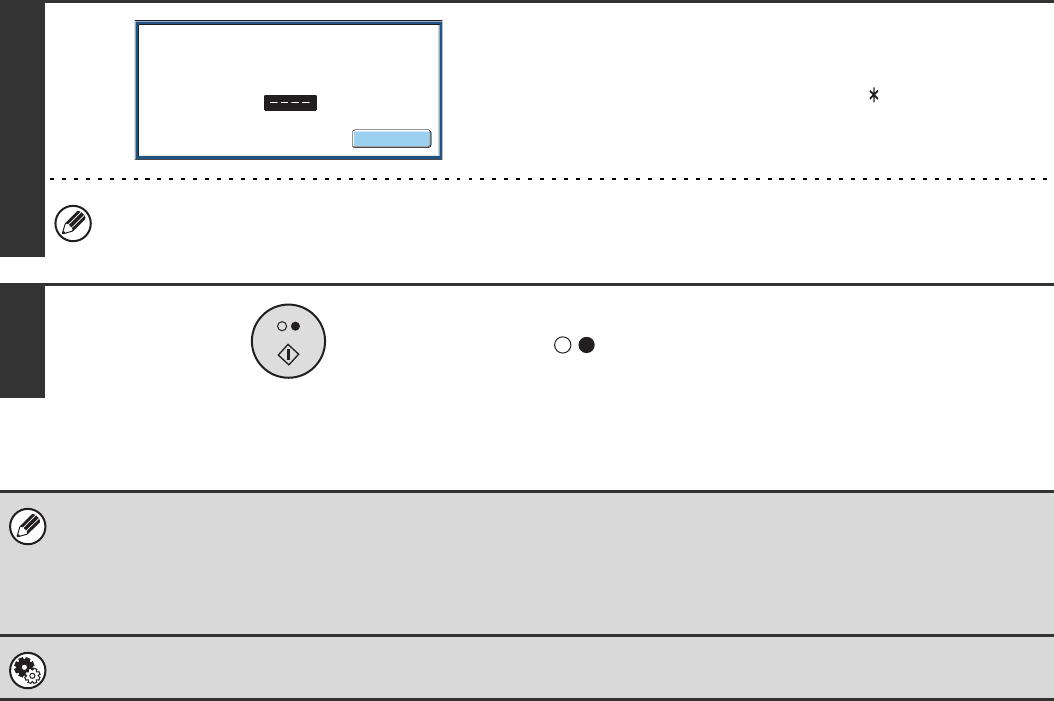
101
5
Enter the print passcode with the
numeric keys.
As each digit is entered, "–" changes to " ".
Take care to enter the correct print passcode. If you make a mistake, a message will appear and you will return to the
entry screen. You can touch the [Cancel] key to return to step 4.
6
Press the [BLACK & WHITE START] key
().
• The confidential fax is automatically given priority in the print job queue.
• The fax is automatically cleared from the memory box after printing.
•If you forget the print passcode...
There is no way to check a forgotten passcode on the machine. Take care not to forget the passcode. In the event that you
forget the passcode or need to verify the passcode, contact your dealer or nearest authorised service representative.
System Settings (Administrator): Transaction Report Print Select Setting
This setting can be used to have a transaction report printed automatically when an F-code confidential fax is received.
Cancel
Enter PIN via the 10-key.
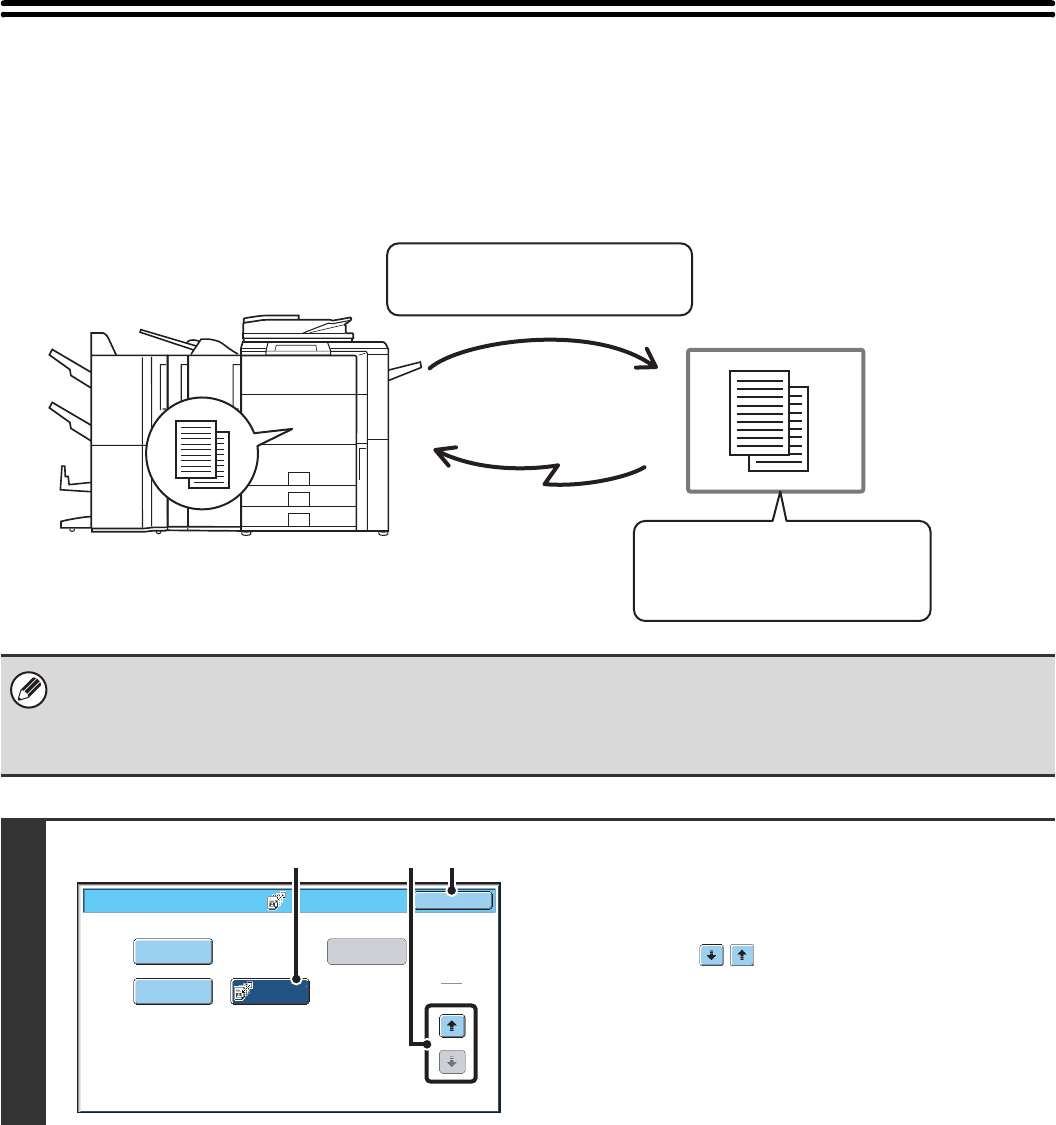
102
POLLING RECEPTION USING F-CODES
This function enables your machine to call another machine and initiate reception of a fax stored in an F-code memory
box (polling memory) in the other machine. During the polling operation, your machine must correctly specify the F-code
(sub-address and passcode) configured in the other machine or polling reception will not take place.
• Verify the F-code (sub-address and passcode) of the memory box in the other machine before you perform F-code polling
reception.
• Do not place an original in the automatic document feeder or on the document glass when using this function.
• The receiving machine bears the phone charges of the transmission.
1
Select polling.
(1) Touch the [Special Modes] key.
☞SPECIAL MODES (page 60)
(2) Touch the keys to switch through the
screens.
(3) Touch the [Polling] key so that it is
highlight.
(4) Touch the [OK] key.
Transmission
The other machine
F-code polling memory box
Box name: BBBB
Sub-address: AAAAAAAA
Passcode: XXXXXXXX
Sub-address: AAAAAAAA
Passcode: XXXXXXXX
Transmission request (polling)
using an F-code
The machine
Transaction
Report
Own Name
Select
Memory Box Polling
OK
Fax/Special Modes
2
2
(2) (4)(3)
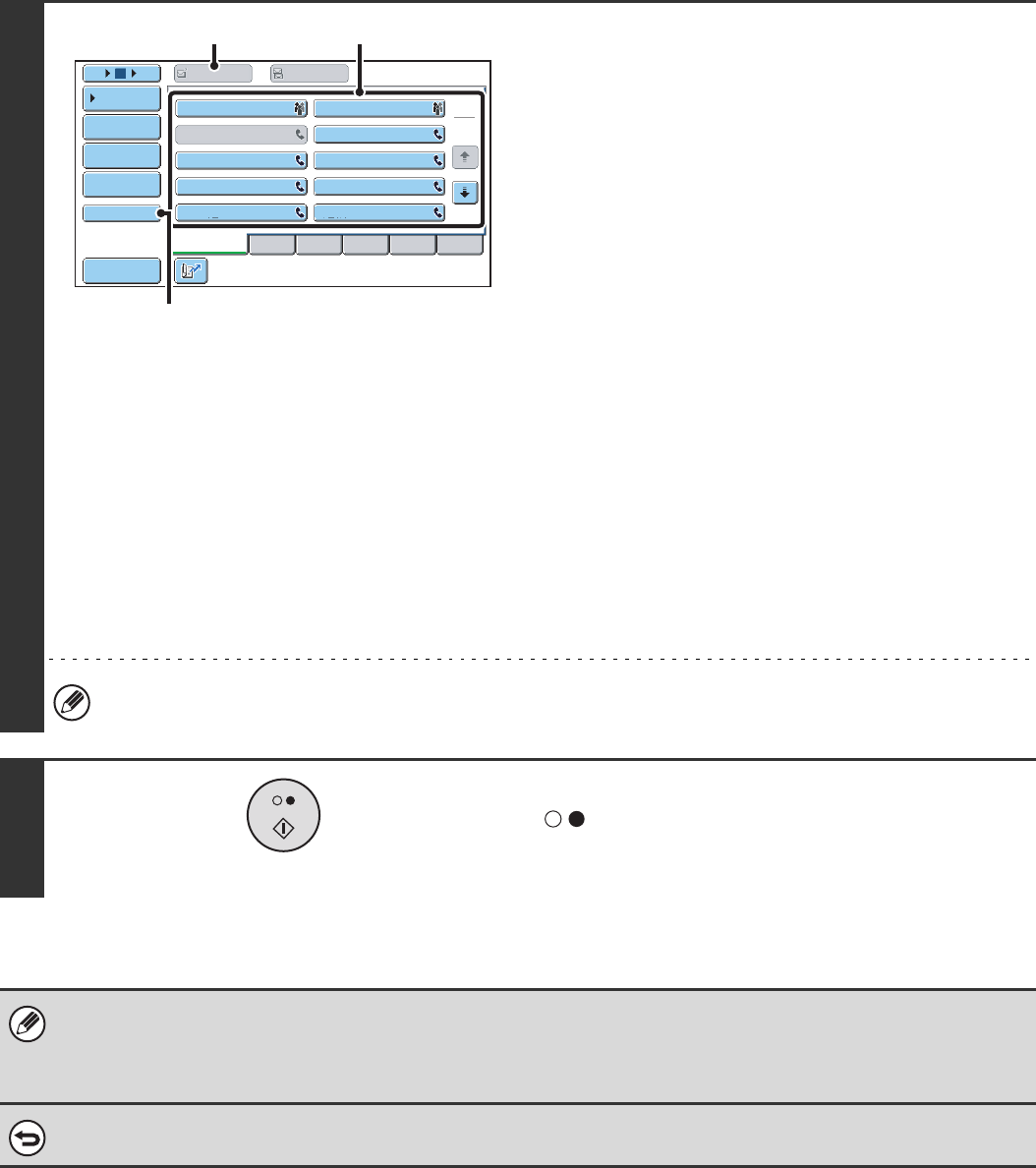
103
2
Enter the destination fax number.
(1) Touch the [Address Book] key in the base
screen.
(2) Touch the one-touch key of the desired
destination.
If the destination is not stored in the address book, enter
the fax number with the numeric keys.
(3) Touch the [To] key.
If you entered the fax number with the numeric keys, this
is not necessary.
If the sub-address and passcode are stored in the one-touch
key, the following sub-steps are not necessary. Go to step 3.
(4) Touch the [Sub Address] key.
"/" appears.
(5) Enter the sub-address with the numeric
keys.
(6) Touch the [Sub Address] key.
"/" appears.
(7) Enter the passcode with the numeric keys.
If a passcode has been omitted in the memory box of the other machine, (6) and (7) are not necessary.
3
Press the [BLACK & WHITE START] key
().
Your machine will call the other machine and initiate reception
of the fax.
• Polling multiple machines (serial polling) is not possible.
• F-code polling reception can be used in combination with a timer setting. Only one polling reception operation with a timer
setting can be stored at a time.
☞SENDING A FAX AT A SPECIFIED TIME (Timer) (page 70)
To cancel polling...
Touch the [Polling] key in the screen of step 1 so that it is not highlighted.
Frequent Use ABCD EFGHI JKLMN OPQRST UVWXYZ
1
2
105 15
III III
GGG GGG
EEE EEE
CCC CCC
AAA AAA
JJJ JJJ
HHH HHH
FFF FFF
DDD DDD
BBB BBB
Global
Address Search
Address Entry
Sort Address
Sub Address
Address Review
Condition
Settings
To Cc
(2)(3)
(4), (6)
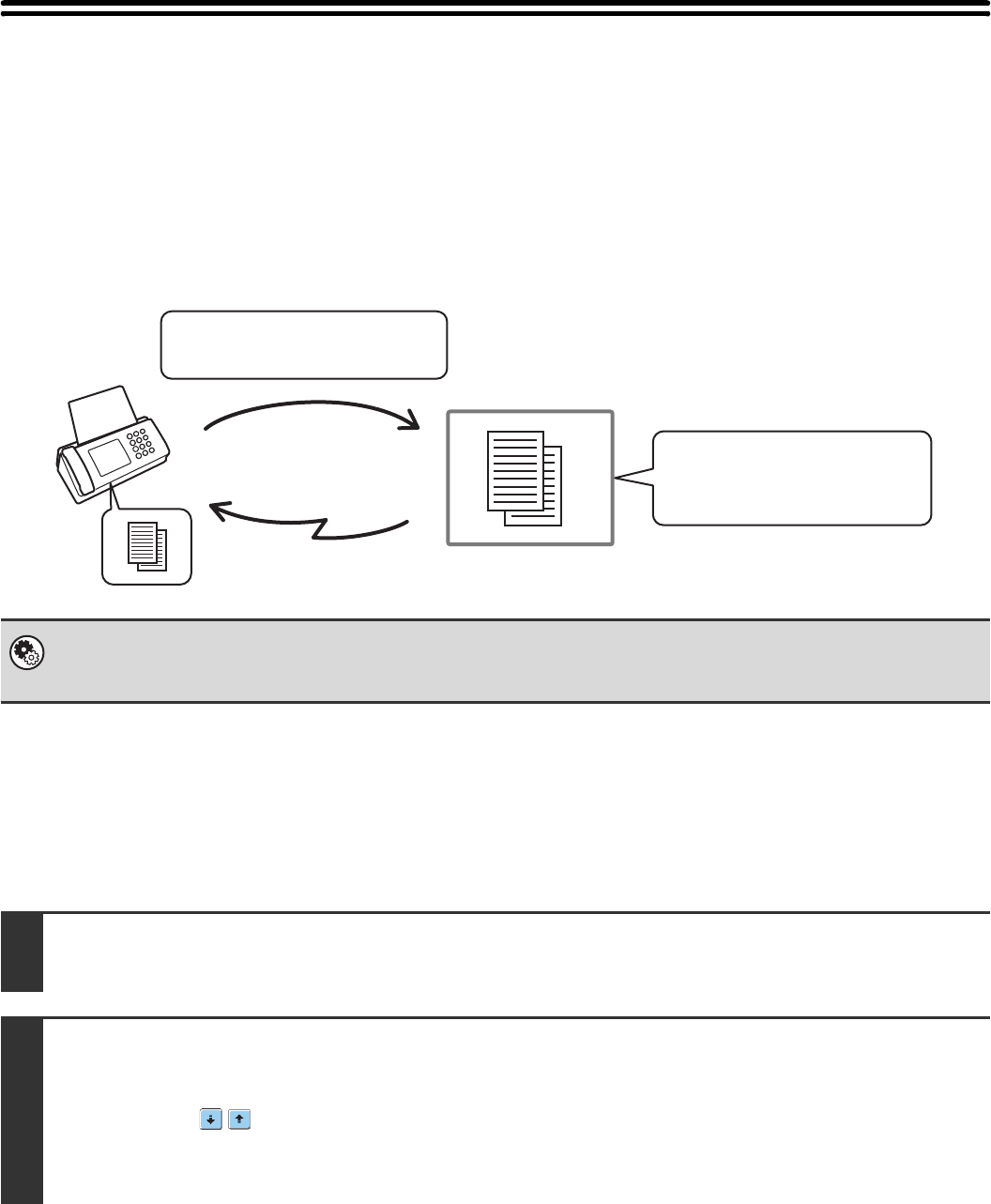
104
POLLING MEMORY TRANSMISSION USING
F-CODES
When your machine receives a transmission request from another machine, this function sends a fax stored in an
F-code memory box (polling memory) in your machine to that machine. The other machine must correctly specify the
F-code configured in your machine or transmission will not take place.
The document to be transmitted must be scanned into an F-code polling memory box.
SCANNING A DOCUMENT INTO A MEMORY BOX FOR
F-CODE POLLING TRANSMISSION
Follow these steps to scan a document into a memory box (polling memory) for F-code polling transmission.
System Settings: F-Code Memory Box
This is used to create memory boxes (polling memory) for F-code polling memory transmission.
A memory box name, sub-address, and passcode are programmed in each box.
1Place the original.
Place the original face up in the document feeder tray, or face down on the document glass.
2
Select the special modes.
(1) Touch the [Special Modes] key.
(2) Touch the keys to switch through the screens.
(3) Touch the [Memory Box] key.
☞Special modes menu (2nd screen) (page 61)
Transmission
The machine
F-code polling memory box
The other
machine
Box name: BBBB
Sub-address: AAAAAAAA
Passcode: XXXXXXXX
Sub-address: AAAAAAAA
Passcode: XXXXXXXX
Transmission request (polling)
using an F-code
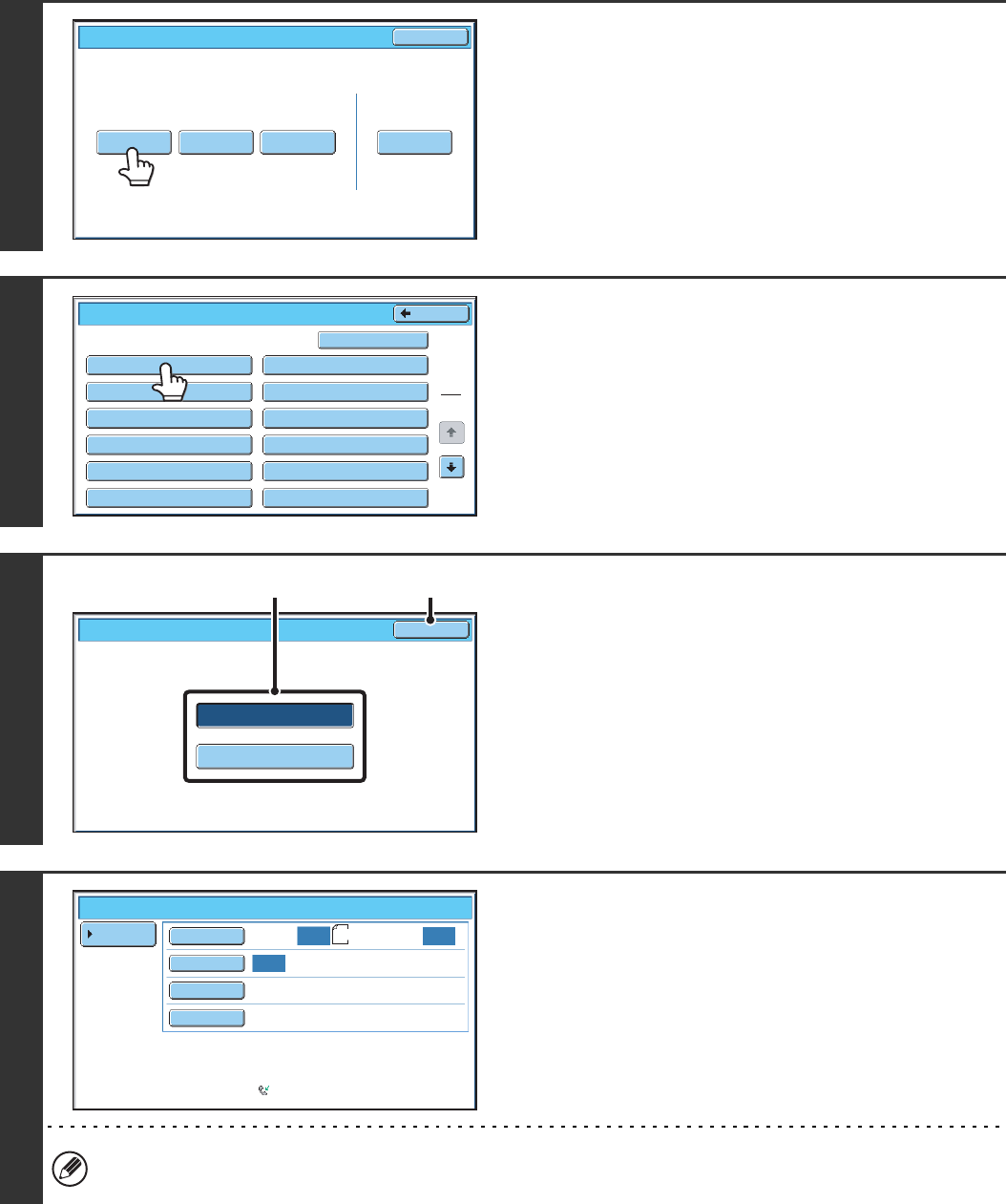
105
3
Touch the [Data Store] key.
4
Touch the key of the F-code memory
polling box.
5
Specify the number of polling times.
(1) Touch the key for the desired number of
times.
Touch the [Once] key if you want the document cleared
from memory after it is transmitted. Touch the [Unlimited]
key to allow polling an unlimited number of times.
(2) Touch the [OK] key.
6
Select image settings and special
modes.
• A program, timer setting, transaction report, polling, and document filing cannot be selected.
• To return to the screen of step 4, touch the [Memory Box List] key.
Polling Memory Confidential
Reception
Print Data Delete Data
Data Store
Memory Box
Print Data
Exit
Memory Box - Data Store
Public Box
Back
1
2
Box 1
Box 3
Box 5
Box 7
Box 9
Box 11
Box 2
Box 4
Box 6
Box 8
Box 10
Box 12
Unlimited
Once
OK
Memory Box - Data Store
(1) (2)
Standard
Auto Reception
Fax Memory:100%
Scan: Send:
Auto
Auto
Auto
Special Modes
Resolution
Exposure
Original
Memory Box - Data Store
Memory Box
List A4
106
7
Press the [BLACK & WHITE START] key
().
Scanning begins.
• If you inserted the original pages in the document feeder
tray, all pages are scanned.
• If you are scanning the original on the document glass, scan
each page one page at a time.
When scanning finishes, place the next original and press
the [BLACK & WHITE START] key ( ). Repeat until all
pages have been scanned and then touch the [Read-End]
key.
To cancel scanning...
Press the [STOP] key ( ) while the original is being scanned.
• If other documents have already been stored in the memory box, the document is added to the previously stored
documents.
• The factory default setting for the number of polling times is "Once" (after the document is transmitted to the receiving
machine, it is automatically cleared).
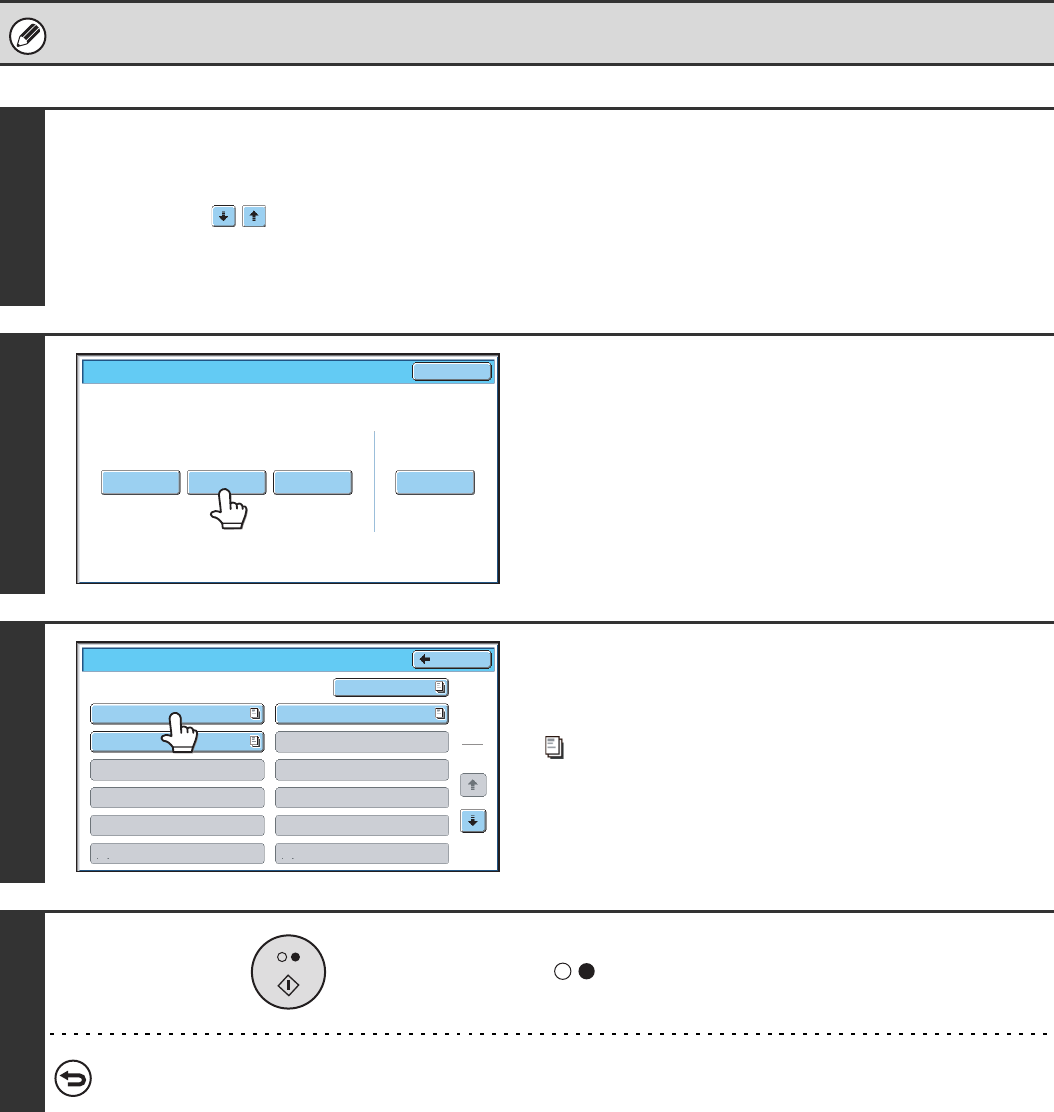
107
PRINTING A DOCUMENT STORED FOR F-CODE
POLLING TRANSMISSION
You can check a document in an F-code memory polling box by printing it out.
A document in a memory box cannot be printed while the document is being transmitted.
1
Select the special modes.
(1) Touch the [Special Modes] key.
(2) Touch the keys to switch through the screens.
(3) Touch the [Memory Box] key.
☞Special modes menu (2nd screen) (page 61)
2
Touch the [Print Data] key.
3
Touch the key of the F-code memory
polling box where the document you
wish to print is stored.
appears in keys that have documents stored.
4
Press the [BLACK & WHITE START] key
().
The document in the selected memory box is printed.
To cancel printing...
Touch the [Cancel] key.
Polling Memory Confidential
Reception
Print Data Delete DataData Store
Memory Box
Print Data
Exit
Memory Box - Print Data
Public Box
Back
1
2
Box 1
Box 3
Box 5
Box 7
Box 9
Box 11
Box 2
Box 4
Box 6
Box 8
Box 10
Box 12
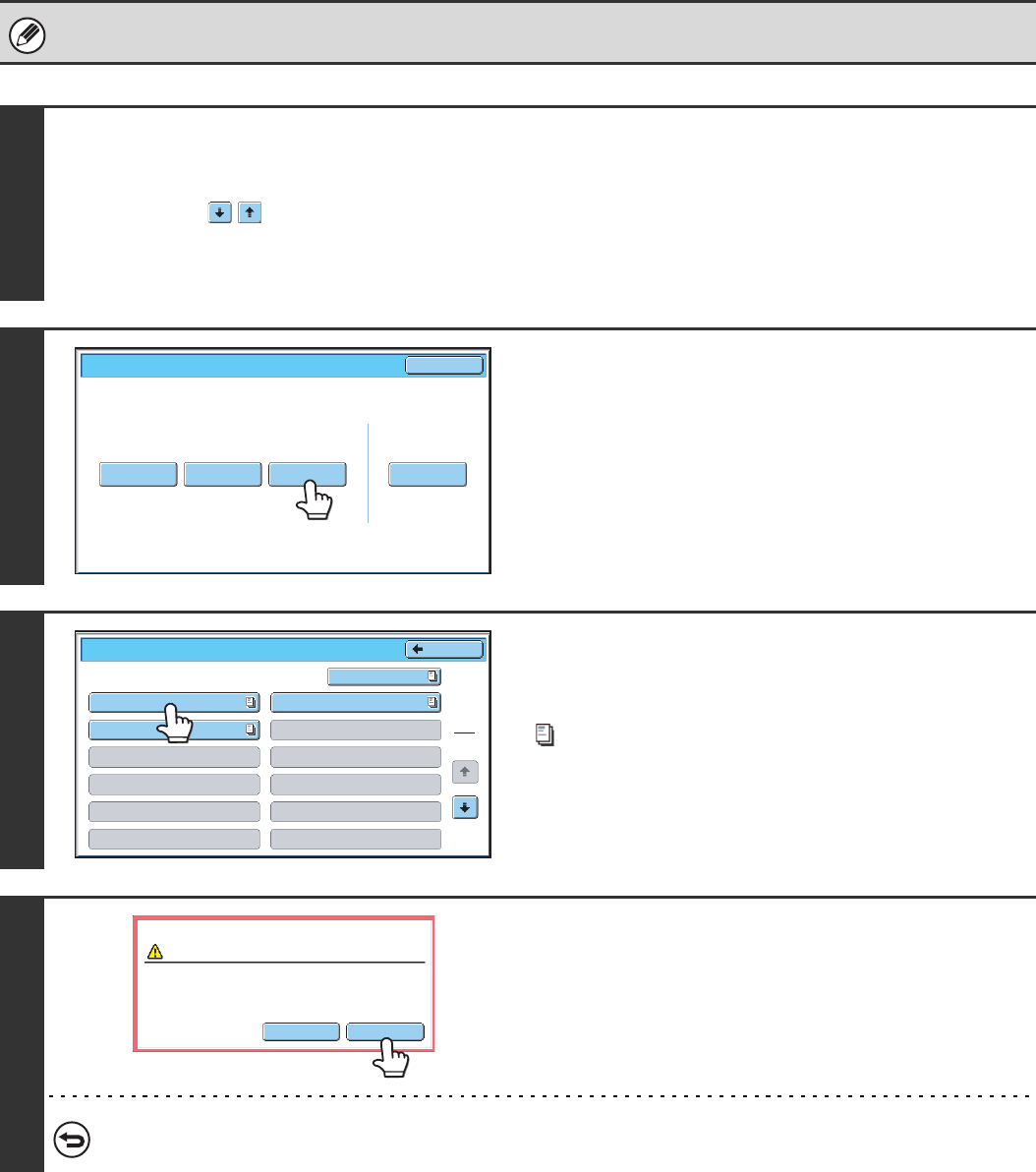
108
DELETING A DOCUMENT STORED FOR F-CODE
POLLING TRANSMISSION
When a document in an F-code memory polling box is no longer needed, follow the steps below to delete it.
A document in a memory box cannot be deleted while the document is being transmitted.
1
Select the special modes.
(1) Touch the [Special Modes] key.
(2) Touch the keys to switch through the screens.
(3) Touch the [Memory Box] key.
☞Special modes menu (2nd screen) (page 61)
2
Touch the [Delete Data] key.
3
Touch the key of the F-code memory
polling box that has the document you
wish to delete.
appears in keys that have documents stored.
4
Touch the [Yes] key.
The document in the selected memory box is deleted and you
return to the screen of step 3.
To cancel the deletion...
Touch the [No] key. You will return to the screen of step 3 without deleting the document.
Polling Memory Confidential
Reception
Print Data Delete DataData Store
Memory Box
Print Data
Exit
Memory Box - Print Data Back
1
2
Box 1
Box 3
Box 5
Box 7
Box 9
Box 11
Box 2
Box 4
Box 6
Box 8
Box 10
Box 12
Public Box
Yes
No
Delete the data in the memory box?
Box 1
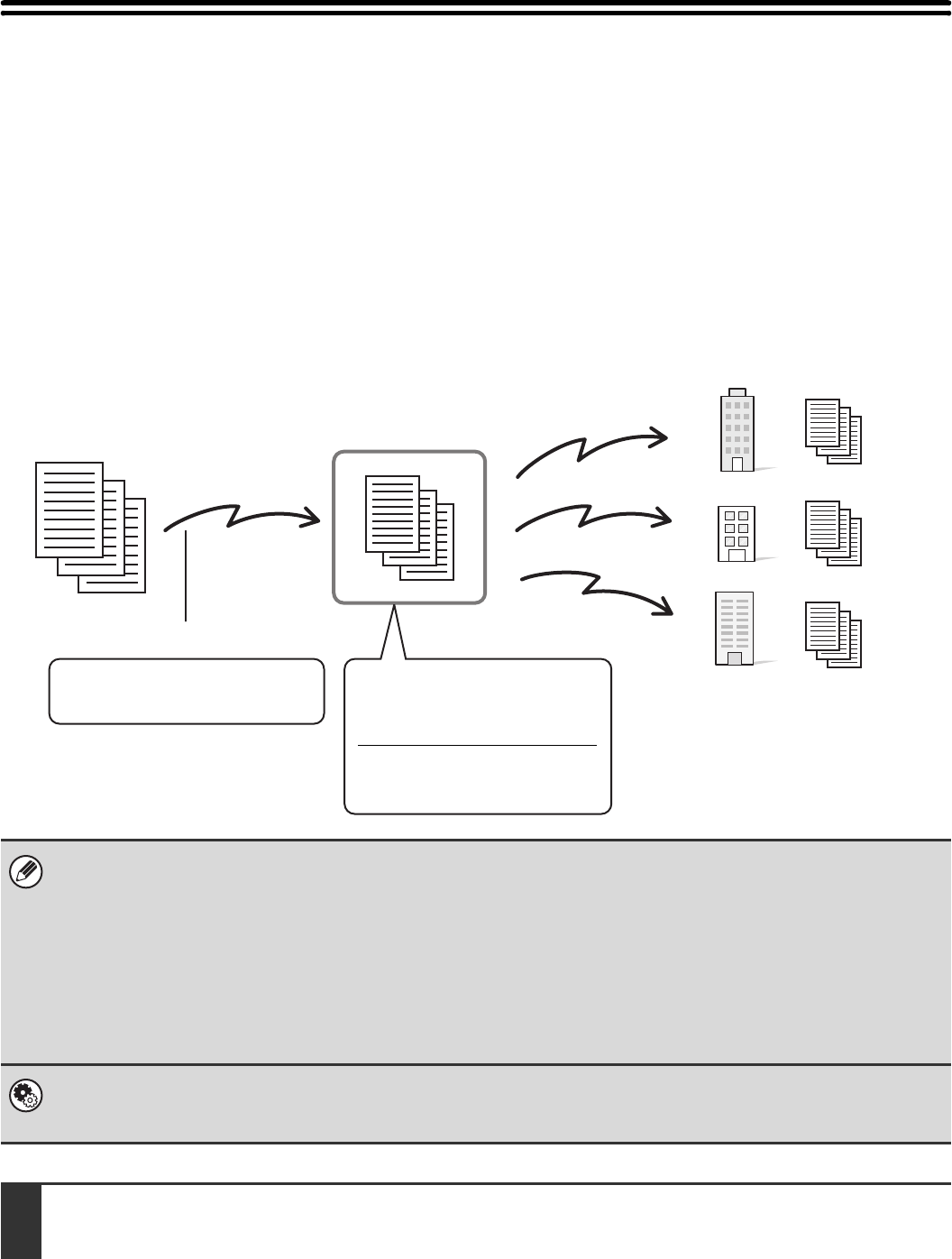
109
RELAY REQUEST TRANSMISSION USING
F-CODES
This function is used to send a fax to an F-code relay broadcast memory box in another machine and have that machine
relay the fax to multiple end receiving machines.
When the end receiving machines are far from your machine, sending the fax to a relay machine that is close to the end
receiving machines can help reduce phone charges. A relay request transmission can be used in combination with the
timer transmission function to further reduce phone costs.
☞SENDING A FAX AT A SPECIFIED TIME (Timer) (page 70)
• Verify the F-code (sub-address and passcode) and end receiving machines programmed in the relay broadcast memory
box in the relay machine before you perform an F-code relay request transmission.
• Before this function can be used, the end receiving machines must be programmed in the F-code relay broadcast memory
box in the relay machine.
• The end receiving machines do not need to support F-code communication.
• This function can be used in combination with a broadcast transmission or timer transmission. An F-code relay request
transmission can also be stored in a program.
• Your machine (the machine that requests a relay broadcast transmission) only bears the cost of sending the fax to the
relay machine. The relay machine bears the cost of sending the fax to each of the end receiving machines.
System Settings: F-Code Memory Box
This is used to create memory boxes for F-code relay broadcast transmission.
A memory box name, sub-address, passcode, and end receiving machines are programmed in each box.
1Place the original.
Place the original face up in the document feeder tray, or face down on the document glass.
The machine
Transmission
The fax is transmitted to
each of the end receiving
machines programmed in
the F-code relay
broadcast memory box.
Relay machine
F-code relay broadcast
memory box
Box name: BBBB
Sub-address: AAAAAAAA
Passcode: XXXXXXXX
Sub-address: AAAAAAAA
Passcode: XXXXXXXX
Transmission specifying an F-code
End receiving machines are
programmed in this box
End receiving
machines
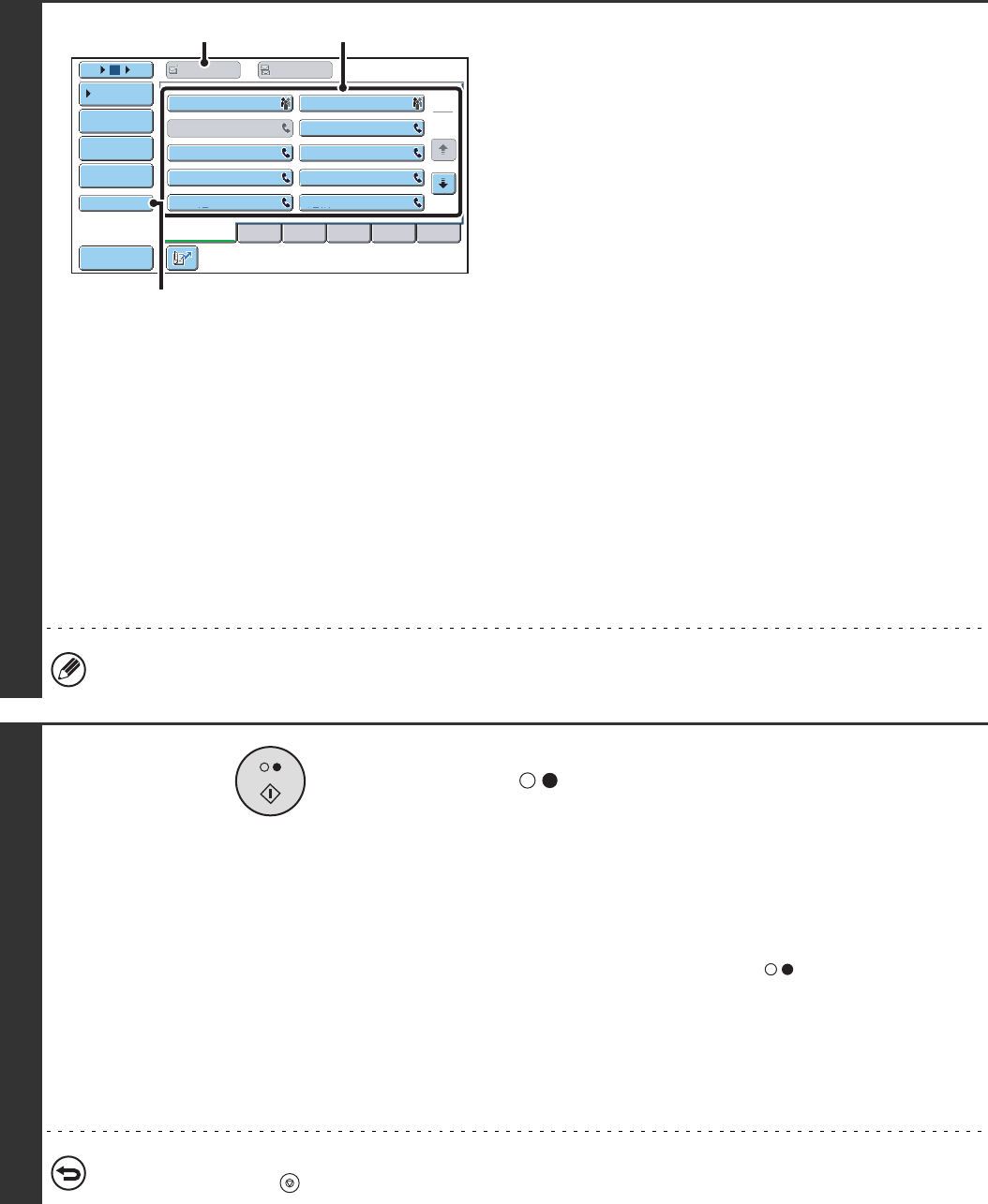
110
2
Enter the destination fax number.
(1) Touch the [Address Book] key in the base
screen.
(2) Touch the one-touch key of the desired
destination.
If the destination is not stored in the address book, enter
the fax number with the numeric keys.
(3) Touch the [To] key.
If you entered the fax number with the numeric keys, this
is not necessary.
If the sub-address and passcode are stored in the one-touch
key, the following sub-steps are not necessary. Go to step 3.
(4) Touch the [Sub Address] key.
"/" appears.
(5) Enter the sub-address with the numeric
keys.
(6) Touch the [Sub Address] key.
"/" appears.
(7) Enter the passcode with the numeric keys.
If a passcode has been omitted in the memory box of the other machine, (6) and (7) are not necessary.
3
Press the [BLACK & WHITE START] key
().
Scanning begins.
• If you inserted the original pages in the document feeder
tray, all pages are scanned.
A beep will sound to indicate that scanning is finished.
•
If you are scanning the original on the document glass, scan
each page one page at a time.
When scanning finishes, place the next original and press the
[BLACK & WHITE START] key ( ). Repeat until all pages
have been scanned and then touch the [Read-End] key.
A beep will sound to indicate that scanning is finished.
When the relay machine receives the fax, it will automatically
transmit the fax to each of the end receiving machines
programmed in the memory box.
To cancel scanning...
Press the [STOP] key ( ) while the original is being scanned.
Frequent Use ABCD EFGHI JKLMN OPQRST UVWXYZ
1
2
105 15
III III
GGG GGG
EEE EEE
CCC CCC
AAA AAA
JJJ JJJ
HHH HHH
FFF FFF
DDD DDD
BBB BBB
Global
Address Search
Address Entry
Sort Address
Sub Address
Address Review
Condition
Settings
To Cc
(2)(3)
(4), (6)

111
RELAY BROADCAST TRANSMISSION
USING F-CODES
When your machine receives an F-code relay request transmission, the fax is received to an F-code relay broadcast
memory box in your machine. Your machine then relays the fax to each of the end receiving machines programmed in
the memory box. Transmission to the end receiving machines takes place automatically.
• Prior to the operation, inform the requesting party of the sub-address and passcode of the relay broadcast memory box in
your machine.
• Program the end receiving machines in the F-code relay broadcast memory box when you create the box in your machine.
☞CREATING MEMORY BOXES IN THE MACHINE FOR F-CODE COMMUNICATION (page 97)
• The end receiving machines do not need to support F-code communication.
• The machine that requests a relay broadcast transmission only bears the cost of sending the fax to your machine (the relay
machine). Your machine bears the cost of sending the fax to each of the end receiving machines.
The other
machine
Transmission
The fax is transmitted to
each of the end receiving
machines programmed in
the F-code relay
broadcast memory box.
The machine
F-code relay broadcast
memory box
Box name: BBBB
Sub-address: AAAAAAAA
Passcode: XXXXXXXX
Sub-address: AAAAAAAA
Passcode: XXXXXXXX
Transmission specifying an F-code
End receiving machines are
programmed in this box
End receiving
machines
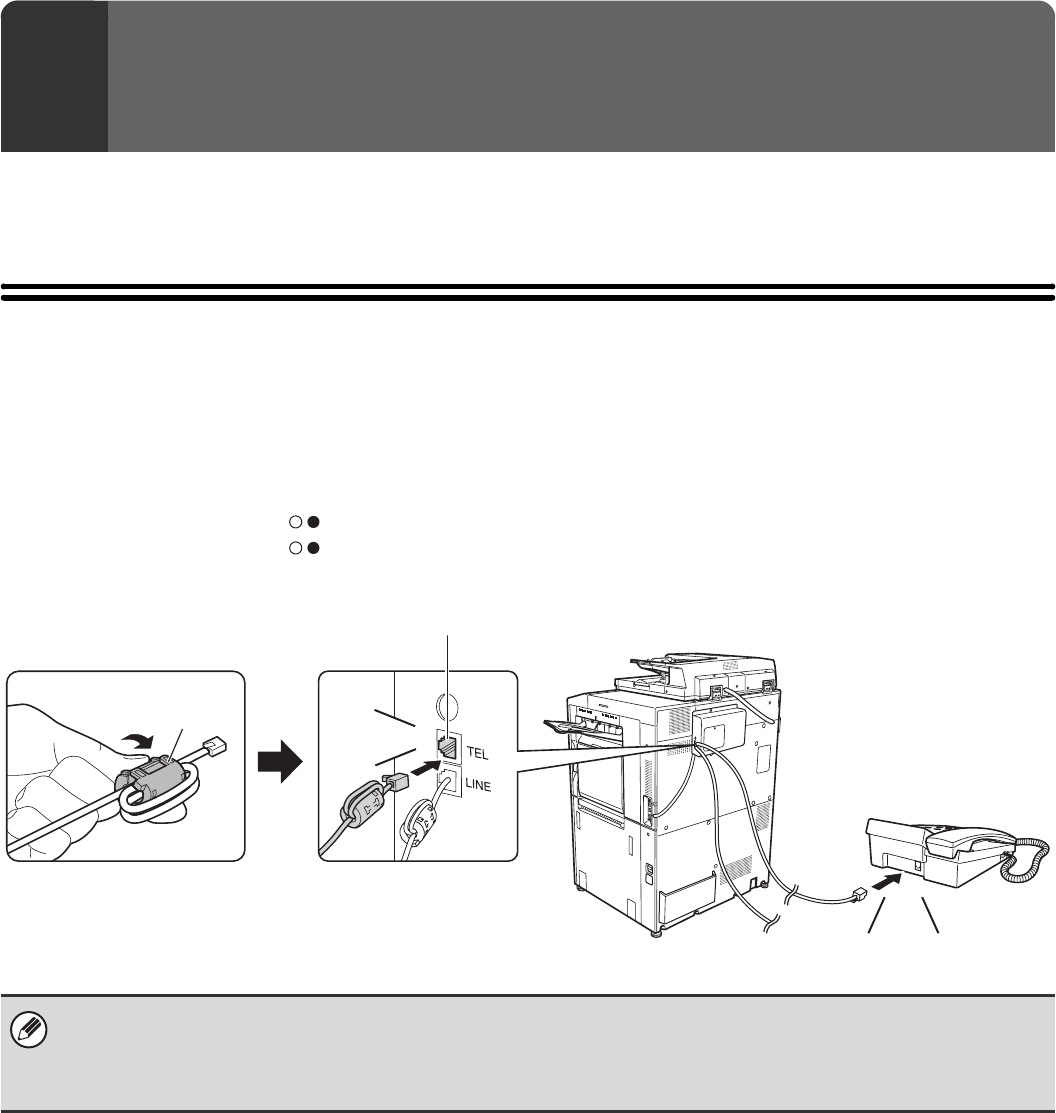
112
This chapter explains how to use an extension phone to make voice calls and receive a fax after talking with the other
party.
CONNECTING AND USING AN EXISTING
PHONE (Extension Phone Connection)
You can connect an existing extension phone to the machine.
The phone can be used for voice calls and to start fax reception on the machine.
As an example, you can make a phone call using the existing phone, speak to the other party, and then press the
[BLACK & WHITE START] key ( ) to fax an original that has been placed to that party. You can also press the
[BLACK & WHITE START] key ( ) when an original is not placed to receive a fax.
Connect the extension phone as shown below.
7USING AN EXTENSION PHONE
• Connect an extension phone that has a modular socket. Use standard phone line cable to connect the phone. If other than
a standard phone line cable is used, the connection may not work correctly.
• If the plug on the telephone line cord does not fit into the socket on your extension phone, contact your dealer or nearest
authorised service representative.
Attach the provided core to
your extension telephone cord
and then connect the cord to
the machine.
Existing extension
phone (example)
Extension phone socket
Click!
Click!
Core
Make sure you hear a "click"
sound indicating that the
cord is securely connected.

113
RECEIVING A FAX AFTER ANSWERING A CALL ON
THE EXTENSION PHONE (Remote Reception)
Follow the steps below if you need to start fax reception after answering a call and speaking on the extension phone.
If you are on a pulse-dial (rotary) line, set the extension phone to issue tone signals.
MAKING AND RECEIVING PHONE CALLS
You can make and receive calls like normal on your extension phone. A phone call can also be made by dialling on the
machine.
1
When you hear ringing, answer the call
on the extension phone.
2
Signal the machine to start fax
reception.
Press on the keypad of the extension phone.
3
Replace the extension phone.
The machine sounds a beep when reception ends.
If the extension phone is still lifted when fax transmission ends, an alarm signal will sound and a message will appear in the
touch panel. The alarm and message will stop when the extension phone is replaced.
•System Settings: Receive Setting
To use remote fax reception, set this setting to "Manual Reception".
•System Settings (Administrator): Remote Reception Number Setting
This is used to change the number used for remote fax reception. The factory default setting is "5".
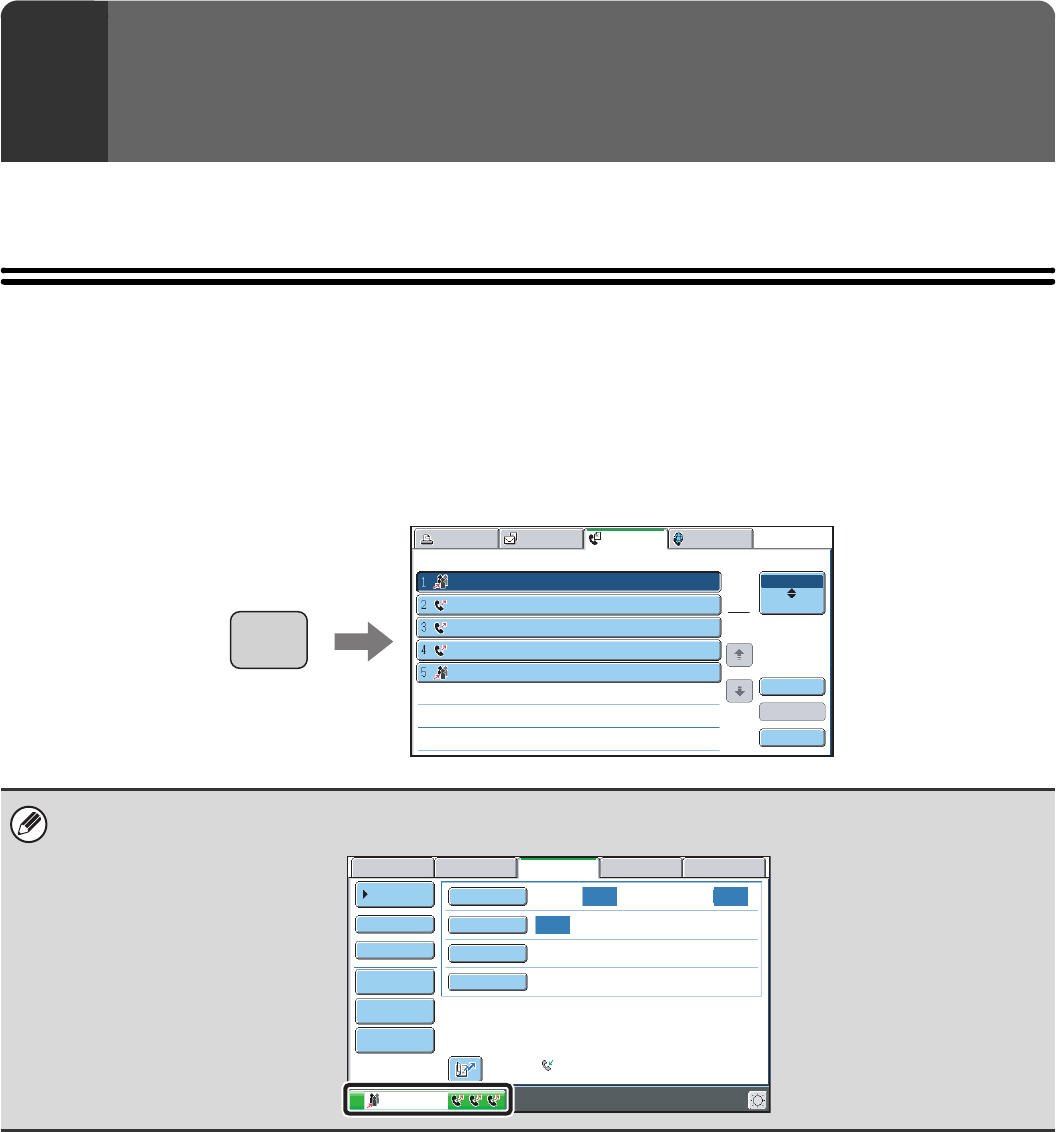
114
This chapter explains how to check the status of reserved transmission jobs and received faxes.
JOB STATUS SCREEN
The job status screen is displayed when the [JOB STATUS] key on the operation panel is pressed. The job status
screen shows the status of jobs by mode. When the [JOB STATUS] key is pressed, the job status screen of the mode
that was being used before the key was pressed appears.
Reserved transmissions and received faxes are referred to as jobs here.
Example: Pressing the key in fax mode
8CHECKING THE STATUS OF FAX
JOBS
The job status display is in the lower left corner of the touch panel. The job status display can be touched to display the job
status screen.
Fax JobScan toPrint Job Internet Fax
Address
Broadcast0001 10:00 04/01 020/003 Connecting
04/01 000/004 Waiting
Broadcast0002
BBB BBB
AAA AAA
0123456789 10:05
04/01 000/004 Waiting
10:22
04/01 000/010 Waiting
10:30
04/01 000/010 Waiting
10:33
Set Time Pages Status
1
1
Job Queue
Complete
Detail
Priority
Stop/Delete
JOB STATUS
Auto Auto
Auto
File
Quick File
Address Review
Direct TX
Sub Address
Address Book
USB Mem. ScanFaxInternet Fax PC Scan
Sending
Special Modes
Resolution
Exposure
Original Scan:
Scan
Send:
Standard
Auto Reception
Fax Memory:100%
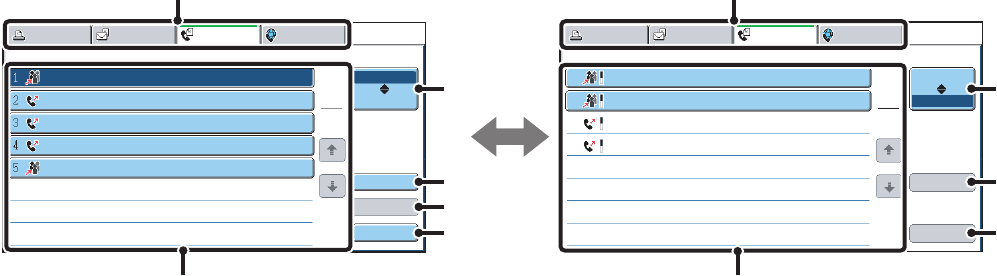
115
JOB QUEUE SCREEN AND COMPLETED JOB SCREEN
The job status screen consists of two screens: the job queue screen, which shows reserved jobs and the job currently in
progress, and the completed jobs screen. To switch between the two screens, touch the job status screen selector key
((2) below).
(1) Mode select tabs
Use these tabs to select the job status screen of each
mode.
(2) Job status screen selector key
Touch this key to switch between the job queue screen
and the completed jobs screen.
(3) Job queue screen [Detail] key
This shows detailed information on a broadcast
transmission or serial polling job that is reserved or in
progress. Select the key of the desired job in the job
queue screen (6) and then touch the [Details] key.
☞CHECKING A RESERVED JOB OR THE JOB IN
PROGRESS (page 119)
(4) [Priority] key
Touch this key to give priority to a selected job.
☞GIVING PRIORITY TO A RESERVED FAX JOB
(page 123)
(5) [Stop/Delete] key
Touch this key to stop or delete a selected job.
☞CANCELLING A FAX IN PROGRESS OR A
RESERVED FAX (page 121)
(6) Job queue screen
Jobs are shown as keys in the order they were reserved.
Each key shows information on a job and its current
status.
☞Job key display (page 116)
(7) Completed jobs screen [Detail] key
This shows detailed information on the results of
completed broadcast transmission jobs, completed serial
polling jobs, and completed jobs that used the document
filing function. Select the key of the desired job in the
completed jobs screen (9) and then touch the [Details]
key.
From the details screen, it is possible to resend the fax to
destinations to which transmission was not successful.
☞CHECKING COMPLETED JOBS (page 120)
(8) [Call] key
Touch this key to retrieve and use a transmission or
reception job that was stored using the document filing
function.
(9) Completed jobs screen
This shows up to 99 completed transmission/reception
jobs. A description of each job and the result (status) are
shown.
Broadcast transmission jobs, serial polling jobs, received
fax forwarding jobs, and transmission/reception jobs that
used the document filing function are indicated as keys.
Broadcast0001 10:00 04/01 010/003 NG000000
04/01 001/001 Send OK
0123456789
CCC CCC
Broadcast0002 10:05
04/01 004/004 Send OK
10:22
04/01 010/010 Send OK
10:30
Fax JobScan toPrint Job Internet Fax
Address
Broadcast0001 10:00 04/01 020/003 Connecting
04/01 000/004 Waiting
Broadcast0002
BBB BBB
AAA AAA
0123456789 10:05
04/01 000/004 Waiting
10:22
04/01 000/010 Waiting
10:30
04/01 000/010 Waiting
10:33
Set Time Pages Status
1
1
Job Queue
Complete
Detail
Priority
Stop/Delete
Fax JobScan toPrint Job Internet Fax
Address Start Time Pages Status
1
1
Job Queue
Complete
Detail
Call
(1) (1)
(6) (9)
(2)
(3)
(4)
(5)
(2)
(7)
(8)
Job queue screen Completed job screen
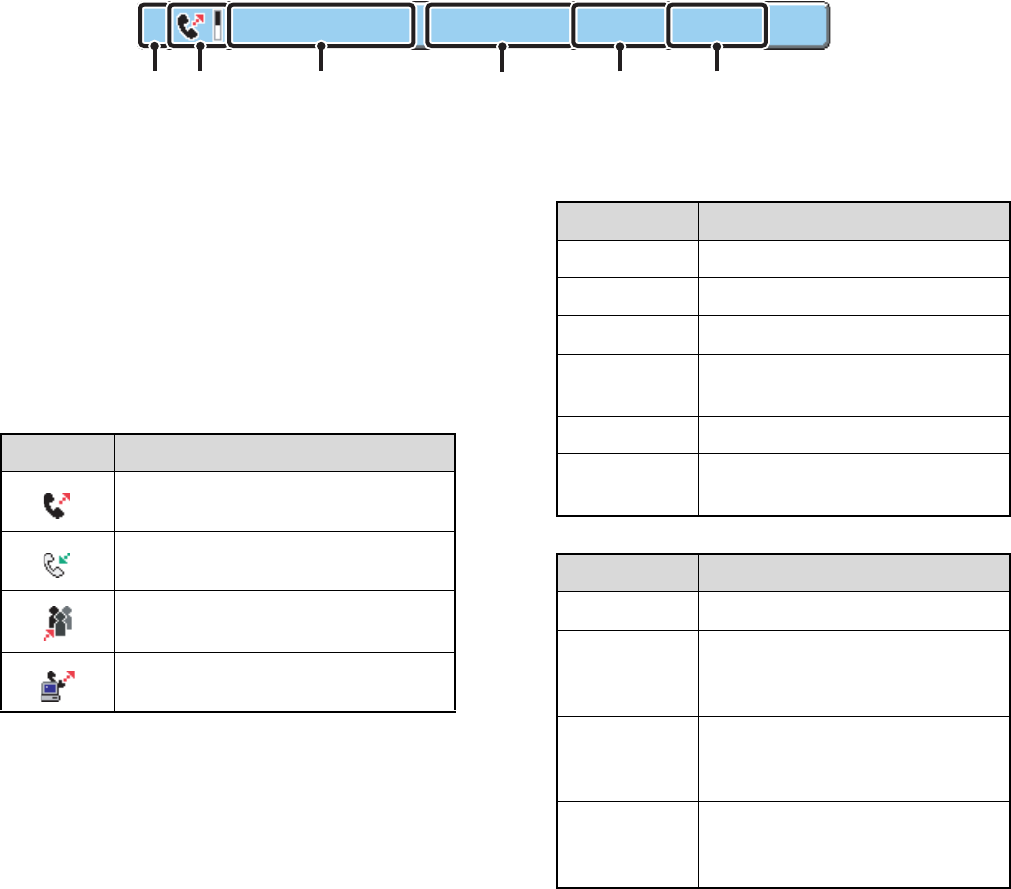
116
Job key display
The following information is shown in the job queue keys and completed job keys that appear in the job status screen.
(1) Indicates the number (position) of the job in the job
queue.
When the job currently being transmitted is finished, each
job moves up one position in the job queue.
This number does not appear in keys in the completed
jobs screen.
(2) Mode icon
This indicates the type of job. In the completed jobs
screen, a colour bar indicating black & white will appear
next to the icon. (However, the colour bar icon does not
appear in the key of a job stored using the document
filing function.)
(3) Name of other party
For a transmission, the name or fax number of the
destination. For a reception, the fax number of the
sending party.
For a broadcast transmission or serial polling operation,
the function name and a broadcast control number
(4-digits).
(4) Time reserved / Time started
In the job queue screen, the date and time the job was
reserved. In the completed jobs screen, the date and
time the job was started.
(5) Number of pages
Shows the number of pages transmitted / total number of
original pages.
(6) Status
Shows the job status.
• Job in progress
• Job waiting to be executed
AAA AAA3 10:22 04/01 Waiting000/004
(4)
(1) (2) (3) (5) (6)
Icon Job type
Fax transmission
Fax reception
Broadcast transmission or serial
polling
PC-Fax transmission
Message Status
"Connecting" Connecting
"Sending" Sending
"Receiving" Receiving
"Tel" Speaking with the other party using
an extension phone
"Stopped" The job has been stopped.
"Error" An error occurred while the job was
being executed.
Message Status
"Waiting" The job is waiting to be executed.
"Retry" The job is being re-attempted due
to a communication error or other
problem.
"Stopping" When a reserved fax job is
cancelled, the job is put on
stop-wait.
The day and
time are
displayed.
Timer transmission job (the
specified time is displayed)

117
• Completed job
Message Status
"Send OK" Transmission completed.
"In Memory" Reception completed but the fax
has not been printed. (The
received fax is being held by the
print hold function.)
"Printed" The received fax has been printed.
"Forward OK" The received fax has been
forwarded.
"Stopped" The job was stopped.
"Number of
successful
transmission
destinations /
Total
destinations
OK"
Broadcast transmission or serial
polling completed.
If transmission to 3 destinations
was successful out of a total of 5,
"003/005" will appear.
"No
response"
An error occurred because there
was no response from the
destination.
"Busy" An error occurred because the
other party was busy.
"Reject
Reception"
A fax was sent from a party that
has been blocked by the anti junk
fax function.
"NGxxxxxx" Transmission/reception was not
successful because a
communication error occurred (a
6-digit error code appears in
xxxxxx.)
"Error" An error occurred while the job was
being executed.
118
OPERATION WHEN A JOB IN THE JOB QUEUE IS
COMPLETED
When a normal transmission job is completed, it moves to the completed jobs screen and "Send OK" appears in the
status column.
Received faxes, timer transmission jobs, retry jobs, and forwarding jobs are handled in the job status screen as
explained below.
Fax reception jobs
While a fax is being received, "Receiving" appears in the job queue screen.
When reception is completed, the job moves to the completed jobs screen and "In Memory" appears.
After the fax is printed, the status changes to "Printed".
Timer transmission jobs
A timer transmission job appears at the bottom of the job queue screen until the specified time arrives.
When the specified time arrives, the job is executed. If another job is in progress, the timer job is started when the other
job is completed.
Retry jobs
A retry job appears at the bottom of the job queue screen. When the set retry interval elapses, the job is executed. If
there are jobs reserved ahead of the retry job, the retry job is reserved at the bottom of the job queue and executed
when its turn arrives.
Fax reception jobs when Inbound Routing is enabled
When Inbound Routing is enabled in the Web pages, fax reception jobs are handled as follows depending on the print
setting.
☞FORWARDING A RECEIVED FAX TO AN E-MAIL ADDRESS (Inbound Routing Settings) (page 59)
•Received fax is not printed
"Receiving" appears in the job queue screen while the fax is being received. When reception is completed, the job
moves to the job queue of the job status screen of scan mode.
•Received fax is printed
When reception is completed, the job moves to the completed jobs screen and "In Memory" appears. After the fax is
printed, "Printed" appears. In addition, the job is added to the job queue of the job status screen of scan mode. When
forwarding is finished, "Forward OK" appears.
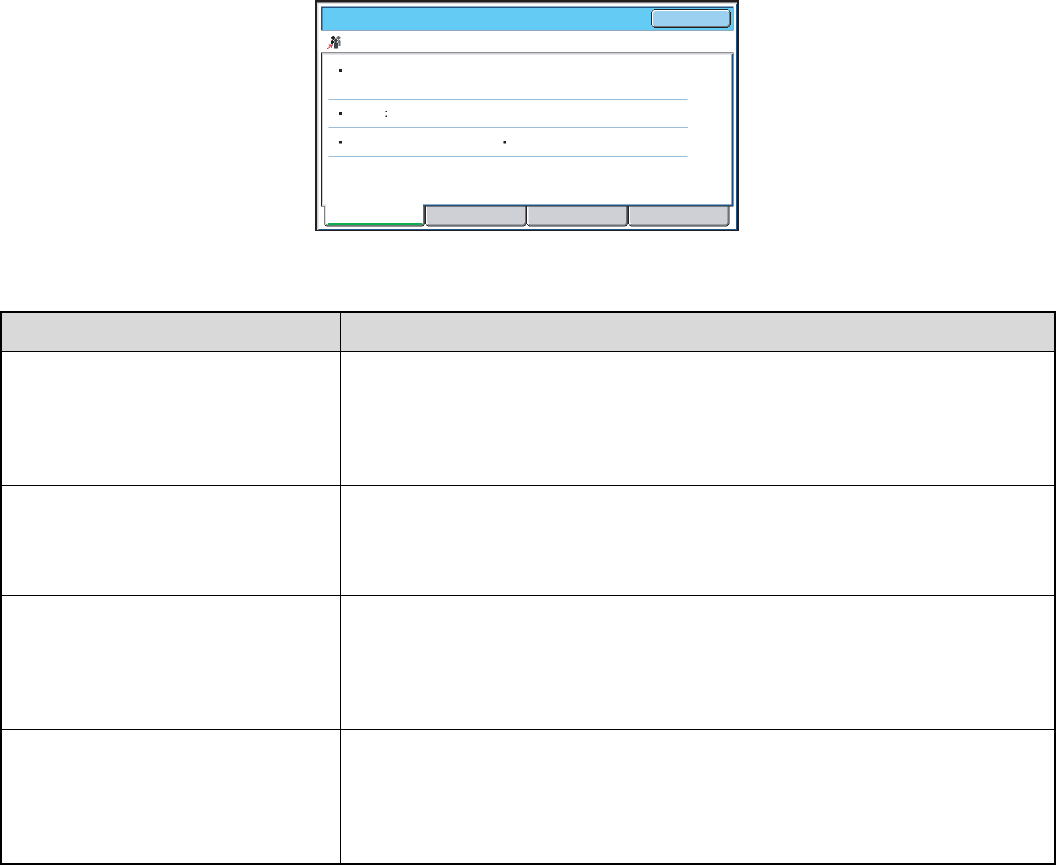
119
CHECKING A RESERVED JOB OR THE JOB IN
PROGRESS
The detailed contents of a broadcast transmission or serial polling job can be displayed. Select (touch) the key of the job
that you wish to check and touch the [Detail] key. The job details screen will appear (see below).
The job name and progress (number of completed destinations / total destinations) appear at the top of the screen.
Touch a tab to display the information that appears on that tab. The following information appears on each tab.
Tab name Information displayed
Fax Connecting Information on the current destination appears.
Fax No.: The fax number of the destination.
Name: The name of the destination.
Number: The broadcast control number (3-digits).
Pages: Number of pages completed / total number of pages
Fax Waiting This shows information on the destinations that are waiting. A broadcast control
number (3-digits) appears in front of each destination.
Address: The name of the other destination.
Status: The status of communication.
Failed This shows information on destinations for which communication failed. A broadcast
control number (3-digits) appears in front of each destination.
Address: The name or fax number of each destination.
Start Time: The time when communication began.
Status: The status of communication.
All Destinations This shows all destinations specified in the job. A broadcast control number (3-digits)
appears in front of each destination.
Address: The name or fax number of the destination.
Start time: The time at which communication began.
Status: The status of communication.
Name:
Number: 050 Pages: 005/010
AAA AAA
0123456789
Progress:Broadcast0001 050/100
Fax No. :
Fax Connecting Fax Waiting Failed All Destinations
Detail OK
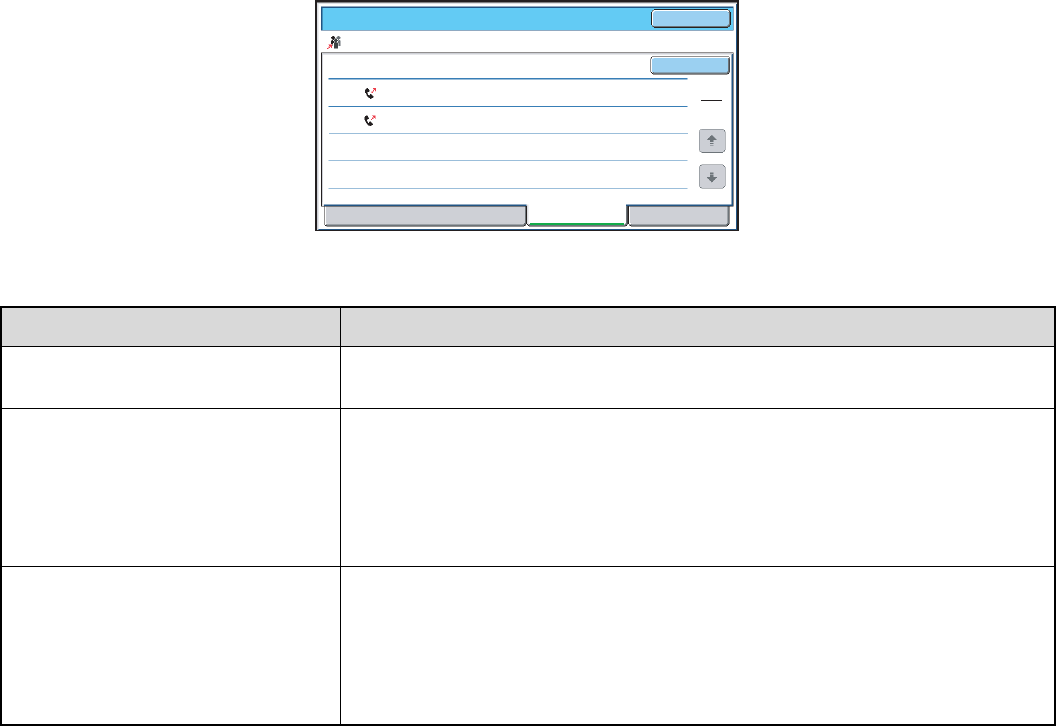
120
CHECKING COMPLETED JOBS
You can check a list of the destinations, the destinations for which transmission failed, and other detailed information on
completed broadcast transmission jobs, received fax forwarding jobs, serial polling jobs, and jobs that used document
filing. Touch the key of the desired job in the completed jobs screen and touch the [Detail] key. The job detail screen
(see below) will appear.
The job name appears at the top of the job detail screen.
To view details on the job, touch one of the tabs. The following information appears on each tab.
Tab name Information displayed
File Information on a transmission/reception that used document filing.
To retrieve the file and use it, touch the [Call] key.
Failed This shows information on destinations for which communication failed. A broadcast
control number (3-digits) appears in front of each destination.
Address: The name or fax number of each destination.
Start time: Time at which communication began.
Status: Description of failure (error)
The [Retry] key can be touched to re-attempt transmission to that destination.
All Destinations Shows all addresses specified in the job. A broadcast control number (3-digits)
appears in front of each destination.
Address: The name or fax number of each destination.
Start time: Time at which communication began.
Status: Communication result
The [Retry] key can be touched to transmit to all destinations again.
EEE EEE
DDD DDD002
010
Address Start Time
10:01 04/01
10:10 04/01
Status
NG000000
NG000000
1
1
Detail OK
Retry
Broadcast0001
File Failed All Destinations

121
CANCELLING A FAX IN PROGRESS OR A
RESERVED FAX
Follow the steps below to cancel a fax transmission that is in progress or a reserved fax job.
1
Press the [JOB STATUS] key.
2
Select the fax job that you wish to
cancel.
(1) Touch the key of the fax job to be cancelled.
(2) Touch the [Stop/Delete] key.
3
Touch the [Yes] key.
If you do not wish to cancel the selected fax job...
Touch the [NO] key.
JOB STATUS
Fax JobScan toPrint Job Internet Fax
Address
Broadcast0001 10:00 04/01 020/003 Connecting
04/01 000/004 Waiting
Broadcast0002
BBB BBB
AAA AAA
0123456789 10:05
04/01 000/004 Waiting
10:22
04/01 000/010 Waiting
10:30
04/01 000/010 Waiting
10:33
Set Time Pages Status
1
1
Job Queue
Complete
Detail
Priority
Stop/Delete
1
2
3
4
5
(2)(1)
No Yes
Delete the job?
BBB BBB 10:30 04/01

122
• When a reserved fax job is cancelled, "Stopping" appears and the job is put on stop-wait. When the stop-wait job reaches
the top of the job queue, it is deleted.
• If you cancel a fax job in progress, touch the [Yes] key to confirm the cancellation.
• When transmission of a job is cancelled, "Cancel" will appear in the result column of the transaction report.
•To stop the cancellation and execute the job...
While "Stopping" appears, the cancellation can be stopped and the job can be transmitted.
(1) Touch the key of the "Stopping" fax job.
(2) Touch the [Release] key.
The job status changes to "Waiting".
• Printing of received faxes and forwarding jobs set using "Inbound Routing Settings" cannot be cancelled.
☞FORWARDING A RECEIVED FAX TO AN E-MAIL ADDRESS (Inbound Routing Settings) (page 59)
Broadcast0001 10:00 04/01 020/003 Connecting
04/01 000/004 Waiting
BBB BBB
Broadcast0002
AAA AAA
0123456789 10:05
04/01 000/004 Waiting
10:22
04/01 000/010 Waiting
10:33
04/01 000/010 Stopping
10:35
Release
Fax JobScan toPrint Job Internet Fax
Address Set Time Pages Status
1
1
Job Queue
Complete
Detail
Priority
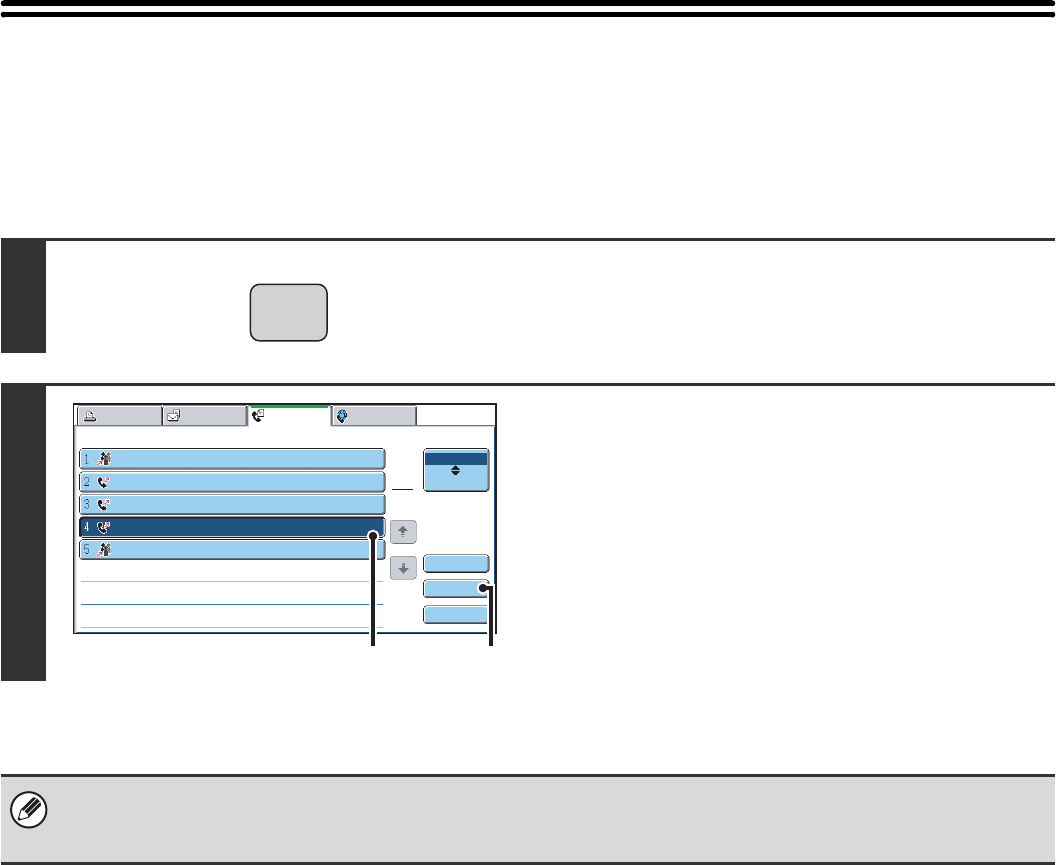
123
GIVING PRIORITY TO A RESERVED FAX
JOB
When multiple jobs are waiting to be transmitted, the jobs are normally transmitted in the order they were reserved.
If you need to give priority to a job and send it ahead of the other jobs, follow the steps below.
1
Press the [JOB STATUS] key.
2
Select the fax job to which you wish to
give priority.
(1) Touch the key of the desired job.
(2) Touch the [Priority] key.
The selected job moves up to the position immediately
following the job in progress. The job will be executed
when the job in progress is completed.
If the job in progress is a broadcast transmission job or a serial polling job, the priority job will be transmitted between
destinations of the broadcast transmission or serial polling job. However, if the priority job is a broadcast transmission job or
a serial polling job, it will be executed after the current job is completed.
JOB STATUS
Fax JobScan toPrint Job Internet Fax
Address
Broadcast0001 10:00 04/01 020/003 Connecting
04/01 000/004 Waiting
Broadcast0002
BBB BBB
AAA AAA
0123456789 10:05
04/01 000/004 Waiting
10:22
04/01 000/010 Waiting
10:30
04/01 000/010 Waiting
10:33
Set Time Pages Status
1
1
Job Queue
Complete
Detail
Priority
Stop/Delete
(2)(1)

124
This chapter explains how to print out and check the results of transmissions and receptions.
TRANSACTION REPORT
A transaction report is printed when transmission fails or after a broadcast transmission or a confidential reception. The
conditions for printing a transaction report can be changed. The conditions can also be changed for only a single
transmission.
Example of a transaction report
The report shows the date, starting time, name of the other party, time required, number of pages, and result.
9PRINTING A TRANSACTION
REPORT / IMAGE SENDING
ACTIVITY REPORT
•System Settings (Administrator): Transaction Report Print Select Setting
This is used to set the conditions for printing transaction reports.
The factory default settings are print at below.
Single Sending: Print Out All Report/ /No Printed Report
Broadcasting: /Print Out Error Report Only/No Printed Report
Receiving: Print Out All Report/Print Out Error Report Only/
Confidential reception: /No Printed Report
•System Settings (Administrator): Original Print on Transaction Report
This is used to have part of the transmitted original printed on the transaction report.
TRANSACTION REPORT
# DATE START T.
COM. TIME
TYPE/NOTEPAGE FILESENDER
01/APR/2006/SAT 10:00 AM
FAX (TX)
001 09:45AM 0:00:13 1xxxxxxxxx OK SG3 01/APR 2697
P. 01/01
Print Out Error Report Only
Print Out All Report
No Printed Report
Print Out Notice Page
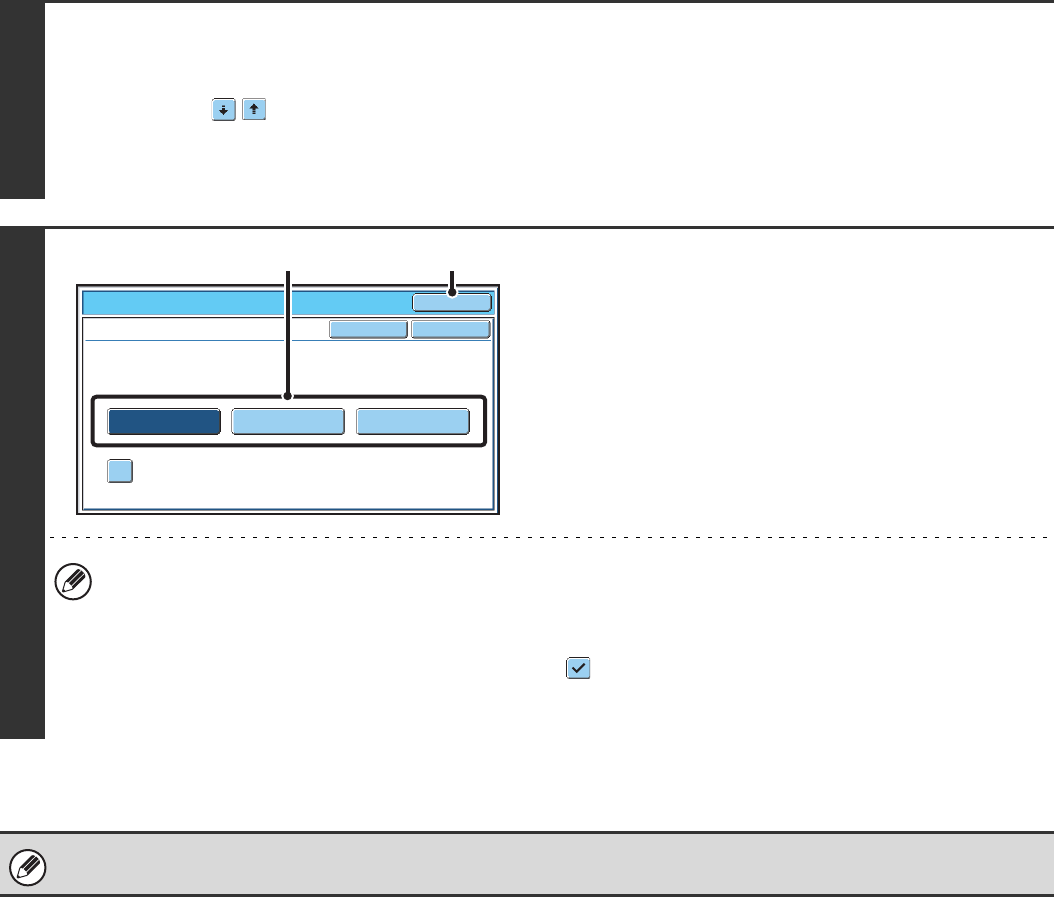
125
CHANGING THE TRANSACTION REPORT PRINT
CONDITION FOR A SINGLE TRANSMISSION
When performing a transmission, follow the steps below to select the condition for printing a transaction report. When
the transmission is finished, your setting will be cleared.
1
Select the special modes.
(1) Touch the [Special Modes] key.
(2) Touch the keys to switch through the screens.
(3) Touch the [Transaction Report] key.
☞Special modes menu (2nd screen) (page 61)
2
Select the transaction report print
condition.
(1) Touch the key of the desired print
condition.
(2) Touch the [OK] key.
• The print conditions for a transaction report are as follows:
"Always Print": A transaction report is printed no matter whether the transmission succeeds or fails.
"Print at Error": A transaction report is printed when transmission fails.
"Do not Print": Do not print a transaction report.
• When the [Print Original Image] checkbox is selected ( ), part of the transmitted original is included on the
transaction report. However, the original image is not printed when the speaker is used to dial or a direct
transmission or polling reception operation is performed.
For a broadcast transmission, the print condition applies to each destination.
Fax/Special Modes
Transaction Report
Print Original Image
OK
OKCancel
Always Print Print at Error Do not Print
(2)(1)

126
INFORMATION APPEARING IN THE RESULT COLUMN
Error types and other information are printed in the result column of the report. Check the transaction result in the result
column and take appropriate action if the result is an error.
Examples of messages that are printed in the result column
Message Explanation
OK The transaction was completed normally.
G3 Communication took place in G3 mode.
ECM Communication took place in G3 ECM mode.
SG3 Communication took place in Super G3 mode.
Forwarding The received data was forwarded.
NO RESPONSE No response from the receiving party.
BUSY Transmission was not possible because the other party was already using the line.
CANCEL The transmission was cancelled while in progress.
MEMORY OVER The memory became full during quick on-line transmission.
MEM.FULL The memory became full during reception.
LENGTH OVER The transmitted fax was over 1.5 m (59") long and therefore could not be received.
ORIGINAL ERROR Direct transmission or manual transmission was not successful because a misfeed occurred.
PASS# NG The connection was broken because the polling passcode was not correct.
NO RX POLL The machine that was polled does not have a polling function.
RX POLL FAIL The other machine refused the polling operation, or your machine broke the connection when
polled because no data was in memory.
F-CODE RX POLL FAIL The other machine refused an F-code polling operation, or your machine broke the connection
when polled because no data was in its F-code memory polling box.
RX POLL# NG The connection was broken because the sub-address for F-code polling memory was not valid.
F POLL PASS# NG The connection was broken because the passcode for F-code polling memory was not valid.
BOX NO. NG Your machine broke the connection because the specified sub-address for an F-code memory
box does not exist.
F PASS# NG Your machine broke the connection because the other machine sent an incorrect passcode for
F-code communication.
RX NO F-CODE POLL
F-code polling was attempted, however, the other machine did not have an F-code polling memory box.
NO F FUNC F-code communication was attempted, however, the other machine does not support F-code
communication.
NO F-CODE F-code communication was refused by the other machine because of an incorrect sub-address or
other reason.
M. BOX: [xxxxxx] Data was received to a confidential or relay broadcast memory box, or data was sent from a
memory polling box.
The name of the memory box appears in [xxxxxx], and the type of F-code operation (relay request
reception, polling memory transmission, or confidential reception) appears in .
NG xx (xxxx) The communication handshake signals or image signals were distorted due to line conditions or
other reasons, and communication was not successful.
(1) First two digits of communication error number: Error code from 00 to 99.
(2) Last four digits of communication error number: Code for use by service technicians.
REJECTED A fax was sent from a party from which reception is blocked.
(1) (2)
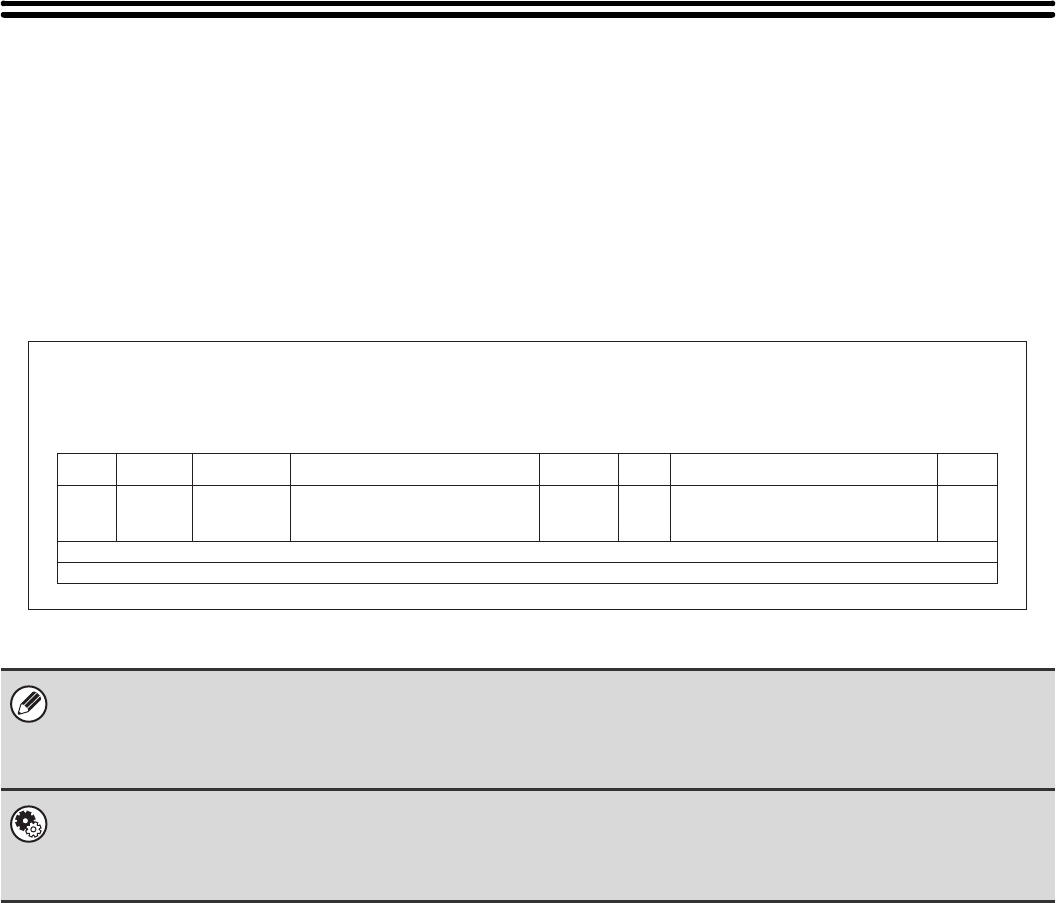
127
IMAGE SENDING ACTIVITY REPORT
You can print a log of recent image sending activity (date, name of other party, result, etc.). The result column shows
messages such as error types and other information. The Image Sending Activity Report shows your most recent 199
transactions.
You can have the machine print the Image Sending Activity Report each time the number of transactions reaches 200,
or at a specified time (once a day only).
Example of the Image Sending Activity Report
The report shows the date, starting time, name of the other party, time required, number of pages, and result.
• The contents of the Image Sending Activity Report are erased when the report is printed, and thus it cannot be reprinted.
• The Image Sending Activity Report can also be printed manually. See "List Print" in the system settings (administrator).
• For the information that appears in the result column, see "INFORMATION APPEARING IN THE RESULT COLUMN"
(page 126).
System Settings (Administrator): Activity Report Print Select Setting
This is used to set the condition for printing activity reports. The report is not printed by factory default.
The Image Sending Activity Report can be set to print each time the number of transactions reaches 200, or at a specified
time (once a day only).
# DATE
TOTAL
GRAND TOTAL
START T. COM.TIME TYPE/NOTEPAGE FILE
RECEIVER
01/APR/2006/SAT 10:00
FAX
0:00:26
0:00:26
2
2
001 08:55 xxxxxxxx01/APR 0032
002 08:56 0:00:13 1xxxxxxxx OK SG3 0033
003 09:01 0:00:13 1xxxxxxxx OK SG3 0034
P.01/01
ACTIVITY REPORT(SEND)
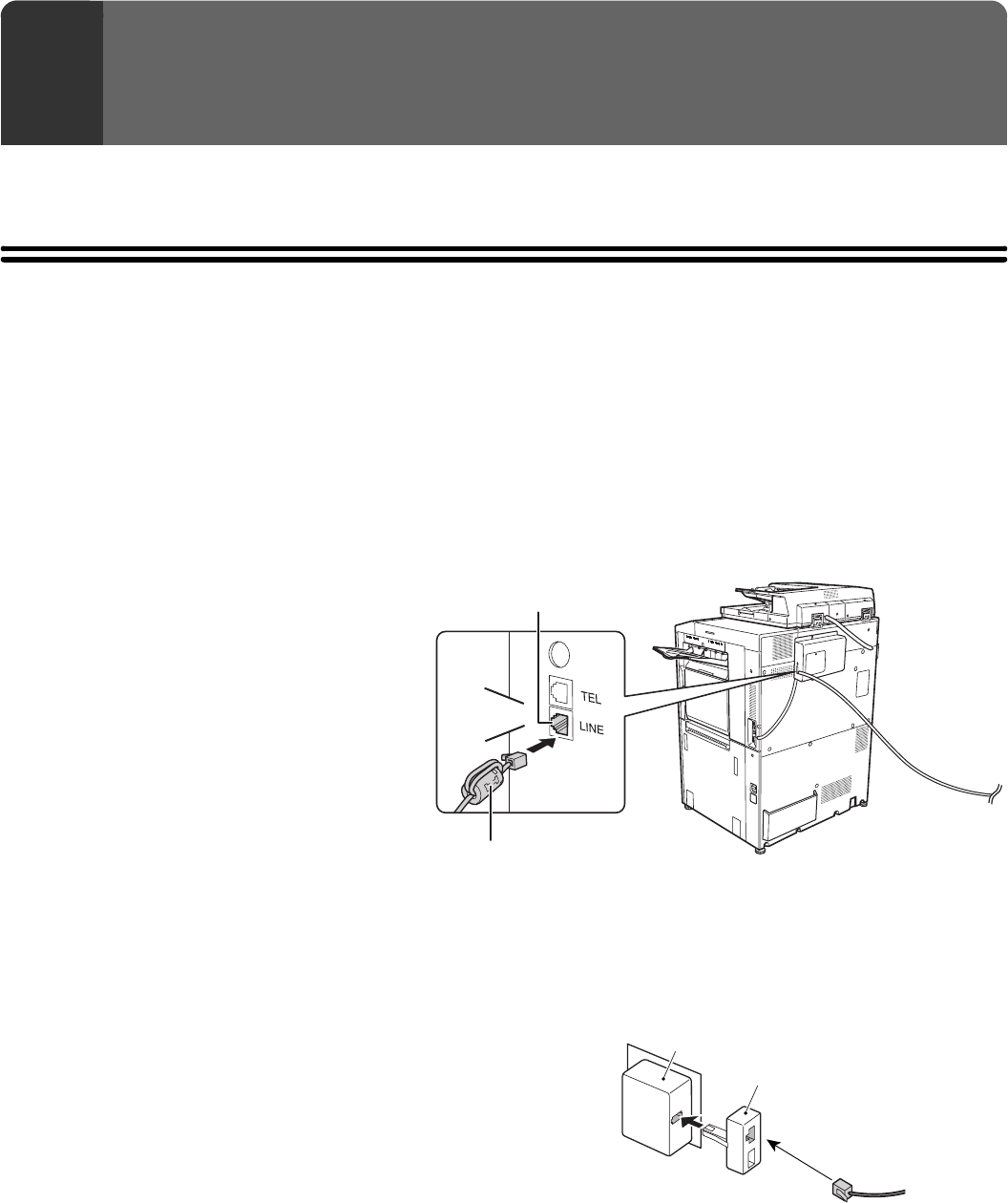
128
This chapter explains connections and changes to settings that are necessary in the event that the machine is moved.
CONNECTIONS AND SETTINGS AFTER THE
MACHINE IS MOVED
If the machine is moved to a different location or the fax number changes, check the following items and change the
following settings:
Telephone line connection, telephone line type setting, check the main power, check the date and time, change your
sender fax number setting.
CONNECTION TO THE TELEPHONE LINE
Be sure to use the provided telephone line cord
to connect the machine to the wall telephone
socket. Connect the end of the line cord that
has the core to the "LINE" socket on the
machine. Insert the other end (the end without
the core) into a telephone line socket.
An adapter is required to connect the telephone
line cable to the wall telephone socket, as
shown in the illustration.
10
IF THE MACHINE IS MOVED
Click!
Core
"LINE" socket
Insert the end of the cord with the
core into the "LINE" socket.
Adapter
Wall socket
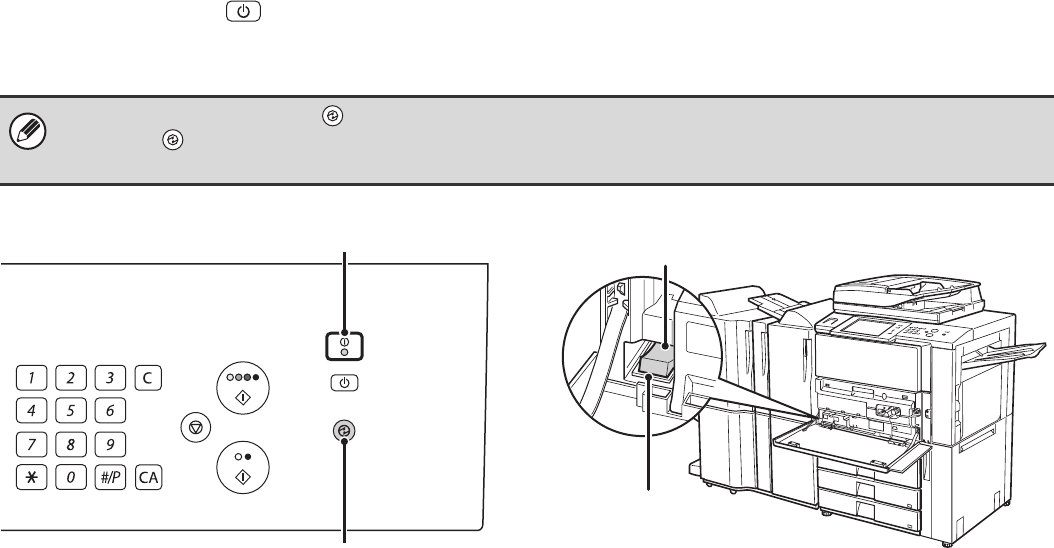
129
MAKE SURE THE MAIN POWER SWITCH IS IN THE
"ON" POSITION
When the main power indicator on the operation panel is lit, the main power is on.
If the main power indicator light is not lit, the main power is "off". Switch the main power switch to the "on" position and
press the [POWER] key ( ) on the operation panel.
If the fax function will be used, and in particular if reception or timer transmission will take place at night, always keep the
main power switch in the "on" position.
When the [POWER SAVE] key ( ) indicator light is blinking, the machine is in auto power shut-off mode. If the [POWER
SAVE] key ( ) is pressed when the indicator is blinking, the indicator will turn off and the machine will return to the ready
state after a brief interval.
LOGOUT
Main power indicator
[POWER SAVE] key/indicator
Main power
switch
"On" position
130
CHECKING THE DATE AND TIME
Verify that the correct date and time are set in the machine.
The date and time are set in the system settings of the machine. When the [SYSTEM SETTINGS] key is pressed, the
system settings menu screen appears on the touch panel. Select [Default Settings], [Clock], and [Clock Adjust], and set
the year, month, day, hour, and minute.
CHANGING THE SENDER FAX NUMBER
If your fax number changed, change the sender fax number.
If "Disabling of Clock Adjustment" has been enabled in the system settings (administrator), the date and time cannot be set.
System settings (administrator): Fax Own Name and Number Set
This is used to change the sender fax number.
MX-FXX1MODEL:
MX7000-GB-FAX-Z1
Facsimile Guide
