Sharp Viewcam Vl A10H Users Manual
VL-A10H to the manual a1581136-39ea-499c-8f7b-0c897d6711c1
2015-01-23
: Sharp Sharp-Viewcam-Vl-A10H-Users-Manual-284011 sharp-viewcam-vl-a10h-users-manual-284011 sharp pdf
Open the PDF directly: View PDF  .
.
Page Count: 63
VL-A10H/hyou; 00/8/28/18:00
Printed in Malaysia
TINSE0377TAZZ
T2437-A
0P06-M-G
LIQUID CRYSTAL DISPLAY CAMCORDER
OPERATION MANUAL
MODEL
VL-A10H
SHARP CORPORATION
SHARP ELECTRONICS (U.K.) LTD.
Sharp House, Thorp Road, Newton Heath
Manchester M40 5BE
References
Preparation Basic Operations
Playback Useful Features
Operation SummaryBasic Operations
Camera Recording Advanced Features
PAL
Please read this operation manual
carefully before using the VIEWCAM.
If you require any advice or assistance
regarding your Sharp product, please
visit our web-site www.sharp.co.uk/
support. Customers without Internet
access may telephone 08705 274277
during office hours (or (01)676 0648
if telephoning from Ireland) .

This equipment complies with the requirements of Directives 89/336/EEC and 73/23/EEC as
amended by 93/68/EEC.
Dieses Gerät entspricht den Anforderungen der EG-Richtlinien 89/336/EWG und 73/23/EWG
mit Änderung 93/68/EWG.
Ce matériel répond aux exigences contenues dans les directives 89/336/CEE et 73/23/CEE
modifiées par la directive 93/68/CEE.
Dit apparaat voldoet aan de eisen van de richtlijnen 89/336/EEG en 73/23/EEG, gewijzigd
door 93/68/EEG.
Dette udstyr overholder kravene i direktiv nr. 89/336/EEC og 73/23/EEC med tillæg nr. 93/68/
EEC.
Quest’ apparecchio è conforme ai requisiti delle direttive 89/336/EEC e 73/23/EEC, come
emendata dalla direttiva 93/68/EEC.
« „ͷًÛÙ·ÛÁ ·ıÙfi ·ÌÙ·ÔÍÒflÌÂÙ·È ÛÙÈÚ ··ÈÙfiÛÂÈÚ Ù˘Ì Ô‰Á„È˛Ì ÙÁÚ EıÒ˘·˙ÍfiÚ
EÌ˘ÛÁÚ 89/336/EOK Í·È 73/23/EOK, ¸˘Ú ÔÈ Í·ÌÔÌÈÛÏÔfl ·ıÙÔfl ÛıÏÎÁÒ˛ËÁÍ·Ì ·¸
ÙÁÌ Ô‰Á„fl· 93/68/EOK.
Este equipamento obedece às exigências das directivas 89/336/CEE e 73/23/CEE, na sua
versão corrigida pela directiva 93/68/CEE.
Este aparato satisface las exigencias de las Directivas 89/336/CEE y 73/23/CEE, modificadas
por medio de la 93/68/CEE.
Denna utrustning uppfyller kraven enligt riktlinjerna 89/336/EEC och 73/23/EEC så som
kompletteras av 93/68/EEC.
Dette produktet oppfyller betingelsene i direktivene 89/336/EEC og 73/23/EEC i endringen 93/
68/EEC.
Tämä laite täyttää direktiivien 89/336/EEC ja 73/23/EEC vaatimukset, joita on muutettu
direktiivillä 93/68/EEC.
VL-A10H/tobira 1 00/2/2/18:00 PageMaker 5.0J
WARNING
TO PREVENT SHOCK HAZARD, DO
NOT EXPOSE THIS APPLIANCE TO
RAIN OR MOISTURE.
This equipment should be used with the
recommended AC adapter or battery pack.
CAUTION
To prevent electric shocks and fire hazards,
do NOT use any other power source.
CAUTION
To prevent shock, do not open the cabinet.
No user serviceable parts inside. Refer
servicing to a qualified dealer or service
centre.
Important:
Recording and playback of any material may
require consent. Please refer particularly to the
provisions of the Copyright Act 1956, the
Dramatic and Musical Performers Protection
Act 1958, the Performers Protection Acts 1963
and 1972 and to any subsequent statutory
enactments and orders.
Power supply:
WARNING: THIS AC ADAPTER IS NOT
FOR USE WITH TOYS. THIS AC ADAPTER
IS FOR USE WITH SHARP VIEWCAM
MODEL VL-A10H ONLY.
This unit can be operated by connecting it
to either the AC adapter or battery pack.
The AC adapter incorporates the AUTO
VOLTAGE (AC 110–240 V, 50/60 Hz)
function.

VL-A10H/tobira 2; 00/2/2/18:00
G. K. Associates, Tokyo
SPECIAL NOTE FOR USERS IN THE U.K.
The mains lead of this product is fitted with a non-rewireable (moulded) plug incorporating a
3A fuse. Should the fuse need to be replaced, a BSI or ASTA approved BS 1362 fuse marked
or and of the same rating as above, which is also indicated on the pin face of the plug,
must be used.
Always refit the fuse cover after replacing the fuse. Never use the plug without the fuse cover
fitted.
In the unlikely event of the socket outlet in your home not being compatible with the plug
supplied, cut-off the mains plug and fit an appropriate type.
DANGER: The fuse from the cut-off plug should be removed and the cut-off plug destroyed
immediately and disposed of in a safe manner.
Under no circumstances should the cut-off plug be inserted elsewhere into a 13A
socket outlet, as a serious electric shock may occur.
To fit an appropriate plug to the mains lead, follow the instructions below:
IMPORTANT: The wires in the mains lead are coloured in accordance with the following code:
Blue: Neutral
Brown: Live
As the colours of the wires in the mains lead of this product may not correspond with the
coloured markings identifying the terminals in your plug, proceed as follows:
— The wire which is coloured blue must be connected to the plug terminal which is marked N
or coloured black.
— The wire which is coloured brown must be connected to the plug terminal which is marked
L or coloured red.
Ensure that neither the brown nor the blue wire is connected to the earth terminal in your three-
pin plug.
Before replacing the plug cover make sure that:
— If the new fitted plug contains a fuse, its value is the same as that removed from the cut-off
plug.
— The cord grip is clamped over the sheath of the mains lead and not simply over the lead
wires.
IF YOU HAVE ANY DOUBT, CONSULT A QUALIFIED ELECTRICIAN.
This VIEWCAM does not have a PCM recording or playback function. PCM recordings made
using other VCRs or audio dubbing cannot be played back on this unit.
NOTE:
The VIEWCAM’s LCD panel is a very high technology product with close to 90,000 thin-film
transistors*, giving you fine picture detail. Occasionally, a pixel may appear on the screen as a
fixed point of blue, green, red, or black. Please note that this does not affect your VIEWCAM’s
performance.
If you record on a tape on which PCM sound has already been recorded, the audio track of the
new VIEWCAM recording may not come out if the tape is played back on a PCM-capable VCR.
If this occurs, set the VCR’s audio monitor select switch to the “Standard” position.
*Specifications are subject to change without notice.
Your VIEWCAM is designed to record in SP mode only. It will not perform normal playback for
programmes prerecorded in LP mode.
VL-A10H/pp. i-iv; 00/2/25/18:00
G. K. Associates, Tokyo
i
Precautions
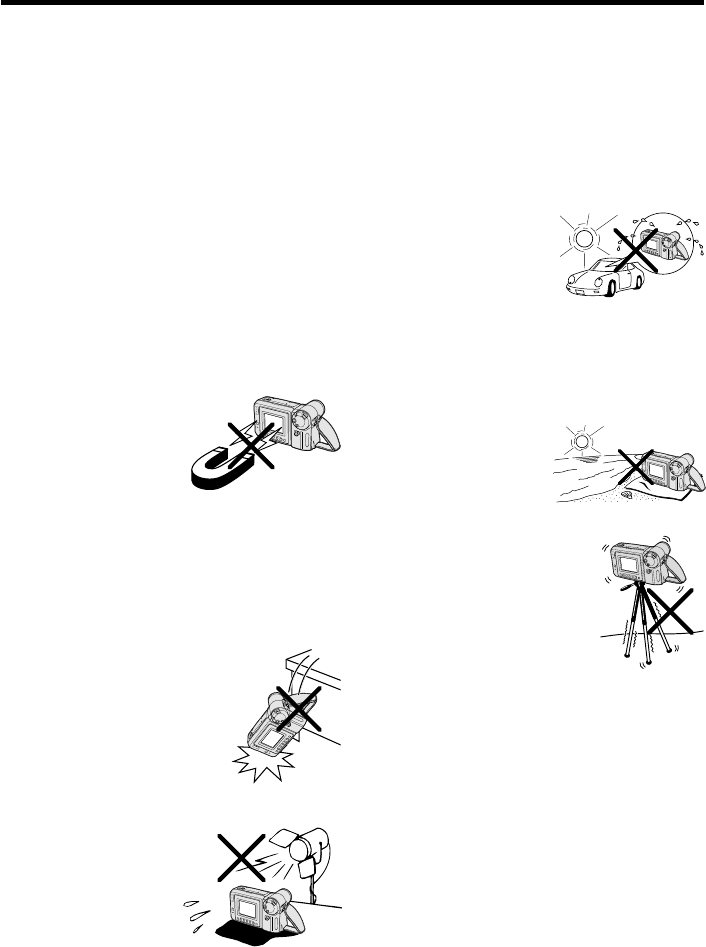
•When the VIEWCAM is not in use,
remember to remove the cassette tape,
turn off the power, and disconnect the
VIEWCAM from the power source.
•Do not aim the lens at the sun.
Do not allow direct sunlight to strike the
VIEWCAM lens or LCD monitor screen,
whether or not recording is in progress, as it
may damage the CCD sensor or LCD screen
surface. Be particularly careful when
recording outside.
• When shooting in dark places, avoid sudden
brightly lit objects or light sources, such as
the sun. Otherwise, the image may white out.
Should this happen, point the lens in a
different direction until the picture returns to
normal.
•Avoid magnetic
sources.
Using the VIEWCAM
near strong fluorescent
lights, motors,
televisions, or other
magnetic sources may adversely affect
recorded images.
•Using the VIEWCAM near a broadcasting
station or other powerful transmission
source may cause buzzing or picture
deterioration.
•Avoid shocks and
dropping.
Do not drop or otherwise
subject the VIEWCAM to hard
shocks or strong vibrations.
Bumping or striking the unit
during recording will
generate noise in the
recorded image.
•Avoid placing the
VIEWCAM in close
proximity to lighting
equipment.
The heat from
incandescent lights
may deform the
VIEWCAM, or cause it
to malfunction.
•Always respect prohibitions or restrictions
on the use of electronic equipment on
commercial flights or in other sensitive
areas.
•Be aware of the temperature and humidity.
You can use your VIEWCAM at 0⬚C to
Ⳮ40⬚C, and at 30% to 80% relative humidity.
Do not store the unit in an unventilated car in
the summer, in direct
sunlight, or near strong
heat sources; this can
result in severe damage
to the unit casing and
circuitry.
•Avoid situations where water, sand, dust or
other foreign matter could get on or inside
the VIEWCAM, and do not use or leave
your VIEWCAM in areas with excessive
smoke, steam or moisture.
Such environments can
cause malfunctions or
cause mildew to form
on the lenses. Be sure
to keep the unit in a
well-ventilated location.
•Some small, portable
tripods may be difficult to
attach and may not be
sturdy enough to support
your VIEWCAM. Be sure to
use only a strong, stable
tripod.
•When using your VIEWCAM in a cold
environment, the LCD monitor screen often
appears less bright immediately after the
power is turned on. This is not a
malfunction. To prevent the VIEWCAM from
becoming too cold, wrap it in a thick cloth
(a blanket, etc.).

VL-A10H/pp. i-iv; 00/2/25/18:00
G. K. Associates, Tokyo
ii
AC Adapter
•The AC adapter may interfere with reception if
used near a radio.
•Prevent flammables, liquids, and metal
objects from entering the adapter.
•The adapter is a sealed unit. Do not attempt
to open or modify it.
•Do not damage, drop, or subject the adapter
to vibration.
•Do not leave the adapter in direct sunlight.
•Avoid using the adapter in humid or
extremely hot places.
Cleaning
•Many plastic parts are used in the VIEWCAM
casing. Do not use thinner, benzene or other
strong chemical cleaners. These may cause
discolouration and damage to the casing.
•Clean the casing with a soft, dry cloth. If the
casing is particularly dirty, wipe the casing
with a tightly wrung cloth dampened with a
diluted, neutral detergent. Then wipe it again
with a soft, dry cloth.
•Use a soft cloth to wipe finger marks and
other soiling off the LCD screen.
•Use a soft cloth, or compressed air and lens
paper designed for photographic lenses to
clean the lens.
LCD Monitor Screen
The VIEWCAM is equipped with a large LCD
monitor screen that allows you to record
scenes while comfortably holding the
camcorder. The LCD monitor screen can be
rotated for easy recording at high or low
angles. It also functions as a handy playback
monitor so you can enjoy what you have just
recorded.
Cautions:
•Do not apply pressure to the screen.
•Do not expose the screen to shocks, as it may
break.
•Do not place the VIEWCAM with the screen
facing down.
Note:
•Use a soft cloth to clean the screen.
VL-A10H/pp. i-iv; 00/2/25/18:00
G. K. Associates, Tokyo
iii
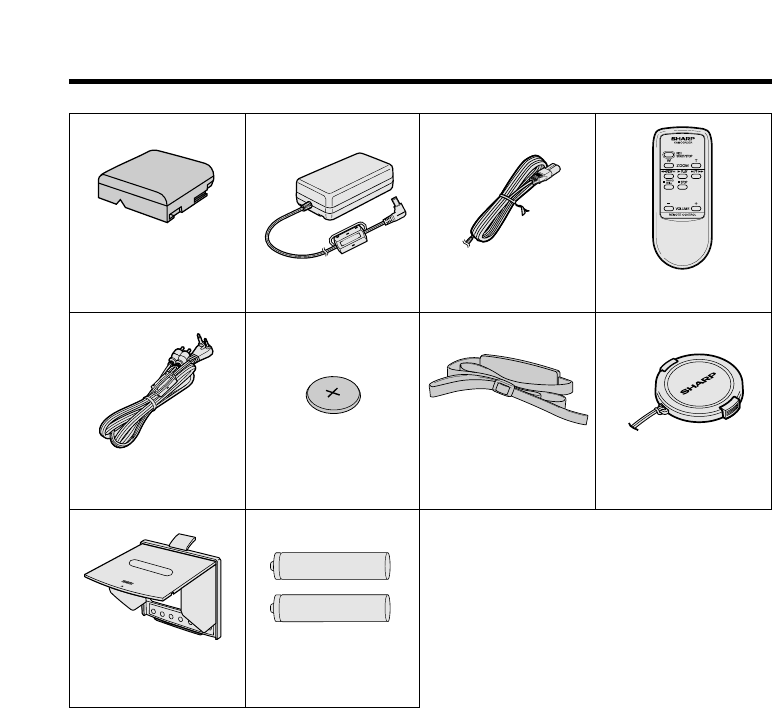
Supplied Accessories
Battery pack
BT-H22 AC adapter Infrared remote control
CR2025 type
lithium battery Shoulder strap Lens cap
AA battery for
remote control ⳯ 2
Audio/video cable
Power cord
Sun hood
VL-A10H/pp. i-iv; 00/2/25/18:00
G. K. Associates, Tokyo
iv
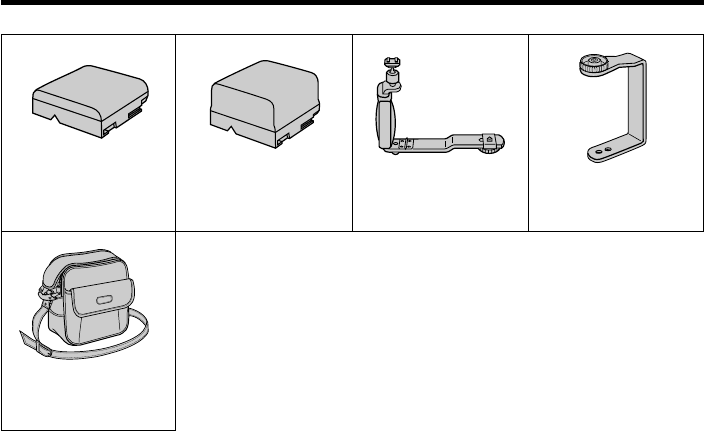
Optional Accessories
Extended type
battery pack
BT-H32
Standard type
battery pack
BT-H22
Accessory
shoe adapter
VR-30AD
Soft case
Tripod adapter
for 180° recording
VR-33FA
VL-A10H/pp. 001-004; 00/2/14/18:00
G. K. Associates, Tokyo
1
Contents
Preparation
Basic Operations
Operation Summary Part Names .......................................................... 3
On-screen Display Index ..................................... 5
Quick Reference Index ........................................ 6
Warning Indicators ............................................... 7
Inserting and Removing the Battery Pack ........... 8
Charging the Battery Pack ................................... 9
Powering the VIEWCAM from an AC Outlet......... 10
Inserting and Removing a Cassette .................. 11
Installing the Lithium Memory Battery ................ 12
Setting the Date and Time ................................. 13
Using the Hand Strap and the Lens Cap........... 14
Attaching the Shoulder Strap ............................. 14
Using the Sun Hood ........................................... 15
Camera Recording
Easy Camera Recording with Full Auto Mode ... 16
Zooming ............................................................. 17
Tips on Recording Positions .............................. 17
Remaining Recording Time Display .................. 18
Remaining Battery Power Display ..................... 18
Playback
Playback ............................................................ 19
Volume Control ................................................... 19
Watching the Playback on a TV ......................... 20
Video Search ...................................................... 21
Still...................................................................... 21
VL-A10H/pp. 001-004; 00/2/14/18:00
G. K. Associates, Tokyo
2
Operations of the On-screen Controls
Using the Control Buttons............................... 22
Selecting the Mode/Menu Screens ................ 22
Adjusting the Menu Settings........................... 23
Recording the Date and Time ............................ 24
Fade In and Fade Out ........................................ 25
Quick Review ..................................................... 26
Quick Return ...................................................... 27
Edit Search......................................................... 27
Gamma Brightness Compensation .................... 28
Gain-up (Cat’s Eye) ............................................ 29
Wide Screen (16:9) ........................................... 30
Macro Shots ....................................................... 30
Removing the Lens Hood .................................. 30
Self Recording ................................................... 31
Setting the VIEWCAM to Full Auto Mode ........... 33
Program Search ................................................. 34
Tape Counter Feature ........................................ 35
Using the Remote Control .................................. 37
Useful Features
Advanced Features Digital Picture Effects ......................................... 38
Scene Menu (Program AE) ................................ 39
Superimposing a Title ........................................ 40
Changing the Preset Titles ................................. 41
Auto/Manual Focus ............................................ 42
White Balance Lock ........................................... 43
Manual Exposure ............................................... 44
Picture/Backlight Adjustments ........................... 45
Gamma Playback............................................... 46
Turning Off the LCD Monitor Backlight .............. 46
Editing ................................................................ 47
References Useful Information .............................................. 48
Demonstration Mode.......................................... 52
Before Requesting Service ................................ 53
Specifications..................................................... 55
References
Preparation Basic Operations
Playback Useful Features
Basic Operations
Camera Recording Advanced Features
Operation Summary
VL-A10H/pp. 001-004; 00/2/14/18:00
G. K. Associates, Tokyo
3
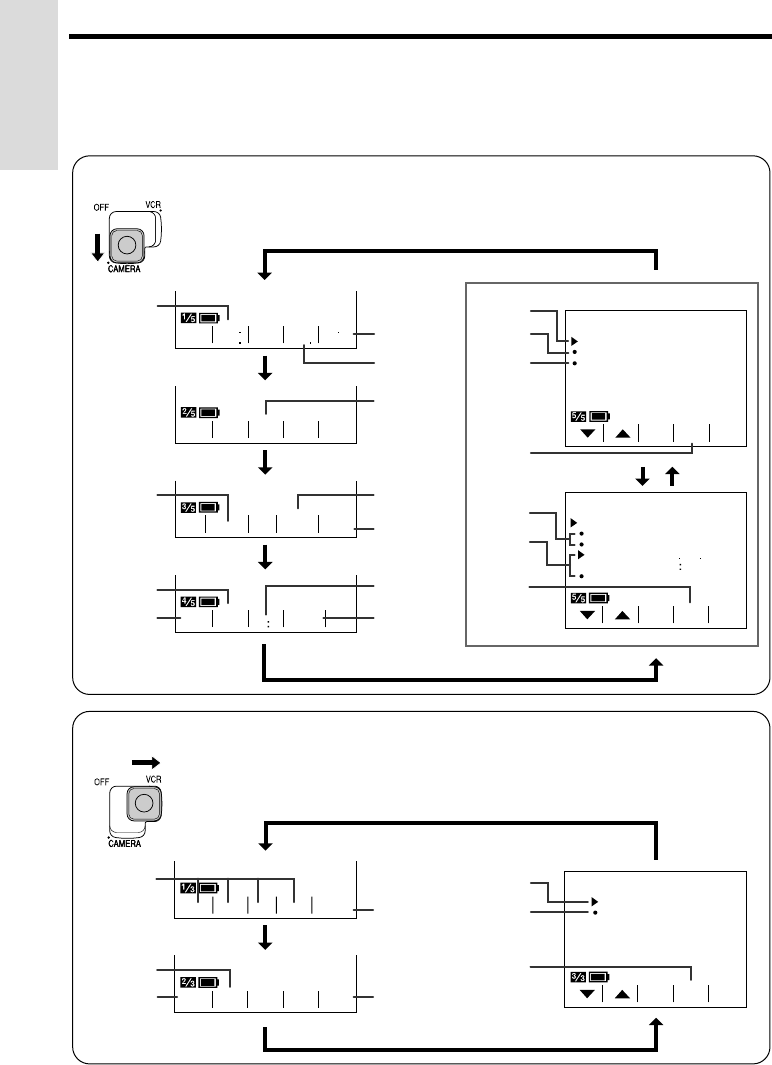
Part Names
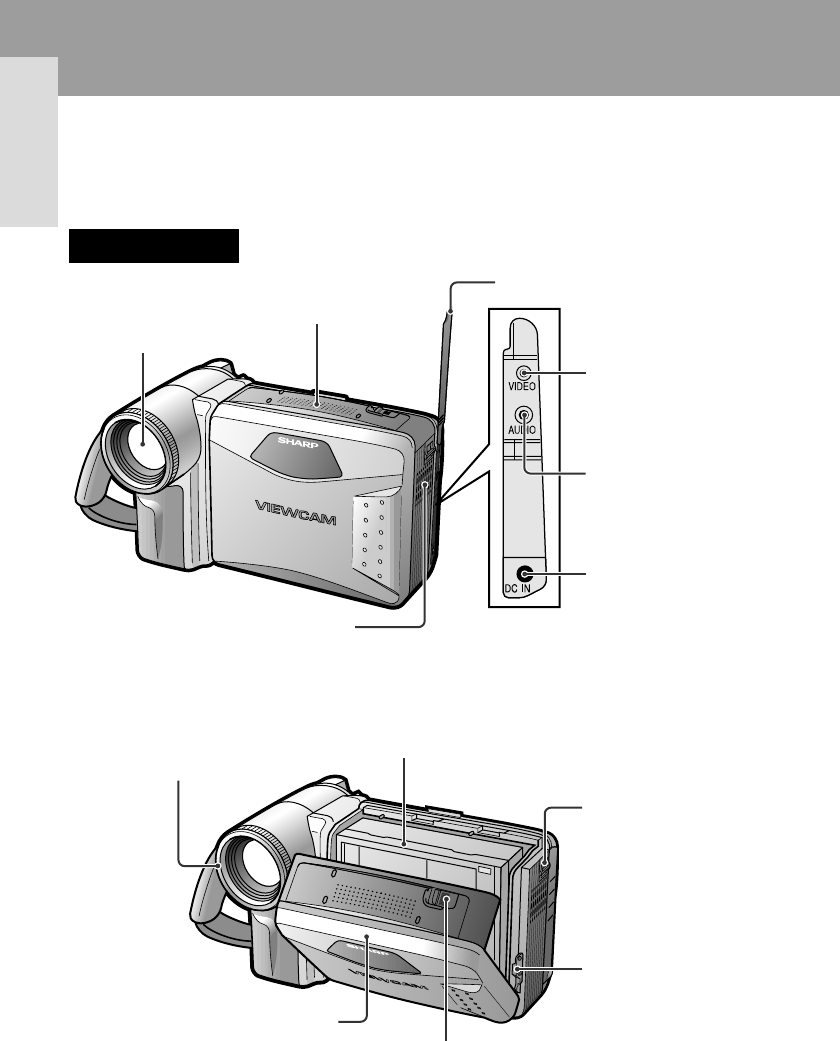
For details on the use of each part, refer to the page number indicated in the
brackets.
Front view
When the cassette compartment door is open
Operation Summary
Terminal cover
Microphone
Zoom lens
Speaker
VIDEO jack [pp. 20, 47]
DC IN jack [pp. 9, 10]
Shoulder strap loop
[p. 14]
Lithium battery holder
[p. 12]
Cassette holder [p. 11]
Lens hood [p. 30]
Cassette compartment door
release [p. 11]
Cassette compartment door
[p. 11]
Operation Summary
AUDIO jack [pp. 20, 47]
VL-A10H/pp. 001-004; 00/2/14/18:00
G. K. Associates, Tokyo
4
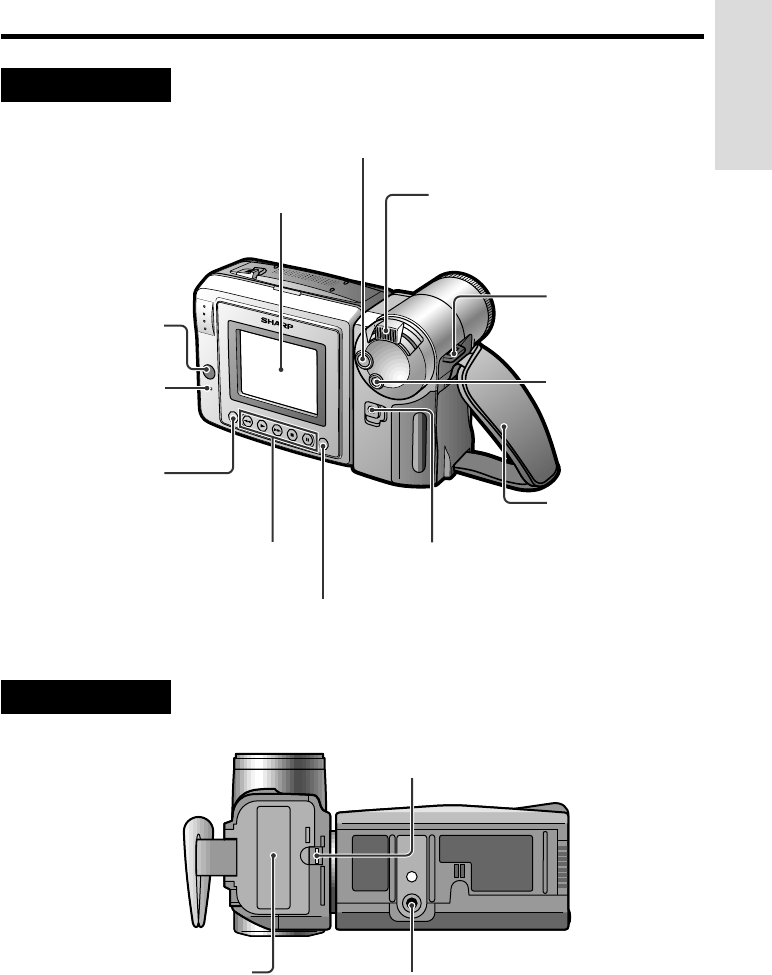
Rear view
Bottom view
Battery compartment door
[p. 8]
Operation Summary
Power Zoom Wide angle/
Telephoto control [p. 17]
VOLume control [p. 19]
DISPLAY button [p. 22]
Operation buttons [p. 22]
CHARGE indicator
[p. 9]
MENU button
[p. 22]
Remote sensor
[p. 37]
LCD monitor screen
RECord START/STOP button [p. 16]
Shoulder strap
loop [p. 14]
FADE button [p. 25]
Hand strap [p. 14]
Tripod socket
Battery compartment door release
[p. 8]
Power switch (CAMERA/VCR
select switch) [pp. 16, 19]
VL-A10H/pp. 005-007; 00/2/14/18:00
G. K. Associates, Tokyo
Operation Summary
Operation Summary
5
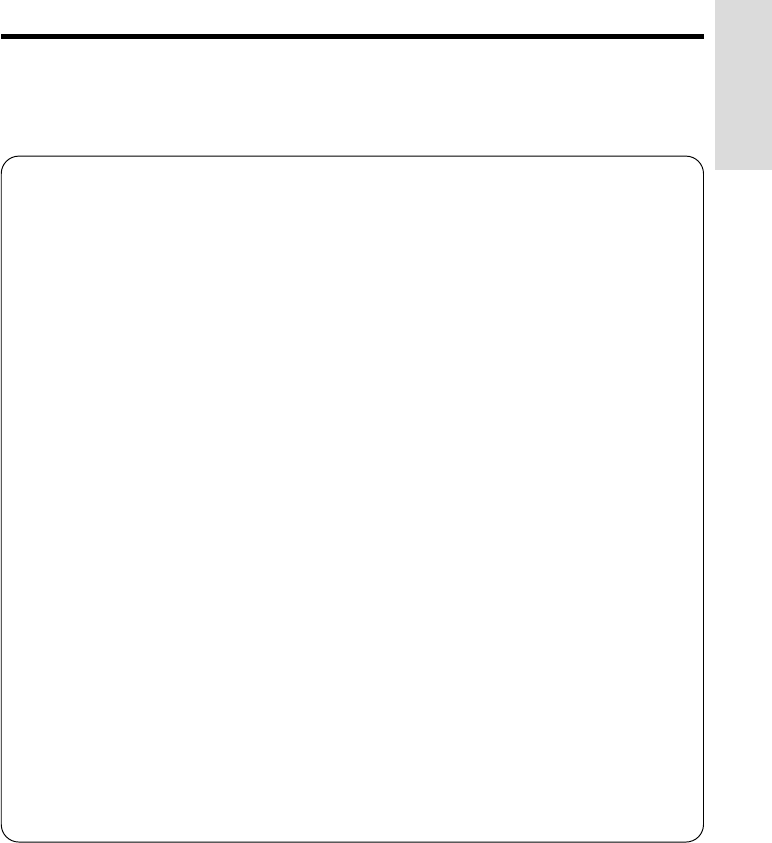
On-screen Display Index
For details on the use of each function, refer to the page number indicated.
p. 26
p. 38
p. 35
p. 52
p. 37
p. 25
p. 28
p. 45
p. 13
p. 24
p. 45
p. 44
p. 43
p. 39
p. 30
p. 40
p. 42
p. 27
p. 45
p. 37
p. 47
p. 34
p. 21
p. 19
p. 35
VCR Mode
Camera Mode
p. 46
Note: See pages 22 and 23 for the procedure to display the desired screen.
REW PLAY STOP ST I LLFF
NTER
COU
-
EFF.
GAMA ARCH
SE
-
GAMA REW
QK
EFF
PIC EFF
SUREFOCUS BAL.
WHI TE EXPO
TLE
TI
-
TURN
RE
-
16 9 MENU
SCENE
COU
-
NTER
MENU
FADE
REMOTE
NORMAL
ON
DEMO MODE OFF
1
PAGETURE
PIC
-
SET
MENU
TURE
PIC
-
SET
ED I T
REMOTE
OFF
ON
MENU
DATE
DI SPLAY OFF
SETTING
12H 24H
SELECT DATE TIME
+
TIME/
/
2
PAGETURE
PIC
-
SET
24H
1
000
1 2000
VL-A10H/pp. 005-007; 00/2/14/18:00
G. K. Associates, Tokyo
Operation Summary
6
Quick Reference Index
This index lists some example uses of the VIEWCAM’s features.
• To quickly check what you have just recorded.
—See page 26 (Quick Review)
• To quickly return the tape to the end of the last recorded scene after playback.
—See page 27 (Quick Return)
• To locate the point on the tape where to begin recording while in Camera mode.
—See page 27 (Edit Search)
• To record a backlit subject.
—See page 28 (Gamma Brightness Compensation) or page 44 (Manual
Exposure)
• To record in a dark or poorly-illuminated location.
—See page 29 (Gain-up)
• To record yourself while monitoring the shot.
—See page 31 (Self Recording)
• To record a short video message for somebody.
—See page 32 (Self-recording Message)
• To find the beginning of a recorded scene to be played back.
—See page 34 (Program Search)
• To display the elapsed recording or playback time.
—See page 35 (Tape Counter Feature)
• To focus on an off-centred subject.
—See page 42 (Manual Focus)
• To increase the brightness of the subject during playback.
—See page 46 (Gamma Playback)
VL-A10H/pp. 005-007; 00/2/14/18:00
G. K. Associates, Tokyo
Operation Summary
Operation Summary
7
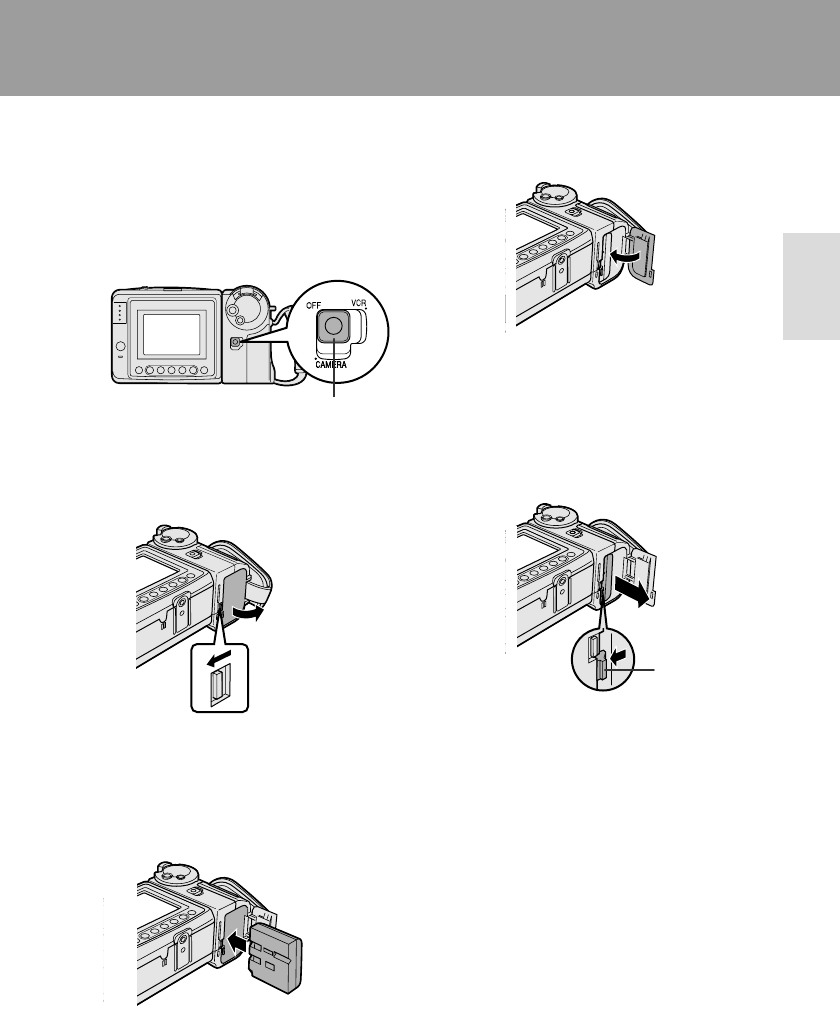
Warning Indicators
The video cassette is defective and should be
removed (see page 11).
Dew has formed inside the VIEWCAM. Wait for a few
hours until the dew disappears (see page 49).
About 10 seconds after this warning appears, the
VIEWCAM automatically turns off.
The battery is almost depleted. Replace it with a
fully charged battery pack (see page 8).
The video heads are clogged and should be
cleaned (see page 49).
There is no video cassette in the VIEWCAM. Insert a
cassette (see page 11).
The erasure protect tab on the video cassette has
been slid to the record-protect position, preventing
recording (see page 51).
The tape is about to end. Prepare a new cassette
(see page 11).
The tape has reached the end. Replace it with a
new cassette (see page 11).
In Self Recording mode, all warnings will be
indicated by displayed in the centre of the
monitor. To check the type of warning, rotate the
monitor back to the normal position.
Displayed for the first
3 seconds
Displayed after
3 seconds Description of warning
Note: indicates a flashing display.
VL-A10H/pp. 008-015; 00/2/2/18:00
G. K. Associates, Tokyo
Preparation
8
Inserting and Removing the
Battery Pack
Inserting the Battery Pack
1Make sure that the Power switch is set
to OFF.
2Slide the battery compartment door
release on the bottom of the VIEWCAM
in the direction of the arrow to open the
battery compartment door.
3Insert the battery pack into the com-
partment as shown, and push it in com-
pletely until it locks into place.
Caution:
• Do not force the battery pack into the
battery compartment if it does not go in
easily.
Removing the Battery Pack
1Perform steps 1 and 2 above.
2Press the battery release as shown to
remove the battery pack.
Preparation
Preparation
Cautions:
•BEFORE REMOVING THE BATTERY PACK,
ALWAYS STOP THE TAPE AND TURN THE
POWER OFF. If you remove the battery pack
during recording or playback, the tape will
remain wound around the video head drum,
potentially causing damage to the tape.
• Make sure the battery compartment door is
closed firmly during operation. If it is not, the
battery pack may fall out or VIEWCAM operation
may fail because of the poor contact pressure.
• Remove the battery pack from the VIEWCAM if
the VIEWCAM will not be used for a long period
of time.
•When removing the battery pack, do not tilt
the VIEWCAM so that the battery compart-
ment faces down. The battery pack may fall
out.
• Do not expose the battery compartment door to
strong force, as it may come off.
• Use only SHARP model BT-H22 or BT-H32
battery packs with this VIEWCAM. Use of other
batteries may present a risk of fire or explosion.
Power switch
4Close the door, pressing it firmly in the
centre until it clicks.
Battery release
Battery
compartment
door release
VL-A10H/pp. 008-015; 00/2/2/18:00
G. K. Associates, Tokyo
Preparation
Preparation
9
Charging the Battery Pack
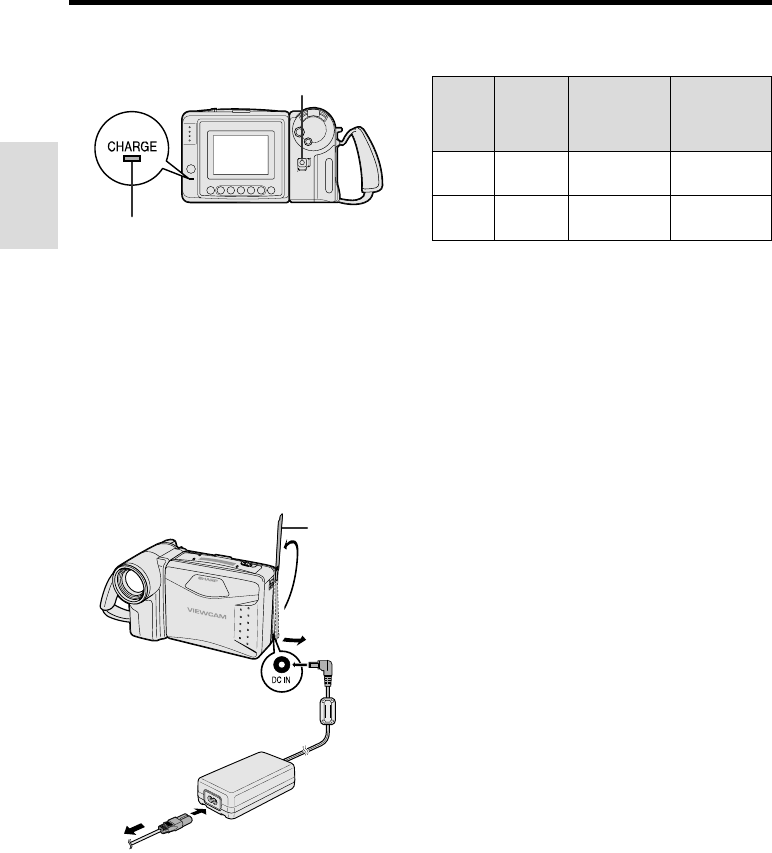
1Insert the battery pack into the VIEWCAM
(see page 8). Make sure that the Power
switch is set to OFF.
•The battery pack will not charge when the
Power switch is set to CAMERA or VCR.
2Connect the power cord to the AC adapter,
then insert the AC plug into a power outlet.
3Open the terminal cover on the VIEWCAM
and insert the DC plug of the AC adapter
into the DC IN jack on the VIEWCAM.
•The CHARGE indicator will light up in red.
4When the battery is fully charged, the
CHARGE indicator will light up in green.
Remove the DC plug from the VIEWCAM,
and close the terminal cover.
Caution:
•When removing the plugs, grasp the plug, not the
cable.
Charging time and maximum continuous
recording and playback times
Power switch
Terminal cover
Charging
time
Max.
continuous
recording
time
Max.
continuous
playback
time
Battery
pack
DC IN jack
CHARGE indicator
Notes:
• Using the zoom (see page 17) and other
functions or turning the power on and off
frequently will increase power consumption.
This may result in a decrease of more than 50%
in the actual recording time compared to the
maximum continuous recording time listed
above.
• The charging time and recording time may vary
depending on the ambient temperature and the
condition of the battery pack.
•It is recommended that you have enough battery
packs on hand to provide two to three times your
estimated recording time.
•See page 50 for more information on using the
battery pack.
Caution:
•Charge only SHARP model BT-H22 or BT-H32
battery packs. Other types of battery packs may
burst, causing personal injury and damage.
BT-H22
BT-H32
approx.
3 hr.
approx.
6 hr.
approx.
1 hr. 40 min.
approx.
3 hr. 20 min.
approx.
1 hr. 40 min.
approx.
3 hr. 20 min.
To power
outlet
VL-A10H/pp. 008-015; 00/2/2/18:00
G. K. Associates, Tokyo
Preparation
10
Powering the VIEWCAM from
an AC Outlet
Caution:
•The supplied AC adapter is specially designed
for use with this VIEWCAM, and should not be
used as a power supply for other camcorders.
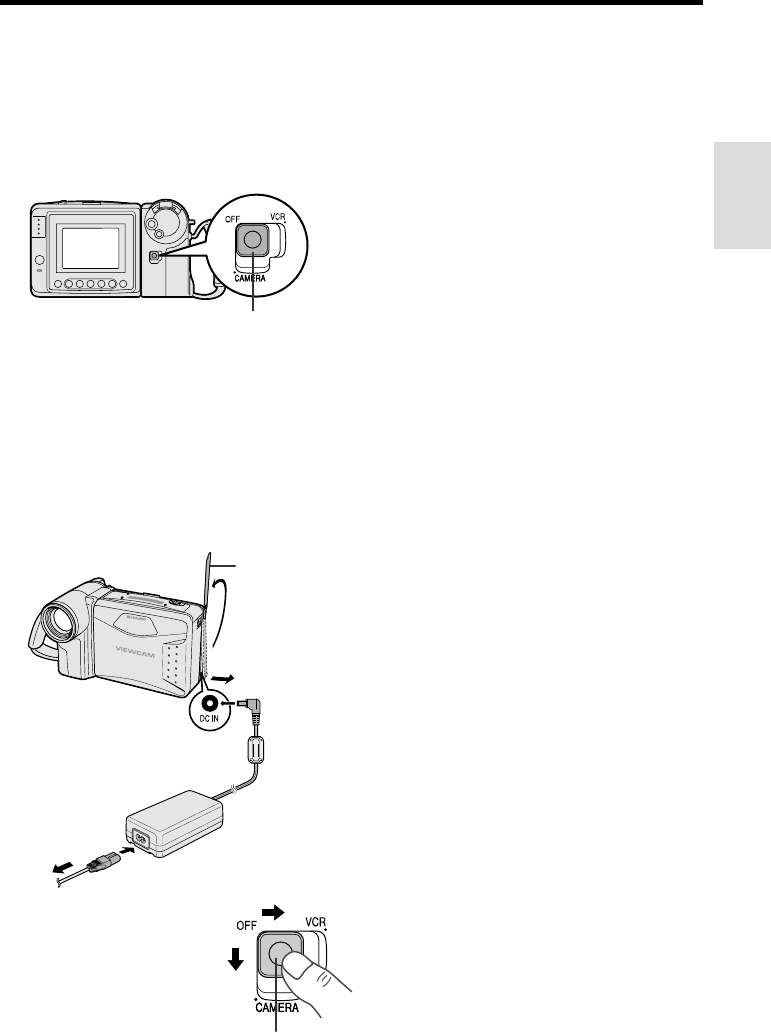
1Connect the power cord to the AC
adapter, then insert the AC plug into a
power outlet.
2Make sure that the Power switch is set
to OFF.
3Open the terminal cover and insert the
DC plug of the AC adapter into the DC
IN jack on the VIEWCAM.
Cautions:
•BEFORE REMOVING THE DC PLUG, ALWAYS
STOP THE TAPE AND TURN THE POWER OFF.
If you remove the DC plug during recording or
playback, the tape will remain wound around the
video head drum, potentially causing damage to
the tape.
•Remove the DC plug from the VIEWCAM if you
will not use the VIEWCAM for a long period of
time.
•When removing the plugs, grasp the plug, not
the cable.
Note:
•Close the terminal cover after use.
Terminal cover
Power switch
DC IN jack
4Hold down the Lock
button and slide the
Power switch to
CAMERA or VCR.
Lock button
To power
outlet
VL-A10H/pp. 008-015; 00/2/2/18:00
G. K. Associates, Tokyo
Preparation
Preparation
11
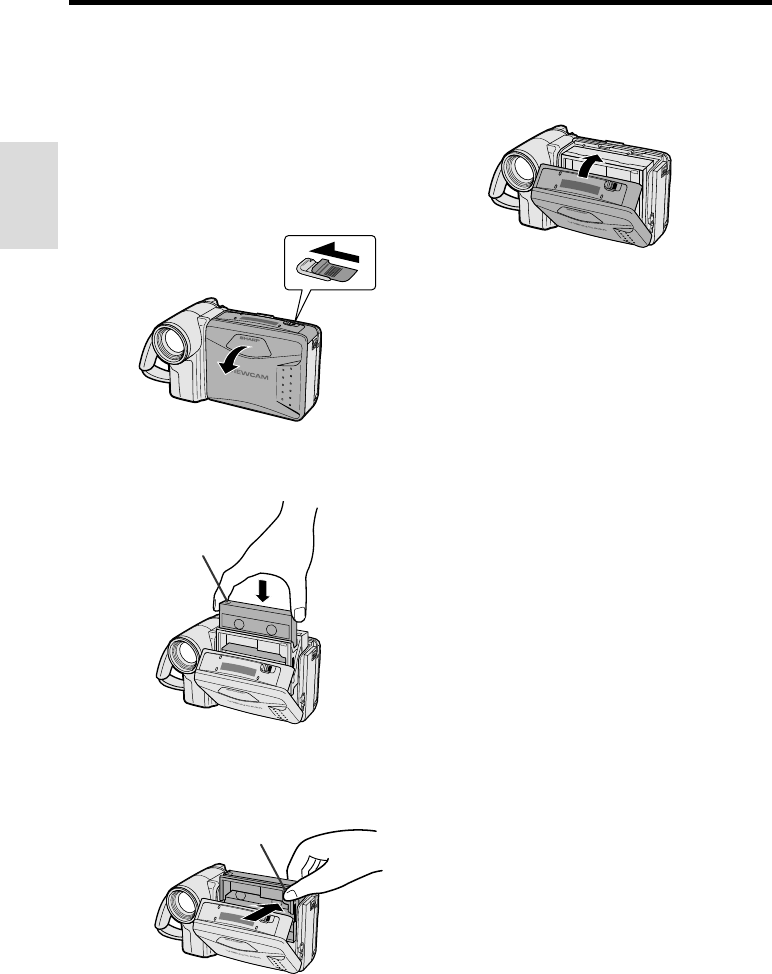
4Wait for the cassette holder to fully
retract. Close the compartment door by
pressing the centre until it clicks into
place.
Removing a Cassette
Perform step 1 above, then take out the
cassette.
Cautions:
•Do not try to close the cassette compartment
door while the cassette holder is extending or
retracting.
•Be careful not to get your fingers caught in the
cassette holder.
•Do not apply force to the cassette holder except
when pressing the PUSH mark to close it.
•Do not tilt the VIEWCAM or hold it upside down
when you are inserting or removing a cassette. It
may damage the tape.
•Remove the cassette if you will not use the
VIEWCAM for a long period of time.
•If you do not correctly close the cassette holder
in step 3, the VIEWCAM’s cassette protection
mechanism might eject the cassette. If this
happens, repeat the insertion procedure.
•Do not attempt to pick up the VIEWCAM by the
cassette compartment door.
Notes:
•If the battery power is too low, you may not be
able to eject the cassette. Replace the battery
pack with a fully charged one.
•See page 51 for more information on the video
cassette tapes for use with this VIEWCAM.
Inserting and Removing a
Cassette
Inserting a Cassette
1Supply power to the VIEWCAM, then
slide the release and open the cassette
compartment door.
•The cassette holder extends and opens
automatically.
2Insert the cassette fully with the window
facing outwards, and with the erasure
protect tab facing upwards.
3Press the PUSH mark gently until the
cassette holder clicks into place.
•The cassette holder retracts
automatically.
PUSH mark
Erasure protect tab
Cassette compartment
door release
VL-A10H/pp. 008-015; 00/2/2/18:00
G. K. Associates, Tokyo
Preparation
12
Installing the Lithium
Memory Battery
The supplied lithium battery is used to store the
memory of the date and time settings.
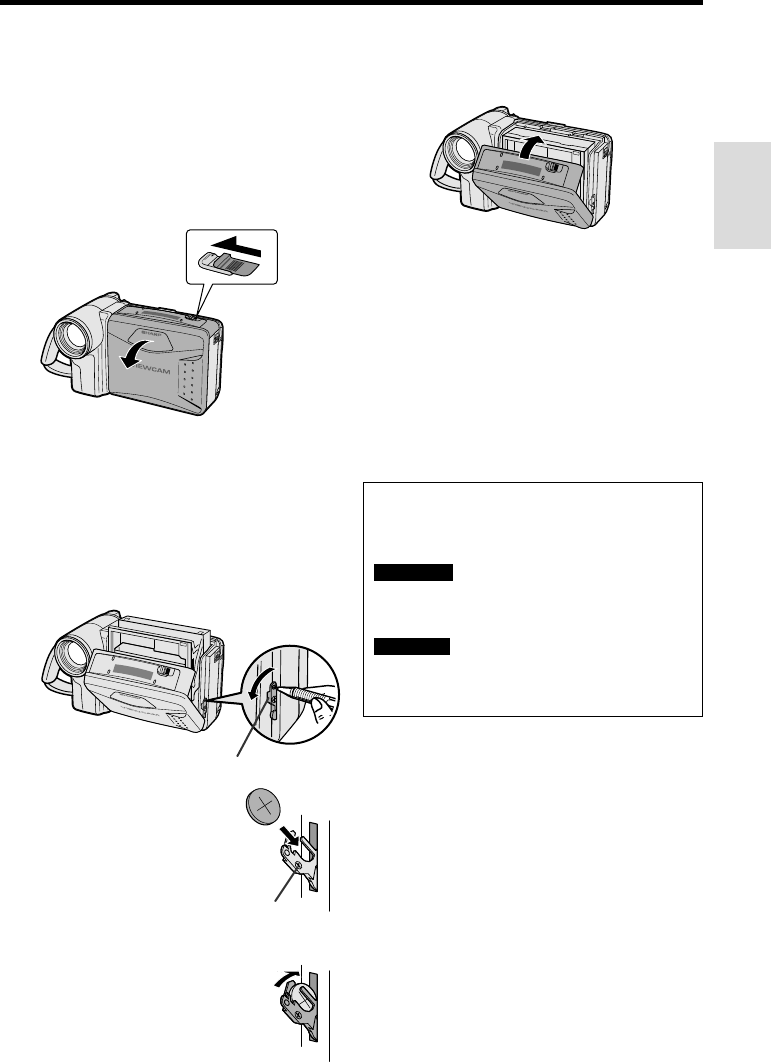
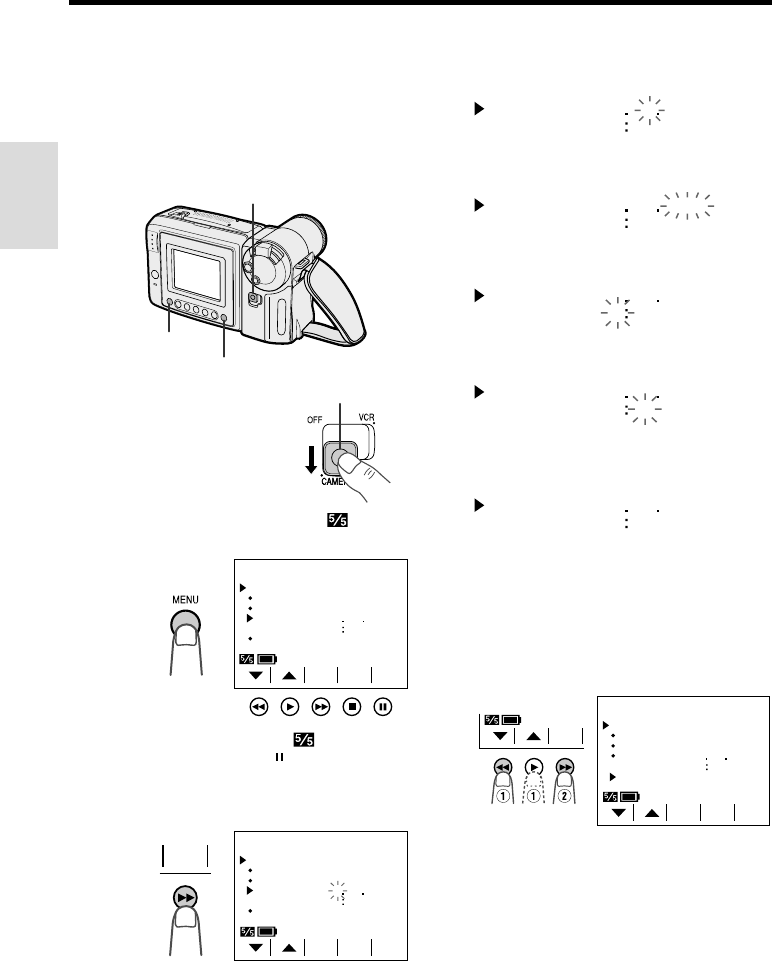
1Slide the cassette compartment door
release and open the cassette
compartment door.
Note: The cassette holder will extend and
open when the VIEWCAM is connected to a
power source. Be sure to close the cassette
holder before proceeding to the next step
(see page 11).
2Pull out the lithium battery holder using
a pointed object such as the tip of a
ballpoint pen.
3Insert the lithium battery
into the battery holder with
the ` side of the battery
facing the j side of the
holder.
4Push the battery holder back
into position.
5Close the cassette compartment door by
pressing the centre until it clicks into
place.
Removing the Lithium Battery
Perform steps 1 and 2 above, then lift out the
battery from the battery holder.
Note:
•Replace the battery with a new CR2025 battery
when the date and time indicator starts to fall
behind the correct time.
Notes on the Use of the Lithium
Battery
Cassette compartment
door release
Lithium battery holder
j mark
CAUTION: Danger of explosion if battery is
incorrectly replaced. Replace only with the
same or equivalent type CR2025 recommended
by the equipment manufacturer.
WARNING KEEP THIS BATTERY AWAY FROM
CHILDREN. IF SWALLOWED, CONSULT A
PHYSICIAN IMMEDIATELY FOR EMERGENCY
TREATMENT.
CAUTION BATTERY MAY EXPLODE IF MIS-
USED OR INSTALLED WITH POLARITY
REVERSED. DO NOT RECHARGE, DISAS-
SEMBLE OR DISPOSE OF IN FIRE.
•Do not short-circuit, recharge, disassemble,
or heat the lithium battery.
•Should the lithium battery leak, wipe the
battery compartment and holder clean, and
then insert a new battery.
•The lithium battery will last about one year of
normal usage.
VL-A10H/pp. 008-015; 00/2/2/18:00
G. K. Associates, Tokyo
Preparation
Preparation
13
Setting the Date and Time
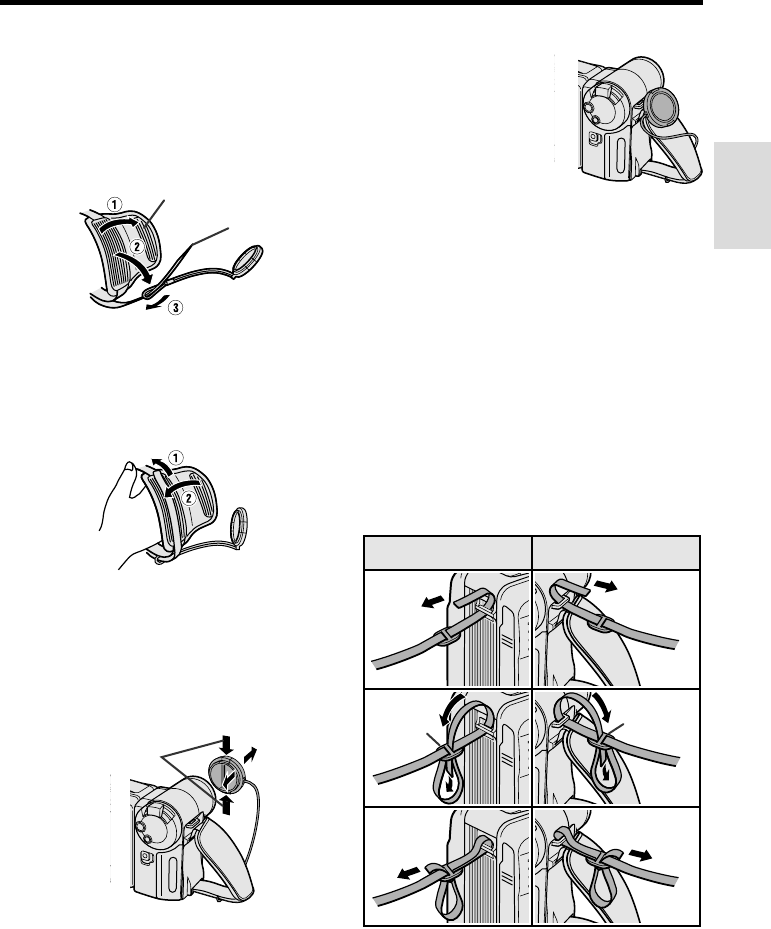
Example: Setting the date to 2 June 2001 (2. 6.
2001) and the time to 10:30 am (10:30).
Note:
•Check that the lithium memory battery has been
installed before setting the date and time.
4Press the 쑽 or 쒀 button (C or D) to
select “2” (day), and press the SET
button.
5Press the 쑽 or 쒀 button to select “6”
(month), and press the SET button.
6Press the 쑽 or 쒀 button to select
“2001” (year), and press the SET button.
7Press the 쑽 or 쒀 button to select “10”
(hour), and press the SET button.
8Press the 쑽 or 쒀 button to select “30”
(minute), and press the SET button.
•The internal clock now starts operating.
9Press the DISPLAY button to turn off the
menu screen.
Changing to the 12-hour Time Mode
After performing step 8 above, press the 쑽 or
쒀 button (Q) to select “12H/24H”, then press
the SET button (B) (W) to select “12H”.
Notes:
•The date and time, once set, are stored in
memory.
•The menu screen automatically turns off if no
settings are made within 5 minutes.
Power switch
1Hold down the Lock
button and slide the
Power switch to
CAMERA.
2Press the MENU button until
(MENU 2) appears.
•If MENU 1 appears on the screen,
press the PAGE button ( ) to display
MENU 2.
3Press the SET button (B).
•When changing the date and time settings,
press the 쑽 or 쒀 button (C or D) to
select “SETTING”, then press the SET
button.
Lock button
MENU
DATE
DI SPLAY OFF
SETTING
12H 24H
SELECT DATE T IME
+
TIME/
/
2
PAGETURE
PIC
-
SET
1
000
1 2000
24H
SET
2
10 30 AM
6 2001
MENU
12H
DATE
DI SPLAY OFF
SETTING
12H 24H
SELECT DATE T IME
+
TIME/
/
2
PAGETURE
PIC
-
SET
MENU
DATE
DI SPLAY OFF
SETTING
12H 24H
SELECT DATE T IME
+
TIME/
/
2
PAGETURE
PIC
-
SET
SET
1
000
1 2000
24H
MENU button
DISPLAY button
2
000
1 2000
SETTING
2
000
6 2000
SETTING
2
000
6 2001
SETTING
2
10 00
6 2001
SETTING
2
10 30
6 2001
SETTING
VL-A10H/pp. 008-015; 00/2/2/18:00
G. K. Associates, Tokyo
Preparation
14
3
2
14
5
6
Using the Hand Strap and the
Lens Cap
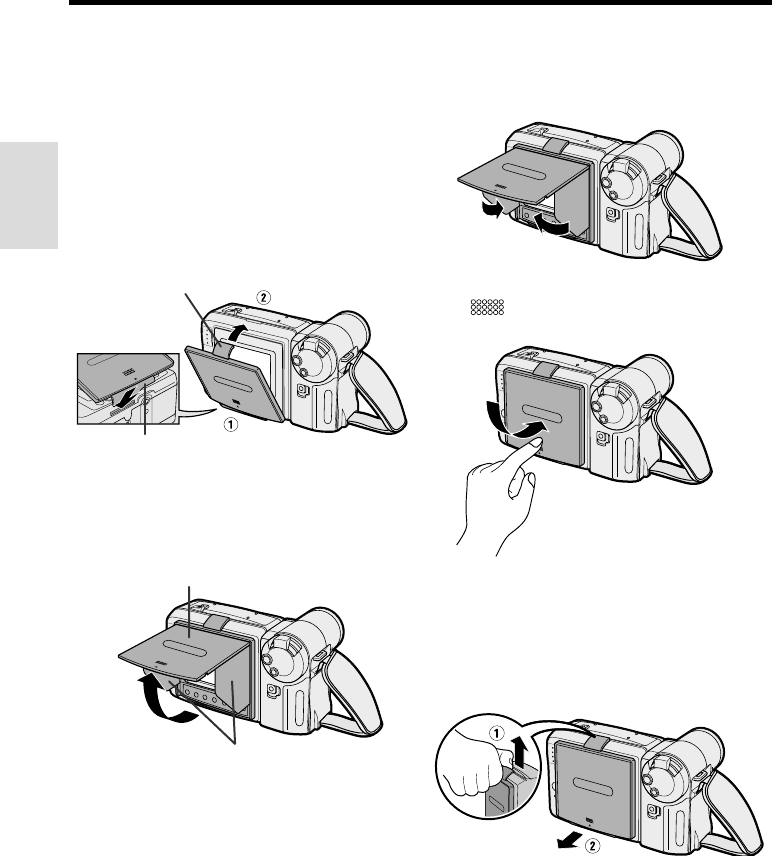
1Open the hand strap flap (Q) and grip
strap (W), and pass the grip strap
through the loop at the end of the lens
cap cord (E).
2Pass your hand through the hand strap
and put your thumb close to the Power
Zoom control. Then pull the grip strap
tight until it fits snugly, seal the Velcro®
closures (Q), and close the hand strap
flap (W).
Caution:
•Do not swing the VIEWCAM by the hand strap.
Attaching and Removing the Lens Cap
When attaching or removing the lens cap,
press both tabs on the sides of the cap.
Press both tabs.
Grip strap
Hand strap flap
Notes:
•Always replace the
lens cap on the lens
when the VIEWCAM is
not in use.
•Attach the lens cap to
the hand strap so it will
not get in the way
during recording.
Attaching the Shoulder Strap
1Hold one end of the strap and thread it
through the loop on the left side of the
LCD screen.
2Loosen the strap in the buckle, then feed
the end of the strap through the buckle,
as shown.
3Draw the strap in the direction of the
arrow to secure.
4–6Use the same procedure to attach the
other end of the strap to the loop on
the lens side.
LCD screen side Lens side
Buckle
Buckle
VL-A10H/pp. 008-015; 00/2/2/18:00
G. K. Associates, Tokyo
Preparation
Preparation
15
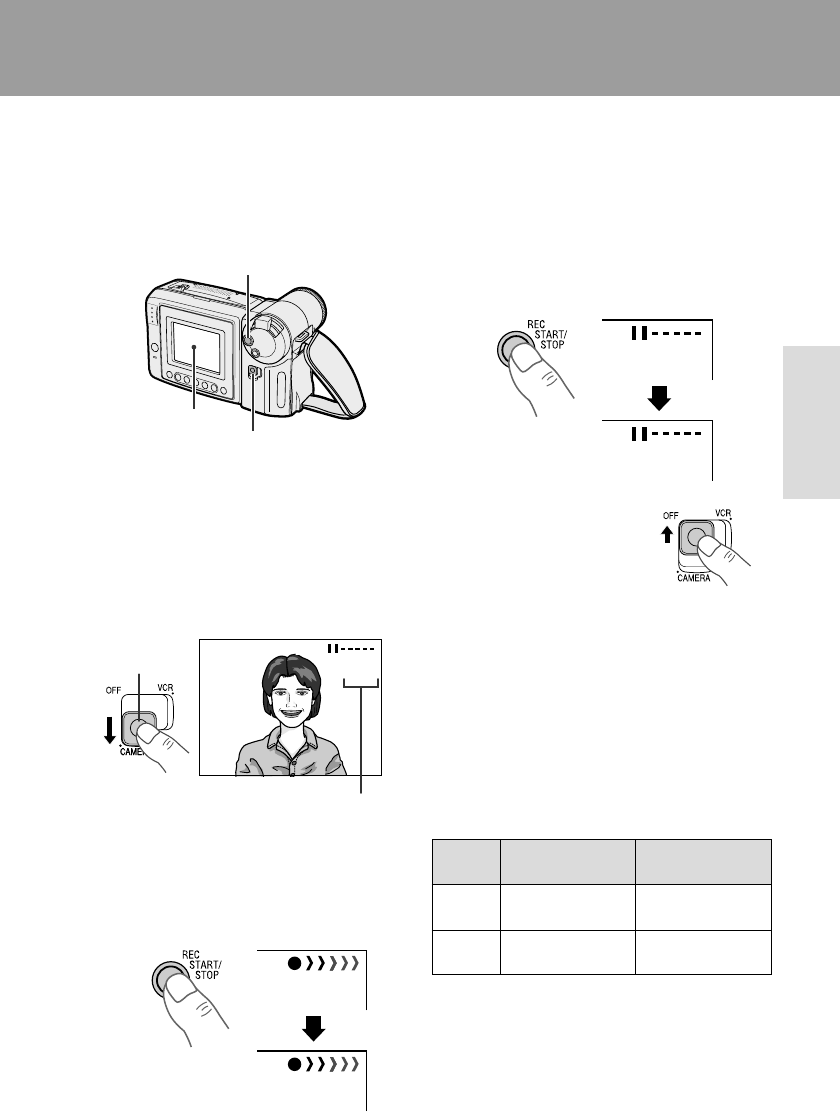
Closing the Sun Hood
1Fold in both side covers while holding the
top cover open.
2Close the top cover by gently pressing the
mark down until the cover clicks into
place.
Removing the Sun Hood
Carefully lift the top clip up with your thumb
while supporting the sun hood with your hand
(Q). Then pull the sun hood in the direction of
the arrow (W) to release the bottom clip.
Cautions:
•Be sure to close the sun hood before trans-
porting the VIEWCAM. If the VIEWCAM is trans-
ported with the sun hood open, the sun hood
may fall off or become damaged.
•Do not leave the sun hood in an unventilated car
in direct sunlight. The high temperature may
cause a deformation of the casing.
Opening the Sun Hood
Open the sun hood by lifting the top cover in
the direction of the arrow. (The side covers will
open automatically.)
Note:
•You can operate the Operation buttons below the
LCD screen with the sun hood attached.
Top cover
Side covers
Using the Sun Hood
It is recommended that you use the supplied
sun hood when recording outdoors on a sunny
day or at a brightly illuminated location.
Attaching the Sun Hood
Fit the bottom clip on the sun hood into the slot
below the LCD screen (Q), and align the top
clip with the ridge above the LCD screen (W).
Then press the sun hood until it clicks into
place.
Bottom clip
Top clip
VL-A10H/pp. 016-018; 00/2/2/18:00
G. K. Associates, Tokyo
Basic Operations
Camera Recording
16
Easy Camera Recording with
Full Auto Mode
Before you start recording, perform the operations
described on pages 8 through 15 to prepare your
VIEWCAM for recording.
1Remove the lens cap (see page 14).
2Hold down the Lock button and slide the
Power switch to CAMERA.
• The picture from the lens is now
displayed on the LCD monitor screen.
• The VIEWCAM is now ready to record
(Recording Standby mode).
Note: If, at this time, “AUTO” does not appear,
set the VIEWCAM to Full Auto mode by following
the procedure described on page 33.
3Press the REC START/STOP button to
begin recording.
Basic Operations
Camera Recording
REC START/STOP button
AUTO
Full Auto mode indicator
Lock button
REC
LCD monitor screen
Power switch
PAUSE
Max. continuous
recording time
Actual recording
time
Battery
pack
Note:
•When recording at the beginning of a tape, advance
the tape about 15 seconds before you begin
recording. This will prevent the beginning of the
recording being cut off when it is played back.
To Pause Recording
Press the REC START/STOP button again.
Recording pauses, and the VIEWCAM enters
the Recording Standby mode.
To Turn the Power Off
Slide the Power switch to
OFF.
Notes:
•The speaker is off in Camera mode.
•Battery power is consumed in Recording Standby
mode. Turn off the power if you will not be recording
again soon.
•If the VIEWCAM is kept in Recording Standby mode
for more than approximately 5 minutes, the power
will automatically turn off to save battery power and
to protect the tape from being damaged. To
continue recording after this, set the Power switch to
OFF, and then back to CAMERA.
Maximum Continuous Recording and
Actual Recording Times
BT-H22
BT-H32
approx.
50 min.
approx.
1 hr. 40 min.
approx.
1 hr. 40 min.
approx.
3 hr. 20 min.
Note:
• Using the zoom (see page 17) and other functions
or turning the power on and off frequently will
increase power consumption. This may result in a
decrease of more than 50% in the actual
recording time compared to the maximum
continuous recording time listed above.
VL-A10H/pp. 016-018; 00/2/2/18:00
G. K. Associates, Tokyo
Basic Operations
Camera Recording
Basic Operations
Camera Recording
17
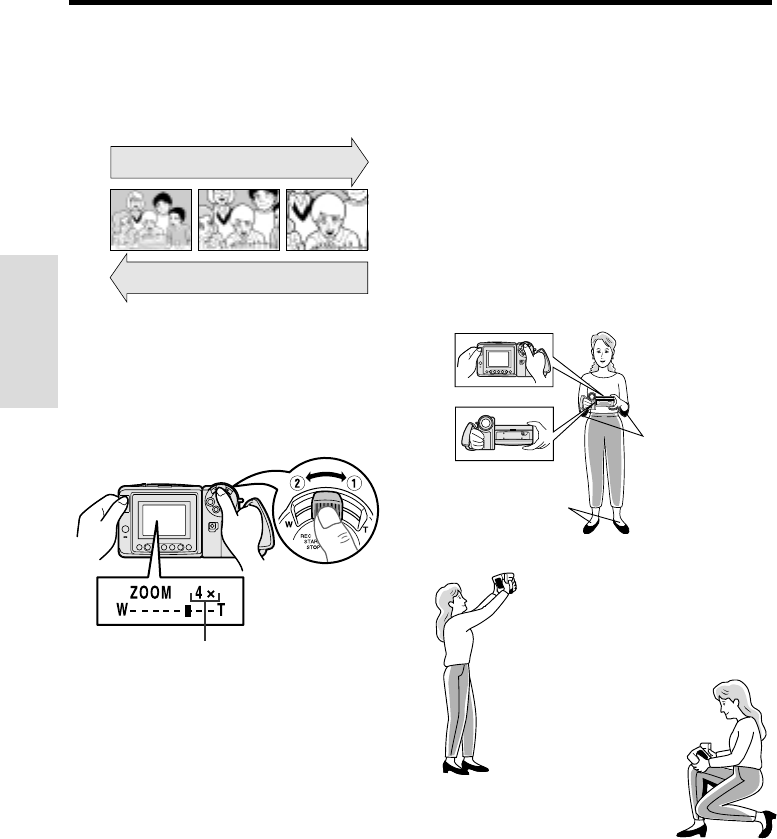
Zooming
Zooming allows you to move visually closer to
or farther from a subject without physically
changing your position.
To Zoom In
Push the Power Zoom control to the T
(telephoto) side to get a close-up view (Q).
To Zoom Out
Push the Power Zoom control to the W (wide
angle) side to get a wide field of view (W).
•The on-screen display shows you the current
zoom setting.
•The zoom speed changes depending on how far
you push the Power Zoom control.
Note:
•The VIEWCAM is unable to focus when zooming
in on subjects within 1.5 m. The VIEWCAM will
automatically zoom out until it is able to focus on
the subject. (See page 30 for recording macro
shots.)
Zooming in (when you want to centre
attention on the subject)
Zooming out (when you want to
show the surroundings)
Tele-
photo
Wide
angle
Power Zoom
control
Tips on Recording Positions
The rotating LCD monitor screen lets you enjoy
easy video recording in a more relaxed posture
without having to hold the VIEWCAM up to your
eye. The LCD monitor also makes it easier to
record high-angle and low-angle shots.
Holding the VIEWCAM
Put the fingers of your right hand through the hand
strap, and place your right thumb close to the REC
START/STOP button and Power Zoom control.
Place your left thumb on the thumb rest on the left
side of the LCD monitor.
Press your elbows
against your sides.
Place your feet at a
45° angle and
balance your weight
on both legs.
Basic Posture
You can record while still
viewing the screen. This is
convenient when you want
to record over a crowd.
High Angle
Put one knee on the
ground for the best
stability.
Low Angle
Notes:
•In hand-held recording, the VIEWCAM has to be
steadied to prevent image shakes. For very
stable recording, use a tripod.
•Take care not to touch the microphone with your
fingers during recording. It will cause noise on
the audio track.
Zoom range indicator
VL-A10H/pp. 016-018; 00/2/2/18:00
G. K. Associates, Tokyo
Basic Operations
Camera Recording
18
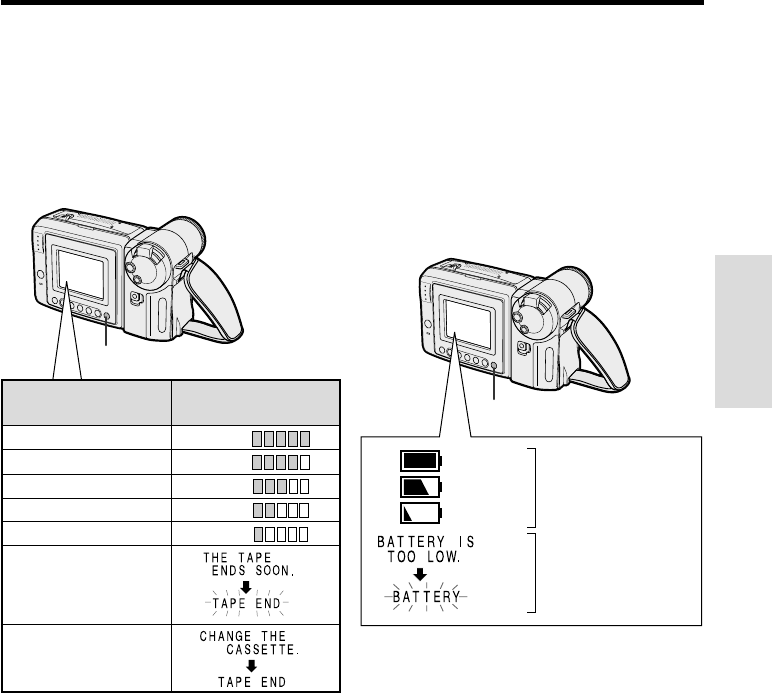
Remaining Recording Time
Display
When the VIEWCAM is recording in Camera
mode, about 10 minutes before the tape
reaches the end, an on-screen indicator
displays the approximate remaining recording
time.
Remaining Battery Power
Display
When using the VIEWCAM with the battery
pack as the power source, you can turn on and
off the remaining battery power display by
pressing the DISPLAY button.
If the battery power becomes very low, a
warning indicator will appear. Replace the
battery pack.
To turn off the remaining recording time display,
press the DISPLAY button.
Notes:
•The remaining recording time displays only show
the approximate time left. Also, they vary slightly
depending on the length of tape used. (This
function’s design is based on the P5-90 tape
standard.)
•If you turn off the remaining recording time
display, it will reappear after a short interval to
indicate the new time remaining.
•The remaining recording time display appears
5 seconds after pressing the REC START/
STOP button to begin recording.
10 min.–8 min.
8 min.–6 min.
6 min.–4 min.
4 min.–2 min.
2 min.–1 min.
TA P E
TAPE
TAPE
TAPE
TAPE
Approx. remaining
recording time
On-screen
indicator
(Red)
(Green)
(Green)
0 min.
(The tape has
reached the end.)
1 min.–0 min. Warning indicator
DISPLAY button
DISPLAY button
Remaining battery
power display
Notes:
•Use the remaining battery power display only as
an approximate indication.
•The battery power display may change to either
a higher or lower level if you set the Power
switch to OFF and then back to CAMERA or
VCR.
•In cold environments, the red remaining battery
power display may appear sooner. The battery
pack, however, can be used until the warning
indicator appears. Replace the battery pack at
this time.
•Battery consumption may vary depending on the
condition of use.
•Use of the zoom function when the warning
indicator is displayed may cause the VIEWCAM
to suddenly lose power.
VL-A10H/pp. 019-021; 00/2/2/18:00
G. K. Associates, Tokyo
Basic Operations
Playback
Basic Operations
Playback
19
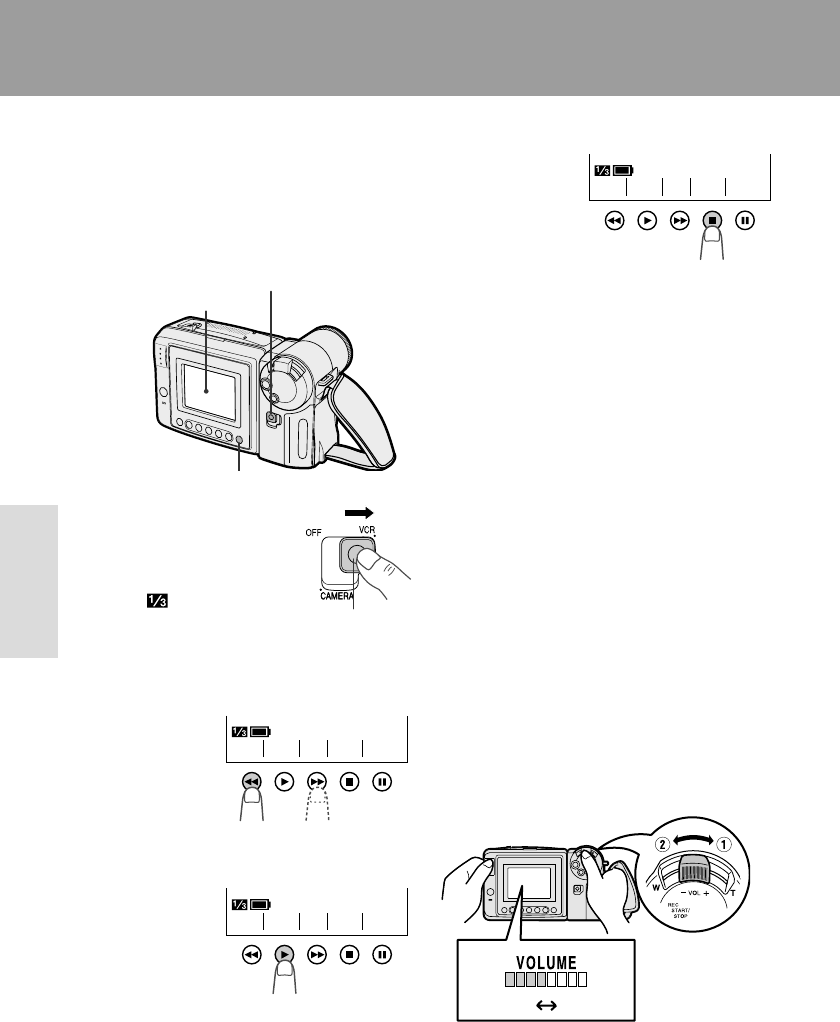
Playback
The LCD monitor screen makes it possible to
play back and see what you have just
recorded. Nothing needs to be connected,
allowing instant on-screen playback with the
sound through the built-in speaker.
1Hold down the Lock
button and slide the
Power switch
to VCR.
• The screen appears.
2Press the REW (C) (or FF [B]) button
to rewind (or fast forward) the tape to the
desired point.
3Press the PLAY button (D) to begin
playback.
Basic Operations
Playback
Lock button
Power switch
DISPLAY button
REW PLAY STOP ST I LLFF
To Stop Playback
Press the STOP
button (A).
REW PLAY STOP ST I LLFF
Notes:
•If you wish to turn the Operation button
indicators on or off, press the DISPLAY button.
The playback operation buttons will still function
as indicated even after the indicators are turned
off.
•To use the infrared remote control, make sure
that the REMOTE menu item is set to “ON” (see
page 37).
Auto Tape Rewind
The tape is automatically rewound when
playback reaches the end of the tape.
To Turn the Power Off
Slide the Power switch to OFF.
Volume Control
While the VIEWCAM is in VCR mode, push the
Volume control to the Ⳮ or ⳮ side to increase
(Q) or decrease (W) the volume to your
preference.
The volume level indicator will appear on the
screen during adjustment only. When the
Volume control is released, the volume level
indicator will disappear shortly afterwards.
IncreaseDecrease
Volume control
REW PLAY STOP ST I LLFF
LCD monitor screen
VL-A10H/pp. 019-021; 00/2/2/18:00
G. K. Associates, Tokyo
Basic Operations
Playback
20
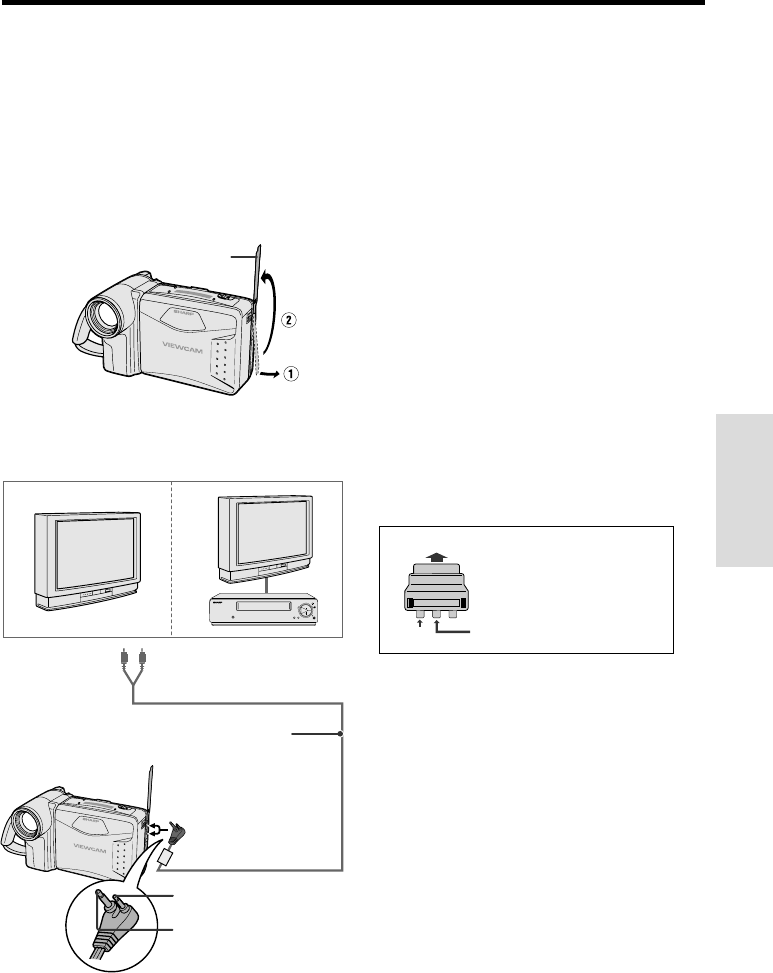
Watching the Playback on a
TV
You can also connect the VIEWCAM to a TV to
allow a larger audience to enjoy video
playback.
1Lift up the terminal cover on the
VIEWCAM (Q) and rotate it to the right
(W).
2Connect the VIEWCAM to your TV (or
VCR) with the supplied audio/video
cable, as shown.
3Turn on the TV and set it to the “AV” or
“VIDEO” channel. (See the operation
manual of your TV.)
•When connecting to a TV via a VCR, turn on
the VCR and set it to the “AV” or “LINE”
input channel. Operate the TV as you
normally do to see the signal from the VCR.
(See the operation manuals of your TV and
VCR.)
4Turn on the VIEWCAM in VCR mode,
and begin tape playback (see page 19).
Caution:
•Make sure that the VIEWCAM, TV, VCR and other
equipment to be connected have been turned
off before you make connections. Making con-
nections with any of the components left turned
on may cause picture noise or a malfunction.
Notes:
•This VIEWCAM does not have an S-video
socket.
•If your TV or VCR has a 21-pin Euro-SCART
connector, use the RCA/21-pin Euro-SCART
conversion connector (QSOCZ0033TAZZ)
available from our main parts distributor detailed
on page 53.
•When the VIEWCAM is connected to a TV for
playback, the picture on the TV screen may
flicker if the volume on the VIEWCAM is set to
maximum. Should this occur, turn the volume
down (see page 19).
•Close the terminal cover after use.
Terminal cover
POWER
TV/VCR SET UP
CHANNEL
REC
PLAY
STOP/
EJECT
PAUSE
/STILL
Yellow: To VIDEO IN jack
White: To AUDIO IN (L) jack
Audio/video cable
(supplied)
To VIDEO jack (ø2.5)
To AUDIO jack (ø3.5)
21-pin Euro-SCART on TV or VCR
RCA/21-pin Euro-SCART
conversion connector
(QSOCZ0033TAZZ)
Video
0
VIDEO AUDIO
(L/MONO)
AUDIO
(R)
Audio L
VL-A10H/pp. 019-021; 00/2/2/18:00
G. K. Associates, Tokyo
Basic Operations
Playback
Basic Operations
Playback
21
Still
The still function makes it possible to pause
playback.
During playback, press the STILL button ( ).
To return to normal playback, press the
STILL button again or press the PLAY
button (D).
Notes:
•The sound is off during Still mode.
•To protect the tape, the VIEWCAM automatically
returns to normal playback if it is left in Still mode
for more than 5 minutes.
•If the still function is used when connected to a
TV, noise will appear and distort the playback
image.
REW PLAY STOP ST I LLFF
Video Search
The video search function makes it easy to
search for a desired scene on the tape.
Searching for a Scene Near the Current
Tape Position
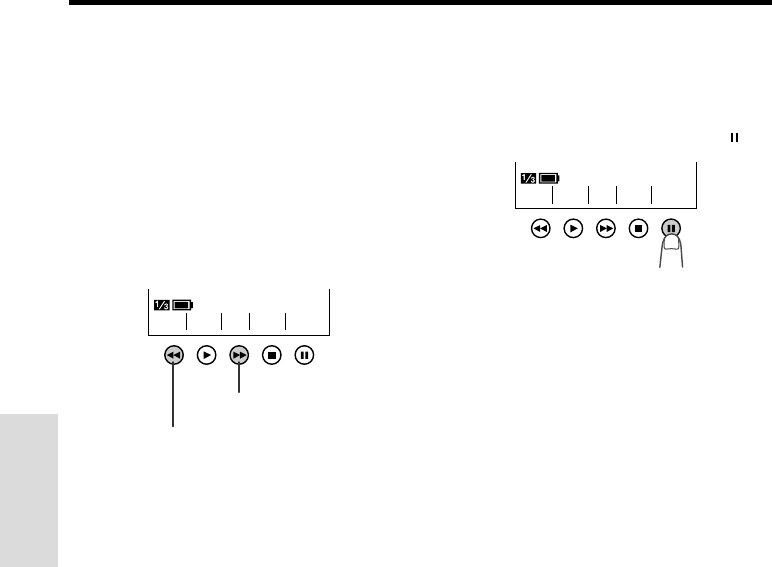
1During playback, press the Forward
Search (B) (or Reverse Search [C])
button.
•The playback picture fast forwards (or
reverses).
2When you find the desired scene, press
the PLAY button (D) to return to normal
playback.
Searching for a Scene Far from the
Current Tape Position
1During fast forward (or rewind), press
and hold down the Forward Search (B)
(or Reverse Search [C]) button.
•The fast forward (or reverse) playback
picture is displayed.
2If the desired scene is still rather far
from the current tape position, release
the button to return to normal fast
forward (or rewind).
3Repeat steps 1 and 2 above until you
find the desired scene.
4Press the STOP button (A) and then
the PLAY button (D) to begin normal
playback.
Notes:
•The sound is off during search.
•Some picture noise appears during search. This
is not a malfunction.
Forward Search button
Reverse Search button
REW PLAY STOP ST I LLFF
VL-A10H/pp. 022-023; 00/2/2/18:00
G. K. Associates, Tokyo
Useful Features
22
Selecting the Mode/Menu
Screens
You can use the mode screens to select
various functions and the menu screens to
adjust various settings. Follow the procedure
below to display the mode/menu screen with
the indicator of the desired function/setting.
1Hold down the Lock
button and slide the
Power switch to
CAMERA (Camera
mode) or VCR (VCR
mode).
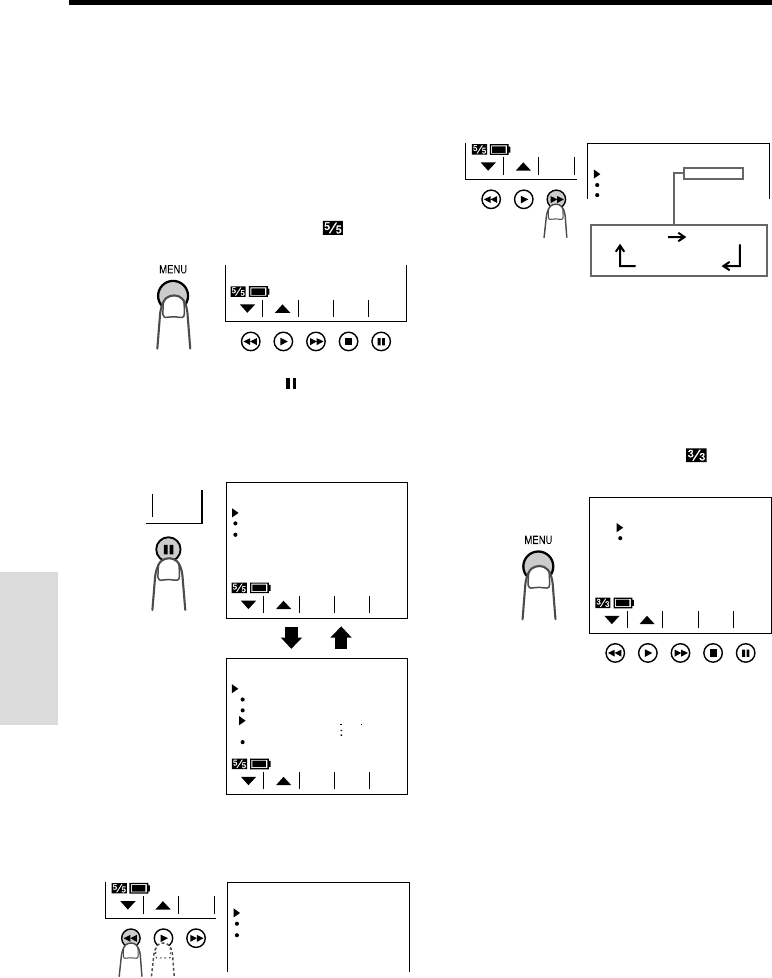
2Press the MENU button until the desired
screen appears.
Useful Features
Useful Features
Operations of the On-screen
Controls
Using the Control Buttons
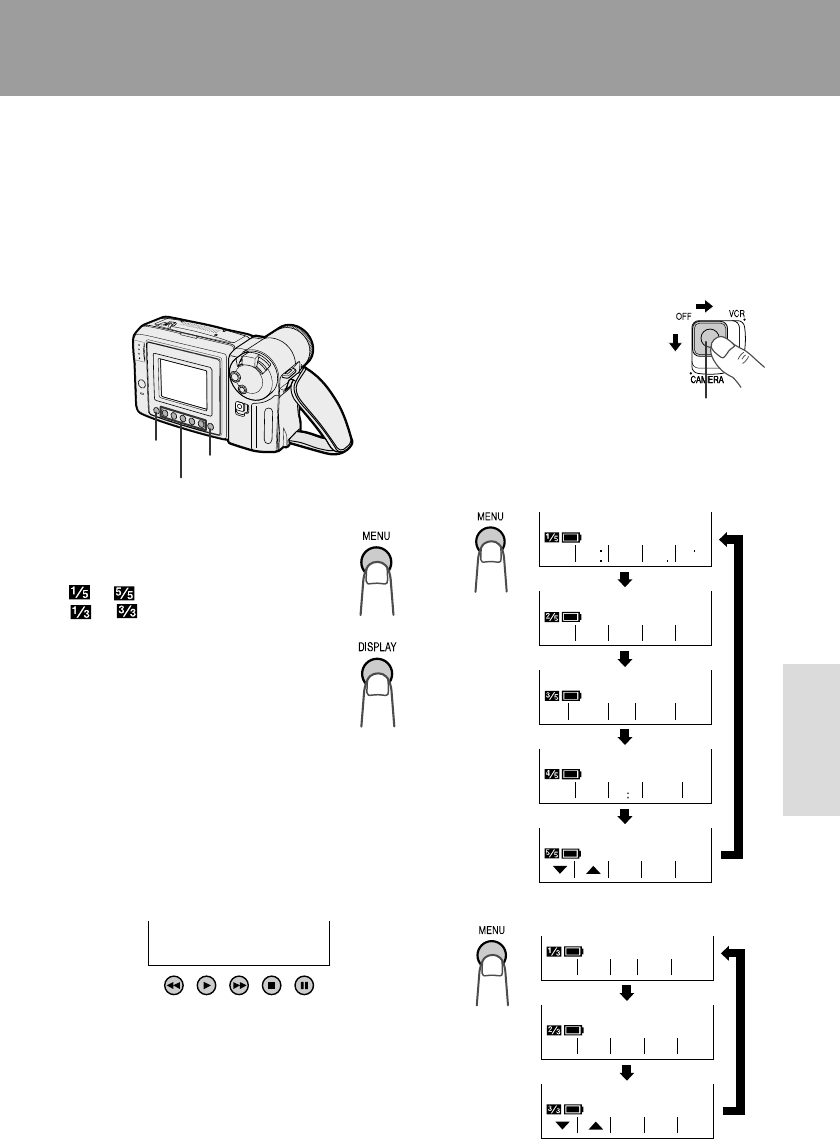
The following buttons on the VIEWCAM can be
used to control the various functions, settings
and on-screen displays.
MENU button
Each time you press the MENU button,
the mode/menu screen changes from
to in Camera mode and from
to in VCR mode.
DISPLAY button
Press the DISPLAY button to turn the
mode/menu screens and on-screen
indicators on or off.
Note:
• The warning indicators and some other
indicators cannot be turned off by pressing the
DISPLAY button.
Operation buttons
Press the Operation button corresponding to
the indicator of the desired function displayed
on the screen.
Note:
• The Operation button indicators are normally
displayed in blue or grey. When a function is
selected, its indicator is displayed in yellow.
Operation buttons
MENU button
DISPLAY button
Lock button
Camera mode
VCR mode
5
COU
-
NTER
TLE
TI
-
TURN
RE
-
16 9 MENU
SCENE
PAGETURE
PIC
-
SET
GAMA
REW
QK
EFF
PIC
EFF
SUREFOCUS BAL.
WH I TE EXPO
TURE
PIC
-
SET
33
REW PLAY STOP ST I LLFF
NTER
COU
-
EFF.
GAMA
ARCH
SE
-
VL-A10H/pp. 022-023; 00/2/2/18:00
G. K. Associates, Tokyo
Useful Features
Useful Features
23
Adjusting the Menu Settings
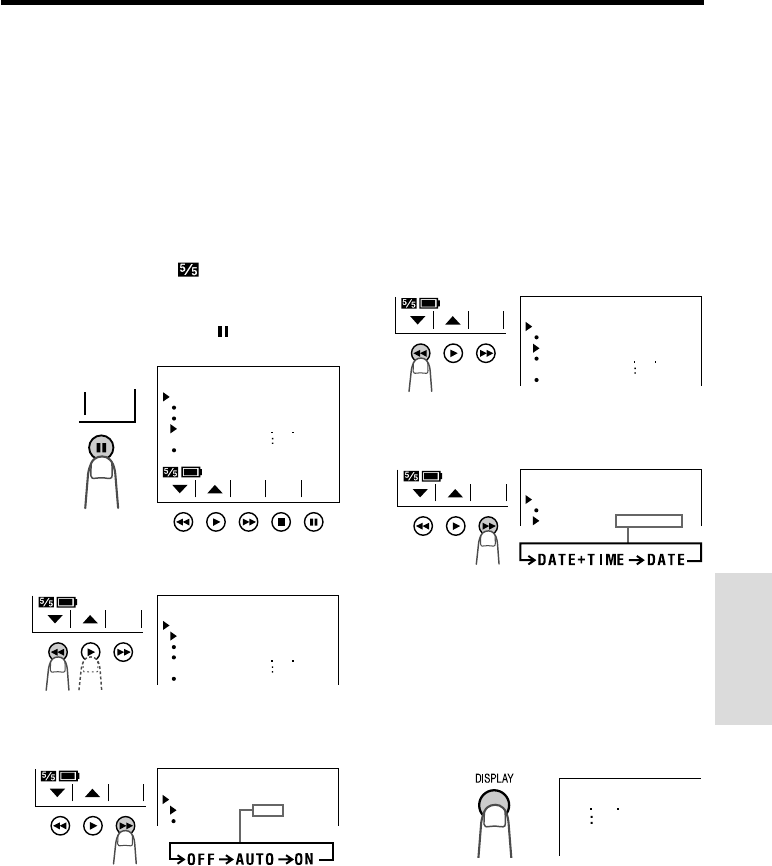
Follow the procedure below to adjust the
desired menu settings.
Camera mode
1Hold down the Lock button and slide the
Power switch to CAMERA.
2Press the MENU button until
appears.
3Press the PAGE button ( ) to display the
desired menu screen.
•Each time you press the PAGE button,
the screen changes between MENU 1
and MENU 2.
4Press the 쑽 or 쒀 button (C or D) to
select the desired menu item.
VCR mode
1Hold down the Lock button and slide the
Power switch to VCR.
2Press the MENU button until
appears.
3Perform steps 4 to 6 above.
Notes:
•Certain menu items are common in both Camera
and VCR modes. If the REMOTE menu item, for
example, is set to “OFF” in Camera mode, it will
be automatically set to “OFF” in VCR mode.
•The menu screen automatically turns off if no
settings are made within 5 minutes.
5Press the SET button (B) to select the
desired setting.
•Each time you press the SET button, the
setting changes.
6Press the DISPLAY button to turn off the
menu screen.
Example
MENU
FADE
DEMO
NORMAL
OFF
1
REMOTE
MODE
ON
SET
LODIAYH
TRDHAYIB
ROAMLN
PAGE
PAGETURE
PIC
-
SET
MENU
24H
DATE
DI SPLAY OFF
SETTING
12H 24H
SELECT DATE T IME
+
TIME/
/
2
PAGETURE
PIC
-
SET
MENU
FADE
REMOTE
NORMAL
ON
DEMO MODE OFF
1
2
10 30
6 2001
PAGETURE
PIC
-
SET
MENU
TURE
PIC
-
SET
33
ED I T
REMOTE
OF F
ON
Example
SET
MENU
FADE
REMOTE
NORMAL
ON
DEMO MODE OFF
1
VL-A10H/pp. 024-037; 00/2/2/18:00
G. K. Associates, Tokyo
Useful Features
24
5Press the 쑽 button to select “SELECT”.
6Press the SET button (B) to select
“DATE+TIME” or “DATE”.
When “DATE+TIME” is selected, both the
date and the time are displayed and
recorded.
When “DATE” is selected, only the date
is displayed and recorded.
7Press the DISPLAY button to turn off the
menu screen, and then press the REC
START/STOP button to begin recording.
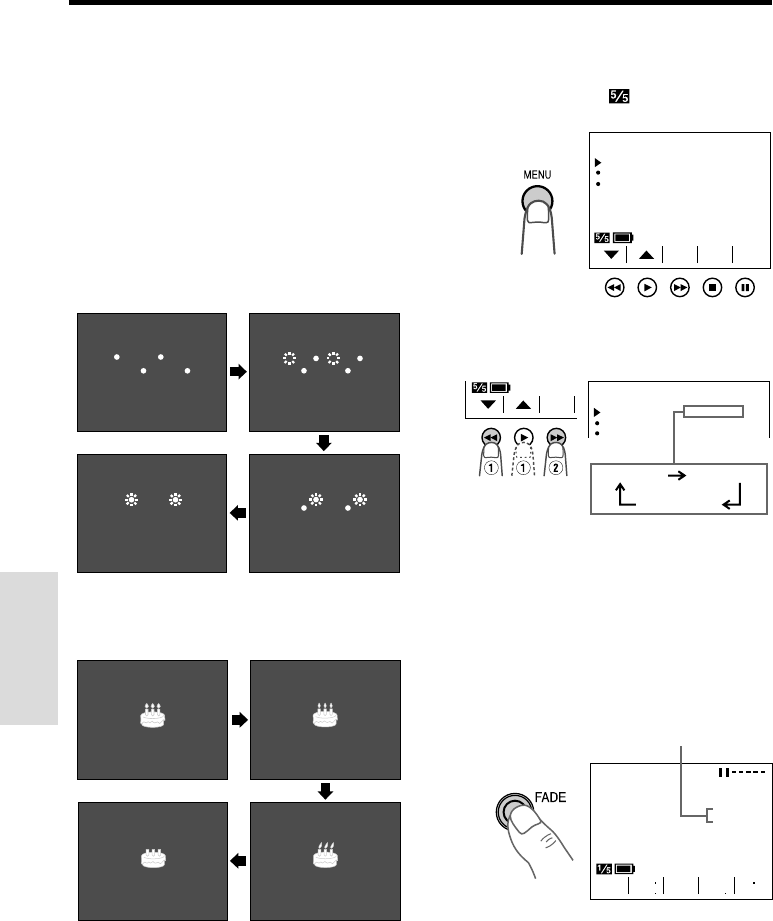
Recording the Date and Time
Follow the procedure shown below to record
the date and time, or the date only, along with
the subject.
Note:
• Before performing the procedure below, make
sure that the date and time have been correctly
set (see page 13).
1In Recording Standby mode, press the
MENU button until (MENU 1)
appears.
2Press the PAGE button ( ) to display
MENU 2.
3Press the 쑽 or 쒀 button to select
“DISPLAY”.
SET
MENU
DATE
DI SPLAY OFF
SETTING
12H 24H
SELECT DATE T IME
+
TIME/
/
2
24H
2
10 30
6 2001
MENU
DATE
DI SPLAY OFF
SETTING
12H 24H
SELECT DATE T IME
+
TIME/
/
2
PAGETURE
PIC
-
SET
5
PAGE
24H
2
10 30
6 2001
4Press the SET button (B) to select
“AUTO”, “ON”, or “OFF”.
SET
MENU
DATE
DI SPLAY OFF
SELECT DATE T IME
+
TIME/
2
When “AUTO” is selected, the date/time
is displayed and recorded for 10
seconds at the beginning of the first
recording of each day.
When “ON” is selected, the date/time is
continuously displayed and recorded.
When “OFF” is selected, the date/time is
neither displayed nor recorded.
Note: In “AUTO”, if you wish to record the
date/time a second time that day, repeat the
procedure above and re-select “AUTO”.
SET
MENU
DATE
D I SPLAY AUTO
SETTING
12H 24H
SELECT DATE T IME
+
TIME/
/
2
24H
2
10 30
6 2001
SET
MENU
DATE
DI SPLAY AUTO
SELECT DATE T IME
+
TIME/
2
2
10 30
6 2001
VL-A10H/pp. 024-037; 00/2/2/18:00
G. K. Associates, Tokyo
Useful Features
Useful Features
25
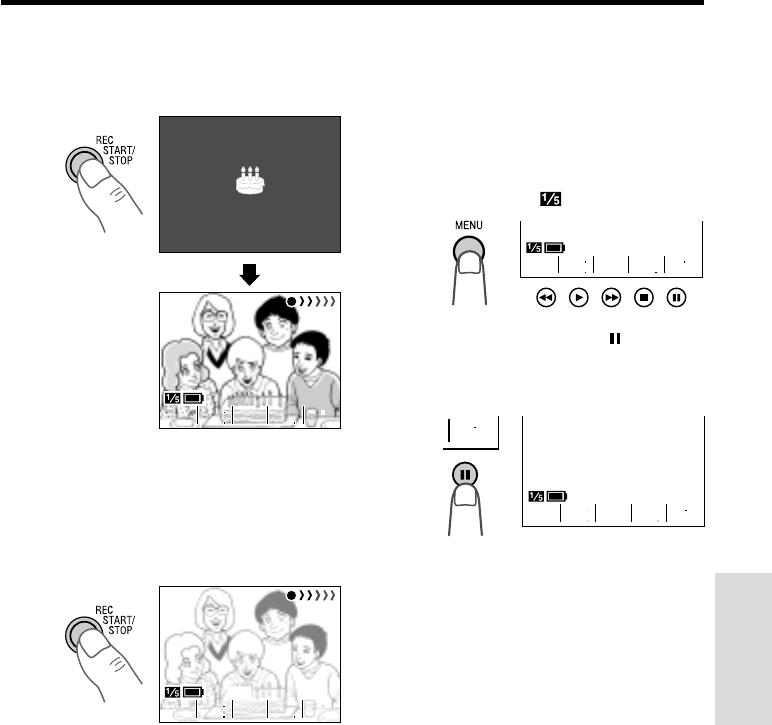
Fade In and Fade Out
The fade function allows you to gradually bring
the image and sound in or out at the beginning
or end of a scene to create a scene transition.
This VIEWCAM features one normal and two
animated fade modes.
Type of Fade Modes
NORMAL: The picture fades in from and out to
white.
HOLIDAY: The picture fades in from an
animated firework sequence with the title
“HAPPY HOLIDAYS!”, and fades out to white.
BIRTHDAY: The picture fades in from an
animated birthday cake sequence with the
title “HAPPY BIRTHDAY!”, and fades out to
white.
HAPPY HOL I DAYS !HAPPY HO
HO
L I DAYS !HA PPY HOL I DAYS ! HAPPY HOL I DAYS !HAPPY HOL I DAYS !HA PPY HOL I DAYS !
HAPPY HOL I DAYS !HAPPY HOL I DA
DA
YS !HA PPY HOL I DAYS !
HAPPY HOL I DAYS !HAPPY HOL I DAYS !HA PPY HOL I DAYS !
Selecting Fade Mode
HAPPY BIRT H DA Y!HAPPY BIRTHDAY!
HAPPY BIRT H DA Y!HAPPY BIRTHDAY!
HAPPY BIRT H DA Y!HAPPY BIRTHDAY!
HAPPY BIRT H DA Y!HAPPY BIRTHDAY!
1In Recording Standby mode, press the
MENU button until (MENU 1)
appears.
2Press the 쑽 or 쒀 button (Q) to select
“FADE”, then press the SET button (B)
(W) to select the desired fade mode.
3Press the DISPLAY button to turn off the
menu screen.
MENU
FADE NORMAL
1
DEMO OFF
REMOTE
MODE
ON
SET
LODIAYH
TRDHAYIB
ROAMLN
Using Fade Mode
1In Recording Standby mode, press the
FADE button.
•The selected fade mode indicator
appears. (“FADE” is displayed for the
NORMAL fade mode indicator.)
Fade mode indicator
BIRTHDAY
GAMA
REW
QK
EFF
PIC
EFF
PAGETURE
PIC
-
SET
MENU
FADE
REMOTE
NORMAL
ON
DEMO MODE OFF
1
VL-A10H/pp. 024-037; 00/2/2/18:00
G. K. Associates, Tokyo
Useful Features
26
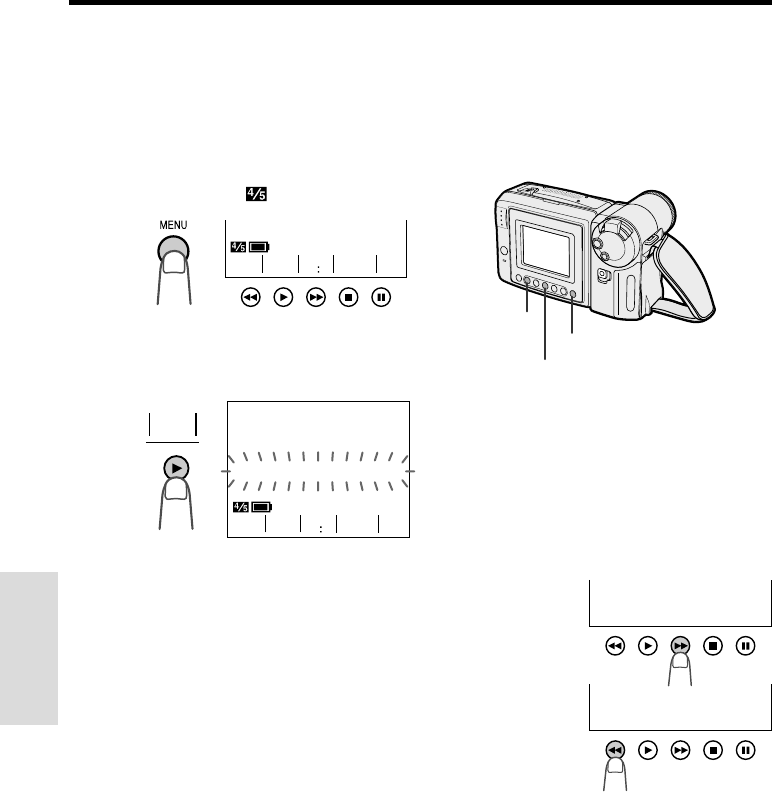
2Press the REC START/STOP button to
begin recording.
•The picture and sound fade in with the
selected fade mode.
3Press the REC START/STOP button at
the point where you wish to stop
recording.
•The picture and sound fade out as the
screen gradually turns white. The
VIEWCAM then returns to Recording
Standby mode.
To cancel Fade mode
Press the FADE button.
To use fade out only
1During recording, press the FADE
button.
2Press the REC START/STOP button at
the point where you wish to stop
recording.
F ADEFADE
HAPPY B I R T HD AY !HAPPY BI RTHDAY!
GAMA
E F F
P I C
E F F
GAMA
EFF
PIC
EFF REW
QK
REW
QK
OUTF ADE OUTFADE
GAMA
E F F
P I C
E F F
GAMA
EFF
PIC
EFF REW
QK
REW
QK
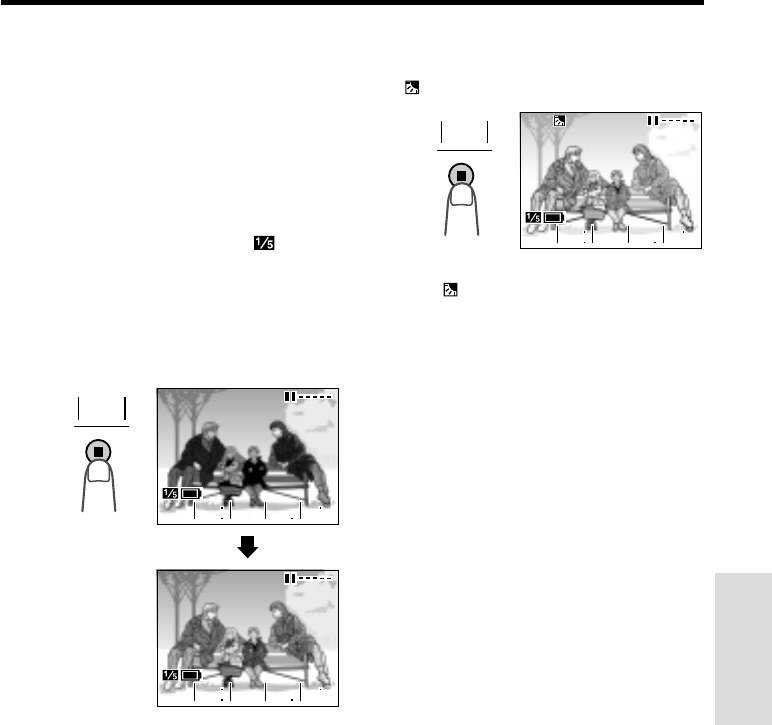
Quick Review
The quick review function lets you check the
last 5 seconds of tape just recorded without
switching to VCR mode, to make sure that the
recording has come out right.
1In Recording Standby mode, press the
MENU button until appears.
2Press the QK. REW button ( ).
•The tape rewinds to the point of 5
seconds before the current tape position;
playback then starts automatically.
After 5 seconds of playback, the
VIEWCAM enters the Recording Standby
mode.
GAMA
REW
QK
EFF
PIC
EFF
REW
QK
REW
QK
15
GAMA
EFF
PIC
EFF
VL-A10H/pp. 024-037; 00/2/2/18:00
G. K. Associates, Tokyo
Useful Features
Useful Features
27
Edit Search
The edit search function lets you search,
without switching from Camera mode to VCR
mode, for the point on the tape where you wish
to start recording next.
1In Recording Standby mode, make sure
that no Operation button indicators are
displayed on the monitor.
•If they are displayed, turn them off by
pressing the DISPLAY button.
2Press and hold down the Forward Edit
Search button (B) or Reverse Edit
Search button (C).
3When you find the point where you want
to begin recording, release the button.
Notes:
•The sound is off during search.
•Some picture noise appears during reverse edit
search.
•Forward edit search is performed at the same
speed as normal playback, and reverse edit
search at three times the normal playback
speed.
DISPLAY button
Forward Edit Search button
Reverse Edit
Search button
Forward edit
search
Reverse edit
search
Quick Return
When you have been playing back what you
have recorded, and wish to quickly return to
recording again from the end of the last
recorded scene, use the quick return function.
1In Recording Standby mode, press the
MENU button until appears.
2Press the RETURN button (D).
•“QUICK RETURN” flashes, and the tape
will begin fast forwarding or rewinding to
the end of the last recorded scene.
When the tape reaches the end of the last
recorded scene, the VIEWCAM enters the
Recording Standby mode.
Notes:
•To cancel the quick return function, press the
RETURN button again in step 2.
•If the cassette has been removed since the last
recording, if no recording has been made since
the cassette was loaded, or if the power source
has been interrupted, the RETURN button
indicator will not appear and the quick return
function cannot be used.
TLE
TI
-
TURN
RE
-
16 9 MENU
SCENE
TURN
RE
-
TLE
TI
-
TURN
RE
-
16 9 MENU
SCENE
QU I CK RE TURN
VL-A10H/pp. 024-037; 00/2/2/18:00
G. K. Associates, Tokyo
Useful Features
28
Gamma Brightness
Compensation
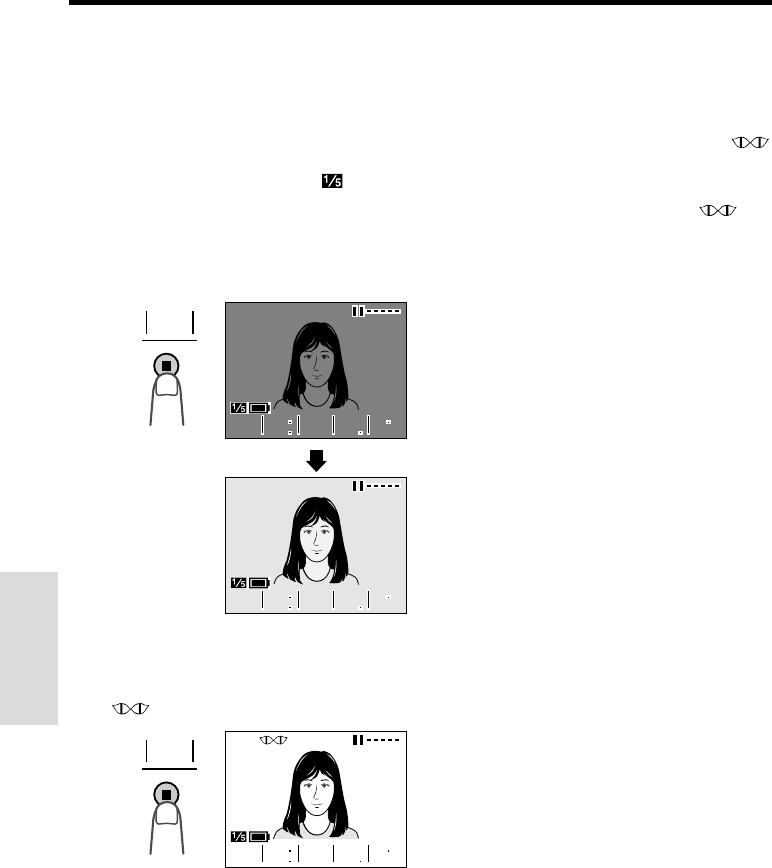
When the subject is backlit, the image will be
darkened if it is recorded normally. The gamma
brightness compensation function improves the
picture by increasing the brightness of the
subject while leaving the brighter portions of
the image unaffected.
1Press the MENU button until
appears (Camera mode).
2Press the GAMA EFF. button (A) once.
•“GAMMA” appears, indicating that the
Gamma Brightness Compensation is
now working.
To obtain a brighter picture
Press the GAMA EFF. button (A) again.
•The indicator appears.
Note:
•When the indicator is displayed, the
background will become slightly brighter.
GAMA
GAMA
REW
QK
QK
E F F
P I C
E F F
GAMA
REW
QK
EFF
PIC
EFF
GAMMAGAMMA
EFF.
GAMA
To cancel Gamma Brightness
Compensation
Press the GAMA EFF. button until “GAMMA”
disappears.
GAMMAGAMMA
EFF.
GAMA
GAMA
GAMA
RE
RE
W
QK
QK
E F F
P I C
E F F
GAMA
REW
QK
EFF
PIC
EFF
GAMA
GAMA
RE
RE
W
QK
QK
E F F
P I C
E F F
GAMA
REW
QK
EFF
PIC
EFF
Note:
•The gamma brightness compensation function
can also be used during playback. See page 46,
“Gamma Playback”.
VL-A10H/pp. 024-037; 00/2/2/18:00
G. K. Associates, Tokyo
Useful Features
Useful Features
29
Gain-up (Cat’s Eye)
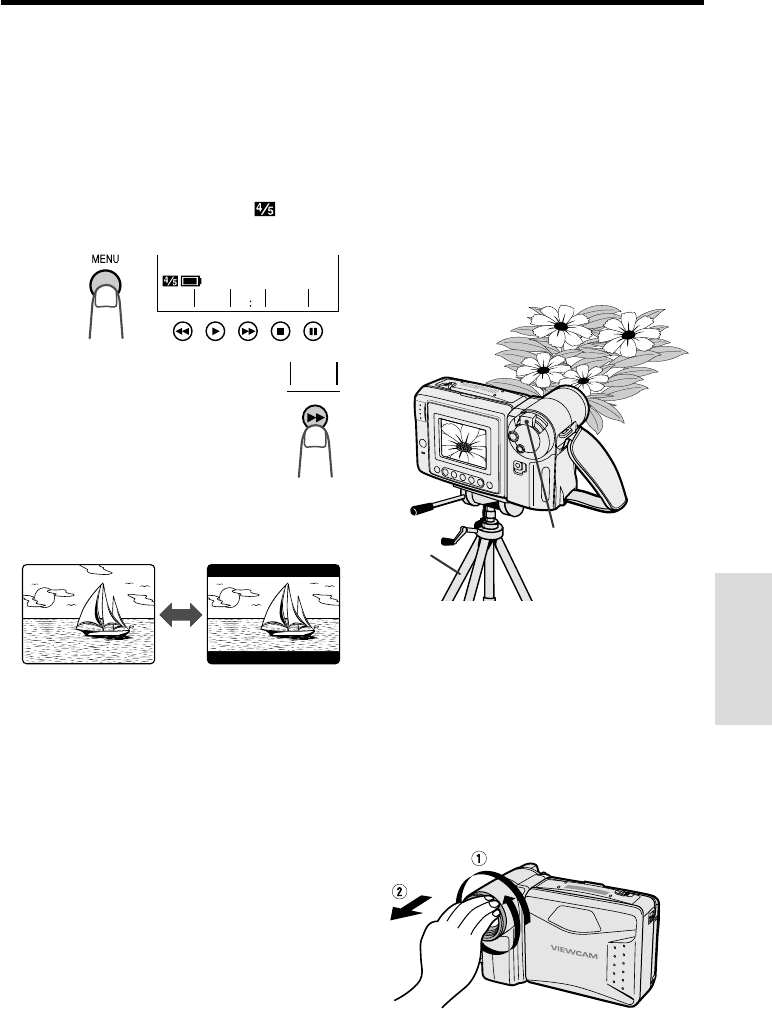
When you are recording in a dark or poorly-
illuminated location, “LIGHT” is displayed on
the screen. Use the gain-up function to record
a brighter picture.
1Press the MENU button until
appears (Camera mode).
2Press the GAMA EFF. button (A) once.
•“GAMMA” appears, indicating that the
gain-up function is now working.
To cancel the gain-up function
Press the GAMA EFF. button until “GAMMA”
disappears.
Notes:
•The Gain-up mode will disengage and the
indicator will disappear automatically if the
VIEWCAM is moved to a bright location.
•Some picture noise appears in Gain-up mode.
The picture noise increases when the
indicator is displayed.
L I GHTLIGHT
L I GHTLIGHT
EFF.
GAMA
GAMMAGAMMA
GAMA
GAMA
RE
RE
W
QK
E F F
P I C
E F F
GAMA
REW
QK
EFF
PIC
EFF
GAMA
GAMA
RE
RE
W
QK
E F F
P I C
E F F
GAMA
REW
QK
EFF
PIC
EFF
To obtain a brighter picture
Press the GAMA EFF. button (A) again.
•The indicator appears.
GAMA
GAMA
RE
RE
W
QK
E F F
P I C
E F F
GAMA
REW
QK
EFF
PIC
EFF
EFF.
GAMA GAMMAGAMMA
VL-A10H/pp. 024-037; 00/2/2/18:00
G. K. Associates, Tokyo
Useful Features
30
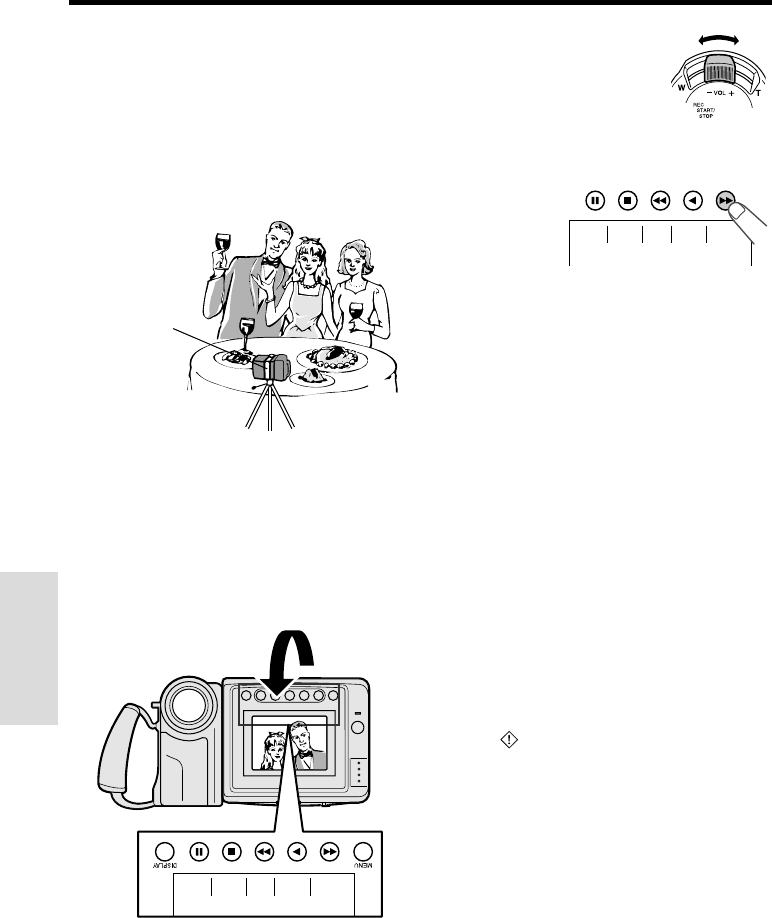
Wide Screen (16:9)
The wide screen function lets you record
scenes with the wide-screen feel of a movie
shown in a theatre. The top and bottom of the
picture are masked with black bands to
produce an effective screen aspect ratio of
16:9.
1Press the MENU button until
appears (Camera mode).
2Press the 16:9 button (B).
•The monitor now displays the
picture with the top and bottom
portions masked.
3Press the DISPLAY button to turn off the
Operation button indicators.
To return to normal picture
Perform step 1 above, and press the 16:9 but-
ton.
Note:
•You can only use the wide screen function when
the VIEWCAM is in Camera mode.
TLE
TI
-
TURN
RE
-
16 9 MENU
SCENE
F ADE16: 9
Normal Screen mode Wide Screen mode
Macro Shots
This VIEWCAM lets you shoot close-up images
of small objects such as flowers and insects, or
make title frames for your videos. When you
want to record a magnified image of a subject
which is within approximately 1.5 m of the
VIEWCAM, do not zoom in on it. Instead, zoom
out all the way by pushing the Power Zoom
control to the W side, and then move the
VIEWCAM closer to the subject until you obtain
the desired angle of view. The VIEWCAM will
automatically focus on the subject when the
lens is set for the widest angle.
Notes:
•When you are recording a macro shot, be sure
that the subject receives sufficient illumination.
•It is recommended that you use a tripod for
recording macro shots, to prevent image shakes.
Removing the Lens Hood
The lens hood can be removed (e.g. for
cleaning the lens) by rotating it in an
anticlockwise direction (Q) and then gently
pulling it off (W).
Tripod
Power Zoom control
VL-A10H/pp. 024-037; 00/2/2/18:00
G. K. Associates, Tokyo
Useful Features
Useful Features
31
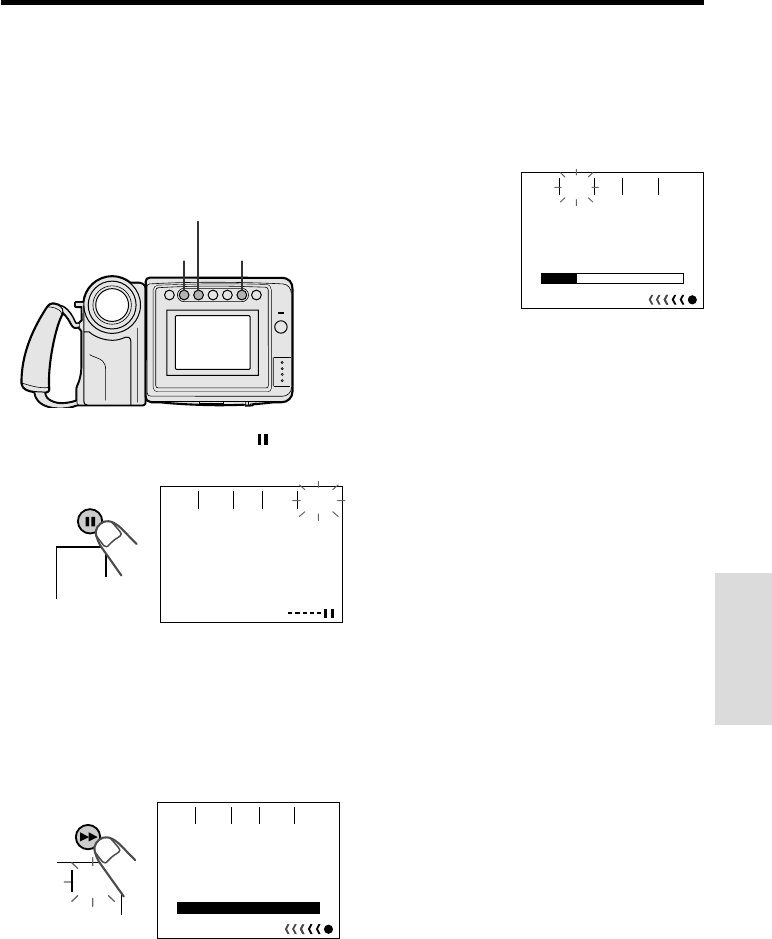
3Push the Power Zoom
control to obtain the
desired angle of view.
4Press the REC START button (B) to
begin recording.
To pause recording, press the REC STOP
button (B).
Cautions:
•Do not rotate the monitor to the self recording
position during recording or playback.
•For recording in Self Recording mode, be sure to
rotate the monitor, NOT the lens. If you hold the
VIEWCAM upside down with the lens at the bottom,
the subject will be recorded upside down.
Notes:
•You will need the VR-33FA tripod adapter for 180°
recording (optional accessory) if you want to use a
tripod when recording in Self Recording mode.
•In Self Recording mode, only the REC START/STOP
button and the Power Zoom control buttons can be
used on the remote control.
More Information on Self Recording
•The screen image is automatically inverted when
the monitor rotation is between 135° and 200°.
When the monitor is turned back to the normal
position, the image returns to normal.
•In Self Recording mode, all standard warning
indicators on the screen are replaced by the
flashing indicator. To check the type of
warning, rotate the monitor back to the normal
position.
•In Self Recording mode, it is not possible to
record using manual recording modes, change
picture adjustments, display menus, record the
date and time, or use the Quick Return and
some of the other functions.
•You can play back images even while the
monitor is in the self recording position. Set the
Power switch to VCR. The Operation buttons still
retain their functions as during normal playback,
even though the button indicators are not
displayed. (For example, the J button still works
as the Play button.)
Self Recording
The LCD monitor can be rotated 180° vertically
so that the monitor screen faces the subject.
This lets you record yourself while watching
your image on the screen.
You can enjoy recording a portrait of yourself,
or recording yourself and your friends together
at a party, using the remote control.
Normal Self Recording
1Set the Power switch to CAMERA.
2Rotate the monitor section 180°
vertically.
•The screen image will be inverted to
show a mirror image of the subject, and
the self-recording mode screen appears.
VR-33FA
tripod adapter
(optional)
ME S
-
SAGE START
REC
ME S
-
SAGE START
REC
VL-A10H/pp. 024-037; 00/2/2/18:00
G. K. Associates, Tokyo
Useful Features
32
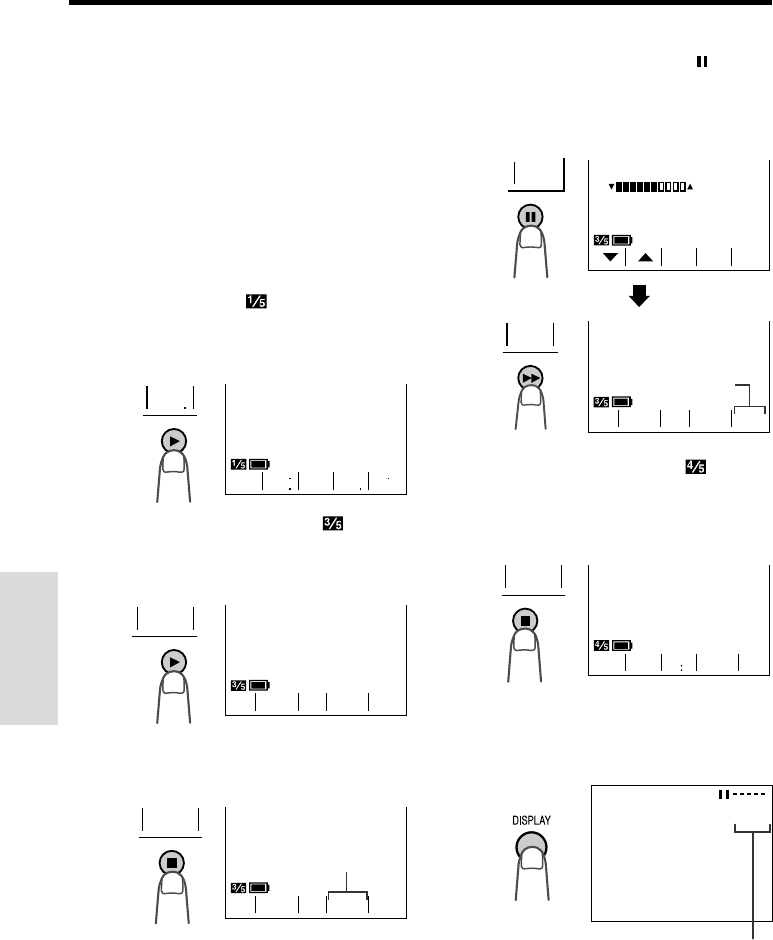
3When the remaining recording time
reaches 5 seconds, “EXTEND” will
begin flashing.
•When you want to extend the recording
time, press the EXTEND button (A)
within 5 seconds. You may record
continuously for 10 more seconds.
At the end of the recording, the screen
fades out, and the VIEWCAM returns to
Recording Standby mode.
To turn off the self-recording message
screen
Press the MESSAGE button in Recording
Standby mode.
Note:
•When you want to stop recording before
message recording stops automatically, press
the REC STOP button (B).
Self-recording Message
In Self Recording mode, you can record a short
video message for somebody. This feature is
convenient for editing video letters.
•Complete steps 1 to 3 of “Normal Self
Recording” on page 31, then perform the
procedure below.
1Press the MESSAGE button ( ) to
display the self-recording message
screen.
2Press the REC START button (B) to
begin recording. Record your message
while facing the lens of the VIEWCAM.
•The recording time is preset for 20
seconds.
•The bar on the screen indicates the
remaining recording time.
EXTEND button
REC START/
REC STOP button
MESSAGE button
ME S
-
SAGE START
REC
ME S
-
SAGE
PRESS
LEA V I NG YOUR ME SSAGE.
REC START FOR
START
REC
PLE ASE START SPEAK I NG.
STOP
REC
SAGE
MES
-
02
SAGE
MES
-
TEND
EX
-
5
STOP
REC
VL-A10H/pp. 024-037; 00/2/2/18:00
G. K. Associates, Tokyo
Useful Features
Useful Features
33
Setting the VIEWCAM to Full
Auto Mode
This VIEWCAM is equipped with auto focus,
auto white balance, and auto exposure
functions. For easy, high-quality camera-
recording, record subjects in Full Auto mode.
If “AUTO” is not displayed even when the
DISPLAY button is pressed, perform the
procedure below to set the VIEWCAM to Full
Auto mode.
1In Recording Standby mode, press the
MENU button until appears. If “PIC.
EFF.” is not displayed above the D
button, press this button until “PIC. EFF.”
appears.
2Press the MENU button until ap-
pears. If “MAN’L FOCUS” is displayed,
press the D button to change it to
“FOCUS”.
4If “EXPOSURE” is displayed in yellow,
press the EXPOSURE button ( ) to
display the exposure setting screen,
then press the AUTO button (B).
•The exposure setting screen turns off
and “EXPOSURE” returns to blue.
5Press the MENU button until
appears. If “SCENE MENU” is not
displayed above the A button, press
this button until “SCENE MENU”
appears.
6Press the DISPLAY button.
•The Operation button indicators
disappear, and “AUTO” is displayed on
the screen.
3If “WHITE BAL.” is displayed in yellow,
press the WHITE BAL. button (A).
•“WHITE BAL.” returns to blue.
BAL.
WH I T E
SUREFOCUS BAL.
WHI TE EXPO
Blue
Full Auto mode indicator
FOCUS
MAN’ L
SUREFOCUS BAL.
WHI TE EXPO
B/W
EFF
GAMA
REW
QK
EFF
PIC
EFF
Blue
EXI TAUTO
EXPOSURE
SURE
EXPO
SUREFOCUS BAL.
WHI TE EXPO
AUTO
AUTO
SPORT
TLE
TI
-
TURN
RE
-
16 9 MENU
SCENE
VL-A10H/pp. 024-037; 00/2/2/18:00
G. K. Associates, Tokyo
Useful Features
34
3Press the REW (C) (or FF [B])
button.
•The tape rewinds (or fast forwards) to the
beginning of a scene immediately before
(or after) the current tape position;
playback then starts automatically.
4To continue searching, press the REW
(or FF) button while “REW” (or “FF”) is
still displayed.
Notes:
•Use this function when the tape is stopped or
being played back.
•This function finds the beginning of each scene
immediately before or after the current tape
position. It is not possible to skip a scene.
•This function cannot spot recordings that are
shorter than 10 seconds in length.
•In steps 2 and 4, if the tape is at a point ahead of
the last (or before the first) recording, the FF (or
REW) indicator will not appear.
Program Search
The program search function automatically
finds and plays back the beginning of a
number of previously recorded scenes. Up to
10 different scenes can be found on one tape.
Note:
•This function does not work if no recording has
been made since the cassette was loaded, if the
cassette has been removed after the recordings
were made, or if the power source has been
interrupted.
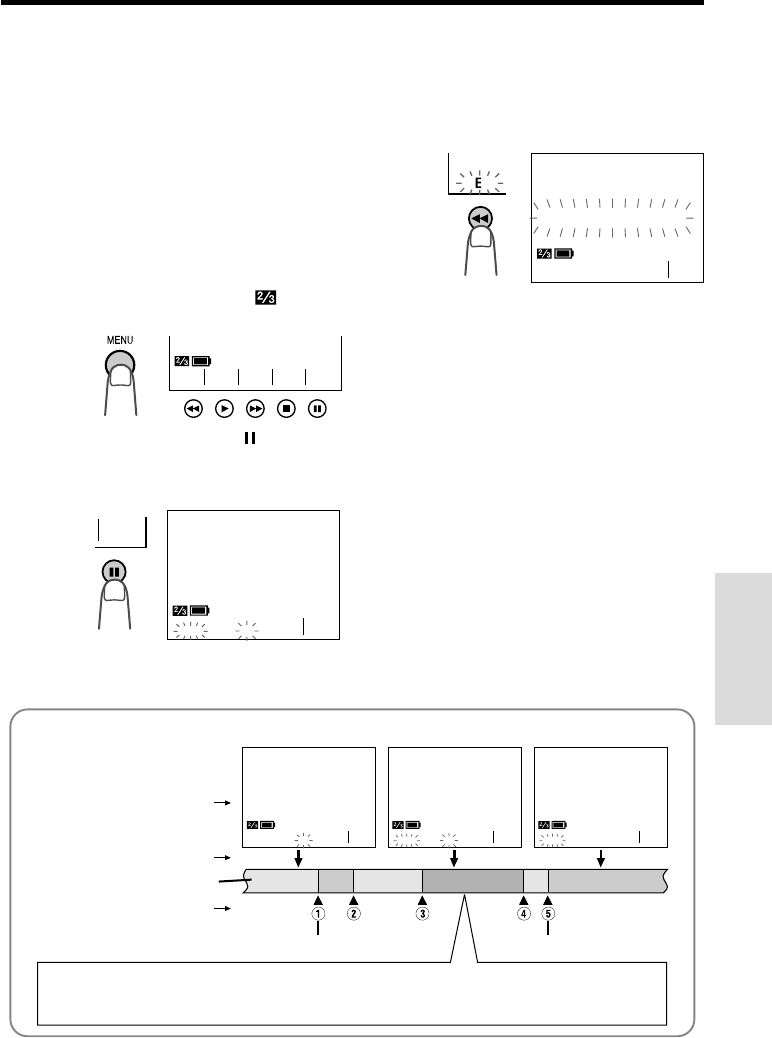
1Press the MENU button until
appears (VCR mode).
2Press the SEARCH button ( ).
•“PROG. SEARCH” is displayed and one
of or both “REW” and “FF” will start
flashing.
•To cancel, press the SEARCH button
again.
Example: When using a tape with five different scenes.
First recording Last recording
When you are at this position:
Press the REW button (C) to rewind the tape to E and begin playback.
Press the FF button (B) to forward the tape to R and begin playback.
ARCH
SE
-
ARCH
SE
-
ARCH
SE
-
REWREW FF FFFF REW
PROG. SEARCH PROG. SEARCH PROG. SEARCH
Video tape
Beginning of each scene
Current tape position
Monitor display
ARCH
SE
-
ARCH
SE
-
REW FF
PROG. SEARCH
NTER
COU
-
EFF.
GAMA
ARCH
SE
-
PROG. SEARCH
ARCH
SE
-
REW
REW
FF
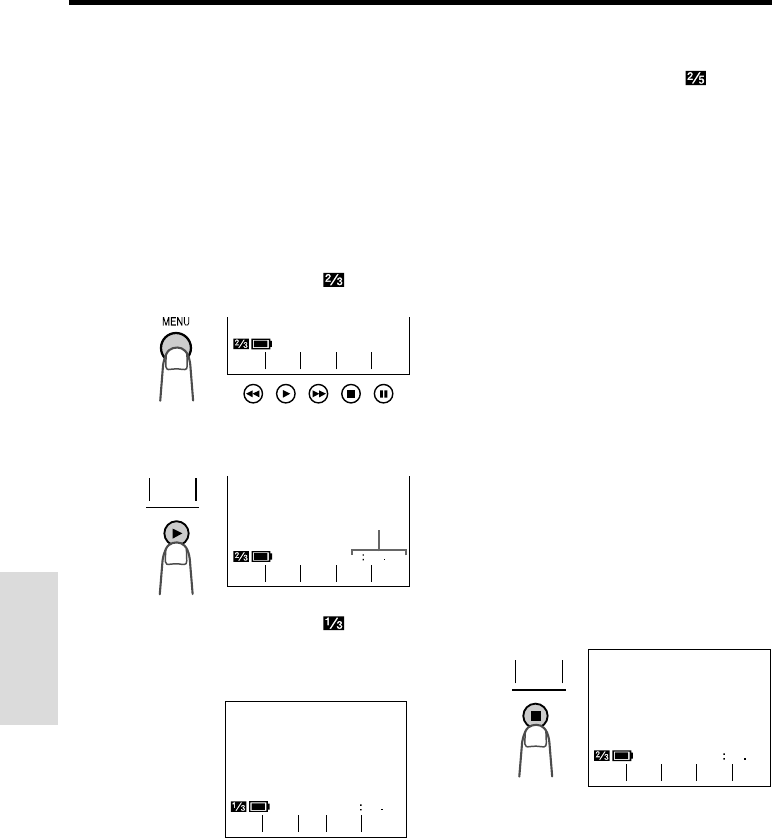
VL-A10H/pp. 024-037; 00/2/2/18:00
G. K. Associates, Tokyo
Useful Features
Useful Features
35
Tape Counter Feature
The tape counter shows elapsed playback or
recording time in hours, minutes and seconds.
(The counter continues to count internally even
while it is not being displayed.) This feature can
be set and used in both VCR and Camera
modes.
Using the Counter
VCR mode
1Press the MENU button until
appears.
2Press the COUNTER button (D) to
display the tape counter.
3Press the MENU button until
appears, then begin playback.
•You can check the playback time with
the tape counter.
Camera mode
1Press the MENU button until
appears.
2Press the COUNTER button (B) to
display the tape counter.
3Press the REC START/STOP button to
begin recording.
•You can check the recording time with
the tape counter.
Notes:
•The counter reading may differ slightly from the
actual time. This is especially noticeable when
the tape has been rewound or fast forwarded a
number of times, in which case there can be a
difference of several seconds.
•The tape counter feature will be cancelled if the
power source is interrupted.
To turn off the tape counter
Perform step 1 above, and press the
COUNTER button.
To reset the counter to zero
During playback (or recording), perform steps
1 and 2 above, then press the RESET button at
the point where you wish to reset the counter to
zero. The counter will indicate 0:00.00.
Tape counter
01124
REW PLAY STOP ST I LLFF
VCR mode
NTER
COU
-
EFF.
GAMA
ARCH
SE
-
NTER
COU
-
ORY
MEM
-
SE T
RE
-
ARCH
SE
-
01120
NTER
COU
-
EFF.
GAMA
NTER
COU
-
ORY
MEM
-
SE T
RE
-
ARCH
SE
-
00000
SE T
RE
-
EFF.
GAMA
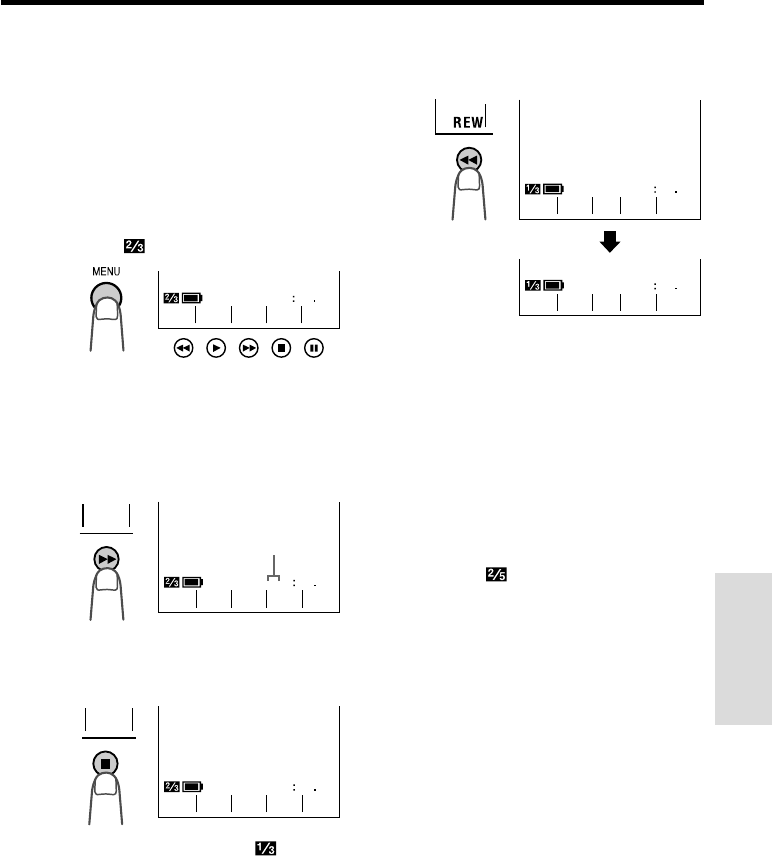
VL-A10H/pp. 024-037; 00/2/2/18:00
G. K. Associates, Tokyo
Useful Features
36
Using the Counter Memory
Use the counter memory feature when you
want to return to the beginning of a particular
scene. The position where the counter was
reset (0:00.00) is stored in memory to make it
easier to return to that point on the tape.
VCR mode
1During playback, press the MENU
button until appears.
•If “MEMORY” is not displayed, press the
COUNTER button.
2Press the MEMORY button to set the
counter to Counter Memory mode.
•“M” will be displayed to the left of the
counter.
5Press the REW button (C).
•The tape will automatically stop when the
counter reaches 0:00.00.
Notes:
•The FF button (B) can be used in the
same way.
•The tape may stop slightly ahead or behind
the point where you reset the counter to
“M 0:00.00”.
6Press the PLAY button (D) to view the
desired scene.
Camera mode
1During recording, press the MENU
button until appears.
•If “MEMORY” is not displayed, press the
COUNTER button.
2Perform steps 2 and 3 above.
3When you are ready to finish recording,
press the REC START/STOP button.
4Set the Power switch to VCR, then
perform steps 5 and 6 above.
To cancel Counter Memory mode
Perform step 1 above, and press the MEMORY
button. “M” will disappear from the screen.
Note:
•This feature does not work during video search.
3Press the RESET button to reset the
counter to zero at the beginning of the
scene that you want to return to later.
NTER
COU
-
ORY
MEM
-
SE T
RE
-
ARCH
SE
-
0M0000
SE T
RE
-
EFF.
GAMA
4Press the MENU button until
appears. When you are ready to finish
playback, press the STOP button (A).
NTER
COU
-
ORY
MEM
-
SE T
RE
-
ARCH
SE
-
01800
EFF.
GAMA
NTER
COU
-
ORY
MEM
-
SE T
RE
-
ARCH
SE
-
0M1831
ORY
MEM
-
EFF.
GAMA
Memory indicator
0M1124
0M0000
REW PLAY STOP ST I LLFF
REW PLAY STOP ST I LLFF
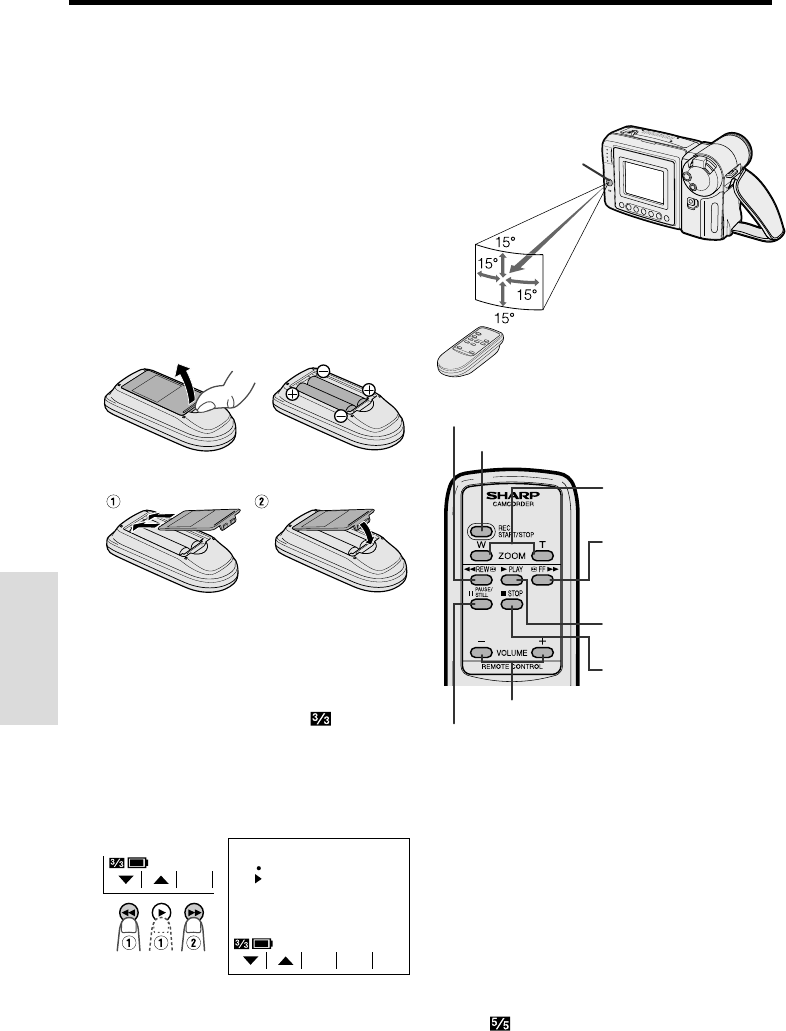
VL-A10H/pp. 024-037; 00/2/2/18:00
G. K. Associates, Tokyo
Useful Features
Useful Features
37
Using the Remote Control
Use the remote control to operate the VIEW-
CAM from a distance, such as when you want
to record yourself in a scene, or when the
VIEWCAM is connected to a TV for use as a
VCR.
Installing the Batteries in the Remote
Control
1Open the battery compartment cover.
2Insert the two supplied AA (R6 or UM/
SUM-3) batteries with the battery poles
positioned as indicated.
3Replace the cover.
Caution:
•Do not use old and new batteries together or
batteries of different brands together.
Turning On the Remote Control Mode
1Press the MENU button until appears
(VCR mode).
2Press the 쑽 or 쒀 button (Q) to select
“REMOTE”, then press the SET button
(B) (W) to select “ON” .
3Press the DISPLAY button to turn off the
menu screen.
Operating the Remote Control
Aim the remote control at the remote sensor of
the VIEWCAM, and press the control buttons for
operation.
5 m
1 2
VOLUME buttons
PAUSE/STILL button
RECord START/STOP button
REWind/Reverse Search button
STOP button
PLAY button
Fast Forward/
Forward Search button
Power Zoom Telephoto/
Wide angle control
buttons
Remote sensor
Approximate operating
range of remote control
Notes:
•Be careful not to allow direct sunlight or bright
light from interior illumination to fall onto the
VIEWCAM remote sensor, as this may prevent
the remote control from operating properly.
•Be sure that there are no obstacles between the
remote control and the VIEWCAM remote sensor.
•The remote control cannot be used to move the
pointer, or select or set any of the various
functions on the monitor.
•When the batteries are depleted and the remote
control does not operate, replace them with new
AA (R6 or UM/SUM-3) batteries.
•You can also turn on the Remote Control mode
on the (MENU 1) screen in Camera mode.
SET
MENU
TURE
PIC
-
SET
ED I T
REMOTE
OF F
ON
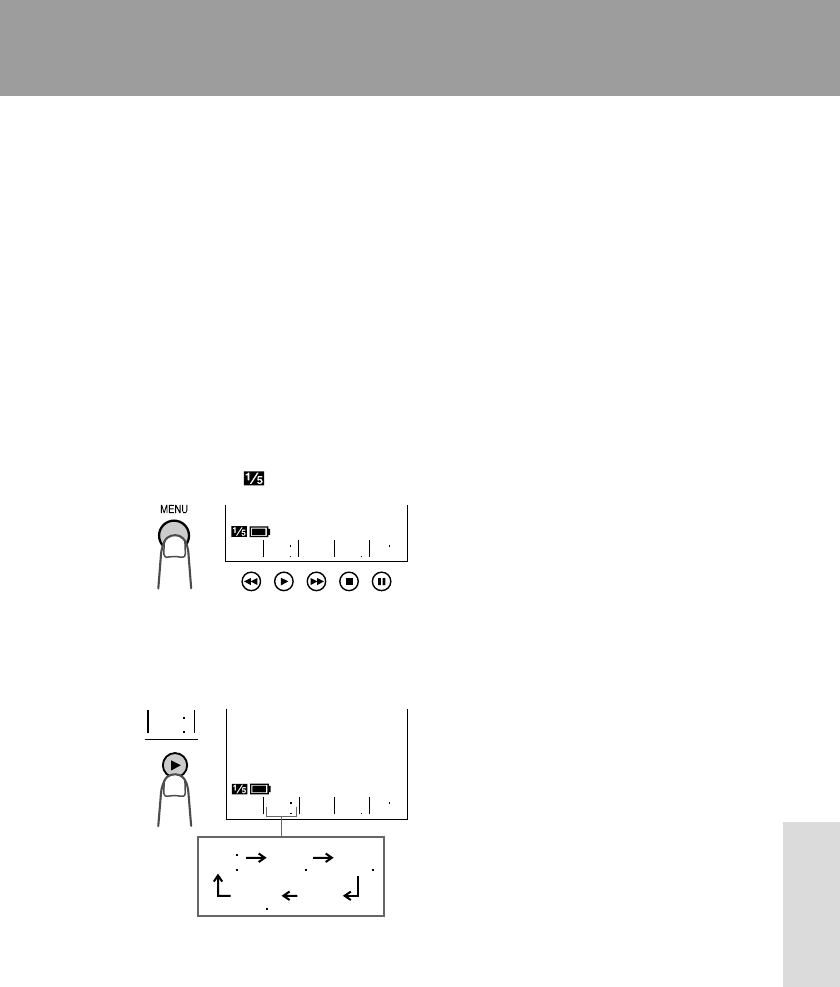
VL-A10H/pp. 038-045; 00/2/2/18:00
G. K. Associates, Tokyo
Advanced Features
38
To cancel the digital picture effect
Select “PIC. EFF.” in step 2 above.
Note:
• The digital picture effect will be cancelled if the
power source is interrupted.
Digital Picture Effects
These digital picture effects let you record the
subject with a more dramatic effect.
Type of Digital Picture Effects
B/W EFF.: The picture is recorded in black-
and-white.
SEPA EFF.: The picture is recorded in sepia
colour similar to that of an old photograph.
SOLARI: The contrast of the subject is
enhanced, creating a unique artistic image.
Advanced Features
NEGA EFF.: The blacks and whites of the
image are reversed and colours of the image
are inverted.
1In Recording Standby mode, press the
MENU button until appears.
2Press the D button to select the desired
digital picture effect.
• Each time you press the D button, the
digital picture effect changes as shown
below.
3Press the DISPLAY button to turn off the
Operation button indicators.
GAMA
REW
QK
EFF
PIC
EFF
EFF
PIC
GAMA
REW
QK
EFF
PIC
EFF
B/W SEPAPIC
EFF EFF
SO
-
LAR I
NEGA
EFF
EFF
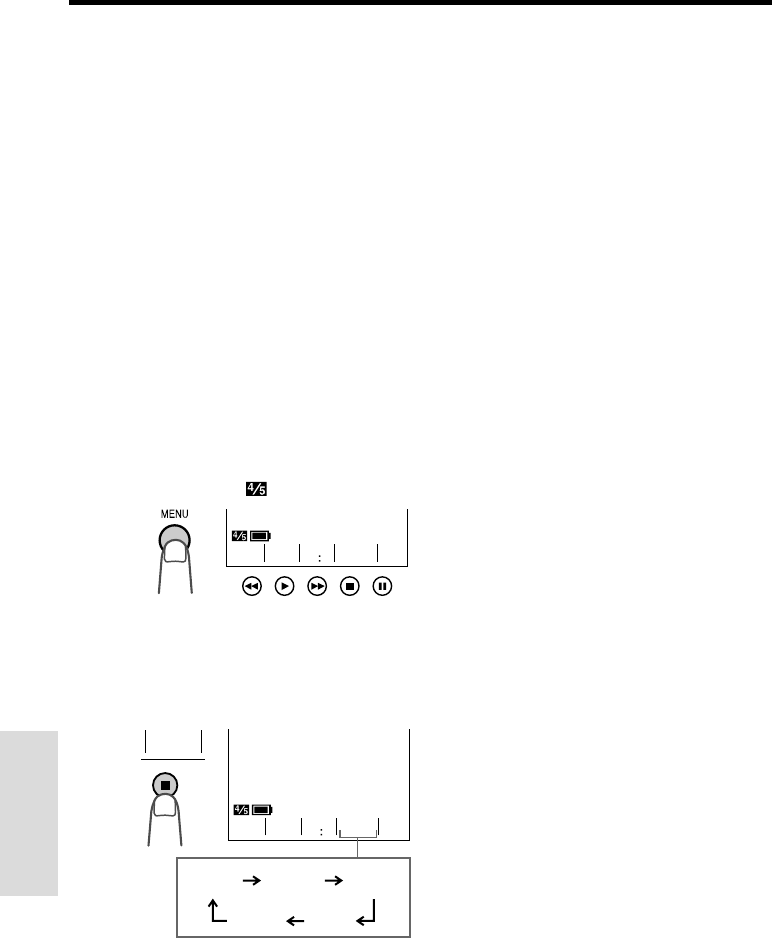
VL-A10H/pp. 038-045; 00/2/2/18:00
G. K. Associates, Tokyo
Advanced Features
Advanced Features
39
Scene Menu (Program AE)
You can set the VIEWCAM to the shooting
mode that will create the best results for a
specific type of shooting situation. Just select
one of the four scene settings shown below.
The VIEWCAM will automatically set the
exposure, white balance, and shutter speed to
produce the optimum picture quality for the
selected situation.
Type of Scene Settings
SPORT: When you want to record a fast-
moving subject.
SUNLIGHT: When the background is very
bright.
DUSK: When you want to faithfully record the
red of the setting sun, and the surrounding
twilight.
PARTY: When the illumination is from a
spotlight or candles.
1In Recording Standby mode, press the
MENU button until appears.
2Press theAbutton to select the scene
setting that best fits the recording
situation.
• Each time you press theAbutton, the
scene setting changes as shown below.
To cancel the scene setting
Select “SCENE MENU” in step 2 above.
Notes:
• Even after you turn off the scene setting
indicator, the selected scene setting will remain
in effect.
• When “SPORT” is selected, recording under
the light of fluorescent lamps, mercury lamps,
or sodium lamps may cause colour shifts or
fluctuations in picture brightness.
• When “DUSK” is selected, the picture may not
be satisfactory if the lighting is very dim.
• It is recommended that you select “SCENE
MENU” to record outdoor parties.
• The scene setting will be cancelled if the
power source is interrupted.
TLE
TI
-
TURN
RE
-
16 9 MENU
SCENE
TLE
TI
-
TURN
RE
-
16 9 MENU
SCENE
MENU
SCENE
TRYAPKSUD
OPTRS
MENU
SCENE
LIGHT
SUN
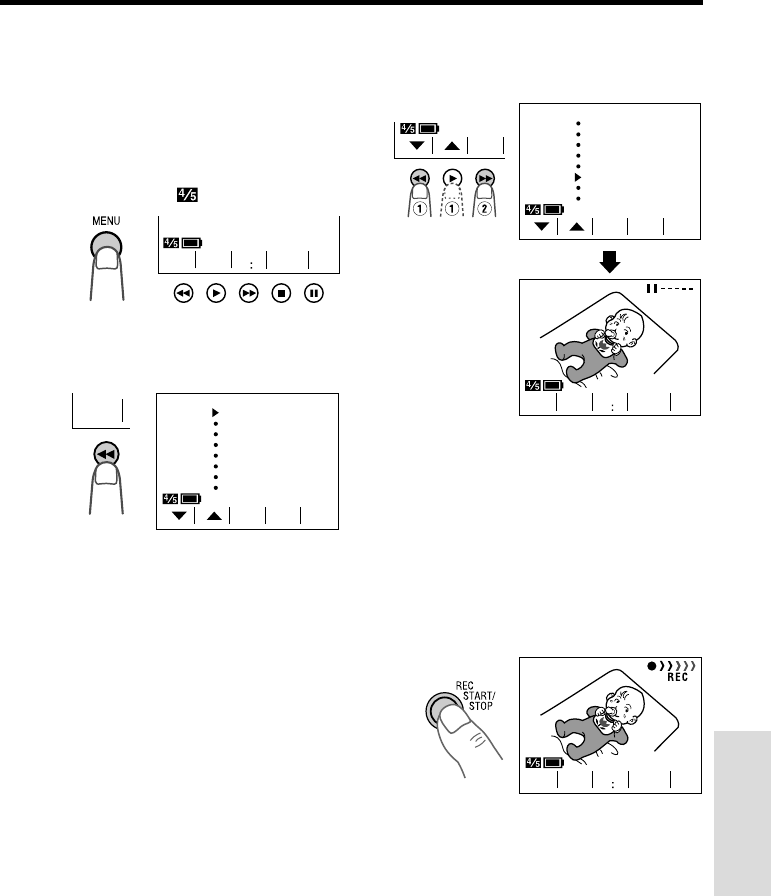
VL-A10H/pp. 038-045; 00/2/2/18:00
G. K. Associates, Tokyo
Advanced Features
40
3Press the or button (Q) to select
the desired title, then press the SET
button (B) (W) to superimpose it.
Notes:
• If you wish to cancel the title selection
screen without setting the title, press the
EXIT button () instead of the SET button.
• If you wish to delete the superimposed title
from the screen, press the TITLE button.
4Press the REC START/STOP button to
begin recording with the title.
• The title will be displayed and recorded
for about 10 seconds after recording
begins.
Note:
• When the title is displayed on the screen, the
date and time will not be displayed or recorded.
Superimposing a Title
Use the title feature to superimpose titles on
your videos when recording. There are eight
titles preset for your convenience which you
can choose from.
1In Recording Standby mode, press the
MENU button until appears.
2Press the TITLE button (C) to display
the title selection screen.
TLE
TI
-
EX I TSET
TITLE SUPERSTAR!
HAPPY HOL I DAYS !
HAPPY B I RTHDAY !
WEDD I NG DAY
CONGRATULAT I ONS
NEW BABY
OUR VACAT I ON
THE END
SET
RE
-
TLE
TI
-
TURN
RE
-
16 9 MENU
SCENE
SET
EX I TSET
T I TLE SUPERSTAR!
HAPPY HOL I DAYS !
HAPPY B I RTHDAY !
WEDDI NG DAY
CONGRATULAT I ONS
NEW BABY
NEW BA BYNEW BABY
OUR VACAT I ON
THE END
MENU
SCENE
TLE
TI
-
TURN
RE
-
16 9
SET
RE
-
NEW
NEW
BA BYNEW BABY
TLE
TI
-
16 9 MENU
SCENE
TURN
RE
-
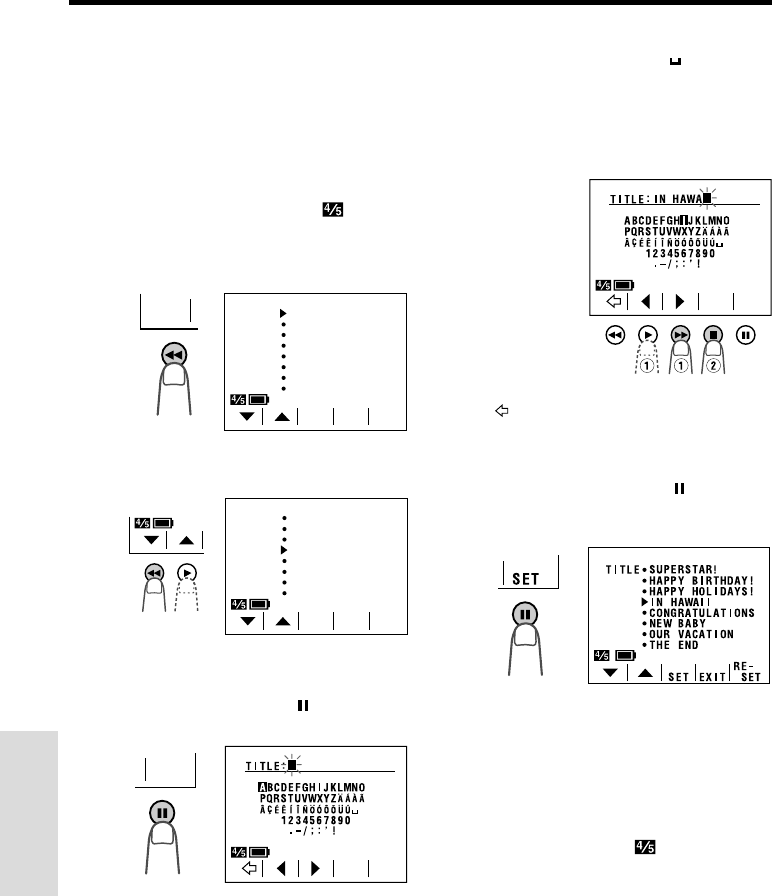
VL-A10H/pp. 038-045; 00/2/2/18:00
G. K. Associates, Tokyo
Advanced Features
Advanced Features
41
Changing the Preset Titles
You can make a new title of your own by
changing any of the eight preset titles. The
maximum number of title characters is fifteen.
Example: Changing “WEDDING DAY” to “IN
HAWAII”.
1Press the MENU button until
appears, and then press the TITLE
button (C) to display the title selection
screen.
2Press the or button to select the
title that you wish to change.
Note: If you want to cancel the title selection
screen, press the EXIT button ().
3Press the RESET button ( ) to display
the title input screen.
4Press the © or ß button (Q) to select
the desired character (or “ ” for
space) and press the SELECT button
() (W).
• The selected character will appear at the
top of the screen and the cursor will
automatically move to the right.
Note: If you input the wrong character, press
the button to move the cursor to that
character and perform step 4.
5Repeat step 4 until you finish the title,
then press the SET button ( ). The new
title will be displayed on the title
selection screen.
Note: To change another title, perform steps
2 to 5 again.
6If you wish to record the new title
immediately, press the SET button (B).
If you wish to record the new title at a
later time, press the EXIT button () to
go back to the normal screen.
TLE
TI
-
EX I TSET
TITLE SUPERSTAR!
HAPPY HOL I DAYS !
HAPPY B I RTHDAY !
WEDDI NG DAY
CONGRATULAT I ONS
NEW BABY
OUR VAC AT I ON
THE END
SET
RE
-
EX I TSET
T I TLE SUPERSTAR!
HAPPY HOL I DAYS !
HAPPY B I RTHDAY !
WEDD I NG DAY
CONGRATULAT I ONS
NEW BABY
OUR VAC AT I ON
THE END
SET
RE
-
LECT
SE
-
SET
SET
RE
-
LECT
SE
-
SET
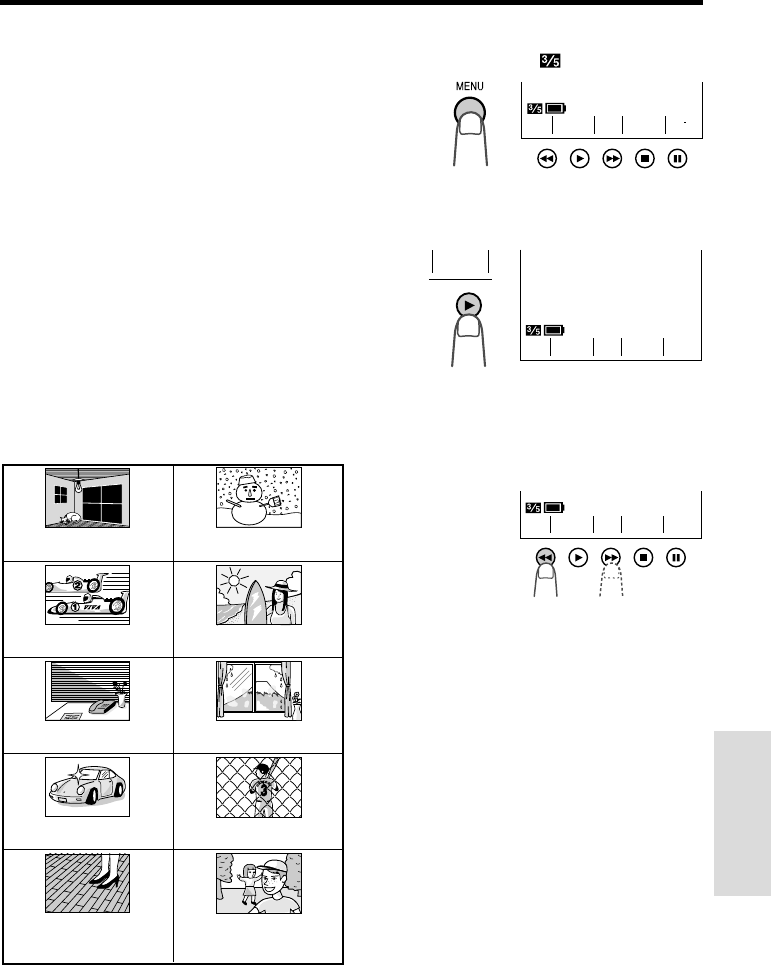
VL-A10H/pp. 038-045; 00/2/2/18:00
G. K. Associates, Tokyo
Advanced Features
42
1In Recording Standby mode, press the
MENU button until appears.
2Press the FOCUS button (D) to set the
VIEWCAM to Manual Focus mode
(“MAN’L FOCUS”).
3Push the Power Zoom control to frame
the subject as you desire.
4Press the F (C) or N (B) button to
focus on the subject.
To cancel Manual Focus mode
Perform step 1 above, and press the D button
to set the VIEWCAM to Auto Focus mode
(“FOCUS”).
Notes:
• The VIEWCAM may not be able to focus
correctly if the subject is within approximately
1.5 m. Set the zoom control to wide angle, and
then try refocusing.
• If the lens is dirty or fogged, the VIEWCAM may
not be able to correctly focus.
• The Manual Focus mode will be cancelled if the
power source is interrupted.
Auto/Manual Focus
Auto Focus
The auto focus function is designed to focus on
most types of subjects. In Auto Focus mode,
the VIEWCAM automatically focuses on what-
ever is in the centre of the scene. Always keep
the subject in the centre of the screen.
Notes:
• If no subject is in the centre of the screen, the
focus area will expand and the subject nearest
the centre will be focused on.
• If no subject is displayed on the screen, the
VIEWCAM will automatically zoom out until a
subject comes into the frame.
Manual Focus
The Auto Focus may not be able to focus on
the subject in the situations shown below. In
such situations, set the VIEWCAM to Manual
Focus mode and focus manually.
Subject is too dark. Lack of contrast, e.g. snow
scene.
Fast-moving subject. Background is too bright.
Subject has fine, repeated
patterns.
Subject has
horizontal stripes.
Subject is being shot through
a dirty or wet window.
Two subjects at different distances
overlap in the same scene.
Subjects at different distances
appear in the centre of the scene
at the same time.
Light reflects off the subject.
SUREFOCUS BAL.
WH I T E E X P O
N
FOCUS
FSUREFOCUS BAL.
WHI TE EXPO
MAN’ L
NF SUREFOCUS BAL.
WHI TE EXPO
MAN’L
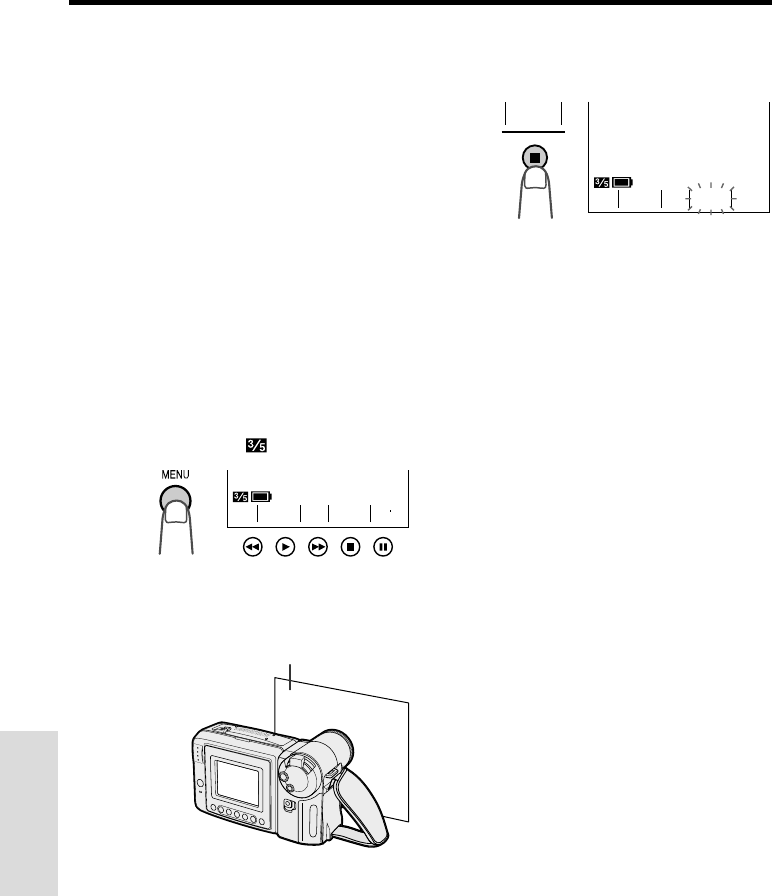
VL-A10H/pp. 038-045; 00/2/2/18:00
G. K. Associates, Tokyo
Advanced Features
Advanced Features
43
White Balance Lock
The colour of the subject on the screen tends
to look different depending on the lighting
condition. The VIEWCAM is preset to Auto
White Balance mode, which automatically
adjusts the hue of the picture for the current
lighting condition.
The auto white balance may not work properly
for the following subjects. In this case, use the
white balance lock function.
• Subjects with one dominant colour or
subjects against background with one
dominant colour
• Subjects under very bright light source, e.g.
video lights
• Subjects under light source with red hue, e.g.
glow of sunset
• Close-up images of small objects
1In Recording Standby mode, press the
MENU button until appears.
2Aim the lens at a white object.
• Adjust the distance of the object so that
the entire screen is white.
SUREFOCUS BAL.
WH I T E E X P O
3Press the WHITE BAL. button (A).
• “WHITE BAL.” changes from blue to
yellow and begins flashing.
• “WHITE BAL.” stops flashing when the
locking procedure is completed.
4Aim the lens at the desired subject and
press the REC START/STOP button to
begin recording.
To cancel White Balance Lock
Press the WHITE BAL. button. “WHITE BAL.”
returns to blue.
Notes:
• If the light source changes or if you move from
indoors to outdoors, or vice versa, when
recording with the white balance locked, the
white balance may shift. Reset the white
balance.
• Even after the white balance has been locked,
white balance shifts may occur due to slight
changes in illumination or depending on the
subject.
• Do not move the VIEWCAM while “WHITE BAL.”
is flashing in step 3.
• If “WHITE BAL.” does not stop flashing in step 3,
press the WHITE BAL. button to cancel the
locking procedure and repeat step 3.
• The White Balance Lock will be cancelled if the
power source is interrupted.
•The White Balance Lock will be cancelled if a
scene setting is selected thereafter.
SUREFOCUS BAL.
WHI TE EXPO
BAL.
WH I T E
White paper or white cloth
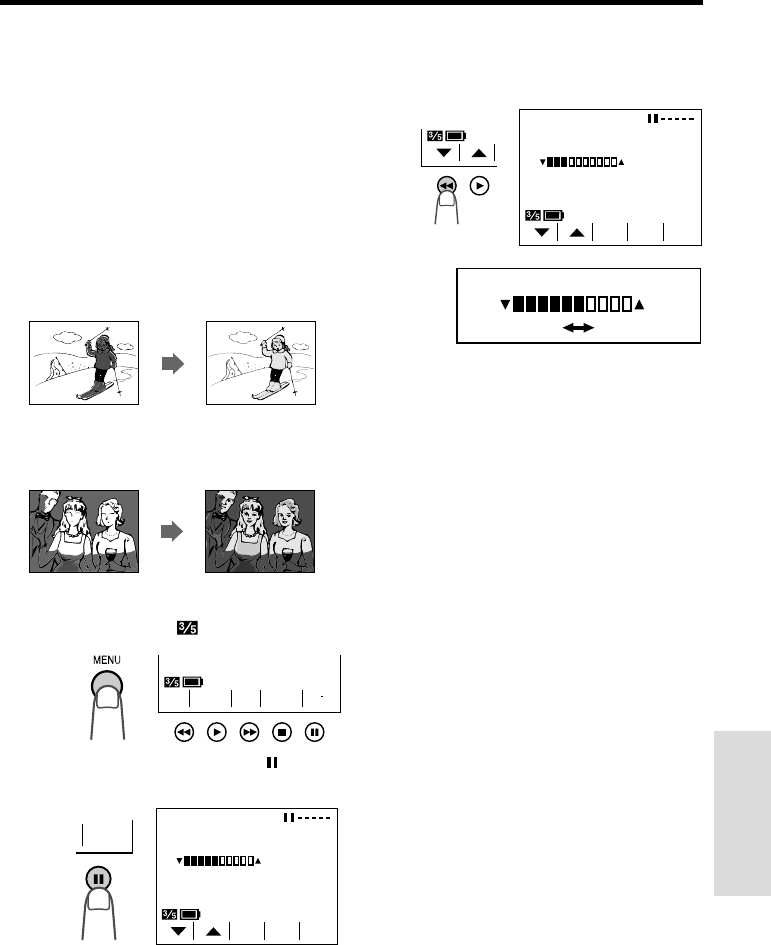
VL-A10H/pp. 038-045; 00/2/2/18:00
G. K. Associates, Tokyo
Advanced Features
44
Manual Exposure
The VIEWCAM is preset to Auto Exposure
mode, which automatically chooses the optimal
aperture. When there is too much contrast in
brightness between the subject and
background, however, you may not be able to
record a clear image. In this case, use the
manual exposure function to correct the
exposure level.
Background is too bright and subject too
dark (backlit subject).
• Increase the exposure level to allow more light
through the lens.
Subject is too bright against background.
• Decrease the exposure level to allow less light
through the lens.
1In Recording Standby mode, press the
MENU button until appears.
2Press the EXPOSURE button ( ) to
display the exposure setting screen.
3Press the or button to select the
desired exposure level.
•The bar indicates the selected exposure
level.
4Press the EXIT button (A) to turn off
the exposure setting screen.
To cancel Manual Exposure mode
Perform steps 1 and 2 above, then press the
AUTO button (B).
Notes:
• The Manual Exposure mode will be cancelled if
the power source is interrupted.
•The Manual Exposure mode will be cancelled
if a scene setting is selected thereafter.
SUREFOCUS BAL.
WHI TE EXPO
EXI TAUTO
SURE
EXPO
EXPOSURE
EXI TAUTO
EXPOSURE
EXPOSURE
Less light More light
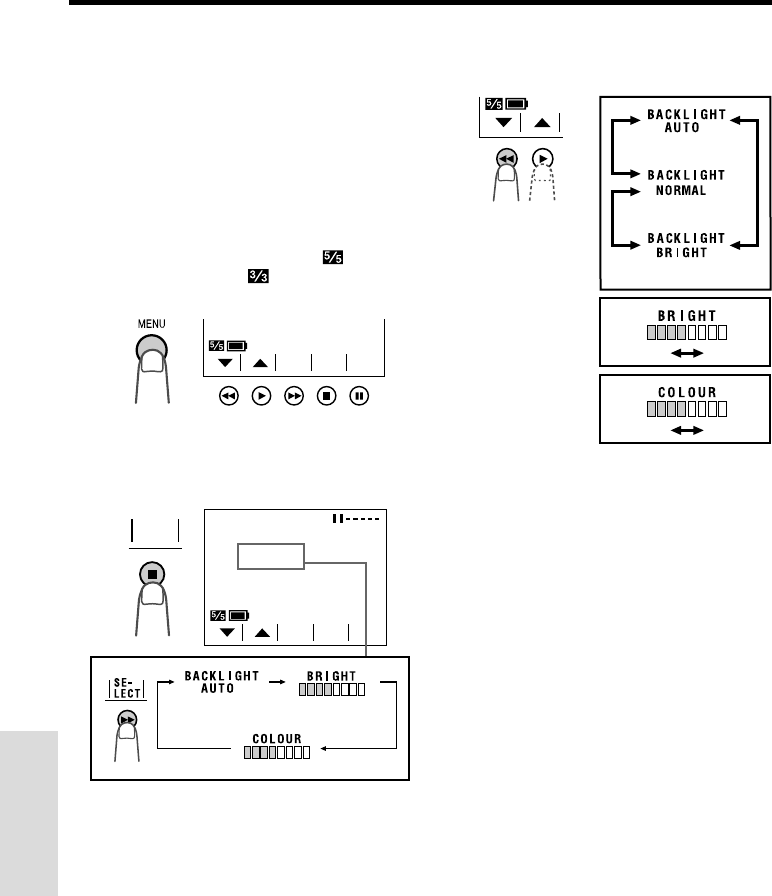
VL-A10H/pp. 038-045; 00/2/2/18:00
G. K. Associates, Tokyo
Advanced Features
Advanced Features
45
3Press the or button to adjust the
picture or backlight to the desired
setting.
Type of Backlight Modes
AUTO: The VIEWCAM automatically switches
between “NORMAL” and “BRIGHT”
depending on the ambient lighting. This
mode is only available in Camera mode.
NORMAL: For use indoors or under moderate
lighting conditions.
BRIGHT: For use outdoors under strong
lighting conditions, such as bright daylight.
4Press the EXIT button () to turn off the
adjustment screen.
Notes:
• If you set the backlight (“BACKLIGHT”) to
“AUTO” in Camera mode and then set the
VIEWCAM to VCR mode, the backlight mode
automatically changes to “NORMAL”.
• When the colour is adjusted, the picture on the
screen may differ from the picture actually
recorded. Do not change the colour setting
unless it is necessary. (This adjustment only
affects the monitor picture, not the recorded
image.)
Picture/Backlight
Adjustments
If the monitor picture is difficult to see due to
ambient lighting, etc., adjust the picture
settings. This feature can be adjusted in both
Camera and VCR modes.
• The example screens for this feature are for
Camera mode.
1Press the MENU button until
(Camera mode) or (VCR mode)
appears.
2Press the PICTURE button () to display
the adjustment screen. Then press the
SELECT button (B) until the item you
wish to adjust appears.
BACKL IGHT
AUTO
EXIT
TURE
PIC
-
LECT
SE
-
Darker Brighter
Decrease Increase
PAGETURE
PIC
-
SET
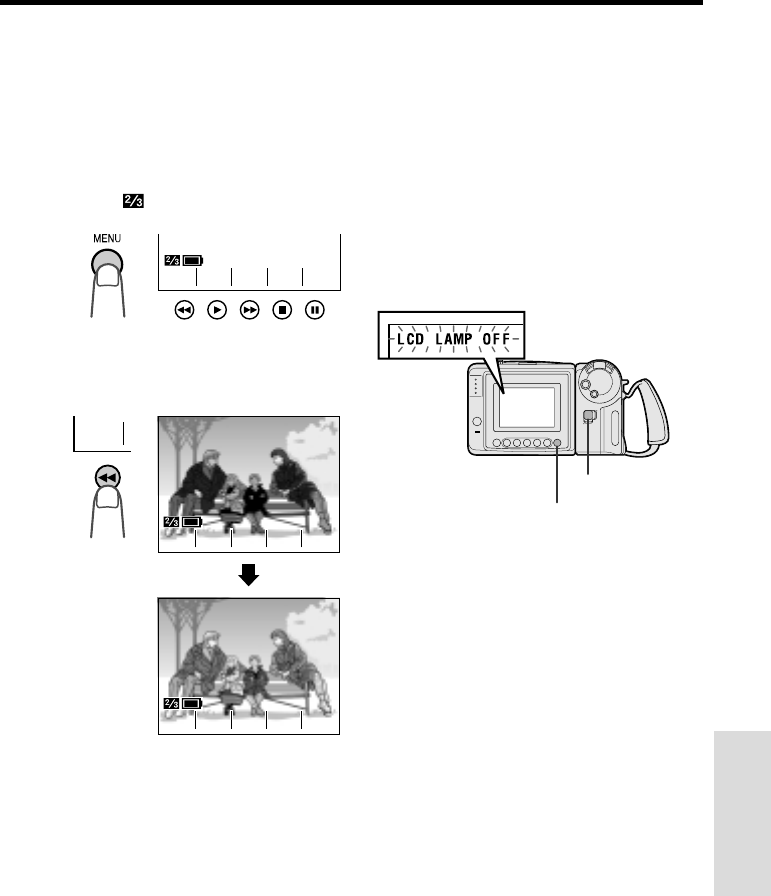
VL-A10H/pp. 046-047; 00/2/2/18:00
G. K. Associates, Tokyo
Advanced Features
46
Gamma Playback
The gamma playback function improves the
picture by increasing the brightness of the
subject while leaving the brighter portions of
the image unaffected.
1During playback, press the MENU
button until appears.
2Press the GAMA EFF. button (C).
• “GAMMA” appears and the picture
becomes brighter.
NTER
COU
-
EFF.
GAMA
ARCH
SE
-
NT
NT
E R
COU
-
E F F .
GAMA
NTER
COU
-
EFF.
GAMA
EFF.
GAMA
NT
NT
E R
COU
-
NTER
COU
-
GAMMAGAMMA
E F F .
GAMA
EFF.
GAMA
ARCH
SE
SE
-
ARCH
SE
-
ARCH
SE
SE
-
ARCH
SE
-
To cancel Gamma Playback
Press the GAMA EFF. button again. “GAMMA”
disappears.
Turning Off the LCD Monitor
Backlight
The LCD monitor uses a fluorescent lamp for
backlighting (see page 50). In order to reduce
battery consumption, you can turn off the lamp
when backlighting is not necessary (e.g. when
you are recording a fixed scene).
Hold down the DISPLAY button. Three seconds
later, “LCD LAMP OFF” starts flashing on the
monitor. Keep the DISPLAY button down for
three more seconds, and the backlight will turn
off.
Power switch
DISPLAY button
To turn on the backlight again, press the
DISPLAY button or set the Power switch to OFF
and then back to CAMERA or VCR.
Note:
•Turning the backlight on and off repeatedly may
deplete the battery power.
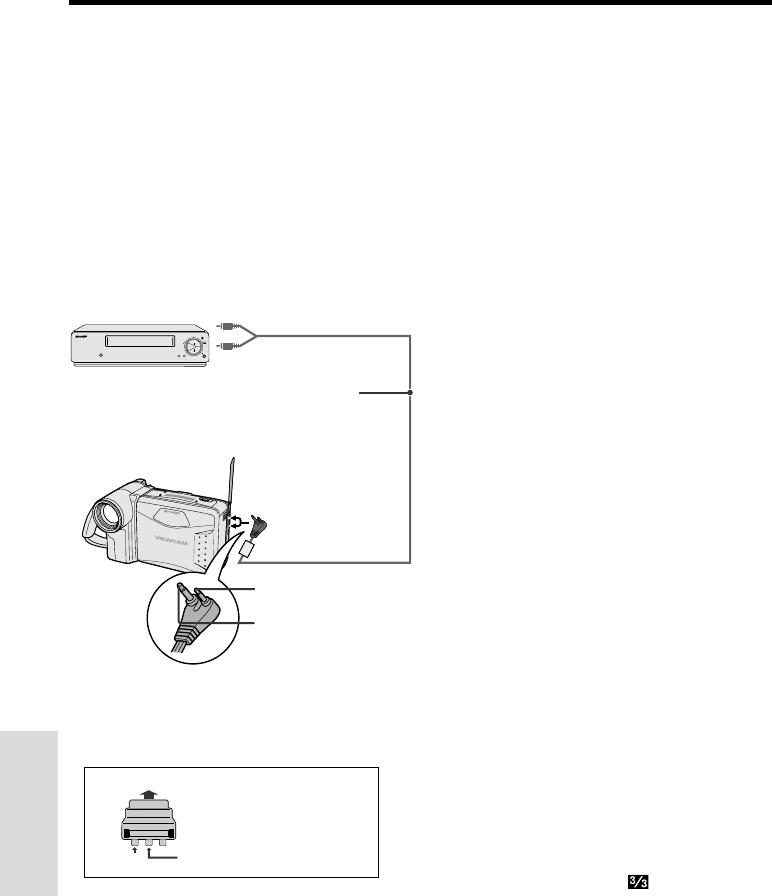
VL-A10H/pp. 046-047; 00/2/2/18:00
G. K. Associates, Tokyo
Advanced Features
Advanced Features
47
Editing
Video editing lets you refine your videos by
removing unwanted sequences from your tape,
or transposing one sequence with another.
This VIEWCAM lets you monitor the source pro-
gram on the built-in LCD monitor without
having to connect it to an external TV or video
monitor.
Connect the VIEWCAM to a VCR with the sup-
plied audio/video cable, as shown.
Recording
Yellow: To VIDEO IN jack
White: To AUDIO IN (L) jack
Audio/video cable
(supplied)
Playback
POWER
TV/VCR SET UP
CHANNEL
REC
PLAY
STOP/
EJECT
PAUSE
/STILL
To VIDEO jack (ø2.5)
To AUDIO jack (ø3.5)
Cutting Unwanted Sequences
1Play back the tape to be edited, and locate
the beginning and end of the sequence
you wish to cut. Write down the tape
counter readings at the beginning and end
of that sequence (see page 35). Then
rewind the tape to the beginning of the
portion that you wish to keep.
2Load a video cassette into the recording
VCR.
3Set the Power switch on the VIEWCAM to
VCR. Press the PLAY button (D) on the
VIEWCAM and the Record button on the
VCR at the same time.
4Press the Pause/Still button on the VCR to
pause recording when the source tape
reaches the beginning of the sequence to
be cut.
5Press the Pause/Still or Record button on
the VCR to resume recording when the
source tape reaches the end of the
sequence to be cut.
To stop editing
Press the Stop buttons on the VIEWCAM and
the VCR.
Notes:
•Some of the transitions between edited sequences
may be slightly off.
•There may be picture noise during video search or
still picture playback. This does not imply a defect in
the VIEWCAM.
Setting Edit Mode
Picture quality inevitably decreases when
dubbing from the VIEWCAM to a VCR. To
minimize the quality reduction, set the
VIEWCAM to Edit mode.
1Set the Power switch to VCR, then press
the MENU button until appears.
2Press the 쑽 or 쒀 button to select “EDIT”,
then press the SET button (B) to select
“ON”.
Notes:
•The EDIT mode does not function when the
VIEWCAM is recording.
•After you finish editing, set the EDIT menu item back
to “OFF”.
Note:
•If your VCR has a 21-pin Euro-SCART connector,
use the RCA/21-pin Euro-SCART conversion
connector (QSOCZ0033TAZZ) available from our
main parts distributor detailed on page 53.
Video
0
VIDEO AUDIO
(L/MONO)
AUDIO
(R)
RCA/21-pin Euro-SCART
conversion connector
(QSOCZ0033TAZZ)
21-pin Euro-SCART on VCR
Audio L
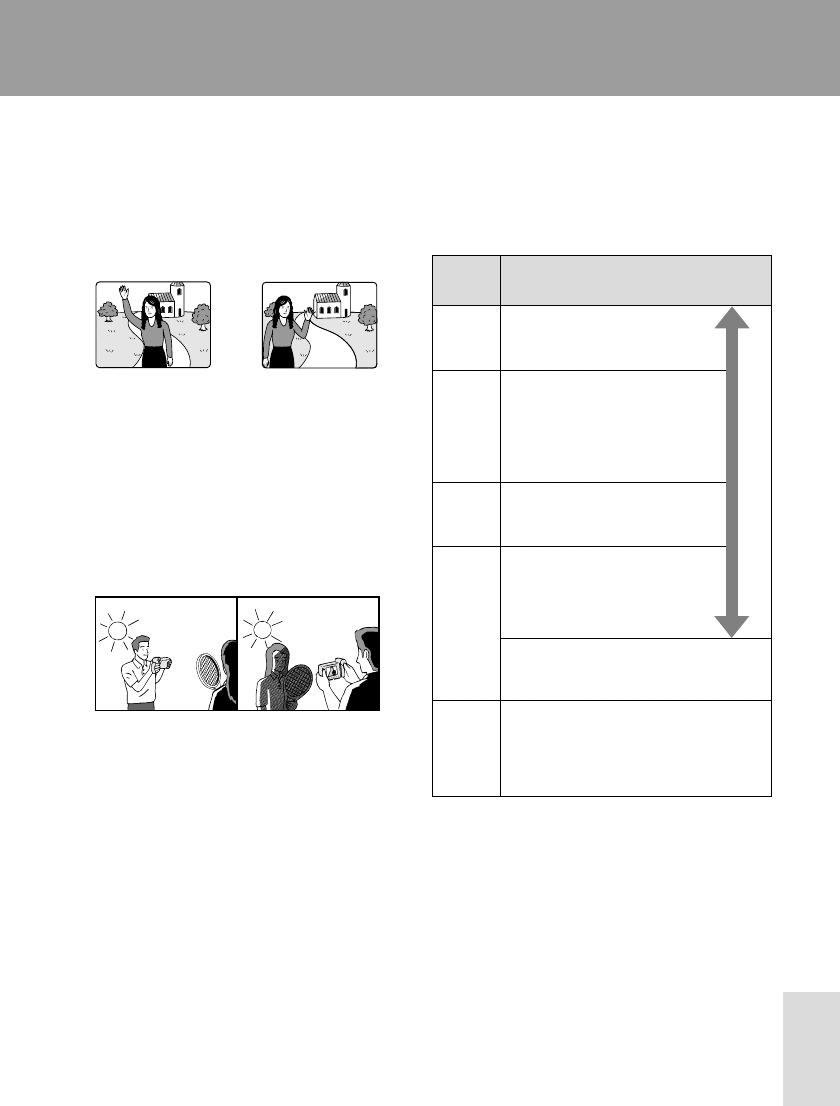
VL-A10H/pp. 048-052; 00/2/3/18:00
G. K. Associates, Tokyo
References
48
Lighting
For clear, good-quality recording, 500 to
100,000 lux is needed. Recording is possible
with less light, but the picture quality may
suffer. Adequate lighting is also essential for
correct white balance.
Useful Information
Hints for Better Shooting
• Position the subject in the centre of the
screen. When you are using auto focus,
whatever is in the centre of the screen is kept
in focus.
References
Position the subject in
the centre.
Focus manually when
you need to position
the subject off centre
(see page 42).
Note: The figures in the chart are approximations.
Situation (Lux)
Blue sky
Clear day at noon (100,000)
Clear day at 10 am (65,000)
Clear day at 3 pm (35,000)
Cloudy day at noon (32,000)
Cloudy day at 10 am (25,000)
Cloudy day, one hour after sunrise (2,000)
Clear day, one hour before sunset (1,000)
Fluorescent light near window (1,000)
Factory floor (700–800)
Sales counter in department store (500–700)
Bowling alley (500)
Library (400–500)
Office with fluorescent lighting (400–500)
Fluorescent desk lamp (400)
Flashlight at 1 m (250)
Shop stairway (100)
During intermission at movie theatre (15–35)
Cigarette lighter at 30 cm (15–20)
Candles on birthday cake at 20 cm (10–15)
Candlelight
Brightness
(Lux)
100,000
10,000
1,000
100
10
Optimal lighting range
•Avoid backlit subjects. For the best picture,
shoot with the light source behind you.
When the background is brighter than the
subject, the subject often becomes too dark.
If you have to record with this lighting, use the
Gamma Brightness Compensation or correct
the exposure level to improve the picture (see
pages 28 and 44).
Light from behind Backlighting
•Before zooming, think about how to best
frame the shot. Frequent zooming produces
unattractive pictures. It also increases the
battery power consumption.
•When image shakes are noticeable during
zoomed-in telephoto shooting, use a tripod,
or push the Power Zoom control to the W side
to zoom out.
•Horizontal panning (lateral movement) and
tilting (vertical movement) should be done
slowly to emphasize the wide expanse of a
scene or the height of a building, and to
make scenes easy to watch during playback.
•Use a wide-angle setting for fast-moving
subjects.
Note:
•It may take longer to focus when zooming and
panning are used frequently.
Tips on Good Lighting
In most outdoor, daytime scenes, natural
lighting is adequate for home videos. Indoors,
however, artificial lighting is usually required.
Video lights with halogen lamps provide the
most natural artificial light over a long operating
life.
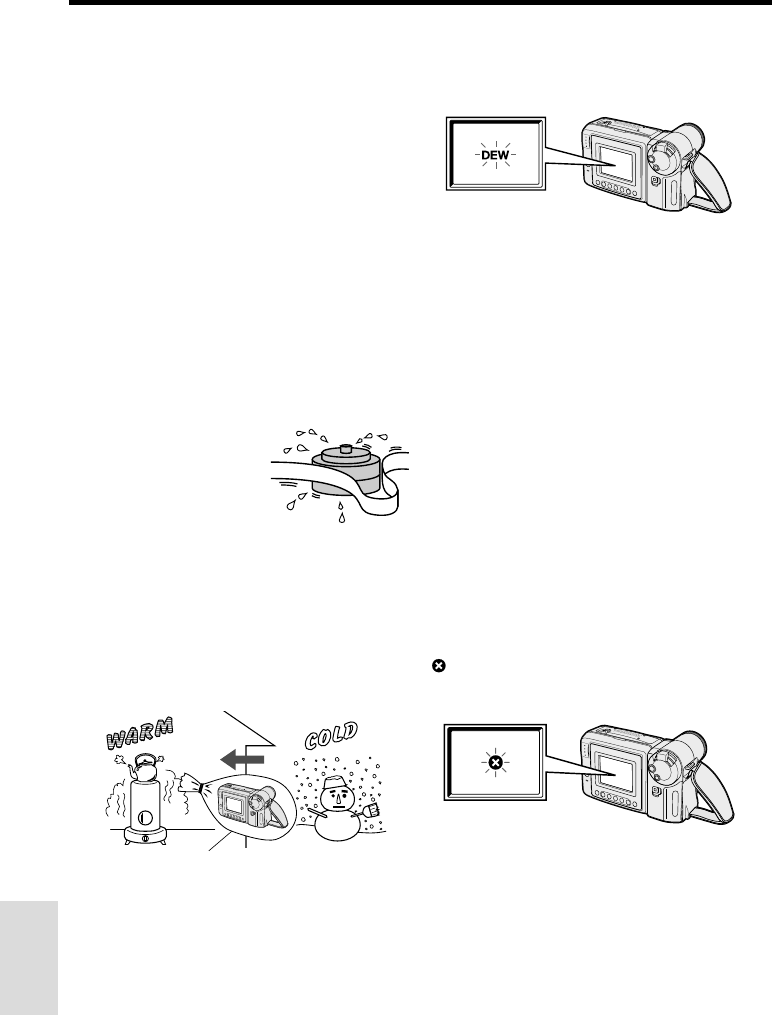
VL-A10H/pp. 048-052; 00/2/3/18:00
G. K. Associates, Tokyo
References
References
49
Dew Formation
•What is “dew formation”?
When cold water is poured into a glass, dew
drops form on the glass. This clinging of
water drops is called dew formation.
•When dew forms in your VIEWCAM.
Dew will gradually form on the head drum of
your VIEWCAM and make the video tape stick
to the head. This causes damage both to the
head and the tape. When dew formation
occurs, recording and playback may not
function properly.
Dew is likely to form in the following circum-
stances:
•When moving the VIEWCAM from a cold
place to a warm place.
•When placing the VIEWCAM in a cold room
which is then heated rapidly.
•When moving the VIEWCAM outdoors from
an air conditioned room.
•When placing the
VIEWCAM in the direct
path of air blowing from
an air conditioner.
•When placing the
VIEWCAM in a humid
room.
•How to prevent trouble due to dew
formation.
When using the VIEWCAM in a place where
dew formation is likely to occur, allow the
VIEWCAM and the video tape to acclimatise
to the surroundings for about one hour.
For example, when bringing the VIEWCAM
indoors after skiing, place it in a plastic bag.
QBe sure to tightly seal the plastic bag
containing the VIEWCAM.
WRemove the bag when the air temperature
inside it reaches the temperature of the
room.
•“Dew” warning feature
If dew forms, the word “DEW” flashes on the
LCD monitor, and the power will automatically
turn off in approximately 10 seconds.
QIf “DEW” flashes on the LCD monitor,
remove the cassette, leave the cassette
compartment open, and wait for a few hours
to allow the VIEWCAM to acclimatise to the
surrounding temperature.
WTo use the VIEWCAM again, turn on the
power after waiting for a few hours. Be sure
that “DEW” has disappeared from the
monitor.
EDo not insert a cassette while “DEW” is
flashing; this may result in damage to the
tape.
RSince dew forms gradually, it may take 10 to
15 minutes before the dew warning feature
engages.
Dirty Video Heads
Using the VIEWCAM when the video tape is
dirty may cause the heads to clog, producing
noise on the recorded image or preventing the
image from being recorded at all.
If the video heads become clogged, the
indicator appears on the screen. Contact
your SHARP dealer for further advice or refer to
page 53 “Before Requesting Service”.
Note:
•Video head cleaning can be done by using a
commercially-available cleaning tape. However,
excessive use of the cleaning tape may also
cause damage to the video heads. Please read
the instructions accompanying the cleaning tape
carefully, before using it.
Plastic bag
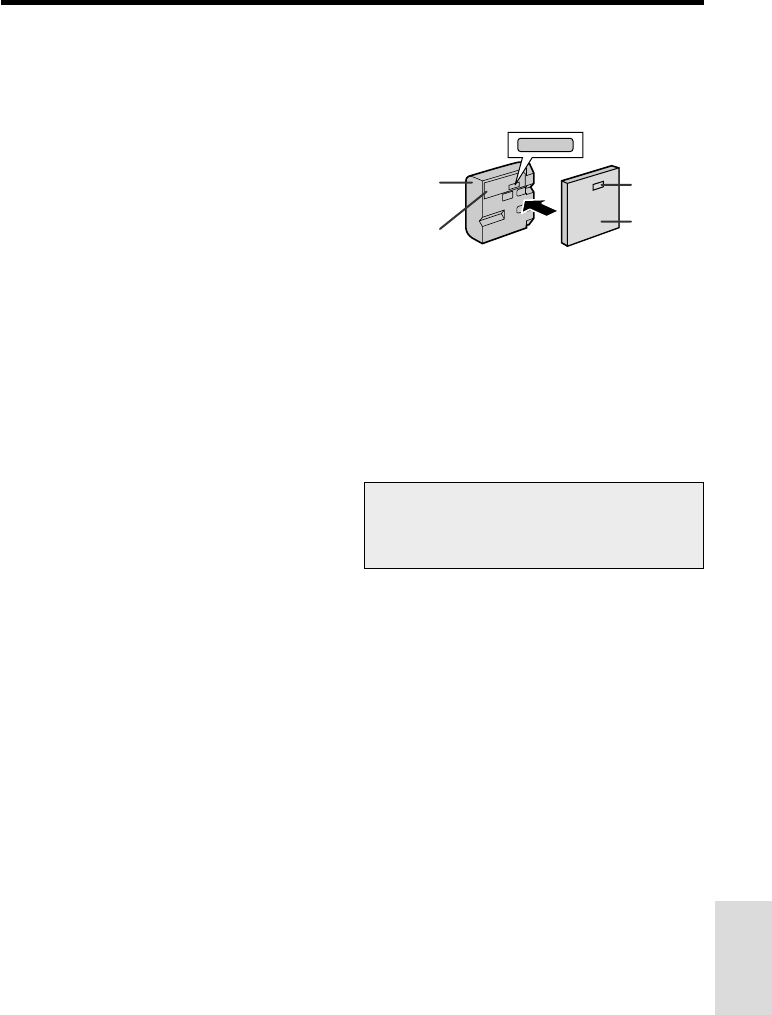
VL-A10H/pp. 048-052; 00/2/3/18:00
G. K. Associates, Tokyo
References
50
Replacing the Fluorescent Lamp
This VIEWCAM uses a fluorescent lamp to
backlight the LCD monitor. If the monitor
becomes dark or difficult to view, the
fluorescent lamp may need to be replaced.
Contact the nearest SHARP service centre or
your dealer for further advice.
Extending battery pack life
•It is recommended that you use the battery
pack until its charge is fully drained and the
VIEWCAM is inoperable before recharging
the pack.
•Recharge the battery pack right before
recording. A battery pack stored for an
extended time will naturally wear down,
resulting in decreased recording time.
•Do not try to recharge a fully charged battery
pack before it has been discharged, as this
will cause deterioration of the battery’s
capacity.
•Store the battery pack in a dry, cool place.
Battery pack life
The battery pack has a limited service life. If
the period of use becomes noticeably
shorter with a normal charge, the battery
pack is at the end of its service life. Replace
it with a new battery pack.
How to use the battery pack cover
•When storing a fully charged battery pack,
put the cover on it so that the “CHARGE”
mark printed on the label is seen through the
window, as shown.
•When storing a battery pack that is not fully
charged, put the cover upside down so that
only the battery pack casing is seen through
the window.
Caution:
•For safety reasons, put the cover on the
battery pack when it is not being used. If the
metal parts of the battery pack come in
contact with other metal items, there is a
danger that a short circuit may occur.
Battery power is consumed even when the
VIEWCAM’s power is turned off. If you are not
going to use your VIEWCAM immediately,
remove the battery pack (see page 8).
Temperature during charging
•The Ni-MH (nickel-metal hydride) type BT-H22
and BT-H32 battery packs can be charged at
a temperature of 15°C to 30°C.
Battery Pack
Battery pack consumption
•Recording with many starts and stops,
frequent zooming, and recording in low
temperatures will shorten actual recording
times. Accordingly, be sure to turn off the
power when not recording. Use of an auxiliary
battery pack is recommended to prevent
undesirable interruptions in your recording.
•Do not use an insufficiently charged or weak
battery pack. Use of such battery packs may
cause the power to automatically stop during
VIEWCAM operation to protect both the
battery pack and the unit.
Note:
•This VIEWCAM uses a Ni-MH (nickel-metal
hydride) type battery pack. Use only the
SHARP BT-H22 or BT-H32 battery packs.
They are designed specifically for use with
this VIEWCAM.
CHARGE
Battery
pack
Label Cover
Window
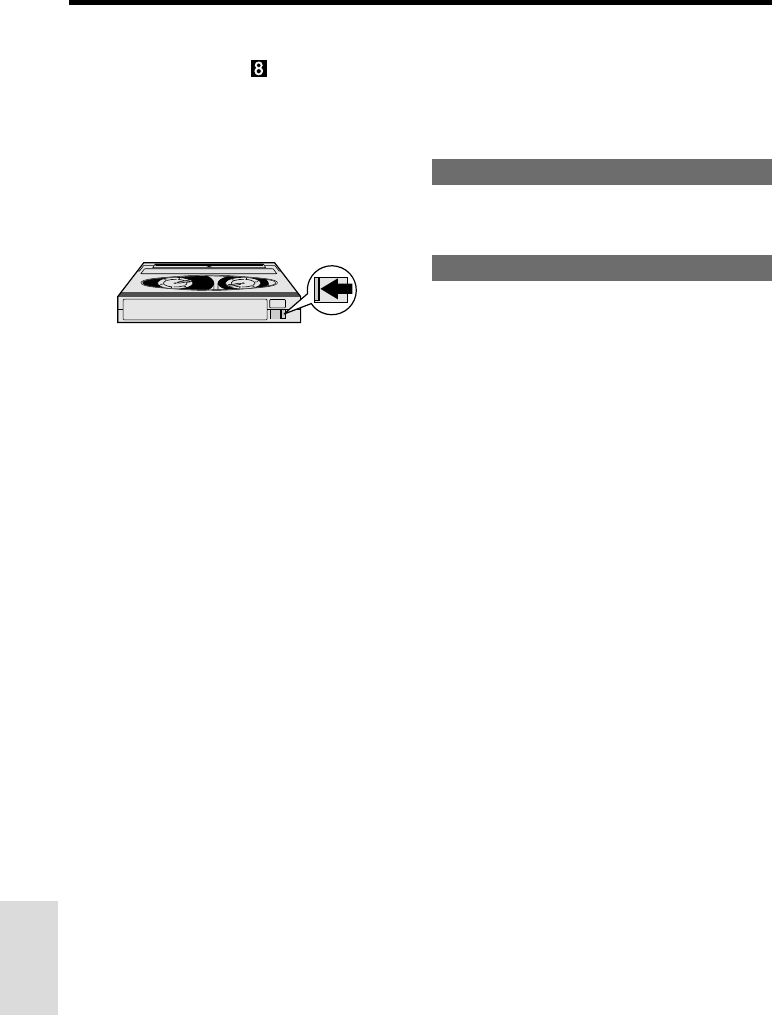
VL-A10H/pp. 048-052; 00/2/3/18:00
G. K. Associates, Tokyo
References
References
51
Using Your VIEWCAM Abroad
Television signal standards and electrical
voltages and frequencies vary substantially
from country to country. When you are abroad,
check the sections below before using the AC
adapter or connecting the VIEWCAM to a TV.
AC Adapter (Supplied Accessory)
The supplied AC adapter is compatible with
50 Hz and 60 Hz electrical systems in the
range of 110 V to 240 V AC.
Television Signal Standards
In any country, you can always watch the video
picture by using the LCD monitor screen.
However, if you want to watch the picture on a
TV screen, the TV must be PAL system
compatible. PAL is used in the following
countries:
Germany, Great Britain, Sweden, Denmark,
Austria, Belgium, Switzerland, Italy, Spain,
Holland, Finland, Portugal, Norway,
Hong Kong, Thailand, Australia, New Zealand,
Singapore, Kuwait, China, etc.
Video Cassette Tapes
Use only tapes with the mark with this
VIEWCAM.
To protect recordings against erasure
When a previously recorded cassette is used
again for recording, the previously recorded
material is erased. To protect a recording
against accidental erasure, slide the tab on the
cassette to cover the opening. (A red mark will
be exposed.) To record, slide the tab to open
the opening.
Notes:
•Do not insert anything into the erasure-protection
opening in the cassette.
•Do not put anything into the holes on the bottom
of the cassette.
•Do not store or place your video tapes in direct
sunlight, near heaters, or in places with
excessive moisture or dust.
•Do not keep video tapes near magnetic objects
as they may erase the recording.
•Do not drop or subject the tapes to excessive
shocks.
•Uneven tape winding will damage the tape. If the
tape is not properly wound, reinsert it in the
VIEWCAM and rewind the tape.
•Store the cassettes in their cases and stand
them upright.
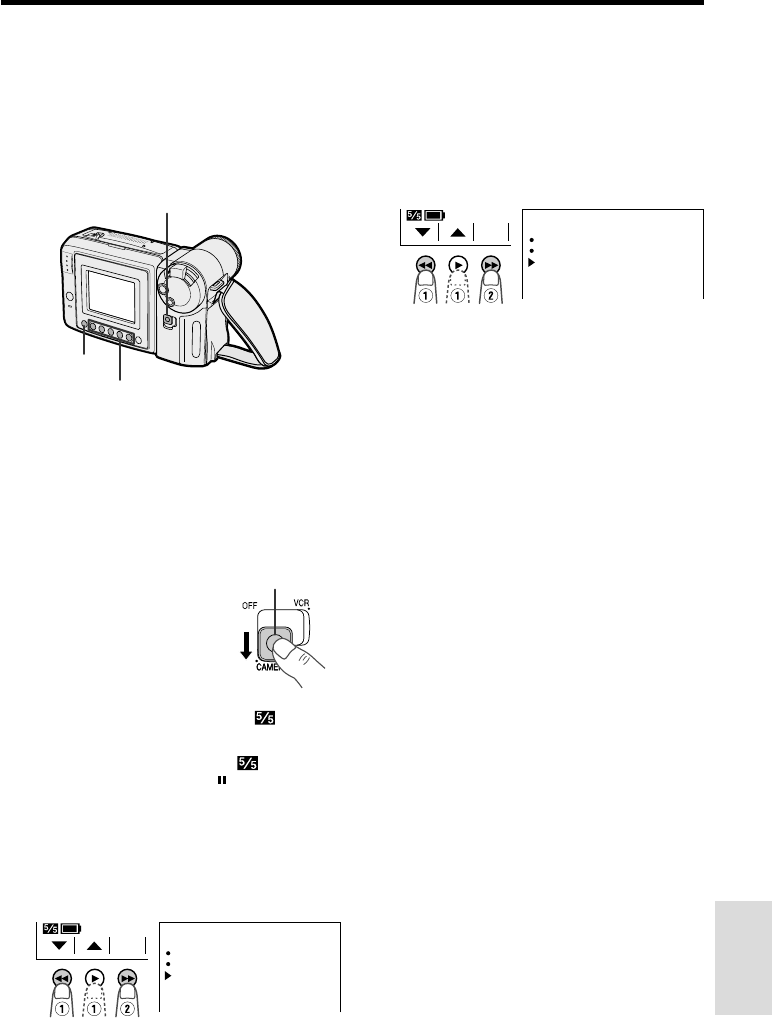
VL-A10H/pp. 048-052; 00/2/3/18:00
G. K. Associates, Tokyo
References
52
Demonstration Mode
You can watch a brief demonstration of the
special VIEWCAM features in Demo mode.
If the demonstration appears on the screen
when you turn on the VIEWCAM for the first
time, cancel the Demo mode to use your
VIEWCAM.
Watching the Demonstration
1Make sure that there is no video
cassette in the VIEWCAM.
•If a cassette is in the VIEWCAM, Demo
mode does not work. Perform the
procedure on page 11 to remove it.
2Hold down the Lock
button and slide the
Power switch to
CAMERA.
3Press the MENU button until
appears.
•If MENU 2 appears on the screen,
press the PAGE button ( ) to display
MENU 1.
4Press 쑽 or 쒀 (C or D) button (Q) to
select “DEMO MODE”, then press the
SET button (B) (W) to select “ON”.
•The demonstration begins.
Lock button
Power switch
Operation buttons
MENU button
Cancelling Demo Mode
1During the demonstration, perform step
3 above.
2Press 쑽 or 쒀 button (Q) to select
“DEMO MODE”, then press the SET
button (B) (W) to select “OFF”.
3Press the DISPLAY button to turn off the
menu screen.
Note:
•The demonstration will stop if you press the
MENU button. If you leave it for 60 seconds, or
turn the power off temporarily and then set the
Power switch to CAMERA, the demonstration will
begin again.
SET
MENU
FADE
REMOTE
NORMAL
ON
DEMO MODE ON
1
SET
MENU
FADE
REMOTE
NORMAL
ON
DEMO MODE OFF
1
VL-A10H/pp. 053-055; 00/8/22/18:00
G. K. Associates, Tokyo
References
References
53
Before Requesting Service
The following conditions do not always denote trouble. Therefore, perform the checks described below
before calling for service. If the problem cannot be corrected by the use of this guide, remove the mains
plugs from the wall socket, and contact the dealer or supplier from whom the unit was purchased in
order to obtain service. Where this is not possible, please visit our web-site www.sharp.co.uk/support.
Customers without Internet access may telephone 08705 274277 during office hours (or (01)676 0648 if
telephoning from Ireland).
Certain replacement parts and accessories may be obtained from our main parts distributor, who can be
contacted on the following numbers:
WILLOW VALE ELECTRONICS LTD.: 0121 766 5414
In the unlikely event of this equipment requiring repair during the guarantee period, you will need to
provide proof of the date of purchase to the repairing company. Please keep your invoice or receipt,
which is supplied at the time of purchase.
Suggested solution
Connect power source properly (pp. 8, 10).
Charge battery pack sufficiently (p. 9).
Wait until dew dries (p. 49).
Set Power switch to OFF and remove battery
pack; wait for 2 seconds, then reinstall battery
pack and turn on power (p. 8).
Open tab or use a new cassette (p. 51).
Set Power switch to OFF and then back to
CAMERA.
Set to Auto Focus mode (p. 42).
Zoom out from subject (p. 17).
Focus manually (p. 42).
——
——
Direct lens to some subject, or set zoom to
widest angle before shooting (p. 17).
Set DEMO MODE menu item to “OFF” (p. 52).
Power
CAMERA mode
Symptom
No power.
REC START/STOP button does
not work.
Power suddenly turns off.
Auto focus does not work.
Bright subject produces wide
vertical lines.
Automatically zooms out without
operating Zoom control.
Display automatically changes
in Camera mode.
Possible cause
Power source is not properly connected.
Battery pack is not charged.
Dew in VIEWCAM.
Safety function is in effect.
Erasure-protect tab on video cassette is closed.
VIEWCAM left in Recording Standby mode for 5
minutes.
Manual Focus mode is engaged.
Zoom used on close subject.
Subject has little contrast in brightness, or is full
of horizontal or vertical stripes.
Occurs when shooting subject with strong
contrast to the background. Does not indicate a
malfunction.
VIEWCAM is unable to focus when zooming in
on subject within 1.5 m, and automatically
zooms out until it focuses on subject.
No subject in the field of view.
VIEWCAM is in Demo mode.
VL-A10H/pp. 053-055; 00/8/22/18:00
G. K. Associates, Tokyo
References
54
Suggested solution
Disengage the memory mode (p. 36).
Select video input channel or TV channel
properly (p. 20).
Connect audio/video cable properly (p. 20).
Rewind or fast forward tape to desired point
(p. 19).
Call for service (p. 53).
Use a new cassette.
Connect power source properly (pp. 8, 10).
Charge battery pack sufficiently (p. 9).
Stop tape and try again (p. 16).
Turn on backlight (p. 46).
Call for service (p. 53).
Adjust picture (p. 45).
Call for service (p. 53).
Connect audio/video cable properly (p. 47).
——
Set REMOTE menu item to “ON” (p. 37).
Replace remote control batteries with new ones
(p. 37).
Use remote control within operating range
(p. 37).
Protect remote sensor from exposure to intense
daylight (p. 37).
Remove obstacle or use remote control from
different angle (p. 37).
VCR mode
Symptom
Tape stops during rewind or fast
forward.
No image appears on connected
TV screen.
Cannot play back, rewind or fast
forward tape.
Video noise in image.
Cassette will not eject.
No image on monitor.
Monitor picture is hard to see.
General
Possible cause
Counter is in memory mode.
Video input channel on TV or TV channel is not
selected properly.
Audio/video cable is not properly connected.
Position at beginning or end of tape.
Dirty video heads.
Old or worn tape.
Power source is not properly connected.
Battery pack is not charged.
VIEWCAM is recording.
Backlight has been turned off.
Fluorescent lamp is burned out.
Inappropriate picture adjustments.
AC adapter or battery pack may have
malfunctioned.
Audio/video cable is not properly connected.
Does not indicate a malfunction.
REMOTE menu item is set to “OFF”.
Remote control batteries have run down.
Remote control used beyond operating range.
Intense daylight falling on VIEWCAM remote
sensor.
Obstacle between remote control and VIEWCAM
remote sensor.
CHARGE indicator flashes in red
when charging battery pack.
Cannot edit to connected VCR.
Lens makes rattling sound when
VIEWCAM is moved in VCR
mode or with power off.
Remote control does not
function.
Notes:
• This unit is equipped with a microprocessor. Its performance could be adversely affected by external electrical
noise or interference. If this should happen, turn off the power and disconnect the unit from any power sources,
including the lithium battery, etc. Then reconnect the power sources to resume operation.
• If the characters displayed on the monitor screen appear to malfunction, disconnect the power source and
remove the lithium battery, then reconnect the power source, insert the lithium battery, and turn the power on
again. The characters on the monitor should be normal. Set the date and time, then resume operation.

VL-A10H/pp. 053-055; 00/8/22/18:00
G. K. Associates, Tokyo
References
References
55
Specifications
VIEWCAM
Signal System: PAL standard
Recording System: 2 rotary heads, helical scanning system
Cassette: 8 mm video tape, MP type
Recording/Playback Time: 120 minutes (P5-120)
Tape Speed: 20.051 mm/second
Pickup Device: 1⁄4⬙ (6.4 mm, effective size: 4.5 mm) CCD image sensor (with
approx. 320,000 pixels including optical black)
Lens: 16⳯ power zoom lens (F1.4, f⳱4.0–64.0 mm), and full-range
auto focus
Lens Filter Diameter: 46 mm
Monitor: 3⬙ (7.5 cm) full-colour LCD screen (TFT active matrix)
Microphone: Electret monaural microphone
Colour Temperature Compensation: Auto white balance with white balance lock
Minimum Illumination: 0.8 lux* (with gain-up, F1.4)
Video Output Level: 1.0 Vp-p 75-ohm unbalanced
Audio Output Level: ⳮ8 dBs, impedance less than 2.2 kohms
Speaker Output: 200 mW
Power Requirement: DC 3.6 V (with battery pack)
DC 7.0 V (with AC adapter)
Power Consumption: 4.9 W (during camera recording in full auto mode with zoom
motor off and backlight in normal mode)
Operating Temperature: 0⬚C to Ⳮ40⬚C
Operating Humidity: 30% to 80%
Storage Temperature: ⳮ20⬚C to Ⳮ60⬚C
Dimensions (approx.): 183 mm (W) ⳯ 109 mm (H) ⳯ 99 mm (D)
Weight (approx.): 710 g (without battery pack, lithium battery, video cassette, and
lens cap)
AC Adapter (UADP-0313TAZZ)
Power Requirement: AC 110–240 V, 50/60 Hz
DC Output: 7.0 V
Power Consumption: 15 W
Dimensions (approx.): 68 mm (W) ⳯ 37 mm (H) ⳯ 130 mm (D)
Weight (approx.): 233 g
Specifications are subject to change without notice.
*Minimum illumination: Since there is no widely accepted testing procedure for determining minimum
illumination capability, lux ratings are comparable only between models from the
same manufacturer.

VL-A10H/hyou; 00/8/28/18:00
Printed in Malaysia
TINSE0377TAZZ
T2437-A
0P06-M-G
LIQUID CRYSTAL DISPLAY CAMCORDER
OPERATION MANUAL
MODEL
VL-A10H
SHARP CORPORATION
SHARP ELECTRONICS (U.K.) LTD.
Sharp House, Thorp Road, Newton Heath
Manchester M40 5BE
References
Preparation Basic Operations
Playback Useful Features
Operation SummaryBasic Operations
Camera Recording Advanced Features
PAL
Please read this operation manual
carefully before using the VIEWCAM.
If you require any advice or assistance
regarding your Sharp product, please
visit our web-site www.sharp.co.uk/
support. Customers without Internet
access may telephone 08705 274277
during office hours (or (01)676 0648
if telephoning from Ireland) .
