Sharx Security SCNC2900 Sharx Security VIPcella-IR Network Camera User Manual

Sharx Security, Inc. Sharx Security VIPcella-IR Network Camera Users Manual

User Manual

1User's ManualV1.3Sharx Security VIPcella-IR Network CameraPlease read this manual carefully before you attempt toinstall this product and retain it for your future reference.
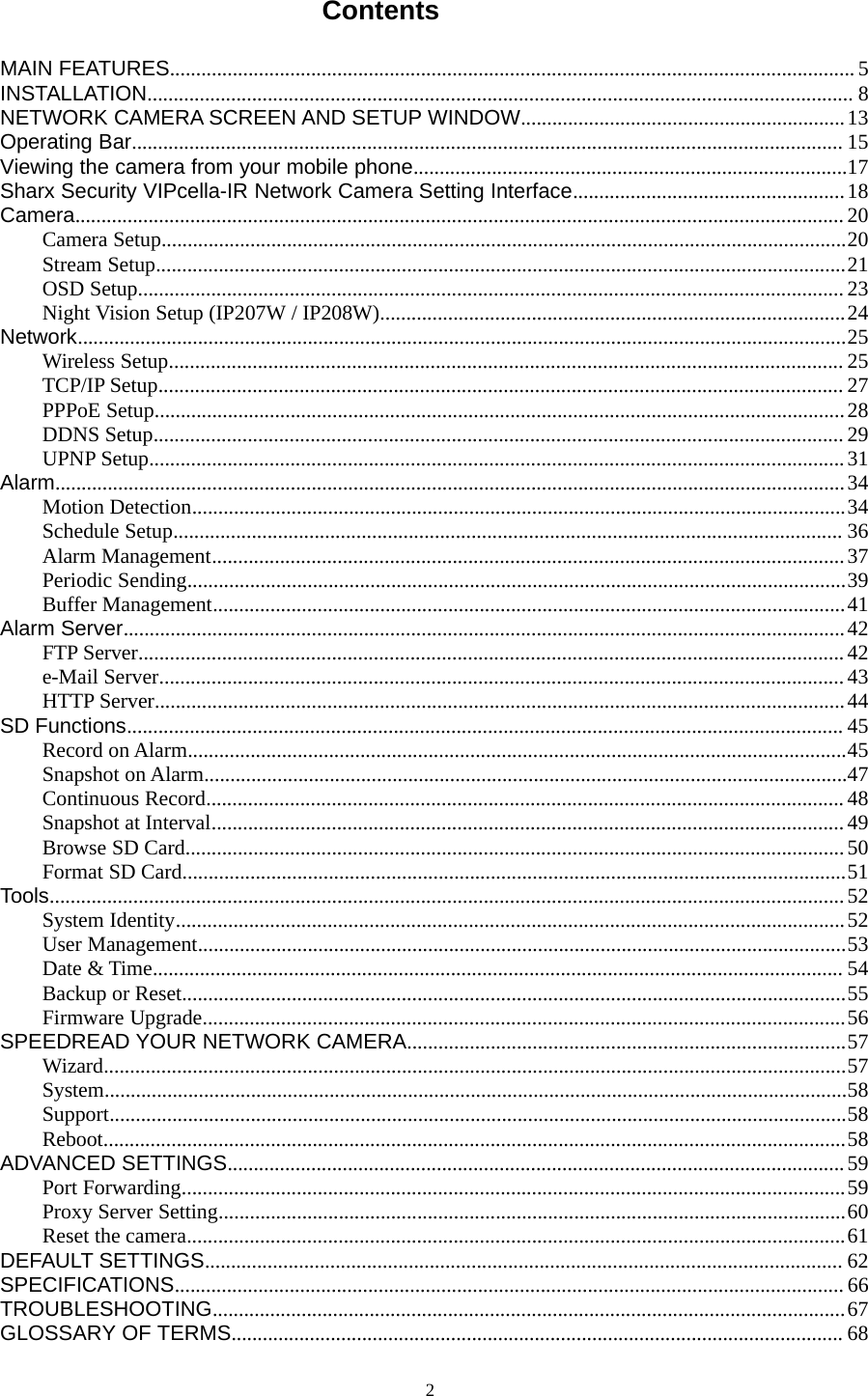
2ContentsMAIN FEATURES................................................................................................................................... 5INSTALLATION....................................................................................................................................... 8NETWORK CAMERA SCREEN AND SETUP WINDOW..............................................................13Operating Bar........................................................................................................................................ 15Viewing the camera from your mobile phone...................................................................................17Sharx Security VIPcella-IR Network Camera Setting Interface....................................................18Camera................................................................................................................................................... 20Camera Setup...................................................................................................................................20Stream Setup....................................................................................................................................21OSD Setup....................................................................................................................................... 23Night Vision Setup (IP207W / IP208W).........................................................................................24Network...................................................................................................................................................25Wireless Setup................................................................................................................................. 25TCP/IP Setup................................................................................................................................... 27PPPoE Setup....................................................................................................................................28DDNS Setup.................................................................................................................................... 29UPNP Setup.....................................................................................................................................31Alarm.......................................................................................................................................................34Motion Detection.............................................................................................................................34Schedule Setup................................................................................................................................ 36Alarm Management.........................................................................................................................37Periodic Sending..............................................................................................................................39Buffer Management.........................................................................................................................41Alarm Server..........................................................................................................................................42FTP Server.......................................................................................................................................42e-Mail Server................................................................................................................................... 43HTTP Server....................................................................................................................................44SD Functions......................................................................................................................................... 45Record on Alarm..............................................................................................................................45Snapshot on Alarm...........................................................................................................................47Continuous Record.......................................................................................................................... 48Snapshot at Interval......................................................................................................................... 49Browse SD Card..............................................................................................................................50Format SD Card...............................................................................................................................51Tools........................................................................................................................................................ 52System Identity................................................................................................................................52User Management............................................................................................................................53Date & Time.................................................................................................................................... 54Backup or Reset...............................................................................................................................55Firmware Upgrade...........................................................................................................................56SPEEDREAD YOUR NETWORK CAMERA....................................................................................57Wizard..............................................................................................................................................57System..............................................................................................................................................58Support.............................................................................................................................................58Reboot..............................................................................................................................................58ADVANCED SETTINGS......................................................................................................................59Port Forwarding...............................................................................................................................59Proxy Server Setting........................................................................................................................60Reset the camera..............................................................................................................................61DEFAULT SETTINGS.......................................................................................................................... 62SPECIFICATIONS................................................................................................................................66TROUBLESHOOTING.........................................................................................................................67GLOSSARY OF TERMS..................................................................................................................... 68
3INTRODUCTIONThank you for your interest and support in our product and purchasing this wireless network camera. Thecamera can be accessed remotely, and controlled from any PC/laptop over the Intranet or Internet via webbrowser. The user-friendly installation procedure and intuitive web-based interface offer easy integration withyour LAN environment or WiFi system. The camera also comes with a lot of useful alarm tool for notice userany situation. We feel confident that you will be pleased with the quality and features of this product.NoticeThis product may cause interferences with other wireless equipment that operates at 2.4GHz ISM band.Please turn off one of the equipments to eliminate the interference.Product AssuranceThis camera will emit electromagnetic wave, just like other wireless products, but its transmitting power isless than other wireless products such as mobile phones. The 2.4GHz wireless camera meets wirelessfrequency security standards and recommended indexes while working. These standards and indexes arecertificated by academic organization and represent the cogitative research of the scientific workers whocontinuously explore and annotate the involved fields. So we believe that our products are safe for customers.Approval InformationAll our products meet the requirements of approval FCC or CE, and are granted the FCC or CEcertification. They are authorized to bear FCC or CE mark.FCCThis equipment has been tested and found to comply with the limits for a Class B digital device, pursuant toPart 15 of the FCC rules. These limits are designed to provide reasonable protection against harmfulinterference in a residential installation. This equipment generates, uses and can radiate radio frequencyenergy and, if not installed and used in accordance with the instructions, may cause harmful interference toradio communications. However, there is no guarantee that interference will not occur in a particularinstallation. If this equipment does cause harmful interference to radio or television reception, which can bedetermined by turning the equipment off and on, the user is encouraged to try to correct the interference byone or more of the following measures: -Reorient or relocate the receiving antenna. -Increase the separationbetween the equipment and the receiver. -Connect the equipment into an outlet on a circuit different from thatto which the receiver is connected. -Consult the dealer or an experienced radio/TV technician for help.This device complies with Part 15 of the FCC Rules. Operation is subject to the following two conditions:(1) This device may not cause harmful interference, and(2) this device must accept any interference received, including interference that may cause undesiredoperation Changes and modification not expressly approved by the manufacturer or registrant of thisequipment can void your authority to operate this equipment under Federal Communications Commissionsrules.CEThis product complies with standards including Low Voltage Device Directive 73/23/EEC; EMCDirective 89/336/EEC and R&TTE Directive 1999/5/EC. It passed the subject tests by the authorityconcerned and is authorized to bear CE mark.Restrictions1. DO NOT use this product to violate one's privacy. Monitoring one's activities without consent is illegal andthis product is not designed and manufactured for such purpose.2. DO NOT put this product near any medical equipment. Radio waves might potentially cause breakdown
4of electrical medical equipment.3. This product should be placed at least 1 foot away from any heart pacemaker. Radio waves mightpotentially influence heart pacemaker.4. DO NOT use this product for any illegal activities. It is the user’s responsibility to ensure that theusage of this camera is of a legal nature.Maintenance1. Ensure that the camera and its power source have sufficient ventilation;2. Do not shake,strike or drop the product;3. Keep the camera dry and dustless and avoid exposing it to direct sunlight;4. Do not place the product near any magnetic objects;5. Avoid putting the product in places where there is constant temperature and humidity change;6. Keep the product away from heat sources;7. Do not use the camera near aggressive chemicals;8. Do not use this camera near water;9. Do not use the camera in the places which are enclosed by metal. The surrounding metal may shield theelectromagnetic waves, and result in failure of signal reception;10. Please obey the local government's environment protection policy;11. Please turn off the power when left unused;12. Do not disassemble or attempt to repair the camera; doing so might cause damage to the product.
5MAIN FEATURESEasy InstallationThe camera comes with built-in Wireless (IEEE802.11b/g) capability and a Web Server, therefore thereis no need to install adriver. The setup CD-ROM includes the Camera Setup software, User Manual andQuick Installation Guide.With industry standard automatic configuration-UPnP(Universal Plug and Play), your PC will discover andconnect to your camera automatically. Once connected, using a simple Web browser you can see what thecamera sees from anywhere in the world!The camera can be either wall-mounted or ceiling-mounted using the supplied stand.Itcanalsobeplaced on a desktop using the supplied stand, thus providing aflexible installation solution.802.11b/g Wireless LAN Connection AvailableThe camera is designed to not only work with your existing wired network but also with standard 802.11b/gwireless devices, allowing the flexibility to operate the camera wirelessly. The camera utilizes SSID filtering,powerful 64/128 bit WEP and new security standard WPA encryption to protect you from illegal intrusion.3GPP Mobile SurveillanceThe camera provides the ability to view the cameras monitored through your mobile phone as a live videostream, it supports the telecommunications standard of 3GPP streaming format. All 3G enabled mobiledevices and most 2G phones that support the streaming standard of 3GPP are compatible.Simultaneous High-Speed MPEG-4 and Motion JPEGThe camera allows live the MPEG-4 and Motion JPEG streams simultaneously. The camera features MPEG4compression which compresses the video to make transmission faster and more efficient. The MPEG4 andMJPEG image can be transmitted at 30 frames per second.Simultaneous HTTP and RTSP streamingThe camera support HTTP and RTSP/RTP/RTCP protocol, and provide multiple HTTP and RTSP streamssimultaneously.Audio TransmissionThe camera comes with abuilt-in microphone for audio monitoring as well as video monitoring. Soundcaptured by the camera is transmitted to the client’s PC.Snapshot and RecordingYou can capture a still image of the camera view on your PC and save the image as JPG or BMP format file.You also can record the video and audio captured by the camera on your PC and save as an ASF format file.
6Motion Detection FunctionThe camera can detect changes in the image being monitored. Once a change occurs it will send an email toup to 3 email addresses with a video file or snapshot attached. The video file or snapshot can also beuploaded to an FTP server. In addition the camera can be configured to send images at regular intervals.OSD FunctionOSD (On Screen Display) function can display system name, date and time, and user-defined onscreen.AuthenticationAn authentication window requires you to enter the user ID and password. Password security canprevent unregistered users from accessing your camera. Users can select Basic Authentication methodor Digest Access Authentication method.Multi-Client AccessThe camera allows up to 16 users to view the video simultaneously. Please note that it is possible that as thenumber of simultaneouslyconnected users to camera increases, the overall motion performance willdecrease.Infrared Night Vision (IP207W / IP208W)The camera utilizes 30 infrared LED to provide high light in darks environment. When the environment isdark, the LED will be opened automatically due to a photosensitive component, and the moving images willbe changed to Black and White. Users can monitor clearly the things within 12 meters distance. Users alsocan select open or close the infrared LED manually, and select whether change the images to black andwhite or color automatically.
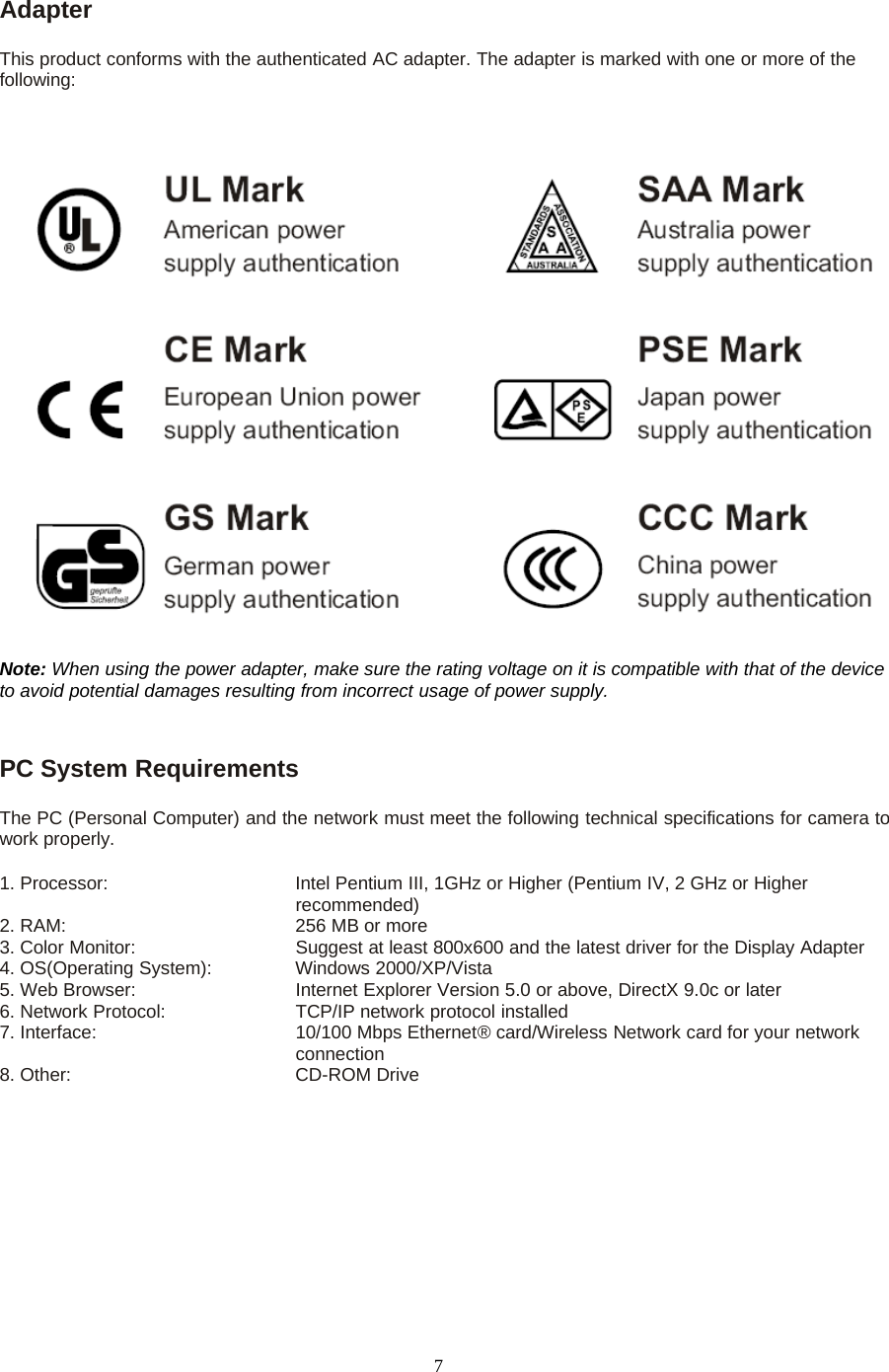
7AdapterThis product conforms with the authenticated AC adapter. The adapter is marked with one or more of thefollowing:Note: When using the power adapter, make sure the rating voltage on it is compatible with that of the deviceto avoid potential damages resulting from incorrect usage of power supply.PC System RequirementsThe PC (Personal Computer) and the network must meet the following technical specifications for camera towork properly.1. Processor: Intel Pentium III, 1GHz or Higher (Pentium IV, 2 GHz or Higherrecommended)2. RAM: 256 MB or more3. Color Monitor: Suggest at least 800x600 and the latest driver for the Display Adapter4. OS(Operating System): Windows 2000/XP/Vista5. Web Browser: Internet Explorer Version 5.0 or above, DirectX 9.0c or later6. Network Protocol: TCP/IP network protocol installed7. Interface: 10/100 Mbps Ethernet® card/Wireless Network card for your networkconnection8. Other: CD-ROM Drive
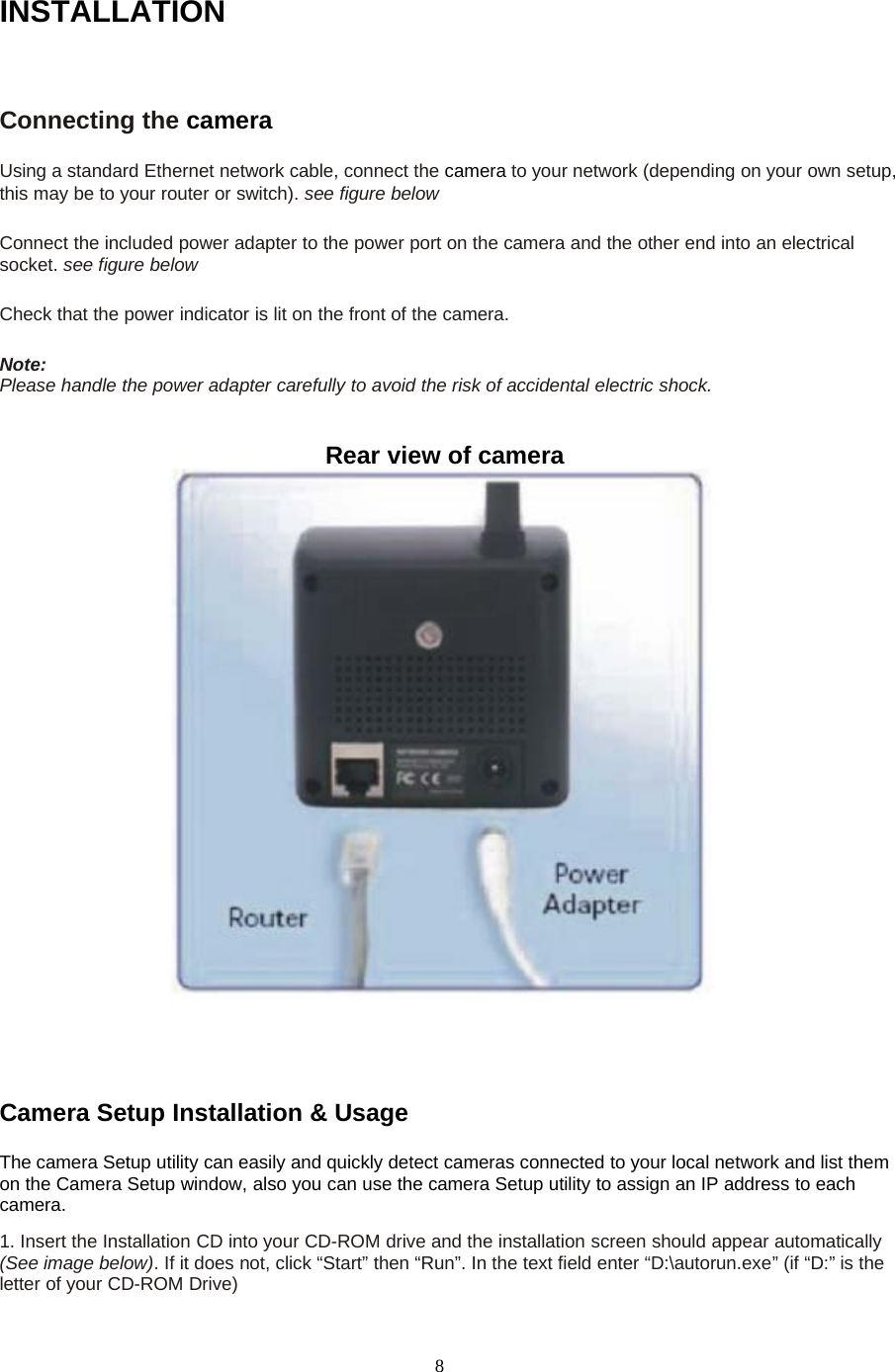
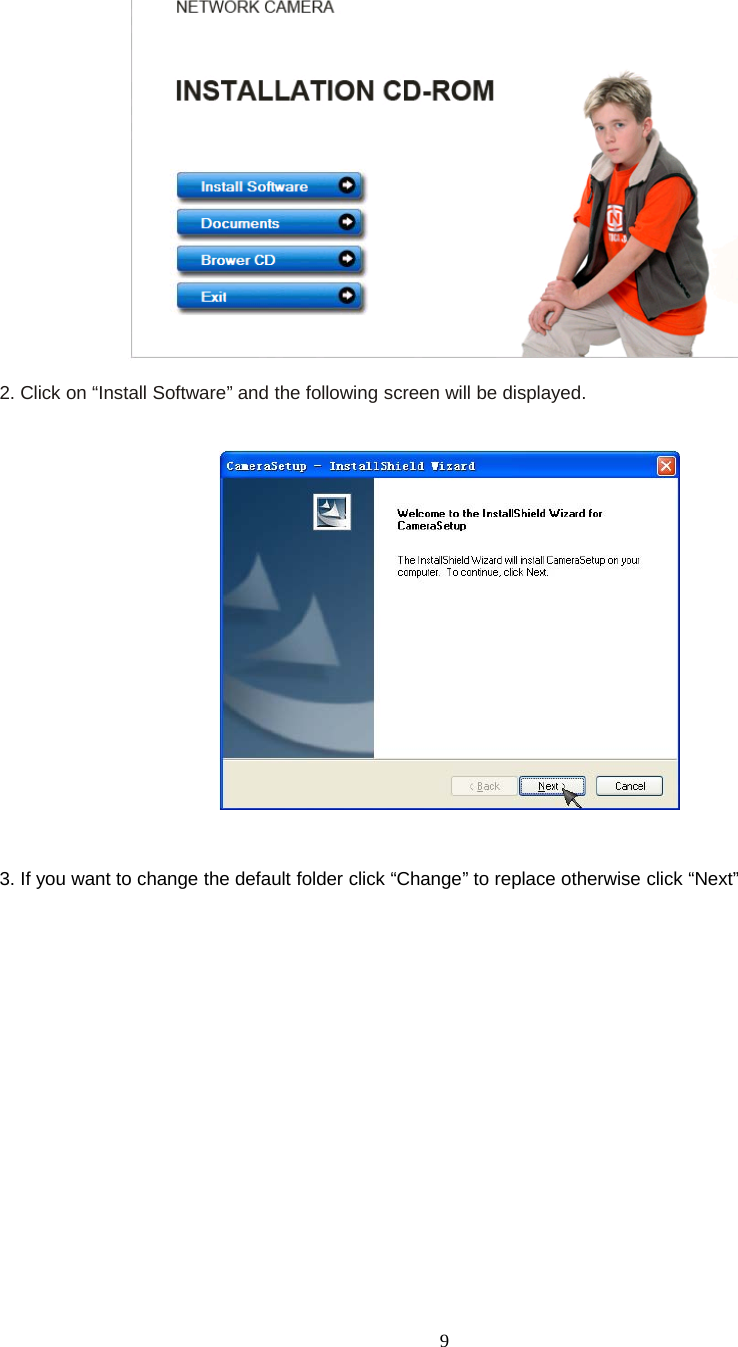
8INSTALLATIONConnecting the cameraUsing a standard Ethernet network cable, connect the camera to your network (depending on your own setup,this may be to your router or switch). seefigurebelowConnect the included power adapter to the power port on the camera and the other end into an electricalsocket. see figure belowCheck that the power indicator is lit on the front of the camera.Note:Please handle the power adapter carefully to avoid the risk of accidental electric shock.Rear view of cameraCamera Setup Installation & UsageThe camera Setup utility can easily and quickly detect cameras connected to your local network and list themon the Camera Setup window, also you can use the camera Setup utility to assign an IP address to eachcamera.1. Insert the Installation CD into your CD-ROM drive and the installation screen should appear automatically(See image below). If it does not, click “Start” then “Run”. In the text field enter “D:\autorun.exe” (if “D:” is theletter of your CD-ROM Drive)
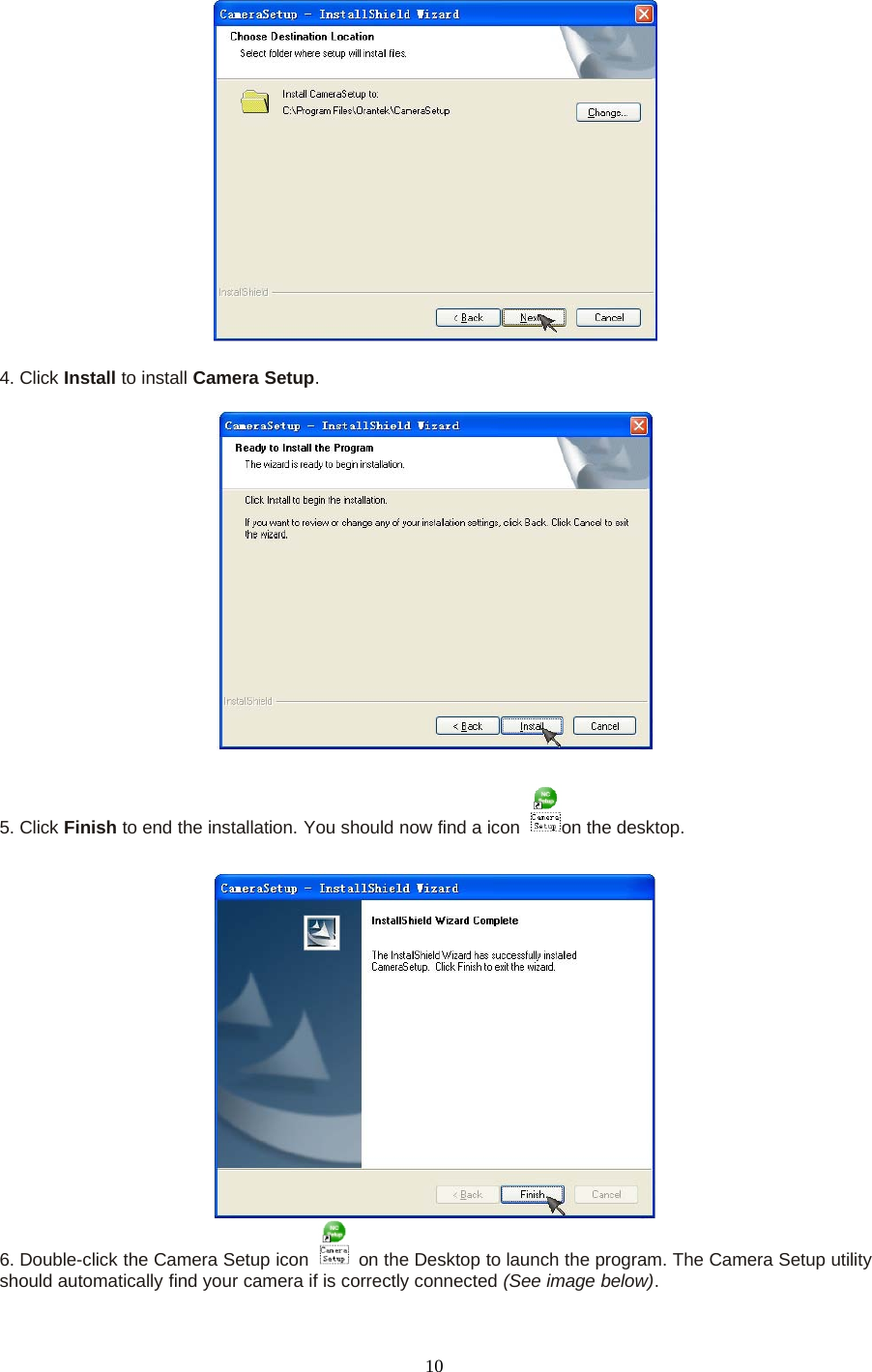
92. Click on “Install Software” and the following screen will be displayed.3. If you want to change the default folder click “Change” to replace otherwise click “Next”
104. Click Install to install Camera Setup.5. Click Finish to end the installation. You should now find a icon on the desktop.6. Double-click the Camera Setup icon on the Desktop to launch the program. The Camera Setup utilityshould automatically find your camera if is correctly connected (See image below).
11[Refresh] Click Refresh to search for cameras on the local network.[Setup] Select the required camera and click Setup to configure the network settings for the camera.[Open] Select the required camera and click Open to access the camera via a web browser.[Exit] Click Exit to exit the Camera Setup window.Note: Select and double click one of the cameras from the Device list, to open the camera view via the webbrowser.Assigning an IP address to the Camera with Camera Setup1. Launch Camera Setup program to detect cameras on the local network.2. Click on “Setup” button and the following setup interface will pop up.3. Enter a unique name for the camera, the location (optional) and leave the default port number as80.“Obtain an IP address automatically” and “Obtain DNS server address automatically” are selected bydefault, if you are confident enough to enter your own settings, you can do so by selecting “Use the followingIP address” and follow the guidelines on the next page. If however you wish to leave the default settingsplease skip to NETWORK CAMERA SCREEN AND SETUP WINDOW.
124. To obtain the IP addresses specific to your network, click “Start” then “Run” and type “cmd” in the text boxand click “Ok”. The will bring up the MS-DOS prompt and in this window type “ipconfig/all” and press enter. Ascreen similar to the one below will be displayed.5. Take note of the following:i) IP Addressii) Subnet Maskiii) Default Gatewayiv) DNS Servers (Both numbers with the first being the primary DNS server and the second beingthe secondary DNS server)6. Enter the details noted in step 5 into the relevant fields.Note: The default IP address of the camera is 192.168.168.100This can be changed to any IP address onyour IP range. For example if the IP address of your PC is 192.198.1.52 then the IP address of your camerashould be unique and on the same subnet, i.e. 192.198.1.X where X is any number between 1 and 255except 52. Ensure the IP address you chose is not the same as other network devices on your network asthis will result in conflict and may cause the device to not to work properly.7. Once you’ve entered all the details click “Apply” then “Exit”.
13NETWORK CAMERA SCREEN AND SETUP WINDOWReview Images from the Sharx Security VIPcella-IR Network CameraYou can select one of the three ways to review pictures from the camera.1. Input the assigned IP address (or URL) of the camera on the Web Browser. Take 192.168. 168.100 asexample. You will see the home page.Notes:Through this welcome page, you could choose to click on the item Enter to access the picture viewinginterface or the item Setting to access the system setting interface. The below dialog will appear. Input thecorrect username (the default is admin, in lowercase) and password (the default is admin,inlowercase). You are allowed to enter the picture viewing interface or the system setting interface.The general users assigned by the administrator are not allowed to enter the system setting interface. Theycan only be permitted to enter the picture viewing interface.
142. If your OS is Windows XP, click [My Network Places], double click the icon Youwill see the home page.3. Run the Camera Setup and double-click the relevant camera item.
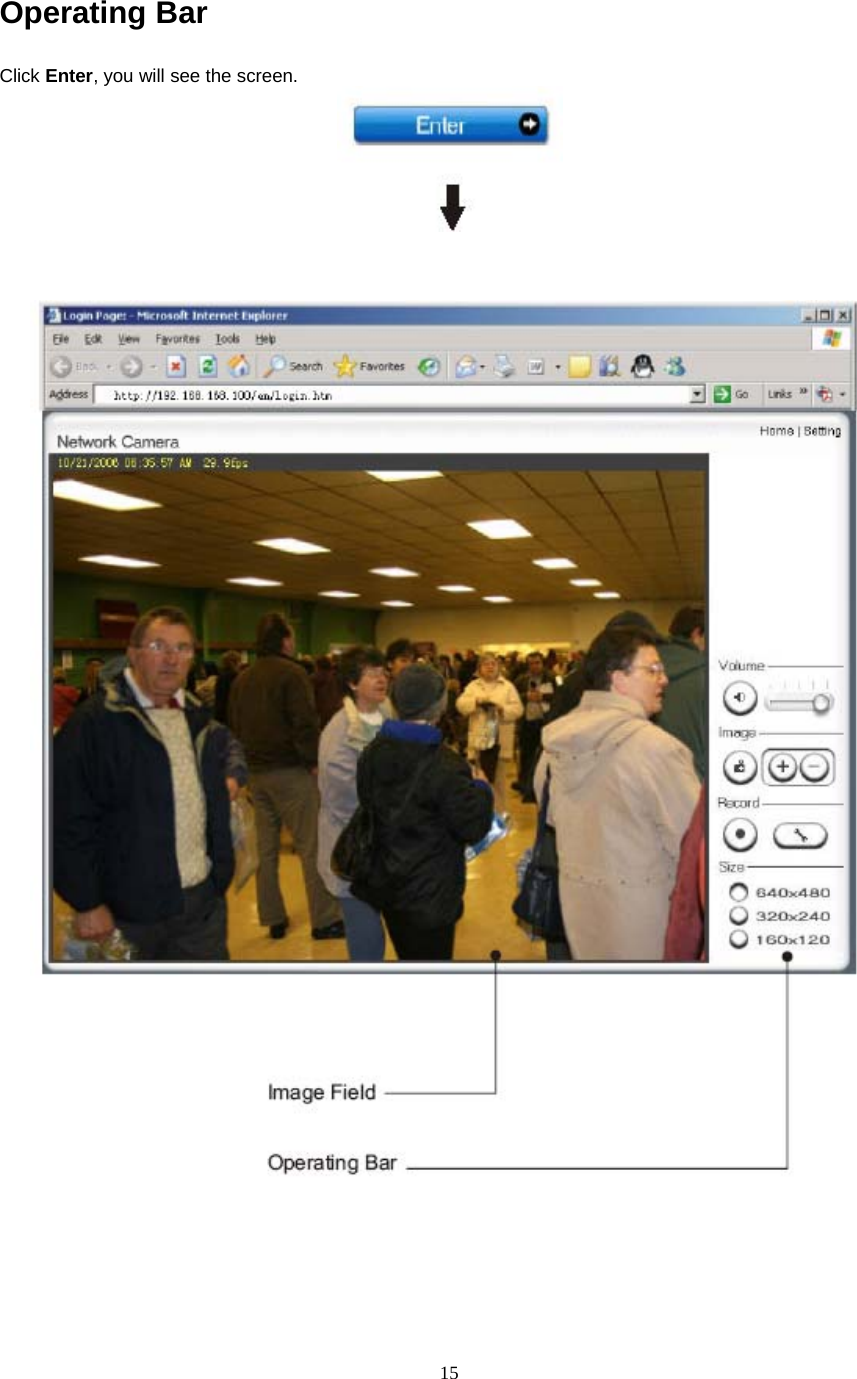
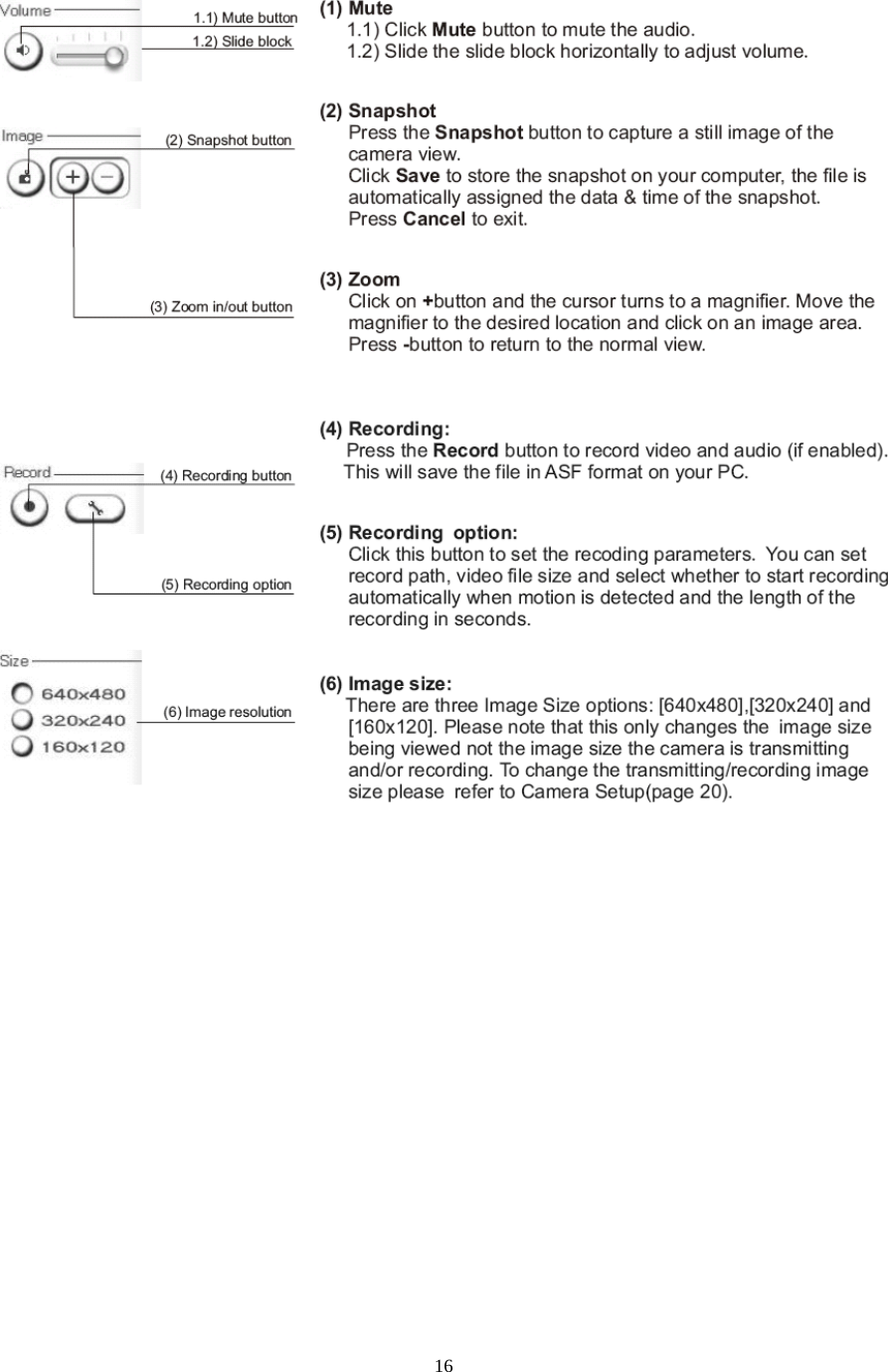
15Operating BarClick Enter, you will see the screen.
16
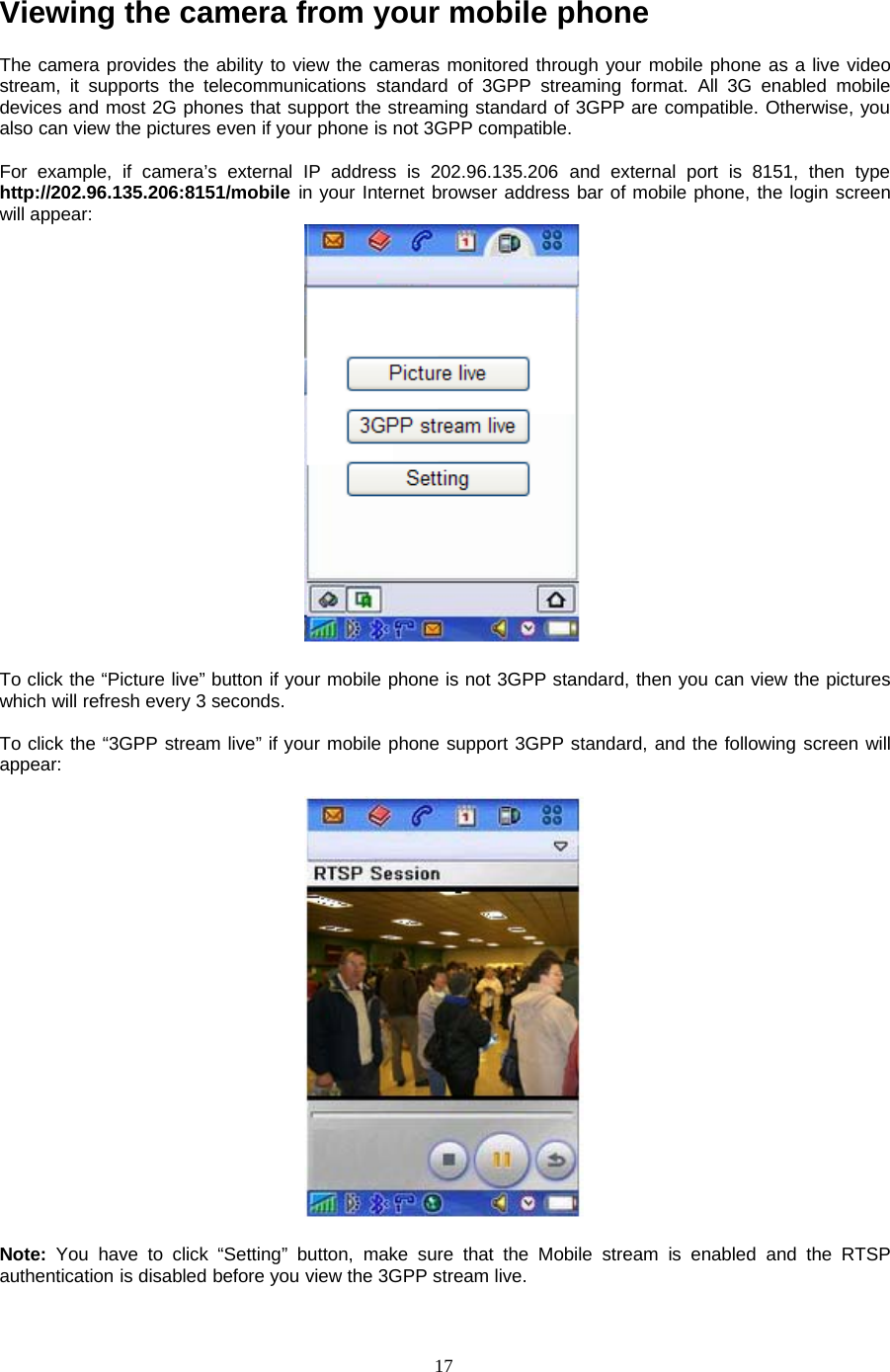
17Viewing the camera from your mobile phoneThe camera provides the ability to view the cameras monitored through your mobile phone as a live videostream, it supports the telecommunications standard of 3GPP streaming format. All 3G enabled mobiledevices and most 2G phones that support the streaming standard of 3GPP are compatible. Otherwise, youalso can view the pictures even if your phone is not 3GPP compatible.For example, if camera’s external IP address is 202.96.135.206 and external port is 8151, then typehttp://202.96.135.206:8151/mobile in your Internet browser address bar of mobile phone, the login screenwill appear:To click the “Picture live” button if your mobile phone is not 3GPP standard, then you can view the pictureswhich will refresh every 3 seconds.To click the “3GPP stream live” if your mobile phone support 3GPP standard, and the following screen willappear:Note: You have to click “Setting” button, make sure that the Mobile stream is enabled and the RTSPauthentication is disabled before you view the 3GPP stream live.
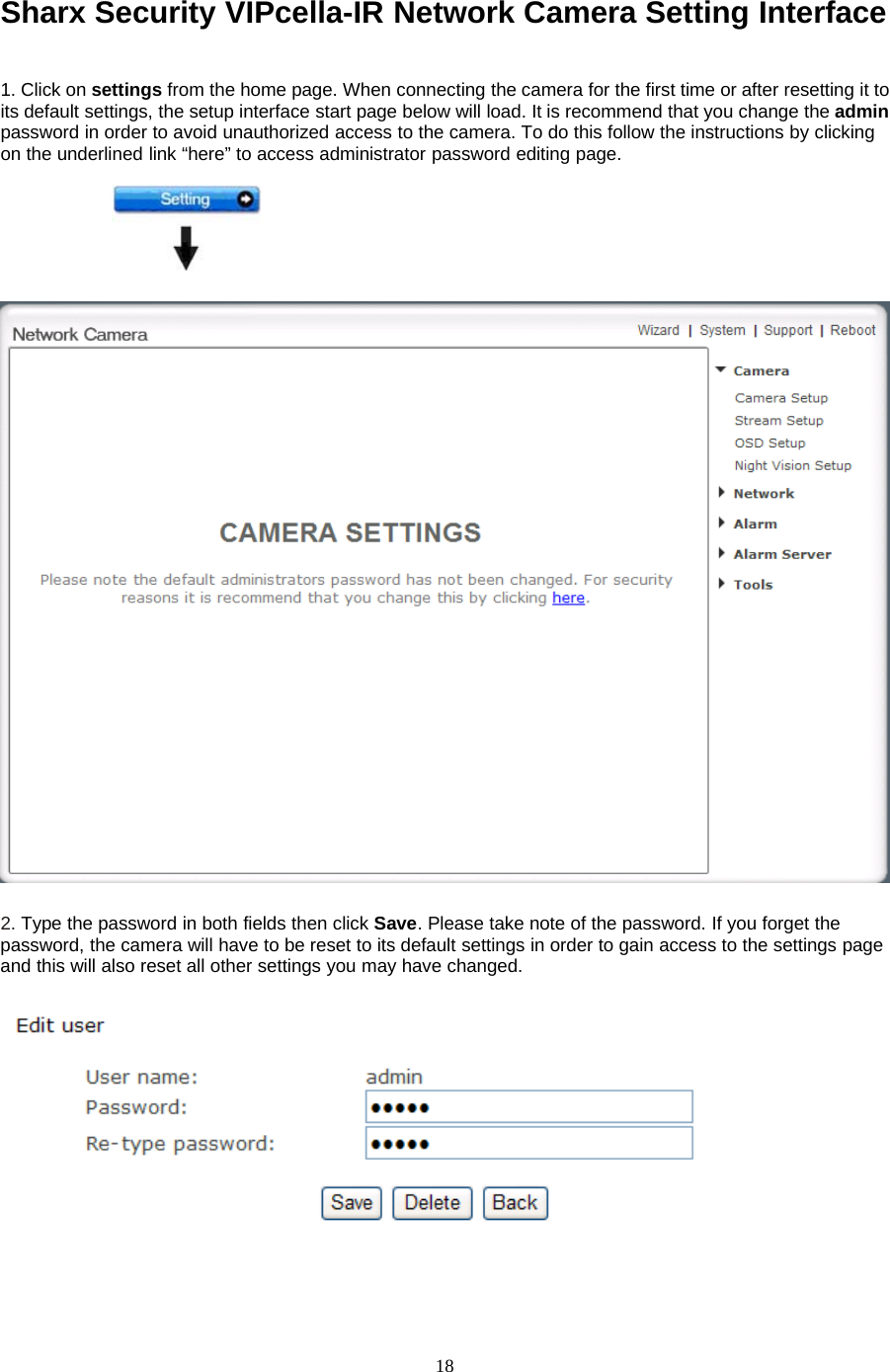
18Sharx Security VIPcella-IR Network Camera Setting Interface1. Click on settings from the home page. When connecting the camera for the first time or after resetting it toits default settings, the setup interface start page below will load. It is recommend that you change the adminpassword in order to avoid unauthorized access to the camera. To do this follow the instructions by clickingon the underlined link “here” to access administrator password editing page.2. TypethepasswordinbothfieldsthenclickSave. Please take note of the password. If you forget thepassword, the camera will have to be reset to its default settings in order to gain access to the settings pageand this will also reset all other settings you may have changed.
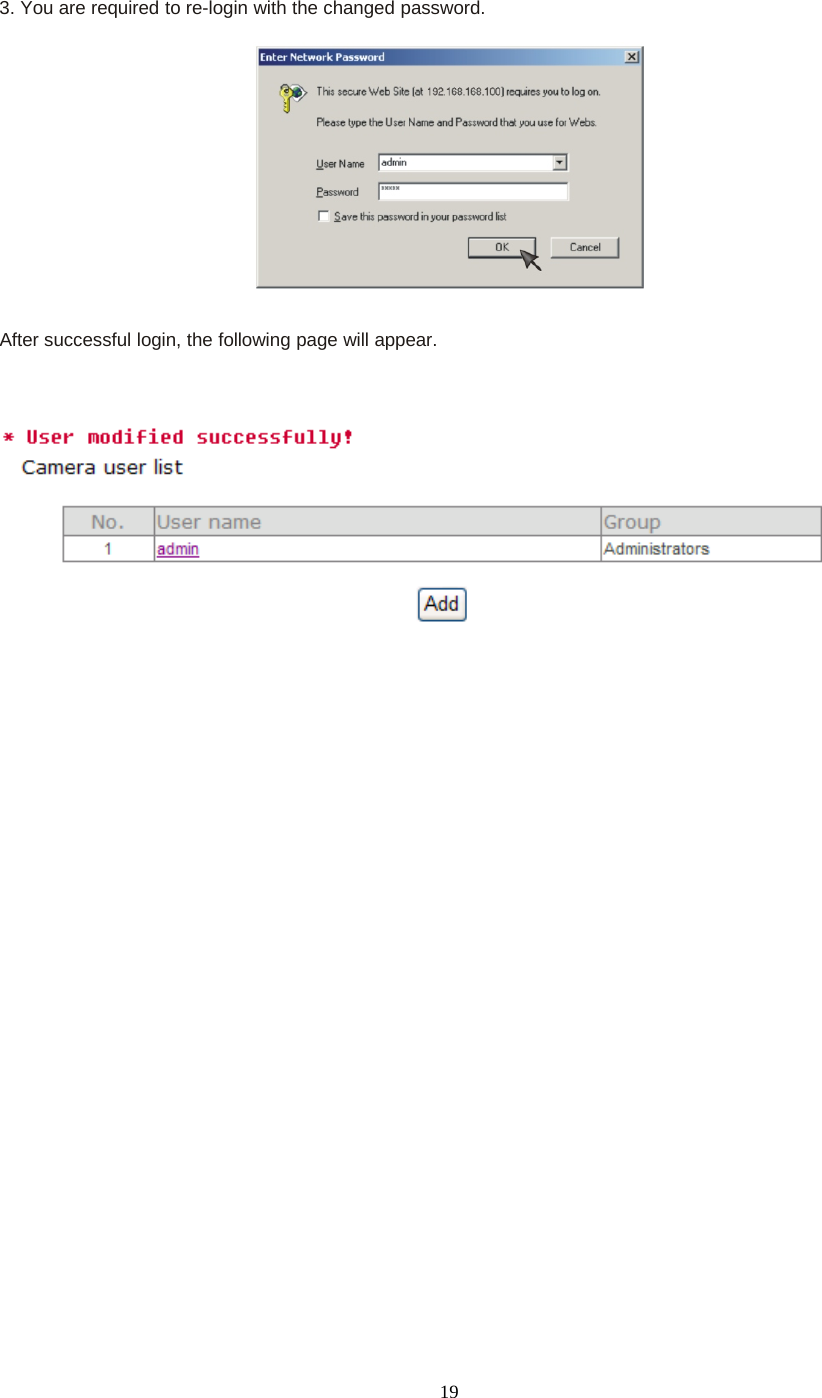
193. You are required to re-login with the changed password.After successful login, the following page will appear.
20CameraCamera SetupFrom the home page click settings and enter the administrator user name and password. Click on CameraSetup under the title Camera to change the image and audio parameters of the camera.[Moonlight mode] Adjust the brightness setting according to the light intensity of the area being monitoredmanually.[Image rotation] Display images upside down.[Light frequency] Two options: 50Hz & 60Hz. Set according to the mains frequency in the country of use.For UK this would be 50Hz.[Power LED light] Turn on/off the power & network LED indicator of camera.[Show FPS in ActiveX]Show FPS On/Off in ActiveX control.[Microphone] Turn on/off the built-in microphone.[Mic volume] Adjusts the volume of the microphone from 0~14 where 0 is the lowest.[Audio bit rate] Four options: 16, 24, 32, 40(kbps). Determines the quality of the audio being transmitted.Click Apply toconfirmyoursettings.
21Stream SetupThe camera supports three streams: primary stream, secondary stream and mobile stream.[Image size] Three image resolutions available: 640 x 480(VGA), 320 x 240(QVGA), 160 x 120.[Frame rate] Twelve options: 1/2/3/4/5/6/8/10/15/20/25/30 frames per second (fps).[MPEG4 bit rate] Select MPEG4 bit rate.Eight options: 64, 128, 256, 512, 768, 1024, 1536, 2048 (kbps).[MJPEG quality] Type MJPEG video quality. (20 – 100), 20 is low quality, 100 is high quality.[Snapshot quality] Type snapshot quality. (20 – 100) , 20 is low quality, 100 is high quality.The above five settings determine the image quality, however higher bit rates require greater bandwidth.Please select the appropriate settings according to your connection speed and network traffic. If you areexperiencing jerky video it may be necessary to decrease the bit rate.[Audio] Enable or disable audio.[RTSP authentication] Enable or disable RTSP authentication.You can use Mobile phone to play the mobile stream from camera,but generally Mobile phone do notsupport authentication, so we have to disable the RTSP authentication.
22A stream list page will be shown after clicking the stream name such as “Primary stream”.[Primary stream] can not be disabled.A sample of primary stream list as below:You can use RealPlayer, VLC Player or QuickTime Player to play the live stream from camera inIntranet or Internet.[Secondary stream] Enable or disable secondary stream.[Mobile stream] Enable or disable Mobile stream.You can use mobile phone, Realplayer and QuickTime Player to play the live stream from camera.The size of video is 176x144.Click Apply toconfirmyoursetting.
23OSD SetupThis function can display system name, date and time, or use-defined on screen.[OSD] Enable or disable OSD function.[Transparent] Users can select whether change OSD to transparent or not.[Display date and time] OSD is date and time of camera.[Display system name] OSD is system name of camera.[Display the text below] OSD is user-defined text.[Display the text below with date and time] OSD is user-defined text with date and time of camera.Click Apply toconfirmyoursettings.
24Night Vision Setup (IP207W / IP208W)Only IP207W and IP208W have infrared LED, which can be opened automatically when camera check darkenvironment.[Infrared LED control] When the environment is dark, the LED will be opened automatically due to aphotosensitive component. Users also can select open or close the infrared LED manually.[Black and white mode] When the environment is dark, the moving images will be changed to Black andWhite automatically. Users also can select whether change the images to black and white or color manually.Click Apply toconfirmyoursettings.
25NetworkWireless SetupThe camera corresponds to the wireless system based on IEEE802.11b/g. Encryption establishes thesecurity to prevent unauthorized users to access the wireless data communication.[SSID] Type the ID of the wireless network you want to connect to using up to 32 ASCⅡcharacters or clickSearch to search for available networks.[Mode] Infrastructure mode and Adhoc modeAdhoc Mode: Select Adhoc mode when the camera is directly connected to your computer.Infrastructure Mode: Select Infrastructure mode when the camera is connected via an access point orrouter.
26When select Adhoc mode. Seefigureabove.[Security mode] WEP64bit or WEP 128bit[Authentication] Select WEP authentication mode.[WEP Key type] Select the WEP key type. Either in hexadecimal or ASCⅡcharacters.[WEP key Index] Specify up to 4 WEP keys.[WEP Key] Type the password.[R-type WEP Key] Re-confirm the password.When select Infrastructure mode. See figure above.[Security mode] Security mode is not only WEP64bit or WEP128bit but also WPA-PSK or WPA2-PSK.[Encryption type] TKIP and AES.[WPA key]Type 8-63 characters as password.[Re-type WPA key] Re-confirm the password.
27When click search ,see figure above.[SSID] select the network name you searched .[Mode] Infrastructure mode and Adhoc mode[signal]It show out the strength of signal[Encryption ] on and off.Click Apply to save changes.Click Test to test whether connection is successful.Note: These settings have to match those of your access point or router. Please consult your access point orrouter manual on how to verify or modify these settings.TCP/IP SetupThe camera is set up to obtain the IP address automatically (DHCP) by default. Should you may wish toassign the IP address manually, use the TCP/IP Setup page to enter the address details.
28Obtain an IP address automatically(DHCP):If your network supports a DHCP server (e.g. router) select this option to have the IP address is assignedautomatically.If you select Obtain an IP address automatically you should select Obtain a DNS Server addressautomatically.Use the following IP address:Select this option when a fixed IP is required.[IP address] Type the IP address of your camera.[Subnet mask] Type the subnet mask.[Default gateway] Type the default gateway.Obtain DNS Server address automatically:If your network supports a DHCP server (e.g. router) select this option to have the DNS Server address isassigned automatically.Use the following DNS server address:[Primary DNS IP address] Type the IP address of the primary DNS server.[Secondary DNS IP address] Type the IP address of the secondary DNS server, if necessary.[HTTP/RTSP port]The default HTTP port number is 80, it is also be used as RTSP port.[RTP port range] It is for UPnP port forwarding, 1 camera actually use 2 RTP ports, one for video, the otherfor audio. (See UPnP setup)[HTTP/RTSP Authentication method] Select Basic Authentication or Digest Access Authentication.PPPoE SetupThe camera can be installed without a PC on the network. Some XDSL services use PPPoE(Point-to-Point Protocol over Ethernet).[PPPoE dial-up] Enable or disable PPPoE connection.[Service name] Either an ISP name or a class of services that is configured on the PPPoE server. This fieldmay be left empty.
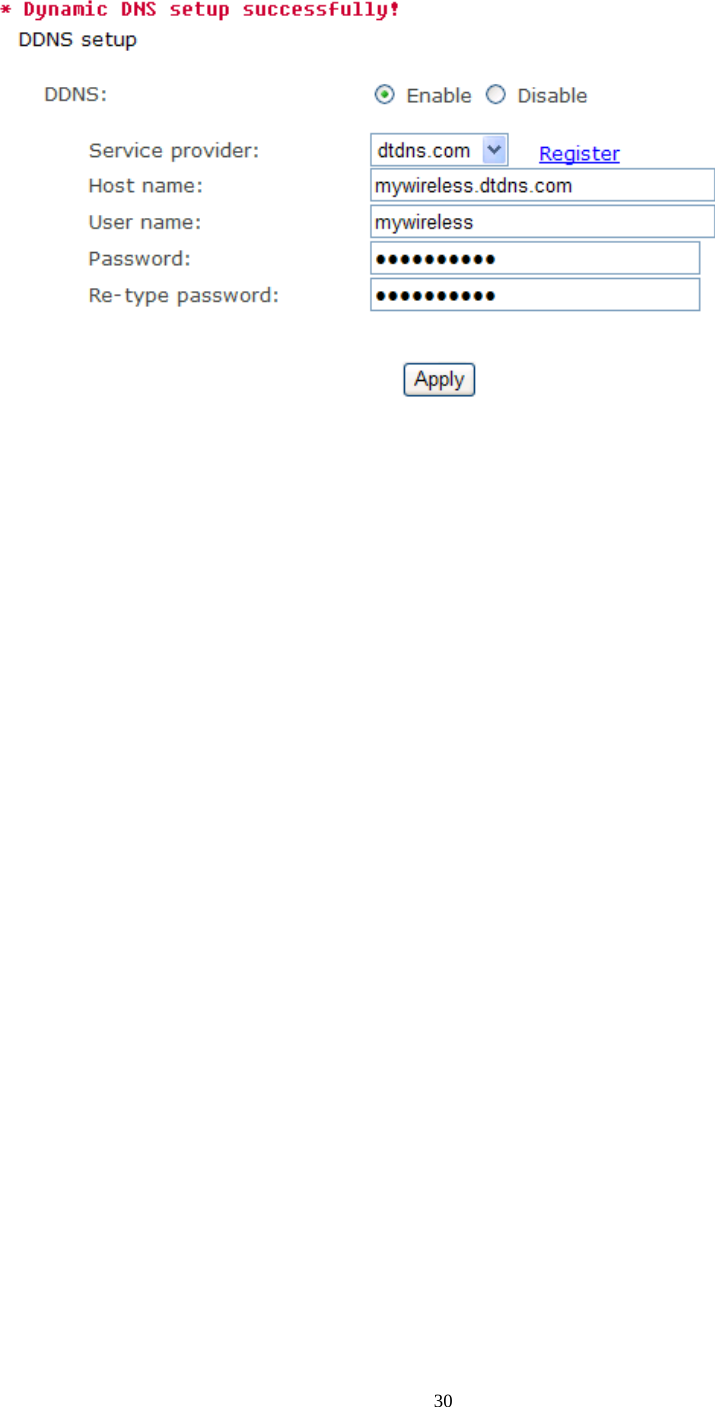
29[User name] Type the user name.[Password] Type the password.[Re-type password] Re-confirm the password.Click Apply toconfirmyoursettings.DDNS SetupDynamic DNS (DDNS) is simply a way of using a static hostname to connect to a dynamic IP address. Whenconnected to your ISP, you are assigned a temporary IP address. DDNS services keep track of your IPaddress and route your Domain name to that address when you wish to connect to the camera from aremote location.[DDNS] Enable or disable DDNS connection.How to add DDNS1. Enable the Dynamic DNS function.2. Select your preferred DDNS service provider from the list then click Register.3. Enter the Host Name details and password supplied by your DDNS service provider when you registered.4. Click Apply to confirm your settings.e.g.
30
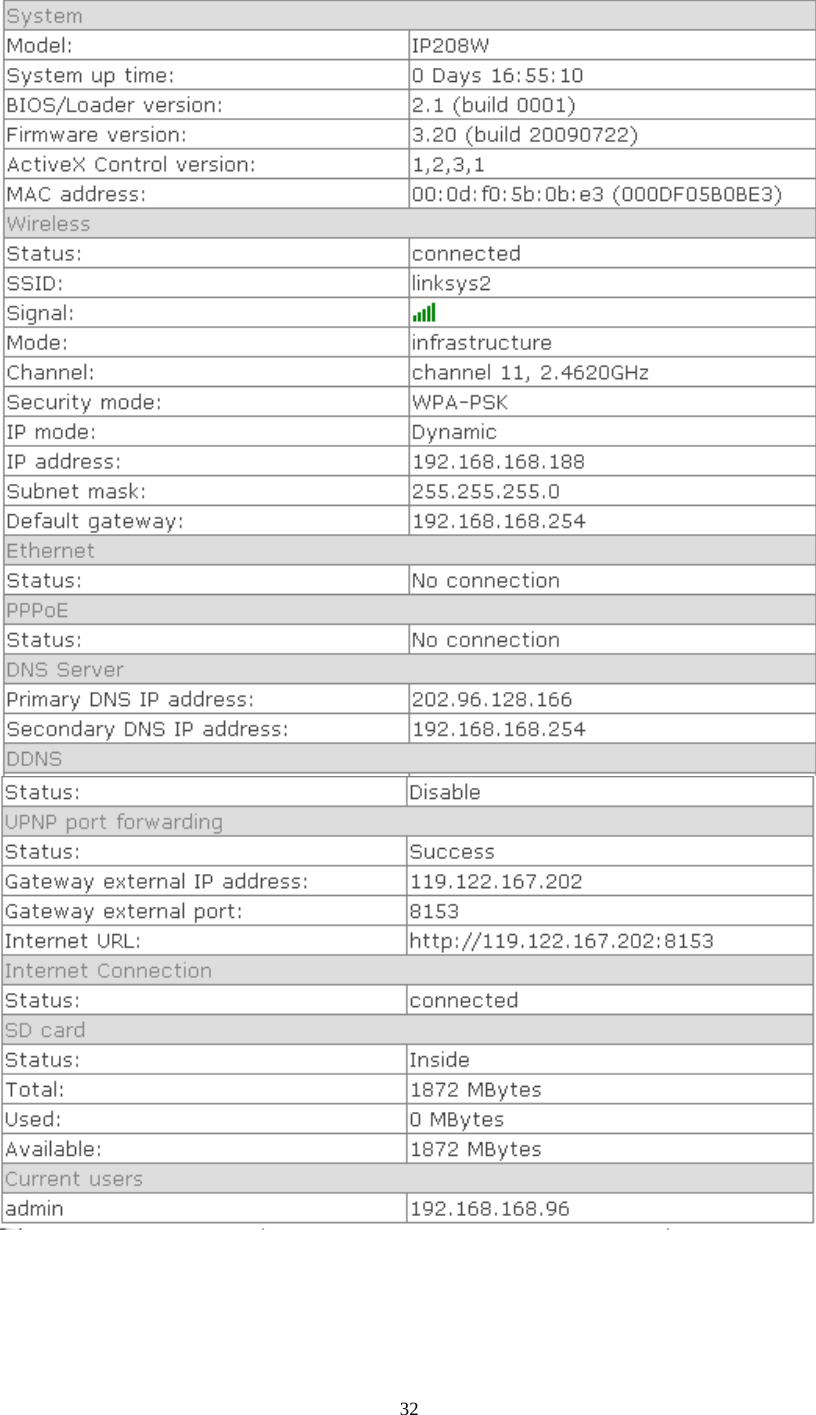
31UPNP SetupThe camera supports UPnP which is enabled by default. This function requires a Windows XP/Vistaoperating system. It is a quick way to discover the camera on your network. Please make sure that the UPnPfunction is enabled on your PC.[UPnP] Enable or disable the UPnP function.[Gateway HTTP/RTSP port forwarding] Enable or disable this function.[External HTTP/RTSP port range] Using this port, automatically adds a port forwarding rule to a router viaUPnP protocol. Please note that not all routers support this function. Refer to your router manual for furtherdetails.If set port range is 8150~8350, camera will ask router to add a port forwarding rule automatically. In this rule,the internal port is camera default port 80, the external port is 8150, IP address is camera's IP. Use thissetting, users can visit the camera from Internet through the router with this URL http://routeripaddress:8150.If there are several cameras in Local Network, the first one which first be opened will use 8150 as externalport, and second one will use 8151, third one use 8152, etc. Every camera will remember its port, it willpreferentially use this port in next power on.[Gateway RTP port forwarding] Enable this function, users can use mobile phone , RealPlayer orQuickTime Player to visit the camera from Internet through the router.[External RTP port range] 30000—30200 default. (See TCP/IP setup)Click Apply toconfirmyoursetting.Click System at the top right of Settings page to show the System information. See figure below.
32
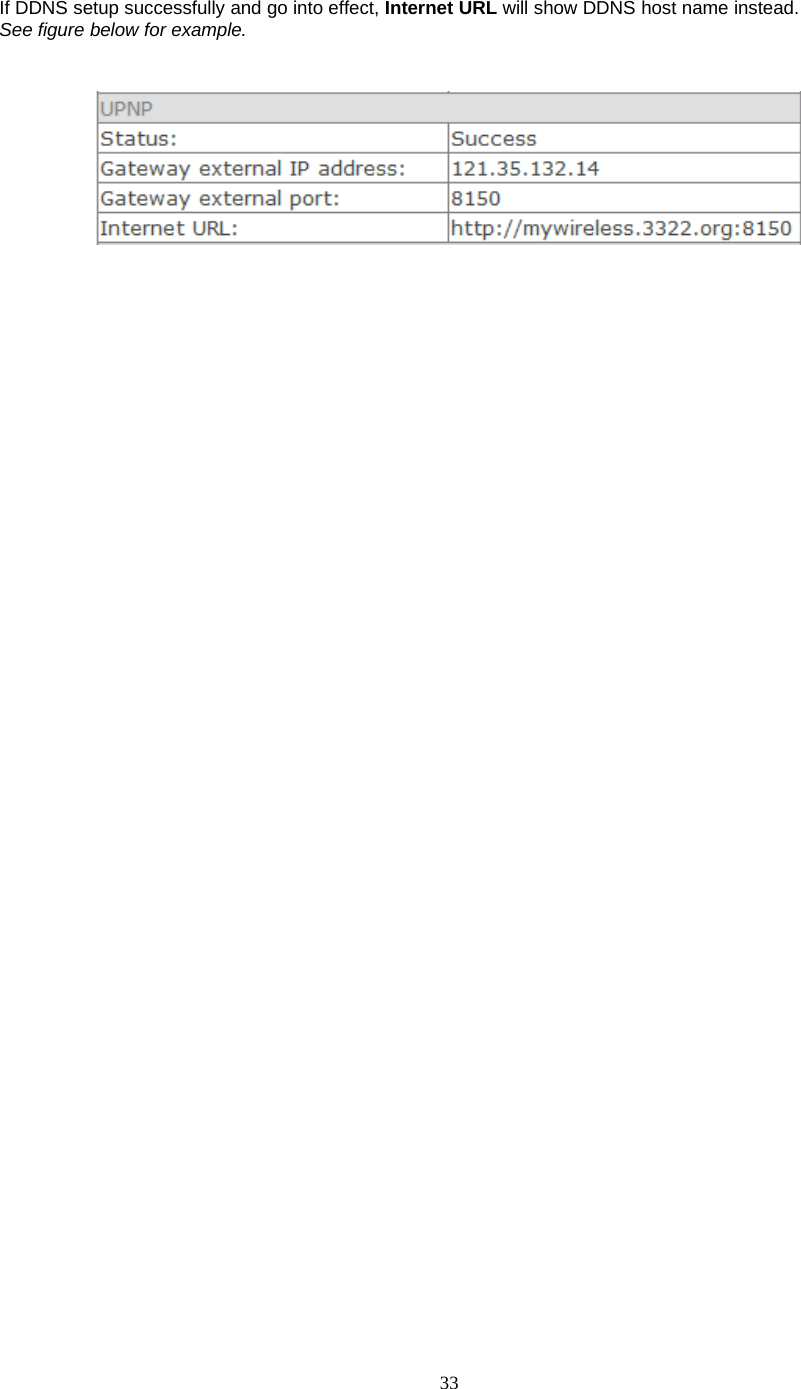
33If DDNS setup successfully and go into effect, Internet URL will show DDNS host name instead.See figure below for example.
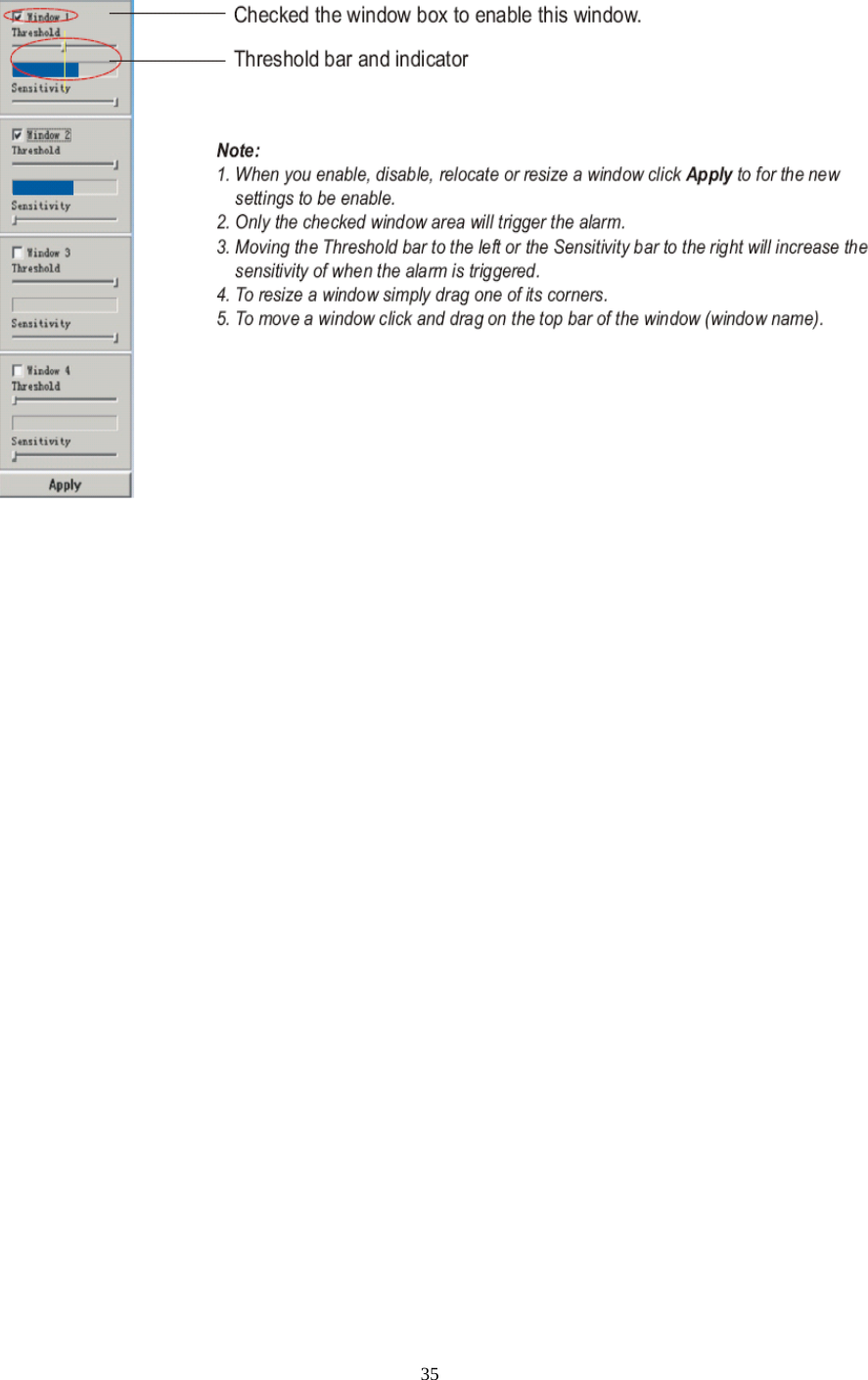
34AlarmMotion DetectionMotion Detection can trigger an alarm that sends images or video feed via e-mail or FTP (File TransferProtocol). You can set up to four different Motion Detection windows.[Window] Check this box to enable the window.[Threshold] Set the threshold bar to the amount of motion required to trigger the alarm.[Sensitivity] Set the measurable difference between two sequential images that would indicate motion.Click Apply toconfirmyoursetting.
35
36Schedule SetupAlarm Sending,Periodical Sending and Buffer Sending sends images via e-mail or FTP according toschedule setup.[Every day] Select every day or not.[Sunday ~ Saturday] Select Sunday ~ Saturday or not.[Always] Enable in any time.[Range] Enable between start time and end time.[Except] Enable except start time to end time.Click Apply toconfirmyoursetting.
37Alarm ManagementMotion Detection can trigger an alarm that sends images via FTP or e-mail and send URL via HTTP.[Alarm mode] Enable or disable all alarm.[FTP alarm sending] Enable or disable FTP alarm sending function.[e-Mail alarm sending] Enable or disable e-Mail alarm sending function.[HTTP event alarm sending] Enable or disable HTTP event alarm function.[Trigger time] How many seconds does camera keep snapshot the images after get a motion alarm.[Trigger FPS] How many images does camera snapshot every second after get a motion alarm.[FTP server ID] Select one FTP server, click Setting to set FTP server.[Remote path] Path where to save the image file on the FTP server.[Snapshot from] Select source stream that snapshot from.[Image file name] Type image file name.[Suffix of file name] Select suffix of file name.[Effective period] Select Effective period. If select schedule, click Setting to set schedule.
38[Trigger time] How many seconds does camera keep snapshot the images after get a motion alarm.[Trigger FPS] How many images does camera snapshot every second after get a motion alarm.[e-Mail server ID] Select one e-Mail server, click Setting to set e-Mail server.[File attachment] Switch file attachment on or off.[Snapshot from] Select source stream that snapshot from.[Image file name] Type image file name.[Suffix of file name] Select suffix of file name.[Effective period] Select Effective period. If select schedule, click Setting to set schedule.[HTTP server ID] Select HTTP server ID, click Setting to set HTTP server.[Sending URL] Type URL which will be sent to HTTP server.[Use MAC address as URL suffix] Enable or disable this function.[Effective period] Select effective period. If select schedule, click Setting to set schedule.Click Apply toconfirmyoursetting.
39Periodic SendingThe camera can send images via FTP or e-mail and send URL via HTTP periodically.[FTP periodic sending] Enable or disable FTP upload periodically.[e-Mail periodic sending] Enable or disable e-Mail upload periodically.[HTTP periodic sending] Enable or disable HTTP upload periodically.[Interval time] Type the interval at which you want to send the images periodically.[FTP server ID] Select one FTP server, click Setting to set FTP server.[Remote path] Path where to save the image file on the FTP server.[Snapshot from] Select stream that snapshot from.[Image file name] Type image file name.[Suffix of file name] Select suffix of file name.[Effective period] Select Effective period. If select schedule, click Setting to set schedule.
40[Interval time] Type the interval at which you want to send the images periodically.[e-Mail server ID] Select one e-Mail server, click Setting to set e-Mail server.[File attachment] switch file attachment on or off.[Snapshot from] Select stream that snapshot from.[Image file name] Type image file name.[Suffix of file name] Select suffix of file name.[Effective period] Select Effective period. If select schedule, click Setting to set schedule.[Interval time] Type the interval at which you want to send the URL periodically.[HTTP server ID] Select HTTP server ID, click Setting to set HTTP server.[Sending URL] Type URL which can be sent to HTTP server..[Use MAC address as URL suffix] Enable or disable this function.[Effective period] Set Effective period. If select schedule, click Setting to set schedule.Click Apply toconfirmyoursetting.Note:The notifications use the camera’s internal clock. Please make sure the camera’s Date and Time are correct.
41Buffer ManagementThe camera can be configured to send images via FTP when the Motion Detection alarm is triggered.Note: This function just can be used when SD card does not plug in the SD slot of cameras.[Image buffer] Enable or disable this function. Click Browse to preview images.[Buffer time] Type buffer time.[Buffer FPS] Type buffer FPS.[Snapshot from] Select stream that snapshot from.[Image file name] Type image file name.[Suffix of file name] Select suffix of file name.[FTP automatic sending] Enable or disable this function.[FTP server ID] Select one FTP server, click Setting to set FTP server.[Remote path] Path where to save the image file on the FTP server.[Estimate sending time] Type estimate time that all buffer images send completed.[Effective period] Select Effective period. If select schedule, click Setting to set schedule.Click Apply toconfirmyoursetting.
42Alarm ServerFTP Server[FTP server ID] Select FTP server ID.[FTP server name] Type the name or IP address of the FTP server.[FTP server port] The default port number is 21.[Anonymous] Enable or disable anonymous login.[User name] Type your user name.[Password] Type your password.[Re-type password] Re-type your password.[Passive mode] Switch passive mode on or off.[Keep alive] Type the time which keep alive with FTP server.Click Apply toconfirmyoursettings.
43e-Mail Server[e-Mail server ID] Select e-Mail server ID.[SMTP server name] Type the name or IP address of the SMTP server you want to use for sending thee-Mails. Please note that networks do not allow e-mail relaying. Check with your system administrator formore details.[SMTP server port] The default value is 25.[Secure SSL connection] Select whether use SSL connection.[Authentication] Select the authentication required by the SMTP server.[User name] &[Password] Type the user name and password of the e-Mail account you wish to use.This field is required if your SMTP server requires authentication.[Re-type password] Re-type the password.[Sender e-mail address] Type the e-mail address of the account you are using to send the e-Mail. [Receivere-mail address] Type the recipients’ e-mail addresses (Up to 3 address can be entered).[Subject] Subject of the e-mail,entering a relevant subject will help identify the alarm better.[Message] Type the text you wish to appear in the e-mail.Click Apply toconfirmyoursettings.
44HTTP Server[HTTP server ID] Select HTTP server ID.[HTTP server name] Type the HTTP server name.[HTTP server port] Type the HTTP server port.[Authentication] Select the authentication required by the HTTP server.[User name] Type the user name.[Password] Type the password.[Re-type password] Re-confirm the password.Click Apply toconfirmyoursettings.
45SD FunctionsRecord on Alarm[Alarm mode] Enable or disable all alarm.[Record on alarm] Enable or disable alarm recording function.Click Apply toconfirmyoursettings.
46[Recordr time] how many seconds does camera keep recording after a motion alarm.[Record from] Select source stream that record from.[Record file name] Type record file name.[Suffix of file name] Select suffix of file name.[Split time of record file ] How many seconds does every recording file save video and audio.[Effective period] Select Effective period. If select schedule, click Setting to set schedule
47Snapshot on Alarm[Alarm mode] Enable or disable all alarm.[Snapshot on alarm] Enable or disable alarm snapshot function.Click Apply toconfirmyoursettings.[Trigger time] How many seconds does camera keep snapshot the images after get a motion alarm.[Trigger FPS] How many images does camera snapshot every second after get a motion alarm.[Snapshot from] Select source stream that snapshot from.[Image file name] Type image file name.[Suffix of file name] Select suffix of file name.[Effective period] Select Effective period. If select schedule, click Setting to set schedule.Click Apply toconfirmyoursettings.
48Continuous Record[continuous record] Enable or disable continuous recording function.Click Apply toconfirmyoursettings.[Record from] Select source stream that record from.[Record file name] Type record file name.[Suffix of file name] Select suffix of file name.[Split time of record file ] How many seconds does every recording file save video and audio.[Record period time] Select record period time. If select schedule, click Setting to set schedule.Click Apply toconfirmyoursettings.
49Snapshot at Interval[Snapshot at interval] enable or disable interval snapshot function[Interval time] Type the interval at which you want to save snapshot to SD card periodically.[Snapshot from] Select stream that snapshot from.[Image file name] Type image file name.[Suffix of file name] Select suffix of file name.[Effective period] Select Effective period. If select schedule, click Setting to set schedule.Click Apply toconfirmyoursettings.
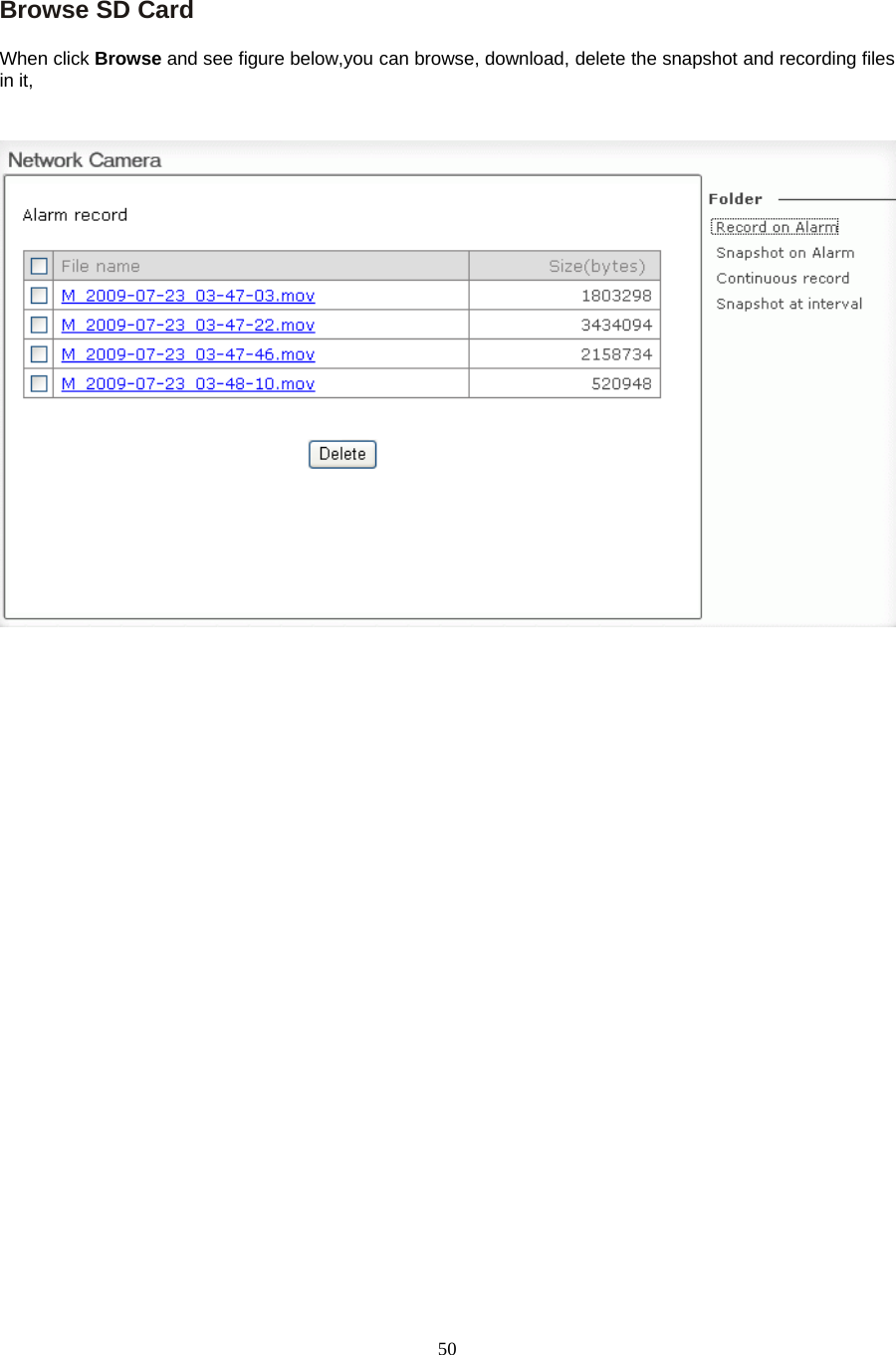
50Browse SD CardWhen click Browse and see figure below,you can browse, download, delete the snapshot and recording filesin it,
51Format SD CardTo format SD card, all files will be losted after format.
52ToolsSystem Identity[System Name] Type a name to easily identify the camera.[System Contact] Type the contact name of the administrator of the camera.[System Location] Type the location of the camera.TIP: The information you fill in can be displayed on the camera. It can help to distinguish different SharxSecurity VIPcella-IR Network Cameras in the network. See figure below.
53User Management[Add] Up to 64 users (including the admin) can createdNote:1. A maximum of 16 users are allowed to access the camera simultaneously.2. As the number of simultaneously users increase, the overall performance will decrease. This is dependanton the Network bandwidth.Adding users1. Click Add on the Camera User List page.2. Enter the User name, Password and re-confirm the password then click Add.To edit a user’s password, click on the user name then enter the new password for that user twice and clickSave. To delete a user, click on the user name then click Delete.
54Date & Time[Current device time] Internal time for camera.[Proposed device time] PC system time. On clicking Apply the internal time of the camera will be changedto this time.[Select to change the time zone for the device location] choose proper time zone.[Daylight saving time]Daylight Saving Time (or summertime as it is called in many countries) is a way ofgetting more light out of the day by advancing clocks by one hour during the summer.[Date and time format] Select date and time format.[Auto time setting(SNTP)] Enable or disable this function.[Time server] Type one SNTP server name in the box.Click Apply toconfirmyoursettings.Note:1. If the SNTP server is not found the camera’s time will be synchronized with the PC time.2. The camera has a built-in RTC(Real-time Clock) that keeps track of the time even when power isdisconnected.
55Backup or Reset[Reset] Click Reset to initialize the camera to default factory setting. All users and settings will belost, requiring you to reconfigure the camera.[Backup] Click Backup to backup the current configuration of the camera for future reference.[Browse...] Click Browse... to search for a backup configuration you wish to upload to the camera, thenclick Restore.Note:Do not turn off the power during the Reset, Backup or Restore functions since this might corrupt the camera’sfirmwareTip:The camera can also be reset to the default settings by pressing the reset switch on the side of the camera.
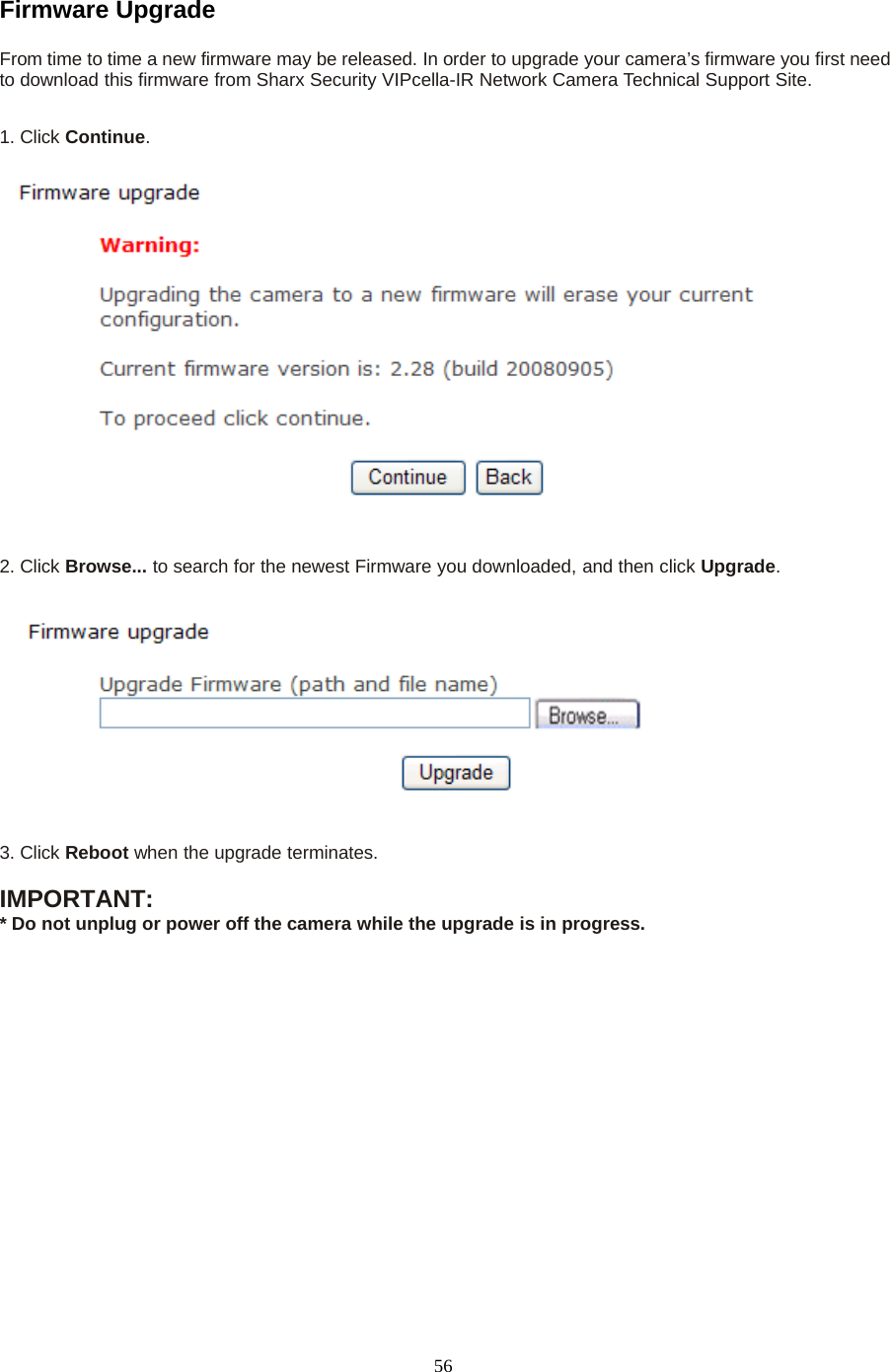
56Firmware UpgradeFrom time to time a new firmware may be released. In order to upgrade your camera’s firmware you first needto download this firmware from Sharx Security VIPcella-IR Network Camera Technical Support Site.1. Click Continue.2. Click Browse... to search for the newest Firmware you downloaded, and then click Upgrade.3. Click Reboot when the upgrade terminates.IMPORTANT:* Do not unplug or power off the camera while the upgrade is in progress.
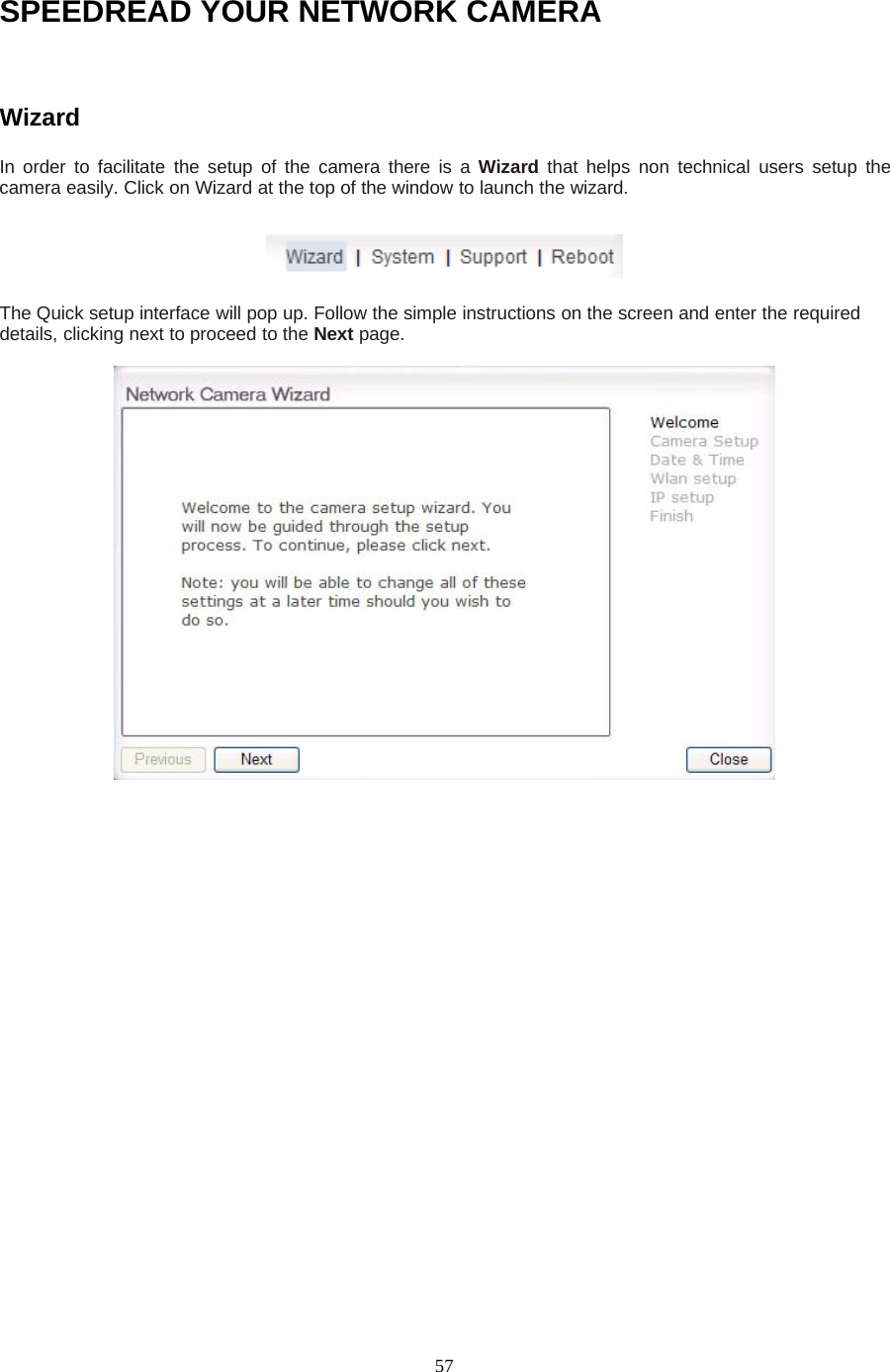
57SPEEDREAD YOUR NETWORK CAMERAWizardIn order to facilitate the setup of the camera there is a Wizard that helps non technical users setup thecamera easily. Click on Wizard at the top of the window to launch the wizard.The Quick setup interface will pop up. Follow the simple instructions on the screen and enter the requireddetails, clicking next to proceed to the Next page.
58SystemClick System to see over system information about your camera. The data of the software activity of thecamera and recorded in this. It includes data that are useful when a problem occurs.SupportClick Support to see the support informationRebootClick Reboot to restart the camera. Rebooting the camera will retain all the settings and configurations.
59ADVANCED SETTINGSPort ForwardingThe UPnP Setup of camera show a method of Port Forwarding(see page 30 for details),but some routersmaybe can’t support UPnP Port Forwarding, therefore, users need to configure Port Forwarding manually.Firewall security features built into the router may prevent users from accessing the camera over the Internet.The router connects to the Internet over a series of “ports”. The default ports used by the camera are usuallyblocked from access over the Internet, therefore, these ports need to be made accessible. This is achievedusing the Port Forwarding function on the router. The ports used by the camera must be opened through therouter for remote access to your camera. Check your router’s user manual for specific instructions on how toopen and route ports on you router.Important: Some ISPs block access to port 80 and other commonly used Internet ports. Check with your ISPin order to open the appropriate ports. If your ISP does not pass traffic on port 80, you will need to change thecamera’s default port number from 80 to a different number such as 9000.Viewing Your CameraTo access the camera from a computer on your local network, simply enter the IP Address of the Camerafollowed by a colon and the camera’s port number. It is not necessary to enter the colon and port number ifyou are using the camera’s default port 80.To access the camera from the internet, type the external IP Address of the router, followed by a colon, andthe port number of your camera (e.g., Http://210.118.166.68:9000).
60Proxy Server SettingA proxy server may prevent you from connecting to the camera in some corporate environments. The webbrowser can set up the IP address communication without using a proxy server. Consult your ISP or networkadministrator for further details.Note: A proxy server is generally used to maintain security on a network when connected to the internet. Theproxy server may cause lack of image quality and delays in refresh intervals. Consult your ISP or networkadministrator for further details.1. Start Internet Explorer.2. Select [Tools] –> [Internet Options...] –> [Connections] tab and click [LAN Settings].Verify that the Use a proxy server check box is not checked. When checked, click [Advanced...].When not checked, click [Cancel]. Your proxy server settings should not cause any problems.3. Enter the IP address of your camera into the Do not use proxy server for addresses beginningwith data field.4. Click [OK] on all of the opened windows.
61Reset the cameraThere are two ways to reset the camera back to its factory defaults:1. Press the Reset button on the side of the camera through the pin hole.2. Through the camera setup under the heading Backup or Reset (see page 47 for details)
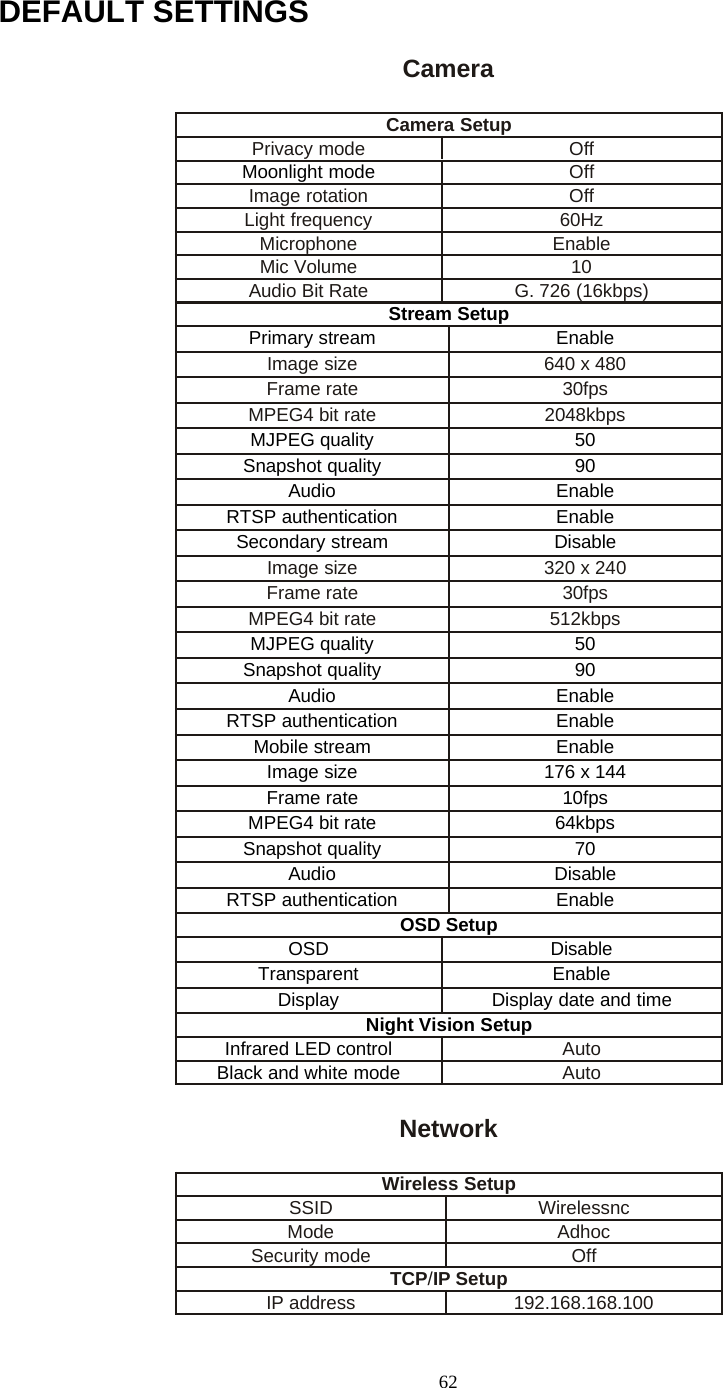
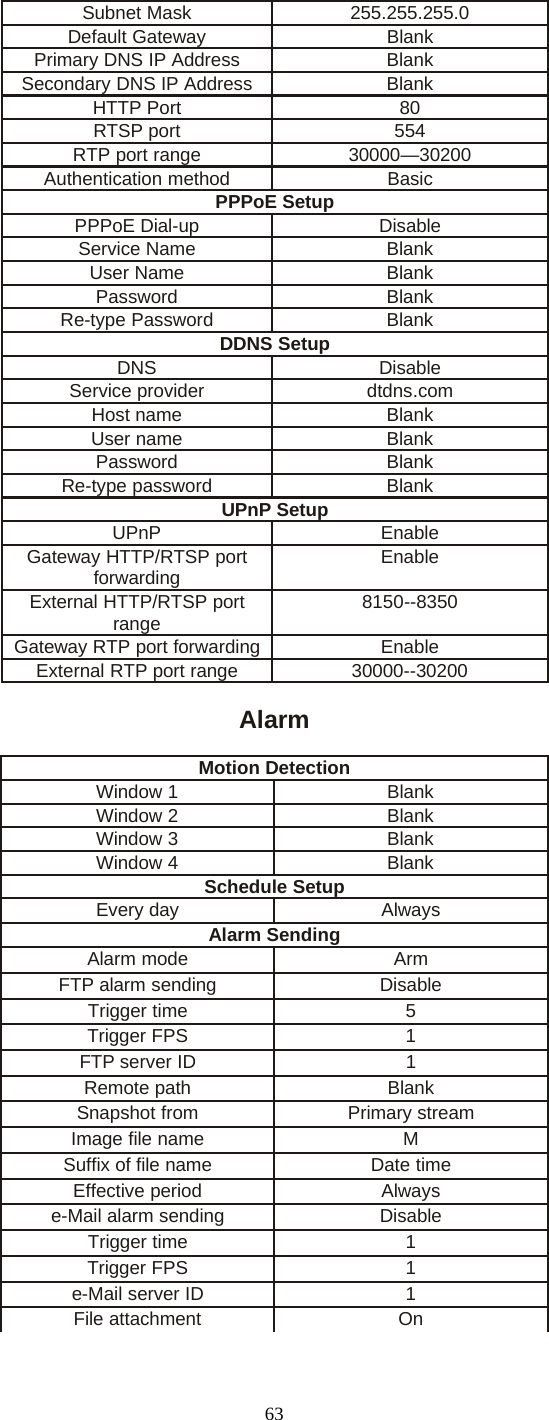
62DEFAULT SETTINGSCameraCamera SetupPrivacy mode OffMoonlight mode OffImage rotation OffLight frequency 60HzMicrophone EnableMic Volume 10Audio Bit Rate G. 726 (16kbps)Stream SetupPrimary stream EnableImage size 640 x 480Frame rate 30fpsMPEG4 bit rate 2048kbpsMJPEG quality 50Snapshot quality 90Audio EnableRTSP authentication EnableSecondary stream DisableImage size 320 x 240Frame rate 30fpsMPEG4 bit rate 512kbpsMJPEG quality 50Snapshot quality 90Audio EnableRTSP authentication EnableMobile stream EnableImage size 176 x 144Frame rate 10fpsMPEG4 bit rate 64kbpsSnapshot quality 70Audio DisableRTSP authentication EnableOSD SetupOSD DisableTransparent EnableDisplay Display date and timeNight Vision SetupInfrared LED control AutoBlack and white mode AutoNetworkWireless SetupSSID WirelessncMode AdhocSecurity mode OffTCP/IP SetupIP address 192.168.168.100
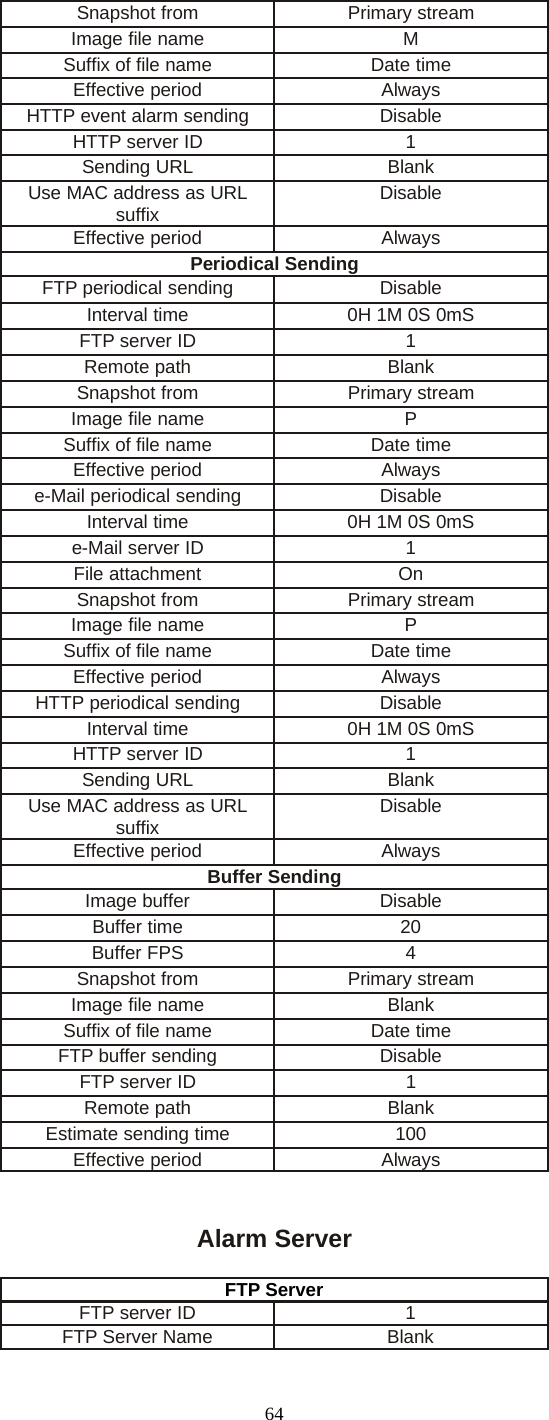
63Subnet Mask 255.255.255.0Default Gateway BlankPrimary DNS IP Address BlankSecondary DNS IP Address BlankHTTP Port 80RTSP port 554RTP port range 30000—30200Authentication method BasicPPPoE SetupPPPoE Dial-up DisableService Name BlankUser Name BlankPassword BlankRe-type Password BlankDDNS SetupDNS DisableService provider dtdns.comHost name BlankUser name BlankPassword BlankRe-type password BlankUPnP SetupUPnP EnableGateway HTTP/RTSP portforwarding EnableExternal HTTP/RTSP portrange 8150--8350Gateway RTP port forwarding EnableExternal RTP port range 30000--30200AlarmMotion DetectionWindow 1 BlankWindow 2 BlankWindow 3 BlankWindow 4 BlankSchedule SetupEvery day AlwaysAlarm SendingAlarm mode ArmFTP alarm sending DisableTrigger time 5Trigger FPS 1FTP server ID 1Remote path BlankSnapshot from Primary streamImage file name MSuffix of file name Date timeEffective period Alwayse-Mail alarm sending DisableTrigger time 1Trigger FPS 1e-Mail server ID 1File attachment On
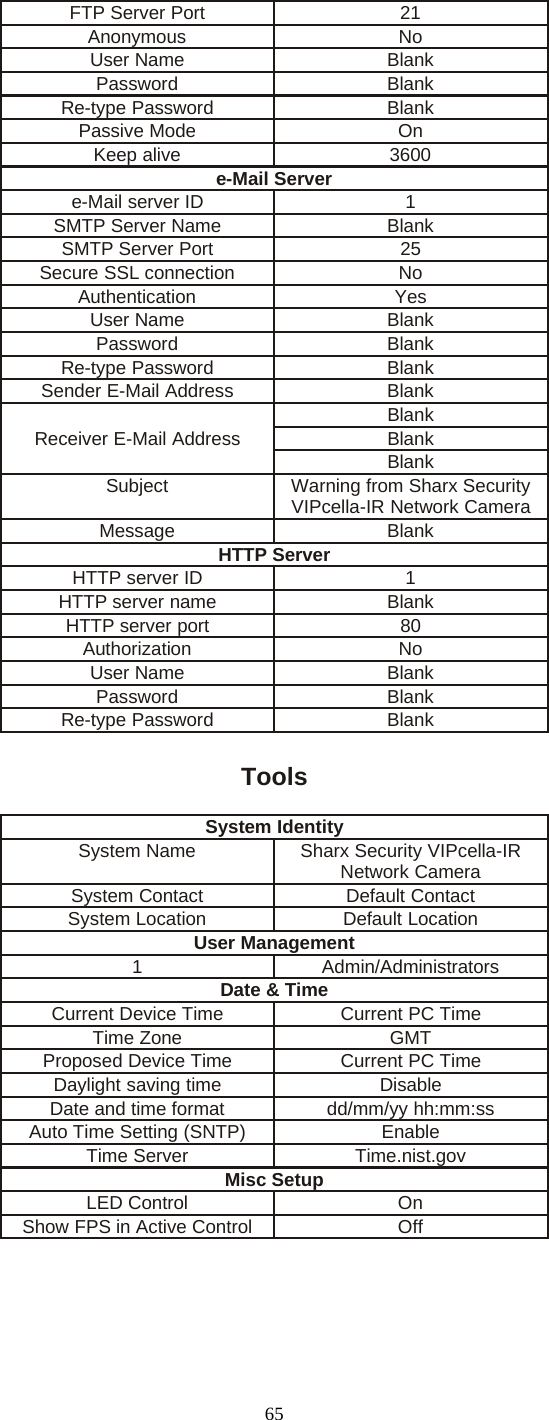
64Snapshot from Primary streamImage file name MSuffix of file name Date timeEffective period AlwaysHTTP event alarm sending DisableHTTP server ID 1Sending URL BlankUse MAC address as URLsuffix DisableEffective period AlwaysPeriodical SendingFTP periodical sending DisableInterval time 0H 1M 0S 0mSFTP server ID 1Remote path BlankSnapshot from Primary streamImage file name PSuffix of file name Date timeEffective period Alwayse-Mail periodical sending DisableInterval time 0H 1M 0S 0mSe-Mail server ID 1File attachment OnSnapshot from Primary streamImage file name PSuffix of file name Date timeEffective period AlwaysHTTP periodical sending DisableInterval time 0H 1M 0S 0mSHTTP server ID 1Sending URL BlankUse MAC address as URLsuffix DisableEffective period AlwaysBuffer SendingImage buffer DisableBuffer time 20Buffer FPS 4Snapshot from Primary streamImage file name BlankSuffix of file name Date timeFTP buffer sending DisableFTP server ID 1Remote path BlankEstimate sending time 100Effective period AlwaysAlarm ServerFTP ServerFTP server ID 1FTP Server Name Blank
65FTP Server Port 21Anonymous NoUser Name BlankPassword BlankRe-type Password BlankPassive Mode OnKeep alive 3600e-Mail Servere-Mail server ID 1SMTP Server Name BlankSMTP Server Port 25Secure SSL connection NoAuthentication YesUser Name BlankPassword BlankRe-type Password BlankSender E-Mail Address BlankReceiver E-Mail AddressBlankBlankBlankSubject Warning from Sharx SecurityVIPcella-IR Network CameraMessage BlankHTTP ServerHTTP server ID 1HTTP server name BlankHTTP server port 80Authorization NoUser Name BlankPassword BlankRe-type Password BlankToolsSystem IdentitySystem Name Sharx Security VIPcella-IRNetwork CameraSystem Contact Default ContactSystem Location Default LocationUser Management1 Admin/AdministratorsDate & TimeCurrent Device Time Current PC TimeTime Zone GMTProposed Device Time Current PC TimeDaylight saving time DisableDate and time format dd/mm/yy hh:mm:ssAuto Time Setting (SNTP) EnableTime Server Time.nist.govMisc SetupLED Control OnShowFPSinActiveControl Off
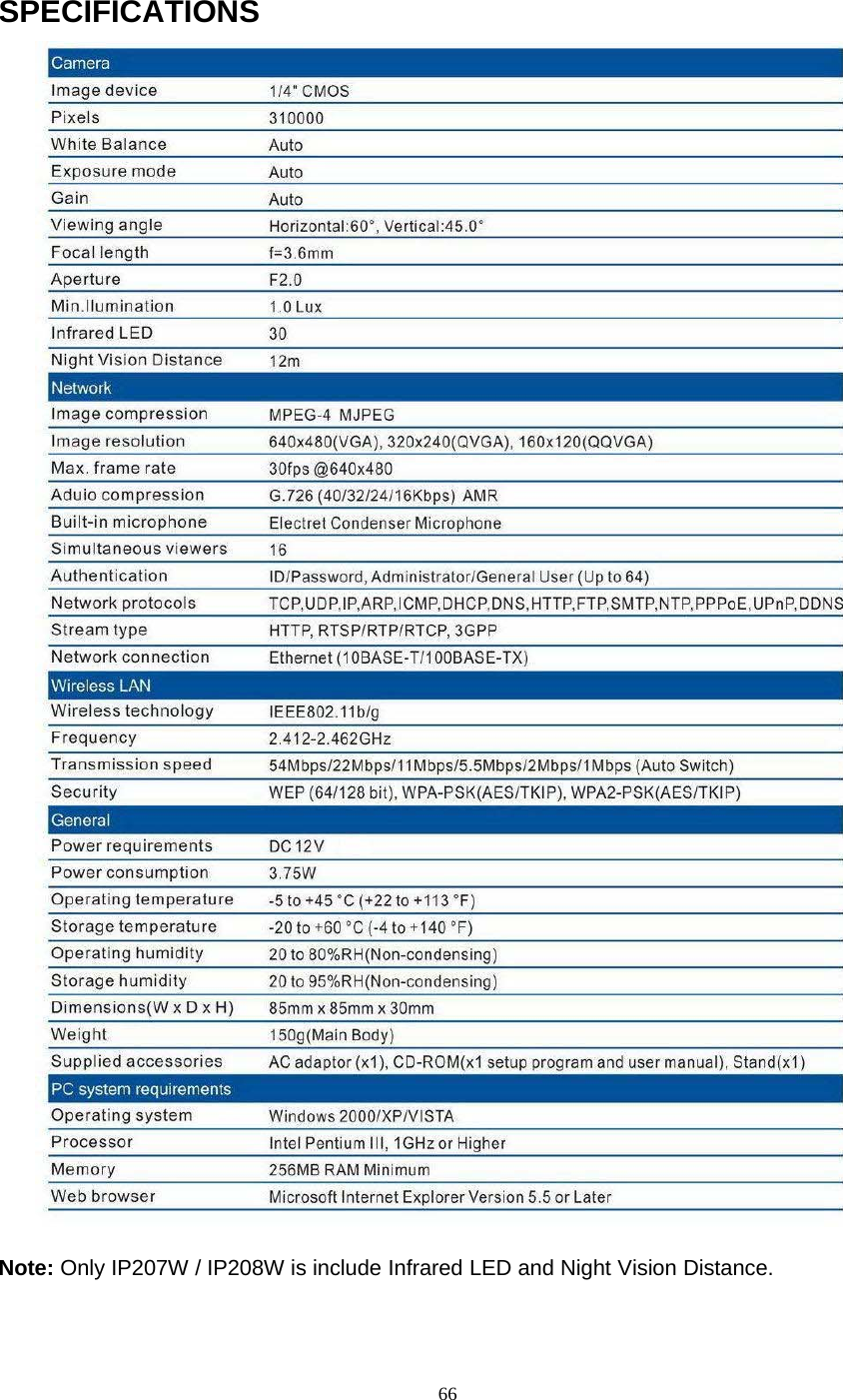
66SPECIFICATIONSNote: Only IP207W / IP208W is include Infrared LED and Night Vision Distance.
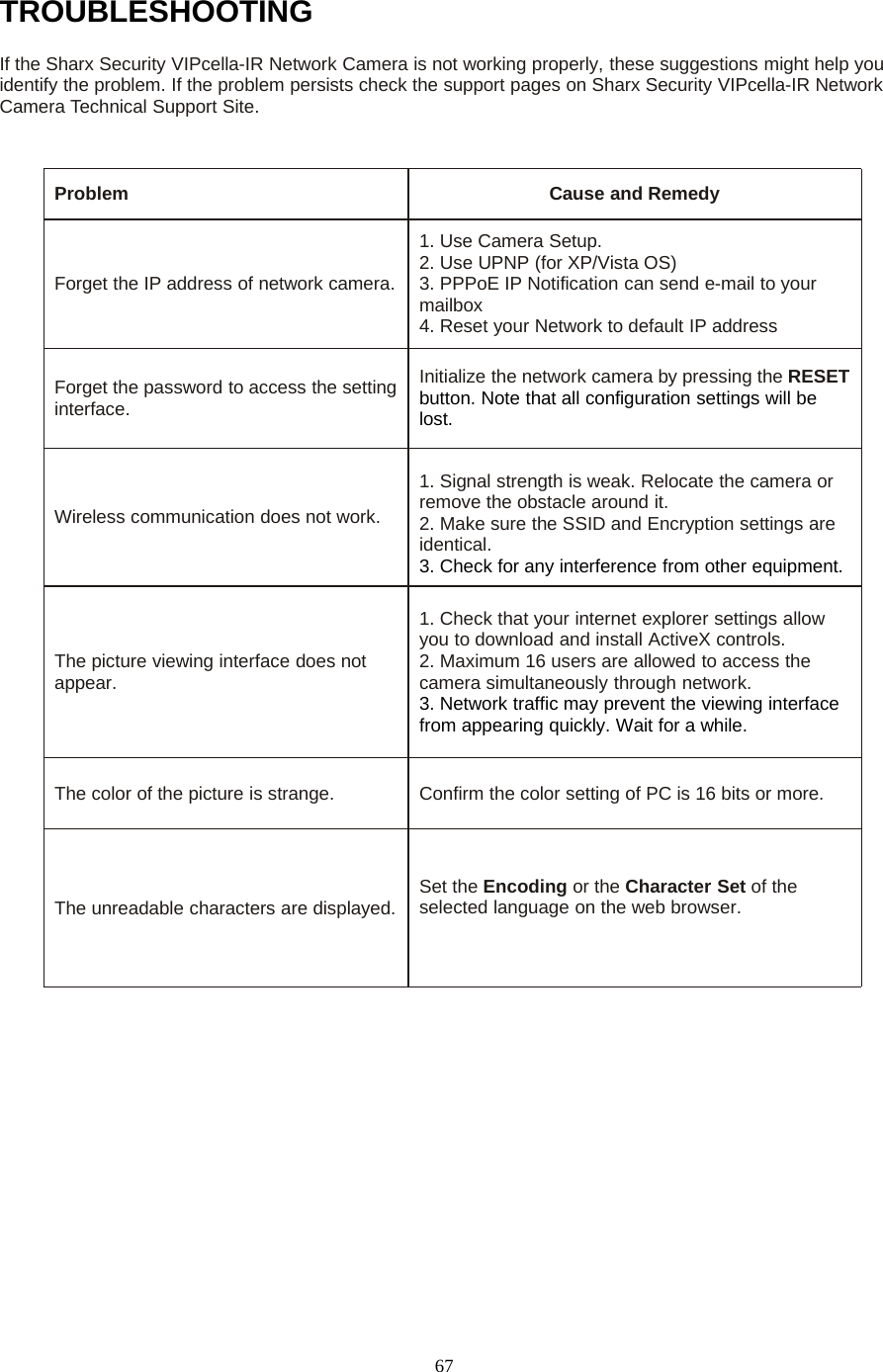
67TROUBLESHOOTINGIf the Sharx Security VIPcella-IR Network Camera is not working properly, these suggestions might help youidentify the problem. If the problem persists check the support pages on Sharx Security VIPcella-IR NetworkCamera Technical Support Site.Problem Cause and RemedyForget the IP address of network camera.1. Use Camera Setup.2. Use UPNP (for XP/Vista OS)3. PPPoE IP Notification can send e-mail to yourmailbox4. Reset your Network to default IP addressForget the password to access the settinginterface.Initialize the network camera by pressing the RESETbutton. Note that all configuration settings will belost.Wireless communication does not work.1. Signal strength is weak. Relocate the camera orremove the obstacle around it.2. Make sure the SSID and Encryption settings areidentical.3. Check for any interference from other equipment.The picture viewing interface does notappear.1. Check that your internet explorer settings allowyou to download and install ActiveX controls.2. Maximum 16 users are allowed to access thecamera simultaneously through network.3. Network traffic may prevent the viewing interfacefrom appearing quickly. Wait for a while.The color of the picture is strange. Confirm the color setting of PC is 16 bits or more.The unreadable characters are displayed. Set the Encoding or the Character Set of theselected language on the web browser.
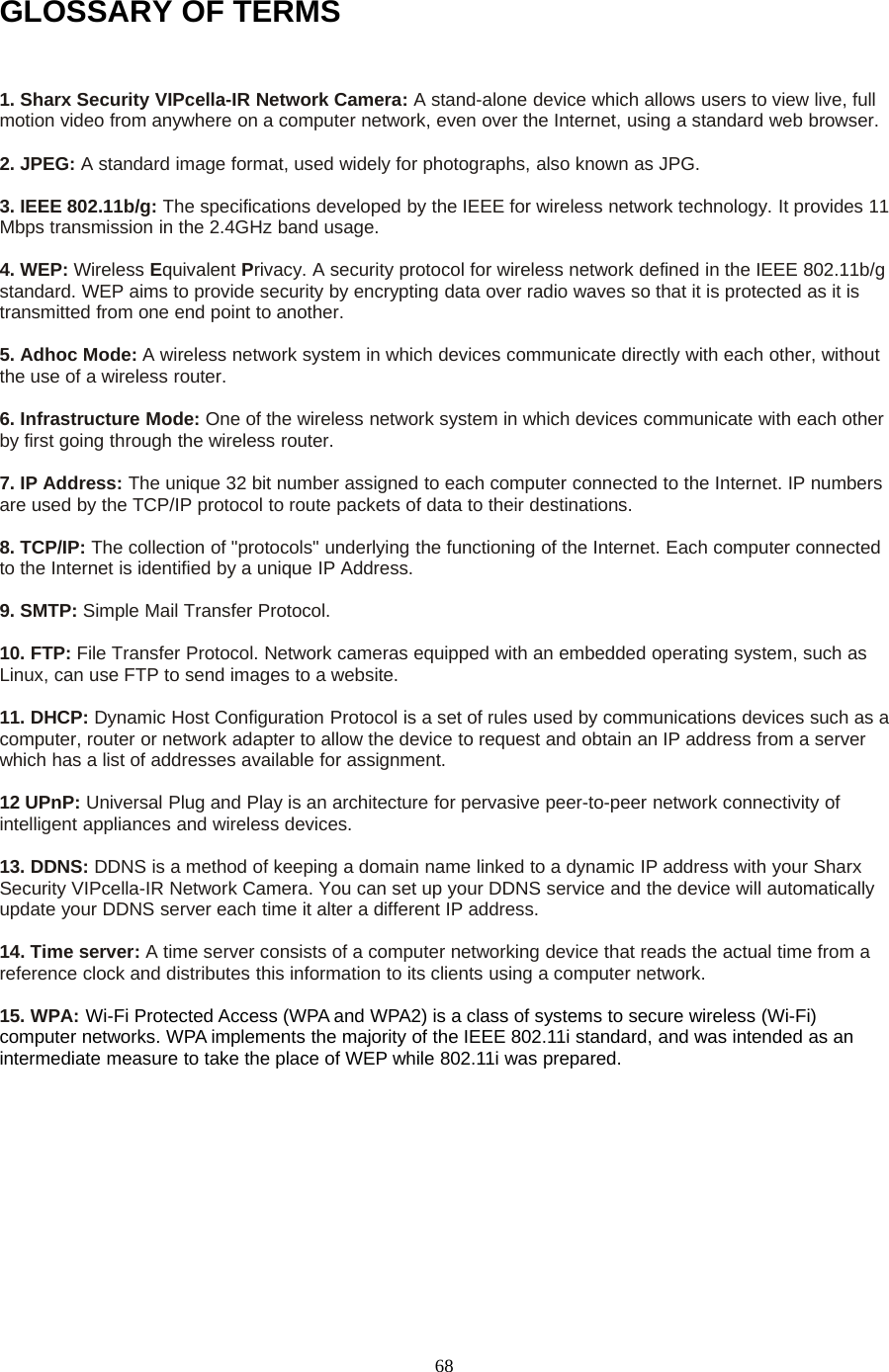
68GLOSSARY OF TERMS1. Sharx Security VIPcella-IR Network Camera: A stand-alone device which allows users to view live, fullmotion video from anywhere on a computer network, even over the Internet, using a standard web browser.2. JPEG: A standard image format, used widely for photographs, also known as JPG.3. IEEE 802.11b/g: The specifications developed by the IEEE for wireless network technology. It provides 11Mbps transmission in the 2.4GHz band usage.4. WEP: Wireless Equivalent Privacy. A security protocol for wireless network defined in the IEEE 802.11b/gstandard. WEP aims to provide security by encrypting data over radio waves so that it is protected as it istransmitted from one end point to another.5. Adhoc Mode: A wireless network system in which devices communicate directly with each other, withoutthe use of a wireless router.6. Infrastructure Mode: One of the wireless network system in which devices communicate with each otherby first going through the wireless router.7. IP Address: The unique 32 bit number assigned to each computer connected to the Internet. IP numbersare used by the TCP/IP protocol to route packets of data to their destinations.8. TCP/IP: The collection of "protocols" underlying the functioning of the Internet. Each computer connectedto the Internet is identified by a unique IP Address.9. SMTP: Simple Mail Transfer Protocol.10. FTP: File Transfer Protocol. Network cameras equipped with an embedded operating system, such asLinux, can use FTP to send images to a website.11. DHCP: Dynamic Host Configuration Protocol is a set of rules used by communications devices such as acomputer, router or network adapter to allow the device to request and obtain an IP address from a serverwhich has a list of addresses available for assignment.12 UPnP: Universal Plug and Play is an architecture for pervasive peer-to-peer network connectivity ofintelligent appliances and wireless devices.13. DDNS: DDNS is a method of keeping a domain name linked to a dynamic IP address with your SharxSecurity VIPcella-IR Network Camera. You can set up your DDNS service and the device will automaticallyupdate your DDNS server each time it alter a different IP address.14. Time server: A time server consists of a computer networking device that reads the actual time from areference clock and distributes this information to its clients using a computer network.15. WPA: Wi-Fi Protected Access (WPA and WPA2) is a class of systems to secure wireless (Wi-Fi)computer networks. WPA implements the majority of the IEEE 802.11i standard, and was intended as anintermediate measure to take the place of WEP while 802.11i was prepared.
69FCC Radiation Exposure Statement:This equipment complies with FCC radiation exposure limits set forth for anuncontrolled environment. This equipment should be installed and operated withminimum distance 20cm between the radiator & your body.Warning: Changes or modifications not expressly approved by the partyresponsible for compliance could void the user's authority to operate theequipment.

Navigation menu