ShenZhen Foscam Intelligent Technology FI9805E Outdoor HD PoE IP Camera User Manual 1
ShenZhen Foscam Intelligent Technology Co., Ltd. Outdoor HD PoE IP Camera 1
Users Manual
U
Us
se
er
r
M
Ma
an
nu
ua
al
l
Model: FI9805E

1
w
ww
ww
w.
.f
fo
os
sc
ca
am
m.
.c
co
om
m
S
Sh
he
en
nz
zh
he
en
n
F
Fo
os
sc
ca
am
m
I
In
nt
te
el
ll
li
ig
ge
en
nt
t
T
Te
ec
ch
hn
no
ol
lo
og
gy
y
C
Co
o.
.,
,
L
Li
im
mi
it
te
ed
d
T
Te
el
l:
:
8
86
6
7
75
55
5
2
26
67
74
4
5
56
66
68
8
F
Fa
ax
x:
:
8
86
6
7
75
55
5
2
26
67
74
4
5
51
16
68
8
1
Table of Contents
1 Overviews ................................................................................................................................................ 3
1.1 Key Features ....................................................................................................................................................... 3
1.2 PoE (Power over Ethernet) ................................................................................................................................. 4
1.3 Read Before Use ................................................................................................................................................ 4
1.4 Packing Contents ................................................................................................................................................ 5
1.5 Physical Description ............................................................................................................................................ 5
2 Surveillance Software GUI ...................................................................................................................... 8
2.1 Login Window ..................................................................................................................................................... 8
2.2 Surveillance Window ......................................................................................................................................... 10
3 Advanced Camera Settings ................................................................................................................... 17
3.1 Device Status .................................................................................................................................................... 17
3.1.1 Device Information ..................................................................................................................................... 17
3.1.2 Device Status ............................................................................................................................................. 18
3.1.3 Session status ............................................................................................................................................ 18
3.1.4 Log ............................................................................................................................................................. 19
3.2 Basic Settings ................................................................................................................................................... 20
3.2.1 Camera Name ............................................................................................................................................ 20
3.2.2 Camera Time .............................................................................................................................................. 20
3.2.3 Mail Settings ............................................................................................................................................... 21
3.2.4 User Accounts ............................................................................................................................................ 23
3.2.5 Multi-Camera .............................................................................................................................................. 25
3.3 Network ............................................................................................................................................................. 30
3.3.1 IP Configuration ......................................................................................................................................... 30
3.3.2 PPPoE ....................................................................................................................................................... 32
3.3.3 DDNS ......................................................................................................................................................... 32
3.3.4 UPnP ......................................................................................................................................................... 37
3.3.5 Port ............................................................................................................................................................ 37
3.4 Video ................................................................................................................................................................. 40
3.4.1 Settings ...................................................................................................................................................... 40
3.4.2 On Screen Display ..................................................................................................................................... 41
3.4.3 Snapshot Settings ...................................................................................................................................... 43
3.5 Alarm ................................................................................................................................................................. 44
3.5.1 Motion Detection ........................................................................................................................................ 44
3.5.2 I/O Detection .............................................................................................................................................. 44
3.6 Record ............................................................................................................................................................... 50
3.7 PTZ .................................................................................................................................................................... 50
3.7.1 Pan/Tilt Speed ............................................................................................................................................ 50

2
w
ww
ww
w.
.f
fo
os
sc
ca
am
m.
.c
co
om
m
S
Sh
he
en
nz
zh
he
en
n
F
Fo
os
sc
ca
am
m
I
In
nt
te
el
ll
li
ig
ge
en
nt
t
T
Te
ec
ch
hn
no
ol
lo
og
gy
y
C
Co
o.
.,
,
L
Li
im
mi
it
te
ed
d
T
Te
el
l:
:
8
86
6
7
75
55
5
2
26
67
74
4
5
56
66
68
8
F
Fa
ax
x:
:
8
86
6
7
75
55
5
2
26
67
74
4
5
51
16
68
8
2
3.7.2 RS485 configuration ................................................................................................................................... 50
3.8 Path Settings ..................................................................................................................................................... 51
3.9 Firewall .............................................................................................................................................................. 53
3.10 System............................................................................................................................................................. 54
3.10.1 Back up& Restore settings ....................................................................................................................... 54
3.10.2 System upgrade ....................................................................................................................................... 54
3.10.3 Factory Reset ........................................................................................................................................... 56
3.10.4 Reboot System ......................................................................................................................................... 56
4 Phone APPs .......................................................................................................................................... 57
4.1 APP for Android cell phones ............................................................................................................................. 57
4.2 APP for iPhones ................................................................................................................................................ 65
5 APPENDIX ............................................................................................................................................ 60
5.1 Frequently Asked Questions ............................................................................................................................. 72
5.2 Default Parameters ........................................................................................................................................... 78
5.3 Specification ...................................................................................................................................................... 78
6 OBTAINING TECHNICAL SUPPORT ................................................................................................... 80

3
w
ww
ww
w.
.f
fo
os
sc
ca
am
m.
.c
co
om
m
S
Sh
he
en
nz
zh
he
en
n
F
Fo
os
sc
ca
am
m
I
In
nt
te
el
ll
li
ig
ge
en
nt
t
T
Te
ec
ch
hn
no
ol
lo
og
gy
y
C
Co
o.
.,
,
L
Li
im
mi
it
te
ed
d
T
Te
el
l:
:
8
86
6
7
75
55
5
2
26
67
74
4
5
56
66
68
8
F
Fa
ax
x:
:
8
86
6
7
75
55
5
2
26
67
74
4
5
51
16
68
8
3
1
1
O
Ov
ve
er
rv
vi
ie
ew
ws
s
FOSCAM FI9805E is an integrated PoE Network Camera solution with a color CMOS sensor
enabling viewing resolution 1280*720. It combines a high quality digital video camera, with a
powerful web server, to bring clear video to your desktop from anywhere on your local network or
over the Internet.
FI9805E supports the industry-standard H.264 compression technology, drastically reducing file
sizes and conserving valuable network bandwidth. This camera supports IR-CUT, when light
conditions turns poor, the IR cut filter will be automatically removed to accept IR illumination.
Meanwhile, the camera switches itself automatically from color to black and white, assuring
optimal image quality at all times.
The IPCAM is based on the TCP/IP standard. There is a WEB server inside which could support
Internet Explore. Therefore the management and maintenance of your device is simplified by
using the network to achieve the remote configuration and start-up.
More advanced features including two-way audio, pan/ tilt controlled by RS485 protocol, and I/O
alarm for external alarm. It is a best solution for outdoor surveillance applications such as
courtyards, supermarket, and school. Controlling the IPCAM and managing images are
simplified by using the provided web interface across the network.
FOSCAM provides Phone APPs for Android and iPhone users, please search “Foscam ip cam
viewer” and install it through APP Store, then you can view your camera directly as a computer.
1
1.
.1
1
K
Ke
ey
y
F
Fe
ea
at
tu
ur
re
es
s
Standard H.264 video compression algorithm to satisfy the transmission of high definition
video in narrow bandwidth network
High Definition Color CMOS Sensor
1.0 Mega-Pixel
Supports IE/Firefox/Google/Safari browser or any other standard browsers
Supports IR_CUT and the filter change automatically
PoE compliant with PoE standards IEEE 802.3af
Two-way audio
Provides RS485, various decoder protocols can be built in
IR night vision (Range:30m)
Supports external input/output alarm
Motion and I/O detection activates alarm
Supports image snapshot
Embedded FOSCAM DDNS(dynamic domain name service) Service
Supports remote viewing & record from anywhere anytime
4
w
ww
ww
w.
.f
fo
os
sc
ca
am
m.
.c
co
om
m
S
Sh
he
en
nz
zh
he
en
n
F
Fo
os
sc
ca
am
m
I
In
nt
te
el
ll
li
ig
ge
en
nt
t
T
Te
ec
ch
hn
no
ol
lo
og
gy
y
C
Co
o.
.,
,
L
Li
im
mi
it
te
ed
d
T
Te
el
l:
:
8
86
6
7
75
55
5
2
26
67
74
4
5
56
66
68
8
F
Fa
ax
x:
:
8
86
6
7
75
55
5
2
26
67
74
4
5
51
16
68
8
4
Multi-level users management with password protection
Motion detection alert via email or upload image to FTP
Supports Third Party Domain name
Supports multiple network protocols: HTTP /TCP /IP /UDP /FTP /DHCP /DDNS / UPNP
Providing Phone APPs for Android and iPhone users
1
1.
.2
2
P
Po
oE
E
(
(P
Po
ow
we
er
r
o
ov
ve
er
r
E
Et
th
he
er
rn
ne
et
t)
)
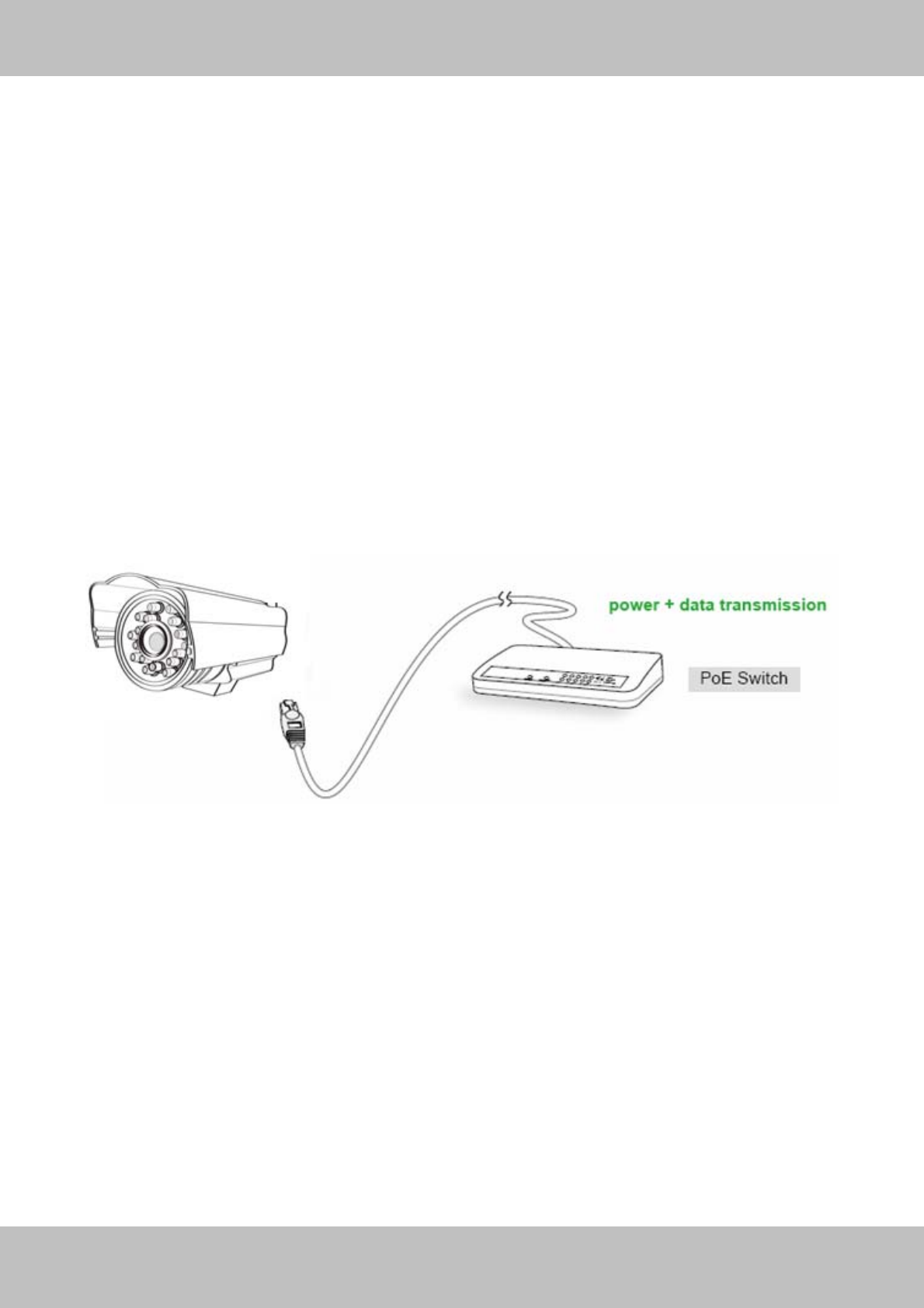
The Network Camera is PoE-compliant, allowing transmission of power and data via a single
Ethernet cable. Such as the following picture: connect the Network Camera to a PoE-enabled
router/ switch via Ethernet cable.
1
1.
.3
3
R
Re
ea
ad
d
B
Be
ef
fo
or
re
e
U
Us
se
e
Please first verify that all contents received are complete according to the Package Contents
listed below. Before the Network Camera is installed, please carefully read and follow the
instructions in the Quick Installation Guide to avoid damage due to faulty assembly and
installation. This also ensures the product is used properly as intended.
5
w
ww
ww
w.
.f
fo
os
sc
ca
am
m.
.c
co
om
m
S
Sh
he
en
nz
zh
he
en
n
F
Fo
os
sc
ca
am
m
I
In
nt
te
el
ll
li
ig
ge
en
nt
t
T
Te
ec
ch
hn
no
ol
lo
og
gy
y
C
Co
o.
.,
,
L
Li
im
mi
it
te
ed
d
T
Te
el
l:
:
8
86
6
7
75
55
5
2
26
67
74
4
5
56
66
68
8
F
Fa
ax
x:
:
8
86
6
7
75
55
5
2
26
67
74
4
5
51
16
68
8
5
1
1.
.4
4
P
Pa
ac
ck
ki
in
ng
g
C
Co
on
nt
te
en
nt
ts
s
● IPCAM×1 ● CD×1
● DC Power Supply×1
● Warranty Card×1
● Mounting bracket×1(option)
● Network Cable×1
1
1.
.5
5
P
Ph
hy
ys
si
ic
ca
al
l
D
De
es
sc
cr
ri
ip
pt
ti
io
on
n
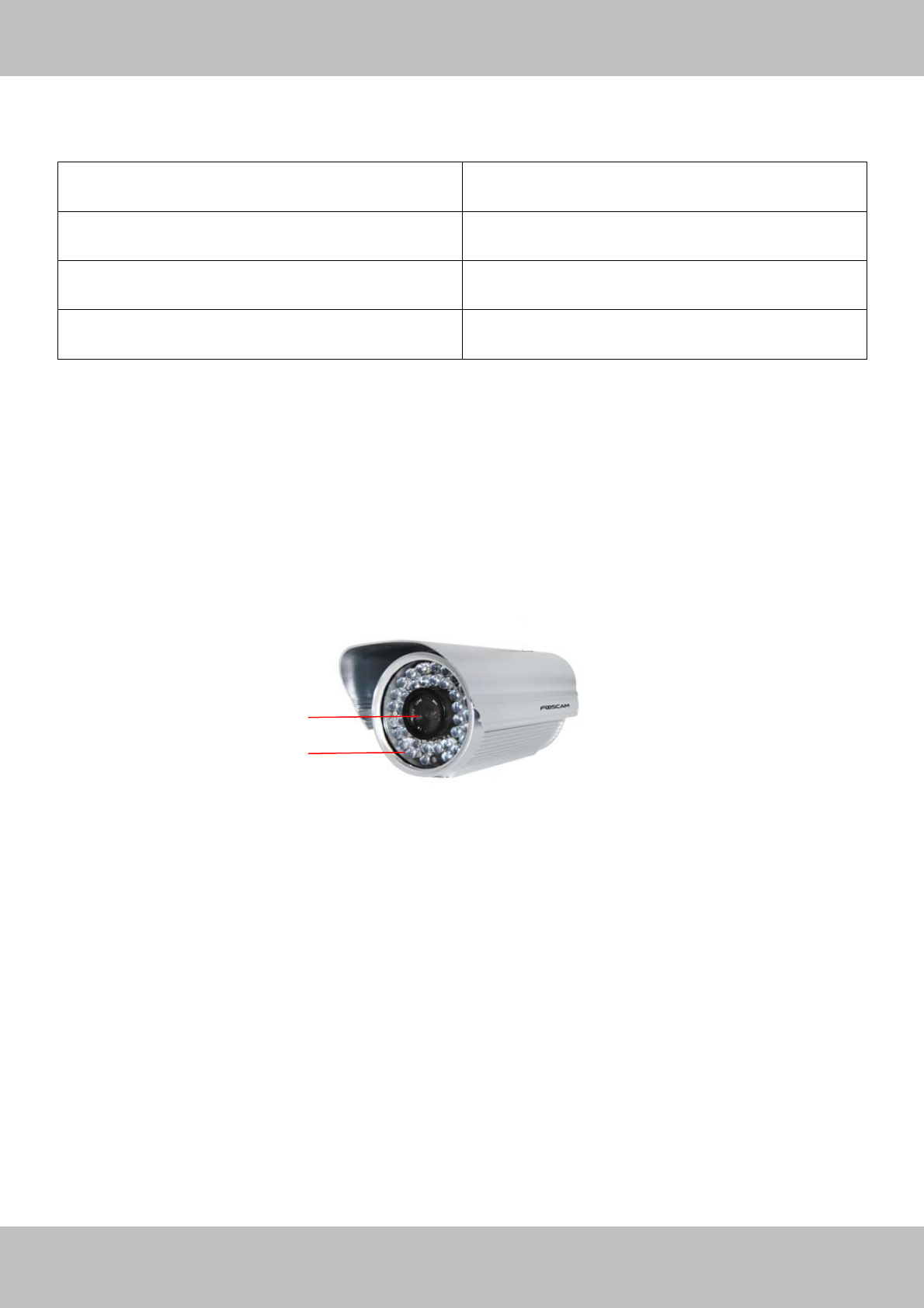
Front Panel
Figure 1.1
1 LENS: CMOS sensor with fixed focus lens
2 Infrared LED: 36 IR LEDs
1
2
6
w
ww
ww
w.
.f
fo
os
sc
ca
am
m.
.c
co
om
m
S
Sh
he
en
nz
zh
he
en
n
F
Fo
os
sc
ca
am
m
I
In
nt
te
el
ll
li
ig
ge
en
nt
t
T
Te
ec
ch
hn
no
ol
lo
og
gy
y
C
Co
o.
.,
,
L
Li
im
mi
it
te
ed
d
T
Te
el
l:
:
8
86
6
7
75
55
5
2
26
67
74
4
5
56
66
68
8
F
Fa
ax
x:
:
8
86
6
7
75
55
5
2
26
67
74
4
5
51
16
68
8
6
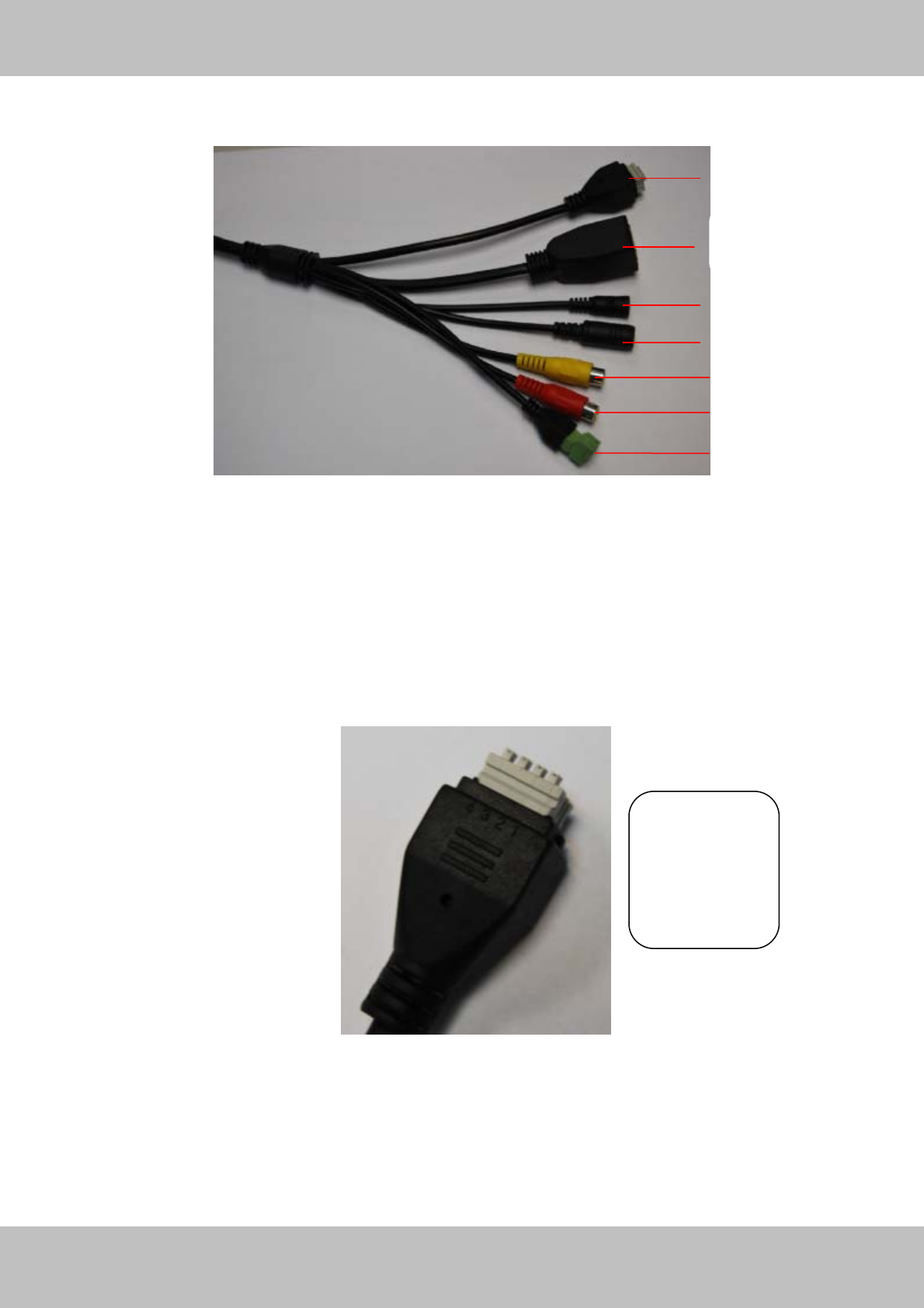
Interface
Figure 1.2
1) I/O alarm terminal block
This network camera provides a I/O alarm terminal block which is used to connect to external
input / output device.
The pin(there are four number in the terminal block from no. 1 to no. 4) definitions are
descripted below:
This camera supports I/O alarm, you can go to Settings – Alarm – I/O page to configure it.
2)LAN
10/100M adaptive Ethernet interface. Through this interface, IPCAM can be connected with
various network devices, such as hub, router, etc.
1
2
3
4
5
6
7
1– input
2- input
3- output
4- output
7
w
ww
ww
w.
.f
fo
os
sc
ca
am
m.
.c
co
om
m
S
Sh
he
en
nz
zh
he
en
n
F
Fo
os
sc
ca
am
m
I
In
nt
te
el
ll
li
ig
ge
en
nt
t
T
Te
ec
ch
hn
no
ol
lo
og
gy
y
C
Co
o.
.,
,
L
Li
im
mi
it
te
ed
d
T
Te
el
l:
:
8
86
6
7
75
55
5
2
26
67
74
4
5
56
66
68
8
F
Fa
ax
x:
:
8
86
6
7
75
55
5
2
26
67
74
4
5
51
16
68
8
7
3) Reset button
Press and hold on the reset button for 5 seconds. Releasing the reset button, the password will
back to the factory default administrator password. The default administrator user is admin with
no password.
4)Power Interface
Connect the external power adapter, request for 12V/2A power.
5) Audio input interface:
The jack is used to plug external input device such as sound pick up device directly. Here
microphone cannot directly insert to the interface, it must connect to commutator first.
6) Audio output interface:
The jack is used to plug external output device such as loud speaker directly. Here microphone
cannot directly insert to the interface, it must connect to commutator first.
7) 485 Cradle head interface
This camera supports the standard 485 cradle head protocol. Please configure the RS485
protocol corresponding information first (go to Settings- PTZ – RS485 Configuration page and
do settings), or else the cradle head may cannot work.
.
Bottom View
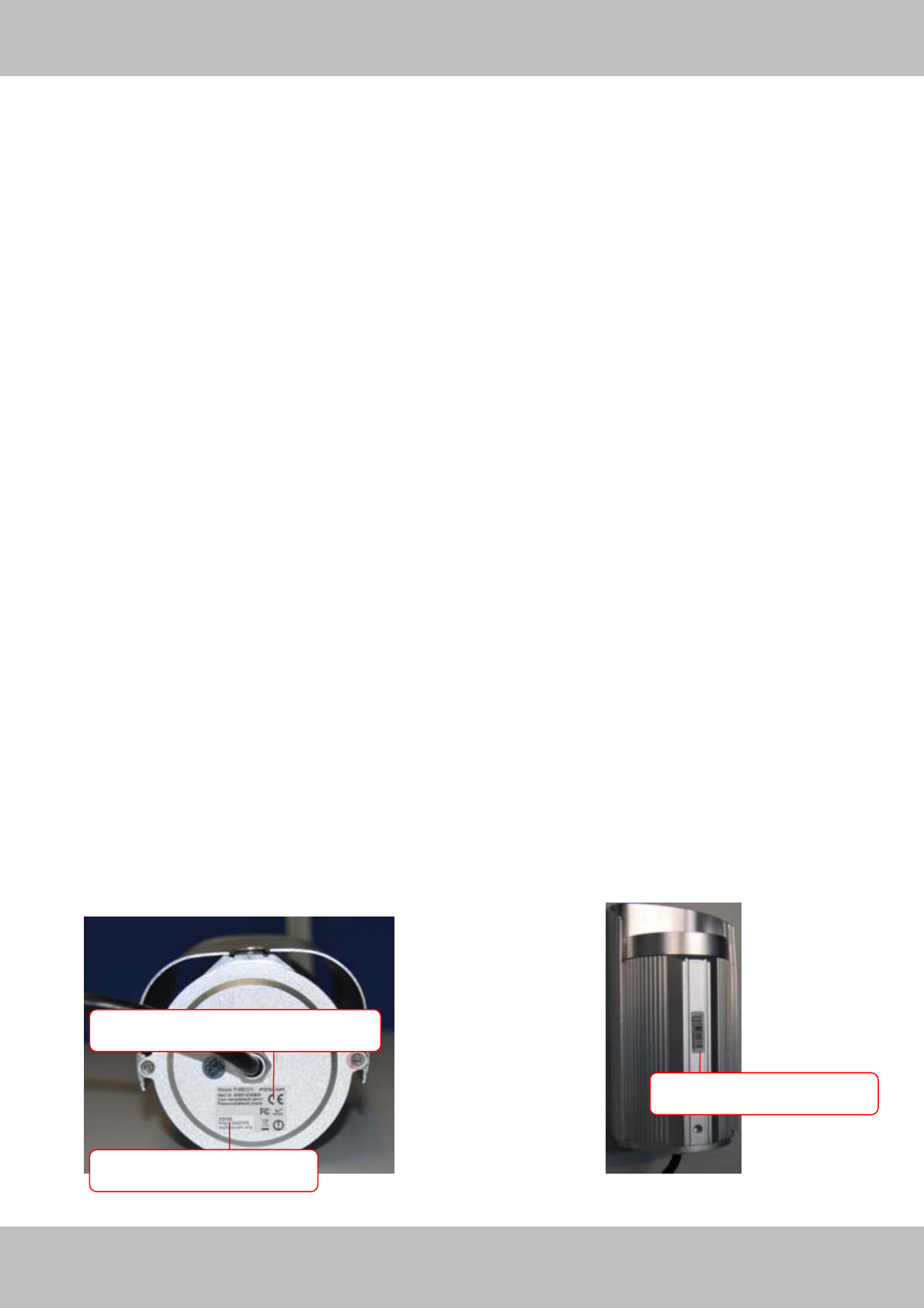
There are up to three labels located at the bottom of the camera; this is an important feature of
original Foscam cameras. If your camera does not have labels as shown in Figure 1.3, it may be
a clone. Cloned Foscam cameras can not use original firmware and are not eligible for warranty
or technical services.
Figure 1.3
MAC address of wired connection
FOSCAM DDNS Service
S/N Sticker of FOSCAM
8
w
ww
ww
w.
.f
fo
os
sc
ca
am
m.
.c
co
om
m
S
Sh
he
en
nz
zh
he
en
n
F
Fo
os
sc
ca
am
m
I
In
nt
te
el
ll
li
ig
ge
en
nt
t
T
Te
ec
ch
hn
no
ol
lo
og
gy
y
C
Co
o.
.,
,
L
Li
im
mi
it
te
ed
d
T
Te
el
l:
:
8
86
6
7
75
55
5
2
26
67
74
4
5
56
66
68
8
F
Fa
ax
x:
:
8
86
6
7
75
55
5
2
26
67
74
4
5
51
16
68
8
8
2
2
S
Su
ur
rv
ve
ei
il
ll
la
an
nc
ce
e
S
So
of
ft
tw
wa
ar
re
e
G
GU
UI
I
Please refer to the Quick Installation Guide if you install the camera at first time. After finishing
quick installation, you can take time to learn the operation of the software.
2
2.
.1
1
L
Lo
og
gi
in
n
W
Wi
in
nd
do
ow
w
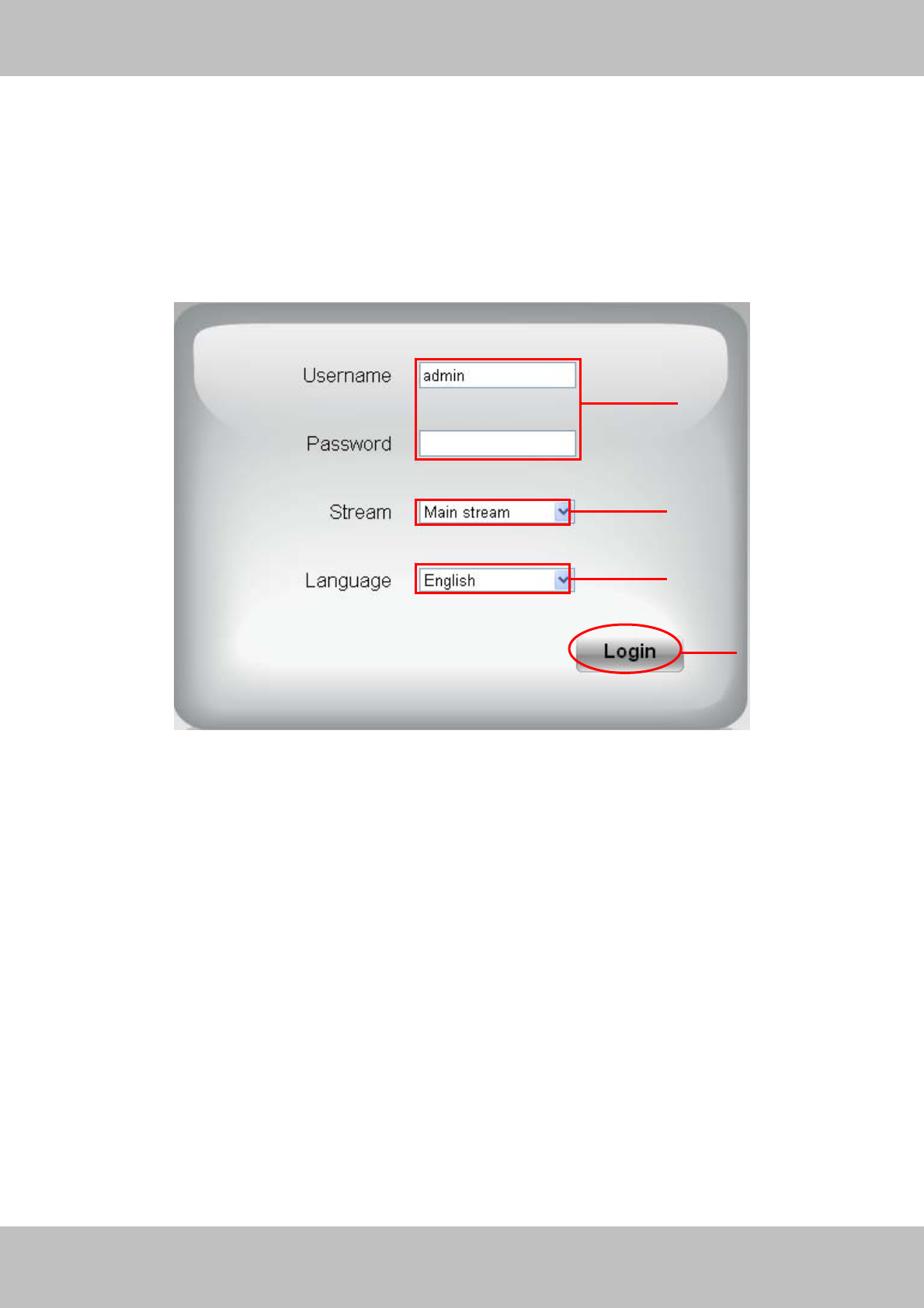
Figure 2.1
Please check the login window above, it was divided to 54sections from no. 1 to 4.
Section1 Enter the User name and password
The default administrator username is admin with no password, please reset the password at
first using and prevent unauthorized users login the camera (read chapter 3.2.4 about how to
change).
Section2 Stream
The camera supports two stream modes: Main stream and sub stream. If you want to access the
camera form LAN, here you can select Main stream. If you want to access the camera from
Internet, here we recommend sub stream.
Note: When the network bandwidth is badly you’d better select Sub Stream and the video will be
more fluency.
2
3
4
1
9
w
ww
ww
w.
.f
fo
os
sc
ca
am
m.
.c
co
om
m
S
Sh
he
en
nz
zh
he
en
n
F
Fo
os
sc
ca
am
m
I
In
nt
te
el
ll
li
ig
ge
en
nt
t
T
Te
ec
ch
hn
no
ol
lo
og
gy
y
C
Co
o.
.,
,
L
Li
im
mi
it
te
ed
d
T
Te
el
l:
:
8
86
6
7
75
55
5
2
26
67
74
4
5
56
66
68
8
F
Fa
ax
x:
:
8
86
6
7
75
55
5
2
26
67
74
4
5
51
16
68
8
9
Section3 Select the language
You can select the language you need via click on the language dropdown list to switch.
Section4 Login the camera
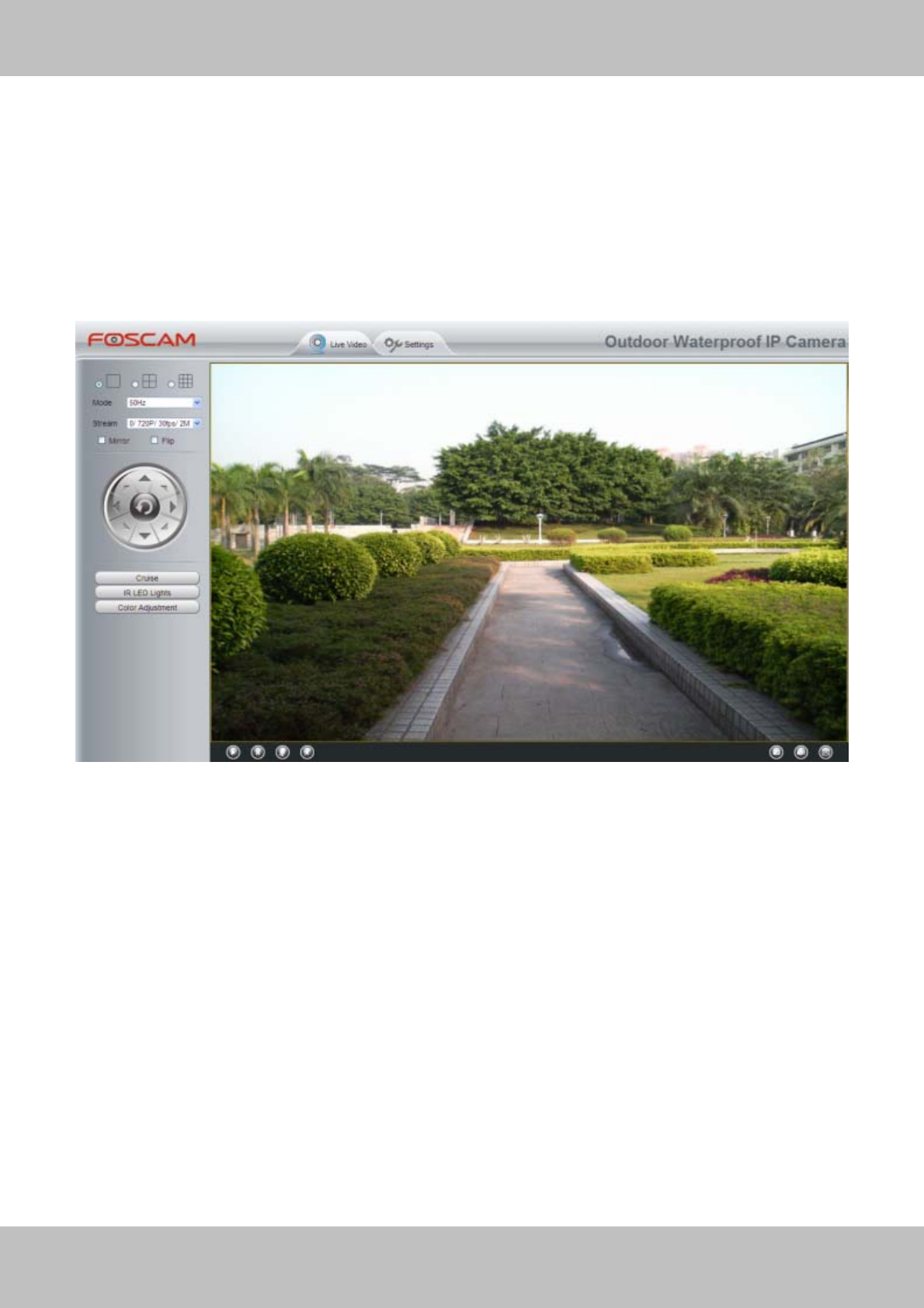
Click Login button and you will see the surveillance windows.
Figure 2.2
10
w
ww
ww
w.
.f
fo
os
sc
ca
am
m.
.c
co
om
m
S
Sh
he
en
nz
zh
he
en
n
F
Fo
os
sc
ca
am
m
I
In
nt
te
el
ll
li
ig
ge
en
nt
t
T
Te
ec
ch
hn
no
ol
lo
og
gy
y
C
Co
o.
.,
,
L
Li
im
mi
it
te
ed
d
T
Te
el
l:
:
8
86
6
7
75
55
5
2
26
67
74
4
5
56
66
68
8
F
Fa
ax
x:
:
8
86
6
7
75
55
5
2
26
67
74
4
5
51
16
68
8
10
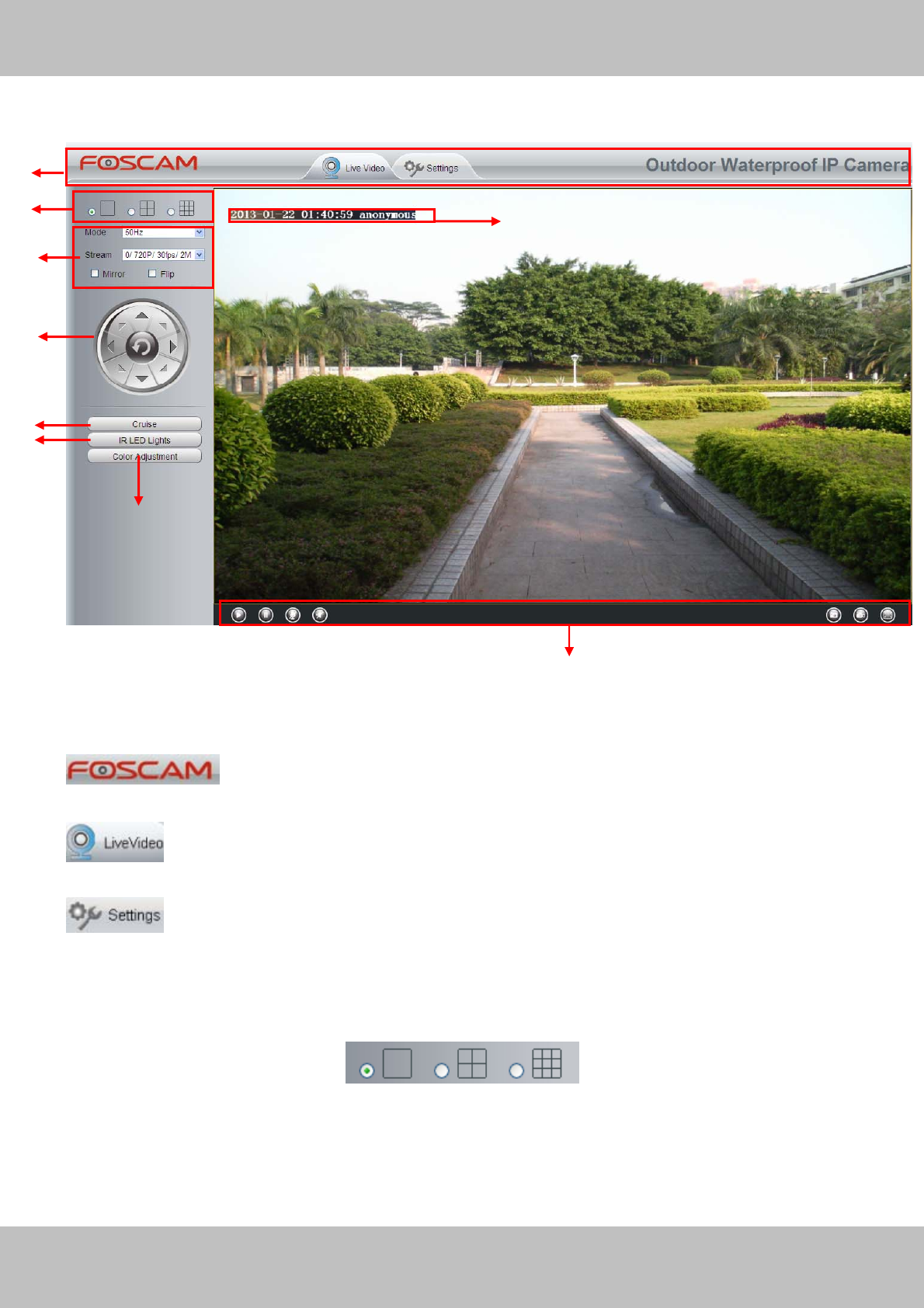
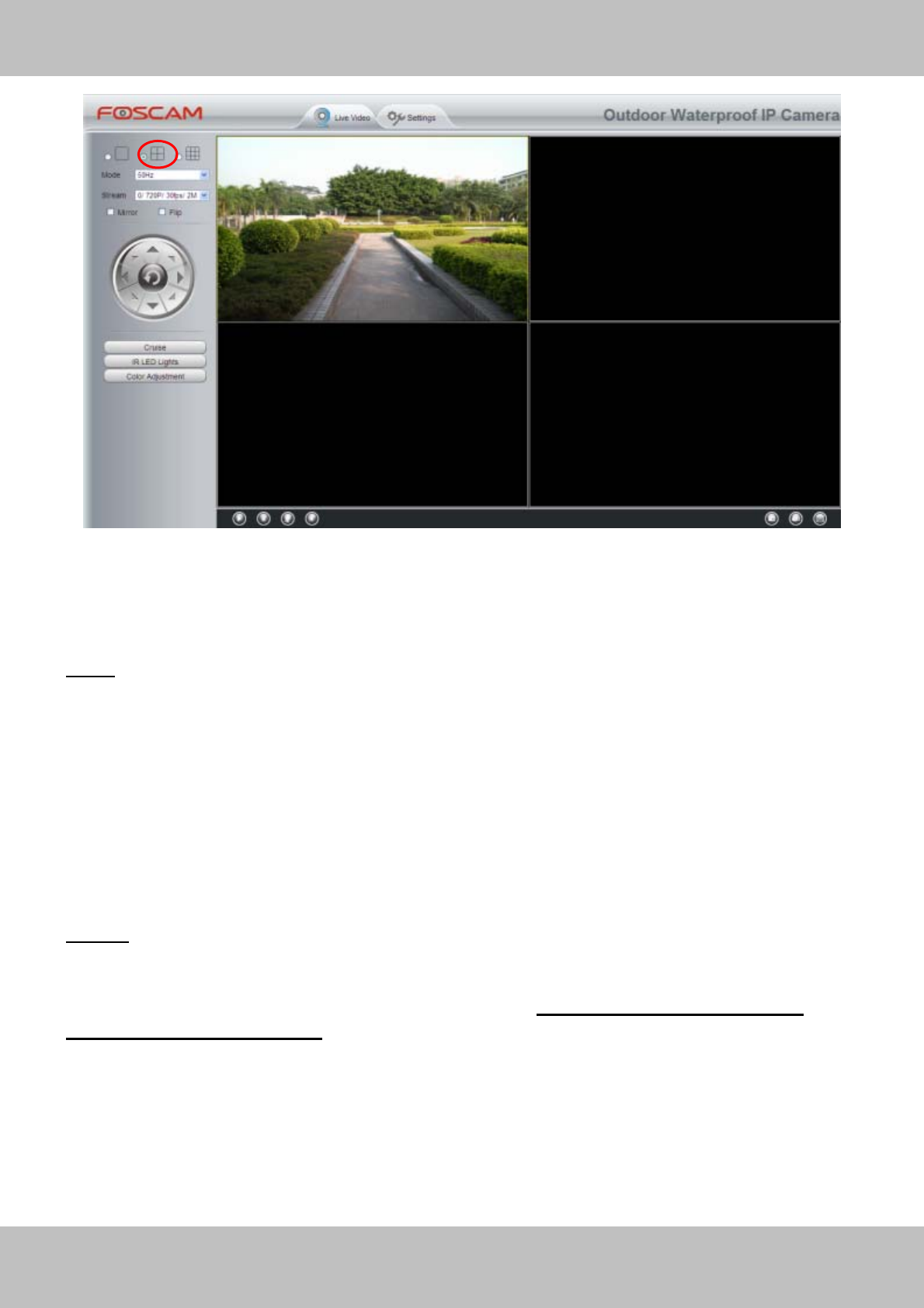
2.2 Surveillance Window
Figure 2.3
Section1 FOSCAM Logo/ LiveVideo / Settings buttons
: FOSCAM LOGO
: Path to surveillance window. Click this button and back to the surveillance window
: Path to Administrator Control Panel, Click it and it will lead to Administrator
Control Panel and do advanced settings.
Section2 Multi-Device Window
The firmware inside the camera supports up to maximum of 9 cameras being monitoring at the
same time. You can add other cameras in multi-camera panel (read chapter 3.2.5).
1
2
4
9
3
5
8
6
7
11
w
ww
ww
w.
.f
fo
os
sc
ca
am
m.
.c
co
om
m
S
Sh
he
en
nz
zh
he
en
n
F
Fo
os
sc
ca
am
m
I
In
nt
te
el
ll
li
ig
ge
en
nt
t
T
Te
ec
ch
hn
no
ol
lo
og
gy
y
C
Co
o.
.,
,
L
Li
im
mi
it
te
ed
d
T
Te
el
l:
:
8
86
6
7
75
55
5
2
26
67
74
4
5
56
66
68
8
F
Fa
ax
x:
:
8
86
6
7
75
55
5
2
26
67
74
4
5
51
16
68
8
11
Figure 2.4
Section3 Mode/ Stream / Mirror/ Flip buttons
Mode
1) 50HZ ---------Indoor surveillance (Region: Europe, China)
2) 60HZ ---------Indoor surveillance (Region: USA, Canada)
3) Outdoor-------Outdoor surveillance (Region: All over the world)
There are three options within the menu of Mode: 50HZ, 60HZ and Outdoor. It depends on the
frequency of the electricity and surveillance model (indoors & outdoor). Please choose outdoor
mode, when the camera was installed outside.
Stream
The default Stream supports four modes: 0/720P/30fps/2M, 1/VGA/25fps/2M, 2/VGA/ 15fps/ 1M
and 3/ VGA/10fps/200 The format of the stream type is Stream type no. / Resolution /
Maximum frame rate/ Bit rate
1) Stream type no. : The number is used to identify the stream type.
2) 720P/ VGA
There are two resolutions, the bigger one is 720P, and the smaller one (VGA) is 640x480 pixels.
The bigger the resolution, the better of the image quality is. If you are accessing the camera via
internet and want to get more fluent video streaming, please select resolution VGA.
12
w
ww
ww
w.
.f
fo
os
sc
ca
am
m.
.c
co
om
m
S
Sh
he
en
nz
zh
he
en
n
F
Fo
os
sc
ca
am
m
I
In
nt
te
el
ll
li
ig
ge
en
nt
t
T
Te
ec
ch
hn
no
ol
lo
og
gy
y
C
Co
o.
.,
,
L
Li
im
mi
it
te
ed
d
T
Te
el
l:
:
8
86
6
7
75
55
5
2
26
67
74
4
5
56
66
68
8
F
Fa
ax
x:
:
8
86
6
7
75
55
5
2
26
67
74
4
5
51
16
68
8
12
3) Maximum frame rate
When the video format is 50Hz, the maximum frame rate is 25 fps. When the video format is
60Hz, the maximum frame rate is 30 fps. You should lower frame rate when the bandwidth is
limited. Normally, when the frame rate above 15, you can achieve fluently video.
4) Bit rate
Generally speaking, the larger the bit rate is, the clearer video will become. But the bit rate
configuration should combine well with the network bandwidth. When the bandwidth is very
narrow, and bit rate is large, that will lead to video cannot play well.
You can reset the stream type on Settings-> Video-> Settings panel ( chapter 3.4.1).
After changing, please re-login the camera and you can see the modification.
Mirror/ Flip
You can flip the image by enabling Flip button, or mirror the image by enabling Mirror button.
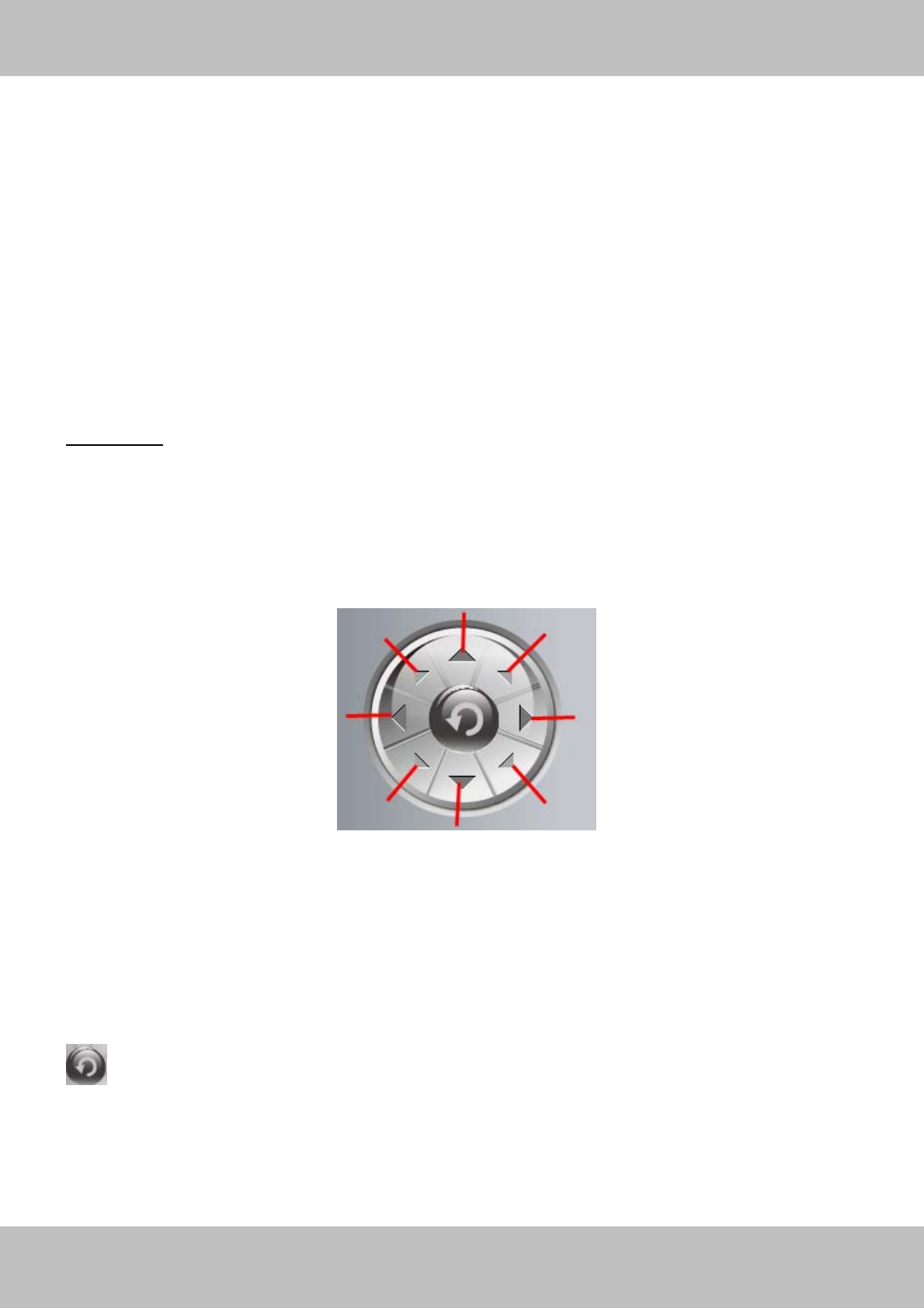
Section4 Pan/Tilt Control
1------Up control button, 2------Down control button,
3------Left control button, 4------Right control button,
5----- Up-Left control button 6----- Up-Right control button
7----- Down-Left control button 8----- Down-Right control button
Click this button and go to center
Note: Make sure the camera has connected with the outer cradle head and do RS485 protocol
successfully ( Settings- PTZ- RS485 Configuration panel) , or else the pan/ tilt doesn’t work.
1
2
34
5 6
7 8
13
w
ww
ww
w.
.f
fo
os
sc
ca
am
m.
.c
co
om
m
S
Sh
he
en
nz
zh
he
en
n
F
Fo
os
sc
ca
am
m
I
In
nt
te
el
ll
li
ig
ge
en
nt
t
T
Te
ec
ch
hn
no
ol
lo
og
gy
y
C
Co
o.
.,
,
L
Li
im
mi
it
te
ed
d
T
Te
el
l:
:
8
86
6
7
75
55
5
2
26
67
74
4
5
56
66
68
8
F
Fa
ax
x:
:
8
86
6
7
75
55
5
2
26
67
74
4
5
51
16
68
8
13
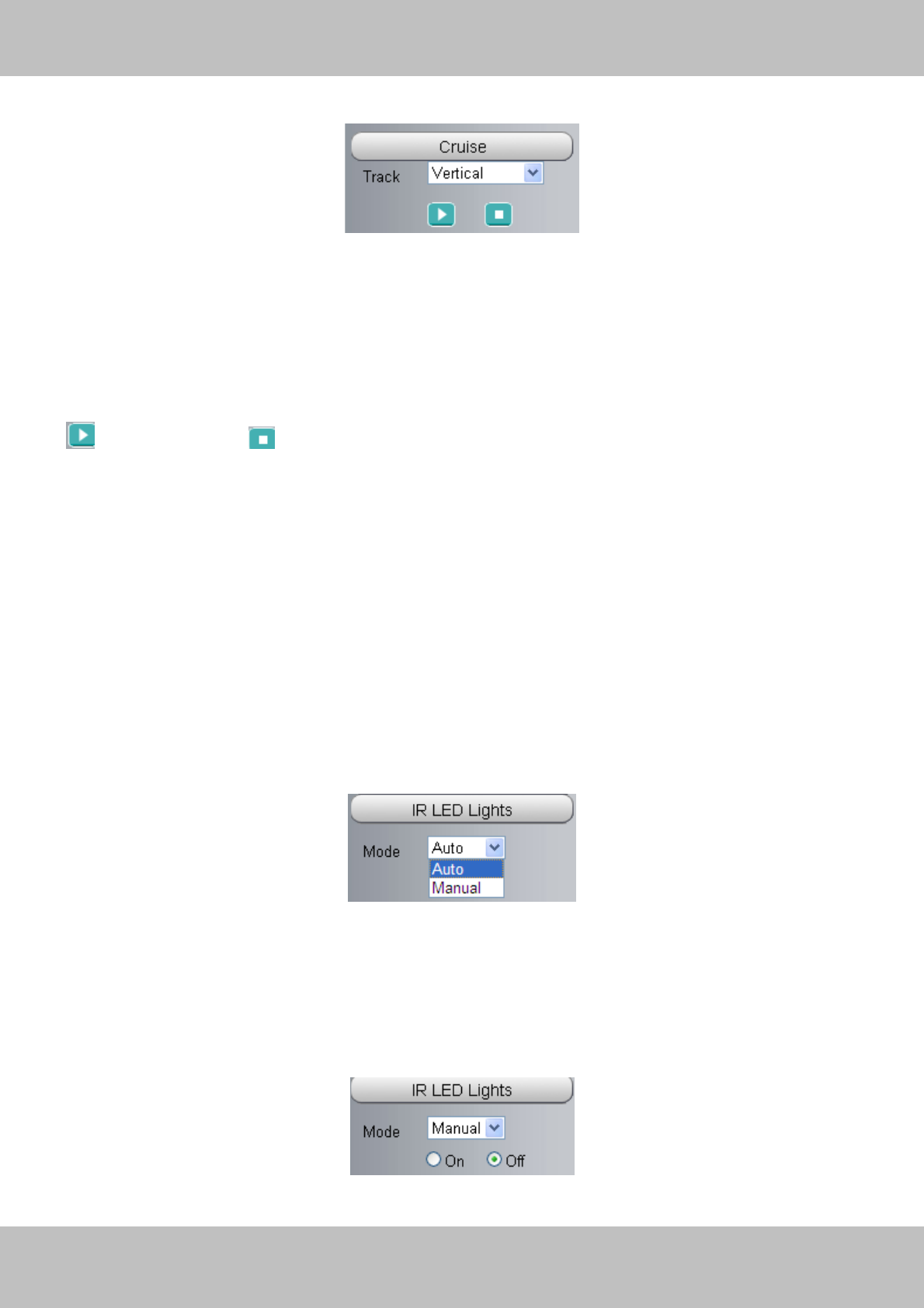
Section5 Cruise
Here only support two cruise tracks: Vertical and Horizontal.
Vertical: The camera will rotate from up to down.
Horizontal: The camera will rotate from left to right.
: Start cruise. : Stop cruise.
How to do cruise?
Firstly: Select one track in the track dropdown list
Secondly: Click Start cruise button, the camera will cruise following the predefined path.
Thirdly: Click stop button and finish cruising.
Section6 IR LED Lights
Click IR LED Lights and there are two modes to adjust the infrared led: Auto and Manual .
Auto: Select it and the camera will adjust the infra led (on or off) automatically.
Manual: Select it and adjust the infra led manually (on or off).
14
w
ww
ww
w.
.f
fo
os
sc
ca
am
m.
.c
co
om
m
S
Sh
he
en
nz
zh
he
en
n
F
Fo
os
sc
ca
am
m
I
In
nt
te
el
ll
li
ig
ge
en
nt
t
T
Te
ec
ch
hn
no
ol
lo
og
gy
y
C
Co
o.
.,
,
L
Li
im
mi
it
te
ed
d
T
Te
el
l:
:
8
86
6
7
75
55
5
2
26
67
74
4
5
56
66
68
8
F
Fa
ax
x:
:
8
86
6
7
75
55
5
2
26
67
74
4
5
51
16
68
8
14
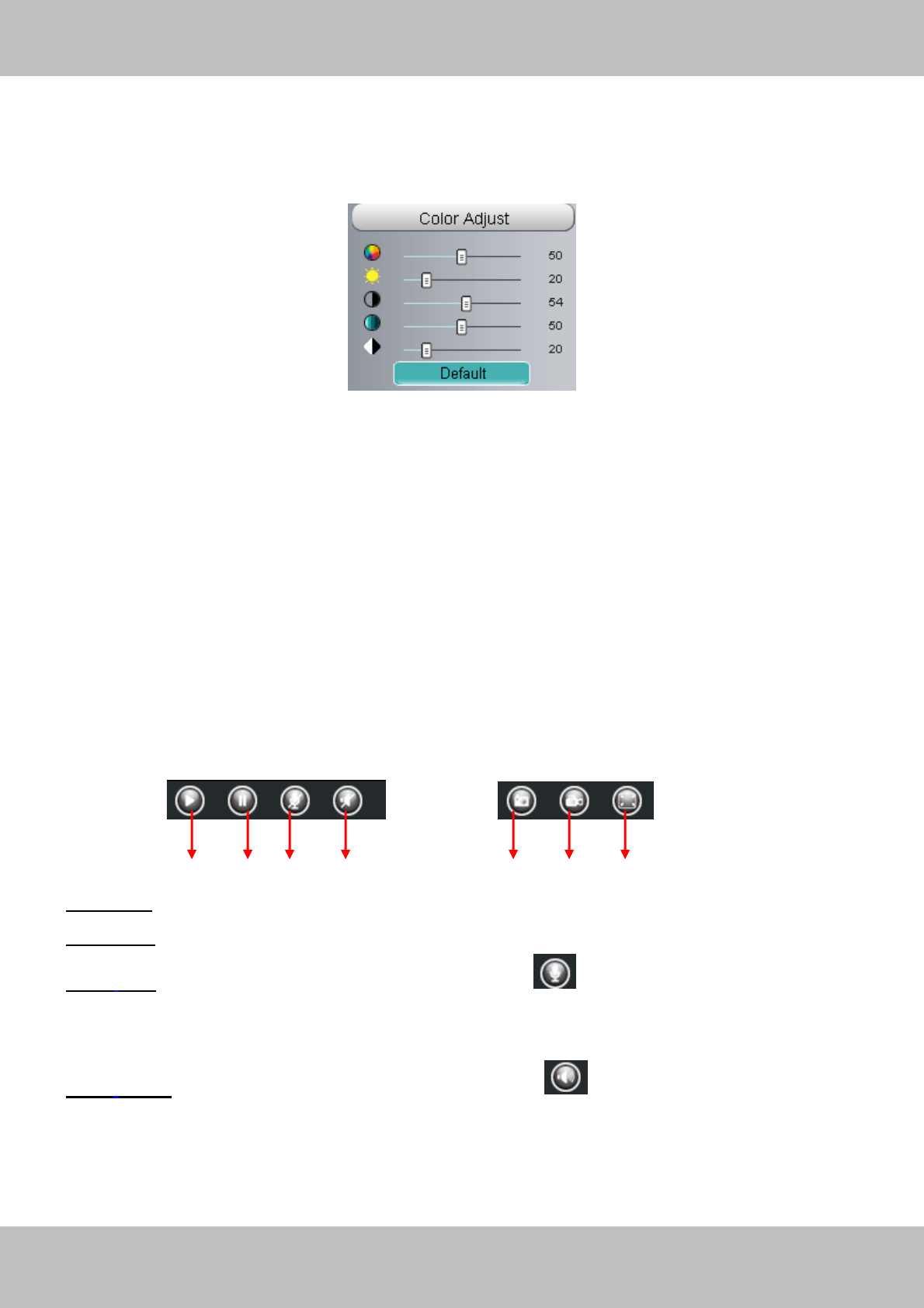
Section7 Image quality settings
In this page, you can tune Hue, Brightness, Contrast, Saturation, and Sharpness to get higher
quality.
Section8 OSD( On screen display)
If you have added time and camera name in the video, you can see it in the live window.
Go to Settings ---Basic settings---Camera name panel, and you can change another device
name. The default device name is anonymous.
Go to Settings ---Basic settings---Camera time panel and adjust the device time.
Go to Settings ---Video---On Screen Display panel, you can add or no add OSD.
Section9 Play/Stop/ Talk/Audio/ Snap/ Record/ Full screen button
1------Play Click it to play the video of the camera
2------Stop Click it to stop the video of the camera
3------ Talk: Click the button and the icon will become to , then talk to the microphone that
connected with PC, people around the camera can hear your voice if the camera has connected
with audio output device. Click the icon again and stop talking.
4------ Audio Click the button and the icon will become to , you can hear the sound around
the camera if the camera has connected with other audio input device, Click the icon again and
stop audio.
1 2 3 567
4
15
w
ww
ww
w.
.f
fo
os
sc
ca
am
m.
.c
co
om
m
S
Sh
he
en
nz
zh
he
en
n
F
Fo
os
sc
ca
am
m
I
In
nt
te
el
ll
li
ig
ge
en
nt
t
T
Te
ec
ch
hn
no
ol
lo
og
gy
y
C
Co
o.
.,
,
L
Li
im
mi
it
te
ed
d
T
Te
el
l:
:
8
86
6
7
75
55
5
2
26
67
74
4
5
56
66
68
8
F
Fa
ax
x:
:
8
86
6
7
75
55
5
2
26
67
74
4
5
51
16
68
8
15
5----- Snap: Click it to make snapshot and it pop up a window which picture you snapshot, right
click in the window and save the picture to anywhere you want.
6----- Record: Click the icon and the camera start recording, you can see a green dot in
the live window. Click again and stop recording. The default storage path is C:\IPCamRecord.
You can change the storage path: Go to Settings- >Record-> Storage Location panel.
7------Full Screen Click it to make full-screen, or you can double click the surveillance screen
to make full-screen. Double click again and exit full-screen.
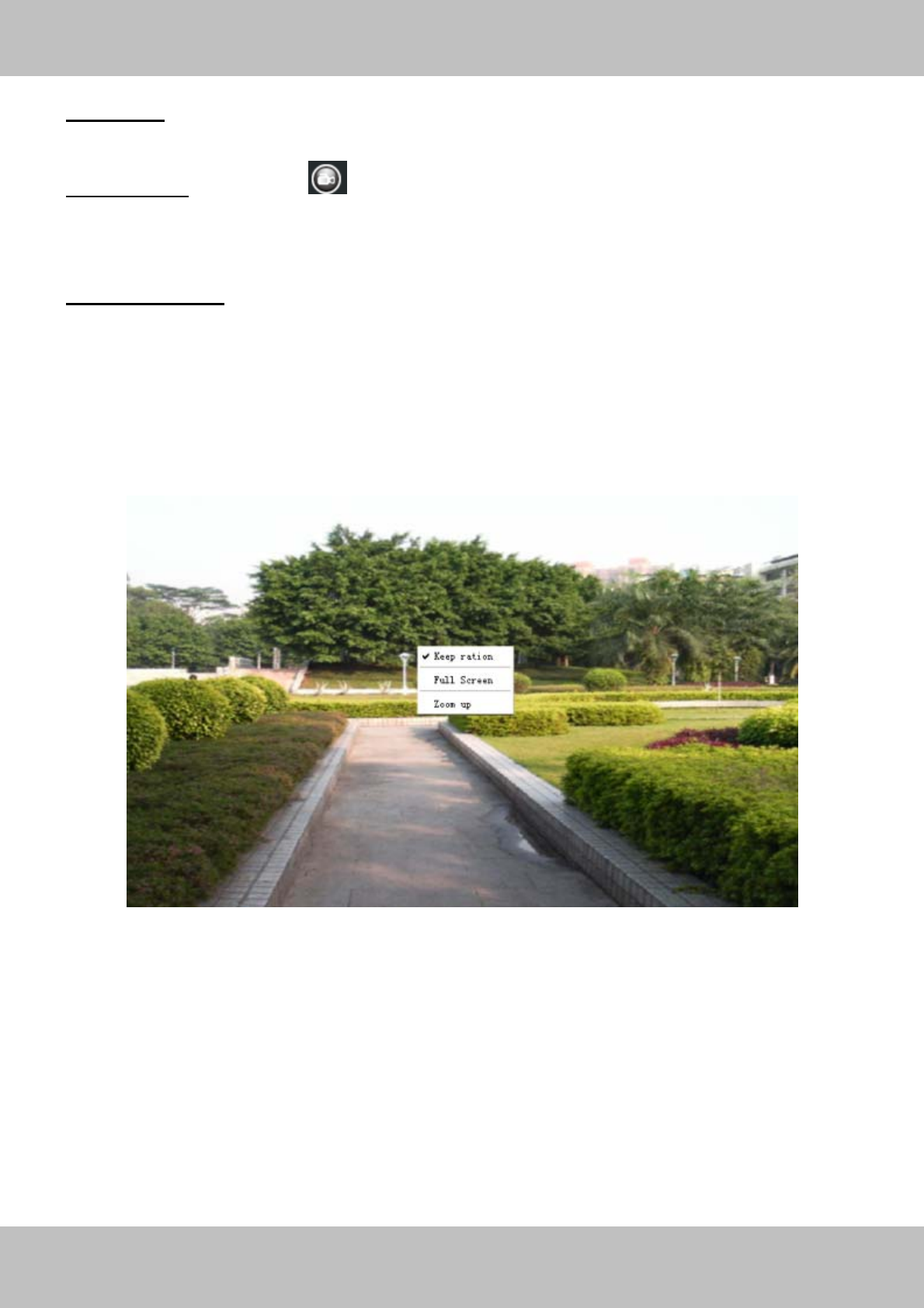
Onscreen Mouse Control
Right click the mouse and you can adjust the screen ration, full screen and Zoom up.
Figure 2.6
Keep ration: Select it and the camera will adjust the size of live window based on the computer
monitor automatically.
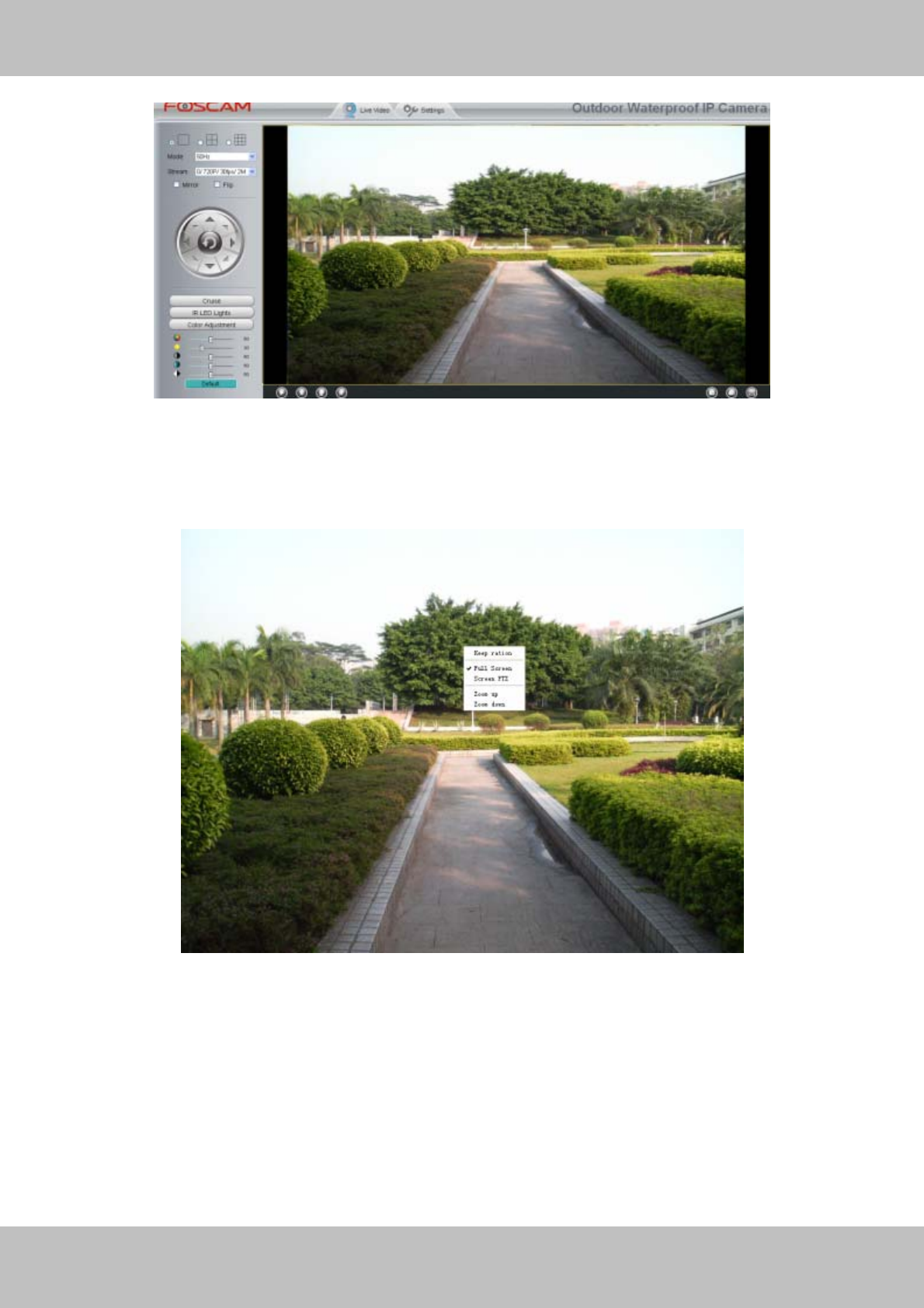
Sometimes there is a black border around the video (Figure 2.7), please select Keep ration to
get a better visual quality (Figure2.3).
16
w
ww
ww
w.
.f
fo
os
sc
ca
am
m.
.c
co
om
m
S
Sh
he
en
nz
zh
he
en
n
F
Fo
os
sc
ca
am
m
I
In
nt
te
el
ll
li
ig
ge
en
nt
t
T
Te
ec
ch
hn
no
ol
lo
og
gy
y
C
Co
o.
.,
,
L
Li
im
mi
it
te
ed
d
T
Te
el
l:
:
8
86
6
7
75
55
5
2
26
67
74
4
5
56
66
68
8
F
Fa
ax
x:
:
8
86
6
7
75
55
5
2
26
67
74
4
5
51
16
68
8
16
Figure 2.7
Full Screen: Select it and Click it to make full-screen, press ESC and exit full-screen.
Zoom up/down: Click it and the live view will be digital zoomed up, then click Zoom Down and
the live view back to original size.
Figure 2.8
NOTE:
1 Please make sure the camera has connected with outer cradle head and configured RS485
protocol successfully, or else Screen PTZ doesn’t work.
2 For Mac OS, the plugin cannot support Onscreen Mouse function, so you cannot allow to use
it.
17
w
ww
ww
w.
.f
fo
os
sc
ca
am
m.
.c
co
om
m
S
Sh
he
en
nz
zh
he
en
n
F
Fo
os
sc
ca
am
m
I
In
nt
te
el
ll
li
ig
ge
en
nt
t
T
Te
ec
ch
hn
no
ol
lo
og
gy
y
C
Co
o.
.,
,
L
Li
im
mi
it
te
ed
d
T
Te
el
l:
:
8
86
6
7
75
55
5
2
26
67
74
4
5
56
66
68
8
F
Fa
ax
x:
:
8
86
6
7
75
55
5
2
26
67
74
4
5
51
16
68
8
17
3
3
A
Ad
dv
va
an
nc
ce
ed
d
C
Ca
am
me
er
ra
a
S
Se
et
tt
ti
in
ng
gs
s
Click the button “Settings”, goes to Administrator Control Panel to make advanced camera
settings.
3.1 Device Status
Device Status contains four columns: Device Information, Device Status, Session Status and
Log, it will show you various information about your camera.
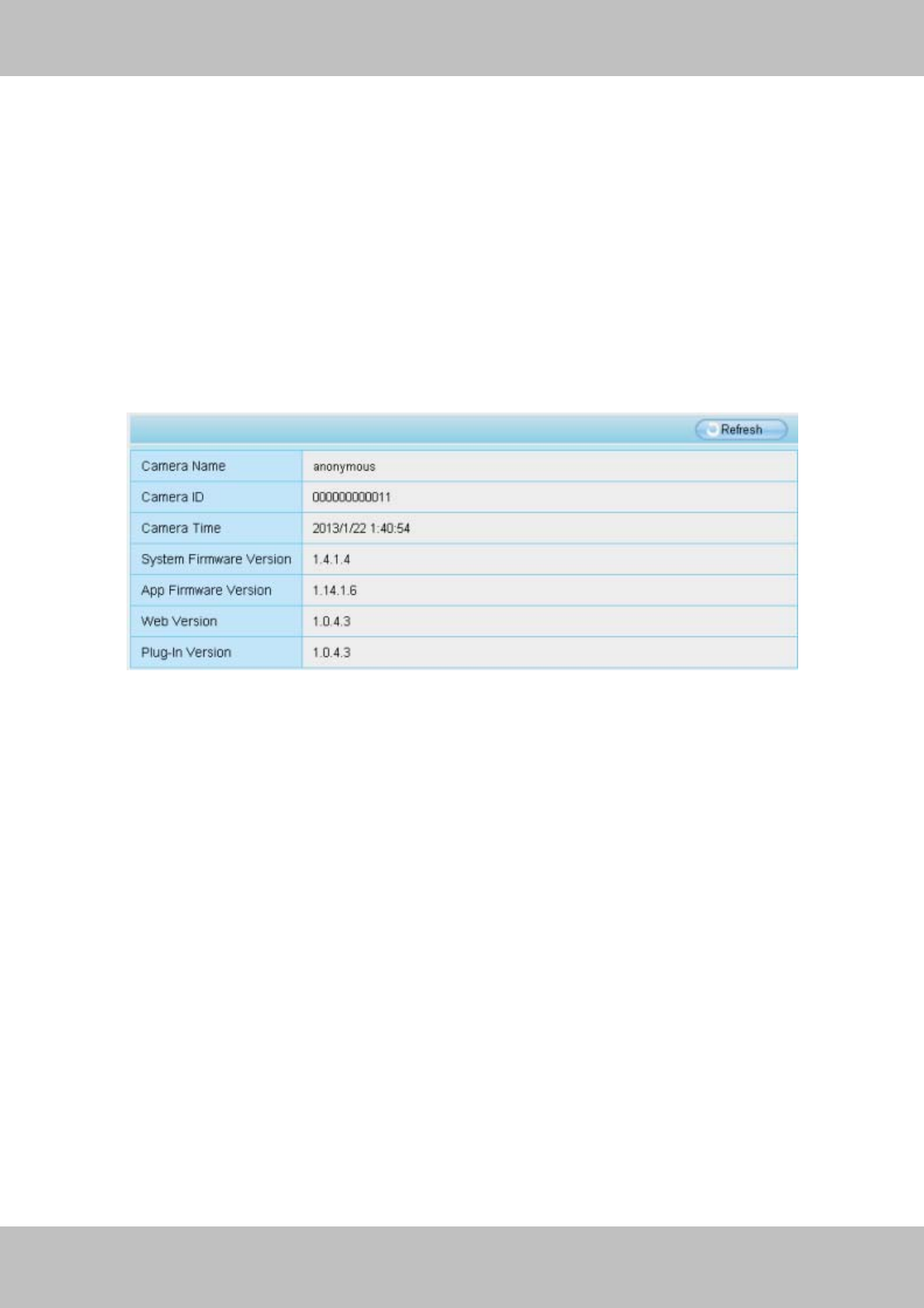
3.1.1 Device Information
Figure 3.1
Camera name: The Device Name is a unique name that you can give to your device to help you
identify it. Click Basic Settings and go to Device Name panel where you can change your camera
name. The default device name is anonymous.
Camera ID: Display the MAC address of your camera. For example Device ID is 008414350787,
the same MAC ID sticker is found at the bottom of the camera.
Camera time: The system time of the device. Click Basic Settings and go to Camera Time
panel and adjust the time.
System Firmware version: Display the System Firmware version of your camera.
App Firmware version: Display the application firmware version of your camera.
Web version: Display the web UI version of your camera
Plug-in version: Display the plug-in version of your camera
18
w
ww
ww
w.
.f
fo
os
sc
ca
am
m.
.c
co
om
m
S
Sh
he
en
nz
zh
he
en
n
F
Fo
os
sc
ca
am
m
I
In
nt
te
el
ll
li
ig
ge
en
nt
t
T
Te
ec
ch
hn
no
ol
lo
og
gy
y
C
Co
o.
.,
,
L
Li
im
mi
it
te
ed
d
T
Te
el
l:
:
8
86
6
7
75
55
5
2
26
67
74
4
5
56
66
68
8
F
Fa
ax
x:
:
8
86
6
7
75
55
5
2
26
67
74
4
5
51
16
68
8
18
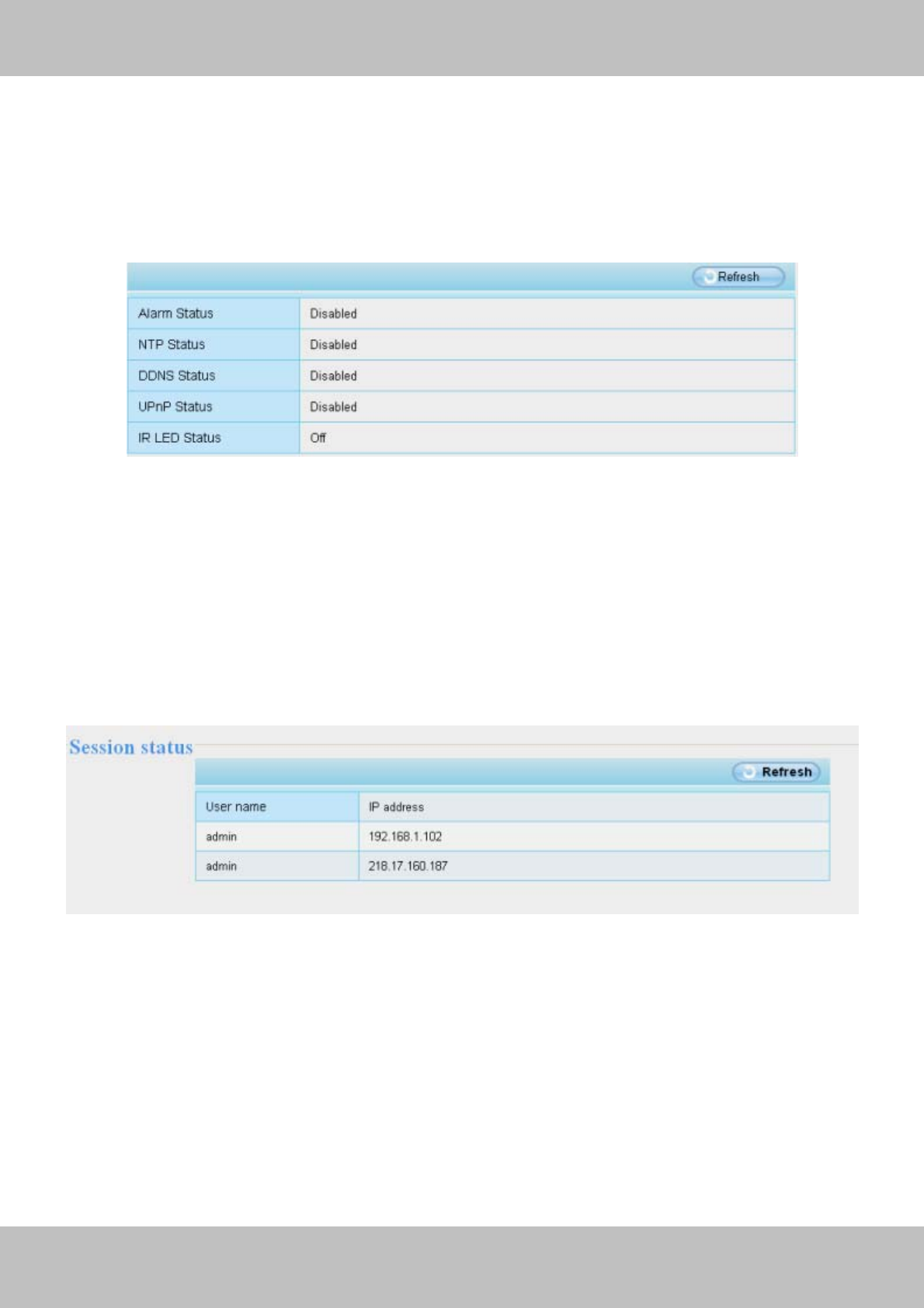
3.1.2 Device Status
On this page you can see device status such as Alarm status, NTP/DDNS status, WIFI status
and so on.
Figure 3.2
3.1.3 Session status
Session status will display who and which IP is visiting the camera now.
Figure 3.3
19
w
ww
ww
w.
.f
fo
os
sc
ca
am
m.
.c
co
om
m
S
Sh
he
en
nz
zh
he
en
n
F
Fo
os
sc
ca
am
m
I
In
nt
te
el
ll
li
ig
ge
en
nt
t
T
Te
ec
ch
hn
no
ol
lo
og
gy
y
C
Co
o.
.,
,
L
Li
im
mi
it
te
ed
d
T
Te
el
l:
:
8
86
6
7
75
55
5
2
26
67
74
4
5
56
66
68
8
F
Fa
ax
x:
:
8
86
6
7
75
55
5
2
26
67
74
4
5
51
16
68
8
19
3.1.4 Log
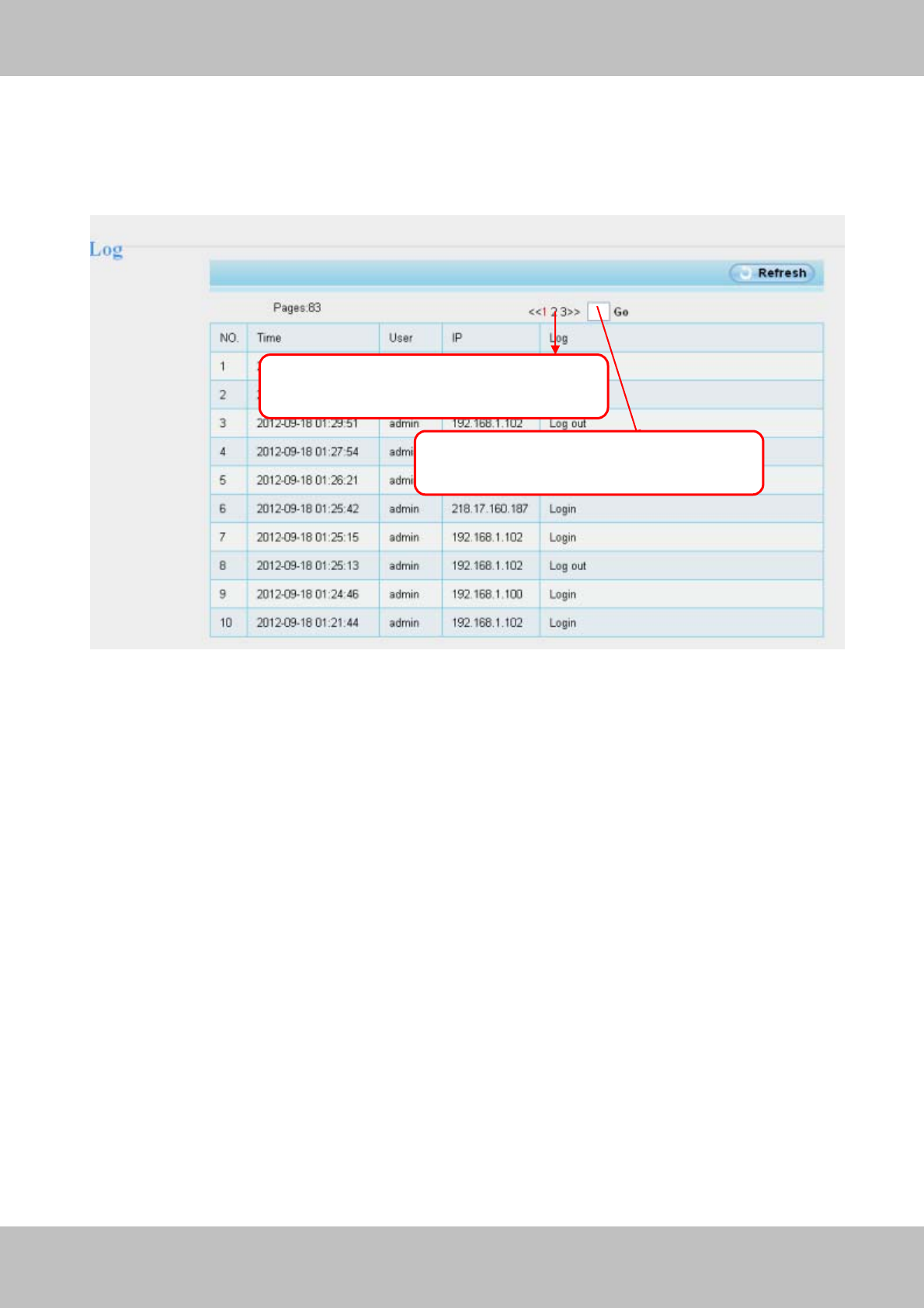
The log record shows who and which IP address accessed or logout the camera and when.
Figure 3.4
Click the page number and go to the
corres
p
ondin
g
p
a
g
e to see more lo
g
s
Fill in one page number, click Go button
and
g
o to the corres
p
ondin
g
p
a
g
e
20
w
ww
ww
w.
.f
fo
os
sc
ca
am
m.
.c
co
om
m
S
Sh
he
en
nz
zh
he
en
n
F
Fo
os
sc
ca
am
m
I
In
nt
te
el
ll
li
ig
ge
en
nt
t
T
Te
ec
ch
hn
no
ol
lo
og
gy
y
C
Co
o.
.,
,
L
Li
im
mi
it
te
ed
d
T
Te
el
l:
:
8
86
6
7
75
55
5
2
26
67
74
4
5
56
66
68
8
F
Fa
ax
x:
:
8
86
6
7
75
55
5
2
26
67
74
4
5
51
16
68
8
20
3.2 Basic Settings
This section allows you to configure your Camera Name, Camera Time, Mail, User Accounts and
Multi-Device.
3.2.1 Camera Name
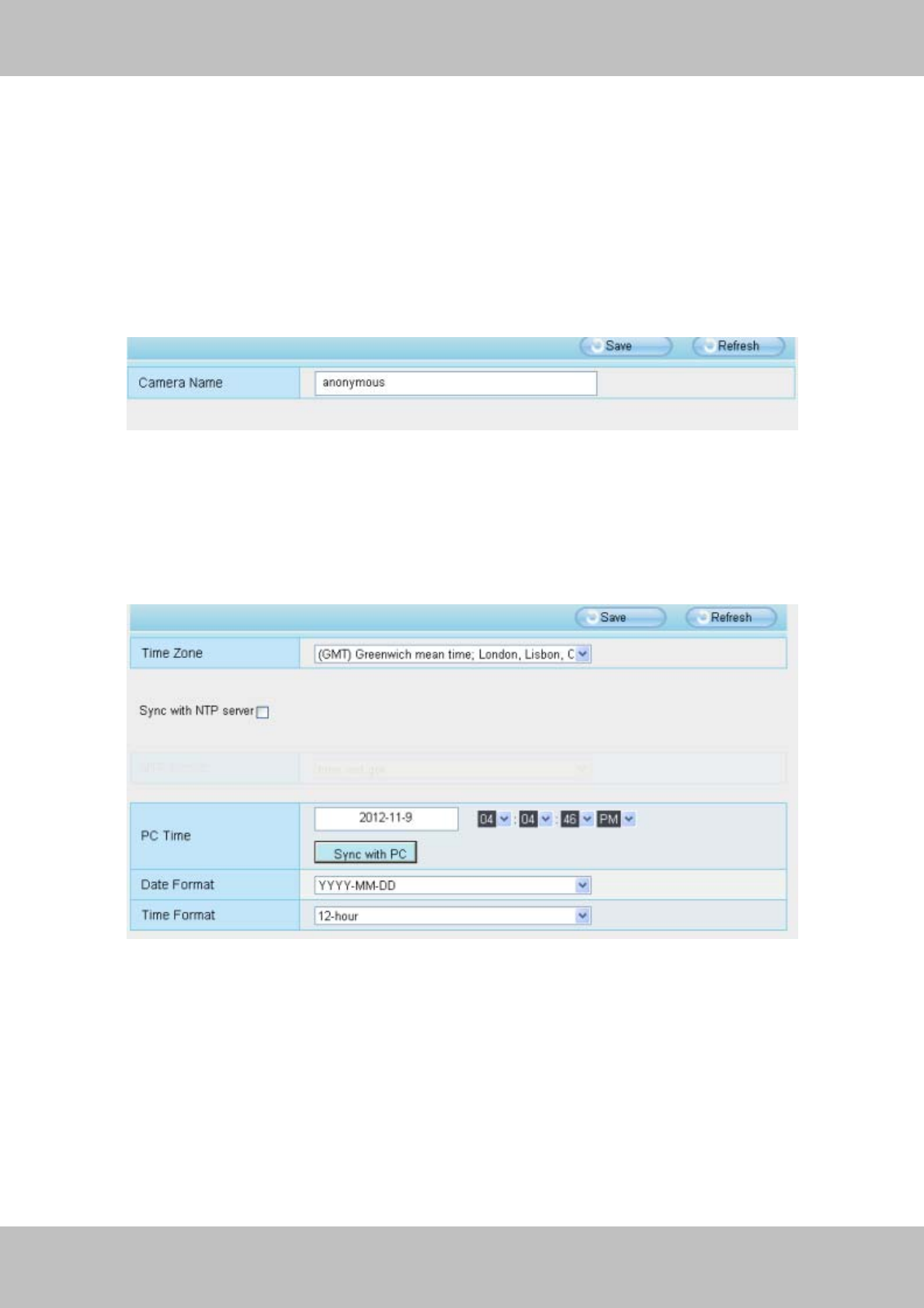
Default alias is Anonymous. You can define a name for your camera here such as apple. Click
Save to save your changes. The alias name cannot contain special characters.
Figure 3.5
3.2.2 Camera Time
This section allows you to configure the settings of the internal system clocks for your camera.
Figure 3.6
Time Zone: Select the time zone for your region from the dropdown menu.
Sync with NTP server: Network Time Protocol will synchronize your camera with an Internet
time server. Choose the one that is closest to your camera.
Sync with PC: Select this option to synchronize the date and time of the Network Camera with
your computer.
Manually: The administrator can enter the date and time manually. Please select the date and
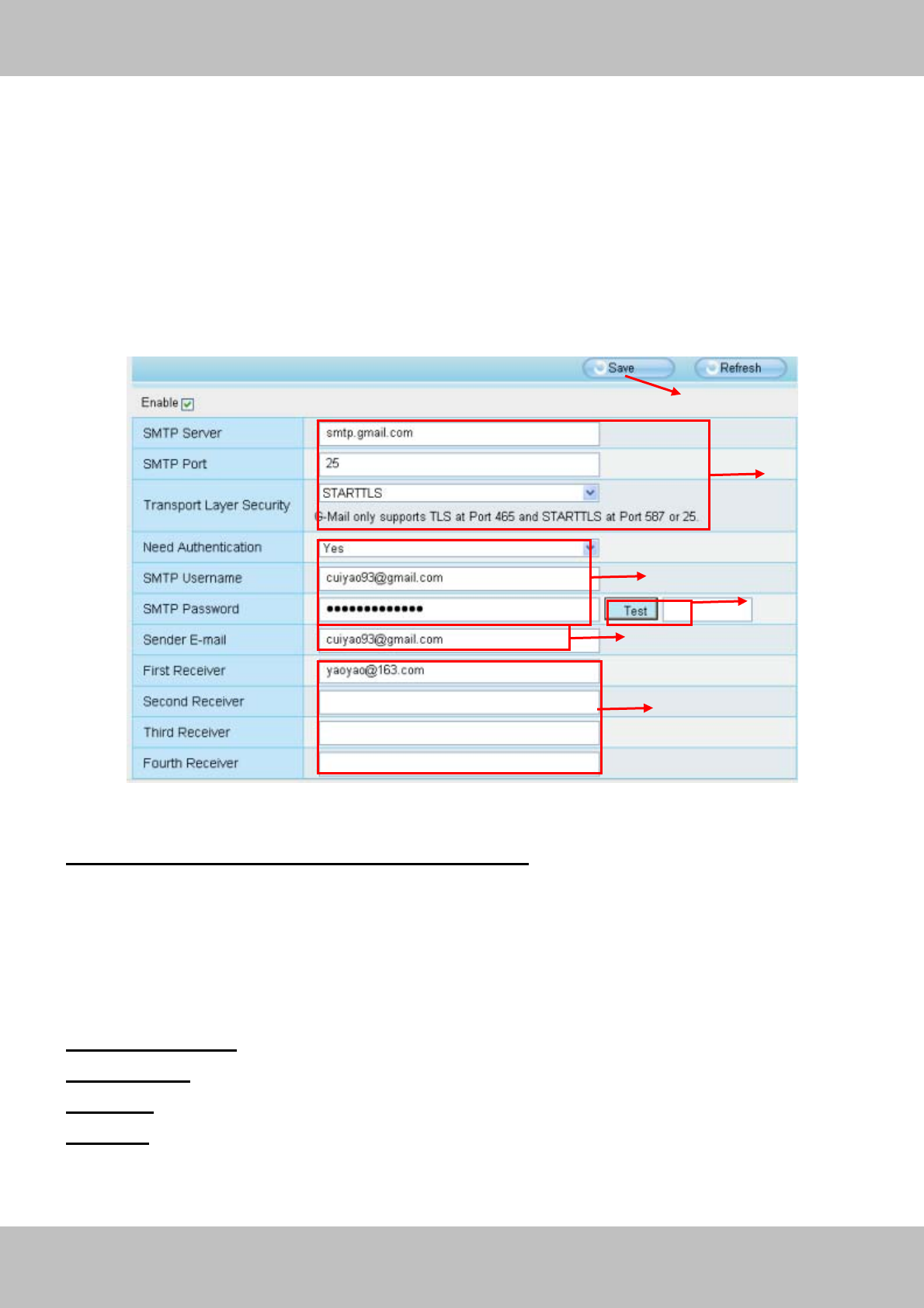
21
w
ww
ww
w.
.f
fo
os
sc
ca
am
m.
.c
co
om
m
S
Sh
he
en
nz
zh
he
en
n
F
Fo
os
sc
ca
am
m
I
In
nt
te
el
ll
li
ig
ge
en
nt
t
T
Te
ec
ch
hn
no
ol
lo
og
gy
y
C
Co
o.
.,
,
L
Li
im
mi
it
te
ed
d
T
Te
el
l:
:
8
86
6
7
75
55
5
2
26
67
74
4
5
56
66
68
8
F
Fa
ax
x:
:
8
86
6
7
75
55
5
2
26
67
74
4
5
51
16
68
8
21
time format.
Click Save button to submit your settings.
3.2.3 Mail Settings
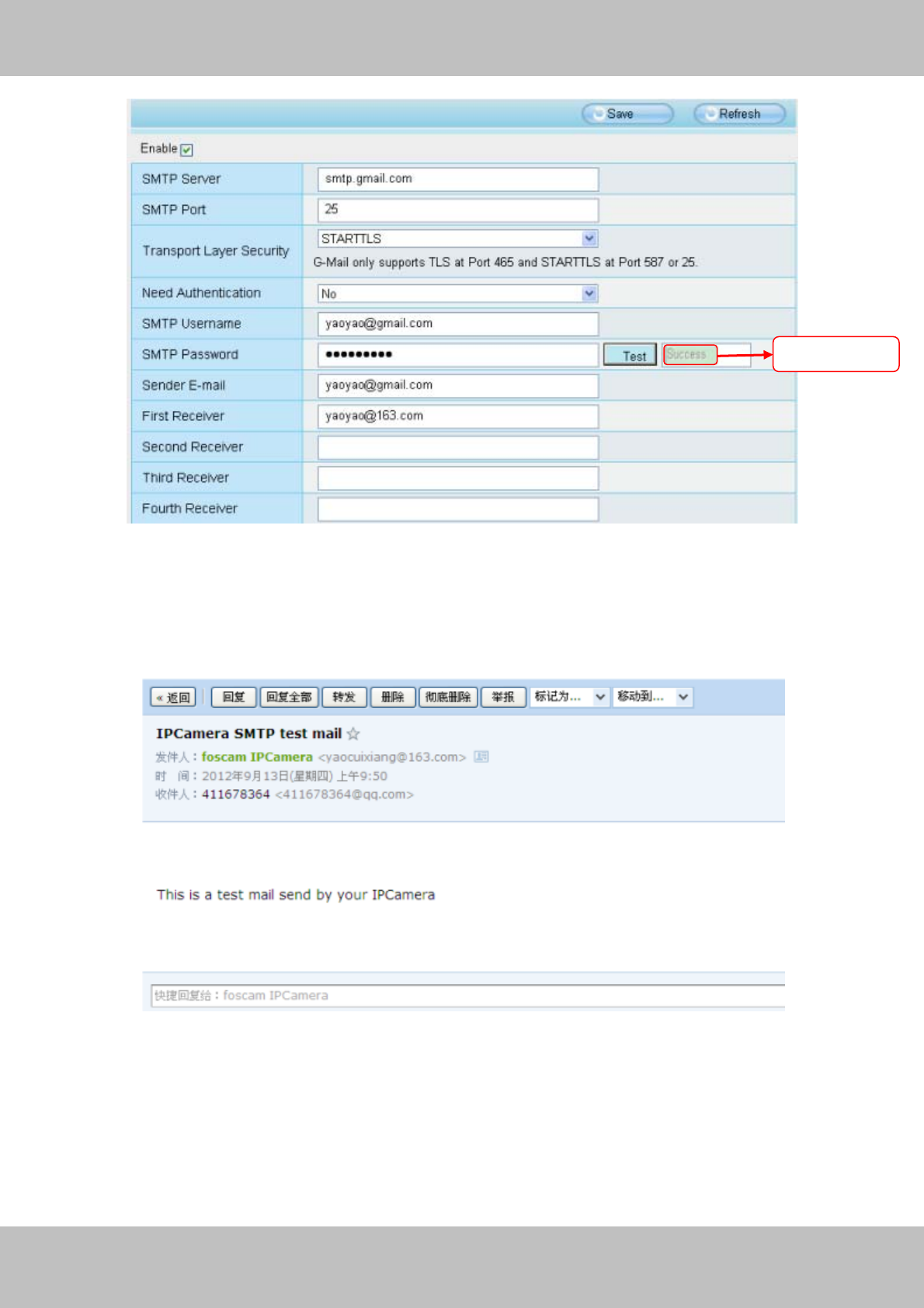
If you want the camera to send emails when motion has been detected, here Mail will need to be
configured.
Figure 3.7
1----- SMTP Server/ Port /Transport Layer Security Enter SMTP server for sender. SMTP
port is usually set as 25. Some SMTP servers have their own port, such as 587 or 465, and
Transport Layer Security usually is None. If you use Gmail, Transport Layer Security must be set
to TLS or STARTTLS and SMTP Port must be set to 465 or 25 or 587, which port you choose
should be decided by which Transport Layer Security you select.
2-----SMTP Username/ password: ID account and password of the sender email address
3----- Sender E-mail Mailbox for sender must support SMTP
4----- Receiver Mailbox for receiver need not support SMTP,you can set 4 receivers
5----Save Click Save to take effect
6----Test Click Test to see if Mail has been successfully configured.
Click Test to see if Mail has been successfully configured.
1
2
3
4
5
6
22
w
ww
ww
w.
.f
fo
os
sc
ca
am
m.
.c
co
om
m
S
Sh
he
en
nz
zh
he
en
n
F
Fo
os
sc
ca
am
m
I
In
nt
te
el
ll
li
ig
ge
en
nt
t
T
Te
ec
ch
hn
no
ol
lo
og
gy
y
C
Co
o.
.,
,
L
Li
im
mi
it
te
ed
d
T
Te
el
l:
:
8
86
6
7
75
55
5
2
26
67
74
4
5
56
66
68
8
F
Fa
ax
x:
:
8
86
6
7
75
55
5
2
26
67
74
4
5
51
16
68
8
22
Figure 3.8
If the test success, you can see the Success behind the Test, at the same time the receivers will
receive a test mail.
Figure 3.9
If the test fails with one of the following errors after clicking Test, verify that the information you
entered is correct and again select Test .
1) Cannot connect to the server
2) Network Error. Please try later
3) Server Error
Test result
23
w
ww
ww
w.
.f
fo
os
sc
ca
am
m.
.c
co
om
m
S
Sh
he
en
nz
zh
he
en
n
F
Fo
os
sc
ca
am
m
I
In
nt
te
el
ll
li
ig
ge
en
nt
t
T
Te
ec
ch
hn
no
ol
lo
og
gy
y
C
Co
o.
.,
,
L
Li
im
mi
it
te
ed
d
T
Te
el
l:
:
8
86
6
7
75
55
5
2
26
67
74
4
5
56
66
68
8
F
Fa
ax
x:
:
8
86
6
7
75
55
5
2
26
67
74
4
5
51
16
68
8
23
4) Incorrect user or password
5) The sender is denied by the server. Maybe the server need to authenticate the user, please
check it and try again
6) The receiver is denied by the server. Maybe because of the anti-spam privacy of the server
7) The message is denied by the server. Maybe because of the anti-spam privacy of the server
8) The server does not support the authentication mode used by the device
3.2.4 User Accounts
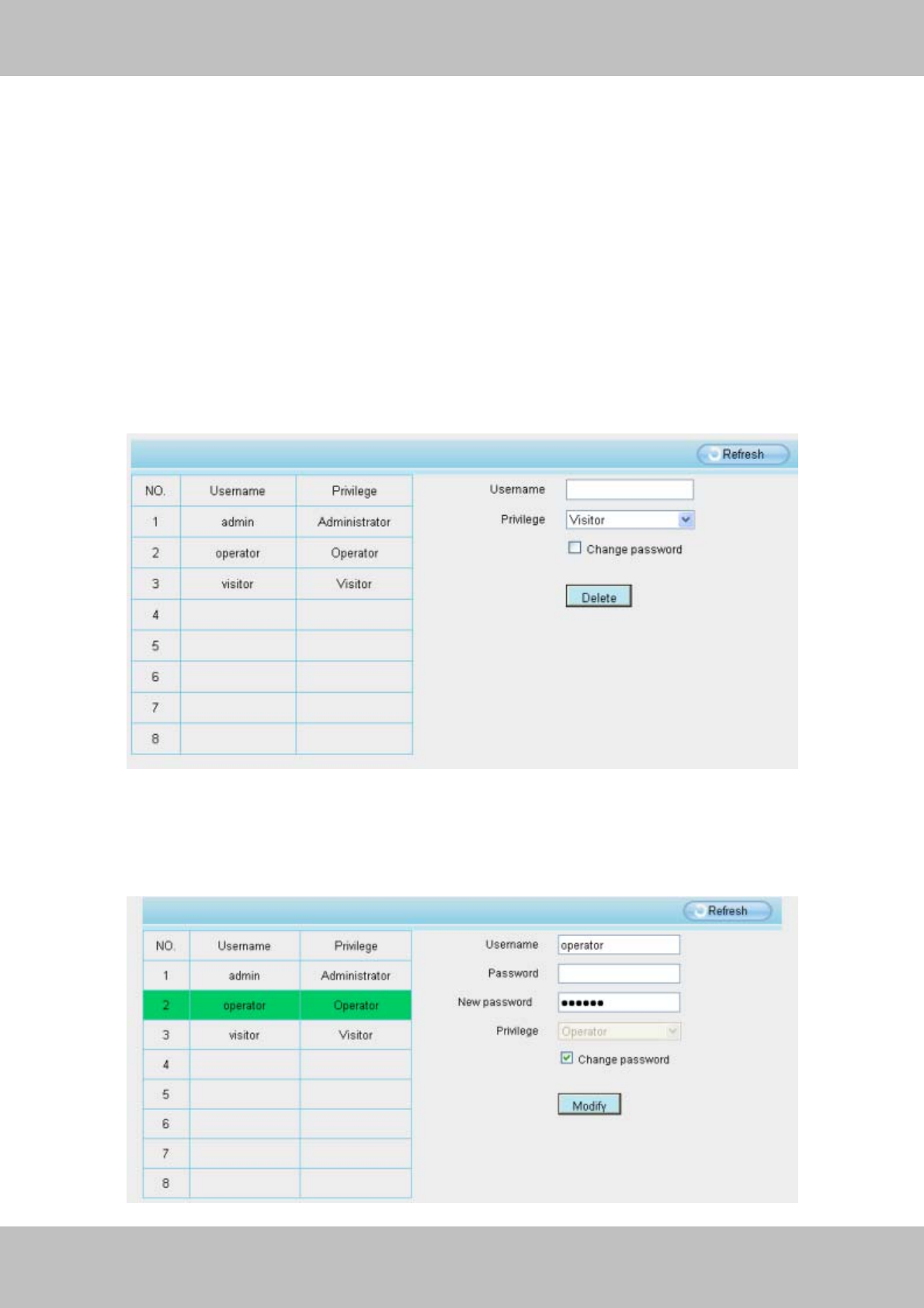
Here you can create users and set privilege, visitor, operator or administrator. The default
user accounts are admin, operator and visitor, with a blank password.
Figure 3.10
How to change the password?
Firstly, select the account which you want to change the password, then select “Change
password”, enter the old password and the new password, lastly click modify to take effect.
24
w
ww
ww
w.
.f
fo
os
sc
ca
am
m.
.c
co
om
m
S
Sh
he
en
nz
zh
he
en
n
F
Fo
os
sc
ca
am
m
I
In
nt
te
el
ll
li
ig
ge
en
nt
t
T
Te
ec
ch
hn
no
ol
lo
og
gy
y
C
Co
o.
.,
,
L
Li
im
mi
it
te
ed
d
T
Te
el
l:
:
8
86
6
7
75
55
5
2
26
67
74
4
5
56
66
68
8
F
Fa
ax
x:
:
8
86
6
7
75
55
5
2
26
67
74
4
5
51
16
68
8
24
Figure 3.11
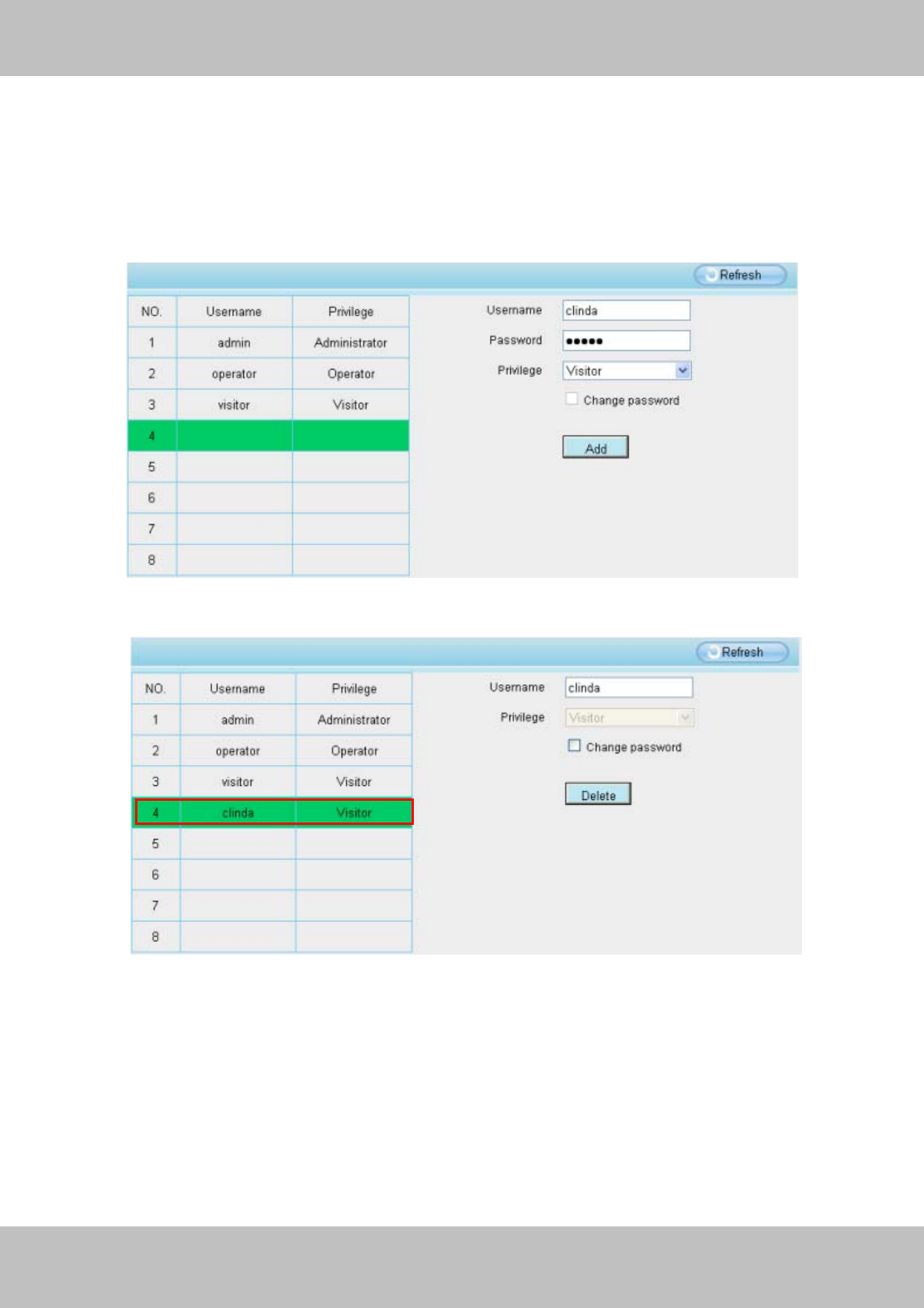
How to add account ?
Select one blank column, then enter the new user name, password and privilege, last click Add
to take effect. You can see the new added account on the Account list.
Figure 3.12
Figure 3.13
Delete Select the account which you want to delete, then click Delete button to take effect.
Note: The default administrator account cannot be deleted, but you can add other administrator
users.
25
w
ww
ww
w.
.f
fo
os
sc
ca
am
m.
.c
co
om
m
S
Sh
he
en
nz
zh
he
en
n
F
Fo
os
sc
ca
am
m
I
In
nt
te
el
ll
li
ig
ge
en
nt
t
T
Te
ec
ch
hn
no
ol
lo
og
gy
y
C
Co
o.
.,
,
L
Li
im
mi
it
te
ed
d
T
Te
el
l:
:
8
86
6
7
75
55
5
2
26
67
74
4
5
56
66
68
8
F
Fa
ax
x:
:
8
86
6
7
75
55
5
2
26
67
74
4
5
51
16
68
8
25
3.2.5 Multi-Camera
If you want to view multi-surveillance screens on one window, you need to login one camera, and
set it as the main device, and do Multi-Device Settings, add other cameras to the first one
camera. Before you do multi-cams settings, you need to assign different port such as 81, 82, 83,
84, 85, 86, 87, 88 to the cameras if there is 8 cams installed.
The firmware within the camera can support a maximum of 9 devices monitoring all at the same
time. This page you can both add FOSCAM MJPEG and H.264 series cameras to the first
camera and view multi-surveillance screen on one window.
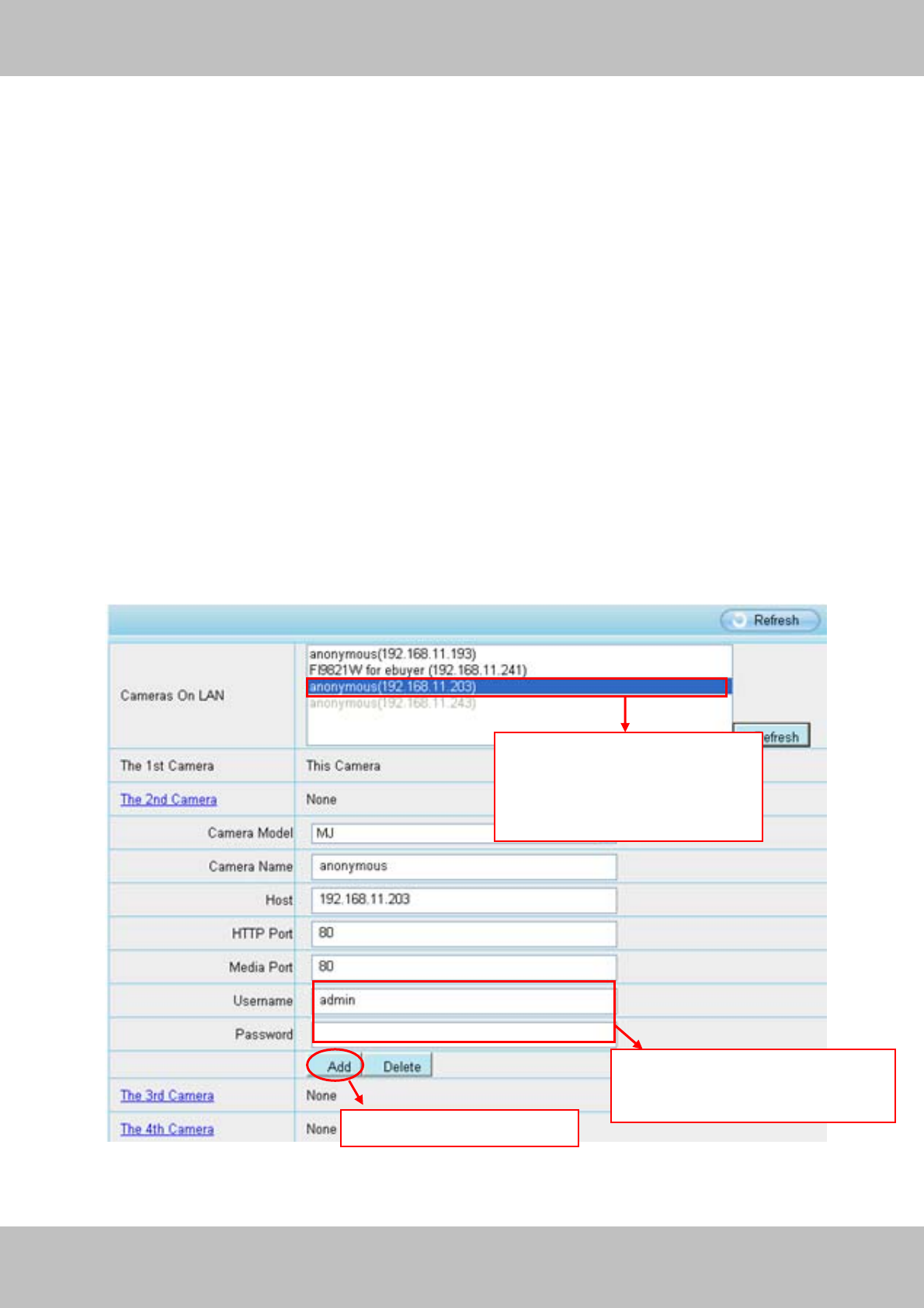
Add cameras in LAN
In Multi-Device Settings page, you can see all devices searched in LAN. The 1st Device is the
default one. You can add more cameras in the list in LAN for monitoring. The camera’s software
supports up to 9 IP Cameras online simultaneously. Click The 2nd Device and click the item in
the Device List in LAN, the Alias, Host and Http Port will be filled in the boxes below
automatically. Enter the correct username and password then click Add. Add more cameras in
the same way.
Figure 3.14
1 Click it, camera model, alias,
host and HTTP Port will be
filled in the following boxes
automatically
2 Enter the User name and
password of the 2nd camera
3 Click Add to take effect
26
w
ww
ww
w.
.f
fo
os
sc
ca
am
m.
.c
co
om
m
S
Sh
he
en
nz
zh
he
en
n
F
Fo
os
sc
ca
am
m
I
In
nt
te
el
ll
li
ig
ge
en
nt
t
T
Te
ec
ch
hn
no
ol
lo
og
gy
y
C
Co
o.
.,
,
L
Li
im
mi
it
te
ed
d
T
Te
el
l:
:
8
86
6
7
75
55
5
2
26
67
74
4
5
56
66
68
8
F
Fa
ax
x:
:
8
86
6
7
75
55
5
2
26
67
74
4
5
51
16
68
8
26
Camera Model: Our Company produces two series cameras: MJPEG and H.264.
Figure 3.15
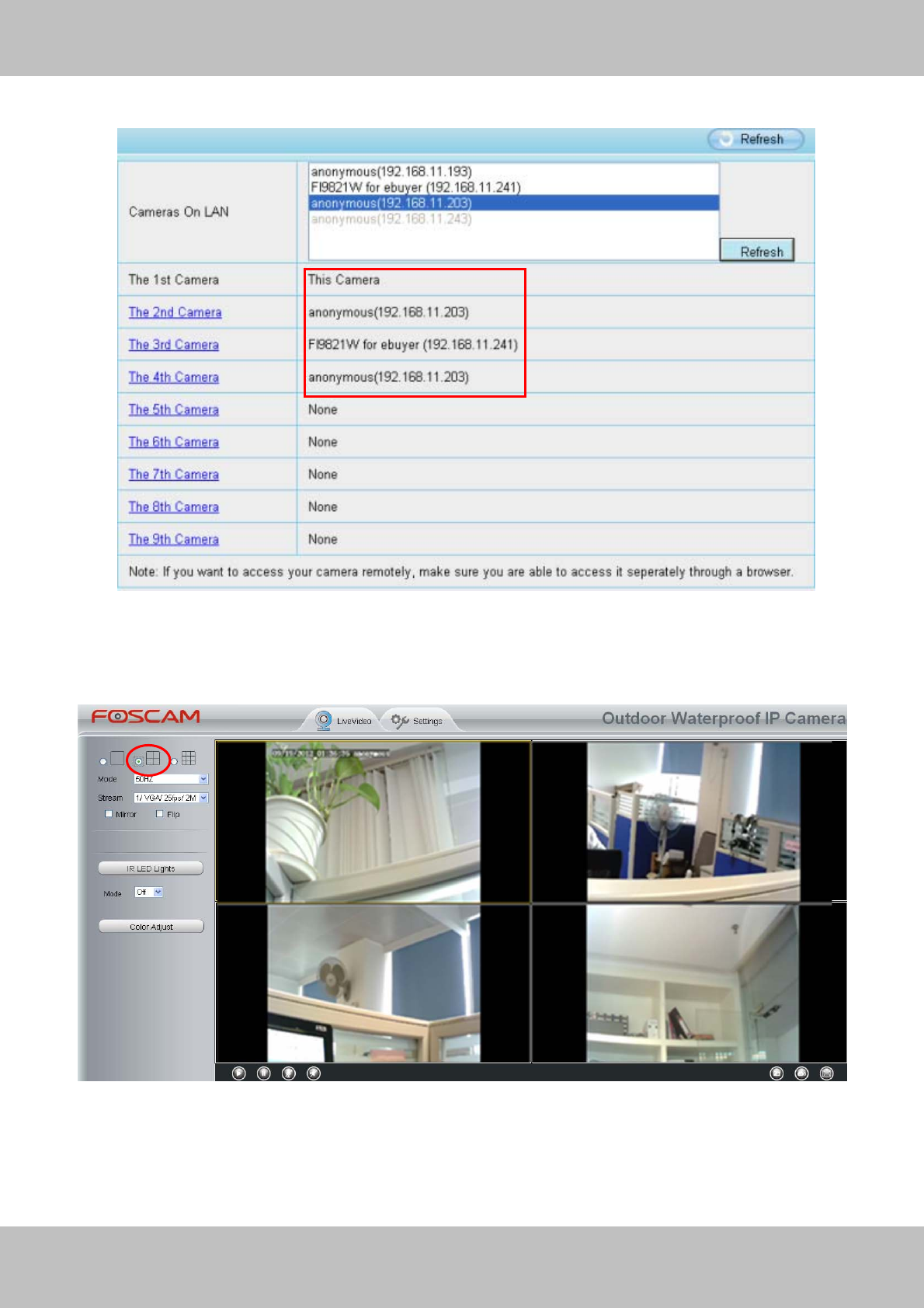
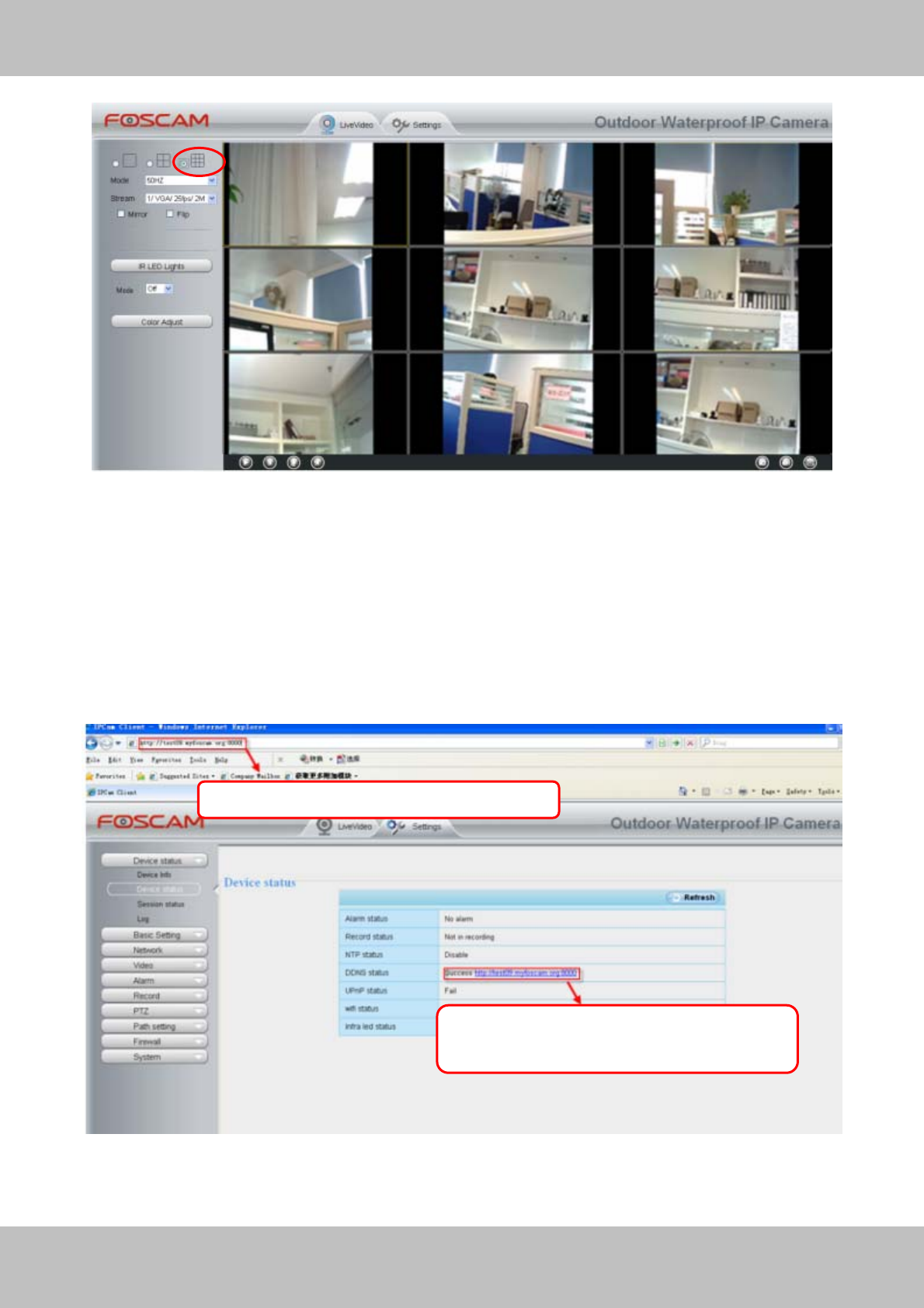
Back to Surveillance Windows, and click Four Windows option, you will see four cameras you
added.
Figure 3.16
27
w
ww
ww
w.
.f
fo
os
sc
ca
am
m.
.c
co
om
m
S
Sh
he
en
nz
zh
he
en
n
F
Fo
os
sc
ca
am
m
I
In
nt
te
el
ll
li
ig
ge
en
nt
t
T
Te
ec
ch
hn
no
ol
lo
og
gy
y
C
Co
o.
.,
,
L
Li
im
mi
it
te
ed
d
T
Te
el
l:
:
8
86
6
7
75
55
5
2
26
67
74
4
5
56
66
68
8
F
Fa
ax
x:
:
8
86
6
7
75
55
5
2
26
67
74
4
5
51
16
68
8
27
Figure 3.17
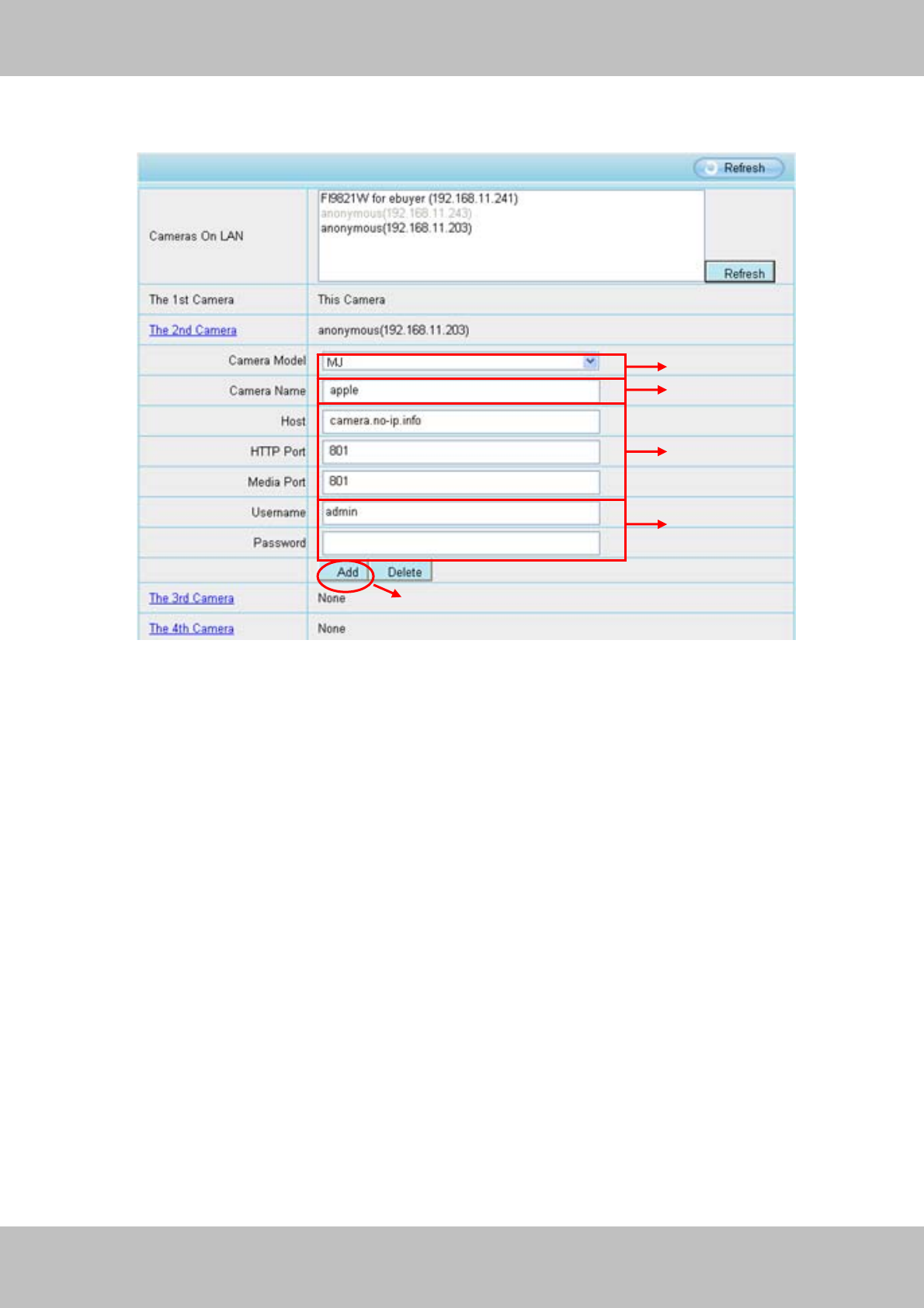
Add cameras in WAN
If you want to view all cameras via the internet(remote computer), you will need to add them
using DDNS domain name. Firstly, make sure all of the cameras you added can be accessed
through the internet. (Read How to configure DDNS settings in chapter 3.3.3)
Login to the first camera using a DDNS domain name and port.
Figure 3.18
Use DDNS domain name and
p
ort to lo
g
in
Make sure each camera you need add
could login with DDNS name and port
28
w
ww
ww
w.
.f
fo
os
sc
ca
am
m.
.c
co
om
m
S
Sh
he
en
nz
zh
he
en
n
F
Fo
os
sc
ca
am
m
I
In
nt
te
el
ll
li
ig
ge
en
nt
t
T
Te
ec
ch
hn
no
ol
lo
og
gy
y
C
Co
o.
.,
,
L
Li
im
mi
it
te
ed
d
T
Te
el
l:
:
8
86
6
7
75
55
5
2
26
67
74
4
5
56
66
68
8
F
Fa
ax
x:
:
8
86
6
7
75
55
5
2
26
67
74
4
5
51
16
68
8
28
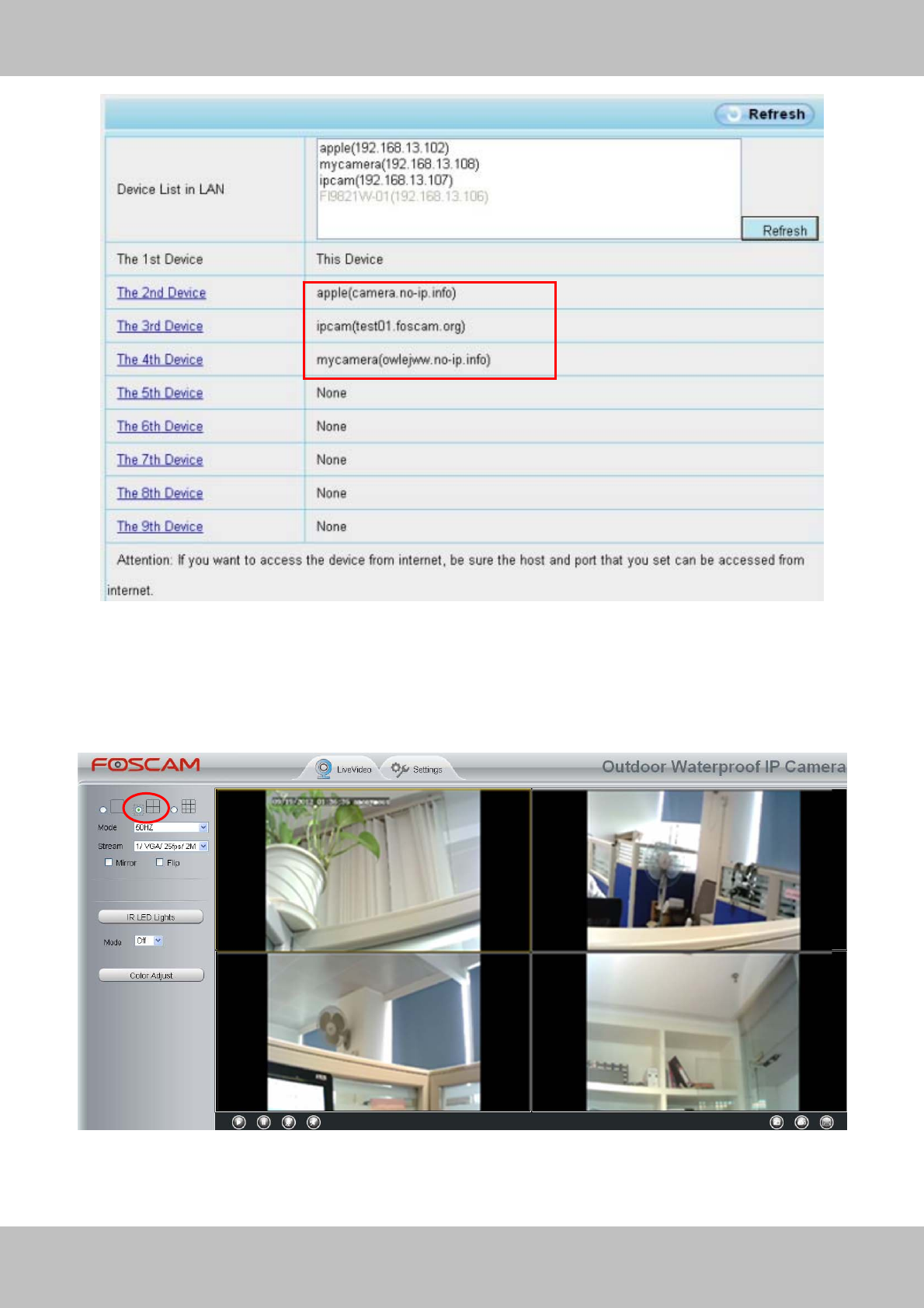
Click Multi-Device Settings. Choose The 2nd Device. Fill in the 2nd camera’s name, DDNS
domain name, port number. Enter user name and password and then choose Add. (Figure 3.19)
Figure 3.19
1----- The camera model: MJ or H264.
2----- The 2nd camera’s name
3----- Fill in the 2nd camera’s DDNS host not LAN IP.
4 ---- Enter the 2nd camera’s user name and password
5---- Click Add button and to take effect
NOTE: Here the Host must be entered as the second camera’s DDNS domain name, not its LAN
IP.
2
3
4
5
1
29
w
ww
ww
w.
.f
fo
os
sc
ca
am
m.
.c
co
om
m
S
Sh
he
en
nz
zh
he
en
n
F
Fo
os
sc
ca
am
m
I
In
nt
te
el
ll
li
ig
ge
en
nt
t
T
Te
ec
ch
hn
no
ol
lo
og
gy
y
C
Co
o.
.,
,
L
Li
im
mi
it
te
ed
d
T
Te
el
l:
:
8
86
6
7
75
55
5
2
26
67
74
4
5
56
66
68
8
F
Fa
ax
x:
:
8
86
6
7
75
55
5
2
26
67
74
4
5
51
16
68
8
29
Figure 3.20
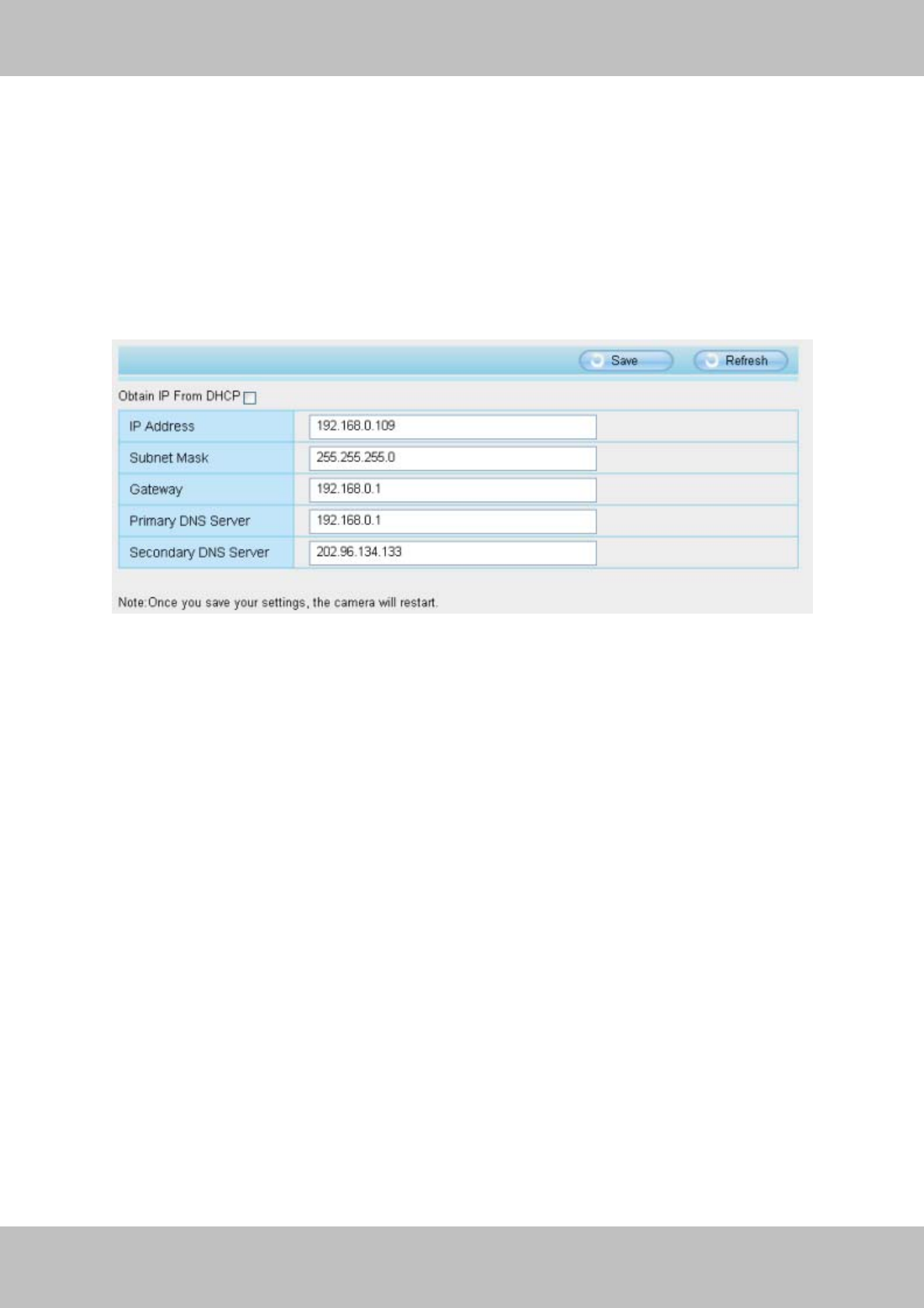
Return to video window. You will see all of the cameras accessible through the internet.
When you are away from home, you can use the first camera’s DDNS domain name and port to
view all the cameras via internet.
Figure 3.21
30
w
ww
ww
w.
.f
fo
os
sc
ca
am
m.
.c
co
om
m
S
Sh
he
en
nz
zh
he
en
n
F
Fo
os
sc
ca
am
m
I
In
nt
te
el
ll
li
ig
ge
en
nt
t
T
Te
ec
ch
hn
no
ol
lo
og
gy
y
C
Co
o.
.,
,
L
Li
im
mi
it
te
ed
d
T
Te
el
l:
:
8
86
6
7
75
55
5
2
26
67
74
4
5
56
66
68
8
F
Fa
ax
x:
:
8
86
6
7
75
55
5
2
26
67
74
4
5
51
16
68
8
30
3
3.
.3
3
N
Ne
et
tw
wo
or
rk
k
This section will allow you to configure your camera’s IP, PPPoE, DDNS, UPnP and Port.
3.3.1 IP Configuration
If you want to set a static IP for the camera, please go to IP Configuration page. Keep the
camera in the same subnet of your router or computer.
Figure 3.22
Changing settings here is the same as using the IP Camera Tool. (Figure 3.23/3.24)
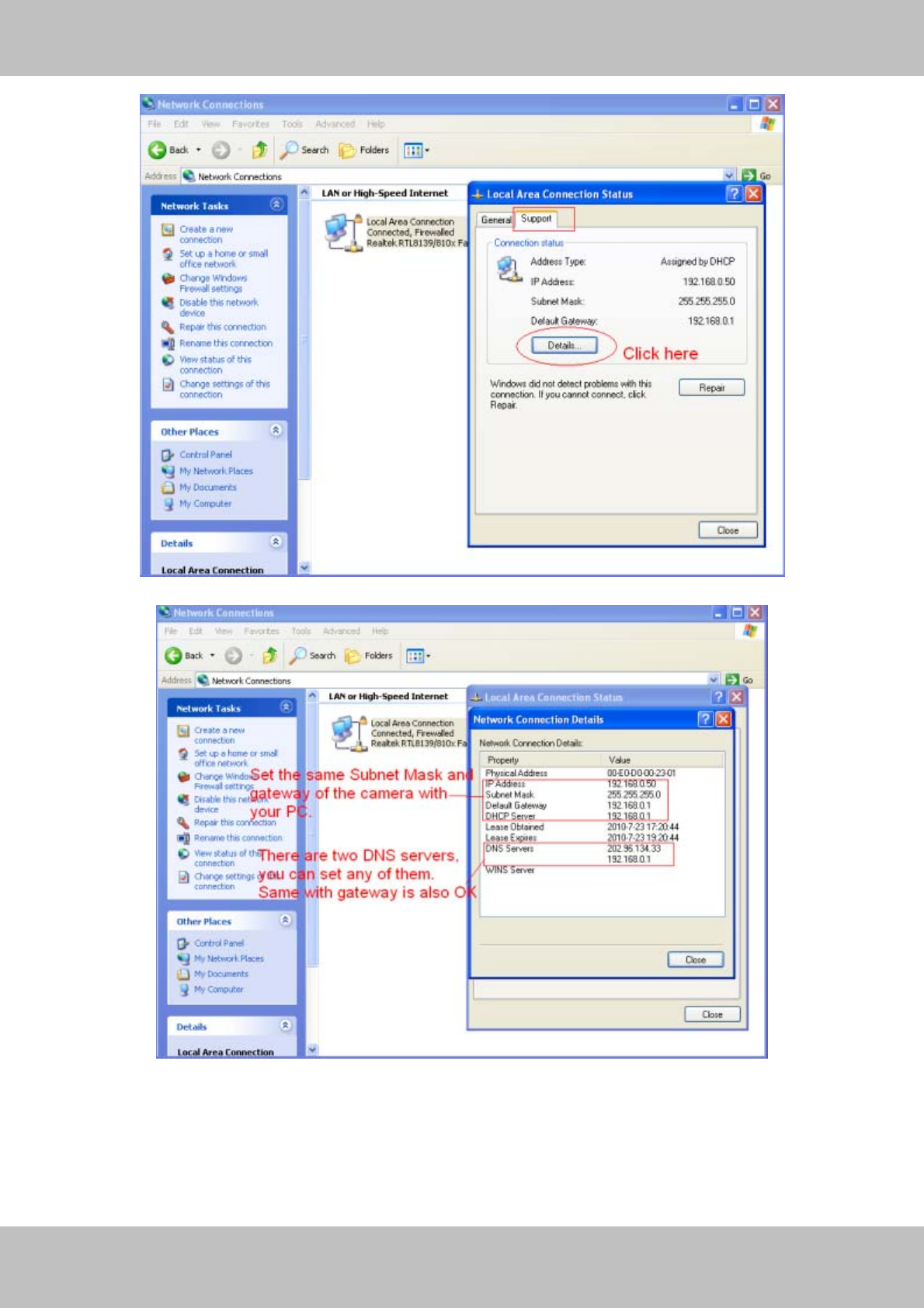
It is recommended that you use the subnet mask, gateway and DNS server from your locally
attached PC. If you don’t know the subnet mask, gateway and DNS server, you can check your
computer’s local area connection as follows:
Control PanelÆNetwork ConnectionsÆLocal Area Connections Æ Choose
SupportÆDetails.
31
w
ww
ww
w.
.f
fo
os
sc
ca
am
m.
.c
co
om
m
S
Sh
he
en
nz
zh
he
en
n
F
Fo
os
sc
ca
am
m
I
In
nt
te
el
ll
li
ig
ge
en
nt
t
T
Te
ec
ch
hn
no
ol
lo
og
gy
y
C
Co
o.
.,
,
L
Li
im
mi
it
te
ed
d
T
Te
el
l:
:
8
86
6
7
75
55
5
2
26
67
74
4
5
56
66
68
8
F
Fa
ax
x:
:
8
86
6
7
75
55
5
2
26
67
74
4
5
51
16
68
8
31
Figure 3.23
Figure 3.24
If you don’t know the DNS server, you can use the same settings as the Default Gateway.
32
w
ww
ww
w.
.f
fo
os
sc
ca
am
m.
.c
co
om
m
S
Sh
he
en
nz
zh
he
en
n
F
Fo
os
sc
ca
am
m
I
In
nt
te
el
ll
li
ig
ge
en
nt
t
T
Te
ec
ch
hn
no
ol
lo
og
gy
y
C
Co
o.
.,
,
L
Li
im
mi
it
te
ed
d
T
Te
el
l:
:
8
86
6
7
75
55
5
2
26
67
74
4
5
56
66
68
8
F
Fa
ax
x:
:
8
86
6
7
75
55
5
2
26
67
74
4
5
51
16
68
8
32
3.3.2 PPPoE
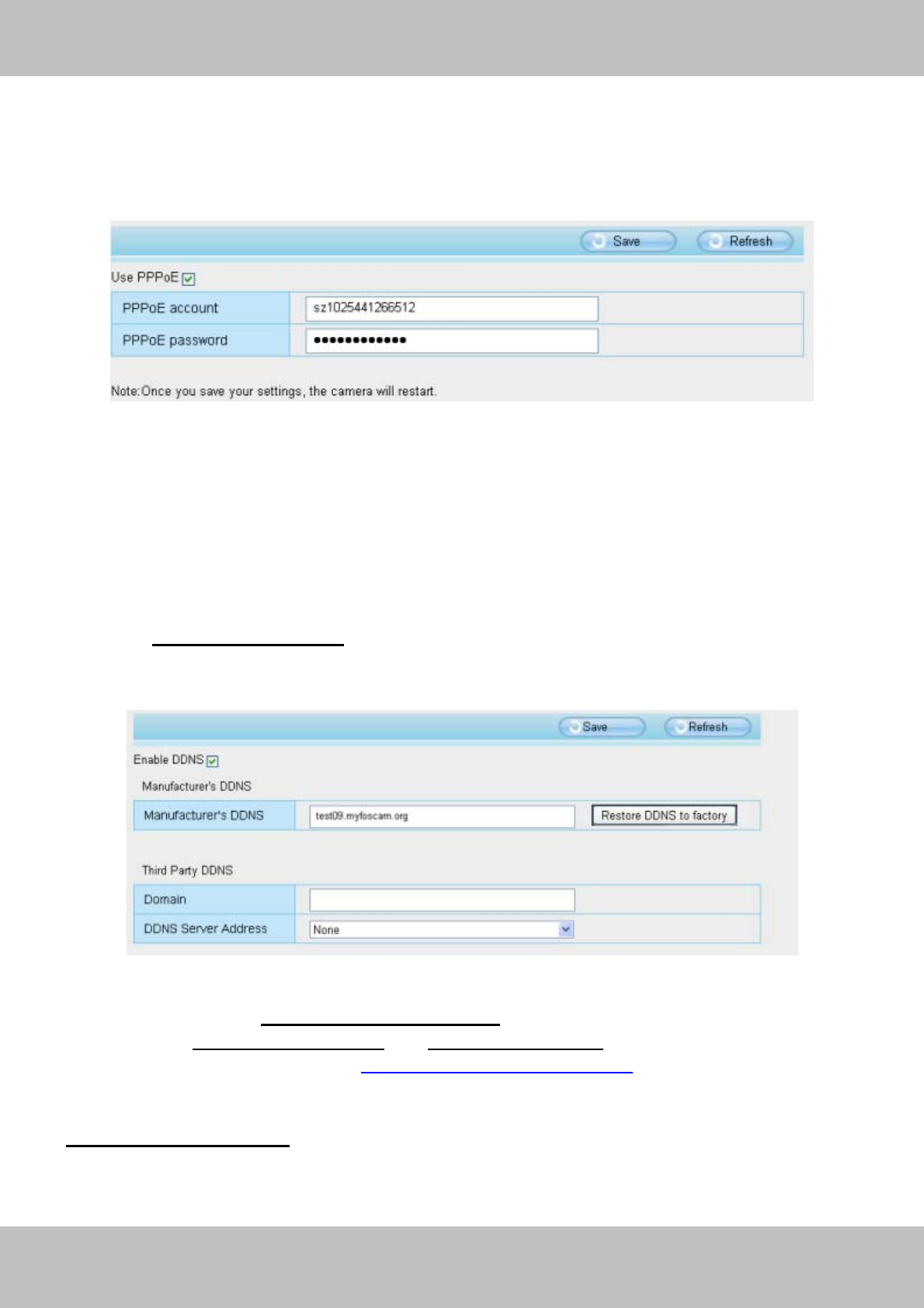
If you are using a PPPoE connection, enable it and enter the User Name and Password for your
PPPoE account.
Figure 3.25
3.3.3 DDNS
FOSCAM camera has embedded a unique DDNS domain name when producing, and you can
directly use the domain name, you can also use the third party domain name.
FOSCAM domain name
Here take test09.myfoscam.org for example. Go to option of DDNS on the Settings->Network
panel, you can see the domain name.
Figure 3.26
Now you can use http:// Domain name + HTTP Port to access the camera via internet.
Take hostname test09.myfoscam.org and HTTP Port no. 8000 for example, the accessing link
of the camera via internet would be http:// test09.myfoscam.org:8000
Restore DDNS to factory: If you have configured Third Party DDNS successfully, but you want
to use Manufacturer’s DDNS again , here click this button and start Manufacturer’s DDNS
Service.

33
w
ww
ww
w.
.f
fo
os
sc
ca
am
m.
.c
co
om
m
S
Sh
he
en
nz
zh
he
en
n
F
Fo
os
sc
ca
am
m
I
In
nt
te
el
ll
li
ig
ge
en
nt
t
T
Te
ec
ch
hn
no
ol
lo
og
gy
y
C
Co
o.
.,
,
L
Li
im
mi
it
te
ed
d
T
Te
el
l:
:
8
86
6
7
75
55
5
2
26
67
74
4
5
56
66
68
8
F
Fa
ax
x:
:
8
86
6
7
75
55
5
2
26
67
74
4
5
51
16
68
8
33
Third Party Domain Name Settings
User can also use third part DDNS, such as www.no-ip.com. ,www. 3322.com
Here take www.no-ip.com for example:
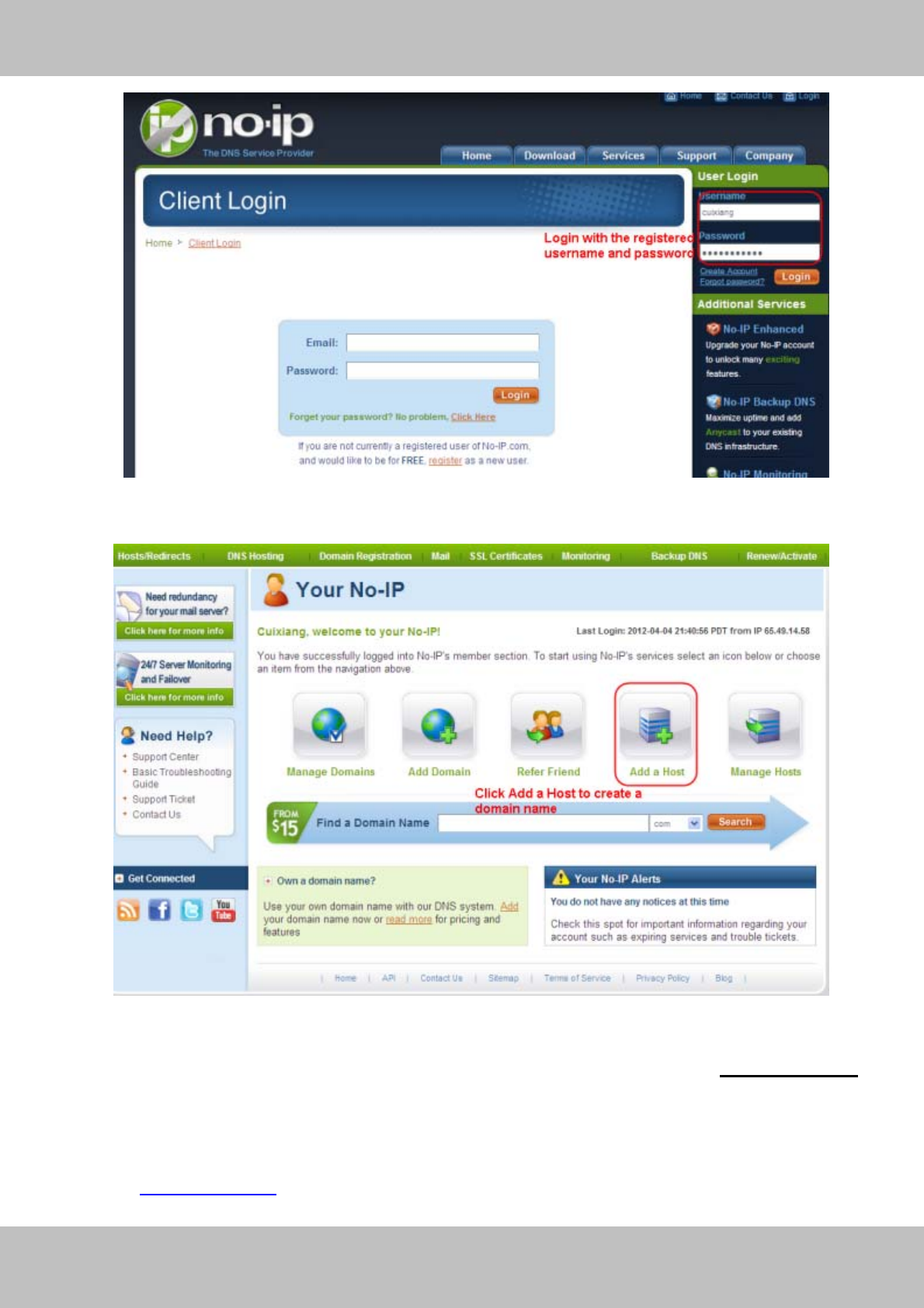
① Step 1, Go to the website www.no-ip.com to create a free hostname
Firstly: Login on www.no-ip.com and click No-IP Free to register.
Figure 3.27
Please register an account step by step according to instructions on www.no-ip.com
After registration, please login your email which used to register. You will receive an email from
website, please click the link to activate your ACCOUNT as indicated in email.
Secondly: Login the link with the registered username and password to create your
domain name.
Click here to register
34
w
ww
ww
w.
.f
fo
os
sc
ca
am
m.
.c
co
om
m
S
Sh
he
en
nz
zh
he
en
n
F
Fo
os
sc
ca
am
m
I
In
nt
te
el
ll
li
ig
ge
en
nt
t
T
Te
ec
ch
hn
no
ol
lo
og
gy
y
C
Co
o.
.,
,
L
Li
im
mi
it
te
ed
d
T
Te
el
l:
:
8
86
6
7
75
55
5
2
26
67
74
4
5
56
66
68
8
F
Fa
ax
x:
:
8
86
6
7
75
55
5
2
26
67
74
4
5
51
16
68
8
34
Figure 3.28
Figure 3.29
Please create the domain name step by step according to instructions on www.no-ip.com
Step 2, DO DDNS Service Settings within the Camera
Please set DDNS Settings within the camera by hostname, a user name and password you’ve
got from www.no-ip.com

35
w
ww
ww
w.
.f
fo
os
sc
ca
am
m.
.c
co
om
m
S
Sh
he
en
nz
zh
he
en
n
F
Fo
os
sc
ca
am
m
I
In
nt
te
el
ll
li
ig
ge
en
nt
t
T
Te
ec
ch
hn
no
ol
lo
og
gy
y
C
Co
o.
.,
,
L
Li
im
mi
it
te
ed
d
T
Te
el
l:
:
8
86
6
7
75
55
5
2
26
67
74
4
5
56
66
68
8
F
Fa
ax
x:
:
8
86
6
7
75
55
5
2
26
67
74
4
5
51
16
68
8
35
Take hostname ycxgwp.no-ip.info, user name foscam, password foscam2012 for example.
Firstly, goes to option of DDNS Settings on the administrator panel.
Secondly, select No-Ip as a server..
Thirdly, fill foscam as DDNS user, fill password foscam2012 as DDNS password, fill
ycxgwp.no-ip.info as DDNS domain and server URL, Then click save to make effect. The
camera will restart and to take the DDNS settings effective.
Fourthly, after the restart, login the camera, and go to option of Device Status on the
administrator panel, and check if the DDNS status is successful.
If failed, please double check if you have input the correct hostname, user name, and
password, and try to redo the settings.
If you have set Third Party DDNS successfully ,the Foscam Domain Name will be invalid. The
Third Party DDNS and the Foscam Domain Name cannot work at the same time, the last time
you configured will take effect.
② Do port forwarding within the router
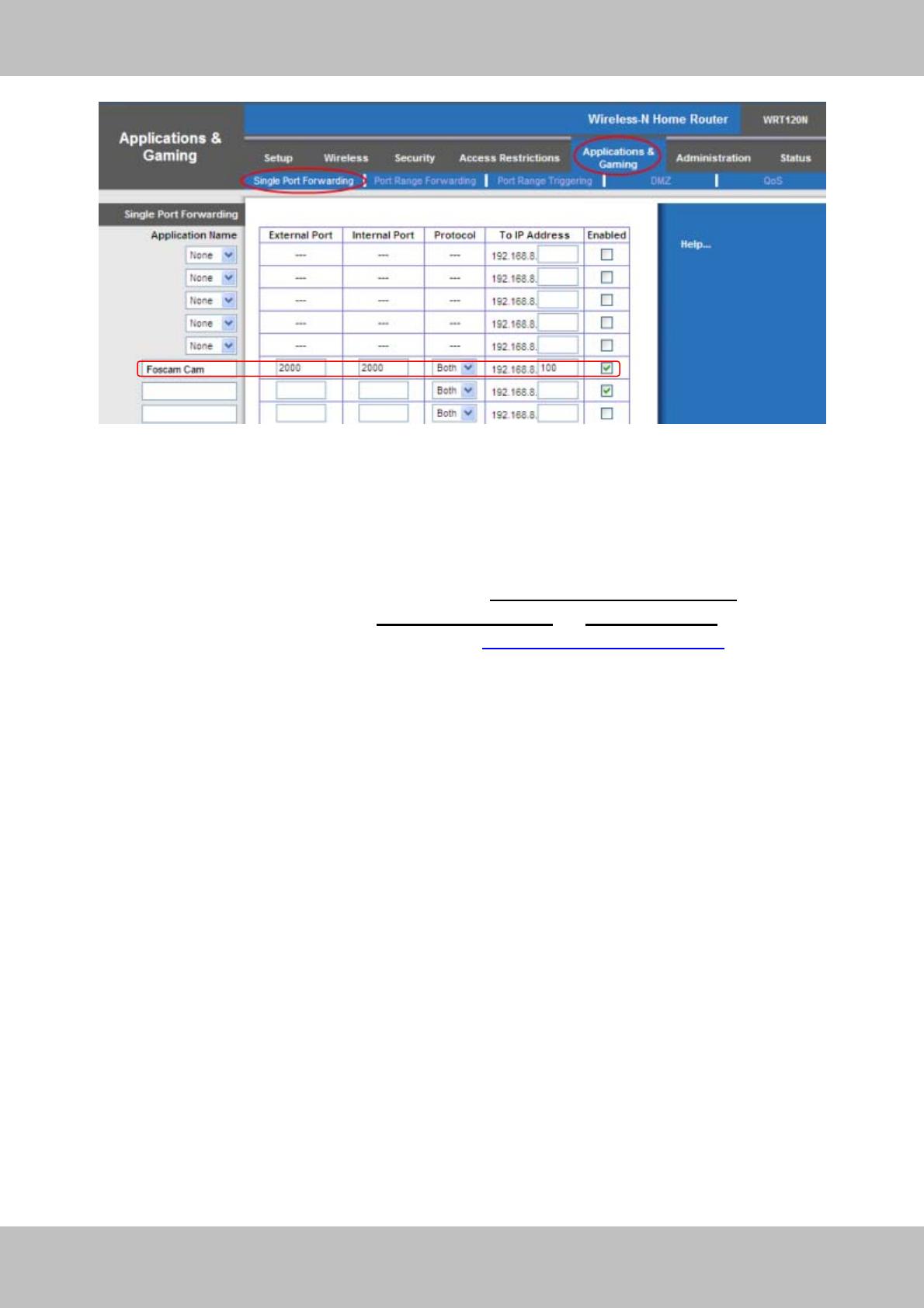
Example: The camera’s LAN IP address is http://192.168.8.100:2000
Firstly, login the router, goes to the menu of Port Forwarding or Port Trigger (or named Virtue
Server on some brands of router). Take Linksys brand router as an example, Login the
router, and goes to Applications & Gaming->Single Port Forwarding.
Secondly, Create a new column by LAN IP address & HTTP Port No. of the camera within the
router showed as below.
Note
Fill the LAN IP of the camera
36
w
ww
ww
w.
.f
fo
os
sc
ca
am
m.
.c
co
om
m
S
Sh
he
en
nz
zh
he
en
n
F
Fo
os
sc
ca
am
m
I
In
nt
te
el
ll
li
ig
ge
en
nt
t
T
Te
ec
ch
hn
no
ol
lo
og
gy
y
C
Co
o.
.,
,
L
Li
im
mi
it
te
ed
d
T
Te
el
l:
:
8
86
6
7
75
55
5
2
26
67
74
4
5
56
66
68
8
F
Fa
ax
x:
:
8
86
6
7
75
55
5
2
26
67
74
4
5
51
16
68
8
36
Figure 3.30
③ Use domain name to access the camera via internet
After the port forwarding is finished, you can use the domain name+ http no. to access the
camera via internet. Take hostname ycxgwp.no-ip.info and http no. 2000for example, the
accessing link of the camera via internet would be http:// ycxgwp.no-ip.info:2000
37
w
ww
ww
w.
.f
fo
os
sc
ca
am
m.
.c
co
om
m
S
Sh
he
en
nz
zh
he
en
n
F
Fo
os
sc
ca
am
m
I
In
nt
te
el
ll
li
ig
ge
en
nt
t
T
Te
ec
ch
hn
no
ol
lo
og
gy
y
C
Co
o.
.,
,
L
Li
im
mi
it
te
ed
d
T
Te
el
l:
:
8
86
6
7
75
55
5
2
26
67
74
4
5
56
66
68
8
F
Fa
ax
x:
:
8
86
6
7
75
55
5
2
26
67
74
4
5
51
16
68
8
37
3.3.4 UPnP
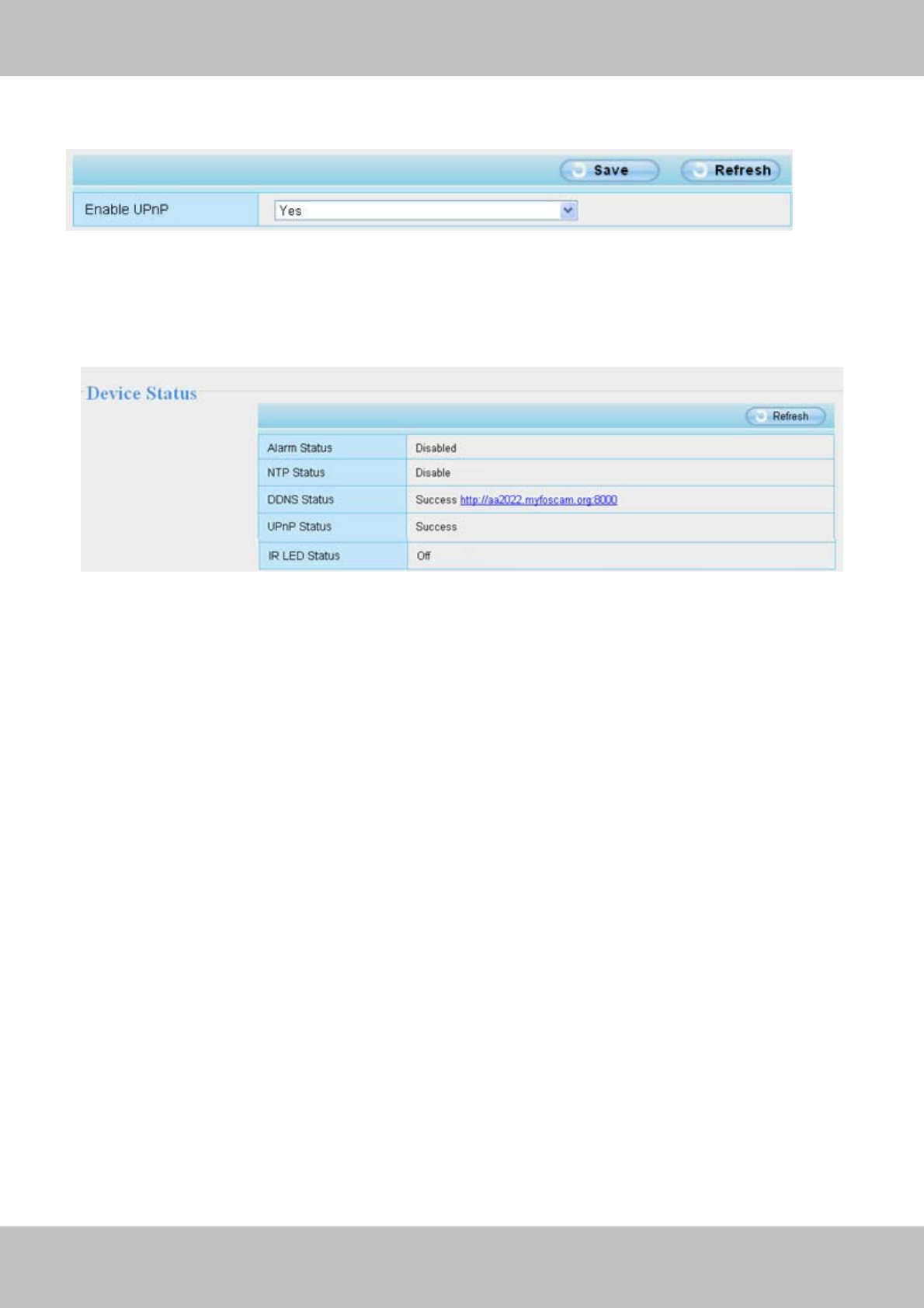
Figure 3.31
The default UPnP status is closed. You can enable UPnP, then the camera’s software will be
configured for port forwarding. Back to the “Device Status” panel, you can see the UPnP status:
Figure 3.32
The camera’s software will be configured for port forwarding. There may be issues with your
routers security settings, and sometimes may error. We recommend you configure port
forwarding manually on your router (Figure 3.30).
3.3.5 Port
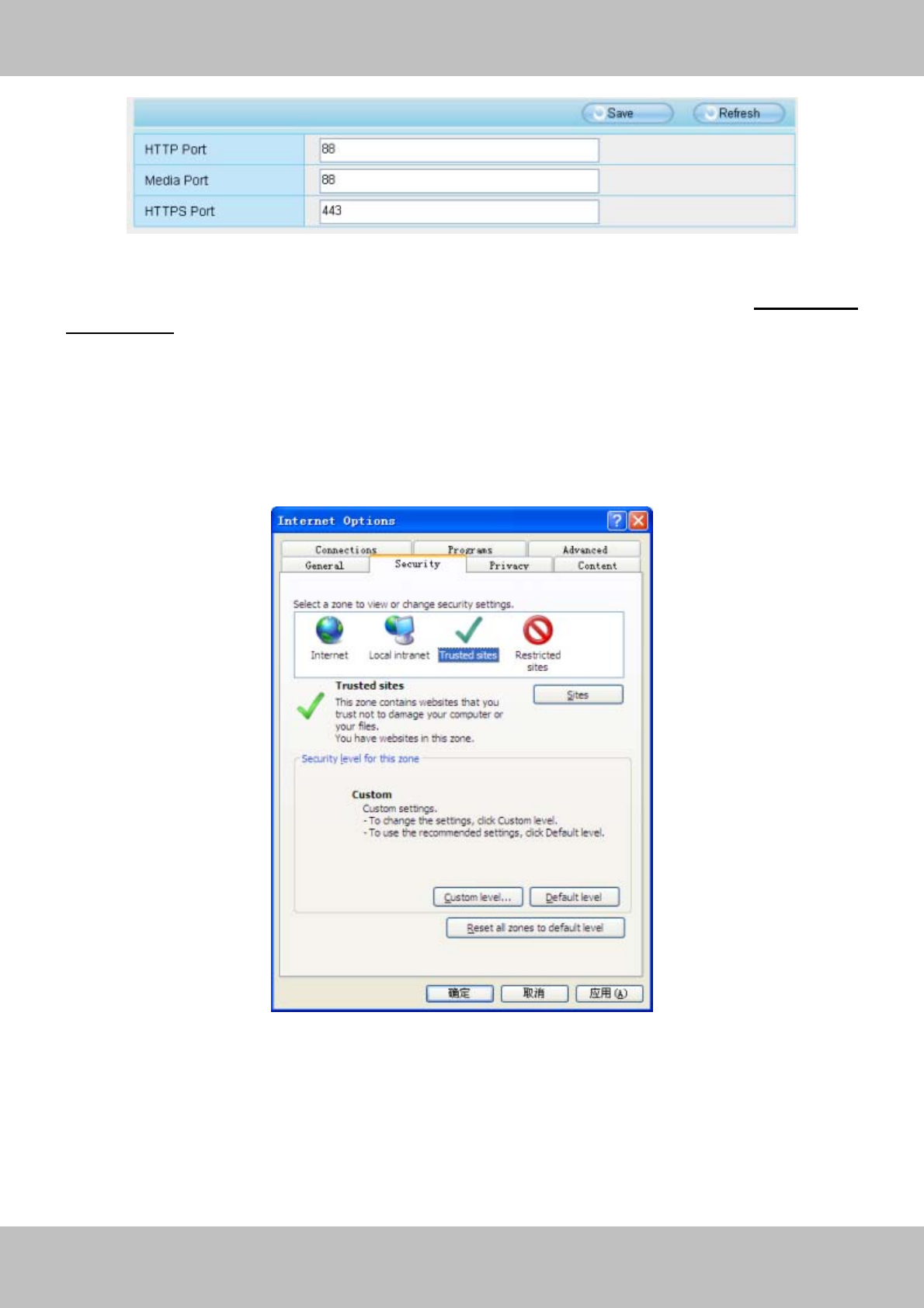
This camera supports HTTP Port / Media Port / HTTPS Port. The Media port is used to view the
camera’s video stream, HTTP Port is used to access the camera remotely. Here HTTP and
Media port share the same port.
HTTP port / Media port: By default, the HTTP and Media port is set to 88. Also, they can be
assigned with another port number between 1 and 65535. But make sure they canl not be
conflict with other existing ports like 25, 21.
38
w
ww
ww
w.
.f
fo
os
sc
ca
am
m.
.c
co
om
m
S
Sh
he
en
nz
zh
he
en
n
F
Fo
os
sc
ca
am
m
I
In
nt
te
el
ll
li
ig
ge
en
nt
t
T
Te
ec
ch
hn
no
ol
lo
og
gy
y
C
Co
o.
.,
,
L
Li
im
mi
it
te
ed
d
T
Te
el
l:
:
8
86
6
7
75
55
5
2
26
67
74
4
5
56
66
68
8
F
Fa
ax
x:
:
8
86
6
7
75
55
5
2
26
67
74
4
5
51
16
68
8
38
Figure 3.33
HTTPS port: The default port is 443. You can use the url to access the camera: https:// IP +
HTTPS port.
Sometimes you need to add the url to the Trusted Sites,
Open Internet Explorer if it is not already opened. Click on Tools, then click Internet Options.
Next, click the Security tab, then click the Trusted sites button.
Figure 3.34
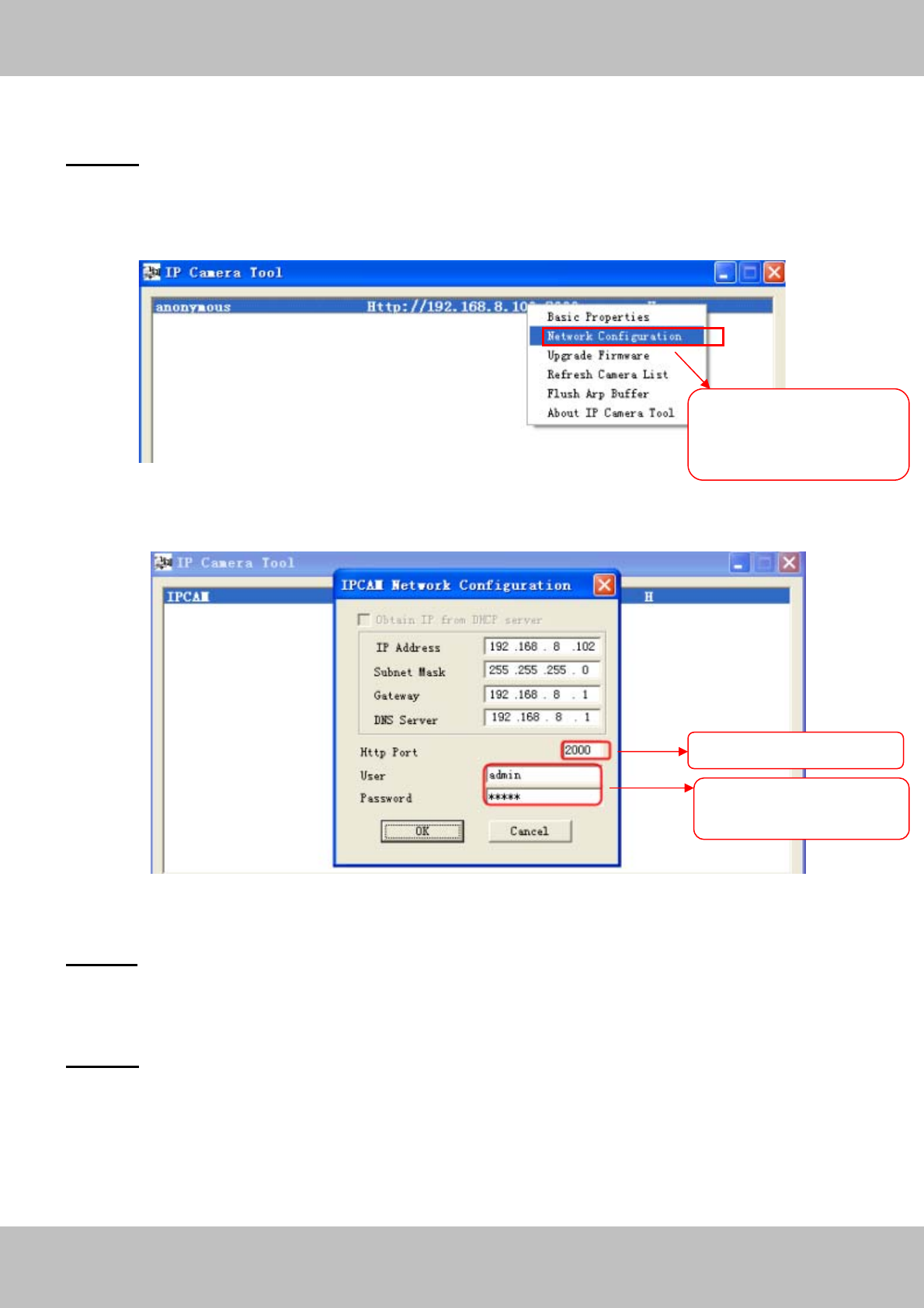
39
w
ww
ww
w.
.f
fo
os
sc
ca
am
m.
.c
co
om
m
S
Sh
he
en
nz
zh
he
en
n
F
Fo
os
sc
ca
am
m
I
In
nt
te
el
ll
li
ig
ge
en
nt
t
T
Te
ec
ch
hn
no
ol
lo
og
gy
y
C
Co
o.
.,
,
L
Li
im
mi
it
te
ed
d
T
Te
el
l:
:
8
86
6
7
75
55
5
2
26
67
74
4
5
56
66
68
8
F
Fa
ax
x:
:
8
86
6
7
75
55
5
2
26
67
74
4
5
51
16
68
8
39
Another way to change the HTTP port no.
Step 1: Open the IP Camera Tool, select the camera you would like to change the port of, right
click on the IP address, and click on ”Network Configuration”, this brings up the network
configuration box as shown in Figure 3.35 and 3.36.
Figure 3.35
Figure 3.36
Step 2: Enter the username and password of the Administrator (default username is admin with
a blank password), and click “OK” to apply changes.
Step 3: Wait around 10 seconds, you’ll see that the camera’s LAN IP address has changed. In
our example it was changed to 2000, so we see http://192.168.8.102:2000 in IP Camera Tool.
Also, the LAN IP address is now fixed at a static IP address of http://192.168.8.102:2000. This IP
address will not change even if the camera is powered off and back on, the camera will remain
on this LAN IP address. This is very important that a static LAN IP address is set, or you may
Select which camera
you’d like to change the
port for, and right click
Modif
y
the Http Port.
Enter the Username and
p
assword
,
click O
K
.
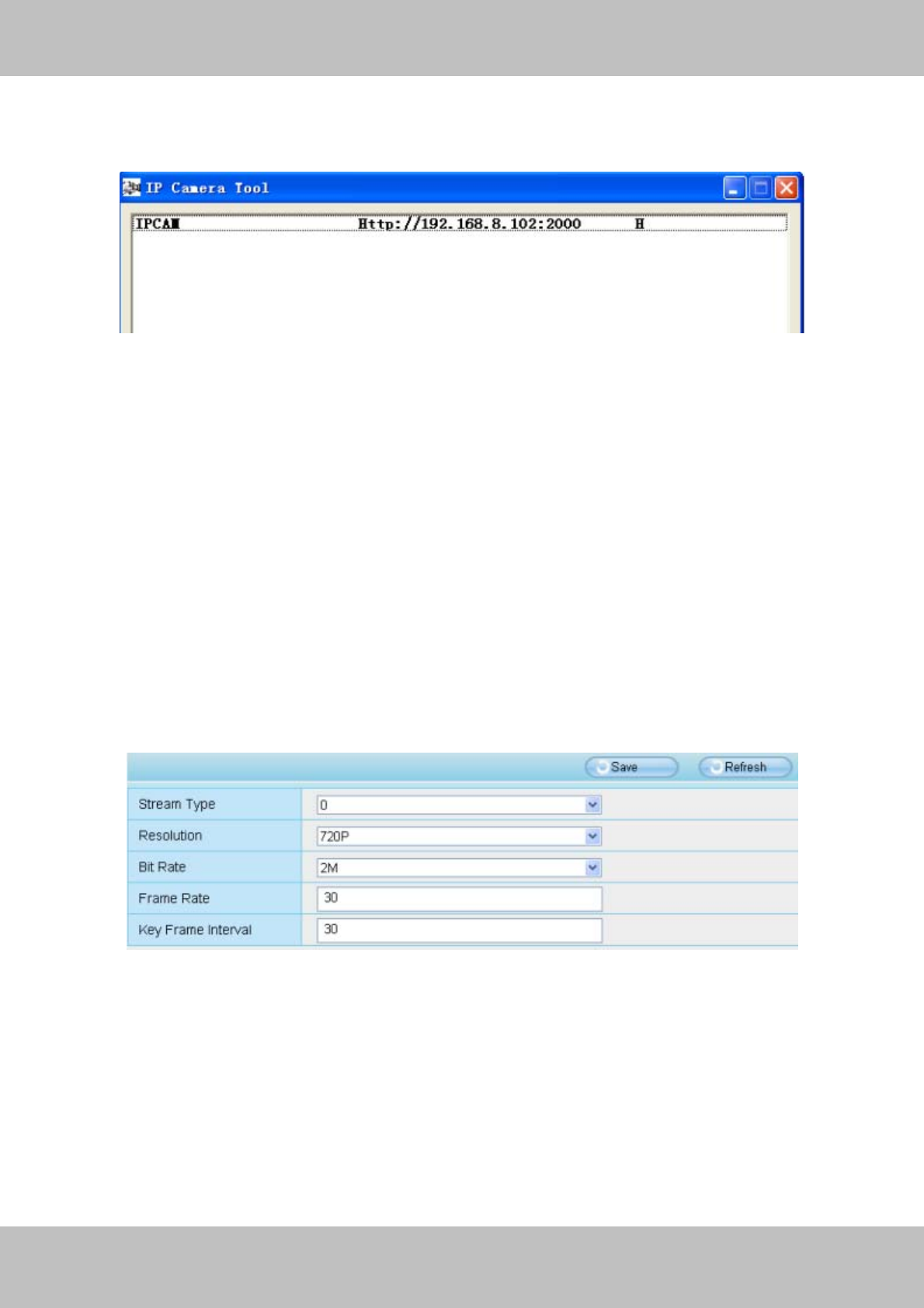
40
w
ww
ww
w.
.f
fo
os
sc
ca
am
m.
.c
co
om
m
S
Sh
he
en
nz
zh
he
en
n
F
Fo
os
sc
ca
am
m
I
In
nt
te
el
ll
li
ig
ge
en
nt
t
T
Te
ec
ch
hn
no
ol
lo
og
gy
y
C
Co
o.
.,
,
L
Li
im
mi
it
te
ed
d
T
Te
el
l:
:
8
86
6
7
75
55
5
2
26
67
74
4
5
56
66
68
8
F
Fa
ax
x:
:
8
86
6
7
75
55
5
2
26
67
74
4
5
51
16
68
8
40
have problems later with remote access and seeing the camera remotely if the camera loses
power and reconnects on a different LAN IP address. Make sure you set a static LAN IP address!
Note:
If the camera cannot be accessed, please make sure the port forwarding is succeed.
3.4 Video
This section allows you to configure Video stream settings, On screen display and Snapshot
settings.
3.4.1 Settings
Figure 3.37
Stream type: There are four types to identify different streams you have set.
Resolution: The camera supports two types: 720P, VGA. The higher the resolution is, the
clearer video will become. But the code flux will become larger too, and it will take up more
bandwidth.
Bit rate: Generally speaking, the larger the bit rate is, the clearer video will become. But the bit
rate configuration should combine well with the network bandwidth. When the bandwidth is very
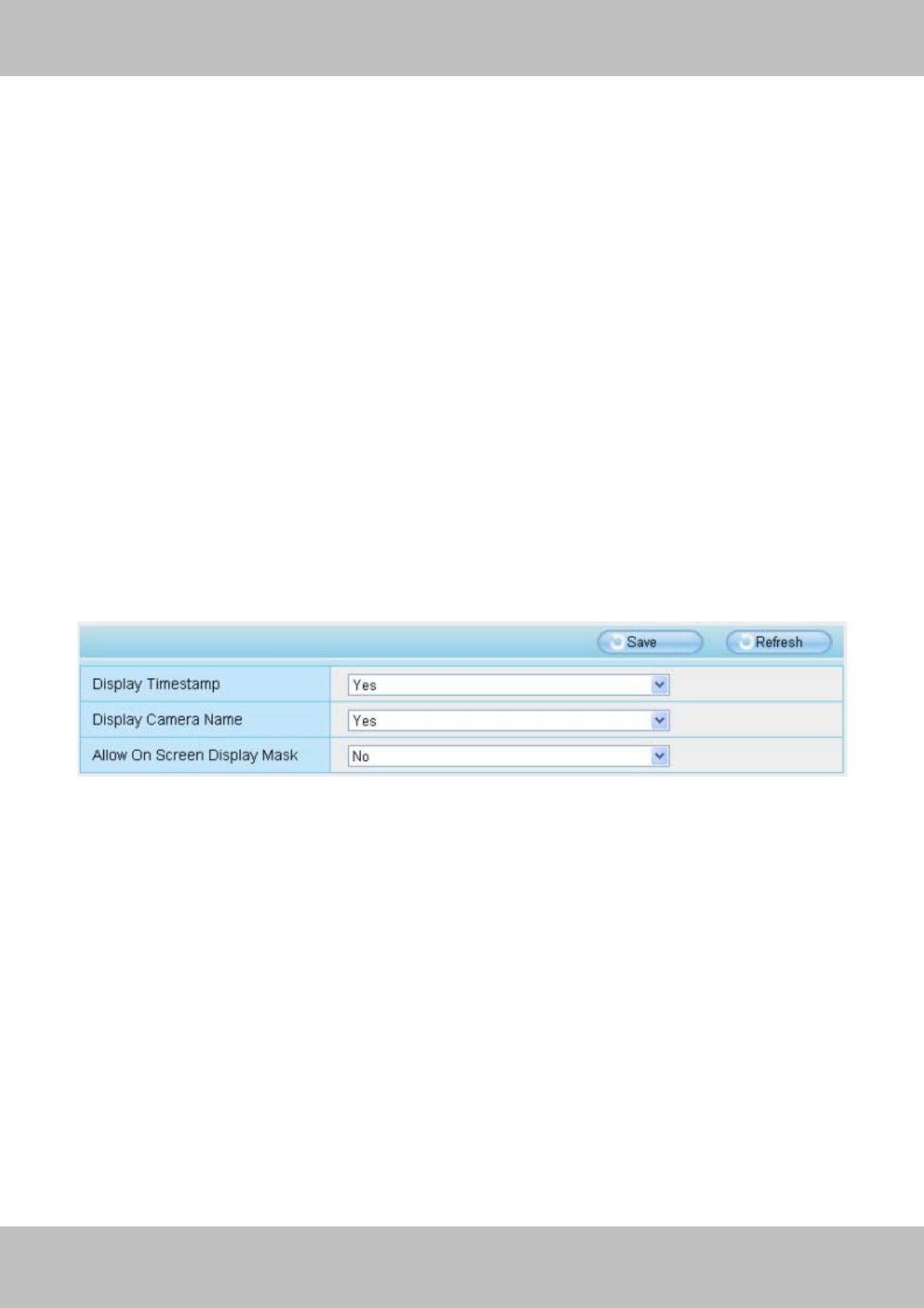
41
w
ww
ww
w.
.f
fo
os
sc
ca
am
m.
.c
co
om
m
S
Sh
he
en
nz
zh
he
en
n
F
Fo
os
sc
ca
am
m
I
In
nt
te
el
ll
li
ig
ge
en
nt
t
T
Te
ec
ch
hn
no
ol
lo
og
gy
y
C
Co
o.
.,
,
L
Li
im
mi
it
te
ed
d
T
Te
el
l:
:
8
86
6
7
75
55
5
2
26
67
74
4
5
56
66
68
8
F
Fa
ax
x:
:
8
86
6
7
75
55
5
2
26
67
74
4
5
51
16
68
8
41
narrow, and bit rate is large, that will lead to video can not play well.
Frame rate: Note that a larger frame size takes up more bandwidth. When the video format is
50Hz, the maximum frame rate is 25 fps. When the video format is 60Hz, the maximum frame
rate is 30 fps. You should lower frame rate when the bandwidth is limited. Normally, when the
frame rate above 15, you can achieve fluently video.
Key Frame Interval: The time between last key frame and next key frame. The shorter the
duration, the more likely you will get a better video quality, but at the cost of higher network
bandwidth consumption.
3.4.2 On Screen Display
This page is used to add timestamp and device name on the video.
Figure 3.38
Display Timestamp: There are two options: Yes or NO. Select Yes and you can see the system
date on the video.
Display Camera name: There are two options: Yes or NO. Select Yes and you can see the
device name on the video.
Allow On Screen Display mask: There are two options: Yes or NO. Select yes and draw a
mask area on the video, the mask area will be black on the video.
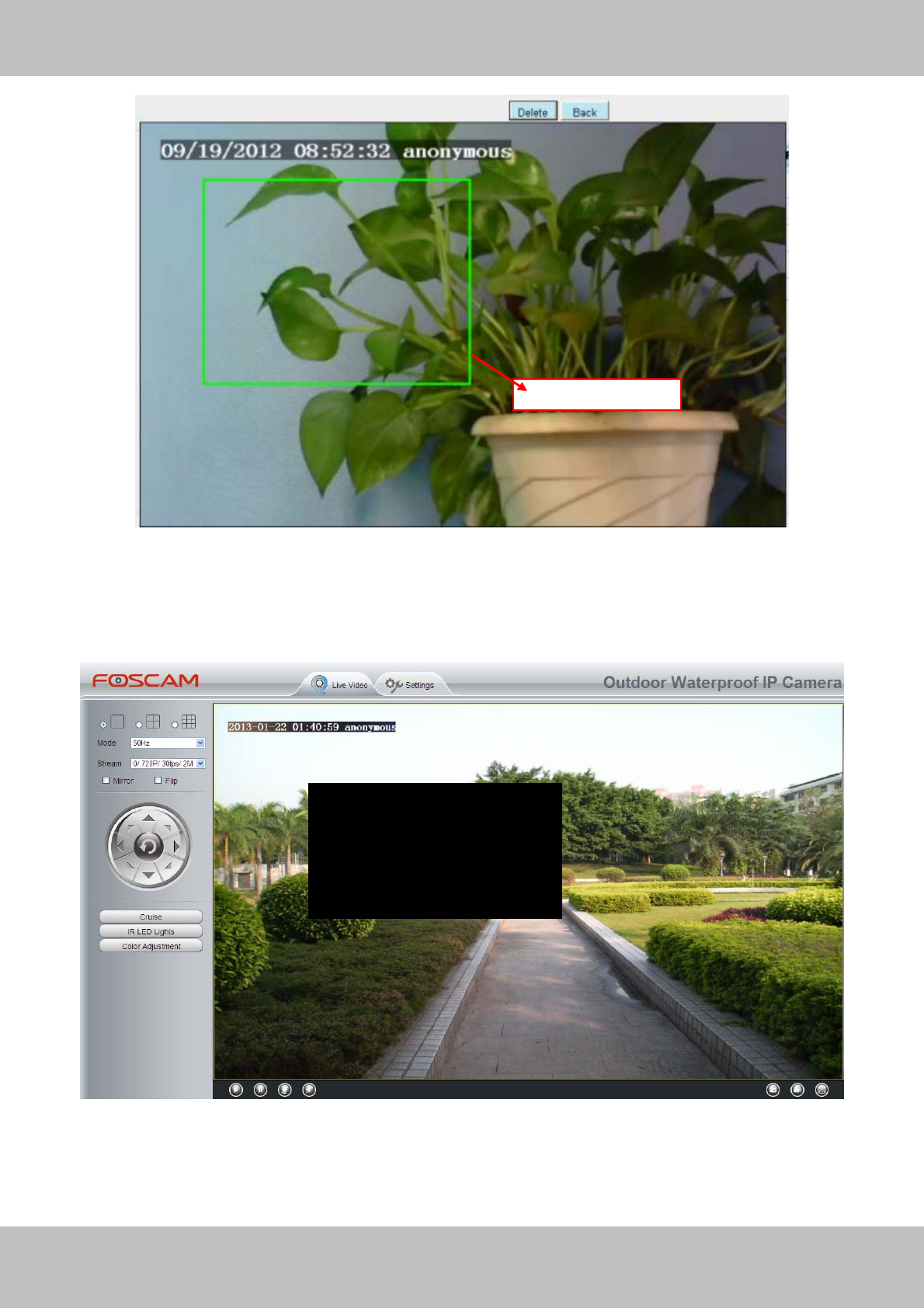
42
w
ww
ww
w.
.f
fo
os
sc
ca
am
m.
.c
co
om
m
S
Sh
he
en
nz
zh
he
en
n
F
Fo
os
sc
ca
am
m
I
In
nt
te
el
ll
li
ig
ge
en
nt
t
T
Te
ec
ch
hn
no
ol
lo
og
gy
y
C
Co
o.
.,
,
L
Li
im
mi
it
te
ed
d
T
Te
el
l:
:
8
86
6
7
75
55
5
2
26
67
74
4
5
56
66
68
8
F
Fa
ax
x:
:
8
86
6
7
75
55
5
2
26
67
74
4
5
51
16
68
8
42
Figure 3.39
Click Back button and return to the OSD page, click Save to take effect.
Back to the surveillance window, you can see the mask area as the following picture:
Figure 3.40
The mask area
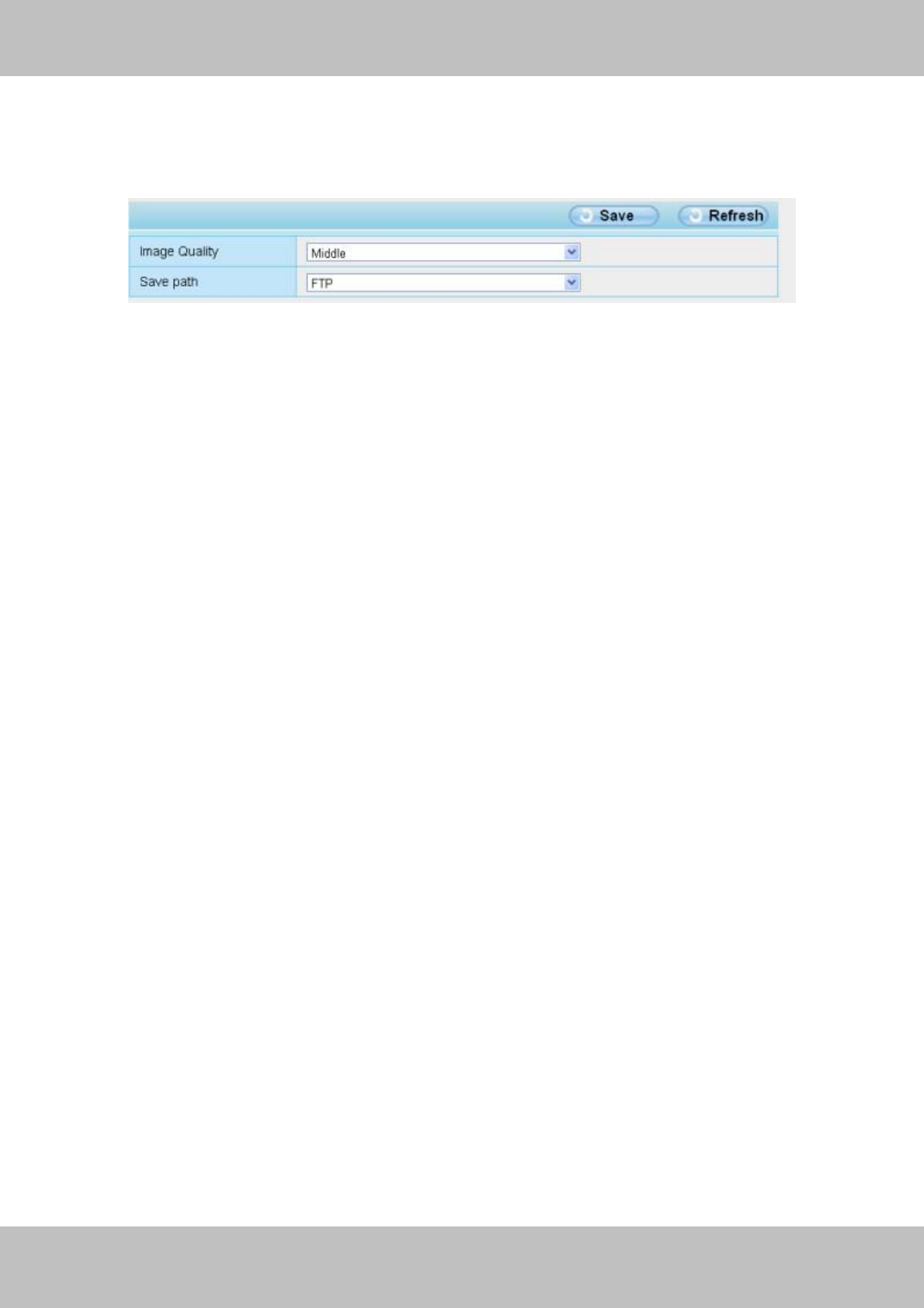
43
w
ww
ww
w.
.f
fo
os
sc
ca
am
m.
.c
co
om
m
S
Sh
he
en
nz
zh
he
en
n
F
Fo
os
sc
ca
am
m
I
In
nt
te
el
ll
li
ig
ge
en
nt
t
T
Te
ec
ch
hn
no
ol
lo
og
gy
y
C
Co
o.
.,
,
L
Li
im
mi
it
te
ed
d
T
Te
el
l:
:
8
86
6
7
75
55
5
2
26
67
74
4
5
56
66
68
8
F
Fa
ax
x:
:
8
86
6
7
75
55
5
2
26
67
74
4
5
51
16
68
8
43
3.4.3 Snapshot Settings
On this page you can set the snapshot pictures’ image quality and the storage path.
Figure 3.41
Image Quality: Low, Middle and High. The higher the quality, the picture will be clearer.
Save Path: FTP. If you have done FTP and Alarm settings, when alarming, the camera will snap
pictures to the FTP automatically.
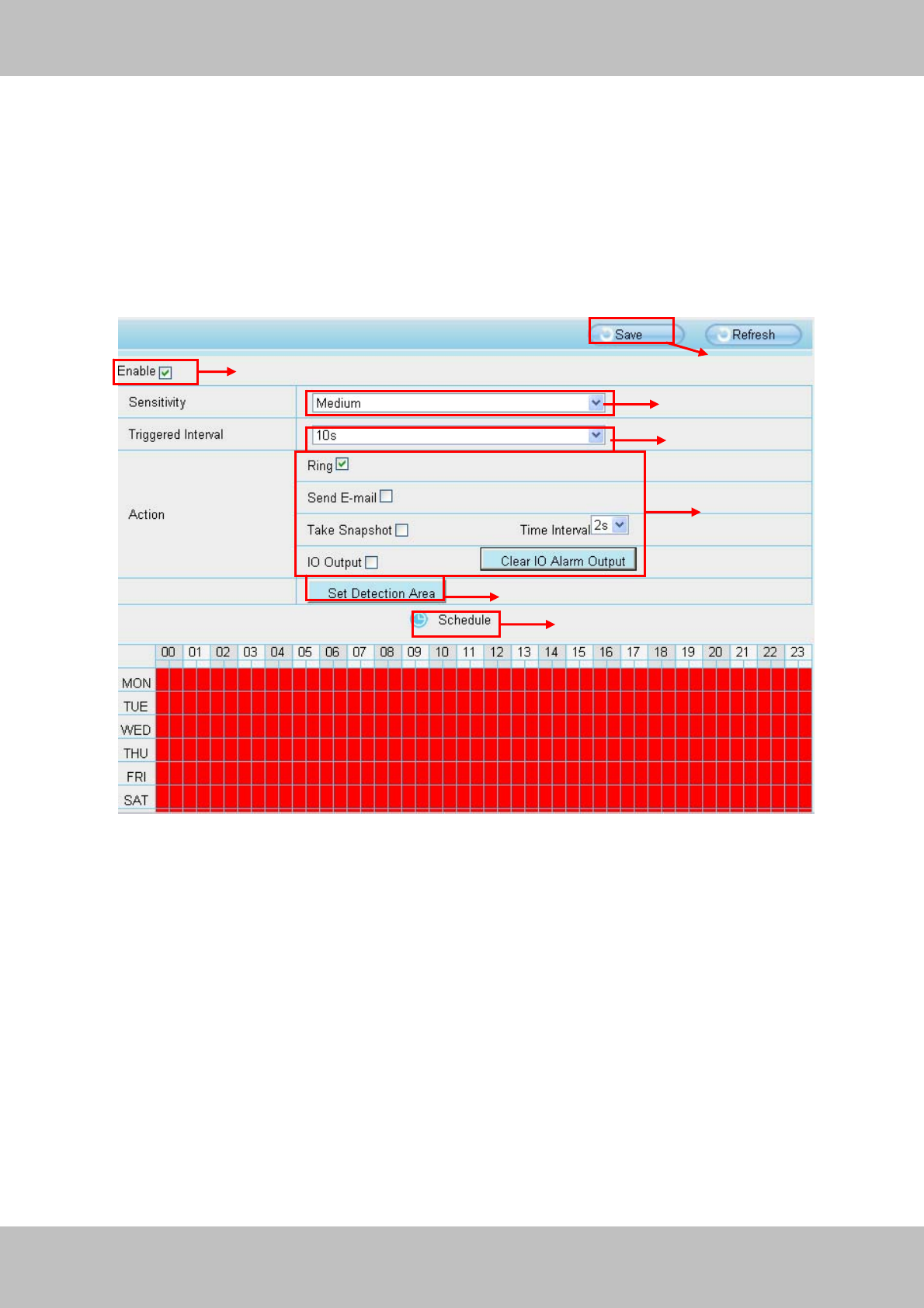
44
w
ww
ww
w.
.f
fo
os
sc
ca
am
m.
.c
co
om
m
S
Sh
he
en
nz
zh
he
en
n
F
Fo
os
sc
ca
am
m
I
In
nt
te
el
ll
li
ig
ge
en
nt
t
T
Te
ec
ch
hn
no
ol
lo
og
gy
y
C
Co
o.
.,
,
L
Li
im
mi
it
te
ed
d
T
Te
el
l:
:
8
86
6
7
75
55
5
2
26
67
74
4
5
56
66
68
8
F
Fa
ax
x:
:
8
86
6
7
75
55
5
2
26
67
74
4
5
51
16
68
8
44
3.5 Alarm
IP Camera supports Motion Detection Alarm and I/O alarm, when the motion has been
detected, it will send emails, upload images to FTP or adopt other output action.
3.5.1 Motion Detection
Figure 3.42
To enable motion detection, follow the steps below:
1 Enable Motion detection
2 Sensitivity---- It supports three modes: Low, Middle and High. The higher the sensitivity, the
camera will be more easily alarmed. Select one motion sensitivity.
3 Trigger interval--- The interval time between two motion detections. Here supports
5s/6s/7s/8s/9s/10s/11s/12s/13s/14s/15s. Select one interval time.
4 Select the alarm indicators
When the motion has been detected, the alarm status will turn to Detect alarm.
1
2
3
4
5
7
6
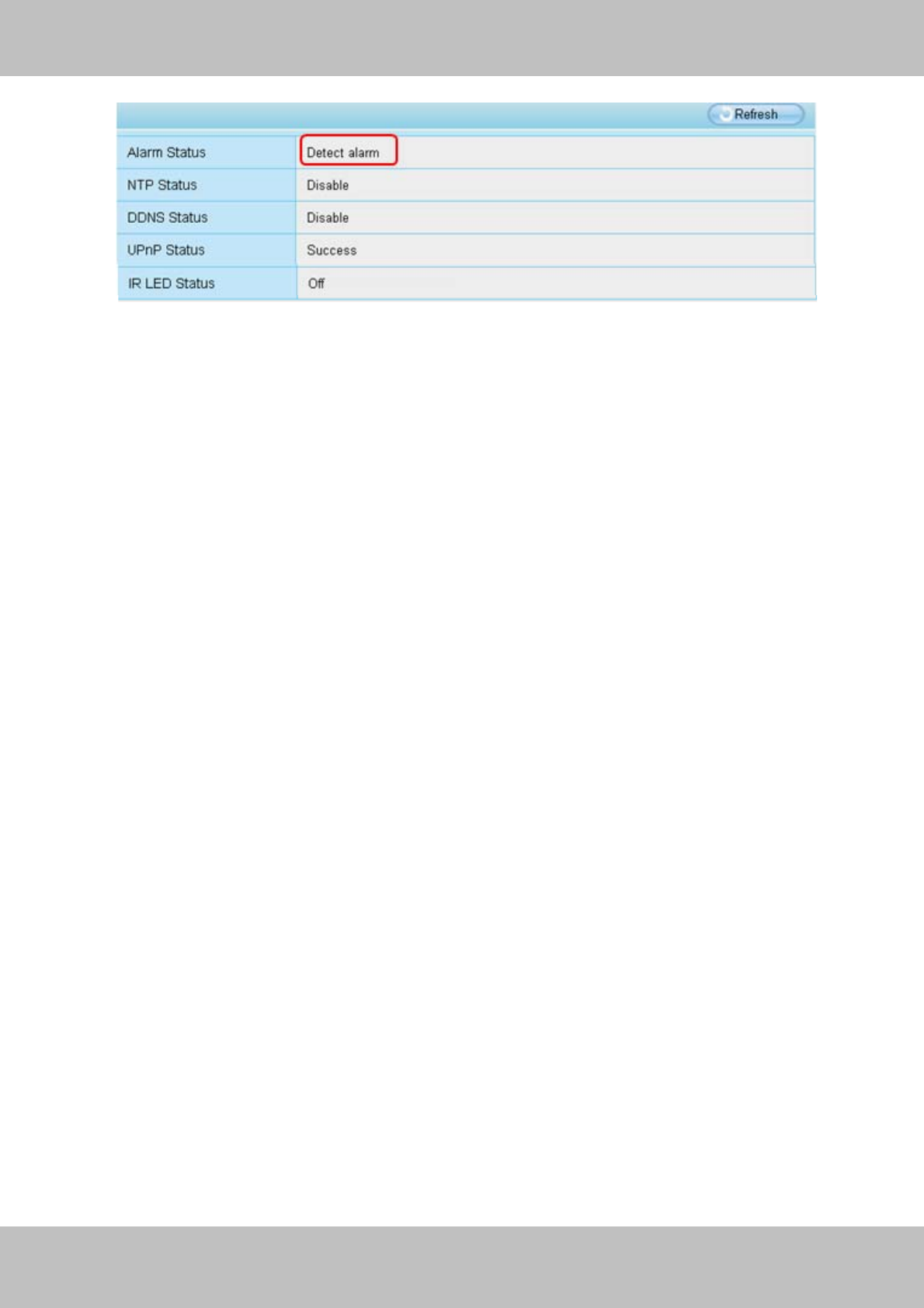
45
w
ww
ww
w.
.f
fo
os
sc
ca
am
m.
.c
co
om
m
S
Sh
he
en
nz
zh
he
en
n
F
Fo
os
sc
ca
am
m
I
In
nt
te
el
ll
li
ig
ge
en
nt
t
T
Te
ec
ch
hn
no
ol
lo
og
gy
y
C
Co
o.
.,
,
L
Li
im
mi
it
te
ed
d
T
Te
el
l:
:
8
86
6
7
75
55
5
2
26
67
74
4
5
56
66
68
8
F
Fa
ax
x:
:
8
86
6
7
75
55
5
2
26
67
74
4
5
51
16
68
8
45
There are four alarm indicators:
A Ring
If the camera has connected with a speaker or other audio output device, then you select Ring,
when the motion has been detected, the people around the camera will hear beep alarm sound.
B Send E-mail
If you want to receive alarm emails when motion is detected, you must select Send Mail and set
Mail Settings first. The alarm email cannot contain the alarm picture if you have not selected
Snap picture.
C Take Snapshot
If you select this checkbox, when the motion has been detected, the camera will snap the live
view window as a still picture and load it to the FTP. If you select Send Email, at the same time
the picture will be send to you as an attachment. Make sure you have set FTP and set FTP as
the storage path in Video->Snapshot Settings panel.
Time interval: The interval time between two pictures.
D I/O Output
If the camera has connected with other alarm output device, when the motion is detected, the
alarm output device will take the corresponding action.
5 Set detect area
Click set detect area and it pop up a window, then you can draw the detection area. Click Back
button after settings. When something moving in the detection area, the camera will alarm.
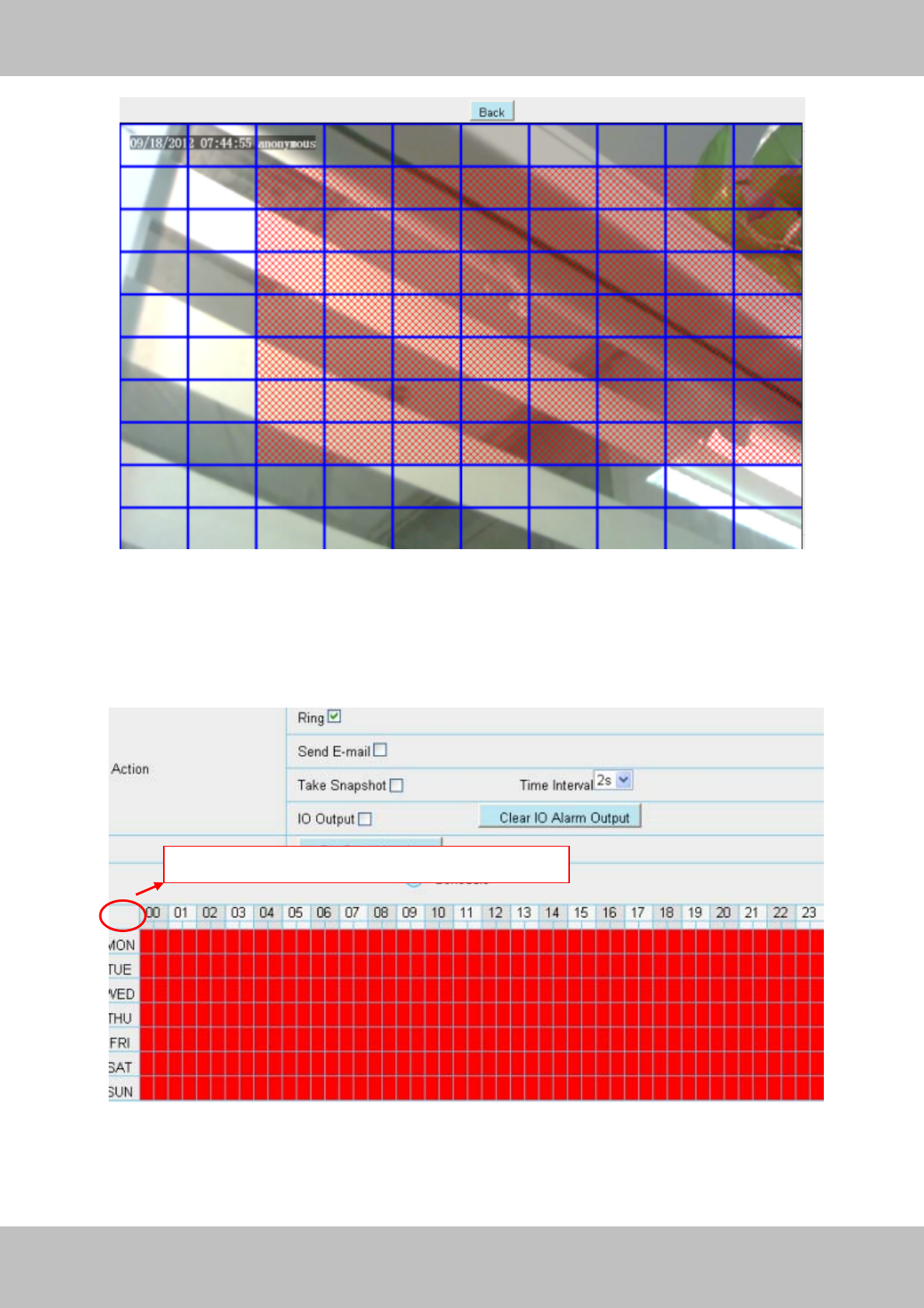
46
w
ww
ww
w.
.f
fo
os
sc
ca
am
m.
.c
co
om
m
S
Sh
he
en
nz
zh
he
en
n
F
Fo
os
sc
ca
am
m
I
In
nt
te
el
ll
li
ig
ge
en
nt
t
T
Te
ec
ch
hn
no
ol
lo
og
gy
y
C
Co
o.
.,
,
L
Li
im
mi
it
te
ed
d
T
Te
el
l:
:
8
86
6
7
75
55
5
2
26
67
74
4
5
56
66
68
8
F
Fa
ax
x:
:
8
86
6
7
75
55
5
2
26
67
74
4
5
51
16
68
8
46
Figure 3.43
6 Alarm Schedule
① Alarm anytime when motion is detected
Click the black button up the MON, you will see all time range turn red. When something moving
in the detection area at anytime, the camera will alarm.
Figure 3.44
② Specify an alarm schedule
Click the week day words, the corresponding column will be selected. For example, click TUE,
Click this button and select all time range
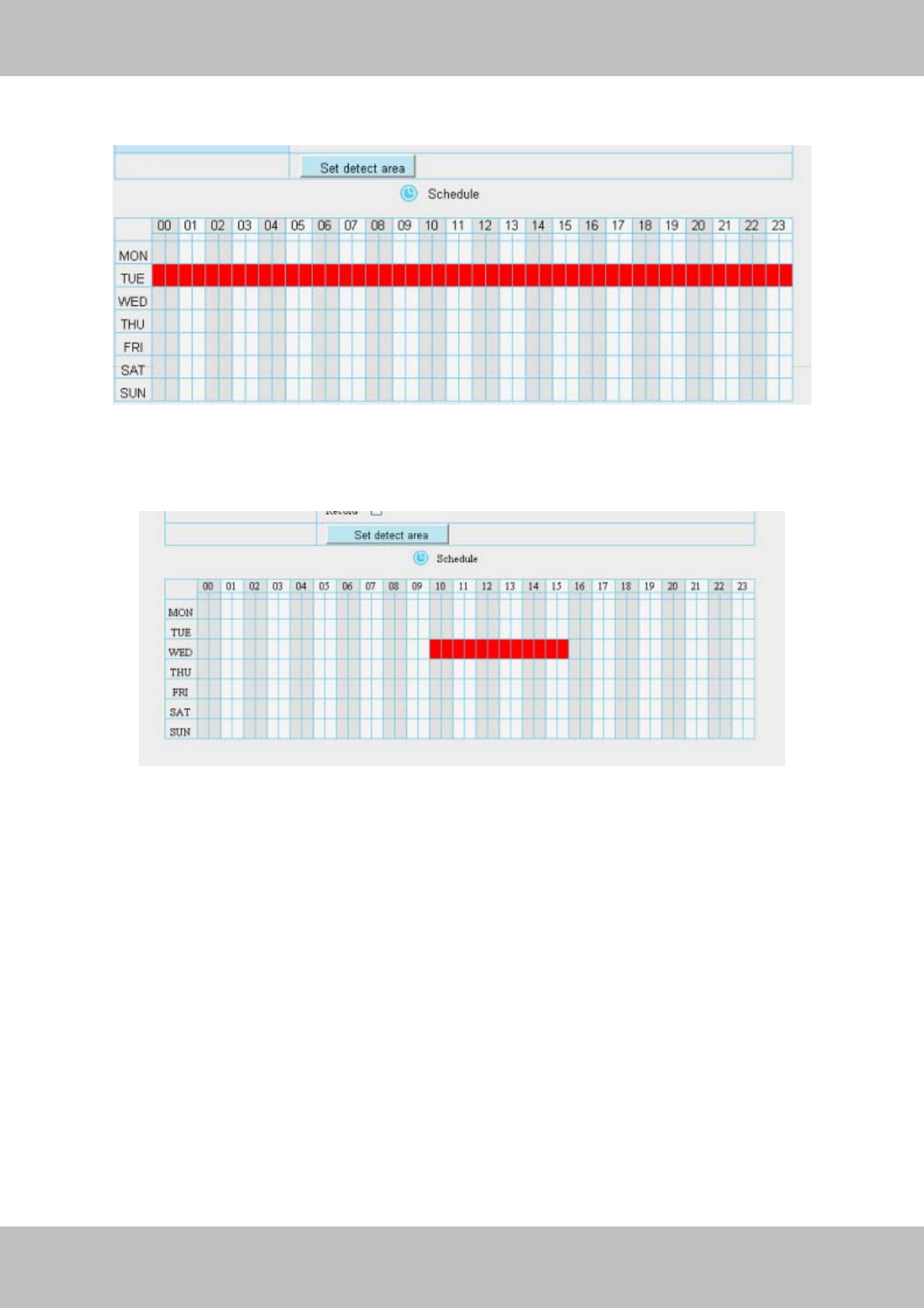
47
w
ww
ww
w.
.f
fo
os
sc
ca
am
m.
.c
co
om
m
S
Sh
he
en
nz
zh
he
en
n
F
Fo
os
sc
ca
am
m
I
In
nt
te
el
ll
li
ig
ge
en
nt
t
T
Te
ec
ch
hn
no
ol
lo
og
gy
y
C
Co
o.
.,
,
L
Li
im
mi
it
te
ed
d
T
Te
el
l:
:
8
86
6
7
75
55
5
2
26
67
74
4
5
56
66
68
8
F
Fa
ax
x:
:
8
86
6
7
75
55
5
2
26
67
74
4
5
51
16
68
8
47
the all column of TUE turns to red, that means during Tuesday whole day, when something
moving in the detection area, the camera will alarm.
Figure 3.45
③ Press the left mouse and drag it on the time boxes, you can select the serial area,
Figure 3.46
7 Click Save button to take effect. When the motion is detected during the detection time in the
detection area, the camera will alarm and adopt the corresponding alarm indicators.
NOTE: You must set the detection area and detection schedule, or else there is no alarm
anywhere and anytime.
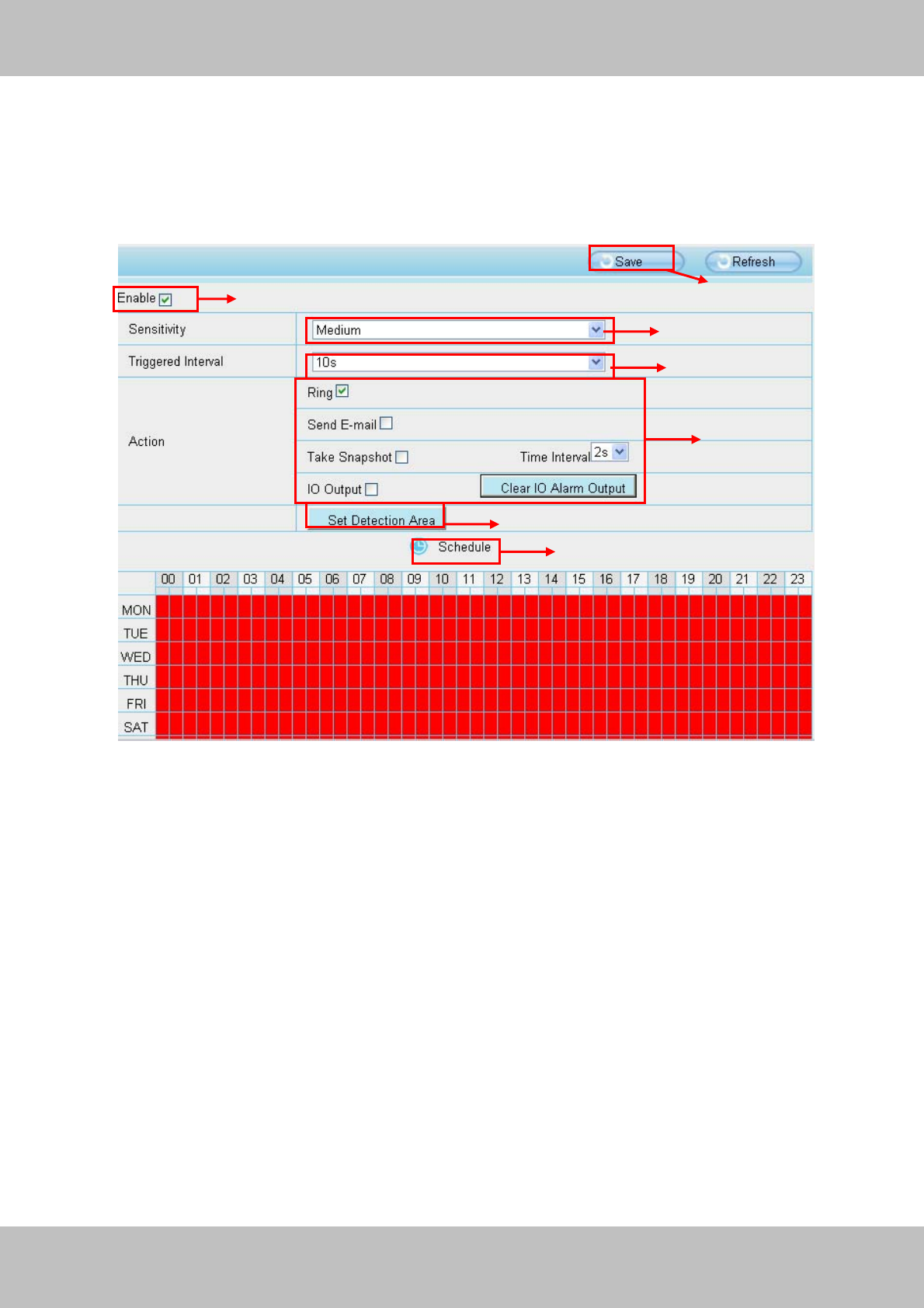
48
w
ww
ww
w.
.f
fo
os
sc
ca
am
m.
.c
co
om
m
S
Sh
he
en
nz
zh
he
en
n
F
Fo
os
sc
ca
am
m
I
In
nt
te
el
ll
li
ig
ge
en
nt
t
T
Te
ec
ch
hn
no
ol
lo
og
gy
y
C
Co
o.
.,
,
L
Li
im
mi
it
te
ed
d
T
Te
el
l:
:
8
86
6
7
75
55
5
2
26
67
74
4
5
56
66
68
8
F
Fa
ax
x:
:
8
86
6
7
75
55
5
2
26
67
74
4
5
51
16
68
8
48
3.5.2 I/O Detection
This camera supports I/O terminal block which is used to connected external input/output device.
After connection successfully, you can go to this page and do I/O alarm configuration.
To enable motion detection, follow the steps below:
1 Enable Motion detection
2 Sensitivity---- It supports three modes: Low, Middle and High. The higher the sensitivity, the
camera will be more easily alarmed. Select one motion sensitivity.
3 Trigger interval--- The interval time between two motion detections. Here supports
5s/6s/7s/8s/9s/10s/11s/12s/13s/14s/15s. Select one interval time.
5 Select the alarm indicators
There are four alarm indicators:
A Ring
If the camera has connected with a speaker or other audio output device, and you select Ring,
when the motion has been detected, the people around the camera will hear beep alarm sound.
1
2
3
4
5
7
6

49
w
ww
ww
w.
.f
fo
os
sc
ca
am
m.
.c
co
om
m
S
Sh
he
en
nz
zh
he
en
n
F
Fo
os
sc
ca
am
m
I
In
nt
te
el
ll
li
ig
ge
en
nt
t
T
Te
ec
ch
hn
no
ol
lo
og
gy
y
C
Co
o.
.,
,
L
Li
im
mi
it
te
ed
d
T
Te
el
l:
:
8
86
6
7
75
55
5
2
26
67
74
4
5
56
66
68
8
F
Fa
ax
x:
:
8
86
6
7
75
55
5
2
26
67
74
4
5
51
16
68
8
49
B Send E-mail
If you want to receive alarm emails when motion is detected, you must select Send Mail and set
Mail Settings first. The alarm email cannot contain the alarm picture if you have not selected
Snap picture.
C Take Snapshot
If you select this checkbox, when the motion has been detected, the camera will snap the live
view window as a still picture and load it to the FTP. If you select Send Email, at the same time
the picture will be send to you as an attachment. Make sure you have set FTP and set FTP as
the storage path in Video->Snapshot Settings panel.
Time interval: The interval time between two pictures.
D I/O Output
If the camera has connected with other alarm output device, such as sensors and alarms, when
the motion is detected, the alarm output device will take the corresponding action.
5 Set detect area
Click set detect area and it pop up a window, then you can draw the detection area. Click Back
button after settings. When something moving in the detection area, the camera will alarm.
6 Alarm Schedule
Here definite alarm schedule.
7 Click Save button to take effect. When the motion is detected during the detection time in the
detection area, the camera will alarm and adopt the corresponding alarm indicators.
NOTE: You must set the detection area and detection schedule, or else there is no alarm
anywhere and anytime.
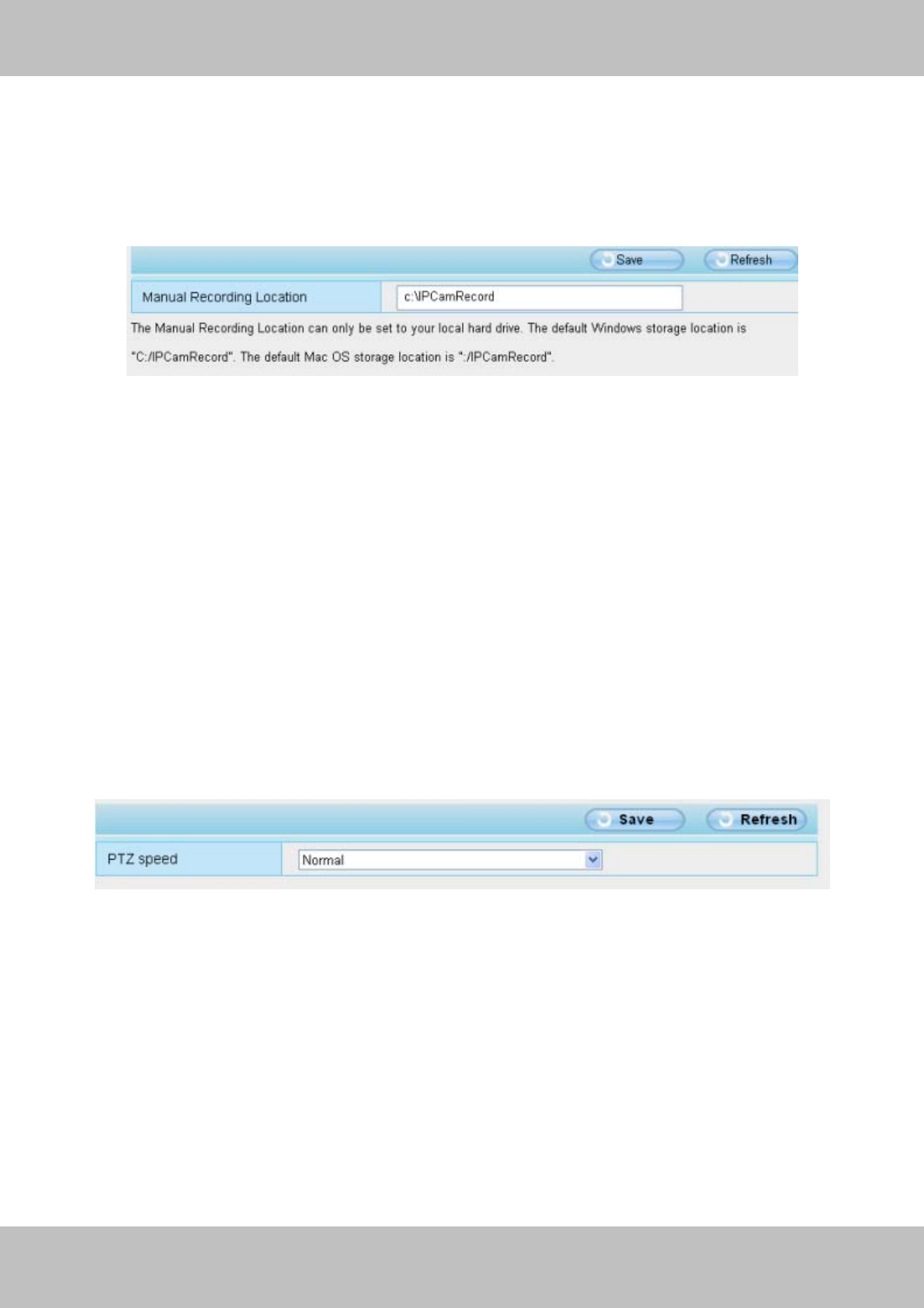
50
w
ww
ww
w.
.f
fo
os
sc
ca
am
m.
.c
co
om
m
S
Sh
he
en
nz
zh
he
en
n
F
Fo
os
sc
ca
am
m
I
In
nt
te
el
ll
li
ig
ge
en
nt
t
T
Te
ec
ch
hn
no
ol
lo
og
gy
y
C
Co
o.
.,
,
L
Li
im
mi
it
te
ed
d
T
Te
el
l:
:
8
86
6
7
75
55
5
2
26
67
74
4
5
56
66
68
8
F
Fa
ax
x:
:
8
86
6
7
75
55
5
2
26
67
74
4
5
51
16
68
8
50
3.6 Record
On this page you can change the manually recording storage path, the default storage path is
C:\IPCamRecord.
Figure 3.47
3.7 PTZ
This page will allow you to change the pan/tilt speed and the RS485 protocol configuration.
3.7.1 Pan/Tilt Speed
There are five Pt speed types: very fast, fast, normal, slow and very slowly. Select the desired
PTZ speed type and click save button .
Figure 3.48
3.7.2 RS485 configuration
After the camera has connected with outer cradle head through RS485 interface, you need to
configure the RS485 protocol.
Find the related information about the cradle head in the cradle head user manual and fill the
following options. Click Save and save your settings.
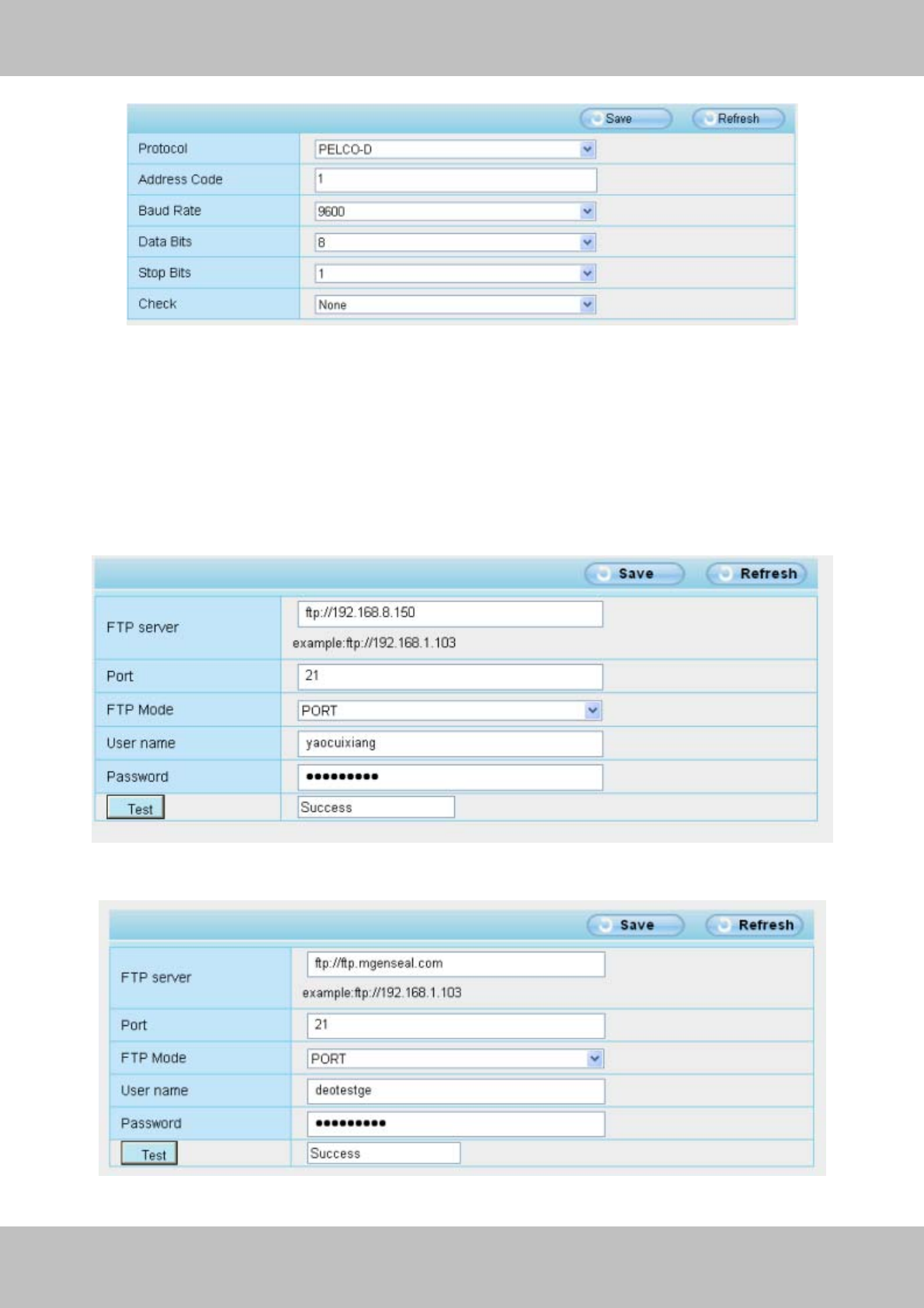
51
w
ww
ww
w.
.f
fo
os
sc
ca
am
m.
.c
co
om
m
S
Sh
he
en
nz
zh
he
en
n
F
Fo
os
sc
ca
am
m
I
In
nt
te
el
ll
li
ig
ge
en
nt
t
T
Te
ec
ch
hn
no
ol
lo
og
gy
y
C
Co
o.
.,
,
L
Li
im
mi
it
te
ed
d
T
Te
el
l:
:
8
86
6
7
75
55
5
2
26
67
74
4
5
56
66
68
8
F
Fa
ax
x:
:
8
86
6
7
75
55
5
2
26
67
74
4
5
51
16
68
8
51
Figure 3.49
3.8 Path Settings
If you want to upload record images to your FTP server,you can set FTP Settings.
Figure 3.50
Figure 3.51

52
w
ww
ww
w.
.f
fo
os
sc
ca
am
m.
.c
co
om
m
S
Sh
he
en
nz
zh
he
en
n
F
Fo
os
sc
ca
am
m
I
In
nt
te
el
ll
li
ig
ge
en
nt
t
T
Te
ec
ch
hn
no
ol
lo
og
gy
y
C
Co
o.
.,
,
L
Li
im
mi
it
te
ed
d
T
Te
el
l:
:
8
86
6
7
75
55
5
2
26
67
74
4
5
56
66
68
8
F
Fa
ax
x:
:
8
86
6
7
75
55
5
2
26
67
74
4
5
51
16
68
8
52
FTP server: If your FTP server is located on the LAN, you can set as Figure 3.50.
If you have an FTP server which you can access on the internet, you can set as Figure 3.51.
Port: Default is port 21. If changed, external FTP client program must change the server
connection port accordingly.
FTP Mode: Here supports two modes: PORT and PASV.
Username/password: The FTP account and password.
Click Save to take effect.
Click Test to see if FTP has been successfully configured.
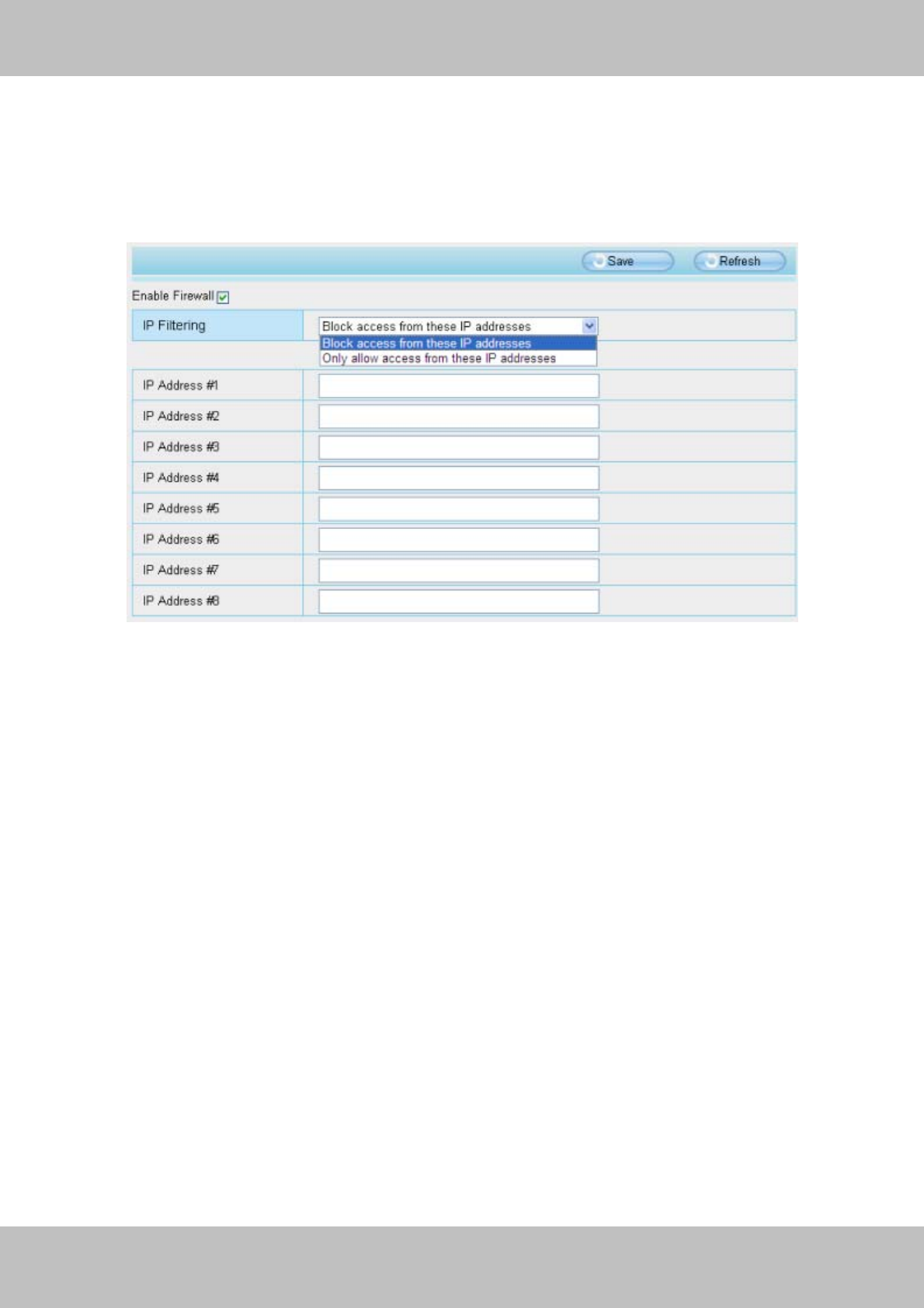
53
w
ww
ww
w.
.f
fo
os
sc
ca
am
m.
.c
co
om
m
S
Sh
he
en
nz
zh
he
en
n
F
Fo
os
sc
ca
am
m
I
In
nt
te
el
ll
li
ig
ge
en
nt
t
T
Te
ec
ch
hn
no
ol
lo
og
gy
y
C
Co
o.
.,
,
L
Li
im
mi
it
te
ed
d
T
Te
el
l:
:
8
86
6
7
75
55
5
2
26
67
74
4
5
56
66
68
8
F
Fa
ax
x:
:
8
86
6
7
75
55
5
2
26
67
74
4
5
51
16
68
8
53
3.9 Firewall
This section explains how to control the access permission by checking the client PC’s IP
addresses. It is composed of the following columns: Block access from these IP addresses
and Only allow access from these IP addresses.
Figure 3.52
Enable firewall, If you select Only allow access from these IP addresses and fill in 8 IP addresses
at most, only those clients whose IP addresses listed in the Only allow access from these IP
addresses can access the Network Camera. If you select Block access from these IP
addresses, only those clients whose IP addresses are in the IP list cannot access the Network
Camera.
Click Save to take effect.
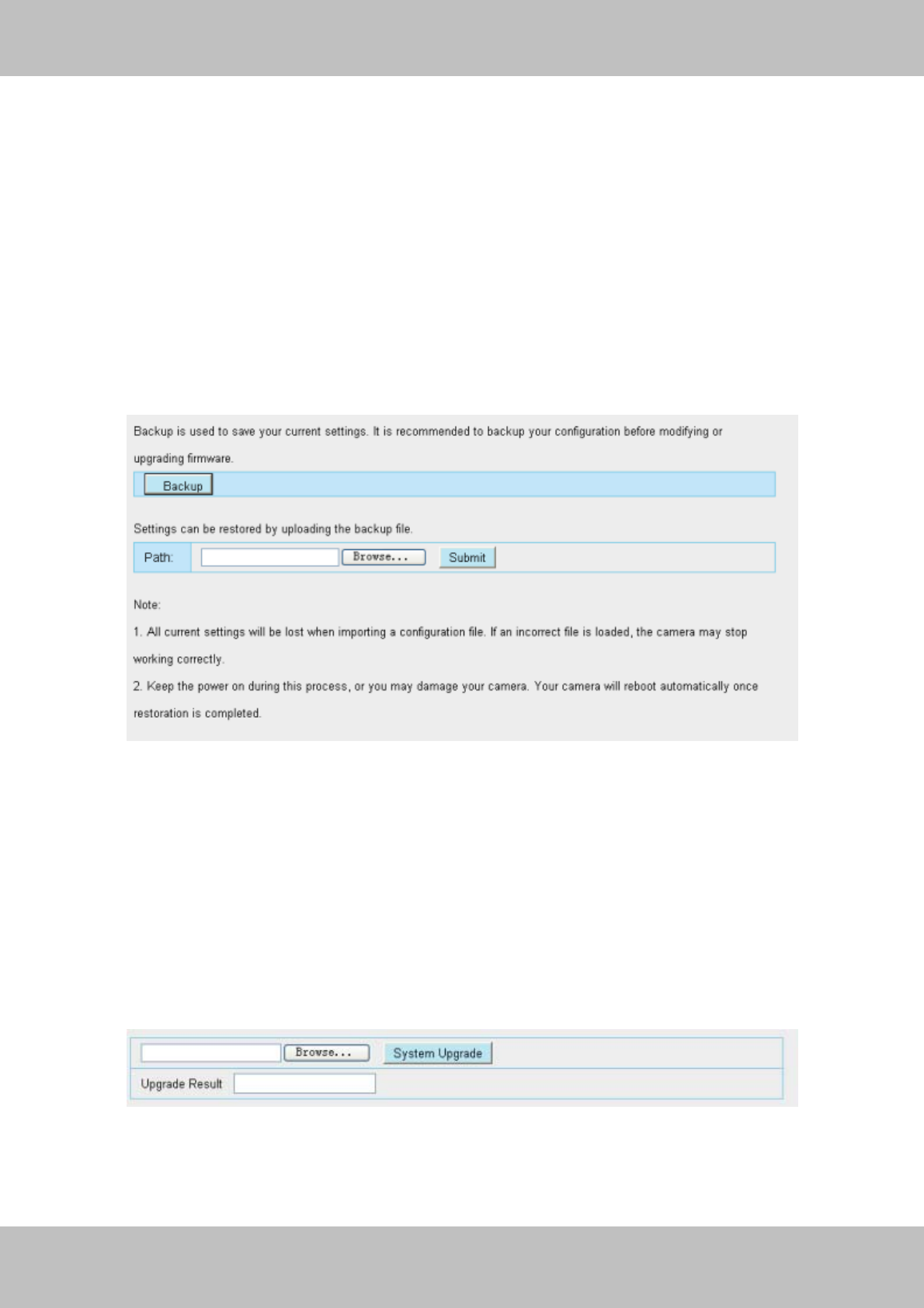
54
w
ww
ww
w.
.f
fo
os
sc
ca
am
m.
.c
co
om
m
S
Sh
he
en
nz
zh
he
en
n
F
Fo
os
sc
ca
am
m
I
In
nt
te
el
ll
li
ig
ge
en
nt
t
T
Te
ec
ch
hn
no
ol
lo
og
gy
y
C
Co
o.
.,
,
L
Li
im
mi
it
te
ed
d
T
Te
el
l:
:
8
86
6
7
75
55
5
2
26
67
74
4
5
56
66
68
8
F
Fa
ax
x:
:
8
86
6
7
75
55
5
2
26
67
74
4
5
51
16
68
8
54
3.10 System
In this panel, you can back up/restore your camera settings, upgrade the firmware to the latest
version, restore the camera to default settings and reboot the device.
3.10.1 Back up& Restore settings
Click Backup to save all the parameters you have set. These parameters will be stored in a bin
file for future use.
Click Browse and select the parameters file you have stored, then click Submit to restore the
restore the parameters.
Figure 3.53
3.10.2 System upgrade
Click Browse, choose the correct bin file( System firmware or Web UI) and then click System
upgrade.
Don’t shut down the power during upgrade. After upgrading, you can see the upgrade result.
Figure 3.54
If you want to verify the firmware version of you camera, please go to Device Status-Æ Device
Information Page to check
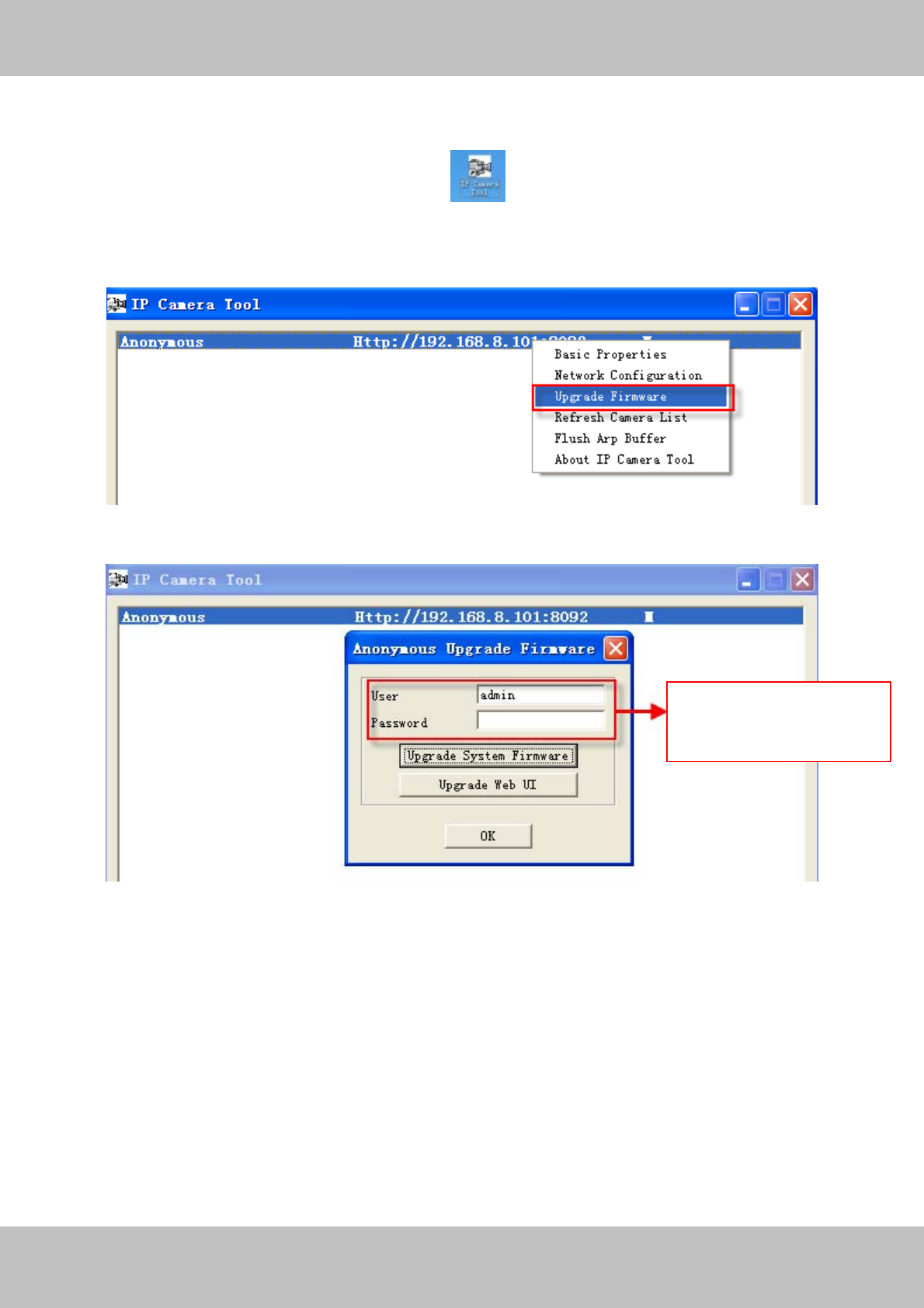
55
w
ww
ww
w.
.f
fo
os
sc
ca
am
m.
.c
co
om
m
S
Sh
he
en
nz
zh
he
en
n
F
Fo
os
sc
ca
am
m
I
In
nt
te
el
ll
li
ig
ge
en
nt
t
T
Te
ec
ch
hn
no
ol
lo
og
gy
y
C
Co
o.
.,
,
L
Li
im
mi
it
te
ed
d
T
Te
el
l:
:
8
86
6
7
75
55
5
2
26
67
74
4
5
56
66
68
8
F
Fa
ax
x:
:
8
86
6
7
75
55
5
2
26
67
74
4
5
51
16
68
8
55
Upgrade Firmware by IP Camera Tool
Double click the IP Camera Tool shot icon , select the Camera IP that you want to
upgrade the firmware. Then select Upgrade Firmware and enter the username and password,
choose the firmware file, and upgrade.
Figure 3.55
Figure 3.56
CAUTION: If your camera works well with the current firmware, we recommend not upgrading.
Please don’t upgrade the firmware unnecessarily. Your camera may be damaged if
misconfigured during an upgrade.
NOTE:
1) Don’t upgrade the firmware through the web UI in WAN, or else the upgrade may be falied.
2) Please ensure you have download the correct firmware package for your camera before
Enter the User name and
password
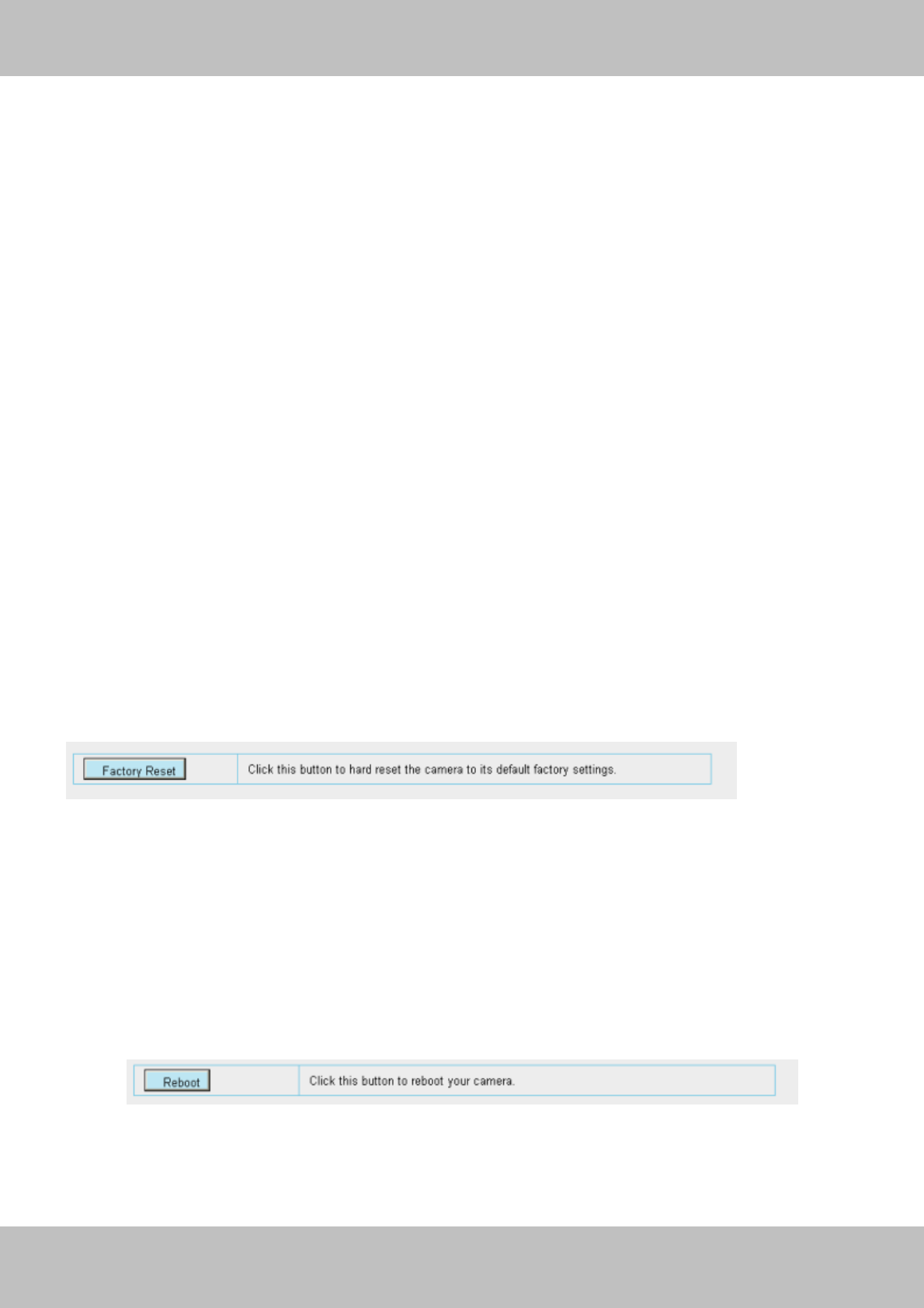
56
w
ww
ww
w.
.f
fo
os
sc
ca
am
m.
.c
co
om
m
S
Sh
he
en
nz
zh
he
en
n
F
Fo
os
sc
ca
am
m
I
In
nt
te
el
ll
li
ig
ge
en
nt
t
T
Te
ec
ch
hn
no
ol
lo
og
gy
y
C
Co
o.
.,
,
L
Li
im
mi
it
te
ed
d
T
Te
el
l:
:
8
86
6
7
75
55
5
2
26
67
74
4
5
56
66
68
8
F
Fa
ax
x:
:
8
86
6
7
75
55
5
2
26
67
74
4
5
51
16
68
8
56
upgrading. Read the upgrade documentation (readme.txt file) in the upgrade package before
you upgrade.
3) Upon downloading the firmware check the sizes of the .bin files. They must match the size in
the readme.txt file. If not, please download the firmware again until the sizes are the same.
Your camera will not function correctly if a corrupt .bin file is used.
4) Normally, only Device WEB UI need to be upgrade, please do not try to upgrade the Device
Firmware.
5) Never shut down the power of the camera during upgrade until the IP camera restart and get
connected.
3.10.3 Factory Reset
Click Factory Reset button and all parameters will return to factory settings if selected.
Figure 3.57
3.10.4 Reboot System
Click Reboot System to reboot the camera. This is similar to unplugging the power to the
camera.
Figure 3.58
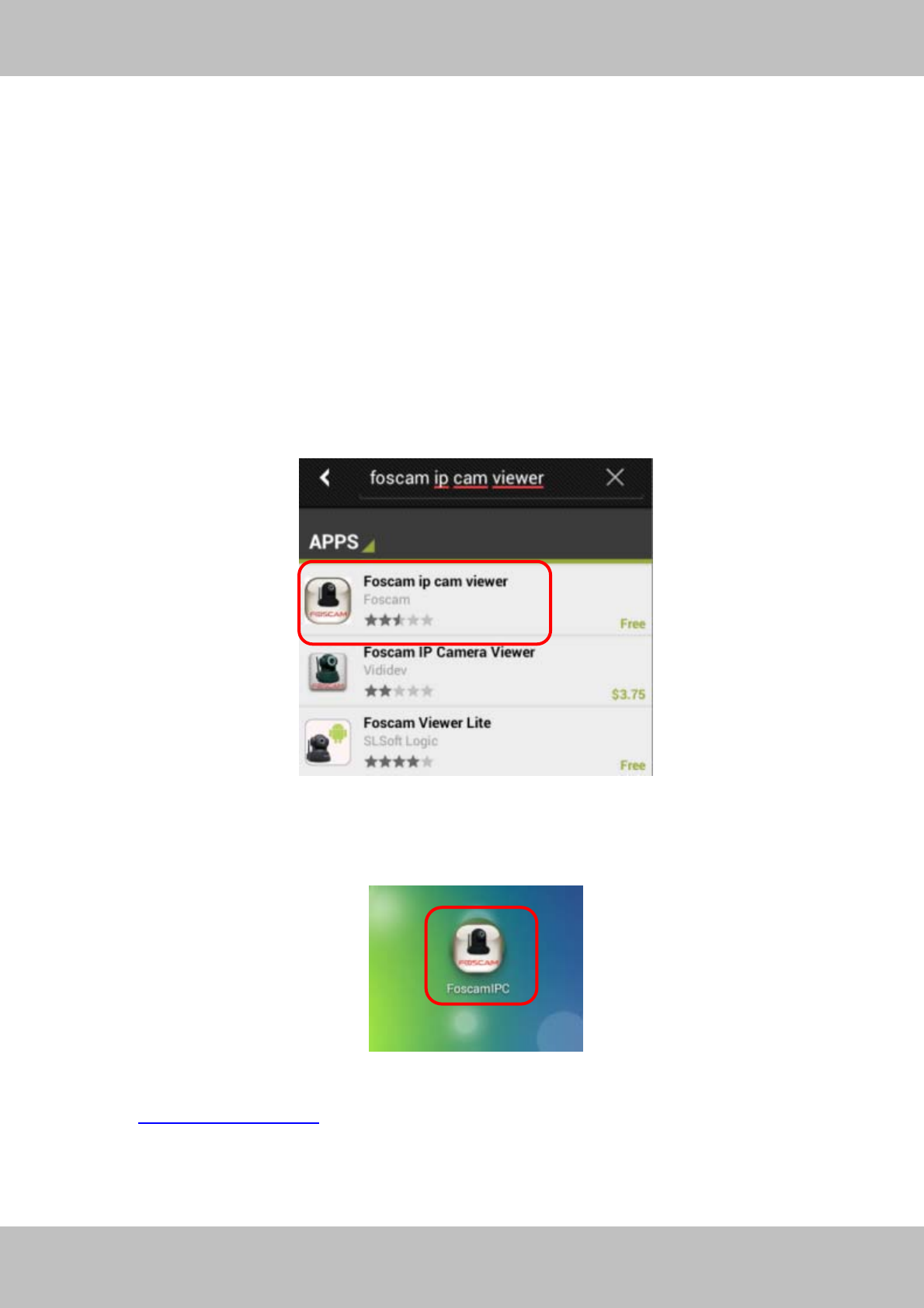
57
w
ww
ww
w.
.f
fo
os
sc
ca
am
m.
.c
co
om
m
S
Sh
he
en
nz
zh
he
en
n
F
Fo
os
sc
ca
am
m
I
In
nt
te
el
ll
li
ig
ge
en
nt
t
T
Te
ec
ch
hn
no
ol
lo
og
gy
y
C
Co
o.
.,
,
L
Li
im
mi
it
te
ed
d
T
Te
el
l:
:
8
86
6
7
75
55
5
2
26
67
74
4
5
56
66
68
8
F
Fa
ax
x:
:
8
86
6
7
75
55
5
2
26
67
74
4
5
51
16
68
8
57
4
4
P
Ph
ho
on
ne
e
A
AP
PP
Ps
s
With Phone APPs , you can view your camera directly as a computer anywhere, anytime.
This section shows the user how to set up the iPhone, and Android mobile phones to view
Foscam cameras with Phone APPs.
4.1 APP for Android cell phones
There are two ways to install the phone App :
1) Search the APP “Foscam ip cam viewer” in the Google Play directly if your cell phone has
installed Google Play.
Figure 4.1
Download and install the phone view app, then you can see the shortcut icon in your cell
phone screen.
2) Enter http://play.google.com in the URL field of the browser, then search the APP “Foscam ip
cam viewer”. Download and install the APP.
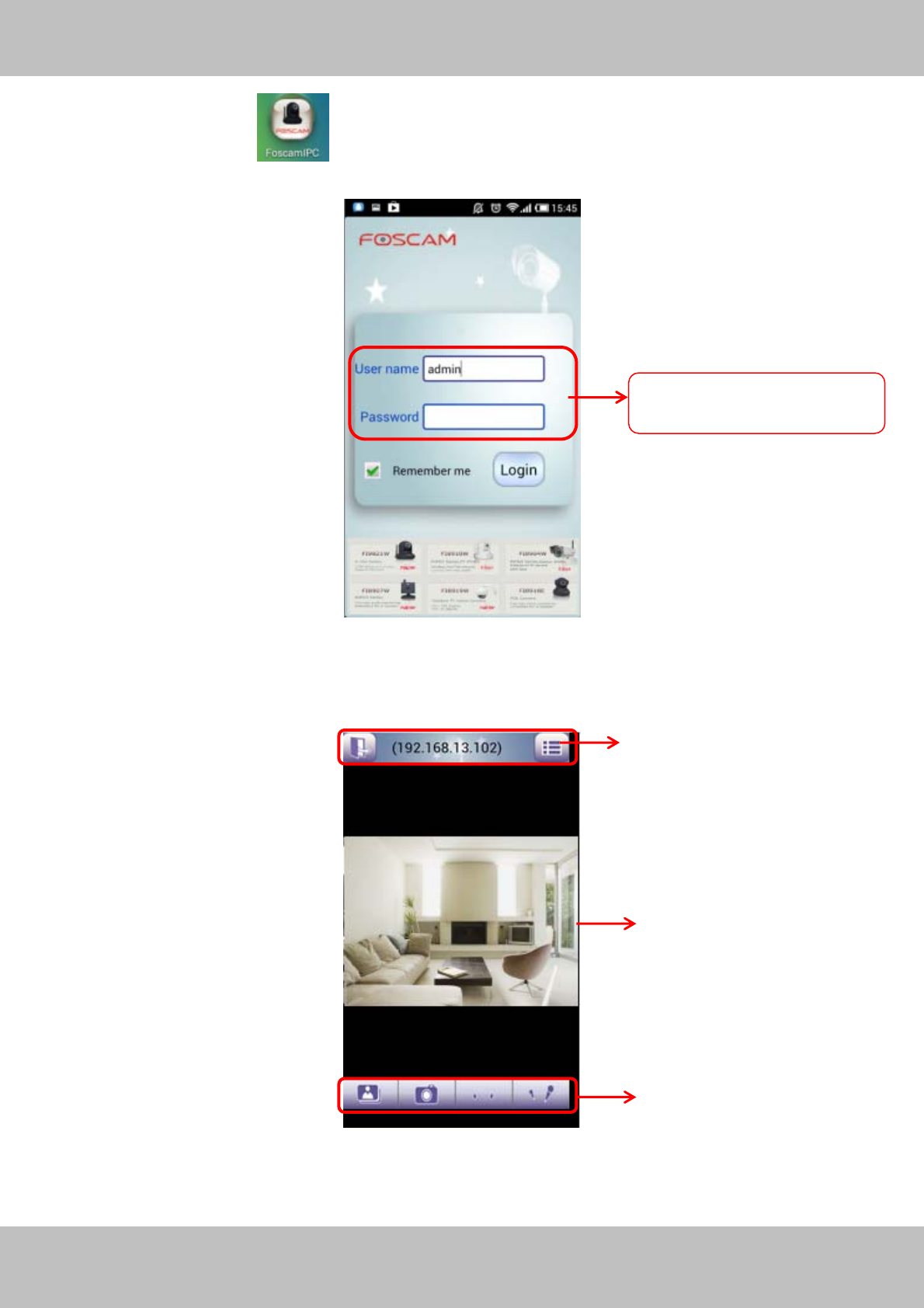
58
w
ww
ww
w.
.f
fo
os
sc
ca
am
m.
.c
co
om
m
S
Sh
he
en
nz
zh
he
en
n
F
Fo
os
sc
ca
am
m
I
In
nt
te
el
ll
li
ig
ge
en
nt
t
T
Te
ec
ch
hn
no
ol
lo
og
gy
y
C
Co
o.
.,
,
L
Li
im
mi
it
te
ed
d
T
Te
el
l:
:
8
86
6
7
75
55
5
2
26
67
74
4
5
56
66
68
8
F
Fa
ax
x:
:
8
86
6
7
75
55
5
2
26
67
74
4
5
51
16
68
8
58
Click the shortcut icon and login Phone APP.
Figure 4.2
Enter the user name and password then click Login button, you can see the following
surveillance windows:
Figure 4.3
Default user name is admin
with a blank
p
assword
1
2
3
59
w
ww
ww
w.
.f
fo
os
sc
ca
am
m.
.c
co
om
m
S
Sh
he
en
nz
zh
he
en
n
F
Fo
os
sc
ca
am
m
I
In
nt
te
el
ll
li
ig
ge
en
nt
t
T
Te
ec
ch
hn
no
ol
lo
og
gy
y
C
Co
o.
.,
,
L
Li
im
mi
it
te
ed
d
T
Te
el
l:
:
8
86
6
7
75
55
5
2
26
67
74
4
5
56
66
68
8
F
Fa
ax
x:
:
8
86
6
7
75
55
5
2
26
67
74
4
5
51
16
68
8
59
The default surveillance window is black, you need to add devices to it and then connect the
device.
Please check the login window above, it was divided to 3 sections from no. 1 to 3.
Section1 Exit / Go to Device List Buttons
Click this icon and exit Phone App
Click this icon and back to Device List page to add cameras to the software
Section2 Live view window
If the camera supports PT function, here slide on the screen with your finger, the camera will
rotate follow your finger direction.
Section3 Playback/ Snapshot/Audio/Talk buttons
Playback Click this icon to play the pictures you have captured.
Snapshot Click it to make snapshot.
Audio button Click it and you will hear sound captured by the camera’s built-in
microphone. Make sure the camera supports Audio. Click the icon again and stop Audio.
Talk button Click it then talk through your cell phone’s microphone which will transmit
through the camera’s speaker. People will hear your talking through the camera’s built-in
speaker. Make sure the camera supports Talk.
Click the icon again and stop talking.
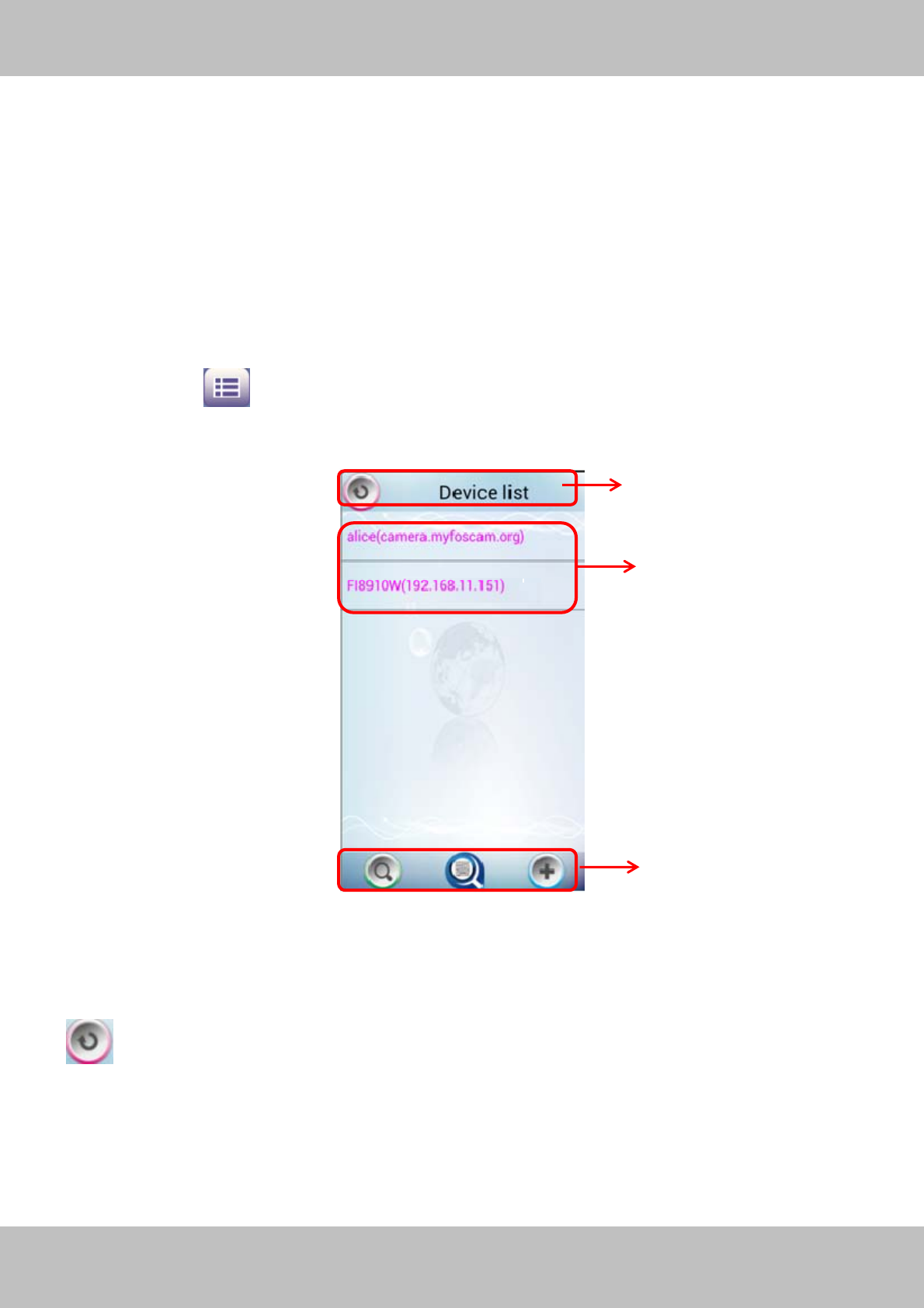
60
w
ww
ww
w.
.f
fo
os
sc
ca
am
m.
.c
co
om
m
S
Sh
he
en
nz
zh
he
en
n
F
Fo
os
sc
ca
am
m
I
In
nt
te
el
ll
li
ig
ge
en
nt
t
T
Te
ec
ch
hn
no
ol
lo
og
gy
y
C
Co
o.
.,
,
L
Li
im
mi
it
te
ed
d
T
Te
el
l:
:
8
86
6
7
75
55
5
2
26
67
74
4
5
56
66
68
8
F
Fa
ax
x:
:
8
86
6
7
75
55
5
2
26
67
74
4
5
51
16
68
8
60
How to add cameras to the Phone APP
The following steps are required before adding cameras to the APP:
1) Install the IP Camera(s) which wants to be monitored.
2) Login the IP Camera(s) by web browser and set the IP address, port, username & password
and make sure the camera can be accessed by browsers.
3) DDNS setting is a plus whenever you want to add the devices by WAN.
Click the button and go to Device List page, this section will show you how to add
cameras in LAN or in WAN.
Figure 4.4
Section1 Back button
: Click this icon and back to the surveillance window
Section2 Device List
Here will list all cameras that added to the software.
1
2
3
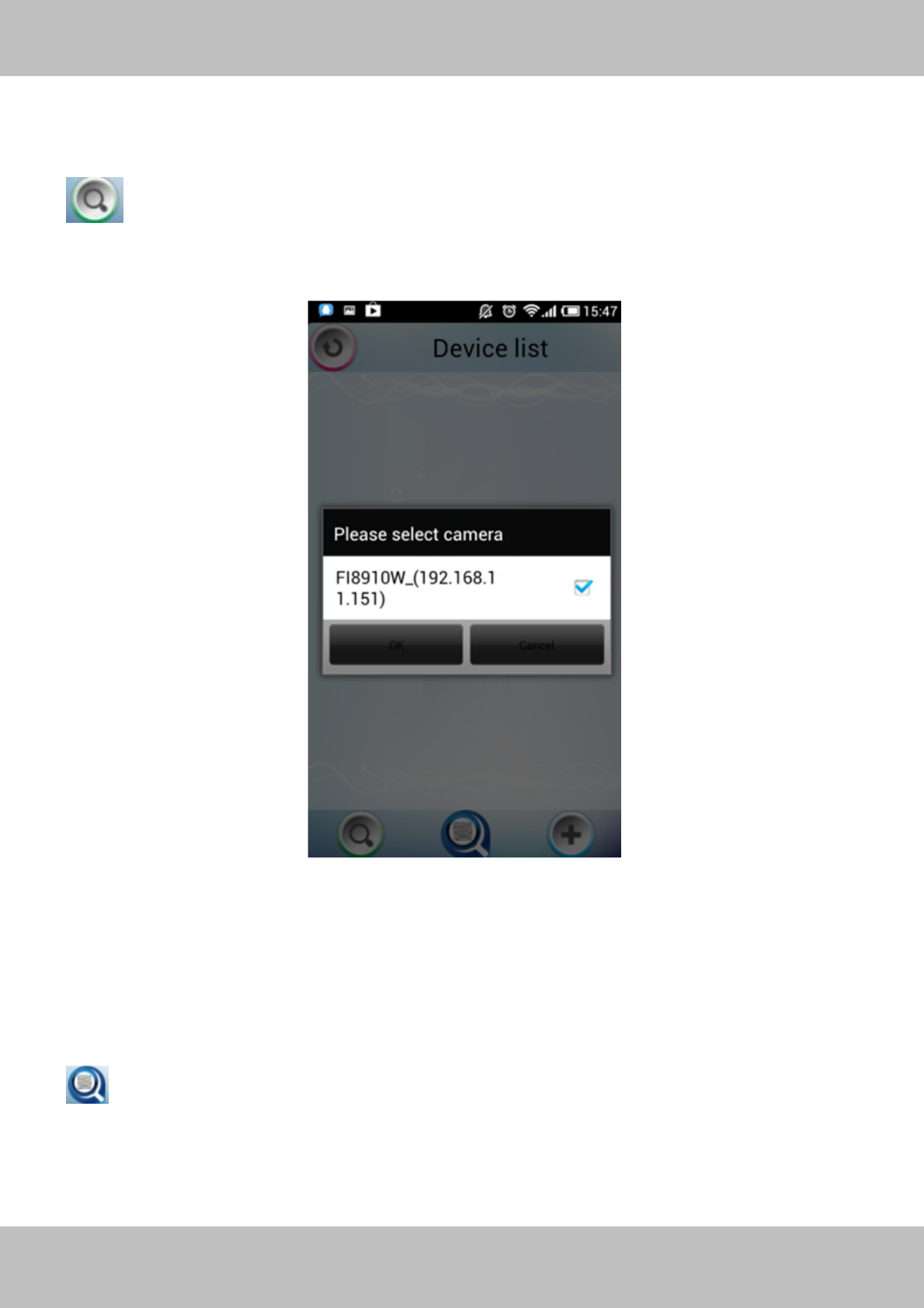
61
w
ww
ww
w.
.f
fo
os
sc
ca
am
m.
.c
co
om
m
S
Sh
he
en
nz
zh
he
en
n
F
Fo
os
sc
ca
am
m
I
In
nt
te
el
ll
li
ig
ge
en
nt
t
T
Te
ec
ch
hn
no
ol
lo
og
gy
y
C
Co
o.
.,
,
L
Li
im
mi
it
te
ed
d
T
Te
el
l:
:
8
86
6
7
75
55
5
2
26
67
74
4
5
56
66
68
8
F
Fa
ax
x:
:
8
86
6
7
75
55
5
2
26
67
74
4
5
51
16
68
8
61
Section3 Add device buttons
Add device in LAN
: Click this icon and the APP will search all cameras in LAN automatically. Such as the
following screen:
Figure 4.5
Select the camera IP and click OK to add cameras in LAN, then you can see the camera in the
Device List.
Add device through scanning UID (User Identification) number
: UID Scan. Click this icon and scan the UID no. in the camera body, then the camera can
be added to the App.
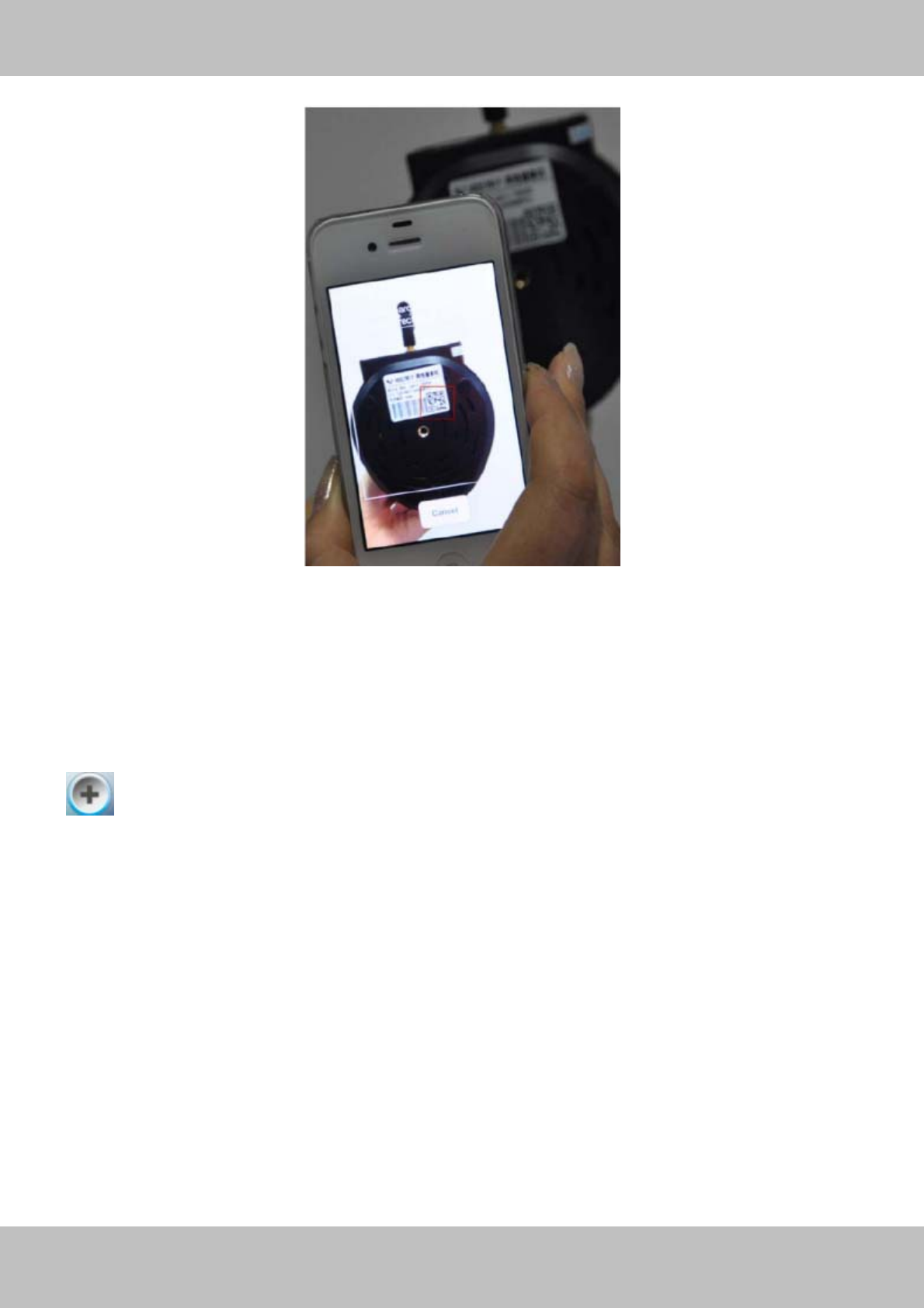
62
w
ww
ww
w.
.f
fo
os
sc
ca
am
m.
.c
co
om
m
S
Sh
he
en
nz
zh
he
en
n
F
Fo
os
sc
ca
am
m
I
In
nt
te
el
ll
li
ig
ge
en
nt
t
T
Te
ec
ch
hn
no
ol
lo
og
gy
y
C
Co
o.
.,
,
L
Li
im
mi
it
te
ed
d
T
Te
el
l:
:
8
86
6
7
75
55
5
2
26
67
74
4
5
56
66
68
8
F
Fa
ax
x:
:
8
86
6
7
75
55
5
2
26
67
74
4
5
51
16
68
8
62
Figure 4.6
Normally each camera has one unique UID and UID is used for PnP function. Now our camera
does not support UID number, so here you cannot allow to use UID to add device.
Add device in WAN
: Click this icon and you can add cameras in WAN manually.
Click this icon and it pops up the following screen, here you can add cameras manually.
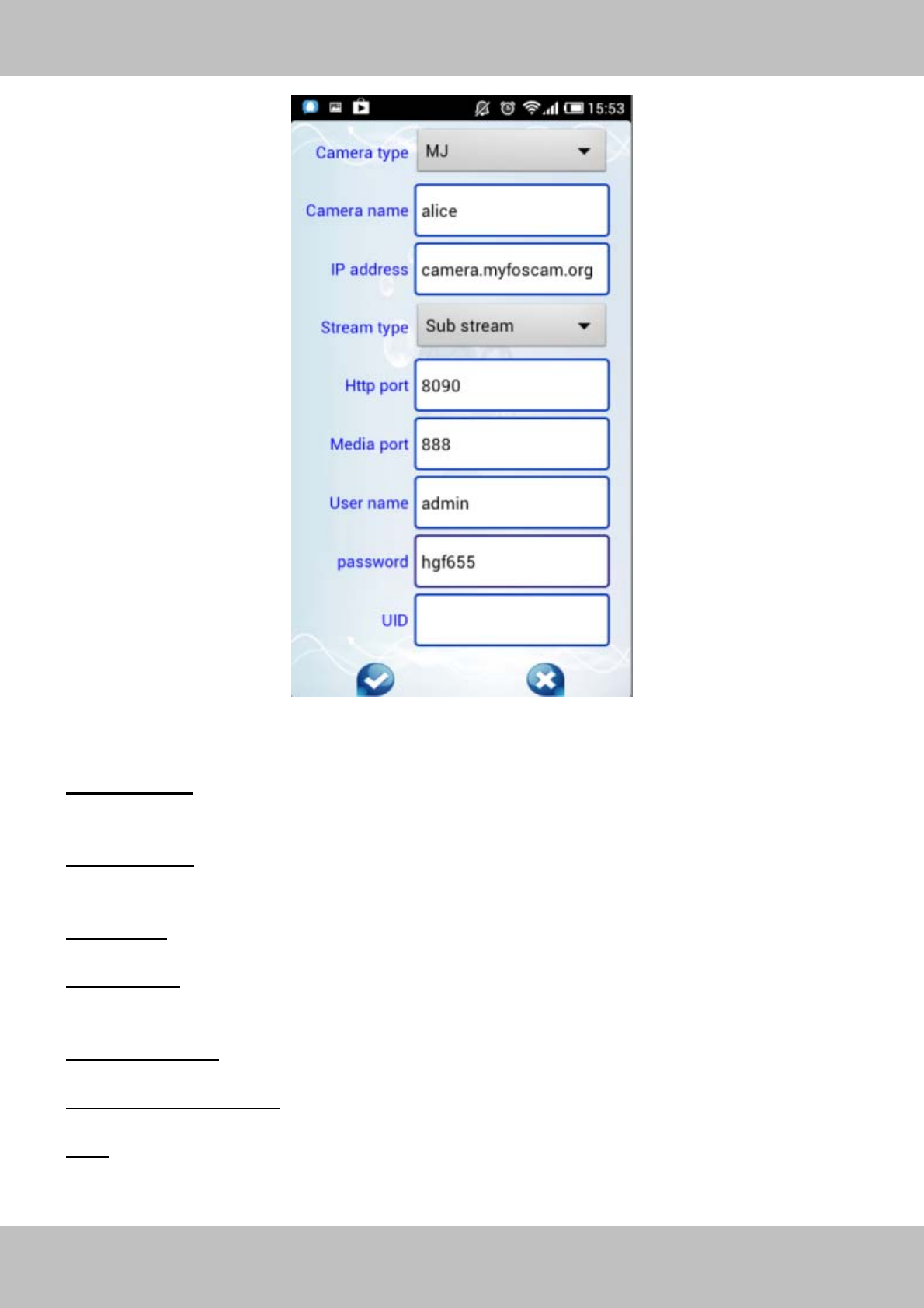
63
w
ww
ww
w.
.f
fo
os
sc
ca
am
m.
.c
co
om
m
S
Sh
he
en
nz
zh
he
en
n
F
Fo
os
sc
ca
am
m
I
In
nt
te
el
ll
li
ig
ge
en
nt
t
T
Te
ec
ch
hn
no
ol
lo
og
gy
y
C
Co
o.
.,
,
L
Li
im
mi
it
te
ed
d
T
Te
el
l:
:
8
86
6
7
75
55
5
2
26
67
74
4
5
56
66
68
8
F
Fa
ax
x:
:
8
86
6
7
75
55
5
2
26
67
74
4
5
51
16
68
8
63
Figure 4.7
Camera Type: Our Company produces two series cameras: MJ and H.264. Here select the
camera type that you want to add.
Camera name: The Camera name is a unique name that you can give to your device to help you
identify it.
IP address: Fill in the camera’s DDNS host or WAN IP not LAN IP.
Stream type: It has two types: Main stream and Sub stream. For cell phones, we recommend
you to select Sub stream to get more fluent video.
Http / Media port: For MJ cameras, here share the same port.
User name &Password: The camera’s user name and password.
UID: If your camera supports UID, here you may fill in the UID no.. Now FOSCAM camera does
not support UID.
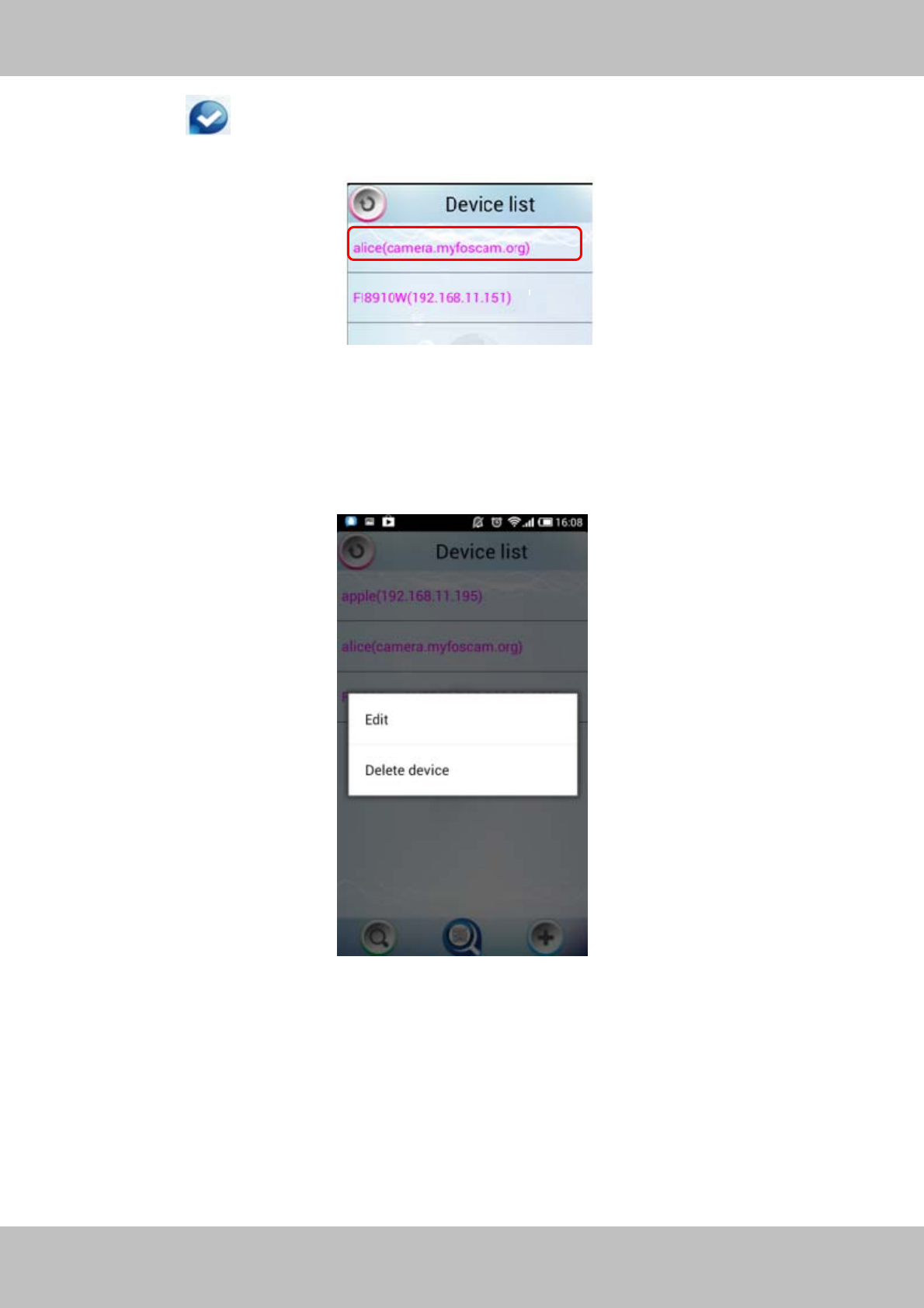
64
w
ww
ww
w.
.f
fo
os
sc
ca
am
m.
.c
co
om
m
S
Sh
he
en
nz
zh
he
en
n
F
Fo
os
sc
ca
am
m
I
In
nt
te
el
ll
li
ig
ge
en
nt
t
T
Te
ec
ch
hn
no
ol
lo
og
gy
y
C
Co
o.
.,
,
L
Li
im
mi
it
te
ed
d
T
Te
el
l:
:
8
86
6
7
75
55
5
2
26
67
74
4
5
56
66
68
8
F
Fa
ax
x:
:
8
86
6
7
75
55
5
2
26
67
74
4
5
51
16
68
8
64
Click the icon to add camera then you can see the camera in the Device List.
.
Select one IP address and click it, then you can enter the surveillance window.
Select one IP address in the Device List and press it for a moment, it pop up the following
screen:
Figure 4.8
Edit: Re- edit the camera’s information, such as the Http / Media port, user name and password,
and so on. Click Edit and you can go to Add camera page (Figure 4.7).
Delete device: Delete the camera from the Device List.
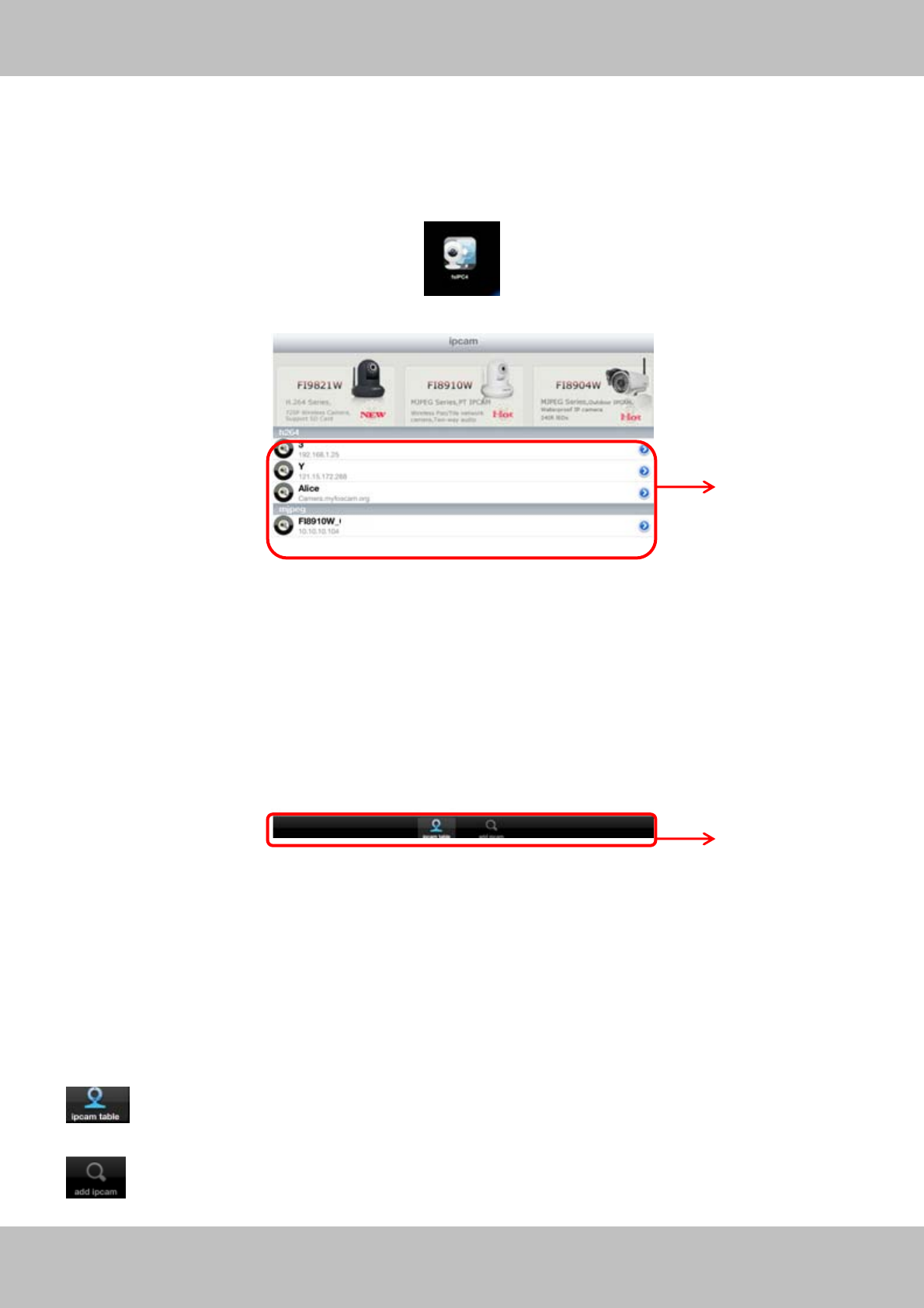
65
w
ww
ww
w.
.f
fo
os
sc
ca
am
m.
.c
co
om
m
S
Sh
he
en
nz
zh
he
en
n
F
Fo
os
sc
ca
am
m
I
In
nt
te
el
ll
li
ig
ge
en
nt
t
T
Te
ec
ch
hn
no
ol
lo
og
gy
y
C
Co
o.
.,
,
L
Li
im
mi
it
te
ed
d
T
Te
el
l:
:
8
86
6
7
75
55
5
2
26
67
74
4
5
56
66
68
8
F
Fa
ax
x:
:
8
86
6
7
75
55
5
2
26
67
74
4
5
51
16
68
8
65
4.2 APP for iPhones
If you use iPhone, please search the APP “Foscam ip cam viewer” and install it through APP
Store, then you can see the shortcut icon in your cell phone screen.
Click the icon and you can go to “ipcam table” page directly:
Figure 4.9
The default device list is null, you need to add cameras to it.
Section1 Camera list
Here will list all cameras that added to the software.
Section2 ipcam table/ add ipcam buttons
Click this icon and back to ipcam table page, here you can see all cameras that have
added to the software.
: Click this icon and back to add ipcam page, here you can add cameras in LAN or in
1
2
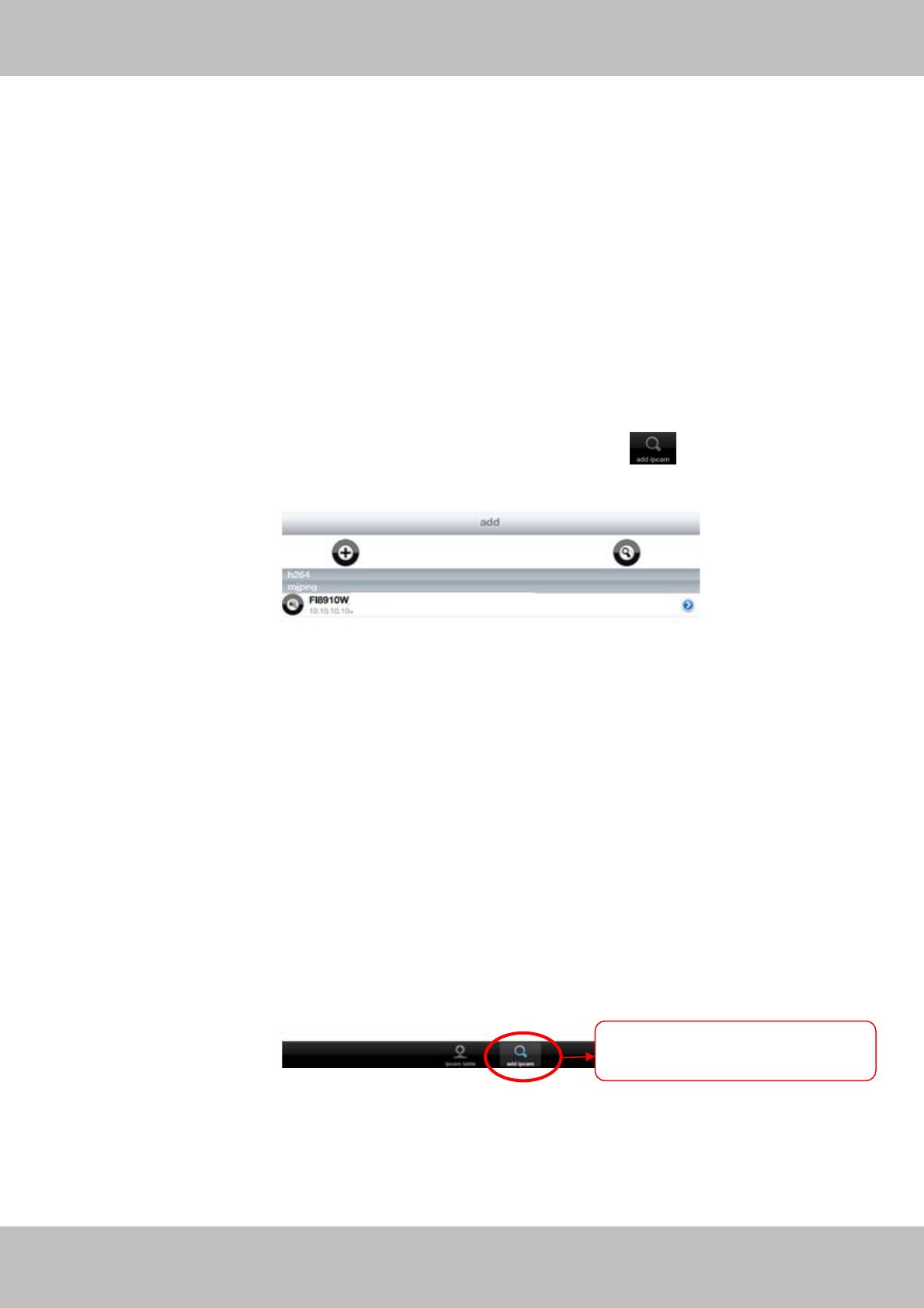
66
w
ww
ww
w.
.f
fo
os
sc
ca
am
m.
.c
co
om
m
S
Sh
he
en
nz
zh
he
en
n
F
Fo
os
sc
ca
am
m
I
In
nt
te
el
ll
li
ig
ge
en
nt
t
T
Te
ec
ch
hn
no
ol
lo
og
gy
y
C
Co
o.
.,
,
L
Li
im
mi
it
te
ed
d
T
Te
el
l:
:
8
86
6
7
75
55
5
2
26
67
74
4
5
56
66
68
8
F
Fa
ax
x:
:
8
86
6
7
75
55
5
2
26
67
74
4
5
51
16
68
8
66
WAN to the software.
How to add cameras to the APP
The following steps are required before adding cameras to the App:
1) Install the IP Camera(s) which wants to be monitored.
2) Login the IP Camera(s) by web browser and set the IP address, port, username & password
and make sure the camera can be accessed by browsers.
3) DDNS setting is a plus whenever you want to add the devices by WAN.
If you want to add cameras to the App, please click this icon go to “add ipcam”
page(Figure 4.10).
Figure 4.10
Click this icon and go to “add
i
pca
m”
page
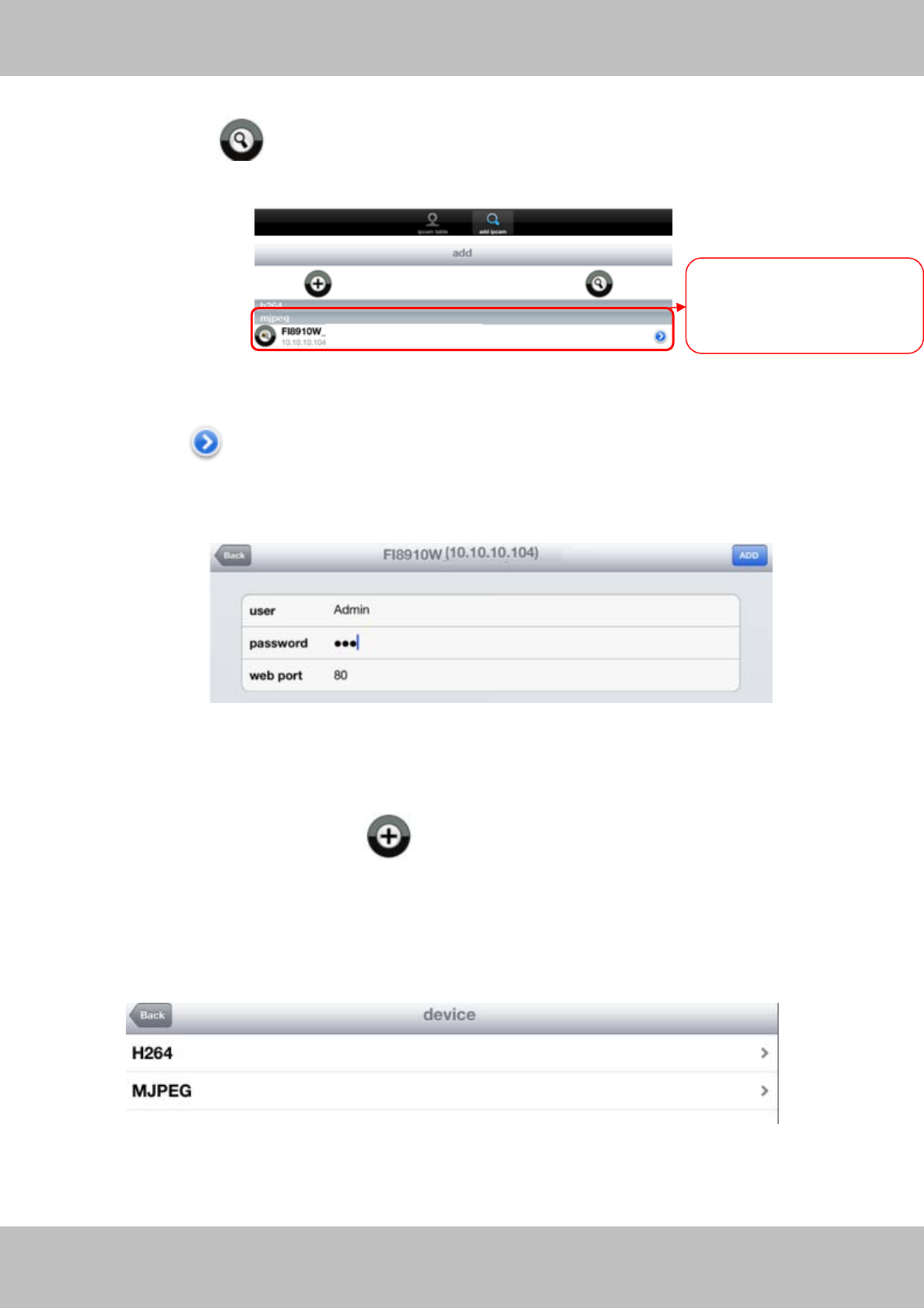
67
w
ww
ww
w.
.f
fo
os
sc
ca
am
m.
.c
co
om
m
S
Sh
he
en
nz
zh
he
en
n
F
Fo
os
sc
ca
am
m
I
In
nt
te
el
ll
li
ig
ge
en
nt
t
T
Te
ec
ch
hn
no
ol
lo
og
gy
y
C
Co
o.
.,
,
L
Li
im
mi
it
te
ed
d
T
Te
el
l:
:
8
86
6
7
75
55
5
2
26
67
74
4
5
56
66
68
8
F
Fa
ax
x:
:
8
86
6
7
75
55
5
2
26
67
74
4
5
51
16
68
8
67
Add device in LAN
Click this button and the APP will search all cameras in LAN, then add it to APP
automatically .
Figure 4.11
There is a icon after the camera name, click it and you can enter the user name, password
and web port to login the camera.
Figure 4.12
Add device in WAN
Step 1: Click the Add Camera icon to add cameras manually.
Step 2: Select the camera type: mjpeg or h.284 (Figure 4.13), then enter the camera’s basic
information like camera name , ip , http/media port, user name, password and so on(Figure
4.14).
Figure 4.13
The cameras in LAN can
be searched and added to
APP automatically
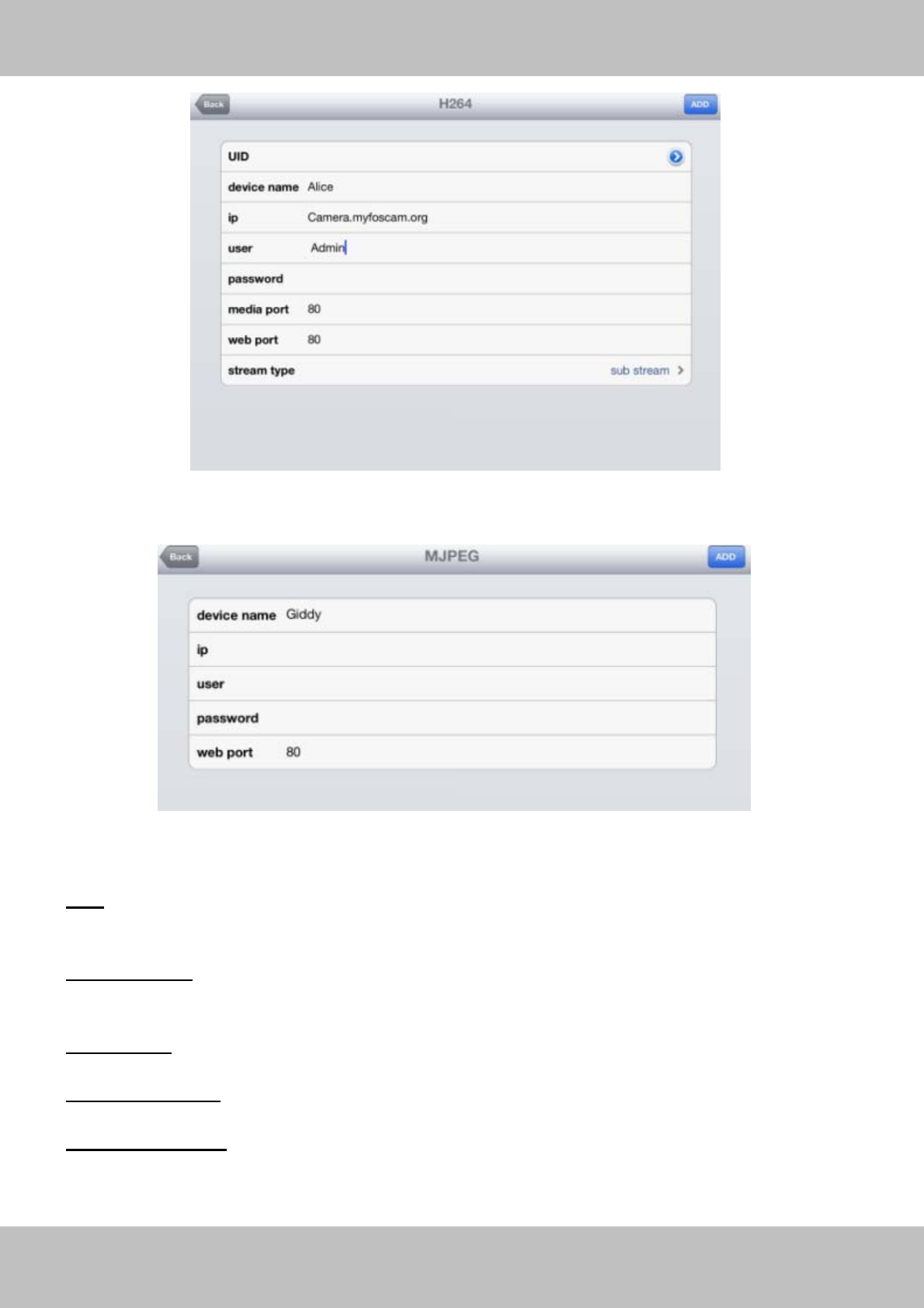
68
w
ww
ww
w.
.f
fo
os
sc
ca
am
m.
.c
co
om
m
S
Sh
he
en
nz
zh
he
en
n
F
Fo
os
sc
ca
am
m
I
In
nt
te
el
ll
li
ig
ge
en
nt
t
T
Te
ec
ch
hn
no
ol
lo
og
gy
y
C
Co
o.
.,
,
L
Li
im
mi
it
te
ed
d
T
Te
el
l:
:
8
86
6
7
75
55
5
2
26
67
74
4
5
56
66
68
8
F
Fa
ax
x:
:
8
86
6
7
75
55
5
2
26
67
74
4
5
51
16
68
8
68
Figure 4.14a Add H.264 Device Page
Figure 4.14b Add MJPEG Device Page
UID: If your camera supports UID, here you scan UID number. Now FOSCAM camera does not
support UID.
Device name: The Device name is a unique name that you can give to your device to help you
identify it.
IP address: Fill in the camera’s DDNS host or WAN IP not LAN IP.
User &Password: The camera’s user name and password.
Media / Web port: For MJPEG cameras, here only support web port.
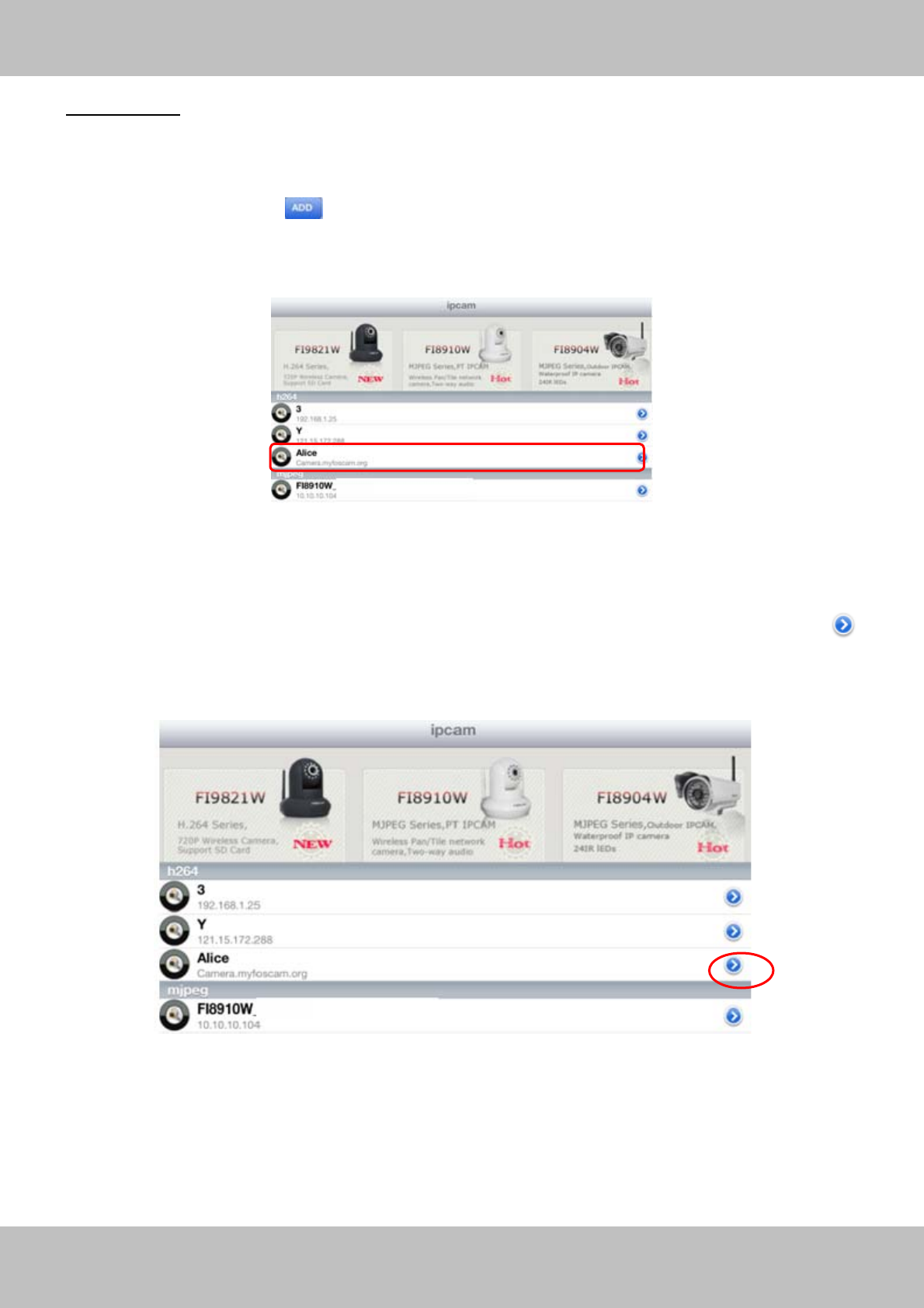
69
w
ww
ww
w.
.f
fo
os
sc
ca
am
m.
.c
co
om
m
S
Sh
he
en
nz
zh
he
en
n
F
Fo
os
sc
ca
am
m
I
In
nt
te
el
ll
li
ig
ge
en
nt
t
T
Te
ec
ch
hn
no
ol
lo
og
gy
y
C
Co
o.
.,
,
L
Li
im
mi
it
te
ed
d
T
Te
el
l:
:
8
86
6
7
75
55
5
2
26
67
74
4
5
56
66
68
8
F
Fa
ax
x:
:
8
86
6
7
75
55
5
2
26
67
74
4
5
51
16
68
8
69
Stream type: It has two types: Main stream and Sub stream. For cell phones, we recommend
you to select Sub stream to get more fluent video.
Step 3: Click Add button to add cameras, then you can see the camera name in the “ip
cam table” page.
Figure 4.15
Surveillance windows
Back to “ipcam table” page and you can see all cameras that have added. There is a icon
after one camera name, click this icon and you can alter the camera’s user name, password,
media port and http port.
Figure 4.16
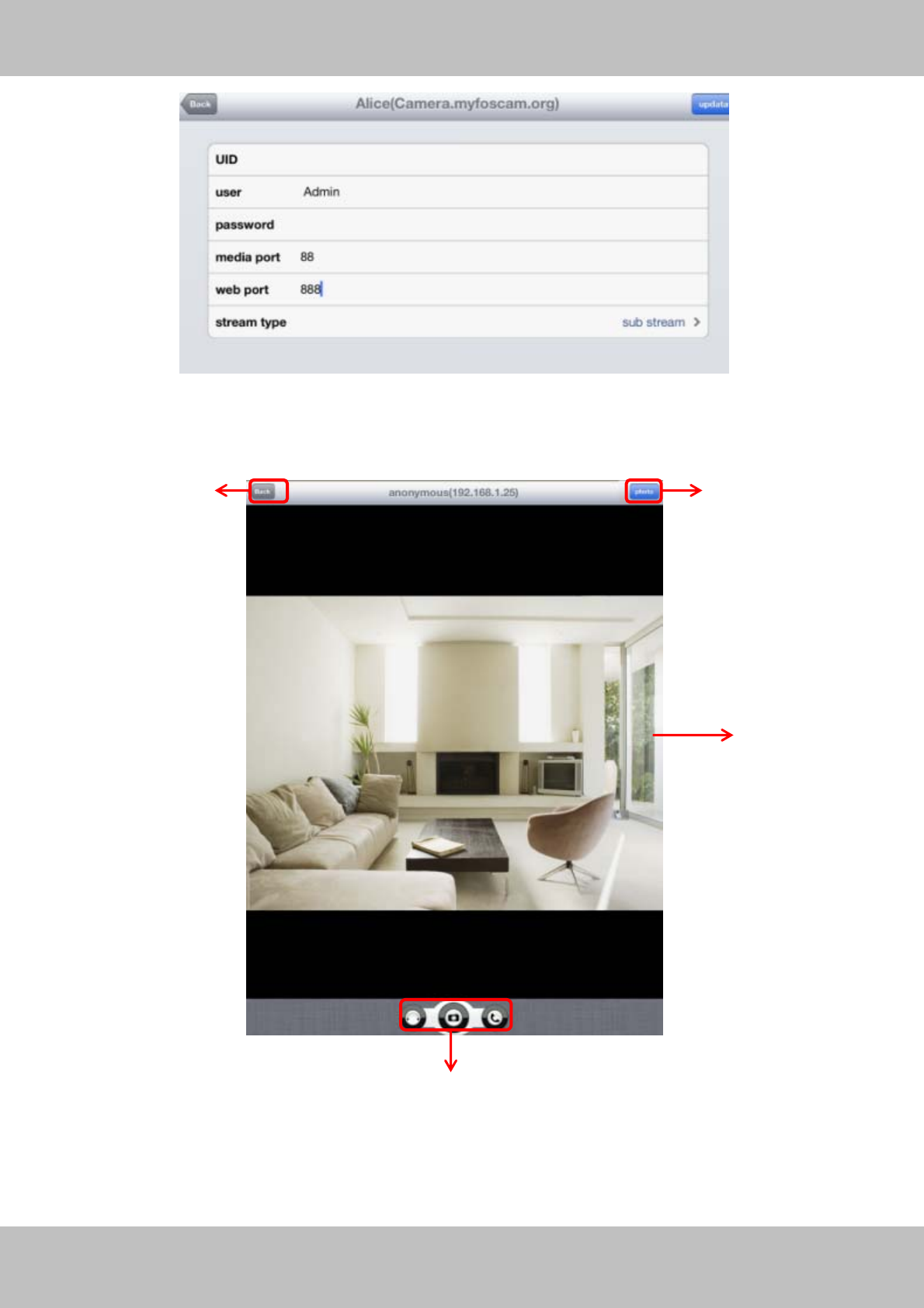
70
w
ww
ww
w.
.f
fo
os
sc
ca
am
m.
.c
co
om
m
S
Sh
he
en
nz
zh
he
en
n
F
Fo
os
sc
ca
am
m
I
In
nt
te
el
ll
li
ig
ge
en
nt
t
T
Te
ec
ch
hn
no
ol
lo
og
gy
y
C
Co
o.
.,
,
L
Li
im
mi
it
te
ed
d
T
Te
el
l:
:
8
86
6
7
75
55
5
2
26
67
74
4
5
56
66
68
8
F
Fa
ax
x:
:
8
86
6
7
75
55
5
2
26
67
74
4
5
51
16
68
8
70
Figure 4.17
Click one camera ip and you can see the live video.
Figure 4.18
Please check the login window above, it was divided to 4 sections from no. 1 to 4.
1 2
3
4
71
w
ww
ww
w.
.f
fo
os
sc
ca
am
m.
.c
co
om
m
S
Sh
he
en
nz
zh
he
en
n
F
Fo
os
sc
ca
am
m
I
In
nt
te
el
ll
li
ig
ge
en
nt
t
T
Te
ec
ch
hn
no
ol
lo
og
gy
y
C
Co
o.
.,
,
L
Li
im
mi
it
te
ed
d
T
Te
el
l:
:
8
86
6
7
75
55
5
2
26
67
74
4
5
56
66
68
8
F
Fa
ax
x:
:
8
86
6
7
75
55
5
2
26
67
74
4
5
51
16
68
8
71
Section1 Back Button
: Click this icon and back to “ipcam table” page.
Section2 Photo Button
Click this icon and look the photos you have captured.
Section3 Live view window
If the camera supports PT function, here slide on the screen with your finger, the camera will
rotate follow your finger direction.
Section4 Snapshot/Audio/Talk buttons
Snapshot
Click it to make snapshot.
Audio button
Click it and you will hear sound captured by the camera’s built-in microphone. Make sure the
camera supports Audio. Click the icon again and stop Audio.
Talk button
Click it then talk through your cell phone’s microphone which will transmit through the camera’s
speaker. People will hear your talking through the camera’s built-in speaker. Make sure the
camera supports Talk.
Click the icon again and stop talking.
Talk
Snapshot
Audio
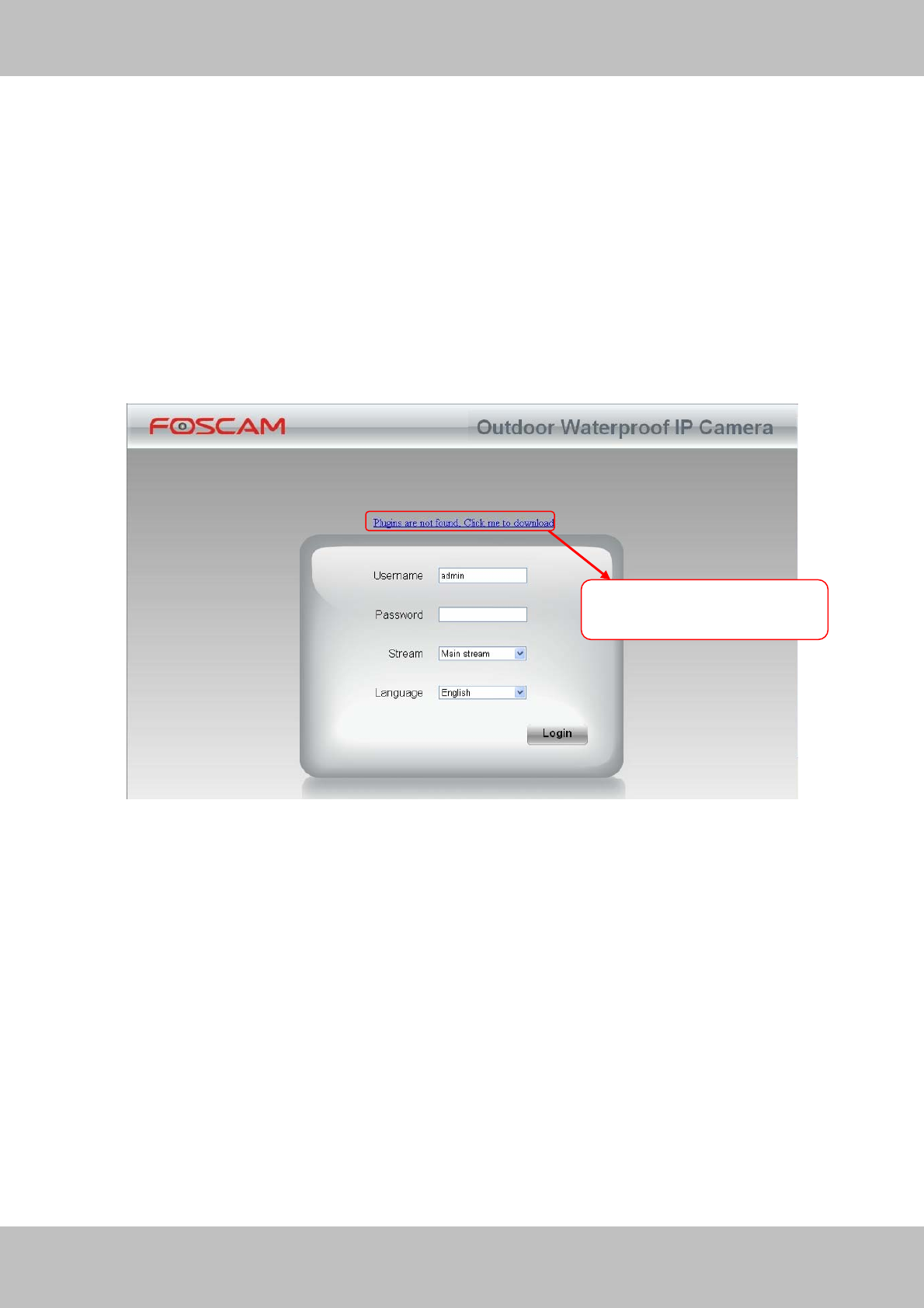
72
w
ww
ww
w.
.f
fo
os
sc
ca
am
m.
.c
co
om
m
S
Sh
he
en
nz
zh
he
en
n
F
Fo
os
sc
ca
am
m
I
In
nt
te
el
ll
li
ig
ge
en
nt
t
T
Te
ec
ch
hn
no
ol
lo
og
gy
y
C
Co
o.
.,
,
L
Li
im
mi
it
te
ed
d
T
Te
el
l:
:
8
86
6
7
75
55
5
2
26
67
74
4
5
56
66
68
8
F
Fa
ax
x:
:
8
86
6
7
75
55
5
2
26
67
74
4
5
51
16
68
8
72
5
5
A
AP
PP
PE
EN
ND
DI
IX
X
5.1 Frequently Asked Questions
NOTE: Any questions you would meet, please check Network connections firstly. Check the
working status revealed by the indicators on the network server, hub, exchange and network
card. If abnormal, check the network connections.
5.1.1 How to download and installl the ActiveX for Firefox users
For the first time login the camera, it may prompt you to download plugin.
Figure 5.1
Drag the download file to Firefox web page and it will prompt you to install it.
Click here to download
the plugin
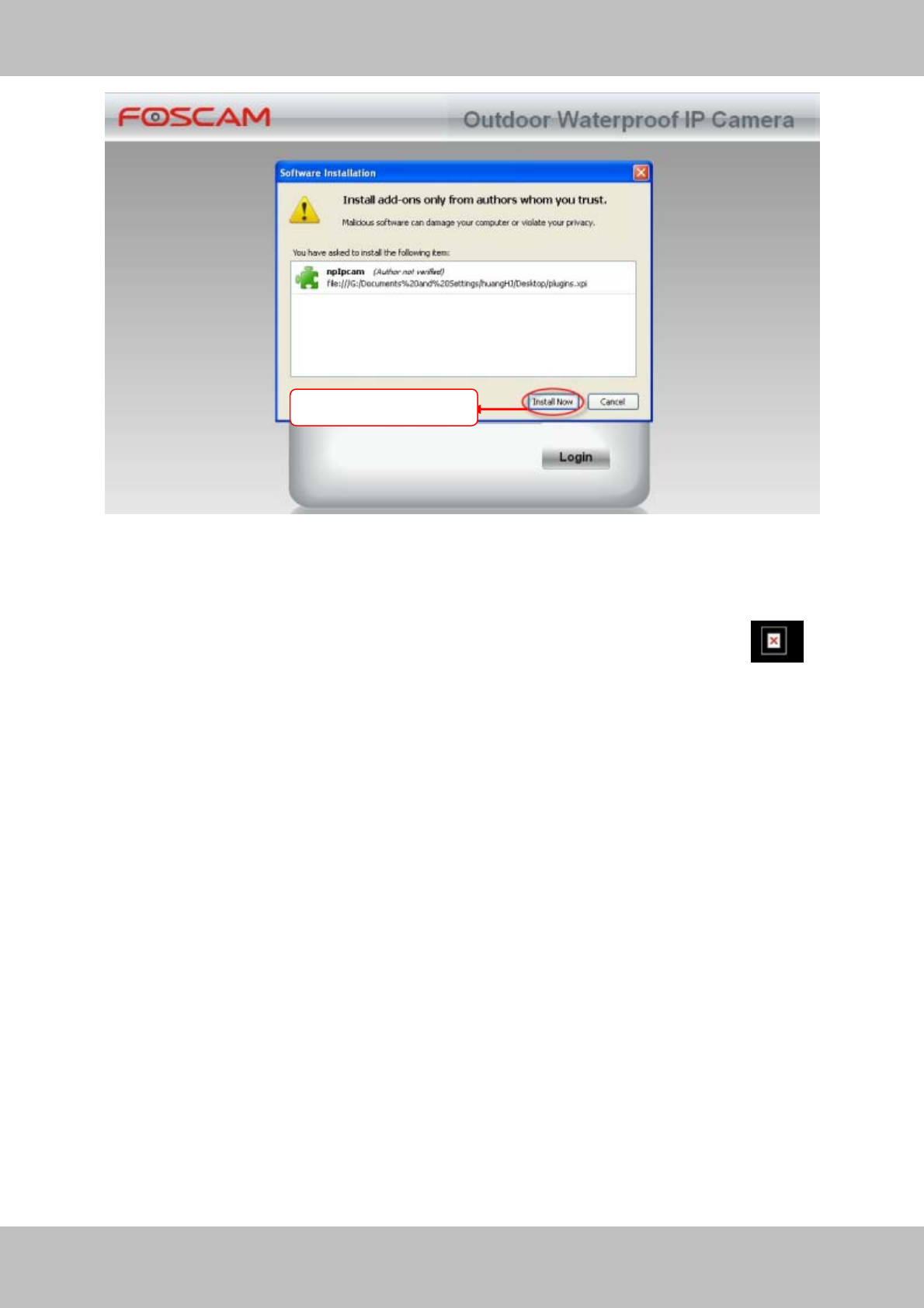
73
w
ww
ww
w.
.f
fo
os
sc
ca
am
m.
.c
co
om
m
S
Sh
he
en
nz
zh
he
en
n
F
Fo
os
sc
ca
am
m
I
In
nt
te
el
ll
li
ig
ge
en
nt
t
T
Te
ec
ch
hn
no
ol
lo
og
gy
y
C
Co
o.
.,
,
L
Li
im
mi
it
te
ed
d
T
Te
el
l:
:
8
86
6
7
75
55
5
2
26
67
74
4
5
56
66
68
8
F
Fa
ax
x:
:
8
86
6
7
75
55
5
2
26
67
74
4
5
51
16
68
8
73
Figure 5.2
Reboot the Firefox after the plugin installation is successfully completely, then re-login the
camera again, you can see the surveillance window
NOTE: If you could not view living video after running the ActiveX, only a red cross in the
center of the video or just a black screen. Please change another port number to try.
Make sure all firewall or antivirus software on your computer does not block the active download
and installation. If you are unable to run the ActiveX control, try shutting down the firewall or
antivirus program.
5.1.2 How to download and installl the ActiveX for Google Chrome users
For the first time login the camera, it will prompt you to download the ActiveX.
Click Install Now
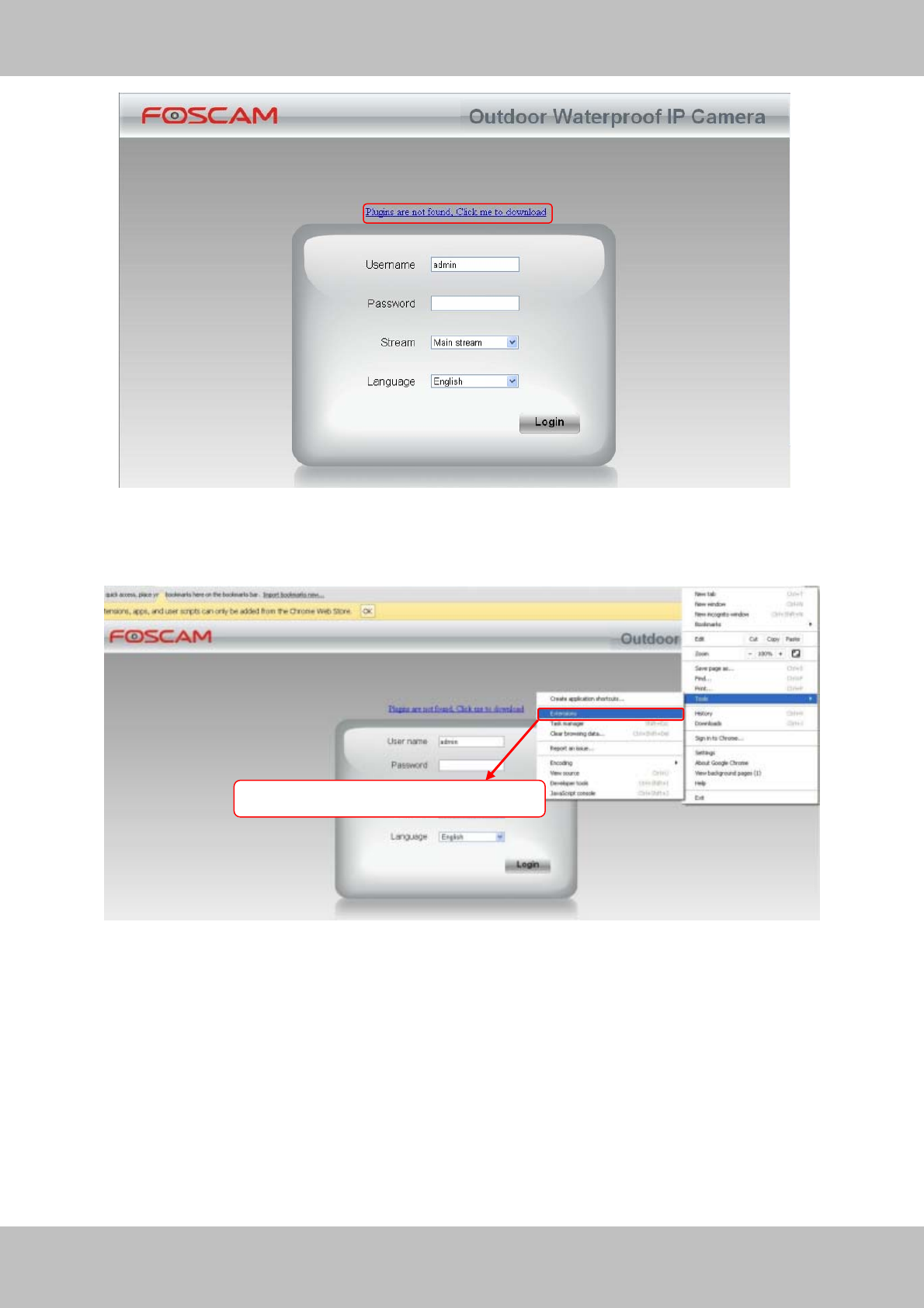
74
w
ww
ww
w.
.f
fo
os
sc
ca
am
m.
.c
co
om
m
S
Sh
he
en
nz
zh
he
en
n
F
Fo
os
sc
ca
am
m
I
In
nt
te
el
ll
li
ig
ge
en
nt
t
T
Te
ec
ch
hn
no
ol
lo
og
gy
y
C
Co
o.
.,
,
L
Li
im
mi
it
te
ed
d
T
Te
el
l:
:
8
86
6
7
75
55
5
2
26
67
74
4
5
56
66
68
8
F
Fa
ax
x:
:
8
86
6
7
75
55
5
2
26
67
74
4
5
51
16
68
8
74
.
Figure 5.3
Download the plugin and drag it to the Extensions page of Google Chrome.
Figure5.4
Click Add button to install the Plugins.
Click Add button to install the plugin
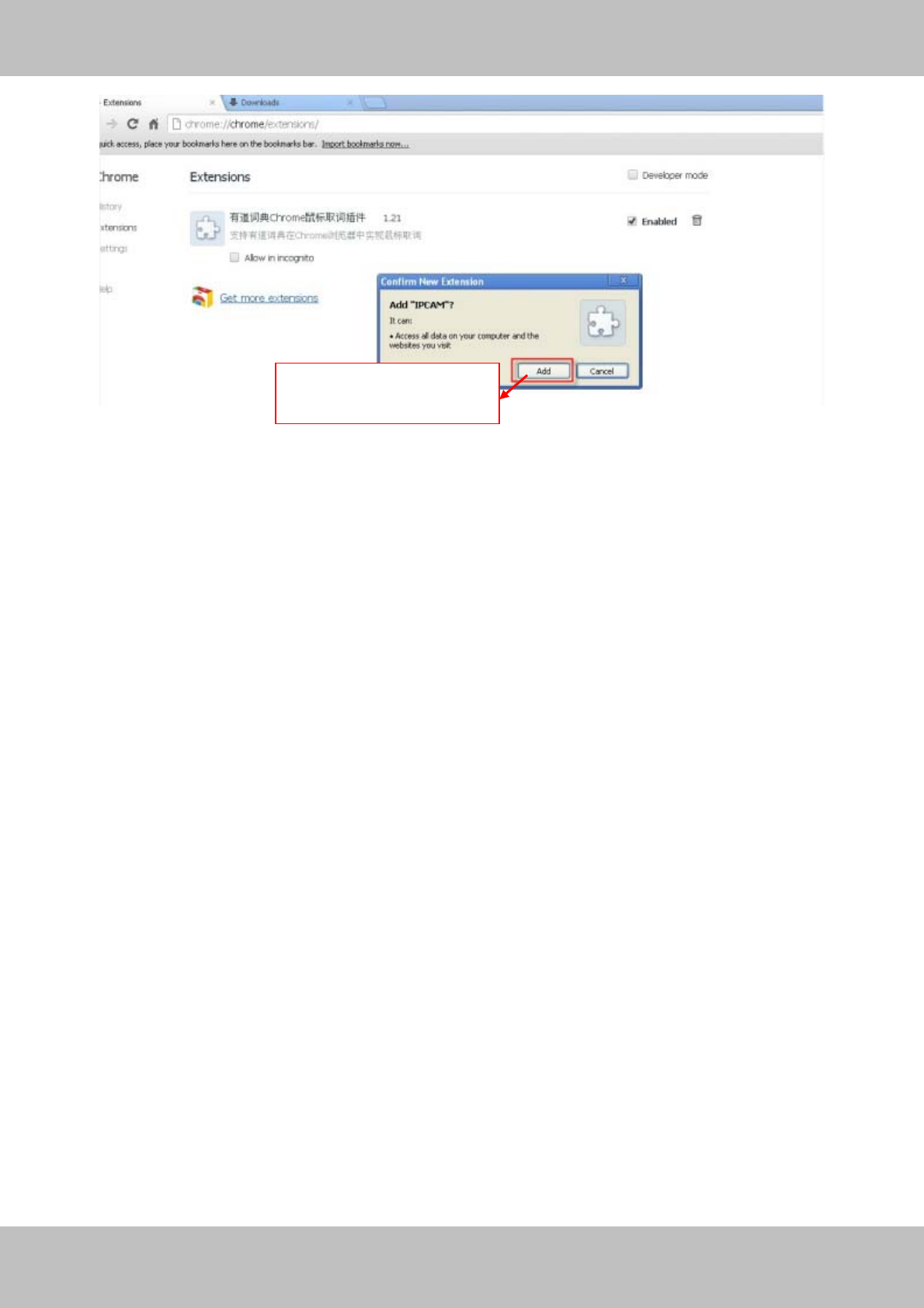
75
w
ww
ww
w.
.f
fo
os
sc
ca
am
m.
.c
co
om
m
S
Sh
he
en
nz
zh
he
en
n
F
Fo
os
sc
ca
am
m
I
In
nt
te
el
ll
li
ig
ge
en
nt
t
T
Te
ec
ch
hn
no
ol
lo
og
gy
y
C
Co
o.
.,
,
L
Li
im
mi
it
te
ed
d
T
Te
el
l:
:
8
86
6
7
75
55
5
2
26
67
74
4
5
56
66
68
8
F
Fa
ax
x:
:
8
86
6
7
75
55
5
2
26
67
74
4
5
51
16
68
8
75
Figure 5.5
Reboot the browser and re-login the camera, you will see the surveillance window.
5.1.3 I have forgotten the administrator password
To reset the administrator password, you had better unplug the network cable firstly. After that,
press and hold down the RESET BUTTON about 5 seconds. Releasing the reset button, the
password will turn to the factory default.
Default administrator username/password: admin with blank password
5.1.4 Subnet doesn’t match
Check whether your ipcamera in the same subnet of your computer. The step is Control
PanelÆNetwork ConnectionsÆDbclick Local Area Connections Æ Choose
GeneralÆProperties.(Figure 3.23/3.24) Check subnet mask, IP address and gateways. When
you set IP address please make sure they are in the same subnet. Otherwise you can't access
camera.
Click Add button to install
the plugin
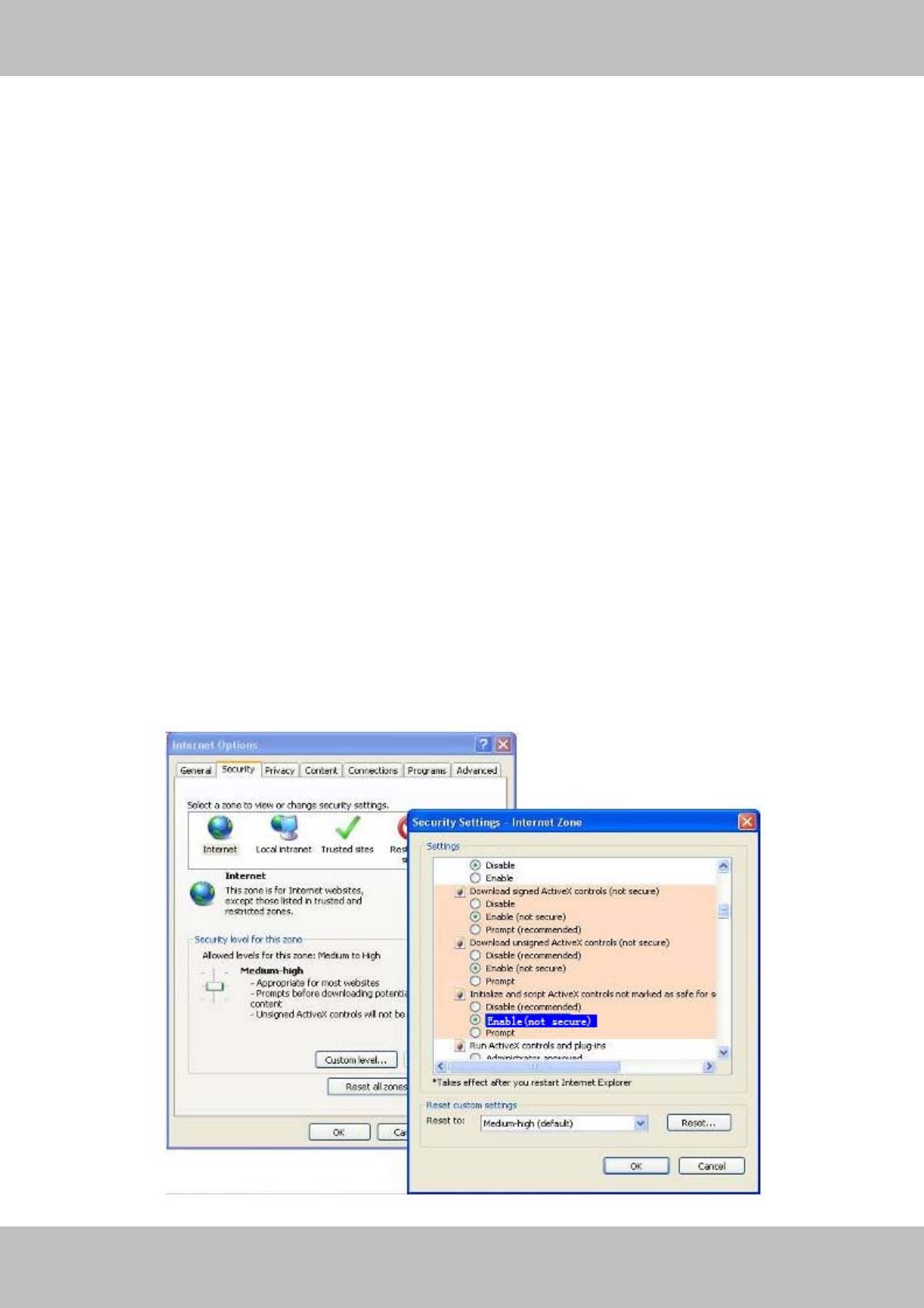
76
w
ww
ww
w.
.f
fo
os
sc
ca
am
m.
.c
co
om
m
S
Sh
he
en
nz
zh
he
en
n
F
Fo
os
sc
ca
am
m
I
In
nt
te
el
ll
li
ig
ge
en
nt
t
T
Te
ec
ch
hn
no
ol
lo
og
gy
y
C
Co
o.
.,
,
L
Li
im
mi
it
te
ed
d
T
Te
el
l:
:
8
86
6
7
75
55
5
2
26
67
74
4
5
56
66
68
8
F
Fa
ax
x:
:
8
86
6
7
75
55
5
2
26
67
74
4
5
51
16
68
8
76
5.1.5 Camera can not record when I click Record button or I can’t change the
manually record path
When you use Windows7 or Vista, you may be not able to do manually record or change the
record path because of the security settings of computer.
There are two ways to resolve this problem:
(1) Please add the camera as a trusted site to resolve this issue. The steps are
IE browserÆToolÆInternet PropertiesÆSecurityÆTrusted sitesÆSitesÆAdd
(2) Open IE browser, then right click, select “Run as administrator”
5.1.6 No Pictures Problems
The video streaming is transmitted by the ActiveX controller. If ActiveX controller isn’t installed
correctly you will see no video image. You can resolve this problem by this way:
Download ActiveX controller and set the safety property of IE in the PC when you view it first
time: IE browserÆToolÆInternet ProperÆSecurityÆCustom LevelÆActiveX control and
Plug-ins. Three options of front should be set to be “Enable”, The ActiveX programs read by the
computer will be stored. As follows:
Enable: Download unsigned ActiveX controls
Enable: Initialize and script ActiveX controls not marked as safe
Enable: Run ActiveX controls and plug-ins
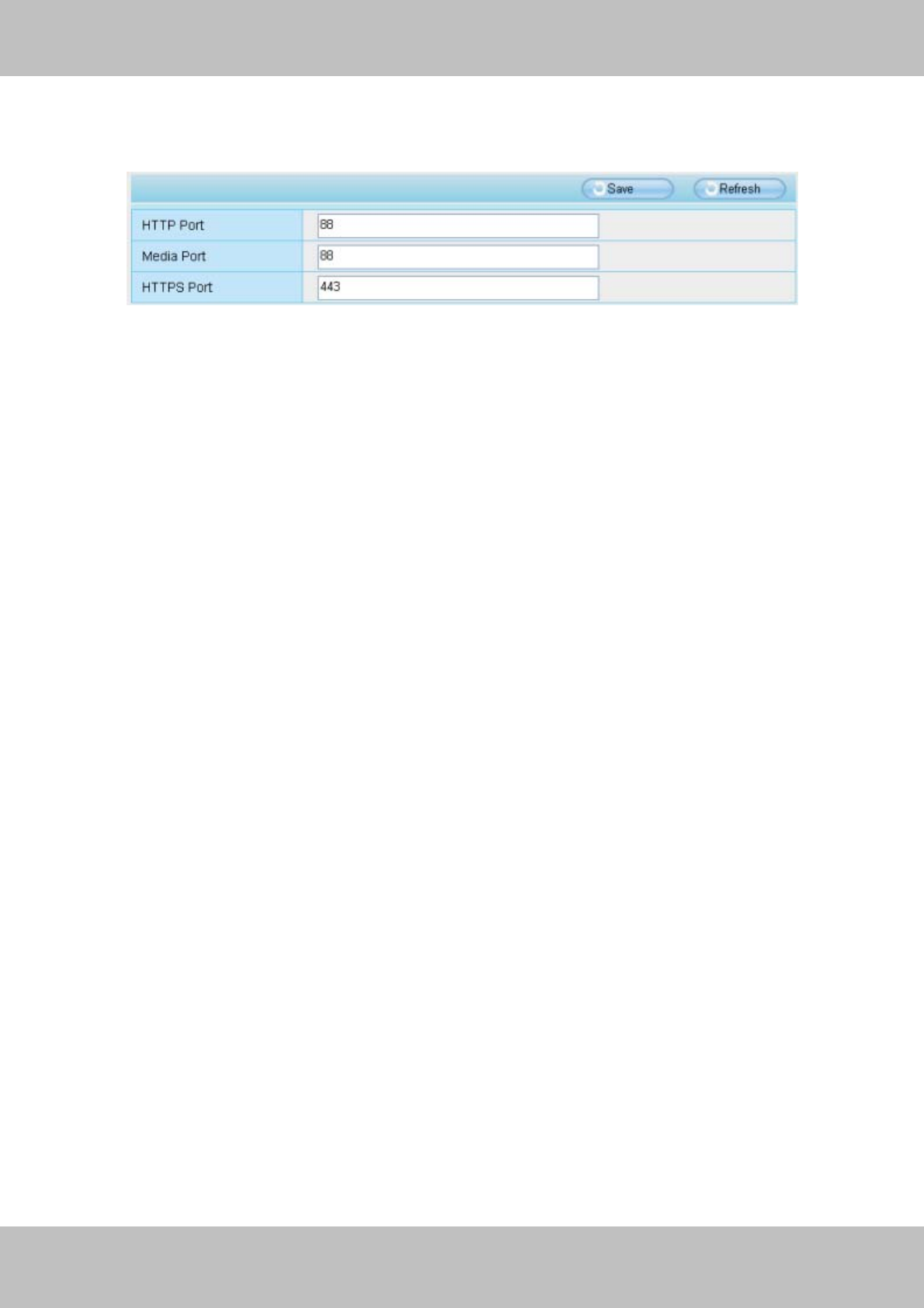
77
w
ww
ww
w.
.f
fo
os
sc
ca
am
m.
.c
co
om
m
S
Sh
he
en
nz
zh
he
en
n
F
Fo
os
sc
ca
am
m
I
In
nt
te
el
ll
li
ig
ge
en
nt
t
T
Te
ec
ch
hn
no
ol
lo
og
gy
y
C
Co
o.
.,
,
L
Li
im
mi
it
te
ed
d
T
Te
el
l:
:
8
86
6
7
75
55
5
2
26
67
74
4
5
56
66
68
8
F
Fa
ax
x:
:
8
86
6
7
75
55
5
2
26
67
74
4
5
51
16
68
8
77
Figure 5.6
If you allow the ActiveX running, but still could not see living video. Please change another port
number to try. Don’t use port 8000.
Figure5.7
NOTE: Make sure that your firewall or anti-virus software does not block the camera or ActiveX.
If you could not see video, please shut down firewall or anti-virus software to try again.
5.1.7 Can’t access IP camera in internet
There are some reasons:
1 ActiveX controller is not installed correctly
2 The port which camera used is blocked by Firewall or Anti-virus software. Please change
another port number and try again. (Figure5.7)
3 Port forwarding is not successful(Figure3.30)
Check these settings and make sure they are correct.
5.1.8 UPnP always failed
UPnP only contains port forwarding in our recent software. Sometimes, it may be failed to do port
forwarding automatically because of firewall or anti-virus software. It also has much relation with
router’s security settings. So we recommend you do port forwarding manually. You can view
your camera in internet successfully after you do port forwarding manually in your router.

78
w
ww
ww
w.
.f
fo
os
sc
ca
am
m.
.c
co
om
m
S
Sh
he
en
nz
zh
he
en
n
F
Fo
os
sc
ca
am
m
I
In
nt
te
el
ll
li
ig
ge
en
nt
t
T
Te
ec
ch
hn
no
ol
lo
og
gy
y
C
Co
o.
.,
,
L
Li
im
mi
it
te
ed
d
T
Te
el
l:
:
8
86
6
7
75
55
5
2
26
67
74
4
5
56
66
68
8
F
Fa
ax
x:
:
8
86
6
7
75
55
5
2
26
67
74
4
5
51
16
68
8
78
5.2 Default Parameters
Default network Parameters
IP address: obtain dynamically
Subnet mask: obtain dynamically
Gateway: obtain dynamically
DDNS: Embedded FOSCAM DDNS Service
Username and password
Default administrator username: admin
Default administrator password: No password
5.3 Specification
Specification FI9805E
Image Sensor
Image Sensor High Definition Color CMOS Sensor
Lens f : 4mm or 6mm or 8mm
Mini. Illumination 0.5Lux
Lens Lens Type Glass Lens
IR_CUT Filter can switch automatically
Audio Input/Output Linear Input/Output, which can realize two-way
voice the intercom
Video
Image Compression H.264
Image Frame Rate 25fps(50Hz), 30fps(60Hz),Down adjustable
Resolution 720p(1280*720),VGA(640*480)
View H.264 dual streaming
Image adjust
The brightness, contrast, saturation, chromaticity, is
adjustable
Infrared mode Auto & Manually
Night visibility Φ8mm 36 IR LEDs, Night visibility up to 30 meters
Network
Ethernet One 10/100Mbps RJ-45
Supported Protocol TCP/IP、UDP/IP、HTTP、SMTP、FTP、DHCP、
DDNS、UPNP、RS485
Support IP address static IP address, dynamic IP address

79
w
ww
ww
w.
.f
fo
os
sc
ca
am
m.
.c
co
om
m
S
Sh
he
en
nz
zh
he
en
n
F
Fo
os
sc
ca
am
m
I
In
nt
te
el
ll
li
ig
ge
en
nt
t
T
Te
ec
ch
hn
no
ol
lo
og
gy
y
C
Co
o.
.,
,
L
Li
im
mi
it
te
ed
d
T
Te
el
l:
:
8
86
6
7
75
55
5
2
26
67
74
4
5
56
66
68
8
F
Fa
ax
x:
:
8
86
6
7
75
55
5
2
26
67
74
4
5
51
16
68
8
79
Alarm
Alarm detection The motion detecting 、 I/O alarm
Alarm inform
Support Email、FTP、I/O output alarm etc alarm
inform way
Hardware
Interface
POWER Interface DC 12V/2.0A (EU,US,AU adapter or other types
option, Power Consumption ﹤8 Watts
Audio Input/Output
Interface One audio input jack, One audio output jack.
Reset Buttons One Reset
I/O alarm interface External Input / output terminal block
Control Interface
one RS - 485 port, support of transparent channel
transmission
PoE
PoE Standard IEEE 802.3af
Input Voltage DC 36V~DC 57V
Output Voltage DC 12V
Output Power 15.4W (Max.)
Wiring standards 100M BASE-T
Environment
Operate Temper 0° ~ 55°C (32°F ~ 131°F)
Operate Humidity 10% ~ 80% non-condensing
Storage Temper -10°C ~ 60° (14°F ~ 140°F)
Storage Humidity 0% ~ 90% non-condensing
Dimension 245(L)X196(W)X112(H)mm.
Net Weight 900g
Gross Weight 1150g
PC
Requirements
CPU 2.0GHZ or above (suggested 3.0GHz)
Memory Size 256MB or above (suggested 1.0GHz)
Display Card 64M or above
Supported OS Microsoft Windows 2000/XP/Vista , Win7/Win8,
Mac OS
Browser IE6 and above version or compatible browser,
Firefox, Chrome, Safari or other standard browsers
Software Upgrade Upgrade from network
Certification CE,FCC

80
w
ww
ww
w.
.f
fo
os
sc
ca
am
m.
.c
co
om
m
S
Sh
he
en
nz
zh
he
en
n
F
Fo
os
sc
ca
am
m
I
In
nt
te
el
ll
li
ig
ge
en
nt
t
T
Te
ec
ch
hn
no
ol
lo
og
gy
y
C
Co
o.
.,
,
L
Li
im
mi
it
te
ed
d
T
Te
el
l:
:
8
86
6
7
75
55
5
2
26
67
74
4
5
56
66
68
8
F
Fa
ax
x:
:
8
86
6
7
75
55
5
2
26
67
74
4
5
51
16
68
8
80
6 OBTAINING TECHNICAL SUPPORT
While we hope your experience with the IPCAM network camera is enjoyable and easy to use,
you may experience some issues or have questions that this User’s Guide has not answered.
If you have problem with FOSCAM IP camera, please first contact FOSCAM reseller for
solving the problems. If our reseller cannot provide service, please contact our service
department: tech@foscam.com .
FCC Caution:
Any Changes or modifications not expressly approved by the party responsible for compliance
could void the user's authority to operate the equipment.
This device complies with part 15 of the FCC Rules. Operation is subject to the following two
conditions: (1) This device may not cause harmful interference, and (2) this device must accept
any interference received, including interference that may cause undesired operation.
Note: This equipment has been tested and found to comply with the limits for a Class B digital
device, pursuant to part 15 of the FCC Rules. These limits are designed to provide reasonable
protection against harmful interference in a residential installation. This equipment generates,
uses and can radiate radio frequency energy and, if not installed and used in accordance with
the instructions, may cause harmful interference to radio communications. However, there is
no guarantee that interference will not occur in a particular installation. If this equipment does
cause harmful interference to radio or television reception, which can be determined by turning
the equipment off and on, the user is encouraged to try to correct the interference by one or
more of the following measures:
—Reorient or relocate the receiving antenna.
—Increase the separation between the equipment and receiver.
—Connect the equipment into an outlet on a circuit different from that to which the receiver is
connected.
—Consult the dealer or an experienced radio/TV technician for help.

81
w
ww
ww
w.
.f
fo
os
sc
ca
am
m.
.c
co
om
m
S
Sh
he
en
nz
zh
he
en
n
F
Fo
os
sc
ca
am
m
I
In
nt
te
el
ll
li
ig
ge
en
nt
t
T
Te
ec
ch
hn
no
ol
lo
og
gy
y
C
Co
o.
.,
,
L
Li
im
mi
it
te
ed
d
T
Te
el
l:
:
8
86
6
7
75
55
5
2
26
67
74
4
5
56
66
68
8
F
Fa
ax
x:
:
8
86
6
7
75
55
5
2
26
67
74
4
5
51
16
68
8
81