ShenZhen Foscam Intelligent Technology FI9828PV2 FHD Wireless IP Camera User Manual

ShenZhen Foscam Intelligent Technology Co., Ltd. FHD Wireless IP Camera Users Manual

Users Manual

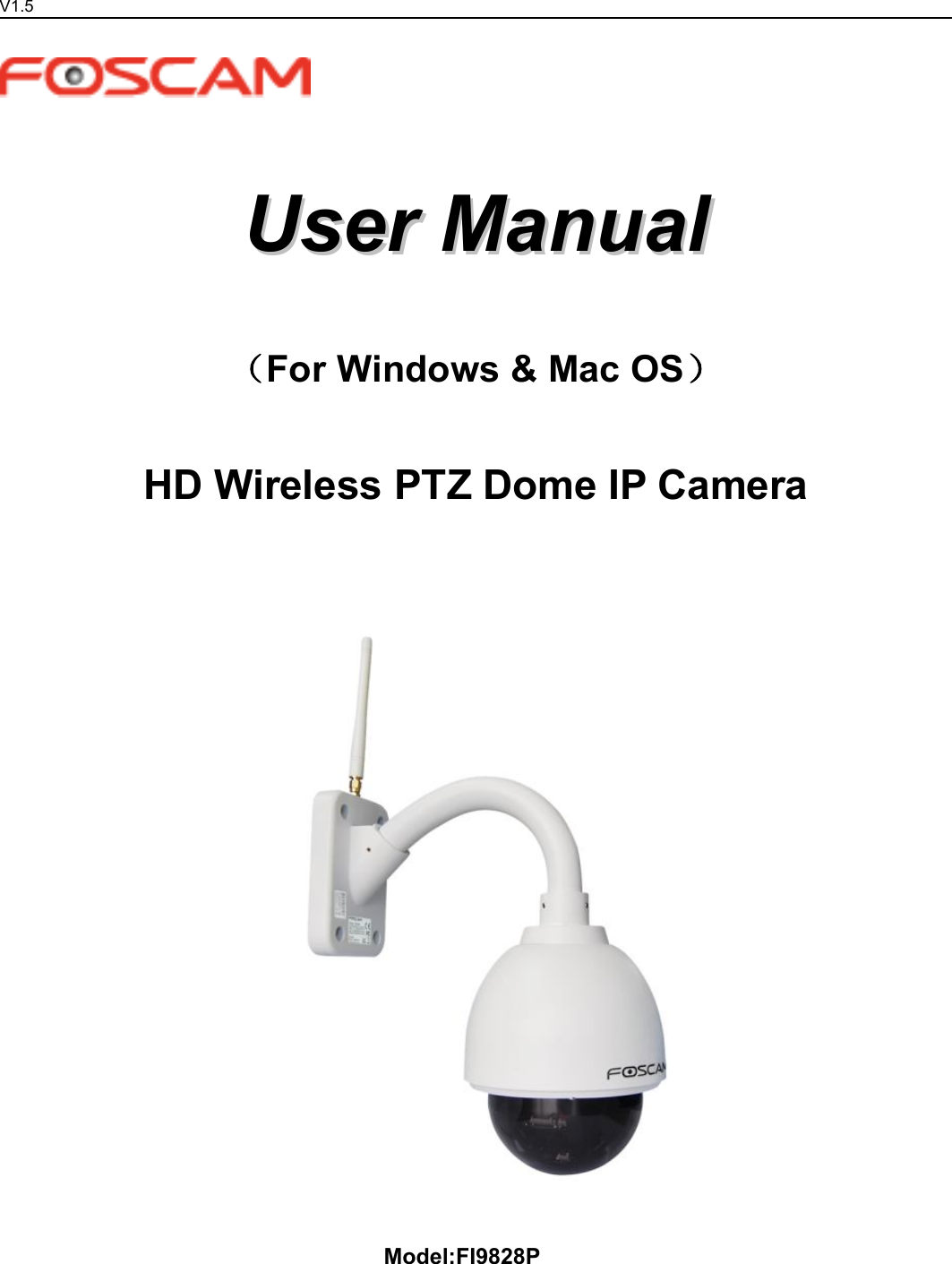
V1.5UserUser ManualManual(For Windows & Mac OS)HD Wireless PTZ Dome IP CameraModel:FI9828P
www.foscam.comShenzhen Foscam Intelligent Technology Co., LimitedTel: 86 755 2674 5668 Fax: 86 755 2674 5168Table of Contents1 Overview............................................................................................................................................................................. 11.1 Key Features...........................................................................................................................................................11.2 Read Before Use.................................................................................................................................................... 21.3 Package Contents..................................................................................................................................................21.4 Physical Description.............................................................................................................................................. 22 Access the IP Camera...................................................................................................................................................... 62.1 Access the Camera in LAN.................................................................................................................................. 62.2 Access the Camera in WAN................................................................................................................................. 62.3 Using the VLC player.......................................................................................................................................... 102.4 IP camera connection to the server.................................................................................................................. 123 Surveillance Software GUI.............................................................................................................................................133.1 Login Window....................................................................................................................................................... 133.2 Setup Wizard........................................................................................................................................................ 143.3 Surveillance Window........................................................................................................................................... 164 Advanced Camera Settings........................................................................................................................................... 234.1 Status..................................................................................................................................................................... 234.2 Basic Settings.......................................................................................................................................................254.3 Network..................................................................................................................................................................354.4 Video...................................................................................................................................................................... 524.5 Alarm...................................................................................................................................................................... 574.6 Record................................................................................................................................................................... 644.7 PTZ.........................................................................................................................................................................664.8 Firewall...................................................................................................................................................................704.9 System................................................................................................................................................................... 715 Phone Apps...................................................................................................................................................................... 756 Appendix........................................................................................................................................................................... 766.1 Frequently Asked Questions.............................................................................................................................. 766.2 Default Parameters..............................................................................................................................................846.3 Specifications........................................................................................................................................................846.4 CE & FCC..............................................................................................................................................................866.5 Warranty................................................................................................................................................................ 867 Obtaining Technical Support......................................................................................................................................... 89
www.foscam.comShenzhen Foscam Intelligent Technology Co., LimitedTel: 86 755 2674 5668 Fax: 86 755 2674 516811 OverviewFOSCAM FI9828W and FI9828P are an integrated wireless IP Camera with a color CMOS sensor enablingviewing resolution 1280*960. It combines a high quality digital video camera, with a powerful web server, tobring clear video to your desktop from anywhere on your local network or over the Internet.FI9828P supports P2P function. Thanks to the P2P easy access technology, you don’t need to do complicatedPort Forwarding and DDNS settings, you just need to scan the QR code on the bottom of the camera toconnect it on smart phone, or input the UID on CMS software to realize remote access.FI9828W and FI9828P support the industry-standard H.264 compression technology, drastically reducing filesizes and conserving valuable network bandwidth.The IPCAM is based on the TCP/IP standard. There is a WEB server inside which could support InternetExplorer. Therefore the management and maintenance of your device is simplified by using the network toachieve the remote configuration and start-up.The camera is designed for outdoor surveillance applications such as courtyards, supermarket, and school.Controlling the IPCAM and managing images are simplified by using the provided web interface across thenetwork utilizing wireless connectivity.FOSCAM provides Phone Apps for Android and iPhone users, please search “Foscam Viewer” and install itthrough APP Store, then you can view your camera directly as a computer.1.1 Key FeaturesStandard H.264 video compression algorithm to satisfy the transmission of high definition video in narrowbandwidth network1.3 Mega-PixelP2P feature for easy access (FI9828P)Supports IE/Firefox/Google/Safari browser or any other standard browsersSupports WEP,WPA and WPA2 EncryptionWi-Fi compliant with wireless standards IEEE 802.11b/g/nIR night vision (Range:20m)Supports image snapshotSupports dual-streamSupports IR-Cut and the filter change automaticallyEmbedded FOSCAM DDNS(dynamic domain name service) ServiceSupports remote viewing & record from anywhere anytimeMulti-level users management with password protectionMotion detection alert via email or upload image to FTPSupporting Third Party Domain nameProviding Phone Apps for Android and iPhone users
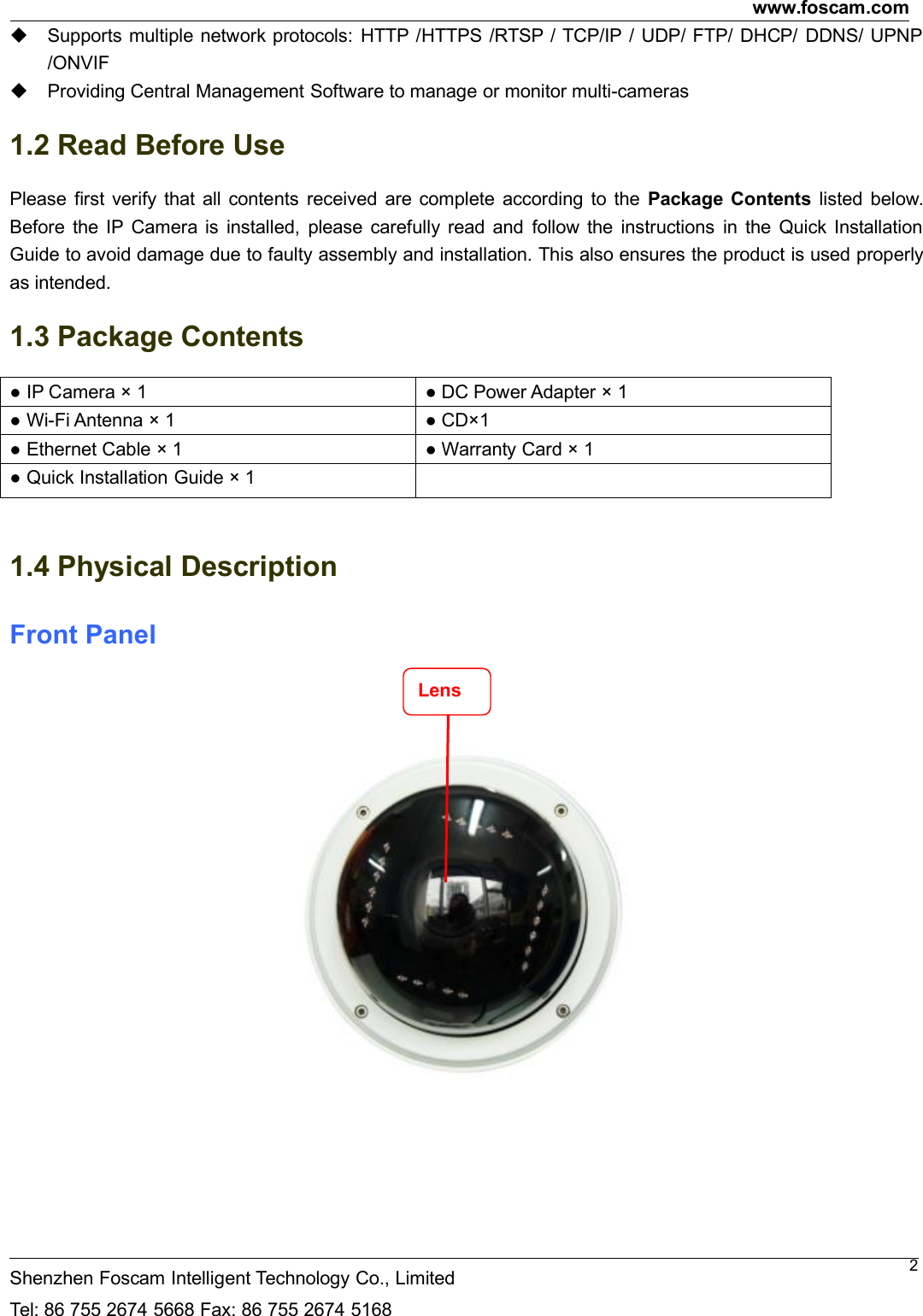
www.foscam.comShenzhen Foscam Intelligent Technology Co., LimitedTel: 86 755 2674 5668 Fax: 86 755 2674 51682Supports multiple network protocols: HTTP /HTTPS /RTSP / TCP/IP / UDP/ FTP/ DHCP/ DDNS/ UPNP/ONVIFProviding Central Management Software to manage or monitor multi-cameras1.2 Read Before UsePlease first verify that all contents received are complete according to the Package Contents listed below.Before the IP Camera is installed, please carefully read and follow the instructions in the Quick InstallationGuide to avoid damage due to faulty assembly and installation. This also ensures the product is used properlyas intended.1.3 Package Contents● IP Camera × 1 ● DC Power Adapter × 1● Wi-Fi Antenna × 1 ● CD×1● Ethernet Cable × 1 ● Warranty Card × 1● Quick Installation Guide × 11.4 Physical DescriptionFront PanelLens
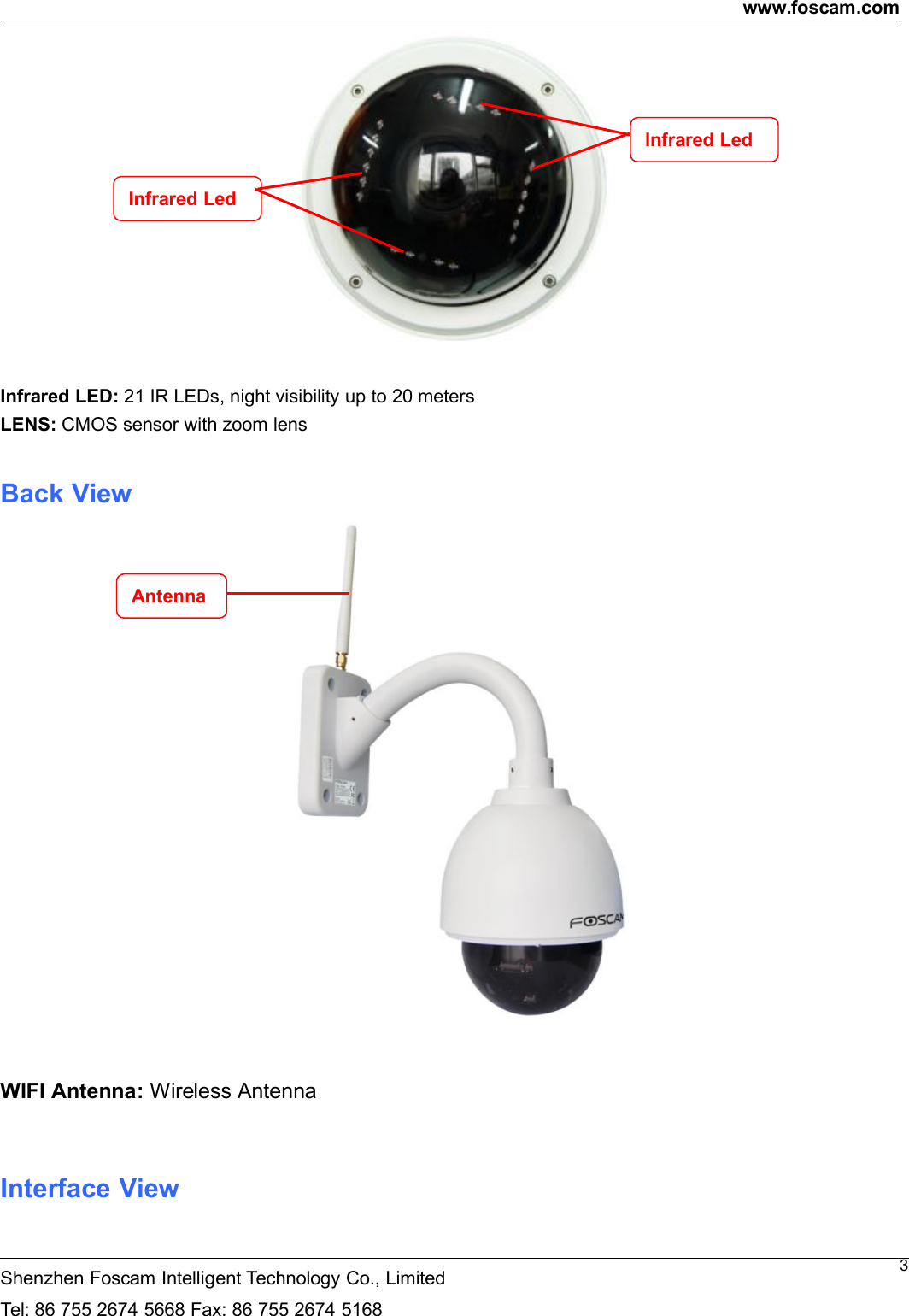
www.foscam.comShenzhen Foscam Intelligent Technology Co., LimitedTel: 86 755 2674 5668 Fax: 86 755 2674 51683Infrared LED: 21 IR LEDs, night visibility up to 20 metersLENS: CMOS sensor with zoom lensBack ViewWIFI Antenna: Wireless AntennaInterface ViewInfrared LedInfrared LedAntenna
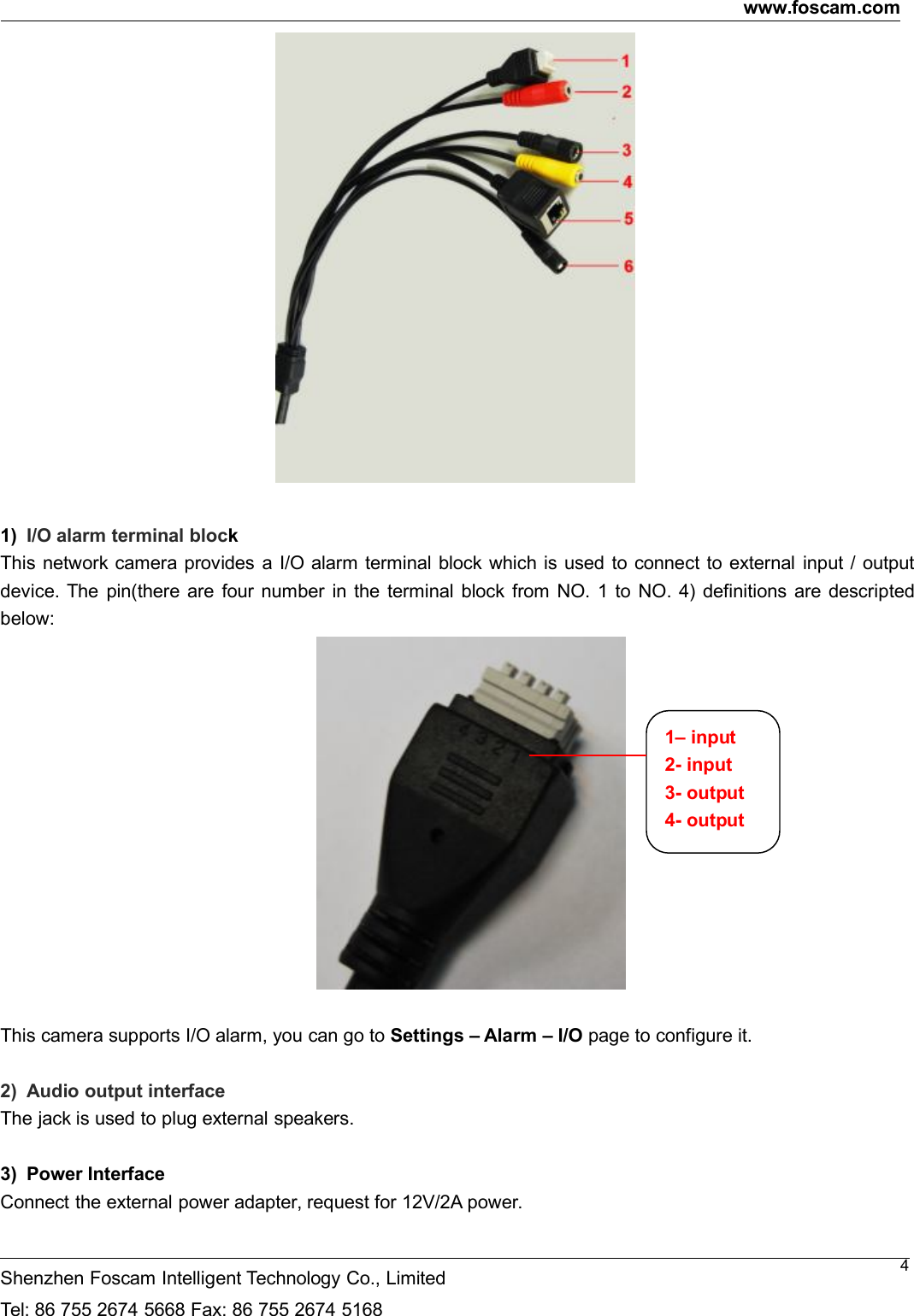
www.foscam.comShenzhen Foscam Intelligent Technology Co., LimitedTel: 86 755 2674 5668 Fax: 86 755 2674 516841) I/O alarm terminal blockThis network camera provides a I/O alarm terminal block which is used to connect to external input / outputdevice. The pin(there are four number in the terminal block from NO. 1 to NO. 4) definitions are descriptedbelow:This camera supports I/O alarm, you can go to Settings – Alarm – I/O page to configure it.2) Audio output interfaceThe jack is used to plug external speakers.3) Power InterfaceConnect the external power adapter, request for 12V/2A power.1– input2- input3- output4- output
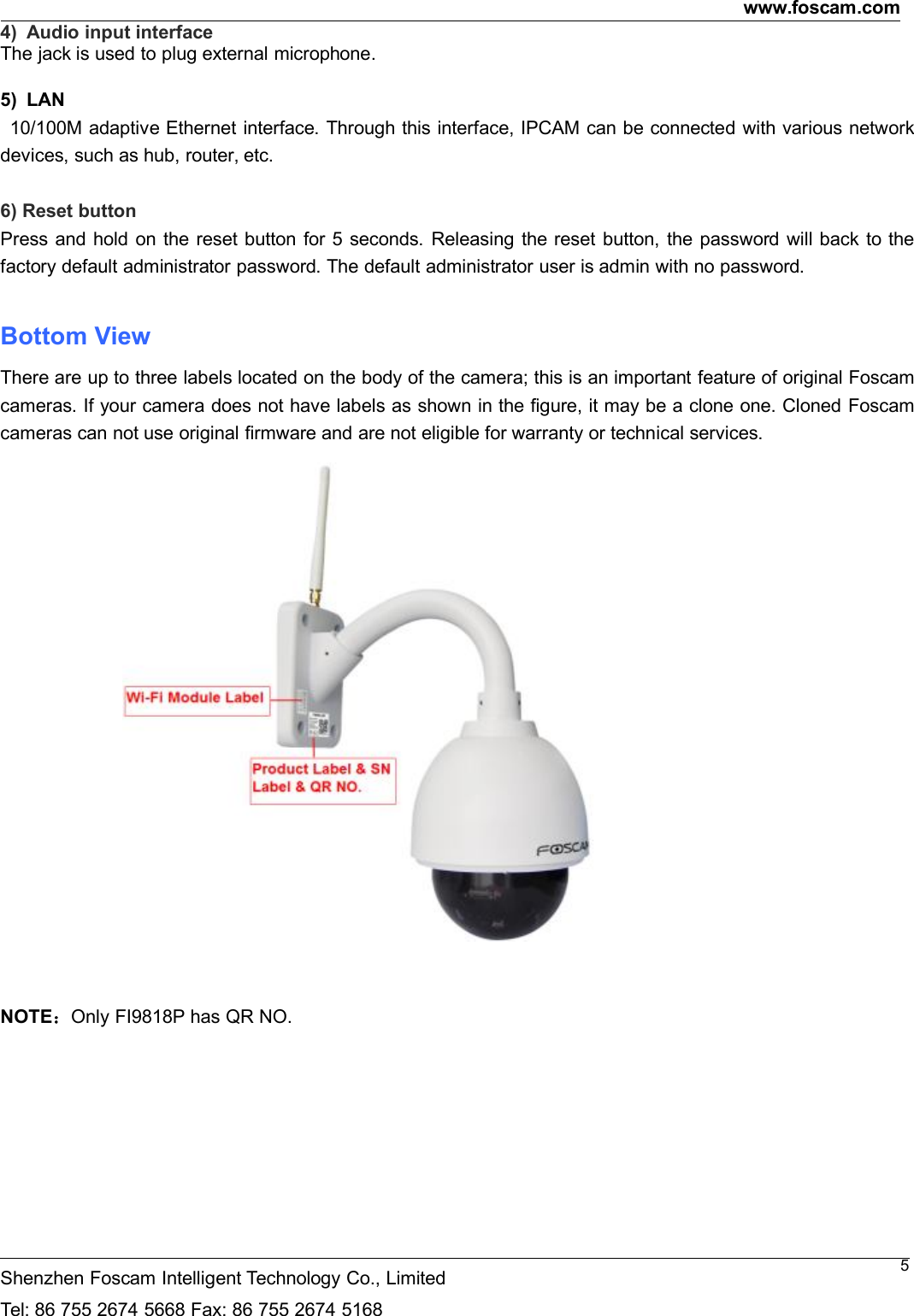
www.foscam.comShenzhen Foscam Intelligent Technology Co., LimitedTel: 86 755 2674 5668 Fax: 86 755 2674 516854)AudioinputinterfaceThe jack is used to plug external microphone.5) LAN10/100M adaptive Ethernet interface. Through this interface, IPCAM can be connected with various networkdevices, such as hub, router, etc.6) Reset buttonPress and hold on the reset button for 5 seconds. Releasing the reset button, the password will back to thefactory default administrator password. The default administrator user is admin with no password.Bottom ViewThere are up to three labels located on the body of the camera; this is an important feature of original Foscamcameras. If your camera does not have labels as shown in the figure, it may be a clone one. Cloned Foscamcameras can not use original firmware and are not eligible for warranty or technical services.NOTE:Only FI9818P has QR NO.
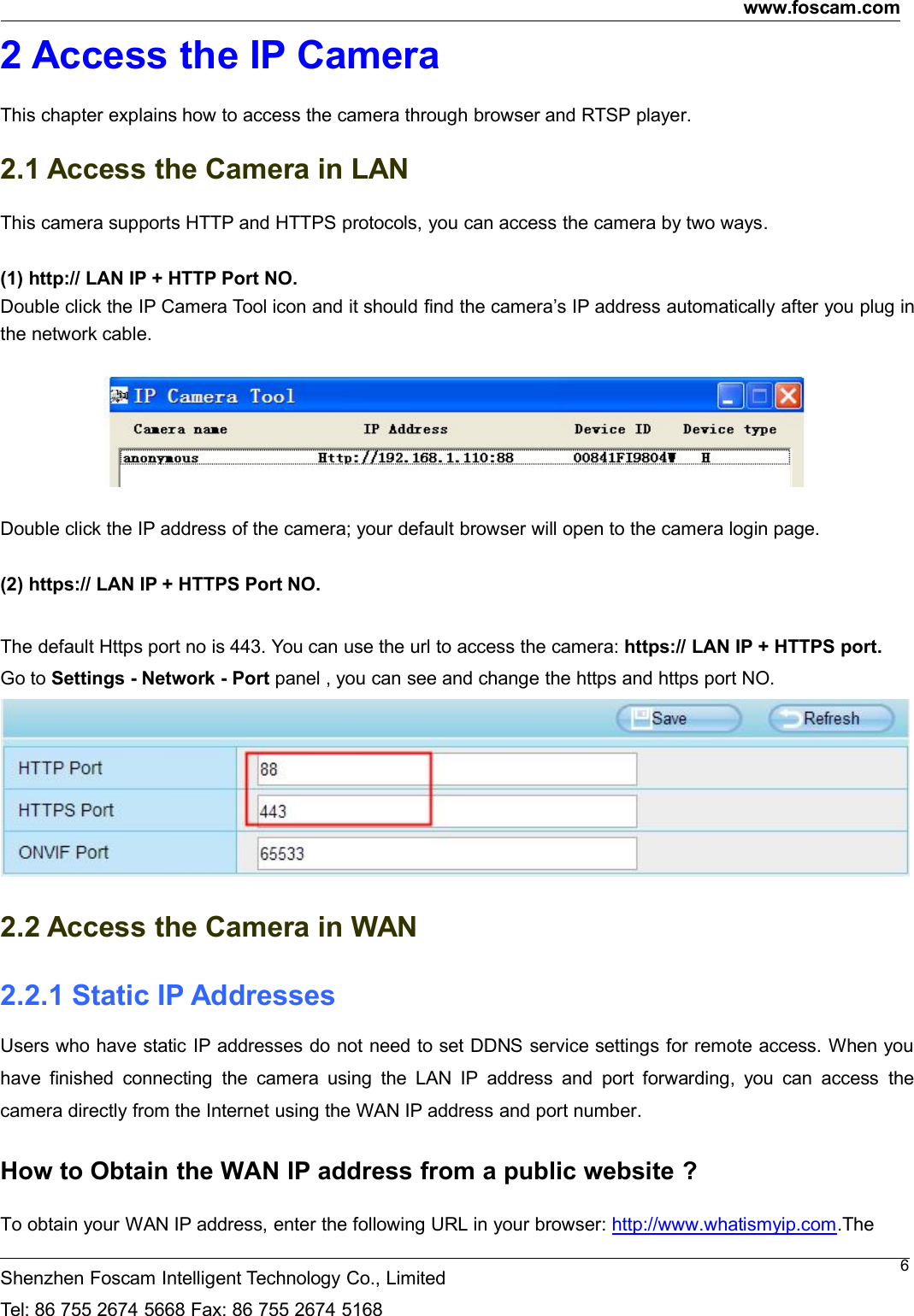
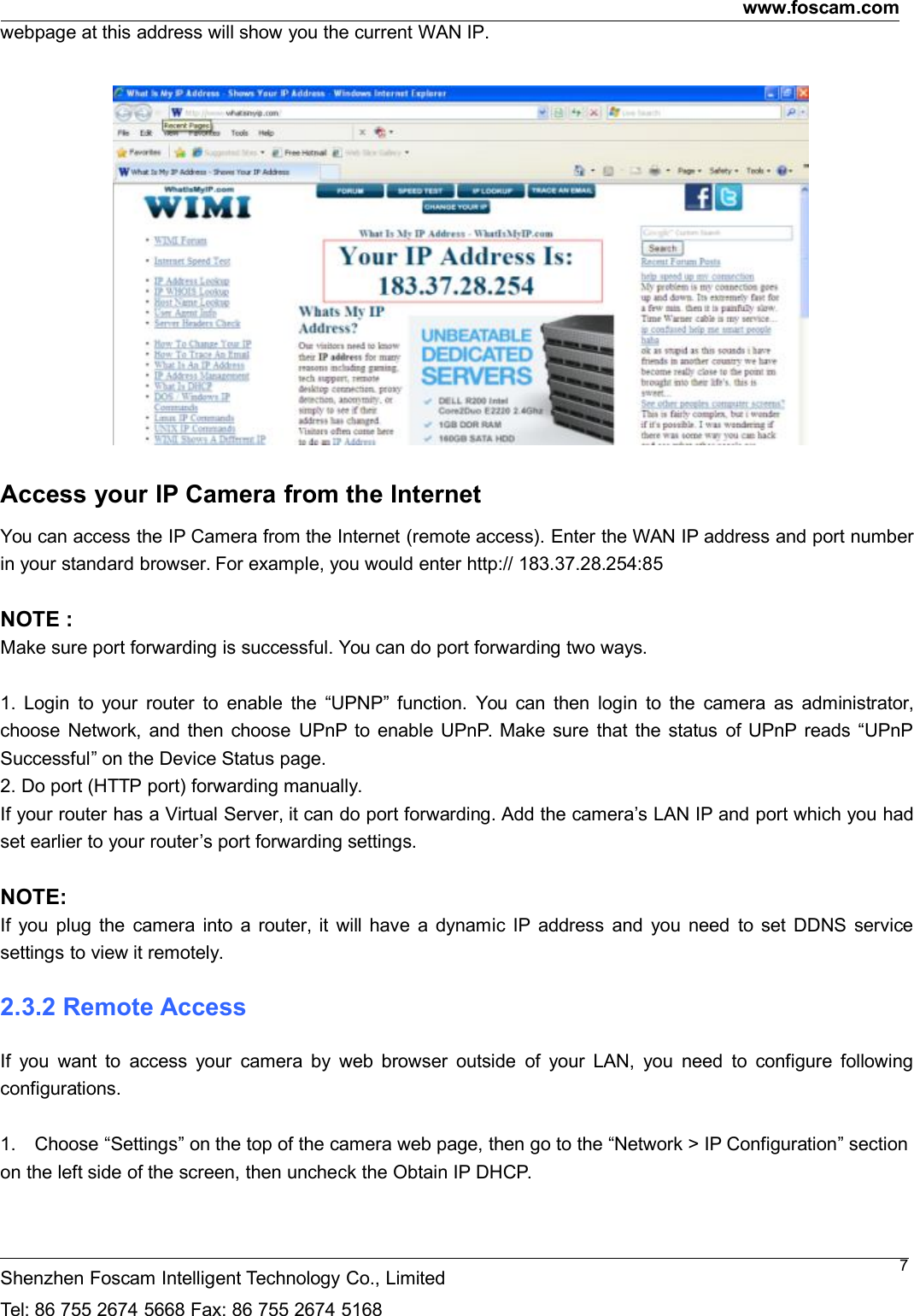
www.foscam.comShenzhen Foscam Intelligent Technology Co., LimitedTel: 86 755 2674 5668 Fax: 86 755 2674 516862 Access the IP CameraThis chapter explains how to access the camera through browser and RTSP player.2.1 Access the Camera in LANThis camera supports HTTP and HTTPS protocols, you can access the camera by two ways.(1) http:// LAN IP + HTTP Port NO.Double click the IP Camera Tool icon and it should find the camera’s IP address automatically after you plug inthe network cable.Double click the IP address of the camera; your default browser will open to the camera login page.(2) https:// LAN IP + HTTPS Port NO.The default Https port no is 443. You can use the url to access the camera: https:// LAN IP + HTTPS port.Go to Settings - Network - Port panel , you can see and change the https and https port NO.2.2 Access the Camera in WAN2.2.1 Static IP AddressesUsers who have static IP addresses do not need to set DDNS service settings for remote access. When youhave finished connecting the camera using the LAN IP address and port forwarding, you can access thecamera directly from the Internet using the WAN IP address and port number.How to Obtain the WAN IP address from a public website ?To obtain your WAN IP address, enter the following URL in your browser: http://www.whatismyip.com.The
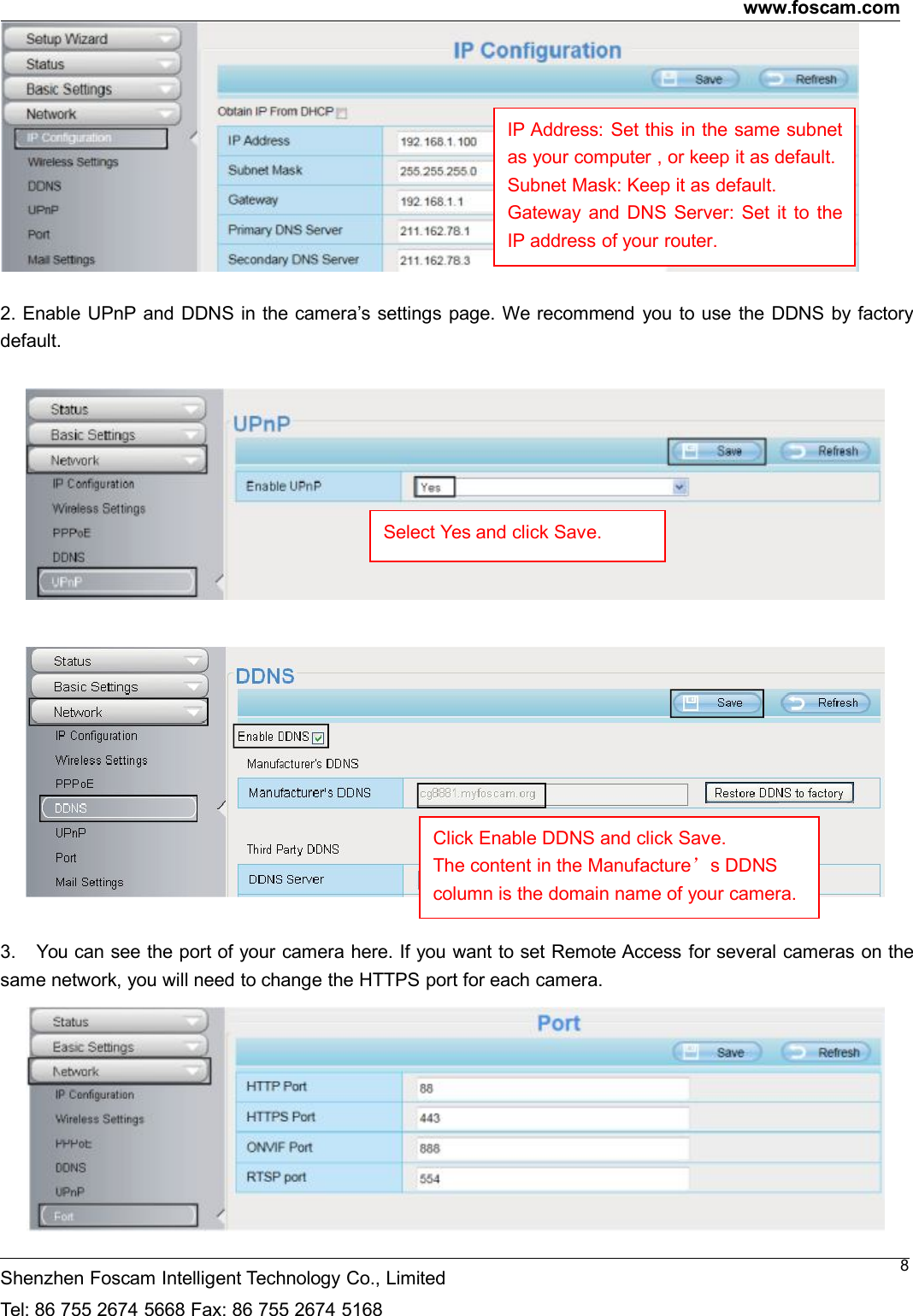
www.foscam.comShenzhen Foscam Intelligent Technology Co., LimitedTel: 86 755 2674 5668 Fax: 86 755 2674 51687webpage at this address will show you the current WAN IP.Access your IP Camera from the InternetYou can access the IP Camera from the Internet (remote access). Enter the WAN IP address and port numberin your standard browser. For example, you would enter http:// 183.37.28.254:85NOTE :Make sure port forwarding is successful. You can do port forwarding two ways.1. Login to your router to enable the “UPNP” function. You can then login to the camera as administrator,choose Network, and then choose UPnP to enable UPnP. Make sure that the status of UPnP reads “UPnPSuccessful” on the Device Status page.2. Do port (HTTP port) forwarding manually.If your router has a Virtual Server, it can do port forwarding. Add the camera’s LAN IP and port which you hadset earlier to your router’s port forwarding settings.NOTE:If you plug the camera into a router, it will have a dynamic IP address and you need to set DDNS servicesettings to view it remotely.2.3.2 Remote AccessIf you want to access your camera by web browser outside of your LAN, you need to configure followingconfigurations.1. Choose “Settings” on the top of the camera web page, then go to the “Network > IP Configuration” sectionon the left side of the screen, then uncheck the Obtain IP DHCP.
www.foscam.comShenzhen Foscam Intelligent Technology Co., LimitedTel: 86 755 2674 5668 Fax: 86 755 2674 516882. Enable UPnP and DDNS in the camera’s settings page. We recommend you to use the DDNS by factorydefault.3. You can see the port of your camera here. If you want to set Remote Access for several cameras on thesame network, you will need to change the HTTPS port for each camera.IP Address: Set this in the same subnetas your computer , or keep it as default.Subnet Mask: Keep it as default.Gateway and DNS Server: Set it to theIP address of your router.Select Yes and click Save.Click Enable DDNS and click Save.The content in the Manufacture’s DDNScolumn is the domain name of your camera.
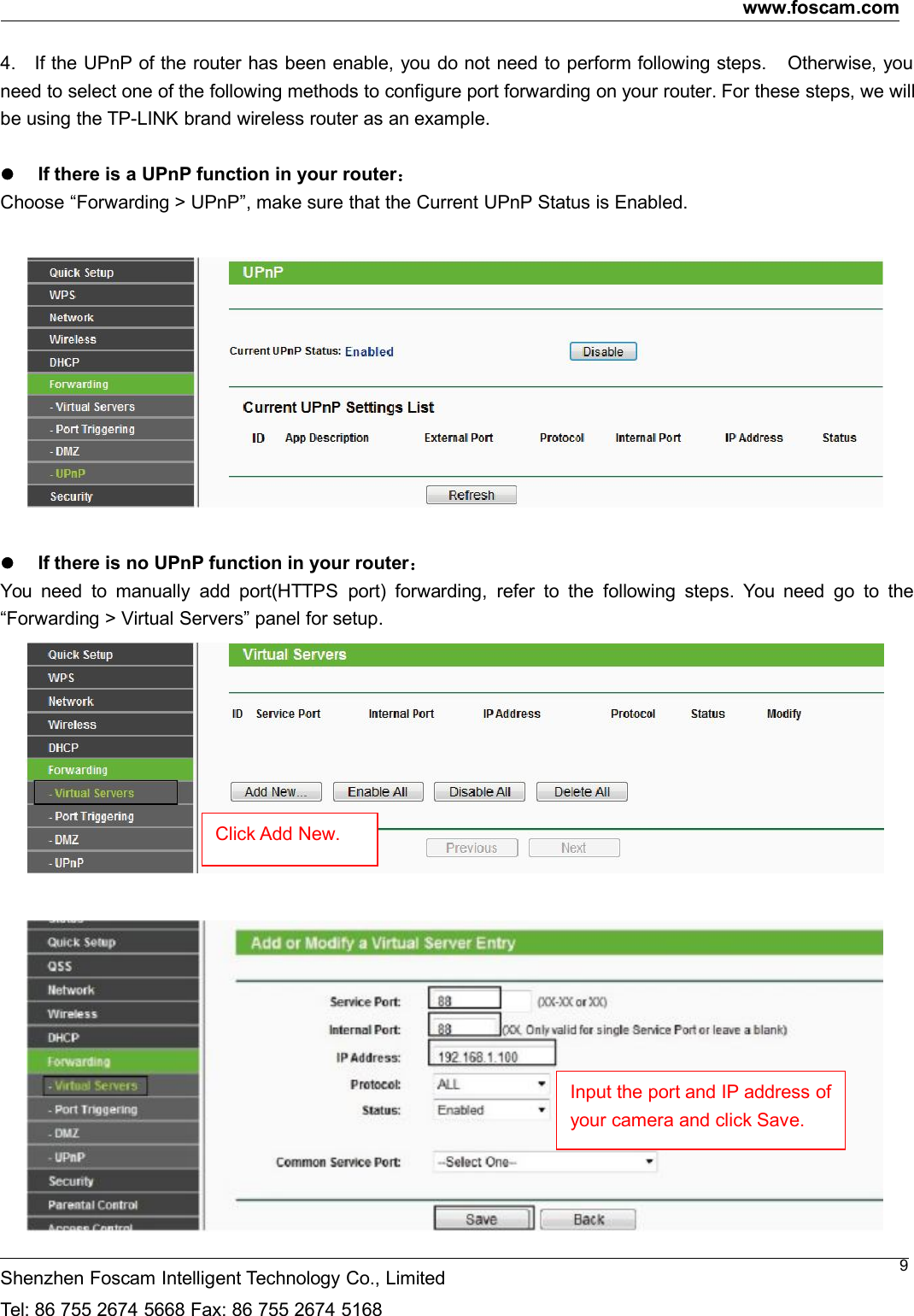
www.foscam.comShenzhen Foscam Intelligent Technology Co., LimitedTel: 86 755 2674 5668 Fax: 86 755 2674 516894. If the UPnP of the router has been enable, you do not need to perform following steps. Otherwise, youneed to select one of the following methods to configure port forwarding on your router. For these steps, we willbe using the TP-LINK brand wireless router as an example.If there is a UPnP function in your router:Choose “Forwarding > UPnP”, make sure that the Current UPnP Status is Enabled.If there is no UPnP function in your router:You need to manually add port(HTTPS port) forwarding, refer to the following steps. You need go to the“Forwarding > Virtual Servers” panel for setup.Click Add New.Input the port and IP address ofyour camera and click Save.
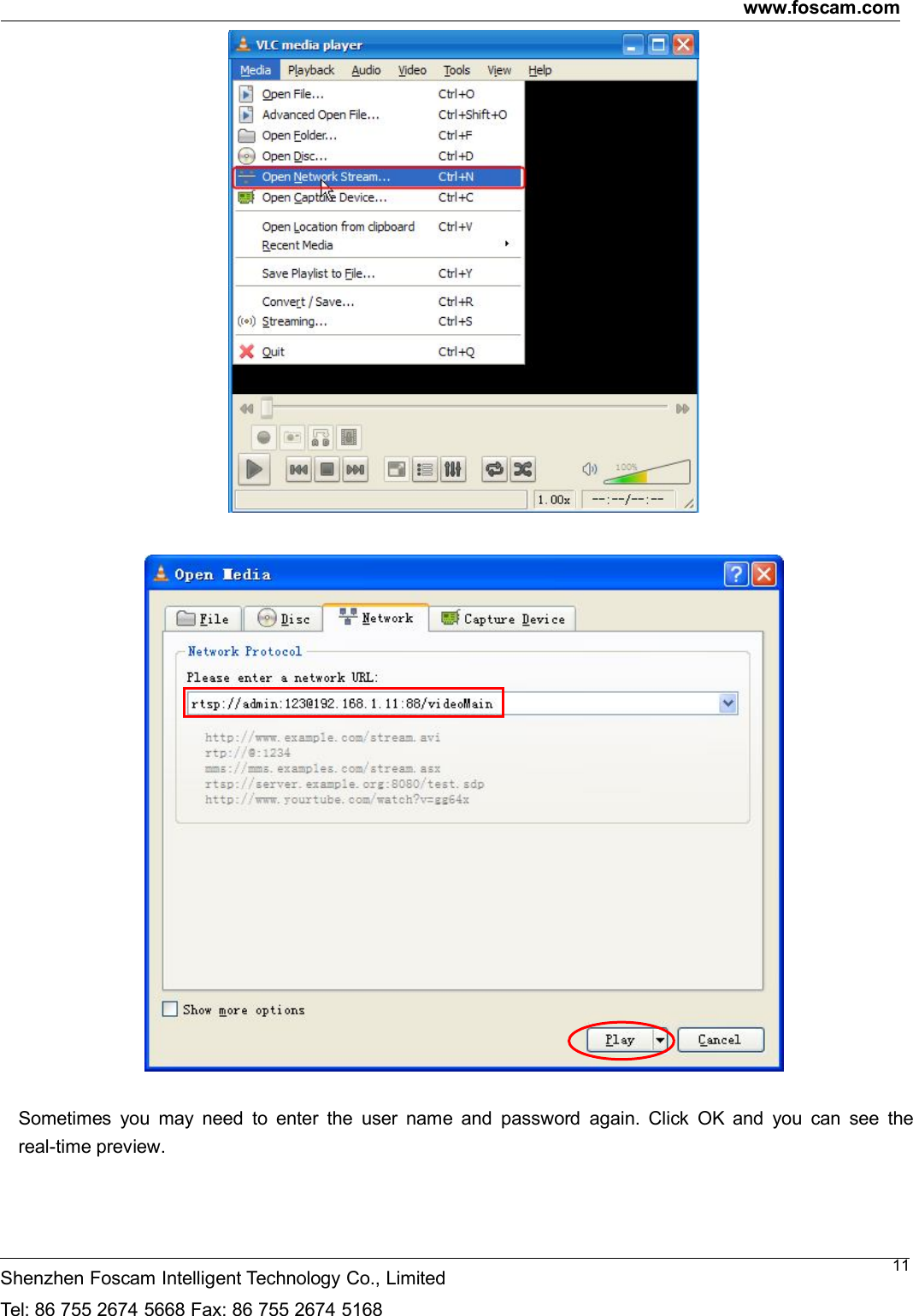
www.foscam.comShenzhen Foscam Intelligent Technology Co., LimitedTel: 86 755 2674 5668 Fax: 86 755 2674 5168105. Now you can access your IP camera by https://domain name: HTTPS port via the Internet.2.3 Using the VLC playerThis camera supports RTSP streaming, here you can view the camera using VLC player.RTSP URL rtsp:// [user name][:password]@IP:HTTP port number/videosreamThe part in the square brackets may be omitted.user name & password:The user name and password to access the camera. This part can be omitted.IP: WAN or LAN IP address.Videostream:Here support three mode: videoMain, videoSub and audio. When the network speed is bad, hereyou had better select videoSub. If you select audio, you can only hear the sound but cannot see the video.For example:IP: 192.168.1.11HTTP Port number: 88User name: adminPassword: 123Here I can enter one of the following URLs in the VLC.1) rtsp://admin:123@192.168.1.11:88/videoMain2) rtsp:// @192.168.1.11:88/videoMain3) rtsp://:123@192.168.1.11:88/videoMain4) rtsp://admin@192.168.1.11:88/videoMainOpen the VLC, and go to MediaOpen Network Stream option, then enter the URL into VLC.Here you have finished thePort Forwarding setup.
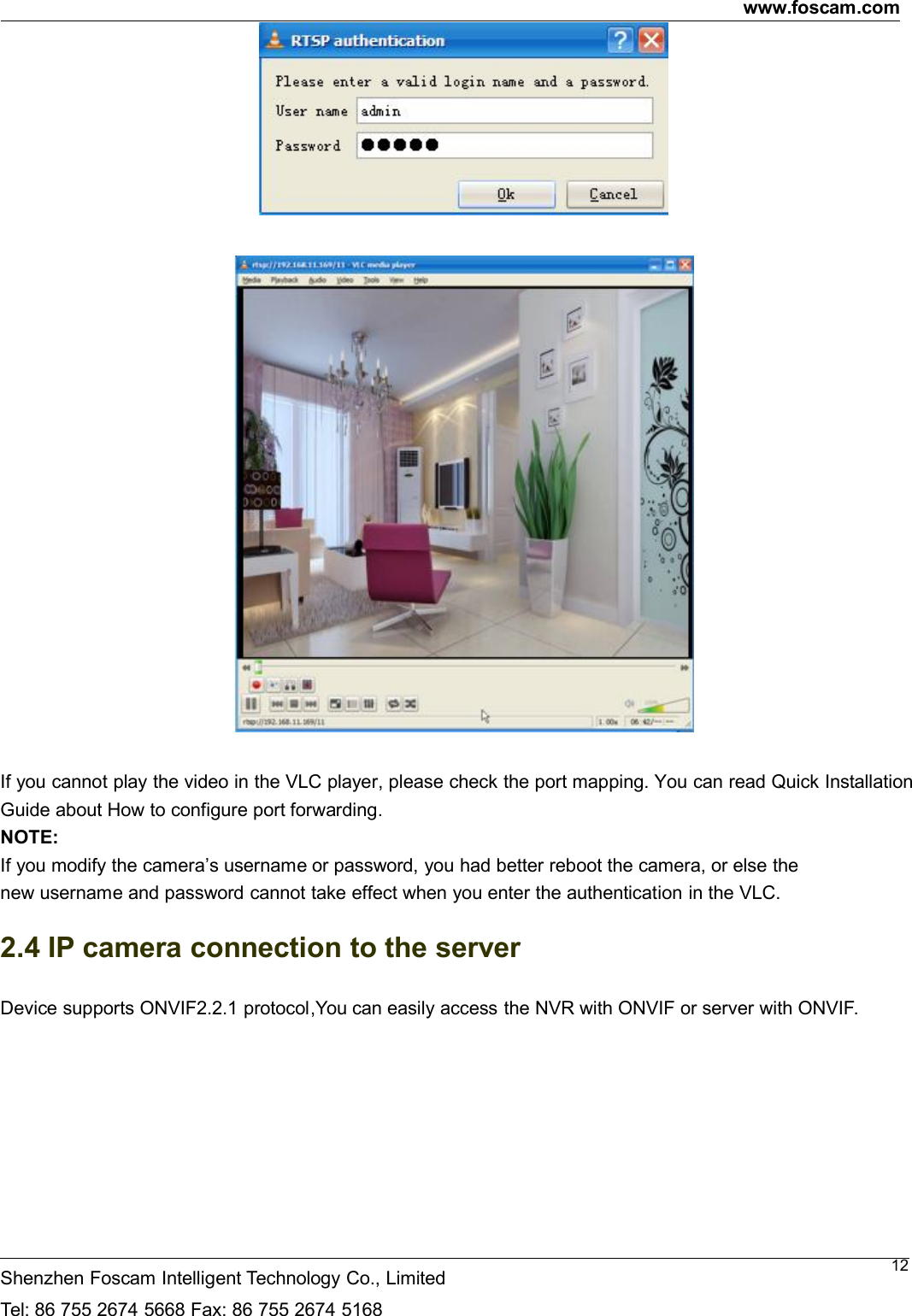
www.foscam.comShenzhen Foscam Intelligent Technology Co., LimitedTel: 86 755 2674 5668 Fax: 86 755 2674 516811Sometimes you may need to enter the user name and password again. Click OK and you can see thereal-time preview.
www.foscam.comShenzhen Foscam Intelligent Technology Co., LimitedTel: 86 755 2674 5668 Fax: 86 755 2674 516812If you cannot play the video in the VLC player, please check the port mapping. You can read Quick InstallationGuide about How to configure port forwarding.NOTE:If you modify the camera’s username or password, you had better reboot the camera, or else thenew username and password cannot take effect when you enter the authentication in the VLC.2.4 IP camera connection to the serverDevice supports ONVIF2.2.1 protocol,You can easily access the NVR with ONVIF or server with ONVIF.
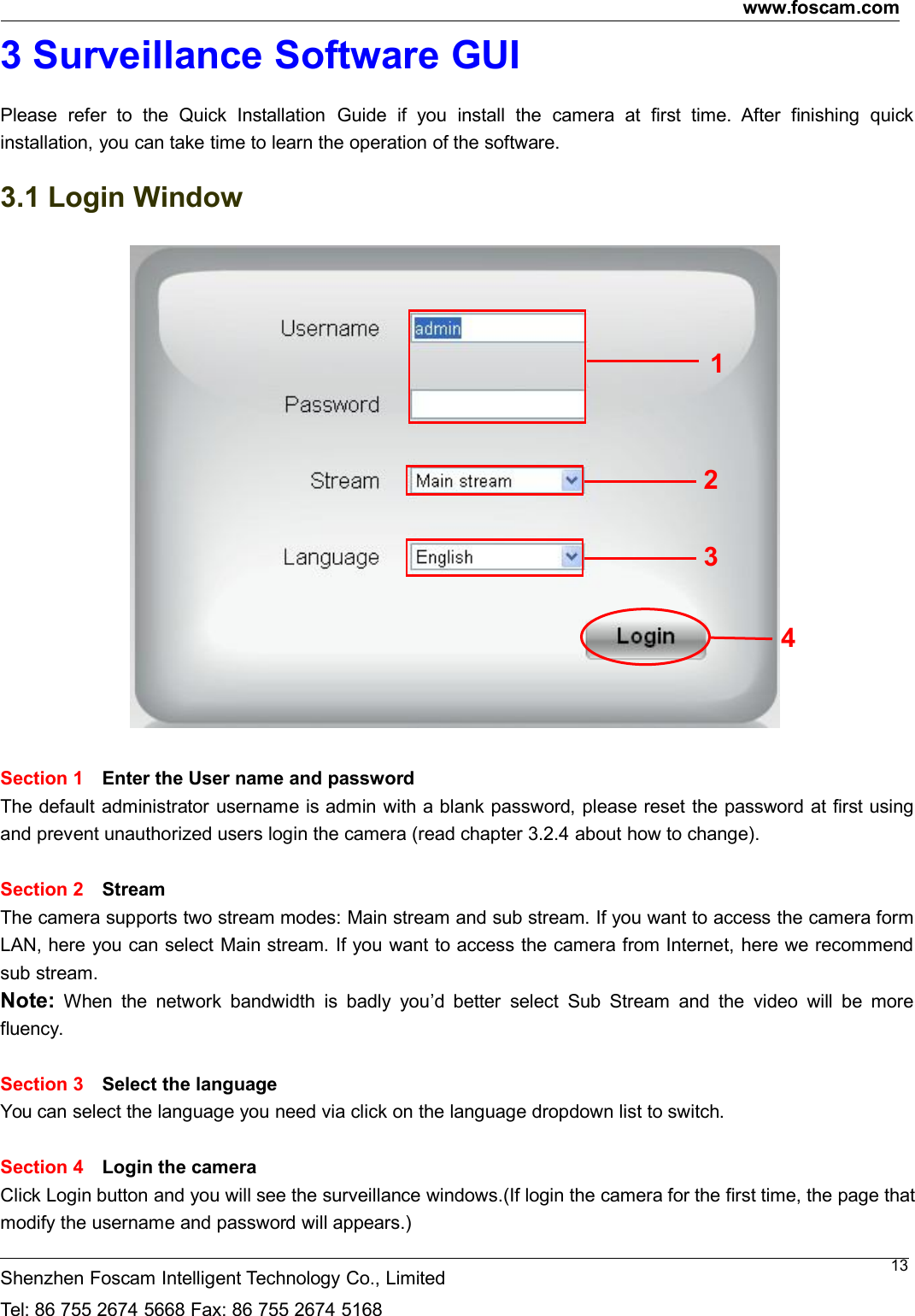
www.foscam.comShenzhen Foscam Intelligent Technology Co., LimitedTel: 86 755 2674 5668 Fax: 86 755 2674 5168133 Surveillance Software GUIPlease refer to the Quick Installation Guide if you install the camera at first time. After finishing quickinstallation, you can take time to learn the operation of the software.3.1 Login WindowSection 1 Enter the User name and passwordThe default administrator username is admin with a blank password, please reset the password at first usingand prevent unauthorized users login the camera (read chapter 3.2.4 about how to change).Section 2 StreamThe camera supports two stream modes: Main stream and sub stream. If you want to access the camera formLAN, here you can select Main stream. If you want to access the camera from Internet, here we recommendsub stream.Note: When the network bandwidth is badly you’d better select Sub Stream and the video will be morefluency.Section 3 Select the languageYou can select the language you need via click on the language dropdown list to switch.Section 4 Login the cameraClick Login button and you will see the surveillance windows.(If login the camera for the first time, the page thatmodify the username and password will appears.)2341
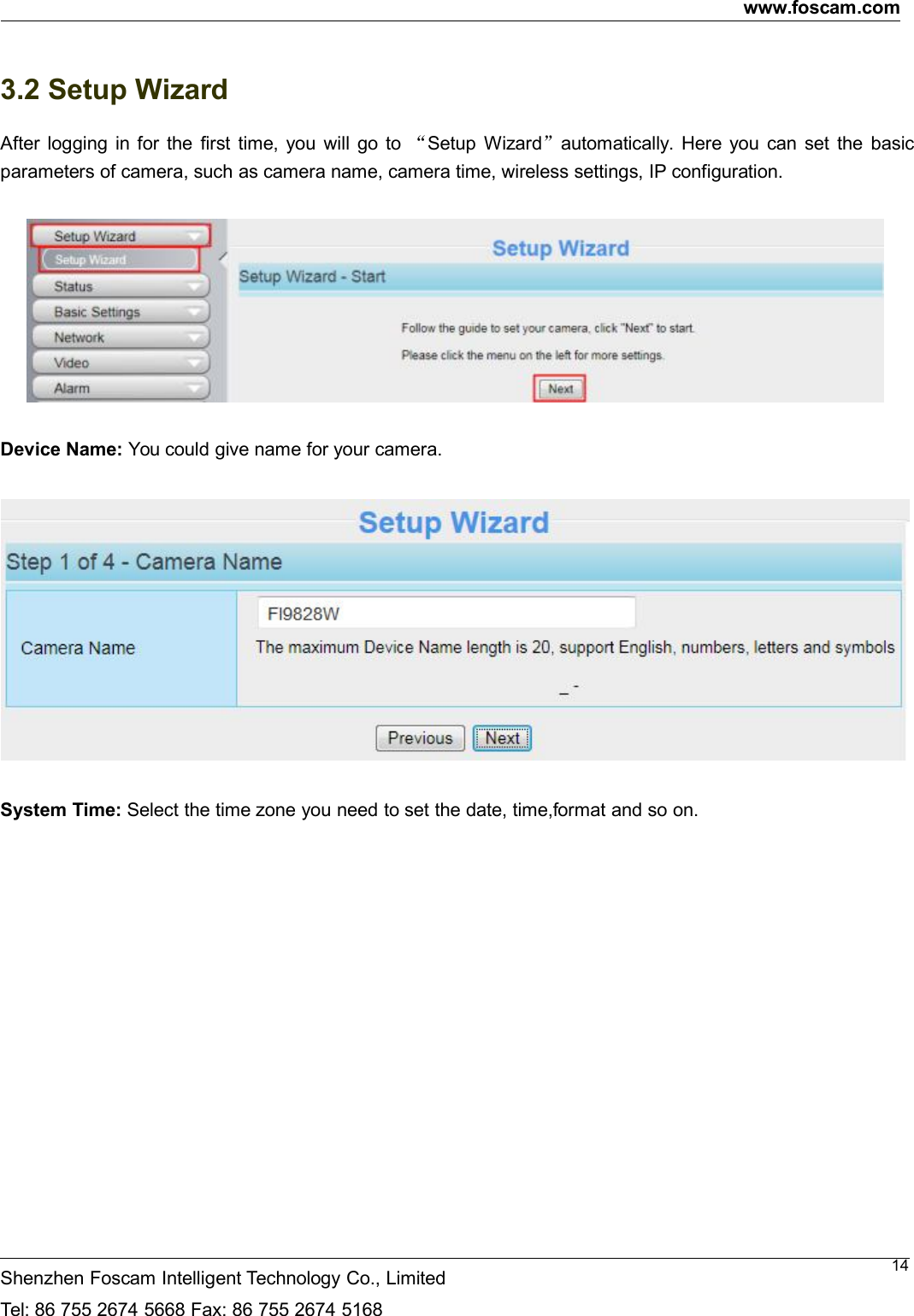
www.foscam.comShenzhen Foscam Intelligent Technology Co., LimitedTel: 86 755 2674 5668 Fax: 86 755 2674 5168143.2 Setup WizardAfter logging in for the first time, you will go to “Setup Wizard”automatically. Here you can set the basicparameters of camera, such as camera name, camera time, wireless settings, IP configuration.Device Name: You could give name for your camera.System Time: Select the time zone you need to set the date, time,format and so on.
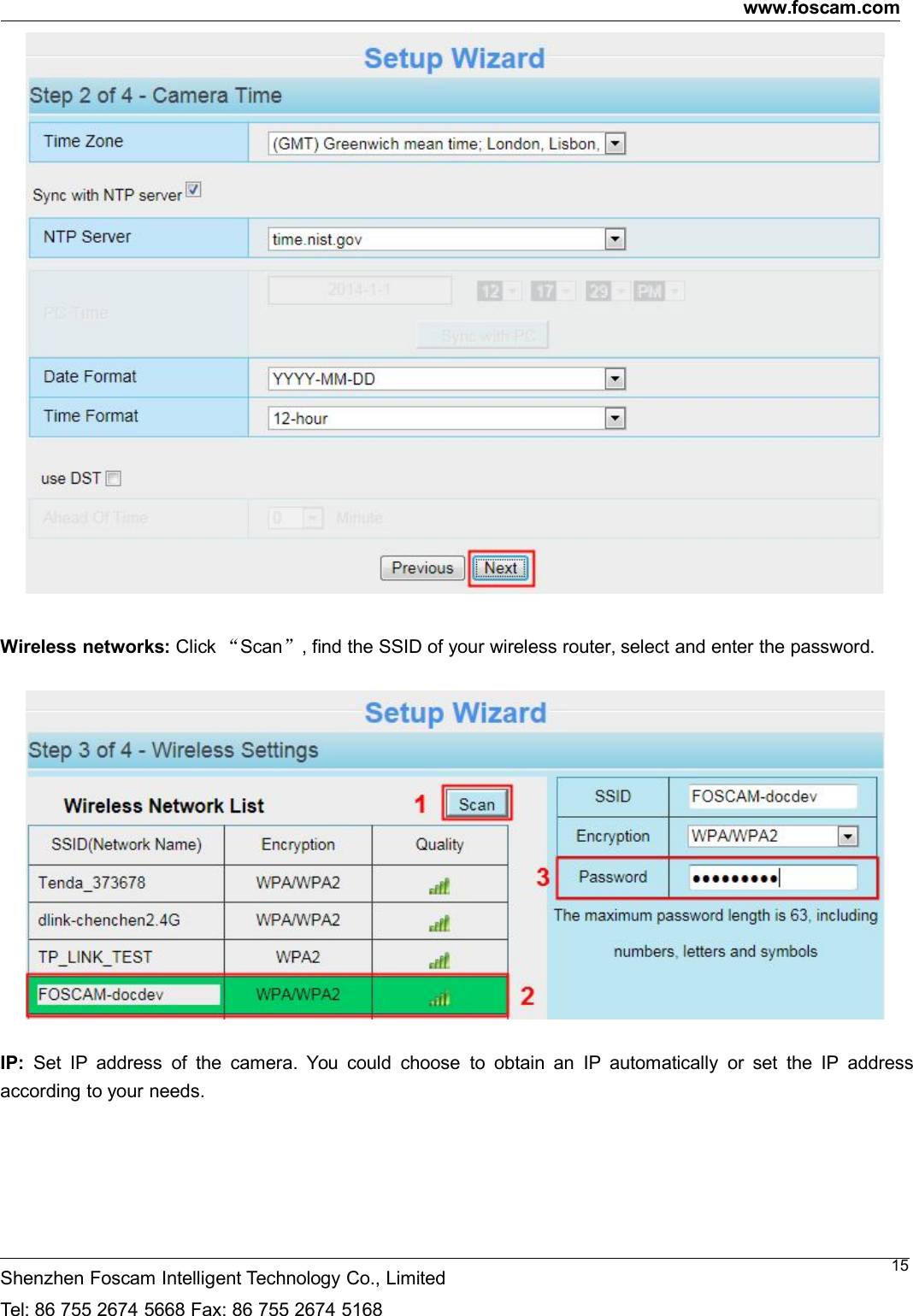
www.foscam.comShenzhen Foscam Intelligent Technology Co., LimitedTel: 86 755 2674 5668 Fax: 86 755 2674 516815Wireless networks: Click “Scan”, find the SSID of your wireless router, select and enter the password.IP: Set IP address of the camera. You could choose to obtain an IP automatically or set the IP addressaccording to your needs.
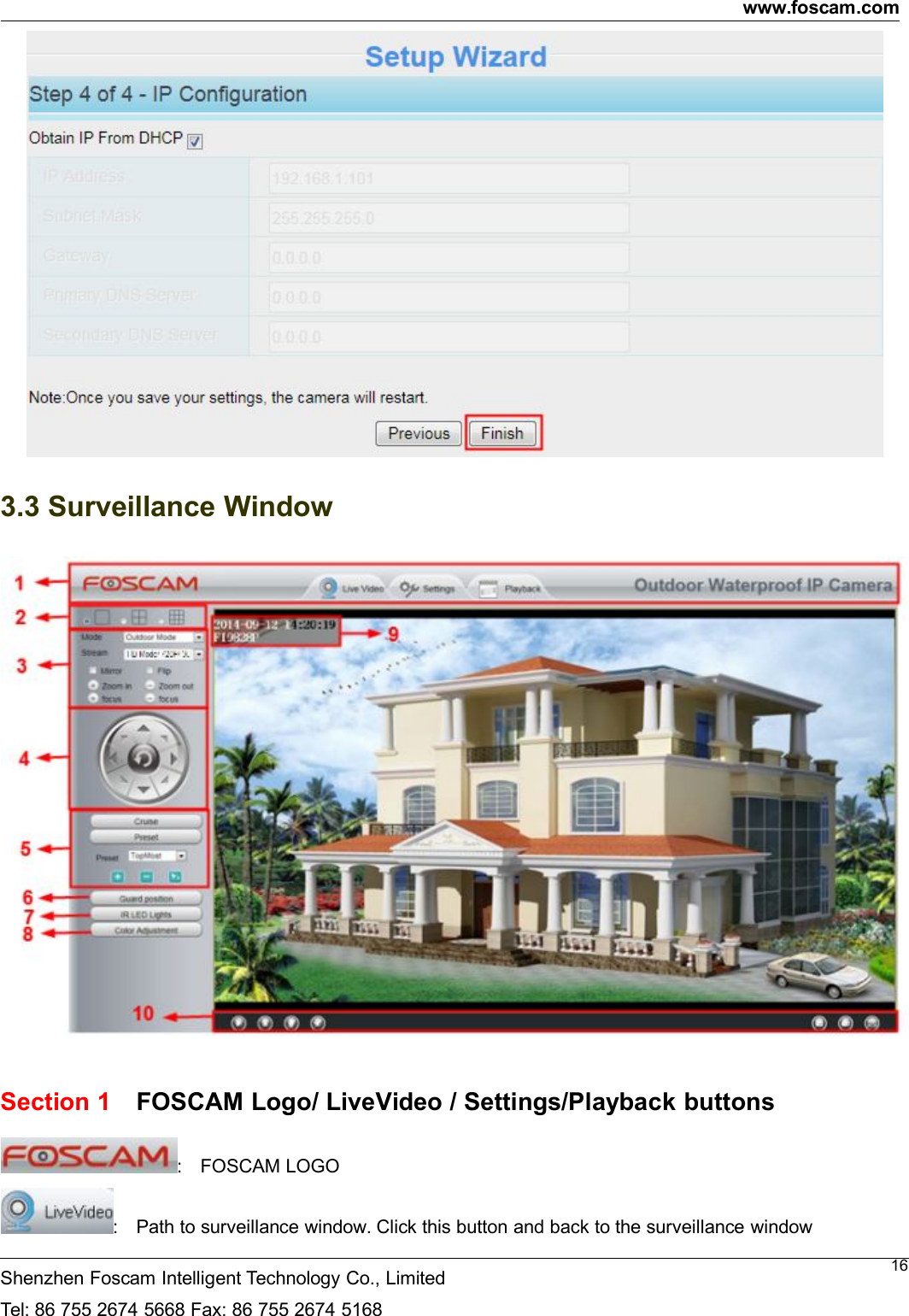
www.foscam.comShenzhen Foscam Intelligent Technology Co., LimitedTel: 86 755 2674 5668 Fax: 86 755 2674 5168163.3 Surveillance WindowSection 1 FOSCAM Logo/ LiveVideo / Settings/Playback buttons: FOSCAM LOGO: Path to surveillance window. Click this button and back to the surveillance window
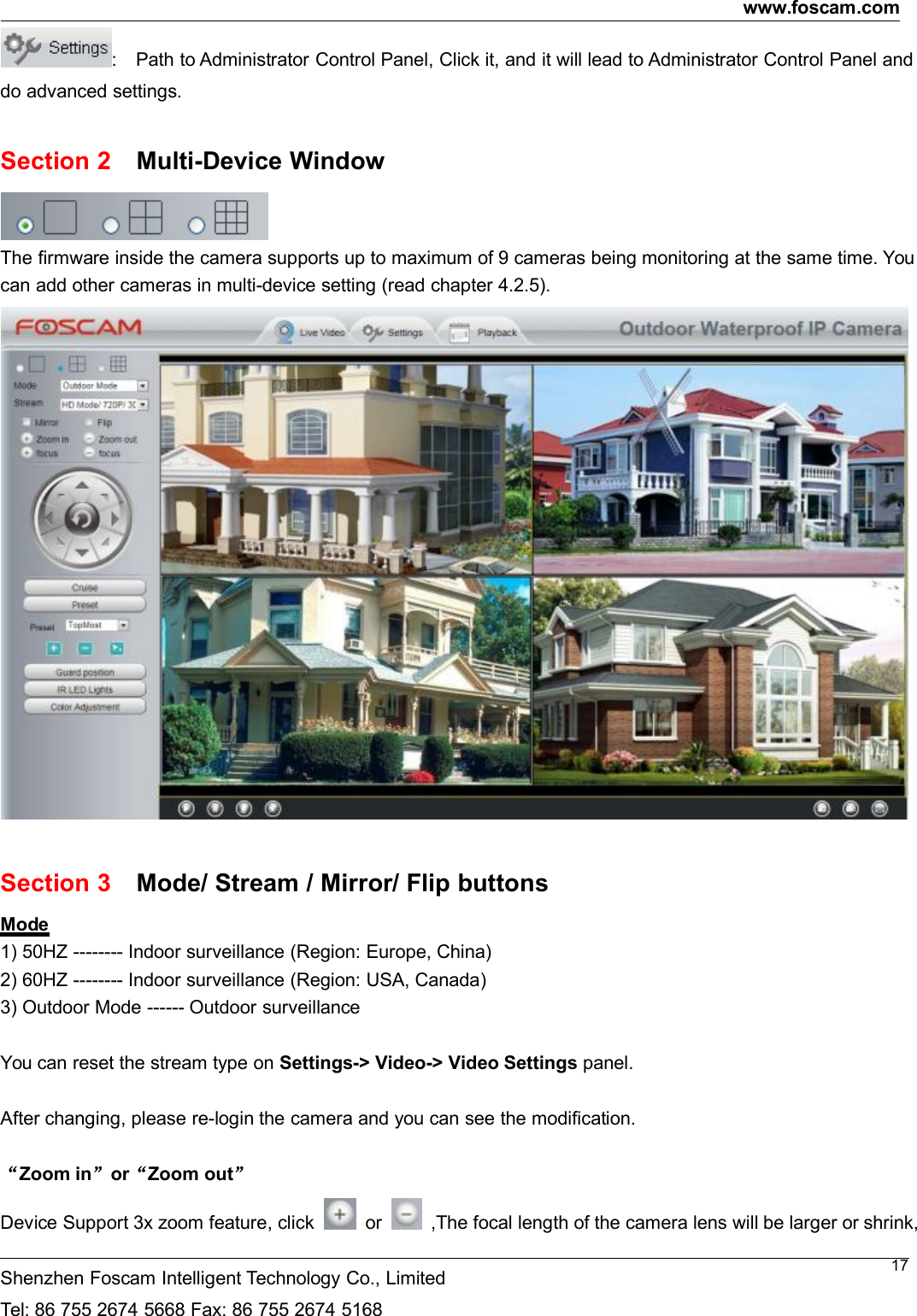
www.foscam.comShenzhen Foscam Intelligent Technology Co., LimitedTel: 86 755 2674 5668 Fax: 86 755 2674 516817: Path to Administrator Control Panel, Click it, and it will lead to Administrator Control Panel anddo advanced settings.Section 2 Multi-Device WindowThe firmware inside the camera supports up to maximum of 9 cameras being monitoring at the same time. Youcan add other cameras in multi-device setting (read chapter 4.2.5).Section 3 Mode/ Stream / Mirror/ Flip buttonsMode1) 50HZ -------- Indoor surveillance (Region: Europe, China)2) 60HZ -------- Indoor surveillance (Region: USA, Canada)3) Outdoor Mode ------ Outdoor surveillanceYou can reset the stream type on Settings-> Video-> Video Settings panel.After changing, please re-login the camera and you can see the modification.“Zoom in”or“Zoom out”Device Support 3x zoom feature, click or ,The focal length of the camera lens will be larger or shrink,
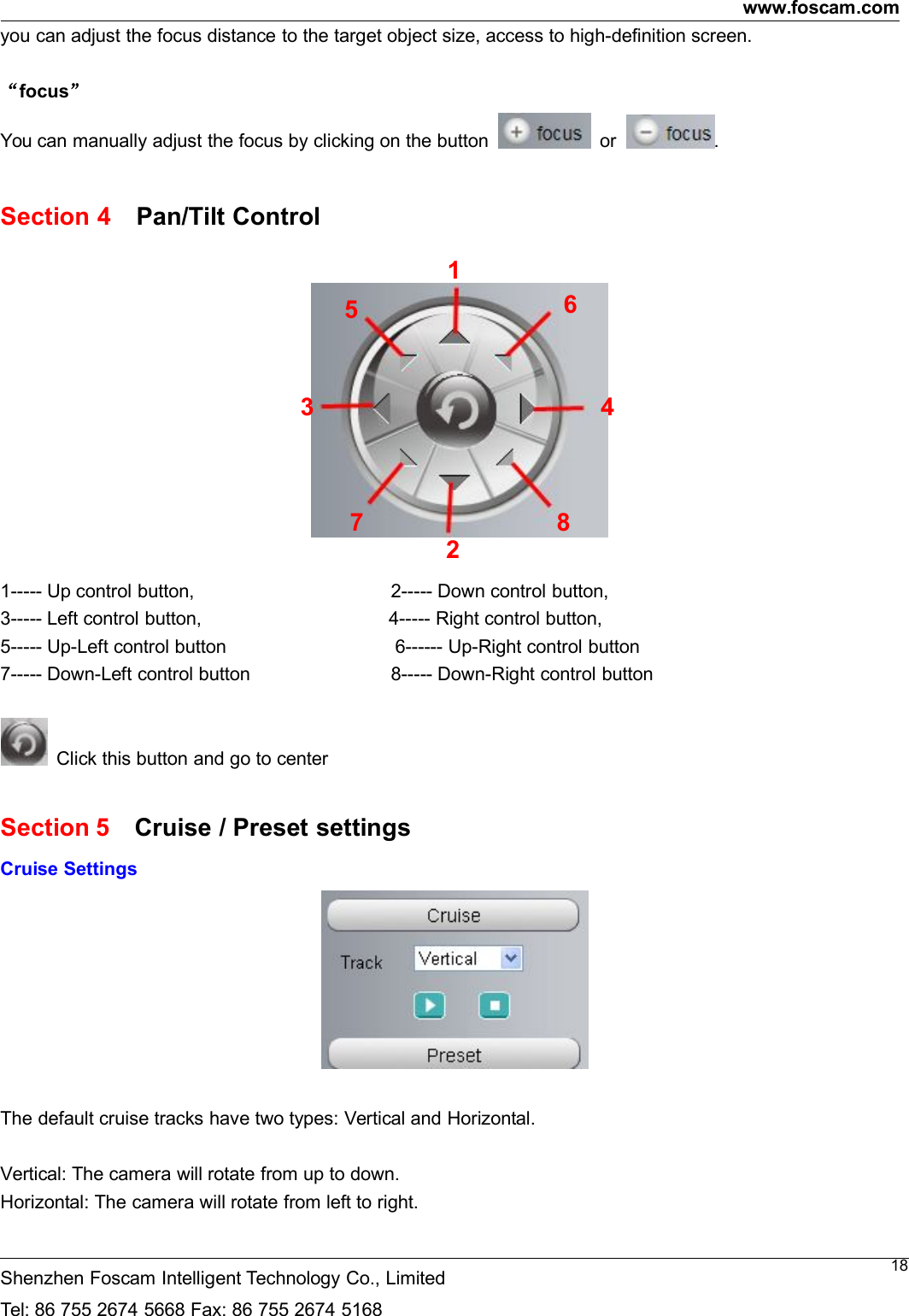
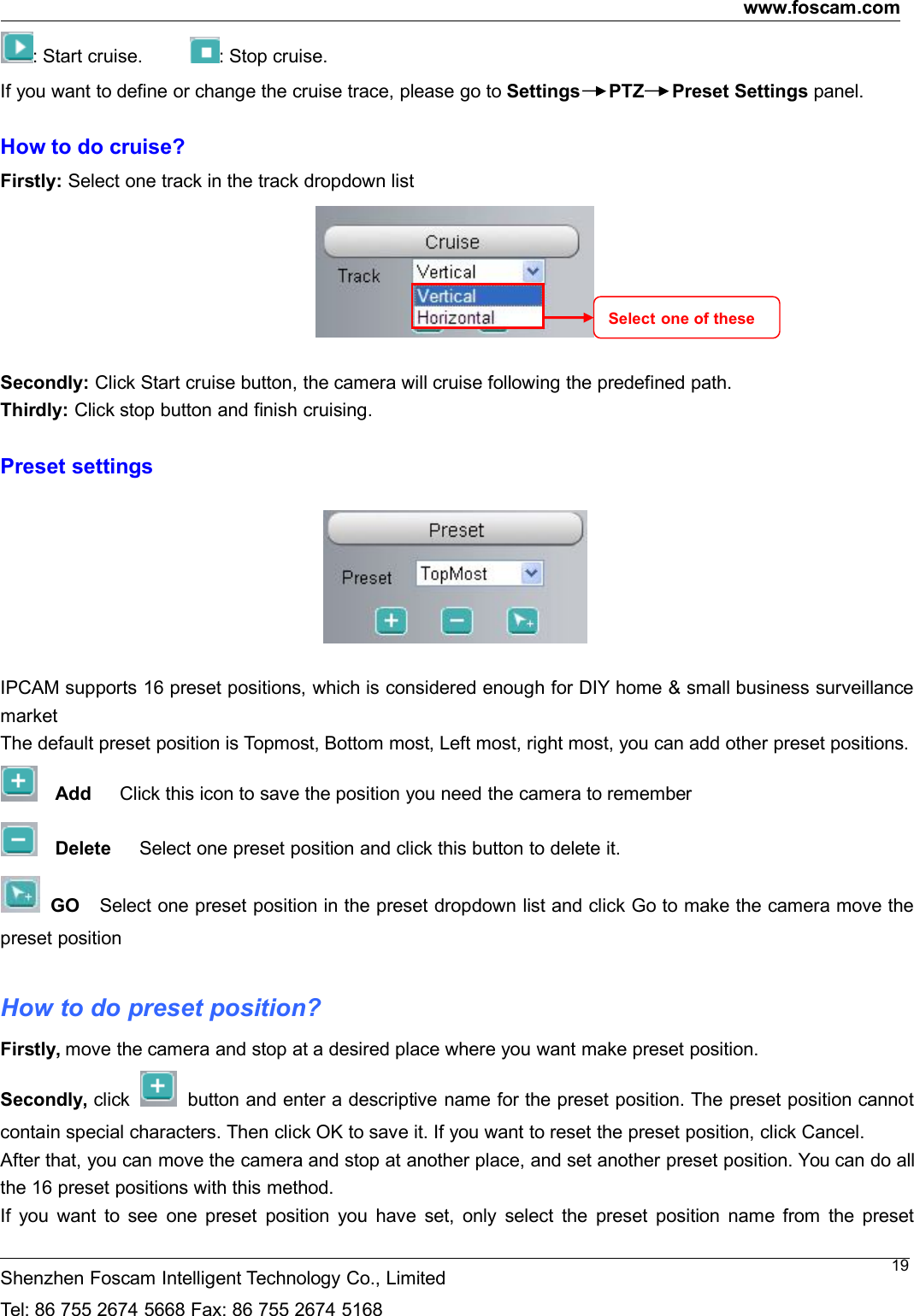
www.foscam.comShenzhen Foscam Intelligent Technology Co., LimitedTel: 86 755 2674 5668 Fax: 86 755 2674 516818you can adjust the focus distance to the target object size, access to high-definition screen.“focus”You can manually adjust the focus by clicking on the button or .Section 4 Pan/Tilt Control1----- Up control button, 2----- Down control button,3----- Left control button, 4----- Right control button,5----- Up-Left control button 6------ Up-Right control button7----- Down-Left control button 8----- Down-Right control buttonClick this button and go to centerSection 5 Cruise / Preset settingsCruise SettingsThe default cruise tracks have two types: Vertical and Horizontal.Vertical: The camera will rotate from up to down.Horizontal: The camera will rotate from left to right.123 4567 8
www.foscam.comShenzhen Foscam Intelligent Technology Co., LimitedTel: 86 755 2674 5668 Fax: 86 755 2674 516819: Start cruise. : Stop cruise.If you want to define or change the cruise trace, please go to Settings PTZ Preset Settings panel.How to do cruise?Firstly: Select one track in the track dropdown listSecondly: Click Start cruise button, the camera will cruise following the predefined path.Thirdly: Click stop button and finish cruising.Preset settingsIPCAM supports 16 preset positions, which is considered enough for DIY home & small business surveillancemarketThe default preset position is Topmost, Bottom most, Left most, right most, you can add other preset positions.Add Click this icon to save the position you need the camera to rememberDelete Select one preset position and click this button to delete it.GO Select one preset position in the preset dropdown list and click Go to make the camera move thepreset positionHow to do preset position?Firstly, move the camera and stop at a desired place where you want make preset position.Secondly, click button and enter a descriptive name for the preset position. The preset position cannotcontain special characters. Then click OK to save it. If you want to reset the preset position, click Cancel.After that, you can move the camera and stop at another place, and set another preset position. You can do allthe 16 preset positions with this method.If you want to see one preset position you have set, only select the preset position name from the presetSelect one of these
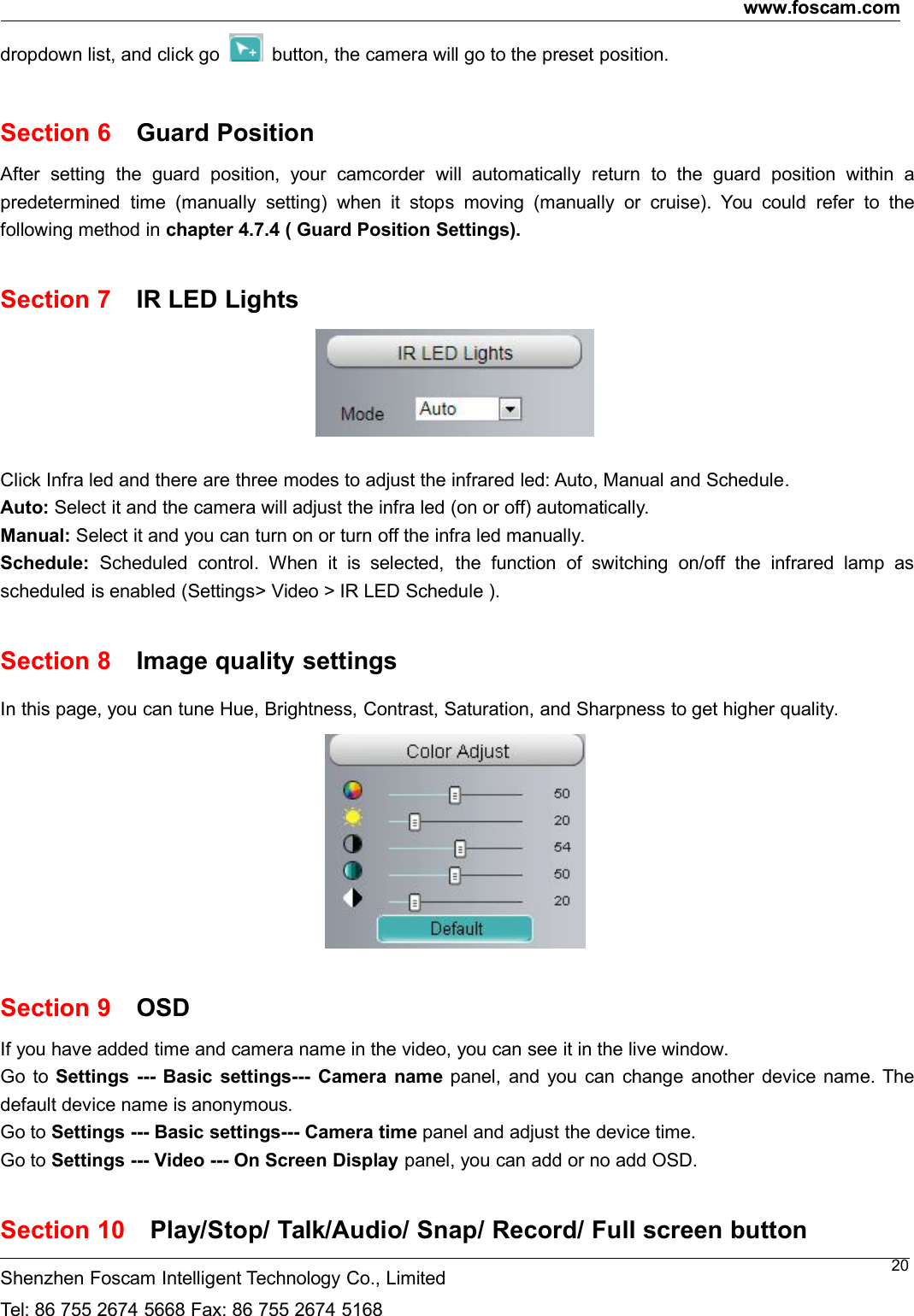
www.foscam.comShenzhen Foscam Intelligent Technology Co., LimitedTel: 86 755 2674 5668 Fax: 86 755 2674 516820dropdown list, and click go button, the camera will go to the preset position.Section 6 Guard PositionAfter setting the guard position, your camcorder will automatically return to the guard position within apredetermined time (manually setting) when it stops moving (manually or cruise). You could refer to thefollowing method in chapter 4.7.4 ( Guard Position Settings).Section 7 IR LED LightsClick Infra led and there are three modes to adjust the infrared led: Auto, Manual and Schedule.Auto: Select it and the camera will adjust the infra led (on or off) automatically.Manual: Select it and you can turn on or turn off the infra led manually.Schedule: Scheduled control. When it is selected, the function of switching on/off the infrared lamp asscheduled is enabled (Settings> Video > IR LED Schedule ).Section 8 Image quality settingsIn this page, you can tune Hue, Brightness, Contrast, Saturation, and Sharpness to get higher quality.Section 9 OSDIf you have added time and camera name in the video, you can see it in the live window.Go to Settings --- Basic settings--- Camera name panel, and you can change another device name. Thedefault device name is anonymous.Go to Settings --- Basic settings--- Camera time panel and adjust the device time.Go to Settings --- Video --- On Screen Display panel, you can add or no add OSD.Section 10 Play/Stop/ Talk/Audio/ Snap/ Record/ Full screen button
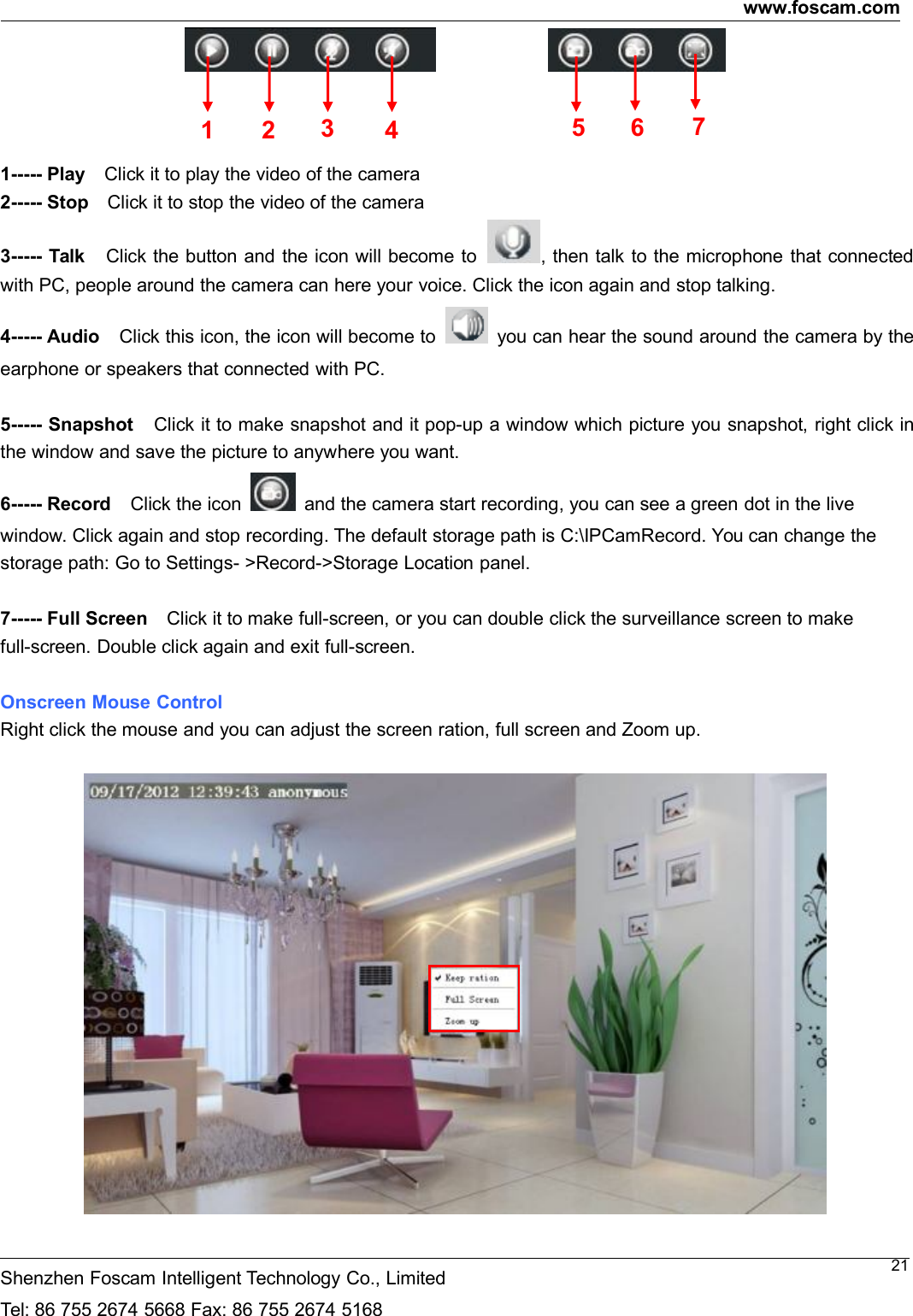
www.foscam.comShenzhen Foscam Intelligent Technology Co., LimitedTel: 86 755 2674 5668 Fax: 86 755 2674 5168211----- Play Click it to play the video of the camera2----- Stop Click it to stop the video of the camera3----- Talk Click the button and the icon will become to , then talk to the microphone that connectedwith PC, people around the camera can here your voice. Click the icon again and stop talking.4----- Audio Click this icon, the icon will become to you can hear the sound around the camera by theearphone or speakers that connected with PC.5----- Snapshot Click it to make snapshot and it pop-up a window which picture you snapshot, right click inthe window and save the picture to anywhere you want.6----- Record Click the icon and the camera start recording, you can see a green dot in the livewindow. Click again and stop recording. The default storage path is C:\IPCamRecord. You can change thestorage path: Go to Settings- >Record->Storage Location panel.7----- Full Screen Click it to make full-screen, or you can double click the surveillance screen to makefull-screen. Double click again and exit full-screen.Onscreen Mouse ControlRight click the mouse and you can adjust the screen ration, full screen and Zoom up.1 2 35 6 74
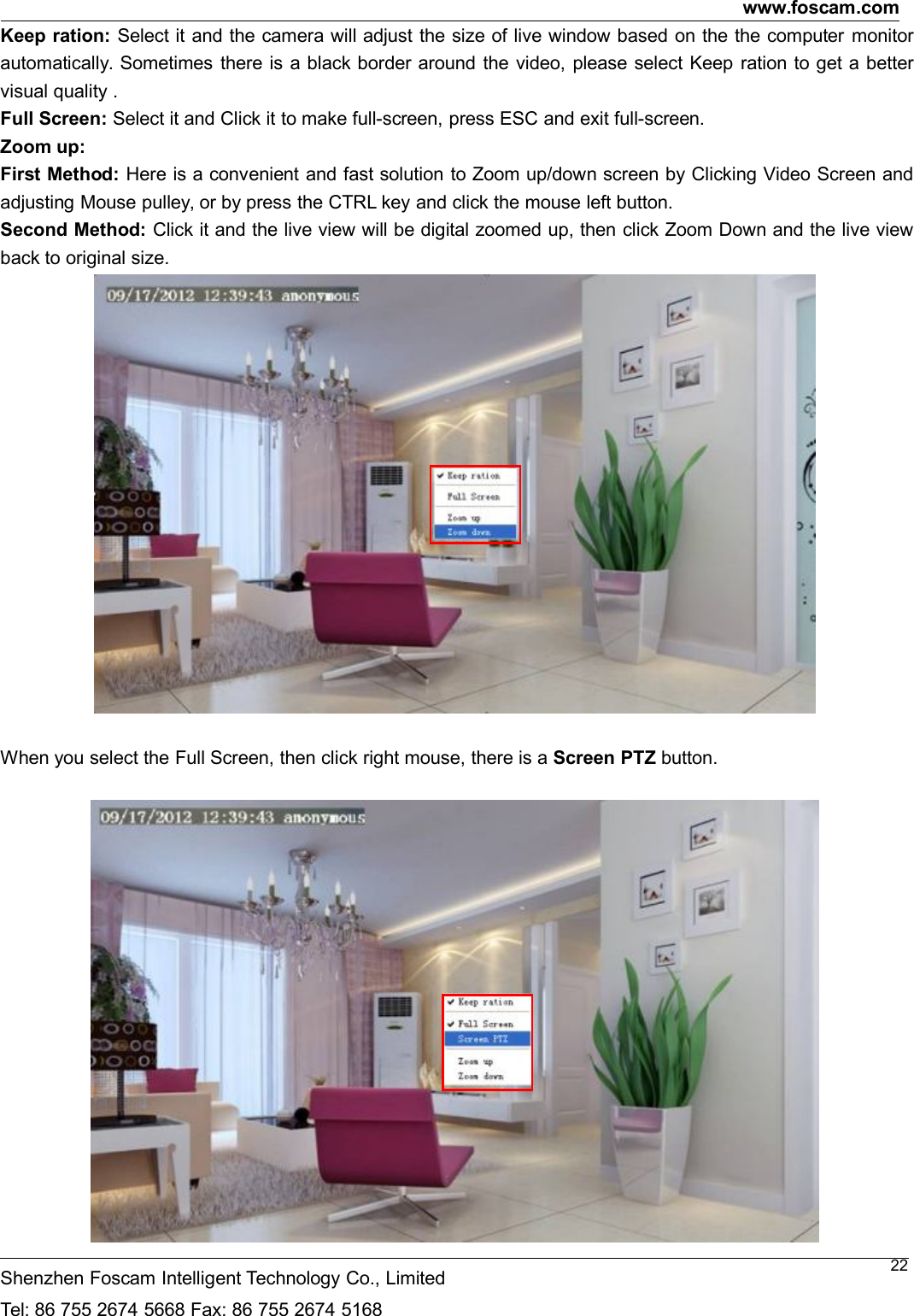
www.foscam.comShenzhen Foscam Intelligent Technology Co., LimitedTel: 86 755 2674 5668 Fax: 86 755 2674 516822Keep ration: Select it and the camera will adjust the size of live window based on the the computer monitorautomatically. Sometimes there is a black border around the video, please select Keep ration to get a bettervisual quality .Full Screen: Select it and Click it to make full-screen, press ESC and exit full-screen.Zoom up:First Method: Here is a convenient and fast solution to Zoom up/down screen by Clicking Video Screen andadjusting Mouse pulley, or by press the CTRL key and click the mouse left button.Second Method: Click it and the live view will be digital zoomed up, then click Zoom Down and the live viewback to original size.When you select the Full Screen, then click right mouse, there is a Screen PTZ button.
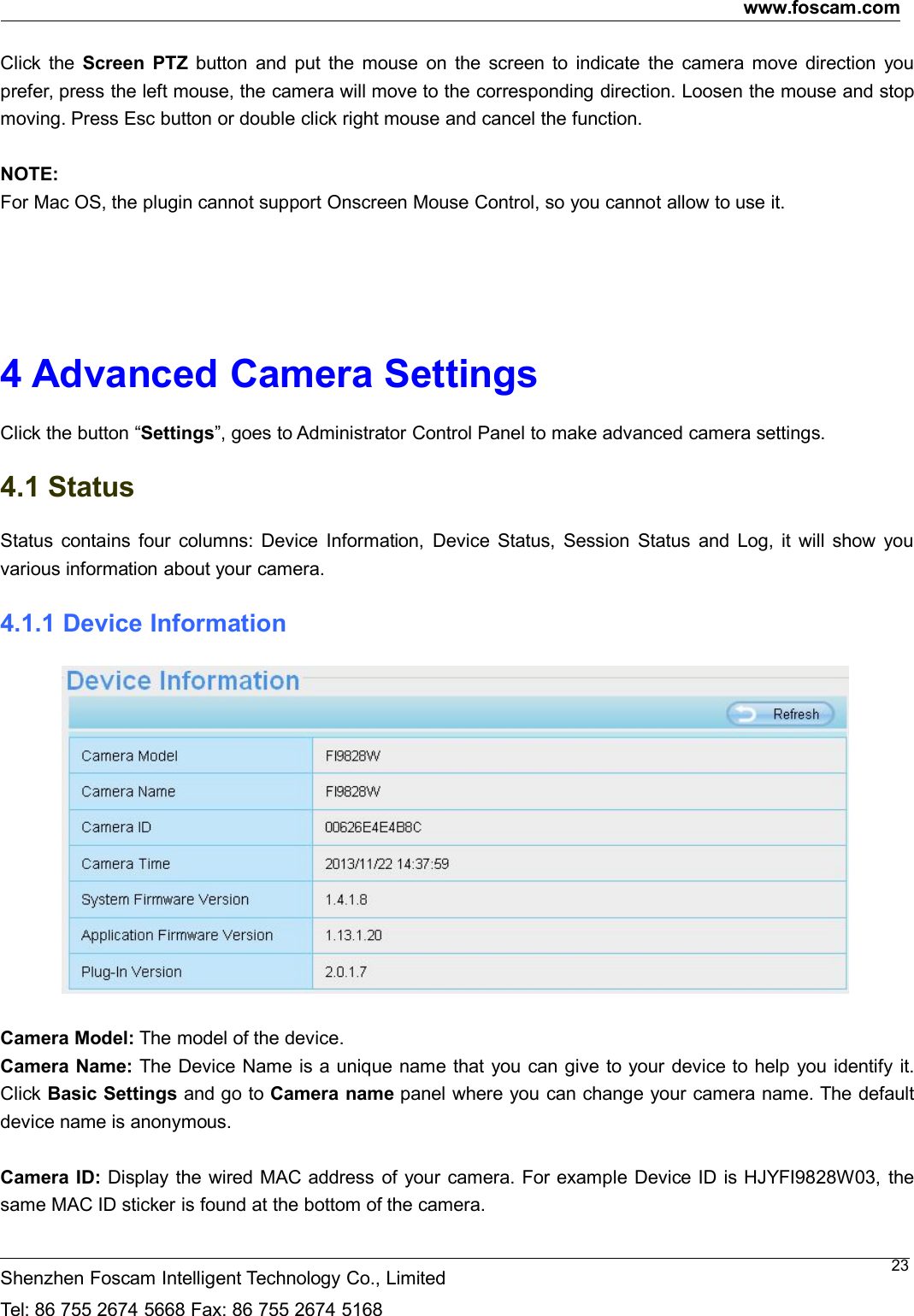
www.foscam.comShenzhen Foscam Intelligent Technology Co., LimitedTel: 86 755 2674 5668 Fax: 86 755 2674 516823Click the Screen PTZ button and put the mouse on the screen to indicate the camera move direction youprefer, press the left mouse, the camera will move to the corresponding direction. Loosen the mouse and stopmoving. Press Esc button or double click right mouse and cancel the function.NOTE:For Mac OS, the plugin cannot support Onscreen Mouse Control, so you cannot allow to use it.4 Advanced Camera SettingsClick the button “Settings”, goes to Administrator Control Panel to make advanced camera settings.4.1 StatusStatus contains four columns: Device Information, Device Status, Session Status and Log, it will show youvarious information about your camera.4.1.1 Device InformationCamera Model: The model of the device.Camera Name: The Device Name is a unique name that you can give to your device to help you identify it.Click Basic Settings and go to Camera name panel where you can change your camera name. The defaultdevice name is anonymous.Camera ID: Display the wired MAC address of your camera. For example Device ID is HJYFI9828W03, thesame MAC ID sticker is found at the bottom of the camera.
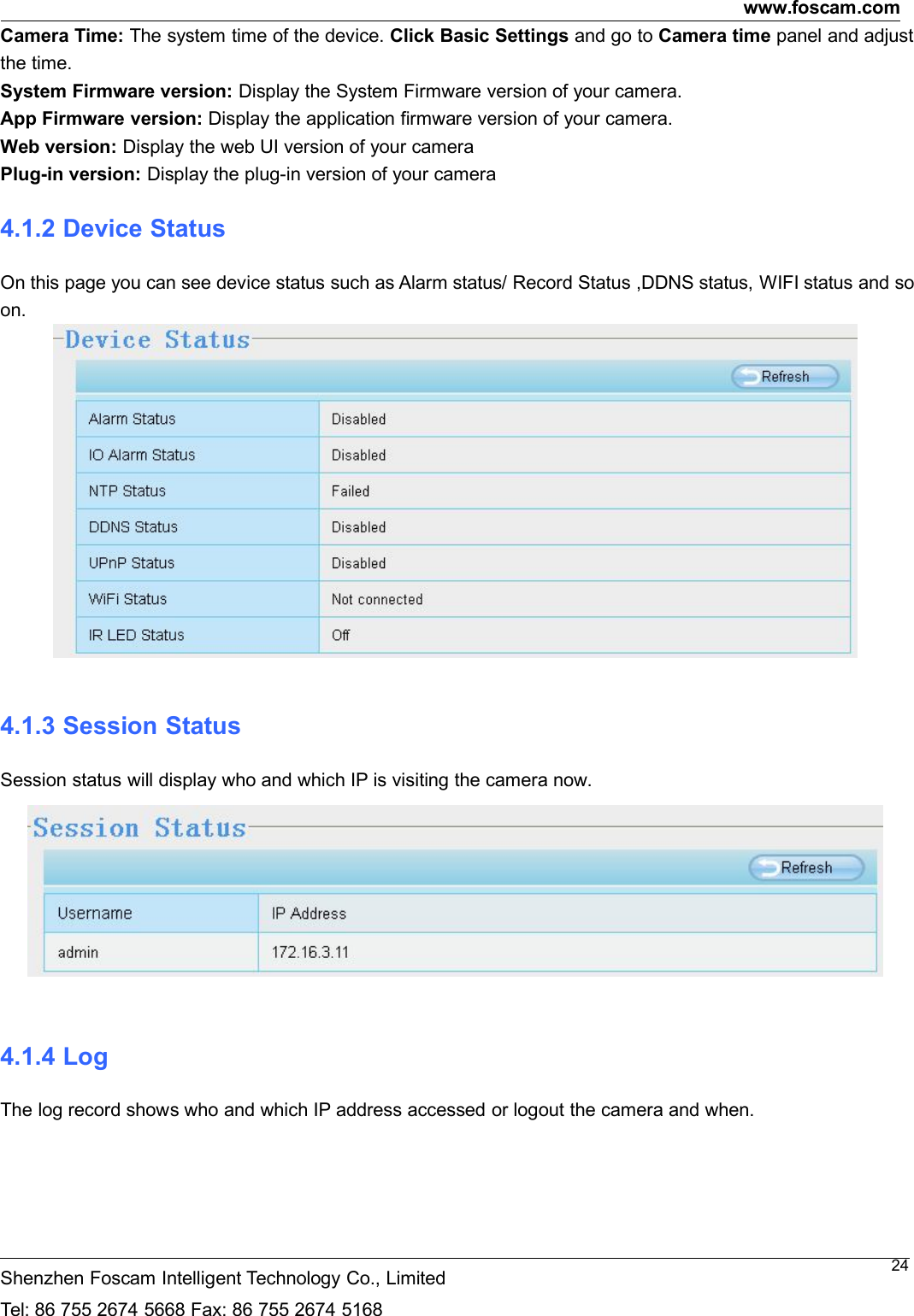
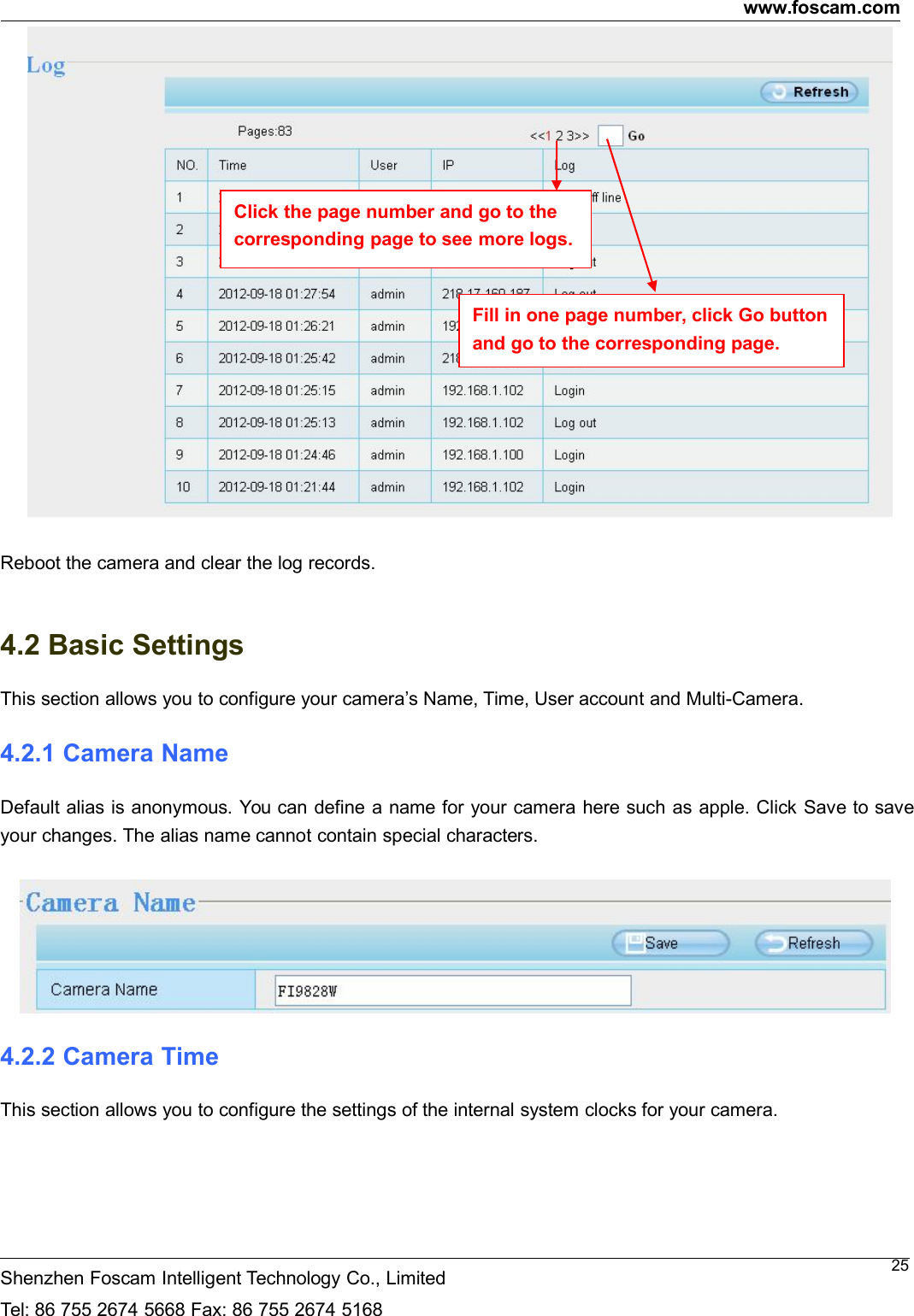
www.foscam.comShenzhen Foscam Intelligent Technology Co., LimitedTel: 86 755 2674 5668 Fax: 86 755 2674 516824Camera Time: The system time of the device. Click Basic Settings and go to Camera time panel and adjustthe time.System Firmware version: Display the System Firmware version of your camera.App Firmware version: Display the application firmware version of your camera.Web version: Display the web UI version of your cameraPlug-in version: Display the plug-in version of your camera4.1.2 Device StatusOn this page you can see device status such as Alarm status/ Record Status ,DDNS status, WIFI status and soon.4.1.3 Session StatusSession status will display who and which IP is visiting the camera now.4.1.4 LogThe log record shows who and which IP address accessed or logout the camera and when.
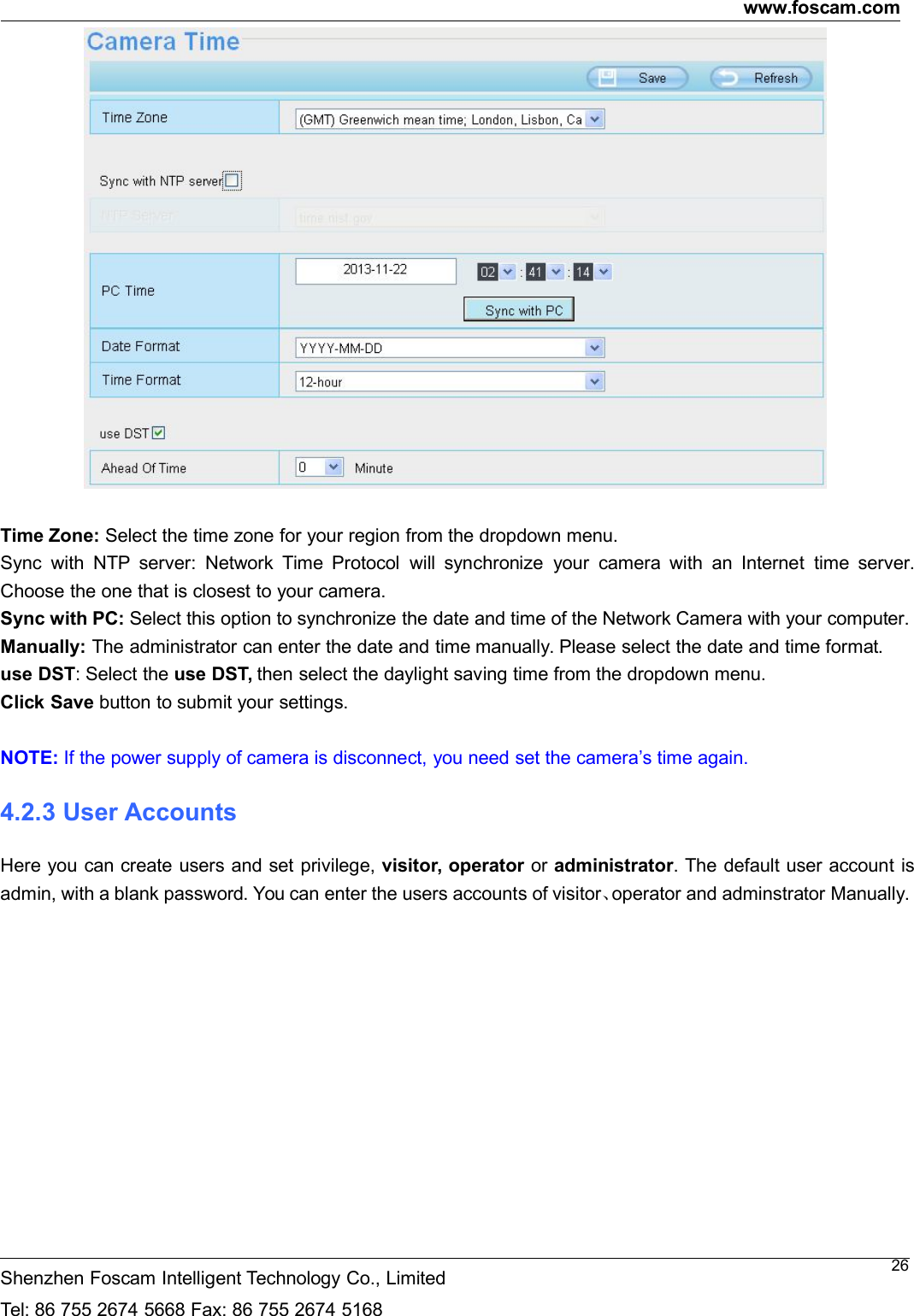
www.foscam.comShenzhen Foscam Intelligent Technology Co., LimitedTel: 86 755 2674 5668 Fax: 86 755 2674 516825Reboot the camera and clear the log records.4.2 Basic SettingsThis section allows you to configure your camera’s Name, Time, User account and Multi-Camera.4.2.1 Camera NameDefault alias is anonymous. You can define a name for your camera here such as apple. Click Save to saveyour changes. The alias name cannot contain special characters.4.2.2 Camera TimeThis section allows you to configure the settings of the internal system clocks for your camera.Click the page number and go to thecorresponding page to see more logs.Fill in one page number, click Go buttonand go to the corresponding page.
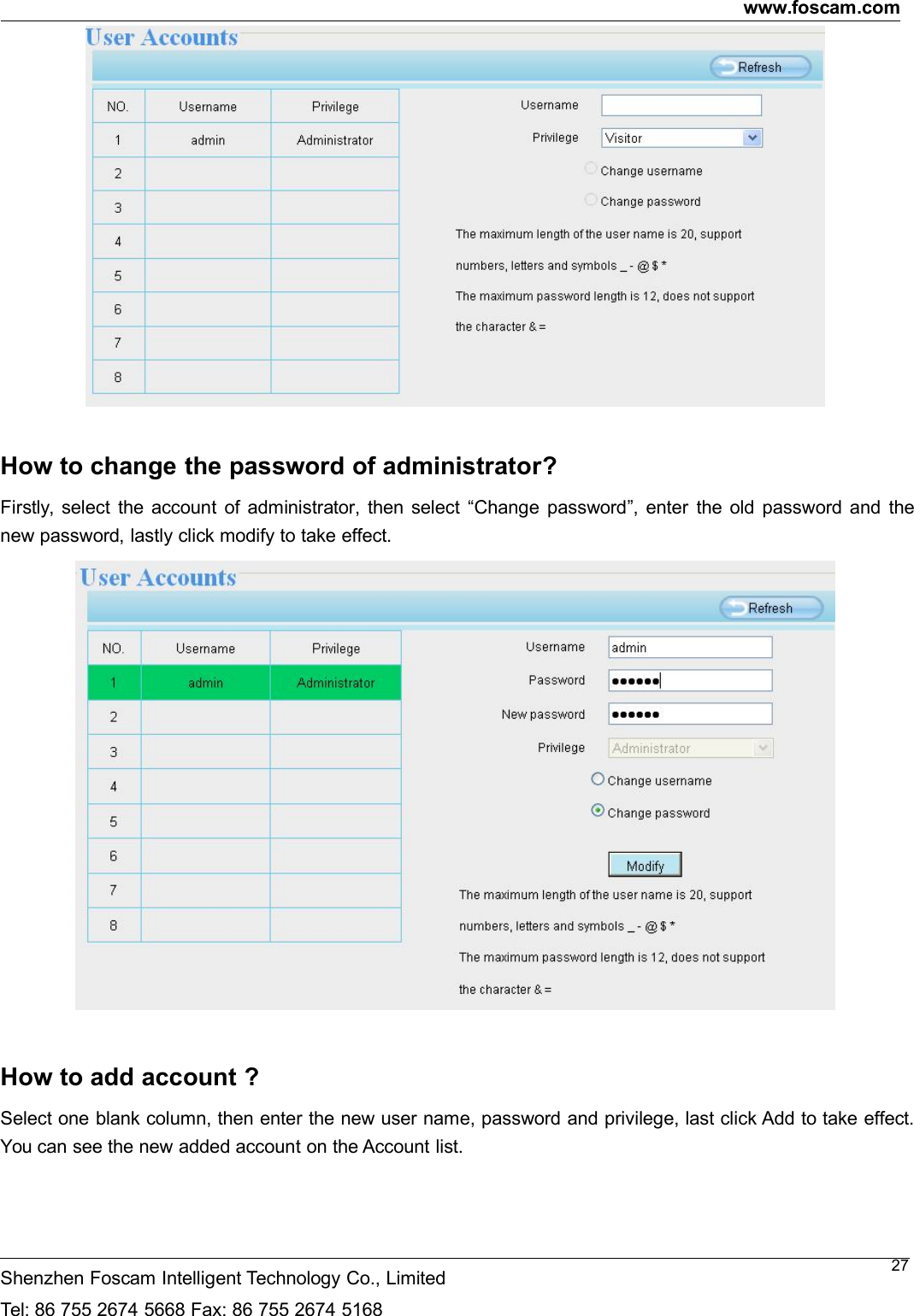
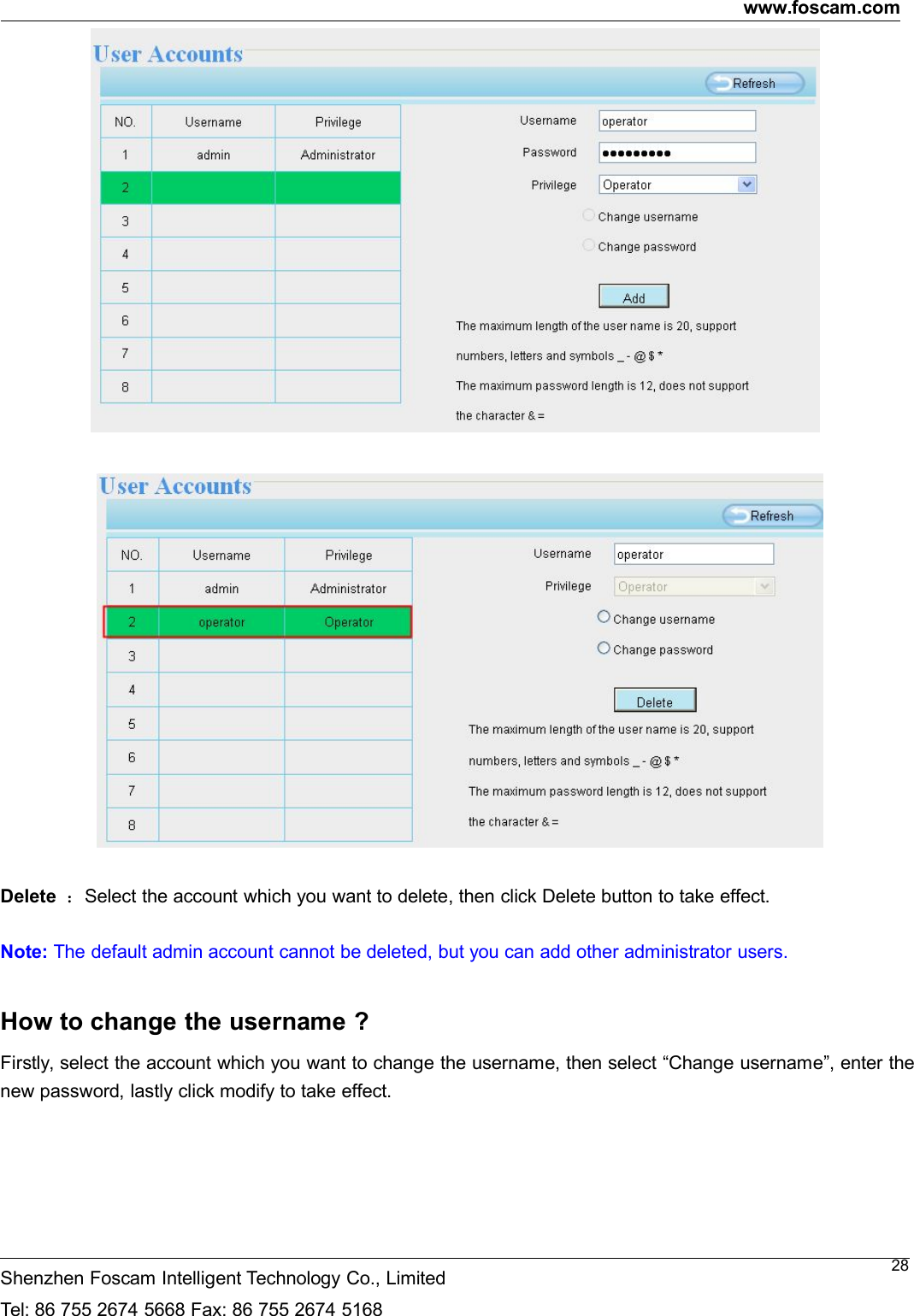
www.foscam.comShenzhen Foscam Intelligent Technology Co., LimitedTel: 86 755 2674 5668 Fax: 86 755 2674 516826Time Zone: Select the time zone for your region from the dropdown menu.Sync with NTP server: Network Time Protocol will synchronize your camera with an Internet time server.Choose the one that is closest to your camera.Sync with PC: Select this option to synchronize the date and time of the Network Camera with your computer.Manually: The administrator can enter the date and time manually. Please select the date and time format.use DST: Select the use DST, then select the daylight saving time from the dropdown menu.Click Save button to submit your settings.NOTE: If the power supply of camera is disconnect, you need set the camera’s time again.4.2.3 User AccountsHere you can create users and set privilege, visitor, operator or administrator. The default user account isadmin, with a blank password. You can enter the users accounts of visitor、operator and adminstrator Manually.
www.foscam.comShenzhen Foscam Intelligent Technology Co., LimitedTel: 86 755 2674 5668 Fax: 86 755 2674 516827How to change the password of administrator?Firstly, select the account of administrator, then select “Change password”, enter the old password and thenew password, lastly click modify to take effect.How to add account ?Select one blank column, then enter the new user name, password and privilege, last click Add to take effect.You can see the new added account on the Account list.
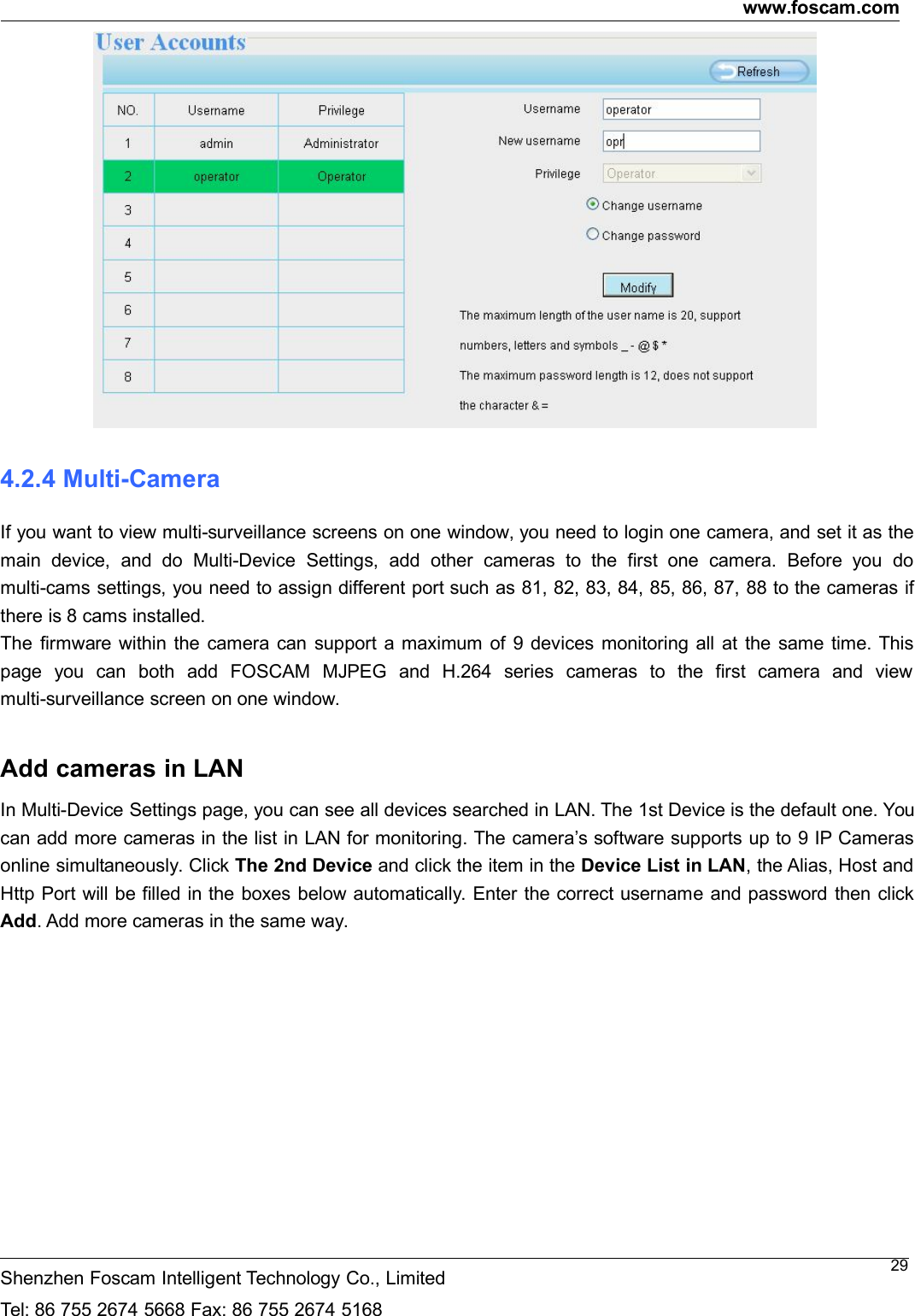
www.foscam.comShenzhen Foscam Intelligent Technology Co., LimitedTel: 86 755 2674 5668 Fax: 86 755 2674 516828Delete :Select the account which you want to delete, then click Delete button to take effect.Note: The default admin account cannot be deleted, but you can add other administrator users.How to change the username ?Firstly, select the account which you want to change the username, then select “Change username”, enter thenew password, lastly click modify to take effect.
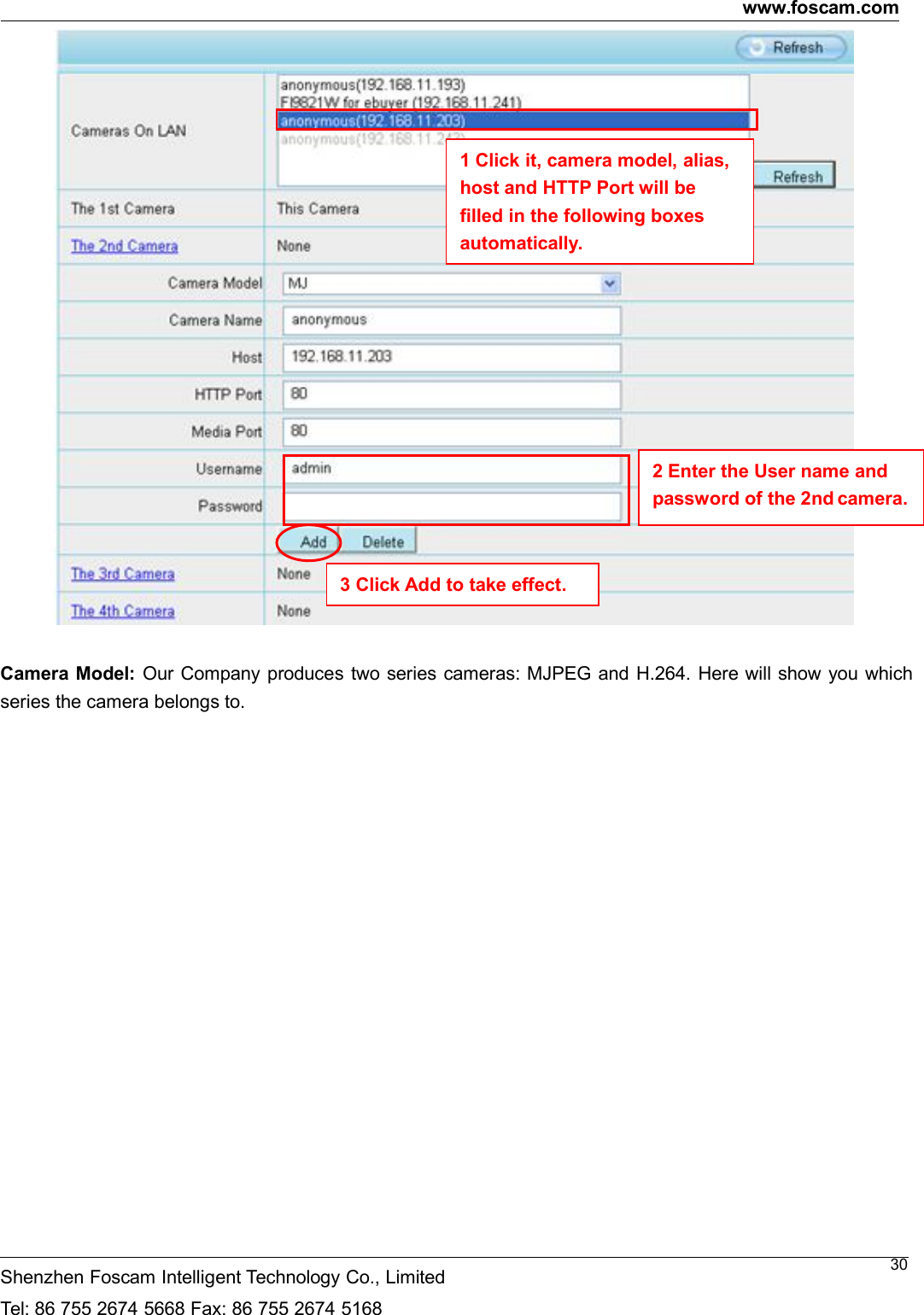
www.foscam.comShenzhen Foscam Intelligent Technology Co., LimitedTel: 86 755 2674 5668 Fax: 86 755 2674 5168294.2.4 Multi-CameraIf you want to view multi-surveillance screens on one window, you need to login one camera, and set it as themain device, and do Multi-Device Settings, add other cameras to the first one camera. Before you domulti-cams settings, you need to assign different port such as 81, 82, 83, 84, 85, 86, 87, 88 to the cameras ifthere is 8 cams installed.The firmware within the camera can support a maximum of 9 devices monitoring all at the same time. Thispage you can both add FOSCAM MJPEG and H.264 series cameras to the first camera and viewmulti-surveillance screen on one window.Add cameras in LANIn Multi-Device Settings page, you can see all devices searched in LAN. The 1st Device is the default one. Youcan add more cameras in the list in LAN for monitoring. The camera’s software supports up to 9 IP Camerasonline simultaneously. Click The 2nd Device and click the item in the Device List in LAN, the Alias, Host andHttp Port will be filled in the boxes below automatically. Enter the correct username and password then clickAdd. Add more cameras in the same way.
www.foscam.comShenzhen Foscam Intelligent Technology Co., LimitedTel: 86 755 2674 5668 Fax: 86 755 2674 516830Camera Model: Our Company produces two series cameras: MJPEG and H.264. Here will show you whichseries the camera belongs to.2 Enter the User name andpassword of the 2nd camera.1 Click it, camera model, alias,host and HTTP Port will befilled in the following boxesautomatically.3 Click Add to take effect.
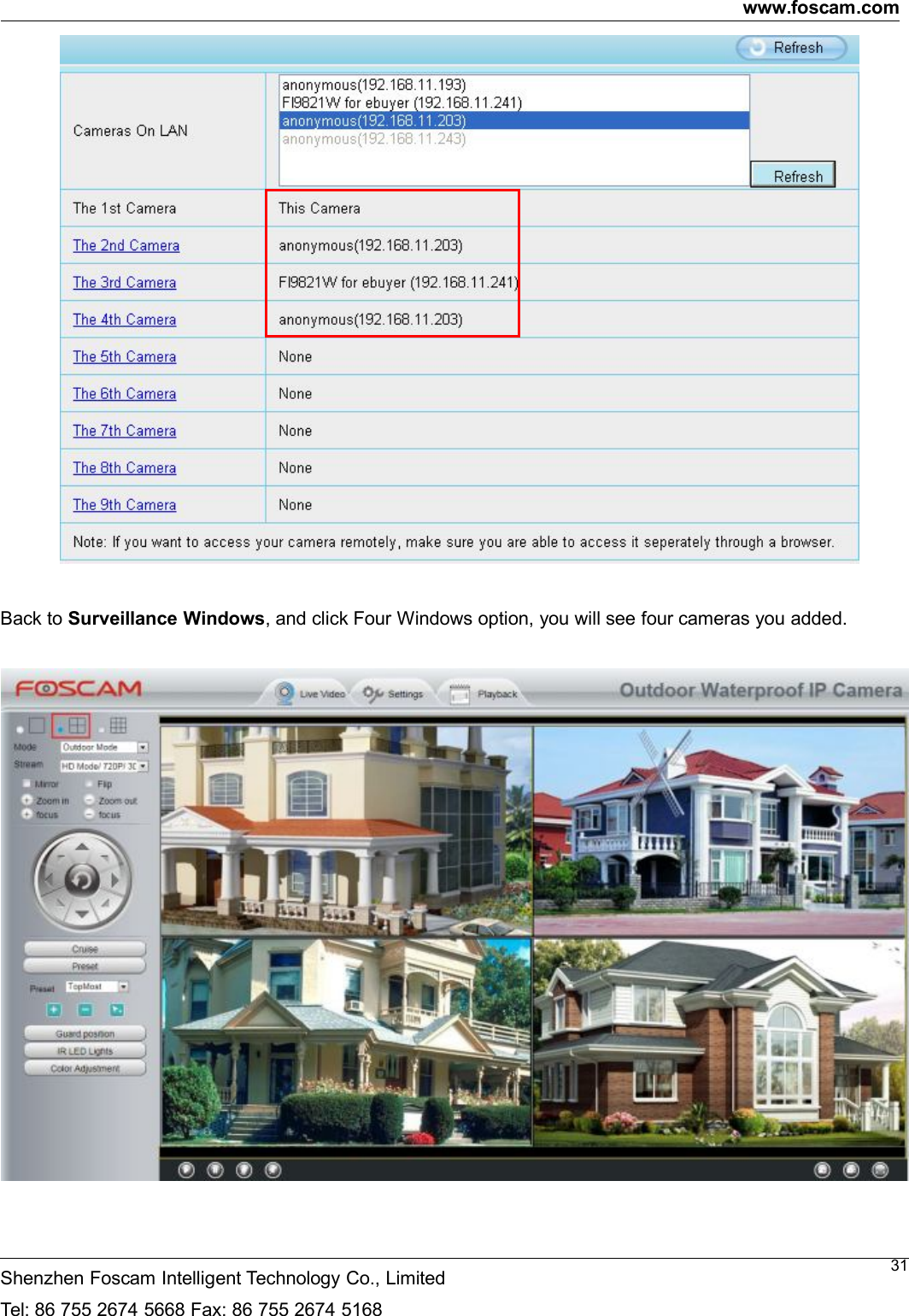
www.foscam.comShenzhen Foscam Intelligent Technology Co., LimitedTel: 86 755 2674 5668 Fax: 86 755 2674 516831Back to Surveillance Windows, and click Four Windows option, you will see four cameras you added.
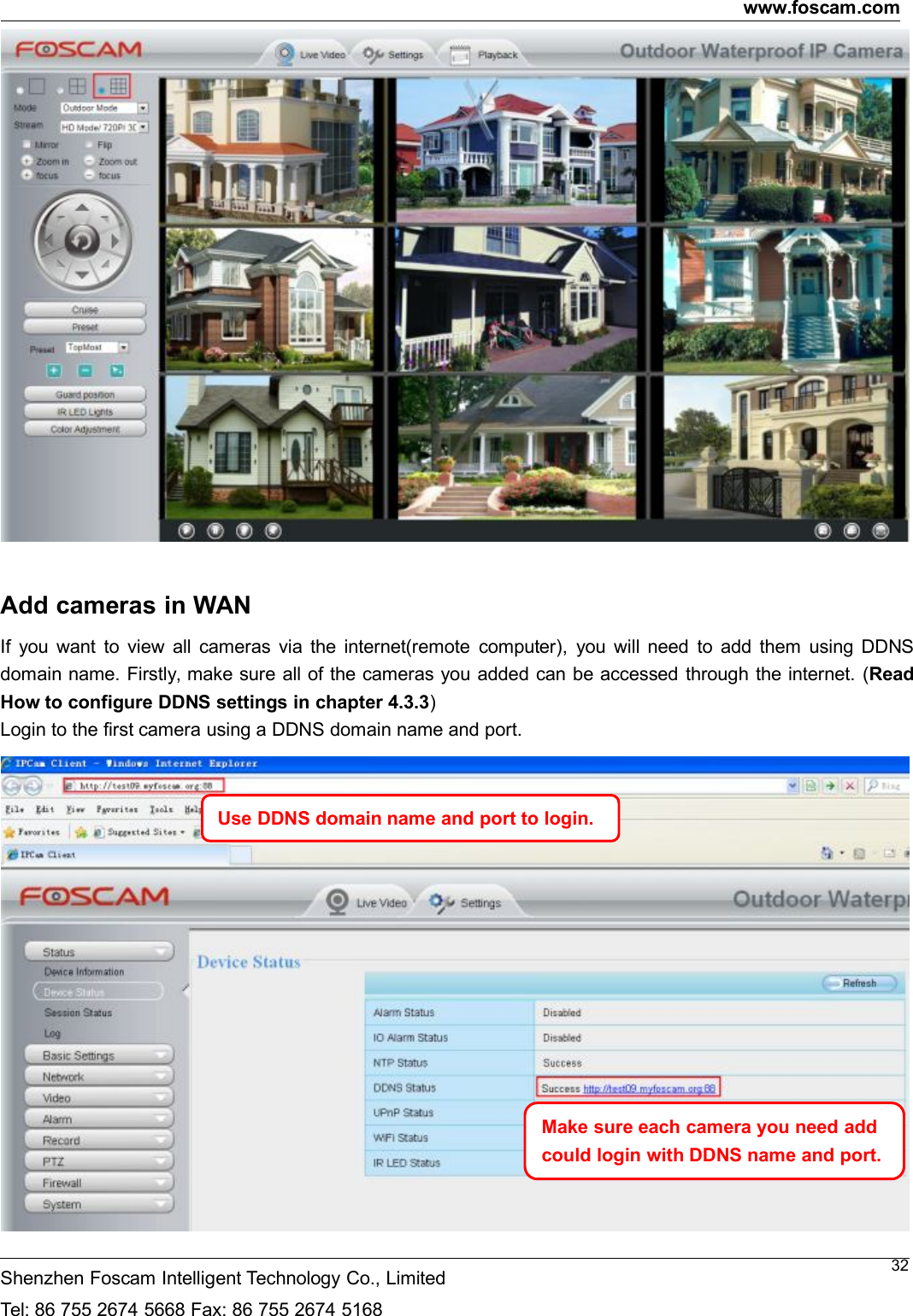
www.foscam.comShenzhen Foscam Intelligent Technology Co., LimitedTel: 86 755 2674 5668 Fax: 86 755 2674 516832Add cameras in WANIf you want to view all cameras via the internet(remote computer), you will need to add them using DDNSdomain name. Firstly, make sure all of the cameras you added can be accessed through the internet. (ReadHow to configure DDNS settings in chapter 4.3.3)Login to the first camera using a DDNS domain name and port.Use DDNS domain name and port to login.Make sure each camera you need addcould login with DDNS name and port.
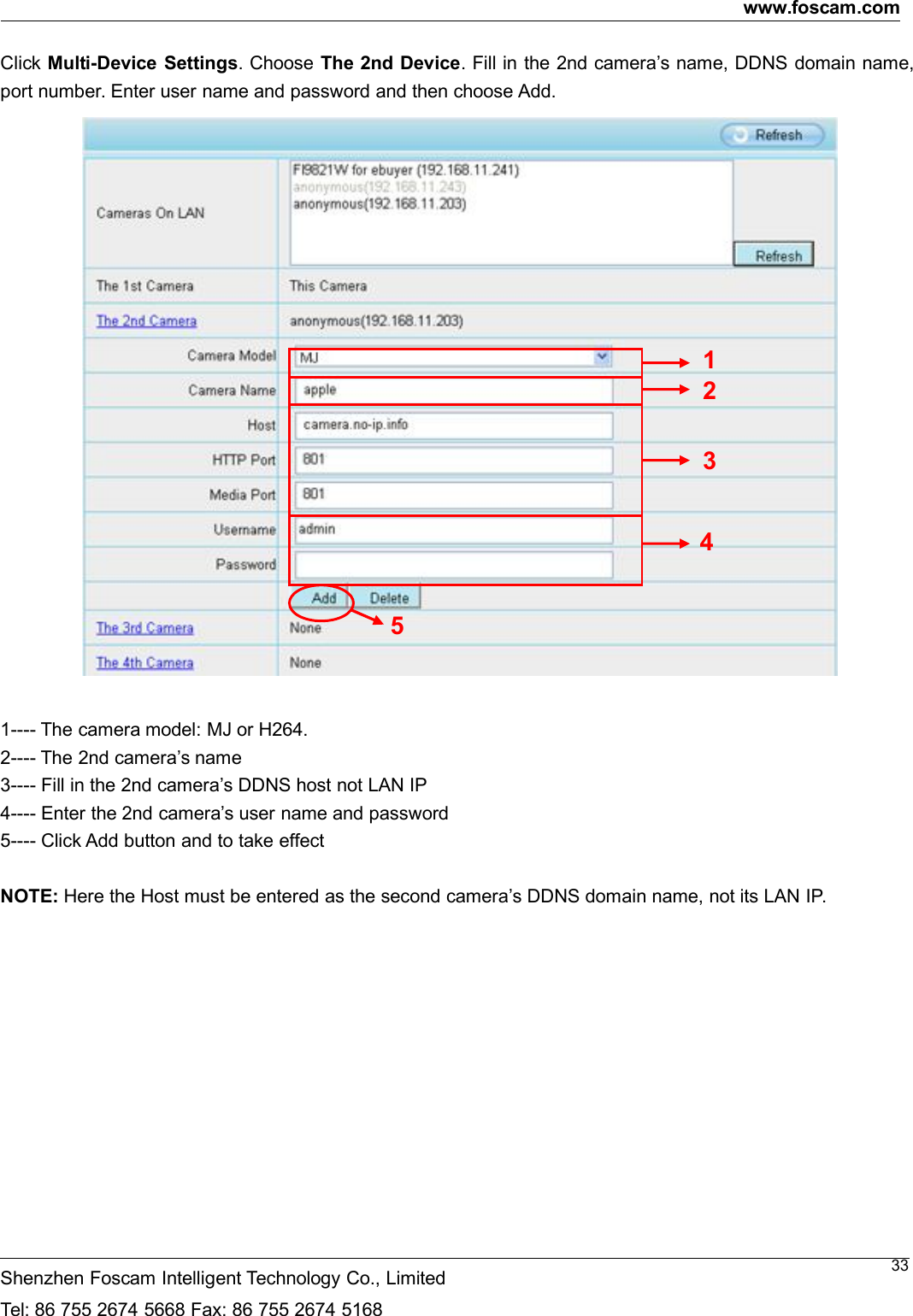
www.foscam.comShenzhen Foscam Intelligent Technology Co., LimitedTel: 86 755 2674 5668 Fax: 86 755 2674 516833Click Multi-Device Settings. Choose The 2nd Device. Fill in the 2nd camera’s name, DDNS domain name,port number. Enter user name and password and then choose Add.1---- The camera model: MJ or H264.2---- The 2nd camera’s name3---- Fill in the 2nd camera’s DDNS host not LAN IP4---- Enter the 2nd camera’s user name and password5---- Click Add button and to take effectNOTE: Here the Host must be entered as the second camera’s DDNS domain name, not its LAN IP.23451
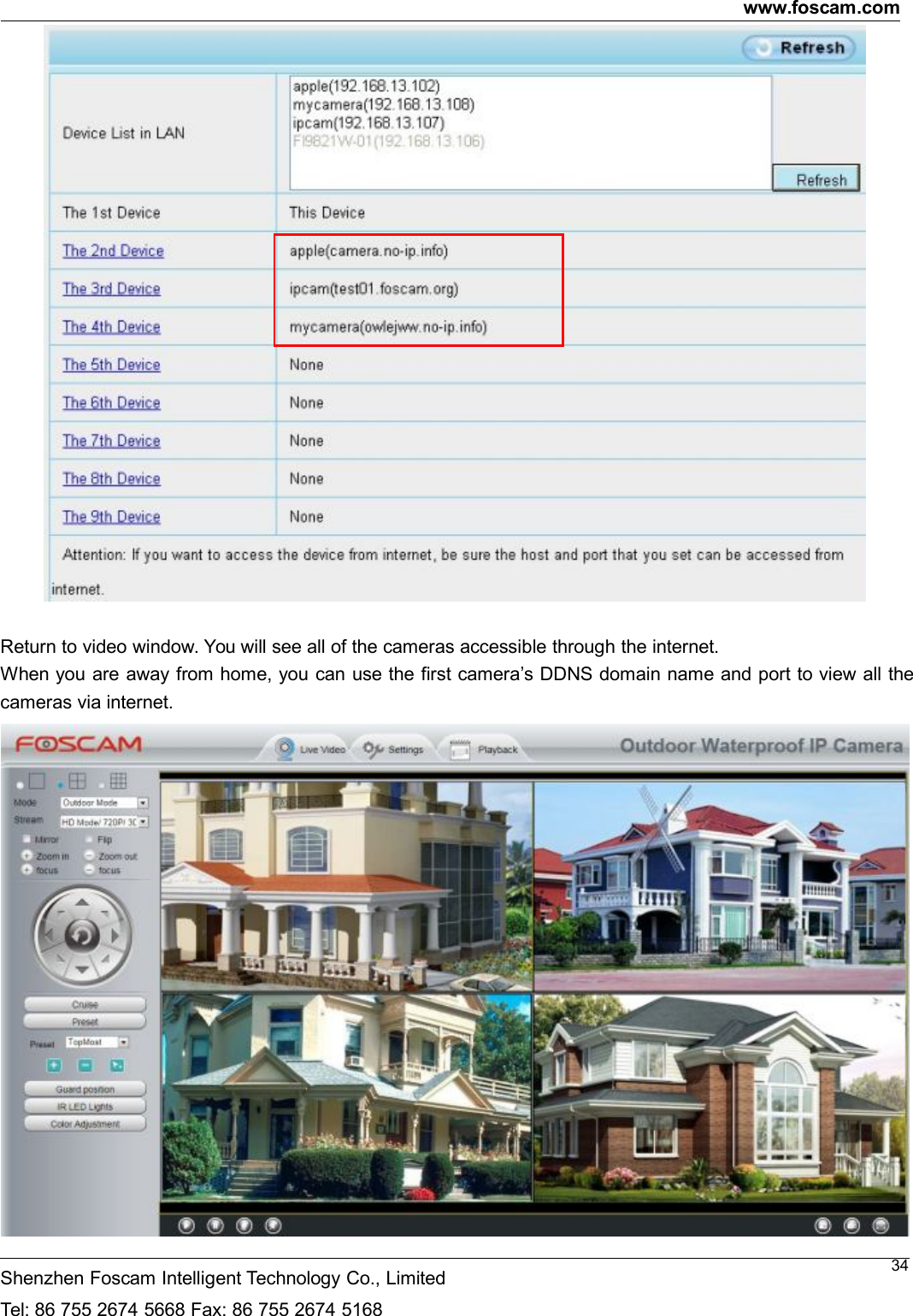
www.foscam.comShenzhen Foscam Intelligent Technology Co., LimitedTel: 86 755 2674 5668 Fax: 86 755 2674 516834Return to video window. You will see all of the cameras accessible through the internet.When you are away from home, you can use the first camera’s DDNS domain name and port to view all thecameras via internet.
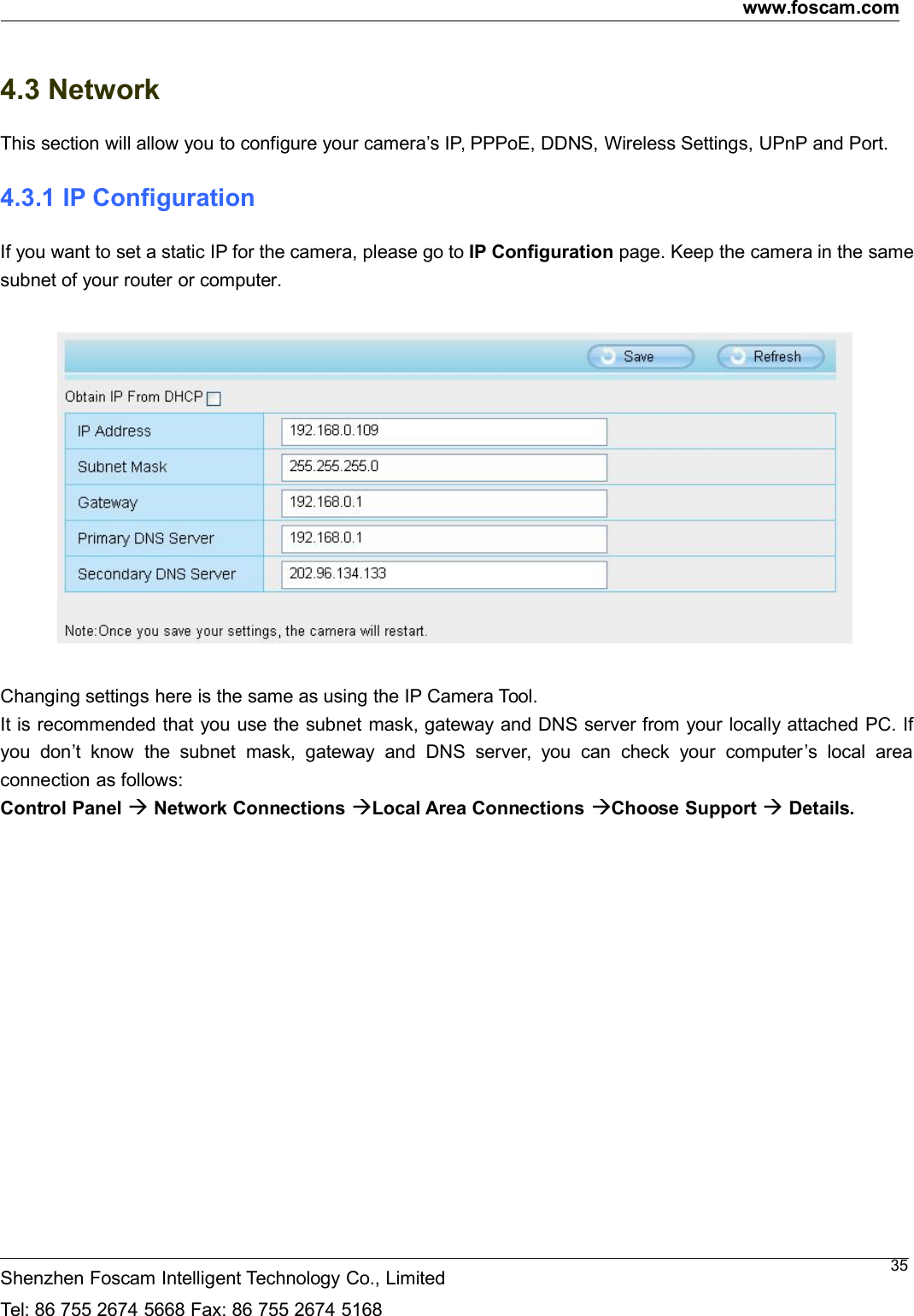
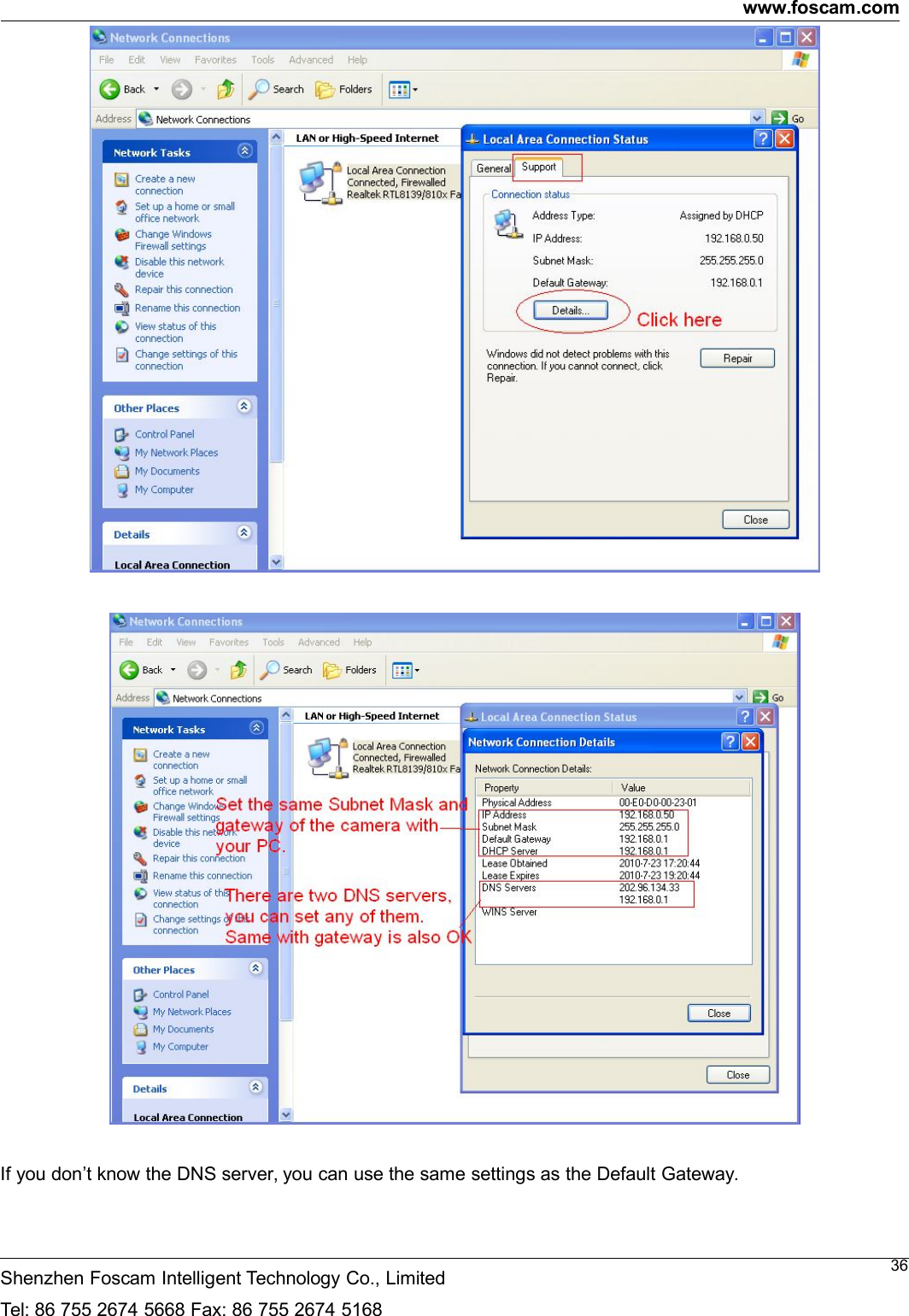
www.foscam.comShenzhen Foscam Intelligent Technology Co., LimitedTel: 86 755 2674 5668 Fax: 86 755 2674 5168354.3 NetworkThis section will allow you to configure your camera’s IP, PPPoE, DDNS, Wireless Settings, UPnP and Port.4.3.1 IP ConfigurationIf you want to set a static IP for the camera, please go to IP Configuration page. Keep the camera in the samesubnet of your router or computer.Changing settings here is the same as using the IP Camera Tool.It is recommended that you use the subnet mask, gateway and DNS server from your locally attached PC. Ifyou don’t know the subnet mask, gateway and DNS server, you can check your computer’s local areaconnection as follows:Control Panel Network Connections Local Area Connections Choose Support Details.
www.foscam.comShenzhen Foscam Intelligent Technology Co., LimitedTel: 86 755 2674 5668 Fax: 86 755 2674 516836If you don’t know the DNS server, you can use the same settings as the Default Gateway.
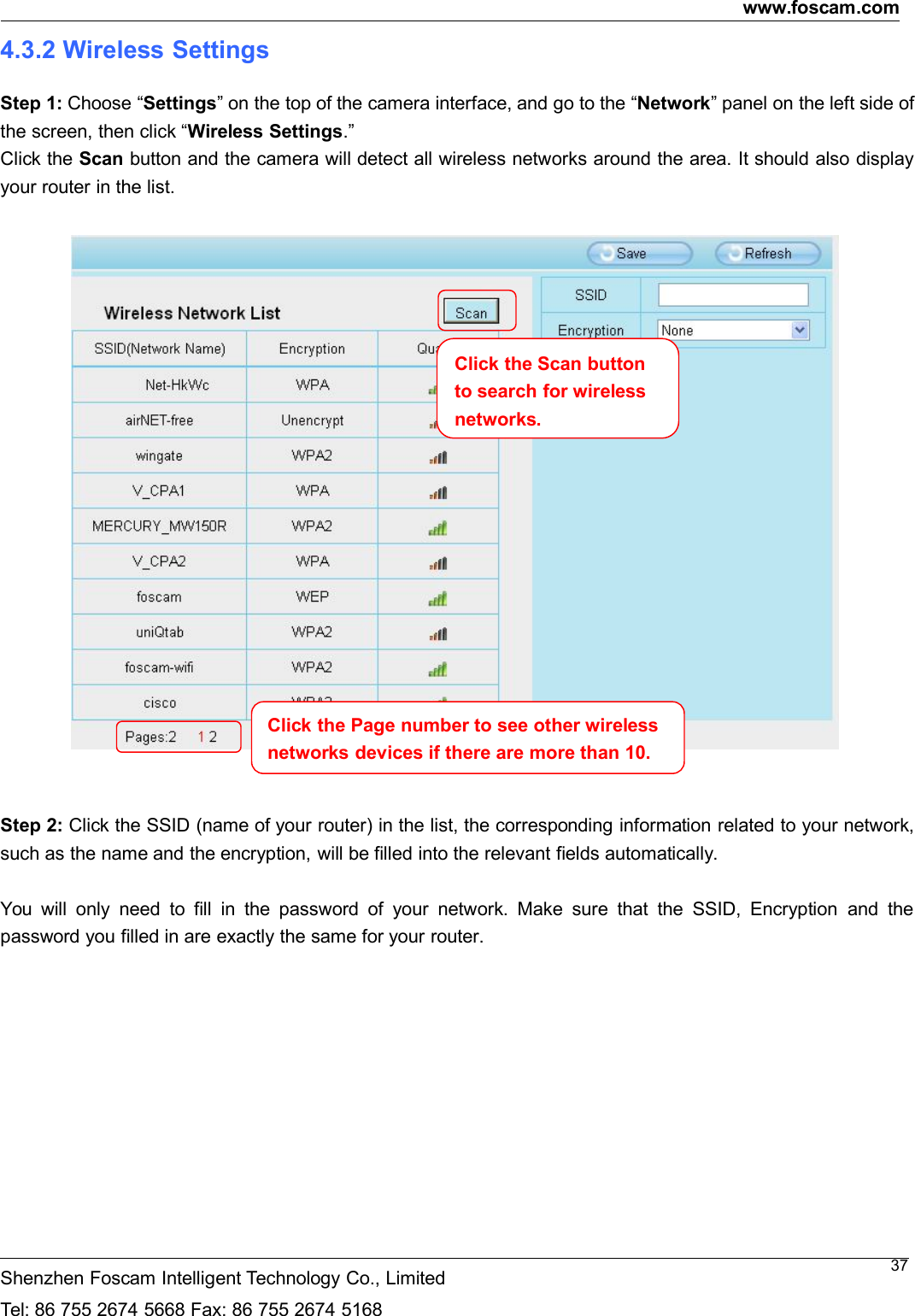
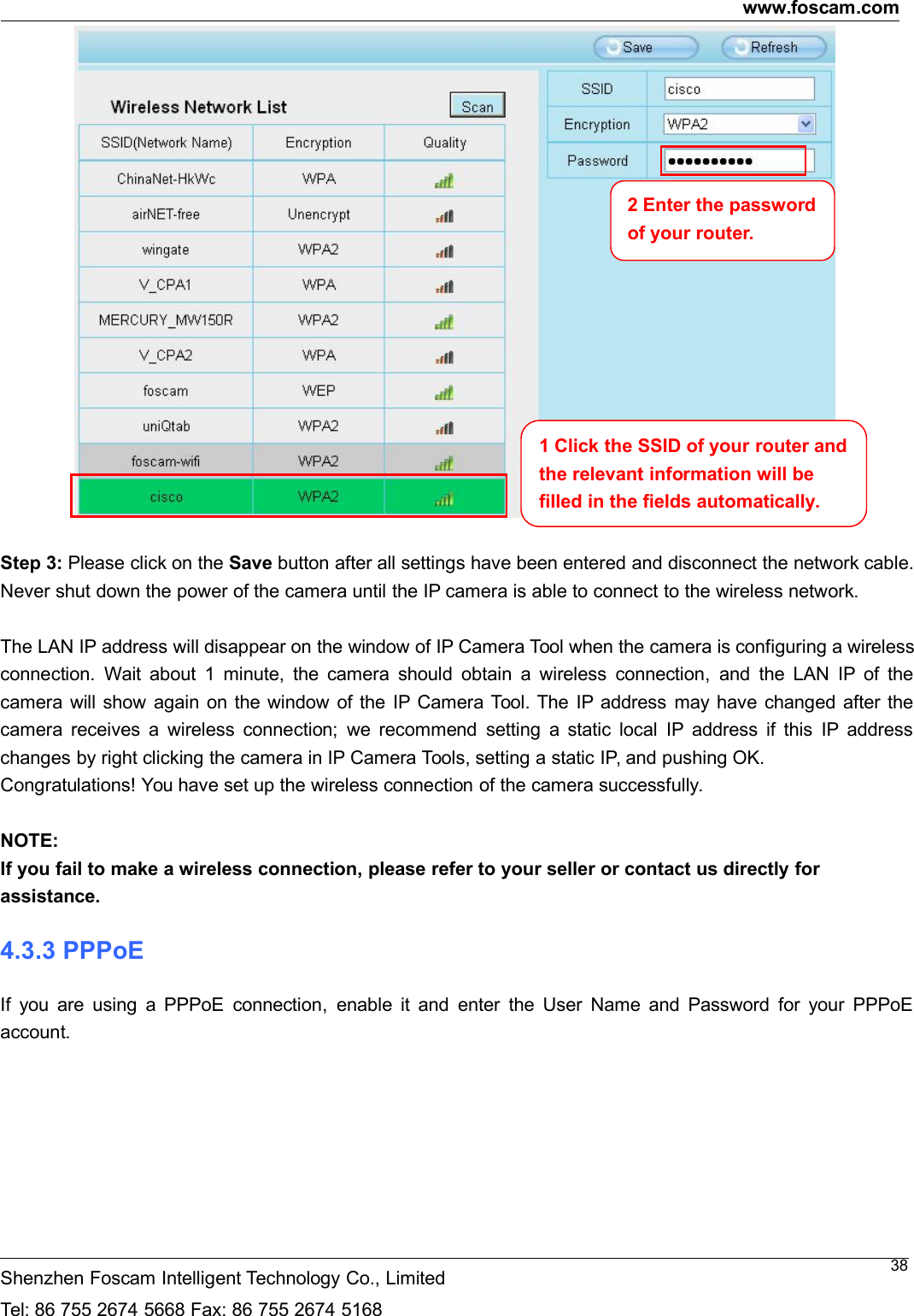
www.foscam.comShenzhen Foscam Intelligent Technology Co., LimitedTel: 86 755 2674 5668 Fax: 86 755 2674 5168374.3.2 Wireless SettingsStep 1: Choose “Settings” on the top of the camera interface, and go to the “Network” panel on the left side ofthe screen, then click “Wireless Settings.”Click the Scan button and the camera will detect all wireless networks around the area. It should also displayyour router in the list.Step 2: Click the SSID (name of your router) in the list, the corresponding information related to your network,such as the name and the encryption, will be filled into the relevant fields automatically.You will only need to fill in the password of your network. Make sure that the SSID, Encryption and thepassword you filled in are exactly the same for your router.Click the Page number to see other wirelessnetworksdevicesiftherearemorethan10.Click the Scan buttonto search for wirelessnetworks.
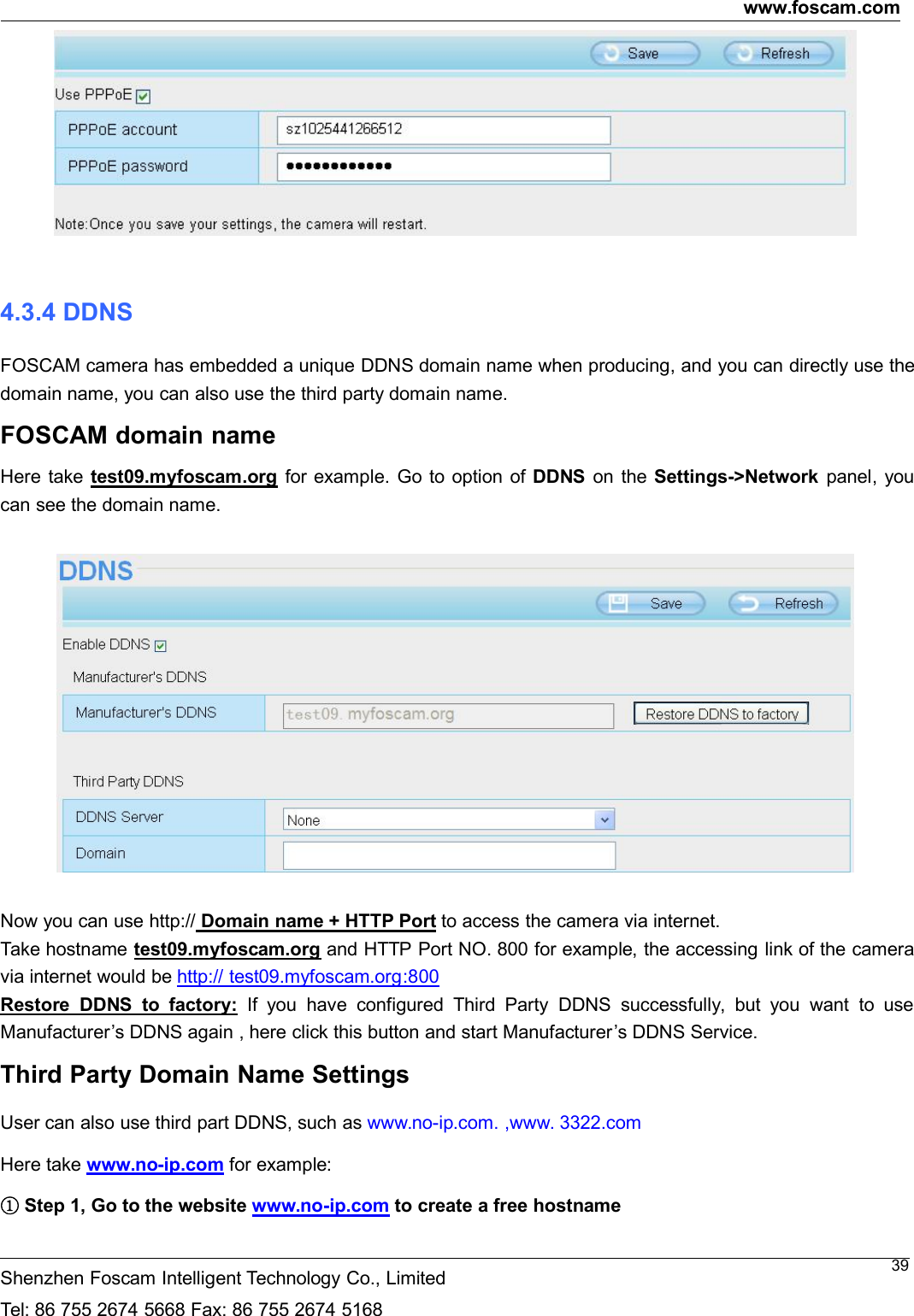
www.foscam.comShenzhen Foscam Intelligent Technology Co., LimitedTel: 86 755 2674 5668 Fax: 86 755 2674 516838Step 3: Please click on the Save button after all settings have been entered and disconnect the network cable.Never shut down the power of the camera until the IP camera is able to connect to the wireless network.The LAN IP address will disappear on the window of IP Camera Tool when the camera is configuring a wirelessconnection. Wait about 1 minute, the camera should obtain a wireless connection, and the LAN IP of thecamera will show again on the window of the IP Camera Tool. The IP address may have changed after thecamera receives a wireless connection; we recommend setting a static local IP address if this IP addresschanges by right clicking the camera in IP Camera Tools, setting a static IP, and pushing OK.Congratulations! You have set up the wireless connection of the camera successfully.NOTE:If you fail to make a wireless connection, please refer to your seller or contact us directly forassistance.4.3.3 PPPoEIf you are using a PPPoE connection, enable it and enter the User Name and Password for your PPPoEaccount.1 Click the SSID of your router andthe relevant information will befilled in the fields automatically.2 Enter the passwordof your router.
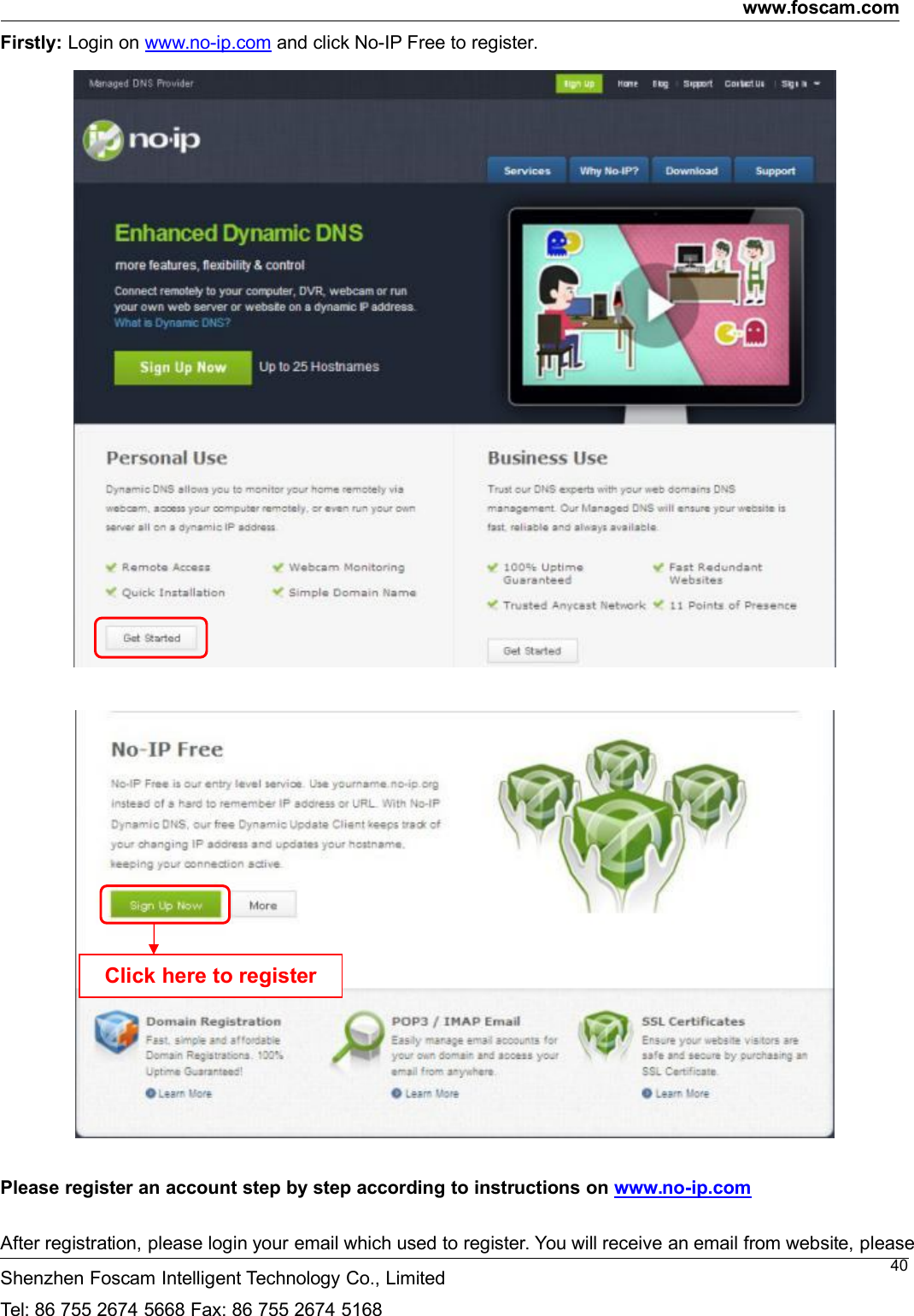
www.foscam.comShenzhen Foscam Intelligent Technology Co., LimitedTel: 86 755 2674 5668 Fax: 86 755 2674 5168394.3.4 DDNSFOSCAM camera has embedded a unique DDNS domain name when producing, and you can directly use thedomain name, you can also use the third party domain name.FOSCAM domain nameHere take test09.myfoscam.org for example. Go to option of DDNS on the Settings->Network panel, youcan see the domain name.Now you can use http:// Domain name + HTTP Port to access the camera via internet.Take hostname test09.myfoscam.org and HTTP Port NO. 800 for example, the accessing link of the cameravia internet would be http:// test09.myfoscam.org:800Restore DDNS to factory: If you have configured Third Party DDNS successfully, but you want to useManufacturer’s DDNS again , here click this button and start Manufacturer’s DDNS Service.Third Party Domain Name SettingsUser can also use third part DDNS, such as www.no-ip.com. ,www. 3322.comHere take www.no-ip.com for example:①Step 1, Go to the website www.no-ip.com to create a free hostname
www.foscam.comShenzhen Foscam Intelligent Technology Co., LimitedTel: 86 755 2674 5668 Fax: 86 755 2674 516840Firstly: Login on www.no-ip.com and click No-IP Free to register.Please register an account step by step according to instructions on www.no-ip.comAfter registration, please login your email which used to register. You will receive an email from website, pleaseClick here to register
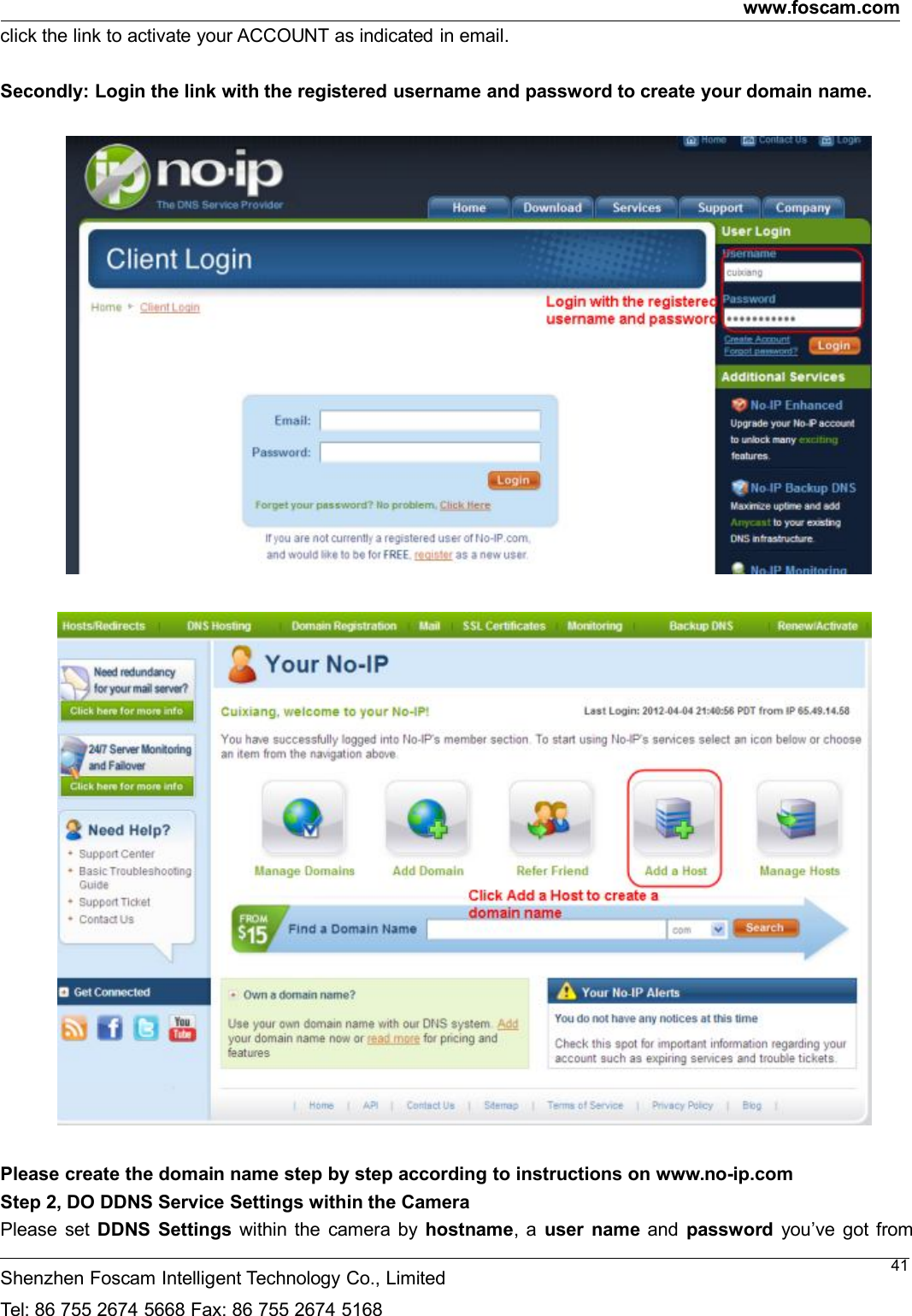
www.foscam.comShenzhen Foscam Intelligent Technology Co., LimitedTel: 86 755 2674 5668 Fax: 86 755 2674 516841click the link to activate your ACCOUNT as indicated in email.Secondly: Login the link with the registered username and password to create your domain name.Please create the domain name step by step according to instructions on www.no-ip.comStep 2, DO DDNS Service Settings within the CameraPlease set DDNS Settings within the camera by hostname, a user name and password you’ve got from
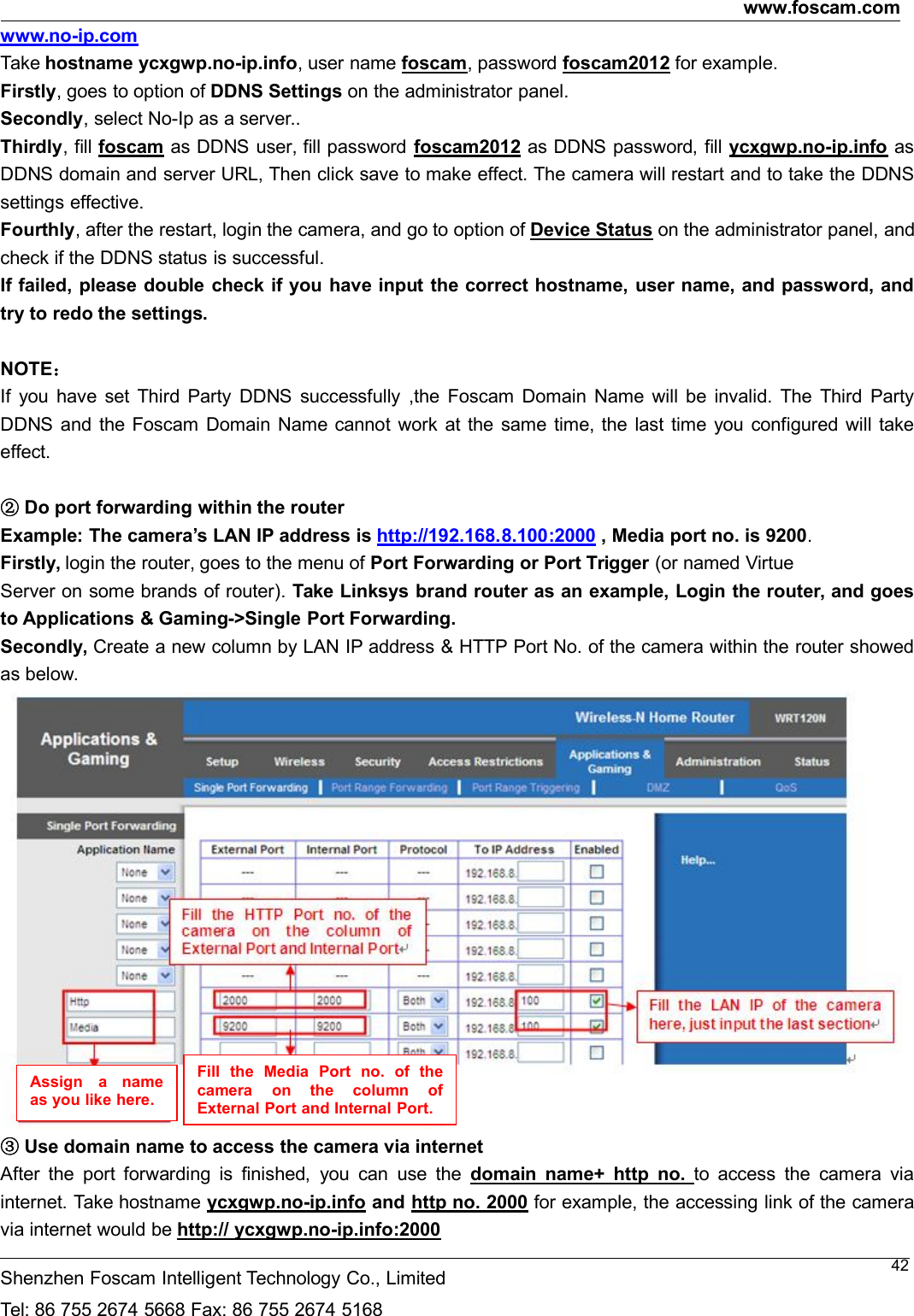
www.foscam.comShenzhen Foscam Intelligent Technology Co., LimitedTel: 86 755 2674 5668 Fax: 86 755 2674 516842www.no-ip.comTake hostname ycxgwp.no-ip.info, user name foscam, password foscam2012 for example.Firstly, goes to option of DDNS Settings on the administrator panel.Secondly, select No-Ip as a server..Thirdly, fill foscam as DDNS user, fill password foscam2012 as DDNS password, fill ycxgwp.no-ip.info asDDNS domain and server URL, Then click save to make effect. The camera will restart and to take the DDNSsettings effective.Fourthly, after the restart, login the camera, and go to option of Device Status on the administrator panel, andcheck if the DDNS status is successful.If failed, please double check if you have input the correct hostname, user name, and password, andtry to redo the settings.NOTE:If you have set Third Party DDNS successfully ,the Foscam Domain Name will be invalid. The Third PartyDDNS and the Foscam Domain Name cannot work at the same time, the last time you configured will takeeffect.②Do port forwarding within the routerExample: The camera’s LAN IP address is http://192.168.8.100:2000 , Media port no. is 9200.Firstly, login the router, goes to the menu of Port Forwarding or Port Trigger (or named VirtueServer on some brands of router). Take Linksys brand router as an example, Login the router, and goesto Applications & Gaming->Single Port Forwarding.Secondly, Create a new column by LAN IP address & HTTP Port No. of the camera within the router showedas below.③Use domain name to access the camera via internetAfter the port forwarding is finished, you can use the domain name+ http no. to access the camera viainternet. Take hostname ycxgwp.no-ip.info and http no. 2000 for example, the accessing link of the cameravia internet would be http:// ycxgwp.no-ip.info:2000Assign a nameas you like here.Fill the Media Port no. of thecamera on the column ofExternalPortandInternalPort.
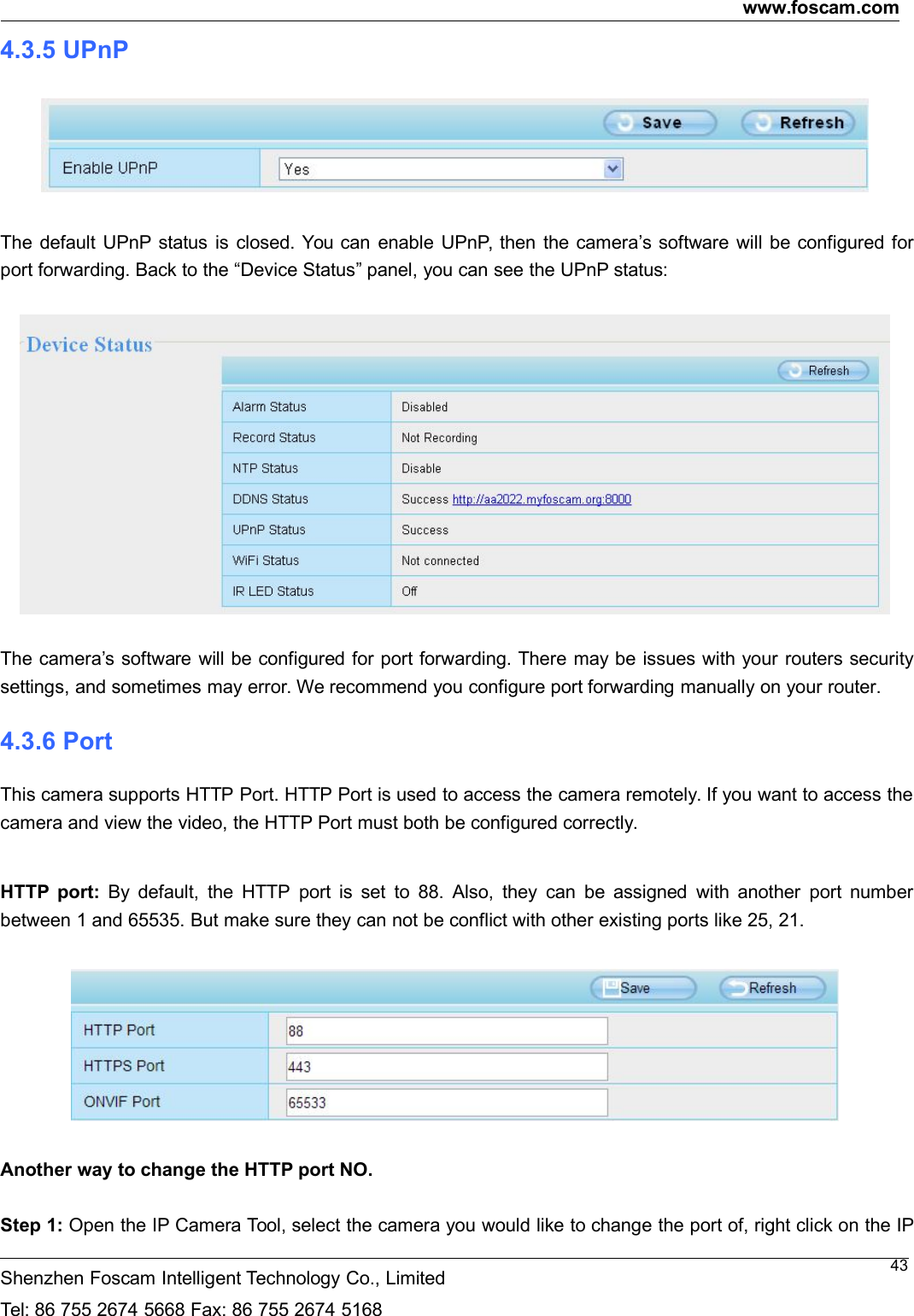
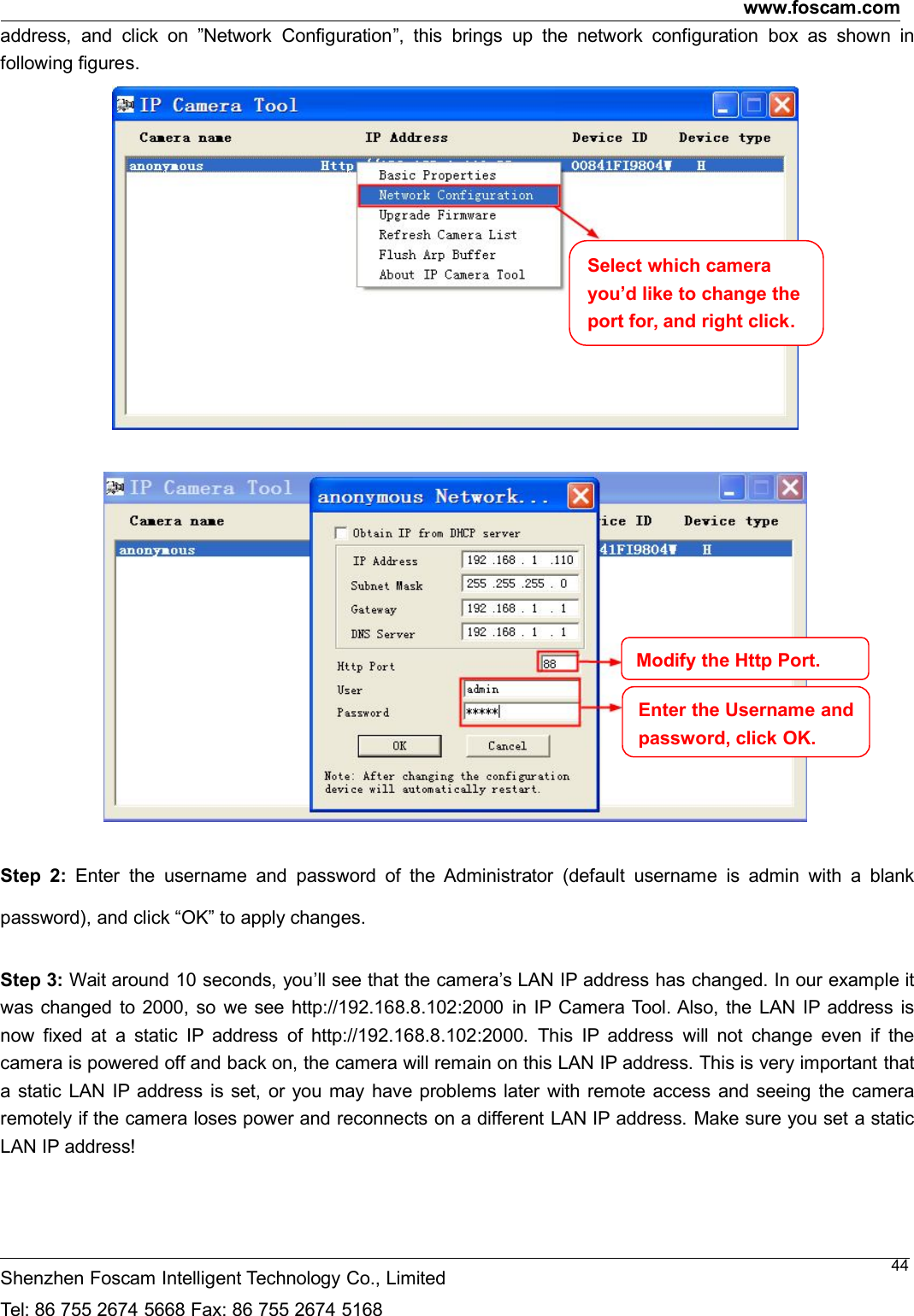
www.foscam.comShenzhen Foscam Intelligent Technology Co., LimitedTel: 86 755 2674 5668 Fax: 86 755 2674 5168434.3.5 UPnPThe default UPnP status is closed. You can enable UPnP, then the camera’s software will be configured forport forwarding. Back to the “Device Status” panel, you can see the UPnP status:The camera’s software will be configured for port forwarding. There may be issues with your routers securitysettings, and sometimes may error. We recommend you configure port forwarding manually on your router.4.3.6 PortThis camera supports HTTP Port. HTTP Port is used to access the camera remotely. If you want to access thecamera and view the video, the HTTP Port must both be configured correctly.HTTP port: By default, the HTTP port is set to 88. Also, they can be assigned with another port numberbetween 1 and 65535. But make sure they can not be conflict with other existing ports like 25, 21.Another way to change the HTTP port NO.Step 1: Open the IP Camera Tool, select the camera you would like to change the port of, right click on the IP
www.foscam.comShenzhen Foscam Intelligent Technology Co., LimitedTel: 86 755 2674 5668 Fax: 86 755 2674 516844address, and click on ”Network Configuration”, this brings up the network configuration box as shown infollowing figures.Step 2: Enter the username and password of the Administrator (default username is admin with a blankpassword), and click “OK” to apply changes.Step 3: Wait around 10 seconds, you’ll see that the camera’s LAN IP address has changed. In our example itwas changed to 2000, so we see http://192.168.8.102:2000 in IP Camera Tool. Also, the LAN IP address isnow fixed at a static IP address of http://192.168.8.102:2000. This IP address will not change even if thecamera is powered off and back on, the camera will remain on this LAN IP address. This is very important thata static LAN IP address is set, or you may have problems later with remote access and seeing the cameraremotely if the camera loses power and reconnects on a different LAN IP address. Make sure you set a staticLAN IP address!Select which camerayou’d like to change theport for, and right click.ModifytheHttpPort.Enter the Username andpassword,clickOK.
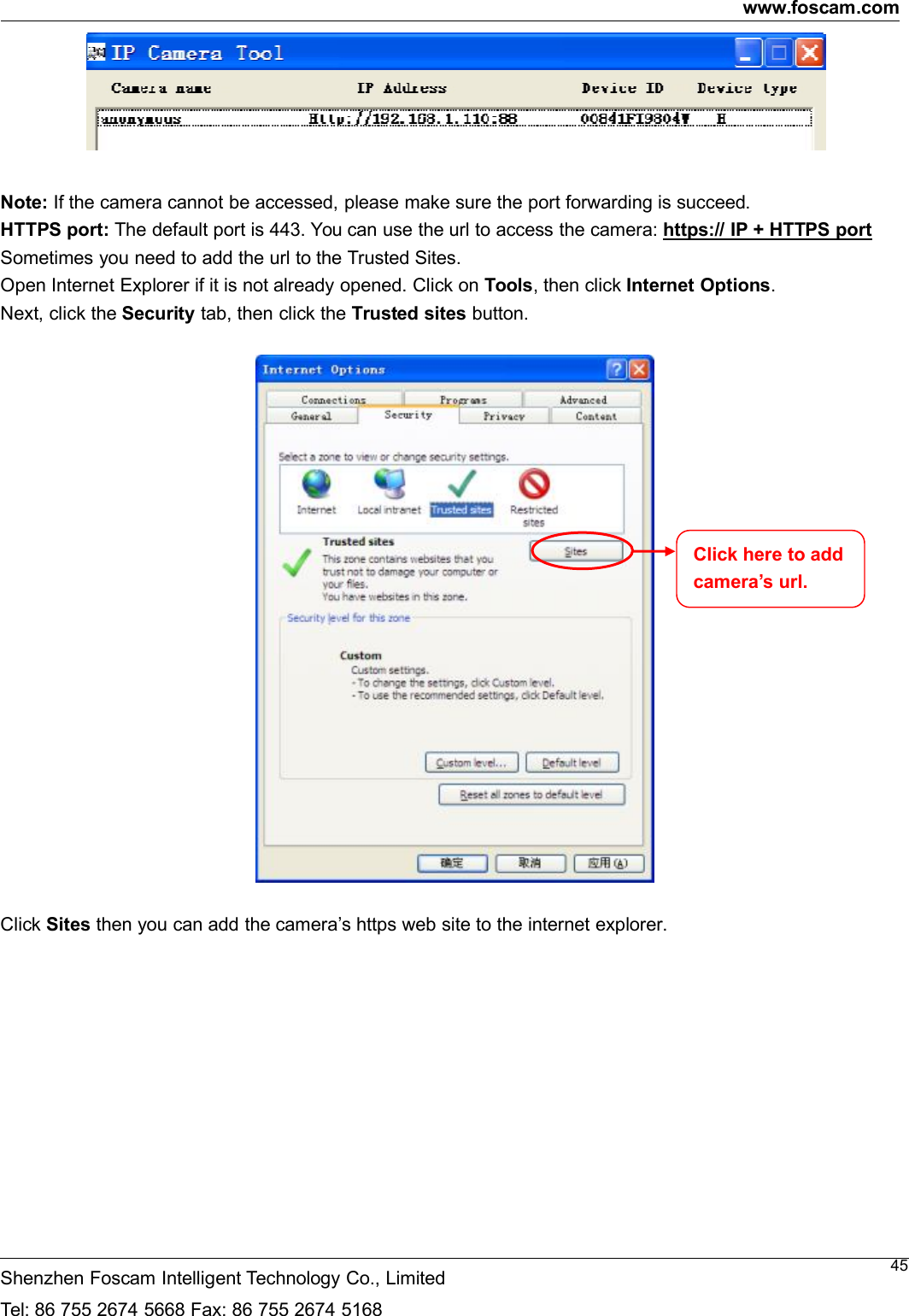
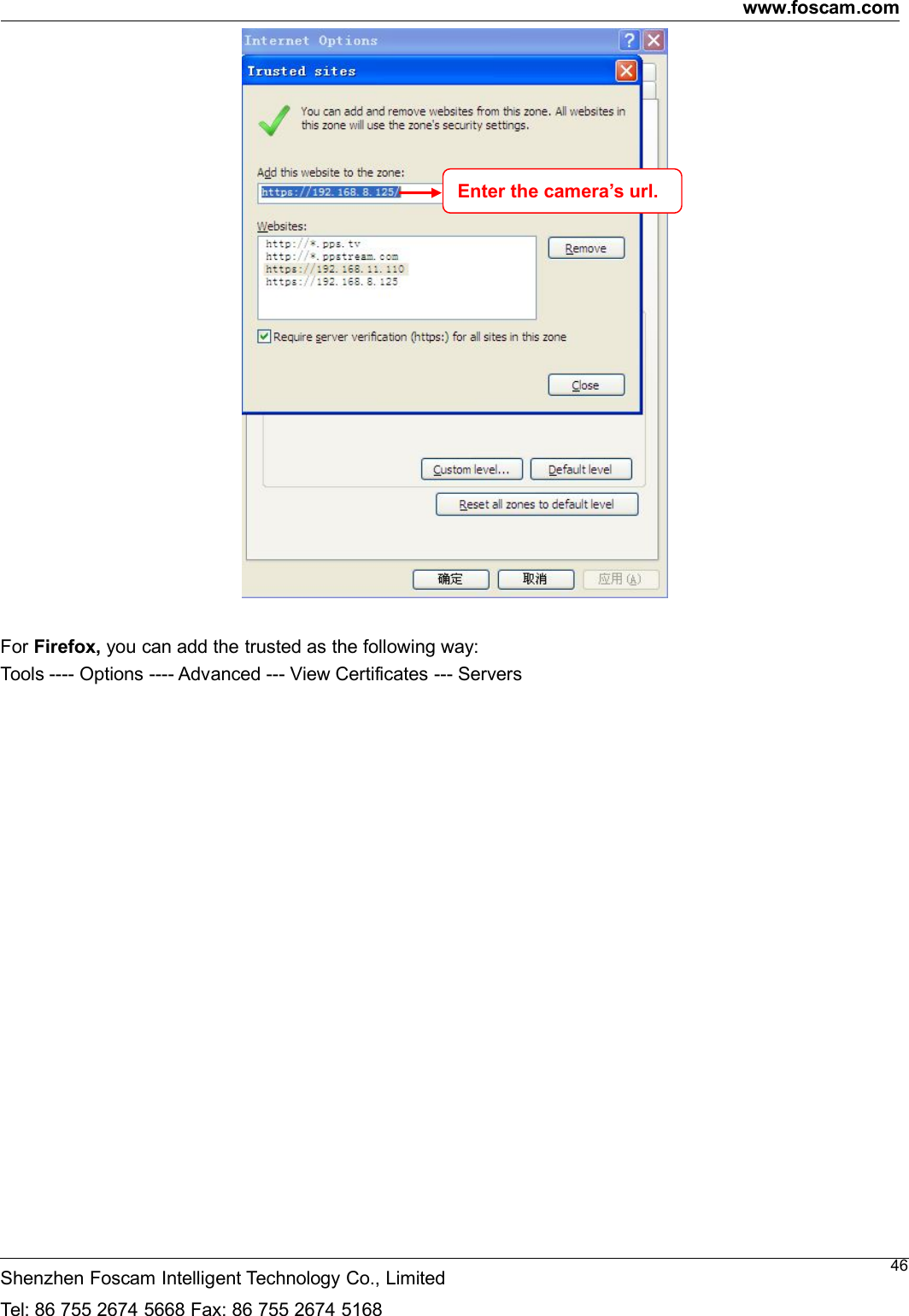
www.foscam.comShenzhen Foscam Intelligent Technology Co., LimitedTel: 86 755 2674 5668 Fax: 86 755 2674 516845Note: If the camera cannot be accessed, please make sure the port forwarding is succeed.HTTPS port: The default port is 443. You can use the url to access the camera: https:// IP + HTTPS portSometimes you need to add the url to the Trusted Sites.Open Internet Explorer if it is not already opened. Click on Tools, then click Internet Options.Next, click the Security tab, then click the Trusted sites button.Click Sites then you can add the camera’s https web site to the internet explorer.Click here to addcamera’s url.
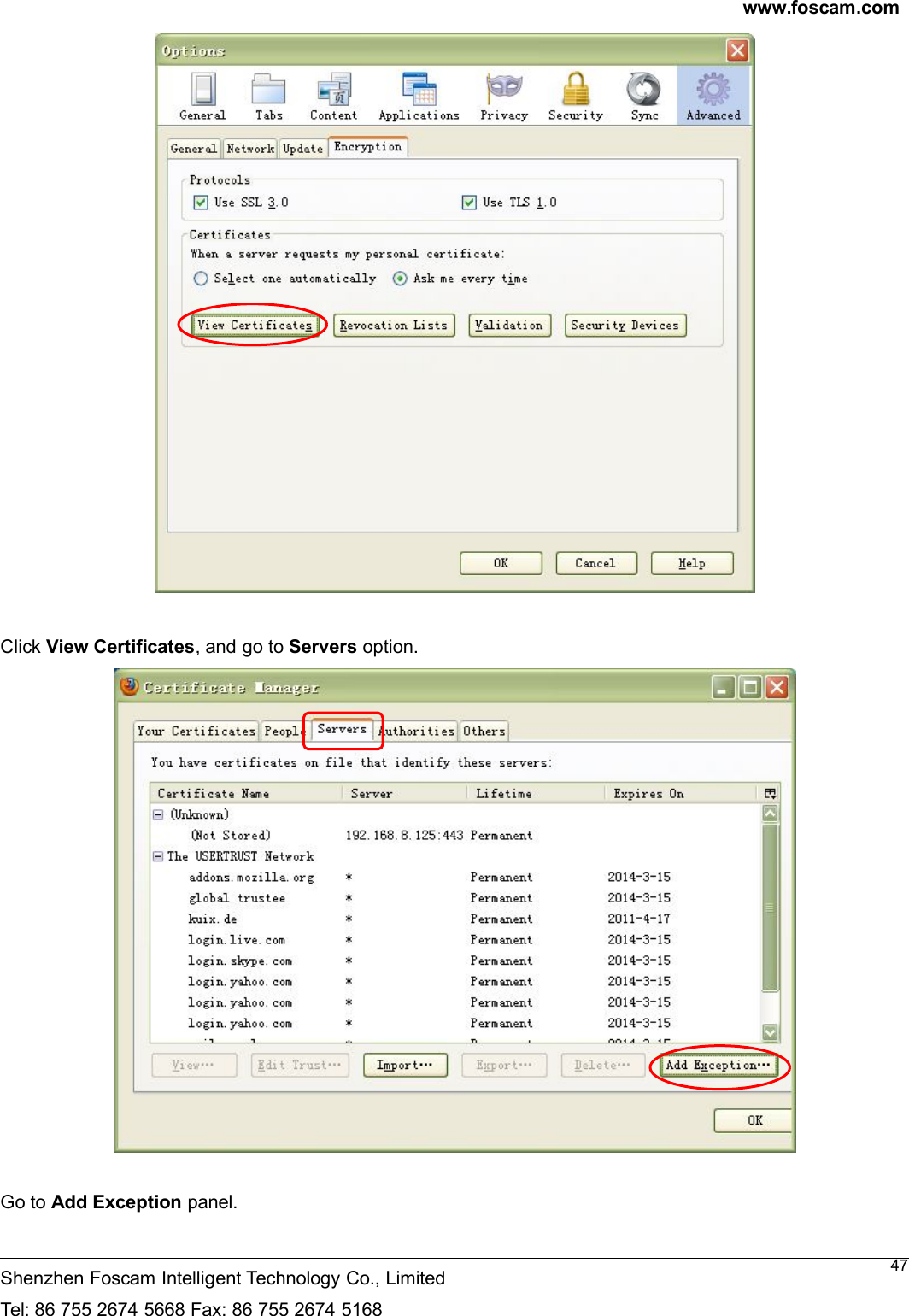
www.foscam.comShenzhen Foscam Intelligent Technology Co., LimitedTel: 86 755 2674 5668 Fax: 86 755 2674 516846For Firefox, you can add the trusted as the following way:Tools ---- Options ---- Advanced --- View Certificates --- ServersEnter the camera’s url.
www.foscam.comShenzhen Foscam Intelligent Technology Co., LimitedTel: 86 755 2674 5668 Fax: 86 755 2674 516847Click View Certificates, and go to Servers option.Go to Add Exception panel.
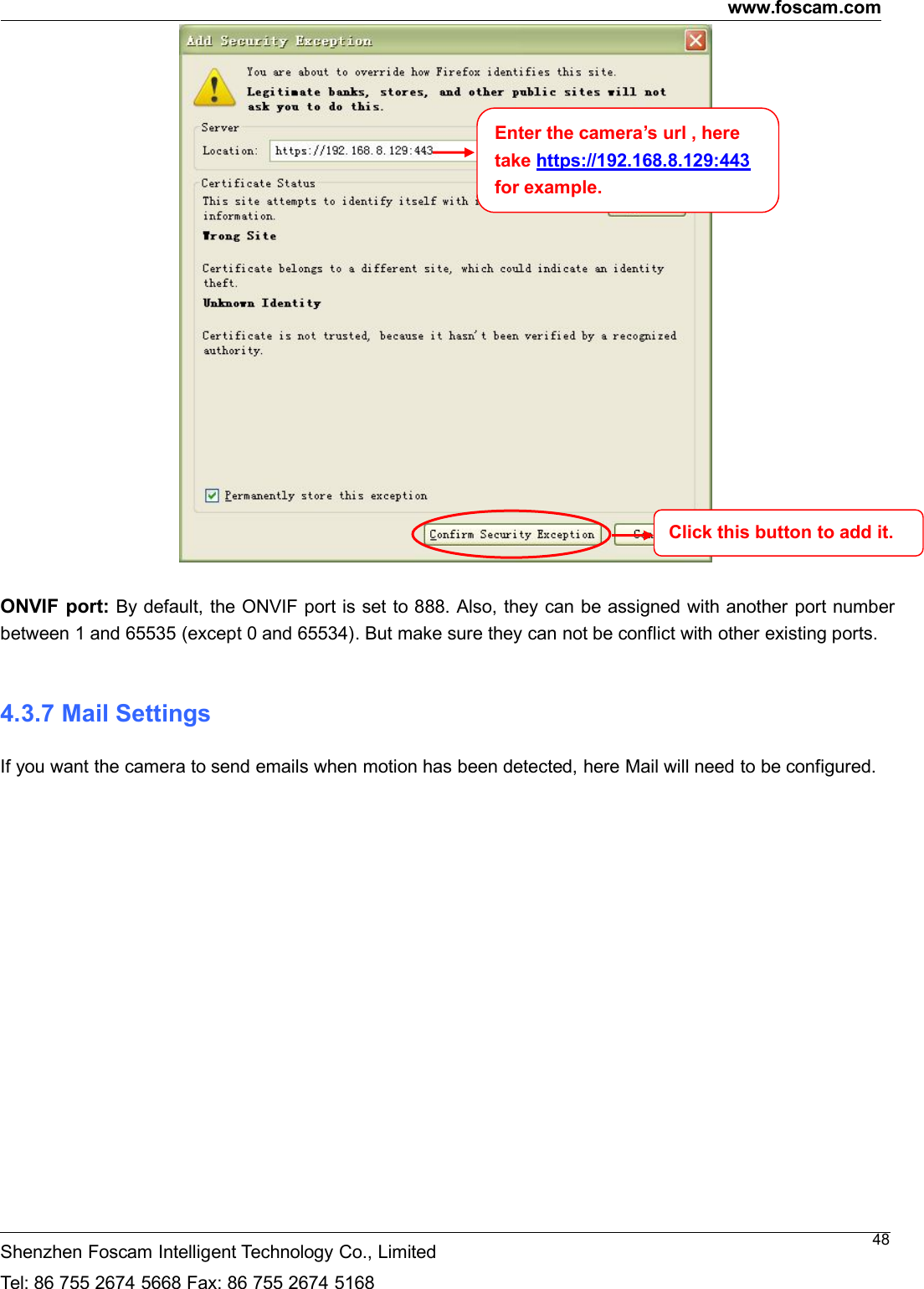
www.foscam.comShenzhen Foscam Intelligent Technology Co., LimitedTel: 86 755 2674 5668 Fax: 86 755 2674 516848ONVIF port: By default, the ONVIF port is set to 888. Also, they can be assigned with another port numberbetween 1 and 65535 (except 0 and 65534). But make sure they can not be conflict with other existing ports.4.3.7 Mail SettingsIf you want the camera to send emails when motion has been detected, here Mail will need to be configured.Enter the camera’s url , heretake https://192.168.8.129:443for example.Click this button to add it.
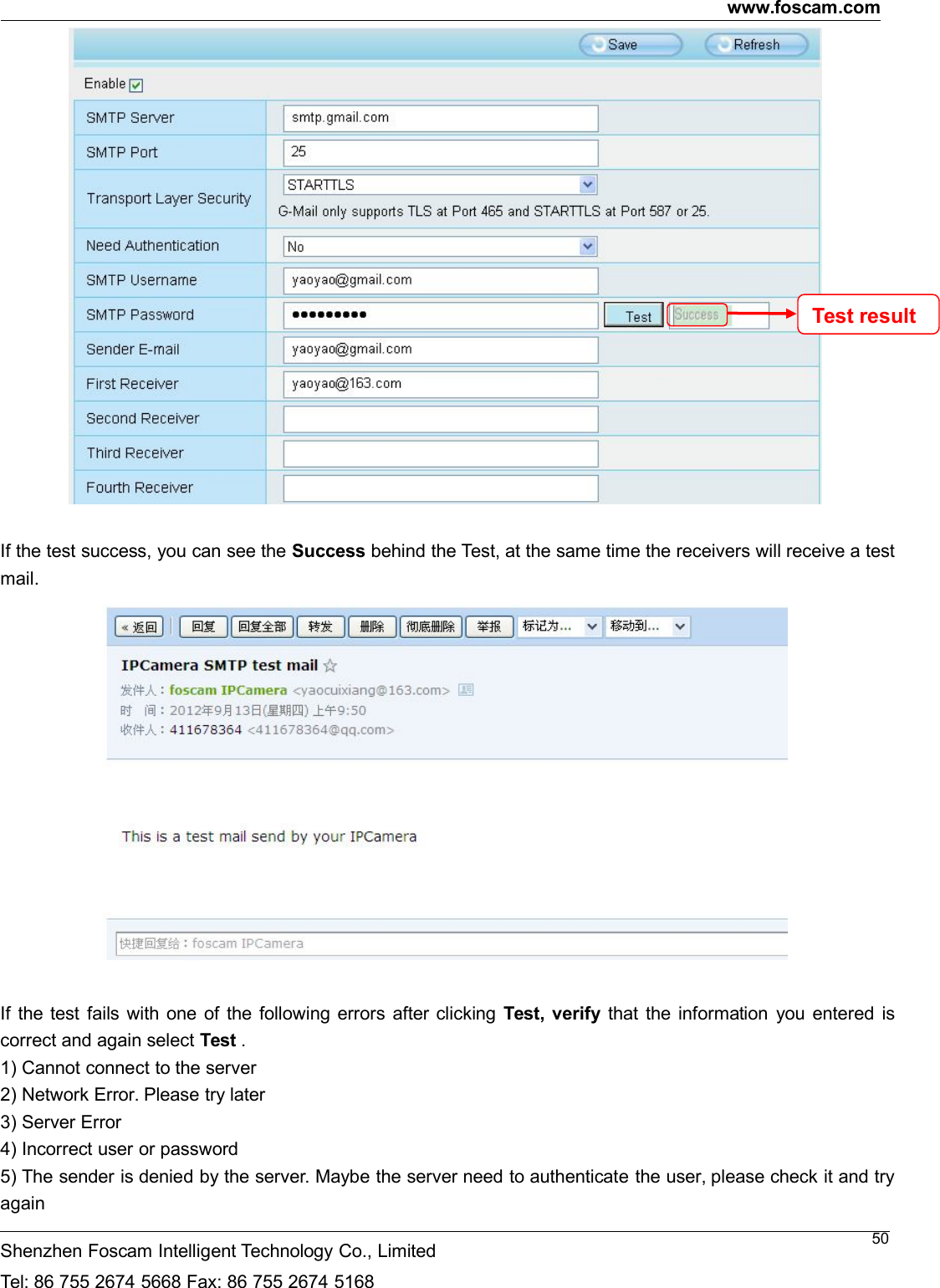
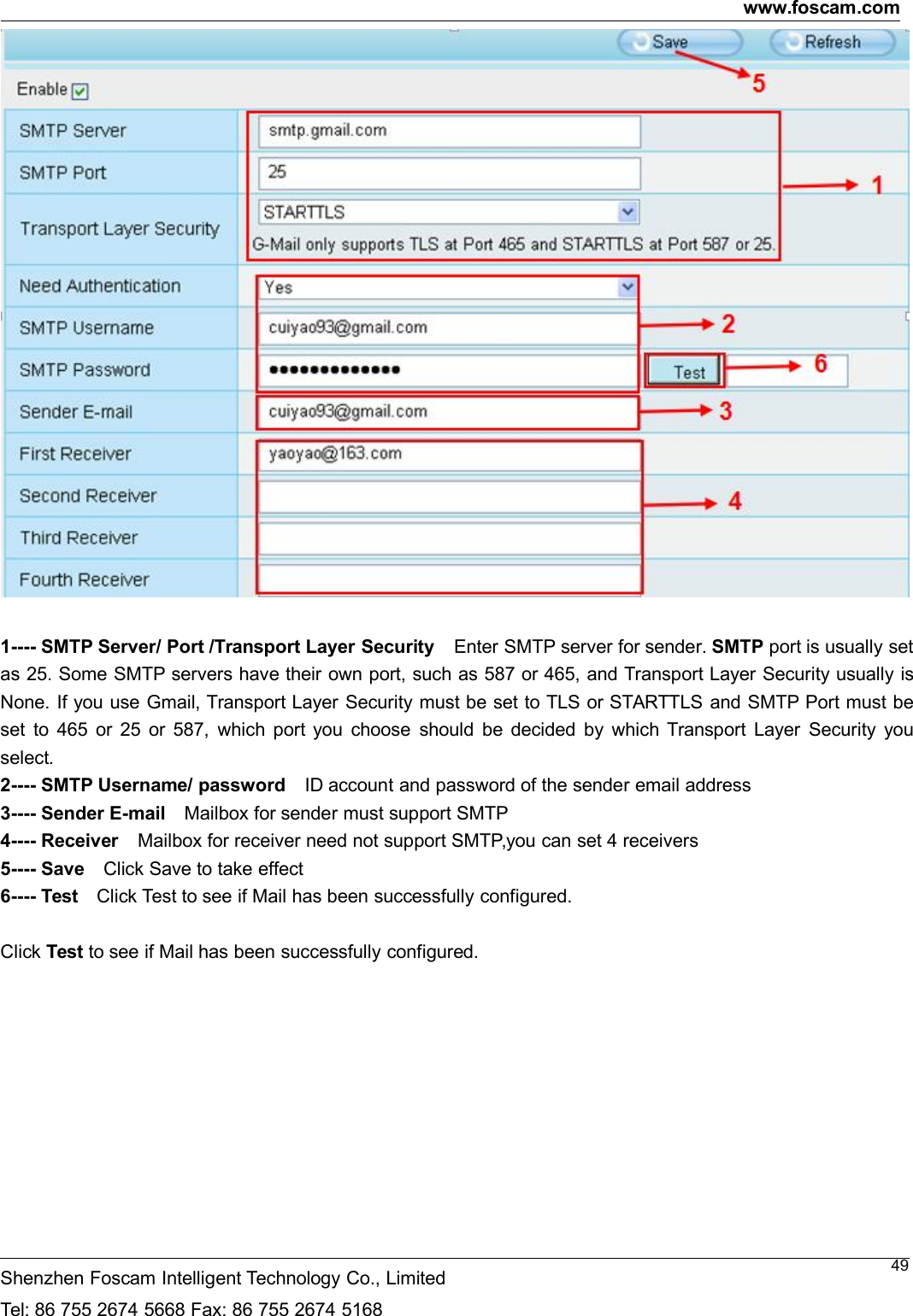
www.foscam.comShenzhen Foscam Intelligent Technology Co., LimitedTel: 86 755 2674 5668 Fax: 86 755 2674 5168491---- SMTP Server/ Port /Transport Layer Security Enter SMTP server for sender. SMTP port is usually setas 25. Some SMTP servers have their own port, such as 587 or 465, and Transport Layer Security usually isNone. If you use Gmail, Transport Layer Security must be set to TLS or STARTTLS and SMTP Port must beset to 465 or 25 or 587, which port you choose should be decided by which Transport Layer Security youselect.2---- SMTP Username/ password ID account and password of the sender email address3---- Sender E-mail Mailbox for sender must support SMTP4---- Receiver Mailbox for receiver need not support SMTP,you can set 4 receivers5---- Save Click Save to take effect6---- Test Click Test to see if Mail has been successfully configured.Click Test to see if Mail has been successfully configured.
www.foscam.comShenzhen Foscam Intelligent Technology Co., LimitedTel: 86 755 2674 5668 Fax: 86 755 2674 516850If the test success, you can see the Success behind the Test, at the same time the receivers will receive a testmail.If the test fails with one of the following errors after clicking Test, verify that the information you entered iscorrect and again select Test .1) Cannot connect to the server2) Network Error. Please try later3) Server Error4) Incorrect user or password5) The sender is denied by the server. Maybe the server need to authenticate the user, please check it and tryagainTestresult
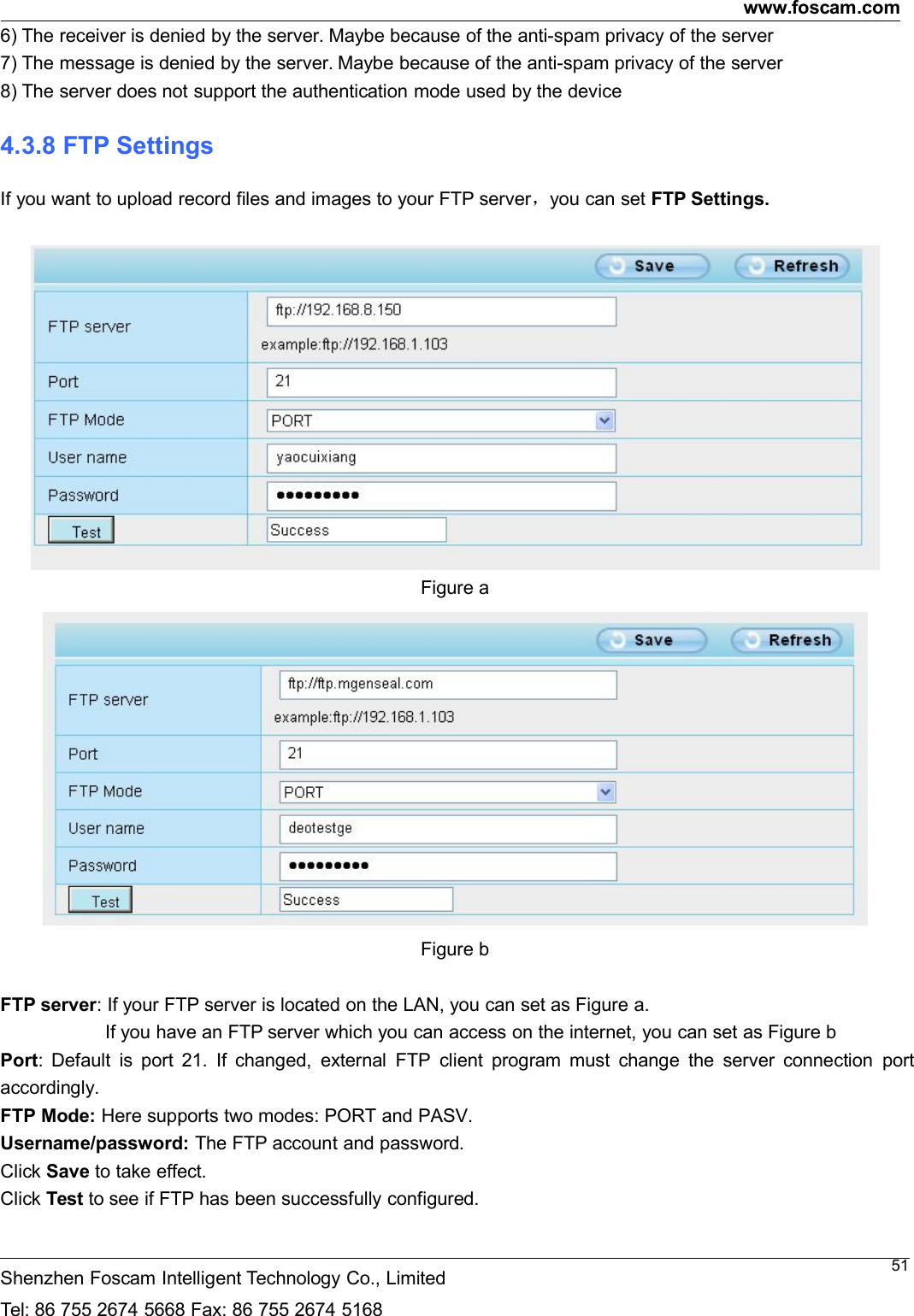
www.foscam.comShenzhen Foscam Intelligent Technology Co., LimitedTel: 86 755 2674 5668 Fax: 86 755 2674 5168516) The receiver is denied by the server. Maybe because of the anti-spam privacy of the server7) The message is denied by the server. Maybe because of the anti-spam privacy of the server8) The server does not support the authentication mode used by the device4.3.8 FTP SettingsIf you want to upload record files and images to your FTP server,you can set FTP Settings.Figure aFigure bFTP server: If your FTP server is located on the LAN, you can set as Figure a.If you have an FTP server which you can access on the internet, you can set as Figure bPort: Default is port 21. If changed, external FTP client program must change the server connection portaccordingly.FTP Mode: Here supports two modes: PORT and PASV.Username/password: The FTP account and password.Click Save to take effect.Click Test to see if FTP has been successfully configured.
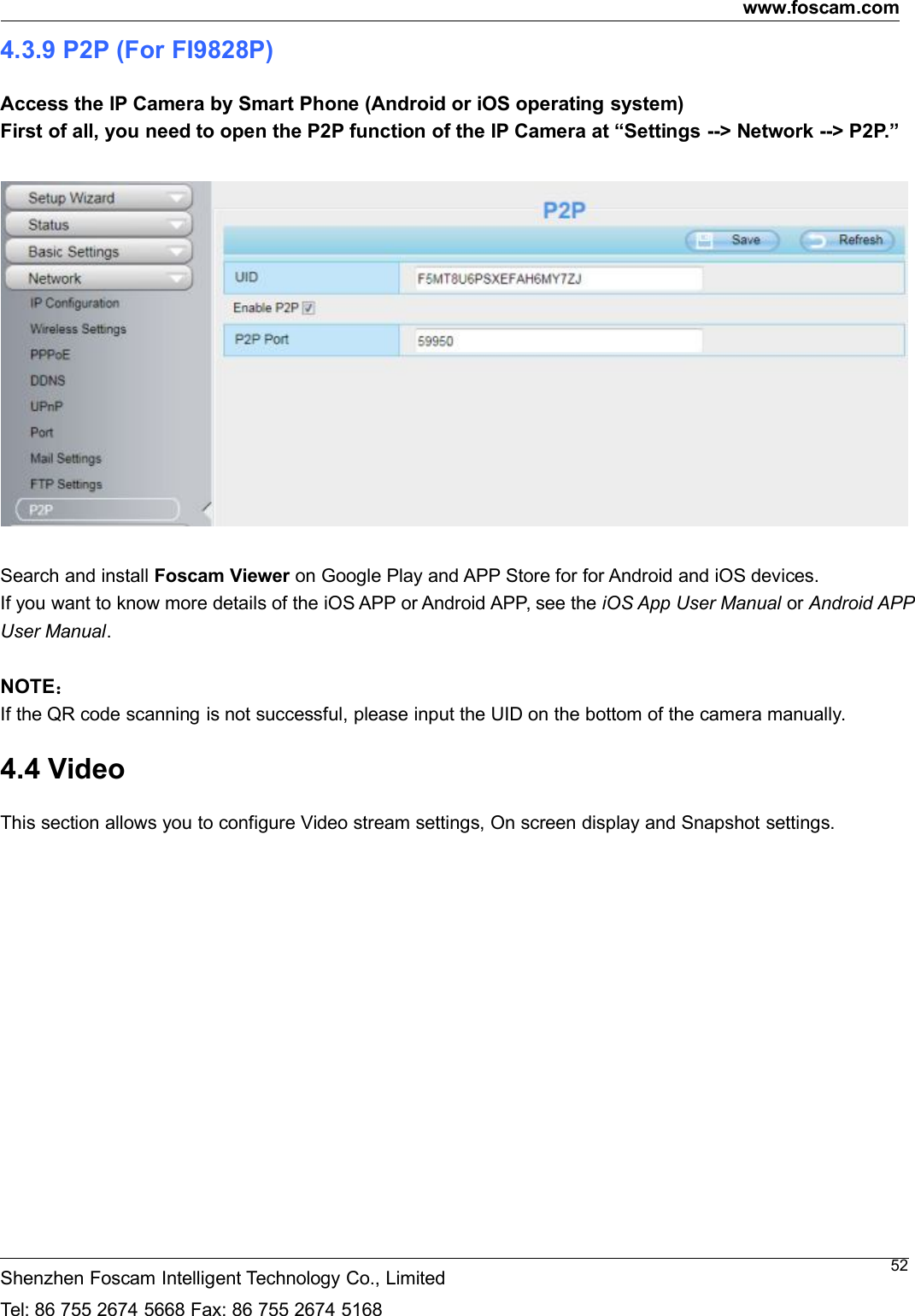
www.foscam.comShenzhen Foscam Intelligent Technology Co., LimitedTel: 86 755 2674 5668 Fax: 86 755 2674 5168524.3.9 P2P (For FI9828P)Access the IP Camera by Smart Phone (Android or iOS operating system)First of all, you need to open the P2P function of the IP Camera at “Settings --> Network --> P2P.”Search and install Foscam Viewer on Google Play and APP Store for for Android and iOS devices.If you want to know more details of the iOS APP or Android APP, see the iOS App User Manual or Android APPUser Manual.NOTE:If the QR code scanning is not successful, please input the UID on the bottom of the camera manually.4.4 VideoThis section allows you to configure Video stream settings, On screen display and Snapshot settings.
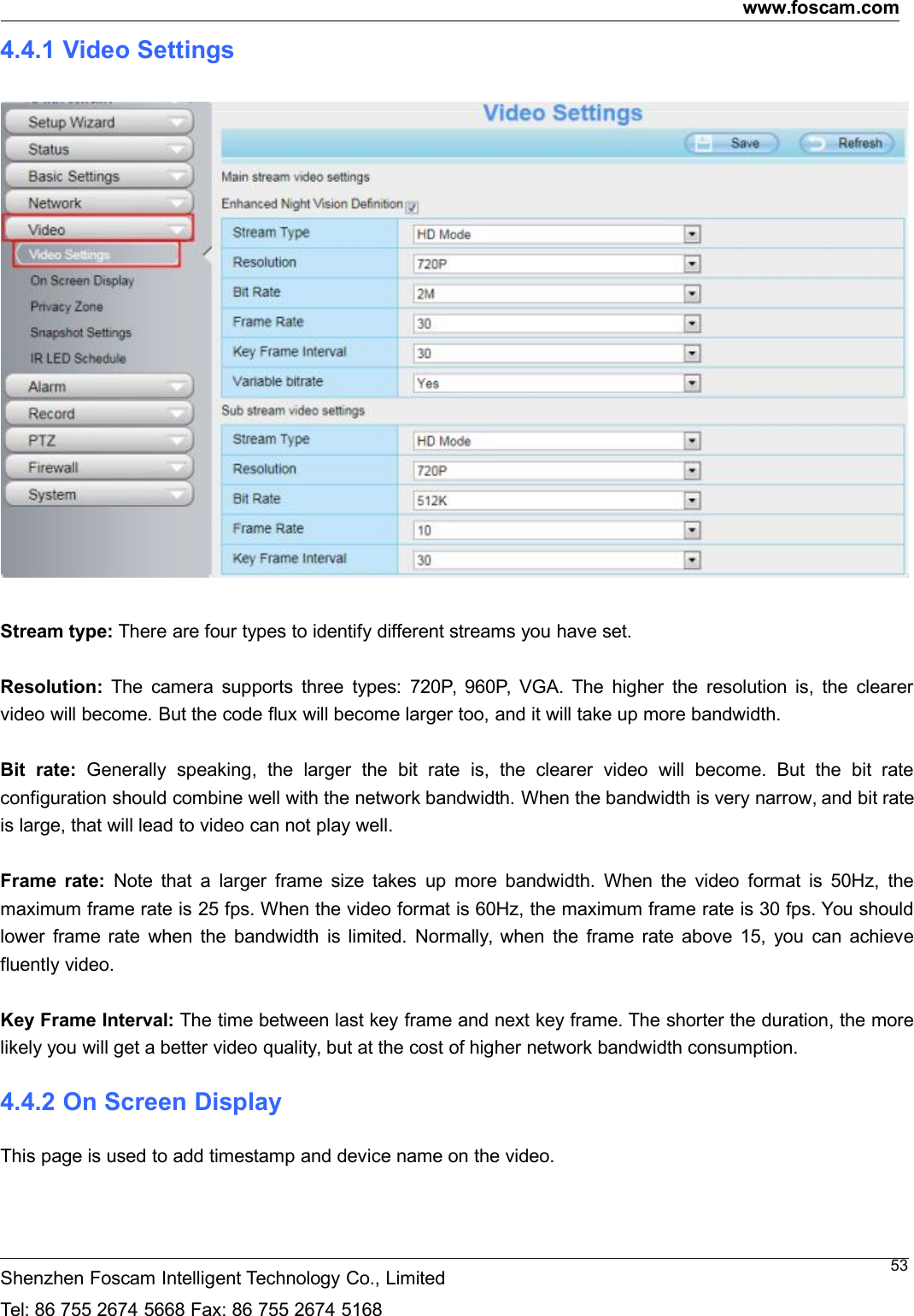
www.foscam.comShenzhen Foscam Intelligent Technology Co., LimitedTel: 86 755 2674 5668 Fax: 86 755 2674 5168534.4.1 Video SettingsStream type: There are four types to identify different streams you have set.Resolution: The camera supports three types: 720P, 960P, VGA. The higher the resolution is, the clearervideo will become. But the code flux will become larger too, and it will take up more bandwidth.Bit rate: Generally speaking, the larger the bit rate is, the clearer video will become. But the bit rateconfiguration should combine well with the network bandwidth. When the bandwidth is very narrow, and bit rateis large, that will lead to video can not play well.Frame rate: Note that a larger frame size takes up more bandwidth. When the video format is 50Hz, themaximum frame rate is 25 fps. When the video format is 60Hz, the maximum frame rate is 30 fps. You shouldlower frame rate when the bandwidth is limited. Normally, when the frame rate above 15, you can achievefluently video.Key Frame Interval: The time between last key frame and next key frame. The shorter the duration, the morelikely you will get a better video quality, but at the cost of higher network bandwidth consumption.4.4.2 On Screen DisplayThis page is used to add timestamp and device name on the video.
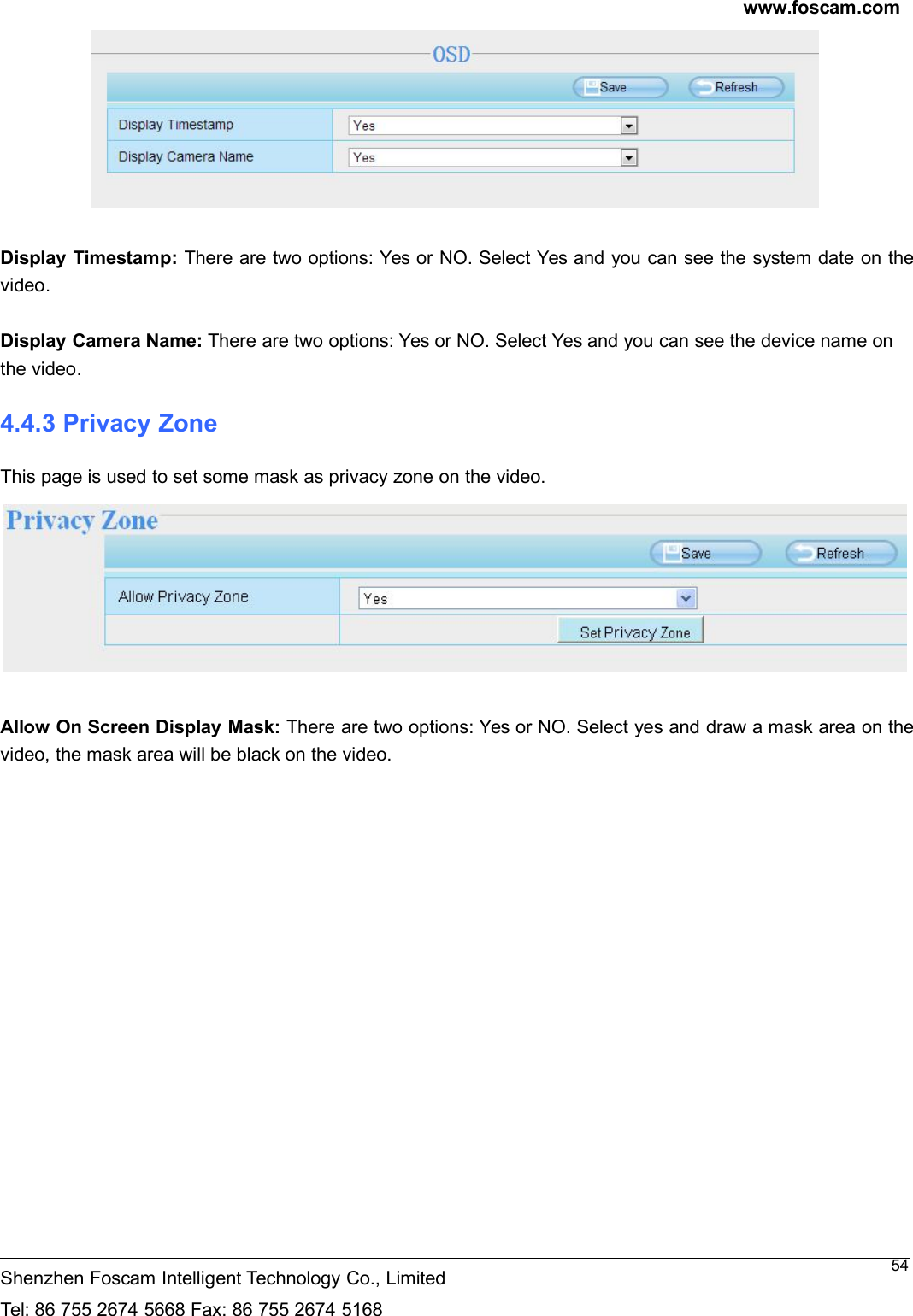
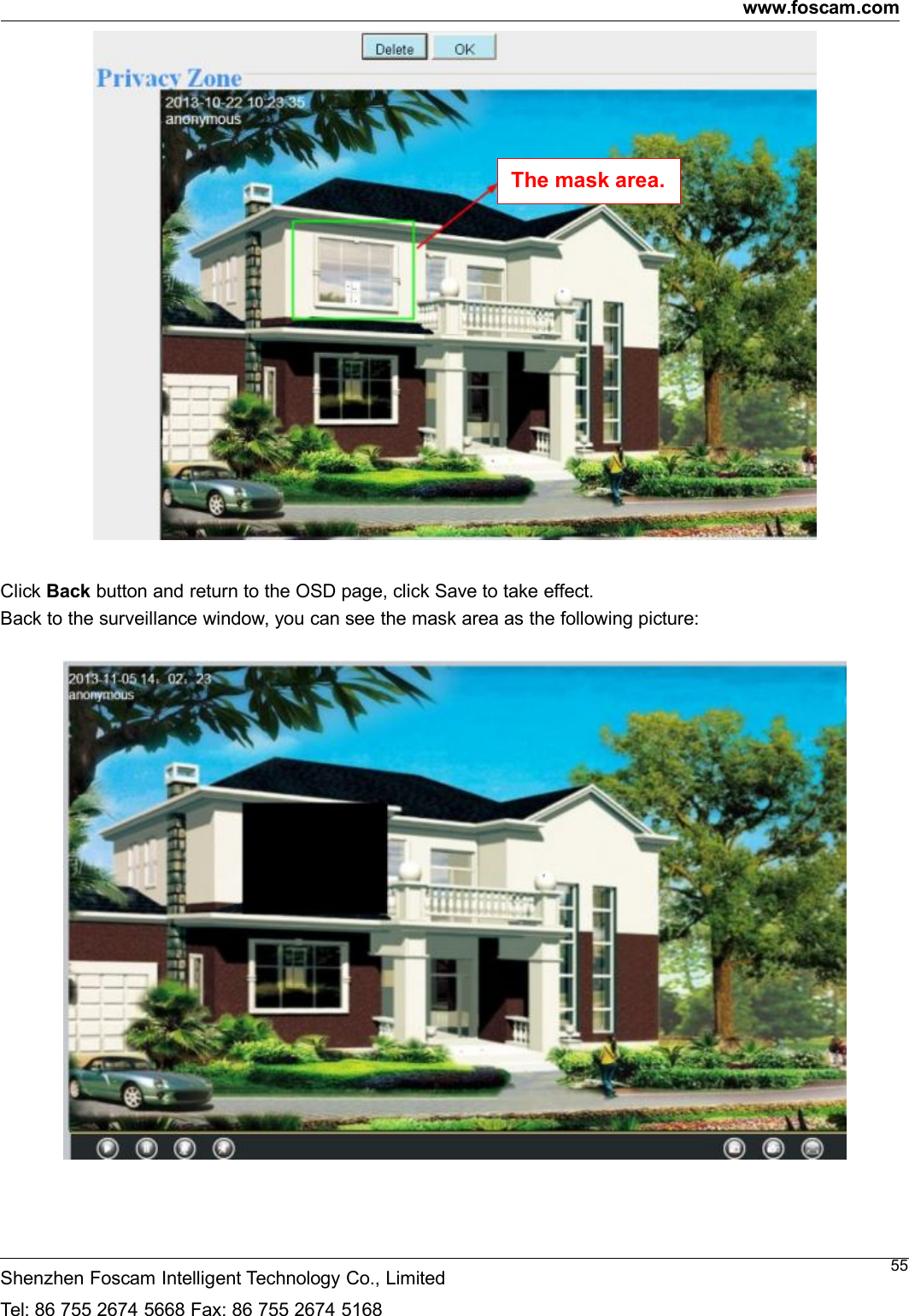
www.foscam.comShenzhen Foscam Intelligent Technology Co., LimitedTel: 86 755 2674 5668 Fax: 86 755 2674 516854Display Timestamp: There are two options: Yes or NO. Select Yes and you can see the system date on thevideo.Display Camera Name: There are two options: Yes or NO. Select Yes and you can see the device name onthe video.4.4.3 Privacy ZoneThis page is used to set some mask as privacy zone on the video.Allow On Screen Display Mask: There are two options: Yes or NO. Select yes and draw a mask area on thevideo, the mask area will be black on the video.
www.foscam.comShenzhen Foscam Intelligent Technology Co., LimitedTel: 86 755 2674 5668 Fax: 86 755 2674 516855Click Back button and return to the OSD page, click Save to take effect.Back to the surveillance window, you can see the mask area as the following picture:The mask area.
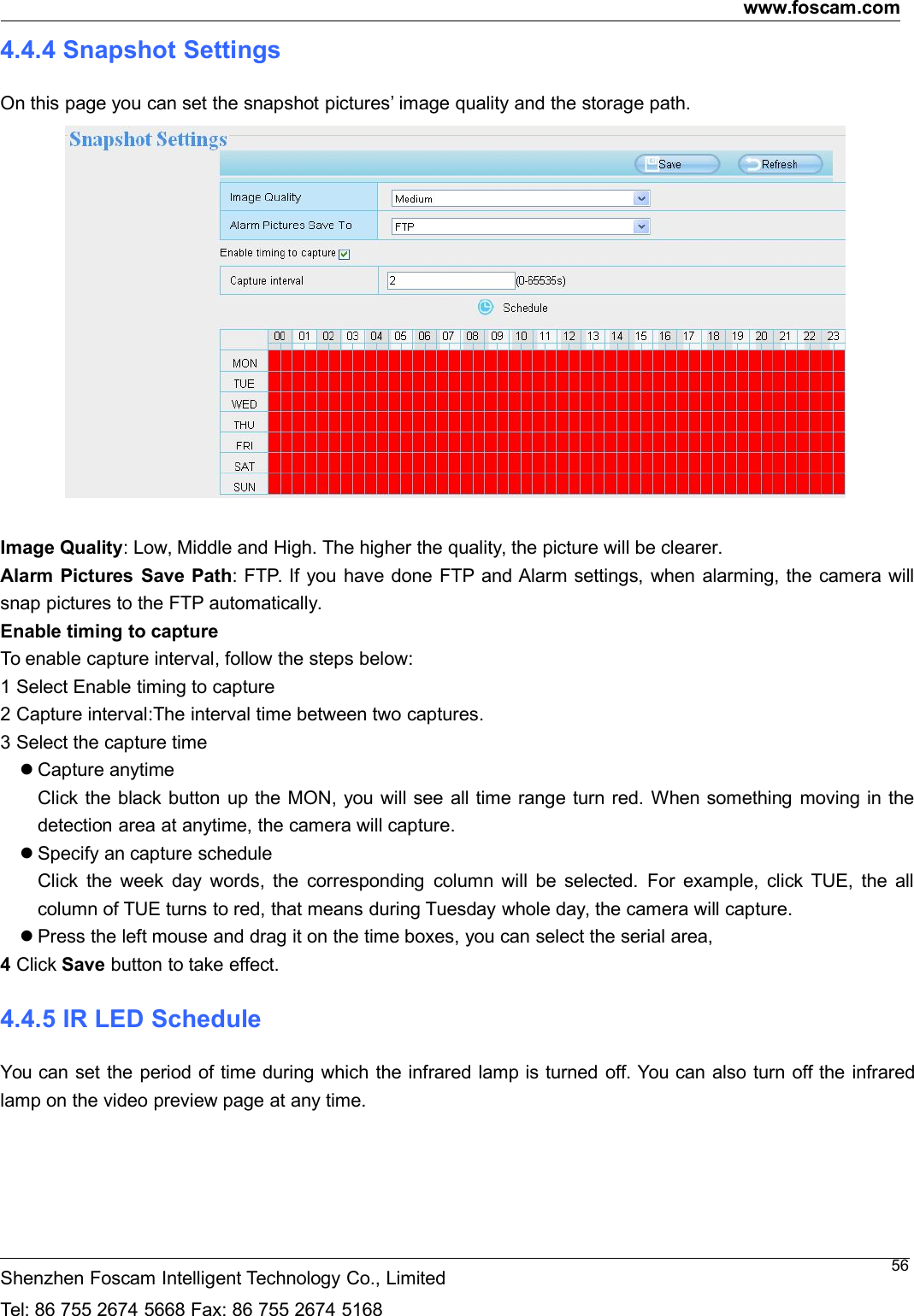
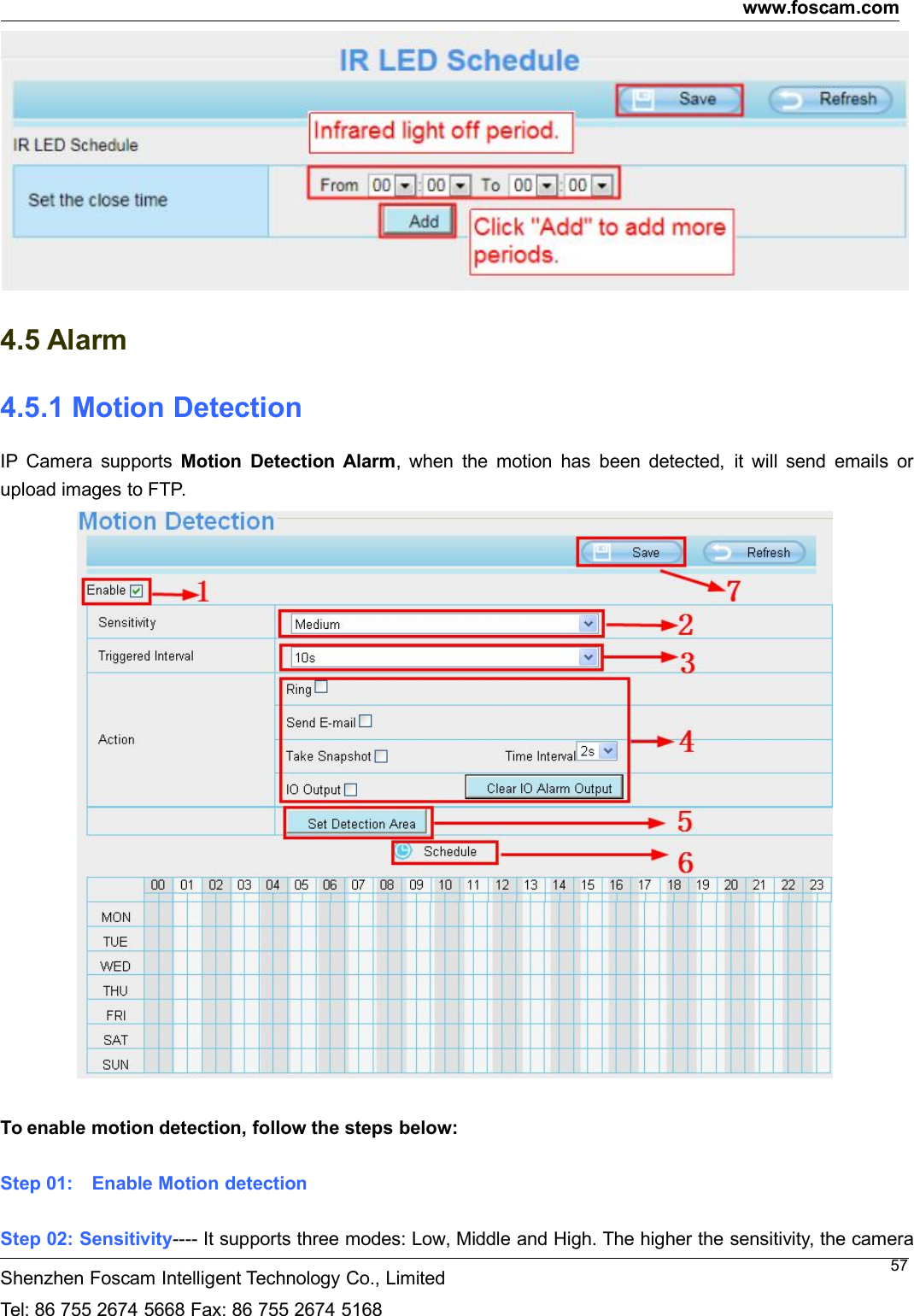
www.foscam.comShenzhen Foscam Intelligent Technology Co., LimitedTel: 86 755 2674 5668 Fax: 86 755 2674 5168564.4.4 Snapshot SettingsOn this page you can set the snapshot pictures’ image quality and the storage path.Image Quality: Low, Middle and High. The higher the quality, the picture will be clearer.Alarm Pictures Save Path: FTP. If you have done FTP and Alarm settings, when alarming, the camera willsnap pictures to the FTP automatically.Enable timing to captureTo enable capture interval, follow the steps below:1 Select Enable timing to capture2 Capture interval:The interval time between two captures.3 Select the capture timeCapture anytimeClick the black button up the MON, you will see all time range turn red. When something moving in thedetection area at anytime, the camera will capture.Specify an capture scheduleClick the week day words, the corresponding column will be selected. For example, click TUE, the allcolumn of TUE turns to red, that means during Tuesday whole day, the camera will capture.Press the left mouse and drag it on the time boxes, you can select the serial area,4Click Save button to take effect.4.4.5 IR LED ScheduleYou can set the period of time during which the infrared lamp is turned off. You can also turn off the infraredlamp on the video preview page at any time.
www.foscam.comShenzhen Foscam Intelligent Technology Co., LimitedTel: 86 755 2674 5668 Fax: 86 755 2674 5168574.5 Alarm4.5.1 Motion DetectionIP Camera supports Motion Detection Alarm, when the motion has been detected, it will send emails orupload images to FTP.To enable motion detection, follow the steps below:Step 01: Enable Motion detectionStep 02: Sensitivity---- It supports three modes: Low, Middle and High. The higher the sensitivity, the camera
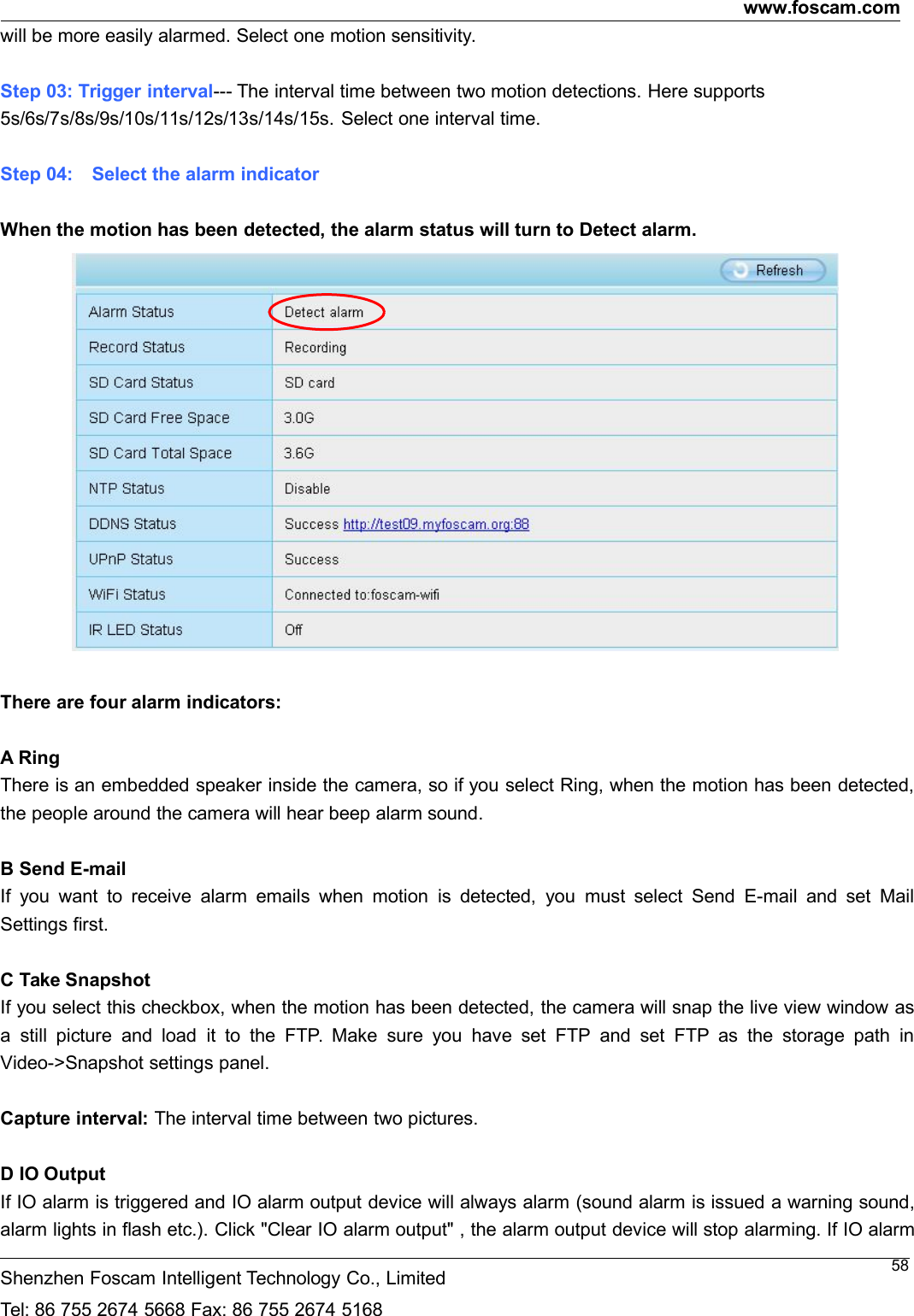
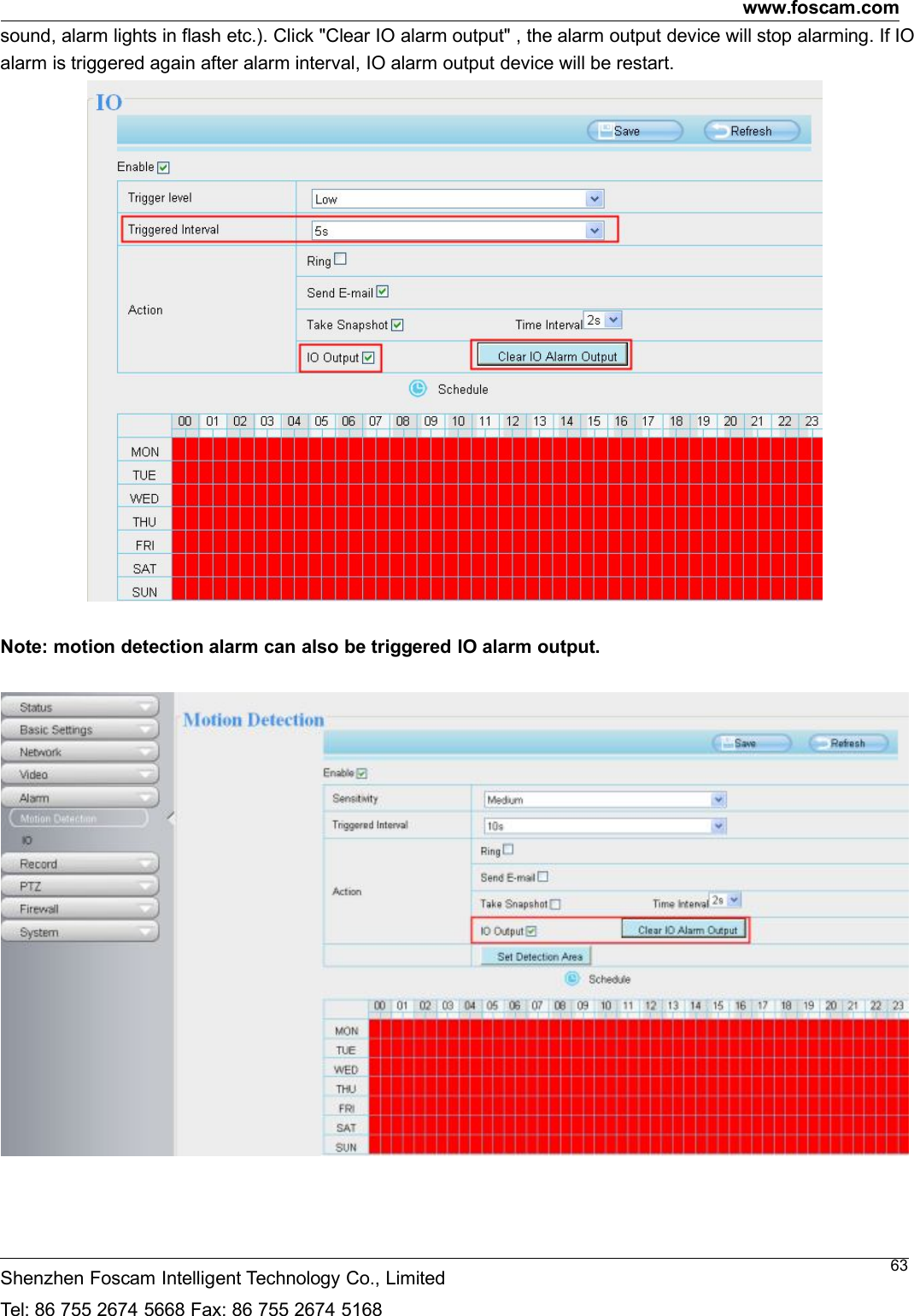
www.foscam.comShenzhen Foscam Intelligent Technology Co., LimitedTel: 86 755 2674 5668 Fax: 86 755 2674 516858will be more easily alarmed. Select one motion sensitivity.Step 03: Trigger interval--- The interval time between two motion detections. Here supports5s/6s/7s/8s/9s/10s/11s/12s/13s/14s/15s. Select one interval time.Step 04: Select the alarm indicatorWhen the motion has been detected, the alarm status will turn to Detect alarm.There are four alarm indicators:A RingThere is an embedded speaker inside the camera, so if you select Ring, when the motion has been detected,the people around the camera will hear beep alarm sound.B Send E-mailIf you want to receive alarm emails when motion is detected, you must select Send E-mail and set MailSettings first.C Take SnapshotIf you select this checkbox, when the motion has been detected, the camera will snap the live view window asa still picture and load it to the FTP. Make sure you have set FTP and set FTP as the storage path inVideo->Snapshot settings panel.Capture interval: The interval time between two pictures.D IO OutputIf IO alarm is triggered and IO alarm output device will always alarm (sound alarm is issued a warning sound,alarm lights in flash etc.). Click "Clear IO alarm output" , the alarm output device will stop alarming. If IO alarm
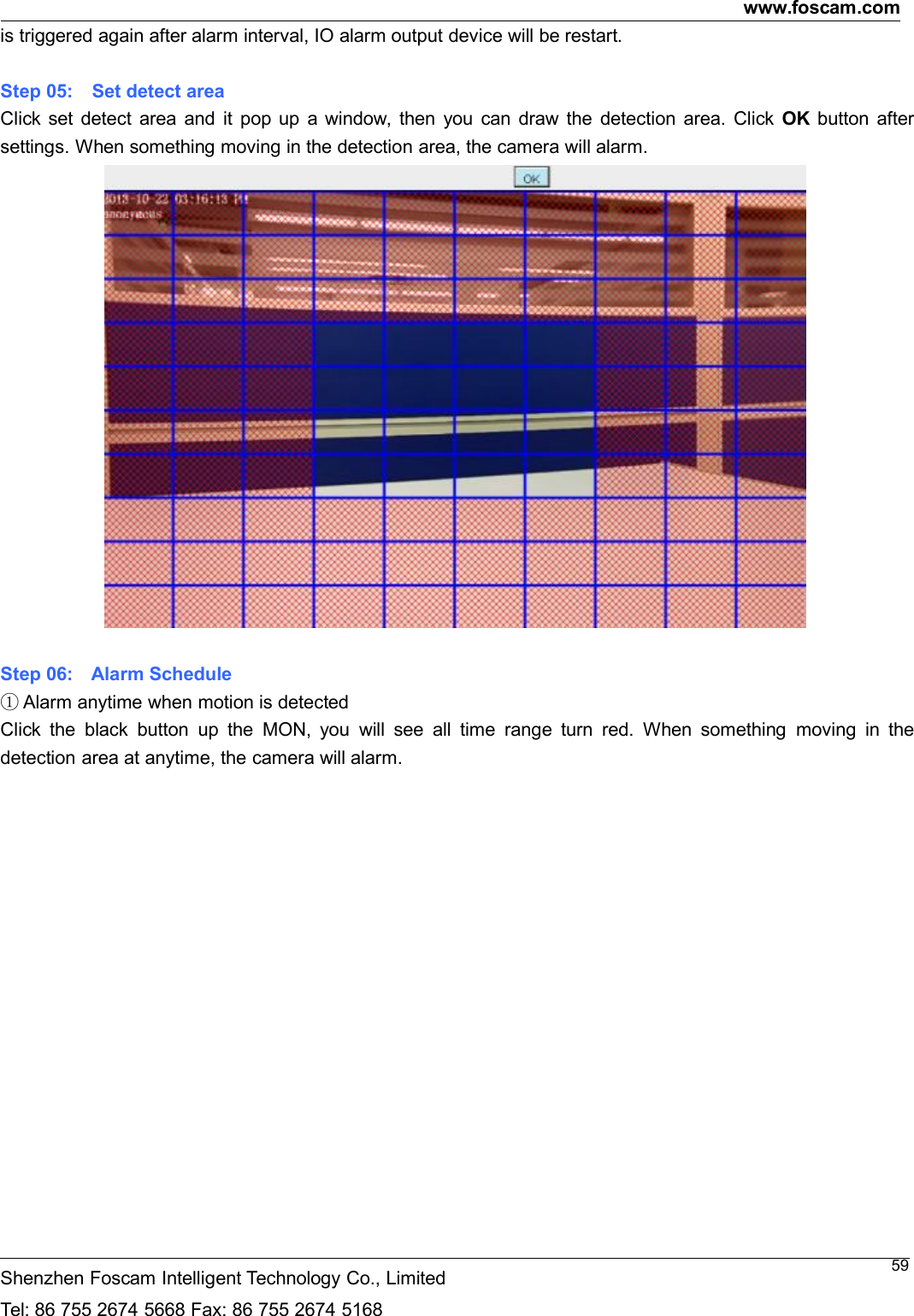
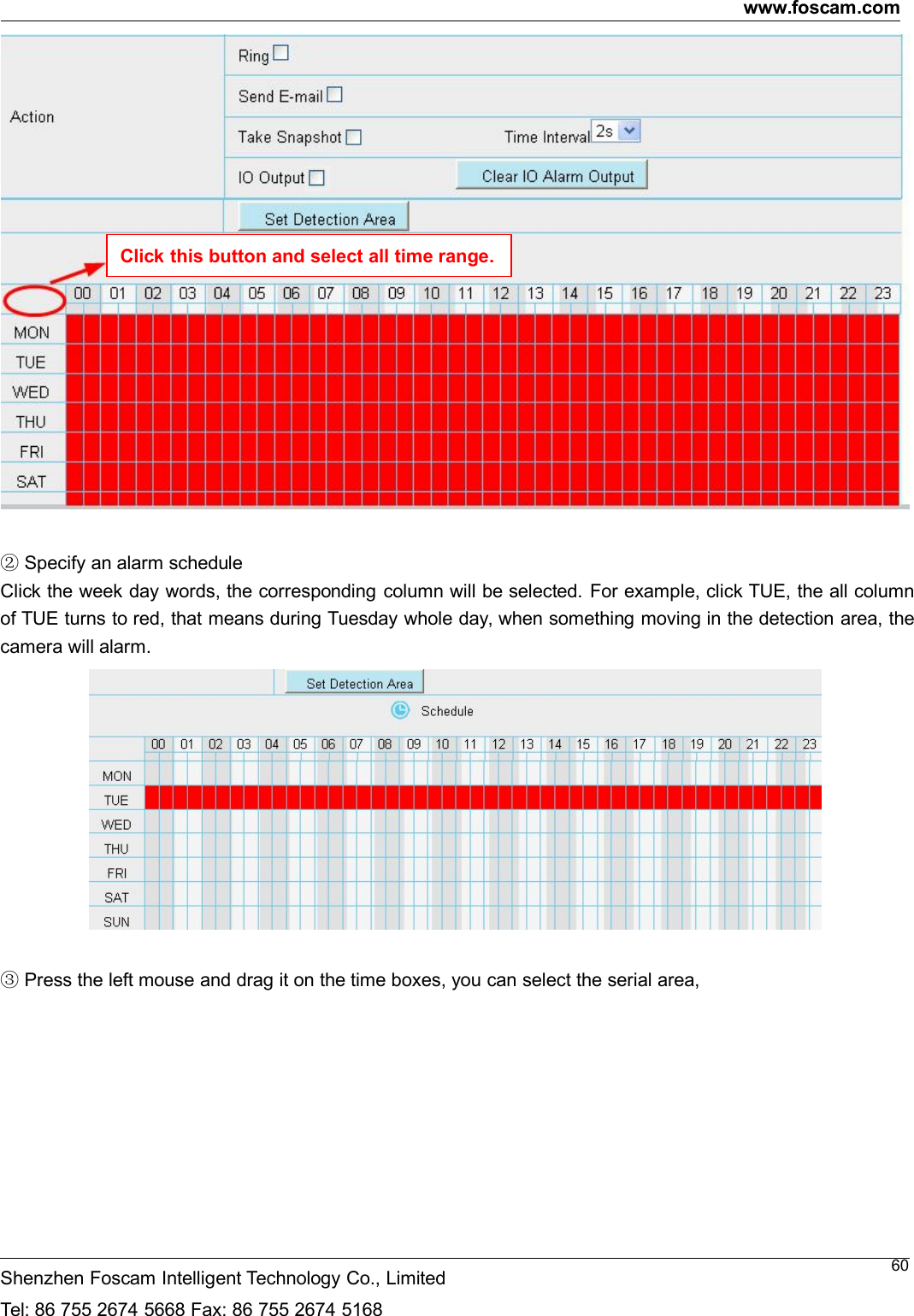
www.foscam.comShenzhen Foscam Intelligent Technology Co., LimitedTel: 86 755 2674 5668 Fax: 86 755 2674 516859is triggered again after alarm interval, IO alarm output device will be restart.Step 05: Set detect areaClick set detect area and it pop up a window, then you can draw the detection area. Click OK button aftersettings. When something moving in the detection area, the camera will alarm.Step 06: Alarm Schedule①Alarm anytime when motion is detectedClick the black button up the MON, you will see all time range turn red. When something moving in thedetection area at anytime, the camera will alarm.
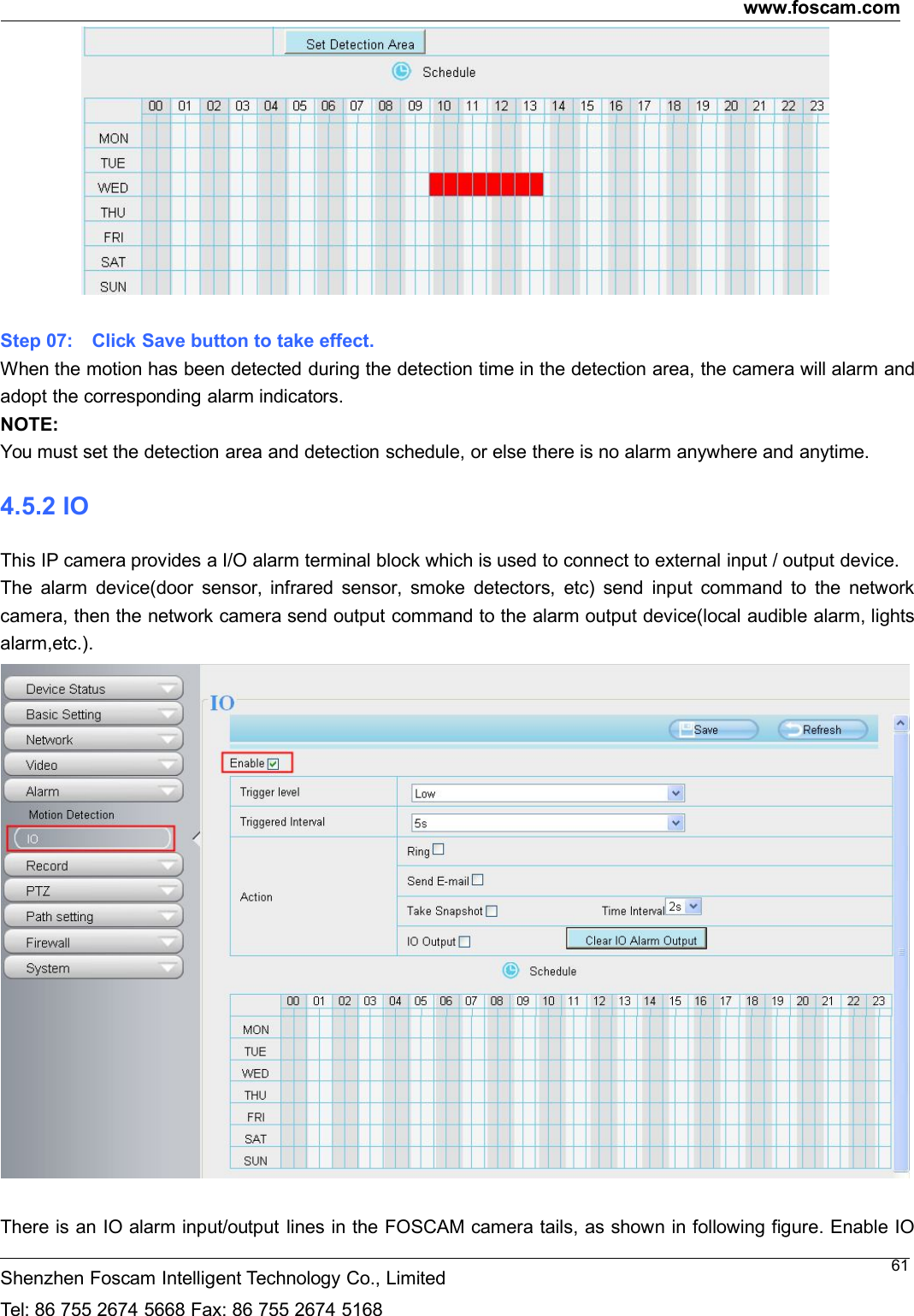
www.foscam.comShenzhen Foscam Intelligent Technology Co., LimitedTel: 86 755 2674 5668 Fax: 86 755 2674 516860②Specify an alarm scheduleClick the week day words, the corresponding column will be selected. For example, click TUE, the all columnof TUE turns to red, that means during Tuesday whole day, when something moving in the detection area, thecamera will alarm.③Press the left mouse and drag it on the time boxes, you can select the serial area,Click this button and select all time range.
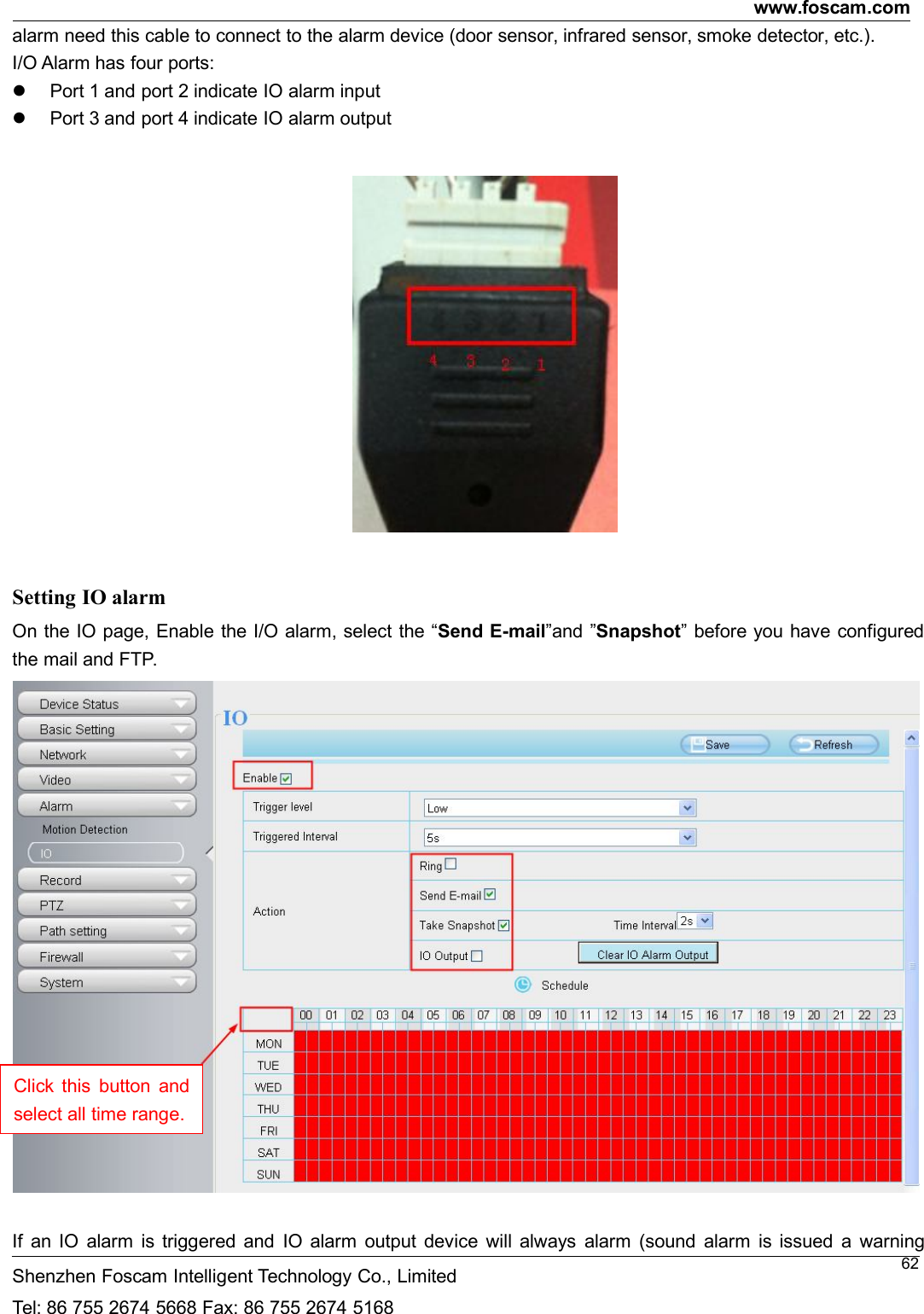
www.foscam.comShenzhen Foscam Intelligent Technology Co., LimitedTel: 86 755 2674 5668 Fax: 86 755 2674 516861Step 07: Click Save button to take effect.When the motion has been detected during the detection time in the detection area, the camera will alarm andadopt the corresponding alarm indicators.NOTE:You must set the detection area and detection schedule, or else there is no alarm anywhere and anytime.4.5.2 IOThis IP camera provides a I/O alarm terminal block which is used to connect to external input / output device.The alarm device(door sensor, infrared sensor, smoke detectors, etc) send input command to the networkcamera, then the network camera send output command to the alarm output device(local audible alarm, lightsalarm,etc.).There is an IO alarm input/output lines in the FOSCAM camera tails, as shown in following figure. Enable IO
www.foscam.comShenzhen Foscam Intelligent Technology Co., LimitedTel: 86 755 2674 5668 Fax: 86 755 2674 516862alarm need this cable to connect to the alarm device (door sensor, infrared sensor, smoke detector, etc.).I/O Alarm has four ports:Port 1 and port 2 indicate IO alarm inputPort 3 and port 4 indicate IO alarm outputSetting IO alarmOn the IO page, Enable the I/O alarm, select the “Send E-mail”and ”Snapshot” before you have configuredthe mail and FTP.If an IO alarm is triggered and IO alarm output device will always alarm (sound alarm is issued a warningClick this button andselect all time range.
www.foscam.comShenzhen Foscam Intelligent Technology Co., LimitedTel: 86 755 2674 5668 Fax: 86 755 2674 516863sound, alarm lights in flash etc.). Click "Clear IO alarm output" , the alarm output device will stop alarming. If IOalarm is triggered again after alarm interval, IO alarm output device will be restart.Note: motion detection alarm can also be triggered IO alarm output.
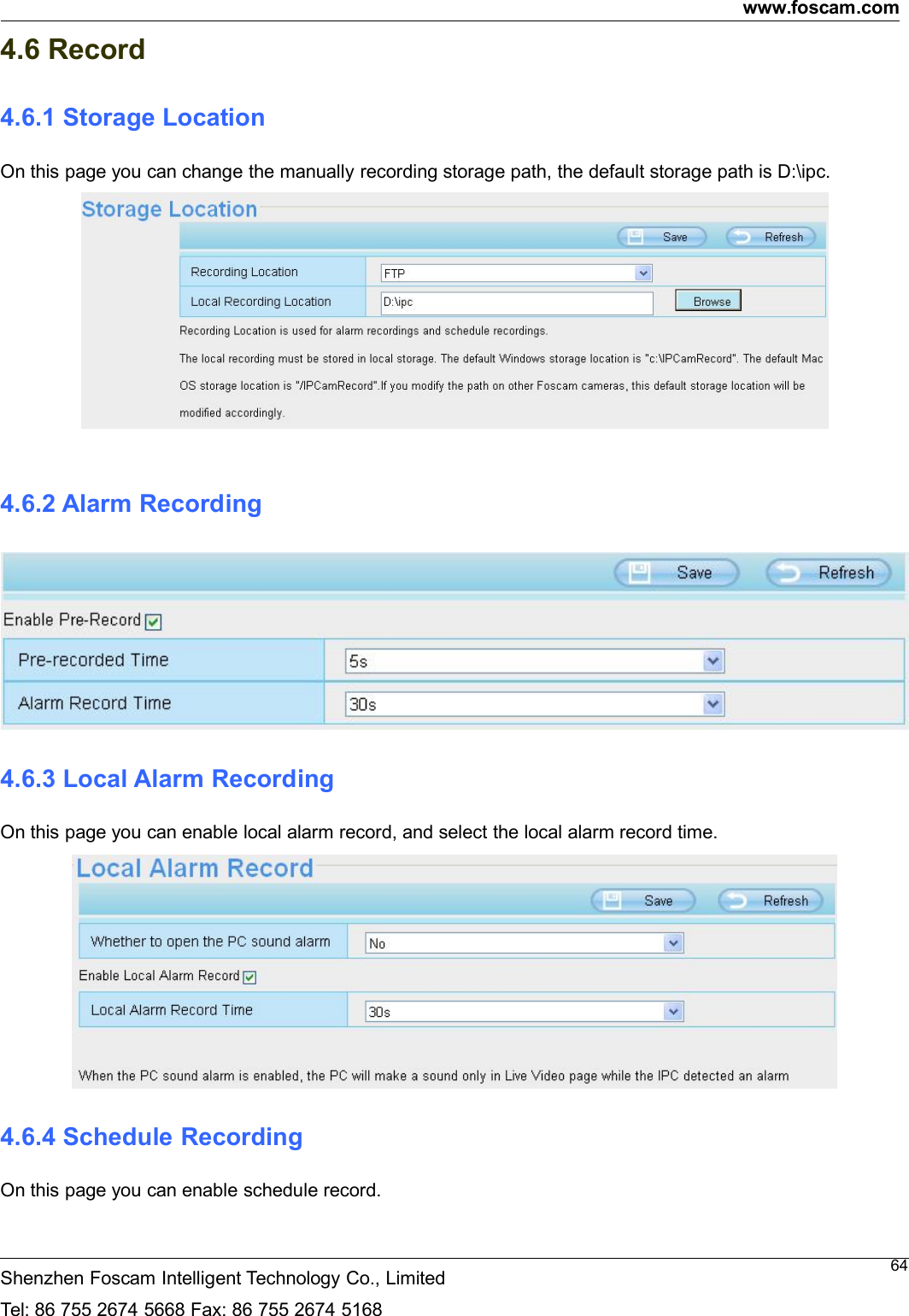
www.foscam.comShenzhen Foscam Intelligent Technology Co., LimitedTel: 86 755 2674 5668 Fax: 86 755 2674 5168644.6 Record4.6.1 Storage LocationOn this page you can change the manually recording storage path, the default storage path is D:\ipc.4.6.2 Alarm Recording4.6.3 Local Alarm RecordingOn this page you can enable local alarm record, and select the local alarm record time.4.6.4 Schedule RecordingOn this page you can enable schedule record.
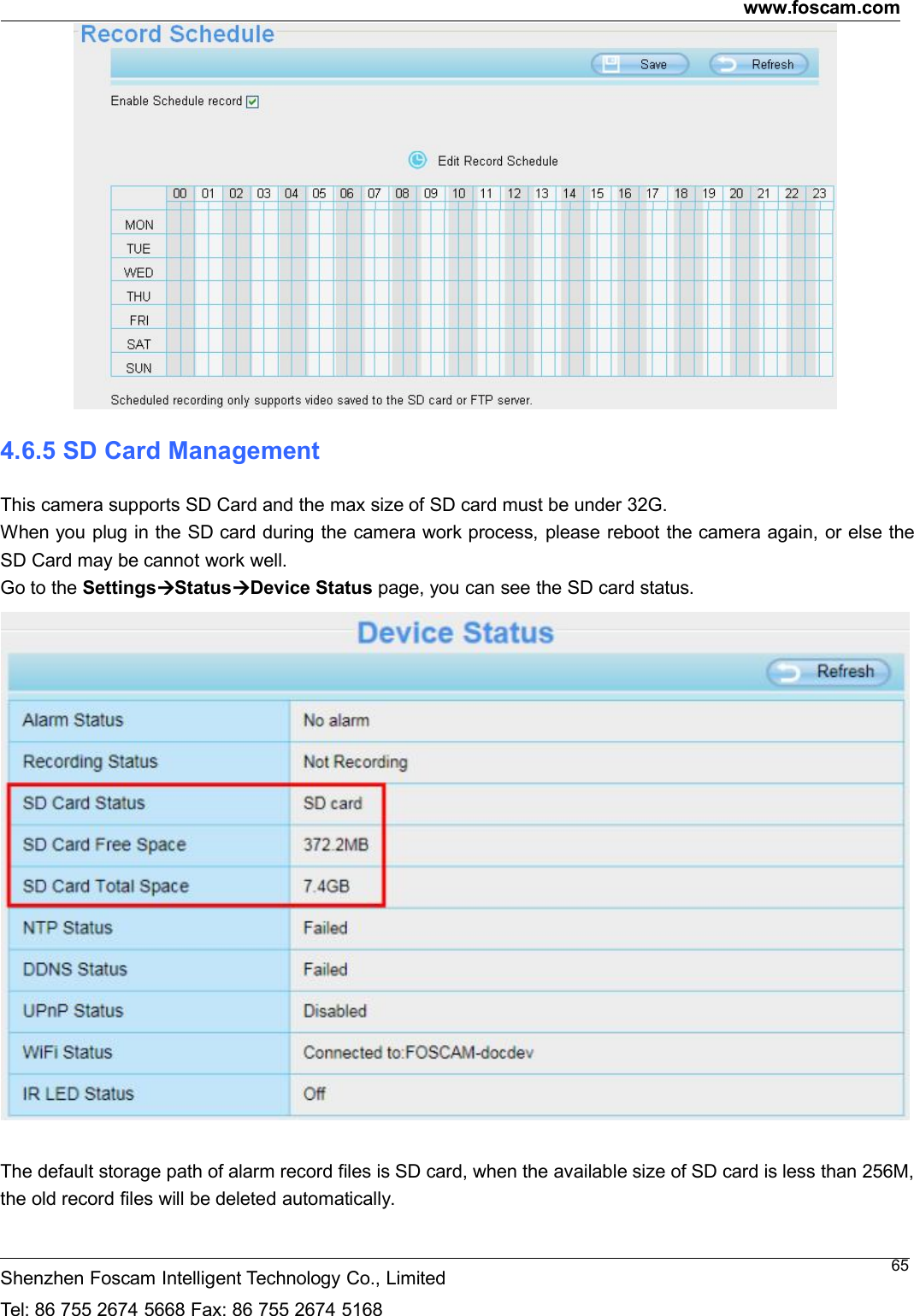
www.foscam.comShenzhen Foscam Intelligent Technology Co., LimitedTel: 86 755 2674 5668 Fax: 86 755 2674 5168654.6.5 SD Card ManagementThis camera supports SD Card and the max size of SD card must be under 32G.When you plug in the SD card during the camera work process, please reboot the camera again, or else theSD Card may be cannot work well.Go to the SettingsStatusDevice Status page, you can see the SD card status.The default storage path of alarm record files is SD card, when the available size of SD card is less than 256M,the old record files will be deleted automatically.
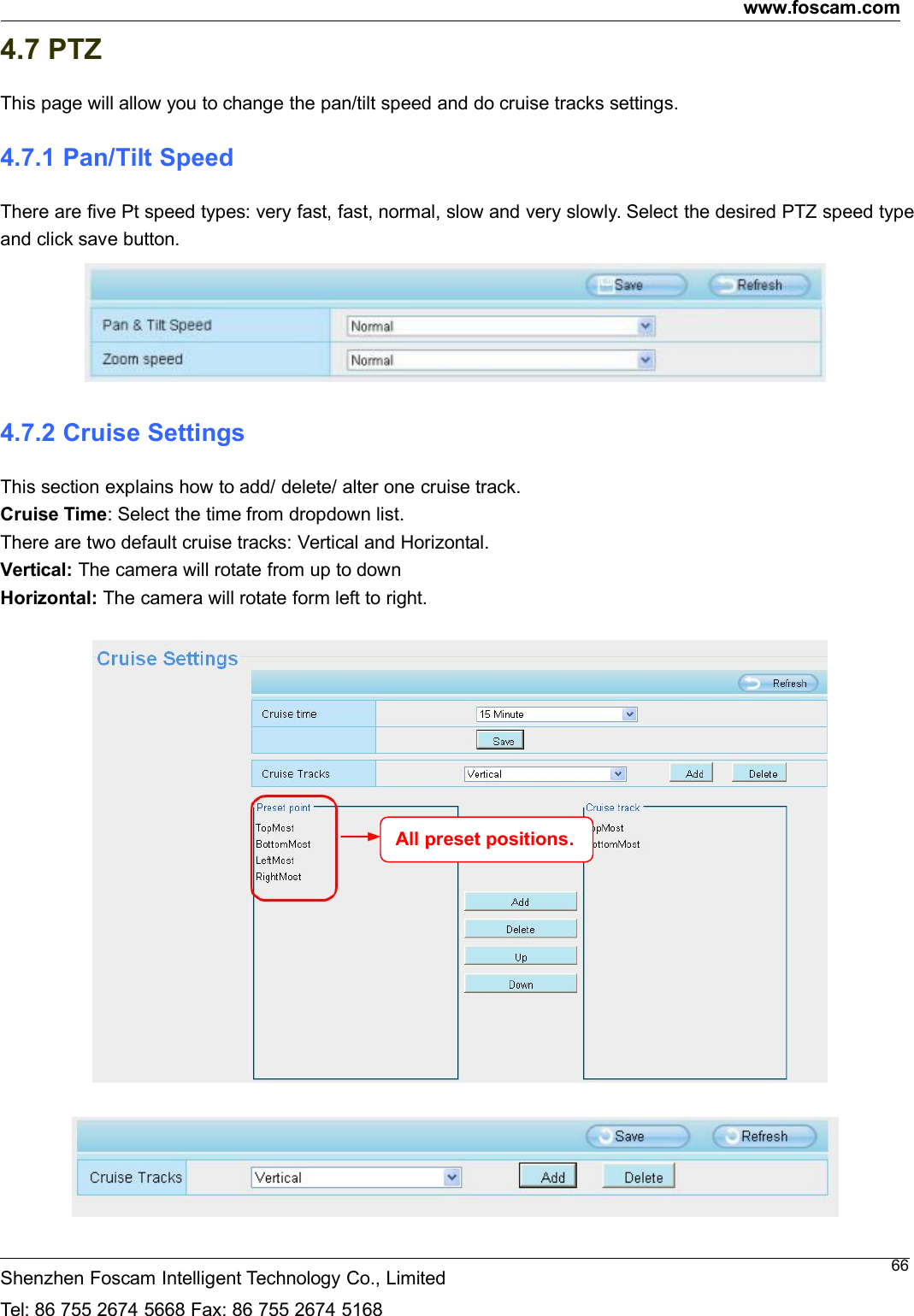
www.foscam.comShenzhen Foscam Intelligent Technology Co., LimitedTel: 86 755 2674 5668 Fax: 86 755 2674 5168664.7 PTZThis page will allow you to change the pan/tilt speed and do cruise tracks settings.4.7.1 Pan/Tilt SpeedThere are five Pt speed types: very fast, fast, normal, slow and very slowly. Select the desired PTZ speed typeand click save button.4.7.2 Cruise SettingsThis section explains how to add/ delete/ alter one cruise track.Cruise Time: Select the time from dropdown list.There are two default cruise tracks: Vertical and Horizontal.Vertical: The camera will rotate from up to downHorizontal: The camera will rotate form left to right.All preset positions.
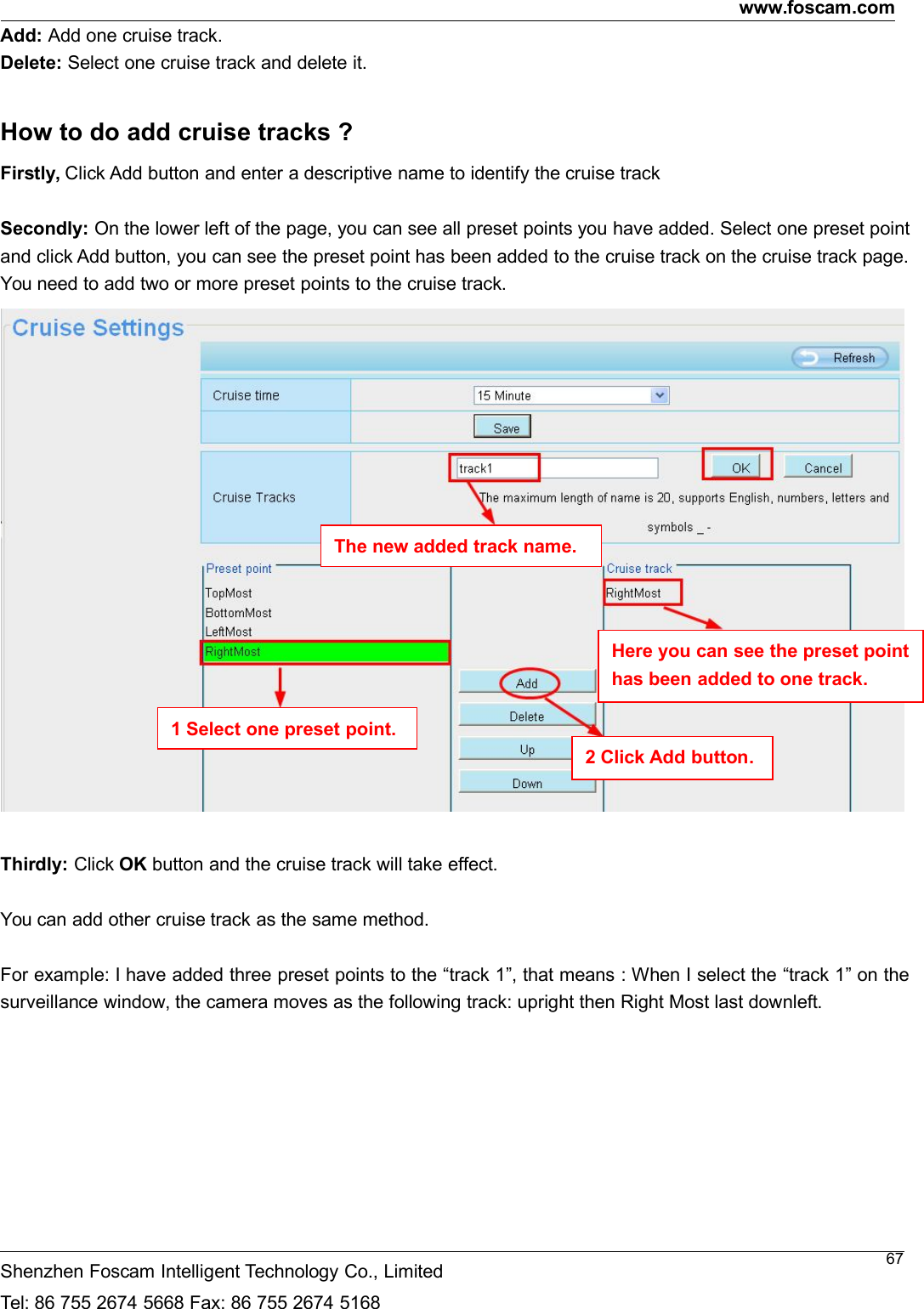
www.foscam.comShenzhen Foscam Intelligent Technology Co., LimitedTel: 86 755 2674 5668 Fax: 86 755 2674 516867Add: Add one cruise track.Delete: Select one cruise track and delete it.How to do add cruise tracks ?Firstly, Click Add button and enter a descriptive name to identify the cruise trackSecondly: On the lower left of the page, you can see all preset points you have added. Select one preset pointand click Add button, you can see the preset point has been added to the cruise track on the cruise track page.You need to add two or more preset points to the cruise track.Thirdly: Click OK button and the cruise track will take effect.You can add other cruise track as the same method.For example: I have added three preset points to the “track 1”, that means : When I select the “track 1” on thesurveillance window, the camera moves as the following track: upright then Right Most last downleft.The new added track name.1 Select one preset point.2 Click Add button.Here you can see the preset pointhas been added to one track.
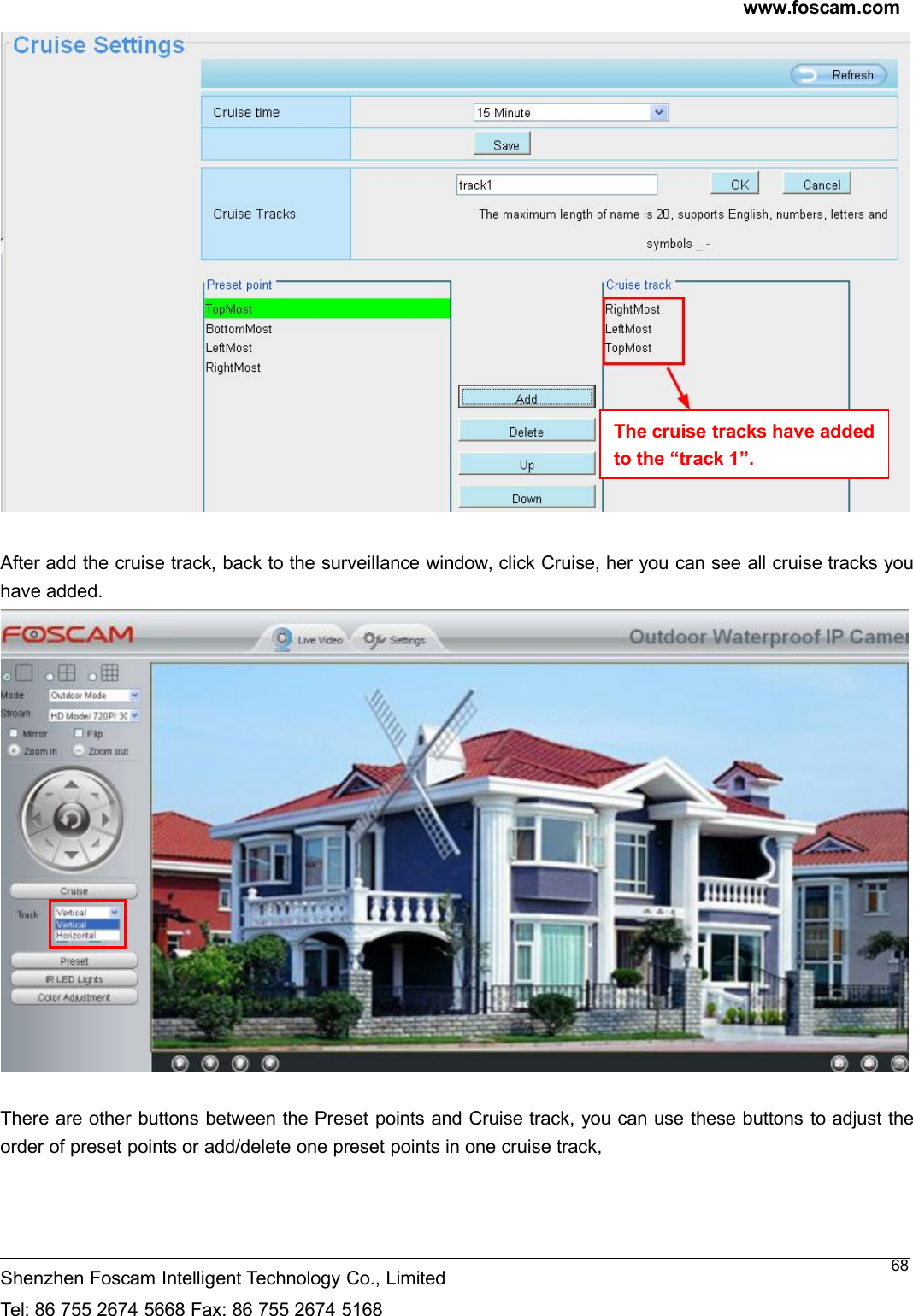
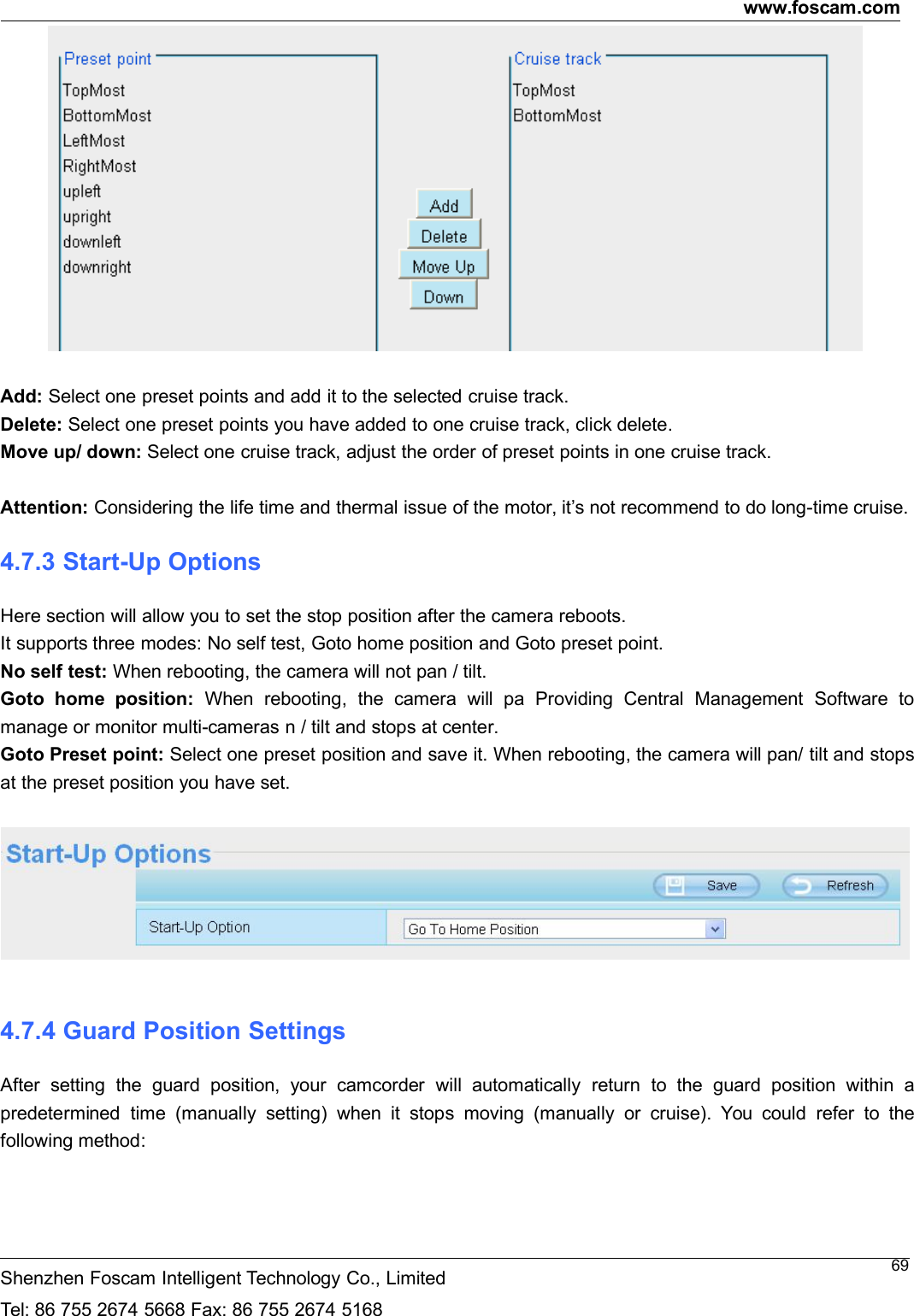
www.foscam.comShenzhen Foscam Intelligent Technology Co., LimitedTel: 86 755 2674 5668 Fax: 86 755 2674 516868After add the cruise track, back to the surveillance window, click Cruise, her you can see all cruise tracks youhave added.There are other buttons between the Preset points and Cruise track, you can use these buttons to adjust theorder of preset points or add/delete one preset points in one cruise track,The cruise tracks have addedto the “track 1”.
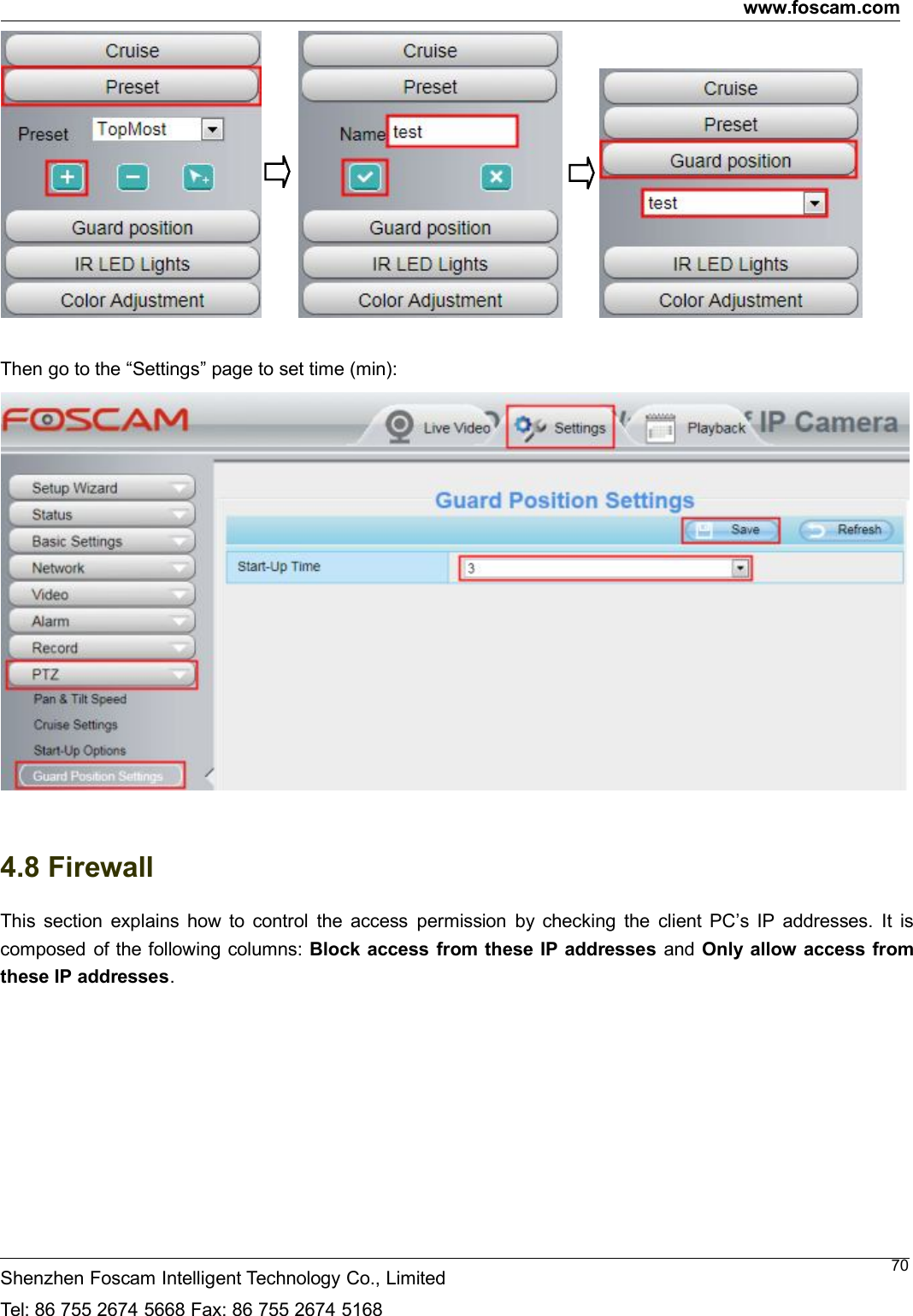
www.foscam.comShenzhen Foscam Intelligent Technology Co., LimitedTel: 86 755 2674 5668 Fax: 86 755 2674 516869Add: Select one preset points and add it to the selected cruise track.Delete: Select one preset points you have added to one cruise track, click delete.Move up/ down: Select one cruise track, adjust the order of preset points in one cruise track.Attention: Considering the life time and thermal issue of the motor, it’s not recommend to do long-time cruise.4.7.3 Start-Up OptionsHere section will allow you to set the stop position after the camera reboots.It supports three modes: No self test, Goto home position and Goto preset point.No self test: When rebooting, the camera will not pan / tilt.Goto home position: When rebooting, the camera will pa Providing Central Management Software tomanage or monitor multi-cameras n / tilt and stops at center.Goto Preset point: Select one preset position and save it. When rebooting, the camera will pan/ tilt and stopsat the preset position you have set.4.7.4 Guard Position SettingsAfter setting the guard position, your camcorder will automatically return to the guard position within apredetermined time (manually setting) when it stops moving (manually or cruise). You could refer to thefollowing method:
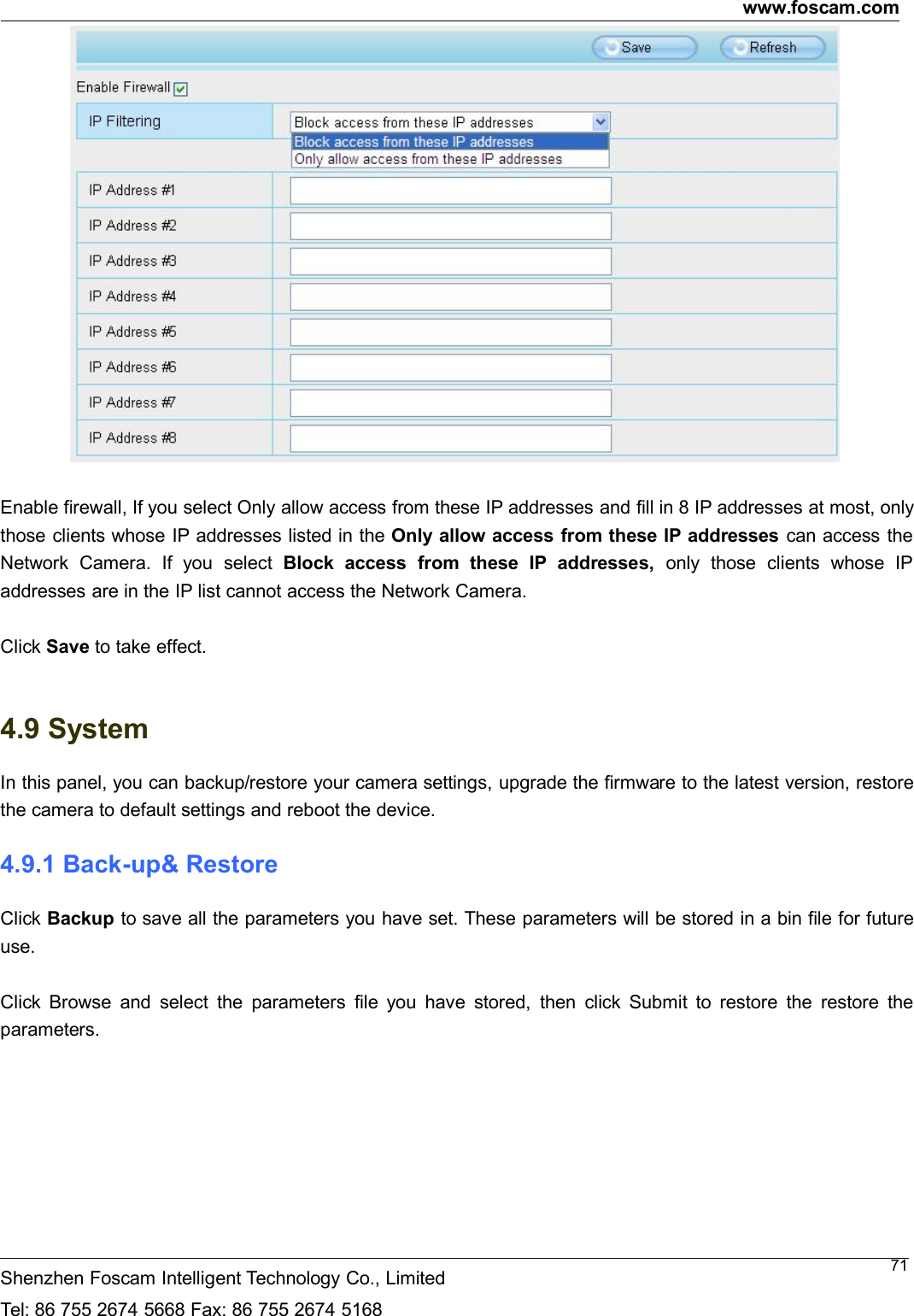
www.foscam.comShenzhen Foscam Intelligent Technology Co., LimitedTel: 86 755 2674 5668 Fax: 86 755 2674 516870Then go to the “Settings” page to set time (min):4.8 FirewallThis section explains how to control the access permission by checking the client PC’s IP addresses. It iscomposed of the following columns: Block access from these IP addresses and Only allow access fromthese IP addresses.
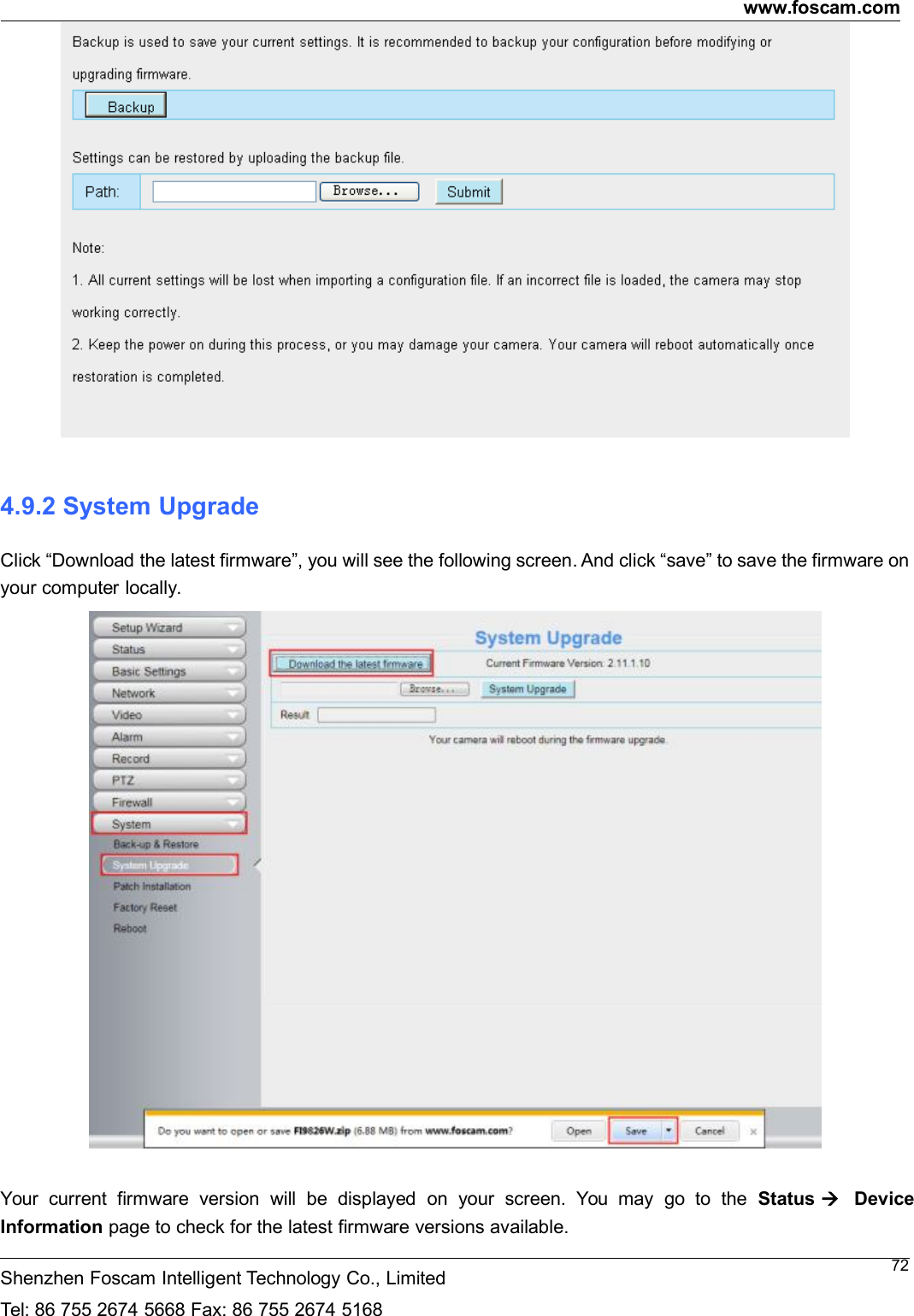
www.foscam.comShenzhen Foscam Intelligent Technology Co., LimitedTel: 86 755 2674 5668 Fax: 86 755 2674 516871Enable firewall, If you select Only allow access from these IP addresses and fill in 8 IP addresses at most, onlythose clients whose IP addresses listed in the Only allow access from these IP addresses can access theNetwork Camera. If you select Block access from these IP addresses, only those clients whose IPaddresses are in the IP list cannot access the Network Camera.Click Save to take effect.4.9 SystemIn this panel, you can backup/restore your camera settings, upgrade the firmware to the latest version, restorethe camera to default settings and reboot the device.4.9.1 Back-up& RestoreClick Backup to save all the parameters you have set. These parameters will be stored in a bin file for futureuse.Click Browse and select the parameters file you have stored, then click Submit to restore the restore theparameters.
www.foscam.comShenzhen Foscam Intelligent Technology Co., LimitedTel: 86 755 2674 5668 Fax: 86 755 2674 5168724.9.2 System UpgradeClick “Download the latest firmware”, you will see the following screen. And click “save” to save the firmware onyour computer locally.Your current firmware version will be displayed on your screen. You may go to the Status DeviceInformation page to check for the latest firmware versions available.
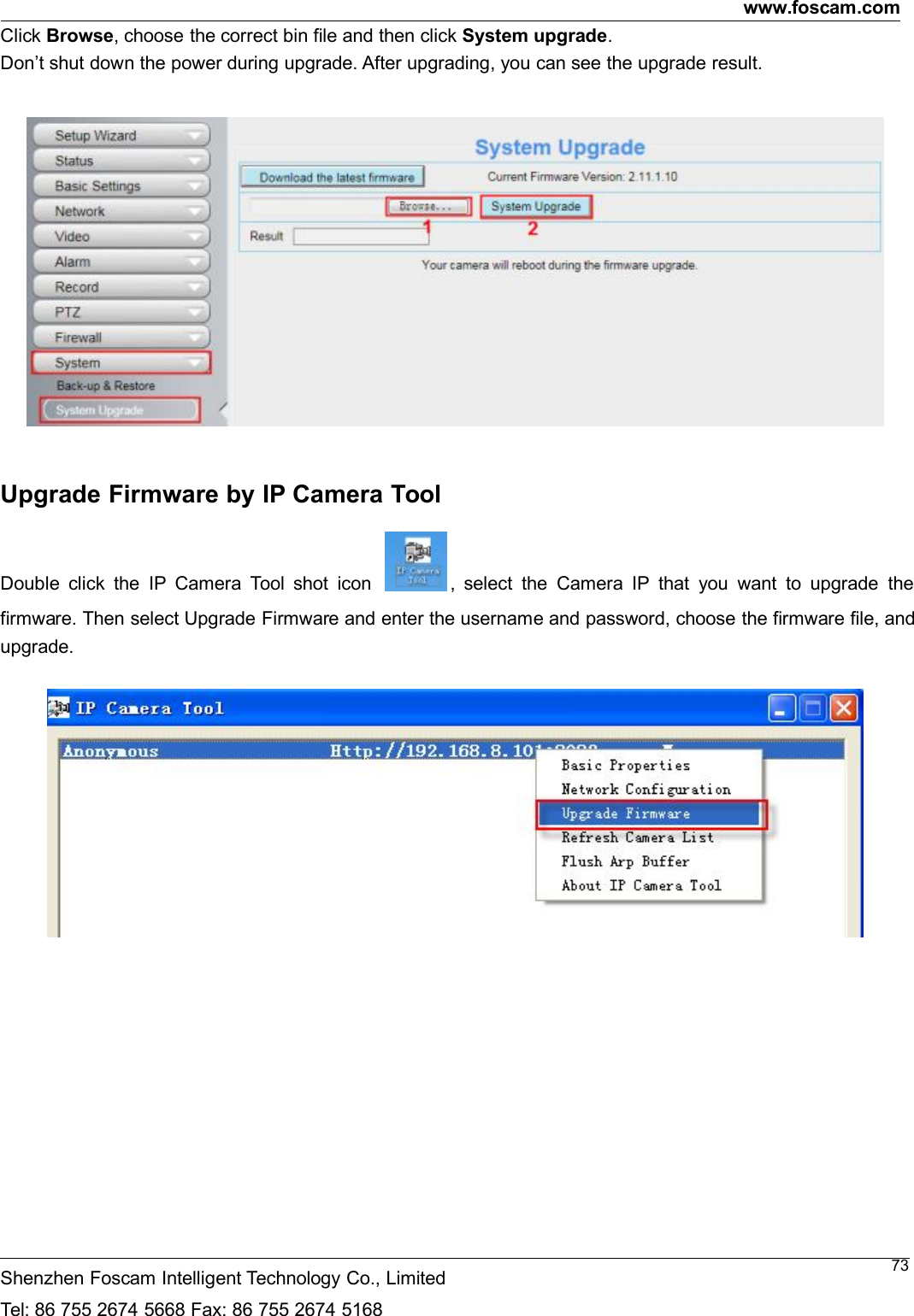
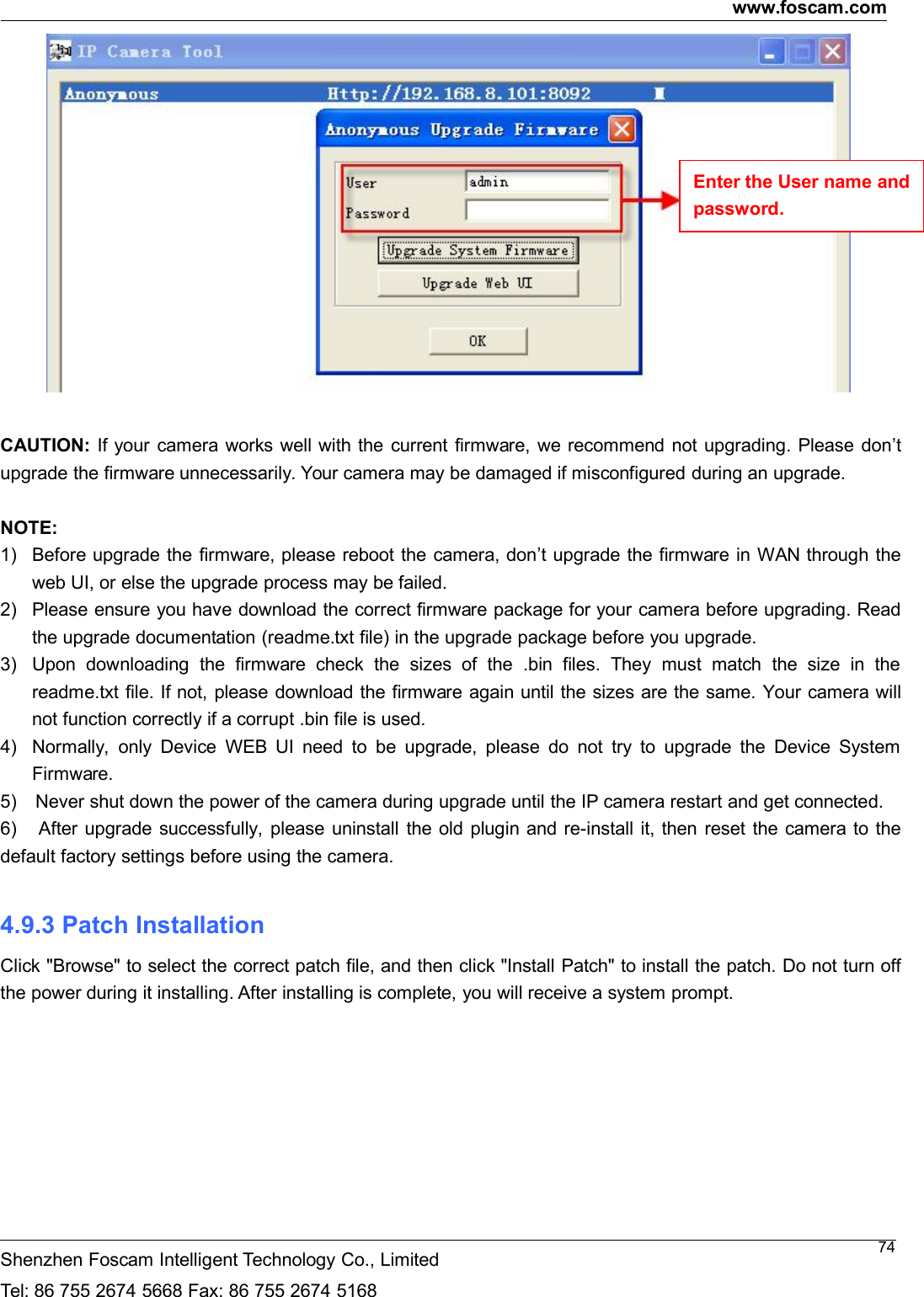
www.foscam.comShenzhen Foscam Intelligent Technology Co., LimitedTel: 86 755 2674 5668 Fax: 86 755 2674 516873Click Browse, choose the correct bin file and then click System upgrade.Don’t shut down the power during upgrade. After upgrading, you can see the upgrade result.Upgrade Firmware by IP Camera ToolDouble click the IP Camera Tool shot icon , select the Camera IP that you want to upgrade thefirmware. Then select Upgrade Firmware and enter the username and password, choose the firmware file, andupgrade.
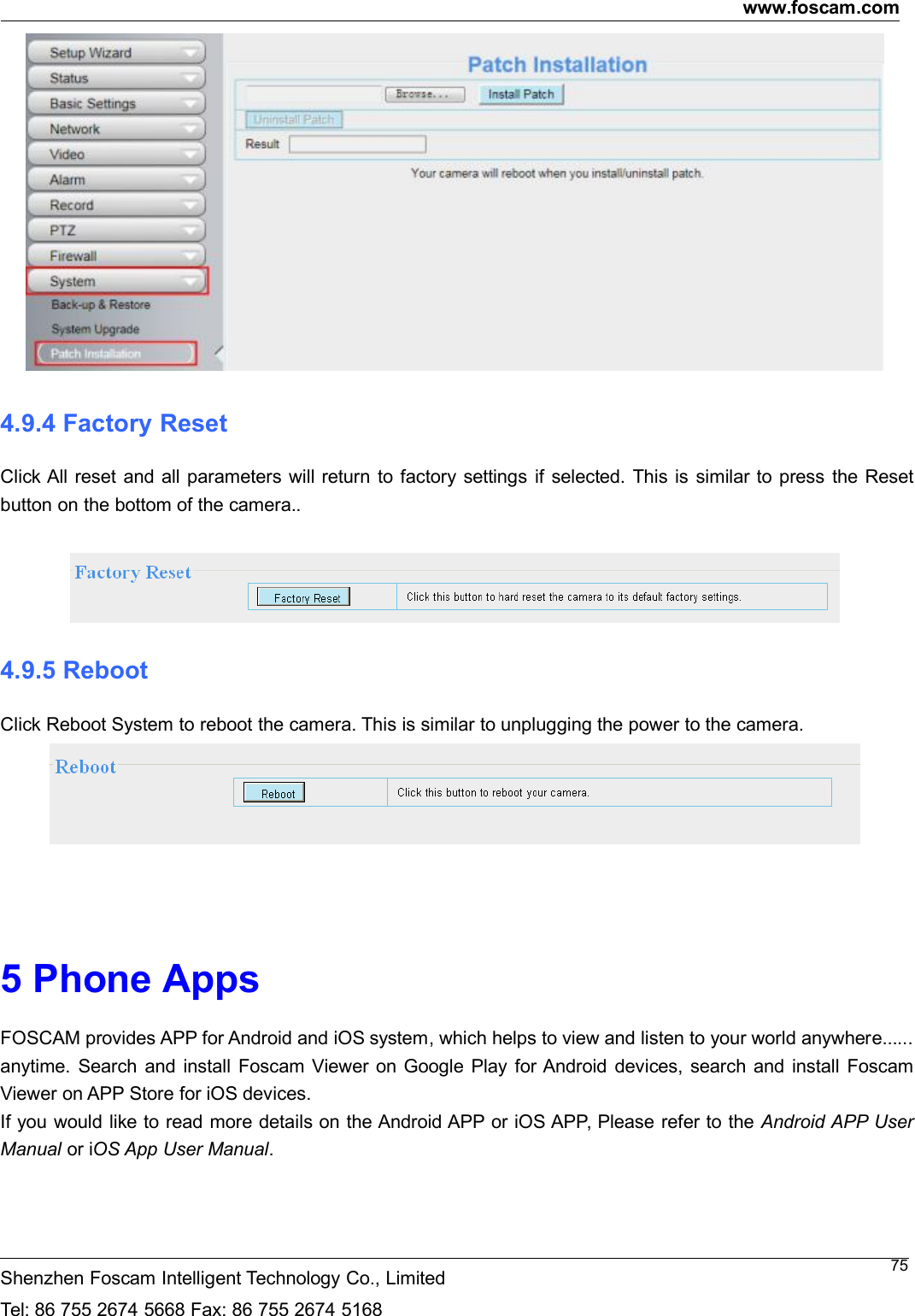
www.foscam.comShenzhen Foscam Intelligent Technology Co., LimitedTel: 86 755 2674 5668 Fax: 86 755 2674 516874CAUTION: If your camera works well with the current firmware, we recommend not upgrading. Please don’tupgrade the firmware unnecessarily. Your camera may be damaged if misconfigured during an upgrade.NOTE:1) Before upgrade the firmware, please reboot the camera, don’t upgrade the firmware in WAN through theweb UI, or else the upgrade process may be failed.2) Please ensure you have download the correct firmware package for your camera before upgrading. Readthe upgrade documentation (readme.txt file) in the upgrade package before you upgrade.3) Upon downloading the firmware check the sizes of the .bin files. They must match the size in thereadme.txt file. If not, please download the firmware again until the sizes are the same. Your camera willnot function correctly if a corrupt .bin file is used.4) Normally, only Device WEB UI need to be upgrade, please do not try to upgrade the Device SystemFirmware.5) Never shut down the power of the camera during upgrade until the IP camera restart and get connected.6) After upgrade successfully, please uninstall the old plugin and re-install it, then reset the camera to thedefault factory settings before using the camera.4.9.3 Patch InstallationClick "Browse" to select the correct patch file, and then click "Install Patch" to install the patch. Do not turn offthe power during it installing. After installing is complete, you will receive a system prompt.Enter the User name andpassword.
www.foscam.comShenzhen Foscam Intelligent Technology Co., LimitedTel: 86 755 2674 5668 Fax: 86 755 2674 5168754.9.4 Factory ResetClick All reset and all parameters will return to factory settings if selected. This is similar to press the Resetbutton on the bottom of the camera..4.9.5 RebootClick Reboot System to reboot the camera. This is similar to unplugging the power to the camera.5 Phone AppsFOSCAM provides APP for Android and iOS system, which helps to view and listen to your world anywhere......anytime. Search and install Foscam Viewer on Google Play for Android devices, search and install FoscamViewer on APP Store for iOS devices.If you would like to read more details on the Android APP or iOS APP, Please refer to the Android APP UserManual or iOS App User Manual.
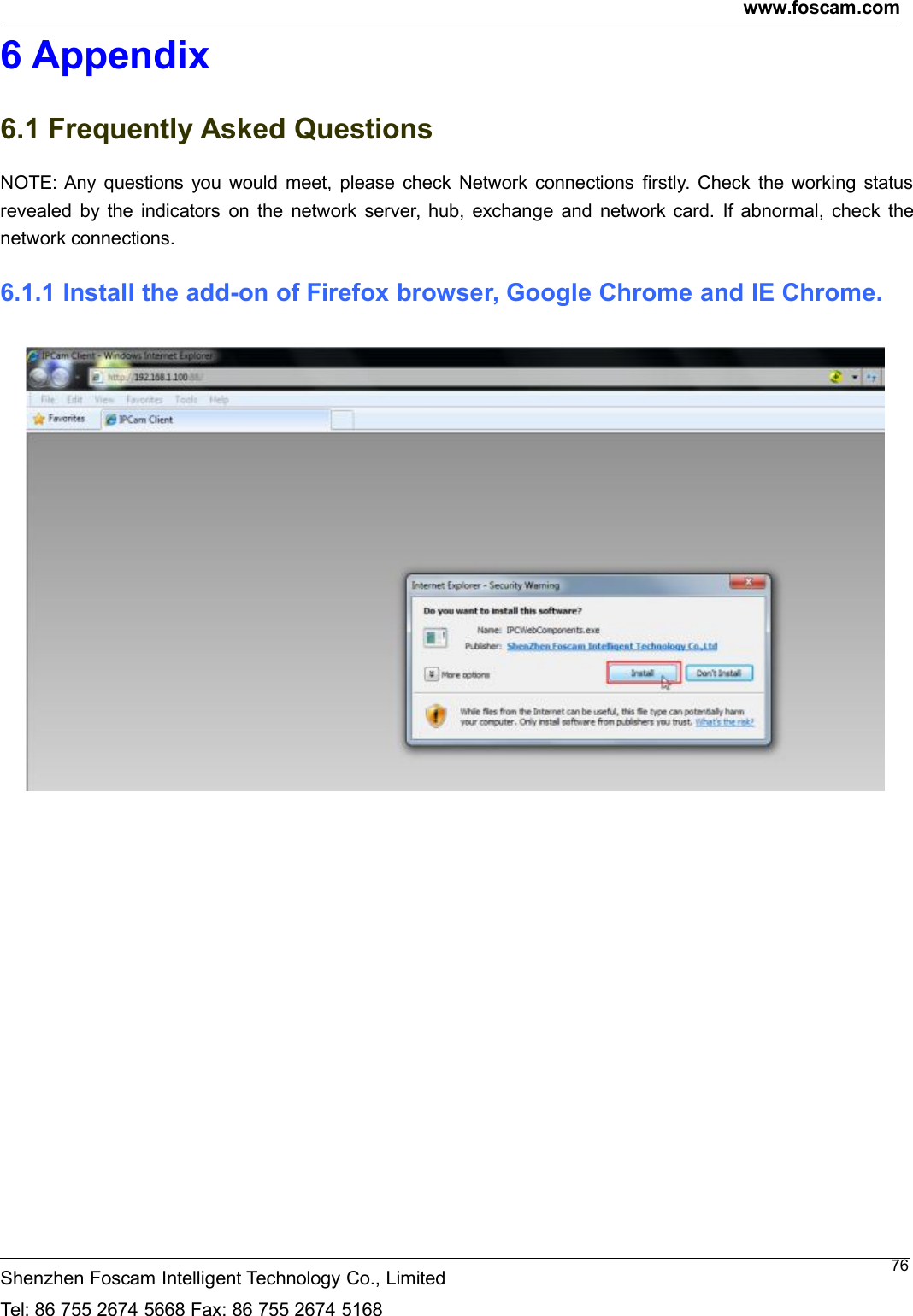
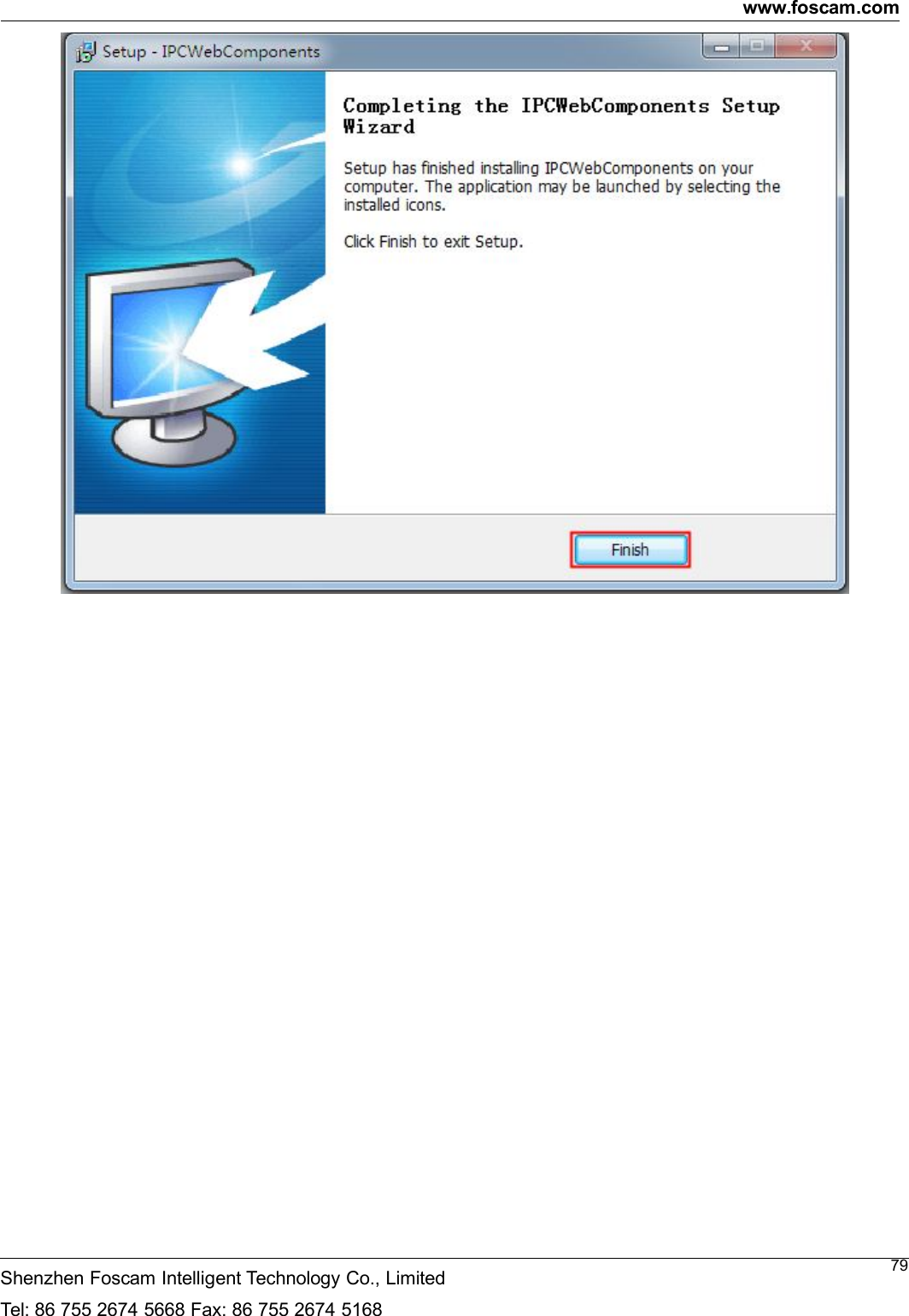
www.foscam.comShenzhen Foscam Intelligent Technology Co., LimitedTel: 86 755 2674 5668 Fax: 86 755 2674 5168766 Appendix6.1 Frequently Asked QuestionsNOTE: Any questions you would meet, please check Network connections firstly. Check the working statusrevealed by the indicators on the network server, hub, exchange and network card. If abnormal, check thenetwork connections.6.1.1 Install the add-on of Firefox browser, Google Chrome and IE Chrome.
www.foscam.comShenzhen Foscam Intelligent Technology Co., LimitedTel: 86 755 2674 5668 Fax: 86 755 2674 516877
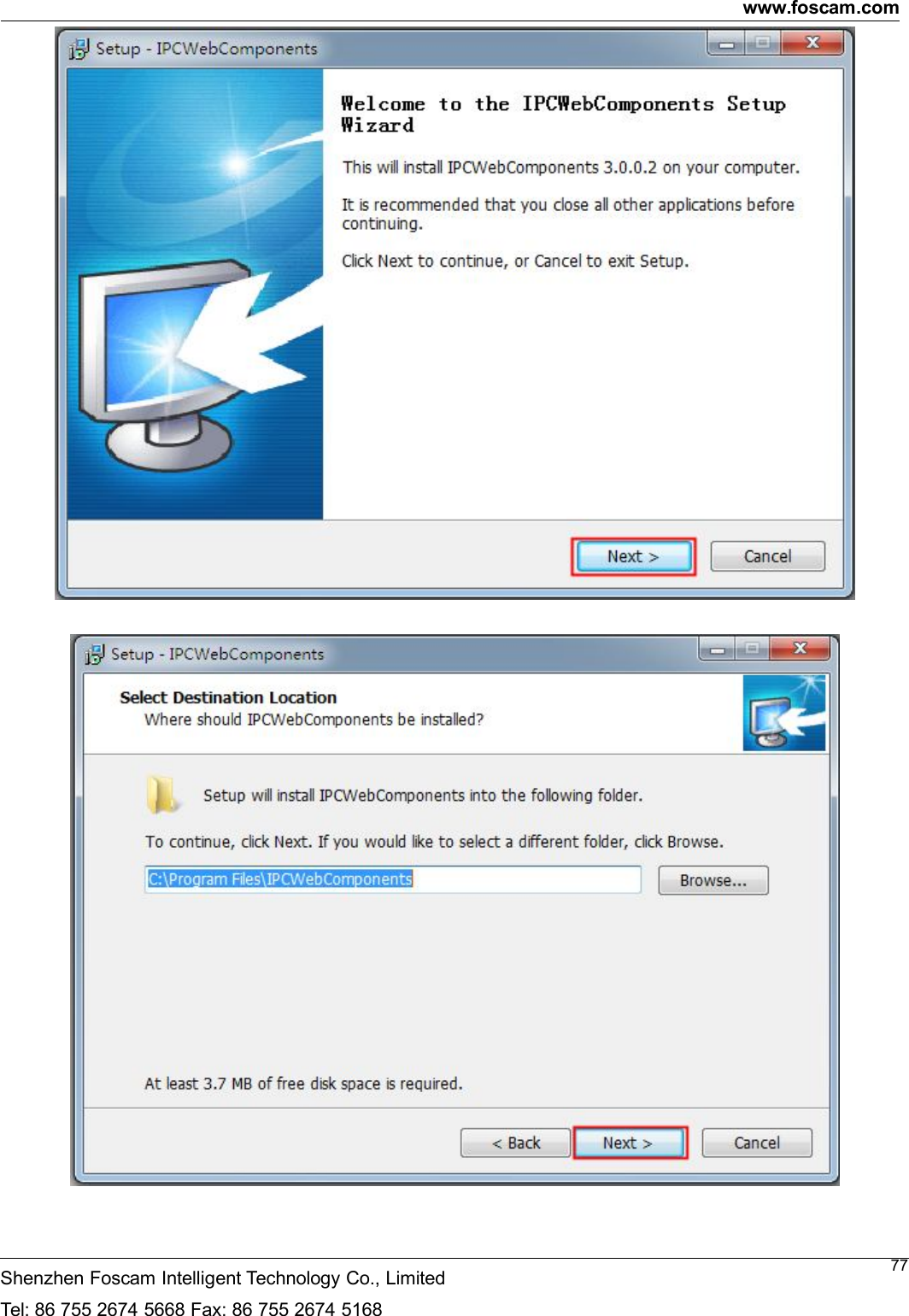
www.foscam.comShenzhen Foscam Intelligent Technology Co., LimitedTel: 86 755 2674 5668 Fax: 86 755 2674 516878
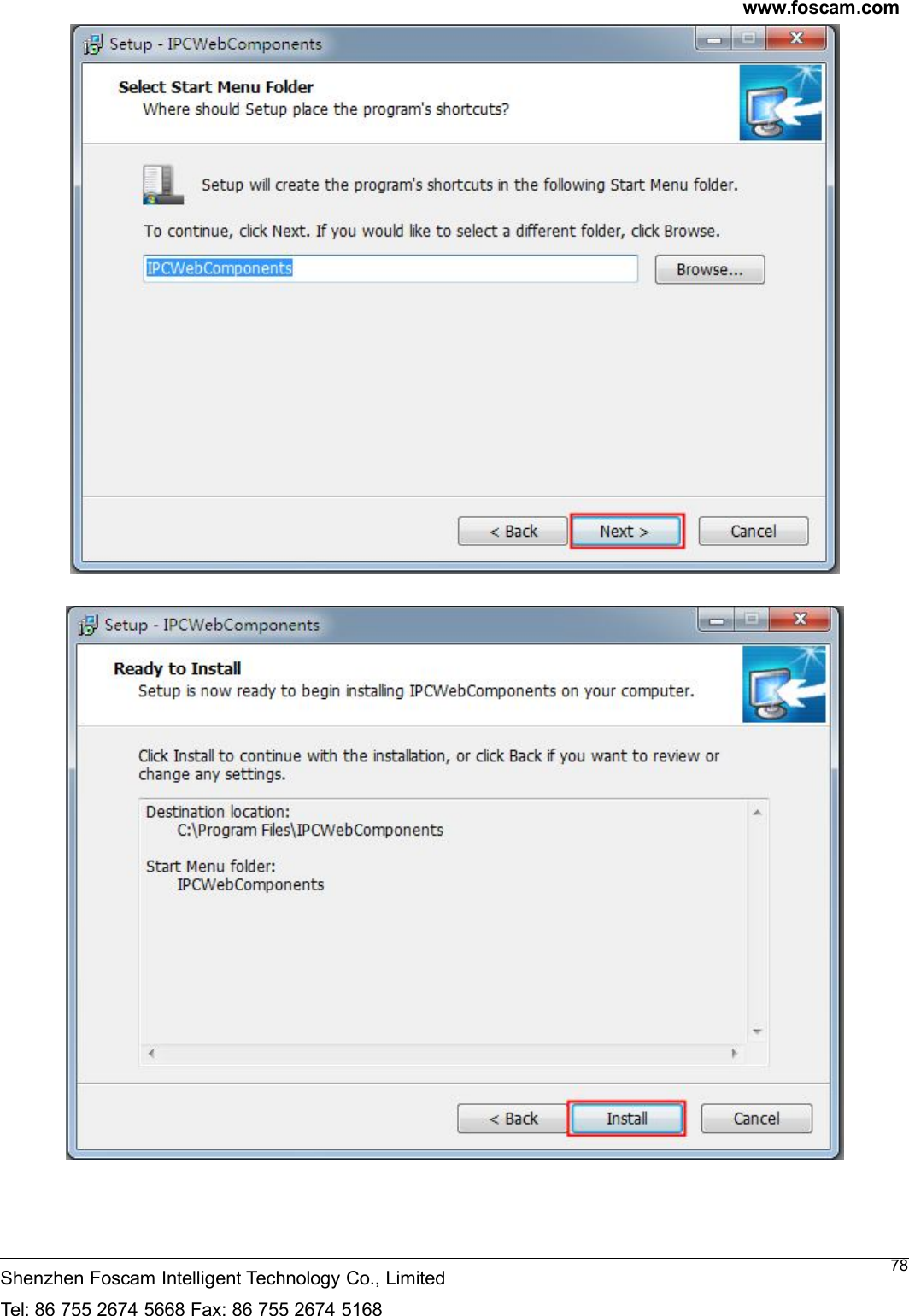
www.foscam.comShenzhen Foscam Intelligent Technology Co., LimitedTel: 86 755 2674 5668 Fax: 86 755 2674 516879
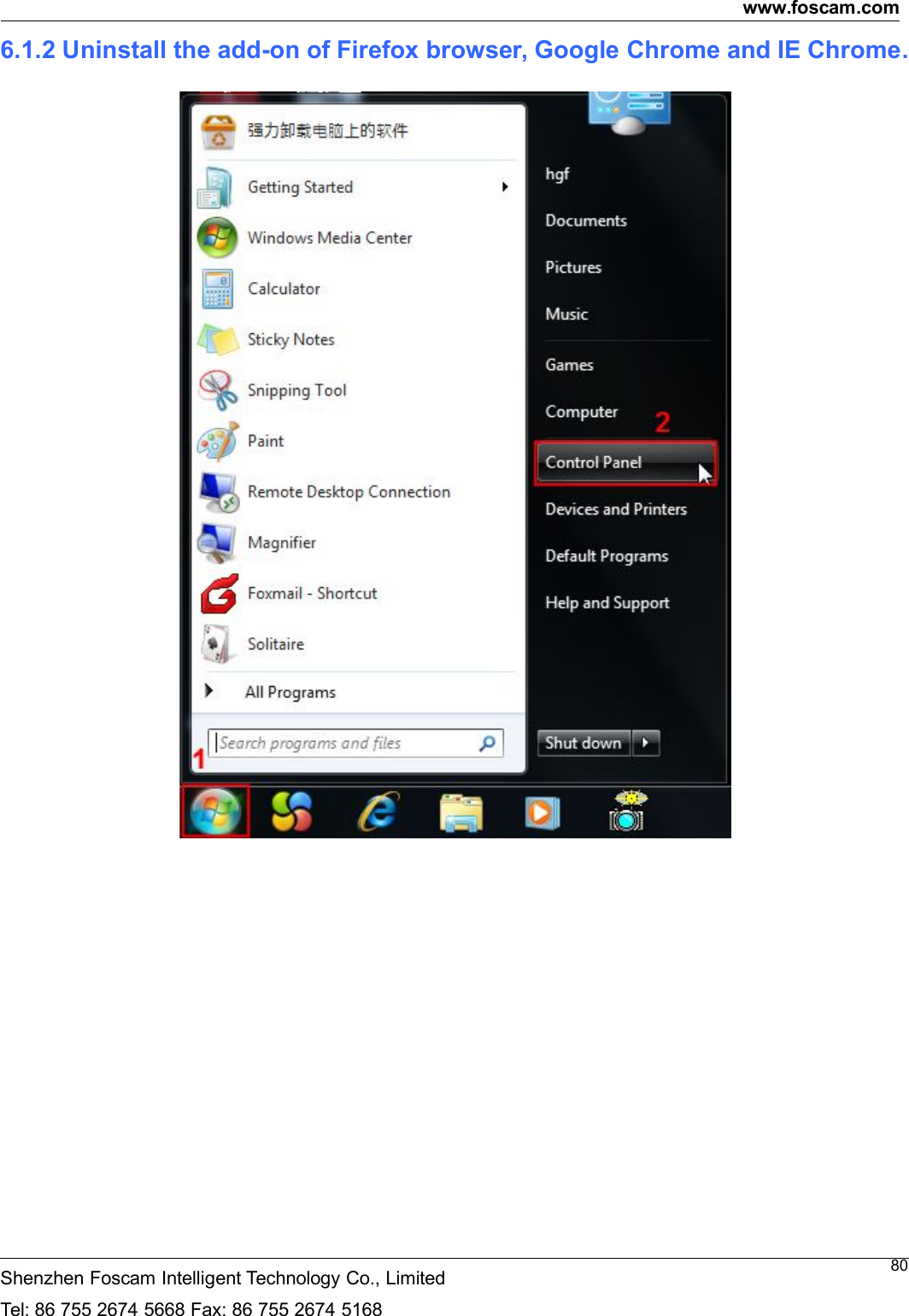
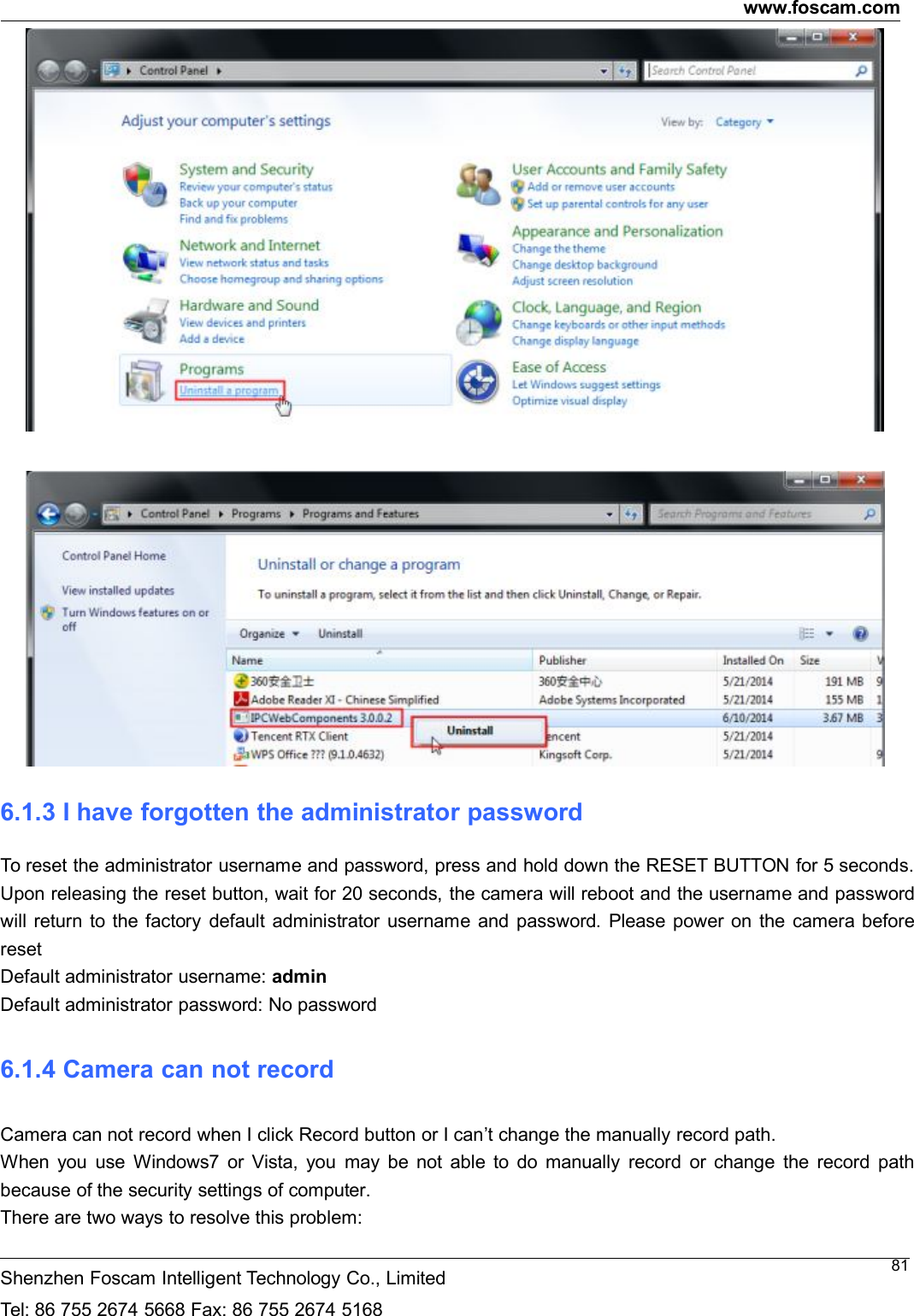
www.foscam.comShenzhen Foscam Intelligent Technology Co., LimitedTel: 86 755 2674 5668 Fax: 86 755 2674 5168806.1.2 Uninstall the add-on of Firefox browser, Google Chrome and IE Chrome.
www.foscam.comShenzhen Foscam Intelligent Technology Co., LimitedTel: 86 755 2674 5668 Fax: 86 755 2674 5168816.1.3 I have forgotten the administrator passwordTo reset the administrator username and password, press and hold down the RESET BUTTON for 5 seconds.Upon releasing the reset button, wait for 20 seconds, the camera will reboot and the username and passwordwill return to the factory default administrator username and password. Please power on the camera beforeresetDefault administrator username: adminDefault administrator password: No password6.1.4 Camera can not recordCamera can not record when I click Record button or I can’t change the manually record path.When you use Windows7 or Vista, you may be not able to do manually record or change the record pathbecause of the security settings of computer.There are two ways to resolve this problem:
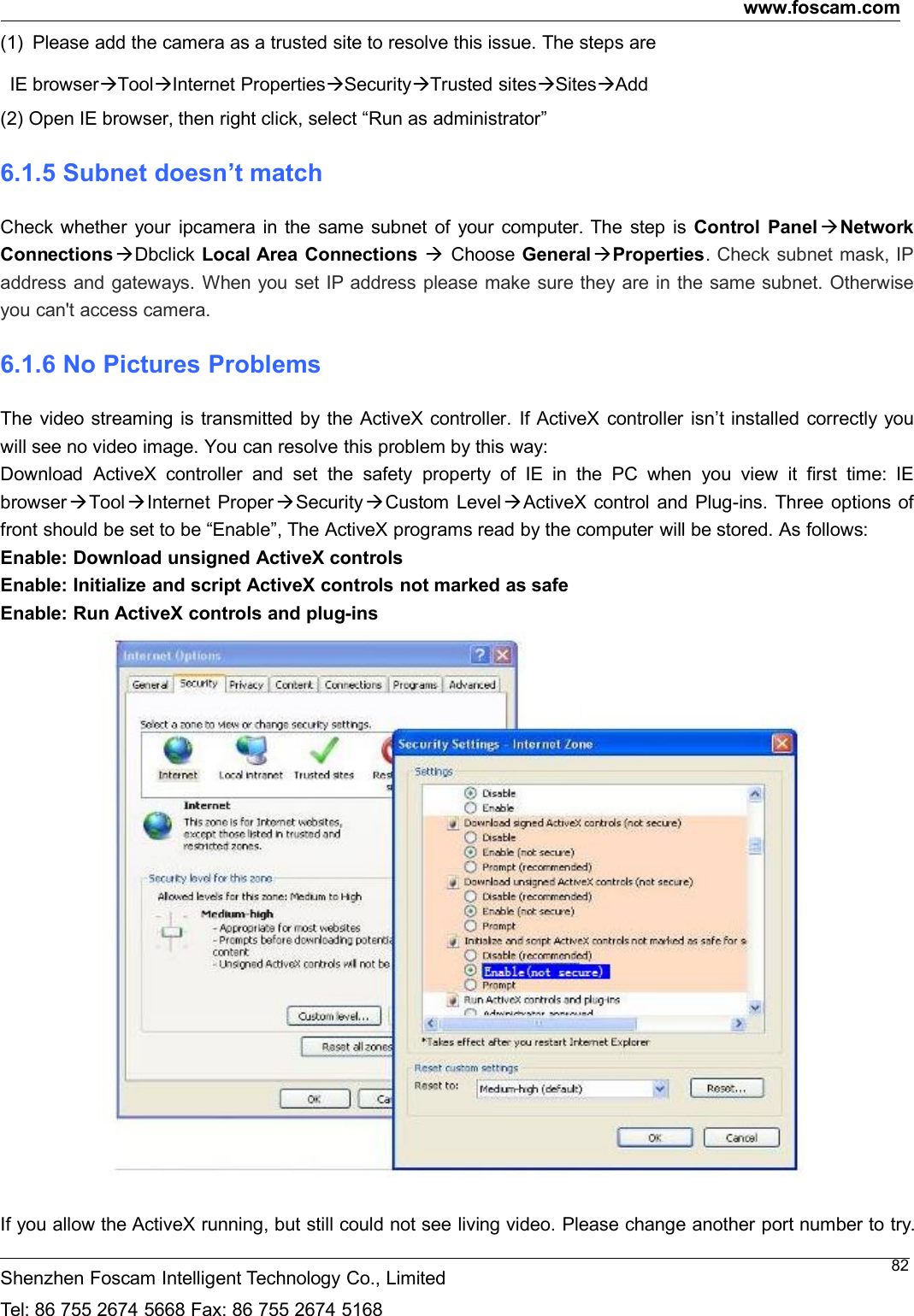
www.foscam.comShenzhen Foscam Intelligent Technology Co., LimitedTel: 86 755 2674 5668 Fax: 86 755 2674 516882(1) Please add the camera as a trusted site to resolve this issue. The steps areIE browserToolInternet PropertiesSecurityTrusted sitesSitesAdd(2) Open IE browser, then right click, select “Run as administrator”6.1.5 Subnet doesn’t matchCheck whether your ipcamera in the same subnet of your computer. The step is Control Panel NetworkConnectionsDbclick Local Area Connections Choose General Properties.Check subnet mask, IPaddress and gateways. When you set IP address please make sure they are in the same subnet. Otherwiseyou can't access camera.6.1.6 No Pictures ProblemsThe video streaming is transmitted by the ActiveX controller. If ActiveX controller isn’t installed correctly youwill see no video image. You can resolve this problem by this way:Download ActiveX controller and set the safety property of IE in the PC when you view it first time: IEbrowserToolInternet ProperSecurityCustom LevelActiveX control and Plug-ins. Three options offront should be set to be “Enable”, The ActiveX programs read by the computer will be stored. As follows:Enable: Download unsigned ActiveX controlsEnable: Initialize and script ActiveX controls not marked as safeEnable: Run ActiveX controls and plug-insIf you allow the ActiveX running, but still could not see living video. Please change another port number to try.
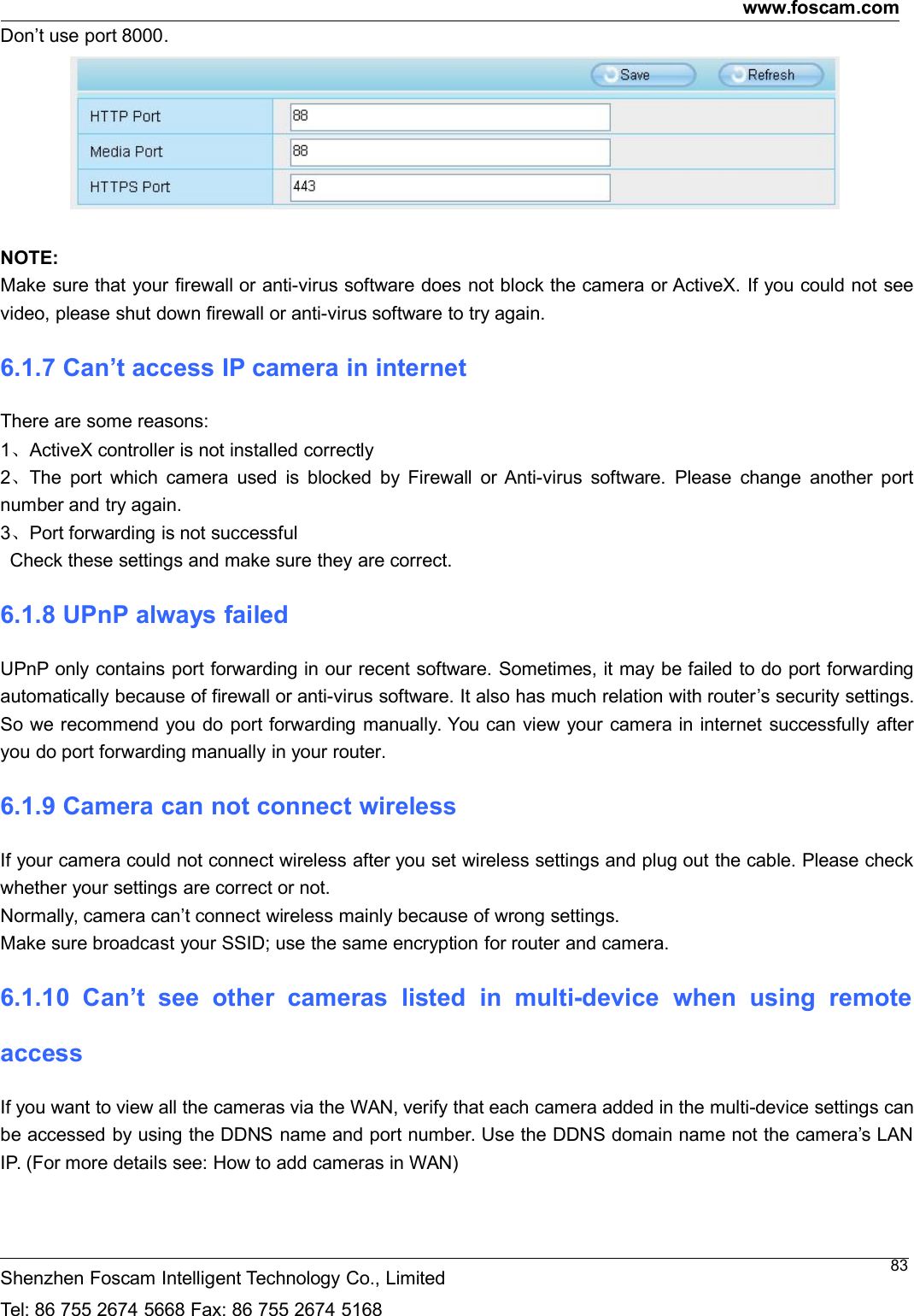
www.foscam.comShenzhen Foscam Intelligent Technology Co., LimitedTel: 86 755 2674 5668 Fax: 86 755 2674 516883Don’t use port 8000.NOTE:Make sure that your firewall or anti-virus software does not block the camera or ActiveX. If you could not seevideo, please shut down firewall or anti-virus software to try again.6.1.7 Can’t access IP camera in internetThere are some reasons:1、ActiveX controller is not installed correctly2、The port which camera used is blocked by Firewall or Anti-virus software. Please change another portnumber and try again.3、Port forwarding is not successfulCheck these settings and make sure they are correct.6.1.8 UPnP always failedUPnP only contains port forwarding in our recent software. Sometimes, it may be failed to do port forwardingautomatically because of firewall or anti-virus software. It also has much relation with router’s security settings.So we recommend you do port forwarding manually. You can view your camera in internet successfully afteryou do port forwarding manually in your router.6.1.9 Camera can not connect wirelessIf your camera could not connect wireless after you set wireless settings and plug out the cable. Please checkwhether your settings are correct or not.Normally, camera can’t connect wireless mainly because of wrong settings.Make sure broadcast your SSID; use the same encryption for router and camera.6.1.10 Can’t see other cameras listed in multi-device when using remoteaccessIf you want to view all the cameras via the WAN, verify that each camera added in the multi-device settings canbe accessed by using the DDNS name and port number. Use the DDNS domain name not the camera’s LANIP. (For more details see: How to add cameras in WAN)
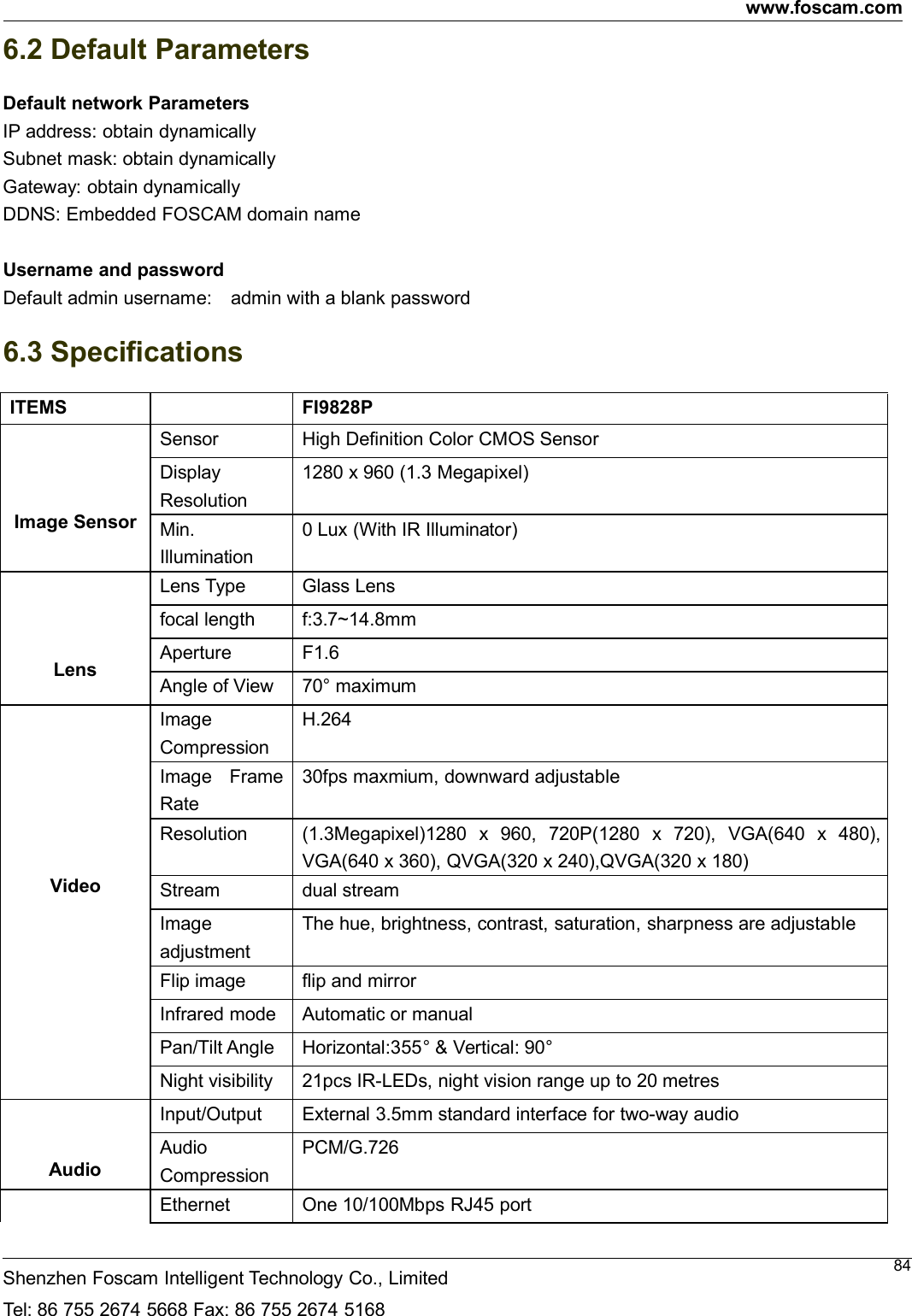
www.foscam.comShenzhen Foscam Intelligent Technology Co., LimitedTel: 86 755 2674 5668 Fax: 86 755 2674 5168846.2 Default ParametersDefault network ParametersIP address: obtain dynamicallySubnet mask: obtain dynamicallyGateway: obtain dynamicallyDDNS: Embedded FOSCAM domain nameUsername and passwordDefault admin username: admin with a blank password6.3 SpecificationsITEMS FI9828PImage SensorSensor High Definition Color CMOS SensorDisplayResolution1280 x 960 (1.3 Megapixel)Min.Illumination0 Lux (With IR Illuminator)LensLens Type Glass Lensfocal length f:3.7~14.8mmAperture F1.6Angle of View 70° maximumVideoImageCompressionH.264Image FrameRate30fps maxmium, downward adjustableResolution (1.3Megapixel)1280 x 960, 720P(1280 x 720), VGA(640 x 480),VGA(640 x 360), QVGA(320 x 240),QVGA(320 x 180)Stream dual streamImageadjustmentThe hue, brightness, contrast, saturation, sharpness are adjustableFlip image flip and mirrorInfrared mode Automatic or manualPan/Tilt Angle Horizontal:355° & Vertical: 90°Night visibility 21pcs IR-LEDs, night vision range up to 20 metresAudioInput/Output External 3.5mm standard interface for two-way audioAudioCompressionPCM/G.726Ethernet One 10/100Mbps RJ45 port
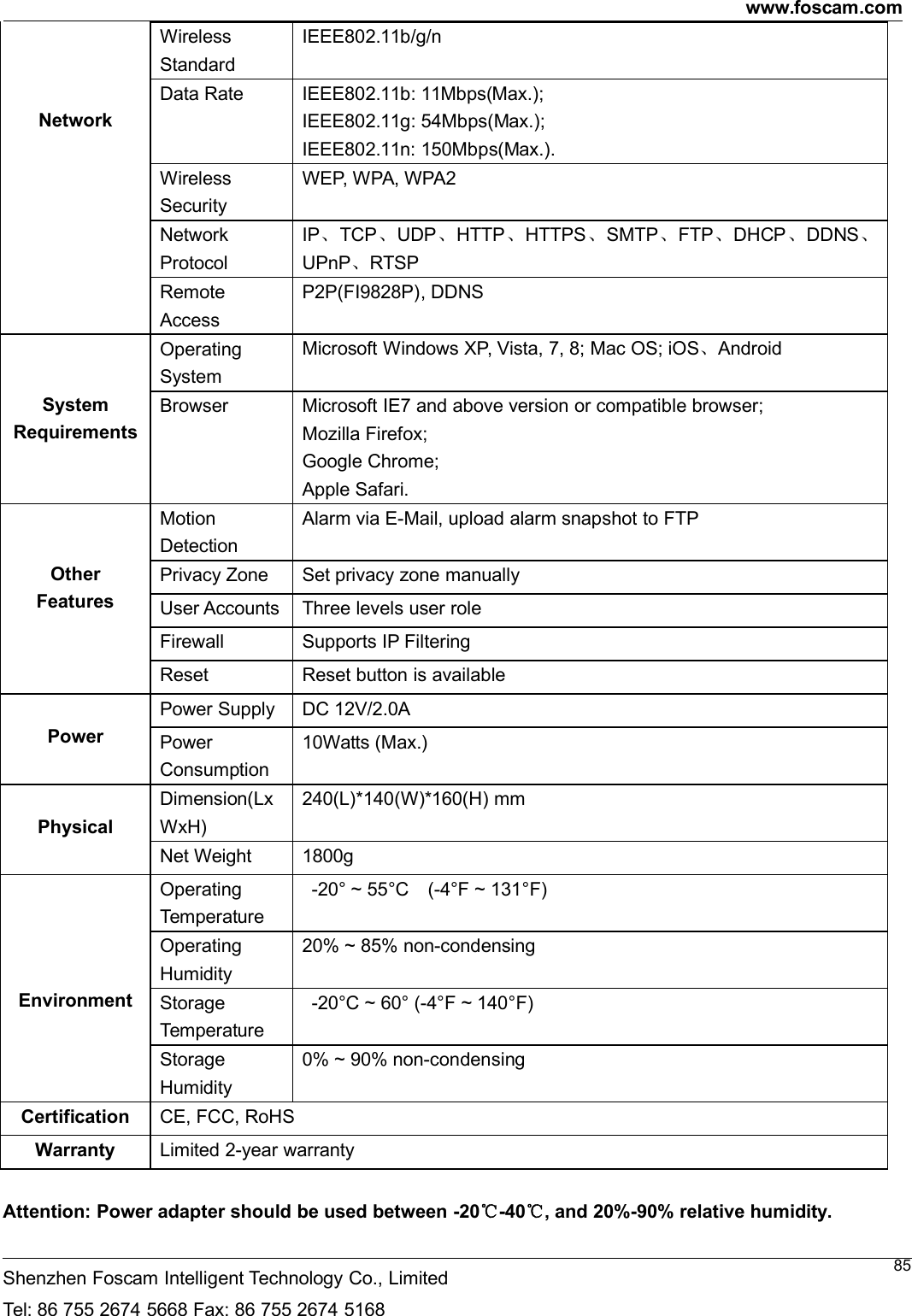
www.foscam.comShenzhen Foscam Intelligent Technology Co., LimitedTel: 86 755 2674 5668 Fax: 86 755 2674 516885NetworkWirelessStandardIEEE802.11b/g/nData Rate IEEE802.11b: 11Mbps(Max.);IEEE802.11g: 54Mbps(Max.);IEEE802.11n: 150Mbps(Max.).WirelessSecurityWEP, WPA, WPA2NetworkProtocolIP、TCP、UDP、HTTP、HTTPS、SMTP、FTP、DHCP、DDNS、UPnP、RTSPRemoteAccessP2P(FI9828P), DDNSSystemRequirementsOperatingSystemMicrosoft Windows XP, Vista, 7, 8; Mac OS; iOS、AndroidBrowser Microsoft IE7 and above version or compatible browser;Mozilla Firefox;Google Chrome;Apple Safari.OtherFeaturesMotionDetectionAlarm via E-Mail, upload alarm snapshot to FTPPrivacy Zone Set privacy zone manuallyUser Accounts Three levels user roleFirewall Supports IP FilteringReset Reset button is availablePowerPower Supply DC 12V/2.0APowerConsumption10Watts (Max.)PhysicalDimension(LxWxH)240(L)*140(W)*160(H) mmNet Weight 1800gEnvironmentOperatingTemperature-20° ~ 55°C (-4°F ~ 131°F)OperatingHumidity20% ~ 85% non-condensingStorageTemperature-20°C ~ 60° (-4°F ~ 140°F)StorageHumidity0% ~ 90% non-condensingCertification CE, FCC, RoHSWarranty Limited 2-year warrantyAttention: Power adapter should be used between -20℃-40℃, and 20%-90% relative humidity.
www.foscam.comShenzhen Foscam Intelligent Technology Co., LimitedTel: 86 755 2674 5668 Fax: 86 755 2674 5168866.4 CE & FCCElectromagnetic Compatibility (EMC)FCC StatementThis device compiles with FCC Rules Part 15. Operation is subject to the following two conditions.This device may not cause harmful interferenceThis device must accept any interference received, including interference that may cause undesiredoperation.This equipment has been tested and found to comply with the limits for a Class B digital device, pursuant toPart 15 of the FCC Rules. These limits are designed to provide reasonable protection against harmfulinterference when the equipment is operated in a commercial environment. This equipment generates, uses,and can radiate radio frequency energy and, if not installed and used in accordance with the installationmanual, may cause harmful interference to radio communications. Operation of this equipment in a residentialarea is like to cause harmful interference, in which case the user will be required to correct the interference athis own expense.FCC CautionAny changes or modification not expressly approved by the party responsible for compliance could void theuser’s authority to operate this equipment.This equipment complies with FCC radiation exposure limits set forth for an uncontrolled environment.This equipment should be installed and operated with minimum distance 20cm between the radiator& yourbody.This transmitter must not be co-located or operating in conjunction with any other antenna or transmitter.CE Mark WarningThis is a Class B product. In a domestic environment, this product may cause radio interference, in which casethe user may be required to take adequate measures.6.5 WarrantyShenZhen FOSCAM Intelligent Technology Limited.("FOSCAM") values your business and always attempts toprovide you the very best of service.No limited hardware warranty is provided by FOSCAM unless your FOSCAM product ("product") waspurchased from an authorized distributor or authorized reseller. Distributors may sell products to resellers who
www.foscam.comShenzhen Foscam Intelligent Technology Co., LimitedTel: 86 755 2674 5668 Fax: 86 755 2674 516887then sell products to end users. No warranty service is provided unless the product is returned to an authorizedreturn center in the region where the product was first shipped by FOSCAM or to the point-of-purchase, whichmay have regional specific warranty implications.If you purchase your FOSCAM product from online store, please contact the point-of-purchase and askfor return/replacement/repair service.Hardware Warranty InformationFOSCAM provide 2-year limited warranty for naked product and 6-month limited warranty for accessories.Limited Hardware WarrantyFOSCAM products are warranted to be free from manufacturing defects in materials and workmanshipstarting from the shipping date of FOSCAM.This limited hardware warranty does not cover:Software, including the software added to the products through our factory-integration system, softwarethat included in the CD,etc.Usage that is not in accordance with product instructions.Failure to follow the product instructions.Abuse firmware upgrade without the authorized technician’s guidance.Normal wear and tear.Return ProceduresPlease read FOSCAM warranty policy & policy of your reseller first before sending items back topoint-of-purchase.Customer must first contact point-of-purchase to obtain a Return Merchandise Authorization (RMA)number before returning the product. If the product you received is suspected to be defective and theproduct warranty has not expired, The RMA number will allow your reseller to track your return mucheasier and help them expedite processing your request.After receiving your RMA case number, pack the item(s) very well with the original box and all the originalaccessories included such as power adapters, brackets, cables, manuals, and driver CD disks.Write your RMA number and the return reason (the problem of the product) on the warranty card alongwith the complete package to send them back.Replacement ServicesIf customers ask for replacement service, please contact point-of-purchase and follow their policy.Our technicians will inspect all items returned for replacement requests. If the retuned product is found inworking order, we will return the same item received. However customers shall be responsible for allshipping & handling charges incurred for getting the units back to customers.If returned products are found defective, we will replace the product and assume the shipping cost forsending back the replacement unit to customers.If for any reason, we are unable to provide a replacement of the original returned item(s). You will have achoice for a “Substitute” item at the same equal value.
www.foscam.comShenzhen Foscam Intelligent Technology Co., LimitedTel: 86 755 2674 5668 Fax: 86 755 2674 516888We do not provide exchange and replacement due to normal hardware upgrade according the marketafter 14 days after the product is delivered.Our technicians will test the product before send out the replacement, any other demand for more thantwo times replacement for the same product during replacement limit will be rejected.Replaced products are warranted from the balance of the former warranty period.Warranty ForfeitureWarranty is void if purchase from unauthorized distributor or reseller.Warranty is void if trade-mark, serial tags, product stickers have been removed, altered or tampered with.Warranty is void for mishandling, improper use, or defacing the product.Abuse firmware upgrade without the authorized technician’s guidance.Warranty is void for physical damage, altered, either internally or externally, improper or inadequatepackaging when returned for RMA purposes.Warranty is void if damage has resulted from accident, dismantle, abuse, or service or modification bysomeone other than the appointed vendor, souse, fission or the spare part has been over the period ofwarranty.Warranty is void if product is damaged due to improper working environment or operation. (For example,improper temperature, humidity, unusual physical or electrical stress or interference, failure or fluctuationof electrical power, static electricity, using wrong power adapter, etc.)Warranty is void if damaged by the use of parts not manufactured or sold by FOSCAM.Damage caused by improper installation of third-party products.Warranty is void if damaged for irresistible cause, such as earthquake, fire, lightning, flood, etc.Product beyond limited warranty.Shipping FeeIf products are defective or damaged under normal use or operation in the replacement limit, distributorsor resellers are responsible for the shipping cost the product back to customers, customers shouldassume the shipping cost send the product to the point-of-purchase.During replacement limit, if customers ask for replacement due to the product does not fit for customer’spersonal expectation, customers should responsible for both shipping fee.Customers shall be responsible for both shipping fee if their product beyond the replacement limit but stillin warranty limit.Repair Service Out Of WarrantyFOSCAM provide extra repair service for product that out of warranty, it is chargeable. The total feecontains device cost and service fee. Device cost (including accessories) is the standard uniform priceprovide by FOSCAM.Different region may have different service fee, please contact the point-of-purchase to confirm that beforeyou ask for this service.Our technicians will quote the total price after detect the product, If customers refused to repair after thequotation, customers need pay for the test fee, $3.5/hour. If agree with the quotation, test will be free.Repaired product out of warranty will obtains 3-month warranty from the date of the product back to
www.foscam.comShenzhen Foscam Intelligent Technology Co., LimitedTel: 86 755 2674 5668 Fax: 86 755 2674 516889customers.Limitation of LiabilityFOSCAM is not responsible for other extra warranty or commitment promised by resellers, if your resellerpromised some extra commitment or warranty; please ask for written documents to protect your rights andinterests.FOSCAM does not offer refunds under any circumstances. Please contact the point-of-purchase andfollow their refund/return policy.FOSCAM shall not be liable under any circumstances for any consequential, incidental, special orexemplary damages arising out of or in any connection with this agreement or the products, including butnot limited to lost profits, or any claim based on indemnity or contribution, or the failure of any limited orexclusive remedy to achieve its essential purpose or otherwise. Purchaser's exclusive remedy, as againstFOSCAM, shall be the repair or replacement of defective parts. If FOSCAM lists a product on its websitespecification in error or that is no longer available for any reason, FOSCAM reserves the right to explain itwithout incurring any liability.All rights reserved. FOSCAM and the FOSCAM logo are trademarks of ShenZhen FOSCAMIntelligent Technology Limited., registered in the U.S. and other countries.7 Obtaining Technical SupportWhile we hope your experience with the IPCAM network camera is enjoyable and easy to use, you mayexperience some issues or have questions that this User’s Guide has not answered.If you have problem with FOSCAM IP camera, please first contact FOSCAM reseller for solving the problems.If our reseller cannot provide service, please contact our service department: tech@foscam.com
Any Changes or modifications not expressly approved by the party responsible for compliance could void the user's authority to operate the equipment.     This device complies with part 15 of the FCC Rules. Operation is subject to the following two conditions: (1) This device may not cause harmful interference, and (2) this device must accept any interference received, including interference that may cause undesired operation.   This equipment complies with FCC radiation exposure limits set forth for an uncontrolled environment .This equipment should be installed and operated with minimum distance 20cm between the radiator& your body.  This equipment has been tested and found to comply with the limits for a Class B digital device, pursuant to part 15 of the FCC Rules. These limits are designed to provide reasonable protection against harmful interference in    a residential installation. This equipment generates, uses and can radiate radio frequency energy and, if not installed and used in accordance with the instructions, may cause harmful interference to radio communications. However, there is no guarantee that interference will not occur in a particular installation. If this equipment does cause harmful interference to radio or television reception, which can be determined by turning the equipment off and on, the user is encouraged to try to correct the interference by one or more of the following measures:     —Reorient or relocate the receiving antenna.     —Increase the separation between the equipment and receiver.     —Connect the equipment into an outlet on a circuit different from that to which the receiver is connected.   —Consult the dealer or an experienced radio/TV technician for help.     FCC  Warning

Navigation menu