ShenZhen Foscam Intelligent Technology FI9928P HD Wireless PTZ Dome IP Camera User Manual

ShenZhen Foscam Intelligent Technology Co., Ltd. HD Wireless PTZ Dome IP Camera

Contents

User Manual

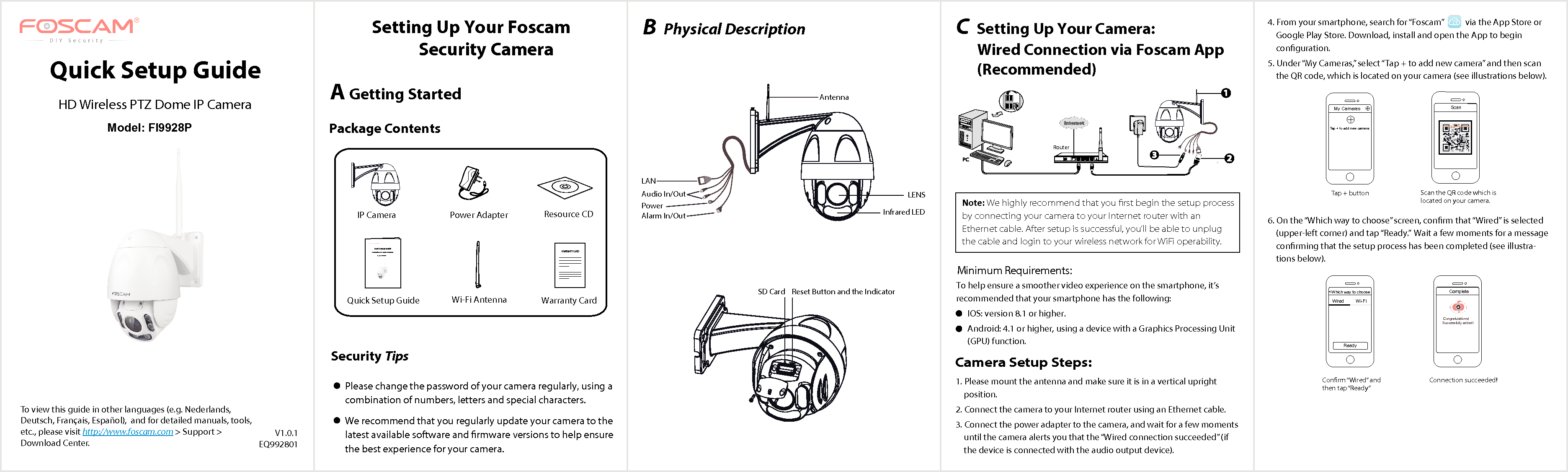
B Physical Description    V1.0.1EQ992801Quick Setup GuideHD Wireless PTZ Dome IP CameraTo view this guide in other languages (e.g. Nederlands, Deutsch, Français, Español),  and for detailed manuals, tools, etc., please visit http://www.foscam.com > Support > Download Center.Security TipsPlease change the password of your camera regularly, using a combination of numbers, letters and special characters. We recommend that you regularly update your camera to the latest available software and rmware versions to help ensure the best experience for your camera.  Package ContentsC Setting Up Your Camera:         Wired Connection via Foscam App            (Recommended)      Camera Setup Steps:Setting Up Your Foscam         Security CameraA Getting StartedNote: We highly recommend that you first begin the setup process by connecting your camera to your Internet router with an Ethernet cable. After setup is successful, you’ll be able to unplug the cable and login to your wireless network for WiFi operability.  1. Please mount the antenna and make sure it is in a vertical upright position. 2. Connect the camera to your Internet router using an Ethernet cable. 3. Connect the power adapter to the camera, and wait for a few moments until the camera alerts you that the “Wired connection succeeded” (if the device is connected with the audio output device).4. From your smartphone, search for “Foscam”           via the App Store or Google Play Store. Download, install and open the App to begin conguration. 5. Under “My Cameras,” select “Tap + to add new camera” and then scan the QR code, which is located on your camera (see illustrations below). 6. On the “Which way to choose” screen, conrm that “Wired” is selected (upper-left corner) and tap “Ready.”  Wait a few moments for a message conrming that the setup process has been completed (see illustra-tions below).Scan the QR code which is located on your camera.Scan<Tap + buttonTap + to add new camera  My CamerasConnection succeeded! Conrm “Wired”  and then tap “Ready”Which way to choose<ReadyWired         Wi-FiComplete Congratulations!Successfully added!Minimum Requirements:To help ensure a smoother video experience on the smartphone, it’s recommended that your smartphone has the following: IOS: version 8.1 or higher.Android: 4.1 or higher, using a device with a Graphics Processing Unit (GPU) function.Model: FI9928PQuick Setup Guide  Resource CDPower Adapter IP Camera Wi-Fi AntennaQuick Setup GuideHD Wireless PTZ Dome IP Camera Warranty Card     WARRANTY CARD~~~~~~~~~~~~~~~~~~~~~~~~~~~~~~~~~~~~~~~~~~~~~~~~~~~~~~~~~~~~~~~~~~~~~~~~~~~~~~~~~~~~~~~~~~~~~~~~~~~~~~~~~~~~~~~~~~~~~~~~~~~~~~~~~~~~~~~~~~~~~~~~~~~~~~~~Model: FI9928PLANPower Infrared LEDLENSAntennaAlarm In/OutAudio In/OutSD Card Reset Button and the IndicatorWPSWPSRouter

Navigation menu