ShenZhen Longtour Photology SS31 Smart Outdoor Outlet User Manual TESSAN SWN03 US

ShenZhen Longtour Photology Co., Ltd Smart Outdoor Outlet TESSAN SWN03 US

User Manual

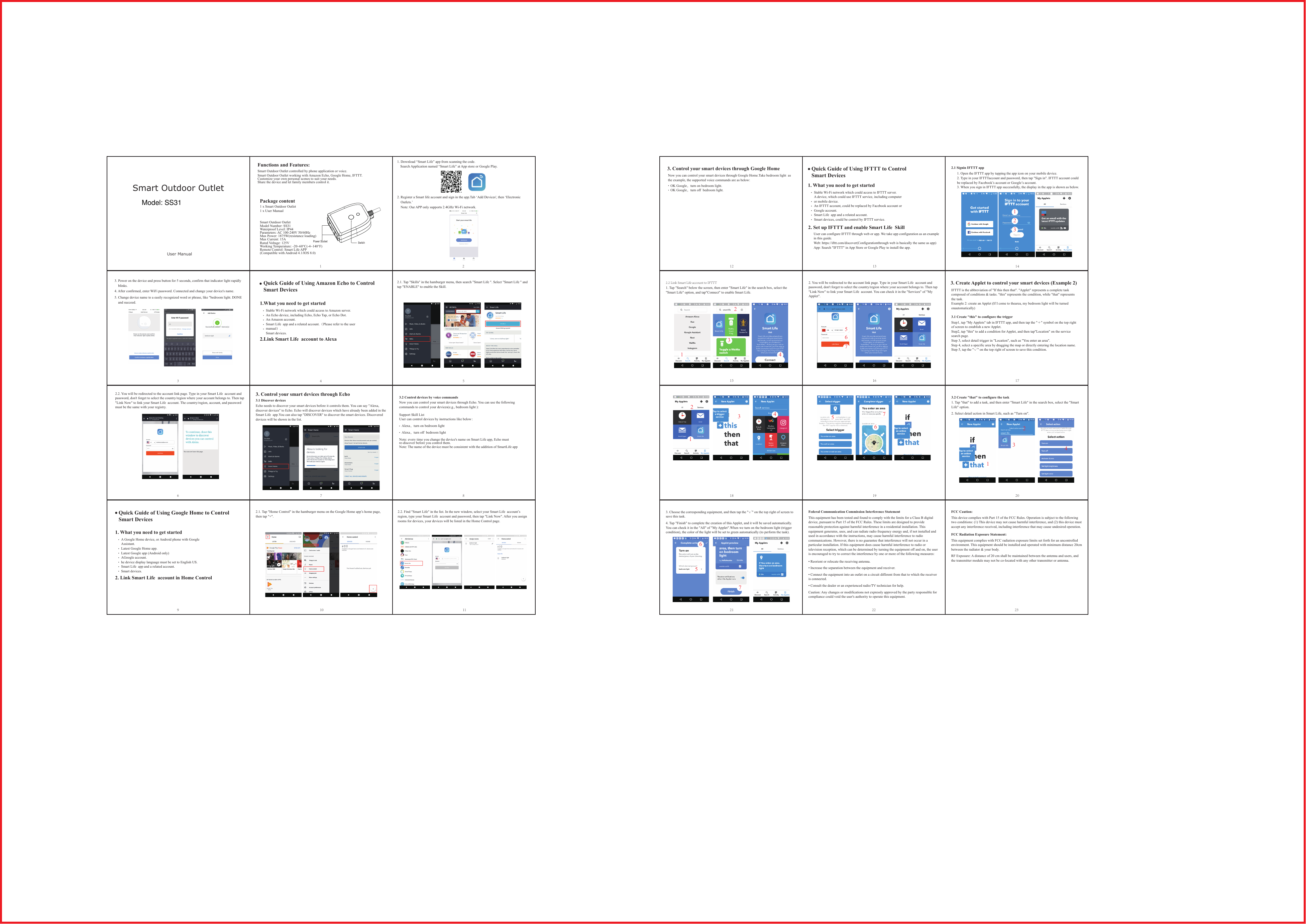
3. Control your smart devices through Google HomeNow you can control your smart devices through Google Home.Take bedroom light  as the example, the supported voice commands are as below:OK Google,turn on bedroom light. OK Google,turn off  bedroom light. Quick Guide of Using IFTTT to Control Smart Devices 12 131. What you need to get startedStable Wi-Fi network which could access to IFTTT server.A device, which could use IFTTT service, including computer or mobile device.An IFTTT account, could be replaced by Facebook account or Google account.Smart Life  app and a related account.Smart devices, could be control by IFTTT service.2. Set up IFTTT and enable Smart Life  SkillUser can configure IFTTT through web or app. We take app configuration as an example in this guide.Web: https://ifttt.com/discover(Configurationthrough web is basically the same as app)App: Search "IFTTT" in App Store or Google Play to install the app.2.1 Signin IFTTT app1. Open the IFTTT app by tapping the app icon on your mobile device.2. Type in your IFTTTaccount and password, then tap "Sign in". IFTTT account could be replaced by Facebook’s account or Google’s account.3. When you sign in IFTTT app successfully, the display in the app is shown as below.213142.2 Link Smart Life account to IFTTT1. Tap "Search" below the screen, then enter "Smart Life" in the search box, select the "Smart Life" option, and tap"Connect" to enable Smart Life.12342. You will be redirected to the account link page. Type in your Smart Life  account and password, don't forget to select the country/region where your account belongs to. Then tap "Link Now" to link your Smart Life  account. You can check it in the "Services" of "My Applet".56715 163.1 Create "this" to configure the trigger3. Create Applet to control your smart devices (Example 2)IFTTT is the abbreviation of "If this then that". "Applet" represents a complete task composed of conditions & tasks. "this" represents the condition, while "that" represents the task.Example 2: create an Applet (If I come to thearea, my bedroom light will be turned onautomatically)Step1, tap "My Applets" tab in IFTTT app, and then tap the "+" symbol on the top right of screen to establish a new Applet. Step2, tap "this" to add a condition for Applet, and then tap"Location" on the service search page.Step 3, select detail trigger in "Location", such as "You enter an area".Step 4, select a specific area by dragging the map or directly entering the location name.Step 5, tap the "√" on the top right of screen to save this condition.17123418567193.2 Create "that" to configure the task1. Tap "that" to add a task, and then enter "Smart Life" in the search box, select the "Smart Life" option.2. Select detail action in Smart Life, such as "Turn on".1234203. Choose the corresponding equipment, and then tap the "√" on the top right of screen to save this task.4. Tap "Finish" to complete the creation of this Applet, and it will be saved automatically. You can check it in the "All" of "My Applet".When we turn on the bedroom light (trigger condition), the color of the light will be set to green automatically (to perform the task).576211 2Quick Guide of Using Amazon Echo to Control Smart Devices 1.What you need to get started2.Link Smart Life  account to AlexaStable Wi-Fi network which could access to Amazon server. An Echo device, including Echo, Echo Tap, or Echo Dot.An Amazon account. Smart Life  app and a related account.(Please refer to the user manual).Smart devices. 3.2 Control devices by voice commandsNow you can control your smart devices through Echo. You can use the following commands to control your devices(e.g., bedroom light ):Alexa,turn on bedroom lightAlexa,turn off  bedroom lightNote: every time you change the device's name on Smart Life app, Echo must  re-discover before you control them.Note: The name of the device must be consistent with the addition of SmartLife app681. What you need to get started2. Link Smart Life  account in Home ControlA Google Home device, or Android phone with Google Assistant.Latest Google Home app.Latest Google app (Android only)AGoogle account.he device display language must be set to English US.Smart Life  app and a related account.Smart devices. Quick Guide of Using Google Home to Control Smart Devices 732.1. Tap "Skills" in the hamburger menu, then search "Smart Life ". Select "Smart Life " and tap "ENABLE" to enable the Skill.42.2. You will be redirected to the account link page. Type in your Smart Life  account and password, don't forget to select the country/region where your account belongs to. Then tap "Link Now" to link your Smart Life  account. The country/region, account, and password must be the same with your registry. 53. Control your smart devices through Echo3.1 Discover devicesEcho needs to discover your smart devices before it controls them. You can say "Alexa, discover devices" to Echo. Echo will discover devices which have already been added in the Smart Life  app.You can also tap "DISCOVER" to discover the smart devices. Discovered devices will be shown in the list.2.1. Tap "Home Control" in the hamburger menu on the Google Home app’s home page, then tap "+".92.2. Find "Smart Life" in the list. In the new window, select your Smart Life  account’s region, type your Smart Life  account and password, then tap "Link Now". After you assign rooms for devices, your devices will be listed in the Home Control page.10 11User Manual3. Power on the device and press button for 5 seconds, confirm that indicator light rapidly     blinks.4. After confirmed, enter WiFi password. Connected and change your device's name.5. Change device name to a easily recognized word or phrase, like "bedroom light. DONE    and succeed.1. Download “Smart Life” app from scanning the code.    2. Register a Smart life account and sign in the app.Tab ‘Add Devices', then ‘Electronic    Outlets.’    Note: Our APP only supports 2.4GHz Wi-Fi network. Smart Outdoor OutletModel Number: SS31Waterproof Level: IP44Parameters: AC 100-240V 50/60HzMax Power: 1875W(resistance loading)Max Current: 15ARated Voltage: 125VWorking Temperature: -20~60°C(-4~140°F)Remote Control: Smart Life APP(Compatible with Android 4.1/IOS 8.0)Smart Outdoor Outlet controlled by phone application or voice.Smart Outdoor Outlet working with Amazon Echo, Google Home, IFTTT.Customize your own personal scenes to suit your needs.Share the device and let family members control it.Functions and Features:Package content1 x Smart Outdoor Outlet1 x User ManualSearch Application named “Smart Life” at App store or Google Play.   Support Skill List User can control devices by instructions like below:Power Socket SwitchSmart Outdoor OutletThis equipment has been tested and found to comply with the limits for a Class B digital device, pursuant to Part 15 of the FCC Rules. These limits are designed to provide reasonable protection against harmful interference in a residential installation. This equipment generates, uses, and can radiate radio frequency energy and, if not installed and used in accordance with the instructions, may cause harmful interference to radio communications. However, there is no guarantee that interference will not occur in a particular installation. If this equipment does cause harmful interference to radio or television reception, which can be determined by turning the equipment off and on, the user is encouraged to try to correct the interference by one or more of the following measures:• Reorient or relocate the receiving antenna.• Increase the separation between the equipment and receiver.• Connect the equipment into an outlet on a circuit different from that to which the receiver is connected.• Consult the dealer or an experienced radio/TV technician for help.Caution: Any changes or modifications not expressly approved by the party responsible for compliance could void the user's authority to operate this equipment.22 23Federal Communication Commission Interference StatementThis device complies with Part 15 of the FCC Rules. Operation is subject to the following two conditions: (1) This device may not cause harmful interference, and (2) this device must accept any interference received, including interference that may cause undesired operation.FCC Caution:This equipment complies with FCC radiation exposure limits set forth for an uncontrolled environment. This equipment should be installed and operated with minimum distance 20cm between the radiator & your body.RF Exposure: A distance of 20 cm shall be maintained between the antenna and users, and the transmitter module may not be co-located with any other transmitter or antenna.FCC Radiation Exposure Statement:Model: SS31

Navigation menu