ShenZhen SOTEN Technology T71 Tablet User Manual Using Guide

ShenZhen SOTEN Technology Co., LTD Tablet Using Guide

user manual

  rugged tablet  User Guide    This user guide will tell you how to start using the tablet and how to use important functions.   Brand Name: HUGEROCK Model Name: T71 FCC ID: 2ACHA-T71
  Startup and Shutdown Keep pressing the power button for 5 seconds, the product will select on or off status. About SIM Card   A full size SIM card is used. Do NOT use a Mini or micro SIM card. In order to protect your SIM card more fully, our SIM card holder use built-in SIM card lock design. To unlock, you must depress the SIM card. Note: To prevent damage to the SIM card, please always turn off the power before inserting or removing the card. Insert or Remove The SIM Card: 1. Make sure the tablet is power off. 2. Open the rubber dust plug. 3. Insert or remove the SIM card. Insertion should follow the orientation warning label beside the SIM card holder. Note: To prevent damage of the SIM card, please make sure tablet power off before inserting or removing the card. Charging the Battery 1. Always use the charger that came with your tablet. 2. Open the rubber dust plug. 3. Insert the charger micro USB plug into the micro USB socket on the tablet. 4. The tablet will show a charging icon. 5. Continuous charging is needed more than 10 hours for the first time. In order to ensure effective activation, it needs full charge-discharge cycles (more than three times).
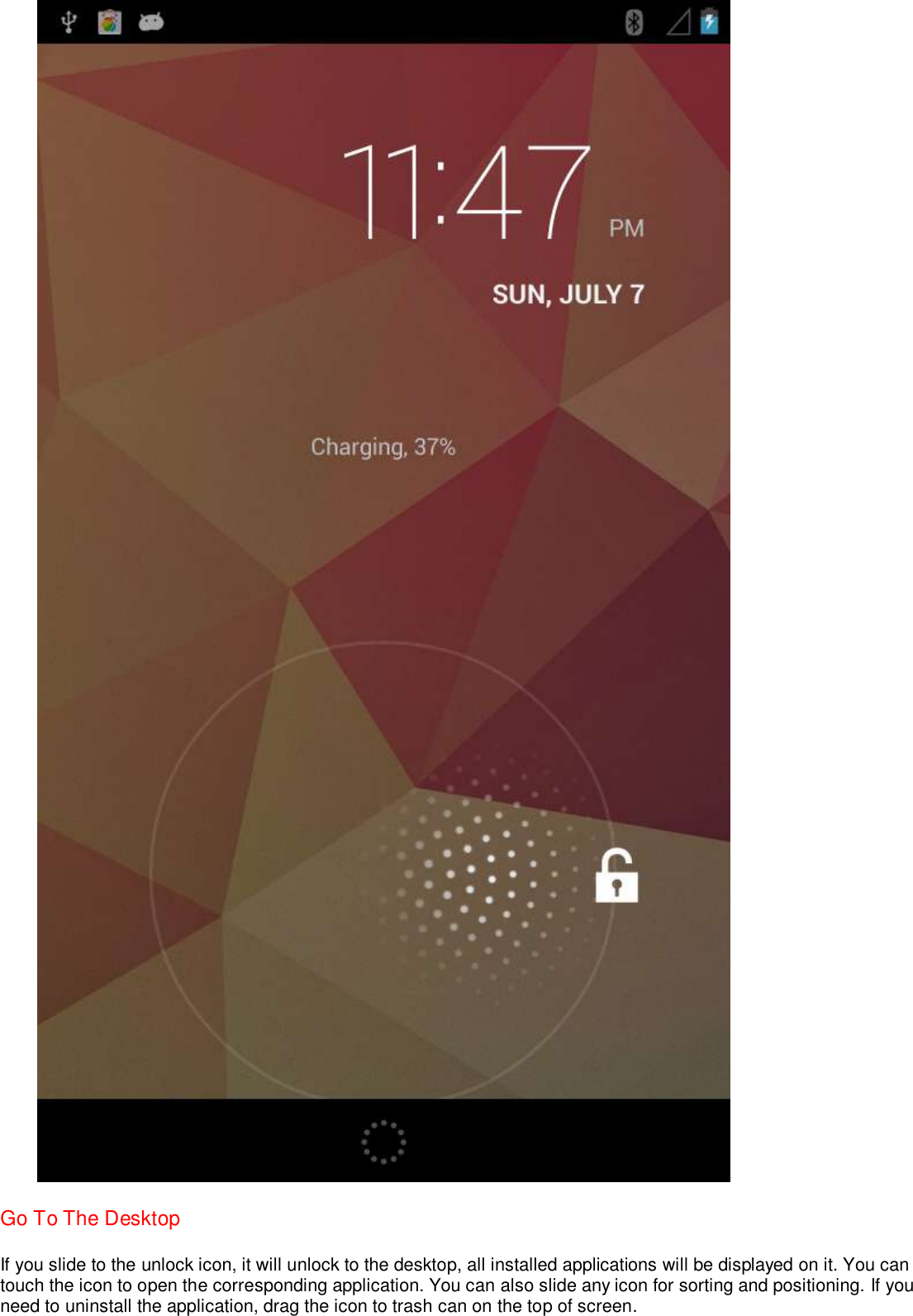
  Unlocking and Locking the Screen Press power button briefly to lock or unlock the screen. With you finger, slide to unlock logo to a function icon, then you can unlock the screen or activate the camera, depending on which icon you slide to.
 Go To The Desktop If you slide to the unlock icon, it will unlock to the desktop, all installed applications will be displayed on it. You can touch the icon to open the corresponding application. You can also slide any icon for sorting and positioning. If you need to uninstall the application, drag the icon to trash can on the top of screen.
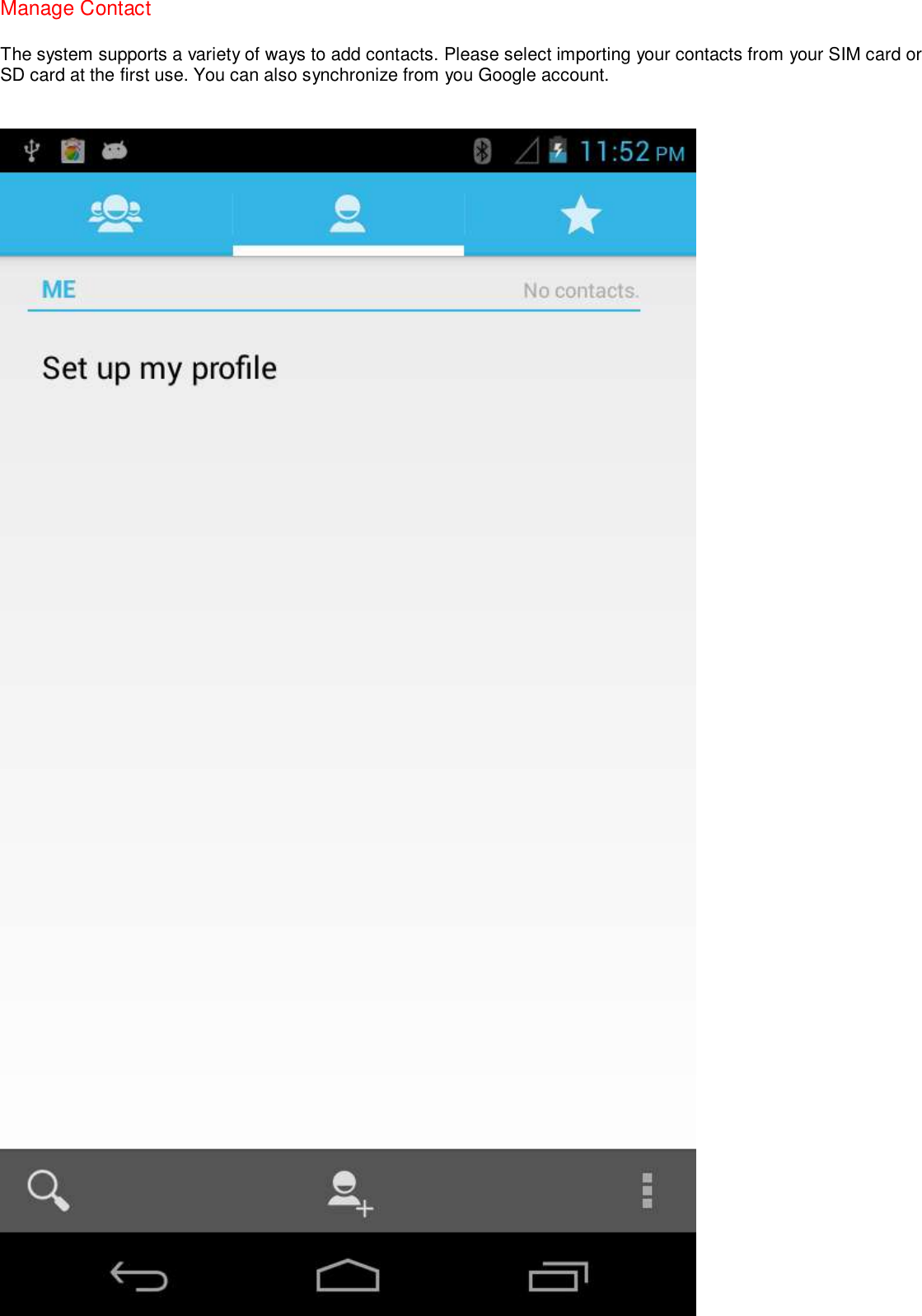
Manage Contact The system supports a variety of ways to add contacts. Please select importing your contacts from your SIM card or SD card at the first use. You can also synchronize from you Google account.
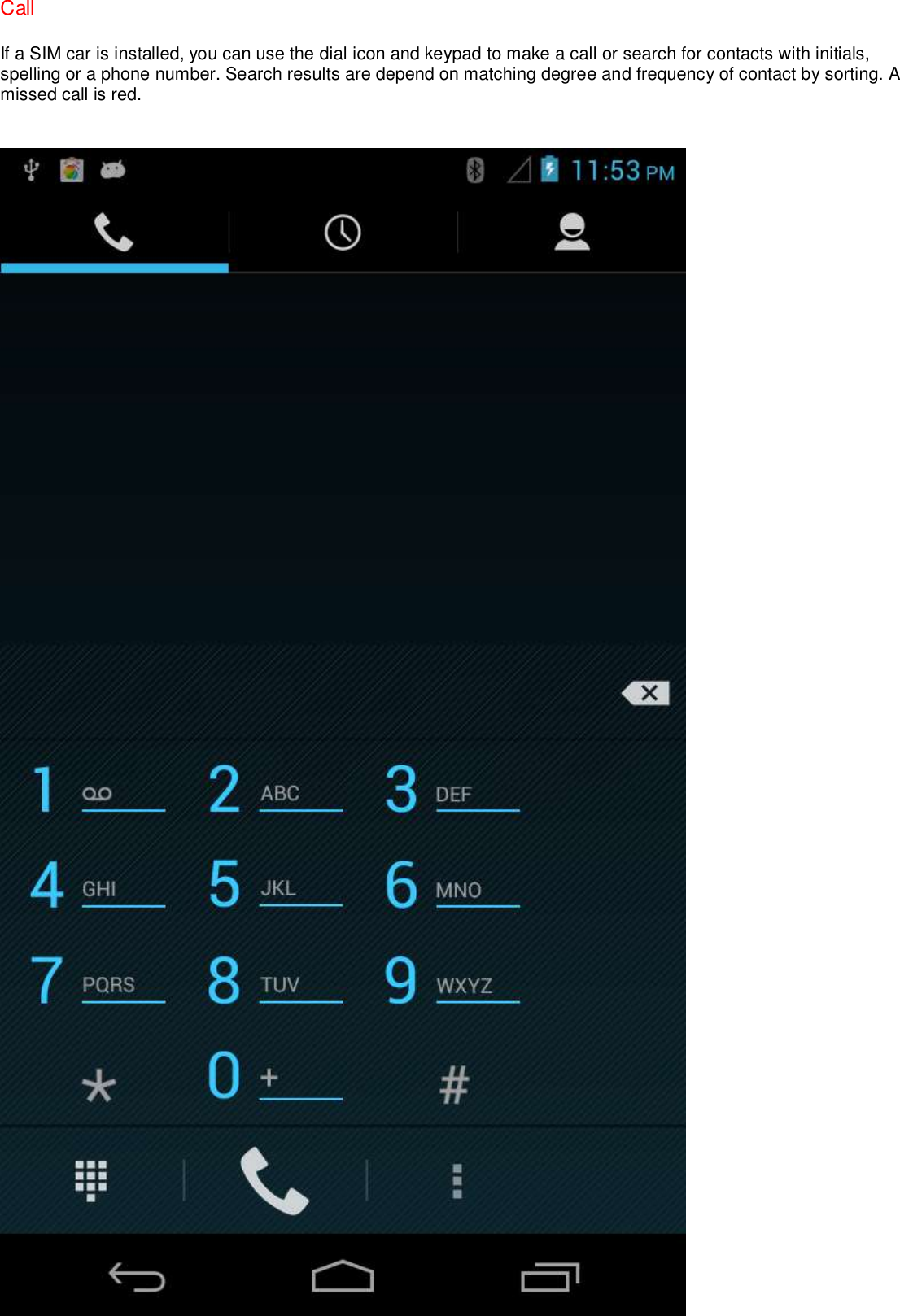
Call If a SIM car is installed, you can use the dial icon and keypad to make a call or search for contacts with initials, spelling or a phone number. Search results are depend on matching degree and frequency of contact by sorting. A missed call is red.
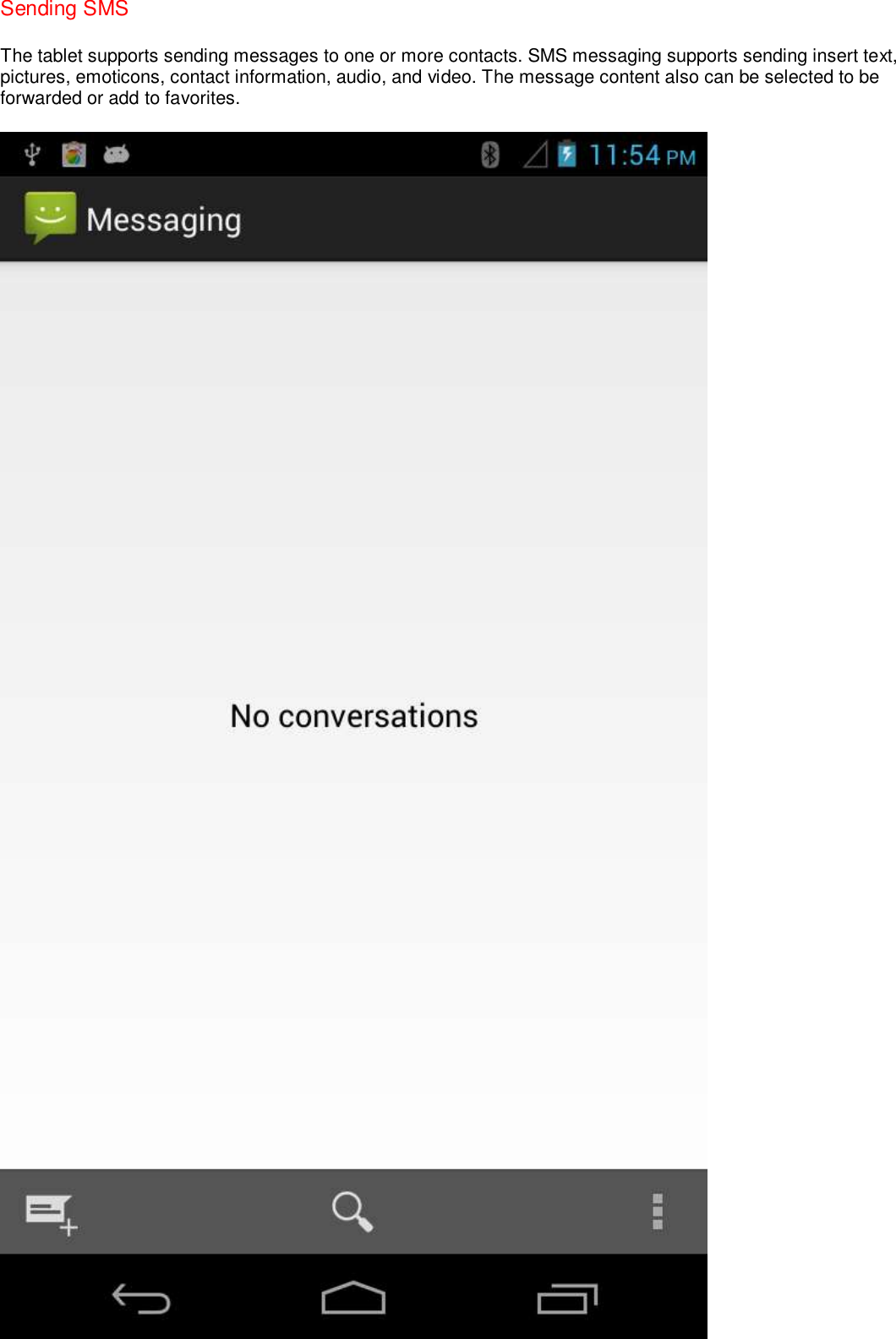
Sending SMS   The tablet supports sending messages to one or more contacts. SMS messaging supports sending insert text, pictures, emoticons, contact information, audio, and video. The message content also can be selected to be forwarded or add to favorites.
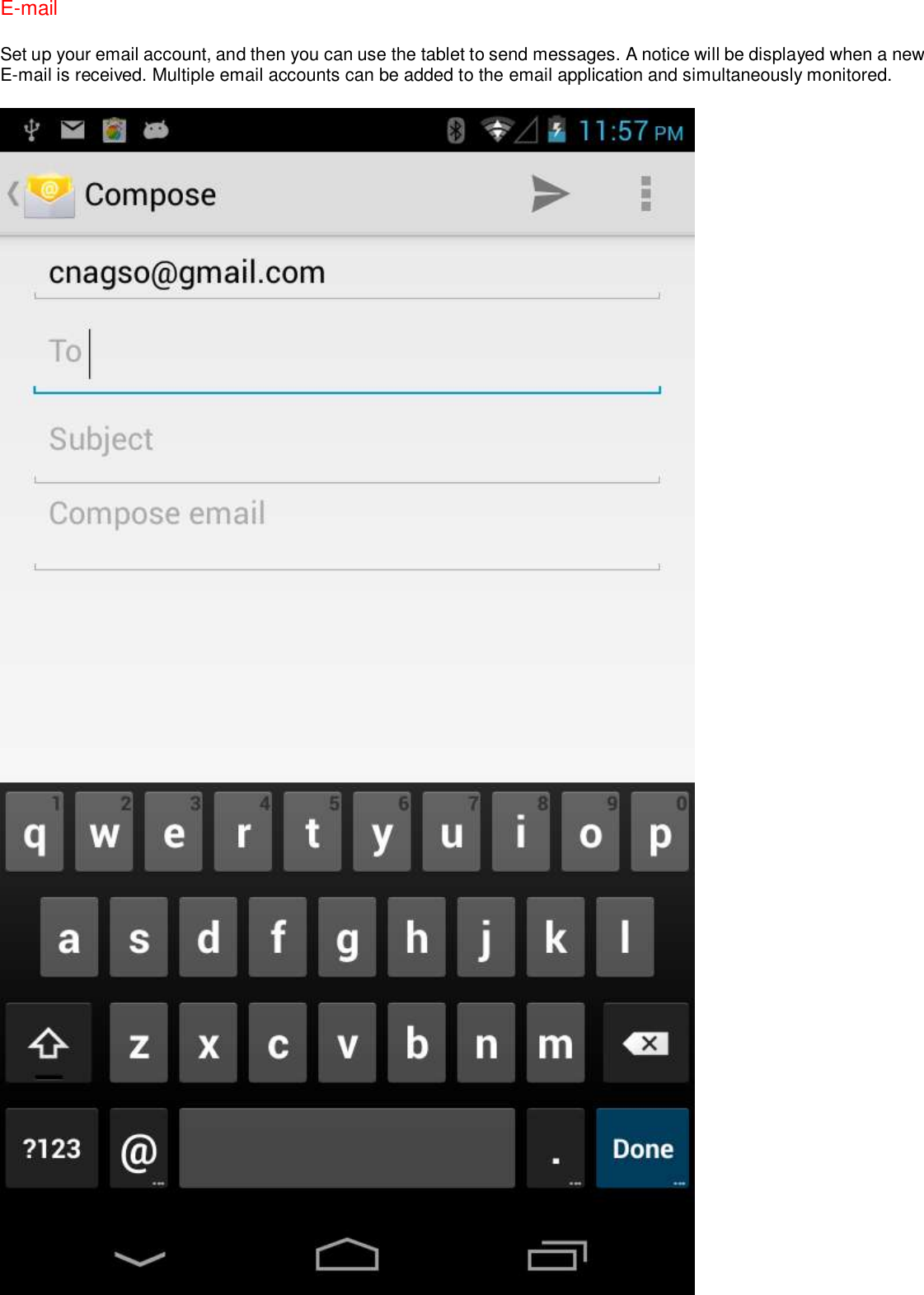
E-mail Set up your email account, and then you can use the tablet to send messages. A notice will be displayed when a new E-mail is received. Multiple email accounts can be added to the email application and simultaneously monitored.
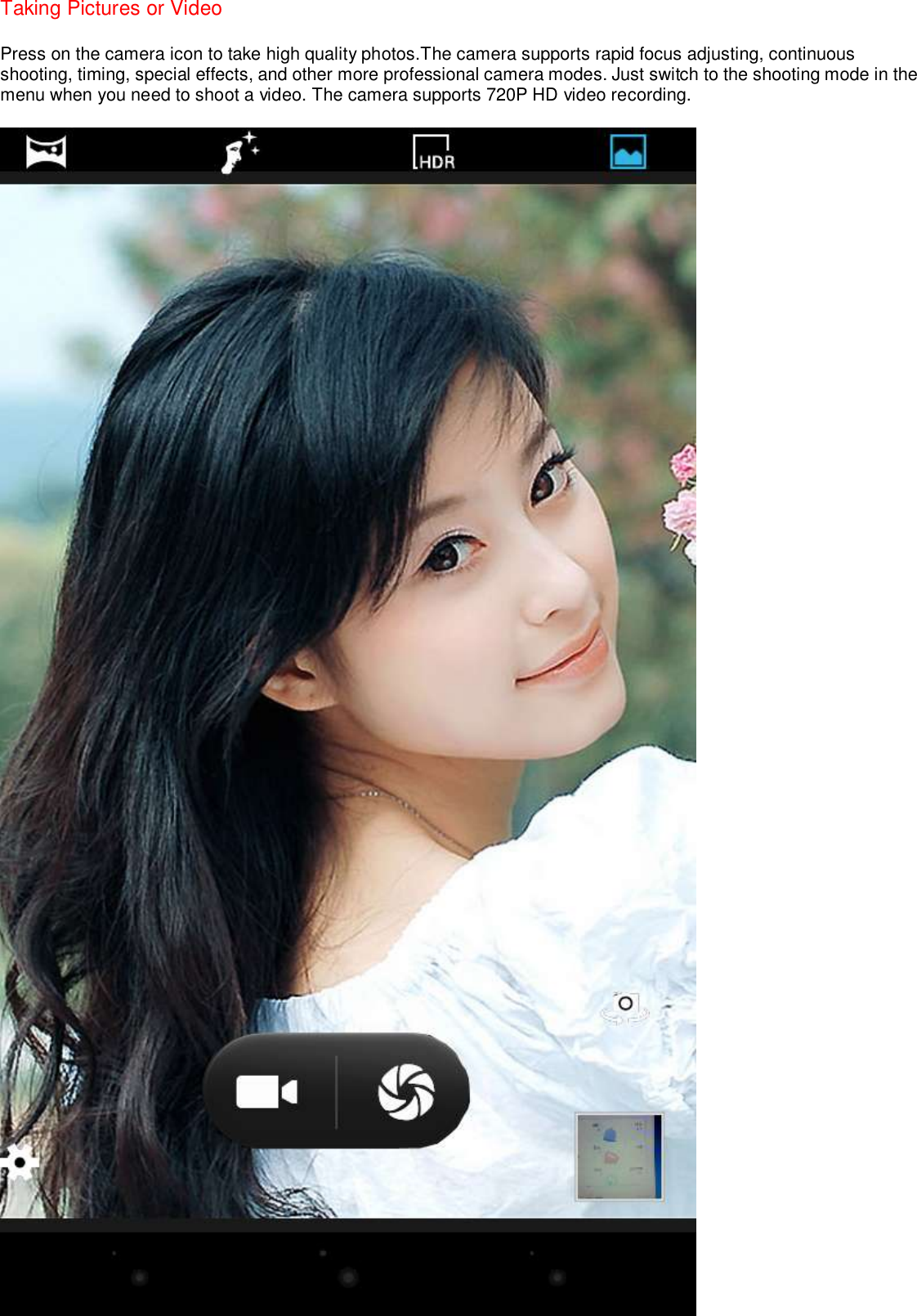
Taking Pictures or Video   Press on the camera icon to take high quality photos.The camera supports rapid focus adjusting, continuous shooting, timing, special effects, and other more professional camera modes. Just switch to the shooting mode in the menu when you need to shoot a video. The camera supports 720P HD video recording.
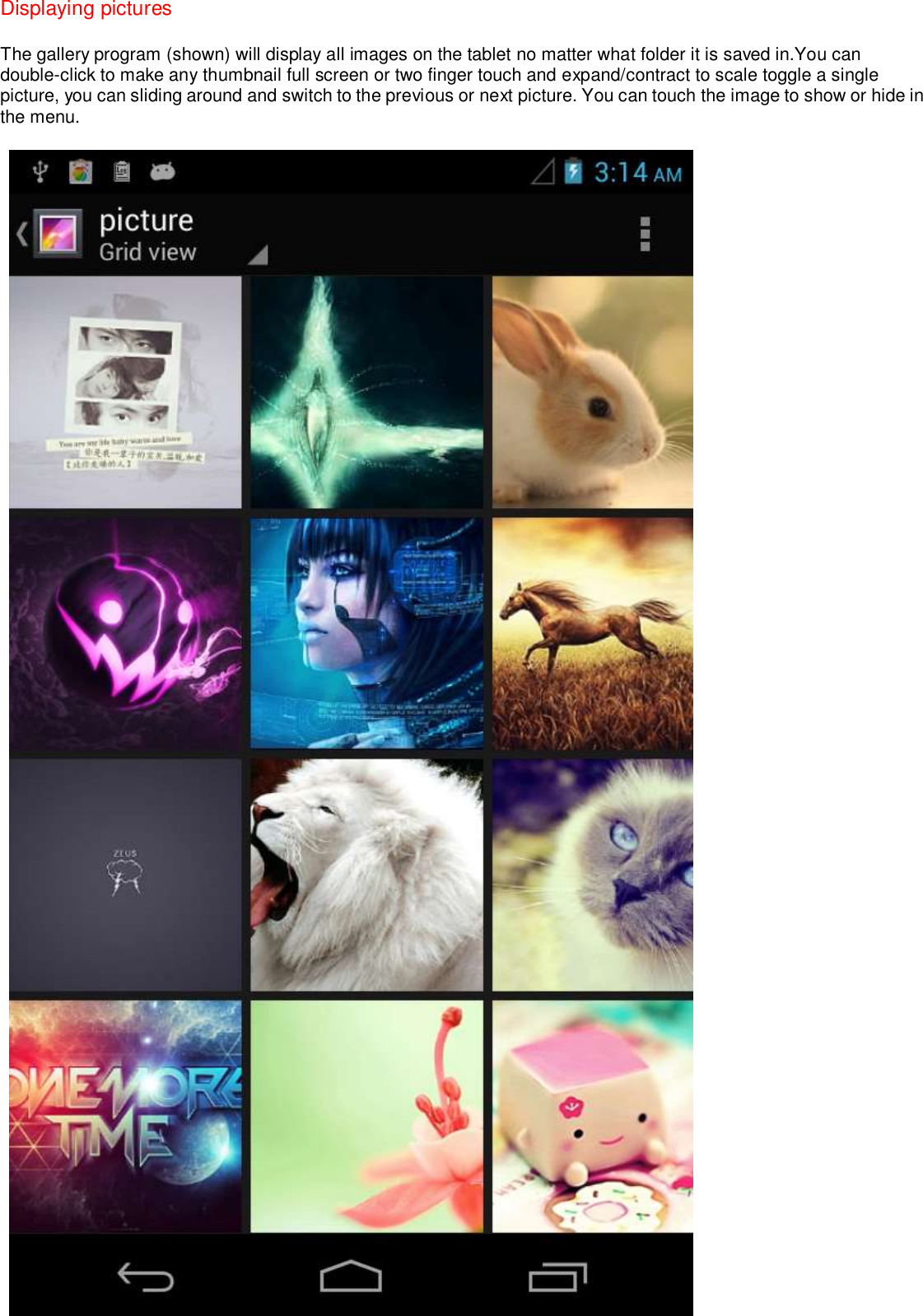
Displaying pictures The gallery program (shown) will display all images on the tablet no matter what folder it is saved in.You can double-click to make any thumbnail full screen or two finger touch and expand/contract to scale toggle a single picture, you can sliding around and switch to the previous or next picture. You can touch the image to show or hide in the menu.
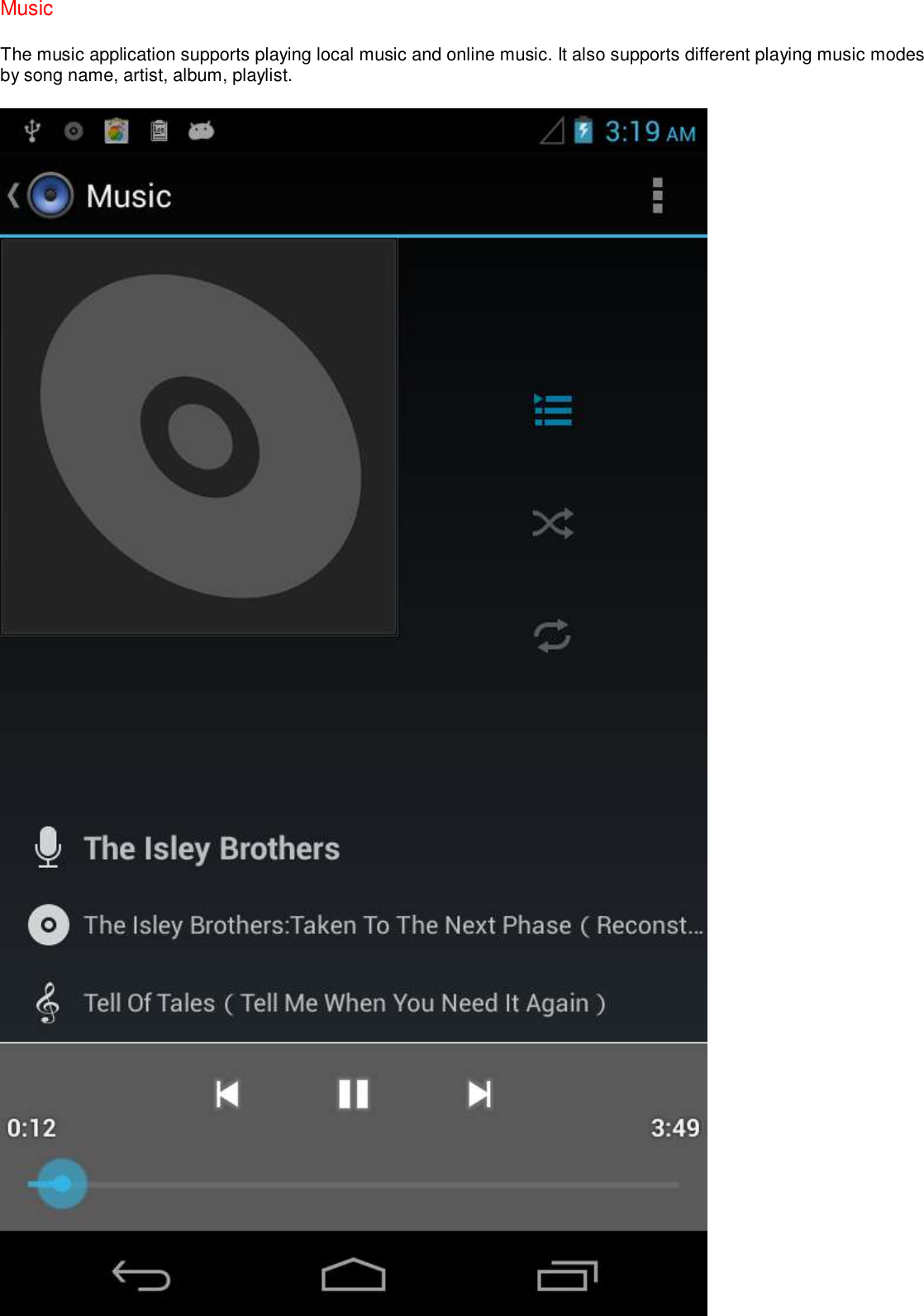
Music The music application supports playing local music and online music. It also supports different playing music modes by song name, artist, album, playlist.
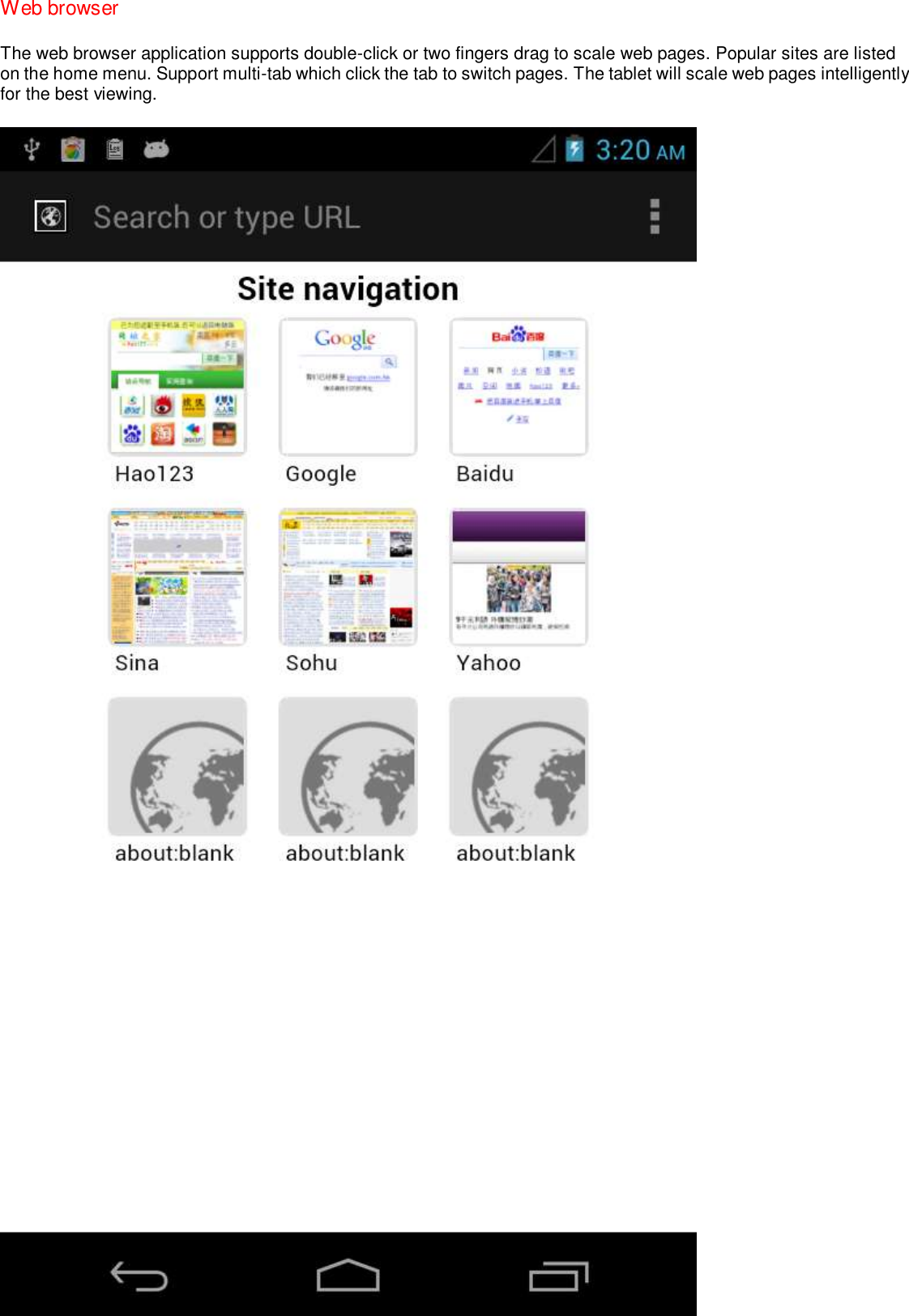
Web browser The web browser application supports double-click or two fingers drag to scale web pages. Popular sites are listed on the home menu. Support multi-tab which click the tab to switch pages. The tablet will scale web pages intelligently for the best viewing.
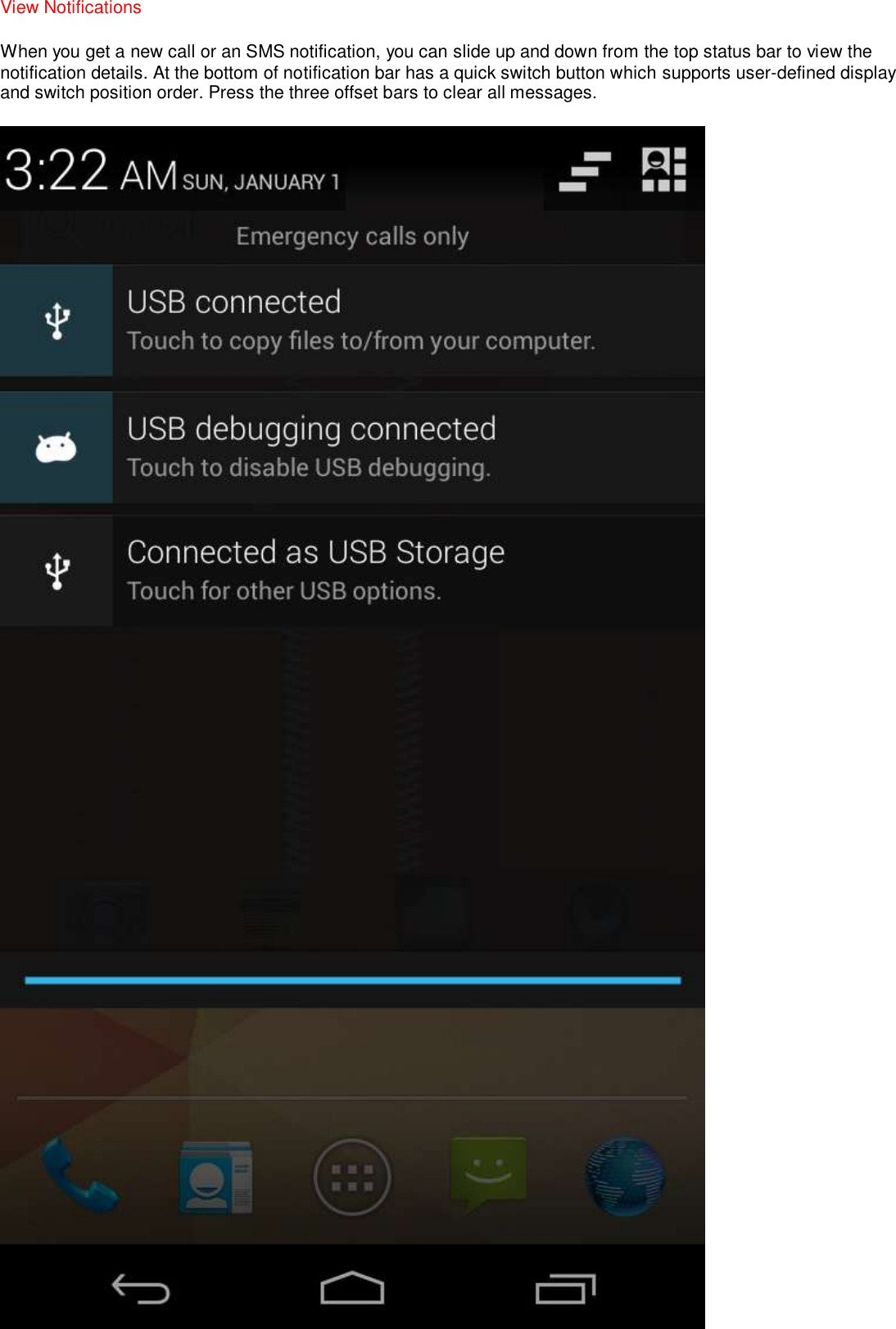
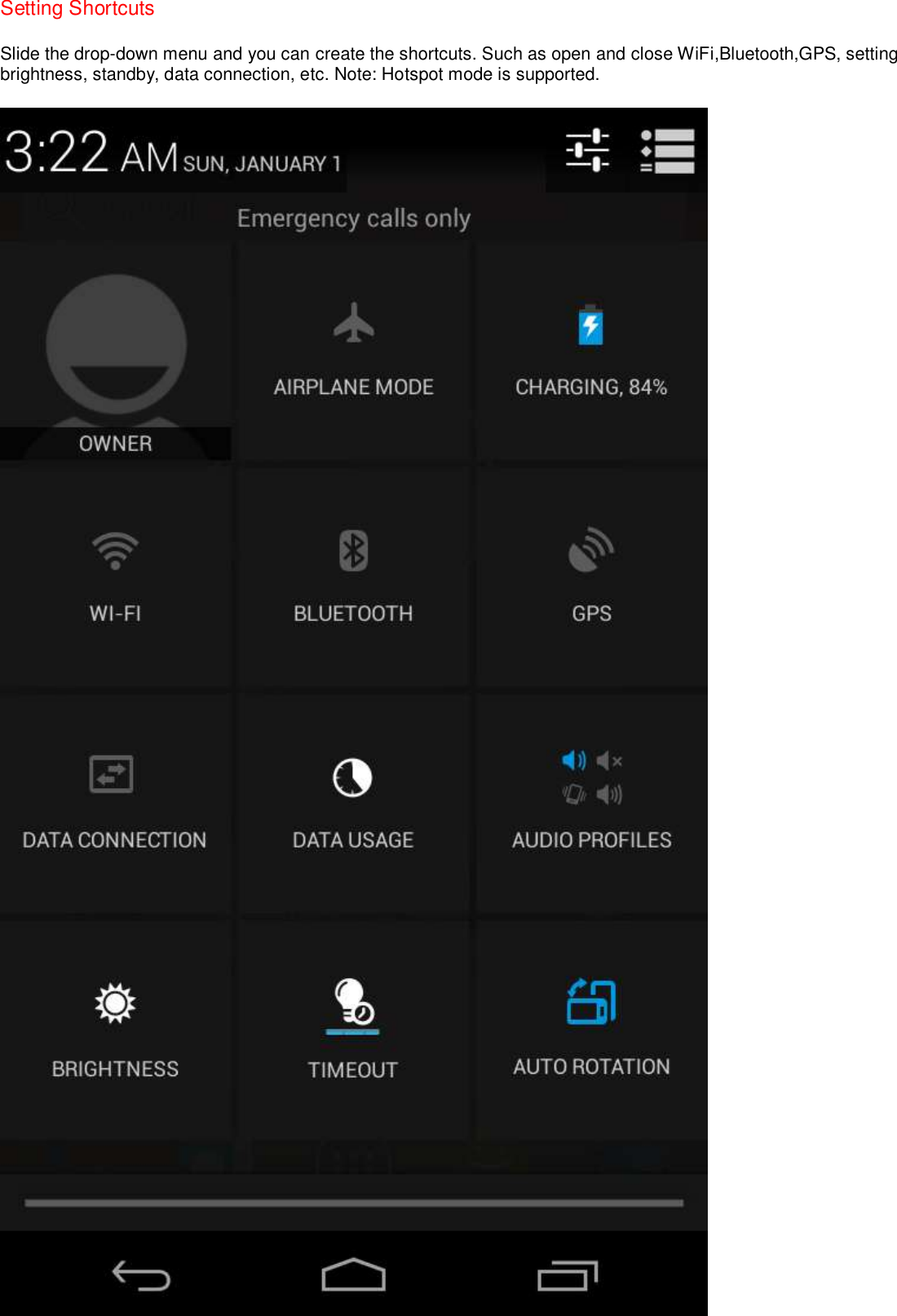
View Notifications   When you get a new call or an SMS notification, you can slide up and down from the top status bar to view the notification details. At the bottom of notification bar has a quick switch button which supports user-defined display and switch position order. Press the three offset bars to clear all messages.
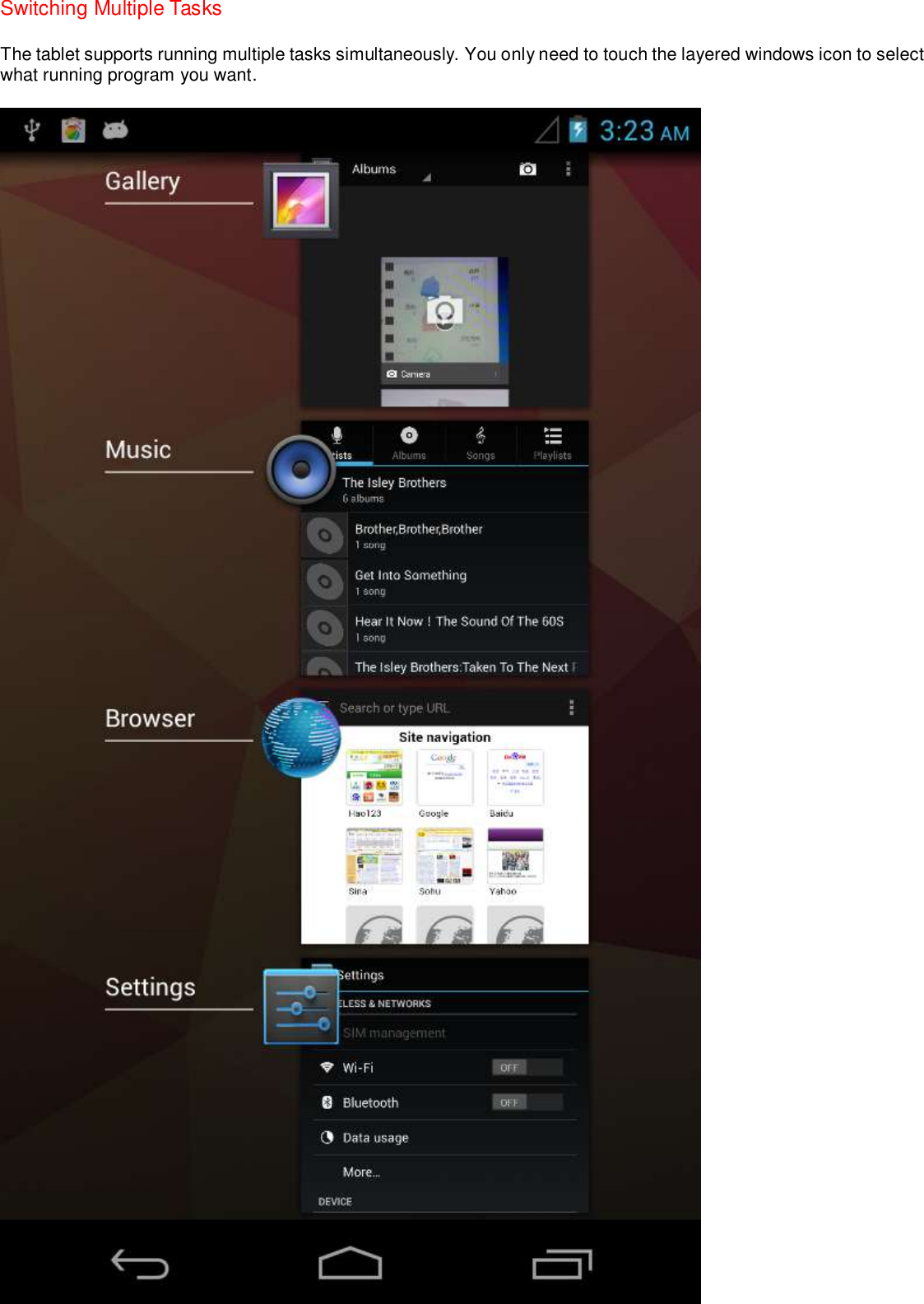
Switching Multiple Tasks The tablet supports running multiple tasks simultaneously. You only need to touch the layered windows icon to select what running program you want.
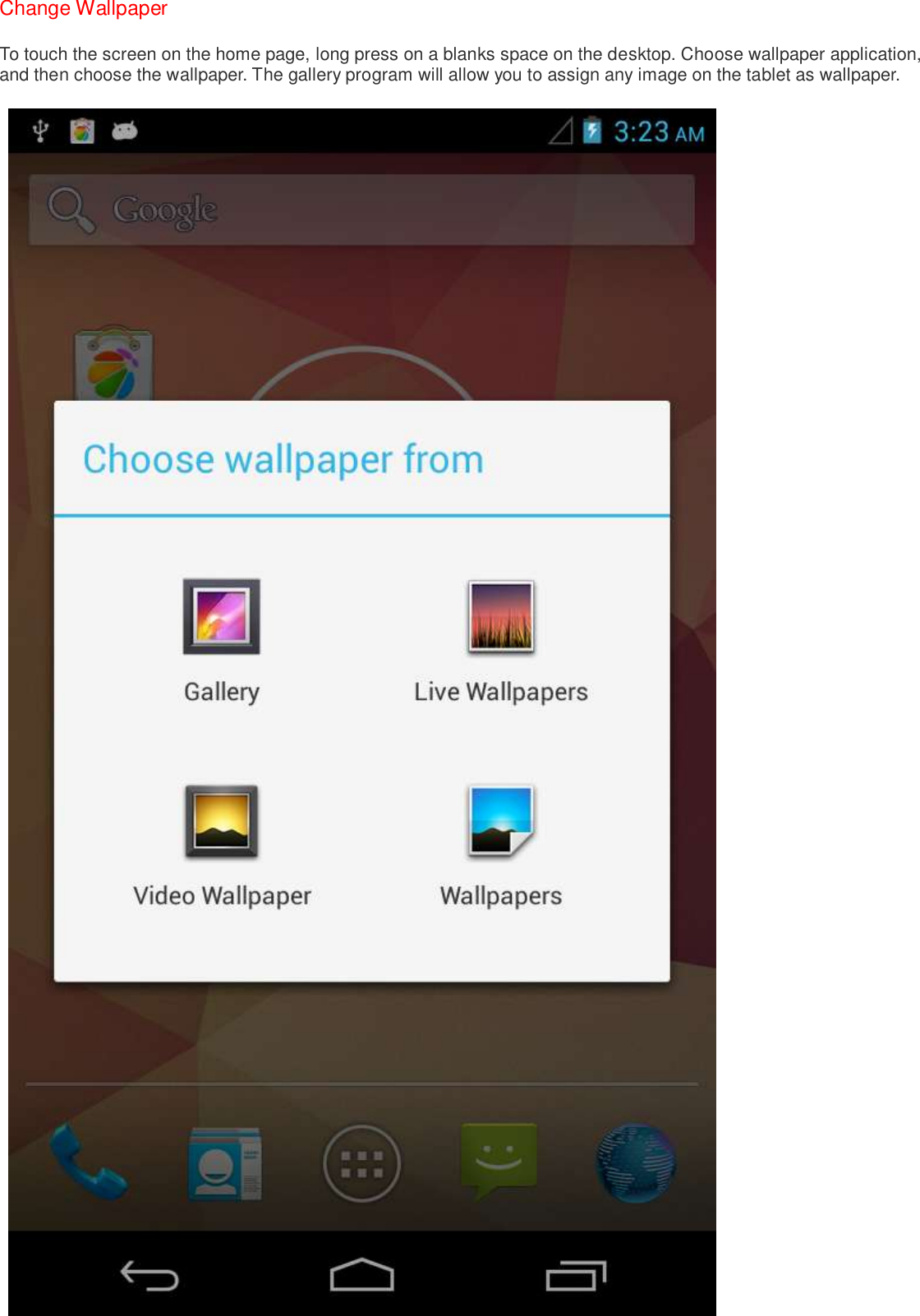
Change Wallpaper To touch the screen on the home page, long press on a blanks space on the desktop. Choose wallpaper application, and then choose the wallpaper. The gallery program will allow you to assign any image on the tablet as wallpaper.
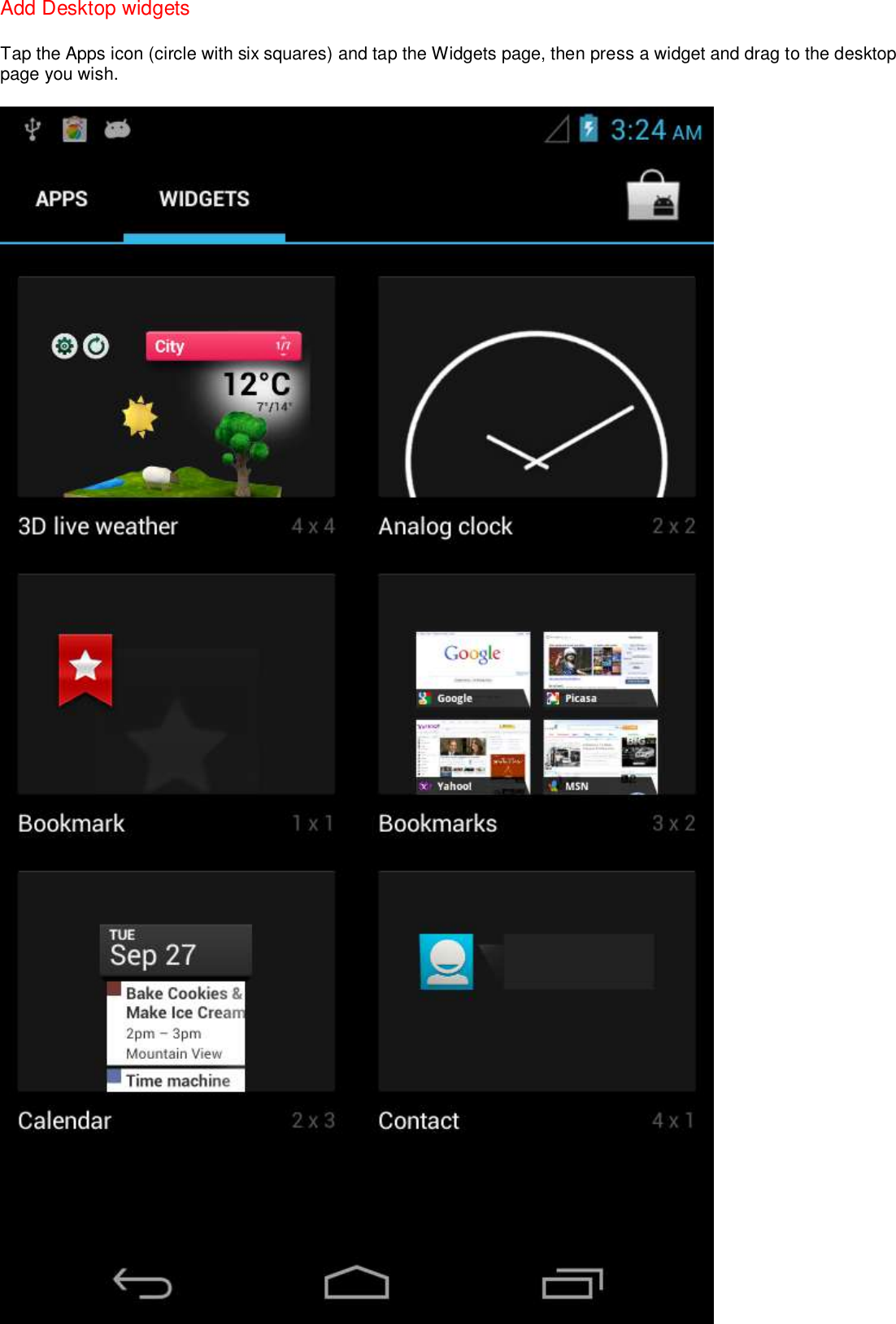
Add Desktop widgets Tap the Apps icon (circle with six squares) and tap the Widgets page, then press a widget and drag to the desktop page you wish.
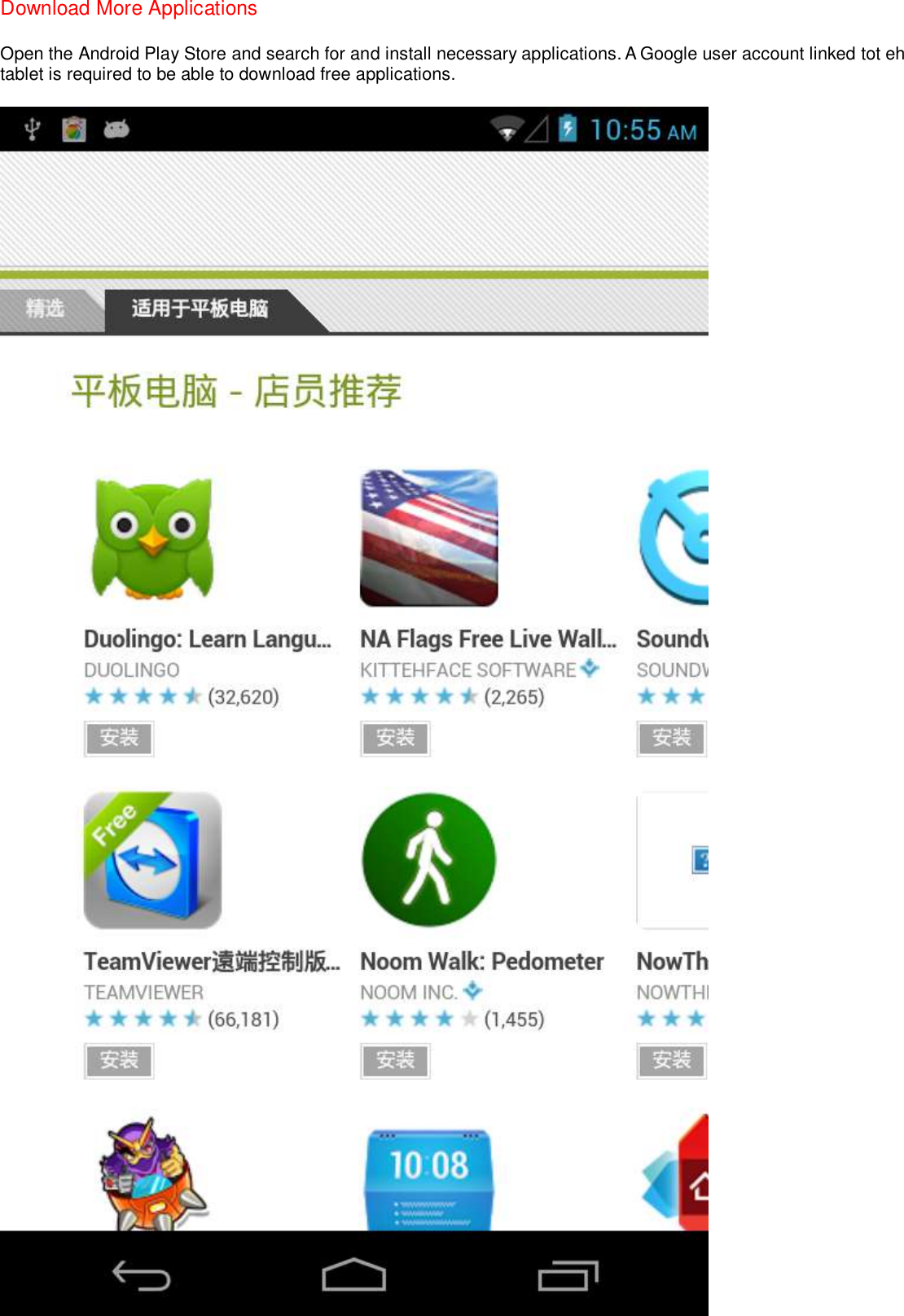
Download More Applications Open the Android Play Store and search for and install necessary applications. A Google user account linked tot eh tablet is required to be able to download free applications.
Setting Shortcuts Slide the drop-down menu and you can create the shortcuts. Such as open and close WiFi,Bluetooth,GPS, setting brightness, standby, data connection, etc. Note: Hotspot mode is supported.
 FCC RF EXPOSURE INFORMATION: WARNING!! Read this information before using your phone In August 1986 the Federal Communications Commission (FCC) of the United States with its action in Report and Outer FCC 96-326 adopted an updated safety standard for human exposure to radio frequency (RF) electromagnetic energy emitted by FCC  regulated  transmitters.  Those  guidelines  are  consistent  with  the  safety  standard  previously  set  by  both  U.S.  and international standards bodies. The design of this phone complies with the FCC guidelines  and these international standards. Use only the supplied or an approved antenna. Unauthorized antennas modifications, or attachments could impair call quality, damage the phone,  or result  in violation of  FCC  regulations. Do not use  the phone with a damaged  antenna. If  a  damaged antenna comes into contact with the skin, a minor burn may result. Please contact your local dealer for replacement antenna.  BODY-WORN OPERATION: This device was tested for typical body-worn operations with the back of the phone kept 0.5cm from the body. To comply with FCC RF exposure requirements, a minimum separation distance of 0.5cm must be maintained between the user's body and the back  of  the  phone,  including  the  antenna,  whether  extended  or  retracted.  Third-party  belt-clips,  holsters  and  similar accessories containing metallic components shall not be used. Body-worn accessories that  cannot  maintain  0.5cm  separation  distance  between  the  user’s  body  and  the  back  of  the  phone,  and  have  not  been tested for typical body-worn operations may not comply with FCC RF exposure limits and should be avoided. For more information about RF exposure, please visit the FCC website at www.fcc.gov  Your wireless handheld portable telephone is a low power radio transmitter and receiver. When it is ON, it receives and also sends out radio frequency (RF) signals. In August, 1996, the Federal Communications Commissions (FCC) adopted RF exposure guidelines  with  safety  levels  for  hand-held  wireless  phones.  Those  guidelines  are  consistent  with  the  safety  standards previously set by both U.S. and international standards bodies:  <ANSIC95.1> (1992) / <NCRP Report 86> (1986) / <ICIMIRP> (1996)  Those standards were based on comprehensive and periodic evaluations of the relevant scientific literature. For example, over 120 scientists, engineers, and physicians from universities, government health agencies, and industry reviewed the available body of research to develop the ANSI Standard (C95.1). Nevertheless, we recommend that you use a hands-free kit with your phone (such as an earpiece or headset) to avoid potential exposure to RF energy. The design of your phone complies with the FCC guidelines (and those standards).  Use  only  the  supplied  or  an  approved  replacement  antenna.  Unauthorized  antennas,  modifications,  or  attachments  could damage the phone and may violate FCC regulations.     RF Exposure Information: This product is compliance to FCC RF Exposure requirements and refer to FCC website search for FCC ID:  2ACHA-T71 to gain further information include SAR Values.     This device complies with part 15 of the FCC rules. Operation is subject to the following two conditions: (1) this device may not cause harmful interference, and (2) this device must accept any interference received, including interference that may cause undesired operation.
NOTE:  The  manufacturer  is  not  responsible  for  any  radio  or  TV  interference  caused  by  unauthorized  modifications  to  this equipment. Such modifications could void the user’s authority to operate the equipment. NOTE: This equipment has been tested and found to comply with the limits for a Class B digital device, pursuant to part 15 of the  FCC  Rules.  These  limits  are  designed  to  provide  reasonable  protection  against  harmful  interference  in  a  residential installation.  This  equipment  generates  uses  and  can  radiate  radio  frequency  energy  and,  if  not  installed  and  used  in accordance with the instructions, may cause harmful interference to radio communications. However, there is no guarantee that  interference  will  not  occur  in  a  particular  installation.  If  this  equipment  does  cause  harmful  interference  to  radio  or television reception, which can be determined by turning the equipment off and on, the user is encouraged to try to correct the interference by one or more of the following measures:   - Reorient or relocate the receiving antenna. - Increase the separation between the equipment and receiver. -Connect the equipment into an outlet on a circuit different from that to which the receiver is connected. -Consult the dealer or an experienced radio/TV technician for help       Do not use the device with the environment which below minimum -10℃  or over maximum 50℃, the device may not work.              Changes  or modifications  to this unit  not expressly approved by the party  responsible for  compliance  could void  the user’s authority to operate the equipment.  Ad Hoc function is supported but not able to operate on non-US frequencies.

Navigation menu