Shenzheh Svakom Sci Tceh SEVW-01 Wireless camera vibrator with WiFi function User Manual Siime EYE
Shenzheh Svakom Sci-Tceh Co.,LTD Wireless camera vibrator with WiFi function Siime EYE
Users Manual

Siime Eye 软件安装与使用说明
Software installation and User instruction for Siime Eye
www.svakom.net
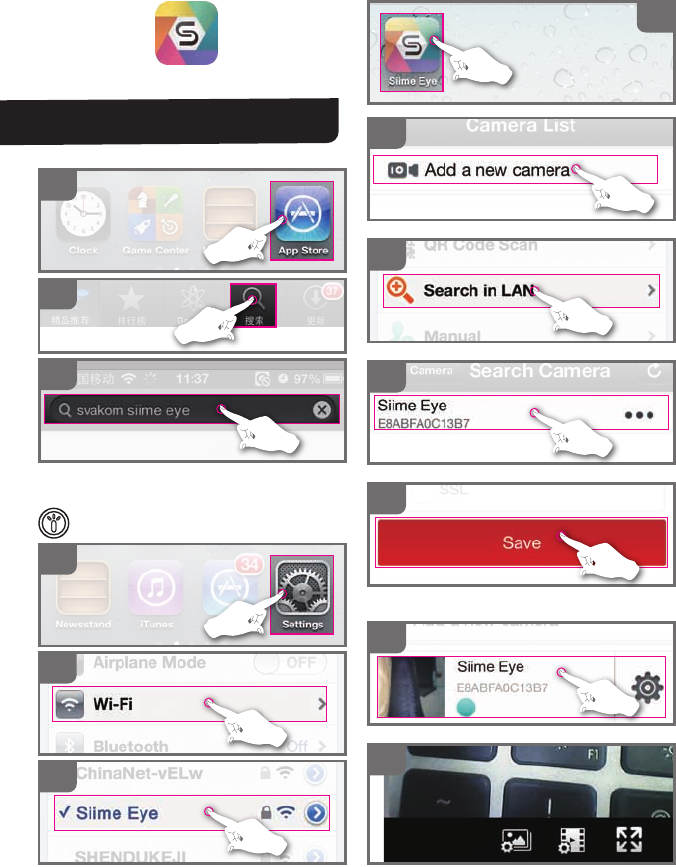
The mobile phone can be rotated 90 degrees to full screen viewing
09
10
04
05
06
07
08
It is not permitted to enter any
other information here, just select save option.
When using IOS system
● Download Software
A
C
B
Password: 88888888
● Watch the image
01
03
02
Install the software after download
Software installation and User
instruction for Siime eye
Continuously pressing the camera button on product for
2 seconds to turn on record function,wait 10 seconds till
light on camera button indicator light starts to flash
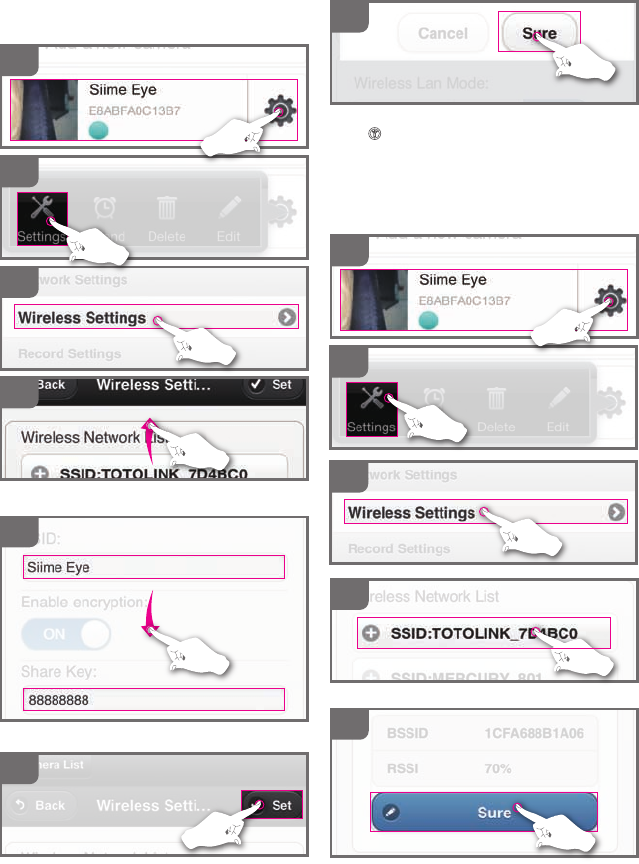
Swipe the screen As shown in Figure and seek out
SSID and shared key option box
After complete installation, wait about 10s till camera
button indicator light starts to flash,then connect the
WIFI under the name of new settings
● LAN link
Select your local LAN
09
10
14
08
11
12
● The mobile phone can be rotated 90 degrees
to full screen viewing
Please finish watching 1 to 7 operation in the images
08
09
10
11
13
12
Enter user name and pass word(must be eight num-
bers) then back to the top of page
This step will connected the wireless signal with your
local WIFI LAN; after the step completed, you can
watch the video shot by Siime Eye on the laptop while
surfing the internet.
Please assure to complete Step 1-7
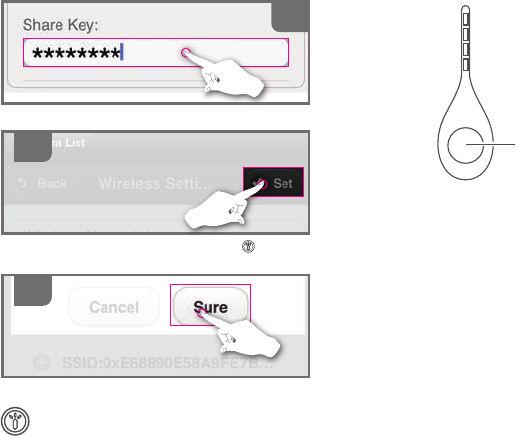
15
13
14
Continuously pressing the camera button on
product to turn off record function, then Contin-
uously pressing the camera button on product
to turn on record function
After three minutes
Wait about 10 seconds till camera button indicator
light evenly flash
“O”Key
Input the password for your local LAN
As long as the phone's wifi and LAN links to view
images
Note:
1. To ensure privacy, it is strongly recommended that
you use the phone to change the WIFI user name
and password before using the product.
2.If you change your user name and password,link
phone or Laptop’s WIFI by changed user name and
password.
3.Once Siime Eye successfully build up a connetion
with your local wifi LAN, you can use Siime eye if
your computer and notebook is conneted with your
WIFI LAN.
4. If there is any mistake in the process of debugging
and you do not know how to solve, you can press "O"
key for 12 seconds to restore the vibrator to the
factory settings.
A
B
C
D
E
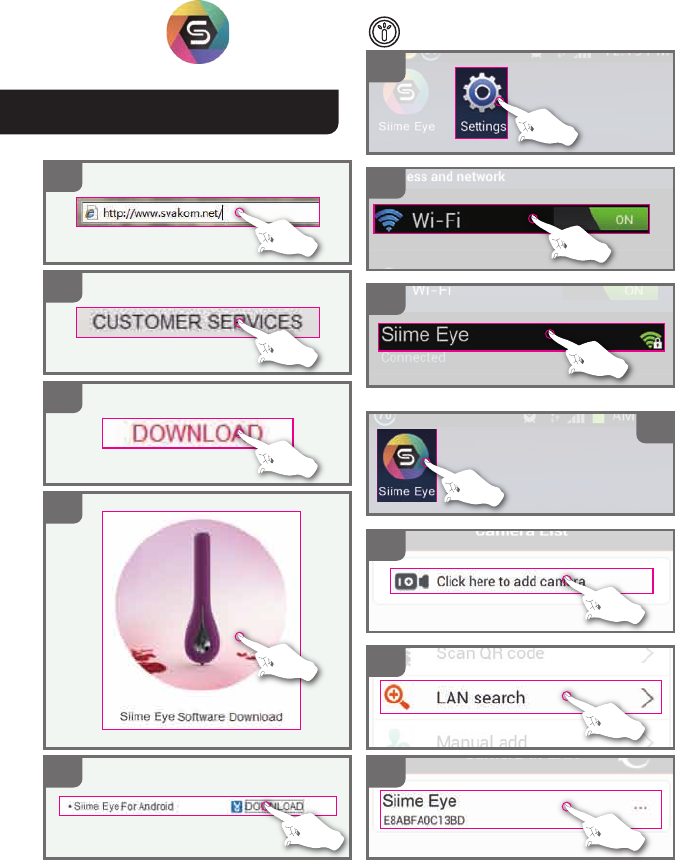
When using Android system
● Download Software
Install the software after download
Software installation and User
instruction for Siime eye
03
05
06
07
04
01
02
Password: 88888888
● Watch the image
Continuously pressing the camera button on product for
2 seconds to turn on record function,wait 10 seconds till
light on camera button indicator light starts to flash
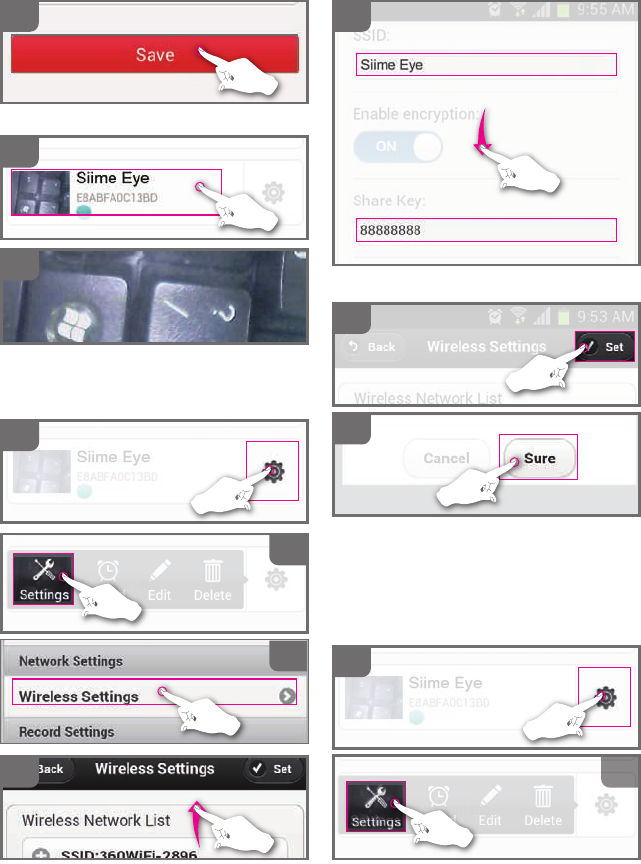
Swipe the screen As shown in Figure and seek out
SSID and shared key option box
08
09
10
11
08
09
10
It is not permitted to enter any other information here,
just select save option.
The mobile phone can be rotated 90 degrees to full
screen viewing
● Change wifi user name and password
Please finish watching 1to 7 operation in the images
13
12
14
08
09
Enter user name and pass word(must be eight numbers)
then back to the top of page
After complete installation, wait about 10s till camera
button indicator light starts to flash,then connect the
WIFI under the name of new settings
● LAN link
This step will connected the wireless signal with your
local WIFI LAN; after the step completed, you can
watch the video shot by Siime Eye on the laptop while
surfing the internet.
Please assure to complete Step 1-7
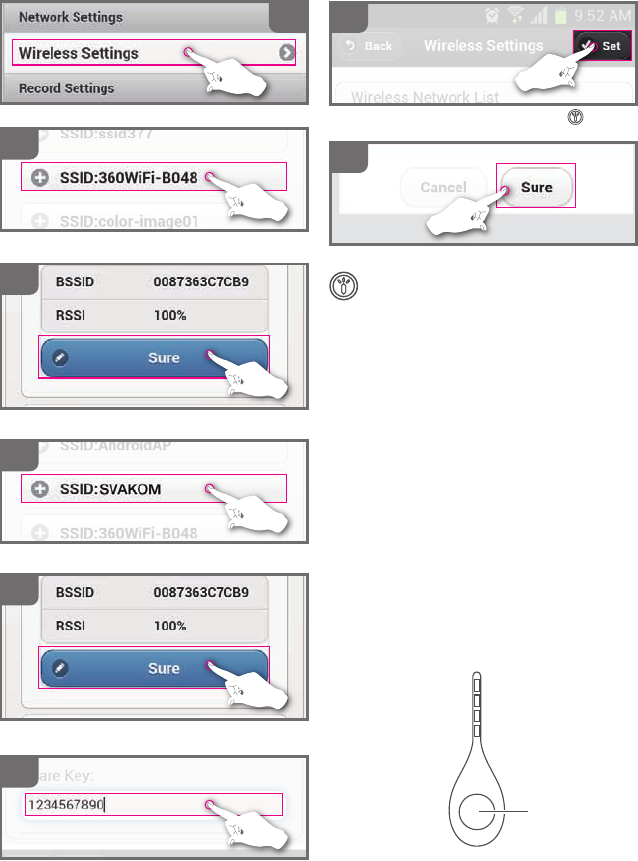
11
15
Select your local LAN
13
14
Select your LAN once again
Click again the OK button once again
12
Click confirm button
Input the password for your local LAN
16
17
Wait about 10 seconds till camera button indicator
light evenly flash
Continuously pressing the camera button on
product to turn off record function, then Con-
tinuously pressing the camera button on prod-
uct to turn on record function.
After three minutes
“O”key
As long as the phone's wifi and LAN links to view
images
Note:
1. To ensure privacy, it is strongly recommended that
you use the phone to change the WIFI user name and
password before using the product.
2.If you change your user name and password,link
phone or Laptop’s WIFI by changed user name and
password.
3.Once Siime Eye successfully build up a connetion
with your local wifi LAN, you can use Siime eye if your
computer and notebook is conneted with your WIFI
LAN.
4.If there is any mistake in the process of debugging
and you do not know how to solve, you can press "O"
key for 12 seconds to restore the vibrator to the
factory settings.
10
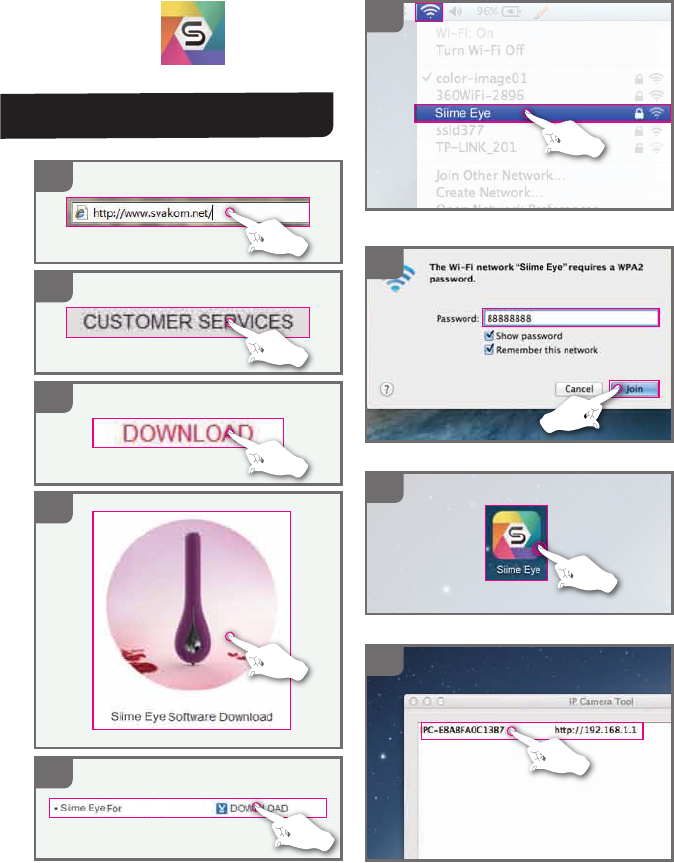
When using MAC
01
02
03
04
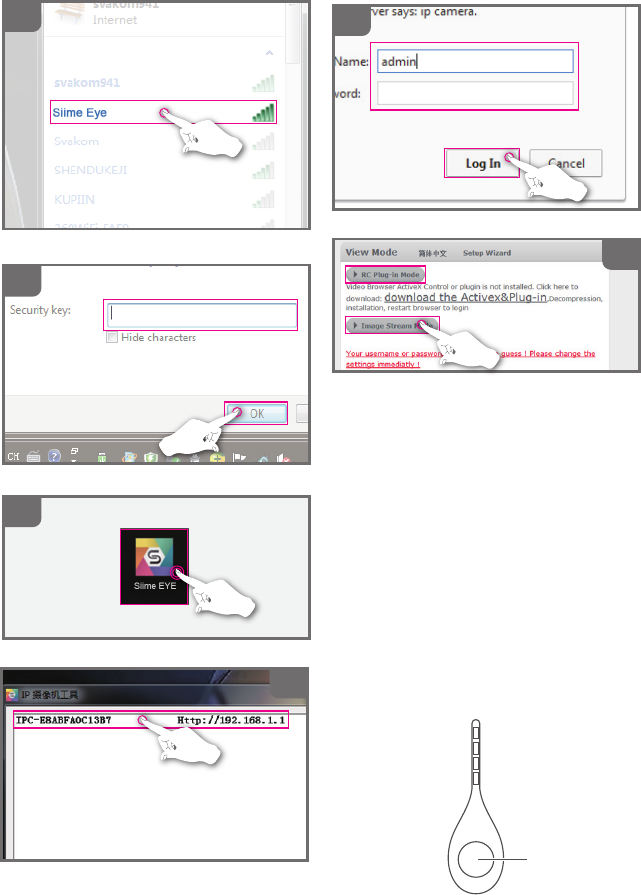
Link Siime Eye to MAC’S WIFI
Siime eye initial password for 88888888
Double click the Icon
Click here
Software installation and User
instruction for Siime eye
E
MAC
A
B
C
D
● Download Software
Install the software after download
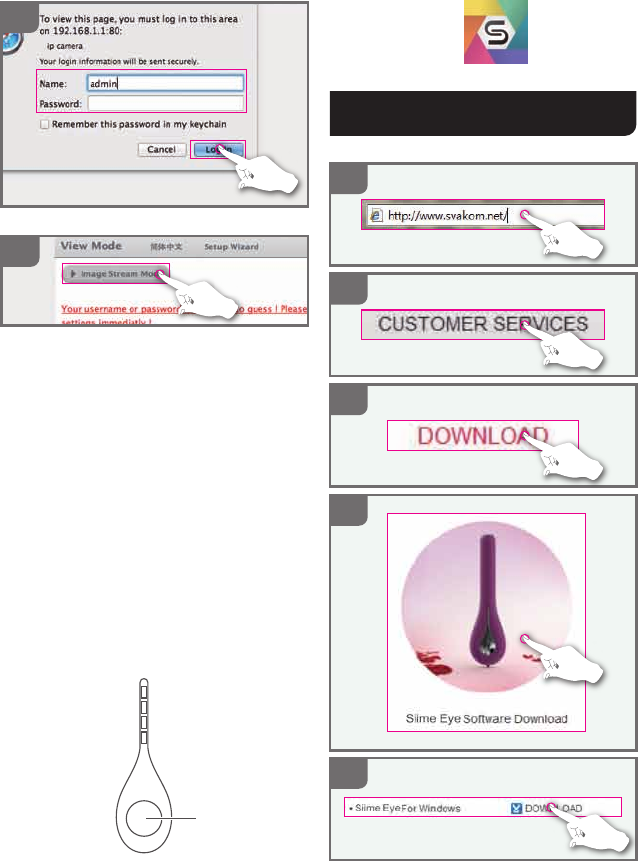
A
B
C
D
● Download Software
Install the software after download
06
05
Name: admin Password: (blank)
Click here to view image
“O”Key
When using Windows
Software installation and User
instruction for Siime eye
E
Note:
1. To ensure privacy, it is strongly recommended that
you use your phone to change the WIFI user name
and password before using the product.
2. If you change your user name and password, llink
phone or Laptop’s WIFI by changed user name and
password.
3. If you want to watch the video shot by Siime Eye on
the laptop while surfing the internet, please connect
Siime Eye with your local LAN by your phone and
input the name and password for such LAN. For
detailed steps for linking to LAN, please refer to LAN
link in Installment and Use Instructions to Siime Eye of
Android Users.
4.Once Siime Eye successfully build up a connetion
with your local wifi LAN, you can use Siime eye if your
computer and notebook is conneted with your WIFI
LAN.
5. If there is any mistake in the process of debugging
and you do not know how to solve, you can press "O"
key for 12 seconds to restore the vibrator to the
factory settings.
04
Siime Eye initial password for 88888888
01
02
03
Link Siime Eye to MAC’S WIFI
Double click the Icon
Click here
********
06
05
Name: admin Password: (blank)
Click here to view image
“O”Key
Note:
1. To ensure privacy, it is strongly recommended that
you use your phone to change the WIFI user name
and password before using the product.
2. If you change your user name and password, llink
phone or Laptop’s WIFI by changed user name and
password.
3. If you want to watch the video shot by Siime Eye on
the laptop while surfing the internet, please connect
Siime Eye with your local LAN by your phone and
input the name and password for such LAN. For
detailed steps for linking to LAN, please refer to LAN
link in Installment and Use Instructions to Siime Eye of
Android Users.
4.Once Siime Eye successfully build up a connetion
with your local wifi LAN, you can use Siime Eye if your
computer and notebook is conneted with your WIFI
LAN.
5. If there is any mistake in the process of debugging
and you do not know how to solve, you can press "O"
key for 12 seconds to restore the vibrator to the
factory settings.
About Siime Eye:
The Siime Eye is a wireless micro internal-camera vibrator and the updated version of the Siime. This product uses
a WIFI enabled internal-camera with state of the art visualization technology. Pictures and video are
transmitted wirelessly to a computer, smart phone or a tablet through WIFI broadcasted from the product itself.
The Siime Eye has 4 small LED lights that surround the rim of the built-in camera lens at the tip. The massager can
be wirelessly connected by installing an app on your computer or mobile phone, it can display what the
camera is seeing and allows you the option of saving pictures or video on to your computer or mobile phone.
The app allows you full control over the video recording and photograph functions. The Siime Eye’ s maximum
wireless distance is up to 30 Meters (100 Feet) and the Siime Eye can connect to more than one mobile phone
or computer simultaneously to give you more flexibility however you wish to use the Siime Eye. Finally, the Siime
Eye has 6 vibration modes, is 100% waterproof and its sleek design and size will surely help you enact all your
fantasies.
Repeat the S mode
Enhancing vibration
Weakening vibration
Enter into Last mode
Enter into Next mode
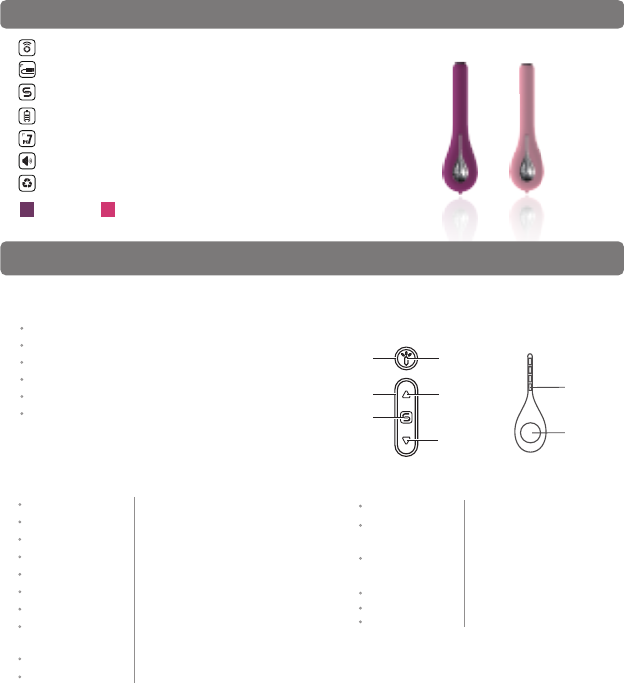
Double click "S" button (in S mode)
S mode Click the "S" key (in the non-S mode)
On/Off Press the "S" button for 2secs
Click the "△" key
Click "▽" key
Double-click "△" key
Double-click "▽" key
On/off camera
Power check
Reset
Press the button “O”
Press the button “O” for 10 secs and release
Press
the camera button (data cable
2.The basic functions of buttons
Working status
Vibrator OFF
Low battery
Charging status
Camera status
Lasting white light
White light flashes three times
contiguously and then turns off
Red light flashes three times
contiguously and then turns off
White light flashing
White light continuous bright
Charged fully Lasting white light
3. Status display
1.Vibrating mode
Normal mode
Caressing mode
Joyous mode
Passionate mode
Climax mode
SVAKOM mode(short for S mode)
(5 +1) Please visit www.svakom.net for complete User’s
Manual.
“S” Key
“▽” Key
“△” Key
Camera Key
LED
LED
“O” Button
Power LED
function
connected to the computer)
Before using your new SVAKOM product please clean it thoroughly using warm water and anti-bacterial soap and
ensure the battery is fully charged ( waterproof rating of which is IPX7)
Important:
Wireless Video Camera Vibrator
Quick USB Charging
SVAKOM Intelligent Mode
One Button Power Indicator
Fully submergible 100% waterproof
Whisper Quiet
Environmental Friendly Material
Pale PinkViolet
Product features:
FCC Caution:
Any changes or modifications not expressly approved by the party responsible for compliance could void
the user's authority to operate this equipment. This device complies with Part 15 of the FCC Rules. Operation is
subject to the following two conditions: (1) This device may not cause harmful interference, and (2) this device
must accept any interference received, including interference that may cause undesired operation.
he
NOTE:
This equipment has been tested and found to comply with the limits for a Class B digital device, pursuant to
Part 15 of the FCC Rules. These limits are designed to provide reasonable protection against harmful
interference in a residential installation. This equipment generates, uses and can radiate radio frequency
energy and, if not installed and used in accordance with the instructions, may cause harmful interference to
radio communications. However, there is no guarantee that interference will not occur in a particular
installation. If this equipment does cause harmful interference to radio or television reception, which can be
determined by turning the equipment off and on, the user is encouraged to try to correct the interference by
one or more of
the following measures:
-- Reorient or relocate the receiving antenna.
-- Increase the separation between the equipment and receiver.
-- Connect the equipment into an outlet on a circuit different from that to which the receiver is connected.
-- Consult the dealer or an experienced radio/TV technician for help.