Users Manual
.
BR06 Series Quick Guide【English】
1
or
2a 2b
DC IN
Note: The product’s colour and specications may vary from the actually shipping product. 53R-BR0603-H001
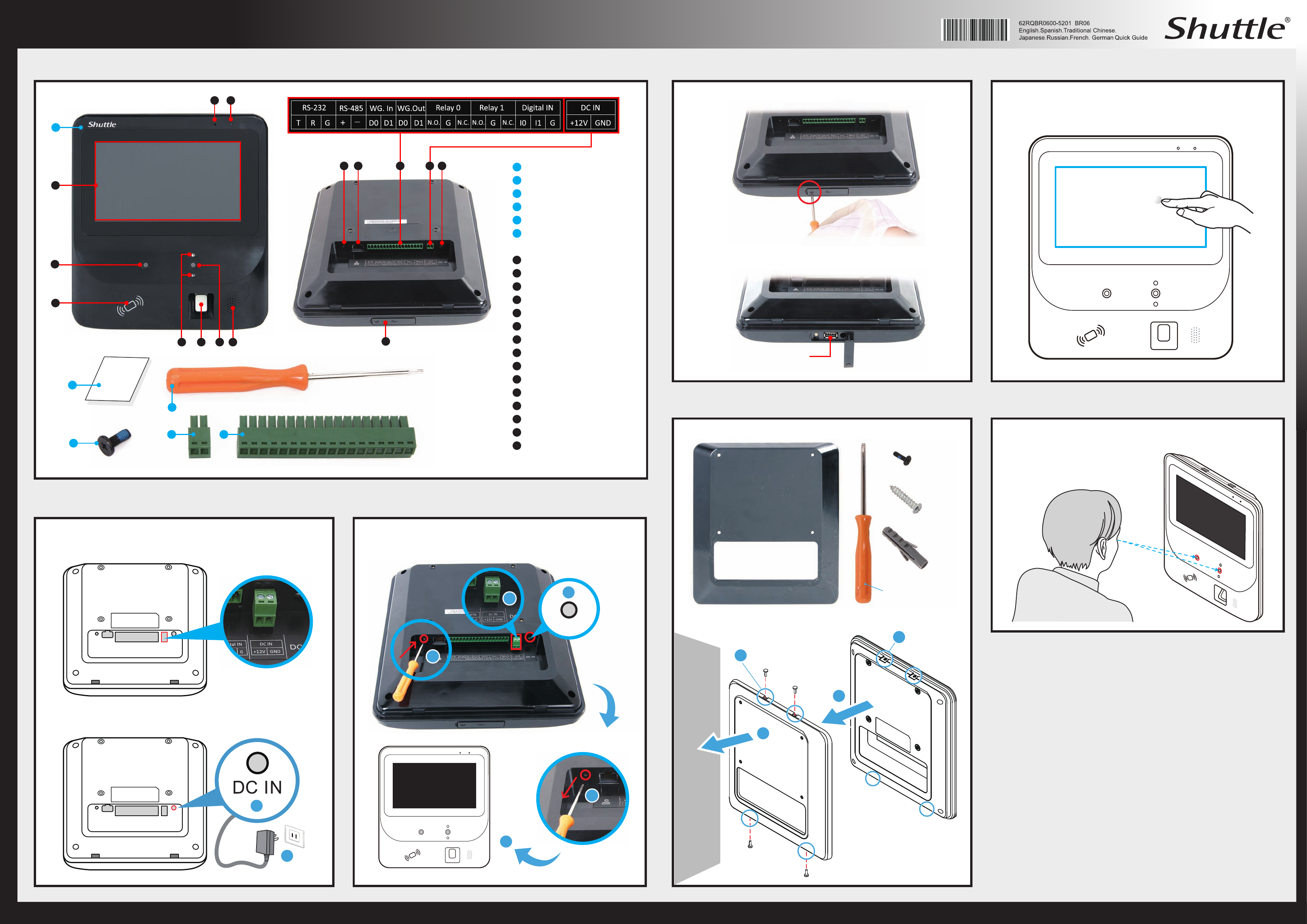
E Package Contents / Product Overview
A BR06
B Quick Guide
C VESA BKT Screw x4
D T6 Screwdriver
E 2-PIN Phoenix Connector
F 18-PIN Phoenix Connector
01 Power LED
02 Microphone
03 LCD Display (Single touch)
04 Colour Camera
05 Contactless Card Reader
06 IR LED
07 Fingerprint Reader
08 IR Camera
09 Speaker
10 DC-IN Jack
11 2-PIN DC-IN Jack
12 18-PIN Jack
13 LAN Port
14 Reset Button
15 USB 2.0 Port
0102
03
04
05
06 07 08 09
10121314
15
11
A
B
CE F
x 4
Quick
Guide
E Powering on the system
Method 1: Supply power by the 2-PIN DC-IN block connector.
Follow method 1 or method 2 to supply power and to autorun the system.
Method 2: Supply power by the wallsocket using the DC-IN jack.
(Optional PA24 accessory)
E Resetting the system
E Insert the USB E How to use the Touch Panel
BR06 brings digital life for an easy touch experience. Experience the ease of
managing your digital life with a few touches. The touch of your nger replaces
the mouse and is all you need to interact with the BR06.
E Wallmounting the BR06 (Optional PV06 accessory required) E Recommended standing distance from BR06
The BR06 covers a height of 140 cm, we recommend users to keep a distance
of 40 cm when standing in front of the BR06.
Wall mount kit ~ package contents
3
4
Remove four
rubber feet.
Fasten four screws.
2
x 4
x 4
x 4
1
2
1. As shown, unfasten the screw rst.
2. Open the cover and then insert the USB drive.
USB 2.0 Port
D
Press and hold the RESET button and plug in power for 5 seconds.
Release the RESET button for the system to automatically reset.
After 5 seconds
4
System has been
reset...
40cm
Follow the steps (1~4) to mount your BR06 to the wall.
3
T10 Screwdriver
1
Wall
Wall Mount
BR06
Wall Mount
E Safety Information
E Cleaning the screen
Follow these guidelines for cleaning the outside and handling the screen of the computer:
Turn off the system and disconnect all cables.
Use a damp, or cleaning cloth, soft, lint-free cloth with gentle water only and gently wipe
the screen surface.
Do not spray liquid directly on the screen.
Read the following precautions before setting up a Shuttle BR06.
CAUTION 1. Danger of explosion if battery is incorrectly replaced. Replace only with
the same or equivalent type recommended by the manufacturer.
Dispose of used batteries according to the manufacturer’s instructions.
CAUTION 2. Do not walk on the power cord or allow anything to rest on it.
Disassembly of BR06 products voids warranty.
Warning: This is a class A product. In a domestic environment this product may cause radio
interference in which case the user may be required to take adequate measure.
• This equipment has been tested and found to comply with the limits for a Class A
digital device, pursuant to part 15 of the FCC Rules. These limits are designed to
provide reasonable protection against harmful interference when the equipment is
operated in a commercial environment. This equipment generates, uses, and can
radiate radio frequency energy and, if not installed and used in accordance with the
instruction manual, may cause harmful interference to radio communications.
Operation of this equipment in a residential area is likely to cause harmful interference
in which case the user will be required to correct the interference at his own expense.