Shuttle KB10 Wireless Keyboard User Manual

Shuttle Inc. Wireless Keyboard

Users Manual

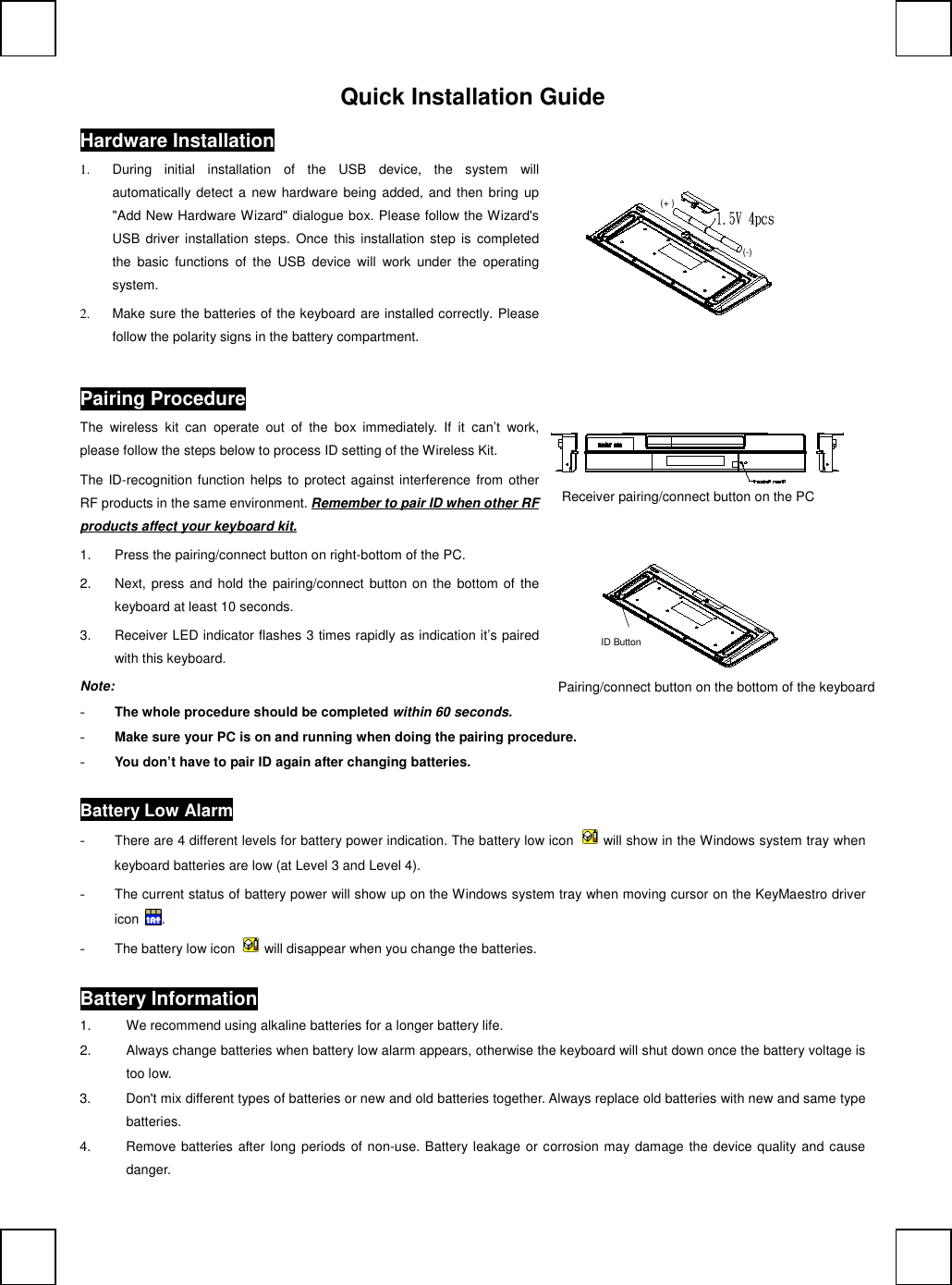
Quick Installation GuideHardware Installation             (+ )(-)1.  During  initial  installation  of  the  USB  device,  the  system  willautomatically detect  a  new hardware being  added, and then bring  up"Add New Hardware Wizard" dialogue box. Please follow the Wizard'sUSB driver  installation  steps.  Once  this  installation  step is  completedthe  basic  functions  of  the  USB  device  will  work  under  the  operatingsystem.2.  Make sure the batteries of the keyboard are installed correctly. Pleasefollow the polarity signs in the battery compartment.Pairing ProcedureThe  wireless  kit  can  operate  out  of  the  box  immediately.  If  it  can’t  work,please follow the steps below to process ID setting of the Wireless Kit.The ID-recognition function helps to protect against interference  from otherRF products in the same environment. Remember to pair ID when other RFproducts affect your keyboard kit.1.  Press the pairing/connect button on right-bottom of the PC.2.  Next, press and hold the pairing/connect  button on the bottom of thekeyboard at least 10 seconds.3.  Receiver LED indicator flashes 3 times rapidly as indication it’s pairedwith this keyboard.                 Note:- The whole procedure should be completed within 60 seconds.- Make sure your PC is on and running when doing the pairing procedure.- You don’t have to pair ID again after changing batteries.Battery Low Alarm- There are 4 different levels for battery power indication. The battery low icon  will show in the Windows system tray whenkeyboard batteries are low (at Level 3 and Level 4).- The current status of battery power will show up on the Windows system tray when moving cursor on the KeyMaestro drivericon  .- The battery low icon  will disappear when you change the batteries.Battery Information1.  We recommend using alkaline batteries for a longer battery life.2.  Always change batteries when battery low alarm appears, otherwise the keyboard will shut down once the battery voltage istoo low.3.  Don't mix different types of batteries or new and old batteries together. Always replace old batteries with new and same typebatteries.4.  Remove batteries after long periods of non-use. Battery leakage or corrosion may damage the device quality and causedanger.Pairing/connect button on the bottom of the keyboardReceiver pairing/connect button on the PCID Button
FCC INFORMATIONThe Federal Communication Commission Radio Frequency Interference Statement includes the following paragraph:The equipment has been tested and found to comply with the limits for a Class B Digital Device, pursuant to part 15 of theFCC Rules. These limits are designed to provide reasonable protection against harmful interference in a residential installation. Thisequipment generates, uses and can radiate radio frequency energy and, if not installed and used in accordance with the instruction,may cause harmful interference to radio communication. However, there is no grantee that interference will not occur in a particularinstallation. If this equipment dose cause harmful interference to radio or television reception, which can be determined by turning theequipment off and on , the user is encouraged to try to correct the interference by one or more of the following measures:--Reorient or relocate the receiving antenna.--Increase the separation between the equipment and receiver.--Connect the equipment into an outlet on a circuit different from that to which the receiver is connected.--Consult the dealer or an experienced radio/TV technician for help.NOTE:The changes or modifications not expressly approved by the party responsible for compliance could void the user’s authority tooperate the equipment.To comply with the FCC RF exposure compliance requirements, this device and its antenna must not be co-located or operating toconjunction with any other antenna or transmitter.English9029URF Shuttle QIG 3100506820 Version 1.0  英文

Navigation menu