Siemens Austria BLUE2NET Bluetooth LAN Access Point - blue2net User Manual Safety precautions
Siemens AG Austria Bluetooth LAN Access Point - blue2net Safety precautions
user manual
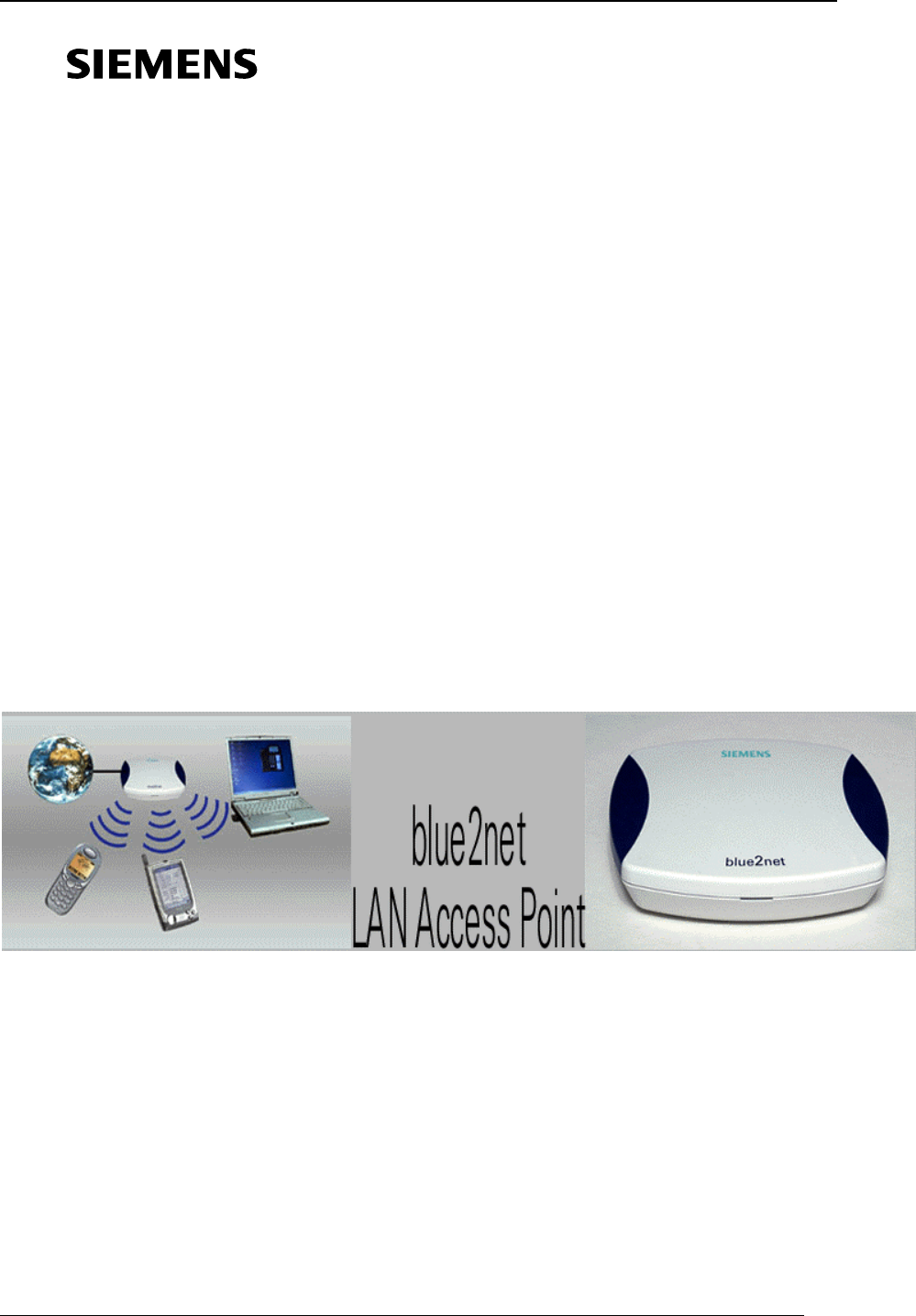
User Guide PRELIMINARY !
- 1 -
Preliminary
2002-02-15
User Guide
and notes on safety 7
77
7

Safety precautions PRELIMINARY !
- 2 -
Safety precautions
• Only use the power supply unit provided with this device,
numbered as follows !:
part number: N4 EFS3 3W 4.4V (EU-variant !)
N4 GFS3 3W 4.4V (UK-variant !)
N4 UFS3 3W 4.4V (US-variant !)
• The socket outlet for the power supply shall be installed near to the
device and shall be easily accessible by the user.
• Medical equipment can be affected by the use of the device.
Observe the conditions in your environment (e.g. doctor's practice).
• Do not install the blue2net in bathrooms or shower rooms.
• Do not operate the device in environments where there is risk of
explosion (e. g. paint shops).
• Ensure that the operating instructions are included when passing on
your blue2net to a third party.
• Dispose of device in an environmentally friendly manner.
• The devices should not be opened under any circumstances. Any
modifications will invalidate its approval for use.

Contents PRELIMINARY !
- 3 -
Contents
User Guide 1
Safety precautions 2
Contents 3
Legal Notices 5
Quick Install 6
Connecting blue2net..........................................................................................................................6
Using blue2net....................................................................................................................................7
Accessing blue2net.............................................................................................................................7
Default Settings..................................................................................................................................7
Product Overview 9
Package Contents...............................................................................................................................9
Views of blue2net...............................................................................................................................9
Explanation of LED...........................................................................................................................9
Installation notes................................................................................................................................9
blue2net Web Interface 10
Accessing the Web Interface...........................................................................................................10
Bluetooth Paramter Setting ............................................................................................................12
blue2net IP Setting...........................................................................................................................13
Bluetooth Terminal IP Setting........................................................................................................14
Activation Configuration ................................................................................................................15
Save your Settings ........................................................................................................................................15
Restart blue2net ............................................................................................................................................15
Software Upgrade.........................................................................................................................................15
Default Settings ............................................................................................................................................15
Configuration Access.......................................................................................................................15
Troubleshooting 16
Regulatory Statement 17
General .............................................................................................................................................17
European Union (EU) and EFTA Member States........................................................................17
United States of America (USA).....................................................................................................18
Bluetooth Trademark 18
Appendix 19
Technical Data .................................................................................................................................19
Parameters .......................................................................................................................................20
Bluetooth Parameter Explanation .................................................................................................................20
blue2net IP Parameter Explanation...............................................................................................................21
Service...............................................................................................................................................22


Legal Notices PRELIMINARY !
- 5 -
Legal Notices
tbd.
Quick Install PRELIMINARY !
- 6 -
Quick Install
Connecting blue2net
For quick installation on a TCP/IP based, Ethernet network, follow the instructions
below.
The blue2net supports DHCP server management and terminal IP address
management. By default, the IP address of the blue2net , as well as the IP adresses
of the Bluetooth terminals, are set automatically. No configuration is therefore
necessary and you can follow the instructions below.
If you do not have a DHCP server, IP addresses must be assigned manually. Please
go through the instructions 1-2 below and the refer to " blue2net Web Interface ".
1. Connect first to the network with an Ethernet cable and then to the power
supply unit.
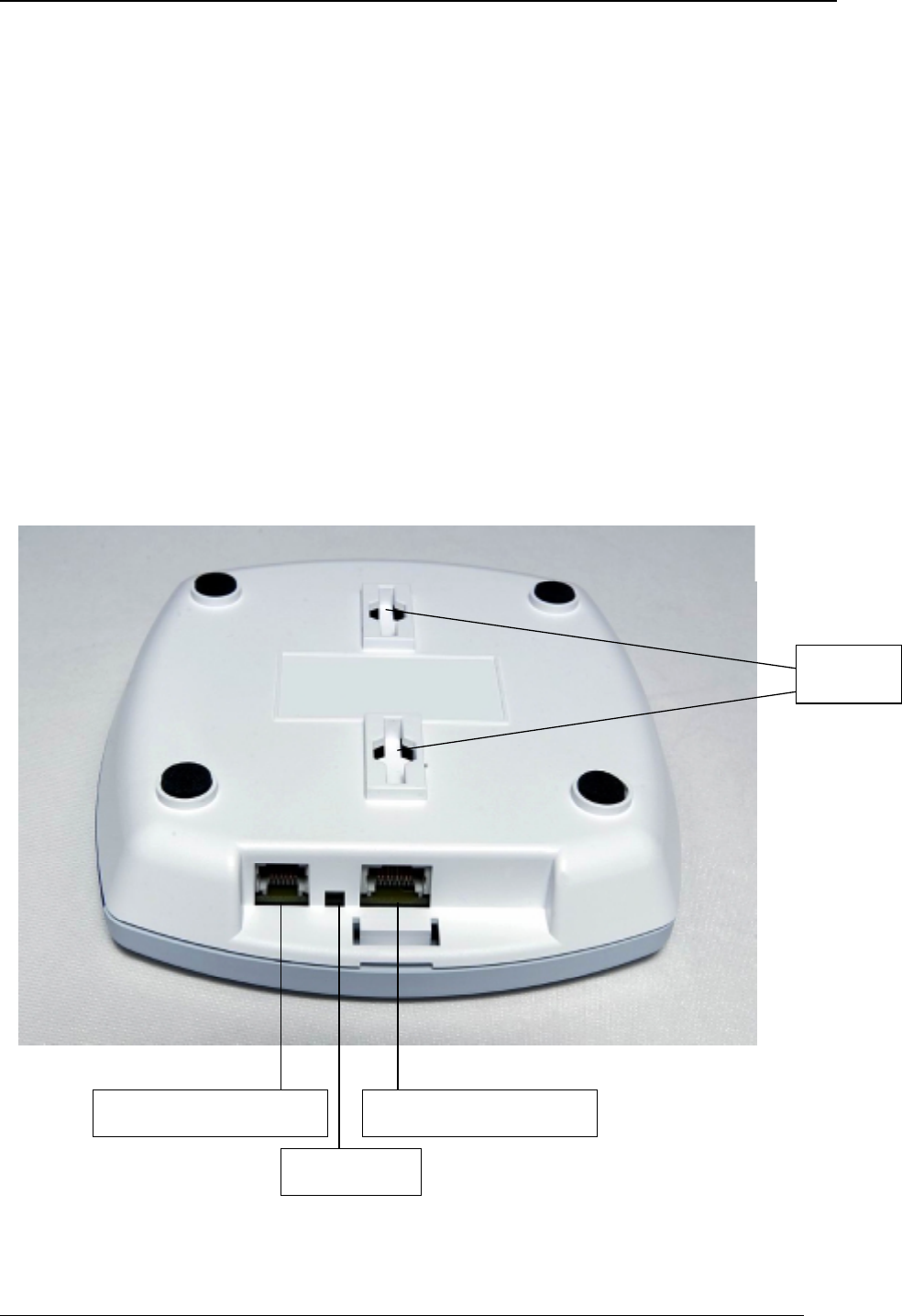
2. Check after about 30 seconds if the indicator LED displays a steady green
light.
Power Supply Connector Ethernet Cable Connector
Indicator LED
Mounting
Holes

Quick Install PRELIMINARY !
- 7 -
Notice: for the first configuration it can last about 2 minutes if you are not
connected to DHCP server.
Your blue2net is now ready to use.
Using blue2net
Make sure that your Bluetooth terminal, such as a Laptop or a PDA, operates with
this technology and is fully compliant for LAN access profile.
Follow the steps in the User Guide of your Bluetooth terminal.
On principle just do the following steps:
• Start the Bluetooth application on your terminal
• Make an inquiry and scan for Bluetooth devices
• Choose your blue2net from the list of alternatives and connect
• By default, the Bluetooth Passkey ist set to '1234' on blue2net. This means if a
log on window appears on your terminal before you have set up a Bluetooth
connection, the Bluetooth
Accessing blue2net
First, it is necessary to deactivate the proxy server on the Web browser of your PDA
or Laptop. Then you can access the internal Web interface by typing
https://192.168.2.2 in the location field of your Web browser. This is the default IP
address. If you have changed the IP address before, use it correspondingly.
Default Settings
The blue2net comes with following factory settings. all of these settings are
changeable.
Setting Factory Setting Needs to be changed
Name blue2net
Type (Profile) LAN Access
Server Channel 2
Multipoint Mode enabled
Discoverability Mode discoverable
Connectability Mode connectable
Max Terminals Connected 7
Default Access Mode yes
blue2net IP Address 192.168.2.2
blue2net Netmask 255.255.255.0
TerminalDnsSrv1 192.168.3.11
TerminalDnsSrv2 192.168.3.12
TerminalWinsSrv1 192.168.3.13
TerminalWinsSrv2 192.168.3.14
TerminalDomainName my.domain.at
blue2net GateWay 192.168.2.254
Password changeme Yes, for security

Quick Install PRELIMINARY !
- 8 -
Default Pin Key 1234 Yes, for security

Product Overview PRELIMINARY !
- 9 -
Product Overview
Package Contents
• 1 blue2net
• 1 power supply unit, EU-variant: N4 EFS3 3W 4.4V
or 1 power supply unit, UK-variant: N4 GFS3 3W 4.4V
or 1 power supply unit, US-variant: N4 UFS3 3W 4.4V
• 1 booklet, blue2net User Guide
• 4 adhesive rubber feet
• 2 screws and 2 dowels
Views of blue2net
Explanation of LED
Behavior Explanation
Not lit No power
Fast flashing Starting up
Slow flashing Trying to get ethernet connection
Steady green Ready for operation
Installation notes
• Install only in covered areas with a temperature range of 0 to +40 °C (+32 to
+104°F)
• A 220/230V~ (110/120V~) mains socket and ethernet connection must be
available nearby were blue2net is installed and shall be easily accessible.
• Only use the original power supply, delivered in the package.
• Install it in a central location, e.g. in a hallway. Try to avoid placing the blue2net
where the Bluetooth radio signals can be shadowed by nearby obstacles.
• The installation site should not be located in the immediate vicinity of other
devices, such as microwave ovens, that use the same or adjacent frequencies.
• The blue2net can be placed horizontally on a flat, but non slipery, surface or
mounted on a wall or ceiling. Do not stand it directly on the floor.
• The device feet do not leave marks on the installation surface. However, due to
the variety of varnishes and polishes in use, marks could be left at points of
contact.
blue2net Web Interface PRELIMINARY !
- 10 -
blue2net Web Interface
blue2net supports a built-in Web server with a Web interface for configuration of
parameters, checking the settings and device information, and also performing a
software upgrade.
Accessing the Web Interface
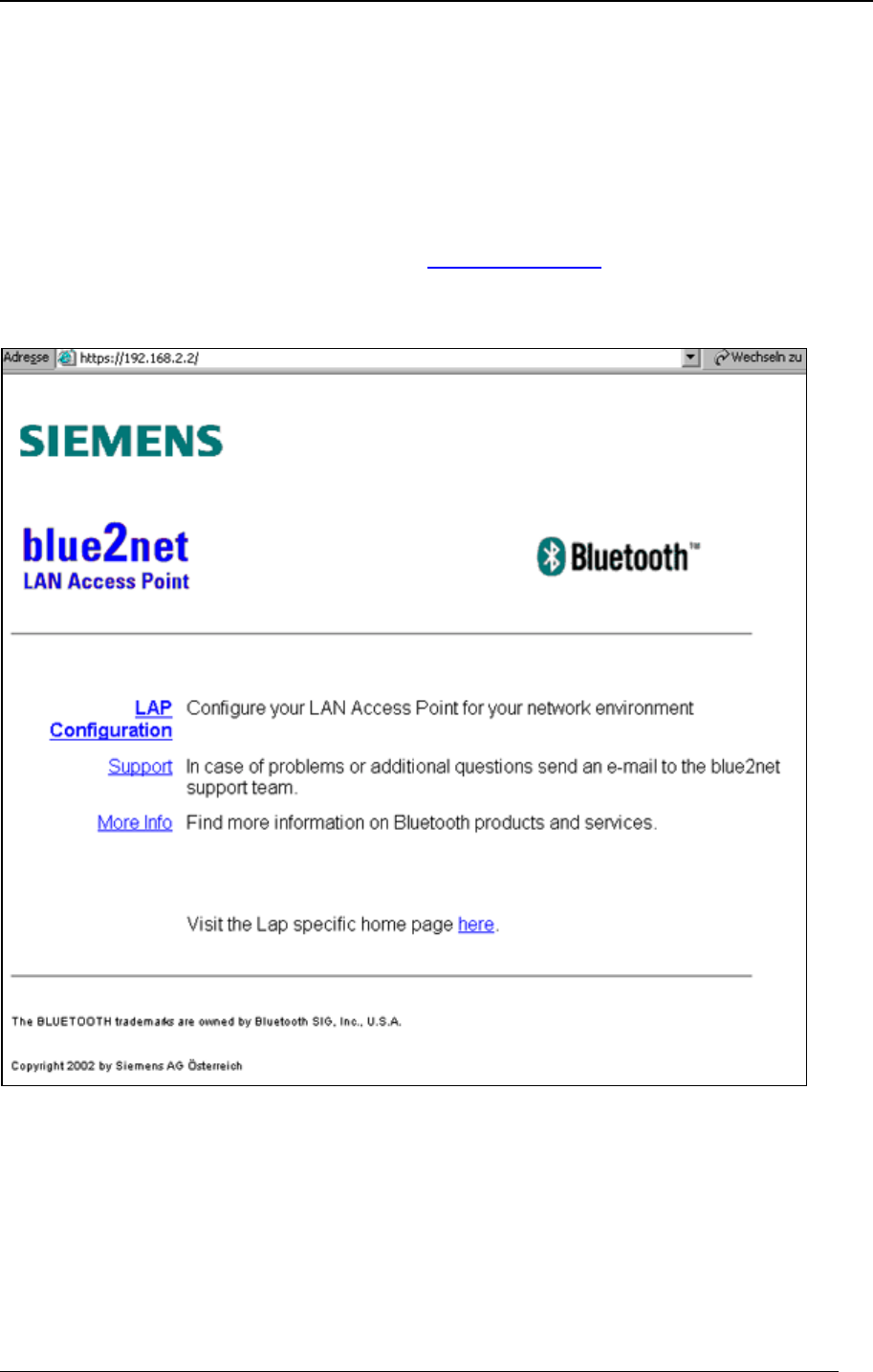
To access the Web interface, simply type https://192.168.2.2 (or if you have already
changed the blue2net IP address, respectivly) in the location field of a Web browser.
You will see the following page:
blue2net Web Interface PRELIMINARY !
- 11 -
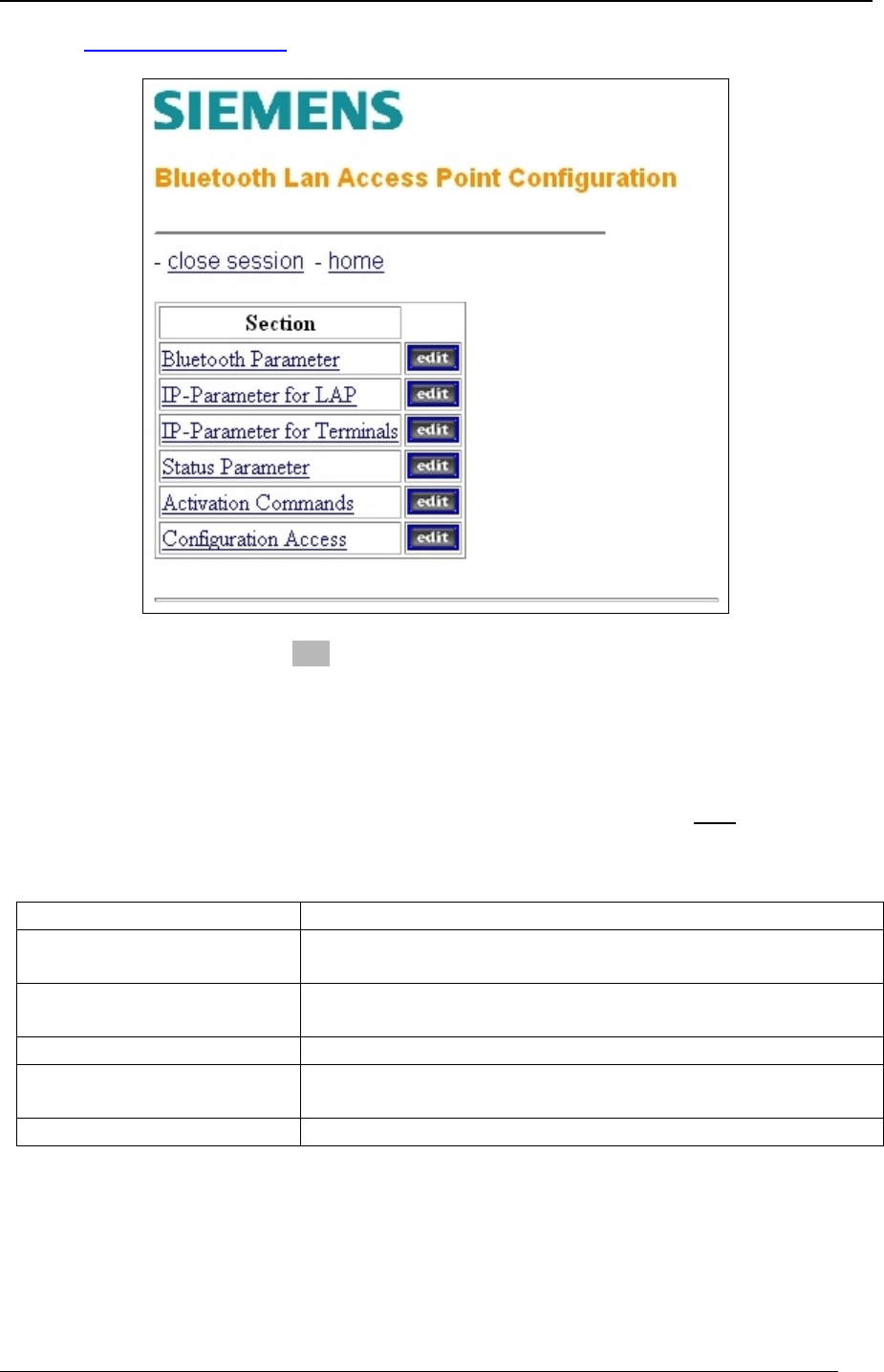
Click to LAP Configuration to see this overview:
When you click one of the "edit" buttons, you will be prompted for the configuration
password. The initial password is “changeme”. After you press the button < Send
Password to LAP > the site changes automatically to the home directory. For security
reasons, you should change the password immediately.
Notice:
Make sure you remember your new password or store it on a save place. Once the
password is changed, configuration access is only possible with the new password !
Explanation
Bluetooth Parameter All Bluetooth relevant parameters can be changed here.
IP-Parameter for LAP The IP-parameter settings like predefined or DHCP are
there.
IP-Parameter for Terminals The IP-parameter settings for the the connected
terminals are there.
Status Parameter The current blue2net IP values and version information.
Activation Commands To activate the new settings just for one session or
permanently.
Configuration Access The configurations settings like password.
blue2net Web Interface PRELIMINARY !
- 12 -
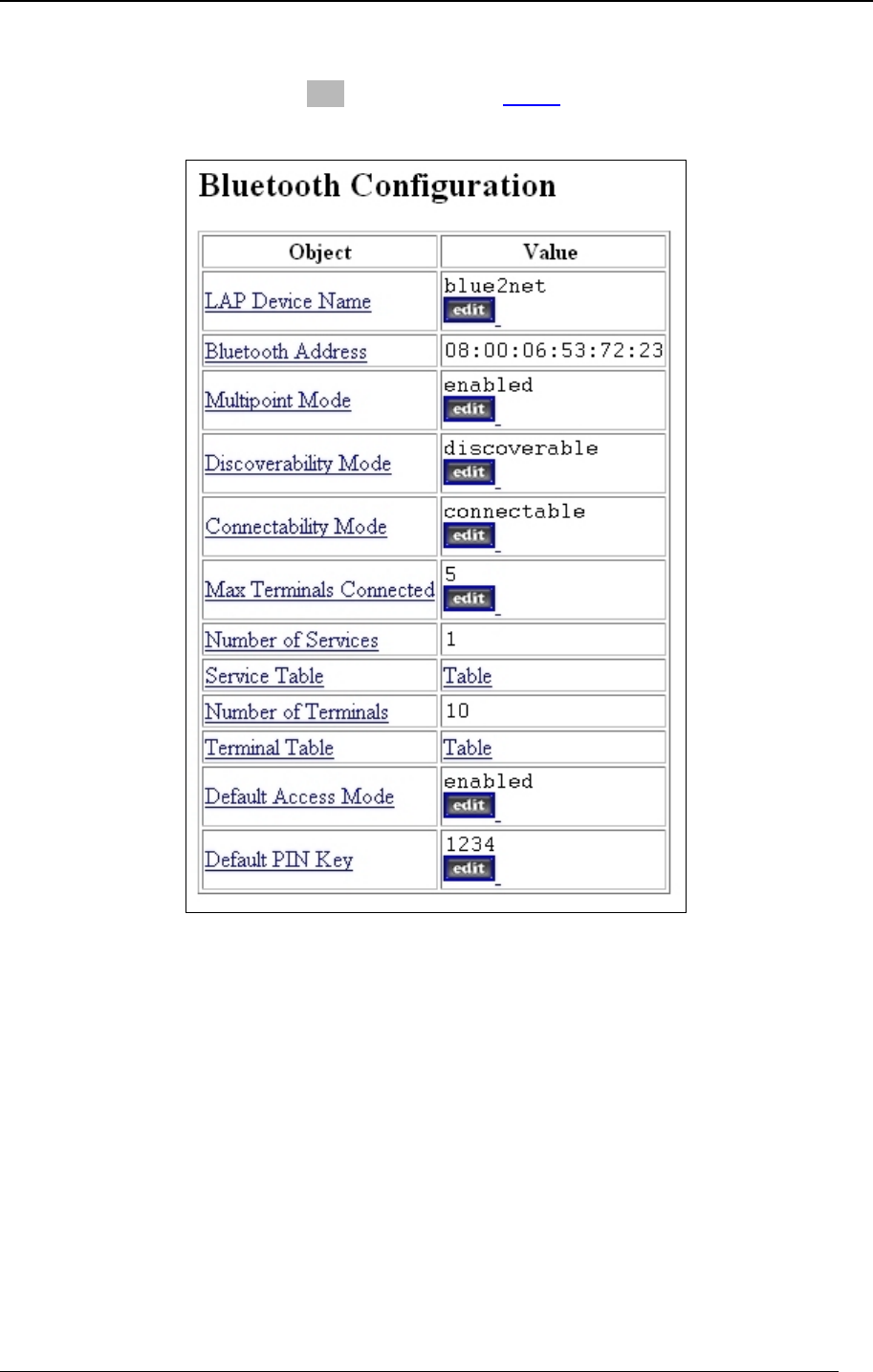
Bluetooth Paramter Setting
The values indicated with an "edit" button or with Table can be changed, the other
are informative. Click to one of the objects name for a detailed online description.
blue2net Web Interface PRELIMINARY !
- 13 -
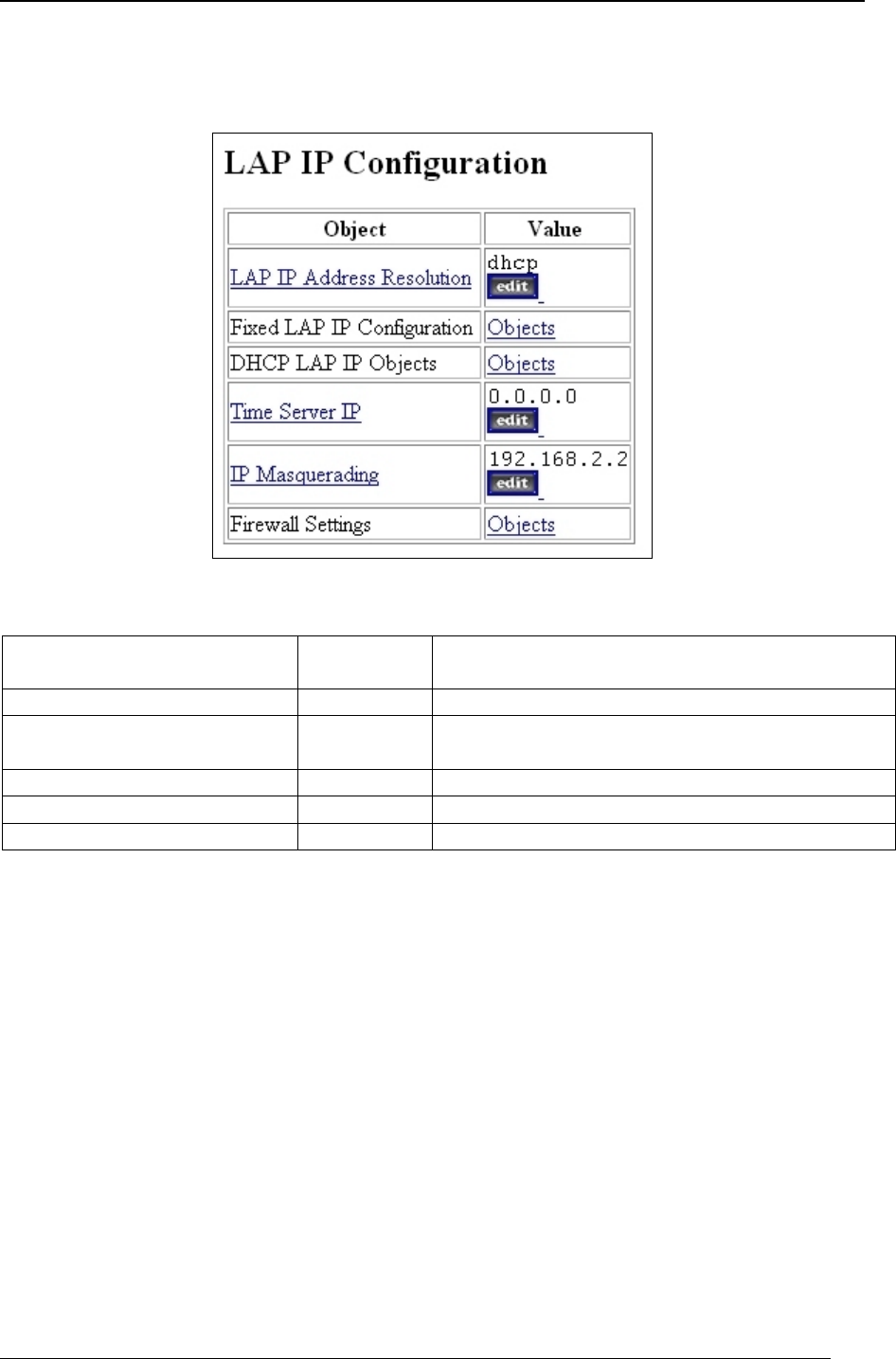
blue2net IP Setting
Overview
Settings
Objects Value Needs to be changed
LAP IP Address Resolution dhcp Yes, if DHCP is not supported
Fixed LAP IP Configuration Objects Yes. E.g. if you are not supported from a
DHCP server
DHCP LAP IP Objects Objects tbd.
Time Server IP 0.0.0.0 For internal use only.
IP Masquerading 192.168.2.2 Yes, if you use the masquerading mode.
blue2net Web Interface PRELIMINARY !
- 14 -
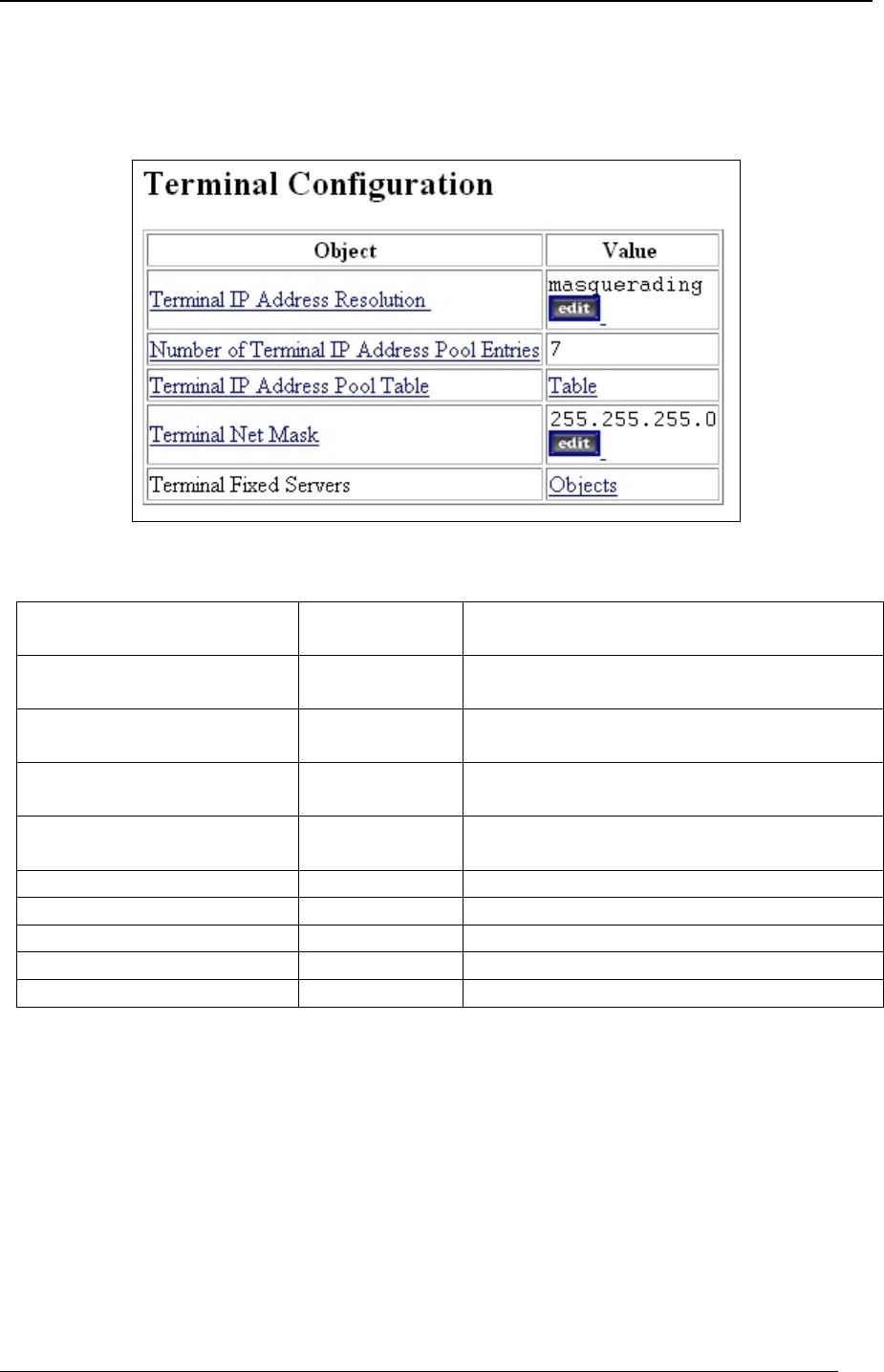
Bluetooth Terminal IP Setting
All these settings are communicated to the terminal via ppp. If you have default
settings at the terminal, these settings are ignored by the terminal.
Objects Value Needs to be changed
Terminal IP Address
Resolution masquerading Yes, if you want to change to
prededined IP-Tables.
Terminal IP Address Pool
Table Table Yes, if you change to predefined at the
point before.
Terminal Net Mask 255.255.255.0 Yes, Netmask is necessary to change
for the correct Network.
Terminal Fixed Servers see lines
below see lines below
Terminal DNS Server 1 192.168.3.11 Yes
Terminal DNS Server 1 192.168.3.12 Optional
Terminal WINS Server 1 192.168.3.13 Yes
Terminal WINS Server 1 192.168.3.14 Optional
Terminal Domain Name my.domain.at Optional
blue2net Web Interface PRELIMINARY !
- 15 -
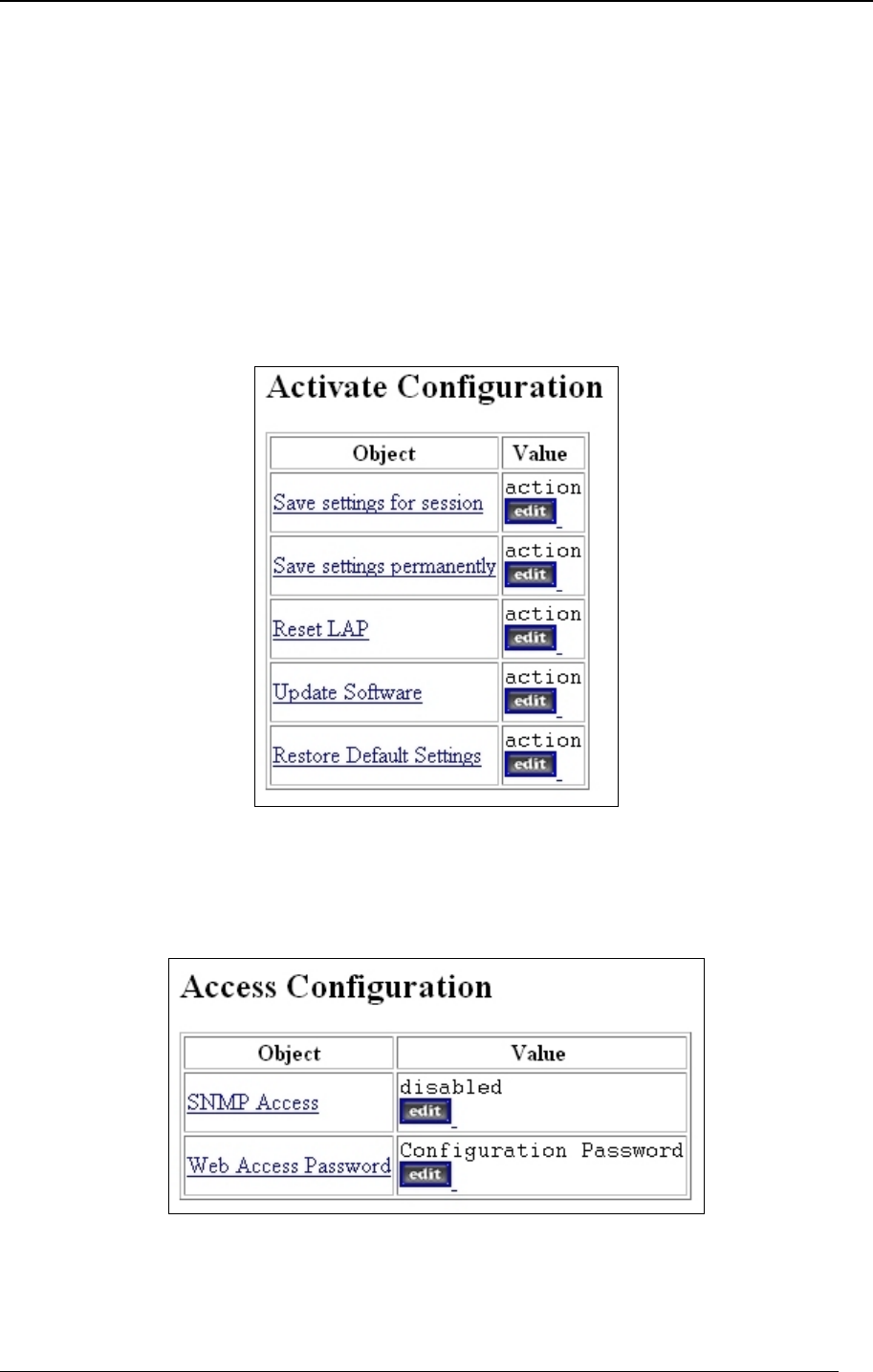
Activation Configuration
In this window you get all the mighty tools for blue2net, such as:
Save your Settings
Restart blue2net
Software Upgrade
Default Settings
Configuration Access

Troubleshooting PRELIMINARY !
- 16 -
Troubleshooting
tbd.
Regulatory Statement PRELIMINARY !
- 17 -
Regulatory Statement
General
• In this equipment is the Siemens BluetoothTM Radio Module SieMo S50037
integrated.
• This equipment has to be installed and used in accordance with this instruction
manual.
• This equipment is intended to be placed on market in all States, where the
BluetoothTM technologie and the used frequency band is released.
• For detail information concerning type approval of this equipment (eg. in wich
States this equipment is already approved) please contact the authorised local
distributor or the manufacturer.
European Union (EU) and EFTA Member States
Based on the assessed Siemens BluetoothTM radio module SieMo S50037 inside this
equipment complies with the R&TTE directive 1999/5/EC and has been provided with the CE
mark accordingly. It is conform to the following specifications/Standards:
Applied specifications/Standards Essential Requirement
(Corresponding article of R&TTE)
EN 60950/ IEC 60950:2000 Safety
(Art. 3.1a)
EN 300 328 (ETS 300 328): Part 1, V1.1.1 and
Part 2, V1.2.2 (2000-07)
EN 301 489-17 (ETS 300 826): V1.1.1 (2000-09)
Electromagnetic Compatibility
(Art. 3.1b)
EN 300 328 (ETS 300 328): Part 1, V1.1.1 and
Part 2, V1.2.2 (2000-07) Radio Frequency Spectrum Efficiency
(Art. 3.2)
Note that the radio frequency band used by this equipment is not harmonized throughout the
European Community. According to the R&TTE directive 1999/5/EC is this equipment
a ‘Class 2’ equipment and marked accordingly with the assigned Class Identifier.
CE Conformity Marking:

Bluetooth Trademark PRELIMINARY !
- 18 -
United States of America (USA)
This equipment complies with part 15 of the Federal Communications Commission (FCC)
rules and labeled in accordance with the FCC rules.
FCC ID: P6L-blue2net
Operation is subject to the following two conditions:
(1) This device may not cause harmful interference, and
(2) this device must accept any interference received, including interference that may cause
undesired operation.
Note that any changes or modifications to this equipment not expressly approved by the
manufacturer could void the user’s authority to operate this equipment.
Bluetooth Trademark
BLUETOOTH is a trademark owned by Bluetooth SIG, Inc., U.S.A, and licensed to
Siemens AG.
This product is a qualified BluetoothTM product and compliant to the BluetoothTM
specifications version 1.1.

Appendix PRELIMINARY !
- 19 -
Appendix
Technical Data
Radio Technology: Bluetooth V1.1, power class 2
Frequency Range: 2.402 to 2.480 GHz
Transmission Range: 10m, typical
Data rates: asymmetric 723 kbit/s downlink
57 kbits/s uplink
symmetric 434 kbits/ downlink and uplink
Point to multipoint: connecting up to 7 simulteneous data users
Bluetooth Profiles: LAN Access, Generic Access and Serial Port Profile:
Receiver Sensitivity: -85 dBm
Antenna: patch antenna integrated
Processor: Power PC
Memory: 16 MB DRAM/
2 MB Flash PROM
Operating System: Embedded Linux
Ethernet: 10 Mbit/s RJ45
Power Supply: 4.5 V, 1 A / LAN power feed capability
Power Consumption: <2,5 W
Dimensions: 150 x 140 x 32 mm (5.90 x 5.51 x 1.26 inches)
Weight: 200 g (7.05 oz)
Operating Conditions: Indoor use only
Temperature : 0 to +40 °C (+32 to +104 °F)
Humindity : 20 – 80% RHG, non condensing humidity
Built-in Web Server: For easy configuration
Access point IP address assignment: DHCP or manually
Terminal IP address assignment from blue2net: automatically, via masquerading or
manually
Security Web interface – password
Bluetooth passkey
Firewall option
Software Upgrades Free software upgrade is available at
"http://www.siemens.at/bluetooth"

Appendix PRELIMINARY !
- 20 -
Parameters
Bluetooth Parameter Explanation
Parameters Explanation
LAP Device Name This is the user friendly name of the blue2net. SIZE 1..16
Bluetooth Address Is the unique Bluetooth address of your blue2net
Multipoint Mode If Multipoint Mode is set to enabled, up to 7 clients can
establish a connection to blue2net simultaneously. If
Multipoint Mode is disabled, only one client can connect
in this mode, because no Master-Slave switch is forced
from blue2net.
Discoverability Mode The blue2net can be in discoverable mode or in non-
discoverable mode. When the blue2net is "discoverable",
it is visible to other devices on inquiry. When the blue2net
is in non-discoverable mode it is not visible to other
devices on inquiry.
Connectability Mode When the blue2net is in connectable mode,. a terminal
can establish a connection to the blue2net. When the
blue2net is in non-connectable mode it is not possible to
establish a connection from any Bluetooth terminal.
Max Terminals Connected This specifies the maximal number of terminal which can
be connected to the blue2net simultaneously. If this value
is set to 0, no terminal can establish a connection to the
blue2net.
Number of Services This is the number of services, which is presented to the
Terminals.
Service Table A list of service entries. The number of entries is given by
the value of "Number of Services".
Number of Terminals The number of Terminals contained in the terminal list of
this blue2net.
Terminal Table A list of terminal entries. The number of entries is given
by the value of "Number of Terminal".
Default Access Mode If Default Access Mode is set to enabled, also terminals
not contained in the Terminal Table can establish a
connection to the blue2net. For Bluetooth authentication
"Default Pin Key" is used. If Default Access Mode is set to
disabled, only terminals contained in the Terminal Table
can establish a connection to the blue2net.
Default PIN Key Bluetooth PIN Key, assigned to terminals not listed in the
Terminal Table. SIZE 1..15 .

Appendix PRELIMINARY !
- 21 -
blue2net IP Parameter Explanation
LAP IP Address Resolution This parameter controls the mechanism for assigning IP
address values to the LAP. In cases of dhcp, the LAP
sends DHCP-Request in order to receive values during
boot phase. In cases of predefined, the LAP uses the
value set in Fixed LAP IP Configuration.
Fixed LAP IP Configuration The IP address assigned to the blue2net, if LAP IP
Address Resolution is set to predefined.
DHCP LAP IP Objects The IP address presented to the ppp terminals, in cases
where LAP IP Address Resolution is set to masquerading.
Time Server IP IP address of the time server (for internal use only).
IP Masquerading IP address presented to the ppp terminals in cases where
Terminal IP Address Resolution is set to masquerading
Firewall Setting If Default Firewall is set to enabled, a default set of
firewall rules is activated.

Appendix PRELIMINARY !
- 22 -
Service
Hotline +43 (0)51707 36906
Fax +43 (0)51707 55501
Email: mailto:bts.support@siemens.at

Index PRELIMINARY !
- 23 -
Index
tbd.