Siemens C30 Users Manual User Guide GB
C30 to the manual 1cad0e5d-3037-4359-9186-90c0427e921c
2015-02-05
: Siemens Siemens-C30-Users-Manual-409998 siemens-c30-users-manual-409998 siemens pdf
Open the PDF directly: View PDF  .
.
Page Count: 31

C30
C30
User Guide
Siemens Mobile Phones A/S
Industrivej 30
DK-9490 Pandrup
© Siemens AG 2000
All rights reserved.
Subject to availability.
Rights of modification reserved.
Siemens Aktiengesellschaft
http://www.siemens.com/mobiles
Ref. No.: A31008-H6000-A1-1-7619
Printed in Denmark
(7910.3000 GB / 11.00)
ss
Cover C30 GB 23/11/00 12:37 Side 4
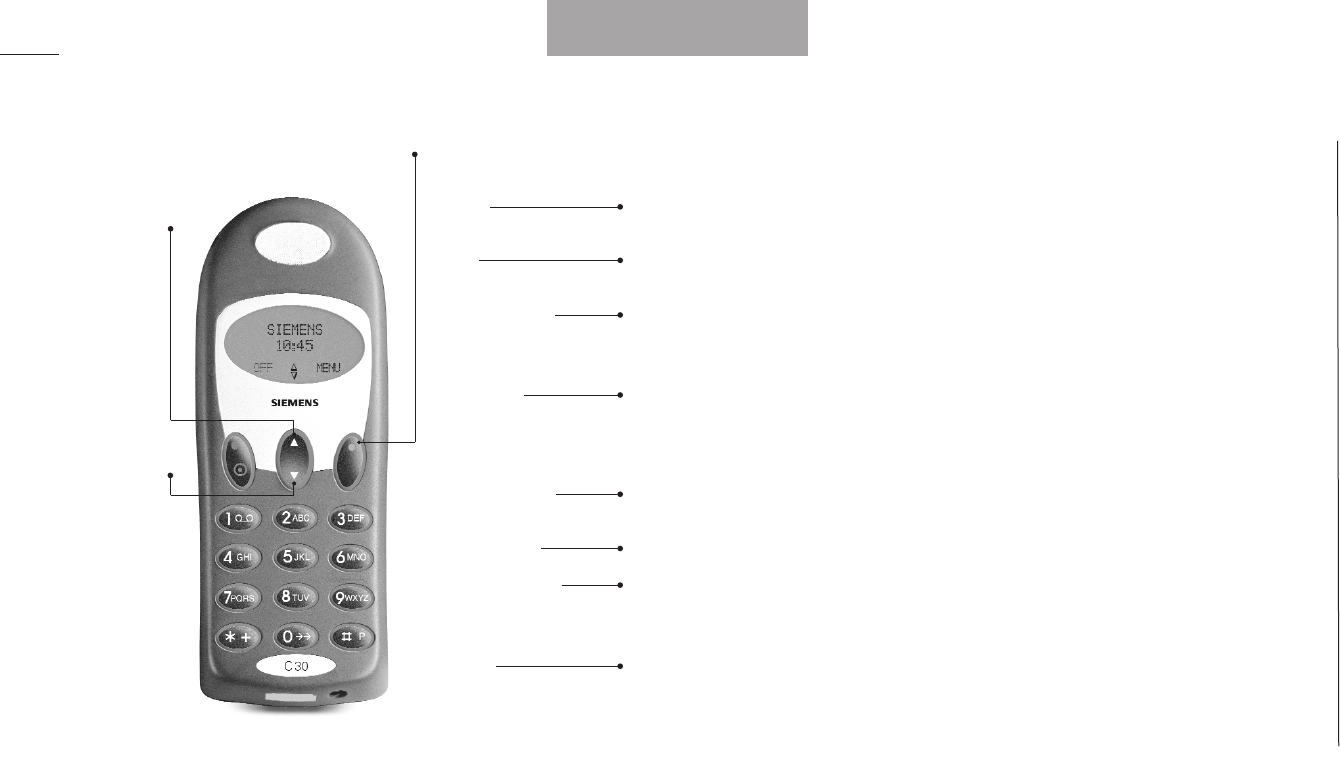
2
Setup menu
Applications
Games
Stopwatch
Clock
Network services
Phone setup
Phone book setup
Message setup
Timers and charge
Security
Sheriff McAllen
Echo Man
Black Jack
Display time
Set time
12/24-hour mode
Call divert
Call barring
Call waiting
Outgoing call ID
Line selection
Language
Network selection
Tones
Dial mode
Greeting
Factory settings
Fixed dialling
Barred dialling
Delete call information
Send SMS setup
Broadcast setup
Last call
Total calls
Reset timers and charge
Show timer and credit
Call charge
PIN code on/off
Change PIN code
Change PIN2 code
Change network password
SIM lock
Encryption indication
Line lock
List menu
Outgoing calls
Answered calls
Missed calls
Phone book
Fixed numbers
Barred numbers
Own numbers
Info numbers
Service numbers
Messages
Phone book
Complete survey of keypad functions
and display symbols at pp. 52-53
Abu Dhabi Siemens Service Center 02713500
Australia . Siemens . . . . . . . . . . 1800622414
Austria. . . . Siemens . . . . . . . . . . 0517075004
Bangladesh Siemens . . . . . . . . . . . 017527447
Belgium . . . Siemens . . . . . . . . . . . 078152221
Brunei . . . . incomm. . . . . . . . . . . . . . . . 02151
Bulgaria . . . Omnitel . . . . . . . . . . . . . 02739488
China. . . . . Siemens . . . . . . . . . 02150318149
Croatia. . . . Siemens . . . . . . . . . . . 016105381
Czech Rep.. Siemens . . . . . . . . . . 0233032727
Denmark . . Siemens . . . . . . . . . . . . 35258600
Dubai . . . . Siemens Service Center 04699720
Egypt . . . . . Siemens . . . . . . . . . . . . 23313129
Finland. . . . Siemens . . . . . . . . . . . 092294370
France . . . . Siemens . . . . . . . . . . 0156384200
Germany . . Siemens . . . . . . . . . 01805333226
Greece. . . . Siemens . . . . . . . . . . . 016864389
Hong Kong. Siemens . . . . . . . . . . . . 22583636
Hungary. . . Siemens . . . . . . . . . . 0614712444
Iceland. . . . Smith & Norland . . . . . . . 5113000
India . . . . . Siemens . . . . . . . . . . . 116923988
(ISDN) 116925589
Indonesia. . Dian Graha Elektr. . . . 0214615081
Ireland . . . . Siemens . . . . . . . . . . 1850777277
Italy . . . . . . Siemens . . . . . . . . . . 0269893691
Jordan. . . . F.A. Kettaneh . . . . . . . . 079559663
Kuwait. . . . NGEECO . . . . . . . . . . . . . 4818749
Latvia. . . . . Siemens. . . . . . . . . . . . . . 7501114
Lebanon . . . . F.A. Kettaneh. . . . . . . . 01443043
Lithuania . . . Siemens . . . . . . . . . . 822391555
Luxembourg . Siemens . . . . . . . . . . . 43843399
Malaysia . . . Siemens . . . . . . . . . . 037514974
Marocco. . . . SETEL S.A. . . . . . . . . . . 2352409
Mauritius . . . Ireland Blyth . . . . . . . . . 2116213
Netherlands . Siemens . . . . . . . . . 0703333100
Norway . . . . Siemens . . . . . . . . . . . 22633314
Oman . . . . . . Siemens Service Center . 791012
Pakistan . . . . Siemens . . . . . . . . . 0215673565
Philippines . . Siemens . . . . . . . . . . . 28149888
Poland . . . . . Siemens . . . . . . . . . 0800220990
Portugal . . . . Siemens . . . . . . . . . . 014178393
Russia . . . . . Siemens . . . . . . . . 80957371801
Saudi Arabia . Siemens . . . . . . . . . . 026655058
Singapore. . . Siemens . . . . . . . . . . . . 8454818
Slovak Rep. . Siemens . . . . . . . . . 0759682266
Slovenia . . . . Siemens . . . . . . . . . 0611746336
South Africa . Siemens . . . . . . . . . 0800114050
Spain . . . . . . Siemens . . . . . . . . . . 902115061
Sweden . . . . Siemens . . . . . . . . . . 087509911
Switzerland . Siemens . . . . . . . . . . 012120090
Taiwan . . . . . Siemens . . . . . . . . . 0225186504
Thailand . . . . Siemens . . . . . . . . . . . 26791777
Turkey . . . . . SIMKO . . . . . . . . . 02122528835
United Kingd. Siemens . . . . . . . . . 0990334411
Vietnam . . . . Opticom . . . . . . . . . . 090456789 Internet:
http://www.siemens.com/cd.service
Siemens service
Menu overview
Cover C30 GB 23/11/00 12:37 Side 2

33
Contents
Precautions
4
Getting started
5
Battery and charging 6
SIM card 8
Calling 9
Redialling a number 10
Disabling all tones 10
Keypad lock 10
Phone book
11
Storing entries 12
Using your keypad 12
Finding an entry 14
List menu
15
Overview 16
Call lists 18
Phone book editing 19
Extra phone books 20
Messages 22
Setup menu
25
Overview 26
Games 28
Stopwatch 31
Clock 31
Network services 32
Phone setup 36
Phone book setup 40
Message setup 41
Timers and charge 43
Security 44
Conversation menu
47
Overview 48
Further information
51
Keypad functions 52
Display symbols 53
EasyClick system 54
Technical specifications 55
Index
58
User guide C30 GB 02/11/00 12:38 Side 2

4
Getting started
Learn how to get your phone
ready for action, and how to
make and receive calls.
5
Please pay attention to the follow-
ing guidelines. Breaking the rules
may be dangerous or illegal:
Mobile phones must be
switched off at all times in
an aircraft.
Do not activate near gas sta-
tions, fuel depots, chemical
plants or blasting opera-
tions.
Avoid use in hospitals; med-
ical electronics, e.g. pace-
makers and hearing aids,
can be affected.
Minor interference may
affect TVs, radios, PCs, etc.
Do not hold the phone in
your hand while driving.
Do not dismantle phone or
battery (except from dismant-
ling of phone in connection
with the EaysClick System,
cf. p. 54).
Do not use phone in high
humidity environments, and
do not use alcohol or any
other fluids to clean the
phone.
Use only specified batteries
and chargers as others can
damage the phone or invali-
date type approvals.
Unusable batteries should
be disposed of in accord-
ance with relevant legisla-
tion.
Keep the phone in a safe
place out of children’s
reach.
Use only ORIGINAL
Siemens accessories to
avoid damage to your
phone.
Precautions
User guide C30 GB 03/10/00 11:11 Side 4
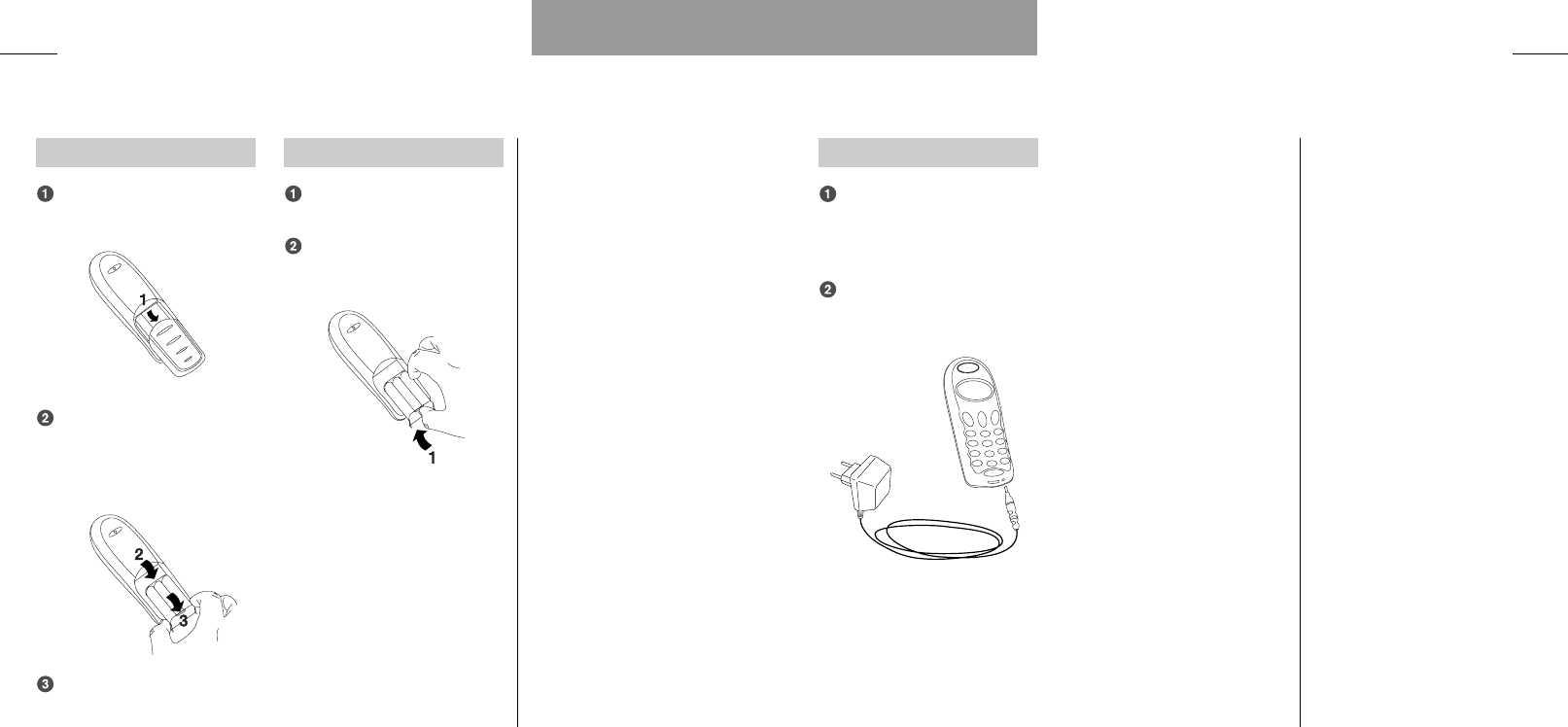
Insert battery
Remove the battery lid (1) by
sliding it downwards.
Insert the battery by placing
first the upper part (2) and
then the lower part (3) in the
recess.
Slide the battery lid in place.
Remove battery
Remove the battery lid by slid-
ing it downwards.
Lift the lower part (1) of the
battery and remove it.
Facts & Tips
• When removing the battery, your
phone should always be switched off.
• The on/off key is the left-hand func-
tion key on your phone
6Getting started 7
Charge battery
Insert the charger plug in the
bottom of the telephone, and
it will start charging immedi-
ately.
After 1.5-2 hours the battery
will be fully charged.
Facts & Tips
• During charging, the two bars in the
battery indicator on the phone display
will be flashing. It might, however
take about 5 minuttes before you can
see these symbols in your display.
• When the battery is fully charged,
the bars in the battery indicator will
stop flashing.
• To obtain optimum battery perform-
ance in daily use, wait until the bat-
tery is discharged before recharging
to full capacity.
• Your phone needs recharging, when
there are no more black bars shown
in the battery indicator in the top of
the display.
Getting started
Battery and charging
User guide C30 GB 03/10/00 11:11 Side 6
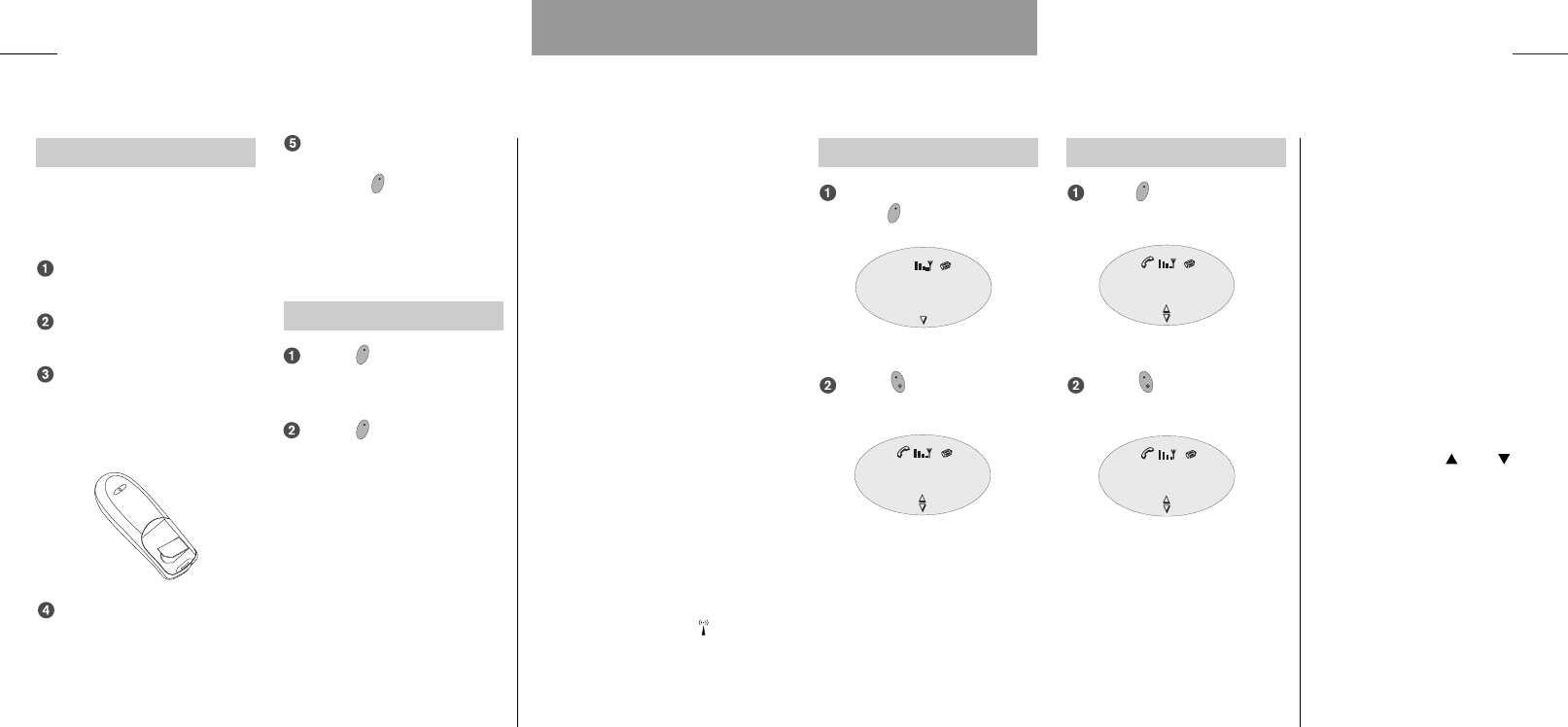
9
Making a call
Enter phone number and
press (»CALL«)
Press (»END«) to end the
call.
Answering a call
Press (»ANSWER«), when
the phone rings.
Press (»END«) to end the
call.
Facts & Tips
• Use the arrow keys and
to increase and decrease the speaker
volume during conversation.
• Your phone is equipped with an
internal antenna which is placed in
the upper back part of the phone. To
achieve optimum speech quality and
maximum talk time, you should
always hold your phone in the lower
part during a call. If you carry the
phone in a pocket, the backside of the
phone should always point away from
your body.
Calling
Getting started
SIM card
8
Insert SIM card
Before you can make a call on your
mobile phone you have to insert
the SIM card:
Switch off your phone and
remove the battery.
Place the SIM card in the
small recess in the phone.
Press the SIM card gently
downwards and slide it to the
right until it locks to the
phone.
Insert the battery, replace the
battery lid on the phone and
switch it on.
Enter PUK or PIN code, if
requested, and confirm by
pressing (»OK«).
If a number of digits are flashing in
your display now, you need to set
your clock.
Set clock
Press (»SET«) and enter
the time in the display via the
keypad.
Press (»OK«).
Please see p. 31 for further infor-
mation on setting your clock.
Facts & Tips
• Please remember that your SIM
card must support 3 volt technology
to work with this phone.
• The SIM card is your link to the net-
work operator. The SIM card carries
your phone number, your phone book
and a lot of other features that will fol-
low your SIM card if you put it in
another phone.
• In this user guide you can see the
full capability of your phone, but the
presence of some of the features
depends on your network operator
and/or your SIM card. These features
are shown with this symbol in the
user guide.
• Most networks allow you to make
emergency calls both with and with-
out a SIM card.
Getting started
CLEAR
(NETWORK)
+4572195000
CALL
END
+4572195000
MENU
REJECT
+4572195000+4572195000
ANSWER
END
+4572195000
MENU
User guide C30 GB 03/10/00 11:11 Side 8

10 Getting started 111111
Phone book
Learn how to store and find
entries in your phone book.
Redialling a number
Press for one second,
and your latest dialled number
will be redialled automatically.
Disabling all tones
You can disable all kinds of tones:
Press (»MENU«).
Press .
The symbol will be visible in
the display.
Just press the same two keys
again in the same order to revert to
your original settings.
Keypad lock
To avoid making calls accidentally
while carrying your phone, you can
lock the keypad:
Press (»MENU«).
Press .
The keypad lock is automatically
disabled during an incoming call,
until you have finished the conver-
sation.
Just press the same two keys
again in the same order to unlock
the keypad.
Facts & Tips
• Take notice of the display texts.The
display texts right above the function
keys and will inform you of
the current function of each key at
any time.
• Please note that the menus are
dynamic. This means that your phone
does not always give you all the
options listed in this user guide.This
is because your phone only shows
the option if it is available. For
instance you cannot see the list of
missed calls if you have not missed
any calls.
User guide C30 GB 03/10/00 11:11 Side 10
1312
Prefix phone numbers
Prefix phone numbers are built up
in the way that the first digits of
the number are prefix (the same for
e.g. the whole company), and the
last digit(s) is/are related to a spe-
cific person or office.
If you want to store the prefix
part of such a phone number in
your phone book, you do it in exact-
ly the same way as you store a nor-
mal phone number in your phone
book. Only, instead of each of the
additional digits that varies from
time to time, you enter a ”?”.This
is done by holding down the
key for approx. 2 seconds.
Facts & Tips
• Store frequently used phone num-
bers in location numbers 1 to 9 so
that you only need to press one key
to speed dial them (see p. 38).
• If you choose a location number that
is occupied, the phone will give you
the option of overwriting the existing
entry or pressing
»EXIT«
to see the
suggested location number again.
• Enter the phone number with the
help of
"+"
followed by the national
code so you can use your phone book
abroad without having to think about
international codes.
• The ringing tone that you select for a
phone number in your phone book,
will be the ringing tone you hear if a
person is calling you from this phone
number.
• Calling Line Identification is a net-
work feature whereby phone numbers
of callers to your phone are shown on
your phone’s display. If your caller is
one of the entries that you have stor-
ed in your phone book, then his/her
name will appear on your display.
Phone book
Phone book
Use your phone book for storing
names and telephone numbers. In
the table you can see how to find
the individual characters on the
keypad of your phone.
Storing entries
Enter phone number and
press .
Enter name and press »OK«.
Select which ringing tone you
want for this specific entry by
using and , and con-
firm by pressing »OK«.
The telephone will suggest that the
name/number should be stored
under the first vacant location num-
ber.
Press »OK« to accept the sug-
gested number, or press
»CLEAR« and enter a location
number of your own choice
(up to 3 digits).
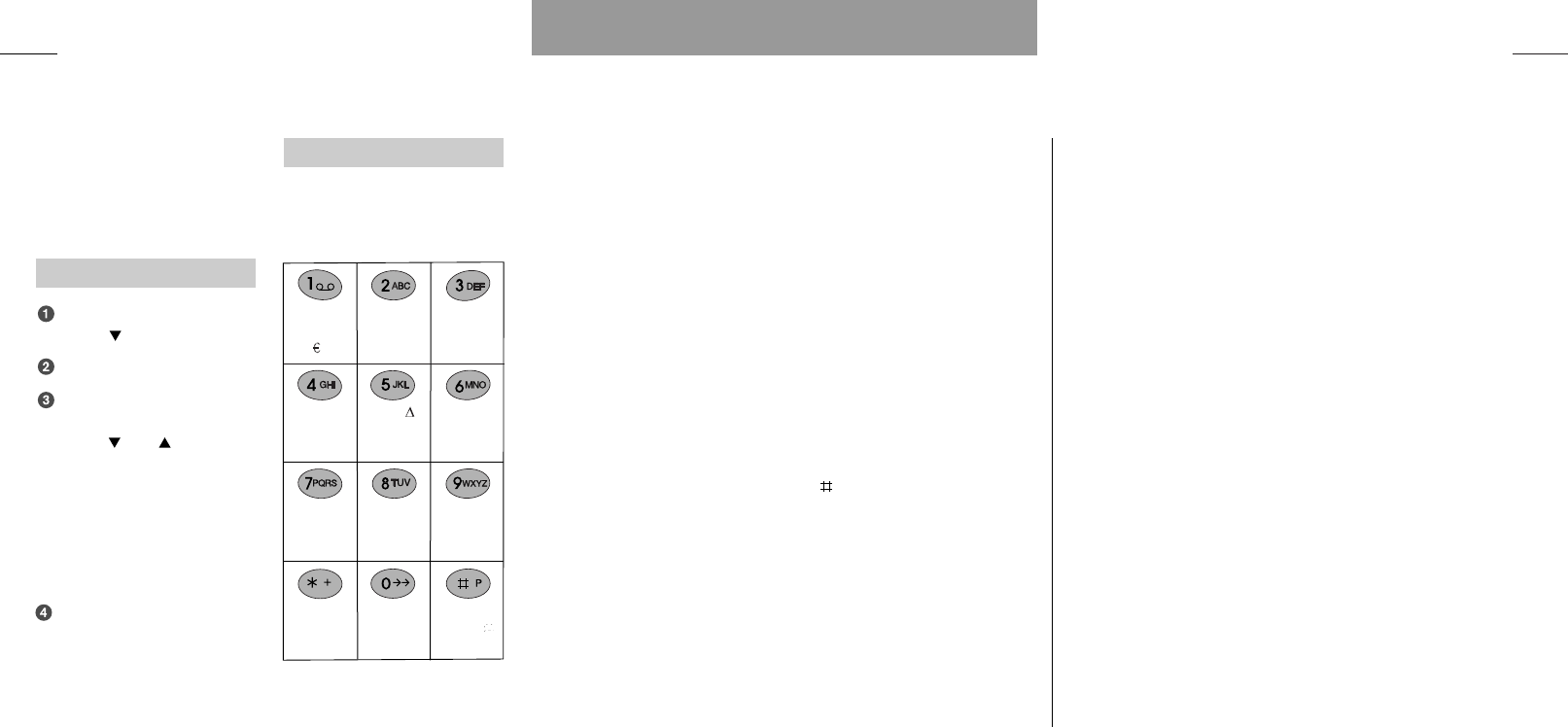
Using your keypad
Each key of your phone’s keypad
contains a number of characters
which can be seen in this table:
• Press once to get the first charac-
ter, twice to get the second charac-
ter, etc.
• Hold down one of the keys for
one second to get the option of
lower case. Just press the key
again for one second to return to
upper case.
• Press # to get a space between
two characters.
• Press »CLEAR« briefly to delete
one character.
• Press »CLEAR« for one second
to delete the entire display.
1 . , ; : ' " ! ¡ ?
¿ & % @ §
£ $ ¥ ¤
A B C 2
Æ Å Ä Ç
a b c 2 æ å ä à
D E F 3 É ∆
d e f 3 é è
J K L 5
j k l 5
G H I 4 Γ
g h i 4 ì
M N O 6
Ø Ñ Ö Ω
m n o 6 ø ñ ö ò
P Q R S 7 ß
Π Φ Ψ Σ
Π Φ Ψ Σ
p q r s 7 ß
ß
T U V 8 Ü Θ
t u v 8 ü ù
W X Y Z 9 Ξ
w x y z 9
Space
* + 0- ~ / \| ( )[]
{} = < >^_
User guide C30 GB 03/10/00 11:11 Side 12

14
Finding an entry
Enter the phone book by
pressing .
Scroll through the phone book
using and or enter
one or more letters of the
name you wish to find.
Call the number: Press
»CALL«.
If you want to call a prefix number
from your phone book you must
enter the digits to replace the “?”
after having pressed »CALL«.
Facts & Tips
• If you have stored many numbers in
your phone book, it is easiest for you
to find an entry by entering one or
more letters of the name you wish
to find.
• If you want to edit or delete a
name/number or see the status of
your phone book, you have to use the
List menu (see p. 19).
• Some SIM cards offer you the pos-
sibility of having extra phone books
for different purposes. If you have one
or more of these phone books, you
will find them in the List menu
(p. 20).
Phone book
List menu
See how to get information
about your calls and messages
and how to edit your phone
book.
15
User guide C30 GB 03/10/00 11:11 Side 14
1716
Own numbers
• Find, add, edit or delete entries
Info numbers
• Find entries
Service numbers
• Find entries
Messages
• Inbox for received SMS
• Outbox for sent SMS
• Send new SMS
• Read broadcast messages
• Check your voice mails
Facts & Tips
• Remember that indicates that
the option depends on your SIM card
and therefore may not be available.
• On the following pages, all these
options will be explained in greater
detail.
List menu
List menu
Enter the List menu:
Scroll through the options:
and
Select an option:
Press »SELECT« or »OK«
Go one level back:
Press »EXIT«
Go back to standby:
Hold »EXIT« down
The List menu offers you lists with
your latest calls as well as different
possibilities with your messages.
Further, this is the menu you
enter to edit your phone book, and
to find your extra phone books if
you have any.
These are the options that you
get when you enter the List menu:
Outgoing calls
• View names/phone numbers of
your latest outgoing calls
Answered calls
• View names/phone numbers of
your latest answered calls
Missed calls
• View names/phone numbers of
your latest calls received but not
answered
Phone book
• Find, add, edit or delete entries
• See phone book status
Fixed numbers
• Find, add, edit or delete entries
• See status
Barred numbers
• Find, add, edit or delete entries
• See status
General
User guide C30 GB 03/10/00 11:11 Side 16

19
Phone book editing
18
Phone book
The List menu offers you the fol-
lowing options concerning your
phone book:
Find entry Select »Find entry« to
find an entry in your phone book.
Add entry Select »Add entry« to
add a new entry to your phone
book.
Edit entry Select »Edit entry« to
change an existing name or num-
ber in your phone book. Select the
name/number you wish to change
and edit it by means of your key-
pad.
Delete entry Select »Delete entry«
to delete one of the entries in your
phone book. Select the entry you
want to delete and press
»DELETE«.
Status Select »Status« to see the
total number of locations in your
phone book and the number of free
locations.
Facts & Tips
• Finding an entry in your phone book
can also be done simply by pressing
when you are in standby mode.
• Adding an entry to your phone book
can also be done by using the
key, see p. 12.
List menu
Call lists
Enter the List menu
by pressing
Select one of the below
mentioned options
Outgoing calls
See a list of your last dialled tele-
phone numbers. The amount of
numbers shown depends on your
SIM card.
Answered calls
See a list of the last 10 calls you
have received and answered.
Missed calls
See a list of the last 10 calls that
you received, but did not answer.
Direct access to the list of
missed calls
When you have missed one or
more calls, the symbol is shown
in the display together with the
amount of missed calls. You get
direct access to the list of missed
calls simply by pressing .
Copying numbers into your
phone book
You can copy a number from the
list of outgoing, answered, or
missed calls into your phone book.
You just select the wanted phone
number from the current list, press
to access your phone book
and give the number a name, a
ringing tone and a location number.
Facts & Tips
• As the telephone registers only
identified calls in the list, the number
of missed calls shown on the display
and the number of phone numbers
actually listed may be different.
• If you want to call one of the num-
bers from the lists of outgoing,
answered or missed calls, select it
and press
»CALL«
to initiate the call.
• If you call a number from the list of
missed calls, it will be deleted, but
you can then find it again in the list of
outgoing calls.
• You can delete all entries stored in
the lists of outgoing, answered, and
missed calls. This is done by entering
the Setup menu (see p. 40).
List menu
First
User guide C30 GB 03/10/00 11:11 Side 18

2120
Info numbers
Numbers stored in this phone book
are typically numbers for taxis, air-
ports, hotels, weather, news, etc.
The contents are defined by your
network operator and cannot be
changed by you.
Service numbers
This service number phone book
typically contains customer care,
hotline service numbers, etc. The
contents are defined by your net-
work operator and cannot be
changed by you.
Your network operator might have
given this phone book another
name.
Facts & Tips
• Remember that the availability of
these extra phone books depends on
your SIM card.
• In order to make use of fixed and
barred numbers you need to have a
PUK2 code from your network opera-
tor and to use a PIN2 code of your
own choice.
List menu
Extra phone books
Enter the List menu
by pressing
Select one of the below
mentioned options
Depending on your SIM card you
may have some of the following
extra phone books.These phone
books will be visible in your display
only if they are available and
enabled.
Fixed numbers
With the help of this extra phone
book you can restrict the use of
your phone only to numbers
stored in this special phone book.
This phone book is operated in
exactly the same way as your ordi-
nary phone book giving you the
possibility of finding, adding, edit-
ing and deleting the entries.
To activate/deactivate fixed dial-
ling see the setup menu p. 40.
Barred numbers
In this phone book you can store
numbers to which you do not
allow any calls. This phone book is
also operated in exactly the same
way as your ordinary phone book.
To activate/deactivate barred
dialling see the setup menu p. 40.
Own numbers
This is simply an extra phone book
where you can store your own
telephone number(s). How many
numbers you can store depends
on your SIM card.
This phone book is also operated
in the same way as your ordinary
phone book.
List menu
First
User guide C30 GB 03/10/00 11:11 Side 20

Messages
2322
New SMS If you want to send a
new SMS:
Once you have selected »New
SMS« you can start entering
your message using the keypad
in the same way as you enter a
name in the phone book (p. 12).
End your SMS by pressing
»OK«.
Select »Send SMS« by press-
ing »OK«.
Enter the phone number you
want to send the SMS to or
select one from your phone
book using .
Press »SEND« to send your
message.
To send an SMS, certain parame-
ters have to be specified (name
and number of service centre,
validity time for the SMS). On most
SIM cards these specifications
have already been made by the
network operator.
If these parameters have not been
specified, you should enter the
Setup menu (p. 41) to do so once
and for all – otherwise you will be
asked for a specification each time
you wish to send a message.
Facts & Tips
• Read about the message tones in
the Setup menu p. 37.
• You can always see if a received
SMS has been read or not. If the
SMS is unread, the SMS indicator
is displayed above the message.
• If the SMS indicator is flashing,
it indicates that the SMS memory is
full. You will then have to delete some
or all of your SMS.
• When you have entered a new SMS
and accepted by pressing
»OK«
you
can also choose to save it and send it
later on. Saved SMSs will be stored in
»Outbox«.
• If while writing an SMS you are
interrupted by a call, your SMS will be
automatically stored in
»Outbox«.
List menu
Enter the list menu
by pressing
Select »Messages«
Messages
The menu »Messages concerns
SMS text messages which you can
both send and receive, broadcast
messages that you can only receive
(from your network), and finally a
voice mail function where you can
listen to your voice mails.
Entering this menu thus gives
you the following features:
Inbox The SMSs you receive are
automatically stored under »Inbox.
Select the SMS and scroll through
it by using the arrow keys.
• Direct access to your inbox
When you receive a new SMS the
symbol appears in the middle
of your display, and you can get
direct access to your inbox simply
by pressing .
The SMS indicator will be
shown in the upper side of your
standby display as long as you have
one or more unread messages.
• Immediate SMS
Your network might send you some
or all your SMS as immediate SMS.
An immediate SMS will appear
directly in your display when
received, and you can then select
»VIEW« to read the SMS or
»CLEAR« to reject and delete it. An
immediate SMS will not be auto-
matically stored, but if you select
»VIEW«, you get the option of sav-
ing it by selecting »SAVE«.
Outbox If you choose to have out-
going SMSs stored automatically,
you can find them again under
»Outbox«.This requires that you
enter the Setup menu (42) and acti-
vate »Save outgoing SMS«.
Options with SMS
In addition to reading an SMS in
your inbox and outbox, you can
select the SMS, press »OPTION«
and:
• delete it
• send a reply (only in inbox)
• forward it to another phone
number
• edit it before sending it (again)
• call the sender (only in inbox).
List menu
First
User guide C30 GB 03/10/00 11:11 Side 22

24
Messages
Enter the list menu
by pressing
Select »Messages«
Broadcasts These are general
messages which are broadcast to a
group of subscribers and typically
containing local weather reports,
sport results, etc.
A broadcast message is scrolled
twice on the display at the time of
reception. If you do not see it at
that time, you can read it by select-
ing »Broadcasts«.
If you do not store a broadcast
message, it will be deleted when
you switch off your telephone –
even if the message has not been
read.
In addition to reading a broadcast,
you can select it, press »OPTION«
and:
• delete it
• store it for reading it later on
• forward it to another phone
number.
If you want to receive broadcast
messages you have to enter the
Setup menu (see p. 42) to set up
different features.
Voice mail Some networks
offer a voice mail function where
you can listen to your voice mails
just by selecting the sub menu
»Voice mail«.
Other networks send you an
SMS (see p. 22) when you receive
a new voice mail, and you will then
have to call your network operator’s
voice mail number to listen to it.
Facts & Tips
• If you have selected Roaming, i.e. if
you are abroad and connected to a
foreign network, you may be able to
receive broadcasts from other net-
works, too.
• The display will show the broadcast
ID number and you can thus identify
the kind of message received.
List menu
First
25
Setup menu
Find out how to set your phone
according to your own personal
wishes and needs.
25
User guide C30 GB 03/10/00 11:11 Side 24
27
Message setup
• Send SMS setup
• Broadcast setup
Timers and charge
• Duration and cost of last call
• Duration and cost of total calls
• Reset timers and charge
• Show timer and credit
• Call charge
Security
• PIN code on/off
• Change PIN code
• Change PIN2 code
• Change network password
• SIM lock on/off
• Encryption indication
• Line lock
Facts & Tips
• Remember that indicates that
the option depends on your SIM card
and therefore may not be available.
• On the following pages, all these
options will be explained in greater
detail.
Setup menu
26
Setup menu
Enter the Setup menu:
Press »MENU«
Scroll through the options:
and
Select an option:
Press »SELECT« or »OK«
Go one level back:
Press »EXIT«
Go back to standby:
Hold »EXIT« down
The Setup menu offers you the
possibility of setting the phone
according to your own personal
wishes. You can choose between
the following menus:
Applications
The availability, name and functions
of this menu depends completely
on your network operator and/or
your SIM card.
Games
• Sheriff McAllen
• Echo Man
• Black Jack
Stopwatch
• Stopwatch function
Clock
• Display time on/off
• Set time
• 12- or 24-hour mode
Network services
• Call divert
• Call barring
• Call waiting
• Outgoing call ID
• Line selection
Phone setup
• Language
• Network selection
• Tones
• Dial mode
• Greeting
• Factory settings
Phone book setup
• Fixed dialling on/off
• Barred dialling on/off
• Delete call information
General
User guide C30 GB 03/10/00 11:11 Side 26

29
Echo Man
When you enter »Echo Man«, you
can select to start the game, or you
can set the game level (level A, B,
C) and/or the sound level (high, low,
off).
Description: The purpose of the
game is to remember a sequence
of numbers/tones. The phone
plays a sequence and you have to
repeat it.
There are four different numbers
(1-4) each representing a tone.You
will see the number of the tone in
the display while the tone in ques-
tion is being played, and to play
the tone yourself, you must press
the corresponding key on your key-
pad. To play tone 1, you press key 1,
etc.
Game: First the phone plays one
tone, and you must repeat this
tone. Then the phone plays the
same tone again plus a second
tone, and you have to repeat these
two tones. Next time it is three
tones, etc., etc.
Each time you repeat a sequence
correctly, you get 5 points, but if
you play a wrong tone or you
exceed the response limit of 2 sec-
onds per tone, the game is over.
Facts & Tips
• If you set the sound level to
»off»
,
you will of course not be able to hear
the tones, but you can still see the
numbers in the display.
• Concerning points and high-score
list for Echo Man, see Facts & Tips
p. 28.
Setup menu
Games
28
Enter the Setup menu
by pressing »MENU«
Select »Games«
Sheriff McAllen
When you enter »Sheriff McAllen«,
you can select to start the game,
or you can set the game level
(Level A, B, C) and/or the sound
level (high, low, off).
Situation: You are Sheriff McAllen,
and you are up against a gang of
dangerous bank robbers. Be care-
ful; if you do not shoot them – they
will shoot you! Luckily, you have
four lives.
Game: In your display, you see
three closed doors. A door opens,
and a face appears. Five different
faces can appear:
Examle: The marked face belongs to
the bank robber – the other ones are
“good guys”.
Press 1, 2 or 3 on your handset to
shoot against the first, second or
third door. Each time you shoot a
bank robber, you get 100 points,
but if you shoot a good guy, or you
get shot by a bank robber you lose
a life.
Facts & Tips
• Be careful, more doors can start
opening at the same time.
• The four bars in the top of the dis-
play work as a “life indicator” telling
you how many lives you have left.
• Your points are shown at the lower
right corner of your display.
• If you are good enough, you will be
offered a place on the high-score list.
You can enter up to three letters by
using the keypad.
• Do not hesitate to take a game
although you are expecting a phone
call or a message.You will receive all
calls and messages.
Setup menu
First
User guide C30 GB 03/10/00 11:11 Side 28
Enter the Setup menu
by pressing »MENU«
Select »Stopwatch«
or »Clock«
Stopwatch
When you select »Stopwatch«,
your phone acts as a stopwatch.
You will see two lines of numbers
in the display. The first line is stop-
watch time, the second is lap time.
Select »START« to make the
stopwatch start counting, and
select »STOP« when you want to
stop it again. While your stopwatch
is running, you can select »LAP« to
lap the current time and update the
lap time.
Clock
You can select to have the time dis-
played on your phone by entering
this menu. You have the following
options:
Display time Select »Display
time« if you want the time to be
automatically displayed on your
phone.
Set time Use the numbers on your
keypad to enter and/or change the
time in your display. If you have
selected a 12-hour display, you can
switch between am and pm by
using the arrow keys after having
entered the four digits of the time.
12/24-hour mode Select whether
you want the displayed time to be
in 12- or 24-hour mode.
Facts & Tips
• You can receive calls and SMS while
using your stopwatch. The stopwatch
will continue running in the back-
ground and you can see the stop-
watch icon in the upper part of your
display.
• You can only exit the stopwatch
function after having cleared the
timers (it is not possible to save
timers for later use).
• On some networks, you cannot
have the time automatically displayed
on your phone.
• If you do not have the time auto-
matically displayed, you can see the
time by briefly pressing
»OFF«
when
your phone is on standby.
• If the battery of your phone has
been completely flat or dismantled,
the numbers in your display will be
flashing to indicate that you need to
reset the time. Press
»SET«
to do
this.
31
Stopwatch / Clock
Setup menu
30
Enter the Setup menu
by pressing »MENU«
Select »Games«
Black Jack
Having selected »Black Jack« you
can choose to start the game, or
you can set the sound level (high,
low, off).
Description: This game is just like
the game of cards called Black
Jack. You play against the dealer
(here = your telephone), and the
aim is to get the value of 21 or as
close to 21 as possible. The cards
in the game are valued as follows:
• An ace counts as either 1 or 11
• The cards from 2-9 count as indi-
cated on them
• The court cards and the 10’s all
count as 10
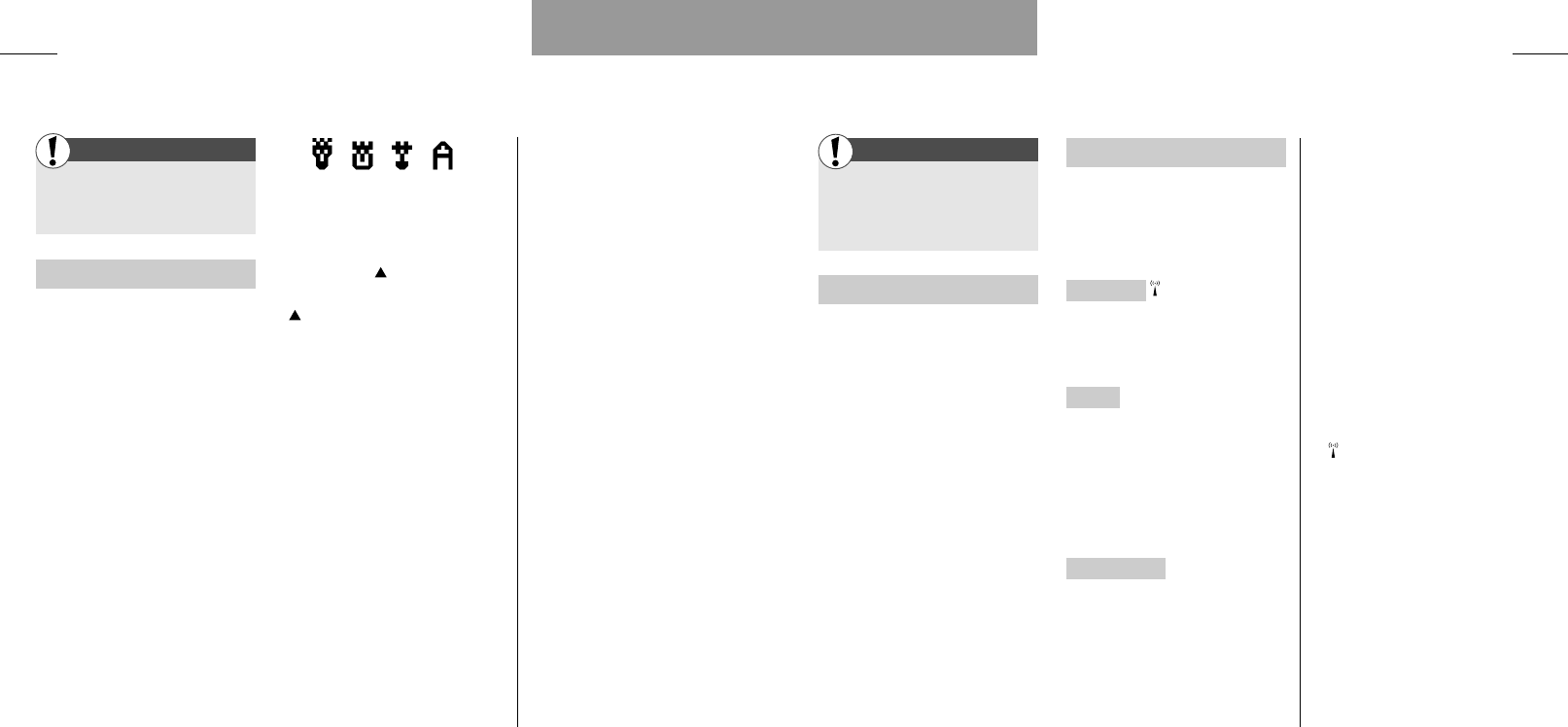
These are the symbols used for the
court cards and the aces.
Game: Press to get a card. To
get one more card, you just press
again. When you do not want
any more cards, select »DONE«. If
the sum of your cards exceeds 21,
you have lost the round.
When you have the cards you
want and have selected »DONE« it
is the phone’s turn. You do not have
to do anything; this part of the
game happens automatically. When
the phone reaches a total sum of
at least 17, it will not draw any
more cards.Your total sum will be
compared to the total sum of the
phone, and the winner gets a point.
Then it is time for the second
round.You draw first. The game is
played best of ten, so the game is
over when either you or your phone
has won 6 rounds/reached 6
points.
Facts & Tips
• At the upper left-hand side of your
display you can see your overall
score, and at the upper right-hand
side you can see the phone’s overall
score.
• Just below your score, you can see
the total sum of the cards you have
drawn in an ongoing game.
• To get a Black Jack you need to
have 21 within the two first draws. If
both you and the phone get Black
Jack in the same round, there is no
winner of this round.
Setup menu
King Queen Knight Ace
First First
Games
User guide C30 GB 03/10/00 11:11 Side 30

33
Deactivation/activation
On some networks you have the
possibility of activating and de-
activating your call divert. This
means that once you have set a
call divert, you can select to deacti-
vate it, and then at a later moment
activate it again.Your telephone will
then remember your last setting
and you will not have to select
divert delay and phone number
again.
You find the option of activating or
deactivating by selecting the spe-
cific call divert you want to acti-
vate/deactivate and then select
»Deactivate« or »Activate«.
Facts & Tips
• If you have chosen to have all calls
diverted, the call divert indicator
will be visible in the display.
• Your selection of a specific kind of
call divert does not only give you the
possibility of setting it. At this level,
you also have the possibility of deacti-
vating/activating the call divert, the
option of seeing the status for this
specific kind of call divert by selecting
»Status«
as well as the option of
cancelling this specific kind of call
divert by selecting
»Clear«
.
• If you try to deactivate/activate a call
divert and your network does not
allow this option, your display will tell
you that the service is not available. In
that case you must cancel a call diver-
sion by selecting
»Clear«
. Next time
you want your incoming calls divert-
ed, select
»Set«
.
Setup menu
Network services
32
Enter the Setup menu
by pressing »MENU«
Select »Network services«
Call divert
If you want to divert your incoming
calls to another phone number, you
have to:
Select one of the five options
of call divert.
Set your call divert.
Different options of call divert
Divert all calls Divert all calls that
are made to your phone.
Divert all unanswered This is an
umbrella function that covers the
next three options at the same
time; i.e. it diverts calls to your
phone:
• if your line is busy
• if you do not reply
• if there is no contact to the network.
Divert if busy Divert your calls if
your phone is busy.
Divert if no reply Divert your calls if
you do not reply.
Divert if no contact Divert your calls
if there is no contact to the net-
work.
Status Check if your phone is
diverted in any of the possible
ways.
Clear all Cancel all your call
diverts.
Set your call divert
Having selected one of the five
mentioned options for diverting
calls, you must select »Set«, and
your telephone will guide you
through the following one or two
steps:
Divert delay (only if you have
selected to divert »if no reply« or
»all unanswered«). Specify the
period of time that elapses before
the call is diverted. You can choose
to »Use default delay« or select a
period from 5 to 30 seconds.
Number. Enter the phone number
you want to divert to or select one
from your phone book using .
On some networks you can
press and your calls will be
diverted to your voice mail, see
p. 24.
Setup menu
First
User guide C30 GB 03/10/00 11:11 Side 32

35
Call waiting
Set »Call waiting« if you want to be
notified by a special ringing tone in
case somebody is calling you while
you are already having a conversa-
tion. You then have the option of
answering or rejecting the new call.
Outgoing call ID
Select »Outgoing call ID« to
choose whether the receiver of
your next outgoing call should be
able to see your phone number or
not.
Line selection
Some network operators offer
Alternate Line Service. This allows
you to have two separate speech
lines and phone numbers on the
same telephone. If you have two
separate lines, you can alternate
between these by entering this
sub menu.
Facts & Tips
• Do not confuse call barring with the
barred number phone book (p. 20).
The barred number phone book only
relates to the barring of specific num-
bers entered by you.
• Your selection of a specific kind of
call barring does not only give you the
possibility of setting it. At this level,
you can also see the status of the
chosen kind of call barring by select-
ing
»Status«
, or cancel the chosen
kind of call barring by selecting
»Clear«
.
• See the Conversation menu at p. 48
for further details on possibilities dur-
ing conversation.
• In the standby display a small num-
ber on the left- or the right-hand side
of the signal strength indicator
informs you whether you are on line
one or line two (only if you have
Alternate Line Service).
Setup menu
Network services
34
Enter the Setup menu
by pressing »MENU«
Select »Network services«
Call barring
You can set up call barring for dif-
ferent types of outgoing and
incoming calls to restrict the use of
your phone. To make use of this
service you need to get a specific
password from your network oper-
ator, and then:
Select one of the different
options for call barring.
Set your call barring.
Different options for call
barring
Outgoing calls gives you three new
options to consider:
• All calls: Bar all outgoing calls.
• International calls: Bar all outgoing
international calls.
• Roaming calls: Bar outgoing calls
when you are connected to a for-
eign network (this still leaves you
the possibility of making calls to
your home country).
Incoming calls gives you two new
options to consider:
• All calls: Bar all incoming calls.
• Roaming calls: Bar incoming calls
when you are connected to a for-
eign network.
Status Check if your phone is
barred in any of the above mention-
ed ways.
Clear all Cancel all your call bar-
rings.
Set your call barring
Once you have selected the kind of
call barring you want, you set it by
pressing »OK«.You will then be
asked to enter the 4-digit password
provided by your network operator.
Setup menu
First
User guide C30 GB 03/10/00 11:11 Side 34

37
Tones
The Tones menu gives you different
options for the various tones of
your phone:
Ringing tone Choose between 10
different ringing tones.
Ringing volume Select whether you
want the volume of your ringing
tone to be »High«, »Medium«,
»Low« or »Off«.
SMS tone volume Select whether
you want to be alerted by a tone
when you receive an SMS.Your
options are »High«, »Medium«,
»Low« or »Off«.
Broadcast tone volume Select
whether you want to be alerted by
a tone when you receive a broad-
cast message. Your options are
»High«, »Medium«, »Low« or
»Off«.
Key tone Select whether you want
to hear a tone when you press a
key on your keypad.Your options
are »On« and »Off«.
Facts & Tips
• Remember that for each entry
stored in your phone book you can
select a specific ringing tone (p. 12).
The ringing tone pattern that you
select in
»Tones«
will thus be used
for the callers to which you have not
selected a specific ringing tone.
• You can disable all kinds of tones by
pressing
»MENU«
and then . Just
press the same keys again in the
same order to revert to your original
settings.
Setup menu
Phone setup
36
Enter the setup menu
by pressing »MENU«
Select »Phone setup«
Language
Select »Language« to change the
display language of your phone.
Network selection
Phoning abroad requires the use of
a foreign network.You can select
one manually or let your telephone
do it automatically.
Entering »Network selection«
gives you three options:
Automatic selection Let your phone
find an available network automati-
cally.Your phone will always try to
reach your home network first,
then alternatively find another avail-
able network.You have the possibil-
ity of establishing a preferred list
(see below) indicating the order of
reference in which your phone
should select a network.
Manual selection Your phone will
always start searching for the net-
work with which it was in contact
when it was switched off. If the
phone cannot locate this network,
it will present some alternative net-
works on the display, and you must
then select one manually.
Set preferred list Enter a list of net-
works in your own order of pre-
ference and store them on your
SIM card.
To do this, select the empty loca-
tion in which you want to store the
new network. Pressing »EDIT« will
give you a list of networks. Find a
network you wish to store in your
preferred list, and press »OK«. If
you select a currently used location
and press »EDIT«, the former occu-
pant will be deleted if you enter a
new one.
Facts & Tips
• If, by mistake, you select a language
which you do not understand, you can
always return to the original language
by pressing the following keys:
0000 , in standby mode.
• If you want to store a network that
is not present in the list you get when
you press
»EDIT«
, you can select
»Specify«
and enter the country
code and network number of the net-
work.
• Please note that your phone can get
in contact only with co-operating net-
works (except for emergency calls).
Setup menu
First
User guide C30 GB 03/10/00 11:11 Side 36

39
Factory settings
Select »Factory settings« and your
phone will automatically revert to
its original setup:
Watch: 24h mode
Language: Automatic
Network
selection: Automatic
Ringing tone: Standard
Ringing
volume: High
SMS tone
volume: High
Broadcast tone
volume: High
Key tone: On
Dial mode: Speed dialling
Greeting: None
Facts & Tips
• Read about location numbers in the
chapter about your phone book (p. 12)
• USSD (Unstructured Supplemen-
tary Service Data) is a feature com-
pletely defined by your network allow-
ing direct communication between
you and your network. An example of
a USSD could be that entering a cer-
tain code of digits and/or letters termi-
nated by a
#
tells your network to
send you a scale of charges.
• The survey at p. 12 tells you how to
find the different characters on your
phone’s keypad when you want to
write e.g. a USSD or a new welcome
greeting.
Setup menu
Phone setup
38
Enter the setup menu
by pressing »MENU«
Select »Phone setup«
Dial mode
Dial mode allows you to choose
between the following two fea-
tures. These two features cannot
be active at the same time, and
selecting one of them will automat-
ically deactivate the other:
Speed dialling Activate »Speed
dialling« to make it possible to call
any numbers in your phone book
just by using the location number.
Press the location number for one
second, and the call will be initiated
automatically. If the location num-
ber consists of more than 1 digit,
press the first digit(s) and hold the
last digit for one second.
Text dialling Activate »Text dialling«
to set the phone in alpha mode.
This enables you to enter a USSD
with both letters and digits instead
of only digits. Remember that a
USSD must always be terminated
by pressing the # key and then
»CALL«.
Greeting
Make a welcome greeting on your
phone according to your own wish-
es. Delete the old greeting, if any,
by holding down »CLEAR«, enter
the new greeting via the keypad
and confirm by pressing »OK«.
(This function may not be available
on all networks).
Setup menu
First
User guide C30 GB 03/10/00 11:11 Side 38
41
Enter the Setup menu
by pressing »MENU«
Select »Message setup«
Send SMS setup
Enter this menu to set up the para-
meters for sending SMS. (To send
an SMS, see the List menu p. 23).
Service centre Enter this menu to
set up once and for all the parame-
ters concerning your service centre
(this is where your SMSs are
received and forwarded to the
recipient.) Your phone will guide
you through the necessary steps:
*Accept to add a service cen-
tre by pressing »OK«.
*Enter your network opera-
tor’s phone number for this
special service and confirm by
pressing »OK«.
*Enter the name of your
network operator and press
»OK«.
*Some network operators have
already entered their own name
and telephone number. In that case
you just have to select it by press-
ing »OK«.
Select a validity time for your
SMS and confirm your choice
by pressing »OK«.
The menu returns to »Service
centre«. Press »SELECT« and
then »OK«.
Now the name and the num-
ber of the service centre that
you have set up will be dis-
played. Press »SELECT« to
confirm.
Facts & Tips
• Remember to add
"+"
and national
code before the number of your net-
work operator so you can also send
SMS from abroad.
• The validity time is the period of
time that the SMS will remain with
your network operator if for some rea-
son it cannot be delivered at once.
• Having stored a service centre,
you might have the option of adding a
new service centre, deleting a stored
service centre or editing a stored
service centre.
•
»Send SMS setup«
continues on
the following page.
Message setup
Setup menu
Phone book setup
40
Enter the Setup menu
by pressing »MENU«
Select »Phone book setup«
With the Phone book setup you
have these three options:
Fixed dialling
Select whether you want the fixed
dialling phone book to be on or off
(read about fixed numbers for this
extra phone book, p. 20).
Barred dialling
Select whether you want the barred
dialling phone book to be on or off
(read about barred numbers for this
extra phone book, p. 20).
Delete call information
Delete all entries stored in the out-
going, answered and/or missed
calls lists.
Facts & Tips
• To enable fixed and barred dialling
you must enter your PUK2/PIN2 code.
• If you have turned on the fixed
dialling function, your ordinary phone
book will not be visible on the display,
and can thus not be accessed.
However, it will, of course, remain on
your SIM card and can be accessed
again by turning off the fixed dialling
function.
Setup menu
First First
User guide C30 GB 03/10/00 11:11 Side 40

43
Enter the Setup menu
by pressing »MENU«
Select »Timers and charge«
This menu offers you different
ways of checking duration and cost
of your calls:
Last call
Check the duration and cost of
your latest call.
Total calls
Check the duration of all incoming
and outgoing calls as well as the
total cost of your calls.
Reset timers and charge
Reset your timers so that the call
duration timers as well as the total
cost counters are set to zero.
Show timer and credit
Make your telephone display the
current duration of your ongoing
conversations and/or have your
standby display inform you of your
remaining credit (only if you have
prepaid your calls).
Call charge
Change the conditions of the call
charge functions. You have the fol-
lowing options:
Call charge maximum Enter a maxi-
mum call charge limit, and no more
phone calls can be made when this
maximum has been reached.
Call charge unit price Enter the unit
price for your calls (check with your
network operator).
Call charge currency Enter the cur-
rency of your call charge.
Call charge remaining Check the
remaining call charge balance, if
you have entered a maximum call
charge limit.
Facts & Tips
• All features that concern the cost
of calls are only enabled if supported
by your network, and in some cases it
is also necessary to enter a unit price
and the actual currency in the sub
menu Call charge. Finally, you may be
asked to enter a PUK2/PIN2 code.
• If you have prepaid your calls,
and your remaining credit is not per-
manently displayed in your standby
display, you can see your remaining
credit by shortly pressing »
OFF
«
once or twice (depending on network
and your settings concerning the
clock).
Timers and charge
Setup menu
Message setup
42
Enter the Setup menu
by pressing »MENU«
Select »Message setup«
Send SMS setup
(Continued from previous page).
Reply path For messages that
have to be sent via several service
centres to reach the recipient,
some networks offer the feature of
forwarding a reply, if any, back to
you through the same chain of
service centres. This is called a
reply path, and activating it may
speed up the delivery time for a
reply.
Save outgoing SMS Activate »Save
outgoing SMS« if you want your
outgoing SMSs to be automatically
stored in your outbox (p. 22).
Broadcast setup
To be able to receive broadcasts
you must enter the Broadcast
setup which gives you the follow-
ing options:
Broadcast channels Set up a list
covering the kind of information
you wish to receive. The display will
show you various locations in
which you can store the individual
channels. Pressing »EDIT« will give
you a range of different kinds of
information among which you can
select the one(s) you want to
receive.
Broadcast language Some net-
work operators offer broadcast
messages in different languages.
Select between different languages
or simply select all languages.
Broadcast setting Finally, select
whether you want the broadcast
function to be activated.
Facts & Tips
• For more information on broadcasts,
see p. 24.
Setup menu
First First
User guide C30 GB 03/10/00 11:11 Side 42

First
45
Encryption indication
Get a warning in your display if you
connect to a network which does
not support encryption.
Line lock
If you have Alternate Line Service
on your SIM card you can restrict
the outgoing use to only one of
these lines.
Activate the line lock in this sub
menu and enter a 4 to 8 digit lock
code of your own choice.To shift
back to the other line you have to
re-enter this code.
Facts & Tips
• For your own sake remember to
write down your SIM lock code to be
able to deactivate the lock at a later
time. You have 10 attempts before
the phone is blocked.
• If you enter an invalid PIN code three
times, your SIM card will be blocked,
and to unblock it you have to enter the
PUK code supplied by your network
operator. This procedure prevents unau-
thorised persons from working out
your PIN code by repeatedly entering
different combinations of numbers.
• The display will inform you how many
tries you have left before the SIM card
is blocked. If you enter an invalid PUK
code 10 times, your SIM card will be
permanently blocked and you must
contact your network operator.
• Contact your network operator for
further information on PUK2 and PIN2
codes.
• Encryption means that the network
encrypts the conversations to make it
difficult for unauthorised persons to
listen in on them.
Setup menu
Security
44 Setup menu
Enter the Setup menu
by pressing »MENU«
Select »Security«
Entering the Security menu gives
you different possibilities of pre-
venting misuse of your SIM card
and your telephone, e.g. if your
phone is lost or stolen.
PIN code
Select a PIN code (4 to 8 digits) to
be entered each time you switch
on your phone. If you have already
selected a PIN code, this menu
also gives you the choice of dis-
abling it again.
Change PIN code
Change your PIN code.
Change PIN2 code
Change your PIN2 code (used on
some SIM cards for accessing spe-
cial functions).
Change network password
Change your network password
(used if you subscribe to a call bar-
ring service).
SIM lock
Link your telephone and your SIM
card together by activating the SIM
lock.You will be asked to enter a 6
to 16 digit code of your own
choice.
This means that if, for instance,
your phone is stolen it cannot be
used together with another SIM
card.
User guide C30 GB 03/10/00 11:11 Side 44

46
Conversation menu
See everything about the
possibilities that you have
during conversation.
47
User guide C30 GB 03/10/00 11:11 Side 46

49
Microphone on/off
Select »Microphone off« to turn off
the microphone during a conversa-
tion. You can still hear everything
your caller says, but you cannot be
heard by the caller.
Select »Microphone on« to acti-
vate the microphone again.
Hold a call
You can make a second call with-
out having to end a call that is cur-
rently active. Enter the second
phone number and press »CALL«.
If you have activated call waiting
(see p. 35) you can also answer a
new incoming call without having
to end the currently active call.
When you hear the special ringing
tone in your earphone, you just
press »ANSWER«.
In both cases, the first call will
automatically be put on hold. You
can also put calls on hold manually
by selecting »Hold call«.
Continue a call
When you want to retrieve a call
put on hold, just select »Continue
call«.
Switch between calls
If you have a call on hold and an
active call, you can switch between
these two by selecting »Switch
call«.
Drop active call
You can end an active call by
selecting »Drop active call«. If you
also have a call put on hold, this
call will remain on hold until you
retrieve it to continue conversation.
Drop held call
You can end a call put on hold by
selecting »Drop held call«.
Phone book
During a conversation you can
make a new call to a number
stored in your phone book by
selecting »Phone book«.
Facts & Tips
• Please be aware that you can only
have one call on hold at a time.
Conversation menu
Conversation menu
48
This menu is only available
when you are actually talking
on the phone.
Enter the Conversation menu:
Press »MENU«
Scroll through the options:
and
Select an option: Press »OK«
This menu offers you different
kinds of options while you are hav-
ing a conversation:
Microphone on/off
• Turn your microphone on/off
Hold a call
• Put an active call on hold
Continue a call
• Continue a call that is put on
hold
Switch between calls
• Switch between an active call
and a call put on hold
Drop active call
• Drop a call that you have active
Drop held call
• Drop a call that you have on hold
Phone book
• Call a number in your phone
book
Facts & Tips
• The status of the call determines
which menu items are visible and
available for you to select.
General
User guide C30 GB 03/10/00 11:11 Side 48

50 51
Further information
Get an overview of the keypad
functions and the display
symbols of your phone.
51
User guide C30 GB 03/10/00 11:11 Side 50
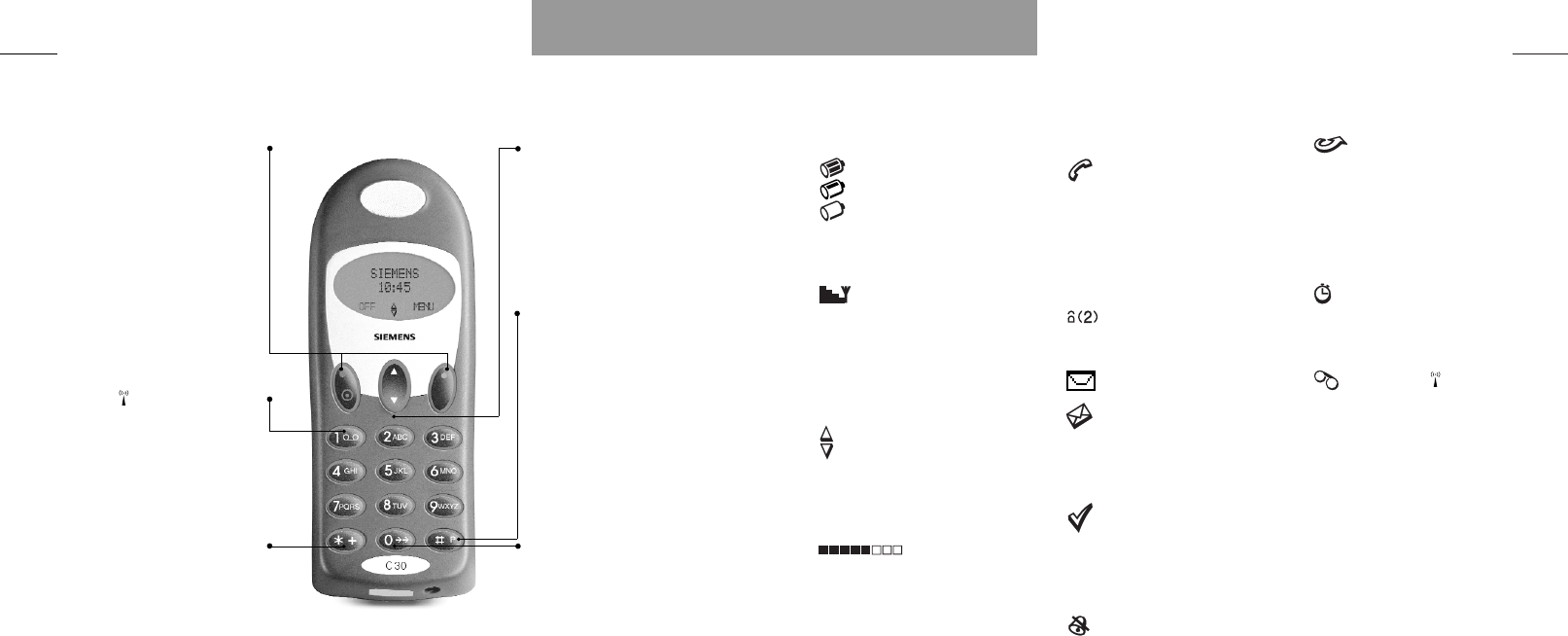
53
Battery level
Battery is fully charged.
Battery is partly discharged.
Battery needs recharging. You
have limited conversation
time left.
Signal strength
The more signal bars displayed, the
better the radio connection.The
antenna symbol will be flashing
when the phone is searching for a
network.
Scrolling
There are more functions up or
down which you can access.
Volume level
Indicates volume level when
adjusting.
Calling
On: You are connected to
another phone number
Flashing: There is a new
incoming call for you, or you
are calling someone, but still
not connected.
You have missed two calls.
SMS
There is a new SMS for you.
On: There are still unread
SMSs in your inbox.
Flashing: The SMS memory is
full.
Selected item
Indicates which item has been
selected when you scroll through a
list of options.
Tones off
Indicates that all tones have been
disabled.
Call diversion
On: All calls to your mobile tele-
phone are diverted to another tele-
phone number.
Flashing: Status of your call diverts
is unknown.
Stopwatch
Indicates that the stopwatch is run-
ning.
Voice mail
Indicates that there is a voice mail
for you.
Display and keypad backlight
The backlight switches on automat-
ically when you press a key. In
standby mode the light will auto-
matically switch off if no key is
pressed for 10 seconds or more.
Display symbolsKeypad functions
52
On/off key and function keys
The left-hand function key turns
your phone on and off.
When the phone is on, the func-
tion of these two keys varies
according to whether you are in
standby or menu mode. The text
line at the bottom of the display
will inform you of the current func-
tion of each key at any time.
Voice mail
Press for one second and get quick
access to your voice mail (only if
the number is stored by you or
your network operator).
International numbers
Press for one second to insert a "+"
before international phone num-
bers.
Arrow keys up/down
For controlling volume level during
conversation, for moving cursor
when writing a message, for
scrolling through menus, phone
book, lists, messages, etc.
Extension numbers and
prefix numbers
Press for one second to insert a
pause (P) between the main num-
ber and the extension number.
Press for two seconds to insert a
"?" for each varying digit in a prefix
phone number (for storing in your
phone book).
Latest outgoing call
Press for one second and the call is
initiated automatically (only if you
have activated speed dialling).
User guide C30 GB 03/10/00 11:11 Side 52

55
EasyClick
54
The EasyClick system gives you the
possibility of changing the design
and the colour of your phone by
changing the front part, keypad and
battery lid.
Remove a front part
Remove the battery lid and
the battery.
Release the front part:
Insert a front part
Replace the battery and the
battery lid.
Facts & Tips
• Do not try to open any other parts
of the phone than those of the
EasyClick system. Opening other
parts might damage the phone.
Technical specifications
This product uses frequency bands
whose use is harmonized within
the European Community area. This
product is intended to be connect-
ed to the Pan-European GSM pub-
lic telecommunications network.
• GSM900 Class 4 (2 Watts)
Frequency range
880-960 MHz
• GSM1800 Class 1 (1 Watt)
Frequency range
1710-1880 Mhz
Weight:
110 g
Size:
124 x 44 x 24 mm
Operating voltage:
3.6 V
Power consumption:
Max. 400 mA
Operating temperature:
-10˚ – +55˚ Celcius
Standby time:
Max: 250 h
Min: 100 h
Talk time:
Max: 4.8 h
Min: 2.1 h
User guide C30 GB 02/11/00 12:35 Side 54

We,
Siemens Mobile Phones A/S
Industrivej 30
DK-9490 Pandrup
Denmark
declare under sole responsibility that the products:
Siemens C30
Siemens M30
manufactured by
Flextronics International Danmark A/S
Industrivej 30
DK-9490 Pandrup
Denmark
to which this declaration relates, are in conformity with
the following standards and/or other normative docu-
ments:
•
EN 301 419
•
EN 60 950
•
ETS 300 342-1
•
ES 59 005 (following the provisions of EC Council
Recommendation 1999/519/EEC)
We hereby declare that tests have been conducted,
test results evaluated and that the above named pro-
ducts are in conformity to the essential requirements of
Directive 5/1999/EEC.
The conformity assessment procedure referred to in
Article 10(5) and detailed in Annex V of Directive
1999/5/EEC has been followed with the involvement of
the Notified Body:
BABT
Claremont House
34 Molesey Road
Walton-on-Thames
KT 12 4RQ
United Kingdom
Identification mark: 0168
The technical documentation relevant to the above
equipment will be held at
Siemens Mobile Phones A/S
Industrivej 30
DK-9490 Pandrup
Denmark
Pandrup, September 4, 2000
Oluf Kristensen Manfred Heier
Regulatory Affairs Managing Director
Declaration of Conformity
56
Index
57
User guide C30 GB 02/11/00 12:35 Side 56

59
Messages
- broadcasts 24
- SMS 22
Microphone on/off 49
Missed calls 18
N
etwork password 44
Network selection 36
Network services 32
O
ptions during conversation 48
Outgoing calls 18
Outgoing call ID 35
Own numbers 20
P
hone book 11
Phone book setup 40
Phone book status 19
Phone setup 36
PIN code 44
PIN2 code 44
Precautions 4
Preferred list 36
Prefix telephone numbers 13
PUK code 45
PUK2 code 45
R
eading a message
- broadcast 24
- SMS 22
Redialling a number 10
Remaining call charge 43
Reset timers & charge 43
Ringing tone 37
S
ave outgoing SMS 42
Security 44
Send SMS setup 41
Sending a new SMS 23
Service centre (SMS) 41
Service numbers 21
Set time 31
Setup menu 25
Sheriff McAllen 28
Show timer & credit 43
SIM card 8
SIM lock 44
SMS 22, 41
SMS tone 37
Speed dialling 38
Stopwatch 31
Store a name/number 12
Switching between calls 49
T
echnical specifications 55
Text dialling 38
Timers and charge 43
Tones 37
U
nit price 43
Using your keypad 12, 52
USSD 39
V
oice mail 24
Volume control 9
W
ho is calling 13
Index
Index
58
A
nswered calls 18
Answering a call 9
B
arring calls 34
Barred dialling 40
Barred numbers 20
Battery 6
Battery indicator 53
Black Jack 30
Broadcast setup 42
Broadcast tone 37
Broadcasts 24, 42
C
all barring 34
Call charge 43
Call divert 32
Call waiting 35
Calling 9
Calling Line ID 13
Change PIN code 44
Charge battery 7
Clock 31
Continuing calls 49
Conversation menu 47
Currency/Call charge 43
D
elete an SMS 22
Delete a name/number 19
Delete call information 40
Dial mode 38
Disabling all tones 10
Display symbols 53
Display texts 10
Display time 31
Diverting calls 32
Dropping a held call 49
Duration of last call 43
Duration of total calls 43
E
asyClick system 54
Echo Man 29
Edit an old SMS 22
Edit a name/number 19
Encryption indication 44
Extension numbers 52
Extra phone books 20
F
actory settings 39
Find a name/number 14
Fixed dialling 40
Fixed numbers 20
G
ames 28
Getting started 5
Greeting 38
H
olding a call 49
I
nfo numbers 21
Insert SIM card 8
Internal antenna 9
K
eypad 12, 52
Keypad lock 10
Key tone 37
L
anguage 36
Line lock 45
Line selection 35
List menu 15
Location numbers 12
M
aking a call 9
Maximum call charge 43
Message setup
- broadcast 42
- SMS 41
User guide C30 GB 02/11/00 12:35 Side 58
