Siemens Gigaset S1 Users Manual Siemens_H3_G4MC
Gigaset S1 to the manual ff65d783-fb87-4cb0-8635-887f39d69a80
2015-02-05
: Siemens Siemens-Gigaset-S1-Users-Manual-410090 siemens-gigaset-s1-users-manual-410090 siemens pdf
Open the PDF directly: View PDF  .
.
Page Count: 110 [warning: Documents this large are best viewed by clicking the View PDF Link!]
- Overview of handsets
- Operating instructions
- Conducting calls – the basic functions
- Description of the keys
- Putting the handset into service
- Setting the handset
- Setting the handset volume
- Setting the ringer
- Advisory tones
- Setting the ringer echo
- Activating and deactivating silent alert
- Sound Manager
- Activating or deactivating the ringer
- Activating or deactivating the warning tone
- Activating/deactivating automatic call answering
- Setting the date and time
- Editing the idle display
- Resetting the defaults
- PC interface (Gigaset SL 1 professional only)
- Conducting calls – enhanced functions
- Speakerphone mode
- Voice dialling
- Number redial
- System speed dialling
- Individual system speed dialling
- System telephone directory
- Handset telephone directory/speed dialling list
- E-mail directory
- Directed assignment of an MSN (multiple subscriber number)
- Making calls using identification codes
- Using the handset as a second line
- Deactivating the phone number display
- Directed call transfer
- Activating/deactivating do not disturb
- Call charge display
- Call trace
- Entrance telephone
- TDS telephone data service
- Activating control relays
- Sending a signal to the network
- External call forwarding with a multiple subscriber number
- Using night service
- Using dual-tone multifrequency signalling
- Parking/activating calls
- Conducting calls – with multiple users
- Group functions
- Message functions
- Additional functions
- Telephone blocking
- System functions
- Appendix
- Index

HiPath 3000 V3.0 or later
Gigaset SL1 professional
Gigaset S1 professional
in HiPath Cordless Office
Operating Manual
Safety notes
Safety notes
Handset
Batteries
Danger:
• Do not use the handset in potentially explosive atmospheres.
• Do not install the handset in the vicinity of electronic equipment
to avoid mutual interference.
• Do not use the handset in wet rooms! Devices are not splash-
proof.
• A transmitter signal is emitted by your handset. Please observe
safety procedures for your area.
Note:
• Information for hearing aid users: Radio signals can interfere in
hearing aids.
• Please provide the operating instructions with the handset if
giving it to another user.
Note:
The ringing tone, signal tones and handsfree talking (speakerphone
mode) are played over the loudspeaker. Do not hold the telephone
to your ear when it is ringing or if speakerphone mode is switched
on. Otherwise you may seriously impair your hearing.
Danger:
• Only use permitted batteries.
• Do not use conventional batteries. Failure to observe this advice
can lead to danger.
• Avoid contact with fire and water.
• Only use the approved C39280-Z4-C373 power supply unit to
operate the charging shell.
Note:
Please dispose of the battery, the handset, the charging
shell and the plug-in power supply unit in accordance
with the environmental specifications.
Overview of handsets
I
Overview of handsets
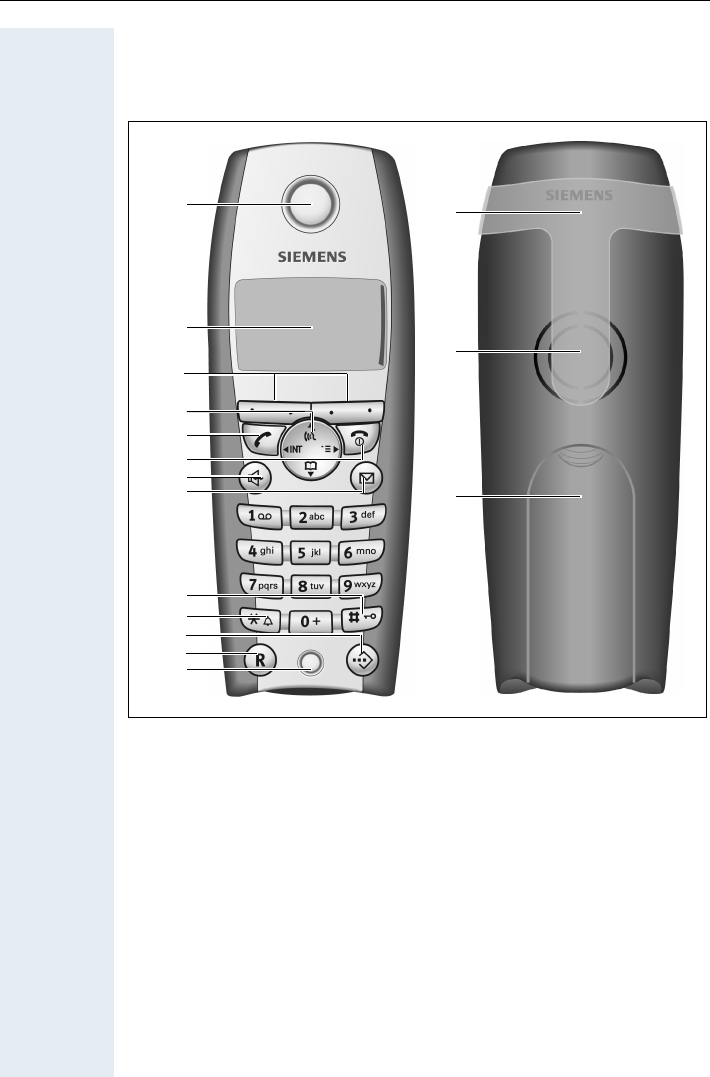
Gigaset S 1 professional
1 Receiver inset 9 Hash key
2 Display 10 Star key
3 Display keys 11 Speed dialling key
4 Control key 12 R key
5Talk key 13Microphone
6 On-hook and on/off key 14 Attachment clip
7 Speakerphone key 15 Ringer loudspeaker
8 Message list 16 Battery compartment
cover
How to use the keys: Æpage 10
1
2
3
4
5
6
7
8
9
10
11
13
14
15
16
12
Overview of handsets
II
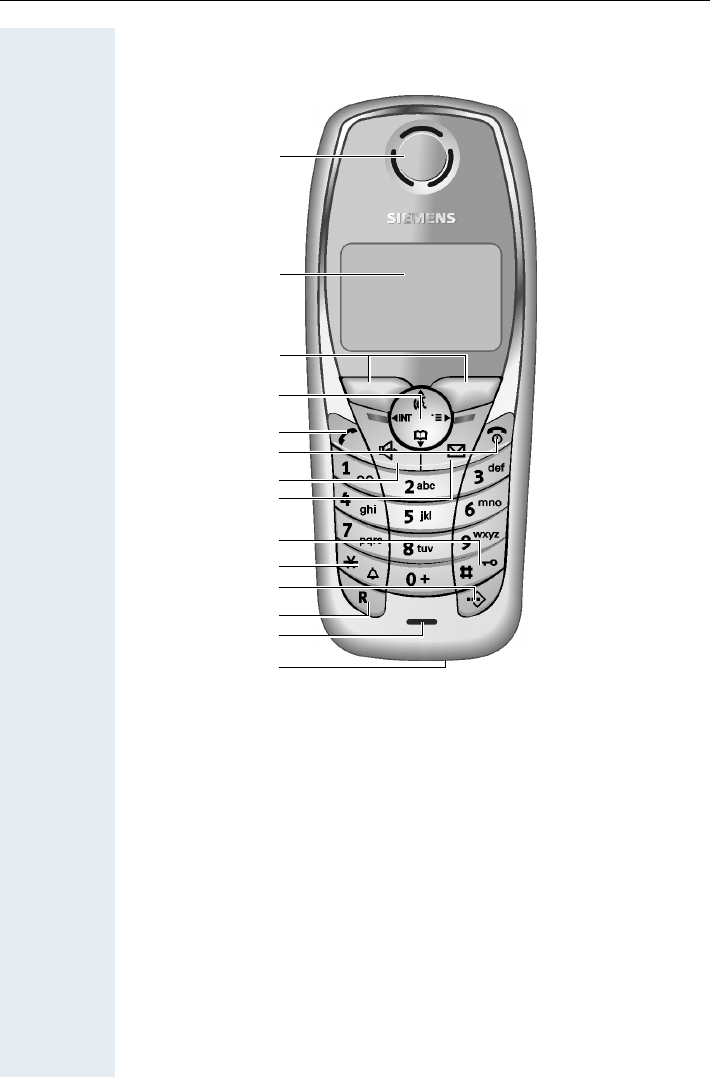
Gigaset SL 1 professional
1 Receiver inset 8 Message key
2Display 9Hash key
3 Display keys 10 Star key
4 Control key 11 Speed dial key
5 Talk key 12 R key
6 On-hook and on/off key 13 Microphone
7 Speakerphone key 14 Connection jack for head-
set and PC interface
(Æpage 30)
How to use the keys: Æpage 10
1
2
3
4
5
6
7
8
9
10
11
12
13
ÐU
09.45
20.04.03
INT 1
14

Contents
III
Contents
Overview of handsets . . . . . . . . . . . . . . . . . . . . . . . . . . I
Gigaset S 1 professional . . . . . . . . . . . . . . . . . . . . . . . . . . . . . . . . . . . . . I
Gigaset SL 1 professional . . . . . . . . . . . . . . . . . . . . . . . . . . . . . . . . . . . . II
Operating instructions . . . . . . . . . . . . . . . . . . . . . . . . . 1
Conducting calls – the basic functions . . . . . . . . . . . 1
Activating/deactivating the handset. . . . . . . . . . . . . . . . . . . . . . . . . . . . . 2
First seize the line, then dial . . . . . . . . . . . . . . . . . . . . . . . . . . . . . . . . . . 3
Dial first, then seize the line . . . . . . . . . . . . . . . . . . . . . . . . . . . . . . . . . . 3
Manual number redial . . . . . . . . . . . . . . . . . . . . . . . . . . . . . . . . . . . . . . . 3
Callback . . . . . . . . . . . . . . . . . . . . . . . . . . . . . . . . . . . . . . . . . . . . . . . . . . 4
Enquiry. . . . . . . . . . . . . . . . . . . . . . . . . . . . . . . . . . . . . . . . . . . . . . . . . . . 5
Answering a call . . . . . . . . . . . . . . . . . . . . . . . . . . . . . . . . . . . . . . . . . . . 6
Placing a call in a call pickup group . . . . . . . . . . . . . . . . . . . . . . . . . . . . . 7
Ending a call. . . . . . . . . . . . . . . . . . . . . . . . . . . . . . . . . . . . . . . . . . . . . . . 7
Call forwarding. . . . . . . . . . . . . . . . . . . . . . . . . . . . . . . . . . . . . . . . . . . . . 7
Activating or deactivating the keypad lock . . . . . . . . . . . . . . . . . . . . . . . 9
Leaving the radio network. . . . . . . . . . . . . . . . . . . . . . . . . . . . . . . . . . . . 9
Description of the keys. . . . . . . . . . . . . . . . . . . . . . . . 10
Function keys . . . . . . . . . . . . . . . . . . . . . . . . . . . . . . . . . . . . . . . . . . . . 10
R-key . . . . . . . . . . . . . . . . . . . . . . . . . . . . . . . . . . . . . . . . . . . . . . . . . . . 11
Control key . . . . . . . . . . . . . . . . . . . . . . . . . . . . . . . . . . . . . . . . . . . . . . 11
Display keys. . . . . . . . . . . . . . . . . . . . . . . . . . . . . . . . . . . . . . . . . . . . . . 12
Putting the handset into service . . . . . . . . . . . . . . . . 13
Removing the protective cover . . . . . . . . . . . . . . . . . . . . . . . . . . . . . . . 13
Inserting the batteries . . . . . . . . . . . . . . . . . . . . . . . . . . . . . . . . . . . . . . 13
Charging and using the batteries. . . . . . . . . . . . . . . . . . . . . . . . . . . . . . 14
Operating and charging times of the batteries . . . . . . . . . . . . . . . . . . . 15
Permitted batteries . . . . . . . . . . . . . . . . . . . . . . . . . . . . . . . . . . . . . . . . 15
Fitting the attachment clip. . . . . . . . . . . . . . . . . . . . . . . . . . . . . . . . . . . 16
Setting the handset display language . . . . . . . . . . . . . . . . . . . . . . . . . . 16
Setting the system display language. . . . . . . . . . . . . . . . . . . . . . . . . . . 17

Contents
IV
Setting the handset . . . . . . . . . . . . . . . . . . . . . . . . . . .18
Setting the handset volume . . . . . . . . . . . . . . . . . . . . . . . . . . . . . . . . . 18
Setting the ringer. . . . . . . . . . . . . . . . . . . . . . . . . . . . . . . . . . . . . . . . . . 19
Advisory tones. . . . . . . . . . . . . . . . . . . . . . . . . . . . . . . . . . . . . . . . . . . . 21
Setting the ringer echo . . . . . . . . . . . . . . . . . . . . . . . . . . . . . . . . . . . . . 22
Activating and deactivating silent alert . . . . . . . . . . . . . . . . . . . . . . . . . 22
Sound Manager . . . . . . . . . . . . . . . . . . . . . . . . . . . . . . . . . . . . . . . . . . . 23
Recording a melody . . . . . . . . . . . . . . . . . . . . . . . . . . . . . . . . . . . . . 23
Playing a melody . . . . . . . . . . . . . . . . . . . . . . . . . . . . . . . . . . . . . . . 23
Editing an entry . . . . . . . . . . . . . . . . . . . . . . . . . . . . . . . . . . . . . . . . 24
Activating or deactivating the ringer . . . . . . . . . . . . . . . . . . . . . . . . . . . 25
Activating or deactivating the warning tone . . . . . . . . . . . . . . . . . . . . . 25
Activating/deactivating automatic call answering . . . . . . . . . . . . . . . . . 26
Setting the date and time . . . . . . . . . . . . . . . . . . . . . . . . . . . . . . . . . . . 26
Editing the idle display. . . . . . . . . . . . . . . . . . . . . . . . . . . . . . . . . . . . . . 27
Resetting the defaults . . . . . . . . . . . . . . . . . . . . . . . . . . . . . . . . . . . . . . 28
PC interface (Gigaset SL 1 professional only) . . . . . . . . . . . . . . . . . . . . 30
Conducting calls – enhanced functions . . . . . . . . .31
Speakerphone mode . . . . . . . . . . . . . . . . . . . . . . . . . . . . . . . . . . . . . . . 31
Voice dialling . . . . . . . . . . . . . . . . . . . . . . . . . . . . . . . . . . . . . . . . . . . . . 32
Number redial . . . . . . . . . . . . . . . . . . . . . . . . . . . . . . . . . . . . . . . . . . . . 34
System speed dialling . . . . . . . . . . . . . . . . . . . . . . . . . . . . . . . . . . . . . . 36
Individual system speed dialling . . . . . . . . . . . . . . . . . . . . . . . . . . . . . . 36
System telephone directory . . . . . . . . . . . . . . . . . . . . . . . . . . . . . . . . . 37
Handset telephone directory/speed dialling list. . . . . . . . . . . . . . . . . . . 38
E-mail directory . . . . . . . . . . . . . . . . . . . . . . . . . . . . . . . . . . . . . . . . . . . 40
Directed assignment of an MSN (multiple subscriber number) . . . . . . 41
Making calls using identification codes . . . . . . . . . . . . . . . . . . . . . . . . . 42
Using the handset as a second line. . . . . . . . . . . . . . . . . . . . . . . . . . . . 43
Deactivating the phone number display . . . . . . . . . . . . . . . . . . . . . . . . 43
Directed call transfer . . . . . . . . . . . . . . . . . . . . . . . . . . . . . . . . . . . . . . . 44
Activating/deactivating do not disturb . . . . . . . . . . . . . . . . . . . . . . . . . . 45
Call charge display. . . . . . . . . . . . . . . . . . . . . . . . . . . . . . . . . . . . . . . . . 45
Call trace . . . . . . . . . . . . . . . . . . . . . . . . . . . . . . . . . . . . . . . . . . . . . . . . 46
Entrance telephone . . . . . . . . . . . . . . . . . . . . . . . . . . . . . . . . . . . . . . . . 47
TDS telephone data service. . . . . . . . . . . . . . . . . . . . . . . . . . . . . . . . . . 49
Activating control relays . . . . . . . . . . . . . . . . . . . . . . . . . . . . . . . . . . . . 49
Sending a signal to the network . . . . . . . . . . . . . . . . . . . . . . . . . . . . . . 50
External call forwarding with a multiple subscriber number . . . . . . . . . 51
Using night service . . . . . . . . . . . . . . . . . . . . . . . . . . . . . . . . . . . . . . . . 52
Using dual-tone multifrequency signalling. . . . . . . . . . . . . . . . . . . . . . . 53
Parking/activating calls. . . . . . . . . . . . . . . . . . . . . . . . . . . . . . . . . . . . . . 54

Contents
V
Conducting calls – with multiple users. . . . . . . . . . 55
Call waiting . . . . . . . . . . . . . . . . . . . . . . . . . . . . . . . . . . . . . . . . . . . . . . 55
Call waiting tone off/on . . . . . . . . . . . . . . . . . . . . . . . . . . . . . . . . . . . . . 56
Disabling/enabling automatic call waiting . . . . . . . . . . . . . . . . . . . . . . . 57
Override. . . . . . . . . . . . . . . . . . . . . . . . . . . . . . . . . . . . . . . . . . . . . . . . . 57
Transferring calls . . . . . . . . . . . . . . . . . . . . . . . . . . . . . . . . . . . . . . . . . . 58
Placing a call on hold . . . . . . . . . . . . . . . . . . . . . . . . . . . . . . . . . . . . . . . 60
Toggling. . . . . . . . . . . . . . . . . . . . . . . . . . . . . . . . . . . . . . . . . . . . . . . . . 60
Conducting a conference. . . . . . . . . . . . . . . . . . . . . . . . . . . . . . . . . . . . 61
Using the second call function . . . . . . . . . . . . . . . . . . . . . . . . . . . . . . . 64
Group functions . . . . . . . . . . . . . . . . . . . . . . . . . . . . . . 65
Activating/deactivating group calls . . . . . . . . . . . . . . . . . . . . . . . . . . . . 65
Ringing group on . . . . . . . . . . . . . . . . . . . . . . . . . . . . . . . . . . . . . . . . . . 67
UCD (Universal Call Distribution) . . . . . . . . . . . . . . . . . . . . . . . . . . . . . . 68
Mulap group (Multiple Line Application) . . . . . . . . . . . . . . . . . . . . . . . . 71
Message functions . . . . . . . . . . . . . . . . . . . . . . . . . . . 74
Leaving a message/advisory message . . . . . . . . . . . . . . . . . . . . . . . . . 74
Sending/calling text messages . . . . . . . . . . . . . . . . . . . . . . . . . . . . . . . 75
Answering a message or voice-mail message . . . . . . . . . . . . . . . . . . . 77
Caller list . . . . . . . . . . . . . . . . . . . . . . . . . . . . . . . . . . . . . . . . . . . . . . . . 79
Additional functions . . . . . . . . . . . . . . . . . . . . . . . . . . 81
Handset alarm clock function . . . . . . . . . . . . . . . . . . . . . . . . . . . . . . . . 81
Handset appointment reminder function. . . . . . . . . . . . . . . . . . . . . . . . 82
System appointment function . . . . . . . . . . . . . . . . . . . . . . . . . . . . . . . . 85
Using predictive text . . . . . . . . . . . . . . . . . . . . . . . . . . . . . . . . . . . . . . . 86
Selecting a base . . . . . . . . . . . . . . . . . . . . . . . . . . . . . . . . . . . . . . . . . . 87
Telephone blocking. . . . . . . . . . . . . . . . . . . . . . . . . . . 88
Handset telephone lock. . . . . . . . . . . . . . . . . . . . . . . . . . . . . . . . . . . . . 88
Telephone lock code programming . . . . . . . . . . . . . . . . . . . . . . . . . . . . 89
Locking/unlocking the handset . . . . . . . . . . . . . . . . . . . . . . . . . . . . . . . 90
Central telephone lock/locking/unlocking other handsets . . . . . . . . . . . 91
System functions . . . . . . . . . . . . . . . . . . . . . . . . . . . . . 92
Calling functions via the menu . . . . . . . . . . . . . . . . . . . . . . . . . . . . . . . 92
Calling functions via codes . . . . . . . . . . . . . . . . . . . . . . . . . . . . . . . . . . 92
Functions and codes . . . . . . . . . . . . . . . . . . . . . . . . . . . . . . . . . . . . . . . 93

Contents
VI
Appendix . . . . . . . . . . . . . . . . . . . . . . . . . . . . . . . . . . . .96
Troubleshooting. . . . . . . . . . . . . . . . . . . . . . . . . . . . . . . . . . . . . . . . . . . 96
Cleaning the handset. . . . . . . . . . . . . . . . . . . . . . . . . . . . . . . . . . . . . . . 97
Technical data and accessories . . . . . . . . . . . . . . . . . . . . . . . . . . . . . . . 97
EU-guidelines. . . . . . . . . . . . . . . . . . . . . . . . . . . . . . . . . . . . . . . . . . . . . 98
Declaration of conformity . . . . . . . . . . . . . . . . . . . . . . . . . . . . . . . . . . . 98
Index. . . . . . . . . . . . . . . . . . . . . . . . . . . . . . . . . . . . . . . .99

Operating instructions
1
Step by Step
Operating instructions
These operating instructions describe your handset and
its functions on your communications system.
All functions that can be performed via your handset are
described here. If some of the required functions are
not available on your handset, it may be due to one of
the following:
• The function is not configured for you or your hand-
set - please contact your system administrator.
• Your communications platform does not feature this
function - please contact your Siemens contract
partner to upgrade.
Conducting calls – the basic
functions
You can use your handset to make both internal and ex-
ternal calls.
Internal calls are calls that
• you make within the range of a communication sys-
tem, e. g. within your company,
• you make between networked communication sys-
tems, e. g. to different company locations.
External calls are calls that you conduct with users of
the public telephone network.
Step by Step
Conducting calls – the basic functions
2
Activating/deactivating the handset
aPress the On-hook key until the activation or deactiva-
tion is confirmed by a crescendo tone sequence.
If your preferred language for the display texts is not
set, you can set this yourself (Æpage 16).
If a mobile phone that is switched off is placed in the
charging shell, it will switch on.
If the PIN is still the same as the factory default (0000),
the phone is ready for operation.
If the PIN is not the same as the factory default, the PIN
must be entered to make the mobile phone ready for
operation.
Displaying the connection quality
The strength of the incoming signal is displayed by the
"receive field strength" icon in on or message status:
The radio range is different indoors and outdoors
(Æpage 97). Please consult your system administrator
in the event of range problems.
Note:
• The handset can only be fully switched off
when removed from the charging shell.
• After switching off a mobile phone, place it in
the charging shell; with PIN "0000" it will
switch on immediately and is ready for ope-
ration. If the PIN is not "0000", you must first
enter the PIN. Only then is the mobile phone
ready for operation.
• When a handset that is ready for operation is
placed in the charging shell it goes to idle sta-
tus and shows the idle display.
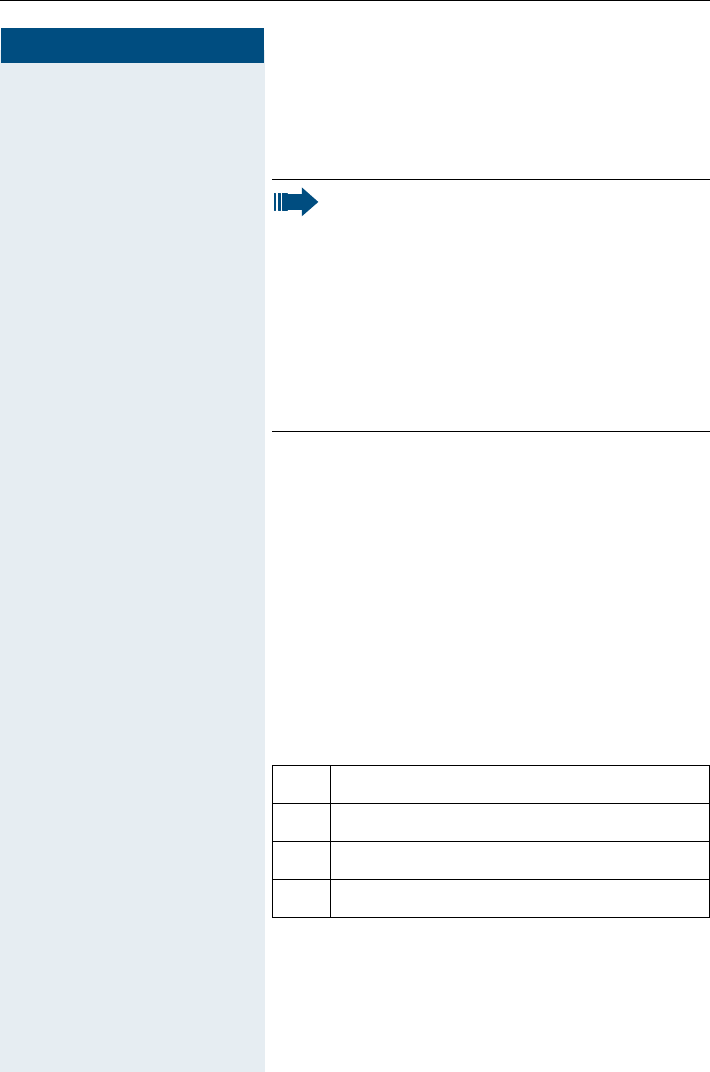
|No receive field strength
ÒLow receive field strength
Ñ50% receive field strength
Ð100% receive field strength
Conducting calls – the basic functions
3
Step by Step
First seize the line, then dial
c or uPress the Talk or Speakerphone key.
oEnter the required phone number. The user will be
called.
Typing errors cannot be corrected. If you make a typing
error: press the On-hook key.
pThe user answers. Conduct the call.
Dial first, then seize the line
o if necessary XEnter the required phone no. and correct individual char-
acters as necessary using the "Delete" Display key.
if necessary ©The following functions are available while you are en-
tering the phone number:
• "Insert Pause" (Insert a dial pause, e.g. between the
prefix and phone number or when checking a mail-
box.)
• "Insert TBR" (irrelevant)
• "Copy to Directory" (save the phone number in the
handset’s redial list)
c or uPress the Talk key or Speakerphone key within 30 sec-
onds. The user will be called.
pThe user answers. Conduct the call.
Manual number redial
With Gigaset S1 professional the last five numbers di-
alled, or with Gigaset SL 1 professional the last ten
numbers, are automatically saved in the redial list.
zCall the redial list.
D or EPress the top or bottom of the control key to select the
required phone number.
cPress the Talk key.
Note:
This dialling preparation function is also available
with number redial and dialling using the hand-
set redial list.

Step by Step
Conducting calls – the basic functions
4
Callback
This function enables you to call a user who does not
answer or whose line is busy. The Callback function en-
ables you to contact him as soon as he hangs up or re-
uses his telephone. Please note that a line is signalled
as busy when it is being called by another user. You can
continue to use your handset without restriction when
a callback has been booked.
You can also send a callback request as a message
(Æpage 75). This function can also be called by enter-
ing the code (Æpage 92).
Booking a callback
pThe number is dialled. You hear the busy tone or the
user does not answer.
Save the callback request.
aPress the On-hook key to end the process.
You receive a Callback call
You will receive the callback, as soon as the user you
want has hung up or the first time he uses his tele-
phone. The following appears on your handset display
"Callback:...".
cPress the Talk key.
The connection is set up.
Deleting a callback request
cPress the Talk key.
Call the system menu.
> < [Select and confirm the menu item.
Callbck
Note:
Callbacks are repeated until a connection is es-
tablished or until the callback is deleted. A hand-
set can initiate up to five callbacks and can be
the destination for up to five callback requests.
If these conditions are met, any further call-
backs are rejected.
Menu
Service?

Conducting calls – the basic functions
5
Step by Step
> < [
Select and confirm the menu item.
> < [Select and confirm the menu item.
Call the additional menu.
> < [Select and confirm the menu item.
aPress the On-hook key to end the process.
Enquiry
You interrupt your call to conduct an enquiry with a user (in-
cluding external users) and then resume the original call.
pYou are on a call.
R or Activate enquiry. The current call is placed "on-hold", so
that the first user waits.
oEnter the phone number for the enquiry call.
pThe number is dialled. The user answers. The enquiry
starts.
The enquiry is ended and you return to the call "on-
hold"
either: The second user hangs up. You are reconnected to the
first user.
or: Option 1
Call the system menu.
> < [Select and confirm the menu item.
Option 2
RPress the R key.
You are reconnected to the first partner. The second
partner hears the busy tone and hangs up; a Gigaset
handset hangs up automatically.
However, you can also
• toggle between the partners (Æpage 60),
• set up a conference (Æpage 61) or
• transfer the waiting partner to the second partner
(Æpage 58).
More features?
#58=View
callbacks?
Mnu
Delete?
Enquiry
Menu
Quit and return?

Step by Step
Conducting calls – the basic functions
6
The second user is busy or does not answer
ÎCancel the callback. You are reconnected to the first
partner.
During the enquiry you can
• book a callback (Æpage 4),
• activate call waiting (Æpage 55) or
•override(Æpage 57).
Answering a call
Your handset rings and/or vibrates (Æpage 26). The
caller information appears on the display. The name
and/or telephone number of the caller can be displayed.
The following options are available for answering a call:
kThe handset is in the charging shell: remove the hand-
set from the charging shell (functions only if "Auto An-
swer" is active Æpage 26).
cor uThe handset is not in the charging shell. Press the Talk
key or Speakerphone key.
When you have answered the call you can
• transfer the call (Æpage 58),
• place the call on hold and consult with someone
else in the room (Æpage 60),
• place the call on hold and call a second partner
(Æpage 5) in order to forward (Æpage 58) or toggle
the call (Æpage 60) or to set up a conference
(Æpage 61).
Rejecting a call
If you do not wish to be disturbed, you can reject the
call.
Confirm the message displayed with one of the two
Display keys. The call is rejected and the caller hears the
busy tone.
Reject call

Conducting calls – the basic functions
7
Step by Step
Placing a call in a call pickup group
You can use your handset to pick up calls to telephones
within your call pickup group (set by the service engi-
neer). This is also possible when you are conducting a
call.
Prerequisite:
You hear that a telephone in your call pickup group is
ringing.
cPress the Talk key. The message "Call for:" appears on
the display.
Call the system menu.
> < [Select and confirm the menu item.
pConduct the call.
Ending a call
a or kPress the On-hook key or place the handset in the
charging shell.
The call charges are displayed, depending on the com-
munication system.
Call forwarding
This function is for when you leave your desk for a while
and want certain calls to be forwarded to your new lo-
cation. The forwarding destination for internal calls can
be any internal or external phone number. The destina-
tion number is usually an external phone number be-
cause you can be reached internally anytime by means
of your handset.
Activating call forwarding
cPress the Talk key.
Call the system menu.
> < [Select and confirm the menu item.
Menu
Group Pickup?
Menu
Forwarding on?
Step by Step
Conducting calls – the basic functions
8
either:
> < [Select and confirm the menu item.
or:
> < [Select and confirm the menu item.
or:
> < [Select and confirm the menu item.
continue:
oEnter the destination phone number.
Save the settings.
aPress the On-hook key to end the process.
Deactivating call forwarding
Prerequisite:
The room monitor function is activated.
cPress the Talk key.
Call the system menu.
> < [Select and confirm the menu item.
aPress the On-hook key to end the process.
1=all calls?
2=external
calls only?
3=internal
calls only?
Save
Note:
The external code must be entered before ex-
ternal phone numbers.
If the service engineer has activated DTMF DID,
you can also forward calls to these external
phone numbers.
Menu
Divert cancelled?

Conducting calls – the basic functions
9
Step by Step
Activating or deactivating the keypad
lock
This feature protects against accidentally pressing but-
tons when the handset is in a pocket, for example. The
keypad lock turns off automatically when a call comes
in and turns back on when the call has ended.
#Press the hash key until the activation or deactivation is
confirmed by a crescendo tone sequence.
A key icon on the display indicates that keypad lock is
active.
Leaving the radio network
After leaving the radio network
The base name flashes on the display. The handset re-
peatedly attempts to synchronise with a base. The in-
tervals between synchronisation attempts increase on
account of the integrated power saving function.
You can switch off your handset to save the battery. The
date and time settings will be lost (Æpage 26).

Description of the keys
10
Description of the keys
Function keys
The following function keys are available:
Key Name Use
aOn-hook and
on/off key
• End a call
• Cancel functions
• Jump back to the previous menu (only
following © )
• Activate or deactivate the handset
cTa l k k ey • Answer a call
• Dial a phone number
• Switch from speakerphone mode to
handset mode
• Access telephone system functions
uSpeakerphone
key
• Answer a call
• Dial a phone number
• Switch from handset to speakerphone
mode
• Access telephone system functions
?Message list Access message lists
*Star key Activate/deactivate the ringer
#Hash key Activate/deactivate keypad lock
CSpeed dialling
list
Access speed dialling list
RR key R key function (Æpage 11)

Description of the keys
11
R-key
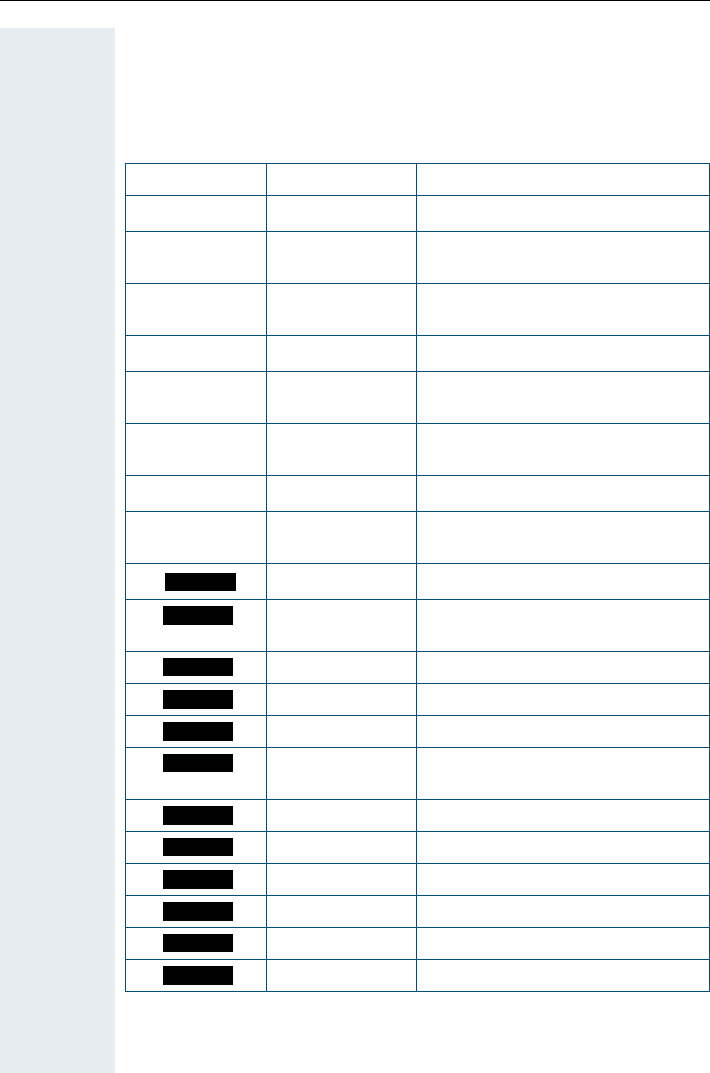
The R-key provides access to the following functions depending on how it
is operated:
Control key
The control key is assigned different functions depending on the operating
situation:
Operation Function
Press Enquiry function:
Make an enquiry (alternative to "En-
quiry" Display key)
Press and hold (min. 1 second) R key function:
• Insert a pause (e. g. between
the prefix and the phone
number, or when checking a
mailbox)
• End connection to a mailbox
(e. g. when performing a call-
back, setting up a conference
or transferring a call)
Control
key
In idle status In lists and
menus
In an input
field
EUse voice dial-
ling
Next menu level
up
Move the cursor
up one line
DOpen the mo-
bile’s telephone
directory
Next menu level
down
Move the cursor
down one line
GOpen the menu Select an entry
(OK)
Move the cursor
right
FNext menu level
up, cancel
Move the cursor
left
Description of the keys
12
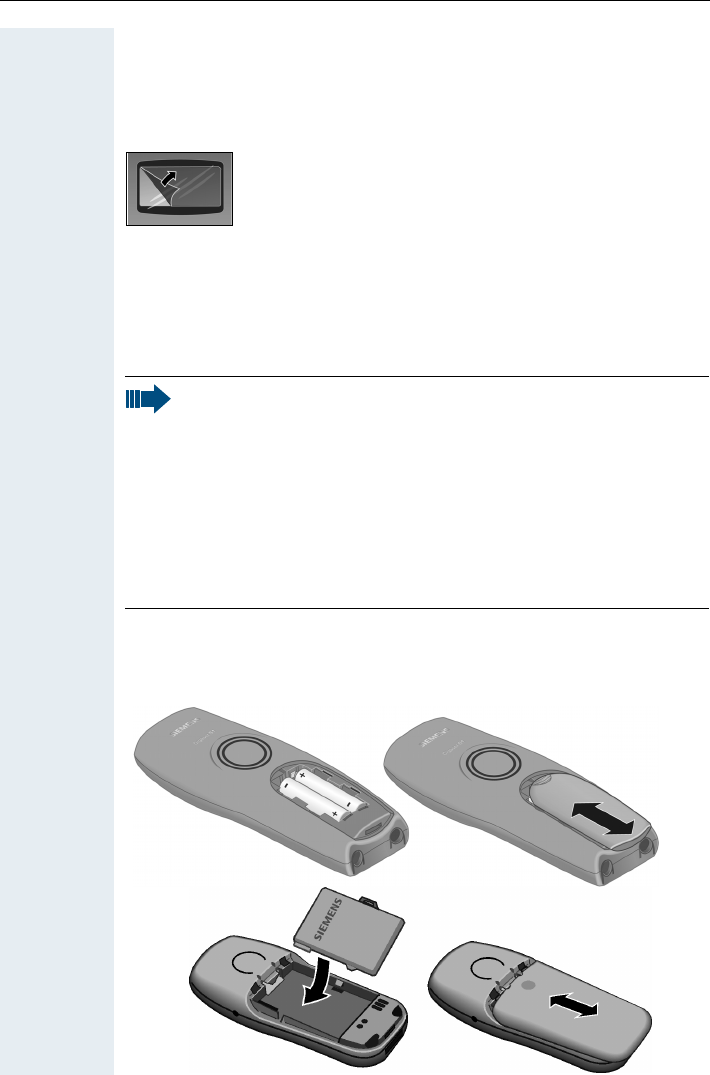
Display keys
The handset has two Display keys, each with one or two functions. When
the key is allocated two functions, press the right or left side of the key to
select the corresponding function. Display key assignment depends on the
operating status. A function can be represented by text or an icon.
Icon Name Use
©Menu Call the handset menu
XDelete Delete the entry character by char-
acter from right to left
zNumber redial Open a list of the last five phone
numbers called
JMessage list Open message list
ÎGo Back Go back to the next highest menu
level, cancel
nInternal Stop entering the phone number
after the first digit
[OK Confirm the selected menu item
< > Up/down Scroll up or down to select menu
items
Record Record voice pattern
Telephone direc-
tory
Call the system telephone directory
Consultation Make a consultation
Tog gl e Toggle between two partners
2nd call Accept call waiting
Callback Conduct a callback with a second
partner
Change Change the configuration
Save Save entries
Dial Dial the digits entered
Send Send information message
System menu Call the system menu
Additional menu Call the additional menu
Record
Phonebk
Enquiry
Toggle
2ndCall
Callbck
Change
Save
Dial
Send
Menu
Mnu
Putting the handset into service
13
Putting the handset into service
Removing the protective cover
Inserting the batteries
Two batteries are supplied with the Gigaset S1 professional while Gigaset
SL 1 professional comes with a single battery pack. The batteries are sup-
plied uncharged. They are charged in the handset.
Opening the battery compartment and inserting the batteries
Press down on the ridged surface and slide the cover from the battery
compartment. Insert the approved battery(ies).
Remove the protective cover from the display before
putting the handset into service.
Note:
• Please observe the safety notes on the back cover.
• Only use approved batteries (Æpage 15).
• Always replace both batteries at the same time and only use
two batteries of the same type/ from the same manufacturer!
• Open the battery compartment in a dust-free environment only.
• Your telephone directory entries and all settings remain stored
even if you remove the batteries. The date and time settings
will be reset.
• Only remove the batteries if they are defective. Any unneces-
sary removal of the batteries reduces their lifespan.
Gigaset SL 1 professional
Gigaset S1 professional
Putting the handset into service
14
Closing the battery compartment
Put the cover back in place and slide it onto the battery compartment until
it engages.
Charging and using the batteries
To charge the batteries, insert the handset into the charging shell with the
keypad facing forwards.
The charging status is indicated by the charge status display. This flashes
during charging:
Caution:
Only use the relevant approved power supply units for operating
the charging shell in Gigaset S1 professional.
(Order numbers see Æpage 97)
Use the Gigaset Charger SL charging shell with integrated power
supply for Gigaset SL 1 professional
(Order numbers see Æpage 97).
=Batteries empty
eBatteries 33% charged
VBatteries 66% charged
UBatteries 100% charged
Note:
• Initial charging: Charge the batteries for at least 5 hours with-
out a break, regardless of the charging status icon. Without re-
placing it in the charging shell, use the handset until the "bat-
tery low" beep is heard. This action aligns the charge status
display with the operating times of the batteries.
• To attain full operating and charging times (Æpage 15): With-
out replacing it in the charging shell, use the handset until the
"battery low" beep is heard.
• For future charging: you can place your handset in the charging
shell each time it is used. Charging is electronically controlled
which ensures that the batteries are charged optimally.
Putting the handset into service
15
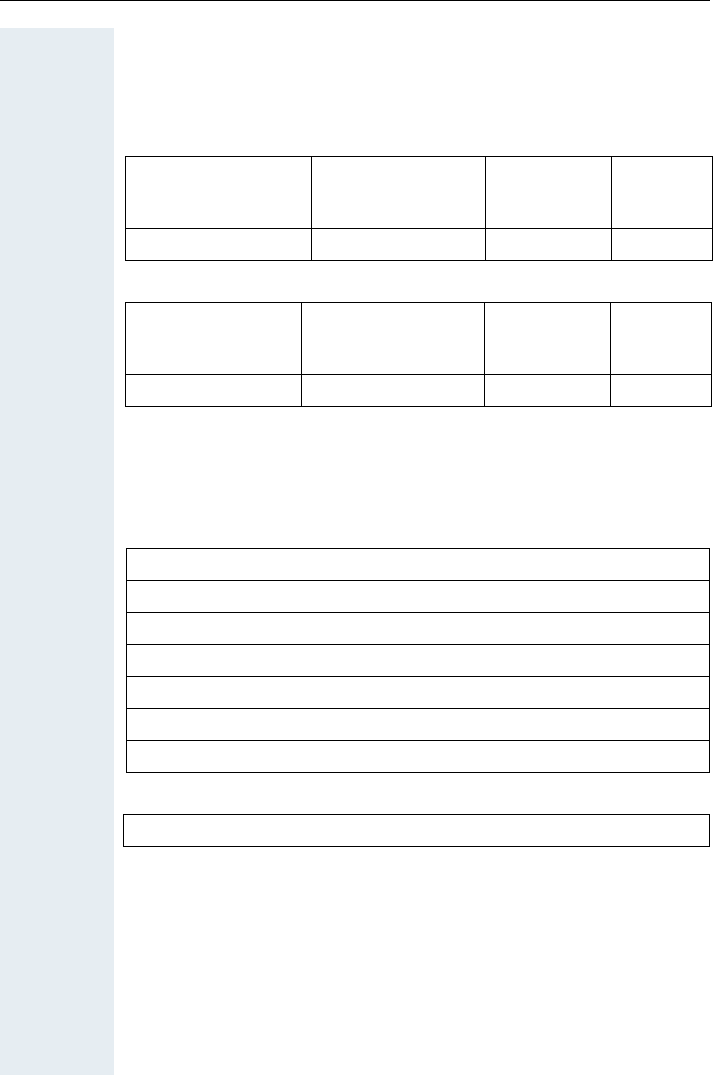
Operating and charging times of the batteries
The operating times are only achieved after several charging and discharg-
ing cycles.
Gigaset S1 professional
Gigaset SL 1 professional
Permitted batteries
The following batteries are approved for use with the Gigaset S1 profes-
sional:
The following battery pack is approved for Gigaset SL 1 professional:
Capacity (mAh) Stand-by mode
(hours)
Ta l k t i m e
(hours)
Charging
time
(hours)
700 (“Sanyo Twicell 650”: 650) 170 (7 days) over 13 approx. 5
Capacity (mAh) Stand-by mode
(hours)
Ta l k t i m e
(hours)
Charging
time
(hours)
700 approx. 250 (10 days) approx. 15 approx. 2,5
Nickel Metal Hydrid (NiMH)
Sanyo Twicell 700
Sanyo Twicell 650
Panasonic 700 mAh
GP 700 mAh
YDT AAA SUPER 700
VARTA PhonePower AAA 700 mAh
Lithium-Ion (LiIon), 700 mAh

Step by Step
Putting the handset into service
16
Fitting the attachment clip
Press the attachment clip onto the back of the handset
until the tabs on the sides engage in the recesses on
the phone.
Setting the handset display language
If your preferred language for display texts is not set as
the default, then you can set this yourself.
Open the main menu
© or GOpen the main menu of the mobile phone.
Open the submenu
either:
D E [Select and confirm the menu item.
or:
D E [Select and confirm the menu item.
Open the submenu
either:
D E [Select and confirm the menu item.
or:
D E [Select and confirm the menu item.
Gigaset S1 professional Gigaset SL 1 professional
H/Set Settings
Einstellungen
Language
Sprache

Putting the handset into service
17
Step by Step
Select a language
D E [Select and confirm the language you require.
aPress the On-hook key to end the process.
Setting the system display language
If you wish to change the language of the display texts,
then you must also change the system language on the
handset. A different language can be set for every hand-
set on the system.
cPress the Talk key.
Call the system menu.
> < [Select and confirm the menu item.
> < [Select and confirm the menu item.
> < [Select and confirm the menu item.
> < [Select and confirm the language you require.
aPress the On-hook key to end the process.
Deutsch
...
Note:
For how to return the telephone to the default
settings (Æpage 28).
Menü
Service?
More features?
*48=
Select language?
11=German
...
Step by Step
Setting the handset
18
Setting the handset
You can change the standard settings of the handset if
you are not happy with them.
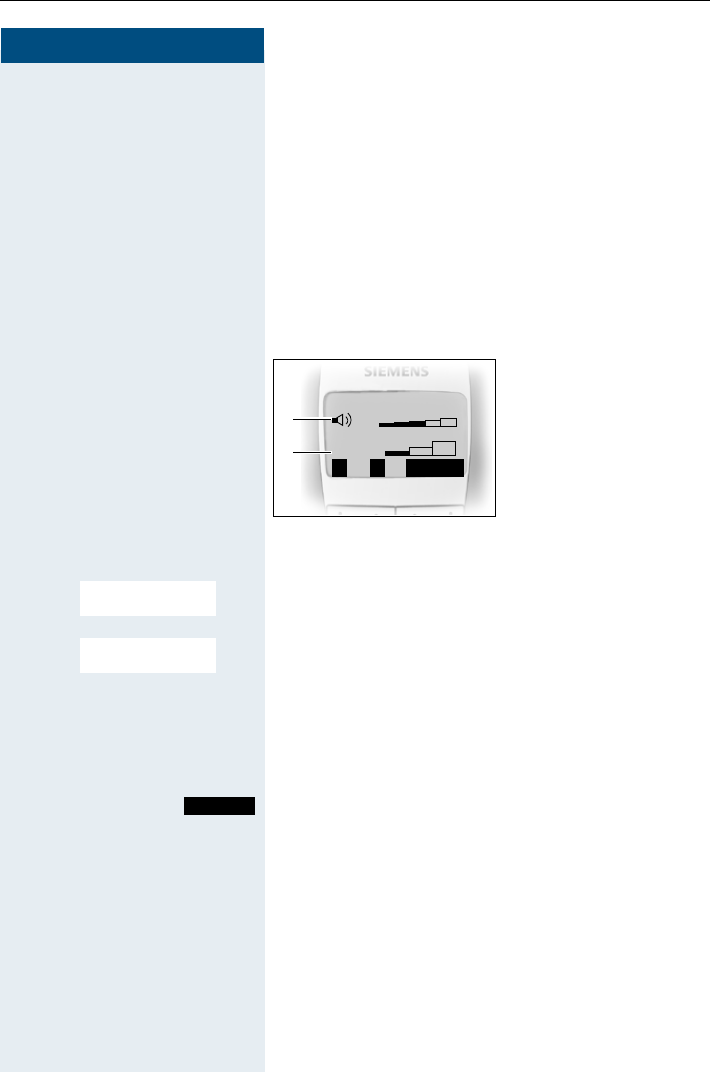
Setting the handset volume
When selecting the menu, the tone sounds at the cur-
rent setting in speakerphone mode. You can choose be-
tween five volume levels in handset mode and three
volume levels in speakerphone mode.
© or GOpen the main menu of the mobile phone.
D E [Select and confirm the menu item.
D E [Select and confirm the menu item.
F GFix the setting.
DMove the cursor down one line.
...
Save the settings.
aPress the On-hook key to end the process.
Save
1
2
1 Volume in speaker-
phone mode
2 Volume in handset
mode
__Handset Volume__
B
fg
Î
Audio Settings
Handset Volume
Save
Setting the handset
19
Step by Step
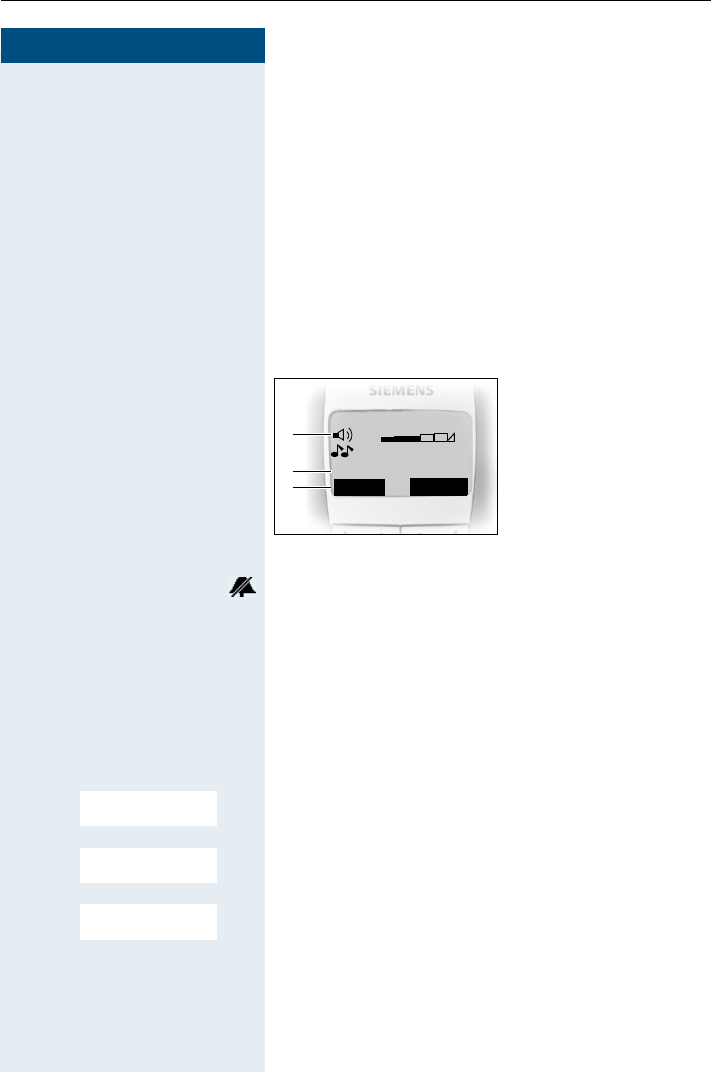
Setting the ringer
Setting the ringer volume and melody
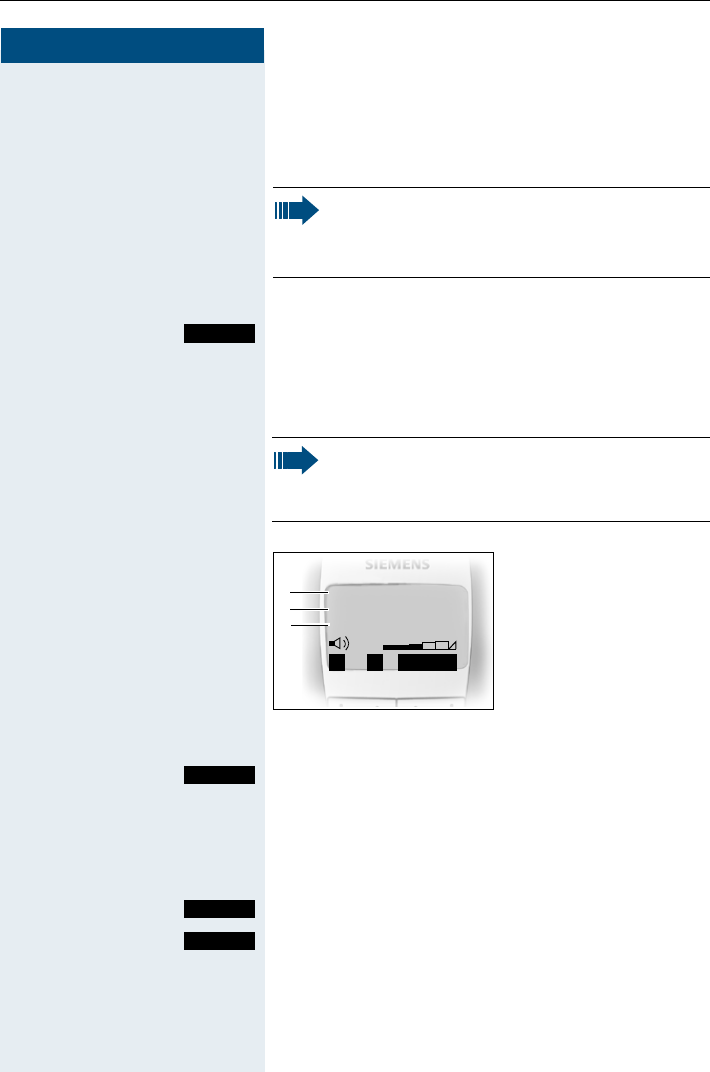
When selecting the menu, the ringer sounds at the cur-
rent setting. You can choose between three ringer vol-
umes, as well as a crescendo ring (volume increases
gradually) and no ringer. The ten ringer melodies cannot
be stored in the communication system.
With Gigaset SL 1 professional up to 16 additional me-
lodies can be used. Melodies 11 to 26 are polyphone
melodies, which must first be loaded via PC interface or
recorded via the Sound Manager.
Display when ringer is deactivated.
In order to better differentiate between your handset’s
ringing tones, select the following settings:
•Ext. Calls
• Internal Calls
• Appointments
•Alarm
•All
GOpen the main menu of the mobile phone.
D E [Select and confirm the required menu item.
D E [Select and confirm the menu item.
D E [Select and confirm the menu item.
F GSet volume.
DMove the cursor down one line.
F GSet melody.
Save
1
2
1Ringer volume
2 Ringer melody
3 Time control activa-
tion function for the
ringer volume
___Ext. Calls___
3
fg
Time C.
Announce On
E1
Audio Settings
Ringer Settings
Ext. Calls
...
Step by Step
Setting the handset
20
• Tones: 1 to 3 (recommended for internal calls)
• Melodies: 4 to 10 (recommended for external calls
with Gigaset S1 professional)
• Melodies: 4 to 26 (recommended for external calls
with Gigaset SL 1 professional)
either:
Save the settings.
or: Setting the time control for the ringer
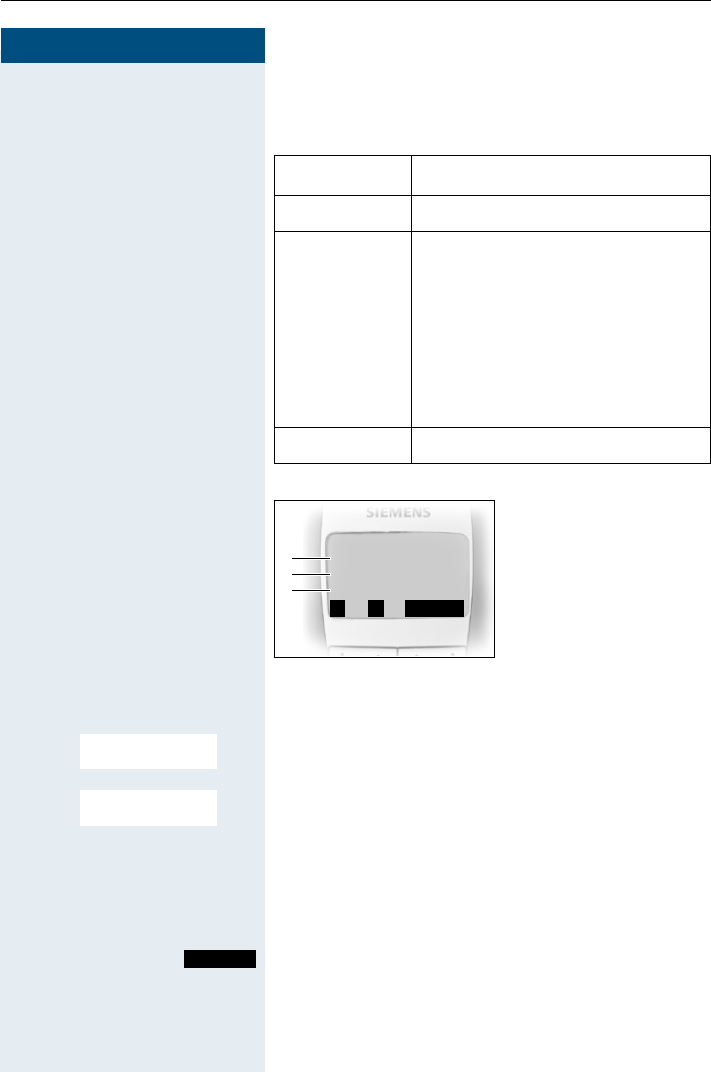
You can select a different ringer volume for a specific
length of time in this menu (e.g. during the night).
Call the ringer time control menu.
F On GFix the setting.
DMove the cursor down one line.
...
Save the time control settings.
Save the ringer settings.
aPress and hold the On-hook key to end the process.
Please make sure that you have picked up the call
before holding the phone to your ear. This is to
ensure that the loud ringing tone does not cause
damage to your hearing.
Save
Note:
Please take account of the special features of
the handset‘s internal clock (Æpage 26).
Save
1
2
1 Time control status
2 Start of the time
frame
3 End of the time
frame
Time ctrl::
Î
3
From:
Until:
fg
On
00:00
00:00
Time C.
Save
Save
Setting the handset
21
Step by Step
Advisory tones
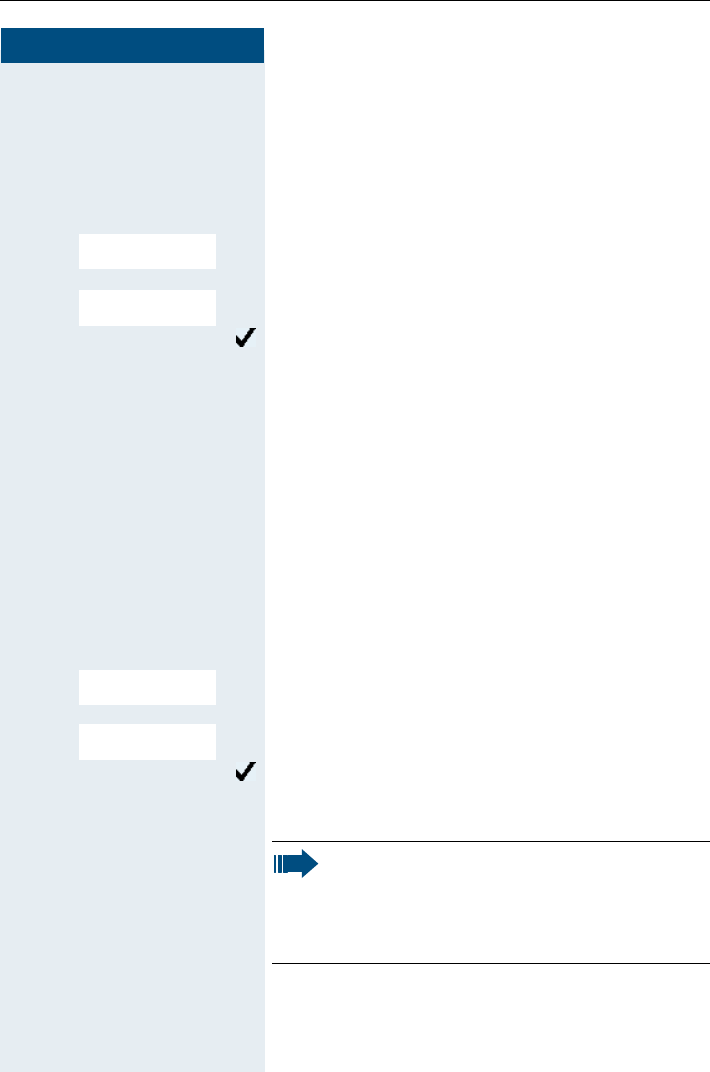
The advisory tones have the following meaning:
© or GOpen the main menu of the mobile phone.
D E [Select and confirm the menu item.
D E [Select and confirm the menu item.
F GFix the setting.
DMove the cursor down one line.
...
Save the settings.
aPress and hold the On-hook key to end the process.
Advisory Meaning
Key tone Every keystroke is confirmed
Confirmation
tones
• Confirmation tone (crescendo
tone sequence) when saving in-
puts/settings and when placing
the handset in the charging shell
• Error beep (decrescendo tone
sequence) to signal incorrect in-
puts
• End-of-menu beep at the menu
end
Battery tone The battery must be charged
Save
1
2
1 Key tone status
2 Confirmation tone
status
3 Battery tone status
___Advisory Tones___
Î
3
Key tone:
Con. tone:
Battery On
On
On
fg
Audio Settings
Advisory Tones
Save
Step by Step
Setting the handset
22
Setting the ringer echo
This function enables you to set the tone quality for the
longer melodies (4 to 10). When ringer echo is activat-
ed, melodies will be played with an echo.
GOpen the main menu of the handset.
D E [Select and confirm the menu item.
D E [Select and confirm the menu item.
Ringer echo is activated.
The activated function is ticked. It can be deactivated by
selecting the option once more.
aPress and hold the On-hook key to end the process.
Activating and deactivating silent alert
In Gigaset SL 1 professional. you can activate the silent
alert feature in addition to ringer settings or else instead
of ringer settings.
You can deactivate the ringer settings once you have ac-
tivated the silent alert (Æpage 25).
© or GOpen the main menu of the handset.
D E [Select the menu item and confirm.
D E [Select the menu item and confirm.
Silent alert is active.
The activated function is ticked and can be deactivated
by selecting it once more.
Audio Settings
Ringer Echo
Audio Settings
Silent alert
Note:
If you have called up the Service menu, then si-
lent alert will not be activated for an incoming
call if "Turn ring off" and "Silent alert (on)" have
been set.

Setting the handset
23
Step by Step
Sound Manager
You can use the microphone of Gigaset SL 1 profession-
al to record polyphonic melodies (max. length 4 sec-
onds) or download melodies via a data cable
(Æpage 30). Up to 16 melodies can be saved.
Recording a melody
© or GOpen the main menu of the handset.
D E [Select the menu item and confirm.
D E [Select the menu item and confirm.
[ Confirm.
[ Confirm.
Press the display key or wait 4 seconds.
Press the display key.
[ Confirm and enter the name of the melody.
Press the display key.
aPress and hold down the on-hook key to end the proc-
ess.
Playing a melody
© or GOpen the main menu of the handset.
D E [Select the menu item and confirm.
D E [Select the menu item and confirm.
D ESelect a melody.
Press the display key.
a
Press and hold down the on-hook key to end the process.
Audio Settings
Sound Manager
<New Sound>
Record Sound?
End
Save
Edit Entry
Save
Audio Settings
Sound Manager
Play

Step by Step
Setting the handset
24
Editing an entry
© or GOpen the main menu of the handset.
D E [Select the menu item and confirm.
D E [Select the menu item and confirm.
D ESelect a melody.
©Open the submenu.
[ Confirm to change the volume.
or
D E [ Confirm to change the name.
or
D E [ Confirm to display the file name.
or
D E [ Confirm to delete the entry.
aPress and hold down the on-hook key to end the proc-
ess.
Audio Settings
Sound Manager
Volume
Edit Entry
View Entry
Delete Entry
Setting the handset
25
Step by Step
Activating or deactivating the ringer
Deactivating the ringer
*Hold down the key until a confirmation tone is sounded.
The ringer is deactivated.
Activating the ringer
*Hold down the key until a confirmation tone is sounded.
Activating or deactivating the warning
tone
When you activate the warning tone, all other tones are
deactivated. An incoming call is signalled by this brief
tone.
If the handset is in a call pickup group, a pickup call is
also signalled by the warning tone.
Activating the warning tone
*Hold down the key for a few seconds. A confirmation
tone is sounded.
Press the Display key within three seconds.
The warning tone is activated.
Deactivating the warning tone
*Hold down the key for a few seconds. A confirmation
tone is sounded.
Note:
The ringer cannot be activated with the star key
if it was deactivated via the menu.
Beep on
Note:
The warning tone cannot be activated if the ring-
er was deactivated.
Step by Step
Setting the handset
26
Activating/deactivating automatic call
answering
This function allows you to accept calls by removing the
handset from the charging shell.
© or GOpen the main menu of the mobile phone.
D E [Select and confirm the menu item.
D E [Select and confirm the menu item.
Automatic answering is activated.
The activated function is ticked. It can be deactivated by
selecting the option once more.
aPress and hold the On-hook key to end the process.
Setting the date and time
We recommend setting the date and time to ensure the
correct time/date is recorded for all calls. You can
choose between 12-hour display (am, pm) and 24-hour
display.
Check the date and time and reset from time to time
where applicable.
©Open the menu.
D E [Select and confirm the menu item.
D E [Select and confirm the menu item.
oEnter the date, e. g. 22.09.2002 = 220902.
DMove the cursor down one line.
oEnter the time, e. g. 19:05 = 1905.
DMove the cursor down one line.
H/Set Settings
Auto Answer
Note:
Do not switch off the handset after you have
made the settings, otherwise the date and time
will be reset.
Calendar/Clock
Date/Time

Setting the handset
27
Step by Step
F 24 h GDefine the display mode (24 h, 12 h).
Save the settings.
aPress and hold the On-hook key to end the process.
Editing the idle display
You can change the base station name that is displayed
in idle status. The handset must be registered at the
corresponding base.
© or G Open the main menu of the handset.
D E [Select and confirm the menu item.
D E [Select and confirm the menu item.
D E [Select and confirm the menu item.
The selected base is activated.
The activated base is ticked. It can be deactivated by se-
lecting another base.
Change settings.
Edit Name: XDelete text.
o and poss. XEnter the required text and correct individual characters
as necessary using the "Delete" Display key.
Save settings.
aPress and hold the On-hook key to end the process.
aa Press the On-hook key twice to turn the handset off and
back on.
The changed base station name will now be displayed
in idle status.
Save
H/Set Settings
Select Base
<Base>
Change
Save

Setting the handset
28
Resetting the defaults
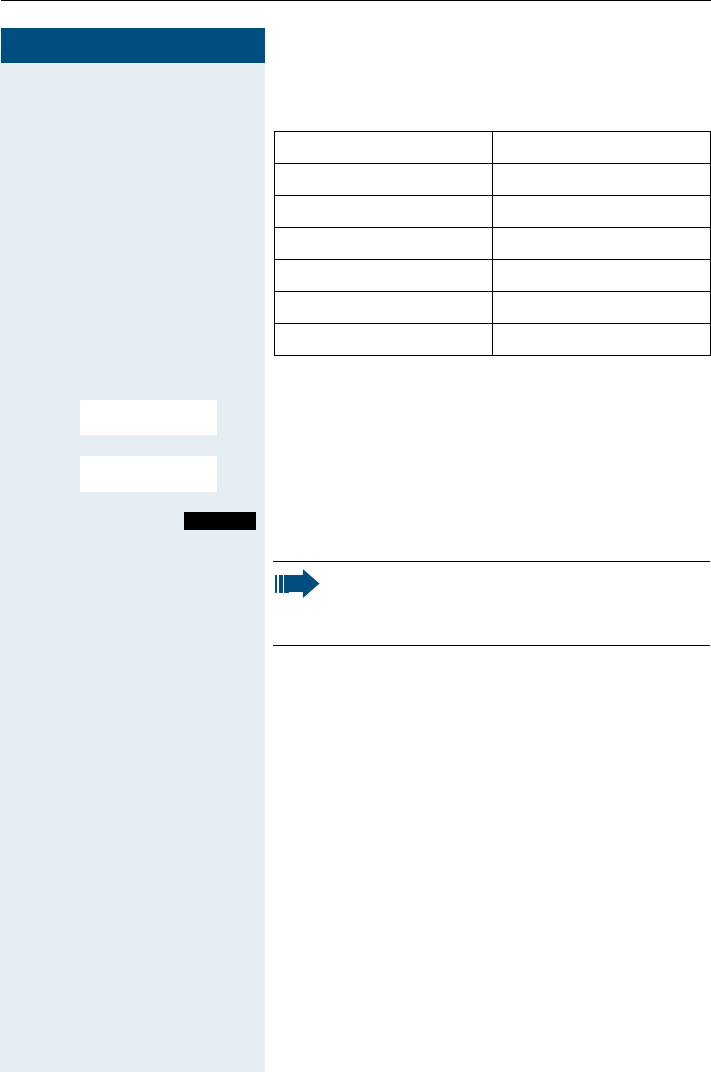
This function allows you to reset your mobile phone to the defaults, e.g. if
you want to pass it on to someone else or reset it. The following table
shows the handset’s default settings:
Setting Explanation/notes Levels Default
state
Audio Set-
tings
Ringer volume 5 5
Ringer melody 10 1
Melody enhancement -on
Vibrating alert (SL 1 only) -on
Time control for ringer -off
Warning tone -off
Handset volume 3 1
Volume in speakerphone mode 5 3
Name announcement -off
Alarm/Appointment -off
Appointment name -deleted
Key tones, audible each time a key
is pressed.
-on
Battery tone, audible approx. five
minutes before the battery runs out.
-on
Confirmation tone, indicates wheth-
er actions were successful or un-
successful.
-on
Auto An-
swer
Define whether the Talk key must
be pressed to accept a call when
the handset is removed from the
charging shell.
-on
Select Base Select the base 4"Best
Base"
Screen
Picture
Display in idle status -off
Character
Set
Available character set -Standard
Language Select different languages:
Gigaset S1 professional
Gigaset SL 1 professional
14
19
English
or
German
Default
state
Resetting the defaults deletes the
redial and direct call numbers and
resets the sound settings. The reg-
istration (logon) and the handset
PIN are retained.
- -
Setting the handset
29
Step by Step
The handset features are handled as follows when re-
setting the defaults:
© or GOpen the main menu of the mobile phone.
D E [Select and confirm the menu item.
D E [Select and confirm the menu item. A security check
question appears.
Confirm the security check question The handset is re-
turned to the default.
Feature Action
Sound settings are reset
Speed dialling list is retained
System registration is retained
Telephone directory is retained
Telephone Services menu depends on the version
Redial list is deleted
H/Set Settings
Reset Handset
Yes
Note:
For information about deleting the telephone
directory see: Æpage 40.

Setting the handset
30
PC interface (Gigaset SL 1 professional only)
The Gigaset SL 1 professional handset can be connected to your computer
via a Siemens data cable. Your computer can then communicate with your
Gigaset SL 1 professional using the “Siemens Data Suite” program (free-
ware available for download at http:\\www.my-siemens.com\mysiemens)
and access the following handset parameters and lists:
Displaying parameters
• Software version
•Type
• Vendor code
Read/write access to
• the phonebook
• the e-mail directory
• the network provider list
• the appointments list
• the redial list
Read/write access to other parameters
• ringer settings
• volume settings
• loading screensavers
• loading melodies
• conducting and accepting calls
Data transfer
Large volumes of data are transferred between the handset and the exter-
nal device for certain functions. In this case, the handset is switched to
data transfer mode and data transfer appears on the display. In this mode,
no inputs are possible via the keyboard and incoming calls are ignored.
The handset is switched to data transfer mode by:
• activating read/write access to the phonebook
• activating read/write access to the e-mail directory
• activating read/write access to the network provider list
• activating read/write access to the appointments list
• activating read/write access to the redial list
• loading screensavers
• loading melodies
The handset automatically switches to idle if a fault occurs in the
course of transferring data.

Conducting calls – enhanced functions
31
Step by Step
Conducting calls – enhanced
functions
Speakerphone mode
Features
Speakerphone mode offers you the following advantag-
es:
• Other persons can listen to and participate in the
call.
• Your hands are free.
• When dialling, you can hear the ring tone, for exam-
ple, without having to lift the handset to your ear.
Speakerphone mode can be used effectively up to a
background noise level of 50 dB (A).
Activating speakerphone mode
Speakerphone mode can be activated during a call,
when dialling or when answering a call:
uPress the Speakerphone key.
Setting the volume
The volume can be set during a call:
uPress the Speakerphone key once more.
F or GWithin three seconds: Press the left or right side of the
control key to reduce or increase the volume.
Within three seconds, as necessary: Save the volume
set.
Note:
Speakerphone mode must be switched off be-
fore holding the telephone directly to your ear
again. In this way you can avoid causing damage
to your hearing.
Save

Step by Step
Conducting calls – enhanced functions
32
Deactivating speakerphone mode
You can deactivate speakerphone mode and switch to
handset mode during the call:
cPress the Talk key.
Voice dialling
With the voice dialling function, you can dial a number
simply by saying the partner’s name. You do not need
to manually dial a phone number.
For this function, you will need to record a voice pattern,
in other words, your voice saying the name will be
saved in the handset. Up to four users can save a voice
pattern for each entry. The user must be identified, i.e.
as User 2, before recording.
A total of 29 voice patterns can be saved in Gigaset S1
professional and 23 voice patterns in Gigaset SL 1 pro-
fessional for telephone directory entries. An entry that
has a corresponding voice pattern is marked with a
mouth in the voice telephone directory.
Recording a voice pattern for an existing telephone
directory entry
You should record your voice pattern in a quiet environ-
ment. There should be about 25 cm between you and
the handset.
DOpen telephone directory.
D ESelect the required entry.
Press the Display key.
D E [Select and confirm the menu item.
[ Press and confirm the Display key.
Say the name when the relevant prompt is displayed.
Repeat the name after being prompted again. The re-
cording will be saved automatically.
Note:
If you wish to replace the handset in the charg-
ing shell during a call, e. g. because the battery
is empty, hold down the Speakerphone key.
Voice
User 1
...
Record

Conducting calls – enhanced functions
33
Step by Step
aPress and hold the On-hook key to end the process.
A message will notify you if your voice pattern is too
similar to that of another user.
ÎThe message will end.
Return to the beginning of the voice recording and
record your voice pattern again.
Using voice dialling
EPress and hold the control key and then say the name.
Listening to a voice pattern
DOpen the voice dialling telephone directory.
D ESelect the required entry.
Press the Display key.
D E [Select and confirm the menu item.
Play the corresponding voice pattern.
aPress and hold the On-hook key to end the process.
Changing or deleting voice patterns
DOpen the telephone directory.
D ESelect the required entry.
Press the Display key.
D E [Select and confirm the menu item.
GOpen the menu.
either:
D E [Select and confirm the menu item.
or:
D E [Select and confirm the menu item.
aPress and hold the On-hook key to end the process.
Voice
User 1
...
Play
Voice
User 1
...
Record Name
Delete Name

Step by Step
Conducting calls – enhanced functions
34
Changing a user name
DOpen the telephone directory.
D ESelect the required entry.
Press the Display key.
D E Select the menu item.
Change the settings.
oEnter a new name.
Save the settings.
aPress and hold the On-hook key to end the process.
Number redial
With Gigaset S1 professional the last five numbers di-
alled, or with Gigaset SL 1 professional the last ten
numbers, are automatically saved in the redial list.
If you tried to call a party from the handset’s telephone
directory, the name of the party is displayed in case of
number redial.
Automatic redial
The phone number is automatically redialled ten times
at 20 second intervals. Speakerphone mode is automat-
ically activated, the Speakerphone key flashes. The
function is deactivated after ten unsuccessful attempts
and when a call is made in the interim.
zCall the redial list.
D or EPress the top or bottom of the control key to select the
required phone number.
©Open the menu.
Note:
The phone number and name are retained after
an entry has been deleted. Other users’ voice
patterns also remain.
Voice
User 1
...
Change
Save

Conducting calls – enhanced functions
35
Step by Step
D E [
Select and confirm the menu item. Automatic redial is
activated.
either:
pThe user answers and you conduct the call.
or:
If you wish to cancel the function: press the Display key
or any key.
Deleting a phone number from the redial list
zCall the redial list.
D or EPress the top or bottom of the control key to select the
required phone number.
©Open the menu.
D E [Select and confirm the menu item. The telephone
number is deleted.
aPress and hold the On-hook key to end the process.
Adding a telephone number to the redial list
zCall the redial list.
D or EPress the top or bottom of the control key to select the
required phone number.
©Open the menu.
D E [Select and confirm the menu item. The telephone
number is deleted.
oEnter the name (max. 16 characters), change the phone
number is necessary and enter the date.
©Open the menu.
[ Save the entry.
aPress and hold the On-hook key to end the process.
Automatic Redial
Off
Delete Entry
Copy to Directory
Save Entry
Step by Step
Conducting calls – enhanced functions
36
System speed dialling
A system speed dialling destination is a call number you
dial using a code, e.g. the external phone number (0 28
21) 34 56 78 using code 243. System speed dialling -
destinations are defined by the system administrator.
Codes from 000 to 999 can be used.
This function can also be called by entering the code
(Æpage 92).
Dialling a speed dialling destination
cPress the Talk key.
Call the system menu.
> < [Select and confirm the menu item.
> < [Select and confirm the menu item.
oEnter the required code (3 digits, 000 - 999).
Individual system speed dialling
You can save up to ten external phone numbers for your
handset as speed dialling destinations. These speed di-
alling destinations are dialled using a 2-digit code (00 to
09). Please note that you may need to save an external
code in front of the phone number.
This function can also be called by entering the code
(Æpage 92).
Setting up an individual speed dialling destination
cPress the Talk key.
Call the system menu.
> < [Select and confirm the menu item.
Menu
Service?
*7=Use speed dial-
ing?
Note:
The saved speed dialling destinations and the
associated codes can be obtained from the or-
ganisational unit responsible for administering
the communication system.
Menu
Service?

Conducting calls – enhanced functions
37
Step by Step
> < [ Select and confirm the menu item.
>Call the first destination.
>Call the next destination.
Call the additional menu.
> < [Select and confirm the menu item.
oEnter the external phone number (with external code).
The key "#" means that the subsequent digits are sent
as DTMF tones.
Save the settings.
aPress and hold the On-hook key to end the process.
Dialling an individual speed dialling destination
cPress the Talk key.
Call the system menu.
> < [Select and confirm the menu item.
> < [Select and confirm the menu item.
*oEnter the code for the speed dialling destination.
System telephone directory
If the system administrator has entered a name for at
least one internal user or system speed dialling destina-
tion, then you can use the system telephone directory
for dialling purposes.
Calling the system telephone directory
cPress the Talk key.
Call the system telephone directory. The first entry ap-
pears.
*92=Change Speed
Dial?
Abb. dial no:
Mnu
Change entry?
Save
Menu
Service?
*7=Use speed dial-
ing?
Abb. dial no:
Phonebk
Step by Step
Conducting calls – enhanced functions
38
Finding an entry
oEnter the first letters of the name you are looking for.
The name search begins.
The search result becomes more precise as each letter
is entered, i.e. the number of names found is reduced.
Only the first letter of a key can be entered.
> <Select the user you want.
Dialling the entry
[Confirm your selection. The selected number is called.
Quitting the redial list
ÎPress the Display key.
Handset telephone directory/speed
dialling list
A total of up to 200 entries can be saved in the tele-
phone directory, the e-mail directory and the speed dial-
ling list.
Operation of the telephone directory and the speed di-
alling list is identical. The anniversary function is not
available in the speed dialling list, however, but you can
allocate a number for up to nine new entries. The exter-
nal code must be entered before external phone num-
bers, e. g. "0".
Save the entry.
D or COpen the telephone directory or speed dialling list.
D E [Select and confirm the menu item.
oEnter a phone no.
D oJump to the name field and enter the name and, if re-
quired, the anniversary. Predictive text can be used for
this (Æpage 86).
Note:
Phone numbers dialled from the "System tele-
phone directory" are not stored in the redial list.
New Entry

Conducting calls – enhanced functions
39
Step by Step
either (for telephone
directory):
©Open the menu.
D E [Save the entry.
or (for speed dialling list):
F 0 GDefine settings.
Save settings.
Finding and dialling an entry
D or COpen the telephone directory or speed dialling list.
E/D or o You can scroll to the required entry or enter the first let-
ter of the relevant entry.
If necessary, press a key several times in succession to
enter the required letter.
either:
cPress the Talk key. The assigned phone number is di-
alled.
or:
GOpen the menu.
D E [Select and confirm the menu item. The number is dis-
played.
cPress the Talk key.
Changing an entry
D or COpen the telephone directory or speed dialling list.
E/D or o You can scroll to the required entry or enter the first let-
ter of the relevant entry. If necessary, press a key sever-
al times in succession to enter the required letter.
GOpen the menu.
either:
D E [Select and confirm the menu item.
or:
D E [Select and confirm the menu item.
oEnter changes.
Save
Save
Display Number
Edit Entry
Copy and Edit

Step by Step
Conducting calls – enhanced functions
40
©Open the menu.
D E [Save the entry.
aPress and hold the On-hook key to end the process.
Deleting an entry or telephone directory/speed dial-
ling list
D or COpen the redial list or the net carrier list.
D or ESelect the required telephone number.
©Open the menu.
either:
D E [Select and confirm the menu item. The telephone
number is deleted.
or:
D E [Select and confirm the menu item. A security check
question appears.
Confirm the security check question. The telephone di-
rectory/speed dialling list is deleted.
aPress and hold the On-hook key to end the process.
E-mail directory
You can save e-mail addresses in the e-mail directory.
Entries in the e-mail directory are managed the same
way as telephone directory entries.
Saving a new e-mail address
DOpen the telephone directory
D E [Select and confirm the menu item.
D E [Select and confirm the menu item.
To use the help function:
©Open the menu.
D E [ Select and confirm one of the following menu items:
• Insert ' . '
• Insert '@'
• Predictive text, Æpage 86
Save Entry
Delete Entry
Delete List
Yes
<E-MailDirectory>
New Entry

Conducting calls – enhanced functions
41
Step by Step
oEnter address.
©Open the menu.
D E [Save the settings.
aPress and hold the On-hook key to end the process.
Changing an e-mail address
DOpen the telephone directory.
D E [Select and confirm the menu item.
D ESelect the required entry.
View entry.
Change entry
©Open the menu.
D E [Save the settings.
aPress and hold the On-hook key to end the process.
Directed assignment of an MSN (multi-
ple subscriber number)
Multiple subscriber numbers are phone numbers be-
longing to an ISDN multiple device line. They are used
for the directed addressing of terminals, for example
when a fax machine has a separate number. Before se-
lecting an external connection, you can directly assign a
configured multiple subscriber number. This then ap-
pears on the called party’s display.
This function can also be called by entering the code
(Æpage 92).
Save Entry
<E-MailDirectory>
View
Change
Save Entry

Step by Step
Conducting calls – enhanced functions
42
cPress the Talk key.
Call the system menu.
> < [Select and confirm the menu item.
> < [Select and confirm the menu item.
oEnter the required multiple subscriber number.
oEnter the required external phone number. The phone
number is dialled.
Making calls using identification
codes
In the case of calls you make to external partners, you
can enter and charge the call costs on the basis of indi-
viduals, customers, accounts and private calls, e.g. by
means of account codes. The account code (ACCT) can
contain up to 11 characters and is included in the data
printout. The ACCT is only transferred after a call has
been completed. The ACCT can be entered before and
during the external call.
This function can also be called by entering the code
(Æpage 92).
cPress the Talk key.
Call the system menu.
> < [Select and confirm the menu item.
> < [Select and confirm the menu item.
o Enter the required account code (optional).
Save the settings.
o Enter an external phone number. The phone number is
dialled.
Menu
Service?
*41=Temporary
MSN?
MSN no.111
111:
Menu
Service?
*60=Account code?
Project Code:
Save
Please dial.
Note:
If a call is transferred, the costs are still assigned
to the ACCT entered.

Conducting calls – enhanced functions
43
Step by Step
Using the handset as a second line
You can use your mobile phone for an outgoing call as if
it were another line (temporary phone).
This function can also be called by entering the code
(Æpage 92).
cPress the Talk key.
Call the system menu.
> < [Select and confirm the menu item.
> < [Select and confirm the menu item.
o Enter the internal phone number for the relevant line.
o Enter the code (lock code) for the relevant line
(Æpage 89).
If there is no personal code for the relevant line, the sys-
tem will prompt you to enter the code.
o Enter the required phone number. The phone number is
dialled.
The "Temporary phone" function is discontinued again
after the call is complete.
Deactivating the phone number display
Your service engineer can deactivate the display of your
phone number and name on the called party’s display
for external outgoing calls. You can also activate and de-
activate the phone number display on your own hand-
set yourself.
Deactivating the phone number display
cPress the Talk key.
Call the system menu.
> < [Select and confirm the menu item.
aPress the On-hook key to end the process.
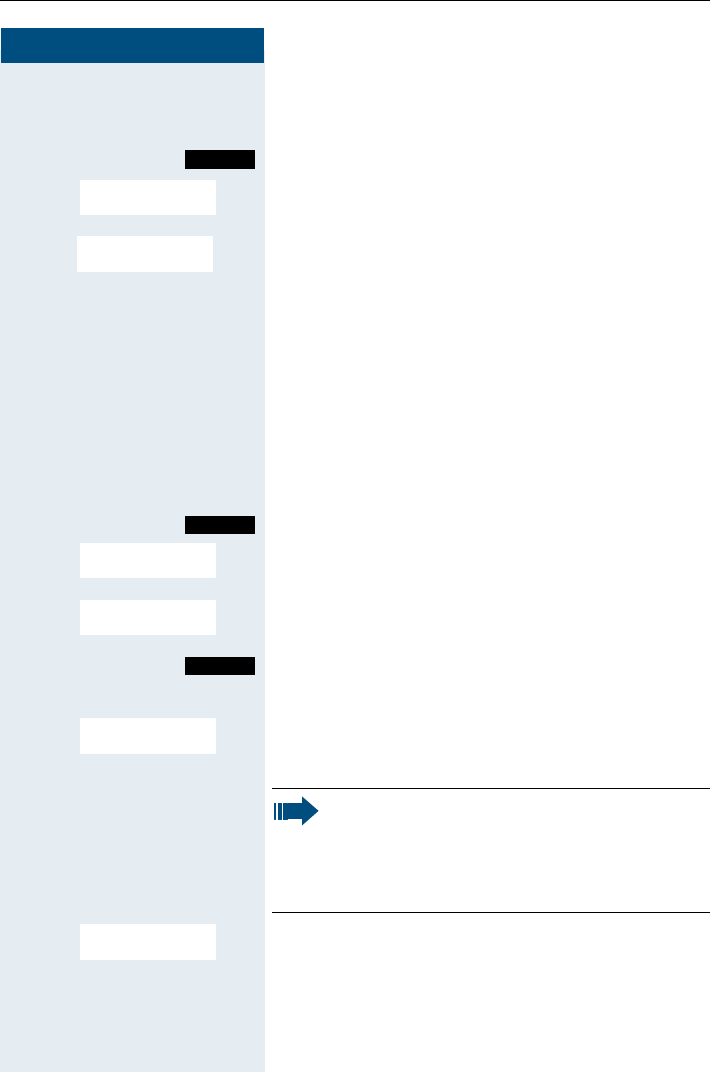
Menu
Service?
*508=Temporary
Phone?
Home Extn. no.:
PIN no:
<Name>
<Name>:...
Menu
Suppress call ID?
Call ID suppressed
Step by Step
Conducting calls – enhanced functions
44
Activating the phone number display
cPress the Talk key.
Call the system menu.
> < [Select and confirm the menu item.
aPress the On-hook key to end the process.
Directed call transfer
You can transfer calls to other telephones to your hand-
set. This is also possible when you are conducting a call.
This function can also be called by entering the code
(Æpage 92).
Another telephone rings.
cPress the Talk key.
Call the system menu.
> < [Select and confirm the menu item.
> < [Select and confirm the menu item. The called user is
displayed.
Call the additional menu.
either:
> < [Select and confirm the menu item.
or:
> < [Select and confirm the menu item.
continue:
pConduct the call.
Menu
Restore caller ID?
Call ID restored
Menu
Service?
*59=Pickup - direct-
ed?
Mnu
Accept call?
Note:
If several users are called simultaneously, only
the first user called is displayed. However, you
can transfer by entering the phone number of
any of the users called.
Select
extension?

Conducting calls – enhanced functions
45
Step by Step
Activating/deactivating do not disturb
You can block calls to your handset on a temporary ba-
sis, while still being able to make calls yourself. Internal
callers hear the busy tone, while external callers reach
another telephone defined by the service engineer (in-
tercept position). Authorised internal callers automati-
cally override the do not disturb after five seconds.
Activating do not disturb
cPress the Talk key.
Call the system menu.
> < [Select and confirm the menu item.
aPress the On-hook key to end the process.
Deactivating do not disturb
cPress the Talk key.
Call the system menu.
> < [Select and confirm the menu item.
aPress the On-hook key to end the process.
Call charge display
After a call has ended, the display shows the connec-
tion charges for the current call as standard. If the costs
are to be displayed continuously during an outgoing call,
this function must be requested from the carrier.
You can check and display the call charges for your
phone number as a total for a period that can be set by
the service engineer.
First the call charges for the last charged call are dis-
played. The total call charges are displayed after five
seconds.
Menu
Do Not Disturb ON?
Menu
Do Not Disturb OFF?
Note:
If a call is transferred, the costs are assigned to
the telephone to which the call was transferred
from this point onwards.

Step by Step
Conducting calls – enhanced functions
46
This function can also be called by entering the code
(Æpage 92).
cPress the Talk key.
Call the system menu.
> < [Select and confirm the menu item.
> < [Select and confirm the menu item.
aPress the On-hook key to end the process.
Call trace
You can apply to your carrier for "call tracing" on mali-
cious calls. An authorised extension is then in a position
to request the identification of the phone number.
This also works for 30 seconds after the malicious caller
has hung up. However, you should not hang up.
This function can also be called by entering the code
(Æpage 92).
pYou receive a malicious call.
Do not hang up.
Call the system menu.
> < [Select and confirm the menu item.
> < [Select and confirm the menu item. The caller is identi-
fied in the attendant console.
aPress the On-hook key to end the process.
Menu
Service?
*65=Show call charg-
es?
Menu
Service?
*84=Trace call?

Conducting calls – enhanced functions
47
Step by Step
Entrance telephone
If the service engineer has set up an entrance tele-
phone, you can speak to the door intercom and activate
the door opener from your handset.
If you are authorised to release a door, then a user can
open the door by entering a 5-digit code (e.g. by means
of a DTMF transmitter or installed keypads).
Some of the functions described below can also be
called directly by entering the relevant code
(Æpage 92).
Talking to a visitor by means of the door opener
equipment
Your handset rings.
either:
cPress the Talk key within 30 seconds. You are connect-
ed immediately to the door opener.
or:
cIf more than 30 seconds have passed: Press the Talk
key.
oEnter the internal phone number for the door opener.
You are connected to the door opener.
Using the handset to open the door opener during
a call
> < [Select and confirm the menu item.
Using the handset to open the door opener without
holding a conversation
cPress the Talk key.
Call the system menu.
> < [Select and confirm the menu item.
> < [Select and confirm the menu item.
oEnter the internal phone number for the door opener.
The door is opened.
aPress the On-hook key to end the process.
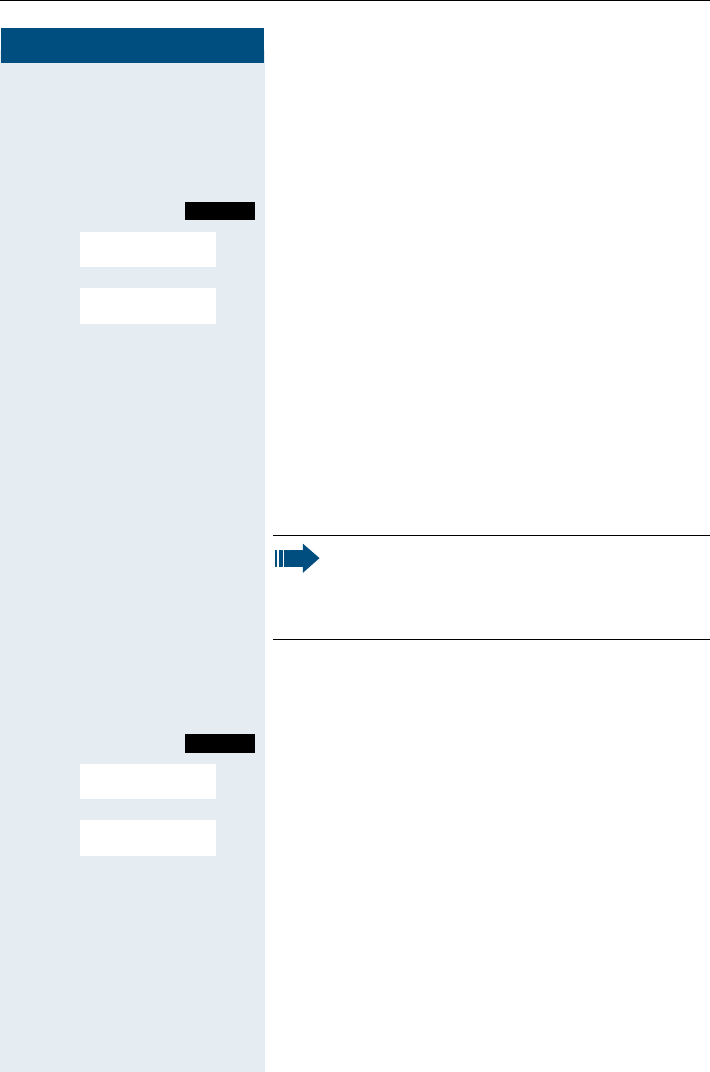
Open door?
Menu
Service?
*61=Open door?
Step by Step
Conducting calls – enhanced functions
48
Activating the door release
This function only works if it has been configured by the
service engineer.
cPress the Talk key.
Call the system menu.
> < [Select and confirm the menu item.
> < [Select and confirm the menu item.
oFollow the user guidance system from this point on-
wards. Enter the internal phone number of the door
opener, as well as the code and type of door release:
• 1=Enable with call,
• 2=Enable without call,
• 3=Change password.
[Confirm your entries.
aPress the On-hook key to end the process.
Deactivating the door release
cPress the Talk key.
Call the system menu.
> < [Select and confirm the menu item.
> < [Select and confirm the menu item.
aPress the On-hook key to end the process.
Menu
Service?
*89=Door release
ON?
Note:
Standard code 00000. To change the code, con-
firm option "3=Change Password". Follow the
user guidance system.
Menu
Service?
*89=Door release
OFF?

Conducting calls – enhanced functions
49
Step by Step
TDS telephone data service
You can use your mobile phone to control connected
computers and their programs, e. g. hotel services or
information systems.
This function can also be called by entering the code
(Æpage 92).
cPress the Talk key.
Call the system menu.
> < [Select and confirm the menu item.
> < [Select and confirm the menu item.
#oPress the "#" key and enter the required code (0... 9).
The connected computer responds. The computer will
guide you through the data entry process. It will proc-
ess your entries directly.
aPress the On-hook key to end the process.
Activating control relays
The service engineer can set up a maximum of 4 control
relays that enable various equipment (e.g. door opener)
to be activated and deactivated.
It is possible to access a specific control relay. Depend-
ing on the configuration, the control relays can be
• activated and deactivated automatically, or
• activated and deactivated automatically on the basis
of a timer.
Prerequisite: The service engineer has set up at least
one switch.
This function can also be called by entering the code
(Æpage 92).
Menu
Service?
*42=Tel. data
service?
TDS code:

Step by Step
Conducting calls – enhanced functions
50
Activating a control relay
cPress the Talk key.
Call the system menu.
> < [Select and confirm the menu item.
> < [Select and confirm the menu item.
oFollow the user guidance system from this point on-
wards. Enter the required switch code (1... 4).
aPress the On-hook key to end the process.
Deactivating a control relay
cPress the Talk key.
Call the system menu.
> < [Select and confirm the menu item.
> < [Select and confirm the menu item.
oFollow the user guidance system from this point on-
wards. Enter the required switch code (1... 4).
aPress the On-hook key to end the process.
Sending a signal to the network
To enable ISDN-type services/ features to be started via
analog lines (e.g. call waiting when a line is busy, three-
way conference calls, etc.), you must send a signal to
the network before dialling the service code and/or
phone number.
This function can also be called directly by entering the
code (Æpage 92).
pYou have an external connection.
Call the system menu.
> < [Select and confirm the menu item.
> < [Select and confirm the menu item.
oEnter the service code and/or the phone number.
Menu
Service?
*90=Control Relay
On?
Menu
Service?
#90=Control Relay
Off?
Menu
Service?
*51=Recall to Net-
work?

Conducting calls – enhanced functions
51
Step by Step
External call forwarding with a multi-
ple subscriber number
If your communication system is connected to an ISDN
multiple device line, then you can forward all incoming
calls from the public network through your multiple sub-
scriber number (MSN) to an external destination.
There are three types of forwarding:
• Calls are forwarded immediately (1=immediate call
forwarding).
• Calls are forwarded after a certain time (2=unan-
swered calls).
• Calls are only forwarded when the line is busy
(3=when busy).
Activating call forwarding to a "trunk"
cPress the Talk key.
Call the system menu.
> < [Select and confirm the menu item.
> < [Select and confirm the menu item.
o [Enter and confirm your own multiple subscriber
number.
either:
> < [Select and confirm the menu item.
or:
> < [Select and confirm the menu item.
or:
> < [Select and confirm the menu item.
continue:
oEnter the phone number of the destination (without ex-
ternal code).
Save the settings.
Menu
Service?
Trunk FWD on?
1=immediate?
2=on no answer?
3=on busy?
Save

Step by Step
Conducting calls – enhanced functions
52
Deactivating call forwarding to a "trunk"
cPress the Talk key.
Call the system menu.
> < [Select and confirm the menu item.
> < [Select and confirm the menu item.
oFollow the user guidance system from this point on-
wards (enter a multiple subscriber number or DID and
forwarding type).
[Confirm your entries.
aPress the On-hook key to end the process.
Using night service
In night service mode, for example during lunch breaks
or after office hours, all external calls are forwarded to a
particular internal telephone (night station) The night
station can be defined by the service engineer (= stand-
ard night service) or by you (= temporary night service).
When night service is active, the night station assumes
the function of the intercept station.
Activating night service
cPress the Talk key.
Call the system menu.
> < [Select and confirm the menu item.
either:
> < [Select and confirm the menu item.
"Standard night service" is configured.
or:
oEnter an internal phone number.
Save the settings.
"Temporary night service" is configured.
aPress the On-hook key to end the process.
Menu
Service?
Forward by Network
OFF?
Menu
Night answer on?
*=default?
Save

Conducting calls – enhanced functions
53
Step by Step
Deactivating night service
cPress the Talk key.
Call the system menu.
> < [Select and confirm the menu item.
aPress the On-hook key to end the process.
Using dual-tone multifrequency
signalling
Your handset operates on the basis of digital informa-
tion transmission. However, certain applications, e. g.
answering machines, can only be controlled using ana-
log technology. For this you must send signals using the
dual-tone multifrequency signalling (DTMF) process.
Depending on how your system is configured (automat-
ic tone dialling on or off - to be configured by the service
engineer) you must first switch to DTMF dialling. This
means, for example, that you can communicate with a
variety of voice storage systems.
You will find further details in the operating instructions
for the relevant applications.
Automatic tone dialling is not active
During a connection you must first switch to dual-tone
multifrequency signalling.
pYou are on a call.
Call the system menu.
> < [Select and confirm the menu item.
> < [Select and confirm the menu item.
oEnter the numbers. All entries are sent as DTMF sig-
nals.
Automatic tone dialling is active
oEnter the numbers. All entries are sent as DTMF sig-
nals.
Menu
Night Service - OFF?
Menu
Service?
*53=Tone dialling?
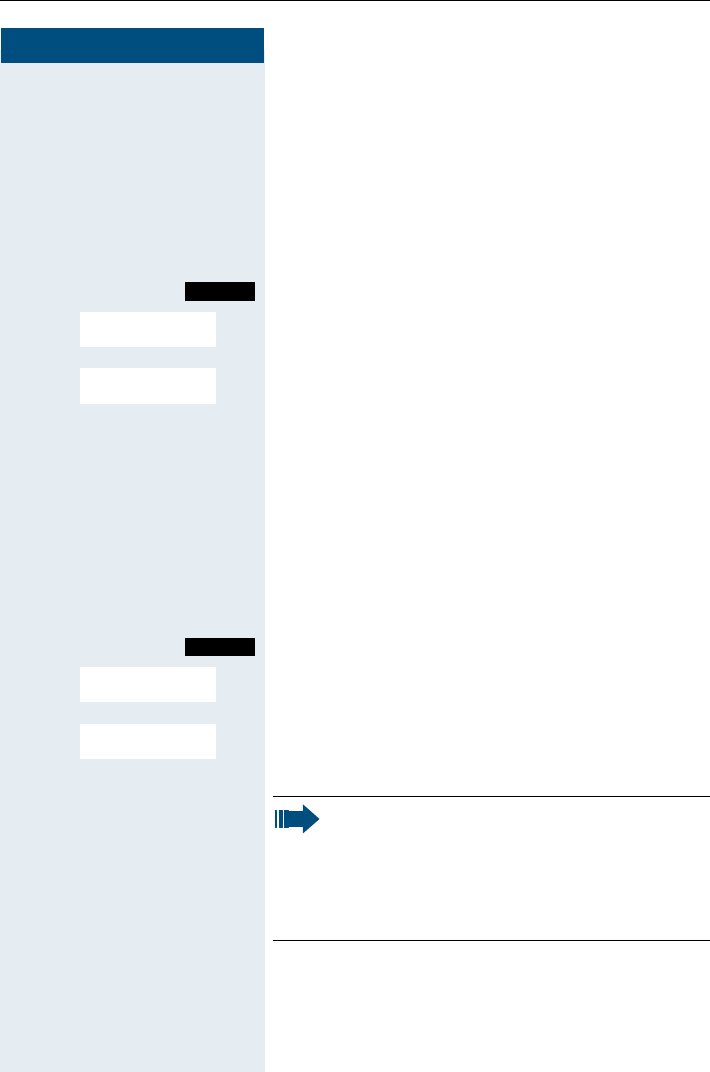
Step by Step
Conducting calls – enhanced functions
54
Parking/activating calls
You can park up to ten calls (i.e. place them on hold) and
then reactivate them at other telephones in your com-
munication system.
Parking a call
pYou are on a call you wish to park.
Call the system menu.
> < [Select and confirm the menu item.
> < [Select and confirm the menu item.
oEnter and note the parking position number (0... 9).
If the parking position number entered is already in use,
you must enter another one.
Picking up a specific parked call
Prerequisite:
One or more calls have been parked. Your handset is in
standby status.
cPress the Talk key.
Call the system menu.
> < [Select and confirm the menu item.
> < [Select and confirm the menu item.
oEnter the parking position number you have noted.
Menu
Service?
*56=Park a call?
Menu
Service?
#56=Retrieve call?
Note:
If a parked call is not picked up, it returns to the
station from which it was parked after a certain
time (= recall). The following appears on the dis-
play "Recalling: (phone no. or name)" or "Recall-
ing from (phone no. or name)".

Conducting calls – with multiple users
55
Step by Step
Conducting calls – with multiple
users
Call waiting
You need to speak to a user in your communication sys-
tem urgently, even though his line is busy. You can send
a call waiting signal during his call to let him know you
want to talk to him. The user either answers immediate-
ly or you will be automatically connected to him when
he has finished his call.
This function is only available if it has been configured
by the service engineer.
The user is busy. You want to use call waiting.
pWait until the message "Camp-on" appears on the dis-
play (ringing tone).
You receive a call waiting signal (second call)
You are still available to other callers, even though you
are on the telephone. The call waiting signal informs you
of the second call while you are conducting a call. You
can answer this call without ending the first call.
pYou are on a call and hear a call waiting signal.
If you want to answer the second call, you can either
place the first call on hold (the first caller waits) or end
the first call.
Placing the first call on hold and answering the sec-
ond call
Answer the second call.
Talk to the second caller. The first caller waits. His call is
on hold. You can now
• toggle between the two callers (Æpage 60) or
• set up a conference (Æpage 61).
2ndCall

Step by Step
Conducting calls – with multiple users
56
Ending the second call
either:
Call the system menu.
> < [Select and confirm the menu item.
or:
aPress the On-hook key. The following message appears
on the display: "Recalling". Your handset rings.
cPress the Talk key to talk to the first caller again.
Ending the first call.
aPress the On-hook key. The first call is ended. Your
handset rings.
cPress the Talk key and answer the second call.
Call waiting tone off/on
You can suppress the call waiting tone for external calls.
Deactivating the call waiting tone
cPress the Talk key.
Call the system menu.
> < [Select and confirm the menu item.
aPress the On-hook key to end the process.
Activating the call waiting tone
cPress the Talk key.
Call the system menu.
> < [Select and confirm the menu item.
aPress the On-hook key to end the process.
Menu
Quit and return?
Menu
Waiting tone off?
Menu
Waiting tone on?

Conducting calls – with multiple users
57
Step by Step
Disabling/enabling automatic call
waiting
You can disable/ enable automatic call waiting signalling
for a second call during a telephone conversation.
Disabling the call waiting tone
cPress the Talk key.
Call the system menu.
> < [Select and confirm the menu item.
> < [Select and confirm the menu item.
aPress the On-hook key to end the process.
Enabling the call waiting tone
cPress the Talk key.
Call the system menu.
> < [Select and confirm the menu item.
> < [Select and confirm the menu item.
aPress the On-hook key to end the process.
Override
You need to speak to an internal user urgently, even
though his line is busy. The "Override" function allows
you to interrupt the ongoing call to pass on a message.
This function is only available when the code has been
input and if it has been configured by the service engi-
neer.
pThe user is busy.
* 62 Call the function.
oEnter the phone number of the busy user.
The override is established. The user name or phone
number, to whom/which the call has been transferred,
is displayed.
Menu
Service?
Call wait. term. off?
Menu
Service?
Call wait. term. on?
Override
<Name>

Step by Step
Conducting calls – with multiple users
58
Override is ended when you hang up the handset.
Transferring calls
Transferring a call means that you wish to hand over a
call you are conducting on your handset to another user.
Transferring
(without announcing the transfer)
pYou can use this function to forward a call which you an-
swered to another user.
Call the system menu.
> < [Select and confirm the menu item.
The current call is placed "on-hold", so that the first user
waits.
oEnter the phone number of the user to whom the call is
to be transferred.
pThe number is dialled.
either:
aPress the On-hook key. The target user’s phone rings.
He picks up the call by lifting the handset.
or:
Call the system menu.
> < [Select and confirm the menu item.
Note:
During override
• all users hear an override tone and every-
thing that is said,
• all users see the following message on the
display "Override:....:".
Menu
Start transfer?
Menu
Transfer?

Conducting calls – with multiple users
59
Step by Step
You receive a recall
• immediately if you have made a mistake,
• 45 seconds after the transfer if the required user
does not answer.
If you do not answer recalls, another telephone defined
by the service engineer is called (intercept station).
Transferring
(with announcement of call transfer)
pYou can use this function to forward a call which you
answered to another user.
Call the system menu.
> < [Select and confirm the menu item.
The current call is placed "on-hold", so that the first user
waits.
oEnter the phone number of the user to whom the call is
to be transferred.
pThe number is dialled. The user answers. You announce
the call presently on hold.
either:
aPress the On-hook key. The user answers the call.
or:
Call the system menu.
> < [Select and confirm the menu item.
Menu
Start transfer?
Menu
Transfer?

Step by Step
Conducting calls – with multiple users
60
Placing a call on hold
You can interrupt a call temporarily if, for example you
want to talk to someone else in the room. The line is
placed "on hold".
pYou are on a call.
R or Press the R key or Display key. The current call is placed
"on hold", the user waits.
Resuming the call with the waiting user
either:
Call the system menu.
> < [Select and confirm the menu item.
You are reconnected to the partner.
or:
RPress the R key.
Toggling
The Toggle function allows you to switch between two
users without allowing them to speak to each other di-
rectly. The two users can be either external or internal
users. You can also withdraw from the calls and connect
the two users with each other. You can also start a con-
ference.
pYou are on a call.
Call the system menu.
Press the Display key. The current call is placed "on
hold", the user waits.
oEnter the phone number of the second user.
pThe second user answers.
Press the Display key to switch between the two calls.
When you end a call, the two users are connected with
each other (not possible when both users are external).
Enquiry
Menu
Quit and return?
Menu
Callbck
Toggle

Conducting calls – with multiple users
61
Step by Step
Conducting a conference
You can connect up to 5 internal or external partners
with each other in a telephone conference. You can in-
clude up to 4 external users in the conference.
For information purposes, you will hear a warning tone
every 30 seconds during a conference call (can be disa-
bled - ask your service engineer).
Setting up a conference
You decide to set up a conference while talking to a
user.
pYou are on a call and wish to start a conference.
Call the system menu.
> < [Select and confirm the menu item.
oEnter the phone number of the new user.
pThe user is free and answers the phone. You announce
the conference.
Call the system menu.
> < [Select and confirm the menu item.
You and your two partners are connected in a confer-
ence call.
Forming a conference
A conference has not yet been set up. However, you are
already connected to two users and are toggling be-
tween them. You now want to form a conference involv-
ing all partners.
pYou are talking to one user.
Call the system menu.
> < [Select and confirm the menu item.
You and your two partners are connected in a confer-
ence call.
Menu
Start conference?
Menu
Conference?
Menu
Conference?

Step by Step
Conducting calls – with multiple users
62
Expanding a conference
You can expand an existing conference to include up to
five users.
pYou are connected with two or more partners in a con-
ference call.
Call the system menu.
> < [Select and confirm the menu item. Conference is
placed "on hold", the users wait.
oEnter the phone number of the new user.
pThe user is free and answers the phone. You announce
the conference.
Call the system menu.
> < [Select and confirm the menu item. The new user is in-
cluded in the conference call.
Ending a conference
pYou are connected with two or more partners in a con-
ference call.
Call the system menu.
> < [Select and confirm the menu item. The conference is
ended.
Leaving a conference
aPress the On-hook key. You leave the conference.
When one user leaves the conference, the other two
users remain connected.
Viewing the names of conference parties
As the convener of the conference, you can view the
names of all conference parties.
pYou are connected with two or more partners in a con-
ference call.
Menu
Add party?
Menu
Conference?
Menu
End conference?

Conducting calls – with multiple users
63
Step by Step
Viewing the conference parties list
Call the additional menu.
> < [Select and confirm the menu item. The first party is dis-
played.
>View other parties.
Closing the conference party list
Call the additional menu.
> < [Select and confirm the menu item. The conference par-
ty list is closed.
Disconnecting a party from the conference
As the convener of the conference, you can disconnect
users from the conference.
pYou are connected with two or more partners in a con-
ference call.
Call the system menu.
> < [Select and confirm the menu item. The first party is dis-
played.
>Display the required party.
Select and confirm the menu item.
> < [Select and confirm the menu item. The relevant party is
disconnected from the conference.
Connecting parties
As the conference convener, you can leave the confer-
ence and thereby connect the other parties with each
other. If you were previously connected with two or
more parties, the other parties remain in a conference.
Otherwise, the remaining two users conduct a one-to-
one call.
pYou are connected with two or more partners in a con-
ference call.
Call the system menu.
> < [Select and confirm the menu item. The first party is dis-
played.
aPress the On-hook key. You leave the conference; the
remaining parties are connected with each other.
Mnu
View conf parties?
Mnu
Exit list?
Menu
View conf parties?
Mnu
Remove party?
Menu
Withdraw?

Step by Step
Conducting calls – with multiple users
64
Using the second call function
The second call is an incoming call that is signalled on
your handset during a call and that can be queried by
you (e.g. Æpage 55).
A second call can be answered in the following call
states:
• You are on a single call,
• You are on an enquiry call,
• You are holding a conference,
• You are on a call which you intend to add to a con-
ference,
• You are toggling between two partners.

Group functions
65
Step by Step
Group functions
Activating/deactivating group calls
If this has been configured by the service engineer, you
belong to one or more groups of users who can be
reached by means of a hunt group or group call phone
number.
Calls are signalled on all telephones in the group either
in succession (=hunt group) or simultaneously (=group
call), until a member of the group answers the call.
Every user in the group can also remain available under
his own phone number.
You belong to a hunt group or group call group
cPress the Talk key.
Call the system menu.
either:
> < [Select and confirm the menu item. The group call is de-
activated.
or:
> < [Select and confirm the menu item. The group call is ac-
tivated.
continue:
aPress the On-hook key to end the process.
Menu
Leave hunt group?
Join hunt group?

Step by Step
Group functions
66
You are a member of several groups
Activating/deactivating individual groups
cPress the Talk key.
Call the system menu.
either:
> < [Select and confirm the menu item.
or:
> < [Select and confirm the menu item.
continue:
> Select the required group and call the additional menu.
either:
> < [Select and confirm the menu item.
or:
> < [Select and confirm the menu item.
continue:
aPress the On-hook key to end the process.
Activating/deactivating all groups
cPress the Talk key.
Call the system menu.
either:
> < [Select and confirm the menu item.
or:
> < [Select and confirm the menu item.
continue:
The list of groups is displayed.
#Press the hash key. The group call for all groups is acti-
vated.
or:
*Press the star key. The group call for all groups is deac-
tivated.
continue:
aPress the On-hook key to end the process.
Menu
Leave hunt group?
Join hunt group?
Group 1
Group 2 Mnu
Leave hunt group?
Join hunt group?
Menu
Leave hunt group?
Join hunt group?
Group 1
Group 2

Group functions
67
Step by Step
Ringing group on
You can have calls to your handset signalled acoustically
on up to five other telephones. The call is received by
the person who answers the call first.
Adding users to a group
First user
cPress the Talk key.
Call the system menu.
> < [Select and confirm the menu item.
> < [Select and confirm the menu item.
Call the additional menu.
[ Confirm.
oEnter the required internal phone number.
Save the settings.
Other users:
Call the additional menu.
> < [Select and confirm the menu item.
oEnter the required internal phone number.
Save the settings.
aPress the On-hook key to end the process.
Deleting users
cPress the Talk key.
Call the system menu.
> < [Select and confirm the menu item.
> < [Select and confirm the menu item.
Call the additional menu.
Menu
Service?
*81=Ringing group
on?
Mnu
Add ext to group?
Save
Mnu
Add another ext?
Save
Menu
Service?
*81=Ringing group
on?
Mnu

Step by Step
Group functions
68
> < [Select and confirm the menu item. The first user added
is displayed.
>Scroll to the required user.
Call the additional menu.
> < [Select and confirm the menu item. The addition of the
first user is cleared.
aPress the On-hook key to end the process.
UCD (Universal Call Distribution)
This function enables calls to be distributed in a team.
An incoming call is always delivered to the team mem-
ber who has been idle longest. Team members can also
work in separate rooms, e. g. on the company’s premis-
es and at a teleworking station. The teams (call distribu-
tion groups) and team members are set up by the serv-
ice engineer.
Logging on/off
You must log on and off at the system when you start/
finish work.
Logging on
cPress the Talk key.
Call the system menu.
> < [Select and confirm the menu item.
> < [Select and confirm the menu item.
> < [Select and confirm the menu item.
oEnter your identifier number (assigned by the service
engineer).
aPress the On-hook key to end the process.
Logging off
cPress the Talk key.
Call the system menu.
Display/Clear?
Mnu
Delete?
Menu
Service?
UCD Menu?
*401=Log on?
Menu

Group functions
69
Step by Step
> < [
Select and confirm the menu item.
> < [Select and confirm the menu item.
> < [Select and confirm the menu item.
aPress the On-hook key to end the process.
Logging on/off temporarily
You can log on or off at the system temporarily, e.g. dur-
ing break times.
Logging on
cPress the Talk key.
Call the system menu.
> < [Select and confirm the menu item.
> < [Select and confirm the menu item.
> < [Select and confirm the menu item.
aPress the On-hook key to end the process.
Logging off
cPress the Talk key.
Call the system menu.
> < [Select and confirm the menu item.
> < [Select and confirm the menu item.
> < [Select and confirm the menu item.
aPress the On-hook key to end the process.
Wrap-up time
If you need more time than the actual call lasts, you can
request/activate a wrap-up time for the last call. This
can be a fixed length of time or, alternatively, you must
deactivate the wrap-up time yourself (log back on).
Service?
UCD Menu?
#401=Log off?
Menu
Service?
UCD Menu?
*402=Log on?
Menu
Service?
UCD Menu?
#402=Not available?

Step by Step
Group functions
70
Requesting time
cPress the Talk key.
Call the system menu.
> < [Select and confirm the menu item.
> < [Select and confirm the menu item.
> < [Select and confirm the menu item.
aPress the On-hook key to end the process.
Logging back on
cPress the Talk key.
Call the system menu.
> < [Select and confirm the menu item.
> < [Select and confirm the menu item.
> < [Select and confirm the menu item.
aPress the On-hook key to end the process.
UCD night service
UCD night service is a separate night service for call dis-
tribution. It is not affected by the system night service.
All incoming calls are forwarded to a special call distri-
bution destination.
Night destination on
cPress the Talk key.
Call the system menu.
> < [Select and confirm the menu item.
> < [Select and confirm the menu item.
> < [Select and confirm the menu item.
aPress the On-hook key to end the process.
Menu
Service?
UCD Menu?
*403=Work on?
Menu
Service?
UCD Menu?
#403=Work off?
Menu
Service?
UCD Menu?
*404=UCD night on?

Group functions
71
Step by Step
Night destination off
cPress the Talk key.
Call the system menu.
> < [Select and confirm the menu item.
> < [Select and confirm the menu item.
> < [Select and confirm the menu item.
aPress the On-hook key to end the process.
Checking the number of waiting calls
You can check the number of waiting calls for the group.
cPress the Talk key.
Call the system menu.
> < [Select and confirm the menu item.
> < [Select and confirm the menu item.
> < [Select and confirm the menu item.
aPress the On-hook key to end the process.
Mulap group (Multiple Line
Application)
If your handset’s line belongs to a Mulap group (Multiple
Line Application), then you can
• answer calls for the group (press the Talk key in
group calls)
• make external telephone calls under the group
phone number (the group phone number is stored
in the called party’s caller list, for example )
• activate and deactivate the group call function for
your handset’s line
• forward the lines of the Mulap group to internal or
external destinations
Menu
Service?
UCD Menu?
#404=UCD night off?
Menu
Service?
UCD Menu?
*405=Calls in
queue?

Step by Step
Group functions
72
Activating/deactivating group calls
cPress the Talk key.
Call the system menu.
> < [Select and confirm the menu item.
> < [Select and confirm the menu item.
either:
> < [Select and confirm the menu item.
or:
> < [Select and confirm the menu item.
continue:
aPress the On-hook key to end the process.
Forwarding a Mulap line
You can immediately forward internal and/or external
calls to your lines to different internal or external tele-
phones (destinations) (external destinations are also
possible if the system is configured accordingly).
If you activate call forwarding for a line, this shall apply
to all line keys of your group for this line.
Forwarding on
cPress the Talk key.
Call the system menu.
> < [Select and confirm the menu item.
> < [Select and confirm the menu item.
> < [Select and confirm the menu item.
oEnter a line number.
either:
> < [Select and confirm the menu item.
Menu
Service?
More features?
#85=Leave hunt
group?
*85=Join hunt
group?
Menu
Service?
More features?
*501=Forward Line:
ON?
1=all calls?

Group functions
73
Step by Step
or:
> < [Select and confirm the menu item.
or:
> < [Select and confirm the menu item.
oEnter the destination number.
Save the settings.
aPress the On-hook key to end the process.
Forwarding off
cPress the Talk key.
Call the system menu.
> < [Select and confirm the menu item.
> < [Select and confirm the menu item.
> < [Select and confirm the menu item.
oEnter a line number.
aPress the On-hook key to end the process.
2=external calls on-
ly?
3=internal calls only?
Save
Menu
Service?
More features:
#501=Forward Line:
Off?

Step by Step
Message functions
74
Message functions
The message functions enable you to react to voice
mail/ call back services of the communication system or
of other users or to initiate information features your-
self.
Leaving a message/advisory message
A number of advisory messages are stored in your com-
munication system that can be automatically sent to the
caller when an internal call is not answered (in the case
of handsets and telephones with display). These advi-
sory messages can be selected and supplemented in
part by you:
0 = Will return at:
1 = On vacation until:
2 = I am out until:
3 = Out all day
4 = Out to lunch
5 = Not available
6 = Home phone:
7 = Contact:
8 = Avail at:
9 = Am in room:
These advisory messages are standard texts and may
have been changed in your communication system.
Activating an advisory message
cPress the Talk key.
Call the system menu.
> < [Select and confirm the menu item.
either:
> < [Select the required advisory message.
If necessary Expand the message as necessary.
Save the settings.
or:
> < [Select and confirm the menu item.
Menu
Advisory msg. on?
0 = Will return at:
1 = On vacation until:
Save
Enter message text

Message functions
75
Step by Step
oEnter the required advisory message.
Typing errors cannot be corrected.
Save the message.
continue:
aPress the On-hook key to end the process.
Deactivating an advisory message
cPress the Talk key.
Call the system menu.
> < [Select and confirm the menu item.
aPress the On-hook key to end the process.
Sending/calling text messages
Messages can be sent internally to other handsets or
telephones with display. These text messages can be
selected and supplemented in part by you:
0 = Please callback
1 = Someone is waiting
2 = Appointment
3 = Urgent call
4 = Do not disturb
5 = FAX waiting
6 = Dictation please
7 = Please make copies
8 = Please make coffee
9 = Ready to depart
These text messages are standard texts and may have
been changed in your communication system.
Note:
For example, if you want to enter the third char-
acter on a key: press the relevant key three times
in succession.
Save
Menu
Absence Text OFF?
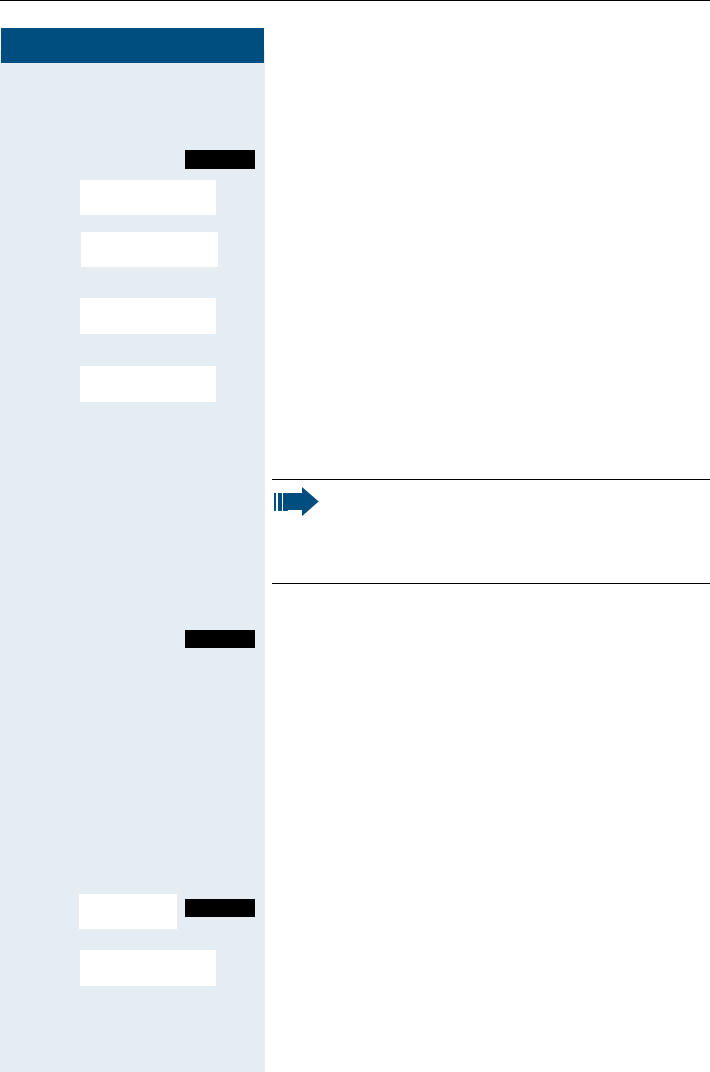
Step by Step
Message functions
76
Send a text message
cPress the Talk key.
Call the system menu.
> < [Select and confirm the menu item.
o Enter the phone number for the required internal user.
either:
> < [Select the required advisory message.
or:
> < [Select and confirm the menu item.
oEnter the required text message with the help of predic-
tive text, if needed (Æpage 86).
Typing errors cannot be corrected.
continue:
Press the Display key.
aPress the On-hook key to end the process.
Opening an incoming text message
JWhen your handset receives a text message, an adviso-
ry tone sounds and an advisory text is displayed. The
"Message List" icon is displayed.
The date and time of incoming text messages are
based on the communication system’s internal clock.
?Press the "message list" key.
Call the additional menu.
> < [Select and confirm the menu item. The text message is
displayed.
aPress the On-hook key to end the process.
Menu
Send Message?
Message to:
Please callback
Someone is waiting
Enter message text
Note:
For example if you want to enter the third char-
acter on a key: press the relevant key three times
in succession.
Send
Msg. from:
... Mnu
Te x t

Message functions
77
Step by Step
Answering a message or voice-mail
message
An advisory message appears when you have received
a message or voice mail.
Viewing a new message
either:
?Press the message key.
or:
cPress the Talk key.
Call the system menu.
> < [Select and confirm the menu item.
> [Select the required message and confirm your selec-
tion.
continue:
Call the additional menu.
> < [Select and confirm the menu item.
Call the additional menu.
> < [Select and confirm the menu item. The time of the
message is displayed.
either:
Call the additional menu.
> < [Select and confirm the menu item. You call back the
sender.
or:
> < [Select and confirm the menu item. The entry is deleted.
continue:
aPress the On-hook key to end the process.
You have new mes-
sages received J
Messages received
Menu
Display Messages?
Msg. from: Mnu
Text?
Mnu
Time/date sent?
Mnu
Call Sender?
Delete?

Step by Step
Message functions
78
Check for a new voice-mail message
either:
?Press the message key.
or:
cPress the Talk key.
Call the system menu.
> < [Select and display menu item.
oFollow the user guidance system from this point on-
wards.
aPress the On-hook key to end the process.
Calling an old message
Old messages that have not been deleted cannot be
displayed using the message key ?. To call these mes-
sages, proceed as follows:
cPress the Talk key.
Call the system menu.
> < [Select and confirm the menu item.
> Select the required message and call the additional
menu.
> < [Select and confirm menu item.
> < Call the additional menu.
[ Select and confirm the menu item. The time of the
message is displayed.
> < Call the additional menu.
either:
> < [Select and confirm the menu item. The sender is called
back.
Messages received
Menu
Display Messages?
Messages received
Menu
Display Messages?
Msg. from:
... Mnu
Text?
<Text> Mnu
Time/date sent?
at: ... Mnu
Call Sender?
Message functions
79
Step by Step
or:
> < [Select and confirm the menu item. The entry is deleted.
continue:
aPress the On-hook key to end the process.
Caller list
If you are unable to answer an external and/or internal
call, this call request is stored in a caller list. If you be-
long to a hunt group or group call group, these call re-
quests are also stored.
Your handset can store up to 10 calls in chronological or-
der. Every call is given a timestamp. The display starts
with the latest call request still not called. When several
calls are received from one caller, the number of calls is
shown.
During a call, you can save the other caller’s phone
number to your caller list.
Selecting a call request
cPress the Talk key.
Call the system menu.
> < [Select and confirm the menu item. The first call request
is displayed.
>Select a call request.
Delete?
Note:
If the service engineer has made the appropri-
ate configuration, the phone numbers for all ex-
ternal answered calls are automatically saved.
Menu
Caller list?

Step by Step
Message functions
80
Calling back a caller
Call the menu.
> < [Select and confirm the menu item. The connection is
set up.
Adding a caller to the caller list
During a call, you can save the other party’s phone
number in your caller list, e.g. to remind you to call again
later.
Call the system menu.
> < [Select and confirm the menu item. The caller’s phone
number is saved.
Deleting a caller from the caller list
cPress the Talk key.
Call the system menu.
> < [Select and confirm the menu item. The first call request
is displayed.
>Select a call request.
Call the menu.
> < [Select and confirm the menu item. The call is deleted.
aPress the On-hook key to end the process.
Mnu
Call?
Note:
If a connection is established, the user is auto-
matically deleted from the caller list. Call re-
quests for groups (hunt group/group call) are
also deleted if a member of the group has set up
the connection.
If the "Save number?" option is not displayed, all
external incoming calls are automatically saved.
Menu
Save number?
Menu
Missed Call List?
Mnu
Delete?

Additional functions
81
Step by Step
Additional functions
Handset alarm clock function
When the alarm clock is activated, it rings every day at
the set time. The alarm clock is deactivated during au-
tomatic number redial.
Activating the alarm clock
The handset is in idle status.
©Open the menu.
D E [Select and confirm the menu item.
D E [Select and confirm the menu item.
F On GFix the setting.
DMove the cursor down one line.
oEnter the time, e. g. 19:05 = 1905.
Save the settings.
¼The alarm clock is activated.
aPress and hold the On-hook key to end the process.
Deactivating the alarm clock
An appointment reminder call is signalled in the same
way as an incoming call.
oPress any key during an alarm call.
Note:
Please note the following:
• First set the date and time. This sets the in-
ternal clock of the handset.
• Do not switch off the handset after you have
made the settings, otherwise the date and
time will be reset. The alarm clock would oth-
erwise relate to an incorrect time setting.
• Check the date and time and reset from time
to time where applicable.
Calendar/Clock
Alarm Clock
Save
Step by Step
Additional functions
82
Deactivating the alarm clock
The handset is in idle status.
©Open the menu.
D E [Select and confirm the menu item.
D E [Select and confirm the menu item.
F Off GFix the setting.
Save setting.
aPress and hold the On-hook key to end the process.
Handset appointment reminder
function
You can arrange your handset to remind you up to five
appointments. The handset must be in idle status at the
time of the appointment reminder. The appointment re-
minder function is deactivated during automatic
number redial.
Calendar/Clock
Alarm Clock
Save
Note:
Please note the following:
• First set the date and time. This sets the in-
ternal clock of the handset.
• Do not switch off the handset after you have
made the settings, otherwise the date and
time will be reset. The appointment reminder
function would otherwise be based on an in-
correct time setting.
• Check the date and time and reset from time
to time where applicable.

Additional functions
83
Step by Step
Activating the appointment reminder function
The handset is in idle status.
©Open the menu.
D E [Select and confirm the menu item.
D E [Select and confirm the menu item.
D E [ Select and confirm the required appointment.
F On GFix the setting.
DMove the cursor down one line.
oEn te r t he da te, e. g . 11 Nove mbe r = 1111.
DMove the cursor down one line.
oEnter the time, e. g. 19:05 = 1905.
DMove the cursor down one line.
F GSpecify the text.
Save the settings.
¼The appointment reminder function is activated.
aPress and hold the On-hook key to end the process.
Confirming an appointment reminder call
An appointment reminder call is signalled in the same
way as an incoming call.
oPress any key during the appointment reminder call.
If you do not confirm the appointment reminder call, it
will be stored in a missed dates list.
Calendar/Clock
Set Appoints.
Save

Step by Step
Additional functions
84
Deactivating the appointment reminder function
The handset is in idle status.
©Open the menu.
D E [Select and confirm the menu item.
D E [Select and confirm the menu item.
F OFF GFix the setting.
Save setting.
aPress and hold the On-hook key to end the process.
Displaying an unconfirmed appointment
If you have failed to confirm an appointment reminder
call, a Display key is assigned the "Missed Appoint."
function. This unconfirmed appointment must also be
saved in a missed dates list.
Display an appointment.
[Open an appointment. The date and time of the uncon-
firmed appointment are displayed.
Displaying an unconfirmed appointment and un-
confirmed anniversaries
Any appointment reminder calls and anniversary calls
you fail to confirm are stored in a missed dates list.
©Open the menu.
D E [Select and confirm the menu item.
D E [Select and confirm the menu item.
F G [ Select the unconfirmed appointment or an unconfirmed
anniversary. The relevant information is displayed.
aPress and hold the On-hook key to end the process.
Calendar/Clock
Set Appoints.
Save
Missed Appoint.
Calendar/Clock
Missed Dates

Additional functions
85
Step by Step
System appointment function
You can use your handset to enter a single appointment
for the next 24 hours or an appointment that recurs on
a daily basis.
When the appointment is due, your handset rings for
approx. 20 seconds to remind you of your appointment.
The entered appointment appears on the display. This
appointment call is deleted when you confirm it. Alter-
natively it is deleted automatically after it has been re-
peated 5 times at one minute intervals.
This function can also be called by entering the code
(Æpage 92).
Entering an appointment
cPress the Talk key.
Call the system menu.
> < [Select and confirm the menu item.
> < [Select and confirm the menu item.
oEnter the required time.
Note the required data format: Appointment at (HH-
MM); HH = two-digit hour setting mm = minutes, two
digits For example: 0905 for 9.05 (= 9.05 a.m.) or 1430
for 14.30 (= 2.30 p.m).
either:
> < [Select a menu item.
or:
> < [Select and confirm the menu item.
continue:
Save the settings.
aPress the On-hook key to end the process.
Deleting/ checking entered appointments
cPress the Talk key.
Call the system menu.
Menu
Service?
*46=Timed reminder
on?
Remind at (HHMM):
One time only?
Daily?
Save
Menu

Step by Step
Additional functions
86
> < [Select and confirm the menu item.
> < [Select and confirm the menu item.
Call the additional menu.
either:
> < [Select and confirm the menu item.
or:
> < [Select and confirm the menu item.
aPress the On-hook key to end the process.
Confirming an appointment
The handset rings and the appointment is displayed.
cPress the Talk key.
aPress the On-hook key. The appointment is confirmed.
Using predictive text
Predictive text helps you in writing the following texts:
• Names in the telephone directory
• Names in the speed dialling list
• Names in the e-mail directory
Each key between "0" and "9" is allocated multiple let-
ters and characters which are shown in a selection line
directly over the Display keys when a key is pressed.
When you enter letters, the most likely choice will be
highlighted with black. This letter will be placed at the
beginning of the selection line and in the text field.
If this is the required letter, confirm it by pressing the
next key. If this is not the required letter, press the hash
key until the correct letter is highlighted with black in
the display line and appears in the text field.
D or CSelect required menu.
D E [Select and confirm the menu item.
When entering a name:
©Open menu.
Service?
#46=Timed reminder
off?
Reminder at... Mnu
Delete?
End?
New Entry

Additional functions
87
Step by Step
D E [
Select and confirm the menu item.
Predictive text is activated.
aPress the On-hook key to return to the text field.
oEnter text.
#Press function key to select a character. Then press the
next letter.
©Open menu.
D E [Save settings.
aPress and hold the On-hook key to end the process.
Selecting a base
If your handset is registered at multiple bases, then you
can set a specific base or the base with the best recep-
tion as the base to be used. The handset then switches
automatically to this base.
You can change the base name that is displayed on the
handset at any time (Æpage 27).
© or GOpen the main menu of the mobile phone.
D E [Select and confirm the menu item.
D E [Select and confirm the menu item.
D E [Select the required base and confirm. The selected
base is ticked.
aPress and hold the On-hook key to end the process.
Predictive Text
Save
H/Set Settings
Select Base
Base 1
Best Base
Step by Step
Telephone blocking
88
Telephone blocking
Handset telephone lock
You can protect your handset against unauthorised ac-
cess by entering a 4-digit numerical code to lock it.
The PIN is preset to "0000" (default). The handset does
not prompt for a PIN in this setting. As soon as you have
changed the PIN you will need to enter it when you turn
on the handset.
Enter the value "0000" again to deactivate the PIN.
Entering a new PIN
GOpen the main menu of the handset.
D E [Select and confirm the menu item.
D E [Select and confirm the menu item.
oEnter the old PIN.
oEnter the new PIN.
DMove the cursor down one line.
oRepeat the new PIN.
[Confirm your entry.
aPress and hold the On-hook key to end the process.
Battery charging when PIN lock active
If you turn off the handset when the PIN lock is active
and place it in the charging shell, the handset turns itself
back on and prompts for the PIN.
However, incoming calls will not be answered due to
the lock.
Attention:
If you have forgotten your PIN, please contact
Siemens Service. The PIN will be reset at your
own expense.
H/Set Settings
Change HSPIN
Telephone blocking
89
Step by Step
Telephone lock code programming
You can protect your handset against unauthorised ac-
cess (thereby safeguarding personal data) by entering a
5-digit code to lock and unlock it.
To change a code, first enter the old code and then key
in the new code twice.
cPress the Talk key.
Call the system menu.
> < [Select and confirm the menu item.
> < [Select and confirm the menu item.
oEnter the old PIN (5 digits, default "00000").
oEn te r t he new PIN , e .g . 11111 ( 5 d ig it s).
oRepeat the new PIN.
aPress the On-hook key to end the process.
Menu
Service?
*Change PIN?
Note:
If you have forgotten your PIN, contact your
service engineer for help. He will be able to re-
set your PIN to "00000".
It is also possible to open your mobile phone
from a central station, e.g. from the attendant
terminal.
Step by Step
Telephone blocking
90
Locking/unlocking the handset
You can lock your handset to prevent external dialling
and programming, thereby preventing unauthorised
use in your absence, for example.
Prerequisite: You have defined a personal code or use
the default code "00000".
Locking the handset
cPress the Talk key.
Call the system menu.
> < [Select and confirm the menu item.
oEnter the PIN code (5 digits, default "00000").
aPress the On-hook key to end the process.
Unlocking the handset
cPress the Talk key.
Call the system menu.
> < [Select and confirm the menu item.
oEnter the PIN code (5 digits, default "00000").
aPress the On-hook key to end the process.
Menu
Changeover on?
Note:
Even though it is locked, you can still use your
handset to answer external calls and make inter-
nal calls. When an external connection is estab-
lished, the following message appears on the
display "Telephone Lock Active".
Your handset can also be locked from a central
station (Æpage 89).
Menu
Changeover off?

Telephone blocking
91
Step by Step
Central telephone lock/locking/un-
locking other handsets
If you have the appropriate authorisation, you can lock
and unlock other handsets to prevent unauthorised use.
If the user has locked his handset and has forgotten the
individual password he has set, you can unlock the
phone again using this function.
cPress the Talk key.
Call the system menu.
> < [Select and confirm the menu item.
> < [Select and confirm the menu item.
> < [Select and confirm the menu item.
oEnter a user’s phone number.
either:
*Lock the handset. The following appears on the display:
"Telephone locked".
or:
#Unlock the handset. The following appears on the dis-
play: "Telephone unlocked".
Menu
Service?
More features?
*943=Telephone
Lock?

Step by Step
System functions
92
System functions
The system functions can be called up via the menu or
directly by entering codes.
Calling functions via the menu
cPress the Talk key.
Call the system menu.
either:
> < [Select and confirm the function.
or:
> < [Select and confirm the menu item.
> < [Select and confirm the function.
or:
> < [Select and confirm the menu item.
> < [Select and confirm the menu item.
> < [Select and confirm the function.
continue:
aPress the On-hook key to end the process.
Calling functions via codes
cPress the Talk key.
either:
*oEnter code according to table (Æpage 93).
or:
#oEnter code according to table (Æpage 93).
continue:
aPress the On-hook key to end the process.
Menu
Suppress call ID?
Service?
*41=Temporary
MNS?
Service?
More functions?
#58=View callbacks?

System functions
93
Functions and codes
Functions Codes
Automatic call wait.term.on * 490
Automatic call wait.trm.off # 490
Waiting tone off * 87
Waiting tone on # 87
Call waiting * 55
Caller list
-Call # 82
- Save phone number * 82
Advisory msg. on * 69
Advisory msg. off # 69
DND on * 97
DND off # 97
UCD:
- Log on * 401
- Log off # 401
- Work on * 403
- Work off # 403
-Available * 402
-Not available # 402
- UCD night on * 404
- UCD night off # 404
- No. of calls * 405
Override (authorised telephone only) * 62
Call trace * 84
Messages
-Send * 68
- View sent message # 68

System functions
94
Conference:
-On * 3
-Off # 3
Call Charge Display * 65
Use speed dialing * 7
Change Speed Dial * 92
Tog gl e * 2
Ton e d ia ll in g * 53
Night Service ON * 44
Night Service OFF # 44
Park
- Park call * 56
- Retrieve call # 56
Account code * 60
Callback * 58
View callbacks # 58
Suppress phone number * 86
Temporary phone number (MSN) * 41
Restore phone number # 86
Ringing group on * 81
Hunt group on * 85
Hunt group off # 85
Control Relay On * 90
Control Relay Off # 90
Change PIN * 93
Recall to Network (flash) * 51
Changeover on * 66
Changeover off # 66
Tel. data service * 42
Functions Codes

System functions
95
Timed reminder on * 46
Timed reminder off # 46
Door release ON * 89
Door release OFF # 89
Door opener * 61
Pickup group * 57
Pickup, directed * 59
Forwarding on * 1
Forwarding off # 1
Trunk FWD on * 64
Trunk FWD off # 64
Telephone Lock * 943
Return to held call * 0
Functions Codes

Appendix
96
Appendix
Troubleshooting
Some malfunctions can be resolved without outside intervention. The fol-
lowing table provides a list of such malfunctions.
Error Possible cause Remedy
No display. Handset not switched
on.
Press the On-hook key
until confirmation is re-
ceived.
Battery is empty. Charge or replace the
battery.
No reaction to keystroke. Keypad lock activated. Press the hash key until
confirmation is received.
De-crescendo tone se-
quence during input.
An incorrect entry was
made.
Repeat key sequence
while watching the dis-
play; where applicable,
consult the operating in-
structions.
The line "Base n" flashes
(n= 1 - 4).
The handset is outside
the base radio range; Ra-
dio signals too weak.
Come closer to the base
radio range, change your
position.
Handset not registered. Register the handset.
Intervals between syn-
chronisation attempts
are too long.
Switch off the handset
and switch it back on
again.
No ringer on the hand-
set.
Ringer is deactivated. Activate ringer.
Nothing audible during a
call.
The "R key" was pressed
– the microphone and
the receiver inset are
muted.
Press the "Delete" Dis-
play key to re-activate
the microphone and the
receiver inset.
The following appears
immediately after the
Talk key is pressed:
Connect.
No dial tone available; No
calls can be made.
Communication system
is being used by other
users.
Repeat call later.
The following, for exam-
ple, appears:
Base 1
Outgoing and incoming
calls and activation/deac-
tivation are not possible.
Handset is blocked. Remove the battery from
the handset and then re-
insert it. Procede as
when loading batteries
for first time.
(Æpage 14).

Appendix
97
Cleaning the handset
To clean the handset and the charging shell, simply wipe them with a damp
or antistatic cloth. Never use a dry cloth.
Do not use abrasive cleaning agents.
Technical data and accessories
Gigaset S1
professional
Gigaset SL 1
professional
Maximum sound
pressure level as
per TBR10, Annex D
118 dB (A) 118 dB (A)
Hours of use with
fully charged battery
Standby: 170 h
Tal kt im e: 13 h
Charging time: 5 h
Standby: 250 h
Ta l kt i m e : 15 h
Charging time: 2 h
Permissible
ambient condi-
tions
for operation
+5 °C to +45 °C
20 % to 75 % relative
humidity
+5 °C to +45 °C
20 % to 75 % relative
humidity
Weight incl. batte-
ries
approx. 148 g approx. 140 g
Dimensions
(L x W x H)
approx.
146 x 55 x 27 mm
approx.
114 x 47 x 22 mm
Order number
charging shell EU
incl. plug-in mains unit
S30852-H1502-R141
EU
incl. power supply unit
S30852-H1521-R147
EU
Order number
charging shell
United Kingdom
incl. plug-in mains unit
S30852-H1502-V141
UK
incl. power supply unit
S30852-H1521-V147
UK
Order number
plug-in mains unit
EU
incl. plug-in mains unit
S30852-H1502-R141
EU
Order number
plug-in mains unit
United Kingdom
incl. plug-in mains unit
S30852-H1502-V141
UK

Appendix
98
EU-guidelines
Declaration of conformity
Your handset is supplied for use within a specific country, which is dis-
played on the underside of the device. Country-specific features must be
observed.
The device complies with the basic requirements of the R&TTE Directive
and therefore displays the CE symbol.
Extract from original declaration
"We, Siemens AG, declare, that the above mentioned product is manufac-
tured according to our Full Quality Assurance System certified by CETE-
COM ICT Services GmbH with the registration number "Q810820M" in
compliance with ANNEX V of the R&TTE-Directive 99/05/EC. The pre-
sumption of conformity with the essential requirements regarding Council
Directive 99/05/EC is ensured."
Senior Approvals Manager
The Declaration of Conformity (DoC) has been signed. In case of need, a
copy of the original DoC can be made available via the company hotline.
89/336/EC "Electromagnetic Compatibility"
73/23/EC "Electrical apparatus for use within
specific voltage parameters"

99
Index
Index
A
Activating ....................................................... 2
Advisory message ..................................... 74
Advisory tones ............................................ 21
Anniversary function ................................. 38
Anonymous calling .................................... 43
Answering a message .............................. 77
Answering calls .......................................... 44
Answering voice mail ................................ 77
Appointment
Confirming ............................................... 86
Delete ....................................................... 85
Attachment clip ............................................. I
Fitting ....................................................... 16
Auto. Answer .............................................. 26
Automatic call waiting ............................... 57
B
Batteries
Approved batteries ................................ 15
Capacity ................................................... 15
Charging ................................................... 14
Charging time ......................................... 15
Compartment cover .................................. I
Inserting ................................................... 13
Operating time ....................................... 15
Permitted ~ ............................................. 15
Standby mode ........................................ 15
Talk time .................................................. 15
Warning tone .......................................... 28
Battery pack ................................................ 15
Battery tone
Function ................................................... 28
Set ............................................................ 21
C
Call answering .............................................. 6
Call answering group ................................... 7
Call charge display ..................................... 45
Call charges ................................................. 45
Call forwarding ............................................. 7
Call forwarding to a fixed destination ....... 7
Call pickup group .......................................... 7
Call trace ...................................................... 46
Call waiting .................................................. 55
Automatic ~ ............................................ 57
Call waiting tone off/on ............................. 56
Callback .......................................................... 4
Callback key ................................................ 10
Caller list ...................................................... 79
Calls
Directed transfer .................................... 44
Making ....................................................... 3
Picking up .................................................. 7
Rejecting .................................................... 6
Capacity ....................................................... 15
Carrier list .................................................... 38
Charge status ............................................. 14
Charging time ............................................. 15
Checking appointments ............................ 85
Cleaning ....................................................... 97
Code programming .................................... 89
Code table ................................................... 93
Conference .................................................. 61
Connecting parties ................................. 63
Disconnecting ......................................... 63
Ending ...................................................... 62
Expanding ................................................ 62
Leaving ..................................................... 62
Setting up ................................................ 61
Viewing .................................................... 62
Confirmation tone
Function ................................................... 28
Set ............................................................ 21
Connecting parties ..................................... 63
Connection quality ....................................... 2
Control key ...........................................I, II, 11
Control relay ................................................ 49
D
Data cable .................................................... 30
Data transfer ............................................... 30
Date, setting ............................................... 26
Deactivating .................................................. 2
Default state ............................................... 28
Delete .......................................................... 12

100
Index
Dialling
After line seizure ...................................... 3
Before line seizure ................................... 3
Preparation ................................................ 3
Directed answering of calls ...................... 44
Directed assignment of an MSN ............. 41
Directed transfer of calls .......................... 44
Display ........................................................ I, II
Display keys .........................................I, II, 12
Do not disturb ............................................. 45
Door release
Activating ................................................. 48
Deactivating ............................................ 48
E
E-mail directory .......................................... 40
Enquiry (second line) ................................... 5
Entering codes ........................................... 92
Entrance telephone ................................... 47
External call forwarding ............................ 51
F
Function keys ............................................. 10
Functions and codes ................................. 93
G
Group call
Activating/deactivating .......................... 65
Group functions ......................................... 65
H
Handset
Locking/unlocking .................................. 90
Locking/unlocking other phones ......... 91
Handset operating times .......................... 15
Handset telephone directory ................... 38
Handset volume ......................................... 18
Hash key ...............................................I, II, 10
Hunt group .................................................. 65
I
Identification code ..................................... 42
Idle display, editing .................................... 27
Individual system speed dialling ............. 36
Interface ...................................................... 30
Interference with electronic equipment
EMC ........................................................... II
K
Key tones
Function ................................................... 28
Set ............................................................ 21
Keypad lock ................................................... 9
Keys
Control key .............................................. 11
Display keys ............................................ 12
Function keys .......................................... 10
L
Leaving a message .................................... 74
Leaving the radio network/re-registering .9
Line seizure ................................................... 3
Locking/unlocking the telephone ............ 90
M
Mailbox function ........................................ 74
Making calls .................................................. 3
Message functions .................................... 74
Message list ........................................I, II, 10
Messages ..............................................74, 75
Microphone ................................................ I, II
MSN .......................................................41, 51
Mulap group
Activating call forwarding ..................... 72
Deactivating call forwarding ................. 73
Deactivating/ activating group calls ..... 72
Forwarding a line .................................... 72
Multiple subscriber number ...............41, 51
N
NET key ....................................................... 10
Night service ............................................... 52
Number redial ............................................. 34
Deleting an entry ..............................35, 40
List ........................................................3, 34
Manual ....................................................... 3
Transferring a phone number .............. 35

101
Index
O
On hold ........................................................ 60
On/Off key .................................................... II
On/off key ................................................ I, 10
On-hook key .........................................I, II, 10
Opening/closing battery compartment .. 13
Override ....................................................... 57
P
Parking ......................................................... 54
Parts of the device ........................................ I
PC interface ................................................ 30
Permitted batteries .................................... 15
Picking up a call ............................................ 7
Placing a call on hold ................................. 60
Playing a melody ........................................ 23
Project code ................................................ 42
Protective cover ......................................... 13
R
R key ...............................................I, II, 10, 11
Radio range ................................................... 2
Range problems ........................................... 2
Recall ......................................................54, 59
Receiver inset ............................................ I, II
Recording a melody ................................... 23
Reject call ...................................................... 6
Rejecting a call ............................................. 6
Reset ............................................................ 28
Ringer echo ................................................. 22
Ringer loudspeaker ....................................... I
Ringing ......................................................... 19
Ringing group on ........................................ 67
S
Second call .................................................. 64
Second line ................................................. 43
Second line (enquiry) ................................... 5
Selecting a base ......................................... 87
Sending a signal to the network .............. 50
Service codes ............................................. 93
Setting the language ................................. 26
Handset ................................................... 16
System ..................................................... 17
Setting the ringer ....................................... 19
Silent alert ................................................... 22
Sound Manager .......................................... 23
Sound setting functions ............................ 18
Speakerphone key ..............................I, II, 10
Speakerphone mode ................................. 31
Speed dial key .............................................. II
Speed dialling .......................................36, 38
Speed dialling key ......................................... I
Standby mode ............................................ 15
Star key .................................................I, II, 10
Suppress phone number .......................... 43
System speed dialling ............................... 36
System telephone directory ..................... 37
T
Talk key .................................................I, II, 10
Talk time ...................................................... 15
TDS telephone data service ..................... 49
Technical data ............................................. 97
Telephone blocking .................................... 89
Telephone conference .............................. 61
Telephone lock .....................................89, 91
Temporary phone ....................................... 43
Time control ................................................ 20
Time, setting ............................................... 26
Toggling ....................................................... 60
Tone dialling ................................................ 53
Tones .....................................................19, 21
Transfer ........................................................ 58
Troubleshooting ......................................... 96
U
UCD night service ...................................... 70
Universal call distribution .......................... 68
V
Voice dialling ............................................... 32
W
Warning tone ........................................25, 61
Wrap-up time .............................................. 69

© Siemens AG 2003
Information and Communication Networks
Hofmannstr. 51 • D-81359 München
Order no.: A31003-G1531-B800-2-7619
The information in this document contains only general descriptions
and features that may not always apply as described in specific cases or
that may change as a result of the further development of the prod-
ucts. The required features are only binding if they are expressly agreed
when the contract is signed.
Subject to availability and technical changes.
Printed in Federal Republic of Germany
07.11.2003
www.siemens.com/hipath
This device has been manufactured in accord-
ance with our certified environmental man-
agement system (ISO 14001). This process
minimises energy consumption, the use of pri-
mary raw materials and waste production.
