Siemens Hipath 8000 Users Manual OptiPoint 410 Advance SIP V4.1
HIPATH 8000 to the manual 139781ba-b44a-4cc5-88e4-a961866062b7
2015-02-05
: Siemens Siemens-Hipath-8000-Users-Manual-409954 siemens-hipath-8000-users-manual-409954 siemens pdf
Open the PDF directly: View PDF  .
.
Page Count: 249 [warning: Documents this large are best viewed by clicking the View PDF Link!]
- Safety Precautions
- General Information
- Installation
- Using the optiPoint 410/420 family S V7.0
- Phone Features
- Technical Overview
- Administration Interfaces
- Basic Administration
- Extended Administration
- Configure Network Parameters
- Configure System Information
- Configuring Date and Time
- Multiline
- Dial Plan Configuration and Status
- Dialling Properties
- Direct Station Select (DSS - HiPath 8000 only)
- Feature Access
- Function Key assignments
- Software Update/Transferring Files
- Applications
- Port Numbering
- Configuration Management
- Use SNMP
- Change Speech Parameters
- Configure Ringer Settings
- Display static Phone Information
- Perform Diagnostic Tests
- Security settings
- Restart the optiPoint 410/420
- Restore Factory Settings
- Change Administrator Password
- Reset User Password
- Clear ALL user data
- Port Control
- Survivability
- User Mobility (Hipath 8000)
- SIP Security Configuration
- Web Interface
- Establishing the Connection to the Phone
- Web Pages
- General information
- Network IP and routing
- SIP environment
- SIP features
- Quality of Service
- File transfer
- Time and date
- SNMP
- Speech
- Ringer settings
- LAN port settings
- Multiline operation
- Function keys
- Function key "Select a function" optiPoint 410/420 advance/standard
- Function key "Select a function" optiPoint 410/420/economy/ economy plus
- Function key "Select a function" optiPoint 410 entry
- Function key "Select a function" optiPoint 420
- Function key "Line key" optiPoint 410/420 advance/standard
- Function key "Line key" optiPoint 410/420 economy/economy plus and optiPoint 410 entry
- Function key "Selected dialing"
- Function key "Repertory dial"
- Function key "Feature Toggle"
- Function key "DSS"
- Function key „HotDesking“
- Dial plan
- Dialling Properties
- Feature Access
- User Mobility
- Configuration Management
- Configuration Management Log file
- Applications (optiPoint 410/420 standard/advance)
- Upload configuration
- Download application
- Download configuration
- Download hold music
- Non user-assisted tests
- User-assisted tests
- RTP Statistics
- QoS Data Collection
- Reset user password
- Change admin password
- Security
- Restart terminal
- Clear ALL user data
- Restore factory settings
- Port Control
- FPN Port Settings
- Fault Investigation
- Survivability
- Phone Menu
- Alphabetical Reference
- Description of Functions
- Action on submit
- Address Book
- Administrator password
- Alert indication
- Allow Refuse
- Append codes
- Application download filename
- Audio loop test
- Audio mode
- Branding/Identity name
- Call Recorder (HiPath 8000)
- Callback URIs
- Call park URI
- Call pickup URI
- Check for update
- Clear ALL user data
- Compression encoding
- Conference factory URI
- Config DLS Port
- Configuration download filename
- Config Server address
- Config Update Account ID
- Config Update Authentication
- Config Update DLS IP
- Config Update Filename
- Config Update File Type
- Config Update FTP IP
- Config Update FTP Port
- Config Update Pathname
- Config Update Password
- Config Update Periodic Timer
- Config Update Unregistration Timer
- Config Update User Name
- Connectivity check
- Count Medium Priority
- Date/Time
- Daylight saving
- Default domain name
- Default Music
- Default Route
- Description
- DHCP IP assignment
- Dial Plan
- Dial string
- Dialling properties
- Discarded in-/outbound packets
- Display ID
- Display ID Use
- Display test
- Domain Name
- Download Application
- Download Configuration
- Download Hold Music
- Download server IP address or DNS name
- DSM Firmware
- DSM Logo
- DSS Address of Record
- DSS Realm
- DSS user ID
- DSS password
- Emergency number
- Feature Access
- Feature Code
- Feature toggle
- Feature URI
- Force logoff to basic user
- Forwarding Indication
- FTP account name
- FTP passive mode
- FTP password
- FTP path
- FTP username
- Function key
- G.711 Silence Suppression
- Group pickup URI
- Help internet URL
- Hide on DSM
- Hold music download filename
- Home page
- Hot line for selected line
- Hot/Warm line default dial string
- Hot line dial string for selected line
- Hot/Warm Phone
- Initial Digit Timer
- Intrusion allowed
- Invalid in-/outbound packets
- IP routing
- Java Program download filename
- Java Proxy Server IP Address
- Java Proxy Server Port
- Join allowed in conference
- Key label
- Key test
- Layer 2/3
- Layer 2 Default
- Layer 2 signalling
- Layer 2 voice
- LAN port settings
- Last Restart
- LDAP Server IP Address
- LDAP server Port
- LDAP Template
- LED test
- Line key
- Line key operation mode
- Line monitor
- Line Address of Record
- Line Hunt Ranking
- Line Shared type
- Line password
- Line Primary line
- Line Realm
- Line Ring
- Line user ID
- Logoff Error Count
- Logoff Trap Delay
- MAC address
- Managed Profile
- Management Center Port
- Manual VLAN identifier
- Message Waiting IP address
- Microphone Disable
- Mobility feature
- Mobility International ID
- Originating line preference
- Outbound proxy
- Overview position on DSM
- Payload security allowed
- PC Port Settings
- Ping
- Port Control
- Primary DNS IP address
- QDC Address
- QDC Port
- Quality of Service (QoS)
- RAM test
- Register by terminal name
- Registration LEDs
- Registration timer value
- Reservation Timer
- Ringer Settings
- Rollover type
- Rollover Volume
- ROM test
- RTP packet size
- RTP Version
- Secondary DNS IP address
- Self Labelling keys test
- Send Generic Traps to Management Center
- Send QDC Traps to Management Center
- Short description
- Show focus
- SIP addresses
- SIP Auto answer
- SIP Auto reconnect
- SIP Beep on auto answer
- SIP Beep on auto reconnect
- SIP password
- SIP realm
- SIP routing
- SIP server type
- SIP server validation
- SIP session timer value
- SIP session timer enabled
- SIP Signalling Version
- SIP Stack Version
- SIP Transport
- SIP user ID
- SNMP MIB2 errors
- SNMP password
- SNMP Queries Allowed
- SNMP Trap IP address or DNS name
- SNTP server address or DNS name
- Survivability Backup Address
- Survivability Backup Port
- Survivability Backup Registration
- Survivability Backup Registration Timer
- Survivability Backup OBP
- Survivability Backup Transport
- System Name
- Terminal Hostname
- Terminal IP address
- Terminal mask
- Terminal name
- Terminal number
- Terminating line preference
- Time zone offset
- Timer High Priority
- Timer Medium Priority
- Transaction timer
- Transfer on hangup
- Transfer on Ringing
- Unauthorised Logoff Trap
- Upload Configuration
- Upload/Download Status
- Use deployment service (DLS)
- Use dynamic hostname concept
- Use secure/non-secure configuration download
- Versions Info
- VLAN discovery method
- Voicemail number
- WAP Connection Type/mode
- WAP proxy Password
- WAP Server Address
- WAP Server Port Number
- WAP proxy Username
- Abbreviations and Specialized Terms
- Description of Functions
- Troubleshooting
- Phone Configurations
- Index

HiPath 8000
optiPoint 410 S V7.0
optiPoint 420 S V7.0
Administrator Manual
Safety Precautions
2
Safety Precautions
Important Notes
• This equipment has been tested and found to comply with the limits
for a Class B digital device, pursuant to Part 15 of the FCC Rules. These
limits are designed to provide reasonable protection against harmful in-
terference when the equipment is operated in a commercial environ-
ment.
• This equipment generates, uses, and can radiate radio frequency ener-
gy and, if not installed and used in accordance with the instructions,
may cause harmful interference to radio communications.
Operation of this equipment in a residential area is likely to cause harm-
ful interference, in which case the user will be required to correct the
interference at his own expense.
• The IP telephone optiPoint 410/420 S V7.0 complies with the European
standard EN 60 950.
• The earpiece in this telephone handset contains a magnet. To prevent
injury, before each use ensure objects such as pins or staples are not
stuck to the earpiece.
• There is always the danger of small objects being swallowed by young
children. In the case of the optiPoint 410/420 S V7.0, this applies in par-
ticular to the connecting cord clip.
Please make sure that such items are not accessible to children.
• Never allow the telephone to come into contact with staining or corro-
sive liquids, such as coffee, tea, juice or soft drinks.
The information provided in this document contains merely general de-
scriptions or characteristics of performance features which in case of actu-
al use do not always apply as described or which may change as a result
of further development of the products.
Do not operate the telephone in environments where there is
a danger of explosions.
Use only original Siemens accessories. Using other accesso-
ries may be dangerous, and will invalidate the warranty and
the CE mark.
Never open the telephone or a key module. If you encounter
any problems, contact System Support.
7Attention
If the optiPoint 410/420 S V7.0 is supplied with power over the LAN
interface Æpage 232, the power source must be a limited power
source PowerHub compliant with IEC 60950.

Safety Precautions
3
An obligation to provide the respective performance features only exists if
expressly agreed in the terms of contract.
Location of the Telephone
• The telephone should be operated in a controlled environment with an
ambient temperature between 5 °C and 40 °C (41 °F and 104 °F).
• To ensure good handsfree talking quality, the area in front of the micro-
phone (front right) should be kept clear. The optimum handsfree dis-
tance is 20 inches (50cm).
• Do not install the telephone in a room where large quantities of dust
accumulate; this can considerably reduce the service life of the tele-
phone.
• Do not expose the telephone to direct sunlight or any other source of
heat, as this is liable to damage the electronic equipment and the plas-
tic casing.
• Do not operate the telephone in damp environments such as bath-
rooms.
Telephone Maintenance
• Always use a damp or antistatic cloth to clean the telephone. Never
use a dry cloth.
• If the telephone is very dirty, clean it with a diluted neutral cleaner con-
taining some form of surfactant, such as a dish detergent. Afterwards,
remove all traces of the cleaner with a damp cloth (using water only).
• Never use cleaners containing alcohol, cleaners that corrode plastic, or
abrasive powders.
Note! (for U.S.A and Canada only)
This equipment has been tested and found to comply with the limits
for a Class B digital device, pursuant to Part 15 of the FCC Rules.
These limits are designed to provide reasonable protection against
harmful interference when the equipment is operated in a residen-
tial installation. This equipment generates, uses, and can radiate ra-
dio frequency energy and, if not installed and used in accordance
with the instructions, may cause harmful interference to radio com-
munications. However, there is no guarantee that interference will
not occur in a particular installation. If this equipment does cause
harmful interference to radio or television reception, which can be
determined by turning the equipment off and on, the user is encour-
aged to try to correct the interference by one or more of the follow-
ing measures:
• Reorient or relocate the receiving antenna.
• Increase the separation between the equipment and receiver.
• Connect the equipment into an outlet on a circuit different from
that to which the receiver is connected.
• Consult the dealer or an experienced radio/TV technician for
help.
This product is a UL Listed Accessory, I.T.E., in U.S.A. and Canada.

Safety Precautions
4
Labels
The device conforms to the EU guideline 1999/5/EG, as at-
tested by the CE mark.
This device has been manufactured in accordance with our
certified environmental management system (ISO 14001).
This process ensures that energy consumption and the use
of primary raw materials are kept to a minimum, thus reduc-
ing waste production.
All electrical and electronic products should be disposed of
separately from the municipal waste stream via designated
collection facilities appointed by the government or the local
authorities.
The correct disposal and separate collection of your old ap-
pliance will help prevent potential negative consequences
for the environment and human health. It is a precondition
for reuse and recycling of used electrical and electronic
equipment.
For more detailed information about disposal of your old ap-
pliance, please contact your city office, waste disposal ser-
vice, the shop where you purchased the product or your sa-
les representative.
The statements quoted above are only fully valid for equip-
ment which is installed and sold in the countries of the Euro-
pean Union and is covered by the directive 2002/96/EC.
Countries outside the European Union may have other regu-
lations regarding the disposal of electrical and electronic
equipment.

5
Contents
Contents
Safety Precautions . . . . . . . . . . . . . . . . . . . . . . . . . . . . 2
General Information . . . . . . . . . . . . . . . . . . . . . . . . . . 15
About the Manual . . . . . . . . . . . . . . . . . . . . . . . . . . . . . . . . . . . . . . . . . 15
Symbols in the Manual . . . . . . . . . . . . . . . . . . . . . . . . . . . . . . . . . . 16
Operating the telephone . . . . . . . . . . . . . . . . . . . . . . . . . . . . . . . . . 17
Intended Use. . . . . . . . . . . . . . . . . . . . . . . . . . . . . . . . . . . . . . . . . . . . . 18
Product Identification. . . . . . . . . . . . . . . . . . . . . . . . . . . . . . . . . . . . . . . 18
Application Version . . . . . . . . . . . . . . . . . . . . . . . . . . . . . . . . . . . . . . . . 18
Service. . . . . . . . . . . . . . . . . . . . . . . . . . . . . . . . . . . . . . . . . . . . . . . . . . 18
Installation . . . . . . . . . . . . . . . . . . . . . . . . . . . . . . . . . . 19
Prerequisites . . . . . . . . . . . . . . . . . . . . . . . . . . . . . . . . . . . . . . . . . . . . . 19
Connecting to the Network . . . . . . . . . . . . . . . . . . . . . . . . . . . . . . . . . . 19
Installing the Phone . . . . . . . . . . . . . . . . . . . . . . . . . . . . . . . . . . . . . . . . 20
Starting up the optiPoint 410/420 S V7.0. . . . . . . . . . . . . . . . . . . . . 21
Mini Switch . . . . . . . . . . . . . . . . . . . . . . . . . . . . . . . . . . . . . . . . . . . . . . 22
Power over LAN information . . . . . . . . . . . . . . . . . . . . . . . . . . . . . . . . . 22
Startup Procedure . . . . . . . . . . . . . . . . . . . . . . . . . . . . . . . . . . . . . . . . . 23
Using the optiPoint 410/420 family S V7.0 . . . . . . . . 24
Properties of the optiPoint 410/420 Telephone Models . . . . . . . . . . . . 24
Telephone Modes . . . . . . . . . . . . . . . . . . . . . . . . . . . . . . . . . . . . . . 24
Control panel . . . . . . . . . . . . . . . . . . . . . . . . . . . . . . . . . . . . . . . . . . . . . 25
Display and Dialog Keys . . . . . . . . . . . . . . . . . . . . . . . . . . . . . . . . . . . . 27
Dialling Keypad . . . . . . . . . . . . . . . . . . . . . . . . . . . . . . . . . . . . . . . . . . . 28
Programmable Keys . . . . . . . . . . . . . . . . . . . . . . . . . . . . . . . . . . . . . . . 29
Control Keys . . . . . . . . . . . . . . . . . . . . . . . . . . . . . . . . . . . . . . . . . . . . . 30
Phone Features . . . . . . . . . . . . . . . . . . . . . . . . . . . . . . 31
Protocol support . . . . . . . . . . . . . . . . . . . . . . . . . . . . . . . . . . . . . . . . . . 31
Capabilities . . . . . . . . . . . . . . . . . . . . . . . . . . . . . . . . . . . . . . . . . . . . . . 31
Network . . . . . . . . . . . . . . . . . . . . . . . . . . . . . . . . . . . . . . . . . . . . . . 31
Configuration . . . . . . . . . . . . . . . . . . . . . . . . . . . . . . . . . . . . . . . . . . 31
Management . . . . . . . . . . . . . . . . . . . . . . . . . . . . . . . . . . . . . . . . . . 31
Speech. . . . . . . . . . . . . . . . . . . . . . . . . . . . . . . . . . . . . . . . . . . . . . . 32
Call Features . . . . . . . . . . . . . . . . . . . . . . . . . . . . . . . . . . . . . . . . . . . . . 32
DTMF . . . . . . . . . . . . . . . . . . . . . . . . . . . . . . . . . . . . . . . . . . . . . . . . . . 33

6
Contents
Technical Overview. . . . . . . . . . . . . . . . . . . . . . . . . . .34
Session Initiation Protocol (SIP). . . . . . . . . . . . . . . . . . . . . . . . . . . . . . . 34
Overview . . . . . . . . . . . . . . . . . . . . . . . . . . . . . . . . . . . . . . . . . . . . . 34
SIP Functions. . . . . . . . . . . . . . . . . . . . . . . . . . . . . . . . . . . . . . . . . . 34
Components in a SIP system. . . . . . . . . . . . . . . . . . . . . . . . . . . . . . 35
Registration . . . . . . . . . . . . . . . . . . . . . . . . . . . . . . . . . . . . . . . . . . . 37
IP Network Protocols. . . . . . . . . . . . . . . . . . . . . . . . . . . . . . . . . . . . . . . 38
DHCP . . . . . . . . . . . . . . . . . . . . . . . . . . . . . . . . . . . . . . . . . . . . . . . . 38
DNS . . . . . . . . . . . . . . . . . . . . . . . . . . . . . . . . . . . . . . . . . . . . . . . . . 41
SNTP . . . . . . . . . . . . . . . . . . . . . . . . . . . . . . . . . . . . . . . . . . . . . . . . 43
SNMP . . . . . . . . . . . . . . . . . . . . . . . . . . . . . . . . . . . . . . . . . . . . . . . 43
IP Network Configuration . . . . . . . . . . . . . . . . . . . . . . . . . . . . . . . . . . . 44
Routing . . . . . . . . . . . . . . . . . . . . . . . . . . . . . . . . . . . . . . . . . . . . . . 44
Virtual LAN (VLAN). . . . . . . . . . . . . . . . . . . . . . . . . . . . . . . . . . . . . . 44
DLS . . . . . . . . . . . . . . . . . . . . . . . . . . . . . . . . . . . . . . . . . . . . . . . . . 45
Quality of Service (QoS). . . . . . . . . . . . . . . . . . . . . . . . . . . . . . . . . . 46
Secure Payload . . . . . . . . . . . . . . . . . . . . . . . . . . . . . . . . . . . . . . . . 46
Administration Interfaces. . . . . . . . . . . . . . . . . . . . . .47
Phone Menu . . . . . . . . . . . . . . . . . . . . . . . . . . . . . . . . . . . . . . . . . . . . . 47
Web Interface . . . . . . . . . . . . . . . . . . . . . . . . . . . . . . . . . . . . . . . . . . . . 47
Basic Administration. . . . . . . . . . . . . . . . . . . . . . . . . .48
Access to the Phone Administrator and Diagnostics Menu . . . . . . . . . 48
Administrator menu . . . . . . . . . . . . . . . . . . . . . . . . . . . . . . . . . . . . . 48
Diagnostics menu . . . . . . . . . . . . . . . . . . . . . . . . . . . . . . . . . . . . . . 49
Basic Configuration . . . . . . . . . . . . . . . . . . . . . . . . . . . . . . . . . . . . . . . . 50
optiPoint 410/420 economy/economy plus/standard/advance . . . . 50
optiPoint 410 entry . . . . . . . . . . . . . . . . . . . . . . . . . . . . . . . . . . . . . 53
Extended Administration . . . . . . . . . . . . . . . . . . . . . .57
Configure Network Parameters. . . . . . . . . . . . . . . . . . . . . . . . . . . . . . . 57
Network Addresses. . . . . . . . . . . . . . . . . . . . . . . . . . . . . . . . . . . . . 57
Quality of Service (QoS). . . . . . . . . . . . . . . . . . . . . . . . . . . . . . . . . . 58
Configure LAN Ports . . . . . . . . . . . . . . . . . . . . . . . . . . . . . . . . . . . . 60
Configure System Information . . . . . . . . . . . . . . . . . . . . . . . . . . . . . . . 61
Terminal Details . . . . . . . . . . . . . . . . . . . . . . . . . . . . . . . . . . . . . . . . 61
SIP Specific Configuration . . . . . . . . . . . . . . . . . . . . . . . . . . . . . . . . 62
SIP Features . . . . . . . . . . . . . . . . . . . . . . . . . . . . . . . . . . . . . . . . . . 64
Miscellaneous . . . . . . . . . . . . . . . . . . . . . . . . . . . . . . . . . . . . . . . . . 66
Configuring Date and Time . . . . . . . . . . . . . . . . . . . . . . . . . . . . . . . . . . 67
SNTP is available, but no automatic access by DHCP server . . . . . 67
No SNTP server available. . . . . . . . . . . . . . . . . . . . . . . . . . . . . . . . . 67

7
Contents
Multiline. . . . . . . . . . . . . . . . . . . . . . . . . . . . . . . . . . . . . . . . . . . . . . . . . 68
Line key configuration . . . . . . . . . . . . . . . . . . . . . . . . . . . . . . . . . . . 68
Configure Multiline Operation . . . . . . . . . . . . . . . . . . . . . . . . . . . . . 69
Dial Plan Configuration and Status . . . . . . . . . . . . . . . . . . . . . . . . . . . . 70
Dialling Properties . . . . . . . . . . . . . . . . . . . . . . . . . . . . . . . . . . . . . . . . . 71
Direct Station Select (DSS – HiPath 8000 only). . . . . . . . . . . . . . . . . . . 71
DSS key configuration . . . . . . . . . . . . . . . . . . . . . . . . . . . . . . . . . . . 72
Feature Access . . . . . . . . . . . . . . . . . . . . . . . . . . . . . . . . . . . . . . . . . . . 73
Function Key assignments . . . . . . . . . . . . . . . . . . . . . . . . . . . . . . . . . . 74
Software Update/Transferring Files. . . . . . . . . . . . . . . . . . . . . . . . . . . . 74
Application Software Update . . . . . . . . . . . . . . . . . . . . . . . . . . . . . . 74
FTP Server Requirements . . . . . . . . . . . . . . . . . . . . . . . . . . . . . . . . 75
Common FTP Server Access Configuration. . . . . . . . . . . . . . . . . . . 75
Upload Configuration File. . . . . . . . . . . . . . . . . . . . . . . . . . . . . . . . . 76
Downloading Files . . . . . . . . . . . . . . . . . . . . . . . . . . . . . . . . . . . . . . 76
Applications . . . . . . . . . . . . . . . . . . . . . . . . . . . . . . . . . . . . . . . . . . . . . . 79
LDAP Server Settings . . . . . . . . . . . . . . . . . . . . . . . . . . . . . . . . . . . 79
Java Proxy . . . . . . . . . . . . . . . . . . . . . . . . . . . . . . . . . . . . . . . . . . . . 79
Address Book Settings . . . . . . . . . . . . . . . . . . . . . . . . . . . . . . . . . . 80
WAP Settings . . . . . . . . . . . . . . . . . . . . . . . . . . . . . . . . . . . . . . . . . 81
Port Numbering . . . . . . . . . . . . . . . . . . . . . . . . . . . . . . . . . . . . . . . . . . . 82
Configuration Management. . . . . . . . . . . . . . . . . . . . . . . . . . . . . . . . . . 84
File Formats. . . . . . . . . . . . . . . . . . . . . . . . . . . . . . . . . . . . . . . . . . . 84
Download. . . . . . . . . . . . . . . . . . . . . . . . . . . . . . . . . . . . . . . . . . . . . 86
Automatic software download. . . . . . . . . . . . . . . . . . . . . . . . . . . . . 87
Specify configuration update file . . . . . . . . . . . . . . . . . . . . . . . . . . . 88
Display Upload/Download Status. . . . . . . . . . . . . . . . . . . . . . . . . . . 91
Display Application Version . . . . . . . . . . . . . . . . . . . . . . . . . . . . . . . 91
Reset Music on Hold to default music. . . . . . . . . . . . . . . . . . . . . . . 92
Use SNMP. . . . . . . . . . . . . . . . . . . . . . . . . . . . . . . . . . . . . . . . . . . . . . . 92
SNMP Server Configuration. . . . . . . . . . . . . . . . . . . . . . . . . . . . . . . 92
View SNMP Errors. . . . . . . . . . . . . . . . . . . . . . . . . . . . . . . . . . . . . . 93
Change Speech Parameters . . . . . . . . . . . . . . . . . . . . . . . . . . . . . . . . . 93
Configure Ringer Settings . . . . . . . . . . . . . . . . . . . . . . . . . . . . . . . . . . . 94
Audio/Visual Indications . . . . . . . . . . . . . . . . . . . . . . . . . . . . . . . . . . 94
Display static Phone Information. . . . . . . . . . . . . . . . . . . . . . . . . . . . . . 94
Perform Diagnostic Tests . . . . . . . . . . . . . . . . . . . . . . . . . . . . . . . . . . . 95
Non user-assisted diagnostic tests . . . . . . . . . . . . . . . . . . . . . . . . . 95
User-assisted diagnostic tests. . . . . . . . . . . . . . . . . . . . . . . . . . . . . 96
Security settings . . . . . . . . . . . . . . . . . . . . . . . . . . . . . . . . . . . . . . . . . . 96
Restart the optiPoint 410/420 . . . . . . . . . . . . . . . . . . . . . . . . . . . . . . . . 97
Perform a Restart to optiPoint 410/420 S V7.0 display phones. . . . 97
View Date and Time of Last Restart . . . . . . . . . . . . . . . . . . . . . . . . 97
Perform a Restart to optiPoint 410 /entry . . . . . . . . . . . . . . . . . . . . 97
Restore Factory Settings. . . . . . . . . . . . . . . . . . . . . . . . . . . . . . . . . . . . 98
optiPoint 410/420 S V7.0 display phones . . . . . . . . . . . . . . . . . . . . 98
optiPoint 410 entry . . . . . . . . . . . . . . . . . . . . . . . . . . . . . . . . . . . . . 98
Change Administrator Password . . . . . . . . . . . . . . . . . . . . . . . . . . . . . . 99

8
Contents
Reset User Password . . . . . . . . . . . . . . . . . . . . . . . . . . . . . . . . . . . . . . 99
Clear ALL user data . . . . . . . . . . . . . . . . . . . . . . . . . . . . . . . . . . . . . . . . 99
Port Control . . . . . . . . . . . . . . . . . . . . . . . . . . . . . . . . . . . . . . . . . . . . . . 99
Survivability . . . . . . . . . . . . . . . . . . . . . . . . . . . . . . . . . . . . . . . . . . . . . 100
Behaviour regarding the Survivability settings. . . . . . . . . . . . . . . . 101
User Mobility (Hipath 8000). . . . . . . . . . . . . . . . . . . . . . . . . . . . . . . . . 102
SIP Security Configuration. . . . . . . . . . . . . . . . . . . . . . . . . . . . . . . . . . 103
Overview . . . . . . . . . . . . . . . . . . . . . . . . . . . . . . . . . . . . . . . . . . . . 103
Implementation . . . . . . . . . . . . . . . . . . . . . . . . . . . . . . . . . . . . . . . 104
Handling server certificates . . . . . . . . . . . . . . . . . . . . . . . . . . . . . . 107
Web Interface . . . . . . . . . . . . . . . . . . . . . . . . . . . . . . .109
Establishing the Connection to the Phone . . . . . . . . . . . . . . . . . . . . . 109
Access to the Web Interface Administrator Menu . . . . . . . . . . . . 110
Administrations Menu (optiPoint 410/420 advance standard) . . . . 111
Administrations Menu (optiPoint 410 entry/economy) . . . . . . . . . 112
Web Pages . . . . . . . . . . . . . . . . . . . . . . . . . . . . . . . . . . . . . . . . . . . . . 113
General information . . . . . . . . . . . . . . . . . . . . . . . . . . . . . . . . . . . . 113
Network IP and routing . . . . . . . . . . . . . . . . . . . . . . . . . . . . . . . . . 114
SIP environment . . . . . . . . . . . . . . . . . . . . . . . . . . . . . . . . . . . . . . 115
SIP features . . . . . . . . . . . . . . . . . . . . . . . . . . . . . . . . . . . . . . . . . . 116
Quality of Service. . . . . . . . . . . . . . . . . . . . . . . . . . . . . . . . . . . . . . 117
File transfer . . . . . . . . . . . . . . . . . . . . . . . . . . . . . . . . . . . . . . . . . . 118
Time and date . . . . . . . . . . . . . . . . . . . . . . . . . . . . . . . . . . . . . . . . 120
SNMP . . . . . . . . . . . . . . . . . . . . . . . . . . . . . . . . . . . . . . . . . . . . . . 121
Speech. . . . . . . . . . . . . . . . . . . . . . . . . . . . . . . . . . . . . . . . . . . . . . 121
Ringer settings. . . . . . . . . . . . . . . . . . . . . . . . . . . . . . . . . . . . . . . . 122
LAN port settings. . . . . . . . . . . . . . . . . . . . . . . . . . . . . . . . . . . . . . 123
Multiline operation . . . . . . . . . . . . . . . . . . . . . . . . . . . . . . . . . . . . . 123
Function keys. . . . . . . . . . . . . . . . . . . . . . . . . . . . . . . . . . . . . . . . . 124
Dial plan . . . . . . . . . . . . . . . . . . . . . . . . . . . . . . . . . . . . . . . . . . . . 131
Dialling Properties . . . . . . . . . . . . . . . . . . . . . . . . . . . . . . . . . . . . . 132
Feature Access . . . . . . . . . . . . . . . . . . . . . . . . . . . . . . . . . . . . . . . 133
User Mobility . . . . . . . . . . . . . . . . . . . . . . . . . . . . . . . . . . . . . . . . . 134
Configuration Management . . . . . . . . . . . . . . . . . . . . . . . . . . . . . . 135
Configuration Management Log file . . . . . . . . . . . . . . . . . . . . . . . 136
Applications (optiPoint 410/420 standard/advance) . . . . . . . . . . . . 136
Upload configuration . . . . . . . . . . . . . . . . . . . . . . . . . . . . . . . . . . . 138
Download application. . . . . . . . . . . . . . . . . . . . . . . . . . . . . . . . . . . 138
Download configuration. . . . . . . . . . . . . . . . . . . . . . . . . . . . . . . . . 138
Download hold music . . . . . . . . . . . . . . . . . . . . . . . . . . . . . . . . . . 139
Non user-assisted tests . . . . . . . . . . . . . . . . . . . . . . . . . . . . . . . . . 139
User-assisted tests . . . . . . . . . . . . . . . . . . . . . . . . . . . . . . . . . . . . 140
RTP Statistics . . . . . . . . . . . . . . . . . . . . . . . . . . . . . . . . . . . . . . . . 141
QoS Data Collection. . . . . . . . . . . . . . . . . . . . . . . . . . . . . . . . . . . . 142

9
Contents
Reset user password. . . . . . . . . . . . . . . . . . . . . . . . . . . . . . . . . . . 143
Change admin password . . . . . . . . . . . . . . . . . . . . . . . . . . . . . . . . 144
Security . . . . . . . . . . . . . . . . . . . . . . . . . . . . . . . . . . . . . . . . . . . . . 144
Restart terminal . . . . . . . . . . . . . . . . . . . . . . . . . . . . . . . . . . . . . . . 144
Clear ALL user data . . . . . . . . . . . . . . . . . . . . . . . . . . . . . . . . . . . . 144
Restore factory settings . . . . . . . . . . . . . . . . . . . . . . . . . . . . . . . . 145
Port Control . . . . . . . . . . . . . . . . . . . . . . . . . . . . . . . . . . . . . . . . . . 145
FPN Port Settings . . . . . . . . . . . . . . . . . . . . . . . . . . . . . . . . . . . . . 146
Fault Investigation . . . . . . . . . . . . . . . . . . . . . . . . . . . . . . . . . . . . . 147
Survivability . . . . . . . . . . . . . . . . . . . . . . . . . . . . . . . . . . . . . . . . . . 147
Phone Menu . . . . . . . . . . . . . . . . . . . . . . . . . . . . . . . . 148
Phone Menu Structure Overview . . . . . . . . . . . . . . . . . . . . . . . . . . . . 148
optiPoint 410/420 economy/economy plus/standard/advance. . . . 148
Editors . . . . . . . . . . . . . . . . . . . . . . . . . . . . . . . . . . . . . . . . . . . . . . . . . 155
Text Editor . . . . . . . . . . . . . . . . . . . . . . . . . . . . . . . . . . . . . . . . . . . 155
Switch Editor . . . . . . . . . . . . . . . . . . . . . . . . . . . . . . . . . . . . . . . . . 157
Number Editor . . . . . . . . . . . . . . . . . . . . . . . . . . . . . . . . . . . . . . . . 157
Password Editor. . . . . . . . . . . . . . . . . . . . . . . . . . . . . . . . . . . . . . . 158
Gradient Editor. . . . . . . . . . . . . . . . . . . . . . . . . . . . . . . . . . . . . . . . 158
IP Number Editor . . . . . . . . . . . . . . . . . . . . . . . . . . . . . . . . . . . . . 159
Offset Editor . . . . . . . . . . . . . . . . . . . . . . . . . . . . . . . . . . . . . . . . . 161
Melody/Tone Editor . . . . . . . . . . . . . . . . . . . . . . . . . . . . . . . . . . . . 161
Alphabetical Reference . . . . . . . . . . . . . . . . . . . . . . 162
Description of Functions . . . . . . . . . . . . . . . . . . . . . . . . . . . . . . . . . . . 162
Action on submit . . . . . . . . . . . . . . . . . . . . . . . . . . . . . . . . . . . . . . 162
Address Book . . . . . . . . . . . . . . . . . . . . . . . . . . . . . . . . . . . . . . . . 162
Administrator password. . . . . . . . . . . . . . . . . . . . . . . . . . . . . . . . . 163
Alert indication . . . . . . . . . . . . . . . . . . . . . . . . . . . . . . . . . . . . . . . . 163
Allow Refuse . . . . . . . . . . . . . . . . . . . . . . . . . . . . . . . . . . . . . . . . . 164
Append codes . . . . . . . . . . . . . . . . . . . . . . . . . . . . . . . . . . . . . . . . 164
Application download filename . . . . . . . . . . . . . . . . . . . . . . . . . . . 165
Audio loop test. . . . . . . . . . . . . . . . . . . . . . . . . . . . . . . . . . . . . . . . 165
Audio mode . . . . . . . . . . . . . . . . . . . . . . . . . . . . . . . . . . . . . . . . . . 165
Branding/Identity name . . . . . . . . . . . . . . . . . . . . . . . . . . . . . . . . . 168
Call Recorder (HiPath 8000). . . . . . . . . . . . . . . . . . . . . . . . . . . . . . 168
Callback URIs. . . . . . . . . . . . . . . . . . . . . . . . . . . . . . . . . . . . . . . . . 169
Call park URI . . . . . . . . . . . . . . . . . . . . . . . . . . . . . . . . . . . . . . . . . 169
Call pickup URI . . . . . . . . . . . . . . . . . . . . . . . . . . . . . . . . . . . . . . . 169
Check for update . . . . . . . . . . . . . . . . . . . . . . . . . . . . . . . . . . . . . . 169
Clear ALL user data . . . . . . . . . . . . . . . . . . . . . . . . . . . . . . . . . . . . 169
Compression encoding . . . . . . . . . . . . . . . . . . . . . . . . . . . . . . . . . 170
Conference factory URI . . . . . . . . . . . . . . . . . . . . . . . . . . . . . . . . 170
Config DLS Port . . . . . . . . . . . . . . . . . . . . . . . . . . . . . . . . . . . . . . 170

10
Contents
Configuration download filename . . . . . . . . . . . . . . . . . . . . . . . . . 170
Config Server address . . . . . . . . . . . . . . . . . . . . . . . . . . . . . . . . . . 170
Config Update Account ID . . . . . . . . . . . . . . . . . . . . . . . . . . . . . . . 171
Config Update Authentication . . . . . . . . . . . . . . . . . . . . . . . . . . . . 171
Config Update DLS IP . . . . . . . . . . . . . . . . . . . . . . . . . . . . . . . . . . 171
Config Update Filename . . . . . . . . . . . . . . . . . . . . . . . . . . . . . . . . 171
Config Update File Type . . . . . . . . . . . . . . . . . . . . . . . . . . . . . . . . 171
Config Update FTP IP . . . . . . . . . . . . . . . . . . . . . . . . . . . . . . . . . . 172
Config Update FTP Port . . . . . . . . . . . . . . . . . . . . . . . . . . . . . . . . 172
Config Update Pathname. . . . . . . . . . . . . . . . . . . . . . . . . . . . . . . . 172
Config Update Password. . . . . . . . . . . . . . . . . . . . . . . . . . . . . . . . 172
Config Update Periodic Timer . . . . . . . . . . . . . . . . . . . . . . . . . . . . 172
Config Update Unregistration Timer . . . . . . . . . . . . . . . . . . . . . . . 173
Config Update User Name. . . . . . . . . . . . . . . . . . . . . . . . . . . . . . . 173
Connectivity check. . . . . . . . . . . . . . . . . . . . . . . . . . . . . . . . . . . . . 173
Count Medium Priority. . . . . . . . . . . . . . . . . . . . . . . . . . . . . . . . . . 173
Date/Time . . . . . . . . . . . . . . . . . . . . . . . . . . . . . . . . . . . . . . . . . . . 173
Daylight saving. . . . . . . . . . . . . . . . . . . . . . . . . . . . . . . . . . . . . . . . 174
Default domain name . . . . . . . . . . . . . . . . . . . . . . . . . . . . . . . . . . 174
Default Music . . . . . . . . . . . . . . . . . . . . . . . . . . . . . . . . . . . . . . . . 174
Default Route. . . . . . . . . . . . . . . . . . . . . . . . . . . . . . . . . . . . . . . . . 174
Description. . . . . . . . . . . . . . . . . . . . . . . . . . . . . . . . . . . . . . . . . . . 174
DHCP IP assignment . . . . . . . . . . . . . . . . . . . . . . . . . . . . . . . . . . 175
Dial Plan . . . . . . . . . . . . . . . . . . . . . . . . . . . . . . . . . . . . . . . . . . . . 176
Dial string. . . . . . . . . . . . . . . . . . . . . . . . . . . . . . . . . . . . . . . . . . . . 180
Dialling properties . . . . . . . . . . . . . . . . . . . . . . . . . . . . . . . . . . . . . 181
Discarded in-/outbound packets . . . . . . . . . . . . . . . . . . . . . . . . . . 182
Display ID. . . . . . . . . . . . . . . . . . . . . . . . . . . . . . . . . . . . . . . . . . . . 182
Display ID Use . . . . . . . . . . . . . . . . . . . . . . . . . . . . . . . . . . . . . . . . 182
Display test . . . . . . . . . . . . . . . . . . . . . . . . . . . . . . . . . . . . . . . . . . 182
Domain Name . . . . . . . . . . . . . . . . . . . . . . . . . . . . . . . . . . . . . . . . 182
Download Application . . . . . . . . . . . . . . . . . . . . . . . . . . . . . . . . . . 183
Download Configuration . . . . . . . . . . . . . . . . . . . . . . . . . . . . . . . . 183
Download Hold Music . . . . . . . . . . . . . . . . . . . . . . . . . . . . . . . . . . 183
Download server IP address or DNS name . . . . . . . . . . . . . . . . . . 183
DSM Firmware . . . . . . . . . . . . . . . . . . . . . . . . . . . . . . . . . . . . . . . 184
DSM Logo . . . . . . . . . . . . . . . . . . . . . . . . . . . . . . . . . . . . . . . . . . . 184
DSS Address of Record. . . . . . . . . . . . . . . . . . . . . . . . . . . . . . . . . 184
DSS Realm. . . . . . . . . . . . . . . . . . . . . . . . . . . . . . . . . . . . . . . . . . . 184
DSS user ID . . . . . . . . . . . . . . . . . . . . . . . . . . . . . . . . . . . . . . . . . . 185
DSS password . . . . . . . . . . . . . . . . . . . . . . . . . . . . . . . . . . . . . . . . 185
Emergency number . . . . . . . . . . . . . . . . . . . . . . . . . . . . . . . . . . . . 185
Feature Access . . . . . . . . . . . . . . . . . . . . . . . . . . . . . . . . . . . . . . . 185
Feature Code . . . . . . . . . . . . . . . . . . . . . . . . . . . . . . . . . . . . . . . . . 186
Feature toggle . . . . . . . . . . . . . . . . . . . . . . . . . . . . . . . . . . . . . . . . 186
Feature URI . . . . . . . . . . . . . . . . . . . . . . . . . . . . . . . . . . . . . . . . . . 186
Force logoff to basic user . . . . . . . . . . . . . . . . . . . . . . . . . . . . . . . 186

11
Contents
Forwarding Indication. . . . . . . . . . . . . . . . . . . . . . . . . . . . . . . . . . . 186
FTP account name . . . . . . . . . . . . . . . . . . . . . . . . . . . . . . . . . . . . . 187
FTP passive mode . . . . . . . . . . . . . . . . . . . . . . . . . . . . . . . . . . . . . 187
FTP password . . . . . . . . . . . . . . . . . . . . . . . . . . . . . . . . . . . . . . . . 187
FTP path. . . . . . . . . . . . . . . . . . . . . . . . . . . . . . . . . . . . . . . . . . . . . 188
FTP username . . . . . . . . . . . . . . . . . . . . . . . . . . . . . . . . . . . . . . . . 188
Function key . . . . . . . . . . . . . . . . . . . . . . . . . . . . . . . . . . . . . . . . . 188
G.711 Silence Suppression . . . . . . . . . . . . . . . . . . . . . . . . . . . . . . 188
Group pickup URI. . . . . . . . . . . . . . . . . . . . . . . . . . . . . . . . . . . . . . 189
Help internet URL . . . . . . . . . . . . . . . . . . . . . . . . . . . . . . . . . . . . . 189
Hide on DSM . . . . . . . . . . . . . . . . . . . . . . . . . . . . . . . . . . . . . . . . 189
Hold music download filename . . . . . . . . . . . . . . . . . . . . . . . . . . . 189
Home page . . . . . . . . . . . . . . . . . . . . . . . . . . . . . . . . . . . . . . . . . . 189
Hot line for selected line . . . . . . . . . . . . . . . . . . . . . . . . . . . . . . . . 189
Hot/Warm line default dial string . . . . . . . . . . . . . . . . . . . . . . . . . 190
Hot line dial string for selected line . . . . . . . . . . . . . . . . . . . . . . . . 190
Hot/Warm Phone . . . . . . . . . . . . . . . . . . . . . . . . . . . . . . . . . . . . . 190
Initial Digit Timer . . . . . . . . . . . . . . . . . . . . . . . . . . . . . . . . . . . . . . 191
Intrusion allowed . . . . . . . . . . . . . . . . . . . . . . . . . . . . . . . . . . . . . . 191
Invalid in-/outbound packets . . . . . . . . . . . . . . . . . . . . . . . . . . . . . 191
IP routing . . . . . . . . . . . . . . . . . . . . . . . . . . . . . . . . . . . . . . . . . . . . 191
Java Program download filename . . . . . . . . . . . . . . . . . . . . . . . . . 192
Java Proxy Server IP Address . . . . . . . . . . . . . . . . . . . . . . . . . . . . 192
Java Proxy Server Port. . . . . . . . . . . . . . . . . . . . . . . . . . . . . . . . . . 192
Join allowed in conference . . . . . . . . . . . . . . . . . . . . . . . . . . . . . . 192
Key label . . . . . . . . . . . . . . . . . . . . . . . . . . . . . . . . . . . . . . . . . . . . 192
Key test . . . . . . . . . . . . . . . . . . . . . . . . . . . . . . . . . . . . . . . . . . . . . 193
Layer 2/3 . . . . . . . . . . . . . . . . . . . . . . . . . . . . . . . . . . . . . . . . . . . . 193
Layer 2 Default. . . . . . . . . . . . . . . . . . . . . . . . . . . . . . . . . . . . . . . . 193
Layer 2 signalling . . . . . . . . . . . . . . . . . . . . . . . . . . . . . . . . . . . . . . 193
Layer 2 voice . . . . . . . . . . . . . . . . . . . . . . . . . . . . . . . . . . . . . . . . . 194
LAN port settings. . . . . . . . . . . . . . . . . . . . . . . . . . . . . . . . . . . . . . 194
Last Restart . . . . . . . . . . . . . . . . . . . . . . . . . . . . . . . . . . . . . . . . . . 194
LDAP Server IP Address . . . . . . . . . . . . . . . . . . . . . . . . . . . . . . . . 194
LDAP server Port . . . . . . . . . . . . . . . . . . . . . . . . . . . . . . . . . . . . . . 194
LDAP Template . . . . . . . . . . . . . . . . . . . . . . . . . . . . . . . . . . . . . . . 195
LED test. . . . . . . . . . . . . . . . . . . . . . . . . . . . . . . . . . . . . . . . . . . . . 196
Line key . . . . . . . . . . . . . . . . . . . . . . . . . . . . . . . . . . . . . . . . . . . . . 196
Line key operation mode . . . . . . . . . . . . . . . . . . . . . . . . . . . . . . . . 197
Line monitor. . . . . . . . . . . . . . . . . . . . . . . . . . . . . . . . . . . . . . . . . . 198
Line Address of Record . . . . . . . . . . . . . . . . . . . . . . . . . . . . . . . . . 199
Line Hunt Ranking . . . . . . . . . . . . . . . . . . . . . . . . . . . . . . . . . . . . . 199
Line Shared type . . . . . . . . . . . . . . . . . . . . . . . . . . . . . . . . . . . . . . 200
Line password . . . . . . . . . . . . . . . . . . . . . . . . . . . . . . . . . . . . . . . . 200
Line Primary line . . . . . . . . . . . . . . . . . . . . . . . . . . . . . . . . . . . . . . 201
Line Realm. . . . . . . . . . . . . . . . . . . . . . . . . . . . . . . . . . . . . . . . . . . 201
Line Ring . . . . . . . . . . . . . . . . . . . . . . . . . . . . . . . . . . . . . . . . . . . . 201

12
Contents
Line user ID . . . . . . . . . . . . . . . . . . . . . . . . . . . . . . . . . . . . . . . . . . 201
Logoff Error Count . . . . . . . . . . . . . . . . . . . . . . . . . . . . . . . . . . . . . 202
Logoff Trap Delay . . . . . . . . . . . . . . . . . . . . . . . . . . . . . . . . . . . . . 202
MAC address. . . . . . . . . . . . . . . . . . . . . . . . . . . . . . . . . . . . . . . . . 202
Managed Profile. . . . . . . . . . . . . . . . . . . . . . . . . . . . . . . . . . . . . . . 202
Management Center Port . . . . . . . . . . . . . . . . . . . . . . . . . . . . . . . 202
Manual VLAN identifier . . . . . . . . . . . . . . . . . . . . . . . . . . . . . . . . . 203
Message Waiting IP address . . . . . . . . . . . . . . . . . . . . . . . . . . . . . 203
Microphone Disable. . . . . . . . . . . . . . . . . . . . . . . . . . . . . . . . . . . . 203
Mobility feature . . . . . . . . . . . . . . . . . . . . . . . . . . . . . . . . . . . . . . . 203
Mobility International ID. . . . . . . . . . . . . . . . . . . . . . . . . . . . . . . . . 204
Originating line preference. . . . . . . . . . . . . . . . . . . . . . . . . . . . . . . 204
Outbound proxy. . . . . . . . . . . . . . . . . . . . . . . . . . . . . . . . . . . . . . . 205
Overview position on DSM . . . . . . . . . . . . . . . . . . . . . . . . . . . . . . 206
Payload security allowed . . . . . . . . . . . . . . . . . . . . . . . . . . . . . . . . 206
PC Port Settings . . . . . . . . . . . . . . . . . . . . . . . . . . . . . . . . . . . . . . 206
Ping . . . . . . . . . . . . . . . . . . . . . . . . . . . . . . . . . . . . . . . . . . . . . . . . 207
Port Control . . . . . . . . . . . . . . . . . . . . . . . . . . . . . . . . . . . . . . . . . . 207
Primary DNS IP address . . . . . . . . . . . . . . . . . . . . . . . . . . . . . . . . 207
QDC Address . . . . . . . . . . . . . . . . . . . . . . . . . . . . . . . . . . . . . . . . 207
QDC Port . . . . . . . . . . . . . . . . . . . . . . . . . . . . . . . . . . . . . . . . . . . 208
Quality of Service (QoS). . . . . . . . . . . . . . . . . . . . . . . . . . . . . . . . . 208
RAM test . . . . . . . . . . . . . . . . . . . . . . . . . . . . . . . . . . . . . . . . . . . . 210
Register by terminal name. . . . . . . . . . . . . . . . . . . . . . . . . . . . . . . 210
Registration LEDs . . . . . . . . . . . . . . . . . . . . . . . . . . . . . . . . . . . . . 210
Registration timer value. . . . . . . . . . . . . . . . . . . . . . . . . . . . . . . . . 211
Reservation Timer . . . . . . . . . . . . . . . . . . . . . . . . . . . . . . . . . . . . . 211
Ringer Settings . . . . . . . . . . . . . . . . . . . . . . . . . . . . . . . . . . . . . . . 211
Rollover type . . . . . . . . . . . . . . . . . . . . . . . . . . . . . . . . . . . . . . . . . 212
Rollover Volume. . . . . . . . . . . . . . . . . . . . . . . . . . . . . . . . . . . . . . . 212
ROM test . . . . . . . . . . . . . . . . . . . . . . . . . . . . . . . . . . . . . . . . . . . . 212
RTP packet size . . . . . . . . . . . . . . . . . . . . . . . . . . . . . . . . . . . . . . . 212
RTP Version . . . . . . . . . . . . . . . . . . . . . . . . . . . . . . . . . . . . . . . . . 212
Secondary DNS IP address . . . . . . . . . . . . . . . . . . . . . . . . . . . . . . 212
Self Labelling keys test . . . . . . . . . . . . . . . . . . . . . . . . . . . . . . . . . 213
Send Generic Traps to Management Center . . . . . . . . . . . . . . . . 213
Send QDC Traps to Management Center . . . . . . . . . . . . . . . . . . . 213
Short description . . . . . . . . . . . . . . . . . . . . . . . . . . . . . . . . . . . . . . 213
Show focus . . . . . . . . . . . . . . . . . . . . . . . . . . . . . . . . . . . . . . . . . . 213
SIP addresses . . . . . . . . . . . . . . . . . . . . . . . . . . . . . . . . . . . . . . . . 214
SIP Auto answer . . . . . . . . . . . . . . . . . . . . . . . . . . . . . . . . . . . . . . 214
SIP Auto reconnect . . . . . . . . . . . . . . . . . . . . . . . . . . . . . . . . . . . . 215
SIP Beep on auto answer . . . . . . . . . . . . . . . . . . . . . . . . . . . . . . . 215
SIP Beep on auto reconnect . . . . . . . . . . . . . . . . . . . . . . . . . . . . . 215
SIP password. . . . . . . . . . . . . . . . . . . . . . . . . . . . . . . . . . . . . . . . . 215
SIP realm . . . . . . . . . . . . . . . . . . . . . . . . . . . . . . . . . . . . . . . . . . . . 215
SIP routing . . . . . . . . . . . . . . . . . . . . . . . . . . . . . . . . . . . . . . . . . . . 216

13
Contents
SIP server type. . . . . . . . . . . . . . . . . . . . . . . . . . . . . . . . . . . . . . . . 216
SIP server validation. . . . . . . . . . . . . . . . . . . . . . . . . . . . . . . . . . . . 216
SIP session timer value . . . . . . . . . . . . . . . . . . . . . . . . . . . . . . . . . 216
SIP session timer enabled . . . . . . . . . . . . . . . . . . . . . . . . . . . . . . . 217
SIP Signalling Version . . . . . . . . . . . . . . . . . . . . . . . . . . . . . . . . . . 217
SIP Stack Version. . . . . . . . . . . . . . . . . . . . . . . . . . . . . . . . . . . . . . 217
SIP Transport . . . . . . . . . . . . . . . . . . . . . . . . . . . . . . . . . . . . . . . . . 217
SIP user ID. . . . . . . . . . . . . . . . . . . . . . . . . . . . . . . . . . . . . . . . . . . 218
SNMP MIB2 errors . . . . . . . . . . . . . . . . . . . . . . . . . . . . . . . . . . . . 218
SNMP password . . . . . . . . . . . . . . . . . . . . . . . . . . . . . . . . . . . . . . 218
SNMP Queries Allowed . . . . . . . . . . . . . . . . . . . . . . . . . . . . . . . . 218
SNMP Trap IP address or DNS name . . . . . . . . . . . . . . . . . . . . . . 219
SNTP server address or DNS name. . . . . . . . . . . . . . . . . . . . . . . . 219
Survivability Backup Address. . . . . . . . . . . . . . . . . . . . . . . . . . . . . 219
Survivability Backup Port . . . . . . . . . . . . . . . . . . . . . . . . . . . . . . . . 219
Survivability Backup Registration. . . . . . . . . . . . . . . . . . . . . . . . . . 220
Survivability Backup Registration Timer. . . . . . . . . . . . . . . . . . . . . 220
Survivability Backup OBP. . . . . . . . . . . . . . . . . . . . . . . . . . . . . . . . 220
Survivability Backup Transport. . . . . . . . . . . . . . . . . . . . . . . . . . . . 220
System Name . . . . . . . . . . . . . . . . . . . . . . . . . . . . . . . . . . . . . . . . 220
Terminal Hostname . . . . . . . . . . . . . . . . . . . . . . . . . . . . . . . . . . . . 221
Terminal IP address . . . . . . . . . . . . . . . . . . . . . . . . . . . . . . . . . . . . 223
Terminal mask . . . . . . . . . . . . . . . . . . . . . . . . . . . . . . . . . . . . . . . . 223
Terminal name . . . . . . . . . . . . . . . . . . . . . . . . . . . . . . . . . . . . . . . 223
Terminal number . . . . . . . . . . . . . . . . . . . . . . . . . . . . . . . . . . . . . . 224
Terminating line preference . . . . . . . . . . . . . . . . . . . . . . . . . . . . . 224
Time zone offset . . . . . . . . . . . . . . . . . . . . . . . . . . . . . . . . . . . . . . 225
Timer High Priority . . . . . . . . . . . . . . . . . . . . . . . . . . . . . . . . . . . . . 225
Timer Medium Priority . . . . . . . . . . . . . . . . . . . . . . . . . . . . . . . . . . 225
Transaction timer . . . . . . . . . . . . . . . . . . . . . . . . . . . . . . . . . . . . . . 225
Transfer on hangup . . . . . . . . . . . . . . . . . . . . . . . . . . . . . . . . . . . . 226
Transfer on Ringing . . . . . . . . . . . . . . . . . . . . . . . . . . . . . . . . . . . . 226
Unauthorised Logoff Trap . . . . . . . . . . . . . . . . . . . . . . . . . . . . . . . 226
Upload Configuration . . . . . . . . . . . . . . . . . . . . . . . . . . . . . . . . . . . 227
Upload/Download Status . . . . . . . . . . . . . . . . . . . . . . . . . . . . . . . . 227
Use deployment service (DLS) . . . . . . . . . . . . . . . . . . . . . . . . . . . 227
Use dynamic hostname concept . . . . . . . . . . . . . . . . . . . . . . . . . . 227
Use secure/non-secure configuration download . . . . . . . . . . . . . . 228
Versions Info . . . . . . . . . . . . . . . . . . . . . . . . . . . . . . . . . . . . . . . . . 228
VLAN discovery method . . . . . . . . . . . . . . . . . . . . . . . . . . . . . . . . 228
Voicemail number . . . . . . . . . . . . . . . . . . . . . . . . . . . . . . . . . . . . . 228
WAP Connection Type/mode . . . . . . . . . . . . . . . . . . . . . . . . . . . . 229
WAP proxy Password . . . . . . . . . . . . . . . . . . . . . . . . . . . . . . . . . . 229
WAP Server Address. . . . . . . . . . . . . . . . . . . . . . . . . . . . . . . . . . . 229
WAP Server Port Number . . . . . . . . . . . . . . . . . . . . . . . . . . . . . . . 229
WAP proxy Username . . . . . . . . . . . . . . . . . . . . . . . . . . . . . . . . . 229
Abbreviations and Specialized Terms . . . . . . . . . . . . . . . . . . . . . . . . . 230

14
Contents
Troubleshooting . . . . . . . . . . . . . . . . . . . . . . . . . . . . .235
General Troubleshooting Tips . . . . . . . . . . . . . . . . . . . . . . . . . . . . . . . 235
Fault Finding . . . . . . . . . . . . . . . . . . . . . . . . . . . . . . . . . . . . . . . . . . . . 235
Display reported faults. . . . . . . . . . . . . . . . . . . . . . . . . . . . . . . . . . 235
Security . . . . . . . . . . . . . . . . . . . . . . . . . . . . . . . . . . . . . . . . . . . . . . . . 238
Payload not Encrypted . . . . . . . . . . . . . . . . . . . . . . . . . . . . . . . . . . 238
TLS Authentication Failed . . . . . . . . . . . . . . . . . . . . . . . . . . . . . . . 238
No Registration with Line Keys . . . . . . . . . . . . . . . . . . . . . . . . . . . 238
Error Messages optiPoint 410 entry . . . . . . . . . . . . . . . . . . . . . . . 239
Common problems . . . . . . . . . . . . . . . . . . . . . . . . . . . . . . . . . . . . 242
Phone Configurations . . . . . . . . . . . . . . . . . . . . . . . .243
Common Configuration (Factory Defaults) . . . . . . . . . . . . . . . . . . . . . 243
Index. . . . . . . . . . . . . . . . . . . . . . . . . . . . . . . . . . . . . . .245

General Information
15
General Information
About the Manual
The instructions within this manual will help you in administering and main-
taining the entry/economy/economy plus/standard/advance. The in-
structions contain important information for safe and proper operation of
the advance. Follow them carefully to avoid improper operation and get the
most out of your multi-function telephone in a network environment.
This guide is intended for service providers and network administrators
who administer VoIP services using the advance and who have a funda-
mental understanding of SIP. The tasks described in this guide are not in-
tended for end users of the phones. Many of these tasks affect the ability
of a phone to function on the network and require an understanding of IP
networking and telephony concepts.
These instructions are laid out in a user-oriented manner, which means that
you are led through the functions of the advance step by step – from the
setup, through descriptions of tools and extensions discussions of special
administrative and service tasks at the end of the manual. For the users, a
separate manual is provided.
For your own protection, please read the section dealing with safety.
Follow the safety instructions carefully in order to avoid endangering
yourself or other persons and to prevent damage to the unit.
Step by Step
General Information
16
Symbols in the Manual
Shows administration tasks with menu paths at the
advance and on the Web Interface.
Shows additional information about each parameter in
the Alphabetical Reference.
Shows the related web pages.
Means that you are in the administration menu and you
have already entered the correct administrator pass-
word. (Access: Phone Æpage 48, Web Interface
Æpage 110).
>Means that you are in the diagnostics menu and you
have already entered the correct administrator pass-
word. (Access: Phone Æpage 49, Web Interface
Æpage 110).
YMeans that you are in the setup menu and you have al-
ready entered the correct user password, if required
(Æpage 148).
7Attention
This symbol indicates a hazard. Failure to follow
the instructions given may result in injury or in
damage to the unit.
Key information important for the proper use of
the unit is marked with this symbol.
General Information
17
Step by Step
Operating the telephone
nLift the handset (off-hook).
tReplace the handset (on-hook).
sConduct a call.
oEnter a telephone number or code.
u or vIncrease or reduce the value depending on the current
operating mode.
optiPoint 410/420 economy/economy plus/stan-
dard/advance
:The option appears on the screen.
Press the : key to confirm your selection.
> :Look for the select option.
Press the < > keys,
until the option appears on the screen.
Then press the : key to confirm your selection.
entry
Changing and viewing the configuration data in the en-
try is done by entering different reference numbers.
For description of viewing data values on the LEDs of
the entry see ÆSeite 160.
Continue? >
02=System? >
General Information
18
Intended Use
The advance telephone is a desktop unit designed for voice transmission
and for connection to LAN.
Product Identification
The identification details of your telephone are given on the nameplate
containing the exact product label and serial number on the bottom of the
base unit Æpage 20. Please have these ready whenever you call our ser-
vice department in case of trouble with or defects on the unit itself.
Application Version
To find out the current application version of your advance see Æpage 94.
Service
In the case of any trouble or defects on the telephone unit itself, please dial
the service number of your local distributor or your local Siemens Branch
office.
The Siemens service department can only help you with problems
or defects on the telephone unit itself.
Should you have any questions regarding the operation, your spe-
cialist retailer or network administrator will gladly help you.
For any questions regarding the telephone connection, please con-
tact your network provider.
optiPoint 410 advance S V7.0
S30817-S7503-L101-1
Ser.-Nr.: 0001E320C244
E3/R8

Installation
19
Installation
Prerequisites
The advance acts as an endpoint client on an IP telephony network, and
has the following network requirements:
• An Ethernet connection to a network with SIP clients and servers (re-
quired).
• A Dynamic Host Configuration Protocol (DHCP) server (optional).
• Either a Call Control System
– Proxy server — There must be a device running RFC 3261 SIP-com-
pliant software.
– Voice packet gateway (optional) — Required if your VOIP Network is
connected to the Public Switched Telephone Network (PSTN).
• or a voice packet gateway if the phone is used in gateway routing mode
Æpage 216.
Connecting to the Network
The advance has two RJ-45 ports labelled “10/100 LAN” and “10/100 PC.”
Each port supports 10/100 Mbps half- or full-duplex connections.
We recommend that you use the port setting "Auto" Æpage 194 on all
ports for auto detection of transferring speed and type of connected cable
(either straight-through or crossed).
You have to connect the advance first to the LAN and then to the
power supply.
Installation
20
Installing the Phone
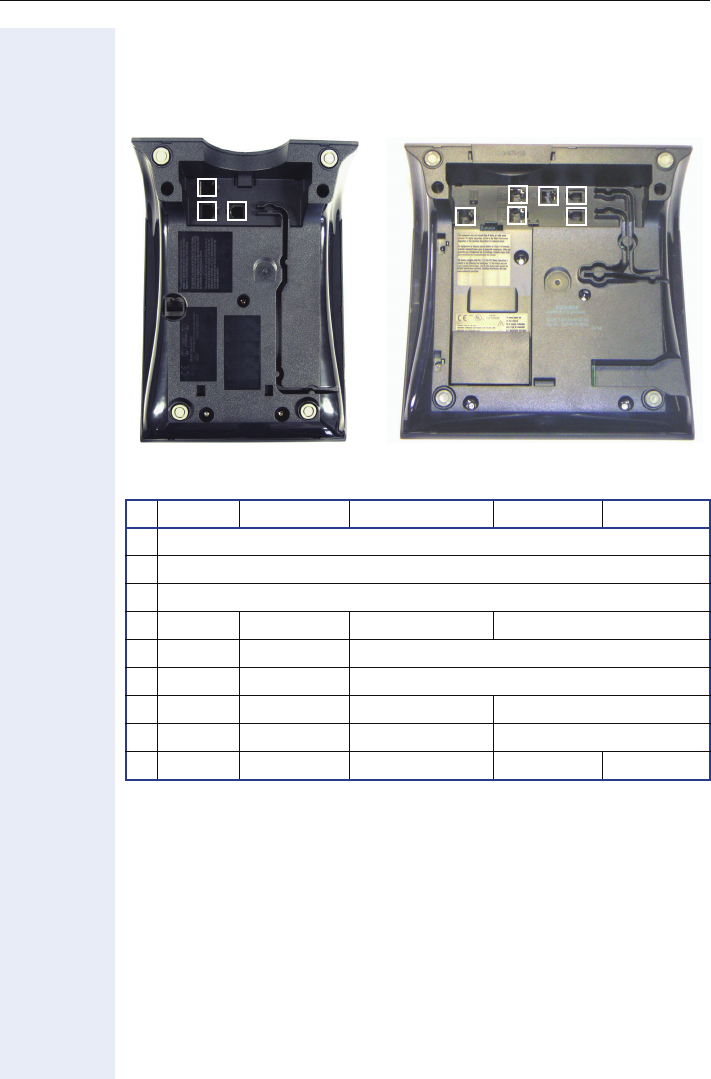
Connectors on the bottom of the telephone
entry S economy S economy plus S standard S advance S
1Ethernet port for LAN connection (optional with PoL*)
*Power over LAN:
If power is supplied over the LAN cable, no local power supply is required.
2Handset connector
3Connector for a local power supply unit (optional*)
4- - - Module connector
5- - Ethernet port for PC
6- - Headset connector
7- - - Adapter 1
8- - - Adapter 2 -
9-- - -USB-Master
2
1
312
36
45
78
optiPoint 410 entry optiPoint 410 advance
9

Installation
21
Starting up the optiPoint 410/420 S V7.0
• Plug the short end of the handset cable into the handset and the other
end into the connector 2 at the bottom of the telephone and feed the
cable through the guide channel in the base unit.
• Using the headset connector:
Plug the jack of the headset cable into connector 6 at the bottom of the
telephone and feed the cable through the guide channel in the base
unit.
• Using optiPoint modules (4):
Mount this device following the instructions in the installation guide
(A31003-H8400-B934-*-6ZD1).
• Using adapter (7, 8 ):
Mount this device following the instructions in the installation guide
(A31003-H8400-B934-*-6ZD1).
• Using an external keyboard:
Plug the keyboard cable into the USB connector 9 at the bottom of the
telephone.
• Using a LAN connection to PC:
Plug the jack of the connection cable into the connector 5 at the bottom
of the telephone.
Only if power not supported by LAN:
– Plug the plug-in power supply unit into the mains.
– Plug the connector 3 at the bottom of the telephone into the plug-in
power supply unit.
• Plug the jack of the LAN cable into the connector 1 at the bottom of the
telephone and connect the cable with LAN.
• Feed the cables through the relief on the back of the housing and fix
them by means of the cable clip.
The optiPoint 410/420 phone is to connect to a Switch. (The phone
is working also on a Hub, but without a guarantee of quality)
The Western plugs of all cable connections must audibly snap into
place.
7Use only the plug-in power supply unit fitting the optiPoint 410/420:
– GER/IM: AUL:06D1284
– GBR: AUL:06D1287
– USA: AUL:51A4827

Installation
22
Mini Switch
The default operation for the mini switch will be to auto negotiate transfer
rate (10/100 Mb/s) and duplex method (full or half duplex) with whatever
equipment is connected to the mini switch.
The software provides options to prevent auto negotiation and specify the
required transfer rate and duplex mode for the LAN and PC ports
Æpage 194.
In the default configuration for the mini switch the LAN port supports au-
tomatic detection of cable configuration (pass through or crossover cable)
and will reconfigure itself as needed to connect to the network. However
if the phone is set up to manfully configure the switch port settings then
the cable detection mechanism is disabled, in this case care must be taken
to use the correct cable type.
Depending on what has been implemented in the software IEEE802.1x
(Port based network access control) packets generated by equipment con-
nected to the PC port will be passed through the mini switch and out of
the LAN port.
Removing the power from the phone, or a phone reset/reboot will result in
the temporary loss of the network connection to the PC port. In the case
of a reset/reboot this is about 5 seconds.
The Line Monitor diagnostic routine provides information on the configura-
tion of the mini switch Æpage 198.
Power over LAN information
Power over LAN support is provided on the LAN port and complies with
the IEEE802.3af standard. 8 wire Ethernet cables are required to use it.
Installation
23
Startup Procedure
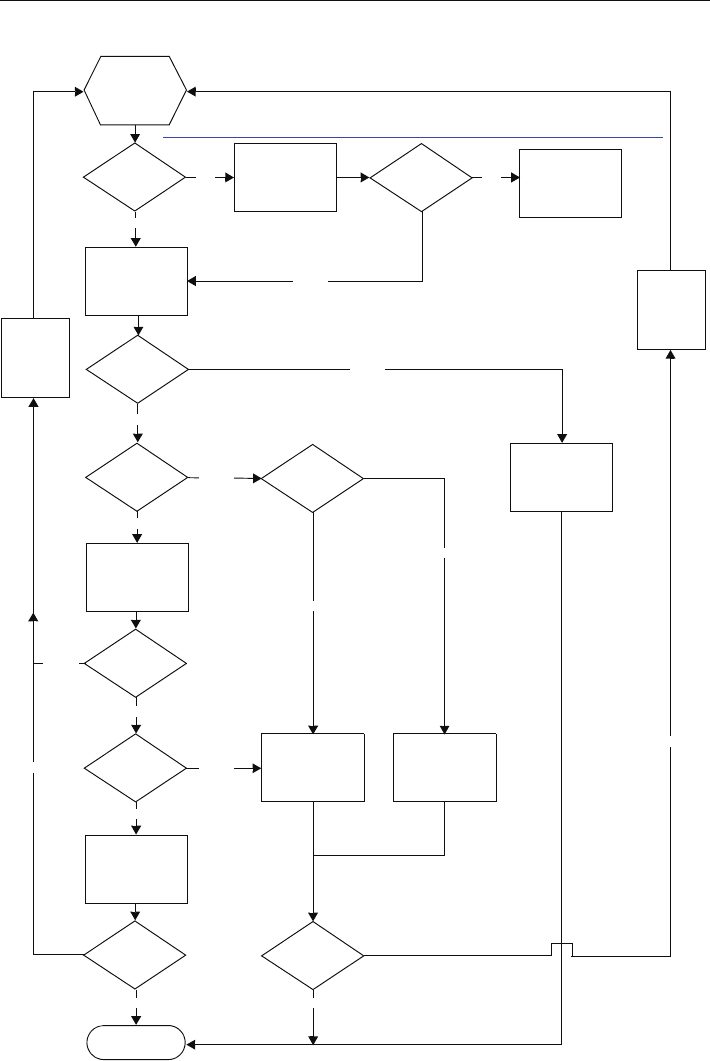
Start
Power on
Reboot
Key 3
pressed?
Application
startet
Netboot request
DHCP
activated?
Using manual
attitudes
VLAN
Discovery and
L2 activated? L2 activated?
DHCP Discover
in untagged LAN
DHCP
successful?
DHCP Discover
in VLAN
VLAN ID
in Option 43?
DHCP Discover
in untagged LAN
Registration
Yes
No
Successful? Netboot Upgrade
Yes
No
Yes
No
Yes
No
Yes
No DHCP Discover
in tagged LAN
No
Yes
Yes
Successful?
Yes
Successful?
Yes
Hochlauf
und
120 s
warten
No
Hochlauf
und
120 s
warten
No
No
No
see http://wiki.siemens-enterprise.com/index.php/Setup_optiPoint_410/420_phones_with_NetBoot

Using the optiPoint 410/420 family S V7.0
24
Using the optiPoint 410/420 family SV7.0
Properties of the optiPoint 410/420 Telephone Mo-
dels
This chapter gives you an overview of the optiPoint 410/420 telephone
models and their properties
Telephone Modes
Your administrator can configure the optiPoint 410/420 economy/
economy plus/standard advance S V7.0 for use as:
• A SingleLine phone with one line.
• A MultiLine phone with up to 10 lines (in relation with the SIP server).
Te l e p h o n e
Model
Function keys
Connection of
Side Car Unit
Display
Lines x Characters
Headset
connection
USB-Master
Mini-Switch
e. g. PC-connection
Speakerphone mode
Self labeling keys
optiPoint 410
entry 8 No - No No No No No
optiPoint 410
economy 4/8No2x24NoNoNoNoNo
optiPoint 410
economy plus 4/8 No 2x24 Yes No Yes No No
optiPoint 410
standard 4/8 Yes 2x24 Yes No Yes Yes No
optiPoint 410
advance 4/15 Yes 4x24 Yes Yes Yes Yes No
optiPoint 420
economy 5/7No2x24NoNoNoNoYes
optiPoint 420
economy plus 5/7 No 2x24 Yes No Yes No Yes
optiPoint 420
standard 5/7 Yes 2x24 Yes No Yes Yes Yes
optiPoint 420
advance 5/13 Yes 4x24 Yes Yes Yes Yes Yes
Using the optiPoint 410/420 family S V7.0
25
Control panel
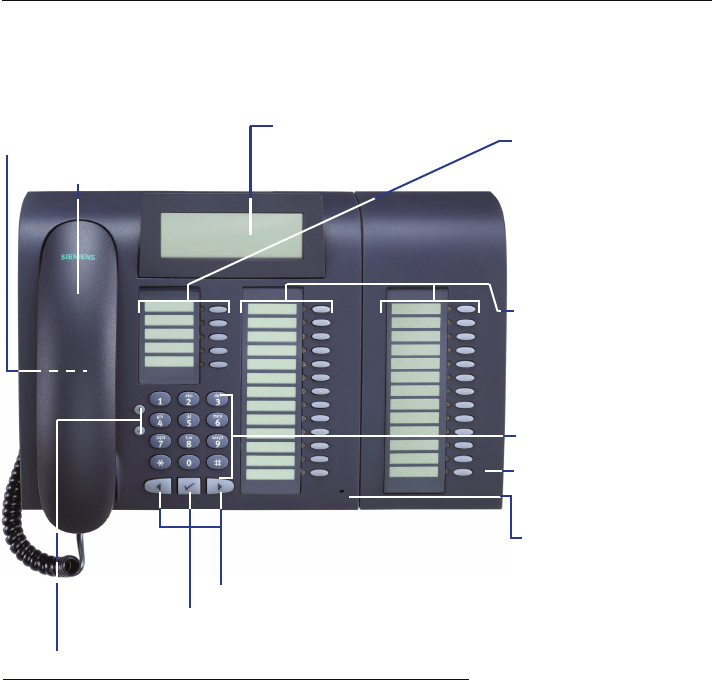
Example: optiPoint 420 advance
Keys for phone settings
Microphone for
speakerphone
Loudspeaker for
open listening
Dialog key for confirming a function
Dialog keys for scrolling through functions
Handset
Dialing keypad
Illuminated graphics
display, 4 lines of 24
characters each
Key fields –
Programmable* func-
tion keys
Key fields –
Programmable*:
function keys
optiPoint self labeling
key module
* With automatic key labelling
Using the optiPoint 410/420 family S V7.0
26
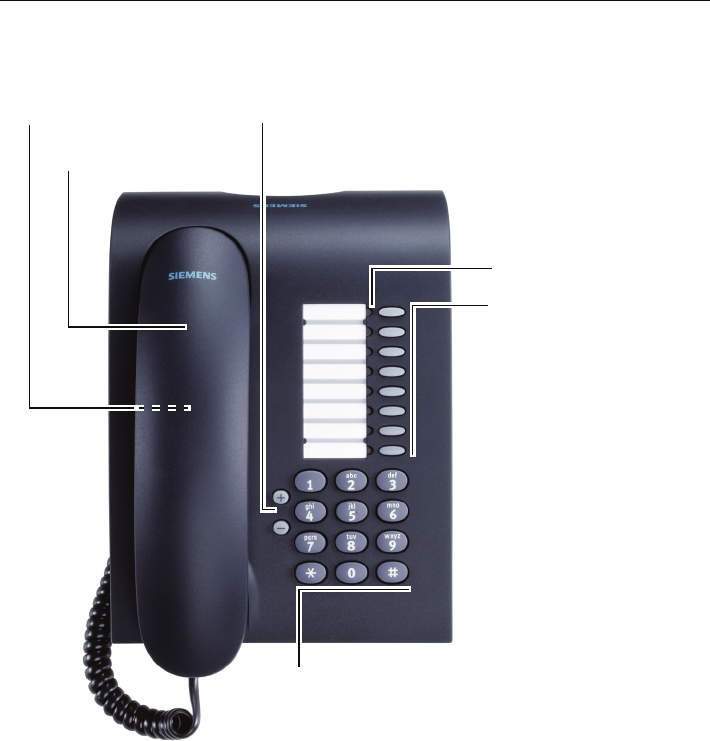
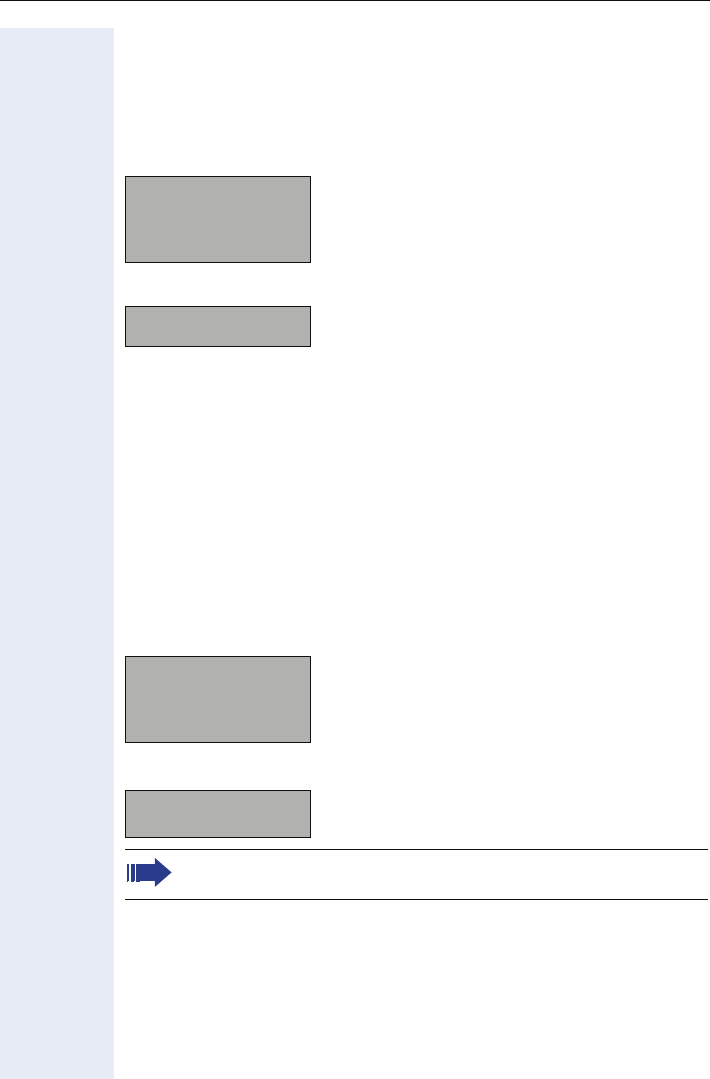
Example: optiPoint 410 entry
Keys for
telephone settings
Keypad
Handset
Speaker
for ring tones
Key field –
freely programmable
keys*
LEDs
Using the optiPoint 410/420 family S V7.0
27
Display and Dialog Keys
The optiPoint 410/420 is provided with a four-line (advance)/two-line (econ-
omy/economy plus/standard) display. In the normal operating mode, it dis-
plays the basic menu where you make or receive telephone calls.
optiPoint 410/420 advance
optiPoint 410/420 economy/economy plus/standard
The basic menu shows in its first line the time and date, and the terminal
number or name in the second line. The arrow symbol ">" on the right hand
side of the last display line points to additional functions offered. The third
line of the optiPoint 410/420 advance and the right corner of the second
line of the optiPoint 410/420 economy/economy plus/standard is used for
a free programmable Name e. g. name of the user.
If you want to navigate in menus or make settings, use the three dialog
keys <, >, : and function key "Stop/Escape" to navigate through the
hierarchically built up menu structure. Within this structure, the third (first)
line shows the currently selected menu, the last line a menu item of that
menu.
optiPoint 410/420 advance
optiPoint 410/420 economy/economy plus/standard
You can put the advance in idle mode rapidly by lifting off and replac-
ing the handset.
4:15PM 05.03.04
1228
Username
Menu >
Time and Date
Terminal number or name
Programmable Username
Menu
4:15PM 05.03.04
1228 Username>
Time and Date
Terminal number or name
Programmable Username
4:15PM 05.03.04
Aministration:
01=Network? >
Time and Date
Selected Menu
Menu item
Aministration:
01=Network? >
Selected Menu
Menu item

Using the optiPoint 410/420 family S V7.0
28
Dialling Keypad
The dialling keypad of the advance is labeled with digits, letters and some
special characters. You can key in letters and special characters in the cor-
responding input mode by pressing the corresponding key as often as is
necessary until the required letter or the required special character appears
on the display.
For example, if you want to enter the letter "R", press the key "7" three
times as "R" is at the third position. For the letter "U", press the key "8"
twice.
More information about text editors see Æpage 155.
Using the optiPoint 410/420 family S V7.0
29
Programmable Keys
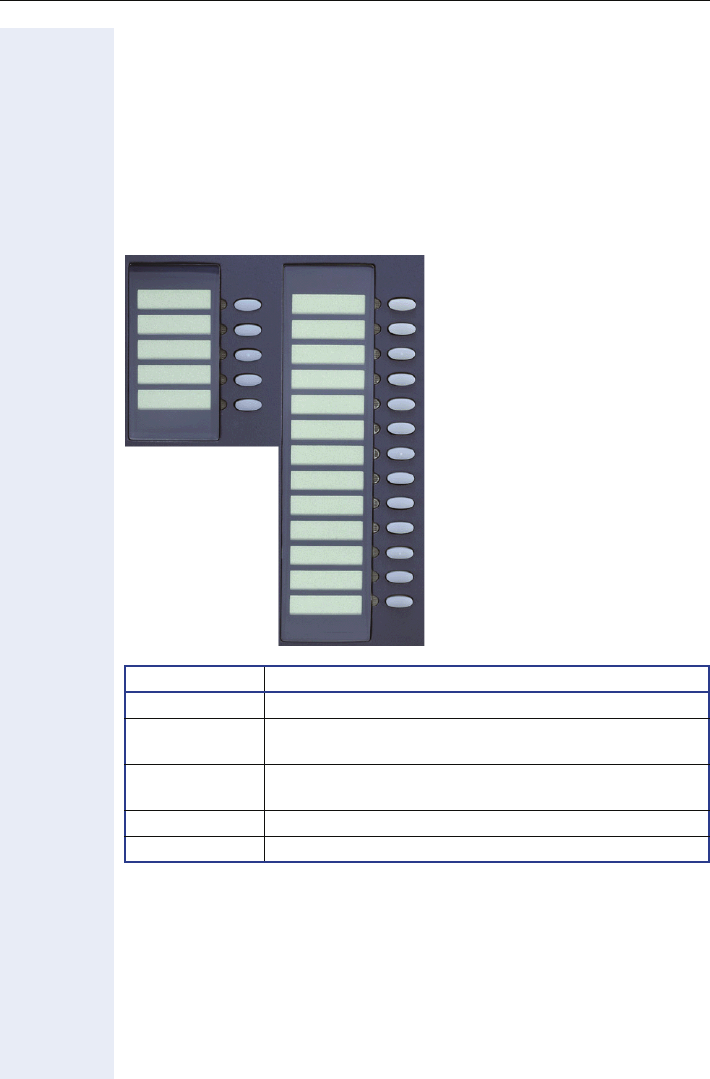
The optiPoint 410/420 family is equipped with function keys which are
user-programmable in two levels (see User Manual).
The function key
"Stop/Escape" should not be programmed. Five of these keys come already
preassigned in the first level
The types of the optiPoint 410/420 family have various numbers of func-
tion keys:
Example optiPoint 420 advance:
Function Key Function
1 Switches loudspeaker of the base unit on/off
2 Shows the last 20 dialled numbers, and allows selec-
tion and redial actions
3 Shows the last 20 missed calls and allows selection,
edit and redial actions
17 Cancels the current action
18 Toggles between first and second key levels
Loudspeaker
Repeat Dial
Missed Calls
Shift
Stop/Escape
6
7
8
9
10
11
12
1
2
3
13
14
15
16
17
18
4
5

Using the optiPoint 410/420 family S V7.0
30
Control Keys
The two control keys v and u are located on the left side of the dialling
keypad. Depending on the operating mode, you can vary the following set-
tings:
Operating mode v key u key
Receiving a call Reduce the volume of
the ringer tone
Increase the volume of
the ringer tone
Handsfree talking Reduce the volume of
the loudspeaker in the
base unit
Increase the volume of
the loudspeaker in the
base unit
Using the handset of
the telephone
Reduce the volume of
the handset loud-
speaker
Increase the volume of
the handset loudspeak-
er
Setting in the menu
"Setup" - "Audio set-
tings"
Adjust loudspeaker volume, ringer volume, se-
quence and melody of the ringer tone, handset
volume and key click volume (confirmed by :)
Restart and factory
setting
Starts these functions

Phone Features
31
Phone Features
Protocol support
The economy/economy plus/standard/advance supports the following pro-
tocols:
•ÆSIP (RFC 3261 compliance)
•ÆSDP
•ÆTCP/ÆUDP
•ÆFTP
•ÆSNMP
•ÆSNTP
•ÆHTTP
•ÆRTP/ÆRTCP
•ÆDNS
•ÆDHCP
•ÆEAP (802.1X)
• Quality of service in accordance with DiffServe and IEEE 802.1p/q.
Capabilities
The advance supports the following capabilities:
Network
• Power over LAN
• DHCP for automatic IP address assignment or static IP configuration
• SNTP for automatic time synchronization
•Support for VLANs
• Support for configurable Layer 2 and 3 Quality of Service
Configuration
• Language definition (5 languages)
• Country definition allowing flexible tone generation
• Feature enable/disable
• User and administrator levels (password protected)
• Upload and download of configuration files (INI file format)
Management
• Deployment service (DLS) for configuring phones
• Web interface for configuring individual phones
• BroadSoft Centralized Management for automatic configuration
•SNMP
• Flexible phone menu system

Phone Features
32
Speech
• Support for G711 (U and A Law), G723 and G729
• Configurable Jitter buffer support
• High Quality speaker phone functionality
• G711 Silence Suppression
• Audio codec G.722 offers a wider audio bandwidth resulting in major
improvement in the represented speech quality.
Call Features
• Call Reject
• Call deflection
• Call forwarding (Unconditional, On Busy, On no Reply)
• Call waiting1
• Consultation
• Unattended Transfer
• Attended Transfer (Join)
• Local Conference (3 party, G711 only)
• Do not Disturb
•Hold
• Message Waiting
• MultiLine
• Call Park

Phone Features
33
DTMF
The phone provides 2 mechanisms for transmitting ÆDTMF information,
inband and DTMF in RTP (see RFC 2833). The phone does not support out-
band DTMF through SIP messaging. There are no configuration parame-
ters on the phone which control the use of DTMF.
A process of negotiation is used during call-setup to determine which form
of DTMF signaling will be used. The phone supports send DTMF informa-
tion in response to the user pressing the keys 0-9 and * and # when in a
call connected state.
When a call is made from a phone it will "Offer" the remote endpoint sup-
port for DTMF in RTP (this is carried in the SDP protocol). If the far end
does not "answer" that it can support DTMF in RTP then DTMF in-band will
be used otherwise DTMF in RTP will be used.
When DTMF in RTP is negotiated the phone will always "offer" payload 100
to carry the DTMF events. The far end may accept and confirm this payload
or it may suggest a different payload value. In this case the phone will fol-
low that payload preferred by the far end. On an incoming call the phone
will follow the payload value suggested by the far end.
The phone is not capable of retrieving or understanding DTMF in-band or
DTMF in RTP information it may receive. This information is normally used
by application or media servers to control feature access. If the user press-
es keys when in a call connected state and in-band DTMF has been nego-
tiated he will hear the tones being sent in the speech path (handset only).
If DTMF in RTP has been negotiated he will here clicks as speech packets
are removed and replaced with DTMF in RTP key events.

Technical Overview
34
Technical Overview
Session Initiation Protocol (SIP)
Overview
The Session Initiation Protocol (SIP) is a ASCII-based signalling protocol
used for establishing sessions in an IP network. A session could be a sim-
ple two-way telephone call or it could be a collaborative multi-media con-
ference session.
Like other VoIP protocols, SIP provides signaling and session management
within a packet telephony network. Signaling allows call information to be
carried across network boundaries. Session management controls the at-
tributes of an end-to-end call.
SIP was originally developed in the MMUSIC group within the IETF (Inter-
net Engineering Task Force), it has been published since February 1999 as
RFC 2543. The SIP working group is continuing to enhance the protocol
and published version 2 as RFC 3261 in 2002.
SIP Functions
Systems which use SIP are able to provide the following:
• The location of the target endpoint — SIP supports address resolution,
name mapping, and call redirection.
• The media capabilities of the target endpoint—Via Session Description
Protocol (SDP), SIP determines the lowest level of common services
between endpoints. Conferences are established using only the media
capabilities that can be supported by all endpoints.
• A session between the originating and target endpoint — If the call can
be completed, SIP establishes a session between the endpoints. SIP
also supports mid-call changes such as adding another endpoint to the
conference and changing media characteristic or codec.
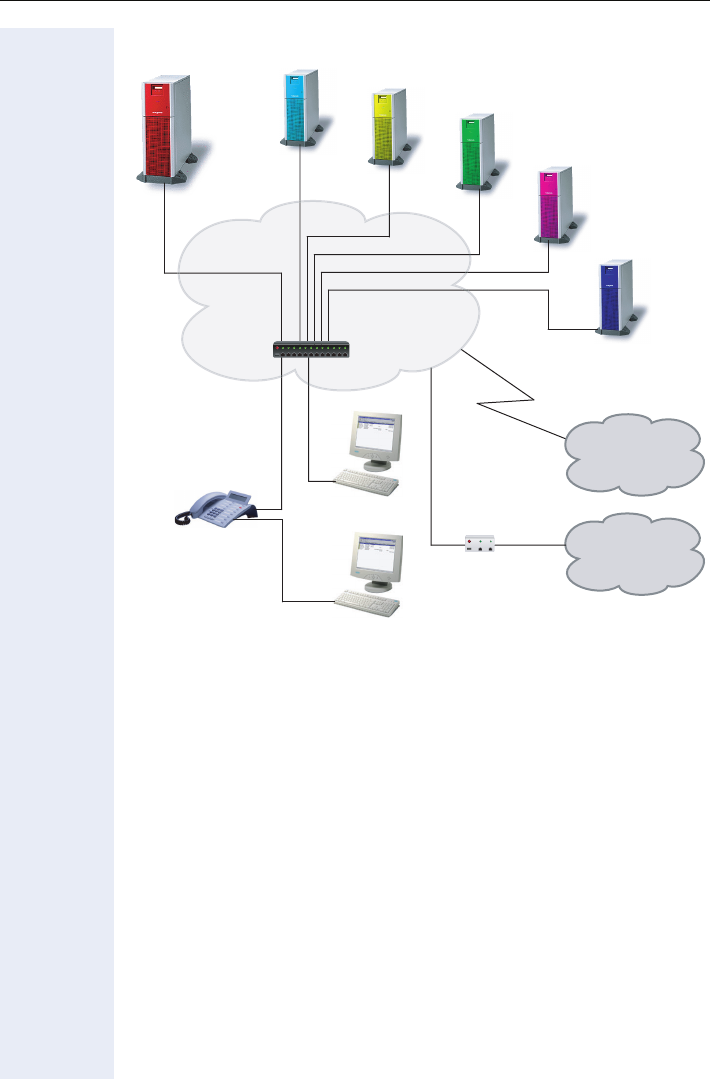

Technical Overview
36
SIP Components
SIP is a peer-to-peer protocol. The peers in a session are called user agents
(UAs).
SIP Clients
SIP clients include the following:
• Telephones — Act as UAS and UAC. The advance can initiate SIP re-
quests and respond to requests.
• Gateways — Provide call control. Gateways provide many services, the
most common being translation between SIP conferencing endpoints
of transmission format, communications procedures, and codecs.
Other functions include call setup and clearing on both the LAN side
and the switched-circuit network side.
SIP Servers
SIP servers include the following:
• Proxy servers — Receive SIP requests from a client and forward them
to the next SIP server in the network. Proxy servers can provide func-
tions such as authentication, authorization, network access control,
routing, reliable request retransmission, and security.
• Registrar servers — Process requests from UACs for registration of
their current location. Registrar servers are often colocated with redi-
rect or proxy servers.
Additional Components
•DHCP server
Distributes IP data and further information in a network automatically
(list of distributed information Æpage 175).
•SNTP server
Provides time, date, daylight saving and timezone information.
• Messaging server
For recording and reading messages.
•SNMP server
Logging and maintenance of network components.
•FTP server
For up- and download of files from and to the phone. These include
configuration files and music files.
• PC with internet browser
Enables the administration of the phone by using a Web Client such as
Internet Explorer.

Technical Overview
37
Registration
Registration is the process by which centralized SIP Server/Registrars be-
come aware of the existence and readiness of an endpoint to make and
receive calls. The phone supports a number of configuration parameters to
allow this to happen.
Registration can be authenticated or un-authenticated depending on how
the server and phone is configured. For unauthenticated registration the
following parameters must be set on the phone:
• Terminal number Æpage 224 or Terminal name Æpage 223.
• SIP Routing Æpage 216 set to "Server".
• SIP Server/Registrar address Æpage 214 configured (IP address or
host name).
In this mode the server must pre-authenticate the user. This procedure is
server specific and is not described here.
The phone supports the Digest authentication scheme and requires the
following parameters to be configured in addition to those for unauthenti-
cated registration:
• SIP user ID Æpage 218.
• SIP Password Æpage 215.
• SIP Realm (optional) Æpage 215.
For authentication to work the server must have created an account for the
user with matching user ID, password and Realm parameters.
Below are some specific details relating to SIP registration configuration
parameters found on the phone:
• Terminal Number Æpage 224
• Terminal Name Æpage 223
• Register by Name Æpage 210
• SIP Routing Æpage 216
• SIP Registrar (SIP Addresses) Æpage 214
• SIP Realm Æpage 215
• Registration Timer Æpage 211
If registration has not succeeded at startup or registration fails after having
been previously successfully registered the phone will try to re-register ev-
ery 60 seconds. This is not configurable.
Note that registration only occurs when the SIP Routing mode
Æpage 216 is set to "Server".
Note a challenge from the server for authentication information is
not only restricted to the REGISTER message but can also occur in
response to other SIP messages eg INVITE.

Technical Overview
38
IP Network Protocols
DHCP
The Phone contains a Dynamic Host Configuration Protocol (DHCP) client
that supports automatic configuration of various parameters.
If DHCP is enabled in the phone, the phone will try to obtain the following
options that are essential for the configuration of its Ethernet interface au-
tomatically from a DHCP server:
• Terminal IP Address
• Terminal Mask (Network Mask)
When the telephone requests its IP address, it sends – apart from other
information – its default host name to the DHCP server. The default host
name consists of telephone model + type + MAC address (e.g.
OP410STD0001e325a845).
The available telephone models + type are listet below:
•OP410ENT
•OP410ECO
•OP410STD
•OP410ADV
• OP420ECO
• OP420STD
• OP420ADV
•OP410ECP
• OP420ECP
The DHCP server forwards this name to the DNS server, together with the
IP address assigned.
If the phone fails to configure its Ethernet interface from a DHCP server it
will eventually time-out indicating no DHCP server found and imminent re-
start.
Other configuration options that the phone attempts to retrieve from the
DHCP server include:
• Default Route (Routers option 3)
• IP Routing/Route 1 & 2 (Static Routes option 33)
• SNTP IP Address (NTP Server option 42)
• Timezone offset (Time Server Offset option 2)
• Primary/Secondary DNS IP Addresses (DNS Server option 6)
• DNS Domain Name (DNS Domain option 15)
• SIP Addresses / SIP Server & Registrar (SIP Server option 120)
• Vendor Unique (option 43 Æpage 39)
These parameters are not essential to basic network configuration the op-
eration of the phone and if not obtained will not cause a reboot. The phone
assumes these parameters are not provided by DHCP until they are re-
turned from the DHCP server. If these parameters are returned from the
DHCP server they are used and not editable in the various phone menus.
If these parameters cannot be obtained from the DHCP server the manu-
ally configured settings for these options are used.

Technical Overview
39
VLAN discovery per DHCP
An additional use for DHCP in the phone is the ÆVLAN discovery per
DHCP feature. This allows the phone to discover its VLAN from a DHCP
server in the untagged LAN. After discovering its VLAN the phone starts
its standard DHCP process within that discovered VLAN to configure itself
from the DHCP within that VLAN.
DHCP Support Explanation of Option 43
As no DHCP option exists for the exchange of VLAN information over
DHCP, the Vendor Specific Information option (43) shall be used to encap-
sulate VLAN and download configuration. The following diagram illustrates
the format of the Vendor Specific Option.
Byte 1 contains the tag "43", option 1 data contains the "Siemens" identifier
and the VLAN ID is contained in option 2. Five Padding Bytes starting in
Byte 20 and the terminate option 255 in byte 25 complete the option
frame.
If you have to specify a configuration download server for configuration up-
date ( see Æpage 88) so you have to add the values of the server. You can
place the new option before or after the VLAN information but the five Pad-
ding Bytes (Value 0) and the terminate option 255 have to close the op-
tion frame.
Example:
Code: 3
length: 28
data: sdlp://dls.siemens.com:18443
The five Padding Bytes and the terminate option 255 now completes
the option frame in byte 48.
SIP Server option 120:
Because the phone only reads the first name/IP address supplied in
option 120, the maximum length of the contents has been limited
to 50 octets. Please be aware of this when you are using it.
Byte # 0 1 2 3 4 5 6 7 8 9 10 11 12 13 14 15 16 17 18 19 20 21 22 23 24 25
Descrip-
tion
Code
Length
Code
Length
Option 1 data - "Siemens" identifier
Code
Length
Option 2 data -
to be allocated
VID
Padding
Padding
Padding
Padding
Padding
Code
Value 43 20 110 ’S’ ’i’ ’e’ ’m’ ’e’ ’n’ ’s’ 0 0 0 2 4 0 0
VID HI
VID LO
00000255
20 21 22 23 24 25 26 27 28 29 30 31 32 33 34 35 36 37 38 39 40 41 42 43 44 45 46 47 48 49 50 51 52 53 54 55
Code
Length
Option 1 data - "dls server address"
Padding
Padding
Padding
Padding
Padding
Code
328 ’s’ ’d’ ’l’ ’p’ ’:’ ’/’ ’/’ ’d’ ’l’ ’s’ ’.’ ’s’ ’i’ ’e’ ’m’ ’e’ ’n’ ’s’ ’.’ ’c’ ’o’ ’m’ ’:’ ’1’ ’8’ ’4’ ’4’ ’3’00000255

Technical Overview
40
Using Vendor Classes
A "Vendor Class" is used to make sure that vendor-related information is
only sent to the telephones (instead of sending it to all other terminal de-
vices as well). By using a vendor class, vendor information elements for
each vendor class can be sent to all devices of this vendor class. The ven-
dor class name is either "OptiPoint" and/or "OptiIpPhone". optiPoint tele-
phones send their vendor class name using the option 60 to the DHCP
server whenever they request data from the DHCP server.
If the option "VLAN Discovery" is set to DHCP on the telephone, the tele-
phone registers using the vendor class name "optiPoint" during the initial
boot process, and then using the vendor class name "OptiIpPhone". On the
DHCP server, you can therefore use the vendor class name "optiPoint" to
assign the VLAN, and use the vendor class name "OptilpPhone" to assign
the DLS server address or the name. This enables a more specific config-
uration of the DHCP server.
The Authentication is done via digital Certificates. For detailed infor-
mationen refer to the IEEE 802.1x Configuration Management Ad-
ministration Guide.

Technical Overview
41
DNS
The phone uses ÆDNS services provided the phones operating system
to perform the following:
• Resolve the IP address of servers that have been configured as names
(DNS A,AAAA records).
• Resolve the IP address of the domain part of users called by URL (DNS
A,AAAA records).
• Identify the location of servers and provide for failover and load balan-
cing (DNS A, AAAA and DNS SRV).
For DNS services to be used on the phone the following must be config-
ured either manually or provided by DHCP:
• DNS Domain Name Æpage 182
• Prim DNS IP addr Æpage 207
• Sec DNS IP addr Æpage 212
The Primary DNS server IP address must be configured if DNS is to be
used however the secondary server is optional. The purpose of the sec-
ondary server is to allow a backup DNS server to be used in the system
environment to increase system availability and reliability.
The phone can contact several types of server for different reasons (SNTP,
SNMP, SIP server etc). If a server has been configured by name and not IP
address the phone will provide a DNS lookup to resolve the name to an IP
address when the server needs to be contacted. To optimize network traf-
fic performance the phone caches the result of the normal A and AAAA
record lookups and will not re-issue a request to the DNS server to resolve
that address again until the Time To Live value from the previous lookup
has expired. This mechanism does not currently apply to DNS SRV look-
ups.
If a secondary DNS server has been configured and the primary fails to re-
spond to a request, that request will be re-issued to the secondary DNS
server.
If a DNS Domain Name and one or both of the DNS IP addresses
have been configured, then additionally the following host names
can be entered alternatively to the corresponding IP addresses:
• SIP addresses Æpage 214
(server, gateway, registrar)
• Download server IP address or DNS name Æpage 183
• SNMP Trap IP address or DNS name Æpage 219
• SNTP server address or DNS name Æpage 219
• Message Waiting IP address Æpage 203
•Ping Æpage 207

Technical Overview
42
DNS SRV
The phone supports the use of DNS SRV record lookups to allow SIP serv-
ers to be located. This mechanism is described in detail in RFC 3263 - Lo-
cating SIP Servers.
If the location to which a SIP message is to be sent is defined as a name
as opposed to an IP address a DNS SRV lookup will be performed. An ex-
ample query being:
_sip._tcp.example.com.
This indicates a query for a SIP server supporting the TCP transport proto-
col. The transport used in this query is determined by the SIP transport
menu setting Æpage 217. The DNS server may return an IP address for
the requested SIP server or may return a single name or list of names
which require further A or AAAA record lookups to determine an IP ad-
dress. The response to a DNS SRV query will also contain information re-
garding the Time To Live for the information returned, the port address to
which requests should be sent and weighting information relating to load
balancing of requests.
DNS SRV and failover
Lists of candidate SIP server names are often returned in response to DNS
SRV queries to allow failover mechanisms to be implemented which in-
crease overall system availability.
If the phone sends a request to the first address in the list but fails to re-
ceive a response (currently the failover time is 6 seconds, this is not con-
figurable) the address is placed in a "penalty box" which means that it will
not be tried again until a specific time interval has past (currently pre-set to
1 minute). The request is sent to the next SIP server in the list and the pro-
cess continues. The penalty box mechanism ensures that the responsive-
ness of the phone is maintained by not continually retrying SIP servers that
are failing to respond.
For example the request to the first SIP server in the list fails, a call to an-
other user hosted on the SIP server will result in the user experiencing a 6
second delay before the failover to the secondary occurs. This means the
"Calling.." status will remain on the display until the second SIP server is
contacted. All subsequent messages for this call will go to the second SIP
server until the first SIP server is removed from the penalty box and it can
be tried once again to see if it is back in service. Note this mechanism is
independent of call setup. The first SIP server will not be retried necessar-
ily when the next call is established, only when it is removed from the pen-
alty box.

Technical Overview
43
SNTP
The phone support ÆSNTP. The SNTP server address can be supplied via
DHCP or manually configured Æpage 219. If the SNTP server address is
available the server will be queried for the time. If a server address is not
configured the phone will look for SNTP broadcasts and setup the time ac-
cordingly, if these are received any manually configured time and date in-
formation would be over written.
SNMP
The phone provides ÆSNMP which allows network related information to
be browsed (MIB II support). Standard SNMP browsers are sufficient for
this purpose.

Technical Overview
44
IP Network Configuration
Routing
The phone allows a default route to be configured to allow access to Serv-
ers on a different subnet to the one in which the phone resides. In addition
it is possible to configure 2 additional routes. Each route consists of a IP
address, gateway and mask.
Virtual LAN (VLAN)
VLAN or virtual LAN is a technology that allows network administrators to
partition one physical network into a set of virtual networks (or broadcast
domains).
Physically partitioning the LAN into separate VLANs allows a network ad-
ministrator to build a more robust network infrastructure. A good example
is of the data and voice networks being partitioned into data and voice
VLANs. This isolates the two networks and helps shield the endpoints
within the voice network from disturbances in the data network and vice
versa.
VLAN is a layer 2 (Physical Layer) protocol. In the case of Ethernet the
physical header is extended allowing endpoints to be not only be ad-
dressed via MAC address, but also VLAN ID Æpage 203. Ethernet VLANs
support the partitioning of a physical LAN into up to 4095 virtual LANs.
To implement a voice network based on VLANs requires the network infra-
structure (the switch fabric) to support VLANs at layer 2. Dependant on the
overall architecture it may or may not be necessary for the endpoint
(phone) to support layer 2 VLAN.
The ports of the network switches in the switch fabric can be logically
grouped as ports belonging to particular VLAN. The switch only forwards
traffic to a particular port if that port is a member of the VLAN that the traf-
fic is allocated to. In this way an endpoint connected to a particular port on
the switch is automatically a member of that VLAN without being a VLAN
aware device; the switch ensures the endpoint only receives traffic for that
VLAN and ensures traffic from the endpoint is only forwarded to ports that
are configured to be in the same VLAN. This is known as port based VLAN
in the switch world.
When multiple endpoints are connected to a single network switch port
and these endpoints belong to multiple VLANs then a different approach is
needed to implement a VLAN based topology. A typical example or this is
a phone with a PC connected behind the phone. The phone would be a
member of the Voice VLAN and the PC a member of the data VLAN. In
this case the Phone must be configured as a VLAN aware endpoint.

Technical Overview
45
VLAN support
The phone can be configured as a ÆVLAN aware endpoint by enabling
VLAN support via the configuration menus. The following VLAN related
configurations can be achieved:
• Manually configured L2 VLAN only.
• Manually configured L2 VLAN and QoS.
• Automatically discovered VLAN and manual QoS.
To configure manual L2 VLAN only the phone must be configured at man-
ual VLAN ID between 1 and 4095. Vlan discovery mode must be set to
manual.
To configure manual L2 VLAN and QoS the phone must be configured as
QoS layer 2 on and a manual VLAN id between 1 and 4095. Vlan discovery
mode should be set to manual and QoS layer 2 and 3 values should be con-
figured as described in the QoS section below.
If you mis-configure a phone to an incorrect VLAN the phone will behave
as though it is not configured for and possibly not connected to the net-
work. In DHCP mode it will behave as though the DHCP server cannot be
found, in fixed IP mode no server connections will be possible.
To automatically discover a VLAN ID using DHCP the phone must be con-
figured as DHCP enabled and VLAN discovery mode set to DHCP. If QoS
is required this can be turned on and QoS layer 2 and 3 values should be
configured as described in the QoS section below.
The DHCP server must be configured to supply the Vendor Unique Option
in the correct Siemens VLAN over DHCP format.
If a phone configured for Vlan discovery by DHCP fails to discover its VLAN
it will proceed to configure itself from the DHCP within the non-tagged
LAN. In these circumstances network routing will probably not be correct;
the SIP server may or may not be reached. The default setting for the
phone is to try and perform VLAN discovery.
DLS
The Deployment Service (DLS) is a HiPath Management application for ad-
ministering workpoints (optiPoint telephones and optiClient installations)
in HiPath 8000 networks. It has a Java-supported, web-based unser inter-
face, which runs on an internet browser. Amongst the most important fea-
tures are: security (e.g. PSS generation and distribution within an ÆSRTP
security domain), mobility for optiPoint Sip phones, software deployment,
plug&play support, as well as error and activity logging.
For detailed informationen about DLS refer to the HiPath Deploy-
ment Service Administration Manual.
The Authentication is done via digital Certificates. For detailed infor-
mationen refer to the IEEE 802.1x Configuration Management Ad-
ministration Manual.

Technical Overview
46
Quality of Service (QoS)
Modern networks can be used to provide various Qualities of Service to
network endpoints based upon the importance of the endpoint and its
generated traffic. Quality of Service is a term used to describe this catago-
risation of network traffic in networks based on the importance of the data
and the treatment of that prioritized traffic.
A typical example of use of QoS in a network is that of an IP Phone. Tele-
phone Voice traffic is more important that for HTTP related traffic for a PC.
Prioritization of voice traffic over that of the HTTP traffic means that during
periods of heavy network load that voice service is maintained, whereas
the response times for a user's Web Broweser will degrade and possibly
stop working.
Quality of Service can be supported in networks at both Layer 2 and Layer
3. At Ethernet layer 2 the MAC header is extended to provide VLAN infor-
mation and Quality of Service priorities. Ethernet layer 2 allows for prioriti-
sation of traffic from 0 (lowest) to 7 (highest). At the layer 3, the IP layer
traffic can be prioritized using information embedded in the IP Type of ser-
vice (DiffServ) field that allows for 64 levels of prioritization.
To utilize Quality of Service features the network infrastructure (switch fab-
ric) must support prioritized delivery of traffic based on layer 3 and/or layer
2.
Secure Payload
optiPoint 410/420 advance S V7.0 telephones enable you to establish a se-
cure telephone connection, provided that the recipient’s telephone is also
capable of this. Voice transmission is encrypted and subsequently decrypt-
ed by the called party’s telephone and vice versa. Even the signaling for the
call-setup and the exchange of the encryption data is carried out via a se-
cure connection. The telephones have to have a valid registration at an SIP
server via.
Administration Interfaces
47
Administration Interfaces
You can configure the optiPoint 410/420 by using any of the following
methods.
Phone Menu
For direct configuration of an optiPoint 410/420 entry economy/
economy plus/standard/advance S V7.0. Access to the phone is required.
The dialling-keypad, the two-line display and the handset of the phone sup-
ports you in72
configuring the optiPoint 410/420.
Menu overview see Æpage 148.
Web Interface
For remote configuration of individual IP phones in your network. Direct ac-
cess to the phone is not required.
Menu overview see Æpage 110.
As long as the IP connection is not properly configured, you have
to use this methode to setup the phone.
To use this method, the phone must first obtain IP connectivity.
The remote configuration is not applicable while the phone is not
in idle mode.
Basic Administration
48
Basic Administration
The phone is factory preconfigured to allow for a minimum of configuration
activites required on the unit itself. A number of parameters can be config-
ured centrally by using a DHCP server. When the phone is connected to
the network it will react as follows:
• If your network use a DHCP server, the telephone will try to get its IP
Address, IP Address Mask, SIP Addresses (server, gateway, registrar),
SNTP Server Address Configuration Download Server Address and
Time Offset from the DHCP server (completely list see Æpage 38).
In this case the telephone will boot with the IP address and will get the
exact time from the configured SNTP server.
You only have to configure the Terminal number, SIP user ID and pass-
word and the language Æpage 50.
• If the DHCP server is not available or configured to provide these pa-
rameters, the telephone will become idle and has to be manually con-
figured Æpage 51.
Access to the Phone Administrator and Diagnostics
Menu
Administrator menu
The following steps describe the access to the optiPoint 410/
420 economy/economy plus/standard/advance administration menu,
starting from idle state.
1. Select the menu „05=Setup“ by pressing the key > several times.
Confirm with the key :.
2. Select the administrator menu by pressing the key j.
3. Enter the administrator password (default: „123456“).
The entry is masked by asterisks „*“.
Confirm with the key :.
4. Now the first menu item in the administrator menu is shown:
You can change the sub-menu by pressing the keys < > or you can
open the menu „01=Network“ by pressing the key :.
Menu:
05=Setup? >
Enter admin password
Enter admin password
******
Administration
01=Network>
Basic Administration
49
Diagnostics menu
The following steps describe the access to the optiPoint 410/
420 economy/economy plus/standard/advance diagnostics menu, starting
from idle state.
1. Select the menu „05=Setup“ by pressing the key > several times.
Confirm with the key :.
2. Select the diagnostics menu by pressing the key k.
3. Enter the administrator password (default: „123456“).
The entry is masked by asterisks „*“.
Confirm with the key :.
4. Now the first menu item in the dignostics menu is shown:
You can change the sub-menu by pressing the keys < > or you can
open the menu „01=Display test“ by pressing the key :.
Menu:
05=Setup? >
Enter admin password
Enter admin password
******
Diagnostics
01=Display test?>

Basic Administration
50
Basic Configuration
optiPoint 410/420 economy/economy plus/standard/advance
Configuration using DHCP Server
The optiPoint 410/420 is factory-configured to have an IP address automat-
ically assigned to it by the DHCP server as soon as it’s connected to LAN.
If your network use a DHCP server, the telephone will try to get its IP Ad-
dress, IP Address Mask, SIP Addresses (server, gateway, registrar), SNTP
Server Address Configuration Download Server Address and Time Offset
from the DHCP server (completely list see Æpage 38).
In this case the following parameters have to be configured:
The Authentication is done via digital Certificates. For detailed infor-
mationen refer to the IEEE 802.1x Configuration Management Ad-
ministration Manual.
Parameter Phone path
(Menu Æpage 148)
Web Interface path
(Menu Æpage 110)
Te rmi nal
Number
Æpage 224
- 02=System
- 01=Terminal Number
(change terminal number)
- SIP environment
- Terminal number
(enter terminal number)
SIP User ID
Æpage 218 - 02=System
- 10=SIP User Id
(change ID)
- SIP environment
- SIP user ID
(enter ID)
SIP Password
Æpage 215 - 02=System
- 11=SIP Password
(change password)
- SIP environment
- New/Confirm SIP password
(enter/re-enter password)
Language Y
- 2=Configuration
- 02=Language
(select language)
(WBM user interface)

Basic Administration
51
Manual Configuration
If your network does not use a DHCP server, you must disable the DHCP
IP assignment manually and specify the phone’s IP address and subnet
mask and the network gateway IP address (default route) for the phone.
In this case the following parameters have to be configured:
If you want to use the Web Interface for further administration (phone con-
figuration by PC) you have to reboot the phone now.
Parameter Phone path
(Menu Æpage 148)
Web Interface path
(Menu Æpage 110)
DHCP
IP Assignment
Æpage 175
- 01=Network
- 01=DHCP IP assign
(switch off)
(not applicable1)
1 as long as no IP connection exists
Te rmi na l
IP Address
Æpage 223
- 01=Network
- 02=Terminal IP addr.
(change IP address)
(not applicable*)
Te r m i n a l M a s k
Æpage 223 - 01=Network
- 03=Terminal mask
(change terminal mask)
(not applicable*)
Default Route
Æpage 174 - 01=Network
- 04=Default route
(change default route)
(not applicable*)

Basic Administration
52
After reboot
After reboot the following parameters have to be configured:
Parameter Phone path
(Menu Æpage 148)
Web Interface path
(Menu Æpage 110)
Te rmi nal
Number
Æpage 224
- 02=System
- 01=Terminal Number
(change terminal number)
- SIP environment
- Terminal number
(enter terminal number)
SIP User ID
Æpage 218 - 02=System
- 10=SIP User Id
(change ID)
- SIP environment
- SIP user ID
(enter ID)
SIP Password
Æpage 215 - 02=System
- 11=SIP Password
(change password)
- SIP environment
- New/Confirm SIP password
(enter/re-enter password)
SIP Server
Address
Æpage 214
- 02=System
- 07=SIP Addresses
- 1=SIP Server
(change IP address1)
1 or host name (if DNS is applicable Æpage 41)
- SIP environment
- Server IP address
(enter IP address*)
SIP Registrar
Address
Æpage 214
- 02=System
- 07=SIP Addresses
- 2=SIP Registrar
(change IP address*)
- SIP environment
- Registrar IP address
(enter IP address*)
SIP Routing
Æpage 216 - 02=System
- 04=SIP Routing
(select routing)
- SIP environment
- SIP routing
(select routing)
Language Y
- 2=Configuration
- 02=Language
(select language)
(not applicable)

Basic Administration
53
Step by Step
optiPoint 410 entry
Configuration using DHCP Server
The optiPoint 410/420 is factory-configured to have an
IP address automatically assigned to it by the DHCP
server as soon as it’s connected to LAN.
If your network use a DHCP server, the telephone will
try to get its IP Address, IP Address Mask, SIP Address-
es (server, gateway, registrar), SNTP Server Address
Configuration Download Server Address and Time Off-
set from the DHCP server (completely list see
Æpage 38).
In this case the following parameters have to be config-
ured using the Web Interface Administrator Menu.
The Authentication is done via digital Certificates.
For detailed informationen refer to the IEEE
802.1x Configuration Management Administra-
tion Manual.
Parameter Web Interface path
(Menu Æpage 110)
Te r m i n a l N u m b e r
Æpage 224 - SIP environment
- Terminal number
(enter terminal number)
SIP User ID
Æpage 218 - SIP environment
- SIP user ID
(enter ID)
SIP Password
Æpage 215 - SIP environment
- New/Confirm SIP password
(enter/re-enter password)
Language WBM user interface
Step by Step
Basic Administration
54
Manual Configuration
If your network does not use a DHCP server, you must
disable the DHCP IP assignment manually and specify
the phone’s IP address and subnet mask and the net-
work gateway IP address (default route) for the phone.
Entering the administration area
e d gPress the keys simultaneously
or
v u q jPress the keys successively.
oEnter admin password
(default: 123456).
rTerminate the operation.
You are now in the Administration Area (all LEDs
flash).
The top two function keys take over the following func-
tions in this area:
1st Function key
Press 1st function key to make settings.
2nd Function key
Press 2nd function key to view settings. (ASCII results
codes see ÆSeite 160)
Configure basics
Press 1st function key.
dd Enter code
dSwitch the DHCP IP assign off.
rTerminate the operation.
Press 1st function key.
de Enter code.
oEnter IP address of the optiPoint 410 entry
(to edit see ÆSeite 160).
rTerminate the operation.
Press 1st function key.
<PROG>
<VIEW>
<PROG>
<PROG>
<PROG>
Basic Administration
55
Step by Step
df Enter code.
oEnter terminal mask of the optiPoint 410 entry
(to edit ÆSeite 160).
rTerminate the operation.
Press 1st function key.
dg Enter code.
oEnter the default Route of the optiPoint 410 entry
(to edit see ÆSeite 160).
rTerminate the operation.
Only if you are working in a Virtual LAN (VLAN):
Press 1st function key.
fid Input the code to define the manual configuration of
the VLAN Discovery Mode.
rTerminate the operation.
Press 1st function key.
fh Enter code.
oEnter (0 - 4095) for the Virtual LAN ID.
rTerminate the operation.
Confirm your entries and start the telephone:
Press key.
mm Enter the code.
rConfirm the entry.
After the start, the telephone is silent and you can make
the other settings.
Other settings
All other settings of your optiPoint 410 entry must be
made through the "Web-based Management Tool"
Æpage 109.
<PROG>
<PROG>
<PROG>
<PROG>
Basic Administration
56
After reboot the following parameters have to be configured:
Parameter Web Interface path
(Menu Æpage 110)
Te r m i n a l N u m b e r
Æpage 224 - SIP environment
- Terminal number
(enter terminal number)
SIP User ID
Æpage 218 - SIP environment
- SIP user ID
(enter ID)
SIP Password
Æpage 215 - SIP environment
- New/Confirm SIP password
(enter/re-enter password)
SIP Server Address
Æpage 214 - SIP environment
- Server IP address
(enter IP address*)
SIP Registrar Address
Æpage 214 - SIP environment
- Registrar IP address
(enter IP address*)
SIP Routing
Æpage 216 - SIP environment
- SIP routing
(select routing)

Extended Administration
57
Extended Administration
Configure Network Parameters
To access a SIP server as an IP client some network related information
have to be configured.
Network Addresses
Depending on the SIP network environment different changes are
necessary Æpage 48.
Parameter Phone path
(Menu Æpage 148)
Web Interface path
(Menu Æpage 110)
DHCP
IP Assignment
Æpage 175
- 01=Network
- 01=DHCP IP assign
(switch on/off)
- Network IP and routing
- DHCP
(activate/deactivate checkbox)
Te rmi na l
IP Address
Æpage 223
- 01=Network
- 02=Terminal IP addr.
(change IP address)
- Network IP and routing
- Terminal IP address
(enter IP address)
Te r m i n a l M a s k
Æpage 223 - 01=Network
- 03=Terminal mask
(change terminal mask)
- Network IP and routing
- Terminal mask
(enter terminal mask)
Default Route
(Gateway)
Æpage 174
- 01=Network
- 04=Default route
(change default route)
- Network IP and routing
- Default gateway
(enter gateway address)
IP Route 1/2
(IP address/
Gateway/Mask)
Æpage 191
- 01=Network
- 05=IP routing
- 1=Route 1 or
- 2=Route 2
- 1=IP address 1/2
(change IP address)
- 2=Gateway 1/2
(change IP address)
- 3=Mask 1/2
(change subnet mask)
- Network IP and routing
- IP routing (Route 1/2)
- Route
(enter IP address)
- Gateway
(enter IP address)
- Mask
(enter subnet mask)
DNS Domain
Name
Æpage 182
- 01=Network
- 07=DNS Domain name
(change domain name)
- Network IP and routing
- Domain name
(enter domain name)
Extended Administration
58
Quality of Service (QoS)
By changing the Quality of Service parameter you can affect the speech
quality results. Further speech quality parameters see Æpage 93.
QoS Configuration
Primary DNS IP
Address
Æpage 207
- 01=Network
- 08=Prim DNS IP addr
(change IP address)
- Network IP and routing
- Primary DNS IP address
(enter IP address)
Secondary DNS
IP Address
Æpage 212
- 01=Network
- 09=Sec DNS IP addr
(change IP address)
- Network IP and routing
- Secondary DNS IP address
(enter IP address)
User specific
web ad - 01=Network
- 12=User specific web ad
(switch on/off)
(not applicable)
Te r m i n a l
hostname
Æpage 221
- 01=Network
- 13=Terminal Hostname
(change name)
- Network IP and routing
- Terminal hostname
(change name)
Use dynamic
hostname
Æpage 227 - 01=Network
- 14=Use dynamic hostname
(mark to enable/disable))
- Network IP and routing
- Use dynamic hostname con-
cept
(mark to enable/disable))
Changing either the DHCP IP assignment or the Terminal IP address
will take effect as soon as the optiPoint 410/420 is restarted.
Parameter Phone path
(Menu Æpage 148)
Web Interface path
(Menu Æpage 110)
QoS Mode
Æpage 208 - 01=Network
- 06=QoS
- 2=QoS L2/L3
- 1=L2Off/L3Off or
- 2=L2Off/L3On or
- 3=L2On/L3On
- Quality of Service
- Required
(select QoS mode)
Layer 3 Voice
(only if L3On)
Æpage 193
- 01=Network
- 06=QoS
- 3=L3 Voice
(select value)
- Quality of Service
- Layer 3 Voice
(select Layer 3 Voice value)
Parameter Phone path
(Menu Æpage 148)
Web Interface path
(Menu Æpage 110)
Extended Administration
59
VLAN Settings
Layer 3
Signalling
(only if L3On)
Æpage 193
- 01=Network
- 06=QoS
- 4=L3 Signalling
(select value)
- Quality of Service
- Layer 3 Signalling
(select Layer 3 Signalling value)
Layer 2 Voice
(only if L2On)
Æpage 194
- 01=Network
- 06=QoS
- 5=L2 Voice
(enter Value)
- Quality of Service
- Layer 2 Voice
(enter Layer 2 Voice value)
Layer 2
Signalling
(only if L2On)
Æpage 193
- 01=Network
- 06=QoS
- 6=L2 Signalling
(enter Vaulue)
- Quality of Service
- Layer 2 Signalling
(enter Layer 2 Signalling value)
Layer 2 Default
(only if L2On)
Æpage 193
- 01=Network
- 06=QoS
- 7=L2 Default
- Quality of Service
- Default
(enter Default value)
Changing any QoS settings will take effect as soon as the
optiPoint 410/420 is restarted.
Parameter Phone path
(Menu Æpage 148)
Web Interface path
(Menu Æpage 110)
Manual VLAN
Identifier
Æpage 203
- 01=Network
- 06=QoS
- 8=VLan ID
(enter VLAN ID)
- Quality of Service
- Manual vLAN identifier
(enter VLAN ID)
VLAN Discovery
Method
Æpage 228
- 01=Network
- 06=QoS
- 9=VLAN discovery
(select VLAN discovery)
- Quality of Service
- vLAN discovery method
(select VLAN discovery)
Changing the VLAN Discovery Method will take effect as soon as
the optiPoint 410/420 is restarted.
Parameter Phone path
(Menu Æpage 148)
Web Interface path
(Menu Æpage 110)

Extended Administration
60
Configure LAN Ports
Parameter Phone path
(Menu Æpage 148)
Web Interface path
(Menu Æpage 110)
LAN/PC Port
Setting
Æpage 194
- 01=Network
- 10=LAN port settings or
- 11=PC port settings
(select port setting)
- LAN port settings
- LAN port 1 (LAN) or
- LAN port 2 (PC)
(select port setting)
Changing any LAN port setting will cause the optiPoint 410/420 to
restart.

Extended Administration
61
Configure System Information
To be granted access to a SIP Server some terminal and SIP related infor-
mation have to be configured.
Terminal Details
First of this the SIP server has to be configured.
Parameter Phone path
(Menu Æpage 148)
Web Interface path
(Menu Æpage 110)
Te rmi na l
Number
Æpage 224
- 02=System
- 01=Terminal Number
(change terminal number)
- SIP environment
- Phone number
(enter terminal number)
Te r m i n a l N a m e
Æpage 223 - 02=System
- 02=Terminal Name
(change terminal name)
- SIP environment
- Phone name
(enter terminal name)
Register by
Name
Æpage 210
- 02=System
- 03=Register by Name
(switch on/off)
- SIP environment
- Register by name
(activate/deactivate checkbox)
User Display ID
Æpage 182 - 02=System
- 44=Display ID
- 1=New/Change ID
(enter display name)
- SIP environment
- Display ID
(enter display name)
Use Display ID
Æpage 182 - 02=System
- 44=Display ID
- 2=Use Terminal ID
- 3=Use Display ID
(enable/disable)
- SIP environment
- Use Display ID
(enable/disable)

Extended Administration
62
SIP Specific Configuration
Parameter Phone path
(Menu Æpage 148)
Web Interface path
(Menu Æpage 110)
SIP Routing
Æpage 216 - 02=System
- 04=SIP Routing
(select routing)
- SIP environment
- SIP routing
(select routing)
Outbound
Proxy
Æpage 205
- 02=System
- 05=Outbound Proxy
(switch on/off)
- SIP environment
- Outbound Proxy
(activate/deactivate checkbox)
Default OBP
Domain Name
Æpage 174
- 02=System
- 06=Default OBP Domain
(change domain name)
- SIP environment
- Default domain name
(enter domain name)
SIP Server
Address
Æpage 214
- 02=System
- 07=SIP Addresses
- 1=SIP Server
(change IP address1 and
port)
- SIP environment
- Server IP address or DNS name
(enter IP address*)
SIP Registrar
Address
Æpage 214
- 02=System
- 07=SIP Addresses
- 2=SIP Registrar
(change IP address* and
port)
- SIP environment
- Registrar IP address or DNS
name
(enter IP address*)
SIP Gateway
Address
Æpage 214
- 02=System
- 07=SIP Addresses
- 3=SIP Gateway
- 1=SIP Register Address
- 2=SIP Gateway Port
(change IP address* and
port)
- SIP environment
- Gateway IP address or DNS
name
(enter IP address*)
SIP Phone Port
Æpage 214 - 02=System
- 07=SIP Addresses
- 5=SIP Phone
- 1=SIP Port
- 2=RTP Base Port
(change port address)
- SIP environment
- SIP Port
- RTP Base Port
(enter Port addresses)
SIP Transport
Æpage 217 - 02=System
- 08=SIP Transport
- 1=UDP
- 2=TCP
(select transport)
- SIP environment
- SIP transport
(select transport)

Extended Administration
63
SIP server type
Æpage 216 - 02=System
- 31=SIP Server type
(select type)
- 1=HiQ/HiPath 8000
- 2=Broadsoft
- 3=Sylantro
- 4=Other
- SIP environment
- SIP server type
(select type)
SIP Realm
Æpage 215 - 02=System
- 09=SIP Realm
(change realm name)
- SIP environment
- SIP realm
(enter realm name)
SIP User ID
Æpage 218 - 02=System
- 10=SIP User Id
(change ID)
- SIP environment
- SIP user ID
(enter ID)
SIP Password
Æpage 215 - 02=System
- 11=SIP Password
(change password)
- SIP environment
- New/Confirm SIP password
(enter/re-enter password)
SIP Session
Timer
Æpage 217
- 02=System
- 12=SIP Session Timer
(switch on/off)
- SIP environment
- SIP session timer enabled
(activate/deactivate checkbox)
SIP Session
Time
Æpage 216
- 02=System
- 13=SIP Session Time
(enter time)
- SIP environment
- SIP session timer value
(enter time)
Registration
Timer
Æpage 211
- 02=System
- 17=Registration Timer
(enter time)
- SIP environment
- Registration timer value
(enter time)
Tr a n s a c t i o n
timer
Æpage 225
- 02=System
- 46=Transaction timer
(enter time)
- SIP environment
- Transaction Timer
(enter time)
1 or host name (if DNS is applicable Æpage 41)
Changing either the Terminal Number or the SIP Routing setting will
take effect as soon as the optiPoint 410/420 is restarted.
Parameter Phone path
(Menu Æpage 148)
Web Interface path
(Menu Æpage 110)

Extended Administration
64
SIP Features
Parameter Phone path
(Menu Æpage 148)
Web Interface path
(Menu Æpage 110)
Call handling options
Auto answer
Æpage 214
Y
- 2=Configuration
- 32=Auto answer
(mark to be enabled)
- SIP features
- Auto answer
(mark to be enabled)
Beep on Auto an-
swer
Æpage 215
Y
- 2=Configuration
- 33=Autoanswer beep
(mark to be enabled)
- SIP features
- Beep on Auto answerI
(mark to be enabled)
Auto reconnect
Æpage 215
Y
- 2=Configuration
- 34=Auto reconnect
(mark to be enabled)
- SIP features
- Auto reconnect
(mark to be enabled)
Beep on Auto
reconnect
Æpage 215
Y
- 2=Configuration
- 35=Autoreconnect beep
(mark to be enabled)
- SIP features
- Beep on Auto reconnect
(mark to be enabled)
Allow Refuse
Æpage 164 - 02=System
- 32=Allow Refuse
(enable or disable)
- SIP features
- Refuse call feature enabled
(mark to be enabled)
Group pickup
Group pickup
URI
Æpage 189
- 02=System
- 30=Group pickup URI
(enter Group picup URI)
- SIP features
- Group pickup URI
(enter URI)
HotWarm Phone
Phone type
Æpage 190
Default dial
string
Æpage 190
- 02=System
- 33=Hot/Warm Phone
- 1=Normal line Action
- 2=Warm line
- 3=Hot line
(select type)
and default dial string
- SIP features
- Phone typeI
(select type)
- Default dial string
(enter dial string)
Centralized-controlled conference ( only with Sylantro Servers)
Conference
factory URI
Æpage 170
- 02=System
- 27=Conf Server Addr.
(enter URI)
- SIP features
- Conference factory URI
(enter address)

Extended Administration
65
Call park (only with Sylantro Servers)
Call park URI
Æpage 169 - 02=System
- 38=Call Park URI
(enter URI)
- SIP features
- Call park URI
(enter URI)
Call pickup URI
Æpage 169 - 02=System
- 39=Call Park Pickup URI
(enter URI)
- SIP features
- Call pickup URI
(enter URI)
Tr a n s f e r o n
Ringing
Æpage 226
- 02=System
- 40=Transfer on Ringing
(enable or disable)
- SIP features
- Allow transfer on ringing
(mark to allow)
Join allowed in
conference
Æpage 192
- 02=System
- 41=Join allowed in conf
(enable or disable)
- SIP features
- Allow join in conference
(mark to allow)
Callback URIs
Æpage 169 - 02=System
- 42=Callback URIs
- 1=Callback-busy
- 2=Callback-no reply1
- 3=Cancel callbacks
select and enter access code
- SIP features
- Callback
(enter related access code)
Initial Digit
Timer
Æpage 191
- 02=System
- 43=Initial Digit Timer
(set timer 1 to 120)
- SIP features
- Initial digit timer
(set timer 1 to 120)
Call Recorder
Æpage 168 - 02=System
- 45=Call recorder
- 1=Dial string
- 2=Audible indication
(enter string and set indica-
tion to on/off)
- SIP features
- Call Recorder
- Number
- Audible indication
(enter number and mark indica-
tion as on)
Tr a n s f e r o n
hangup
Æpage 226
- 02=System
- 48=Transfer on hangup
(switch on/off)
- SIP features
- Allow transfer on hangup
(mark to enable)
1For future use – not supported with HiPath 8000
Parameter Phone path
(Menu Æpage 148)
Web Interface path
(Menu Æpage 110)

Extended Administration
66
Miscellaneous
Parameter Phone path
(Menu Æpage 148)
Web Interface path
(Menu Æpage 110)
Emergency
Number
Æpage 185
- 02=System
- 14=Emergency No.
(change emergency number)
- SIP environment
- Emergency number
(enter emergency number)
Voicemail
Number
Æpage 228
- 02=System
- 15=Voice mail No.
(change voicemail number)
- SIP environment
- Voicemail number
(enter voicemail number)
Message
Waiting Address
Æpage 203
- 02=System
- 16=MWI Server Addr.
(change IP address1)
1 or host name (if DNS is applicable Æpage 41)
- SIP environment
- Message Waiting IP Address or
DNS name
(enter IP address*)
Banding
Identity name
Æpage 168
- 02=System
- 26=System Name
(change description)
- SIP environment
- Banding/Identity name
(enter short description)
Extended Administration
67
Configuring Date and Time
If the DHCP server in your network provides information about the SNTP
server access, the date and time is automatically shown on the phone.
If the DHCP server in your network does not provide a SNTP address you
have to set the SNTP address manually.
If no SNTP server is in your network you have to configure the date and
time manually.
SNTP is available, but no automatic access by DHCP server
No SNTP server available
If SNTP is being used, any user specified value for Time and Date
will be overwritten when the next SNTP update occurs!
Parameter Phone path
(Menu Æpage 148)
Web Interface path
(Menu Æpage 110)
SNTP Address
Æpage 219 - 04=Date/Time
- 1=SNTP IP addr
(change IP address1)
1 or host name (if DNS is applicable Æpage 41)
- Time and date
- SNTP server IP address or DNS
name
(enter IP address*)
Timezone Offset
Æpage 225 - 04=Date/Time
- 2=Timezone offset
(change timezone offset)
- Time and date
- Time zone offset
(enter timezone offset)
Parameter Phone path
(Menu Æpage 148)
Web Interface path
(Menu Æpage 110)
Date/Time
Æpage 173
Y
- 2=Configuration
- 03=Date/time
(select a date format and
change date and time)
- Time and date
- Local time/Date
(enter Local time, enter/select
Date)
Daylight Saving
Time
Æpage 174
Y
- 2=Configuration
- 14=Daylight Saving
(switch on/off)
- Time and date
- Daylight saving
(activate/deactivate checkbox)

Extended Administration
68
Multiline
Line key configuration
In line overview menu you can configure lines and an assign lines to keys.
It suffices to assign one line to a key for to go in multiline operation.
Parameter Phone path
(Menu Æpage 148)
Web Interface path
(Menu Æpage 110)
Line
Æpage 196 (not applicable) - Funcktion keys
- Phone
or
- Key module
- Select a key with EDIT
a configuration dialog appears
- Select:line
(A key with line is ready for con-
figuring)
Key Label
Æpage 192 (not applicable) Line key configuration dialog
- Key Label
(enter a name for the line key –
only with optiPoint 420)
Address of
record
Æpage 199
(not applicable) Line key configuration dialog
- Address of record
(enter e.g. phone number)
Realm
Æpage 201 (not applicable) Line key configuration dialog
- Realm
(enter IP address)
Primary line
Æpage 201 (not applicable) Line key configuration dialog
- Primary line
(mark as primary if required)
Ring
Æpage 201 - 02=System
- 28=Keyset
- 01=Line
select a line
- 2=Ringer setting
(Read only)
Line key configuration dialog
- Ring
(enable/disable)

Extended Administration
69
Configure Multiline Operation
Hunt ranking
Æpage 199 - 02=System
- 28=Keyset
- 1=Line
select a line
- 1=Rank
(enter Rank 1 to 10)
Line key configuration dialog
- Hunt ranking
(select order)
User ID
Æpage 201 (not applicable) Line key configuration dialog
- User ID
(enter ID)
Password
Æpage 200 (not applicable) Line key configuration dialog
- Password
(enter password)
Shared type
Æpage 200 (not applicable) - Line key configuration dialog
- Shared type
(select type)
Parameter Phone path
(Menu Æpage 148)
Web Interface path
(Menu Æpage 110)
Registration
LEDs
Æpage 210
- 02=System
- 28=Keyset
- 2=Registration LEDs
(switch on/off)
- Multiline operation
- Registration LEDs
(activate/deactivate checkbox)
Rollover type
Æpage 212 - 02=System
- 28=Keyset
- 03=Rollover type
(select rollover type)
- Multiline operation
- Rollover type
(select rollover type)
Rollover Volume
Æpage 212 - 02=System
- 28=Keyset
- 04=Rollover Vol
(change volume)
(not applicable)
Originating line
preference
Æpage 204
- 02=System
- 28=Keyset
- 05=Orig line pref
(select line preference)
- Multiline operation
- Originating line preference
(select line preference)
Parameter Phone path
(Menu Æpage 148)
Web Interface path
(Menu Æpage 110)

Extended Administration
70
Dial Plan Configuration and Status
Terminating line
preference
Æpage 224
- 02=System
- 28=Keyset
- 06=Term line pref
(select line preference)
- Multiline operation
- Terminating line preference
(select line preference)
Line action
mode
Æpage 197
- 02=System
- 28=Keyset
- 07=Line action mode
(select line action mode)
- Multiline operation
- Line key operation mode
(select operation mode)
Show focus
Æpage 213 - 02=System
- 28=Keyset
- 09=Show focus
(switch on or off)
- Multiline operation
- Show focus
(mark to enable)
Forwarding
Indication
Æpage 186
- 02=System
- 28=Keyset
- 10=Forwarding Ind
(switch on or off)
- Multiline operation
- Use LED to indicate Remote
Forwarding
(mark to enable)
Reservation
Timer
Æpage 211
- 02=System
- 28=Keyset
- 11=Reservation Timer
(set time)
- Multiline operation
- Reservation timer
(set time)
Parameter Phone path
(Menu Æpage 148)
Web Interface path
(Menu Æpage 110)
Dial Plan
Æpage 176 - 02=System
- 29=Dial Plan
(enable/disable)
- System
- Dial Plan
- Action
(enable/disable)
Dial Plan Info
Æpage 176 - 07=General info
- 4=Dial Plan
- 1=ID
- 2=Stauts
- General information
- Dial plan
- Name and Status
Parameter Phone path
(Menu Æpage 148)
Web Interface path
(Menu Æpage 110)

Extended Administration
71
Dialling Properties
Only used with optiPoint 410/420 advance/standard
Direct Station Select (DSS – HiPath 8000 only)
Each DSS key will be a special variant of a line key. The configuration spec-
ifies whether a line key will be a DSS key or a normal multiline key. The sys-
tem operation and protocol of the DSS key will be the same as for a line
key and the HiPath 8000 will not be required to know if a line appearance
is associated with a DSS key or a multiline key.
A DSS key will use the line key mechanism to display the line state via the
LED associated with the key. However, the DSS key will only present a
subset of the line states to the user; i.e. Idle, Alerting and Busy. All other
states that a Keyset line key could present will be forced into one of the
valid DSS states.
A major departure from Keyset line key operation is the action taken when
a DSS key is pressed. The DSS action falls into two basic camps
1. Pickup a call alerting the DSS target
2. Make/complete a call using the DSS target as the destination.
Completion of a call applies to cases where the user has performed an op-
eration at the phone which results in them being prompted for destination
digits
Parameter Phone path
(Menu Æpage 148)
Web Interface path
(Menu Æpage 110)
Dialling
properties
Æpage 181
- 02=System
- 35=LDAP
Select one of the options for
to change its value
- 3=External code
- 4=International prefix
- 5=Country code
- 6=National prefix
- 7=Area code
- 8=District code
- Dialling properties
(enter values for the properties)

Extended Administration
72
DSS key configuration
Each DSS key will be configured similarly to a Keyset line key and will re-
quire the following to be specified for the line:
• SIP URI of the primary line at the DSS target
• SIP Realm
• SIP User ID
• SIP Password
The remaining line configuration items will be forced to specific values for
a DSS key line
In addition a DSS key being configured will set the phone to not use the
optiPoint display module by default, and a DSS key will not appear as a line
key on the optiPoint display module.
Parameter Phone path
(Menu Æpage 148)
Web Interface path
(Menu Æpage 110)
DSS
Æpage 196
Y
(read only if configured) - Funcktion keys
- Phone
or
- Key module
- Select a key with EDIT
a configuration dialog appears
- Select:DSS
(A key with DSS is ready for con-
figuring)
DSS Address of
Record
Æpage 184
Y
(read only if configured) DSS key configuration dialog
- Address of record
(enter e.g. phone number)
DSS Realm
Æpage 184
Y
(read only if configured) DSS key configuration dialog
- Realm
(enter IP address)
DSS User ID
Æpage 185
Y
(read only if configured) DSS key configuration dialog
- User ID
(enter ID)
DSS Password
Æpage 185
Y
(read only if configured) DSS key configuration dialog
- Password
(enter SIP-password )

Extended Administration
73
Feature Access
Parameter Phone path
(Menu Æpage 148)
Web Interface path
(Menu Æpage 110)
Feature Access
Æpage 185 - 02=System
- 37=Feature Access
Select one of the options for
to enable oder disable
- 01=Call Hold Explicit
- 02=Call Deflection
- 03=Call Forwarding
- 04=Log Forwarded Calls
- 05=Call Duration
- 06=Call Waiting
- 07=Call Transfer
- 08=Call Join
- 09=Call Display Name
- 10=Call Display Number
- 11=Music On Hold
- 12=Do Not Disturb
- 13=Message Waiting
- 14=Local Conference
- 15=Auto Answer CTI
- 16=Auto Reconnect CTI
- 17=Call Park
- 18=Call Park Pickup
- 19=Wap Browser On DSM
- 20=Address Book
- 21=DSM Call Control
- 22=Voice Recognition
- 23=Speed Dial On DSM
- 24=Contacts
- 25=Hot Keypad Dialing
- 26=Callback-busy
- 27=Callback-no reply
- 28=Call recording
- 29= GPU New Call Beep
- Feature Access
(mark as enabled)
Auto answer - CTI
Auto reconnect - CTI1
Call deflect
Call display by name
Call display by number
Call duration
Call forwarding
Call hold (explicit)
Call join
Call park2
Call recording
Call pickup2
Call transfer
Call waiting
Do not disturb
DSM - ENB3
DSM - LDAP3
DSM - Speed dial3
DSM - Telephony use3
DSM - Voice recognition3
DSM - WAP browser3
GPU New Call Beep
Local conference4
Log forwarded calls2
Message waiting
Music on hold
Hot keypad dialing
Callback - busy
Callback - no reply
1 Not used with optiPoint 410 entry
2 Not supported with HiPath 8000
3 Not used with optiPoint 410/420 economy economy plus and optiPoint 410 entry
4 Not used with optiPoint 410/420 economy and optiPoint 410 entry

Extended Administration
74
Function Key assignments
Software Update/Transferring Files
The optiPoint 410/420 is capable of transferring files using the ÆFTP pro-
tocol. This feature can be used to update the phone software, download a
music file and up- or download the phone's configuration file.
The phone acts as a FTP client and requires a FTP server in the IP network
where the files are located or can be placed.
Application Software Update
If it is necessary to change or upgrade the application software of your
optiPoint 410/420, perform the following.
• Find out the current application version of your optiPoint 410/420
Æpage 91.
• Decide whether an update is useful and necessary.
• If useful download it from internet and install the application software
via FTP Æpage 77.
Parameter Phone path
(Menu Æpage 148)
Web Interface path
(Menu Æpage 110)
Function key
Æpage 188 assignments:see operating
manual
lines can not be configured
in the phone menu.
- Funcktion keys
- Phone
or
- Key module
- Select a key with EDIT
a configuration dialog appears
- Select:a function in the list
(configure parameters in the dia-
log if required)
Be careful! Consider that the software must be compatible with the
telephone.

Extended Administration
75
FTP Server Requirements
There are no specific requirements on the functionality of the FTP server
to be used. Any FTP server providing standard functionality will do. There
is a variety of servers available including freeware on the internet.
Please read the documentation for the FTP software for details of how to
install and configure the FTP server.
Common FTP Server Access Configuration
The FTP client on the phone will open a session and therefore requires:
• Account name
• Username
•Password
• Path (optional)
Please note that Account name and Username might be the same on the
FTP server used. In this case use the name for setting both parameters.
The parameter path allows you to specify a directory path on the FTP serv-
er where the files you want to up- or download are located. This path is rel-
ative to the path set for the user on the FTP server. The combination of
both settings will make up the full path.
Example: If the user's path on the FTP server is "C:\temp" and the path set
on the phone is "op400\files" the directory where you will need to put the
files is "C:\temp\op400\files".
Parameter Phone path
(Menu Æpage 148)
Web Interface path
(Menu Æpage 110)
Download
Server Address
Æpage 183
- 03=File transfer
- 06=DL server IP addr.
(change IP address1)
- File transfer
- Download server IP address or
DNS name
(enter IP address*)
FTP Account
Name
Æpage 187
- 03=File transfer
- 07=FTP account name
(change account name)
- File transfer
- FTP account name
(enter account name)
FTP Username
Æpage 188 - 03=File transfer
- 08=FTP username
(change username)
- File transfer
- FTP username
(enter username)
FTP Password
Æpage 187 - 03=File transfer
- 09=FTP password
(change password)
- File transfer
- New/Confirm FTP password
(enter/re-enter password)
FTP Path
Æpage 188 - 03=File transfer
- 10=FTP path
(change path)
- File transfer
- FTP path
(enter path)
Extended Administration
76
Upload Configuration File
The optiPoint 410/420 allows you to upload the phones configuration file.
Uploading will be done in the binary format to the FTP download server
with its common settings. The fixed name of file which will be uploaded is
opti400c without an extension.
Downloading Files
If you want to download files (application, configuration, hold music) you
can either browse through the menu structure on the FTP server (phone
menu only) or specify this filename before download.
Download files using the phone menu without setting a filename
The FTP-Client on the optiPoint 410/420 does support a user dialog for se-
lecting a file for download. The mechanism can be triggered by omitting
the download file name and starting the download.
For example if the application download file name is not set and download
application is selected ( > 03=File transfer > [required type of download
file]), the phone will establish connection to the FTP-Server.
Example of information provided on the display:
Upper left corner: current folder or file,
upper right corner: number of sub-folders and files,
lower left corner: selected folder or file (e.g. "op400a"),
lower right corner: number of current folder or file.
A dot (".") means the current folder, double dot ("..") means the superordi-
nately folder.
< >Press this keys to browse in the current folder.
FTP Passive
Mode
Æpage 187
- 03=File transfer
- 25=Use Passive Mode FTP
(select switch on/off)
- File transfer
- Use Passive Mode FTP
(mark to use)
1 or host name (if DNS is applicable Æpage 41)
Parameter Phone path
(Menu Æpage 148)
Web Interface path
(Menu Æpage 110)
Upload
Configuration
Æpage 227
- 03=File transfer
- 03=UL config - File transfer
(submit with "upload configu-
ration)
- Upload configuration
Parameter Phone path
(Menu Æpage 148)
Web Interface path
(Menu Æpage 110)
.5
op400a1
Extended Administration
77
u vPress this keys to change the folder level (plus: subordinately folder, minus:
superordinately folder).
:Press this key to start download.
Specify and download application file
Specify and download configuration file
Specify and download hold music file
After the download is completed it will cause the optiPoint 410/420
to restart.
Parameter Phone path
(Menu Æpage 148)
Web Interface path
(Menu Æpage 110)
Application
Download
filename
Æpage 165
- 03=File transfer
- 11=Applic. DL filename
(change filename)
- File transfer
- Application download filename
(enter filename)
- Action on submit
(select Download type)
or
- Download Application
Download Appli-
cation
Æpage 183
- 03=File transfer
- 01=DL application
After the download is completed it will cause the optiPoint 410/420
to restart.
Parameter Phone path
(Menu Æpage 148)
Web Interface path
(Menu Æpage 110)
Configuration
Download
Filename
Æpage 170
- 03=File transfer
- 12=Cfg DL filename
(change filename)
- File transfer
- Configuration download filen.
(enter filename)
- Action on submit
(select Download configuration)
or
- Upload configuration
Download
Configuration
Æpage 183
- 03=File transfer
- 02=DL config
Parameter Phone path
(Menu Æpage 148)
Web Interface path
(Menu Æpage 110)
Hold Music
Filename
Æpage 189
- 03=File transfer
- 14=Hold music filename
(change filename)
- File transfer
- Hold music download filename
(enter filename)
- Action on submit
(select Download hold music)
Download Hold
Music
Æpage 183
- 03=File transfer
- 05=DL hold music

Extended Administration
78
Specify files using with DSM for download
Download server address see Æpage 75
Parameter Phone path
(Menu Æpage 148)
Web Interface path
(Menu Æpage 110)
LDAP Template
Æpage 195 - 03=File transfer
- 17=LDAP Template filena-
me
(change file name)
- File transfer
- LDAP template filename
(enter filename)
- Action on submit
(select LDSP template)
- 03=File transfer
- 16=DL LDAP Template
(start download)
Download Java
midlet
Æpage 192
- 03=File transfer
- 19=JavaApplet Filename
(change file name)
- File transfer
- Java Program filename
(enter filename)
- Action on submit
(select Java midlet)
- 03=File transfer
- 18=DL JavaApplet
(start download)
Download DSM
Logo
Æpage 184
- 03=File transfer
- 13=Logo filename
(change file name)
- File transfer
- Logo filename
(enter filename)
- Action on submit
(select Download logo)
- 03=File transfer
- 04=DL DSM Logo
(start download)
Download DSM
Firmware
Æpage 184
- 03=File transfer
- 24=DSM f´ware filename
(change file name)
- File transfer
- DSM firmware filename
(enter filename)
- Action on submit
(select Download DSM firm-
ware))
- 03=File transfer
- 23=DL DSM f´ware
(start download)

Extended Administration
79
Applications
LDAP Server Settings
Only applicable with optiPoint display module.
Java Proxy
Only applicable with optiPoint display module.
Parameter Phone path
(Menu Æpage 148)
Web Interface path
(Menu Æpage 110)
LDAP server
Æpage 194
LDAP port
Æpage 194
- 02=System
- 35=LDAP
- 1=LDAP Server address
(change IP address1)
- 2=LDAP Server port
(change port)
1 or host name (if DNS is applicable Æpage 41)
- Applications
- Directory
(change IP address * and port)
Parameter Phone path
(Menu Æpage 148)
Web Interface path
(Menu Æpage 110)
Java Proxy
server
Æpage 192
Java Proxy port
Æpage 192
- 02=System
- 36=Java Proxy
- 1=Java Proxy Address
(change IP address1)
- 2=Java Proxy port
(change port)
1 or host name (if DNS is applicable Æpage 41)
(not applicable)

Extended Administration
80
Address Book Settings
Only applicable with optiPoint display module.
Parameter Phone path
(Menu Æpage 148)
Web Interface path
(Menu Æpage 110)
Address Book
server address
Æpage 162
(not applicable – to enter da-
ta, use optiPoint display
module Contacts)
- Applications
- Address Book
- Address Book server address
(enter IP address)
FTP
account name
Æpage 162
(not applicable – to enter da-
ta, use optiPoint display
module Contacts)
- Applications
- Address Book
- FTP account name
(enter account name)
FTP
user name
Æpage 162
(not applicable – to enter da-
ta, use optiPoint display
module)
- Applications
- Address Book
- FTP user name
(enter user name)
FTP
password
Æpage 162
(not applicable – to enter da-
ta, use optiPoint display
module Contacts)
- Applications
- Address Book
- New FTP password
(enter password and cornfirm))
FTP
path
Æpage 162
(not applicable – to enter da-
ta, use optiPoint display
module Contacts)
- Applications
- Address Book
- FTP path
(enter path)
FTP
filename
Æpage 162
(not applicable – to enter da-
ta, use optiPoint display
module Contacts)
- Applications
- Address Book
- FTP filenamek
(enter name with extension csv)
Download
Address Book (not applicable – to down-
load data, use optiPoint dis-
play module Contacts)
- Applications
- Address Book
(submit with download Address
Book)
Upload Address
Book (not applicable – to upload
data, use optiPoint display
module Contacts)
- Applications
- Address Book
(submit with Upload Address
Book)
Delete Address
Book Entries (not applicable – to delete
data, use optiPoint display
module Contacts)
- Applications
- Address Book
(submit with Delete ALL entries)

Extended Administration
81
WAP Settings
Only applicable with optiPoint display module.
Parameter Phone path
(Menu Æpage 148)
Web Interface path
(Menu Æpage 110)
WAP mode
Æpage 229 - 02=System
- 34=WAP
- 1=WAP mode
select
- 1=WSP
or
- 2=HTTP
- Applications
- WAP Settings
- WAP mode
(select WAP mode)
WAP server
Æpage 229
WAP port
Æpage 229
- 02=System
- 34=WAP
- 2=WAP Server address
(change IP address)
- 3=WAP Server port
(change port)
- Applications
- WAP Settings
- WAP Server address
- Port
(enter IP- and Port address)
WAP proxy
Username
Æpage 189 not applicable
- Applications
- WAP Settings
- WAP proxy Username
(enter Username)
WAP proxy
password
Æpage 189 not applicable
- Applications
- WAP Settings
- New WAP proxy password
(enter password and confirm)
Help internet
URL
Æpage 189 not applicable
- Applications
- WAP Settings
- Help internet ULRL
(enter URL)
Home page
Æpage 189 not applicable
- Applications
- WAP Settings
- Home page
(enter home page)

Extended Administration
82
Port Numbering
The phone will provide the ability to configure any TCP or UDP port number
that is currently fixed, with the exception of:
•SNMP
•SNTP
•DNS
•WAP Push
• WAP Push secure.
The table below gives the port addresses that will be configurable. The ta-
ble also shows the default values (see also RFC 1700 – Assigned num-
bers).
In some cases a port base number is used. The port base number will be
the configurable item, not the port numbers derived from the port number
base.
Function Default
Value
UDP
Default Value
TCP
Comment
RTP port range (local) 5004 to
5006
RTP port number is
even. RTCP port num-
ber is (RTP port num-
ber)+1.
5004 to 5006
reserved by IANA but
can be used by the
phone.
RTP port range (remote) any
RTCP port range (local) 5005 to
5007
RTP port number is
even. RTCP port num-
ber is (RTP port num-
ber)+1.
5005 to 5007 reserved
by IANA but can be
used by the phone.
RTCP port range (remote) any
HTTP - Hypertext Transfer Protocol 8085
HTTPS – Secure Hypertext Transfer Protocol 443
SNMP 161 Not configurable
SNMP Traps 162 Not configurable
SNTP 123 Not configurable
SNTP Heart-beat 580 Not configurable
DNS 53
DHCP Server port 67 Default BOOTP port
numbers. Not config-
urable

Extended Administration
83
The port numbers and port base numbers will be configurable via the Web
pages and by the DLS.
Note that changing the value of a port number may require the phone to
restart.
DHCP Client port 68 Default BOOTP port
numbers. Not config-
urable
FTP 21
TFTP 69 Not configurable
LDAP 389 389
WAP 2948 2948 WAP push.
Not configurable
9200 9200 WAP connectionless
session service
Service Agent Request Port 5100 SA port base
Default value = 5100
Auto-discovery 5100 SA port base + 0
Config Service 5130 5130 SA port base + 30
Resource Sharing 5135 5135 SA port base + 35
QDC server 12010 12010
DLS 18443 18443
Sip server 5060 5060
Function Default
Value
UDP
Default Value
TCP
Comment

Extended Administration
84
Configuration Management
During "Initialising" the phone will attempt to contact a configuration server
to determine if a configuration update is required.
The phone automatically contacts an FTP config server and downloads 2
XML configuration files in which phone-specific parameters may have
been automatically inserted by a customer management system for the
environment concerned.
• The phone can also perform this download
• on a signal from the customer management system or
• periodically as determined by a configurable time, or by an administra-
tion level optiGuide menu option.
If the downloaded configuration files show that a different version of
software is required, the phone will automatically initiate software down-
load from the FTP software server.
Two configuration files are used:
• a system-wide configuration file, which does not contain phone-specif-
ic parameters; and
• a device configuration file, which includes phone-specific parameters.
There is provision for downloading only a device configuration file so that
phone-specific parameters can be changed without impacting those sys-
tem-wide parameters that have been changed locally at the phone.
The configuration download mechanism is intended only for configuring
those phone parameters that are under administration control. It is not in-
tended for configuring parameters that are under user control. The chang-
es to the configuration will be reflected in the configuration INI file.
If the configuration download mechanism is not available, e.g. no FTP con-
figUD server, the phone will not perform configuration download and will
then rely on other means for configuration updates.
As a result of carrying out a configuration download, the phone will detect
whether a software update is required and if so automatically download
new software.
File Formats
Configuration files
The configuration files will be stored on the FTP server. There are two
types of configuration files:
System Wide File
The system-wide configuration file will have a well-known file name (e.g.,
"op410adv_conf.xml"), which does not contain phone-specific parameters.

Extended Administration
85
Example System-wide configuration file
<?xml version = "1.0" encoding = "utf-8" ?>
- <Message>
<Action>WriteItems</Action>
<ItemList>
<Item name = "system-config-version">2005.07.19 05:39 GMT</Item>
<Item name = "admin-pwd">424242</Item>
<Item name = "system-description">Siemens Communications</Item>
<Item name = "dns-domain-name">ust.local</Item>
<Item name = "dns-server-addr">172.16.127.2</Item>
<Item name = "dns-server-addr2">172.16.127.3</Item>
<Item name = "port1">0</Item>
<Item name = "port2">0</Item>
<Item name = "reg-ttl">3600</Item>
<Item name = "registrar-addr">as.broadworks.net</Item>
<Item name = "reg-addr">as.broadworks.net</Item>
<Item name = "function-key-def" index = "6">31</Item>
<Item name = "function-key-def" index = "14">10</Item>
</ItemList>
</Message>
Device Specific File
Each device-specific configuration file will have a file name that includes
the phone's MAC address (e. g. "op410adv_conf001E300A9F3.xmll"),
which includes phone-specific parameters.
Example Device Specific File
<?xml version = "1.0" encoding = "utf-8" ?>
- <Message>
<Action>WriteItems</Action>
- <ItemList>
<Item name = "device-config-version">2005.07.19 06:09 GMT</Item>
<Item name = "e164">3015553005</Item>
<Item name = "sip-name">John Doe</Item>
<Item name = "register-by-name">false</Item>
<Item name = "line-sip-uri" index = "6">3015553009</Item>
<Item name = "line-primary" index = "6">true</Item>
<Item name = "line-hunt-sequence" index = "6">1</Item>
<Item name = "line-shared-type" index = "6">0</Item>
<Item name = "line-sip-realm" index = "6">as.broadworks.net</Item>
<Item name = "line-sip-user-id" index = "6">3015553009</Item>
<Item name = "line-sip-pwd" index = "6">0dskmwefd</Item>
</ItemList>
</Message>
Detailed example configuration files und informations you will find
in the "XML Configuration Management" Administrator Manual .

Extended Administration
86
Download
Configuration file download
By default, the telephone checks the FTP server for an account called "con-
fig" using the password "config" (for details on the plug & play settings,
please refer to the "Configuration Management Settings" dialog of the tele-
phone's web interface Æpage 135).
In certain circumstances the phone will access the FTP server and check
in the system-wide configuration file for a <write item="system-config-
file"> element and in its own device configuration file for a <write
item="device-config-file"> element. If the system-wide file version has
changed compared with the most recent download, the phone will exe-
cute the write instructions in both the system-wide file and its device con-
figuration file. If the system-wide file version has not changed but the de-
vice configuration file version has changed, the phone will execute only the
write instructions in the device configuration file. Otherwise the phone will
not execute write instructions from either configuration file. This preserves
any local settings if there is no change to the configuration files.
When the phone downloads configuration files, it will download the sys-
tem-wide configuration file first and then its own device configuration file.
Any parameters values present in the system-wide configuration file will
overwrite previous values. Any parameter values present in the device
configuration file will overwrite previous values or values in the system-
wide configuration file.
How to configure the download server see Æpage 88.
Period check of configuration files
While registered with the SIP registrar, the phone will, subject to configu-
ration, perform FTP server address discovery and configuration file down-
load periodically (e.g., once a day) to ensure that any changed configurable
parameters are obtained. This is useful for two reasons:
• When the phone has started up using previous parameters values be-
cause it has been unable to download the configuration files (e.g., be-
cause of congestion at the FTP server), this gives a second chance to
obtain any updated parameters.
• In environments that do not support the notification mechanism of the
following regirements:
– there is a telephone call in progress,
– the phone's admin user interface is being used,
– the phone's admin web pages are being used,
The interval between attempts will be configurable.
Extended Administration
87
Automatic software download
A configuration file can contain a <write item="ftp-app-file"> element,
which contains the file name of the software version to be used. The
phone will treat this differently from other <write> elements. If the file
name is the same as the file name of the software version that is currently
running, the phone will take no action and will continue processing other
<write> elements in the configuration files. If it is different, the phone will
stop processing further <write> elements and initiate software download
using the new file name and the configured FTP server address, path, user
name and password. If software download is successful, the phone will in-
stall the new software in flash memory and start it up. This will result in
downloading the configuration files again. On this occasion the phone will
find that it is already running the correct software version and will process
the remaining <write> elements. If software download fails, the phone will
log an error and continue with its existing software version.
Each version of software will have its own built-in file name for the com-
parison above. This will comprise a fixed string (e.g., optiPoint400SIP) fol-
lowed by the version number followed by the extension (e.g., .bin). This
same file name should be used when posting a software file on the FTP
server.
This mechanism can be used to revert to an older version of software as
well as for advancing to a later version.
This method allows a configuration file to include <write> elements
for configurable parameters that exist only in the new version of
software. These <write> elements should appear later in the config-
uration files than the <write item="ftp-app-file"> element.
The configured FTP server address, path, user name and password
can differ from those used for configuration file download. Any
<write> element that sets these parameters should be placed in the
configuration files prior to the <write item="ftp-app-file"> element.
After the download is completed it will cause the optiPoint 410/420
to restart.

Extended Administration
88
Specify configuration update file
Parameter Phone path
(Menu Æpage 148)
Web Interface path
(Menu Æpage 109)
Configuration
update
check for update
Æpage 169
- 12=Config Update
- 01=Check for update
(confirm to start the check
manualy)
- Configuration management
- Check for updates
(confirm to start the check man-
ualy)
Error Log
Æpage 136 (not applicable) - Configuration management
- Error Log
(confirm to open the error log file
if exists)
Configuration
update FTP IP
Æpage 172
- 12=Config Update
- 02=Ftp DL Params
- 01=Config FTP Addr
(change/enter IP address)
- Configuration management
- Settings
- Non-secure configuration
download (FTP)
- FTP server IP address or DNS
name (enter IP address)
Configuration
update FTP Port
Æpage 172
- 12=Config Update
- 02=Ftp DL Params
- 02=Config FTP Port
(enter Port address)
- Configuration management
- Settings
- Non-secure configuration
download (FTP)
- FTP server Port
(enter Port)
Configuration
update
Pathname
Æpage 172
- 12=Config Update
- 02=Ftp DL Params
- 03=Config UD Pathname
(enter path name)
- Configuration management
- Settings
- Non-secure configuration
download (FTP)
- FTP Path
(enter Path name)
Configuration
update
Account name
Æpage 171
- 12=Config Update
- 02=Ftp DL Params
- 04=Account ID
(enter Account ID)
- Configuration management
- Settings
- Non-secure configuration
download (FTP)
- FTP Account name
(enter Account name)

Extended Administration
89
Configuration
update
username
Æpage 173
- 12=Config Update
- 02=Ftp DL Params
- 05=Username
(enter user name)
- Configuration management
Settings
- Non-secure configuration
download (FTP)
- FTP username
(enter user name)
Configuration
update
Password
Æpage 172
- 12=Config Update
- 02=Ftp DL Params
- 06=Password
(enter new FTP password
and confirm password)
- Configuration management
- Settings
- Non-secure configuration
download (FTP)
- New FTP password
(enter new password and
corfirm password)
Configuration
update
Dls DL Params
Æpage 171
Æpage 170
- 12=Config Update
- 03=Dls DL Params
- 1=Config UD Dls
- 2= Config UD Dls Port
(change IP-Address or Port)
- Configuration management
- Settings
- Deployment Service (DLS)
- IP address or DNS name/
- Port
Configuration
update
Https DL Params
Æpage 135
- 12=Config Update
- 04=Https DL Params
- 1=Config UD Https Addr
- 2= Config UD Https Port
- 3= Config UD Https Path
- Configuration management
- Settings
- Secure configuration download
(Https)
- IP address)
- IP address/Port
- File path for URL
Configuration
update
File name
Æpage 171
- 12=Config Update
- 05=Config UD Filename
(enter filename –
optipoint410config)
- Configuration management
- Settings
- Common settings (HTTPS and
FTP)
- Configuration file name
(enter filename –
optipoint410config)
Configuration
update
file type
Æpage 171
- 12=Config Update
- 06=Config UD FileType
(enter File type –xml)
- Configuration management
- Settings
- Common settings (HTTPS and
FTP)
- Configuration file type
(enter type – xml)
Parameter Phone path
(Menu Æpage 148)
Web Interface path
(Menu Æpage 109)

Extended Administration
90
Configuration
update
Periodic Timer
Æpage 172
- 12=Config Update
- 07=Periodic Timer
(enter time in seconds)
- Configuration management
- Settings
- Common settings (HTTPS and
FTP)
- After registration check for
updates every n seconds
(enter time in seconds)
Configuration
update
Unregistration
Timer
Æpage 173
- 12=Config Update
- 08=Unreg Timer
(enter time in seconds)
- Configuration management
- Settings
- Common settings (HTTPS and
FTP)
- If registration fails, check for
updates every n seconds
(enter time in seconds)
Configuration
update
Management
Tpye
Æpage 227
- 12=Config Update
- 09=Config Mgmt Type
(read only)
- Configuration management
- Settings
- Deployment service (DLS)
Use deployment service
enable/disable
Configuration
update
Management
Tpye
Æpage 228
- 12=Config Update
- 09=Config Mgmt Type
(read only)
- Configuration management
- Settings
- Secure configuration download
(HTTPS)
Use secure configuration down-
load
enable/disable
Configuration
update
Management
Tpye
Æpage 228
- 12=Config Update
- 09=Config Mgmt Type
(read only)
- Configuration management
- Settings
- Non-secure configuration
download (FTP)
Use non-secure configuration
download
enable/disable
Configuration
update
Authentication
Æpage 171
- 12=Config Update
- 10=Authentication
(switch on/off
- Configuration management
- Settings
- Common settings (HTTPS and
FTP)
- Authentication enabled
(mark enabled/disabled)
Parameter Phone path
(Menu Æpage 148)
Web Interface path
(Menu Æpage 109)

Extended Administration
91
Display Upload/Download Status
Before you transfer a file, it could be useful to have a look at the current
status of transferred files.
Display Application Version
If you want to update the optiPoint 410/420 Æpage 74 you should find out
the current version of the application software Æpage 94.
Parameter Phone path
(Menu Æpage 148)
Web Interface path
(Menu Æpage 110)
Application
download
Æpage 227
>
- 09=UL/DL status
- 1=Application download
- General Information
- File Transfer status
Configuration
download
Æpage 227
>
- 09=UL/DL status
- 2=Config download
- General Information
- File Transfer status
Config
upload
Æpage 227
>
- 09=UL/DL status
- 3=Config upload
- General Information
- File Transfer status
Logo
download
Æpage 227
>
- 09=UL/DL status
- 4=Logo download
- General Information
- File Transfer status
MoH
download
Æpage 227
>
- 09=UL/DL status
- 5=MoH download
- General Information
- File Transfer status
System
configuration
download
Æpage 227
(not applicable) - General Information
- File Transfer status
Phone
configuration
download
Æpage 227
(not applicable) - General Information
- File Transfer status
Personal
directory
import/export
Æpage 227
(not applicable) - General Information
- File Transfer status

Extended Administration
92
Reset Music on Hold to default music
Set the customized (downloaded) hold music to default.
Use SNMP
SNMP Server Configuration
Parameter Phone path
(Menu Æpage 148)
Web Interface path
(Menu Æpage 110)
Default music
Æpage 174 - 03=File transfer
- 15=Default music
(select Reset or Cancel)
(not applicable)
Parameter Phone path
(Menu Æpage 148)
Web Interface path
(Menu Æpage 110)
SNMP Trap
Address
Æpage 219
- 05=SNMP
- 01=SNMP trap IP addr
(change IP address1)
1 or host name (if DNS is applicable Æpage 41)
- SNMP Settings
- Management Center Address
(enter IP address*)
SNMP Password
Æpage 218 - 05=SNMP
- 02=SNMP password
(change password)
- SNMP settings
- New/Confirm Query password
(enter/re-enter password)
Management
Center Port
Æpage 202
Not applicable - SNMP settings
- Management Center Port
(enter port address)
Send Generic
Ta p s
Æpage 213
Not applicable - SNMP settings
- Send Generic Taps to Manage-
ment Center
(enable/disable)
Send QDC Taps
Æpage 213 Not applicable - SNMP settings
- Send QDC Taps to Manage-
ment Center
(enable/disable)
Queries Allowed
Æpage 218 Not applicable - SNMP settings
- Queries Allowed
(enable/disable)

Extended Administration
93
View SNMP Errors
Change Speech Parameters
Parameter Phone path
(Menu Æpage 148)
Web Interface path
(Menu Æpage 110)
MIB2 Discards
Æpage 182
>
- 10=MIB2-Discards - SNMP
- SNMP MIB2 errors
MIB2 Err Count
Æpage 191
>
- 11=MIB2 err count - SNMP
- SNMP MIB2 errors
Parameter Phone path
(Menu Æpage 148)
Web Interface path
(Menu Æpage 110)
Audio Mode
Æpage 165 - 06=Speech
- 2=Audio mode
(select audio mode)
- Speech
- Audio mode
(select audio mode)
Compression
Encoding
Æpage 170
- 06=Speech
- 3=Compression
(select compression)
- Speech
- Compression encoding
(select compression)
G.711 Silence
Æpage 188 - 06=Speech
- 4=G711 Silence
(switch on/off)
- Speech
- G.711 Silence Suppression
(activate/deactivate checkbox)
RTP Packet Size
Æpage 212 - 06=Speech
- 5=RTP Packet Size
(select packet size)
- Speech
- G.711 RTP packet size
(select packet size)
Microphone
Æpage 203 - 06=Speech
- 6=Mictrophone
- 1=Normal
-2=Disabled
(select option)
- Speech
- Microphone Disable
(Mark as disabled or not)
Extended Administration
94
Configure Ringer Settings
Audio/Visual Indications
This setting is used to setup Alert Indications that can be used to differen-
tiate between call types.
Display static Phone Information
Parameter Phone path
(Menu Æpage 148)
Web Interface path
(Menu Æpage 110)
Alert Indications
Æpage 163 - 11=Ringer Settings
- 01=Alert indications
- 01=Indication 1 up to
- 15=Indication 15
(change identifier, select
alert type and enter ringer
melody and tone)
- Ringer Settings
(enter alert indication string and
enter melody, tone and duration)
This feature is only supported in specific system environments.
Parameter Phone path
(Menu Æpage 148)
Web Interface path
(Menu Æpage 110)
MAC Address
Æpage 202 - 07=General info
- 1=MAC address
- General information
(MAC address)
Application
Version
Æpage 228
- 07=General info
- 2=Version Info
- Application
- General information
- Versions
(Application)
SIP Stack
Version
Æpage 217
- 07=General info
- 2=Version Info
- SIP stack
- General information
- Versions
(SIP stack)
SIP Signalling
Version
Æpage 217
- 07=General info
- 2=Version Info
- SIP signalling
- General information
- Versions
(SIP signalling)
RTP Version
Æpage 212 - 07=General info
- 2=Version Info
- RTP
- General information
- Versions
(RTP)

Extended Administration
95
Perform Diagnostic Tests
Non user-assisted diagnostic tests
These types of diagnostic tests do not require assistance from a local user.
Parameter Phone path
(Menu Æpage 148)
Web Interface path
(Menu Æpage 110)
PING Test
Æpage 207
>
- 07=PING
(change or select IP ad-
dress1)
1 or host name (if DNS is applicable Æpage 41)
- Non user-assisted diag. tests
- Ping name
- IP address or DNS
(activate checkbox and enter IP
address*)
RAM Test
Æpage 210
>
- 05=RAM test - Non user-assisted diag. tests
- RAM test
(activate checkbox)
ROM Test
Æpage 212
>
- 06=ROM test - Non user-assisted diag. tests
- ROM test
(activate checkbox)
Extended Administration
96
User-assisted diagnostic tests
These types of diagnostic tests require a local user to confirm the result at
the optiPoint 410/420.
Security settings
Once a particular test has been started, the local user will assume
full control of the test (using the keypad) until the test is terminated.
Parameter Phone path
(Menu Æpage 148)
Web Interface path
(Menu Æpage 110)
Display test
Æpage 182
>
- 01=Display test - User-assisted diagnostic tests
- Display test
LED test
Æpage 196
>
- 02=LED test - User-assisted diagnostic tests
- LED test
Key test
Æpage 193
>
- 03=Key test - User-assisted diagnostic tests
- Key test
Audio loop test
Æpage 165
>
- 04=Audio loop - User-assisted diagnostic tests
- Audio loop test
Line monitor
Æpage 198
>
- 08=Line monitor - User-assisted diagnostic tests
- Line monitor
Key Label Test
Æpage 213
>
- 13=Key Label Test - User-assisted diagnostic tests
- Self Labelling keys test
Parameter Phone path
(Menu Æpage 148)
Web Interface path
(Menu Æpage 110)
Payload Security
allowed
Æpage 206
- 02=System
- 47=Payload Security All
(Switch off/on)
- Security Settings
- Payload Security allowed
(mark as allowed)
Connectivity
check interval
Æpage 173
- 02=System
- 48=Conn.Check Interval
(enter value)
- Security Settings
- Connectivity check interval
(enter value)
SIP Server
Validate
Æpage 216
- 02=System
- 49=SIP Server Validate
(Switch off/on)
- Security Settings
- SIP server validation
(mark as enabled)
Extended Administration
97
Restart the optiPoint 410/420
Perform a Restart to optiPoint 410/420 S V7.0 display phones
Restart by Hardware
Remove the network connection Æpage 20 for about 5 seconds and re-
plug the connection.
Restart by software
View Date and Time of Last Restart
Perform a Restart to optiPoint 410 /entry
Restart by Hardware
Remove the network connection Æpage 20 for about 5 seconds and re-
plug the connection.
Restart by software
Precondition: A confirm key is established (Æpage 127)
Parameter Phone path
(Menu Æpage 148)
Web Interface path
(Menu Æpage 110)
Restart Terminal press v u q f
successively
confirm with :- Restart terminal
(the connection to the phone will
be lost temporarily)
After changing administrative settings an automatic restart of the
phone may be necessary, e.g. switching DHCP IP assignment on/
off Æpage 51.
Parameter Phone path
(Menu Æpage 148)
Web Interface path
(Menu Æpage 110)
Last Restart
Æpage 194 - 07=General info
- 3=Last Restart
(not applicable)
Parameter Phone path
(Menu Æpage 148)
Web Interface path
(Menu Æpage 110)
Restart Terminal press v u q f
successively
confirm with confirm key
- Restart terminal
(the connection to the phone will
be lost temporarily)
Extended Administration
98
Restore Factory Settings
optiPoint 410/420 S V7.0 display phones
The following procedure can be invoked in order to reset the optiPoint 410/
420 /economy/economy plus/standard/advance back to its default factory
settings.
To perform a factory reset:
• Remove the LAN connection ()Æpage 20.
• Take the handset off hook.
• Make sure the phone is in idle state ("No network" is flashing).
• Press the following keys in a row: vuq g.
• Enter reset password: "124816".
• Press the key : .
• Reconnect the LAN connection Æpage 20.
• Replace the handset.
You also can use the Web Interface to reset factory settings Æpage 145.
After reset you will be prompted for the terminal number. Enter the re-
quested terminal number. If you do not enter a valid number within a pre-
defined time, the IP number of the phone appears on the display. You can
enter the number later, using the phone menu or the Web Interface. If you
use the "downloaded configuration", the number will be inserted automat-
ically.
optiPoint 410 entry
To perform a factory reset:
• Remove the LAN connection Æpage 20.
• Press hard keys '2', '8' and '9' simultaneously,
• Press the '*' hard key
• Enter the standard factory reset password "124816",
• Terminate by pressing the '#' hard key.
You also can use the Web Interface to reset factory settings Æpage 145
7Attention
A factory reset deletes all administration data, passwords (except
reset password) and user configurations. IP and SIP connections will
be lost.
To avoid the necessity of re-entering the phone configuration manu-
ally after restoring factory settings use the Upload Configuration
function Æpage 76 to save the configuration. After factory reset the
FTP password is replaced with the string "123abc".
When Power over LAN do not disconnect the LAN.
When Power over LAN do not disconnect the LAN.

Extended Administration
99
Change Administrator Password
Reset User Password
Clear ALL user data
Port Control
Parameter Phone path
(Menu Æpage 148)
Web Interface path
(Menu Æpage 110)
Admin Password
Æpage 163 - 08=Admin password
(change password)
- Change administrator pass-
word
(enter current and new pass-
word and confirm)
Parameter Phone path
(Menu Æpage 148)
Web Interface path
(Menu Æpage 110)
Reset
User Password
Æpage 143
Y
- 3=Local functions
- 02=User password
(select change and enter
new password)
- Reset user password
(enter new password and con-
firm)
Parameter Phone path
(Menu Æpage 148)
Web Interface path
(Menu Æpage 110)
Clear ALL
user data
Æpage 169
Y
- 3=Local functions
- 04=Memory
- 02=Delivery status
(confirm clear)
- Clear ALL user data
(confirm with OK)
Parameter Phone path
(Menu Æpage 148)
Web Interface path
(Menu Æpage 110)
Port Control
Æpage 207 - 15=Port Configuration
- 1=Service Agent
- 2=Test Interface
- 3=Resource sharing
- 4=SNMP Port
- 5=Web Server
(enable or disable)
- Port control
- Service Agent
- Test Interface
SNMP Interface
Resouce Sharing
(mark as enabled)

Extended Administration
100
Survivability
The survivability feature will allow the SIP User Agent to register with a
backup SIP Proxy which will be used to make and receive calls when the
primary SIP Proxy fails or is not reachable due to a network failure.
The prime reason for this feature is to maintain basic call functionality
when network failures occur and it is therefore expected that some fea-
tures and functionality will not be available when working in a survivability
mode.
Parameter Phone path
(Menu Æpage 148)
Web Interface path
(Menu Æpage 110)
Backup Address
Æpage 219 -16=Survivability
- 1=Backup address
(change IP address1 )
1 or host name (if DNS is applicable Æpage 41)
- Survivability
- Backup IP address or DNS
name
(enter IP address1)
Backup Port
Æpage 219 -16=Survivability
- 2=Backup port
(change port address )
- Survivability
- Port
(enter port address)
Backup
Registration
Æpage 220
- 16=Survivability
- 3=Backup registration
(switch on/off)
- Survivability
- Backup Registration
(mark to enable)
Backup Reg
Timer
Æpage 220
- 16=Survivability
- 4=Backup reg timer
(enter time)
- SIP environment
- Backup Registration timer value
(enter time)
Backup OBP
Æpage 220 - 16=Survivability
- 5=Backup OBP
(switch on/off)
- Survivability
- Backup Outbound proxy
(mark to enable)
Backup
Tr a n s p o r t
Æpage 220
- 16=Survivability
- 6=Backup transport
(TCP or UDP; UDP is pre-
pared)
- Survivability
- Backup SIP transport
(TCP or UDP;UDP is prepared)

Extended Administration
101
Behaviour regarding the Survivability settings
Please make sure all parameters are set completely and accurately.
Backup Server not entered and activated
• Backup IP address or DNS name:
–No IP address was entered (Æpage 219, Æpage 147)
• Backup registration:
– The Checkbox for the "Backup registration" feature is not marked
(Æpage 147) and/or the feature was not activated in the telephone
menu (Æpage 220)
The telephone only registers at the server (Hipath8000). In case the server
fails or is not available, the message "Server not found" is displayed. No
calls can be made.
Backup Server is entered, but not activated
• Backup IP address or DNS name:
– IP address is entered (e.g. 192.168.1.1 Æpage 219, Æpage 147)
• Backup registration:
– The Checkbox for the "Backup registration" feature is not marked
(Æpage 147) and/or the feature was not activated in the telephone
menu (Æpage 220).
The telephone only registers at the server (Hipath8000). In case the server
fails or is not available, no message is displayed. Even after restarting the
telephone no message is displayed, and the display looks as if the tele-
phone had registered at the HiPath8000. However, outbound calls are pos-
sible via the backup server, while inbound calls to this telephone are not
possible as it is not registered at the backup server.
Backup Server is entered and activated
• Backup IP address or DNS name:
– IP address is entered (e.g. 192.168.1. Æpage 219, Æpage 147)
• Backup registration:
– The Checkbox for the "Backup registration" feature is marked
(Æpage 147) and the feature is activated in the telephone menu
(Æpage 220).
The telephone registers both at the server (Hipath8000) and the backup
server. In case the Hipath8000 fails or is not available, the message "Tem-
porary limited mode" is displayed. Both outbound and inbound calls are
possible via the backup server..

Extended Administration
102
User Mobility (Hipath 8000)
Parameter Phone path
(Menu Æpage 148)
Web Interface path
(Menu Æpage 110)
Unauth Logoff
Tr a p
Æpage 226
-17=User mobility
- 02=Unauth Logoff trap
(enable/disable)
- User Mobility
- Send trap on unauthorised
logoff attempt
(enable/disable )
Logoff Trap
Delay
Æpage 202
-17=User mobility
- 03=Logoff trap delay
(enter delay time))
- User Mobility
- Trap delay (0 - 600 seconds)
(enter delay time)
Logoff Error
Count
Æpage 202
-17=User mobility
- 04=Logoff error count
(dlear to set to 0)
- User Mobility
- Number of local/remote failed
logoffs
(read only)
Timer High
Priority
Æpage 225
-17=User mobility
- 05=Timer HighPriority
(enter delay time)
- User Mobility
- Timeout before saving high
priority user data (0 - 999
seconds
(enter delay time)
Count Medium
Priority
Æpage 173
-17=User mobility
- 06=Count MedPriority
(enter number)
- User Mobility
- Medium Priority peg count
threshold (1 - 999)
( enter number)
Timer Medium
Priority
Æpage 225
-17=User mobility
- 07=Timer MedPriority
(enter delay time))
- User Mobility
- Timeout before saving medium
priority user data
(enter delay time)
Mobility feature
Æpage 203 -17=User mobility
- 08=Mobility feature
(read-only)
- User Mobility
- User Mobility feature status:
(read only)
Managed Profile
Æpage 202 -17=User mobility
- 09=Managed profile
(enable/disable)
- User Mobility
- DLS Managed profile
(enable/disable)
International
Mob ID
Æpage 204
-17=User mobility
- 10=International Mob ID
(enable/disable)
- User Mobility
- International Mobility ID
(enable/disable)
Force logoff to
basic user
Æpage 186
not applicable - User Mobility
- Force logoff to basic user
(enable/disable)
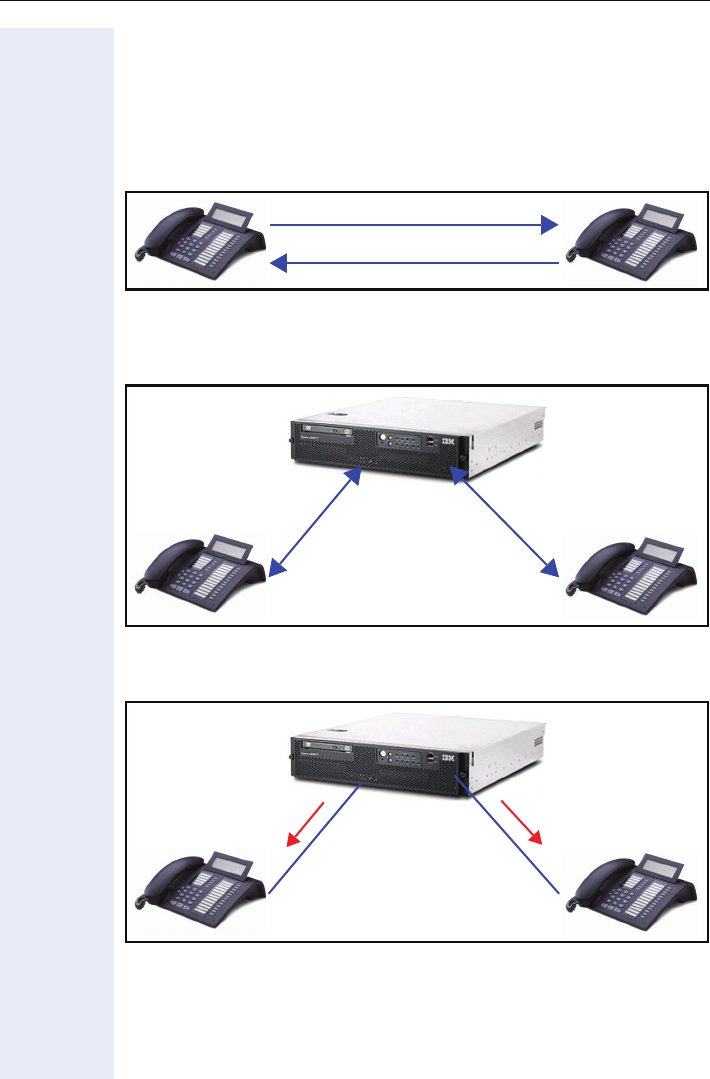
Extended Administration
103
SIP Security Configuration
Overview
Aim: secure voice transmission
The aim of SIP security configuration is secure voice transmission be-
tween telephones.
Prerequisite: secure signal transmission
Secure signalling must first be provided for, in order to facilitate secure
voice transmission.
Additional security: server authentication
The server (HiPath 8000) must authenticate with the telephone.
Encrypted voice transmission
TLS TLS
Server certificate Server certificate
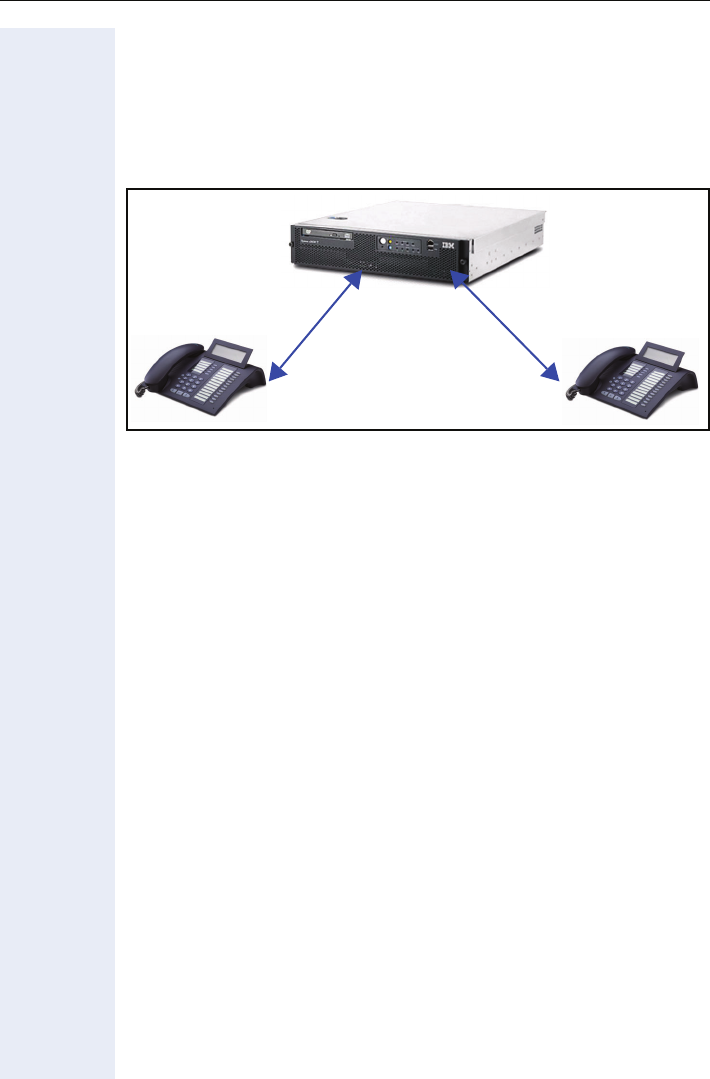
Extended Administration
104
Additional feature: continuous connection verification
This mechanism is used to check whether there is still a TLS connection,
also then when the phone is not in use. If it determines that the original
server is not reachable, the phone can switch to a redundant server (if e.g.
DNS-SRV is used). This reduces longer waiting times for the user if the
phone would have to first register with the redundant server for the next
call and the call is then set up.
Implementation
optiPoint 410/420 SIP telephone settings
The following settings must be performed on the telephones for which
voice encryption is to be enabled:
• Set payload security to allowed (Æpage 144)
• Set connectivity check interval as required (Æpage 144)
– (0, when deactivated; 10-3600 = duration of verification in seconds;
1-9 = 10; >3600 = 3600)
• Set SIP server validation as required (Æpage 144)
• Set SIP transport to TLS (Æpage 115)
• Set SIP port to 5061 (Æpage 115)
The same settings can also be performed using the telephone menu. In
the case of web settings, references to the corresponding locations are
provided.
TLS verified TLS verified
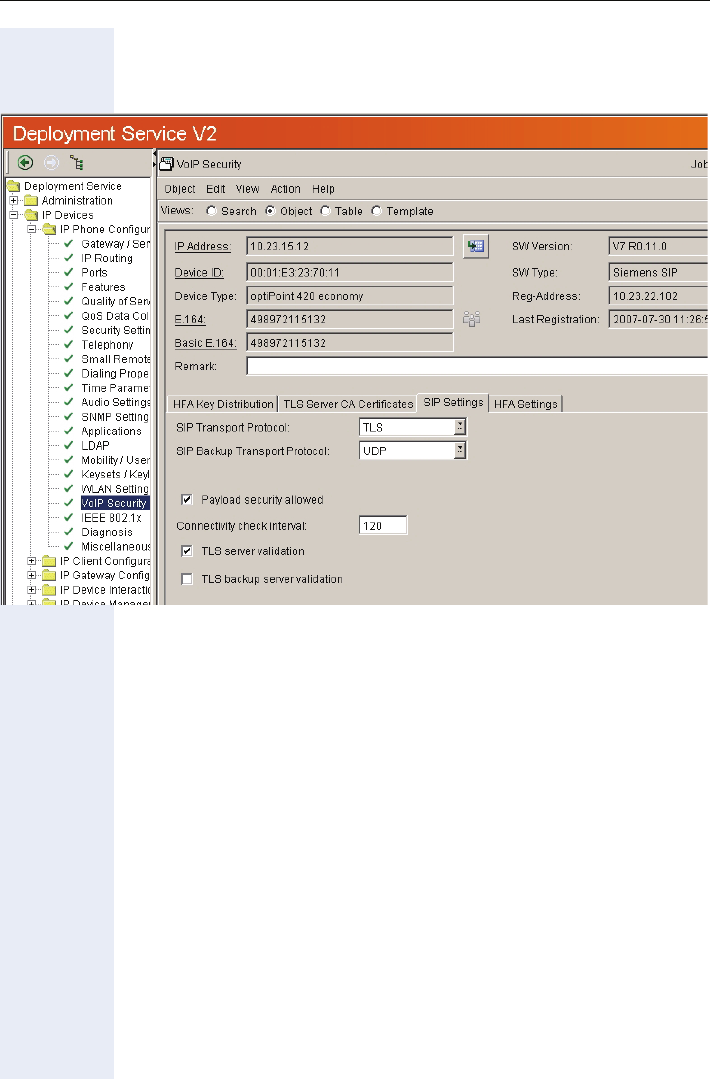
Extended Administration
105
Settings via DLS
If you prefer DLS configuration, settings are performed in the SIP Settings
tab in the IP Phone Configuration/VOIP Security area, and
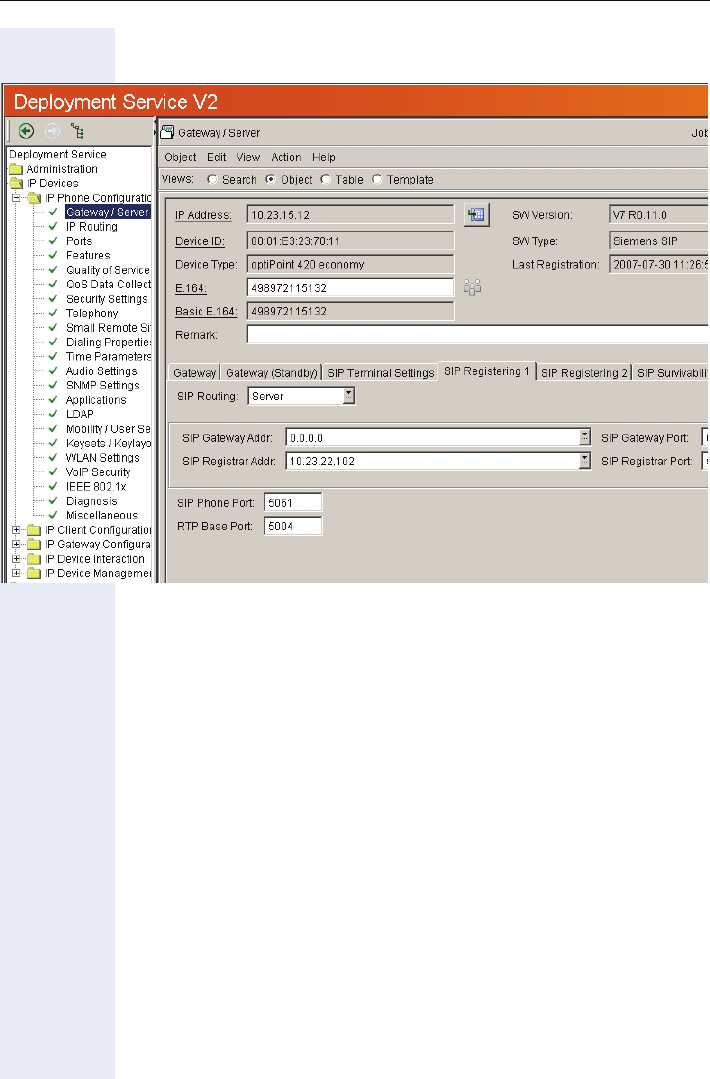
Extended Administration
106
in the SIP Registration 1 tab in the IP Phone Configuration/Gateway/
Server area:
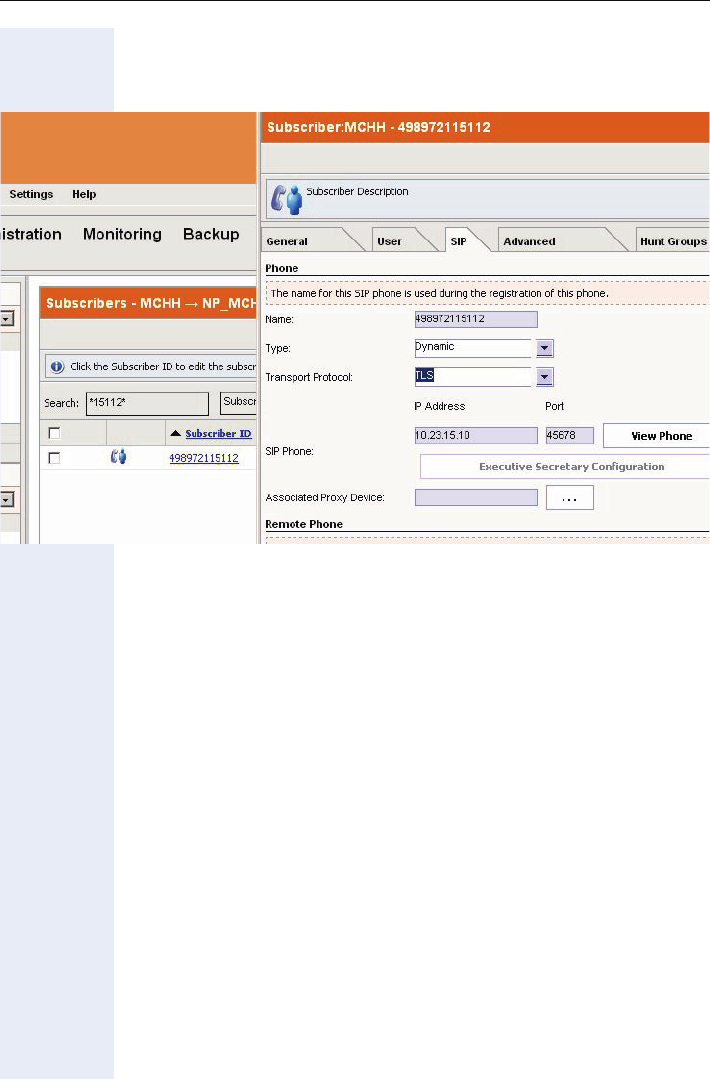
Extended Administration
107
HiPath 8000 settings :
Via Assistant Common Management portal: if the Registration Type is set
to Dynamic, only the Transport Type must be set to TLS:
Handling server certificates
These certificates are used for server authentication.
Using the standard HiPath 8000 certificate
The root certificate root.pem is exported via FTP from the directory /usr/
local/ssl/certs.
The certificate is then imported to DLS, activated, and distributed to the
telephones.
SIP Server CA Certificate 1 tab in the IP Phone Configuration/VOIP Se-
curity area:
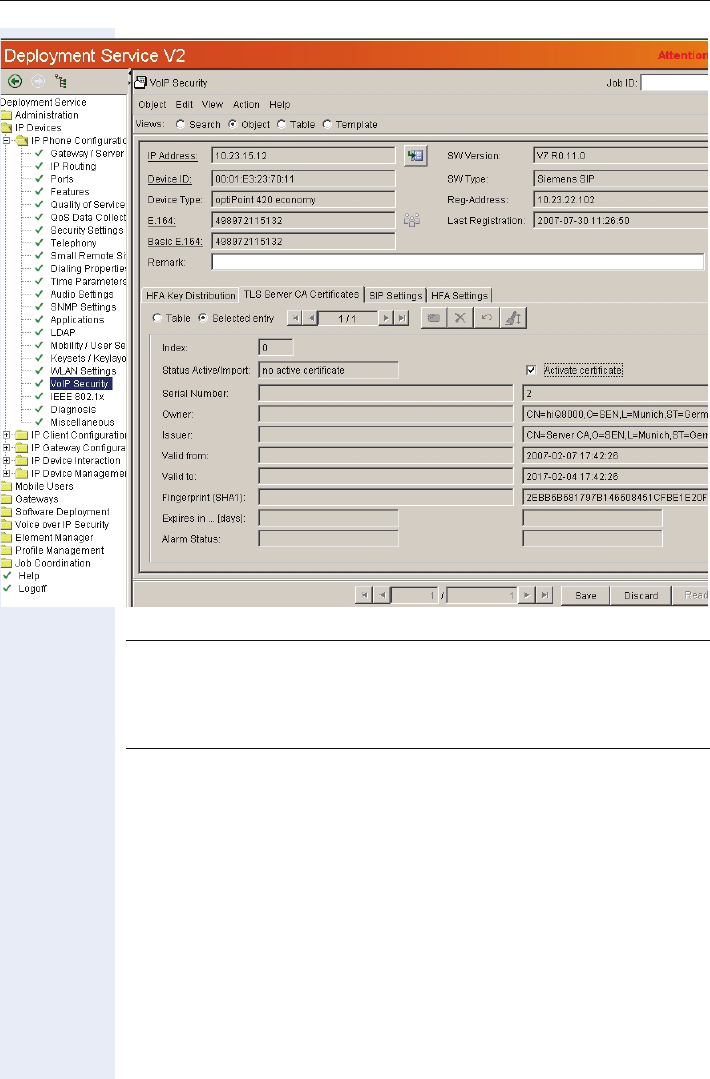
Extended Administration
108
7Attention
There are two ways to delete the certificates. Either a factory reset
of the phone will delete the certificate or the certificate must be de-
leted in the DLS, then the empty certificate must be activated and
finally saved so that the change is send to the phone.
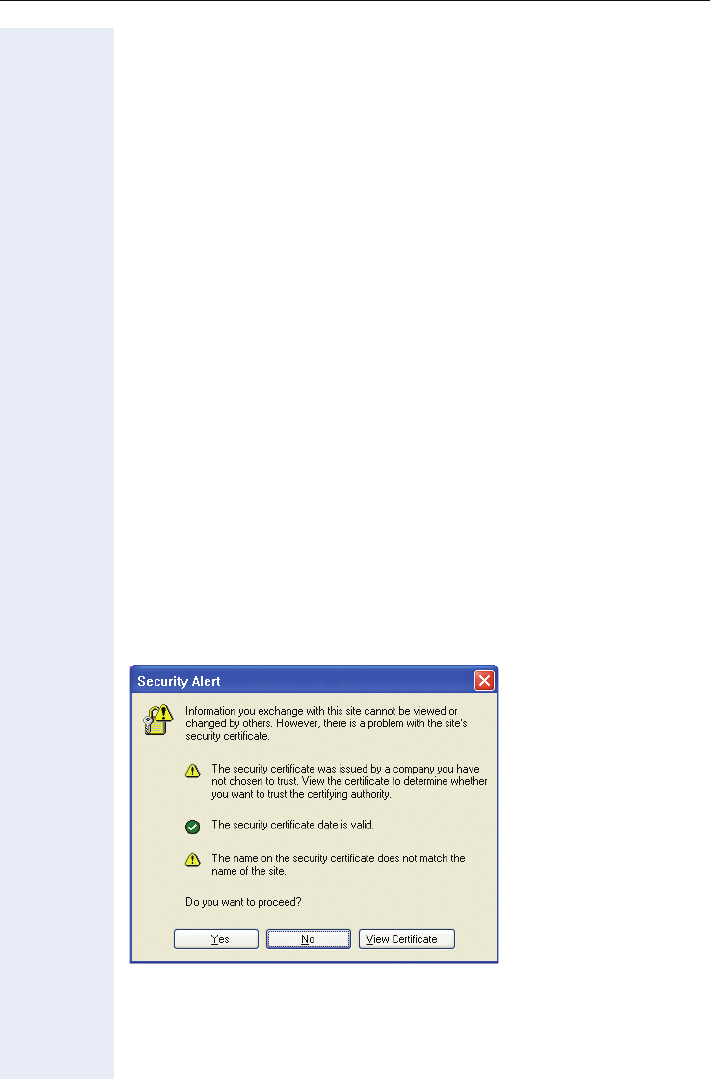
Web Interface
109
Web Interface
Establishing the Connection to the Phone
You can display and configure device and network information for the
optiPoint 410/420 /economy/economy plus/standard/advance S V7.0 and
the optiPoint 410 entry S V7.0 through the Web Interface.
You can access the Web Interface using one of the following web brows-
ers:
• Microsoft Internet Explorer (recent version recommended)
To access the Web Interface, perform the following steps.
Open a web browser and enter the URL of the web page for the phone as
follows:
https://[address]
where [address] is the IP address or host name of the Phone.
You can access the web interface in the browser using the host name as-
signed to your telephone. The presetting for the host name is the current
E164 number. An example for the browser call is:
https://hostname.domainname
For configuring the phone’s IP address see chapter “Basic Administration”
on page 48.
For example, the configuration page for the Phone with the IP address
192.168.1.137 is: "https://192.168.1.137".
If applicable, confirm the following advisory message with "Yes":
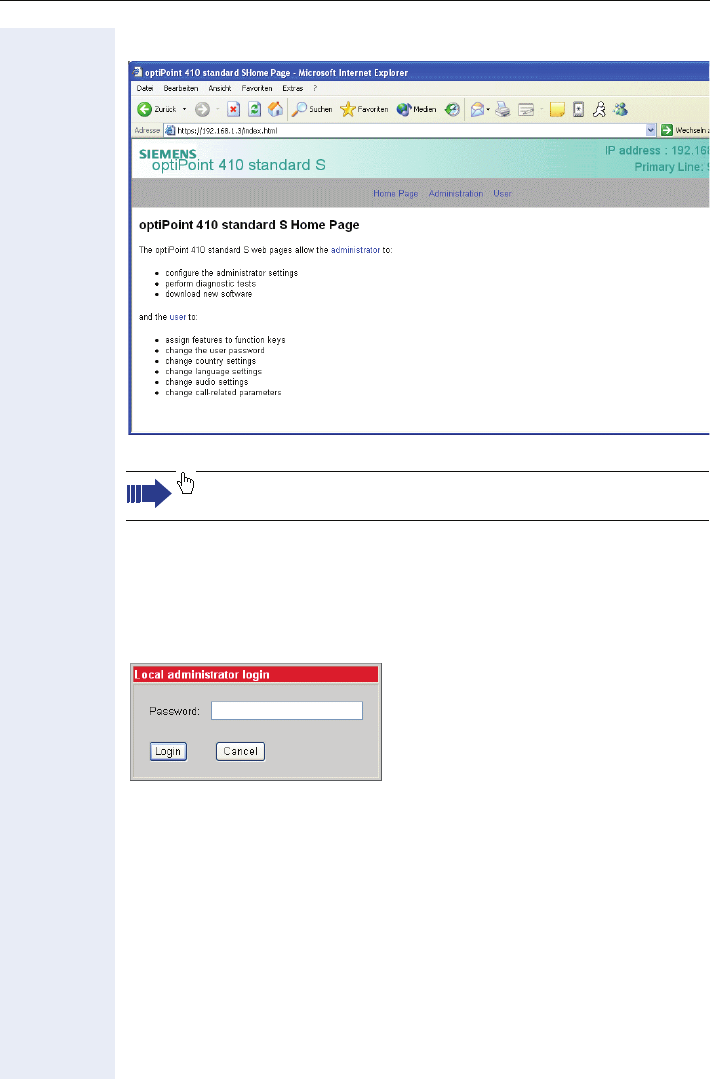
Web Interface
110
A screen like the following home page appears:
Access to the Web Interface Administrator Menu
The following steps describe the access to the administrator menu, start-
ing from the home page of the optiPoint 410/420.
1. Click on the link "Administration". The following login dialog appears:
2. Enter the administrator password (default: "123456"; max length 24
digits) and confirm.
Click on the required field in the dialogs to see a description for
each parameter.

Web Interface
111
Administrations Menu (optiPoint 410/420 advance standard)
Administrator menu Fault Investigation
zGeneral Information zTrace Configuration
zNetwork IP and Routing zTrace View
zSystem zSimplified trace page
{SIP environment zFTP Client
{SIP features zException Data
zQuality of service zWindview Configuration
zFile transfer and phone download settings zSIP UDP Trace
zTime and date
zSNMP
zSpeech
zRinger settings
zLAN Port settings
zMultiline operation
zFunction keys...
{Phone
{Key module 1
{Key module 2
{Key module SLK 1
{Key module SLK 2
zDial plan
zDialing properties
zFeature Access
zUser Mobility
zConfiguration Management...
{Settings
{Check for updates
{Error log
zApplications...
{Directory
{Address Book
{WAP
zUpload/Download...
{Upload configuration
{Download application
{Download configuration
{Download hold music
zDiagnostics and statistics...
{Non user-assisted tests
{User-assisted tests
{RTP Statistics
{QoS Data Collection
{Fault investigation
{Simplified trace page
zSecurity
zRestart terminal
zReset user password
zChange admin password
zClear all user data
zRestore factory setting
zPort Control
zFPN Port Settings
zSurvivability
Home

Web Interface
112
Administrations Menu (optiPoint 410 entry/economy)
Administrator menu Fault Investigation
zGeneral Information zTrace Configuration
zNetwork IP and Routing zTrace View
zSystem zSimplified trace page
{SIP environment zFTP Client
{SIP features zException Data
zQuality of service zWindview Configuration
zFile transfer and phone download settings zSIP UDP Trace
zTime and date
zSNMP
zSpeech
zRinger settings
zLAN Port settings
zMultiline operation
zFunction keys...
{Phone
zDial plan
zDialing properties
zFeature Access
zUser Mobility (not used with optPoint entry)
zConfiguration Management...
{Settings
{Check for updates
{Error log
zUpload/Download...
{Upload configuration
{Download application
{Download configuration
{Download hold music
zDiagnostics and statistics...
{Non user-assisted tests
{User-assisted tests
{RTP Statistics
{QoS Data Collection
{Fault investigation
{Simplified trace page
zSecurity
zRestart terminal
zReset user password
zChange admin password
zClear all user data
zRestore factory setting
zPort Control
zFPN Port Settings
zSurvivability
Home
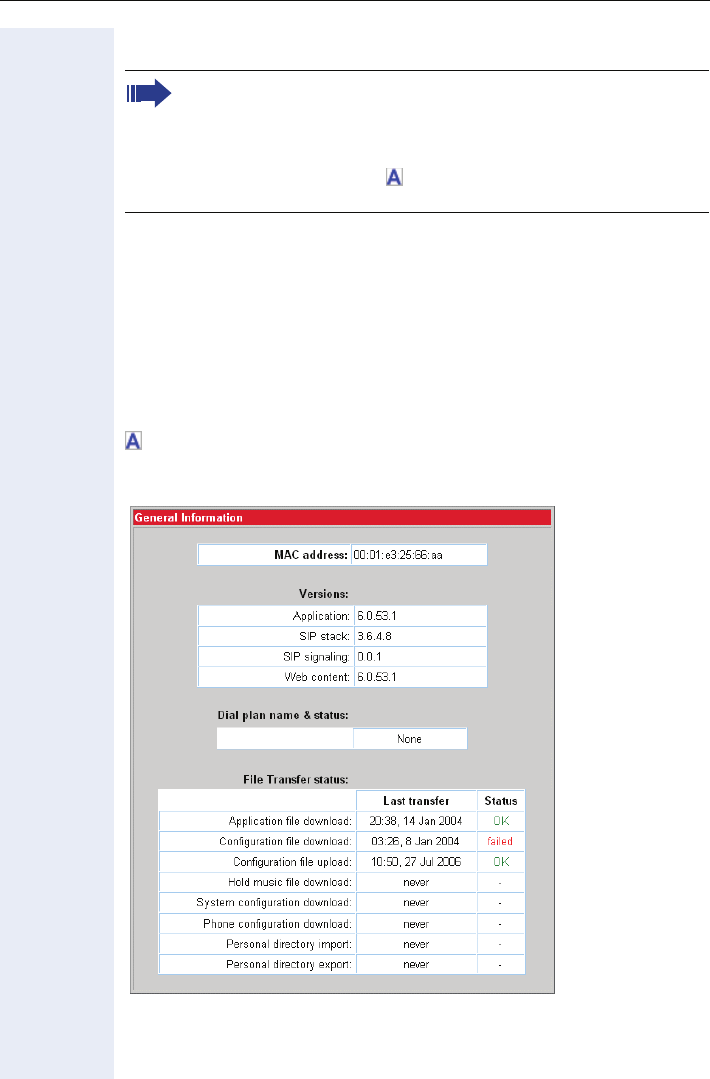
Web Interface
113
Web Pages
If DNS is applicable Æpage 41, the fields for entering the IP addresses on
the following web pages have the addition" or DNS name":
•ÆSIP environment
•ÆFile transfer
•ÆTime and date
•ÆSNMP
•ÆNon user-assisted tests
General information
Display static Phone Information Æpage 94, Display Application Ver-
sion Æpage 91, Display Upload/Download Status Æpage 91, Dial Plan
Configuration and Status Æpage 70.
Click on the required field to navigate to the description of a param-
eter (e.g. move cursor over "Application: 2.3.7" and press the left
mouse button to get to the descripton in the alphabetical reference
chapter).
The links after the symbol lead to the administration tasks with
menu paths.
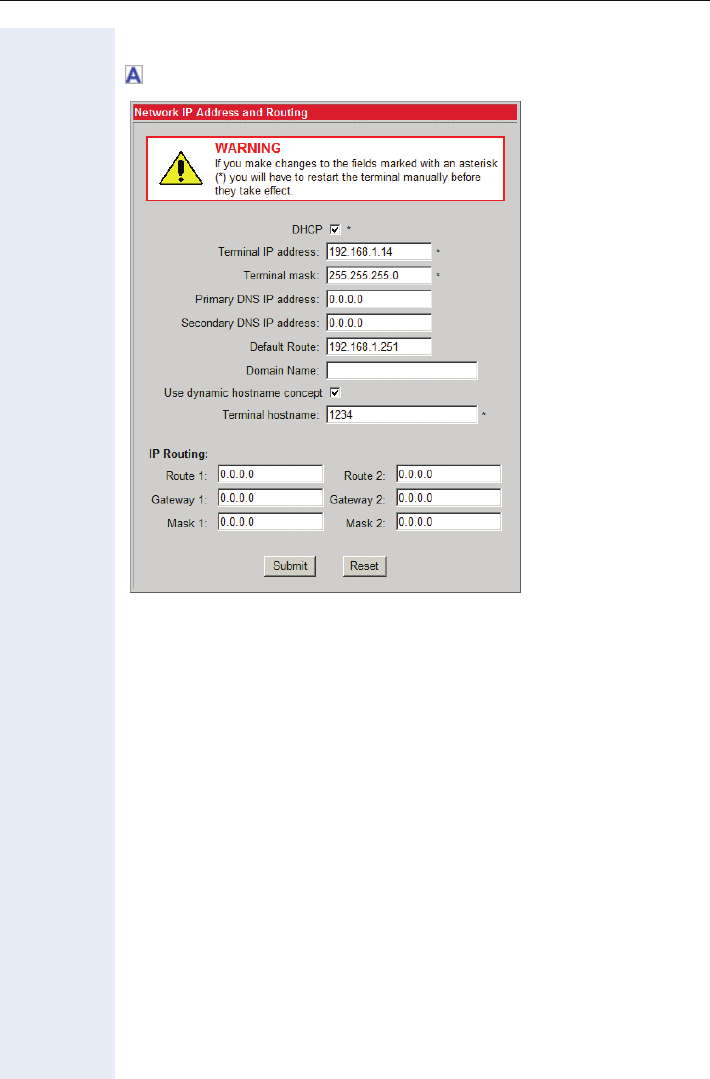
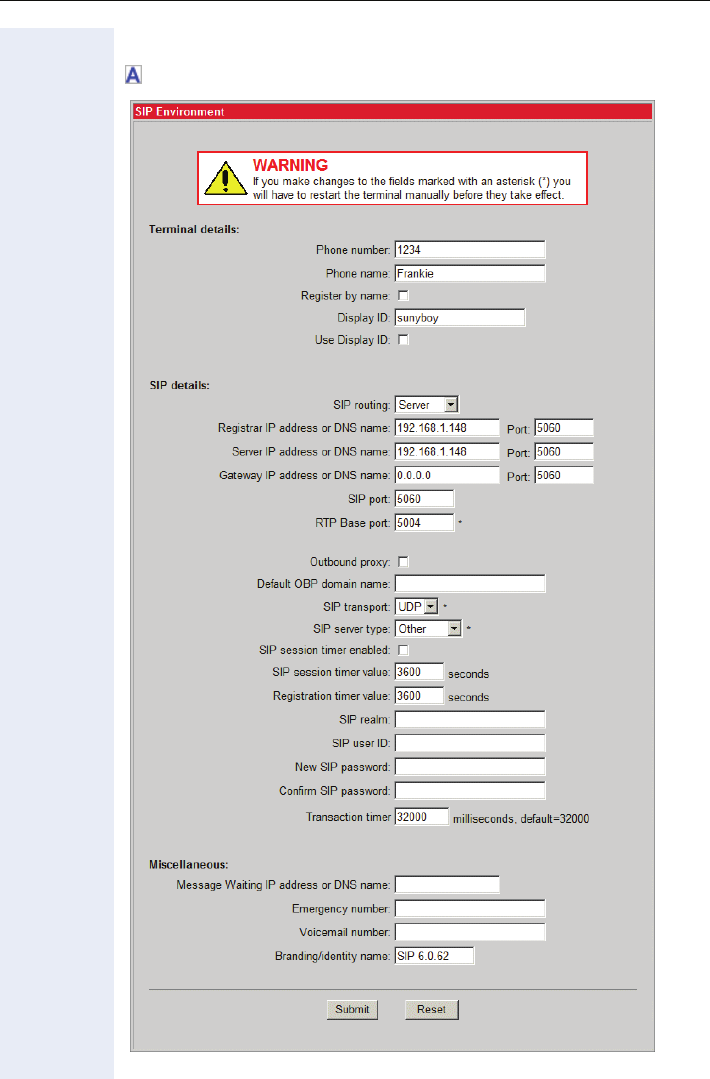
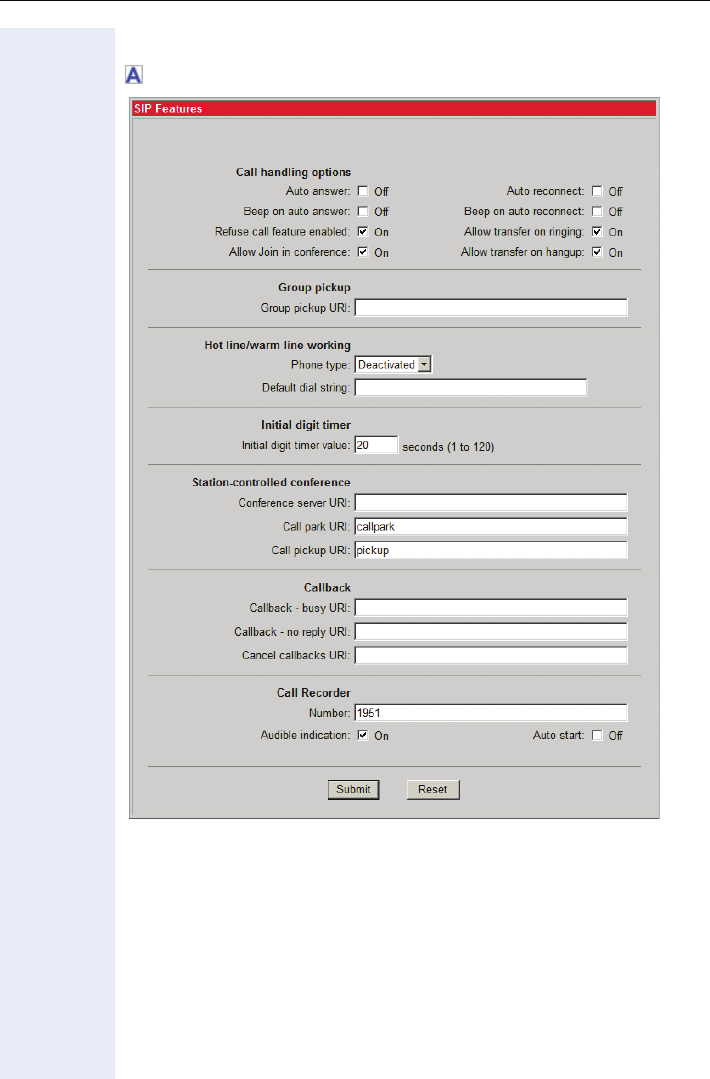
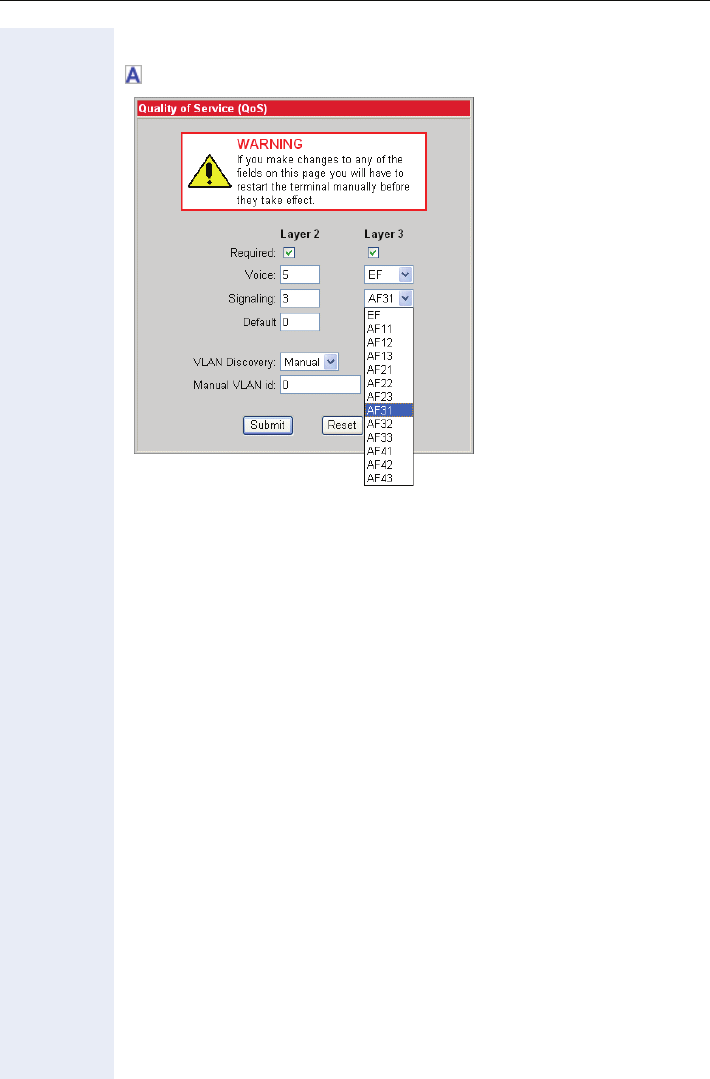
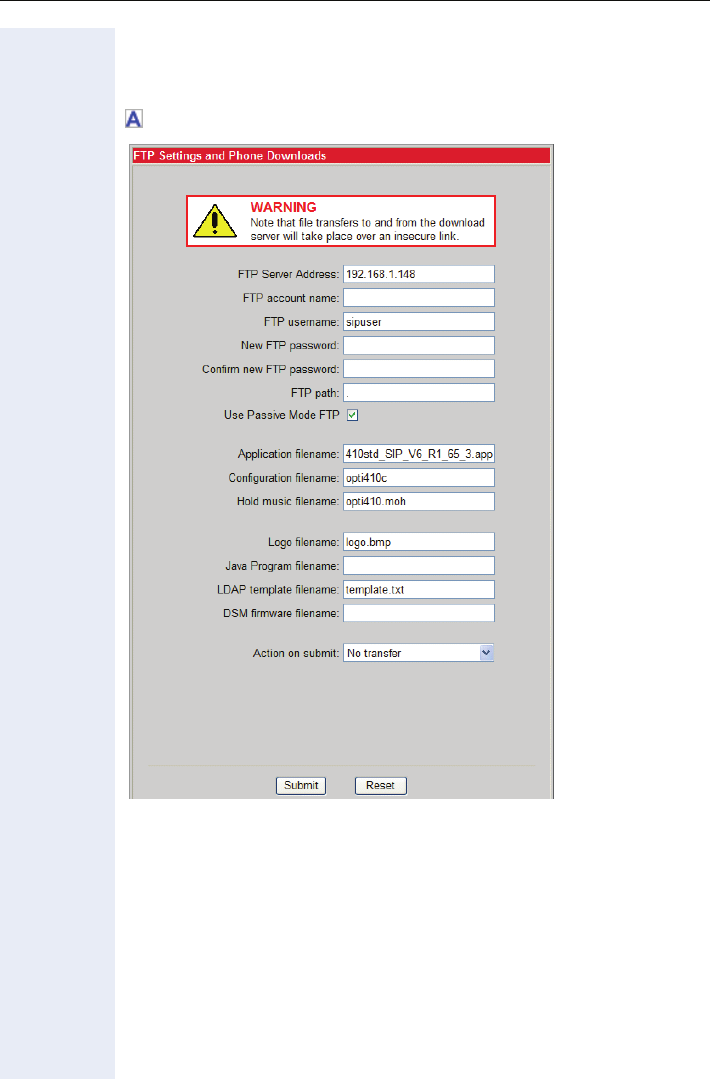
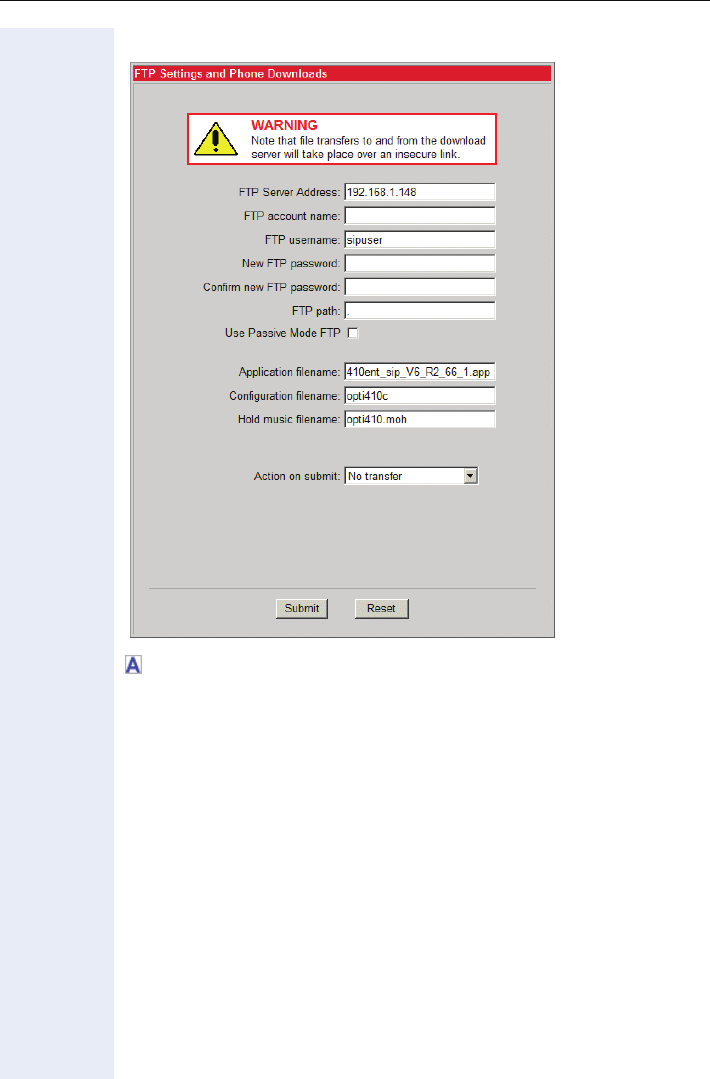
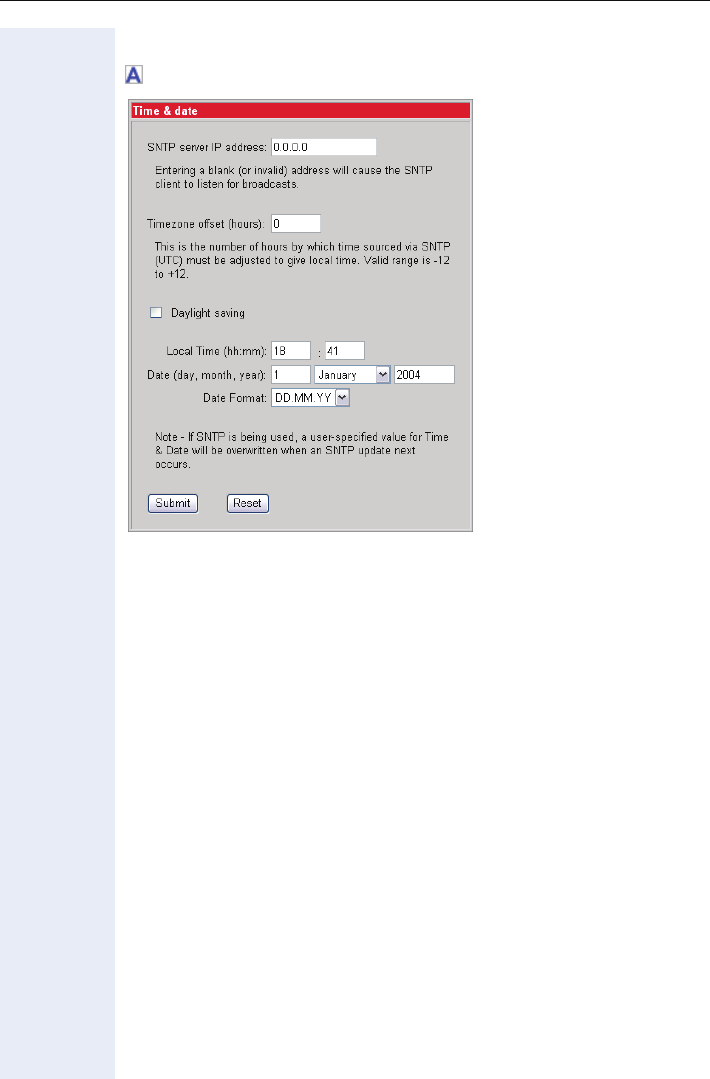
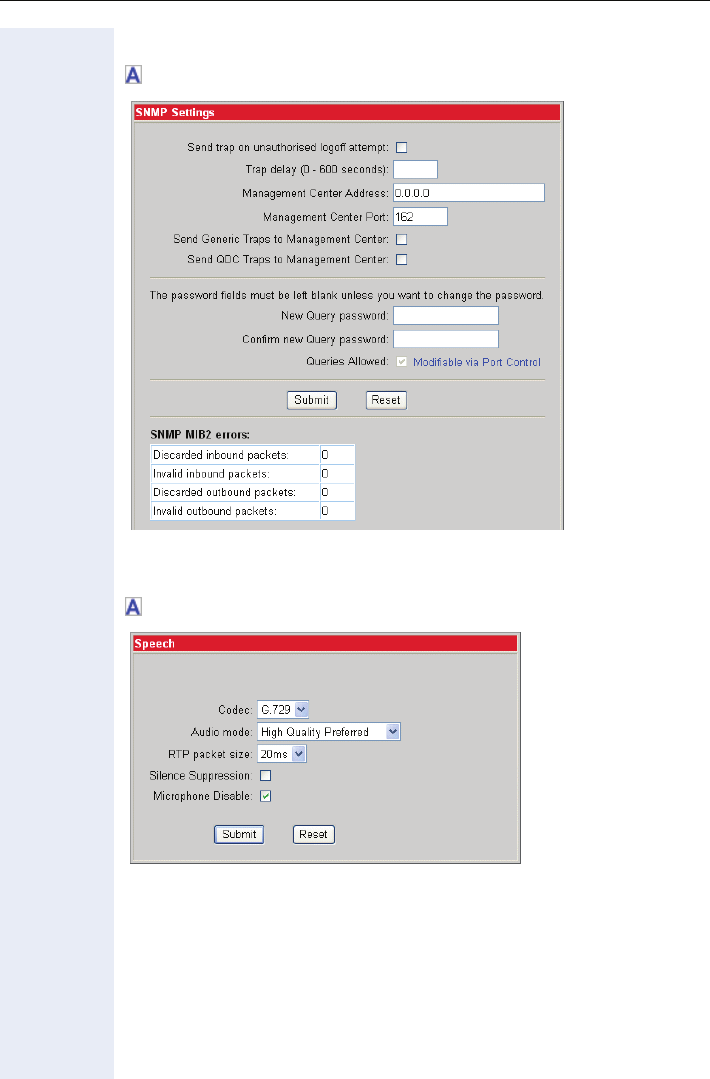
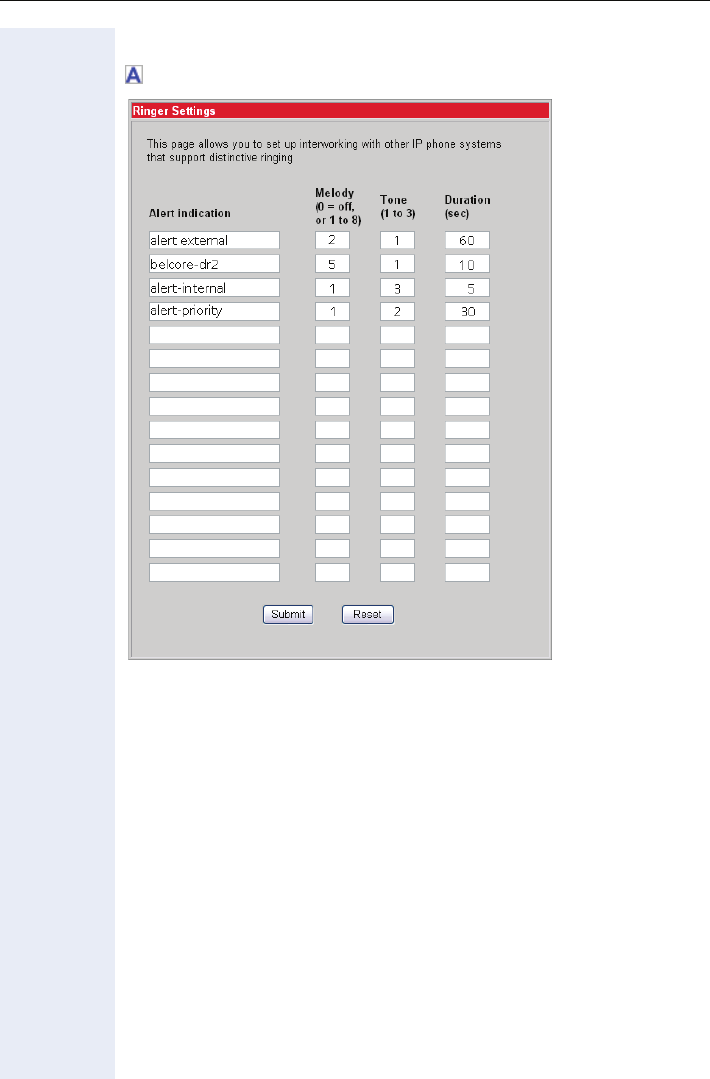
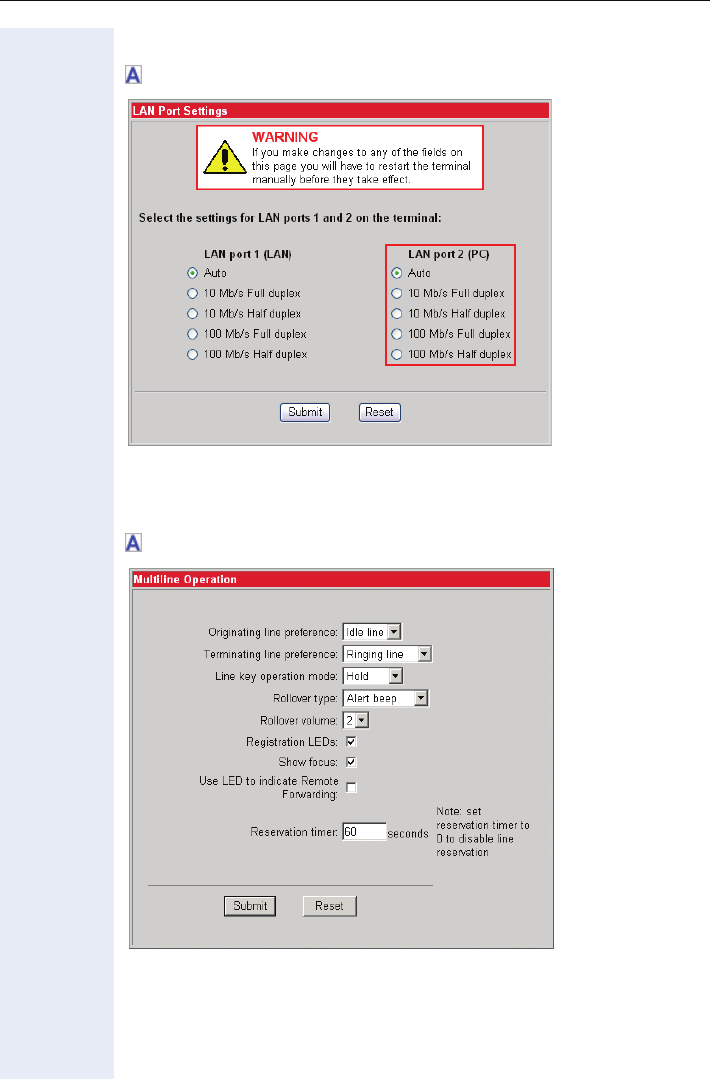
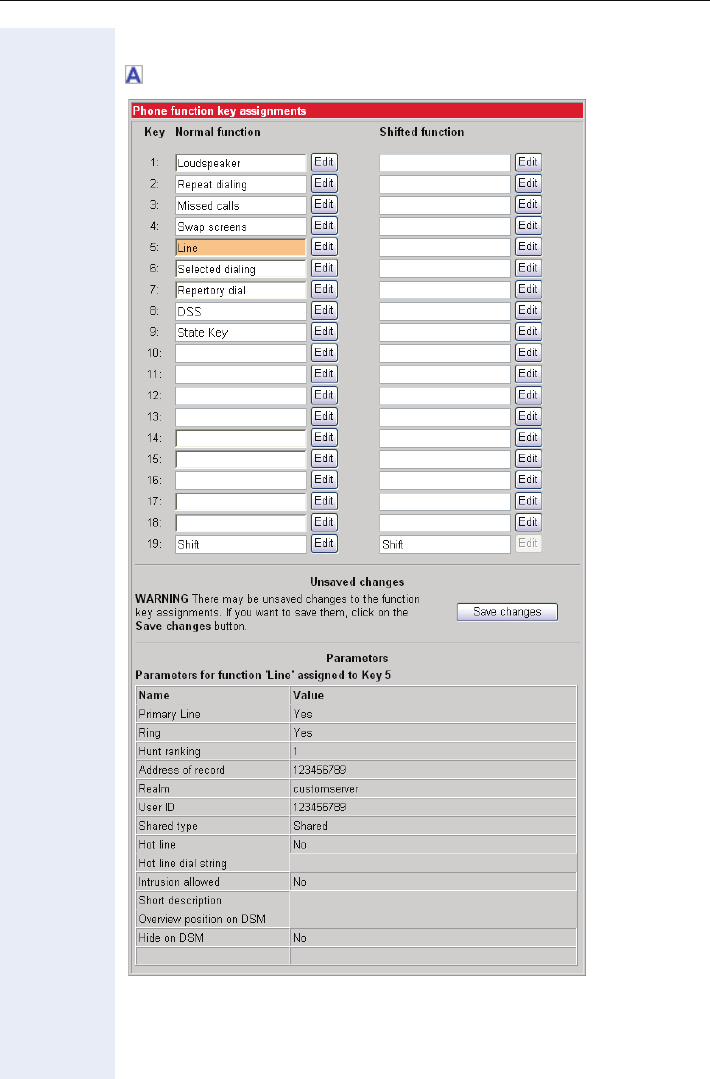
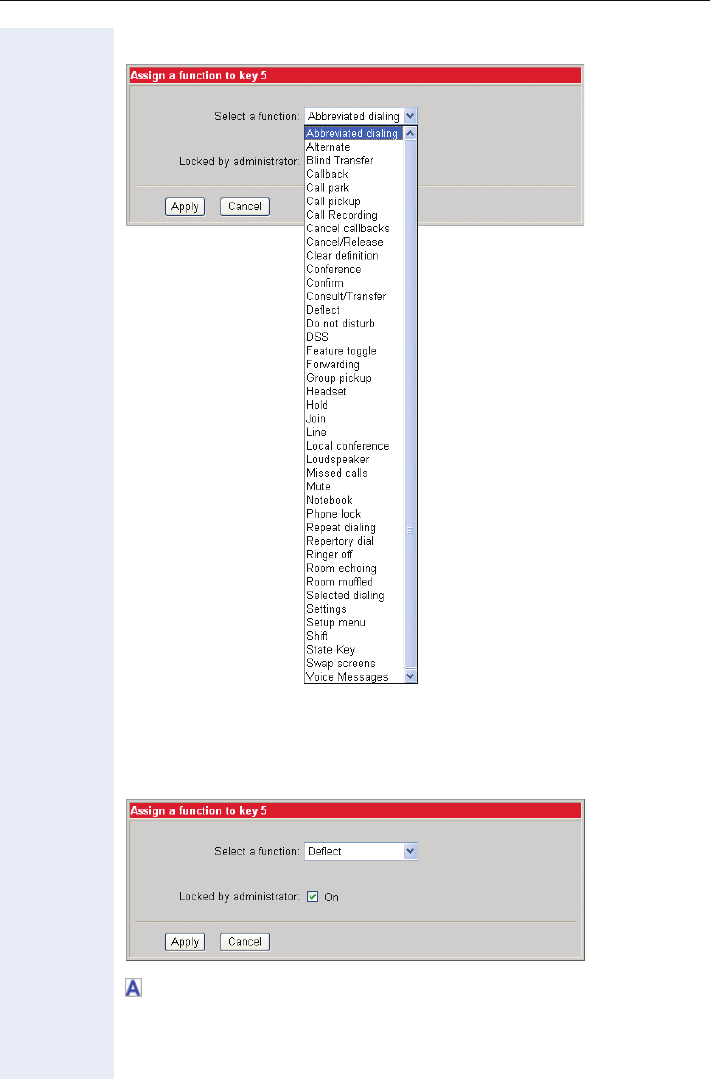
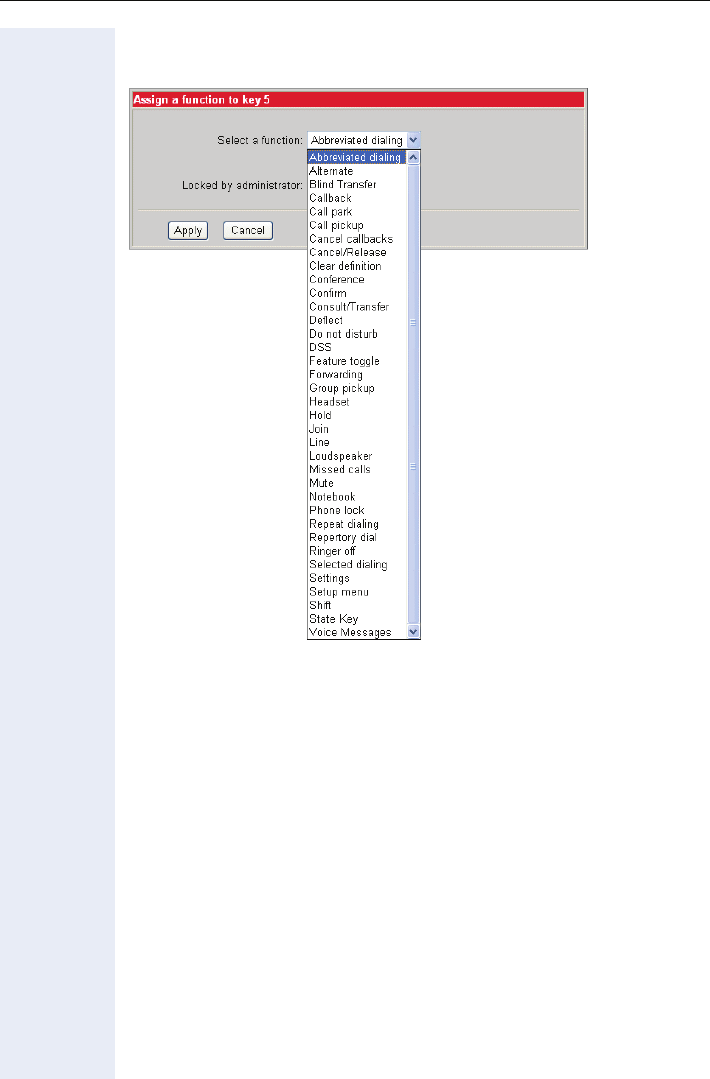
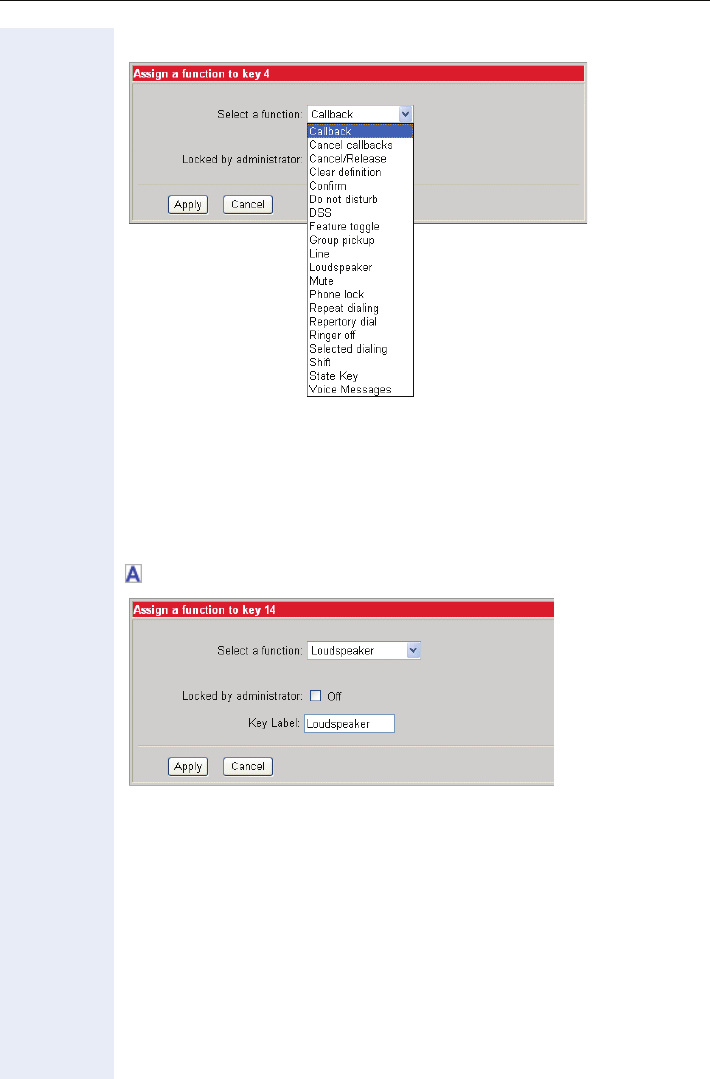
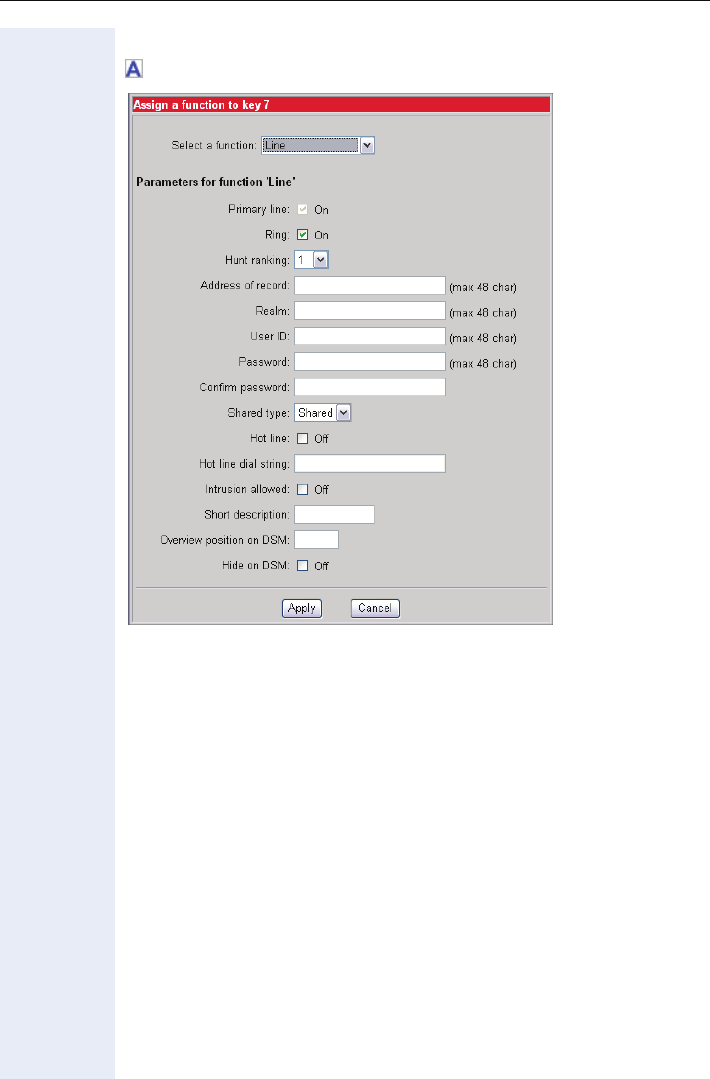
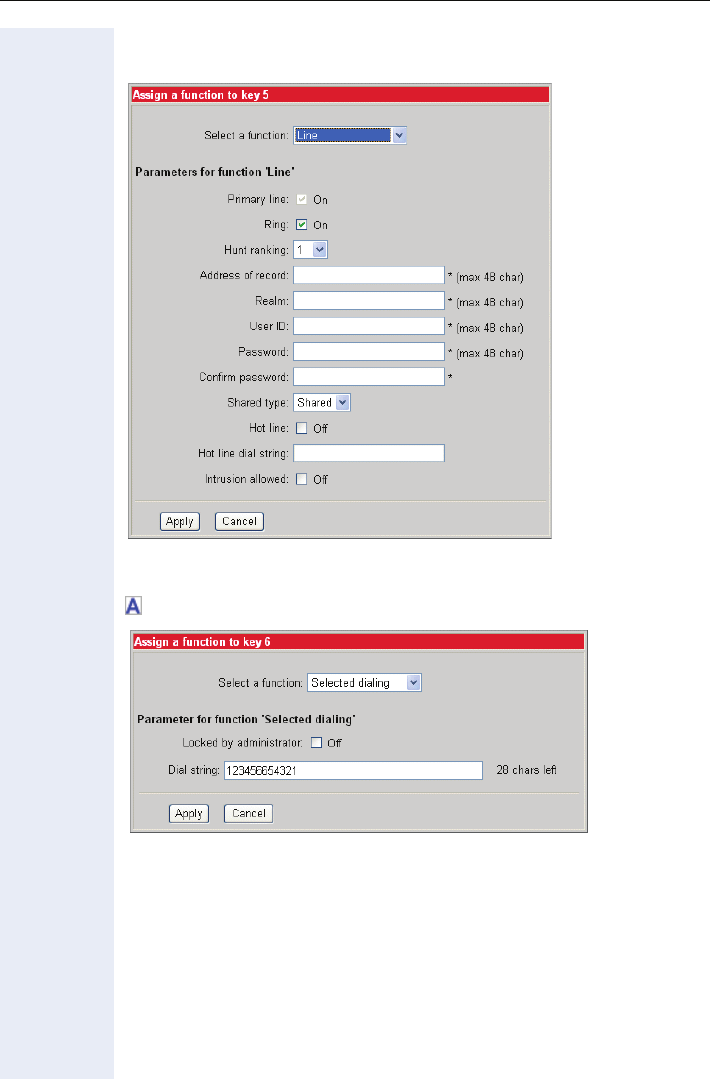
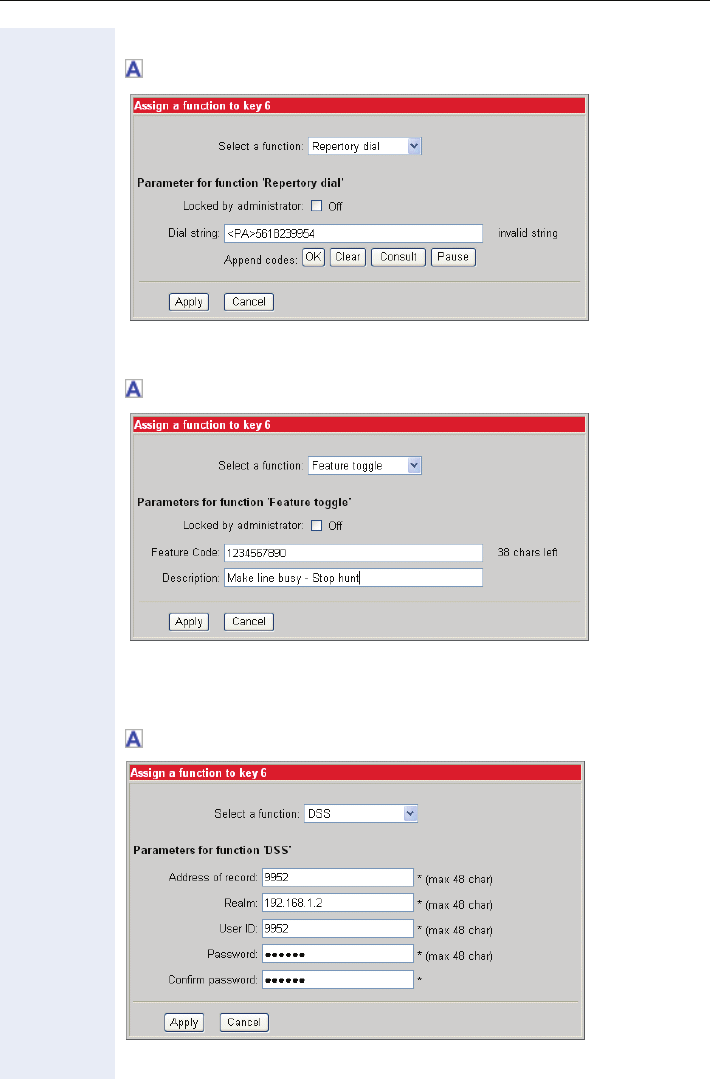
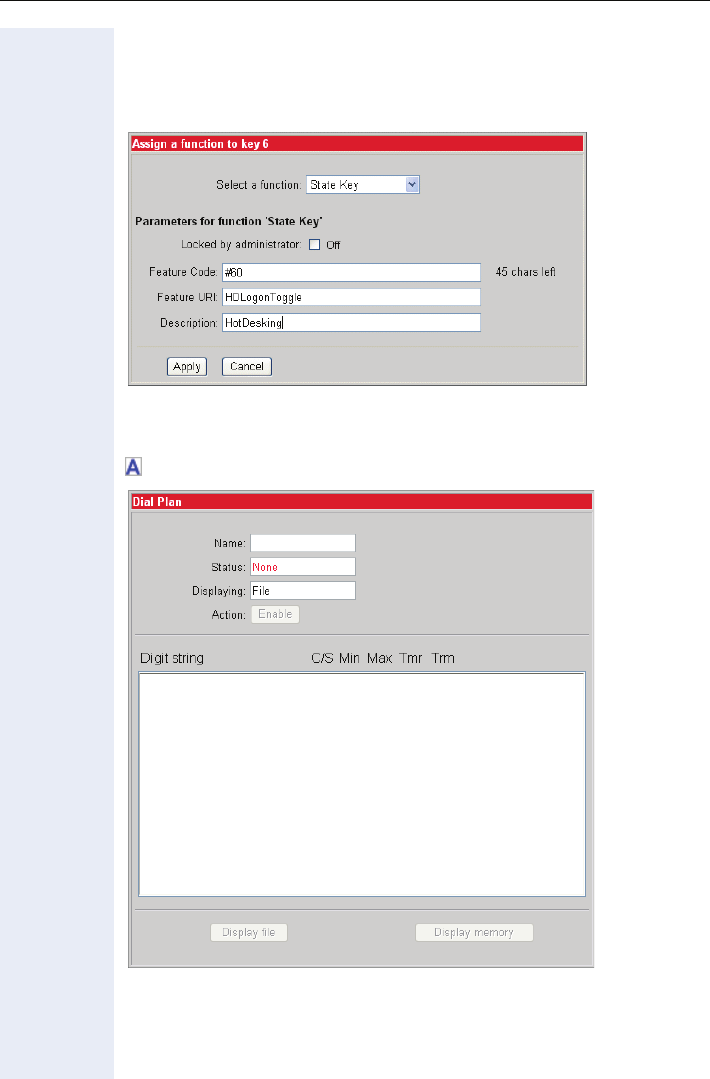
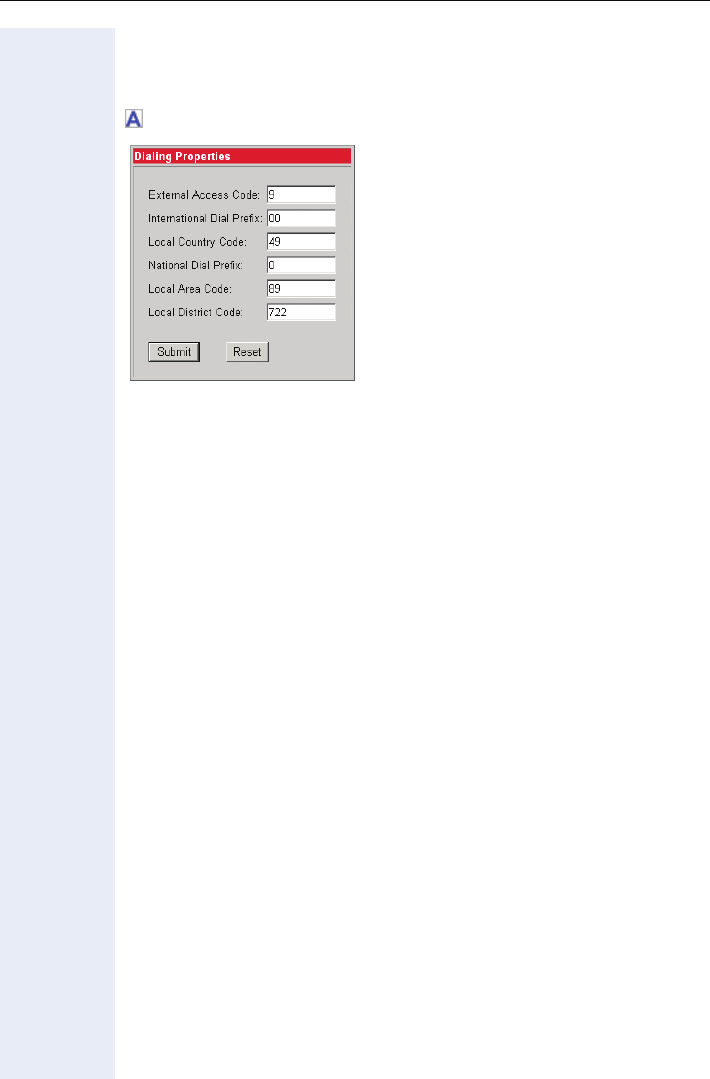
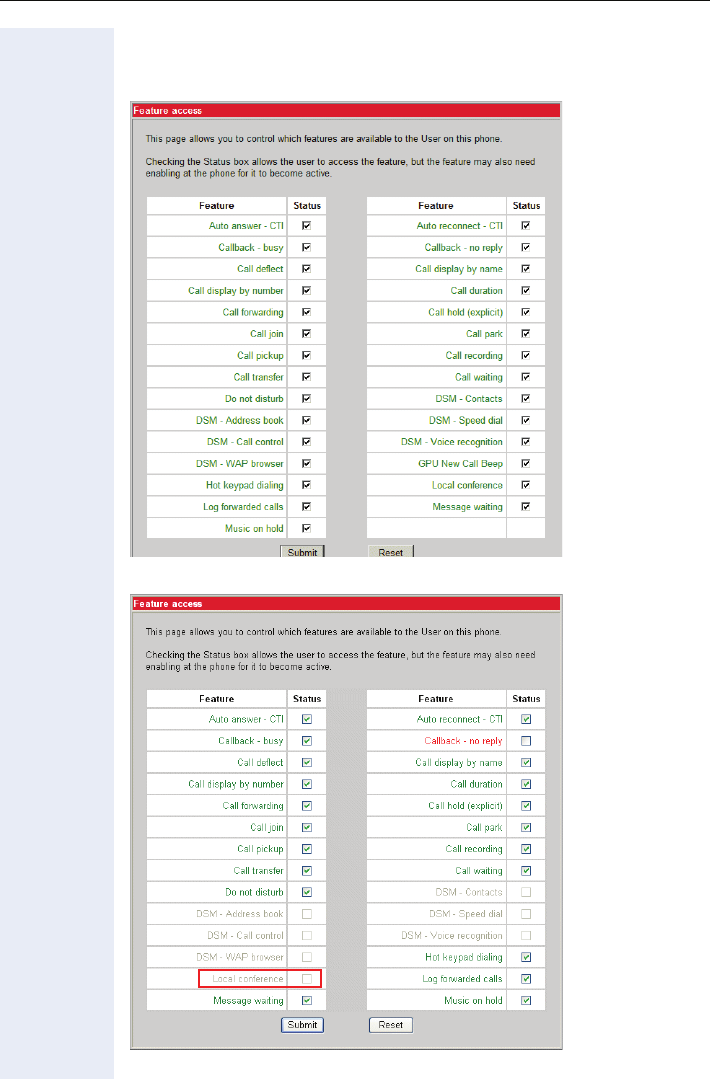
Web Interface
133
Feature Access
optiPoint 410/420 standard/advance (example)
optiPoint 410/420 economy/economy plus (example)
1 Only used with optiPoint 410/420 economy plus
1
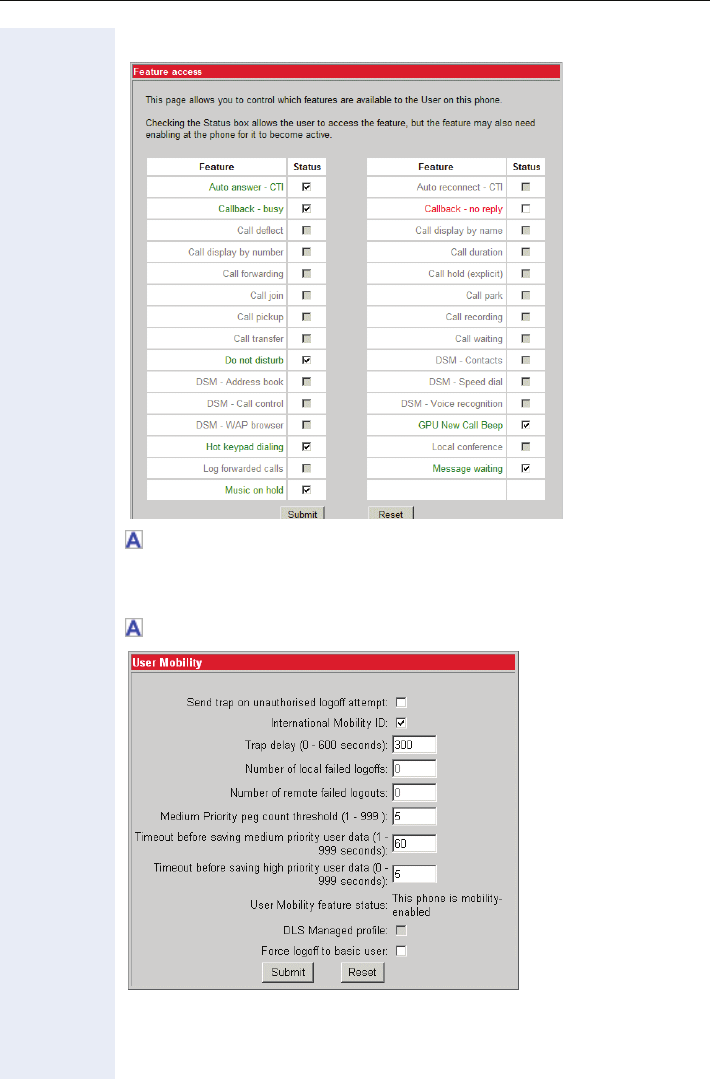
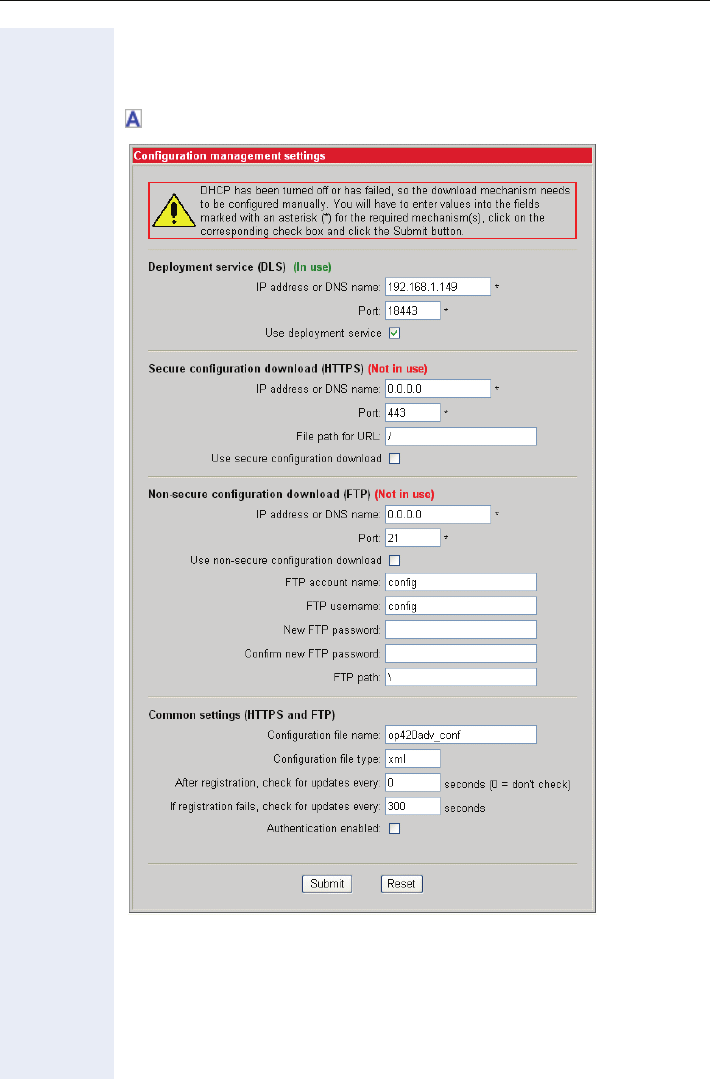
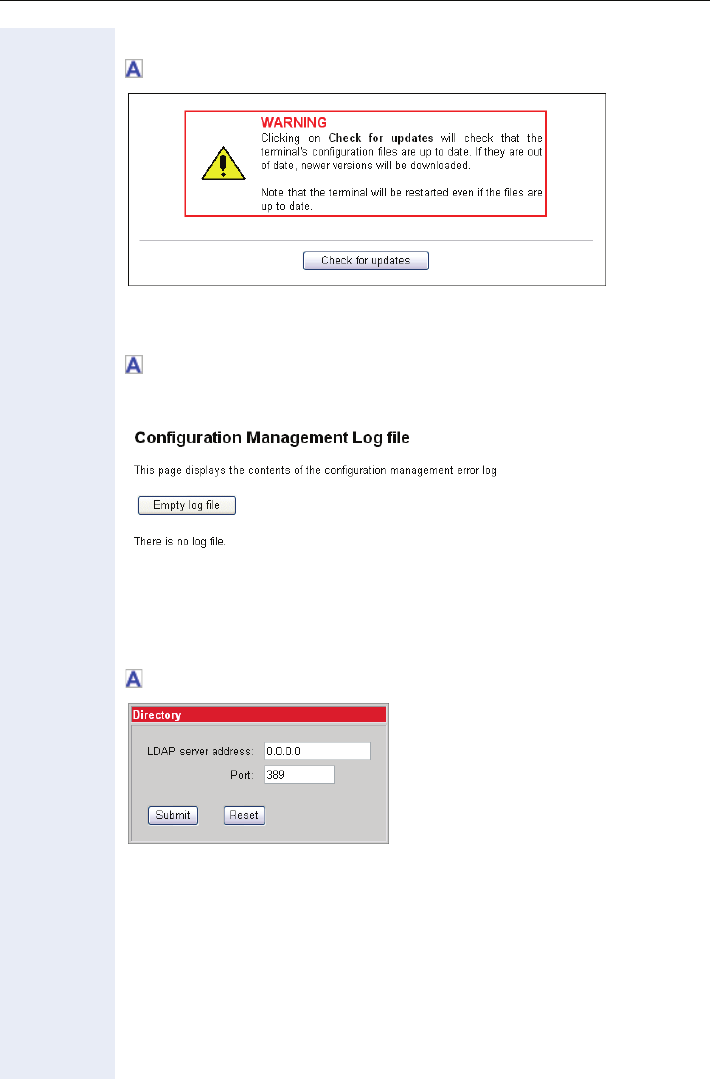
Web Interface
136
Check for updates
Specify configuration update file Æpage 88
Configuration Management Log file
Specify configuration update file Æpage 88
This log file shows errors if occour while using XML for configuration.
Applications (optiPoint 410/420 standard/advance)
Directory
Applications Æpage 79
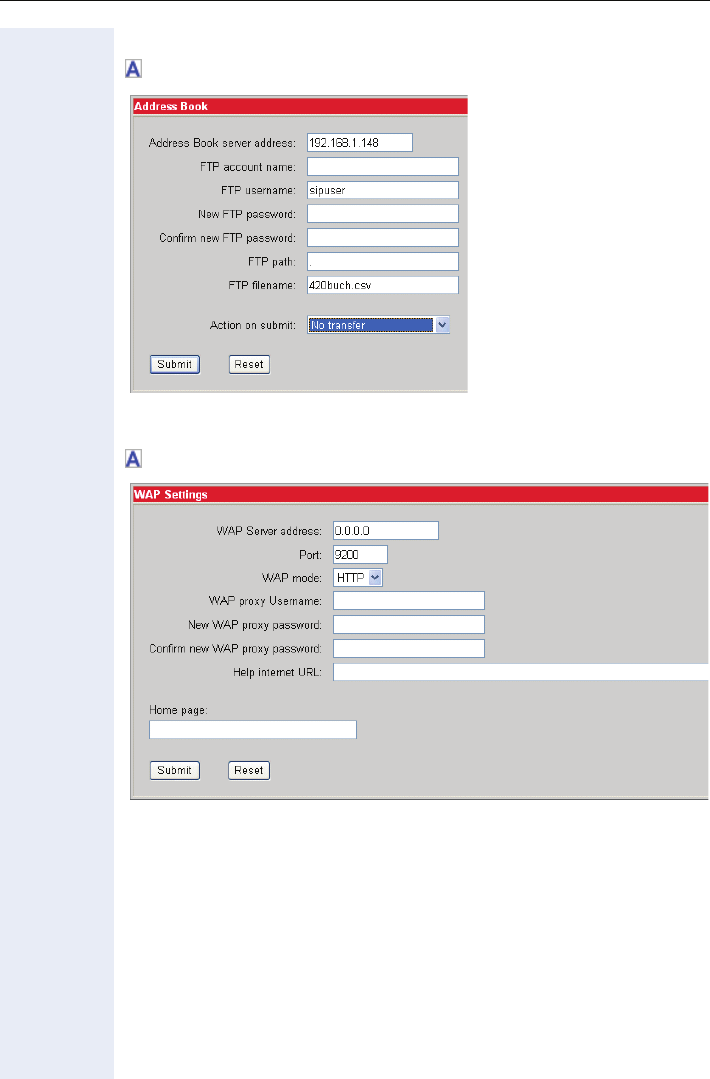
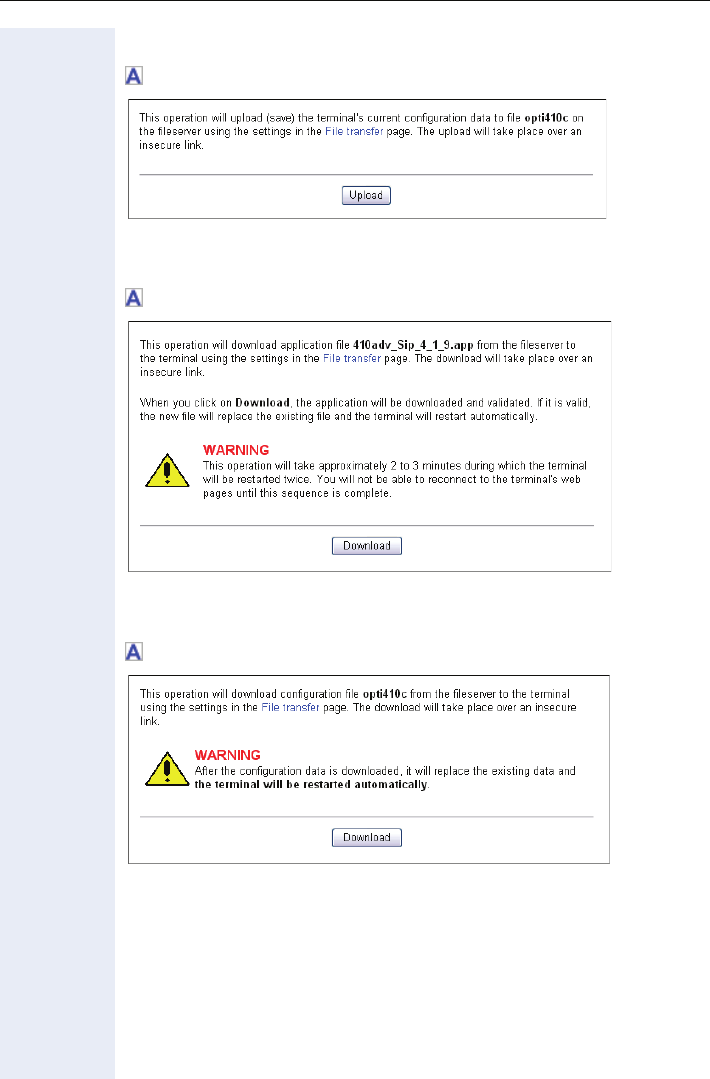
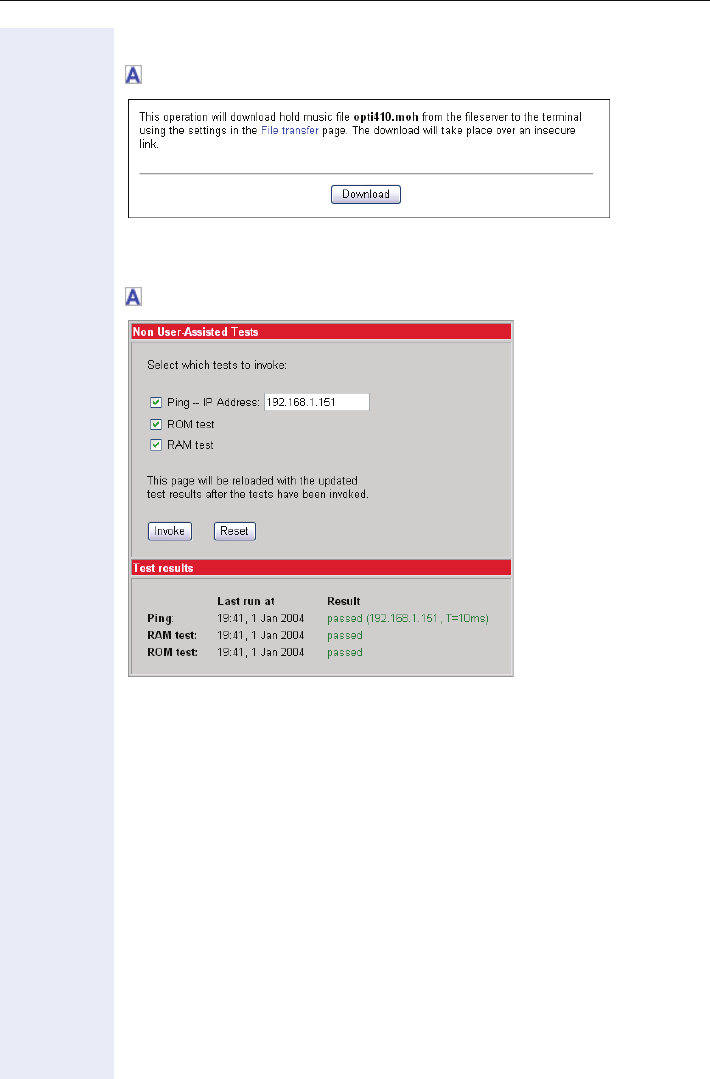
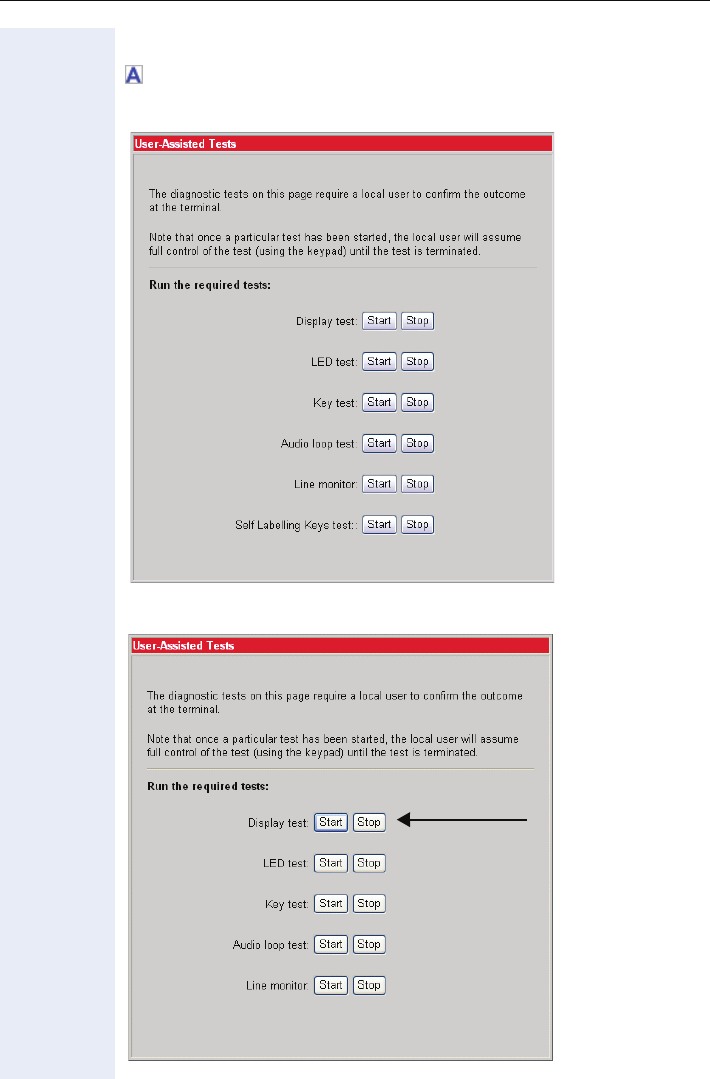
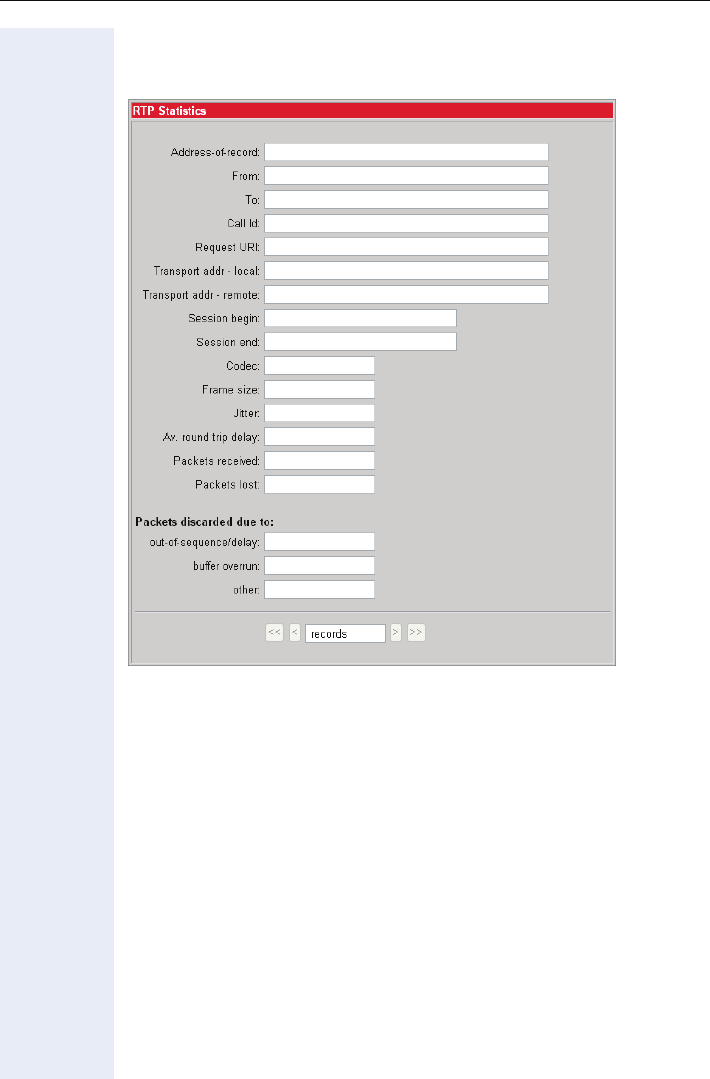
Web Interface
141
RTP Statistics
These parameters are used for development only.
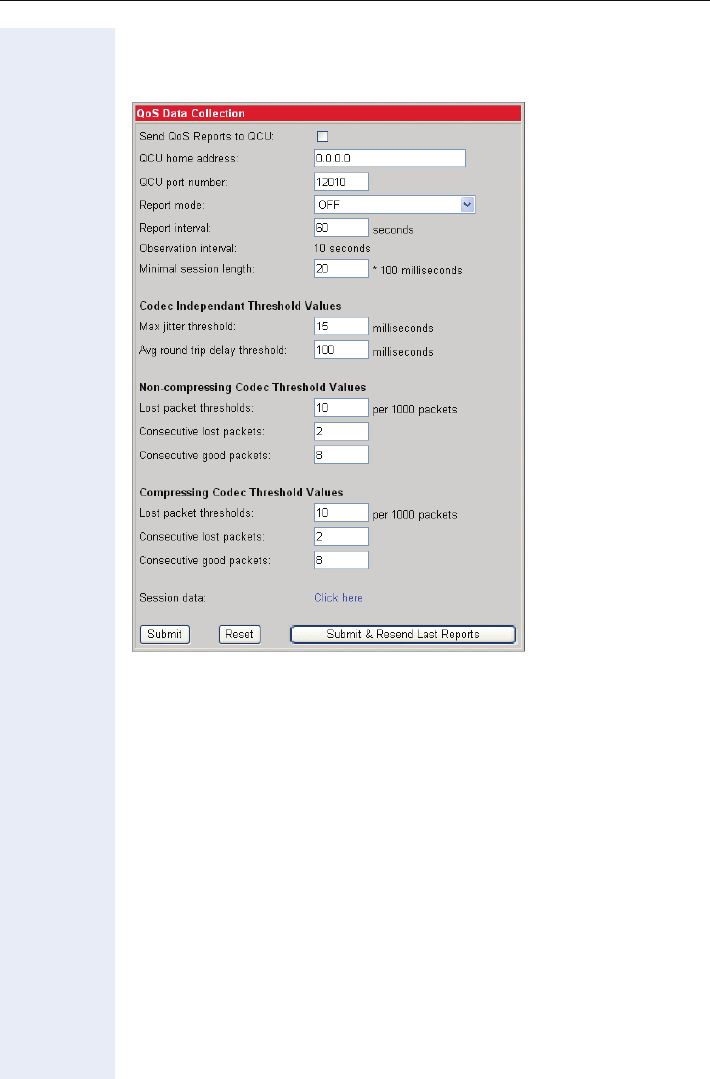
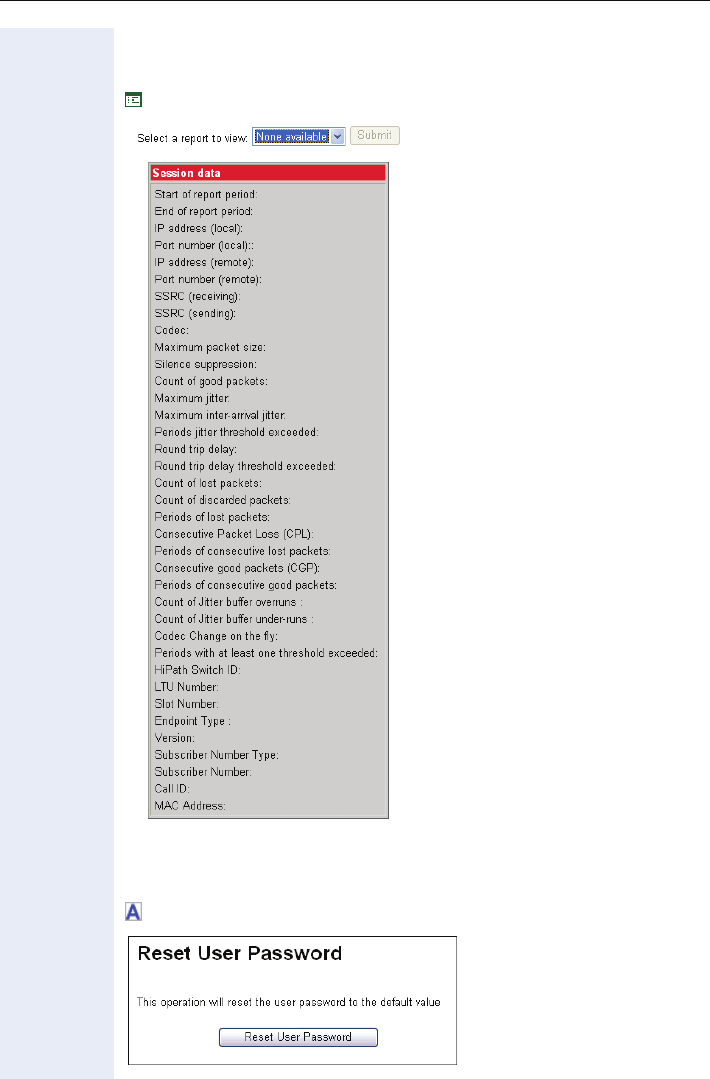
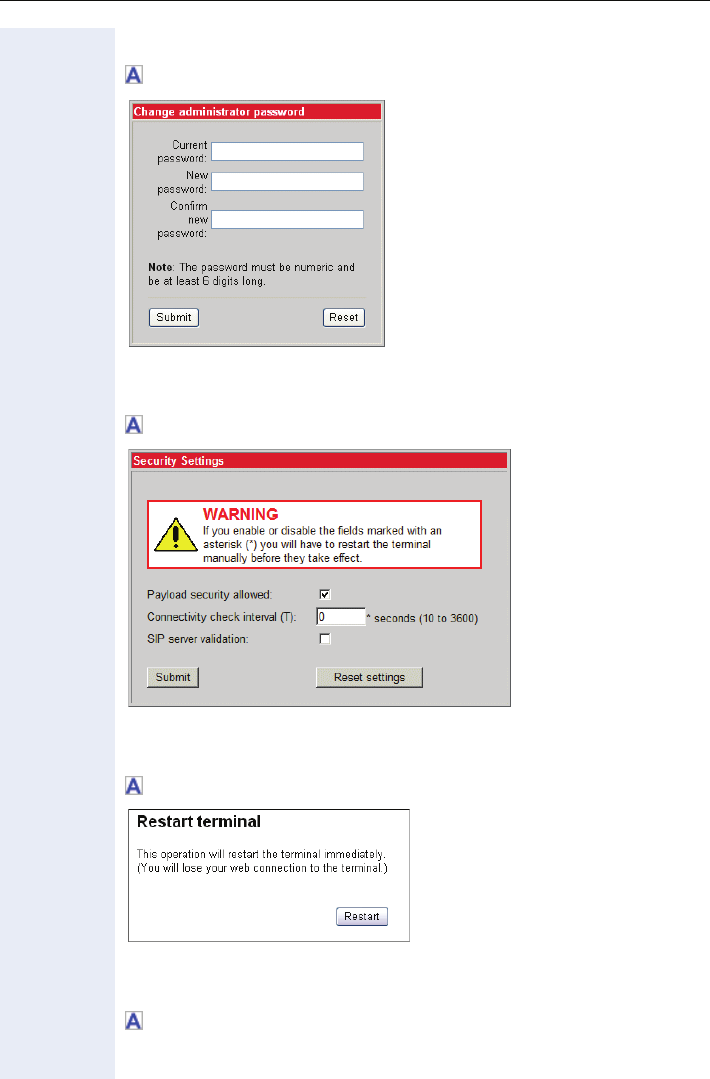
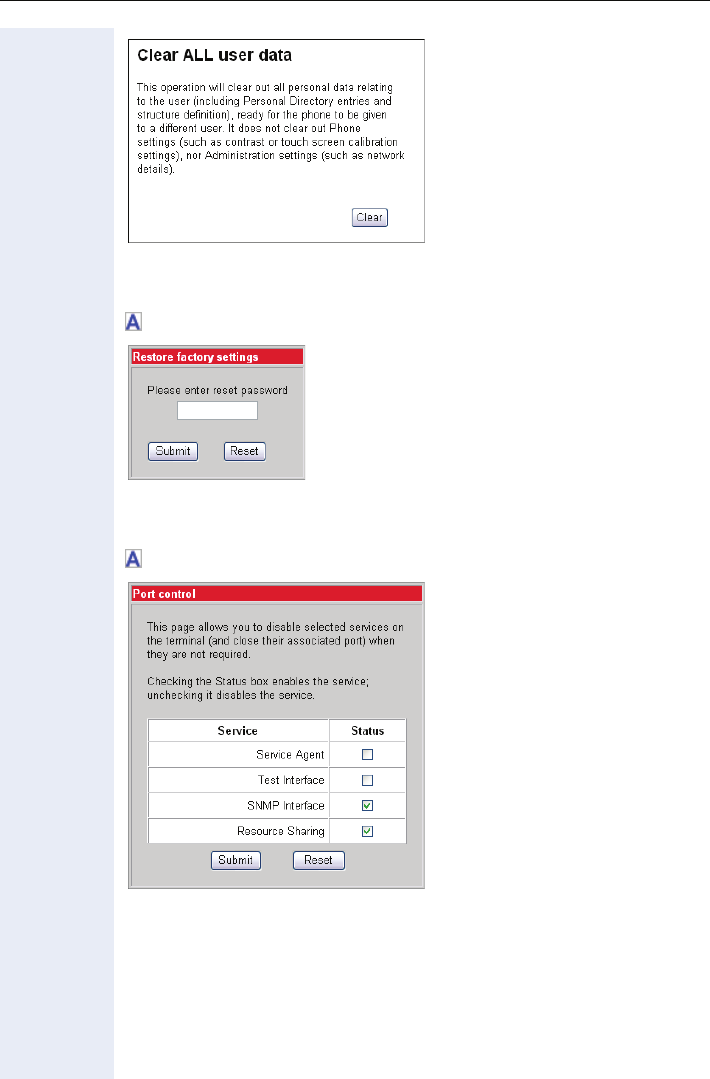
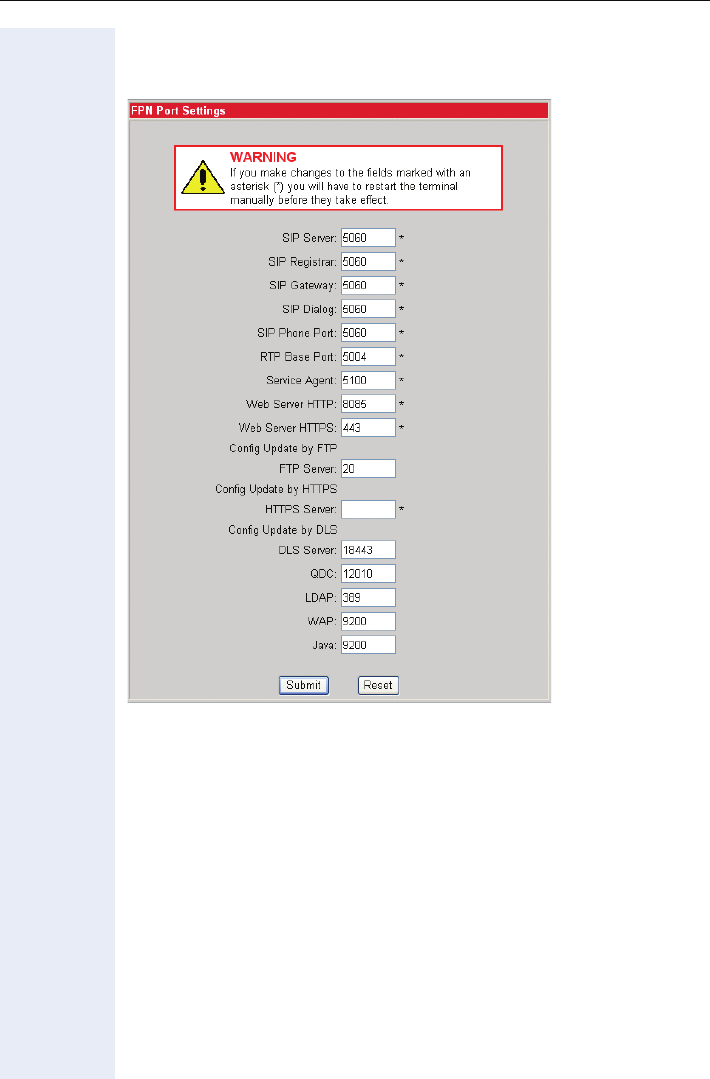
Web Interface
146
FPN Port Settings
Only available in Web Interface
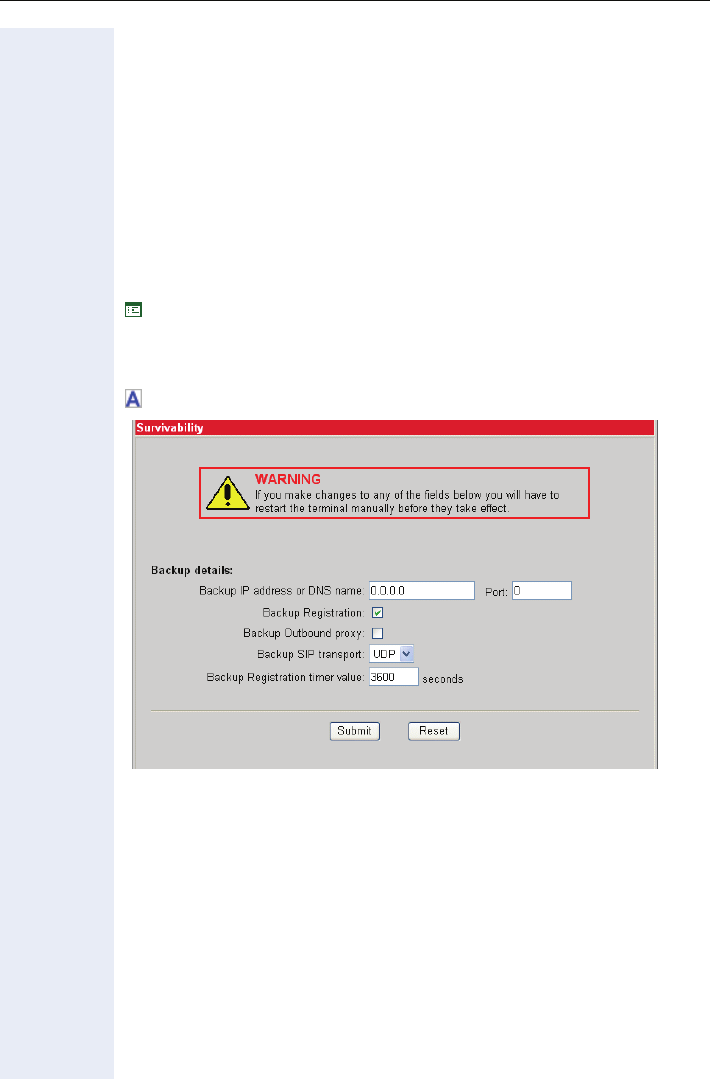
Web Interface
147
Fault Investigation
Available tracing menus:
• Trace Configuration
•Trace View
• Simplified trace page
• FTP Client
• Exception Data
• Windview Configuration
• SIP UDP Trace
For information how to trace the optiPoint 410/420 please refer to the Trac-
ing guide.
Æpage 111 or Æpage 112
Survivability
Survivability Æpage 100

Phone Menu
148
Phone Menu
Further information about accessing the administrator menu see
Æpage 48.
Phone Menu Structure Overview
optiPoint 410/420 economy/economy plus/standard/advance
The Administration and Diagnostics options in the Setup menu are
permanently not shown by using the < and > keys to navigate.
Entry to these menus is gained by using its index number ("6" for Ad-
ministration, "7" for Diagnostics).
Some user related menu items were omitted. For this items see
User Manual.
Menu Default Editor
|--- ...
|--- 05=Setup?
| |--- ...
| |--- 2=Configuration?
| | |--- ...
| | |--- 02=Language? English
| | |--- 03=Date/time?
DD.MM.YY
| | |--- ...
| | |--- 14=Daylight Saving? Off
| | |--- ...
|||---32=Auto answer Off
| | |--- 33=Beep on auto answer On
| | |--- 34=Auto reconnect Off
| | |--- 35=Beep on auto reconnect On
| | |--- ...
| |--- ...
| |--- 6=Administration? Password required
|||---01=Network?
||||---01=DHCP IP assign? Off ÆSwitch Editor
||||---02=Terminal IP addr.? 0.0.0.0
ÆIP Number Editor
||||---03=Terminal mask? 0.0.0.0
ÆIP Number Editor
||||---04=Default route? 0.0.0.0
ÆIP Number Editor
||||---05=IP routing?
|||||---1=Route 1?
||||||---1=IP address 1? 0.0.0.0
ÆIP Number Editor
||||||---2=Gateway 1? 0.0.0.0ÆIP Number Editor
||||||---3=Mask 1? 0.0.0.0ÆIP Number Editor
||||||---0=End?
|||||---2=Route 2?
||||||---1=IP address 2? 0.0.0.0
ÆIP Number Editor
||||||---2=Gateway 2? 0.0.0.0
ÆIP Number Editor
||||||---3=Mask 2? 0.0.0.0ÆIP Number Editor
||||||---0=End?
|||||---0=End?
||||---06=QoS?
|||||---2=QoS L2/L3?
||||||---1=L2Off/L3Off?
||||||---2=L2Off/L3On?
||||||---3=L2On/L3On?
||||||---0=End?

Phone Menu
149
| | | | |--- 3=L3 Voice? L3 have to be activated
| | | | |--- 4=L3 Signalling? L3 have to be activated
| | | | |--- 5=L2 Voice? L2 have to be activated
| | | | |--- 6=L2 Signalling? L2 have to be activated
| | | | |--- 7=L2 Default? L2 have to be activated
|||||---8=VLan ID? 0
|||||---9=VLAN discovery?
||||||---1=Manual?
||||||---2=DHCP?
||||||---0=End?
|||||---0=End?
| | | |--- 07=DNS Domain name? ÆText Editor
| | | |--- 08=Prim DNS IP addr? 0.0.0.0 ÆIP Number Editor
| | | |--- 09=Sec DNS IP addr? 0.0.0.0 ÆIP Number Editor
| | | |--- 10=LAN port settings?
|||||---1=Auto?
|||||---2=10Mbit/Full?
|||||---3=10Mbit/Half?
|||||---4=100Mbit/Full?
|||||---5=100Mbit/Half?
|||||---0=End?
| | | |--- 11=PC port settings?
|||||---1=Auto?
|||||---2=10Mbit/Full?
|||||---3=10Mbit/Half?
|||||---4=100Mbit/Full?
|||||---5=100Mbit/Half?
|||||---0=End?
| | | |--- 12=User specific web ad?
||||---00=End?
|||---02=System?
| | | |--- 01=Terminal Number? ÆNumber Editor
| | | |--- 02=Terminal Name? ÆText Editor
| | | |--- 03=Register by Name? Off ÆSwitch Editor
| | | |--- 04=SIP Routing?
|||||---1=Server?
|||||---2=Gateway?
|||||---3=Direct?
|||||---0=End?
| | | |--- 05=Outbound Proxy? Off ÆSwitch Editor
| | | |--- 06=Default OBP Domain? ÆText Editor
| | | |--- 07=SIP Addresses?
|||||---1=SIP Server?
| | | | | |--- 1=SIP Server Address? 0.0.0.0 ÆIP Number Editor
| | | | | |--- 2=SIP Server Port? 5060 ÆNumber Editor
||||||---0=End?
|||||---2=SIP Registrar?
| | | | | |--- 1=SIP Registrar Address? 0.0.0.0 ÆIP Number Editor
| | | | | |--- 2=SIP Registrar Port? 5060 ÆNumber Editor
||||||---0=End?
|||||---3=SIP Gateway?
| | | | | |--- 1=SIP Gateway Address? 0.0.0.0 ÆIP Number Editor
| | | | | |--- 2=SIP Gateway Port? 5060 ÆNumber Editor
||||||---0=End?
|||||---5=SIP Phone?
| | | | | |--- 1=SIP Port? 5060 ÆNumber Editor
||||||---2=RTP Base Port? 5004 ÆNumber Editor
||||||---0=End?
|||||---0=End?
| | | |--- 08=SIP Transport?
|||||---1=UDP?
|||||---2=TCP?
|||||---0=End?
| | | |--- 09=SIP Realm? ÆText Editor
Menu Default Editor

Phone Menu
150
||||---10=SIP User Id? ÆNumber Editor
||||---11=SIP Password? ÆPassword Editor
||||---12=SIP Session Timer? Off ÆSwitch Editor
||||---13=SIP Session Time? 3600 ÆNumber Editor
||||---14=Emergency No.? ÆNumber Editor
||||---15=Voice mail No.? ÆNumber Editor
||||---16=MWI Server Addr.? 0.0.0.0ÆIP Number Editor
||||---17=Registration Timer? 3600 ÆNumber Editor
| | | |--- 26=System Name? ÆText E d i t or
||||---27=Conf Server Addr.? 0.0.0.0ÆIP Number Editor
||||---28=Keyset?
|||||---01=Line Select a line
||||||---1=Rank
||||||---2=Ringer setting
||||||---3=Hot Line ÆNumber Editor
||||||---0=End
|||||---02=Registration LEDs? On ÆSwitch Editor
|||||---03=Rollover type?
||||||---1=No ring?
||||||---2=Alert ring?
||||||---3=Standard ring?
||||||---4=Alert beep?
||||||---0=End?
|||||---04=Rollover Vol? 2 ÆGradient Editor
|||||---05=Orig line pref?
||||||---1=Idle?
||||||---2=Primary?
||||||---3=Last?
||||||---4=None?
||||||---0=End?
|||||---06=Term line pref?
||||||---1=Ringing?
||||||---2=Ringing PLP?
||||||---3=Incoming?
||||||---4=Incoming PLP?
||||||---5=None?
||||||---0=End?
|||||---07=Line action mode?
||||||---1=Hold ?
||||||---2=Release?
||||||---0=End?
|||||---09=Show focus? on
|||||---10=Forwarding Ind? off
|||||---11=Reservation Timer? 60
|||||---00=End?
||||---29=Dial Plan? Off ÆSwitch Editor
||||---30=Group Pickup URI?
Not a memb.
||||---31=SIP Server type?
|||||---1=HiQ/HiPath 8000?
|||||---2=BroadSoft?
|||||---3=Sylantro?
|||||---4=Auto?
|||||---0=End?
| | | |--- 32=Allow Refuse? On
||||---33=Hot/Warm Phone? Off
|||||---1=Normal line Action?
|||||---2=Warm line?
|||||---3=Hot line?
|||||---0=End?
||||---34=Wap? Not economy/economy plus
|||||---1=Wap Mode?
|||||---2=Wap Server Address?
|||||---3=Wap Server Port?
|||||---0=End
Menu Default Editor

Phone Menu
151
| | | |--- 35=LDAP? Not economy/economy plus
|||||---1=LDAP Server Address?
|||||---2=LDAP Server Port?
|||||---3=External Code?
|||||---4=International Prefix?
|||||---5=Country Code?
|||||---6=National Prefix?
|||||---7=Area Code?
|||||---8=District Code?
|||||---0=End
| | | |--- 36=Java Proxy? Not economy/economy plus
|||||---1=Java Proxy Address?
|||||---2=Java Proxy Port?
|||||---00=End?
||||---37=Feature Access?
| | | | |--- 01=Call Hold Explicit? off
| | | | |--- 02=Call Deflection?
| | | | |--- 03=Call Forwarding?
| | | | |--- 04=Log Forwarded Calls?
| | | | |--- 05=Call Duration?
| | | | |--- 06=Call Waiting?
| | | | |--- 07=Call Transfer?
| | | | |--- 08=Call Join?
| | | | |--- 09=Call Display Name?
| | | | |--- 10=Call Display Number?
| | | | |--- 11=Music On Hold?
| | | | |--- 12=Do Not Disturb?
| | | | |--- 13=Message Waiting?
| | | | |--- 14=Local Conference? Not economy
| | | | |--- 15=Auto Answer CTI?
| | | | |--- 16=Auto Reconnect CTI?
|||||---17=Call Park?
|||||---18=Call Park Pickup?
| | | | |--- 19=Wap browser On DSM? Not economy/economy plus
| | | | |--- 20=Address Book? Not economy/economy plus
| | | | |--- 21=DSM Call Control? Not economy/economy plus
| | | | |--- 22=Voice Recognition?
| | | | |--- 23=Speed Dial On DSM? Not economy/economy plus
|||||---24=Contacts? Not economy/economy plus
|||||---25=Hot Keypad Dialing? on
|||||---26=Callback-busy? on
|||||---27=Callback-no reply? on
|||||---28=Call recording? on
|||||---00=End?
| | | |--- 38=Call park URI?
||||---39=Call pickup URI?
| | | |--- 40=Transfer on Ringing? on
| | | |--- 41=Join allowed in conf? on
||||---42=Callback URIs?
|||||---1=Callback-busy?
|||||---2=Callback-no reply?
|||||---3=Cancel callbacks?
|||||---0=End
| | | |--- 43=Initial Digit Timer? 20
| | | |--- 44=Display ID? 20
|||||---1=New/Change ID?
|||||---2=Use Terminal ID?
|||||---3=Use Display ID?
|||||---0=End
||||---00=End?
||||---45=Call Recorder?
| | | |--- 46=Transaction timer?
| | | |--- 47=Payload Security All?
| | | |--- 48=Conn.Check Interval?
Menu Default Editor

Phone Menu
152
||||---49=SIP Server Validate?
|||---03=File transfer?
||||---01=DL application?
||||---02=DL config?
||||---03=UL config?
||||---04=DL DSM Logo? Not economy/economy plus
||||---05=DL hold music?
||||---06=DL server IP addr.? 0.0.0.0
ÆIP Number Editor
||||---07=FTP account name? guest ÆTex t E ditor
||||---08=FTP username? guest ÆTe xt Edi t o r
||||---09=FTP password? ÆPassword Editor
||||---10=FTP path? ÆText E d itor
||||---11=Applic. DL filename? opti420a ÆTe xt Edi t o r
||||---12=Cfg DL filename? opti420c ÆTe x t Edit o r
| | | |--- 13=Logo filename? Not economy/economy plus
||||---14=Hold music filename?
opti400.moh
ÆText E d itor
||||---15=Default Music?
||||---16=DL LDAP Template? Not economy/economy plus
||||---17=LDAP Template filename? Not economy/economy plus
||||---18=DL JavaApplet? Not economy/economy plus
||||---19=JavaApplet Filename? Not economy/economy plus
||||---00=End?
| | |--- 04=Date/Time?
||||---01=SNTP IP addr? 0.0.0.0
ÆIP Number Editor
||||---02=Timezone offset? +0 ÆOffset Editor
||||---0=End?
|||---05=SNMP?
||||---01=SNMP trap IP addr? ÆIP Number Editor
||||---02=SNMP password? ÆPassword Editor
||||---0=End?
| | |--- 06=Speech?
||||---02=Audio mode?
|||||---1=HiQual preferred?
|||||---2=LoBand preferred?
|||||---3=LoBand always?
|||||---4=G711 preferred?
|||||---0=End?
||||---03=Compression?
|||||---1=G729?
|||||---2=G723?
|||||---0=End?
||||---04=G711 Silence? Off ÆSwitch Editor
||||---05=RTP Packet Size?
|||||---01=Auto?
|||||---02=10ms?
|||||---03=20ms?
|||||---0=End?
||||---06=Microphone?
|||||---1=Normal?
|||||---2=Disabled?
|||||---0=End?
||||---0=End?
|||---07=General info?
||||---01=MAC address?
||||---02=Version Info?
||||---03=Last Restart?
||||---04=Dial Plan?
|||||---01=ID?
|||||---02=Status?
|||||---0=End?
||||---0=End?
|||---08=Admin password? ÆPassword Editor
| | |--- 11=Ringer Settings?
||||---01=Alert indications?
Menu Default Editor

Phone Menu
153
|||||---01=Indication 1?
| | | | |--- ...
|||||---15=Indication 15?
||||||---1=Identifier? ÆText Editor
||||||---0=End?
|||||---00=End?
||||---0=End?
| | |--- 12=Config Update?
| | | |--- 01=Check UD Config.?
| | | |--- 02=Ftp DL Params?
| | | | |--- 01=Config FTP Addr?
| | | | |--- 02=Config FTP Port? ÆText Editor
| | | | |--- 03=Config UD Pathname? ÆText Editor
| | | | |--- 04=Acount ID? ÆText Editor
| | | | |--- 05=Username? ÆText Editor
|||||---06=Password? ÆPassword Editor
|||||---00=End?
| | | |--- 03=Dls DL Params?
|||||---1=Config UD Dls ÆIP Number Editor
|||||---2=Config UD Dls Port? ÆNumber Editor
|||||---0=End?
| | | |--- 04=Https DL Params?
|||||---1=Config UD Https Addr ÆIP Number Editor
|||||---2=Config UD Https Port? ÆNumber Editor
|||||---3=Config UD Https Path? ÆText Editor
|||||---0=End?
| | | |--- 05=Config UD Filename? ÆText Editor
| | | |--- 06=Config UD File Type? ÆText Editor
| | | |--- 07=Periodic Timer? ÆText Editor
||||---08=Unreg Timer? ÆText Editor
| | | |--- 09=Config Mgmt Type?
| | | |--- 10=Authentication? ÆSwitch Editor
||||---00=End?
| | |--- 15=Port Configuration?
||||---01=Service Agent?
||||---02=Test Interface?
||||---03=Resource Sharing?
||||---04=SNMP Port?
||||---05=Web Server?
||||---00=End?
|||---16=Survivability?
| | | |--- 1=Backup address?
| | | |--- 2=Backup port?
| | | |--- 3=Backup registration?
| | | |--- 4=Backup reg timer?
| | | |--- 5=Backup OBP?
| | | |--- 6=Backup transport?
||||---0=End?
| | |--- 17=User mobility?
| | | |--- 02=Unauth Logoff trap?
| | | |--- 03=Logoff trap delay?
| | | |--- 04=Logoff error count?
||||---05=Timer HighPriority?
| | | |--- 06=Count MedPriority?
| | | |--- 07=Timer MedPriority?
| | | |--- 08=Mobility feature?
| | | |--- 09=Managed profile?
||||---00=End?
|||---00=End?
| |--- 7=Diagnostics? Password required
|||---01=Display test?
| | |--- 02=LED test?
| | |--- 03=Key test?
| | |--- 04=Audio loop test? Off ÆSwitch Editor
Menu Default Editor

Phone Menu
154
|||---05=RAM test?
|||---06=ROM test?
|||---07=PING?
||||---01=User specified IP? ÆIP Number Editor
||||---02=SIP Server IP?
||||---03=SIP Registrar IP?
||||---04=SIP Gateway IP?
||||---05=DL server IP addr.?
||||---06=SIP Dialog ID
||||---07=SNTP IP addr.?
||||---08=Default route IP?
||||---09=SNMP trap IP addr.?
||||---10=Terminal IP addr.?
||||---11=DNS Primary IP?
||||---12=DNS Secondary IP?
||||---00=End?
| | |--- 08=Line monitor? Off ÆSwitch Editor
| | |--- 09=UL/DL status?
||||---1=Application download?
||||---2=Config download?
||||---3=Config upload?
||||---4=Logo download?
||||---5=MoH download?
||||---0=End?
| | |--- 10=MIB2-Discards?
| | |--- 11=MIB2 err count?
| | |--- 13=Key Label Test? Only with optiPoint 420
|||---00=End?
| |--- 0=End?
|--- 00=End
Menu Default Editor
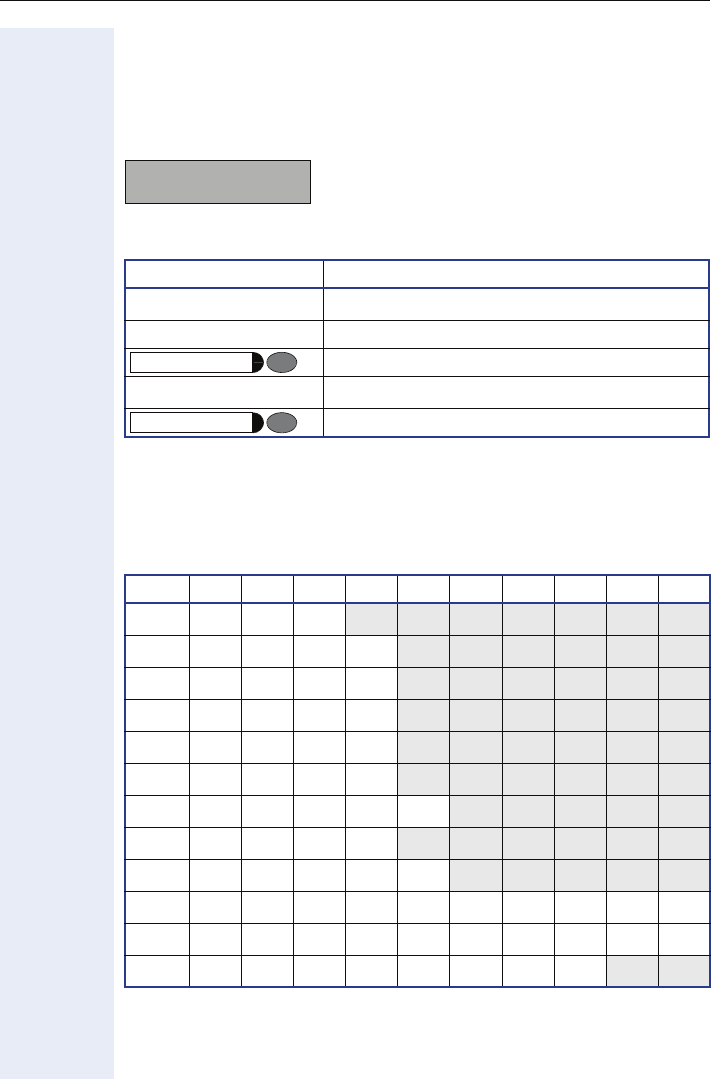
Phone Menu
155
Editors
Text Editor
Display example of the text editor:
Key Functionality
Characters Sets
Character entry is performed by multiple presses of the keypad keys ac-
cording to the following tables (table shows lower case characters).
Example: "+" = press the r key 5x times.
This character sets also applies to entry of alphanumeric passwords
Æpage 158.
Key Use
d . m q rText entry
< >Delete or move insertion point
Mode control Æpage 156
:Accept entry
Abort entry
Key1x2x3x4x5x6x7x8x9x10x
e$(1)
(1) Space
1
fabc2
gdef3
hgh i 4
ijkl5
jmno6
kpqr s7
ltuv8
mwx y z 9
q/()[] * < = > %
d.(1) , ? 0 ! : ; ’ "
r#@_&+ - ^ |
Siem_
d→ef3DEL
Shift
Stop/Escape

Phone Menu
156
Te x t E d i t o r M o d e s
Depending on the function key "Shift" the behavior of the editor is different.
Use of the Editor
This editor is used in the following administration scenarios:
• Alert indication Æpage 163
• Application download filename Æpage 165
• Branding/Identity name Æpage 168
• Configuration download filename Æpage 170
• Default domain name Æpage 174
•Domain Name Æpage 182
• FTP account name Æpage 187
•FTP path Æpage 188
• FTP username Æpage 188
• Hold music download filename Æpage 189
•Ping Æpage 207
• SIP realm Æpage 215
• SIP user ID Æpage 218
• Terminal name Æpage 223
If DNS is applicable Æpage 41, this editor can also be used in the follow-
ing administration scenarios:
• Download server IP address or DNS name Æpage 183
• Message Waiting IP address Æpage 203
• SIP addresses Æpage 214
• SNMP Trap IP address or DNS name Æpage 219
• SNTP server address or DNS name Æpage 219
Display/Key (not shifted) (shifted)
Lower right corner
of the display shows DEL INS
d . m q rInsert lower case
characters
Insert upper case
characters
<Delete backwards Move insertion point
left
>Delete forwards Move insertion point
right
Shift Shift

Phone Menu
157
Switch Editor
Display example of the switch editor:
Key Functionality
:Press this key to change the value ("Switch on", "Switch off").
>Press this key to to exit without changes ("Continue").
Use of the Editor
This editor is used in the following administration scenarios:
• DHCP IP assignment Æpage 175
• G.711 Silence Suppression Æpage 188
• Outbound proxy Æpage 205
• Register by terminal name Æpage 210
• SIP session timer enabled Æpage 217
Number Editor
Display example of the number editor:
Permitted: Numeric values.
Key Functionality
oEnter the numbers.
<Press this key to delete one character at a time to the left.
:Press this key to confirm the entry.
Use of the Editor
This editor is used in the following administration scenarios:
• Alert indication Æpage 163
• Emergency number Æpage 185
• Layer 2 signalling Æpage 193
•Layer 2 voice Æpage 194
• Registration timer value Æpage 211
• SIP session timer value Æpage 216
• Terminal number Æpage 224
• Manual VLAN identifier Æpage 203
• Voicemail number Æpage 228
DHCP IP assign:On
Switch off?>
Te rm i n al N u mbe r
23554_
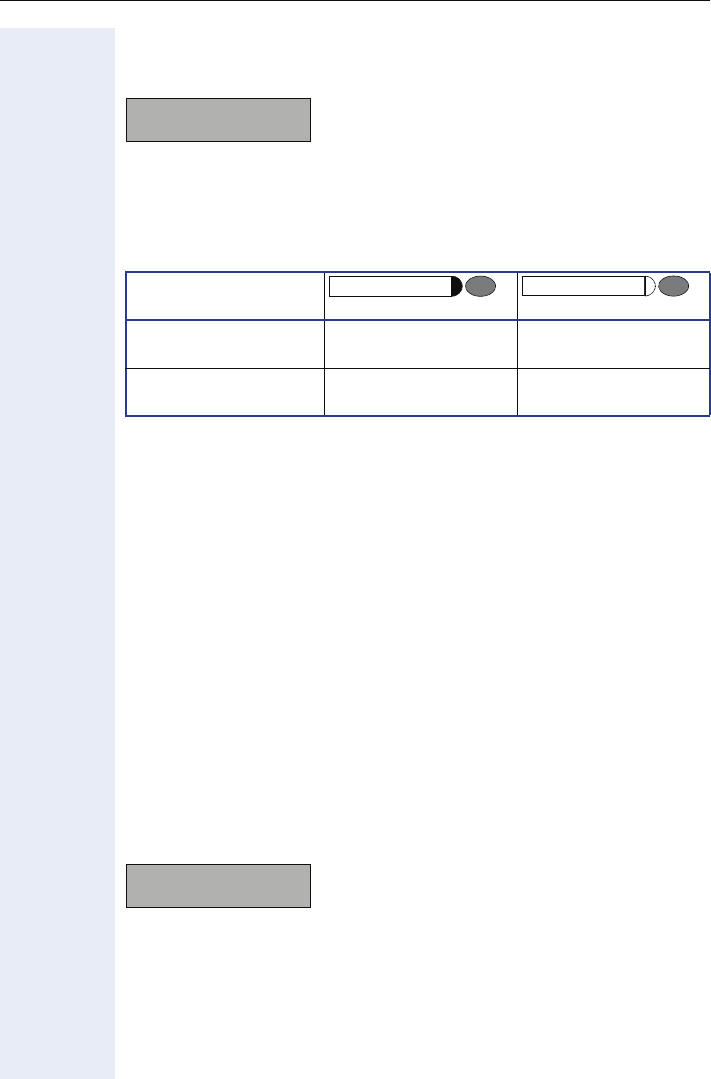
Phone Menu
158
Password Editor
Display example of the password editor:
The password editor is used in authorisation and storage mode.
oEnter the password. If alphanumeric passwords are permitted, the behav-
iour is generally like editing texts Æpage 155.
Depending on the function key "Shift" the behavior of the editor is different.
<Press this key to delete characters/numbers to the left.
Use of the Editor
This editor is used in the following administration scenarios:
• Alphanumeric passwords:
– FTP password Æpage 187
– SIP password Æpage 215
– SNMP password Æpage 218
• Numeric passwords only:
– Administrator password Æpage 163
Gradient Editor
The Gradient Editor is used to change settings such as audio and visual set-
tings, e.g. volume and contrast settings. On entry to this editor the config-
urable option name and its current status will be shown on the third line of
the display, whilst the bottom line will display a graphical representation of
the current setting and the available range of values.
Display example of the gradient editor:
Key Functionality
oEnter gradient value.
< or vPress this key to decrease the current gradient value.
> or uPress this keys to increase the current gradient value.
Enter admin password
******
Display/Key (not shifted) (shifted)
Lower right corner
of the display shows CAPS
d . m q rInsert lower case
characters
Insert upper case
characters
Shift Shift
Loudspeaker volume 5
>

Phone Menu
159
IP Number Editor
optiPoint 410/420 economy/economy plus/standard/advance
Display example of the IP number editor:
Permitted: Integer values from 0 to 255 per octet and dots (".") as separa-
tor.
Leading zeros will be ignored.
Key Functionality
oEnter the numbers.
qPress this key to step from octet to octet to the right.
<Press this key to delete numbers within a octet or step from octet to octet
to the left.
Use of the Editor
This editor is used in the following administration scenarios:
• Default Route Æpage 174
• Download server IP address or DNS name Æpage 183
• IP routing Æpage 191
• Message Waiting IP address Æpage 203
•Ping Æpage 207
• Primary DNS IP address Æpage 207
• Secondary DNS IP address Æpage 212
• SIP addresses Æpage 214
• SNMP Trap IP address or DNS name Æpage 219
• SNTP server address or DNS name Æpage 219
• Terminal IP address Æpage 223
• Terminal mask Æpage 223
If DNS is applicable Æpage 41, the text editor Æpage 155 can also be
used to enter host names.
SIP Server
192.168.001.012

Phone Menu
160
optiPoint 410 entry
The IP number editor permits you to enter a standard IP address of the
form w.x.y.z (including the dots). Note that leading zeros are ignored, there-
fore you may omit them and the editor will overwrite any pre-existing num-
ber. In order to insert the dots between the digit fields of the IP number,
you should press the phone's '*' hard key.
ASCII Result Codes
zzzzzzzzzzzz
zzzzzzzzzzzz
zzzzzzzzzzzz
zzzzzzzzzzzz
zzzzzzzzzzz z
zzzzzzzzzzz z
zzz z zzz z zzz z
zzzzzzzzzzzz
end dot ‘0’ ‘1’ ‘2’ ‘3’ ‘4’ ‘5’ ‘6’ ‘7’ ‘8’ ‘9’
0x00 0x2
E0x30 0x31 0x32 0x33 0x34 0x35 0x36 0x37 0x38 0x39
046 48 49 50 51 52 53 54 55 56 57

Phone Menu
161
Offset Editor
Display example of the offset editor:
Permitted: Integer values from -12 to +12.
Key Functionality
< >Press this keys to increase/decrease the current value by one.
u vPress this keys to change the sign of the value (plus/minus).
:Press this key to confirm the entry.
Use of the Editor
This editor is used in the following administration scenario:
• Time zone offset Æpage 225
Melody/Tone Editor
Display example of the melody/tone editor:
Permitted: Numeric values.
Key Functionality
oEnter the numbers.
u vPress this keys to increase/decrease the current value by one.
< >Press this keys to toggle between the two options.
:Press this key to confirm the entry.
Use of the Editor
This editor is used in the following administration scenario:
Alert indication Æpage 163
Timezone offset:+2
+1
Indication 1 Melody: 2/2
Melody 2Tone sequ. 2

Alphabetical Reference
162
Alphabetical Reference
This reference offers basic information that can be used by the administra-
tor to carry out administration- and diagnostics-related jobs in the
optiPoint 410/420 family S V7.0.
• The Chapter explains alphabetically sorted terms that, for instance,
you will encounter in the menus.
Used symbols:
– Shows administration tasks with menu paths at the
optiPoint 410/420 family S V7.0 and on the Web Interface.
– Shows the related Web Interface surfaces.
–Y Refers to the User Manual.
• This is followed by the Chapter “Abbreviations and Specialized Terms“.
Description of Functions
Action on submit
• Select the download type:
– No transfer
– Upload configuration
– Download configuration
– Download application
– Download hold music
– Download logo
– Download Java program (only if DSM-Module is avialable)
– Download LDAP template (only if DSM-Module is avialable)
– Download DSM firmware (only if DSM-Module is avialable)
ÆSeite 77 Æpage 118
Address Book
For information see description of
•Download server IP address or DNS name Æpage 183
• FTP account name Æpage 187
•FTP path Æpage 188
• FTP password Æpage 187
• FTP username Æpage 188
For futher information of the Address book see "optiPoint display module
User Manual".
Æpage 80 Æpage 137

Alphabetical Reference
163
Administrator password
• Use this function to change the password that is necessary for access-
ing the administrator area.
• Value range table:
• Editing by phone: Password Editor Æpage 158.
Æpage 99 Æpage 144
Alert indication
• Use this function to specify different ring tones for distinctive alert info
URLs (identifiers).
– Melody
– Tone
– Duration
Identifier
• Value range table:
• Editing by phone: Text Editor Æpage 155.
Alert Type
• List of options:
Ringer
• Value range table:
Permitted values numeric
Length min. Is predefined by DLS
Length max. Is predefined by DLS (up to 24 digits)
Default value 123456
Permitted values alphanumeric
Length max. 50 digits
Example Strings
(see system docu-
mentation for identifi-
er string)
bellcore-dr1, bellcore-dr2,
bellcore-dr3, bellcore-dr4,
alert-group, alert-external ,
alert-internal, alert-visual,
alert-emergency, alert-autoanswer, alert-prior-
ity, alert-acd,
alert-community-1, alert-community-2, alert-
community-3, alert-community-4
Type Description
Ring In case of this type the phone rings.
Silence In case of this type the phone does not ring.
Alphabetical Reference
164
• To hear the configured melody and tone sequence you have to proceed
the according call.
• Editing by phone: Melody/Tone Editor Æpage 161.
Duration
• Value range table:
• Editing by phone: Number Editor Æpage 157.
Æpage 94 Æpage 122
Allow Refuse
This function allows the administrator to control whether the Refuse call
feature is available on the Phone. The following options are always avail-
able.
• Switch off/Schwitch on
• Continue
Æpage 64 Æpage 116
Append codes
• The following buttons represent the possibility of the append codes:
–OK
–Clear
– Consult
–Pause
Y User Manual Æpage 130
Permitted values numeric
Range Melody: 1 ... 8
To n e sequence:
•1 (standard melody),
•2 (single-shot tone),
•3 (silence)
Default value Melody: 2, Tone sequence: 2
Permitted values numeric
Range 0 ... 300 seconds
Default value 60 seconds
Alphabetical Reference
165
Application download filename
• Specify the name of the file containing the software of the
optiPoint 410/420 family S V7.0.
• The file must exist in a defined directory on the ÆFTP server
(ÆDownload server IP address or DNS name, ÆFTP path).
• Value range table:
• Editing by phone: Text Editor Æpage 155.
Æpage 77 Æpage 118
Audio loop test
• The test activates the microphone and the loudspeaker in the handset.
• You can check these components by speaking and listening.
Æpage 96 Æpage 140
Audio mode
• Use this function to select the audio transfer codec.
• The value of compression encoding is depending on the selected com-
pression codec, see Compression encoding Æpage 170.
• Default value: G711 preferred.
Permitted values alphanumeric
Length max. 92 digit
Default value opti410a
Audio Mode
High Qualitiy Preferred Uncompressed audio transmission.
Low Bandwith Preferred Use preferred compressed audio transmis-
sion (narow band).
Low Bandwith only Use compressed audio transmission only
(narow band)..
G711 Preferred Uncompressed audio transmission. (narow
band)
G729 Preferred Compressed transmission. (band of about 8
kbit/s.
Audio codec G.711:
If the country code is set to US the audio codec G.711 ulaw is pre-
ferred. All other country codes causes the audio codec G.711 alaw
to be preferred.
Audio codec G.722:
This speech codec offers a wider audio bandwidth resulting in major
improvement in the represented speech quality.
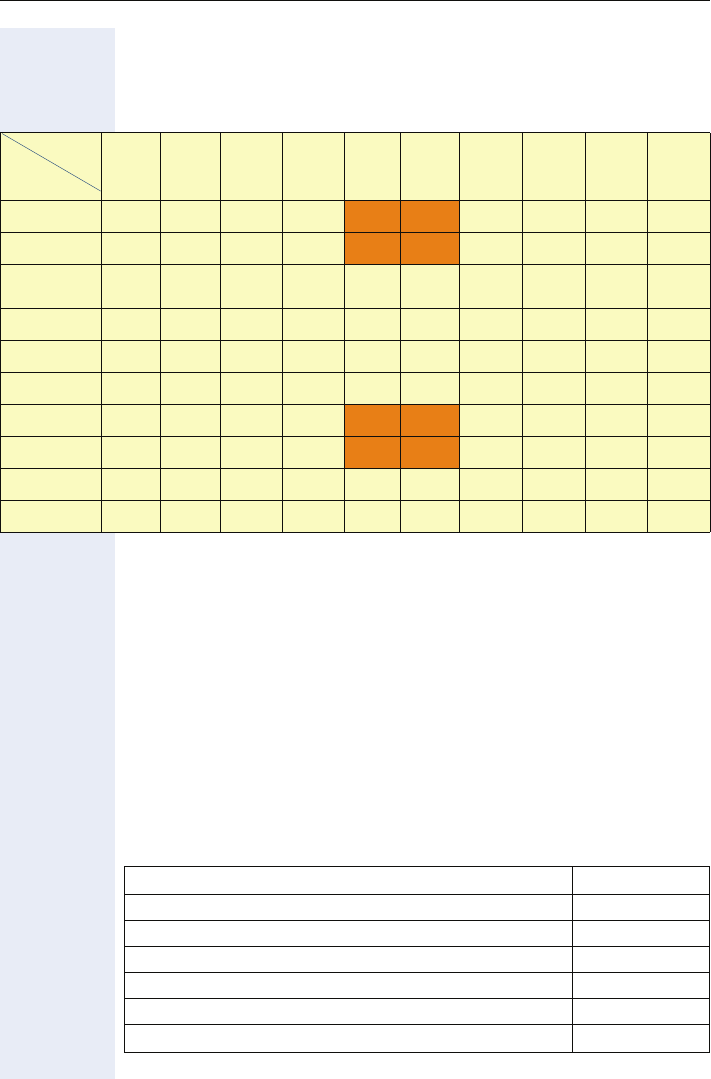
Alphabetical Reference
166
Codec Negotiation
The following table indicates which codec will be selected depending on
which codec is selected on each phone, a G711 always option is included
because some non-Siemens phones may include this option.
Note that the table is read with Phone A calling Phone B. The table is not
symmetrical so does not describe the situation if B calls A. If a call is
cleared because the codecs are not compatible, the phone will display "Ter-
minal Incompatible".
Bandwidth calculation
Calculation into dependence of:
• Codec
• RTP packet size
• Transmission medium
1. L A N
Maximum LAN-Overhead (Ethernet-Full Duplex per direction)
High
Quality
Preferred
(Codec
G729)
High
Quality
Preferred
(Codec
G723)
Low Band
Preferred
(over 729)
Low Band
Preferred
(over 723)
Low
Band
Only
(over
729)
Low
Band
Only
(over 723)
G711
Prefered
(over 729)
G711
Prefered
(over 723)
G729
Prefered
(over 723)
G729
Prefered
(over 729)
High Quality
Preferred (G729) G722 G722 G722 G722 G729*G729*G722 G722 G722 G722
High Quality
Preferred (G723) G722 G722 G722 G722 G723*G723*G722 G722 G722 G722
Low Band
Preferred
(over 729)
G729 G729 G729 G729 G729 G729 G729 G729 G729 G729
Low Band Pre-
ferred (over 723) G729 G729 G723 G723 G723 G723 G723 G723 G723 G723
Low Band Only
(over 729) G729 G729 G729 G729 G729 g729 G729 G729 G729 G729
Low Band Only
(over 723) G723 G723 G723 G723 G723 G723 G723 G723 G723 G723
G711 Preferred
(Codec 729) G711 G711 G711 G711 G729*G729*G711 G711 G711 G711
G711 Preferred
(Codec 723) G711 G711 G711 G711 G723*G723*G711 G711 G711 G711
G729 Preferred
(Codec 723) G729 G729 G729 G729 G729 G729 G729 G729 G729 G729
G729 Preferred
(Codec 729) G729 G729 G729 G729 G729 G729 G729 G729 G729 G729
* Note that the B party uses a codec in the preferred order of the A party and this regarding RFC 3264 section 6.1.
Phone A
Phone B
Protocol Bytes
RTP 12
UDP 8
IP 20
802.1Q VLAN Tagging 4
MAC (incl. Preamble, FCS) 26
Total 70

Alphabetical Reference
167
Bandwith calculation for Ethernet
(Values in brackets – security enabled)
2. WAN (e.g. ATM)
WAN-Overhead
Voice Codec
Packet size
[ms]
Payload
Bytes
Ethernet
Packet size
[Bytes]
Used Ether-
net-Band-
width incl.
Preamble
[kBit/s]
G.711*
* In the SIP environment it is possible to activate silence supression. In this case the band-
width calculation values are max values
10 80 (90) 150 (160) 120,0 (128,0)
G.711** 20 160 (170) 230 (240) 92,0 (96,0)
G723**
** For G.723 it is not possible to activate silence suppression and the only available sample
size is 30 ms
30 24 (34) 1014 (114) 25,1 (30,4)
G.729***
*** In the SIP environment silence suppression is always active currently. In this case the band-
width calculation values are max values.
10 10 (20) 80 (90) 64,0 (72,0)
G.729*** 20 20 (30) 90 (100) 36,0 (40,0)
G.722****
****For G.722 it is not possible to activate silence suppression.
10 80 (90) 150 (160) 120,0 (128,0)
G.722**** 20 160 (170) 230 (240) 92,0 (96,0)
Protocol Bytes
RTP 12
UDP 8
IP 20
ATM-Overhead 5
Total 45

Alphabetical Reference
168
Bandwith calculation for WAN (e.g. ATM)
(Values in brackets – security enabled)
Æpage 93 Æpage 121
Branding/Identity name
• Enter the name (e.g. a company name), which is to be displayed in the
third line of the display in idle mode of the optiPoint 410/
420 family S V7.0.
• Range: Alphanumeric – 10 digits.
• Editing by phone: Text Editor Æpage 155.
Æpage 66 Æpage 115
Call Recorder (HiPath 8000)
Enter the dial string for example for ASC Call Recording (EVOip). Activate-
or deactivate the "Audible indication".
You can search for calls and replay them e.g. using the standard ASC appli-
cations POWERplay, WEBplay, or INSTANT WEBplay.
Call Recording has to be enabled in the access list (see Æpage 73) and in
the configuration menu of the phone (see user manual).
Æpage 64 Æpage 116
Voice Codec
Packet size
[ms]
Payload
Bytes
WAN
Packet size
[Bytes]
Used WAN-
Bandwidth
[kBit/s]
G.711*
* In the SIP environment it is possible to activate silence supression. In this case the band-
width calculation values are max values
10 80 (90) 125 (125) 100,0 (108,0)
G.711** 20 160 (170) 205 (215) 82,0 (86,0)
G723**
** For G.723 it is not possible to activate silence suppression and the only available sample
size is 30 ms
30 24 (34) 69 (79) 18,4 (21,1)
G.729***
*** In the SIP environment silence suppression is always active currently. In this case the band-
width calculation values are max values.
10 10 (20) 55 (65) 44,0 (52,0)
G.729*** 20 20(30) 65 (75) 22,0 (26,0)
G.722****
****For G.722 it is not possible to activate silence suppression.
10 80 (90) 125 (135) 100,0 (108,0)
G.722**** 20 160 (170) 205 (215) 82,0 (86,0)

Alphabetical Reference
169
Callback URIs
For "Callback – Busy line", and "Delete callbacks" enter the access code of
the HiPath 8000. "Callback – No reply" is for future use – not supported
with HiPath 8000.
Æpage 64 Æpage 116
Call park URI
Allows the administrator to configure the URI of the call park server <call-
park@<SIP Server IP> (e. g. callpark@172.16.127.95 or Domain Name).
This option is displayed with its current setting. If the URI is empty or in-
valid the user will not be able to use the Call park feature. This URIs is only
effective with Sylantro server.
Æpage 64 Æpage 116
Call pickup URI
Allows the administrator to configure the URI of the call pickup server
<pickup@<SIP Server IP> (e. g. pickup@172.16.127.95 or Domain Name).
This option is displayed with its current setting. If the URI is empty or in-
valid the user will not be able to use the Call pickup feature. This URIs is
only effective with Sylantro server.
Æpage 64 Æpage 116
Check for update
This option is used to initiate a check for a configuration change at the con-
figuration server and, if found, hence an update to the phone's configura-
tion. This option is always displayed and will also be automatically dis-
played as a prompt to confirm a periodic check for configuration updates.
Selecting this option will initiate the configuration download process.
Æpage 88 Æpage 136
Clear ALL user data
This operation will clear out all personal data relating to the user (including
Personal Directory entries and structure definition), ready for the phone to
be given to a different user. It does not clear out Phone settings (such as
contrast or touch screen calibration settings), nor Administration settings
(such as network details).
Æpage 99 Æpage 144
Alphabetical Reference
170
Compression encoding
• Use this function to select one of the two compression encodings that
should be used if the compressed audio mode was selected, see Au-
dio mode Æpage 165.
• Selectable values: G729 and G723.
Æpage 93 Æpage 121
Conference factory URI
This field identifies the server used for the system based conference. En-
ter the URI of the conference server <conf@<SIP Server IP> (e. g.
conf@172.16.127.95 or Domain Name). Reboot is required. This URIs is
only effective with Sylantro server.
Æpage 64 Æpage 116
Config DLS Port
If Deployment service is used, enter the port address of the server.
Æpage 88 Æpage 135
Configuration download filename
• Specify the name of the file containing the configuration data of the
optiPoint 410/420 family S V7.0.
• The file must exist in a defined directory on the ÆFTP server
(ÆDownload server IP address or DNS name, ÆFTP path).
• Value range table:
• Editing by phone: Text Editor Æpage 155.
Æpage 77 Æpage 118 or
Config Server address
Specify the address of the Server where to upload the phones configura-
tion file.
Æpage 76 Æpage 118
Permitted values alphanumeric
Length max. 92 digits
Default value opti410c
The configuration file is in Unix text format. Editing the document
might change the formatting.

Alphabetical Reference
171
Config Update Account ID
The name of the FTP account that holds the configuration files. The follow-
ing options are always available.
• Change
• Continue
Æpage 88 Æpage 135
Config Update Authentication
Mark if user should have authentication. The following options are always
available.
•On
•Off
Æpage 88 Æpage 135
Config Update DLS IP
If Deployment service is used, enter the ÆIP address of the server.
Æpage 88 Æpage 135
Config Update Filename
The name part of the system wide configuration file (also used as a tem-
plate to the name of the terminal specific configuration file). The following
options are always available.
• Change
• Continue
Æpage 88 Æpage 135
Config Update File Type
T he extension type part of the system wide configuration file (also used
as a template to the name of the terminal specific configuration file).The
following options are always available.
• Change
• Continue
Æpage 88 Æpage 135

Alphabetical Reference
172
Config Update FTP IP
The IP address of the FTP server used for the Configuration download. The
address and port are normally obtained at startup from DHCP (as a vendor
specific extension), or failing that from DNS (as a text record associated
with the phone's domain name). The address obtained automatically up-
dates this menu item. If the DHCP or DNS methods do not yield a valid IP
address the menu item value will be used if it holds a non-null IP address.
If the IP address had been obtained by DHCP then it cannot be altered. In
other cases selecting the OK button will invoke the IP Number Editor to
edit the address. The updated address will be used the next time that a
config download is performed. The IP address will be set during startup if
a valid IP address is obtained from DHCP or DNS.
Æpage 88 Æpage 135
Config Update FTP Port
The IP port of the FTP server used for the Configuration download. Further
information see Æpage 172.
Æpage 88 Æpage 135
Config Update Pathname
The path from the FTP root to the directory on the FTP server that holds
the configuration files. The following options are always available.
• Change
• Continue
Æpage 88 Æpage 135
Config Update Password
The FTP password that is used to access the configuration files. The fol-
lowing options are always available.
• Change
• Continue
Æpage 88 Æpage 135
Config Update Periodic Timer
The interval between automatic checking for a configuration download
which occurs when the SIP phone is registered (at least on the primary line
of a Keyset). A value of 0 prevents periodic checking.
Æpage 88 Æpage 135

Alphabetical Reference
173
Config Update Unregistration Timer
The interval between automatic checking for a configuration download
which occurs when the SIP phone is unregistered (on any line of a Keyset).
A value of 0 prevents periodic checking.
Æpage 88 Æpage 135
Config Update User Name
The name of the FTP user that is used to access the configuration files.
The following options are always available.
• Change
• Continue
Æpage 88 Æpage 135
Connectivity check
To check the TLS connectivity, the value in this field has to be greater than
0. The default value is 120. To deactivate the check function you set the val-
ue to 0. Any value greater than 0 activates the function. After deactiviation/
activation the phone has to be restarted. If you only changed the value
(greater than 0), you do not have to restart the phone.
• 0 = off
• 10 - 3600 = normal range (1-9 is equivalent to 10)
• >3600 = 3600
Æpage 96 Æpage 144
Count Medium Priority
The number of changes to medium prioity items allowed before triggering
a save to the DLS.
• Medium Prioity peg count threshold
• The value has to be a number in the range 1 to 999
Æpage 102 Æpage 134
Date/Time
• Manual definition is necessary only if this information is not transmitted
automatically by a ÆSNTP server.
• Select the date format and enter the date and time information.
Æpage 67 Æpage 120
Alphabetical Reference
174
Daylight saving
• If your country uses daylight saving time, you have to switch this fea-
ture on and off manually twice a year (independently whether SNTP is
used or not Æpage 219).
• "On" means an offset of +1, "Off" means no offset (default).
Æpage 67 Æpage 120
Default domain name
• If you use an Outbound Proxy server you can define a valid domain
name of this server. To use this setting you have to activate the Out-
bound Proxy option Æpage 205.
• Value range table:
• Editing by phone: Text Editor Æpage 155.
Æpage 62 Æpage 115
Default Music
If a hold music file was downloaded Æpage 74 you can use this function
to reset the hold music to default.
Æpage 92
Default Route
• Enter the ÆIP address that was assigned to the router of your IP net-
work if not provided by ÆDHCP dynamically (ÆDHCP IP assignment).
• If the value was assigned dynamically, it can only be read.
• The change will only have effect if you restart the phone.
• Value range table:
• Editing by phone: IP Number Editor Æpage 159.
Æpage 57 Æpage 114
Description
Enter a description for the relevant HiPath 8000 feature here.
Æpage 131 or Æpage 130
Permitted values alphanumeric
Length max. 92 digits
Permitted values numeric
Length max. 15 digits (incl. dots)

Alphabetical Reference
175
DHCP IP assignment
• At power up starting endpoints search for a ÆDHCP server and try to
obtain configuration parameters from that central server. The protocol
is based on broadcasts and hence the endpoints do not need to know
the location of the DHCP server.
• DHCP is an extension of the BOOTP protocol. The original BOOTP pro-
tocol only allowed for the automatic configuration of IP related param-
eters and for the detection of a server to boot and endpoint from.
DHCP is a more generic in that it allows for the request of a set config-
uration options and these options are not constrained to the basic IP
related parameters.
• Activate this option if the required IP data of the telephone should be
assigned dynamically by a ÆDHCP server.
• If no DHCP server is available, please deactivate this option. In this
case, the data corresponding to the ÆTerminal IP address, ÆTe rminal
mask and ÆDefault Route must be defined manually.
• List of information obtained by DHCP:
• The change will only have effect if you restart the phone.
• Default value: On.
• Editing by phone: Switch Editor Æpage 157.
Æpage 57 Æpage 114
Basic informations • Terminal IP Address
• Terminal Mask (Network Mask)
Optional informations • Default Route (Routers option 3)
• IP Routing/Route 1 & 2
(Static Routes option 33)
• SNTP IP Address (NTP Server option 42)
• Timezone offset
(Time Server Offset option 2)
• Primary/Secondary IP Addresses
(DNS Server option 6)
• DNS Domain Name
(DNS Domain option 15)
• SIP Addresses / SIP Server & Registrar
(SIP Server option 120)
• Vendor Unique (option 43)

Alphabetical Reference
176
Dial Plan
The dial plan of the phone should not be confused with the dial plan of the
server. Phone documentation uses the term “number plan” for the serv-
er’s “dial plan”. The phone’s terminology usage is supported by standards
– RFC.
The purpose of the dial plan is to reduce or remove the post dialling delay
caused by other methods of determining end of dialling – either use of a
timer or pressing of a “done” key. Both alternatives are supported by the
phone: the timer defaults to 6 seconds and the done key is either the tick
or lifting the handset.
The dial plan makes a critical assumption about the number plan – it is pos-
sible to determine the total number of digits required from the leading dig-
its. It does support a variable range of lengths for a given set of initial digits,
but in this scenario it is not as efficient and brings some restrictions.
It is possible to create a SIP number plan which prevents effective use of
the dial plan. If it is desired to use a dial plan, it has to be considered when
the number plan is created. Dial plans are supported by other manufactur-
er’s SIP phones.
A well planned dial plan can significantly impact on a user’s perception of
the system. Absence of a dial plan gives the appearance of a slow system.
A bad dial plan gives a view more akin to “sometimes it’s very slow” – the
user sees both fast and slow responses.
The Make-up of a Dial Plan
Currently a dial plan is restricted to 48 entries. This figure was believed to
be “enough” while avoiding excessive searching.
Each entry consists of a number of fields:
• Leading digits – a string to match the dialled digits against. Both * & #
can be included. There is also the wildcard X to represent any single
digit. There is no “any sequence” value.
• Action(s) – Originally, there were two, but these have been joined by a
third.
–S – Send the digits when the maximum digits have been received or
if the timer expires after the minimum digits have been received or
on receipt of the terminator after the minimum digits.
–C – Check for other actions. Minimum and maximum must match the
length of the string. The timer is run at this point only; sending will
occur on expiry. If more digits are received, further entries will be
checked. It is possible to use C in combination with D and have no
timer.
–D – Give secondary dial tone when the leading digits match. This ac-
tion does not depend on later parameters. In theory, there is a choice
of 9 tones, but only digit 1 is currently valid. D can be used in combi-
nation with C or S.
• Minimum length – Automatic sending will not occur until at least this
many digits have been dialled.

Alphabetical Reference
177
• Maximum length – Automatic sending will occur when this many digits
have been dialled.
• Timer – A shorter than normal interdigit timer to be used once the min-
imum number of digits have been dialled or when the “check” function
occurs. The timer can be zero if the two lengths are equal or with CD1.
Actually, the timer can be set to values larger than the phone’s interdigit
timer (it can be as high as 9, while the default internal timer is 6).
• Terminator – A digit used to indicate that dialling is complete before
reaching the maximum number of digits. The terminator can only be *
or #. The terminator is sent as part of the digit string.
• Option – A special function to be applied when the digits are sent. Cur-
rently two options are supported:
–B – Lock by-pass. Strings with this attribute can be dialled when the
phone is locked (other strings are barred by the phone).
–E – Emergency; implies B. Dialling these numbers will cancel both
forwarding and DND to allow the emergency service to return calls
to this caller. There is nothing to prevent the user re-invoking these
features later.
• Comment – although this can be left blank, it is useful to explain why
this entry is present.
Field separators depend on exactly how the dial plan is put on the phone.
Raw database entries use the separator “^”, while an external document
uses “,”.
Dial plan entries are in priority order. The phone will lock onto a matching
entry and not check later ones, except as described for the C action. It is
bad practice to have conflicting or duplicate entries as these may confuse
other investigations.
Examples of Dial Plans
Combinations of these examples can be used according to need. These
examples are deliberately short to explain specific principles.
A SIP server can be used in one of three ways. The nature of the numbers
used will vary according to the type of use – a PABX replacement, a com-
plete private network or a public exchange.
A PABX replacement in the UK might have only a few entries:
• 2,S,,4,,,B, internal numbers, can be dialled when locked
• 3,S,,4,,,B, internal numbers, can be dialled when locked
• 9,S,4,20,3,,,,external numbers
Notice that minimum lengths need not be specified at input time, however
the maximum length will be substituted internally (compare the results of
viewing “memory” and “file” on the web page with any of these exam-
ples).
A few refinements can be added, according to need:

Alphabetical Reference
178
• There could be an internal emergency number (3333). This has to be
placed first. It does not conflict with the use of 3 as a first digit. Once
the user deviates from a sequence of 3’s, the search will find the other
entry. This entry is only required if it is desired to cancel forwarding and
DND to allow calls to be returned to the caller.
3333,S,,4,,,E, internal emergencies
• Refinements could be made to the public network entries as having
critical timing over such a range of lengths might be hard on a caller.
Also, only certain lengths actually exist. Nottingham’s local numbers
are typical of large UK cities; smaller cities would have 7 digits, while
London needs 9. Some of these entries are order sensitive.
– 9999,S,,4,,,E, traditional public emergency number
– 99,S,,8,,,, Nottingham local numbers
– 98,S,,8,,,, Nottingham local numbers
– 9112,S,,4,,,E, European standard emergency number
– 9118,S,,6,,,, Directory enquiries, although this would often be barred
by a PABX.
– 91XX,C,4,4,3,,, Special services, in theory, longer numbers can be
used, but there are none at present. Use of “C” will allow these with
changes to this plan.
– 900,S,13,20,3,,, International numbers
– 90,S, 11,12,3,,, National numbers
• Secondary dial tone might be wanted after the initial 9. In the initial
case, this can be done by changing the action from “S” to “SD1”. When
the more refined set of numbers are used, they would need to be pre-
ceded by:
9,CD1,1,1,,,, give dial tone after 9
• Feature codes starting with * and # might be useful. Studies similar to
that for the public numbers would be needed, but standard values
might be possible for a given server.
A private network replacement would need longer local numbers, possibly
with the leading digits being used to nominally identify the site. Examples
would add nothing to those above.
British public network usage would need entries similar to the ones used
to access the public network above, but removing the leading “9” (the ac-
cess code) and having one less digit. More discrimination on the interna-
tional numbers might be used.
The American public network uses a different technique for discriminating
between local and long distance numbers, so it might include:
• *,S,3,15,3,#,, feature codes, 1
• #,S,3,15,3,#,, feature codes, 2
• 911,S,,3,,,E, police
• X11,C,3,3,3,#,, special service numbers
• X1,S,,10,,#,,long distance, type 1
• X0,S,,10,,#,,long distance, type 2
• X,S,,7,,#,,local
This sequence is order critical, except that 911 could be moved higher.

Alphabetical Reference
179
What it doesn’t do well
Variable length local numbers involving subsets give a poor performance,
needing the critical timer to dial the shorter numbers. If you have both 2
digit and 4 digit numbers beginning with 2, you need:
2,S,2,4,3,,,
Another drawback of this method is that the phone will send 3 digit num-
bers and these are not valid. You could make extensive use of the check
function:
• 21,C,2,2,,,
• 22,C,2,2,,,
• 23,C,2,2,,,
• 24,C,2,2,,,
• 25,C,2,2,,,
• 26,C,2,2,,,
• 27,C,2,2,,,
• 28,C,2,2,,,
• 29,C,2,2,,,
• 20,C,2,2,,,
• 2,S,,4,,,,
This is cumbersome and would cause the table to be too big if other digits
followed this practice or the lengths were 3 and 5 (you’d need 100 entries
to handle the three-digit values).
The dial plan can not be edited on the phone or via the Web Interface. The
dial plan is a CSV file. To load the dial plan to the phone, the deployment
service (DLS) has to be used.

Alphabetical Reference
180
Another example for an US Dialplan below:
Dialplan_us.csv
The dial plan should begin with a line of up to 14 characters providing a
unique identification of the Dial Plan.
What it can’t do
You can’t have different entries which are used when the phone is locked.
All entries are processed all of the time. Lock bypass is an option added to
the basic functionality. You cannot bar the sending of digit strings, except
when the phone is locked.
There is no mechanism to activate and deactivate individual entries, al-
though it is possible to turn the whole plan off.
Æpage 70 Æpage 113 and Æpage 131
Dial string
Y User Manual Æpage 130
!UK_Pri Vpp.pp
555 S Emergency
999 S Emergency
0 S Operator
1 S Illegal
2 S 5 Extensions
3 S 4 Extensions
4 S 4 Extensions
5 S 4 Extensions
6 S 2 Communication Group
7 S 6 5 Private Network Trunks
900 S 10 18 5 International
901 S 11 12 3 National
902 S 12 3 National
903 S 11 12 3 National
9118 S 7 Directory Enquiries
99 S 8 Public Local Area
98 S 8 Public Local Area
9x S 2 Illegal
* S 6 5 # Feature Codes
# S 6 5 # Feature Codes

Alphabetical Reference
181
Dialling properties
The ddialling properties menu provides access to the parameters that are
required to convert a number expressed in canonical format to a digit string
suitable for dialling. This conversion may be required for numbers taken
from a directory application. The value of the following option can be
changed:
• External code
• International prefix
• Country code
• National prefix
•Area code
• District code
The fields
• Country code
•Area code
• District code
are also used by the telephone to complete the Mobility ID for the regis-
tration at the DLS server, if the Mobility ID is smaller than or equals 6 digits.
In order to trigger the completion, the field "International Mobility ID" has
to be activated (see Æpage 134). Make sure the field entries are con-
sistent with the entries in the DLS as otherwise the registration of the mo-
bility user might fail.
Example:
Country Code: 49
Area code: 89
District code: 722
Æpage 71 Æpage 132
Alphabetical Reference
182
Discarded in-/outbound packets
• Displays the number of discard messages according to ÆMIB.
• The used MIB objects are:
Æpage 93 Æpage 121
Display ID
Enter an individual ID (Name or Number) for to display instead of terminal
number or name.
Æpage 61 Æpage 115
Display ID Use
Enable/disable to display the Display ID instead of terminal number or
name
Æpage 61 Æpage 115
Display test
• Conduct this test to check the function of the ÆLCD display in the Dis-
play telephone.
• Different display contents are displayed with the < and > keys. The
: key terminates the test.
Æpage 96 Æpage 140
Domain Name
• Is the name of the local domain the phone belongs to.
• Value range table:
• If DHCP is enabled, this field is provided automaticly. It is not writeable
• Editing by phone: Text Editor Æpage 155.
Æpage 57 Æpage 114
MIB-Objects Explanation
ifInDiscards Discarded ingoing packets
ifOutDiscards Discarded outgoing packets
Permitted values alphanumeric
Length max. 92 digits

Alphabetical Reference
183
Download Application
• Use this function to download an updated software version for the
optiPoint 410/420 family S V7.0 from the ÆFTP server.
• The following parameters must be set before undertaking the down-
load operation:
–ÆDownload server IP address or DNS name, ÆFTP path,
ÆApplication download filename
–ÆFTP account name
–ÆFTP username, ÆFTP password
– Detailed description: Æpage 74.
Æpage 76 Æpage 118 Æpage 138
Download Configuration
• Use this function to download a configuration for the optiPoint 410/
420 family S V7.0 stored on the ÆFTP server.
• The following parameters must be set before undertaking the down-
load operation:
–ÆDownload server IP address or DNS name, ÆFTP path,
ÆConfiguration download filename
–ÆFTP account name
–ÆFTP username, ÆFTP password
Æpage 76 Æpage 118 Æpage 138
Download Hold Music
• Normaly used to download a hold music file for the optiPoint 410/
420 family S V7.0 from the ÆFTP server. This function is not support-
ed for customer usage.
• The following parameters must be set before undertaking the down-
load operation:
–ÆDownload server IP address or DNS name, ÆFTP path, ÆHold
music download filename
–ÆFTP account name
–ÆFTP username, ÆFTP password
Æpage 76 Æpage 118 Æpage 139
Download server IP address or DNS name
• Enter the ÆIP address or host name of the ÆFTP server to upload
and download files from and to the optiPoint 410/420 family S V7.0.
• Value range table:
• Editing by phone: IP Number Editor Æpage 159 and — if DNS is appli-
cable Æpage 41 — also Text Editor Æpage 155.
Æpage 75 Æpage 118
Permitted values numeric (with DNS also alphanumeric)
Length max. 15 digits (incl. dots)
(with DNS also 92 digits)
Alphabetical Reference
184
DSM Firmware
Allows the administrator to specify the filename of the optiPoint display
module firmware to be downloaded to the optiPoint display module. This
also allows the Administrator to configure the filename in anticipation of a
optiPoint display module being installed.
Æpage 78 Æpage 118
DSM Logo
An option to download a bitmap image for display on the idle optiPoint dis-
play module screen. The bitmap image may be customer specific, for ex-
ample a logo. A default image is provided with the phone. Enter the filena-
me of the logo to be downloaded to the optiPoint display module.
The logo graphic in the start screen, which is user-defined on installation,
is a Windows bitmap graphic with the following properties:
• max. size (h x w): 65 x 190 pixels ca. 15 x 45 mm
• colour: 4-bit greyscale
• file name e.g. Logo.bmp
Æpage 78 Æpage 118
DSS Address of Record
Each DSS (Direct Station Select) will have the SIP Address Of Record
(AoR) of DSS destination and will have an unshifted function key and LED
(DSS key) assigned to it. The assignment of key to DSS is determined by
administration.
• Value range table:
Æpage 72 Æpage 130
DSS Realm
• This field displays the realm of the DSS destination.
• Value range table:
Æpage 72 Æpage 130
Permitted values numeric
Length min. 1 digit
Length max. 20 digits
Permitted values alphanumeric
Length max. 92 digits
Alphabetical Reference
185
DSS user ID
• Enter the according SIP User ID of DSS destination.
• Value range table:
Æpage 72 Æpage 130
DSS password
• Enter the according SIP Password.
• Value range table:
Æpage 72 Æpage 130
Emergency number
• Enter a valid emergency number.
• Value range table:
• Editing by phone: Number Editor Æpage 157.
Æpage 66 Æpage 115
Feature Access
This option allows the Administrator to view the feature access settings
and potentially activate or deactivate individual features on the phone.
When a feature is deactivated it is no longer available at user level. If a fea-
ture is activated (so it is available at User level), its status is shown as "On".
If the feature status is shown as "Off", the feature is not available at User
level and is not displayed as an option in the Configuration menu.
Æpage 73 Æpage 133
Permitted values alphanumeric
Length max. 92 digits
Permitted values alphanumeric
Length min. 6 digits
Length max. 24 digits
Permitted values numeric
Length max. 20 digits

Alphabetical Reference
186
Feature Code
For Feature Toggle: Enter the code for the required HiPath 8000 feature,
which you would like to assign to the function key. HiPath 8000 supports
the following features for example:
• Make line busy: the phone number is treated as busy for the hunt
group.
• Stop hunt: the phone number is removed from the hunt group.
Æpage 130
For State Key: Enter the code for the required HiPath 8000 feature that
you want to assign to this function key. HiPath 8000 supports the following
functions for this key:
• HotDesking On: The number of your main telephone is assigned to this
guest telephone. HotDesking is activated.
• HotDesking Off: The number of your main telephone is assigned back
to the main telephone. HotDesking is deactivated.
Æpage 131
Feature toggle
Y User Manual Æpage 130
Feature URI
Enter the code "HDLogonToggle" for the HotDesking feature.
Æpage 131
Force logoff to basic user
If this field is marked and a submit command is issued, the current mobility
user is logged off and the telephone is assigned the status "MOB logon".
Æpage 134
Forwarding Indication
Only for the forwarding function of the HiPath 8000. If this function is acti-
vated, a blinking line key indicates the forwarding on all phones where a
forwarded primary or secondary line is active.
Æpage 69 Æpage 123
Alphabetical Reference
187
FTP account name
• Refer to the documentation of your FTP server for information about
the FTP account.
• Value range table:
• Editing by phone: Text Editor Æpage 155.
Æpage 75 Æpage 118
FTP passive mode
If the passive FTP (also "passive mode") is activated, the telephone trans-
mits a PASV command, the server opens a port and transmits this together
with the IP address to the telephone. Usually both sides use a port higher
than 1023.
This method is used if the server cannot reach the telephone. This is for
example the case if the telephone is switched by a router which translates
the telephone address using NAT, or if a firewall shields the network of the
telephone from external attacks.
Æpage 75 Æpage 118
FTP password
• Enter the password defined in the ÆFTP server as password for ac-
cessing this server.
• The password must correspond to the ÆFTP username and match the
password on the server.
• Value range table:
• Editing by phone: Password Editor Æpage 158.
• After factory reset the FTP password is replaced with the string
"123abc".
Æpage 75 Æpage 118
Permitted values alphanumeric
Length max. 92 digits
Permitted values alphanumeric
Length max. 24 digits
Default value 123abc
Alphabetical Reference
188
FTP path
• Enter the path of the directory defined in the ÆFTP server for upload-
ing and downloading files.
• Value range table:
• Editing by phone: Text Editor Æpage 155.
Æpage 75 Æpage 118
FTP username
• Enter the name defined in the ÆFTP server as user for accessing the
server.
• The password must correspond to the ÆFTP password and match the
username on the server.
• Value range table:
• Editing by phone: Text Editor Æpage 155.
Æpage 75 Æpage 118
Function key
• A key on the optiPoint 410/420 family S V7.0 that may be logically asso-
ciated with a supported function. A function key can support a second
function:
– Normal function
– Shifted function
• For optiPoint 420 advance and optiPoint self labeling key module there
is an additional field available to enter a name or number for this key.
• If required, enter additional parameters in the dialog.
• For detailed information see operating manual.
Æpage 74 Æpage 124
G.711 Silence Suppression
• It suppresses transmission of packets on no conversation.
• Effects the following codecs: G.711, G.723 und G.729.
• Editing by phone: Switch Editor Æpage 157.
Æpage 93 Æpage 121
Permitted values alphanumeric
Length max. 92 digits
Default value .
Permitted values alphanumeric
Length max. 92 digits
Alphabetical Reference
189
Group pickup URI
• To be a member of a Call Pickup group for a notification service or the
user initiated service the phone must be configured by administration
with the URI of the call Pickup group service which is provided by the
server. Enter the URI of the Call Pickup group <groupcallpickup@<SIP
Server IP> (e. g. groupcallpickup@172.16.127.95 or Domain Name) .
Æpage 64 Æpage 116
Help internet URL
Selecting this option allows the current setting to be changed. The follow-
ing options are always available
• Change
• Continue
Æpage 81 Æpage 137
Hide on DSM
Mark Checkbox on for to hide the line or off to show the line in overview.
Y User Manual Æpage 128
Hold music download filename
• Enter the name of the file containing the hold music.
• This function is not supported for customer usage.
• The file must exist in a defined directory on the ÆFTP server
(ÆDownload server IP address or DNS name, ÆFTP path).
• Value range table:
• Editing by phone: Text Editor Æpage 155.
Æpage 77 Æpage 118
Home page
Allows the Home page to be configured.
. Æpage 81 Æpage 137
Hot line for selected line
Mark Checkbox if a hotline is defined for this line.
Æpage 128
Permitted values alphanumeric
Length max. 92 digits
Default value opti410.moh

Alphabetical Reference
190
Hot/Warm line default dial string
This control allows the administrator to enter a default dial string associat-
ed with the phone to be used in connection with Hot Line or Warm Line
working.
Æpage 64 Æpage 116
Hot line dial string for selected line
This is the hotline target for this line. Can only be set by administrator in
web interface.
Æpage 128
Hot/Warm Phone
This dropdown allows the user to specify the Hot Line/Warm Line opera-
tion of the phone. There are three options:
•Normal line Action: Any Hot Line/Warm Line parameters associated
with the phone will be ignored, regardless of whether or not the phone
is in a keysystem group.
•Warm line: If there is a default dial string set against the phone then it
will be automatically dialled (after the delay set with “Initial Digit Tim-
er“) when the user lifts the handset. This occurs regardless of whether
or not the phone is in a keysystem group.
•Hot line: There are two cases to consider, depending on whether the
phone is part of a keysystem group.
1. If the phone is part of a keysystem group, there may be a Hot Line dial
string associated with each of the Line keys on the phone
– If there is a Hot Line dial string associated with the line then, it will
be automatically dialled immediately when the line is manually se-
lected.
– If there is not a Hot Line dial string associated with the Line, but
there is a Default dial string set against the phone, then the Default
dial string will be automatically dialled immediately when the line is
manually selected.
– If there is not a Hot Line dial string associated with the Line, and
there is not a Default dial string set against the phone, then the user
will receive dial tone when the line is manually selected.
2. If the phone is not part of a keysystem group.
– If there is a Default dial string set against the phone, then it will be
automatically dialled immediately when the line is manually selected.
– If there is not a Default dial string set against the phone, then the
user will receive dial tone when the line is manually selected.
Æpage 64 Æpage 116
Alphabetical Reference
191
Initial Digit Timer
This timer determines the delay after which the phone goes back to idle
mode or calls a specified number (if "Warm line" is active) when the hand-
set was lifted or the speaker key was pressed and no number was dialled.
Æpage 64 Æpage 116
Intrusion allowed
Allow that an alerting or ringing line is shown in an intrusion bar on DSM
call view. Mark the Checkbox to enable the feature.
Y User Manual Æpage 128
Invalid in-/outbound packets
• Displays the number of error messages according to ÆMIB.
• The used MIB objects are:
Æpage 93 Æpage 121
IP routing
• To have constant access to network subscribers of other domains, you
can enter a total of two more network destinations.
•An ÆIP address of the domain and gateway, and a ÆSubnet Mask
must be entered for each further domain you wish to use.
• Use this function to define the following IP addresses for Route 1/2.
• Value range table:
• Editing by phone: IP Number Editor Æpage 159.
Æpage 57 Æpage 114
MIB-Objects Explanation
iflnErrors Non-valid ingoing packets
ifOutErrors Non-valid outgoing packets
IP address Use
IP address IP addess of the selected route
Gateway IP address of the gateway for this route
Mask Network mask for this route.
Permitted values numeric
Length max. 15 digits (incl. dots)
Alphabetical Reference
192
Java Program download filename
• Enter the name of the file containing the Java program (Java midlet).
• The file must exist in a defined directory on the ÆFTP server
(ÆDownload server IP address or DNS name, ÆFTP path).
• Value range table:
• Editing by phone: Text Editor Æpage 155.
If a DSM-Modult is connected you can download the file with submit and
the option download java program.
Æpage 78 Æpage 118
Java Proxy Server IP Address
• If an Java Proxy server is being used, enter the ÆIP address of this
server here.
• IP editor in optiPoint 410/420 family S V7.0 Æpage 159.
Æpage 79 Æpage 136
Java Proxy Server Port
• If an Java Proxy server is being used, enter the ÆPort number here for
communication with this server.
• Valid values: 1 ... 65535.
• Number editor in optiPoint 410/420 family S V7.0 Æpage 157.
Æpage 79 Æpage 136
Join allowed in conference
Use this option to specify whether the option "Join" is available in the menu
during a conference and whether the partners are connected when you
hang up.
Æpage 64 Æpage 116
Key label
If you have an optiPoint 420 or an additional
optiPoint self labeling key module you can enter a name for the desired
key which then will be displayed automatically.
Æpage 68 Æpage 128 or Æpage 131
Permitted values alphanumeric
Length max. 92 digits

Alphabetical Reference
193
Key test
• Test to check the functions of the telephone keys.
• If you press a key on the optiPoint 410/420 family S V7.0 (except the
: key), the associated LED lights up and the corresponding name is
displayed in the ÆLCD display. The : key terminates the test.
Æpage 96 Æpage 140
Layer 2/3
The QoS technology based on layer 2 and the two QoS technologies Diff-
serv and TOS/IP Precedence based on layer 3 are allowing the VoIP appli-
cation to request and receive predictable service levels in terms of:
• data through put capacity (bandwidth)
• latency variations (jitter)
•and delay.
For further information see ÆQuality of Service (QoS)
Æpage 58 Æpage 117
Layer 3 Voice
Can be defined only if the ÆLayer 3 support is activated . Select the de-
sired value – see ÆQuality of Service (QoS)
Æpage 58 Æpage 117
Layer 3 Signalling
Can be defined only if the ÆLayer 3 support is activated . Select the de-
sired value – see ÆQuality of Service (QoS).
Æpage 58 Æpage 117
Layer 2 Default
• Can be defined only if the ÆLayer 2 support is activated (ÆQuality of
Service (QoS)).
• Value range table:
Æpage 58 Æpage 117
Layer 2 signalling
Can be defined only if the ÆLayer 2 support is activated (ÆQuality of Ser-
vice (QoS)).
Æpage 58 Æpage 117
Permitted values numeric
Range 0 ... 7 (for each 64 positions)
Default values pos. 12: 6, pos. 18: 3
Alphabetical Reference
194
Layer 2 voice
Can be defined only if the ÆLayer 2 support is activated (ÆQuality of Ser-
vice (QoS)).
Æpage 58 Æpage 117
LAN port settings
• Use this function to define the bandwidth at which the optiPoint 410/
420 family S V7.0 should be run. The required value depends on the
bandwidth that the switch or router supports in the network.
• The PC port can setup in the same way as the LAN port.
• The change will only have effect if you restart the phone.
Æpage 60 Æpage 123
Last Restart
• Use this function to view the date and time of the last restart
Æpage 97 of the optiPoint 410/420 family S V7.0.
Æpage 97
LDAP Server IP Address
•If an ÆLDAP server is being used, enter the ÆIP address of this serv-
er here.
• IP editor in optiPoint 410/420 family S V7.0 Æpage 159.
Æpage 79 Æpage 136
LDAP server Port
•If an ÆLDAP server is being used, enter the ÆPort number here for
communication with this server.
• Valid values: 1 ... 65535.
• Default port is 389
• Number editor in optiPoint 410/420 family S V7.0 Æpage 157.
Æpage 79 Æpage 136
Bandwith Use
Automatic in standard case (automatic detection)
10 Mbit/s full in 10 Mbit networks in full duplex* process
* The data can be transmitted and received simultaneously.
10 Mbit/s half in 10 Mbit networks with half duplex** process
** The data can only be transmitted or received.
100 Mbit/s full in 100 Mbit networks in full duplex1 process
100 Mbit/s half in 100 Mbit networks with half duplex2 process

Alphabetical Reference
195
LDAP Template
•If an ÆLDAP server is used, enter the name of the LDAP template file
that is used in connection with this server.
• The file must exist in a defined directory on the ÆFTP server
(ÆDownload server IP address or DNS name, ÆFTP path).
• Standard name Æpage 243.
• Text editor in optiPoint 410/420 family S V7.0 Æpage 155.
If a DSM-Modult is connected you can download the file with submit and
the option download LDAP Template.
LDAP template example
Æpage 78 Æpage 118
Template-String declaration
SEARCHBASIC "O=SIEMENS COMM, C=GB" organisation and speci-
fication of country
SEARCHFILTER1 = "surnameNational,Surname" search criterion
(fast and advanced)
SEARCHFILTER2 =
"givenNameNational,First-name"
search criterion
(fast and advanced)
SEARCHFILTER3 = "department,Department" search criterion
(advanced)
SEARCHFILTER4 = "localityShortCode,Location" search criterion
(advanced)
SEARCHFILTER5 = "ou,Org. Unit" search criterion
(advanced)
SEARCHATTRIB1 =
"commonNameNational,Name,0"
cannot be selected
SEARCHATTRIB2 =
"telephoneNumber,Telephone,1"
selectable field
SEARCHATTRIB3 =
"alternatePhone,Telephone 2,1"
selectable field
SEARCHATTRIB4 =
"mobileTelephoneNumber,Mobile,1"
selectable field
SEARCHATTRIB5 = "ou,Organisational Unit,0" non-selectable field
SEARCHATTRIB6 = "localityNational,Location,0" non-selectable field
SEARCHATTRIB7 = "department,Department,0" non-selectable field
SEARCHATTRIB8 = "mainFunction,Function,0" non-selectable field
EOF end of file

Alphabetical Reference
196
LED test
• Run this test to check the function of the ÆLEDs at the optiPoint 410/
420 family S V7.0.
• During the test all LEDs are flashing. The : key terminates the test.
Æpage 96 Æpage 140
Line key
Basic terminology
Call Appearance
The standard optiPoint 410/420 family S V7.0
single line device supports 2 call instances per
line. When the line is idle there will be no call in-
stances.
In contrast an analogue wired line only supports
a single Call Appearance at a time.
Multi-Call Appearance
[Future] Support of multiple line keys associated
with the same Address of Record (AoR) on a sin-
gle optiPoint 410/420 family S V7.0.
Example: AoR of the primary line appears on
multiple line keys on a single device.
Function key
A key on the optiPoint 410/420 family S V7.0
phone that may be logically associated with a
supported function Æpage 188.
Keyset
A phone where all lines are represented by a
line key plus an LED. Every keyset will have a pri-
mary line and may have secondary or phantom
lines. 10 Line keys can be configured for a key-
set.
Line
A representation of a valid SIP AoR (Address of
Record). A line is the context for connecting SIP
calls. A line may support one or more calls.
Line Appearance
A line (Directory Number) that appears on one or
more Keyset devices as a primary line (currently
only one device per primary line), secondary
Line or phantom line.
Line key
A function key that is used to represent a line
appearance (or, in the future, call appearance on
a line).
Consultation hold A form of hold which is private to the holding
keyset.
Manual hold A form of hold which is accessible to any keyset
on the same shared line.
Private line type A line that only is accessed by one SIP endpoint,
i.e. it is exclusively owned.

Alphabetical Reference
197
Æpage 68 Æpage 128
Line key operation mode
Select the according line key operation mode:
•Hold: If a call is initiated to a phone, and speech path is established and
then the primary or secondary line function key is pressed then the oth-
er phone is set to hold and the phone now is in idle state with two op-
tions:
– To press the primary or secondary line key that now flashing and re-
connect to the other phone or
– To initiate another call.
•Release: If a call is initiated to a phone, and speech path is established
and then the primary or secondary line function key is pressed then the
other phone is cleared.
Æpage 69 Æpage 123
Shared line type
A line that may be accessed by multiple SIP
endpoints INVITEs to a shared line are FORKED
to all SIP endpoints sharing the line.
Primary line
The line that characterises the oP410/420 phone
(user) . Every keyset will have a primary line.
This line can be expected to use the public DN
of the optiPoint 410/420 family S V7.0 phone
(user). There is only one Primary line instance
per optiPoint 410/420 family S V7.0 phone. A
primary line on a different phone may appear as
a secondary line on the optiPoint 410/
420 family S V7.0 phone. The line type may be:
• Private line type
• Shared line type (i.e. secondary line on other
SIP endpoints)
Secondary line
Any line on the Keyset that is a shared appear-
ance of a Primary line (on another Keyset) but
not the Primary line for the Keyset.
Phantom line
A line that is not characteristic of any specific
SIP endpoint (i.e. not a primary line on any SIP
endpoint). May be shared or private.

Alphabetical Reference
198
Line monitor
• Activate the display to view the functions and values used to run the
ÆLAN connections at the phone (layout Æpage 25).
• The status monitor remains active even during the normal operation of
the optiPoint 410/420 family S V7.0. However, it does not affect the op-
eration of the function keys.
Line Monitor information optiPoint 410
LAN Port 1 (LAN)
LAN Port 2 (PC)
Explanation report:
Line Monitor information optiPoint 420
LAN Port 1 (LAN)
LAN Port 2 (PC)
10 Mb/s Full duplex LED: 9, 11
10 Mb/s Half duplex LED: 9
100 Mb/s Full duplex LED: 9, 10, 11
100 Mb/s Half duplex LED: 9, 10
10 Mb/s Full duplex LED: 5, 7
10 Mb/s Half duplex LED: 5
100 Mb/s Full duplex LED: 5, 6, 7
100 Mb/s Half duplex LED: 5, 6
LED 9 or 5 'on' Connection established
LED 9 or 5 'off' Connection not established
LED 6 or 10 'on' 100 Mb/s connection
LED 6 or 10 'off' 10 Mb/s connection
LED 7 or 11 'on' Full duplex connection
LED 7 or 11 'off' Half duplex connection
10 Mb/s Full duplex LED: 10, 12
10 Mb/s Half duplex LED: 10
100 Mb/s Full duplex LED: 10, 11, 12
100 Mb/s Half duplex LED: 10, 11
10 Mb/s Full duplex LED: 6, 8
10 Mb/s Half duplex LED: 6
100 Mb/s Full duplex LED: 6, 7, 8
100 Mb/s Half duplex LED: 6, 7
Alphabetical Reference
199
Explanation report:
Æpage 96 Æpage 140
Line Address of Record
Each line will have a unique SIP Address Of Record (AoR) and will have
an unshifted function key and LED (line key) assigned to it. The assignment
of key to line is determined by administration.
• Value range table:
Æpage 68 Æpage 128
Line Hunt Ranking
The ordered rank is used to search for a line that is suitable for making a
call when making outgoing calls. Multiple lines may be given the same
rank. Lines that are in rank 1 are the first lines to be considered for use.
Lines of the same rank are considered for use in key number order.
Select the according rank (1 bis 10).
Æpage 68 Æpage 128
LED 10 or 6 'on' Connection established
LED 10 or 6 'off' Connection not established
LED 7 or 11 'on' 100 Mb/s connection
LED 7 or 11 'off' 10 Mb/s connection
LED 8 or 12 'on' Full duplex connection
LED 8 or 12 'off' Half duplex connection
Permitted values numeric
Length min. 1 digit
Length max. 20 digits
Alphabetical Reference
200
Line Shared type
Each line on a keyset may be:
• Private; only allocated to that Keyset
– Would be normally be used for calls made to the Keyset user.
• Shared; accessible by several keysets
– A shared line is an Address of Record which appears on multiple
Keysets. The SIP server is responsible to coordinating basic call
control between the Keyset that have an appearance of the shared
line.
Only one call may be active at a time (connected to the handset or speaker/
mic.) but there may be several other calls connected to keyset that have
been held or are alerting the Keyset. The line keys may be used to select
different lines.
A keyset LED for a shared (or private) line reflects the status of a call on
the line, whether the call is connected to the keyset or to another keyset
with an appearance of the shared line.
Select the desired Type.
•Shared
• Private
Æpage 68 Æpage 128
Line password
• Enter the according SIP Password.
• Value range table:
Æpage 68 Æpage 128
Each line is treated as if the Keyset Operation is Line based, the
server may change call information if the line is Device based.
Permitted values alphanumeric
Length min. 6 digits
Length max. 24 digits
Alphabetical Reference
201
Line Primary line
• Every keyset has a primary line with an Address of Record that typi-
cally represents the user of the keyset (line owner). Only one line on a
keyset can be designated as the primary line by the downloaded con-
figuration, all other lines are secondary or and referred to as non-prima-
ry lines.
• Both primary and non-primary lines can be shared or private. For exam-
ple a shared primary line appears as a secondary line on another keyset
which is then able to monitor the calls to the owner of the primary line.
• Some features can only be applied to the primary line to ensure that
conflicting feature settings between different keysets on the same
shared line cannot occur.
• Mark as primary if correct.
Æpage 68 Æpage 128
Line Realm
• This field displays the realm that the phone is registered in.
• Value range table:
Æpage 68 Æpage 128
Line Ring
If the Keyset is not currently in use, and the alerting line is allowed to ring,
the alerting line will get the focus and the optiGuide display will persist un-
til the call is no longer alerting. The audible ringing will be the standard ring
as used on a non-Keyset phone.
Mark ringer on/off.
Æpage 68 Æpage 128
Line user ID
• Enter the according SIP User ID.
• Value range table:
Æpage 68 Æpage 128
A non-Keyset phone only has a single line which is considered to be
the same as the primary line of a Keyset.
Permitted values alphanumeric
Length max. 92 digits
Permitted values alphanumeric
Length max. 92 digits

Alphabetical Reference
202
Logoff Error Count
The number of local and remote unauthorised failed logout attempts de-
tected and displayed.
Select "clear" (only on the phone)
• Stop the error message "Logoff failed:" on the phones display
• Set the error counters to 0
Æpage 102 Æpage 134
Logoff Trap Delay
Delay before sending an ÆSNMP trap for an unauthorised logoff.
• Trap delay in seconds
• The value has to be a number in the range 0 to 600
Æpage 102 Æpage 134 or Æpage 121
MAC address
• Displays the world-wide unique ÆMAC address of your optiPoint 410/
420 family S V7.0.
• The MAC address is also visible on the label at the bottom of the
optiPoint 410/420 family S V7.0 Æpage 18.
Æpage 94 Æpage 113
Managed Profile
The DLS controlled setting which determines wheter or not the DLS sets
a default profile in the phone on startup. This field is read-only.
Æpage 102 Æpage 134
Management Center Port
Allows the user to specify the network management port to receive
ÆSNMP traps sent by the phone's SNMP agent.
Æpage 121
Alphabetical Reference
203
Manual VLAN identifier
• Can be defined only if the ÆLayer 2 support is activated (ÆQuality of
Service (QoS)).
• This value describes the association with a certain VLAN, if a ÆVLAN
is used.
• Value range table:
• Editing by phone: Number Editor Æpage 157.
Æpage 59 Æpage 117
Message Waiting IP address
• Use this function to configure the IP address or host name of the mes-
sage waiting server.
• Value range table:
• Editing by phone: IP Number Editor Æpage 159 and — if DNS is appli-
cable Æpage 41 — also Text Editor Æpage 155
Æpage 66 Æpage 115
Microphone Disable
Switch off microphone, i.e. hands-free speaking (e.g. in public places).
Æpage 93 Æpage 121
Mobility feature
Displays the status of the User Mobility feature. The status is determined
by the phone from other settings and is read-only (not used with optiPoint
410 entry)
Fixed text indicating the mobility-enabled status of the phone. The text is
either:
• "This phone ist NOT mobility-enabled" or
• "This phone ist mobility-enabled"
Æpage 102 Æpage 134
Permitted values numeric
Range 0 ... 4095
Default value 0
Permitted values numeric (with DNS also alphanumeric)
Length max. 15 digits (incl. dots)
(with DNS also 92 digits)

Alphabetical Reference
204
Mobility International ID
If this function is activated, the Mobility ID entered is completed using val-
ues from the Dialing Properties Table for the registration. This is only done
if the ID entered does not exceed 6 digits. See also Æpage 181
Æpage 102 Æpage 134
Originating line preference
Originating Line selection – provides connection of the phone to one of the
lines appearing on it, on an automatic basis when the user goes off-hook
or starts on-hook dialing. There are four originating options.
A Keyset is assigned one of the following preferences.
•Prime Line Preference – The designated Prime Line is always select-
ed for originating calls.
•Idle Line Preference – Any idle line is selected for originating calls with
the lines selected based on line selection table for the device (e.g.,
prime line first). See also line rank on Æpage 199 and Terminating line
preference on Æpage 224.
•Last Line Preference – The line selected for originating calls is the line
selected for the last call (originating or terminating).
•No (Originating) Line Preference – A line key must be pre-selected
or post-selected each time the user goes off-hook.
Select the according line preference:
– Idle line
– Primary
–Last
– None
Æpage 69 Æpage 123

Alphabetical Reference
205
Outbound proxy
• The optiPoint 410/420 family S V7.0 implements outbound proxy rout-
ing according to RFC 3261. If set, the phone routes any request outside
the context of an existing dialog to the configured proxy, regardless of
the contents of the Request-URI. The phone does not apply this rule to
requests sent within the context of an existing dialog. These requests
will always be sent to the address indicated in the received Contact
header (the remote target) or, if present, the Record-Route header. See
also RFC 3261.
• If the user dials a URI "p.kelly@dom1.com" and the Outbound Proxy flag
is "Off" and the Server/Registrar is in domain "dom2.com" the phone
will attempt to resolve the domain part of the URI "dom1.com" the re-
sult will be form the request URI that is sent to the server in the
"dom2.com" domain.
• If the user dials a URI "p.kelly@dom1.com" and the Outbound Proxy flag
is on and the Server/Registrar is in domain "dom2.com" the phone will
not attempt to resolve the domain part of the URI "dom1.com" the re-
quest URI will contain "p.kelly@dom1.com" but will be sent to the Serv-
er/Registrar in the "dom2.com" domain. It is then upto the Server/Reg-
istrar to determine the location of the "dom1.com" domain and forward
the request there.
• With the Outbound Proxy flag "Off" if the user types just a phone num-
ber or name the domain part is automatically per pended and is based
on the configured Server/Registrar domain name or IP address eg. If
the Server/Registar is in "dom1.com" domain and the user dials
"123456" the request URI will be "123456@dom1.com". The phone will
resolve the "dom1.com" part via DNS and forward the request there.
• With the Outbound Proxy flag "On" if the user types just a phone num-
ber or name the domain part can come from 1 of 2 possible sources.
If the menu item "Default OBP domain" Æpage 174 is configured then
this will be per pended to the name or number. If it is not configured
then the Server/Registrar domain will be per pended and the request
sent.
• If the Outbound Proxy flag is "On" and the Default OBP domain is set
and the user types a URI, not just a name or number, then the entered
domain will be used not the Default OBP domain thus providing an
override mechanism.
• If this flag is "Off" but a Default OBP domain is configured it will be ig-
nored.
• If DHCP delivers the address of an SIP Server according to draft-ietf-
sip-dhcp-06.txt the server must be treated as an Outbound Proxy serv-
er. In this case, if the Outbound Proxy Flag was "Off" but the server ad-
dress was delivered by DHCP this flag would be automatically enabled
and both the flag setting and the Server/Registrar address would be
read-only
• Configuration examples and their behaviors
(Server/Registrar Æpage 214 is in "dom1.com" and resolves to an IP
address "w.x.y.z", "dom2.com" resolves to "a.b.c.d"):

Alphabetical Reference
206
• If you use an Outbound Proxy, you have also to configure the domain
name of the Outbound Proxy server Æpage 174.
• The default setting for the Outbound Proxy flag is Off.
• Editing by phone: Switch Editor Æpage 157.
Æpage 62 Æpage 115
Overview position on DSM
Enter the Position of the line in the MultiLine overview on the optiPoint dis-
play module.
Y User Manual Æpage 128
Payload security allowed
Mark "Payload security allowed" as on to make sure you set up a secure
connection whenever possible.
Æpage 96 Æpage 144
PC Port Settings
• “LAN port settings“ Æpage 194
User input OBP
option
OBP
domain User Message
routed to
p.kelly
@dom2.com
Enabled (Not set) p.kelly
@dom2.com
w.x.y.z
p.kelly
@dom2.com
Disabled (Not set) p.kelly
@dom2.com
a.b.c.d
p.kelly Disabled (Not set) p.kelly
@dom1.com
w.x.y.z
p.kelly Enabled dom2.com p.kelly
@dom2.com
w.x.y.z
p.kelly
@dom1.com
Disabled dom2.com p.kelly
@dom1.com
w.x.y.z
Alphabetical Reference
207
Ping
• Run this ÆPING test to check whether a server or another terminal de-
vice (e.g. the optiPoint 410/420 family S V7.0 or servers) can be
reached by ÆIP or domain name.
• For this, enter or select an ÆIP address or domain name as a test tar-
get (the connection to which you wish to test).
• Value range table (for user specified IP):
• Editing by phone: IP Number Editor Æpage 159 and — if DNS is appli-
cable Æpage 41 — also Text Editor Æpage 155
Æpage 95 Æpage 139
Port Control
This parameters are needed for development only. The following options are
availabel:
• Service Agent
–
• TestInterface
• Resource Sharing
•SNMP Port
• Web Server
– Enables/disables the Web interface for this phone
Æpage 99 Æpage 145
Primary DNS IP address
• Enter the ÆIP address of the ÆDNS server if not provided by
ÆDHCP dynamically (ÆDHCP IP assignment).
• Value range table:
• Editing by phone: IP Number Editor Æpage 159.
Æpage 57 Æpage 114
QDC Address
Enter IP address of the Quality Data Collection Server. For more informa-
tion refer to HiPath QoS Data Collection V1.0 Interface Description.
Æpage 142
Permitted values numeric (with DNS also alphanumeric)
Length max. 15 digits (incl. dots)
(with DNS also 92 digits)
Permitted values numeric
Length max. 15 digits (incl. dots)
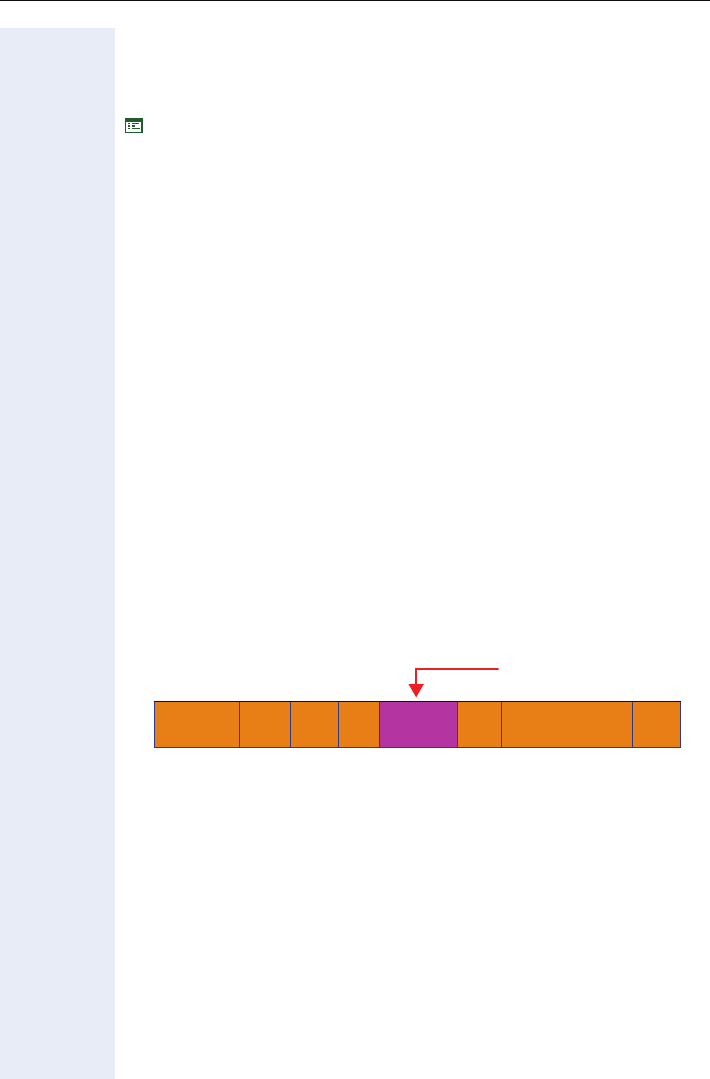
Alphabetical Reference
208
QDC Port
Enter port address of the Quality Data Collection Server. For more informa-
tion refer to HiPath QoS Data Collection V1.0 Interface Description.
Æpage 142
Quality of Service (QoS)
The QoS technology based on layer 2 and the two QoS technologies Diff-
serv and TOS/IP Precedence based on layer 3 are allowing the VoIP appli-
cation to request and receive predictable service levels in terms of:
•data through put capacity (bandwidth)
•latency variations (jitter)
•and delay.
Please note that all these technologies are just marking packets which al-
low the network to classify and prioritize the packets accordingly. This
means that the network decides which QoS configuration (marking) will be
used and should be set in the endpoints. The default values are well known
recommendations.
Layer 2 / 802.1p
QoS on layer 2 is using 3 Bits in the 802.1q/p 4-Byte VLAN Tag which has
to be added in the Ethernet header..
The CoS (class of service) value can be set from 0 to 7. The value 7 is de-
scribing the highest priority and is reserved for network management. Val-
ue 5 is used for voice (RTP-streams) by default. Value 3 is used for signaling
by default.
Layer 3 / Diffserv
Diffserv is classifying traffic flows, like voice (RTP-streams) or signaling
messages into 2 per-Hop-Behavior groups:
1. Expedited Forwarded (EF referred to RFC 2598)
Expedited forwarded is used for voice (RTP-streams) by default.
• High priority traffic to be handeled at the arrival rate
• DSCP value: 1 0 1 1 1 0 (DSCP = Diffserv Codepoint)
• Effectively creates a special low-latency path in the network
2. Assured Forwarding (AF referred to RFC 2597)
Three Bits Used for CoS
(User Priority)
PREAM. SFD DA SA TAG
4 Bytes PT DATA FCS
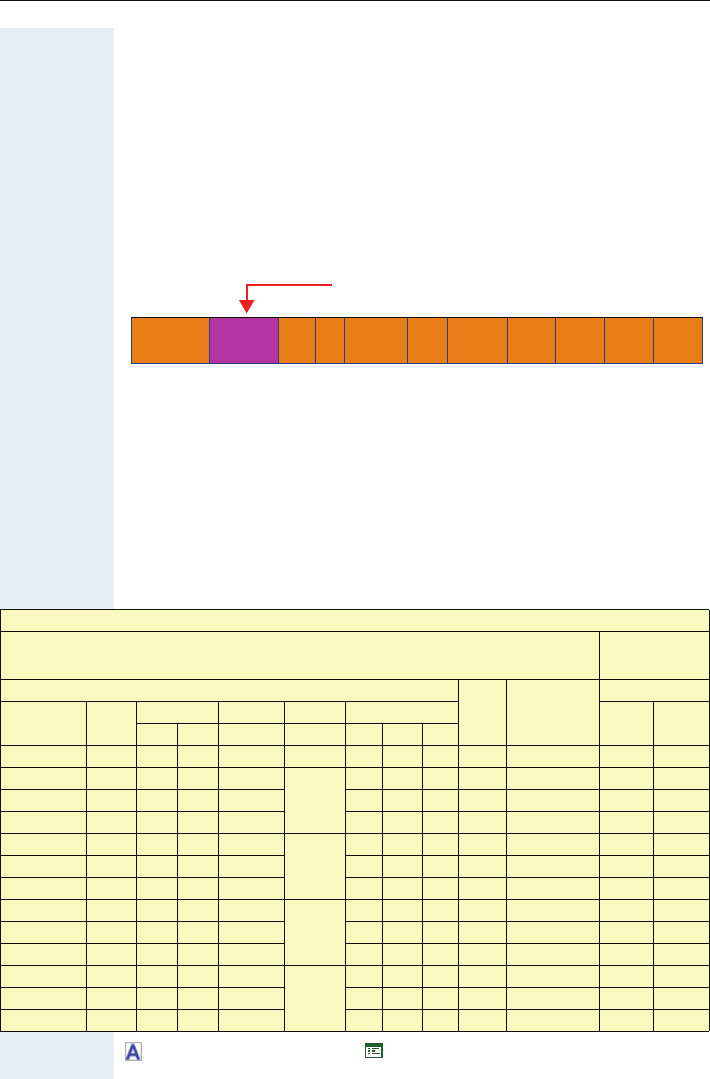
Alphabetical Reference
209
Assured forwarding is used for signaling messages by default (AF31) and
less stringent than EF in a multiple dropping system.
The AF values are containing two digits X and Y (AFXY), where X is describ-
ing the priority class and Y the drop level.
Four classes X are reserved for AFXY: AF1Y (High Priority), AF2Y, AF3Y and
AF4Y (Low Priority).
Three drop levels Y are reserved for AFXY: AFX1 (low drop level), AFX2 and
AFX3 (High drop level). In the case of low drop level, packets are buffered
over an extended period in the case of high drop level, packets are prompt-
ly rejected if they cannot be forwarded.
Layer 3 / IP Precedence (old recommendation, replaced by Diffserv)
IP Precedence is classifying traffic flows into 8 different precedence levels.
These 3 Bits are the same as the priority Bits from Diffserv. Value 5 (BIN:
101) is used for voice by default. And value 3 (BIN: 011) is used for signaling.
These values are already configured by configuring the DiffServ values.
If a routing partner can only work with one of the two standards (DiffServ
or IP precedence, for example an older router that only works with IP pre-
cedence), than the router can translate the ToS field accordingly. This can
be set for each PSTN peer or LAN interface.
Æpage 58 and Æpage 46 Æpage 117
Standard IPV4: Three MSB Called IP Precedence
(DiffServ Uses Six MSB Bits)
Version
Length
To S
1 Byte Len ID Offset TTL Proto FCS IP-SA IP-DA Data
QoS
IP header Ethernet-
Header
DiffServ
versus IP Precedence
IEEE802.1p
Diffserv-
Codepoint Binary
Decimal Hex (8Bit) Drop level
Binary Decimal6-Bit 8-Bit To S Fi eld Priority high med low
EF 101110 46 184 B8 very high x<-> 101 101 5
AF 43 100110 38 152 98
high
x<-> 100 100 4
AF 42 10010 0 36 144 90 x<-> 10 0 100 4
AF 41 100 010 34 136 88 x<-> 10 0 100 4
AF 33 011110 30 120 78
medium
x<-> 011 011 3
AF 32 01110 0 28 112 70 x<-> 011 011 3
AF 31 011010 26 104 68 x<-> 011 011 3
AF 23 010110 22 88 58
low
x<-> 010 010 2
AF 22 010100 20 80 50 x<-> 010 010 2
AF 21 010 010 18 72 48 x<-> 010 010 2
AF 13 0 01110 16 64 38
very low
x<-> 001 001 1
AF 12 001100 12 48 30 x<-> 001 001 1
AF 11 0 01010 10 40 28 x<-> 001 001 1

Alphabetical Reference
210
RAM test
• Use this function to test the ÆRAM memory of your optiPoint 410/
420 family S V7.0.
• The results are displayed after the test.
Æpage 95 Æpage 139
Register by terminal name
• If set to "On", the phone will send REGISTER messages which contain
the contents of the Terminal Name field Æpage 223. If set to "Off", the
phone will send REGISTER messages which contain the contents of
the Terminal Number field Æpage 224.
• Editing by phone: Switch Editor Æpage 157.
Æpage 61 Æpage 115
Registration LEDs
• This option determines whether the line LEDs will be lit to show if they
have been registered successfully when the phone starts up. If set to
be On then as each line is successfully registered its LED will be set
ON.
Æpage 69 Æpage 123
Alphabetical Reference
211
Registration timer value
• This field determines whether the phone sends an expires header in
the REGISTER messages that it sends, and if so, to what value it sets
it. The expires header in a REGISTER is a suggestion to the Registrar
server of how long it should be before the phones registration expires.
To stop its registration from expiring, the phone has to send another
REGISTER to the Registrar before its current one has expired. The ex-
pires value which the phone sends is only a suggestion - the actual val-
ue to be used will be supplied to the phone by the Registrar in the OK
message that it sends in response to the REGISTER. Normally this will
be the same as the value that the phone has suggested, but if the sug-
gested value is outside the Registrars range of acceptable values, then
it could be different.
• The phone actually adds 60 seconds to the value that is puts into the
expires header, so that if the REGISTERs that it sends get delayed be-
cause of a congested network, they will still arrive at the Registrar be-
fore the registration expires.
• As an example, if 10 seconds is entered as the Registration Timer val-
ue, the REGISTER messages that the phone sends will have an expires
header of 70 seconds (10 + 60). If 70 seconds is lower than the Regis-
trars lowest acceptable value, it will ignore the suggested value and
send back its lower limit value, e.g. 90 seconds. The phone will sub-
tract 60 seconds from this, and use that as the amount of time to wait
before sending its next REGISTER, so 30 seconds (90 - 60) later it will
send out its next REGISTER.
• If the Registration Timer is set to 0, the phone will not put an Expires
header into the REGISTER messages that it sends - i.e. it will not make
any suggestion to the Registrar of how long it would like the registra-
tion to remain valid.
• Value range table:
• Editing by phone: Number Editor Æpage 157.
Æpage 62 Æpage 115
Reservation Timer
Determines the timeframe for which a line remains reserved for a user
who is dialling; after this timeframe another user who’s phone is using the
same line can access the line.
Æpage 69 Æpage 123
Ringer Settings
• See Alert indication Æpage 163.
Permitted values alphanumeric
Range 0, 10 ... 4320 seconds
Default value 3600 seconds

Alphabetical Reference
212
Rollover type
The Rollover ring setting will be used if the Keyset is currently active in a
call when an incoming call arrives on a different line.
Selectable rollvover types are:
• 1=No ring
• 2=Alert ring
• 3=Standard ring
• 4=Alert beep
Æpage 69 Æpage 123
Rollover Volume
While you are active on one line of a keyset telephone, the rollover ringing
feature signals additional incoming calls on other lines. The volume can be
set from 1 to 5. For more information see operating manual.
Æpage 69 Æpage 123
ROM test
• Use this function to test the ÆROM memory of your optiPoint 410/
420 family S V7.0.
• The results are displayed after the test.
Æpage 95 Æpage 139
RTP packet size
Use this function to define the RTP G711/G729 packet size. Options are:
• Auto recognition
• 10 milliseconds
• 20 milliseconds
Æpage 93 Æpage 121
RTP Version
Shows the version of RTP of the optiPoint 410/420 family S V7.0.
Æpage 94
Secondary DNS IP address
See “Primary DNS IP address“.

Alphabetical Reference
213
Self Labelling keys test
Every dummy in the label is tested, whether he is writeable (only for opti-
Point 420).
Æpage 96 Æpage 140
Send Generic Traps to Management Center
Allows the user to control whether or not the phone sends generic (stan-
dardised) traps to the management center (see Æpage 219).
Æpage 121
Send QDC Traps to Management Center
Allows the user to control whether or not the phone sends QCD (Quality
Data Collection) traps to the management center (see Æpage 219).
Æpage 121
Short description
Is the line name in DSM line overview and call view. Can only be set by ad-
ministrator in web interface.
Æpage 128
Show focus
The Show focus option allows a Keyset to be set so that the LED of the
line that is currently being shown in the display flutters to identify it.
Æpage 69 Æpage 123
Alphabetical Reference
214
SIP addresses
• Use this function to define the following IP addresses or host names.
• Value range table:
• Editing by phone: IP Number Editor Æpage 159 and if DNS is applica-
ble Æpage 41 also Text Editor Æpage 155.
Æpage 62 Æpage 115
SIP Auto answer
• This setting controls whether or not alerting calls can obey any auto-an-
swer request signalled for the call. Automatic answering will only apply
to the primary line of a Keyset. Mark this option enabled/disabled.
• When you dial a number using the CTI application while “Auto Answer”
is activated, the telephone automatically switches to handsfree mode.
If “Auto Answer” is deactivated, the telephone will ring first and you
must then press the loudspeaker key or lift the handset to dial the num-
ber and set up the connection to the other station.
Æpage 64 Æpage 116
IP address Use
SIP Server IP address or host name and port of the SIP proxy
server (Hipath 8000).
SIP Registrar This field is only used when the phone is in "Server"
routing mode Æpage 216. It contains the IP address
or host name and port of the registration server, to
which the phone will send REGISTER messages. Ei-
ther an IP address or a host name may be entered.
With an address entered in the SIP Registrar field,
the phone will register and be able to receive incom-
ing calls, but in order to make outgoing calls it is also
necessary to enter an address into the SIP Server
field (see above).
SIP Gateway
and Port
IP address or host name and port of the SIP gate-
way. E.g. for a hardware box to phone directly into
the public network (conversion of SIP to TDM). SIP
routing has to be set to "Gateway" for this function.
SIP Port Access base IP port for receiving & sending SIP
messages.
RTP Base Port Access base IP port for RTP transport.
Permitted values numeric (with DNS also alphanumeric)
Length max. 15 digits (incl. dots)
(with DNS also 92 digits)
Alphabetical Reference
215
SIP Auto reconnect
• This setting controls whether or not a toggle (or alternate) between the
active call and held call can be signalled to the phone and be automat-
ically applied. Automatic reconnect will only apply to the primary line of
a Keyset. Mark this option enabled/disabled.
• Use this option for placing a call on hold and for retrieving it again using
both a CTI application and the telephone.
Æpage 64 Æpage 116
SIP Beep on auto answer
• This setting controls whether or not beeping is heard (via the current
audio path) when an alerting call is auto-answered. Mark this option en-
abled/disabled.
Æpage 64 Æpage 116
SIP Beep on auto reconnect
• This setting controls whether or not beeping is heard (via the current
audio path) when a toggle (or alternate) between the active call and
held call occurs automatically. Mark this option enabled/disabled.
Æpage 64 Æpage 116
SIP password
• Value range table:
• Editing by phone: Password Editor Æpage 158.
Æpage 62 Æpage 115
SIP realm
• This field displays the realm that the phone is registered in.
• Authentication
• Value range table:
• Editing by phone: Text Editor Æpage 155.
Æpage 62 Æpage 115
Permitted values alphanumeric
Length min. 6 digits
Length max. 24 digits
Permitted values alphanumeric
Length max. 92 digits
Alphabetical Reference
216
SIP routing
• When "Server" is selected, the phone will send REGISTER messages
to the Registrar server, whose address is in the SIP Registrar field.
• If "Gateway" is selected, the gateway address of e.g. a hardware box is
used to phone into the public network (direct conversion of SIP to
TDM). When The phone will not send REGISTER messages.
Æpage 62 Æpage 115
SIP server type
• Select the according server type:
–HiQ8000
–Broadsoft
– Sylantro
–Other
Æpage 62 Æpage 115
SIP server validation
If this function is activated, a server certificate is requested and validated
during the HiPath 8000 registration.
Æpage 96 Æpage 144
SIP session timer value
• The expiration time for the session is set via the system/SIP Session
Time value. This value is ignored if the SIP Session Timer is not en-
abled. The RFC standard defines a Minimum expiry time which is 90
sec. For detailed information see RFC 4028 paragraph 4.
• Value range table:
• Editing by phone: Number Editor Æpage 157.
Æpage 62 Æpage 115
Routing type Use
Server If a SIP proxy server is used.
Gateway If a gateway is used.
Permitted values numeric
Range 90 ... 3600 seconds (recommended: 1800)
Dafault value 3600 seconds

Alphabetical Reference
217
SIP session timer enabled
• The phone supports the SIP draft ietf-sip-session-timer-08. For detailed
information relating to this draft please see http://www.ietf.org.
Session timers provide a basic keep-alive mechanism between 2 user
agents or phones. This mechanism can be useful to the endpoints con-
cerned or for stateful proxies to determine that a session is still alive.
This is achieved by the phone sending periodic re-INVITEs to keep the
session alive. The interval for the re-INVITEs is determined through a
negotiation mechanism defined in the above draft. If a re-INVITE is not
received before the interval passes, the session is considered termi-
nated. Both phones are supposed to terminate the call, and stateful
proxies can remove any state for the call.
• This feature is sufficiently backward compatible such that only one end
of a call need understand the draft and implement the SIP extensions
for it to work.
• Default value: Off.
This is because some server environments support their own mecha-
nism for auditing the health of a session (e.g. Broadsoft).
• Editing by phone: Switch Editor Æpage 157.
Æpage 62 Æpage 115
SIP Signalling Version
• Shows the version of SIP signalling of the optiPoint 410/
420 family S V7.0.
Æpage 94
SIP Stack Version
• Shows the version of the SIP stack of the optiPoint 410/
420 family S V7.0.
Æpage 94
SIP Transport
• Use this function to define the transport protocol.
Æpage 62 Æpage 115
Protocol Use
UDP Use ÆUDP for SIP messages.
TCP Use ÆTCP for SIP messages.
TLS ÆTLS requires the optiPoint 410/420 family S V7.0
to have a Root certificate.
Alphabetical Reference
218
SIP user ID
•User name
• Value range table:
• Editing by phone: Text Editor Æpage 155.
Æpage 62 Æpage 115
SNMP MIB2 errors
Lists the following packets:
• Discarded inbound packets
• Invalid inbound packets
• Discarded outbount packets
• Invalid outbound packets
Æpage 121
SNMP password
• Specify the password that was defined in the ÆSNMP server as the
password for accessing this server.
• Value range table:
• Editing by phone: Password Editor Æpage 158.
Æpage 92 Æpage 121
SNMP Queries Allowed
Allows the user to control whether or not the phone responds to ÆSNMP
queries received from an SNMP manager.
Æpage 121
Permitted values alphanumeric
Length max. 92 digits
Permitted values alphanumeric
Length max. 24 digits
Default value public
Alphabetical Reference
219
SNMP Trap IP address or DNS name
•If an ÆSNMP server exists in the network, enter the ÆIP address or
host name of this server (also called "Management Center").
• Value range table:
• Editing by phone: IP Number Editor Æpage 159 and — if DNS is appli-
cable Æpage 41 — also Text Editor Æpage 155.
Æpage 92 Æpage 121
SNTP server address or DNS name
•If an ÆSNTP server exists in the network, enter the ÆIP address or
host name of this server.
• Value range table:
• Editing by phone: IP Number Editor Æpage 159 and — if DNS is appli-
cable Æpage 41 — also Text Editor Æpage 155.
Æpage 67 Æpage 120
Survivability Backup Address
IP address of the backup server. Has to be entered manually as it cannot
be retrieved via DHCP.
• Value range table:
Editing by phone: IP Number Editor Æpage 159.
Æpage 100 Æpage 147
Survivability Backup Port
The "Backup port" option displays the port number used for SIP communi-
cation with the backup proxy server port.
Æpage 100 Æpage 147
Permitted values numeric (with DNS also alphanumeric)
Length max. 15 digits (incl. dots)
(with DNS also 92 digits)
Permitted values numeric (with DNS also alphanumeric)
Length max. 15 digits (incl. dots)
(with DNS also 92 digits)
Permitted values numeric
Length max. 15 digits (incl. dots)

Alphabetical Reference
220
Survivability Backup Registration
The "Backup registration" option indicates whether or not the phone treats
the Backup proxy server as a SIP .Registrar. If the setting is 'On', the phone
tries to register its SIP address with the Backup proxy server.
Æpage 100 Æpage 147
Survivability Backup Registration Timer
The "Backup Reg Timer" option displays the duration of the SIP registration
requested by the phone when it registers with the backup proxy server.
Note. The phone only registers with the backup proxy if the "Backup regis-
tration" setting is 'On'.
Æpage 100 Æpage 147
Survivability Backup OBP
The "Backup OBP flag" indicates whether or not the Backup Proxy Server
is used as an outbound proxy.
Æpage 100 Æpage 147
Survivability Backup Transport
The "Backup transport" option displays the current transport protocol used
to carry SIP messages to the Backup proxy server.
Options:
•TCP
•UDP
UDP is prepared.
Æpage 100 Æpage 147
System Name
• See “Branding/Identity name“.

Alphabetical Reference
221
Terminal Hostname
• This field ist provided with the E164 number but you can change it. En-
ter a new hostname for the telephone. The hostname is transmitted to
the DHCP server together with the MAC address while the telephone
registers at the DHCP server. The DHCP server sends an IP address to
the telephone; at the same time, it transmits this IP address together
with the host name to the DNS server, where this association is regis-
tered. Within the DNS server's range, the telephone can now be ad-
dressed using its host name.
• If Mobility is unsing, the hostname is overwriten by the current E164
number of the Mobility user if the option "Use E164 as hostname" is
enabled. The new hostname can be used to open the WBM of the
phone in the browser.
• DHCP has to be activated to enable this feature.
Scenarios for "Terminal Hostname" handling:
• In the default state, the option "Use E164 as hostname" is activated and
the default host name set. If the E164 entry is input or modified, this
value is transferred to the "Terminal Hostname" field.
• The terminal host name can be modified by the administrator, even if
the option "Use E164 as hostname" is activated. This modification is
possible both via the telephone menu and via the web interface.
• Modification for a mobile user is only possible via DLS if the option
"Use E164 as hostname" is deactivated.
• Once a value has been entered to the "Terminal Hostname" field, it is
no longer possible to set this field to ZERO, not even via DLS.
• If a terminal host name is to be modified via DLS, the option "Use E164
as hostname" must be deactivated for this purpose.
• If the option "Use E164 as hostname" is activated for a mobile user, the
E164 number of the mobile user is entered to the "Terminal Hostname"
field when the data is downloaded.
• If the option "Use E164 as hostname" is deactivated for a mobile user,
the value in the "Terminal Hostname" field is not modified when the
data is downloaded. This can be useful when a device name is as-
signed to the IP address in the DNS, for example.
• If the option "Use E164 as hostname" was deactivated for a basic user,
the value stored in the "Terminal Hostname" field is used when the data
is downloaded (e.g. device name).
Alphabetical Reference
222
• If the option "Use E164 as hostname" was activated for a basic user, the
E164 number of the basic user is entered to the "Terminal Hostname"
field when data is downloaded.
Æpage 57 Æpage 114
Overview of the HostName handling on normal operation mode
action FLAG
E-164
SET
Host
Name:
Change
FROM
Host
Name
TO
E-164
Change
FROM
E-164
TO
Host-
Name
Result
Remark
Change Hostame N A B 1 1 B
Change E164 # N A A 1 2 A
Change Hostame Y A B 1 1 B
Change E164 # Y A A 1 2 2
Overview of the HostName handling on Mobility operation mode
action FLAG
E-164
SET
Host
Name
MOB
E-164
MOB
Host
Name
Basic
E-164
Basic
HN
during
logon
Result
Remark
Log on MOB user N NULL 3 A 2 A
No change of host-
name, Phone will send
a HN to DLS for Mobile
user
Log on MOB user N C 3 A 2 A No change of hostname
Log on MOB user Y NULL 3 2 2 3 After mob logoff MOB-
HN = MOB-E164
Log on MOB user Y C 3 2 2 C
Alphabetical Reference
223
Terminal IP address
• Enter the ÆIP address for the optiPoint 410/420 family S V7.0 if not
provided by ÆDHCP dynamically (ÆDHCP IP assignment).
• If the value was assigned dynamically, it can only be read.
• The change will only have effect if you restart the phone.
• Value range table:
• Editing by phone: IP Number Editor Æpage 159.
Æpage 57 Æpage 114
Terminal mask
• Enter the ÆSubnet Mask for the optiPoint 410/420 family S V7.0 if not
provided by ÆDHCP dynamically (ÆDHCP IP assignment).
• If the value was assigned dynamically, it can only be read.
• The change will only have effect if you restart the phone.
• Value range table:
• Editing by phone: IP Number Editor Æpage 159.
Æpage 57 Æpage 114
Terminal name
• The phone will send REGISTER messages containing the contents of
this parameter, but only when the Register by Name field Æpage 210
is set to "On" and the SIP Routing field Æpage 216 is set to "Server".
• Whether this parameter is used, depends on the configuration of the
registrar server.
• Value range table:
• Editing by phone: Text Editor Æpage 155.
Æpage 61 Æpage 115
Permitted values numeric
Length max. 15 digits (incl. dots)
Permitted values numeric
Length max. 15 digits (incl. dots)
Permitted values alphanumeric
Length max. 92 digits

Alphabetical Reference
224
Terminal number
• The phone will send REGISTER messages containing the contents of
this parameter, but only when the Register by Name field Æpage 210
is set to "Off" and the SIP Routing field Æpage 216 is set to "Server".
• Whether this parameter is used, depends on the configuration of the
registrar server.
• Value range table:
• Editing by phone: Number Editor Æpage 157.
Æpage 61 Æpage 115
Terminating line preference
Terminating Line selection – provides connection of the phone to one of
the lines appearing on it, on an automatic basis when calls are alerting or
ringing (audible) and the user goes off-hook. There are five terminating op-
tions.
A Keyset is assigned one of the following preferences.
•Ringing Line Preference – A line in the ringing state is selected for ter-
minating calls. In the case of multiple lines, lines shall be selected on a
first-in, first-out basis.
•Ringing Line Preference with prime line preferred – Same as Ring-
ing Line Preference, but if the prime line is ringing at any time it is sig-
naled and selected before calls on secondary lines.
•Incoming Line Preference – In the case of multiple lines alerting or
ringing on a device, an incoming line is selected based on its ringing as-
signment. Ringing lines are selected on a first-in, first-out basis first,
then alerting (visual only) lines are selected on a first-in, first-out basis.
•Incoming Line Preference with prime line preferred – Same as In-
coming Line Preference, but if the prime line is ringing at any time it is
signaled and selected before calls on secondary lines. Prime line must
have ringing arrangement.
•No (Terminating) Line Preference – A line key must be pre-selected
or post-selected each time the user elects to answer a call.
Select the according terminating line preference:
– Ringing
– Incoming
– Incoming PLP
– Ringing PLP
– None
See also Originating line preference on Æpage 204.
Æpage 69 Æpage 123
Permitted values numeric
Length min. 1 digit
Length max. 20 digits

Alphabetical Reference
225
Time zone offset
• The specification describes the shift in hours corresponding to the time
zone information of the SNTP server.
• Make an entry only if an ÆSNTP server provides time zone informa-
tion.
• Value range table:
• Editing by phone: Offset Editor Æpage 161.
Æpage 67 Æpage 120
Timer High Priority
Set the delay in seconds after the last high priority item change before sav-
ing the changes to the DLS.
• Causes time out before saving high prioity user data.
• Vaulue range: 0 to 999
Æpage 102 Æpage 134
Timer Medium Priority
Set the delay in seconds after the last medium priority item change before
saving the changes to the DLS. Used in confjunction with the Medium Pri-
oity peg count threshold.
• Timeout before saving medium priority user data
• The value has to be a number in the range 1 to 999
Æpage 102 Æpage 134
Transaction timer
The Transaction Timer sets the amount of time that the phone will wait for
a response to any SIP request that it sends. The time value is in millisec-
onds and the user can enter any value between 3000 and 32000. The de-
fault value is 32000 milliseconds.
Æpage 66 Æpage 115
Permitted values numeric
min. -12
max. +12
Default value 0

Alphabetical Reference
226
Transfer on hangup
1. If ”Transfer on hangup = no”, the action is depending on the direction
of the involved calls:
2. If ”Transfer on hangup = yes”, two calls can be connected by releasing
the handset
• The ”Transfer on hangup” option does not control the availability of the
transfer (blind, ringing, attended)
• The ”Transfer on hangup” option does not control the availability of the
”Join” option provided by the local phone menu. For example, if
”Transfer on hangup = no”, then it is possible to connect one active and
one held call by selecting the ”join” via optiGuide. Note that ”Join” is
only offerered for two incoming calls – otherwise it is called ”Complete
Transfer”.
• The default for the administration option and for the user option shall
be ”on”.
The adminstration option is controlled via DLS
Æpage 64 Æpage 116
Transfer on Ringing
If this function is active, a consultation can be transferred after you have
dialled the third participant’s number, but before the third party has an-
swered the call.
Æpage 64 Æpage 116
Unauthorised Logoff Trap
Determines wheter or not the phone sends an ÆSNMP trap whenever
the DLS notifies the Phone of an unauthorised logoff attempt.
Æpage 102 or Æpage 134 or Æpage 121
1.st call 2nd. call action
Incoming Incoming the active call is released, the held call
is re-presented.
outgoing incoming the active call is released, the held call
is re-presented
Incoming outgoing the calls are joined
outgoing outgoing the calls are joined

Alphabetical Reference
227
Upload Configuration
• Use this function to save (back up) an optiPoint 410/420 family S V7.0
configuration on the ÆFTP server.
• The following parameters must be set before the upload operation:
–ÆDownload server IP address or DNS name, ÆFTP path,
ÆConfiguration download filename
–ÆFTP account name
–ÆFTP username, ÆFTP password
Æpage 76 Æpage 138
Upload/Download Status
Shows the status of the following downloads with the date of the last
transfer:
• Application file download
• Configuration file download
• Configuration file upload
• Hold music file download
• System configuration download
• Phone configuration download
• Personal directory import
• Personal directory export
Æpage 91 Æpage 113
Use deployment service (DLS)
Allows the administrator to manually set the download mechanism to be
the deployment service (DLS).
Æpage 88 Æpage 135
Use dynamic hostname concept
This option is to be considered in combination with the entry in the "Termi-
nal Hostname" field. Further information is provided on Æpage 221.
Æpage 57 Æpage 114
Alphabetical Reference
228
Use secure/non-secure configuration download
Allows the administrator to manually set the configuration download
mechanism to be secure (HTTPS) or non-secure (FTP).
Æpage 88 Æpage 135
Versions Info
• Displays some telephone versions like:
– Application version
– SIP stack version
– SIP signalling version
– RTP version
– Web content
• The application version identifies the release level of the loaded soft-
ware. The others relate to versions of internal software components.
Æpage 91 Æpage 113
VLAN discovery method
• Can be defined only if the ÆLayer 2 support is activated (ÆQuality of
Service (QoS)).
• Use this function to define the location from where the ÆManual
VLAN identifier should be fetched, if ÆVLAN is used.
Æpage 59 Æpage 117
Voicemail number
• The number of where your voice mail server is located.
• Value range table:
• Editing by phone: Number Editor Æpage 157.
Æpage 66 Æpage 115
Manual The ID entered in ÆManual VLAN identifier is used.
DHCP If a ÆDHCP server is used, then the ID delivered by
this server is applied.
Permitted values numeric
Length max. 20 digits

Alphabetical Reference
229
WAP Connection Type/mode
• Choose the protocol over which the data transfer should take place for
ÆWAP applications: ÆHTTP or ÆWSP.
Æpage 81 Æpage 137
WAP proxy Password
Allows the user password on the WAP server to be changed.
. Æpage 81 Æpage 137
WAP Server Address
•If a ÆWAP server exists, enter the ÆIP address of this server here.
• Standard address Æpage 243.
• IP editor in optiPoint 410/420 Æpage 159.
Æpage 81 Æpage 137
WAP Server Port Number
•If a ÆWAP server exists, enter the ÆPort number for communication
with this server here.
• Standard value .Æpage 243.
• Number editor in optiPoint 410/420 Æpage 157.
Æpage 81 Æpage 137
WAP proxy Username
Allows the username on the WAP Server to be specified
. Æpage 81 Æpage 137

Alphabetical Reference
230
Abbreviations and Specialized Terms
You will find more information in the relevant literature on the Network
Technology and ÆVoIP.
DHCP
Abbreviation for "Dynamic Host Configuration Protocol".
The DHCP is an Ethernet protocol that allows for the automatic configura-
tion of IP based endpoints. Additional information see Æpage 38.
DNS
Abbreviation for "Domain Name System".
Additional information see Æpage 41.
DTMF
Abbreviation for "Dual Tone Multi Frequence".
DLS
The Deployment and Licensing Server (DLS) is a HiPath Management ap-
plication that provides an integrated solution for the customers and the
service personal to administer workpoints (that are optiClients and opti-
Point devices) in HiPath- and non-HiPath networks
EAP
Extensible Authentication Protocol
FTP
Abbreviation for "File Transfer Protocol".
Is used for transferring files in networks, e.g., to update telephone soft-
ware (ÆDownload Application).
G.711
Audio protocol for uncompressed voice transmission. Requires a band-
width of 64 kbit/s.
G.722
The G.722 recommendation describes ADPCM coding with a sub-band.
The bandwidth for the sub-band is 7 kHz at a sampling rate of 16 kHz. The
transfer rate is 64 kbps, voice quality has a MOS rating of 4.5 which is quite
high.
G.723
Audio protocol for compressed voice transmission. The quality is worse
than in ÆG.711 and ÆG.729. Requires a bandwidth of about 6 kbit/s.

Alphabetical Reference
231
G.729
Audio protocol for compressed voice transmission. The quality is worse
than in ÆG.711 and better than in ÆG.723. Uses a bandwidth of about 8
kbit/s.
Gateway
Mediation components between two different network types, e.g., ÆIP
network and ISDN network.
HTTP
Abbreviation for "Hypertext Transfer Protocol".
Protocol for the transfer of data in ÆIP networks.
IP
Abbreviation for "Internet Protokoll".
IP address
Also called "ÆIP" in short. The unique address of a terminal device in the
network. It consists of four number blocks of 0 to 255 each, separated by
a point. To simplify the notation, voice names can be released from a
ÆDNS into the IP addresses.
Jitter
Runtime fluctuations in data transmission in ÆIP networks.
LAN
Abbreviation for "Local Area Network".
Layer 2
2nd layer (Data Link Layer) of the 7-layer OSI model for describing data
transmission interfaces.
Layer 3
3rd layer (Network Layer) of the 7-layer OSI model for describing the data
transmission interfaces.
LCD
Abbreviation for "
L
iquid
C
rystal
D
isplay".
Display of numbers, text or graphics with the help of liquid crystal technology.

Alphabetical Reference
232
LDAP
Abbreviation for "Lightweight Directory Access Protocol".
Simplified protocol for accessing standardized directory systems, e.g., a
company telephone directory.
LED
Abbreviation for "Light Emitting Diode".
Cold light illumination in different colours at low power consumption.
MAC
Abbreviation for "Medium Access Control Address".
A 48-bit address with the help of which a terminal device (e.g., ÆIP tele-
phone or Network card) identifies itself uniquely in a network all over the
world.
MIB
Abbreviation for "Management Information Base".
Database containing descriptions of error messages of the devices and
functions in a network.
PBX
Abbreviation for "Private Branch eXchange".
Private telephone system that connects the different internal devices to
the ISDN network
PING
Abbreviation for "Packet Internet Groper".
A program to test whether a connection can be made to a defined
ÆIP target. Data is sent to the target and returned from there during the
test. The result of the test displays the success / failure of the transmission
and possible additional information such as the transmission time.
PoL
Abbreviation for "Power over LAN".
Port
Ports are used in ÆIP networks to permit several communication connec-
tions simultaneously. Different services often have different port numbers.
QoS
Abbreviation für „Quality of Service".
Additional information see Æpage 46.

Alphabetical Reference
233
RTCP
Abbreviation for "Realtime Transport Control Protocol".
RTP
Abbreviation for "Realtime Transport Protocol".
RAM
Abbreviation for "Random Access Memory".
Memory with read / write access.
ROM
Abbreviation for "Read Only Memory".
Memory with read only access.
SDP
Abbreviation for "Session Description Protocol ".
SIP
Abbreviation for "Session Initiation Protocol".
Protocol standard for initialising calls in ÆIP networks. Additional informa-
tion see Æpage 34.
SNMP
Abbreviation for "Simple Network Management Protocol".
The protocol is used for communication with servers that takeover net-
work management functions. This includes for example, protocolling er-
rors that occur in network components (SNMPTrap). Additional information
see Æpage 43.
SNTP
Abbreviation for "Simple Network Time Protocol".
The protocol is used between timeservers and terminal devices of a net-
work to synchronize the time of the terminal device. Additional information
see Æpage 43.
SRTP
The Secure Real-time Transport Protocol is a profile of the Real-time Trans-
port Protocol (RTP), which can provide confidentiality, message authenti-
cation, and replay protection to the RTP traffic and to the control traffic for
RTP, the Real-time Transport Control Protocol (RTCP). More Information
see RFC 3711..

Alphabetical Reference
234
Subnet Mask
Classifies networks in A-, B- and C networks. Each class has a subnet
mask that demasks the relevant bits. 255.0.0.0 for Class A, 255.255.0.0 for
Class B and 255.255.255.0 for Class C. In a Class C network, for instance,
there are 254 ÆIP addresses.
Switch
Network device that selects a path or circuit for sending data to its next
destination. A switch may also include a router function.
TCP
Abbreviation for "Transmission Control Protocol".
TLS
Abbreviation for "Transport Layer Security".
This protocol ensures privacy between communicating applications.
UDP
Abbreviation for "User Datagram Protocol".
VLAN
Abbreviation for "Virtual Local Area Network".
Additional information see Æpage 44.
VoIP
Abbreviation for "Voice over IP".
E.g., voice transmission through ÆIP technology.
WAP
Abbreviation for "Wireless Application Protocol".
Synonym for graphical applications on mobile telephones, organizers and
other suitable terminal devices, transferred in accordance with the proto-
col by the same name.
WSP
Abbreviation for "Wireless Session Protocol".
Protocol for transferring data to ÆWAP-enabled terminal devices.

Troubleshooting
235
Troubleshooting
General Troubleshooting Tips
The suggestions in this section are general troubleshooting tips.
• If using a ÆDHCP server, make sure that it is operating correctly. The
DHCP server should show an incoming request from the ÆMAC ad-
dress listed on the product label.
• If you do not see the idle menu after you connect the Ethernet cable,
make sure the power cord and the Ethernet connection are secure.
• If you do not hear a dial tone, make sure that the telephone-handset
line cord is plugged into the IP Phone port. Also make sure that the ap-
propriate Ethernet cable (crossover or straight-through) is used, and
that all cable connections are secure.
• A fast-busy tone indicates that the number you called is not valid or that
external circuits are busy. Verify the number or try your call again later.
• If you place a call to another IP telephone, hear ringback, and the called
party answers but you cannot hear the speaker’s voice ("Incompatible
terminal"), verify that the optiPoint 410/420 family S V7.0 and the other
IP telephone support at least one common audio codec Æpage 165.
• In some cases it can be useful if you perform a update of the phone’s
software Æpage 74.
Fault Finding
This section provides guidance of identifying the source of a problem
which is affecting the phones ability to function correctly. The user display
can provide some basic information which helps this process.
A description of the various faults that are displayed and possible actions
are described below.
Display reported faults
No Network
• Ensure that the network hub or switch that the phone’s is connected
to is turned on and that the Hub/Switch port the phone is connected to
is active and correctly configured.
• Try using a different network cable.

Troubleshooting
236
No DHCP Server
• Ensure that the phone’s DHCP setting is correctly configured
Æpage 175.
• Check the phone’s VLAN ID is correct Æpage 203. If the phone’s VLAN
is provided by DHCP check that the phone successfully discovers a
VLAN on start-up.
• Ensure that the DHCP server is on the same VLAN as the phone.
• Confirm the L2 QoS settings are correctly configured Æpage 193 and
match those configured in network components.
• Check that the DHCP Server is active and correctly configured and has
enough free leases.
• Check the configuration of the network switch’s port which the phone
is connected to. If the network is using VLANs ensure that the switch’s
port is configured for the same VLAN as the phone.
No Server Set
• Ensure that the both the SIP Server and SIP Registrar addresses are
correctly configured Æpage 214.
No Registrar Set
• Ensure that the SIP Registrar address is correctly configured
Æpage 214.
No Sip Gateway Set
• Ensure that the SIP Gateway address is correctly configured
Æpage 214.
No Name Set
• Ensure that the Terminal Name is correctly configured Æpage 223.
• Ensure that the "Register By Name" setting Æpage 210 is correct. This
should be "On" if the phone is using the Terminal name and "Off" if the
phone is using the Terminal Number.
No Terminal address set
• Ensure that the Terminal Number is correctly configured.
• Ensure that the Register By Name setting is correct. This should be
"On" if the phone is using the Terminal Name and "Off" if the phone is
using the Terminal Number.
No SIP Password
• Ensure that the SIP Password is correctly configured Æpage 215.

Troubleshooting
237
No Server…
• Ensure that the Server/ Registrar addresses are correctly configured
Æpage 214 and can be pinged Æpage 207 – do not attempt to ping
domain names used when configuring the phone for DNS-SRV.
If the SIP Server or SIP Registrar can not be pinged and are configured
as host names see Æpage 242.
• Ensure that the phone is displaying the same time as the SIP Server. If
not see Æpage 242.
• Ensure that the "Register By Name" setting Æpage 210 is correct. This
should be "On" if the phone is using the Terminal Name and "Off" if the
phone is using the Terminal Number.
• Ensure that the Terminal Name Æpage 223 or Number Æpage 224
(depending on the "Register By Name" setting) is the same as that held
by the SIP Server.
• Ensure that the SIP Transport is correctly configured Æpage 217.
• Ensure that the Outbound Proxy setting is correctly configured
Æpage 205. If the Outbound Proxy setting is On, the Default OBP Do-
main should be correctly configured Æpage 174.
Status Reporting Error
• The most likely cause of this problem is that the phone can not contact
the SIP Server. Ensure that the SIP Server is active and can be pinged
by the phone Æpage 207.
Authentication Failure or Password Error
• Check SIP Username Æpage 218, SIP Password Æpage 215 and SIP
Realm Æpage 215 against information held in SIP Server.
• Ensure the correct time and date is displayed by the phone.
Terminal Incompatible" whenever call is attempted
To avoid compatibility problems try the following:
• Ensure that all IP endpoints in your system, including SIP Gateways,
are using compatible codec Æpage 165 and/or compression
Æpage 170 settings. If problems persist configure all endpoints to
G.711 speech with no Silence Suppression Æpage 188.
• Use packet size "Auto" for RTP Æpage 212.

Troubleshooting
238
No memory after a Software Update
In some cases "No memory" is displayed after an application download
Æpage 138.
• Restart the phone Æpage 144 to free up memory.
• Perform the software update again.
If "No memory" is still displayed:
• Save the current configuration Æpage 76.
• Restore the factory settings Æpage 98.
• Re-enter the minimal set of IP Æpage 48 and FTP Æpage 75 param-
eters.
• Perform the software update again.
• Restore the saved configuration Æpage 76.
Security
Payload not Encrypted
The payload between two optiPoints is not encrypted (no lock displayed on
the screen).
1. Check whether the phones have the current time. The use of a time
server is recommended for this.
2. Check whether the phones use TLS as transport protocol.
TLS Authentication Failed
"TLS Authentication failed" is displayed on the screen. A possible cause is
that "SIP server validation" is activated but no certificate is installed on the
phone.
No Registration with Line Keys
A line key does not register when digest authentication is activated
The reason for this is that realm ID is required to be registered with the line
key from V7.

Troubleshooting
239
Error Messages optiPoint 410 entry
The LEDs flash till you switch to the Administration Mode Æpage 54.
LEDs on the
phone:
No IP address
The DHCP server cannot assign a terminal IP address Æpage 53
Code 1).
Possible solution
Check the DHCP server.
Terminal Mask not assigned
The DHCP server has failed to assign a Terminal Mask Æpage 53
(Code 2).
Possible solution
Check the DHCP server.
No Default Route
The DHCP server cannot assign a default route Æpage 53 (Code 3).
Possible solution
Check the DHCP server.
No IP Address is set
The DHCP IP assignment Æpage 54 is switched off and no terminal IP ad-
dress is configured (Code 4).
Possible solution
Activate the DHCP IP assignment Æpage 54.
Enter the terminal IP adress Æpage 54.

Troubleshooting
240
No terminal Mask is set
The DHCP IP assignment Æpage 54 is switched off and no terminal Mask
is configured (Code 5).
Possible solution
Activate the DHCP IP assignment Æpage 54.
Enter the terminal Mask Æpage 54.
No Default Route is set
The DHCP IP assignment Æpage 54 is switched off and no default route
is configured (Code 6).
Possible solution
Activate the DHCP IP assignment Æpage 54.
Enter the default route Æpage 54.
Subscriber identity not set
The subscriber identity (number or name) is not configured (Code 7).
Possible solution
Enter number or/and name Æpage 115.
No network
The telephone cannot find the network (Code 8).
Possible solution
Check the network cable.
SIP Server address not set
The DHCP setting is switched off an a SIP server has not been configured
(Code 9).
Possible solution
Configure SIP server address Æpage 115.

Troubleshooting
241
SIP Server not responding
The SIP Server Address has been set but the SIP server is not responding
(Code 10).
Possible solution
Check SIP realm (Æpage 115).
SIP registration error
The SIP server/proxy has rejected registration of the phone (Code 11).
Possible solution
Check SIP user ID and password (Æpage 115).

Troubleshooting
242
Common problems
Phone Fails to Display Correct time and Date
• Ensure that the optiPoint 410/420 family S V7.0 phone’s time zone is
correct Æpage 225. If the time zone is incorrect and can not be edited
it has been configured by the DHCP server on start-up so check the
configuration of the DHCP server which is supplying the phone’s IP ad-
dress.
• Check that the phone’s Daylight Savings configuration is correct
Æpage 174.
• SNTP Address is correct and can be pinged Æpage 207. If the SNTP
Address can not be pinged and is a host name see Æpage 242.
• Ensure that the SNTP Server the phone is configured to is displaying
the correct time.
Phone Can Not Contact Host Names
• Ensure that the “DNS Domain Name” is correctly configured
Æpage 182.
• Ensure that the “Prim DNS IP addr” is correctly configured
Æpage 207 and can be pinged Æpage 207.
Poor Speech Quality
• Poor speech quality can be the result of an overloaded network. Con-
sider the implementing VLANs Æpage 203 and QoS Æpage 208.
• Ensure that all IP endpoints in your system, including SIP Gateways,
are using compatible Speech Codec settings to avoid Duplex Miss-
match Æpage 165.
• Ensure that the Room Character is correctly configured for the type of
room the phone is located in (see User Manual, chapter "Room Charac-
ter").
Display sticks at “Calling..” whenever call is attempted
• The most likely cause of this problem is that the phone can not contact
the SIP Server. Ensure that the SIP Server is active and can be pinged
by the phone Æpage 207.

Phone Configurations
243
Phone Configurations
This section identifies the configuration settings to allow the phone to op-
erate in various system environments these include for example:
•HiQ8000
• Broadsoft
• Sylantro
This configuration is a common one dealing with settings generic to all sys-
tems. System specific ones follow.
Common Configuration (Factory Defaults)
Function standard value
Administration password
Password Editor Æpage 158
123456
Application DL filename*ipphone.app
Audio mode G711 Preference
Configuration DL filename
Default route 0.0.0.0
DHCP IP assign on
LAN Port Setting Auto
PC Port Setting Auto
VLAN Discovery DHCP
DL server IP address 0.0.0.0
Domain name
FTP account name guest
FTP password
Password Editor Æpage 158
123abc
FTP path null
FTP username guest
Gatekeepers 0.0.0.0
Gateway 0.0.0.0
Hold music filename MoHFile
IP routing 0.0.0.0 (all)
Jitter buffer normal
Compression G729
G711 Silence Off
Language English
LDAP server address 0.0.0.0
Phone Configurations
244
LDAP server port 389
National Dial Prefix 0
QoS L2/L3 Off/Off
SNMP password
Password Editor Æpage 158
public
SNMP trap ID address 0.0.0.0
SNTP IP address 0.0.0.0
Terminal IP address 0.0.0.0
Terminal mask 0.0.0.0
Time to live 3
Time zone offset +0
User password
Password Editor Æpage 158
null
WAP mode HTTP
WAP server address 0.0.0.0
WAP server port 9200
* Filename is postfixed by a letter a, b, c or d for the various language packages.
Function standard value

245
Index
Index
A
Abbreviations ............................................ 230
Action on submit ...................................... 162
Administration menu
Access to ................................................. 48
Interface ................................................... 47
Overview ............................................... 148
Administrator password ......................... 163
Alert indication .......................................... 163
Append codes .......................................... 164
Application
Software download ............................... 76
Application download filename ............. 165
Application software
Update ..................................................... 74
Audio loop test ......................................... 165
Audio mode ............................................... 165
B
Branding .................................................... 168
C
Codec Negotiation ................................... 166
Compression encoding ........................... 170
Configuration
Administrator password ........................ 99
Audio/visual indications ......................... 94
Date and time ......................................... 67
Download application ............................ 76
Environment depending ...................... 243
LAN ports ................................................ 60
Miscellaneous ......................................... 66
Network addresses ............................... 57
Quality of service ................................... 58
Reset music on hold .............................. 92
Restore factory settings ....................... 98
Ringer ....................................................... 94
SIP parameter ......................................... 62
SNMP ....................................................... 92
Software update ..................................... 74
Speech parameter .................................. 93
Status of transferred files ..................... 91
Terminal details ...................................... 61
Configuration download filename ......... 170
Conformity ..................................................... 4
Control keys ................................................ 30
D
Date ............................................................ 173
Date configuration ...................................... 67
Daylight saving ......................................... 174
Default domain name .............................. 174
Default gateway ....................................... 174
Default host name ..................................... 38
Default music ............................................ 174
Default Route ........................................ 54
Default route ............................................. 174
DHCP
Assignment ........................................... 175
Configuration with ............................ 50, 53
Configuration without ...................... 51, 54
Overview ................................................. 38
DHCP IP assignment ............................ 54
DHCP server ............................................... 38
Diagnostic tests .......................................... 95
Dial Plan ..................................................... 176
Dial string ................................................... 180
Dialling keypad ............................................ 28
Dialog key .................................................... 27
Discards in-/outbound packets .............. 182
Display ................................................... 25, 27
Display test ............................................... 182
DLS ............................................................... 45
DNS
IP address ...................................... 207, 212
Overview ................................................. 41
Domain name ........................................... 182
Download
Configuration ......................................... 183
IP address DNS name ......................... 183
Music on hold ....................................... 183
DSS
Address of Record ............................... 184
Password ............................................... 185
Realm ..................................................... 184

246
Index
E
Editors ........................................................ 155
Emergency number ................................. 185
Error Messages ...................................239
Errors
Fixing ...................................................... 235
Explanations to specialized terms ......... 230
F
Factory settings restore ............................ 98
Fault Finding ............................................. 235
Feature toggle .......................................... 186
FTP
Account name ...................................... 187
Password ............................................... 187
Path ........................................................ 188
Server requirements .............................. 75
Username .............................................. 188
Function key ............................................. 188
Function keys ............................................. 29
programmable ........................................ 25
G
G.711 Silence Suppression .................... 188
G711
Codecs ................................................... 165
Silence suppression ............................. 188
G723
Codecs ................................................... 165
G729
Codecs ................................................... 165
Group pickup URI ..................................... 189
H
Hold music download filename ............. 189
I
Identity name ............................................ 168
Interfaces for administration .................... 47
Invalid in-/outbound packets .................. 191
IP Number Editor ..................................... 159
IP routing ................................................... 191
J
Java program filename ............................ 192
K
Key fields, labeling ..................................... 26
Key labelling ................................................ 25
Key test ...................................................... 193
Keypad ......................................................... 28
Keys
Control ...................................................... 30
Dialling ...................................................... 28
Programmable .................................. 26, 29
L
Labeling key fields ..................................... 26
LAN port settings ..................................... 194
Last restart .......................................... 97, 194
Layer 2 Default ......................................... 193
Layer 3 signalling ..................................... 193
Layer 3 voice ............................................. 194
Layout of the telephone ............................ 25
LDAP
Server Address ............................. 192, 194
Server Port .................................... 192, 194
Template example ........................... 195
LDAP template ......................................... 195
LED test ..................................................... 196
LEDs=light emitting diodes ..................... 26
Line
Address of Record ............................... 199
Hunt Ranking ........................................ 199
Password ............................................... 200
Primary line ............................................ 201
Realm ..................................................... 201
Ring ......................................................... 201
User ID ........................................... 185, 201
Line key operation mode ........................ 197
Line monitor .............................................. 198
Location of the Telephone .......................... 3

247
Index
M
MAC address ............................................ 202
Maintenance of the phone ......................... 3
Melody/Tone Editor ................................. 161
Message Waiting IP address ................. 203
Microphone ................................................. 25
Mini switch .................................................. 22
Music on hold
Download .............................................. 183
Reset to ................................................... 92
Music on hold filename .......................... 189
N
Nameplate ................................................... 18
Number Editor .......................................... 157
O
OBP domain .............................................. 205
Offset Editor ............................................. 161
Originating line preference ..................... 204
Outbound proxy ....................................... 205
P
Password Editor ....................................... 158
Ping ............................................................. 207
Ping test .................................................... 207
Port settings ............................................. 194
Precautions ................................................... 2
Programmable keys ................................... 29
Q
QoS (Quality of Service)
Overview ................................................. 46
R
RAM test ................................................... 210
Register by name ..................................... 210
Registration LEDs .................................... 210
Registration procedure .............................. 37
Registration timer value .......................... 211
Rollover type ............................................. 212
Rollover Volume ....................................... 212
ROM test ................................................... 212
Routing
IP ............................................................. 191
Overview ................................................. 44
RTP
Packet size ............................................ 212
Version ................................................... 212
S
Serial number .............................................. 18
Shared type ............................................... 200
Silence suppression ................................. 188
SIP
Addresses .............................................. 214
Auto answer .......................................... 214
Auto reconnect ..................................... 215
Beep on auto answer .......................... 215
Beep on auto reconnect ...................... 215
Clients ...................................................... 36
Overview ................................................. 34
Password ............................................... 215
Realm ..................................................... 215
Routing ................................................... 216
Server type ............................................ 216
Servers ..................................................... 36
Session timer enabled ......................... 217
Session timer value ............................. 216
Transport protocol ................................ 217
User ID ................................................... 218
Version ................................................... 217
SNMP
DNS name ............................................. 219
Overview ................................................. 43
Password ............................................... 218
Trap IP address ..................................... 219
SNTP
DNS name ............................................. 219
IP address .............................................. 219
Overview ................................................. 43
Software download ............................. 74, 76
Specialized terms ..................................... 230
Switch Editor ............................................ 157
Symbols in the manual .............................. 16
System description .................................. 168
System name ............................................ 168

248
Index
T
Telephone
Call features ............................................ 32
Capabilities .............................................. 31
Installation ............................................... 20
Label ......................................................... 18
Layout ...................................................... 25
Location ..................................................... 3
Maintenance ............................................. 3
Menu overview .................................... 148
Protocols .................................................. 31
Registration ............................................. 37
Restart ..................................................... 97
Special configurations ......................... 243
Terminal
IP address .............................................. 223
Mask ....................................................... 223
Restart ..................................................... 97
Terminal details
Name ...................................................... 223
Number .................................................. 224
Register by terminal name ................. 210
Terminal IP Address ..............................54
Terminal Mask .......................................54
Terminating line preference ................... 224
Testing
Connections per line monitor ............. 198
Keys ........................................................ 193
LEDs ....................................................... 196
Perform tests .......................................... 95
Ping ......................................................... 207
RAM ....................................................... 210
ROM ....................................................... 212
Text Editor ................................................. 155
Time ........................................................... 173
Time configuration ..................................... 67
Time zone offset ...................................... 225
Tips ............................................................. 235
Transferring files ........................................ 74
Troubleshooting ....................................... 235
U
Update software ........................................ 74
Upload configuration ............................... 227
Upload/download status ......................... 227
Used symbols ............................................. 16
User support ............................................... 18
V
Versions Info ............................................. 228
Viewing
Diagnostic tests ...................................... 95
Phone information .................................. 94
VLAN
Discovery method ................................ 228
Manual VLAN identifier ....................... 203
Overview ................................................. 44
Voicemail number .................................... 228
W
WAP
Gateway Port Number ........................ 229
Server Address ..................................... 229
WAP Gateway Port Number .................. 229
Web pages
Access to ............................................... 110
Administration interface ........................ 47
Connection establishing ...................... 109

Copyright © Siemens Enterprise
Communications GmbH & Co. KG 08/2007
Hofmannstr. 51 • D-81359 München
Ref. No.: A31003-J4270-M100-8-76A9
Subject to availability. Right of modification reserved.
Printed in the Federal Republic of Germany.
08/2007
www.siemens.com/enterprise
The information provided in this document contains merely general de-
scriptions or characteristics of performance which in case of actual use
do not always apply as described or which may change as a result of fur-
ther development of the products.
An obligation to provide the respective characteristics shall only exist if
expressly agreed in the terms of contract. The trademarks used are
owned by Siemens Enterprise Communications GmbH & Co. KG or their
respective owners..
