Sim2 Multimedia Proc3 Users Manual
ProC3 to the manual 0fdf2c80-0505-4b64-9129-cb8b6644d4d5
2015-02-02
: Sim2-Multimedia Sim2-Multimedia-Proc3-Users-Manual-491732 sim2-multimedia-proc3-users-manual-491732 sim2-multimedia pdf
Open the PDF directly: View PDF  .
.
Page Count: 39

460623000
proc3
user and installation manual
2
proc3
Different input signal resolutions can be adapted to match the specified
screen resolution without loss of image quality, thanks to a generous
selection of preset aspect ratios, some of which are user definable.
All picture adjustments can be made with the remote control interac-
ting with a simple menu-activated On Screen Display; alternatively,
the projector can be controlled by a domestic automation system
via its serial port.
The appliance has been subjected to exhaustive operating tests by
SIM2 to ensure maximum quality.
The projector bulb life should thus initially be around 30-60 hours.
Besides the usual checks, the Quality Control department also runs
additional statistical tests before despatch.
In this instance the packaging may show signs of having been
opened, and the hours operation of the lamp may be higher than
the value required under standard procedures.
The Pro-C3 projector represents the state of the art in image processing
combined with the innovative DLP™ sytsem and outstanding optics.
Its range of inputs (1 Composite Video input, 1 S-Video input, 1 Com-
ponents or RGB input, 1 graphic RGB input, 2 HDMI™ inputs) allow it to
be connected to a wide range of analogue and digital sources: DVD
players, video recorders, satellite and terrestrial receivers, computers,
video game consoles, camcorders, etc.
Its image processing system allows optimum reproduction of a wide
range of input signals, from interlaced video to high definition and
digital graphics.
Faithful reproduction of signals at higher resolutions (such as high
definition video and graphics) occurs without loss of information or
reduction of image sharpness thanks to the processor’s high pixel rate
signal acquisition capabilities.
DLP and DMD are registered trademarks of Texas Instruments.
HDMI, the HDMI logo and the expression High-Definition Multimedia Interface
are trade marks or registered marks of HDMI licensing LLC
10 CLEANING AND MAINTENANCE 26
11 PRODUCT DISPOSAL 26
12 TROUBLESHOOTING GUIDE 27
13 OPTIONAL ACCESSORIES 28
14 SERIAL ENTERFACE AND EASY CINEMA 28
Technical specifications 29
On Screen Menu Layout 30
Dimensions 32
Projection distance 33
Resolutions 37
CONTENTS
1 INTRODUCTION 2
2 IMPORTANT SAFETY INSTRUCTIONS 3
3 UNPACKING 7
4 PRODUCT OVERVIEW 8
5 INSTALLATION 10
6 SWITCHING THE PROJECTOR ON AND OFF 12
7 CONNECTIONS 13
8 REMOTE CONTROL 16
9 ON SCREEN MENU 17
1 INTRODUCTION
MANUAL VERSION 2.3 (18-04-2007)
3
proc3
CAUTION
To reduce the risk of electric shock, disconnect the power supply cable on the rear panel before removing the top cover of the projector.
For technical assistance refer to trained personnel authorised by the manufacturer.
Read all chapters of this manual carefully before switching on the projector. This manual provides basic instructions for using the Pro-C3
system. Installation, preliinary adjustments and procedures that necessitate the removal of the top cover and contact with electrical com-
ponents must be done by authorised, trained technicians. To ensure safe operation and long term reliability use exclusively the power
cables supplied by the manufacturer. Observe all warnings and precautions.
This symbol indicates the possible electric
shock hazard associated with uninsulated live
components in the interior of the unit.
2 IMPORTANT SAFETY INSTRUCTIONS
This symbol indicates the presence of im-
portant instructions regarding the use and
maintenance of the product.
LAMP WARNING
If the lamp should suddenly burst with a loud bang, air the room thoroughly before using it.
Do not attempt to replace the bulb: contact your local service centre for the replacement.
ENVIRONMENTAL INFORMATION
This product contains materials derived from natural resources during its manufacture. It may contain materials which consti-
tute a health and environmental hazard. To prevent noxious materials being released into the environment and to promote
the use of natural materials, SIM2 Multimedia provides the following information regarding the disposal and recyclig of the
product. Electrical and electronic waste materials (WEE) should never be disposed of in normal residential waste disposal
facliities. The label on the product, shown here, indicating a crossed out garbage can, is intended to remind you that the
product requires special handling at the end of its service life.
Materials such as glass, plastic and some chemical compunds are recoverable and can be recycled for reuse. Please
observe the following instructions:
1. When you no longer wish to keep your electrical and electroic equipment, take it to your local waste disposal facil-
ity for recycling.
2. You may return your old equipment to your dealer when you buy a new product which is equivalent or has the same
functions as the old one. Call SIM2 Multimedia to find your local dealer.
3. If you need more information regarding recycling, reuse and product exchanges, please contact customer service
on the number given in the manual.
Please read the instructions regarding recycling of the internal and external packaging (including that used for shipping)
with which the product was delivered. With your help, we can reduce the amount of environmental resources consumed
in making electric and electronic equipment, reduce the use of dumps for used equipment and, in general, improve our
quality of life by making sure that hazardous materials are correctly scrapped.
Incorrect treatment of the product at the end of its service life and failure to follows the above disposal instructions are
punishable under local legislation.

4
proc3
FCC STATEMENT
CLASS B PRODUCT
Note: This equipment has been tested and found to comply with the limits for a Class B digital device, pursuant to part 15 of the FCC Rules. These
limits are designed to provide reasonable protection against harmful interference in a residential installation. This equipment generates, uses
and can radiate radio frequency energy and, if not installed and used in accordance with the instructions, may cause harmful interference to
radio communications. However, there is no guarantee that interference will not occur in a particular installation. If this equipment does cause
harmful interference to radio or television reception, which can be determined by turning the equipment off and on, the user is encouraged to
try to correct the interference by one or more of the following measures:
• Reorient or relocate the receiving antenna.
• Increase the separation between the equipment and receiver.
• Connect the equipment into an outlet on a circuit different from that to which the receiver is connected.
• Consult the dealer or an experienced radio/TV technician for help.
Modifications not expressly approved by the manufacturer could void the user's authority to operated the equipment under FCC rules.
This Class B digital apparatus complies with Canadian ICES-003
Cet appareil numrique de la classe B est conforme la norme NMB-003 du Canada.
5
proc3
• Read this manual carefully and keep it in a safe place
for future consultation.
This manual contains important information on how to
install and use this equipment correctly. Before using the
equipment, read the safety prescriptions and instructions
carefully. Keep the manual for future consultation.
• Do not touch internal parts of the units
Inside the cabinet there are electrical parts carrying
dangerously high voltages and parts operating at high
temperature. Never open the cabinet. Entrust all servicing
and repair work to an authorised Service Centre. Opening
the cabinet voids the warranty.
• Disconnecting the appliance from the power supply.
The device which disconnects the unit from the mains is
the power plug. Ensure that the power cable plugs and
the electrical mains socket outlets are easily accessible
during installation operations. Pull the plug, not the cable,
to disconnect the unit from the mains.
• Use only the specified power supply.
Connect the units to a mains electrical supply with rated
voltage of between 100-240 VAC, 50/60 Hz and equipped
with a protective earth connection. If you are not sure of
your domestic mains rating, contact an electrician. Take
care to avoid overloading the power socket and any ex-
tension leads.
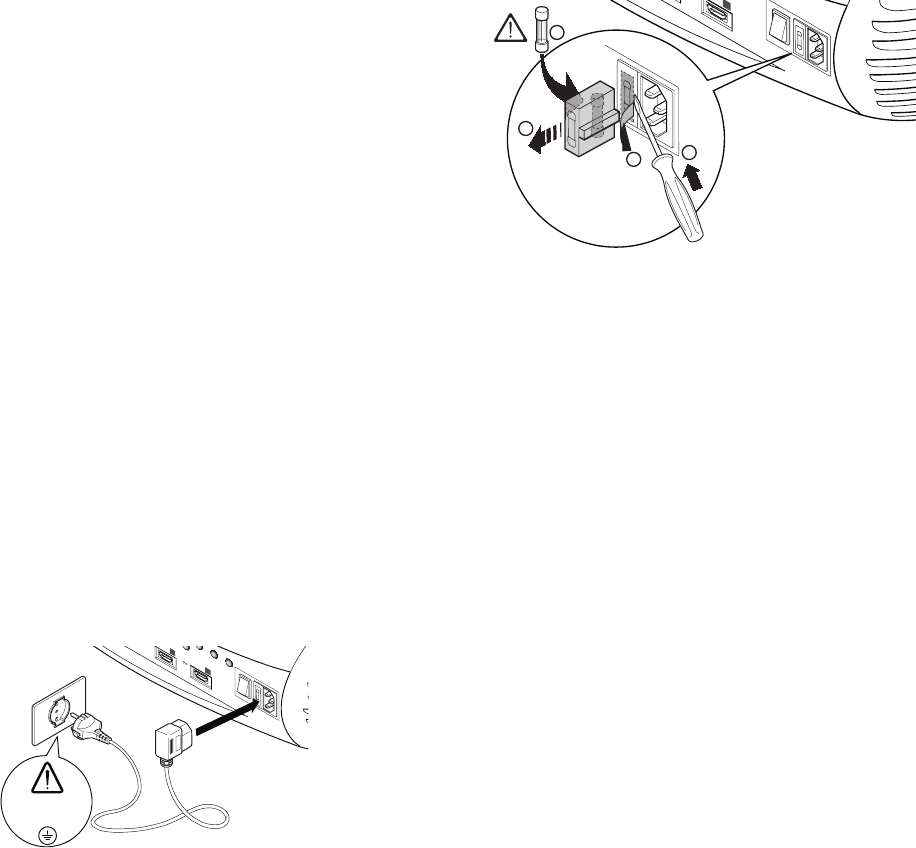
• Connection of the units to the mains power supply.
Connect the unit as shown in Fig. 1.
Fig.1
• Changing the fuses.
Before changing the fuse disconnect the unit from the
mains power supply.
The fuse compartment is next to the power supply con-
nector (Fig. 2). Remove the fuse holder (2) with a flat head
screwdriver and replace the fuse (3). Fit a new spare fuse
(4). Use only T 5A H fuses.
ESC SOURCE
0
I
250 V
T 5A H
3
4
2 1
HDMI 2
6
Fig.2
• Be careful with cables.
Make certain cables are routed so that people will not be
impeded or tripped up.
Keep all cables away from children.
Install the unit as close to the wall socket as possible. Avoid
stepping on power cables, make certain they do not be-
come tangled, and never jerk or tug them; do not expose
them to sources of heat, and make sure they do are not
knotted or crimped. If the power cables become dama-
ged, stop using the system and request the assistance of
an authorised technician.
• Disconnect the unit from the mains power supply in the event
of electrical storms and when not in use.
To prevent damage from lightning strikes in the vicinity,
disconnect the unit during storms or when the sytsem is
going to be left unused for a long time.
• Avoid contact with liquids and exposure to damp.
Do not use the unit near to water (sinks, tubs, etc.); do not
place objects containing liquids on or near to the unit and
do not expose it to rain, humidity, drops of water or sprays;
do not use water or liquid detergent to clean it.
• Do not allow the unit to overheat.
To prevent this, allow a free space of at least 40 cm around
the back of the projector.
Do not block the ventilation slots.
Do not place the unit near to heat sources such as ovens,
radiators or other devices (including amplifiers).
Do not place the unit in a restricted area (shelving units,
bookshelves, etc.) and in general avoid placing it in poorly
ventilated areas as this can lead to overheating.
100-240 Vac
50/60 Hz
HDM
I 1
ESC SOURCE
5
0
I
HDMI 2
6
6
proc3
• Never look directly at the projection lamp.
Never look directly into the lamp when it is on as the inten-
se light can damage your eyes. Take particular care that
children cannot do so.
• Take special care regarding the movements of the
lens.
Do not place objects in the slots on the side of the lens,
and also ensure that the lens’s horizontal and vertical mo-
vements are unimpeded by external objects.
• Position the unit on a stable surface.
Place the projector on a stable surface or use the provided
ceiling mounting bracket.
Never place the projector on its side or rear, lens or top
panel.
• Do not insert objects through the openings in the unit.
Make sure that no objects are inserted inside the units. If this
should occur, disconnect the unit from the power supply
immediately and call an authorised technician.
• Switch Off.
Disconnect the mains when the projector is not in use. This
will considerably reduce power consumption and also
lengthen the service life of the unit’s electrical circuitry.
7
proc3
1
2
3
4
3 UNPACKING
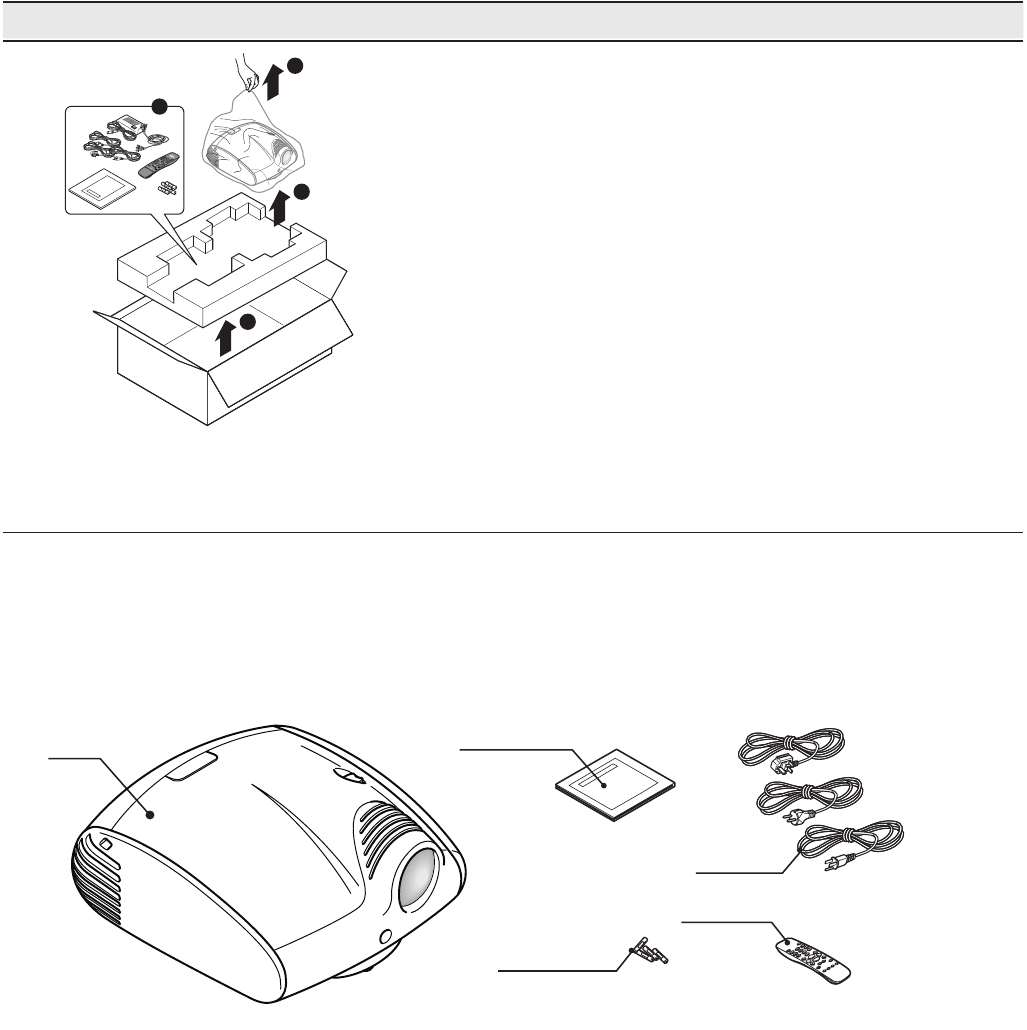
To remove the Pro-C3 system from its carton follow the dia-
grams (Fig. 3).
Keep the carton for use when transporting or shipping the
unit.
Fig. 3
Instruction manual
Remote Control
1.5 V AAA batteries
Power cable
Europe, UK, US
Projector
CONTENTS OF PACKAGE
- the projector
- Remote control
- four 1.5V AAA batteries (for remote control)
- three power cables (EU, UK, USA) for the projector
- the user manual.
If anything is missing, immediately inform your dealer.
8
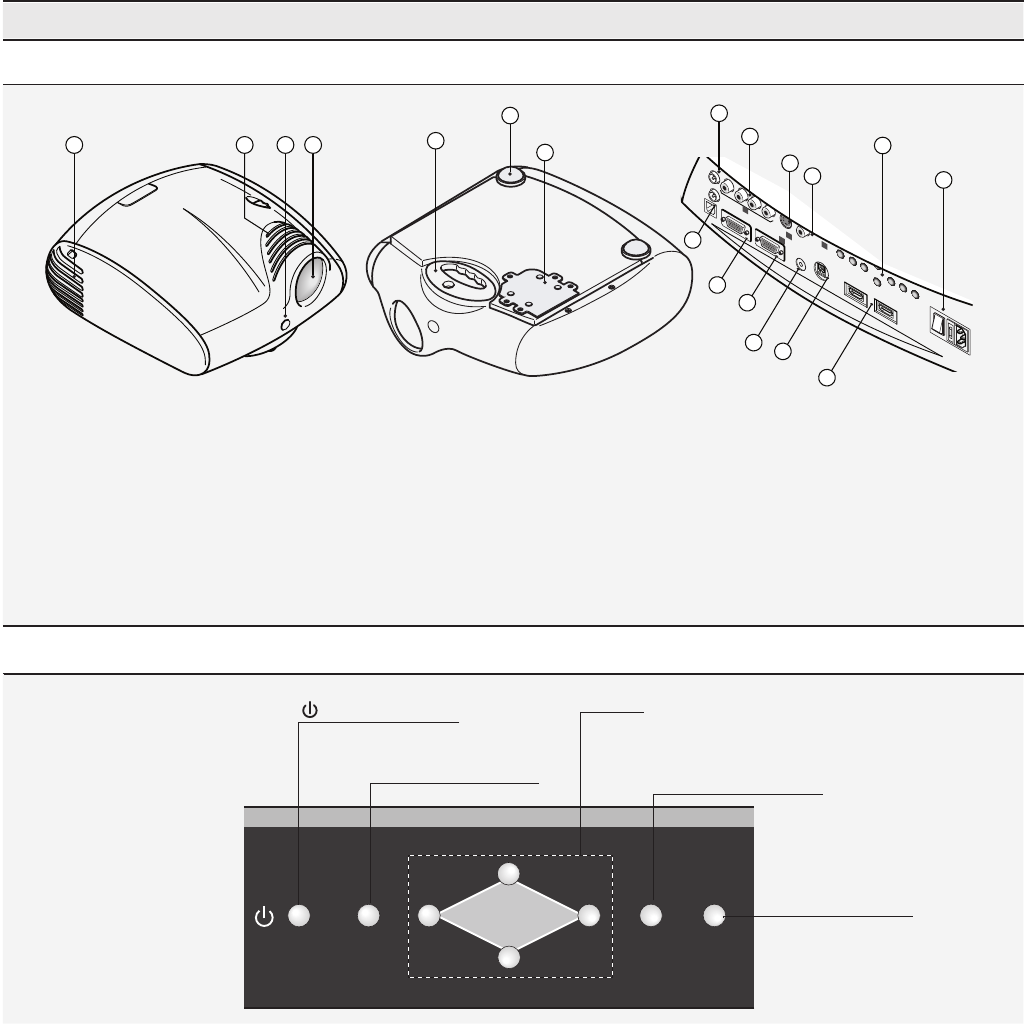
proc3
1 Projection lens.
2 Lens shift knob.
3 Remote control IR sensor on front of unit.
4 Cooling air inlet vents.
5 Adjustable feet.
6 Adjustable carry-handle.
7 Bulb compartment.
8 Fused power socket.
9 Main power switch.
10 Control keypad
11 Composite video input.
12 S-Video input.
13 RGB / YCrCb input.
14 2 HDMI input
15 Audio output.
16 Remote control input
17 VGA input
18 RS232 serial interface.
19 USB 1.1 interface
20 Motorised screen control outputs.
PROJECTOR
1
5
6
7
+12V
USB 1.1
R/Pr
CONTROL (RS232) GRAPHICS RGB
C/Y B/Pb HV S-VIDEO
AUDIO OUT
HDMI 1
REMOTE
32
S-VIDEO
MENU ESC SOURCE
1
4
O
I
HDMI 2
MENU
12
10
9
13
11
16
17
18
14
15
19
20
14 2 3
4 PRODUCT OVERVIEW
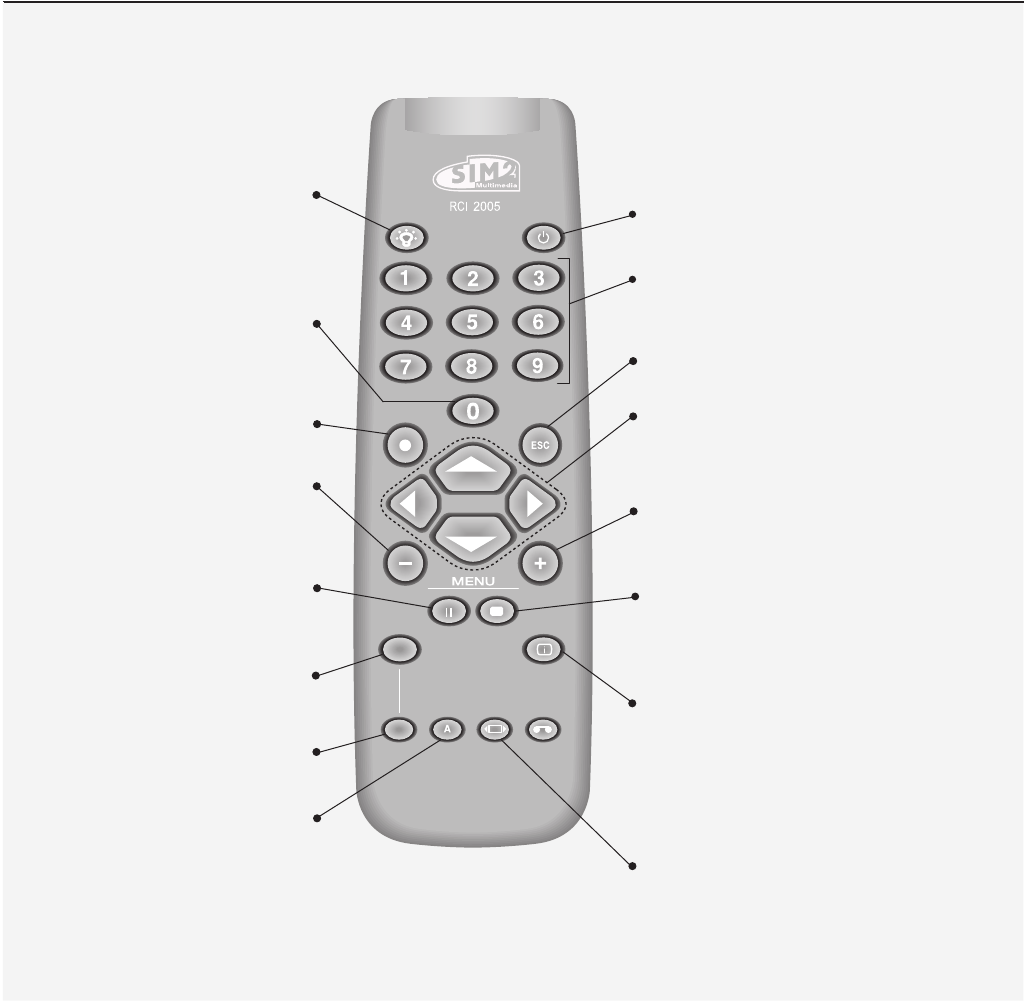
MENU SOURCEESC
Set the unit to ON or
Stand-by modes.
Activates the On Screen Display
menus and allows navigation
through the various pages
▲,▼,◀,▶
Navigates between the On Screen Di-
splay menus and parameter settings.
Calls up the
Source Selection menu.
Deactivates the On Screen
KEYPAD
9
proc3
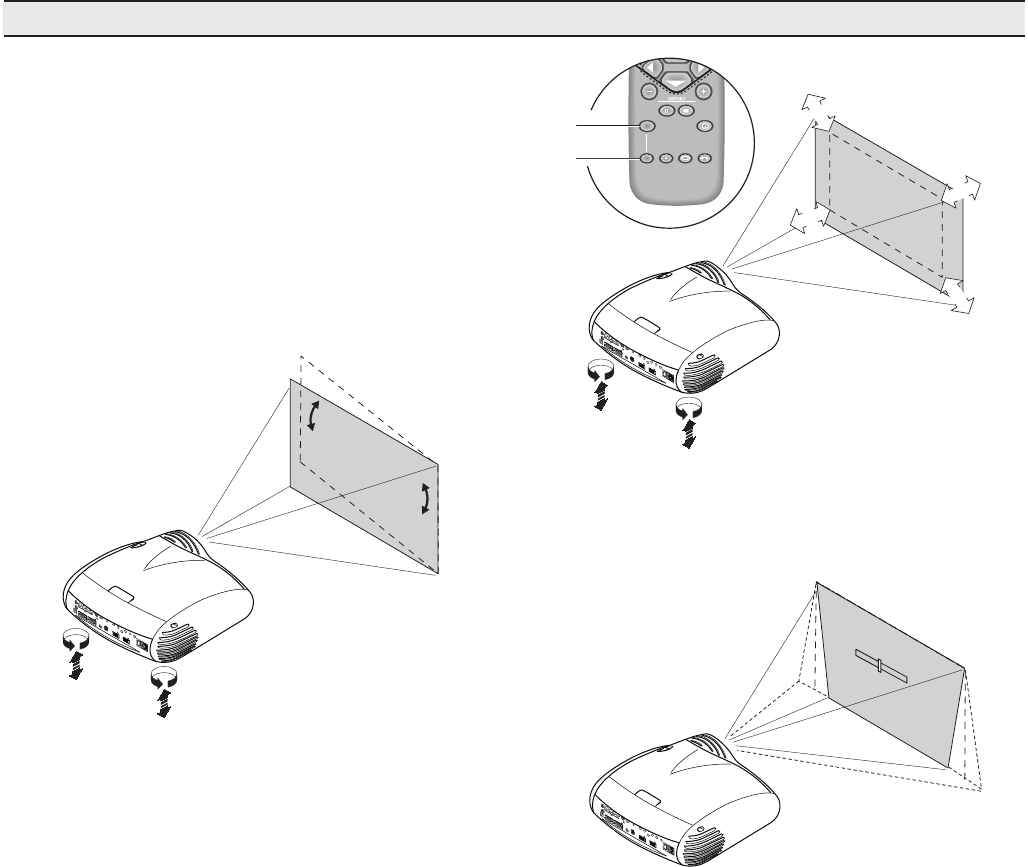
KEYS 0-9
Select the sources directly.
Switches on the panel from Standby.
STAND-BY
Set the unit to Stand-by mode.
ESCAPE
Deactivates the On Screen Display.
UP/DOWN/LEFT/RIGHT ARROW KEYS
Navigates between the On Screen Display menus and
parameter settings. Arrow Up/Down call up the quick
menus.
MENU +
Switches on the On Screen Display and
navigates between its pages.
MEMORIES
Activates the Memories management menu.
INFO
Displays information about the selected source
and projector status.
FORMAT
Selects the image Aspect ratio.
SOURCE
Displays the source selection menu.
Activate test pattern for zoom
and focus adjustement.
MENU -
Switches on the On Screen Display and
navigates though its pages.
FREEZE
Freezes/unfreezes a moving picture.
ZOOM
Selects lens zoom adjustment.
FOCUS
Sets the lens focus.
BACKLIGHTING
Backlights the keys on the remote control
.
AUTO
Automatically optimises the projected image.
LIGHT
F1
ZOOM
FOCUS
F2
REMOTE CONTROL
10
proc3
Fig. 6
Position the projector on a stable, suitable platform or utilise the
optional bracket for a fixed ceiling installation.
WARNING: If using the ceiling mount bracket, scrupulously
observe the safety instructions included with the bracket
itself. If using a bracket other than that supplied by SIM2
Multimedia, make sure that the projector is at least 65 mm
below the ceiling and that the bracket does not obstruct the
air vents (intake and outlet).
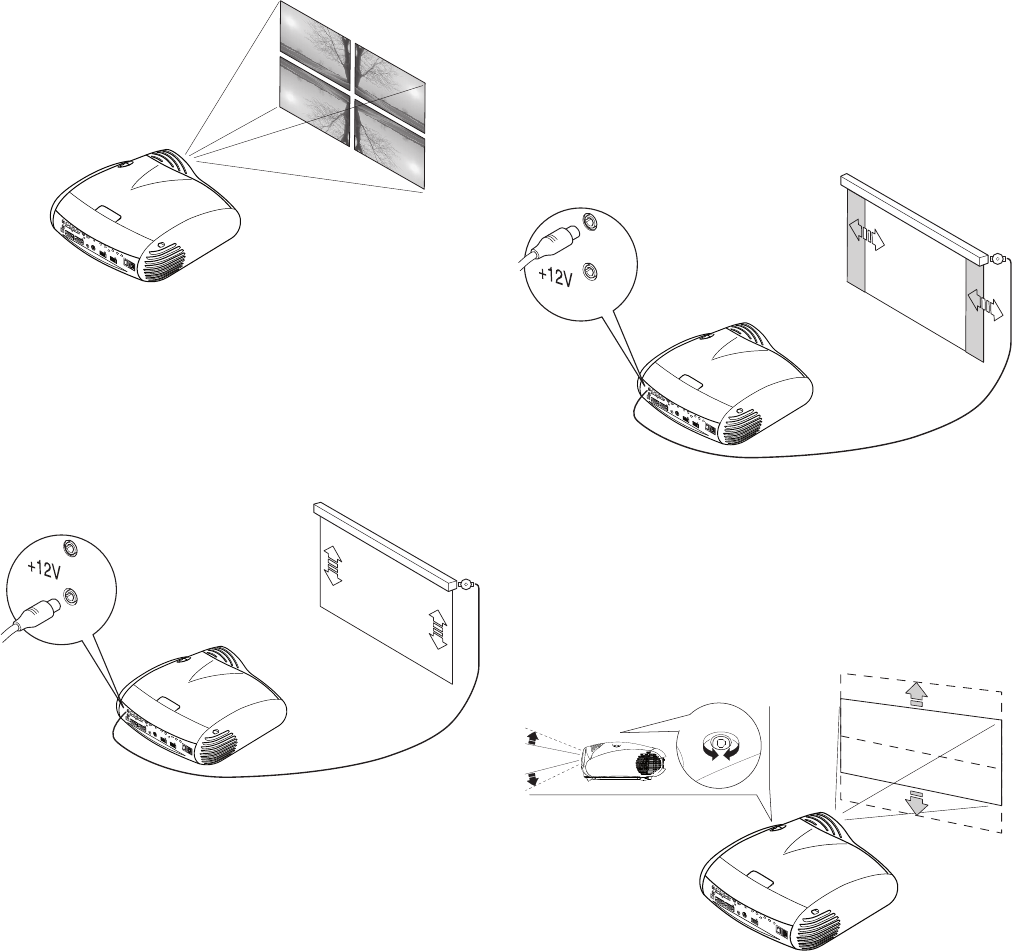
If the projected image is not level, adjust the feet on its base
to obtain a level position, lining up the base of the projected
image to the base of the projection screen (Fig. 4).
+12V
USB 1.1
R/Cr
CONTROL (RS232)GRAPHICS RGB
C/YB/Cb HVS-VIDEO
AUDIO OUT
HDMI 1
REMOTE
32
S-VIDEO
MENUESCINPUT
1
5
4
0
I
HDMI 2
6
Place the projector at the desired distance from the screen:
the size of the projected image is a function of the distance
between the lens and the screen and the lens zoom setting.
Use the motor zoom (Fig. 5) to zoom the projected image in
and out.
Use the motor focus function (Fig. 5) to obtain a clear image;
if the image is correctly focused, you should be able to see
each single pixel of the projected image when close to the
screen (Fig. 5).
ZOOM
ZOOM
ZOOM
ZOOM
F1
FOCUS AUTO ASPECT VCR
HELPZOOM
F2
ZOOM
FOCUS
FOCUS
FOCUS
FOCUS
+12V
USB 1.1
R/Cr
CONTROL (RS232)GRAPHICS RGB
C/YB/Cb HVS-VIDEO
AUDIO OUT
HDMI 1
REMOTE
32
S-VIDEO
MENUESCINPUT
1
5
4
0
I
HDMI 2
6
If this displacement is insufficient, tilt the projector and correct
the keystone error with the Keystone adjustment in the Installa-
tion menu (Fig. 6).
KEYSTONE
20%
+12V
USB 1.1
R/Cr
CONTROL (RS232)GRAPHICS RGB
C/YB/Cb HVS-VIDEO
AUDIO OUT
HDMI 1
REMOTE
32
S-VIDEO
MENUESCINPUT
1
5
4
0
I
HDMI 2
6
The Orientation adjustment in the Set up menu allows you to
reverse the image vertically and horizontally (Fig. 7), to allow
the projector to be used for desktop front, ceiling front, desktop
rear and ceiling rear installations (Fig. 7).
5 INSTALLATION
Fig. 4
Fig. 5
11
proc3
+12V
USB 1.1
R/Cr
CONTROL (RS232)GRAPHICS RGB
C/YB/CbHVS-VIDEO
AUDIO OUT
HDMI 1
REMOTE
32
S-VIDEO
MENUESCINPUT
1
5
4
0
I
HDMI 2
6
To activate an electric motorised screen a 12 Volt output is
provided at the rear of the projector (Fig. 8).
The output is activated (Voltage: 12 Vdc) when the projector is
switched on and is de-activated (no Voltage output) when the
projector is in stand-by mode.
You can also use black motirised curtains to delimit the screen
when the projected image aspect ratio changes (Fig. 9a). This
option is controlled via the output at the rear of the projector.
+12V
USB 1.1
R/Cr
CONTROL (RS232)GRAPHICS RGB
C/YB/CbHVS-VIDEO
AUDIO OUT
HDMI 1
REMOTE
32
S-VIDEO
MENUESCINPUT
1
5
4
0
I
HDMI 2
6
For rear projection the screen must be translucent.
For front projection, we recommend the use of a screen with
black matt borders to contain the projected image.
Preferably use a unit gain screen; high gain screens are only
effective when used with a small group of viewers close to the
screen’s axis.
Prevent ambient light shining directly on the screen during
projection as this will reduce the contrast of the projected
image.
Furniture and other objects with reflecting surfaces, as well as
light coloured walls should be avoided, as they are likely to
interfere with the screen’s characteristics.
+12V
USB 1.1
R/Cr
CONTROL (RS232)GRAPHICS RGB
C/YB/CbHVS-VIDEO
AUDIO OUT
HDMI 1
REMOTE
32
S-VIDEO
MENUESCINPUT
1
5
4
0
I
HDMI 2
6
Fig. 7
Fig. 8
Fig. 9a
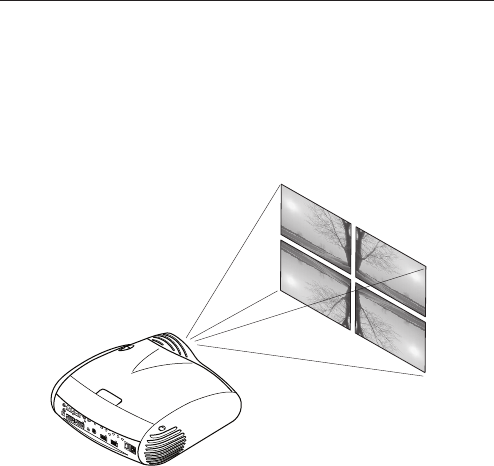
The manual lens shift adjustment allows the projected image
to be moved vertically, up or down, in relation to the centre of
the screen; the maximum adjustment being equal to half the
height of the image in either direction (Fig. 9b).
Image shift range: 1/3 image.
+12V
USB 1.1
R/Cr
CONTROL (RS232) GRAPHICS RGB
C/Y B/Cb HV S-VIDEO
AUDIO OUT
HDMI 1
REMOTE
32
S-VIDEO
MENU ESC INPUT
1
5
4
0
I
Fig. 9b
12
proc3
6 SWITCHING THE PROJECTOR ON AND OFF
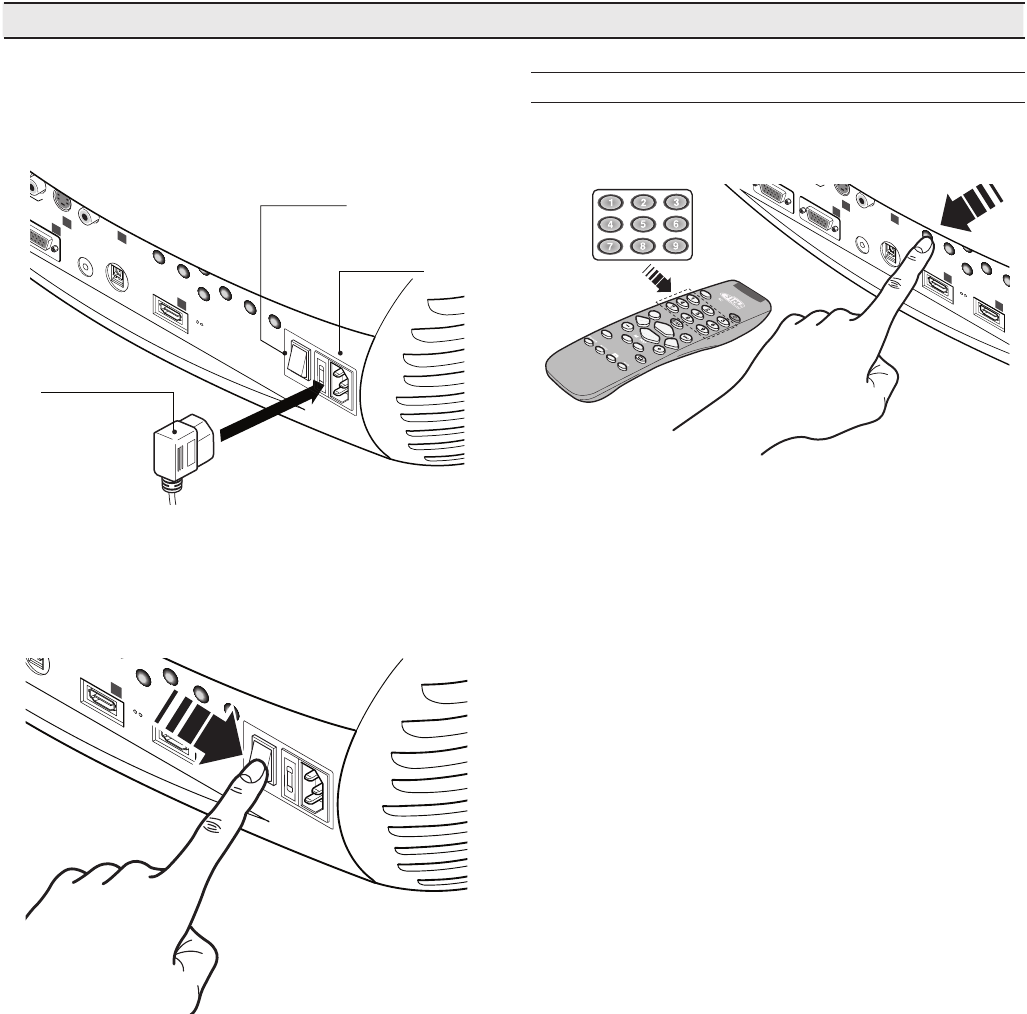
WARNING: Connect the projector to a power supply with a
nominal voltage within the following values: 100-240 V AC,
50/60 Hz. It must be earthed (Fig. 10).
GRAPHICS RGB
HV S-VIDEO
AUDIO OUT
HDMI 1
REMOTE
2
S-VIDEO
MENU ESC INPUT
1
5
4
0
I
Power Switch:
Position I: On
Position 0: Off
Fused
Power Socket
Power Plug
Fig. 10
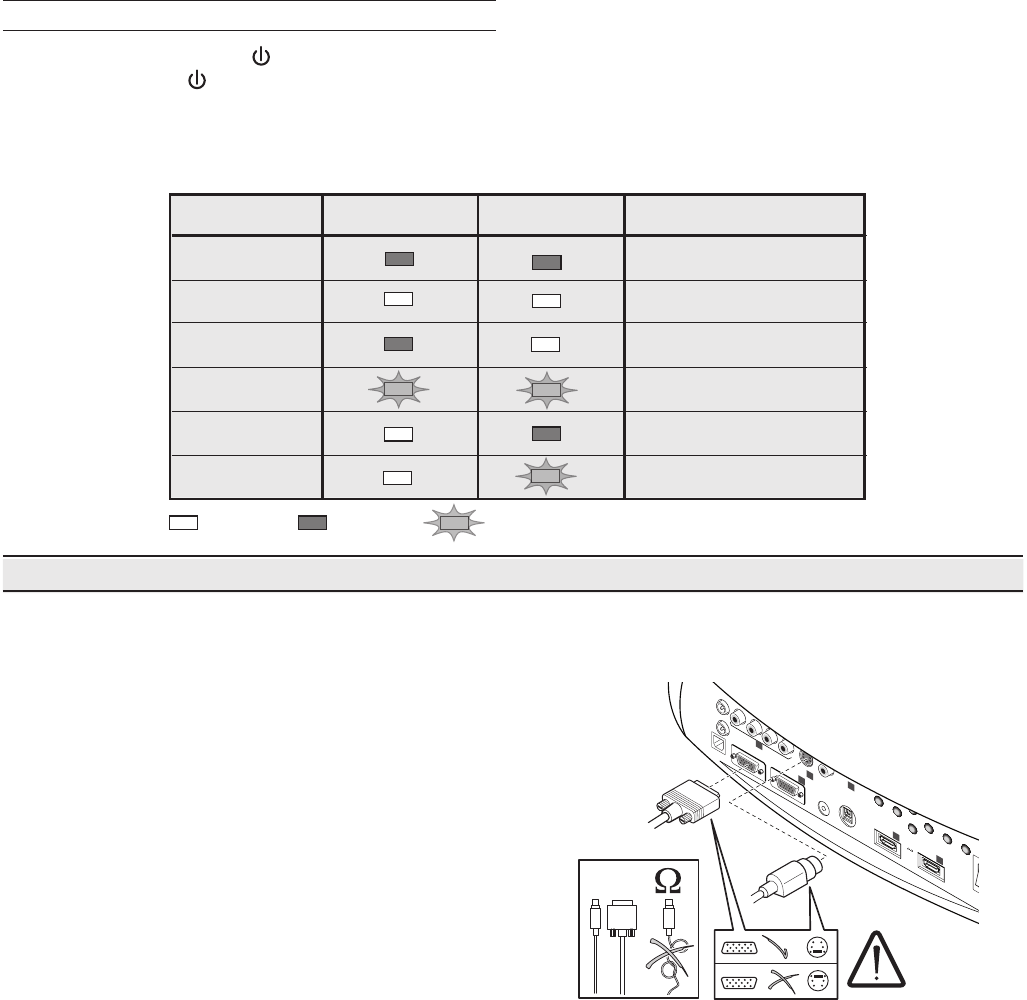
In position I the projector will initialise itself (red and green leds
on) and then goes into standby mode (red led on) (Fig. 11).
HDMI 1
ME
NUESC INPUT
5
HDMI 2
6
0
I
SWITCH ON FROM STANDBY
With the remote control: press one of the keys 1...9 or with 0.
With the keypad: press STANDBY button.
232)
GRAPHICS RGB
HV
S-VIDEO
AUDIO OUT
HDMI 1
REMOTE
2
S-VIDEO
MENUESC
1
5
4
HDMI 2
6
When the unit is switched on from standby the lamp switches
on; after a brief period of warming up, the image displays (blue
led on). The projected image comes from the input selected
when the unit was last switched off (Fig. 12).
If a very short time has passed since the unit was last switched
off, the lamp may not switch on beause it is too hot.
Just wait a few minutes for the lamp to cool down sufficiently.
Fig. 11
Fig. 12
13
proc3
SWITCHING OFF AND RETURNING TO STANDBY
With the remote control: press .
With the keypad: press .
When switching off, the projector goes into stand-by mode and
stores the input selection at the time of switch-off.
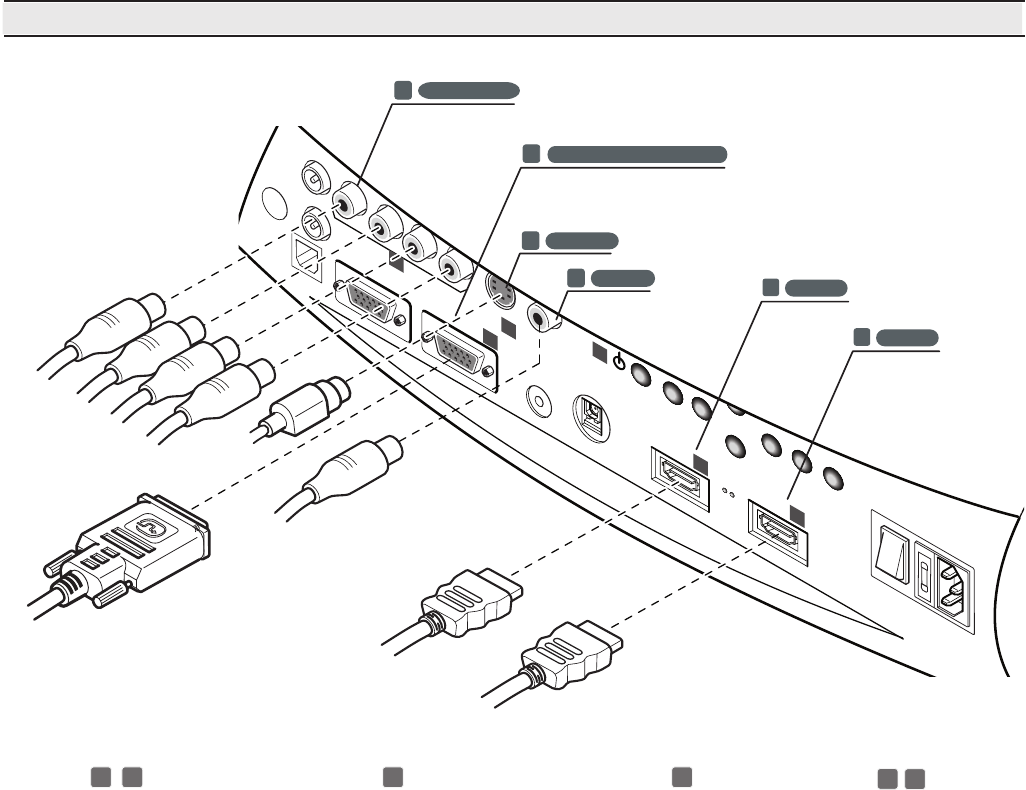
The fans keep running until the lamp cools down (green and
red leds on), after which they automatically switch off. Do not
switch off the projector with the power switch until the fans have
stopped running.
7 CONNECTIONS
To obtain the best performance from your projector, we recom-
mend the use of good quality “video cables” to the various
signal sources (75 ohm Impedance).
Poor quality cables will cause inferior picture performance.
For optimum connectivity we recommend you follow these
simple steps:
- With exception of coaxial RCA/Phono type connectors,
always double-check that the plug is inserted the correct
way round to avoid damaging the plugs or the sockets on
the projector (Fig. 13).
- Remove cables by the plug and do not pull on the cable
itself.
- Avoid tangled cables.
- Position the cables carefully to avoid a trip hazard - espe-
cially in low light areas.
Fig. 13
Initialisation
Status Led blue Led red
Standby
On
Cooling
Fan Error
: O : On : Flashing
Overtemperature
Logo Backlit
Blue Color
Red Color
O / Blue Color (*)
Red Color
Red Color
Red Color
(*): selectable from OSD
Table 1
+12V
USB 1.1
R/Cr
RS232GRAPHICS RGB
C/YB/CbHVS-VIDEO
AUDIO OUT
HDMI 1
REMOTE
32
S-VIDEO
MENUESC INPUT
1
5
4
75
HDMI 2
6
14
proc3
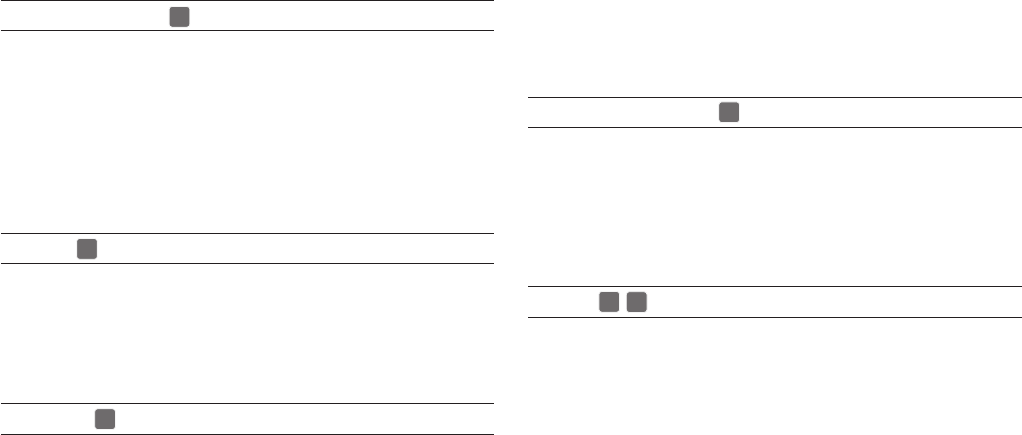
Pro-C3 - Connection panel
3
1
2
4
5
Television receiver
DVD player
VCR
Videocamera
Video game console
Television receiver
HDTV receiver
DVD player
VCR
Video game console
Computer
DVD player
HDTV receiver
Fig.14
6
+12V
USB 1.1
R/Pr
CONTROL (RS232)GRAPHICS RGB
C/YB/Pb HV S-VIDEO
AUDIO OUT
HDMI 1
REMOTE
3 2
S-VIDEO
MENUESC SOURCE
1
4
O
I
1 VIDEO
GRAPHICS RGB - YPrPb
4
3 RGB - YPrPb
HDMI
5
HDMI
6
5
2 S-VIDEO
HDMI 2
6
15
proc3
Fig.14
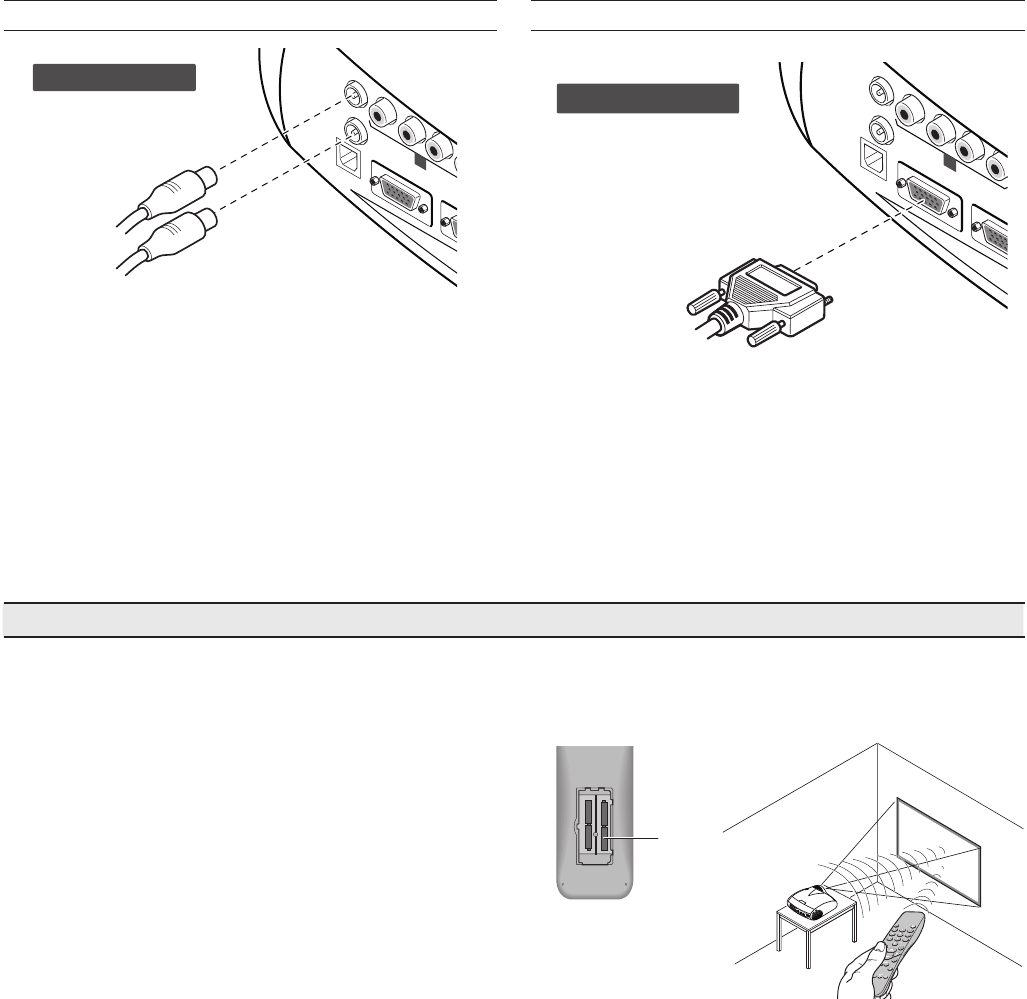
of the pictures reproduced by the Pro-C3 in the two cases: the
deinterlacing performed by the Pro-C3 is often more effective
than that performed by the source itself.
GRAPHICS RGB - YPrPb
This input should be connected to an RGB-type video or graphic
signal using a cable with a DB15HD type connector.
The signal source device (typically a personal computer or game
console) must be able to provide separate H/V synchronisation or
composite H+V synchronisation.
HDMI™
HDMI™ (High Definition Multimedia Interface) integrates an
uncompressed high definition video signal with a multichannel
audio signal and allows exchange of control data between the
video source and the Pro-C3.
The HDMI input allows connection to video sources that use the
HDCP (High-Bandwidth Digital Content Protection) protocol to
protect their contents.
Once the video source has been connected to the HDMI
input, internal processing by the Pro-C3 separates the video
information from the audio information. The audio information
is made available on a digital output with a female TOSLINK
connector in compliance with the S/PDIF standard.
You can use a DVI-D > HDMI adapter cable to connect the
DVI-D signal from a source equipped with a DVI-D output.
COMPOSITE VIDEO
Fit an RCA connector with a Composite Video (CVBS) signal
to this input.
The output connector on the external appliance is normally
coloured yellow and will often be labelled VIDEO.
Other signal and socket formats may be preferable (because
they give better image quality), but this type of output socket is
still the most commonly used, and nearly all television receivers,
video recorders, DVD players and camcorders, etc. use it.
S-VIDEO
Fit a mini-DIN connector with an S-Video signal to this input.
The corresponding output at the external device is normally
identifiable by the labels S-VIDEO or Y/C.
This type is nearly as common as Composite Video, and is
preferable to the latter, since it gives higher image quality.
RGB/YPrPb
These inputs use a set of 4 RCA connectors.
RGB and Component signals can be applied to each set of
connectors.
RGB signals can have composite synchronisation on the green
signal (RGsB), or on the HV signal.
Connect the R, G, B outputs of the source to the respective R,
G, B inputs of the Pro-C3 (taking care not to invert the positions)
and any synchronisation signals to the HV.
When hooking up, use the colours of the RCA connectors as
an aid as follows: the R connector is red, G is green, B is blue
and HV is white.
You can use a SCART to RCA adapter cable to connect the
RGB signal from a source equipped with a SCART output to
this input.
The Component signals connect to the Y, Pr and Pb inputs:
take care that the inputs correspond to the outputs on the
source device.
Since these can be labelled differently, refer to Table 1 to
establish the correspondence between the various signals. As
indicated in the table, the colours of the connectors can also
be of help.
Only horizontal scanning frequencies of 15 kHz (standard video
resolution) or 32 kHz (high definition video, with progressive
scanning) can be applied to this input.
Progressive signals usually provide better quality than interlaced
signals, but if the source features both progressive and deinter-
laced signal outputs it is good practice to compare the quality
1
2
3
4
5
6
16
proc3
RS232 INTERFACE CONNECTOR
The projector can be controlled from a PC: simply hookup
the interface connector to a PC’s RS232 serial cable or to a
PC's USB 1.1 cable.
Do not place objects between the remote control and the
receiver on the projector, as this can prevent the remote from
working.
7
64#
3$S
$0/530-34 (3"1)*$43(#
$: #$C )747*%&0
"6%*0065
)%.*
3&.05&
47*%&0
.&/6 &4$ */165
)%.*
0
I
1
2
MOTORISED SCREEN OUTPUTS
+12V
USB 1.1
R/Cr
CONTROL (RS232) GRAPHICS RGB
C/Y B/Cb HV
3
12 Volt
The projector is equipped with two outputs (Voltage: 12 Vdc)
for motorised projection screen and screen masking systems,
used for masking off the projection area to match the projected
image aspect ratio (Fig. 15).
The +12V output is activated when the projector is switched
on (blue LED on) and is de-activated when the projector is in
standby mode (red LED on). The output can be set with the
“Screen control” adjustment in the “Aspect” menu. This output
allows reduction in the area of a 16:9 screen, into a 4:3 format,
by activating a horizontal screen masking system.
Fig. 15 Fig. 16
+-
+-
+
-
+
-
8 REMOTE CONTROL
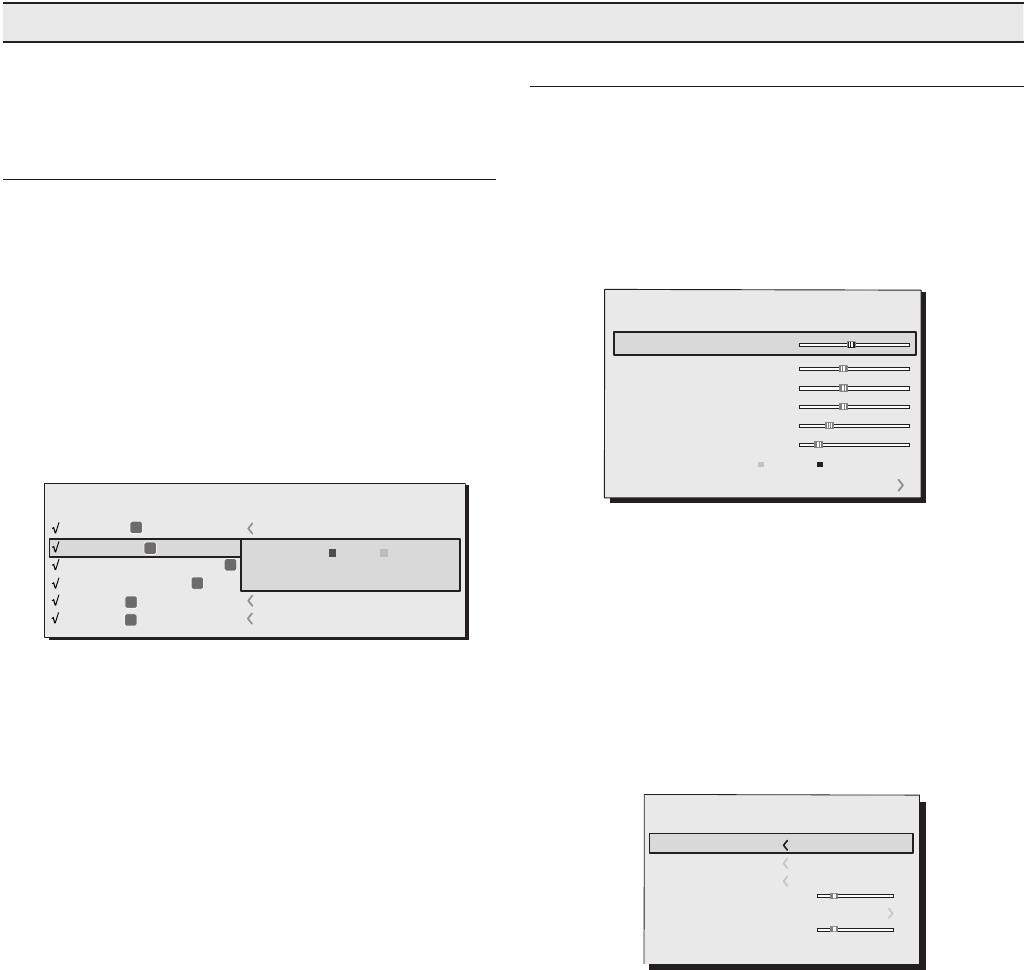
The remote control requires four 1.5 V batteries, size AAA.
Insert the batteries, taking care to match the polarity, as indi-
cated in the battery compartment in the handset (Fig. 23).
Change the batteries in the remote control if experiencing
difficulty in sending commands to the projector.
Remove batteries from the remote control if it is not to be used
for a long period of time. The batteries are prone to leak and
corrode the remote control’s circuits.
The remote control sends commands to the projector via
infrared signals.
The projector is equipped with an infrared sensor on its front
panel and can therefore be controlled by pointing the remote
control towards the projection screen; the IR beam reflects off
the screen towards the projector (Fig. 17).
There is another infrared sensor in the rear of projector.
4 batteries
1.5 V
AAA size
Fig. 17
+12V
USB 1.1
R/Cr
CONTROL (RS232) GRAPHICS RGB
C/Y B/Cb HV S-VIDEO
AUDIO OUT
REMOTE
32
S-VIDEO
1
4
RS 232
17
proc3
MAIN MENU
To access the main menu of the On Screen Display press
the
MENU
key on the keypad or the
MENU+
or
MENU-
key on the
remote control.
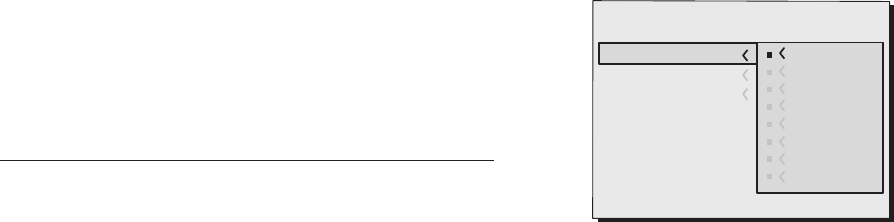
The main menu is divided into four windows,
PICTURE, IMAGE
,
SETUP and MENU
, in which the various adjustments are grouped
according to the frequency of use. Use the ▲ and ▼ keys to
select the line corresponding to the adjustment you wish to
make (Fig. 19).
The various menus only offer the relevant adjustments in ac-
cordance with the type of input signal displayed (e.g. certain
typical adjustments for video signals, not necessary for graphic
signals, do not appear on the menus, and vice versa).
Some adjustments (e.g.
BRIGHTNESS
and
CONTRAST
) are associated
with a numerical value that can be varied within the set limits
using the ◀ and ▶ keys.
For others (e.g.
VIDEO TYPE
) you can choose between two options
presented on the same line and selectable using the keys ◀
and ▶ Fig.20a/b
.
Picture
Contrast
Colour
Tint
Sharpness
Filter
Cinema Mode
50
50
50
3
2
Off Auto
Auto
Noise Reduction
Brightness 60
INPUTS
The input selection menu is called by pressing 0 on the remote
control or with the keypad SOURCE key. To select an input, scroll
through the list with the ▲ e ▼ keys until the required input is
highlighted, then press ▶.
Display of the input selection menu is terminated by pressing
the
ESC
key or when the On-Screen Menu display timeout in-
terval (set in the Menu Setup) has elapsed orr after the signal's
recognising.
The inputs can receive RGB and YCrCb signals, at 15 kHz, 32
kHz or higher. The input and type of signal (RGB or YPrPB) are set
in the pull down menu at the right of the symbol < a seguito
della pressione del tasto ◀ (Fig. 18).
HDMI 1-2 input can receive the signals from DVI-D sources.
During the short time it takes to find the signal, a box appears
showing the signal requested. As soon as the signal is shown
in the box additional information is displayed concerning the
video standard (for video signals) or resolution (for graphic
signals), format and the eventual user's memorie.
This informations can be recolled by pressing numerical key
that it corresponds at the selected source.
In the
SETUP
menu you can select whether to display this infor-
mation or not; for further information see
SOURCE INFORMATION
in
the
MENU
section of chapter
ADDITIONAL INFORMATION.
2 S-VIDEO
4 GRAPHICS RGB
3 COMPONENT / RGBS
1 VIDEO
1
2
3
4
S-VIDEO 3
GRAPH RGB 9
COMP RGB 5
VIDEO 1
5
5
HDMI HDMI 5
Imputs
ACTIVE
NAME
Yes No
6
6
HDMI HDMI 6
Fig.18
9 ON SCREEN MENU
All system functions can be operated from the keypad or
remote control, with the aid of a complete, user-friendly on
screen menu.
Fig.19
Colour Temperature
Gamma Correction
Position
Y/C Delay 1
Overscan 1
Aspect
)MAGE
Fig.20a
18
proc3
To access these submenus, press the <, mentre l’uscita ed
il ritorno al livello superiore avviene con la pressione dei tasti
MENU+/-
key.
Press ESC on the remote control or keypad to interrupt the
menu display or wait for it to disappear automatically after
the number of seconds set on the
SET-UP page
.
PICTURE
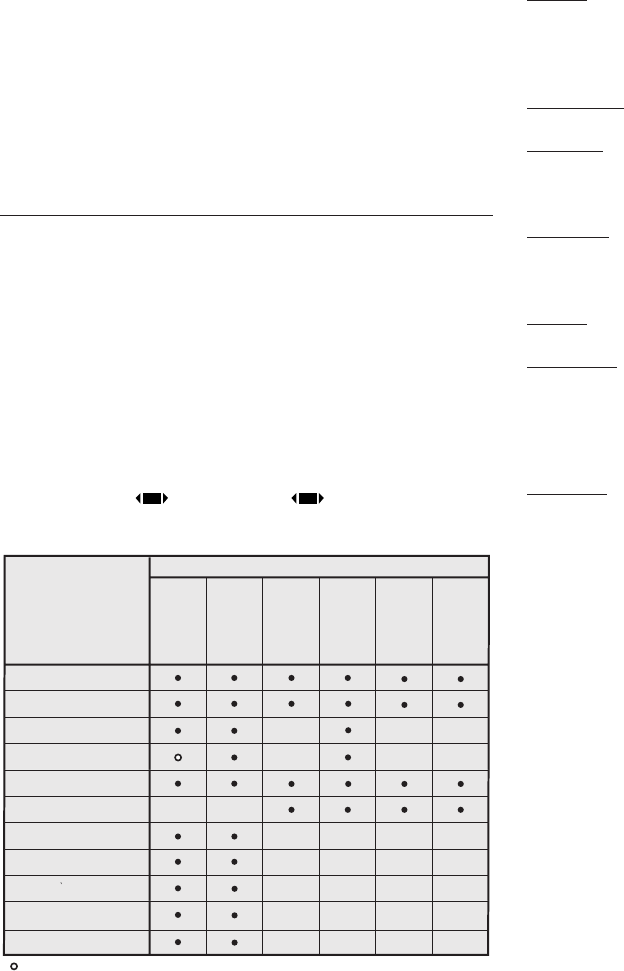
This menu includes all image adjustment settings. Adjustments
that are not available for a given input do not appear on the
menu. Table 4 summarises the adjustments available for each
input. For a full listing of the menu, refer to paragraph
STRUCTURE
OF ON SCREEN MENUS
in the chapter
ADDITIONAL INFORMATION.
BRIGHTNESS
Use this control to adjust the darker areas of the picture (black
level), without significantly affecting bright areas. Increasing
the value will give more detail in darker parts of the picture. For
correct adjustment it may prove useful to display a grey scale
with at least twenty bands. Now try to reduce the brightness of
the black band as much as possible while ensuring that it can
still be distinguished from the adjacent band with brightness
slightly higher than black. Alternatively use a scene composed
of black objects alongside other dark coloured objects and try
to keep all the objects separately identifiable.
CONTRAST
Use this control to adjust the image’s white level without affecting
its dark areas.
For correct adjustment it may prove useful to display a grey
scale with at least twenty bands. Now try to increase the bri-
ghtness of the white band as much as possible while ensuring
that it can still be distinguished from the adjacent band with
brightness slightly less than white. Alternatively use a scene
composed of well-lit white objects surrounded by light objects
with lower level lighting, and try to ensure that all the objects
remain separately identifiable.
COLOUR
This control (also called Saturation) increases or decreases the
picture colour intensity. When set to zero, colour images will be
shown in black and white. Increase the value until the colours
appear natural: suitable references include skin tones and grass
in landscape shots.
TINT
Controls the purity of colours. Basically determines the red-green
Colour Temperature
Gamma Correction
Position
Overscan
Y/C Delay
Aspect
)MAGE
1
Normal
Anamorphic
Letterbox
Panoramic
Pixel to pixel
User 1
User 2
User 3
Fig.20b
ratio of the picture.
Decreasing the value increases the red content of the image,
increasing it increases the green. For this adjustment use skin
tones or a test card image with colour bars as a reference.
SHARPNESS
This adjustment serves to modulate the signal to increase or
decrease the level of picture detail.
When the sharpness value is reduced the image details ap-
pear less pronounced, while increasing the value raises image
definition, making the outline of objects sharper.
Note that an excessively high value may result in a ‘noisy’
picture and the edges of objects may appear unnaturally
clearly defined.
SHARPNESS MODE
This allows you to select the type of processing associated with
sharpness adjustment. For an interlaced or progressive video
signal, set to
VIDEO
; for PC graphics signals, set to
GRAPHICS
.
Sets the system to receive graphics signals rather than video
signals. If the
VIDEO
option is set, it applies Noise Reduction to
increase the clarity of the image. The
GRAPHICS
option deacti-
vates noise reduction.
FILTER
This allows you to select the mode in which the input signal is
processed. Selecting the most appropriate value for a given
input signal ensures the best horizontal and vertical definition
and makes the picture sharper.
CINEMA MODE
Use this option if the video signal source is a movie film (obtai-
ned from a Teleciné device with 3:2 or 2:2 pull-down). In this
case a deinterlace algorithm optimized for this type of signal
is applied.
Selecting AUTO mode causes the de-interlacer to analyse si-
gnal characteristics and apply the correct deinterlace mode
automatically.
19
proc3
NORMAL:
projects the image occupying the full height of the
screen while maintaining the aspect ratio of the input signal.
When the input signal aspect ratio is 4:3 black vertical bands
are displayed on the right and left of the picture.
ANAMORPHIC:
correctly displays a 16:9 image.
LETTERBOX:
serves to display a 4:3 letterbox image (with source
signal having black bands above and below the picture) so that
it fills the 16:9 screen and maintains the correct aspect ratio.
PANORAMIC:
widens the 4:3 image and cuts off a strip from the
top and bottom. Panoramic is ideal for displaying a 4:3 image
on the 16:9 screen of the Display.
SUBTITLES:
raises the image, thus making space for subtitles.
PIXEL TO PIXEL
: runs a pixel to pixel mapping of any image, without
adapting to the screen. The image is projected in the centre
of the screen and if its horizontal and/or vertical dimensions
are smaller than the display, it is bounded by vertical and/or
horizontal black bands.
USER 1, 2, 3
: use this option if none of the others are satisfactory.
The User formulas give you the ability to continuously adjust the
picture size horizontally and vertically.
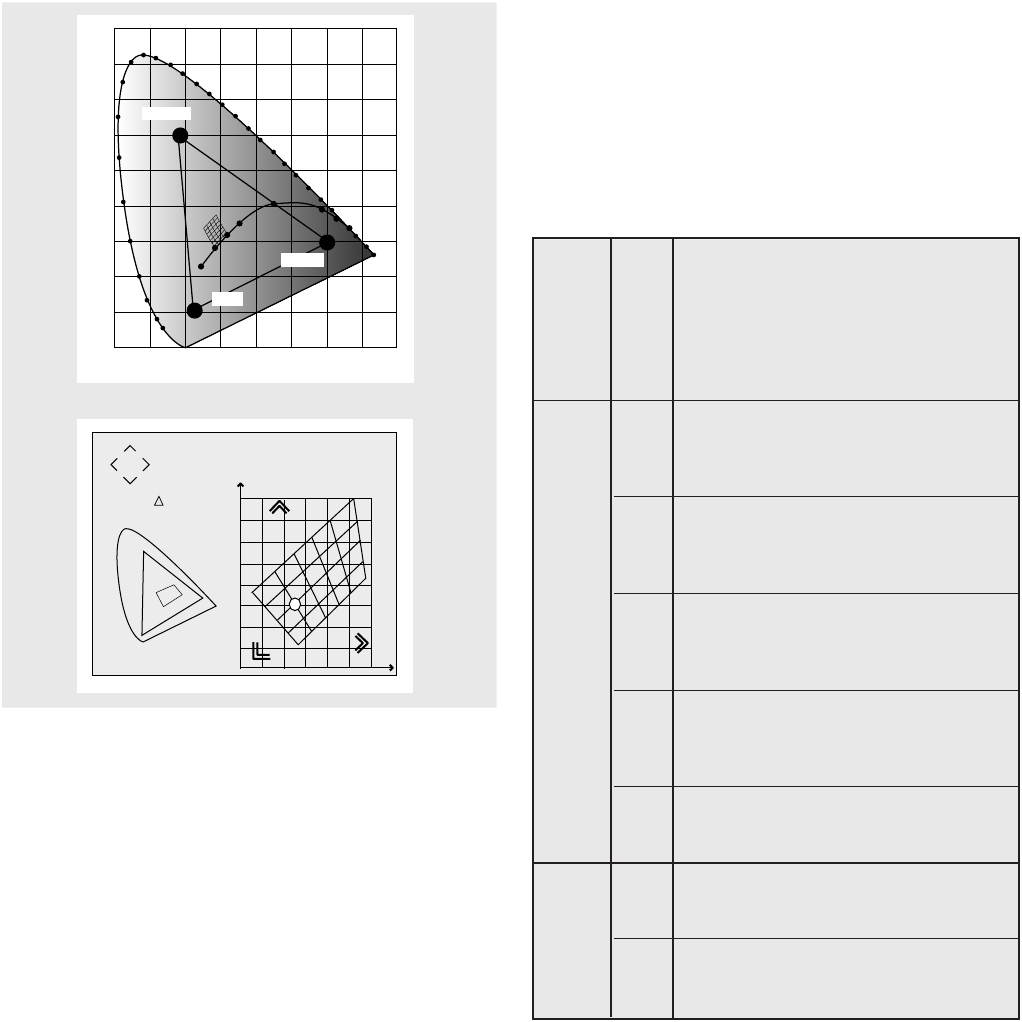
COLOR TEMPERATURE
Changes the colour balance of the image.
The colour temperature setting is made by setting the white point
in the CIE chromaticity diagram. The system enables you to set
the white point in a grid of 36 points in the neutral colour zone
(Fig. 23).
Moving it horizontally changes the correlated colour tempe-
rature, with the low temperatures to the right (more red) and
high temperatures to the left (more blue). The points on the
lowest horizontal line (Fig.24) represent the colours on the black
body curve.
There is 4 predefined colour temperature setting and another
USER setting that allows the manual regulation.
- HIGHT - MEDIUM - LOW
- LIGHT BOOST (no correction, maximum possible light)
- USER
Selecting the NO option causes the de-interlacer to apply a
Motion compensated algorithm optimized for video camera
signals.
NOISE REDUCTION
This adjustment serves to select the noise reduction filter va-
lue.
In this latter case, simply click on the slider and set the value
with the ◀ and ▶ keys on the remote control.
IMAGE
This menu features adjustments relating to picture position,
aspect ratio, magnification etc.
ASPECT
This adjustment allows you to change the dimensions and
aspect ratio (relationship between width and height) of the
displayed image. There are five preset aspects available and
three personalised aspects (with user-settable parameters). You
can select a different aspect for each source: the selected
aspect ratio will be automatically applied the next time the
relative source is called.
You can also select the required aspect ratio by repeatedly
pressing the key , or by pressing and a numerical key
(1...8).The following aspects are available:
Brightness
Contrast
Video
S-Video
RGBS
YCrCb
RGB Grafico
HDMI™
RGBS 15kHz
YCrCb 15kHz
Adjustments
Inputs
Colour - -
-
-
-
-
-
- -
-
-
-
-
-
-
T int
Sharpness
Sharpness Mode
Filter
Present only if the V ideo Standard is NTSC
Cinema Mode
Video T ype
Noise reduction
Flesh tone correction
-
-
-
-
-
-
-
-
-
-
-
-
-
20
proc3
There are 4 sets of gamma curves: Standard (ST), Enhanced
SIM2 (EN) and Graphics (GR), User. The Standard curve has
been defined for general use, and is set for videocameras,
digital cameras, and for viewing films or photos on your PC. The
Enhanced set is suitable for watching movies. The Graphics set
is suited to displaying synthetic graphics (PC, CAD, PC presenta-
tions, etc.). User enables you to define your own curve. You can
thus select the coefficient which determines the curve.
ST1 For general use
ST2
ST3
ST4
ST5
EN1 Suited to displaying images from videoca-
meras, digital cameras or TV studios in high
ambient light.
EN2 Suited to displaying images from videoca-
meras, digital cameras or TV studios in low
ambient light.
EN3 Suited to displaying cinematographic material
in high ambient.
EN4 Suited to displaying cinematographic material
in moderate ambient.
EN5 Suited to displaying cinematographic material
in controlled ambient light.
G1 Suited to displaying graphic images (e.g. Win-
dows desktop) in moderate ambient light.
G2 Suited to displaying graphic images in mode-
rate controlled light.
Table 5 - Gamma correction settings
Gamma functions
Standard
Gamma functions
Enhanced SIM2
Gamma
functions
Graphics
The colour temperature is constant on the vertical lines, but is
more or less different from the black body curve. This means
that the higher points of the graph are more green. On the
contrary, the lower points of the graphic yield a more purple
image.
GAMMA CORRECTION
Determines the system’s response to the grey scale, empha-
sising or attenuating the different grades of brightness (blacks,
dark, medium, light grey, whites) in the projected image.
The projector has a range of gamma functions which enable
you to display any image to the best effect for the type of
video source, the ambient lighting and your subjective pre-
ferences.
)NFINITY
8
9
Fig. 21
Green
Blue
Red
Fig. 22
x= 0,282
y= 0.320
T= 8700K
= 0,015
x
y
uv
21
proc3
Values from 1.5 to 2.2 allow you to emphasise the detail of dark
images, but reduce overall contrast. Values higher than 2.2
increase overall contrast, but reduce the detail of dark areas.
For the most common video sources, the overscanning value
can be in the range (no overscanning) to 32 (maximum). The
resulting image always maintains the selected aspect irrespec-
tive of the selected overscan value.
POSITION
Use this adjustment to position the image vertically and horizon-
tally. Determines the aspect ratio of the projected image.
These parameters do not normally require adjustment because
the system checks the input signal and automatically sets the
most suitable values. However, if the image is not perfectly
centralised it may prove useful to request the system to repeat
the input signal analysis and image positioning, calling the au-
tomatic control procedure with button
A
on the remote control
or the
AUTO
button on the keypad. When this procedure is called
it is helpful to have a while or light coloured background on the
screen in the current picture.
Frequency/phase
These adjustments, available for progressive signals and for si-
gnals from a PC, ensure correspondence between the number
of pixels making up the signal and the number of pixels that
make up the projected image.
These parameters do not normally require adjustment because
the system checks the input signal and automatically sets the
most suitable values. If however the image is disturbed (loss of
resolution between equidistant vertical bands or instability and
lack of detail in thin vertical lines) it may help to ask the system
to rerun the input signal analysis and set the best parameters
by calling up the automatic adjustment function with
A
on the
remote control or
AUTO
on the keypad.
If the automatic procedure fails to have the required effect,
enter the frequency and phase values manually and ap-
proach the screen sufficiently to observe the effects of the
adjustments.
OVERSCAN
Eliminates irregularities around the outer borders of the im-
age.
Some less accurate sources may produce an image with
uneven borders; thanks to the overscan function these im-
perfections can be moved to outside the displayed area. Il
parameter to 2.2, typically yields pleasant, contrasty images.
Y/C DELAY
In the case of Video and S-Video signals, it may be necessary
to correct horizontal colour misalignment within the projected
image. For a given video standard (e.g. PAL or NTSC) the stored
value does not normally require further fine-tuning, unless the
source or connection cable has changed.
SETUP
The setup menu contains less frequently used adjustments that
may be required during installation (e.g. On Screen Display
language selection or the display of Test Patterns).
ORIENTATION
Reverse the image vertically and horizontally to best fit the
installation: i.e. desktop front, ceiling front, desktop rear and
ceiling rear (Fig.23).
+12V
USB 1.1
R/Cr
CONTROL (RS232)GRAPHICS RGB
C/YB/CbHVS-VIDEO
AUDIO OUT
HDMI 1
REMOTE
32
S-VIDEO
MENUESCINPUT
1
5
4
0
I
HDMI 2
6
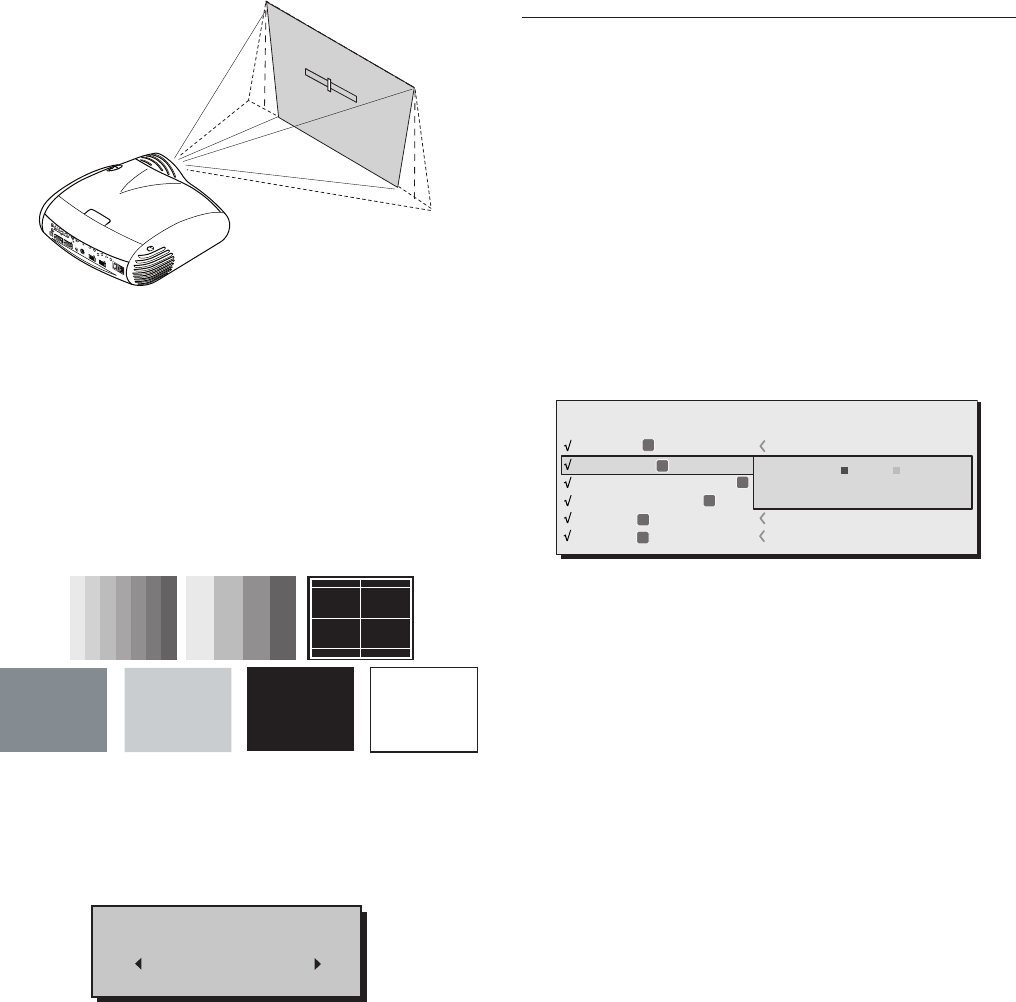
VERTICAL KEYSTONE
To get the best image quality, we recommend installing the
image on a surface which is perpendicular to the screen. If
the projected image is not level, adjust the feet on its base
to obtain a level position, lining up the base of the projected
image to the base of the projection screen (Fig.24).
If this adjustment is insufficient to centre the image, tilt the
projector and use the Vertical/horizontal keystone adjustment
to compensate for the resulting distortion.
Fig.23
22
proc3
MENUS
LANGUAGE
It allow to select the languages available for the On Screen
Display menus.
INPUTS LIST
In order to make the Pro-C3 system increasingly flexible, the
functions described below make it possible to modify the inputs
selection menu and adapt it so that it matches the require-
ments of the user more closely. The main page displays all the
inputs physically present on the projector.
You can delete any inputs which are not in use. To do this,
select the input in the pull down menu which appears when
you press ◀, and choose whether to activate or deactivate
the input (Fig.27).
The deactivation or activation of the source results in automatic
renumbering of the remaining active inputs.
2 S-VIDEO
4 GRAPHICS RGB
3 COMPONENT / RGBS
1 VIDEO
1
2
3
4
S-VIDEO 3
GRAPH RGB 9
COMP RGB 5
VIDEO 1
5
5
HDMI HDMI 5
Imputs
ACTIVE
NAME
Yes No
6
6
HDMI HDMI 6
Active video signal sources (shown in the inputs selection menu)
are distinguished by tick symbols.
It can useful to identify the input with a user defined name
rather than the type of signal (for example, with the name of
the connected device).
To do this, in the pull down menu select
NAME
and rename the
source.
This makes it easier to remember which source is connected to
a given input; you can use up to 12 alphanumeric characters
for the name (for further details, see
ENTERING TEXT
).
POWER ON
If selected (
AUTO
), this option allows the system when the
projector is connected to the mains power supply.
In STANDBY mode the projector remain in STANDBY mode and
awaits the power-up command from the remote control or
keypad.
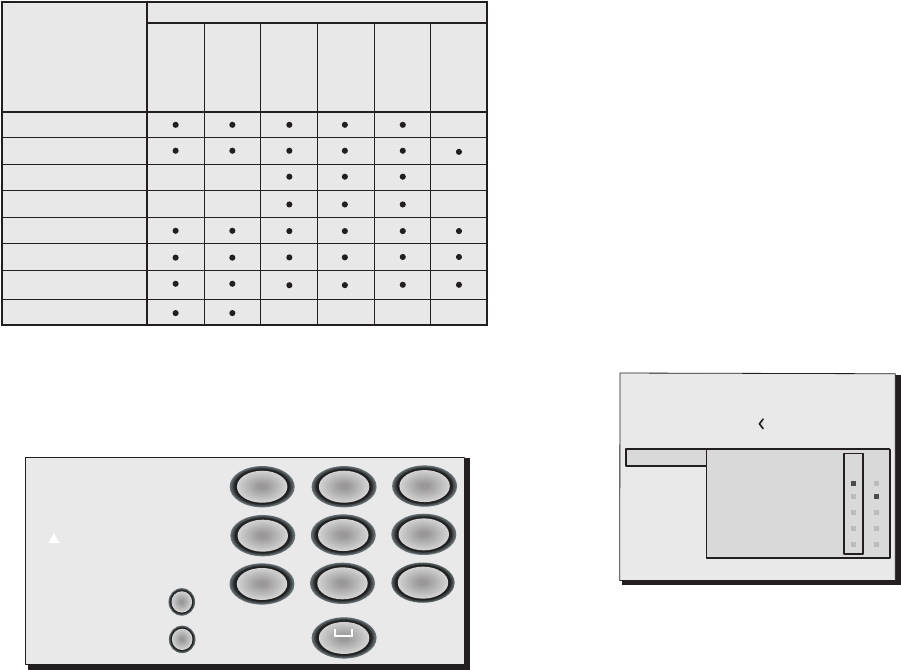
TEST PATTERNS
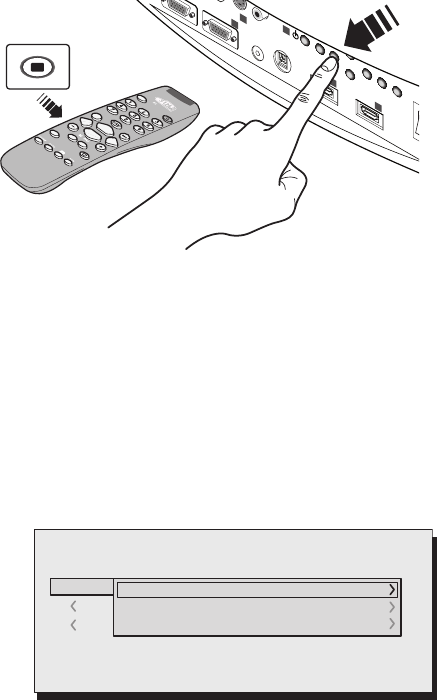
Displays a series of five test patterns, which are useful when
installing the system and checking basic functions. Use the ◀
and ▶ keys to browse through the test patterns (Fig. 25).
INITIAL SETTINGS
Reconfigures the projector to original factory settings except
Position, Orientation, Y/C Delay, Zoom and Focus (Fig. 26).
Fig.25
Fig.26
No
Confirm?
Yes
Fig. 27
Fig.24
KEYSTONE
20%
+12V
USB 1.1
R/Cr
CONTROL (RS232)GRAPHICS RGB
C/YB/Cb HVS-VIDEO
AUDIO OUT
HDMI 1
REMOTE
32
S-VIDEO
MENUESCINPUT
1
5
4
0
I
HDMI 2
6
23
proc3
same key as before. Use the ▲ key to switch from upper case
to lower case characters. Cancel errors with ▼ once you have
selected the character in question. Once you have terminated
the text input procedure confirm your text and save it by pres-
sing the
MENU+ key on the remote control.
If you wish to cancel the
modifications, press
MENU-
on the remote control.
F1-F2 keys
The remote control is equipped with two keys (F1 and F2) which
are associated with various different functions.
The screen has six options, one for each line, and two columns
indicating the keys F1-F2. You can select F1 and F2 with the keys
◀ and ▶ on the remote control; select the function to assign
to F1 or F2 with the keys ▼ and ▲.
The function performed by the key is confirmed by the appea-
rance of a dot on the corresponding column-row intersection
(Fig 29).
The following menu options are available.
Zoom
Accesses the lens zoom, so that ◀ and ▶ zoom into and out
The FOCUS setting drives the motorized focus to focus the
image; precise focus should enable you to see every pixel in
the image when close to the screen.
Focus
This option enables you to use the ◀ and ▶ keys to focus the
image.
Magnification
Activates the electronic zoom, the keys ◀ and ▶ zoom into the
image. If the key is pressed a second time you will activate
PAN
mode in which the ◀ and ▶, ▼ and ▲ keys enable you to pan
over the magnified image.
At the thirr pression of ▼ key, the system reconfigures the
projector to original visualisation settings.
Entering text
The text entry menu in (Fig.28) makes it quick and easy to
enter text.
Cancel
Confirm
Edit source name ()?@
1
ABC
2
DEF
3
GHI
4
JKL
5
MNO
6
PQRS
7
-
+
TUV
8
0
WXYZ
9
_ _ _ _ _ _ _ _ _ _ _
Text input mode is same whether you are editing an existing
name or entering a name for the first time. Characters can
be inserted in any of the available positions (represented by
horizontal lines). Use the ◀ and ▶ keys to move the cursor
leftor right respectively.
Press the number key corresponding to the character; pressing
once selects the first character, twice, the second character
and so on. The available characters are shown in the text insert
menu that appears in this input mode. Once you have ente-
red a character, move to the next space on the right to enter
the next with the ▶ key on the remote control, and repeat the
procedure. The same applies if the letter is associated with the
Posizione
Formato
Video
S-Video
RGBS
YCrCb
RGB Grafico
RGBS 15kHz
YCrCb 15kHz
Regolazioni
Ingressi
Frequenza -
-
Fase
Correzione Gamma
Temperatura colore
Overscan
-
-
-
-
-
Ritardo Y/C -
---
HDMI™
Table 6
Fig.28
Source list
F1/F2 keys
Source info
OSD Backgroung
OSD Position
OSD Timeout
Language
Menu
English
Zoom
Focus
Magnification
Blank
Gamma correction
F1 F2
Fig.29
24
proc3
making a total of 24 different available Memories.
The image parameters that can be saved/recalled by the
Memories management system are the following:
Image Picture
BRIGHTNESS ASPECT
CONTRAST COLOUR TEMPERATURE
COLOUR OVERSCAN
TINT GAMMA
SHARPNESS
FILTER
NOISE REDUCTION
Some of these parameters may not be available for certain
inputs or certain input signals, as indicated in Tables 4 and 5.
The menu page for the Memories management functions is
activated by pressing the key on the remote control.
The operations that can be performed on each memory se-
lected are described here below.
Blank
Switches off the video signal and displays a black page. As
soon as the key is pressed an OSD indication lasting a few se-
conds confirms that the function has been activated. Pressing
any further keys on the remote control restores the previous
conditions.
Color Temperature
Clicking the key in question again (F1 / F2) enables you to set
the colour temperature from
HIGH, MEDIUM, LOW AND USER
.
Gamma Correction
Successive pressing of the key in question (F1 or F2) makes it
possible to select from among the available gamma curves.
SOURCE INFORMATION
When active (
YES
) each time the source is changed informa-
tion is displayed relative to the signal type. If inactive, (
NO
) no
information about the source is displayed.
OSD BACKGROUND
Determines the type of background for the On Screen Display
(opaque transparent).
OSD TIMEOUT
Determines the On Screen Display timeout. The adjustment is
made using the ◀ (decrease) and ▶ (increase) keys within a
6-200 second timeframe.
OSD POSITION
Allows the On Screen Display to be positioned in a particular
area of the projected image. The OSD can be positioned using
the arrow keys for fine adjustments or keys 1...9 on the remote
control to select one of 9 preset positions.
3 COMP/RGB (YPrPb 15KHz) 3 COMP/RGB (RGB 15KHz)
3 COMP/RGB (YPrPb 32KHz) 3 COMP/RGB (RGB 32KHz)
5 HDMI
6 HDMI
1 VIDEO
4GRAPHICS RGB
2 S-VIDEO
MEMORIES
The main picture parameters can be saved in discrete sets
of values called “
Memories
” so that they can be subsequently
applied as a group using a single command.
There are 6 distinct Memories (Memory 1, Memory 2, Memory
3) for each of the 8 signal types managed:
25
proc3
232)
GRAPHICS RGB
HV
S-VIDEO
AUDIO OUT
HDMI 1
REMOTE
2
S-VIDEO
MENUESC INPUT
1
5
4
HDMI 2
6
Fig.30
Save memory
To save the image parameter current values in memory 1,
move the cursor to line ‘1’ with the ▼ and ▲ ‚ keys and open
the pull-down menu by pressing the ◀ key (Fig.31). Now select
Save current settings. To confirm the operation, the message
Current settings saved in Memory.
Memories 2...6 can be saved using the same procedure.
0 Auto
3 S MEMORIA 1
-EMORIES
Save current settings
Save initial settings
Rename
2 I
1 S
Fig.31
Recalling a memory
To retrieve memories select the required line and press ▶. The
parameters stored in the selected memory will be applied
to the displayed image, while a confirmation message will
be displayed to confirm the operation ‘Memory 1 recalled.’.
The Memory recalled will be associated with the source and
signal type, and will be automatically recalled every time that
particular source and signal type combination is selected.
Restore memory to original settings
To restore the original values of a previously modified Memory,
select the line relative to the Memory in question and open
the corresponding drop-down menu (◀ key). Select the line
‘Save initial settings’.
To confirm the operation, the message ‘Initial settings saved in
Memory 1’ is shown at the bottom of the display and the letter
“I” appears to the left of the memory name.
Rename a memory
All Memories can be named. To assign a name (with a ma-
ximum length of 12 alphanumeric characters) to a Memory,
select the option ‘Rename’ from the corresponding pull-down
menu. The text is input in accordance with the method descri-
bed in the heading
TEXT INSERT
.
Restore current values
When you enter the
MEMORIES
menu a copy of the current
settings is saved in a temporary memory (designated by
0
- AUTO
). Once one or more memories have been recalled, you
can restore the settings that were effective at the moment the
Memories menu was accessed by selecting
Memory
‘0’(
0 - AUTO)
.
Note that this operation must be executed before the
Memories
’
menu page disappears (30 seconds after the final operation
with the remote control or keypad). The next time it appears,
in fact, the temporary memory will contain new information
that takes account of any Memories that were selected in the
penultimate access to the ‘
MEMORIES
page.
Memory 0 can be used even when you do not wish to enable
Memories management for the signal in use. Once Memory 0
has been selected, when a source is chosen, the settings that
were effective at the time the Memory was previously recalled
will be automatically applied.
26
proc3
10 CLEANING AND MAINTENANCE
The projector does not require internal adjustment. There are
no user serviceable parts inside the projector.
To replace the bulb or any other repairs, contact your local
service centre.
To clean the outer cover of the screen use a soft cloth and
moisten slightly if necessary with water and a small amount of
neutral soap. Do not rub the rear panel markings.
The lens may be cleaned with a very soft, non-abrasive small
brush, in order to remove dust particles. Alternatively, use a soft
dry cleaning cloth (of the type used for camera lens cleaning)
to remove fingerprints and grease marks.
INFO
Displays the current status of the projector and information
concerning the projected video/graphic signal.
This function is displayed on pressing the key on the remote
control (or, in the absence of the On Screen Display, the ▶ key
on the keypad).
QUICK MENUS
The quick menus provide access to the main adjustments that
affect image quality without calling the main menu. Brightness,
CONTRAST, COLOUR, TINT, SHARPNESS
and
FILTER
adjustments appear at
the bottom of the screen one after the other when the ▼ and
▲ keys are pressed.
MESSAGES
The following messages could appear on your screen:
No Signal
The system does not recognise any signal applied to the se-
lected input. In this case:
• Make sure the selected input is connected to a video
or graphic signal and that that source is functioning cor-
rectly.
• Check the condition of the cables used to connect the
system to the various sources.
• Make sure the video or graphic signals supplied by the
source are compatible with the system’s technical spe-
cifications and, in particular, with those of the selected
input.
Out of range
This message appears when either the resolution or the vertical/
horizontal frequency of the input signal exceeds system specifi-
cations (e.g. a QXGA graphic signal) or when an input is supplied
with an incompatible signal (e.g. after setting the components
input to YCrCb 15kHz a progressive signal is connected).
11 PRODUCT DISPOSAL
This projector utilizes a pressurizzed lamp containing a small
amount of mercury. Disposal of these materials may be re-
gulated due to enviromental considerations. For disposal or
recycling information please contact your local autorities or, if
you are located in the United States of America , the Electronic
Industries Alliance www.eiae.org or www.lamprecycle.org.
27
proc3
12 TROUBLESHOOTING GUIDE
No power (LEDs always OFF)
• Check that the units’ power switches are set to I.
• Check that the power cables are correctly connected to
the units’ power sockets.
• Check the condition of the fuse located on the power
socket on the rear of the projector.
• Replace the fuse located on the projector’s power socket with an
identical type (T 3,15A H).
• If the fuse blows repeatedly, seek technical assistance from
your nearest Dealer.
Lamp fails to switch on
• If this happens immediately after the last time the unit was
switched off, allow a few minutes between switching off and
switching on again. This will allow the lamp to cool down
sufficiently.
• If the lamp fails to illuminate - even though the unit has
had time to cool down - seek technical assistance from
your nearest Dealer.
• Check the state of the connection by interpreting the code
displayed by the
system LEDs in accordance with Table 1.
No image
• Make sure the selected input is connected to a video
or graphic signal and that that source is functioning cor-
rectly.
• Make sure the video or graphic signals supplied by the
source are compatible with the Pro-C3 system’s technical
specifications and, in particular, with those of the selected
input.
• Check the condition of the cables used to connect the
projector to its input sources. • Check the state of the con-
nection by interpreting the code displayed by the system
LEDs.
• Make sure the cooling air vents on the units are not blocked
and that the ambient temperature is below 35°C.
Image is disturbed, unstable or noisy
• Check compatibility of the video or graphic signals with
the technical specifications of the system, and specifically,
with the specifications of the selected input.
• Check all cables.
• If the problem occurs on a terrestrial broadcast source
signal, check that the receiver has been correctly tuned
in and that the aerial system is in good working order.
• If the problem occurs in a video signal from a videorecor-
der, ensure that the videotape is in good condition and
that
VCR
mode is active in the
PICTURE
menu.
• Adjust the Sharpness parameter in the
PICTURE
menu to
optimise the projected image.
Incomplete image along borders (vertical and horizontal)
• Check compatibility of the video or graphic signals with
the technical specifications of the system, and specifically,
with the specifications of the selected input.
• Recall the automatic image adjustment function by pres-
sing the key “
A
” on the remote control or ◀ on the projector’s
keypad.
• Adjust the horizontal and vertical position of the image
with the
IMAGE / POSITION
menu (if available for the input in
question).
• Adjust the width and height of the image, selecting Aspect
in the
IMAGE ADJUSTMENTS / ASPECT menu
.
• Adjust the overscan value applied to the image on the
IMAGE / OVERSCAN menu
.
Image too dark, too pale or unnaturally coloured
• Check compatibility of the video or graphic signals with
the technical specifications of the system, and specifically,
with the specifications of the selected input.
• Adjust the
CONTRAST, BRIGHTNESS, COLOUR
and
TINT
parameters
in the
PICTURE menu
.
• If necessary, adjust
COLOR TEMPERATURE
and
GAMMA CORRECTION
(
IMAGE menu
)
.
28
proc3
You can purchase the following optional accessories at your
Dealer:
- Ceiling mount kit
- Lens
A range of lenses are available from our dealers to satisfy
varying installation and projection distance needs. See the
Additional Information chapter for greater details on projection
distance and enlargement ratios.
Always contact our service centre to have the lens replaced.
Use only original or SIM2 Multimedia approved accessories.
13 OPTIONAL ACCESSORIES
Warning: for ceiling/wall installation, by means of suspension
bracket, carefully follow the instructions and safety instruc-
tions recommended by the Manufacturer in the bracket’s
literature.
Graphic image with poor quality vertical detail
• Check compatibility of the video or graphic signals with
the technical specifications of the system, and specifically,
with the specifications of the selected input.
• Press key “
A
” on the remote control or ◀ on the projector’s
keypad to execute automatic adjustments.
• Adjust the
FREQUENCY
and
PHASE
settings in the
IMAGE
menu
to optimize the vertical details of the image(if available for
the input in question).
Video Image showing colour misalignment on vertical de-
tails
• Check compatibility of the video or graphic signals with
the technical specifications of the system, and specifically,
with the specifications of the selected input.
• Adjust
Y/C DELAY
settings in the
IMAGE
menu to reduce colour
misalignment.
Remote control does not work
• Check remote control battery power and correct polari-
ty.
• Ensure the area between the infrared sensors (on the front
panel of the projector) and the remote control is free from
obstructions.
• Make sure the infrared sensors on the front and rear of the
projector are not exposed to intense light levels.
14 SERIAL ENTERFACE AND EASY CINEMA
It is possible to control the projector through a personal com-
puter with a RS232 serial connection.
With RS232 serial connection the customer can approach to
an extensive control protocol that allow to utilize an advanced
diagnostic functionality. This command is not present inside the
normal On Screen Display.
The software that allows to utilise the extensive control protocol
is Easy Cinema
®, a new Sim2 Multimedia product.

29
proc3
ELECTRONICS
Input signals:
• COMPOSITE VIDEO (CVBS)
gold plated RCA connectors
1,0 Vpp / 75 Ω, negative synchronisation
• 1 S-VIDEO (Y/C)
4-pole mini-DIN connector
Y: 1.0 Vpp / 75 Ω, negative synchronisation
C: 0.286 Vpp / 75 Ω, [ nominal NTSC burst level]
0.3 Vpp / 75 Ω [nominal PAL, SECAM burst level]
• 1 COMPONENTS (Y/Pr/Pb/) - RGBS
1 set of 4 RCA connectors
- Component signals
Y: 1.0 Vpp / 75 Ω,
negative or 3 level synchronisation
[HDTV]
Pr,Pb:0.7 Vpp / 75 Ω
- RGB signal
R,B:0.7 Vpp / 75 Ω
G: 0,7 Vpp / 75 Ω, HV synchronisation
1.0 Vpp / 75 Ω,
negative or 3 level synchronisation
[HDTV]
Positive or negative TTL, 0.3-5 Vpp / 1 kΩ
• 1 RGBHV (analogue RGB)
female DB15HD connectors
R,B: 0.7 Vpp / 75 Ω
G: 0.7 Vpp / 75 Ω, separate H/V Sync or H+V Sync
1.0 Vpp / 75 Ω,
negative or 3 level synchronisation
[HDTV]
Positive or negative TTL, 0.3-5 Vpp / 1 kΩ
• 2 DIGITAL HDMI
1.1 versioni compliant
HDMI Standard Connector
HDCP 1.0 compliant
Control: keypad on rear input panel, remote control
RS232 from PC, home automation devices,
USB 1.1
Horizontal frequency: from 15 to 80 kHz (up to to UXGA format @ 65
Hz)
Vertical frequency: 48 -100 Hz
Video Standard: automatic selection (PAL
B,G,H,I,M,N,60, SECAM, NTSC 3.58
and 4.43)
High definition video standard.: ATSC HDTV (480p, 720p, Pro-C3i)
Graphic standards: VGA, SVGA, XGA, SXGA, UXGA
Colour temperature: from 6500 to 10000 K (36 steps)
Outputs: 2 12-V jack connector outputs (1 active with
system powered on, 1 active with 16:9 aspect
ratio selected)
1 Optical audio output (TOSLINK connector)
Image shift range: 1/3 image
GENERAL:
Mains cable: (EU, UK and US); 2m length
Mains: from 100 to 240 Vac (3,8-1,5 A)
Frequency: from 50 to 60 Hz
380 W max
Fuse: T 5.0A H 250V 5 x 20 mm
Dimensions: 435 x 190 x 430 mm (LxAxP)
Weight (approx): 11 kg
Operating temperature: 10 to 35°C
Shipping temperature: -15 to 55°C
Storage temperature: -15 to 55°C
Humidity: 20% to 95% humidity noncondensing
Safety: EN 60950
Portablity: desktop equipment
Safety: EN 55022 Class B
EN 55024 - EN 61000-3-2 EN 61000-3-3
Transport: IEC 68-2-31, IEC 68-2-32
TECHNICAL SPECIFICATIONS
OPTICAL
Panel Texas Instruments DMDTM
resolution 1280 x 720
Lamp : P-VIP 250W 1.0 P22
Lamp Life: Lamp life time : 1500 hrs typical
Lens Option
with projection distances: 1.5 - 2.0 : 1 2.0m – 15.0m
2.0 - 3.0 : 1 3.0m – 18.0m
Max vertical shift: 47% of image height
Zoom and focus adjustment: motorized
Brightness: 3000 ANSI Lumens @ 7500 K +/- 100
Brightness uniformity: Brightest zone 15 % greater than average
Dimmest zone 15 % lower than average
Misalignement: <0.5 pixel @ center
<0.75 pixel @ corners
Contrast Ratio: > 400:1 ANSI Checkerboard,
> 2000:1 Full On/Off
Color Temperature: 5600 °K to 9300 °K
Color uniformity
across image: u’v’ < 0.01 (@ANSI 9 POINT)
Color co-ordinates:
Red Coordinates:
Green Coordinates
Blue Coordinates
x = 0.660 +/- 0.015
y = 0.340 +/- 0.015
x = 0.320 +/- 0.015
y = 0.650 +/- 0.015
x = 0.146 +/- 0.004
y = 0.053 +/- 0.010
30
proc3
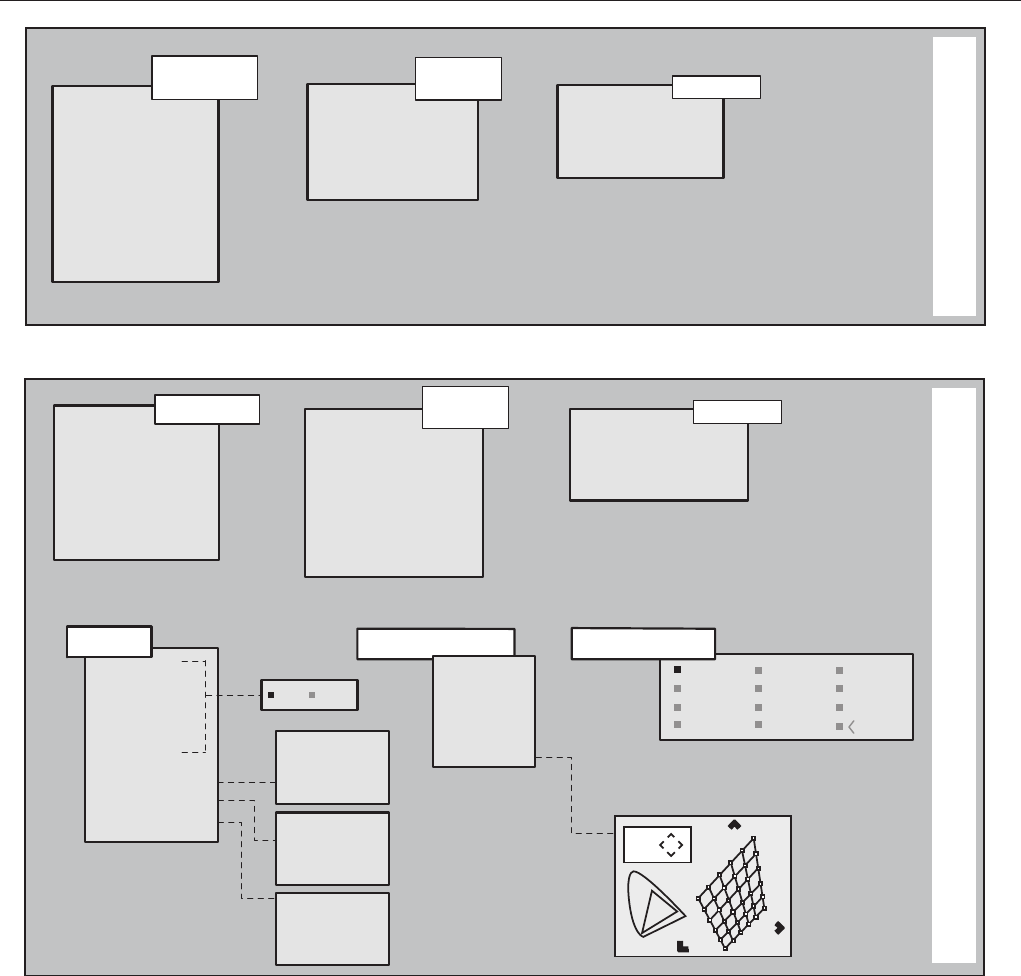
ON SCREEN MENU LAYOUT
IMAGE
PICTURE
Brightness
Contrast
Color
Tint
Sharpness
Filter
Cinema Mode
Video Type
Video • S-Video
[NTSC]
HDMI™ 1-2
Orientation
Keystone
Lens
Power ON
Test patterns
Initial settings
Lamp Power
Floor
Floor-rear
Ceiling
Ceiling-rear
Normal
Anamorphic
Letterbox
Panoramic
Subtitles
Pixel to Pixel
User 1
User 2
User 3 Horizontal
Vertical
Screen control
Horizontal
Vertical
Screen control
Horizontal
Vertical
Screen control
Brightness
Contrast
Sharpness
Sharpness Mode
Brightness
Contrast
Color
Sharpness
Sharpness Mode
Noise reduction
Aspect
Color Temperature
Gamma Correction
Aspect
Color Temperature
Gamma Correction
Brillant Color
Overscan
Position
Y/C Delay
Aspect
Color Temperature
Gamma Correction
Position
Frequency
Phase
Video • S-Video
Component
Ghaphics
Setup
Aspect
Horizontal
Vertical
Zoom
Focus
Lens Shift
Auto
Stand-by
Language
Source list
F1/F2 keys
Menu
Italiano
English
Français
Español
Deusch
Português
Overscan
Brillant Color Brillant Color
High
Medium
Low
User
High
Medium
Low
User
12
Color Temperature
Component
Ghaphics HDMI™ 1-2
Yes No
Hight
Medium
Low
Light Boost
User
Graphic NTSC
NTSC Enh
Graphic Enh
PAL SECAM
Graphic NTSC
NTSC Enh
Graphic Enh
PAL SECAM
ST1 ST5 EN4
ST2 EN1 EN5
ST3 EN2 GR1
ST4 EN3 GR2
Gamma Correction
31
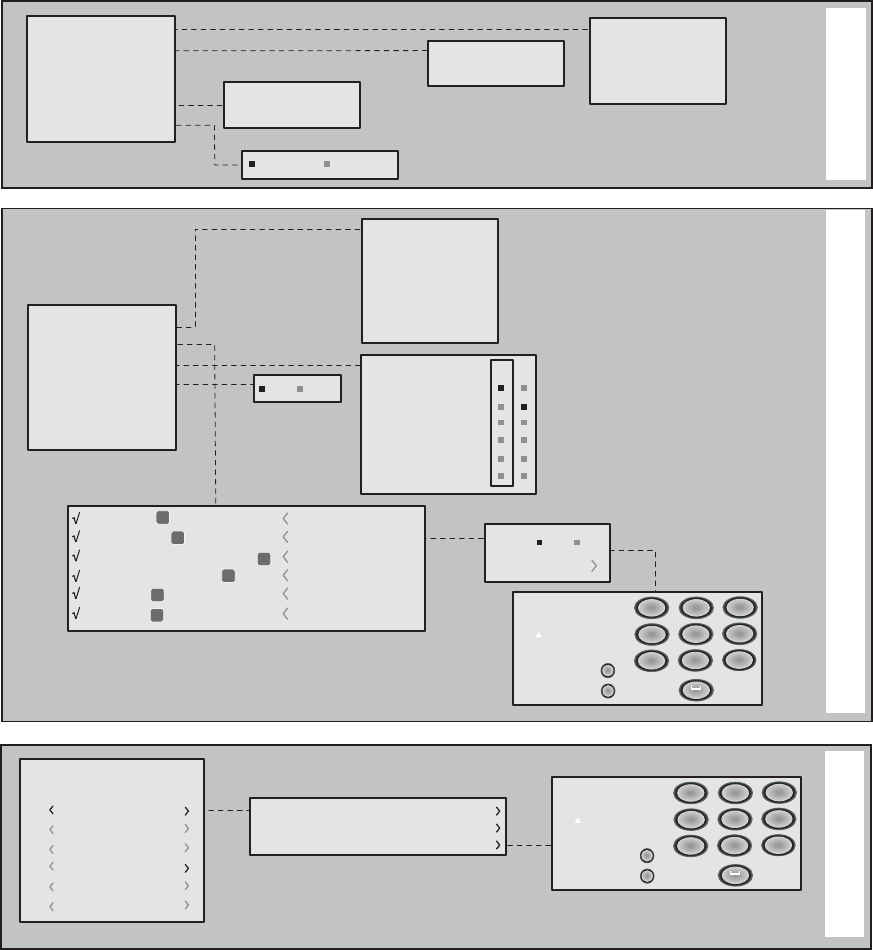
proc3
SETUP
Always Stand-by
Orientation
Keystone
Power ON
Test patterns
Logo light on
Initial settings
Floor
Floor-rear
Ceiling
Ceiling-rear
Horizontal
Vertical
Auto
Stand-by
Language
Source list
F1/F2 keys
Source info
OSD background
OSD Position
OSD Timeout
Zoom
Focua
Magnification
Blank
Color temperature
Gamma correction
Yes No
Italiano
English
Français
Español
Deusch
Português
2 S-VIDEO
4 GRAPHICS RGB
5
3COMPONENT / RGBS
1 VIDEO 1
2
3
4
5
HDMI
S-VIDEO 2
GRAPH RGB 4
HDMI 5
COMP RGB 3
VIDEO 1
6
6
HDMI HDMI 6
F1 F2
Active Yes No
Name
Cancel
Confirm
Edit source name ()?@
1
ABC
2
DEF
3
GHI
4
JKL
5
MNO
6
PQRS
7
-
+
TUV
8
0
WXYZ
9
_ _ _ _ _ _ _ _ _ _ _
Cancel
Confirm
Edit memory name ()?@
1
ABC
2
DEF
3
GHI
4
JKL
5
MNO
6
PQRS
7
-
+
TUV
8
0
WXYZ
9
_ _ _ _ _ _ _ _ _ _ _
0 Auto
3 S MEMORY 3
Memories
2 S MEMORY 2
1 S MEMORY 1
6 S MEMORY 6
5 S MEMORY 5
4 S MEMORY 4
Save current settings
Save initial settings
Rename
MENU MEMORIES
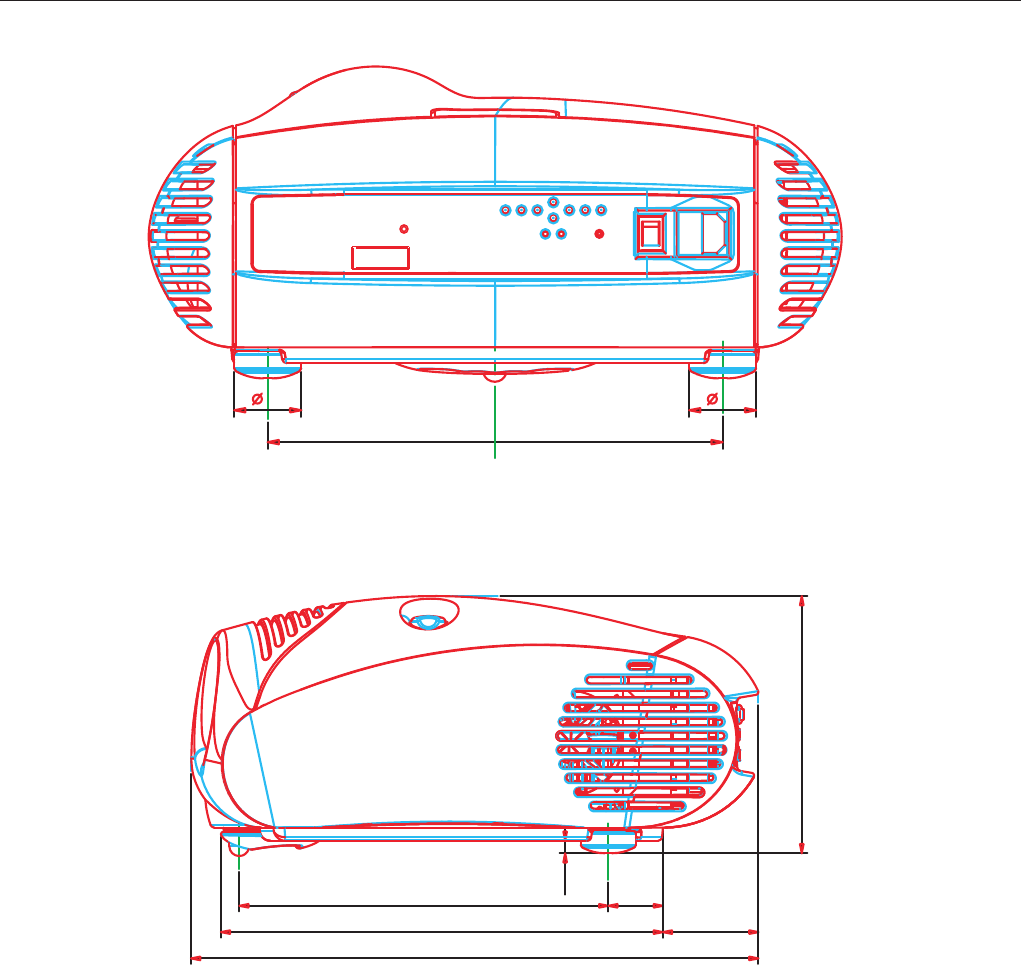
32
proc3
DIMENSIONS
285.3
42 42
280.6 41.5
336 72.6
195.6
431.4
9.5
33
proc3
PROJECTION DISTANCE - T1 LENS - R=16/9
50
60
70
80
90
100
110
120
150
180
200
250
300
1,3
1,5
1,8
2,0
2,3
2,5
2,8
3,0
3,8
4,6
5,1
6,3
7,6
43,6
52,3
61,0
69,7
78,4
87,2
95,9
104,6
130,7
156,9
174,3
217,9
261,5
1,1
1,3
1,5
1,8
2,0
2,2
2,4
2,7
3,3
4,0
4,4
5,5
6,6
24,5
29,4
34,3
39,2
44,1
49,0
53,9
58,8
73,5
88,2
98,0
122,6
147,0
0,6
0,7
0,9
1,0
1,1
1,2
1,4
1,5
1,9
2,2
2,5
3,1
3,7
R= 16/9
MetersInches MetersInches MetersInches
Diagonal Screen Widht Screen Height
50
60
70
80
90
100
110
120
150
180
200
250
300
1,3
1,5
1,8
2,0
2,3
2,5
2,8
3,0
3,8
4,6
5,1
6,3
7,6
65,4
78,4
91,5
104,6
117,7
130,7
143,8
156,9
196,1
235,3
261,5
326,8
392,2
1,7
2,0
2,3
2,7
3,0
3,3
3,6
4,0
5,0
6,0
6,6
8,3
10,0
87,2
104,6
122,0
139,4
156,9
174,3
191,7
209,2
261,5
313,8
348,6
435,8
522,9
2,2
2,7
3,1
3,5
4,0
4,4
4,9
5,3
6,6
8,0
8,9
11,1
13,3
R= 16/9 Throw Ratio 1,5 -------------------- 2
MetersInches MetersInches MetersInches
Diagonal MIN PJD MAX PJD
34
proc3
PROJECTION DISTANCE - T1 LENS - R=4/3
50
60
70
80
90
100
110
120
150
180
200
250
300
1,3
1,5
1,8
2,0
2,3
2,5
2,8
3,0
3,8
4,6
5,1
6,3
7,6
40
48
56
64
72
80
88
96
120
144
160
200
240
1,0
1,2
1,4
1,6
1,8
2,0
2,2
2,4
3,0
3,7
4,1
5,1
6,1
30
36
42
48
54
60
66
72
90
108
120
150
180
0,8
0,9
1,1
1,2
1,4
1,5
1,7
1,8
2,3
2,7
3,0
3,8
4,6
R= 4/3 Throw Ratio 1,5 -------------------- 2
MetersInches MetersInches MetersInches
Diagonal Screen Widht Screen Height
50
60
70
80
90
100
110
120
150
180
200
250
300
1,3
1,5
1,8
2,0
2,3
2,5
2,8
3,0
3,8
4,6
5,1
6,3
7,6
80
96
112
128
144
160
176
192
240
288
320
400
480
2,0
2,4
2,8
3,2
3,7
4,1
4,5
4,9
6,1
7,3
8,1
10,2
12,2
106,4
127,7
149,0
170,2
191,5
213,0
234,1
255,4
319,2
383,0
425,6
532,0
638,4
2,7
3,2
3,8
4,3
4,9
5,4
5,9
6,5
8,1
9,7
10,8
13,5
16,2
R= 4/3 Throw Ratio 2 ----------------- 2,66
MetersInches MetersInches MetersInches
Diagonal MIN PJD MAX PJD
35
proc3
PROJECTION DISTANCE - T2 LENS - R=16/9
50
60
70
80
90
100
110
120
150
180
200
250
300
1,3
1,5
1,8
2,0
2,3
2,5
2,8
3,0
3,8
4,6
5,1
6,3
7,6
46,6
52,3
62,0
69,7
78,4
87,2
95,9
104,6
130,7
156,9
174,3
217,9
261,5
1,1
1,3
1,5
1,8
2,0
2,2
2,4
2,7
3,3
4,0
4,4
5,5
6,6
24,5
29,4
34,3
39,2
44,1
49,0
53,9
58,8
73,5
88,2
98,0
122,6
147,1
0,6
0,7
0,9
1,0
1,1
1,2
1,4
1,5
1,9
2,2
2,5
3,1
3,7
R= 16/9
MetersInches MetersInches MetersInches
Diagonal Screen Widht Screen Height
50
60
70
80
90
100
110
120
150
180
200
250
300
1,3
1,5
1,8
2,0
2,3
2,5
2,8
3,0
3,8
4,6
5,1
6,3
7,6
87,2
104,6
122,0
139,4
156,9
174,3
191,7
209,2
261,5
313,8
348,6
435,8
522,9
2,2
2,7
3,1
3,5
4,0
4,4
4,9
5,3
6,6
8,0
8,9
11,1
13,3
130,7
156,9
183,0
209,2
235,3
261,5
287,6
313,8
392,2
470,6
522,9
653,7
784,4
3,2
4,0
4,6
5,3
6,0
6,6
7,3
8,0
10,0
11,9
13,3
16,6
19,9
R= 16/9 Throw Ratio 2 --------------------- 3
MetersInches MetersInches MetersInches
Diagonal MIN PJD MAX PJD
36
proc3
PROJECTION DISTANCE - T2 LENS - R=4/3
50
60
70
80
90
100
110
120
150
180
200
250
300
1,3
1,5
1,8
2,0
2,3
2,5
2,8
3,0
3,8
4,6
5,1
6,3
7,6
40
48
56
64
72
80
88
96
120
144
160
200
240
1,0
1,2
1,4
1,6
1,8
2,0
2,2
2,4
3,0
3,7
4,1
5,1
6,1
30
36
42
48
54
60
66
72
90
108
120
150
180
0,8
0,9
1,1
1,2
1,4
1,5
1,7
1,8
2,3
2,7
3,0
3,8
4,6
R= 4/3
MetersInches MetersInches MetersInches
Diagonal Screen Widht Screen Height
50
60
70
80
90
100
110
120
150
180
200
250
300
1,3
1,5
1,8
2,0
2,3
2,5
2,8
3,0
3,8
4,6
5,1
6,3
7,6
2,7
3,2
3,8
4,3
4,9
5,4
5,9
6,5
8,1
9,7
10,8
13,5
16,2
106,4
127,7
149,0
170,2
191,5
212,8
234,1
255,4
319,2
283,0
425,6
536,0
638,4
160
192
224
256
288
320
352
384
480
576
640
800
900
4,1
4,9
5,7
6,5
7,3
8,1
8,9
9,7
12,2
14,6
16,3
20,3
24,4
R= 4/3 Throw Ratio 2,66 --------------------- 4
MetersInches MetersInches MetersInches
Diagonal MIN PJD MAX PJD
37
proc3
640 350 31,47 70 800 449
640 350 37,86 85 832 445
720 350 31,47 70 900 449
512 384 24,48 60 640 407
560 384 24,48 60 704 407
640 400 24,82 56 848 440
640 400 30,29 60 824 508
640 400 31,47 70 800 449
640 400 37,86 85 832 445
720 400 31,47 70 900 449
720 400 39,45 88 900 449
720 400 37,94 85 936 446
640 420 34,99 67 896 525
640 480 15,73 30 780 525
640 480 30,29 60 826 508
640 480 31,47 60 800 525
640 480 34,99 67 864 525
640 480 37,86 73 832 520
640 480 37,5 75 840 500
640 480 39,39 75 800 525
640 480 43,27 85 832 509
720 480 15,73 30 858 525
720 480 15,73 30 858 525
720 480 31,47 60 858 525
720 480 31,47 60 858 525
720 480 31,5 59 935 530
852 480 31,73 60 1072 529
752 484 15,73 30 910 525
768 574 15,63 25 944 625
920 574 15,63 25 1136 625
920 574 15,63 25 1136 625
920 574 15,63 25 1136 625
720 576 15,63 25 864 625
720 576 15,63 25 864 625
720 576 31,25 50 864 625
720 576 45 75 944 600
800 600 35,16 56 1024 625
800 600 37,88 60 1056 628
800 600 45,09 72 1040 626
800 600 46,88 75 1056 625
800 600 48,08 72 1040 666
800 600 50,33 80 1056 629
800 600 53,68 85 1048 631
800 600 56,88 90 1056 632
800 600 63,61 100 1072 636
800 600 70,42 110 1072 640
800 600 77,16 120 1088 643
832 624 49,12 75 1120 654
960 720 44,76 60 1248 746
960 720 55,96 75 1248 746
960 720 63,41 85 1248 746
1280 720 44,96 60 1650 750
1280 720 44,96 60 1650 750
1280 720 37,5 50 1980 750
1280 720 37,5 50 1980 750
1120 750 32,86 40 1456 821
1053 754 35,42 43 1286 815
1024 768 35,52 43 1264 817
1024 768 48,19 59 1328 813
1024 768 47,71 60 1344 795
1024 768 48,38 60 1344 806
1024 768 48,38 60 1344 806
1024 768 56,47 70 1328 806
1024 768 57,87 72 1296 806
1024 768 56,27 70 1368 804
1024 768 57,7 72 1360 801
1024 768 60,02 75 1312 800
1024 768 60,24 75 1328 804
1024 768 60,24 75 1328 803
1280 1024 71,68 67 1632 1075
1280 1024 81,17 76 1724 1066
1024 768 62,07 77 1360 805
1024 768 62,97 75 1344 840
1024 768 61,09 76 1408 806
1024 768 64,35 80 1376 804
1024 768 68,68 85 1376 808
1024 768 72,83 90 1376 809
1024 768 81,43 100 1392 814
1024 768 90,09 110 1392 819
1056 768 35,61 43 1280 819
1280 768 47,82 60 1674 797
1152 864 63,86 70 1480 912
1152 864 67,52 75 1600 900
1152 864 77,1 85 1576 907
640 870 68,87 75 832 918
1152 870 68,68 75 1456 915
1152 900 61,8 66 1504 937
1152 900 61,8 66 1528 937
1152 900 71,74 76 1472 943
1152 900 71,74 76 1504 943
1280 960 60,02 60 1800 1000
1280 960 75,02 75 1680 1000
1280 960 85,98 85 1728 1011
1024 1024 63,37 60 1408 1056
RESOLUTIONS FREQUENCIES RASTER
Hres Vres Hf Khz Vf Hz Htotal Vtotal
RESOLUTIONS FREQUENCIES RASTER
Hres Vres Hf Khz Vf Hz Htotal Vtotal
12
38
proc3
1024 1024 65,27 61 1424 1063
1280 1024 46,45 43 1696 1069
1280 1024 63,9 60 1688 1065
1280 1024 64,02 60 1688 1066
1280 1024 63,37 60 1708 1056
1280 1024 63,37 60 1760 1056
1280 1024 71,68 67 1632 1075
1280 1024 71,68 67 1648 1075
1280 1024 70,77 67 1696 1056
1280 1024 76,86 72 1728 1067
1280 1024 78,86 74 1712 1064
1280 1024 78,13 72 1728 1085
1280 1024 80 75 1688 1066
1280 1024 81,17 76 1664 1066
1280 1024 81,17 76 1724 1066
1280 1024 85,76 80 1744 1072
1280 1024 91,16 85 1728 1072
1360 1024 56,5 51,5 1824 1097
1600 1024 63,61 60 2144 1060
1920 1035 33,72 30 2200 1125
1400 1050 64,02 60 1688 1066
1440 1080 67,07 60 1936 1118
1680 1080 67,07 60 2256 1118
1920 1080 26,97 24 2750 1125
1920 1080 26,97 24 2750 1125
1920 1080 26,97 24 2750 1125
1920 1080 33,72 24 2200 1125
1920 1080 33,72 24 2200 1125
1920 1080 28,12 25 2640 1125
1920 1080 28,12 25 2640 1125
1920 1080 28,12 25 2640 1125
1920 1080 27 24 2750 1125
1920 1080 31,25 25 2376 1250
1920 1080 27 24 2750 1125
1920 1080 27 24 2750 1125
1920 1080 33,75 30 2200 1125
1920 1080 31,25 25 2376 1250
1920 1080 56,24 50 2640 1125
1920 1080 56,24 50 2640 1125
1920 1080 67,52 60 2200 1125
1920 1080 67,52 60 2200 1125
1600 1200 62,5 48 2160 1301
1600 1200 75,02 60 2160 1250
1920 1200 66,23 55 2112 1205
1920 1200 72,25 60 2112 1205
2048 1536 61,61 40 2240 1540
2048 1536 70,87 46 2240 1540
RESOLUTIONS FREQUENCIES RASTER
Hres Vres Hf Khz Vf Hz Htotal Vtotal
3
• In accordance with the manufacturer’s constant product development programme, product specifications and design are subject to changes without notice.
SIM2 Multimedia is certified
SIM2 Multimedia S.p.a. • Viale Lino Zanussi, 11 • 33170 Pordenone - ITALY
Phone +39.434.383.253-256 • Fax +39.434.383260-261
www.sim2.com • e-mail: info@sim2.it
SIM2 USA Inc. • 10108 USA Today Way • 33025 Miramar FL - USA
Phone +1.954.4422999 • Fax +1.954.4422998
www.sim2usa.com • e-mail: sales@sim2usa.com
SIM2 Deutschland GmbH • Gewerbepark, 17 D-35606 Solms
Phone 0800.800.7462 • Fax 0800.900.7462
www.sim2.com • e-mail: info.de@sim2.it
SIM2 UK LTD
•
Steinway House Worth Farm,
Little Horsted Nr. Uckfield, East Sussex TN22 5TT
Phone
+44.01825.750850
•
Fax +44.01825.750851
www.sim2.co.uk
• e-mail: kate.buckle@sim2.co.uk
